


by Amelia Ilies,
Kati Holasz
Setup
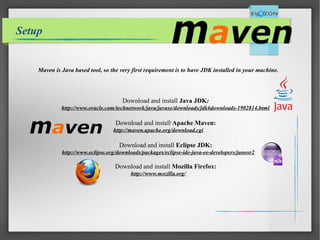
Maven is Java based tool, so the very first requirement is to have JDK installed in your machine.
Download and install Java JDK::
http://www.oracle.com/technetwork/java/javase/downloads/jdk6downloads-1902814.html
Download and install Apache Maven:
http://maven.apache.org/download.cgi
Download and install Eclipse JDK:
http://www.eclipse.org/downloads/packages/eclipse-ide-java-ee-developers/junosr2
Download and install Mozilla Firefox:
http://www.mozilla.org/
Steps
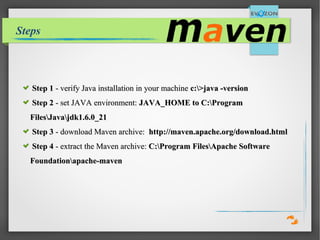
Step 1Step 1 - verify Java installation in your machine- verify Java installation in your machine c:>java -versionc:>java -version
Step 2Step 2 - set JAVA environment:- set JAVA environment: JAVA_HOME to C:ProgramJAVA_HOME to C:Program
FilesJavajdk1.6.0_21FilesJavajdk1.6.0_21
Step 3Step 3 - download Maven archive:- download Maven archive: http://maven.apache.org/download.htmlhttp://maven.apache.org/download.html
Step 4Step 4 - extract the Maven archive:- extract the Maven archive: C:Program FilesApache SoftwareC:Program FilesApache Software
Foundationapache-mavenFoundationapache-maven
4
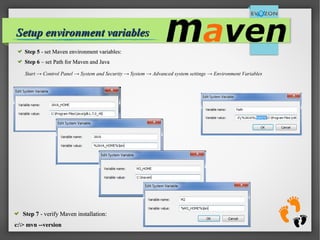
Setup environment variablesSetup environment variables
Start → Control Panel → System and Security → System → Advanced system settings → Environment Variables
Step 5Step 5 - set Maven environment variables:- set Maven environment variables:
Step 6Step 6 – set Path for Maven and Java– set Path for Maven and Java
Step 7Step 7 - verify Maven installation:- verify Maven installation:
c:> mvn --versionc:> mvn --version
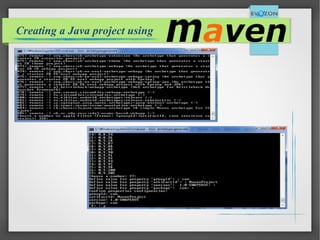
Creating a Java project using
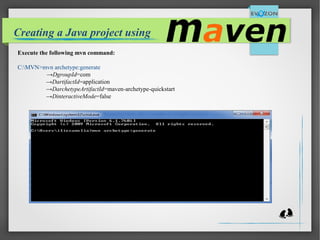
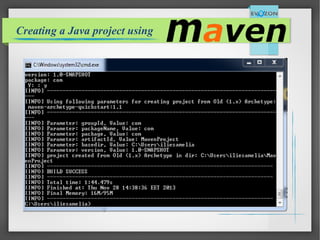
Execute the following mvn command:
C:MVN>mvn archetype:generate
→DgroupId=com
→DartifactId=application
→DarchetypeArtifactId=maven-archetype-quickstart
→DinteractiveMode=false
Creating a Java project using
.
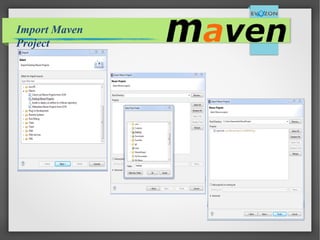
Import Maven
Project
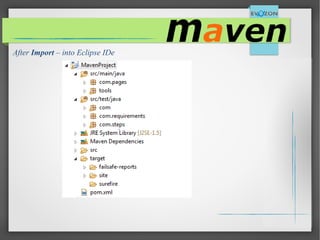
After Import – into Eclipse IDe
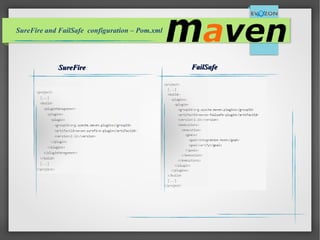
SureFire and FailSafe configuration – Pom.xml
SureFireSureFire FailSafeFailSafe
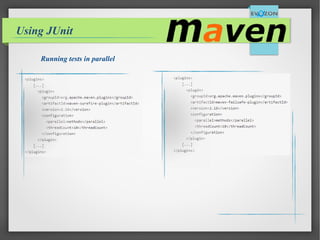
Running tests in parallel
Using JUnit
Running test
Run tests with:
mvn surefire:test
Run test with FailSafe
mvn failsafe:test-integration
mvn failsafe:verify
Run a single test
mvn -Dtest=Login test
Run a set of methods in a single test
mvn -Dtest=LoginTest#Log_In test
Generate reports and site
mvn site
Skip tests with SureFire
- go to pom.xml and add: <skip>true</skip> to configuration tag specific to SureFire
Good Luck!

Maven Setup

  • 1.
  • 2.
    Setup Maven is Javabased tool, so the very first requirement is to have JDK installed in your machine. Download and install Java JDK:: http://www.oracle.com/technetwork/java/javase/downloads/jdk6downloads-1902814.html Download and install Apache Maven: http://maven.apache.org/download.cgi Download and install Eclipse JDK: http://www.eclipse.org/downloads/packages/eclipse-ide-java-ee-developers/junosr2 Download and install Mozilla Firefox: http://www.mozilla.org/
  • 3.
    Steps Step 1Step 1- verify Java installation in your machine- verify Java installation in your machine c:>java -versionc:>java -version Step 2Step 2 - set JAVA environment:- set JAVA environment: JAVA_HOME to C:ProgramJAVA_HOME to C:Program FilesJavajdk1.6.0_21FilesJavajdk1.6.0_21 Step 3Step 3 - download Maven archive:- download Maven archive: http://maven.apache.org/download.htmlhttp://maven.apache.org/download.html Step 4Step 4 - extract the Maven archive:- extract the Maven archive: C:Program FilesApache SoftwareC:Program FilesApache Software Foundationapache-mavenFoundationapache-maven
  • 4.
    4 Setup environment variablesSetupenvironment variables Start → Control Panel → System and Security → System → Advanced system settings → Environment Variables Step 5Step 5 - set Maven environment variables:- set Maven environment variables: Step 6Step 6 – set Path for Maven and Java– set Path for Maven and Java Step 7Step 7 - verify Maven installation:- verify Maven installation: c:> mvn --versionc:> mvn --version
  • 5.
    Creating a Javaproject using Execute the following mvn command: C:MVN>mvn archetype:generate →DgroupId=com →DartifactId=application →DarchetypeArtifactId=maven-archetype-quickstart →DinteractiveMode=false
  • 6.
    Creating a Javaproject using
  • 7.
    Creating a Javaproject using
  • 8.
  • 9.
    After Import –into Eclipse IDe
  • 10.
    SureFire and FailSafeconfiguration – Pom.xml SureFireSureFire FailSafeFailSafe
  • 11.
    Running tests inparallel Using JUnit
  • 12.
    Running test Run testswith: mvn surefire:test Run test with FailSafe mvn failsafe:test-integration mvn failsafe:verify Run a single test mvn -Dtest=Login test Run a set of methods in a single test mvn -Dtest=LoginTest#Log_In test Generate reports and site mvn site Skip tests with SureFire - go to pom.xml and add: <skip>true</skip> to configuration tag specific to SureFire
  • 13.