Installing SALSA and
Reporting in 3
Windows 2012 Servers
Oscar O. Irigoyen Ph.D
Senior Solutions Consultant
Introduction
General Considerations
• This lab assumes that you have basic knowledge of the Ipanema Architecture and operation,
including appliances and the SALSA management platform
• This lab uses 3 Servers with Windows 2012
• Sizing of the servers depend on each deployment
• This lab uses minimal compute resources to only demonstrate the installation
• Consult the sizing guide from Infovista Support
• The list of prerequisites are needed to be observed for proper operation of the different
modules
• The names of the packages of the software list can change depending on the versions and
updates
• The installation order of the packages used in this lab is not mandatory, but it is
recommended to follow as a progressive procedure to include testing
Servers Prerequisites
• Install and patch the Windows 2012 servers where the SALSA and Infovista
reporting modules will be installed. Make sure you have Admin credentials for the
SALSA modules installation.
• No Firewall services
• No Antivirus services
• Verify distinct System Names, MAC addresses, IP addresses
ISU (Ipanema Software Unit) License
• Get the ISUs license from an Infovista representative
• The file looks something like:
• Ipanema_127062018.ipmsys
5
Infovista Server for Reporting license
• It is not mandatory for the test, the server has an evaluation license for 30 days
• You can ask for a long-term license to the Infovista representatives
• You need to copy the System ID for requesting the Infovista Server license
6
Packages
7
Download the list of software from Infovista Support
https://support-ipanema.infovista.com
• ipboss_v9.3.0 -windows
• ipreporter_9.3.0
• ipreporter_web 9.3.0
• VistaCockpit 5 1 windows2
• Hotfix VistaCockpit 51074-VC-9431 (install from VistaCockpit Console)
• IVserver 5.1 build 51151– windows
• Hotfix IVserver5.1-51151-IVS-20410 (install from VistaCockpit Console)
• VistaPortalSE 5.1 build 51029- windows
• Hotfix VistaPortalse 5.1 VPS 4503 (install from VistaCockpit Console)
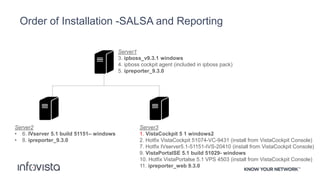
Order of Installation -SALSA and Reporting
Server1
3. ipboss_v9.3.1 windows
4. ipboss cockpit agent (included in ipboss pack)
5. ipreporter_9.3.0
Server2
• 6. IVserver 5.1 build 51151– windows
• 8. ipreporter_9.3.0
Server3
1. VistaCockpit 5 1 windows2
2. Hotfix VistaCockpit 51074-VC-9431 (install from VistaCockpit Console)
7. Hotfix IVserver5.1-51151-IVS-20410 (install from VistaCockpit Console)
9. VistaPortalSE 5.1 build 51029- windows
10. Hotfix VistaPortalse 5.1 VPS 4503 (install from VistaCockpit Console)
11. ipreporter_web 9.3.0
Installation
10
1- Server3 -VistaCockpit 5 1 windows2
• Make sure the Server IP address works properly and ping the other servers
• Most of the time you can use the default parameter configuration
• You can customize the proposed ports but normally they have not conflict with other
ports inside the server. When you use a separated server for Vista Cockpit you
should verify those ports in the network.
• The reason to install Cockpit as the second package is because it is the monitoring
application for all other server components
2- Server3 -Hotfix VistaCockpit 51074-VC-9431
• Open the Cockpit Console and install the hotfix
• You do not need password
• Go to the “Hotfix Installation” bottom (top right)
• The console will reboot twice it is normal after the installation of the Hotfix
12
3- Server1 -ipboss_v9.3.0 - windows
• Make sure the Server IP address works properly and ping the other servers
• Change or not the Admin Password
• Use defaults or change ports depending on what your network is using
• You can let the default passwords of the databases
wget -T 2 -t 1 54.193.81.253:20443
4- Server1 –ipboss cockpit agent
• Go to the setup program inside of the ipboss_v9.3.0 – windows installation package
• ~ipboss_v9.3.0 – windowswindowscockpitagentwin32
• After the installation go to the Cockpit console and verify that the Server 1 and its
SALSA components have apeared
14
5- Server1 -ipreporter_9.3.0
• Install the ipreporter_9.3.0 software using the default parameters.
• By default the software will propose the piece for the SALSA server so just
select next
15
6- Server 2 -IVserver 5.1 build 51151– windows
• Install IVserver 5.1
• Agree for the license evaluation.
• You can ask for a long-term license to the Infovista representatives
• You need to copy the System ID for requesting the Infovista Server license
• Select defaults and complete the installation
16
7- Server3 -Hotfix IVserver5.1-51151-IVS-20410
• Login into Vista Cockpit and deploy the hotfix (by using the hotfix installation button
top right
• The IVserver service in the Server2 will be rebooted after the hotfix is deployed
17
8- Server2: 6-ipreporter_9.3.0
• Install the ipreporter_9.3.0 software using the default parameters
• By default, the software will propose the piece for the IVserver so just select next
• Import Infovista libraries
• Logging: administrator (default)
• Password: blank
• Hit on the button “Import”
18
9- Server3 -VistaPortal 5.1 build 51029 - windows
• After unzipping the software, you will find another zipped folder
• “VistaPortal_Standard_Edition-5.1-windows”
• Extract the files
• Look for the setup and install
• Use defaults and complete the installation
• Test VistaPortalSE using the browser
• For example https://192.168.1.163:10080/PortalSE
19
10- Server3 - Hotfix VistaPortalse 5.1 VPS 4503
• Open the Vista Cockpit application
• Verify that VistaPortalSE is present in the hosts component
• Deploy the Hotfix (by using the hotfix installation button top right
20
11- Server3 -ipreporter_web 9.3.0
• Use all the defaults and install the ipreporter_web
21
Install the SALSA license
• Login into the SALSA platform by using your browser
• Select “Above” link on the left below
• Import the license
22
Testing Domain
23
Configuring a domain
• Configure a Domain server using the IP address of the domain
• Configure the Domain
• Select a name
• Define the number of ISUs allocated
• Select the SNMP port (e.g. 1)
• Select the runtime server
• Complete the runtime server parameters
• Select the long-term reporting time
• Apply the parameters
24
Login into the domain
• Activate Visibility
• Verify the Reporting Server and Database lights turn to green
• When the Reporting Server and Database are running
• Go to the Reporting section
• Verify you have the Reports including Domain, Sites and Applications
25
Thank you!
www.infovista.com
26

Install Salsa Windows 2012 Three Servers

  • 1.
    Installing SALSA and Reportingin 3 Windows 2012 Servers Oscar O. Irigoyen Ph.D Senior Solutions Consultant
  • 2.
  • 3.
    General Considerations • Thislab assumes that you have basic knowledge of the Ipanema Architecture and operation, including appliances and the SALSA management platform • This lab uses 3 Servers with Windows 2012 • Sizing of the servers depend on each deployment • This lab uses minimal compute resources to only demonstrate the installation • Consult the sizing guide from Infovista Support • The list of prerequisites are needed to be observed for proper operation of the different modules • The names of the packages of the software list can change depending on the versions and updates • The installation order of the packages used in this lab is not mandatory, but it is recommended to follow as a progressive procedure to include testing
  • 4.
    Servers Prerequisites • Installand patch the Windows 2012 servers where the SALSA and Infovista reporting modules will be installed. Make sure you have Admin credentials for the SALSA modules installation. • No Firewall services • No Antivirus services • Verify distinct System Names, MAC addresses, IP addresses
  • 5.
    ISU (Ipanema SoftwareUnit) License • Get the ISUs license from an Infovista representative • The file looks something like: • Ipanema_127062018.ipmsys 5
  • 6.
    Infovista Server forReporting license • It is not mandatory for the test, the server has an evaluation license for 30 days • You can ask for a long-term license to the Infovista representatives • You need to copy the System ID for requesting the Infovista Server license 6
  • 7.
  • 8.
    Download the listof software from Infovista Support https://support-ipanema.infovista.com • ipboss_v9.3.0 -windows • ipreporter_9.3.0 • ipreporter_web 9.3.0 • VistaCockpit 5 1 windows2 • Hotfix VistaCockpit 51074-VC-9431 (install from VistaCockpit Console) • IVserver 5.1 build 51151– windows • Hotfix IVserver5.1-51151-IVS-20410 (install from VistaCockpit Console) • VistaPortalSE 5.1 build 51029- windows • Hotfix VistaPortalse 5.1 VPS 4503 (install from VistaCockpit Console)
  • 9.
    Order of Installation-SALSA and Reporting Server1 3. ipboss_v9.3.1 windows 4. ipboss cockpit agent (included in ipboss pack) 5. ipreporter_9.3.0 Server2 • 6. IVserver 5.1 build 51151– windows • 8. ipreporter_9.3.0 Server3 1. VistaCockpit 5 1 windows2 2. Hotfix VistaCockpit 51074-VC-9431 (install from VistaCockpit Console) 7. Hotfix IVserver5.1-51151-IVS-20410 (install from VistaCockpit Console) 9. VistaPortalSE 5.1 build 51029- windows 10. Hotfix VistaPortalse 5.1 VPS 4503 (install from VistaCockpit Console) 11. ipreporter_web 9.3.0
  • 10.
  • 11.
    1- Server3 -VistaCockpit5 1 windows2 • Make sure the Server IP address works properly and ping the other servers • Most of the time you can use the default parameter configuration • You can customize the proposed ports but normally they have not conflict with other ports inside the server. When you use a separated server for Vista Cockpit you should verify those ports in the network. • The reason to install Cockpit as the second package is because it is the monitoring application for all other server components
  • 12.
    2- Server3 -HotfixVistaCockpit 51074-VC-9431 • Open the Cockpit Console and install the hotfix • You do not need password • Go to the “Hotfix Installation” bottom (top right) • The console will reboot twice it is normal after the installation of the Hotfix 12
  • 13.
    3- Server1 -ipboss_v9.3.0- windows • Make sure the Server IP address works properly and ping the other servers • Change or not the Admin Password • Use defaults or change ports depending on what your network is using • You can let the default passwords of the databases wget -T 2 -t 1 54.193.81.253:20443
  • 14.
    4- Server1 –ipbosscockpit agent • Go to the setup program inside of the ipboss_v9.3.0 – windows installation package • ~ipboss_v9.3.0 – windowswindowscockpitagentwin32 • After the installation go to the Cockpit console and verify that the Server 1 and its SALSA components have apeared 14
  • 15.
    5- Server1 -ipreporter_9.3.0 •Install the ipreporter_9.3.0 software using the default parameters. • By default the software will propose the piece for the SALSA server so just select next 15
  • 16.
    6- Server 2-IVserver 5.1 build 51151– windows • Install IVserver 5.1 • Agree for the license evaluation. • You can ask for a long-term license to the Infovista representatives • You need to copy the System ID for requesting the Infovista Server license • Select defaults and complete the installation 16
  • 17.
    7- Server3 -HotfixIVserver5.1-51151-IVS-20410 • Login into Vista Cockpit and deploy the hotfix (by using the hotfix installation button top right • The IVserver service in the Server2 will be rebooted after the hotfix is deployed 17
  • 18.
    8- Server2: 6-ipreporter_9.3.0 •Install the ipreporter_9.3.0 software using the default parameters • By default, the software will propose the piece for the IVserver so just select next • Import Infovista libraries • Logging: administrator (default) • Password: blank • Hit on the button “Import” 18
  • 19.
    9- Server3 -VistaPortal5.1 build 51029 - windows • After unzipping the software, you will find another zipped folder • “VistaPortal_Standard_Edition-5.1-windows” • Extract the files • Look for the setup and install • Use defaults and complete the installation • Test VistaPortalSE using the browser • For example https://192.168.1.163:10080/PortalSE 19
  • 20.
    10- Server3 -Hotfix VistaPortalse 5.1 VPS 4503 • Open the Vista Cockpit application • Verify that VistaPortalSE is present in the hosts component • Deploy the Hotfix (by using the hotfix installation button top right 20
  • 21.
    11- Server3 -ipreporter_web9.3.0 • Use all the defaults and install the ipreporter_web 21
  • 22.
    Install the SALSAlicense • Login into the SALSA platform by using your browser • Select “Above” link on the left below • Import the license 22
  • 23.
  • 24.
    Configuring a domain •Configure a Domain server using the IP address of the domain • Configure the Domain • Select a name • Define the number of ISUs allocated • Select the SNMP port (e.g. 1) • Select the runtime server • Complete the runtime server parameters • Select the long-term reporting time • Apply the parameters 24
  • 25.
    Login into thedomain • Activate Visibility • Verify the Reporting Server and Database lights turn to green • When the Reporting Server and Database are running • Go to the Reporting section • Verify you have the Reports including Domain, Sites and Applications 25
  • 26.

Editor's Notes

  • #2 Hi, I’m <first name> < last name >, <Title> at InfoVista. It’s a pleasure for me to be here with you to introduce InfoVista, and discuss how we can help communication service providers, IT-intensive enterprises and governmental organizations achieve the promise of better network performance.