Improving your shell usage by Chris Sinjakli (Sinjo)
Why? Department computers CS student (Pro Skills module) Web hosting IRC
Navigation Where am I? The  pwd  command will show you the current working directory:
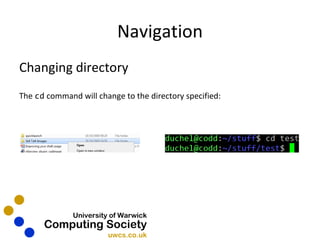
Navigation Changing directory The  cd  command will change to the directory specified:
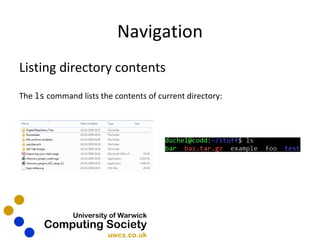
Navigation Listing directory contents The  ls  command lists the contents of current directory:
Navigation Other useful commands: cp <source> <destination>  - Copies <source> to <destination> mv <source> <destination>   - Moves <source> to <destination> mkdir <name>  - Creates a directory called <name> rm <target>  - Removes <target> (no “Are you sure?”, be careful)
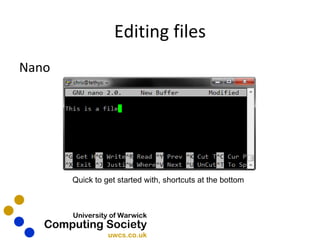
Editing files Nano Quick to get started with, shortcuts at the bottom
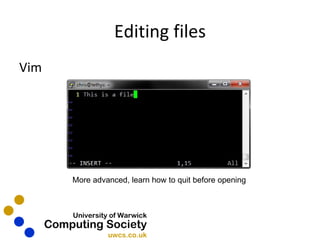
Editing files Vim More advanced, learn how to quit before opening
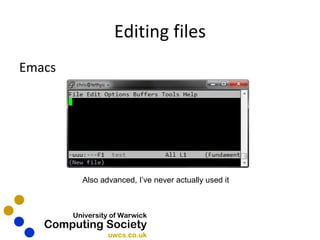
Editing files Emacs Also advanced, I’ve never actually used it
Command History A faster way to retype commands Previously typed commands are saved Up/down arrow keys can be used to access them Not that useful if you want to go far back
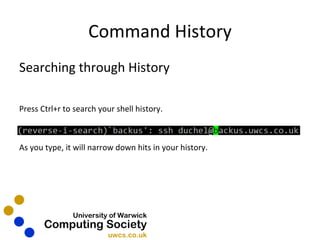
Command History Searching through History Press Ctrl+r to search your shell history. As you type, it will narrow down hits in your history.
Leaving things running Running programs stop when you exit the shell Programs can be left running inside the  screen  application
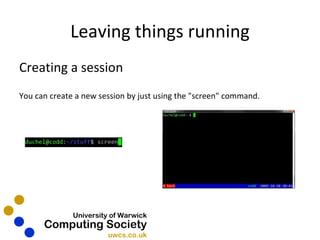
Leaving things running Creating a session You can create a new session by just using the &quot;screen&quot; command.
Leaving things running Resuming a session The -r switch is used to  reattach  a screen session. $ screen -r [your previous session will appear here]
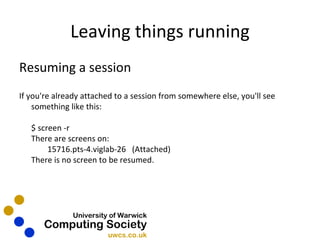
Leaving things running Resuming a session If you're already attached to a session from somewhere else, you'll see something like this: $ screen -r There are screens on:         15716.pts-4.viglab-26   (Attached) There is no screen to be resumed.
Leaving things running Resuming a session You can  remote detach  the running session, allowing you to attach it elsewhere. $ screen -d [remote detached] You can combine the two switches 'screen -dr' to  remote detach, then reattach here .
Persistent IRC connection Leave  irssi  (an IRC client) running in screen No disconnects/reconnects to the server Chat history Used by a lot of our members
Persistent IRC connection With screen open: Run irssi $ irssi Connect to a server (irc.uwcs.co.uk for ours) /connect <Server Address>
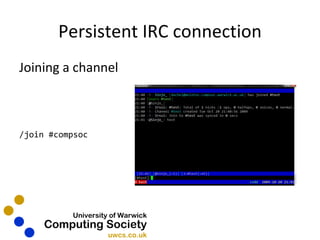
Persistent IRC connection Joining a channel /join #compsoc
Persistent IRC connection Switching channels Hotkeys for lower number channels (Alt + 1-0, Alt + q-o) /win <number>  command for anything above that Alt + a  to go to next window with activity
Persistent IRC connection Leaving a channel In the channel you wish to leave: /part <Quit Message>
Our services Web hosting Database Shell access to member server (Codd)
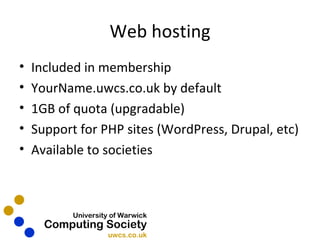
Web hosting Included in membership YourName.uwcs.co.uk by default 1GB of quota (upgradable) Support for PHP sites (WordPress, Drupal, etc) Available to societies
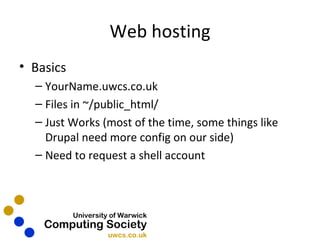
Web hosting Basics YourName.uwcs.co.uk Files in ~/public_html/ Just Works (most of the time, some things like Drupal need more config on our side) Need to request a shell account
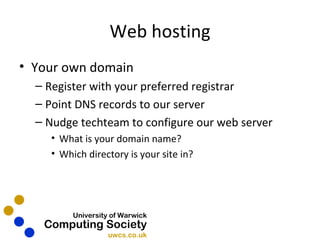
Web hosting Your own domain Register with your preferred registrar Point DNS records to our server Nudge techteam to configure our web server What is your domain name? Which directory is your site in?
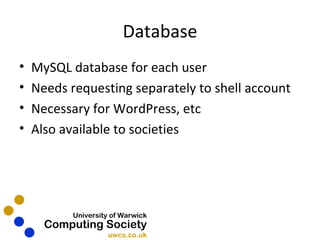
Database MySQL database for each user Needs requesting separately to shell account Necessary for WordPress, etc Also available to societies
Questions?
Contact IRC: irc.uwcs.co.uk Forums: forums.uwcs.co.uk Email: compsoc-exec@uwcs.co.uk There is a topic on the forums for this talk.

Improving your shell usage - 2010

  • 1.
    Improving your shellusage by Chris Sinjakli (Sinjo)
  • 2.
    Why? Department computersCS student (Pro Skills module) Web hosting IRC
  • 3.
    Navigation Where amI? The pwd command will show you the current working directory:
  • 4.
    Navigation Changing directoryThe cd command will change to the directory specified:
  • 5.
    Navigation Listing directorycontents The ls command lists the contents of current directory:
  • 6.
    Navigation Other usefulcommands: cp <source> <destination> - Copies <source> to <destination> mv <source> <destination> - Moves <source> to <destination> mkdir <name> - Creates a directory called <name> rm <target> - Removes <target> (no “Are you sure?”, be careful)
  • 7.
    Editing files NanoQuick to get started with, shortcuts at the bottom
  • 8.
    Editing files VimMore advanced, learn how to quit before opening
  • 9.
    Editing files EmacsAlso advanced, I’ve never actually used it
  • 10.
    Command History Afaster way to retype commands Previously typed commands are saved Up/down arrow keys can be used to access them Not that useful if you want to go far back
  • 11.
    Command History Searchingthrough History Press Ctrl+r to search your shell history. As you type, it will narrow down hits in your history.
  • 12.
    Leaving things runningRunning programs stop when you exit the shell Programs can be left running inside the screen application
  • 13.
    Leaving things runningCreating a session You can create a new session by just using the &quot;screen&quot; command.
  • 14.
    Leaving things runningResuming a session The -r switch is used to  reattach  a screen session. $ screen -r [your previous session will appear here]
  • 15.
    Leaving things runningResuming a session If you're already attached to a session from somewhere else, you'll see something like this: $ screen -r There are screens on:         15716.pts-4.viglab-26   (Attached) There is no screen to be resumed.
  • 16.
    Leaving things runningResuming a session You can remote detach the running session, allowing you to attach it elsewhere. $ screen -d [remote detached] You can combine the two switches 'screen -dr' to  remote detach, then reattach here .
  • 17.
    Persistent IRC connectionLeave irssi (an IRC client) running in screen No disconnects/reconnects to the server Chat history Used by a lot of our members
  • 18.
    Persistent IRC connectionWith screen open: Run irssi $ irssi Connect to a server (irc.uwcs.co.uk for ours) /connect <Server Address>
  • 19.
    Persistent IRC connectionJoining a channel /join #compsoc
  • 20.
    Persistent IRC connectionSwitching channels Hotkeys for lower number channels (Alt + 1-0, Alt + q-o) /win <number> command for anything above that Alt + a to go to next window with activity
  • 21.
    Persistent IRC connectionLeaving a channel In the channel you wish to leave: /part <Quit Message>
  • 22.
    Our services Webhosting Database Shell access to member server (Codd)
  • 23.
    Web hosting Includedin membership YourName.uwcs.co.uk by default 1GB of quota (upgradable) Support for PHP sites (WordPress, Drupal, etc) Available to societies
  • 24.
    Web hosting BasicsYourName.uwcs.co.uk Files in ~/public_html/ Just Works (most of the time, some things like Drupal need more config on our side) Need to request a shell account
  • 25.
    Web hosting Yourown domain Register with your preferred registrar Point DNS records to our server Nudge techteam to configure our web server What is your domain name? Which directory is your site in?
  • 26.
    Database MySQL databasefor each user Needs requesting separately to shell account Necessary for WordPress, etc Also available to societies
  • 27.
  • 28.
    Contact IRC: irc.uwcs.co.ukForums: forums.uwcs.co.uk Email: compsoc-exec@uwcs.co.uk There is a topic on the forums for this talk.