2/24/2015
1
AuditNet® Training without Travel™
IDEA Software Training via Practical Application
Conducting basic Data Analysis with IDEA
Guest Presenter:
Richard Cascarino, MBA, CIA, CFE,CRMA, CISM
Richard Cascarino & Associates
About Jim Kaplan CIA CFE
 President and Founder of
AuditNet®, the global resource
for auditors (now available on
Apple, Microsoft and Android
devices)
 Auditor, Web Site Guru,
 Internet for Auditors Pioneer
 Recipient of the IIA’s Bradford
Cadmus Memorial Award.
 Author of “The Auditor’s Guide
to Internet Resources” 2nd
Edition
2/24/2015
2
Richard Cascarino MBA CIA CISM CFE
 Principal of Richard Cascarino &
Associates based in Colorado USA
 Over 30 years experience in IT
audit training and consultancy
 Past President of the Institute of
Internal Auditors in South Africa
 Member of ISACA, ACFE, IIA
 Author of Auditor's Guide to IT
Auditing and Corporate Fraud
and Internal Control
Copyright © 2014 AuditNet® and Richard Cascarino & Associates
Webinar Housekeeping
 This webinar and its material are the property of AuditNet® and Richard Cascarino
and Associates. Unauthorized usage or recording of this webinar or any of its
material is strictly forbidden. We are recording the webinar and you will be provided
with a link access to that recording as detailed below. Downloading or otherwise
duplicating the webinar recording is expressly prohibited.
 Webinar recording link will be sent via email within 5-7 business days.
 NASBA rules require us to ask polling questions during the Webinar and CPE
certificates will be sent via email to those who answer ALL the polling questions
 The CPE certificates and link to the recording will be sent to the email address you
registered with in GTW. We are not responsible for delivery problems due to spam
filters, attachment restrictions or other controls in place for your email client.
 Submit questions via the chat box on your screen and we will answer them either
during or at the conclusion.
 After the Webinar is over you will have an opportunity to provide feedback. Please
complete the feedback questionnaire to help us continuously improve our Webinars
 If GTW stops working you may need to close and restart. You can always dial in and
listen and follow along with the handout.
2/24/2015
3
Copyright © 2014 AuditNet® and Richard Cascarino & Associates
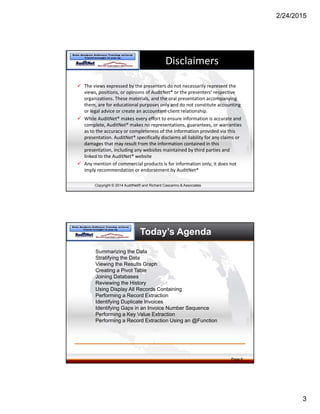
Disclaimers
 The views expressed by the presenters do not necessarily represent the 
views, positions, or opinions of AuditNet® or the presenters’ respective 
organizations. These materials, and the oral presentation accompanying 
them, are for educational purposes only and do not constitute accounting 
or legal advice or create an accountant‐client relationship. 
 While AuditNet® makes every effort to ensure information is accurate and 
complete, AuditNet® makes no representations, guarantees, or warranties 
as to the accuracy or completeness of the information provided via this 
presentation. AuditNet® specifically disclaims all liability for any claims or 
damages that may result from the information contained in this 
presentation, including any websites maintained by third parties and 
linked to the AuditNet® website
 Any mention of commercial products is for information only; it does not 
imply recommendation or endorsement by AuditNet®
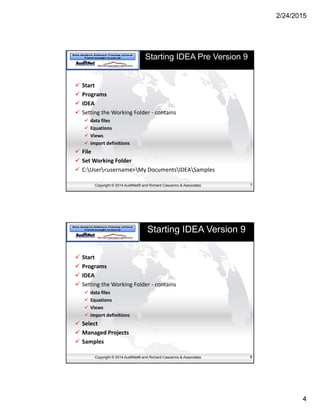
Today’s Agenda
Summarizing the Data
Stratifying the Data
Viewing the Results Graph
Creating a Pivot Table
Joining Databases
Reviewing the History
Using Display All Records Containing
Performing a Record Extraction
Identifying Duplicate Invoices
Identifying Gaps in an Invoice Number Sequence
Performing a Key Value Extraction
Performing a Record Extraction Using an @Function
Page 6
2/24/2015
4
Copyright © 2014 AuditNet® and Richard Cascarino & Associates
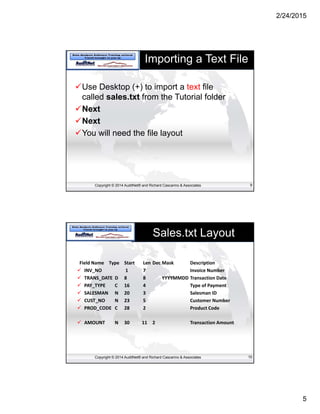
Starting IDEA Pre Version 9
 Start
 Programs
 IDEA
 Setting the Working Folder ‐ contains
 data files
 Equations
 Views
 import definitions
 File
 Set Working Folder
 C:User<username>My DocumentsIDEASamples
7
Copyright © 2014 AuditNet® and Richard Cascarino & Associates
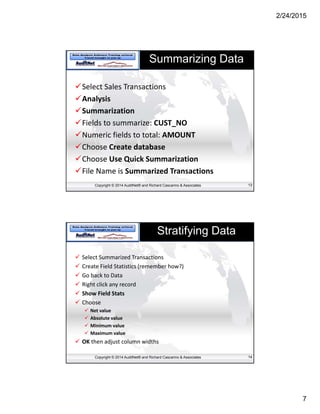
Starting IDEA Version 9
 Start
 Programs
 IDEA
 Setting the Working Folder ‐ contains
 data files
 Equations
 Views
 import definitions
 Select 
 Managed Projects
 Samples
8
2/24/2015
5
Copyright © 2014 AuditNet® and Richard Cascarino & Associates
Importing a Text File
Use Desktop (+) to import a text file
called sales.txt from the Tutorial folder
Next
Next
You will need the file layout
9
Copyright © 2014 AuditNet® and Richard Cascarino & Associates
Sales.txt Layout
Field Name  Type  Start  Len Dec Mask  Description 
 INV_NO  1       7  Invoice Number 
 TRANS_DATE  D  8  8  YYYYMMDD Transaction Date 
 PAY_TYPE  C  16  4  Type of Payment 
 SALESMAN  N  20  3  Salesman ID 
 CUST_NO  N  23  5  Customer Number 
 PROD_CODE  C  28  2  Product Code 
 AMOUNT  N  30  11  2  Transaction Amount 
10
2/24/2015
6
Copyright © 2014 AuditNet® and Richard Cascarino & Associates
Defining Files
 Next
 If data to be filtered click Equation Editor
 Next
 We want to:
 Import the File
 Generate Field Statistics
 Call the database Sales Transactions
 Finish
 (If you make a mistake Data then Field
Manipulation)
11
Polling Question 1
2/24/2015
7
Copyright © 2014 AuditNet® and Richard Cascarino & Associates
Summarizing Data
Select Sales Transactions
Analysis
Summarization
Fields to summarize: CUST_NO
Numeric fields to total: AMOUNT
Choose Create database
Choose Use Quick Summarization
File Name is Summarized Transactions
13
Copyright © 2014 AuditNet® and Richard Cascarino & Associates
Stratifying Data
 Select Summarized Transactions
 Create Field Statistics (remember how?)
 Go back to Data
 Right click any record 
 Show Field Stats
 Choose
 Net value
 Absolute value
 Minimum value
 Maximum value
 OK then adjust column widths
14
2/24/2015
8
Copyright © 2014 AuditNet® and Richard Cascarino & Associates
Removing Field Statistics
 Right click any record
 Show Field Stats
 Clear All
 OK
 Analysis
 Stratification
 Choose
 Fields to Stratify: Amount_Sum
 Fields to total on: No_of_Recs
 Make Increment 5000
 Click Upper Limit in rows 1-5
 Make Increment 25000
 Click Upper Limit in rows 6-12
 Result Name Numeric Stratification OK
15
Polling Question 2
2/24/2015
9
Copyright © 2014 AuditNet® and Richard Cascarino & Associates
Printing & Graphing
 On Operations Toolbar
 Print Preview (8th button from left)
 Close Print Preview
 In Results Toolbar (immediately above data)
 Alternates between displaying the results in a
customizable graph and grid button (leftmost)
 In Results Toolbar
 Gallery (3rd button from left)
 Try the different types
 Return to Bar Chart
17
Copyright © 2014 AuditNet® and Richard Cascarino & Associates
Looking inside the Graph
 In Graph Toolbar (Immediately above graph)
 Properties button (Rightmost)
 Y-axis tab
 Make sure Show Gridline ticked
 OK
 Move cursor over Strata 6
 Click and select Display Records
 Done
 Click on Alternates between displaying the results in a
customizable graph and grid button (leftmost)
 In Properties Data
 Window
 Close All
18
2/24/2015
10
Copyright © 2014 AuditNet® and Richard Cascarino & Associates
Pivot Tables
 Open Sales Transactions Database
 Analysis
 Pivot Table
 Results Name Sales Transactions Pivot Table
 OK
 In Pivot Table Field List box, click PAY_TYPE and drag it onto
the row header field displaying Drop Column Fields Here
 Click PROD_CODE and drag it onto the column header field
displaying Drop Row Fields Here
 Click AMOUNT and drag it onto the Drop Data Items Here
19
Polling Question 3
2/24/2015
11
Copyright © 2014 AuditNet® and Richard Cascarino & Associates
Joining Databases 1
File
Import Assistant
Import to IDEA
Microsoft Access
C:UsersyournameDocumentsIDEAT
utorialCustomer.MDB
NEXT
OK
21
Copyright © 2014 AuditNet® and Richard Cascarino & Associates
Joining Databases 2
 Open Summarized Transactions
 Data
 Field Manipulation
 Change Cust_No to Character
 OK
 File
 Join Databases
 Fields
 All fields selected OK
 Select (selects secondary file)
22
2/24/2015
12
Copyright © 2014 AuditNet® and Richard Cascarino & Associates
Joining Databases 3
 Select Customer-Database1
 File Name Customer Balances
 Match
 Click Primary and select Cust_No
 Select Ascending
 Click Secondary and Select Cust_No
 OK
 Click All records in Both Files
 File Name Customer Balances
 OK
23
Copyright © 2014 AuditNet® and Richard Cascarino & Associates
Reviewing the History
 Select Customer Balances
 Click on History
 Expand and examine each section
particularly the last section (Join Databases)
 Note:
 Number of records: 346 (matched sales to customers)
 Unmatched primary records: 5 (sales to customers not in the Customer-
Database1 database)
 Unmatched secondary records: 43 (customers with no sales in the
period)
 Examine the IDEA Script
 Add Comment “Unauthorized Sales to 5 Customers”
24
2/24/2015
13
Polling Question 4
Copyright © 2014 AuditNet® and Richard Cascarino & Associates
Using Display All Records
Containing
 Go to Data
 Observe record 9 – No value in CUST-NO1
 Right Click CUST-NO1 field
 Select Display all records containing “”
 OK
 The 5 unmatched records are shown
 Right Click Criteria in Properties
 Clear
 Repeat for CUST-NO
 43 Customers with no outstanding Balances
26
2/24/2015
14
Copyright © 2014 AuditNet® and Richard Cascarino & Associates
Appending a Virtual Field
 Select Data > Field Manipulation
 Append
 Field Name: NEW_LIMIT
 Type: Virtual Numeric
 Length: Not applicable for Numeric fields
 Decimals: 2
 Parameter: CREDIT_LIM * 1.1
 Tag Name: Not applicable
 Description: Updated Credit Limit
 OK
 NEW-LIMIT displayed on right in Blue (Virtual Field)
27
Copyright © 2014 AuditNet® and Richard Cascarino & Associates
Performing a Record
Extraction
 Data > Extractions > Data Extraction
 File Name Exceeded Credit Limits
 Equation Editor AMOUNT_SUM >
NEW_LIMIT
 OK
 6 records reported including the 5
unauthorized
 Window
 Close All
28
2/24/2015
15
Copyright © 2014 AuditNet® and Richard Cascarino & Associates
Now What?
29
Searching
for Text
in Multiple
Fields
and Files
Testing for
Completeness –
Gaps &
Duplicates
Cross
Matching Data
Between
Files/Systems
Identifying
Exceptional
Items
Checking
Calculations
Analytical
Review
IDEA®
Data Analysis
Software
Copyright © 2014 AuditNet® and Richard Cascarino & Associates
Identifying Duplicate Invoices
 Select Sales Transactions
 Analysis > Duplicate Key > Detection
 File Duplicate Invoices
 Key
 Field INV_NO
 OK
 OK
 Window
 Close All
30
2/24/2015
16
Copyright © 2014 AuditNet® and Richard Cascarino & Associates
Identifying Gaps
 Select Sales Transactions
 Analysis > Gap Detection
 Field to use INV_NO
 Results name Missing Invoice Numbers
 OK
 Print Preview
 Close Print Preview
 Data
31
Polling Question 5
2/24/2015
17
Copyright © 2014 AuditNet® and Richard Cascarino & Associates
Performing Key Value
Extraction
 Data > Extractions > Key Value
Extractions
 In Existing Keys select:
 Pay_Type – ascending and
 Prod_Code – ascending
 All groups are selected
 Clear All
 Select Visa for products codes 05 and 06
 Close Key Value files
33
Copyright © 2014 AuditNet® and Richard Cascarino & Associates
Record Extraction using
@Function
 Data > Extractions > Direct Extractions
 File Name Sunday Extractions
 In Equation Editor expand Day/Time in functions
 Double Click Dow
 @Dow(TRANS_DATE) = 1 (Sunday)
 OK
 There should be 30
 Window
 Close All
34
2/24/2015
18
Polling Question 6
Copyright © 2014 AuditNet® and Richard Cascarino & Associates
Questions?
• Any Questions?
Don’t be Shy!
2/24/2015
19
Copyright © 2014 AuditNet® and Richard Cascarino & Associates
Training Schedule
IDEA Software Training via Practical Application
1. IDEA Basics, Getting Started, and Basics of Importing Data
2. Importing Data ‐ The Complete Course in All File Types and Data 
Tricks to Get Your Data Ready for Analysis
3. Conducting basic Data Analysis with IDEA
4. Reporting using IDEA
5. Importing Data from Reports using the IDEA Report Reader
6. Advanced Report Importing
7. Using Statistics in IDEA
8. Continuous Monitoring using Advanced Statistical Analysis
9. Basic Script Writing in IDEA
10. Using advanced @Functions 
11. Advanced Script Writing in IDEA Part 1
12. Advanced Script Writing in IDEA Part 2
Supplemental Information
 Introduction to AuditNet for IDEA Users – Video
 If you are a registered IDEA supported user you have access to
all of the AuditNet® content (templates). Watch the video now!
 CAATS – Web site from Dave Coderre
 Generic Approach to the Application of Data Analysis to Auditing
©CAATS 2007 http://www.caats.ca
 Computer Assisted Audit Tools and Techniques
 http://www.auditnet.org/audit-library/computer-assisted-audit-tools-and-techniques-caatt
 Data Analysis Software Demo Evaluations
 ACL – http://www.acl.com
 IDEA - http://www.caseware.com/products/idea
 IDEA U.S. http://www.audimation.com
 Arbutus - http://www.arbutussoftware.com/
 AuditNet® Documents (by request)
 AuditNet® Guide to Downloading Data
 Data Request Sample Letter
 CAATT Application Checklist
2/24/2015
20
Copyright © 2014 AuditNet® and Richard Cascarino & Associates
Thank You!
Richard Cascarino, MBA, CIA, CISM, CFE
Richard Cascarino & Associates
970-291-1497
rcasc@rcascarino.com
Jim Kaplan
AuditNet LLC®
800-385-1625
www.auditnet.org
webinars@auditnet.org

Conducting basic Data Analysis with IDEA

  • 1.
    2/24/2015 1 AuditNet® Training without Travel™ IDEA Software Training via Practical Application Conducting basic DataAnalysis with IDEA Guest Presenter: Richard Cascarino, MBA, CIA, CFE,CRMA, CISM Richard Cascarino & Associates About Jim Kaplan CIA CFE  President and Founder of AuditNet®, the global resource for auditors (now available on Apple, Microsoft and Android devices)  Auditor, Web Site Guru,  Internet for Auditors Pioneer  Recipient of the IIA’s Bradford Cadmus Memorial Award.  Author of “The Auditor’s Guide to Internet Resources” 2nd Edition
  • 2.
    2/24/2015 2 Richard Cascarino MBACIA CISM CFE  Principal of Richard Cascarino & Associates based in Colorado USA  Over 30 years experience in IT audit training and consultancy  Past President of the Institute of Internal Auditors in South Africa  Member of ISACA, ACFE, IIA  Author of Auditor's Guide to IT Auditing and Corporate Fraud and Internal Control Copyright © 2014 AuditNet® and Richard Cascarino & Associates Webinar Housekeeping  This webinar and its material are the property of AuditNet® and Richard Cascarino and Associates. Unauthorized usage or recording of this webinar or any of its material is strictly forbidden. We are recording the webinar and you will be provided with a link access to that recording as detailed below. Downloading or otherwise duplicating the webinar recording is expressly prohibited.  Webinar recording link will be sent via email within 5-7 business days.  NASBA rules require us to ask polling questions during the Webinar and CPE certificates will be sent via email to those who answer ALL the polling questions  The CPE certificates and link to the recording will be sent to the email address you registered with in GTW. We are not responsible for delivery problems due to spam filters, attachment restrictions or other controls in place for your email client.  Submit questions via the chat box on your screen and we will answer them either during or at the conclusion.  After the Webinar is over you will have an opportunity to provide feedback. Please complete the feedback questionnaire to help us continuously improve our Webinars  If GTW stops working you may need to close and restart. You can always dial in and listen and follow along with the handout.
  • 3.
    2/24/2015 3 Copyright © 2014AuditNet® and Richard Cascarino & Associates Disclaimers  The views expressed by the presenters do not necessarily represent the  views, positions, or opinions of AuditNet® or the presenters’ respective  organizations. These materials, and the oral presentation accompanying  them, are for educational purposes only and do not constitute accounting  or legal advice or create an accountant‐client relationship.   While AuditNet® makes every effort to ensure information is accurate and  complete, AuditNet® makes no representations, guarantees, or warranties  as to the accuracy or completeness of the information provided via this  presentation. AuditNet® specifically disclaims all liability for any claims or  damages that may result from the information contained in this  presentation, including any websites maintained by third parties and  linked to the AuditNet® website  Any mention of commercial products is for information only; it does not  imply recommendation or endorsement by AuditNet® Today’s Agenda Summarizing the Data Stratifying the Data Viewing the Results Graph Creating a Pivot Table Joining Databases Reviewing the History Using Display All Records Containing Performing a Record Extraction Identifying Duplicate Invoices Identifying Gaps in an Invoice Number Sequence Performing a Key Value Extraction Performing a Record Extraction Using an @Function Page 6
  • 4.
    2/24/2015 4 Copyright © 2014AuditNet® and Richard Cascarino & Associates Starting IDEA Pre Version 9  Start  Programs  IDEA  Setting the Working Folder ‐ contains  data files  Equations  Views  import definitions  File  Set Working Folder  C:User<username>My DocumentsIDEASamples 7 Copyright © 2014 AuditNet® and Richard Cascarino & Associates Starting IDEA Version 9  Start  Programs  IDEA  Setting the Working Folder ‐ contains  data files  Equations  Views  import definitions  Select   Managed Projects  Samples 8
  • 5.
    2/24/2015 5 Copyright © 2014AuditNet® and Richard Cascarino & Associates Importing a Text File Use Desktop (+) to import a text file called sales.txt from the Tutorial folder Next Next You will need the file layout 9 Copyright © 2014 AuditNet® and Richard Cascarino & Associates Sales.txt Layout Field Name  Type  Start  Len Dec Mask  Description   INV_NO  1       7  Invoice Number   TRANS_DATE  D  8  8  YYYYMMDD Transaction Date   PAY_TYPE  C  16  4  Type of Payment   SALESMAN  N  20  3  Salesman ID   CUST_NO  N  23  5  Customer Number   PROD_CODE  C  28  2  Product Code   AMOUNT  N  30  11  2  Transaction Amount  10
  • 6.
    2/24/2015 6 Copyright © 2014AuditNet® and Richard Cascarino & Associates Defining Files  Next  If data to be filtered click Equation Editor  Next  We want to:  Import the File  Generate Field Statistics  Call the database Sales Transactions  Finish  (If you make a mistake Data then Field Manipulation) 11 Polling Question 1
  • 7.
    2/24/2015 7 Copyright © 2014AuditNet® and Richard Cascarino & Associates Summarizing Data Select Sales Transactions Analysis Summarization Fields to summarize: CUST_NO Numeric fields to total: AMOUNT Choose Create database Choose Use Quick Summarization File Name is Summarized Transactions 13 Copyright © 2014 AuditNet® and Richard Cascarino & Associates Stratifying Data  Select Summarized Transactions  Create Field Statistics (remember how?)  Go back to Data  Right click any record   Show Field Stats  Choose  Net value  Absolute value  Minimum value  Maximum value  OK then adjust column widths 14
  • 8.
    2/24/2015 8 Copyright © 2014AuditNet® and Richard Cascarino & Associates Removing Field Statistics  Right click any record  Show Field Stats  Clear All  OK  Analysis  Stratification  Choose  Fields to Stratify: Amount_Sum  Fields to total on: No_of_Recs  Make Increment 5000  Click Upper Limit in rows 1-5  Make Increment 25000  Click Upper Limit in rows 6-12  Result Name Numeric Stratification OK 15 Polling Question 2
  • 9.
    2/24/2015 9 Copyright © 2014AuditNet® and Richard Cascarino & Associates Printing & Graphing  On Operations Toolbar  Print Preview (8th button from left)  Close Print Preview  In Results Toolbar (immediately above data)  Alternates between displaying the results in a customizable graph and grid button (leftmost)  In Results Toolbar  Gallery (3rd button from left)  Try the different types  Return to Bar Chart 17 Copyright © 2014 AuditNet® and Richard Cascarino & Associates Looking inside the Graph  In Graph Toolbar (Immediately above graph)  Properties button (Rightmost)  Y-axis tab  Make sure Show Gridline ticked  OK  Move cursor over Strata 6  Click and select Display Records  Done  Click on Alternates between displaying the results in a customizable graph and grid button (leftmost)  In Properties Data  Window  Close All 18
  • 10.
    2/24/2015 10 Copyright © 2014AuditNet® and Richard Cascarino & Associates Pivot Tables  Open Sales Transactions Database  Analysis  Pivot Table  Results Name Sales Transactions Pivot Table  OK  In Pivot Table Field List box, click PAY_TYPE and drag it onto the row header field displaying Drop Column Fields Here  Click PROD_CODE and drag it onto the column header field displaying Drop Row Fields Here  Click AMOUNT and drag it onto the Drop Data Items Here 19 Polling Question 3
  • 11.
    2/24/2015 11 Copyright © 2014AuditNet® and Richard Cascarino & Associates Joining Databases 1 File Import Assistant Import to IDEA Microsoft Access C:UsersyournameDocumentsIDEAT utorialCustomer.MDB NEXT OK 21 Copyright © 2014 AuditNet® and Richard Cascarino & Associates Joining Databases 2  Open Summarized Transactions  Data  Field Manipulation  Change Cust_No to Character  OK  File  Join Databases  Fields  All fields selected OK  Select (selects secondary file) 22
  • 12.
    2/24/2015 12 Copyright © 2014AuditNet® and Richard Cascarino & Associates Joining Databases 3  Select Customer-Database1  File Name Customer Balances  Match  Click Primary and select Cust_No  Select Ascending  Click Secondary and Select Cust_No  OK  Click All records in Both Files  File Name Customer Balances  OK 23 Copyright © 2014 AuditNet® and Richard Cascarino & Associates Reviewing the History  Select Customer Balances  Click on History  Expand and examine each section particularly the last section (Join Databases)  Note:  Number of records: 346 (matched sales to customers)  Unmatched primary records: 5 (sales to customers not in the Customer- Database1 database)  Unmatched secondary records: 43 (customers with no sales in the period)  Examine the IDEA Script  Add Comment “Unauthorized Sales to 5 Customers” 24
  • 13.
    2/24/2015 13 Polling Question 4 Copyright© 2014 AuditNet® and Richard Cascarino & Associates Using Display All Records Containing  Go to Data  Observe record 9 – No value in CUST-NO1  Right Click CUST-NO1 field  Select Display all records containing “”  OK  The 5 unmatched records are shown  Right Click Criteria in Properties  Clear  Repeat for CUST-NO  43 Customers with no outstanding Balances 26
  • 14.
    2/24/2015 14 Copyright © 2014AuditNet® and Richard Cascarino & Associates Appending a Virtual Field  Select Data > Field Manipulation  Append  Field Name: NEW_LIMIT  Type: Virtual Numeric  Length: Not applicable for Numeric fields  Decimals: 2  Parameter: CREDIT_LIM * 1.1  Tag Name: Not applicable  Description: Updated Credit Limit  OK  NEW-LIMIT displayed on right in Blue (Virtual Field) 27 Copyright © 2014 AuditNet® and Richard Cascarino & Associates Performing a Record Extraction  Data > Extractions > Data Extraction  File Name Exceeded Credit Limits  Equation Editor AMOUNT_SUM > NEW_LIMIT  OK  6 records reported including the 5 unauthorized  Window  Close All 28
  • 15.
    2/24/2015 15 Copyright © 2014AuditNet® and Richard Cascarino & Associates Now What? 29 Searching for Text in Multiple Fields and Files Testing for Completeness – Gaps & Duplicates Cross Matching Data Between Files/Systems Identifying Exceptional Items Checking Calculations Analytical Review IDEA® Data Analysis Software Copyright © 2014 AuditNet® and Richard Cascarino & Associates Identifying Duplicate Invoices  Select Sales Transactions  Analysis > Duplicate Key > Detection  File Duplicate Invoices  Key  Field INV_NO  OK  OK  Window  Close All 30
  • 16.
    2/24/2015 16 Copyright © 2014AuditNet® and Richard Cascarino & Associates Identifying Gaps  Select Sales Transactions  Analysis > Gap Detection  Field to use INV_NO  Results name Missing Invoice Numbers  OK  Print Preview  Close Print Preview  Data 31 Polling Question 5
  • 17.
    2/24/2015 17 Copyright © 2014AuditNet® and Richard Cascarino & Associates Performing Key Value Extraction  Data > Extractions > Key Value Extractions  In Existing Keys select:  Pay_Type – ascending and  Prod_Code – ascending  All groups are selected  Clear All  Select Visa for products codes 05 and 06  Close Key Value files 33 Copyright © 2014 AuditNet® and Richard Cascarino & Associates Record Extraction using @Function  Data > Extractions > Direct Extractions  File Name Sunday Extractions  In Equation Editor expand Day/Time in functions  Double Click Dow  @Dow(TRANS_DATE) = 1 (Sunday)  OK  There should be 30  Window  Close All 34
  • 18.
    2/24/2015 18 Polling Question 6 Copyright© 2014 AuditNet® and Richard Cascarino & Associates Questions? • Any Questions? Don’t be Shy!
  • 19.
    2/24/2015 19 Copyright © 2014AuditNet® and Richard Cascarino & Associates Training Schedule IDEA Software Training via Practical Application 1. IDEA Basics, Getting Started, and Basics of Importing Data 2. Importing Data ‐ The Complete Course in All File Types and Data  Tricks to Get Your Data Ready for Analysis 3. Conducting basic Data Analysis with IDEA 4. Reporting using IDEA 5. Importing Data from Reports using the IDEA Report Reader 6. Advanced Report Importing 7. Using Statistics in IDEA 8. Continuous Monitoring using Advanced Statistical Analysis 9. Basic Script Writing in IDEA 10. Using advanced @Functions  11. Advanced Script Writing in IDEA Part 1 12. Advanced Script Writing in IDEA Part 2 Supplemental Information  Introduction to AuditNet for IDEA Users – Video  If you are a registered IDEA supported user you have access to all of the AuditNet® content (templates). Watch the video now!  CAATS – Web site from Dave Coderre  Generic Approach to the Application of Data Analysis to Auditing ©CAATS 2007 http://www.caats.ca  Computer Assisted Audit Tools and Techniques  http://www.auditnet.org/audit-library/computer-assisted-audit-tools-and-techniques-caatt  Data Analysis Software Demo Evaluations  ACL – http://www.acl.com  IDEA - http://www.caseware.com/products/idea  IDEA U.S. http://www.audimation.com  Arbutus - http://www.arbutussoftware.com/  AuditNet® Documents (by request)  AuditNet® Guide to Downloading Data  Data Request Sample Letter  CAATT Application Checklist
  • 20.
    2/24/2015 20 Copyright © 2014AuditNet® and Richard Cascarino & Associates Thank You! Richard Cascarino, MBA, CIA, CISM, CFE Richard Cascarino & Associates 970-291-1497 rcasc@rcascarino.com Jim Kaplan AuditNet LLC® 800-385-1625 www.auditnet.org webinars@auditnet.org