Document:
                  Migrating Essbase Application
                              Using LCM Utility


Description:
This document will guide you through the step by step process of
Migrating Essbase Application from one environment to another. It is
focused on how to migrate one Essbase Application to another Essbase
Application and Essbase Application to file system and vice versa.


History:
Version                Description          Author                     Publish Date
                       Change
0.1                    Initial Draft        Gaurav Shrivastava         07-Feb-2011
0.1                    Review 1             Amit Sharma                18th Mar 2011


      ©Business Intelligence Solution Providers | learnhyperion.wordpress.com     1
Table of Contents

    1.   Life Cycle Management……………………………………………………3

    2.   Migration Types LCM Utility……………………………………………4

            a.   Application to Application Migration………………..……4

            b.   Application to File System Migration………………………7

    3.   Backed up artifact……………………………………………………….….13

    4.   File system to application………………………………………..……..17

    5.   Migration Check List……………………………………………………….23

    6.   Log File……………………………………………………………………………27

    7.   Appendix ………………………………………………………………………..32


.


         ©Business Intelligence Solution Providers | learnhyperion.wordpress.com   2
Life Cycle Management

In Essbase one of most attractive features of version 11 is Life Cycle Management. The LCM
makes your life easier by collecting all migration activities using one single wizard based
approach using LCM. You can perform LCM tasks through shared service.


What is LCM: Oracle Hyperion Enterprise Performance Management System Lifecycle
Management provides a consistent way for Oracle Hyperion Enterprise Performance
Management System products to migrate an application, a repository, or individual artifacts
across product environments and operating systems. If there is common environment, then you
can migrate directly from application to application. Shared service used for migration when
there is common environment. You can take back up of all artifacts through Life Cycle
Management utility.

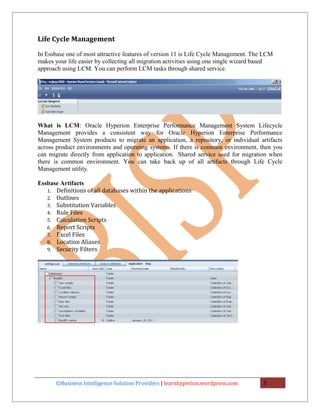
Essbase Artifacts
   1. Definitions of all databases within the applications
   2. Outlines
   3. Substitution Variables
   4. Rule Files
   5. Calculation Scripts
   6. Report Scripts
   7. Excel Files
   8. Location Aliases
   9. Security Filters


      ©Business Intelligence Solution Providers | learnhyperion.wordpress.com          3
Lifecycle Management for Essbase can be used in the following scenario
   • Migrating users/groups/roles/privileges migrations
   • Backup and recovery for Essbase artifacts.
   • Importing and exporting artifacts for editing purposes
   • Using Lifecycle Management Utility to export to version control systems
   • Application migrations with cross-product artifact dependencies

Migration Types LCM Utility

   1. Application to Application Migration – If you have multiple application of Essbase
      registered in the same shared services instance, then you can migrate Essbase Application
      & Database Artifacts to the other Essbase application through the common Shared
      Services.


Application to Application: You can migrate artifacts from application to application.
Essbase application to application migration is possible if source and target Essbase application
in the same shared services.
In the below example there are two Essbase applications “Bisp” and “MDemo”, we will
demonstrate how to migrate Application to Application.

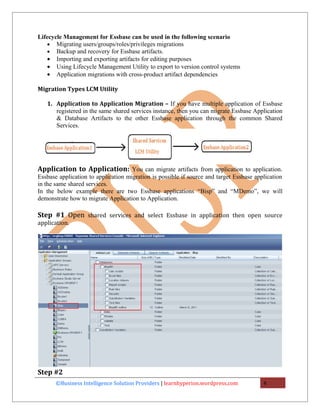
Step #1 Open shared services and select Essbase in application then open source
application.


Step #2
       ©Business Intelligence Solution Providers | learnhyperion.wordpress.com           4
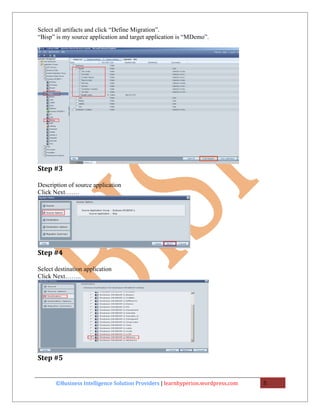
Select all artifacts and click “Define Migration”.
“Bisp” is my source application and target application is “MDemo”.


Step #3

Description of source application
Click Next…….


Step #4

Select destination application
Click Next……..


Step #5


       ©Business Intelligence Solution Providers | learnhyperion.wordpress.com   5
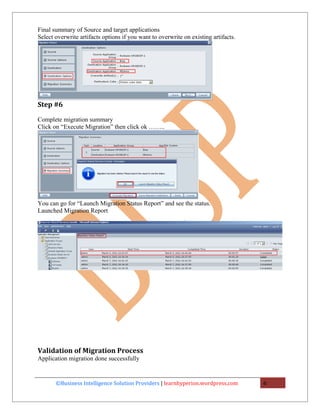
Final summary of Source and target applications
Select overwrite artifacts options if you want to overwrite on existing artifacts.


Step #6

Complete migration summary
Click on “Execute Migration” then click ok ……..


You can go for “Launch Migration Status Report” and see the status.
Launched Migration Report


Validation of Migration Process
Application migration done successfully


       ©Business Intelligence Solution Providers | learnhyperion.wordpress.com       6
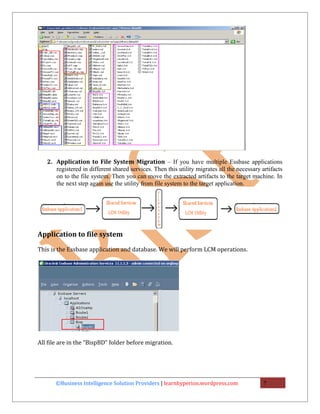
2. Application to File System Migration – If you have multiple Essbase applications
      registered in different shared services. Then this utility migrates all the necessary artifacts
      on to the file system. Then you can move the extracted artifacts to the target machine. In
      the next step again use the utility from file system to the target application.


Application to file system

This is the Essbase application and database. We will perform LCM operations.


All file are in the “BispBD” folder before migration.


       ©Business Intelligence Solution Providers | learnhyperion.wordpress.com               7
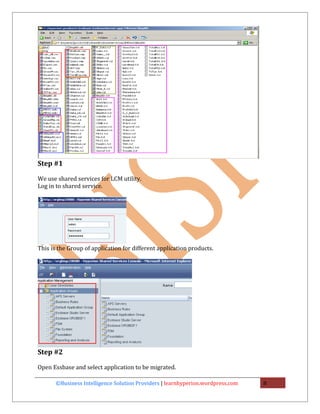
Step #1

We use shared services for LCM utility.
Log in to shared service.


This is the Group of application for different application products.


Step #2

Open Essbase and select application to be migrated.

       ©Business Intelligence Solution Providers | learnhyperion.wordpress.com   8
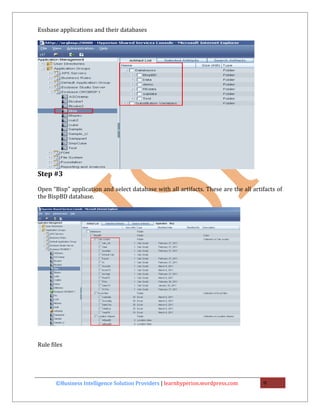
Essbase applications and their databases


Step #3

Open “Bisp” application and select database with all artifacts. These are the all artifacts of
the BispBD database.


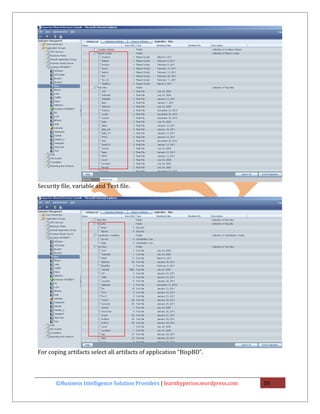
Rule files


       ©Business Intelligence Solution Providers | learnhyperion.wordpress.com        9
Security file, variable and Text file.


For coping artifacts select all artifacts of application “BispBD”.


       ©Business Intelligence Solution Providers | learnhyperion.wordpress.com   10
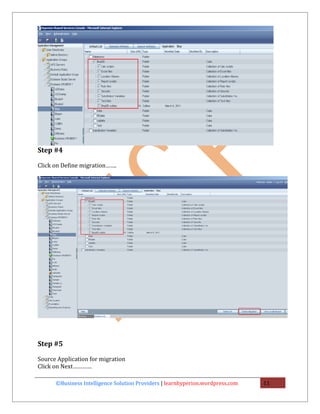
Step #4

Click on Define migration…….


Step #5

Source Application for migration
Click on Next…………

      ©Business Intelligence Solution Providers | learnhyperion.wordpress.com   11
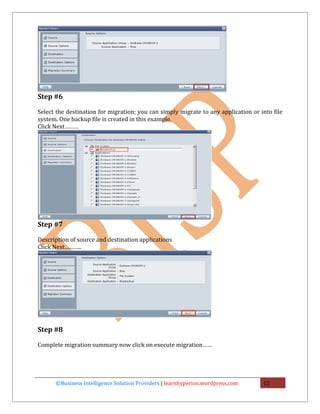
Step #6

Select the destination for migration; you can simply migrate to any application or into file
system. One backup file is created in this example.
Click Next………


Step #7

Description of source and destination applications
Click Next………..


Step #8

Complete migration summary now click on execute migration……


      ©Business Intelligence Solution Providers | learnhyperion.wordpress.com       12
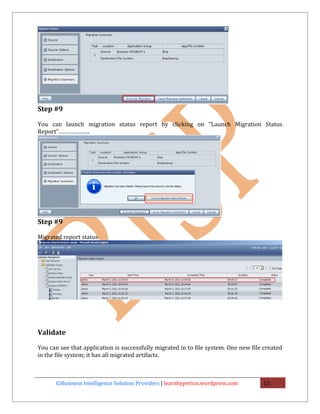
Step #9

You can launch migration status report by clicking on “Launch Migration Status
Report”………………..


Step #9

Migrated report status


Validate

You can see that application is successfully migrated in to file system. One new file created
in the file system; it has all migrated artifacts.


      ©Business Intelligence Solution Providers | learnhyperion.wordpress.com        13
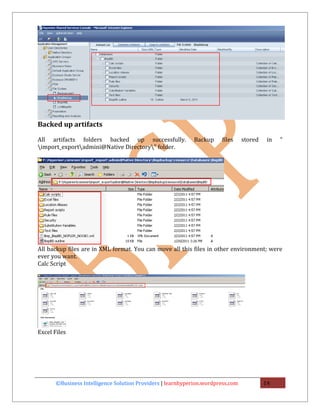
Backed up artifacts

All artifacts folders backed up successfully.               Backup     files     stored    in   “
import_exportadmini@Native Directory” folder.


All backup files are in XML format. You can move all this files in other environment; were
ever you want.
Calc Script


Excel Files


       ©Business Intelligence Solution Providers | learnhyperion.wordpress.com            14
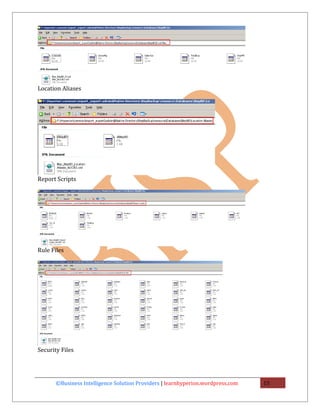
Location Aliases


Report Scripts


Rule Files


Security Files


       ©Business Intelligence Solution Providers | learnhyperion.wordpress.com   15
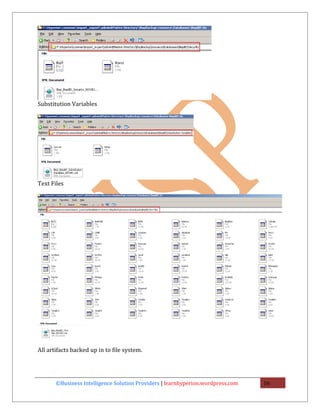
Substitution Variables


Text Files


All artifacts backed up in to file system.


       ©Business Intelligence Solution Providers | learnhyperion.wordpress.com   16
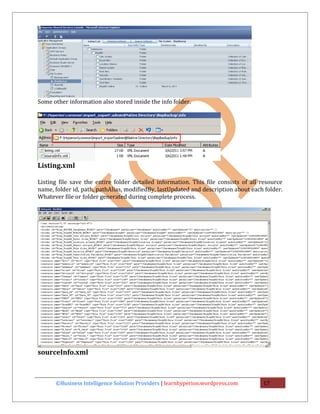
Some other information also stored inside the info folder.


Listing.xml

Listing file save the entire folder detailed information. This file consists of all resource
name, folder id, path, pathAlias, modifiedBy, lastUpdated and description about each folder.
Whatever file or folder generated during complete process.


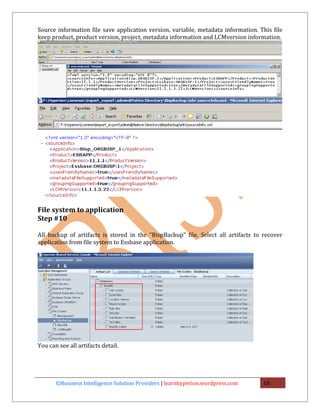
sourceInfo.xml


      ©Business Intelligence Solution Providers | learnhyperion.wordpress.com       17
Source information file save application version, variable, metadata information. This file
keep product, product version, project, metadata information and LCMversion information.


File system to application
Step #10

All backup of artifacts is stored in the “BispBackup” file. Select all artifacts to recover
application from file system to Essbase application.


You can see all artifacts detail.


       ©Business Intelligence Solution Providers | learnhyperion.wordpress.com     18
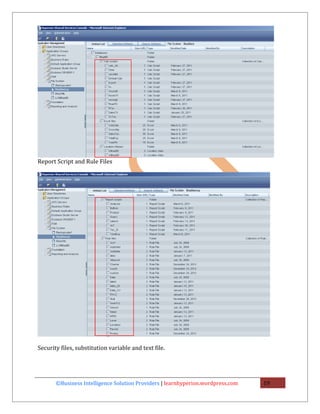
Report Script and Rule Files


Security files, substitution variable and text file.


       ©Business Intelligence Solution Providers | learnhyperion.wordpress.com   19
Step #11

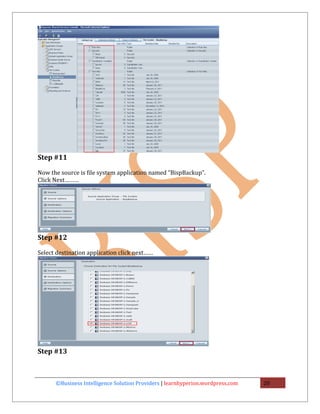
Now the source is file system application named “BispBackup”.
Click Next………


Step #12

Select destination application click next……


Step #13


      ©Business Intelligence Solution Providers | learnhyperion.wordpress.com   20
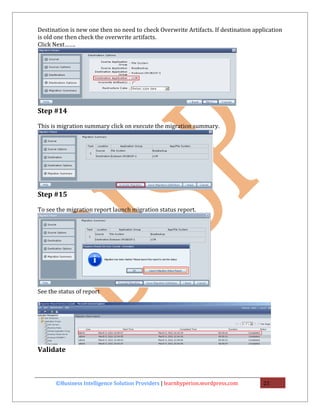
Destination is new one then no need to check Overwrite Artifacts. If destination application
is old one then check the overwrite artifacts.
Click Next…….


Step #14

This is migration summary click on execute the migration summary.


Step #15

To see the migration report launch migration status report.


See the status of report


Validate


       ©Business Intelligence Solution Providers | learnhyperion.wordpress.com      21
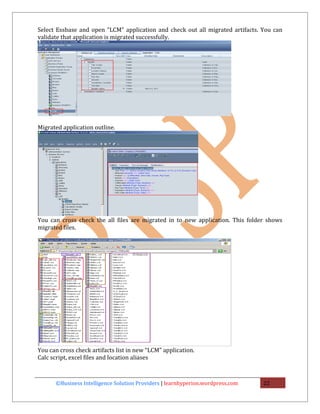
Select Essbase and open “LCM” application and check out all migrated artifacts. You can
validate that application is migrated successfully.


Migrated application outline.


You can cross check the all files are migrated in to new application. This folder shows
migrated files.


You can cross check artifacts list in new “LCM” application.
Calc script, excel files and location aliases


      ©Business Intelligence Solution Providers | learnhyperion.wordpress.com   22
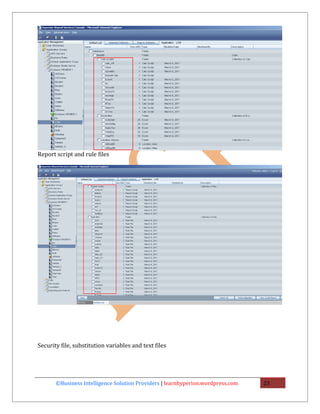
Report script and rule files


Security file, substitution variables and text files


       ©Business Intelligence Solution Providers | learnhyperion.wordpress.com   23
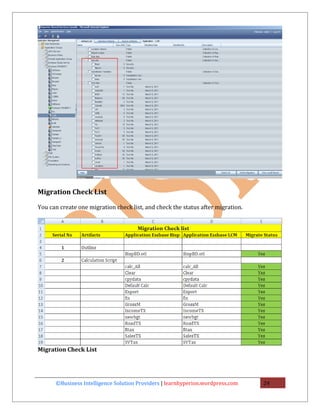
Migration Check List

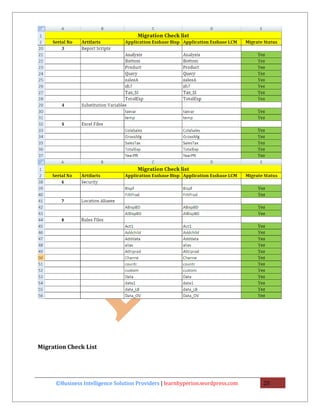
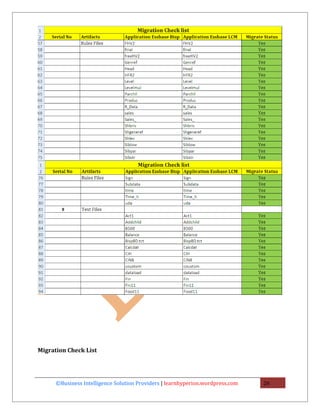
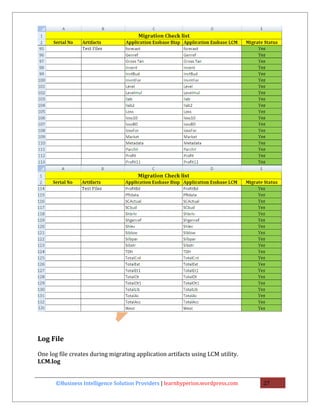
You can create one migration check list, and check the status after migration.


Migration Check List


      ©Business Intelligence Solution Providers | learnhyperion.wordpress.com    24
Migration Check List


      ©Business Intelligence Solution Providers | learnhyperion.wordpress.com   25
Migration Check List


      ©Business Intelligence Solution Providers | learnhyperion.wordpress.com   26
Log File

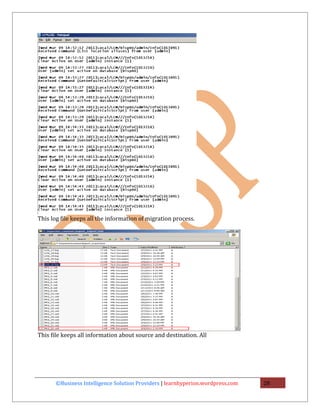
One log file creates during migrating application artifacts using LCM utility.
LCM.log


       ©Business Intelligence Solution Providers | learnhyperion.wordpress.com   27
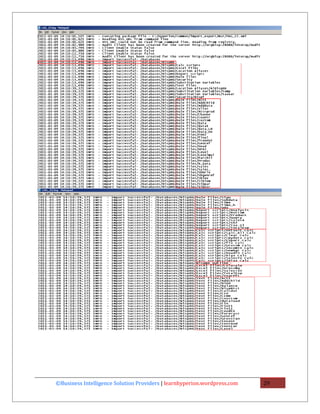
This log file keeps all the information of migration process.


This file keeps all information about source and destination. All


       ©Business Intelligence Solution Providers | learnhyperion.wordpress.com   28
©Business Intelligence Solution Providers | learnhyperion.wordpress.com   29
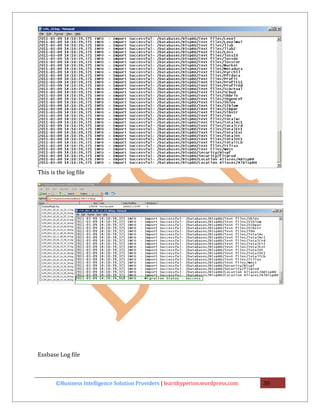
This is the log file


Essbase Log file


       ©Business Intelligence Solution Providers | learnhyperion.wordpress.com   30
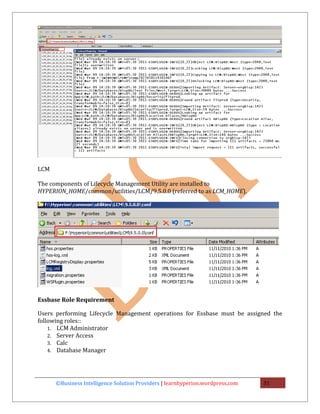
LCM

The components of Lifecycle Management Utility are installed to
HYPERION_HOME/common/utilities/LCM/9.5.0.0 (referred to as LCM_HOME).


Essbase Role Requirement

Users performing Lifecycle Management operations for Essbase must be assigned the
following roles::
    1. LCM Administrator
    2. Server Access
    3. Calc
    4. Database Manager


      ©Business Intelligence Solution Providers | learnhyperion.wordpress.com   31
Appendix

Lifecycle Management Log Files


  Lifecycle Management for Oracle Hyperion Profitability and Cost Management, Fusion
     Edition are listed in the Oracle Hyperion Enterprise Performance Management
     System Installation and Configuration Troubleshooting Guide

Note the following:
   • Details are documented in the logging section of S9 Logging.
   • For failed migrations, the Migration Status Report provides a link to the Lifecycle
       Management e engine log file. The product Oracle Hyperion Enterprise Performance
       Management System Lifecycle Management log files are located with the products.

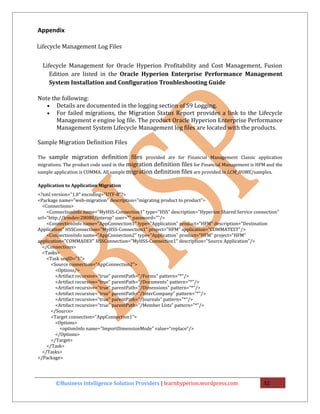
Sample Migration Definition Files

The sample migration definition files provided are for Financial Management Classic application
migrations. The product code used in the migration definition files for Financial Management is HFM and the
sample application is COMMA. All sample migration definition files are provided in LCM_HOME/samples.

Application to Application Migration
<?xml version="1.0" encoding="UTF-8"?>
<Package name="web-migration" description="migrating product to product">
  <Connections>
    <ConnectionInfo name="MyHSS-Connection1" type="HSS" description="Hyperion Shared Service connection"
url="http://lcmdev:28080/interop" user="" password=""/>
    <ConnectionInfo name="AppConnection1" type="Application" product="HFM" description="Destination
Application" HSSConnection="MyHSS-Connection1" project="HFM" application="COMMATEST"/>
    <ConnectionInfo name="AppConnection2" type="Application" product="HFM" project="HFM"
application="COMMADEV" HSSConnection="MyHSS-Connection1" description="Source Application"/>
  </Connections>
  <Tasks>
    <Task seqID="1">
      <Source connection="AppConnection2">
        <Options/>
        <Artifact recursive="true" parentPath="/Forms" pattern="*"/>
        <Artifact recursive="true" parentPath="/Documents" pattern="*"/>
        <Artifact recursive="true" parentPath="/Dimensions" pattern="*"/>
        <Artifact recursive="true" parentPath="/InterCompany" pattern="*"/>
        <Artifact recursive="true" parentPath="/Journals" pattern="*"/>
        <Artifact recursive="true" parentPath="/Member Lists" pattern="*"/>
      </Source>
      <Target connection="AppConnection1">
        <Options>
          <optionInfo name="ImportDimensionMode" value="replace"/>
        </Options>
      </Target>
    </Task>
  </Tasks>
</Package>


       ©Business Intelligence Solution Providers | learnhyperion.wordpress.com                    32
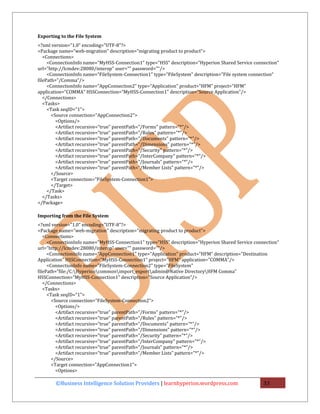
Exporting to the File System
<?xml version="1.0" encoding="UTF-8"?>
<Package name="web-migration" description="migrating product to product">
   <Connections>
     <ConnectionInfo name="MyHSS-Connection1" type="HSS" description="Hyperion Shared Service connection"
url="http://lcmdev:28080/interop" user="" password=""/>
     <ConnectionInfo name="FileSystem-Connection1" type="FileSystem" description="File system connection"
filePath="/Comma"/>
     <ConnectionInfo name="AppConnection2" type="Application" product="HFM" project="HFM"
application="COMMA" HSSConnection="MyHSS-Connection1" description="Source Application"/>
   </Connections>
   <Tasks>
     <Task seqID="1">
       <Source connection="AppConnection2">
         <Options/>
         <Artifact recursive="true" parentPath="/Forms" pattern="*"/>
         <Artifact recursive="true" parentPath="/Rules" pattern="*"/>
         <Artifact recursive="true" parentPath="/Documents" pattern="*"/>
         <Artifact recursive="true" parentPath="/Dimensions" pattern="*"/>
         <Artifact recursive="true" parentPath="/Security" pattern="*"/>
         <Artifact recursive="true" parentPath="/InterCompany" pattern="*"/>
         <Artifact recursive="true" parentPath="/Journals" pattern="*"/>
         <Artifact recursive="true" parentPath="/Member Lists" pattern="*"/>
       </Source>
       <Target connection="FileSystem-Connection1">
       </Target>
     </Task>
   </Tasks>
</Package>

Importing from the File System
<?xml version="1.0" encoding="UTF-8"?>
<Package name="web-migration" description="migrating product to product">
   <Connections>
     <ConnectionInfo name="MyHSS-Connection1" type="HSS" description="Hyperion Shared Service connection"
url="http://lcmdev:28080/interop" user="" password=""/>
     <ConnectionInfo name="AppConnection1" type="Application" product="HFM" description="Destination
Application" HSSConnection="MyHSS-Connection1" project="HFM" application="COMMA"/>
     <ConnectionInfo name="FileSystem-Connection2" type="FileSystem"
filePath="file:/C:Hyperioncommonimport_exportadmin@Native DirectoryHFM Comma"
HSSConnection="MyHSS-Connection1" description="Source Application"/>
   </Connections>
   <Tasks>
     <Task seqID="1">
       <Source connection="FileSystem-Connection2">
         <Options/>
         <Artifact recursive="true" parentPath="/Forms" pattern="*"/>
         <Artifact recursive="true" parentPath="/Rules" pattern="*"/>
         <Artifact recursive="true" parentPath="/Documents" pattern="*"/>
         <Artifact recursive="true" parentPath="/Dimensions" pattern="*"/>
         <Artifact recursive="true" parentPath="/Security" pattern="*"/>
         <Artifact recursive="true" parentPath="/InterCompany" pattern="*"/>
         <Artifact recursive="true" parentPath="/Journals" pattern="*"/>
         <Artifact recursive="true" parentPath="/Member Lists" pattern="*"/>
       </Source>
       <Target connection="AppConnection1">
         <Options>

       ©Business Intelligence Solution Providers | learnhyperion.wordpress.com                    33
<optionInfo name="ImportDimensionMode" value="replace"/>
        </Options>
      </Target>
    </Task>
  </Tasks>
</Package>


       ©Business Intelligence Solution Providers | learnhyperion.wordpress.com   34

Hyperion LCM Utility

  • 1.
    Document: Migrating Essbase Application Using LCM Utility Description: This document will guide you through the step by step process of Migrating Essbase Application from one environment to another. It is focused on how to migrate one Essbase Application to another Essbase Application and Essbase Application to file system and vice versa. History: Version Description Author Publish Date Change 0.1 Initial Draft Gaurav Shrivastava 07-Feb-2011 0.1 Review 1 Amit Sharma 18th Mar 2011 ©Business Intelligence Solution Providers | learnhyperion.wordpress.com 1
  • 2.
    Table of Contents 1. Life Cycle Management……………………………………………………3 2. Migration Types LCM Utility……………………………………………4 a. Application to Application Migration………………..……4 b. Application to File System Migration………………………7 3. Backed up artifact……………………………………………………….….13 4. File system to application………………………………………..……..17 5. Migration Check List……………………………………………………….23 6. Log File……………………………………………………………………………27 7. Appendix ………………………………………………………………………..32 . ©Business Intelligence Solution Providers | learnhyperion.wordpress.com 2
  • 3.
    Life Cycle Management InEssbase one of most attractive features of version 11 is Life Cycle Management. The LCM makes your life easier by collecting all migration activities using one single wizard based approach using LCM. You can perform LCM tasks through shared service. What is LCM: Oracle Hyperion Enterprise Performance Management System Lifecycle Management provides a consistent way for Oracle Hyperion Enterprise Performance Management System products to migrate an application, a repository, or individual artifacts across product environments and operating systems. If there is common environment, then you can migrate directly from application to application. Shared service used for migration when there is common environment. You can take back up of all artifacts through Life Cycle Management utility. Essbase Artifacts 1. Definitions of all databases within the applications 2. Outlines 3. Substitution Variables 4. Rule Files 5. Calculation Scripts 6. Report Scripts 7. Excel Files 8. Location Aliases 9. Security Filters ©Business Intelligence Solution Providers | learnhyperion.wordpress.com 3
  • 4.
    Lifecycle Management forEssbase can be used in the following scenario • Migrating users/groups/roles/privileges migrations • Backup and recovery for Essbase artifacts. • Importing and exporting artifacts for editing purposes • Using Lifecycle Management Utility to export to version control systems • Application migrations with cross-product artifact dependencies Migration Types LCM Utility 1. Application to Application Migration – If you have multiple application of Essbase registered in the same shared services instance, then you can migrate Essbase Application & Database Artifacts to the other Essbase application through the common Shared Services. Application to Application: You can migrate artifacts from application to application. Essbase application to application migration is possible if source and target Essbase application in the same shared services. In the below example there are two Essbase applications “Bisp” and “MDemo”, we will demonstrate how to migrate Application to Application. Step #1 Open shared services and select Essbase in application then open source application. Step #2 ©Business Intelligence Solution Providers | learnhyperion.wordpress.com 4
  • 5.
    Select all artifactsand click “Define Migration”. “Bisp” is my source application and target application is “MDemo”. Step #3 Description of source application Click Next……. Step #4 Select destination application Click Next…….. Step #5 ©Business Intelligence Solution Providers | learnhyperion.wordpress.com 5
  • 6.
    Final summary ofSource and target applications Select overwrite artifacts options if you want to overwrite on existing artifacts. Step #6 Complete migration summary Click on “Execute Migration” then click ok …….. You can go for “Launch Migration Status Report” and see the status. Launched Migration Report Validation of Migration Process Application migration done successfully ©Business Intelligence Solution Providers | learnhyperion.wordpress.com 6
  • 7.
    2. Application toFile System Migration – If you have multiple Essbase applications registered in different shared services. Then this utility migrates all the necessary artifacts on to the file system. Then you can move the extracted artifacts to the target machine. In the next step again use the utility from file system to the target application. Application to file system This is the Essbase application and database. We will perform LCM operations. All file are in the “BispBD” folder before migration. ©Business Intelligence Solution Providers | learnhyperion.wordpress.com 7
  • 8.
    Step #1 We useshared services for LCM utility. Log in to shared service. This is the Group of application for different application products. Step #2 Open Essbase and select application to be migrated. ©Business Intelligence Solution Providers | learnhyperion.wordpress.com 8
  • 9.
    Essbase applications andtheir databases Step #3 Open “Bisp” application and select database with all artifacts. These are the all artifacts of the BispBD database. Rule files ©Business Intelligence Solution Providers | learnhyperion.wordpress.com 9
  • 10.
    Security file, variableand Text file. For coping artifacts select all artifacts of application “BispBD”. ©Business Intelligence Solution Providers | learnhyperion.wordpress.com 10
  • 11.
    Step #4 Click onDefine migration……. Step #5 Source Application for migration Click on Next………… ©Business Intelligence Solution Providers | learnhyperion.wordpress.com 11
  • 12.
    Step #6 Select thedestination for migration; you can simply migrate to any application or into file system. One backup file is created in this example. Click Next……… Step #7 Description of source and destination applications Click Next……….. Step #8 Complete migration summary now click on execute migration…… ©Business Intelligence Solution Providers | learnhyperion.wordpress.com 12
  • 13.
    Step #9 You canlaunch migration status report by clicking on “Launch Migration Status Report”……………….. Step #9 Migrated report status Validate You can see that application is successfully migrated in to file system. One new file created in the file system; it has all migrated artifacts. ©Business Intelligence Solution Providers | learnhyperion.wordpress.com 13
  • 14.
    Backed up artifacts Allartifacts folders backed up successfully. Backup files stored in “ import_exportadmini@Native Directory” folder. All backup files are in XML format. You can move all this files in other environment; were ever you want. Calc Script Excel Files ©Business Intelligence Solution Providers | learnhyperion.wordpress.com 14
  • 15.
    Location Aliases Report Scripts RuleFiles Security Files ©Business Intelligence Solution Providers | learnhyperion.wordpress.com 15
  • 16.
    Substitution Variables Text Files Allartifacts backed up in to file system. ©Business Intelligence Solution Providers | learnhyperion.wordpress.com 16
  • 17.
    Some other informationalso stored inside the info folder. Listing.xml Listing file save the entire folder detailed information. This file consists of all resource name, folder id, path, pathAlias, modifiedBy, lastUpdated and description about each folder. Whatever file or folder generated during complete process. sourceInfo.xml ©Business Intelligence Solution Providers | learnhyperion.wordpress.com 17
  • 18.
    Source information filesave application version, variable, metadata information. This file keep product, product version, project, metadata information and LCMversion information. File system to application Step #10 All backup of artifacts is stored in the “BispBackup” file. Select all artifacts to recover application from file system to Essbase application. You can see all artifacts detail. ©Business Intelligence Solution Providers | learnhyperion.wordpress.com 18
  • 19.
    Report Script andRule Files Security files, substitution variable and text file. ©Business Intelligence Solution Providers | learnhyperion.wordpress.com 19
  • 20.
    Step #11 Now thesource is file system application named “BispBackup”. Click Next……… Step #12 Select destination application click next…… Step #13 ©Business Intelligence Solution Providers | learnhyperion.wordpress.com 20
  • 21.
    Destination is newone then no need to check Overwrite Artifacts. If destination application is old one then check the overwrite artifacts. Click Next……. Step #14 This is migration summary click on execute the migration summary. Step #15 To see the migration report launch migration status report. See the status of report Validate ©Business Intelligence Solution Providers | learnhyperion.wordpress.com 21
  • 22.
    Select Essbase andopen “LCM” application and check out all migrated artifacts. You can validate that application is migrated successfully. Migrated application outline. You can cross check the all files are migrated in to new application. This folder shows migrated files. You can cross check artifacts list in new “LCM” application. Calc script, excel files and location aliases ©Business Intelligence Solution Providers | learnhyperion.wordpress.com 22
  • 23.
    Report script andrule files Security file, substitution variables and text files ©Business Intelligence Solution Providers | learnhyperion.wordpress.com 23
  • 24.
    Migration Check List Youcan create one migration check list, and check the status after migration. Migration Check List ©Business Intelligence Solution Providers | learnhyperion.wordpress.com 24
  • 25.
    Migration Check List ©Business Intelligence Solution Providers | learnhyperion.wordpress.com 25
  • 26.
    Migration Check List ©Business Intelligence Solution Providers | learnhyperion.wordpress.com 26
  • 27.
    Log File One logfile creates during migrating application artifacts using LCM utility. LCM.log ©Business Intelligence Solution Providers | learnhyperion.wordpress.com 27
  • 28.
    This log filekeeps all the information of migration process. This file keeps all information about source and destination. All ©Business Intelligence Solution Providers | learnhyperion.wordpress.com 28
  • 29.
    ©Business Intelligence SolutionProviders | learnhyperion.wordpress.com 29
  • 30.
    This is thelog file Essbase Log file ©Business Intelligence Solution Providers | learnhyperion.wordpress.com 30
  • 31.
    LCM The components ofLifecycle Management Utility are installed to HYPERION_HOME/common/utilities/LCM/9.5.0.0 (referred to as LCM_HOME). Essbase Role Requirement Users performing Lifecycle Management operations for Essbase must be assigned the following roles:: 1. LCM Administrator 2. Server Access 3. Calc 4. Database Manager ©Business Intelligence Solution Providers | learnhyperion.wordpress.com 31
  • 32.
    Appendix Lifecycle Management LogFiles Lifecycle Management for Oracle Hyperion Profitability and Cost Management, Fusion Edition are listed in the Oracle Hyperion Enterprise Performance Management System Installation and Configuration Troubleshooting Guide Note the following: • Details are documented in the logging section of S9 Logging. • For failed migrations, the Migration Status Report provides a link to the Lifecycle Management e engine log file. The product Oracle Hyperion Enterprise Performance Management System Lifecycle Management log files are located with the products. Sample Migration Definition Files The sample migration definition files provided are for Financial Management Classic application migrations. The product code used in the migration definition files for Financial Management is HFM and the sample application is COMMA. All sample migration definition files are provided in LCM_HOME/samples. Application to Application Migration <?xml version="1.0" encoding="UTF-8"?> <Package name="web-migration" description="migrating product to product"> <Connections> <ConnectionInfo name="MyHSS-Connection1" type="HSS" description="Hyperion Shared Service connection" url="http://lcmdev:28080/interop" user="" password=""/> <ConnectionInfo name="AppConnection1" type="Application" product="HFM" description="Destination Application" HSSConnection="MyHSS-Connection1" project="HFM" application="COMMATEST"/> <ConnectionInfo name="AppConnection2" type="Application" product="HFM" project="HFM" application="COMMADEV" HSSConnection="MyHSS-Connection1" description="Source Application"/> </Connections> <Tasks> <Task seqID="1"> <Source connection="AppConnection2"> <Options/> <Artifact recursive="true" parentPath="/Forms" pattern="*"/> <Artifact recursive="true" parentPath="/Documents" pattern="*"/> <Artifact recursive="true" parentPath="/Dimensions" pattern="*"/> <Artifact recursive="true" parentPath="/InterCompany" pattern="*"/> <Artifact recursive="true" parentPath="/Journals" pattern="*"/> <Artifact recursive="true" parentPath="/Member Lists" pattern="*"/> </Source> <Target connection="AppConnection1"> <Options> <optionInfo name="ImportDimensionMode" value="replace"/> </Options> </Target> </Task> </Tasks> </Package> ©Business Intelligence Solution Providers | learnhyperion.wordpress.com 32
  • 33.
    Exporting to theFile System <?xml version="1.0" encoding="UTF-8"?> <Package name="web-migration" description="migrating product to product"> <Connections> <ConnectionInfo name="MyHSS-Connection1" type="HSS" description="Hyperion Shared Service connection" url="http://lcmdev:28080/interop" user="" password=""/> <ConnectionInfo name="FileSystem-Connection1" type="FileSystem" description="File system connection" filePath="/Comma"/> <ConnectionInfo name="AppConnection2" type="Application" product="HFM" project="HFM" application="COMMA" HSSConnection="MyHSS-Connection1" description="Source Application"/> </Connections> <Tasks> <Task seqID="1"> <Source connection="AppConnection2"> <Options/> <Artifact recursive="true" parentPath="/Forms" pattern="*"/> <Artifact recursive="true" parentPath="/Rules" pattern="*"/> <Artifact recursive="true" parentPath="/Documents" pattern="*"/> <Artifact recursive="true" parentPath="/Dimensions" pattern="*"/> <Artifact recursive="true" parentPath="/Security" pattern="*"/> <Artifact recursive="true" parentPath="/InterCompany" pattern="*"/> <Artifact recursive="true" parentPath="/Journals" pattern="*"/> <Artifact recursive="true" parentPath="/Member Lists" pattern="*"/> </Source> <Target connection="FileSystem-Connection1"> </Target> </Task> </Tasks> </Package> Importing from the File System <?xml version="1.0" encoding="UTF-8"?> <Package name="web-migration" description="migrating product to product"> <Connections> <ConnectionInfo name="MyHSS-Connection1" type="HSS" description="Hyperion Shared Service connection" url="http://lcmdev:28080/interop" user="" password=""/> <ConnectionInfo name="AppConnection1" type="Application" product="HFM" description="Destination Application" HSSConnection="MyHSS-Connection1" project="HFM" application="COMMA"/> <ConnectionInfo name="FileSystem-Connection2" type="FileSystem" filePath="file:/C:Hyperioncommonimport_exportadmin@Native DirectoryHFM Comma" HSSConnection="MyHSS-Connection1" description="Source Application"/> </Connections> <Tasks> <Task seqID="1"> <Source connection="FileSystem-Connection2"> <Options/> <Artifact recursive="true" parentPath="/Forms" pattern="*"/> <Artifact recursive="true" parentPath="/Rules" pattern="*"/> <Artifact recursive="true" parentPath="/Documents" pattern="*"/> <Artifact recursive="true" parentPath="/Dimensions" pattern="*"/> <Artifact recursive="true" parentPath="/Security" pattern="*"/> <Artifact recursive="true" parentPath="/InterCompany" pattern="*"/> <Artifact recursive="true" parentPath="/Journals" pattern="*"/> <Artifact recursive="true" parentPath="/Member Lists" pattern="*"/> </Source> <Target connection="AppConnection1"> <Options> ©Business Intelligence Solution Providers | learnhyperion.wordpress.com 33
  • 34.
    <optionInfo name="ImportDimensionMode" value="replace"/> </Options> </Target> </Task> </Tasks> </Package> ©Business Intelligence Solution Providers | learnhyperion.wordpress.com 34