


Hyperion
Planning


Prepared by Anthony Yuan
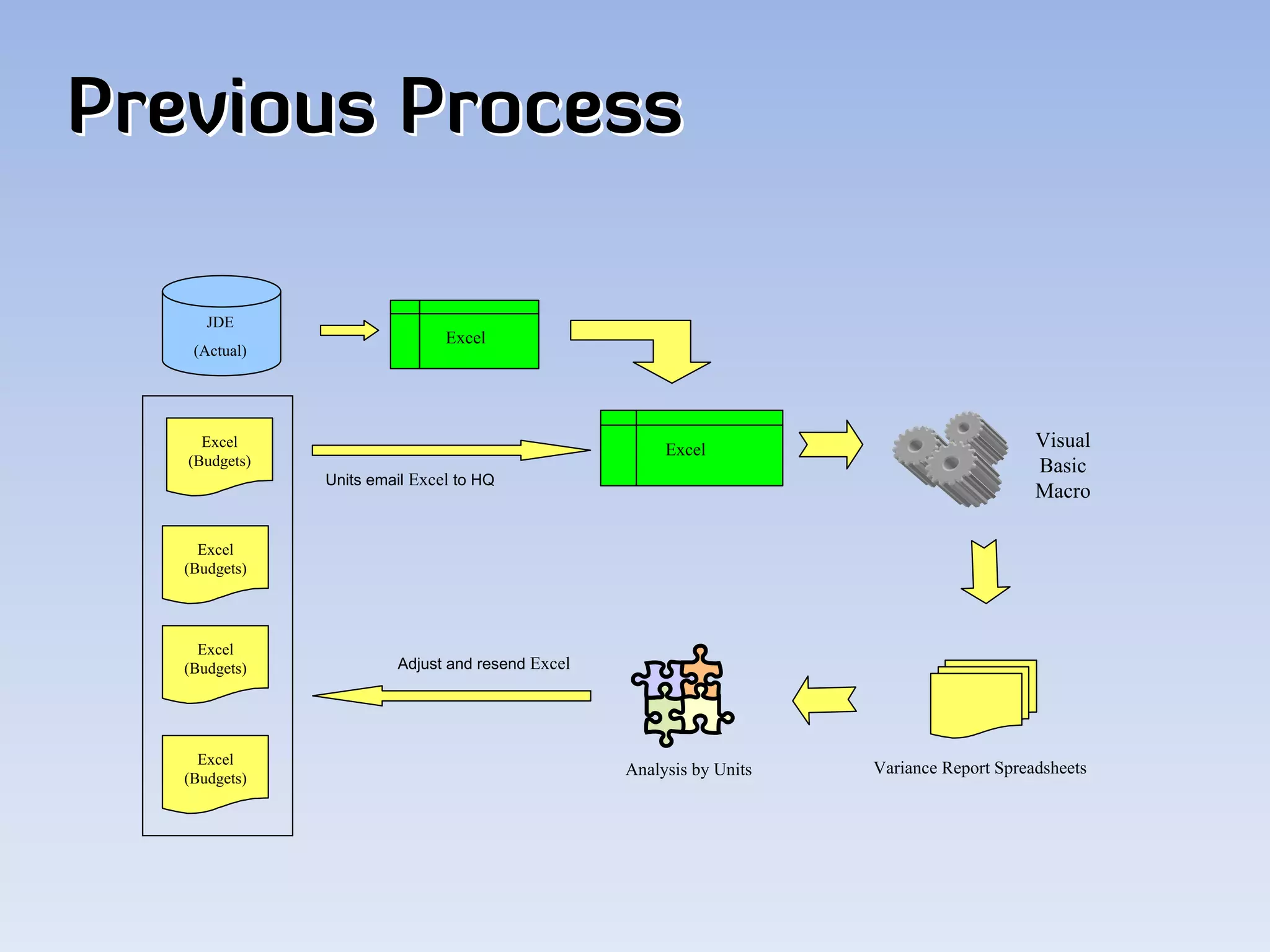
Previous Process

      JDE
                               Excel
    (Actual)


     Excel
                                                       Excel                               Visual
   (Budgets)                                                                               Basic
               Units email Excel to HQ
                                                                                           Macro

     Excel
   (Budgets)


     Excel
   (Budgets)            Adjust and resend Excel


     Excel
                                                  Analysis by Units   Variance Report Spreadsheets
   (Budgets)
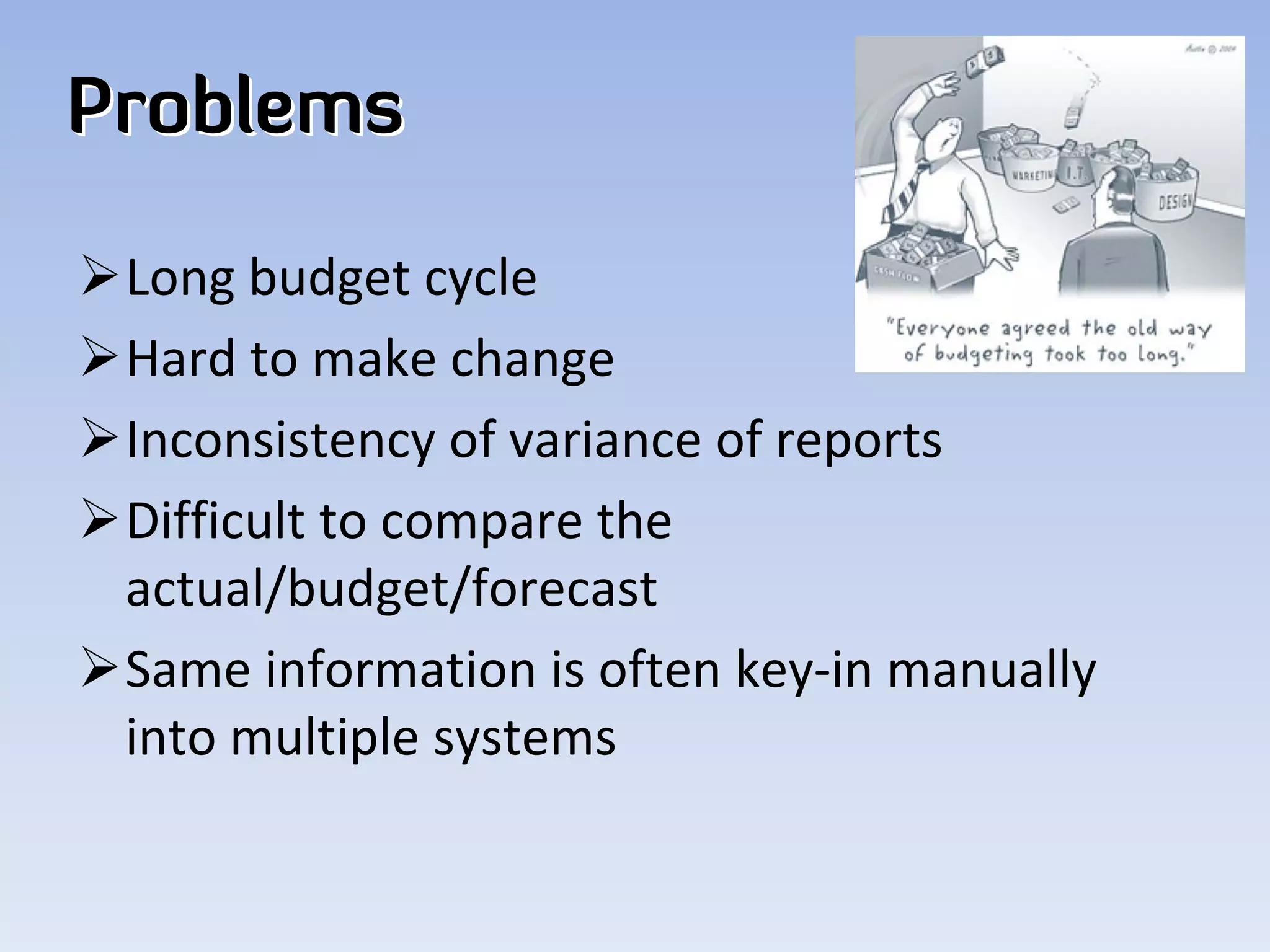
Problems

Long budget cycle
Hard to make change
Inconsistency of variance of reports
Difficult to compare the 
 actual/budget/forecast
Same information is often key‐in manually 
 into multiple systems
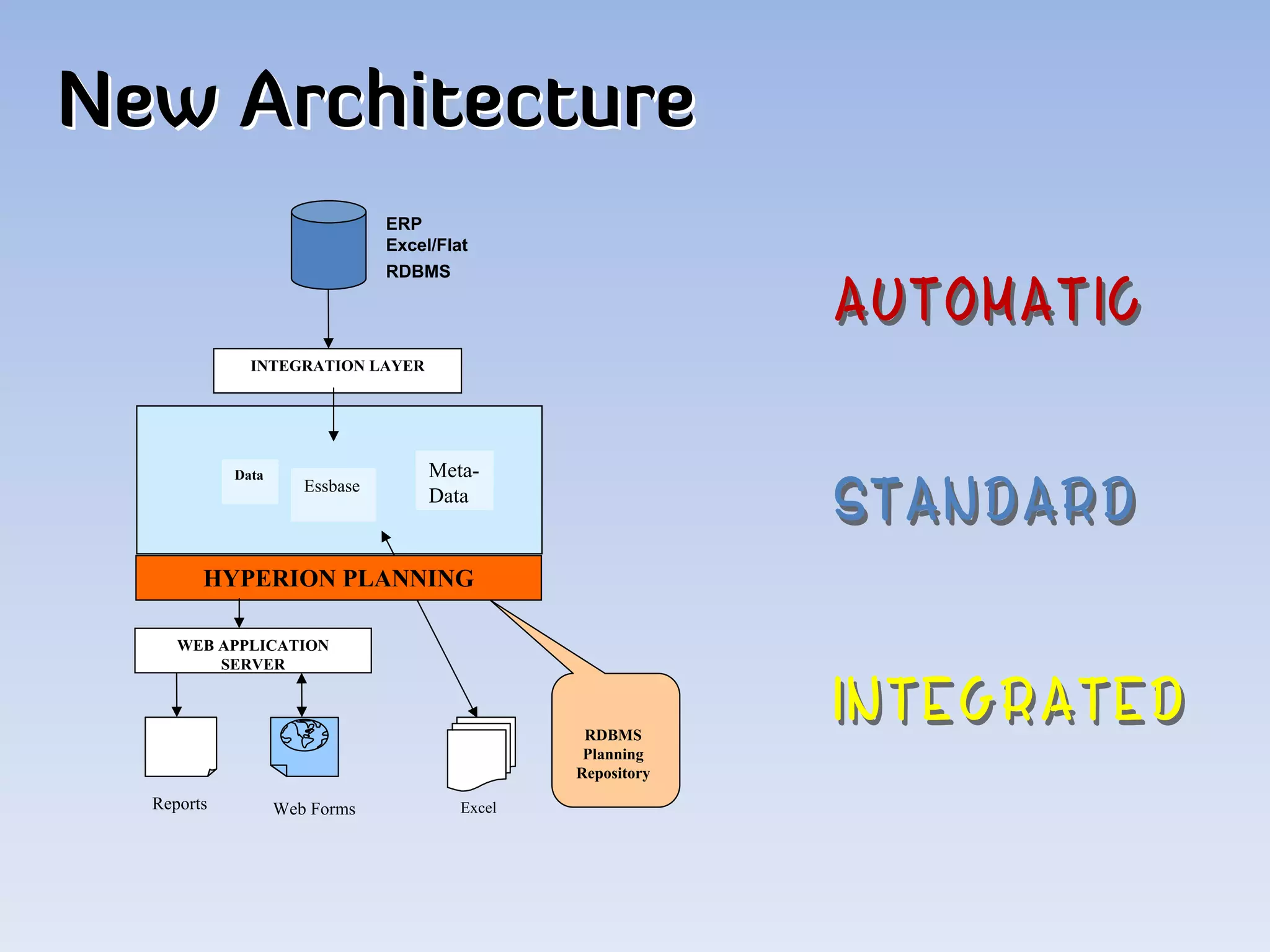
New Architecture
                                ERP
                                Excel/Flat
                                RDBMS


              INTEGRATION LAYER


            Data                     Meta-
                      Essbase
                                     Data


        HYPERION PLANNING

     WEB APPLICATION
         SERVER


                                                  RDBMS
                                                  Planning
                                                 Repository
  Reports          Web Forms             Excel
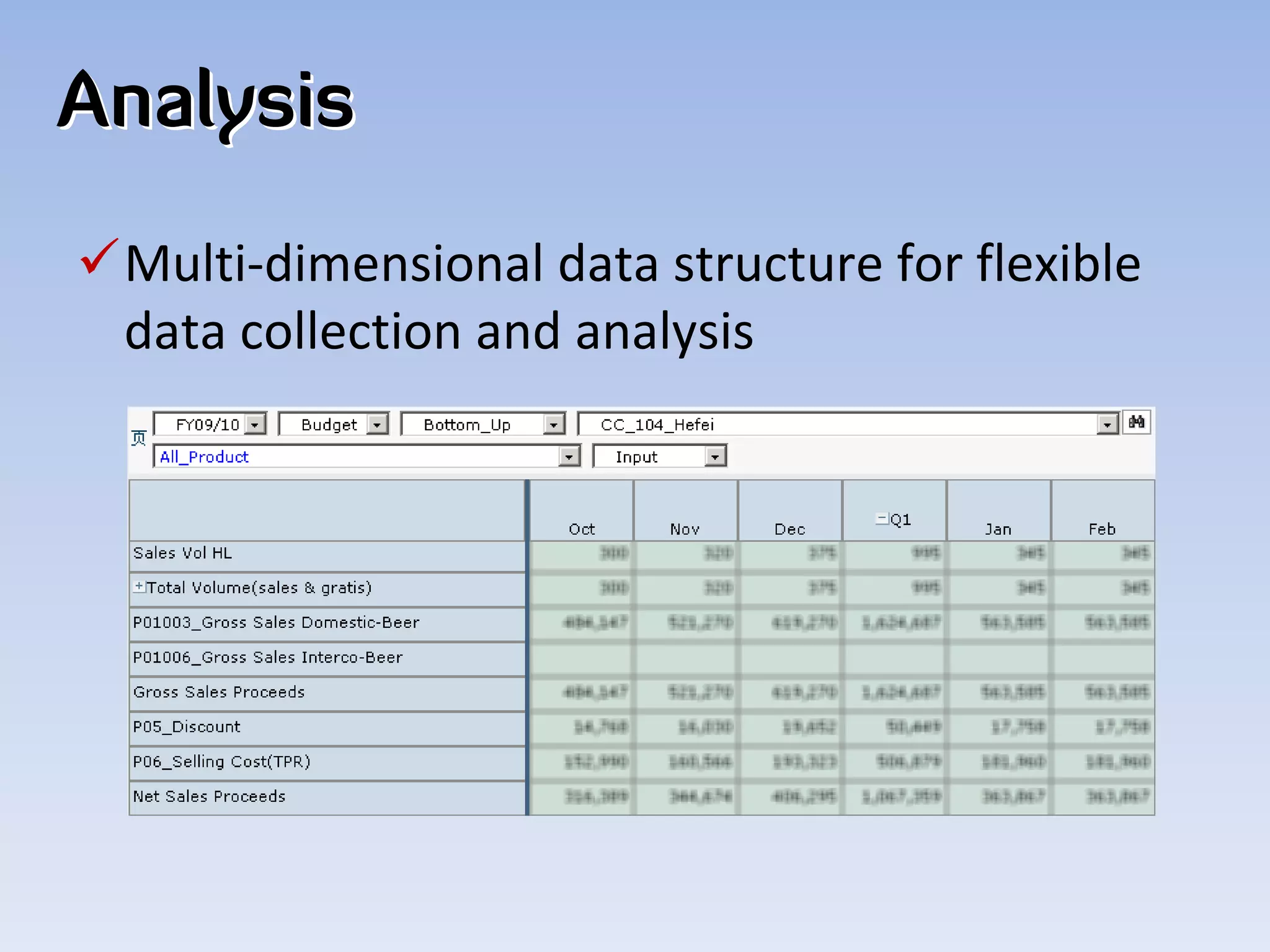
Analysis
Multi‐dimensional data structure for flexible 
 data collection and analysis
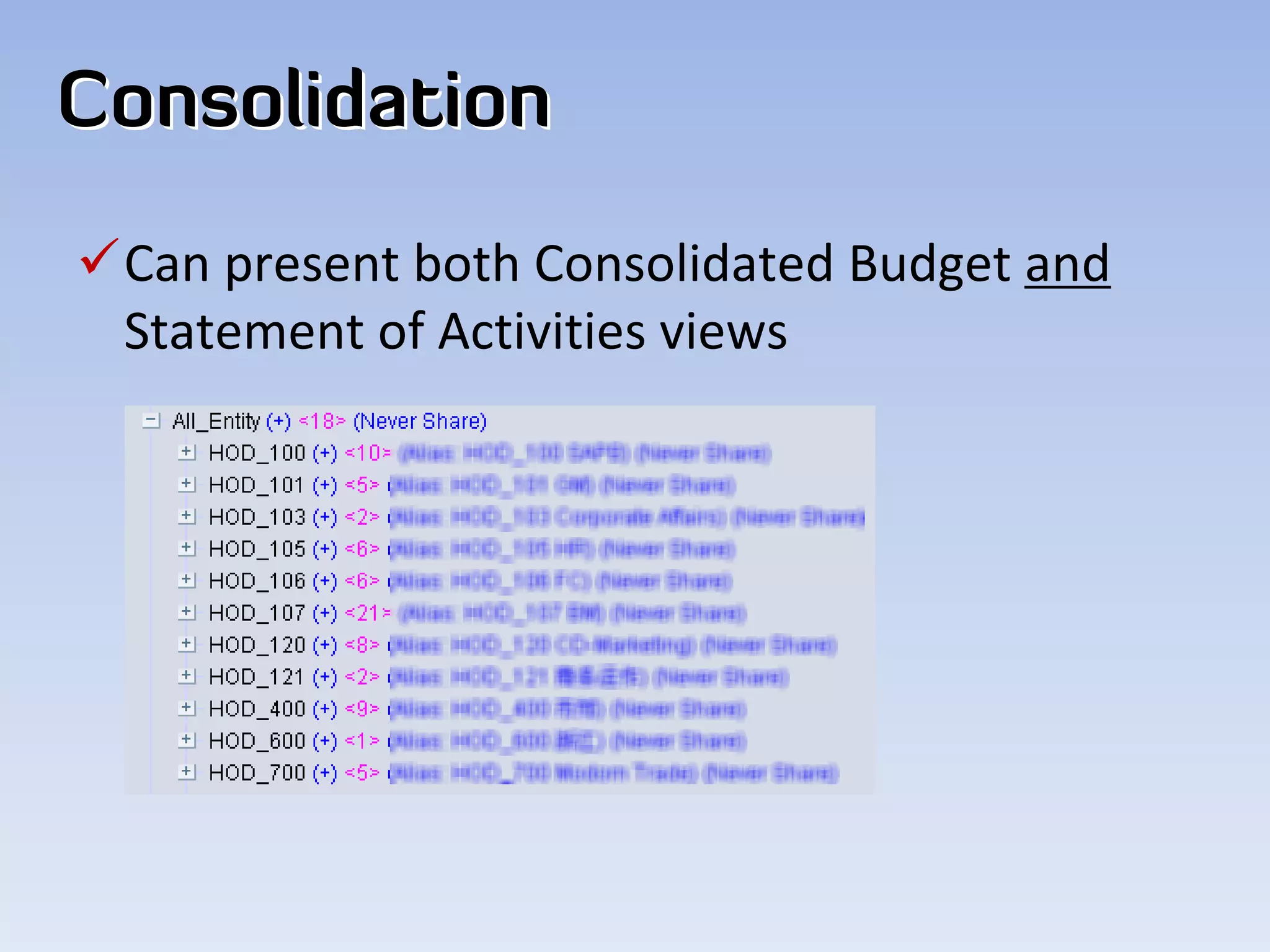
Consolidation
Can present both Consolidated Budget and
 Statement of Activities views
More Advantages…
Access Via Web / Excel
Easy‐to‐use Interface
Business Rules
Bottom‐up / Top Down Budgeting
Multiple versions for iterative planning cycles
Plan vs. Actual scenario analysis
Security setup by Region/Product/Account…
Workspace
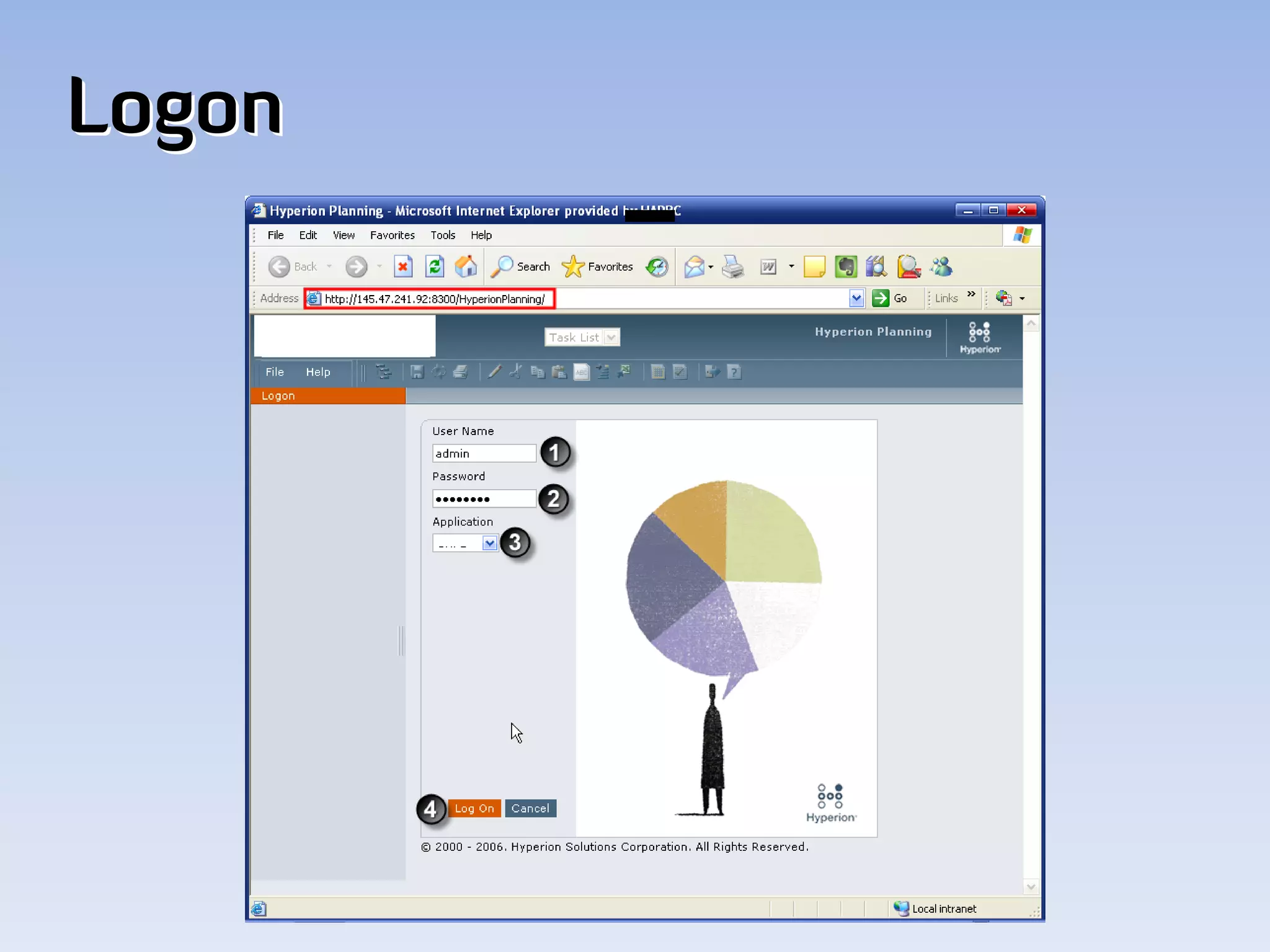
Logon
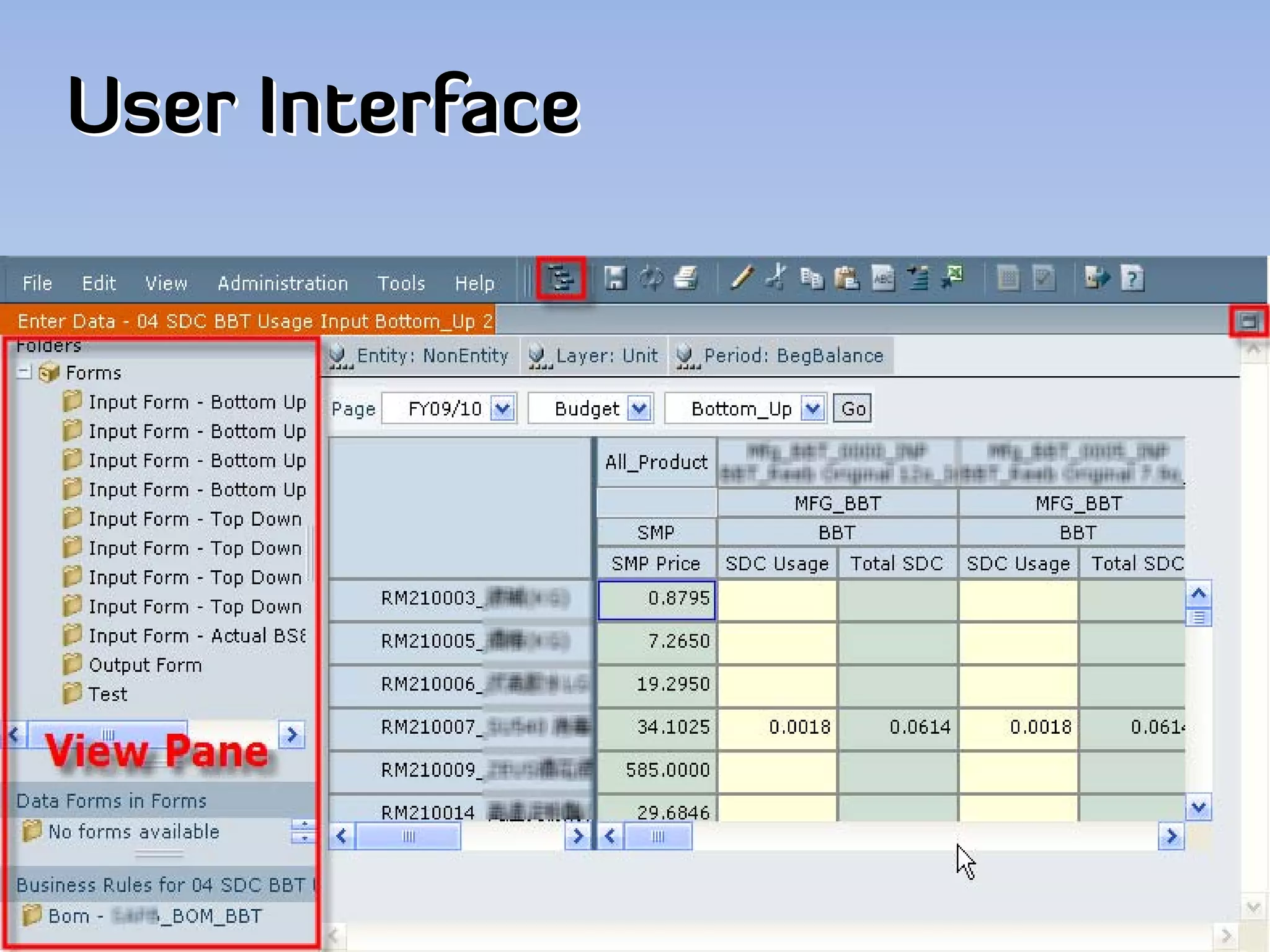
User Interface
Master Data
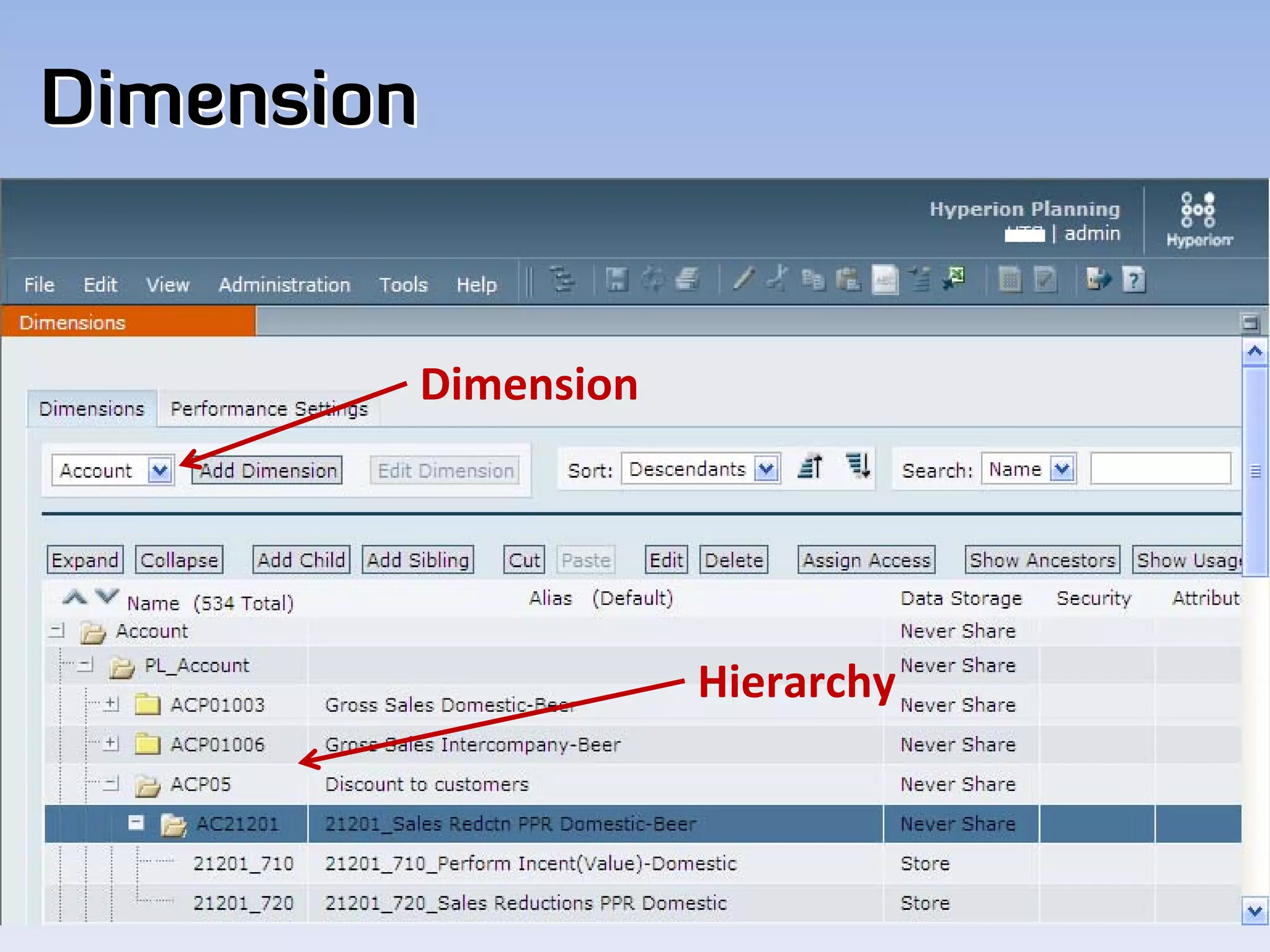
Dimension


        Dimension


                    Hierarchy
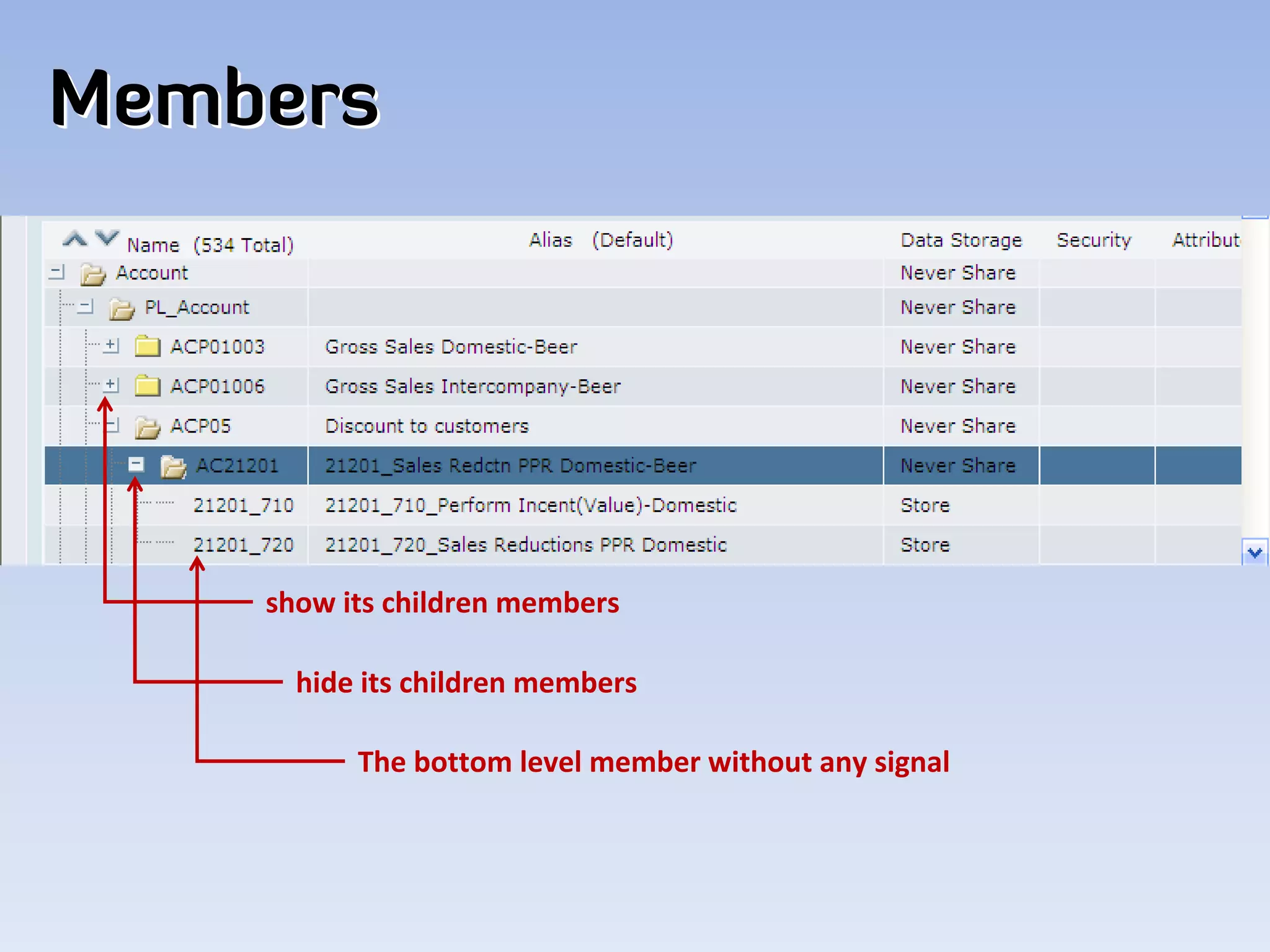
Members


    show its children members

      hide its children members

          The bottom level member without any signal
Web Form
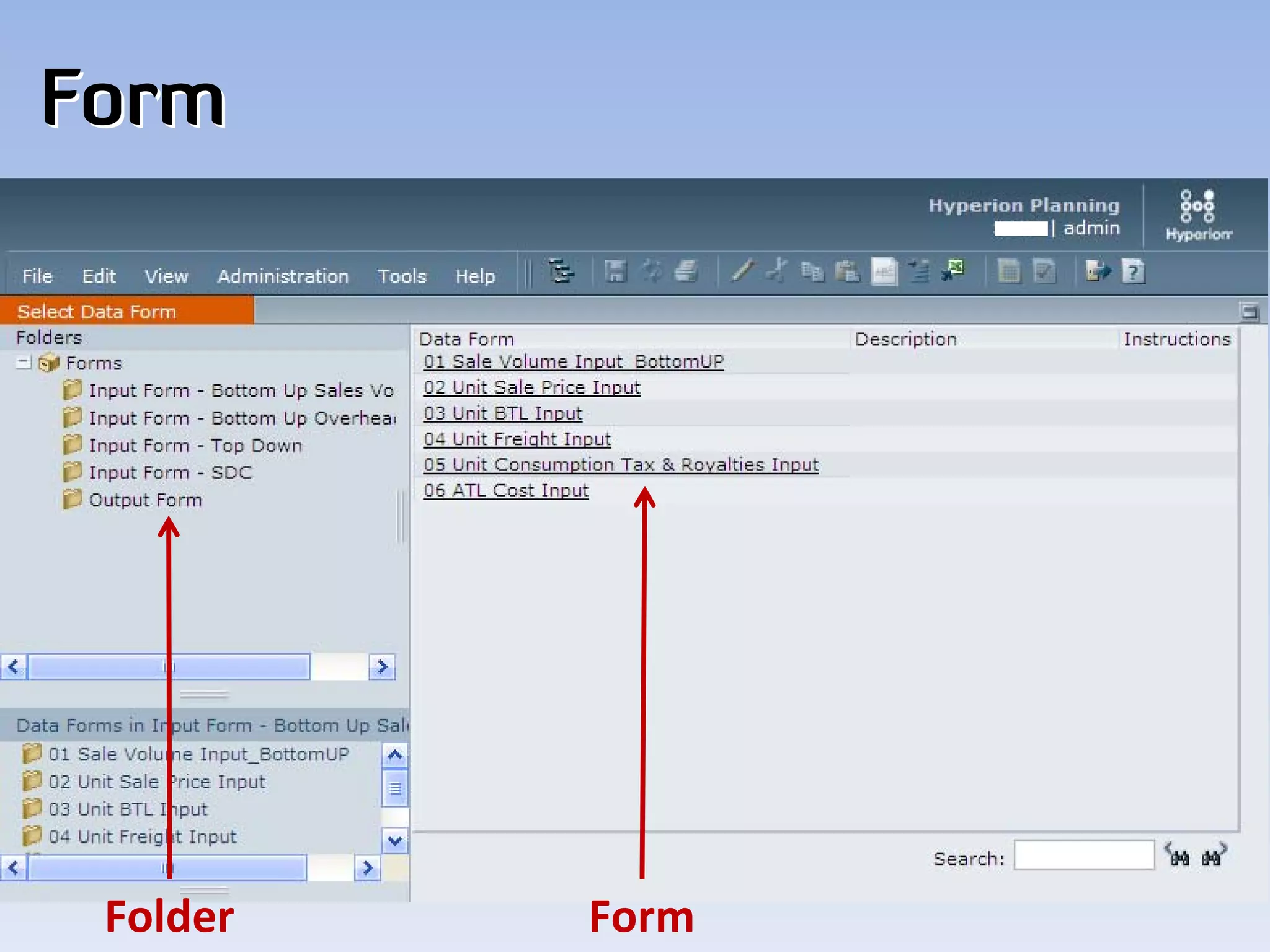
Form


 Folder   Form
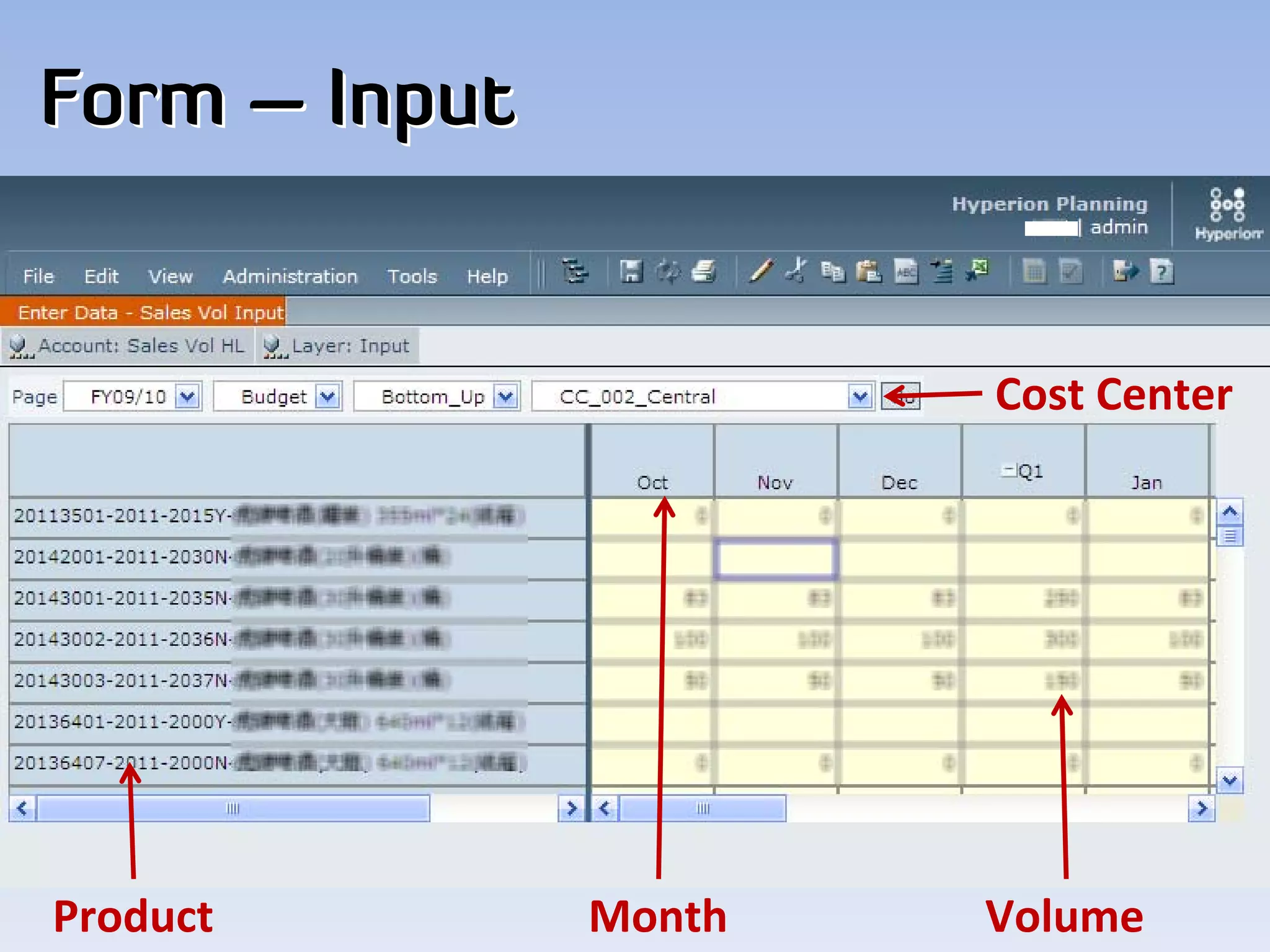
Form – Input


                       Cost Center


Product        Month   Volume
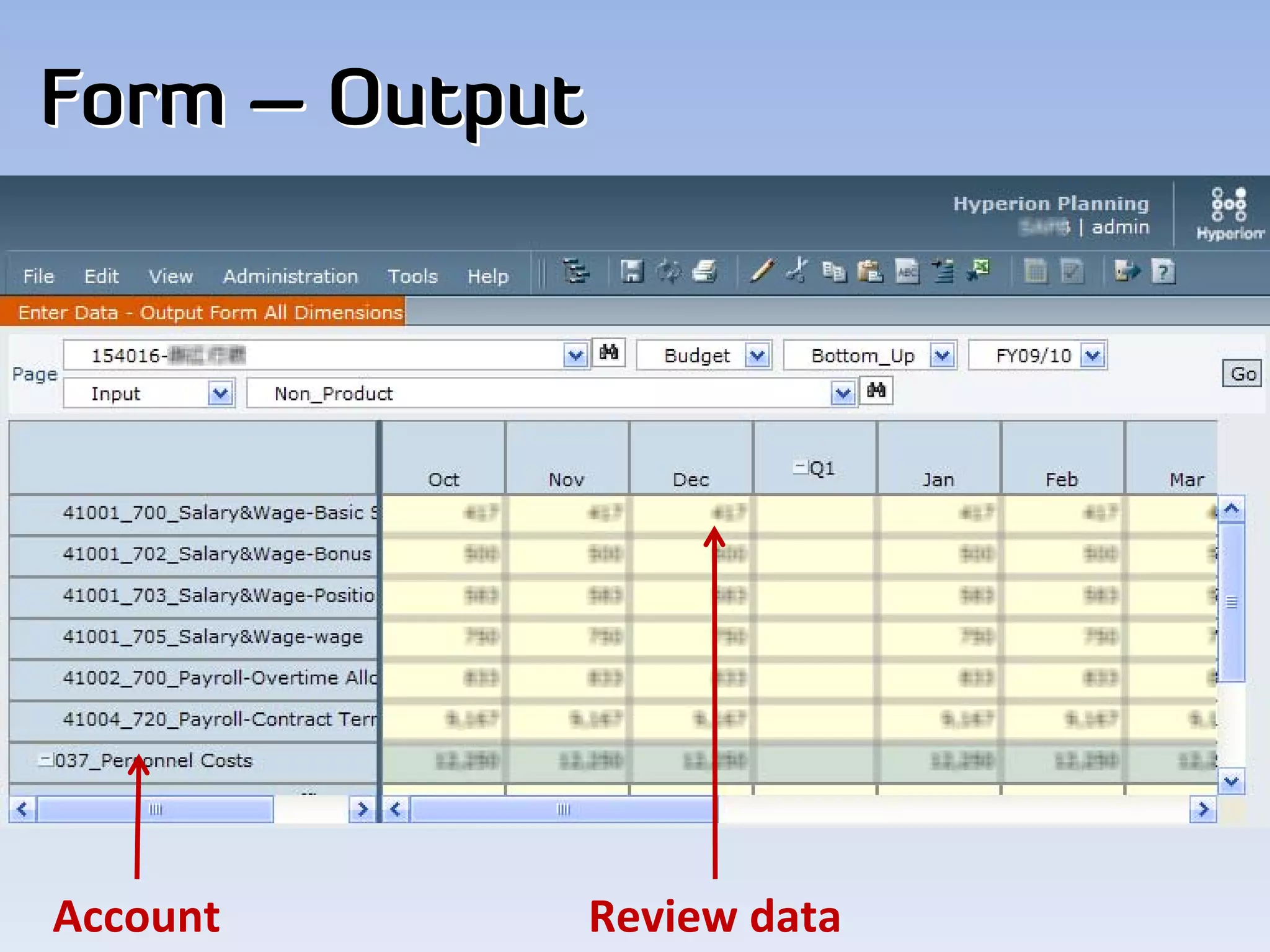
Form – Output


Account         Review data
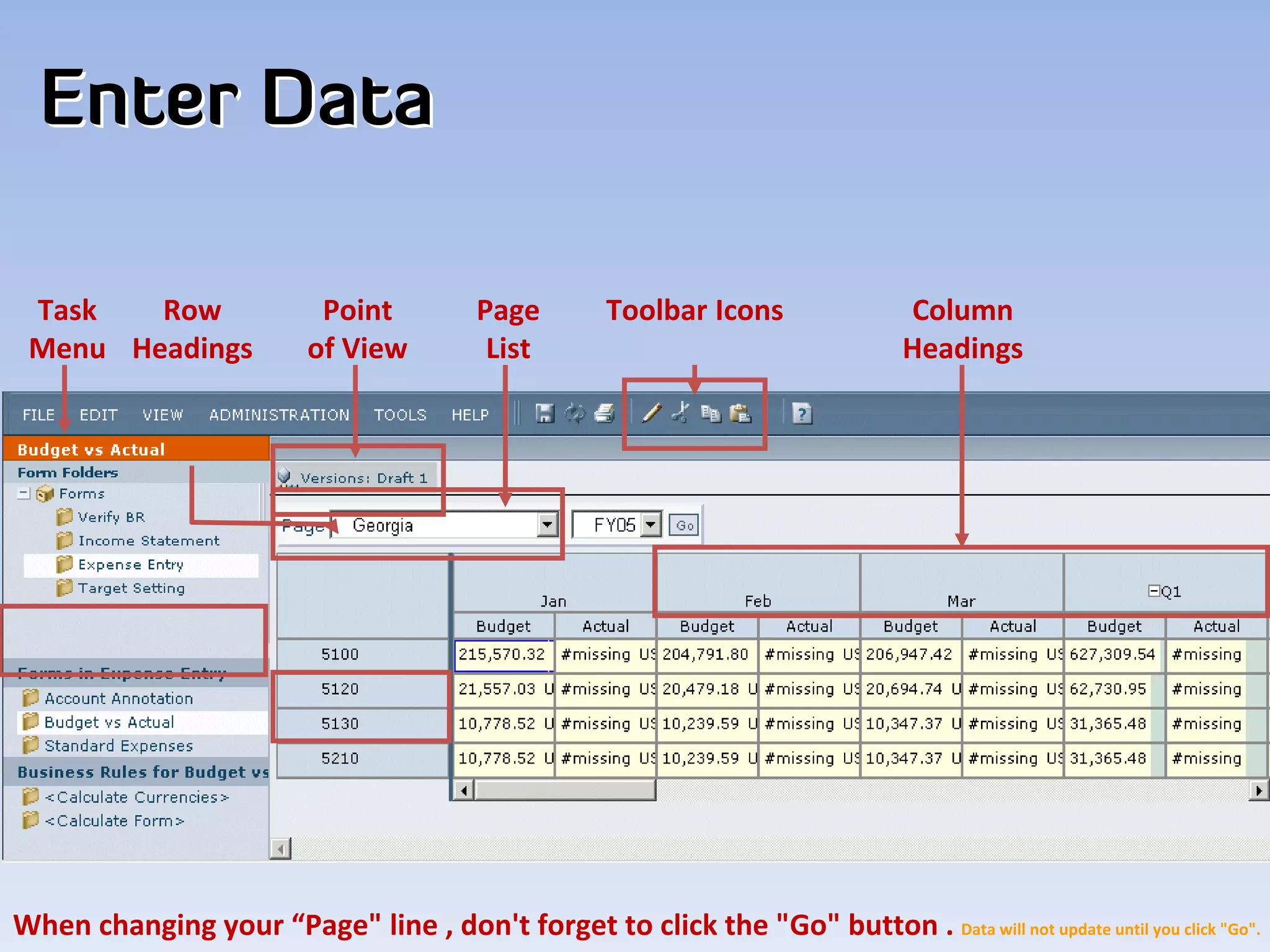
Enter Data

 Task   Row                 Point         Page        Toolbar Icons              Column
 Menu Headings             of View         List                                  Headings


When changing your “Page" line , don't forget to click the "Go" button . Data will not update until you click "Go".
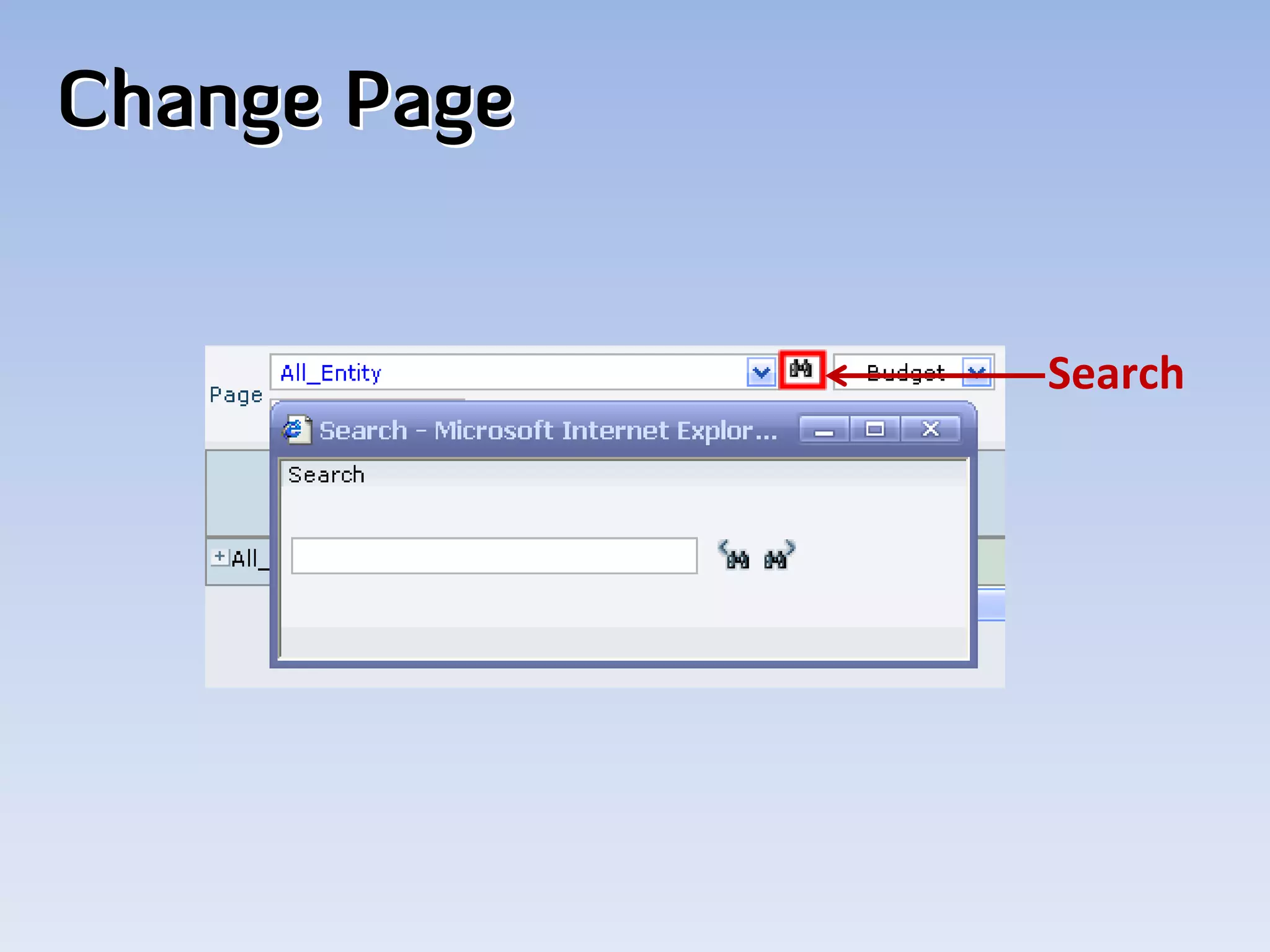
Change Page


              Search
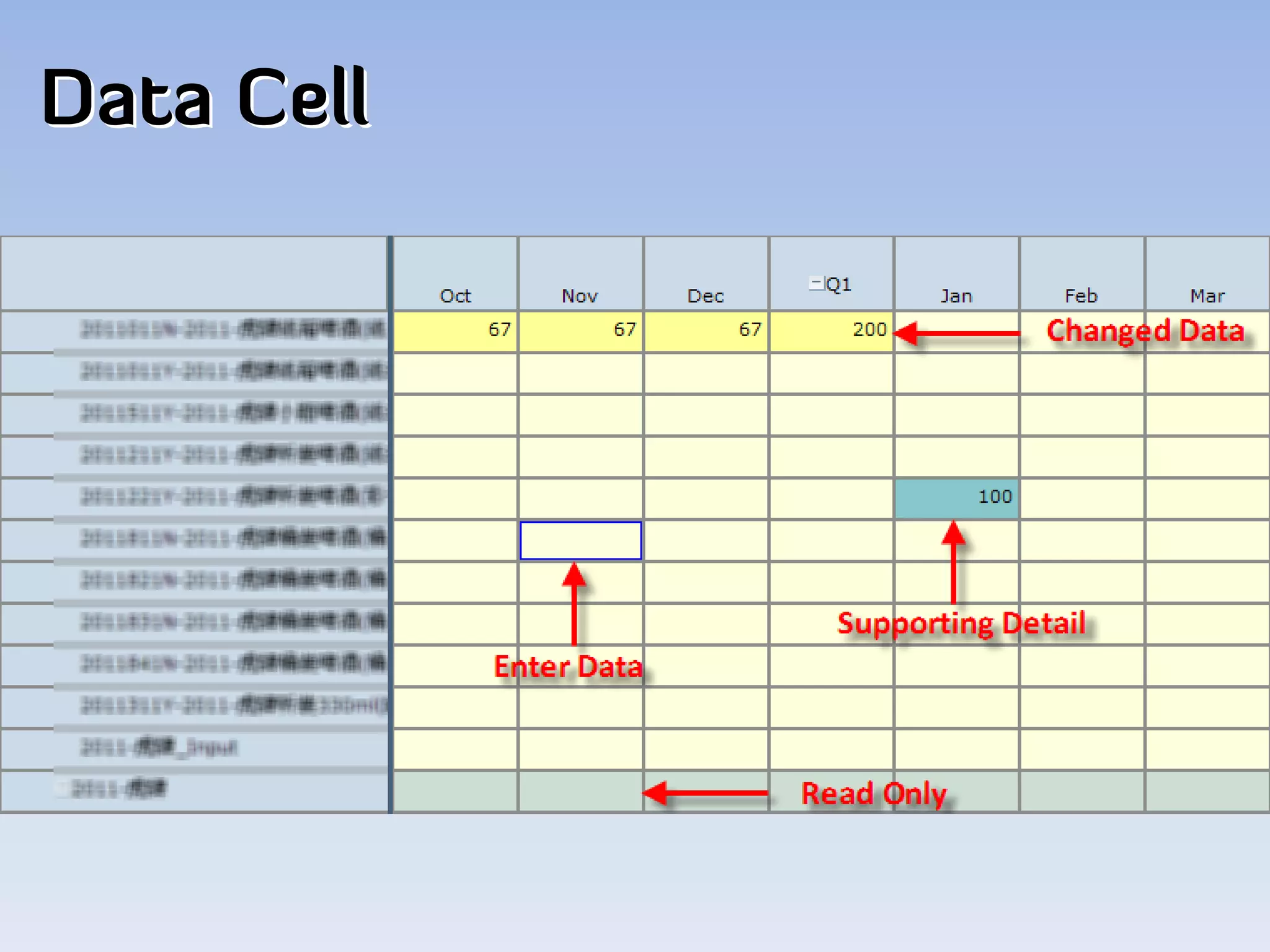
Data Cell
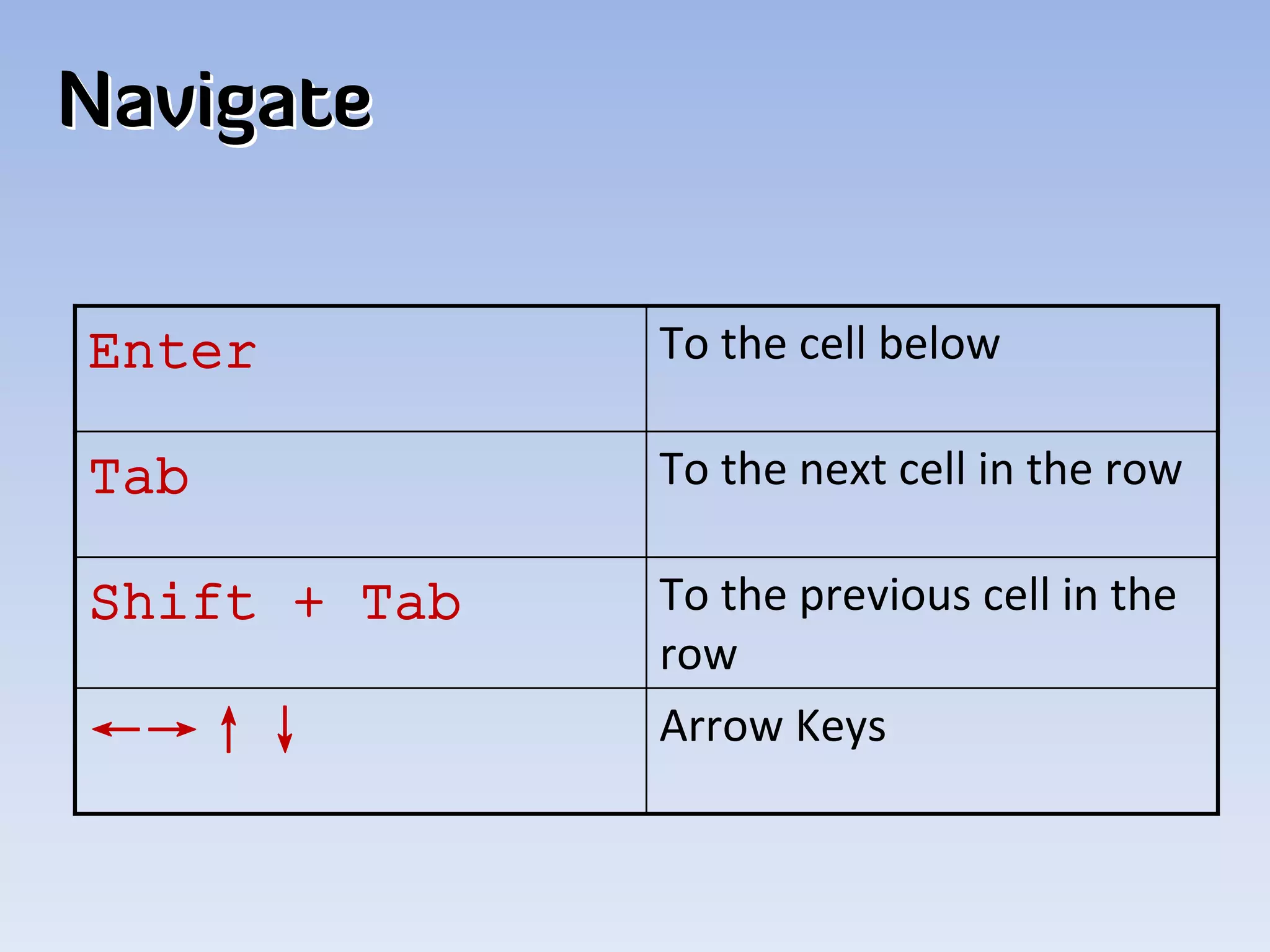
Navigate


Enter         To the cell below

Tab           To the next cell in the row

Shift + Tab   To the previous cell in the 
              row
←→↑↓          Arrow Keys
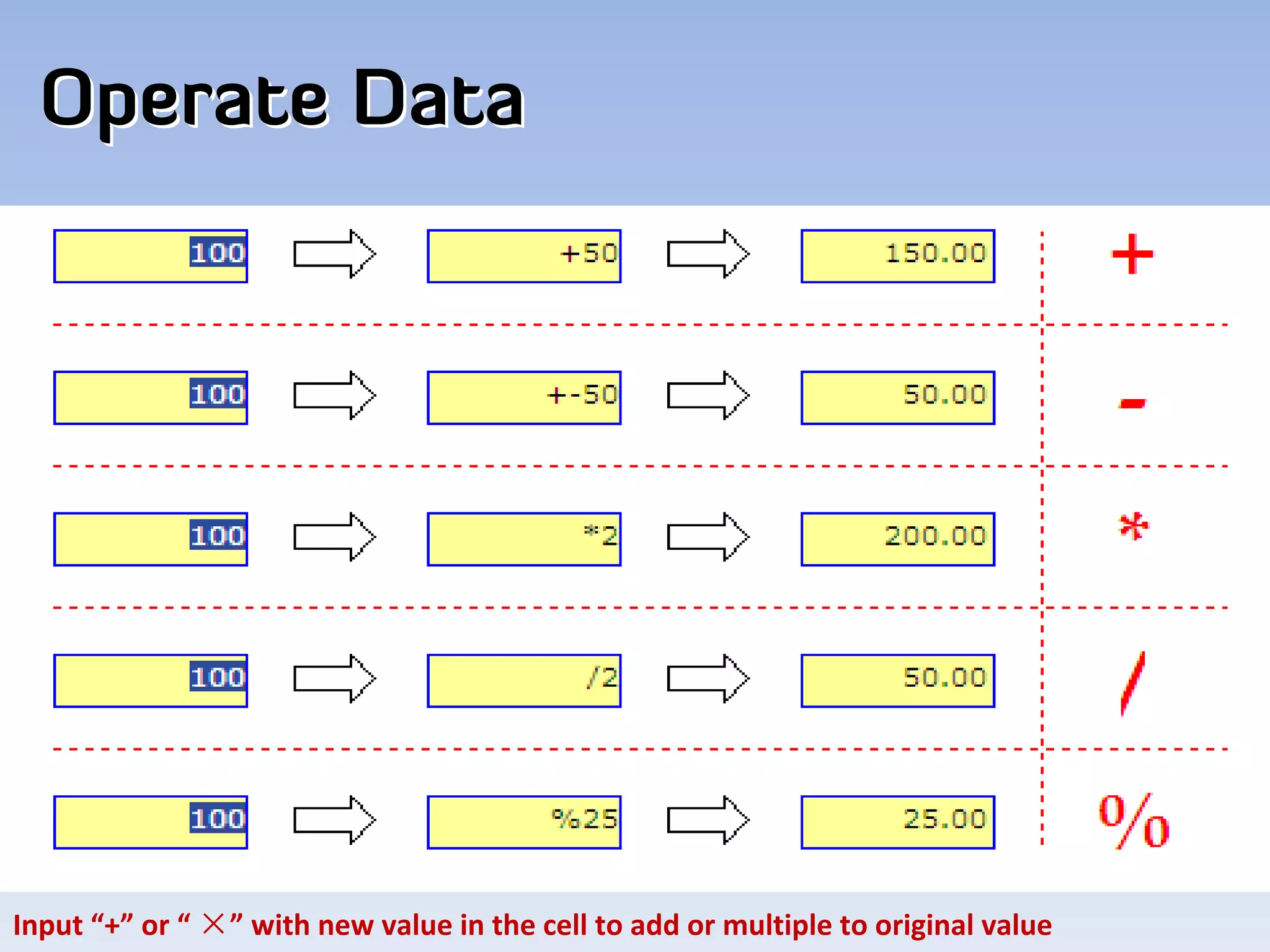
Operate Data


Input “+” or “ ×” with new value in the cell to add or multiple to original value
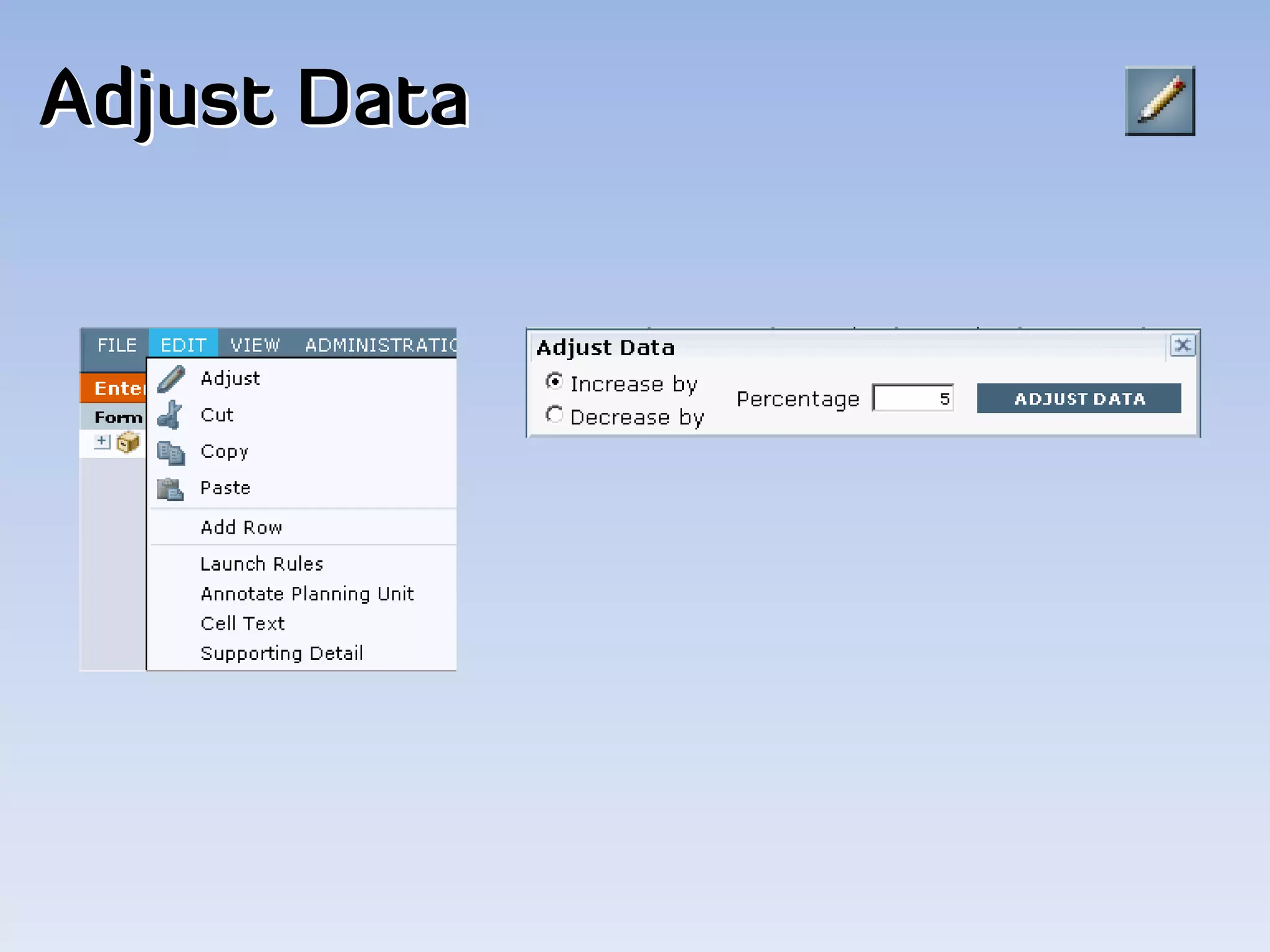
Adjust Data
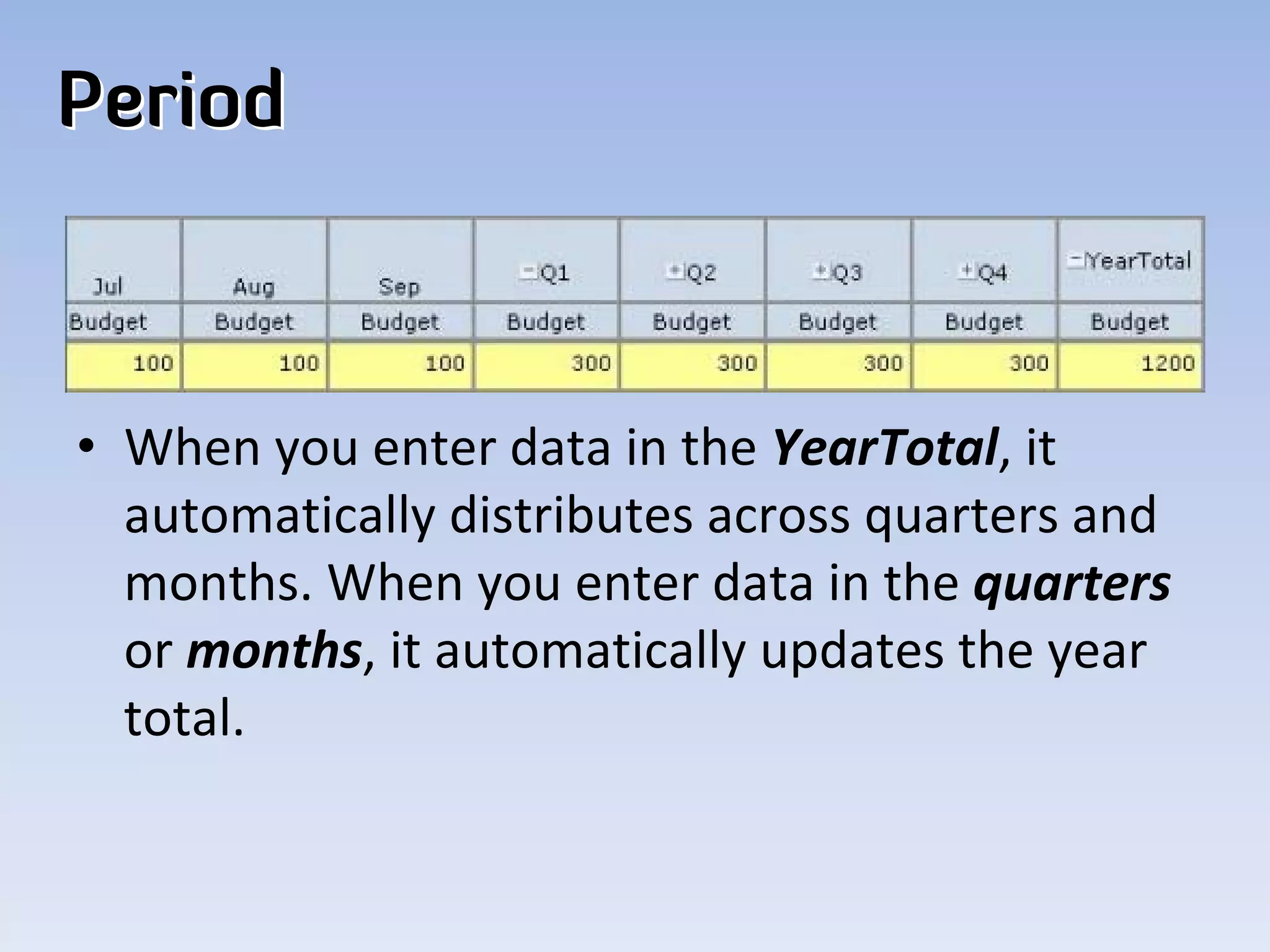
Period


• When you enter data in the YearTotal, it 
  automatically distributes across quarters and 
  months. When you enter data in the quarters
  or months, it automatically updates the year 
  total. 
Adjusting Column Width
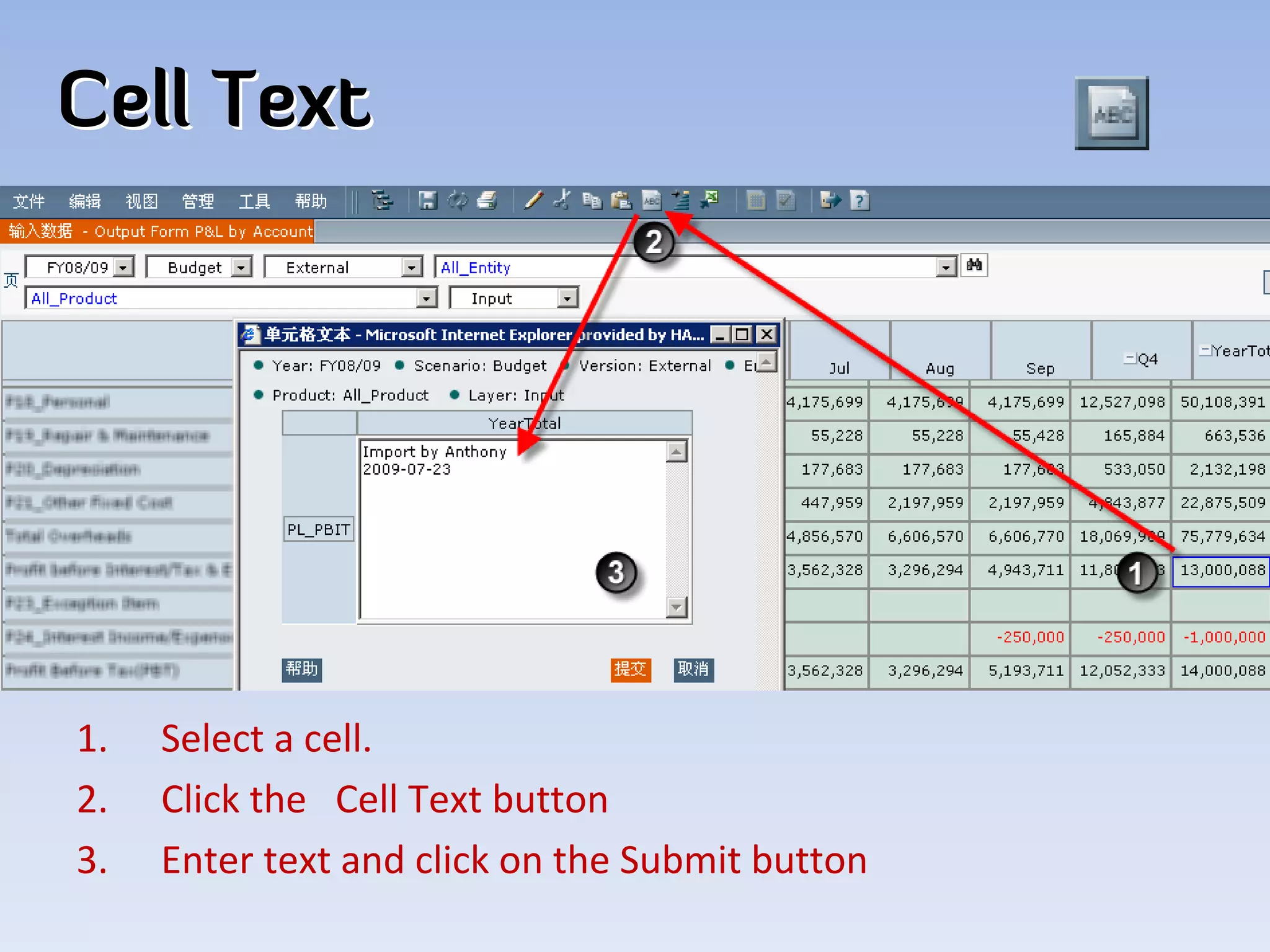
Cell Text


1.   Select a cell. 
2.   Click the   Cell Text button
3.   Enter text and click on the Submit button
Refresh
• Reverts any unsaved data back to the values 
  stored since the last save took place. 
• [Same as View‐> Refresh]
• It will NOT save changes and provides a 
  warning to that effect.  
• There is no “Undo” command.  Save regularly 
  and use Refresh to “Undo” to the last change.  
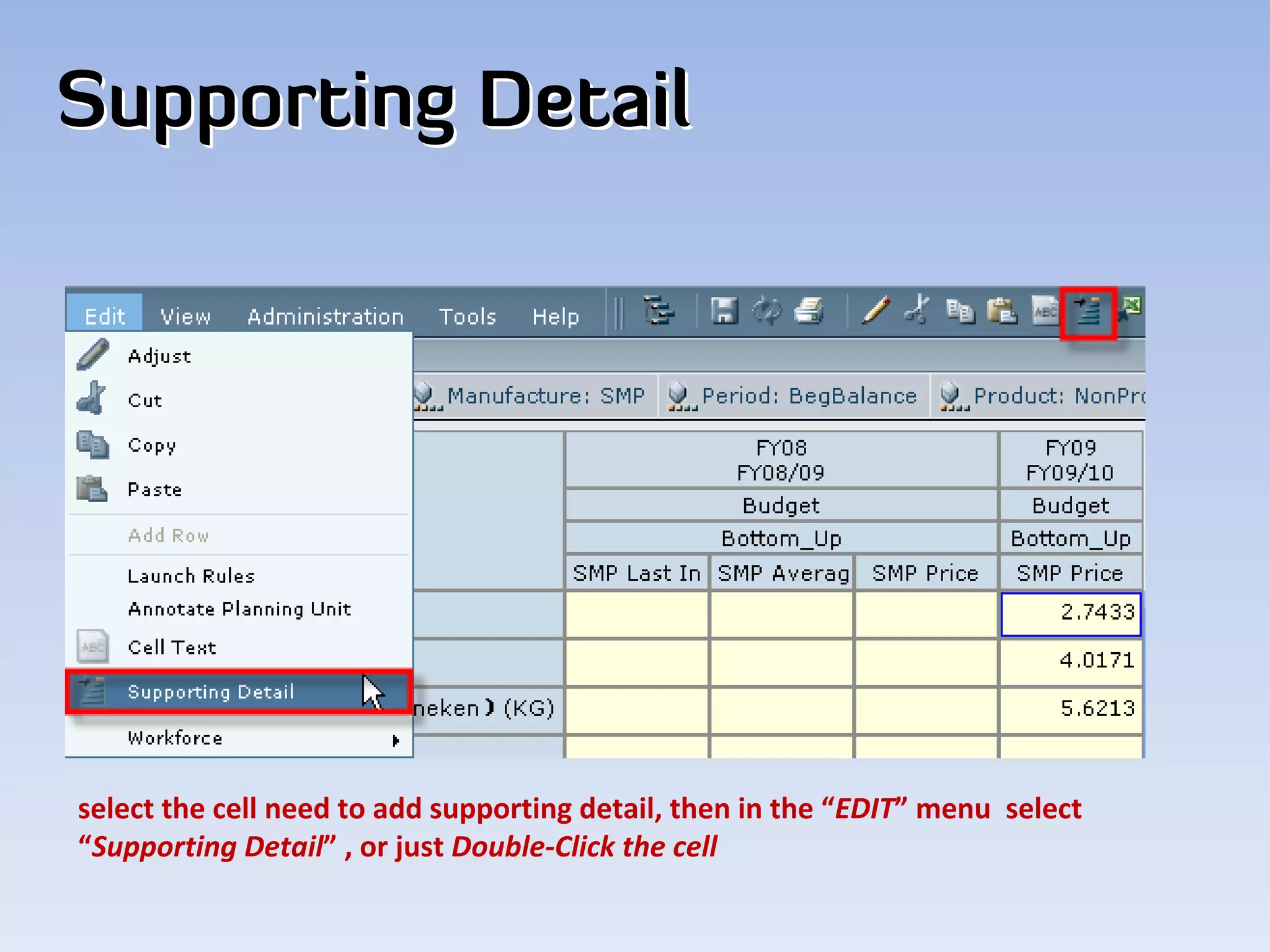
Supporting Detail


select the cell need to add supporting detail, then in the “EDIT” menu  select 
“Supporting Detail” , or just Double‐Click the cell
Supporting Detail Dialog


Select “~” (ignore sign) operator to make the supporting detail row as a text note row
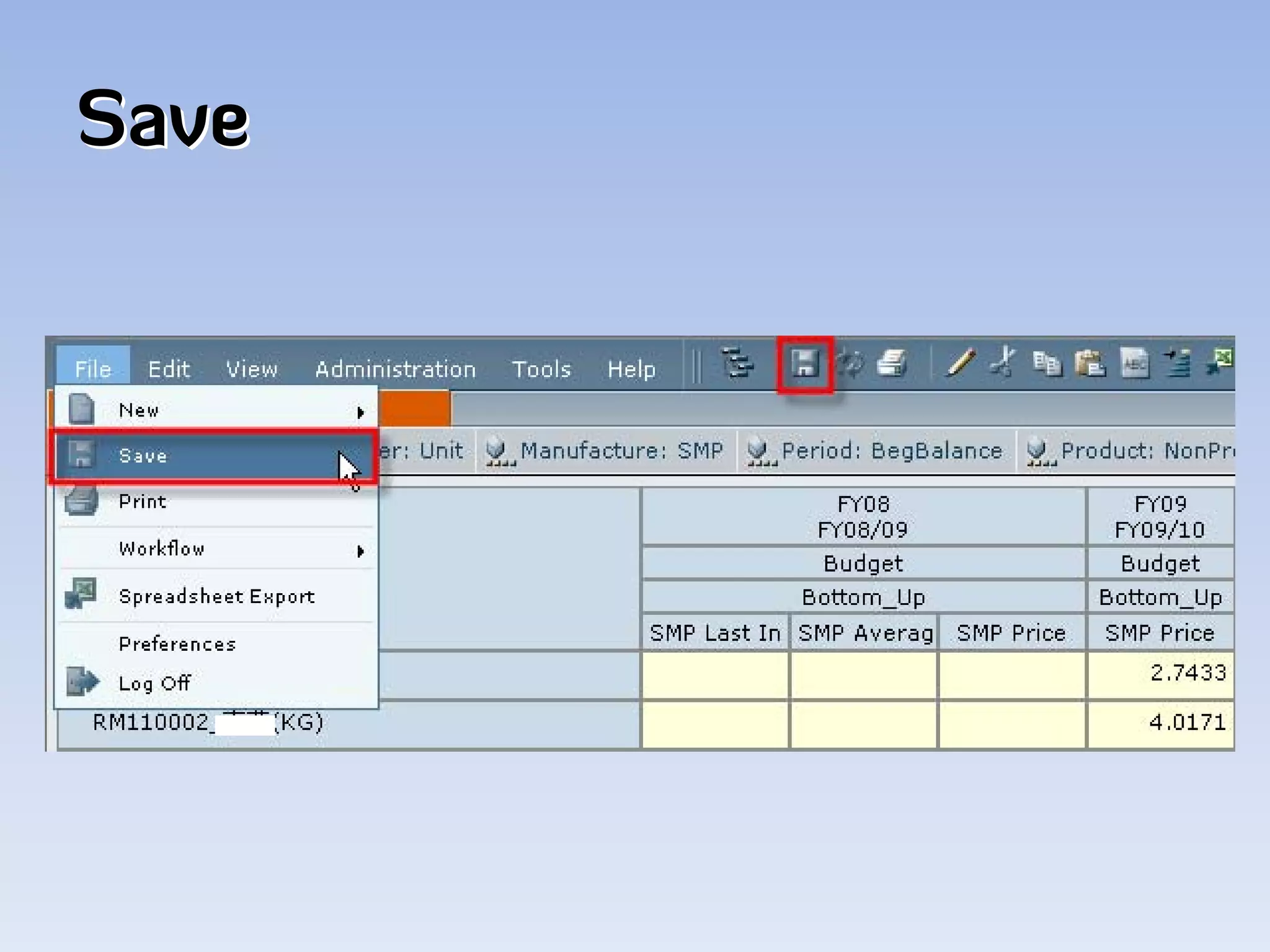
Save
Save
• Saves all the changes made to the web form 
  and stores them on the server. 
• [Same as File‐> Save]  
• Your remaining totals will not automatically 
  update when you save. In order to see how 
  the changes you make affect your totals, you 
  must run the business rule.
• Make sure you save the form before moving to 
  another form or another Entity
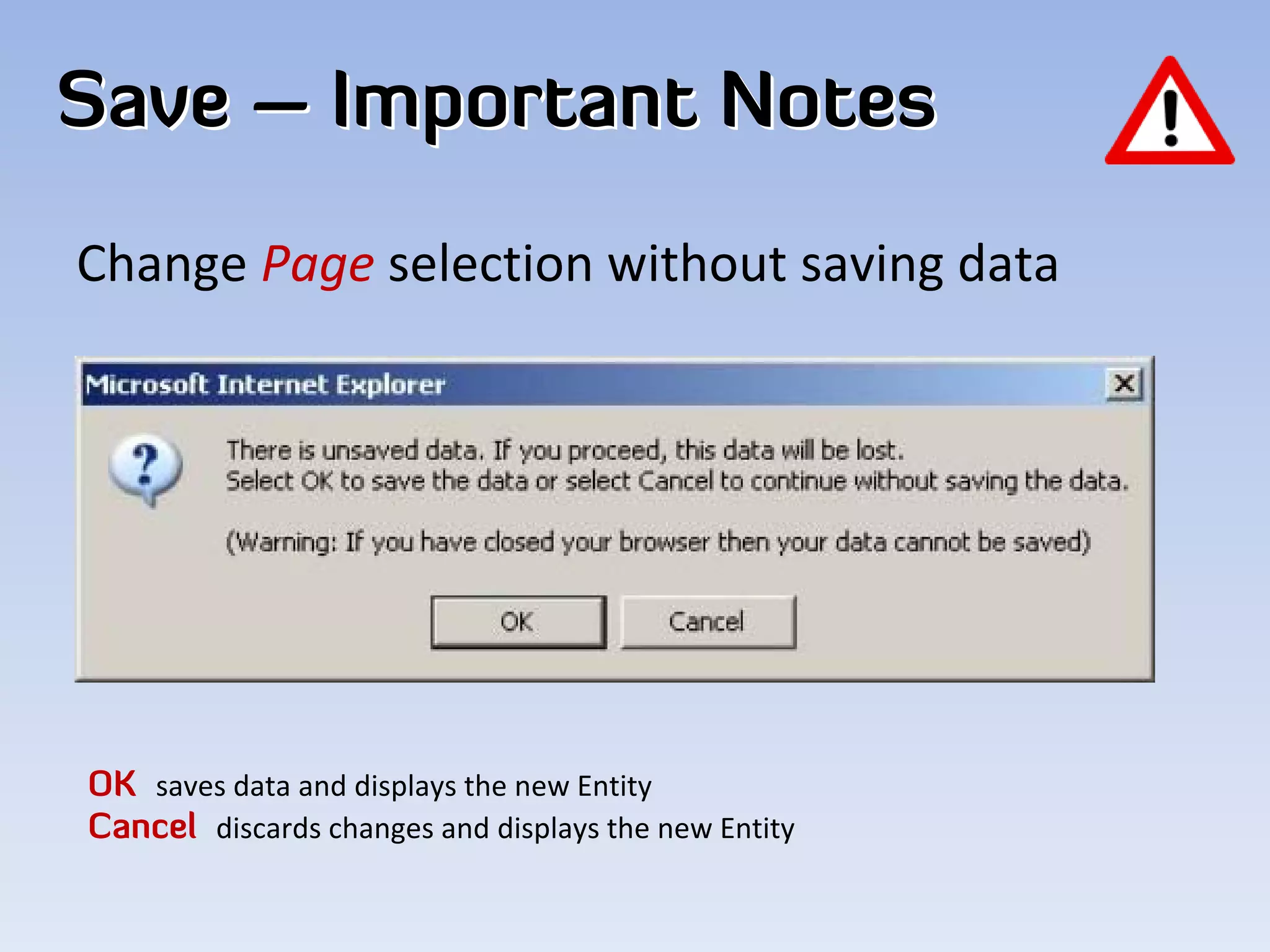
Save – Important Notes
Change Page selection without saving data 


OK saves data and displays the new Entity
Cancel discards changes and displays the new Entity
Save – Important Notes
Change Form without saving data


OK discards changes and displays the new Form
Cancel stay on the current Form
Export
Print
Business Rule


                 Run relevant business rule 
                to aggregate/calculate data
Business Rule
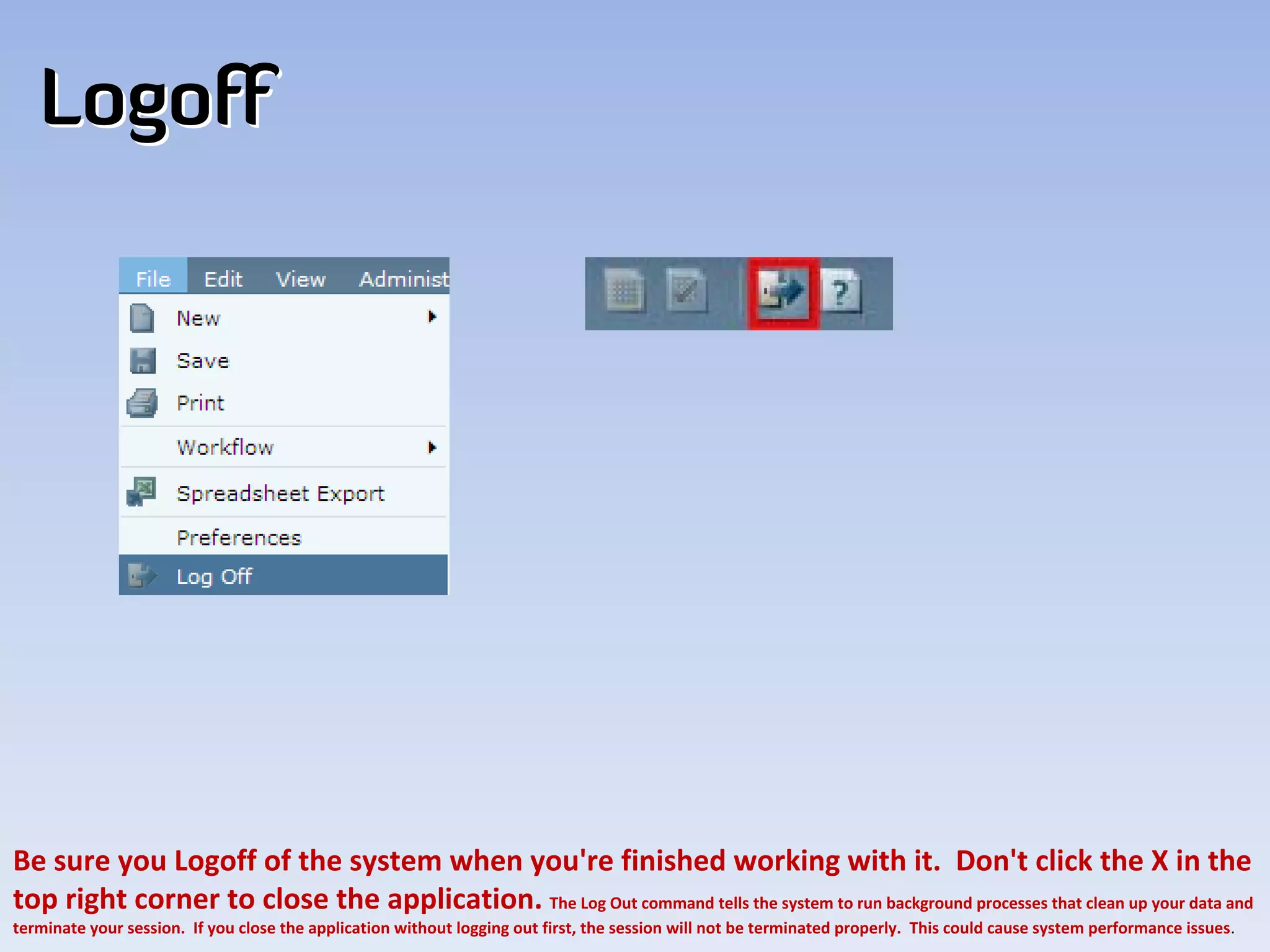
Logoff


Be sure you Logoff of the system when you're finished working with it. Don't click the X in the 
top right corner to close the application. The Log Out command tells the system to run background processes that clean up your data and 
terminate your session. If you close the application without logging out first, the session will not be terminated properly. This could cause system performance issues.
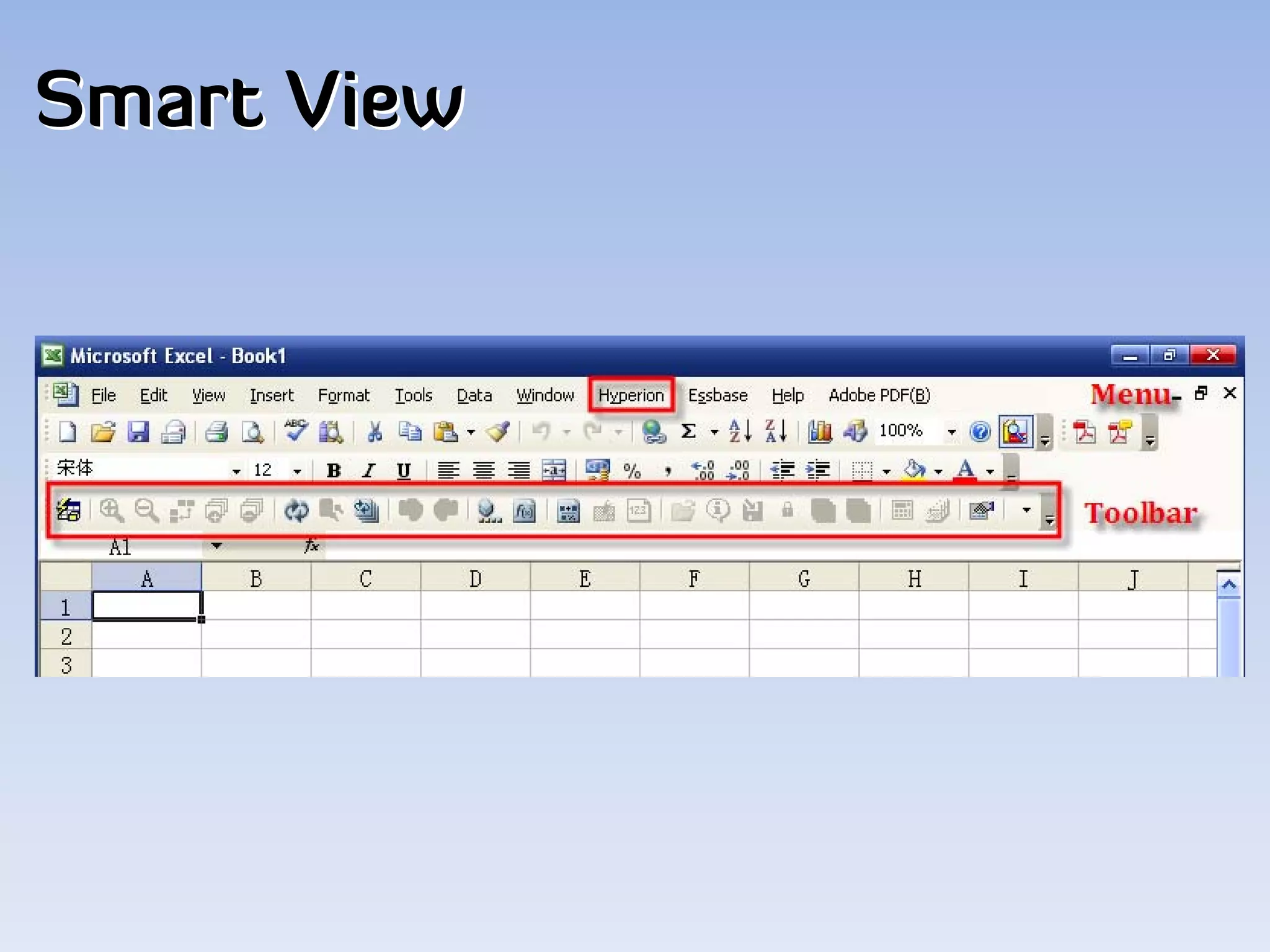
Smart View
Smart View
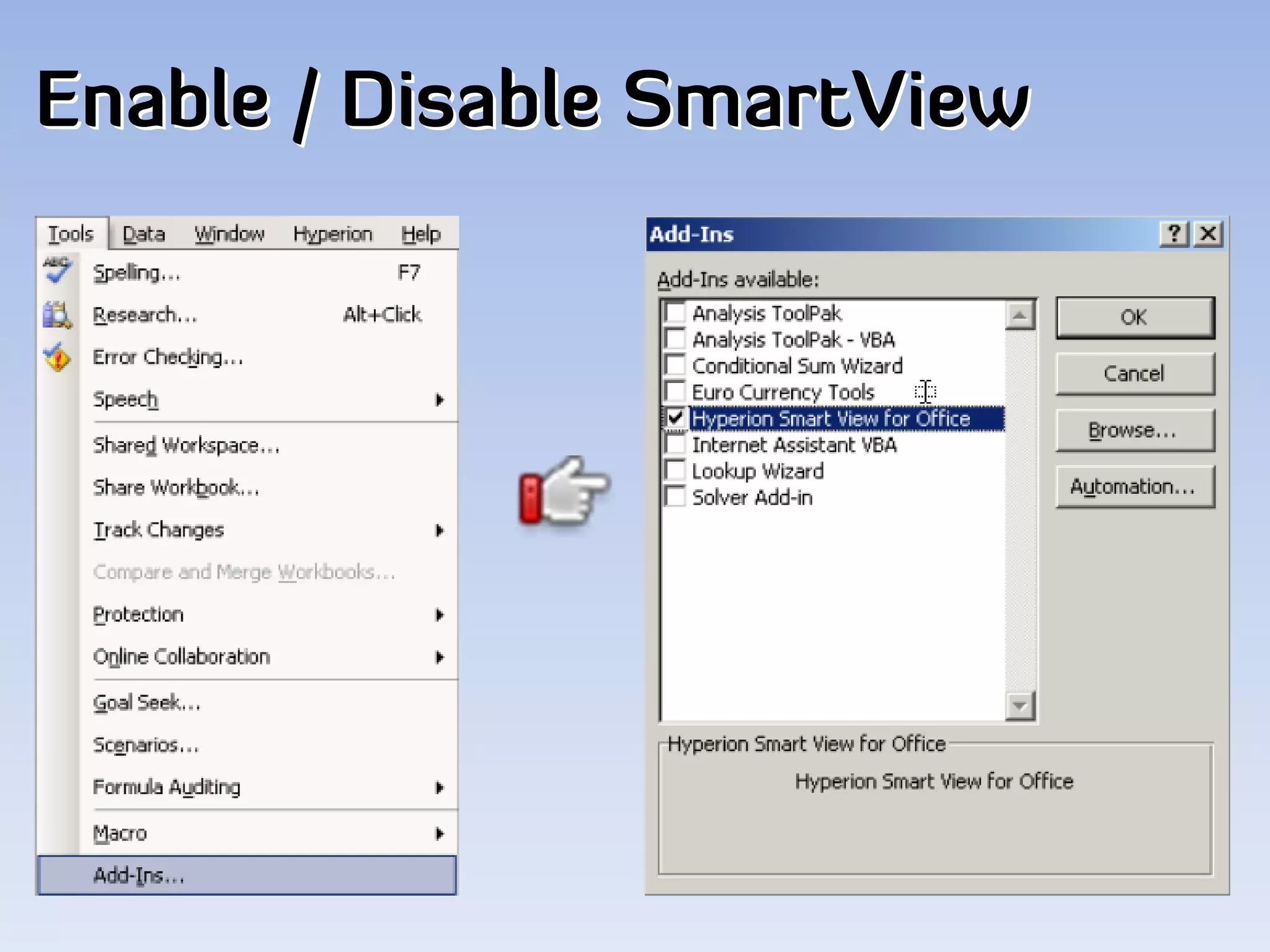
Enable / Disable SmartView
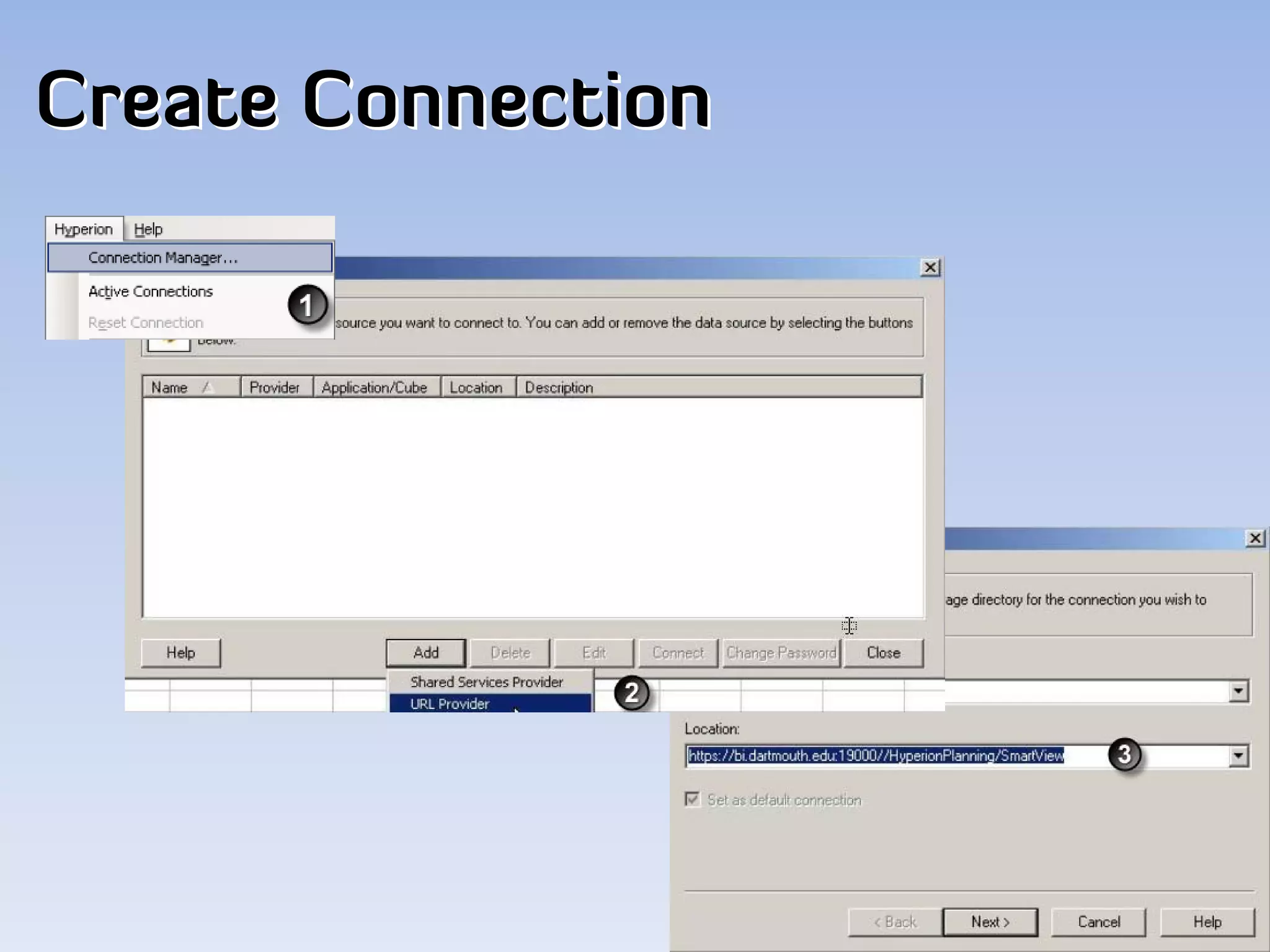
Create Connection
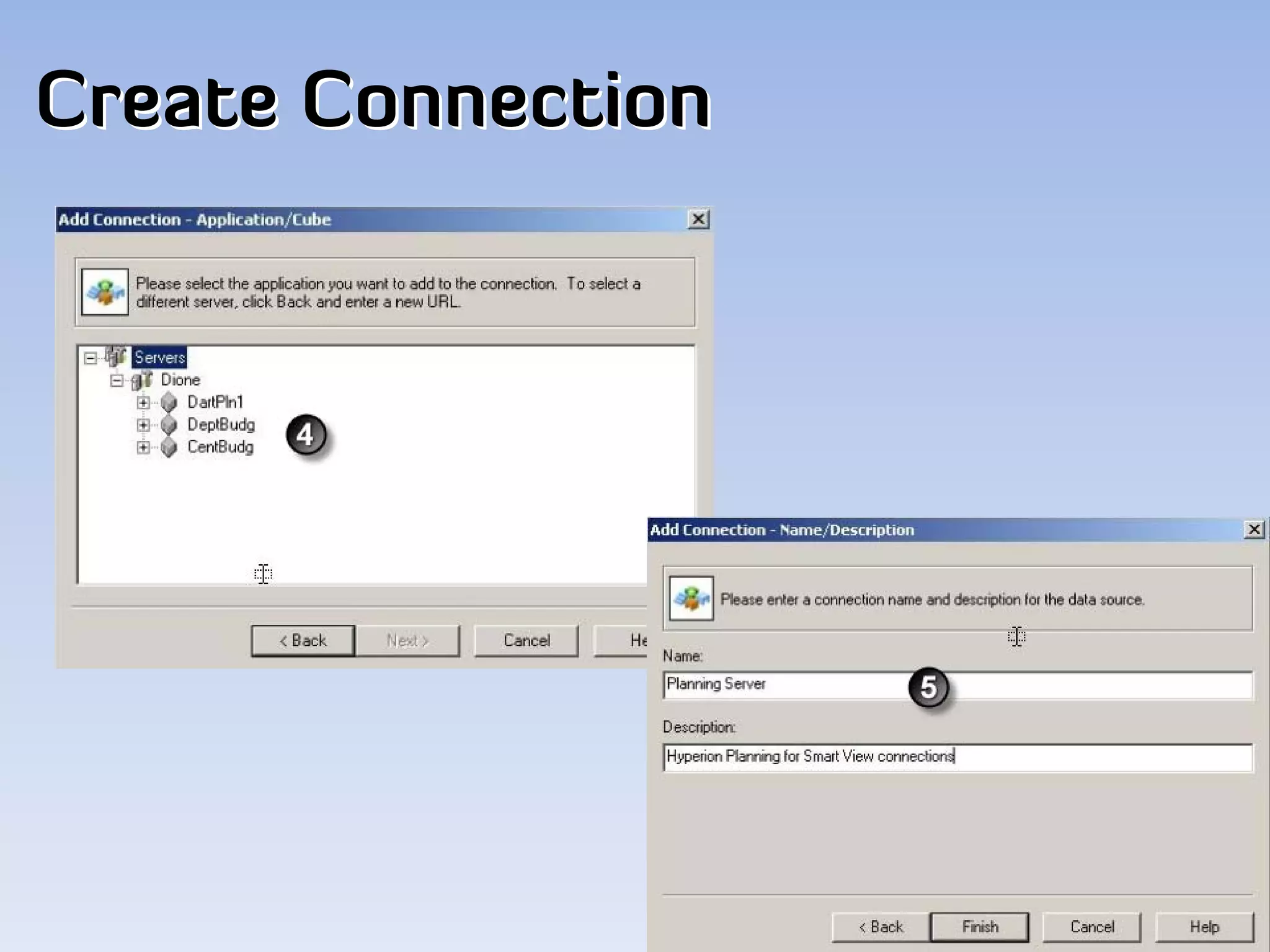
Create Connection
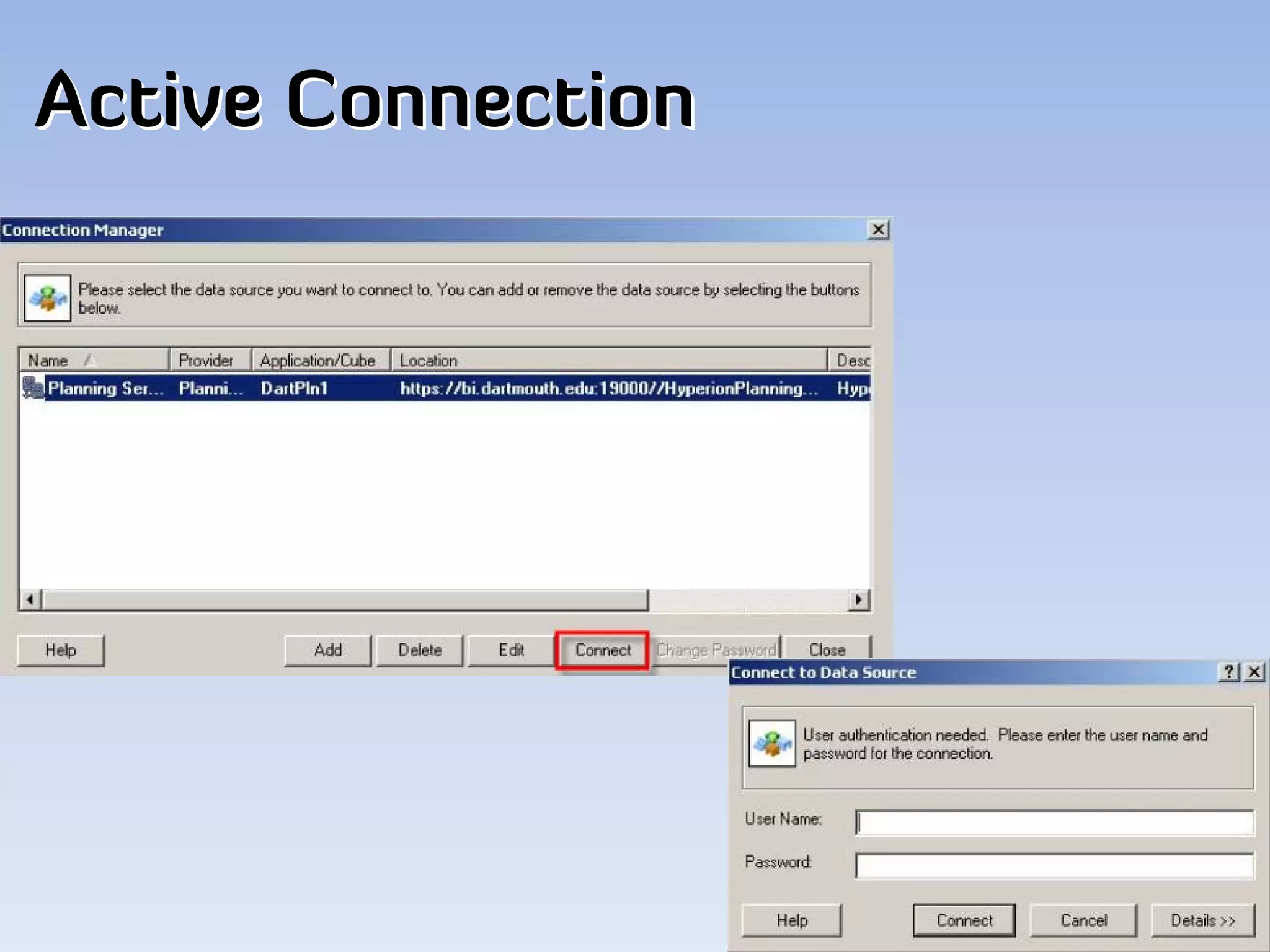
Active Connection
Select Form
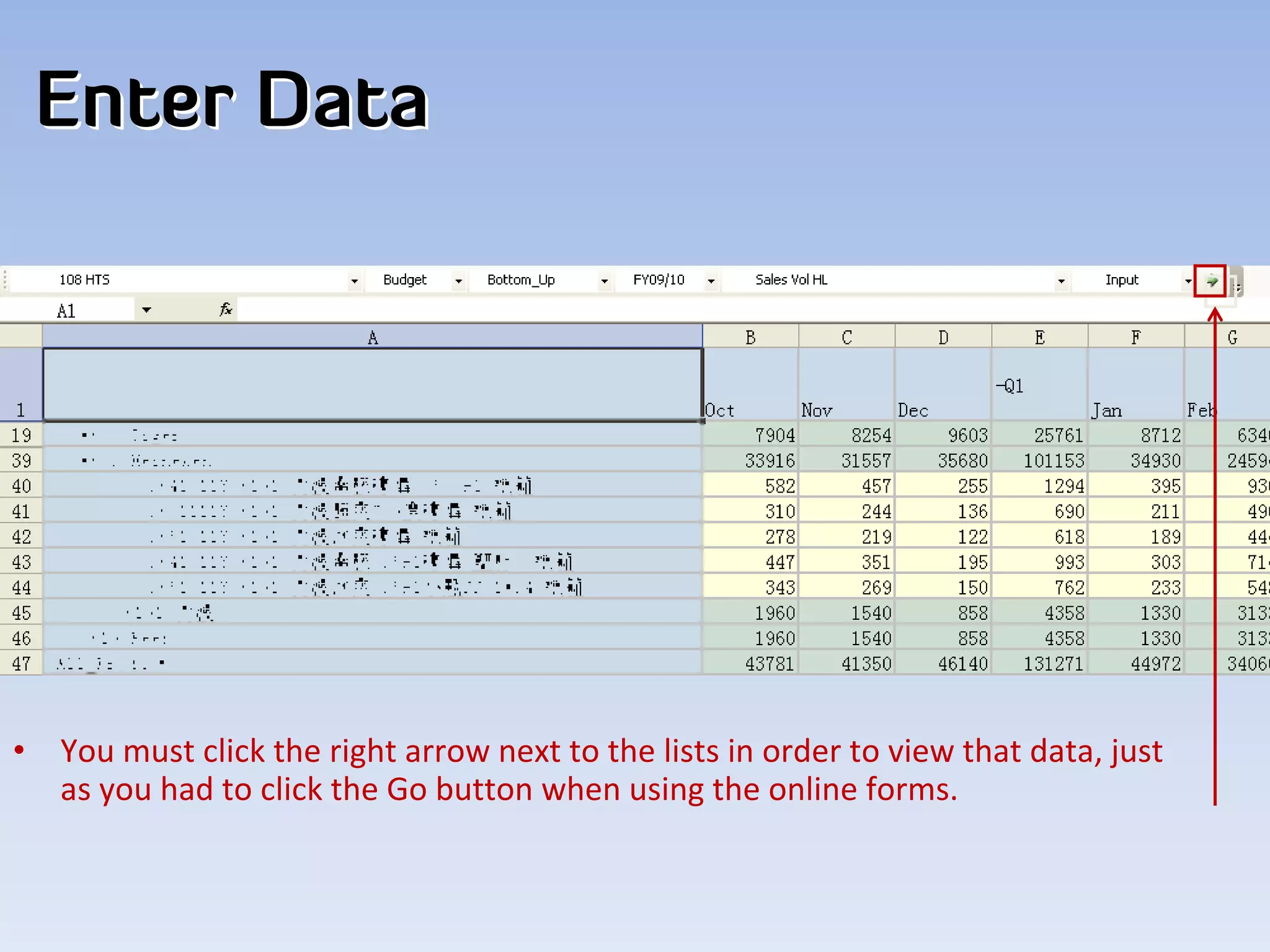
Enter Data


•   You must click the right arrow next to the lists in order to view that data, just 
    as you had to click the Go button when using the online forms.
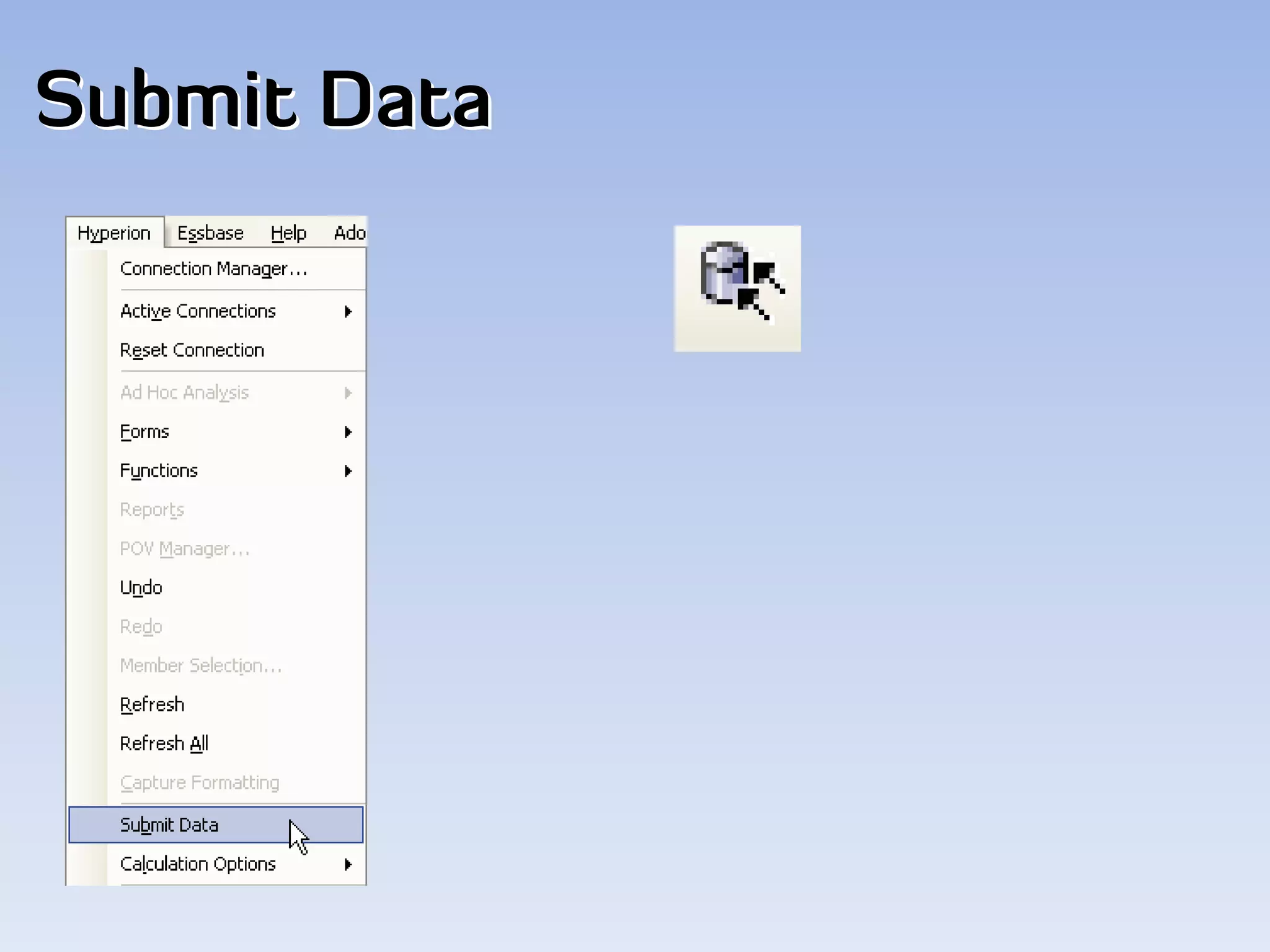
Submit Data
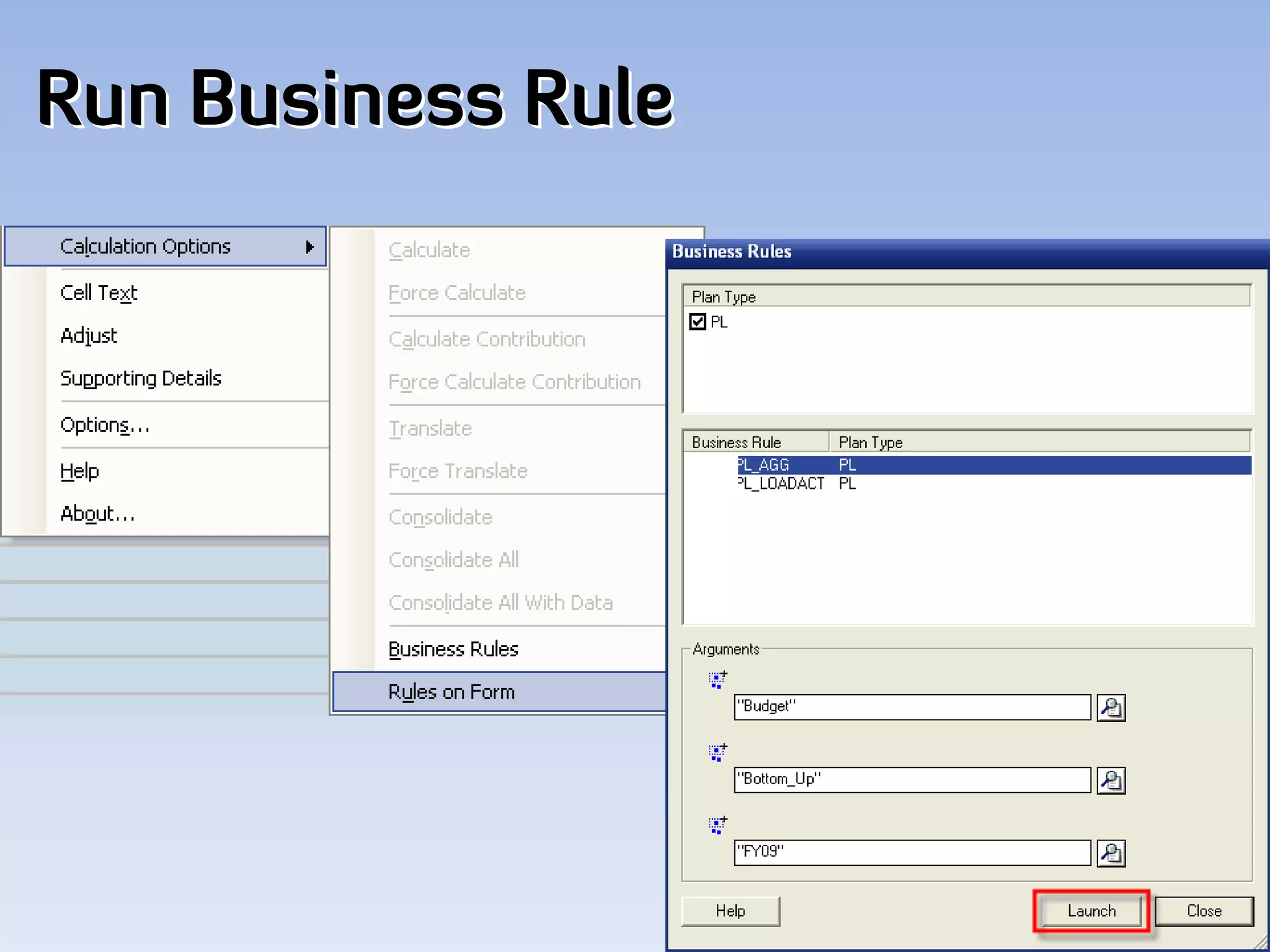
Run Business Rule
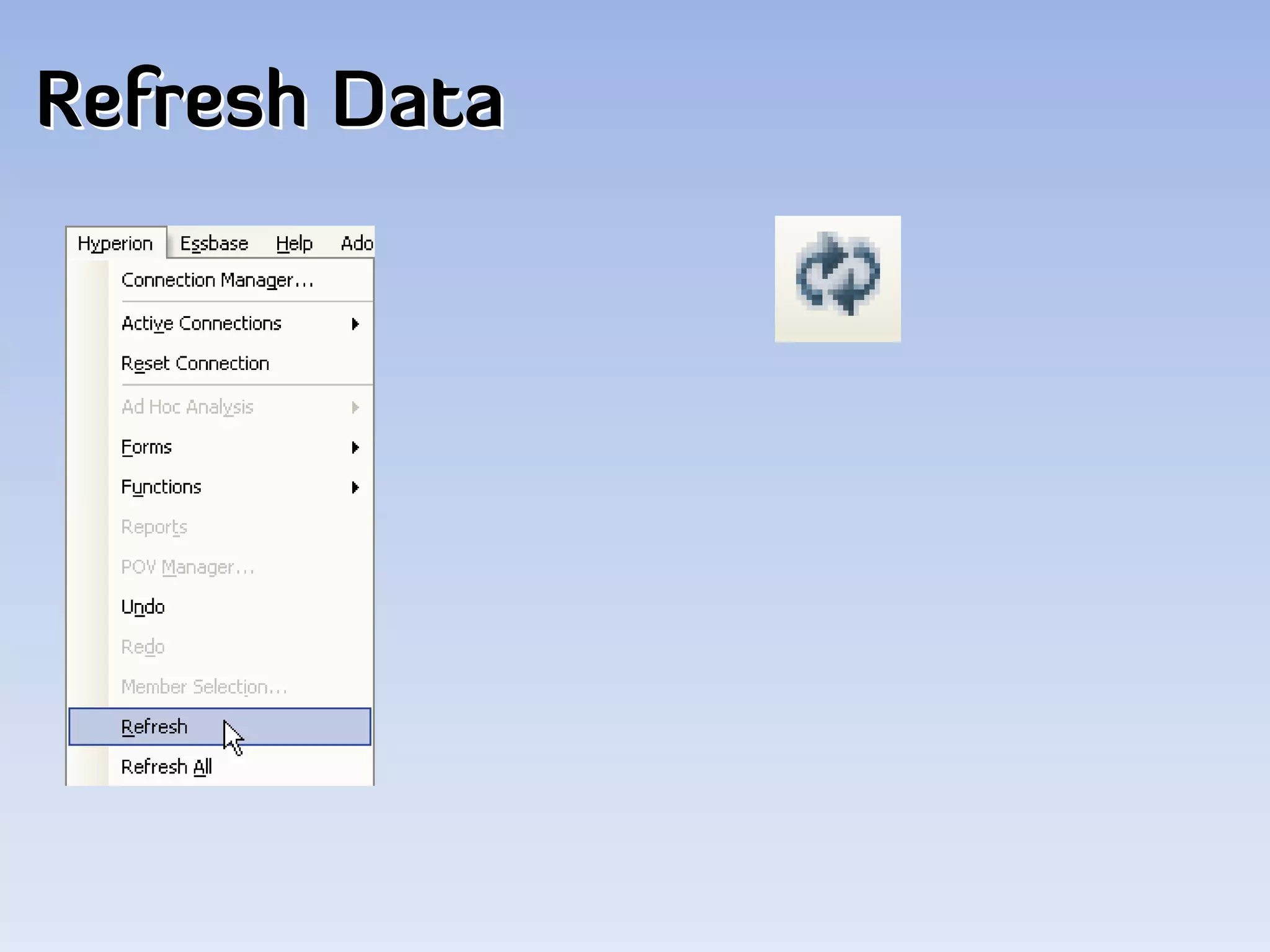
Refresh Data
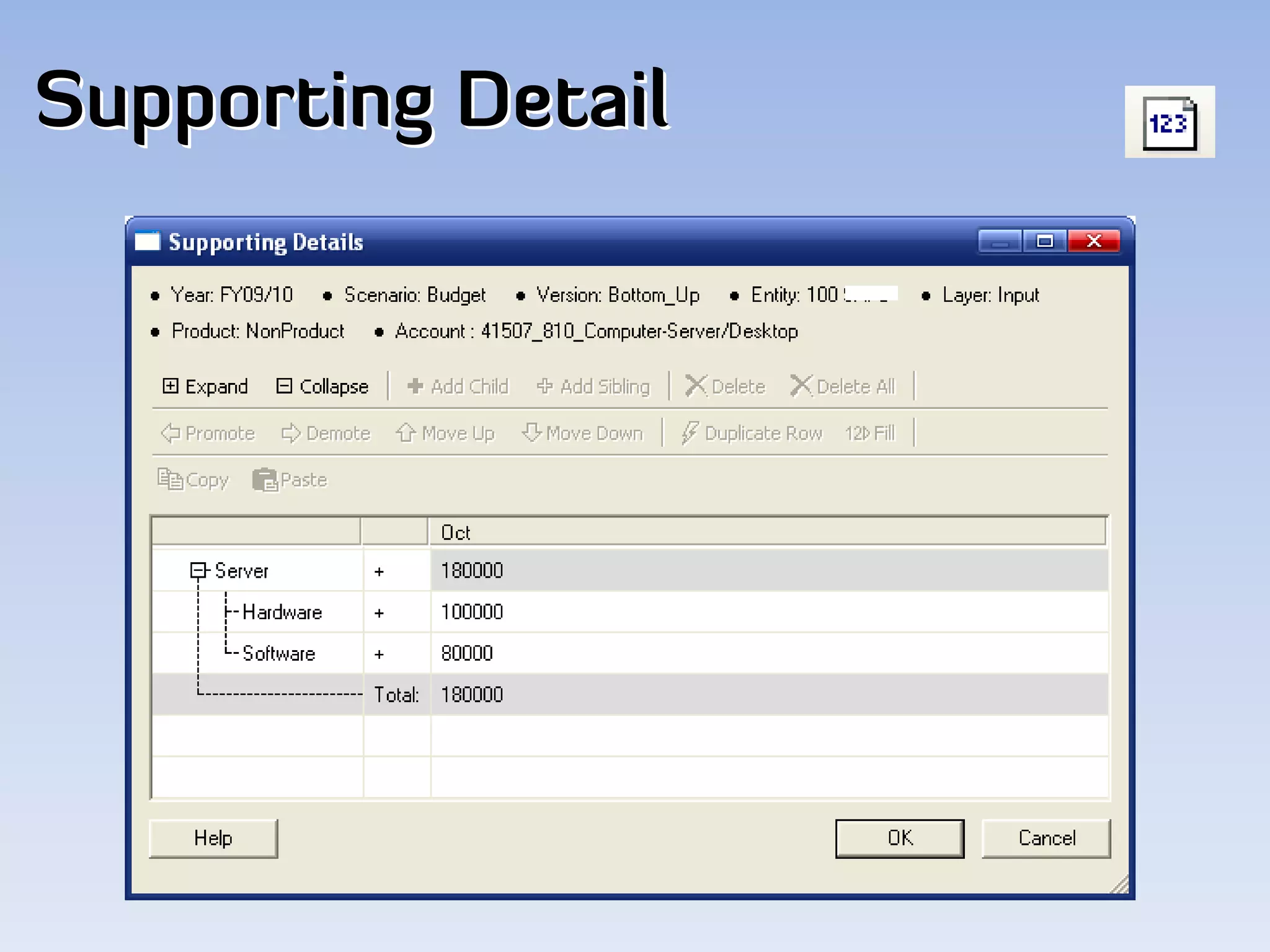
Supporting Detail
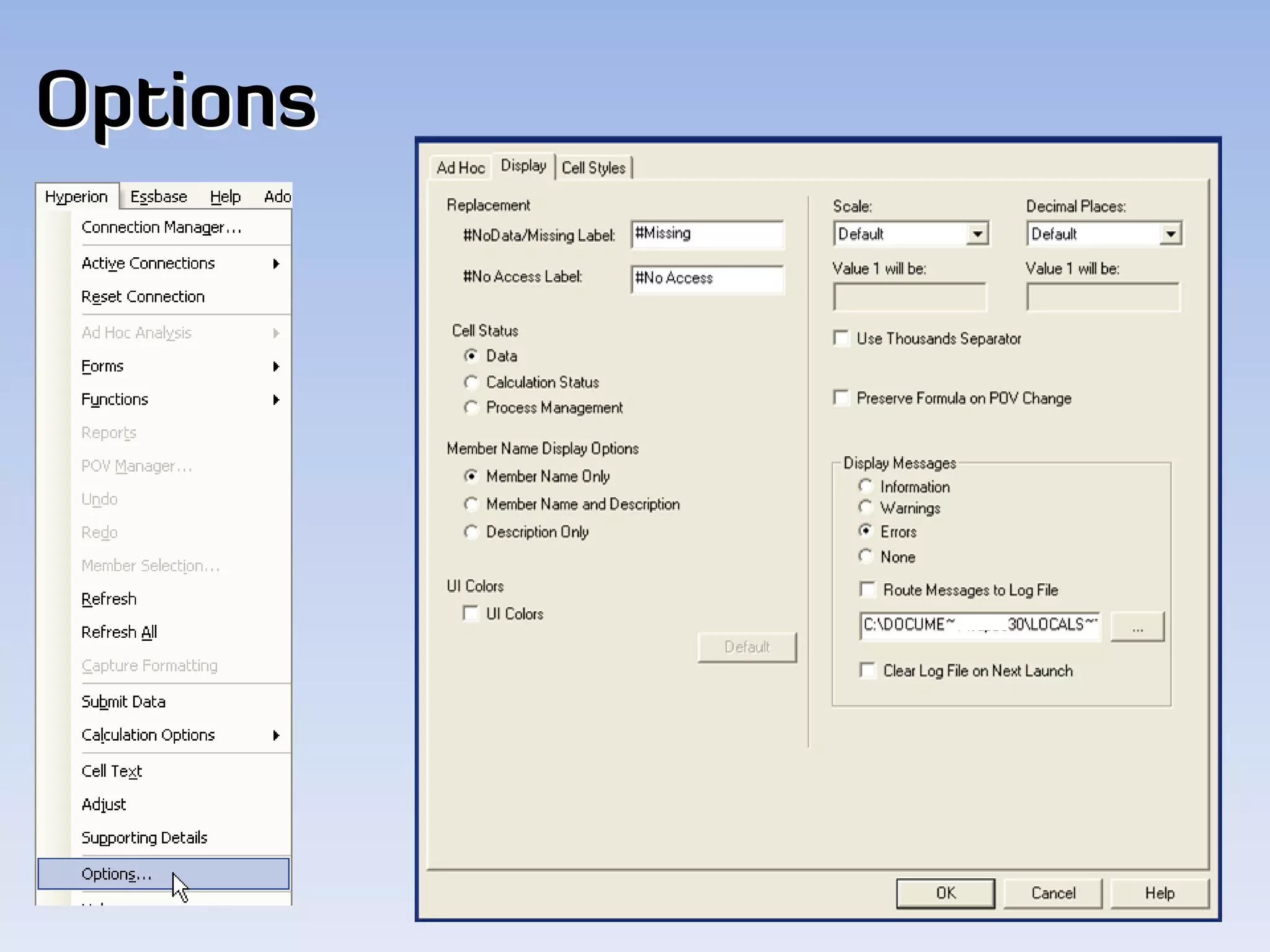
Options
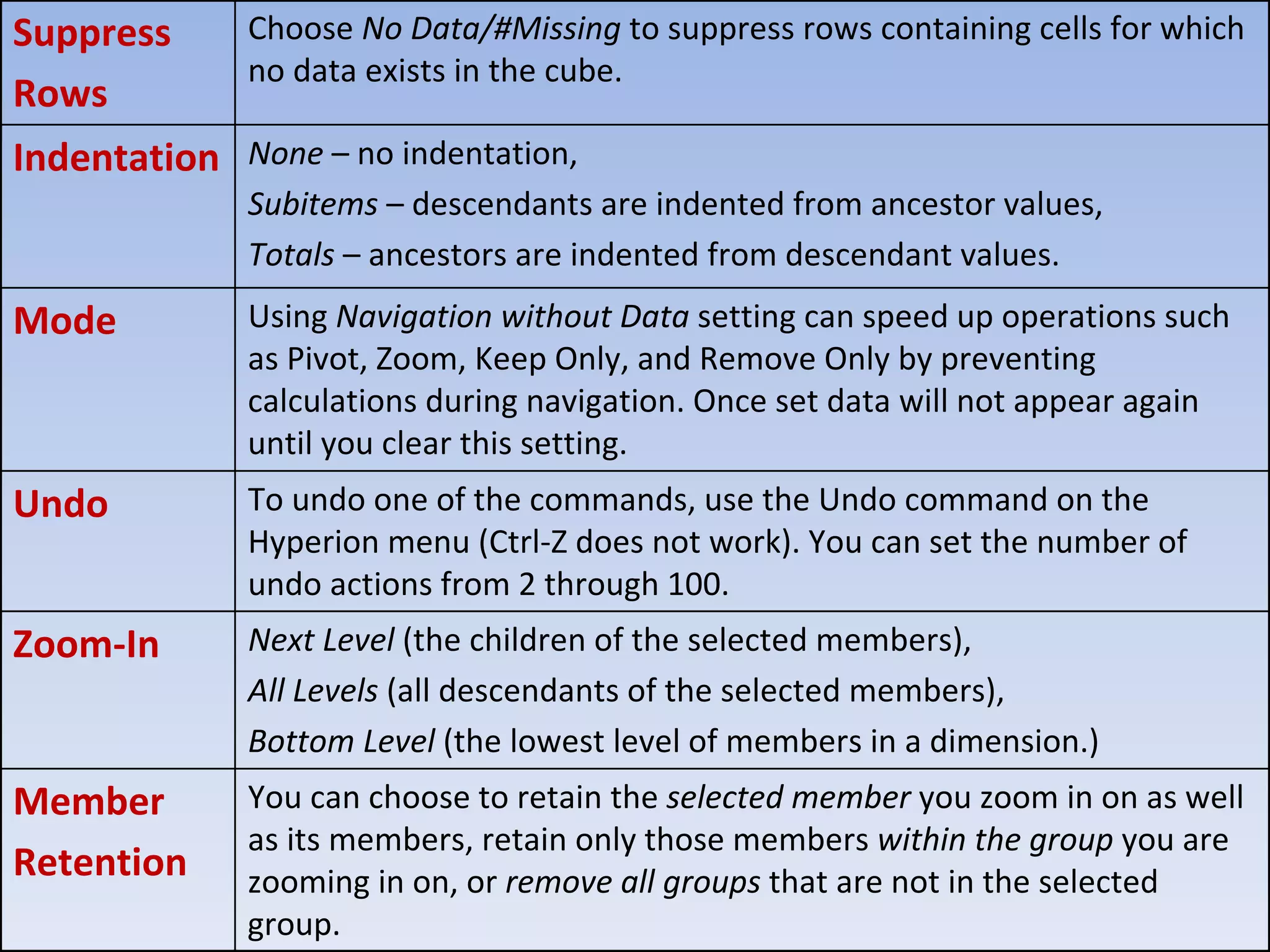
Suppress      Choose No Data/#Missing to suppress rows containing cells for which 
              no data exists in the cube. 
Rows 
Indentation None – no indentation, 
              Subitems – descendants are indented from ancestor values,
              Totals – ancestors are indented from descendant values. 
Mode          Using Navigation without Data setting can speed up operations such 
              as Pivot, Zoom, Keep Only, and Remove Only by preventing 
              calculations during navigation. Once set data will not appear again 
              until you clear this setting. 
Undo          To undo one of the commands, use the Undo command on the 
              Hyperion menu (Ctrl‐Z does not work). You can set the number of 
              undo actions from 2 through 100. 
Zoom‐In       Next Level (the children of the selected members),
              All Levels (all descendants of the selected members), 
              Bottom Level (the lowest level of members in a dimension.) 
Member        You can choose to retain the selected member you zoom in on as well 
              as its members, retain only those members within the group you are 
Retention     zooming in on, or remove all groups that are not in the selected 
              group.
Security
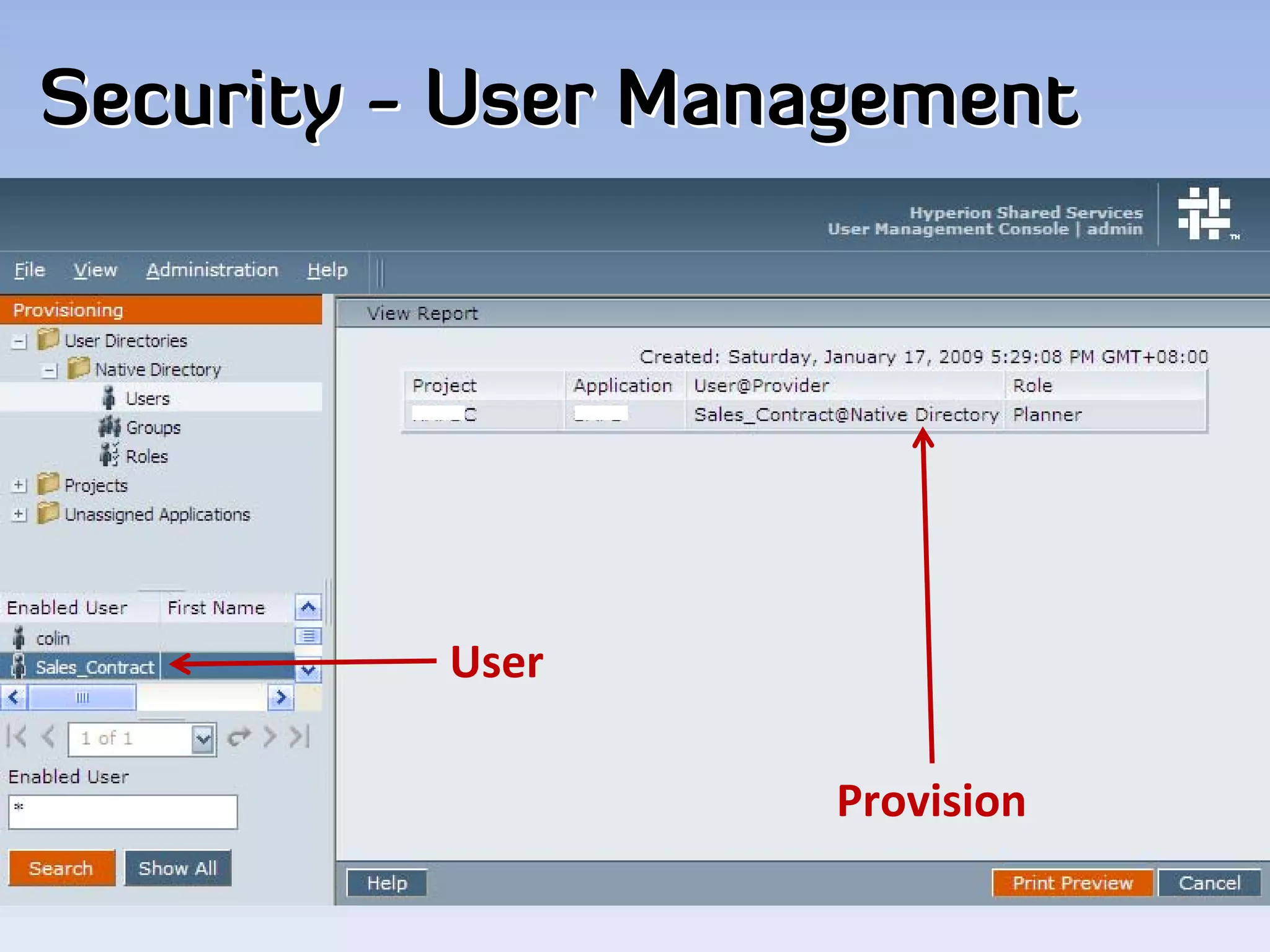
Security - User Management


          User

                   Provision
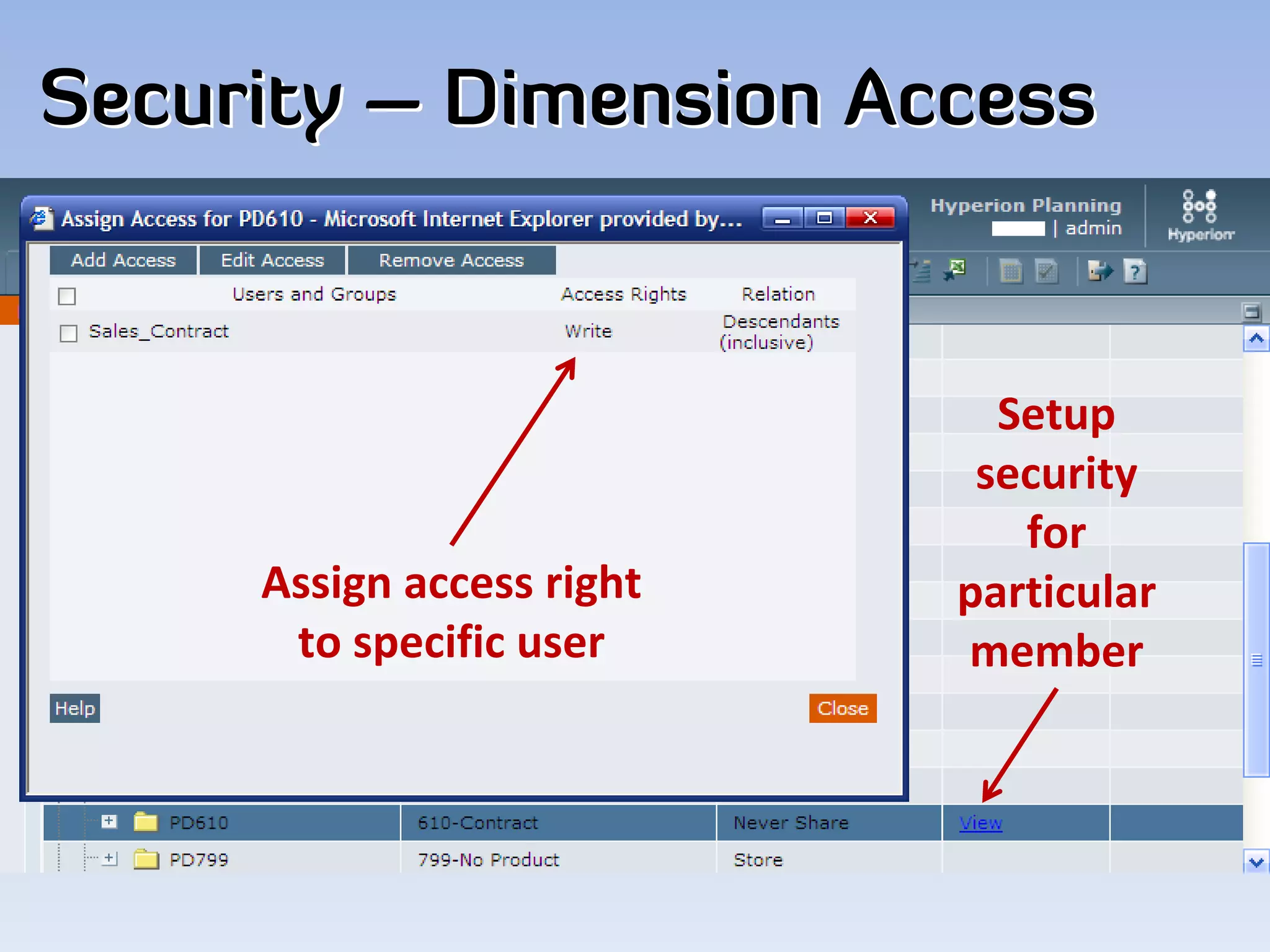
Security – Dimension Access


                              Setup 
                             security
                               for 
     Assign access right    particular 
      to specific user      member
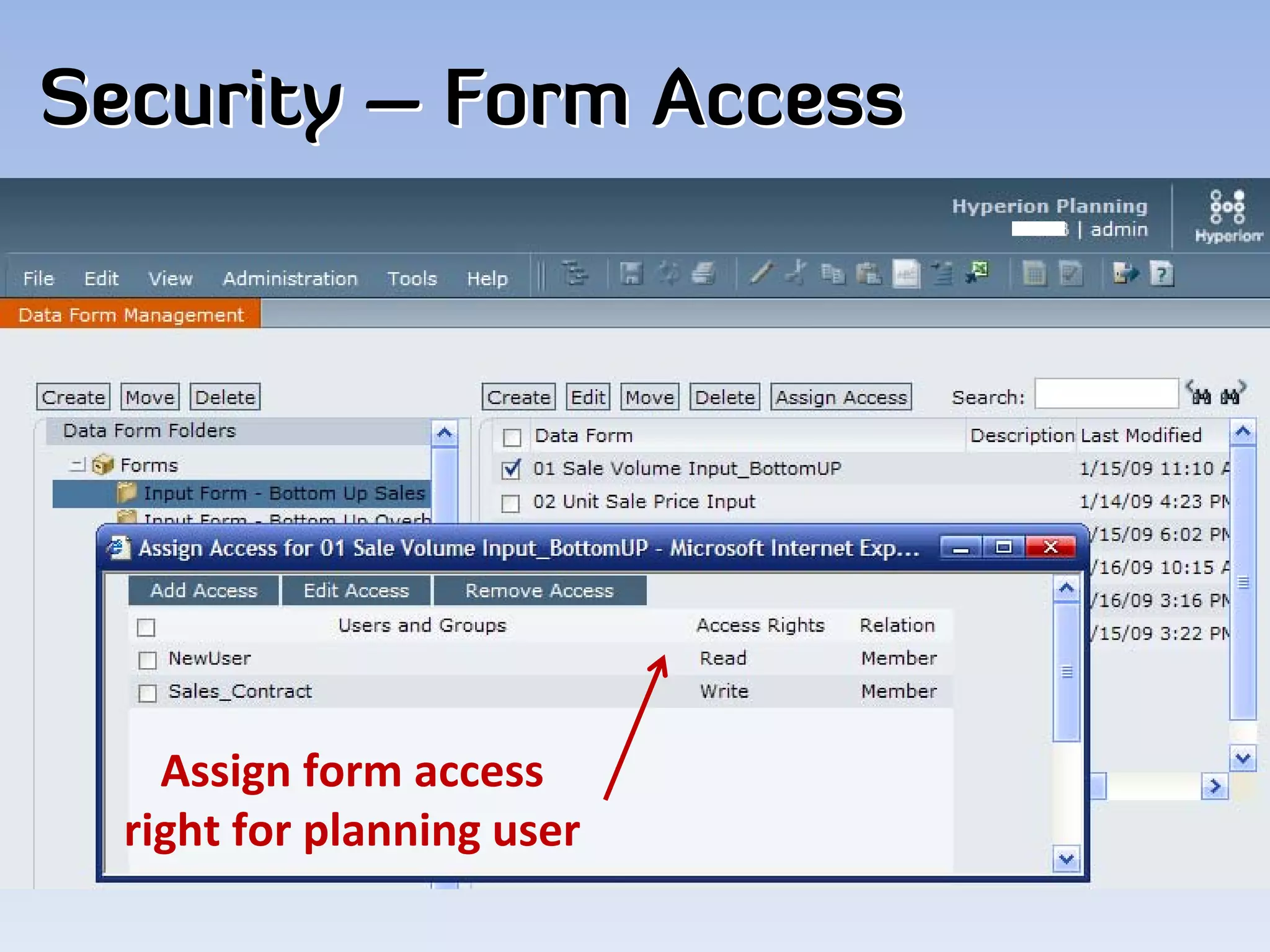
Security – Form Access


    Assign form access 
  right for planning user
Best Practice
• When exiting Hyperion Planning, click the Log Off button on 
  the toolbar rather than simply closing the browser window.
• Expand your view of individual forms by hiding the View pane
• Run calculations only when necessary
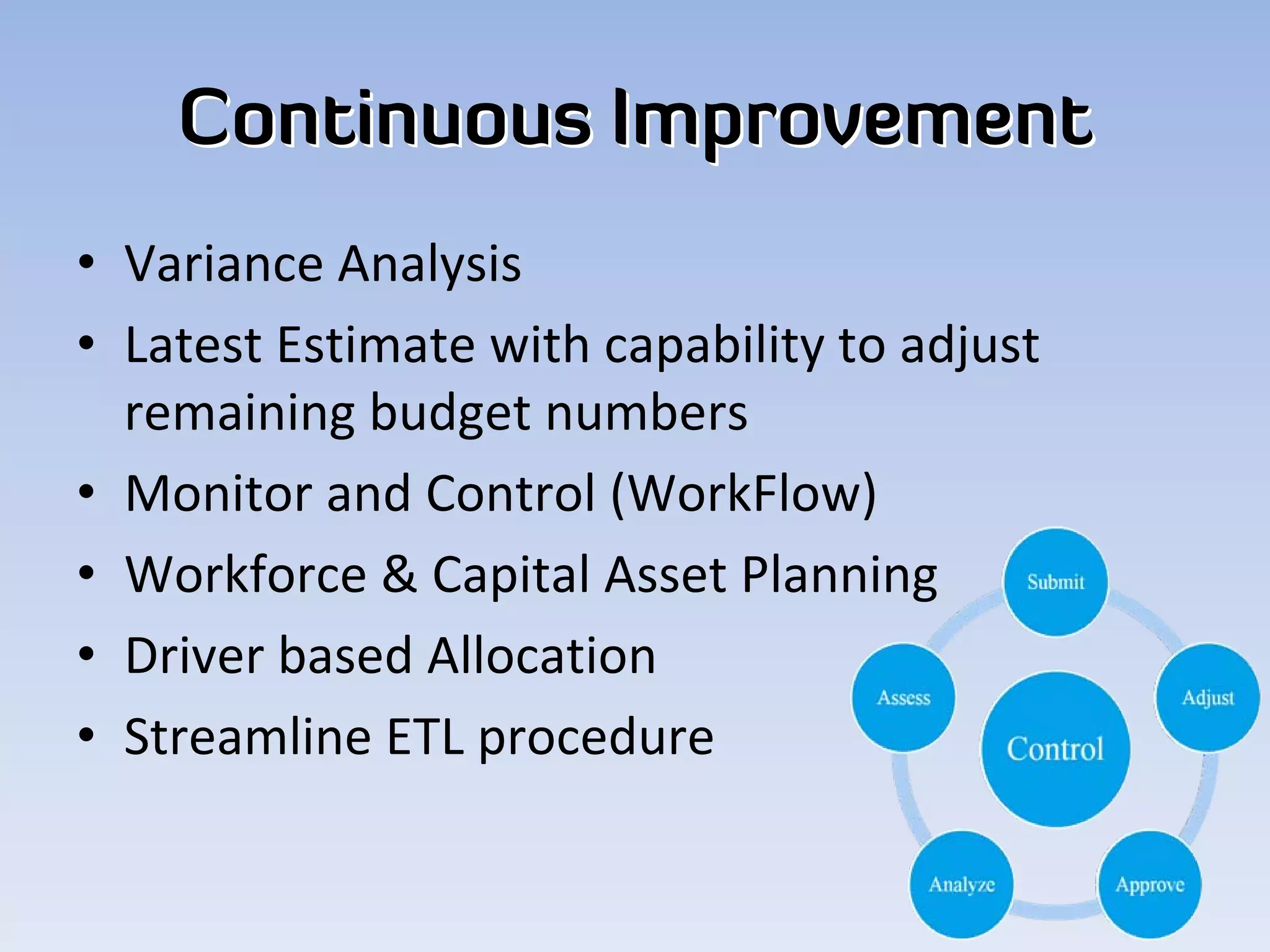
Continuous Improvement
• Variance Analysis
• Latest Estimate with capability to adjust 
  remaining budget numbers
• Monitor and Control (WorkFlow)
• Workforce & Capital Asset Planning
• Driver based Allocation
• Streamline ETL procedure
http://yyq123.blogspot.com/


   Thank you !

Hyperion Planning Overview