Advanced Midsurfacing

Innovation Intelligence®
                           May 15, 2012
Copyright © 2012 Altair Engineering, Inc. Proprietary and Confidential. All rights reserved.


Midsurface generation in HyperMesh


•  Generate new geometry representing the mid-plane of complex “thin-
          solid” type parts.
                •  Formed sheet metal parts
                •  Molded plastic parts
•  Original geometry remains unchanged
•  Ideally, parts have inner/outer face surfaces that correspond to each
          other
                •  Thickness should be clearly smaller than length/width dimensions
                •  Suppressing/removing/deleting unnecessary features and details can improve
                          results
•  Thickness information is stored with the generated midsurface
Copyright © 2012 Altair Engineering, Inc. Proprietary and Confidential. All rights reserved.


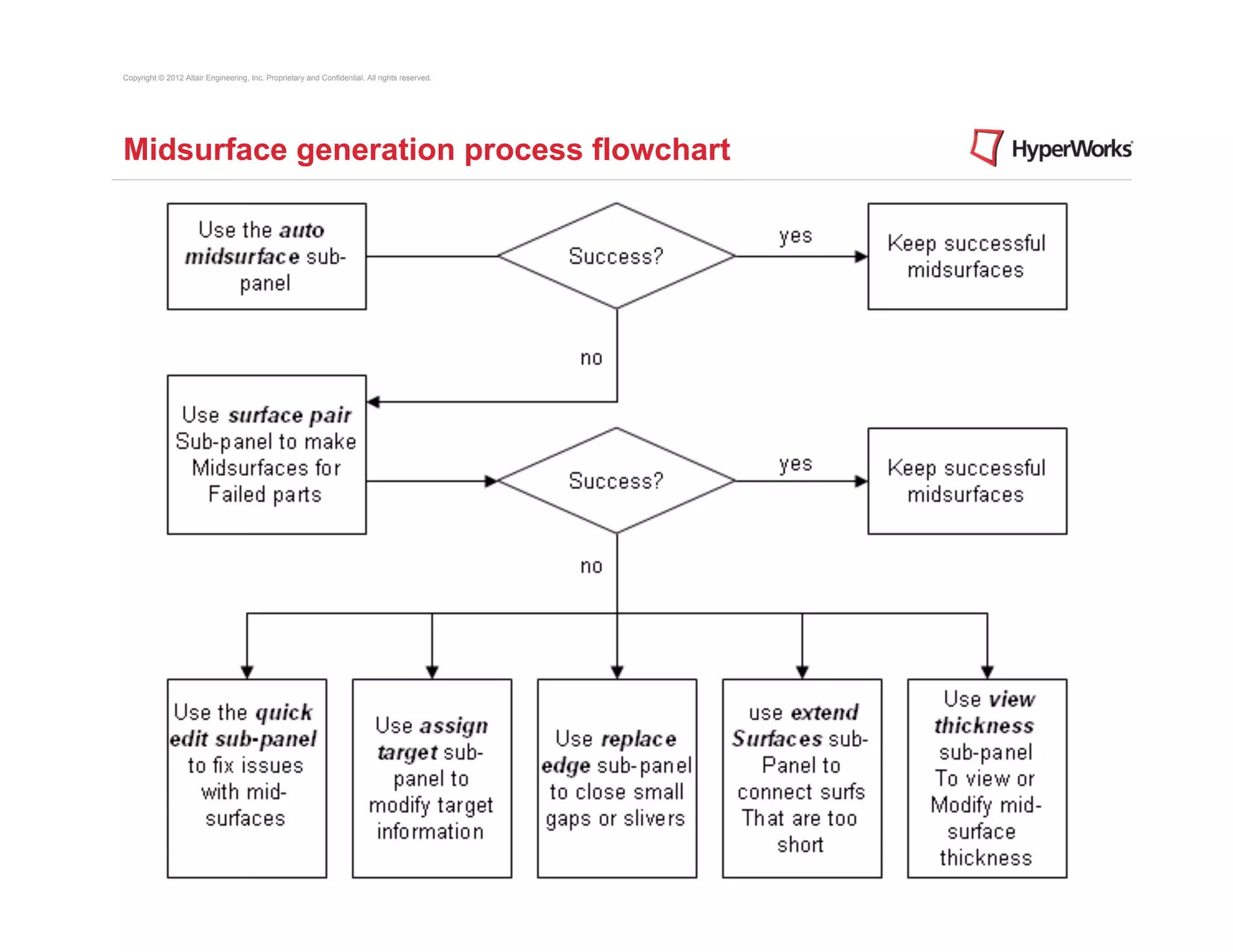
Midsurface generation process flowchart
Copyright © 2012 Altair Engineering, Inc. Proprietary and Confidential. All rights reserved.


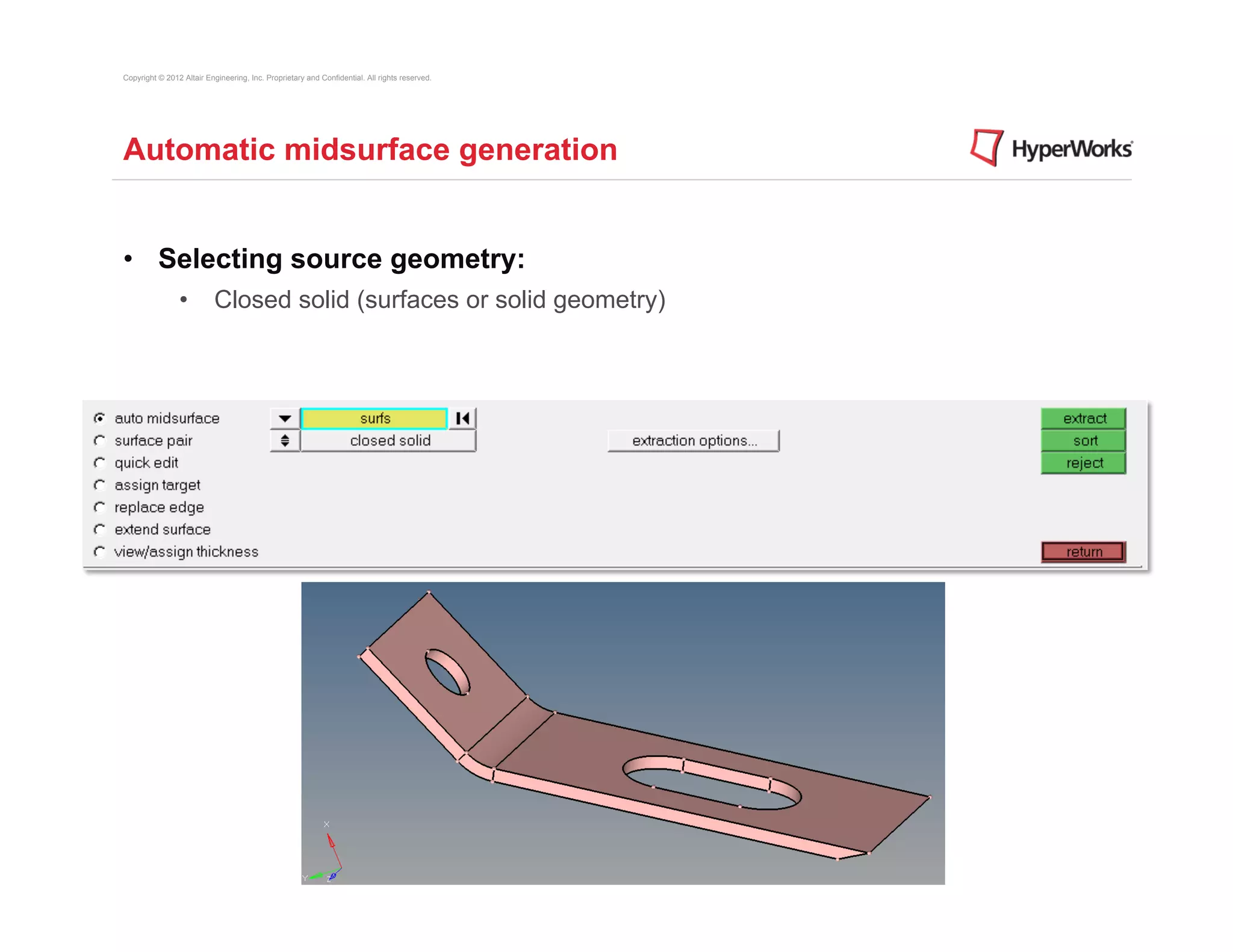
Automatic midsurface generation


•  Selecting source geometry:
                •  Closed solid (surfaces or solid geometry)
Copyright © 2012 Altair Engineering, Inc. Proprietary and Confidential. All rights reserved.


Automatic midsurface generation


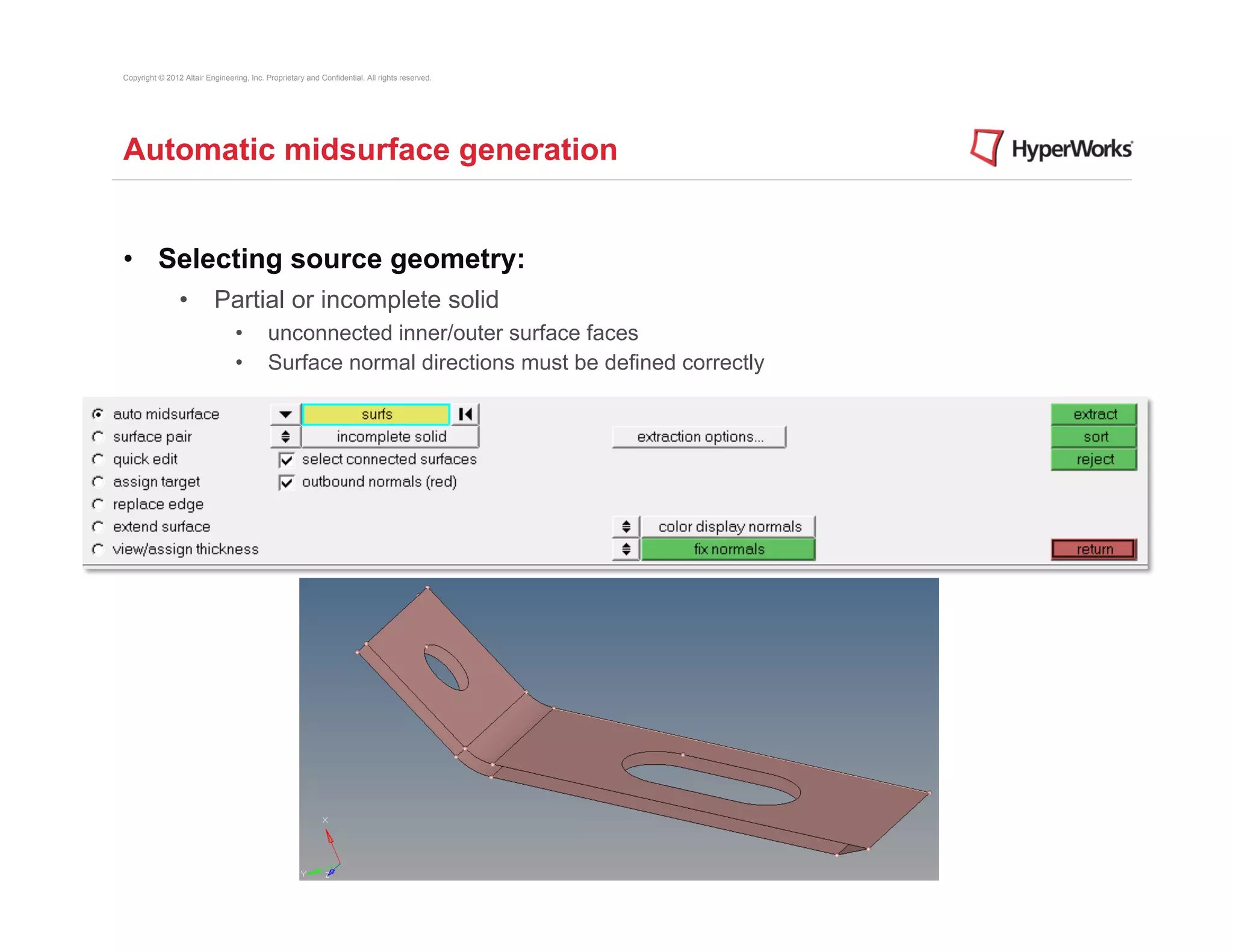
•  Selecting source geometry:
                •  Partial or incomplete solid
                                 •         unconnected inner/outer surface faces
                                 •         Surface normal directions must be defined correctly
Copyright © 2012 Altair Engineering, Inc. Proprietary and Confidential. All rights reserved.


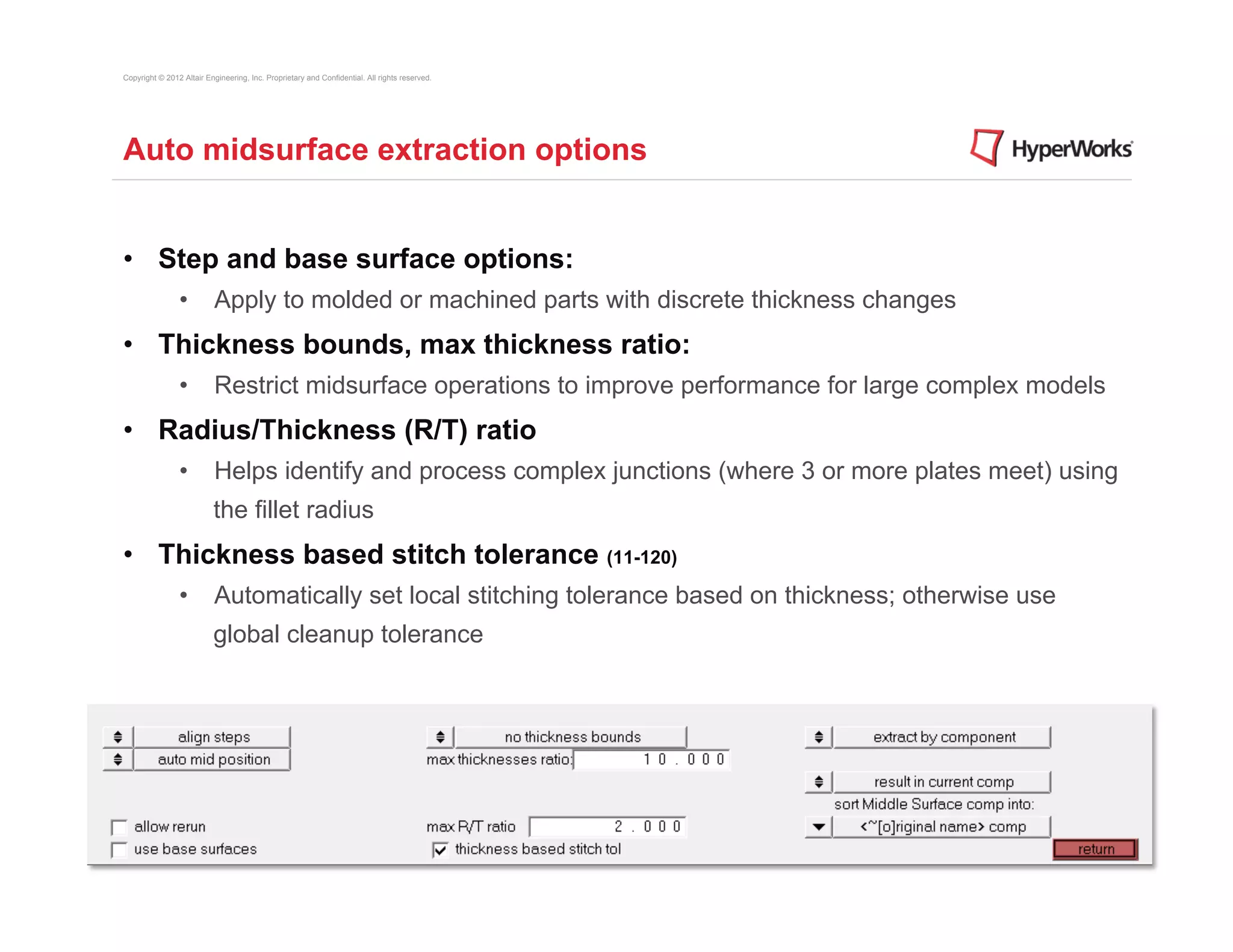
Auto midsurface extraction options


•  Step and base surface options:
                •  Apply to molded or machined parts with discrete thickness changes
•  Thickness bounds, max thickness ratio:
                •  Restrict midsurface operations to improve performance for large complex models
•  Radius/Thickness (R/T) ratio
                •  Helps identify and process complex junctions (where 3 or more plates meet) using
                          the fillet radius
•  Thickness based stitch tolerance (11-120)
                •  Automatically set local stitching tolerance based on thickness; otherwise use
                          global cleanup tolerance
Copyright © 2012 Altair Engineering, Inc. Proprietary and Confidential. All rights reserved.


Auto midsurface extraction options


•  Extract by component / cross components
                •  By component: each original part is it’s own component; extract midsurface one
                          part at a time
                •  Cross components: original part geometry consists of multiple components
•  Result in Middle Surface component / current component
•  Sorting options:
                •  Specifies how to organize middle surfaces when using the sort function:
                                 •         <~[o]riginal name> comp
                                 •         <Midsurface #nn> comp
                                 •         original comp
Copyright © 2012 Altair Engineering, Inc. Proprietary and Confidential. All rights reserved.


Midsurface Base Surfaces

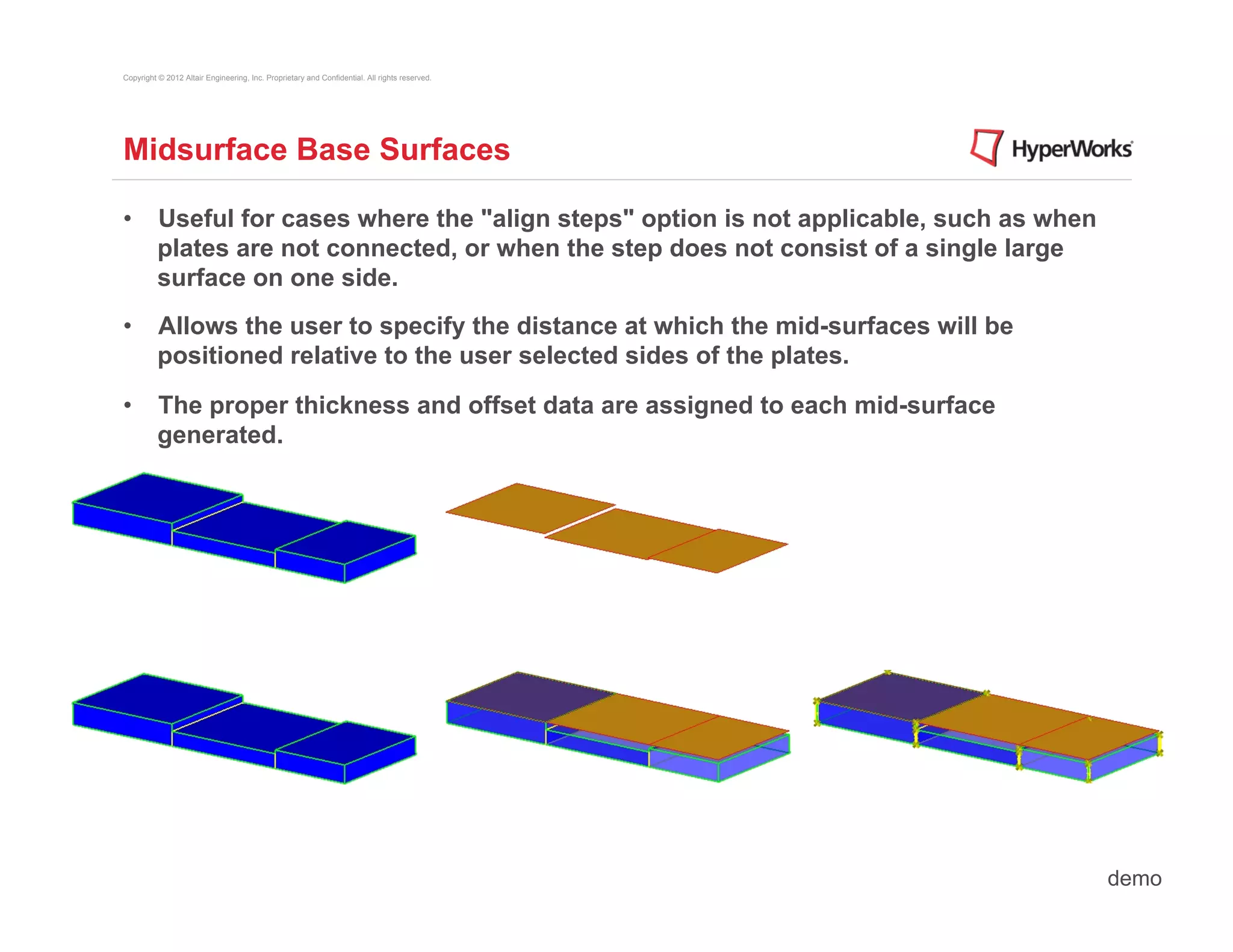
•  Useful for cases where the "align steps" option is not applicable, such as when
   plates are not connected, or when the step does not consist of a single large
   surface on one side.
•  Allows the user to specify the distance at which the mid-surfaces will be
   positioned relative to the user selected sides of the plates.

•  The proper thickness and offset data are assigned to each mid-surface
   generated.


                                                                                               demo
Copyright © 2012 Altair Engineering, Inc. Proprietary and Confidential. All rights reserved.


Midsurface Rerun

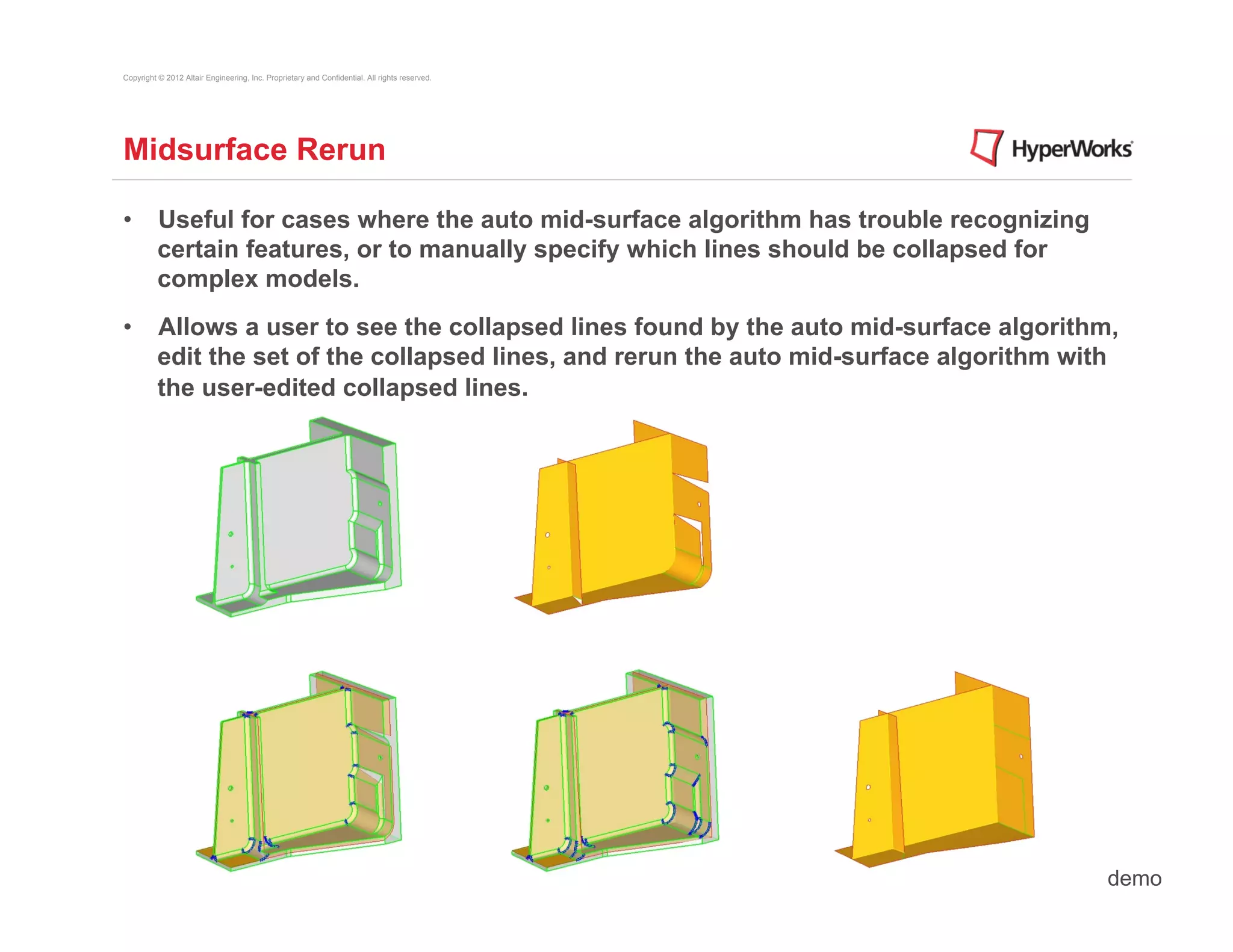
•  Useful for cases where the auto mid-surface algorithm has trouble recognizing
   certain features, or to manually specify which lines should be collapsed for
   complex models.
•  Allows a user to see the collapsed lines found by the auto mid-surface algorithm,
   edit the set of the collapsed lines, and rerun the auto mid-surface algorithm with
   the user-edited collapsed lines.


                                                                                               demo
Copyright © 2012 Altair Engineering, Inc. Proprietary and Confidential. All rights reserved.


Midsurfacing: Tools


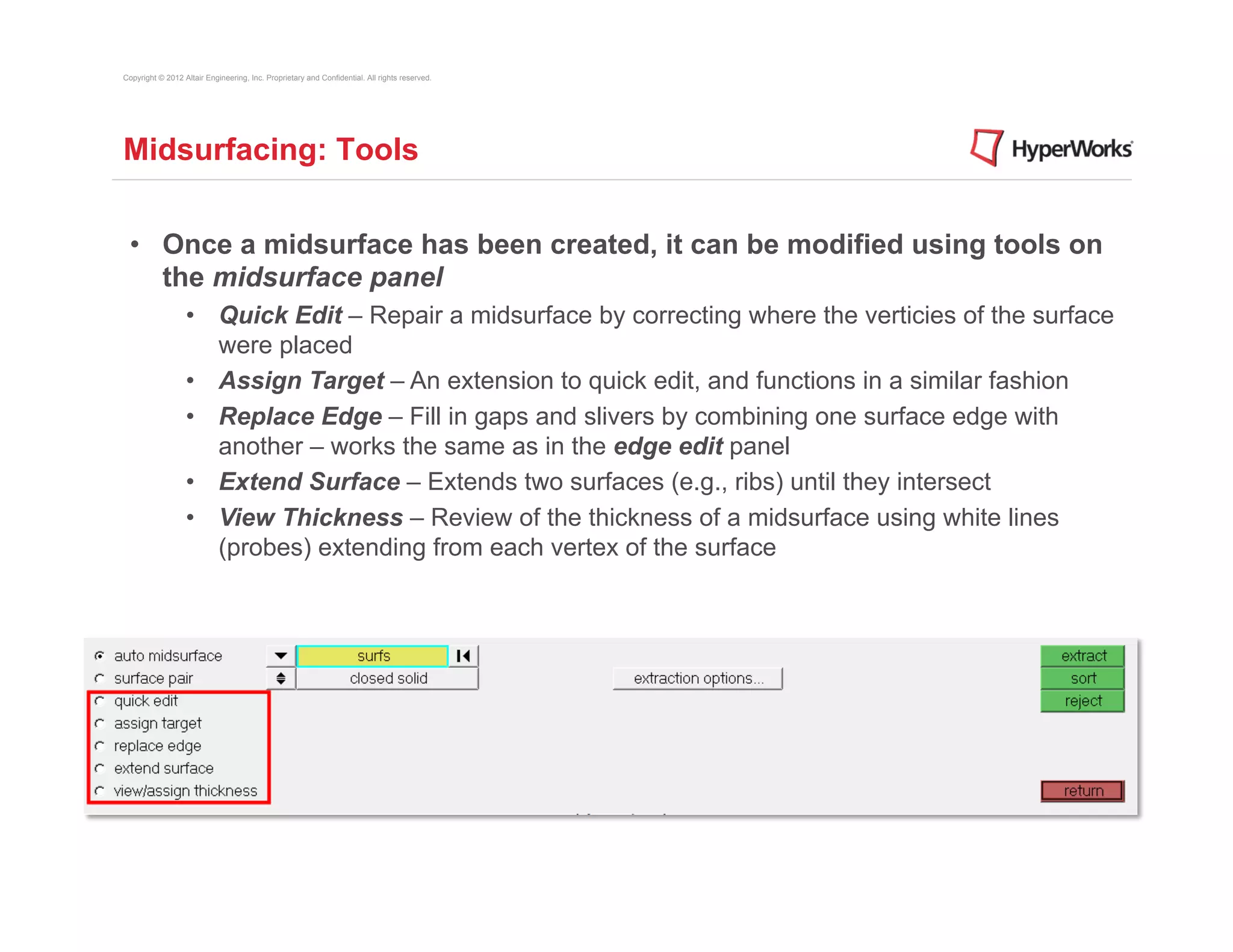
 •  Once a midsurface has been created, it can be modified using tools on
    the midsurface panel
                  •  Quick Edit – Repair a midsurface by correcting where the verticies of the surface
                     were placed
                  •  Assign Target – An extension to quick edit, and functions in a similar fashion
                  •  Replace Edge – Fill in gaps and slivers by combining one surface edge with
                     another – works the same as in the edge edit panel
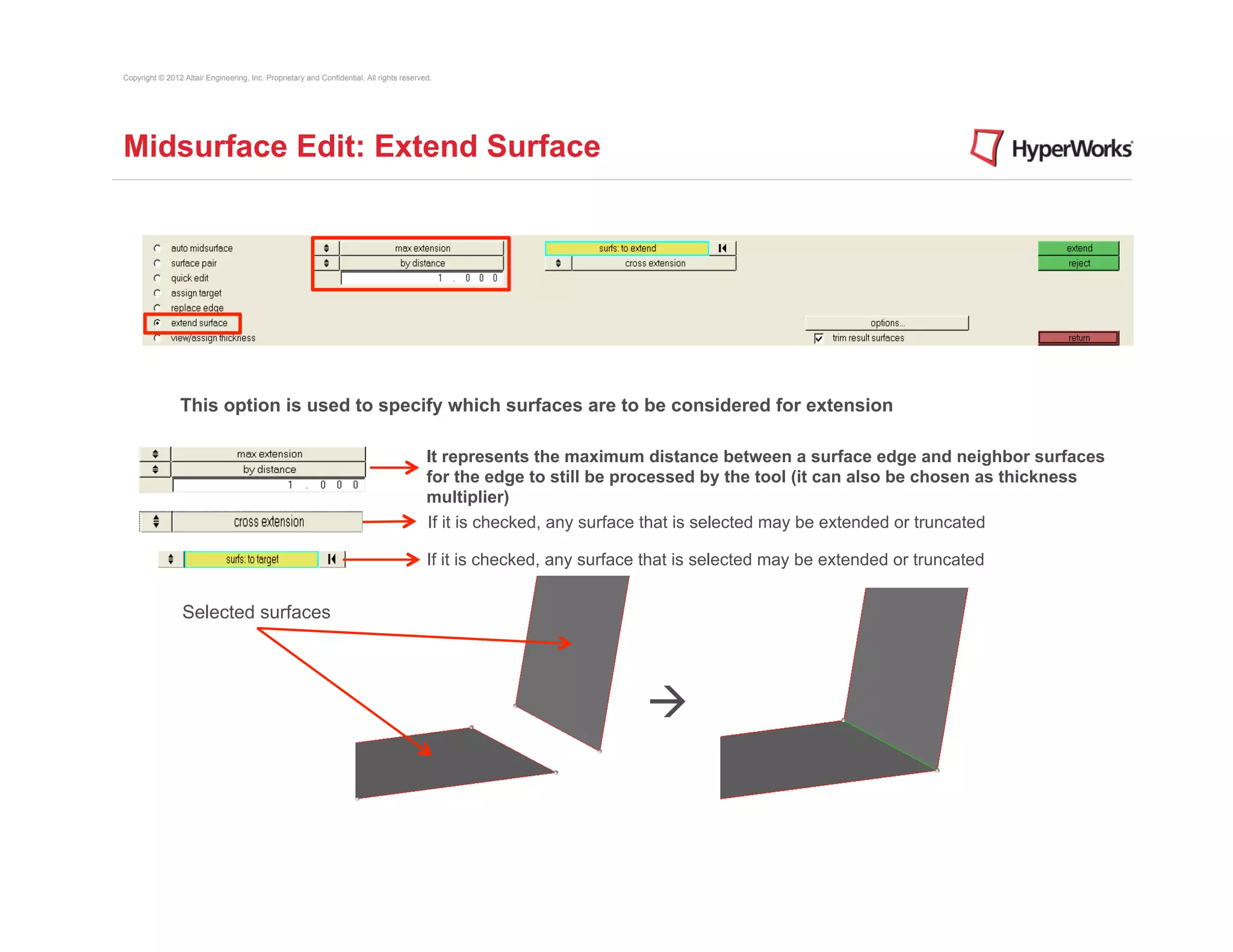
                  •  Extend Surface – Extends two surfaces (e.g., ribs) until they intersect
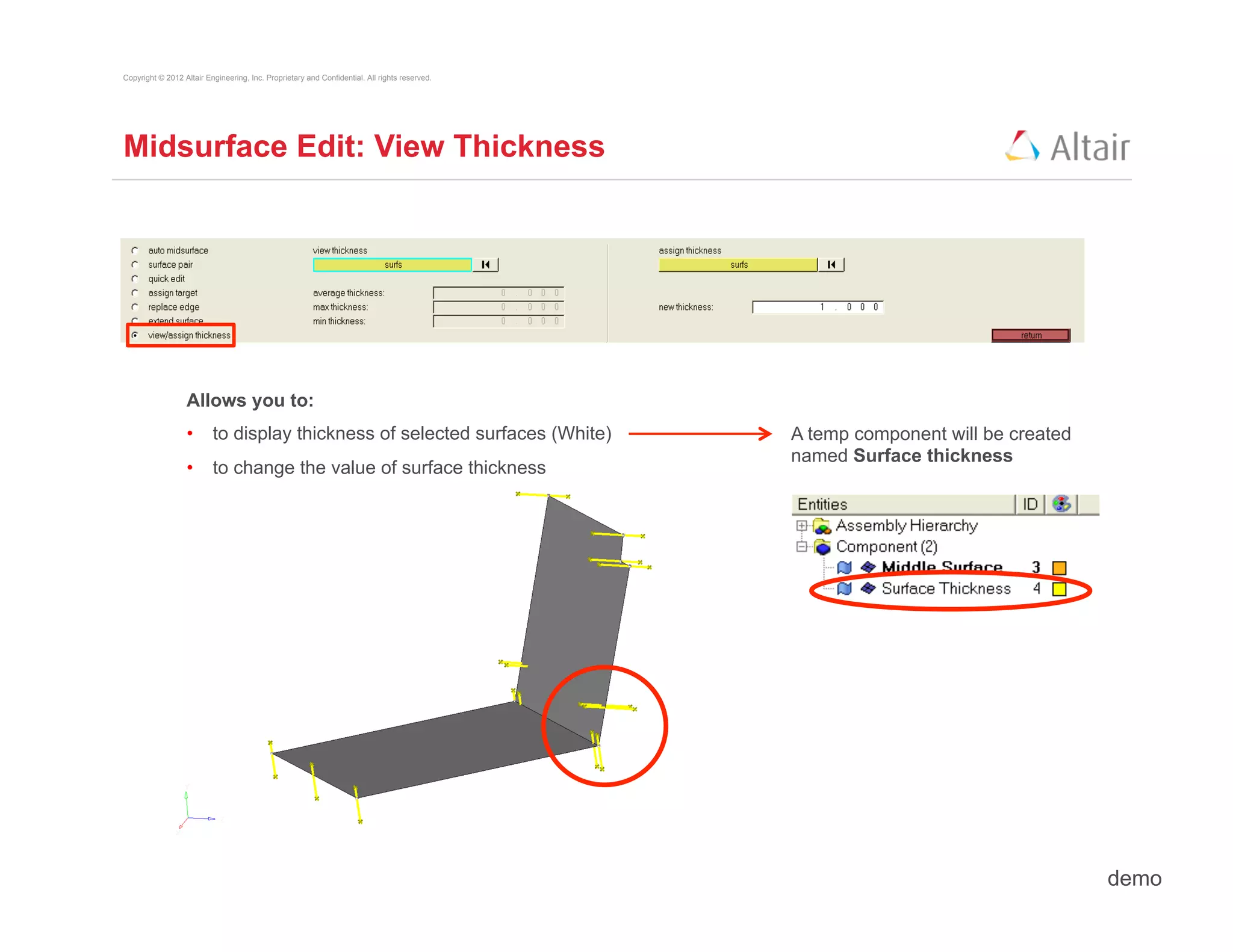
                  •  View Thickness – Review of the thickness of a midsurface using white lines
                     (probes) extending from each vertex of the surface
Copyright © 2012 Altair Engineering, Inc. Proprietary and Confidential. All rights reserved.


Midsurface Edit: Quick Edit


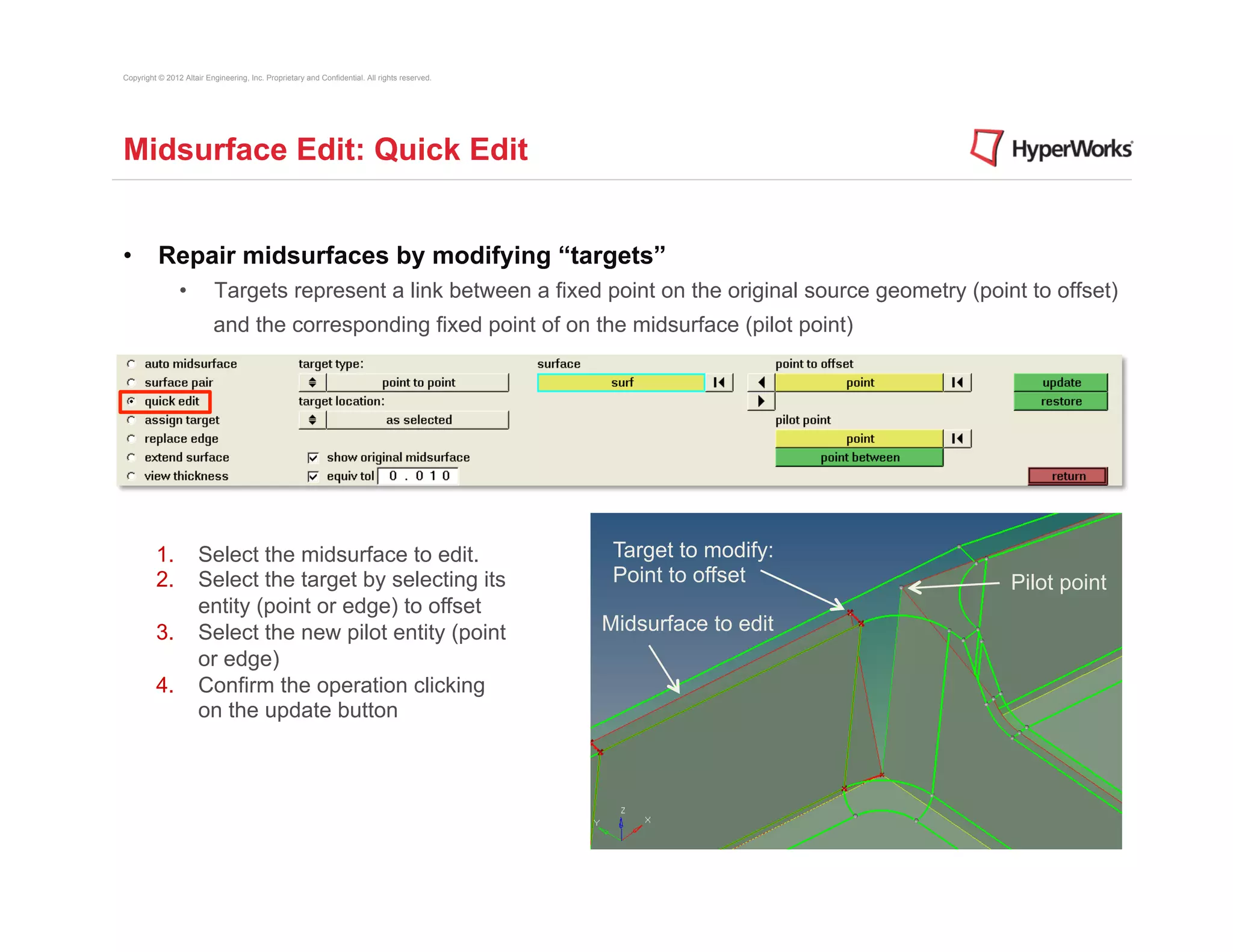
•  Repair midsurfaces by modifying “targets”
                •          Targets represent a link between a fixed point on the original source geometry (point to offset)
                          and the corresponding fixed point of on the midsurface (pilot point)


         1.  Select the midsurface to edit.                                                     Target to modify:
         2.  Select the target by selecting its                                                 Point to offset     Pilot point
             entity (point or edge) to offset
         3.  Select the new pilot entity (point                                                Midsurface to edit
             or edge)
         4.  Confirm the operation clicking
             on the update button
Copyright © 2012 Altair Engineering, Inc. Proprietary and Confidential. All rights reserved.


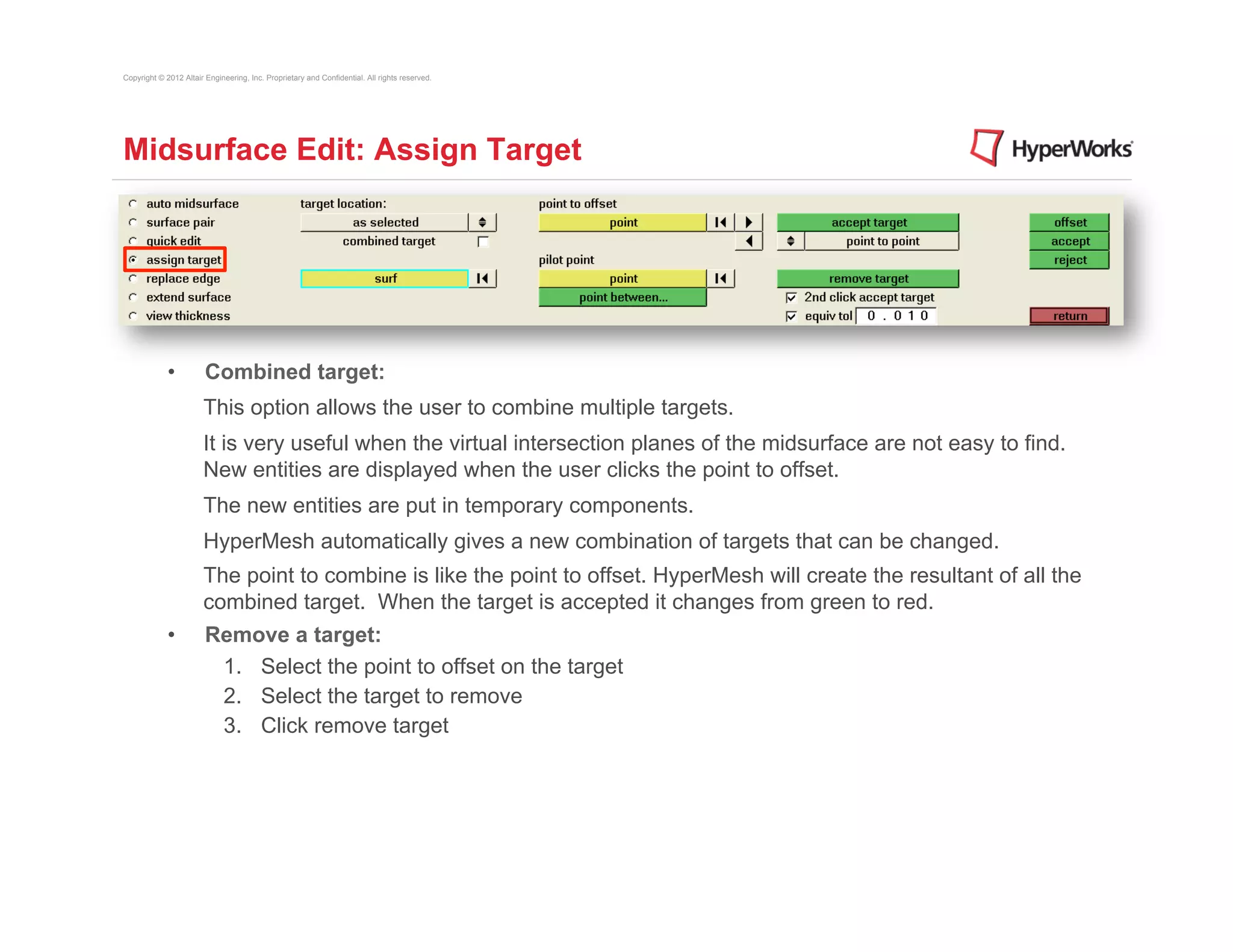
Midsurface Edit: Assign Target


             •          Combined target:
                       This option allows the user to combine multiple targets.
                       It is very useful when the virtual intersection planes of the midsurface are not easy to find.
                       New entities are displayed when the user clicks the point to offset.
                       The new entities are put in temporary components.
                       HyperMesh automatically gives a new combination of targets that can be changed.
                       The point to combine is like the point to offset. HyperMesh will create the resultant of all the
                       combined target. When the target is accepted it changes from green to red.
             •          Remove a target:
                         1.  Select the point to offset on the target
                         2.  Select the target to remove
                         3.  Click remove target
Copyright © 2012 Altair Engineering, Inc. Proprietary and Confidential. All rights reserved.


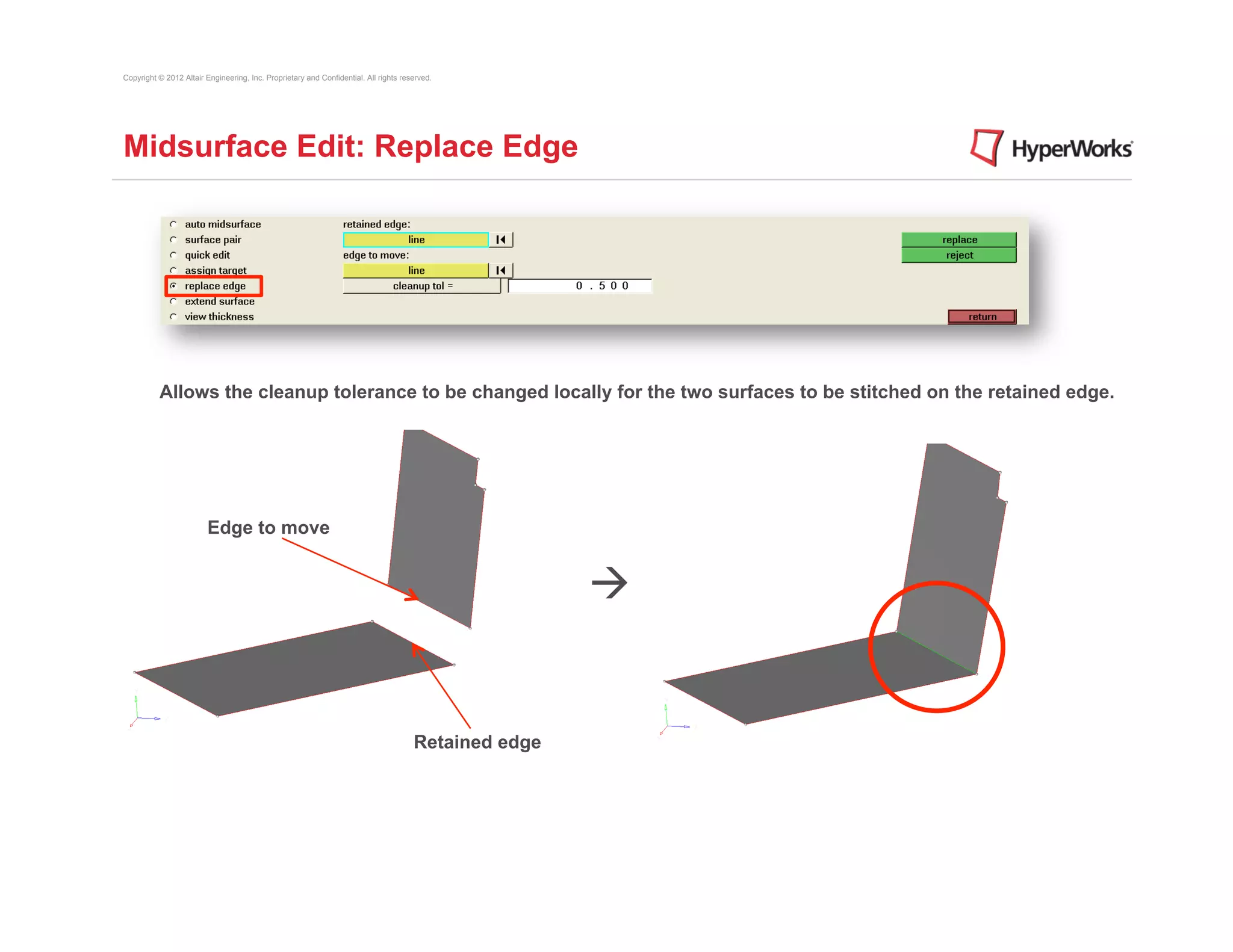
Midsurface Edit: Replace Edge


          Allows the cleanup tolerance to be changed locally for the two surfaces to be stitched on the retained edge.


                         Edge to move


                                                                                                      à


                                                                                      Retained edge
Copyright © 2012 Altair Engineering, Inc. Proprietary and Confidential. All rights reserved.


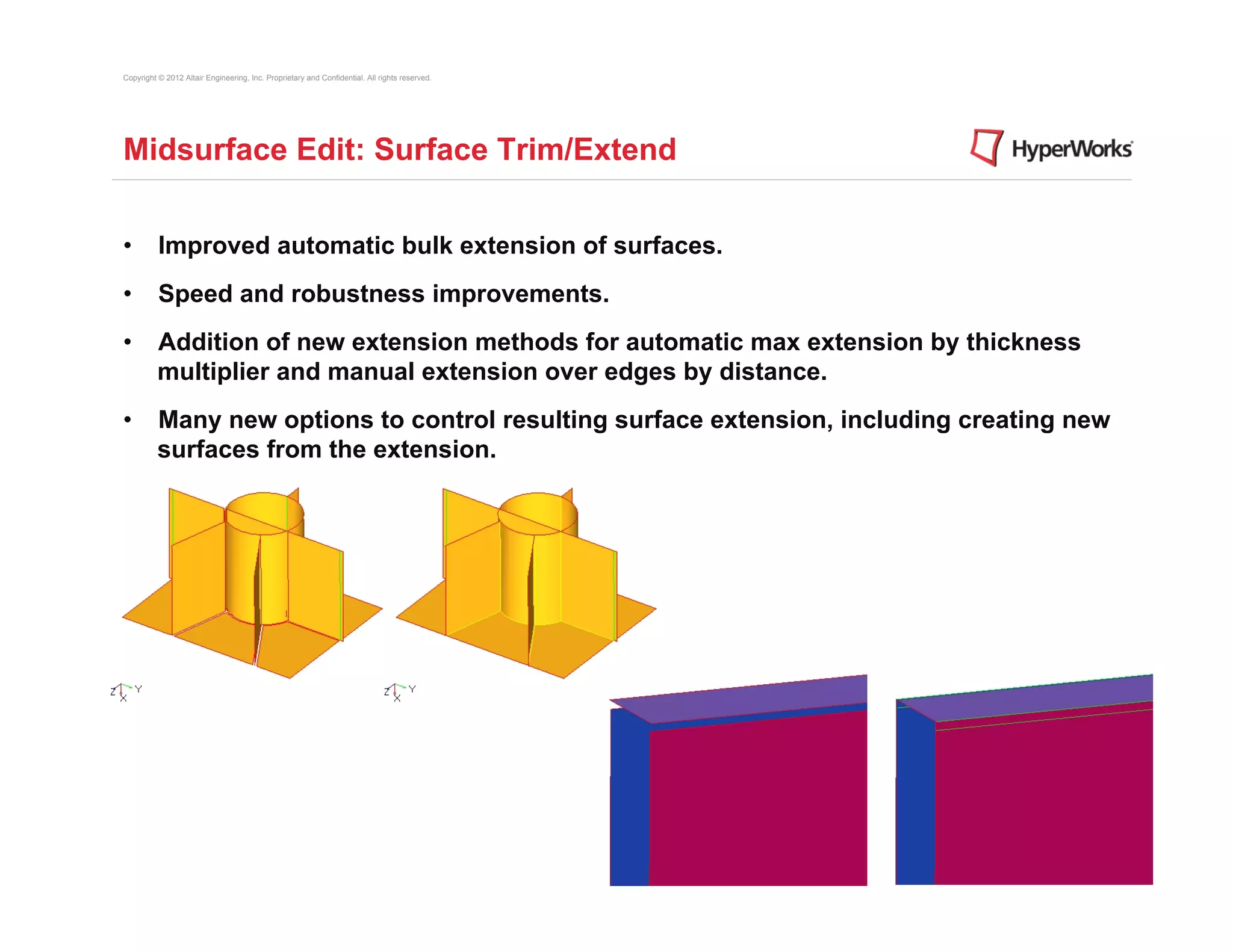
Midsurface Edit: Surface Trim/Extend


•  Improved automatic bulk extension of surfaces.
•  Speed and robustness improvements.
•  Addition of new extension methods for automatic max extension by thickness
   multiplier and manual extension over edges by distance.
•  Many new options to control resulting surface extension, including creating new
   surfaces from the extension.
Copyright © 2012 Altair Engineering, Inc. Proprietary and Confidential. All rights reserved.


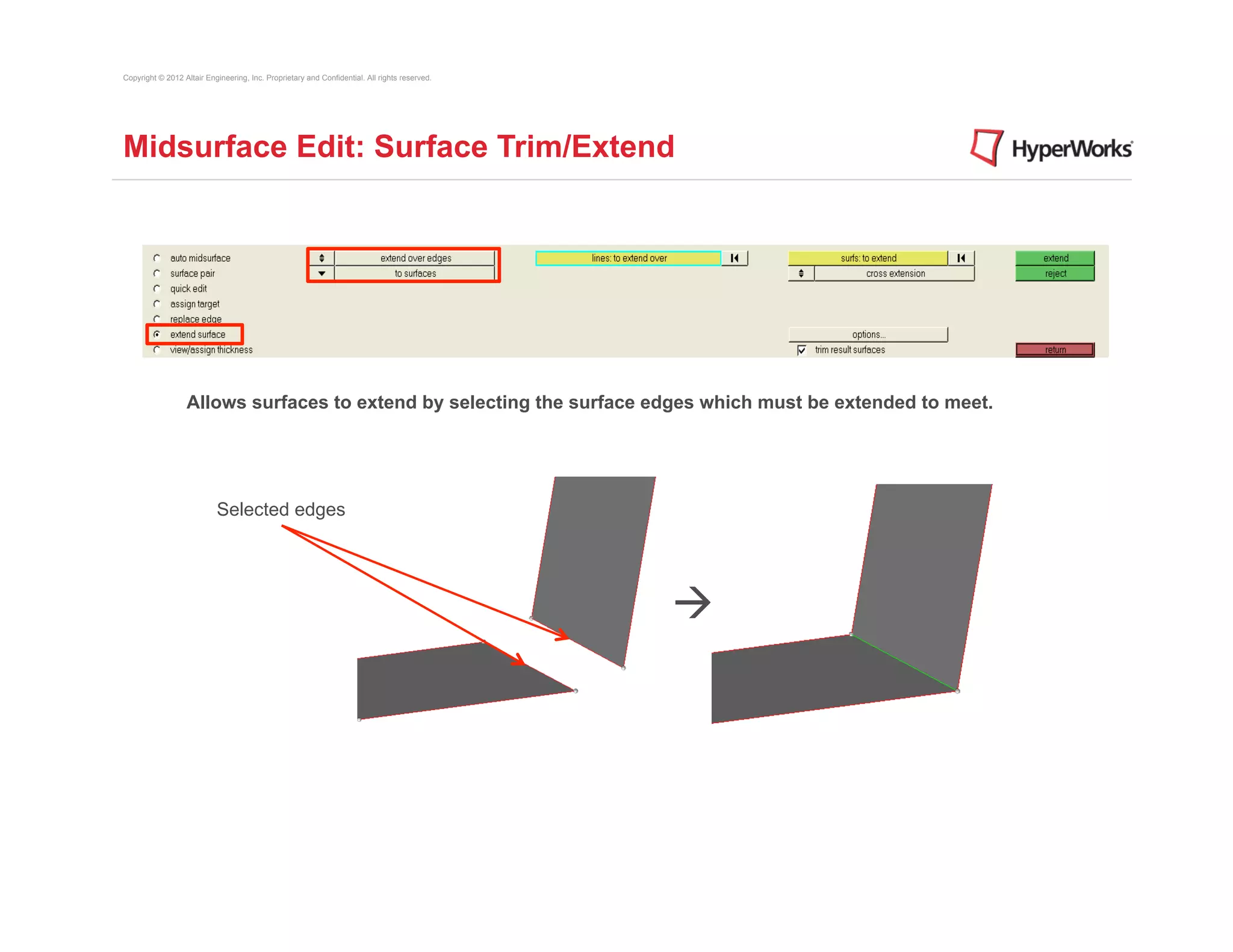
Midsurface Edit: Surface Trim/Extend


                  Allows surfaces to extend by selecting the surface edges which must be extended to meet.


                           Selected edges


                                                                                               à
Copyright © 2012 Altair Engineering, Inc. Proprietary and Confidential. All rights reserved.


Midsurface Edit: Extend Surface


                This option is used to specify which surfaces are to be considered for extension

                                                                                          It represents the maximum distance between a surface edge and neighbor surfaces
                                                                                          for the edge to still be processed by the tool (it can also be chosen as thickness
                                                                                          multiplier)
                                                                                          If it is checked, any surface that is selected may be extended or truncated

                                                                                          If it is checked, any surface that is selected may be extended or truncated


                 Selected surfaces


                                                                                                                       à
Copyright © 2012 Altair Engineering, Inc. Proprietary and Confidential. All rights reserved.


Midsurface Edit: View Thickness


                  Allows you to:
                  •  to display thickness of selected surfaces (White)                         A temp component will be created
                                                                                               named Surface thickness
                  •  to change the value of surface thickness


                                                                                                                                  demo
Copyright © 2012 Altair Engineering, Inc. Proprietary and Confidential. All rights reserved.


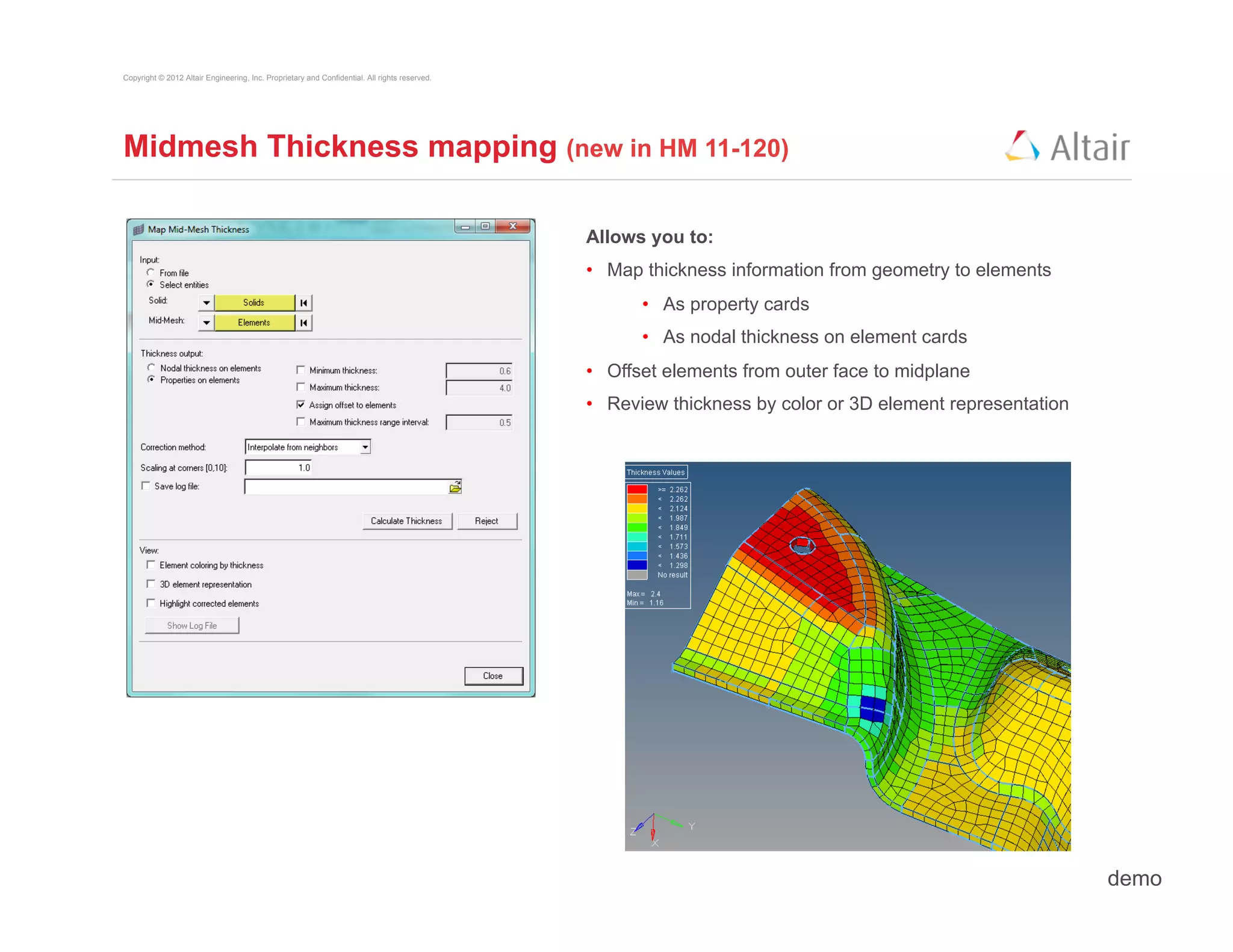
Midmesh Thickness mapping (new in HM 11-120)

                                                                                               Allows you to:
                                                                                               •  Map thickness information from geometry to elements
                                                                                                     •  As property cards
                                                                                                     •  As nodal thickness on element cards
                                                                                               •  Offset elements from outer face to midplane
                                                                                               •  Review thickness by color or 3D element representation


                                                                                                                                                           demo
Copyright © 2012 Altair Engineering, Inc. Proprietary and Confidential. All rights reserved.


Midsurfacing: Process & Strategy


   1.  Obtain a closed volume of surfaces or solids
                   •          Midsurface : auto midsurface requires an enclosed volume
                   •          Use topology repair techniques if needed


   2.  For complex parts, try defeaturing the surface defining the volume
                   •          This simplifies the part and may give better results with create : solid


   3.  Generate the midsurface using midsurface : auto midsurface
                   •          Use surface pair for areas that need more control
                   •          Use midsurface : editing tools for midsurfaces that need fine tuning


   4.  View the midsurface and correct errors using the midsurface editing
       functionalities
                   •          Can generally use quick edit

HTC 2012 Midsurfacing Training

  • 1.
  • 2.
    Copyright © 2012Altair Engineering, Inc. Proprietary and Confidential. All rights reserved. Midsurface generation in HyperMesh •  Generate new geometry representing the mid-plane of complex “thin- solid” type parts. •  Formed sheet metal parts •  Molded plastic parts •  Original geometry remains unchanged •  Ideally, parts have inner/outer face surfaces that correspond to each other •  Thickness should be clearly smaller than length/width dimensions •  Suppressing/removing/deleting unnecessary features and details can improve results •  Thickness information is stored with the generated midsurface
  • 3.
    Copyright © 2012Altair Engineering, Inc. Proprietary and Confidential. All rights reserved. Midsurface generation process flowchart
  • 4.
    Copyright © 2012Altair Engineering, Inc. Proprietary and Confidential. All rights reserved. Automatic midsurface generation •  Selecting source geometry: •  Closed solid (surfaces or solid geometry)
  • 5.
    Copyright © 2012Altair Engineering, Inc. Proprietary and Confidential. All rights reserved. Automatic midsurface generation •  Selecting source geometry: •  Partial or incomplete solid •  unconnected inner/outer surface faces •  Surface normal directions must be defined correctly
  • 6.
    Copyright © 2012Altair Engineering, Inc. Proprietary and Confidential. All rights reserved. Auto midsurface extraction options •  Step and base surface options: •  Apply to molded or machined parts with discrete thickness changes •  Thickness bounds, max thickness ratio: •  Restrict midsurface operations to improve performance for large complex models •  Radius/Thickness (R/T) ratio •  Helps identify and process complex junctions (where 3 or more plates meet) using the fillet radius •  Thickness based stitch tolerance (11-120) •  Automatically set local stitching tolerance based on thickness; otherwise use global cleanup tolerance
  • 7.
    Copyright © 2012Altair Engineering, Inc. Proprietary and Confidential. All rights reserved. Auto midsurface extraction options •  Extract by component / cross components •  By component: each original part is it’s own component; extract midsurface one part at a time •  Cross components: original part geometry consists of multiple components •  Result in Middle Surface component / current component •  Sorting options: •  Specifies how to organize middle surfaces when using the sort function: •  <~[o]riginal name> comp •  <Midsurface #nn> comp •  original comp
  • 8.
    Copyright © 2012Altair Engineering, Inc. Proprietary and Confidential. All rights reserved. Midsurface Base Surfaces •  Useful for cases where the "align steps" option is not applicable, such as when plates are not connected, or when the step does not consist of a single large surface on one side. •  Allows the user to specify the distance at which the mid-surfaces will be positioned relative to the user selected sides of the plates. •  The proper thickness and offset data are assigned to each mid-surface generated. demo
  • 9.
    Copyright © 2012Altair Engineering, Inc. Proprietary and Confidential. All rights reserved. Midsurface Rerun •  Useful for cases where the auto mid-surface algorithm has trouble recognizing certain features, or to manually specify which lines should be collapsed for complex models. •  Allows a user to see the collapsed lines found by the auto mid-surface algorithm, edit the set of the collapsed lines, and rerun the auto mid-surface algorithm with the user-edited collapsed lines. demo
  • 10.
    Copyright © 2012Altair Engineering, Inc. Proprietary and Confidential. All rights reserved. Midsurfacing: Tools •  Once a midsurface has been created, it can be modified using tools on the midsurface panel •  Quick Edit – Repair a midsurface by correcting where the verticies of the surface were placed •  Assign Target – An extension to quick edit, and functions in a similar fashion •  Replace Edge – Fill in gaps and slivers by combining one surface edge with another – works the same as in the edge edit panel •  Extend Surface – Extends two surfaces (e.g., ribs) until they intersect •  View Thickness – Review of the thickness of a midsurface using white lines (probes) extending from each vertex of the surface
  • 11.
    Copyright © 2012Altair Engineering, Inc. Proprietary and Confidential. All rights reserved. Midsurface Edit: Quick Edit •  Repair midsurfaces by modifying “targets” •  Targets represent a link between a fixed point on the original source geometry (point to offset) and the corresponding fixed point of on the midsurface (pilot point) 1.  Select the midsurface to edit. Target to modify: 2.  Select the target by selecting its Point to offset Pilot point entity (point or edge) to offset 3.  Select the new pilot entity (point Midsurface to edit or edge) 4.  Confirm the operation clicking on the update button
  • 12.
    Copyright © 2012Altair Engineering, Inc. Proprietary and Confidential. All rights reserved. Midsurface Edit: Assign Target •  Combined target: This option allows the user to combine multiple targets. It is very useful when the virtual intersection planes of the midsurface are not easy to find. New entities are displayed when the user clicks the point to offset. The new entities are put in temporary components. HyperMesh automatically gives a new combination of targets that can be changed. The point to combine is like the point to offset. HyperMesh will create the resultant of all the combined target. When the target is accepted it changes from green to red. •  Remove a target: 1.  Select the point to offset on the target 2.  Select the target to remove 3.  Click remove target
  • 13.
    Copyright © 2012Altair Engineering, Inc. Proprietary and Confidential. All rights reserved. Midsurface Edit: Replace Edge Allows the cleanup tolerance to be changed locally for the two surfaces to be stitched on the retained edge. Edge to move à Retained edge
  • 14.
    Copyright © 2012Altair Engineering, Inc. Proprietary and Confidential. All rights reserved. Midsurface Edit: Surface Trim/Extend •  Improved automatic bulk extension of surfaces. •  Speed and robustness improvements. •  Addition of new extension methods for automatic max extension by thickness multiplier and manual extension over edges by distance. •  Many new options to control resulting surface extension, including creating new surfaces from the extension.
  • 15.
    Copyright © 2012Altair Engineering, Inc. Proprietary and Confidential. All rights reserved. Midsurface Edit: Surface Trim/Extend Allows surfaces to extend by selecting the surface edges which must be extended to meet. Selected edges à
  • 16.
    Copyright © 2012Altair Engineering, Inc. Proprietary and Confidential. All rights reserved. Midsurface Edit: Extend Surface This option is used to specify which surfaces are to be considered for extension It represents the maximum distance between a surface edge and neighbor surfaces for the edge to still be processed by the tool (it can also be chosen as thickness multiplier) If it is checked, any surface that is selected may be extended or truncated If it is checked, any surface that is selected may be extended or truncated Selected surfaces à
  • 17.
    Copyright © 2012Altair Engineering, Inc. Proprietary and Confidential. All rights reserved. Midsurface Edit: View Thickness Allows you to: •  to display thickness of selected surfaces (White) A temp component will be created named Surface thickness •  to change the value of surface thickness demo
  • 18.
    Copyright © 2012Altair Engineering, Inc. Proprietary and Confidential. All rights reserved. Midmesh Thickness mapping (new in HM 11-120) Allows you to: •  Map thickness information from geometry to elements •  As property cards •  As nodal thickness on element cards •  Offset elements from outer face to midplane •  Review thickness by color or 3D element representation demo
  • 19.
    Copyright © 2012Altair Engineering, Inc. Proprietary and Confidential. All rights reserved. Midsurfacing: Process & Strategy 1.  Obtain a closed volume of surfaces or solids •  Midsurface : auto midsurface requires an enclosed volume •  Use topology repair techniques if needed 2.  For complex parts, try defeaturing the surface defining the volume •  This simplifies the part and may give better results with create : solid 3.  Generate the midsurface using midsurface : auto midsurface •  Use surface pair for areas that need more control •  Use midsurface : editing tools for midsurfaces that need fine tuning 4.  View the midsurface and correct errors using the midsurface editing functionalities •  Can generally use quick edit