
































HOWTO USE JING
1@ virtualhelpmanila.com - How To Use Jing
What is JING?
2@ virtualhelpmanila.com - How To Use Jing
is a screen capture application
3@ virtualhelpmanila.com - How To Use Jing
allows user to capture images
and videos from your desktop
4@ virtualhelpmanila.com - How To Use Jing
and automatically uploads it to
an account at Screencast.com
5@ virtualhelpmanila.com - How To Use Jing
Screencast.com ?
6@ virtualhelpmanila.com - How To Use Jing
is a hosting service where
images and videos
7@ virtualhelpmanila.com - How To Use Jing
created with Jing are uploaded
on the internet.
8@ virtualhelpmanila.com - How To Use Jing
the “screencast” file can be
shared easily and quickly
9@ virtualhelpmanila.com - How To Use Jing
Let us start
10@ virtualhelpmanila.com - How To Use Jing
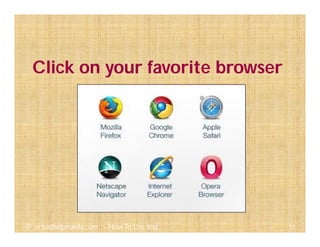
Click on your favorite browser
11@ virtualhelpmanila.com - How To Use Jing
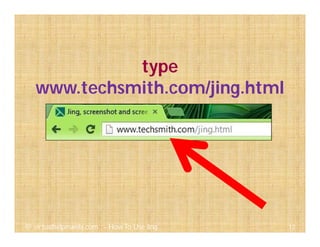
type
www.techsmith.com/jing.html
12@ virtualhelpmanila.com - How To Use Jing
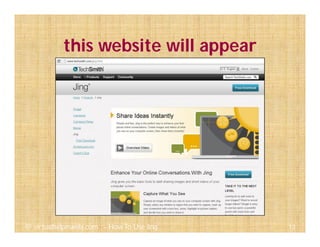
this website will appear
13@ virtualhelpmanila.com - How To Use Jing
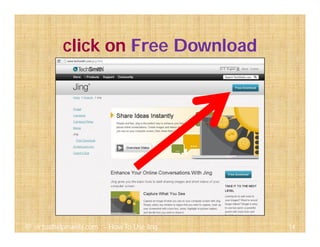
click on Free Download
14@ virtualhelpmanila.com - How To Use Jing
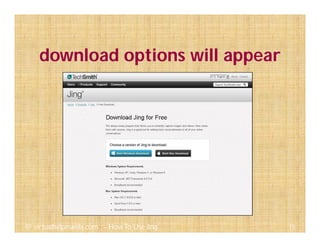
download options will appear
15@ virtualhelpmanila.com - How To Use Jing
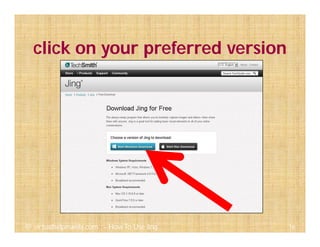
click on your preferred version
16@ virtualhelpmanila.com - How To Use Jing
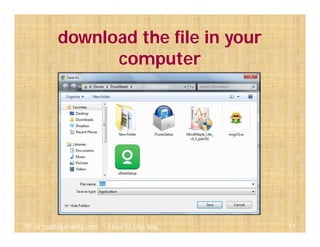
download the file in your
computer
17@ virtualhelpmanila.com - How To Use Jing
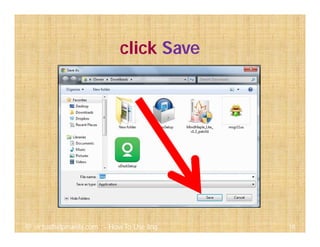
click Save
18@ virtualhelpmanila.com - How To Use Jing
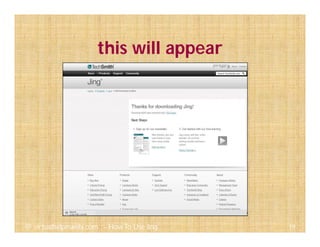
this will appear
19@ virtualhelpmanila.com - How To Use Jing
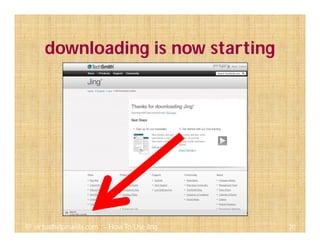
downloading is now starting
20@ virtualhelpmanila.com - How To Use Jing
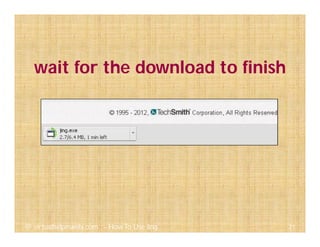
wait for the download to finish
21@ virtualhelpmanila.com - How To Use Jing
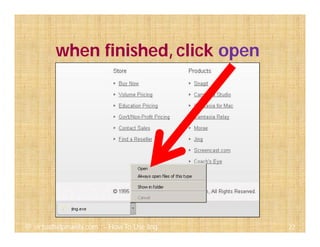
when finished, click open
22@ virtualhelpmanila.com - How To Use Jing
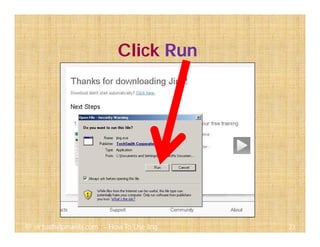
Click Run
23@ virtualhelpmanila.com - How To Use Jing
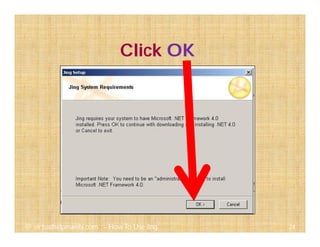
Click OK
24@ virtualhelpmanila.com - How To Use Jing
wait…
25@ virtualhelpmanila.com - How To Use Jing
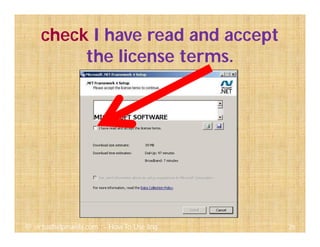
check I have read and accept
the license terms.
26@ virtualhelpmanila.com - How To Use Jing
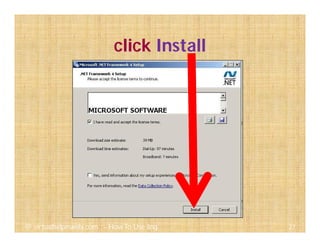
click Install
27@ virtualhelpmanila.com - How To Use Jing
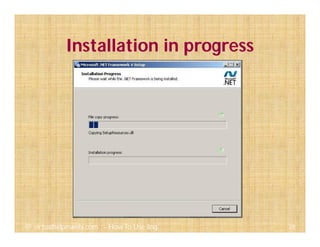
Installation in progress
28@ virtualhelpmanila.com - How To Use Jing
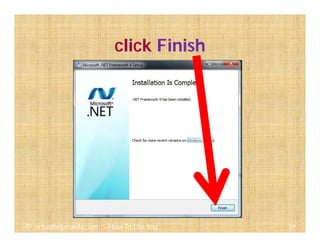
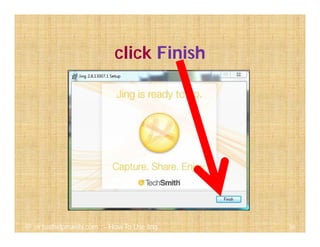
click Finish
29@ virtualhelpmanila.com - How To Use Jing
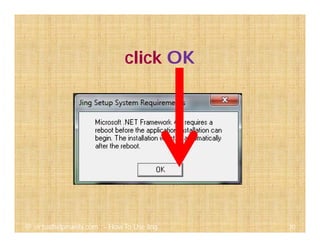
click OK
30@ virtualhelpmanila.com - How To Use Jing
your computer will restart…
31@ virtualhelpmanila.com - How To Use Jing
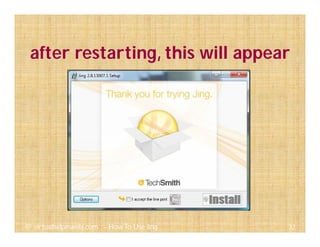
after restarting, this will appear
32@ virtualhelpmanila.com - How To Use Jing
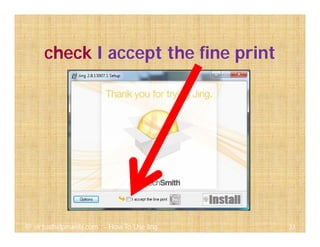
check I accept the fine print
33@ virtualhelpmanila.com - How To Use Jing
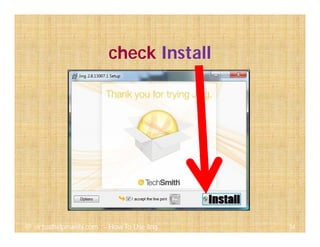
check Install
34@ virtualhelpmanila.com - How To Use Jing
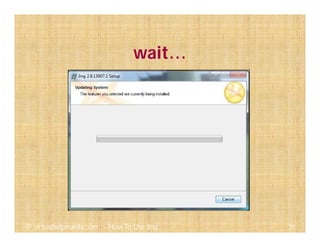
wait…
35@ virtualhelpmanila.com - How To Use Jing
click Finish
36@ virtualhelpmanila.com - How To Use Jing
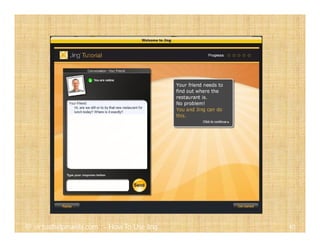
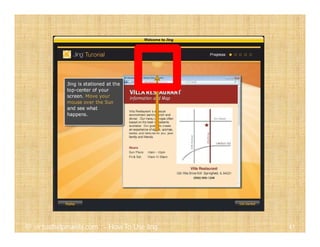
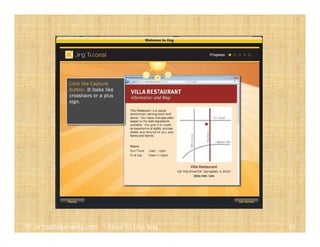
the Jing tutorial will appear
37@ virtualhelpmanila.com - How To Use Jing
let’s check it out
38@ virtualhelpmanila.com - How To Use Jing
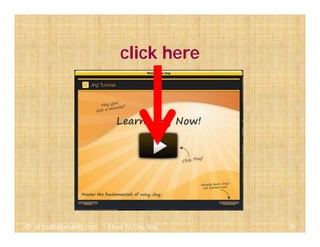
click here
39@ virtualhelpmanila.com - How To Use Jing
40@ virtualhelpmanila.com - How To Use Jing
41@ virtualhelpmanila.com - How To Use Jing
42@ virtualhelpmanila.com - How To Use Jing
43@ virtualhelpmanila.com - How To Use Jing
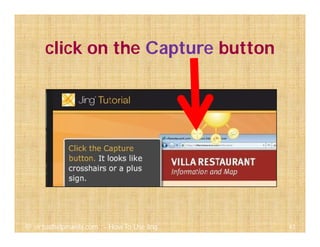
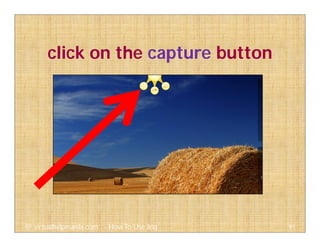
click on the Capture button
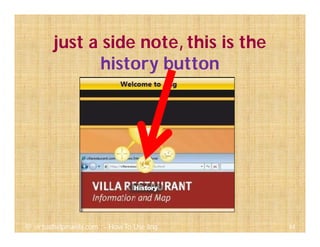
just a side note, this is the
history button
44@ virtualhelpmanila.com - How To Use Jing
history button will show copies
of your previous captures
45@ virtualhelpmanila.com - How To Use Jing
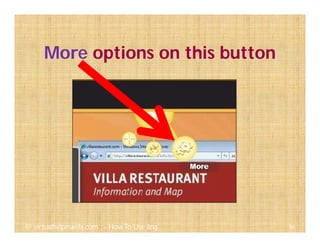
More options on this button
46@ virtualhelpmanila.com - How To Use Jing
more options allows you to
alter Jing settings
47@ virtualhelpmanila.com - How To Use Jing
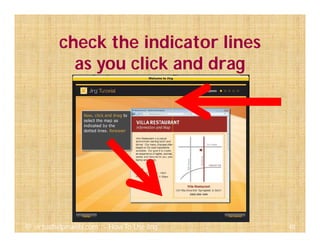
check the indicator lines
as you click and drag
48@ virtualhelpmanila.com - How To Use Jing
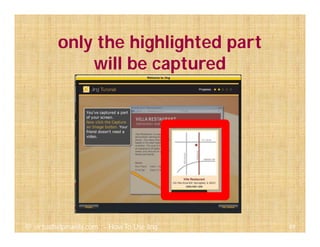
only the highlighted part
will be captured
49@ virtualhelpmanila.com - How To Use Jing
50@ virtualhelpmanila.com - How To Use Jing
51@ virtualhelpmanila.com - How To Use Jing
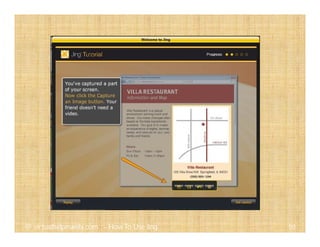
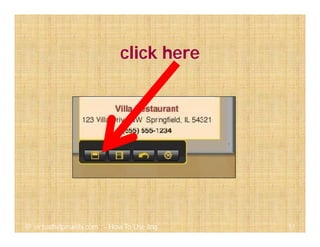
click here
52@ virtualhelpmanila.com - How To Use Jing
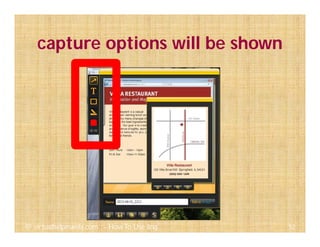
capture options will be shown
53@ virtualhelpmanila.com - How To Use Jing
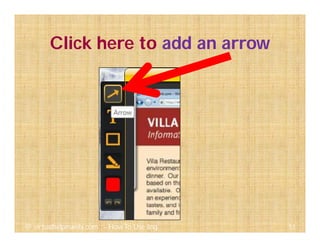
Click here to add an arrow
54@ virtualhelpmanila.com - How To Use Jing
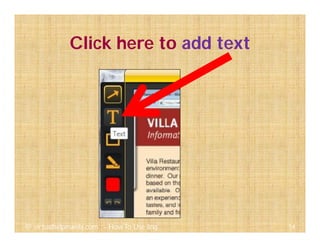
Click here to add text
55@ virtualhelpmanila.com - How To Use Jing
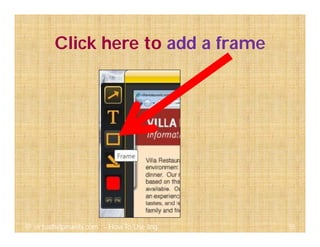
Click here to add a frame
56@ virtualhelpmanila.com - How To Use Jing
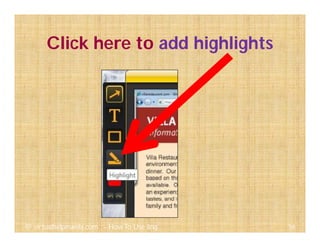
Click here to add highlights
57@ virtualhelpmanila.com - How To Use Jing
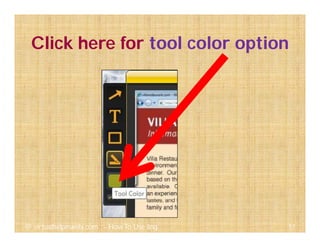
Click here for tool color option
58@ virtualhelpmanila.com - How To Use Jing
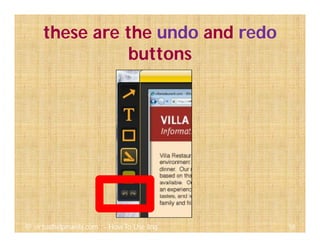
these are the undo and redo
buttons
59@ virtualhelpmanila.com - How To Use Jing
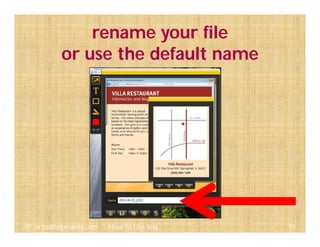
rename your file
or use the default name
60@ virtualhelpmanila.com - How To Use Jing
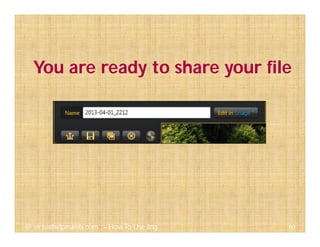
You are ready to share your file
61@ virtualhelpmanila.com - How To Use Jing
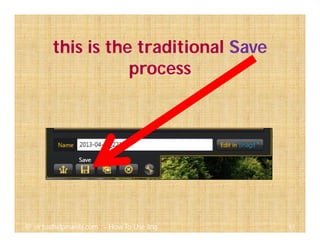
this is the traditional Save
process
62@ virtualhelpmanila.com - How To Use Jing
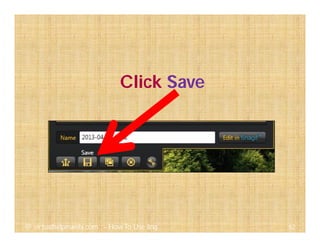
Click Save
63@ virtualhelpmanila.com - How To Use Jing
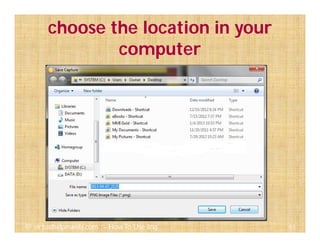
choose the location in your
computer
64@ virtualhelpmanila.com - How To Use Jing
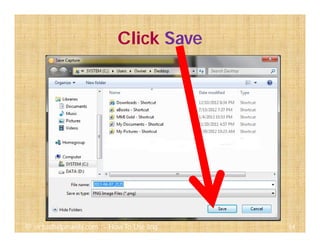
Click Save
65@ virtualhelpmanila.com - How To Use Jing
66@ virtualhelpmanila.com - How To Use Jing
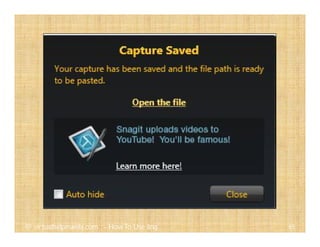
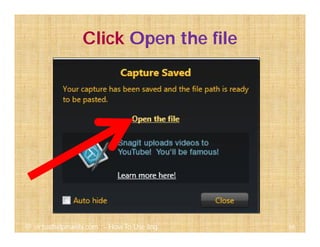
Click Open the file
67@ virtualhelpmanila.com - How To Use Jing
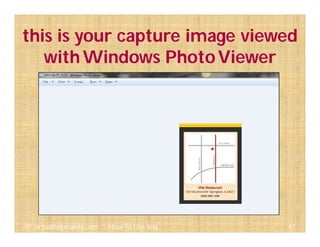
this is your capture image viewed
withWindows PhotoViewer
68@ virtualhelpmanila.com - How To Use Jing
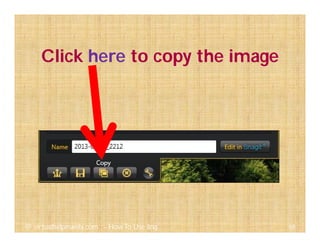
Click here to copy the image
69@ virtualhelpmanila.com - How To Use Jing
paste the image into
a document, email, etc
70@ virtualhelpmanila.com - How To Use Jing
to paste,
71@ virtualhelpmanila.com - How To Use Jing
press CTRL +V simultaneously
72@ virtualhelpmanila.com - How To Use Jing
inside your document
73@ virtualhelpmanila.com - How To Use Jing
or
74@ virtualhelpmanila.com - How To Use Jing
right click your mouse
inside your document
75@ virtualhelpmanila.com - How To Use Jing
and select Paste from the
dropdown menu
76@ virtualhelpmanila.com - How To Use Jing
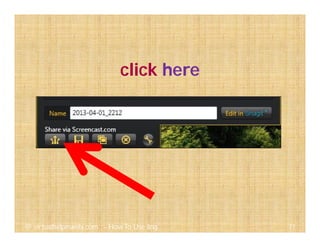
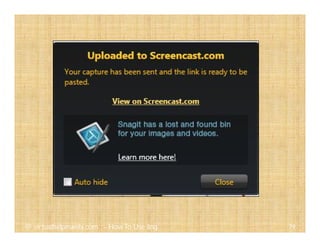
to share it via screencast.com
77@ virtualhelpmanila.com - How To Use Jing
click here
78@ virtualhelpmanila.com - How To Use Jing
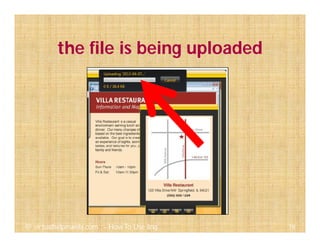
the file is being uploaded
79@ virtualhelpmanila.com - How To Use Jing
80@ virtualhelpmanila.com - How To Use Jing
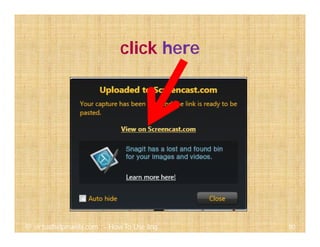
click here
81@ virtualhelpmanila.com - How To Use Jing
82@ virtualhelpmanila.com - How To Use Jing
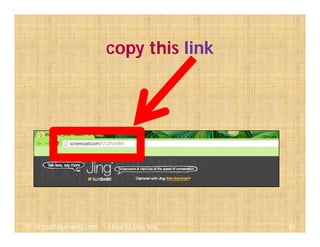
copy this link
83@ virtualhelpmanila.com - How To Use Jing
paste the link in your email,
documents or online
conversation
84@ virtualhelpmanila.com - How To Use Jing
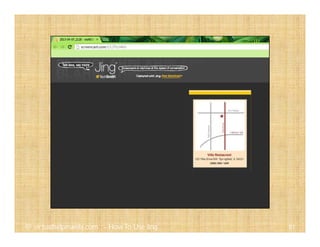
when the link is clicked,
85@ virtualhelpmanila.com - How To Use Jing
the exact image you captured
will be shown!
86@ virtualhelpmanila.com - How To Use Jing
CapturingVideo via Jing
87@ virtualhelpmanila.com - How To Use Jing
Jing can be use to capture short
videos
88@ virtualhelpmanila.com - How To Use Jing
Jing can be use to capture short
videos
89@ virtualhelpmanila.com - How To Use Jing
maximum length captured
is 5 minutes
90@ virtualhelpmanila.com - How To Use Jing
to capture video,
click on the capture button
91@ virtualhelpmanila.com - How To Use Jing
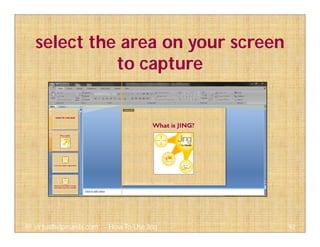
select the area on your screen
to capture
92@ virtualhelpmanila.com - How To Use Jing
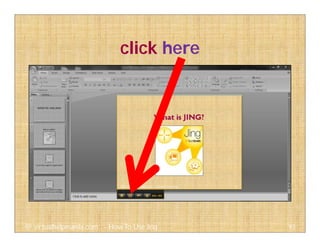
click here
93@ virtualhelpmanila.com - How To Use Jing
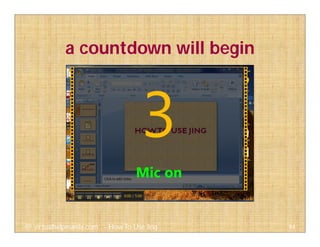
a countdown will begin
94@ virtualhelpmanila.com - How To Use Jing
95@ virtualhelpmanila.com - How To Use Jing
96@ virtualhelpmanila.com - How To Use Jing
after 3 seconds,
recording will begin
97@ virtualhelpmanila.com - How To Use Jing
98@ virtualhelpmanila.com - How To Use Jing
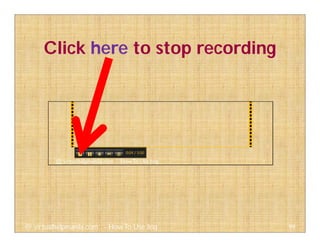
Click here to stop recording
99@ virtualhelpmanila.com - How To Use Jing
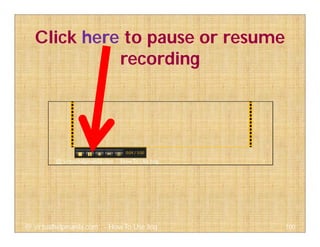
Click here to pause or resume
recording
100@ virtualhelpmanila.com - How To Use Jing
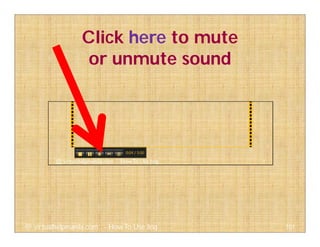
Click here to mute
or unmute sound
101@ virtualhelpmanila.com - How To Use Jing
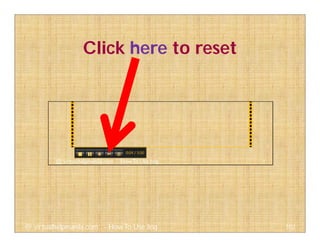
Click here to reset
102@ virtualhelpmanila.com - How To Use Jing
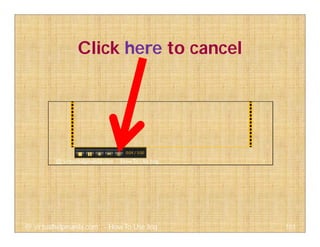
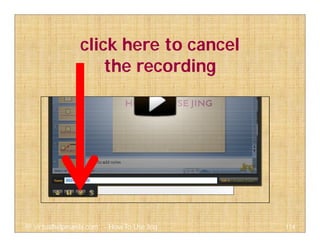
Click here to cancel
103@ virtualhelpmanila.com - How To Use Jing
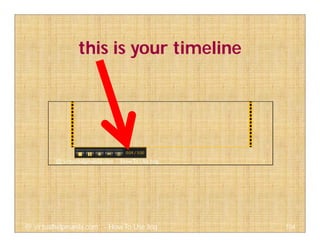
this is your timeline
104@ virtualhelpmanila.com - How To Use Jing
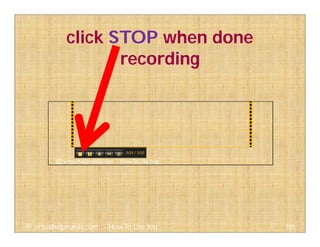
click STOP when done
recording
105@ virtualhelpmanila.com - How To Use Jing
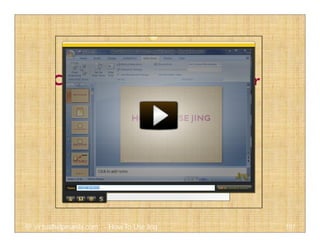
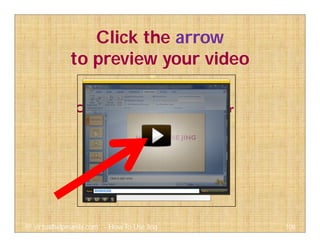
a preview of your video will
appear
106@ virtualhelpmanila.com - How To Use Jing
107@ virtualhelpmanila.com - How To Use Jing
Click the arrow
to preview your video
108@ virtualhelpmanila.com - How To Use Jing
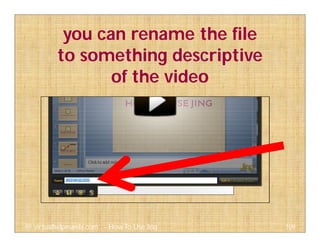
you can rename the file
to something descriptive
of the video
109@ virtualhelpmanila.com - How To Use Jing
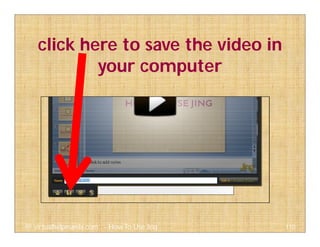
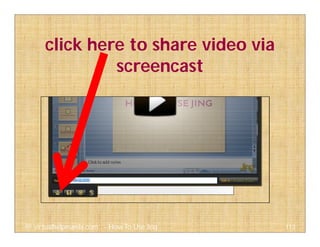
click here to save the video in
your computer
110@ virtualhelpmanila.com - How To Use Jing
the file will be saved in
SWF format
111@ virtualhelpmanila.com - How To Use Jing
SWF = Small Web Format
112@ virtualhelpmanila.com - How To Use Jing
click here to share video via
screencast
113@ virtualhelpmanila.com - How To Use Jing
click here to cancel
the recording
114@ virtualhelpmanila.com - How To Use Jing
Jing History
115@ virtualhelpmanila.com - How To Use Jing
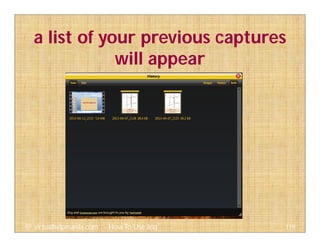
Jing History contains
your previous captured
videos and images
116@ virtualhelpmanila.com - How To Use Jing
you can browse these captures
to share again
117@ virtualhelpmanila.com - How To Use Jing
click History button
118@ virtualhelpmanila.com - How To Use Jing
a list of your previous captures
will appear
119@ virtualhelpmanila.com - How To Use Jing
hover your mouse on the file
120@ virtualhelpmanila.com - How To Use Jing
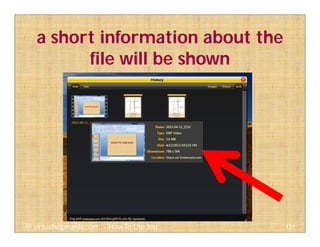
a short information about the
file will be shown
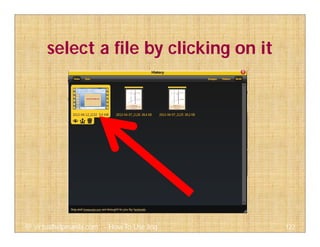
121@ virtualhelpmanila.com - How To Use Jing
select a file by clicking on it
122@ virtualhelpmanila.com - How To Use Jing
123@ virtualhelpmanila.com - How To Use Jing
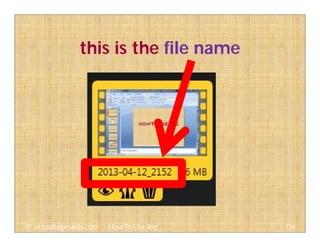
this is the file name
124@ virtualhelpmanila.com - How To Use Jing
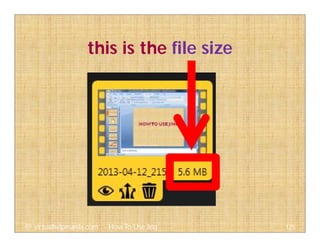
this is the file size
125@ virtualhelpmanila.com - How To Use Jing
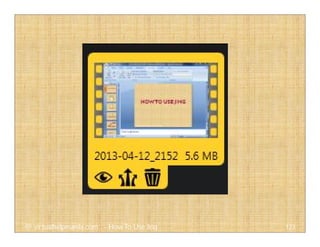
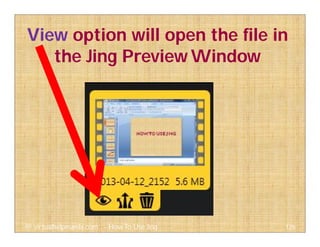
View option will open the file in
the Jing Preview Window
126@ virtualhelpmanila.com - How To Use Jing
it will also allow you
to edit the image
127@ virtualhelpmanila.com - How To Use Jing
and rename the file and save it
128@ virtualhelpmanila.com - How To Use Jing
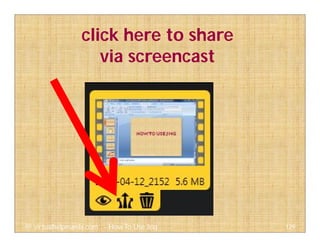
click here to share
via screencast
129@ virtualhelpmanila.com - How To Use Jing
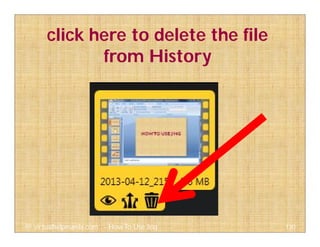
click here to delete the file
from History
130@ virtualhelpmanila.com - How To Use Jing
Thank you.
I hope you enjoyed the tutorial.
131@ virtualhelpmanila.com - How To Use Jing
THE END
132@ virtualhelpmanila.com - How To Use Jing

Ela carrillo how to use jing