Xx de enero de 2010 Use git without rage
“VCS should be a subject in informatics” Heared about VCS
“ We use VCS as if we were trained monkeys” Heared about VCS
Types of VCS LVCS (Localized VCS) CVCS (Centralized VCS) DVCS (Distributed VCS)
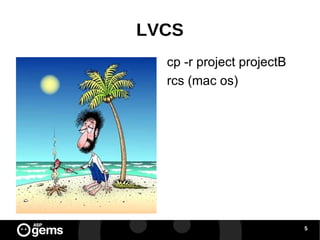
LVCS cp -r project projectB
rcs (mac os)
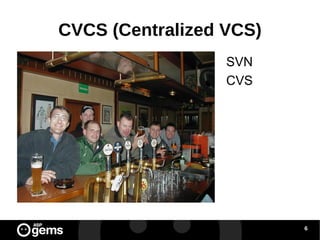
CVCS (Centralized VCS) SVN
CVS
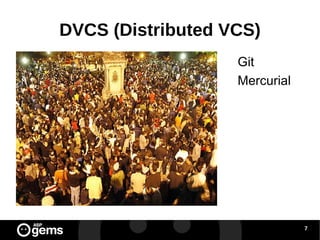
DVCS (Distributed VCS) Git
Mercurial
Git Basics
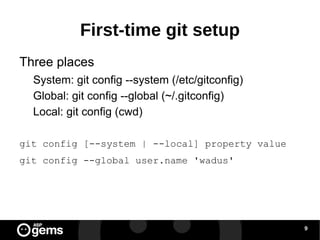
First-time git setup Three places System: git config --system (/etc/gitconfig)
Global: git config --global (~/.gitconfig)
Local: git config (cwd) git config [--system | --local] property value
git config --global user.name 'wadus'
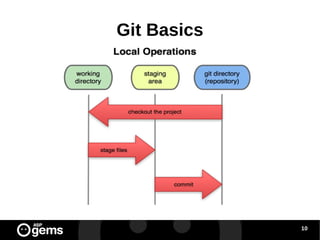
Git Basics
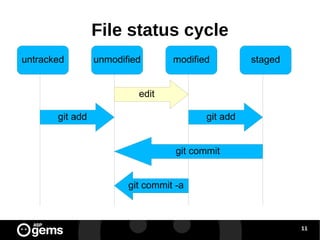
File status cycle untracked staged modified unmodified git add edit git add git commit git commit -a
Workflows Scenario 1: Creating a repository from the beginnig and working with it (with no rage)
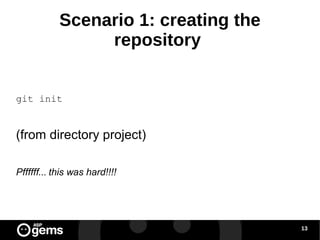
Scenario 1: creating the repository  git init (from directory project) Pffffff... this was hard!!!!
Workflows -Scenario 1: edit some files Edit and/or create some files for your project this is what developing is about in last term, isn't it?
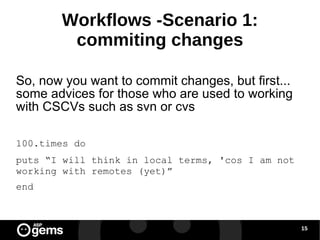
Workflows -Scenario 1: commiting changes So, now you want to commit changes, but first... some advices for those who are used to working with CSCVs such as svn or cvs 100.times do puts “I will think in local terms, 'cos I am not working with remotes (yet)” end
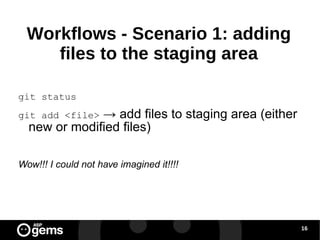
Workflows - Scenario 1: adding files to the staging area git status git add <file>  -> add files to staging area (either new or modified files) Wow!!! I could not have imagined it!!!!
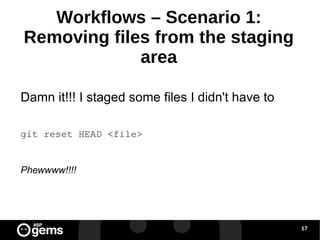
Workflows – Scenario 1: Removing files from the staging area Damn it!!! I staged some files I didn't have to git reset HEAD <file> Phewwww!!!!
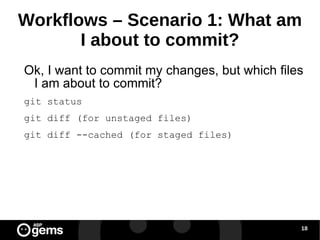
Workflows – Scenario 1: What am I about to commit? Ok, I want to commit my changes, but which files I am about to commit? git status git diff (for unstaged files) git diff --cached (for staged files)
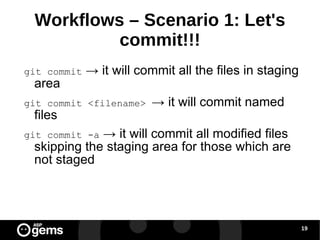
Workflows – Scenario 1: Let's commit!!! git commit  -> it will commit all the files in staging area git commit <filename>  -> it will commit named files git commit -a  -> it will commit all modified files skipping the staging area for those which are not staged
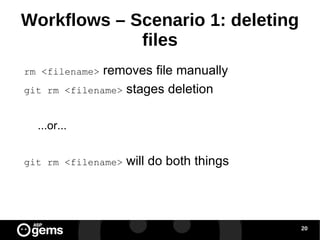
Workflows – Scenario 1: deleting files rm <filename>  removes file manually git rm <filename>  stages deletion ...or... git rm <filename>  will do both things
Workflows – Scenario 1: undeleting files git status  will give you clues if deletion is in the staging area git reset HEAD <filename> if deletion is not in the staging area git checkout <filename>
Workflows – Scenario 1: moving files mv filename filename2 git rm filename git add filename2 ...or... git mv filename filename2
Workfows- Scenario 1: undoing things git commit --amend  will modify last commit git commit “ OMG, WTF, damn it!!! I forgot to add a file” git add damned_file git commit --ammend “ commit --amend FTW!!!”
Workfows- Scenario 1: undoing things (ii) Unstaging a staged file git reset HEAD filename Unmodify a modified and unstaged file git checkout filename
Workflows Scenario 2: working with remotes
Workfows- Scenario 2: adding a remote So I want to work with another repo... git remote add [shortname] [url] git remote add origin your_url Now I finally understand what I've been doing with github all this time!!!
Workfows- Scenario 2: showing your remotes If you want to know which repos you are working with: git remote git remote -v
Workfows- Scenario 2: fetching and pulling To get data from your remotes git fetch [remote-name] git pull [remote-name] fetch or pull??? pull = fetch + merge
Workfows- Scenario 2: pushing If you want to share your data: git push [remote-name] [branch]
Workfows- Scenario 2: inspecting a remote git remote show [remote-name] Look at the “Local ref configured for git push” Local refs configured for 'git push': master pushes to master (local out of date) test  pushes to test  (up to date)
Workfows- Scenario 2: removing and renaming remotes git remote rename [original-name] [new-name] git remote rm [remote-name] This changes take effect on your LOCAL repo (remember: local, local, local)
Workflows Scenario 3: tagging
Workfows- Scenario 3: listing tags git tag
Workfows- Scenario 3: tag types 2 types of tags:  lightweight  and  annotated Lightweight:  It is like a branch that doesn't change, a pointer to a specific commit Annotated:  These are stored as full objects. Checksumed and metadata are included
Workfows- Scenario 3: Creating and showing tags Annotated: git tag -a [tag] Lightweight: git tag [tag] git show [tag]
Workfows- Scenario 3: Creating tags later git tag -a <tag> <(part of) checksum of the commit>
Workfows- Scenario 3: Sharing tags When pushing, you do not share tags git push origin [tagname] Hey! This is like sharing branches... git push origin --tags  shares all the tags
Branching: the beginning of magic Please, keep on thinking in local... or I will send @pacoguzman to kill you!!!
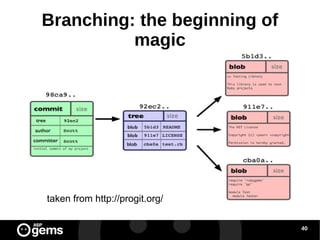
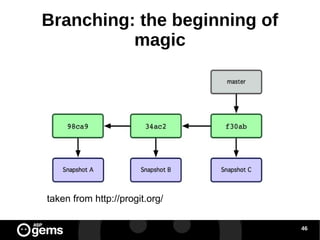
Branching: the beginning of magic Let's do some review... git add README test.rb LICENSE git commit -m 'initial commit of my project' How is this commit stored?
Branching: the beginning of magic taken from http://progit.org/
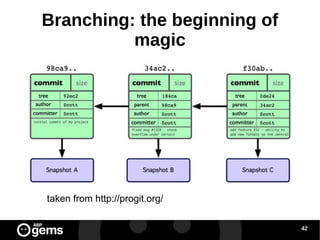
Branching: the beginning of magic Let's assume we keep on doing some commits
Branching: the beginning of magic taken from http://progit.org/
Branching: the beginning of magic I thought we were going to talk about branches, you son of the bit!!!
Branching: the beginning of magic I thought we were going to talk about branches, you  son of the bit !!! A very bad geek joke
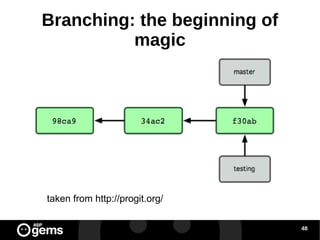
Branching: the beginning of magic Branch: A movable pointer to one of these commits. Do you smell it??? Yeah! And it seems that it's going to taste even better!
Branching: the beginning of magic taken from http://progit.org/
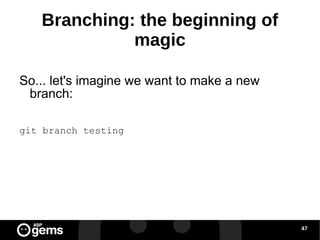
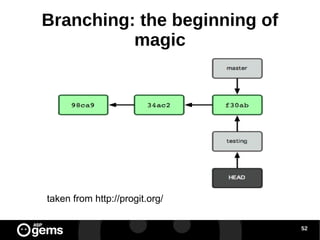
Branching: the beginning of magic So... let's imagine we want to make a new branch: git branch testing
Branching: the beginning of magic taken from http://progit.org/
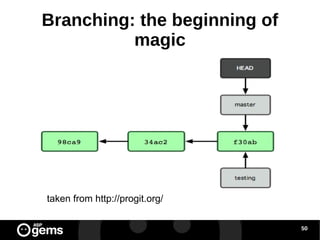
Branching: the beginning of magic Hey! But somehow I have to know wich branch I am at, aren't I???
Branching: the beginning of magic taken from http://progit.org/
Branching: the beginning of magic git checkout testing
Branching: the beginning of magic taken from http://progit.org/
Branching: the beginning of magic Very pretty... but... how the hell is this supposed to be useful???
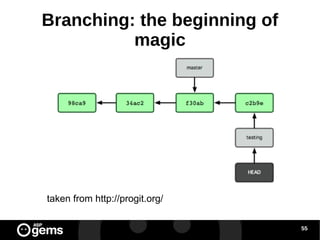
Branching: the beginning of magic touch newfile.txt git commit -a -m 'new file'
Branching: the beginning of magic taken from http://progit.org/
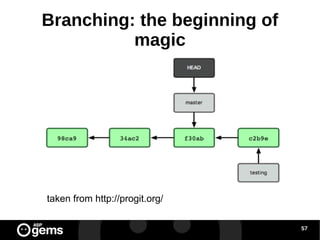
Branching: the beginning of magic git checkout master
Branching: the beginning of magic taken from http://progit.org/
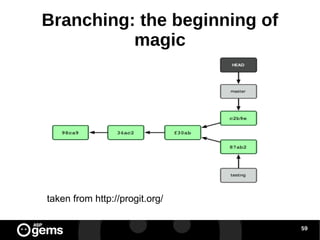
Branching: the beginning of magic touch another_file.txt git commit -a -m 'another new file in master branch'
Branching: the beginning of magic taken from http://progit.org/
Workflows Scenario 4: working with branches
Scenario 4: Context You are working on a new story, comfortably and peacefully when suddenly you receive a call –  OMG! and you are told that it is urgent - but surely not important - to fix some bug in the application (e.g: to change some text which only appears in that last screen of your app)
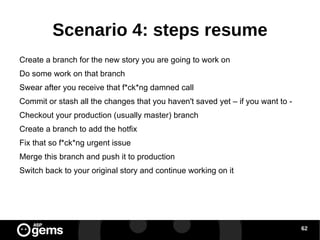
Scenario 4: steps resume Create a branch for the new story you are going to work on
Do some work on that branch
Swear after you receive that f*ck*ng damned call
Commit or stash all the changes that you haven't saved yet – if you want to -
Checkout your production (usually master) branch
Create a branch to add the hotfix
Fix that so f*ck*ng urgent issue
Merge this branch and push it to production
Switch back to your original story and continue working on it
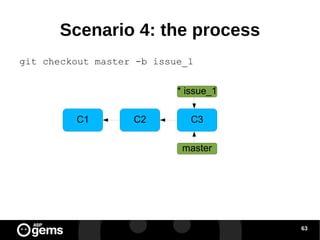
Scenario 4: the process git checkout master -b issue_1 C1 C3 C2 master * issue_1
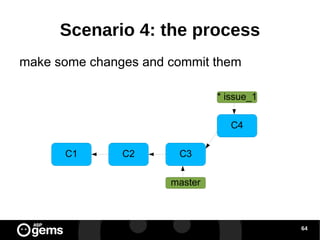
Scenario 4: the process make some changes and commit them C1 C3 C2 master * issue_1 C4
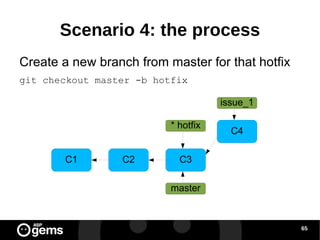
Scenario 4: the process Create a new branch from master for that hotfix git checkout master -b hotfix C1 C3 C2 master issue_1 C4 * hotfix
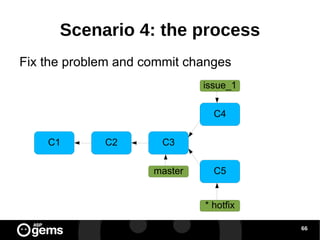
Scenario 4: the process Fix the problem and commit changes C1 C3 C2 master issue_1 C4 * hotfix C5
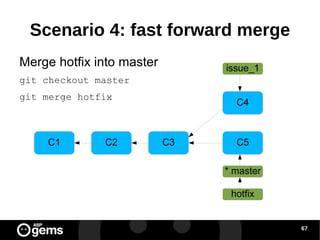
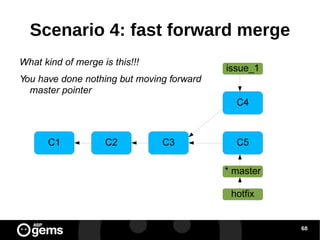
Scenario 4: fast forward merge Merge hotfix into master git checkout master git merge hotfix C1 C3 C2 * master issue_1 C4 hotfix C5
Scenario 4: fast forward merge What kind of merge is this!!! You have done nothing but moving forward master pointer C1 C3 C2 * master issue_1 C4 hotfix C5
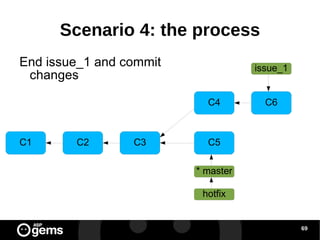
Scenario 4: the process End issue_1 and commit changes C1 C3 C2 * master issue_1 C4 hotfix C5 C6
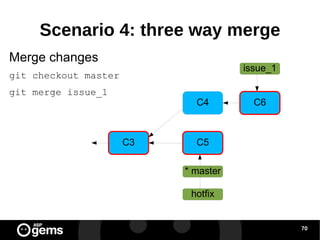
Scenario 4: three way merge Merge changes git checkout master git merge issue_1 C3 issue_1 C4 hotfix C5 C6 * master
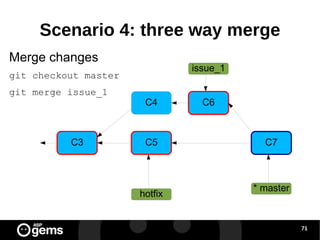
Scenario 4: three way merge Merge changes git checkout master git merge issue_1 C3 * master issue_1 C4 hotfix C5 C6 C7
Scenario 4: merge conflicts If there are merge conflicts you have to solve them manually. Once you have resolved them, you can set these files as merged with git add <filename> git commit
Scenario 4: branch management git branch  lists branches git branch -v  lists branches with their last commit git branch --merged  lists merged branches git branch --no-merged  lists unmerged branches git branch -d <branchname>  deletes merged branch (-D for unmerged branches)
Branching workflows
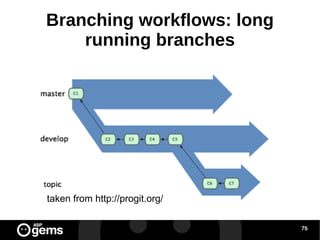
Branching workflows: long running branches taken from http://progit.org/
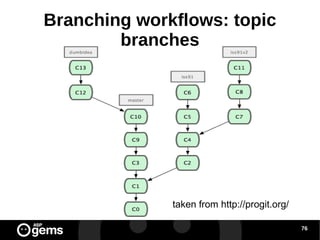
Branching workflows: topic branches taken from http://progit.org/
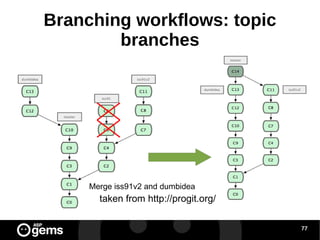
Branching workflows: topic branches Merge iss91v2 and dumbidea taken from http://progit.org/
Remote branches References to the state of branches on your remote repos They are local branches which you can not move. They are moved automatically whenever you do any network communication
Pushing branches git push <remote> <branch> [:server_branch_name] git push origin my_local_branch:server_branch
Deleting remote branches git push origin :branch_to_be_deleted It's like git push origin (nothing):branch_to_be_deleted
Tracking branches Checking out a remote branch, will create a tracking branch. With tracking branches you can call git push git pull without remote or branches names When you clone a repo, a local branch “master” is created, which tracks origin/master
Rebasing
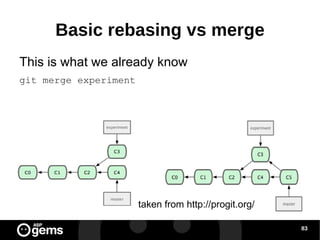
Basic rebasing vs merge This is what we already know git merge experiment taken from http://progit.org/
Basic rebasing vs merge And this is rebasing git rebase master experiment   or... git checkout experiment git rebase master
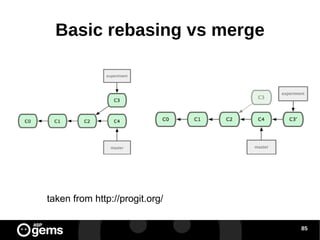
Basic rebasing vs merge taken from http://progit.org/
Basic rebasing vs merge It gets the diffs introduced by each commit of the branch you're on. It saves those diffs to temporary files It resets the current branch to the common ancestor with the branch you are rebasing onto It applies these changes and creates a new commit
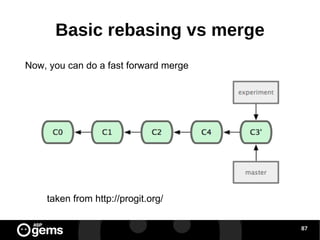
Basic rebasing vs merge Now, you can do a fast forward merge taken from http://progit.org/
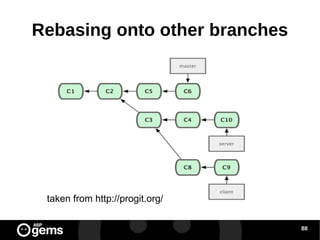
Rebasing onto other branches taken from http://progit.org/
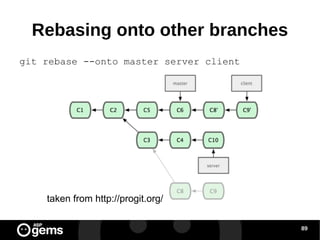
Rebasing onto other branches git rebase --onto master server client taken from http://progit.org/
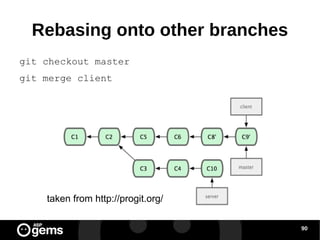
Rebasing onto other branches git checkout master git merge client taken from http://progit.org/
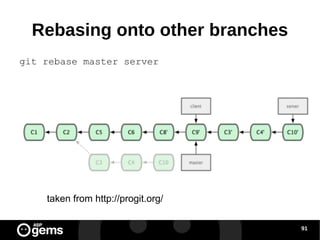
Rebasing onto other branches git rebase master server taken from http://progit.org/
Rebasing or not rebasing? Be very careful when rebasing commits published in a public repository... …you could be killed by other developers
Rebasing or not rebasing? taken from http://progit.org/
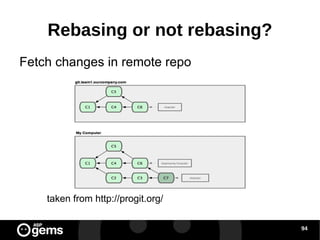
Rebasing or not rebasing? Fetch changes in remote repo taken from http://progit.org/
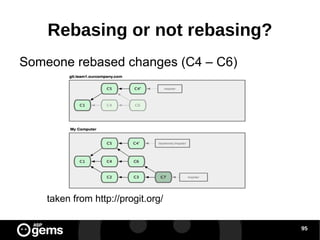
Rebasing or not rebasing? Someone rebased changes (C4 – C6) taken from http://progit.org/
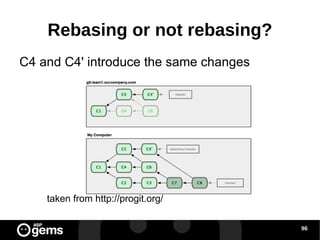
Rebasing or not rebasing? C4 and C4' introduce the same changes taken from http://progit.org/
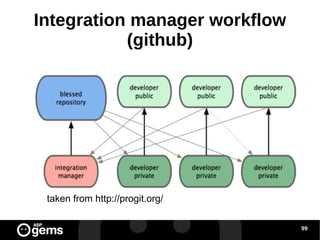
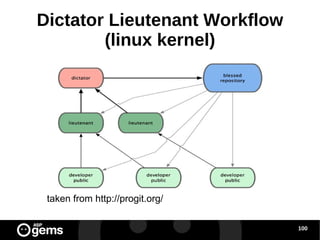
DISTRIBUTED WORKFLOWS
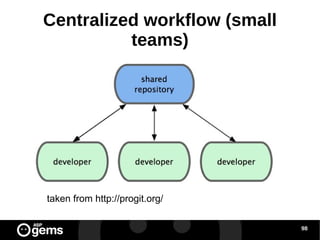
Centralized workflow (small teams) taken from http://progit.org/

How to use git without rage

  • 1.
    Xx de enerode 2010 Use git without rage
  • 2.
    “VCS should bea subject in informatics” Heared about VCS
  • 3.
    “ We useVCS as if we were trained monkeys” Heared about VCS
  • 4.
    Types of VCSLVCS (Localized VCS) CVCS (Centralized VCS) DVCS (Distributed VCS)
  • 5.
    LVCS cp -rproject projectB
  • 6.
  • 7.
  • 8.
  • 9.
  • 10.
  • 11.
  • 12.
    First-time git setupThree places System: git config --system (/etc/gitconfig)
  • 13.
    Global: git config--global (~/.gitconfig)
  • 14.
    Local: git config(cwd) git config [--system | --local] property value
  • 15.
    git config --globaluser.name 'wadus'
  • 16.
  • 17.
    File status cycleuntracked staged modified unmodified git add edit git add git commit git commit -a
  • 18.
    Workflows Scenario 1:Creating a repository from the beginnig and working with it (with no rage)
  • 19.
    Scenario 1: creatingthe repository git init (from directory project) Pffffff... this was hard!!!!
  • 20.
    Workflows -Scenario 1:edit some files Edit and/or create some files for your project this is what developing is about in last term, isn't it?
  • 21.
    Workflows -Scenario 1:commiting changes So, now you want to commit changes, but first... some advices for those who are used to working with CSCVs such as svn or cvs 100.times do puts “I will think in local terms, 'cos I am not working with remotes (yet)” end
  • 22.
    Workflows - Scenario1: adding files to the staging area git status git add <file> -> add files to staging area (either new or modified files) Wow!!! I could not have imagined it!!!!
  • 23.
    Workflows – Scenario1: Removing files from the staging area Damn it!!! I staged some files I didn't have to git reset HEAD <file> Phewwww!!!!
  • 24.
    Workflows – Scenario1: What am I about to commit? Ok, I want to commit my changes, but which files I am about to commit? git status git diff (for unstaged files) git diff --cached (for staged files)
  • 25.
    Workflows – Scenario1: Let's commit!!! git commit -> it will commit all the files in staging area git commit <filename> -> it will commit named files git commit -a -> it will commit all modified files skipping the staging area for those which are not staged
  • 26.
    Workflows – Scenario1: deleting files rm <filename> removes file manually git rm <filename> stages deletion ...or... git rm <filename> will do both things
  • 27.
    Workflows – Scenario1: undeleting files git status will give you clues if deletion is in the staging area git reset HEAD <filename> if deletion is not in the staging area git checkout <filename>
  • 28.
    Workflows – Scenario1: moving files mv filename filename2 git rm filename git add filename2 ...or... git mv filename filename2
  • 29.
    Workfows- Scenario 1:undoing things git commit --amend will modify last commit git commit “ OMG, WTF, damn it!!! I forgot to add a file” git add damned_file git commit --ammend “ commit --amend FTW!!!”
  • 30.
    Workfows- Scenario 1:undoing things (ii) Unstaging a staged file git reset HEAD filename Unmodify a modified and unstaged file git checkout filename
  • 31.
    Workflows Scenario 2:working with remotes
  • 32.
    Workfows- Scenario 2:adding a remote So I want to work with another repo... git remote add [shortname] [url] git remote add origin your_url Now I finally understand what I've been doing with github all this time!!!
  • 33.
    Workfows- Scenario 2:showing your remotes If you want to know which repos you are working with: git remote git remote -v
  • 34.
    Workfows- Scenario 2:fetching and pulling To get data from your remotes git fetch [remote-name] git pull [remote-name] fetch or pull??? pull = fetch + merge
  • 35.
    Workfows- Scenario 2:pushing If you want to share your data: git push [remote-name] [branch]
  • 36.
    Workfows- Scenario 2:inspecting a remote git remote show [remote-name] Look at the “Local ref configured for git push” Local refs configured for 'git push': master pushes to master (local out of date) test pushes to test (up to date)
  • 37.
    Workfows- Scenario 2:removing and renaming remotes git remote rename [original-name] [new-name] git remote rm [remote-name] This changes take effect on your LOCAL repo (remember: local, local, local)
  • 38.
  • 39.
    Workfows- Scenario 3:listing tags git tag
  • 40.
    Workfows- Scenario 3:tag types 2 types of tags: lightweight and annotated Lightweight: It is like a branch that doesn't change, a pointer to a specific commit Annotated: These are stored as full objects. Checksumed and metadata are included
  • 41.
    Workfows- Scenario 3:Creating and showing tags Annotated: git tag -a [tag] Lightweight: git tag [tag] git show [tag]
  • 42.
    Workfows- Scenario 3:Creating tags later git tag -a <tag> <(part of) checksum of the commit>
  • 43.
    Workfows- Scenario 3:Sharing tags When pushing, you do not share tags git push origin [tagname] Hey! This is like sharing branches... git push origin --tags shares all the tags
  • 44.
    Branching: the beginningof magic Please, keep on thinking in local... or I will send @pacoguzman to kill you!!!
  • 45.
    Branching: the beginningof magic Let's do some review... git add README test.rb LICENSE git commit -m 'initial commit of my project' How is this commit stored?
  • 46.
    Branching: the beginningof magic taken from http://progit.org/
  • 47.
    Branching: the beginningof magic Let's assume we keep on doing some commits
  • 48.
    Branching: the beginningof magic taken from http://progit.org/
  • 49.
    Branching: the beginningof magic I thought we were going to talk about branches, you son of the bit!!!
  • 50.
    Branching: the beginningof magic I thought we were going to talk about branches, you son of the bit !!! A very bad geek joke
  • 51.
    Branching: the beginningof magic Branch: A movable pointer to one of these commits. Do you smell it??? Yeah! And it seems that it's going to taste even better!
  • 52.
    Branching: the beginningof magic taken from http://progit.org/
  • 53.
    Branching: the beginningof magic So... let's imagine we want to make a new branch: git branch testing
  • 54.
    Branching: the beginningof magic taken from http://progit.org/
  • 55.
    Branching: the beginningof magic Hey! But somehow I have to know wich branch I am at, aren't I???
  • 56.
    Branching: the beginningof magic taken from http://progit.org/
  • 57.
    Branching: the beginningof magic git checkout testing
  • 58.
    Branching: the beginningof magic taken from http://progit.org/
  • 59.
    Branching: the beginningof magic Very pretty... but... how the hell is this supposed to be useful???
  • 60.
    Branching: the beginningof magic touch newfile.txt git commit -a -m 'new file'
  • 61.
    Branching: the beginningof magic taken from http://progit.org/
  • 62.
    Branching: the beginningof magic git checkout master
  • 63.
    Branching: the beginningof magic taken from http://progit.org/
  • 64.
    Branching: the beginningof magic touch another_file.txt git commit -a -m 'another new file in master branch'
  • 65.
    Branching: the beginningof magic taken from http://progit.org/
  • 66.
    Workflows Scenario 4:working with branches
  • 67.
    Scenario 4: ContextYou are working on a new story, comfortably and peacefully when suddenly you receive a call – OMG! and you are told that it is urgent - but surely not important - to fix some bug in the application (e.g: to change some text which only appears in that last screen of your app)
  • 68.
    Scenario 4: stepsresume Create a branch for the new story you are going to work on
  • 69.
    Do some workon that branch
  • 70.
    Swear after youreceive that f*ck*ng damned call
  • 71.
    Commit or stashall the changes that you haven't saved yet – if you want to -
  • 72.
    Checkout your production(usually master) branch
  • 73.
    Create a branchto add the hotfix
  • 74.
    Fix that sof*ck*ng urgent issue
  • 75.
    Merge this branchand push it to production
  • 76.
    Switch back toyour original story and continue working on it
  • 77.
    Scenario 4: theprocess git checkout master -b issue_1 C1 C3 C2 master * issue_1
  • 78.
    Scenario 4: theprocess make some changes and commit them C1 C3 C2 master * issue_1 C4
  • 79.
    Scenario 4: theprocess Create a new branch from master for that hotfix git checkout master -b hotfix C1 C3 C2 master issue_1 C4 * hotfix
  • 80.
    Scenario 4: theprocess Fix the problem and commit changes C1 C3 C2 master issue_1 C4 * hotfix C5
  • 81.
    Scenario 4: fastforward merge Merge hotfix into master git checkout master git merge hotfix C1 C3 C2 * master issue_1 C4 hotfix C5
  • 82.
    Scenario 4: fastforward merge What kind of merge is this!!! You have done nothing but moving forward master pointer C1 C3 C2 * master issue_1 C4 hotfix C5
  • 83.
    Scenario 4: theprocess End issue_1 and commit changes C1 C3 C2 * master issue_1 C4 hotfix C5 C6
  • 84.
    Scenario 4: threeway merge Merge changes git checkout master git merge issue_1 C3 issue_1 C4 hotfix C5 C6 * master
  • 85.
    Scenario 4: threeway merge Merge changes git checkout master git merge issue_1 C3 * master issue_1 C4 hotfix C5 C6 C7
  • 86.
    Scenario 4: mergeconflicts If there are merge conflicts you have to solve them manually. Once you have resolved them, you can set these files as merged with git add <filename> git commit
  • 87.
    Scenario 4: branchmanagement git branch lists branches git branch -v lists branches with their last commit git branch --merged lists merged branches git branch --no-merged lists unmerged branches git branch -d <branchname> deletes merged branch (-D for unmerged branches)
  • 88.
  • 89.
    Branching workflows: longrunning branches taken from http://progit.org/
  • 90.
    Branching workflows: topicbranches taken from http://progit.org/
  • 91.
    Branching workflows: topicbranches Merge iss91v2 and dumbidea taken from http://progit.org/
  • 92.
    Remote branches Referencesto the state of branches on your remote repos They are local branches which you can not move. They are moved automatically whenever you do any network communication
  • 93.
    Pushing branches gitpush <remote> <branch> [:server_branch_name] git push origin my_local_branch:server_branch
  • 94.
    Deleting remote branchesgit push origin :branch_to_be_deleted It's like git push origin (nothing):branch_to_be_deleted
  • 95.
    Tracking branches Checkingout a remote branch, will create a tracking branch. With tracking branches you can call git push git pull without remote or branches names When you clone a repo, a local branch “master” is created, which tracks origin/master
  • 96.
  • 97.
    Basic rebasing vsmerge This is what we already know git merge experiment taken from http://progit.org/
  • 98.
    Basic rebasing vsmerge And this is rebasing git rebase master experiment or... git checkout experiment git rebase master
  • 99.
    Basic rebasing vsmerge taken from http://progit.org/
  • 100.
    Basic rebasing vsmerge It gets the diffs introduced by each commit of the branch you're on. It saves those diffs to temporary files It resets the current branch to the common ancestor with the branch you are rebasing onto It applies these changes and creates a new commit
  • 101.
    Basic rebasing vsmerge Now, you can do a fast forward merge taken from http://progit.org/
  • 102.
    Rebasing onto otherbranches taken from http://progit.org/
  • 103.
    Rebasing onto otherbranches git rebase --onto master server client taken from http://progit.org/
  • 104.
    Rebasing onto otherbranches git checkout master git merge client taken from http://progit.org/
  • 105.
    Rebasing onto otherbranches git rebase master server taken from http://progit.org/
  • 106.
    Rebasing or notrebasing? Be very careful when rebasing commits published in a public repository... …you could be killed by other developers
  • 107.
    Rebasing or notrebasing? taken from http://progit.org/
  • 108.
    Rebasing or notrebasing? Fetch changes in remote repo taken from http://progit.org/
  • 109.
    Rebasing or notrebasing? Someone rebased changes (C4 – C6) taken from http://progit.org/
  • 110.
    Rebasing or notrebasing? C4 and C4' introduce the same changes taken from http://progit.org/
  • 111.
  • 112.
    Centralized workflow (smallteams) taken from http://progit.org/