How to set up Android Development Environment?
Prepared by
Muhammad Haris NP
haris.np@gmail.com
in.linkedin.com/in/harisnp/
Setups Required
1. java run time 32bit /64 Bit – It can be downloaded from
http://www.java.com/en/download/index.jsp . It is provided in the baabtra Android
Workshop Kit 1.0
2. Download android SDK from the site. http://developer.android.com/sdk/index.html . You
need to find out whether you are using 32 Bit OS or 64 Bit OS*
. Please note that the usuall
size is more than 2 GB. You can keep the Android SDK in any folder you need. The version
until Android 2.3 is given with the baabtra Android Workshop Kit 1.0
3. Download Eclipse http://www.eclipse.org/downloads/packages/release/juno/sr1 . It is
better to download Juno as it will support the latest versions of Android SDK. You don’t have
to install Eclipse. It is provided in the Android Workshop Kit 1.0. The plug in for Android is
also pre-installed in the baabtra Android Workshop Kit 1.0.
Steps to be followed once all the setup is ready:
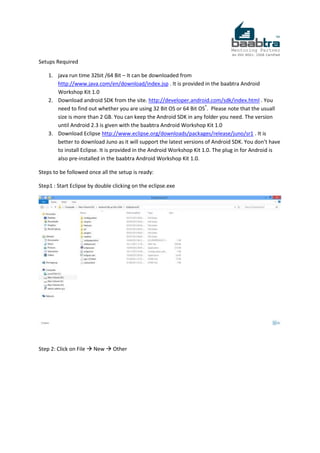
Step1 : Start Eclipse by double clicking on the eclipse.exe
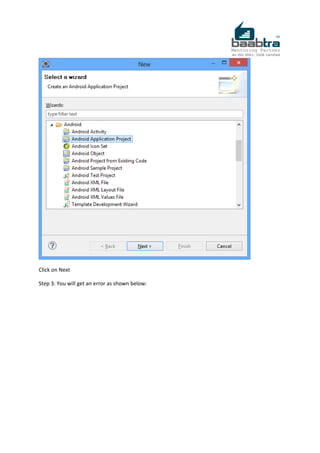
Step 2: Click on File  New  Other
Click on Next
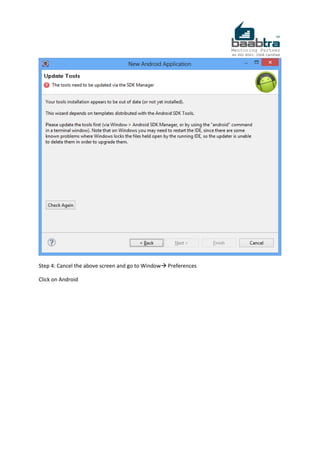
Step 3: You will get an error as shown below:
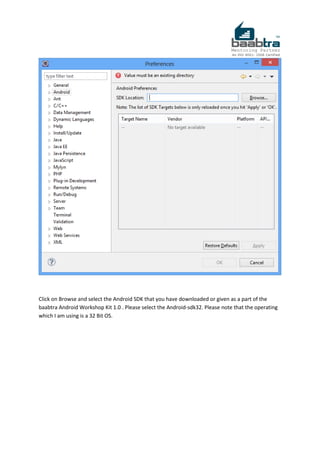
Step 4: Cancel the above screen and go to Window Preferences
Click on Android
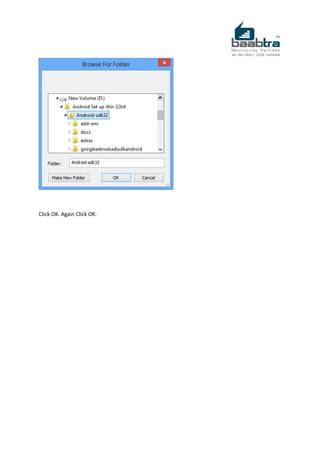
Click on Browse and select the Android SDK that you have downloaded or given as a part of the
baabtra Android Workshop Kit 1.0 . Please select the Android-sdk32. Please note that the operating
which I am using is a 32 Bit OS.
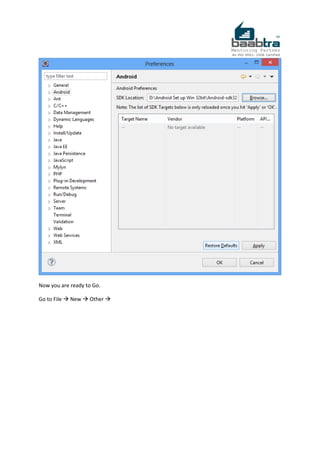
Click OK. Again Click OK.
Now you are ready to Go.
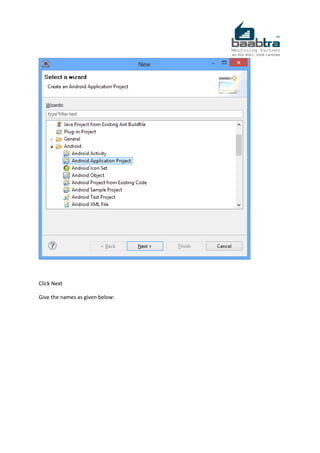
Go to File  New  Other 
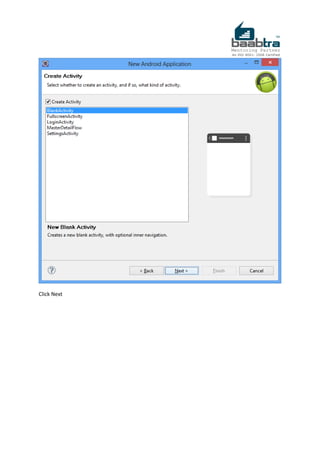
Click Next
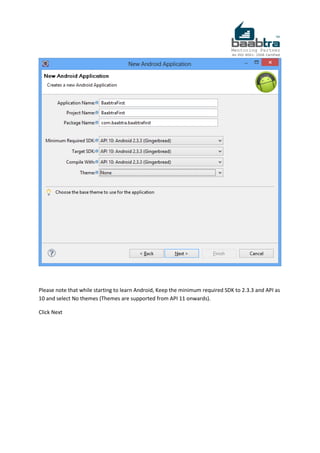
Give the names as given below:
Please note that while starting to learn Android, Keep the minimum required SDK to 2.3.3 and API as
10 and select No themes (Themes are supported from API 11 onwards).
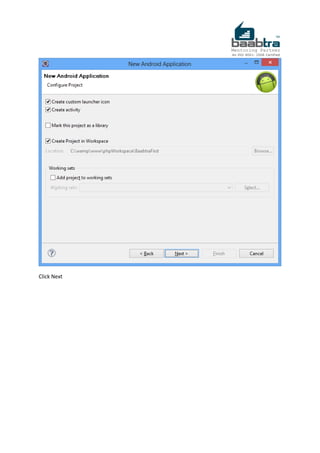
Click Next
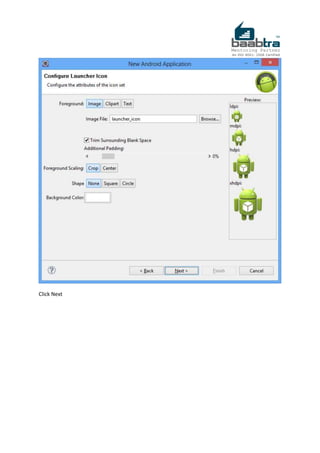
Click Next
Click Next
Click Next
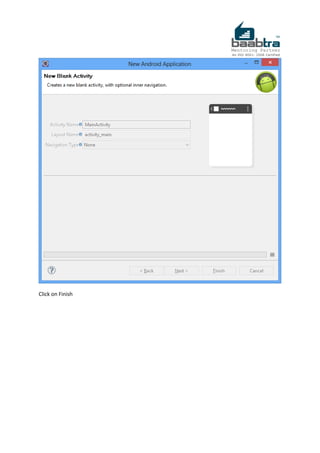
Click on Finish
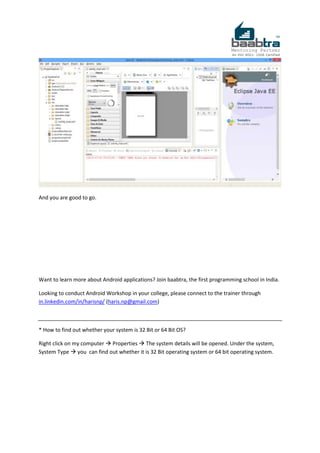
And you are good to go.
Want to learn more about Android applications? Join baabtra, the first programming school in India.
Looking to conduct Android Workshop in your college, please connect to the trainer through
in.linkedin.com/in/harisnp/ (haris.np@gmail.com)
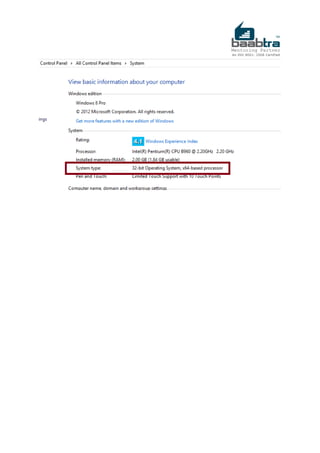
* How to find out whether your system is 32 Bit or 64 Bit OS?
Right click on my computer  Properties  The system details will be opened. Under the system,
System Type  you can find out whether it is 32 Bit operating system or 64 bit operating system.
How to setup android development environment baabtra Android Workshop Kit?

How to setup android development environment baabtra Android Workshop Kit?

  • 1.
    How to setup Android Development Environment? Prepared by Muhammad Haris NP haris.np@gmail.com in.linkedin.com/in/harisnp/
  • 2.
    Setups Required 1. javarun time 32bit /64 Bit – It can be downloaded from http://www.java.com/en/download/index.jsp . It is provided in the baabtra Android Workshop Kit 1.0 2. Download android SDK from the site. http://developer.android.com/sdk/index.html . You need to find out whether you are using 32 Bit OS or 64 Bit OS* . Please note that the usuall size is more than 2 GB. You can keep the Android SDK in any folder you need. The version until Android 2.3 is given with the baabtra Android Workshop Kit 1.0 3. Download Eclipse http://www.eclipse.org/downloads/packages/release/juno/sr1 . It is better to download Juno as it will support the latest versions of Android SDK. You don’t have to install Eclipse. It is provided in the Android Workshop Kit 1.0. The plug in for Android is also pre-installed in the baabtra Android Workshop Kit 1.0. Steps to be followed once all the setup is ready: Step1 : Start Eclipse by double clicking on the eclipse.exe Step 2: Click on File  New  Other
  • 3.
    Click on Next Step3: You will get an error as shown below:
  • 4.
    Step 4: Cancelthe above screen and go to Window Preferences Click on Android
  • 5.
    Click on Browseand select the Android SDK that you have downloaded or given as a part of the baabtra Android Workshop Kit 1.0 . Please select the Android-sdk32. Please note that the operating which I am using is a 32 Bit OS.
  • 6.
    Click OK. AgainClick OK.
  • 7.
    Now you areready to Go. Go to File  New  Other 
  • 8.
    Click Next Give thenames as given below:
  • 9.
    Please note thatwhile starting to learn Android, Keep the minimum required SDK to 2.3.3 and API as 10 and select No themes (Themes are supported from API 11 onwards). Click Next
  • 10.
  • 11.
  • 12.
  • 13.
  • 14.
    And you aregood to go. Want to learn more about Android applications? Join baabtra, the first programming school in India. Looking to conduct Android Workshop in your college, please connect to the trainer through in.linkedin.com/in/harisnp/ (haris.np@gmail.com) * How to find out whether your system is 32 Bit or 64 Bit OS? Right click on my computer  Properties  The system details will be opened. Under the system, System Type  you can find out whether it is 32 Bit operating system or 64 bit operating system.