Why is it so difficult for most business
professionals to break away from the
standard bullet point lists and basic
graphs in their presentations?
I think there are four main reasons.
Second, they don’t
have a process to
use when selecting a
visual. They often
ask, “Which visual
should I use?”
Finally, they think they need to be a designer
or graphic artist to create effective visuals.
You don’t need to be an artist
What you do need is:
1. A process that you can follow
2. A library of visuals to select from, and
3. The skills to create the visuals using
the tools you already use.
How do I know this will work?
Because it has worked for me.
My name is Dave Paradi, and I am a
presentation expert. I have authored
seven books and I am one of only
thirteen people in North America
recognized by Microsoft with the
PowerPoint Most Valuable Professional
Award. I don’t have a design
background. I have a degree in
Chemical Engineering and an MBA.
Over the last 15 years I have figured out
how business professionals like you and
I can create effective visuals for our
presentations. They may not be as
fancy as a high end designer, but they
effectively communicate the important
messages we are presenting. And that
is what matters most.
Let me share what I have learned.
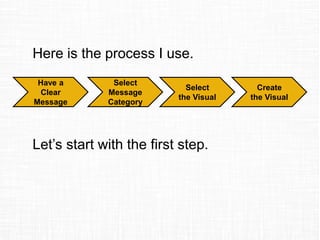
Here is the process I use.
Have a
Clear
Message
Select
Message
Category
Select
the Visual
Create
the Visual
Let’s start with the first step.
You must be clear on the
message you want the
audience to understand from
this slide. Without clarity, the
next steps won’t work.
Write a headline for the slide,
like a newspaper writes a
headline for an article.
Keep it to one single message.
If you have multiple messages,
create multiple slides.
Now comes the tough part for most
business professionals.
Selecting the visual.
I start by selecting which category of
message I am communicating.
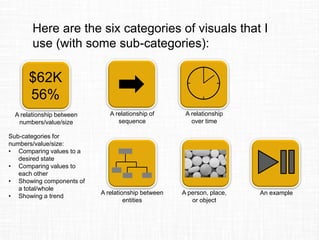
Here are the six categories of visuals that I
use (with some sub-categories):
$62K
56%
A relationship between
numbers/value/size
A relationship of
sequence
A relationship
over time
A relationship between
entities
A person, place,
or object
An example
Sub-categories for
numbers/value/size:
• Comparing values to a
desired state
• Comparing values to
each other
• Showing components of
a total/whole
• Showing a trend
Use the previous breakdown to
determine which category your
message falls into.
Now I’ll show you some visuals for each
category and some tips on creating
those visuals.
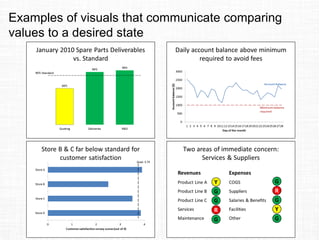
Examples of visuals that communicate comparing
values to a desired state
Tips & techniques for creating visuals that
communicate comparing values to a desired state
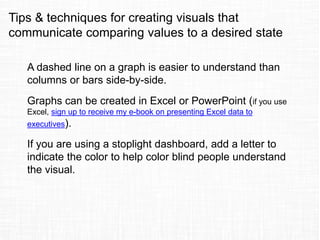
A dashed line on a graph is easier to understand than
columns or bars side-by-side.
Graphs can be created in Excel or PowerPoint (if you use
Excel, sign up to receive my e-book on presenting Excel data to
executives).
If you are using a stoplight dashboard, add a letter to
indicate the color to help color blind people understand
the visual.
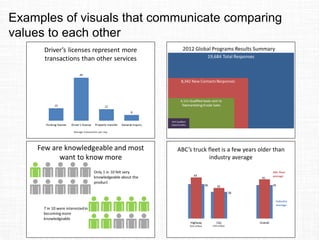
Examples of visuals that communicate comparing
values to each other
Tips & techniques for creating visuals that
communicate comparing values to each other
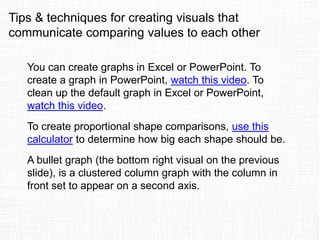
You can create graphs in Excel or PowerPoint. To
create a graph in PowerPoint, watch this video. To
clean up the default graph in Excel or PowerPoint,
watch this video.
To create proportional shape comparisons, use this
calculator to determine how big each shape should be.
A bullet graph (the bottom right visual on the previous
slide), is a clustered column graph with the column in
front set to appear on a second axis.
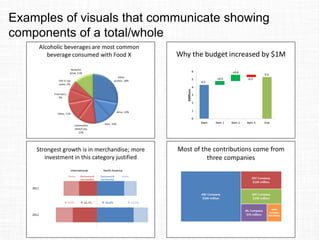
Examples of visuals that communicate showing
components of a total/whole
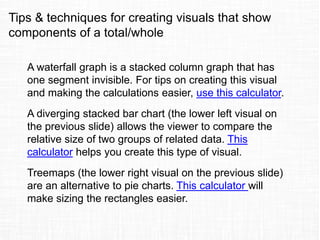
Tips & techniques for creating visuals that show
components of a total/whole
A waterfall graph is a stacked column graph that has
one segment invisible. For tips on creating this visual
and making the calculations easier, use this calculator.
A diverging stacked bar chart (the lower left visual on
the previous slide) allows the viewer to compare the
relative size of two groups of related data. This
calculator helps you create this type of visual.
Treemaps (the lower right visual on the previous slide)
are an alternative to pie charts. This calculator will
make sizing the rectangles easier.
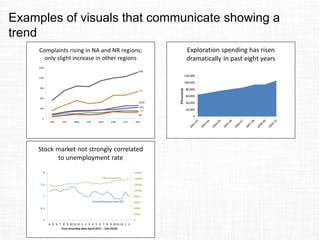
Examples of visuals that communicate showing a
trend
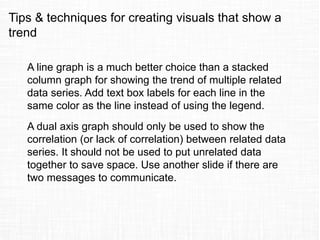
Tips & techniques for creating visuals that show a
trend
A line graph is a much better choice than a stacked
column graph for showing the trend of multiple related
data series. Add text box labels for each line in the
same color as the line instead of using the legend.
A dual axis graph should only be used to show the
correlation (or lack of correlation) between related data
series. It should not be used to put unrelated data
together to save space. Use another slide if there are
two messages to communicate.
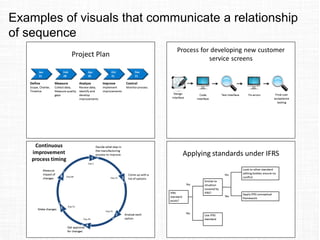
Examples of visuals that communicate a relationship
of sequence
Tips & techniques for creating visuals that
communicate a relationship of sequence
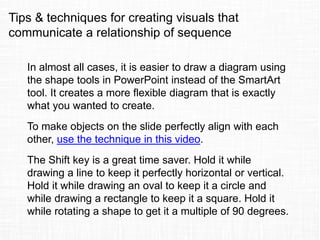
In almost all cases, it is easier to draw a diagram using
the shape tools in PowerPoint instead of the SmartArt
tool. It creates a more flexible diagram that is exactly
what you wanted to create.
To make objects on the slide perfectly align with each
other, use the technique in this video.
The Shift key is a great time saver. Hold it while
drawing a line to keep it perfectly horizontal or vertical.
Hold it while drawing an oval to keep it a circle and
while drawing a rectangle to keep it a square. Hold it
while rotating a shape to get it a multiple of 90 degrees.
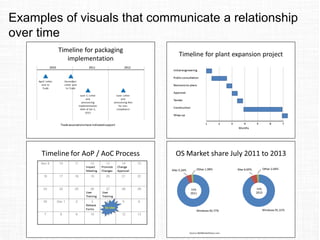
Examples of visuals that communicate a relationship
over time
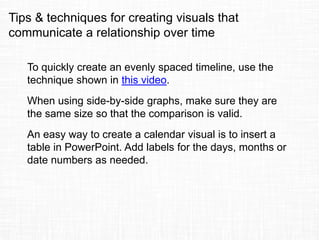
Tips & techniques for creating visuals that
communicate a relationship over time
To quickly create an evenly spaced timeline, use the
technique shown in this video.
When using side-by-side graphs, make sure they are
the same size so that the comparison is valid.
An easy way to create a calendar visual is to insert a
table in PowerPoint. Add labels for the days, months or
date numbers as needed.
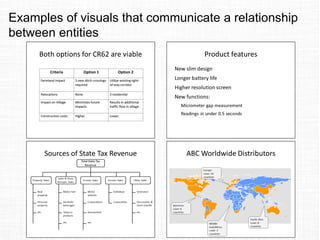
Examples of visuals that communicate a relationship
between entities
Tips & techniques for creating visuals that
communicate a relationship between entities
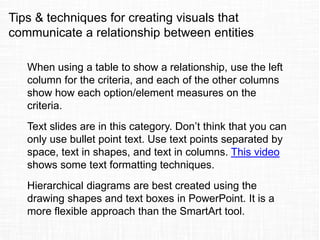
When using a table to show a relationship, use the left
column for the criteria, and each of the other columns
show how each option/element measures on the
criteria.
Text slides are in this category. Don’t think that you can
only use bullet point text. Use text points separated by
space, text in shapes, and text in columns. This video
shows some text formatting techniques.
Hierarchical diagrams are best created using the
drawing shapes and text boxes in PowerPoint. It is a
more flexible approach than the SmartArt tool.
Examples of visuals that communicate a person,
place, or object
Tips & techniques for creating visuals that
communicate a person, place, or object
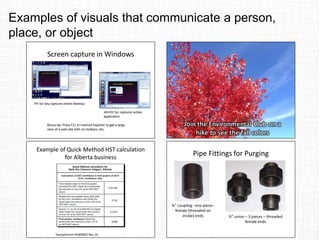
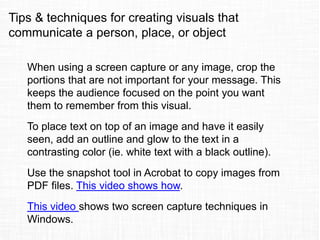
When using a screen capture or any image, crop the
portions that are not important for your message. This
keeps the audience focused on the point you want
them to remember from this visual.
To place text on top of an image and have it easily
seen, add an outline and glow to the text in a
contrasting color (ie. white text with a black outline).
Use the snapshot tool in Acrobat to copy images from
PDF files. This video shows how.
This video shows two screen capture techniques in
Windows.
Examples of visuals that communicate an example
Tips & techniques for creating visuals that
communicate an example
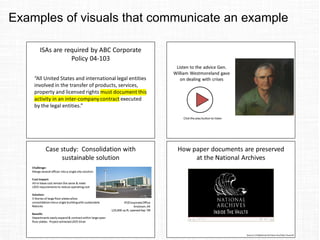
To highlight text in a quote, use the technique in this
video.
When using audio or video clips, make sure they are
short (30 seconds or less), of good quality, and are
edited to only provide support for the one point you are
making on this slide.
Case studies should have four parts: the problem that
was faced, what it was costing, the solution that was
implemented, and what benefit the solution brought.
Hopefully I just increased your visual
inventory with the examples in the
previous slides.
You also have tips for creating these
visuals and links to videos or other
resources to help when creating the
visuals.
Update May 2015: Since
creating this SlideShare, I
have further developed all of
these ideas and they are the
basis for my new book, Select
Effective Visuals: The
Business Professional’s
Guide to Selecting &
Creating Effective
Presentation Visuals. Learn
more on my website here.
©2014 Dave Paradi
Thanks for viewing this
slide deck.
Share it with others on
social media, like it on
SlideShare, and use it to
improve your
presentations.

How to select and create an effective visual for your business presentation

  • 2.
    Why is itso difficult for most business professionals to break away from the standard bullet point lists and basic graphs in their presentations? I think there are four main reasons.
  • 4.
    Second, they don’t havea process to use when selecting a visual. They often ask, “Which visual should I use?”
  • 6.
    Finally, they thinkthey need to be a designer or graphic artist to create effective visuals.
  • 7.
    You don’t needto be an artist What you do need is: 1. A process that you can follow 2. A library of visuals to select from, and 3. The skills to create the visuals using the tools you already use.
  • 8.
    How do Iknow this will work? Because it has worked for me. My name is Dave Paradi, and I am a presentation expert. I have authored seven books and I am one of only thirteen people in North America recognized by Microsoft with the PowerPoint Most Valuable Professional Award. I don’t have a design background. I have a degree in Chemical Engineering and an MBA.
  • 9.
    Over the last15 years I have figured out how business professionals like you and I can create effective visuals for our presentations. They may not be as fancy as a high end designer, but they effectively communicate the important messages we are presenting. And that is what matters most. Let me share what I have learned.
  • 10.
    Here is theprocess I use. Have a Clear Message Select Message Category Select the Visual Create the Visual Let’s start with the first step.
  • 11.
    You must beclear on the message you want the audience to understand from this slide. Without clarity, the next steps won’t work. Write a headline for the slide, like a newspaper writes a headline for an article. Keep it to one single message. If you have multiple messages, create multiple slides.
  • 12.
    Now comes thetough part for most business professionals. Selecting the visual. I start by selecting which category of message I am communicating.
  • 13.
    Here are thesix categories of visuals that I use (with some sub-categories): $62K 56% A relationship between numbers/value/size A relationship of sequence A relationship over time A relationship between entities A person, place, or object An example Sub-categories for numbers/value/size: • Comparing values to a desired state • Comparing values to each other • Showing components of a total/whole • Showing a trend
  • 14.
    Use the previousbreakdown to determine which category your message falls into. Now I’ll show you some visuals for each category and some tips on creating those visuals.
  • 15.
    Examples of visualsthat communicate comparing values to a desired state
  • 16.
    Tips & techniquesfor creating visuals that communicate comparing values to a desired state A dashed line on a graph is easier to understand than columns or bars side-by-side. Graphs can be created in Excel or PowerPoint (if you use Excel, sign up to receive my e-book on presenting Excel data to executives). If you are using a stoplight dashboard, add a letter to indicate the color to help color blind people understand the visual.
  • 17.
    Examples of visualsthat communicate comparing values to each other
  • 18.
    Tips & techniquesfor creating visuals that communicate comparing values to each other You can create graphs in Excel or PowerPoint. To create a graph in PowerPoint, watch this video. To clean up the default graph in Excel or PowerPoint, watch this video. To create proportional shape comparisons, use this calculator to determine how big each shape should be. A bullet graph (the bottom right visual on the previous slide), is a clustered column graph with the column in front set to appear on a second axis.
  • 19.
    Examples of visualsthat communicate showing components of a total/whole
  • 20.
    Tips & techniquesfor creating visuals that show components of a total/whole A waterfall graph is a stacked column graph that has one segment invisible. For tips on creating this visual and making the calculations easier, use this calculator. A diverging stacked bar chart (the lower left visual on the previous slide) allows the viewer to compare the relative size of two groups of related data. This calculator helps you create this type of visual. Treemaps (the lower right visual on the previous slide) are an alternative to pie charts. This calculator will make sizing the rectangles easier.
  • 21.
    Examples of visualsthat communicate showing a trend
  • 22.
    Tips & techniquesfor creating visuals that show a trend A line graph is a much better choice than a stacked column graph for showing the trend of multiple related data series. Add text box labels for each line in the same color as the line instead of using the legend. A dual axis graph should only be used to show the correlation (or lack of correlation) between related data series. It should not be used to put unrelated data together to save space. Use another slide if there are two messages to communicate.
  • 23.
    Examples of visualsthat communicate a relationship of sequence
  • 24.
    Tips & techniquesfor creating visuals that communicate a relationship of sequence In almost all cases, it is easier to draw a diagram using the shape tools in PowerPoint instead of the SmartArt tool. It creates a more flexible diagram that is exactly what you wanted to create. To make objects on the slide perfectly align with each other, use the technique in this video. The Shift key is a great time saver. Hold it while drawing a line to keep it perfectly horizontal or vertical. Hold it while drawing an oval to keep it a circle and while drawing a rectangle to keep it a square. Hold it while rotating a shape to get it a multiple of 90 degrees.
  • 25.
    Examples of visualsthat communicate a relationship over time
  • 26.
    Tips & techniquesfor creating visuals that communicate a relationship over time To quickly create an evenly spaced timeline, use the technique shown in this video. When using side-by-side graphs, make sure they are the same size so that the comparison is valid. An easy way to create a calendar visual is to insert a table in PowerPoint. Add labels for the days, months or date numbers as needed.
  • 27.
    Examples of visualsthat communicate a relationship between entities
  • 28.
    Tips & techniquesfor creating visuals that communicate a relationship between entities When using a table to show a relationship, use the left column for the criteria, and each of the other columns show how each option/element measures on the criteria. Text slides are in this category. Don’t think that you can only use bullet point text. Use text points separated by space, text in shapes, and text in columns. This video shows some text formatting techniques. Hierarchical diagrams are best created using the drawing shapes and text boxes in PowerPoint. It is a more flexible approach than the SmartArt tool.
  • 29.
    Examples of visualsthat communicate a person, place, or object
  • 30.
    Tips & techniquesfor creating visuals that communicate a person, place, or object When using a screen capture or any image, crop the portions that are not important for your message. This keeps the audience focused on the point you want them to remember from this visual. To place text on top of an image and have it easily seen, add an outline and glow to the text in a contrasting color (ie. white text with a black outline). Use the snapshot tool in Acrobat to copy images from PDF files. This video shows how. This video shows two screen capture techniques in Windows.
  • 31.
    Examples of visualsthat communicate an example
  • 32.
    Tips & techniquesfor creating visuals that communicate an example To highlight text in a quote, use the technique in this video. When using audio or video clips, make sure they are short (30 seconds or less), of good quality, and are edited to only provide support for the one point you are making on this slide. Case studies should have four parts: the problem that was faced, what it was costing, the solution that was implemented, and what benefit the solution brought.
  • 33.
    Hopefully I justincreased your visual inventory with the examples in the previous slides. You also have tips for creating these visuals and links to videos or other resources to help when creating the visuals.
  • 34.
    Update May 2015:Since creating this SlideShare, I have further developed all of these ideas and they are the basis for my new book, Select Effective Visuals: The Business Professional’s Guide to Selecting & Creating Effective Presentation Visuals. Learn more on my website here.
  • 35.
    ©2014 Dave Paradi Thanksfor viewing this slide deck. Share it with others on social media, like it on SlideShare, and use it to improve your presentations.