How to embed an editable document in a Twinspace page
Sometimes we want to upload a document in a page Twinspace so your partners not only be informed
immediately about its records but to be able to edit it as well. The process is not difficult, but it requires
the creation of the embed code. To do so it's necessary to:
 The document must be uploaded on a relative service on the Internet (for this tutorial as a such
service will be used the Google Drive )
 An account for that service (a Gmail account is enough.) The account is necessary for the person
that'll upload the document, not for those who will edit it
 To make the related settings so that everyone can edit the document
 To create the embed code in order to insert the document in the twispace page
The entire process is completed in nine simple steps
Step
1
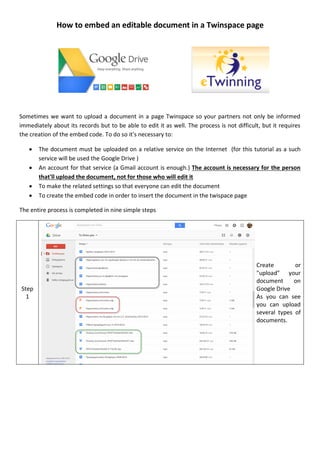
Create or
"upload" your
document on
Google Drive
As you can see
you can upload
several types of
documents.
Step
2
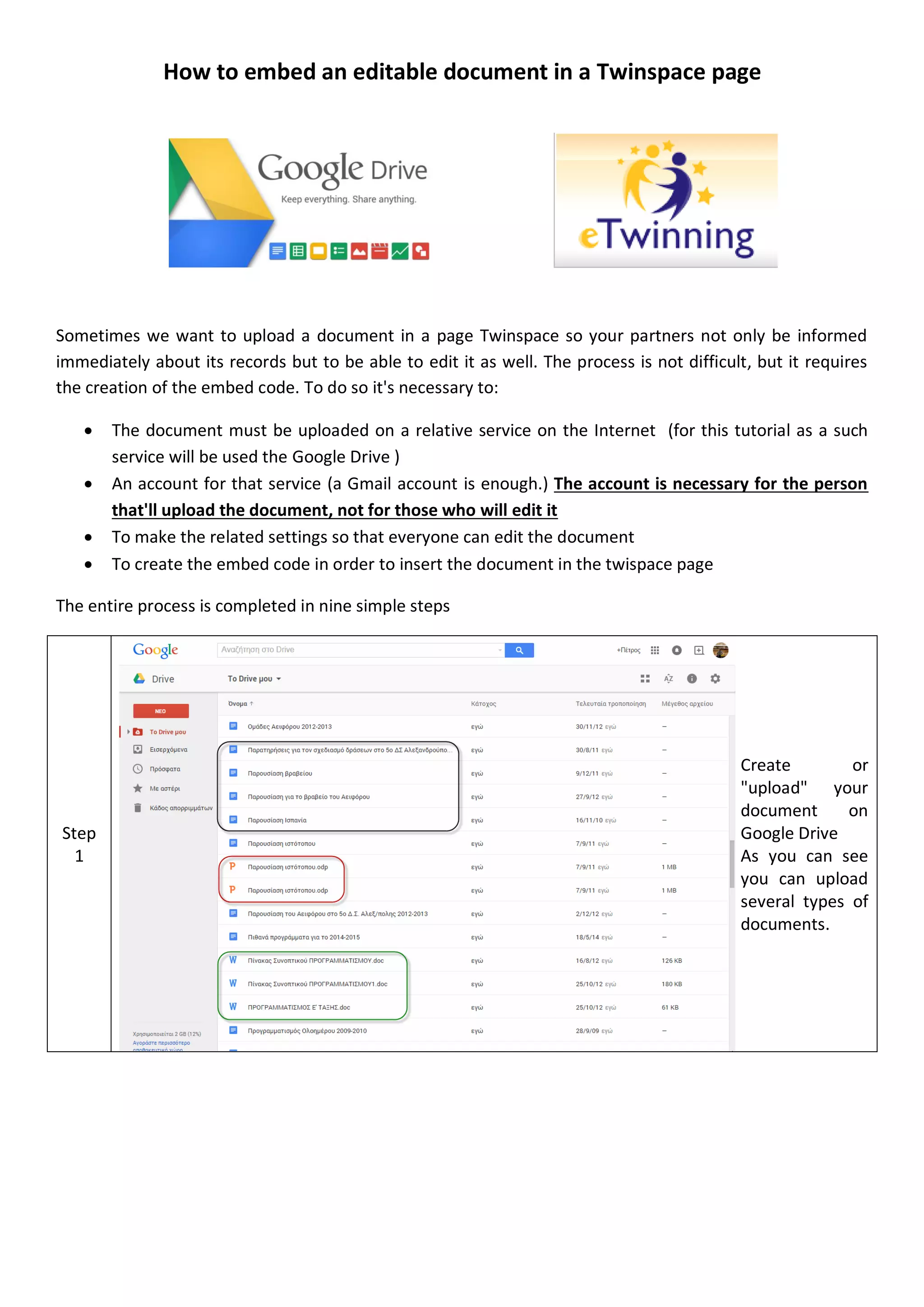
After that, open
the document
so as to see this
black screen
where you must
click the Open
button to open
your document
into Google
Drive
documents.
Step
3
In the new
window that
opens click on
Share button
Step
4
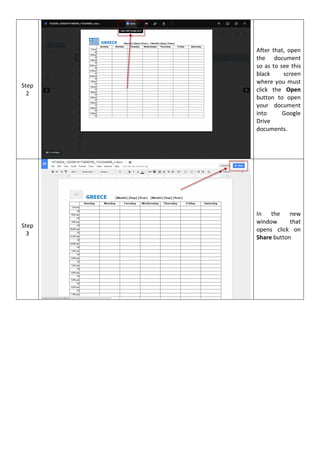
Once more, in
the new window
that opens click
the button that
says Get a
shareable link
Step
5
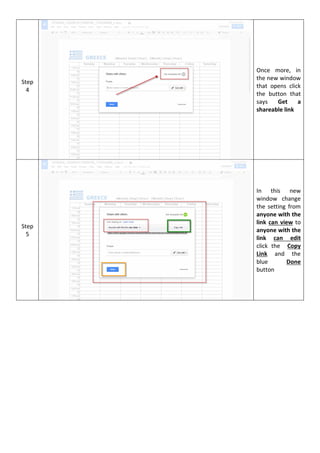
In this new
window change
the setting from
anyone with the
link can view to
anyone with the
link can edit
click the Copy
Link and the
blue Done
button
Step
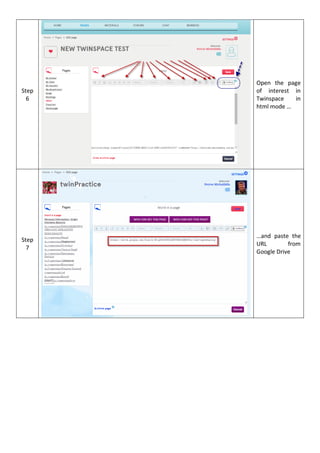
6
Open the page
of interest in
Twinspace in
html mode …
Step
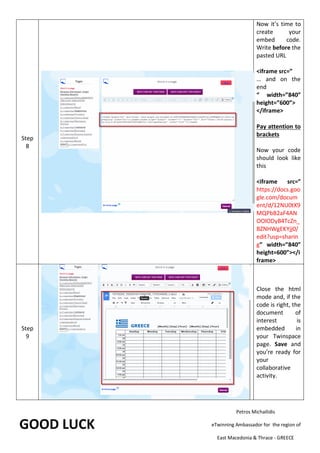
7
…and paste the
URL from
Google Drive
Step
8
Now it’s time to
create your
embed code.
Write before the
pasted URL
<iframe src=”
… and on the
end
“ width=”840”
height=”600”>
</iframe>
Pay attention to
brackets
Now your code
should look like
this
<iframe src=”
https://docs.goo
gle.com/docum
ent/d/12NU0tX9
MQPbB2aF4AN
OOlODyB4TcZn_
BZNHWgEKYjj0/
edit?usp=sharin
g” width=”840”
height=600”></i
frame>
Step
9
Close the html
mode and, if the
code is right, the
document of
interest is
embedded in
your Twinspace
page. Save and
you’re ready for
your
collaborative
activity.
GOOD LUCK
Petros Michailidis
eTwinning Ambassador for the region of
East Macedonia & Thrace - GREECE

How to embed an editable document in a twinspace page

  • 1.
    How to embedan editable document in a Twinspace page Sometimes we want to upload a document in a page Twinspace so your partners not only be informed immediately about its records but to be able to edit it as well. The process is not difficult, but it requires the creation of the embed code. To do so it's necessary to:  The document must be uploaded on a relative service on the Internet (for this tutorial as a such service will be used the Google Drive )  An account for that service (a Gmail account is enough.) The account is necessary for the person that'll upload the document, not for those who will edit it  To make the related settings so that everyone can edit the document  To create the embed code in order to insert the document in the twispace page The entire process is completed in nine simple steps Step 1 Create or "upload" your document on Google Drive As you can see you can upload several types of documents.
  • 2.
    Step 2 After that, open thedocument so as to see this black screen where you must click the Open button to open your document into Google Drive documents. Step 3 In the new window that opens click on Share button
  • 3.
    Step 4 Once more, in thenew window that opens click the button that says Get a shareable link Step 5 In this new window change the setting from anyone with the link can view to anyone with the link can edit click the Copy Link and the blue Done button
  • 4.
    Step 6 Open the page ofinterest in Twinspace in html mode … Step 7 …and paste the URL from Google Drive
  • 5.
    Step 8 Now it’s timeto create your embed code. Write before the pasted URL <iframe src=” … and on the end “ width=”840” height=”600”> </iframe> Pay attention to brackets Now your code should look like this <iframe src=” https://docs.goo gle.com/docum ent/d/12NU0tX9 MQPbB2aF4AN OOlODyB4TcZn_ BZNHWgEKYjj0/ edit?usp=sharin g” width=”840” height=600”></i frame> Step 9 Close the html mode and, if the code is right, the document of interest is embedded in your Twinspace page. Save and you’re ready for your collaborative activity. GOOD LUCK Petros Michailidis eTwinning Ambassador for the region of East Macedonia & Thrace - GREECE