Excel Macro
Automate your Excel with Visual Basics record Macro feature
By Akash J
How to enable Developer option
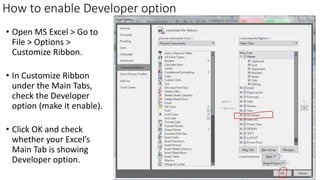
• Open MS Excel > Go to
File > Options >
Customize Ribbon.
• In Customize Ribbon
under the Main Tabs,
check the Developer
option (make it enable).
• Click OK and check
whether your Excel’s
Main Tab is showing
Developer option.
Requirement
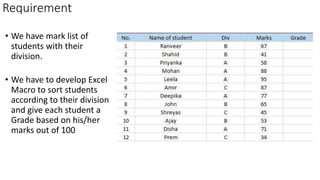
• We have mark list of
students with their
division.
• We have to develop Excel
Macro to sort students
according to their division
and give each student a
Grade based on his/her
marks out of 100
Steps to develop Macro
• We are going to use
record Macro feature
for this development.
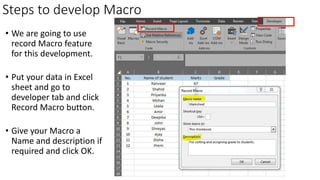
• Put your data in Excel
sheet and go to
developer tab and click
Record Macro button.
• Give your Macro a
Name and description if
required and click OK.
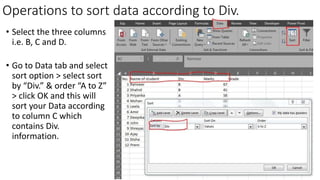
Operations to sort data according to Div.
• Select the three columns
i.e. B, C and D.
• Go to Data tab and select
sort option > select sort
by “Div.” & order “A to Z”
> click OK and this will
sort your Data according
to column C which
contains Div.
information.
Operations to assign mark wise Grades
• Now apply formula in cell E2 to assign grade.
• Scroll down the cell till last adjacent data cell to apply the formula to
entire Grade column E.
Formula
=IF(D2>85, “Distinction”, IF(D2>70, “First class”, IF(D2>40, “Second class”, “Fail”)))
Check your results
• You have performed
the necessary
operations and now
check the results.
• If seems OK then
click Stop recording
Macro.
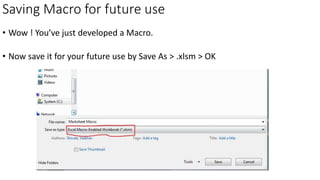
Saving Macro for future use
• Wow ! You’ve just developed a Macro.
• Now save it for your future use by Save As > .xlsm > OK
• Next time you just need to put your data in saved Macro sheet and then
click on Macro > Select macro you want to run > Run.
That’s it, you’ll get your work done automatically.
• This was a simple example, you can develop a Macro for your requirement
with this record Macro feature. This feature works for almost every simple
& medium complicated operations in Excel.
• There are some disadvantages of using Record Macro feature for
complicated operations, for that there is a Visual Basics Programming.
• We’ll see that in my next blog.
Thanks !
Yes you are a Developer

How to create macro with example

  • 1.
    Excel Macro Automate yourExcel with Visual Basics record Macro feature By Akash J
  • 2.
    How to enableDeveloper option • Open MS Excel > Go to File > Options > Customize Ribbon. • In Customize Ribbon under the Main Tabs, check the Developer option (make it enable). • Click OK and check whether your Excel’s Main Tab is showing Developer option.
  • 3.
    Requirement • We havemark list of students with their division. • We have to develop Excel Macro to sort students according to their division and give each student a Grade based on his/her marks out of 100
  • 4.
    Steps to developMacro • We are going to use record Macro feature for this development. • Put your data in Excel sheet and go to developer tab and click Record Macro button. • Give your Macro a Name and description if required and click OK.
  • 5.
    Operations to sortdata according to Div. • Select the three columns i.e. B, C and D. • Go to Data tab and select sort option > select sort by “Div.” & order “A to Z” > click OK and this will sort your Data according to column C which contains Div. information.
  • 6.
    Operations to assignmark wise Grades • Now apply formula in cell E2 to assign grade. • Scroll down the cell till last adjacent data cell to apply the formula to entire Grade column E. Formula =IF(D2>85, “Distinction”, IF(D2>70, “First class”, IF(D2>40, “Second class”, “Fail”)))
  • 7.
    Check your results •You have performed the necessary operations and now check the results. • If seems OK then click Stop recording Macro.
  • 8.
    Saving Macro forfuture use • Wow ! You’ve just developed a Macro. • Now save it for your future use by Save As > .xlsm > OK
  • 9.
    • Next timeyou just need to put your data in saved Macro sheet and then click on Macro > Select macro you want to run > Run. That’s it, you’ll get your work done automatically. • This was a simple example, you can develop a Macro for your requirement with this record Macro feature. This feature works for almost every simple & medium complicated operations in Excel. • There are some disadvantages of using Record Macro feature for complicated operations, for that there is a Visual Basics Programming. • We’ll see that in my next blog.
  • 10.
    Thanks ! Yes youare a Developer