STARTUP DISK FOR WINDOWS XP
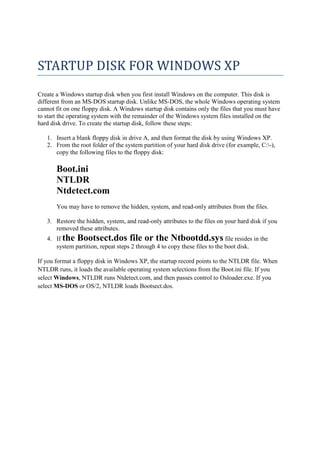
Create a Windows startup disk when you first install Windows on the computer. This disk is
different from an MS-DOS startup disk. Unlike MS-DOS, the whole Windows operating system
cannot fit on one floppy disk. A Windows startup disk contains only the files that you must have
to start the operating system with the remainder of the Windows system files installed on the
hard disk drive. To create the startup disk, follow these steps:
1. Insert a blank floppy disk in drive A, and then format the disk by using Windows XP.
2. From the root folder of the system partition of your hard disk drive (for example, C:-),
copy the following files to the floppy disk:
Boot.ini
NTLDR
Ntdetect.com
You may have to remove the hidden, system, and read-only attributes from the files.
3. Restore the hidden, system, and read-only attributes to the files on your hard disk if you
removed these attributes.
4. If the Bootsect.dos file or the Ntbootdd.sys file resides in the
system partition, repeat steps 2 through 4 to copy these files to the boot disk.
If you format a floppy disk in Windows XP, the startup record points to the NTLDR file. When
NTLDR runs, it loads the available operating system selections from the Boot.ini file. If you
select Windows, NTLDR runs Ntdetect.com, and then passes control to Osloader.exe. If you
select MS-DOS or OS/2, NTLDR loads Bootsect.dos.
BOOTABLE DISK FOR WINDOWS XP
In this article we would create a window XP bootable disk from copied files. This is very useful
when you have copied files of XP. To keep backup we generally copy the entire disk on hard
disk. But you could not create a bootable disk from these files. To make a bootable XP disk from
copied files we need to add boot files with image on CD.
The following items are required:
• A copy of the original Windows CD/DVD.
• A copy of the Boot Files Download from here.
• A minimum of 1GB available hard disk space for CD's.
• A minimum of 5GB available hard disk space for DVD's.
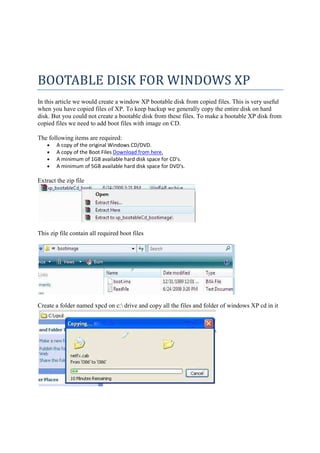
Extract the zip file
This zip file contain all required boot files
Create a folder named xpcd on c: drive and copy all the files and folder of windows XP cd in it
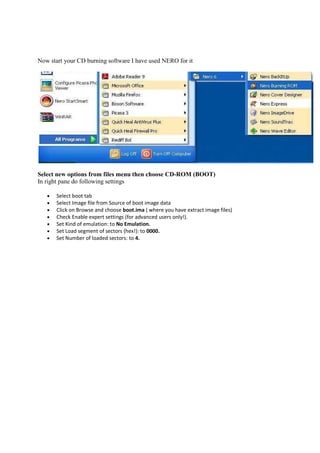
Now start your CD burning software I have used NERO for it
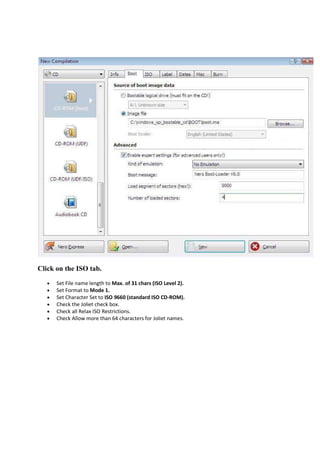
Select new options from files menu then choose CD-ROM (BOOT)
In right pane do following settings
• Select boot tab
• Select Image file from Source of boot image data
• Click on Browse and choose boot.ima ( where you have extract image files)
• Check Enable expert settings (for advanced users only!).
• Set Kind of emulation: to No Emulation.
• Set Load segment of sectors (hex!): to 0000.
• Set Number of loaded sectors: to 4.
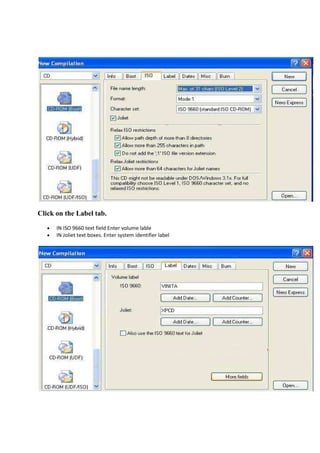
Click on the ISO tab.
• Set File name length to Max. of 31 chars (ISO Level 2).
• Set Format to Mode 1.
• Set Character Set to ISO 9660 (standard ISO CD-ROM).
• Check the Joliet check box.
• Check all Relax ISO Restrictions.
• Check Allow more than 64 characters for Joliet names.
Click on the Label tab.
• IN ISO 9660 text field Enter volume lable
• IN Joliet text boxes. Enter system identifier label
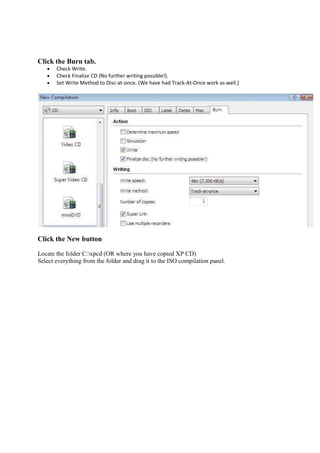
Click the Burn tab.
• Check Write.
• Check Finalize CD (No further writing possible!).
• Set Write Method to Disc-at-once. (We have had Track-At-Once work as well.)
Click the New button
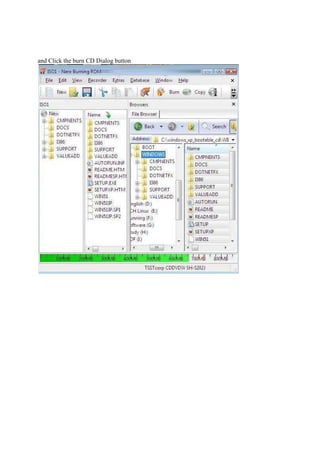
Locate the folder C:xpcd (OR where you have copied XP CD)
Select everything from the folder and drag it to the ISO compilation panel.
and Click the burn CD Dialog button
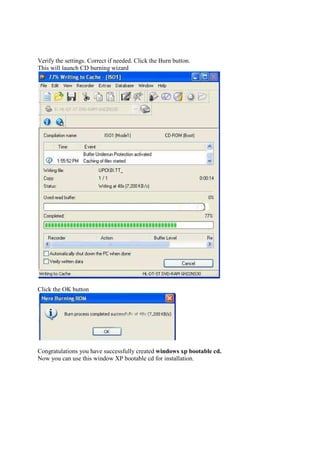
Verify the settings. Correct if needed. Click the Burn button.
This will launch CD burning wizard
Click the OK button
Congratulations you have successfully created windows xp bootable cd.
Now you can use this window XP bootable cd for installation.
Youtube Link of the above
http://www.youtube.com/watch?v=WoWXOCPPxJw

How to Create Bootable disk in Windows XP

  • 1.
    STARTUP DISK FORWINDOWS XP Create a Windows startup disk when you first install Windows on the computer. This disk is different from an MS-DOS startup disk. Unlike MS-DOS, the whole Windows operating system cannot fit on one floppy disk. A Windows startup disk contains only the files that you must have to start the operating system with the remainder of the Windows system files installed on the hard disk drive. To create the startup disk, follow these steps: 1. Insert a blank floppy disk in drive A, and then format the disk by using Windows XP. 2. From the root folder of the system partition of your hard disk drive (for example, C:-), copy the following files to the floppy disk: Boot.ini NTLDR Ntdetect.com You may have to remove the hidden, system, and read-only attributes from the files. 3. Restore the hidden, system, and read-only attributes to the files on your hard disk if you removed these attributes. 4. If the Bootsect.dos file or the Ntbootdd.sys file resides in the system partition, repeat steps 2 through 4 to copy these files to the boot disk. If you format a floppy disk in Windows XP, the startup record points to the NTLDR file. When NTLDR runs, it loads the available operating system selections from the Boot.ini file. If you select Windows, NTLDR runs Ntdetect.com, and then passes control to Osloader.exe. If you select MS-DOS or OS/2, NTLDR loads Bootsect.dos.
  • 2.
    BOOTABLE DISK FORWINDOWS XP In this article we would create a window XP bootable disk from copied files. This is very useful when you have copied files of XP. To keep backup we generally copy the entire disk on hard disk. But you could not create a bootable disk from these files. To make a bootable XP disk from copied files we need to add boot files with image on CD. The following items are required: • A copy of the original Windows CD/DVD. • A copy of the Boot Files Download from here. • A minimum of 1GB available hard disk space for CD's. • A minimum of 5GB available hard disk space for DVD's. Extract the zip file This zip file contain all required boot files Create a folder named xpcd on c: drive and copy all the files and folder of windows XP cd in it
  • 3.
    Now start yourCD burning software I have used NERO for it Select new options from files menu then choose CD-ROM (BOOT) In right pane do following settings • Select boot tab • Select Image file from Source of boot image data • Click on Browse and choose boot.ima ( where you have extract image files) • Check Enable expert settings (for advanced users only!). • Set Kind of emulation: to No Emulation. • Set Load segment of sectors (hex!): to 0000. • Set Number of loaded sectors: to 4.
  • 4.
    Click on theISO tab. • Set File name length to Max. of 31 chars (ISO Level 2). • Set Format to Mode 1. • Set Character Set to ISO 9660 (standard ISO CD-ROM). • Check the Joliet check box. • Check all Relax ISO Restrictions. • Check Allow more than 64 characters for Joliet names.
  • 5.
    Click on theLabel tab. • IN ISO 9660 text field Enter volume lable • IN Joliet text boxes. Enter system identifier label
  • 6.
    Click the Burntab. • Check Write. • Check Finalize CD (No further writing possible!). • Set Write Method to Disc-at-once. (We have had Track-At-Once work as well.) Click the New button Locate the folder C:xpcd (OR where you have copied XP CD) Select everything from the folder and drag it to the ISO compilation panel.
  • 7.
    and Click theburn CD Dialog button
  • 8.
    Verify the settings.Correct if needed. Click the Burn button. This will launch CD burning wizard Click the OK button Congratulations you have successfully created windows xp bootable cd. Now you can use this window XP bootable cd for installation.
  • 9.
    Youtube Link ofthe above http://www.youtube.com/watch?v=WoWXOCPPxJw