How to Configure VMware vSwitchfrom ESX/ ESXi Command Line
by KAR TH I KEY AN SAD H ASI VAM on JANUARY 8, 2015
In both VMware ESX and ESXi host, vSwitches can be
configured either from the GUI or from the command line.
vSwitch is also known as vSphere standard switch.
The CLI configuration are very helpful when you are installing
multiple ESX servers and planning to script the vSwitch
configuration.
This article explains how to configure vSwitch from CLI using
esxcfg-vswitch command examples.
List all vSwitches
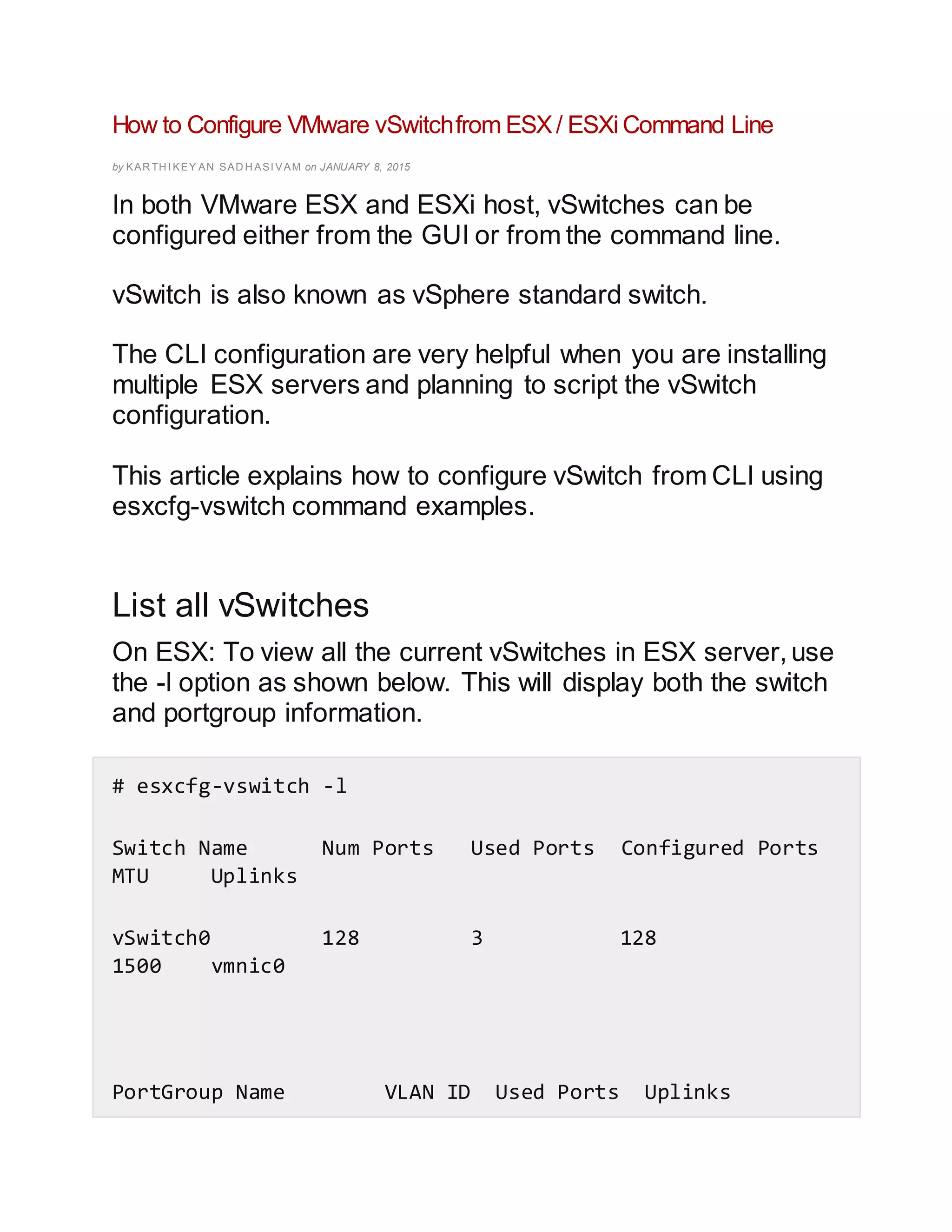
On ESX: To view all the current vSwitches in ESX server, use
the -l option as shown below. This will display both the switch
and portgroup information.
# esxcfg-vswitch -l
Switch Name Num Ports Used Ports Configured Ports
MTU Uplinks
vSwitch0 128 3 128
1500 vmnic0
PortGroup Name VLAN ID Used Ports Uplinks
Management Network 0 1 vmnic0
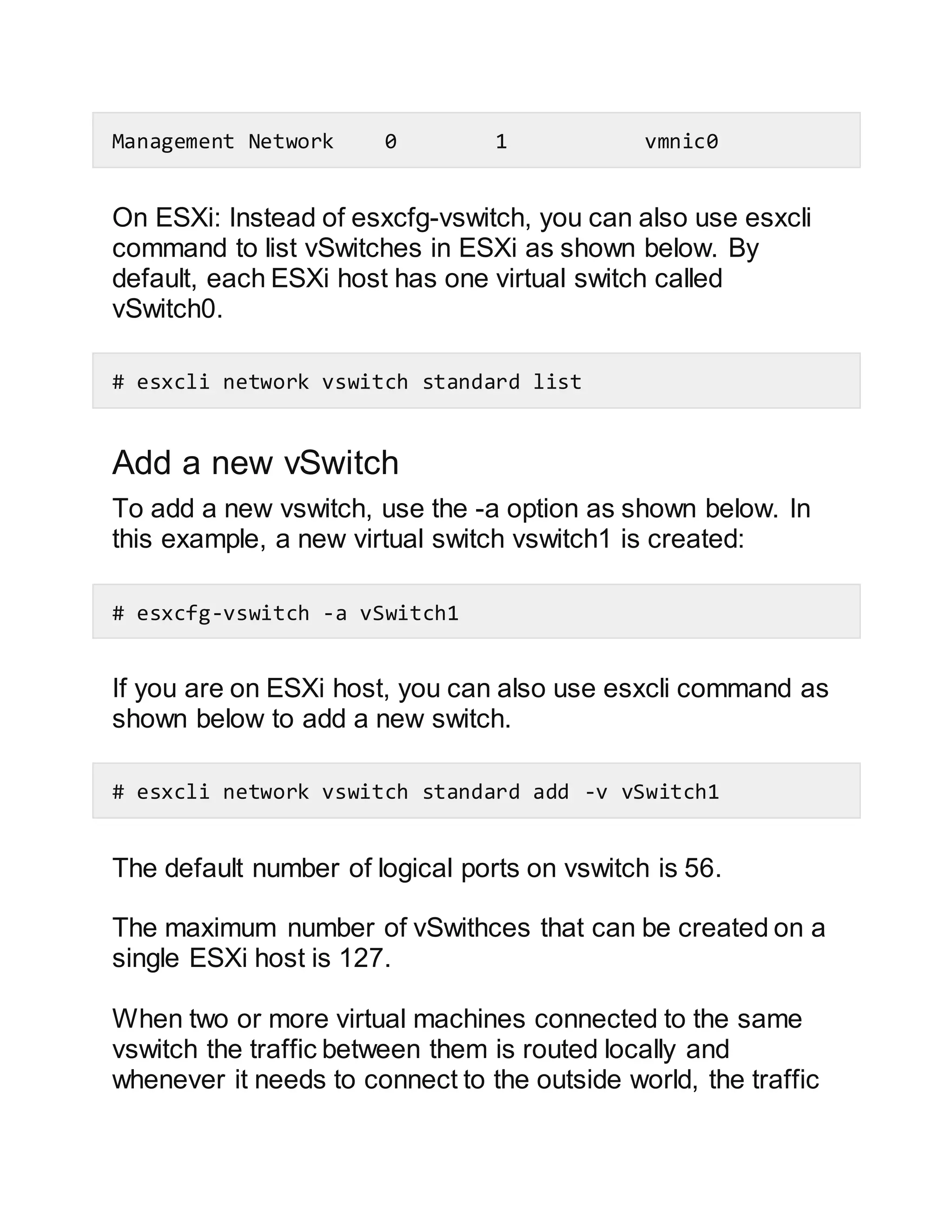
On ESXi: Instead of esxcfg-vswitch, you can also use esxcli
command to list vSwitches in ESXi as shown below. By
default, each ESXi host has one virtual switch called
vSwitch0.
# esxcli network vswitch standard list
Add a new vSwitch
To add a new vswitch, use the -a option as shown below. In
this example, a new virtual switch vswitch1 is created:
# esxcfg-vswitch -a vSwitch1
If you are on ESXi host, you can also use esxcli command as
shown below to add a new switch.
# esxcli network vswitch standard add -v vSwitch1
The default number of logical ports on vswitch is 56.
The maximum number of vSwithces that can be created on a
single ESXi host is 127.
When two or more virtual machines connected to the same
vswitch the traffic between them is routed locally and
whenever it needs to connect to the outside world, the traffic
is routed through the uplink adapter basically a NIC port
attached to the virtual switch.
Add a Port to vSwitch
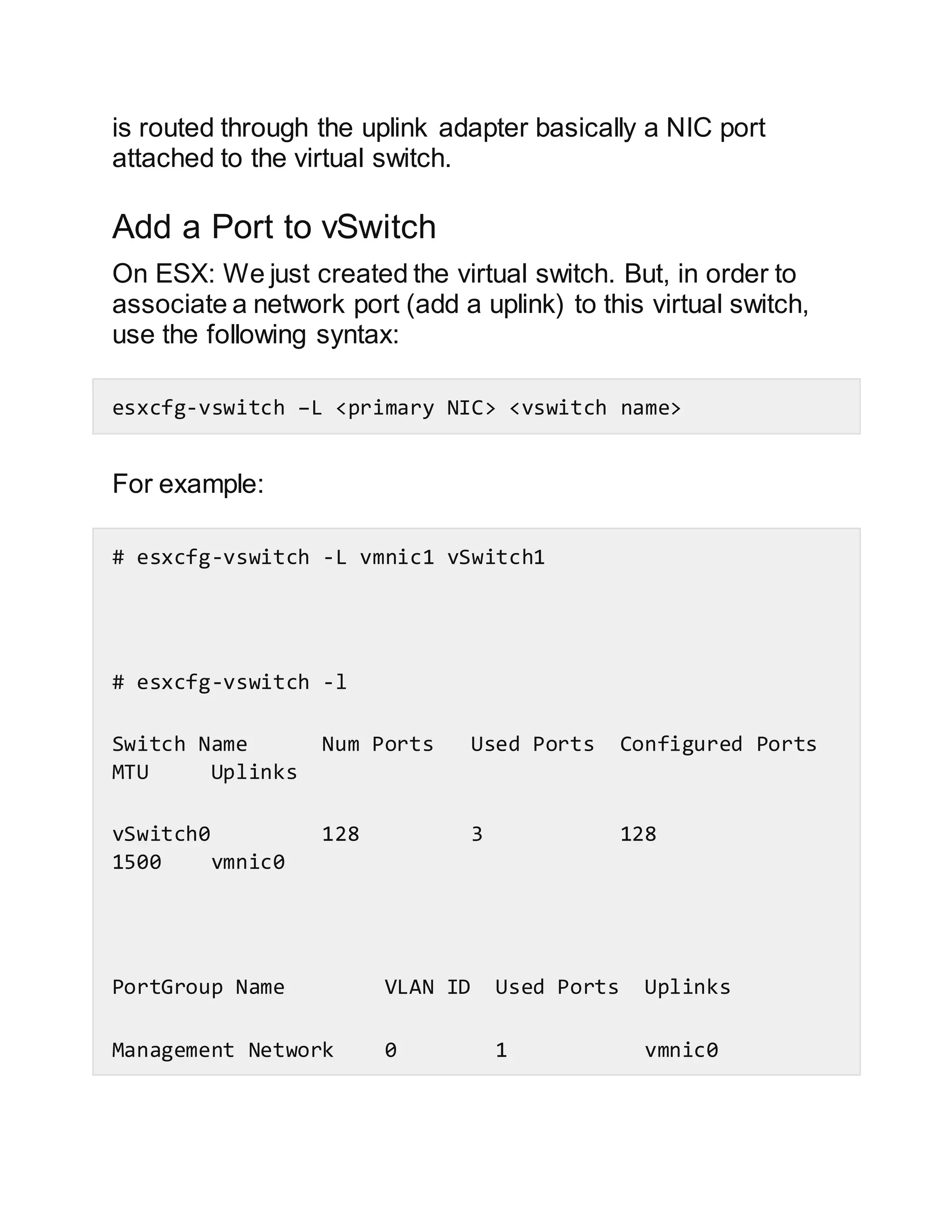
On ESX: We just created the virtual switch. But, in order to
associate a network port (add a uplink) to this virtual switch,
use the following syntax:
esxcfg-vswitch –L <primary NIC> <vswitch name>
For example:
# esxcfg-vswitch -L vmnic1 vSwitch1
# esxcfg-vswitch -l
Switch Name Num Ports Used Ports Configured Ports
MTU Uplinks
vSwitch0 128 3 128
1500 vmnic0
PortGroup Name VLAN ID Used Ports Uplinks
Management Network 0 1 vmnic0
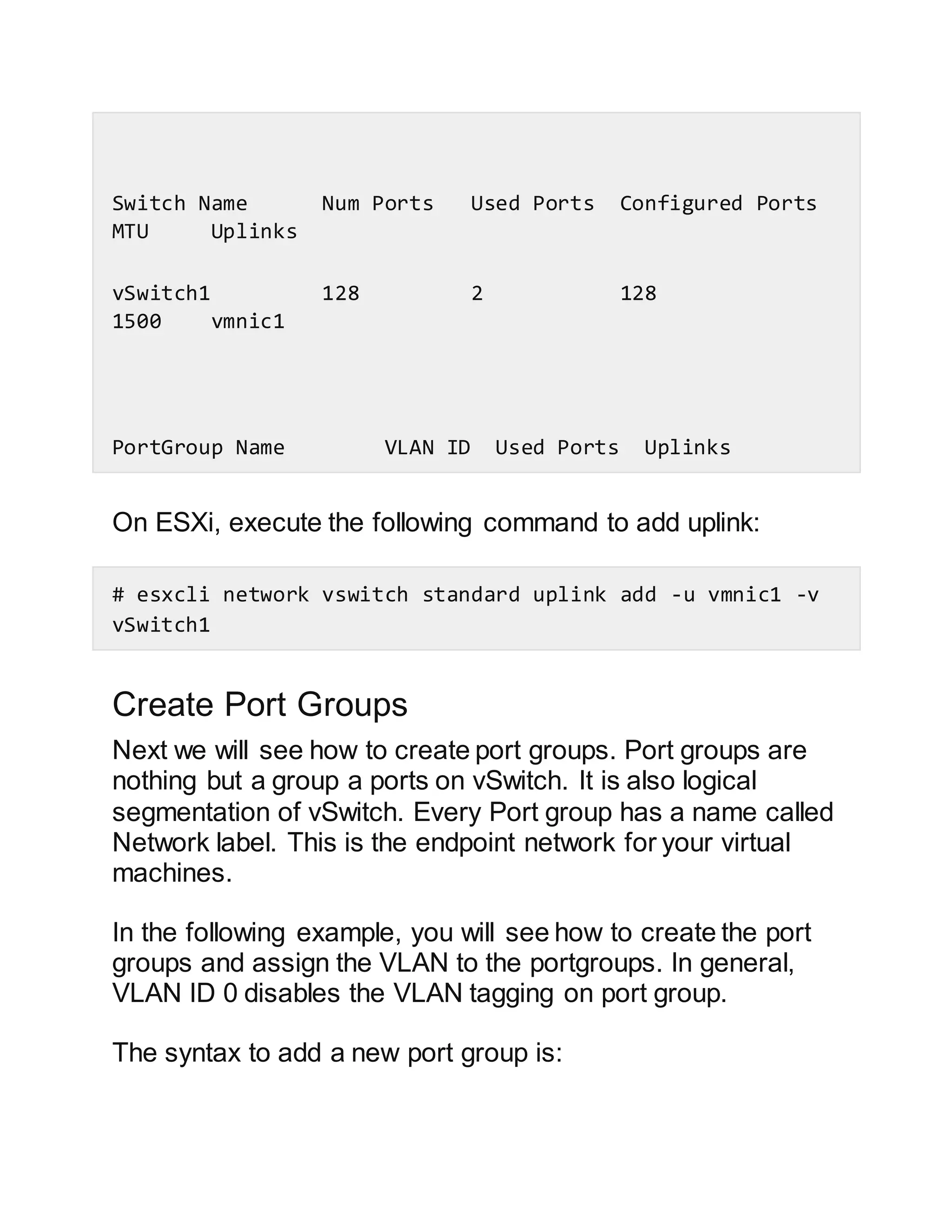
Switch Name Num Ports Used Ports Configured Ports
MTU Uplinks
vSwitch1 128 2 128
1500 vmnic1
PortGroup Name VLAN ID Used Ports Uplinks
On ESXi, execute the following command to add uplink:
# esxcli network vswitch standard uplink add -u vmnic1 -v
vSwitch1
Create Port Groups
Next we will see how to create port groups. Port groups are
nothing but a group a ports on vSwitch. It is also logical
segmentation of vSwitch. Every Port group has a name called
Network label. This is the endpoint network for your virtual
machines.
In the following example, you will see how to create the port
groups and assign the VLAN to the portgroups. In general,
VLAN ID 0 disables the VLAN tagging on port group.
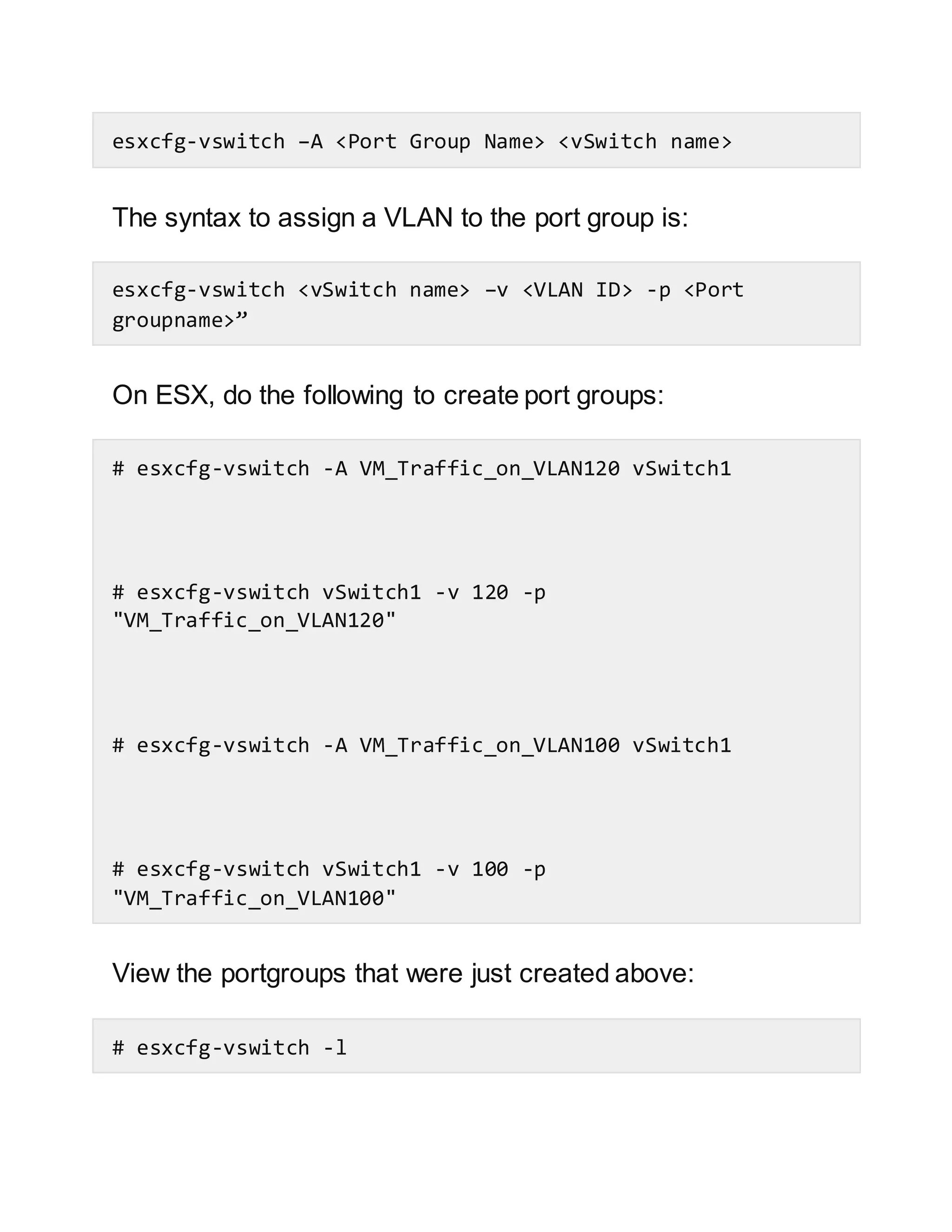
The syntax to add a new port group is:
esxcfg-vswitch –A <Port Group Name> <vSwitch name>
The syntax to assign a VLAN to the port group is:
esxcfg-vswitch <vSwitch name> –v <VLAN ID> -p <Port
groupname>”
On ESX, do the following to create port groups:
# esxcfg-vswitch -A VM_Traffic_on_VLAN120 vSwitch1
# esxcfg-vswitch vSwitch1 -v 120 -p
"VM_Traffic_on_VLAN120"
# esxcfg-vswitch -A VM_Traffic_on_VLAN100 vSwitch1
# esxcfg-vswitch vSwitch1 -v 100 -p
"VM_Traffic_on_VLAN100"
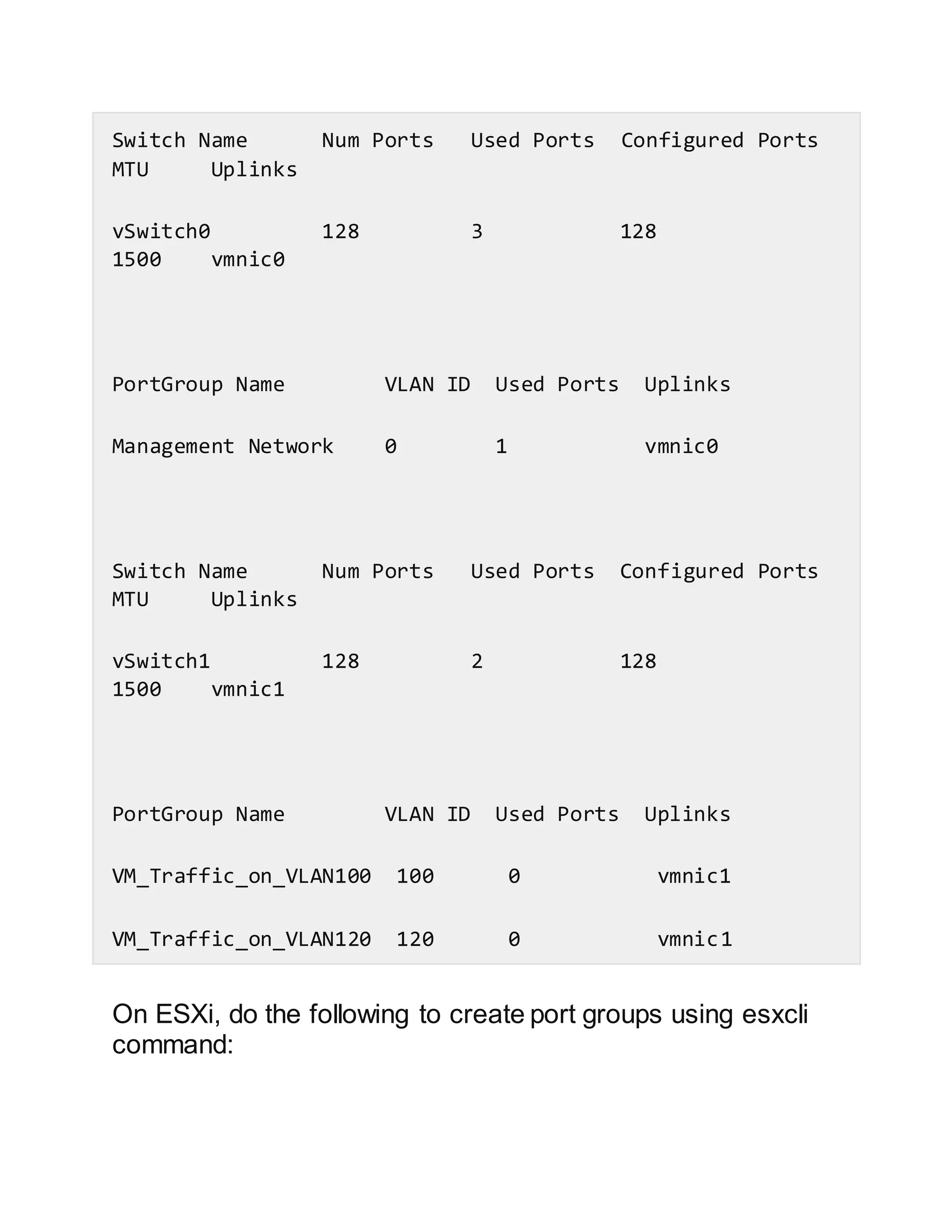
View the portgroups that were just created above:
# esxcfg-vswitch -l
Switch Name Num Ports Used Ports Configured Ports
MTU Uplinks
vSwitch0 128 3 128
1500 vmnic0
PortGroup Name VLAN ID Used Ports Uplinks
Management Network 0 1 vmnic0
Switch Name Num Ports Used Ports Configured Ports
MTU Uplinks
vSwitch1 128 2 128
1500 vmnic1
PortGroup Name VLAN ID Used Ports Uplinks
VM_Traffic_on_VLAN100 100 0 vmnic1
VM_Traffic_on_VLAN120 120 0 vmnic1
On ESXi, do the following to create port groups using esxcli
command:
# esxcli network vswitch standard portgroup add -p
VM_Traffic_on_VLAN120 -v vSwitch1
Verify if vSwitch Exists
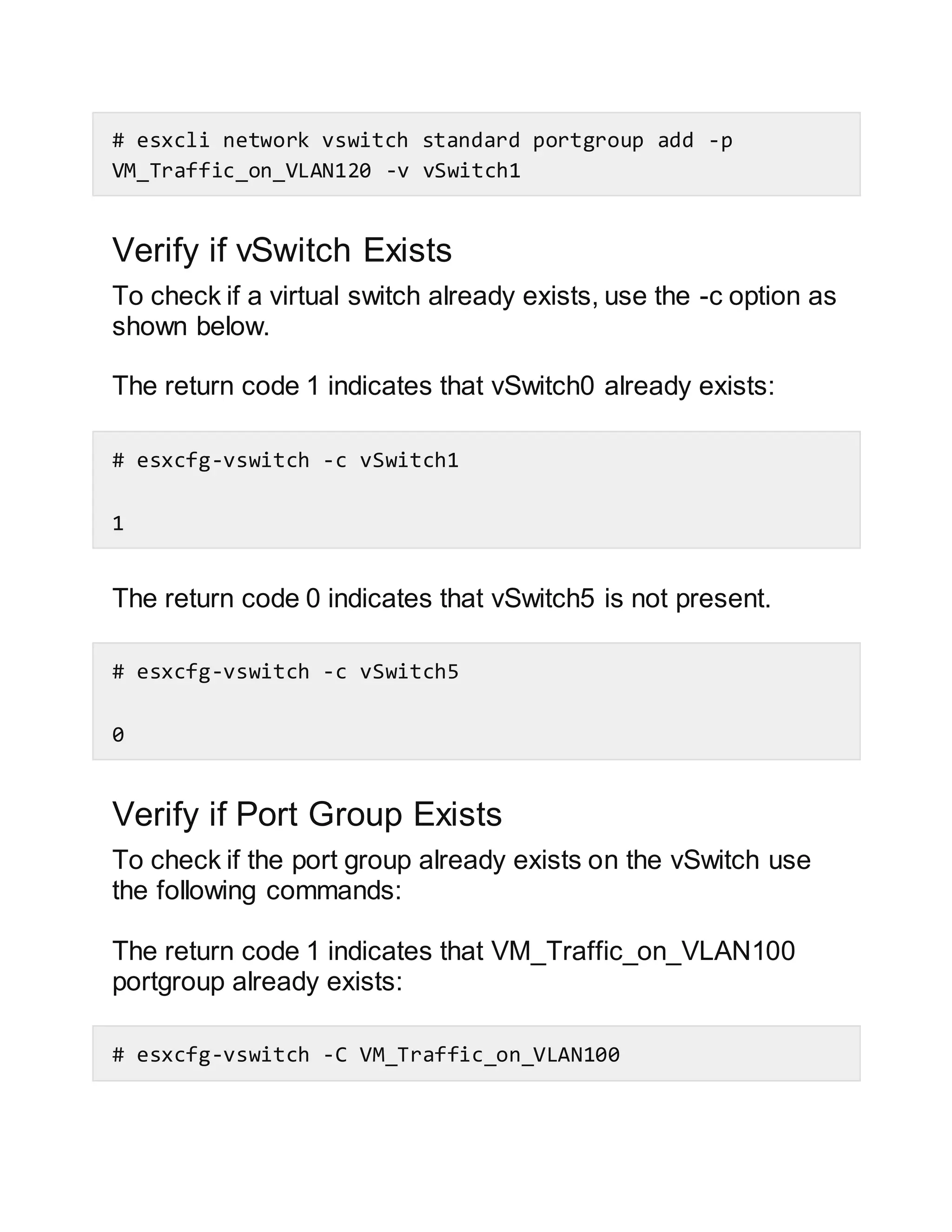
To check if a virtual switch already exists, use the -c option as
shown below.
The return code 1 indicates that vSwitch0 already exists:
# esxcfg-vswitch -c vSwitch1
1
The return code 0 indicates that vSwitch5 is not present.
# esxcfg-vswitch -c vSwitch5
0
Verify if Port Group Exists
To check if the port group already exists on the vSwitch use
the following commands:
The return code 1 indicates that VM_Traffic_on_VLAN100
portgroup already exists:
# esxcfg-vswitch -C VM_Traffic_on_VLAN100
1
The return code 0 indicates that VM_Traffic_on_VLAN100
portgroup does not exist:
# esxcfg-vswitch -C VM_Traffic_on_VLAN505
0
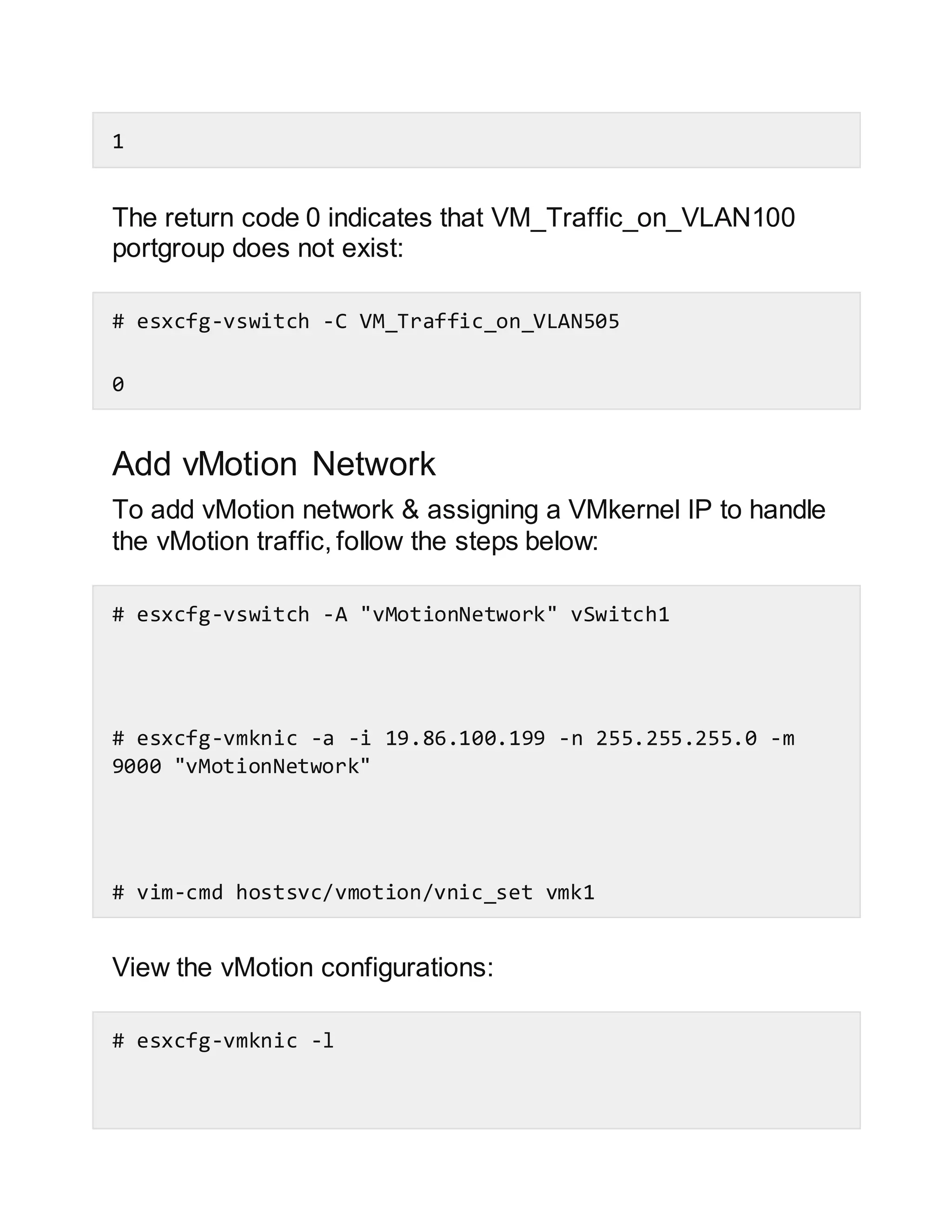
Add vMotion Network
To add vMotion network & assigning a VMkernel IP to handle
the vMotion traffic, follow the steps below:
# esxcfg-vswitch -A "vMotionNetwork" vSwitch1
# esxcfg-vmknic -a -i 19.86.100.199 -n 255.255.255.0 -m
9000 "vMotionNetwork"
# vim-cmd hostsvc/vmotion/vnic_set vmk1
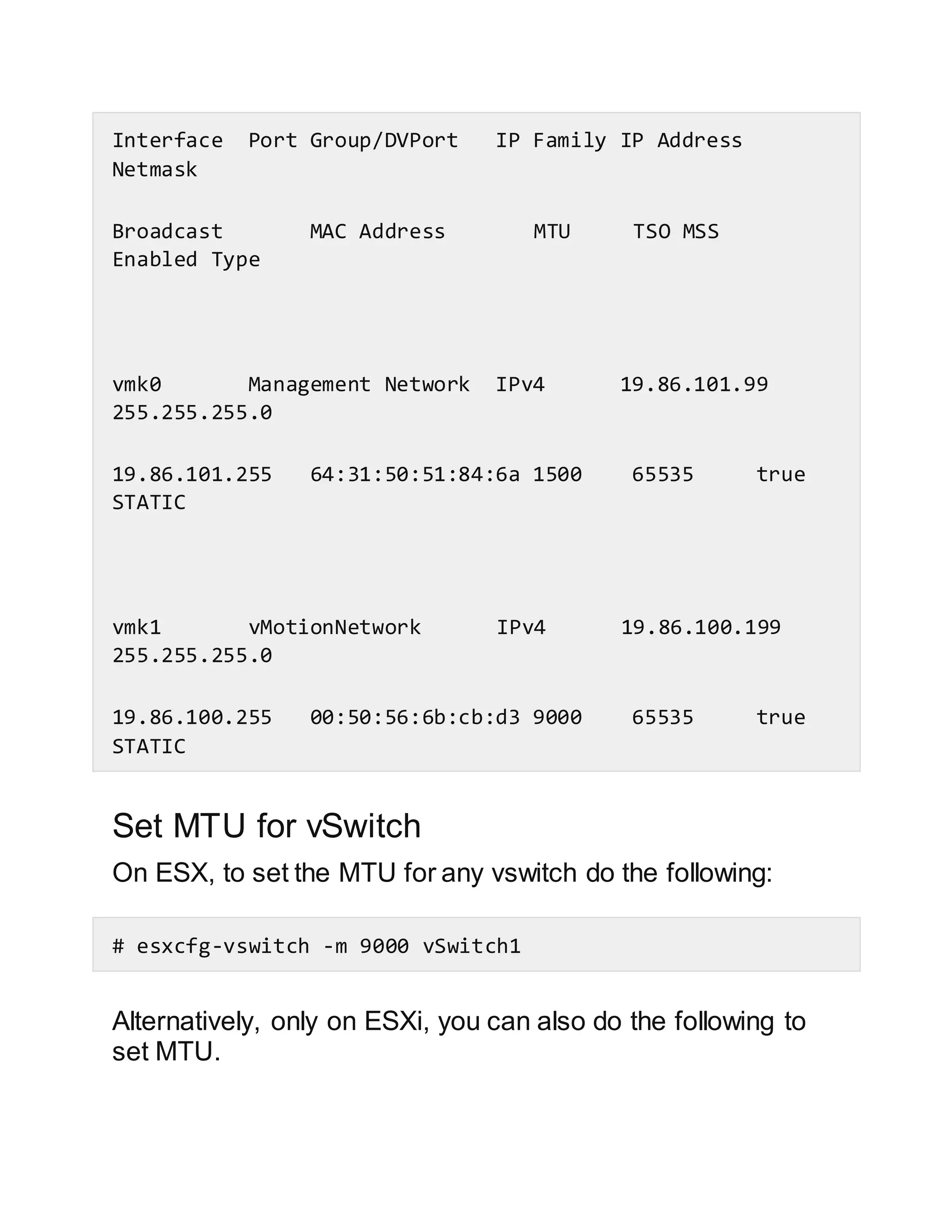
View the vMotion configurations:
# esxcfg-vmknic -l
Interface Port Group/DVPort IP Family IP Address
Netmask
Broadcast MAC Address MTU TSO MSS
Enabled Type
vmk0 Management Network IPv4 19.86.101.99
255.255.255.0
19.86.101.255 64:31:50:51:84:6a 1500 65535 true
STATIC
vmk1 vMotionNetwork IPv4 19.86.100.199
255.255.255.0
19.86.100.255 00:50:56:6b:cb:d3 9000 65535 true
STATIC
Set MTU for vSwitch
On ESX, to set the MTU for any vswitch do the following:
# esxcfg-vswitch -m 9000 vSwitch1
Alternatively, only on ESXi, you can also do the following to
set MTU.
# esxcli network vswitch standard set --mtu=9000 --
vswitch-name=vSwitch1
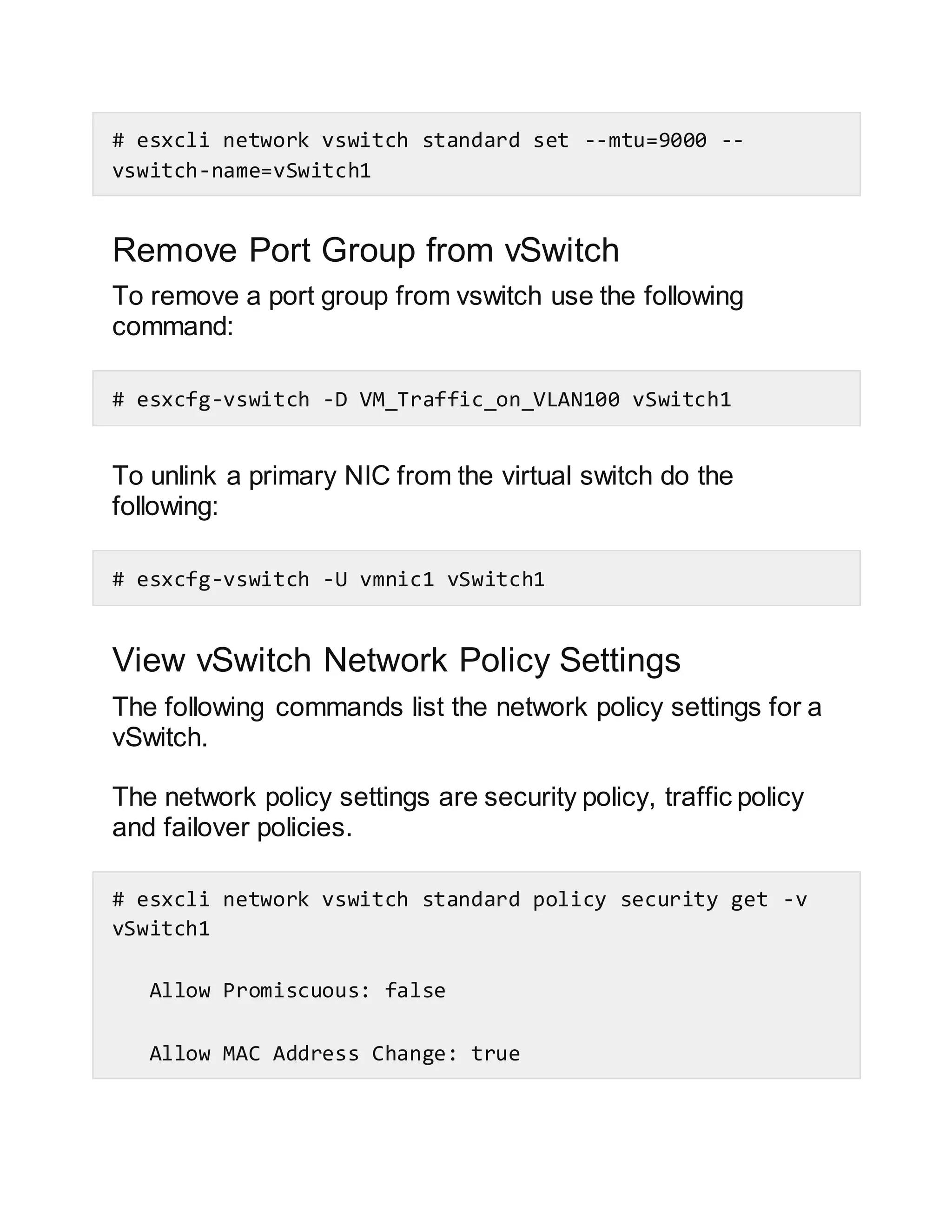
Remove Port Group from vSwitch
To remove a port group from vswitch use the following
command:
# esxcfg-vswitch -D VM_Traffic_on_VLAN100 vSwitch1
To unlink a primary NIC from the virtual switch do the
following:
# esxcfg-vswitch -U vmnic1 vSwitch1
View vSwitch Network Policy Settings
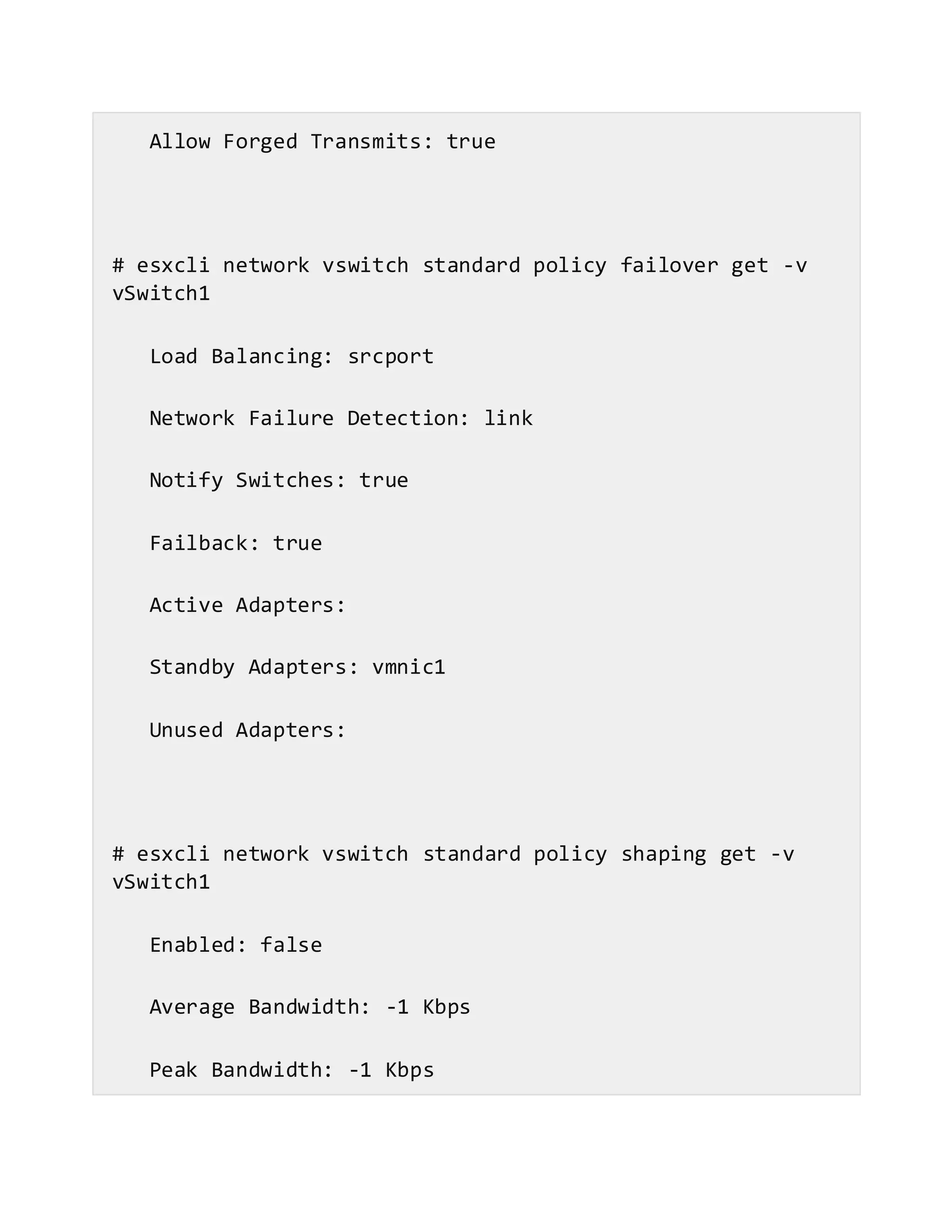
The following commands list the network policy settings for a
vSwitch.
The network policy settings are security policy, traffic policy
and failover policies.
# esxcli network vswitch standard policy security get -v
vSwitch1
Allow Promiscuous: false
Allow MAC Address Change: true
Allow Forged Transmits: true
# esxcli network vswitch standard policy failover get -v
vSwitch1
Load Balancing: srcport
Network Failure Detection: link
Notify Switches: true
Failback: true
Active Adapters:
Standby Adapters: vmnic1
Unused Adapters:
# esxcli network vswitch standard policy shaping get -v
vSwitch1
Enabled: false
Average Bandwidth: -1 Kbps
Peak Bandwidth: -1 Kbps
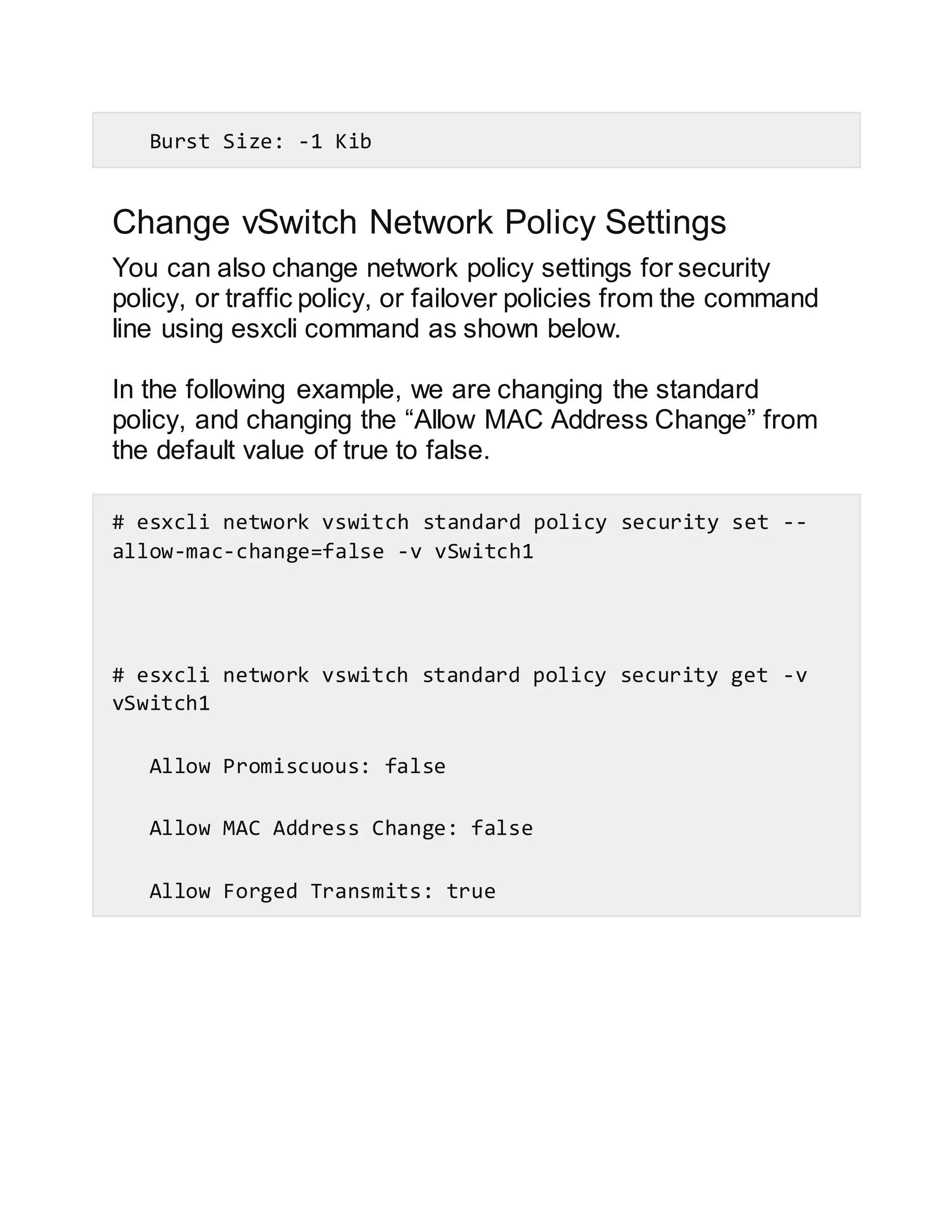
Burst Size: -1 Kib
Change vSwitch Network Policy Settings
You can also change network policy settings for security
policy, or traffic policy, or failover policies from the command
line using esxcli command as shown below.
In the following example, we are changing the standard
policy, and changing the “Allow MAC Address Change” from
the default value of true to false.
# esxcli network vswitch standard policy security set --
allow-mac-change=false -v vSwitch1
# esxcli network vswitch standard policy security get -v
vSwitch1
Allow Promiscuous: false
Allow MAC Address Change: false
Allow Forged Transmits: true

How to configure v mware v switch from esx-esxi command line

  • 1.
    How to ConfigureVMware vSwitchfrom ESX/ ESXi Command Line by KAR TH I KEY AN SAD H ASI VAM on JANUARY 8, 2015 In both VMware ESX and ESXi host, vSwitches can be configured either from the GUI or from the command line. vSwitch is also known as vSphere standard switch. The CLI configuration are very helpful when you are installing multiple ESX servers and planning to script the vSwitch configuration. This article explains how to configure vSwitch from CLI using esxcfg-vswitch command examples. List all vSwitches On ESX: To view all the current vSwitches in ESX server, use the -l option as shown below. This will display both the switch and portgroup information. # esxcfg-vswitch -l Switch Name Num Ports Used Ports Configured Ports MTU Uplinks vSwitch0 128 3 128 1500 vmnic0 PortGroup Name VLAN ID Used Ports Uplinks
  • 2.
    Management Network 01 vmnic0 On ESXi: Instead of esxcfg-vswitch, you can also use esxcli command to list vSwitches in ESXi as shown below. By default, each ESXi host has one virtual switch called vSwitch0. # esxcli network vswitch standard list Add a new vSwitch To add a new vswitch, use the -a option as shown below. In this example, a new virtual switch vswitch1 is created: # esxcfg-vswitch -a vSwitch1 If you are on ESXi host, you can also use esxcli command as shown below to add a new switch. # esxcli network vswitch standard add -v vSwitch1 The default number of logical ports on vswitch is 56. The maximum number of vSwithces that can be created on a single ESXi host is 127. When two or more virtual machines connected to the same vswitch the traffic between them is routed locally and whenever it needs to connect to the outside world, the traffic
  • 3.
    is routed throughthe uplink adapter basically a NIC port attached to the virtual switch. Add a Port to vSwitch On ESX: We just created the virtual switch. But, in order to associate a network port (add a uplink) to this virtual switch, use the following syntax: esxcfg-vswitch –L <primary NIC> <vswitch name> For example: # esxcfg-vswitch -L vmnic1 vSwitch1 # esxcfg-vswitch -l Switch Name Num Ports Used Ports Configured Ports MTU Uplinks vSwitch0 128 3 128 1500 vmnic0 PortGroup Name VLAN ID Used Ports Uplinks Management Network 0 1 vmnic0
  • 4.
    Switch Name NumPorts Used Ports Configured Ports MTU Uplinks vSwitch1 128 2 128 1500 vmnic1 PortGroup Name VLAN ID Used Ports Uplinks On ESXi, execute the following command to add uplink: # esxcli network vswitch standard uplink add -u vmnic1 -v vSwitch1 Create Port Groups Next we will see how to create port groups. Port groups are nothing but a group a ports on vSwitch. It is also logical segmentation of vSwitch. Every Port group has a name called Network label. This is the endpoint network for your virtual machines. In the following example, you will see how to create the port groups and assign the VLAN to the portgroups. In general, VLAN ID 0 disables the VLAN tagging on port group. The syntax to add a new port group is:
  • 5.
    esxcfg-vswitch –A <PortGroup Name> <vSwitch name> The syntax to assign a VLAN to the port group is: esxcfg-vswitch <vSwitch name> –v <VLAN ID> -p <Port groupname>” On ESX, do the following to create port groups: # esxcfg-vswitch -A VM_Traffic_on_VLAN120 vSwitch1 # esxcfg-vswitch vSwitch1 -v 120 -p "VM_Traffic_on_VLAN120" # esxcfg-vswitch -A VM_Traffic_on_VLAN100 vSwitch1 # esxcfg-vswitch vSwitch1 -v 100 -p "VM_Traffic_on_VLAN100" View the portgroups that were just created above: # esxcfg-vswitch -l
  • 6.
    Switch Name NumPorts Used Ports Configured Ports MTU Uplinks vSwitch0 128 3 128 1500 vmnic0 PortGroup Name VLAN ID Used Ports Uplinks Management Network 0 1 vmnic0 Switch Name Num Ports Used Ports Configured Ports MTU Uplinks vSwitch1 128 2 128 1500 vmnic1 PortGroup Name VLAN ID Used Ports Uplinks VM_Traffic_on_VLAN100 100 0 vmnic1 VM_Traffic_on_VLAN120 120 0 vmnic1 On ESXi, do the following to create port groups using esxcli command:
  • 7.
    # esxcli networkvswitch standard portgroup add -p VM_Traffic_on_VLAN120 -v vSwitch1 Verify if vSwitch Exists To check if a virtual switch already exists, use the -c option as shown below. The return code 1 indicates that vSwitch0 already exists: # esxcfg-vswitch -c vSwitch1 1 The return code 0 indicates that vSwitch5 is not present. # esxcfg-vswitch -c vSwitch5 0 Verify if Port Group Exists To check if the port group already exists on the vSwitch use the following commands: The return code 1 indicates that VM_Traffic_on_VLAN100 portgroup already exists: # esxcfg-vswitch -C VM_Traffic_on_VLAN100
  • 8.
    1 The return code0 indicates that VM_Traffic_on_VLAN100 portgroup does not exist: # esxcfg-vswitch -C VM_Traffic_on_VLAN505 0 Add vMotion Network To add vMotion network & assigning a VMkernel IP to handle the vMotion traffic, follow the steps below: # esxcfg-vswitch -A "vMotionNetwork" vSwitch1 # esxcfg-vmknic -a -i 19.86.100.199 -n 255.255.255.0 -m 9000 "vMotionNetwork" # vim-cmd hostsvc/vmotion/vnic_set vmk1 View the vMotion configurations: # esxcfg-vmknic -l
  • 9.
    Interface Port Group/DVPortIP Family IP Address Netmask Broadcast MAC Address MTU TSO MSS Enabled Type vmk0 Management Network IPv4 19.86.101.99 255.255.255.0 19.86.101.255 64:31:50:51:84:6a 1500 65535 true STATIC vmk1 vMotionNetwork IPv4 19.86.100.199 255.255.255.0 19.86.100.255 00:50:56:6b:cb:d3 9000 65535 true STATIC Set MTU for vSwitch On ESX, to set the MTU for any vswitch do the following: # esxcfg-vswitch -m 9000 vSwitch1 Alternatively, only on ESXi, you can also do the following to set MTU.
  • 10.
    # esxcli networkvswitch standard set --mtu=9000 -- vswitch-name=vSwitch1 Remove Port Group from vSwitch To remove a port group from vswitch use the following command: # esxcfg-vswitch -D VM_Traffic_on_VLAN100 vSwitch1 To unlink a primary NIC from the virtual switch do the following: # esxcfg-vswitch -U vmnic1 vSwitch1 View vSwitch Network Policy Settings The following commands list the network policy settings for a vSwitch. The network policy settings are security policy, traffic policy and failover policies. # esxcli network vswitch standard policy security get -v vSwitch1 Allow Promiscuous: false Allow MAC Address Change: true
  • 11.
    Allow Forged Transmits:true # esxcli network vswitch standard policy failover get -v vSwitch1 Load Balancing: srcport Network Failure Detection: link Notify Switches: true Failback: true Active Adapters: Standby Adapters: vmnic1 Unused Adapters: # esxcli network vswitch standard policy shaping get -v vSwitch1 Enabled: false Average Bandwidth: -1 Kbps Peak Bandwidth: -1 Kbps
  • 12.
    Burst Size: -1Kib Change vSwitch Network Policy Settings You can also change network policy settings for security policy, or traffic policy, or failover policies from the command line using esxcli command as shown below. In the following example, we are changing the standard policy, and changing the “Allow MAC Address Change” from the default value of true to false. # esxcli network vswitch standard policy security set -- allow-mac-change=false -v vSwitch1 # esxcli network vswitch standard policy security get -v vSwitch1 Allow Promiscuous: false Allow MAC Address Change: false Allow Forged Transmits: true