Intel®DPDK hands on session
Network Platforms Group
Legal Disclaimer
General Disclaimer:
© Copyright 2015 Intel Corporation. All rights reserved. Intel, the Intel logo, Intel Inside, the Intel Inside logo, Intel.
Experience What’s Inside are trademarks of Intel. Corporation in the U.S. and/or other countries. *Other names and
brands may be claimed as the property of others.
FTC Disclaimer:
Intel technologies’ features and benefits depend on system configuration and may require enabled hardware, software
or service activation. Performance varies depending on system configuration. No computer system can be absolutely
secure. Check with your system manufacturer or retailer or learn more at [intel.com].
Software and workloads used in performance tests may have been optimized for performance only on Intel
microprocessors. Performance tests, such as SYSmark and MobileMark, are measured using specific computer systems,
components, software, operations and functions. Any change to any of those factors may cause the results to vary. You
should consult other information and performance tests to assist you in fully evaluating your contemplated purchases,
including the performance of that product when combined with other products. For more complete information visit
http://www.intel.com/performance.
Network Platforms Group 3
Intel® DPDK Hands on Session
Agenda:
 Targeted demo setup
 Get DPDK from dpdk.org
 Configure DPDK environment
 Configure DPDK for a platform
 Compile DPDK
 Get patches for l3fwd from dpdk.org
 Apply patches to l3fwd and compile it
 Run pktgen and l3fwd
Network Platforms Group 4
Hands on session
Following slides describe DPDK hands on session for DPDK
2.0.0, for later versions some steps will not be valid, for
example, patching of l3fwd might not be needed if patches
are accepted for release 2.1.0
Network Platforms Group
11
00
5
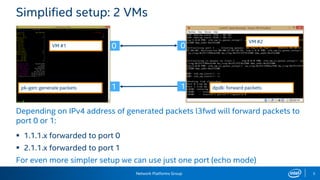
Simplified setup: 2 VMs
pk-gen: generate packets
VM #1
VM #2
dpdk: forward packets
Depending on IPv4 address of generated packets l3fwd will forward packets to
port 0 or 1:
 1.1.1.x forwarded to port 0
 2.1.1.x forwarded to port 1
For even more simpler setup we can use just one port (echo mode)
Network Platforms Group
1
00
0
6
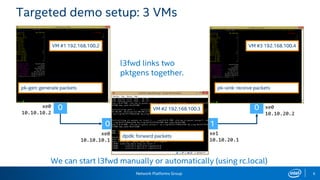
Targeted demo setup: 3 VMs
pk-gen: generate packets pk-sink: receive packets
VM #1 192.168.100.2 VM #3 192.168.100.4
VM #2 192.168.100.3
dpdk: forward packets
l3fwd links two
pktgens together.
We can start l3fwd manually or automatically (using rc.local)
xe0
10.10.10.2
xe0
10.10.20.2
xe1
10.10.20.1
xe0
10.10.10.1
Network Platforms Group 7
Get DPDK from dpdk.org
Two ways to get DPDK – download latest stable release or pull code using git
Git read-only access (do not do it for this session):
$ git clone git://dpdk.org/dpdk
Or, if git is blocked in your network:
$ git clone http://dpdk.org/git/dpdk
To download latest stable release (DPDK 2.0.0) to the home directory
(already pre-loaded for this session):
$ mkdir dpdk.org
$ wget –P dpdk.org http://dpdk.org/browse/dpdk/snapshot/dpdk-2.0.0.tar.gz
More info: http://dpdk.org/dev
Network Platforms Group 8
Configure DPDK environment
Two main DPDK environment variables:
 RTE_SDK – path to were DPDK is located
– /home/dpdk/dpdk in our case
 RTE_TARGET – DPDK target platform
– x86_64-native-linuxapp-gcc in our case
These variables can be added, for example, to ~/.bash_profile
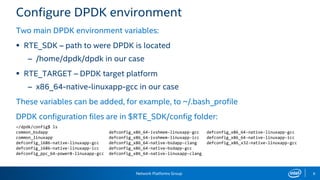
DPDK configuration files are in $RTE_SDK/config folder:
~/dpdk/config$ ls
common_bsdapp defconfig_x86_64-ivshmem-linuxapp-gcc defconfig_x86_64-native-linuxapp-gcc
common_linuxapp defconfig_x86_64-ivshmem-linuxapp-icc defconfig_x86_64-native-linuxapp-icc
defconfig_i686-native-linuxapp-gcc defconfig_x86_64-native-bsdapp-clang defconfig_x86_x32-native-linuxapp-gcc
defconfig_i686-native-linuxapp-icc defconfig_x86_64-native-bsdapp-gcc
defconfig_ppc_64-power8-linuxapp-gcc defconfig_x86_64-native-linuxapp-clang
Network Platforms Group 9
Configure DPDK platform
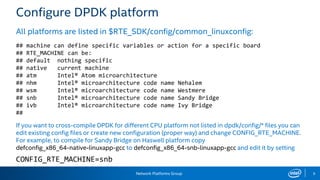
All platforms are listed in $RTE_SDK/config/common_linuxconfig:
## machine can define specific variables or action for a specific board
## RTE_MACHINE can be:
## default nothing specific
## native current machine
## atm Intel® Atom microarchitecture
## nhm Intel® microarchitecture code name Nehalem
## wsm Intel® microarchitecture code name Westmere
## snb Intel® microarchitecture code name Sandy Bridge
## ivb Intel® microarchitecture code name Ivy Bridge
##
If you want to cross-compile DPDK for different CPU platform not listed in dpdk/config/* files you can
edit existing config files or create new configuration (proper way) and change CONFIG_RTE_MACHINE.
For example, to compile for Sandy Bridge on Haswell platform copy
defconfig_x86_64-native-linuxapp-gcc to defconfig_x86_64-snb-linuxapp-gcc and edit it by setting
CONFIG_RTE_MACHINE=snb
Network Platforms Group 10
Compile DPDK
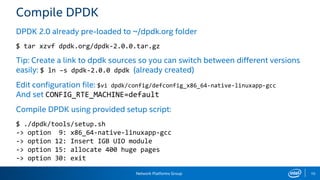
DPDK 2.0 already pre-loaded to ~/dpdk.org folder
$ tar xzvf dpdk.org/dpdk-2.0.0.tar.gz
Tip: Create a link to dpdk sources so you can switch between different versions
easily: $ ln –s dpdk-2.0.0 dpdk (already created)
Edit configuration file: $vi dpdk/config/defconfig_x86_64-native-linuxapp-gcc
And set CONFIG_RTE_MACHINE=default
Compile DPDK using provided setup script:
$ ./dpdk/tools/setup.sh
-> option 9: x86_64-native-linuxapp-gcc
-> option 12: Insert IGB UIO module
-> option 15: allocate 400 huge pages
-> option 30: exit
Network Platforms Group 11
DPDK l3fwd example
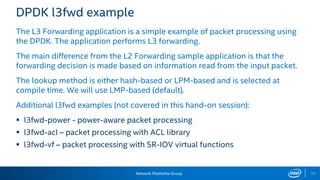
The L3 Forwarding application is a simple example of packet processing using
the DPDK. The application performs L3 forwarding.
The main difference from the L2 Forwarding sample application is that the
forwarding decision is made based on information read from the input packet.
The lookup method is either hash-based or LPM-based and is selected at
compile time. We will use LMP-based (default).
Additional l3fwd examples (not covered in this hand-on session):
 l3fwd-power - power-aware packet processing
 l3fwd-acl – packet processing with ACL library
 l3fwd-vf – packet processing with SR-IOV virtual functions
Network Platforms Group 12
Get patches for l3fwd from dpdk.org
DPDK patches submitted to dpdk.org but not yet applied can be downloaded
from Patchwork http://dpdk.org/dev/patchwork/project/dpdk/list/
We already have two l3fwd patches preloaded:
 Patch 4752 [dpdk-dev] examples: add ip version check for l3fwd app
$ wget http://dpdk.org/dev/patchwork/patch/4752/raw/ -O dpdk.org/4752.patch
 Patch 4774 [dpdk-dev,v2] l3fwd: make destination mac address configurable
$ wget http://dpdk.org/dev/patchwork/patch/4774/raw/ -O dpdk.org/4774.patch
First patch enables IP classification on emulated network devices, second adds
ability to configure l3fwd destination Ethernet address for forwarding ports
Network Platforms Group 13
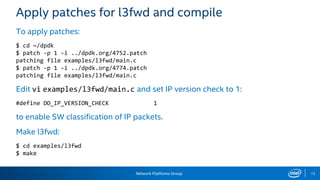
Apply patches for l3fwd and compile
To apply patches:
$ cd ~/dpdk
$ patch -p 1 -i ../dpdk.org/4752.patch
patching file examples/l3fwd/main.c
$ patch -p 1 -i ../dpdk.org/4774.patch
patching file examples/l3fwd/main.c
Edit vi examples/l3fwd/main.c and set IP version check to 1:
#define DO_IP_VERSION_CHECK 1
to enable SW classification of IP packets.
Make l3fwd:
$ cd examples/l3fwd
$ make
Network Platforms Group 14
Run l3fwd manually (cont)
To find MAC addresses for destination ports:
$ ping –c 1 10.10.10.2
$ ping –c 1 10.10.20.2
$ arp -a
? (10.10.10.2) at 02:00:05:00:03:08 [ether] on xe0
? (10.10.20.2) at 02:00:05:00:04:01 [ether] on xe1
Now we can use these MAC addresses to start l3fwd manually, but first we need
to bind ports to DPDK:
$ sudo ~/dpdk/tools/dpdk_nic_bind.py --force --bind=igb_uio 00:10.0 00:11.0
(we can use aliases dpstat, dpbind, dpunbind we created in bash_aliases files)
Network Platforms Group 15
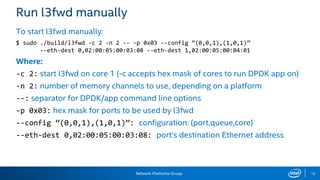
Run l3fwd manually
To start l3fwd manually:
$ sudo ./build/l3fwd -c 2 -n 2 -- -p 0x03 --config “(0,0,1),(1,0,1)”
--eth-dest 0,02:00:05:00:03:08 --eth-dest 1,02:00:05:00:04:01
Where:
-c 2: start l3fwd on core 1 (-c accepts hex mask of cores to run DPDK app on)
-n 2: number of memory channels to use, depending on a platform
--: separator for DPDK/app command line options
-p 0x03: hex mask for ports to be used by l3fwd
--config “(0,0,1),(1,0,1)”: configuration: (port,queue,core)
--eth-dest 0,02:00:05:00:03:08: port’s destination Ethernet address
Network Platforms Group 16
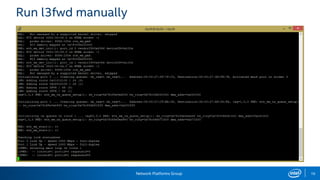
Run l3fwd manually
Network Platforms Group 17
Run our demo scenario
We are using 3 VMs setup:
 VM#1 pk-gen – pktgen generating packets on port #0
 VM#2 dpdk – l3fwd forwarding packets between two pktgens
 VM#3 pk-sink – pktgen receiving packets
VMs are configured to automatically allocate hugepages and load DPDK igb_uio
driver automatically at reboot. VM#1 and VM#3 have pktgen preinstalled, so no
need to compile, we can just run pktgen. There is a script in home folder which
can be used for start pktgen on pk-gen and pk-sink VMs:
[dpdk@pk-gen ~]$ ./pktgen.sh
This script binds port to igb_uio and starts pktgen.
Network Platforms Group 18
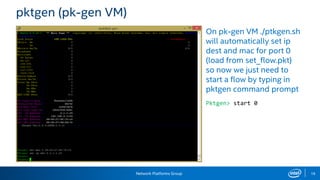
pktgen (pk-gen VM)
On pk-gen VM ./ptkgen.sh
will automatically set ip
dest and mac for port 0
(load from set_flow.pkt)
so now we just need to
start a flow by typing in
pktgen command prompt
Pktgen> start 0
Network Platforms Group 19
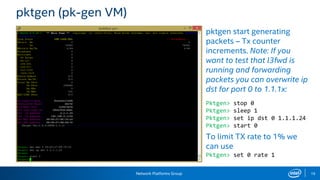
pktgen (pk-gen VM)
pktgen start generating
packets – Tx counter
increments. Note: If you
want to test that l3fwd is
running and forwarding
packets you can overwrite ip
dst for port 0 to 1.1.1x:
Pktgen> stop 0
Pktgen> sleep 1
Pktgen> set ip dst 0 1.1.1.24
Pktgen> start 0
To limit TX rate to 1% we
can use
Pktgen> set 0 rate 1
Network Platforms Group 20
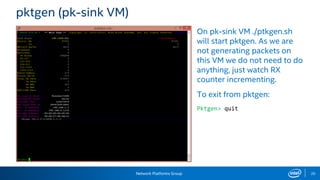
pktgen (pk-sink VM)
On pk-sink VM ./ptkgen.sh
will start pktgen. As we are
not generating packets on
this VM we do not need to do
anything, just watch RX
counter incrementing.
To exit from pktgen:
Pktgen> quit
Network Platforms Group 21
Run l3fwd automatically
There is a script automatically run by rc.local on system startup which allocates
hugepages and loads igb_uio module. We can use it to start l3fwd automatically
as well.
First exit from l3fwd by Ctrl+C. Now just rename auto.sh_ to auto.sh:
$ cd ~
$ mv auto.sh_ auto.sh
Stop pktgens by typing “quit” command in pktgen command prompt and
reboot all 3 VM: $ reboot
After reboot we can attach to l3fwd screen to make sure that it is running
$ sudo screen –x
Now we can start pktgens again
Network Platforms Group 22
For deployment on pool of resources
Need to update start.sh script as follows:
• On [dpdk] host download new start.sh as follows:
$ cd ~
$ wget https://github.com/gerardo-garcia/movilforum2015/raw/master/start.sh -O
start.sh
$ chmod +x start.sh
7 hands on

7 hands on

  • 1.
  • 2.
    Network Platforms Group LegalDisclaimer General Disclaimer: © Copyright 2015 Intel Corporation. All rights reserved. Intel, the Intel logo, Intel Inside, the Intel Inside logo, Intel. Experience What’s Inside are trademarks of Intel. Corporation in the U.S. and/or other countries. *Other names and brands may be claimed as the property of others. FTC Disclaimer: Intel technologies’ features and benefits depend on system configuration and may require enabled hardware, software or service activation. Performance varies depending on system configuration. No computer system can be absolutely secure. Check with your system manufacturer or retailer or learn more at [intel.com]. Software and workloads used in performance tests may have been optimized for performance only on Intel microprocessors. Performance tests, such as SYSmark and MobileMark, are measured using specific computer systems, components, software, operations and functions. Any change to any of those factors may cause the results to vary. You should consult other information and performance tests to assist you in fully evaluating your contemplated purchases, including the performance of that product when combined with other products. For more complete information visit http://www.intel.com/performance.
  • 3.
    Network Platforms Group3 Intel® DPDK Hands on Session Agenda:  Targeted demo setup  Get DPDK from dpdk.org  Configure DPDK environment  Configure DPDK for a platform  Compile DPDK  Get patches for l3fwd from dpdk.org  Apply patches to l3fwd and compile it  Run pktgen and l3fwd
  • 4.
    Network Platforms Group4 Hands on session Following slides describe DPDK hands on session for DPDK 2.0.0, for later versions some steps will not be valid, for example, patching of l3fwd might not be needed if patches are accepted for release 2.1.0
  • 5.
    Network Platforms Group 11 00 5 Simplifiedsetup: 2 VMs pk-gen: generate packets VM #1 VM #2 dpdk: forward packets Depending on IPv4 address of generated packets l3fwd will forward packets to port 0 or 1:  1.1.1.x forwarded to port 0  2.1.1.x forwarded to port 1 For even more simpler setup we can use just one port (echo mode)
  • 6.
    Network Platforms Group 1 00 0 6 Targeteddemo setup: 3 VMs pk-gen: generate packets pk-sink: receive packets VM #1 192.168.100.2 VM #3 192.168.100.4 VM #2 192.168.100.3 dpdk: forward packets l3fwd links two pktgens together. We can start l3fwd manually or automatically (using rc.local) xe0 10.10.10.2 xe0 10.10.20.2 xe1 10.10.20.1 xe0 10.10.10.1
  • 7.
    Network Platforms Group7 Get DPDK from dpdk.org Two ways to get DPDK – download latest stable release or pull code using git Git read-only access (do not do it for this session): $ git clone git://dpdk.org/dpdk Or, if git is blocked in your network: $ git clone http://dpdk.org/git/dpdk To download latest stable release (DPDK 2.0.0) to the home directory (already pre-loaded for this session): $ mkdir dpdk.org $ wget –P dpdk.org http://dpdk.org/browse/dpdk/snapshot/dpdk-2.0.0.tar.gz More info: http://dpdk.org/dev
  • 8.
    Network Platforms Group8 Configure DPDK environment Two main DPDK environment variables:  RTE_SDK – path to were DPDK is located – /home/dpdk/dpdk in our case  RTE_TARGET – DPDK target platform – x86_64-native-linuxapp-gcc in our case These variables can be added, for example, to ~/.bash_profile DPDK configuration files are in $RTE_SDK/config folder: ~/dpdk/config$ ls common_bsdapp defconfig_x86_64-ivshmem-linuxapp-gcc defconfig_x86_64-native-linuxapp-gcc common_linuxapp defconfig_x86_64-ivshmem-linuxapp-icc defconfig_x86_64-native-linuxapp-icc defconfig_i686-native-linuxapp-gcc defconfig_x86_64-native-bsdapp-clang defconfig_x86_x32-native-linuxapp-gcc defconfig_i686-native-linuxapp-icc defconfig_x86_64-native-bsdapp-gcc defconfig_ppc_64-power8-linuxapp-gcc defconfig_x86_64-native-linuxapp-clang
  • 9.
    Network Platforms Group9 Configure DPDK platform All platforms are listed in $RTE_SDK/config/common_linuxconfig: ## machine can define specific variables or action for a specific board ## RTE_MACHINE can be: ## default nothing specific ## native current machine ## atm Intel® Atom microarchitecture ## nhm Intel® microarchitecture code name Nehalem ## wsm Intel® microarchitecture code name Westmere ## snb Intel® microarchitecture code name Sandy Bridge ## ivb Intel® microarchitecture code name Ivy Bridge ## If you want to cross-compile DPDK for different CPU platform not listed in dpdk/config/* files you can edit existing config files or create new configuration (proper way) and change CONFIG_RTE_MACHINE. For example, to compile for Sandy Bridge on Haswell platform copy defconfig_x86_64-native-linuxapp-gcc to defconfig_x86_64-snb-linuxapp-gcc and edit it by setting CONFIG_RTE_MACHINE=snb
  • 10.
    Network Platforms Group10 Compile DPDK DPDK 2.0 already pre-loaded to ~/dpdk.org folder $ tar xzvf dpdk.org/dpdk-2.0.0.tar.gz Tip: Create a link to dpdk sources so you can switch between different versions easily: $ ln –s dpdk-2.0.0 dpdk (already created) Edit configuration file: $vi dpdk/config/defconfig_x86_64-native-linuxapp-gcc And set CONFIG_RTE_MACHINE=default Compile DPDK using provided setup script: $ ./dpdk/tools/setup.sh -> option 9: x86_64-native-linuxapp-gcc -> option 12: Insert IGB UIO module -> option 15: allocate 400 huge pages -> option 30: exit
  • 11.
    Network Platforms Group11 DPDK l3fwd example The L3 Forwarding application is a simple example of packet processing using the DPDK. The application performs L3 forwarding. The main difference from the L2 Forwarding sample application is that the forwarding decision is made based on information read from the input packet. The lookup method is either hash-based or LPM-based and is selected at compile time. We will use LMP-based (default). Additional l3fwd examples (not covered in this hand-on session):  l3fwd-power - power-aware packet processing  l3fwd-acl – packet processing with ACL library  l3fwd-vf – packet processing with SR-IOV virtual functions
  • 12.
    Network Platforms Group12 Get patches for l3fwd from dpdk.org DPDK patches submitted to dpdk.org but not yet applied can be downloaded from Patchwork http://dpdk.org/dev/patchwork/project/dpdk/list/ We already have two l3fwd patches preloaded:  Patch 4752 [dpdk-dev] examples: add ip version check for l3fwd app $ wget http://dpdk.org/dev/patchwork/patch/4752/raw/ -O dpdk.org/4752.patch  Patch 4774 [dpdk-dev,v2] l3fwd: make destination mac address configurable $ wget http://dpdk.org/dev/patchwork/patch/4774/raw/ -O dpdk.org/4774.patch First patch enables IP classification on emulated network devices, second adds ability to configure l3fwd destination Ethernet address for forwarding ports
  • 13.
    Network Platforms Group13 Apply patches for l3fwd and compile To apply patches: $ cd ~/dpdk $ patch -p 1 -i ../dpdk.org/4752.patch patching file examples/l3fwd/main.c $ patch -p 1 -i ../dpdk.org/4774.patch patching file examples/l3fwd/main.c Edit vi examples/l3fwd/main.c and set IP version check to 1: #define DO_IP_VERSION_CHECK 1 to enable SW classification of IP packets. Make l3fwd: $ cd examples/l3fwd $ make
  • 14.
    Network Platforms Group14 Run l3fwd manually (cont) To find MAC addresses for destination ports: $ ping –c 1 10.10.10.2 $ ping –c 1 10.10.20.2 $ arp -a ? (10.10.10.2) at 02:00:05:00:03:08 [ether] on xe0 ? (10.10.20.2) at 02:00:05:00:04:01 [ether] on xe1 Now we can use these MAC addresses to start l3fwd manually, but first we need to bind ports to DPDK: $ sudo ~/dpdk/tools/dpdk_nic_bind.py --force --bind=igb_uio 00:10.0 00:11.0 (we can use aliases dpstat, dpbind, dpunbind we created in bash_aliases files)
  • 15.
    Network Platforms Group15 Run l3fwd manually To start l3fwd manually: $ sudo ./build/l3fwd -c 2 -n 2 -- -p 0x03 --config “(0,0,1),(1,0,1)” --eth-dest 0,02:00:05:00:03:08 --eth-dest 1,02:00:05:00:04:01 Where: -c 2: start l3fwd on core 1 (-c accepts hex mask of cores to run DPDK app on) -n 2: number of memory channels to use, depending on a platform --: separator for DPDK/app command line options -p 0x03: hex mask for ports to be used by l3fwd --config “(0,0,1),(1,0,1)”: configuration: (port,queue,core) --eth-dest 0,02:00:05:00:03:08: port’s destination Ethernet address
  • 16.
    Network Platforms Group16 Run l3fwd manually
  • 17.
    Network Platforms Group17 Run our demo scenario We are using 3 VMs setup:  VM#1 pk-gen – pktgen generating packets on port #0  VM#2 dpdk – l3fwd forwarding packets between two pktgens  VM#3 pk-sink – pktgen receiving packets VMs are configured to automatically allocate hugepages and load DPDK igb_uio driver automatically at reboot. VM#1 and VM#3 have pktgen preinstalled, so no need to compile, we can just run pktgen. There is a script in home folder which can be used for start pktgen on pk-gen and pk-sink VMs: [dpdk@pk-gen ~]$ ./pktgen.sh This script binds port to igb_uio and starts pktgen.
  • 18.
    Network Platforms Group18 pktgen (pk-gen VM) On pk-gen VM ./ptkgen.sh will automatically set ip dest and mac for port 0 (load from set_flow.pkt) so now we just need to start a flow by typing in pktgen command prompt Pktgen> start 0
  • 19.
    Network Platforms Group19 pktgen (pk-gen VM) pktgen start generating packets – Tx counter increments. Note: If you want to test that l3fwd is running and forwarding packets you can overwrite ip dst for port 0 to 1.1.1x: Pktgen> stop 0 Pktgen> sleep 1 Pktgen> set ip dst 0 1.1.1.24 Pktgen> start 0 To limit TX rate to 1% we can use Pktgen> set 0 rate 1
  • 20.
    Network Platforms Group20 pktgen (pk-sink VM) On pk-sink VM ./ptkgen.sh will start pktgen. As we are not generating packets on this VM we do not need to do anything, just watch RX counter incrementing. To exit from pktgen: Pktgen> quit
  • 21.
    Network Platforms Group21 Run l3fwd automatically There is a script automatically run by rc.local on system startup which allocates hugepages and loads igb_uio module. We can use it to start l3fwd automatically as well. First exit from l3fwd by Ctrl+C. Now just rename auto.sh_ to auto.sh: $ cd ~ $ mv auto.sh_ auto.sh Stop pktgens by typing “quit” command in pktgen command prompt and reboot all 3 VM: $ reboot After reboot we can attach to l3fwd screen to make sure that it is running $ sudo screen –x Now we can start pktgens again
  • 22.
    Network Platforms Group22 For deployment on pool of resources Need to update start.sh script as follows: • On [dpdk] host download new start.sh as follows: $ cd ~ $ wget https://github.com/gerardo-garcia/movilforum2015/raw/master/start.sh -O start.sh $ chmod +x start.sh