
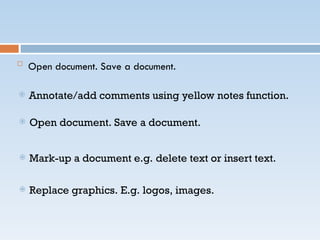
Open document. Save a document.
 Annotate/add comments using yellow notes function.
 Open document. Save a document.
 Mark-up a document e.g. delete text or insert text.
 Replace graphics. E.g. logos, images.
Open document. Save a
document.
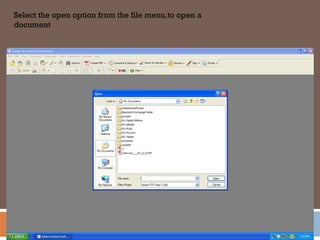
Select the open option from the file menu,to open a
document
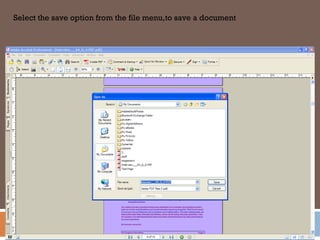
Select the save option from the file menu,to save a document
Annotate/add comments using
yellow notes function
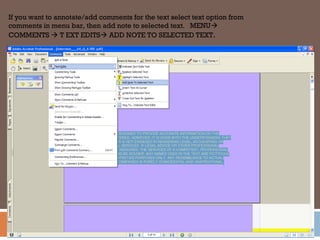
If you want to annotate/add comments for the text select text option from
comments in menu bar, then add note to selected text. MENU
COMMENTS  T EXT EDITS ADD NOTE TO SELECTED TEXT.
Indicating the Text
Insert the Text
Replace the Text
Delete The Text
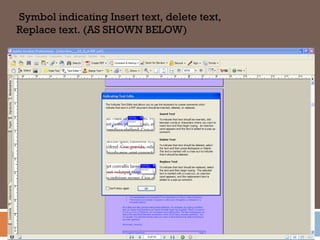
Symbol indicating Insert text, delete text,
Replace text. (AS SHOWN BELOW)
Insert The Text
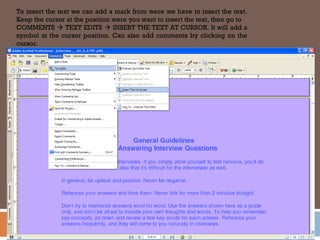
To insert the text we can add a mark from were we have to insert the text.
Keep the cursor at the position were you want to insert the text, then go to
COMMENTS  TEXT EDITS  INSERT THE TEXT AT CURSOR. It will add a
symbol at the cursor position. Can also add comments by clicking on the
cursor.
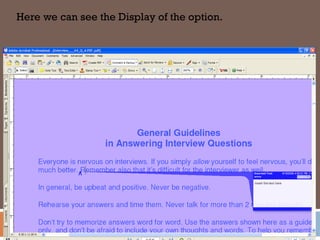
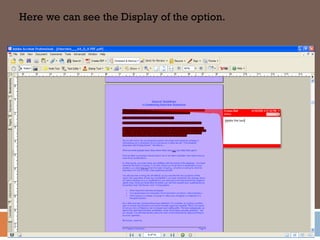
Here we can see the Display of the option.
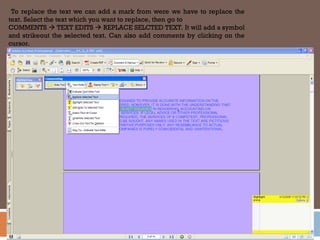
Replace The Text
To replace the text we can add a mark from were we have to replace the
text. Select the text which you want to replace, then go to
COMMENTS  TEXT EDITS  REPLACE SELCTED TEXT. It will add a symbol
and strikeout the selected text. Can also add comments by clicking on the
cursor.
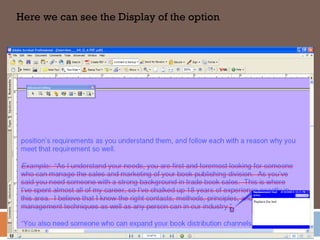
Here we can see the Display of the option.
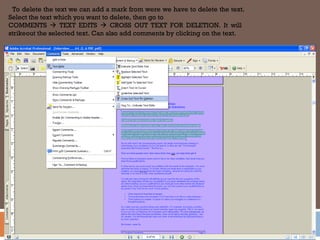
Delete The Text
To delete the text we can add a mark from were we have to delete the text.
Select the text which you want to delete, then go to
COMMENTS  TEXT EDITS  CROSS OUT TEXT FOR DELETION. It will
strikeout the selected text. Can also add comments by clicking on the text.
Here we can see the Display of the option.
Add & Delete the Text
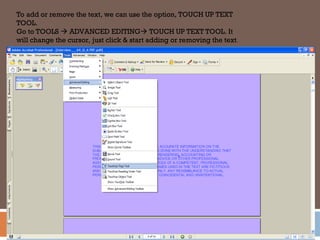
To add or remove the text, we can use the option, TOUCH UP TEXT
TOOL.
Go to TOOLS  ADVANCED EDITING TOUCH UP TEXT TOOL. It
will change the cursor, just click & start adding or removing the text.
Replace Graphics. E.g. logos,
images
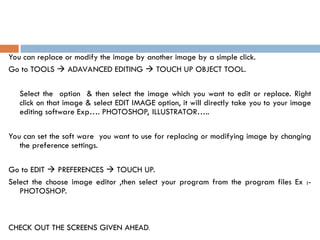
You can replace or modify the image by another image by a simple click.
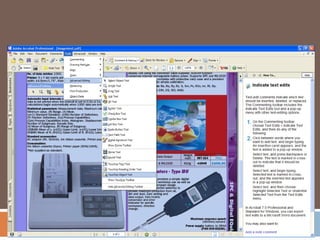
Go to TOOLS  ADAVANCED EDITING  TOUCH UP OBJECT TOOL.
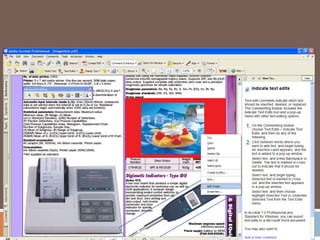
Select the option & then select the image which you want to edit or replace. Right
click on that image & select EDIT IMAGE option, it will directly take you to your image
editing software Exp…. PHOTOSHOP, ILLUSTRATOR…..
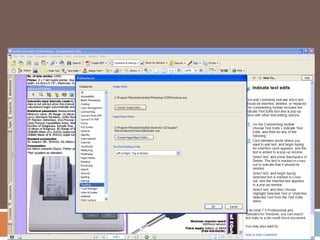
You can set the soft ware you want to use for replacing or modifying image by changing
the preference settings.
Go to EDIT  PREFERENCES  TOUCH UP.
Select the choose image editor ,then select your program from the program files Ex :-
PHOTOSHOP.
CHECK OUT THE SCREENS GIVEN AHEAD.
How to - Acrobat Professional - Draft.ppt

How to - Acrobat Professional - Draft.ppt

  • 1.
     Open document. Savea document.  Annotate/add comments using yellow notes function.  Open document. Save a document.  Mark-up a document e.g. delete text or insert text.  Replace graphics. E.g. logos, images.
  • 2.
  • 3.
    Select the openoption from the file menu,to open a document
  • 4.
    Select the saveoption from the file menu,to save a document
  • 5.
  • 6.
    If you wantto annotate/add comments for the text select text option from comments in menu bar, then add note to selected text. MENU COMMENTS  T EXT EDITS ADD NOTE TO SELECTED TEXT.
  • 7.
    Indicating the Text Insertthe Text Replace the Text Delete The Text
  • 8.
    Symbol indicating Inserttext, delete text, Replace text. (AS SHOWN BELOW)
  • 9.
  • 10.
    To insert thetext we can add a mark from were we have to insert the text. Keep the cursor at the position were you want to insert the text, then go to COMMENTS  TEXT EDITS  INSERT THE TEXT AT CURSOR. It will add a symbol at the cursor position. Can also add comments by clicking on the cursor.
  • 11.
    Here we cansee the Display of the option.
  • 12.
  • 13.
    To replace thetext we can add a mark from were we have to replace the text. Select the text which you want to replace, then go to COMMENTS  TEXT EDITS  REPLACE SELCTED TEXT. It will add a symbol and strikeout the selected text. Can also add comments by clicking on the cursor.
  • 14.
    Here we cansee the Display of the option.
  • 15.
  • 16.
    To delete thetext we can add a mark from were we have to delete the text. Select the text which you want to delete, then go to COMMENTS  TEXT EDITS  CROSS OUT TEXT FOR DELETION. It will strikeout the selected text. Can also add comments by clicking on the text.
  • 17.
    Here we cansee the Display of the option.
  • 18.
  • 19.
    To add orremove the text, we can use the option, TOUCH UP TEXT TOOL. Go to TOOLS  ADVANCED EDITING TOUCH UP TEXT TOOL. It will change the cursor, just click & start adding or removing the text.
  • 20.
  • 21.
    You can replaceor modify the image by another image by a simple click. Go to TOOLS  ADAVANCED EDITING  TOUCH UP OBJECT TOOL. Select the option & then select the image which you want to edit or replace. Right click on that image & select EDIT IMAGE option, it will directly take you to your image editing software Exp…. PHOTOSHOP, ILLUSTRATOR….. You can set the soft ware you want to use for replacing or modifying image by changing the preference settings. Go to EDIT  PREFERENCES  TOUCH UP. Select the choose image editor ,then select your program from the program files Ex :- PHOTOSHOP. CHECK OUT THE SCREENS GIVEN AHEAD.