Microsoft Word Basics
Getting Started
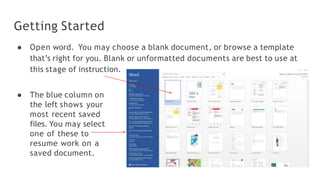
● Open word. You may choose a blank document, or browse a template
that’s right for you. Blank or unformatted documents are best to use at
this stage of instruction.
● The blue column on
the left shows your
most recent saved
files. You may select
one of these to
resume work on a
saved document.
Page and word count
Page
Cursor
Margins
Scroll bar
Zoom
Read modes
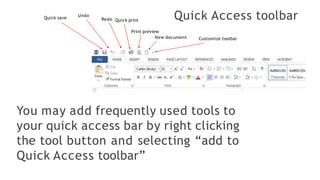
Quick Access toolbar
Quick save
Undo
Redo Quick print
Print preview
New document Customize toolbar
You may add frequently used tools to
your quick access bar by right clicking
the tool button and selecting “add to
Quick Access toolbar”
Home toolbar: font style & clipboard
Clipboard: use to copy and paste, or
ctrl+c and ctrl+v
Font name Font size Automated
cases
Clear all
formatting
Bold Italic
Underline
Strikethrough
Subscript
Text effects
Highlight
Text color
Superscript
Home toolbar: format paragraphs
Bulleted list
Numbered list
Multilevel list
Left, right, center,
justified alignments
Line spacing
Increase and decrease
indentation
Table drawing tools
Home toolbar: editing tools
Find, ctrl+f for PCs and Command-F for Macs,
allows you to find words within the text
Replace words with
other words in your
text
Choose how to
select portions of
your text
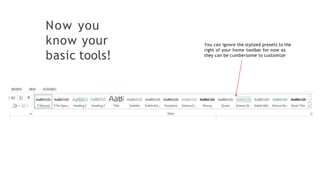
Now you
know your
basic tools!
You can ignore the stylized presets to the
right of your home toolbar for now as
they can be cumbersome to customize
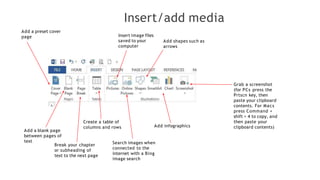
Insert/add media
Add a preset cover
page
Add a blank page
between pages of
text
Break your chapter
or subheading of
text to the next page
Create a table of
columns and rows
Insert image files
saved to your
computer
Search images when
connected to the
internet with a Bing
image search
Add shapes such as
arrows
Add infographics
Grab a screenshot
(for PCs press the
Prtscn key, then
paste your clipboard
contents. For Macs
press Command +
shift + 4 to copy, and
then paste your
clipboard contents)
Insert/add media
Add or manage apps
Insert Wikipedia content
Link your text to outside
sources with a URL
(for example:
www.youtube.com)
Search for or embed
online videos
Bookmark select
portions of your text
for easy reference
Hyperlink portions of your
text for reader’s reference
(e.g. subsections in legal
documents)
Add comments for
multireader editing (to
delete comments go to the
Review/editing tab)
Add headers,
footers, and page
numbers
Insert/add media
Add a moveable text
box to your article or
graphic design
Automate format
templates for
recurring, stylized
text (such as
captions or asides)
Add an epigraphic
letter or word to
begin your article or
chapter
Add a signature or
timestamp your
document
Custom text-image
headings
Add another file or
document to your
current document
Open math or
symbol menus
Embed .swf files for
sound clips
throughout your text
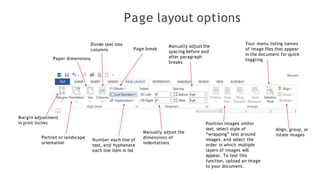
Page layout options
Margin adjustment
in print inches
Portrait or landscape
orientation
Paper dimensions
Divide text into
columns Page break
Number each line of
text, and hyphenate
each line item in list
Manually adjust the
dimensions of
indentations
Manually adjust the
spacing before and
after paragraph
breaks
Position images within
text, select style of
“wrapping” text around
images, and select the
order in which multiple
layers of images will
appear. To test this
function, upload an image
to your document.
Your menu listing names
of image files that appear
in the document for quick
toggling
Align, group, or
rotate images
As you add
tables and
images, more
tab menus
appear with
various tool
options
They will be highlighted and color-coded as shown above.
To stick to our basic agenda, we will skip these accessories
for now. But if you’re interested, many of the functions
include basic photo editing for more graphic documents, or
table editing, which gives you a greater range for
infographic presentations. Test out the tools as you would
any of the tools and effects described throughout this
dossier.
References/works cited
Add a preset,
formatted table of
contents, and
update an existing
table using the
buttons to the right.
Insert footnote or
endnote
Jump to next
footnote in your text
Display menu of all
notes
Add a formatted
bibliography
according to what
type of document
you’re drafting
Add and manage
sources
Insert captions
below images
Hyperlink portions of
text
Add and link indexed
items
Formatting settings
for legal documents
Review/edit
Always check
spelling & grammar!
Define a word by
highlighting and
clicking this button
Count total words in
document
Find synonyms for
words you’ve used too
often throughout your
document
Translate and adjust
language settings
Add, delete, and
toggle through
document’s
comments by
multiple users
Track changes that
have been made
throughout the
creation and editing
of your document
(very useful!)
Accept or reject
changes that have
been made by other
editors
Compare and
combine revisions of
same document
Control editing
capabilities (it’s a
privilege not a
right!)
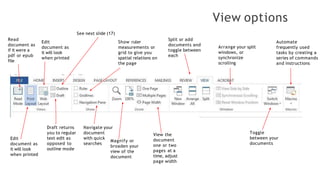
View options
Read
document as
if it were a
pdf or epub
file
Edit
document as
it will look
when printed
Edit
document as
it will look
when printed
See next slide (17)
Draft returns
you to regular
text edit as
opposed to
outline mode
Show ruler
measurements or
grid to give you
spatial relations on
the page
Navigate your
document
with quick
searches
Magnify or
broaden your
view of the
document
View the
document
one or two
pages at a
time, adjust
page width
Split or add
documents and
toggle between
each
Arrange your split
windows, or
synchronize
scrolling
Toggle
between your
documents
Automate
frequently used
tasks by creating a
series of commands
and instructions
Outlining
Outlining is a simple way of creating a list or taxonomy
Quickly refer to each level of your list
When this is checked, it shows your
stylized/designed text, rather than the
normal text format, which looks more like
the text of this explanatory caption
When this is checked, it shows the first line only of the level you
have selected. The higher the level, the more lines are shown.
Start by typing your first and second lines. Then drag the minus
symbol at the head of the line right to subordinate the second
line to the first line
Insert other documents into or create
documents of portions of your outline
Problems w/multi-user comments
It is difficult to manage or delete comments from
the Insert tab. Instead, delete user comments
from the Review tab.
Problems w/track changes
If you’re having trouble turning track changes off, be sure that it is unlocked.
This is what Track Changes looks like. The blue is unedited text, the
crossed-out red has been deleted by an editor, and the underscored red
word to the left of the deleted word is the word the editor chose to replace
the previous word. All red underscored words are additions made to the
original text.

Microsoft Word ICT 4.pptx

  • 1.
  • 2.
    Getting Started ● Openword. You may choose a blank document, or browse a template that’s right for you. Blank or unformatted documents are best to use at this stage of instruction. ● The blue column on the left shows your most recent saved files. You may select one of these to resume work on a saved document.
  • 3.
    Page and wordcount Page Cursor Margins Scroll bar Zoom Read modes
  • 4.
    Quick Access toolbar Quicksave Undo Redo Quick print Print preview New document Customize toolbar You may add frequently used tools to your quick access bar by right clicking the tool button and selecting “add to Quick Access toolbar”
  • 5.
    Home toolbar: fontstyle & clipboard Clipboard: use to copy and paste, or ctrl+c and ctrl+v Font name Font size Automated cases Clear all formatting Bold Italic Underline Strikethrough Subscript Text effects Highlight Text color Superscript
  • 6.
    Home toolbar: formatparagraphs Bulleted list Numbered list Multilevel list Left, right, center, justified alignments Line spacing Increase and decrease indentation Table drawing tools
  • 7.
    Home toolbar: editingtools Find, ctrl+f for PCs and Command-F for Macs, allows you to find words within the text Replace words with other words in your text Choose how to select portions of your text
  • 8.
    Now you know your basictools! You can ignore the stylized presets to the right of your home toolbar for now as they can be cumbersome to customize
  • 9.
    Insert/add media Add apreset cover page Add a blank page between pages of text Break your chapter or subheading of text to the next page Create a table of columns and rows Insert image files saved to your computer Search images when connected to the internet with a Bing image search Add shapes such as arrows Add infographics Grab a screenshot (for PCs press the Prtscn key, then paste your clipboard contents. For Macs press Command + shift + 4 to copy, and then paste your clipboard contents)
  • 10.
    Insert/add media Add ormanage apps Insert Wikipedia content Link your text to outside sources with a URL (for example: www.youtube.com) Search for or embed online videos Bookmark select portions of your text for easy reference Hyperlink portions of your text for reader’s reference (e.g. subsections in legal documents) Add comments for multireader editing (to delete comments go to the Review/editing tab) Add headers, footers, and page numbers
  • 11.
    Insert/add media Add amoveable text box to your article or graphic design Automate format templates for recurring, stylized text (such as captions or asides) Add an epigraphic letter or word to begin your article or chapter Add a signature or timestamp your document Custom text-image headings Add another file or document to your current document Open math or symbol menus Embed .swf files for sound clips throughout your text
  • 12.
    Page layout options Marginadjustment in print inches Portrait or landscape orientation Paper dimensions Divide text into columns Page break Number each line of text, and hyphenate each line item in list Manually adjust the dimensions of indentations Manually adjust the spacing before and after paragraph breaks Position images within text, select style of “wrapping” text around images, and select the order in which multiple layers of images will appear. To test this function, upload an image to your document. Your menu listing names of image files that appear in the document for quick toggling Align, group, or rotate images
  • 13.
    As you add tablesand images, more tab menus appear with various tool options They will be highlighted and color-coded as shown above. To stick to our basic agenda, we will skip these accessories for now. But if you’re interested, many of the functions include basic photo editing for more graphic documents, or table editing, which gives you a greater range for infographic presentations. Test out the tools as you would any of the tools and effects described throughout this dossier.
  • 14.
    References/works cited Add apreset, formatted table of contents, and update an existing table using the buttons to the right. Insert footnote or endnote Jump to next footnote in your text Display menu of all notes Add a formatted bibliography according to what type of document you’re drafting Add and manage sources Insert captions below images Hyperlink portions of text Add and link indexed items Formatting settings for legal documents
  • 15.
    Review/edit Always check spelling &grammar! Define a word by highlighting and clicking this button Count total words in document Find synonyms for words you’ve used too often throughout your document Translate and adjust language settings Add, delete, and toggle through document’s comments by multiple users Track changes that have been made throughout the creation and editing of your document (very useful!) Accept or reject changes that have been made by other editors Compare and combine revisions of same document Control editing capabilities (it’s a privilege not a right!)
  • 16.
    View options Read document as ifit were a pdf or epub file Edit document as it will look when printed Edit document as it will look when printed See next slide (17) Draft returns you to regular text edit as opposed to outline mode Show ruler measurements or grid to give you spatial relations on the page Navigate your document with quick searches Magnify or broaden your view of the document View the document one or two pages at a time, adjust page width Split or add documents and toggle between each Arrange your split windows, or synchronize scrolling Toggle between your documents Automate frequently used tasks by creating a series of commands and instructions
  • 17.
    Outlining Outlining is asimple way of creating a list or taxonomy Quickly refer to each level of your list When this is checked, it shows your stylized/designed text, rather than the normal text format, which looks more like the text of this explanatory caption When this is checked, it shows the first line only of the level you have selected. The higher the level, the more lines are shown. Start by typing your first and second lines. Then drag the minus symbol at the head of the line right to subordinate the second line to the first line Insert other documents into or create documents of portions of your outline
  • 18.
    Problems w/multi-user comments Itis difficult to manage or delete comments from the Insert tab. Instead, delete user comments from the Review tab.
  • 19.
    Problems w/track changes Ifyou’re having trouble turning track changes off, be sure that it is unlocked. This is what Track Changes looks like. The blue is unedited text, the crossed-out red has been deleted by an editor, and the underscored red word to the left of the deleted word is the word the editor chose to replace the previous word. All red underscored words are additions made to the original text.