How to adjust color ?
How to import swatches ?
How to apply a pattern ?
Mastering seamless
pattern swatches in

Adobe Illustrator
This guide will walk you through the step-by-step
process of importing and applying pattern swatches

guideforAdobeIllustratorusers
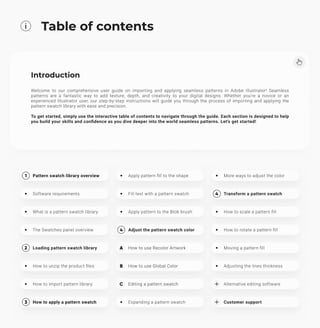
Table of contents
Introduction
Welcome to our comprehensive user guide on importing and applying seamless patterns in Adobe Illustrator! Seamless
patterns are a fantastic way to add texture, depth, and creativity to your digital designs. Whether you're a novice or an
experienced Illustrator user, our step-by-step instructions will guide you through the process of importing and applying the
pattern swatch library with ease and precision.


To get started, simply use the interactive table of contents to navigate through the guide. Each section is designed to help
you build your skills and confidence as you dive deeper into the world seamless patterns. Let's get started!
1 Pattern swatch library overview
Software requirements
What is a pattern swatch library
The Swatches panel overview
2 Loading pattern swatch library
How to unzip the product files
How to import pattern library
3 How to apply a pattern swatch
Apply pattern fill to the shape
Fill text with a pattern swatch
Apply pattern to the Blob brush
4 Adjust the pattern swatch color
A How to use Recolor Artwork
b How to use Global Color
c Editing a pattern swatch
Expanding a pattern swatch
More ways to adjust the color
4 Transform a pattern swatch
How to scale a pattern fill
How to rotate a pattern fill
Moving a pattern fill
Adjusting the lines thickness
Alternative editing software
Customer support
Customer support
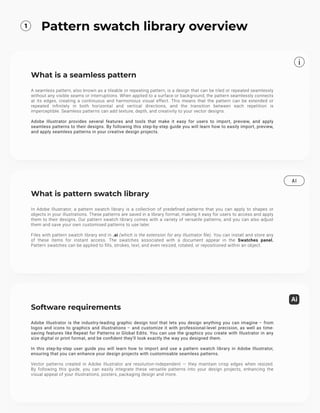
1 Pattern swatch library overview
What is a seamless pattern
A seamless pattern, also known as a tileable or repeating pattern, is a design that can be tiled or repeated seamlessly
without any visible seams or interruptions. When applied to a surface or background, the pattern seamlessly connects
at its edges, creating a continuous and harmonious visual effect. This means that the pattern can be extended or
repeated infinitely in both horizontal and vertical directions, and the transition between each repetition is
imperceptible. Seamless patterns can add texture, depth, and creativity to your vector designs.


Adobe Illustrator provides several features and tools that make it easy for users to import, preview, and apply
seamless patterns to their designs. By following this step-by-step guide you will learn how to easily import, preview,
and apply seamless patterns in your creative design projects.
What is pattern swatch library
In Adobe Illustrator, a pattern swatch library is a collection of predefined patterns that you can apply to shapes or
objects in your illustrations. These patterns are saved in a library format, making it easy for users to access and apply
them to their designs. Our pattern swatch library comes with a variety of versatile patterns, and you can also adjust
them and save your own customised patterns to use later. 


Files with pattern swatch library end in .ai (which is the extension for any Illustrator file). You can install and store any
of these items for instant access. The swatches associated with a document appear in the Swatches panel.

Pattern swatches can be applied to fills, strokes, text, and even resized, rotated, or repositioned within an object.
AI
Software requirements
Adobe Illustrator is the industry-leading graphic design tool that lets you design anything you can imagine – from
logos and icons to graphics and illustrations – and customize it with professional-level precision, as well as time-
saving features like Repeat for Patterns or Global Edits. You can use the graphics you create with Illustrator in any
size digital or print format, and be confident they'll look exactly the way you designed them.


In this step-by-step user guide you will learn how to import and use a pattern swatch library in Adobe Illustrator,
ensuring that you can enhance your design projects with customisable seamless patterns.


Vector patterns created in Adobe Illustrator are resolution-independent — they maintain crisp edges when resized.

By following this guide, you can easily integrate these versatile patterns into your design projects, enhancing the
visual appeal of your illustrations, posters, packaging design and more.
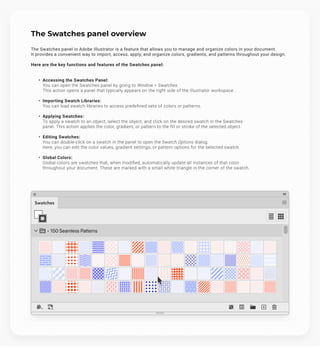
The Swatches panel overview
The Swatches panel in Adobe Illustrator is a feature that allows you to manage and organize colors in your document.

It provides a convenient way to import, access, apply, and organize colors, gradients, and patterns throughout your design.


Here are the key functions and features of the Swatches panel:
Accessing the Swatches Panel:

You can open the Swatches panel by going to Window > Swatches.

This action opens a panel that typically appears on the right side of the Illustrator workspace.
Importing Swatch Libraries:

You can load swatch libraries to access predefined sets of colors or patterns.
Applying Swatches:

To apply a swatch to an object, select the object, and click on the desired swatch in the Swatches
panel. This action applies the color, gradient, or pattern to the fill or stroke of the selected object.
Editing Swatches:

You can double-click on a swatch in the panel to open the Swatch Options dialog.

Here, you can edit the color values, gradient settings, or pattern options for the selected swatch.
Global Colors:

Global colors are swatches that, when modified, automatically update all instances of that color
throughout your document. These are marked with a small white triangle in the corner of the swatch.
The Swatches panel overview
The Swatches panel in Adobe Illustrator is a feature that allows you to manage and organize colors in your document.

It provides a convenient way to import, access, apply, and organize colors, gradients, and patterns throughout your design.


Here are the key functions and features of the Swatches panel:
Accessing the Swatches Panel:

You can open the Swatches panel by going to Window > Swatches.

This action opens a panel that typically appears on the right side of the Illustrator workspace.
Importing Swatch Libraries:

You can load swatch libraries to access predefined sets of colors or patterns.
Applying Swatches:

To apply a swatch to an object, select the object, and click on the desired swatch in the Swatches
panel. This action applies the color, gradient, or pattern to the fill or stroke of the selected object.
Editing Swatches:

You can double-click on a swatch in the panel to open the Swatch Options dialog.

Here, you can edit the color values, gradient settings, or pattern options for the selected swatch.
Global Colors:

Global colors are swatches that, when modified, automatically update all instances of that color
throughout your document. These are marked with a small white triangle in the corner of the swatch.
Swatches
• 150 Seamless Patterns
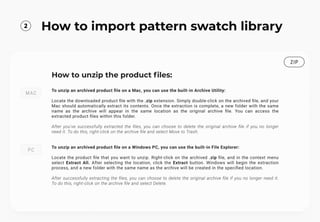
2 How to import pattern swatch library
How to unzip the product files:
MAC
To unzip an archived product file on a Mac, you can use the built-in Archive Utility:


Locate the downloaded product file with the .zip extension. Simply double-click on the archived file, and your
Mac should automatically extract its contents. Once the extraction is complete, a new folder with the same
name as the archive will appear in the same location as the original archive file. You can access the
extracted product files within this folder.


After you've successfully extracted the files, you can choose to delete the original archive file if you no longer
need it. To do this, right-click on the archive file and select Move to Trash.
PC
To unzip an archived product file on a Windows PC, you can use the built-in File Explorer:


Locate the product file that you want to unzip. Right-click on the archived .zip file, and in the context menu
select Extract All. After selecting the location, click the Extract button. Windows will begin the extraction
process, and a new folder with the same name as the archive will be created in the specified location.


After successfully extracting the files, you can choose to delete the original archive file if you no longer need it.
To do this, right-click on the archive file and select Delete.
ZIP
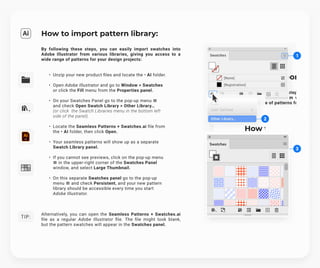
How to import pattern library:
By following these steps, you can easily import swatches into
Adobe Illustrator from various libraries, giving you access to a
wide range of patterns for your design projects:
Unzip your new product files and locate the • AI folder.
Open Adobe Illustrator and go to Window > Swatches
or click the Fill menu from the Properties panel.
On your Swatches Panel go to the pop-up menu ☰

and check Open Swatch Library > Other Library…

(or click the Swatch Libraries menu in the bottom left
side of the panel).
Locate the Seamless Patterns + Swatches.ai file from
the • AI folder, then click Open.
Your seamless patterns will show up as a separate
Swatch Library panel.
If you cannot see previews, click on the pop-up menu
☰ in the upper-right corner of the Swatches Panel
window, and select Large Thumbnail.
On this separate Swatches panel go to the pop-up
menu ☰ and check Persistent, and your new pattern
library should be accessible every time you start
Adobe Illustrator.
Alternatively, you can open the Seamless Patterns + Swatches.ai
file as a regular Adobe Illustrator file. The file might look blank,

but the pattern swatches will appear in the Swatches panel.
Swatches
3
2
1
T i p :
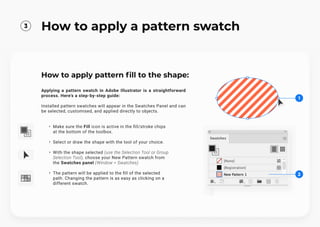
How to apply pattern fill to the shape:
Applying a pattern swatch in Adobe Illustrator is a straightforward
process. Here's a step-by-step guide:


Installed pattern swatches will appear in the Swatches Panel and can
be selected, customised, and applied directly to objects.
Make sure the Fill icon is active in the fill/stroke chips
at the bottom of the toolbox.
Select or draw the shape with the tool of your choice.
With the shape selected (use the Selection Tool or Group
Selection Tool), choose your New Pattern swatch from
the Swatches panel (Window > Swatches)
The pattern will be applied to the fill of the selected
path. Changing the pattern is as easy as clicking on a
different swatch.
2
1
3
How to apply a pattern swatch
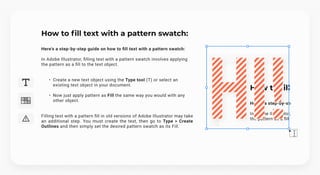
How to fill text with a pattern swatch:
Here's a step-by-step guide on how to fill text with a pattern swatch:


In Adobe Illustrator, filling text with a pattern swatch involves applying 

the pattern as a fill to the text object.
Create a new text object using the Type tool (T) or select an
existing text object in your document.
Now just apply pattern as Fill the same way you would with any
other object.
Filling text with a pattern fill in old versions of Adobe Illustrator may take
an additional step. You must create the text, then go to Type > Create
Outlines and then simply set the desired pattern swatch as its Fill.
Hi!
Hi!
Hi!
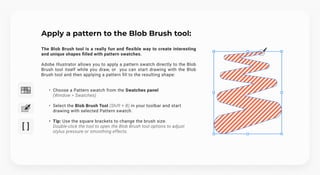
Apply a pattern to the Blob Brush tool:
The Blob Brush tool is a really fun and flexible way to create interesting
and unique shapes filled with pattern swatches.


Adobe Illustrator allows you to apply a pattern swatch directly to the Blob
Brush tool itself while you draw, or you can start drawing with the Blob
Brush tool and then applying a pattern fill to the resulting shape:
Choose a Pattern swatch from the Swatches panel

(Window > Swatches)
Select the Blob Brush Tool (Shift + B) in your toolbar and start
drawing with selected Pattern swatch.
Tip: Use the square brackets to change the brush size.

Double-click the tool to open the Blob Brush tool options to adjust
stylus pressure or smoothing effects.
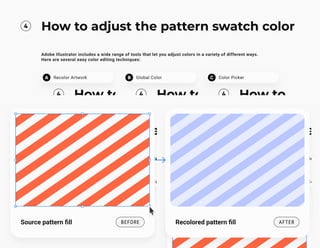
4 How to adjust the pattern swatch color
Adobe Illustrator includes a wide range of tools that let you adjust colors in a variety of different ways.

Here are several easy color editing techniques:
A Recolor Artwork B Global Color C Color Picker
Source pattern fill before
Source pattern fill before Recolored pattern fill After
Recolored pattern fill After
T i p :
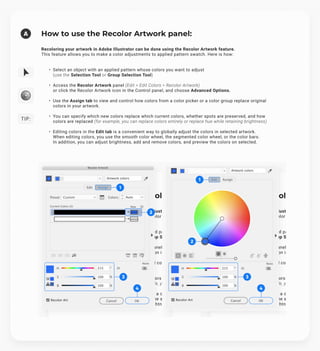
How to use the Recolor Artwork panel:
Recoloring your artwork in Adobe Illustrator can be done using the Recolor Artwork feature.

This feature allows you to make a color adjustments to applied pattern swatch. Here is how:
Select an object with an applied pattern whose colors you want to adjust


(use the Selection Tool or Group Selection Tool)
Access the Recolor Artwork panel (Edit > Edit Colors > Recolor Artwork)

or click the Recolor Artwork icon in the Control panel, and choose Advanced Options.
Use the Assign tab to view and control how colors from a color picker or a color group replace original
colors in your artwork.
You can specify which new colors replace which current colors, whether spots are preserved, and how
colors are replaced (for example, you can replace colors entirely or replace hue while retaining brightness)
Editing colors in the Edit tab is a convenient way to globally adjust the colors in selected artwork.

When editing colors, you use the smooth color wheel, the segmented color wheel, or the color bars.

In addition, you can adjust brightness, add and remove colors, and preview the colors on selected.
A
3
1
4
2
3
1
4
2
b
Tip:
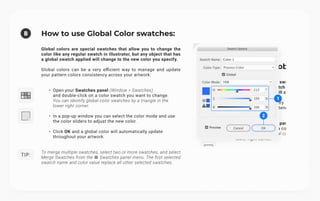
How to use Global Color swatches:
Global colors are special swatches that allow you to change the
color like any regular swatch in Illustrator, but any object that has
a global swatch applied will change to the new color you specify.


Global colors can be a very efficient way to manage and update
your pattern colors consistency across your artwork:
Open your Swatches panel (Window > Swatches)

and double-click on a color swatch you want to change.
You can identify global color swatches by a triangle in the
lower right corner.
In a pop-up window you can select the color mode and use
the color sliders to adjust the new color.
Click OK and a global color will automatically update
throughout your artwork.
To merge multiple swatches, select two or more swatches, and select
Merge Swatches from the ☰ Swatches panel menu. The first selected
swatch name and color value replace all other selected swatches.
1
2
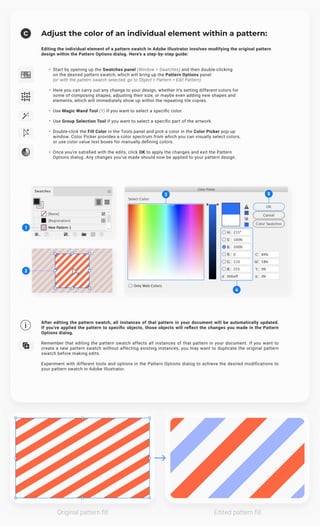
Adjust the color of an individual element within a pattern:
Editing the individual element of a pattern swatch in Adobe Illustrator involves modifying the original pattern
design within the Pattern Options dialog. Here's a step-by-step guide:
Start by opening up the Swatches panel (Window > Swatches) and then double-clicking

on the desired pattern swatch, which will bring up the Pattern Options panel

(or with the pattern swatch selected, go to Object > Pattern > Edit Pattern)
Here you can carry out any change to your design, whether it’s setting different colors for
some of composing shapes, adjusting their size, or maybe even adding new shapes and
elements, which will immediately show up within the repeating tile copies.
Use Magic Wand Tool (Y) if you want to select a specific color.
Use Group Selection Tool if you want to select a specific part of the artwork.
Double-click the Fill Color in the Tools panel and pick a color in the Color Picker pop-up
window. Color Picker provides a color spectrum from which you can visually select colors,
or use color value text boxes for manually defining colors.
Once you're satisfied with the edits, click OK to apply the changes and exit the Pattern
Options dialog. Any changes you’ve made should now be applied to your pattern design.
C
1
2
2
3
4
5
After editing the pattern swatch, all instances of that pattern in your document will be automatically updated.

If you've applied the pattern to specific objects, those objects will reflect the changes you made in the Pattern
Options dialog.


Remember that editing the pattern swatch affects all instances of that pattern in your document. If you want to
create a new pattern swatch without affecting existing instances, you may want to duplicate the original pattern
swatch before making edits.


Experiment with different tools and options in the Pattern Options dialog to achieve the desired modifications to
your pattern swatch in Adobe Illustrator.
Original pattern fill Edited pattern fill
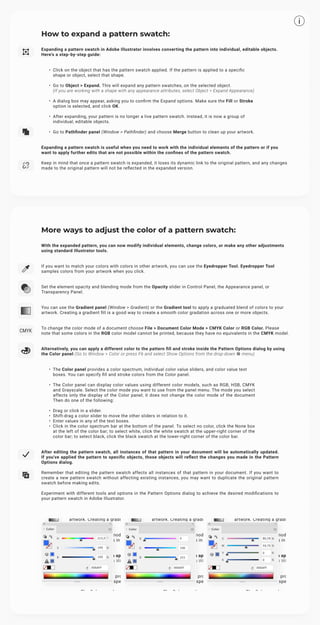
How to expand a pattern swatch:
Expanding a pattern swatch in Adobe Illustrator involves converting the pattern into individual, editable objects.
Here's a step-by-step guide:
Click on the object that has the pattern swatch applied. If the pattern is applied to a specific
shape or object, select that shape.
Go to Object > Expand. This will expand any pattern swatches, on the selected object.

(If you are working with a shape with any appearance attributes, select Object > Expand Appearance)
A dialog box may appear, asking you to confirm the Expand options. Make sure the Fill or Stroke
option is selected, and click OK.
After expanding, your pattern is no longer a live pattern swatch. Instead, it is now a group of
individual, editable objects.
Go to Pathfinder panel (Window > Pathfinder) and choose Merge button to clean up your artwork.
Expanding a pattern swatch is useful when you need to work with the individual elements of the pattern or if you
want to apply further edits that are not possible within the confines of the pattern swatch.


Keep in mind that once a pattern swatch is expanded, it loses its dynamic link to the original pattern, and any changes
made to the original pattern will not be reflected in the expanded version.
cmyk
More ways to adjust the color of a pattern swatch:
With the expanded pattern, you can now modify individual elements, change colors, or make any other adjustments
using standard Illustrator tools.
If you want to match your colors with colors in other artwork, you can use the Eyedropper Tool. Eyedropper Tool
samples colors from your artwork when you click.
Set the element opacity and blending mode from the Opacity slider in Control Panel, the Appearance panel, or
Transparency Panel.
You can use the Gradient panel (Window > Gradient) or the Gradient tool to apply a graduated blend of colors to your
artwork. Creating a gradient fill is a good way to create a smooth color gradation across one or more objects.
To change the color mode of a document choose File > Document Color Mode > CMYK Color or RGB Color. Please
note that some colors in the RGB color model cannot be printed, because they have no equivalents in the CMYK model.
Alternatively, you can apply a different color to the pattern fill and stroke inside the Pattern Options dialog by using
the Color panel (Go to Window > Color or press F6 and select Show Options from the drop-down ☰ menu)
The Color panel provides a color spectrum, individual color value sliders, and color value text
boxes. You can specify fill and stroke colors from the Color panel.
The Color panel can display color values using different color models, such as RGB, HSB, CMYK
and Grayscale. Select the color mode you want to use from the panel menu. The mode you select
affects only the display of the Color panel; it does not change the color mode of the document

Then do one of the following:
Drag or click in a slider
Shift-drag a color slider to move the other sliders in relation to it
Enter values in any of the text boxes
Click in the color spectrum bar at the bottom of the panel. To select no color, click the None box
at the left of the color bar; to select white, click the white swatch at the upper-right corner of the
color bar; to select black, click the black swatch at the lower-right corner of the color bar.
After editing the pattern swatch, all instances of that pattern in your document will be automatically updated.

If you've applied the pattern to specific objects, those objects will reflect the changes you made in the Pattern
Options dialog.


Remember that editing the pattern swatch affects all instances of that pattern in your document. If you want to
create a new pattern swatch without affecting existing instances, you may want to duplicate the original pattern
swatch before making edits.


Experiment with different tools and options in the Pattern Options dialog to achieve the desired modifications to
your pattern swatch in Adobe Illustrator.
5 How to transform pattern swatch
When you move, rotate, reflect, scale, or shear an object that is filled with a pattern, you can transform just the
object, just the pattern, or both the object and pattern.


To prevent patterns from transforming when using transform tools, choose Edit > Preferences > General (Windows)

or Illustrator > Preferences > General (Mac OS) and deselect Transform Pattern Tiles.
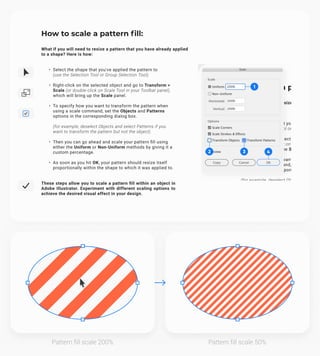
How to scale a pattern fill:
What if you will need to resize a pattern that you have already applied
to a shape? Here is how:
Select the shape that you've applied the pattern to

(use the Selection Tool or Group Selection Tool).
Right-click on the selected object and go to Transform >
Scale (or double-click on Scale Tool in your Toolbar panel),
which will bring up the Scale panel.
To specify how you want to transform the pattern when
using a scale command, set the Objects and Patterns
options in the corresponding dialog box.


(for example, deselect Objects and select Patterns if you
want to transform the pattern but not the object)
Then you can go ahead and scale your pattern fill using
either the Uniform or Non-Uniform methods by giving it a
custom percentage.
As soon as you hit OK, your pattern should resize itself
proportionally within the shape to which it was applied to.
These steps allow you to scale a pattern fill within an object in
Adobe Illustrator. Experiment with different scaling options to
achieve the desired visual effect in your design.
1
2 3 4
Pattern fill scale 200% Pattern fill scale 50%
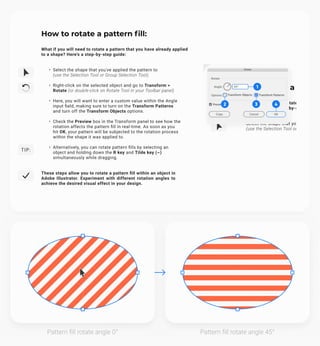
How to rotate a pattern fill:
What if you will need to rotate a pattern that you have already applied

to a shape? Here's a step-by-step guide:
Select the shape that you've applied the pattern to

(use the Selection Tool or Group Selection Tool).
Right-click on the selected object and go to Transform >
Rotate (or double-click on Rotate Tool in your Toolbar panel)
Here, you will want to enter a custom value within the Angle
input field, making sure to turn on the Transform Patterns
and turn off the Transform Objects options.
Check the Preview box in the Transform panel to see how the
rotation affects the pattern fill in real-time. As soon as you
hit OK, your pattern will be subjected to the rotation process
within the shape it was applied to.
Alternatively, you can rotate pattern fills by selecting an
object and holding down the R key and Tilde key (~)
simultaneously while dragging.
These steps allow you to rotate a pattern fill within an object in
Adobe Illustrator. Experiment with different rotation angles to
achieve the desired visual effect in your design.
Tip:
1
2 3 4
Pattern fill rotate angle 0° Pattern fill rotate angle 45°
T i p :
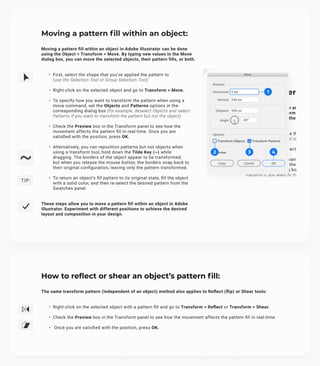
Moving a pattern fill within an object:
Moving a pattern fill within an object in Adobe Illustrator can be done
using the Object > Transform > Move. By typing new values in the Move
dialog box, you can move the selected objects, their pattern fills, or both.
First, select the shape that you've applied the pattern to

(use the Selection Tool or Group Selection Tool)
Right-click on the selected object and go to Transform > Move.
To specify how you want to transform the pattern when using a
move command, set the Objects and Patterns options in the
corresponding dialog box (for example, deselect Objects and select
Patterns if you want to transform the pattern but not the object)
Check the Preview box in the Transform panel to see how the
movement affects the pattern fill in real-time. Once you are
satisfied with the position, press OK.
Alternatively, you can reposition patterns but not objects when
using a transform tool, hold down the Tilde Key (~) while
dragging. The borders of the object appear to be transformed, 

but when you release the mouse button, the borders snap back to
their original configuration, leaving only the pattern transformed.
To return an object’s fill pattern to its original state, fill the object
with a solid color, and then re-select the desired pattern from the
Swatches panel.
These steps allow you to move a pattern fill within an object in Adobe
Illustrator. Experiment with different positions to achieve the desired
layout and composition in your design.
1
2 3 4
How to reflect or shear an object’s pattern fill:
The same transform pattern (independent of an object) method also applies to Reflect (flip) or Shear tools:
Right-click on the selected object with a pattern fill and go to Transform > Reflect or Transform > Shear.
Check the Preview box in the Transform panel to see how the movement affects the pattern fill in real-time.
Once you are satisfied with the position, press OK.
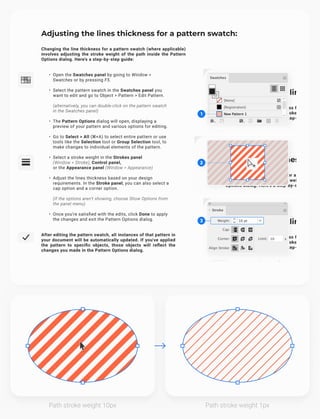
Adjusting the lines thickness for a pattern swatch:
Changing the line thickness for a pattern swatch (where applicable)
involves adjusting the stroke weight of the path inside the Pattern
Options dialog. Here's a step-by-step guide:
Open the Swatches panel by going to Window >
Swatches or by pressing F5.
Select the pattern swatch in the Swatches panel you
want to edit and go to Object > Pattern > Edit Pattern.


(alternatively, you can double-click on the pattern swatch
in the Swatches panel)
The Pattern Options dialog will open, displaying a
preview of your pattern and various options for editing.
Go to Select > All (⌘+A) to select entire pattern or use
tools like the Selection tool or Group Selection tool, to
make changes to individual elements of the pattern.
Select a stroke weight in the Strokes panel

(Window > Stroke), Control panel,

or the Appearance panel (Window > Appearance)
Adjust the lines thickness based on your design
requirements. In the Stroke panel, you can also select a
cap option and a corner option.


(If the options aren’t showing, choose Show Options from
the panel menu)
Once you're satisfied with the edits, click Done to apply
the changes and exit the Pattern Options dialog.
After editing the pattern swatch, all instances of that pattern in
your document will be automatically updated. If you've applied
the pattern to specific objects, those objects will reflect the
changes you made in the Pattern Options dialog.
1
2
2
3
Path stroke weight 10px Path stroke weight 1px
How to delete pattern swatch:
You can delete a pattern swatch by following these steps:
If the Swatches panel is not already open, go to Window > Swatches or press F5 to open it.
Select the swatches and click the Delete Swatch button. You can select swatches that aren’t used in
a document by choosing Select All Unused from the Swatches panel menu.
This process removes the pattern swatch from the Swatches panel, and it won't be available for use
in the current document.
Alternative vector editing software
In order to preserve native features of Adobe Illustrator file such as layers and groups hierarchy, Pattern Swatches,
Global Colors, editable vector paths, live effects, clipping masks, and other additional information, we recommend
using Adobe Illustrator for editing .ai vector files included in this product.


When using alternative vector editing software to work with vector files, keep in mind that complex or advanced
features specific to Adobe Illustrator may not be fully supported or may require some adjustments. Always check
the compatibility and feature set of the software to ensure it meets your specific vector editing needs.


Editing included in this product vector files in formats like AI (Adobe Illustrator), SVG (Scalable Vector Graphics),

EPS (Encapsulated PostScript), PDF (Portable Document Format) can be done using various graphics editing software.


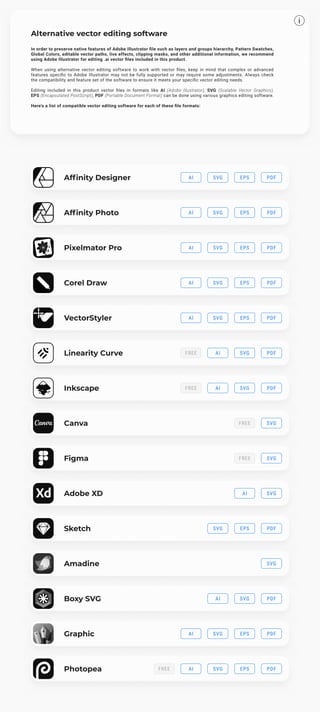
Here's a list of compatible vector editing software for each of these file formats:
Alternative vector editing software
In order to preserve native features of Adobe Illustrator file such as layers and groups hierarchy, Pattern Swatches,
Global Colors, editable vector paths, live effects, clipping masks, and other additional information, we recommend
using Adobe Illustrator for editing .ai vector files included in this product.


When using alternative vector editing software to work with vector files, keep in mind that complex or advanced
features specific to Adobe Illustrator may not be fully supported or may require some adjustments. Always check
the compatibility and feature set of the software to ensure it meets your specific vector editing needs.


Editing included in this product vector files in formats like AI (Adobe Illustrator), SVG (Scalable Vector Graphics),

EPS (Encapsulated PostScript), PDF (Portable Document Format) can be done using various graphics editing software.


Here's a list of compatible vector editing software for each of these file formats:
Affinity Designer AI SVG EPS pdf
Affinity Photo AI SVG EPS pdf
Pixelmator Pro AI SVG EPS pdf
Corel Draw AI SVG EPS pdf
VectorStyler AI SVG EPS pdf
Linearity Curve Free AI SVG pdf
Inkscape Free AI SVG pdf
Canva Free SVG
Canva Free SVG
Figma Free SVG
Figma Free SVG
Adobe XD AI SVG
Adobe XD AI SVG
Sketch SVG EPS pdf
Sketch SVG EPS pdf
Amadine SVG
Amadine SVG
Boxy SVG AI SVG pdf
Boxy SVG AI SVG pdf
Graphic AI SVG EPS pdf
Photopea Free AI SVG EPS pdf
Customer support
Have questions or need assistance?
I hope you found this user guide on importing and applying pattern swatches in Adobe Illustrator both informative and
empowering. We trust that you've gained valuable insights and skills to enhance your creative projects.


If you have any product-related questions, concerns, or comments, please don't hesitate to reach out to us. Your
feedback is invaluable, and we're here to assist you on your design journey. Thank you for choosing Samolevsky.com
as your resource, and we look forward to assisting you with all your Adobe Illustrator needs. Happy designing!
Email: hello@samolevsky.com
All the best,

Arseny Samolevsky
Discover new products
We're excited to let you know that you can explore a world of creative possibilities at our website. Discover an array of
new products that are perfect for all your creative projects.


We offer a vast collection of high-quality seamless patterns and textures, brushes, design elements, add-ons, mockups,
logo templates, and abstract backgrounds, all designed with exquisite style and attention to detail. Whether you're a
graphic designer, illustrator, or a creative enthusiast, our products are tailored to meet your unique needs.


Visit our website today and dive into a treasure trove of resources and freebies to take your designs to the next level.

We can't wait to see the incredible creations you'll come up with using our products!
shop now
Discover new products
We're excited to let you know that you can explore a world of creative possibilities at our website. Discover an array of
new products that are perfect for all your creative projects.


We offer a vast collection of high-quality seamless patterns and textures, brushes, design elements, add-ons, mockups,
logo templates, and abstract backgrounds, all designed with exquisite style and attention to detail. Whether you're a
graphic designer, illustrator, or a creative enthusiast, our products are tailored to meet your unique needs.


Visit our website today and dive into a treasure trove of resources and freebies to take your designs to the next level.

We can't wait to see the incredible creations you'll come up with using our products!
shop now
logo templates
logo templates user guides
user guides Seamless Patterns
Seamless Patterns
Follow us on social:
Follow us on social media and stay up-to-date with
our latest products, exclusive offers, and freebies.
Instagram
Instagram
Instagram
Instagram
Instagram
Instagram Facebook
Facebook
Facebook
Facebook
Facebook
Facebook Behance
Behance
Behance
Behance
Behance
Behance Pinterest
Pinterest
Pinterest
Pinterest
Pinterest
Pinterest Website
Website
Website
Website
Website
Website

Guide for Adobe IllustratorGuide for Adobe Illustrator

  • 1.
    How to adjustcolor ? How to adjust color ? How to adjust color ? How to adjust color ? How to adjust color ? How to adjust color ? How to import swatches ? How to import swatches ? How to import swatches ? How to import swatches ? How to import swatches ? How to import swatches ? How to apply a pattern ? How to apply a pattern ? How to apply a pattern ? How to apply a pattern ? How to apply a pattern ? How to apply a pattern ? Mastering seamless pattern swatches in
 Adobe Illustrator This guide will walk you through the step-by-step process of importing and applying pattern swatches
 guideforAdobeIllustratorusers
  • 2.
    Table of contents Introduction Welcometo our comprehensive user guide on importing and applying seamless patterns in Adobe Illustrator! Seamless patterns are a fantastic way to add texture, depth, and creativity to your digital designs. Whether you're a novice or an experienced Illustrator user, our step-by-step instructions will guide you through the process of importing and applying the pattern swatch library with ease and precision. To get started, simply use the interactive table of contents to navigate through the guide. Each section is designed to help you build your skills and confidence as you dive deeper into the world seamless patterns. Let's get started! 1 Pattern swatch library overview 1 Pattern swatch library overview Software requirements Software requirements What is a pattern swatch library What is a pattern swatch library The Swatches panel overview The Swatches panel overview 2 Loading pattern swatch library 2 Loading pattern swatch library How to unzip the product files How to unzip the product files How to import pattern library How to import pattern library 3 How to apply a pattern swatch 3 How to apply a pattern swatch Apply pattern fill to the shape Apply pattern fill to the shape Fill text with a pattern swatch Fill text with a pattern swatch Apply pattern to the Blob brush Apply pattern to the Blob brush 4 Adjust the pattern swatch color 4 Adjust the pattern swatch color A How to use Recolor Artwork A How to use Recolor Artwork b How to use Global Color b How to use Global Color c Editing a pattern swatch c Editing a pattern swatch Expanding a pattern swatch Expanding a pattern swatch More ways to adjust the color More ways to adjust the color 4 Transform a pattern swatch 4 Transform a pattern swatch How to scale a pattern fill How to scale a pattern fill How to rotate a pattern fill How to rotate a pattern fill Moving a pattern fill Moving a pattern fill Adjusting the lines thickness Adjusting the lines thickness Alternative editing software Alternative editing software Customer support Customer support
  • 3.
    1 Pattern swatchlibrary overview What is a seamless pattern A seamless pattern, also known as a tileable or repeating pattern, is a design that can be tiled or repeated seamlessly without any visible seams or interruptions. When applied to a surface or background, the pattern seamlessly connects at its edges, creating a continuous and harmonious visual effect. This means that the pattern can be extended or repeated infinitely in both horizontal and vertical directions, and the transition between each repetition is imperceptible. Seamless patterns can add texture, depth, and creativity to your vector designs. Adobe Illustrator provides several features and tools that make it easy for users to import, preview, and apply seamless patterns to their designs. By following this step-by-step guide you will learn how to easily import, preview, and apply seamless patterns in your creative design projects. What is pattern swatch library In Adobe Illustrator, a pattern swatch library is a collection of predefined patterns that you can apply to shapes or objects in your illustrations. These patterns are saved in a library format, making it easy for users to access and apply them to their designs. Our pattern swatch library comes with a variety of versatile patterns, and you can also adjust them and save your own customised patterns to use later. Files with pattern swatch library end in .ai (which is the extension for any Illustrator file). You can install and store any of these items for instant access. The swatches associated with a document appear in the Swatches panel.
 Pattern swatches can be applied to fills, strokes, text, and even resized, rotated, or repositioned within an object. AI Software requirements Adobe Illustrator is the industry-leading graphic design tool that lets you design anything you can imagine – from logos and icons to graphics and illustrations – and customize it with professional-level precision, as well as time- saving features like Repeat for Patterns or Global Edits. You can use the graphics you create with Illustrator in any size digital or print format, and be confident they'll look exactly the way you designed them. In this step-by-step user guide you will learn how to import and use a pattern swatch library in Adobe Illustrator, ensuring that you can enhance your design projects with customisable seamless patterns. Vector patterns created in Adobe Illustrator are resolution-independent — they maintain crisp edges when resized.
 By following this guide, you can easily integrate these versatile patterns into your design projects, enhancing the visual appeal of your illustrations, posters, packaging design and more.
  • 4.
    The Swatches paneloverview The Swatches panel in Adobe Illustrator is a feature that allows you to manage and organize colors in your document.
 It provides a convenient way to import, access, apply, and organize colors, gradients, and patterns throughout your design. Here are the key functions and features of the Swatches panel: Accessing the Swatches Panel:
 You can open the Swatches panel by going to Window > Swatches.
 This action opens a panel that typically appears on the right side of the Illustrator workspace. Importing Swatch Libraries:
 You can load swatch libraries to access predefined sets of colors or patterns. Applying Swatches:
 To apply a swatch to an object, select the object, and click on the desired swatch in the Swatches panel. This action applies the color, gradient, or pattern to the fill or stroke of the selected object. Editing Swatches:
 You can double-click on a swatch in the panel to open the Swatch Options dialog.
 Here, you can edit the color values, gradient settings, or pattern options for the selected swatch. Global Colors:
 Global colors are swatches that, when modified, automatically update all instances of that color throughout your document. These are marked with a small white triangle in the corner of the swatch. The Swatches panel overview The Swatches panel in Adobe Illustrator is a feature that allows you to manage and organize colors in your document.
 It provides a convenient way to import, access, apply, and organize colors, gradients, and patterns throughout your design. Here are the key functions and features of the Swatches panel: Accessing the Swatches Panel:
 You can open the Swatches panel by going to Window > Swatches.
 This action opens a panel that typically appears on the right side of the Illustrator workspace. Importing Swatch Libraries:
 You can load swatch libraries to access predefined sets of colors or patterns. Applying Swatches:
 To apply a swatch to an object, select the object, and click on the desired swatch in the Swatches panel. This action applies the color, gradient, or pattern to the fill or stroke of the selected object. Editing Swatches:
 You can double-click on a swatch in the panel to open the Swatch Options dialog.
 Here, you can edit the color values, gradient settings, or pattern options for the selected swatch. Global Colors:
 Global colors are swatches that, when modified, automatically update all instances of that color throughout your document. These are marked with a small white triangle in the corner of the swatch. Swatches • 150 Seamless Patterns
  • 5.
    2 How toimport pattern swatch library How to unzip the product files: MAC To unzip an archived product file on a Mac, you can use the built-in Archive Utility: Locate the downloaded product file with the .zip extension. Simply double-click on the archived file, and your Mac should automatically extract its contents. Once the extraction is complete, a new folder with the same name as the archive will appear in the same location as the original archive file. You can access the extracted product files within this folder. After you've successfully extracted the files, you can choose to delete the original archive file if you no longer need it. To do this, right-click on the archive file and select Move to Trash. PC To unzip an archived product file on a Windows PC, you can use the built-in File Explorer: Locate the product file that you want to unzip. Right-click on the archived .zip file, and in the context menu select Extract All. After selecting the location, click the Extract button. Windows will begin the extraction process, and a new folder with the same name as the archive will be created in the specified location. After successfully extracting the files, you can choose to delete the original archive file if you no longer need it. To do this, right-click on the archive file and select Delete. ZIP
  • 6.
    How to importpattern library: By following these steps, you can easily import swatches into Adobe Illustrator from various libraries, giving you access to a wide range of patterns for your design projects: Unzip your new product files and locate the • AI folder. Open Adobe Illustrator and go to Window > Swatches or click the Fill menu from the Properties panel. On your Swatches Panel go to the pop-up menu ☰
 and check Open Swatch Library > Other Library…
 (or click the Swatch Libraries menu in the bottom left side of the panel). Locate the Seamless Patterns + Swatches.ai file from the • AI folder, then click Open. Your seamless patterns will show up as a separate Swatch Library panel. If you cannot see previews, click on the pop-up menu ☰ in the upper-right corner of the Swatches Panel window, and select Large Thumbnail. On this separate Swatches panel go to the pop-up menu ☰ and check Persistent, and your new pattern library should be accessible every time you start Adobe Illustrator. Alternatively, you can open the Seamless Patterns + Swatches.ai file as a regular Adobe Illustrator file. The file might look blank,
 but the pattern swatches will appear in the Swatches panel. Swatches 3 2 1 T i p :
  • 7.
    How to applypattern fill to the shape: Applying a pattern swatch in Adobe Illustrator is a straightforward process. Here's a step-by-step guide: Installed pattern swatches will appear in the Swatches Panel and can be selected, customised, and applied directly to objects. Make sure the Fill icon is active in the fill/stroke chips at the bottom of the toolbox. Select or draw the shape with the tool of your choice. With the shape selected (use the Selection Tool or Group Selection Tool), choose your New Pattern swatch from the Swatches panel (Window > Swatches) The pattern will be applied to the fill of the selected path. Changing the pattern is as easy as clicking on a different swatch. 2 1 3 How to apply a pattern swatch
  • 8.
    How to filltext with a pattern swatch: Here's a step-by-step guide on how to fill text with a pattern swatch: In Adobe Illustrator, filling text with a pattern swatch involves applying the pattern as a fill to the text object. Create a new text object using the Type tool (T) or select an existing text object in your document. Now just apply pattern as Fill the same way you would with any other object. Filling text with a pattern fill in old versions of Adobe Illustrator may take an additional step. You must create the text, then go to Type > Create Outlines and then simply set the desired pattern swatch as its Fill. Hi! Hi! Hi!
  • 9.
    Apply a patternto the Blob Brush tool: The Blob Brush tool is a really fun and flexible way to create interesting and unique shapes filled with pattern swatches. Adobe Illustrator allows you to apply a pattern swatch directly to the Blob Brush tool itself while you draw, or you can start drawing with the Blob Brush tool and then applying a pattern fill to the resulting shape: Choose a Pattern swatch from the Swatches panel
 (Window > Swatches) Select the Blob Brush Tool (Shift + B) in your toolbar and start drawing with selected Pattern swatch. Tip: Use the square brackets to change the brush size.
 Double-click the tool to open the Blob Brush tool options to adjust stylus pressure or smoothing effects.
  • 10.
    4 How toadjust the pattern swatch color Adobe Illustrator includes a wide range of tools that let you adjust colors in a variety of different ways.
 Here are several easy color editing techniques: A Recolor Artwork B Global Color C Color Picker Source pattern fill before Source pattern fill before Recolored pattern fill After Recolored pattern fill After
  • 11.
    T i p: How to use the Recolor Artwork panel: Recoloring your artwork in Adobe Illustrator can be done using the Recolor Artwork feature. This feature allows you to make a color adjustments to applied pattern swatch. Here is how: Select an object with an applied pattern whose colors you want to adjust 
 (use the Selection Tool or Group Selection Tool) Access the Recolor Artwork panel (Edit > Edit Colors > Recolor Artwork)
 or click the Recolor Artwork icon in the Control panel, and choose Advanced Options. Use the Assign tab to view and control how colors from a color picker or a color group replace original colors in your artwork. You can specify which new colors replace which current colors, whether spots are preserved, and how colors are replaced (for example, you can replace colors entirely or replace hue while retaining brightness) Editing colors in the Edit tab is a convenient way to globally adjust the colors in selected artwork.
 When editing colors, you use the smooth color wheel, the segmented color wheel, or the color bars.
 In addition, you can adjust brightness, add and remove colors, and preview the colors on selected. A 3 1 4 2 3 1 4 2
  • 12.
    b Tip: How to useGlobal Color swatches: Global colors are special swatches that allow you to change the color like any regular swatch in Illustrator, but any object that has a global swatch applied will change to the new color you specify. Global colors can be a very efficient way to manage and update your pattern colors consistency across your artwork: Open your Swatches panel (Window > Swatches)
 and double-click on a color swatch you want to change. You can identify global color swatches by a triangle in the lower right corner. In a pop-up window you can select the color mode and use the color sliders to adjust the new color. Click OK and a global color will automatically update throughout your artwork. To merge multiple swatches, select two or more swatches, and select Merge Swatches from the ☰ Swatches panel menu. The first selected swatch name and color value replace all other selected swatches. 1 2
  • 13.
    Adjust the colorof an individual element within a pattern: Editing the individual element of a pattern swatch in Adobe Illustrator involves modifying the original pattern design within the Pattern Options dialog. Here's a step-by-step guide: Start by opening up the Swatches panel (Window > Swatches) and then double-clicking
 on the desired pattern swatch, which will bring up the Pattern Options panel
 (or with the pattern swatch selected, go to Object > Pattern > Edit Pattern) Here you can carry out any change to your design, whether it’s setting different colors for some of composing shapes, adjusting their size, or maybe even adding new shapes and elements, which will immediately show up within the repeating tile copies. Use Magic Wand Tool (Y) if you want to select a specific color. Use Group Selection Tool if you want to select a specific part of the artwork. Double-click the Fill Color in the Tools panel and pick a color in the Color Picker pop-up window. Color Picker provides a color spectrum from which you can visually select colors, or use color value text boxes for manually defining colors. Once you're satisfied with the edits, click OK to apply the changes and exit the Pattern Options dialog. Any changes you’ve made should now be applied to your pattern design. C 1 2 2 3 4 5 After editing the pattern swatch, all instances of that pattern in your document will be automatically updated.
 If you've applied the pattern to specific objects, those objects will reflect the changes you made in the Pattern Options dialog. Remember that editing the pattern swatch affects all instances of that pattern in your document. If you want to create a new pattern swatch without affecting existing instances, you may want to duplicate the original pattern swatch before making edits. Experiment with different tools and options in the Pattern Options dialog to achieve the desired modifications to your pattern swatch in Adobe Illustrator. Original pattern fill Edited pattern fill
  • 14.
    How to expanda pattern swatch: Expanding a pattern swatch in Adobe Illustrator involves converting the pattern into individual, editable objects. Here's a step-by-step guide: Click on the object that has the pattern swatch applied. If the pattern is applied to a specific shape or object, select that shape. Go to Object > Expand. This will expand any pattern swatches, on the selected object.
 (If you are working with a shape with any appearance attributes, select Object > Expand Appearance) A dialog box may appear, asking you to confirm the Expand options. Make sure the Fill or Stroke option is selected, and click OK. After expanding, your pattern is no longer a live pattern swatch. Instead, it is now a group of individual, editable objects. Go to Pathfinder panel (Window > Pathfinder) and choose Merge button to clean up your artwork. Expanding a pattern swatch is useful when you need to work with the individual elements of the pattern or if you want to apply further edits that are not possible within the confines of the pattern swatch. Keep in mind that once a pattern swatch is expanded, it loses its dynamic link to the original pattern, and any changes made to the original pattern will not be reflected in the expanded version. cmyk More ways to adjust the color of a pattern swatch: With the expanded pattern, you can now modify individual elements, change colors, or make any other adjustments using standard Illustrator tools. If you want to match your colors with colors in other artwork, you can use the Eyedropper Tool. Eyedropper Tool samples colors from your artwork when you click. Set the element opacity and blending mode from the Opacity slider in Control Panel, the Appearance panel, or Transparency Panel. You can use the Gradient panel (Window > Gradient) or the Gradient tool to apply a graduated blend of colors to your artwork. Creating a gradient fill is a good way to create a smooth color gradation across one or more objects. To change the color mode of a document choose File > Document Color Mode > CMYK Color or RGB Color. Please note that some colors in the RGB color model cannot be printed, because they have no equivalents in the CMYK model. Alternatively, you can apply a different color to the pattern fill and stroke inside the Pattern Options dialog by using the Color panel (Go to Window > Color or press F6 and select Show Options from the drop-down ☰ menu) The Color panel provides a color spectrum, individual color value sliders, and color value text boxes. You can specify fill and stroke colors from the Color panel. The Color panel can display color values using different color models, such as RGB, HSB, CMYK and Grayscale. Select the color mode you want to use from the panel menu. The mode you select affects only the display of the Color panel; it does not change the color mode of the document
 Then do one of the following: Drag or click in a slider Shift-drag a color slider to move the other sliders in relation to it Enter values in any of the text boxes Click in the color spectrum bar at the bottom of the panel. To select no color, click the None box at the left of the color bar; to select white, click the white swatch at the upper-right corner of the color bar; to select black, click the black swatch at the lower-right corner of the color bar. After editing the pattern swatch, all instances of that pattern in your document will be automatically updated.
 If you've applied the pattern to specific objects, those objects will reflect the changes you made in the Pattern Options dialog. Remember that editing the pattern swatch affects all instances of that pattern in your document. If you want to create a new pattern swatch without affecting existing instances, you may want to duplicate the original pattern swatch before making edits. Experiment with different tools and options in the Pattern Options dialog to achieve the desired modifications to your pattern swatch in Adobe Illustrator.
  • 15.
    5 How totransform pattern swatch When you move, rotate, reflect, scale, or shear an object that is filled with a pattern, you can transform just the object, just the pattern, or both the object and pattern. To prevent patterns from transforming when using transform tools, choose Edit > Preferences > General (Windows) or Illustrator > Preferences > General (Mac OS) and deselect Transform Pattern Tiles.
  • 16.
    How to scalea pattern fill: What if you will need to resize a pattern that you have already applied to a shape? Here is how: Select the shape that you've applied the pattern to
 (use the Selection Tool or Group Selection Tool). Right-click on the selected object and go to Transform > Scale (or double-click on Scale Tool in your Toolbar panel), which will bring up the Scale panel. To specify how you want to transform the pattern when using a scale command, set the Objects and Patterns options in the corresponding dialog box.

 (for example, deselect Objects and select Patterns if you want to transform the pattern but not the object) Then you can go ahead and scale your pattern fill using either the Uniform or Non-Uniform methods by giving it a custom percentage. As soon as you hit OK, your pattern should resize itself proportionally within the shape to which it was applied to. These steps allow you to scale a pattern fill within an object in Adobe Illustrator. Experiment with different scaling options to achieve the desired visual effect in your design. 1 2 3 4 Pattern fill scale 200% Pattern fill scale 50%
  • 17.
    How to rotatea pattern fill: What if you will need to rotate a pattern that you have already applied
 to a shape? Here's a step-by-step guide: Select the shape that you've applied the pattern to
 (use the Selection Tool or Group Selection Tool). Right-click on the selected object and go to Transform > Rotate (or double-click on Rotate Tool in your Toolbar panel) Here, you will want to enter a custom value within the Angle input field, making sure to turn on the Transform Patterns and turn off the Transform Objects options. Check the Preview box in the Transform panel to see how the rotation affects the pattern fill in real-time. As soon as you hit OK, your pattern will be subjected to the rotation process within the shape it was applied to. Alternatively, you can rotate pattern fills by selecting an object and holding down the R key and Tilde key (~) simultaneously while dragging. These steps allow you to rotate a pattern fill within an object in Adobe Illustrator. Experiment with different rotation angles to achieve the desired visual effect in your design. Tip: 1 2 3 4 Pattern fill rotate angle 0° Pattern fill rotate angle 45°
  • 18.
    T i p: Moving a pattern fill within an object: Moving a pattern fill within an object in Adobe Illustrator can be done using the Object > Transform > Move. By typing new values in the Move dialog box, you can move the selected objects, their pattern fills, or both. First, select the shape that you've applied the pattern to
 (use the Selection Tool or Group Selection Tool) Right-click on the selected object and go to Transform > Move. To specify how you want to transform the pattern when using a move command, set the Objects and Patterns options in the corresponding dialog box (for example, deselect Objects and select Patterns if you want to transform the pattern but not the object) Check the Preview box in the Transform panel to see how the movement affects the pattern fill in real-time. Once you are satisfied with the position, press OK. Alternatively, you can reposition patterns but not objects when using a transform tool, hold down the Tilde Key (~) while dragging. The borders of the object appear to be transformed, 
 but when you release the mouse button, the borders snap back to their original configuration, leaving only the pattern transformed. To return an object’s fill pattern to its original state, fill the object with a solid color, and then re-select the desired pattern from the Swatches panel. These steps allow you to move a pattern fill within an object in Adobe Illustrator. Experiment with different positions to achieve the desired layout and composition in your design. 1 2 3 4 How to reflect or shear an object’s pattern fill: The same transform pattern (independent of an object) method also applies to Reflect (flip) or Shear tools: Right-click on the selected object with a pattern fill and go to Transform > Reflect or Transform > Shear. Check the Preview box in the Transform panel to see how the movement affects the pattern fill in real-time. Once you are satisfied with the position, press OK.
  • 19.
    Adjusting the linesthickness for a pattern swatch: Changing the line thickness for a pattern swatch (where applicable) involves adjusting the stroke weight of the path inside the Pattern Options dialog. Here's a step-by-step guide: Open the Swatches panel by going to Window > Swatches or by pressing F5. Select the pattern swatch in the Swatches panel you want to edit and go to Object > Pattern > Edit Pattern.

 (alternatively, you can double-click on the pattern swatch in the Swatches panel) The Pattern Options dialog will open, displaying a preview of your pattern and various options for editing. Go to Select > All (⌘+A) to select entire pattern or use tools like the Selection tool or Group Selection tool, to make changes to individual elements of the pattern. Select a stroke weight in the Strokes panel
 (Window > Stroke), Control panel,
 or the Appearance panel (Window > Appearance) Adjust the lines thickness based on your design requirements. In the Stroke panel, you can also select a cap option and a corner option.

 (If the options aren’t showing, choose Show Options from the panel menu) Once you're satisfied with the edits, click Done to apply the changes and exit the Pattern Options dialog. After editing the pattern swatch, all instances of that pattern in your document will be automatically updated. If you've applied the pattern to specific objects, those objects will reflect the changes you made in the Pattern Options dialog. 1 2 2 3 Path stroke weight 10px Path stroke weight 1px
  • 20.
    How to deletepattern swatch: You can delete a pattern swatch by following these steps: If the Swatches panel is not already open, go to Window > Swatches or press F5 to open it. Select the swatches and click the Delete Swatch button. You can select swatches that aren’t used in a document by choosing Select All Unused from the Swatches panel menu. This process removes the pattern swatch from the Swatches panel, and it won't be available for use in the current document.
  • 21.
    Alternative vector editingsoftware In order to preserve native features of Adobe Illustrator file such as layers and groups hierarchy, Pattern Swatches, Global Colors, editable vector paths, live effects, clipping masks, and other additional information, we recommend using Adobe Illustrator for editing .ai vector files included in this product. When using alternative vector editing software to work with vector files, keep in mind that complex or advanced features specific to Adobe Illustrator may not be fully supported or may require some adjustments. Always check the compatibility and feature set of the software to ensure it meets your specific vector editing needs. Editing included in this product vector files in formats like AI (Adobe Illustrator), SVG (Scalable Vector Graphics),
 EPS (Encapsulated PostScript), PDF (Portable Document Format) can be done using various graphics editing software. 
 Here's a list of compatible vector editing software for each of these file formats: Alternative vector editing software In order to preserve native features of Adobe Illustrator file such as layers and groups hierarchy, Pattern Swatches, Global Colors, editable vector paths, live effects, clipping masks, and other additional information, we recommend using Adobe Illustrator for editing .ai vector files included in this product. When using alternative vector editing software to work with vector files, keep in mind that complex or advanced features specific to Adobe Illustrator may not be fully supported or may require some adjustments. Always check the compatibility and feature set of the software to ensure it meets your specific vector editing needs. Editing included in this product vector files in formats like AI (Adobe Illustrator), SVG (Scalable Vector Graphics),
 EPS (Encapsulated PostScript), PDF (Portable Document Format) can be done using various graphics editing software. 
 Here's a list of compatible vector editing software for each of these file formats: Affinity Designer AI SVG EPS pdf Affinity Designer AI SVG EPS pdf Affinity Photo AI SVG EPS pdf Affinity Photo AI SVG EPS pdf Pixelmator Pro AI SVG EPS pdf Pixelmator Pro AI SVG EPS pdf Corel Draw AI SVG EPS pdf Corel Draw AI SVG EPS pdf VectorStyler AI SVG EPS pdf VectorStyler AI SVG EPS pdf Linearity Curve Free AI SVG pdf Linearity Curve Free AI SVG pdf Inkscape Free AI SVG pdf Inkscape Free AI SVG pdf Canva Free SVG Canva Free SVG Figma Free SVG Figma Free SVG Adobe XD AI SVG Adobe XD AI SVG Sketch SVG EPS pdf Sketch SVG EPS pdf Amadine SVG Amadine SVG Boxy SVG AI SVG pdf Boxy SVG AI SVG pdf Graphic AI SVG EPS pdf Graphic AI SVG EPS pdf Photopea Free AI SVG EPS pdf Photopea Free AI SVG EPS pdf
  • 22.
    Customer support Have questionsor need assistance? I hope you found this user guide on importing and applying pattern swatches in Adobe Illustrator both informative and empowering. We trust that you've gained valuable insights and skills to enhance your creative projects. If you have any product-related questions, concerns, or comments, please don't hesitate to reach out to us. Your feedback is invaluable, and we're here to assist you on your design journey. Thank you for choosing Samolevsky.com as your resource, and we look forward to assisting you with all your Adobe Illustrator needs. Happy designing! Email: hello@samolevsky.com All the best, Arseny Samolevsky Discover new products We're excited to let you know that you can explore a world of creative possibilities at our website. Discover an array of new products that are perfect for all your creative projects. We offer a vast collection of high-quality seamless patterns and textures, brushes, design elements, add-ons, mockups, logo templates, and abstract backgrounds, all designed with exquisite style and attention to detail. Whether you're a graphic designer, illustrator, or a creative enthusiast, our products are tailored to meet your unique needs. Visit our website today and dive into a treasure trove of resources and freebies to take your designs to the next level.
 We can't wait to see the incredible creations you'll come up with using our products! shop now Discover new products We're excited to let you know that you can explore a world of creative possibilities at our website. Discover an array of new products that are perfect for all your creative projects. We offer a vast collection of high-quality seamless patterns and textures, brushes, design elements, add-ons, mockups, logo templates, and abstract backgrounds, all designed with exquisite style and attention to detail. Whether you're a graphic designer, illustrator, or a creative enthusiast, our products are tailored to meet your unique needs. Visit our website today and dive into a treasure trove of resources and freebies to take your designs to the next level.
 We can't wait to see the incredible creations you'll come up with using our products! shop now logo templates logo templates user guides user guides Seamless Patterns Seamless Patterns
  • 23.
    Follow us onsocial: Follow us on social media and stay up-to-date with our latest products, exclusive offers, and freebies. Instagram Instagram Instagram Instagram Instagram Instagram Facebook Facebook Facebook Facebook Facebook Facebook Behance Behance Behance Behance Behance Behance Pinterest Pinterest Pinterest Pinterest Pinterest Pinterest Website Website Website Website Website Website