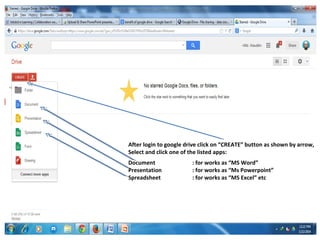
After login to google drive click on “CREATE” button as shown by arrow,
Select and click one of the listed apps:
Document
Presentation
Spreadsheet

: for works as “MS Word”
: for works as “Ms Powerpoint”
: for works as “MS Excel” etc
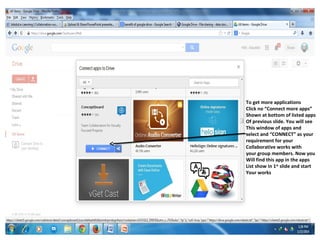
To get more applications
Click no “Connect more apps”
Shown at bottom of listed apps
Of previous slide. You will see
This window of apps and
select and “CONNECT” as your
requirement for your
Collaborative works with
your group members. Now you
Will find this app in the apps
List show in 1st slide and start
Your works
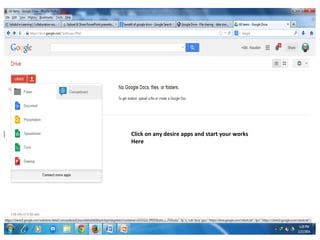
Click on any desire apps and start your works
Here
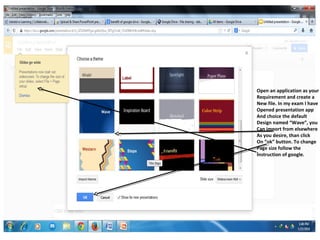
Open an application as your
Requirement and create a
New file. In my exam I have
Opened presentation app
And choice the default
Design named “Wave”, you
Can import from elsewhere
As you desire, than click
On “ok” button. To change
Page size follow the
Instruction of google.
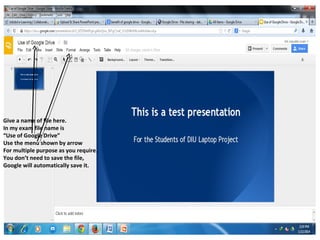
Give a name of file here.
In my exam file name is
“Use of Google Drive”
Use the menu shown by arrow
For multiple purpose as you require.
You don’t need to save the file,
Google will automatically save it.
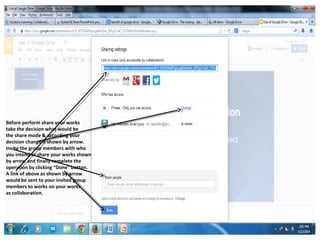
Before perform share your works
take the decision what would be
the share mode & according your
decision change it shown by arrow.
Invite the group members with who
you intend to share your works shown
by arrow and finally complete the
operation by clicking “Done” button.
A link of above as shown by arrow
would be sent to your invited group
members to works on your works
as collaboration.
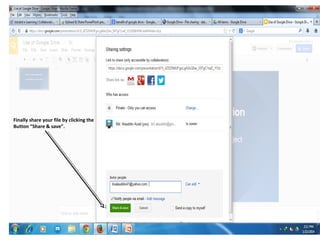
Finally share your file by clicking the
Button “Share & save”.

Group works in collaboration

  • 1.
    After login togoogle drive click on “CREATE” button as shown by arrow, Select and click one of the listed apps: Document Presentation Spreadsheet : for works as “MS Word” : for works as “Ms Powerpoint” : for works as “MS Excel” etc
  • 2.
    To get moreapplications Click no “Connect more apps” Shown at bottom of listed apps Of previous slide. You will see This window of apps and select and “CONNECT” as your requirement for your Collaborative works with your group members. Now you Will find this app in the apps List show in 1st slide and start Your works
  • 3.
    Click on anydesire apps and start your works Here
  • 4.
    Open an applicationas your Requirement and create a New file. In my exam I have Opened presentation app And choice the default Design named “Wave”, you Can import from elsewhere As you desire, than click On “ok” button. To change Page size follow the Instruction of google.
  • 5.
    Give a nameof file here. In my exam file name is “Use of Google Drive” Use the menu shown by arrow For multiple purpose as you require. You don’t need to save the file, Google will automatically save it.
  • 6.
    Before perform shareyour works take the decision what would be the share mode & according your decision change it shown by arrow. Invite the group members with who you intend to share your works shown by arrow and finally complete the operation by clicking “Done” button. A link of above as shown by arrow would be sent to your invited group members to works on your works as collaboration.
  • 7.
    Finally share yourfile by clicking the Button “Share & save”.