CAP-209

                         (GRAPHIC TOOLS)

                           TERM PAPER

              Create a Quirky Twitter Bird In Corel Draw


SUBMITTED TO:

Mandeep Mam


                                                      SUBMITTED BY:

                                                           Sachin Raj

                                                                 A34

                                                                G(A)

                     RD3901
ACKNOWLEDEGEMENT


I would like to acknowledge and extend my heartfelt gratitude to the following persons who have
made the completion of this Term Paper possible:
Our Chancellor, Mr. Ashok Mittal for his vital encouragement and support.
 Our Executive Dean, Mrs. Rashmi Mittal for her understanding and assistance.
Mandeep Mam(Lecturer) for the help and inspiration he extended.
Most especially to my family and friends for assisting in the collection of the topics for the term
paper.
and to God, who made all things possible.
Table of Contents


Introduction
Twitter Birds are winged, bipedal, endothermic (warm-blooded), egg-laying, vertebrate
animals.Basically twitter bird is little blue bird which has two legs,two eyes,one nose,two
wing.Twitter bird is very chunky bird,twitter bird can fly fast and it consist many more
features.twitter bird is one of the most beautiful bird in the earth .

1ST Step

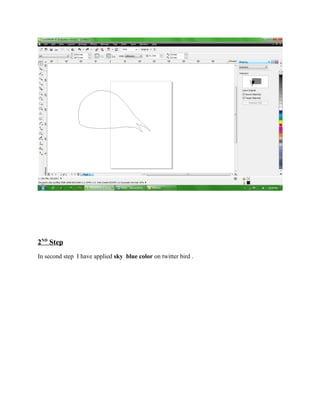
 In first step I have to create a body shape of twitter bird for this I have drawn a body style with
the help of below given tool:

    Freehand Tool

    Shape Tool

    Envelope Tool
2ND Step
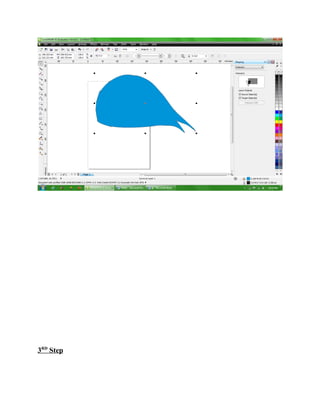
In second step I have applied sky blue color on twitter bird .
3RD Step
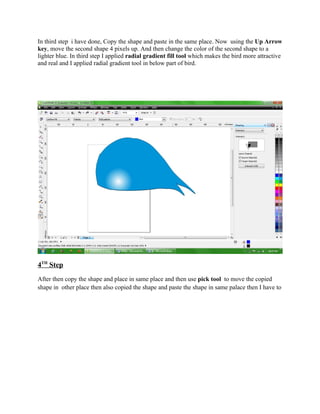
In third step i have done, Copy the shape and paste in the same place. Now using the Up Arrow
key, move the second shape 4 pixels up. And then change the color of the second shape to a
lighter blue. In third step I applied radial gradient fill tool which makes the bird more attractive
and real and I applied radial gradient tool in below part of bird.


4TH Step
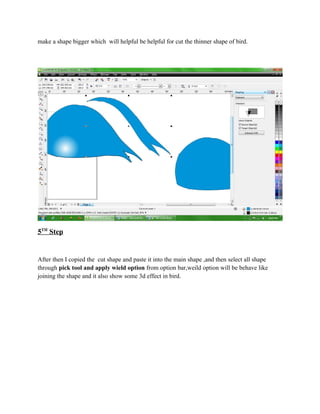
After then copy the shape and place in same place and then use pick tool to move the copied
shape in other place then also copied the shape and paste the shape in same palace then I have to
make a shape bigger which will helpful be helpful for cut the thinner shape of bird.


5TH Step


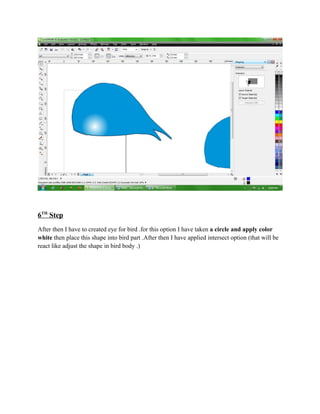
After then I copied the cut shape and paste it into the main shape ,and then select all shape
through pick tool and apply wield option from option bar,weild option will be behave like
joining the shape and it also show some 3d effect in bird.
6TH Step
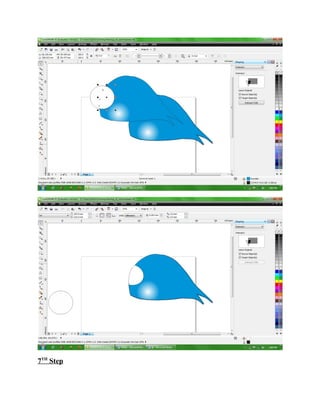
After then I have to created eye for bird .for this option I have taken a circle and apply color
white then place this shape into bird part .After then I have applied intersect option (that will be
react like adjust the shape in bird body .)
7TH Step
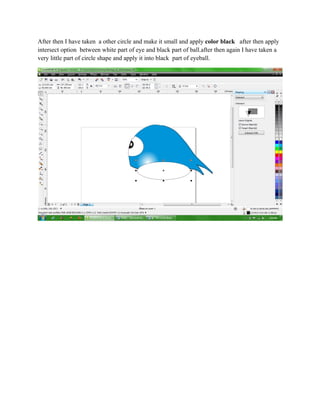
After then I have taken a other circle and make it small and apply color black after then apply
intersect option between white part of eye and black part of ball.after then again I have taken a
very little part of circle shape and apply it into black part of eyeball.
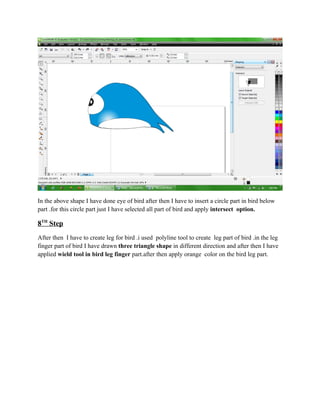
In the above shape I have done eye of bird after then I have to insert a circle part in bird below
part .for this circle part just I have selected all part of bird and apply intersect option.

8TH Step
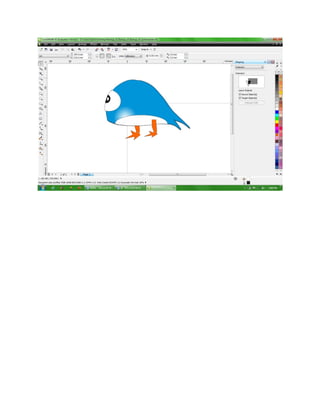
After then I have to create leg for bird .i used polyline tool to create leg part of bird .in the leg
finger part of bird I have drawn three triangle shape in different direction and after then I have
applied wield tool in bird leg finger part.after then apply orange color on the bird leg part.
9TH Step
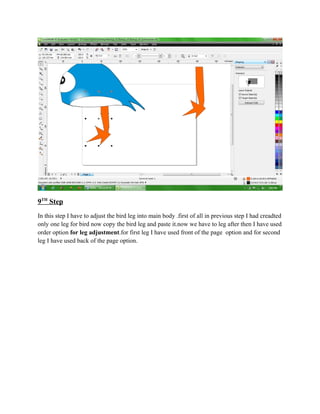
In this step I have to adjust the bird leg into main body .first of all in previous step I had creadted
only one leg for bird now copy the bird leg and paste it.now we have to leg after then I have used
order option for leg adjustment.for first leg I have used front of the page option and for second
leg I have used back of the page option.
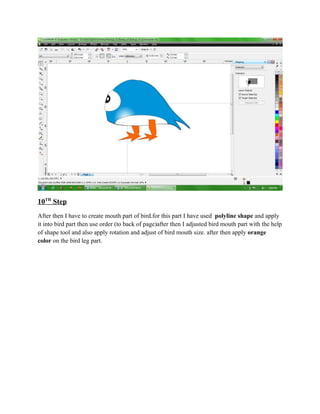
10TH Step
After then I have to create mouth part of bird.for this part I have used polyline shape and apply
it into bird part then use order (to back of page)after then I adjusted bird mouth part with the help
of shape tool and also apply rotation and adjust of bird mouth size. after then apply orange
color on the bird leg part.
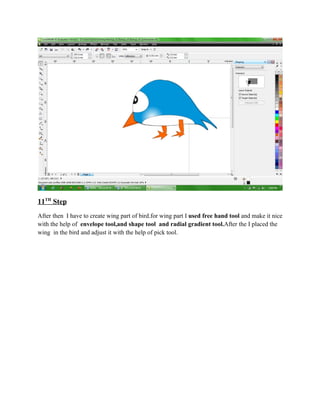
11TH Step
After then I have to create wing part of bird.for wing part I used free hand tool and make it nice
with the help of envelope tool,and shape tool and radial gradient tool.After the I placed the
wing in the bird and adjust it with the help of pick tool.
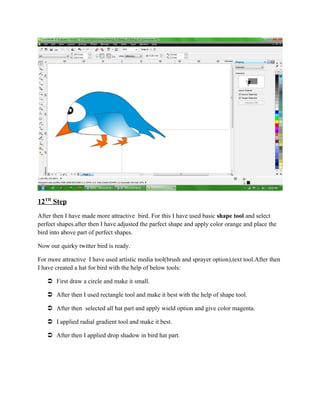
12TH Step
After then I have made more attractive bird. For this I have used basic shape tool and select
perfect shapes.after then I have adjusted the parfect shape and apply color orange and place the
bird into above part of perfect shapes.

Now our quirky twitter bird is ready.

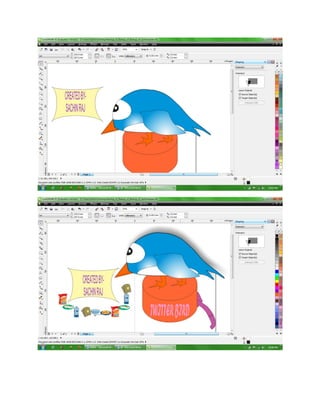
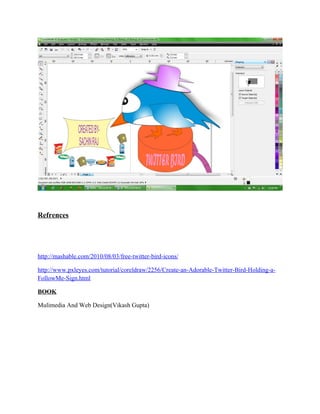
For more attractive I have used artistic media tool(brush and sprayer option),text tool.After then
I have created a hat for bird with the help of below tools:

    First draw a circle and make it small.

    After then I used rectangle tool and make it best with the help of shape tool.

    After then selected all hat part and apply wield option and give color magenta.

    I applied radial gradient tool and make it best.

    After then I applied drop shadow in bird hat part.
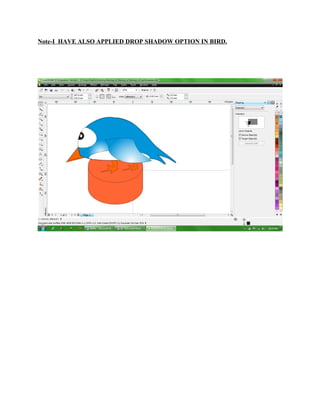
Note-I HAVE ALSO APPLIED DROP SHADOW OPTION IN BIRD.
Refrences


http://mashable.com/2010/08/03/free-twitter-bird-icons/

http://www.pxleyes.com/tutorial/coreldraw/2256/Create-an-Adorable-Twitter-Bird-Holding-a-
FollowMe-Sign.html

BOOK

Mulimedia And Web Design(Vikash Gupta)

Graphics tool project

  • 1.
    CAP-209 (GRAPHIC TOOLS) TERM PAPER Create a Quirky Twitter Bird In Corel Draw SUBMITTED TO: Mandeep Mam SUBMITTED BY: Sachin Raj A34 G(A) RD3901
  • 2.
    ACKNOWLEDEGEMENT I would liketo acknowledge and extend my heartfelt gratitude to the following persons who have made the completion of this Term Paper possible: Our Chancellor, Mr. Ashok Mittal for his vital encouragement and support. Our Executive Dean, Mrs. Rashmi Mittal for her understanding and assistance. Mandeep Mam(Lecturer) for the help and inspiration he extended. Most especially to my family and friends for assisting in the collection of the topics for the term paper. and to God, who made all things possible.
  • 3.
    Table of Contents Introduction TwitterBirds are winged, bipedal, endothermic (warm-blooded), egg-laying, vertebrate animals.Basically twitter bird is little blue bird which has two legs,two eyes,one nose,two wing.Twitter bird is very chunky bird,twitter bird can fly fast and it consist many more features.twitter bird is one of the most beautiful bird in the earth . 1ST Step In first step I have to create a body shape of twitter bird for this I have drawn a body style with the help of below given tool:  Freehand Tool  Shape Tool  Envelope Tool
  • 4.
    2ND Step In secondstep I have applied sky blue color on twitter bird .
  • 5.
  • 6.
    In third stepi have done, Copy the shape and paste in the same place. Now using the Up Arrow key, move the second shape 4 pixels up. And then change the color of the second shape to a lighter blue. In third step I applied radial gradient fill tool which makes the bird more attractive and real and I applied radial gradient tool in below part of bird. 4TH Step After then copy the shape and place in same place and then use pick tool to move the copied shape in other place then also copied the shape and paste the shape in same palace then I have to
  • 7.
    make a shapebigger which will helpful be helpful for cut the thinner shape of bird. 5TH Step After then I copied the cut shape and paste it into the main shape ,and then select all shape through pick tool and apply wield option from option bar,weild option will be behave like joining the shape and it also show some 3d effect in bird.
  • 8.
    6TH Step After thenI have to created eye for bird .for this option I have taken a circle and apply color white then place this shape into bird part .After then I have applied intersect option (that will be react like adjust the shape in bird body .)
  • 9.
  • 10.
    After then Ihave taken a other circle and make it small and apply color black after then apply intersect option between white part of eye and black part of ball.after then again I have taken a very little part of circle shape and apply it into black part of eyeball.
  • 11.
    In the aboveshape I have done eye of bird after then I have to insert a circle part in bird below part .for this circle part just I have selected all part of bird and apply intersect option. 8TH Step After then I have to create leg for bird .i used polyline tool to create leg part of bird .in the leg finger part of bird I have drawn three triangle shape in different direction and after then I have applied wield tool in bird leg finger part.after then apply orange color on the bird leg part.
  • 12.
    9TH Step In thisstep I have to adjust the bird leg into main body .first of all in previous step I had creadted only one leg for bird now copy the bird leg and paste it.now we have to leg after then I have used order option for leg adjustment.for first leg I have used front of the page option and for second leg I have used back of the page option.
  • 14.
    10TH Step After thenI have to create mouth part of bird.for this part I have used polyline shape and apply it into bird part then use order (to back of page)after then I adjusted bird mouth part with the help of shape tool and also apply rotation and adjust of bird mouth size. after then apply orange color on the bird leg part.
  • 15.
    11TH Step After thenI have to create wing part of bird.for wing part I used free hand tool and make it nice with the help of envelope tool,and shape tool and radial gradient tool.After the I placed the wing in the bird and adjust it with the help of pick tool.
  • 16.
    12TH Step After thenI have made more attractive bird. For this I have used basic shape tool and select perfect shapes.after then I have adjusted the parfect shape and apply color orange and place the bird into above part of perfect shapes. Now our quirky twitter bird is ready. For more attractive I have used artistic media tool(brush and sprayer option),text tool.After then I have created a hat for bird with the help of below tools:  First draw a circle and make it small.  After then I used rectangle tool and make it best with the help of shape tool.  After then selected all hat part and apply wield option and give color magenta.  I applied radial gradient tool and make it best.  After then I applied drop shadow in bird hat part.
  • 17.
    Note-I HAVE ALSOAPPLIED DROP SHADOW OPTION IN BIRD.
  • 19.