



the
VDO360
USB
WebCam
HD – PTZ – USB only $1399
Get
Ready
for the
USB
Revolutio
n
GoToMeeting
PTZ Camera
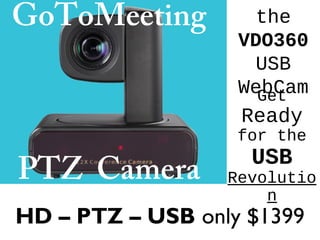
VDO360 VPTZH-01
• PTZ USB GoToMeeting Camera
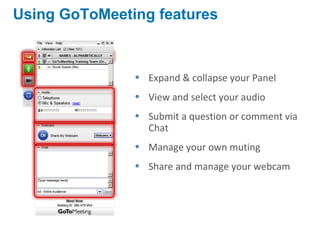
• Expand & collapse your Panel
• View and select your audio
• Submit a question or comment via
Chat
• Manage your own muting
• Share and manage your webcam
Using GoToMeeting features
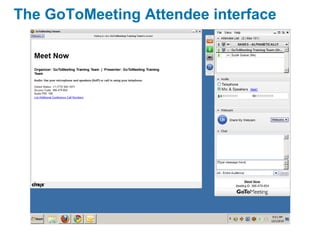
The GoToMeeting Attendee interface
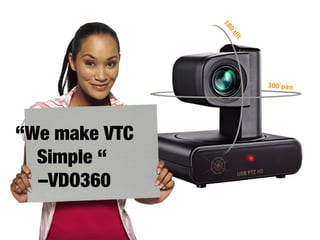
“We make VTC
Simple “
–VDO360
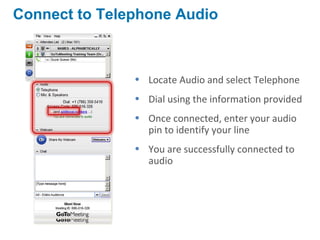
Connect to Telephone Audio
• Locate Audio and select Telephone
• Dial using the information provided
• Once connected, enter your audio
pin to identify your line
• You are successfully connected to
audio
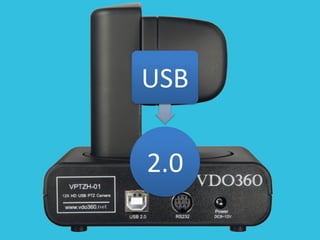
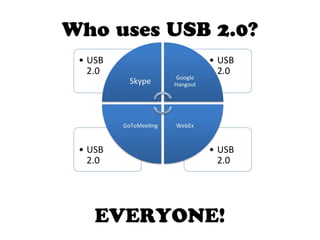
Who uses USB 2.0?
EVERYONE!
Want to See Test Footage?
Let’s
Turn the
Camera
On!
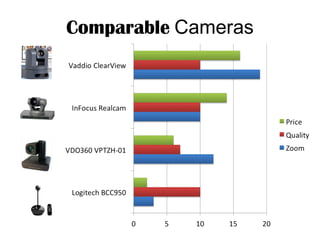
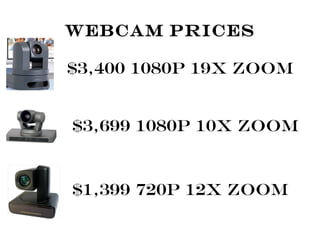
Comparable Cameras
Webcam Prices
$3,400 1080p 19X Zoom
$3,699 1080p 10X Zoom
$1,399 720p 12X Zoom
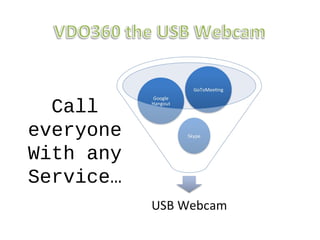
Call
everyone
With any
Service…
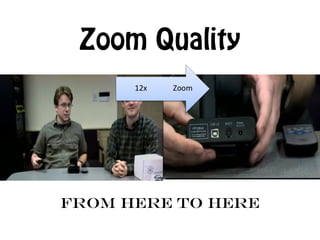
Zoom Quality
From Here to Here
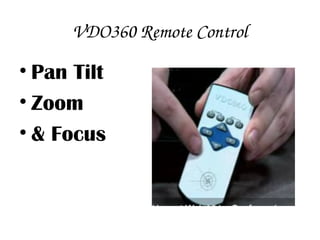
VDO360 Remote Control
• Pan Tilt
• Zoom
• & Focus
What’s inside…
These slides are provided for GoToMeeting
users. Please feel free to adapt these slides for
your personal use and add them to your own
PowerPoint files. Using these slides to perform
GoToMeeting housekeeping and provide
instructions for your Attendees will help to
ensure that your GoToMeeting sessions run
smoothly.
VDO360 wins Infocomm best camera!
• The Winner: VDO360
• USB PTZ Cameras are hot right now as IT
folks try to figure out the most cost-
effective way to leverage low-cost/free
video soft clients running on PCs but still
provide a quality video experience by
optimizing the camera and providing PTZ
capabilities as well. The $1,399 VDO360
seems to have found a sweet spot of
quality and affordability.
Call Us for more info
Call toll free: (800) 486-5276
Haverford Systems Inc
Learn More at our Website
www.vdo360.net

GoToMeeting PTZ USB Camera

Editor's Notes

  • #4 Notes: This slide provides a detailed tour of the GoToMeeting Attendee interface. Notes on slide performance: Click 1 – Expands the control panel Click 2 – Highlights Audio pane Click 3 – Highlights Chat pane Click 4 – Highlights muting control Click 5 – Highlights webcam pane and controls
  • #5 Notes: The GoToMeeting attendee interface is made up of two parts. The Viewer Window is where attendees see the presenter ’s screen. The Viewer Window can be resized by clicking and dragging the lower right corner. The Control Panel is where attendees can interact with organizers.
  • #7 Notes: This slide provides instructions on entering the Audio Pin for telephone attendees. If your attendee has not yet entered their Audio Pin, they must enter “#[the number]#” to their telephone keypad to identify their line and enable individual muting control through GoToMeeting. Notes on slide performance: Click 1 – Highlights Audio pane Click 2 – Highlights Audio Pin Click 3 – Updates Attendee panel to show the Audio Pin was accepted and attendee is successfully connected to audio