
By Seamedia, Calicut
Google Webmaster Tool
 It helps you to know how Google sees your website.
 It is the primary way to Getting in touch in with

Google and webmaster.
 By checking the GWT regularly and taking action
according to requirement should able to avoid the
serious damages to your site’s ranking and traffic
Verification
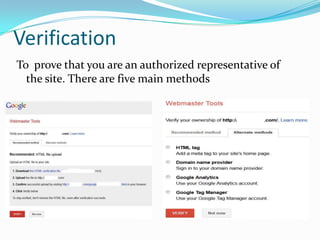
To prove that you are an authorized representative of
the site. There are five main methods
Site Dashboard
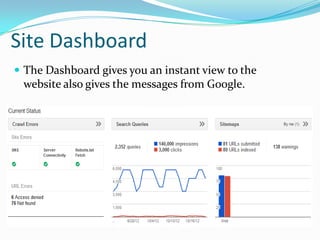
 The Dashboard gives you an instant view to the

website also gives the messages from Google.
Site Messages
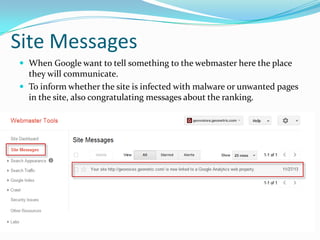
 When Google want to tell something to the webmaster here the place

they will communicate.
 To inform whether the site is infected with malware or unwanted pages
in the site, also congratulating messages about the ranking.
Settings
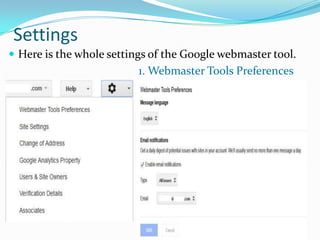
 Here is the whole settings of the Google webmaster tool.

1. Webmaster Tools Preferences
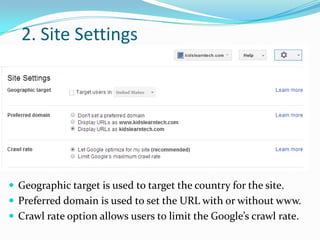
2. Site Settings

 Geographic target is used to target the country for the site.
 Preferred domain is used to set the URL with or without www.
 Crawl rate option allows users to limit the Google’s crawl rate.
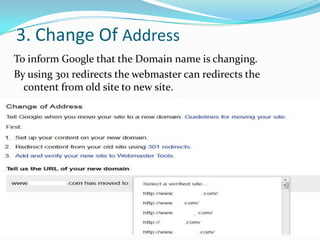
3. Change Of Address
To inform Google that the Domain name is changing.
By using 301 redirects the webmaster can redirects the
content from old site to new site.
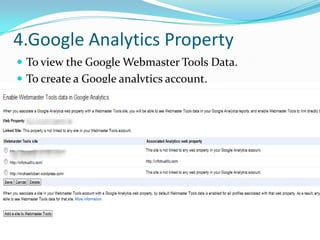
4.Google Analytics Property
 To view the Google Webmaster Tools Data.
 To create a Google analytics account.
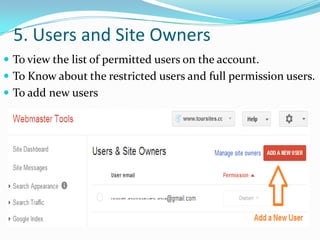
5. Users and Site Owners
 To view the list of permitted users on the account.
 To Know about the restricted users and full permission users.
 To add new users
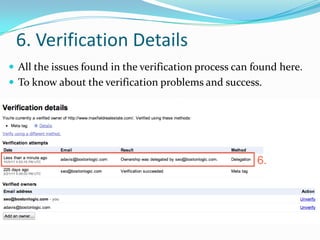
6. Verification Details
 All the issues found in the verification process can found here.
 To know about the verification problems and success.
7. Associates
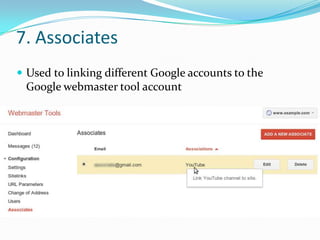
 Used to linking different Google accounts to the

Google webmaster tool account
Structured Data
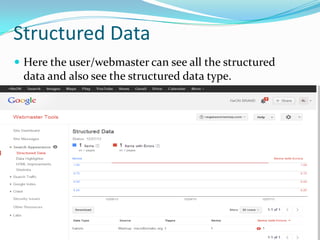
 Here the user/webmaster can see all the structured

data and also see the structured data type.
Data Highlighter
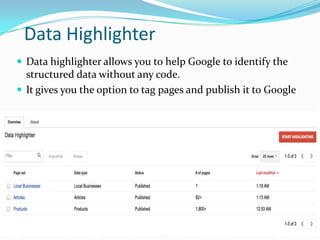
 Data highlighter allows you to help Google to identify the

structured data without any code.
 It gives you the option to tag pages and publish it to Google
HTML Improvements
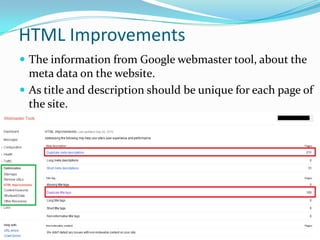
 The information from Google webmaster tool, about the

meta data on the website.
 As title and description should be unique for each page of
the site.
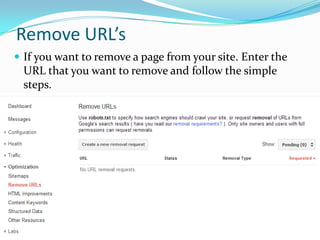
Remove URL’s
 If you want to remove a page from your site. Enter the

URL that you want to remove and follow the simple
steps.
Crawl
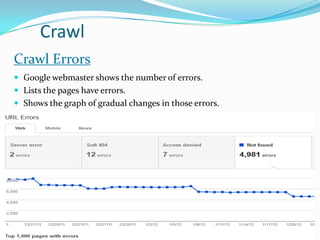
Crawl Errors
 Google webmaster shows the number of errors.
 Lists the pages have errors.
 Shows the graph of gradual changes in those errors.
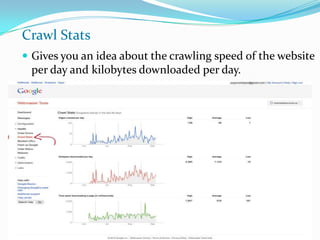
Crawl Stats
 Gives you an idea about the crawling speed of the website

per day and kilobytes downloaded per day.
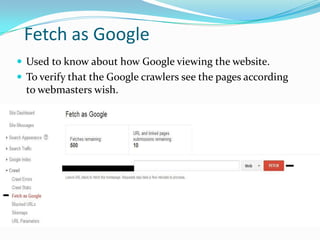
Fetch as Google
 Used to know about how Google viewing the website.
 To verify that the Google crawlers see the pages according

to webmasters wish.
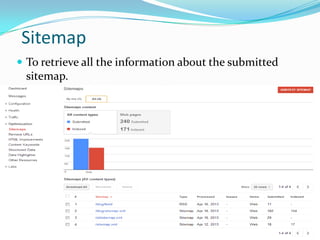
Sitemap
 To retrieve all the information about the submitted

sitemap.
 To add a sitemap and for testing sitemap.
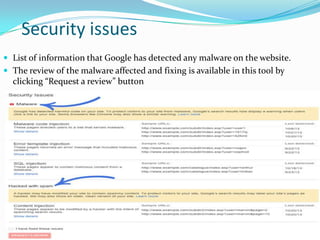
Security issues
 List of information that Google has detected any malware on the website.
 The review of the malware affected and fixing is available in this tool by

clicking “Request a review” button
Ph: +91 495 4014118
Email Id : hello@seamedia.in
Website : www.seamedia.in

The guidelines to use google web master tool

  • 1.
  • 2.
    Google Webmaster Tool It helps you to know how Google sees your website.  It is the primary way to Getting in touch in with Google and webmaster.  By checking the GWT regularly and taking action according to requirement should able to avoid the serious damages to your site’s ranking and traffic
  • 3.
    Verification To prove thatyou are an authorized representative of the site. There are five main methods
  • 4.
    Site Dashboard  TheDashboard gives you an instant view to the website also gives the messages from Google.
  • 5.
    Site Messages  WhenGoogle want to tell something to the webmaster here the place they will communicate.  To inform whether the site is infected with malware or unwanted pages in the site, also congratulating messages about the ranking.
  • 6.
    Settings  Here isthe whole settings of the Google webmaster tool. 1. Webmaster Tools Preferences
  • 7.
    2. Site Settings Geographic target is used to target the country for the site.  Preferred domain is used to set the URL with or without www.  Crawl rate option allows users to limit the Google’s crawl rate.
  • 8.
    3. Change OfAddress To inform Google that the Domain name is changing. By using 301 redirects the webmaster can redirects the content from old site to new site.
  • 9.
    4.Google Analytics Property To view the Google Webmaster Tools Data.  To create a Google analytics account.
  • 10.
    5. Users andSite Owners  To view the list of permitted users on the account.  To Know about the restricted users and full permission users.  To add new users
  • 11.
    6. Verification Details All the issues found in the verification process can found here.  To know about the verification problems and success.
  • 12.
    7. Associates  Usedto linking different Google accounts to the Google webmaster tool account
  • 13.
    Structured Data  Herethe user/webmaster can see all the structured data and also see the structured data type.
  • 14.
    Data Highlighter  Datahighlighter allows you to help Google to identify the structured data without any code.  It gives you the option to tag pages and publish it to Google
  • 15.
    HTML Improvements  Theinformation from Google webmaster tool, about the meta data on the website.  As title and description should be unique for each page of the site.
  • 16.
    Remove URL’s  Ifyou want to remove a page from your site. Enter the URL that you want to remove and follow the simple steps.
  • 17.
    Crawl Crawl Errors  Googlewebmaster shows the number of errors.  Lists the pages have errors.  Shows the graph of gradual changes in those errors.
  • 18.
    Crawl Stats  Givesyou an idea about the crawling speed of the website per day and kilobytes downloaded per day.
  • 19.
    Fetch as Google Used to know about how Google viewing the website.  To verify that the Google crawlers see the pages according to webmasters wish.
  • 20.
    Sitemap  To retrieveall the information about the submitted sitemap.  To add a sitemap and for testing sitemap.
  • 21.
    Security issues  Listof information that Google has detected any malware on the website.  The review of the malware affected and fixing is available in this tool by clicking “Request a review” button
  • 22.
    Ph: +91 4954014118 Email Id : hello@seamedia.in Website : www.seamedia.in