Google and beyond:
How to search the Internet effectively
The Internet is great
• Easy to use
• Available almost anywhere
• Find information on virtually any subject
• Latest news
• Connect with other people
• Share information
• Mobile
Most of us use Google
to search the Internet
However…..
• Websites can be created by anyone
• Often no editorial control
• Information can be unreliable
• Information can be out-of-date
• Author or origin of information often unknown
• Search engines can manipulate your search results…….
Image:http://commons.wikimedia.org/wiki/File%3ASouth_Africa_-_General_Warning_sign.svg
You are not alone!
• Some companies or sites pay to get their website at the top of
your search results e.g. Amazon and Wikipedia.
• You’re see adverts from companies trying to sell you things
based on your previous searches
• How do you know you are finding the best information?
Learn how
Use the Internet wisely
and be cautious
https://www.flickr.com/photos/vegas/414012553/
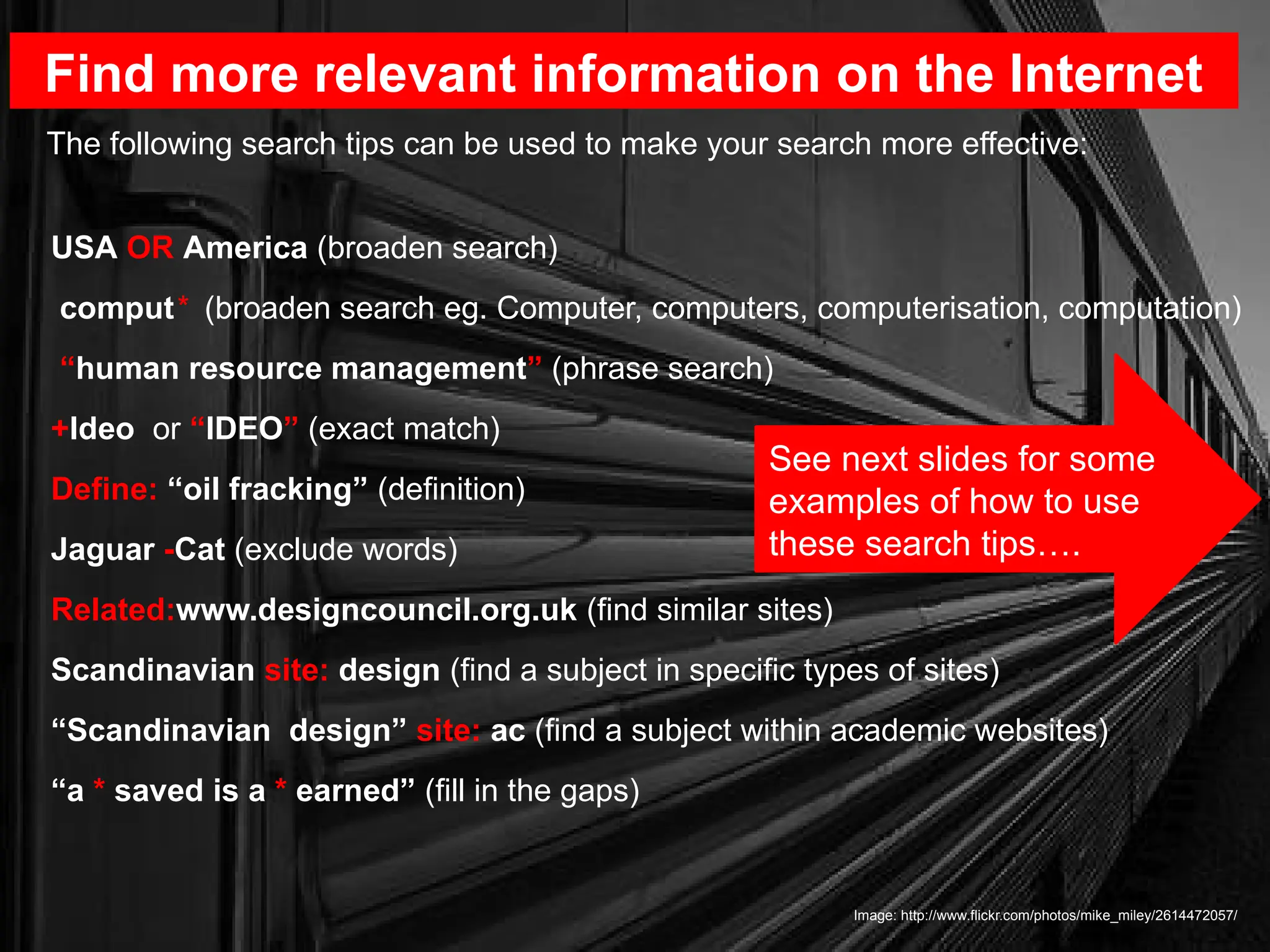
USA OR America (broaden search)
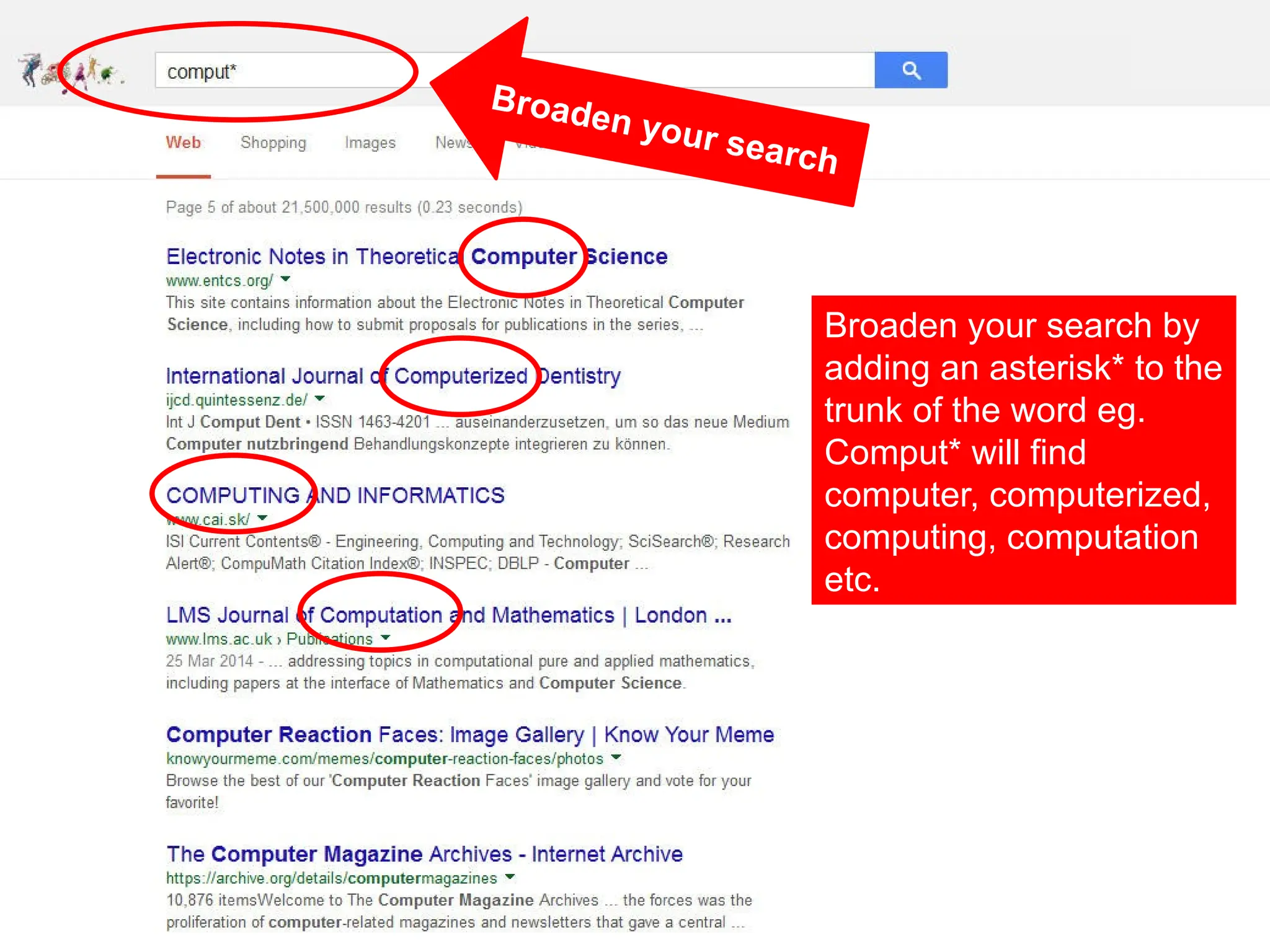
comput* (broaden search eg. Computer, computers, computerisation, computation)
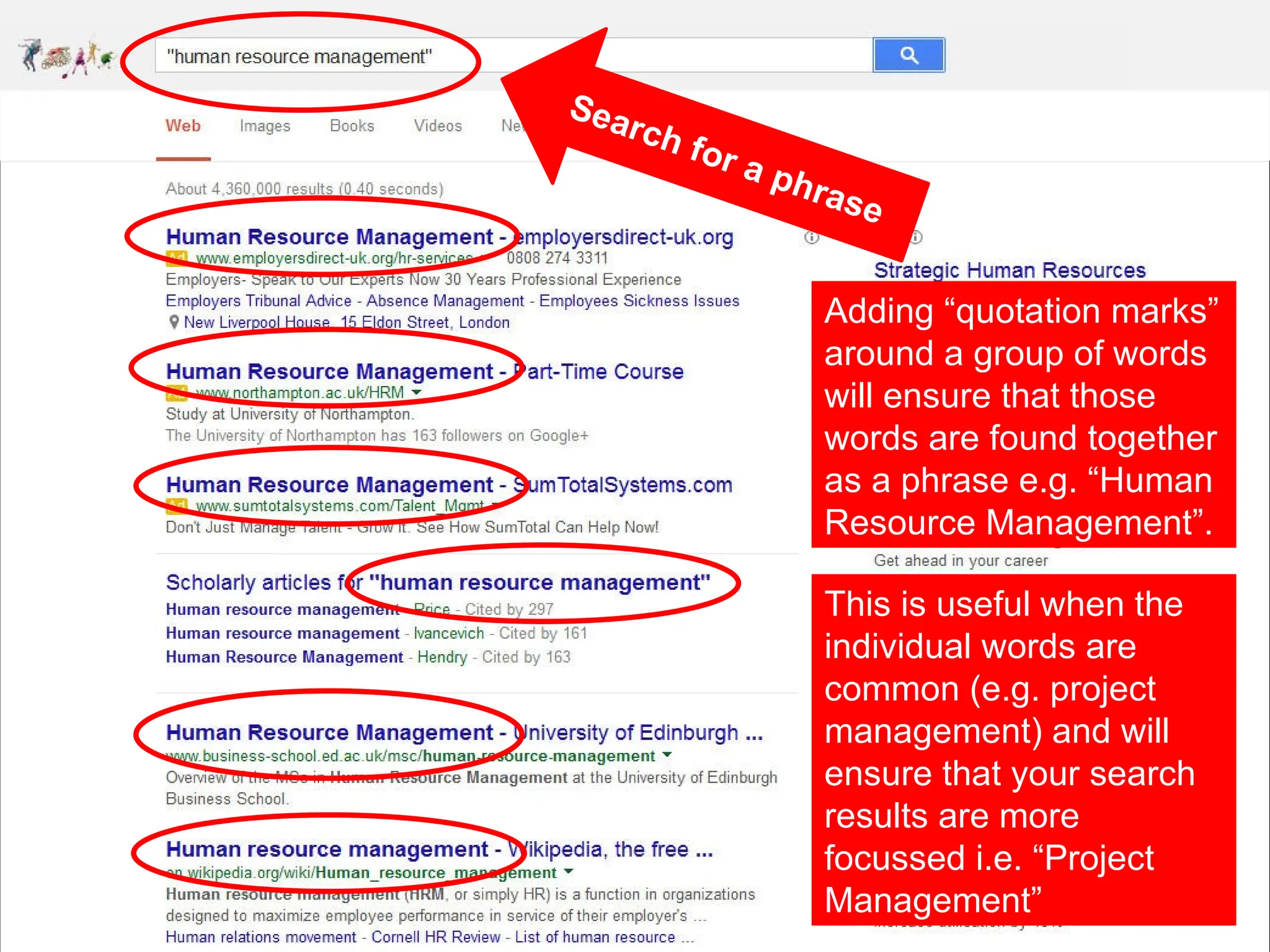
“human resource management” (phrase search)
+Ideo or “IDEO” (exact match)
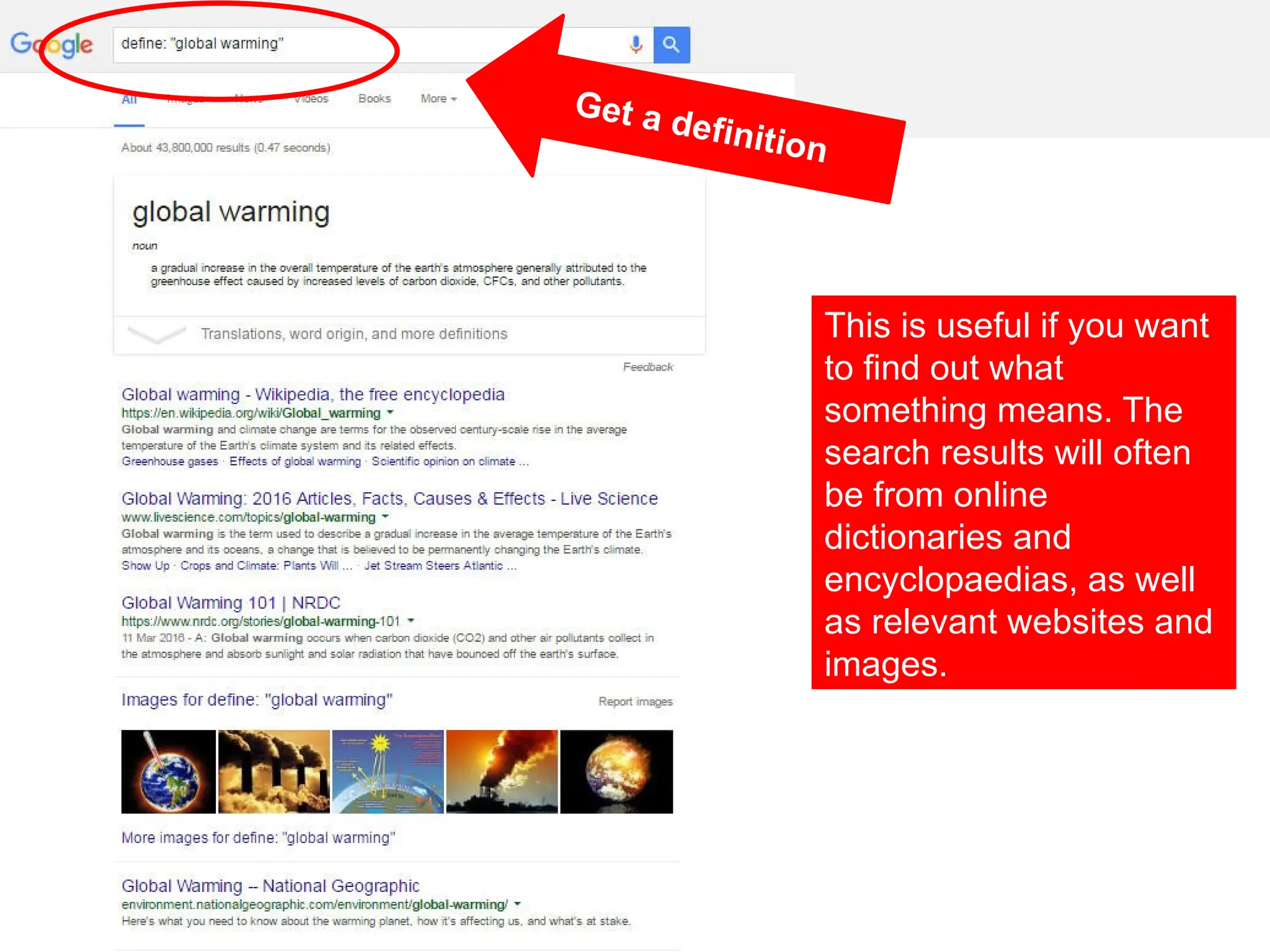
Define: “oil fracking” (definition)
Jaguar -Cat (exclude words)
Related:www.designcouncil.org.uk (find similar sites)
Scandinavian site: design (find a subject in specific types of sites)
“Scandinavian design” site: ac (find a subject within academic websites)
“a * saved is a * earned” (fill in the gaps)
Find more relevant information on the Internet
Image: http://www.flickr.com/photos/mike_miley/2614472057/
The following search tips can be used to make your search more effective:
See next slides for some
examples of how to use
these search tips….
Broaden your search
Broaden your search by
adding an asterisk* to the
trunk of the word eg.
Comput* will find
computer, computerized,
computing, computation
etc.
Search for a phrase
Adding “quotation marks”
around a group of words
will ensure that those
words are found together
as a phrase e.g. “Human
Resource Management”.
This is useful when the
individual words are
common (e.g. project
management) and will
ensure that your search
results are more
focussed i.e. “Project
Management”
Get a definition
This is useful if you want
to find out what
something means. The
search results will often
be from online
dictionaries and
encyclopaedias, as well
as relevant websites and
images.
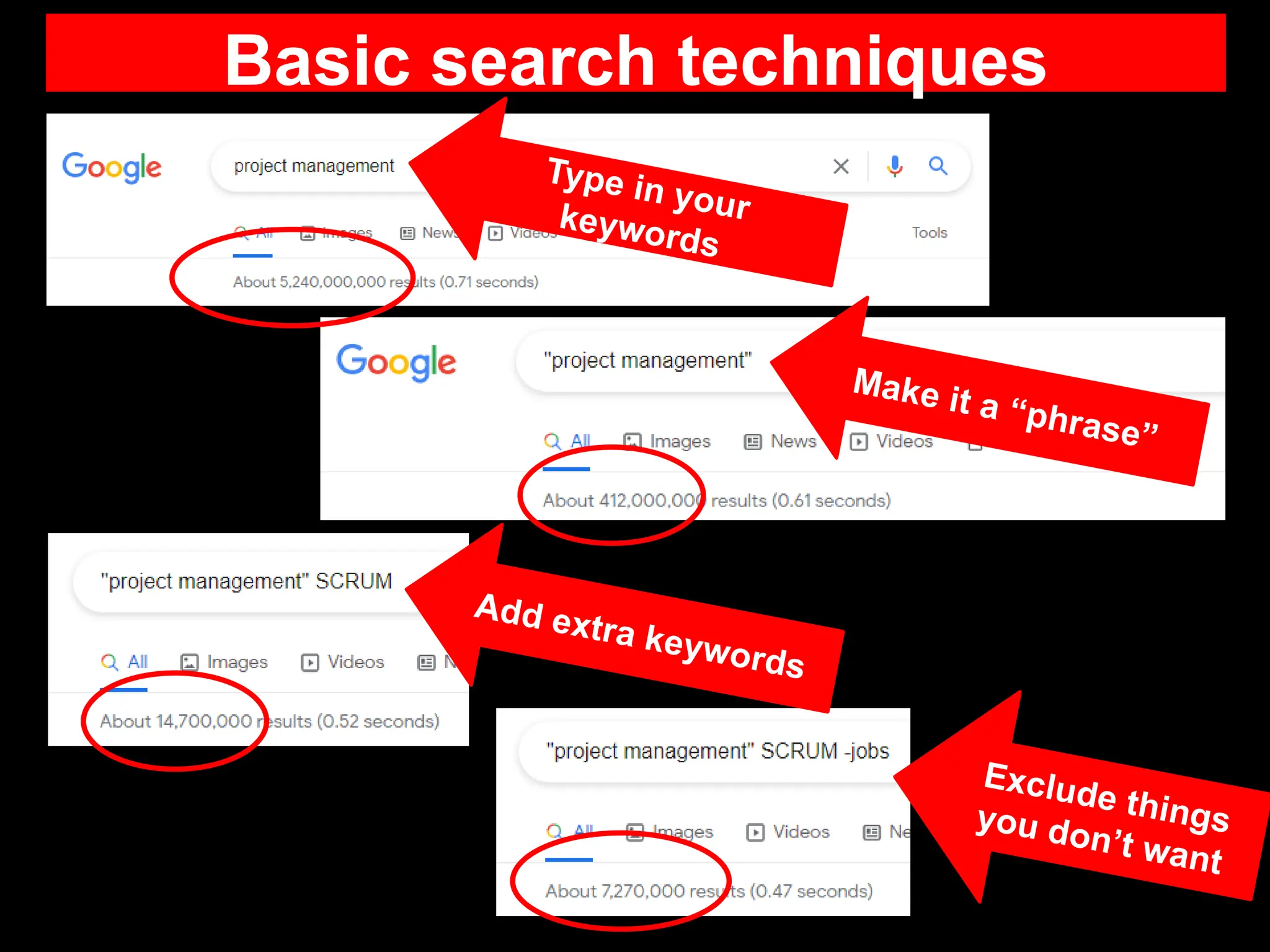
Basic search techniques
Make it a “phrase”
Add extra keywords
Exclude things
you don’t want
Type in your
keywords
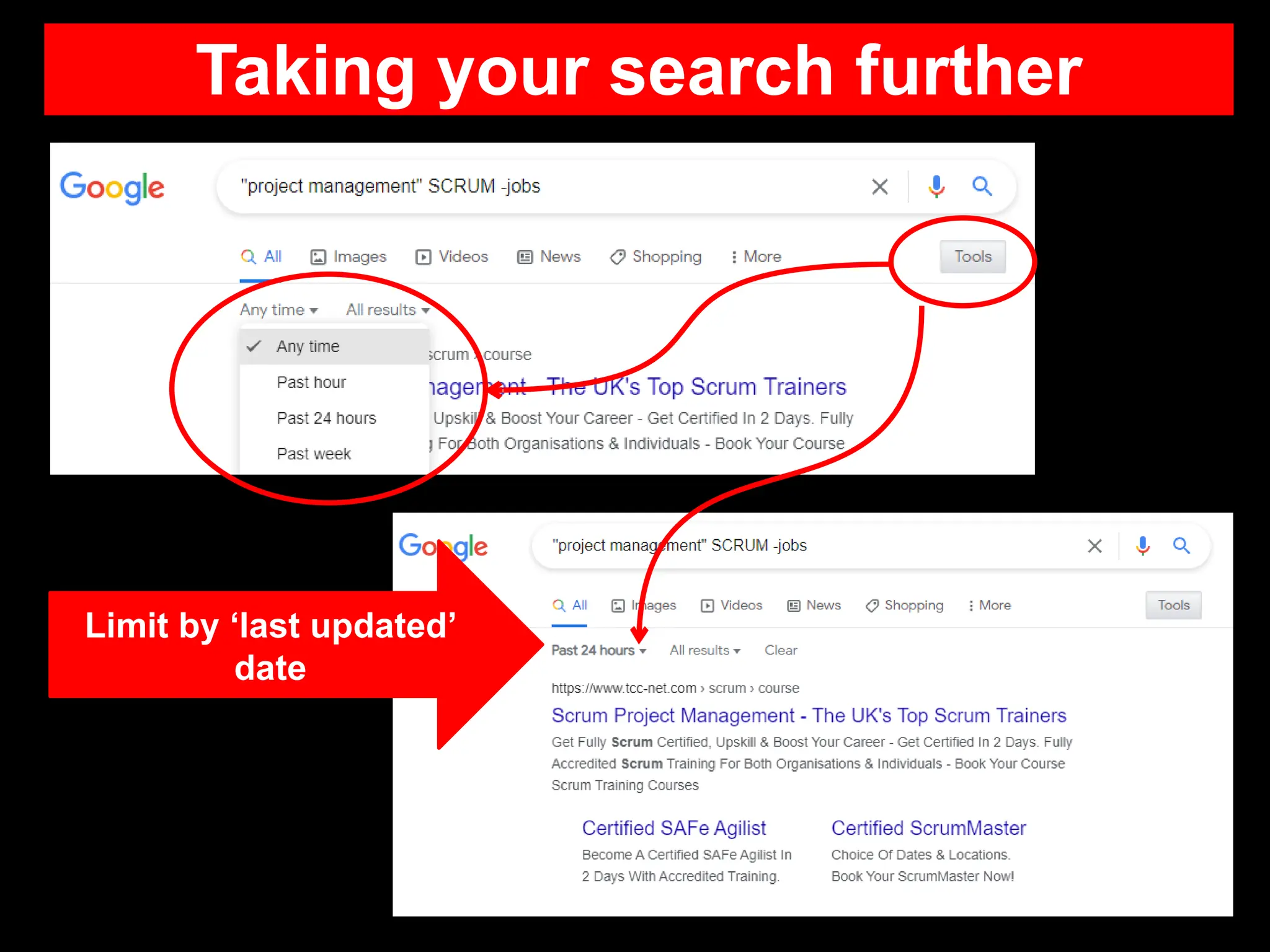
Taking your search further
Limit by ‘last updated’
date
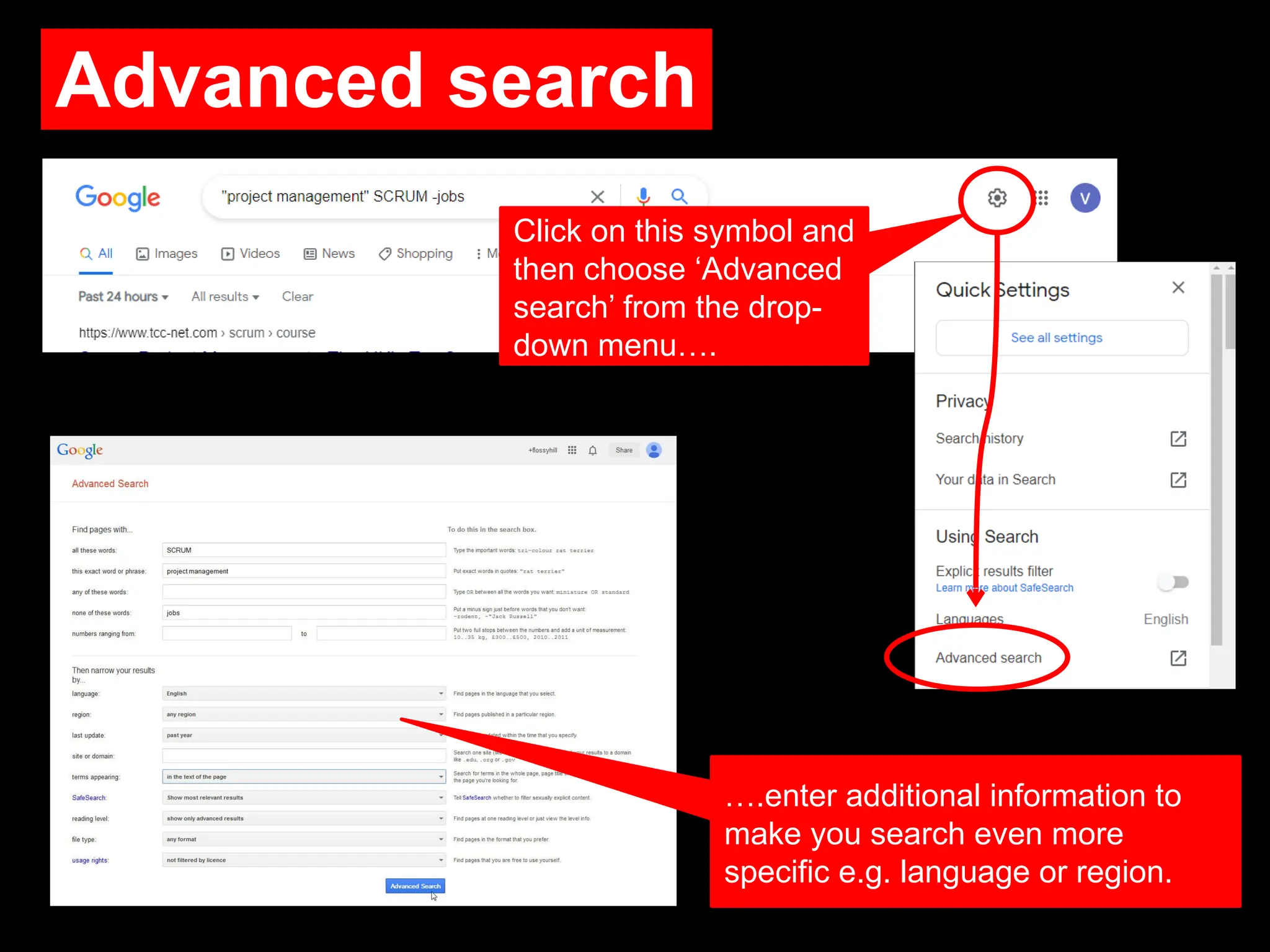
Advanced search
Click on this symbol and
then choose ‘Advanced
search’ from the drop-
down menu….
….enter additional information to
make you search even more
specific e.g. language or region.
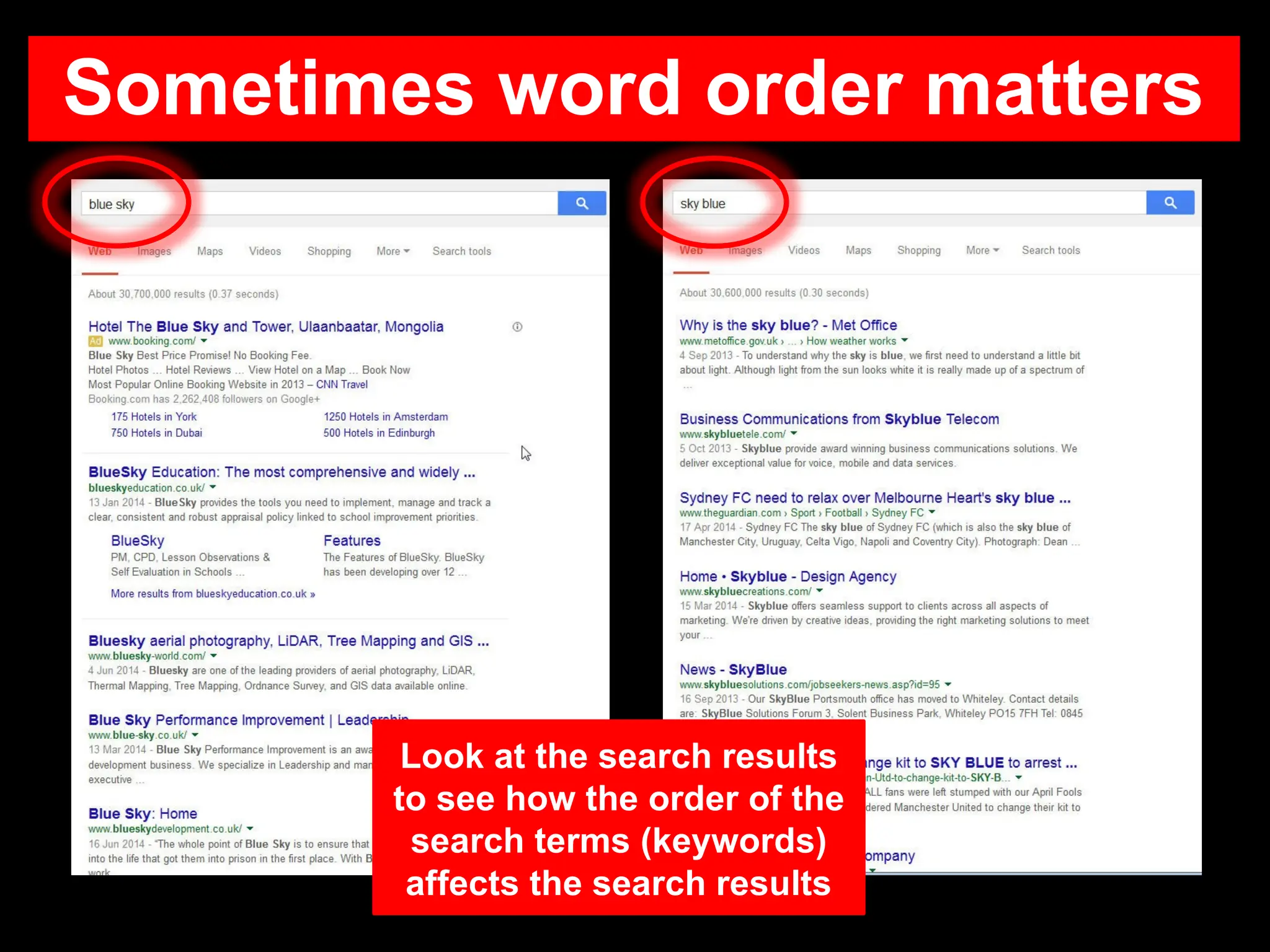
Sometimes word order matters
Look at the search results
to see how the order of the
search terms (keywords)
affects the search results
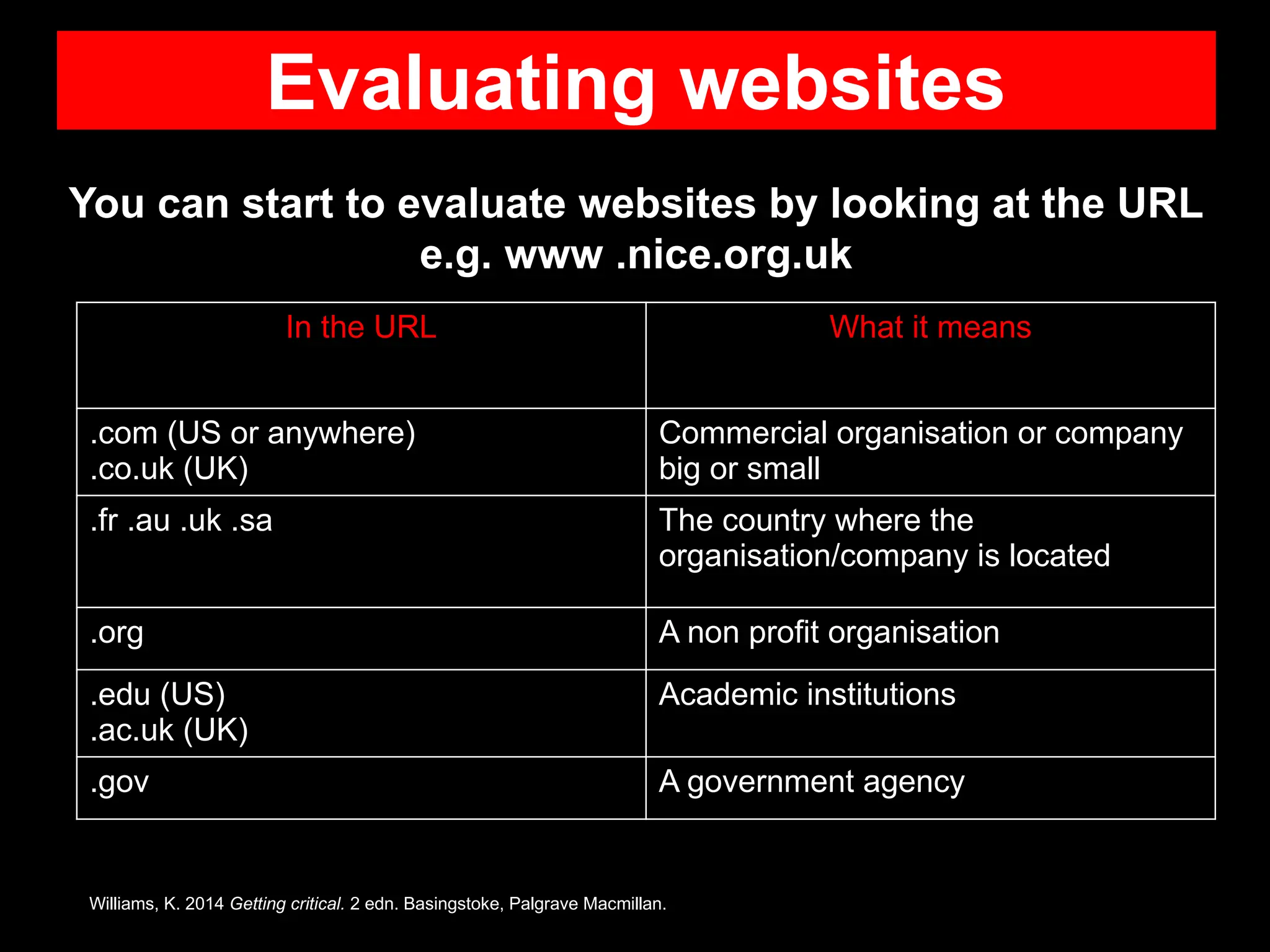
Evaluating websites
You can start to evaluate websites by looking at the URL
e.g. www .nice.org.uk
In the URL What it means
.com (US or anywhere)
.co.uk (UK)
Commercial organisation or company
big or small
.fr .au .uk .sa The country where the
organisation/company is located
.org A non profit organisation
.edu (US)
.ac.uk (UK)
Academic institutions
.gov A government agency
Williams, K. 2014 Getting critical. 2 edn. Basingstoke, Palgrave Macmillan.
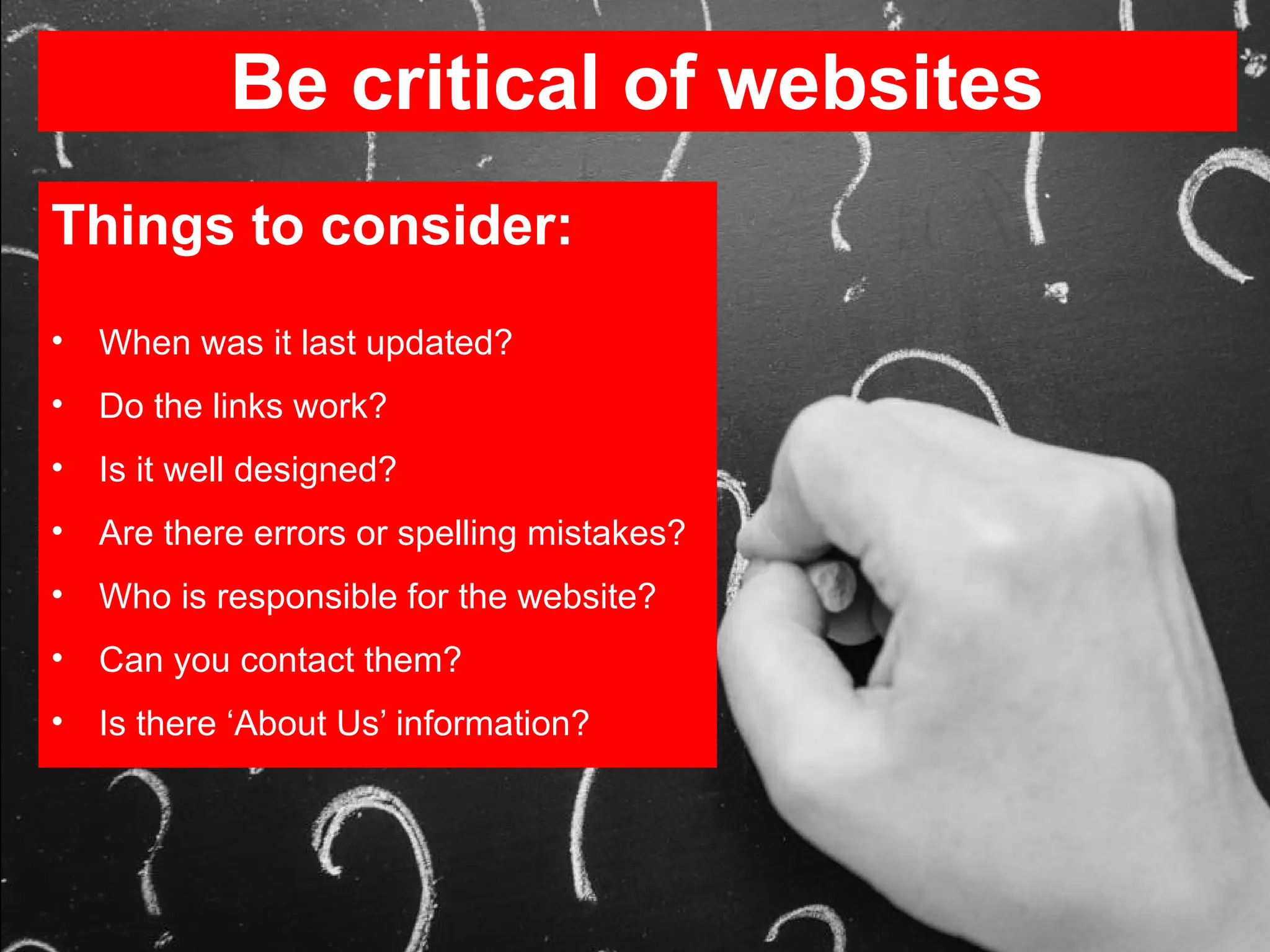
Be critical of websites
Things to consider:
• When was it last updated?
• Do the links work?
• Is it well designed?
• Are there errors or spelling mistakes?
• Who is responsible for the website?
• Can you contact them?
• Is there ‘About Us’ information?
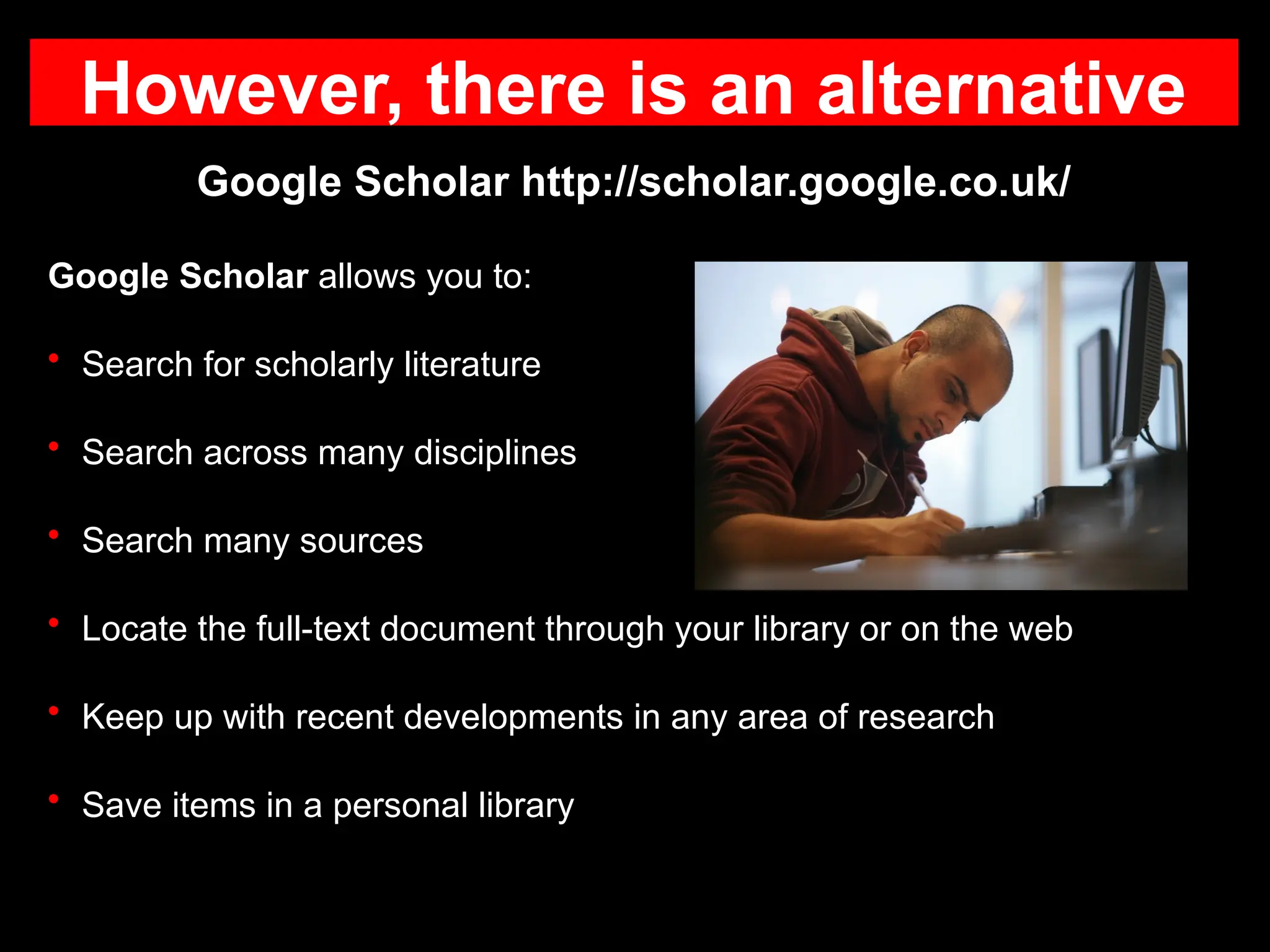
However, there is an alternative
Google Scholar http://scholar.google.co.uk/
Google Scholar allows you to:
• Search for scholarly literature
• Search across many disciplines
• Search many sources
• Locate the full-text document through your library or on the web
• Keep up with recent developments in any area of research
• Save items in a personal library
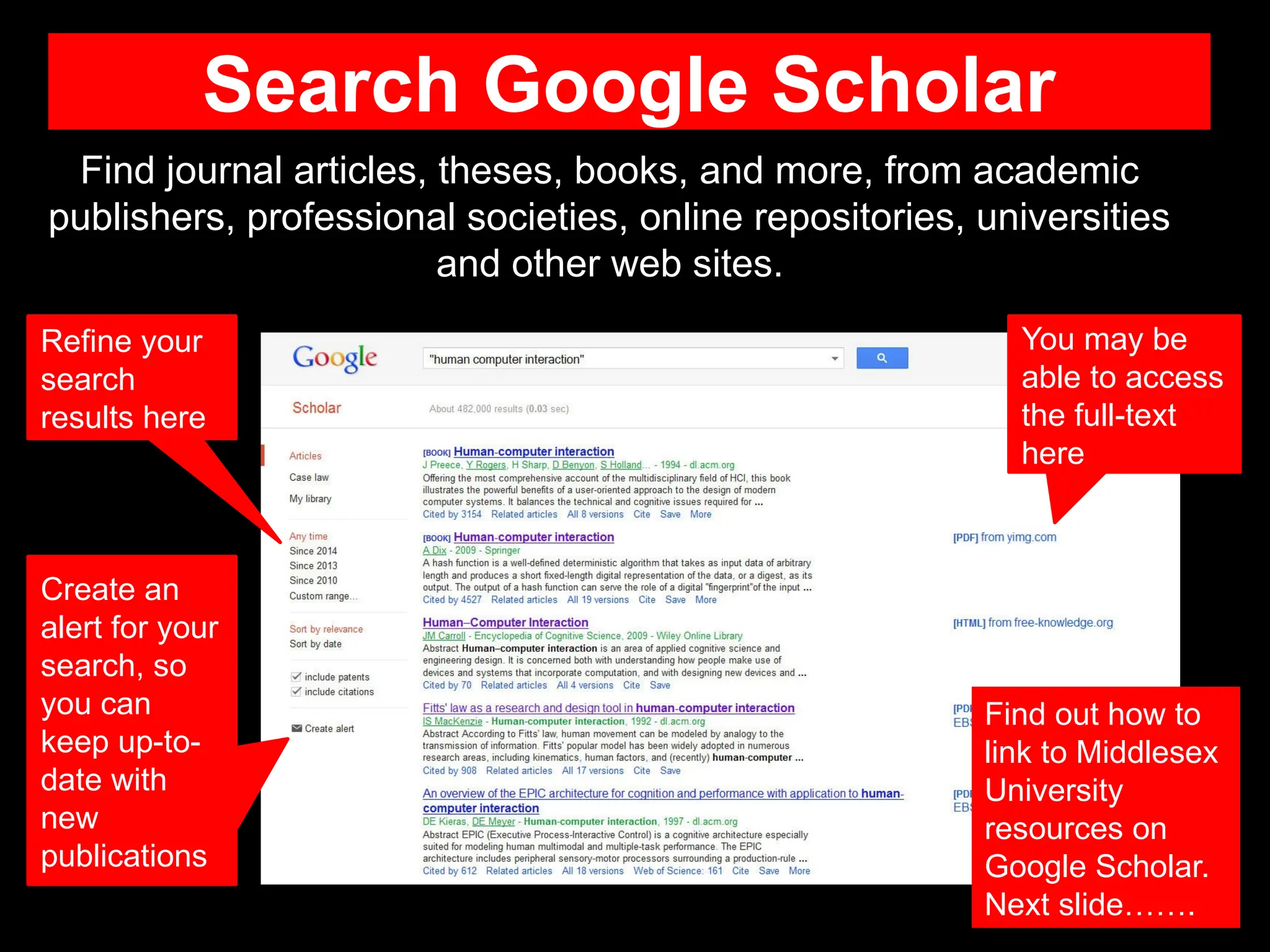
Search Google Scholar
Find journal articles, theses, books, and more, from academic
publishers, professional societies, online repositories, universities
and other web sites.
You may be
able to access
the full-text
here
Find out how to
link to Middlesex
University
resources on
Google Scholar.
Next slide…….
Refine your
search
results here
Create an
alert for your
search, so
you can
keep up-to-
date with
new
publications
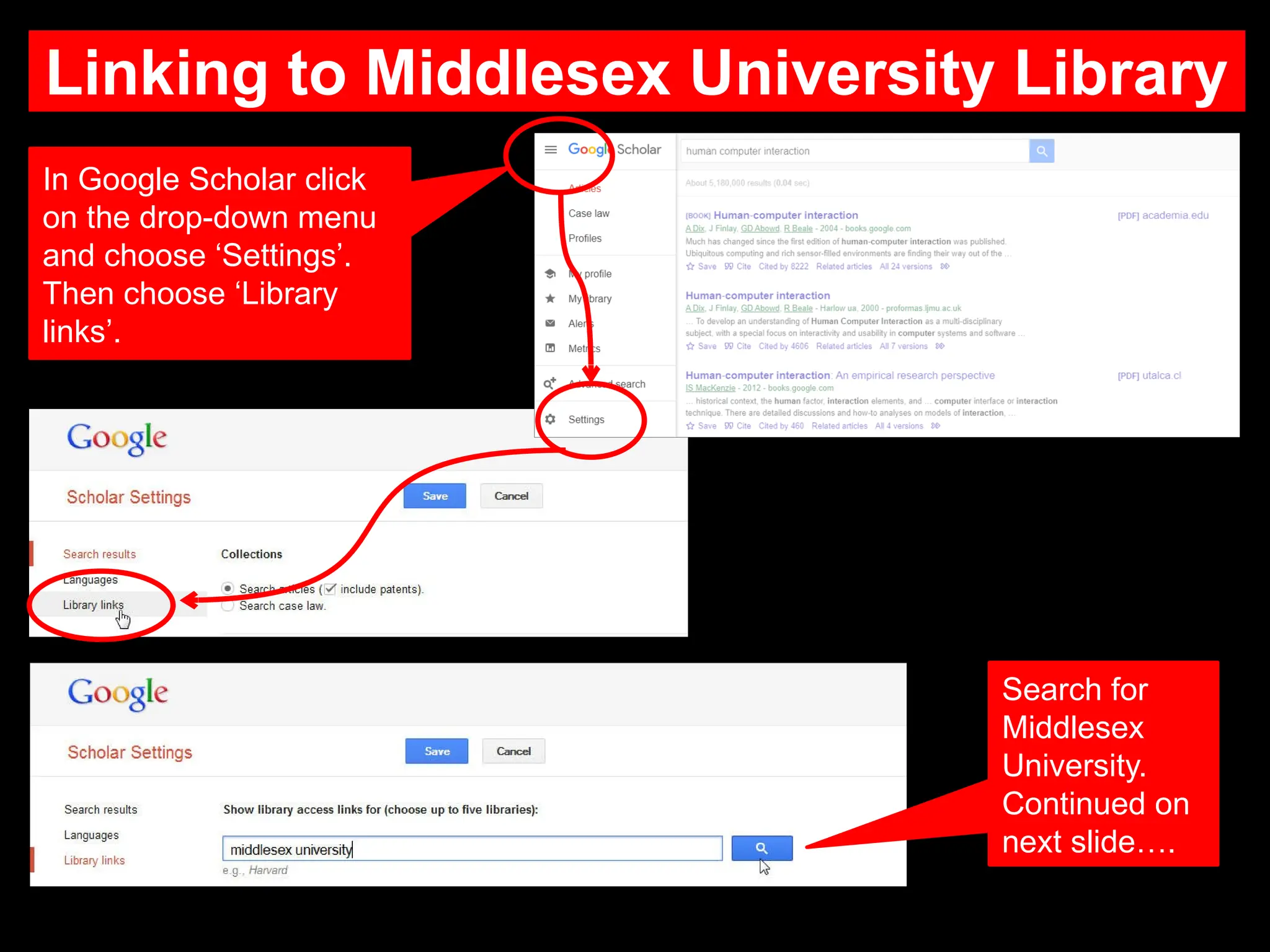
Linking to Middlesex University Library
In Google Scholar click
on the drop-down menu
and choose ‘Settings’.
Then choose ‘Library
links’.
Search for
Middlesex
University.
Continued on
next slide….
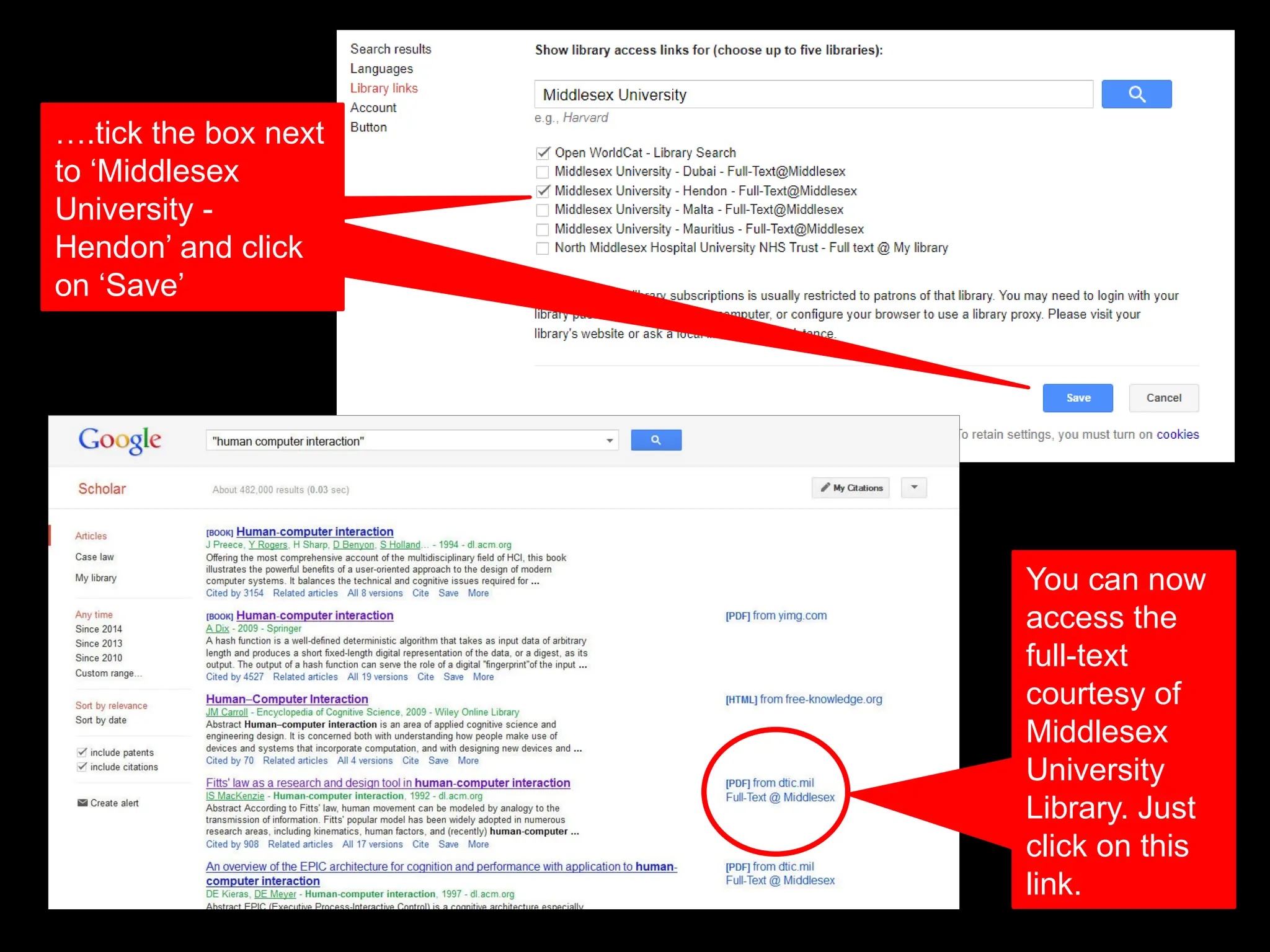
and click in
‘Save’
….tick the box next
to ‘Middlesex
University -
Hendon’ and click
on ‘Save’
You can now
access the
full-text
courtesy of
Middlesex
University
Library. Just
click on this
link.
Or you could try our resources
The Library provides access to a huge range of quality
resources such as books, journals, newspapers,
conference papers DVDs, and CDs. You can search these
resources using:
Library Search: Searches our book titles, journal articles,
conference proceedings etc. Use if you want to search for
information on a subject. Library Search does not cover all of
our databases, so not good for a comprehensive literature
review on its own.
Databases: Use to search subject specific collections of
journals. Most of our databases are covered by Library Search.
Many databases offer facility to save searches and set up RSS
alerts. Essential for a comprehensive literature review.
Look at our Library Subject guides to learn
more:
http://libguides.mdx.ac.uk
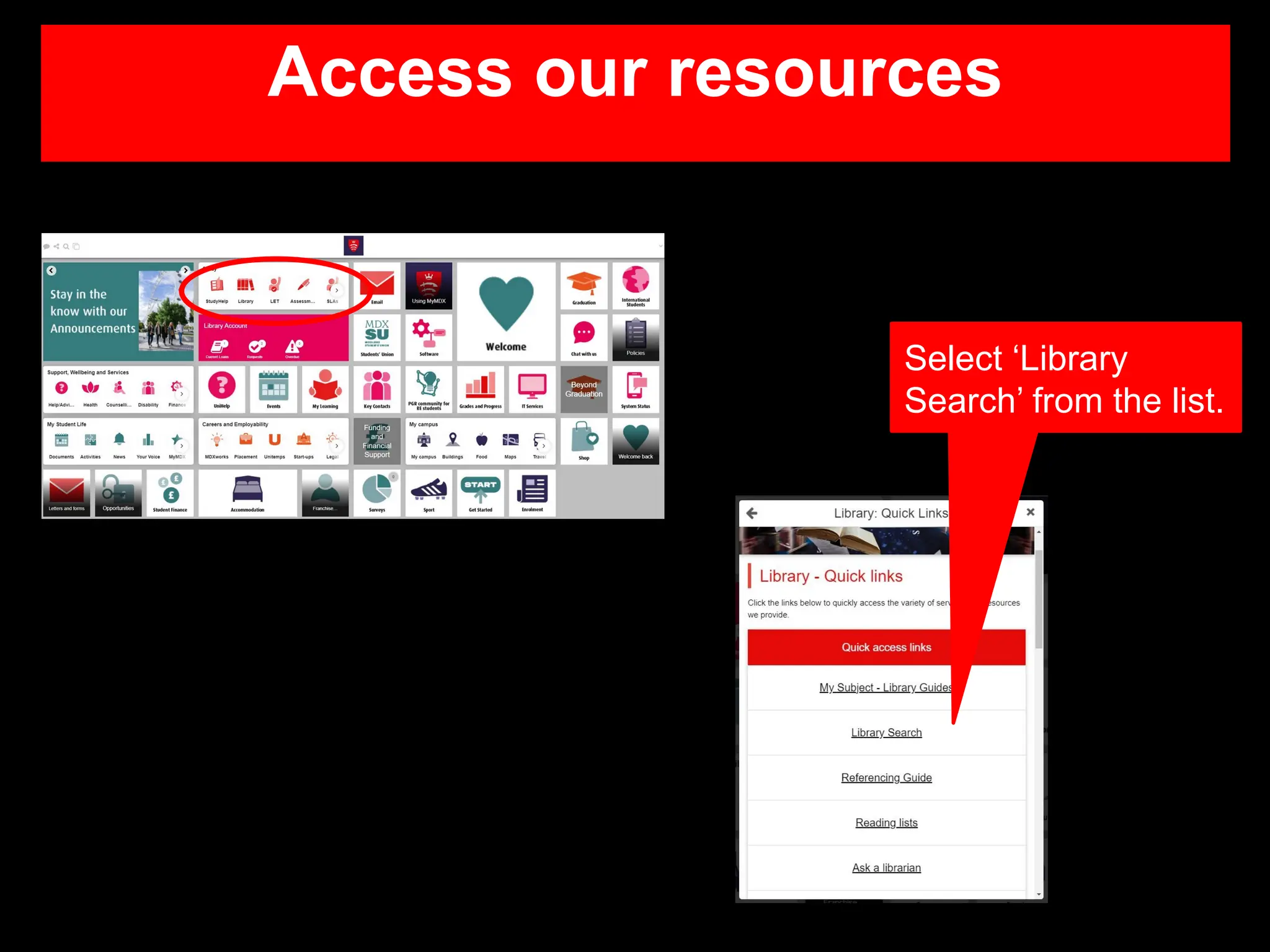
Access our resources
Select ‘Library
Search’ from the list.
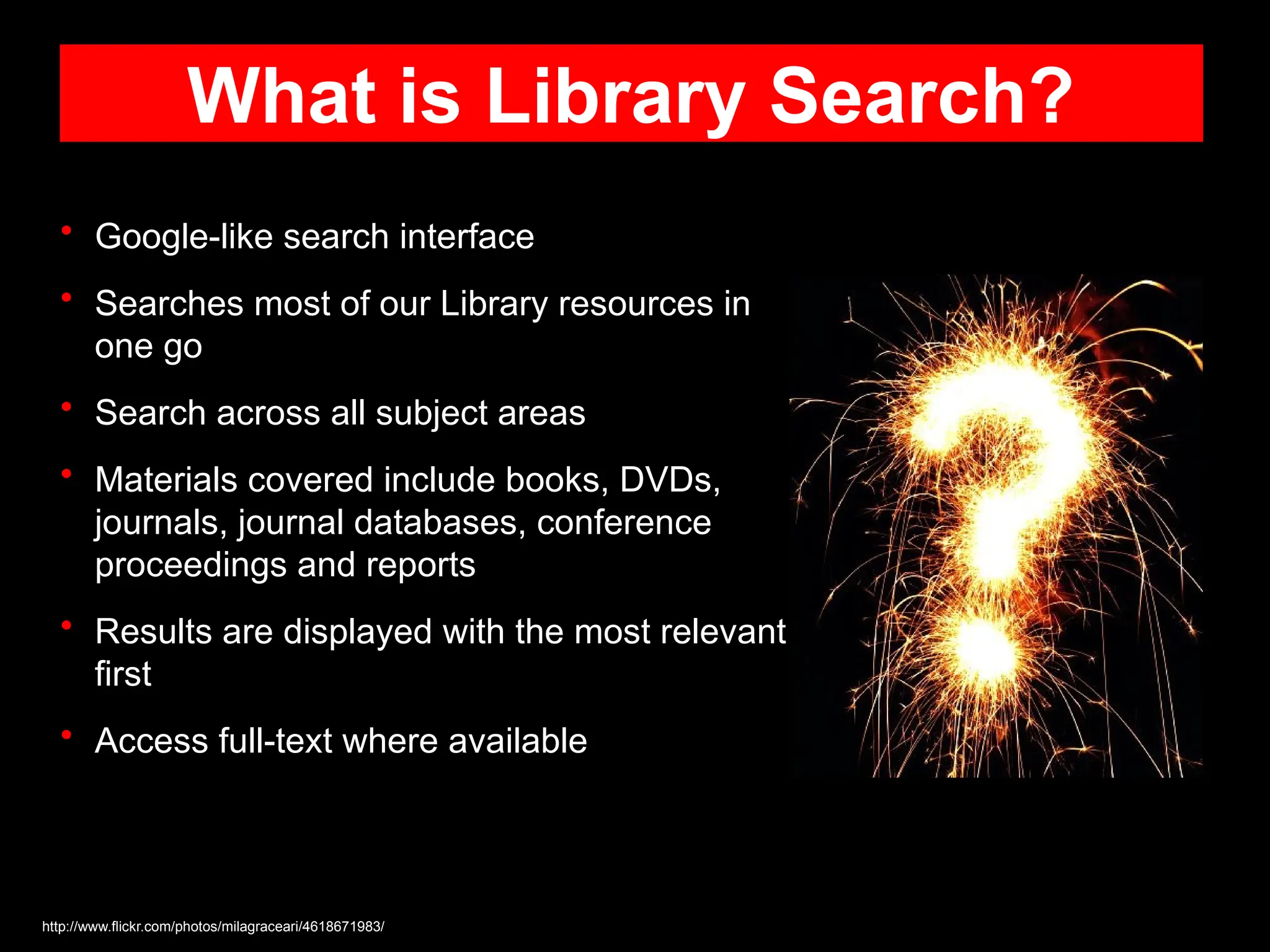
What is Library Search?
• Google-like search interface
• Searches most of our Library resources in
one go
• Search across all subject areas
• Materials covered include books, DVDs,
journals, journal databases, conference
proceedings and reports
• Results are displayed with the most relevant
first
• Access full-text where available
http://www.flickr.com/photos/milagraceari/4618671983/
Google vs Library Search
Library Search is particularly useful if you are searching for information on a subject,
but how does it compare with Google?
Google
• Familiar and easy to use
• Finds lots of information of varying quality
• Fast results
• Access from any computer
• Access to some books and journals
• Designed to sell you things
• Search results sponsored
• Searches for info from any source
• Often pay for full text academic information
• Can create a reference (not Harvard)
• Easy to use
• Finds lots of academic info
• Fast results
• Access from any computer
• Access to lots of books and journals
• Designed to find you information
• Search results ordered by relevance
• Searches quality resources
• Free access to full text academic info
• Can create Harvard references
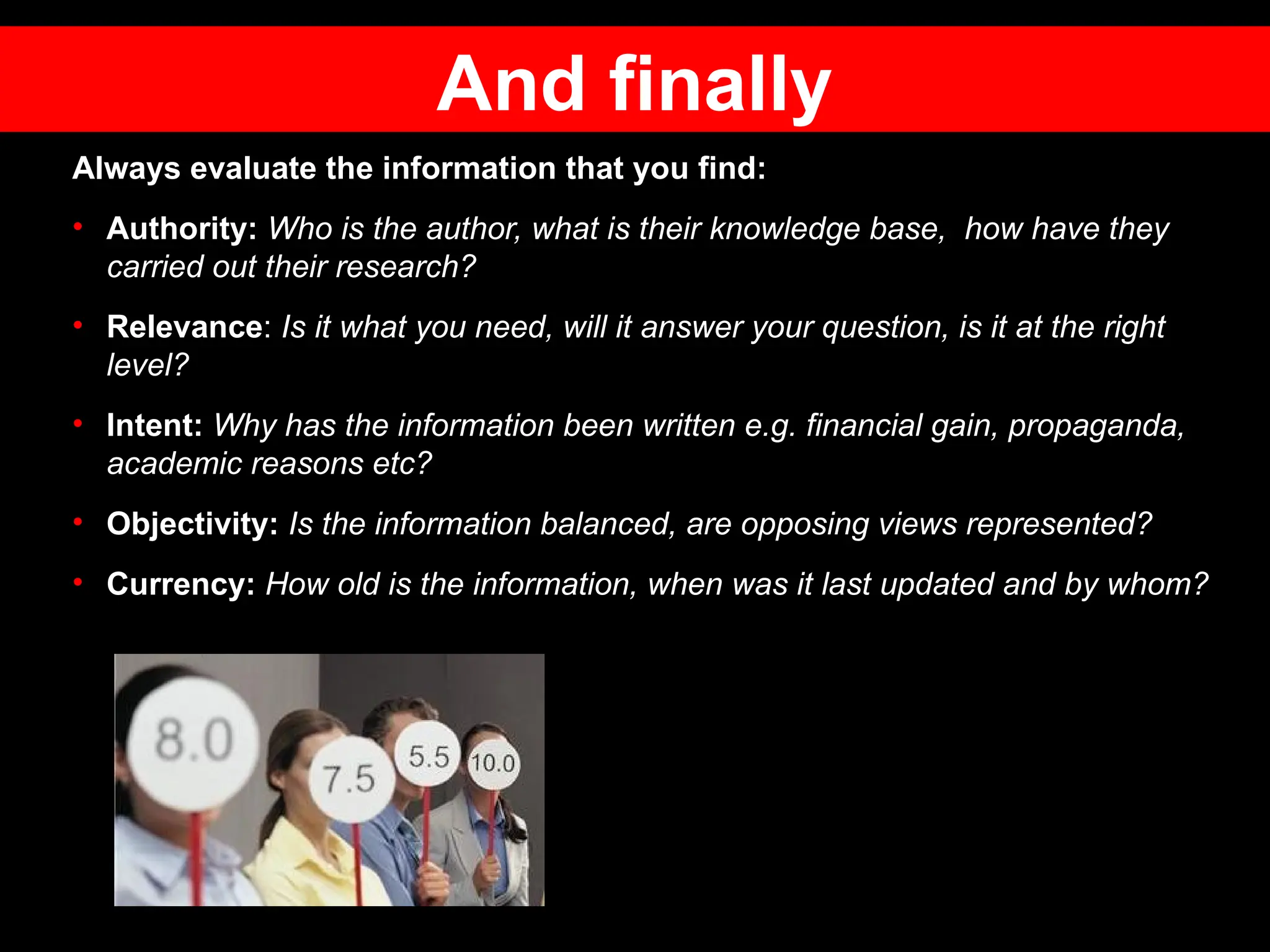
Always evaluate the information that you find:
• Authority: Who is the author, what is their knowledge base, how have they
carried out their research?
• Relevance: Is it what you need, will it answer your question, is it at the right
level?
• Intent: Why has the information been written e.g. financial gain, propaganda,
academic reasons etc?
• Objectivity: Is the information balanced, are opposing views represented?
• Currency: How old is the information, when was it last updated and by whom?
And finally
Need further help?
Contact your Librarian (Select ‘Chat’ or ‘Ask A Librarian’)
http://libguides.mdx.ac.uk/
Troubleshooting: Accessing full text off campus
http://libguides.mdx.ac.uk/accessingelectronicresources

Google and beyond 2024: How to search the internet effectively

  • 1.
    Google and beyond: Howto search the Internet effectively
  • 2.
    The Internet isgreat • Easy to use • Available almost anywhere • Find information on virtually any subject • Latest news • Connect with other people • Share information • Mobile Most of us use Google to search the Internet
  • 3.
    However….. • Websites canbe created by anyone • Often no editorial control • Information can be unreliable • Information can be out-of-date • Author or origin of information often unknown • Search engines can manipulate your search results……. Image:http://commons.wikimedia.org/wiki/File%3ASouth_Africa_-_General_Warning_sign.svg
  • 4.
    You are notalone! • Some companies or sites pay to get their website at the top of your search results e.g. Amazon and Wikipedia. • You’re see adverts from companies trying to sell you things based on your previous searches • How do you know you are finding the best information? Learn how Use the Internet wisely and be cautious https://www.flickr.com/photos/vegas/414012553/
  • 5.
    USA OR America(broaden search) comput* (broaden search eg. Computer, computers, computerisation, computation) “human resource management” (phrase search) +Ideo or “IDEO” (exact match) Define: “oil fracking” (definition) Jaguar -Cat (exclude words) Related:www.designcouncil.org.uk (find similar sites) Scandinavian site: design (find a subject in specific types of sites) “Scandinavian design” site: ac (find a subject within academic websites) “a * saved is a * earned” (fill in the gaps) Find more relevant information on the Internet Image: http://www.flickr.com/photos/mike_miley/2614472057/ The following search tips can be used to make your search more effective: See next slides for some examples of how to use these search tips….
  • 6.
    Broaden your search Broadenyour search by adding an asterisk* to the trunk of the word eg. Comput* will find computer, computerized, computing, computation etc.
  • 7.
    Search for aphrase Adding “quotation marks” around a group of words will ensure that those words are found together as a phrase e.g. “Human Resource Management”. This is useful when the individual words are common (e.g. project management) and will ensure that your search results are more focussed i.e. “Project Management”
  • 8.
    Get a definition Thisis useful if you want to find out what something means. The search results will often be from online dictionaries and encyclopaedias, as well as relevant websites and images.
  • 9.
    Basic search techniques Makeit a “phrase” Add extra keywords Exclude things you don’t want Type in your keywords
  • 10.
    Taking your searchfurther Limit by ‘last updated’ date
  • 11.
    Advanced search Click onthis symbol and then choose ‘Advanced search’ from the drop- down menu…. ….enter additional information to make you search even more specific e.g. language or region.
  • 12.
    Sometimes word ordermatters Look at the search results to see how the order of the search terms (keywords) affects the search results
  • 13.
    Evaluating websites You canstart to evaluate websites by looking at the URL e.g. www .nice.org.uk In the URL What it means .com (US or anywhere) .co.uk (UK) Commercial organisation or company big or small .fr .au .uk .sa The country where the organisation/company is located .org A non profit organisation .edu (US) .ac.uk (UK) Academic institutions .gov A government agency Williams, K. 2014 Getting critical. 2 edn. Basingstoke, Palgrave Macmillan.
  • 14.
    Be critical ofwebsites Things to consider: • When was it last updated? • Do the links work? • Is it well designed? • Are there errors or spelling mistakes? • Who is responsible for the website? • Can you contact them? • Is there ‘About Us’ information?
  • 15.
    However, there isan alternative Google Scholar http://scholar.google.co.uk/ Google Scholar allows you to: • Search for scholarly literature • Search across many disciplines • Search many sources • Locate the full-text document through your library or on the web • Keep up with recent developments in any area of research • Save items in a personal library
  • 16.
    Search Google Scholar Findjournal articles, theses, books, and more, from academic publishers, professional societies, online repositories, universities and other web sites. You may be able to access the full-text here Find out how to link to Middlesex University resources on Google Scholar. Next slide……. Refine your search results here Create an alert for your search, so you can keep up-to- date with new publications
  • 17.
    Linking to MiddlesexUniversity Library In Google Scholar click on the drop-down menu and choose ‘Settings’. Then choose ‘Library links’. Search for Middlesex University. Continued on next slide….
  • 18.
    and click in ‘Save’ ….tickthe box next to ‘Middlesex University - Hendon’ and click on ‘Save’ You can now access the full-text courtesy of Middlesex University Library. Just click on this link.
  • 19.
    Or you couldtry our resources The Library provides access to a huge range of quality resources such as books, journals, newspapers, conference papers DVDs, and CDs. You can search these resources using: Library Search: Searches our book titles, journal articles, conference proceedings etc. Use if you want to search for information on a subject. Library Search does not cover all of our databases, so not good for a comprehensive literature review on its own. Databases: Use to search subject specific collections of journals. Most of our databases are covered by Library Search. Many databases offer facility to save searches and set up RSS alerts. Essential for a comprehensive literature review. Look at our Library Subject guides to learn more: http://libguides.mdx.ac.uk
  • 20.
    Access our resources Select‘Library Search’ from the list.
  • 21.
    What is LibrarySearch? • Google-like search interface • Searches most of our Library resources in one go • Search across all subject areas • Materials covered include books, DVDs, journals, journal databases, conference proceedings and reports • Results are displayed with the most relevant first • Access full-text where available http://www.flickr.com/photos/milagraceari/4618671983/
  • 22.
    Google vs LibrarySearch Library Search is particularly useful if you are searching for information on a subject, but how does it compare with Google? Google • Familiar and easy to use • Finds lots of information of varying quality • Fast results • Access from any computer • Access to some books and journals • Designed to sell you things • Search results sponsored • Searches for info from any source • Often pay for full text academic information • Can create a reference (not Harvard) • Easy to use • Finds lots of academic info • Fast results • Access from any computer • Access to lots of books and journals • Designed to find you information • Search results ordered by relevance • Searches quality resources • Free access to full text academic info • Can create Harvard references
  • 23.
    Always evaluate theinformation that you find: • Authority: Who is the author, what is their knowledge base, how have they carried out their research? • Relevance: Is it what you need, will it answer your question, is it at the right level? • Intent: Why has the information been written e.g. financial gain, propaganda, academic reasons etc? • Objectivity: Is the information balanced, are opposing views represented? • Currency: How old is the information, when was it last updated and by whom? And finally
  • 24.
    Need further help? Contactyour Librarian (Select ‘Chat’ or ‘Ask A Librarian’) http://libguides.mdx.ac.uk/ Troubleshooting: Accessing full text off campus http://libguides.mdx.ac.uk/accessingelectronicresources

Editor's Notes

  • #5 Discuss the ways that you can control your search (can be used on all sorts of databases including the Internet): product AND design (narrow) USA OR America (Broaden) design* (Broaden) Cork NOTIreland (Exclude) -Amazon (Exclude) “Festival of Britain” (Phrase) +Ideo or “IDEO” (Exact match) Define: “paper prototyping” (Phrase) James Dyson invented * (Fill in the blanks) Scandinavian site: design or “Scandinavian design” site: ac (Search within specific sites with specified subject or domain eg. design or academic Related:www.designcouncil.org.uk (Web pages that have similar content to the given site)
  • #20 Access Library Search To access Library Search you need to login to myUniHub. When you are logged in, go to MyStudy and then choose Library Search from the My Library box. Accessing Library Search in this way ensures that you are able to access full text resources where available. So always follow this route: myUniHub, MyStudy, MyLibrary and then Library Search.