Brief Guide to Effective
             Literature Searching

     Best strategies for choosing relevant resources


     Using databases and keeping up to date


     How to check for access to articles


Judy McSorley
Senior Liaison Librarian for Psychology                 10.2011
Plan well ahead

 It may take you some time to decide on
   your research topic/focus

 It may take you longer to do your
   literature search than anticipated

 You may need to visit other libraries or
  order items through inter-library loan

 Not everything is freely available on
  the internet!
Plan your search

 Find general background information
 before using more specific and recent
 resources

 Think about the possible search terms
 or keywords for your topic

 Arrange into broader  narrower terms

 Consider any alternative terms or
 spellings: eg. murder/homicide or
 behavior/behaviour
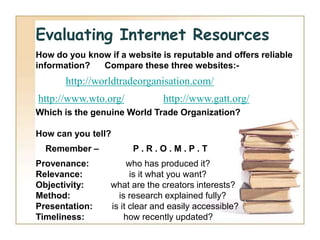
Evaluating Internet Resources
How do you know if a website is reputable and offers reliable
information?  Compare these three websites:-
       http://worldtradeorganisation.com/
http://www.wto.org/           http://www.gatt.org/
Which is the genuine World Trade Organization?

How can you tell?
  Remember –           P.R.O.M.P.T
Provenance:           who has produced it?
Relevance:             is it what you want?
Objectivity:     what are the creators interests?
Method:            is research explained fully?
Presentation:    is it clear and easily accessible?
Timeliness:          how recently updated?
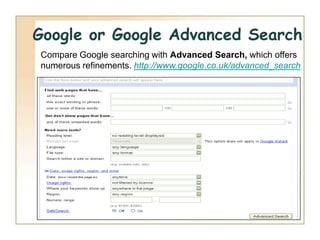
Google or Google Advanced Search
Compare Google searching with Advanced Search, which offers
numerous refinements. http://www.google.co.uk/advanced_search
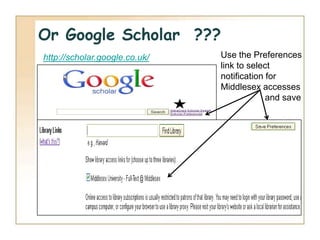
Or Google Scholar ???
http://scholar.google.co.uk/   Use the Preferences
                               link to select
                               notification for
                               Middlesex accesses
                                            and save
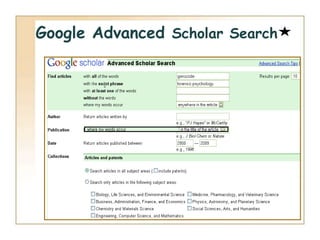
Google Advanced Scholar Search
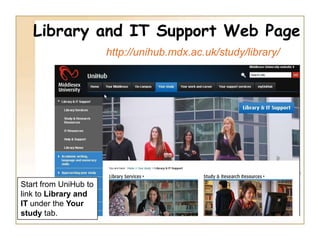
Library and IT Support Web Page
                       http://unihub.mdx.ac.uk/study/library/


Start from UniHub to
link to Library and
IT under the Your
study tab.
Library and IT Support Web Page
Scroll down the screen to Study and Research Resources


                                                 These are the
                                                 most useful
                                                 resources for
                                                 Literature
                                                 Searching
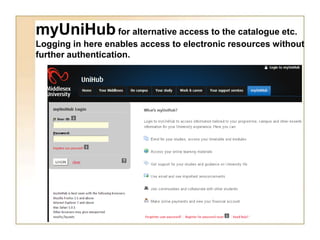
myUniHub for alternative access to the catalogue etc.
Logging in here enables access to electronic resources without
further authentication.
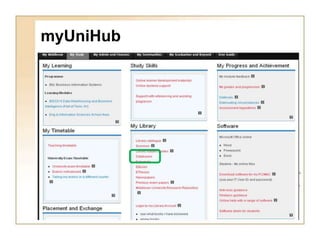
myUniHub
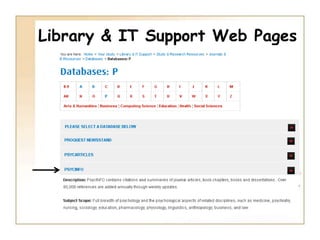
Library & IT Support Web Pages
PsycINFO
BASIC SEARCH : ADVANCED SEARCH : ACCOUNT and ALERTS
PsycINFO
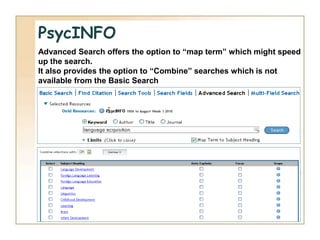
Advanced Search offers the option to “map term” which might speed
up the search.
It also provides the option to “Combine” searches which is not
available from the Basic Search
PsycINFO
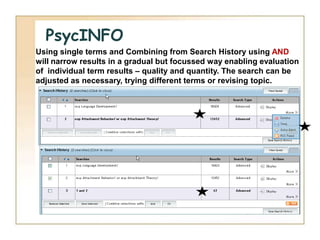
Using single terms and Combining from Search History using AND
will narrow results in a gradual but focussed way enabling evaluation
of individual term results – quality and quantity. The search can be
adjusted as necessary, trying different terms or revising topic.
PsycINFO – updating results
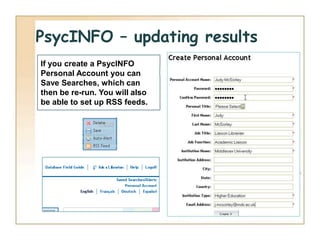
If you create a PsycINFO
Personal Account you can
Save Searches, which can
then be re-run. You will also
be able to set up RSS feeds.
PsycINFO – updating results
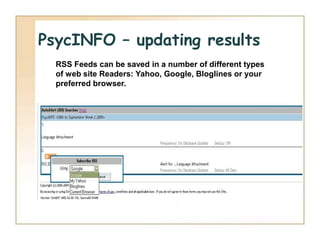
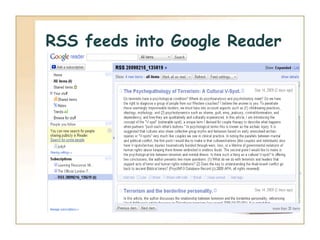
  RSS Feeds can be saved in a number of different types
  of web site Readers: Yahoo, Google, Bloglines or your
  preferred browser.
PsycINFO – updating results
RSS feeds into Google Reader
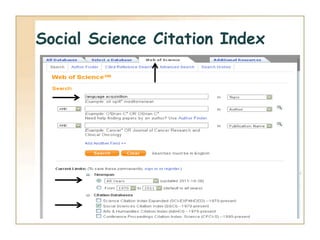
Social Science Citation Index
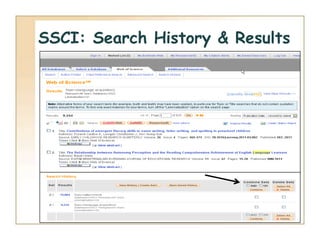
SSCI: Search History & Results
SSCI – Managing Results
Register and Sign In
Citation Alerts- set up from single record
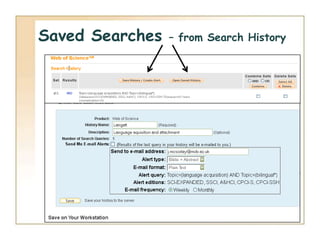
Saved Searches   – from Search History
Zetoc Alerts
 Zetoc provides access to the British Library's
Electronic Table of Contents of around 20,000
current journals published per year.
 The database covers 1993 to date, and is
updated on a daily basis.
 It includes an email alerting service,
to enable you to keep up-to-date with
relevant new articles and papers.
Zetoc is accessible from Learning
Resources Databases listing.
Zetoc Alerts


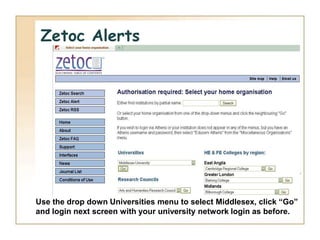
Use the drop down Universities menu to select Middlesex, click “Go”
and login next screen with your university network login as before.
Zetoc Alerts


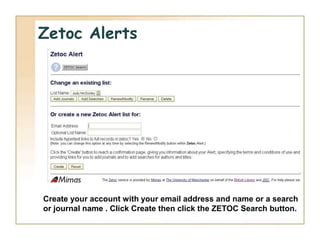
Create your account with your email address and name or a search
or journal name . Click Create then click the ZETOC Search button.
Zetoc Alerts
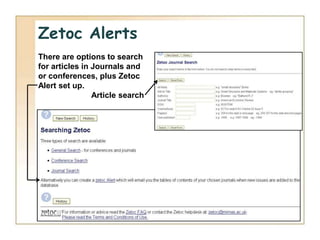
There are options to search
for articles in Journals and
or conferences, plus Zetoc
Alert set up.
                Article search
Zetoc Alerts


The Alert can be set up for contents lists of several journal titles, and
also for article Title Keyword searches
Zetoc Alerts
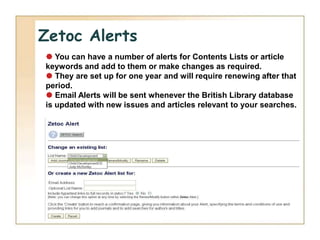
 You can have a number of alerts for Contents Lists or article
keywords and add to them or make changes as required.
 They are set up for one year and will require renewing after that
period.
 Email Alerts will be sent whenever the British Library database
is updated with new issues and articles relevant to your searches.
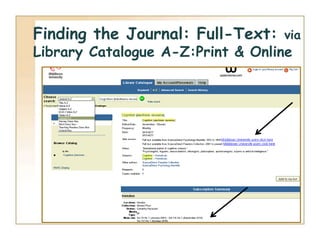
Finding the Journal: Full-Text:   via
Library Catalogue A-Z:Print & Online
Reference Software - RefWorks
• RefWorks is the system subscribed to by Middlesex
  University and is for the use of Middlesex staff and students
• RefWorks comprises of two parts:
  Bibliographic Manager
   – provides folders for storing your bibliographic citations
   – enables precise organisation of and
     immediate access to records
  Write-N-Cite
   – requires downloading to the desktop
   – use to place saved bibliographic citations
     directly into your own text
   – and to instantly create your Bibliographies
      in appropriate styles
Reference Software - RefWorks

  Items stored in RefWorks folders cannot be
  accessed after leaving the University.

  RefWorks can seem rather clunky and is
  dependent on Reference Software compatibility of
  databases and catalogues etc.

  A full comparison of the two products can
  be viewed here (scroll down the page) :
  http://libguides.mdx.ac.uk/content.php?pid=58195&sid=426206
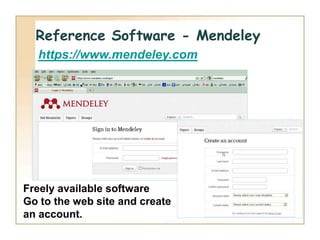
Reference Software - Mendeley
  https://www.mendeley.com


Freely available software
Go to the web site and create
an account.
Reference Software - Mendeley


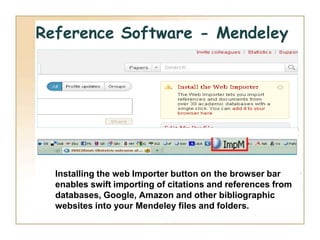
  Installing the web Importer button on the browser bar
  enables swift importing of citations and references from
  databases, Google, Amazon and other bibliographic
  websites into your Mendeley files and folders.
Reference Software
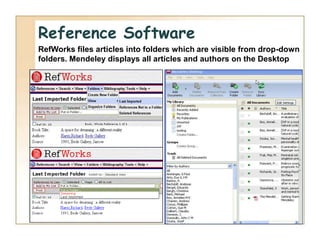
RefWorks files articles into folders which are visible from drop-down
folders. Mendeley displays all articles and authors on the Desktop
Library Subject Guides
Psychology resources brought together: http://libguides.mdx.ac.uk
Library Subject Guides
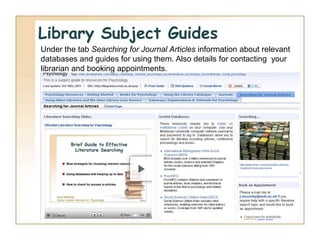
Under the tab Searching for Journal Articles information about relevant
databases and guides for using them. Also details for contacting your
librarian and booking appointments.

Effective Literature Searching 2011

  • 1.
    Brief Guide toEffective Literature Searching  Best strategies for choosing relevant resources  Using databases and keeping up to date  How to check for access to articles Judy McSorley Senior Liaison Librarian for Psychology 10.2011
  • 2.
    Plan well ahead It may take you some time to decide on your research topic/focus  It may take you longer to do your literature search than anticipated  You may need to visit other libraries or order items through inter-library loan  Not everything is freely available on the internet!
  • 3.
    Plan your search Find general background information before using more specific and recent resources  Think about the possible search terms or keywords for your topic  Arrange into broader  narrower terms  Consider any alternative terms or spellings: eg. murder/homicide or behavior/behaviour
  • 4.
    Evaluating Internet Resources Howdo you know if a website is reputable and offers reliable information? Compare these three websites:- http://worldtradeorganisation.com/ http://www.wto.org/ http://www.gatt.org/ Which is the genuine World Trade Organization? How can you tell? Remember – P.R.O.M.P.T Provenance: who has produced it? Relevance: is it what you want? Objectivity: what are the creators interests? Method: is research explained fully? Presentation: is it clear and easily accessible? Timeliness: how recently updated?
  • 5.
    Google or GoogleAdvanced Search Compare Google searching with Advanced Search, which offers numerous refinements. http://www.google.co.uk/advanced_search
  • 6.
    Or Google Scholar??? http://scholar.google.co.uk/ Use the Preferences link to select notification for Middlesex accesses and save
  • 7.
  • 8.
    Library and ITSupport Web Page http://unihub.mdx.ac.uk/study/library/ Start from UniHub to link to Library and IT under the Your study tab.
  • 9.
    Library and ITSupport Web Page Scroll down the screen to Study and Research Resources These are the most useful resources for Literature Searching
  • 10.
    myUniHub for alternativeaccess to the catalogue etc. Logging in here enables access to electronic resources without further authentication.
  • 11.
  • 12.
    Library & ITSupport Web Pages
  • 13.
    PsycINFO BASIC SEARCH :ADVANCED SEARCH : ACCOUNT and ALERTS
  • 14.
    PsycINFO Advanced Search offersthe option to “map term” which might speed up the search. It also provides the option to “Combine” searches which is not available from the Basic Search
  • 15.
    PsycINFO Using single termsand Combining from Search History using AND will narrow results in a gradual but focussed way enabling evaluation of individual term results – quality and quantity. The search can be adjusted as necessary, trying different terms or revising topic.
  • 16.
    PsycINFO – updatingresults If you create a PsycINFO Personal Account you can Save Searches, which can then be re-run. You will also be able to set up RSS feeds.
  • 17.
  • 18.
    PsycINFO – updatingresults RSS Feeds can be saved in a number of different types of web site Readers: Yahoo, Google, Bloglines or your preferred browser.
  • 19.
  • 20.
    RSS feeds intoGoogle Reader
  • 21.
  • 22.
  • 23.
  • 24.
  • 25.
    Citation Alerts- setup from single record
  • 26.
    Saved Searches – from Search History
  • 27.
    Zetoc Alerts  Zetocprovides access to the British Library's Electronic Table of Contents of around 20,000 current journals published per year.  The database covers 1993 to date, and is updated on a daily basis.  It includes an email alerting service, to enable you to keep up-to-date with relevant new articles and papers. Zetoc is accessible from Learning Resources Databases listing.
  • 28.
    Zetoc Alerts Use thedrop down Universities menu to select Middlesex, click “Go” and login next screen with your university network login as before.
  • 29.
    Zetoc Alerts Create youraccount with your email address and name or a search or journal name . Click Create then click the ZETOC Search button.
  • 30.
    Zetoc Alerts There areoptions to search for articles in Journals and or conferences, plus Zetoc Alert set up. Article search
  • 31.
    Zetoc Alerts The Alertcan be set up for contents lists of several journal titles, and also for article Title Keyword searches
  • 32.
    Zetoc Alerts  Youcan have a number of alerts for Contents Lists or article keywords and add to them or make changes as required.  They are set up for one year and will require renewing after that period.  Email Alerts will be sent whenever the British Library database is updated with new issues and articles relevant to your searches.
  • 33.
    Finding the Journal:Full-Text: via Library Catalogue A-Z:Print & Online
  • 34.
    Reference Software -RefWorks • RefWorks is the system subscribed to by Middlesex University and is for the use of Middlesex staff and students • RefWorks comprises of two parts: Bibliographic Manager – provides folders for storing your bibliographic citations – enables precise organisation of and immediate access to records Write-N-Cite – requires downloading to the desktop – use to place saved bibliographic citations directly into your own text – and to instantly create your Bibliographies in appropriate styles
  • 35.
    Reference Software -RefWorks Items stored in RefWorks folders cannot be accessed after leaving the University. RefWorks can seem rather clunky and is dependent on Reference Software compatibility of databases and catalogues etc. A full comparison of the two products can be viewed here (scroll down the page) : http://libguides.mdx.ac.uk/content.php?pid=58195&sid=426206
  • 36.
    Reference Software -Mendeley https://www.mendeley.com Freely available software Go to the web site and create an account.
  • 37.
    Reference Software -Mendeley Installing the web Importer button on the browser bar enables swift importing of citations and references from databases, Google, Amazon and other bibliographic websites into your Mendeley files and folders.
  • 38.
    Reference Software RefWorks filesarticles into folders which are visible from drop-down folders. Mendeley displays all articles and authors on the Desktop
  • 39.
    Library Subject Guides Psychologyresources brought together: http://libguides.mdx.ac.uk
  • 40.
    Library Subject Guides Underthe tab Searching for Journal Articles information about relevant databases and guides for using them. Also details for contacting your librarian and booking appointments.