Git Basic2

 Stanley Hsiao
  2010.12.15
Caution!!
• Note that this is not a step-by-step tutorial
• Contains only some concepts and illustrations
Resource
• Books
  – Progit
     • Online book written by Scott Chacon
  – The Git Community Book
     • maintained by Scott Chacon
• Interface Tools
  – http://git-scm.com/tools
     • TortoiseGit (Windows)
          – TortoiseGit is a port of the popular TortoiseSVN project to Git.
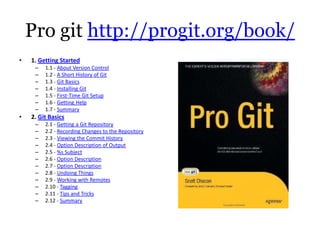
Pro git http://progit.org/book/
•   1. Getting Started
     –   1.1 - About Version Control
     –   1.2 - A Short History of Git
     –   1.3 - Git Basics
     –   1.4 - Installing Git
     –   1.5 - First-Time Git Setup
     –   1.6 - Getting Help
     –   1.7 - Summary
•   2. Git Basics
     –   2.1 - Getting a Git Repository
     –   2.2 - Recording Changes to the Repository
     –   2.3 - Viewing the Commit History
     –   2.4 - Option Description of Output
     –   2.5 - %s Subject
     –   2.6 - Option Description
     –   2.7 - Option Description
     –   2.8 - Undoing Things
     –   2.9 - Working with Remotes
     –   2.10 - Tagging
     –   2.11 - Tips and Tricks
     –   2.12 - Summary
Git Basics
• Chapter 2
• Git Basics
• If you can read only one chapter to get going with Git, this
  is it.
          –   2.1 - Getting a Git Repository              git init, git clone
          –   2.2 - Recording Changes to the Repository   git status, git add, git commit
          –   2.3 - Viewing the Commit History            git log,
          –   2.4 - Option Description of Output
          –   2.5 - %s Subject
          –   2.6 - Option Description
          –   2.7 - Option Description
          –   2.8 - Undoing Things                        git reset
          –   2.9 - Working with Remotes                  git remote, git fetch, git push
          –   2.10 - Tagging                              git tag, git show,
          –   2.11 - Tips and Tricks                      git ….
          –   2.12 - Summary
Single user version control
Outline
• Basic Command of revision control software
• Review Branch in git
  – Understanding git log
  – Detached Head State
• Merge VS. Rebase
Basic Commands

                                                                                                         generate
Soft repository                 local                                                                               reba
                clone pull push          checkout update lock add remove move copy merge commit revert   bundle
ware init                       branches                                                                            se
                                                                                                         file


                                                                               cp
                                                             Unk               [then
      init / init -       fetch                                                                   checko            reba
Git                 clone       push branch   clone   pull   now add rm   mv   ] git merge commit        bundle
      -bare               [72]                                                                    ut                se
                                                             n                 add[7
                                                                               3]
Git Basics
• Nearly Every Operation Is Local
REVIEW BRANCH IN GIT
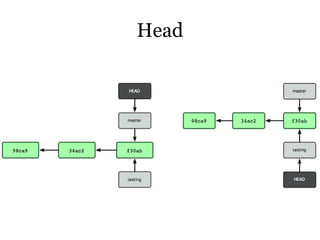
Head
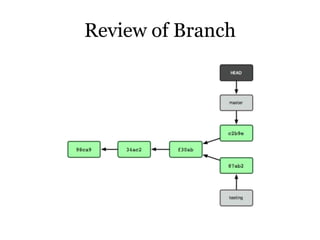
Review of Branch
What is the difference
between a tag and a branch in
            git?
• From the theoretical point of view:
  – tags are symbolic names for a given revision.
  – branches are symbolic names for line of
    development.
Git overview


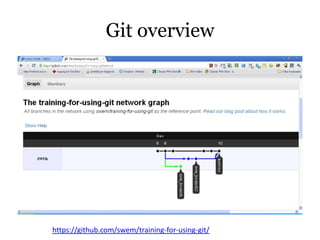
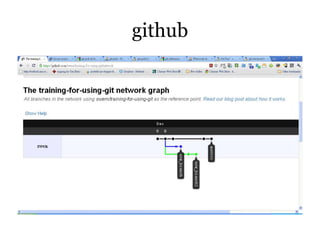
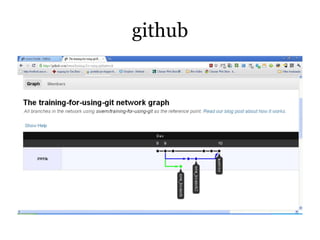
https://github.com/swem/training-for-using-git/
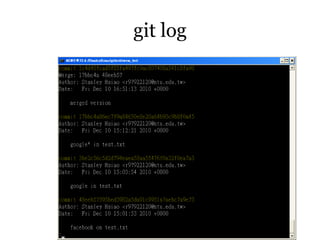
git log
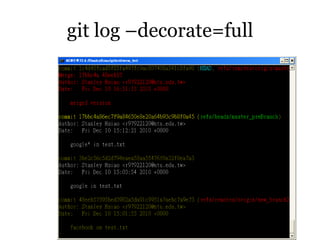
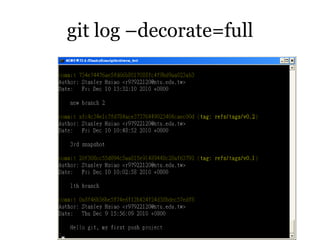
git log –decorate=full
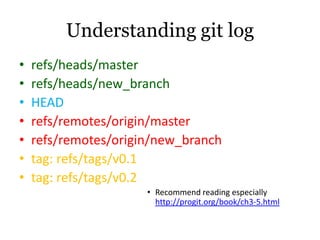
Understanding git log
•   refs/heads/master
•   refs/heads/new_branch
•   HEAD
•   refs/remotes/origin/master
•   refs/remotes/origin/new_branch
•   tag: refs/tags/v0.1
•   tag: refs/tags/v0.2
                      • Recommend reading especially
                        http://progit.org/book/ch3-5.html
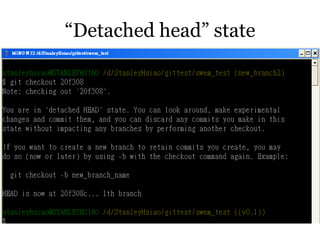
“Detached head” state
• git checkout
  – Branchhead           Example: git checkout my_bch
  – Arbitrary commit     Example: git checkout 48eeb5
     • “Detached head” state
“Detached head” state
• Examining an old version without creating a
  new branch

• it means the HEAD file points directly to a
  commit, not to a symbolic reference.
“Detached head” state
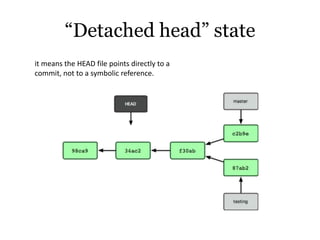
it means the HEAD file points directly to a
commit, not to a symbolic reference.
“Detached head” state
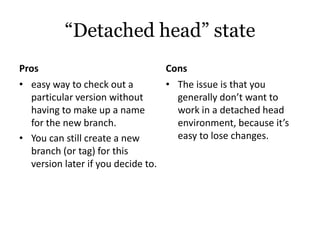
Pros                              Cons
• easy way to check out a         • The issue is that you
  particular version without        generally don’t want to
  having to make up a name          work in a detached head
  for the new branch.               environment, because it’s
• You can still create a new        easy to lose changes.
  branch (or tag) for this
  version later if you decide to.
MERGE VS. REBASE
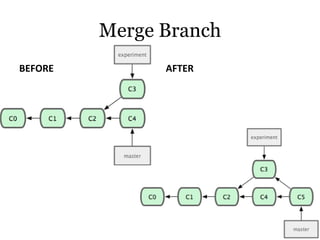
Merge Branch
BEFORE         AFTER
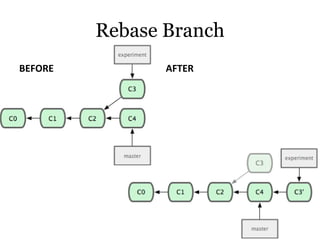
Rebase Branch
BEFORE          AFTER
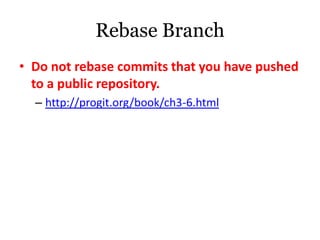
Rebase Branch
• Do not rebase commits that you have pushed
  to a public repository.
  – http://progit.org/book/ch3-6.html
Multi-user version control
Remote
• open source software hosting facilities:
  – http://en.wikipedia.org/wiki/Comparison_of_ope
    n_source_software_hosting_facilities
• One of these
  – GitHub
github
• SSH channel
  – Get help with generating ssh keys
    http://help.github.com/
github
github
git push
• Example in
  http://www.kernel.org/pub/software/scm/git/
  docs/git-push.html
• git push (remote) (branch):
  – Example: git push origin my_branch


• you have to explicitly push the branches you
  want to share.
git push
• you have to explicitly push the branches you
  want to share.
  – That way, you can use private branches for work
    you don’t want to share, and push up only the
    topic branches you want to collaborate on.
References
• http://progit.org/book/
• http://www.kernel.org/pub/software/scm/git/
  docs/user-manual.html

Git basic stanley hsiao 2010_12_15

  • 1.
    Git Basic2 StanleyHsiao 2010.12.15
  • 2.
    Caution!! • Note thatthis is not a step-by-step tutorial • Contains only some concepts and illustrations
  • 3.
    Resource • Books – Progit • Online book written by Scott Chacon – The Git Community Book • maintained by Scott Chacon • Interface Tools – http://git-scm.com/tools • TortoiseGit (Windows) – TortoiseGit is a port of the popular TortoiseSVN project to Git.
  • 4.
    Pro git http://progit.org/book/ • 1. Getting Started – 1.1 - About Version Control – 1.2 - A Short History of Git – 1.3 - Git Basics – 1.4 - Installing Git – 1.5 - First-Time Git Setup – 1.6 - Getting Help – 1.7 - Summary • 2. Git Basics – 2.1 - Getting a Git Repository – 2.2 - Recording Changes to the Repository – 2.3 - Viewing the Commit History – 2.4 - Option Description of Output – 2.5 - %s Subject – 2.6 - Option Description – 2.7 - Option Description – 2.8 - Undoing Things – 2.9 - Working with Remotes – 2.10 - Tagging – 2.11 - Tips and Tricks – 2.12 - Summary
  • 5.
    Git Basics • Chapter2 • Git Basics • If you can read only one chapter to get going with Git, this is it. – 2.1 - Getting a Git Repository git init, git clone – 2.2 - Recording Changes to the Repository git status, git add, git commit – 2.3 - Viewing the Commit History git log, – 2.4 - Option Description of Output – 2.5 - %s Subject – 2.6 - Option Description – 2.7 - Option Description – 2.8 - Undoing Things git reset – 2.9 - Working with Remotes git remote, git fetch, git push – 2.10 - Tagging git tag, git show, – 2.11 - Tips and Tricks git …. – 2.12 - Summary
  • 6.
  • 7.
    Outline • Basic Commandof revision control software • Review Branch in git – Understanding git log – Detached Head State • Merge VS. Rebase
  • 8.
    Basic Commands generate Soft repository local reba clone pull push checkout update lock add remove move copy merge commit revert bundle ware init branches se file cp Unk [then init / init - fetch checko reba Git clone push branch clone pull now add rm mv ] git merge commit bundle -bare [72] ut se n add[7 3]
  • 9.
    Git Basics • NearlyEvery Operation Is Local
  • 10.
  • 11.
  • 12.
  • 13.
    What is thedifference between a tag and a branch in git? • From the theoretical point of view: – tags are symbolic names for a given revision. – branches are symbolic names for line of development.
  • 14.
  • 15.
  • 16.
  • 17.
  • 18.
    Understanding git log • refs/heads/master • refs/heads/new_branch • HEAD • refs/remotes/origin/master • refs/remotes/origin/new_branch • tag: refs/tags/v0.1 • tag: refs/tags/v0.2 • Recommend reading especially http://progit.org/book/ch3-5.html
  • 19.
  • 20.
    “Detached head” state •git checkout – Branchhead Example: git checkout my_bch – Arbitrary commit Example: git checkout 48eeb5 • “Detached head” state
  • 21.
    “Detached head” state •Examining an old version without creating a new branch • it means the HEAD file points directly to a commit, not to a symbolic reference.
  • 22.
    “Detached head” state itmeans the HEAD file points directly to a commit, not to a symbolic reference.
  • 23.
    “Detached head” state Pros Cons • easy way to check out a • The issue is that you particular version without generally don’t want to having to make up a name work in a detached head for the new branch. environment, because it’s • You can still create a new easy to lose changes. branch (or tag) for this version later if you decide to.
  • 24.
  • 25.
  • 26.
  • 27.
    Rebase Branch • Donot rebase commits that you have pushed to a public repository. – http://progit.org/book/ch3-6.html
  • 28.
  • 29.
    Remote • open sourcesoftware hosting facilities: – http://en.wikipedia.org/wiki/Comparison_of_ope n_source_software_hosting_facilities • One of these – GitHub
  • 30.
    github • SSH channel – Get help with generating ssh keys http://help.github.com/
  • 31.
  • 32.
  • 33.
    git push • Examplein http://www.kernel.org/pub/software/scm/git/ docs/git-push.html • git push (remote) (branch): – Example: git push origin my_branch • you have to explicitly push the branches you want to share.
  • 34.
    git push • youhave to explicitly push the branches you want to share. – That way, you can use private branches for work you don’t want to share, and push up only the topic branches you want to collaborate on.
  • 35.