Activity Challenge -
Getting Started
Presented by
Canada Games Activity Challenge Team
WHAT YOU’LL LEARN
1.  Sign up/Log in
2.  Bookmarking and
home screen icon
3.  Creating a class
4.  Adding support
teachers
5.  Inviting parents
6.  Teacher’s dashboard
WELCOME
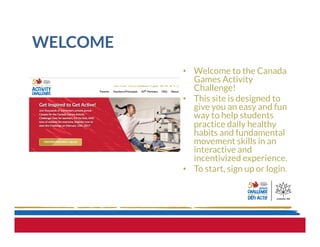
•  Welcome to the Canada
Games Activity
Challenge!
•  This site is designed to
give you an easy and fun
way to help students
practice daily healthy
habits and fundamental
movement skills in an
interactive and
incentivized experience.
•  To start, sign up or login.
MAKE YOUR DAILY VISIT EASIER
•  You’ll be taking part in three
modules with daily habit
forming recommended
activities so you’ll want to
visit the site almost daily.
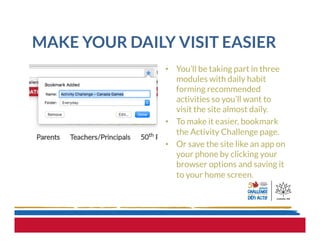
•  To make it easier, bookmark
the Activity Challenge page.
•  Or save the site like an app on
your phone by clicking your
browser options and saving it
to your home screen.
EASIER FROM MOBILE
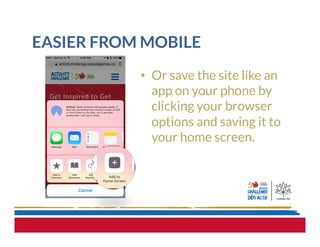
•  Or save the site like an
app on your phone by
clicking your browser
options and saving it to
your home screen.
CONFIRM YOUR EMAIL
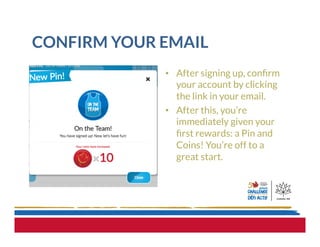
•  After signing up, confirm
your account by clicking
the link in your email.
•  After this, you’re
immediately given your
first rewards: a Pin and
Coins! You’re off to a
great start.
CREATE CLASS TEAM
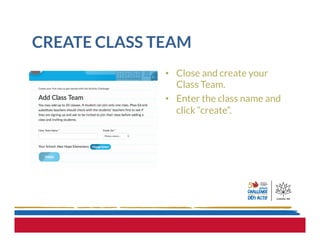
•  Close and create your
Class Team.
•  Enter the class name and
click “create”.
YOUR SCHOOL
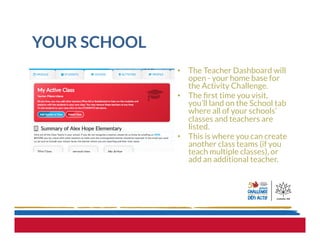
•  The Teacher Dashboard will
open - your home base for
the Activity Challenge.
•  The first time you visit,
you’ll land on the School tab
where all of your schools’
classes and teachers are
listed.
•  This is where you can create
another class teams (if you
teach multiple classes), or
add an additional teacher.
ADD SUPPORT TEACHERS
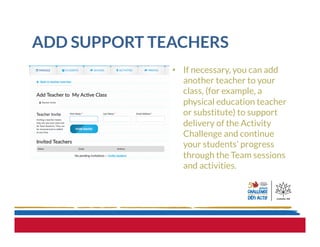
•  If necessary, you can add
another teacher to your
class, (for example, a
physical education teacher
or substitute) to support
delivery of the Activity
Challenge and continue
your students’ progress
through the Team sessions
and activities.
INVITE PARENTS
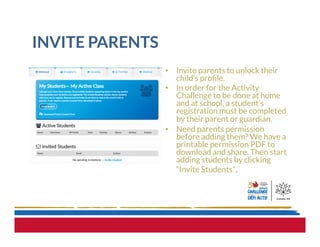
•  Invite parents to unlock their
child’s profile.
•  In order for the Activity
Challenge to be done at home
and at school, a student’s
registration must be completed
by their parent or guardian.
•  Need parents permission
before adding them? We have a
printable permission PDF to
download and share. Then start
adding students by clicking
“Invite Students”.
ADD STUDENTS TO THE CLASS
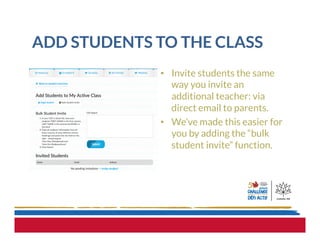
•  Invite students the same
way you invite an
additional teacher: via
direct email to parents.
•  We’ve made this easier for
you by adding the “bulk
student invite” function.
BULK STUDENT INVITE
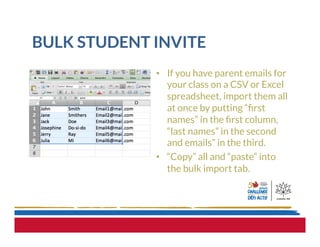
•  If you have parent emails for
your class on a CSV or Excel
spreadsheet, import them all
at once by putting “first
names” in the first column,
“last names” in the second
and emails” in the third.
•  “Copy” all and “paste” into
the bulk import tab.
AUTOMATIC EMAIL TO PARENTS
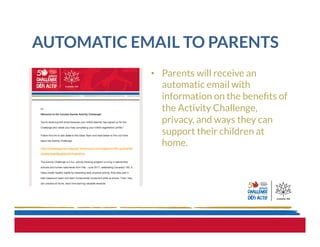
•  Parents will receive an
automatic email with
information on the benefits of
the Activity Challenge,
privacy, and ways they can
support their children at
home.
REGISTERED STUDENTS
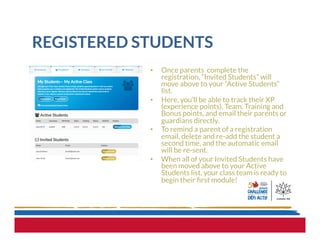
•  Once parents complete the
registration, “Invited Students” will
move above to your “Active Students”
list.
•  Here, you’ll be able to track their XP
(experience points), Team, Training and
Bonus points, and email their parents or
guardians directly.  
•  To remind a parent of a registration
email, delete and re-add the student a
second time, and the automatic email
will be re-sent.
•  When all of your Invited Students have
been moved above to your Active
Students list, your class team is ready to
begin their first module!
THE MODULE CALENDAR
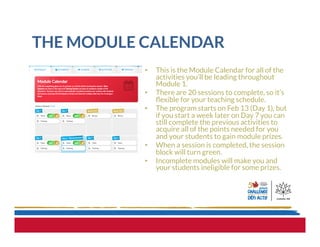
•  This is the Module Calendar for all of the
activities you’ll be leading throughout
Module 1.  
•  There are 20 sessions to complete, so it’s
flexible for your teaching schedule.
•  The program starts on Feb 13 (Day 1), but
if you start a week later on Day 7 you can
still complete the previous activities to
acquire all of the points needed for you
and your students to gain module prizes.
•  When a session is completed, the session
block will turn green.
•  Incomplete modules will make you and
your students ineligible for some prizes.
THE ACTIVITIES
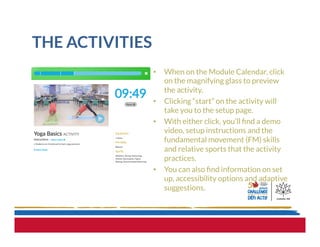
•  When on the Module Calendar, click
on the magnifying glass to preview
the activity.
•  Clicking “start” on the activity will
take you to the setup page.
•  With either click, you’ll find a demo
video, setup instructions and the
fundamental movement (FM) skills
and relative sports that the activity
practices.
•  You can also find information on set
up, accessibility options and adaptive
suggestions.
YOUR HOME PAGE
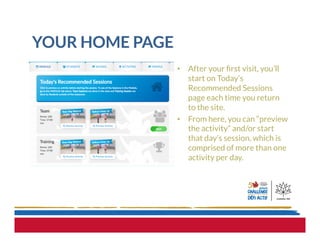
•  After your first visit, you’ll
start on Today’s
Recommended Sessions
page each time you return
to the site.
•  From here, you can “preview
the activity” and/or start
that day’s session, which is
comprised of more than one
activity per day.
Thank You!
Be sure to check
out our other site
walkthroughs:
•  Leading the Activities
•  Rewards & Resources

Getting Started with the Canada Games Activity Challenge

  • 1.
    Activity Challenge - GettingStarted Presented by Canada Games Activity Challenge Team
  • 2.
    WHAT YOU’LL LEARN 1. Sign up/Log in 2.  Bookmarking and home screen icon 3.  Creating a class 4.  Adding support teachers 5.  Inviting parents 6.  Teacher’s dashboard
  • 3.
    WELCOME •  Welcome tothe Canada Games Activity Challenge! •  This site is designed to give you an easy and fun way to help students practice daily healthy habits and fundamental movement skills in an interactive and incentivized experience. •  To start, sign up or login.
  • 4.
    MAKE YOUR DAILYVISIT EASIER •  You’ll be taking part in three modules with daily habit forming recommended activities so you’ll want to visit the site almost daily. •  To make it easier, bookmark the Activity Challenge page. •  Or save the site like an app on your phone by clicking your browser options and saving it to your home screen.
  • 5.
    EASIER FROM MOBILE • Or save the site like an app on your phone by clicking your browser options and saving it to your home screen.
  • 6.
    CONFIRM YOUR EMAIL • After signing up, confirm your account by clicking the link in your email. •  After this, you’re immediately given your first rewards: a Pin and Coins! You’re off to a great start.
  • 7.
    CREATE CLASS TEAM • Close and create your Class Team. •  Enter the class name and click “create”.
  • 8.
    YOUR SCHOOL •  TheTeacher Dashboard will open - your home base for the Activity Challenge. •  The first time you visit, you’ll land on the School tab where all of your schools’ classes and teachers are listed. •  This is where you can create another class teams (if you teach multiple classes), or add an additional teacher.
  • 9.
    ADD SUPPORT TEACHERS • If necessary, you can add another teacher to your class, (for example, a physical education teacher or substitute) to support delivery of the Activity Challenge and continue your students’ progress through the Team sessions and activities.
  • 10.
    INVITE PARENTS •  Inviteparents to unlock their child’s profile. •  In order for the Activity Challenge to be done at home and at school, a student’s registration must be completed by their parent or guardian. •  Need parents permission before adding them? We have a printable permission PDF to download and share. Then start adding students by clicking “Invite Students”.
  • 11.
    ADD STUDENTS TOTHE CLASS •  Invite students the same way you invite an additional teacher: via direct email to parents. •  We’ve made this easier for you by adding the “bulk student invite” function.
  • 12.
    BULK STUDENT INVITE • If you have parent emails for your class on a CSV or Excel spreadsheet, import them all at once by putting “first names” in the first column, “last names” in the second and emails” in the third. •  “Copy” all and “paste” into the bulk import tab.
  • 13.
    AUTOMATIC EMAIL TOPARENTS •  Parents will receive an automatic email with information on the benefits of the Activity Challenge, privacy, and ways they can support their children at home.
  • 14.
    REGISTERED STUDENTS •  Onceparents complete the registration, “Invited Students” will move above to your “Active Students” list. •  Here, you’ll be able to track their XP (experience points), Team, Training and Bonus points, and email their parents or guardians directly.   •  To remind a parent of a registration email, delete and re-add the student a second time, and the automatic email will be re-sent. •  When all of your Invited Students have been moved above to your Active Students list, your class team is ready to begin their first module!
  • 15.
    THE MODULE CALENDAR • This is the Module Calendar for all of the activities you’ll be leading throughout Module 1.   •  There are 20 sessions to complete, so it’s flexible for your teaching schedule. •  The program starts on Feb 13 (Day 1), but if you start a week later on Day 7 you can still complete the previous activities to acquire all of the points needed for you and your students to gain module prizes. •  When a session is completed, the session block will turn green. •  Incomplete modules will make you and your students ineligible for some prizes.
  • 16.
    THE ACTIVITIES •  Whenon the Module Calendar, click on the magnifying glass to preview the activity. •  Clicking “start” on the activity will take you to the setup page. •  With either click, you’ll find a demo video, setup instructions and the fundamental movement (FM) skills and relative sports that the activity practices. •  You can also find information on set up, accessibility options and adaptive suggestions.
  • 17.
    YOUR HOME PAGE • After your first visit, you’ll start on Today’s Recommended Sessions page each time you return to the site. •  From here, you can “preview the activity” and/or start that day’s session, which is comprised of more than one activity per day.
  • 18.
    Thank You! Be sureto check out our other site walkthroughs: •  Leading the Activities •  Rewards & Resources