#MicrosoftEDU
#MicrosoftEDU
Kevin Sait
Get started – Windows
AutoPilot
#MicrosoftEDU
Going Cloud? What you need.
• Licensing
 Office 365 tenant (Azure Active Directory)
 Microsoft 365 A3 for Staff & Students (Microsoft Intune)
• Devices
 Deploying devices must have Windows 10 1803 or above
• Skills
 Managing devices with Intune / Intune for Education
 Microsoft Education Store
• Who do you need to work with
 A Microsoft Cloud Solution Provider (CSP)
Please make sure you have met these requirements before continuing
#MicrosoftEDU
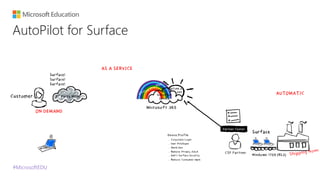
AutoPilot for Surface
#MicrosoftEDU
Your CSP reseller - actions
• CSP Stands for Cloud Solution Provider - Make sure your Microsoft Partner is CSP otherwise they cant
help you with your Windows AutoPilot deployment
• Add your partner to your Office 365 tenant - find out what you need to do here
• Once you have added your partner to the Admin Portal they can request the permission to add devices into
your organisation.
#MicrosoftEDU
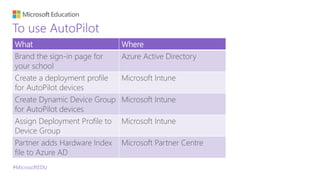
To use AutoPilot
What Where
Brand the sign-in page for
your school
Azure Active Directory
Create a deployment profile
for AutoPilot devices
Microsoft Intune
Create Dynamic Device Group
for AutoPilot devices
Microsoft Intune
Assign Deployment Profile to
Device Group
Microsoft Intune
Partner adds Hardware Index
file to Azure AD
Microsoft Partner Centre
#MicrosoftEDU
Prep your environment
#MicrosoftEDU
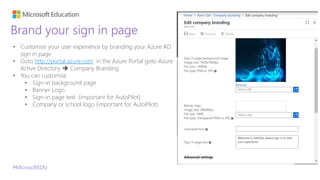
Brand your sign in page
• Customise your user experience by branding your Azure AD
sign in page
• Goto http://portal.azure.com in the Azure Portal goto Azure
Active Directory  Company Branding
• You can customise
• Sign-in background page
• Banner Logo
• Sign-in page text (important for AutoPilot)
• Company or school logo (important for AutoPilot)
#MicrosoftEDU
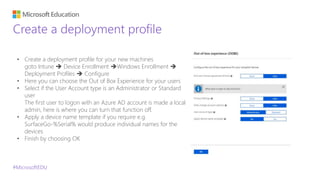
Create a deployment profile
• Create a deployment profile for your new machines
goto Intune  Device Enrollment Windows Enrollment 
Deployment Profiles  Configure
• Here you can choose the Out of Box Experience for your users
• Select if the User Account type is an Administrator or Standard
user
The first user to logon with an Azure AD account is made a local
admin, here is where you can turn that function off.
• Apply a device name template if you require e.g.
SurfaceGo-%Serial% would produce individual names for the
devices
• Finish by choosing OK
#MicrosoftEDU
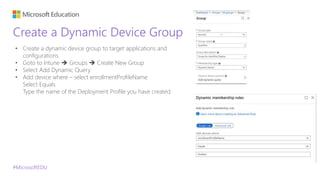
Create a Dynamic Device Group
• Create a dynamic device group to target applications and
configurations
• Goto to Intune  Groups  Create New Group
• Select Add Dynamic Query
• Add device where – select enrollmentProfileName
Select Equals
Type the name of the Deployment Profile you have created.
#MicrosoftEDU
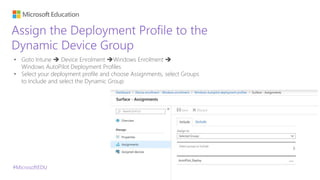
Assign the Deployment Profile to the
Dynamic Device Group
• Goto Intune  Device Enrolment Windows Enrolment 
Windows AutoPilot Deployment Profiles
• Select your deployment profile and choose Assignments, select Groups
to Include and select the Dynamic Group
#MicrosoftEDU
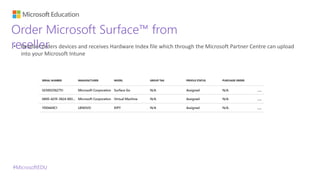
Order Microsoft Surface™ from
reseller• Reseller orders devices and receives Hardware Index file which through the Microsoft Partner Centre can upload
into your Microsoft Intune
#MicrosoftEDU
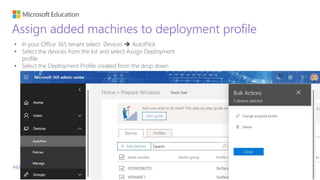
Assign added machines to deployment profile
• In your Office 365 tenant select Devices  AutoPilot
• Select the devices from the list and select Assign Deployment
profile
• Select the Deployment Profile created from the drop down
#MicrosoftEDU
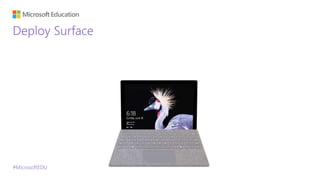
Deploy Surface
#MicrosoftEDU
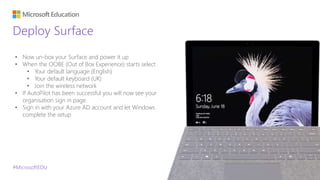
Deploy Surface
• Now un-box your Surface and power it up
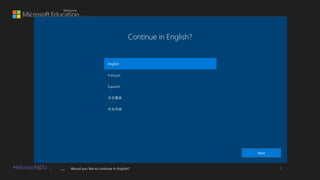
• When the OOBE (Out of Box Experience) starts select
• Your default language (English)
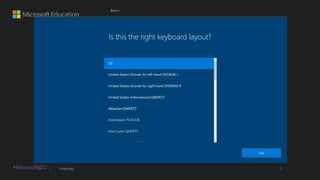
• Your default keyboard (UK)
• Join the wireless network
• If AutoPilot has been successful you will now see your
organisation sign in page.
• Sign in with your Azure AD account and let Windows
complete the setup
#MicrosoftEDU
#MicrosoftEDU
Continue in English?
English
Next
Would you like to continue in English? 
NextNext
#MicrosoftEDU
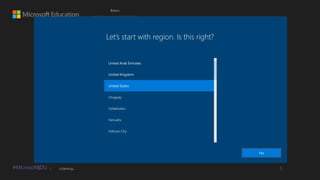
United Arab Emirates
United Kingdom
United States
Let’s start with region. Is this right?


 
YesYesYes
#MicrosoftEDU
Is this the right keyboard layout?
US
United States-Dvorak for left hand DVORAK L
United States-Dvorak for right hand DVORAK R
United States-International QWERTY
Albanian QWERTZ


 
YesYesYes
#MicrosoftEDU

 
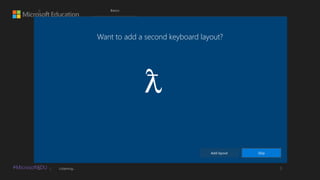
SkipAdd layout
Want to add a second keyboard layout?

SkipSkip
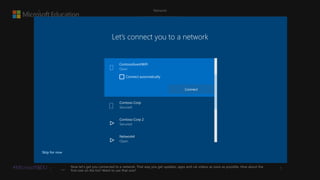
#MicrosoftEDU Now let's get you connected to a network. That way you get updates, apps and cat videos as soon as possible. How about the
first one on the list? Want to use that one?
 

Skip for now
Let’s connect you to a network
Network4

Contoso Corp



ContosoGuestWiFi

Connect
Contoso Corp 2

Connect automatically
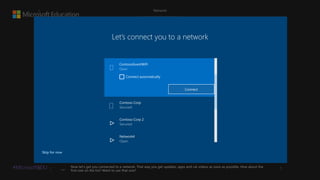
#MicrosoftEDU Now let's get you connected to a network. That way you get updates, apps and cat videos as soon as possible. How about the
first one on the list? Want to use that one?
 

Skip for now
Let’s connect you to a network
Network4

Contoso Corp



ContosoGuestWiFi

Connect
Contoso Corp 2

Connect automatically
#MicrosoftEDU 

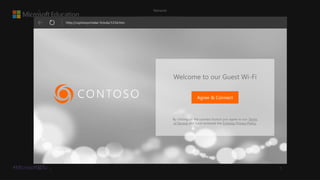
Agree & Connect
Welcome to our Guest Wi-Fi
By clicking on the connect button you agree to our Terms
of Service and have reviewed the Contoso Privacy Policy.
#MicrosoftEDU 

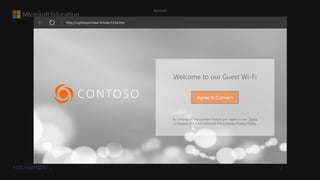
Agree & Connect
Welcome to our Guest Wi-Fi
By clicking on the connect button you agree to our Terms
of Service and have reviewed the Contoso Privacy Policy.
#MicrosoftEDU
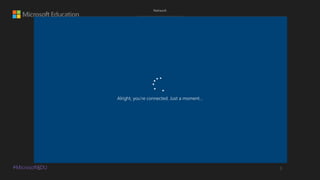
Alright, you’re connected. Just a moment…
 
#MicrosoftEDU
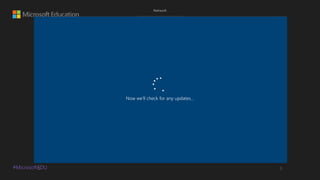
Now we’ll check for any updates…
 
#MicrosoftEDU
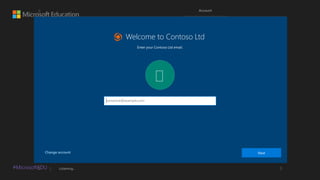
Next

someone@example.com
Welcome to Contoso Ltd
Enter your Contoso Ltd email.

 
Change account
#MicrosoftEDU
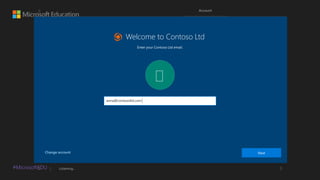
Next

anna@contosoltd.com
Welcome to Contoso Ltd
Enter your Contoso Ltd email.

 
Change account
#MicrosoftEDU
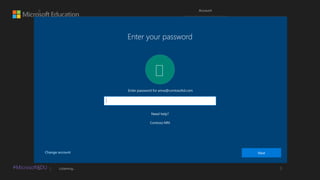
Next

Enter your password

 
Change account
Need help?
Contoso MN
Enter password for anna@contosoltd.com
#MicrosoftEDU
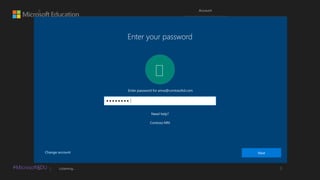
Next
● ● ● ● ● ● ● ●
Enter your password

 
Change account
Need help?
Contoso MN

Enter password for anna@contosoltd.com
#MicrosoftEDU
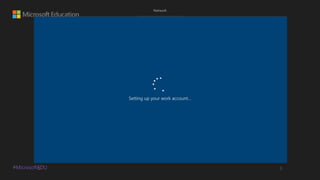
Setting up your work account…
 
#MicrosoftEDU
We’re getting everything ready for you.
#MicrosoftEDU
#MicrosoftEDU
Thank you
Twitter: @surfaceeduguy

Get started with Windows AutoPilot Deployment

  • 1.
  • 2.
    #MicrosoftEDU Going Cloud? Whatyou need. • Licensing  Office 365 tenant (Azure Active Directory)  Microsoft 365 A3 for Staff & Students (Microsoft Intune) • Devices  Deploying devices must have Windows 10 1803 or above • Skills  Managing devices with Intune / Intune for Education  Microsoft Education Store • Who do you need to work with  A Microsoft Cloud Solution Provider (CSP) Please make sure you have met these requirements before continuing
  • 3.
  • 4.
    #MicrosoftEDU Your CSP reseller- actions • CSP Stands for Cloud Solution Provider - Make sure your Microsoft Partner is CSP otherwise they cant help you with your Windows AutoPilot deployment • Add your partner to your Office 365 tenant - find out what you need to do here • Once you have added your partner to the Admin Portal they can request the permission to add devices into your organisation.
  • 5.
    #MicrosoftEDU To use AutoPilot WhatWhere Brand the sign-in page for your school Azure Active Directory Create a deployment profile for AutoPilot devices Microsoft Intune Create Dynamic Device Group for AutoPilot devices Microsoft Intune Assign Deployment Profile to Device Group Microsoft Intune Partner adds Hardware Index file to Azure AD Microsoft Partner Centre
  • 6.
  • 7.
    #MicrosoftEDU Brand your signin page • Customise your user experience by branding your Azure AD sign in page • Goto http://portal.azure.com in the Azure Portal goto Azure Active Directory  Company Branding • You can customise • Sign-in background page • Banner Logo • Sign-in page text (important for AutoPilot) • Company or school logo (important for AutoPilot)
  • 8.
    #MicrosoftEDU Create a deploymentprofile • Create a deployment profile for your new machines goto Intune  Device Enrollment Windows Enrollment  Deployment Profiles  Configure • Here you can choose the Out of Box Experience for your users • Select if the User Account type is an Administrator or Standard user The first user to logon with an Azure AD account is made a local admin, here is where you can turn that function off. • Apply a device name template if you require e.g. SurfaceGo-%Serial% would produce individual names for the devices • Finish by choosing OK
  • 9.
    #MicrosoftEDU Create a DynamicDevice Group • Create a dynamic device group to target applications and configurations • Goto to Intune  Groups  Create New Group • Select Add Dynamic Query • Add device where – select enrollmentProfileName Select Equals Type the name of the Deployment Profile you have created.
  • 10.
    #MicrosoftEDU Assign the DeploymentProfile to the Dynamic Device Group • Goto Intune  Device Enrolment Windows Enrolment  Windows AutoPilot Deployment Profiles • Select your deployment profile and choose Assignments, select Groups to Include and select the Dynamic Group
  • 11.
    #MicrosoftEDU Order Microsoft Surface™from reseller• Reseller orders devices and receives Hardware Index file which through the Microsoft Partner Centre can upload into your Microsoft Intune
  • 12.
    #MicrosoftEDU Assign added machinesto deployment profile • In your Office 365 tenant select Devices  AutoPilot • Select the devices from the list and select Assign Deployment profile • Select the Deployment Profile created from the drop down
  • 13.
  • 14.
    #MicrosoftEDU Deploy Surface • Nowun-box your Surface and power it up • When the OOBE (Out of Box Experience) starts select • Your default language (English) • Your default keyboard (UK) • Join the wireless network • If AutoPilot has been successful you will now see your organisation sign in page. • Sign in with your Azure AD account and let Windows complete the setup
  • 15.
  • 16.
    #MicrosoftEDU Continue in English? English Next Wouldyou like to continue in English?  NextNext
  • 17.
    #MicrosoftEDU United Arab Emirates UnitedKingdom United States Let’s start with region. Is this right?     YesYesYes
  • 18.
    #MicrosoftEDU Is this theright keyboard layout? US United States-Dvorak for left hand DVORAK L United States-Dvorak for right hand DVORAK R United States-International QWERTY Albanian QWERTZ     YesYesYes
  • 19.
    #MicrosoftEDU    SkipAdd layout Wantto add a second keyboard layout?  SkipSkip
  • 20.
    #MicrosoftEDU Now let'sget you connected to a network. That way you get updates, apps and cat videos as soon as possible. How about the first one on the list? Want to use that one?    Skip for now Let’s connect you to a network Network4  Contoso Corp    ContosoGuestWiFi  Connect Contoso Corp 2  Connect automatically
  • 21.
    #MicrosoftEDU Now let'sget you connected to a network. That way you get updates, apps and cat videos as soon as possible. How about the first one on the list? Want to use that one?    Skip for now Let’s connect you to a network Network4  Contoso Corp    ContosoGuestWiFi  Connect Contoso Corp 2  Connect automatically
  • 22.
    #MicrosoftEDU   Agree &Connect Welcome to our Guest Wi-Fi By clicking on the connect button you agree to our Terms of Service and have reviewed the Contoso Privacy Policy.
  • 23.
    #MicrosoftEDU   Agree &Connect Welcome to our Guest Wi-Fi By clicking on the connect button you agree to our Terms of Service and have reviewed the Contoso Privacy Policy.
  • 24.
  • 25.
    #MicrosoftEDU Now we’ll checkfor any updates…  
  • 26.
    #MicrosoftEDU Next  someone@example.com Welcome to ContosoLtd Enter your Contoso Ltd email.    Change account
  • 27.
    #MicrosoftEDU Next  anna@contosoltd.com Welcome to ContosoLtd Enter your Contoso Ltd email.    Change account
  • 28.
    #MicrosoftEDU Next  Enter your password   Change account Need help? Contoso MN Enter password for anna@contosoltd.com
  • 29.
    #MicrosoftEDU Next ● ● ●● ● ● ● ● Enter your password    Change account Need help? Contoso MN  Enter password for anna@contosoltd.com
  • 30.
    #MicrosoftEDU Setting up yourwork account…  
  • 31.
  • 32.
  • 33.

Editor's Notes

  • #20 88% of users will have the correct Region, Time Zone and keyboard layout selected by default. In order to quickly get them through, they have the simple option of progressing through the page. Previously, users had the option of accessing these as a set of dropdowns. These dropdowns were a nightmare for narrator users and changing region would affect the time zone and keyboard options without any announcement. This page in RS1 confused both sighted and non-sighted users, so we have simplified it to more accurately help light up a golden path for both sighted and non-sighted users. Other talking points: Saying “No” takes you through a 3-page flow which will ask each option individually. While this adds more actions for users, the cognitive load required to complete this step is significantly reduced. Once again, the most important info for the sighted user is centered, drawing the eye to it and enabling visual users to quickly progress forward. The same layout of Title, Directions, Content, Navigation is held here to make a great experience for narrator users.
  • #21 Windows 10 now supports captive portals in the Out of Box Experience, so I am going to connect to the guest wifi network that requires captive portal. You could do this using your home network, or your could be in Starbucks connecting to a wifi hotspot – you could be anywhere and don’t need to be connected to corp network to setup a new device anymore.
  • #22  Other talking points: Offline Speech recognition is hard for arbitrary names. This is why we’re leading with a conformational dialogue so people can get their network quickly.
  • #31 At this time, the device will automatically join Azure AD, enroll into Intune and get the device configured into a business ready state – including applying settings, policies and installing applications.
  • #32 Flashing colors (FSIA)
  • #33 Taking points are (please see https://www.youtube.com/watch?v=4K4hC5NchbE from 4:57 onwards for reference) Office Apps and LoB Apps are automatically installed The user is configured as a standard user (else it would say Admin on the user account page in Settings) – for a user that goes through OOBE, limiting to standard account is only possible via AutoPilot Device is joined to Azure AD Device is enrolled into Intune Originally started with an off the shelf Pro Edition device – automatically stepped up to Windows Enterprise