Raspberry Pi LED Spectrum Analyzer
Created by Scott Driscoll
Last updated on 2015-01-16 09:30:11 AM EST
2
3
5
5
8
10
12
13
14
Guide Contents
Guide Contents
Introduction and Ingredients
LED strip and RGB LED software
Connecting the RGB LED Strip
RGB Strip Software
Mount the LED Strip
Speed up the RGB Strip Software
Install LightShow Pi
Customize LightShowPi
© Adafruit
Industries
https://learn.adafruit.com/raspberry-pi-spectrum-analyzer-display-on-
rgb-led-strip
Page 2 of 14
Introduction and Ingredients
A Spectrum Analyzer shows the loudness of different frequency bands (low, mid, high) in
real-time, letting you visualize music. Using a RasPi, RGB LED Strip and some wire, make
yourself a dynamic display and media player. This project is based on some great python
xmas light code from the LightShowPi project, (http://adafru.it/d5n) and advanced users can
even configure it for song voting via SMS!
The project runs in Python, even including the audio processing. It's just able to play and
analyze mp3s in realtime as long as your Pi isn't doing anything else.
Hardware
RasPi -- this guide is built on one running wheezy, Raspbian, ver 3.10.19
15ft (1m) RGB LED strip (http://adafru.it/306), (~160 leds) controllable via SPI, built in
PWM control. This guides shows using one strip wrapped around to form 5 columns,
and writing to different segments of the strip. Only three wires connected to the Pi:
ground, SPI Clock and SPI Data.
10A 5V power supply to drive the LEDs (http://adafru.it/d5o)
Miscellaneous:
© Adafruit
Industries
https://learn.adafruit.com/raspberry-pi-spectrum-analyzer-display-on-
rgb-led-strip
Page 3 of 14
USB WiFi adapter (http://adafru.it/814) (RTL8188CUS chipset drivers are built in to
wheezy OS!) if you don't want to use Ethernet. I used these
instructions (http://adafru.it/aUB) to get it working.
SD card 4GB or larger (http://adafru.it/102)
USB Power speakers (http://adafru.it/d5p)
Powered USB Hub to plug in keyboard, mouse, wifi,
Some cell phone charger to power the Pi via it's USB power connector
USB keyboard, mouse, HDMI monitor
wire, some female to female jumpers or some JST
connectors (http://adafru.it/578) if you don't want to solder to the RGB strip.
Software:
This project is mostly based on the Pi-based xmas lights controller
code (http://adafru.it/d5n) from Chris Usey,Todd Giles and Ryan Jennings. It's a full
command center for orchestrating xmas lights to audio (wav, mp3, etc). Their code
and hardware lets you setup playlists and turn on and off 120VAC power based on
frequency bands. You can even vote on songs through SMS messages! We're going
to control an RGB strip instead of output pins on the Pi. Grab the attached
synchronized_lights_LED_strip.py (http://adafru.it/d5q) file.
Python control of LPD8806 RGB LED strip (http://adafru.it/d5r) via SPI.
This isn't specific to this project, but I used the Geany (http://adafru.it/d5s) IDE for
coding right on the Pi.
If you have any questions, you can use the feedback link on the left or contact me through
my google + page: plus.google.com/+ScottDriscoll (http://adafru.it/d5t) or try the
LightShowPi community (http://adafru.it/d5n)
© Adafruit
Industries
https://learn.adafruit.com/raspberry-pi-spectrum-analyzer-display-on-
rgb-led-strip
Page 4 of 14
LED strip and RGB LED software
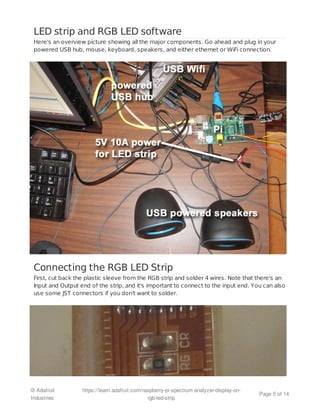
Here's an overview picture showing all the major components. Go ahead and plug in your
powered USB hub, mouse, keyboard, speakers, and either ethernet or WiFi connection.
Connecting the RGB LED Strip
First, cut back the plastic sleeve from the RGB strip and solder 4 wires. Note that there's an
Input and Output end of the strip, and it's important to connect to the input end. You can also
use some JST connectors if you don't want to solder.
© Adafruit
Industries
https://learn.adafruit.com/raspberry-pi-spectrum-analyzer-display-on-
rgb-led-strip
Page 5 of 14
© Adafruit
Industries
https://learn.adafruit.com/raspberry-pi-spectrum-analyzer-display-on-
rgb-led-strip
Page 6 of 14
Now connect the wires to the Raspberry Pi and 5V Power supply as shown. Don't forget to
connect the ground of the power supply to the ground of the Pi! A much more detailed
guide (http://adafru.it/d5v) to creating this connection can be found in the light painting
project. The picture below is from that guide.
© Adafruit
Industries
https://learn.adafruit.com/raspberry-pi-spectrum-analyzer-display-on-
rgb-led-strip
Page 7 of 14
RGB Strip Software
Grab the software (http://adafru.it/d5r) and follow the instructions on that page for getting
the Pi able to output to SPI. Do install spidev. It's important that you use the hardware SPI
because any bit-banging approach won't be fast enough.
sudo raspi-config to enable hardware SPI (follow instructions at git page). While you're
there, set the audio output to be out the 3.5mm jack rather than the HDMI connector.
I added the install directory to my PYTHONPATH in bashrc so I could call the functions from
anywhere.
nano ~/.bashrc:
export PYTHONPATH=$PYTHONPATH:/home/pi/RPi-LPD8806
(you could also add PYTHONPATH=$PYTHONPATH:/home/pi/RPi-LPD8806 to
/etc/environments, but this will require a reboot to register on new terminal windows)
Test out that the strip works by running the example code:
python example.py
The xmas light code we're going to download later wants to run as root, and when you run
things with a sudo in front, the environment variables, specifically, PYTHONPATH aren't
transferred.
© Adafruit
Industries
https://learn.adafruit.com/raspberry-pi-spectrum-analyzer-display-on-
rgb-led-strip
Page 8 of 14
To keep those environment variables around, edit /etc/sudoers by typing
sudo visudo
and then add to the bottom
Defaults env_keep=SYNCHRONIZED_LIGHTS_HOME
Defaults env_keep+=PYTHONPATH
the first line is something we'll need for the xmas light package to be installed later.
To test that you have it setup right and can run things as root, close the terminal and re-
open, then type
sudo python
from bootstrap import *
led.fill(Color(50,50,50),0,10)
led.update()
that should turn on the first 10 LEDs. You might need to restart a terminal window to make
sure the environment variables get loaded.
© Adafruit
Industries
https://learn.adafruit.com/raspberry-pi-spectrum-analyzer-display-on-
rgb-led-strip
Page 9 of 14
Mount the LED Strip
I looped my strip back and forth on a baby gate with twist ties, but this wastes LEDs at the
© Adafruit
Industries
https://learn.adafruit.com/raspberry-pi-spectrum-analyzer-display-on-
rgb-led-strip
Page 10 of 14
bends. A cleaner route would be to cut the strip into 5 even segments and solder 4-wire
jumpers between each segment. You'll just need to adjust the address of the LEDs for the
columns.
© Adafruit
Industries
https://learn.adafruit.com/raspberry-pi-spectrum-analyzer-display-on-
rgb-led-strip
Page 11 of 14
Speed up the RGB Strip Software
The RGB python code is a bit slow at the time of this writing, but a few tweaks can
dramatically speed it up.
First edit ledstrip.py to use the hardware SPI, note the argument use_py_spi = True.
My ledstrip.py was located at /home/pi/RPi-LPD8806/raspledstrip/ledstrip.py
Now inside LPD8806.py, we're going to change the SPI speed to 16MHz.
That print statement is there just to make sure everything gets set correctly.
One final change to the LPD8806.py file is in the update() function. Every call to
self.spi.xfer2() seems to have a 160ms delay at the end, so we're simply going to change
the update function so that it calls the spi.xfer2() fewer times.
If you re-run the example.py python file, you should see a substantial increase in speed.
def __init__(self, leds, use_py_spi = True, dev="/dev/spidev0.0", driver="LPD8806"):
if self.use_py_spi:
import spidev
self.spi = spidev.SpiDev()
self.spi.open(0,0)
self.spi.max_speed_hz = 16000000
print 'py-spidev MHz: %d' % (self.spi.max_speed_hz / 1000000.0 )
def update(self, buffer):
temp_buffer = []
if self.use_py_spi:
for x in range(self.leds):
temp_buffer = temp_buffer + [i for i in buffer[x]]
#self.spi.xfer2([i for i in buffer[x]])
self.spi.xfer2(temp_buffer)
self.spi.xfer2([0x00,0x00,0x00]) #zero fill the last to prevent stray colors at the end
self.spi.xfer2([0x00]) #once more with feeling - this helps :) time2 = time.time()
© Adafruit
Industries
https://learn.adafruit.com/raspberry-pi-spectrum-analyzer-display-on-
rgb-led-strip
Page 12 of 14
Install LightShow Pi
Now that we've got writing to the LED strip fast, and accessible from python running as root
from anywhere, it's time to install the fantastic xmas light orchestration
software (http://adafru.it/d5n), and update it to control the LED strip.
Once you download the code (http://adafru.it/d5w) from bitbucket, follow the instructions to
get it installed. I recommend installing to /home/pi/lightshowpi to avoid some installation
issues. You can also change the INSTALL_DIR inside install.sh if you wish.
Before running sudo ./install.sh, you should edit the file and change the INSTALL_DIR. Then
run:
sudo ./install.sh
The end of the bash script sets up some environment variables in /etc/environment, but I
also added it to my .bashrc at the end like so:
export SYNCHRONIZED_LIGHTS_HOME="/home/pi/lightshowpi"
export PYTHONPATH=$PYTHONPATH:/home/pi/RPi-LPD8806-master
that second line is for the LEDs. Make sure sudoers also has this line so that the environment
variable sticks around when you run things as sudo. This should already be there from a
previous step.
Defaults env_keep=SYNCHRONIZED_LIGHTS_HOME
As a first step, try to run a song and see if the code throws any errors:
sudo py/synchronized_lights.py --file /home/pi/some_random_music_file.mp3
Don't hear any sound? I had to change my audio out from the default HDMI to the onboard
1/8" jack:
amixer cset numid=3 1
I also had to turn up the volume
amixer set PCM 1
© Adafruit
Industries
https://learn.adafruit.com/raspberry-pi-spectrum-analyzer-display-on-
rgb-led-strip
Page 13 of 14
Customize LightShowPi
Our final step is to customize LightShowPi's config file, and run a special script that outputs
to our RGB LED strip instead of turning GPIO pins on and off.
go into the lightshowpi/config directory, and copy of defaults.cfg to overrides.cfg.
Open overrides.cfg and make the following changes:
gpio_pins = 7,0,1,2,3 # it doesn't matter what the numbers are, only that there are 5 for
our 5 LED columns
preshow = on:0,off:0 # no need to delay the start of the show!
min_frequency = 50 # this is just preference since my speakers don't play much sound
below 50Hz. You can specify the exact frequency ranges you want, too.
_____________________________
Now, if you haven't already downloaded the code, grab the
synchronized_lights_LED_strip.py (http://adafru.it/d5q) file and put it in the same directory
with the original syncrhonized_lights.py file. This file writes out to our LED strip instead of the
GPIO pins in the default script.
You might need to make the file executable before running it:
chmod +x synchronized_lights_LED_strip.py
Try running with the new script:
sudo py/synchronized_lights_LED_strip.py --file
/home/pi/lightshowpi/music/some_song.mp3
And that's it! Hopefully you hear and see music!
Depending on your strip, you might need to make changes to the display_column() function
to adjust for what number LEDs make up your columns.
For some more details on how the code works and changed made to the original script,
checkout the longer instructable (http://adafru.it/d5x) I originally wrote.
If you have any questions, you can use the feedback link on the left or contact me through
my google + page: plus.google.com/+ScottDriscoll (http://adafru.it/d5t) or try the
LightShowPi community (http://adafru.it/d5y)
© Adafruit Industries Last Updated: 2015-01-16 09:30:12 AM EST Page 14 of 14

Raspberry pi-spectrum-analyzer-display-on-rgb-led-strip

  • 1.
    Raspberry Pi LEDSpectrum Analyzer Created by Scott Driscoll Last updated on 2015-01-16 09:30:11 AM EST
  • 2.
    2 3 5 5 8 10 12 13 14 Guide Contents Guide Contents Introductionand Ingredients LED strip and RGB LED software Connecting the RGB LED Strip RGB Strip Software Mount the LED Strip Speed up the RGB Strip Software Install LightShow Pi Customize LightShowPi © Adafruit Industries https://learn.adafruit.com/raspberry-pi-spectrum-analyzer-display-on- rgb-led-strip Page 2 of 14
  • 3.
    Introduction and Ingredients ASpectrum Analyzer shows the loudness of different frequency bands (low, mid, high) in real-time, letting you visualize music. Using a RasPi, RGB LED Strip and some wire, make yourself a dynamic display and media player. This project is based on some great python xmas light code from the LightShowPi project, (http://adafru.it/d5n) and advanced users can even configure it for song voting via SMS! The project runs in Python, even including the audio processing. It's just able to play and analyze mp3s in realtime as long as your Pi isn't doing anything else. Hardware RasPi -- this guide is built on one running wheezy, Raspbian, ver 3.10.19 15ft (1m) RGB LED strip (http://adafru.it/306), (~160 leds) controllable via SPI, built in PWM control. This guides shows using one strip wrapped around to form 5 columns, and writing to different segments of the strip. Only three wires connected to the Pi: ground, SPI Clock and SPI Data. 10A 5V power supply to drive the LEDs (http://adafru.it/d5o) Miscellaneous: © Adafruit Industries https://learn.adafruit.com/raspberry-pi-spectrum-analyzer-display-on- rgb-led-strip Page 3 of 14
  • 4.
    USB WiFi adapter(http://adafru.it/814) (RTL8188CUS chipset drivers are built in to wheezy OS!) if you don't want to use Ethernet. I used these instructions (http://adafru.it/aUB) to get it working. SD card 4GB or larger (http://adafru.it/102) USB Power speakers (http://adafru.it/d5p) Powered USB Hub to plug in keyboard, mouse, wifi, Some cell phone charger to power the Pi via it's USB power connector USB keyboard, mouse, HDMI monitor wire, some female to female jumpers or some JST connectors (http://adafru.it/578) if you don't want to solder to the RGB strip. Software: This project is mostly based on the Pi-based xmas lights controller code (http://adafru.it/d5n) from Chris Usey,Todd Giles and Ryan Jennings. It's a full command center for orchestrating xmas lights to audio (wav, mp3, etc). Their code and hardware lets you setup playlists and turn on and off 120VAC power based on frequency bands. You can even vote on songs through SMS messages! We're going to control an RGB strip instead of output pins on the Pi. Grab the attached synchronized_lights_LED_strip.py (http://adafru.it/d5q) file. Python control of LPD8806 RGB LED strip (http://adafru.it/d5r) via SPI. This isn't specific to this project, but I used the Geany (http://adafru.it/d5s) IDE for coding right on the Pi. If you have any questions, you can use the feedback link on the left or contact me through my google + page: plus.google.com/+ScottDriscoll (http://adafru.it/d5t) or try the LightShowPi community (http://adafru.it/d5n) © Adafruit Industries https://learn.adafruit.com/raspberry-pi-spectrum-analyzer-display-on- rgb-led-strip Page 4 of 14
  • 5.
    LED strip andRGB LED software Here's an overview picture showing all the major components. Go ahead and plug in your powered USB hub, mouse, keyboard, speakers, and either ethernet or WiFi connection. Connecting the RGB LED Strip First, cut back the plastic sleeve from the RGB strip and solder 4 wires. Note that there's an Input and Output end of the strip, and it's important to connect to the input end. You can also use some JST connectors if you don't want to solder. © Adafruit Industries https://learn.adafruit.com/raspberry-pi-spectrum-analyzer-display-on- rgb-led-strip Page 5 of 14
  • 6.
  • 7.
    Now connect thewires to the Raspberry Pi and 5V Power supply as shown. Don't forget to connect the ground of the power supply to the ground of the Pi! A much more detailed guide (http://adafru.it/d5v) to creating this connection can be found in the light painting project. The picture below is from that guide. © Adafruit Industries https://learn.adafruit.com/raspberry-pi-spectrum-analyzer-display-on- rgb-led-strip Page 7 of 14
  • 8.
    RGB Strip Software Grabthe software (http://adafru.it/d5r) and follow the instructions on that page for getting the Pi able to output to SPI. Do install spidev. It's important that you use the hardware SPI because any bit-banging approach won't be fast enough. sudo raspi-config to enable hardware SPI (follow instructions at git page). While you're there, set the audio output to be out the 3.5mm jack rather than the HDMI connector. I added the install directory to my PYTHONPATH in bashrc so I could call the functions from anywhere. nano ~/.bashrc: export PYTHONPATH=$PYTHONPATH:/home/pi/RPi-LPD8806 (you could also add PYTHONPATH=$PYTHONPATH:/home/pi/RPi-LPD8806 to /etc/environments, but this will require a reboot to register on new terminal windows) Test out that the strip works by running the example code: python example.py The xmas light code we're going to download later wants to run as root, and when you run things with a sudo in front, the environment variables, specifically, PYTHONPATH aren't transferred. © Adafruit Industries https://learn.adafruit.com/raspberry-pi-spectrum-analyzer-display-on- rgb-led-strip Page 8 of 14
  • 9.
    To keep thoseenvironment variables around, edit /etc/sudoers by typing sudo visudo and then add to the bottom Defaults env_keep=SYNCHRONIZED_LIGHTS_HOME Defaults env_keep+=PYTHONPATH the first line is something we'll need for the xmas light package to be installed later. To test that you have it setup right and can run things as root, close the terminal and re- open, then type sudo python from bootstrap import * led.fill(Color(50,50,50),0,10) led.update() that should turn on the first 10 LEDs. You might need to restart a terminal window to make sure the environment variables get loaded. © Adafruit Industries https://learn.adafruit.com/raspberry-pi-spectrum-analyzer-display-on- rgb-led-strip Page 9 of 14
  • 10.
    Mount the LEDStrip I looped my strip back and forth on a baby gate with twist ties, but this wastes LEDs at the © Adafruit Industries https://learn.adafruit.com/raspberry-pi-spectrum-analyzer-display-on- rgb-led-strip Page 10 of 14
  • 11.
    bends. A cleanerroute would be to cut the strip into 5 even segments and solder 4-wire jumpers between each segment. You'll just need to adjust the address of the LEDs for the columns. © Adafruit Industries https://learn.adafruit.com/raspberry-pi-spectrum-analyzer-display-on- rgb-led-strip Page 11 of 14
  • 12.
    Speed up theRGB Strip Software The RGB python code is a bit slow at the time of this writing, but a few tweaks can dramatically speed it up. First edit ledstrip.py to use the hardware SPI, note the argument use_py_spi = True. My ledstrip.py was located at /home/pi/RPi-LPD8806/raspledstrip/ledstrip.py Now inside LPD8806.py, we're going to change the SPI speed to 16MHz. That print statement is there just to make sure everything gets set correctly. One final change to the LPD8806.py file is in the update() function. Every call to self.spi.xfer2() seems to have a 160ms delay at the end, so we're simply going to change the update function so that it calls the spi.xfer2() fewer times. If you re-run the example.py python file, you should see a substantial increase in speed. def __init__(self, leds, use_py_spi = True, dev="/dev/spidev0.0", driver="LPD8806"): if self.use_py_spi: import spidev self.spi = spidev.SpiDev() self.spi.open(0,0) self.spi.max_speed_hz = 16000000 print 'py-spidev MHz: %d' % (self.spi.max_speed_hz / 1000000.0 ) def update(self, buffer): temp_buffer = [] if self.use_py_spi: for x in range(self.leds): temp_buffer = temp_buffer + [i for i in buffer[x]] #self.spi.xfer2([i for i in buffer[x]]) self.spi.xfer2(temp_buffer) self.spi.xfer2([0x00,0x00,0x00]) #zero fill the last to prevent stray colors at the end self.spi.xfer2([0x00]) #once more with feeling - this helps :) time2 = time.time() © Adafruit Industries https://learn.adafruit.com/raspberry-pi-spectrum-analyzer-display-on- rgb-led-strip Page 12 of 14
  • 13.
    Install LightShow Pi Nowthat we've got writing to the LED strip fast, and accessible from python running as root from anywhere, it's time to install the fantastic xmas light orchestration software (http://adafru.it/d5n), and update it to control the LED strip. Once you download the code (http://adafru.it/d5w) from bitbucket, follow the instructions to get it installed. I recommend installing to /home/pi/lightshowpi to avoid some installation issues. You can also change the INSTALL_DIR inside install.sh if you wish. Before running sudo ./install.sh, you should edit the file and change the INSTALL_DIR. Then run: sudo ./install.sh The end of the bash script sets up some environment variables in /etc/environment, but I also added it to my .bashrc at the end like so: export SYNCHRONIZED_LIGHTS_HOME="/home/pi/lightshowpi" export PYTHONPATH=$PYTHONPATH:/home/pi/RPi-LPD8806-master that second line is for the LEDs. Make sure sudoers also has this line so that the environment variable sticks around when you run things as sudo. This should already be there from a previous step. Defaults env_keep=SYNCHRONIZED_LIGHTS_HOME As a first step, try to run a song and see if the code throws any errors: sudo py/synchronized_lights.py --file /home/pi/some_random_music_file.mp3 Don't hear any sound? I had to change my audio out from the default HDMI to the onboard 1/8" jack: amixer cset numid=3 1 I also had to turn up the volume amixer set PCM 1 © Adafruit Industries https://learn.adafruit.com/raspberry-pi-spectrum-analyzer-display-on- rgb-led-strip Page 13 of 14
  • 14.
    Customize LightShowPi Our finalstep is to customize LightShowPi's config file, and run a special script that outputs to our RGB LED strip instead of turning GPIO pins on and off. go into the lightshowpi/config directory, and copy of defaults.cfg to overrides.cfg. Open overrides.cfg and make the following changes: gpio_pins = 7,0,1,2,3 # it doesn't matter what the numbers are, only that there are 5 for our 5 LED columns preshow = on:0,off:0 # no need to delay the start of the show! min_frequency = 50 # this is just preference since my speakers don't play much sound below 50Hz. You can specify the exact frequency ranges you want, too. _____________________________ Now, if you haven't already downloaded the code, grab the synchronized_lights_LED_strip.py (http://adafru.it/d5q) file and put it in the same directory with the original syncrhonized_lights.py file. This file writes out to our LED strip instead of the GPIO pins in the default script. You might need to make the file executable before running it: chmod +x synchronized_lights_LED_strip.py Try running with the new script: sudo py/synchronized_lights_LED_strip.py --file /home/pi/lightshowpi/music/some_song.mp3 And that's it! Hopefully you hear and see music! Depending on your strip, you might need to make changes to the display_column() function to adjust for what number LEDs make up your columns. For some more details on how the code works and changed made to the original script, checkout the longer instructable (http://adafru.it/d5x) I originally wrote. If you have any questions, you can use the feedback link on the left or contact me through my google + page: plus.google.com/+ScottDriscoll (http://adafru.it/d5t) or try the LightShowPi community (http://adafru.it/d5y) © Adafruit Industries Last Updated: 2015-01-16 09:30:12 AM EST Page 14 of 14