Finding and Submitting Assignments
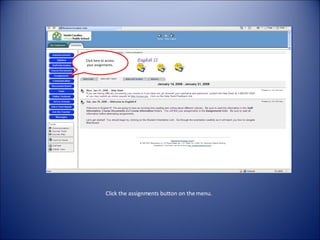
Click the assignments button on the menu. Click here to access your assignments.
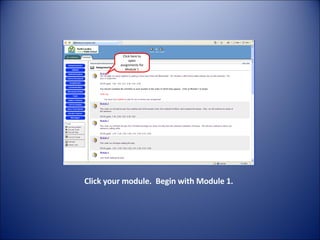
Click your module.  Begin with Module 1. Click here to open assignments for Module 1
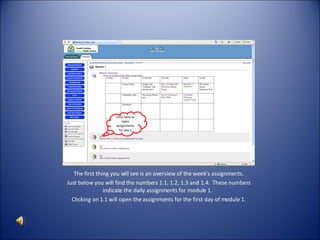
The first thing you will see is an overview of the week’s  The first thing you will see is an overview of the week’s assignments. Just below you will find the numbers 1.1, 1.2, 1.3 and 1.4.  These numbers indicate the daily assignments for module 1.  Clicking on 1.1 will open the assignments for the first day of module 1. Click here to open assignments for day 1
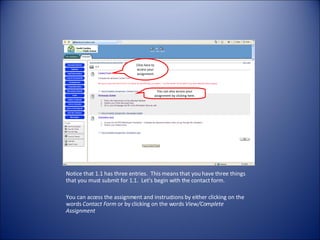
Notice that 1.1 has three entries.  This means that you have three things that you must submit for 1.1.  Let’s begin with the contact form.  You can access the assignment and instructions by either clicking on the words  Contact Form  or by clicking on the words  View/Complete Assignment Click here to access your assignment You can also access your assignment by clicking here.
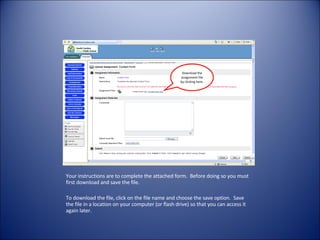
Your instructions are to complete the attached form.  Before doing so you must first download and save the file.  To download the file, click on the file name and choose the save option.  Save the file in a location on your computer (or flash drive) so that you can access it again later. Download the assignment file by clicking here.
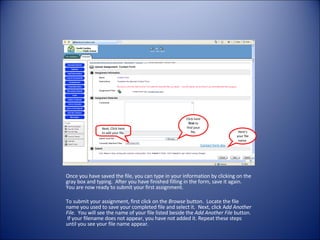
Once you have saved the file, you can type in your information by clicking on the gray box and typing.  After you have finished filling in the form, save it again.  You are now ready to submit your first assignment. To submit your assignment, first click on the  Browse  button.  Locate the file name you used to save your completed file and select it.  Next, click A dd Another File.   You will see the name of your file listed beside the  Add Another File  button.  If your filename does not appear, you have not added it. Repeat these steps until you see your file name appear. Contact form.doc Here’s your file name. Click here  first  to find your file. Next, Click here to add your file.
Repeat these steps for the remaining assignments.

Finding And Submitting Assignments2

  • 1.
  • 2.
    Click the assignmentsbutton on the menu. Click here to access your assignments.
  • 3.
    Click your module. Begin with Module 1. Click here to open assignments for Module 1
  • 4.
    The first thingyou will see is an overview of the week’s The first thing you will see is an overview of the week’s assignments. Just below you will find the numbers 1.1, 1.2, 1.3 and 1.4. These numbers indicate the daily assignments for module 1. Clicking on 1.1 will open the assignments for the first day of module 1. Click here to open assignments for day 1
  • 5.
    Notice that 1.1has three entries. This means that you have three things that you must submit for 1.1. Let’s begin with the contact form. You can access the assignment and instructions by either clicking on the words Contact Form or by clicking on the words View/Complete Assignment Click here to access your assignment You can also access your assignment by clicking here.
  • 6.
    Your instructions areto complete the attached form. Before doing so you must first download and save the file. To download the file, click on the file name and choose the save option. Save the file in a location on your computer (or flash drive) so that you can access it again later. Download the assignment file by clicking here.
  • 7.
    Once you havesaved the file, you can type in your information by clicking on the gray box and typing. After you have finished filling in the form, save it again. You are now ready to submit your first assignment. To submit your assignment, first click on the Browse button. Locate the file name you used to save your completed file and select it. Next, click A dd Another File. You will see the name of your file listed beside the Add Another File button. If your filename does not appear, you have not added it. Repeat these steps until you see your file name appear. Contact form.doc Here’s your file name. Click here first to find your file. Next, Click here to add your file.
  • 8.
    Repeat these stepsfor the remaining assignments.