Task 4: Assignments

      20 Points
Assignments

      How do you usually collect
assignments? Blackboard and other
LMS systems have an assignment tool
    that lets you posts and collect
      assignments electronically.
Guided Practice: Assignments

           Earlier we talked about content areas
             and how Assignments are located
            under Assessments Tab. Let’s create
                       an Assignment!
Guided Practice: Assignments
       Click on the Assessment Tab and then select
       assignments. You will notice that the screen
       is very similar to creating an item. Let’s give
      this assignment a name. We’re going to give
         the assignment a name like Assignment 1
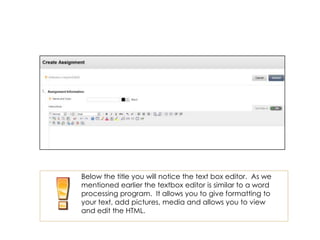
Below the title you will notice the text box editor. As we
mentioned earlier the textbox editor is similar to a word
processing program. It allows you to give formatting to
your text, add pictures, media and allows you to view
and edit the HTML.
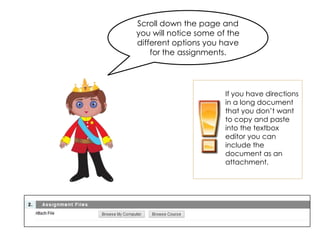
Scroll down the page and
you will notice some of the
different options you have
    for the assignments.


                       If you have directions
                       in a long document
                       that you don’t want
                       to copy and paste
                       into the textbox
                       editor you can
                       include the
                       document as an
                       attachment.
Choosing Assignment Grading Options
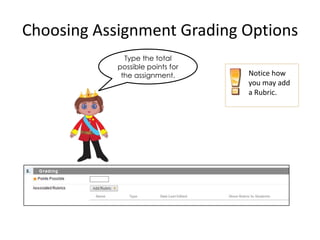
              Type the total
            possible points for
             the assignment.      Notice how
                                  you may add
                                  a Rubric.
Availability
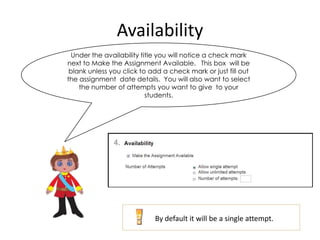
  Under the availability title you will notice a check mark
next to Make the Assignment Available. This box will be
 blank unless you click to add a check mark or just fill out
the assignment date details. You will also want to select
    the number of attempts you want to give to your
                           students.


                            By default it will be a single attempt.
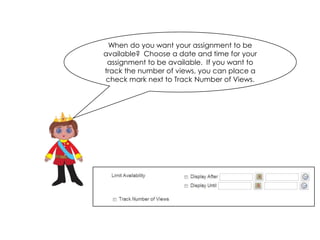
When do you want your assignment to be
available? Choose a date and time for your
 assignment to be available. If you want to
track the number of views, you can place a
check mark next to Track Number of Views.
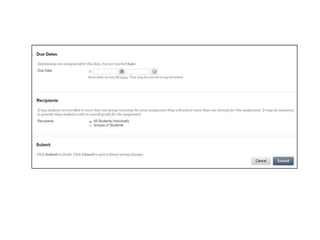
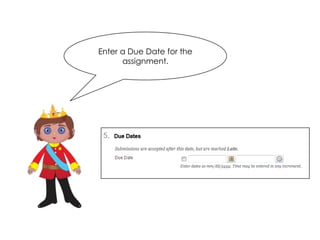
Enter a Due Date for the
      assignment.
Thanks for watching! Good
Luck on the Quiz. Remember
 you need to pass in order to
    unlock the next task.

Task 4: Assignments

  • 1.
  • 2.
    Assignments How do you usually collect assignments? Blackboard and other LMS systems have an assignment tool that lets you posts and collect assignments electronically.
  • 3.
    Guided Practice: Assignments Earlier we talked about content areas and how Assignments are located under Assessments Tab. Let’s create an Assignment!
  • 4.
    Guided Practice: Assignments Click on the Assessment Tab and then select assignments. You will notice that the screen is very similar to creating an item. Let’s give this assignment a name. We’re going to give the assignment a name like Assignment 1
  • 5.
    Below the titleyou will notice the text box editor. As we mentioned earlier the textbox editor is similar to a word processing program. It allows you to give formatting to your text, add pictures, media and allows you to view and edit the HTML.
  • 6.
    Scroll down thepage and you will notice some of the different options you have for the assignments. If you have directions in a long document that you don’t want to copy and paste into the textbox editor you can include the document as an attachment.
  • 7.
    Choosing Assignment GradingOptions Type the total possible points for the assignment. Notice how you may add a Rubric.
  • 8.
    Availability Underthe availability title you will notice a check mark next to Make the Assignment Available. This box will be blank unless you click to add a check mark or just fill out the assignment date details. You will also want to select the number of attempts you want to give to your students. By default it will be a single attempt.
  • 9.
    When do youwant your assignment to be available? Choose a date and time for your assignment to be available. If you want to track the number of views, you can place a check mark next to Track Number of Views.
  • 11.
    Enter a DueDate for the assignment.
  • 12.
    Thanks for watching!Good Luck on the Quiz. Remember you need to pass in order to unlock the next task.