How to Reverse a Document in SAP T Code - FB08
Reverse Document
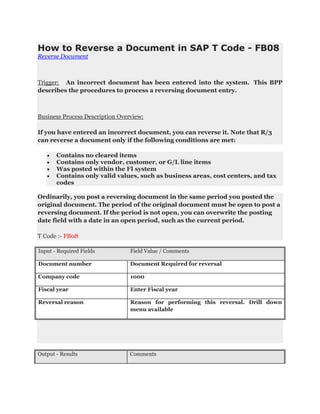
Trigger: An incorrect document has been entered into the system. This BPP
describes the procedures to process a reversing document entry.
Business Process Description Overview:
If you have entered an incorrect document, you can reverse it. Note that R/3
can reverse a document only if the following conditions are met:
Contains no cleared items
Contains only vendor, customer, or G/L line items
Was posted within the FI system
Contains only valid values, such as business areas, cost centers, and tax
codes
Ordinarily, you post a reversing document in the same period you posted the
original document. The period of the original document must be open to post a
reversing document. If the period is not open, you can overwrite the posting
date field with a date in an open period, such as the current period.
T Code :- FB08
Input - Required Fields Field Value / Comments
Document number Document Required for reversal
Company code 1000
Fiscal year Enter Fiscal year
Reversal reason Reason for performing this reversal. Drill down
menu available
Output - Results Comments
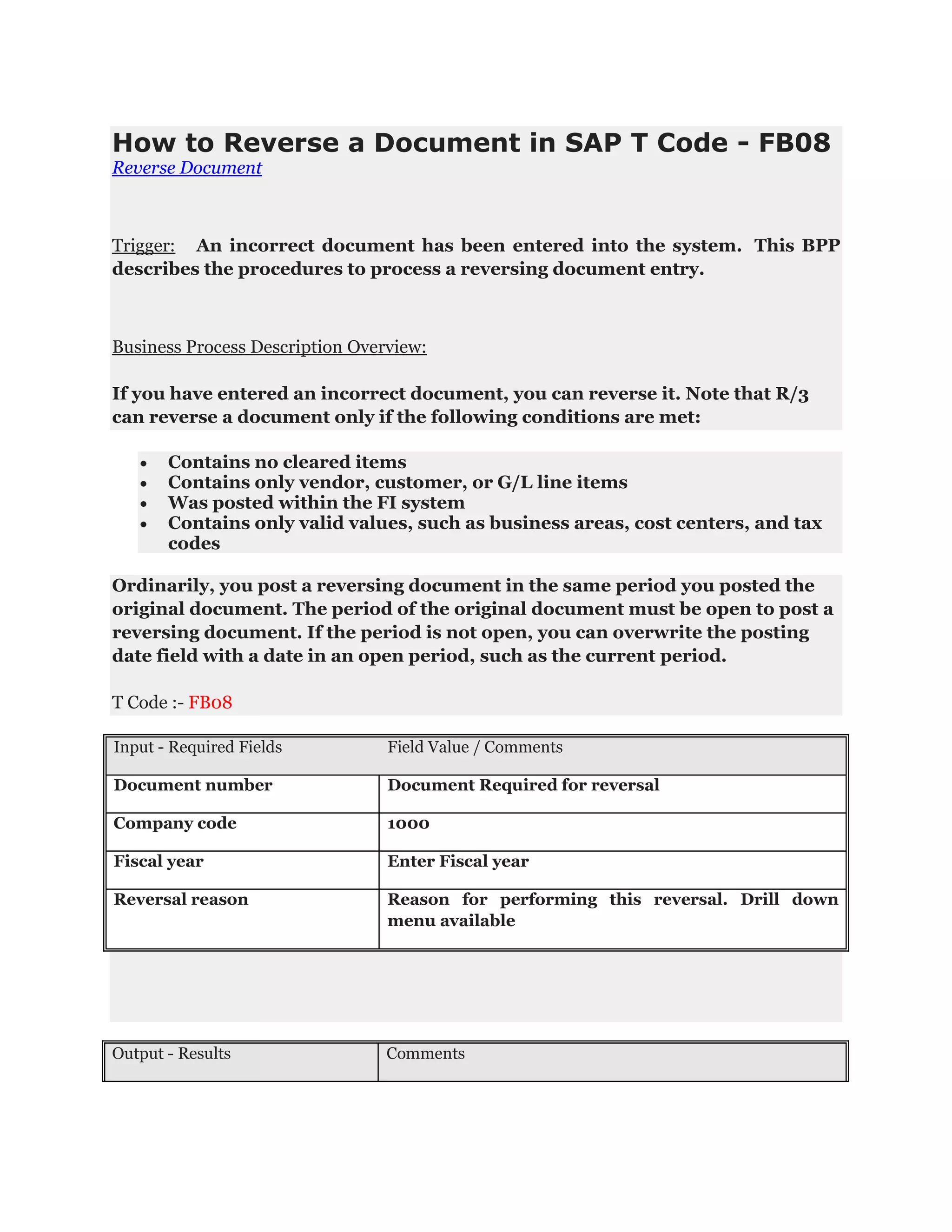
The system generates a
reversing document that will
post the proper reversing
debit and credit amounts.
Procedural Steps
1.1. Access transaction by:
Via Menus Accounting -> Financial Accounting -> General
Ledger -> Document -> Reverse -> Individual
Reversal
Accounting -> Financial Accounting -> Accounts
Payable -> Document -> Reverse -> Individual
Reversal
Accounting -> Financial Accounting -> Accounts
Receivable -> Document -> Reverse -> Individual
Reversal
Via Transaction Code FB08
1.2. On screen “Reverse Document: Header data”, enter information in the fields
as specified in the table below:
Field
Name
Description R/O/
C
User Action and Values Comments
Documen
t number
The document number of
the document to be
reversed
R Enter the document
number
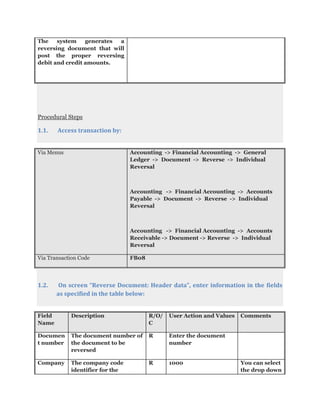
Company The company code
identifier for the
R 1000 You can select
the drop down
code document to be reversed arrow to view
a list of
available
choices
Fiscal
year
The fiscal year that the
document was created in
R Enter fiscal year
Reversal
Reason
Reason for
reversing a document
R Enter the desired
reversal reason
Select the
drop down
arrow to view
a list of
available
choices. You
can use the
standard
reason codes
or enter new
codes in
configuration.
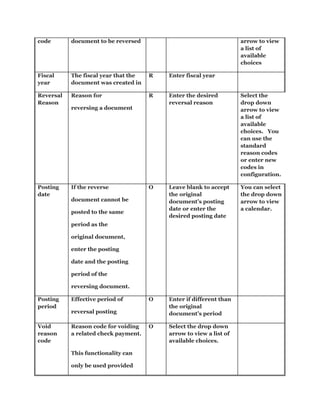
Posting
date
If the reverse
document cannot be
posted to the same
period as the
original document,
enter the posting
date and the posting
period of the
reversing document.
O Leave blank to accept
the original
document‟s posting
date or enter the
desired posting date
You can select
the drop down
arrow to view
a calendar.
Posting
period
Effective period of
reversal posting
O Enter if different than
the original
document‟s period
Void
reason
code
Reason code for voiding
a related check payment.
This functionality can
only be used provided
O Select the drop down
arrow to view a list of
available choices.
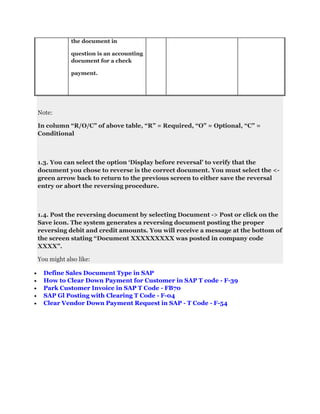
the document in
question is an accounting
document for a check
payment.
Note:
In column “R/O/C” of above table, “R” = Required, “O” = Optional, “C” =
Conditional
1.3. You can select the option „Display before reversal‟ to verify that the
document you chose to reverse is the correct document. You must select the <-
green arrow back to return to the previous screen to either save the reversal
entry or abort the reversing procedure.
1.4. Post the reversing document by selecting Document -> Post or click on the
Save icon. The system generates a reversing document posting the proper
reversing debit and credit amounts. You will receive a message at the bottom of
the screen stating “Document XXXXXXXXX was posted in company code
XXXX”.
You might also like:
Define Sales Document Type in SAP
How to Clear Down Payment for Customer in SAP T code - F-39
Park Customer Invoice in SAP T Code - FB70
SAP Gl Posting with Clearing T Code - F-04
Clear Vendor Down Payment Request in SAP - T Code - F-54

Fb08 how to reverse a document in sap t code

  • 1.
    How to Reversea Document in SAP T Code - FB08 Reverse Document Trigger: An incorrect document has been entered into the system. This BPP describes the procedures to process a reversing document entry. Business Process Description Overview: If you have entered an incorrect document, you can reverse it. Note that R/3 can reverse a document only if the following conditions are met: Contains no cleared items Contains only vendor, customer, or G/L line items Was posted within the FI system Contains only valid values, such as business areas, cost centers, and tax codes Ordinarily, you post a reversing document in the same period you posted the original document. The period of the original document must be open to post a reversing document. If the period is not open, you can overwrite the posting date field with a date in an open period, such as the current period. T Code :- FB08 Input - Required Fields Field Value / Comments Document number Document Required for reversal Company code 1000 Fiscal year Enter Fiscal year Reversal reason Reason for performing this reversal. Drill down menu available Output - Results Comments
  • 2.
    The system generatesa reversing document that will post the proper reversing debit and credit amounts. Procedural Steps 1.1. Access transaction by: Via Menus Accounting -> Financial Accounting -> General Ledger -> Document -> Reverse -> Individual Reversal Accounting -> Financial Accounting -> Accounts Payable -> Document -> Reverse -> Individual Reversal Accounting -> Financial Accounting -> Accounts Receivable -> Document -> Reverse -> Individual Reversal Via Transaction Code FB08 1.2. On screen “Reverse Document: Header data”, enter information in the fields as specified in the table below: Field Name Description R/O/ C User Action and Values Comments Documen t number The document number of the document to be reversed R Enter the document number Company The company code identifier for the R 1000 You can select the drop down
  • 3.
    code document tobe reversed arrow to view a list of available choices Fiscal year The fiscal year that the document was created in R Enter fiscal year Reversal Reason Reason for reversing a document R Enter the desired reversal reason Select the drop down arrow to view a list of available choices. You can use the standard reason codes or enter new codes in configuration. Posting date If the reverse document cannot be posted to the same period as the original document, enter the posting date and the posting period of the reversing document. O Leave blank to accept the original document‟s posting date or enter the desired posting date You can select the drop down arrow to view a calendar. Posting period Effective period of reversal posting O Enter if different than the original document‟s period Void reason code Reason code for voiding a related check payment. This functionality can only be used provided O Select the drop down arrow to view a list of available choices.
  • 4.
    the document in questionis an accounting document for a check payment. Note: In column “R/O/C” of above table, “R” = Required, “O” = Optional, “C” = Conditional 1.3. You can select the option „Display before reversal‟ to verify that the document you chose to reverse is the correct document. You must select the <- green arrow back to return to the previous screen to either save the reversal entry or abort the reversing procedure. 1.4. Post the reversing document by selecting Document -> Post or click on the Save icon. The system generates a reversing document posting the proper reversing debit and credit amounts. You will receive a message at the bottom of the screen stating “Document XXXXXXXXX was posted in company code XXXX”. You might also like: Define Sales Document Type in SAP How to Clear Down Payment for Customer in SAP T code - F-39 Park Customer Invoice in SAP T Code - FB70 SAP Gl Posting with Clearing T Code - F-04 Clear Vendor Down Payment Request in SAP - T Code - F-54