INTRODUCTION TO
COMPUTERISED ACCOUNTING
Hammad Nangiana
SET UP FOR A NEW COMPANY
• Following are the steps involved in order to
create a new company using Peachtree
accounting software 2004:
2
3
SET UP FOR A NEW COMPANY
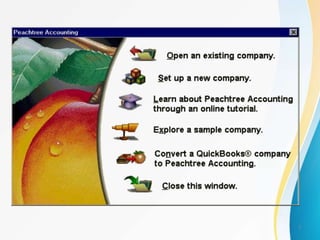
• From this screen click on “Set up a new
company”
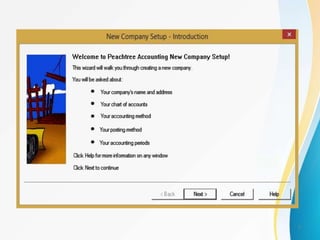
• Following is a wizard screen which will be
appeared on the screen by clicking on “Set up
a new company”
4
5
• This wizard scheme will provide us with five
options which are required to be entered in the
software in order to complete our steps
involved in the creation of the company
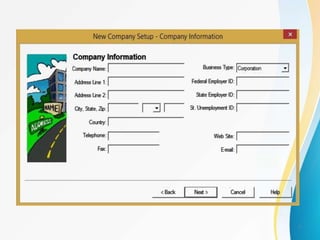
• First we press the “Next” button and the
following “company information” wizard
scheme appears on the screen
6
7
8
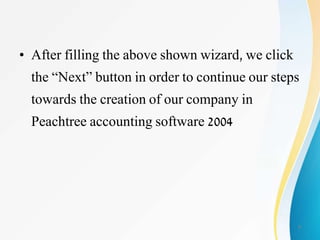
• After filling the above shown wizard, we click
the “Next” button in order to continue our steps
towards the creation of our company in
Peachtree accounting software 2004
9
10
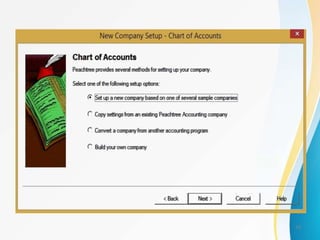
• Then this wizard scheme of “Chart of
Accounts” will be appeared after filling all the
required information in “Company
information” wizard Scheme
• From this wizard of “Chart of Accounts”, we
will click on “Build your own company”
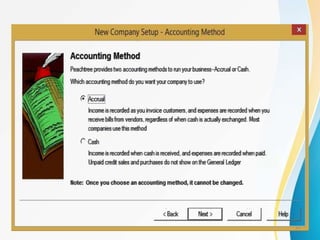
• Following wizard scheme of “Accounting
Method” will be appeared on the screen
11
12
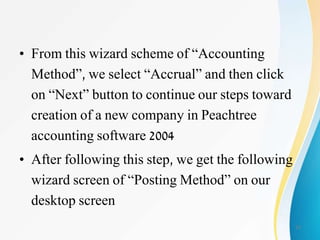
• From this wizard scheme of “Accounting
Method”, we select “Accrual” and then click
on “Next” button to continue our steps toward
creation of a new company in Peachtree
accounting software 2004
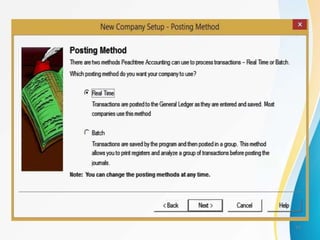
• After following this step, we get the following
wizard screen of “Posting Method” on our
desktop screen
13
14
• From this wizard scheme of “Posting Method”,
we select “Real Time” option and click on
“Next” button to proceed towards the creation
of a new company on Peachtree Accounting
Software 2004
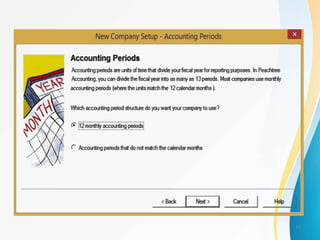
• We get the Following Screen of “Accounting
Periods” on implementing this procedure
15
16
• From this wizard scheme of “Accounting
Periods”, we select the option of “12 monthly
accounting periods” option as per our
requirement and then click on “Next” Button to
proceed
• After following this procedure, we reach to the
following “Monthly Accounting Periods”
Wizard scheme
17
18
• From this Wizard scheme of “Monthly
Accounting Periods”, we select “January” as
Month and “2015” as year for our requirement,
• “When do you want your fiscal year to start?”.
Then we select “November” as month and
“2015”
• “What is the first year you will be entering
payroll?”. After filling this we click the “Next”
button and get the following screen on our
desktop screen
19
20
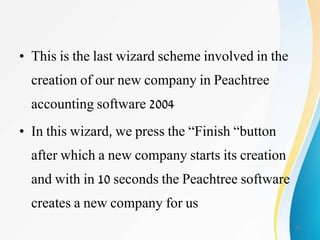
• This is the last wizard scheme involved in the
creation of our new company in Peachtree
accounting software 2004
• In this wizard, we press the “Finish “button
after which a new company starts its creation
and with in 10 seconds the Peachtree software
creates a new company for us
21
Summary
• Setup a new Company
• Chart of Accounts
• Accounting Method
• Posting Method
• Posting Period
22

Computerised Accounting(Setup Company)

  • 1.
  • 2.
    SET UP FORA NEW COMPANY • Following are the steps involved in order to create a new company using Peachtree accounting software 2004: 2
  • 3.
  • 4.
    SET UP FORA NEW COMPANY • From this screen click on “Set up a new company” • Following is a wizard screen which will be appeared on the screen by clicking on “Set up a new company” 4
  • 5.
  • 6.
    • This wizardscheme will provide us with five options which are required to be entered in the software in order to complete our steps involved in the creation of the company • First we press the “Next” button and the following “company information” wizard scheme appears on the screen 6
  • 7.
  • 8.
  • 9.
    • After fillingthe above shown wizard, we click the “Next” button in order to continue our steps towards the creation of our company in Peachtree accounting software 2004 9
  • 10.
  • 11.
    • Then thiswizard scheme of “Chart of Accounts” will be appeared after filling all the required information in “Company information” wizard Scheme • From this wizard of “Chart of Accounts”, we will click on “Build your own company” • Following wizard scheme of “Accounting Method” will be appeared on the screen 11
  • 12.
  • 13.
    • From thiswizard scheme of “Accounting Method”, we select “Accrual” and then click on “Next” button to continue our steps toward creation of a new company in Peachtree accounting software 2004 • After following this step, we get the following wizard screen of “Posting Method” on our desktop screen 13
  • 14.
  • 15.
    • From thiswizard scheme of “Posting Method”, we select “Real Time” option and click on “Next” button to proceed towards the creation of a new company on Peachtree Accounting Software 2004 • We get the Following Screen of “Accounting Periods” on implementing this procedure 15
  • 16.
  • 17.
    • From thiswizard scheme of “Accounting Periods”, we select the option of “12 monthly accounting periods” option as per our requirement and then click on “Next” Button to proceed • After following this procedure, we reach to the following “Monthly Accounting Periods” Wizard scheme 17
  • 18.
  • 19.
    • From thisWizard scheme of “Monthly Accounting Periods”, we select “January” as Month and “2015” as year for our requirement, • “When do you want your fiscal year to start?”. Then we select “November” as month and “2015” • “What is the first year you will be entering payroll?”. After filling this we click the “Next” button and get the following screen on our desktop screen 19
  • 20.
  • 21.
    • This isthe last wizard scheme involved in the creation of our new company in Peachtree accounting software 2004 • In this wizard, we press the “Finish “button after which a new company starts its creation and with in 10 seconds the Peachtree software creates a new company for us 21
  • 22.
    Summary • Setup anew Company • Chart of Accounts • Accounting Method • Posting Method • Posting Period 22