MM03 – Display Material Master
MM03 – Display Material Master Page 1
PURPOSE AND INITIAL SCREEN
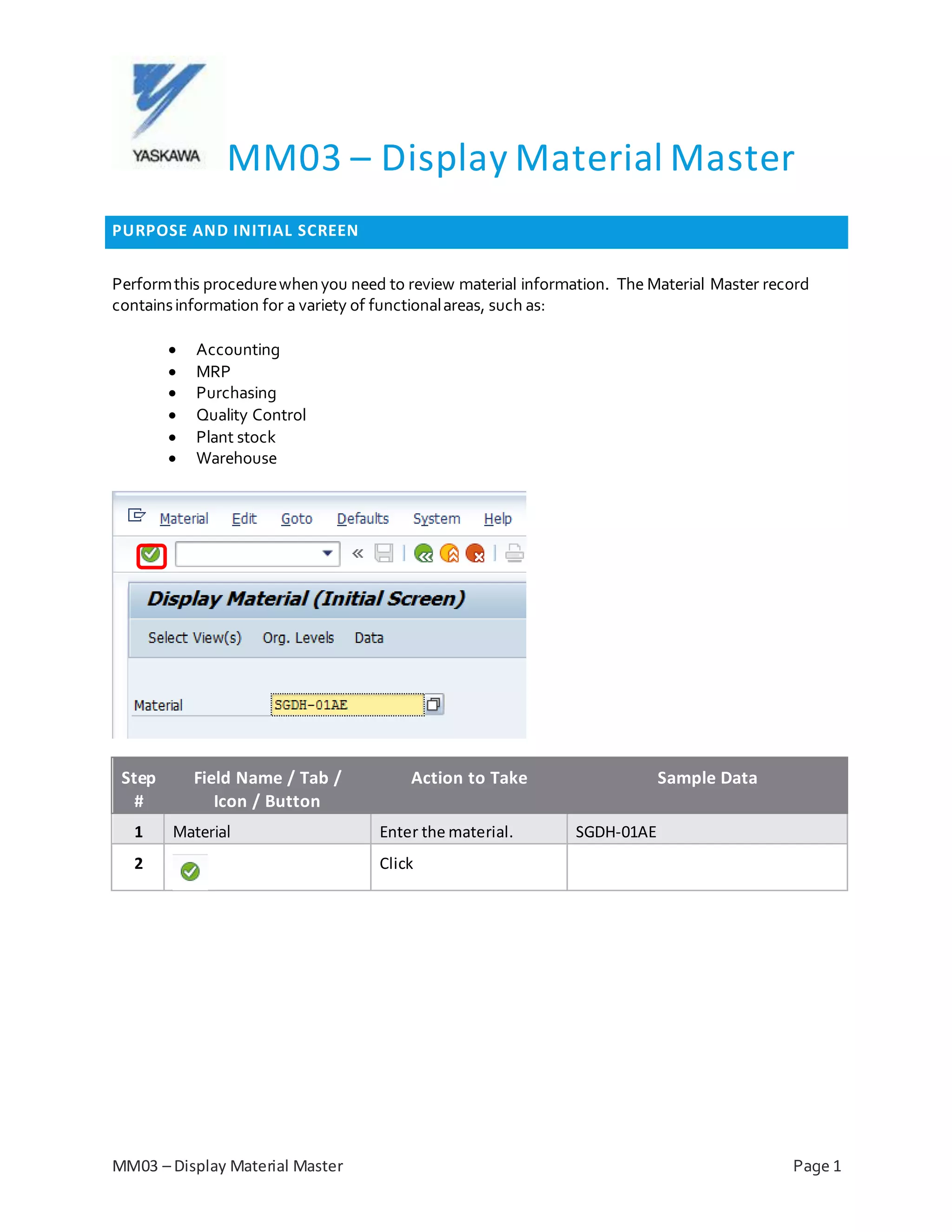
Performthis procedurewhenyou need to review material information. The Material Master record
containsinformation for a variety of functionalareas, such as:
 Accounting
 MRP
 Purchasing
 Quality Control
 Plant stock
 Warehouse
Step
#
Field Name / Tab /
Icon / Button
Action to Take Sample Data
1 Material Enter the material. SGDH-01AE
2 Click
MM03 – Display Material Master
MM03 – Display Material Master Page 2
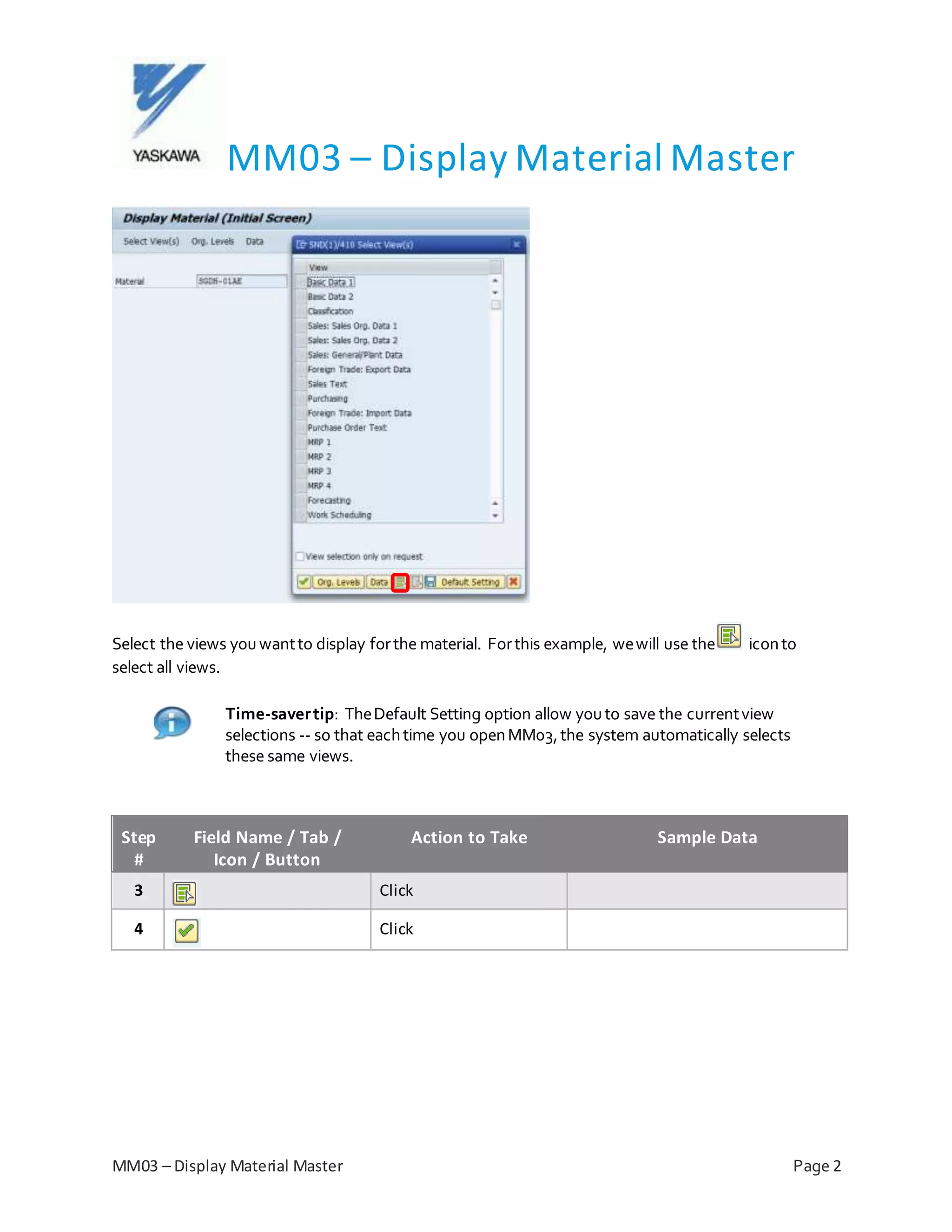
Select the views youwantto display forthe material. Forthis example, wewill use the iconto
select all views.
Time-savertip: TheDefault Setting option allow youto save the currentview
selections -- so that eachtime you openMM03,the system automatically selects
these same views.
Step
#
Field Name / Tab /
Icon / Button
Action to Take Sample Data
3 Click
4 Click
MM03 – Display Material Master
MM03 – Display Material Master Page 3
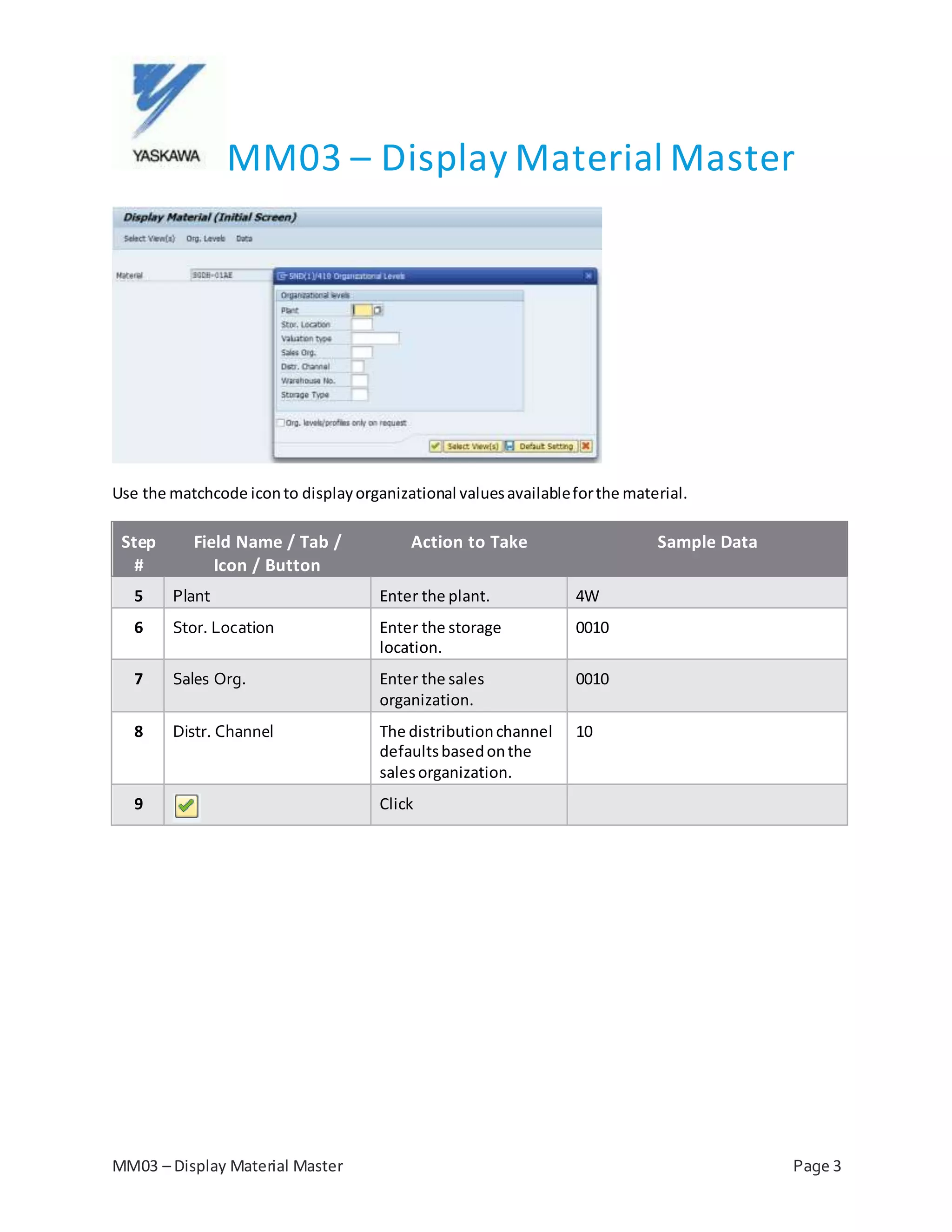
Use the matchcode iconto displayorganizational valuesavailableforthe material.
Step
#
Field Name / Tab /
Icon / Button
Action to Take Sample Data
5 Plant Enter the plant. 4W
6 Stor. Location Enter the storage
location.
0010
7 Sales Org. Enter the sales
organization.
0010
8 Distr. Channel The distributionchannel
defaultsbasedonthe
salesorganization.
10
9 Click
MM03 – Display Material Master
MM03 – Display Material Master Page 4
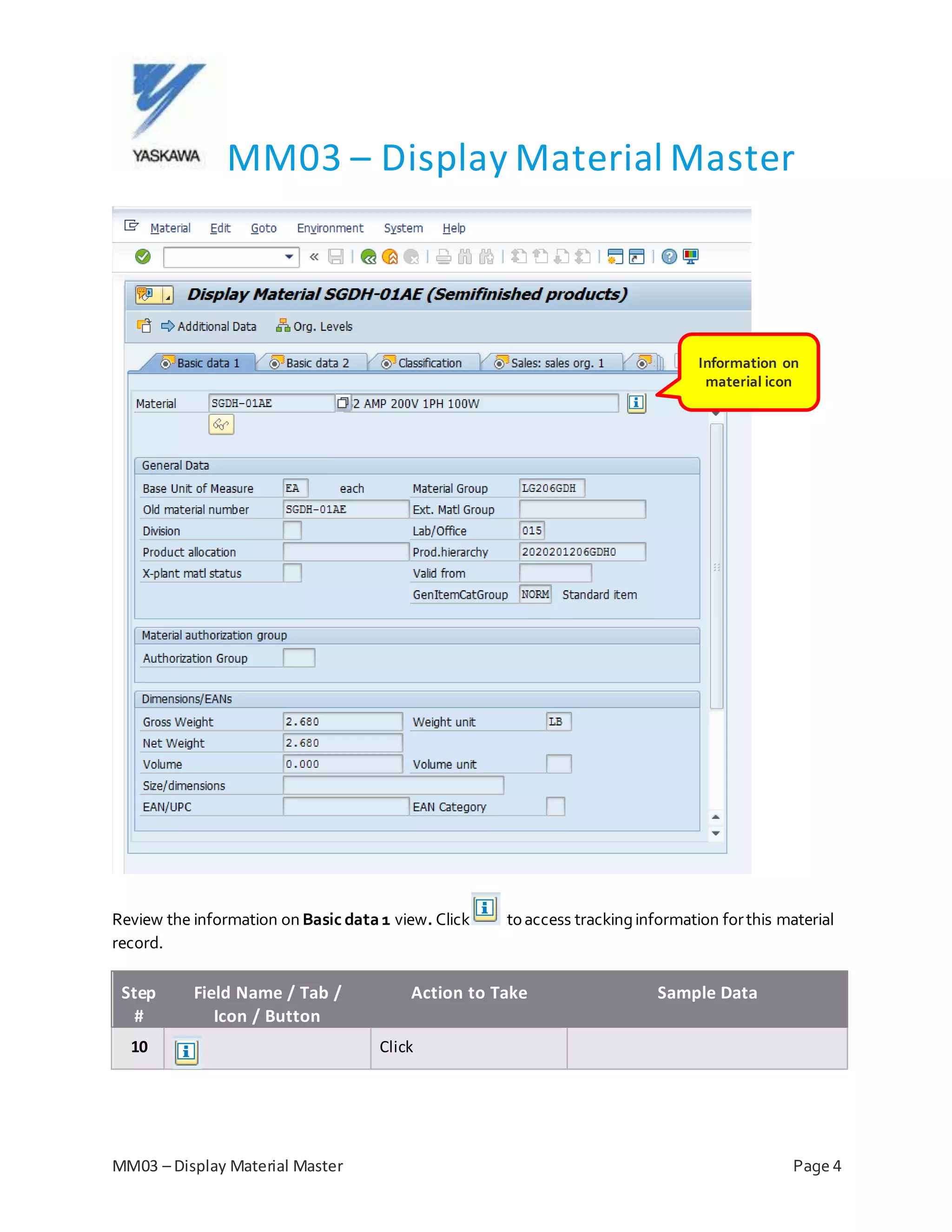
Review the information on Basic data1 view. Click toaccess trackinginformation forthis material
record.
Step
#
Field Name / Tab /
Icon / Button
Action to Take Sample Data
10 Click
Information on
material icon
MM03 – Display Material Master
MM03 – Display Material Master Page 5
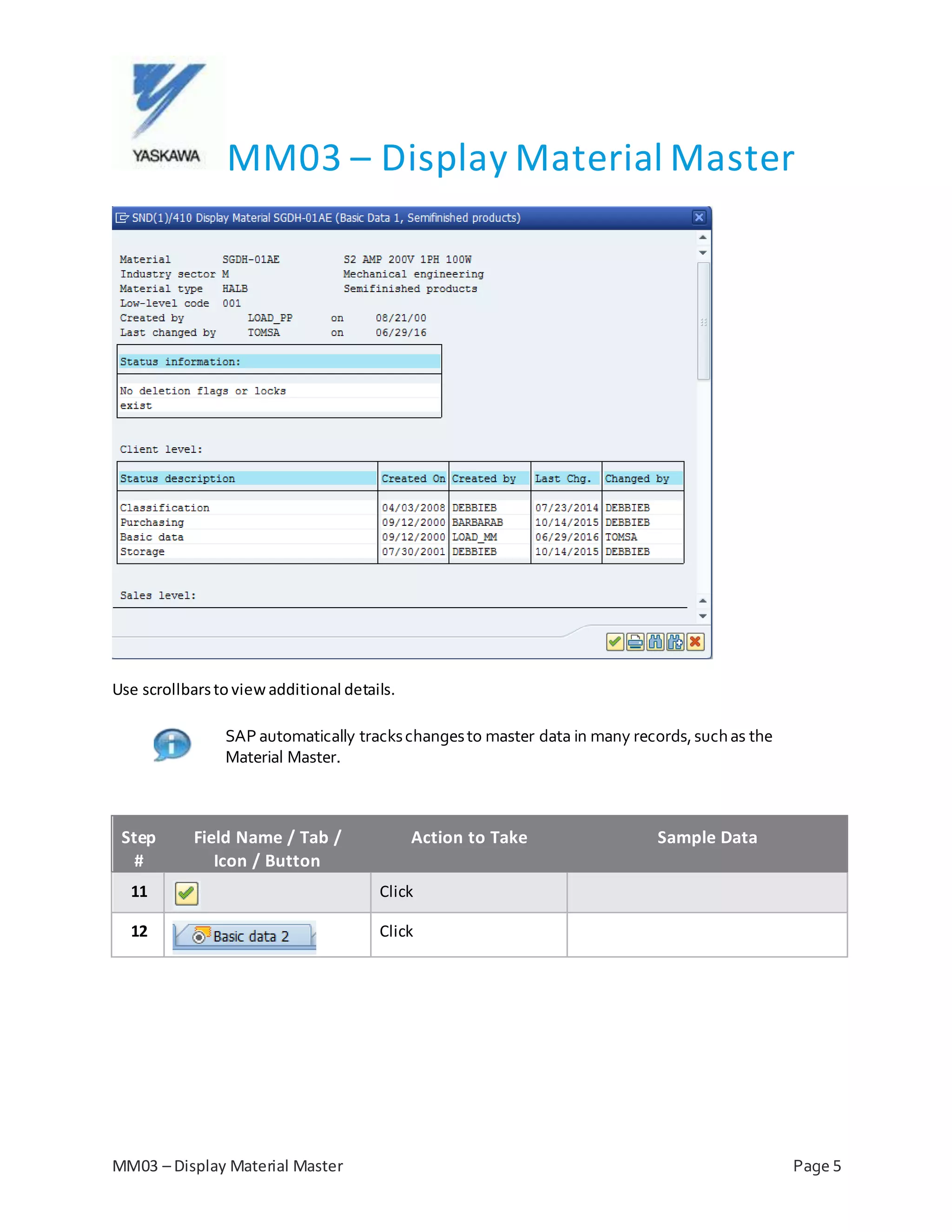
Use scrollbarsto viewadditional details.
SAP automatically trackschangesto master data in many records,suchas the
Material Master.
Step
#
Field Name / Tab /
Icon / Button
Action to Take Sample Data
11 Click
12 Click
MM03 – Display Material Master
MM03 – Display Material Master Page 6
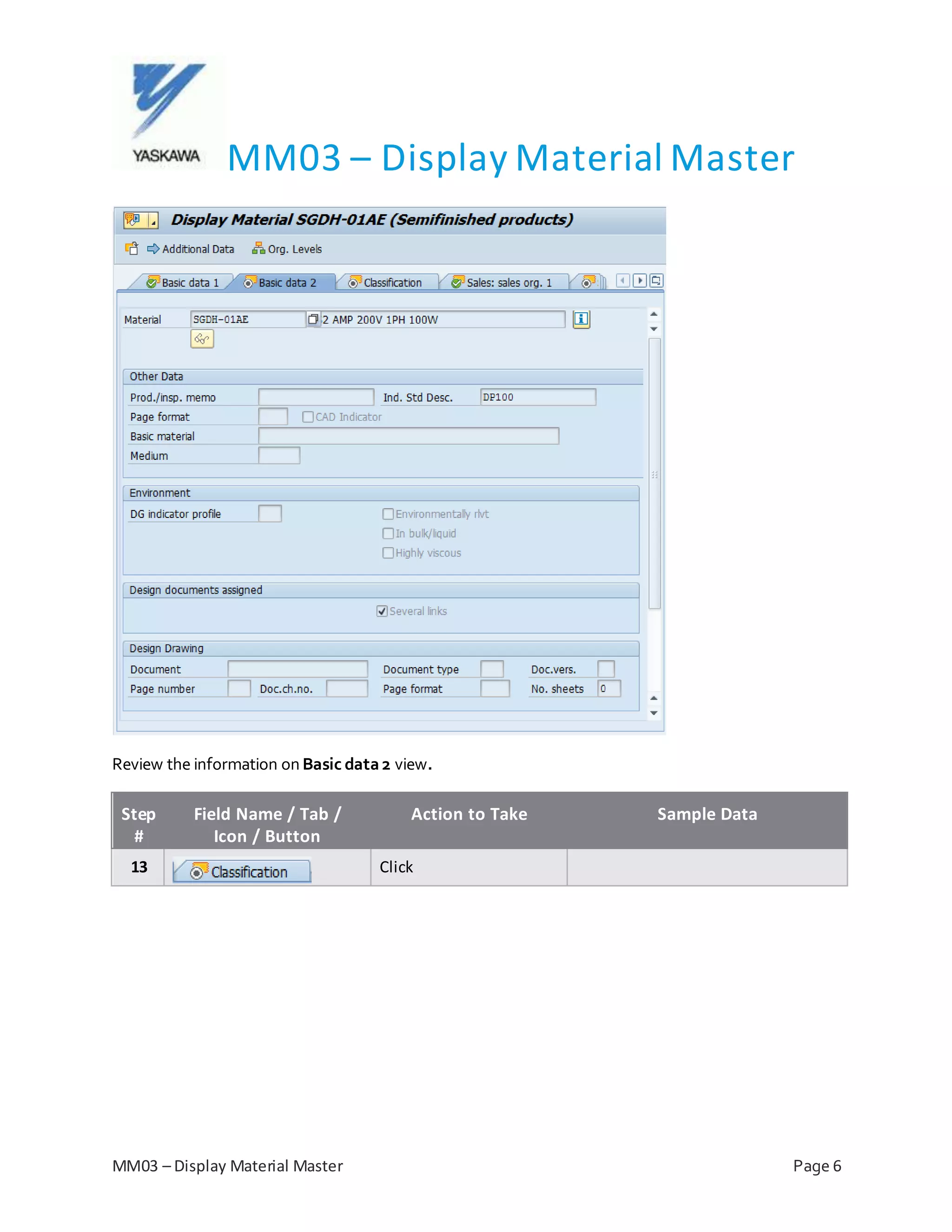
Review the information on Basic data2 view.
Step
#
Field Name / Tab /
Icon / Button
Action to Take Sample Data
13 Click
MM03 – Display Material Master
MM03 – Display Material Master Page 7
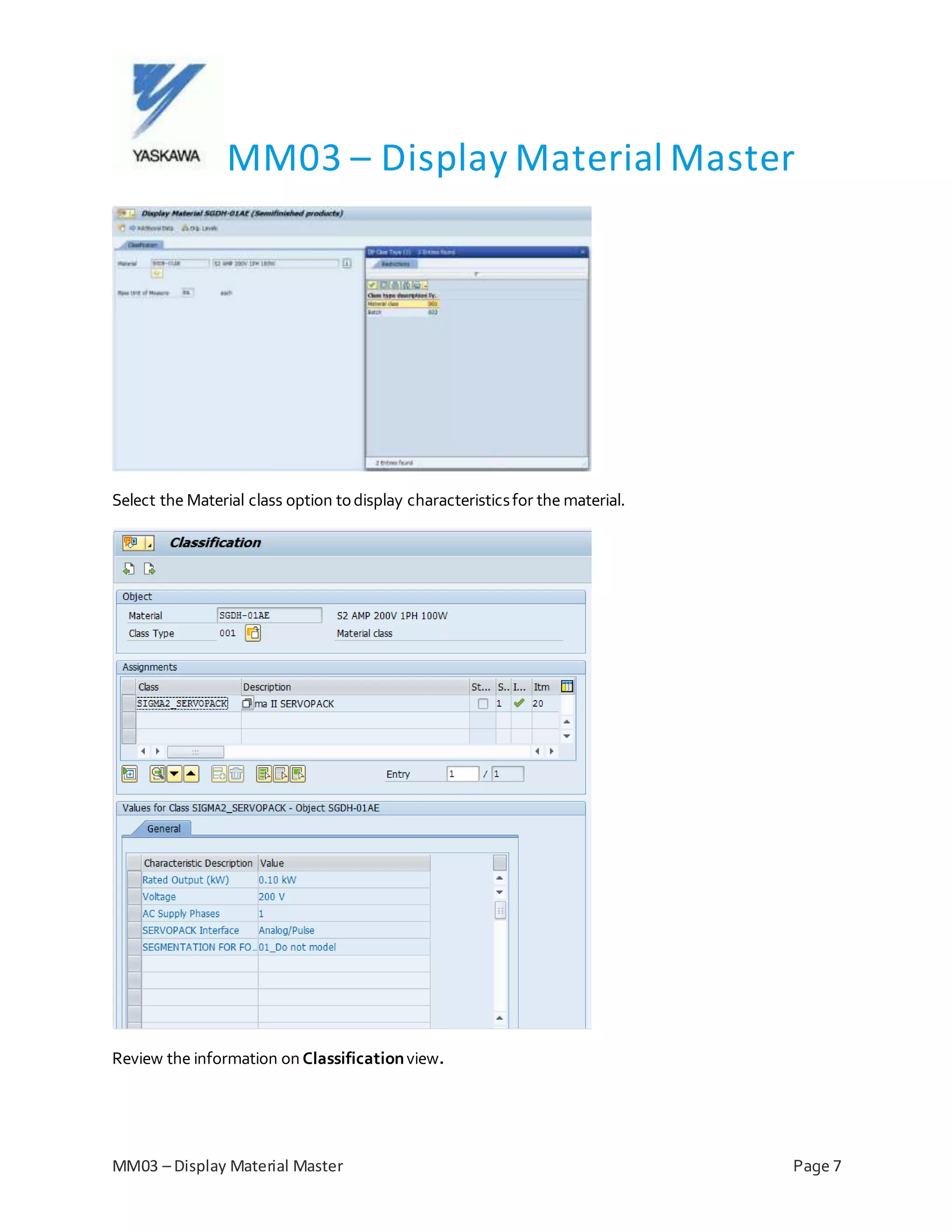
Select the Material class option todisplay characteristicsfor the material.
Review the information on Classificationview.
MM03 – Display Material Master
MM03 – Display Material Master Page 8
Step
#
Field Name / Tab /
Icon / Button
Action to Take Sample Data
14 Click
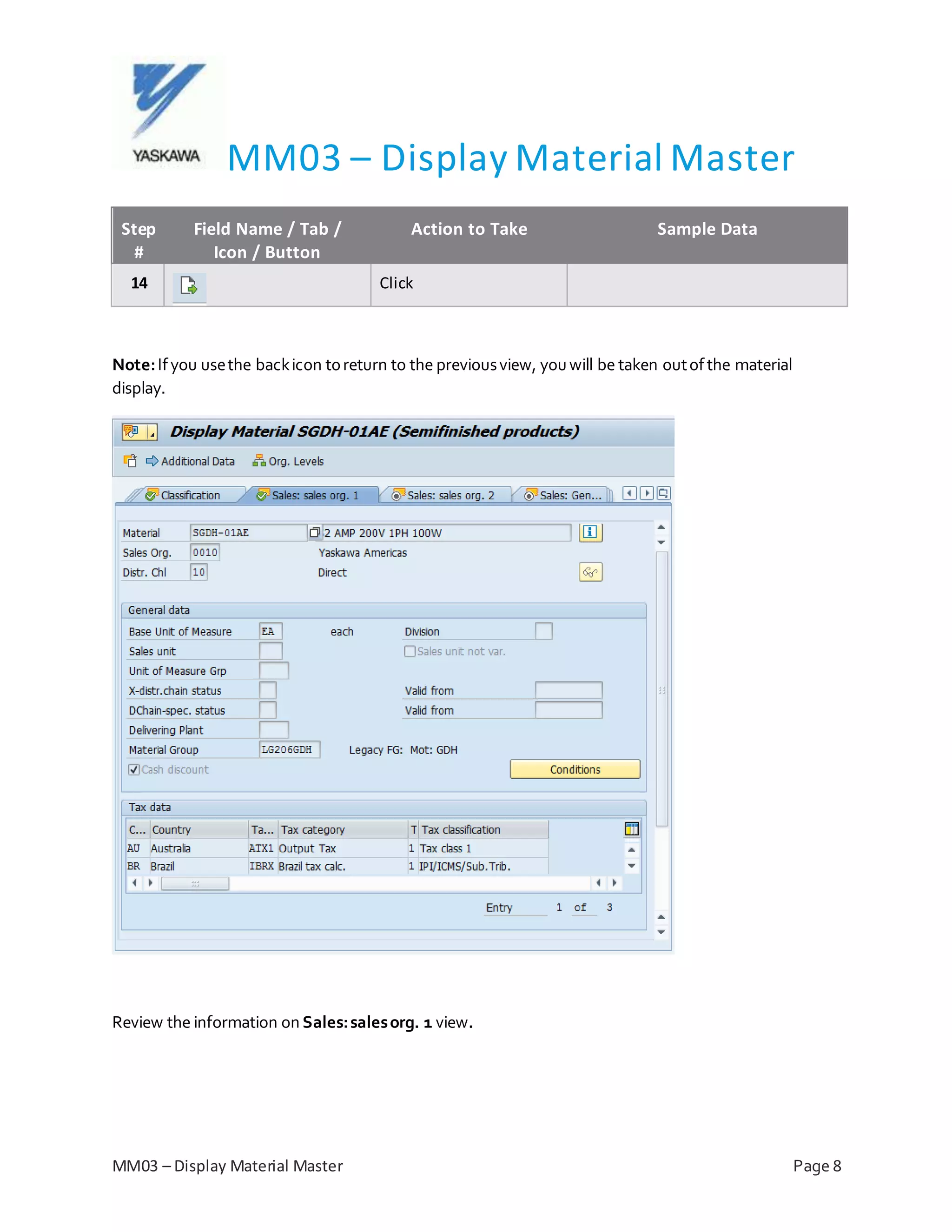
Note:Ifyou usethe backicon toreturn to the previousview, youwill be taken outofthe material
display.
Review the information on Sales:salesorg. 1 view.
MM03 – Display Material Master
MM03 – Display Material Master Page 9
Step
#
Field Name / Tab /
Icon / Button
Action to Take Sample Data
15 Click
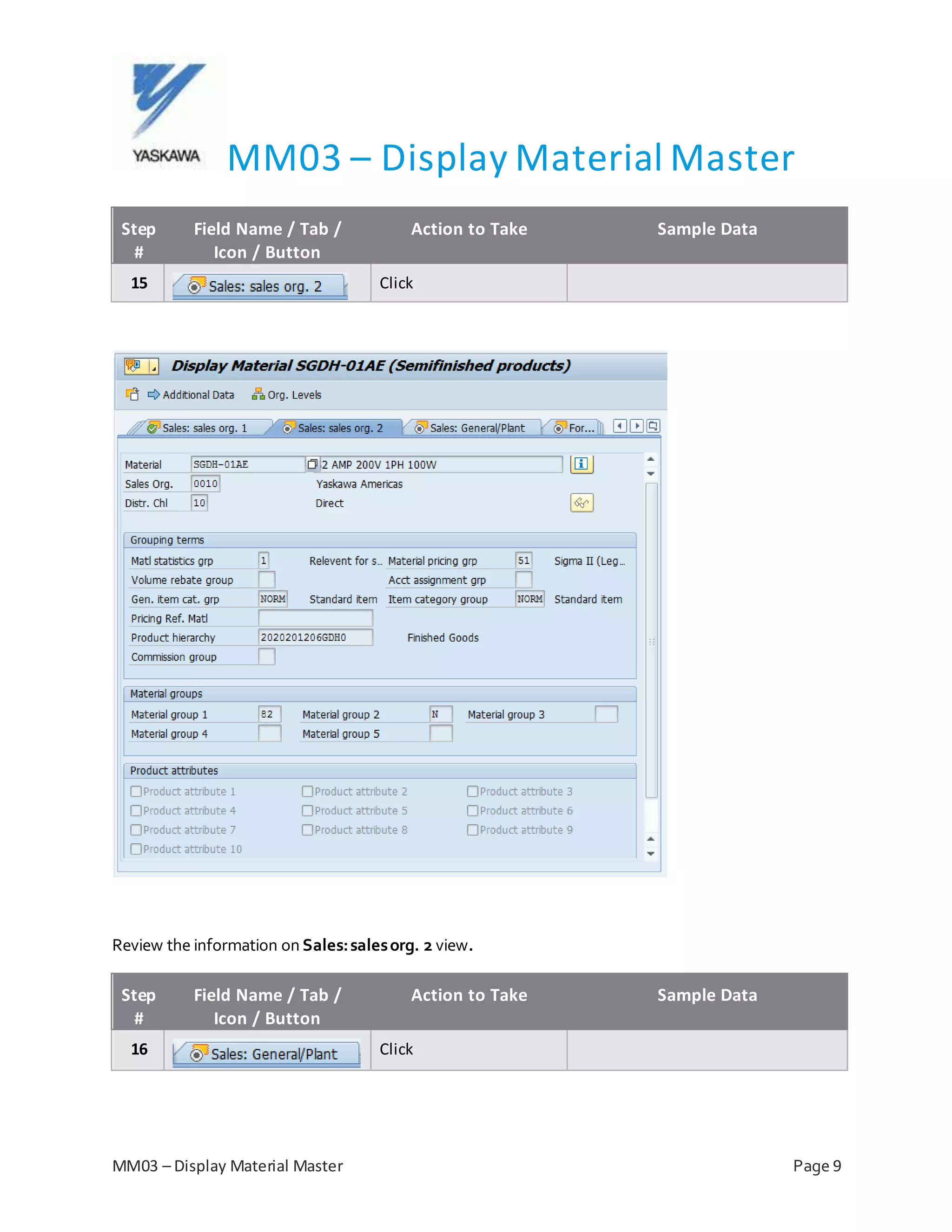
Review the information on Sales:salesorg. 2 view.
Step
#
Field Name / Tab /
Icon / Button
Action to Take Sample Data
16 Click
MM03 – Display Material Master
MM03 – Display Material Master Page 10
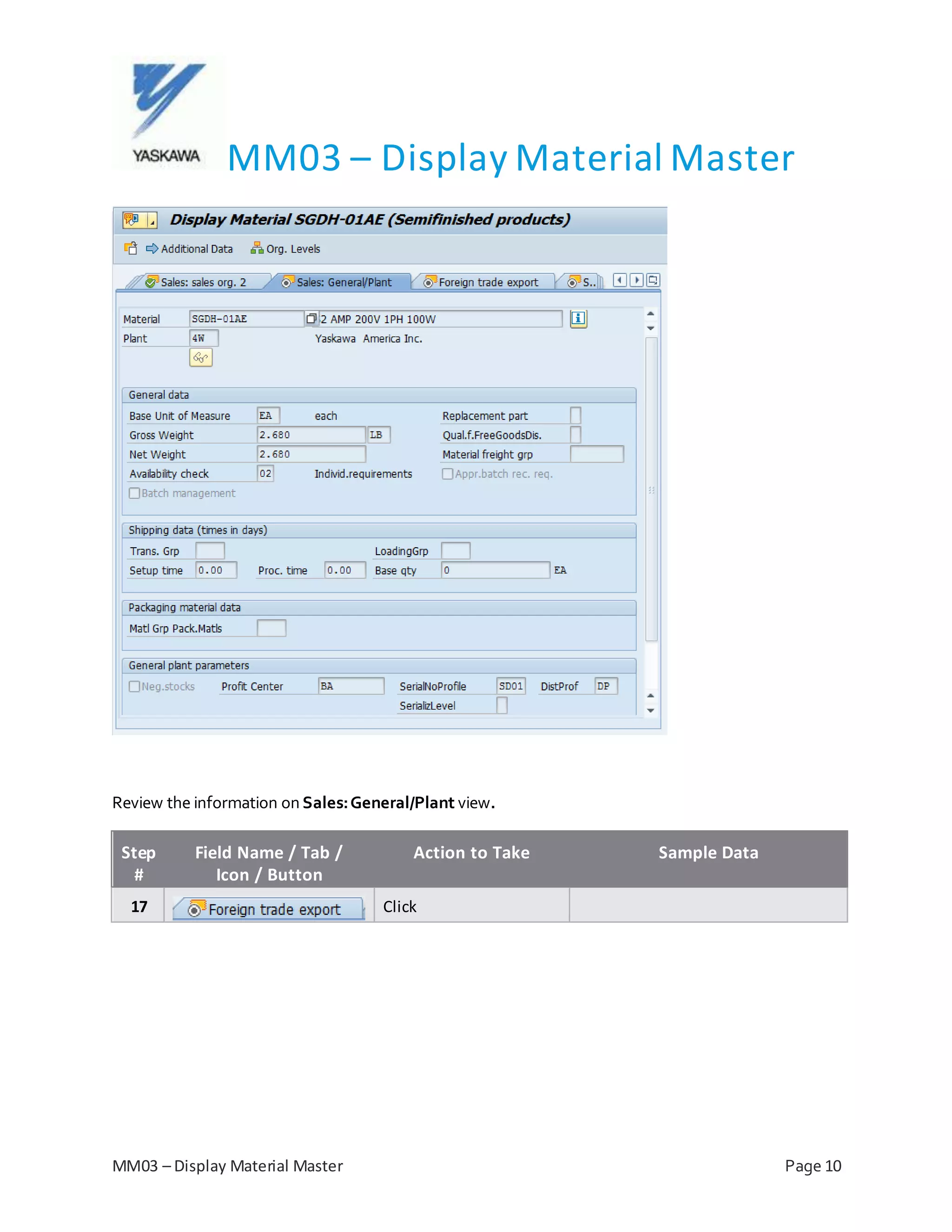
Review the information on Sales:General/Plant view.
Step
#
Field Name / Tab /
Icon / Button
Action to Take Sample Data
17 Click
MM03 – Display Material Master
MM03 – Display Material Master Page 11
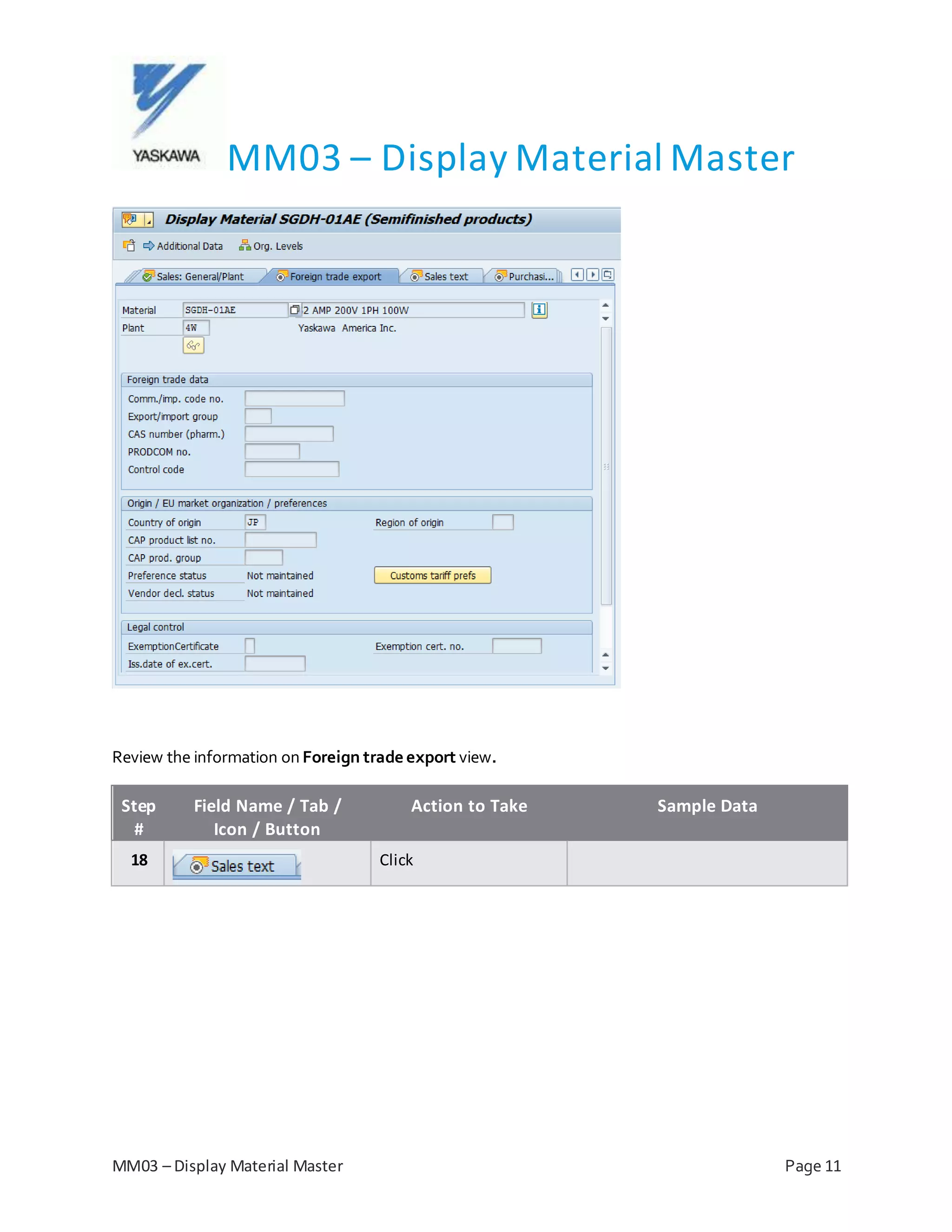
Review the information on Foreign trade export view.
Step
#
Field Name / Tab /
Icon / Button
Action to Take Sample Data
18 Click
MM03 – Display Material Master
MM03 – Display Material Master Page 12
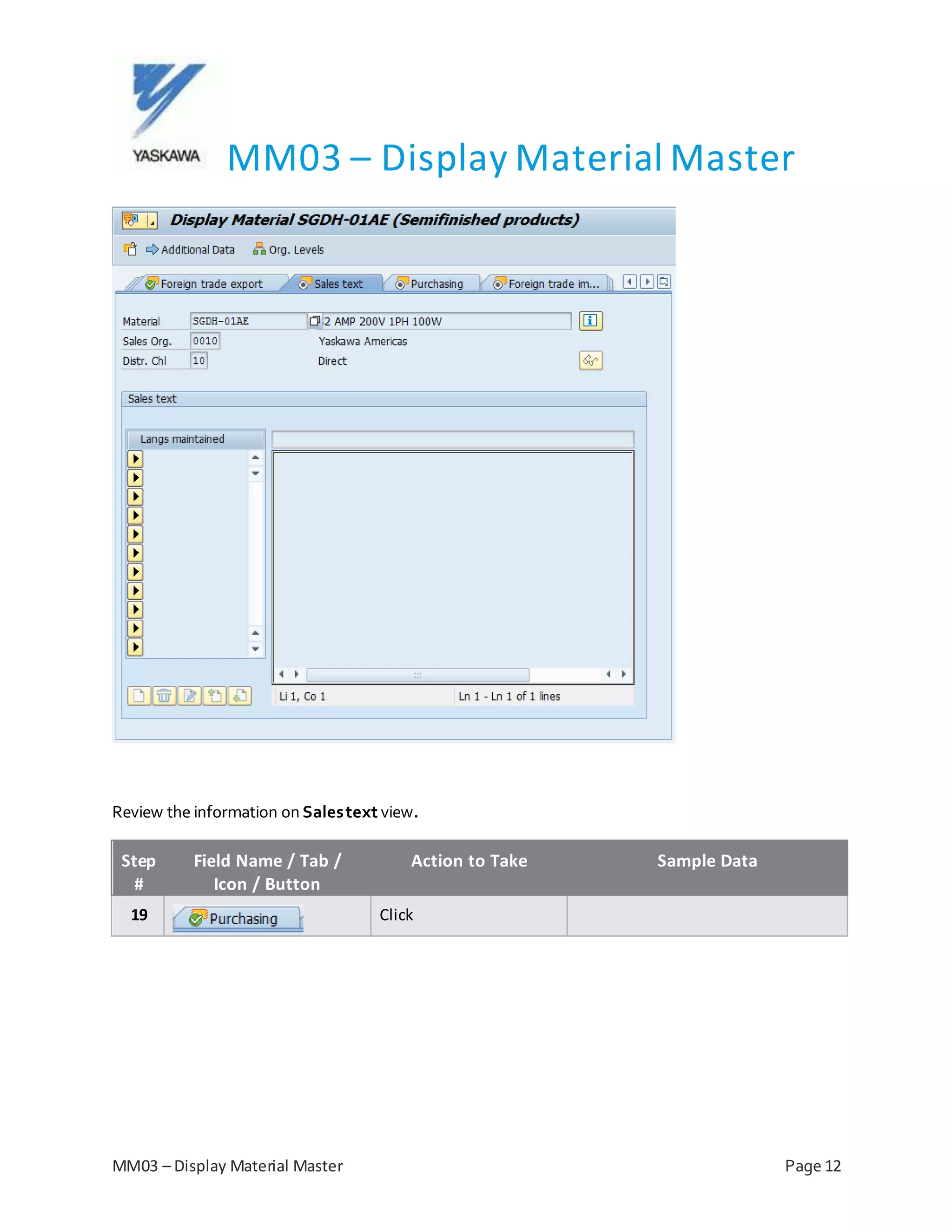
Review the information on Salestext view.
Step
#
Field Name / Tab /
Icon / Button
Action to Take Sample Data
19 Click
MM03 – Display Material Master
MM03 – Display Material Master Page 13
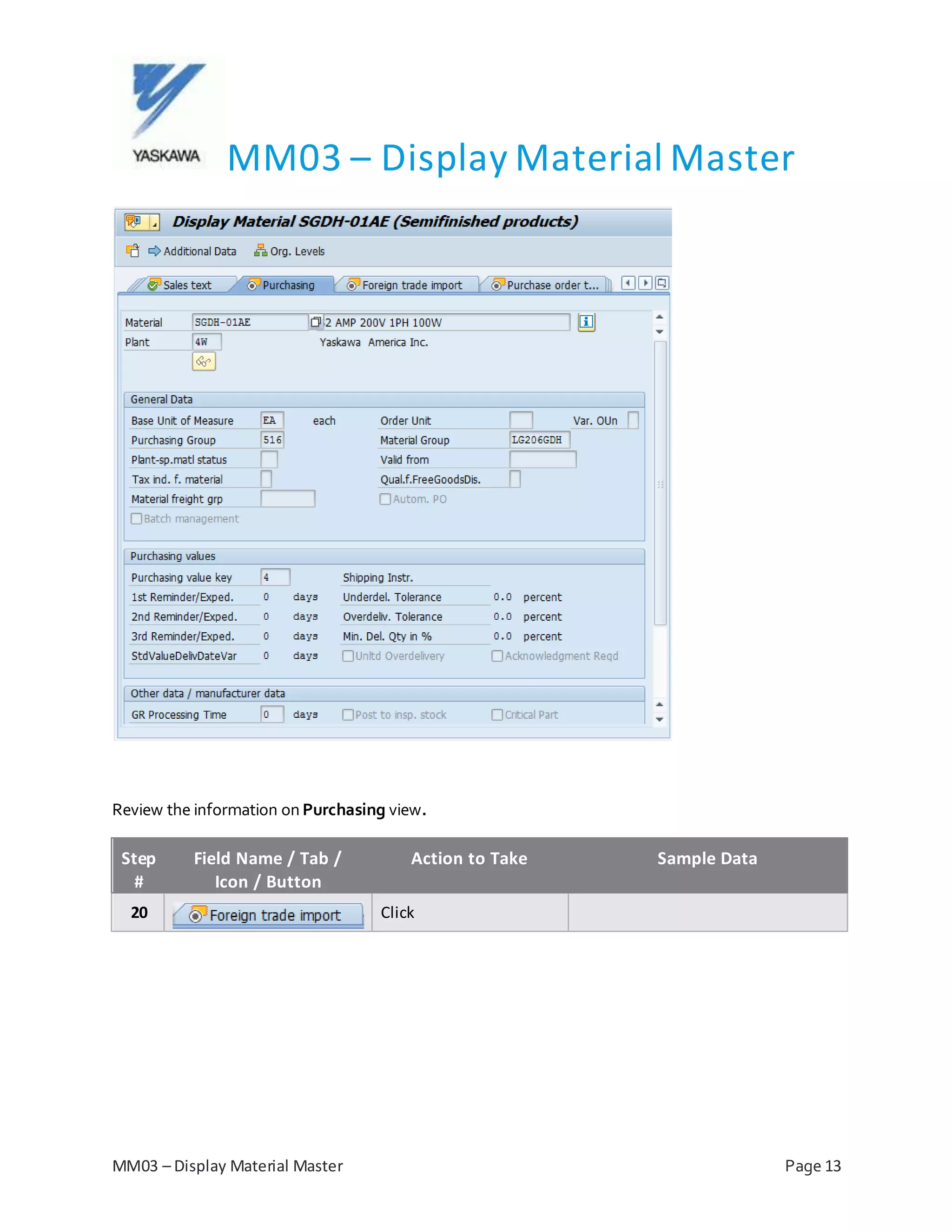
Review the information on Purchasing view.
Step
#
Field Name / Tab /
Icon / Button
Action to Take Sample Data
20 Click
MM03 – Display Material Master
MM03 – Display Material Master Page 14
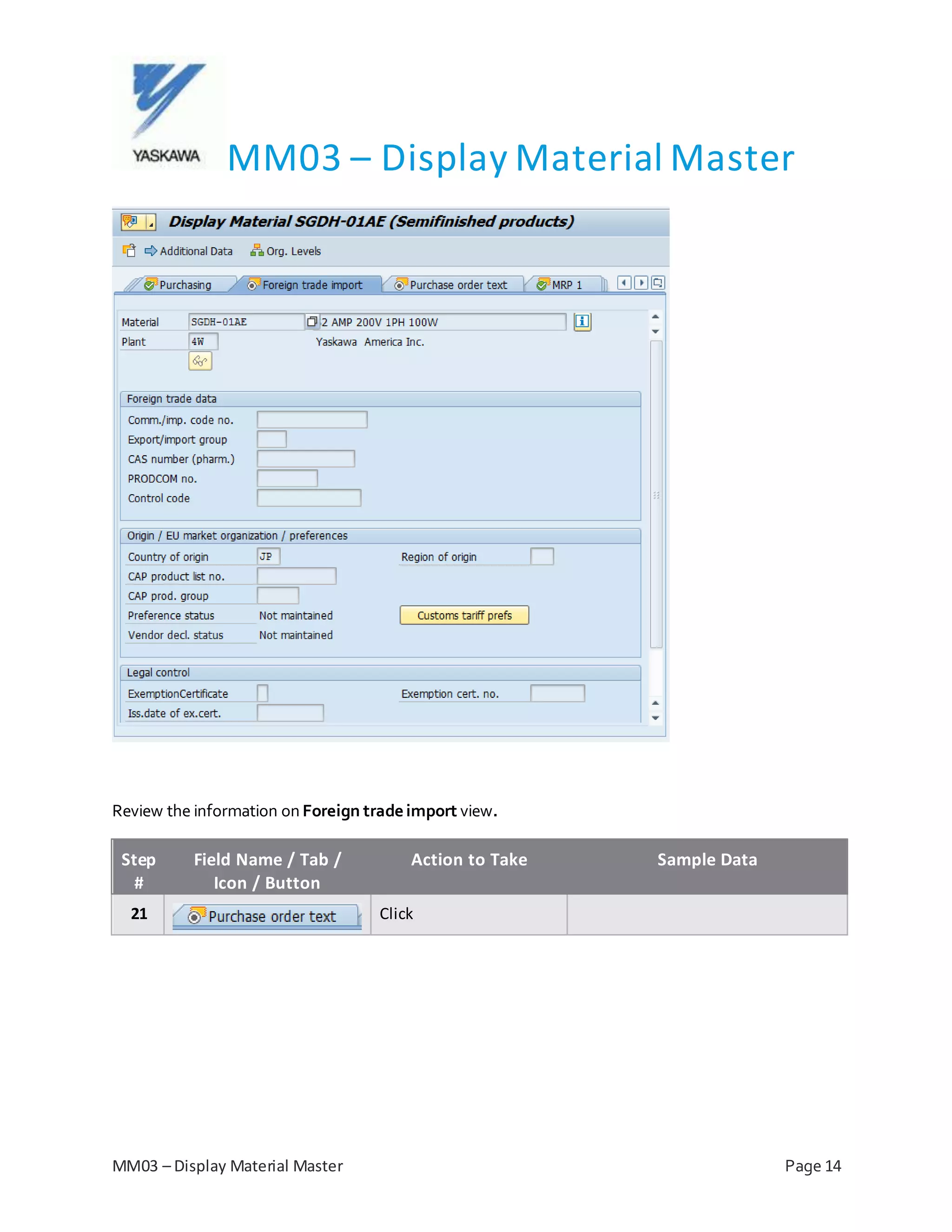
Review the information on Foreign trade import view.
Step
#
Field Name / Tab /
Icon / Button
Action to Take Sample Data
21 Click
MM03 – Display Material Master
MM03 – Display Material Master Page 15
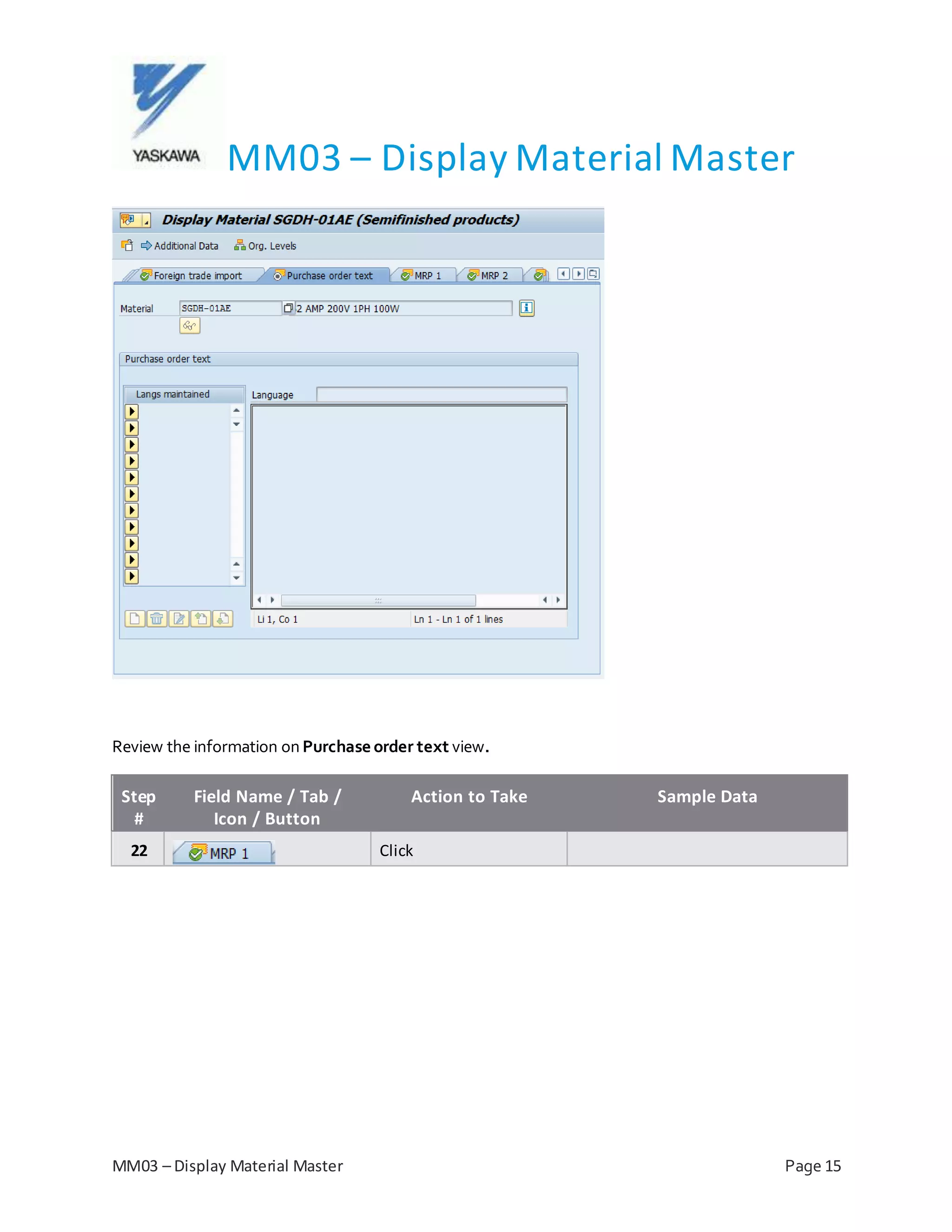
Review the information on Purchase order text view.
Step
#
Field Name / Tab /
Icon / Button
Action to Take Sample Data
22 Click
MM03 – Display Material Master
MM03 – Display Material Master Page 16
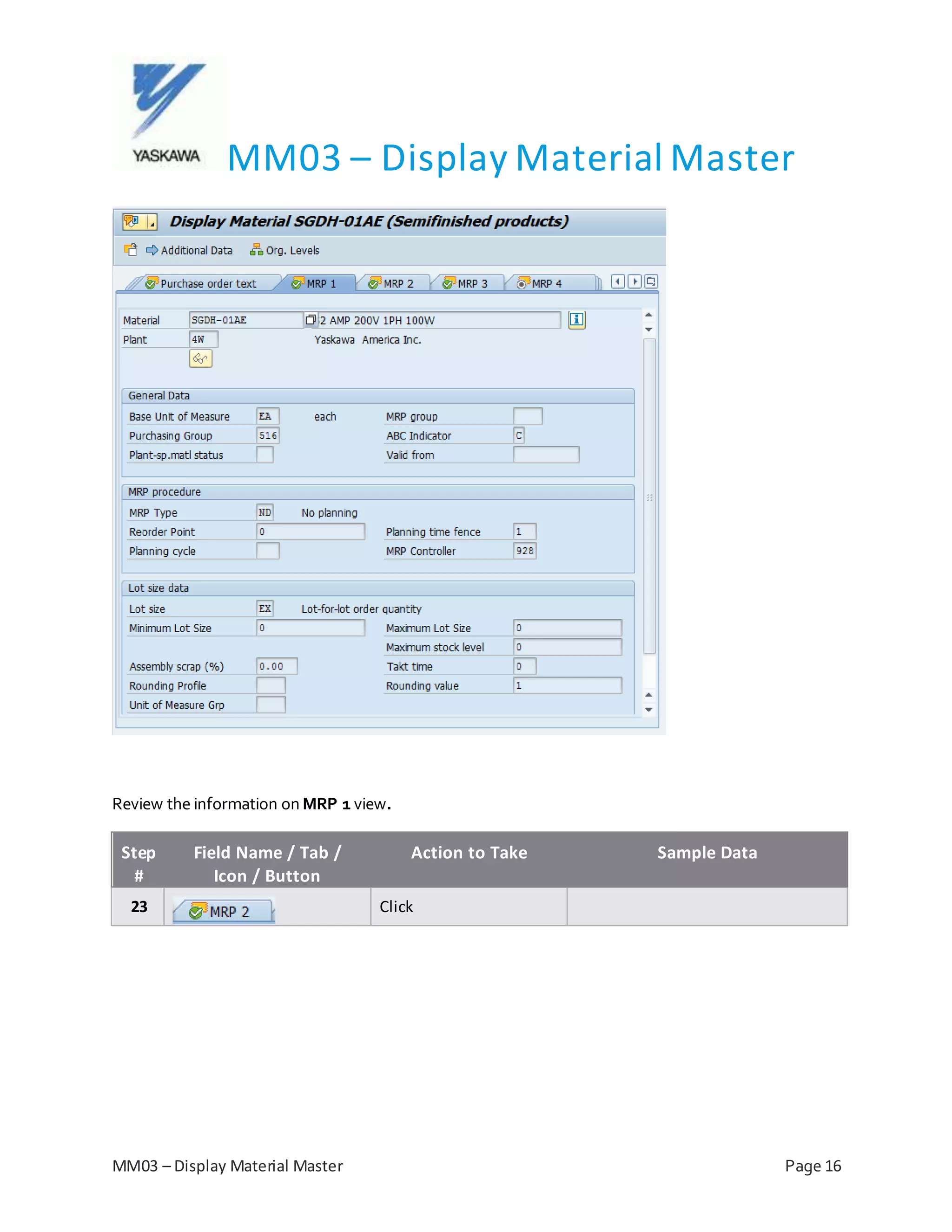
Review the information on MRP 1 view.
Step
#
Field Name / Tab /
Icon / Button
Action to Take Sample Data
23 Click
MM03 – Display Material Master
MM03 – Display Material Master Page 17
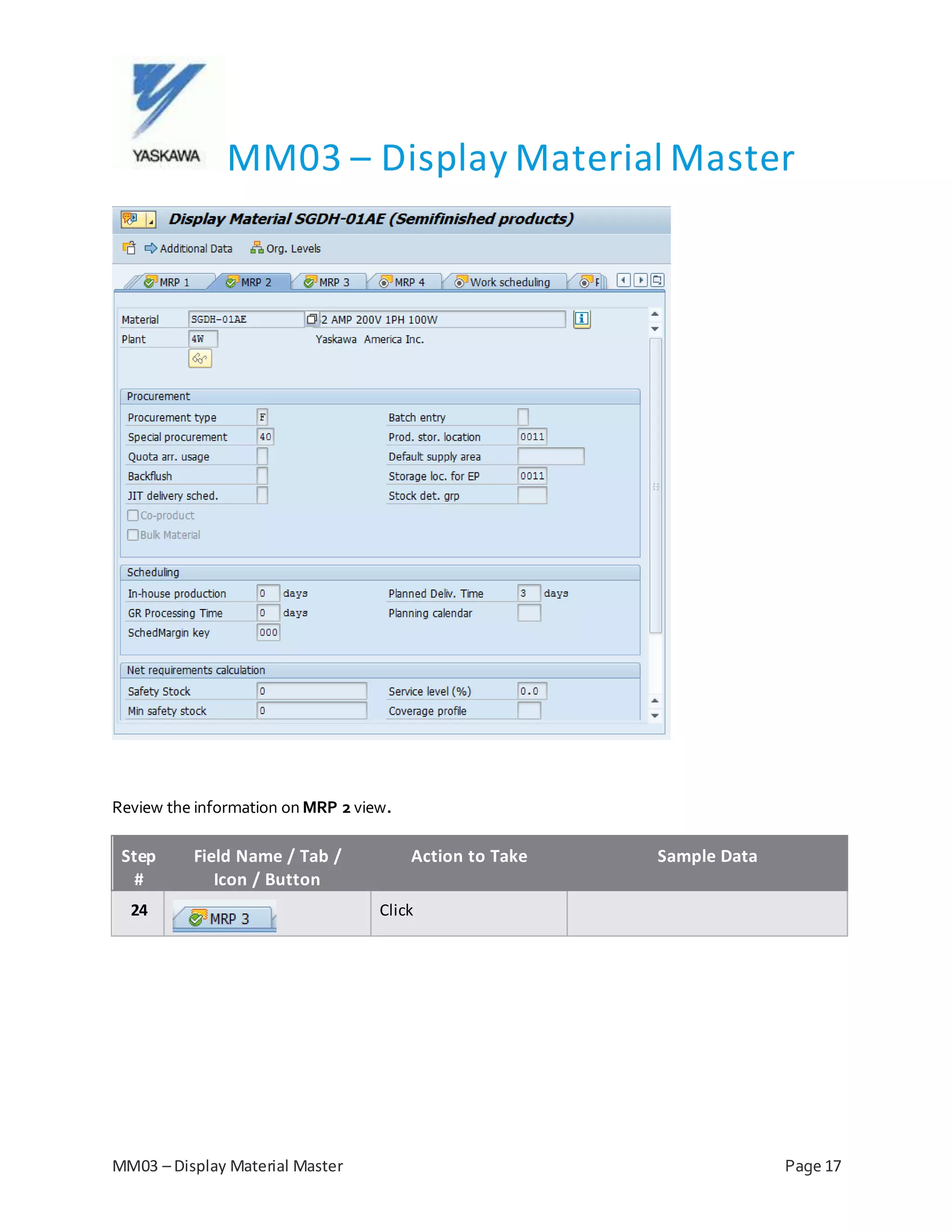
Review the information on MRP 2 view.
Step
#
Field Name / Tab /
Icon / Button
Action to Take Sample Data
24 Click
MM03 – Display Material Master
MM03 – Display Material Master Page 18
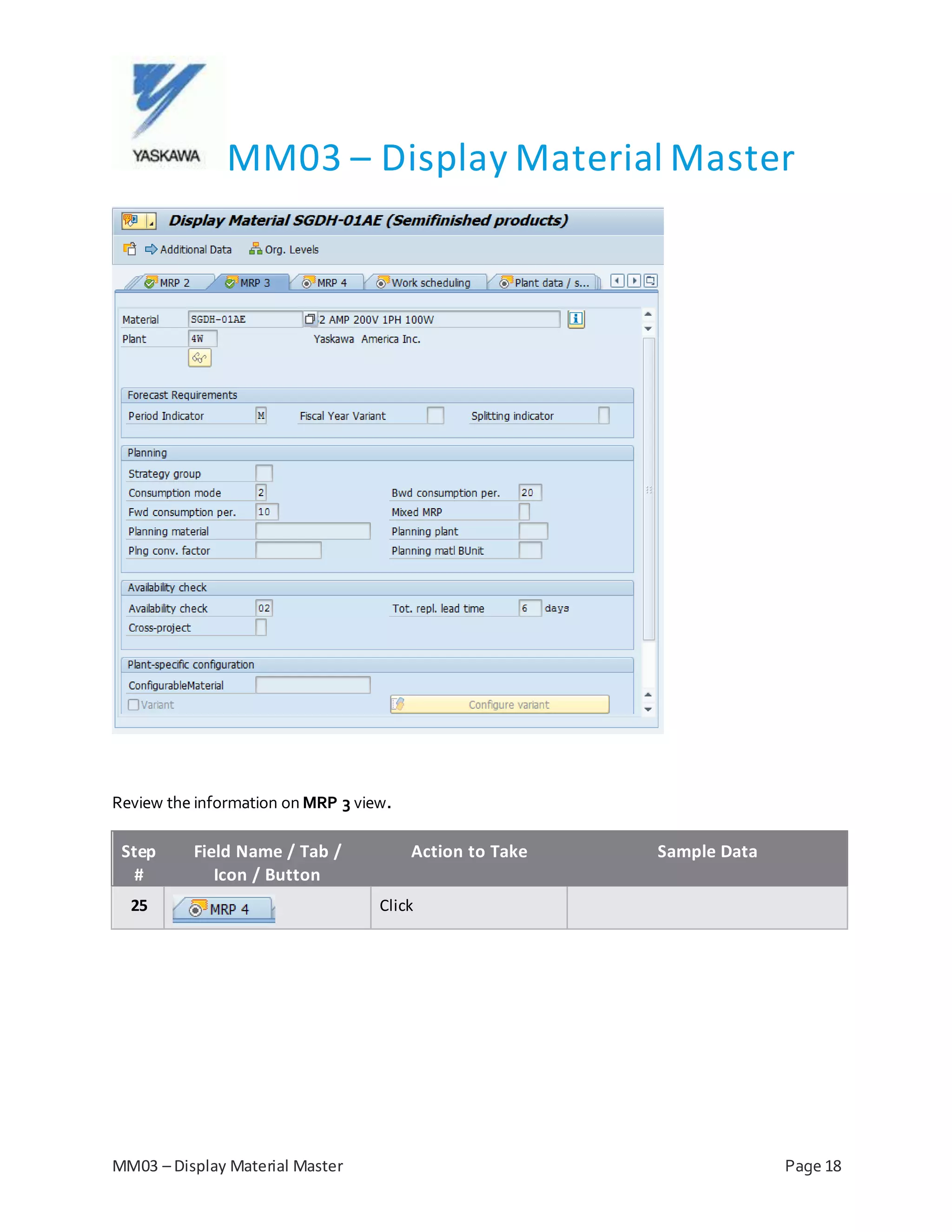
Review the information on MRP 3 view.
Step
#
Field Name / Tab /
Icon / Button
Action to Take Sample Data
25 Click
MM03 – Display Material Master
MM03 – Display Material Master Page 19
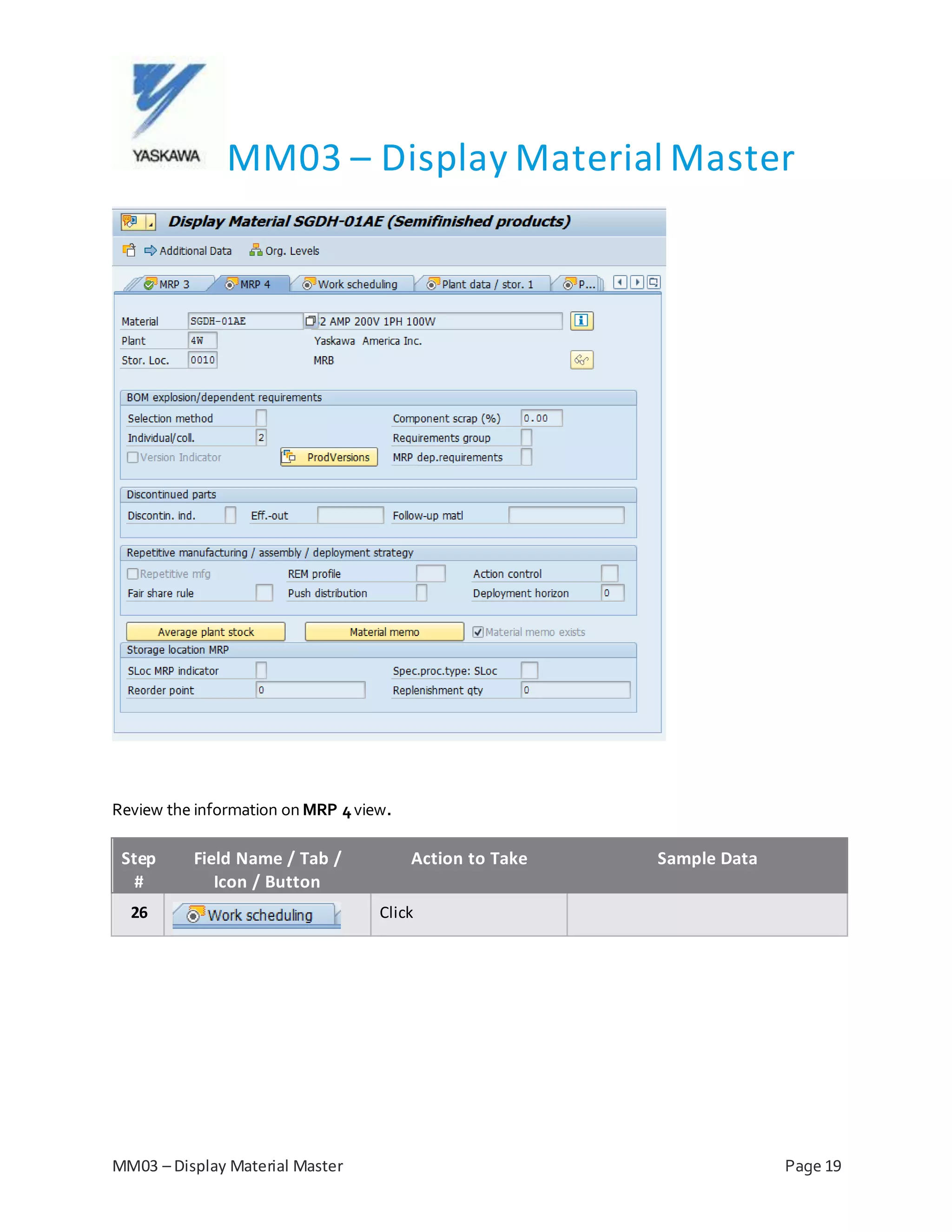
Review the information on MRP 4view.
Step
#
Field Name / Tab /
Icon / Button
Action to Take Sample Data
26 Click
MM03 – Display Material Master
MM03 – Display Material Master Page 20
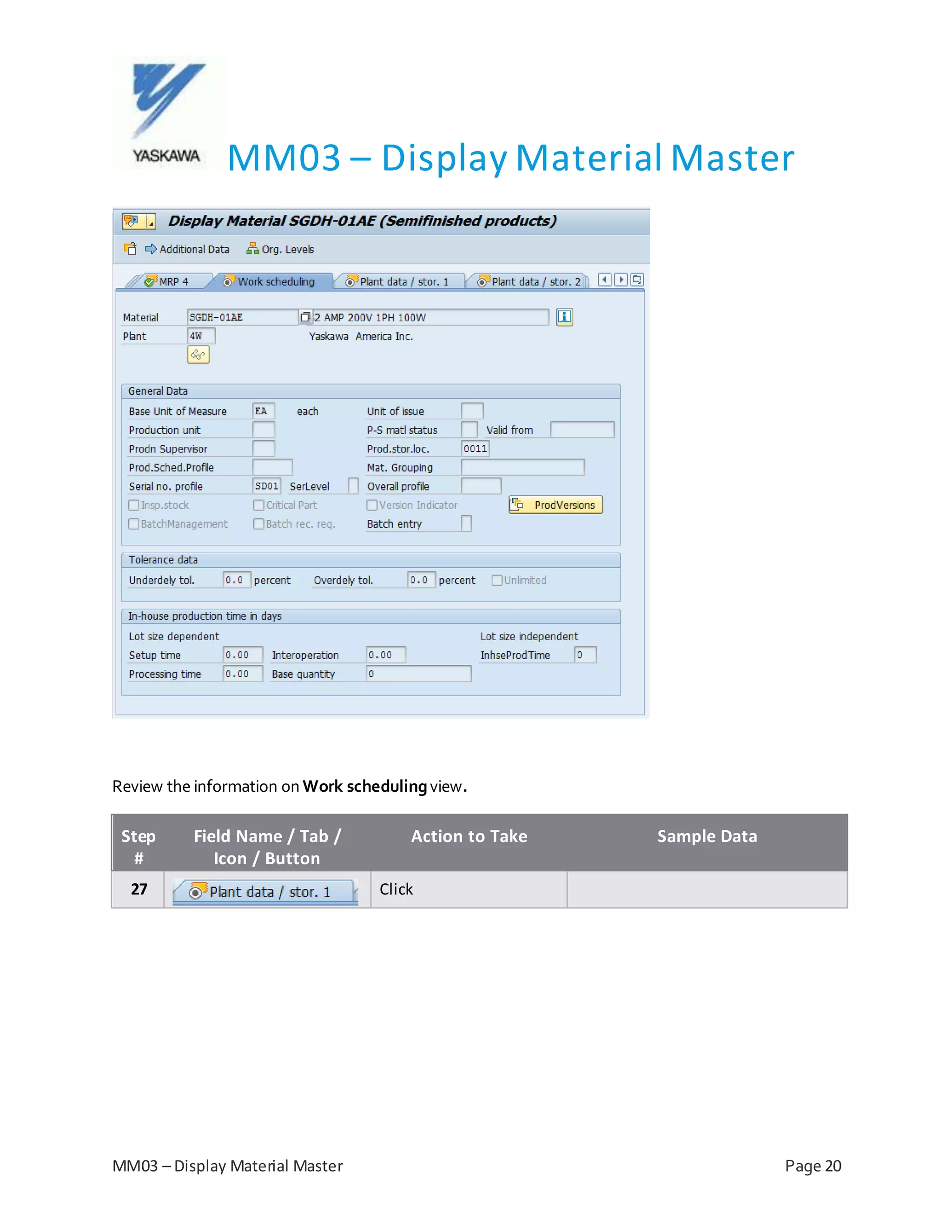
Review the information on Work schedulingview.
Step
#
Field Name / Tab /
Icon / Button
Action to Take Sample Data
27 Click
MM03 – Display Material Master
MM03 – Display Material Master Page 21
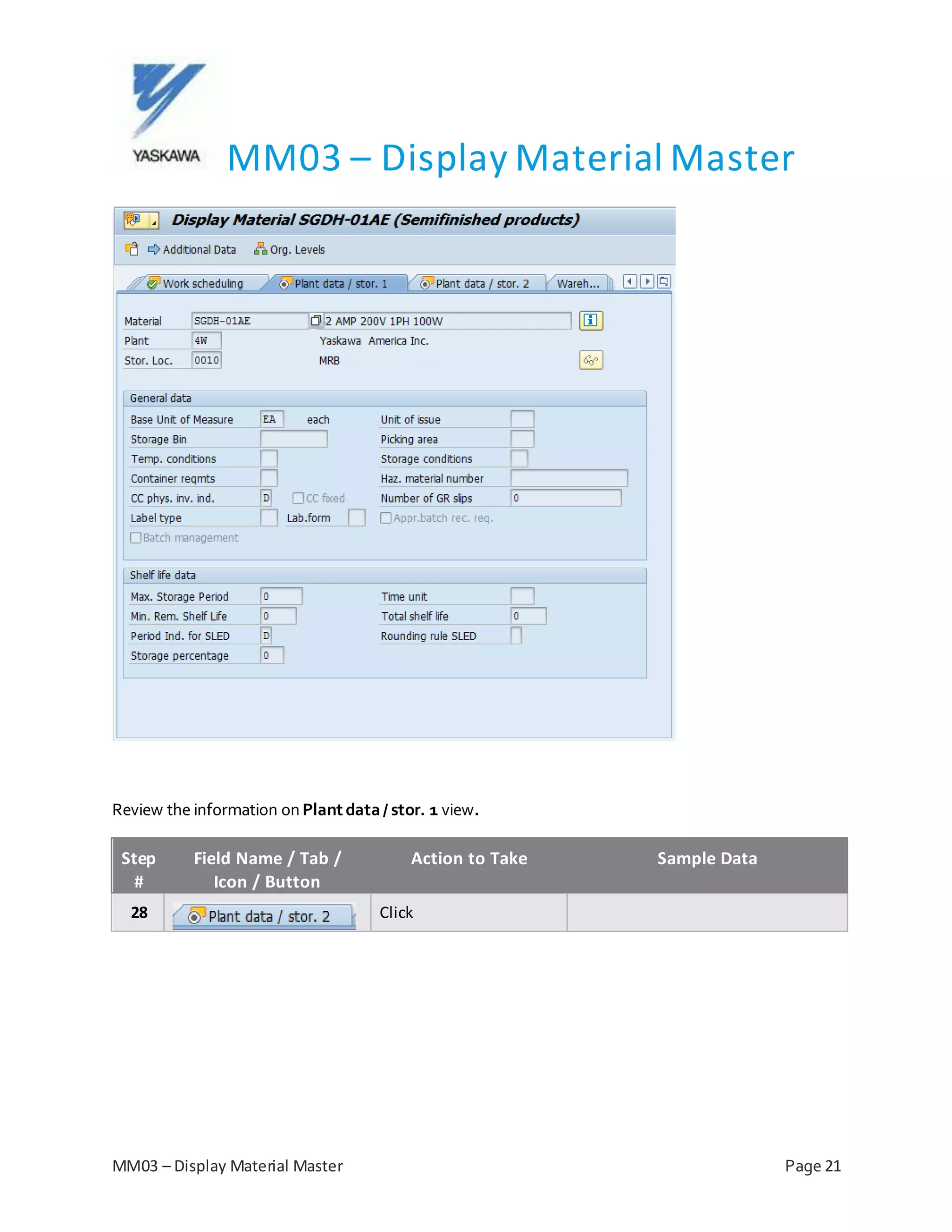
Review the information on Plant data/ stor. 1 view.
Step
#
Field Name / Tab /
Icon / Button
Action to Take Sample Data
28 Click
MM03 – Display Material Master
MM03 – Display Material Master Page 22
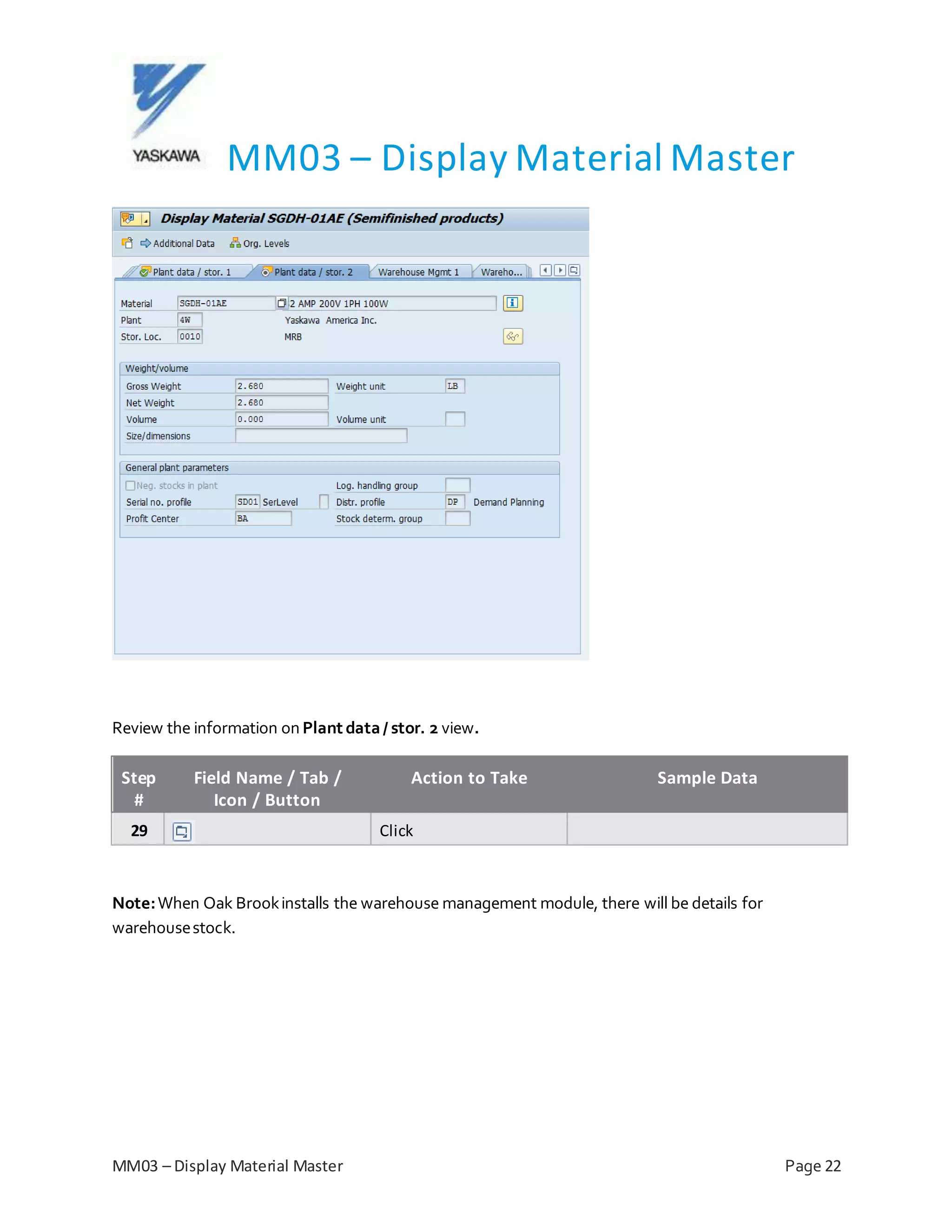
Review the information on Plant data/ stor. 2 view.
Step
#
Field Name / Tab /
Icon / Button
Action to Take Sample Data
29 Click
Note:When Oak Brookinstalls the warehouse management module, there will be details for
warehousestock.
MM03 – Display Material Master
MM03 – Display Material Master Page 23
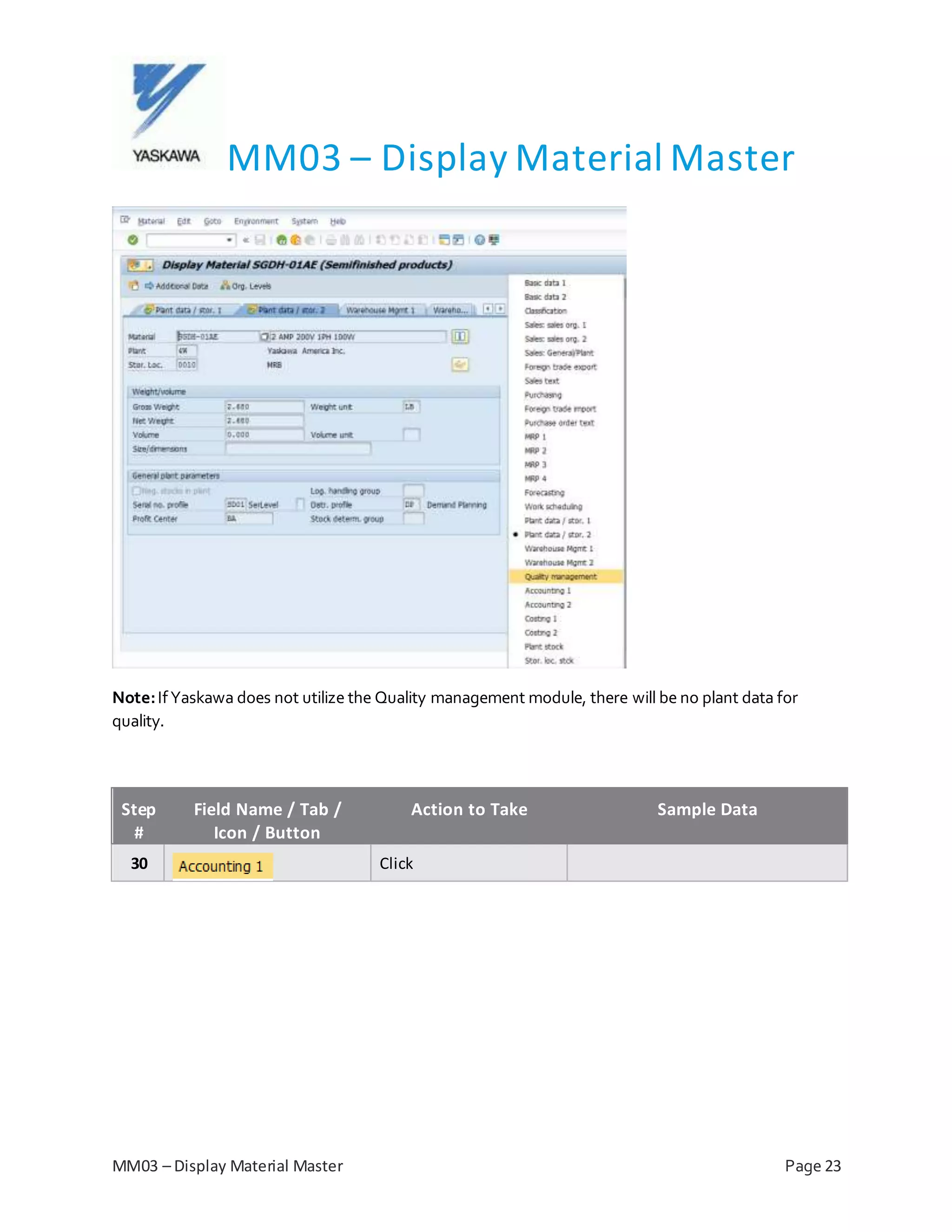
Note:IfYaskawa does not utilize the Quality management module, there will be no plant data for
quality.
Step
#
Field Name / Tab /
Icon / Button
Action to Take Sample Data
30 Click
MM03 – Display Material Master
MM03 – Display Material Master Page 24
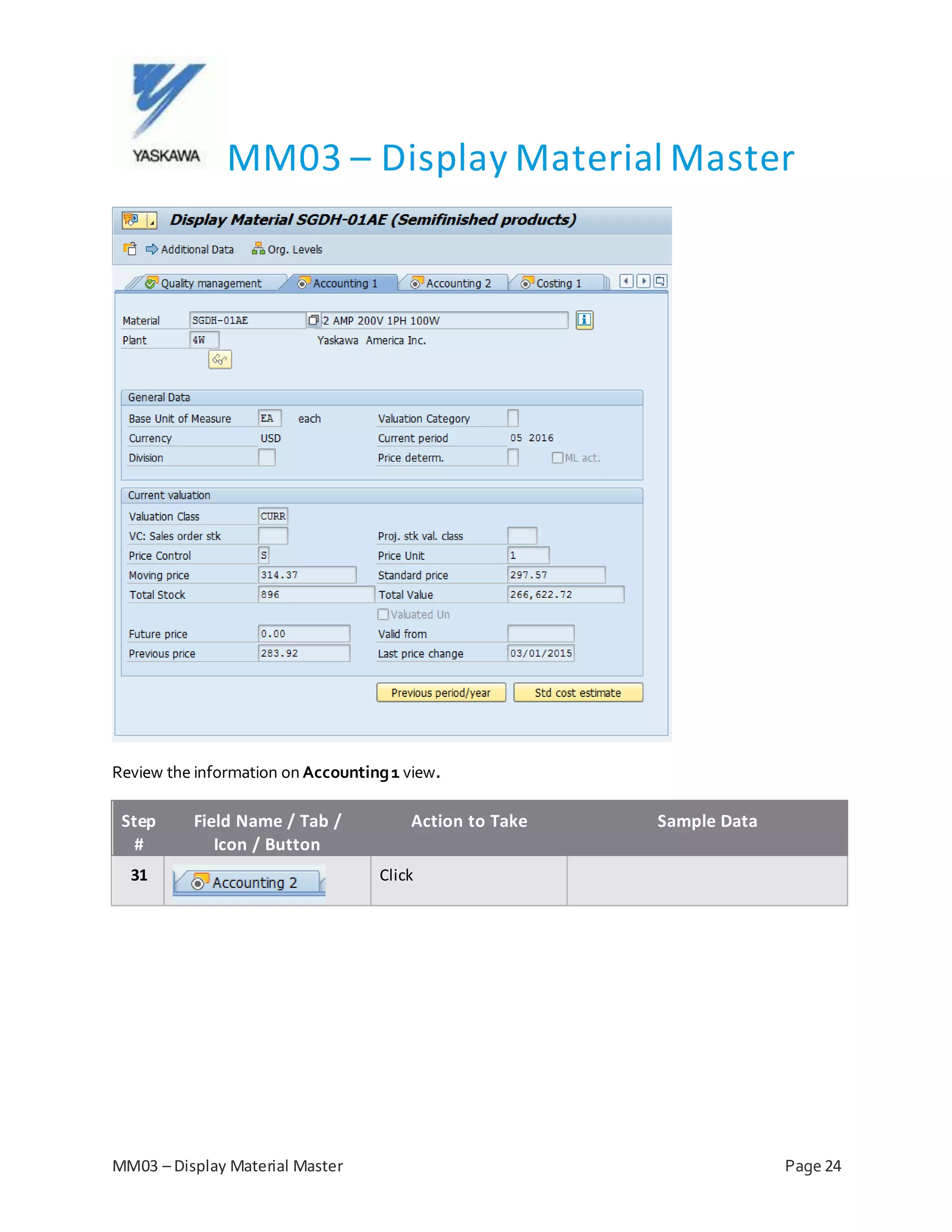
Review the information on Accounting1 view.
Step
#
Field Name / Tab /
Icon / Button
Action to Take Sample Data
31 Click
MM03 – Display Material Master
MM03 – Display Material Master Page 25
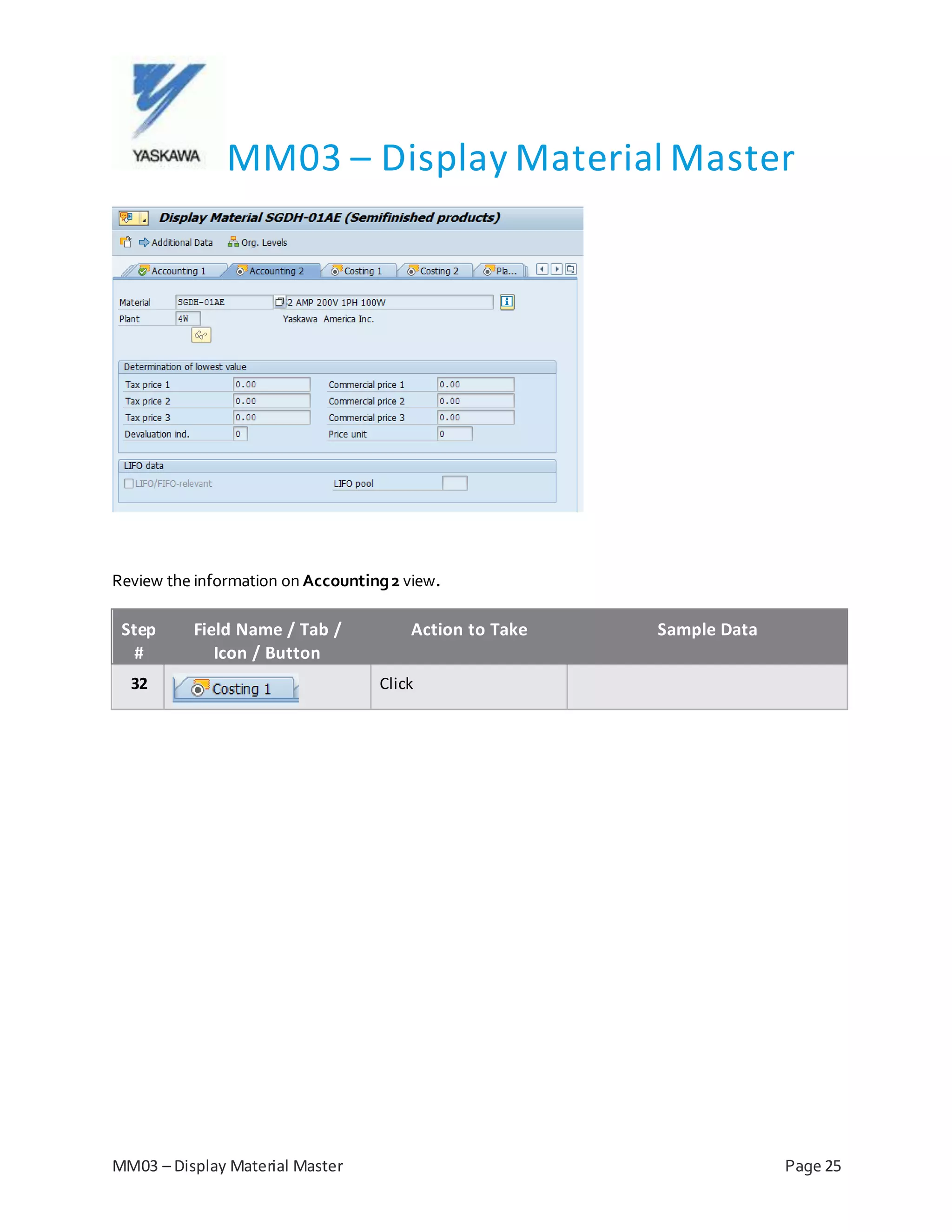
Review the information on Accounting2 view.
Step
#
Field Name / Tab /
Icon / Button
Action to Take Sample Data
32 Click
MM03 – Display Material Master
MM03 – Display Material Master Page 26
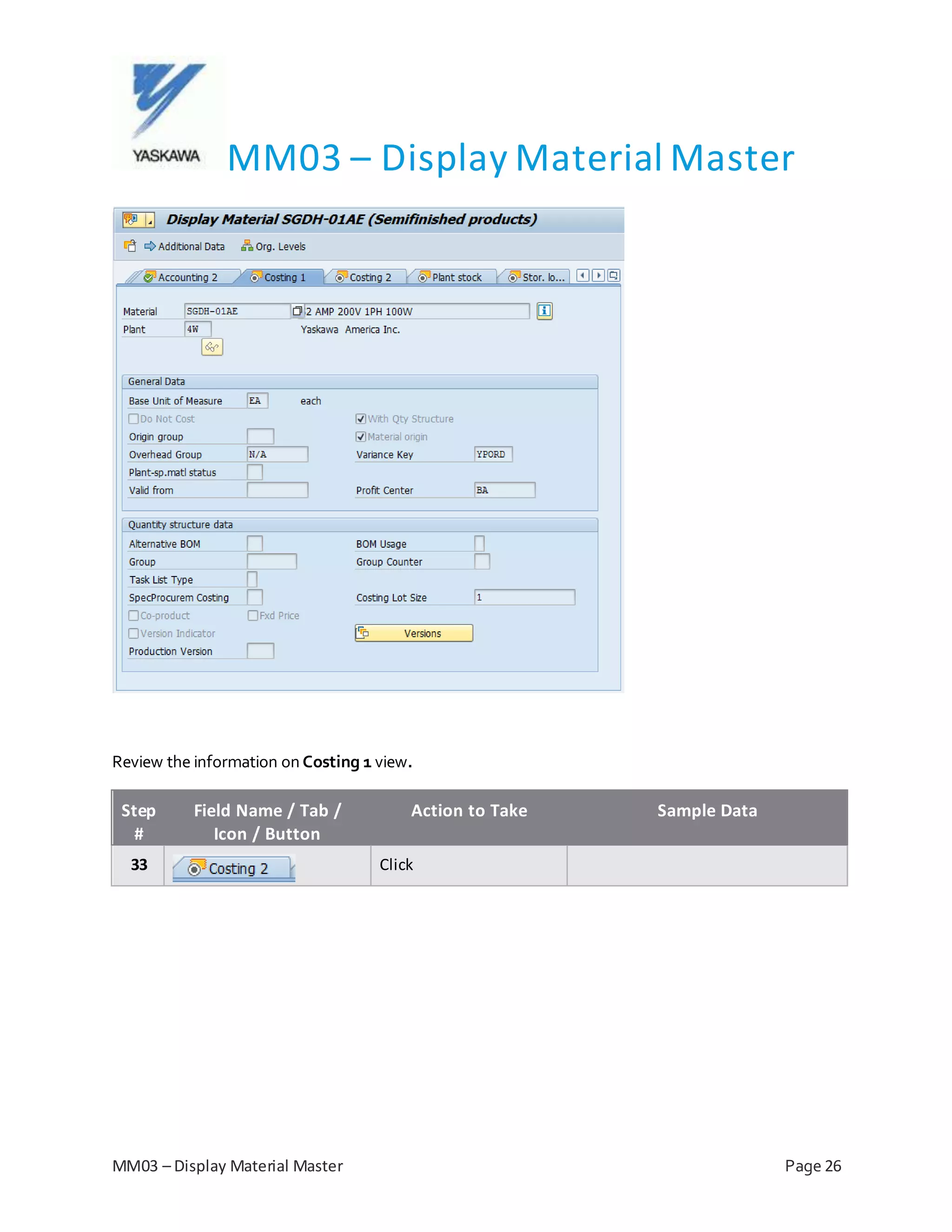
Review the information on Costing 1 view.
Step
#
Field Name / Tab /
Icon / Button
Action to Take Sample Data
33 Click
MM03 – Display Material Master
MM03 – Display Material Master Page 27
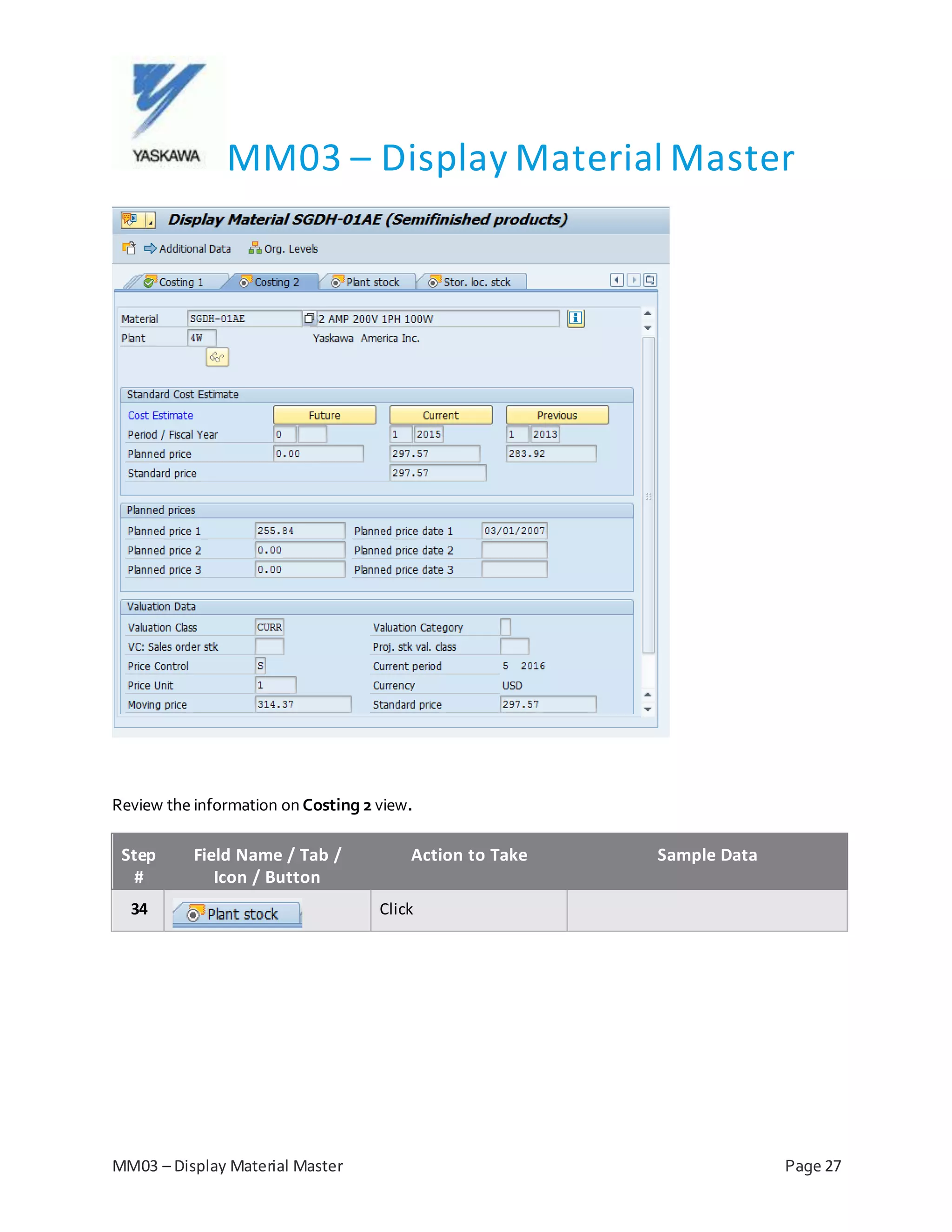
Review the information on Costing 2 view.
Step
#
Field Name / Tab /
Icon / Button
Action to Take Sample Data
34 Click
MM03 – Display Material Master
MM03 – Display Material Master Page 28
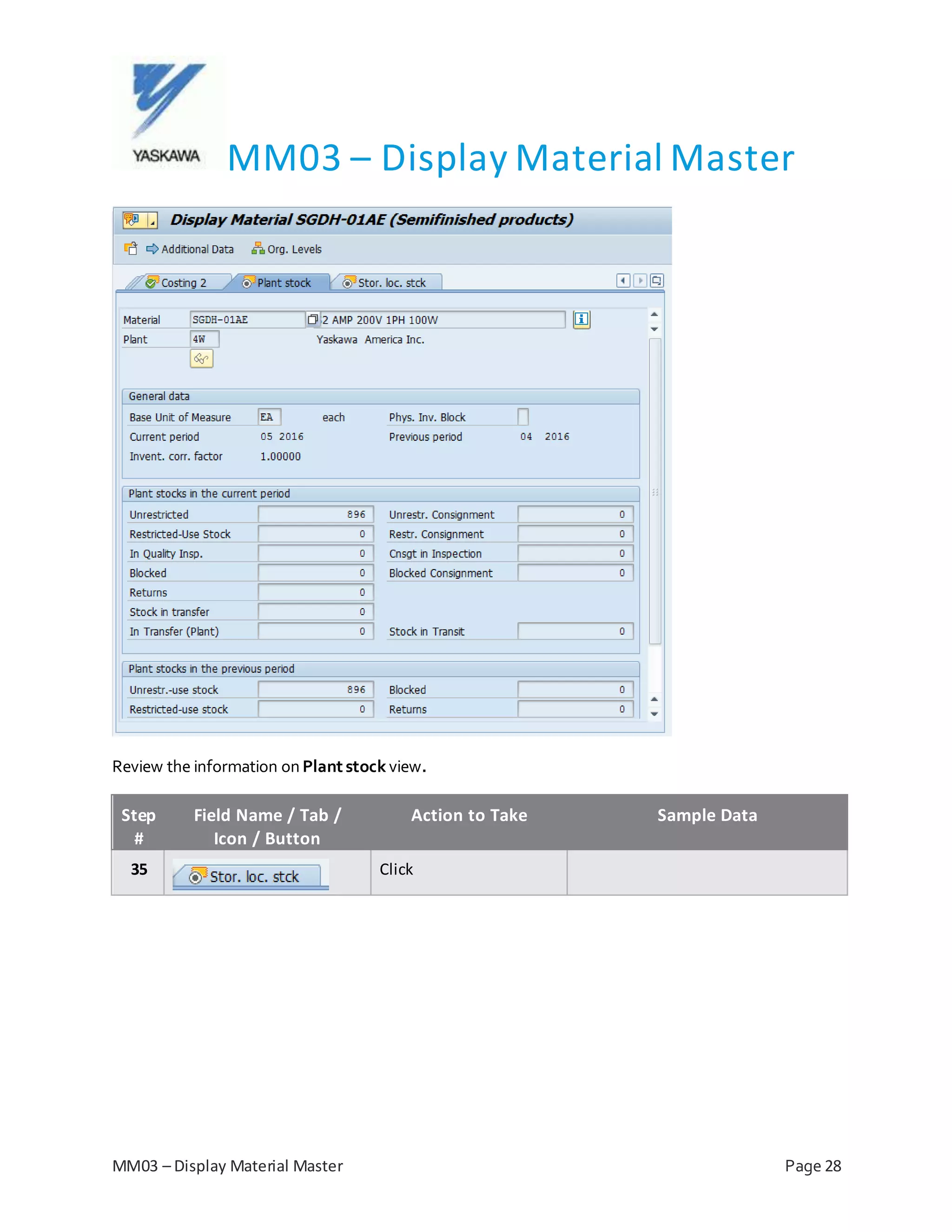
Review the information on Plant stock view.
Step
#
Field Name / Tab /
Icon / Button
Action to Take Sample Data
35 Click
MM03 – Display Material Master
MM03 – Display Material Master Page 29
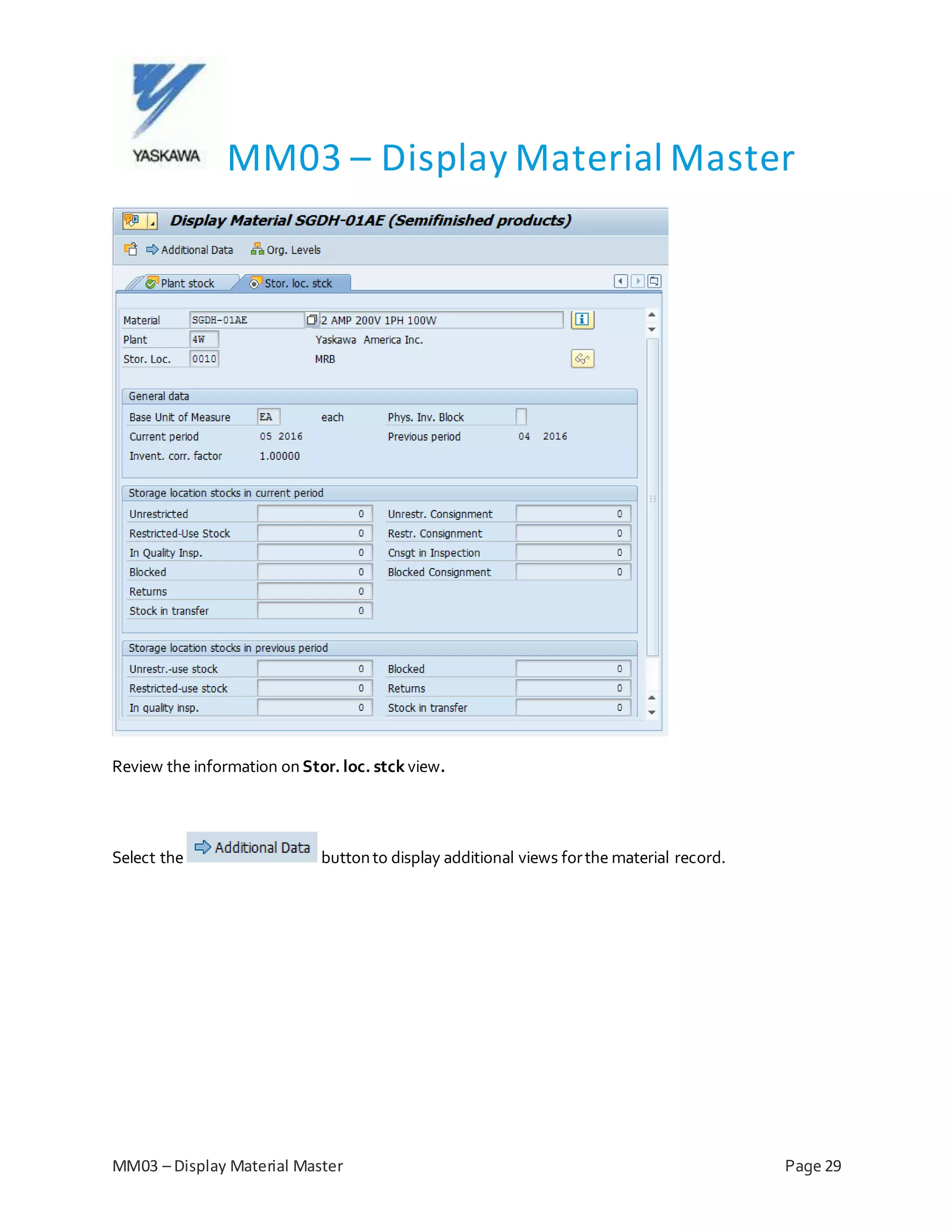
Review the information on Stor. loc. stck view.
Select the buttonto display additional views forthe material record.

EX_2.1-MM03 Display Material Master V1.0

  • 1.
    MM03 – DisplayMaterial Master MM03 – Display Material Master Page 1 PURPOSE AND INITIAL SCREEN Performthis procedurewhenyou need to review material information. The Material Master record containsinformation for a variety of functionalareas, such as:  Accounting  MRP  Purchasing  Quality Control  Plant stock  Warehouse Step # Field Name / Tab / Icon / Button Action to Take Sample Data 1 Material Enter the material. SGDH-01AE 2 Click
  • 2.
    MM03 – DisplayMaterial Master MM03 – Display Material Master Page 2 Select the views youwantto display forthe material. Forthis example, wewill use the iconto select all views. Time-savertip: TheDefault Setting option allow youto save the currentview selections -- so that eachtime you openMM03,the system automatically selects these same views. Step # Field Name / Tab / Icon / Button Action to Take Sample Data 3 Click 4 Click
  • 3.
    MM03 – DisplayMaterial Master MM03 – Display Material Master Page 3 Use the matchcode iconto displayorganizational valuesavailableforthe material. Step # Field Name / Tab / Icon / Button Action to Take Sample Data 5 Plant Enter the plant. 4W 6 Stor. Location Enter the storage location. 0010 7 Sales Org. Enter the sales organization. 0010 8 Distr. Channel The distributionchannel defaultsbasedonthe salesorganization. 10 9 Click
  • 4.
    MM03 – DisplayMaterial Master MM03 – Display Material Master Page 4 Review the information on Basic data1 view. Click toaccess trackinginformation forthis material record. Step # Field Name / Tab / Icon / Button Action to Take Sample Data 10 Click Information on material icon
  • 5.
    MM03 – DisplayMaterial Master MM03 – Display Material Master Page 5 Use scrollbarsto viewadditional details. SAP automatically trackschangesto master data in many records,suchas the Material Master. Step # Field Name / Tab / Icon / Button Action to Take Sample Data 11 Click 12 Click
  • 6.
    MM03 – DisplayMaterial Master MM03 – Display Material Master Page 6 Review the information on Basic data2 view. Step # Field Name / Tab / Icon / Button Action to Take Sample Data 13 Click
  • 7.
    MM03 – DisplayMaterial Master MM03 – Display Material Master Page 7 Select the Material class option todisplay characteristicsfor the material. Review the information on Classificationview.
  • 8.
    MM03 – DisplayMaterial Master MM03 – Display Material Master Page 8 Step # Field Name / Tab / Icon / Button Action to Take Sample Data 14 Click Note:Ifyou usethe backicon toreturn to the previousview, youwill be taken outofthe material display. Review the information on Sales:salesorg. 1 view.
  • 9.
    MM03 – DisplayMaterial Master MM03 – Display Material Master Page 9 Step # Field Name / Tab / Icon / Button Action to Take Sample Data 15 Click Review the information on Sales:salesorg. 2 view. Step # Field Name / Tab / Icon / Button Action to Take Sample Data 16 Click
  • 10.
    MM03 – DisplayMaterial Master MM03 – Display Material Master Page 10 Review the information on Sales:General/Plant view. Step # Field Name / Tab / Icon / Button Action to Take Sample Data 17 Click
  • 11.
    MM03 – DisplayMaterial Master MM03 – Display Material Master Page 11 Review the information on Foreign trade export view. Step # Field Name / Tab / Icon / Button Action to Take Sample Data 18 Click
  • 12.
    MM03 – DisplayMaterial Master MM03 – Display Material Master Page 12 Review the information on Salestext view. Step # Field Name / Tab / Icon / Button Action to Take Sample Data 19 Click
  • 13.
    MM03 – DisplayMaterial Master MM03 – Display Material Master Page 13 Review the information on Purchasing view. Step # Field Name / Tab / Icon / Button Action to Take Sample Data 20 Click
  • 14.
    MM03 – DisplayMaterial Master MM03 – Display Material Master Page 14 Review the information on Foreign trade import view. Step # Field Name / Tab / Icon / Button Action to Take Sample Data 21 Click
  • 15.
    MM03 – DisplayMaterial Master MM03 – Display Material Master Page 15 Review the information on Purchase order text view. Step # Field Name / Tab / Icon / Button Action to Take Sample Data 22 Click
  • 16.
    MM03 – DisplayMaterial Master MM03 – Display Material Master Page 16 Review the information on MRP 1 view. Step # Field Name / Tab / Icon / Button Action to Take Sample Data 23 Click
  • 17.
    MM03 – DisplayMaterial Master MM03 – Display Material Master Page 17 Review the information on MRP 2 view. Step # Field Name / Tab / Icon / Button Action to Take Sample Data 24 Click
  • 18.
    MM03 – DisplayMaterial Master MM03 – Display Material Master Page 18 Review the information on MRP 3 view. Step # Field Name / Tab / Icon / Button Action to Take Sample Data 25 Click
  • 19.
    MM03 – DisplayMaterial Master MM03 – Display Material Master Page 19 Review the information on MRP 4view. Step # Field Name / Tab / Icon / Button Action to Take Sample Data 26 Click
  • 20.
    MM03 – DisplayMaterial Master MM03 – Display Material Master Page 20 Review the information on Work schedulingview. Step # Field Name / Tab / Icon / Button Action to Take Sample Data 27 Click
  • 21.
    MM03 – DisplayMaterial Master MM03 – Display Material Master Page 21 Review the information on Plant data/ stor. 1 view. Step # Field Name / Tab / Icon / Button Action to Take Sample Data 28 Click
  • 22.
    MM03 – DisplayMaterial Master MM03 – Display Material Master Page 22 Review the information on Plant data/ stor. 2 view. Step # Field Name / Tab / Icon / Button Action to Take Sample Data 29 Click Note:When Oak Brookinstalls the warehouse management module, there will be details for warehousestock.
  • 23.
    MM03 – DisplayMaterial Master MM03 – Display Material Master Page 23 Note:IfYaskawa does not utilize the Quality management module, there will be no plant data for quality. Step # Field Name / Tab / Icon / Button Action to Take Sample Data 30 Click
  • 24.
    MM03 – DisplayMaterial Master MM03 – Display Material Master Page 24 Review the information on Accounting1 view. Step # Field Name / Tab / Icon / Button Action to Take Sample Data 31 Click
  • 25.
    MM03 – DisplayMaterial Master MM03 – Display Material Master Page 25 Review the information on Accounting2 view. Step # Field Name / Tab / Icon / Button Action to Take Sample Data 32 Click
  • 26.
    MM03 – DisplayMaterial Master MM03 – Display Material Master Page 26 Review the information on Costing 1 view. Step # Field Name / Tab / Icon / Button Action to Take Sample Data 33 Click
  • 27.
    MM03 – DisplayMaterial Master MM03 – Display Material Master Page 27 Review the information on Costing 2 view. Step # Field Name / Tab / Icon / Button Action to Take Sample Data 34 Click
  • 28.
    MM03 – DisplayMaterial Master MM03 – Display Material Master Page 28 Review the information on Plant stock view. Step # Field Name / Tab / Icon / Button Action to Take Sample Data 35 Click
  • 29.
    MM03 – DisplayMaterial Master MM03 – Display Material Master Page 29 Review the information on Stor. loc. stck view. Select the buttonto display additional views forthe material record.