
5 Free Ways to Bulletproof Your
           WordPress Site
●   What Does Bulletproof Mean to Me?
    ●   Usable
    ●   Accessible
    ●   Secure
    ●   Provides a satisfying user experience
        –   For Your Users
        –   For You
5 Free Ways to Bulletproof Your
        WordPress Site

1. Backup and Maintain
2. Beef Up Security
3. Speed it Up
4. Use the Firefox Web Dev Toolbar
5. Improve Search for Usability
#1 - Backup & Maintain

●   Backup Regularly
    ●   Backup themes, plugins & databases
●   Know your Host's backup policies and tools
●   Use plugins to make database backup easy
    ●   WP DB Manager
        –   http://wordpress.org/extend/plugins/wp-dbmanager/
    ●   WP DB Backup
        –   http://wordpress.org/extend/plugins/wp-db-backup/
#1 Backup & Maintain


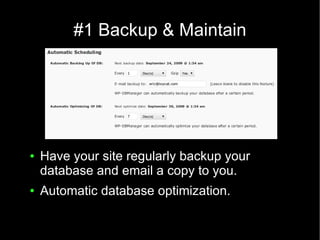
●   Have your site regularly backup your
    database and email a copy to you.
●   Automatic database optimization.
#2 - Beef Up Security

●   A Stitch in Time . . . to save your behind
    ●   Use the secret key in your wp_config.php
    ●   Read ”Hardening WordPress”
        –   http://codex.wordpress.org/Hardening_WordPress
    ●   Use SSL for admin pages
        –   http://wordpress.org/extend/plugins/admin-ssl-secure-
            admin/
    ●   Use WP Security Scan to audit your site
        –   http://wordpress.org/extend/plugins/wp-security-scan/
#2 - Beef Up Security
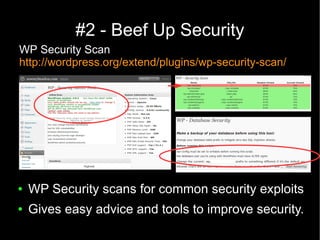
WP Security Scan
http://wordpress.org/extend/plugins/wp-security-scan/


●   WP Security scans for common security exploits
●   Gives easy advice and tools to improve security.
#3 – Speed it Up

●   Be Prepared for Traffic
    ●   Have a good hosting infrastructure
    ●   Tailor images and code for use on web
    ●   Reduce server requests
    ●   Offload media to other domains
    ●   Use plugins judiciously
    ●   Enable caching plugin like WP Super Cache
#3 – Speed it Up
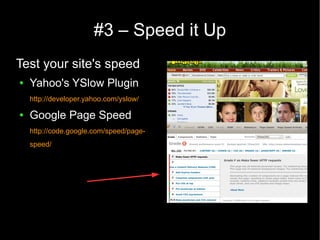
Test your site's speed
●   Yahoo's YSlow Plugin
    http://developer.yahoo.com/yslow/

●   Google Page Speed
    http://code.google.com/speed/page-
    speed/
#4 – Use Firefox Web Dev Toolbar


●   It's wonderful for:
    ●   Development – write CSS & HTML and see the
        effects in real time.
    ●   Troubleshooting – can't figure out why things
        aren't working?
    ●   Testing – test for common usability and
        accessibility concerns.
#4 – Firefox Web Developer Toolbar
                     Development
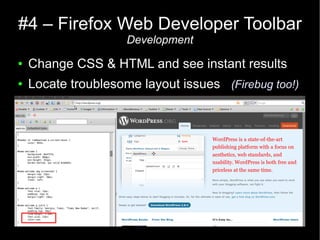
●   Change CSS & HTML and see instant results
●   Locate troublesome layout issues (Firebug too!)
#4 – Firefox Web Developer Toolbar
                    Troubleshoot & Test
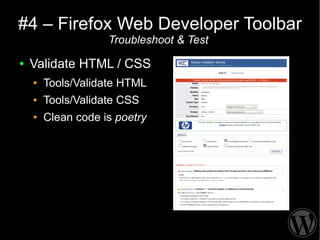
●   Validate HTML / CSS
    ●   Tools/Validate HTML
    ●   Tools/Validate CSS
    ●   Clean code is poetry
#4 – Firefox Web Developer Toolbar
              Testing
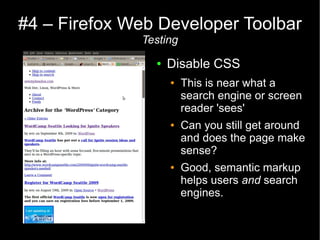
                ●   Disable CSS
                    ●   This is near what a
                        search engine or screen
                        reader 'sees'
                    ●   Can you still get around
                        and does the page make
                        sense?
                    ●   Good, semantic markup
                        helps users and search
                        engines.
#4 – Firefox Web Developer Toolbar
                            Testing
●   Disable Images
    ●   Can you still navigate and make sense of site?
    ●   Is your branding visible?
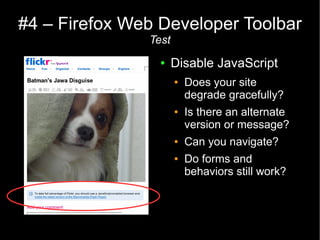
#4 – Firefox Web Developer Toolbar
               Test
                 ●    Disable JavaScript
                      ●   Does your site
                          degrade gracefully?
                      ●   Is there an alternate
                          version or message?
                      ●   Can you navigate?
                      ●   Do forms and
                          behaviors still work?
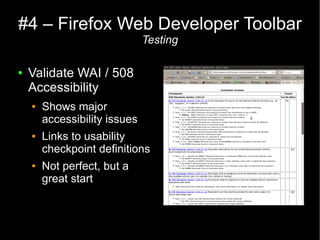
#4 – Firefox Web Developer Toolbar
                               Testing

●   Validate WAI / 508
    Accessibility
    ●   Shows major
        accessibility issues
    ●   Links to usability
        checkpoint definitions
    ●   Not perfect, but a
        great start
#5 - Improving Search

●   Better Search means Better Usability &
    Accessibility
●   As sites grow, search becomes more critical
●   WordPress Search was created for blogs
    ●   Search results are in reverse-chronological order
    ●   WordPress shows "default" excerpts, not most
        pertinent excerpt
    ●   Can't easily perform category or tag-specific
        searches
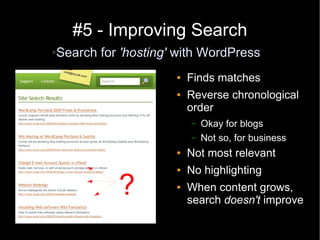
#5 - Improving Search
Search for 'hosting' with WordPress
●


                    ●   Finds matches
                    ●   Reverse chronological
                        order
                        –   Okay for blogs
                        –   Not so, for business
                    ●   Not most relevant
                    ●   No highlighting
          ?         ●   When content grows,
                        search doesn't improve
#5 - Improving Search
●   Relevanssi - A search plugin by Mikko Saari
    ●   http://wordpress.org/extend/plugins/relevanssi/
    ●   Results sorted by relevance
    ●   Include only posts, only pages or both
    ●   Index comments, tags and custom fields
    ●   Expand shortcodes before indexing
    ●   Highlighted search terms in results
    ●   Search term logging
    ●   Limit results to certain categories or tags.
#5 - Improving Search
         ●Search for 'hosting' with Relevanssi


●   Highlighted search terms
●   More relevant results
    presented first
●   Pass category / tag ID(s)
    to focus search
●   As content grows, search
    gets better
The Wrap

 Eric Amundson
  ●   Personal Blog
      ●   sewmyheadon.com
      ●   @sewmyheadon
  ●   Business Site
      ●   www.ivycat.com
      ●   @ivycatweb

Holler at me if you have any questions!

5 Free Ways to Bulletproof Your WordPress Site WordCamp Seattle 2009 Ignite Presentation

  • 1.
    5 Free Waysto Bulletproof Your WordPress Site ● What Does Bulletproof Mean to Me? ● Usable ● Accessible ● Secure ● Provides a satisfying user experience – For Your Users – For You
  • 2.
    5 Free Waysto Bulletproof Your WordPress Site 1. Backup and Maintain 2. Beef Up Security 3. Speed it Up 4. Use the Firefox Web Dev Toolbar 5. Improve Search for Usability
  • 3.
    #1 - Backup& Maintain ● Backup Regularly ● Backup themes, plugins & databases ● Know your Host's backup policies and tools ● Use plugins to make database backup easy ● WP DB Manager – http://wordpress.org/extend/plugins/wp-dbmanager/ ● WP DB Backup – http://wordpress.org/extend/plugins/wp-db-backup/
  • 4.
    #1 Backup &Maintain ● Have your site regularly backup your database and email a copy to you. ● Automatic database optimization.
  • 5.
    #2 - BeefUp Security ● A Stitch in Time . . . to save your behind ● Use the secret key in your wp_config.php ● Read ”Hardening WordPress” – http://codex.wordpress.org/Hardening_WordPress ● Use SSL for admin pages – http://wordpress.org/extend/plugins/admin-ssl-secure- admin/ ● Use WP Security Scan to audit your site – http://wordpress.org/extend/plugins/wp-security-scan/
  • 6.
    #2 - BeefUp Security WP Security Scan http://wordpress.org/extend/plugins/wp-security-scan/ ● WP Security scans for common security exploits ● Gives easy advice and tools to improve security.
  • 7.
    #3 – Speedit Up ● Be Prepared for Traffic ● Have a good hosting infrastructure ● Tailor images and code for use on web ● Reduce server requests ● Offload media to other domains ● Use plugins judiciously ● Enable caching plugin like WP Super Cache
  • 8.
    #3 – Speedit Up Test your site's speed ● Yahoo's YSlow Plugin http://developer.yahoo.com/yslow/ ● Google Page Speed http://code.google.com/speed/page- speed/
  • 9.
    #4 – UseFirefox Web Dev Toolbar ● It's wonderful for: ● Development – write CSS & HTML and see the effects in real time. ● Troubleshooting – can't figure out why things aren't working? ● Testing – test for common usability and accessibility concerns.
  • 10.
    #4 – FirefoxWeb Developer Toolbar Development ● Change CSS & HTML and see instant results ● Locate troublesome layout issues (Firebug too!)
  • 11.
    #4 – FirefoxWeb Developer Toolbar Troubleshoot & Test ● Validate HTML / CSS ● Tools/Validate HTML ● Tools/Validate CSS ● Clean code is poetry
  • 12.
    #4 – FirefoxWeb Developer Toolbar Testing ● Disable CSS ● This is near what a search engine or screen reader 'sees' ● Can you still get around and does the page make sense? ● Good, semantic markup helps users and search engines.
  • 13.
    #4 – FirefoxWeb Developer Toolbar Testing ● Disable Images ● Can you still navigate and make sense of site? ● Is your branding visible?
  • 14.
    #4 – FirefoxWeb Developer Toolbar Test ● Disable JavaScript ● Does your site degrade gracefully? ● Is there an alternate version or message? ● Can you navigate? ● Do forms and behaviors still work?
  • 15.
    #4 – FirefoxWeb Developer Toolbar Testing ● Validate WAI / 508 Accessibility ● Shows major accessibility issues ● Links to usability checkpoint definitions ● Not perfect, but a great start
  • 16.
    #5 - ImprovingSearch ● Better Search means Better Usability & Accessibility ● As sites grow, search becomes more critical ● WordPress Search was created for blogs ● Search results are in reverse-chronological order ● WordPress shows "default" excerpts, not most pertinent excerpt ● Can't easily perform category or tag-specific searches
  • 17.
    #5 - ImprovingSearch Search for 'hosting' with WordPress ● ● Finds matches ● Reverse chronological order – Okay for blogs – Not so, for business ● Not most relevant ● No highlighting ? ● When content grows, search doesn't improve
  • 18.
    #5 - ImprovingSearch ● Relevanssi - A search plugin by Mikko Saari ● http://wordpress.org/extend/plugins/relevanssi/ ● Results sorted by relevance ● Include only posts, only pages or both ● Index comments, tags and custom fields ● Expand shortcodes before indexing ● Highlighted search terms in results ● Search term logging ● Limit results to certain categories or tags.
  • 19.
    #5 - ImprovingSearch ●Search for 'hosting' with Relevanssi ● Highlighted search terms ● More relevant results presented first ● Pass category / tag ID(s) to focus search ● As content grows, search gets better
  • 20.
    The Wrap EricAmundson ● Personal Blog ● sewmyheadon.com ● @sewmyheadon ● Business Site ● www.ivycat.com ● @ivycatweb Holler at me if you have any questions!