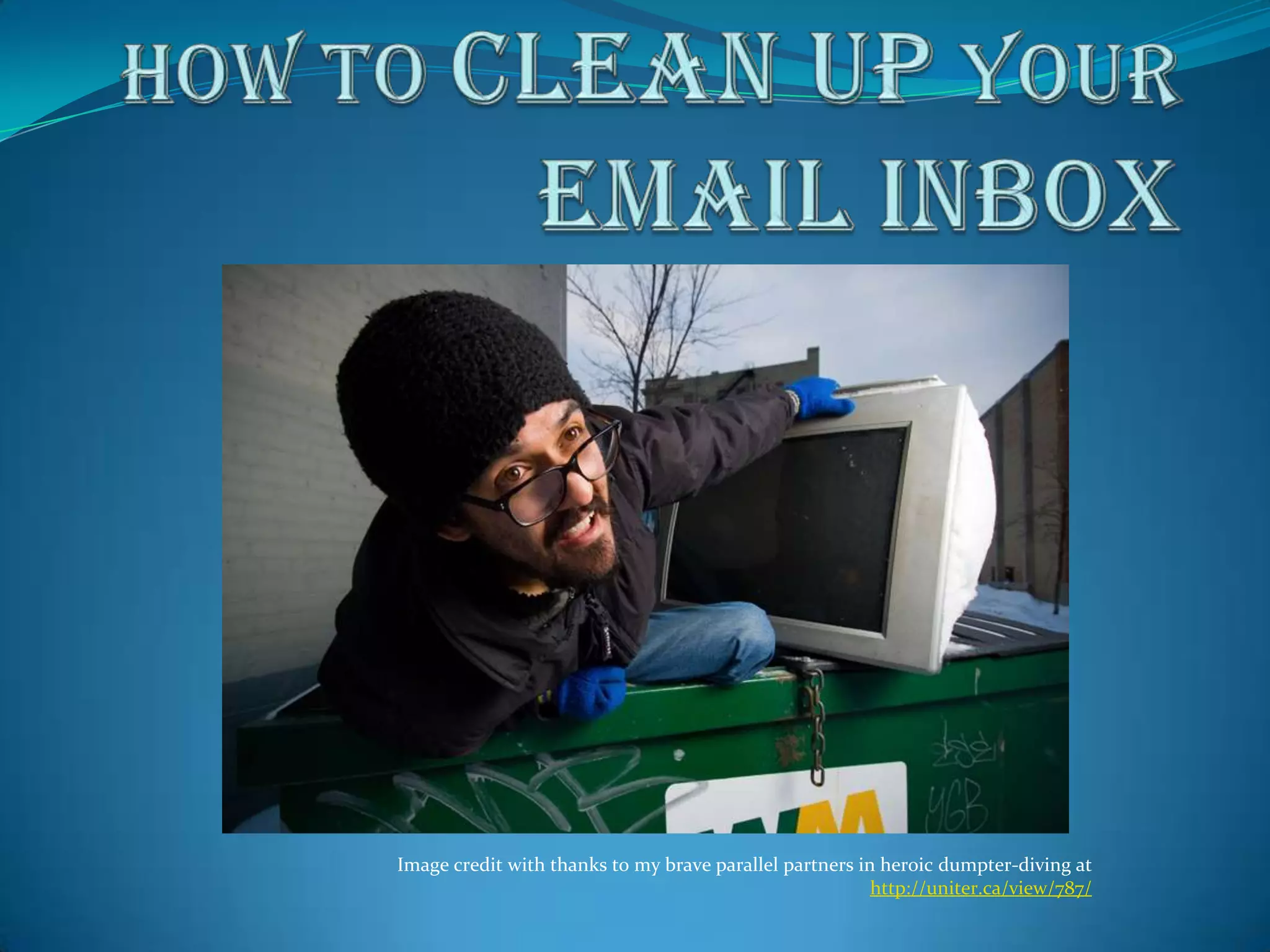
Image credit with thanks to my brave parallel partners in heroic dumpter-diving at
                                                         http://uniter.ca/view/787/
Find backlogs you’ll never get to
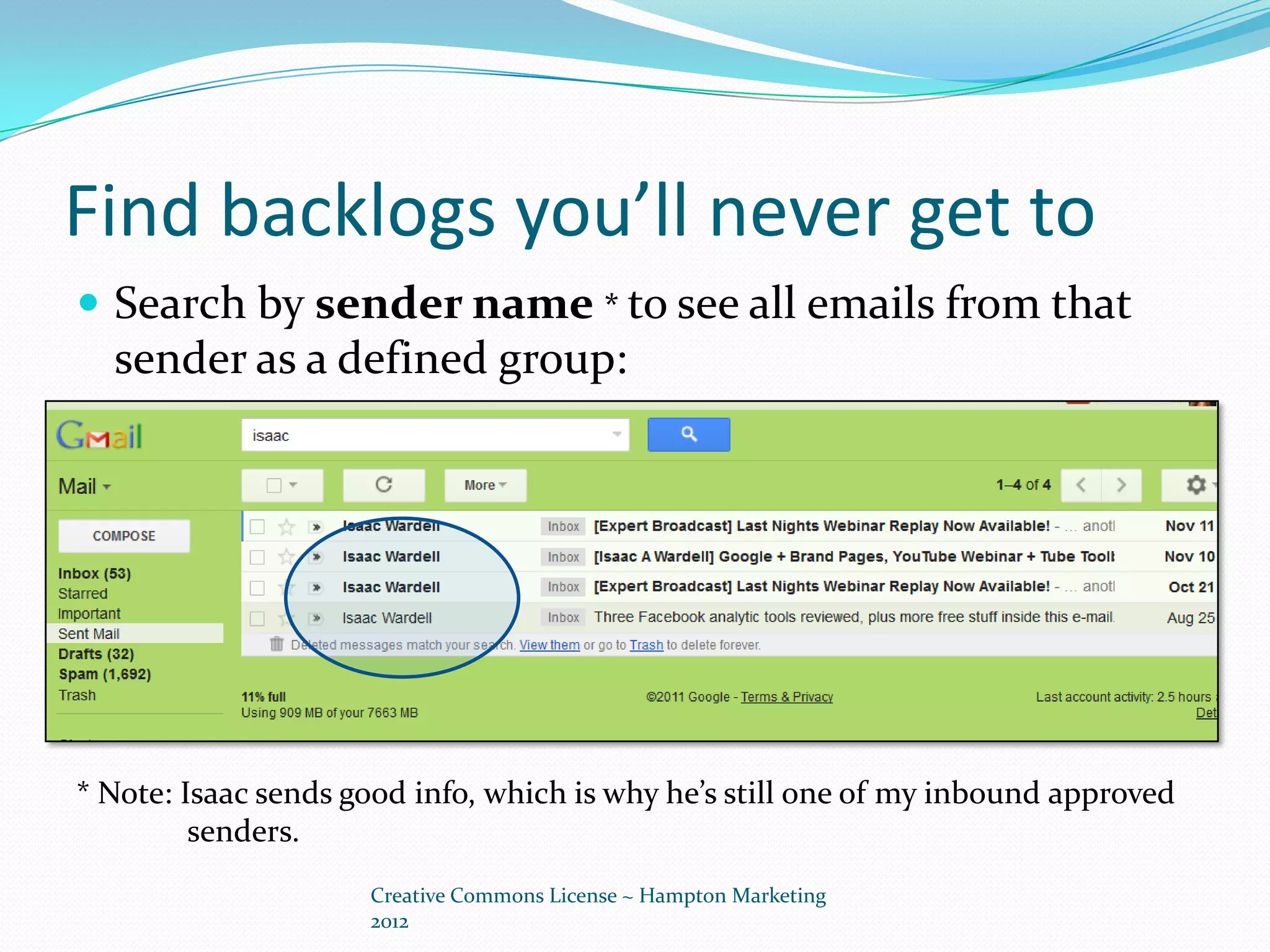
 Search by sender name * to see all emails from that
  sender as a defined group:


* Note: Isaac sends good info, which is why he’s still one of my inbound approved
         senders.
                     Creative Commons License ~ Hampton Marketing
                     2012
Find backlogs you’ll never get to
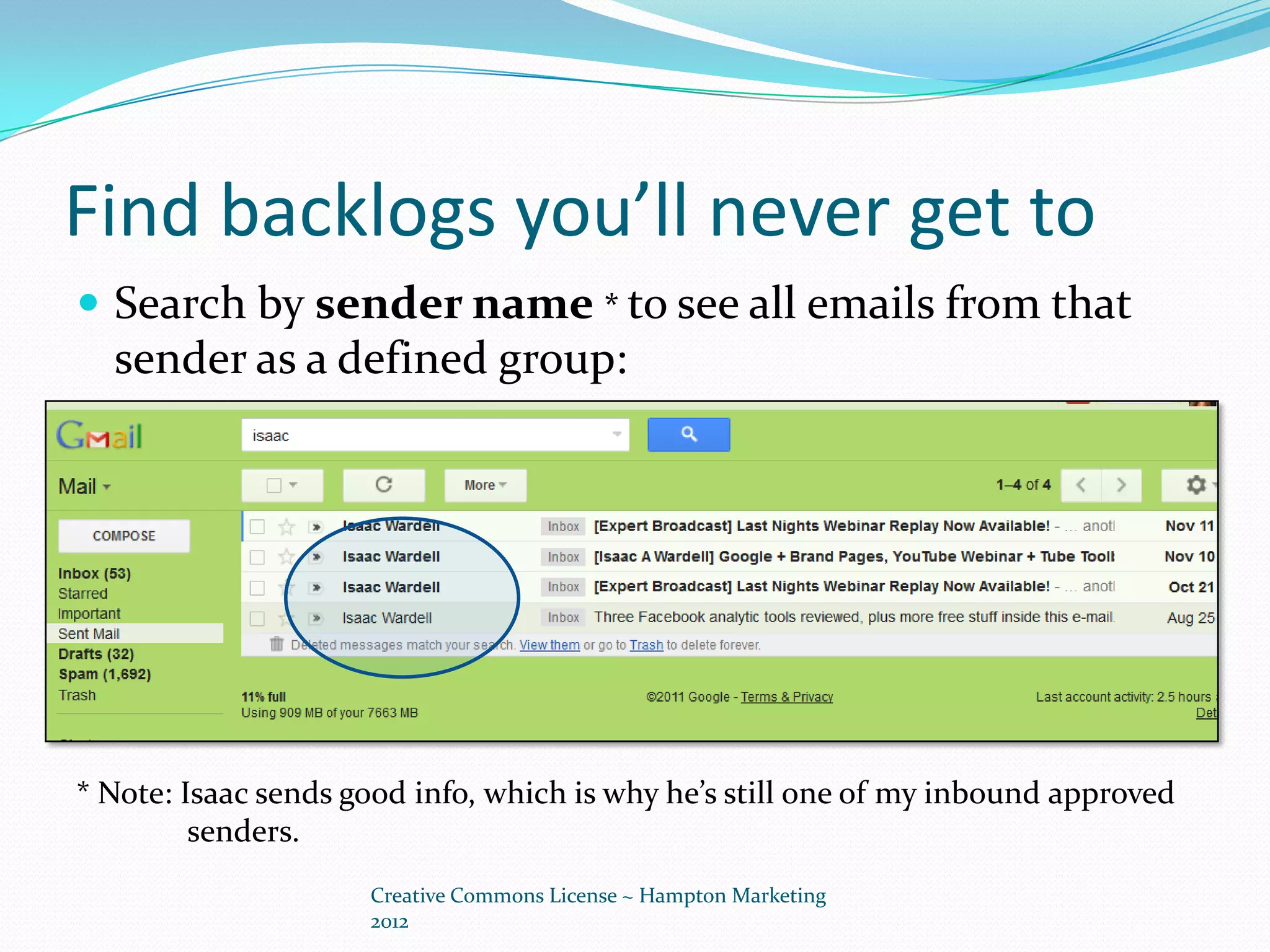
 Search by sender name * to see all emails from that
  sender as a defined group:


* Note: Isaac sends good info, which is why he’s still one of my inbound approved
         senders.
                     Creative Commons License ~ Hampton Marketing
                     2012
More on identifying backlogs
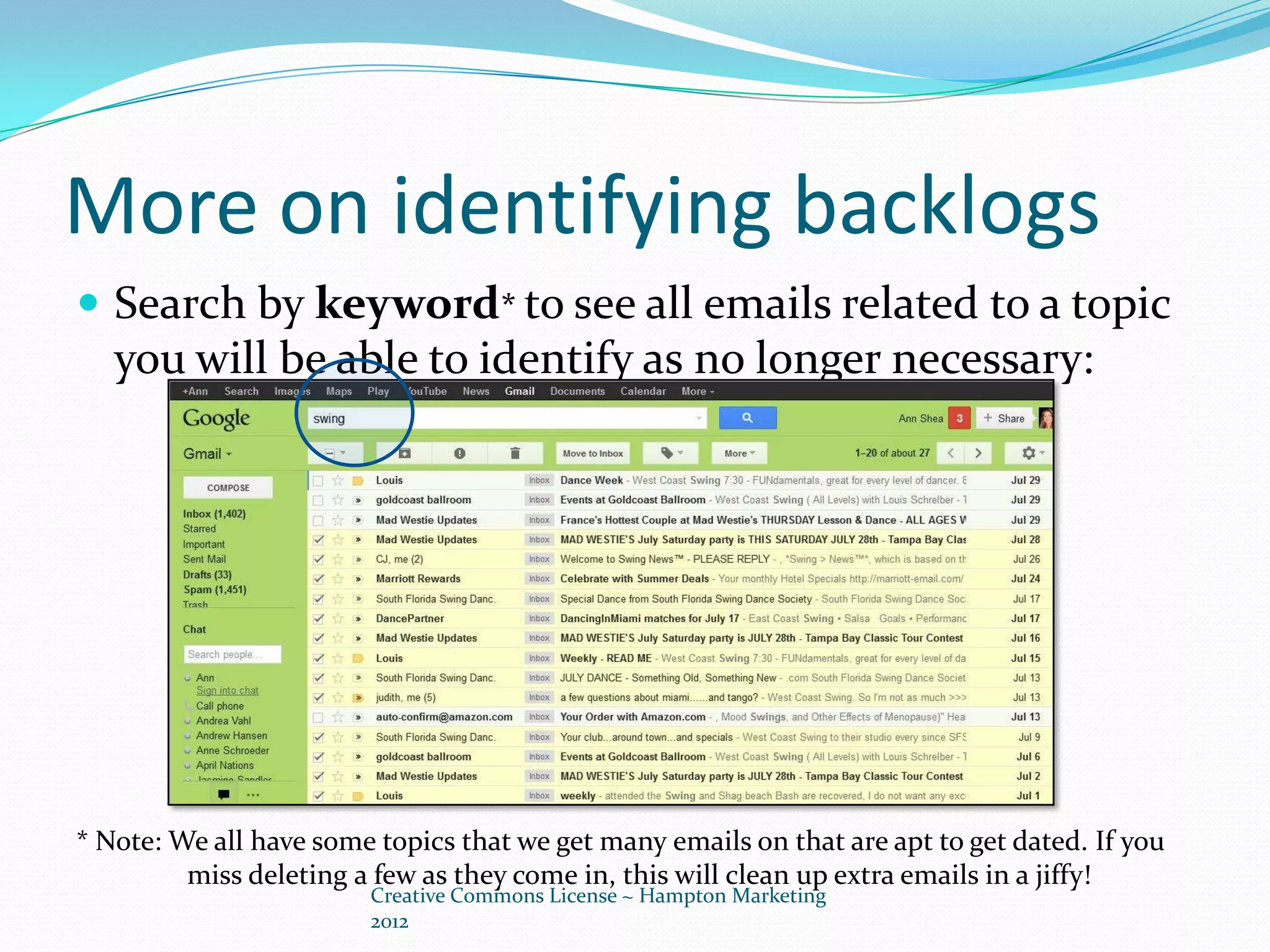
 Search by keyword* to see all emails related to a topic
   you will be able to identify as no longer necessary:


* Note: We all have some topics that we get many emails on that are apt to get dated. If you
         miss deleting a few as they come in, this will clean up extra emails in a jiffy!
                        Creative Commons License ~ Hampton Marketing
                        2012
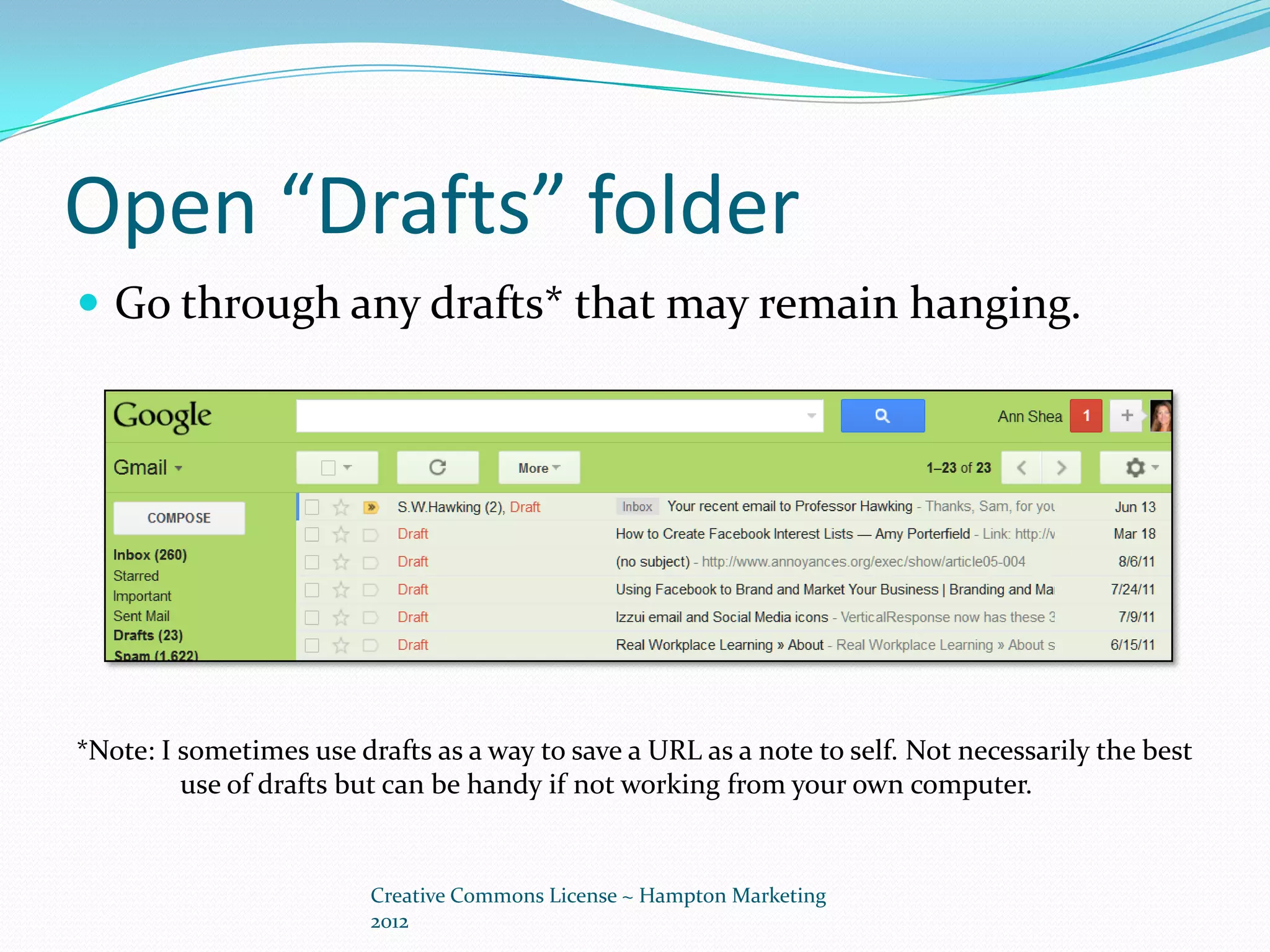
Open “Drafts” folder
 Go through any drafts* that may remain hanging.


*Note: I sometimes use drafts as a way to save a URL as a note to self. Not necessarily the best
         use of drafts but can be handy if not working from your own computer.


                         Creative Commons License ~ Hampton Marketing
                         2012
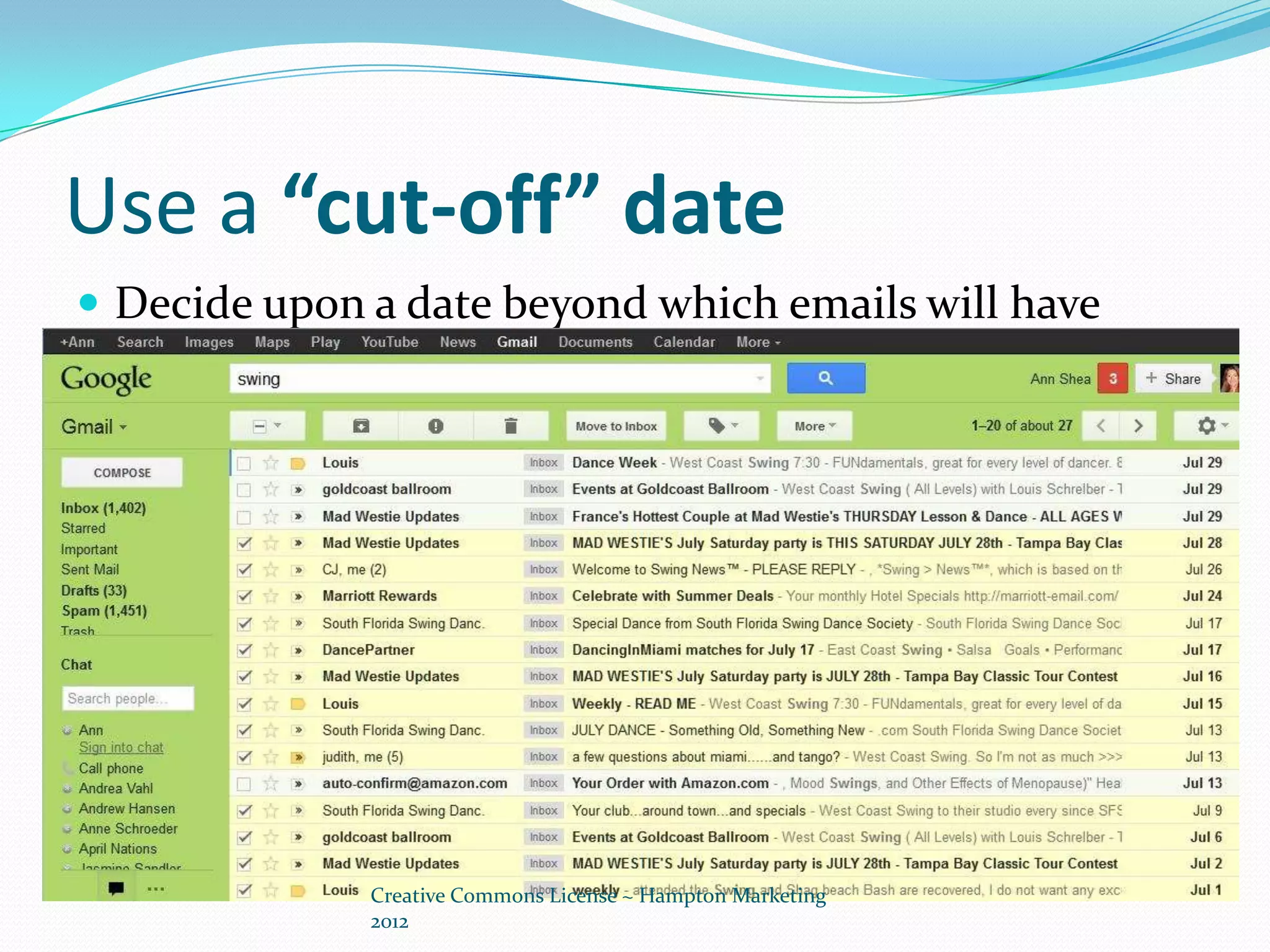
Use a “cut-off” date
 Decide upon a date beyond which emails will have
 content that is no longer relevant or important
 and go through these quickly, deleting rapidly any
 that are not starred for retention.


              Creative Commons License ~ Hampton Marketing
              2012
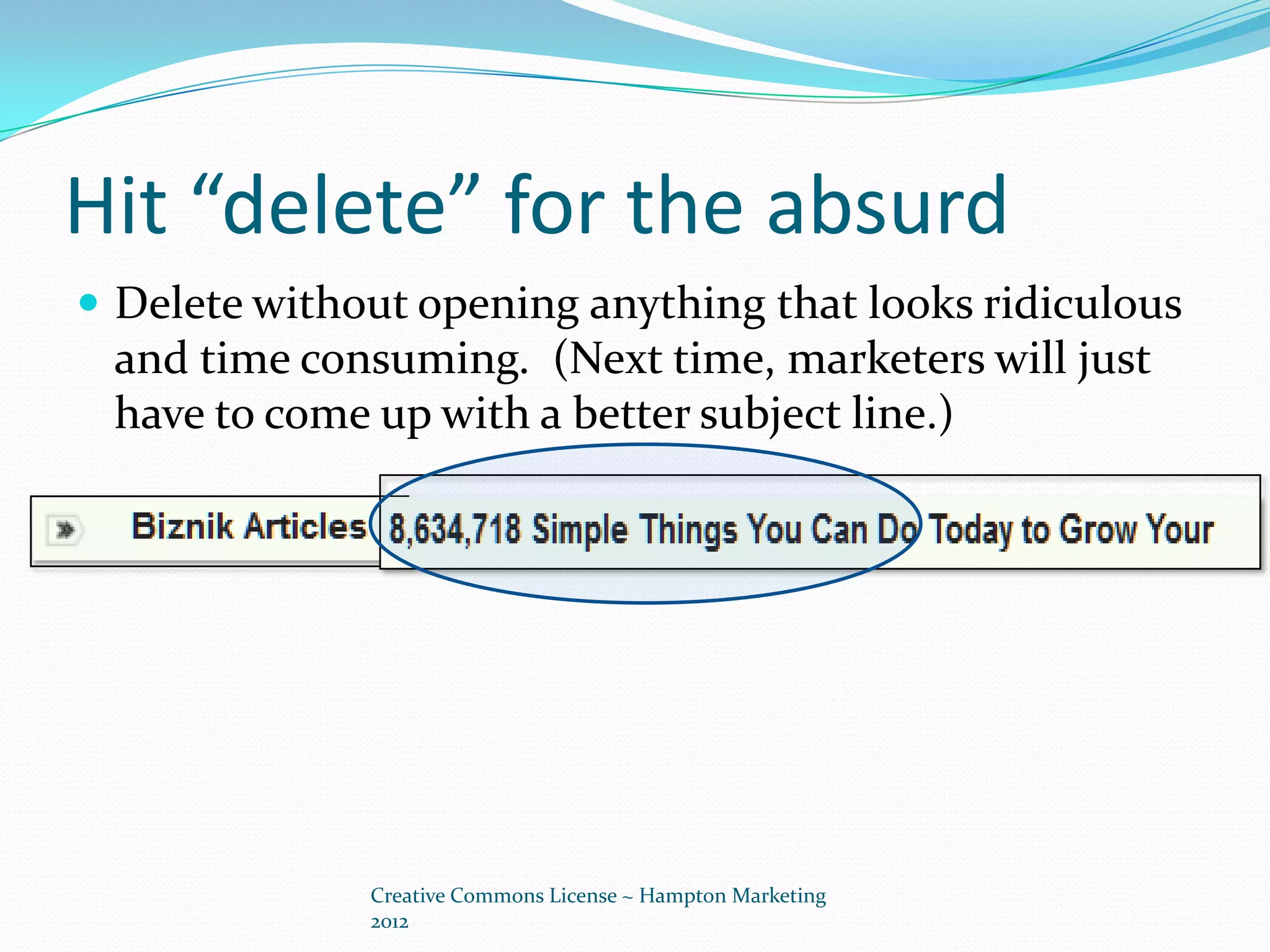
Hit “delete” for the absurd
 Delete without opening anything that looks ridiculous
 and time consuming. (Next time, marketers will just
 have to come up with a better subject line.)


              Creative Commons License ~ Hampton Marketing
              2012
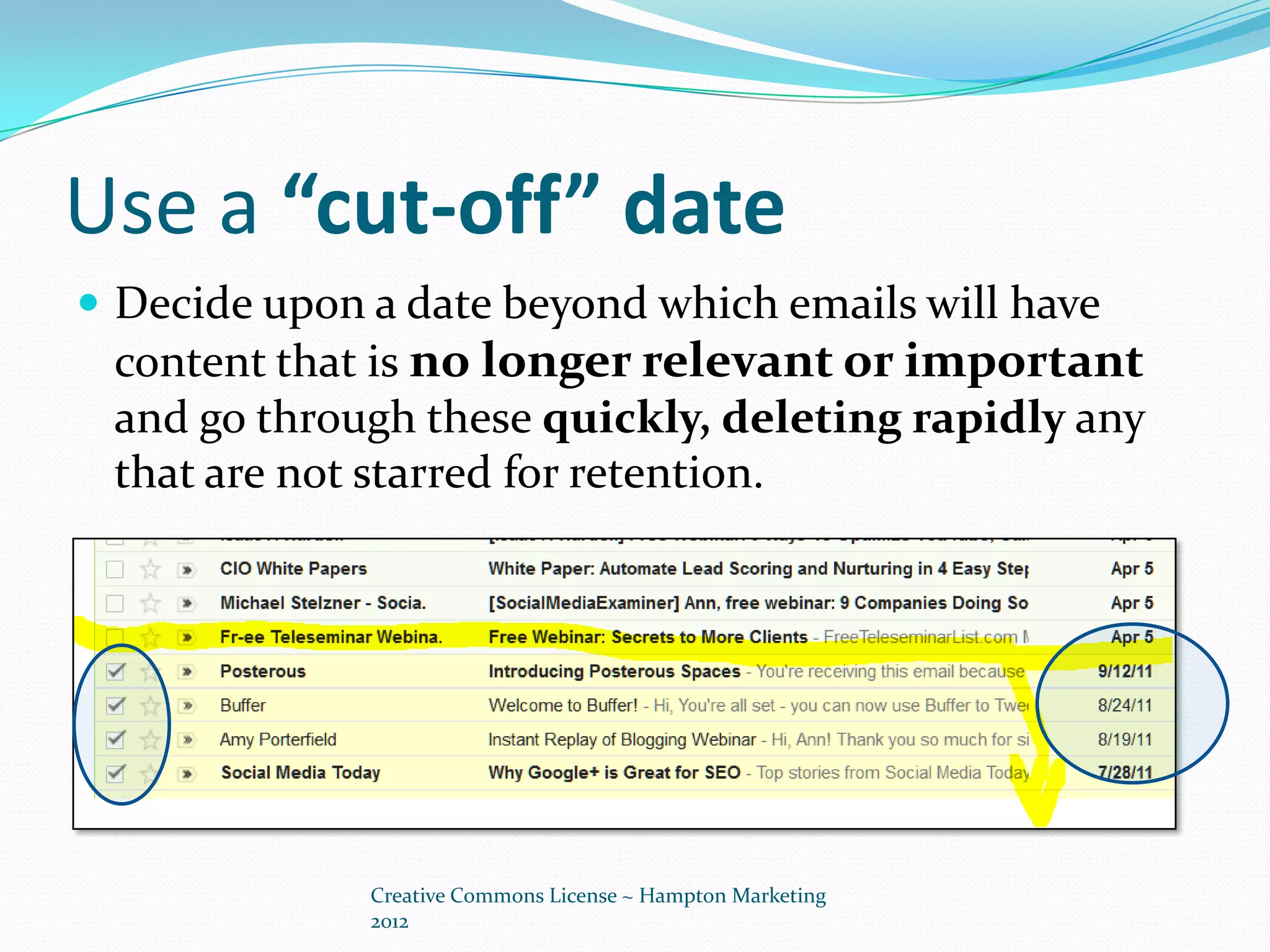
Use a “cut-off” date
 Decide upon a date beyond which emails will have
 content that is no longer relevant or important
 and go through these quickly, deleting rapidly any
 that are not starred for retention.


              Creative Commons License ~ Hampton Marketing
              2012
Going forward
 Set aside a designated time for
 processing your new daily emails.


          Creative Commons License ~ Hampton Marketing
          2012
Going forward
 When you click on a link, reply, or forward an
  email: delete the message that you have just read
 right then.            Because...
   You will still have it in TRASH for a little while.
   If it’s something you are forwarding , you will have it
    attached to your outgoing message in the OUT box.
       (Make sure your email is set up this way.)


                Creative Commons License ~ Hampton Marketing
                2012
Use UNSUBSCRIBE relentlessly!
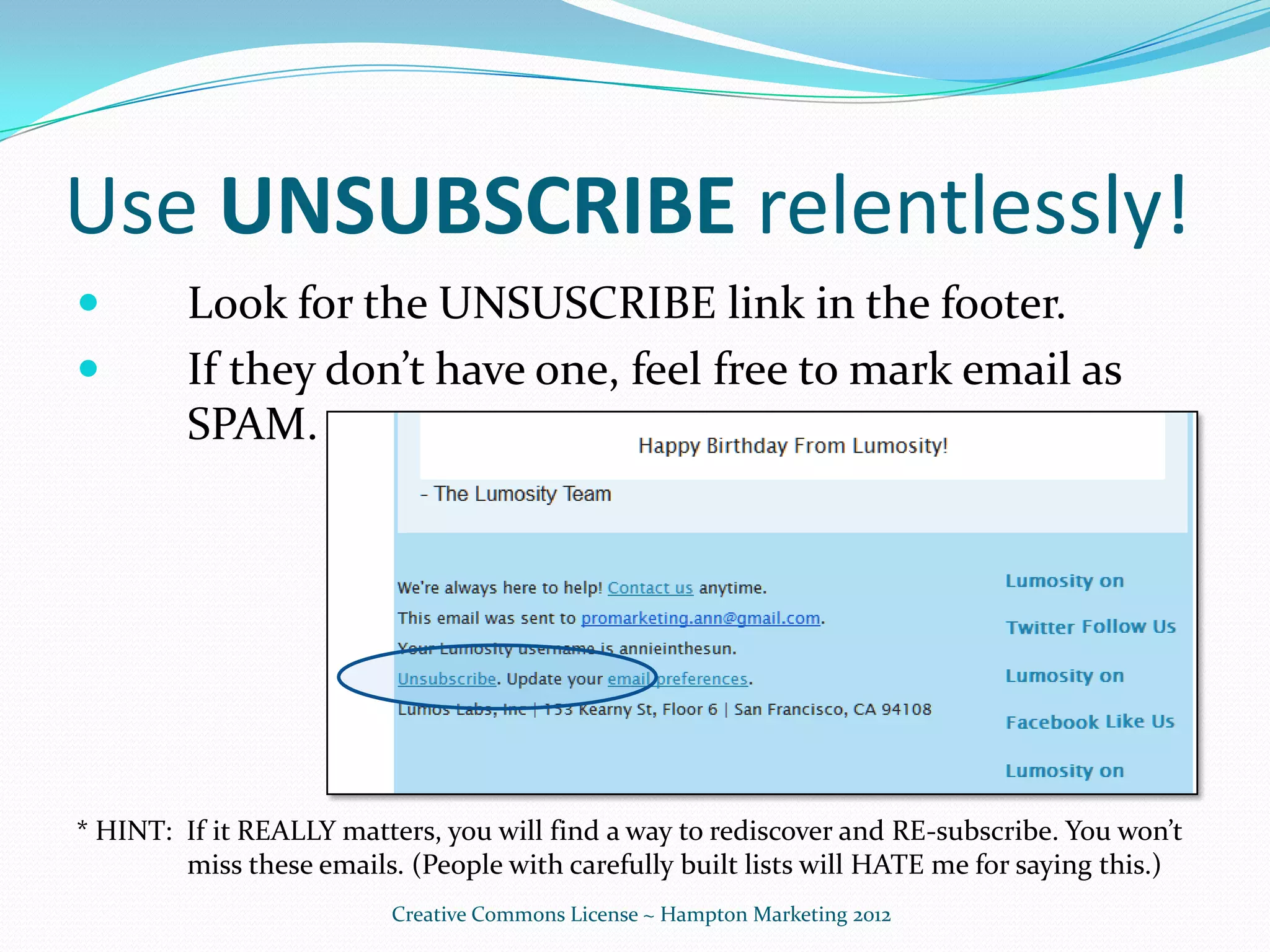
        Look for the UNSUSCRIBE link in the footer.
        If they don’t have one, feel free to mark email as
         SPAM.


* HINT: If it REALLY matters, you will find a way to rediscover and RE-subscribe. You won’t
        miss these emails. (People with carefully built lists will HATE me for saying this.)
                          Creative Commons License ~ Hampton Marketing 2012
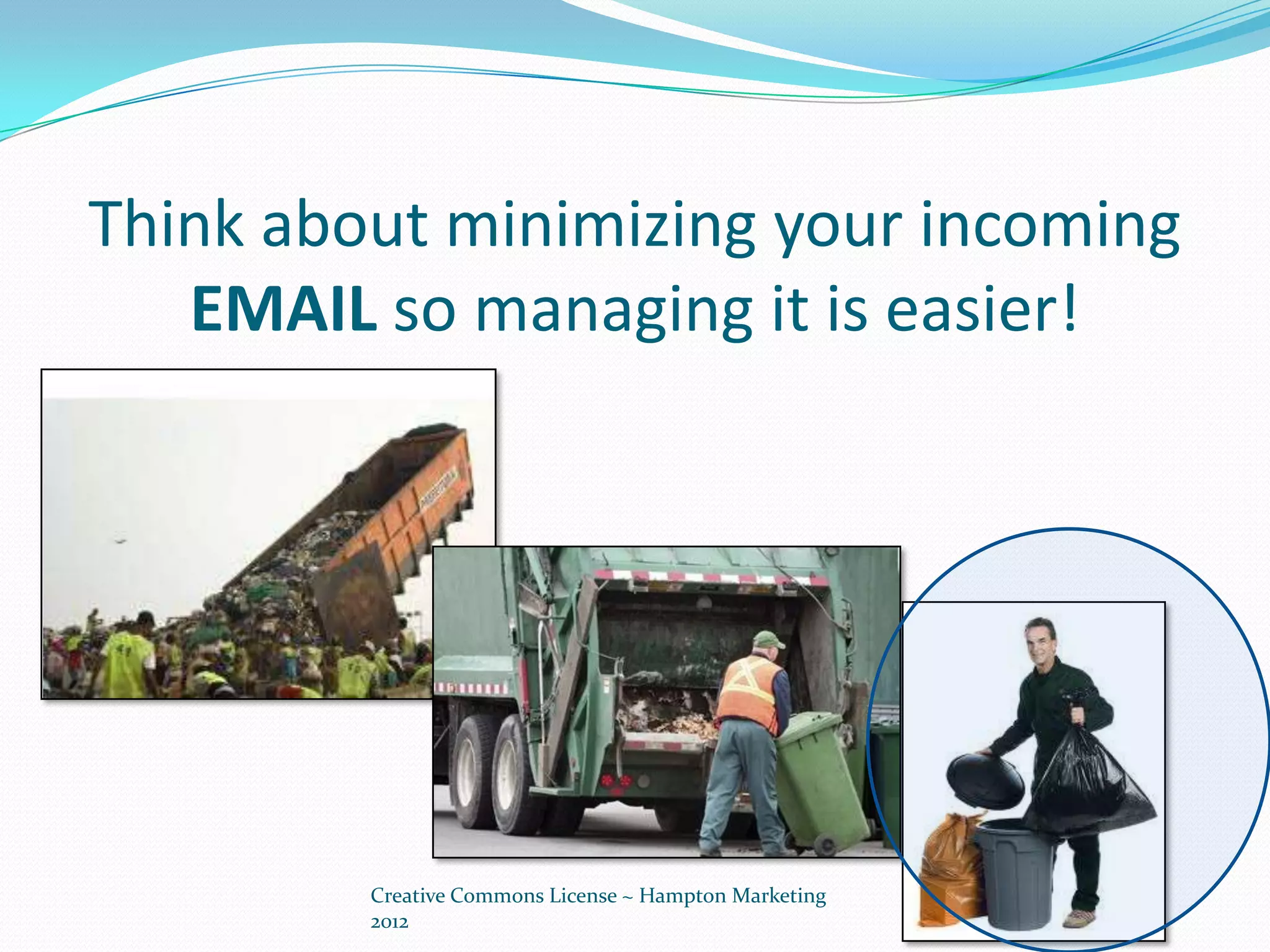
Think about minimizing your incoming
   EMAIL so managing it is easier!


         Creative Commons License ~ Hampton Marketing
         2012

How to clean up your email inbox

  • 1.
    Image credit withthanks to my brave parallel partners in heroic dumpter-diving at http://uniter.ca/view/787/
  • 2.
    Find backlogs you’llnever get to  Search by sender name * to see all emails from that sender as a defined group: * Note: Isaac sends good info, which is why he’s still one of my inbound approved senders. Creative Commons License ~ Hampton Marketing 2012
  • 3.
    Find backlogs you’llnever get to  Search by sender name * to see all emails from that sender as a defined group: * Note: Isaac sends good info, which is why he’s still one of my inbound approved senders. Creative Commons License ~ Hampton Marketing 2012
  • 4.
    More on identifyingbacklogs  Search by keyword* to see all emails related to a topic you will be able to identify as no longer necessary: * Note: We all have some topics that we get many emails on that are apt to get dated. If you miss deleting a few as they come in, this will clean up extra emails in a jiffy! Creative Commons License ~ Hampton Marketing 2012
  • 5.
    Open “Drafts” folder Go through any drafts* that may remain hanging. *Note: I sometimes use drafts as a way to save a URL as a note to self. Not necessarily the best use of drafts but can be handy if not working from your own computer. Creative Commons License ~ Hampton Marketing 2012
  • 6.
    Use a “cut-off”date  Decide upon a date beyond which emails will have content that is no longer relevant or important and go through these quickly, deleting rapidly any that are not starred for retention. Creative Commons License ~ Hampton Marketing 2012
  • 7.
    Hit “delete” forthe absurd  Delete without opening anything that looks ridiculous and time consuming. (Next time, marketers will just have to come up with a better subject line.) Creative Commons License ~ Hampton Marketing 2012
  • 8.
    Use a “cut-off”date  Decide upon a date beyond which emails will have content that is no longer relevant or important and go through these quickly, deleting rapidly any that are not starred for retention. Creative Commons License ~ Hampton Marketing 2012
  • 9.
    Going forward  Setaside a designated time for processing your new daily emails. Creative Commons License ~ Hampton Marketing 2012
  • 10.
    Going forward  Whenyou click on a link, reply, or forward an email: delete the message that you have just read right then. Because...  You will still have it in TRASH for a little while.  If it’s something you are forwarding , you will have it attached to your outgoing message in the OUT box. (Make sure your email is set up this way.) Creative Commons License ~ Hampton Marketing 2012
  • 11.
    Use UNSUBSCRIBE relentlessly!  Look for the UNSUSCRIBE link in the footer.  If they don’t have one, feel free to mark email as SPAM. * HINT: If it REALLY matters, you will find a way to rediscover and RE-subscribe. You won’t miss these emails. (People with carefully built lists will HATE me for saying this.) Creative Commons License ~ Hampton Marketing 2012
  • 12.
    Think about minimizingyour incoming EMAIL so managing it is easier! Creative Commons License ~ Hampton Marketing 2012