Chapter 1

            Booting HP Integrity Servers


Introduction


     This chapter covers booting an HP Integrity (Itanium-based) server booting.
     Booting an Integrity server requires that you become familiar with two lev-
     els of firmware. The first level is HP’s implementation of Intel’s EFI (Exten-
     sible Firmware Interface), POSSE (Pre-OS System Environment). The
     second is HP’s independent support processor for the system console, the
     Management Processor (MP), which is covered along with Node Partitions,
     nParitions, in Chapter 4. The MP is also called Integrated Lights Out (iLO)
     but I’ll call it MP. The MP is integral to booting both HP Integrity and HP
     9000 servers. Although functionality varies from one platform to another,
     the topics in this chapter apply to all HP Integrity servers at the time of this
     writing. The systems used throughout this chapter include a variety of two-
     and-four-way Integrity servers.

          This chapter covers the following topics:
          • High-level boot process overview on HP Integrity servers
          • EFI and POSSE


                                                                                1
2                                                    Chapter 1 Booting HP Integrity Servers

                In addition to providing background on these topics, this chapter also
         provides many examples of running commands and analyzing output for
         both POSSE and MP.
               The trifold included with this book is a quick reference for many boot-
         related commands.


    High-Level Boot Process Overview on HP Integrity Servers


         The boot process on HP Integrity Servers is much different than that on HP
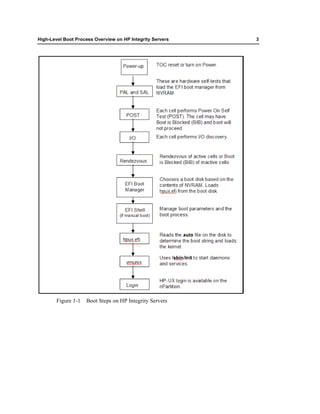
         9000 servers. Figure 1-1 summarizes the Integrity boot process.
High-Level Boot Process Overview on HP Integrity Servers   3


        Figure 1-1   Boot Steps on HP Integrity Servers
4                                                    Chapter 1 Booting HP Integrity Servers


              The first few steps of this boot process are related to hardware. Chapter
        4 on Node Partitions (nPartitions) or hard partitions covers resetting an nPar-
        tition, so you’ll see such steps in the flowchart as I/O discovery of each
        nPartition. Because most of the interaction you’ll have with a system is
        related to EFI, I’ll cover it in some detail in the next section.


    EFI and POSSE


        EFI is an interface between your operating system and platform firmware.
        POSSE is the HP implementation of EFI that contains additional commands
        beyond the ones available through EFI alone. The EFI acronym is used in
        this chapter, but be aware that some HP documentation may use POSSE.
              EFI is a component that is independent of the operating system and
        provides a shell for interfacing to multiple operating systems. The interface
        consists of data tables that contain platform-related information along with
        boot and runtime service calls that are available to the operating system and
        its loader. These components work together to provide a standard environ-
        ment for booting multiple operating systems.
              If you are interested in finding out more about EFI than what’s docu-
        mented here, take a look Intel’s EFI Web site. At the time of this writing, EFI
        information can be found at http://www.intel.com/technology/efi.
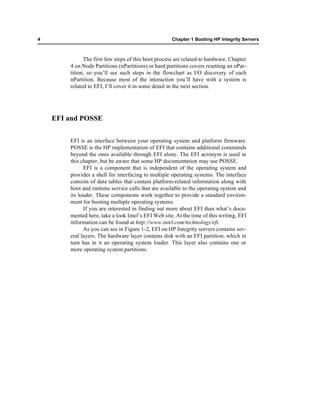
              As you can see in Figure 1-2, EFI on HP Integrity servers contains sev-
        eral layers. The hardware layer contains disk with an EFI partition, which in
        turn has in it an operating system loader. This layer also contains one or
        more operating system partitions.
EFI and POSSE                                                                                5


                             Operating System

                                 OS Loader


                                                              EFI
                                               EFI            Boot
                                                              Loader

                                                                                        ..


            Hardware

                  EFI
                 Partition
                                 OS Image            ...       OS Image
                                 Partition 1                   Partition n
                OS Loader


       Figure 1-2   EFI on HP Integrity Servers


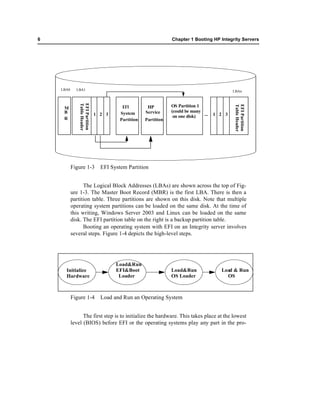
           In addition, the EFI system partition itself consists of several different
       components, as shown in Figure 1-3.
6                                                                Chapter 1 Booting HP Integrity Servers


                                                                                                              ..


    LBA0     LBA1                                                                             LBAn
               Table Header
               EFI Partition


                                                                 OS Partition 1


                                                                                              Table Header
                                                                                              EFI Partition
     M                                    EFI         HP
     B                                   System      Service     (could be many
                               1 2 3                              on one disk)  ...   1 2 3
     R                                   Partition   Partition


           Figure 1-3            EFI System Partition


                 The Logical Block Addresses (LBAs) are shown across the top of Fig-
           ure 1-3. The Master Boot Record (MBR) is the first LBA. There is then a
           partition table. Three partitions are shown on this disk. Note that multiple
           operating system partitions can be loaded on the same disk. At the time of
           this writing, Windows Server 2003 and Linux can be loaded on the same
           disk. The EFI partition table on the right is a backup partition table.
                 Booting an operating system with EFI on an Integrity server involves
           several steps. Figure 1-4 depicts the high-level steps.


                                       Load&Run
      Initialize                       EFI&Boot                  Load&Run               Load & Run
      Hardware                          Loader                   OS Loader                OS


           Figure 1-4            Load and Run an Operating System


                 The first step is to initialize the hardware. This takes place at the lowest
           level (BIOS) before EFI or the operating systems play any part in the pro-
EFI and MP: Where am I?                                                                            7

       cess. Next, the EFI and boot loader are loaded and run. After an operating
       system is chosen, the operating system loader is loaded and run for the spe-
       cific operating system being booted. Finally, the operating system itself is
       loaded and run. There are no specific operating systems cited in Figure 1-4
       because the process is the same regardless of the operating system being
       loaded. In the examples in this book, Linux, HP-UX, and Windows are used
       and all these operating systems would load in the same manner.


EFI and MP: Where am I?

       Before I show examples of EFI I want to cover one of the most confusing
       aspects of it. When the system is shut down and you connect to the MP you
       get the MP menu as shown in the first bullet below. At this point you can
       issue a command such as pc -on from CM and begin the boot process and
       select the console to see the boot take place or interrupt it. If you interrupt
       the boot you work with EFI various menus without the operating system
       loaded as shown in the second bullet below. If you select an operating sys-
       tem to boot from EFI, or an operating system autoboots, you can follow the
       boot process from the console. After the system boots you can issue ^b to
       connect to the MP and work through its menu structure.

            1. The system is shutdown and you connect to the MP to get access to the follow-
               ing menu.

          MP MAIN MENU:

                CO:    Console
               VFP:    Virtual Front Panel
                CM:    Command Menu
                CL:    Console Log
                SL:    Show Event Logs
                HE:    Main Help Menu
                 X:    Exit Connection

       [rx2600m] MP>

             You can select CM and pc -on and then go to the console to see the
       boot take place or interrupt it.

            2. If you interrupt the boot process, from the console, to prevent an operating sys-
               tem from loading you get the EFI Boot Manager and you’re working with EFI as
               indicated by the EFI Boot Manager. This is accessible to you only before boot-
               ing an operating system.
8                                                    Chapter 1 Booting HP Integrity Servers

    EFI Boot Manager ver 1.10 [14.61]     Firmware ver 2.31 [4411]


    Please select a boot option

        HP-UX Primary Boot: 0/1/1/1.2.0
        Red Hat Enterprise Linux WS
        Windows Server 2003, Enterprise
       EFI Shell [Built-in]
       Drive Explorer
       Boot Option Maintenance Menu
        System Configuration Menu


        Use ^ and v to change option(s). Use Enter to select an option


          You can go back to the MP with ^b or boot the system by selecting the
    desired boot device.

         3. Booting an HP VM guest and interrupting it (this is done by issuing hpvmcon-
            sole -P hpvm1 -fi) gives you access to the same EFI boot manager, however, the
            commands you can issue are scaled down. The info command that you would
            issue from the Shell> prompt, for instance, is not available. The EFI boot man-
            ager from an HP VM guest is shown in the following listing:


    EFI Boot Manager ver 1.10 [14.62] [Build: Wed Aug 10 07:36:12 2005]


    Please select a boot option

        HP-UX Primary Boot: 0/0/1/0.0.0
       EFI Shell [Built-in]
       Boot option maintenance menu


        Use ^ and v to change option(s). Use Enter to select an option


         4. If an operating system is running and you enter ^b from an MP connection, you
            get the MP MAIN MENU: which is covered in Chapter 4. The ^b works only if
            you’re connected to the MP.


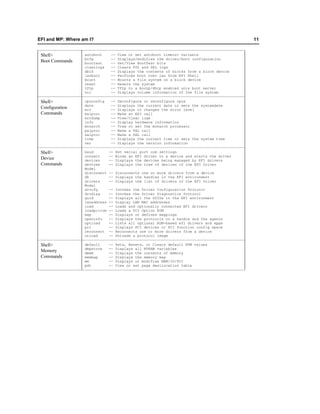
         Table 1-1 gives a description of MP menu picks:
EFI and MP: Where am I?                                                          9

Table 1-1   MP Menu Picks

                                 Example MP Top Menu Picks

  Detail on some of these        MP MAIN MENU:
  menu picks appear in this             CO:   Console
  table                                VFP:   Virtual Front Panel
                                        CM:   Command Menu
                                        CL:   Console Log
                                        SL:   Show Event Logs
                                        HE:   Main Help Menu
                                         X:   Exit Connection

                              [rx2600m] MP>

  VFP                         To see status of power, system state, and so on.

  CM
                                        BP : Reset BMC Passwords
  commands                              MS : Modem Status
                                        CA : Configure asynch/serial ports
                                        PC : Remote Power Control
                                        DATE: Display Date
                                        PG : PaGing parameters setup
                                        DC : Default Configuration
                                        PR : Power Restore Policy Config.
                                        DF : Display FRU Information
                                        PS : Power management module Status
                                        DI : DIsconnect users
                                        RB : Reset BMC
                                        DNS : Configure DHCP and DNS
                                        RS : Reset System through RST signal
                                        FW : Upgrade MP firmware
                                        SA : Set MP Access
                                        HE : Display Help
                                        SO : Security Options
                                        ID : System Information
                                        SS : System processors Status
                                        IT : Modify MP inactivity timeouts
                                        SYSREV: Display System firmware Revs.
                                        LC : Configure LAN, SSH and Web ports
                                        TC : Reset system via INIT
                                        LDAP: Configure LDAP parameters
                                        TE : TEll- send a msg. to other users
                                        LM : License Management
                                        UC : User Configuration
                                        LOC : Locator LED display
                                        WHO : Display connected MP users
                                        LS : LAN Status
                                        XD : Diagnostics and reset of MP
                                        MR : Modem Reset


  CL                          To see console log.

  SL                          To see event log.
10                                                                 Chapter 1 Booting HP Integrity Servers


                                            Example MP Top Menu Picks

        Detail on some of these            MP MAIN MENU:
        menu picks appear in this                CO:    Console
        table                                   VFP:    Virtual Front Panel
                                                 CM:    Command Menu
                                                 CL:    Console Log
                                                 SL:    Show Event Logs
                                                 HE:    Main Help Menu
                                                  X:    Exit Connection

                                        [rx2600m] MP>

        HE                                              MP Help System
                                         Enter a command at the help prompt:
                                                OVerview : Launch the help overview
                                                LIst      : Show the list of MP Main Menu commands
                                                <COMMAND> : Enter the command name for help
                                                            on individual command
                                                TOPics    : Show all MP Help topics and commands
                                                HElp      : Display this screen
                                                Q         : Quit help


                    Table 1-2 shows the EFI menu structure and provides sub-commands
              for some of the menu selections.


     Table 1-2    EFI Menu Structure

                                           Example EFI Top Menu Picks

      Top Level Menu        EFI Boot Manager ver 1.10 [14.61]         Firmware ver 2.31 [4411]
      PIcks Showing         Please select a boot option
      Three Operating
      System Selections             HP-UX Primary Boot: 0/1/1/1.2.0
                                    Red Hat Enterprise Linux WS
      and Menu Picks                Windows Server 2003, Enterprise
                                    EFI Shell [Built-in]
                                    Drive Explorer
                                    Boot Option Maintenance Menu
                                    System Configuration Menu


                                    Use ^ and v to change option(s). Use Enter to select an option

                                                 Shell> Commands
EFI and MP: Where am I?                                                                      11


 Shell>            autoboot     --    View or set autoboot timeout variable
                   bcfg         --    Displays/modifies the driver/boot configuration
 Boot Commands     boottest     --    Set/View BootTest bits
                   clearlogs    --    Clears FPL and SEL logs
                   dblk         --    Displays the contents of blocks from a block device
                   lanboot      --    Performs boot over lan from EFI Shell
                   mount        --    Mounts a file system on a block device
                   reset        --    Resets the system
                   tftp         --    Tftp to a bootp/dhcp enabled unix boot server
                   vol          --    Displays volume information of the file system

 Shell>            cpuconfig    --    Deconfigure or reconfigure cpus
                   date         --    Displays the current date or sets the systemdate
 Configuration     err          --    Displays or changes the error level
 Commands          esiproc      --    Make an ESI call
                   errdump      --    View/Clear logs
                   info         --    Display hardware information
                   monarch      --    View or set the monarch processor
                   palproc      --    Make a PAL call
                   salproc      --    Make a SAL call
                   time         --    Displays the current time or sets the system time
                   ver          --    Displays the version information

 Shell>            baud         --   Set serial port com settings
                   connect      --   Binds an EFI driver to a device and starts the driver
 Device            devices      --   Displays the devices being managed by EFI drivers
 Commands          devtree      --   Displays the tree of devices of the EFI Driver
                   Model
                   disconnect   -- Disconnects one or more drivers from a device
                   dh           -- Displays the handles in the EFI environment
                   drivers      -- Displays the list of drivers of the EFI Driver
                   Model
                   drvcfg       --   Invokes the Driver Configuration Protocol
                   drvdiag      --   Invokes the Driver Diagnostics Protocol
                   guid         --   Displays all the GUIDs in the EFI environment
                   lanaddress   --   Display LAN MAC addresses
                   load         --   Loads and optionally connected EFI drivers
                   loadpcirom   --   Loads a PCI Option ROM
                   map          --   Displays or defines mappings
                   openinfo     --   Displays the protocols on a handle and the agents
                   optload      --   Lists all optional ROM-based efi drivers and apps
                   pci          --   Displays PCI devices or PCI function config space
                   reconnect    --   Reconnects one or more drivers from a device
                   unload       --   Unloads a protocol image

 Shell>            default      --   Sets, Resets, or Clears default NVM values
                   dmpstore     --   Displays all NVRAM variables
 Memory            dmem         --   Displays the contents of memory
 Commands          memmap       --   Displays the memory map
                   mm           --   Displays or modifies MEM/IO/PCI
                   pdt          --   View or set page deallocation table
12                                                          Chapter 1 Booting HP Integrity Servers


     Shell>             alias         -- Displays, creates, or deletes aliases in
                                         the EFI shell
     Shell              attrib        -- Displays or changes the attributes of files
     Commands                            or directories
                        cd            -- Displays or changes the current directory
                        cls           -- Clears the standard output with an optional
                                         background color
                        comp          -- Compares the contents of two files
                        cp            -- Copies one or more files/directories to another
                                         location
                        edit          -- Edits an ASCII or UNICODE file in full screen
                        eficompress   -- Compress a file
                        efidecompress -- Compress a file
                        exit         -- Exits the EFI Shell
                        help         -- Displays help menus, command list, or verbose help
                                        of a command
                        hexedit      -- Edits with hex mode in full screen
                        ls           -- Displays a list of files and subdirectories
                                        in a directory
                        mkdir        -- Creates one or more directories
                        mode         -- Displays or changes the mode of the console
                                        output device
                        mv           -- Moves one or more files/directories to destination
                        rm           -- Deletes one or more files or directories
                        set          -- Displays, creates, changes or deletes
                                        EFI environment variables
                        setsize      -- Sets the size of the file
                        touch        -- Updates time with current time
                        type         -- Displays the contents of a file
                        xchar        -- Turn on/off extended character features

     Shell>             echo         --   Displays messages or turns command echoing on or off
                        for/endfor   --   Executes commands for each item in a set of items
     Script             goto         --   Makes batch file execution jump to another location
     Commands           if/endif     --   Executes commands in specified conditions
                        pause        --   Prints a message and suspends for keyboard input
                        stall        --   Stalls the processor for some microseconds

                                     Boot Option Maintenance Menu

     There are sub-     EFI Boot Maintenance Manager ver 1.10 [14.61]
     menus in each of   Main Menu. Select an Operation
     these areas
                                Boot from a File
                                Add a Boot Option
                                Delete Boot Option(s)
                                Change Boot Order

                                Manage BootNext setting
                                Set Auto Boot TimeOut

                                Select Active Console Output Devices
                                Select Active Console Input Devices
                                Select Active Standard Error Devices

                                Cold Reset
                                Exit


                           Timeout-->[10] sec SystemGuid-->[7B8CA118-DA48-11D8-B39D-
                          28E83DA9F617]
                           SerialNumber-->[US42578894          ]
EFI Top Level Menu                                                                    13


                                  System Configuration Menu

 There are sub-      System Configuration Menu.   Select an Option
 menus in each of
 these areas                 Security/Password Menu
                             Advanced System Information Menu

                             Set System Date
                             Set System Time
                             Reset Configuration to Default
                             Help
                             Exit


             An interesting aspect of the EFI commands is that you can accomplish
        many of the same functions running BCH commands on HP 9000 (PA-
        RISC) systems. To those of you who have PA-RISC system experience,
        you’ll see many of the same functions performed in EFI.
             Using EFI, you can control the boot-related setup on your Integrity
        server. Because of the number of operating systems you can run on Integrity
        servers, you use this interface often to coordinate and manage them.
             I connect to the MP using the MP LAN as opposed to the MP console.
        If you were to connect using the console you would also see the menu pick
        CSP:Connect to Service Processor and SE:Enter OS Session menu picks.
             The next sections cover working with EFI.


EFI Top Level Menu


        When you get access to the EFI menu structure you can issue commands.
        You make your desired selections and then traverse a menu hierarchy. To
        start EFI, when the system self-test is complete, press any key to stop the
        countdown timer. The main EFI screen appears. The following output shows
        the EFI Boot Administration main screen, which is where you can make var-
        ious boot-related selections:

        EFI Boot Manager ver 1.10 [14.61]   Firmware ver 2.31 [4411]

        Please select a boot option

             HP-UX Primary Boot: 0/1/1/1.2.0
             Red Hat Enterprise Linux WS
             Windows Server 2003, Enterprise
             EFI Shell [Built-in]
             Drive Explorer
             Boot Option Maintenance Menu
14                                                       Chapter 1 Booting HP Integrity Servers

             System Configuration Menu


             Use ^ and v to change option(s). Use Enter to select an option


               This output shows the primary HP-UX boot device and other selec-
         tions.
               From the main screen, you can also choose EFI Shell [Built-in], Boot
         option maintenance menu, and a variety of other selections. The first item
         shown in the EFI main screen is the default. Use the arrow keys to scroll and
         highlight a selection. After the item you need is highlighted, press Enter to
         select it. For example, if you were to select Boot option maintenance menu,
         you would see a screen resembling the one shown in the following output:

         EFI Boot Maintenance Manager ver 1.10 [14.61]

         Main Menu. Select an Operation


                 Boot from a File
                 Add a Boot Option
                 Delete Boot Option(s)
                 Change Boot Order

                 Manage BootNext setting
                 Set Auto Boot TimeOut

                Select Active Console Output Devices
                Select Active Console Input Devices
                Select Active Standard Error Devices

                 Cold Reset
                 Exit


            Timeout-->[10] sec SystemGuid-->[7B8CA118-DA48-11D8-B39D-28E83DA9F617]
            SerialNumber-->[US42578894          ]


     EFI Command Examples

         As previously mentioned, traversing the EFI menu structure and issuing
         commands is straightforward. When the system boots, you are given the
         option to interrupt the autoboot. (If you don’t interrupt it, the autoboot loads
         the first operating system listed, which, in our case, is HP-UX Primary
         Boot). At system startup, the EFI Boot Manager presents the boot option
         menu (as shown in the following output). Here, you have 10 seconds to enter
         a selection before HP-UX Primary Boot is selected:
EFI Shell> Help                                                                         15


        EFI Boot Manager ver 1.10 [14.61]     Firmware ver 2.31 [4411]

        Please select a boot option

            HP-UX Primary Boot: 0/1/1/1.2.0
            Red Hat Enterprise Linux WS
            Windows Server 2003, Enterprise
            EFI Shell [Built-in]
            Drive Explorer
            Boot Option Maintenance Menu
            System Configuration Menu


            Use ^ and v to change option(s). Use Enter to select an option


             You can use the arrow keys to move up and down the menu structure.


EFI Shell> Help


        I used the ↓ key (down arrow) to select EFI Shell [Built-in]. This brought
        me to the Shell> prompt. From there, you can issue EFI commands. Simi-
        larly, once you’re at the Shell> prompt, help is always available. To get a
        listing of the classes of commands available in Shell>, simply enter help and
        press Enter as shown in the following output:

        Shell> help
        List of classes of commands:

        boot            --   Booting options and disk-related commands
        configuration   --   Changing and retrieving system information
        device          --   Getting device, driver and handle information
        memory          --   Memory related commands
        shell           --   Basic shell navigation and customization
        scripts         --   EFI shell-script commands

        Use 'help <class>' for a list of commands in that class
        Use 'help <command>' for full documentation of a command
        Use 'help -a' to display list of all commands

        Shell>


              When using a network connection from another system, you may have
        to use the ^ and v to move up and down the menu structure respectively. The
        main help commands are the same for both bus and cell-based systems.
              You can also issue help requests for any EFI commands at any level.
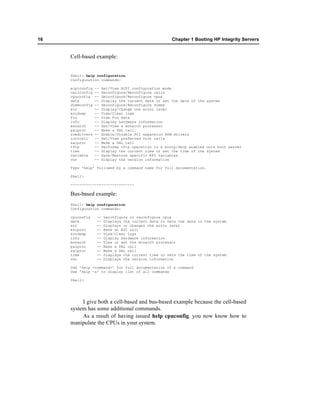
        For example, if you want to know more about your current CPU configura-
        tion, you would start with help configuration to determine the help com-
        mand for CPU configuration, and then use the help cpuconfig command:
16                                                     Chapter 1 Booting HP Integrity Servers


     Cell-based example:


     Shell> help configuration
     Configuration commands:

     acpiconfig   --   Set/View ACPI configuration mode
     cellconfig   --   Deconfigure/Reconfigure cells
     cpuconfig    --   Deconfigure/Reconfigure cpus
     date         --   Display the current date or set the date of the system
     dimmconfig   --   Deconfigure/Reconfigure dimms
     err          --   Display/Change the error level
     errdump      --   View/Clear logs
     fru          --   View Fru data
     info         --   Display hardware information
     monarch      --   Set/View a monarch processor
     palproc      --   Make a PAL call.
     romdrivers   --   Enable/Disable PCI expansion ROM drivers
     rootcell     --   Set/View preferred root cells
     salproc      --   Make a SAL call
     tftp         --   Performs tftp operation to a bootp/dhcp enabled unix boot server
     time         --   Display the current time or set the time of the system
     variable     --   Save/Restore specific EFI variables
     ver          --   Display the version information

     Type 'help' followed by a command name for full documentation.

     Shell>

     -----------------------------

     Bus-based example:
     Shell> help configuration
     Configuration commands:

     cpuconfig     --   Deconfigure or reconfigure cpus
     date          --   Displays the current date or sets the date in the system
     err           --   Displays or changes the error level
     esiproc       --   Make an ESI call
     errdump       --   View/Clear logs
     info          --   Display hardware information
     monarch       --   View or set the monarch processor
     palproc       --   Make a PAL call
     salproc       --   Make a SAL call
     time          --   Displays the current time or sets the time of the system
     ver           --   Displays the version information

     Use 'help <command>' for full documentation of a command
     Use 'help -a' to display list of all commands

     Shell>


          I give both a cell-based and bus-based example because the cell-based
     system has some additional commands.
          As a result of having issued help cpuconfig, you now know how to
     manipulate the CPUs in your system.

Efi booting

  • 1.
    Chapter 1 Booting HP Integrity Servers Introduction This chapter covers booting an HP Integrity (Itanium-based) server booting. Booting an Integrity server requires that you become familiar with two lev- els of firmware. The first level is HP’s implementation of Intel’s EFI (Exten- sible Firmware Interface), POSSE (Pre-OS System Environment). The second is HP’s independent support processor for the system console, the Management Processor (MP), which is covered along with Node Partitions, nParitions, in Chapter 4. The MP is also called Integrated Lights Out (iLO) but I’ll call it MP. The MP is integral to booting both HP Integrity and HP 9000 servers. Although functionality varies from one platform to another, the topics in this chapter apply to all HP Integrity servers at the time of this writing. The systems used throughout this chapter include a variety of two- and-four-way Integrity servers. This chapter covers the following topics: • High-level boot process overview on HP Integrity servers • EFI and POSSE 1
  • 2.
    2 Chapter 1 Booting HP Integrity Servers In addition to providing background on these topics, this chapter also provides many examples of running commands and analyzing output for both POSSE and MP. The trifold included with this book is a quick reference for many boot- related commands. High-Level Boot Process Overview on HP Integrity Servers The boot process on HP Integrity Servers is much different than that on HP 9000 servers. Figure 1-1 summarizes the Integrity boot process.
  • 3.
    High-Level Boot ProcessOverview on HP Integrity Servers 3 Figure 1-1 Boot Steps on HP Integrity Servers
  • 4.
    4 Chapter 1 Booting HP Integrity Servers The first few steps of this boot process are related to hardware. Chapter 4 on Node Partitions (nPartitions) or hard partitions covers resetting an nPar- tition, so you’ll see such steps in the flowchart as I/O discovery of each nPartition. Because most of the interaction you’ll have with a system is related to EFI, I’ll cover it in some detail in the next section. EFI and POSSE EFI is an interface between your operating system and platform firmware. POSSE is the HP implementation of EFI that contains additional commands beyond the ones available through EFI alone. The EFI acronym is used in this chapter, but be aware that some HP documentation may use POSSE. EFI is a component that is independent of the operating system and provides a shell for interfacing to multiple operating systems. The interface consists of data tables that contain platform-related information along with boot and runtime service calls that are available to the operating system and its loader. These components work together to provide a standard environ- ment for booting multiple operating systems. If you are interested in finding out more about EFI than what’s docu- mented here, take a look Intel’s EFI Web site. At the time of this writing, EFI information can be found at http://www.intel.com/technology/efi. As you can see in Figure 1-2, EFI on HP Integrity servers contains sev- eral layers. The hardware layer contains disk with an EFI partition, which in turn has in it an operating system loader. This layer also contains one or more operating system partitions.
  • 5.
    EFI and POSSE 5 Operating System OS Loader EFI EFI Boot Loader .. Hardware EFI Partition OS Image ... OS Image Partition 1 Partition n OS Loader Figure 1-2 EFI on HP Integrity Servers In addition, the EFI system partition itself consists of several different components, as shown in Figure 1-3.
  • 6.
    6 Chapter 1 Booting HP Integrity Servers .. LBA0 LBA1 LBAn Table Header EFI Partition OS Partition 1 Table Header EFI Partition M EFI HP B System Service (could be many 1 2 3 on one disk) ... 1 2 3 R Partition Partition Figure 1-3 EFI System Partition The Logical Block Addresses (LBAs) are shown across the top of Fig- ure 1-3. The Master Boot Record (MBR) is the first LBA. There is then a partition table. Three partitions are shown on this disk. Note that multiple operating system partitions can be loaded on the same disk. At the time of this writing, Windows Server 2003 and Linux can be loaded on the same disk. The EFI partition table on the right is a backup partition table. Booting an operating system with EFI on an Integrity server involves several steps. Figure 1-4 depicts the high-level steps. Load&Run Initialize EFI&Boot Load&Run Load & Run Hardware Loader OS Loader OS Figure 1-4 Load and Run an Operating System The first step is to initialize the hardware. This takes place at the lowest level (BIOS) before EFI or the operating systems play any part in the pro-
  • 7.
    EFI and MP:Where am I? 7 cess. Next, the EFI and boot loader are loaded and run. After an operating system is chosen, the operating system loader is loaded and run for the spe- cific operating system being booted. Finally, the operating system itself is loaded and run. There are no specific operating systems cited in Figure 1-4 because the process is the same regardless of the operating system being loaded. In the examples in this book, Linux, HP-UX, and Windows are used and all these operating systems would load in the same manner. EFI and MP: Where am I? Before I show examples of EFI I want to cover one of the most confusing aspects of it. When the system is shut down and you connect to the MP you get the MP menu as shown in the first bullet below. At this point you can issue a command such as pc -on from CM and begin the boot process and select the console to see the boot take place or interrupt it. If you interrupt the boot you work with EFI various menus without the operating system loaded as shown in the second bullet below. If you select an operating sys- tem to boot from EFI, or an operating system autoboots, you can follow the boot process from the console. After the system boots you can issue ^b to connect to the MP and work through its menu structure. 1. The system is shutdown and you connect to the MP to get access to the follow- ing menu. MP MAIN MENU: CO: Console VFP: Virtual Front Panel CM: Command Menu CL: Console Log SL: Show Event Logs HE: Main Help Menu X: Exit Connection [rx2600m] MP> You can select CM and pc -on and then go to the console to see the boot take place or interrupt it. 2. If you interrupt the boot process, from the console, to prevent an operating sys- tem from loading you get the EFI Boot Manager and you’re working with EFI as indicated by the EFI Boot Manager. This is accessible to you only before boot- ing an operating system.
  • 8.
    8 Chapter 1 Booting HP Integrity Servers EFI Boot Manager ver 1.10 [14.61] Firmware ver 2.31 [4411] Please select a boot option HP-UX Primary Boot: 0/1/1/1.2.0 Red Hat Enterprise Linux WS Windows Server 2003, Enterprise EFI Shell [Built-in] Drive Explorer Boot Option Maintenance Menu System Configuration Menu Use ^ and v to change option(s). Use Enter to select an option You can go back to the MP with ^b or boot the system by selecting the desired boot device. 3. Booting an HP VM guest and interrupting it (this is done by issuing hpvmcon- sole -P hpvm1 -fi) gives you access to the same EFI boot manager, however, the commands you can issue are scaled down. The info command that you would issue from the Shell> prompt, for instance, is not available. The EFI boot man- ager from an HP VM guest is shown in the following listing: EFI Boot Manager ver 1.10 [14.62] [Build: Wed Aug 10 07:36:12 2005] Please select a boot option HP-UX Primary Boot: 0/0/1/0.0.0 EFI Shell [Built-in] Boot option maintenance menu Use ^ and v to change option(s). Use Enter to select an option 4. If an operating system is running and you enter ^b from an MP connection, you get the MP MAIN MENU: which is covered in Chapter 4. The ^b works only if you’re connected to the MP. Table 1-1 gives a description of MP menu picks:
  • 9.
    EFI and MP:Where am I? 9 Table 1-1 MP Menu Picks Example MP Top Menu Picks Detail on some of these MP MAIN MENU: menu picks appear in this CO: Console table VFP: Virtual Front Panel CM: Command Menu CL: Console Log SL: Show Event Logs HE: Main Help Menu X: Exit Connection [rx2600m] MP> VFP To see status of power, system state, and so on. CM BP : Reset BMC Passwords commands MS : Modem Status CA : Configure asynch/serial ports PC : Remote Power Control DATE: Display Date PG : PaGing parameters setup DC : Default Configuration PR : Power Restore Policy Config. DF : Display FRU Information PS : Power management module Status DI : DIsconnect users RB : Reset BMC DNS : Configure DHCP and DNS RS : Reset System through RST signal FW : Upgrade MP firmware SA : Set MP Access HE : Display Help SO : Security Options ID : System Information SS : System processors Status IT : Modify MP inactivity timeouts SYSREV: Display System firmware Revs. LC : Configure LAN, SSH and Web ports TC : Reset system via INIT LDAP: Configure LDAP parameters TE : TEll- send a msg. to other users LM : License Management UC : User Configuration LOC : Locator LED display WHO : Display connected MP users LS : LAN Status XD : Diagnostics and reset of MP MR : Modem Reset CL To see console log. SL To see event log.
  • 10.
    10 Chapter 1 Booting HP Integrity Servers Example MP Top Menu Picks Detail on some of these MP MAIN MENU: menu picks appear in this CO: Console table VFP: Virtual Front Panel CM: Command Menu CL: Console Log SL: Show Event Logs HE: Main Help Menu X: Exit Connection [rx2600m] MP> HE MP Help System Enter a command at the help prompt: OVerview : Launch the help overview LIst : Show the list of MP Main Menu commands <COMMAND> : Enter the command name for help on individual command TOPics : Show all MP Help topics and commands HElp : Display this screen Q : Quit help Table 1-2 shows the EFI menu structure and provides sub-commands for some of the menu selections. Table 1-2 EFI Menu Structure Example EFI Top Menu Picks Top Level Menu EFI Boot Manager ver 1.10 [14.61] Firmware ver 2.31 [4411] PIcks Showing Please select a boot option Three Operating System Selections HP-UX Primary Boot: 0/1/1/1.2.0 Red Hat Enterprise Linux WS and Menu Picks Windows Server 2003, Enterprise EFI Shell [Built-in] Drive Explorer Boot Option Maintenance Menu System Configuration Menu Use ^ and v to change option(s). Use Enter to select an option Shell> Commands
  • 11.
    EFI and MP:Where am I? 11 Shell> autoboot -- View or set autoboot timeout variable bcfg -- Displays/modifies the driver/boot configuration Boot Commands boottest -- Set/View BootTest bits clearlogs -- Clears FPL and SEL logs dblk -- Displays the contents of blocks from a block device lanboot -- Performs boot over lan from EFI Shell mount -- Mounts a file system on a block device reset -- Resets the system tftp -- Tftp to a bootp/dhcp enabled unix boot server vol -- Displays volume information of the file system Shell> cpuconfig -- Deconfigure or reconfigure cpus date -- Displays the current date or sets the systemdate Configuration err -- Displays or changes the error level Commands esiproc -- Make an ESI call errdump -- View/Clear logs info -- Display hardware information monarch -- View or set the monarch processor palproc -- Make a PAL call salproc -- Make a SAL call time -- Displays the current time or sets the system time ver -- Displays the version information Shell> baud -- Set serial port com settings connect -- Binds an EFI driver to a device and starts the driver Device devices -- Displays the devices being managed by EFI drivers Commands devtree -- Displays the tree of devices of the EFI Driver Model disconnect -- Disconnects one or more drivers from a device dh -- Displays the handles in the EFI environment drivers -- Displays the list of drivers of the EFI Driver Model drvcfg -- Invokes the Driver Configuration Protocol drvdiag -- Invokes the Driver Diagnostics Protocol guid -- Displays all the GUIDs in the EFI environment lanaddress -- Display LAN MAC addresses load -- Loads and optionally connected EFI drivers loadpcirom -- Loads a PCI Option ROM map -- Displays or defines mappings openinfo -- Displays the protocols on a handle and the agents optload -- Lists all optional ROM-based efi drivers and apps pci -- Displays PCI devices or PCI function config space reconnect -- Reconnects one or more drivers from a device unload -- Unloads a protocol image Shell> default -- Sets, Resets, or Clears default NVM values dmpstore -- Displays all NVRAM variables Memory dmem -- Displays the contents of memory Commands memmap -- Displays the memory map mm -- Displays or modifies MEM/IO/PCI pdt -- View or set page deallocation table
  • 12.
    12 Chapter 1 Booting HP Integrity Servers Shell> alias -- Displays, creates, or deletes aliases in the EFI shell Shell attrib -- Displays or changes the attributes of files Commands or directories cd -- Displays or changes the current directory cls -- Clears the standard output with an optional background color comp -- Compares the contents of two files cp -- Copies one or more files/directories to another location edit -- Edits an ASCII or UNICODE file in full screen eficompress -- Compress a file efidecompress -- Compress a file exit -- Exits the EFI Shell help -- Displays help menus, command list, or verbose help of a command hexedit -- Edits with hex mode in full screen ls -- Displays a list of files and subdirectories in a directory mkdir -- Creates one or more directories mode -- Displays or changes the mode of the console output device mv -- Moves one or more files/directories to destination rm -- Deletes one or more files or directories set -- Displays, creates, changes or deletes EFI environment variables setsize -- Sets the size of the file touch -- Updates time with current time type -- Displays the contents of a file xchar -- Turn on/off extended character features Shell> echo -- Displays messages or turns command echoing on or off for/endfor -- Executes commands for each item in a set of items Script goto -- Makes batch file execution jump to another location Commands if/endif -- Executes commands in specified conditions pause -- Prints a message and suspends for keyboard input stall -- Stalls the processor for some microseconds Boot Option Maintenance Menu There are sub- EFI Boot Maintenance Manager ver 1.10 [14.61] menus in each of Main Menu. Select an Operation these areas Boot from a File Add a Boot Option Delete Boot Option(s) Change Boot Order Manage BootNext setting Set Auto Boot TimeOut Select Active Console Output Devices Select Active Console Input Devices Select Active Standard Error Devices Cold Reset Exit Timeout-->[10] sec SystemGuid-->[7B8CA118-DA48-11D8-B39D- 28E83DA9F617] SerialNumber-->[US42578894 ]
  • 13.
    EFI Top LevelMenu 13 System Configuration Menu There are sub- System Configuration Menu. Select an Option menus in each of these areas Security/Password Menu Advanced System Information Menu Set System Date Set System Time Reset Configuration to Default Help Exit An interesting aspect of the EFI commands is that you can accomplish many of the same functions running BCH commands on HP 9000 (PA- RISC) systems. To those of you who have PA-RISC system experience, you’ll see many of the same functions performed in EFI. Using EFI, you can control the boot-related setup on your Integrity server. Because of the number of operating systems you can run on Integrity servers, you use this interface often to coordinate and manage them. I connect to the MP using the MP LAN as opposed to the MP console. If you were to connect using the console you would also see the menu pick CSP:Connect to Service Processor and SE:Enter OS Session menu picks. The next sections cover working with EFI. EFI Top Level Menu When you get access to the EFI menu structure you can issue commands. You make your desired selections and then traverse a menu hierarchy. To start EFI, when the system self-test is complete, press any key to stop the countdown timer. The main EFI screen appears. The following output shows the EFI Boot Administration main screen, which is where you can make var- ious boot-related selections: EFI Boot Manager ver 1.10 [14.61] Firmware ver 2.31 [4411] Please select a boot option HP-UX Primary Boot: 0/1/1/1.2.0 Red Hat Enterprise Linux WS Windows Server 2003, Enterprise EFI Shell [Built-in] Drive Explorer Boot Option Maintenance Menu
  • 14.
    14 Chapter 1 Booting HP Integrity Servers System Configuration Menu Use ^ and v to change option(s). Use Enter to select an option This output shows the primary HP-UX boot device and other selec- tions. From the main screen, you can also choose EFI Shell [Built-in], Boot option maintenance menu, and a variety of other selections. The first item shown in the EFI main screen is the default. Use the arrow keys to scroll and highlight a selection. After the item you need is highlighted, press Enter to select it. For example, if you were to select Boot option maintenance menu, you would see a screen resembling the one shown in the following output: EFI Boot Maintenance Manager ver 1.10 [14.61] Main Menu. Select an Operation Boot from a File Add a Boot Option Delete Boot Option(s) Change Boot Order Manage BootNext setting Set Auto Boot TimeOut Select Active Console Output Devices Select Active Console Input Devices Select Active Standard Error Devices Cold Reset Exit Timeout-->[10] sec SystemGuid-->[7B8CA118-DA48-11D8-B39D-28E83DA9F617] SerialNumber-->[US42578894 ] EFI Command Examples As previously mentioned, traversing the EFI menu structure and issuing commands is straightforward. When the system boots, you are given the option to interrupt the autoboot. (If you don’t interrupt it, the autoboot loads the first operating system listed, which, in our case, is HP-UX Primary Boot). At system startup, the EFI Boot Manager presents the boot option menu (as shown in the following output). Here, you have 10 seconds to enter a selection before HP-UX Primary Boot is selected:
  • 15.
    EFI Shell> Help 15 EFI Boot Manager ver 1.10 [14.61] Firmware ver 2.31 [4411] Please select a boot option HP-UX Primary Boot: 0/1/1/1.2.0 Red Hat Enterprise Linux WS Windows Server 2003, Enterprise EFI Shell [Built-in] Drive Explorer Boot Option Maintenance Menu System Configuration Menu Use ^ and v to change option(s). Use Enter to select an option You can use the arrow keys to move up and down the menu structure. EFI Shell> Help I used the ↓ key (down arrow) to select EFI Shell [Built-in]. This brought me to the Shell> prompt. From there, you can issue EFI commands. Simi- larly, once you’re at the Shell> prompt, help is always available. To get a listing of the classes of commands available in Shell>, simply enter help and press Enter as shown in the following output: Shell> help List of classes of commands: boot -- Booting options and disk-related commands configuration -- Changing and retrieving system information device -- Getting device, driver and handle information memory -- Memory related commands shell -- Basic shell navigation and customization scripts -- EFI shell-script commands Use 'help <class>' for a list of commands in that class Use 'help <command>' for full documentation of a command Use 'help -a' to display list of all commands Shell> When using a network connection from another system, you may have to use the ^ and v to move up and down the menu structure respectively. The main help commands are the same for both bus and cell-based systems. You can also issue help requests for any EFI commands at any level. For example, if you want to know more about your current CPU configura- tion, you would start with help configuration to determine the help com- mand for CPU configuration, and then use the help cpuconfig command:
  • 16.
    16 Chapter 1 Booting HP Integrity Servers Cell-based example: Shell> help configuration Configuration commands: acpiconfig -- Set/View ACPI configuration mode cellconfig -- Deconfigure/Reconfigure cells cpuconfig -- Deconfigure/Reconfigure cpus date -- Display the current date or set the date of the system dimmconfig -- Deconfigure/Reconfigure dimms err -- Display/Change the error level errdump -- View/Clear logs fru -- View Fru data info -- Display hardware information monarch -- Set/View a monarch processor palproc -- Make a PAL call. romdrivers -- Enable/Disable PCI expansion ROM drivers rootcell -- Set/View preferred root cells salproc -- Make a SAL call tftp -- Performs tftp operation to a bootp/dhcp enabled unix boot server time -- Display the current time or set the time of the system variable -- Save/Restore specific EFI variables ver -- Display the version information Type 'help' followed by a command name for full documentation. Shell> ----------------------------- Bus-based example: Shell> help configuration Configuration commands: cpuconfig -- Deconfigure or reconfigure cpus date -- Displays the current date or sets the date in the system err -- Displays or changes the error level esiproc -- Make an ESI call errdump -- View/Clear logs info -- Display hardware information monarch -- View or set the monarch processor palproc -- Make a PAL call salproc -- Make a SAL call time -- Displays the current time or sets the time of the system ver -- Displays the version information Use 'help <command>' for full documentation of a command Use 'help -a' to display list of all commands Shell> I give both a cell-based and bus-based example because the cell-based system has some additional commands. As a result of having issued help cpuconfig, you now know how to manipulate the CPUs in your system.