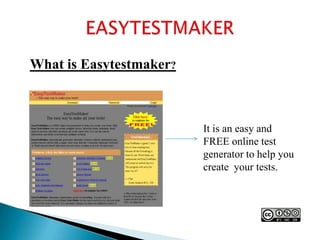
EASYTESTMAKERWhat is Easytestmaker?It is an easy and  FREE online test generator to help you create your tests.
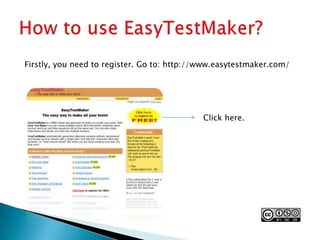
How to use EasyTestMaker?Firstly, you need to register. Go to: http://www.easytestmaker.com/Click here.
How to use EasyTestMaker?You need to fill out the form below.
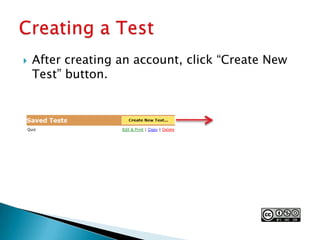
After creating an account, click “Create New Test” button.Creating a Test
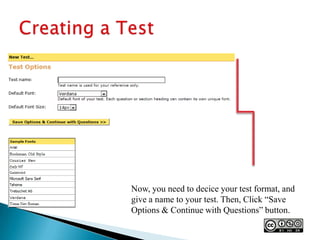
Creating a TestNow, you need to decice your test format, and give a name to your test. Then, Click “Save Options & Continue with Questions” button.
Creating a TestNow, decide what kind of a test you will create. It can be multiple-choice, fill-in-the-blank, matching, short answer and true/false questions.
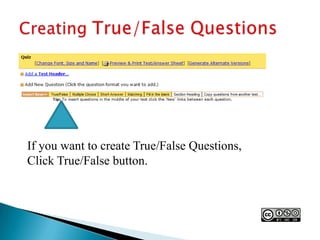
Creating True/False QuestionsIf you want to create True/False Questions, Click True/False button.
Creating True/False QuestionsWrite your questions here. Then, click “Save question” button.
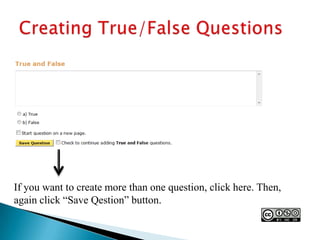
Creating True/False QuestionsIf you want to create more than one question, click here. Then, again click “Save Qestion” button.
Creating Multiple Choice QuestionsIf you want to create Multiple Choice Questions, Click here.
Creating Multiple Choice QuestionsWrite one correct, and wrong answers how many you like here. Write your questions here.
Creating Short Answer QuestionsIf you want to create Short Answer Questions, Click here.
Creating Short Answer QuestionsWrite your question here, and click “Save Question” button.
Creating Matching Questions
Creating Matching QuestionsIf you want to give instruction, write here.
Creating Matching QuestionsWrite questios, or words on the left side, and answers on the right side.
Creating Fill in the Blank QuestionsIf you want to create Fill in the Blank Questions, Click here.
Creating Fill in the Blank QuestionsWrite your text here. As it is said, Put [ ] between the words that are to be filled in by the students.
After you have finished your test, click here.
You will see this page.To download your test as a word document, you need to have a “Plus Member” account. However, you can print your file. That is free.
What can you do with Easytestmaker?You can create;Multiple-choice, Fill-in-the-blank, Matching, Short answer,True/false questions.
 What is great about using such a tool is that it eliminateswasted time spent on formatting. You just add new questions or sections and let Easy Test Maker do the hard work for you. All your tests are saved for easy retrieval. You can make changes or print out additionalcopies of any test you create.
		This tool is just for preparing written tests, soyou can’t add pictures on it, you can’t record your voice with it, you can’t add animations on it, you can’t save the file on your computer without having a “Plus Member” account.

Easy testmaker

  • 1.
    EASYTESTMAKERWhat is Easytestmaker?Itis an easy and FREE online test generator to help you create your tests.
  • 2.
    How to useEasyTestMaker?Firstly, you need to register. Go to: http://www.easytestmaker.com/Click here.
  • 3.
    How to useEasyTestMaker?You need to fill out the form below.
  • 4.
    After creating anaccount, click “Create New Test” button.Creating a Test
  • 5.
    Creating a TestNow,you need to decice your test format, and give a name to your test. Then, Click “Save Options & Continue with Questions” button.
  • 6.
    Creating a TestNow,decide what kind of a test you will create. It can be multiple-choice, fill-in-the-blank, matching, short answer and true/false questions.
  • 7.
    Creating True/False QuestionsIfyou want to create True/False Questions, Click True/False button.
  • 8.
    Creating True/False QuestionsWriteyour questions here. Then, click “Save question” button.
  • 9.
    Creating True/False QuestionsIfyou want to create more than one question, click here. Then, again click “Save Qestion” button.
  • 10.
    Creating Multiple ChoiceQuestionsIf you want to create Multiple Choice Questions, Click here.
  • 11.
    Creating Multiple ChoiceQuestionsWrite one correct, and wrong answers how many you like here. Write your questions here.
  • 12.
    Creating Short AnswerQuestionsIf you want to create Short Answer Questions, Click here.
  • 13.
    Creating Short AnswerQuestionsWrite your question here, and click “Save Question” button.
  • 14.
  • 15.
    Creating Matching QuestionsIfyou want to give instruction, write here.
  • 16.
    Creating Matching QuestionsWritequestios, or words on the left side, and answers on the right side.
  • 17.
    Creating Fill inthe Blank QuestionsIf you want to create Fill in the Blank Questions, Click here.
  • 18.
    Creating Fill inthe Blank QuestionsWrite your text here. As it is said, Put [ ] between the words that are to be filled in by the students.
  • 19.
    After you havefinished your test, click here.
  • 20.
    You will seethis page.To download your test as a word document, you need to have a “Plus Member” account. However, you can print your file. That is free.
  • 21.
    What can youdo with Easytestmaker?You can create;Multiple-choice, Fill-in-the-blank, Matching, Short answer,True/false questions.
  • 22.
    What isgreat about using such a tool is that it eliminateswasted time spent on formatting. You just add new questions or sections and let Easy Test Maker do the hard work for you. All your tests are saved for easy retrieval. You can make changes or print out additionalcopies of any test you create.
  • 23.
    This tool isjust for preparing written tests, soyou can’t add pictures on it, you can’t record your voice with it, you can’t add animations on it, you can’t save the file on your computer without having a “Plus Member” account.