Oracle® Cost Management
User's Guide
Release 12.1
Part No. E13635-05
August 2010
Oracle Cost Management User's Guide, Release 12.1
Part No. E13635-05
Copyright © 1996, 2010, Oracle and/or its affiliates. All rights reserved.
Primary Author:     Kevin Brown
Oracle is a registered trademark of Oracle Corporation and/or its affiliates. Other names may be trademarks
of their respective owners.
This software and related documentation are provided under a license agreement containing restrictions on
use and disclosure and are protected by intellectual property laws. Except as expressly permitted in your
license agreement or allowed by law, you may not use, copy, reproduce, translate, broadcast, modify, license,
transmit, distribute, exhibit, perform, publish or display any part, in any form, or by any means. Reverse
engineering, disassembly, or decompilation of this software, unless required by law for interoperability, is
prohibited.
The information contained herein is subject to change without notice and is not warranted to be error-free. If
you find any errors, please report them to us in writing.
If this software or related documentation is delivered to the U.S. Government or anyone licensing it on behalf
of the U.S. Government, the following notice is applicable:
U.S. GOVERNMENT RIGHTS
Programs, software, databases, and related documentation and technical data delivered to U.S. Government
customers are "commercial computer software" or "commercial technical data" pursuant to the applicable
Federal Acquisition Regulation and agency-specific supplemental regulations. As such, the use, duplication,
disclosure, modification, and adaptation shall be subject to the restrictions and license terms set forth in the
applicable Government contract, and, to the extent applicable by the terms of the Government contract, the
additional rights set forth in FAR 52.227-19, Commercial Computer Software License (December 2007). Oracle
USA, Inc., 500 Oracle Parkway, Redwood City, CA 94065.
This software is developed for general use in a variety of information management applications. It is not
developed or intended for use in any inherently dangerous applications, including applications which may
create a risk of personal injury. If you use this software in dangerous applications, then you shall be
responsible to take all appropriate fail-safe, backup, redundancy and other measures to ensure the safe use of
this software. Oracle Corporation and its affiliates disclaim any liability for any damages caused by use of this
software in dangerous applications.
This software and documentation may provide access to or information on content, products and services
from third parties. Oracle Corporation and its affiliates are not responsible for and expressly disclaim all
warranties of any kind with respect to third party content, products and services. Oracle Corporation and its
affiliates will not be responsible for any loss, costs, or damages incurred due to your access to or use of third
party content, products or services.
    iii
 
Contents
Send Us Your Comments
Preface
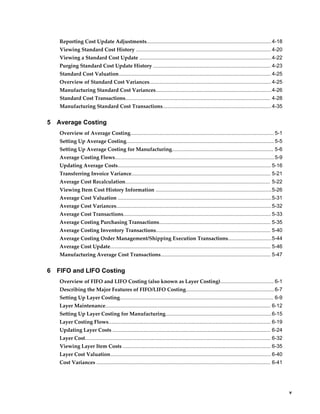
1 Cost Management Overview
Overview of Cost Management................................................................................................ 1-1
Cost Structure............................................................................................................................ 1-2
Standard and Average Costing Compared............................................................................... 1-8
Changing from Standard to Average Costing ...................................................................1-10
Retroactive Pricing.................................................................................................................. 1-10
Landed Cost Management (LCM)........................................................................................... 1-12
2 Setting Up Oracle Cost Management
Overview of Setting Up.............................................................................................................2-2
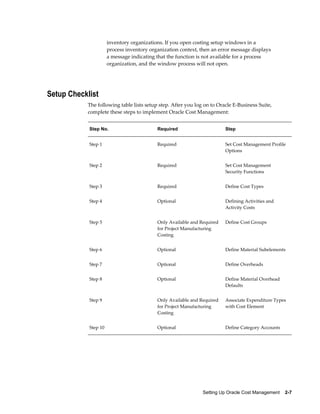
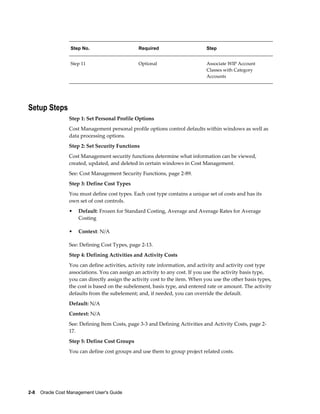
Setup Checklist .........................................................................................................................2-7
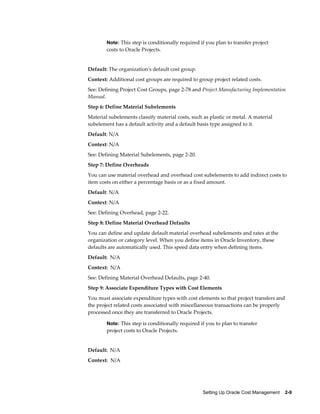
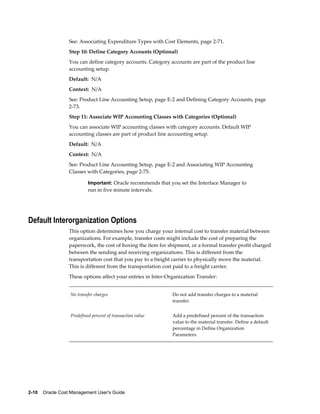
Setup Steps ............................................................................................................................... 2-8
Default Interorganization Options......................................................................................... 2-10
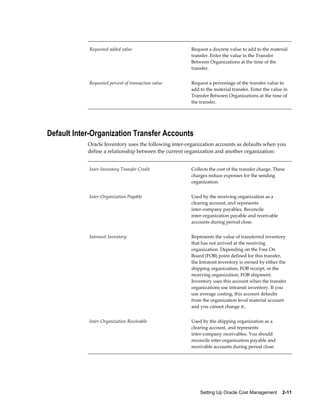
Default Inter-Organization Transfer Accounts...................................................................... 2-11
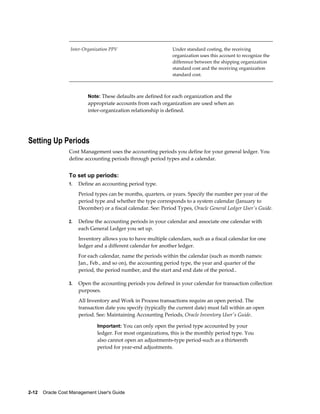
Setting Up Periods .................................................................................................................. 2-12
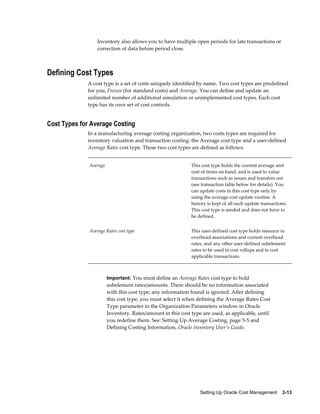
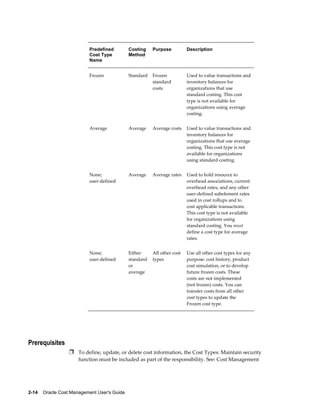
Defining Cost Types ...............................................................................................................2-13
Defining Activities and Activity Costs .................................................................................. 2-17
Defining Subelements............................................................................................................ 2-19
Defining Material Subelements .............................................................................................2-20
Defining Overhead .................................................................................................................2-22
Defining Material Overhead Defaults ...................................................................................2-40
Mass Editing Item Accounts................................................................................................... 2-43
iv
Mass Editing Cost Information............................................................................................... 2-44
Setting Cost Controls.............................................................................................................. 2-59
Copying Costs..........................................................................................................................2-61
Default Basis Types.................................................................................................................2-70
Associating Expenditure Types with Cost Elements .............................................................2-71
Defining Category Accounts .................................................................................................. 2-73
Account Update Restrictions...................................................................................................2-73
Associating WIP Accounting Classes with Categories...........................................................2-75
Project Cost Groups.................................................................................................................2-77
Profile Options and Security Functions................................................................................. 2-81
Landed Cost Management (LCM)........................................................................................... 2-86
Cost Management Security Functions.................................................................................... 2-89
3 Item Costing
Overview of Item Costing Activities........................................................................................ 3-1
Selecting an Item/Cost Type Association ................................................................................ 3-2
Defining Item Costs.................................................................................................................. 3-3
Defining Item Costs Details .....................................................................................................3-6
Viewing Item Costs .................................................................................................................. 3-7
Cost Type Inquiries................................................................................................................. 3-11
Purging Cost Information....................................................................................................... 3-16
Viewing Material Transaction Distributions ........................................................................ 3-18
Viewing WIP Transaction Distributions ............................................................................... 3-19
Viewing WIP Value Summaries ............................................................................................ 3-22
Viewing Material Transactions...............................................................................................3-26
Pending Landed Cost Adjustments........................................................................................ 3-28
Receiving Accounting Events..................................................................................................3-31
Error Resubmission................................................................................................................. 3-34
4 Standard Costing
Overview of Standard Costing..................................................................................................4-1
Work in Process Transaction Cost Flow...............................................................................4-2
Standard Costing Setup............................................................................................................ 4-3
Setting Up Standard Costing.................................................................................................... 4-3
Setting Up Standard Costing for Manufacturing..................................................................... 4-5
Bills and Cost Rollups............................................................................................................... 4-7
Updating Standard Costs.......................................................................................................... 4-9
Phantom Costing..................................................................................................................... 4-10
Reporting Pending Adjustments ........................................................................................... 4-11
Updating Pending Costs to Frozen Standard Costs ...............................................................4-13
    v
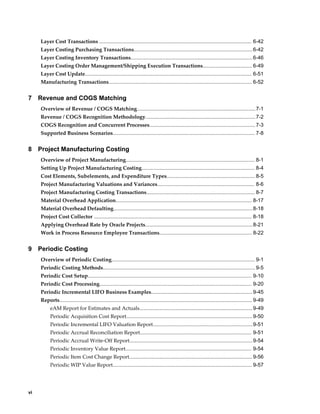
Reporting Cost Update Adjustments...................................................................................... 4-18
Viewing Standard Cost History ............................................................................................. 4-20
Viewing a Standard Cost Update ...........................................................................................4-22
Purging Standard Cost Update History ................................................................................. 4-23
Standard Cost Valuation......................................................................................................... 4-25
Overview of Standard Cost Variances.................................................................................... 4-25
Manufacturing Standard Cost Variances................................................................................4-26
Standard Cost Transactions.................................................................................................... 4-28
Manufacturing Standard Cost Transactions...........................................................................4-35
5 Average Costing
Overview of Average Costing................................................................................................... 5-1
Setting Up Average Costing...................................................................................................... 5-5
Setting Up Average Costing for Manufacturing...................................................................... 5-6
Average Costing Flows..............................................................................................................5-9
Updating Average Costs..........................................................................................................5-16
Transferring Invoice Variance................................................................................................ 5-21
Average Cost Recalculation.................................................................................................... 5-22
Viewing Item Cost History Information ................................................................................5-26
Average Cost Valuation ..........................................................................................................5-31
Average Cost Variances...........................................................................................................5-32
Average Cost Transactions...................................................................................................... 5-33
Average Costing Purchasing Transactions............................................................................. 5-35
Average Costing Inventory Transactions............................................................................... 5-40
Average Costing Order Management/Shipping Execution Transactions..............................5-44
Average Cost Update............................................................................................................... 5-46
Manufacturing Average Cost Transactions............................................................................ 5-47
6 FIFO and LIFO Costing
Overview of FIFO and LIFO Costing (also known as Layer Costing)..................................... 6-1
Describing the Major Features of FIFO/LIFO Costing.............................................................6-7
Setting Up Layer Costing.......................................................................................................... 6-9
Layer Maintenance.................................................................................................................. 6-12
Setting Up Layer Costing for Manufacturing.........................................................................6-15
Layer Costing Flows................................................................................................................ 6-19
Updating Layer Costs ............................................................................................................. 6-24
Layer Cost................................................................................................................................ 6-32
Viewing Layer Item Costs ...................................................................................................... 6-35
Layer Cost Valuation............................................................................................................... 6-40
Cost Variances ........................................................................................................................ 6-41
vi
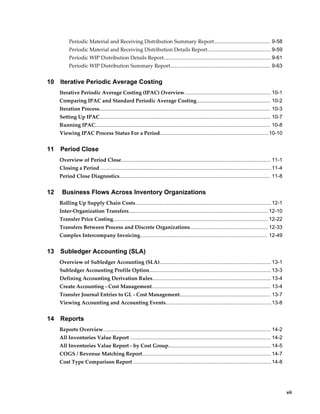
Layer Cost Transactions ......................................................................................................... 6-42
Layer Costing Purchasing Transactions..................................................................................6-42
Layer Costing Inventory Transactions....................................................................................6-46
Layer Costing Order Management/Shipping Execution Transactions.................................. 6-49
Layer Cost Update................................................................................................................... 6-51
Manufacturing Transactions................................................................................................... 6-52
7 Revenue and COGS Matching
Overview of Revenue / COGS Matching..................................................................................7-1
Revenue / COGS Recognition Methodology............................................................................7-2
COGS Recognition and Concurrent Processes......................................................................... 7-3
Supported Business Scenarios.................................................................................................. 7-8
8 Project Manufacturing Costing
Overview of Project Manufacturing......................................................................................... 8-1
Setting Up Project Manufacturing Costing.............................................................................. 8-4
Cost Elements, Subelements, and Expenditure Types............................................................. 8-5
Project Manufacturing Valuations and Variances................................................................... 8-6
Project Manufacturing Costing Transactions........................................................................... 8-7
Material Overhead Application.............................................................................................. 8-17
Material Overhead Defaulting................................................................................................8-18
Project Cost Collector ............................................................................................................. 8-18
Applying Overhead Rate by Oracle Projects..........................................................................8-21
Work in Process Resource Employee Transactions................................................................ 8-22
9 Periodic Costing
Overview of Periodic Costing................................................................................................... 9-1
Periodic Costing Methods......................................................................................................... 9-5
Periodic Cost Setup................................................................................................................. 9-10
Periodic Cost Processing......................................................................................................... 9-20
Periodic Incremental LIFO Business Examples......................................................................9-45
Reports..................................................................................................................................... 9-49
eAM Report for Estimates and Actuals..............................................................................9-49
Periodic Acquisition Cost Report.......................................................................................9-50
Periodic Incremental LIFO Valuation Report.....................................................................9-51
Periodic Accrual Reconciliation Report............................................................................. 9-51
Periodic Accrual Write-Off Report.....................................................................................9-54
Periodic Inventory Value Report....................................................................................... 9-54
Periodic Item Cost Change Report.....................................................................................9-56
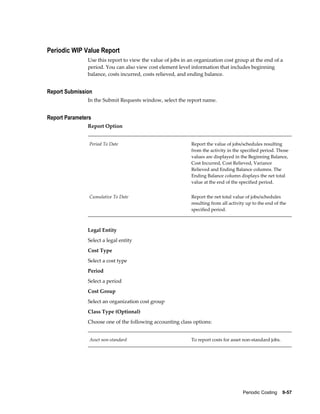
Periodic WIP Value Report................................................................................................ 9-57
    vii
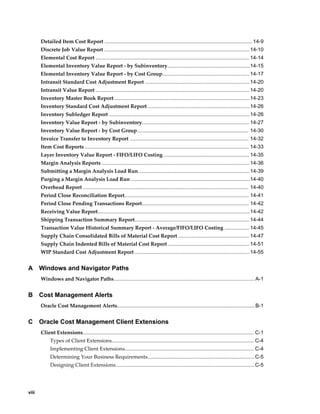
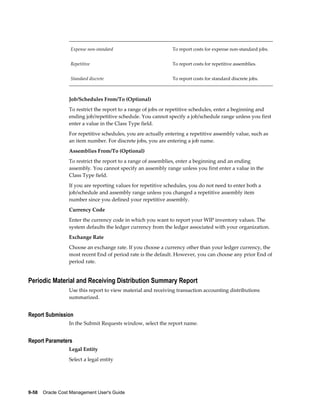
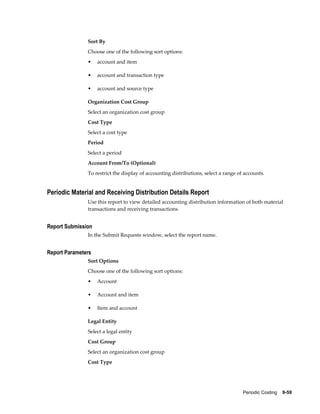
Periodic Material and Receiving Distribution Summary Report....................................... 9-58
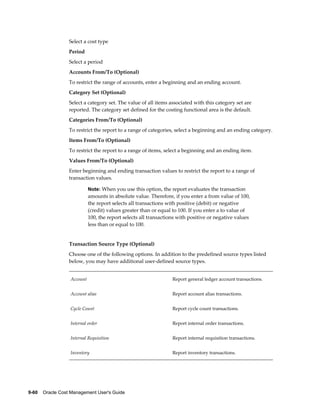
Periodic Material and Receiving Distribution Details Report............................................ 9-59
Periodic WIP Distribution Details Report.......................................................................... 9-61
Periodic WIP Distribution Summary Report..................................................................... 9-63
10 Iterative Periodic Average Costing
Iterative Periodic Average Costing (IPAC) Overview............................................................10-1
Comparing IPAC and Standard Periodic Average Costing................................................... 10-2
Iteration Process...................................................................................................................... 10-3
Setting Up IPAC...................................................................................................................... 10-7
Running IPAC......................................................................................................................... 10-8
Viewing IPAC Process Status For a Period...........................................................................10-10
11 Period Close
Overview of Period Close....................................................................................................... 11-1
Closing a Period ......................................................................................................................11-4
Period Close Diagnostics........................................................................................................ 11-8
12 Business Flows Across Inventory Organizations
Rolling Up Supply Chain Costs..............................................................................................12-1
Inter-Organization Transfers................................................................................................ 12-10
Transfer Price Costing........................................................................................................... 12-22
Transfers Between Process and Discrete Organizations...................................................... 12-33
Complex Intercompany Invoicing........................................................................................ 12-49
13 Subledger Accounting (SLA)
Overview of Subledger Accounting (SLA)............................................................................. 13-1
Subledger Accounting Profile Option.................................................................................... 13-3
Defining Accounting Derivation Rules.................................................................................. 13-4
Create Accounting - Cost Management.................................................................................. 13-4
Transfer Journal Entries to GL - Cost Management............................................................... 13-7
Viewing Accounting and Accounting Events.........................................................................13-8
14 Reports
Reports Overview.................................................................................................................... 14-2
All Inventories Value Report ................................................................................................. 14-2
All Inventories Value Report - by Cost Group.......................................................................14-5
COGS / Revenue Matching Report......................................................................................... 14-7
Cost Type Comparison Report ............................................................................................... 14-8
viii
Detailed Item Cost Report ......................................................................................................14-9
Discrete Job Value Report .................................................................................................... 14-10
Elemental Cost Report .......................................................................................................... 14-14
Elemental Inventory Value Report - by Subinventory.........................................................14-15
Elemental Inventory Value Report - by Cost Group............................................................ 14-17
Intransit Standard Cost Adjustment Report ........................................................................14-20
Intransit Value Report .......................................................................................................... 14-20
Inventory Master Book Report .............................................................................................14-23
Inventory Standard Cost Adjustment Report ......................................................................14-26
Inventory Subledger Report .................................................................................................14-26
Inventory Value Report - by Subinventory.......................................................................... 14-27
Inventory Value Report - by Cost Group............................................................................. 14-30
Invoice Transfer to Inventory Report .................................................................................. 14-32
Item Cost Reports ................................................................................................................. 14-33
Layer Inventory Value Report - FIFO/LIFO Costing ........................................................... 14-35
Margin Analysis Reports ......................................................................................................14-36
Submitting a Margin Analysis Load Run.............................................................................14-39
Purging a Margin Analysis Load Run ..................................................................................14-40
Overhead Report .................................................................................................................. 14-40
Period Close Reconciliation Report...................................................................................... 14-41
Period Close Pending Transactions Report.......................................................................... 14-42
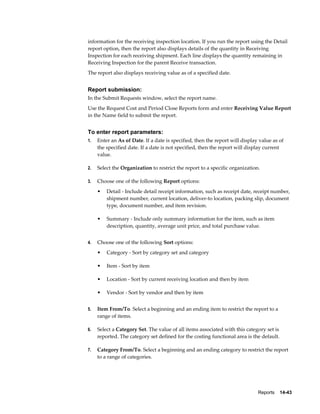
Receiving Value Report.........................................................................................................14-42
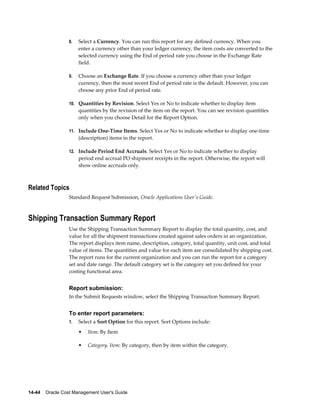
Shipping Transaction Summary Report............................................................................... 14-44
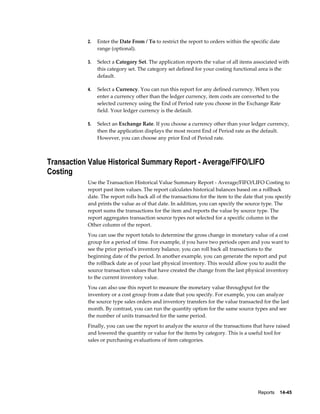
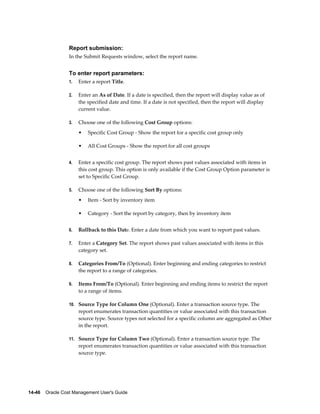
Transaction Value Historical Summary Report - Average/FIFO/LIFO Costing ................. 14-45
Supply Chain Consolidated Bills of Material Cost Report ................................................. 14-47
Supply Chain Indented Bills of Material Cost Report ........................................................ 14-51
WIP Standard Cost Adjustment Report ...............................................................................14-55
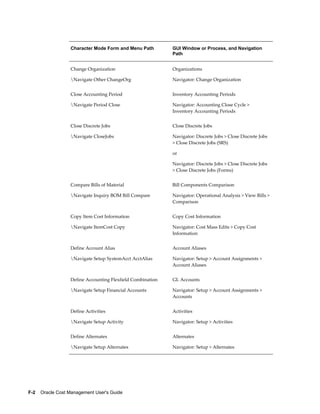
A Windows and Navigator Paths
Windows and Navigator Paths................................................................................................. A-1
B Cost Management Alerts
Oracle Cost Management Alerts...............................................................................................B-1
C Oracle Cost Management Client Extensions
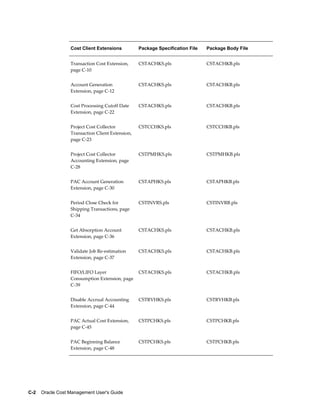
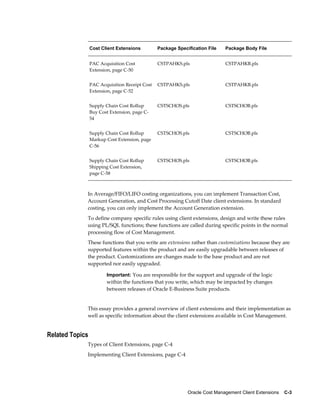
Client Extensions...................................................................................................................... C-1
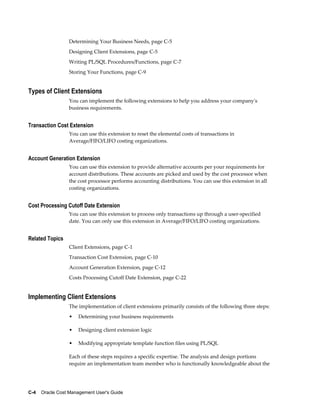
Types of Client Extensions.................................................................................................. C-4
Implementing Client Extensions......................................................................................... C-4
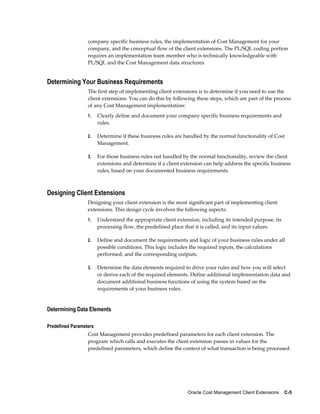
Determining Your Business Requirements..........................................................................C-5
Designing Client Extensions................................................................................................C-5
    ix
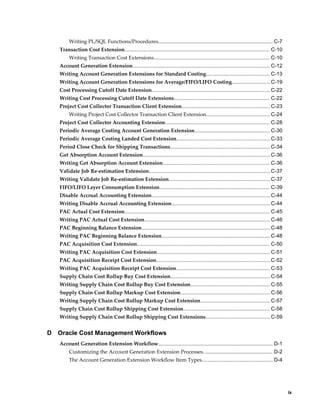
Writing PL/SQL Functions/Procedures............................................................................... C-7
Transaction Cost Extension.................................................................................................... C-10
Writing Transaction Cost Extensions................................................................................ C-10
Account Generation Extension............................................................................................... C-12
Writing Account Generation Extensions for Standard Costing............................................ C-13
Writing Account Generation Extensions for Average/FIFO/LIFO Costing...........................C-19
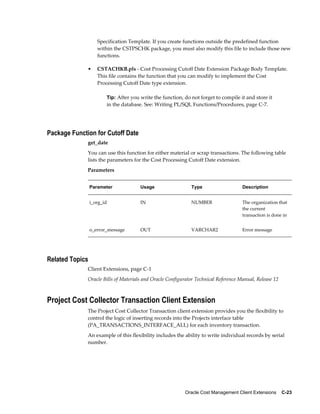
Cost Processing Cutoff Date Extension..................................................................................C-22
Writing Cost Processing Cutoff Date Extensions.................................................................. C-22
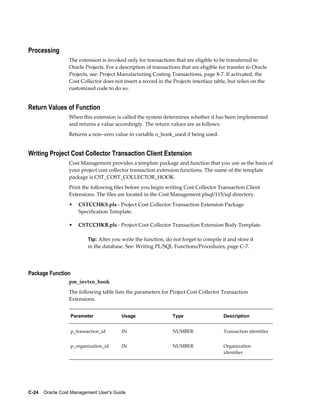
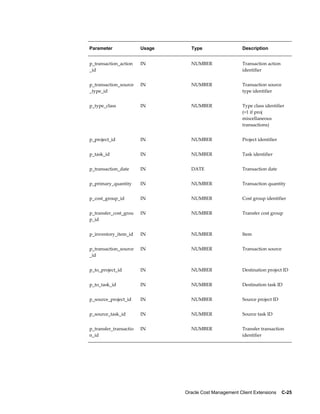
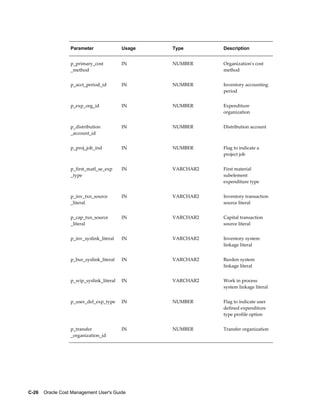
Project Cost Collector Transaction Client Extension............................................................. C-23
Writing Project Cost Collector Transaction Client Extension............................................ C-24
Project Cost Collector Accounting Extension........................................................................ C-28
Periodic Average Costing Account Generation Extension.................................................... C-30
Periodic Average Costing Landed Cost Extension.................................................................C-33
Period Close Check for Shipping Transactions..................................................................... C-34
Get Absorption Account Extension........................................................................................C-36
Writing Get Absorption Account Extension.......................................................................... C-36
Validate Job Re-estimation Extension....................................................................................C-37
Writing Validate Job Re-estimation Extension...................................................................... C-37
FIFO/LIFO Layer Consumption Extension............................................................................ C-39
Disable Accrual Accounting Extension..................................................................................C-44
Writing Disable Accrual Accounting Extension.................................................................... C-44
PAC Actual Cost Extension.................................................................................................... C-45
Writing PAC Actual Cost Extension.......................................................................................C-46
PAC Beginning Balance Extension.........................................................................................C-48
Writing PAC Beginning Balance Extension........................................................................... C-48
PAC Acquisition Cost Extension............................................................................................ C-50
Writing PAC Acquisition Cost Extension.............................................................................. C-51
PAC Acquisition Receipt Cost Extension...............................................................................C-52
Writing PAC Acquisition Receipt Cost Extension.................................................................C-53
Supply Chain Cost Rollup Buy Cost Extension.....................................................................C-54
Writing Supply Chain Cost Rollup Buy Cost Extension....................................................... C-55
Supply Chain Cost Rollup Markup Cost Extension.............................................................. C-56
Writing Supply Chain Cost Rollup Markup Cost Extension................................................ C-57
Supply Chain Cost Rollup Shipping Cost Extension............................................................ C-58
Writing Supply Chain Cost Rollup Shipping Cost Extensions.............................................C-59
D Oracle Cost Management Workflows
Account Generation Extension Workflow............................................................................... D-1
Customizing the Account Generation Extension Processes................................................ D-2
The Account Generation Extension Workflow Item Types................................................. D-4
x
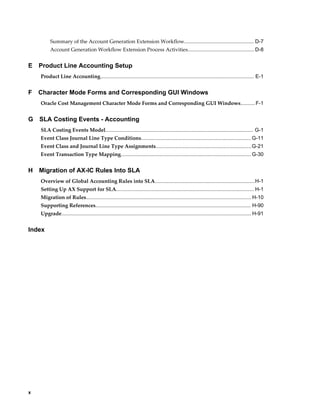
Summary of the Account Generation Extension Workflow................................................ D-7
Account Generation Workflow Extension Process Activities..............................................D-8
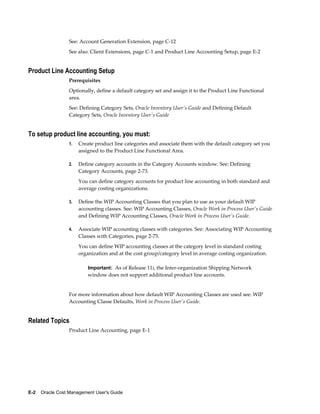
E Product Line Accounting Setup
Product Line Accounting.......................................................................................................... E-1
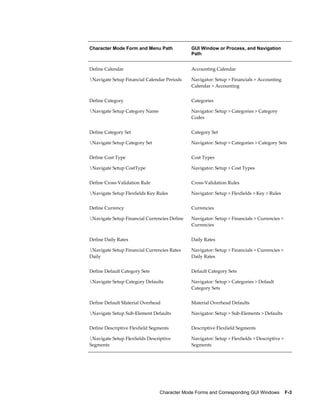
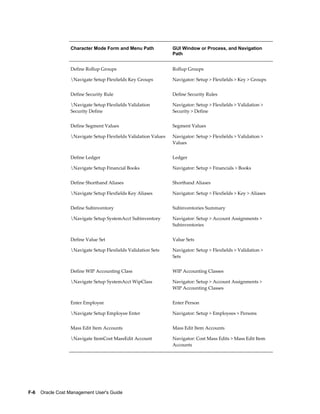
F Character Mode Forms and Corresponding GUI Windows
Oracle Cost Management Character Mode Forms and Corresponding GUI Windows..........F-1
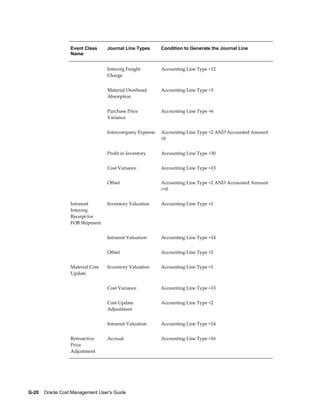
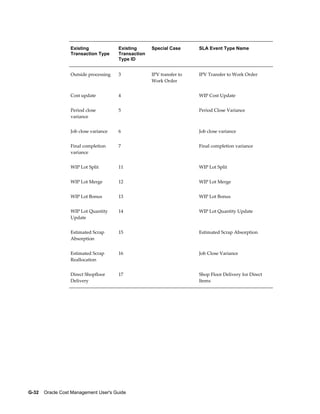
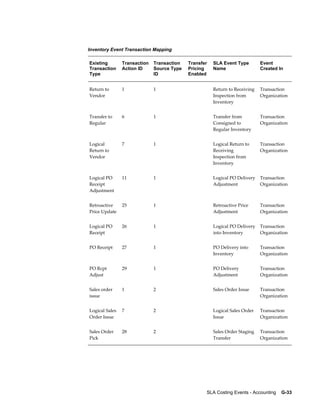
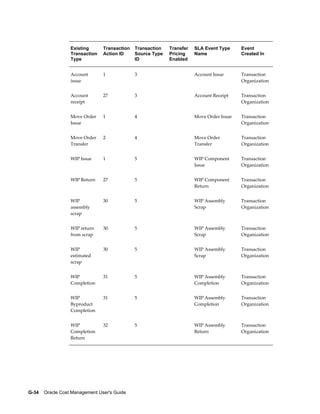
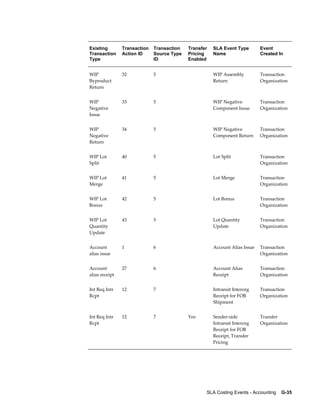
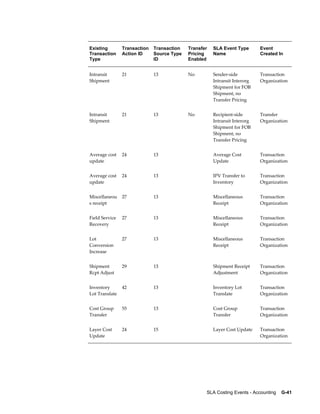
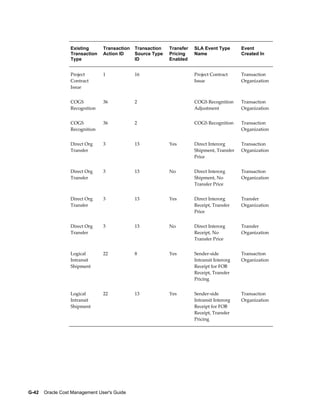
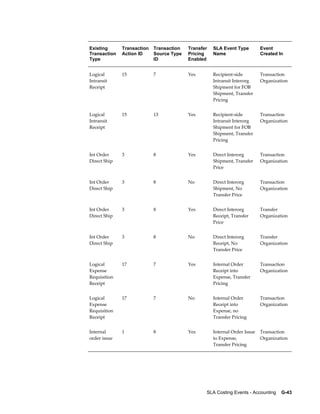
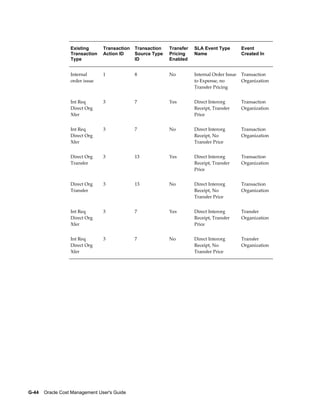
G SLA Costing Events - Accounting
SLA Costing Events Model...................................................................................................... G-1
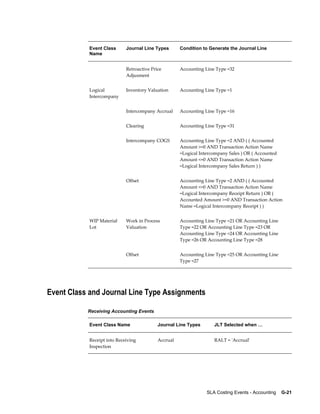
Event Class Journal Line Type Conditions............................................................................G-11
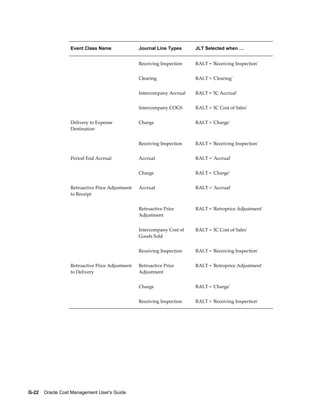
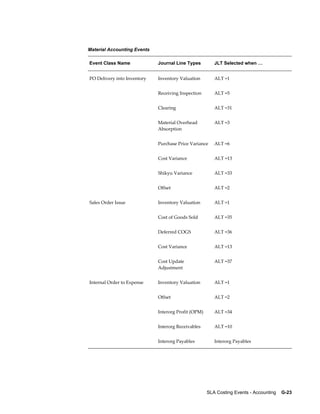
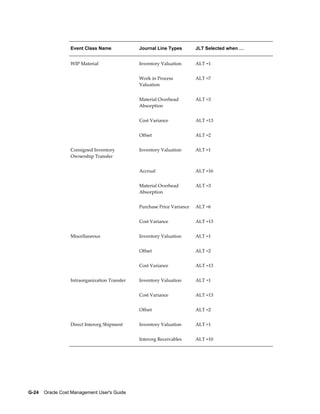
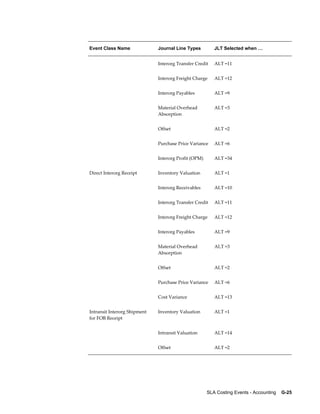
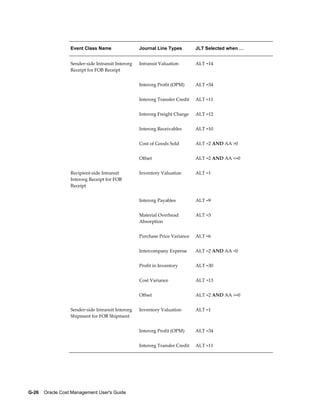
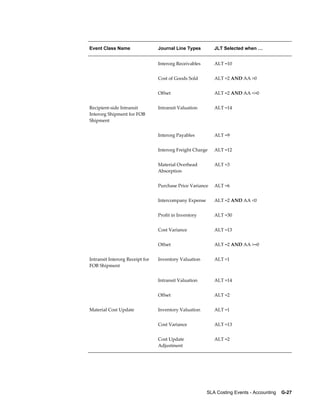
Event Class and Journal Line Type Assignments..................................................................G-21
Event Transaction Type Mapping..........................................................................................G-30
H Migration of AX-IC Rules Into SLA
Overview of Global Accounting Rules into SLA.....................................................................H-1
Setting Up AX Support for SLA............................................................................................... H-1
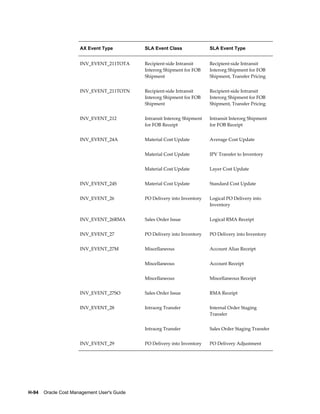
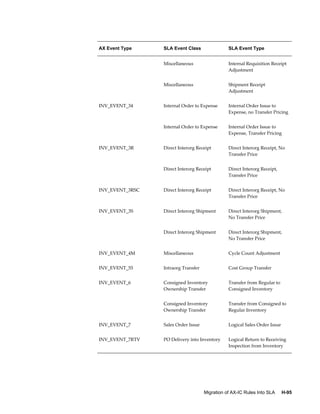
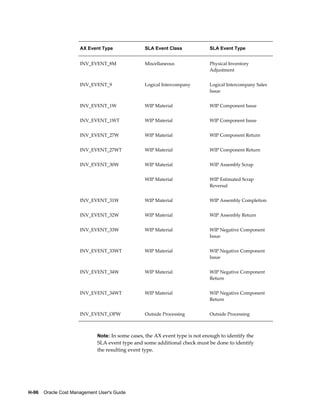
Migration of Rules.................................................................................................................. H-10
Supporting References........................................................................................................... H-90
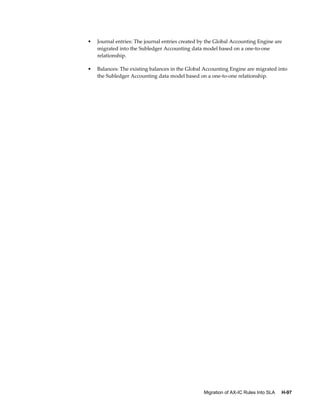
Upgrade................................................................................................................................... H-91
Index
    xi
 
Send Us Your Comments
Oracle Cost Management User's Guide, Release 12.1
Part No. E13635-05
Oracle welcomes customers' comments and suggestions on the quality and usefulness of this document.
Your feedback is important, and helps us to best meet your needs as a user of our products. For example:
• Are the implementation steps correct and complete?
• Did you understand the context of the procedures?
• Did you find any errors in the information?
• Does the structure of the information help you with your tasks?
• Do you need different information or graphics? If so, where, and in what format?
• Are the examples correct? Do you need more examples?
If you find any errors or have any other suggestions for improvement, then please tell us your name, the
name of the company who has licensed our products, the title and part number of the documentation and
the chapter, section, and page number (if available).
Note: Before sending us your comments, you might like to check that you have the latest version of the
document and if any concerns are already addressed. To do this, access the new Oracle E-Business Suite
Release Online Documentation CD available on My Oracle Support and www.oracle.com. It contains the
most current Documentation Library plus all documents revised or released recently.
Send your comments to us using the electronic mail address: appsdoc_us@oracle.com
Please give your name, address, electronic mail address, and telephone number (optional).
If you need assistance with Oracle software, then please contact your support representative or Oracle
Support Services.
If you require training or instruction in using Oracle software, then please contact your Oracle local office
and inquire about our Oracle University offerings. A list of Oracle offices is available on our Web site at
www.oracle.com.
    xiii
 
Preface
Intended Audience
Welcome to Release 12.1 of the Oracle Cost Management User's Guide.
This guide assumes you have a working knowledge of the following:
• The principles and customary practices of your business area.
• Oracle Cost Management.
If you have never used Oracle Cost Management, then Oracle suggests you attend
one or more of the Oracle Cost Management training classes available through
Oracle University.
• Oracle E-Business Suite graphical user interface.
To learn more about the Oracle E-Business Suite graphical user interface, read the
Oracle E-Business Suite User's Guide.
Other Information Sources
You can choose from many sources of information including training, online
documentation, and support services to increase your knowledge and understanding of
Oracle Cost Management. If this guide refers you to other Oracle E-Business Suite
documentation, then use only the Release 12 versions of those guides.
For a full list of documentation resources for Oracle E-Business Suite Release 12, see
Oracle Applications Documentation Resources, Release 12 , Oracle MetaLink Document
394692.1.
Training
Oracle offers a complete set of training courses to help you and your staff master Oracle
Cost Management and reach full productivity quickly. These courses are organized into
functional learning paths, so you take only those courses appropriate to your job or area
xiv
of responsibility.
You have a choice of educational environments. You can attend courses offered by
Oracle University at any of our many Education Centers, you can arrange for our
trainers to teach at your facility, or you can use Oracle Learning Network (OLN), Oracle
University's online education utility. In addition, Oracle training professionals can tailor
standard courses or develop custom courses to meet your needs. For example, you may
want to use your organization structure, terminology, and data as examples in a
customized training session delivered at your own facility.
See Related Information Sources on page xv for more Oracle E-Business Suite product
information.
Deaf/Hard of Hearing Access to Oracle Support Services
To reach Oracle Support Services, use a telecommunications relay service (TRS) to call
Oracle Support at 1.800.223.1711. An Oracle Support Services engineer will handle
technical issues and provide customer support according to the Oracle service request
process. Information about TRS is available at
http://www.fcc.gov/cgb/consumerfacts/trs.html, and a list of phone numbers is
available at http://www.fcc.gov/cgb/dro/trsphonebk.html.
Documentation Accessibility
Our goal is to make Oracle products, services, and supporting documentation accessible
to all users, including users that are disabled. To that end, our documentation includes
features that make information available to users of assistive technology. This
documentation is available in HTML format, and contains markup to facilitate access by
the disabled community. Accessibility standards will continue to evolve over time, and
Oracle is actively engaged with other market-leading technology vendors to address
technical obstacles so that our documentation can be accessible to all of our customers.
For more information, visit the Oracle Accessibility Program Web site at
http://www.oracle.com/accessibility/.
Accessibility of Code Examples in Documentation
Screen readers may not always correctly read the code examples in this document. The
conventions for writing code require that closing braces should appear on an otherwise
empty line; however, some screen readers may not always read a line of text that
consists solely of a bracket or brace.
Accessibility of Links to External Web Sites in Documentation
This documentation may contain links to Web sites of other companies or organizations
that Oracle does not own or control. Oracle neither evaluates nor makes any
representations regarding the accessibility of these Web sites.
    xv
Structure
1  Cost Management Overview
2  Setting Up Oracle Cost Management
3  Item Costing
4  Standard Costing
5  Average Costing
6  FIFO and LIFO Costing
7  Revenue and COGS Matching
8  Project Manufacturing Costing
9  Periodic Costing
10  Iterative Periodic Average Costing
11  Period Close
12  Business Flows Across Inventory Organizations
13  Subledger Accounting (SLA)
14  Reports
A  Windows and Navigator Paths
B  Cost Management Alerts
C  Oracle Cost Management Client Extensions
D  Oracle Cost Management Workflows
E  Product Line Accounting Setup
F  Character Mode Forms and Corresponding GUI Windows
G  SLA Costing Events - Accounting
H  Migration of AX-IC Rules Into SLA
Related Information Sources
Oracle E-Business Suite User's Guide
This guide explains how to enter data, query, run reports, and navigate using the
graphical user interface (GUI) available with this release of Cost Management (and any
other Oracle E-Business Suite product). This guide also includes information on setting
user profiles, as well as running and reviewing reports and concurrent processes. You
can access this user's guide online by choosing "Getting Started with Oracle E-Business
Suite" from any Oracle E-Business Suite help file.
Oracle E-Business Suite Flexfields Guide
This guide provides flexfields planning, setup and reference information. This manual
also provides information on creating custom reports on flexfields data.
Oracle Bills of Material User's Guide
This guide describes how to create various bills of materials to maximize efficiency,
improve quality and lower cost for the most sophisticated manufacturing
environments. By detailing integrated product structures and processes, flexible
product and process definition, and configuration management, this guide enables you
to manage product details within and across multiple manufacturing sites.
Oracle Financials Global Accounting Engine User's Guide
xvi
Use the Global Accounting Engine to replace the transfer to General Ledger and create
subledger accounting entries that meet additional statutory standards within some
countries. The Accounting Engine provides subledger balances, legal reports, and
bi-directional drilldown from General Ledger to the subledger transaction.
Oracle Flow Manufacturing User's Guide
This guide describes how to use Oracle's Flow Manufacturing functionality to support
the processes of flow manufacturing. It describes design features of demand
management, line design and balancing, and kanban planning. It also describes
production features of line scheduling, production, and kanban execution.
Oracle General Ledger User's Guide
This guide explains how to plan and define your chart of accounts, accounting period
types and accounting calendar, functional currency, and ledger. It also describes how to
define journal entry sources and categories so you can create journal entries for your
general ledger. If you use multiple currencies, use this manual when you define
additional rate types, and enter daily rates. This manual also includes complete
information on implementing Budgetary Control.
Oracle Inventory User's Guide
This guide describes how to define items and item information, perform receiving and
inventory transactions, maintain cost control, plan items, perform cycle counting and
physical inventories, and set up Oracle Inventory.
Oracle Order Management User's Guide
This guide describes how to enter sales orders and returns, copy existing sales orders,
schedule orders, release orders, create price lists and discounts for orders, run
processes, and create reports.
Oracle Payables User's Guide
This guide describes how accounts payable transactions are created and entered in
Oracle Payables. This guide also contains detailed setup information for Oracle
Payables.
Oracle Project Manufacturing User's Guide
This guide describes the unique set of features Oracle Project Manufacturing provides
for a project-based manufacturing environment. Oracle Project Manufacturing can be
tightly integrated with Oracle Projects.
Oracle Purchasing User's Guide
This guide describes how to create and approve purchasing documents, including
requisitions, different types of purchase orders, quotations, RFQs, and receipts. This
guide also describes how to manage your supply base through agreements, sourcing
rules and approved supplier lists. In addition, this guide explains how you can
automatically create purchasing documents based on business rules through integration
with Oracle Workflow technology, which automates many of the key procurement
processes.
    xvii
Oracle Receivables User's Guide
Use this manual to learn how to implement flexible address formats for different
countries. You can use flexible address formats in the suppliers, banks, invoices, and
payments windows.
Oracle Workflow User's Guide
This guide describes how Oracle E-Business Suite users can view and respond to
workflow notifications and monitor the progress of their workflow processes.
Oracle Work in Process User's Guide
This guide describes how Oracle Work in Process provides a complete production
management system. Specifically this guide describes how discrete, repetitive,
assemble-to-order, project, flow, and mixed manufacturing environments are
supported.
Integration Repository
The Oracle Integration Repository is a compilation of information about the service
endpoints exposed by the Oracle E-Business Suite of applications. It provides a
complete catalog of Oracle E-Business Suite's business service interfaces. The tool lets
users easily discover and deploy the appropriate business service interface for
integration with any system, application, or business partner.
The Oracle Integration Repository is shipped as part of the E-Business Suite. As your
instance is patched, the repository is automatically updated with content appropriate
for the precise revisions of interfaces in your environment.
Installation and System Administration
Installing Oracle E-Business Suite Products
This guide provides instructions for managing the installation of Oracle E-Business
Suite products. In Release 12, much of the installation process is handled using Oracle
Rapid Install, which minimizes the time to install Oracle E-Business Suite products and
the technology stack by automating many of the required steps. This guide contains
instructions for using Oracle Rapid Install and lists the tasks you need to perform to
finish your installation. You should use this guide in conjunction with individual
product user's guides and implementation guides.
Maintaining Oracle E-Business Suite Products
Use this guide to help you run the various AD utilities, such as AutoUpgrade,
AutoPatch, AD Administration, AD Controller, AD Relink, License Manager, and
others. It contains how-to steps, screenshots, and other information that you need to run
the AD utilities. This guide also provides information on maintaining the Oracle
E-Business Suite file system and database.
Oracle Alert User's Guide
xviii
This guide explains how to define periodic and event alerts to monitor the status of
your Oracle E-Business Suite data.
Oracle E-Business Suite Developer's Guide
This guide contains the coding standards followed by the Oracle E-Business Suite
development staff. It describes the Oracle Application Object Library components
needed to implement the Oracle E-Business Suite user interface described in the Oracle
E-Business Suite User Interface Standards for Forms-Based Products. It also provides
information to help you build your custom Oracle Forms Developer forms so that they
integrate with Oracle E-Business Suite.
Oracle E-Business Suite System Administrator's Guide
This guide provides planning and reference information for the Oracle E-Business Suite
System Administrator. It contains information on how to define security, customize
menus and online help, and manage concurrent processing.
Oracle eTechnical Reference Manuals
Each eTechnical Reference Manual (eTRM) contains database diagrams and a detailed
description of database tables, forms, reports, and programs for a specific Oracle
E-Business Suite product. This information helps you convert data from your existing
applications and integrate Oracle E-Business Suite data with non-Oracle applications,
and write custom reports for Oracle E-Business Suite products. Oracle eTRM is
available on Oracle MetaLink.
Oracle Workflow Administrator's Guide
This guide explains how to complete the setup steps necessary for any Oracle
E-Business Suite product that includes workflow-enabled processes, as well as how to
monitor the progress of runtime workflow processes.
Oracle Workflow Developer's Guide
This guide explains how to define new workflow business processes and customize
existing Oracle E-Business Suite-embedded workflow processes. It also describes how
to define and customize business events and event subscriptions.
Oracle E-Business Suite Upgrade Guide
Refer to this guide if you are upgrading your Oracle E-Business Suite Release 11i
products to Release 12. This guide describes the upgrade process and lists database and
product-specific upgrade tasks.
Do Not Use Database Tools to Modify Oracle E-Business Suite Data
Oracle STRONGLY RECOMMENDS that you never use SQL*Plus, Oracle Data
Browser, database triggers, or any other tool to modify Oracle E-Business Suite data
unless otherwise instructed.
Oracle provides powerful tools you can use to create, store, change, retrieve, and
maintain information in an Oracle database. But if you use Oracle tools such as
    xix
SQL*Plus to modify Oracle E-Business Suite data, you risk destroying the integrity of
your data and you lose the ability to audit changes to your data.
Because Oracle E-Business Suite tables are interrelated, any change you make using an
Oracle E-Business Suite form can update many tables at once. But when you modify
Oracle E-Business Suite data using anything other than Oracle E-Business Suite, you
may change a row in one table without making corresponding changes in related tables.
If your tables get out of synchronization with each other, you risk retrieving erroneous
information and you risk unpredictable results throughout Oracle E-Business Suite.
When you use Oracle E-Business Suite to modify your data, Oracle E-Business Suite
automatically checks that your changes are valid. Oracle E-Business Suite also keeps
track of who changes information. If you enter information into database tables using
database tools, you may store invalid information. You also lose the ability to track who
has changed your information because SQL*Plus and other database tools do not keep a
record of changes.
Cost Management Overview    1-1
1
Cost Management Overview
This chapter covers the following topics:
• Overview of Cost Management
• Cost Structure
• Standard and Average Costing Compared
• Retroactive Pricing
• Landed Cost Management (LCM)
Overview of Cost Management
Oracle Cost Management is a full absorption, perpetual, and periodic cost system for
purchasing, inventory, work in process, and order management transactions. Cost
Management supports multiple cost elements, costed transactions, comprehensive
valuation and variance reporting, and thorough integration with Oracle Financials.
Cost Management automatically costs and values all inventory, work in process, and
purchasing transactions. This means that inventory and work in process costs are
up-to-date, and inventory value matches the cumulative total of accounting
transactions.
Cost Management provides flexible cost setup features, including multiple cost
elements and unlimited subelements, unlimited resources and overheads, and
unlimited activities. You can use one or more of the following cost elements: material,
material overhead, resource, outside processing, and overhead. Subelements enable you
to analyze costs in greater detail. For example, you can have multiple material overhead
subelements, such as purchasing, material handling, freight, duty, and so on. This
flexibility enables you to accurately define and maintain costs and associate them with
items.
Cost Management provides flexible account setup, including accounts by organization,
subinventory, and work in process accounting class so that you can distribute costs to
the proper expense accounts and capture valuation in the proper asset accounts.
1-2    Oracle Cost Management User's Guide
Cost Management provides comprehensive valuation and variance reporting. Perpetual
inventory and work in process balances are maintained on-line. Multiple variances are
supported: purchase price, standard cost, cycle count, physical inventory, work in
process usage, and work in process efficiency.
Cost Management also provides extensive cost simulation, copying, and editing
capabilities that enable you to project costs and keep them accurate.
Cost Management supports flexible period-based accounting that lets you transact in
more than one open period at the same time. You can reconcile and analyze one open
period while conducting business in a subsequent period. Additionally, you can
transfer summary or detail account activity to Oracle General Ledger at any time and
close a period at any time.
Costing Methods
Cost Management supports four perpetual costing methods: Standard Costing, Average
Costing, FIFO Costing, and LIFO Costing. You can use the Average Costing method for
one organization and the Standard Costing method for another organization.
See: Standard and Average Costing Compared, page 1-8.
You can use FIFO Costing, which is based on the assumption that the first inventory
units acquired are the first units used. You can use LIFO Costing, which is based on the
assumption that the last inventory units acquired are the first units used. Cost
Management also supports Periodic Costing. See Overview of Periodic Costing, page 9-
1
Oracle Cost Management does not support costing for process inventory organizations.
See: Oracle Process Manufacturing Costing for costing and accounting functions for
process organizations.
Related Topics
Overview of Standard Costing, page 4-1
Overview of Average Costing, page 5-1
Overview of FIFO/LIFO Costing, page 6-1
Describing the Major Features of FIFO/LIFO Costing, page 6-7
Cost Structure
A cost structure is the collection of definitions and methods used to cost inventory, bills
of material, and work in process. The cost structure is composed of:
• Organizations
• Cost organizations and shared costs
Cost Management Overview    1-3
• Cost elements
• Subelements
• Activities
• Basis types
• General Ledger accounts
Inventory Organizations
In Oracle Manufacturing, each inventory organization must have a cost structure that
you define. Organizations can have their own cost structure or can share attributes of a
similar cost structure. See:Defining Organization Access, Oracle Inventory User's Guide .
Before you set up Inventory, Bills of Material, or Work in Process, examine the current
cost structure of your organization(s) to determine which costing features and functions
to use.
Cost Organizations and Shared Costs
You can share costs across standard cost organizations as long as the child cost
organizations have not enabled WIP. You cannot share costs across average costing
organizations.
The two item attribute controls, Costing Enabled and Inventory Asset Value, determine
whether you share costs. If you plan to share costs across standard costing
organizations, then set the control level for these attributes to the item level. The
organization that holds the costs is called the cost master organization.
Costs are maintained by the cost master organization and shared by the child cost
organizations. All reports, inquiries, and processes use the shared costs. You cannot
enter costs into the child cost organizations.
Note: The cost master organization can be a manufacturing
organization using Work in Process.
You can also set up average cost organizations even if you share standard costs with
another group of organizations. The average and standard costing organizations can
share the same item master organization. However, the average cost organization does
not share costs.
For each organization to create and maintain its own costs, set the control level for
Costing Enabled and Inventory Asset Value item attributes to the item/org level. Even if
each organization holds its own costs, multiple organizations can share the same
common item master. See: Defining Items, Oracle Inventory User's Guide.
1-4    Oracle Cost Management User's Guide
Cost Elements
Product costs are the sum of their elemental costs. Cost elements are defined as follows:
• Material - The raw material/component cost at the lowest level of the bill of
material determined from the unit cost of the component item.
• Material Overhead - The overhead cost of material, calculated as a percentage of
the total cost, or as a fixed charge per item, lot, or activity. You can use material
overhead for any costs attributed to direct material costs. If you use Work in
Process, then you can also apply material overhead at the assembly level using a
variety of allocation charge methods.
• Resource - Direct costs, such as people (labor), machines, space, or miscellaneous
charges, required to manufacture products. Resources can be calculated as the
standard resource rate times the standard units on the routing, per operation, or as
a fixed charge per item or lot passing through an operation.
• Overhead - The overhead cost of resource and outside processing, calculated as a
percentage of the resource or outside processing cost, as a fixed amount per
resource unit, or as a fixed charge per item or lot passing through an operation.
Overhead is used as a means to allocate department costs or activities. For example,
you can define multiple overhead subelements to cover both fixed and variable
overhead, each with its own rate. You can assign multiple overhead subelements to
a single department, and vice versa.
• Outside Processing - This is the cost of outside processing purchased from a
supplier. Outside processing may be a fixed charge per item or lot processed, a
fixed amount per outside processing resource unit, or the standard resource rate
times the standard units on the routing operation. To implement outside processing
costs, you must define a routing operation, and use an outside processing resource.
Subelements
You can use subelements as smaller classifications of the cost elements. Each cost
element must be associated with one or more subelements. Define subelements for each
cost element and assign a rate or amount to each one. You can define as many
subelements as needed.
• Material Subelements - Classify your material costs, such as plastic, steel, or
aluminum. Define material subelements and assign them to item costs. Determine
the basis type (allocation charge method) for the cost and assign an appropriate
amount. See: Defining Material Subelements, page 2-20.
• Material Overhead Subelements -
Define material overhead subelements and assign them to item costs. Determine the
Cost Management Overview    1-5
basis type for the cost and define an appropriate rate or amount, such as
purchasing, freight, duty, or material handling. See: Defining Overhead, page 2-22.
• Resource Subelements - Define resource subelements. Determine the basis type for
the cost and define an appropriate rate or amount. Each resource you define is a
subelement, can be set up to charge actual or standard costs, and may generate a
rate variance when charged. See: Defining a Resource, Oracle Bills of Material User's
Guide.
• Overhead Subelements - Define overhead subelements and assign them to your
item costs. Determine the basis type for the cost and define an appropriate rate or
amount. Overhead subelements are applied in the routing and usually represent
production overhead. You can define overheads based on the number of units or lot
moved through the operation, or based on the number of resource units or value
charged in the operation. See: Defining Overhead, page 2-22.
• Outside Processing Subelements - Define outside processing subelements.
Determine the basis type for the cost and define an appropriate rate or amount. This
subelement is associated with the outside processing cost element and represents
service provided by suppliers. Each outside processing resource you define is a
subelement, may be set up to charge actual or standard costs, and may generate a
purchase price variance when charged. See: Defining a Resource, Oracle Bills of
Material User's Guide.
Note: Negative item costs are not supported in Oracle Cost
Management.
Activities
An action or task you perform in a business that uses a resource or incurs cost. You can
associate all product costs to activities. You can define activities and assign them to any
subelement. You can also assign costs to your activities and build your item costs based
on activities.
Basis Types
Basis types determine how costs are assigned to the item. Basis types are assigned to
subelements, which are then assigned to the item. Each subelement must have a basis
type. Examples: one hour of outside processing per basis item, two quarts of material
per basis lot.
Basis types are assigned to subelements in three windows and, for the overhead
subelement, a setting established in one window may not always be applicable in
another. (This refers specifically to the overhead subelement, not the material overhead
subelement.)
1-6    Oracle Cost Management User's Guide
Basis types in Subelement and Routing Windows
Basis types assigned to subelements in subelement and routing windows are the
defaults for the purpose of routing. Basis types Resource Units and Resource Value,
when assigned to an overhead subelement(Routing only in the table below), are
available to flow through to routing, but are not available in the Item Cost window.
Basis types in the Item Cost window
When you are defining item costs, for any overhead subelement with a previously
assigned basis of Resource Units or Resource Value, that basis is ignored, and only item
or lot appears in the basis pop-up window. This does not change the assigned basis for
the purpose of routing.
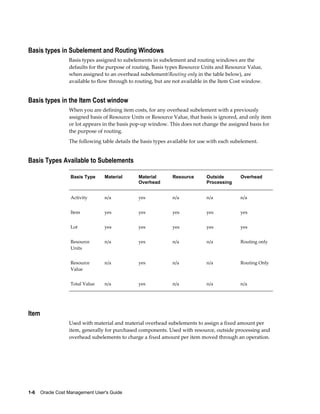
The following table details the basis types available for use with each subelement.
Basis Types Available to Subelements
Basis Type Material Material
Overhead
Resource Outside
Processing
Overhead
Activity n/a yes n/a n/a n/a
Item yes yes yes yes yes
Lot yes yes yes yes yes
Resource
Units
n/a yes n/a n/a Routing only
Resource
Value
n/a yes n/a n/a Routing Only
Total Value n/a yes n/a n/a n/a
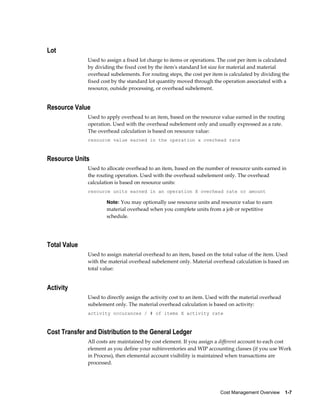
Item
Used with material and material overhead subelements to assign a fixed amount per
item, generally for purchased components. Used with resource, outside processing and
overhead subelements to charge a fixed amount per item moved through an operation.
Cost Management Overview    1-7
Lot
Used to assign a fixed lot charge to items or operations. The cost per item is calculated
by dividing the fixed cost by the item's standard lot size for material and material
overhead subelements. For routing steps, the cost per item is calculated by dividing the
fixed cost by the standard lot quantity moved through the operation associated with a
resource, outside processing, or overhead subelement.
Resource Value
Used to apply overhead to an item, based on the resource value earned in the routing
operation. Used with the overhead subelement only and usually expressed as a rate.
The overhead calculation is based on resource value:
resource value earned in the operation x overhead rate
Resource Units
Used to allocate overhead to an item, based on the number of resource units earned in
the routing operation. Used with the overhead subelement only. The overhead
calculation is based on resource units:
resource units earned in an operation X overhead rate or amount
Note: You may optionally use resource units and resource value to earn
material overhead when you complete units from a job or repetitive
schedule.
Total Value
Used to assign material overhead to an item, based on the total value of the item. Used
with the material overhead subelement only. Material overhead calculation is based on
total value:
Activity
Used to directly assign the activity cost to an item. Used with the material overhead
subelement only. The material overhead calculation is based on activity:
activity occurances / # of items X activity rate
Cost Transfer and Distribution to the General Ledger
All costs are maintained by cost element. If you assign a different account to each cost
element as you define your subinventories and WIP accounting classes (if you use Work
in Process), then elemental account visibility is maintained when transactions are
processed.
1-8    Oracle Cost Management User's Guide
Standard and Average Costing Compared
Cost Management offers many perpetual costing methods, including standard costing
and average costing.
Average costing is used primarily for distribution and other industries where the
product cost fluctuates rapidly, or when dictated by regulation and other industry
conventions. Average costing eliminates the need to set standards. Average costing
allows you to:
• Value inventory at a moving weighted average cost
• Track inventory and manufacturing costs without the requirement of having
predefined standards
• Determine profit margin based on an actual cost method
• Measure the organization's performance against historical costs
• Include all direct costs of manufacturing an item in that item's inventory cost
Standard costing is used for performance measurement and cost control. Standard
costing allows you to:
• Value inventory at a predetermined cost
• Determine profit margin based on projected costs
• Record variances against expected costs
• Update standard costs from any cost type
• Evaluate production costs relative to standard costs
• Measure the organization's performance based on predefined product costs
• Evaluate product costs to assist management decisions
The following table shows the functional differences between average and standard
costing.
Average Costing Standard Costing
Material with Inventory; all cost elements
with Bills of Material
Material and material overhead with
Inventory; all cost elements with Bills of
Material
Cost Management Overview    1-9
Average Costing Standard Costing
Item costs held by cost element Item costs held by cost subelement
Unlimited subelements Unlimited subelements
No shared costs; average cost is maintained
separately in each organization
Can share costs across child organizations
when not using Work in Process
Maintains the average unit cost with each
transaction
Moving average cost is not maintained
Separate valuation accounts for each cost
group and cost element
Separate valuation accounts for each
subinventory and cost element
Little or No variances for Work in Process
Transactions
Variances for Work in Process transactions
Under average costing, you cannot share costs. Average costs are maintained separately
in each organization.
Under standard costing, if you use Inventory without Work in Process, then you can
define your item costs in the organization that controls your costs and share those costs
across organizations. If you share standard costs across multiple organizations, then all
reports, inquiries, and processes use those costs. You are not required to enter duplicate
costs. See: Defining Costing Information, Oracle Inventory User's Guide.
Note: The organization that controls your costs can be a manufacturing
organization that uses Work in Process or Bills of Material.
Organizations that share costs with the organization that controls your costs cannot use
Bills of Material.
Valuation Accounts and Cost Elements with Average Costing
The system maintains the average unit cost at the organization level; it does not use any
subinventory valuation accounts. If you had separate valuation accounts by
subinventory, then total inventories would balance, but account balances by
subinventory would not match the inventory valuation reports.
Note: In Average Costing, depending on the FOB point, the elemental
valuation accounts defined are used for either the cost group or the
transfer cost group as the intransit accounts. Otherwise, the balances of
1-10    Oracle Cost Management User's Guide
inventory valuation reports do not equal the sum of accounting
transactions.
Work in Process: Elemental Visibility
You can assign different accounts to each cost element when you define a WIP
accounting class. This provides maximum elemental account visibility. In average costing
and standard costing, elemental account visibility is automatically maintained.
Related Topics
Work in Process Transaction Cost Flow, page 4-2
Changing from Standard to Average Costing
You cannot change the costing method of an organization once transactions have been
performed.
Defining Organization Parameters, Oracle Inventory User's Guide and Defining Costing
Information, Oracle Inventory User's Guide.
Related Topics
Overview of Standard Costing, page 4-1
Standard Cost Transactions, page 4-28
Manufacturing Standard Cost Transactions, page 4-35
Overview of Average Costing, page 5-1
Average Cost Transactions, page 5-33
Manufacturing Average Cost Transactions, page 5-47
Standard Cost Valuation, page 4-25
Average Cost Valuation, page 5-31
Standard Cost Variances, page 4-25
Manufacturing Standard Cost Variances, page 4-26
Average Cost Variances, page 5-32
Retroactive Pricing
Cost Management supports retroactive price changes in Oracle Purchasing. Over the
life of purchasing documents, prices can change. The Retroactive Price Update on
Purchasing Documents concurrent program automatically updates standard purchase
Cost Management Overview    1-11
orders against global agreements and blanket releases retroactively with price changes.
When this occurs, the accounting is adjusted:
• For purchase orders with a destination type of Inventory/Shopfloor, the adjustment
account is posted to the Retroactive Price Adjustment account. This account is
defined at the organization level in the Receiving Options window in Oracle
Purchasing. The following accounts and costs are not adjusted:
• Inventory and Work in Process valuation accounts
• Average and LIFO/FIF0 cost organizations (costs are not recalculated)
• Purchase price variance
When a price change is approved, adjustments for prior receipts are created:
Account Debit Credit
Retroactive Price
Adjustment
XX -
Inventory AP Accrual - XX
• For purchase orders with a destination type of Expense, the adjustment amount is
posted to the Charge account specified on the purchase order.
When a price change is approved, adjustments are created in the following
accounts:
Account Debit Credit
Charge XX -
Inventory AP Accrual - XX
• For periodic costing, the adjustment is posted to the Periodic Retroactive
Adjustment account. This account is defined at the Legal Entity and Organization
Cost Group level, in the Periodic Account Assignments window.
• Transfer of ownership transactions, created for consigned goods, are also adjusted
when the price on the associated blanket agreement is changed and approved.
Note: The application prevents retroactive price adjustment
1-12    Oracle Cost Management User's Guide
transactions when purchase orders are Landed Cost Management
(LCM) enabled.
Related Topics
Retroactive Price Update on Purchasing Documents, Oracle Purchasing User's Guide.
Landed Cost Management (LCM)
Oracle Landed Cost Management is a new application for Release 12.1. Landed Cost
Management (LCM) enables organizations to gain insight into all of the real costs
associated with acquiring products. These costs are initially estimated and then updated
with actual amounts as they become known, allocating them to shipments, orders, and
products. Cost methods and inventory valuations are accurately maintained providing
better visibility into an individual product's profitability and an organization's
outstanding exposure. This data provides better insight for product forecasting and
budgeting, and provides clear evidence of the detailed accumulation of expenses for
regulatory requirements and reporting.
Landed cost is the cost to "land" a product on the buyer's ultimate (final) location. These
costs include, but are not limited to:
• Freight
• Transportation
• Insurance
• Handling
• Storage costs
• Container fees
• Import and export charges
• Taxes
• Pier fees
• Minimum and maximum order charges
• Discounts
• Surcharges
Cost Management Overview    1-13
• Currency revaluations
Landed Cost is calculated to accurately measure a corporation's costs and profitability
by the goods and items, product line, lot, business unit, organization, and so on. Landed
cost plays a significant role in actual costing, evaluating on-hand inventory, as well as
setting sales prices and revenue forecasting.
Standard Costing, Average Costing, FIFO and LIFO Costing, and Periodic Average
Costing methods all support LCM.
See the Oracle Landed Cost Management Process Guide for complete details on setting up
and using Landed Cost Management.
Setting Up Oracle Cost Management    2-1
2
Setting Up Oracle Cost Management
This chapter covers the following topics:
• Overview of Setting Up
• Setup Checklist
• Setup Steps
• Default Interorganization Options
• Default Inter-Organization Transfer Accounts
• Setting Up Periods
• Defining Cost Types
• Defining Activities and Activity Costs
• Defining Subelements
• Defining Material Subelements
• Defining Overhead
• Defining Material Overhead Defaults
• Mass Editing Item Accounts
• Mass Editing Cost Information
• Setting Cost Controls
• Copying Costs
• Default Basis Types
• Associating Expenditure Types with Cost Elements
• Defining Category Accounts
• Account Update Restrictions
• Associating WIP Accounting Classes with Categories
• Project Cost Groups
2-2    Oracle Cost Management User's Guide
• Profile Options and Security Functions
• Landed Cost Management (LCM)
• Cost Management Security Functions
Overview of Setting Up
This section contains an overview of each task you need to complete to set up Oracle
Cost Management.
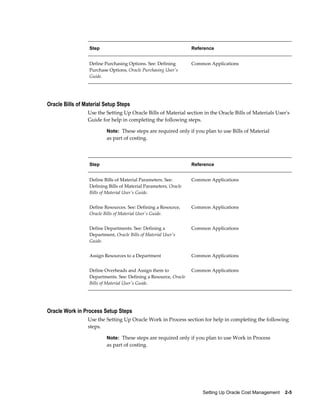
Related Product Setup Steps
The following steps may need to be performed to implement Oracle Cost Management.
These steps are discussed in detail in the Setting Up sections of other Oracle product
user's guides.
Set Up Underlying Oracle E-Business Suite Technology
You need to complete several other setup steps, including:
• Performing system–wide setup tasks such as configuring concurrent managers and
printers
• Managing data security, which includes setting up responsibilities to allow access
to a specific set of business data and complete a specific set of transactions, and
assigning individual users to one or more of these responsibilities.
• Setting up Oracle Workflow
• Setting up an Oracle E-Business Suite System Administrator responsibility. See:
Setting Up Oracle E-Business Suite System Administrator, Oracle Applications System
Administrator's Guide
See also:
Oracle E-Business Suite System Administrator's Guide
Oracle Workflow Guide
Oracle General Ledger Setup Steps
Use the Setting Up General Ledger section in the General Ledger User's Guide for help
in completing the following setup steps.
Setting Up Oracle Cost Management    2-3
Step Reference
Define Your ledger for Perpetual Costing See:
Defining Ledgers, Oracle General Ledger User's
Guide. Note: If you are not implementing
Oracle General Ledger, you can use the
Ledger window in Oracle Inventory or Oracle
Cost Management to define your ledger.
Common Applications
See: Entering Daily Rates, Oracle General
Ledger User's Guide
Common Applications
Oracle Inventory Setup Steps
Use the Setting Up Oracle Inventory section in the Oracle Inventory User's Guide for
help in completing the following setup steps.
Step Reference
Define Organizations See: Inventory Structure,
Inventory User's Guide.
Common Applications
Define Organization Parameters for Perpetual
Costing. See: Defining Organization
Parameters, Oracle Inventory User's Guide .
Note: Organization parameters define the
costing method for your organization, the
general ledger transfer option (Required), the
organization level default and system
accounts, and the inter–organization transfer
information.
Common Applications
Define Units of Measure. See: Defining Units
of Measure, Oracle Inventory User's Guide.
Note: If you are not implementing Oracle
Inventory, you can use the Units of Measure
window in Oracle Inventory to define your
units of measure.
Common Applications
Define Subinventories. See: Defining
Subinventories, Oracle Inventory User's Guide.
Common Applications
2-4    Oracle Cost Management User's Guide
Step Reference
Define Categories See: Defining Categories,
Oracle Inventory User's Guide.
Common Applications
Define Category Sets. See: Defining Category
Sets, Oracle Inventory User's Guide.
Common Applications
Open Accounting Periods. See: Maintaining
Accounting Periods, Oracle Inventory User's
Guide.
Common Applications
Define Default Category Sets. See: Defining
Default Category Sets, Oracle Inventory User's
Guide.
Common Applications
Define Items, Item Attributes, and Controls.
See: Defining Item Attribute Controls, Oracle
Inventory User's Guide.
Common Applications
Define Account Aliases. See: Defining
Account Aliases, Oracle Inventory User's Guide.
Common Applications
Launch Transaction Managers. See: Launching
Transaction Managers, Oracle Inventory User's
Guide (Oracle Inventory User's Guide).
Common Applications
Oracle Purchasing Setup Steps
Use the Setting Up Oracle Purchasing section in the Oracle Purchasing User's Guide for
help in completing the following steps.
Note: These steps are required only if you plan to use Purchasing as
part of costing.
Step Reference
Define Receiving Options and Controls. See:
Setup Overview, Oracle Applications User's
Guide.
Common Applications
Setting Up Oracle Cost Management    2-5
Step Reference
Define Purchasing Options. See: Defining
Purchase Options, Oracle Purchasing User's
Guide.
Common Applications
Oracle Bills of Material Setup Steps
Use the Setting Up Oracle Bills of Material section in the Oracle Bills of Materials User's
Guide for help in completing the following steps.
Note: These steps are required only if you plan to use Bills of Material
as part of costing.
Step Reference
Define Bills of Material Parameters. See:
Defining Bills of Material Parameters, Oracle
Bills of Material User's Guide.
Common Applications
Define Resources. See: Defining a Resource,
Oracle Bills of Material User's Guide.
Common Applications
Define Departments. See: Defining a
Department, Oracle Bills of Material User's
Guide.
Common Applications
Assign Resources to a Department Common Applications
Define Overheads and Assign them to
Departments. See: Defining a Resource, Oracle
Bills of Material User's Guide.
Common Applications
Oracle Work in Process Setup Steps
Use the Setting Up Oracle Work in Process section for help in completing the following
steps.
Note: These steps are required only if you plan to use Work in Process
as part of costing.
2-6    Oracle Cost Management User's Guide
Step Reference
Define WIP Accounting Classes and Valuation
Accounts
Common Applications
Define WIP Parameters Common Applications
Setup Flowchart
Some of the steps outlined in this flowchart and setup checklist are required and some
are optional. Required step with defaults refers to setup functionality that comes with
pre-seeded, default values in the database; however, you should review those defaults
and decide whether to change them to suit your business needs. If you want or need to
change them, you should perform that setup step. You need to perform optional steps
only if you plan to use the related feature or complete certain business functions.
Note: Oracle Cost Management does not support costing for process
Setting Up Oracle Cost Management    2-7
inventory organizations. If you open costing setup windows in a
process inventory organization context, then an error message displays
a message indicating that the function is not available for a process
organization, and the window process will not open.
Setup Checklist
The following table lists setup step. After you log on to Oracle E-Business Suite,
complete these steps to implement Oracle Cost Management:
Step No. Required Step
Step 1 Required Set Cost Management Profile
Options
Step 2 Required Set Cost Management
Security Functions
Step 3 Required Define Cost Types
Step 4 Optional Defining Activities and
Activity Costs
Step 5 Only Available and Required
for Project Manufacturing
Costing
Define Cost Groups
Step 6 Optional Define Material Subelements
Step 7 Optional Define Overheads
Step 8 Optional Define Material Overhead
Defaults
Step 9 Only Available and Required
for Project Manufacturing
Costing
Associate Expenditure Types
with Cost Element
Step 10 Optional Define Category Accounts
2-8    Oracle Cost Management User's Guide
Step No. Required Step
Step 11 Optional Associate WIP Account
Classes with Category
Accounts
Setup Steps
Step 1: Set Personal Profile Options
Cost Management personal profile options control defaults within windows as well as
data processing options.
Step 2: Set Security Functions
Cost Management security functions determine what information can be viewed,
created, updated, and deleted in certain windows in Cost Management.
See: Cost Management Security Functions, page 2-89.
Step 3: Define Cost Types
You must define cost types. Each cost type contains a unique set of costs and has its
own set of cost controls.
• Default: Frozen for Standard Costing, Average and Average Rates for Average
Costing
• Context: N/A
See: Defining Cost Types, page 2-13.
Step 4: Defining Activities and Activity Costs
You can define activities, activity rate information, and activity and activity cost type
associations. You can assign an activity to any cost. If you use the activity basis type,
you can directly assign the activity cost to the item. When you use the other basis types,
the cost is based on the subelement, basis type, and entered rate or amount. The activity
defaults from the subelement; and, if needed, you can override the default.
Default: N/A
Context: N/A
See: Defining Item Costs, page 3-3 and Defining Activities and Activity Costs, page 2-
17.
Step 5: Define Cost Groups
You can define cost groups and use them to group project related costs.
Setting Up Oracle Cost Management    2-9
Note: This step is conditionally required if you plan to transfer project
costs to Oracle Projects.
Default: The organization's default cost group.
Context: Additional cost groups are required to group project related costs.
See: Defining Project Cost Groups, page 2-78 and Project Manufacturing Implementation
Manual.
Step 6: Define Material Subelements
Material subelements classify material costs, such as plastic or metal. A material
subelement has a default activity and a default basis type assigned to it.
Default: N/A
Context: N/A
See: Defining Material Subelements, page 2-20.
Step 7: Define Overheads
You can use material overhead and overhead cost subelements to add indirect costs to
item costs on either a percentage basis or as a fixed amount.
Default: N/A
Context: N/A
See: Defining Overhead, page 2-22.
Step 8: Define Material Overhead Defaults
You can define and update default material overhead subelements and rates at the
organization or category level. When you define items in Oracle Inventory, these
defaults are automatically used. This speed data entry when defining items.
Default: N/A
Context: N/A
See: Defining Material Overhead Defaults, page 2-40.
Step 9: Associate Expenditure Types with Cost Elements
You must associate expenditure types with cost elements so that project transfers and
the project related costs associated with miscellaneous transactions can be properly
processed once they are transferred to Oracle Projects.
Note: This step is conditionally required if you to plan to transfer
project costs to Oracle Projects.
Default: N/A
Context: N/A
2-10    Oracle Cost Management User's Guide
See: Associating Expenditure Types with Cost Elements, page 2-71.
Step 10: Define Category Accounts (Optional)
You can define category accounts. Category accounts are part of the product line
accounting setup.
Default: N/A
Context: N/A
See: Product Line Accounting Setup, page E-2 and Defining Category Accounts, page
2-73.
Step 11: Associate WIP Accounting Classes with Categories (Optional)
You can associate WIP accounting classes with category accounts. Default WIP
accounting classes are part of product line accounting setup.
Default: N/A
Context: N/A
See: Product Line Accounting Setup, page E-2 and Associating WIP Accounting
Classes with Categories, page 2-75.
Important: Oracle recommends that you set the Interface Manager to
run in five minute intervals.
Default Interorganization Options
This option determines how you charge your internal cost to transfer material between
organizations. For example, transfer costs might include the cost of preparing the
paperwork, the cost of boxing the item for shipment, or a formal transfer profit charged
between the sending and receiving organizations. This is different from the
transportation cost that you pay to a freight carrier to physically move the material.
This is different from the transportation cost paid to a freight carrier.
These options affect your entries in Inter-Organization Transfer:
No transfer charges Do not add transfer charges to a material
transfer.
Predefined percent of transaction value Add a predefined percent of the transaction
value to the material transfer. Define a default
percentage in Define Organization
Parameters.
Setting Up Oracle Cost Management    2-11
Requested added value Request a discrete value to add to the material
transfer. Enter the value in the Transfer
Between Organizations at the time of the
transfer.
Requested percent of transaction value Request a percentage of the transfer value to
add to the material transfer. Enter the value in
Transfer Between Organizations at the time of
the transfer.
Default Inter-Organization Transfer Accounts
Oracle Inventory uses the following inter-organization accounts as defaults when you
define a relationship between the current organization and another organization:
Inter-Inventory Transfer Credit Collects the cost of the transfer charge. These
charges reduce expenses for the sending
organization.
Inter-Organization Payable Used by the receiving organization as a
clearing account, and represents
inter-company payables. Reconcile
inter-organization payable and receivable
accounts during period close.
Intransit Inventory Represents the value of transferred inventory
that has not arrived at the receiving
organization. Depending on the Free On
Board (FOB) point defined for this transfer,
the Intransit inventory is owned by either the
shipping organization, FOB receipt, or the
receiving organization, FOB shipment.
Inventory uses this account when the transfer
organizations use intransit inventory. If you
use average costing, this account defaults
from the organization level material account
and you cannot change it..
Inter-Organization Receivable Used by the shipping organization as a
clearing account, and represents
inter-company receivables. You should
reconcile inter-organization payable and
receivable accounts during period close.
2-12    Oracle Cost Management User's Guide
Inter-Organization PPV Under standard costing, the receiving
organization uses this account to recognize the
difference between the shipping organization
standard cost and the receiving organization
standard cost.
Note: These defaults are defined for each organization and the
appropriate accounts from each organization are used when an
inter-organization relationship is defined.
Setting Up Periods
Cost Management uses the accounting periods you define for your general ledger. You
define accounting periods through period types and a calendar.
To set up periods:
1. Define an accounting period type.
Period types can be months, quarters, or years. Specify the number per year of the
period type and whether the type corresponds to a system calendar (January to
December) or a fiscal calendar. See: Period Types, Oracle General Ledger User's Guide.
2. Define the accounting periods in your calendar and associate one calendar with
each General Ledger you set up.
Inventory allows you to have multiple calendars, such as a fiscal calendar for one
ledger and a different calendar for another ledger.
For each calendar, name the periods within the calendar (such as month names:
Jan., Feb., and so on), the accounting period type, the year and quarter of the
period, the period number, and the start and end date of the period..
3. Open the accounting periods you defined in your calendar for transaction collection
purposes.
All Inventory and Work in Process transactions require an open period. The
transaction date you specify (typically the current date) must fall within an open
period. See: Maintaining Accounting Periods, Oracle Inventory User's Guide.
Important: You can only open the period type accounted by your
ledger. For most organizations, this is the monthly period type. You
also cannot open an adjustments-type period-such as a thirteenth
period for year-end adjustments.
Setting Up Oracle Cost Management    2-13
Inventory also allows you to have multiple open periods for late transactions or
correction of data before period close.
Defining Cost Types
A cost type is a set of costs uniquely identified by name. Two cost types are predefined
for you, Frozen (for standard costs) and Average. You can define and update an
unlimited number of additional simulation or unimplemented cost types. Each cost
type has its own set of cost controls.
Cost Types for Average Costing
In a manufacturing average costing organization, two costs types are required for
inventory valuation and transaction costing: the Average cost type and a user-defined
Average Rates cost type. These two cost types are defined as follows:
Average This cost type holds the current average unit
cost of items on hand, and is used to value
transactions such as issues and transfers out
(see transaction table below for details). You
can update costs in this cost type only by
using the average cost update routine. A
history is kept of all such update transactions.
This cost type is seeded and does not have to
be defined.
Average Rates cost type This user-defined cost type holds resource to
overhead associations and current overhead
rates, and any other user-defined subelement
rates to be used in cost rollups and to cost
applicable transactions.
Important: You must define an Average Rates cost type to hold
subelement rates/amounts. There should be no information associated
with this cost type; any information found is ignored. After defining
this cost type, you must select it when defining the Average Rates Cost
Type parameter in the Organization Parameters window in Oracle
Inventory. Rates/amount in this cost type are used, as applicable, until
you redefine them. See: Setting Up Average Costing, page 5-5 and
Defining Costing Information, Oracle Inventory User's Guide.
2-14    Oracle Cost Management User's Guide
Predefined
Cost Type
Name
Costing
Method
Purpose Description
Frozen Standard Frozen
standard
costs
Used to value transactions and
inventory balances for
organizations that use
standard costing. This cost
type is not available for
organizations using average
costing.
Average Average Average costs Used to value transactions and
inventory balances for
organizations that use average
costing. This cost type is not
available for organizations
using standard costing.
None;
user-defined
Average Average rates Used to hold resource to
overhead associations, current
overhead rates, and any other
user-defined subelement rates
used in cost rollups and to
cost applicable transactions.
This cost type is not available
for organizations using
standard costing. You must
define a cost type for average
rates.
None;
user-defined
Either
standard
or
average
All other cost
types
Use all other cost types for any
purpose: cost history, product
cost simulation, or to develop
future frozen costs. These
costs are not implemented
(not frozen) costs. You can
transfer costs from all other
cost types to update the
Frozen cost type.
Prerequisites
Ì To define, update, or delete cost information, the Cost Types: Maintain security
function must be included as part of the responsibility. See: Cost Management
Setting Up Oracle Cost Management    2-15
Security Functions, page 2-89.
To define a cost type:
1. Navigate to the Cost Types window.
2. Enter a cost type name.
3. Select the default cost type.
For items where costs have not been defined for the cost type, the default cost type
is used as the next source of costs that the cost rollup and the inventory value
reports use for items not associated with the cost type being rolled up or reported
upon. You can have a cost type default to itself. The default reflects the current
organization's costing method: Frozen for standard costing and Average for
average costing.
4. Select a date on which to inactivate the cost type. You cannot inactivate the Frozen
or Average cost types. You can still inquire (but not change) inactive cost types.
Inquiring has no effect on bill assemblies or work in process.
5. Indicate whether the cost type is a multi-organization cost type to share with other
organizations.
Note: If disabled, this cost type name is available only to the
inventory organization that creates it. If enabled, only the cost type
name is shared, not the costs.
6. Indicate whether to allow updates in this cost type.
2-16    Oracle Cost Management User's Guide
If Multi-Org is selected, then the Allow Updates functionality is disabled.
If Allow Updates is set to enabled (the default), then you can change this cost type
by using processes such as mass edits, copy cost information, cost rollup, and cost
update. To freeze the cost information in this cost type, disable the Allow Updates
functionality. Even if updates are not allowed, you can still use this cost type to
report, inquire, and update Frozen costs.
7. Indicate whether this cost type is available to Oracle Engineering.
8. Select rollup options:
• Indicate whether to include the effect of component yield when rolling up costs
for this cost type.
Important: Changing the Include Component Yield flag when
there are open WIP jobs in the inventory organization may
result in inaccurate cost variances. For example, if the standard
cost rollup includes component yield and the Include
Component Yield flag is clear, then backflush transactions will
no longer factor in component yield and artificial variances will
result.
• Indicate whether to save a snapshot of the bill of material structure for items
that you roll up. This creates an alternate bill. (This is available only if you have
Oracle Bills of Material installed.) Oracle recommends that you use an alternate
designator intended for the specific purpose of maintaining a snapshot of the
bill being rolled up.
If Snapshot of Bills is enabled, you must select an alternate name. You can then
run the Indented Bill of Material Cost report for the alternate, even if the
primary bill has changed.
9. Select previous level rollup options. These options determine how much
information is generated by the rollup. (These options do not effect the total unit
cost.) If all options are not selected (if the options are clear), then the rollup
generates one record for all prior level costs and stores the total in the material cost
element. The options are as follows:
Element: Indicates that detail cost information by cost element is retained at
previous levels. If not selected (cleared), then all prior level costs are stored in the
material cost element.
Subelement: Indicates whether to track subelement costs at previous levels. If not
selected, then all prior level information does not reference a subelement.
Note: For cost types to be frozen, retain detail for at least the cost
Setting Up Oracle Cost Management    2-17
element and subelement.
Activity: Indicates whether to track activity costs at previous levels. If not selected,
then all prior level information does not reference an activity.
Operation: Indicates whether to track operation costs at previous levels. If not
selected, then all prior level information does not reference an operation.
Related Topics
Overview of Standard Costing, page 4-1
Overview of Average Costing, page 5-1
Updating Pending Costs to Frozen Standard Costs, page 4-13
Defining Activities and Activity Costs
Define activities, activity rate information, and activity and cost type associations. Use
activities to assign indirect costs to items based upon the effort expended to obtain or
produce the item, rather than as a percentage of a direct cost or an amount per item.
Activities are processes or procedures that consume costs and time. In addition to cost
elements and subelements, costs may be associated with an activity. Activities may be
directly related to building items, such as runtime or setup time; or they may be
indirect, such as purchase order generation, payroll, and engineering activities. The goal
of activity based cost accounting is to accurately identify your product costs, especially
overhead costs.
Prerequisites
Ì To define, update, or delete cost information, the Activities: Maintain security
function must be included as part of the responsibility. See: Cost Management
Security Functions, page 2-89.
To define activities and activity costs:
1. Navigate to the Activities window.
2-18    Oracle Cost Management User's Guide
2. Enter an activity.
3. Check Multi-Org to indicate whether the activity name is a multi-organization
activity to share with other organizations.
Note: If disabled, the name is only available to the organization that
creates it. If enabled, only the activity name is shared, not the
activity.
4. Select the activity default basis.
Basis is the method used to determine how to charge a transaction or apply product
costs. The value you select here is defaulted when you define item costs. The
activity default basis will override the subelement default basis as long as the basis
is valid for the cost element. See: Defining Item Costs, page 3-3.
Activity: Used to apply activity costs to items. The activity basis type can only be
used with the material overhead subelement. The item cost is calculated by
multiplying the activity cost by the ratio of the number of times the activity occurs,
divided into the cumulative quantity of the item associated with those occurrences.
Item: Used to earn and apply costs for all subelements. For material and material
overhead subelements, you charge a fixed amount per item. For resource, outside
processing, and overhead subelements, you charge a fixed amount per item moved
in an operation.
Lot: Used to earn and apply costs for all subelements. The item cost is calculated the
same as an Item basis cost, except the unit cost is divided by the cost type lot size to
derive the cost per item.
5. Optionally, select a date to inactivate the activity.
Setting Up Oracle Cost Management    2-19
An inactive activity cannot be assigned as a default activity when defining material
subelements, resources, or overhead. An inactive activity also cannot be associated
with any resource when defining a routing, with a material overhead subelement
when defining material overhead defaults, or with any subelement when defining
item costs, even if the activity is the default activity for the subelement.
An inactive activity, however, can still be used when defining item costs. (This
applies for a new item if the inactive activity was previously specified for a material
subelement as material overhead defaults were defined.) Also, previously defined
subelements referencing an inactive activity can still be used.
6. Enter the Activity Measure (allocation basis or cost driver) for your activity. For
example, if the activity is allocating purchasing costs, the activity measure might be
the number of purchase orders generated during a given period.
7. Choose the Activity Costs button and select a cost type to associate with your
activity. Each activity can be associated with any number of cost types and each cost
type and activity combination can have a different cost.
8. Enter the total cost budgeted for the activity cost pool. This is the total activity cost
you expect to incur during a specified time.
9. Enter the total number of times you expect to perform this activity during the
budget period.
The system calculates the cost per occurrence by dividing the total cost by the total
occurrences. This cost is used when you use a basis type activity for the material
overhead subelement.
Defining Subelements
You can define the following subelements in Cost Management:
2-20    Oracle Cost Management User's Guide
• Defining Material Subelements, page 2-20
• Defining Overhead, page 2-22
• Defining Material Overhead Defaults, page 2-40
You can define resource subelements in Oracle Bills of Material. See: Defining a
Resource, Oracle Bills of Material User's Guide.
Defining Material Subelements
Material subelements classify material costs, such as plastic or metal. A material
subelement has a default activity and a default basis type assigned to it.
Prerequisites
Ì To define, update, or delete cost information, the Material Subelements: Maintain
security function must be included as part of the responsibility. See: Cost
Management Security Functions, page 2-89.
To define material subelements:
1. Navigate to the Material Subelements window.
2. In the Defaults tabbed region, enter a material subelement name.
3. Select the default activity. This activity is defaulted each time the subelement is
used to define an item cost.
Activities are processes or procedures that consume costs and time. In addition to
the cost element and subelement, all costs are associated with an activity. Activities
Setting Up Oracle Cost Management    2-21
may be directly related to building items, such as runtime or setup time; or they
may be indirect, such as purchase order generation, payroll, and engineering
change order activities. See: Defining Activities and Activity Costs, page 2-17.
4. Select the default basis for the material subelement. This basis type is defaulted
when you define item costs. Basis is the method used to determine how to charge a
transaction or apply product costs. The options are as follows:
Item: Used for all subelements. For material and material overhead subelements,
you charge a fixed amount per item. This is the default.
Lot: Used for all cost elements. The item cost is calculated by dividing the order cost
by the lot size.
5. Optionally, select a date on which to inactivate the material subelement.
Note: You cannot disable the default material subelement for the
organization.
A disabled material subelement cannot be used to define a material cost when
defining item costs, or to define a default material subelement when defining
organization parameters.
You can continue to use item costs previously defined for the inactive material
subelement.
To associate an expenditure type with a subelement:
1. Select an expenditure type.
If the Project Cost Collection Enabled parameter in the Organization Parameters
window is set, you must associate an expenditure type with each subelement. See:
Organization Parameters Window, Oracle Inventory User's Guide
You can only select expenditure types that belong to the Inventory expenditure
class. Expenditure types are defined in Oracle Projects.
2. Save your work.
You can use material overhead and overhead cost subelements to add indirect costs
to item costs on either a percentage basis or as a fixed amount in both standard and
average costing organizations.
Each overhead subelement has a default basis, a default activity, and an absorption
account. The overhead absorption account offsets the corresponding overhead cost
pool in the general ledger.
You can base the overhead charge on the number of resource units or percentage of
resource value earned in the routing operation. Or, you can set up move-based
overheads where the rate or amount is charged for each item moved in an
2-22    Oracle Cost Management User's Guide
operation. To do this, use the Item or Lot basis types.
You can base the material overhead charge on a percentage of the total value, which
is earned when you receive purchase orders or perform WIP completion
transactions. Or, you can use the Item or Lot basis types.
You can apply each of these subelements using different basis types for increased
flexibility. Material overhead is earned when an item is received into inventory or
completed from work in process. Overhead, based upon resources, is earned as the
assembly moves through operations in work in process.
Defining Overhead
You can use material overhead and overhead cost subelements to add indirect costs to
item costs on either a percentage basis or as a fixed amount in both standard and
average costing organizations.
Each overhead subelement has a default basis, a default activity, and an absorption
account. The overhead absorption account offsets the corresponding overhead cost pool
in the general ledger.
You can base the overhead charge on the number of resource units or percentage of
resource value earned in the routing operation. You can also set up move-based
overheads where the rate or amount is charged for each item moved in an operation. To
do this, use the Item or Lot basis types.
You can base the material overhead charge on a percentage of the total value, which is
earned when you receive purchase orders or perform WIP completion transactions. You
can also use the Item or Lot basis types.
You can apply each of these subelements, using different basis types, for increased
flexibility. Material overhead is earned when an item is received into inventory or
completed from work in process. Overhead, based upon resources, is earned as the
assembly moves through operations in work in process.
Material Overhead is earned by an item during purchase order receipt,
inter-organization receipt, and WIP completion transactions. You can choose to decide
if material overhead is to be earned during purchase order receipt, inter-organization
transactions, and assembly returns and completions for non-standard costing
organizations. You have the flexibility to decide if the transaction is going to earn
material overhead, depending on the item type.
Note: If you use Oracle Bills of Materials, you must first define the bill
of material parameters to use the overhead cost element in the
Overhead window. If the bills of material parameters are not set up,
you only have access to material overhead cost element. See: Defining
Bills of Material Parameters, Oracle Bills of Material User's Guide.
Setting Up Oracle Cost Management    2-23
Prerequisites
Ì To define, update, or delete cost information, the Overheads: Maintain security
function must be included as part of the responsibility. See: Cost Management
Security Functions, page 2-89.
Defining overhead:
1. Navigate to the Overheads window.
2. Enter an overhead name.
3. Select a cost element:
Material Overhead: Define material overhead.
Overhead: Define resource and move-based overhead. This is only available if Bills
of Material is installed.
4. Select an overhead absorption account.
This is the offset account for any cost earned to the inventory or work in process
value.
5. Select a default basis type to be used as a default for the overhead being defined.
This basis type is used to determine how the overhead cost is earned and how it is
applied to product costs. See: Default Basis Types, page 2-70.
6. Select a default activity to use for this overhead.
Activities are processes or procedures that consume costs and time. Your activities
2-24    Oracle Cost Management User's Guide
may be directly related to building your items, such as runtime or setup time; or
they may be indirect, such as purchase order generation, payroll, and engineering
activities. The goal of activity based cost accounting is to accurately identify your
product costs, especially overhead costs. See: Defining Activities and Activity Costs,
page 2-17
Note: Negative item costs are not supported in Oracle Cost
Management.
7. Select an expenditure type.
If the Project Cost Collection Enabled parameter in the Organization Parameters
window is set, you must associate an expenditure type with each subelement. See:
Organization Parameters Window, Oracle Inventory User's Guide.
You can only select expenditure types that belong to the Burden Transactions
expenditure class.
8. Optionally, select a date on which to inactivate a material overhead or overhead.
An inactive overhead subelement cannot be used to define an overhead cost (when
defining item costs) or associated with a resource (when defining a resource).
You can continue to use item costs previously defined for and resources previously
associated with the inactive overhead subelement. The cost rollup will continue to
roll up previously defined inactive overhead subelements.
9. Do one of the following:
• To earn overheads and material overheads based on resource units or value,
you must associate resources to overhead and material overhead for a specific
cost type. Choose the Resources button to open the Resource Overhead
Associations window.
• To associate department and overhead combinations with a cost type, choose
the Rates button to open the Overhead Rates window. This option is available
for overheads only.
10. Save your work.
To associate resources to overhead for a cost type:
1. Navigate to the Resource Overhead Associations window.
Setting Up Oracle Cost Management    2-25
2. Select a cost type to associate resources to overhead with.
This is only necessary for material overhead and overhead subelements with a basis
type of Resource Value or Resource Units.
Important: You only apply these overheads when they are
associated with a resource.
3. Select the resource.
4. Save your work.
To associate department and overhead combinations with a cost type:
1. Navigate to the Overhead Rates window.
2-26    Oracle Cost Management User's Guide
2. Select a cost type.
3. Select a department and enter an overhead rate or amount.
The department will be associated with the overhead being defined in the selected
cost type. The specified overhead rate or amount will be used for that department.
Rates and amounts are required for both resource and move (item or lot basis type)
overheads.
4. Optionally, select an activity. The default is the activity selected as the default in the
Overheads window. See: Defining Overhead, page 2-22.
5. Select the basis. The default is the basis selected as the default in the Overheads
window. See: Default Basis Types, page 2-70.
6. Enter the percentage rate or the fixed amount, as appropriate for the basis. If the
basis is resource value, enter a rate in this field. If the basis is resource units, item, or
lot, enter an amount in this field.
7. Save your work.
To define material overhead absorption rules:
You can decide if material overhead is to be earned during purchase order receipt and
inter-organization transactions. You have the flexibility to decide if the transaction is
going to earn material overhead, depending on the item type. The rules you define
override the default material overhead absorption for purchase order receipt, assembly
completion and return, and inter-organization transfers for Standard, Average, FIFO,
and LIFO, costing organizations. The rules you define will not override material
overhead absorption for work in process completion transactions in standard costing
organizations.
Setting Up Oracle Cost Management    2-27
1. Navigate to the Material Overhead Absorption Rules.
2. Select a valid Transaction from the list of values to specify a transaction that you
wish to define a rule against.
3. Select an Item Type from the list of values. Valid values are Make items, Buy items,
and All items.
4. Indicate whether the transaction earns material overhead.
Inter- organization Transfer Accounting Distribution Examples for Standard Costing
Organizations
Item M1 is being transferred from Organization O1 to Organization O2. The costs
for the item are set up for both organizations as follows:
Organization Item Cost Element Cost
O1 (Sending) M1 Material 12
O1 (Sending) M1 Material Overhead 2
O2 (Receiving) M1 Material 10
2-28    Oracle Cost Management User's Guide
Organization Item Cost Element Cost
O2 (Receiving) M1 Material Overhead
(Transfer)
2
O2 (Receiving) M1 Material Overhead
(Transportation)
3
The following tables display distributions if the material overhead absorption rules
have been set to earn material overhead for the receiving organization.
FOB Receipt
The accounting entries for the sending organization O1 are as follows:
Account Debit Credit
Inter-organization
Receivables
19 -
Intransit Inventory - 14
Transfer Cost - 2
Transportation Cost - 3
The accounting entries for the receiving organization O2 are as follows:
Account Debit Credit
Inventory Valuation
(Material)
10 -
Inventory Valuation
(Material Overhead)
5 (2 + 3) -
Purchase Price Variance 6 -
Material Overhead
Absorption
- 2
Setting Up Oracle Cost Management    2-29
Account Debit Credit
Inter-organization Payables - 19 (12 + 2 + 2 + 3)
FOB Shipment
The accounting entries for the sending organization O1 are as follows:
Account Debit Credit
Inter-organization
Receivables
16 -
Intransit Inventory - 14
Transfer Cost - 2
The accounting entries for the receiving organization O2 are as follows:
Account Debit Credit
Inventory Valuation
(Material)
10 -
Inventory Valuation
(Material Overhead)
5 (2 + 3) -
Purchase Price Variance 6 (3 + 3) -
Material Overhead
Absorption
- 2
Inter-organization Payables - 16 (12 + 2 + 2)
Freight - 3
The following tables display distributions if the material overhead absorption rules
have been set to NOT earn material overhead for the receiving organization.
2-30    Oracle Cost Management User's Guide
FOB Receipt
The accounting entries for the receiving organization O2 are as follows:
Account Debit Credit
Inventory Valuation
(Material)
10 -
Inventory Valuation
(Material Overhead)
5 (2 + 3) -
Purchase Price Variance 4 -
Inter-organization Payables - 19 (12 + 2 + 2 + 3)
FOB Shipment
The accounting entries for the receiving organization O2 are as follows:
Account Debit Credit
Inventory Valuation
(Material)
10 -
Inventory Valuation
(Material Overhead)
5 (2 + 3) -
Purchase Price Variance 4 (1 + 3) -
Inter-organization Payables - 16 (12 + 2 + 2)
Freight - 3
Purchase Order Receipt Accounting Distribution Examples for a Standard Cost
Organization.
A purchase order is received at a purchase order price of 10. The costs associated
with item M1 are as follows:
Setting Up Oracle Cost Management    2-31
Cost Element Cost
Material 12
Material Overhead 2
The following table displays distributions if the material overhead absorption rules
have been set to earn material overhead.
Purchase Order Receipt Transaction
Account Debit Credit
Inventory Valuation
(Material)
12 -
Inventory Valuation
(Material Overhead)
2 -
Purchase Price Variance - 2
Receiving Inspection - 10
Material Overhead
Absorption
- 2
The following table displays distributions if the material overhead absorption rules
have been set to NOT earn material overhead.
Account Debit Credit
Inventory Valuation
(Material)
12 -
Inventory Valuation
(Material Overhead)
2 -
Purchase Price Variance - 4
2-32    Oracle Cost Management User's Guide
Account Debit Credit
Receiving Inspection - 10
Inter–organization Transfer Accounting Distribution Examples for Average Costing
Organizations
Item M1 is being transferred from Organization O1 to Organization O2. The
material overhead rate for item M1 in the receiving organization, O2, is 3 per item.
The Transfer Cost is 2, while the Transportation Cost is 3. The costs for the item are
set up for both organizations as follows:
Organization Item Cost Element Cost
O1 (Sending) M1 Material 12
O1 (Sending) M1 Material Overhead 2
O2 (Receiving) M1 Material 10
O2 (Receiving) M1 Material Overhead 2
The following tables display distributions if the material overhead absorption rules
have been set to earn material overhead for the receiving organization.
FOB Receipt
The accounting entries for the sending organization O1 are as follows:
Account Debit Credit
Inter-organization
Receivables
19 -
Intransit Inventory - 14
Transfer Cost - 2
Transportation Cost - 3
The accounting entries for the receiving organization O2 are as follows:
Setting Up Oracle Cost Management    2-33
Account Debit Credit
Inventory Valuation
(Material)
12 -
Inventory Valuation
(Material Overhead)
10 (7 + 3) -
Material Overhead
Absorption
- 3
Inter-organization Payables - 19 (12 + 2 + 2 + 3)
The re-averaged cost of M1 in receiving organization O2 is as follows:
Cost Element Cost
Material 11 [(12 + 10)/2]
Material Overhead 6 [(2 + 10)/2]
FOB Shipment
The accounting entries for the sending organization O1 are as follows:
Account Debit Credit
Inter-organization
Receivables
16 -
Intransit Inventory - 14
Transfer Cost - 2
The accounting entries for the receiving organization O2 are as follows:
2-34    Oracle Cost Management User's Guide
Account Debit Credit
Inventory Valuation
(Material)
12 -
Inventory Valuation
(Material Overhead)
10 (2 + 3 + 3 + 2) -
Material Overhead
Absorption
- 3
Inter-organization Payables - 16 (12 + 2 + 2)
Freight - 3
The re-averaged cost of M1 in receiving organization O2 is as follows:
Cost Element Cost
Material 11 [(12 + 10)/2]
Material Overhead 6 [(2 + 10)/2]
The following tables display distributions if the material overhead absorption rules
have been set to NOT earn material overhead for the receiving organization.
FOB Receipt
The accounting entries for the receiving organization O2 are as follows:
Account Debit Credit
Inventory Valuation
(Material)
12 -
Inventory Valuation
(Material Overhead)
7 (2 + 2 + 3) -
Inter-organization Payables - 19 (12 + 2 + 2 + 3)
The re-averaged cost of M1 in receiving organization O2 is as follows:
Setting Up Oracle Cost Management    2-35
Cost Element Cost
Material 11 [(12 + 10)/2]
Material Overhead 4.5 [(2 + 7/2]
FOB Shipment
The accounting entries for the receiving organization O2 are as follows:
Account Debit Credit
Inventory Valuation
(Material)
12 -
Inventory Valuation
(Material Overhead)
7 (2 + 2 + 3) -
Inter-organization Payables - 16 (12 + 2 + 2)
Freight - 3
The re-averaged cost of M1 in receiving organization O2 is as follows:
Cost Element Cost
Material 11 [(12 + 10)/2]
Material Overhead 4.5 [(2 + 7/2]
Purchase Order Receipt Accounting Distribution Examples for an Average Costing
Organization
A purchase order is received at a purchase order price of 10. The material overhead
rate for item M1 in organization, O2, is 2 per item. The costs associated with item
M1 are as follows:
2-36    Oracle Cost Management User's Guide
Cost Element Cost
Material 12
Material Overhead 2
The following table displays distributions if the material overhead absorption rules
have been set to earn material overhead.
Purchase Order Receipt Transaction
Account Debit Credit
Inventory Valuation
(Material)
10 -
Inventory Valuation
(Material Overhead)
2 -
Receiving Inspection - 10
Material Overhead
Absorption
- 2
The re-averaged cost of M1 in receiving organization O2 is as follows:
Cost Element Cost
Material 11 [(12 + 10)/2]
Material Overhead 2 [(2 + 2/2]
The following table displays distributions if the material overhead absorption rules
have been set to NOT earn material overhead.
Setting Up Oracle Cost Management    2-37
Account Debit Credit
Inventory Valuation
(Material)
10 -
Receiving Inspection - 10
The re-averaged cost of M1 in receiving organization O2 is as follows:
Cost Element Cost
Material 11 [(12 + 10)/2]
Material Overhead 1 [(2 + 0/2]
Assembly Completion and Return Accounting Distribution Example for an Average
Costing Organization
A bill of material for item A consists of items B and C. The costs associated are as
follows:
Item Cost Element Present Average Cost
A Material 8
B Material 5
B Material Overhead 2
C Material 5
C Material Overhead 5
The material overhead rates for Item A are:
Item Cost Element Present Average Cost
A Material Overhead - 1 2
2-38    Oracle Cost Management User's Guide
Item Cost Element Present Average Cost
A Material Overhead - 2 3
The following table displays distributions, at assembly completion, if the material
overhead absorption rules have been set to earn material overhead.
WIP Assembly Completion Transactions
Account Debit Credit
Inventory Valuation
(Material)
10 -
Inventory Valuation
(Material Overhead)
7 -
Inventory Valuation
(Material Overhead)
5 -
WIP Valuation (Material) - 10
WIP Valuation (Material
Overhead)
- 7
Material Overhead
Absorption
- 5
The re-averaged cost of item A is as follows:
Cost Element Cost
Material 9 [(8 + 10)/2]
Material Overhead 6 [(5 + 7)/2]
The following tables depict the material overhead absorbed at a different rate than
the standard rate in the current organization:
Setting Up Oracle Cost Management    2-39
Item Cost Element Present Average Cost
A Material Overhead - 1 1
A Material Overhead - 2 2
Account Debit Credit
Inventory Valuation
(Material)
10 -
Inventory Valuation
(Material Overhead)
7 -
Inventory Valuation
(Material Overhead)
3 -
WIP Valuation (Material) - 10
WIP Valuation (Material
Overhead)
- 7
Material Overhead
Absorption
- 3
The re-averaged cost of item A is as follows:
Cost Element Cost
Material 9 [(8 + 10)/2]
Material Overhead 5 [(7 + 3)/2]
The following table displays distributions, at assembly completion, if the material
overhead absorption rules have been set to NOT earn material overhead.
2-40    Oracle Cost Management User's Guide
Account Debit Credit
Inventory Valuation
(Material)
10 -
Inventory Valuation
(Material Overhead)
7 -
WIP Valuation (Material) - 10
WIP Valuation (Material
Overhead)
- 7
The re-averaged cost of item A is as follows:
Cost Element Cost
Material 9 [(8 + 10)/2]
Material Overhead 3.5 [(7 + 0)/2]
Related Topics
Overhead Report, page 14-40
Defining Material Overhead Defaults
You can define and update default material overhead subelements and rates. These
defaults speed data entry when defining items.
When you define items, these material overheads are defaulted into the Frozen cost
type under standard costing, and into the cost type you defined to hold average rates
under average costing. See: Defining Cost Types, page 2-13.
For buy items, enter material costs. For make items, roll up costs. You can specify an
organization and category default for the same material overhead subelement. When
you have multiple defaults for the same subelement, the category default takes
precedent over the organization default. If you have two category level defaults, the
default that matches the item's planning code takes precedence.
Setting Up Oracle Cost Management    2-41
Prerequisites
Ì You must be in the master cost organization to define material overhead defaults.
To define material overhead defaults:
1. Navigate to the Material Overhead Defaults window.
2. Select a default level for the material overhead subelement and rate. The options are
by organization or by inventory item category.
3. If you select category as the default level, select an item category. See: Overview of
Item Categories, Oracle Inventory User's Guide.
4. In the Cost tabbed region, select a material overhead subelement to assign to the
current organization or category.
You can enter a material overhead subelement more than once. For the same
material overhead subelement, material overhead rates you assign to a specific
category override any material overhead rates you assign to an organization.
5. Select the item type: make items, buy items, or all items.
The system applies the default material overhead based upon an item's planning
code. This determines the material overhead subelements and rates for items for
items you purchase, manufacture, or for all items.
Within a category or organization, if the value you enter for Item Type matches the
item's Make or Buy item attribute, the system uses the material overhead
information associated with it instead of the information you enter for the All items
value.
2-42    Oracle Cost Management User's Guide
6. Select an activity. You can associate the subelement with any activity.
The default is derived from the default activity you assigned when you defined
material overhead. See: Defining Overhead, page 2-22.
7. Select a basis. The default is the value you entered for the default basis when you
defined overhead.
Activity: Directly associate the activity cost with the item.
Item: Assign a fixed cost per item.
Lot: Assign a lot charge to items and operations.
Resource units: Charge overhead by multiplying the overhead amount by the
number of resource units earned in the routing operation.
Resource value: Charge overhead by multiplying the overhead rate by the resource
value earned in the routing operation.
Total value: Charge overhead by multiplying the total cost of the item, less material
overhead earned at this level, by the material overhead rate.
8. Enter the rate or amount for the material overhead as appropriate for the basis.
Material overhead subelements with basis types of Total value and Resource value
are usually defined as rates; those with basis types of Item, Lot, Activity and
Resource units are usually defined as amounts.
Note: Negative item costs are not supported in Oracle Cost
Management.
9. If you select Activity for the basis, open the Activity tabbed region and:
• Enter the number of activity occurrences for the current costing period, i.e., the
total number of times this activity is performed during the current costing
period.
• Enter the total number of items you expect to be associated with the activity
during the current costing period, i.e., the total number of units that flow
through the activity during the same period.
Related Topics
Defining Items, Oracle Inventory User's Guide and
Defining Item Attribute Controls, Oracle Inventory User's Guide.
Setting Up Oracle Cost Management    2-43
Mass Editing Item Accounts
Mass edit account assignments for selected items. These accounts include: Cost of
Goods Sold, Encumbrance, Expense, and Sales. You can edit your account assignments
for all items, a category of items, or a specific item.
Important: If you share standard costs, you do not share the item
accounts. If you need to change your accounts, you must change them
in all organizations.
To mass edit item accounts:
1. Navigate to the Mass Edit Item Accounts window.
2. In the Parameters window, select which account type to change. The options are
Cost of Goods Sold, Encumbrance, Expense, or Sales accounts.
2-44    Oracle Cost Management User's Guide
3. Select an item range option. You can edit item accounts for All items, all items in a
specific Category, or a Specific item.
4. If you selected Category in the Item Range field, select either a category set or a
category. See: Overview of Item Categories, Oracle Inventory User's Guide.
If you selected Specific item in the Item Range field, select an item.
5. Optionally, select the old account for the item. Only these accounts are edited.
For example, if you choose Cost of Goods Sold as your account type, All Items as
your item range, and enter 123-456-000000 as the old account, only accounts with
this criteria are changed. If you do not specify an old account, all old Cost of Goods
Sold accounts for all items are replaced with the account you specify in the New
field.
6. Select the new account for the item.
7. Choose OK to save your work.
All items that meet the account type and old account number criteria entered are
updated to the new account number.
Related Topics
Standard Request Submission, Oracle Applications User's Guide.
Mass Editing Cost Information
You can apply mass edits to cost information, including:
• Apply new activity rates to item costs
• Edit item shrinkage rates to a specified rate or a rate equal to your planning
shrinkage rates
Setting Up Oracle Cost Management    2-45
• Create new costs and change costs to a specified amount by a percentage or an
absolute amount
• Create new costs by averaging the purchase order price for open purchase orders or
historical purchase order receipts, or actual accounts payable invoice prices for
items
Important: You may want to limit mass edits to subelements with
similar basis types. All subelements to be edited should be either
rate-based or amount-based. The values entered for Fixed Rate and
Change Amount fields have drastically different effects on
subelement cost, depending on the basis. For example, if you enter
10 for Fixed Rate, the mass edit updates the subelement cost for
amount-based subelements to 10 units of your ledger currency. If
the subelement has a rate-based type, the mass edit updates the
subelement rate to 1000 percent, not 10 percent.
To mass edit cost information:
1. Navigate to the Mass Edit Cost Information window: See: Standard Request
Submission, Oracle Applications User's Guide.
2-46    Oracle Cost Management User's Guide
2. Select a Request Name.
Apply Latest Activity Rates: Change item costs after modifying activity rates.
Change Cost Shrinkage Rates: Modify the costing shrinkage rates for items. This can
be a specific rate or the item's planning shrinkage rate.
Mass Edit Actual Material Costs: Generate costs for items based upon purchasing
activity. You can update item costs to be an average of or equal to actual accounts
payable invoices, open purchase orders, or historical purchase order receipts for the
specified date range.
Mass Edit Material Costs: Update material subelements by a fixed amount or a
percentage as appropriate for the basis type.
Mass Edit Material Overhead Costs: Update material overhead subelements by a fixed
amount or a percentage, as appropriate for the basis type.
See the instructions below for further information.
To apply latest activity rates to item costs:
1. Select a cost type.
Setting Up Oracle Cost Management    2-47
2. Select a range of Items From and To.
3. Indicate whether to edit only items that have a Based on Rollup attribute set to Yes,
only those items that have a Based on Rollup set to No, or leave Based on Rollup
blank to indicate all items.
4. Select a Category Set. The default is the category for your costing functional
responsibility.
5. Optionally, select a range of Categories From and To.
6. Optionally, select an activity. The new rates are applied to only this activity.
7. Optionally, indicate whether to copy costs from a specific cost type before
performing the mass edit. If you set Copy Costs to Yes, specify the cost type to copy
costs from.
8. Indicate whether to print a cost type comparison report. If enabled, specify another
cost type to compare with the current cost type.
To change the cost shrinkage rate:
1. Select an edit option: whether to update the item shrinkage rate to equal the item's
planning shrinkage rate or a specified rate.
2-48    Oracle Cost Management User's Guide
Setting Up Oracle Cost Management    2-49
2. Select a cost type.
3. Select a range of Items From and To.
4. Select a Category Set.
5. Optionally, select a range of Categories From and To.
6. If you selected to update the shrinkage to specified shrinkage, enter the Fixed Rate
(as a decimal). This must be less than 1.
7. Optionally, indicate whether to copy costs from a specific cost type before
performing the mass edit. If you set Copy Costs to Yes, specify the cost type to copy
costs from.
8. Indicate whether to print a cost type comparison report. If enabled, specify the cost
type to compare with the current cost type.
To mass edit actual material costs:
1. Select an edit option:
2-50    Oracle Cost Management User's Guide
Setting Up Oracle Cost Management    2-51
Update material costs to open PO average: This edit uses a hierarchy of dates when
determining if the record falls within the specified date range. The hierarchy is as
follows: the promised date from the purchase order shipment is used; if this date is
not entered, the need-by date from the purchase order shipment is used; and, if this
date is not entered, the approval date of the purchase order is used. The approval
date always exists, as it is generated by the system upon approval of the purchase
order. The mass edit uses only approved purchase orders.
Note: Non-recoverable tax is included in the Open PO Price for the
mass edit concurrent program Update Material Costs to Open PO
Average.
Update material costs to PO receipt average: This edit uses the transaction date of the
purchase order receipt into inventory when determining if the record falls within
the specified date range.
Update material costs to invoice cost: This edit uses the accounting date accounts
payable used for the invoice posting when determining if the record falls within the
specified date range.
2. Select a cost type.
3. Select a range of Items From and To.
4. Indicate whether to edit only items that have a Based on Rollup attribute set to Yes,
only those items that have a Based on Rollup set to No, or all items.
2-52    Oracle Cost Management User's Guide
5. Select a Category Set.
6. Optionally, select a range of Categories From and To.
7. Optionally, select a date range.
8. Optionally, select an activity.
Only subelements associate with this activity are edited.
9. Optionally, enter an Change Percentage value (expressed as a decimal) by which to
increase or decrease the average cost calculated by the mass edit.
For example, if the mass edit calculates an average cost of 100 and you enter a value
of 0.10, the resulting cost of the subelement is 110. You can use the Change
Percentage field with the Change Amount field.
10. Optionally, enter an Change Amount to increase or decrease the average cost
calculated by the mass edit, or change the average cost after it is modified by the
amount entered in the Change Percentage field, if appropriate. For example, if the
mass edit calculates an average cost of 100 and you enter a value of 0.10 in the
Change Percentage field and a value of 10 in this field, the resulting cost of the
subelement is 120:
(calculated average cost x (1 + change percentage) + change amount)
11. Select a material subelement to limit the mass edit to items associated with a
specific material subelement.
This subelement is also used by the mass edit when it creates new item costs. The
default is the organization's default material subelement, if one exists.
12. Optionally, indicate whether to copy costs from a specific cost type before
performing the mass edit. If you set Copy Costs to Yes, specify the cost type to copy
costs from.
13. Indicate whether to print a cost type comparison report. If enabled, specify the cost
type to compare with the current cost type.
To mass edit material costs:
1. Select a cost type.
Setting Up Oracle Cost Management    2-53
2-54    Oracle Cost Management User's Guide
2. Select a range of Items From and To.
3. Indicate whether to edit only items that have a Based on Rollup attribute set to Yes,
only those items that have a Based on Rollup set to No, or leave blank to indicate all
items.
4. Select a Category Set. The default is the category for your costing functional
responsibility.
5. Optionally, select a range of Categories From and To.
6. Optionally, select a basis type by which to limit the mass edit.
7. Optionally, select a specific activity to mass edit only subelements associated with a
specific activity.
8. Optionally, select a value to change the current subelement amount to a new fixed
amount.
You can use this value with the Change Percentage and/or the Change Amount
fields.
Leave this field blank to have the current subelement amount modified by the
values entered in the Change Percentage and/or the Change Amount fields.
9. Optionally, enter an Change Percentage (positive or negative) by which to increase
or decrease the subelement amount.
Setting Up Oracle Cost Management    2-55
The Fixed value, if not blank, is multiplied by the Change Percentage value. If the
Fixed field is blank, the current subelement amount is multiplied by the Change
Percentage.
For example, if the value for Fixed is 200 and the value for Change Percentage is -5,
the resulting cost of the subelement is 190:
fixed or current amount x (1 + (change percentage / 100))
10. Optionally, enter an Change Amount by which to increase or decrease the
subelement amount by a fixed amount.
For example, the subelement amount before this update is 25, and you enter 10 in
the Change Amount field, the new amount for the subelement is 35.
A Change Amount can also be used with an Change Percentage to increase or
decrease the subelement cost after it is modified by the amount entered in the
Change Percentage field. If, the Change Amount is 10 and the Change Percentage is
5, the resulting cost of the subelement is 195:
fixed or current amount x (1 + (change percentage / 100)) + change amount
11. Select a material subelement by which to limit the mass edit of items associated
with a specific material subelement.
12. Optionally, indicate whether to copy costs from a specific cost type before
performing the mass edit. If you set Copy Costs to Yes, specify the cost type to copy
costs from.
13. Indicate whether to print a cost type comparison report. If enabled, specify the cost
type to compare with the current cost type.
To mass edit material overhead costs:
1. Select a cost type.
2-56    Oracle Cost Management User's Guide
Setting Up Oracle Cost Management    2-57
2. Select a range of Items From and To.
3. Indicate whether to edit only items that have a Based on Rollup attribute set to Yes,
only those items that have a Based on Rollup set to No, or leave blank to indicate all
items.
4. Select a Category Set. The default is the category for your costing functional
responsibility.
5. Optionally, select a range of Categories From and To.
6. Optionally, select a basis type by which to limit the mass edit.
7. Optionally, select a specific activity to mass edit only items associated with a
specific activity.
8. Optionally, select a value to change the current subelement rate or amount to a new
fixed rate or amount.
The system considers this a currency amount if the subelement being updated has a
basis type of Item, Lot, or Resource Units. For example, if the ledger currency is U.S.
Dollars, 10 = $10. If the subelement basis type is Resource Value or Total Value, the
value entered is used as a percentage (for example, 10 = 1000%). You can use this
value with the Change Percentage and/or the Change Amount fields.
Leave this field blank to have the current subelement rate or amount modified by
the values entered in the Change Percentage and/or the Change Amount fields.
2-58    Oracle Cost Management User's Guide
9. Optionally, enter an Change Percentage (positive or negative) by which to increase
or decrease the subelement rate or amount.
The Fixed Rate value, if not blank, is multiplied by the Change Percentage value. If
the Fixed Rate field is blank, the current subelement rate or amount is multiplied by
the Change Percentage. For example, if Fixed Rate is 0.20 and Change Percentage is
-10, the resulting rate of the subelement is 0.18:
fixed or current rate or amount x (1 + (increase percentage / 100))
10. Optionally, enter an Change Amount by which to increase or decrease the
subelement rate or amount by a fixed amount.
The system uses this value as a currency amount if the subelement being updated
has a basis type of Item, Lot, or Resource Units. For example, if the ledger currency
is U.S. Dollars, the subelement amount before this update is 25, and you enter 10 in
this field, the new amount for the subelement is 35. If the subelement basis type is
Resource Value or Total Value, the value you enter is used as a percentage. For
example, if the subelement rate before this update is 250% and you enter 0.25, the
new rate for the subelement is 275%.
An Change Amount can also be used with an Change Percentage to increase or
decrease the subelement cost after it is modified by the amount entered in the
Change Percentage field. If, the Change Amount is 10 and the Change Percentage is
5, the resulting cost of the subelement is 195:
fixed or current amount x (1 + (change percentage / 100)) + change amount
11. Select a material overhead subelement by which to limit the mass edit of items
associated with a specific material overhead subelement.
12. Optionally, indicate whether to copy costs from a specific cost type before
performing the mass edit. If you set Copy Costs to Yes, specify the cost type to copy
costs from.
13. Indicate whether to print a cost type comparison report. If enabled, specify the cost
type to compare with the current cost type.
Related Topics
Standard Request Submission, Oracle Applications User's Guide.
Setting Up Oracle Cost Management    2-59
Setting Cost Controls
The Set Cost Controls concurrent program is a mass edit program that lets you set the
following fields for item costs in a batch process:
• Based On Rollup flag
• Defaulted flag
• Lot Size
You have the option of manually setting each field value, copying the values from
another cost type, or copying from default values from an item definition.
To set Cost Controls:
1. From the Cost Mass Edits menu, navigate to the Set Cost Controls concurrent
program. The Parameters window appears.
2. Select a Cost Type.
3. Select the Range.
4. Enter the Specific item if you selected Specific item in the Range field.
5. Select a Category Set.
6. Optionally, select a range of Categories From and To.
2-60    Oracle Cost Management User's Guide
7. Select a range of Items From and To.
Note: Specific Item, Item From, Item To, Category Set, Category
from and Category to are always enabled. You can populate any or
all of these fields, but all values will be ignored except for the
field(s) matching the Range selection. For example, if you select
Range of items for the Range value, then only the values in Item
From and Item To will be used to create the item list.
8. Select a Copy option. You can set the Copy Option to 'From item definition' or
'From cost type'.
If you select 'From item definition', then the values for Based on Rollup or Lot size
that specify Copy are populated from the item definition of the corresponding
organization and item. If you select 'From item definition', then the Defaulted flag
cannot specify Copy because this flag is not available in the item definition.
If you select 'From item cost type', then the values for any of the three fields
specifying Copy are populated from the item cost that corresponds to the Source
Cost Type entered in the next field.
9. If you selected the 'From Cost Type Copy' option, then select a Source Cost Type.
10. Select a value for the Based On Rollup flag. Available values include:
• Set to Yes
• Set to No
• Copy
• Keep current setting
11. Select a value for the Defaulted Flag. Available values include:
• Set to Yes
• Set to No
• Copy (Only available if the Copy option is selected is 'From item cost type')
• Keep current setting
12. Select a value for Lot Size. Available values include:
• Set to number
• Copy
Setting Up Oracle Cost Management    2-61
• Keep current setting
13. If you selected 'Set to Number' in the Lot Size field, then enter a number in the Lot
Size Setting field.
14. If all parameters are entered, then click OK.
15. Click Submit in the Request window to run the request.
Note: Normally, the Based on Rollup flag should only be set to 'No'
if the shrinkage rate is zero because purchased items should not
have a shrinkage factor, only assembled items. This program allows
the flag to be set to 'No' even when a nonzero shrinkage rate exists.
If you specify a source for the Based on Rollup field that sets the
value to 'No' (either explicitly or by copying), then the program
checks the shrinkage rate in the target items. For any record that
contains a nonzero shrinkage rate, the program first sets this
shrinkage rate to zero, and then updates the Based on Rollup flag
to 'No'. It also updates the Usage Rate for the item cost accordingly.
It indicates this by setting the concurrent request status to
WARNING and a log file displays the details.
The defaulted flag can only be updated to 'Yes' if user-defined
(manually-entered) costs do not exist. If you specify a source for the
defaulted field that sets it to 'Yes' (either explicitly or by copying),
then the program checks for existing user-defined costs. If there are
user-defined costs, then the program does not update the defaulted
flag. It indicates this by setting the concurrent request status to
WARNING and log displays the details.
Copying Costs
You can copy from one cost type to another and specify an item or a category range.
You can copy from the Frozen cost type, but you cannot copy to the Frozen cost type.
Under average costing, you can copy from the Average cost type, but you cannot copy to
the Average cost type. Under FIFO/LIFO costing, you can copy from the FIFO/LIFO cost
type, but you cannot copy to the FIFO/LIFO cost type.
In a standard cost, inventory organization, you can perform a standard cost update
from the newly copied costs. In average, FIFO, or LIFO cost, inventory organizations,
copied costs are generally used for simulations or comparisons only.
You can copy item costs within an organization or across organizations.
Within an organization, you can also copy resource and overhead costs, or resource and
overhead associations. There are three copying options:
2-62    Oracle Cost Management User's Guide
• merge and update existing costs
• copy over new information only
• remove and replace all cost information
Across organizations, you have the flexibility to create new sub-elements, if required, or
summarize the item costs over all sub-elements into a pre-defined, summary
sub-element in the destination organization.
You can use interorganizational cost copy to copy item cost information across two
different organizations, specifying which items you want to include in the item cost
copy.
Interorganizational cost copy supports supply chain cost rollup. Supply chain cost
rollup enables you to estimate item costs created within BOM.
Copy Cost Examples: Copy from Cost Type 1 to Cost Type 2
Initial values in Cost Type 1 and Cost Type 2
Item From: Cost Type 1 To: Cost Type 2
A 20 Does not exist (Null)
B 10 50
C Does not exist (Null) 30
The results for the Merge and Update Existing Costs option are: A = 20, B = 10, and C =
30. Item C did not exist in Cost Type 1, so C's value in Cost Type 2 does not change.
The results for the New Information Only option are: A = 20, B = 50, and C = 30. Item A
did not exist in Cost Type 2, so its value is copied from Cost Type 1. Item B has a cost in
Cost Type 2, so it's value does not change. Item C did not exist in Cost Type 1, so C's
value in Cost Type 2 does not change.
The results for the Remove and Replace All Cost Information option are: A = 20, B = 10,
and item C does not exist. These are the same values found in Cost Type 1; all values in
Cost Type 1 replace those in Cost Type 2.
Note: You can also use the Supply Chain Cost Rollup to copy costs for
based-on rollup items (assemblies). When the assembly does not exist
in the Supply Chain Cost type that you roll up, the rollup copies the
assembly information from the default cost type.
Setting Up Oracle Cost Management    2-63
Note: For costs that are copied across organizations, the based on rollup
flag for all copied costs is set as User-Defined.
To copy costs between cost types:
1. Navigate to the Copy Cost Information window.
2. Select the Name of the request. This identifies what to copy:
2-64    Oracle Cost Management User's Guide
Copy Item Costs: copy item costs between cost types.
Copy Item Costs Across Organizations: copy item costs between organizations to
maintain the same standard cost in multiple organizations but not to share costs.
Copy Overhead Costs: copy overhead costs between cost types.
Copy Resource Costs: copy resource costs between cost types.
Copy Resource Overhead Associations: copy resource and overhead associations
between cost types.
3. Select a copy option:
Merge and update existing costs: Costs that do not exist in the To cost type are copied,
costs that already exist in the To cost type are updated, costs that exist only in the
To cost type are left unchanged. The system compares total costs to determine
which costs to update. The system does not compare by sub-element.
New cost information only: Costs that do not exist in the To cost type are copied; all
other costs are left unchanged.
Remove and replace all cost information: All costs in the To cost type are deleted and
replaced with costs in the From cost type.
4. Select a cost type to copy From.
5. Select a cost type to copy To.
6. Do one of the following:
• If you are copying item costs between cost types or across organizations, select
All Items, those belonging to a Category, or a Specific Item. If you select
Setting Up Oracle Cost Management    2-65
Category, specify a Category Set or a Specific Category. If you select Specific
Item, specify the item.
• If you are copying overhead costs, indicate whether to copy All Overheads or a
Specific Overhead that you enter. Indicate whether to copy All Departments or
a Specific Department that you enter.
2-66    Oracle Cost Management User's Guide
• If you are copying resource costs, indicate whether to copy All Resources or a
Specific Resource that you enter.
• If you are copying resource overhead associations, indicate whether to copy All
Resources or a Specific Resource that you select. Indicate whether to copy All
Overheads or a Specific Overhead that you select.
• If you are copying across organizations, select the Name of the request as Copy
Item Costs Across Organizations.
Setting Up Oracle Cost Management    2-67
If you are copying across organizations, select a sub-element option from the
Sub-Element Summary Option parameter based on the following:
• Creating new sub-elements
• Summarizing sub-elements and using a default sub-element
• Keeping matching sub-elements as is and summarizing unmatched
sub-elements
• Performing a regular cost copy only when all sub-elements match
Note: The Sub-Element Summary Option determines the
method of cost copy if matching sub-elements do not exist in
the from and to organizations. With this option, costs are
summarized within the context of a cost element. The cost copy
across organizations process does not enable the total cost to be
summarized into a single cost element in the destination
organization.
2-68    Oracle Cost Management User's Guide
• If you select the Sub-Element Summary Option as Create Sub-Elements or
Match Sub-Elements, the Summary Sub- Elements for material, material
overhead, resource, outside processing and overhead are not enabled.
• If you select the Sub-Element Summary Option as Create Sub-Elements, the
system will automatically create missing sub-elements in the destination
organization with default accounts from the organization parameters. After
saving your newly created sub-elements with default accounts, you can change
the accounts that are associated to your sub-elements.
Setting Up Oracle Cost Management    2-69
• If you select the Sub-Element Summary Option as Summarize Sub-Elements or
Summarize Non-Matching Sub-Elements, you need to specify the Summary
Sub-Elements for material, material overhead, resource, outside processing and
overhead. When you Summarize Sub-Elements, the total cost in each cost
element will be copied to one sub-element. When you Summarize
Non-Matching Sub-Elements, the system summarizes the costs of the
non-matching sub-elements into a single sub-element. For each option, the
default sub-element is defined with a basis type of Item.
2-70    Oracle Cost Management User's Guide
• Specify the Currency Conversion Type in order to handle currency conversions.
Default Basis Types
This basis type is used to determine how the overhead cost is earned and how it is
applied to product costs.
Activity Used to apply activity costs to items. The
activity basis type can only be used with the
material overhead subelement. The item cost
is calculated by multiplying the activity cost
by the ratio of the number of times the activity
occurs divided into the cumulative quantity of
the item associated with those occurrences.
Item (default) Used to earn and apply costs for all
subelements. For material and material
overhead subelements, you charge a fixed
amount per item. For resource, outside
processing, and overhead subelements, you
charge a fixed amount per item moved in an
operation.
Setting Up Oracle Cost Management    2-71
Lot Used to earn and apply costs for all
subelements. The item cost is calculated the
same as an Item basis cost except that the unit
cost is divided by the cost type standard lot
size to derive the cost per item.
Resource units Used for material overhead and overhead
subelements. For the overhead subelement,
you earn and apply a fixed amount of
overhead for each resource unit you earn on
the operation. For the material overhead
subelement, this basis type may be used to
apply overhead to an item's product cost.
However, these costs are not earned in work
in process.
Resource value Used for material overhead and overhead
subelements. For the overhead subelement,
you earn and apply a percentage of the
resource value you earn on the operation as
overhead. For the material overhead
subelement, this basis type may be used to
apply overhead to an item's product cost.
However, these costs are not earned in work
in process.
Total value Used to earn and apply costs with the material
overhead subelement. This cost is applied to
product cost and earned as a percentage of the
item's total cost less any this level material
overhead. For purchased items, the cost is
earned when the item is received. For
assemblies, the cost is earned when the
assembly is completed from a job or schedule.
Associating Expenditure Types with Cost Elements
Expenditure types are used to classify project-related transaction costs that are collected
using the Cost Collector then transferred to Oracle Projects.
You must associate in and out expenditure types with each of the five cost elements so
that costs for the following inventory transfer transactions can be collected and
transferred to Oracle Projects.
• Subinventory transfers between locators with different projects or tasks. See:
Transferring Between Organizations, Oracle Inventory User's Guide.
2-72    Oracle Cost Management User's Guide
• Miscellaneous issue from a project locator. See: Performing Miscellaneous
Transactions, Oracle Inventory User's Guide.
• Miscellaneous Receipt into a project locator.
• Project related miscellaneous transactions which issue inventory to, or receive it
from, Projects.
In expenditure types are used to cost the value of transfers into a project. Out
expenditure types are used to cost the value of transfers out of a project.
To define expenditure types for cost elements:
1. Navigate to the Expenditure Types for Cost Elements window.
2. Select a Transfer In / Transfer Out Expenditure type for each of the following cost
elements:
Material: A general ledger account to accumulate material costs. This is usually an
asset account.
Material Overhead: A general ledger account to accumulate material overhead or
burden costs. This is usually an asset account.
Resource: A general ledger account to accumulate resource costs. This is usually an
asset account.
Outside Processing: A general ledger account to accumulate outside processing
costs. This is usually an asset account.
Overhead: A general ledger account to accumulate resource overhead or department
overhead costs. This is usually an asset account.
Important: You can choose only Expenditure Types that are not
Setting Up Oracle Cost Management    2-73
defined as Rate Required in Oracle Projects.
Defining Category Accounts
You can use the Category Accounts Summary window to define, query, and update
category valuation and expense accounts. If your current organization is a standard
costing organization, you can define category accounts at the category and optionally
subinventory level. If your current organization is an average costing organization you
must define category accounts at the cost group/category level.
You can only define category accounts for categories that belong to the default category
set for the product line functional area. See: Defining Category Sets, Oracle Inventory
User's Guide and Defining Default Category Sets, Oracle Inventory User's Guide.
Account Update Restrictions
You cannot update category accounts if any of the restrictions explained in the
following table exist:
Condition Preventing
Account Update
Standard Costing
Organization
Average Costing
Organization
On hand Quantity > 0 Quantities exist in the
subinventory. Note: If
subinventory is null, all
subinventories in the
organization are considered.
Quantities exist in any locator
associated with the cost group
Pending Transactions Pending transactions
associated with the
subinventory and category
exist
Pending transactions
associated with the project
and cost group exist
Uncosted Transactions Uncosted transactions
associated with the
subinventory and category
exist
Unclosed transactions
associated with the cost group
exist
To define or change category accounts in a standard costing
organization:
1. Navigate to the Category Accounts window. The Find Category Accounts window
appears.
2-74    Oracle Cost Management User's Guide
2. Choose New to define a new category account. Choose Find to search for an
existing record.
You can select a category, or subinventory, or both when searching for records. The
Category Accounts Summary window appears.
3. Optionally, select a Subinventory.
If a subinventory is not selected, then you can define accounts that are specific to
the category. Once you define a category account with a null subinventory, the
accounts that are associated with that category are defaulted each time you define a
new category/subinventory combination for that category.
4. Select a Category.
When you select a category, accounts are defaulted from the organization level.
5. Select account numbers for the following:
Note: All subinventories that contain items belonging to the
selected category set use these accounts for inventory valuation.
You therefore cannot change an account if there is on–hand
inventory in any of these subinventories.
Material: A default general ledger account to accumulate material costs for this
category/subinventory combination. This is usually an asset account.
Outside Processing: A default general ledger account to accumulate outside
processing costs for this category/subinventory combination. This is usually an
asset account.
Material Overhead: A default general ledger account to accumulate material
overhead or burden costs for this category/subinventory combination. This is
usually an asset account.
Overhead: A default general ledger account to accumulate resource or department
overhead costs for this for this category/subinventory combination. This is usually
an asset account.
Resource: A default general ledger account to accumulate resource costs for this
category/subinventory combination. This is usually an asset account.
Encumbrance: A default general ledger account to hold the value of encumbrances
against subinventory items belonging to this category set.
Bridging: This account is optional.
You can also optionally enter an Analytical Invoice Price Variance, Analytical
Purchase Mirror, Non–Invoiced Sales Order, Non–Invoiced Revenue, Analytical
Revenue Mirror, Analytical Margins of Goods Sold, and Average Cost Variance
account.
Setting Up Oracle Cost Management    2-75
6. Save your work.
Associating WIP Accounting Classes with Categories
In a standard costing organization, you can associate standard discrete and repetitive
assembly WIP accounting classes with categories that belong to the default category set
for the Product Line Functional area. In an average costing organization, you can create
similar associations by associating accounting classes with categories and cost groups.
The defaults defined in this window can be defaulted when you create discrete jobs,
associate repetitive assemblies with production lines, and when you perform work
order–less completions. See: WIP Accounting Class Defaults, Oracle Work in Process
User's Guide.
The category/accounting class associations can be changed as required.
To define default WIP accounting classes for categories in a standard
costing organization:
1. Navigate to the Default WIP Accounting Classes for Categories window. The Find
Default WIP Accounting Classes for Categories window appears.
2. Choose the New button. The Default WIP Accounting Classes for Categories
window appears.
3. Select a Category.
You must select a category. You can only select categories that belong to the default
category set for the Product Line Functional area.
You cannot enter a duplicate cost group/category combination.
4. Select a Standard Discrete and/or Repetitive Assembly Accounting Class.
You can only select active Standard Discrete and Repetitive Assembly accounting
classes. You can optionally associate both a Standard Discrete and Repetitive
Assembly accounting class with the same category. See: WIP Accounting Classes,
Oracle Work in Process User's Guide.
To define default WIP accounting classes for categories in a average
costing organization:
1. Navigate to the Default WIP Accounting Classes for Categories window. The Find
Default WIP Accounting Classes for Categories window appears.
2-76    Oracle Cost Management User's Guide
2. Choose the New button. The Default WIP Accounting Classes for Categories
window appears.
3. Select a Cost Group.
If the Project Cost Collection Enabled parameter in the Organization Parameters
window is set, then the cost group specified in the Project Manufacturing
parameters window is defaulted but can be overridden. See: Organization
Parameters Window, Oracle Inventory User's Guide, and Assigning Project
Parameters, Oracle Project Manufacturing User's Guide. If the Project Cost Collection
Enabled parameter is not set, then you cannot select a cost group and the
organization's default cost group is used.
4. Select a Category.
Setting Up Oracle Cost Management    2-77
You must select a category. You can only select categories that belong to the default
category set for the Product Line Functional area.
You cannot enter a duplicate cost group/category combination.
5. Select a Standard Discrete Accounting Class.
You can only select an active Standard Discrete accounting class.
See: WIP Accounting Classes, Oracle Work in Process User's Guide.
6. Save your work.
Project Cost Groups
You can define and subsequently use project cost groups if the Project Cost Collection
Enabled parameter in the Organization Parameters window in Oracle Inventory is set.
Project cost groups are used to group project related costs.
Organization's Cost Group
The organization's default cost group is seeded when you install Cost Management.
This is a multiple organization (multi–org) cost group and is used as the default in
organizations that have a Costing Method of Average and the CST: Average Costing
Option profile option set to Inventory and Work in Process. These organizations do not,
however, have to have their Project Cost Collection Enabled parameter set.
The valuation accounts defined in the Organization Parameters window are used for
this cost group and cannot be changed or made inactive. However, in an organization
that is Project Cost Collection Enabled the name and description of this cost group can
be changed.
If you assign a project the organization's default cost group, then the project is costed at
common inventory costs.
User–Defined Cost Groups
A project must be associated with a project cost group. If you do not specifically assign
a project to a user–defined cost group, costs for that project are derived using the
organization's default cost group. Project cost groups can have more than one project
assigned to them. Project cost groups can be specific to an organization or available in
multiple organizations. If a cost group is assigned to projects that are defined in
multiple inventory organizations, it must be defined as a multi–org cost group.
Average costs are calculated and held at the cost group level within each inventory
organization; since subinventory valuation accounts cannot be defined at a level lower
than the level at which average costs are held, value in every locator belonging to a
project in a particular cost group is held in that group's valuation accounts.
Through the use of cost groups, an item may have a different cost in different projects
as well as a unique cost in common inventory, all within the same organization. Item
costs can apply to a single project if each project belongs to a distinct cost group, or
2-78    Oracle Cost Management User's Guide
apply to a group of projects if all projects in the group are associated to the same project
cost group. Items in common inventory belong to the organization's default cost group
and are costed separately from items in projects.
Defining Project Cost Groups
You can define and subsequently use project cost groups if the Project Cost Collection
Enabled parameter in the Organization Parameters window in Oracle Inventory is set.
See: Organization Parameters Window, Oracle Inventory User's Guide.
For each project cost group, you must define five elemental subinventory valuation
accounts, an average cost variance account, and an encumbrance account. You can use
different accounts or the same account for all five elemental accounts.
You do not have to use separate accounts to maintain elemental visibility for project
related costs. Cost visibility is maintained at the subelemental level through the use of
expenditure types. You can associate WIP accounting classes with a project cost group.
This association defines which WIP accounting classes are valid for use with the project
or projects belonging to this cost group. By restricting the use of a WIP class to only one
cost group, you can avoid commingling Work in Process costs for multiple projects into
one set of valuation accounts.
To define project cost groups:
1. Navigate to the Cost Groups window.
Setting Up Oracle Cost Management    2-79
2. Enter an alphanumeric name to identify the Cost Group.
3. Enter a cost group Description.
4. Enter an Inactive On date.
As of this date, you can no longer assign this project cost group to a project,
however, you can query and process records that use it. If you do not enter a
Inactive On date, the cost group is valid indefinitely.
5. Check Multi–Org to indicate that the cost group name can be shared with other
organizations.
Note: If not set to Multi–Org, the cost group is only available to the
organization that it is created in. If enabled, only the cost group
name is shared across organizations.
If the project cost group is to include projects that are defined in multiple inventory
organizations, it must be defined as a multi–org cost group.
6. Enter account numbers:
When you define a cost group for an organization, the accounts defined in the
Organization Parameters window appear by default, but you can change them. See:
Organization Parameters, Oracle Inventory User's Guide and Defining Costing
Information, Oracle Inventory User's Guide See: Organization Parameters, Oracle
2-80    Oracle Cost Management User's Guide
Inventory User's Guide and Defining Costing Information, Oracle Inventory User's
Guide.
You can make changes to the cost group accounts within a given organization if:
1. Material On-hand Quantities contain zero quantity.
2. Cost Quantity Layers (for non-standard costing organizations) contain zero
quantity.
3. There are no pending material transactions.
4. There are no uncosted material transactions.
Note: Locators that reference projects that belong to a project cost
group use these accounts for inventory valuation. You therefore cannot
change an account if there is on–hand inventory in any of the following
locators:
Material: A general ledger account to accumulate material costs for this
cost group. This is usually an asset account.
Material Overhead: A general ledger account to accumulate material
overhead or burden costs for this cost group. This is usually an asset
account.
Resource: A general ledger account to accumulate resource costs for this
cost group. This is usually an asset account.
Outside Processing: A general ledger account to accumulate outside
processing costs for this cost group. This is usually an asset account.
Overhead: A general ledger account to accumulate resource overhead or
department overhead costs for this cost group. This is usually an asset
account.
Average Cost Variance: A general ledger account to accumulate the
balances that may occur when transactions are processed for an item
whose on–hand inventory is negative. This account represents the
inventory valuation error caused by issuing inventory before receiving
it.
Encumbrance: A general ledger account to hold the value of
encumbrances against subinventory items.
Borrow Payback Variance Account: A general ledger account that is
used to track the difference between the current average cost and the
original borrowing cost. This account is mandatory.
Setting Up Oracle Cost Management    2-81
To associate WIP accounting classes with the cost group:
1. Choose the WIP Accounting Classes button. The WIP Accounting Classes for Cost
Groups window appears.
2. Select a WIP Accounting Class.
You can only select any Standard Discrete Accounting Class. See: WIP Accounting
Classes, Oracle Work in Process User's Guide and Defining WIP Accounting
Classes, Oracle Work in Process User's Guide.
3. Save your work.
Profile Options and Security Functions
During implementation the system administrator sets up security functions and profile
options.
Profile Options
During implementation, you set a value for each user profile option to specify how
Oracle Cost Management controls access to and processes data.
Generally, the system administrator sets and updates profile values. See: Setting User
Profile Options, Oracle Applications System Administrator's Guide.
2-82    Oracle Cost Management User's Guide
Implementing Profile Options Summary
The table below indicates whether you (the User) can view or update the profile option
and at which System Administrator levels the profile options can be updated: at the
user, responsibility, application, or site levels.
A Required profile option requires you to provide a value. An Optional profile option
already provides a default value, so you only need to change it if you do not want to
accept the default.
  User Sys
Admin
Sys
Admin
Sys
Admin
Sys
Admin
   
Profile Option User User Resp App Site Required Default
Value
CST: Accrual Age
In Days
- - Yes - Yes No Last Activity
Date
CST: Allow Early
Inventory Period
- - - - Yes No No
CST: Category
Accounts Definition
Level
- 0 0 0 Yes No Subinventory
CST: Cost Rollup -
Include Phantom's
This Level
Material/MOH
Costs
- 0 Yes Yes Yes No Yes
CST: Cost Rollup –
Wait For Table
Locks
- - Yes Yes Yes Yes None
CST: Cost Update
Debug Level
0 Yes Yes Yes Yes Yes None
CST:Exchange Rate
Type
- - - - Yes Yes None
CST: Item Category
for Inflation
Adjustment
Columbia Only
n/a n/a n/a n/a n/a n/a n/a
Setting Up Oracle Cost Management    2-83
  User Sys
Admin
Sys
Admin
Sys
Admin
Sys
Admin
   
Profile Option User User Resp App Site Required Default
Value
CST: Item Category
Set for Inflation
Adjustment
Columbia Only
n/a n/a n/a n/a n/a n/a n/a
CST: Maintain Cost
Privilege
- Yes Yes Yes Yes No Yes
CST: Mark Zero
Cost Records As
Error During Cost
Collection
- Yes Yes Yes Yes No No
CST: Period
Summary
- - - - Yes No Automatic
CST: Price Index for
Inflation
Adjustment
Columbia Only
n/a n/a n/a n/a n/a n/a n/a
CST: Transfer
Pricing Option
- - - - Yes No No
CST: View Cost
Privilege
- Yes Yes Yes Yes Yes None
Yes You can update the profile option
- You can view the profile option value but you cannot change it.
0 You cannot view or change the profile option value.
CST: Accrual Age In Days
Indicates whether to use the last receipt date or last activity date for age in days
calculation.
2-84    Oracle Cost Management User's Guide
Last Activity Date: A PO distribution's age in days is determined by the last invoice date
or last receipt date, whichever occurs at last.
Last Receipt Date: A PO distribution's age in days is always determined by the last
receipt date.
CST: Allow Early Inventory Period Close
This profile option determines whether an inventory accounting period can be to closed
earlier than the period end date specified.
Yes: The period is allowed to be closed earlier than the period end date.
No: The period is not allowed to be closed earlier than the period end date.
CST: Category Accounts Definition Level
Indicates the definition level for category accounts.
Subinventy: The category accounts are defined at subinventory level.
Cost Group: The category accounts are defined at cost group level.
CST: Cost Rollup - Include Phantom's This Level Material/MOH Costs
This profile option determines if a phantom subassembly's this level material and
material overhead cost should be rolled up into final assembly's cost.
Yes: The phantom subassembly's this level material and material overhead cost will be
rolled up into final assembly's cost.
No: The phantom subassembly's this level material and material overhead cost will not
be rolled up into final assembly's cost.
CST: Cost Rollup – Wait For Table Lock
Indicates whether the cost rollup waits until the desired information in Cost
Management tables is available:
Yes: The program will continually attempt to lock the tables.
No: The program tries 10 attempts to lock tables before ending rollup request.
CST: Cost Update Debug Level
Indicates none or the level and type of debug messages to print in the cost update log
file.
Regular: Every subroutine.
Extended: Every SQL statement.
Full: Same as Extended and keeps any temporary data in the database.
CST: Exchange Rate Type
Indicates how to convert foreign currency. The options are period average rate or
Setting Up Oracle Cost Management    2-85
period end rate.
This profile is also used to control the exchange rate type used for the Margin Analysis
Report, the Material Distribution Report, and the WIP Distribution Report. When
entering a foreign exchange rate for one of these reports, you must specify the exchange
rate type. For reporting profit and loss results, different countries use different financial
standards. For example, U.S. companies convert using the period average rate, and
Australian companies use the period end rate.
CST: Item Category for Inflation Adjustment
Ignore this unless you are using the Colombia responsibility.
See: Oracle Financials for Colombia User's Guide.
CST: Item Category Sets for Inflation Adjustment
Ignore this unless you are using the Colombia responsibility.
See: Oracle Financials for Colombia User's Guide.
CST: Maintain Cost Privilege
This profile option is used in the security function when you define, update, or delete
cost information. The profile option must be set to Yes to submit the Purge Standard
Cost Update History concurrent program.
Yes: Profile option is enabled.
No: Profile option is disabled.
CST: Mark Zero Cost Records As Error During Cost Collection
Transactions with zero actual cost that are not reported to Oracle Projects are flagged
with an error status by the Cost Collection Manager based on the value set for the
profile option CST: Mark Zero Cost Records As Error During Cost Collection. Zero cost
transactions are flagged with an error when this profile value is set to 'Yes'.
CST:Period Summary
This profile option is used to indicate if period summarization is performed when the
closing an accounting period using the Inventory Accounting Periods window. The
values are:
Automatic: Period summarization process is performed automatically when the period
is closed. The status of the period becomes Closed after the summarization process is
completed. This is the default value.
Manual: When a period is closed, the period summarization process is not automatically
launched. The status of the period is Closed not Summarized. You must run the Period
Close Reconciliation report if you want to calulate summarization data -and at that
point the status becomes Closed.
See: Period Summarization Process, page 11-3 and Period Close Reconciliation Report,
2-86    Oracle Cost Management User's Guide
page 14-41.
CST: Price Index for Inflation Adjustment
Ignore this unless you are using the Colombia responsibility.
See: Oracle Financials for Colombia User's Guide.
CST: Transfer Pricing Option
This profile option is used to enable transfer price functionality for intercompany
accounting. See: Transfer Price Costing, page 12-22 Your choices are:
No: Transfer price costing is disabled. This is the default value.
Yes, Price Not As Incoming Cost: The incoming cost to the receiving organization is the
shipping organization's inventory cost.
Yes, Price As Incoming Cost: The incoming cost to the receiving organization is based on
the transfer price.
Note: For intercompany transfers between process and discrete
inventory organizations, the incoming cost of an item is equal to its
defined transfer price. This cost rule applies regardless of the value
specified in the profile option CST: Transfer Pricing Option. The cost
processor always assumes a profile option value of 'Yes, Transfer Price
as Incoming Cost'. Profile option values of No or Yes, Price Not as
Incoming Cost are ignored in these transfers.
CST: View Cost Privilege
This profile option determines whether certain costing reports indicate display cost
information.
Related Topics
Setting User Profile Options, Oracle Applications User's Guide
Profile Options in Oracle Application Object Library, Oracle Applications User's Guide
Landed Cost Management (LCM)
Landed Cost Management (LCM) is enabled at the Organization level.
To enable Landed Cost Management at the Organization level:
1. Navigate to the Organizations window:
Inventory > Setup > Organization > Parameters
Setting Up Oracle Cost Management    2-87
2. Select the Landed Cost Management Enabled check box.
3. Navigate to the Organizations window, Other Accounts tab:
Inventory > Setup > Organization > Parameters > Other Accounts (T)
2-88    Oracle Cost Management User's Guide
4. Enter the Landed Cost variance account.
Note: Oracle Logistics is responsible for making changes. Oracle
Costing uses this window to enable LCM and use the landed cost
variance account for the accounting entries.
5. Save your work.
To set up Purchase Order Receiving Options:
1. Navigate to the Receiving Options window:
Inventory > Setup > Receiving > Receiving
Setting Up Oracle Cost Management    2-89
2. Set up the Landed Cost Absorption account.
Note: Logistics is responsible for making changes. Oracle Costing
uses this window to enable LCM.
3. Save your work.
Cost Management Security Functions
Security function options specify how Oracle Cost Management controls access to and
processes data. The system administrator sets up and maintains security functions.
Privilege to View Cost (CST_VIEW_COST_INFORMATION)
Determines whether the privilege to view costing information can be prohibited from
the following windows:
• Resources (in Bills of Material)
• Departments (in Bills of Material)
• Indented Bills of Material (in Bills of Material and Engineering)
2-90    Oracle Cost Management User's Guide
Note: By leaving the Privilege to View Cost security function as
part of a user's responsibility, but excluding the Privilege to
Maintain Cost function, you can allow the user to print reports but
not change any stored costs.
Privilege to Maintain Cost (CST_MAINTAIN_COST_INFORMATION)
Determines whether the privilege to create, update, or delete costing information can be
prohibited from the following windows:
The following windows are governed by this function:
• Bills of Material (in Bills of Material and Engineering)
• Routing (in Bills of Material and Engineering)
Note: To use either of the Cost Rollup options where costs are
committed to the database, the Privilege to Maintain Cost security
function must be included as part of the responsibility.
Cost Group: Maintain (CST_CSTFDCGA_MAINTAIN)
Determines whether the privilege to create, update, or delete cost group information
can be prohibited from the Define Cost Group window.
Activities: Maintain (CST_CSTFDATY_MAINTAIN)
Determines whether costing information can be created, updated, or deleted from the
Activities window.
Cost Types: Maintain (CST_CSTFDCTP_MAINTAIN)
Determines whether costing information can be created, updated, or deleted from the
Cost Types window.
Item Costs: Maintain (CST_CSTFITCT_MAINTAIN)
Determines whether costing information can be created, updated, or deleted from the
Item Costs window.
Material Subelements: Maintain (CST_CSTFDMSE_MAINTAIN)
Determines whether costing information can be created, updated, or deleted from the
Material Subelements window.
Setting Up Oracle Cost Management    2-91
Overheads: Maintain (CST_CSTFDOVH_MAINTAIN)
Determines whether costing information can be created, updated, or deleted from the
Overheads window.
Item Costing    3-1
3
Item Costing
This chapter covers the following topics:
• Overview of Item Costing Activities
• Selecting an Item/Cost Type Association
• Defining Item Costs
• Defining Item Costs Details
• Viewing Item Costs
• Cost Type Inquiries
• Purging Cost Information
• Viewing Material Transaction Distributions
• Viewing WIP Transaction Distributions
• Viewing WIP Value Summaries
• Viewing Material Transactions
• Pending Landed Cost Adjustments
• Receiving Accounting Events
• Error Resubmission
Overview of Item Costing Activities
Item costing requires certain associations and settings most of which apply to a
perpetual costing method: Standard or Average or FIFO or LIFO.
You perform various activities in the perpetual costing methods. These include viewing,
inquiring, purging, and error resubmission activities.
3-2    Oracle Cost Management User's Guide
Selecting an Item/Cost Type Association
To define or view item cost information, you must first select an item / cost type
association. Item costs are always associated with a cost type.
Prerequisites
Ì To define, update, or delete costing information, you must include the Item Costs:
Maintain security function as part of the responsibility. See: Cost Management
Security Functions, page 2-89.
To select an item / cost type association:
1. Navigate to the Item Costs Summary folder window.
2. Enter search criteria in the Find Item/Cost Type window.
The Item Costs Summary folder window displays costing information for the item
for all cost types.
3. Do one of the following:
• Choose the New button to define new cost information, or the Open button to
review existing cost information. The Item Costs Details window appears.
• To view item cost details, choose the Views button. After you select an inquiry,
the Item Costs Summary window appears.
Item Costing    3-3
• To define or maintain item cost information, choose the Costs button. The Item
Cost window appears.
Related Topics
Defining Item Costs, page 3-6 and
Viewing Item Costs, page 3-7.
Defining Item Costs
Define costs for buy items or enter additional costs for assemblies with costs generated
from the cost rollup.
If you share costs, you can define costs only in the cost master organization. When you
define an item, the system creates a cost record according to the costing method, the
Frozen or Average cost type. You can modify the Frozen cost type if no inventory
transactions have occurred, enabling you to directly set the frozen standard cost for the
item. If inventory transactions have occurred, you must define a cost in a cost type other
than Frozen and perform a cost update to load a frozen cost for the item.
You cannot use the Item Costs window to edit average costs. See: Updating Average
Costs, page 5-16.
For Bills of Material users, you can use the costs in any cost type for the costed bill of
material explosion reports to examine other cost scenarios.
Tip: If you use Bills of Materials, and intend to use the resource, outside
processing, and overhead cost elements when you define item costs,
then you must first define bill parameters to have access to material
and material overhead cost elements. See: Defining Bills of Material
Parameters, Oracle Bills of Material User's Guide.
Note: Negative item costs are not supported in Oracle Cost
Management.
To define item costs:
1. Navigate to the Item Costs window. Choose the Costs button from either the Item
Costs Summary folder window or from the Item Costs Details window. See:
Selecting An Item / Cost Type Association, page 3-2 and Defining Item Costs
Details, page 3-6.
3-4    Oracle Cost Management User's Guide
If you are defining an item cost in a cost type other than Frozen, then the existing
cost information is copied from the default cost type to the current cost type. You
can use this cost information or modify it to create a new cost for the current cost
type. If you use the average cost method, you can create budget or simulation costs
here. You cannot edit average costs from this window.
2. Select the cost element. If you are defining a frozen cost for your item, a row is
inserted for any applicable default material overhead subelements you defined.
3. Select the subelement. For material cost elements, the default is the material
subelement you defined for the current organization.
4. Select the activity. The default activity you associated with the subelement is the
default.
5. Select the basis. The default is the default basis associated with the subelement.
6. If you choose a basis type of Activity for a material overhead subelement, enter the
following:
• the number of times you expect the activity to occur for the current item during
the period the costs are in effect
• the cumulative quantity of the item passing through the activity during the
same period.
7. Enter a percentage rate or a fixed amount, as appropriate for the basis.
Item Costing    3-5
Cost information for the current item and cost type combination is displayed:
• The basis factor is the amount or quantity the rate/amount is multiplied by to
calculate the unit cost of the subelement. The basis factor for subelements with
a basis type of Item is always 1. The basis factor for subelements with a basis
type of Lot is the ratio of 1 over the item's standard lot size. The basis factor for
subelements with a basis type of Activity is the ratio of activity occurrencesover
number of items. The basis factor for subelements with a basis type of Resource
Unitsis the number of resource units earned on an assembly routing. The basis
factor for subelements with a basis type of Resource Valueis the extended value
of the resource earned on an assembly routing. The basis factor for subelements
with a basis type of Total Valueis the total cost of the item, less any this level
material overhead.
• The manufacturing shrink factor (the multiplier used in the unit cost
calculation), which uses the following equation:
1 / (1 - manufacturing shrinkage)
What's Next
The Item Costs window displays material costs rolled up for item-based and lot-based
components in different rows. However, if the Element option is selected during cost
type setup, then the differentiation based on basis types (item or lot) is lost and only
consolidated rows for each cost-element appear.
The sub-element associated with a resource has the same name as the resource. The
default basis type of the resource is defined as item-based or lot-based when defining
the resource. The rolled up costs in the Item Costs window displays the cost due to this
level resource, along with the name and basis type.
All costs within respective cost elements that are associated with Lot Based Material
display the basis type as lot when the corresponding BOM level includes a lot-based
material. In the case of a Material cost element, that row displays the total cost incurred
due solely to item-based components, and different rows display costs incurred due to
lot-based components. The basis type of lot is used to indicate costs due to lot-based
components, and a basis type of item indicates costs due to item-based components.
Related Topics
Indented Bills of Material Cost Report, page 14-51
3-6    Oracle Cost Management User's Guide
Defining Item Costs Details
Item costs details include cost control information and basic cost information.
To define item cost details:
1. Navigate to the Item Costs Details window. Do this by choosing the New or Open
buttons from the Item Costs Summary folder window. See: Selecting An Item / Cost
Type Association, page 3-2.
2. Indicate whether to use default cost controls from the default cost type or those you
define for the current cost type.
Important: If you turn this on, you cannot modify the cost controls
or create user-entered costs for this item.
3. Turn Inventory Asset on to indicate that for this cost type the item is an asset and
has a cost. Turn Inventory Asset off to indicate that for this cost type the item is an
inventory expense item and cannot have a cost.
4. Indicate whether costs are based on a rollup of the item's bill of material and
routing. This determines if the structure of the item is exploded during the cost
rollup process. Turn this off if the assembly for which you do not want to change
the cost.
Item Costing    3-7
Generally, assemblies (make items) have this control turned on, and buy items have
this control turned off. You can freeze the cost of an assembly (for example, for an
obsolete item) for the current cost type by turning this off after performing a cost
rollup. Future cost rollups do not change the cost for this item.
The default is the value of the MPS/MRP Planning make or buy attribute from the
template used to define the item default.
5. Enter the costing lot size for the item.
Use this to determine the unit cost of subelements with a basis type of Lot. The
costing lot size is separate from the planning lead time lot size.
When you define an item cost for the Frozen cost type, the default is either the
standard lot size, or 1, if the standard lot size is blank.
6. Enter the manufacturing shrinkage rate. The cost rollup uses the value you enter
here to determine the incremental component requirements due to the assembly
shrinkage of the current item. You cannot enter shrinkage for items that do not base
costs on a rollup of the item's bill of material and routing(buy items).
Detailed cost information is displayed for reference.
7. Do one of the following:
• Choose the Views button to open the View Item Cost Summary window.
• Choose the Costs button to open the Item Cost window.
Viewing Item Costs
View item costs using multiple inquiries. From each inquiry, you can drill down into
cost details.
Note: You can create additional cost inquiries. See: Oracle
Manufacturing, Distribution, Sales and Service Open Interfaces Manual,
Release 12.
To view item cost information:
1. Navigate to the View Item Costs Summary window by choosing the Views button
from the Item Costs Summary or Item Costs Details windows.
2. Select an inquiry by which to view cost information.
3-8    Oracle Cost Management User's Guide
The View Item Costs Summary window displays information on the item cost and
the associated cost type.
Item Costing    3-9
3. Drill down on Unit Cost to open the View Item Cost Details window. If you chose a
by level inquiry, you can also drill down on This Level Cost and Previous Level
Cost.
3-10    Oracle Cost Management User's Guide
The View Item Cost Details window displays different information depending
upon the selected inquiry.
4. Optionally, select another inquiry by which to view cost type details by choosing
the Views button again.
5. From the Item Costs Summary window, select an item line and choose Open. The
Item Costs Details window appears.
The Item Costs Details window includes the following cost fields:
• Last PO Price - displays the Purchase Order Price for the last receipt of this item
including non-recoverable tax, if any.
• Invoice Price - displays the invoice price for the last AP Invoice of this item
excluding taxes.
Item Costing    3-11
Related Topics
Selecting An Item / Cost Type Association, page 3-2
Cost Type Inquiries, page 3-11
Defining Item Costs Details, page 3-6
Cost Type Inquiries
When viewing item cost information, the Item Costs Summary and View Item Costs
Details windows display different information, depending on what inquiry you select.
The inquiries and the information they display are listed below.
Important: If you use average costing, you cannot view subelemental
information.
3-12    Oracle Cost Management User's Guide
Activity by department The type of activity, department,
name (description) of the responsible
department, unit cost by department,
percent of total unit cost for each
department, and the total item unit
cost. Cost Management displays
non-routing based costs, generally
material and material overhead
without a department.
Activity by flexfield segment value The flexfield options you have
defined using the activity flexfield.
Cost Management displays the unit
cost by flexfield segment, percent of
total unit cost for each flexfield
segment, and the total item unit cost.
For example, you might set up a
Value Added flexfield segment with
the values low, medium, or high, then
you can view your activity costs by
the Value Added flexfield segment.
Activity by level The activity, this level, previous level
costs, and total unit cost for each
activity, the percent of total unit cost
for each activity, total costs for the
item by level and in total, and the
percentage total.
Activity by operation The activities sorted by operation
with a description of the operation.
Cost Management displays the unit
cost by activity by operation, percent
of total unit cost for each activity by
operation, and the total item unit
cost.
Item Costing    3-13
Activity flexfield segment value by level The flexfield options you have
defined using the activity flexfield.
Cost Management displays this level,
previous level and total unit cost of
the activity by flexfield segment,
percent of total unit cost for each
flexfield segment, total costs for the
item by level and in total, and the
percentage total. For example, you
might set up Value Added with the
values low, medium, or high for your
activity flexfield, and you can see
your activity costs by the Value Added
flexfield segment.
Activity summary The activity, the description of the
activity, unit cost of the activity,
percent of total unit cost for each
activity, and total amounts for unit
costs and percentages.
Element by activity The cost element, activity,
description of the activity, unit cost
of the cost element by activity,
percent of total unit cost for each cost
element by activity, and the total
item unit cost.
Element by department The type of cost element,
department, name (description) of
the responsible department, unit cost
by cost element by department,
percent of total unit cost for each cost
element by department, and the total
item unit cost.
Element by level The cost element, this level, previous
level and total item unit cost, the
percent of total unit cost for each cost
element, total costs for the item by
level and in total, and the percentage
total.
3-14    Oracle Cost Management User's Guide
Element by operation The cost elements, operation, a
description of the operation. Oracle
Cost Management displays the unit
cost by cost element by operation,
percent of total unit cost for each cost
element by operation, and the total
item unit cost.
Element by subelement The cost element, subelement, the
name (description) of the
subelement, item unit cost, percent of
total unit cost for each cost element
by subelement, and the total item
unit cost.
Element summary The cost element, the name
(description) of the cost element, unit
cost of the cost element, percent of
total unit cost for each cost element,
and the total item unit cost.
Operation summary by level The operation name, operation
sequence number, this level,
previous level and total operation
unit cost, the percent of total unit cost
for each operation, total costs for the
item by level and in total, and the
percentage total.
Subelement by activity The subelement, activity, activity
description, unit cost by subelement
by activity, percent of total unit cost
for each subelement by activity, the
total item unit cost, and the
percentage total.
Subelement by department The subelement, department, name
(description) of the responsible
department, unit cost by subelement
by department, percent of total unit
cost for each subelement by
department, and the total item unit
cost.
Item Costing    3-15
Subelement by flexfield segment value The flexfield options you have
defined using the subelement
flexfield. Cost Management displays
the total unit cost of the item by
flexfield segment, percent of total
unit cost for each flexfield segment,
item total cost, and the percentage
total. For example, you might set up
the flexfield Fixed or Variable with the
same values to classify the
subelement. You could then see your
subelement costs by the Fixed or
Variable flexfield segments.
Subelement by level The subelement, this level, previous
level and total subelement unit cost,
the percent of total unit cost for each
subelement, total costs for the item
by level and in total, and the
percentage total.
Subelement by operation The subelements, operation,
description of the operation. Cost
Management displays the unit cost
by subelement by operation, percent
of total unit cost for each subelement
by operation, and the total item unit
cost.
Subelement flexfield segment value by
level
The flexfield options you have
defined using the subelement
flexfield. Cost Management displays
this level, previous level and total
unit cost of subelement by flexfield
segment, percent of total unit cost for
each subelement by flexfield
segment, total costs for the item by
level and in total, and the percentage
total. For example, you might set up
the flexfield Fixed or Variable with the
same values to classify the
subelement. You could then see your
subelement costs by the Fixed or
Variable flexfield segments.
3-16    Oracle Cost Management User's Guide
Subelement summary The subelement, subelement
description, item unit cost, the
percentage of the total unit cost for
each subelement, the item unit cost,
and percentage total.
Total cost by level This level, previous level costs, and
total item unit costs.
Total cost by summary The item unit cost.
Purging Cost Information
You can purge cost types and all costs within the cost type. Or, you can purge only part
of the cost information, such as make or buy items, resource and outside processing
costs, overhead rates and amounts, or resource and overhead associations.
You cannot purge frozen costs in standard costing or average costs in average costing.
Important: This feature permanently removes the selected cost type
information from the database. These records are not retrievable.
You can safeguard selected cost types from inadvertent purging by disabling the Allow
Updates check box when defining cost types.
To purge cost information:
1. Navigate to the Purge Cost Information window.
2. Enter a cost type to purge associated item cost information.
Item Costing    3-17
3. Select one of the following purge options:
Based on rollup items, costs and controls: Cost information for based on rollup items,
costs and controls associated with the cost type.
Cost type and all costs: The cost type and all associated cost information. This is the
default.
Department overhead costs and rates: Department overhead costs and rates associated
with the cost type.
Not based on rollup items, costs and controls: Cost information for items not based on
the cost rollup, costs and controls.
Resource costs: Resource costs associated with the cost type.
Resource/Overhead associations: Resource/overhead association costs.
3-18    Oracle Cost Management User's Guide
Related Topics
Defining Cost Types, page 2-13
Standard Request Submission, Oracle Applications User's Guide.
Viewing Material Transaction Distributions
View inventory accounting distributions. View account, currency, location, and
transaction type information for transactions performed within a date range.
To view inventory transaction distributions:
1. Navigate to the Material Transaction Distributions window.
The Find Material Transaction Distributions window appears.
2. Enter the required search criteria.
The Material Transactions Distributions window displays transaction dates and five
tabbed regions: Account, Location, Type, Currency, and Comments.
Item Costing    3-19
Account: Displays the account, transaction value, item, revision, and the accounting
type.
Location: Displays the subinventory, locator, operation sequence, and transaction ID.
Type: Displays the transaction type (such as miscellaneous issue, sales order issue,
or cycle count adjustment), source type (the origin of the inventory transaction),
source (such as account number), the UOM, and the primary quantity (in the item's
primary UOM).
Currency: Displays currency, the transaction value (for foreign currency), and
displays the conversion (exchange) rate, type (such as Spot, Corporate, or User
Defined), and exchange rate date.
Comments: Displays transaction reason, transaction reference, and the general ledger
batch ID (if transferred to the general ledger).
Related Topics
Overview of Query Find, Oracle Applications User's Guide.
Searching For Data, Oracle Applications User's Guide.
Viewing WIP Transaction Distributions
View detailed accounting transactions for the job or repetitive schedule.
3-20    Oracle Cost Management User's Guide
To view WIP transaction distributions:
1. Navigate to the WIP Transaction Distributions window. The Find WIP Transaction
Distributions window appears.
2. Enter your search criteria.
3. Choose the Find button.
The WIP Transaction Distribution window displays transaction dates and six
tabbed regions: Account, Location, Currency, Transaction, Job/Schedule, and
Comments:
Item Costing    3-21
Account: Displays the account, transaction value, the item/subelement, revision, and
the transaction type (such as Job close variance, Resource transaction, WIP
component issue, or Cost update).
Location: Displays the operation sequence, department, resource sequence (for
resource transactions), subinventory, and transaction ID.
Currency: Displays currency, the transaction value (for foreign currency), and
displays the conversion (exchange) rate, type (such as Spot, Corporate, or User
Defined), and exchange rate date.
Transaction: Displays accounting type, the transaction source (such as the account
number), the UOM, and the primary quantity (in the item's primary UOM).
Job/Schedule: Displays the job or schedule, line, assembly, and basis (Item if it is a
material transaction, or Lot).
Comments: Displays transaction reason, transaction reference, and the general ledger
batch ID (if not yet transferred to the general ledger).
Note: Lot Based Components are not supported in Repetitive
Schedules and are issued as Item based components. During
explosion for repetitive schedules, lot-based components are
converted to item based components.
Related Topics
Overview of Query Find, Oracle Applications User's Guide.
Searching For Data, Oracle Applications User's Guide.
3-22    Oracle Cost Management User's Guide
Viewing WIP Value Summaries
You can view and analyze the work in process values of a job or repetitive line by cost
element, such as material, material overhead, resource, outside processing, and
overhead. You can also drill down to detailed accounting transactions. Values are
displayed in your organization's base currency.
To view WIP value information:
1. Navigate to the WIP Value Summary window. The Find WIP Jobs and Schedules
window appears.
2. Indicate whether to find a Job or a Repetitive item.
3. Select your search criteria.
If you are choose to find jobs, you can search by job, class, assembly, type, and
status. This search does not use period range information. If you choose to find
repetitive items, you can search by line, assembly, and class. The search criteria are
defined as follows:
Job: The name of the job.
Line: The production line associated with the repetitive assembly.
Assembly: The job or repetitive assembly.
Class: The WIP accounting class. Only jobs or schedules associated with this class
are displayed.
Type: The WIP job or schedule type.
Item Costing    3-23
Status: The status of the job or jobs. Only jobs with this status are displayed. See:
Discrete Job Statuses, Oracle Work in Process User's Guide.
4. Optionally, enter a period range for transactions, a posted variance range, a
potential variance range, or a net activity range.
To use Reported Variances, Potential Variances, or Net Activity criteria, you must
enter a period range. Reported variances are recorded variances from closed jobs or
schedules. Potential variances are for jobs or schedules that are not closed or with
open balances with unrecognized variances. The calculation is costs incurred minus
costs relieved minus variance relieved. Depending on the timing of issue and
completion transactions, this may not represent an accurate variance.
Net activity is the total of the WIP transactions for the selected period range.
If a To value is left blank, the selected records are greater than or equal to the From
value. If a From value is blank, the selected records are less than or equal to the To
value.
The period range information is only used for the variance and net activity criteria.
5. Choose the Find button to initiate the search, or the Clear button to clear all entries.
6. Use the WIP Jobs and Schedules window to review summary information for WIP
jobs or schedules.
You can now optionally do one of the following:
• Select a row and choose the Distributions button to open the WIP Transactions
Distribution window.
• Select a row and choose the Value Summary button to open the WIP Value
Summary window.
You must also enter a period range to enable the Distributions and Value
3-24    Oracle Cost Management User's Guide
Summary buttons. The quantity completed and scrapped calculations, and
other data displayed in the WIP Value Summary window depend on a period
range.
Note: Modify the period date range and choose the Summary
button to refresh the results in the WIP Value Summary
window.
Since the View WIP Value window calculates the quantity completed from the
accounting transactions, and the accounting transactions may be unprocessed,
you may see a different quantity in the View Discrete Jobs or View WIP
Operations windows. These windows display summary quantity information
that is available before the accounting occurs.
To review WIP value summary information:
1. Navigate to the WIP Value Summary window. Do this by choosing the Value
Summary button from the WIP Jobs and Schedules window.
The period date range defaults from values entered in the WIP Jobs and Schedules
window.
The quantity of the assembly, quantity completed, and quantity scrapped during
the period date range for this job or schedule is displayed.
2. Optionally, modify the period date range and choose the Refresh button to view
WIP value results for a given period date range.
Item Costing    3-25
The WIP value results display cost information by cost element and valuation
account for the job or repetitive schedule's accounting class.
The Summary tabbed region displays the following information for the cost element
of the job or repetitive schedule:
Costs Incurred: Costs associated with material issues/returns, resource, and overhead
transactions of a job or repetitive schedule.
Costs Relieved: Standard costs relieved by cost element when assemblies from a job
or repetitive schedule are completed or scrapped.
Variances Relieved: Variances relieved by cost element when a job or accounting
period is closed, or when a repetitive schedule is cancelled.
Net Activity: Cost element net activity, the difference between the costs incurred and
the costs and variances relieved.
3. Select the Level tabbed region to view elemental cost information, incurred and
relieved, for this and the previous level of the bill of material.
4. Choose the Distributions button to open the WIP Transaction Distributions
window.
Related Topics
Overview of Query Find, Oracle Applications User's Guide.
Searching For Data, Oracle Applications User's Guide.
3-26    Oracle Cost Management User's Guide
Viewing Material Transactions
You can view detail associated with inventory transactions, including error messages,
and resubmit those transactions that have errorred.
Search for transaction information by entering a combination of search criteria.
Two drop-down lists, labeled Costed and Transferred to Projects, which enable additional
search criteria, are described in the section on errorred transactions, See: Error
Resubmission, page 3-34
To view detail associated with inventory transactions:
1. Navigate to the Material Transactions folder window from the Cost function. The
Find Material Transactions window appears.
2. Enter any combination of search criteria and choose Find. The results display in the
Material Transactions folder window.
Item Costing    3-27
3. View information in the following tabbed regions:
• Location: Displays the item, subinventory, locator, revision, transfer locator,
transfer subinventory, transfer organization, transaction date, and transaction
type information.
• Intransit: Displays the item, shipment number, waybill/airbill number, freight
code, container, quantity, and transaction type information.
• Reason, Reference: Displays the item, reason, reference, costed indicator,
transferred to Projects indicator, error code, error explanation, supplier lot,
source code, source line ID, and transaction type information.
• Transaction ID: Displays the item, transfer transaction ID, transaction header
number, receiving transaction ID, move transaction ID, transaction UOM,
completion transaction ID, department code, operation sequence number,
transaction quantity, transaction ID, transaction date, source, source type,
transaction type, source project number, source task number, project number,
task number, to project number, to task number, expenditure type, expenditure
organization, error code, and error explanation.
• Transaction Type: Displays the item, source, source type, transaction type,
transaction action, transaction UOM, transaction quantity, transaction ID, and
transaction date information.
3-28    Oracle Cost Management User's Guide
To view lot/serial number information for a transaction:
1. Select a transaction and choose the Lot/Serial button.
2. View information on lot/serial numbers, quantities, and locations.
To view transaction distribution information:
1. Select a transaction.
2. Choose the Distributions button.
Related Topics
Overview of Inventory Transactions, Oracle Inventory User's Guide.
Pending Landed Cost Adjustments
Use the Pending Landed Cost Adjustment Transactions window to view pending
landed cost adjustment transactions. You can also use this window to resubmit any
erred pending adjustment transactions.
See the Oracle Landed Cost Management Process Guide for complete details on setting up
and using Landed Cost Management.
To view pending landed cost adjustments:
1. Navigate to the Pending Landed Cost Adjustment Transactions window. The Find
Pending Landed Cost Adjustment window appears.
Item Costing    3-29
2. Enter your search criteria and click Find. The Pending Landed Cost Adjustment
Transactions window appears and displays pending transaction details.
3. Select the Transaction tab to view transaction details that include Item, Item
Description, Transaction Date, Prior Landed Cost, and New Landed Cost.
3-30    Oracle Cost Management User's Guide
4. Select the Source Tab to view source details that include Receiving Transaction, PO
Number, Receipt Number, and Receipt Line Number.
5. Select the Resubmit checkbox for each erred transaction that you want to resubmit,
and click save. You can also select the Resubmit checkboxes for all rows by clicking
Tools > Select All for Resubmit.
Item Costing    3-31
Receiving Accounting Events
Use the Receiving Accounting Events window to verify landed cost adjustments for
parent PO receipts. You can view all receiving accounting events including landed cost
adjustment receipts in an organization for a specified date range. Use this window to:
• View perpetual and period end accrual receiving accounting events and
corresponding accounting distributions
• Find the accounting distributions for specific receiving accounting events
Note: Receiving Accounting Events: PAC Landed Cost Adjustment
– Receive, and PAC Landed Cost Adjustment – Delivery, are
separate accounting events specific to PAC based on the perpetual
landed cost adjustment transactions. These PAC accounting events
should not be mistaken for Perpetual Landed Cost Adjustment -
Receive, or Perpetual Landed Cost Adjustment - Delivery events.
See the Oracle Landed Cost Management Process Guide for complete details on setting
up and using Landed Cost Management.
To view Receiving Accounting Events and Distributions:
1. Navigate to the Accounting Events window. The Find Receiving Accounting Events
window appears.
2. Enter any combination of search criteria and choose Find. The results display in the
Accounting Events window.
3-32    Oracle Cost Management User's Guide
Item Costing    3-33
3-34    Oracle Cost Management User's Guide
3. Click Distributions to view distribution details.
Error Resubmission
If you are using Standard or Average Inventory Costing, including Project
Manufacturing Costing, then you can resubmit cost transactions that have failed to cost,
and projects that have failed to transfer.
• Standard Costing: Any error occurring during the cost processing of a transaction
flags the transaction as errorred. The cost processing of other transactions
Item Costing    3-35
continues.
• Average Costing: Any error during the cost processing of a transaction for a
particular organization flags the transaction as errorred and prevents the cost
processing of other transactions in that particular organization. Failed cost updates
can be resubmitted just like other errors.
Note: You can view and resubmit WIP transactions using the View
Pending Resource Transactions window. See: Finding Pending
Resource Transactions, Oracle Work in Process User's Guide.
Project Costing
All transactions that were costed successfully but errorred during the transfer to
Projects can be be resubmitted.
Viewing Inventory Errors
You can view inventory errors through the Material Transactions window in the Cost
function. See: Viewing Material Transactions , page 3-26.
It is important that you view Material Transactions from the Cost function, rather than
the Inventory function. The following two features are only available from the Cost
function:
• Submit options: allow resubmission of errorred transactions.
• Display of average cost updates: lists the item with transaction type as cost update.
The Find Material Transactions window includes two drop–down lists:
• Costed: includes Yes, No, and Error
• Transferred to Projects: includes Yes, No, Error, and Not Applicable. This list is only
applicable to Project Manufacturing Costing.
Selections from these drop–down lists, along with the other search criteria, bring up the
Material Transactions window. When Error is selected, the error indicator appears in
the Reason, Reference tab, for those transactions that have errorred. The error indicator
appears in either the Costed column or the Transferred to Projects column, whichever is
appropriate. The Reason, Reference tab also includes error codes and error explanations
which enable you to analyze and correct errors before resubmitting transactions.
3-36    Oracle Cost Management User's Guide
To view, select, and resubmit failed inventory transactions:
1. Navigate to the Find Material Transactions window from the Cost function.
2. Select Error from the Costed or the Transferred to Projects drop–down list.
Note: To view errorred Transfers to Projects, do not make a
selection from the Costed list. All errorred transfers to Projects are
costed successfully.
3. Navigate to the Costed column of the Reason, Reference tab in the View Material
Transactions window.
4. Select errorred transactions to resubmit as follows:
• All errors: Choose Submit all from the Tools menu
• One error: Place the cursor in the error cell and execute a control–click
• A range of errors: Select one error as above, then move the cursor to the next
error and execute a shift–click. Continue for all of the range. Then select Submit
# from the Tools menu.
5. Save your work
Standard Costing    4-1
4
Standard Costing
This chapter covers the following topics:
• Overview of Standard Costing
• Standard Costing Setup
• Setting Up Standard Costing
• Setting Up Standard Costing for Manufacturing
• Bills and Cost Rollups
• Updating Standard Costs
• Phantom Costing
• Reporting Pending Adjustments
• Updating Pending Costs to Frozen Standard Costs
• Reporting Cost Update Adjustments
• Viewing Standard Cost History
• Viewing a Standard Cost Update
• Purging Standard Cost Update History
• Standard Cost Valuation
• Overview of Standard Cost Variances
• Manufacturing Standard Cost Variances
• Standard Cost Transactions
• Manufacturing Standard Cost Transactions
Overview of Standard Costing
Under standard costing, predetermined costs are used for valuing inventory and for
charging material, resource, overhead, period close, and job close and schedule
4-2    Oracle Cost Management User's Guide
complete transactions. Differences between standard costs and actual costs are recorded
as variances.
Use standard costing for performance measurement and cost control. Manufacturing
industries typically use standard costing. Standard costing enables you to:
• Establish and maintain standard costs
• Define cost elements for product costing
• Value inventory and WIP balances
• Perform extensive cost simulations using unlimited cost types
• Determine profit margin using expected product costs
• Update standard costs from any cost type
• Revalue on-hand inventories, intransit inventory, and discrete WIP jobs when
updating costs
• Record variances against expected product costs
• Measure your organization's performance based on predefined product costs
If you use Inventory without WIP, you can define your item costs once for each item (in
the cost master organization) and share those costs with other organizations. If you
share standard costs across multiple organizations, all reports, inquiries, and processes
use those costs. You are not required to enter duplicate costs.
The cost master organization can be a manufacturing organization that uses WIP or
Bills of Material. No organization sharing costs with the cost master organization can
use Bills of Material.
Related Topics
Overview of Cost Management, page 1-1
Work in Process Transaction Cost Flow
The following diagram displays the cost flow associated with WIP transactions.
Valuation accounts are charged when material is issued to a job or schedule, or when
resources, outside processing, or overhead are earned by a job or schedule. Valuation
accounts are also relieved when assemblies are completed from a job or schedule. The
following graphic displays that variance accounts are charged upon job or period close,
depending on how the WIP (WIP) parameters are set (for repetitive schedules) or the
type of job, asset, or expense.
Standard Costing    4-3
Related Topics
Work in Process: Elemental Visibility, page 1-10
Standard Costing Setup
Follow the process in this section to set up perpetual standard costing. Steps previously
covered in the Setup Prerequisites or the Setup Checklist are mentioned here only if
there is setup information that is specific to standard costing.
Related Topics
Overview of Setting Up Cost Management, page 2-2
Setup Checklist, page 2-7
Setting Up Standard Costing
The following steps are required when setting up standard costing. Additional steps
follow in the next section for those also using WIP or BOM or both.
• Define organization parameters:
4-4    Oracle Cost Management User's Guide
• Costing Method is set to Standard.
• Transfer Detail to GL is appropriately set.
• Default Material Subelement account (required).
• Define cost types.
• Define activities and activity costs.
• Define material overhead defaults.
• Define item and item costs, and establish item cost controls. See: Overview of Item
Setup and Control, Oracle Inventory User's Guide.
• Launch transaction managers.
To set up standard costing:
1. Define item costs. See: Defining Item Costs, page 3-3.
2. Set activity costs for items.
You can assign an activity to any cost. If you use the activity basis type, you can
directly assign the activity cost to the item. When you use the other basis types, the
cost is based on the subelement, basis type, and entered rate or amount. The activity
defaults from the subelement, and, if needed, you can override the default. See:
Defining Activities and Activity Costs, page 2-17.
3. Edit costs.
You can mass edit item costs and activities using several predefined mass edits:
• Reflect increases in supplier prices or other changes in business conditions.
• Change item costs to reflect new activity rates.
• Create new material costs based on a weighted average of actual payables
invoice cost, open purchase orders, or historical purchase order receipts.
• Mass edit existing material and material overhead costs to a specified amount,
by a percentage change, or by an absolute amount.
• For Oracle Manufacturing installations, edit manufacturing shrinkage rates to a
specified rate or set it equal to planning shrinkage rates.
With these mass edits, you can specify a range of items or categories, a specific cost
type, a basis type, an activity, or a type of item (make or buy). The weighted
average mass edits enable you to specify a transaction date range. All cost mass
Standard Costing    4-5
edits can copy from an existing cost type and simultaneously submit a cost
comparison report.
Oracle Consulting or your MIS staff can create and add custom mass edits to the list
of available mass edits. Each mass edit is a stored procedure in the database, and
each stored procedure is registered in a mass edits table.
4. Edit item accounts. See: Mass Editing Item Accounts, page 2-43.
5. Copy costs between cost types. See: Copying Costs Between Cost Types, page 2-61.
6. Perform cost update, if needed.
This final step is optional if your frozen standard costs are complete. If you use Bills
of Material, and you are updating assemblies, then you must roll up your assembly
costs before you update. See: Updating Standard Costs, page 4-9.
Setting Up Standard Costing for Manufacturing
In addition to the steps required in the previous section, the following prerequisites and
steps are applicable to standard costing with Bills of Material (BOM) or Work in Process
(WIP), or both.
Again, note that some of these steps were previously covered in the Setup Prerequisites.
These steps are covered again here to highlight the setup requirements that are specific
to standard costing .
Prerequisites
• Define Bills of Material parameters. See: Defining Bills of Material Parameters,
Oracle Bills of Material User's Guide
This ensures that bill and routing information (resource, outside processing, and
overhead cost elements) is accessible when you define item costs and define
overhead.
• Define resources.
You define resource subelements by creating resources, departments, bills, and
routings with Bills of Material.
Resources can be costed or not costed; because you can have multiple resources per
operation, you could use an uncosted resource for scheduling and a costed resource
for costing. The cost rollup/update process and accounting transaction processing
ignore uncosted resources.
You can set up the resource to apply charges at the actual rate or standard rate. If
you apply actual rates and specify that the resource charges at standard, then you
create rate variances. If you apply actual rates and specify that the resource does not
charge at standard, then you collect actual costs in the job/schedule and recognize a
4-6    Oracle Cost Management User's Guide
variance at the end of the job or schedule. You can also set up a fixed amount for
each unit earned in the routing step.
For each resource, the charge type determines whether the resource is for internal
(labor, machine, and so on) or outside processing. Use PO Move and PO Receipt
charge types for outside processing. Each resource has its own absorption account
and variance account. By cost type, you define a cost per unit of measure, and use
the cost rollup/update process to change the pending rates to Frozen resource rates.
• Define departments.
• Assign resources to departments.
For capacity planning and overhead assignment purposes, you must assign each
resource to one or more departments. Once you assign a resource, you can select it
when you define a routing.
• Define overheads and assign them to departments.
The cost rollup uses the assigned basis type to apply the overhead charge, and
assigns the activity to the calculated overhead cost. You can define pending rates
and use the cost rollup/update process to change the pending rates to Frozen
overhead rates.
• Review routing and bill structures to confirm that costs will roll up properly.
• Control overheads by resource.
For overheads based on resource units or resource value, you must specify the
resources on which the overhead is based. You can then charge multiple resources
in the same department for the same operation, while still earning separate
overhead for each resource. If you do not associate your overheads and resources,
you do not apply overhead in the cost rollup or charge resource-based overhead in
WIP.
• Confirm that the WIP parameters: Recognize Period Variance and Require Scrap
Account are set as required.
• Confirm that your WIP accounting classes and their valuations and accounts are
properly set up.
If you use the same account numbers for different valuation and variance accounts,
then Cost Management automatically maintains your inventory and WIP values by
cost element. Even if you use the same cost element account in a given
subinventory or WIP accounting class, Oracle recommends that you use different
accounts for each and never share account numbers between subinventories and
WIP accounting classes. If you do, then you will have difficulty reconciling
Inventory and WIP valuation reports to your account balances.
Standard Costing    4-7
To set up standard costing with BOM and WIP:
1. Run a summary audit to validate your structures.
After you have defined your bill and routing structures, items and unit costs, you
should run the summary audits to ensure information integrity. These audits check
for bill of material structures with no headers, valued items with no costs, and so
on. The summary audits are generated by the Audit Information Report from
Oracle MRP. See: Audit Information Report, Oracle Master Scheduling/MRP and
Oracle Supply Chain Planning User's Guide.
2. Perform cost rollup as appropriate to set initial standard costs. See: Rolling Up
Supply Chain Costs, page 12-1
With the initial cost rollup/update, you complete the setup of the manufacturing
cost structure and begin normal processing, including purchase order receipts,
material issues, job/schedule creation, shop floor moves, and so on. Later, you
analyze, report, and distribute costs through the period close process.
3. Perform a cost update after rolling up assemblies. This revalues inventory and
implements new costs. See: Updating Pending Costs to Frozen Standard Costs,
page 4-13.
Related Topics
Bills and Cost Rollups, page 4-7
Phantom Costing, page 4-10
Bills and Cost Rollups
Bills and routings define the foundation for cost rollups, elemental distribution, and all
related manufacturing costing functions.
WIP uses the bill of material to determine material requirements and control material
transactions. In addition, the primary bill for an assembly determines the standard
material and material overhead costs of that assembly.
WIP uses the routing to do the following:
• Determine production schedules
• Specify shop floor and operation moves
• Control resource, outside processing, and overhead cost transactions
In addition, the primary routing for the assembly determines the standard resource,
outside processing, and resource overhead costs of that assembly.
4-8    Oracle Cost Management User's Guide
When you submit a cost rollup, you may include or not include unimplemented
engineering change orders. The cost rollup also considers the effective date.
Components and resources with effective dates on or before the rollup date are
included in the rollup. The cost rollup does not include disabled components or
resources.
Note: For phantom assemblies, the cost rollup includes the material
costs and the routing costs in the cost of higher level assemblies. WIP
charges and values phantom assembly material costs and phantom
assembly routing costs at this level.
Purchased assemblies show different elemental costs when you buy the assemblies
rather than build or make them.
Buy Assembly The total cost consists of the material and material overhead
cost elements only.
Make Assembly The total cost consists of the material, resource, overhead, and
outside processing cost elements.
Therefore, the value of the material cost element may differ in buy versus make
situations. The value of the material cost element affects job cost, period close
distributions, and variances.
A component yield of less than 100 percent increases the usage quantity of the
component and the material and material overhead value of that component in the
assembly. According to your cost type controls, the cost rollup may or may not include
any component yield factors. See: Yield, Oracle Bills of Material User's Guide.
Important: Changing the Include Component Yield flag when there are
open WIP jobs in the inventory organization may result in inaccurate
cost variances. For example, if the standard cost rollup includes
component yield and the Include Component Yield flag is cleared,
backflush transactions will no longer factor in component yield.
Artificial variances will result.
When you roll up an assembly using a common bill, the cost rollup uses the common
bill structure to determine the appropriate cost elements. The exception is assembly
material overhead. You assign assembly material overhead to the assembly item itself,
not the bill structure. This means that the cost rollup uses the material overhead rate of
the assembly that points to the common bill, not the assembly that owns the common
bill. See: Referencing Common Bills and Routings, Oracle Bills of Material User's Guide.
For example, suppose you have a material overhead and a bill for assembly A. Suppose
further that you define assembly B using A as a common bill. However, you also define
Standard Costing    4-9
a material overhead rate for B. A cost rollup on A uses A's material overhead. A rollup
on B uses B's material overhead.
Common routings are similar to common bills of material. The cost rollup costs
common routings like standard routings.
You can define multiple alternates for a bill or routing. You can roll up alternate
structures and update these costs into your Frozen cost type.
Related Topics
Overview of Bills of Material, Oracle Bills of Material User's Guide and
Overview of Routings, Oracle Bills of Material User's Guide.
Updating Standard Costs
The standard cost update procedure lets you define and roll up pending costs, simulate
changes to standard costs for analysis, and then update pending costs to the Frozen
standard cost type.
Note: You can also update costs using the Supply Chain Cost Rollup.
This cost rollup enables you to roll up costs across multiple
organizations connected to sourcing rules. You can preserve the buy
cost detail visibility and use a lot size multiplier in calculations. See:
Rolling Up Supply Chain Costs, page 12-1
If possible, run your cost update at the beginning of your inventory accounting period
before transactions have started for the new period.
To update standard costs, define costs and rates, and run the following procedures:
• Define a cost type for pending standard costs.
• Define pending costs for each of the cost elements: material (inventory items: both
components and assemblies), material overhead, resources, overhead, and outside
processing.
If you have changed your activity rates, as well as the base material overhead on
these activity rates, then you must run the activity mass edit to recalculate the
activity based material overhead.
You can also define pending rates for resources and overhead.
• Roll up pending costs. This adds up pending costs for all cost elements of an
assembly and creates a new pending cost for the assembly.
• Print and review preliminary adjustment reports to see potential changes to the
frozen standard costs.
4-10    Oracle Cost Management User's Guide
• Update pending costs to frozen standard costs.
• (Optional) Print new standard cost reports.
Caution: If you are using Oracle Enterprise Install Base and have
the profile option CSE: Use eIB Costing Hook set to 'Y', then be
aware that standard cost adjustments for change in the standard
cost of eIB trackable items will be incorrect if your asset
subinventories have quantities of these items that have already
been converted to fixed assets. For details about the meaning of
some of the terms above and for a set of recommendations to avoid
incorrect adjustments, see the Oracle Enterprise Install Base and
Implementation Guide.
Related Topics
Defining Cost Types, Oracle Bills of Material User's Guide,
Defining Item Costs, page 3-3,
Defining a Resource, Oracle Bills of Material User's Guide,
Defining Overhead, Oracle Bills of Material User's Guide,
Rolling Up Supply Chain Costs, page 12-1,
Reporting Pending Adjustments, Oracle Bills of Material User's Guide,
Updating Pending Costs to Frozen Standard Costs, Oracle Bills of Material User's Guide,
Detailed Item Cost Report, page 14-9,
Elemental Cost Report, page 14-14,
Indented Bills of Material Cost Report, page 14-51, and
Overhead Report, page 14-40.
Phantom Costing
You can cost phantom assemblies in the following:
• Work in Process
• Discrete and repetitive manufacturing environments
• Standard and average organizations
You can set up phantom assemblies just like any other assembly and include resource
and overhead costs.
Standard Costing    4-11
Two BOM parameters control the behavior of phantoms:
• Inherit Phantom Operation Sequence: Controls inheritance of the parent's operation
sequence.
Note: Inherit Phantom Operation Sequence, previously a WIP
parameter, is now a BOM parameter.
• Use Phantom Routings: Determines if resources and overheads on phantom routings
are recognized for costing and capacity planning purposes.
These parameters affect the job at the time of creation and at the time of cost update or
rollups. Consequently, inappropriate variances can occur if a parameter is changed after
the job is created and the change remains in effect at the time of the update or rollup.
The Supply Chain Cost Rollup costs the routings assigned to phantom assemblies. The
bill of material for the phantom determines how the component is treated. If you are
rolling up the phantom assembly, the cost of the routing is included in this level cost of
the assembly in parent assembly's this level cost. For the parent assembly, when the
subassembly's supply type is Phantom, the routing costs from the lower level assembly
are included in the cost of the parent assembly. If you change the supply type and the
subassembly is no longer a phantom, the parent assembly includes the lower level
routing cost in the parent assembly's previous level costs.
You can see resources in phantom routings under WIP operation resources. Resources
inherit parent operation sequence numbers from the main routing but maintain their
own departments as specified in the phantom routing. Resources have associated
overhead from those phantom departments.
Reporting Pending Adjustments
Report pending adjustments to simulate a change in standard costs. This launches two
processes, one to simulate a cost update from the cost type that you specify to the
Frozen cost type, and one to launch the Inventory, Intransit, and WIP Standard Cost
Adjustment reports. These reports enable you to preview the changes that the standard
cost update would perform for current inventory balances. These same three reports are
run as part of a cost update. In this case, the reports show adjustments made to the
inventory valuation by the cost update process.
To report pending adjustments:
1. Navigate to the Report Pending Cost Adjustments window.
4-12    Oracle Cost Management User's Guide
2. In the Parameters window, select a Cost Type.
3. Select an item range to perform a simulated standard cost update and generate
preliminary adjustment reports for:
All items: This is the default.
Based on rollup items: Items that have Based on Rollup turned on in the Frozen cost
Standard Costing    4-13
type. This is only available if you use Inventory with Bills of Material.
Category: All items in a category you specify.
Not based on rollup items: Items that have Based on Rollup turned off in the Frozen
cost type. This is only available if you use Inventory with Bills of Material.
Range of items: Range of items you specify.
Specific item: Specific item you specify.
Zero cost items: Items with zero cost in the Frozen cost type.
4. Select a sort option for the adjustment reports: by category, by item, or by
subinventory (default).
5. Select an update option:
Item costs only: This is the default.
Resource, overhead, and item costs: This is only available if you use Inventory with
Bills of Material. If you use WIP, choose this option to reflect resource and overhead
cost changes for actual charges to standard and non-standard asset jobs.
6. Do one of the following:
• If you selected Specific item in the Item Range field, enter the specific item to
include in the simulated cost update.
• If you selected Category in the Item Range field, enter a specific category.
• If you selected Range of items in the Item Range field, enter values for Item
From and Item To. A simulated standard cost update is performed for all items
in this range, inclusive.
Related Topics
Standard Request Submission, Oracle Applications User's Guide.
Updating Pending Costs to Frozen Standard Costs
Updating pending costs to Frozen standard costs does the following:
• Updates the existing standard costs with the costs created in the new cost type and
creates the resulting adjustment accounting entries.
If you use Work in Process, the cost update revalues discrete job balances, creates
accounting adjustments, and prints the adjustments along with the new job values
in its report.
4-14    Oracle Cost Management User's Guide
• Creates item cost history.
• Prints the Inventory, Intransit, and WIP Standard Cost Adjustment reports that
detail the valuation changes in your inventory due to the change in the standard
costs.
• If you share costs across inventory organizations, the standard cost update
automatically revalues the on-hand balances in all organizations that share costs.
Oracle recommends that you also print the Cost Type Comparison Reports to
display differences in item costs for any two cost types. You can compare by cost
element, activity, subelement, department, this/previous level, or operation.
• Optionally, saves update details for rerunning adjustment reports
You can only update standard costs from the master costing organization, which must
use standard costing.
The standard cost update is a batch process that can run while you perform normal
transactions. Doing so delays accounting transactions until the cost update is complete.
(Consider scheduling large-scale cost updates for off hours.) However, if the period
close, job close, or general ledger transfer processes are running, the standard cost
update is delayed until they are complete.
Because this function changes the frozen standard value of inventory, Oracle
recommends that you take appropriate security precautions.
Important: Cost Management does not update the standard costs of
those items for which you do not define a cost. The standard cost is
updated to zero only if you define a zero cost for the item.
Prerequisites
Ì To define, update, or delete cost information, the Privilege to Maintain Cost security
function must be included as part of the responsibility. See: Cost Management
Security Functions, page 2-89.
To update pending costs to Frozen standard costs:
1. Navigate to the Update Standard Cost window.
Standard Costing    4-15
2. In the Parameters window, select a Cost Type.
4-16    Oracle Cost Management User's Guide
Cost information (a set of costs for items, activities, resources, outside processing,
and overhead) is copied from this cost type into the Frozen cost type.
3. Select an Adjustment Account.
This account is used to collect the changes in value to each item, and to
automatically generate transactions that adjust your inventory accounts. Your
inventory is adjusted by subinventory and elemental cost account. Your discrete
WIP is adjusted by job and cost element account. The WIP accounting class defines
the adjustment account for your discrete jobs.
4. Optionally, enter a Description.
5. Select an Item Range option. The options are as follows:
All items: This is the default.
Based on rollup items: Items that have Based on Rollup turned on in the Frozen cost
type.
Category: All items in a selected category.
Not based on rollup items: Items that have Based on Rollup turned off in the Frozen
cost type.
Range of items: Range of items you specify.
Specific item: Specific item you specify.
Zero cost items: Items with zero cost in the Frozen cost type.
Standard Costing    4-17
6. Select a Sort Option for the adjustment report. The options are as follows:
Item: By item
Category, Item: By category, then by item within the category
Subinventory, Item: By subinventory, then by item within the subinventory (Default)
7. If you selected All Items for Item Range, select an update option: either Overhead,
resource, activity, and item costs, or Resource, overhead, and item costs.
Overhead, resource, activity, and item costs:
Resource, overhead, and item costs: This is only available if you use Inventory with
Bills of Material. If you use WIP, choose this option to reflect resource and overhead
cost changes for actual charges to standard and non-standard asset jobs.
Activity and item Costs:
Item costs only: This is the default.
8. If you selected Specific item for the Item Range, select the Specific Item to be
updated.
9. If you selected Category for the Item Range, do one of the following:
• Select a Category Set. The default is the category set defined for the costing
functional area.
• Select a specific category.
10. If you selected Range of items in the Item Range field, select beginning and ending
Item From and To values. Standard costs are updated for all items in this range,
inclusive.
11. Indicate whether to save details. Selecting Yes saves a snapshot of the inventory
and WIP on-hand quantities cost update details. If you select Yes, then you can
rerun the adjustment reports as long as you choose to maintain the details.
You can purge standard cost history to delete these details.
Related Topics
Updating Standard Costs, page 4-9,
Standard Request Submission, Oracle Applications User's Guide,
Purging Standard Cost Update History, page 4-23, and
Defining Items, Oracle Inventory User's Guide.
4-18    Oracle Cost Management User's Guide
Reporting Cost Update Adjustments
For previous standard cost updates where you chose to save the details, you can print
Historical Inventory and Intransit Standard Cost Adjustment reports. If you use WIP,
you can also print the Historical WIP Standard Cost Update Report. These reports show
the adjustments made to inventory and WIP valuation due to the cost update.
To report cost update adjustments:
1. Navigate to the Report Standard Cost Adjustments window.
This submits the Historical Intransit Standard Cost, Historical WIP Standard Cost
Adjustment, and Historical Inventory Standard Cost reports.
2. In the Parameters window, enter the date and a time of a previous cost update.
Standard Costing    4-19
3. Select a report Sort Option. The options are as follows:
Item: By item
Category, Item: By category, then by item within the category
Subinventory, Item: By subinventory, then by item within the subinventory
4. Select a Cost Type.
5. To restrict the report to a range of items, select a beginning and ending Item.
Related Topics
Standard Request Submission, Oracle Applications User's Guide.
4-20    Oracle Cost Management User's Guide
Viewing Standard Cost History
View standard cost history and inventory adjustment values and quantities for your
items. All historical cost information for your items is displayed for each cost update,
even if you did not choose to save cost update details. All item costs updated or defined
using the Define Item Cost window are also displayed.
If you share costs and are accessing this window from the master costing organization,
you can choose to view the adjustment values for the current organization only or for
all organizations that share the same standard costs. If you access this window from a
child organization (non-cost master organization), you can only view the adjustment
values for that organization.
Prerequisites
Ì To view cost information, the Privilege to View Cost security function must be
included as part of the responsibility. See: Cost Management Security Functions,
page 2-89.
To view standard cost history:
1. Navigate to the View Cost History window. The Find Standard Cost History
window appears.
2. Enter your search criteria.
3. Choose Find to initiate the search, and choose History to view the Standard Cost
Standard Costing    4-21
History window.
The Standard Cost History window lists item cost updates. There are four tabbed
regions: Cost Update, Cost Elements, Adjustment Values, and Adjustment
Quantity. The Adjustment Values and Adjustment Quantity tabbed regions are
available for the current organization. They are available for all organizations if you
are in the costing master organization and there are child organizations that point
to the master for cost information.
The Cost Update tabbed region displays the update date, the unit cost, the update
description, and the update ID.
The Cost Elements tabbed region displays cost element information.
The Adjustment Values tabbed region displays the update date, the inventory and
intransit adjustment values, and, if you use WIP, the WIP adjustment value.
The Adjustment Quantity tabbed region displays the update date, the inventory
and intransit adjustment quantities, and, if you use WIP, the WIP adjustment
quantity.
Related Topics
Overview of Query Find, Oracle Applications User's Guide,
Searching For Data, Oracle Applications User's Guide,
Defining Item Costs, page 3-3.
4-22    Oracle Cost Management User's Guide
Viewing a Standard Cost Update
View previous standard cost update requests, options, and ranges.
Prerequisites
Ì To view cost information, the Privilege to View Cost security function must be
included as part of the responsibility. See: Cost Management Security Functions,
page 2-89.
To view a standard cost updates:
1. Navigate to the View Standard Cost Update window.
2. Enter information by which to find a previous standard cost update to view.
3. Choose the History button to view previous standard cost update requests.
Standard Costing    4-23
Related Topics
Updating Pending Costs to Frozen Standard Costs, page 4-13
Purging Standard Cost Update History
When you update costs and choose to save details, information associated with the
update is retained so that you can rerun adjustment reports. When you no longer need
such information, purge it.
Prerequisites
Ì To define, update, or delete cost information, the Privilege to Maintain Cost security
function must be included as part of the responsibility.
To purge standard cost update history:
1. Navigate to the Purge Standard Cost History window.
4-24    Oracle Cost Management User's Guide
2. Enter the date and time of a standard cost update to purge.
3. Select to purge only the cost update adjustment details available, only the item cost
history, or both.
Important: If you choose to purge the item cost history, then note
that this impacts the period close summarization values. In the
absence of item cost history, the period close summarization
process assumes zero as the standard cost for the item at the end of
the period that is being summarized.
Standard Costing    4-25
Related Topics
Standard Request Submission, Oracle Applications User's Guide and
Cost Management Security Functions, page 2-89.
Standard Cost Valuation
Inventory and WIP continually update inventory value with each transaction. WIP
balances are updated with each related accounting transaction. Inventory subinventory
values may be reported when the quantity movement occurs.
Value by Cost Element
Inventory or WIP value is maintained and reported on by distinct cost element (such as
material, material overhead, and so on), even if you assign the same general ledger
valuation account to each cost element. You can also report WIP value by cost element
within specific WIP accounting classes.
Standard Costing
Under standard costing, the value of inventory is determined using the material and
material overhead standard costs of each inventory item. If you use Bills of Material,
Inventory maintains the standard cost by cost element (material, material overhead,
resource, outside processing, and overhead).
Unlimited Cost Types
You can define an unlimited number of cost types and use them with any inventory
valuation and margin analysis reports. This allows you to see the potential effects of a
cost rollup/update. You can also update your standard costs from any of the cost types
you have defined.
When you use Bills of Material with Inventory, you can specify the cost type in
explosion reports and report these costs for simulation purposes. See: Defining Cost
Types, page 2-13 and Defining Item Costs, page 3-3.
Overview of Standard Cost Variances
This section describes standard cost variances.
Standard Cost Inventory Variances
In general, inventory records purchase price variance (PPV) and recognizes cycle count
and physical inventory adjustments as variances.
4-26    Oracle Cost Management User's Guide
Purchase Price Variance (PPV)
During a purchase order receipt, Inventory calculates purchase price variance. In
general, this is the difference between what you pay the supplier and the item's
standard cost. Inventory calculates this value as follows:
PPV = (PO unit price - standard unit cost) x quantity received
Inventory updates the purchase price variance account with the PPV value. If the
purchase order price is in a foreign currency, Inventory converts it into the ledger
currency of the inventory organization and calculates the purchase price variance.
Purchasing reports PPV using the Purchase Price Variance Report. You distribute this
variance to the general ledger when you perform the general ledger transfer, or period
close.
Invoice Price Variance
In general, invoice price variance is the difference between the purchase price and the
invoice price paid for a purchase order receipt. Purchasing reports invoice variance.
Upon invoice approval, Payables automatically records Invoice Price Variance, to both
invoice price variance and exchange rate variance accounts.
Cycle Count and Physical Inventory
Inventory considers cycle count and physical inventory adjustments as variance.
Distribute these variances to the general ledger when you perform the general ledger
transfer or period close.
Related Topics
Overview of Period Close, page 11-1
Standard Cost Transactions, page 4-28
Manufacturing Standard Cost Variances
WIP provides usage, efficiency, and standard cost adjustment variances.
Usage and Efficiency Variances
Usage and efficiency variances result when the total costs charged to a job or schedule
do not equal the total costs relieved from a job or schedule at standard. Charges occur
from issues and returns, resource and overhead charges, and outside processing
Standard Costing    4-27
receipts. Cost relief occurs from assembly completions, scrap transactions, and close
transactions.
You can view these variances in the Discrete Job Value report, the Repetitive Value
report, and by using the WIP Value Summary window.
WIP reports usage and efficiency variances as you incur them, but does not update the
appropriate variance accounts until you close a job or period. WIP updates the standard
cost adjustment variance account at cost update.
Usage and efficiency variances are primarily quantity variances. They identify the
difference between the amount of material, resources, outside processing, and
overheads required at standard, and the actual amounts you use to manufacture an
assembly. Efficiency variance can also include rate variance as well as quantity variance
if you charged resources or outside processing at actual.
You can calculate and report usage and efficiency variances based on planned start
quantity or the actual quantity completed. You can use the planned start quantity to
check potential variances during the job or repetitive schedule. You can use the actual
quantity completed to check the variances before the job or period close. Your choice of
planned start quantity or actual quantity completed determines the standard
requirements. These standard requirements are compared to the actual material issues,
resource, outside processing, and overhead charges to determine the reported variance.
WIP calculates, reports, and recognizes the following quantity variances:
Material Usage Variance
The material usage variance is the difference between the actual material issued and the
standard material required to build a given assembly, calculated as follows:
standard material cost x (quantity issued - quantity required)
This variance occurs when you over or under issue components or use an alternate bill.
Resource and Outside Processing Efficiency Variance
The resource and outside processing efficiency variances is the difference between the
resources and outside processing charges incurred and the standard resource and
outside processing charges required to build a given assembly, calculated as follows:
(applied resource units x standard or actual rate) - (standard resource units at standard
resource rate)
This variance occurs when you use an alternate routing, add new operations to a
standard routing during production, assign costed resources to No - direct charge
4-28    Oracle Cost Management User's Guide
operations skipped by shop floor moves, overcharge or undercharge a resource, or
charge a resource at actual.
Move Based Overhead Efficiency Variance
Move based overhead efficiency variance is the difference between overhead charges
incurred for move based overheads (overhead basis of Item or Lot) and standard move
based overheads required to build a given assembly, calculated as follows:
applied move based overheads - standard move based overheads
This variance occurs when you use an alternate routing, add operations to a standard
routing during production, or do not complete all the move transactions associated with
the assembly quantity being built.
Resource Based Overhead Efficiency Variance
Resource based overhead efficiency variance is the difference between overhead
charges incurred for resource based overheads (overhead basis of Resource units or
Resource value) and standard resource based overheads required to build a given
assembly, calculated as follows:
applied resource based overheads - standard resource based overheads
This variance occurs when you use an alternate routing, add new operations to a
standard routing during production, assign costed resources to No - direct charge
operations skipped by shop floor moves, overcharge or undercharge a resource, or
charge a resource at actual.
Standard Cost Adjustment Variance
Standard cost adjustment variance is the difference between costs at the previous
standards and costs at the new standards created by cost update transactions.
Related Topics
Work in Process Cost Update Transactions, page 4-35
Standard Cost Transactions
The following cost transactions can occur in distribution organizations:
• Inter-Organization Transfer Transactions
Standard Costing    4-29
• Standard Costing Order Management/Shipping Execution Transactions
• Standard Costing Purchasing Transactions
Note: For purchasing related transactions, this table applies to
inventory destinations. See: Overview of Receipt Accounting,
Oracle Purchasing User's Guide.
See: Standard and Average Costing Compared, page 1-8
Purchase Order Receipt to Inventory
When you receive material from a supplier directly to inventory, the receipt and
delivery transactions are performed in one step.
First, the Receiving Inspection account is debited and the Inventory A/P Accrual
account credited based on quantity received and the purchase order price.
Account Debit Credit
Receiving Inspection account
@ PO Cost
XX -
Inventory A/P Accrual
account @ PO Cost
- XX
Next, the Subinventory and Receiving Inspection accounts are, respectively, debited
and credited based on the transaction quantity and standard cost of the received item.
Account Debit Credit
Subinventory accounts @
standard cost
XX -
Receiving Inspection account
@ PO Cost
- XX
Debit/Credit Purchase Price
Variance
   
If your item has material overhead(s), then the subinventory entry is debited for the
material overhead and the material overhead absorption account(s) is credited.
4-30    Oracle Cost Management User's Guide
Account Debit Credit
Subinventory accounts XX -
Material Overhead
Absorption account
- XX
Important: If the subinventory account is combined with the above
entry, then the material overhead absorption account adds one
additional entry.
See: Delivery From Receiving Inspection to Inventory, page 5-36
See: Overview of Receipt Accounting, Oracle Purchasing User's Guide
Return To Supplier From Receiving
Use the Receiving Returns and Receiving Corrections windows to return material to
suppliers. If you use receiving inspection and have delivered material into inventory,
then you must first return the goods to receiving before you can return to your supplier.
When items are returned to a supplier from receiving inspection, the Inventory A/P
Accrual account is debited and the receiving inspection account is credited, thus
reversing the accounting entry created for the original receipt.
See: Entering Returns, Oracle Purchasing User's Guide
See: Outside Processing Charges, page 4-41.
Return To Supplier From Inventory
When you do not use receiving inspection, the return to supplier transaction updates
the same accounts as the direct receipt to inventory, with reverse transaction amounts.
The Inventory A/P Accrual account is debited and the Receiving Inspection account is
credited based on quantity received and the purchase order price.
Foreign Currencies
As with the purchase order receipt to inventory transaction, the system converts the
purchase order price to the ledger currency and uses this converted value for the return
to supplier accounting entries.
See: Entering Returns, Oracle Purchasing User's Guide.
Sales Order Shipments
Ship material on a sales order using Oracle Shipping Execution. Here are the accounting
Standard Costing    4-31
entries generated by a sales order shipment:
Account Debit Credit
Deferred Cost of Goods Sold
account
XX -
Subinventory accounts @
standard cost
- XX
Important: You do not create any accounting information when you
ship from an expense subinventory or ship an expense inventory item.
RMA Receipts
You can receive items back from a customer using the return material authorization
(RMA) Receipts window. An RMA receipt results in a credit to total COGS (split
appropriately between deferred COGS and COGS if necessary), and a debit to
inventory.
Account Debit Credit
Subinventory accounts at
standard cost
XX -
Cost of Goods Sold Account - XX
Deferred Cost of Goods Sold
Account
- XX
This example uses the same account as the original cost of goods sold transaction.
Important: You do not create any accounting entries when you receive
material for an RMA for an expense item or expense subinventory.
See: Return Material Authorizations, Oracle Purchasing User's Guide.
RMA Returns
You can return items received into inventory through an RMA back to the customer
using the RMA Returns window. For example, you can send back (return) an item that
4-32    Oracle Cost Management User's Guide
was returned by the customer to you for repair.
This example transaction reverses an RMA receipt. It also mimics a sales order
shipment and updates the same accounts as a sales order shipment.
Account Debit Credit
Cost of Goods Sold Account XX -
Deferred Cost of Goods Sold
Account
XX -
Subinventory accounts @
standard cost
- XX
The return amount is split between COGS and Deferred COGS. The application returns
non-referenced RMA's at the current standard COGS. Referenced RMA's are returned at
the original sales order issue cost. This leaves an unallocated balance (variance) that is
due to one or more standard cost updates that must have occurred since the original
sales order issue. This variance is created using the item COGS account, but the line
type is the standard cost update adjustment account. The COGS account should be
replaced in subledger accounting (SLA) with an actual standard cost update adjustment
account.
Important: Do not create any accounting entries when you return
material for an RMA for an expense item or expense subinventory.
See: Return Material Authorizations, Oracle Purchasing User's Guide.
Miscellaneous Transactions
Using the Miscellaneous Transaction window, you can issue material from a
subinventory to a general ledger account (or account alias) or receive material to a
subinventory from an account or alias. An account alias identifies another name for a
general ledger account.
Tip: Use account aliases for account numbers that you use frequently.
For example, use the alias SCRAP for your general ledger scrap
account.
Issuing material from a subinventory to a general ledger account or alias generates the
following accounting entries:
Standard Costing    4-33
Account Debit Credit
Entered General Ledger
Account @ standard cost
XX -
Subinventory accounts @
standard cost
- XX
Receiving material to a subinventory from an account or an alias generates the
following accounting entries:
Account Debit Credit
Subinventory accounts @
standard cost
XX -
Entered General Ledger
Account @ standard cost
- XX
Expense Subinventories and Expense Items
When you receive into an expense location or receive an expense item, you have
expensed the material. If you use the miscellaneous transaction to issue from an
expense location, then you can issue to an account or to an asset subinventory if the
INV:Allow Expense to Asset Transfer profile option in Oracle Inventory is set to Yes. If
issued to an account, then the system assumes the material is consumed at the expense
location and moves the quantity without any associated value. If transferred to an asset
subinventory, the material moves at its current cost.
When you perform a miscellaneous transaction to receive an expense item to either an
asset or expense subinventory, no accounting occurs. Because the account balance could
involve different costs over time, the system assumes that the cost of the expense item is
unknown.
See: Performing Miscellaneous Transactions, Oracle Inventory User's Guide
Subinventory Transfers
This transaction increases the accounts of the to subinventory and decreases the from
subinventory, but has no net effect on overall inventory value.
If you specify the same subinventory as the fFrom and to subinventory, then you can
move material between locators within a subinventory.
4-34    Oracle Cost Management User's Guide
Account Subinventory Debit Credit
Subinventory
accounts
To XX -
Subinventory
accounts
From - XX
Expense Subinventories and Expense Items
You can issue from an asset to an expense subinventory, but you can transfer from an
expense subinventory only if the Oracle Inventory INV:Allow Expense to Asset Transfer
profile option is set to Yes. The system assumes the material is consumed at the expense
location.
See: Transferring Between Subinventories, Oracle Inventory User's Guide
Internal Requisitions
You can use the internal requisitions to replenish inventory. You can source material
from a supplier, a subinventory within your organization, or from another organization.
Depending upon the source that you choose, the accounting entries are similar to one of
the proceeding scenarios. However, unlike inter-organization transfers, internal
requisitions do not support freight charges.
See: Overview of Internal Requisitions, Oracle Purchasing User's Guide
See: Purchase Order Receipt To Inventory, page 4-29
See: Inter-Organization Transfers, page 12-10
See: Subinventory Transfers, page 4-33
Cycle Count and Physical Inventory
Use cycle counting and physical inventory to correct inventory on-hand balances. A
cycle count updates the accounts of the affected subinventory and offsets the
adjustment account you specify. If you physically count more than your on-hand
balance, then here are the accounting entries:
Account Debit Credit
Subinventory accounts @
standard cost
XX -
Standard Costing    4-35
Account Debit Credit
Adjustment account @
standard cost
- XX
If you count less than your on-hand balance, then here are the accounting entries:
Account Debit Credit
Adjustment account @
standard cost
XX -
Subinventory accounts @
standard cost
- XX
Like a cycle count, a physical inventory adjustment also updates the accounts of the
affected subinventories and the physical inventory adjustment account you specify.
Tip: Since the standard cost is not stored as you freeze the physical
quantities, you should not perform a standard cost update until you
have adjusted your physical inventory.
Expense Subinventories and Expense Items
The application does not record accounting entries for expense subinventories or
expense items for either physical inventory or cycle count adjustments. However, the
on-hand balance of an expense subinventory is corrected if you track the quantities.
See: Overview of Cycle Counting, Oracle Inventory User's Guide
See: Entering Cycle Counts, Oracle Inventory User's Guide
See: Overview of Physical Inventory, Oracle Inventory User's Guide
See: Processing Physical Inventory Adjustments, Oracle Inventory User's Guide
See: Updating Pending Costs to Frozen Standard Costs, page 4-13
Manufacturing Standard Cost Transactions
The following cost transactions can occur when Oracle Work in Process is installed:
• Component Issue and Return Transactions
• Move Transactions
4-36    Oracle Cost Management User's Guide
• Resource Charges
• Outside Processing Charges
• Overhead Charges
• Assembly Scrap Transactions
• Assembly Completion Transactions
• Job Close Transactions
• Period Close Transactions
• WIP Cost Update Transactions
Component Issue and Return Transactions
Component issue and return transactions can be launched in a variety of ways. See:
Component Issue and Return Transaction Options, Oracle Work in Process User's Guide
and Backflush Transactions, Oracle Work in Process User's Guide.
Costing Issue and Return Transactions
Issue transactions increase the WIP valuation and decrease the inventory valuation.
Here are the accounting entries for issue transactions:
Note: The accounts in the following tables are the default accounts
when standard costing is used. If Subledger Accounting (SLA) is
enabled and SLA rules are customized, then the following default
accounts are not used.
Account Debit Credit
WIP accounting class
valuation accounts
XX -
Subinventory elemental
accounts
- XX
Here are the accounting entries for return transactions:
Standard Costing    4-37
Account Debit Credit
Subinventory elemental
accounts
XX -
WIP accounting class
valuation accounts
- XX
Subinventory accounts are defined in the Define Subinventories window in Oracle
Inventory. WIP elemental accounts are defined in the WIP Accounting Classes window
in WIP. See: Defining Subinventories, Oracle Inventory User's Guide, Subinventory
General Ledger Account Fields, Oracle Inventory User's Guide, and WIP Accounting
Classes, Oracle Work in Process User's Guide.
See: Overview of Material Control, Oracle Work in Process User's Guide
Move Transactions
A move transaction moves assemblies within an operation, such as from queue to run,
or from one operation to the next. Move transactions can automatically launch
operation completion backflushing and charge resources and overheads.
You can perform move transactions using the Move Transactions window, Open Move
Transaction Interface window, or the Enter Receipts window in purchasing.
Backflush Material Transactions
With backflushing, issue component material used in an assembly or subassembly by
exploding the bills of material. Then multiply the bills of material by the number of
assemblies produced.
Move transactions can create operation pull backflush material transactions that issue
component material from designated WIP supply subinventories and locators to a job
or repetitive schedule. For backflush components under lot or serial number control,
assign the lot or serial numbers during the move transaction.
When you move backward in a routing, WIP automatically reverses operation pull
backflush transactions. Here are the accounting entries for move transactions:
Account Debit Credit
WIP accounting class
valuation accounts
XX -
4-38    Oracle Cost Management User's Guide
Account Debit Credit
Subinventory elemental
accounts
- XX
Here are the accounting entries for return transactions:
Account Debit Credit
Subinventory elemental
accounts
XX -
WIP accounting class
valuation accounts
- XX
Moved Based Resource Charging
As the assemblies you build pass through the operations on their routings, move
transactions charge all pre-assigned resources with an auto-charge type of WIP Moveat
their standard rates.
You can charge resources based upon a fixed amount per item moved in an operation
(item basis) or based upon a fixed lot charge per item moved in an operation (lot basis).
For resources with a basis of lot, WIP automatically charges the lot cost upon
completion of the first assembly in the operation.
You can also enter manual resource transactions associated with a move, or
independent of any moves. You can manually charge resources to a job and repetitive
schedule, provided that the job and repetitive schedule has a routing. You can also
transact resources through the Open Resource Transaction Interface.
See: Overview of Resource Management, Oracle Work in Process User's Guide
See: Charging Resources with Move Transactions, Oracle Work in Process User's Guide
See: Backflush Transactions, Oracle Work in Process User's Guide
Resource Charges
WIP supports four resource autocharging methods: Manual,WIP Move,PO Move,and
PO Receipt.You can charge resources at an actual rate. You can also charge resource
overheads automatically as you charge resources.
WIP Move Resource Charges
You can automatically charge resources at their standard rate to a job or repetitive
Standard Costing    4-39
schedule when you perform a move transaction using either the Move Transactions
window or the Open Move Transaction Interface. When you move assemblies from the
queue or run intraoperation steps forward to the to move, reject, or scrap intraoperation
steps, or to the next operation, WIP charges all pre-assigned resources with an charge
type of WIP Moveat their standard rates.
For resources with a basis of item, WIP automatically charges the resource's usage rate
or amount multiplied by the resource's standard cost upon completion of each assembly
in the operation. For resources with a basis of lot, WIP automatically charges the
resource's usage rate or amount multiplied by the resource's standard cost upon
completion of the first assembly in the operation.
You can undo the WIP move resource charges automatically by moving the assemblies
from queue or run of your current operation to queue or run of any prior operation, or
by moving the assemblies from the to move, reject, or scrap intraoperation steps
backward to the queue or run intraoperation steps of the same operation, or to any
intraoperation step of any prior operation.
WIP applies WIP Move resource transactions to multiple repetitive schedules on a line
based on how the assemblies being moved are allocated. WIP allocates moves across
multiple repetitive schedules based on a first in, first out basis.
Manual Resource Charges
You can charge manual resources associated with a move transaction or independent of
any moves. Manual resource transactions require you to enter the actual resource units
applied rather than autocharging the resource's usage rate or amount based on the
move quantity. You can charge resources using that resource's unit of measure or any
valid alternate. You can manually charge resources to a job or repetitive schedule
provided that the job or repetitive schedule has a routing.
If you use the Move Transactions window to perform moves and manual resource
transactions at the same time, then WIP displays all pre-assigned manual resources
with an charge type of manual assigned to the operations completed in the move. If the
resource is a person-type resource, you can enter an employee number.
In addition to the resources that appear, you can manually charge any resource to a job
or repetitive schedule, even if you have not previously assigned the resource to an
operation in the job or repetitive schedule. You can also manually charge resources to
an operation added ad hoc by entering any resource defined for the department
associated with the operation. WIP applies manual resource transactions to the first
open repetitive schedule on the line.
You can correct or undo manual resource transactions by entering negative resource
units worked.
Costing Resource Charges at Resource Standard
Resource charges increase WIP valuation. Here are the accounting entries for resource
transactions:
4-40    Oracle Cost Management User's Guide
Account Debit Credit
WIP accounting class resource
valuation account
XX -
Resource absorption account - XX
If Autocharge is set to WIP Move, WIP and labor are charged at standard. There are no
resource rate or efficiency variances.
Here are the accounting entries for negative manual resource transactions and
backward moves for WIP move resources:
Account Debit Credit
Resource absorption account XX -
WIP accounting class resource
valuation account
- XX
Costing Labor Charges at Actual
You can charge labor charges at actual in two ways. You can enter an actual rate for the
employee using the Open Resource Transaction Interface or when you define employee
rates. Here are the accounting entries for labor charges using an actual or employee rate
for a resource for which charge standard rate is turned off:
Account Debit Credit
WIP accounting class resource
valuation account
XX -
Resource absorption account - XX
Any difference between the total labor charged at actual and the standard labor amount
is recognized as an efficiency variance at period close.
If the Standard Rates check box is selected and you enter an actual rate for a resource,
then the system charges the job or repetitive schedule at standard. If Autocharge is set
to Manual and actual rates and quantities are recorded, then a rate variance is
recognized immediately for any rate difference. Any quantity difference is recognized
as an efficiency variance at period close. Here are the accounting entries for the actual
Standard Costing    4-41
labor charges:
Account Debit Credit
WIP accounting class resource
valuation account
XX -
Resource rate variance
account (Debit when actual
rate is greater than the
standard rate. Credit when
the actual rate is less than the
standard rate.)
XX XX
Resource absorption account - XX
PO Receipt and PO Move Transactions
You can receive purchased items associated with outside resources from an outside
processing operation back into WIP in Oracle Purchasing. For these items, WIP creates
resource transactions at the standard or actual rate for all outside resources with an auto
charge type of PO receipt or PO move.
See: Overview of Resource Management, Oracle Work in Process User's Guide
See: Managing Receipts, Oracle Purchasing User's Guide
See: Introduction to Outside Processing, Oracle Work in Process User's Guide
Outside Processing Charges
WIP automatically creates resource transactions at the standard or actual rate for all
outside processing resources with an charge type of PO Receipt or PO Move when you
receive assemblies from an outside processing operation back into WIP, using the Enter
Receipts window in Purchasing. For outside processing resources with an charge type
of PO Move, WIP also performs a move of the assemblies from the queue or run
intraoperation step of your outside processing operation into the queue intraoperation
step of your next operation or into the to move intraoperation step if the outside
processing operation is the last operation on your routing.
If you assigned internal resources to an outside operation with an charge type of
manual, then use the Move Transactions window or the Open Resource Transaction
Interface to charges these resources.
If you return assemblies to the supplier, then WIP automatically reverses the charges to
all automatic resources associated with the operation. You must manually reverse all
manual resource charges using the Move Transactions window. For outside processing
resources with an charge type of PO Move, WIP automatically moves the assemblies
4-42    Oracle Cost Management User's Guide
from the queue intraoperation step of the operation immediately following the outside
processing operation into the queue intraoperation step of your outside processing
operation.
If the outside processing operation is the last operation on your routing, then WIP
automatically moves the assemblies from the to move intraoperation step to the queue
intraoperation step. WIP applies PO Move resource transactions to multiple repetitive
schedules on a line based on how the assemblies being moved are allocated. WIP
allocates moves across multiple repetitive schedules based on a first in, first out basis.
WIP applies PO Receipt resource transactions to the first open repetitive schedule on
the line.
Costing Outside Processing Charges at Standard
When you receive the assembly from the supplier, Purchasing sends the resource
charges to WIP at either standard cost or actual purchase order price, depending upon
how you specified the standard rate for the outside processing resource.
If the Standard Rates option is enabled for the outside processing resource being
charged, then the application charges WIP at the standard rate and creates a purchase
price variance for the difference between the standard rate and the purchase order
price. Here are the accounting entries for outside processing items:
Account Debit Credit
WIP accounting class outside
processing valuation account
XX -
Purchase price variance
account (Debit when the
actual rate is greater than the
standard rate. Credit when
the actual rate is less than the
standard rate.)
XX XX
Organization Receiving
account
- XX
Any quantity or usage difference is recognized as an outside processing efficiency
variance at period close.
The accounting entries for return to supplier for outside processing are:
Standard Costing    4-43
Account Debit Credit
Organization Receiving
account
XX -
Purchase price variance
account (Debit when actual
rate is less than the standard
rate. Credit when the actual
rate is greater than the
standard rate.
XX XX
WIP accounting class outside
processing valuation account
- XX
Costing Outside Processing Charges at Actual Purchase Order Price
If the Standard Rates option is disabled for the outside processing resource being
charged, then the system charges WIP the purchase order price and does not create a
purchase price variance.
Here are the accounting transactions for outside processing charges at purchase order
price:
Account Debit Credit
WIP accounting class outside
processing valuation account
XX -
Organization Receiving
account
- XX
Any difference from the standard is recognized as a resource efficiency variance at
period close.
See: Overview of Shop Floor Control, Oracle Work in Process User's Guide
Overhead Charges
Move Based Overhead Charging
WIP automatically charges appropriate overhead costs as you move assemblies through
the shop floor. You can charge overheads directly based on move transactions or based
on resource charges. For overheads charged based on move transactions with a basis of
4-44    Oracle Cost Management User's Guide
item, WIP automatically charges overheads upon completion of each assembly in the
operation. WIP automatically reverses these charges during a backward move
transaction.
For overheads based on move transactions with a basis of lot, WIP automatically
charges overheads upon completion of the first assembly in the operation. WIP
automatically reverses these charges during a backward move transaction if it results in
zero net assemblies completed in the operation.
Resource Based Overhead Charging
WIP automatically charges appropriate overhead costs as you charge resources. You
can charge overheads based on resource units or value. WIP automatically reverses
overhead charges when you reverse the underlying resource charge.
Costing Overhead Charges
Overhead charges increase WIP valuation. Here are the accounting entries for overhead
charges:
Account Debit Credit
WIP accounting class
overhead account
XX -
Overhead absorption account - XX
You can reverse overhead charges by entering negative Manual resource charges or
performing backward moves for WIP Moveresources. The accounting entries for
reverse overhead charges are:
Account Debit Credit
Overhead absorption account XX -
WIP accounting class
overhead account
- XX
See: Overview of Shop Floor Control, Oracle Work in Process User's Guide.
Assembly Scrap Transactions
You can move partially completed assemblies that you consider unrecoverable to the
scrap intraoperation step of that operation. If necessary, you can recover assemblies
Standard Costing    4-45
from scrap by moving them to another intraoperation step. By moving into the scrap
intraoperation step, you can effectively isolate good assemblies from bad.
WIP considers a move into the scrap intraoperation step from the queue or run of the
same operation as an operation completion, and thus updates operation completion
information, backflushes components, and charges resource and overhead costs
according to the elemental cost setup.
You can also move assemblies back to the scrap intraoperation step of the previous
operation for queue or run if no work has been completed at the current operation.
Costing Assembly Scrap Transactions
When you define WIP parameters, you can specify whether moves into the scrap
intraoperation step require a scrap account. If you enter a scrap account or alias when
you move assemblies into scrap, then the scrap account is debited and the job or
repetitive schedule elemental accounts for the standard cost of the assembly through
the scrap operation are credited. This removes the cost of the scrapped assemblies from
the job or repetitive schedule. If you do not enter a scrap account or select an alias, then
the cost of the scrap remains in the job or schedule until job or period close. If you
recover assemblies from scrap, then the scrap account is credited and the job or
repetitive schedule elemental accounts for the standard cost of this assembly through
this operation are debited. Here are the accounting entries for scrap transactions:
Account Debit Credit
Scrap account XX -
WIP accounting class
valuation accounts @
calculated scrap value
- XX
The accounting entries for reverse scrap transactions are:
Account Debit Credit
WIP accounting class
valuation accounts @
calculated scrap value
XX -
Scrap account @ calculated
scrap value
- XX
Overview of Shop Floor Control, Oracle Work in Process User's Guide.
4-46    Oracle Cost Management User's Guide
Assembly Completion Transactions
Use the Completion Transactions window, Move Transactions window, and Inventory
Transaction Interface to move completed assemblies from WIP into subinventories.
Completion transactions relieve the valuation account of the accounting class and
charge the subinventory accounts (for example, finished goods) based upon the
assembly's elemental cost structure.
Overcompletions
If you have overcompleted a job, it is not necessary to change the job quantity.
However, if you are overcompleting assemblies associated with lot based resources and
overheads, these resources and overheads are over-relieved from WIP.
See: Assembly Over-Completions and Over-Moves, Oracle Work in Process User's Guide
and Move Completion/Return Transactions, Oracle Work in Process User's Guide.
Costing Assembly Completion Transactions
Completions decrease WIP valuation and increase inventory valuation at standard
costs. Here are the accounting entries for completion transactions:
Account Debit Credit
Subinventory elemental
accounts
XX -
WIP accounting class
valuation accounts
- XX
Earning Assembly Material Overhead on Completion
You can assign overheads based on item, lot or total value basis. For standard discrete
jobs and repetitive schedules, you can earn these overheads as you complete assemblies
from WIP to inventory.
Here are the the accounting entries for material overhead on completion transactions
for standard discrete jobs and repetitive schedules:
Account Debit Credit
Subinventory material
overhead account
XX -
Standard Costing    4-47
Account Debit Credit
Inventory material overhead
absorption account
- XX
Use non-standard expense jobs for such activities as repair and maintenance. Use
non-standard asset jobs to upgrade assemblies, for teardown, and to prototype
production. Non-standard discrete jobs do not earn overhead on completion. Because
you have already earned overhead to produce the assemblies as you are repairing or
reworking, WIP prevents you from double earning material overhead on these
assemblies.
Here are the accounting entries for material overhead on completion transactions for
non-standard expense and non-standard asset jobs:
Account Debit Credit
Subinventory material
overhead account
XX -
WIP accounting class material
overhead account
- XX
Note: This accounting entry does not indicate that the jobs are earning
material overhead, but rather that material overhead already in the job
from a previous level is being credited. Unlike average costing,
non-standard discrete jobs do not earn overhead on completion in
standard costing.
See: Completing and Returning Assemblies, Oracle Work in Process User's Guide.
Job Close Transactions
Until you close a job or change the status of the job to Complete - No Charges, you can
make material, resource, and scrap charges to the job. Closing a discrete job prevents
any further activity on the job.
Costing Job Close Transactions
Closing a job calculates final costs and variances. The actual close date that you specify
determines the accounting period that WIP uses to recognize variances. You can back
date the close to a prior open period if desired.
4-48    Oracle Cost Management User's Guide
The close process writes off the balances remaining in the WIP elemental valuation
accounts to the elemental variance accounts that you defined by accounting class,
leaving a zero balance remaining in the closed job.
If there is a positive balance in the job at the end of the close, here are the accounting
entries for a job close:
Account Debit Credit
WIP accounting class variance
accounts
XX -
WIP accounting class
valuation accounts
- XX
Period Close Transactions - Standard Costing
The period close process in Inventory recognizes variances for non-standard expense
jobs and repetitive schedules. It also transfers the WIP period costs to the general
ledger.
Costing Nonstandard Expense Job Period Close Transactions
You can close discrete jobs and recognize variances for non-standard expense jobs at
any time. In addition, the period close process automatically recognizes variances on all
non-standard expense job charges incurred during the period. Therefore, open
non-standard expense jobs have zero WIP accounting balances at the start of a new
period.
If there is a positive balance in the job at the end of the period, here are the accounting
entries for nonstandard expense jobs at period close:
Account Debit Credit
WIP accounting class variance
accounts
XX -
WIP accounting class
valuation accounts
- XX
Costing Repetitive Schedule Period Close Transactions
You do not close a repetitive schedule. However, you do recognize variances on a period
basis that result in zero WIP accounting balances at the start of the new period. You
Standard Costing    4-49
should check your transactions and balances using the Repetitive Value Report before
you close a period.
When you define WIP parameters, you can specify which repetitive schedule variances
that you recognize when you close an accounting period. You can either recognize
variances for all repetitive schedules when you close an accounting period, or recognize
variances for those repetitive schedules with statuses of either Complete - No Charges
or Cancelled.
Assuming positive balances in the repetitive schedules at the end of the period, here are
the accounting entries for repetitive schedules at period close:
Account Debit Credit
WIP accounting class variance
accounts
XX -
WIP accounting class
valuation accounts
- XX
See: Overview of Period Close, page 11-1,
Overview of Discrete Job Close, Oracle Work in Process User's Guide, and
Defining WIP Parameters, Oracle Work in Process User's Guide.
Work in Process Standard Cost Update Transactions
The standard cost update process revalues standard and non-standard asset discrete
jobs and updates pending costs to frozen standard costs. Repetitive schedules and
non-standard expense jobs do not get revalued by the cost update.
The cost update creates accounting transactions by job and cost element valuation
account. Each standard and non-standard asset discrete job is updated using the
following formula:
Standard cost update adjustment = [new costs in (material, resource, outside processing, and
overhead charges) - new costs out (scrap and assembly completion charges)] - [old costs in
(material, resource, outside processing, and overhead charges) - old costs out (scrap and
assembly completion charges)]
If the result of the cost update is an increase in the standard cost of the job, here are the
accounting entries for a cost update transaction:
4-50    Oracle Cost Management User's Guide
Account Debit Credit
WIP accounting class
valuation accounts
XX -
WIP Standard cost
adjustment account
- XX
If the result of the cost update is a decrease in the standard cost of the job, here are the
accounting entries for a cost update transaction:
Account Debit Credit
WIP Standard cost
adjustment account
XX -
WIP accounting class
valuation accounts
- XX
When the cost update occurs for open jobs, standards and WIP balances are revalued
according to the new standard, thus retaining relief variances incurred up to the date of
the update.
Average Costing    5-1
5
Average Costing
Overview of Average Costing
Under average cost systems, the unit cost of an item is the average value of all receipts
of that item to inventory, on a per unit basis. Each receipt of material to inventory
updates the unit cost of the item received. Issues from inventory use the current average
cost as the unit cost.
By using Oracle Cost Management's average costing method, you can perpetually value
inventory at an average cost, weighted by quantity (inventory value = average unit cost
* quantity).
For purchased items, this is a weighted average of the actual procurement cost of an
item. For manufactured items, this is a weighted average of the cost of all resources and
materials consumed.
Note: Weighted average costing cannot be applied to repetitively
manufactured items. Therefore, you cannot define repetitive schedules
in an organization that is defined as a manufacturing average cost
organization.
This same average cost is used to value transactions. You can reconcile inventory and
WIP balances to your accounting entries.
Note: Under average costing, you cannot share costs; average costs are
maintained separately in each inventory organization.
Average costing enables you to:
• Approximate actual material costs
• Value inventory and transact at average cost
5-2    Oracle Cost Management User's Guide
• Maintain average costs
• Automatically interface with your general ledger
• Reconcile inventory balances with general ledger
• Analyze profit margins using an actual cost method
Inventory allows negative on-hand quantity balances without adversely affecting
average costs.
Charge Resources to WIP at Actual Cost
You can charge WIP resources at an actual rate. You can charge the same resource at
different rates over time. You can also charge outside processing costs to a job at the
purchase order unit cost.
Complete Assemblies at an Average Cost
When you complete assemblies into inventory, costs are relieved from WIP, and
inventory is charged using a cost that is calculated based upon a combination of several
options.
Inventory Valued at Average Cost
Under average costing, all asset purchased items in inventory are valued based on their
purchase order cost. This results in item unit costs that reflect the weighted average of
the purchase order unit costs for all quantity onhand.
There is only one average unit cost for each item in an organization. The same item in
multiple subinventories within the same organization has the same unit cost.
Perpetual Recalculation of Unit Cost
For the following transactions, the transaction unit cost may be different from the
current unit cost for an item:
• Purchase order delivery to subinventory
• Return to vendor
• Transfer between organizations where the receiving organization uses average
costing
• Miscellaneous and account receipts
• Miscellaneous and account issues
Average Costing    5-3
• Average cost update
• Assembly completion
In such cases, after the transaction has been processed, the item's unit average cost is
automatically recalculated. As a result, at any time, inventory is valued at a current,
up-to-date average unit cost.
See: Average Cost Transactions, page 5-33.
This Level/Previous Level Elemental Costs
Elemental costs for manufactured items are kept at two levels: this level and previous
level. This level costs are those costs incurred in producing the part at the current bill of
material level. Previous level costs are those incurred at lower levels. This level costs
might include labor and overhead supplied to bring an assembly to a certain state of
completion. Previous level costs might include material and labor and outside
processing costs incurred to bring an item to its current state of completion. Totals costs
for an item are calculated by summing this level and previous level costs as shown in
the following table.
Example of This Level and Previous Level Costs
Costs in
Dollars
Material Material
Overhead
Resource Outside
Processing
Overhead
Previous
Level
100 20 25 27 5
This Level 0 2 3 3 1
Total Costs 100 22 28 30 6
Cost Element Visibility
For tracking and analysis purposes, you can see cost details by cost element in two
ways:
• For unit costs, as a breakout of the total unit cost into each of the five cost elements.
From this detail, you can determine the value of labor, overhead, and material
components in inventory.
• For WIP, as all job charges (including previous level subassemblies) and relief in
cost element detail.
5-4    Oracle Cost Management User's Guide
Average Cost Updates
When you update average costs, items in all asset subinventories in your organization
and inventory in intransit that is owned by your organization are updated (revalued) by
changing the unit cost to the new specified cost.
You can change costs by cost element and can choose one, several, or all cost elements
at the same time. The offset to the change in inventory value resulting from a cost
update is posted to the average cost adjustment account that you specify. Items in WIP
are not revalued by an average cost update, nor are expense items or any item in an
expense subinventory. See: Updating Average Costs, page 5-16.
Material Overhead Application
You can add costs (receiving, stocking, material movement, and handling) using
material overhead. You can define as many material overheads as required and include
that additional cost in the average unit cost.
Material overheads are associated to items on an item-by-item basis. As in standard
costing, you can define default material overheads to apply to selected categories of
items or all items in your organization.
Specifically, you can charge material overhead when you perform any of the following
three transactions:
• Deliver purchased items to subinventory
• Complete assemblies from WIP to subinventory
• Receive items being transferred from another organization and deliver to
subinventory
Material overhead is applied at the rate or amount in effect at the time of the
transaction. On-hand balances are not revalued when the rate or amount of a material
overhead is redefined.
Transaction and Cost Processing
You can set up the transaction processor, which affects current on-hand quantities of
items, to run either periodically (in the background) or on line (quantities updated
immediately). Oracle strongly recommends that you set the transaction processor to run
on line. The cost processor is always run in the background at user-defined intervals.
Transaction Backdating
You can backdate transactions. If you backdate transactions, the next time transactions
are processed, the backdated transactions are processed first, before all other
unprocessed transactions. Previously processed transactions, however, are not rolled
Average Costing    5-5
back and reprocessed.
Setting Up Average Costing
Follow the steps in this section to set up perpetual average costing.
Steps previously covered in the Setup Prerequisites or the Setup Checklist are
mentioned here only if there is setup information that is specific to average costing.
The following steps are required when setting up average costing. Additional steps
follow in the next section for those also using Bills of Material (BOM) alone or WIP and
BOM together.
Overview of Setting Up Cost Management, page 2-2
Setup Checklist, page 2-7
Prerequisites
Ì Define organization parameters. See: Organization Parameters Window, Oracle
Inventory User's Guide.
• Costing Method is set to Average
• Transfer Detail to GL is appropriately set
• (Optional) Default Material Subelement account
Ì Define material overhead defaults.
Ì Define item and item costs, and establish item cost controls. See: Overview of Item
Setup and Control, Oracle Inventory User's Guide.
Ì Launch transaction managers.
To set up average costing:
1. Set the Control Level for your items to Organization. Organizations cannot share
average cost.
2. Define, at minimum, one cost type to hold the average rates or amounts for material
overhead rates. See: Defining Cost Types, page 2-13.
Inventory valuation and transaction costing in an average cost organization involve
two cost types: Seeded: Average and User-Defined: Average Rates.
3. Assign the cost type defined in the last step as the Average Rates Cost Type in the
Organization Parameters window in Oracle Inventory. See: Organization
Parameters Window, Oracle Inventory User's Guide and Defining Costing
5-6    Oracle Cost Management User's Guide
Information, Oracle Inventory User's Guide.
4. Set the TP: INV:Transaction Processing Mode profile option in Oracle Inventory to
On-line processing.
When using average costing, you must properly sequence transactions so that the
application uses the correct costs to value transactions and calculate unit costs.
Proper transaction sequencing can only be ensured if all transaction processing
occurs on line. See: Inventory Profile Options, Oracle Inventory User's Guide.
Setting Up Average Costing for Manufacturing
In addition to the preliminary steps in the previous section, the following steps are
required to use perpetual average costing with BOM alone or with WIP and BOM
together.
Prerequisites
Ì • Set the INV:Transaction Date Validation profile option to Do not allow past date.
See: Inventory Profile Options, Oracle Inventory User's Guide.
• Define bills of material parameters. See: Defining Bills of Material Parameters,
Oracle Bills of Material User's Guide.
Defining bills of material parameters ensures that bill and routing information
(resource, outside processing, and overhead cost elements) is accessible when
you define item costs and overhead.
• Define resources. See: Defining a Resource, Oracle Bills of Material User's Guide
You define resource subelements by creating resources, departments, bills, and
routings with Bills of Material.
Resources can be costed or not costed. Because you can have multiple resources
per operation, you can use a non-costed resource for scheduling and a costed
resource for costing. The cost update process and accounting transaction
processing ignore uncosted resources.
For each resource, the charge type determines whether the resource is for
internal (labor, machine, and such) or outside processing. Use PO Move and PO
Receipt charge types for outside processing. Each resource has its own
absorption account and variance account.
• Define departments. See: Defining a Department, Oracle Bills of Material User's
Guide
• Assign resources to departments. See: Creating a Routing, Oracle Bills of Material
User's Guide
Average Costing    5-7
For capacity planning and overhead assignment purposes, you must assign
each resource to one or more departments. Once you assign a resource, you can
select that resource when you define a routing.
• Define overheads and assign to departments. See: Defining Overhead, page 2-
22
The cost processor uses the assigned basis type to apply the overhead charge
and to assign the activity to the calculated overhead cost. You can define
pending rates and use the cost update process to specify the pending rates as
the Average Rates cost type.
• Review routing and bill structures. See: Overview of Bills of Material, Oracle
Bills of Material User's Guide and Overview of Routings, Oracle Bills of Material
User's Guide
• Control overheads by resource.
For overheads based on resource units or resource value, you must specify the
resources on which the overhead is based. You can then charge multiple
resources in the same department for the same operation, while still earning
separate overhead for each resource. If you do not associate your overheads
and resources, then you do not apply overhead or charge resource-based
overhead in WIP.
• Confirm that the WIP parameters, Recognize Period Variance and Require Scrap
Account are set as required.
• Confirm that your WIP accounting classes and their valuations and accounts
are properly set up. See: WIP Accounting Classes, Oracle Work in Process User's
Guide and Defining WIP Accounting Classes, Oracle Work in Process User's Guide
.
If you use the same account numbers for different valuation and variance
accounts, Cost Management automatically maintains your inventory and WIP
values by cost element. Even if you use the same cost element account for
inventory or a WIP accounting class, Oracle recommends that you use different
accounts for each and never share account numbers between subinventories
and WIP accounting classes. If you do, then you will have difficulty reconciling
Inventory and WIP valuation reports to your account balances.
To set up average costing with BOM and WIP:
1. In addition to setting the TP: INV:Transaction Processing Mode profile option in
Oracle Inventory to On-line processing, you must also set the following WIP
transaction processing profile options to On-line:
• TP:WIP:Completion Transactions Form
5-8    Oracle Cost Management User's Guide
• TP:WIP:Material Transactions Form
• TP:WIP:Move Transaction
• TP:WIP:Operation Backflush Setup
• TP:WIP:Shop Floor Material Processing
See: Inventory Profile Options, Oracle Inventory User's Guide
See: Profile Options, Oracle Work in Process User's Guide
2. Define rates for your resources and associate these resources and rates with the
Average rate cost type. See: Defining a Resource, Oracle Bills of Material User's Guide.
Unlike under standard costing, charging a resource defined as a Standard rate
resource does not create rate variances. For each resource, the charge type
determines whether the resource is for internal (labor, machine, and such) or
outside processing. Use PO Move and PO Receipt charge types for outside
processing. Each resource has its own absorption account and variance account.
3. Define overheads and assign them to departments. See: Defining Overhead, page 2-
22.
For each overhead subelement, define a rate of amount in the cost type that you
have specified as the average rates cost type. Overheads with a basis type of
Resource Units or Resource Value use the actual transaction resource amount or
hours to calculate the overhead amount. The cost processor uses the assigned basis
type to apply the overhead charge and assigns the activity to the calculated
overhead cost. You can define pending rates and use the cost update process to
specify the pending rate as the Average Rates cost type.
4. Define WIP parameters. See: Defining WIP Parameters, Oracle Work in Process User's
Guide.
You can use the Require Scrap Account parameter to determine whether a scrap
account is mandatory when you move assemblies into a scrap intraoperation step.
Requiring a scrap account relieves scrap from the job or schedule. Not requiring a
scrap account leaves the cost of scrap in the job or schedule.
If the Require Scrap Account is set to No, scrap costs remain in the job. See the
following sections from Oracle Work in Process User's Guide: WIP Parameters,
Assembly Scrap, and Scrapping Assemblies.
You must set the appropriate average costing parameters (Default Completion Cost
Source, Cost Type, Auto Compute Final Completion, and System Option) to
determine how completions are charged.
Applying these parameters is explained in the Assembly Completion Transaction
and Resource Transaction sections.
Average Costing    5-9
5. Define WIP accounting classes. See: WIP Accounting Classes, Oracle Work in Process
User's Guide and Defining WIP Accounting Classes, Oracle Work in Process User's
Guide.
Accounting classes determine which valuation and variance accounts are charged
and when. You can define the following elemental accounts for WIP accounting
classes that are used with average costing: material, material overhead, resource,
outside processing, overhead, material variance, resource variance, outside
processing variance, overhead variance, bridging, and expense accounts. See: WIP
Valuation and Variance Accounts, Oracle Work in Process User's Guide.
Note: If you use the same account numbers for different valuation
and variance accounts, Cost Management automatically maintains
your inventory and WIP values by cost element even if you use the
same cost element account in a given subinventory or WIP
accounting class. Oracle recommends that you use different
accounts for each and never share account numbers between
subinventories and WIP accounting classes. If you do, you will
have difficulty reconciling Inventory and WIP valuation reports to
your account balances.
6. Define subinventories and subinventory valuation accounts.
The five Valuation accounts and the Expense account are defined at the
organization level. The valuation accounts apply to each subinventory and intransit
within the organization. You cannot change these accounts at the subinventory
level under average costing. The expense account defaults to each subinventory
within the organization and you can override it. You can choose a different
valuation account for each cost element, or use the same account for several or all
elements.
How you set up your accounts determines the level of elemental detail in the
General Ledger and on Inventory valuation reports. See: Defining Subinventories,
Oracle Inventory User's Guide.
Average Costing Flows
The following sections discuss transaction flows that occur when transacting jobs in an
average costing organization.
• Labor Charges
• Overhead Charges
• Component Issues
• Material Overhead Charges
5-10    Oracle Cost Management User's Guide
• Scrap Charges
• Assembly Completions
• Assembly Returns
• Job Closures and Cancellations
• Average Cost Update
Labor Charges to WIP
You can charge person-type resources to jobs either at a predefined labor rate or at the
actual labor rate. If you choose to charge labor at the predefined rate, move transactions
that complete an operation automatically charge WIP Move resources associated with
that operation at the resource's rate as defined in the Average Rates cost type. Resource
rates are associated with cost types when you define resources. If you choose to charge
labor at an actual employee rate, you can enter an employee rate as you charge manual
resources. You can charge labor at either an actual or a predefined rate if you choose to
import resource transaction through the Open Resource Cost Interface.
A predetermined number of labor hours can be charged by adding a WIP Move
resource to a routing operation, or you can charge the actual hours to a manual resource
by either:
• Entering the actual hours as assemblies are moved
• Entering the actual hours as part of an independent resource transaction
• Importing resource transactions through the WIP Resource Cost Transaction
Interface
See: Charging Resources with Move Transactions, Oracle Work in Process User's Guide,
Charging Resources Manually, Oracle Work in Process User's Guide, and Open Resource
Transaction Interface, Oracle Work in Process User's Guide.
Resource labor transactions are valued at the rate in effect at the time of the transaction
no matter whether the predefined average rate or actual labor rate method is used. As a
result, when the same labor subelement or employee is charged to the same job at
different times, different rates may be in effect.
Overhead Charges to WIP
For each overhead subelement, define a rate or amount in the cost type you have
specified as the Average Rates cost type.Overheads with a basis type of Resource Units
or Resource Value use the actual transaction resource amount or hours to calculate the
overhead amount. See: Defining Overhead, page 2-22.
Average Costing    5-11
Components Issued to WIP
Component items can be defined as push or pull requirements on your jobs.
Components issued to jobs are valued at the inventory average cost in effect at the time
of the transaction. Components issued to a job in several different transactions may
have different unit costs for each transaction. If a component's unit cost is composed of
more than one cost element, this elemental detail continues to be visible after it is
charged to a job. These costs are held and relieved as previous level costs.
Material Overhead Application
Define as many material overhead subelements as desired and base their charging in a
variety of ways: by item, activity or lot, or based on transaction value. See: Defining
Overhead, page 2-22.
When defining item costs, you can associate material overhead(s) to items and define
the rate / amount manually using the Average Rates cost type. Once defined, the
material overhead(s) are applied whenever the particular item is involved in an
applicable transaction. These overheads can be changed at any time. Making a change
affects future transactions, but has no impact on the current unit cost in inventory. See:
Defining Item Costs, page 3-3.
For purchase order receipts and transfers between organizations, the material overhead
amount earned is added to the purchase order cost / transfer cost of the item (but held
as a separate cost element) when it is delivered to inventory. For assembly completions,
the material overhead amount earned is added to the cost of the completion in
inventory, but is never charged to the job.
Material Overhead Defaulting
For ease in assigning material overheads to items, you may choose to default them
when an item is first defined rather than manually associating them item by item. This
is done in average costing the same as in standard costing. Defaults may be created to
apply at the organization level or at an item category level. Within either of those, the
default may be chosen to apply to make or buy items only, or to all items.
If more than one rate or amount is defined for the same material overhead subelement,
the order of priority is: category level make or buy items, category level all items,
organization level make or buy items, organization level all items; with the higher
priority rate / amount taking precedence and overriding any other. If you wish to apply
more than one material overhead, you must use different subelements. When you
change material overhead defaults, that change you make applies only to items defined
later; there is no impact to existing items. See: Defining Material Overhead Defaults,
page 2-40.
5-12    Oracle Cost Management User's Guide
Assembly Scrap
The WIP Require Scrap Account parameter determines how assembly scrap is handled.
If you enter a scrap account as you move assemblies into scrap, the transaction is costed
by an algorithm that calculates the cost of each assembly through the operation at
which the scrap occurred; the scrap account is debited and the job elemental accounts
are credited. If you do not enter a scrap account, the cost of scrap remains in the job. If
the job is then completed using the final completion option in the Completion
Transactions window, the cost is included in the finished assembly cost. Otherwise, the
cost is written off as a variance when the non-standard asset and standard discrete jobs
are closed and at period close for non-standard expense jobs.
If you enter a scrap account as you move assemblies out of a Scrap intraoperation step,
the above accounting transactions are reversed.
Assembly Completions Out of WIP
When finished assemblies are completed from a job to inventory, they are costed
according to the Completion Cost Source: either User Defined or System Calculated.
Set the default for the Completion Cost Source through the Default Completion Cost Source
parameter in the WIP Parameters window.
These parameters are the defaults in the WIP Accounting Class window as you define
standard and non-standard discrete accounting classes.
If you choose System Calculated, you must then choose a system option, either Use
Actual Resources or Use Pre-defined Resources. The system option determines how the
system calculates costs.
If you chose User Defined, you must choose a cost type.
The Default Completion Cost Source parameter can be overridden, but in the case of
System Calculated, not the system option. If it is necessary to use both system options,
you should set the Default Cost Source parameter to User Defined, override this
parameter to System Calculated and choose a system option for each WIP accounting
class.
Average Costing    5-13
User defined You must ensure that the item specified cost
type rolls up correctly before completing an
assembly item using this method. In other
words, all component and this-level resource
and overhead details have been defined. To
value the unit(s) being completed using this
method, you must predefine a cost in a
user-designated cost type and specify that cost
type. Select this method to use the current
average cost of the assembly or a target cost.
Then use a final completion to flush all
(positive) unrelieved costs at the end of the
job.
System calculated You must select a system option. The options
are as follows: Use Actual Resources: The unit
cost to be relieved from the job is calculated
based on actual job charges and is charged to
inventory as each unit is completed. This
algorithm costs the completions using a
prorated amount of actual resources charged
to the job and material usages as defined on
the assembly bill, multiplied by the average
unit costs in the job. Note that for completions
out of a nonstandard job having no routing,
this algorithm selects the unit cost from the
Average cost type. This method works best for
jobs that have resources charged in a timely
manner. Use Pre-defined resources: Resource
costs are relieved from the job based on the
job routing resource usages. This option
works best for jobs with accurate routings.
No matter which method is used, job assemblies completed in the same transaction
have the same unit cost.
As part of a completion transaction, the unit cost of the assembly in inventory is
recalculated when it is different from the unit cost used in the completion transaction.
Note: You cannot complete assemblies to more than one subinventory
in the same transaction.
Overcompletions
If you have overcompleted a job, then it is not necessary to change the job quantity.
However, if you have chosen the Use Predefined Resources system option and are
5-14    Oracle Cost Management User's Guide
overcompleting assemblies associated with lot based resources and overheads, then
these resources and overheads are over-relieved from WIP. You can avoid this problem
by selecting the Use Actual Resources system option. See: Assembly Over-Completions
and Over-Moves, Oracle Work in Process User's Guide and Work in Process, Move
Completion/Return Transactions, Oracle Work in Process User's Guide.
Final Completion
The Final Completion option check box in the WIP Assembly Completion window
allows an additional costing option for the assemblies currently being completed:
Enabled: Costs these assemblies by taking the current job balances and spreading them
evenly over the assembly units being completed or taking them to variance.
Disabled : Costs these assemblies according the Completion Cost Source method set.
Final completions ensure that no positive or negative residual balances are left in the job
after the current assembly has been completed.
Note: Use of the final completion option is unrelated to whether or not
this is the last completion of the job.
The WIP Auto Compute Final Completion parameter setting determines whether the
Final Completion option check box defaults to checked (enabled) or unchecked
(disabled):
Note: When the last assembly in a job is a scrap, a residual balance may
remain in the job regardless of how you have chosen to deal with
assembly scrap (see Assembly Scrap paragraph above), because the
above routine for clearing the job balance is not invoked.
Assembly Returns
If you return completed assemblies back to a job, the assemblies being returned are
valued at the average cost of all completions in this job (net of any prior completion
reversals), if the completion cost source is System Calculated. This is true for both the Use
Pre-Defined Resources option and the Use Actual Resources option. If the completion cost
source is User-defined, then the assembly is returned at the User-defined costs.
WIP Job Closures and Cancellations
Variance accounts are defined for each standard and non-standard discrete WIP
accounting class. Any balance remaining in a job after it has been closed is written off
elementally to these accounts.
Just prior to job closure, either all costs in the job have been relieved, leaving a zero
balance, or a balance will be left in the job. If the job was completed, all units required
Average Costing    5-15
were either completed or rejected / scrapped, and the Final Completion option was
used, the job balance is zero. The final units completed have absorbed all remaining job
costs into their value.
However if the job balance is not zero, it is written off to the elemental variance
accounts defined for the job's WIP accounting class. A residual job balance may remain
under the following conditions:
• On the element by level, the job was over-relieved, resulting in a negative net
activity for that element by level in the WIP Value Summary
• All assemblies were completed but the final completion was not used
• A late transaction was posted after the completions
• The job was cancelled and closed short (not all assemblies were completed /
rejected)
The elemental account for the job's WIP accounting class should be different from the
Average Cost Variance account.
Average Cost Variances
Define this account in organization parameters. All variances occurring in any
subinventory within an organization are charged to the same account. This account is
charged if you choose to allow negative quantities in inventory or a transaction results
in a negative amount in inventory for one or more cost elements of an item. See:
Average Cost Variances, page 5-32.
Miscellaneous Issues
A transaction unit cost can be entered when performing a Miscellaneous Issue. Because
entering a cost that is significantly different from the current average can cause large
swings in the unit cost of remaining on-hand inventory, you should not allow the cost
to be entered.
Average Cost Update
You can manually change the average cost of an item by performing an Average Cost
Update transaction. See: Updating Average Costs, page 5-16.
Note: Average cost updates should be performed only to correct
transaction costing errors affecting items in subinventory. If the cost
error originates from a WIP issue transaction, the impacted quantities
must be returned to a subinventory, corrected there, then reissued to
WIP after the update is completed.
5-16    Oracle Cost Management User's Guide
Updating Average Costs
For average cost organizations only, you can directly update the average cost of items to
include additional costs, such as freight, invoice price variances, or job variances. You
can update one or more cost elements or levels (this and previous) individually or to the
total unit cost. Any change made to the total unit cost is spread to all cost elements and
levels in the same proportion as existed prior to the update.
Note: Average cost updates that fail can be viewed and resubmitted,
using the View Material Transactions window from the Cost function.
See Error Resubmission, page 3-34.
You can make the following three types of updates:
• A new average cost - enter the new cost by cost element and level (and the new
total unit cost is automatically calculated), or enter a new total cost (the amount of
change will automatically be proportioned across all cost elements and levels);
on-hand inventory in all subinventories in the cost group will be revalued. If you
are updating the cost of an item in common inventory, the cost of that item in
intransit owned by the current organization will also be updated.
• The percentage change in the unit cost - select cost element(s) and level(s) to adjust
up or down (and the new total unit cost will be automatically calculated), or adjust
the total (the percentage change will automatically be applied to all cost elements
and levels); on-hand inventory in all subinventories in the cost group will be
revalued.
• The value change by which on-hand inventory is to be incremented or decremented
- select cost element(s) and level(s) to be adjusted or adjust the total and the system
will revalue on-hand inventory by that amount and recalculate the item's average
cost for the cost group. You cannot change the average cost in this way unless the
item has quantity on hand.
Note: Average cost update transactions are inserted into the Open
Item Interface in Oracle Inventory. Update transaction details can
be viewed using the Transaction Interface Details window. This
window is accessed using the Cost Detail button from the Oracle
Inventory Transaction Interface window. See: Viewing and
Updating Transaction Open Interface, Oracle Inventory User's Guide.
See: Oracle Inventory Open Interfaces, Oracle Manufacturing, Distribution, Sales and
Service Open Interfaces Manual.
Average Costing    5-17
To update total unit average costs:
1. Navigate to the Update Average Cost window.
Select a transaction date.
You can select any date within an open period, up to and including the current
date.
2. Select the Average cost update in the Type field.
3. Optionally, select a Source type for the transaction.
Source types define origins for transactions.
4. Select an average cost update Adjustment Account.
If you increase average costs, then debit your subinventory accounts and credit the
specified adjustment account. If you decrease average costs, then the reverse
adjustments are generated.
You must select an Adjustment Account.
5. If you are updating costs using a percentage change, then enter a default to use as
the percentage change for individual item costs.
6. Select the item for the average cost update.
7. Select a Cost Group.
5-18    Oracle Cost Management User's Guide
If the Project References Enabled and Project Cost Collection Enabled parameters
are set in the Organization Parameters window in Oracle Inventory, you can select
a cost group. See: Organization Parameters Window, Oracle Inventory User's Guide
If these parameters are not set, the organization's default cost group is used.
8. Update the total unit average cost. Do one of the following:
• Enter a New Average Cost. This value cannot be negative. On-hand inventory
in all subinventories and intransit are revalued.
• Enter a percentage change in the item's average cost. The item cost is updated
by this percentage value. On-hand inventory in all subinventories and intransit
is revalued.
• Enter the amount to increase or decrease the current on-hand inventory value.
To decrease the value, enter a negative amount. However, you cannot enter a
value that drives the inventory value negative.
On-hand inventory is revalued by this amount and the item's average cost is
recalculated by dividing the on–hand quantity into the new inventory value.
You cannot change the average cost value by this method unless the item has
quantity on–hand.
The offset to the inventory revaluation in all cases above is booked to the
average cost adjustment account(s) specified at the time the update is
performed.
• Specify the adjustment quantity (Adjustment Qty) for value change.
• If the on-hand at the time of cost processing is greater than the
user-specified Adjustment Quantity, then the entire value change due to
landed cost adjustment is applied to inventory valuation.
• If the on-hand is less than the user-specified Adjustment Quantity, then
only the proportionate value change is applied to the on-hand quantity.
Inventory valuation is performed for the on-hand quantity based on the
proportionate value change. The left-off value goes to the Expense account
specified by the user.
Note: Adjustment Quantity can be entered only for
Average Cost Update – Value Change transaction.
Adjustment Quantity cannot be entered for Average Cost
Update – New Cost or percentage transaction.
9. Open the Accounts tabbed region and enter an Expense account for adjustment
quantity adjustments.
Average Costing    5-19
10. Open the Value Change tabbed region and review the change in inventory value.
11. Optionally, open the Comments tabbed region and enter a reason for the
transaction. Use a reason code to classify or explain the transaction.
12. Optionally, enter up to 240 characters of reference text.
13. Optionally, choose Cost Elements to update average costs by element by level.
To update average costs by element and / or level:
1. Navigate to the Cost Elements window. Choose the Cost Elements button from the
Update Average Costs window.
5-20    Oracle Cost Management User's Guide
2. For each level and / or element, do one of the following:
• Enter a New Average Cost. On-hand inventory in all subinventories and
intransit is revalued.
• Enter a percentage change in the item's average cost. The item cost is updated
by this percentage value. On-hand inventory in all subinventories and intransit
is revalued.
• Enter the amount to increase or decrease the current on-hand inventory value.
On-hand inventory is revalued by this amount and the item's average cost is
recalculated by dividing the on-hand quantity into the new inventory value.
You cannot change the average cost value by this method unless the item has
quantity on-hand.
See the Oracle Landed Cost Management Process Guide for complete details on
setting up and using Landed Cost Management.
The offset to the inventory revaluation in all cases above is booked to the average
cost adjustment account(s) specified at the time the update is performed.
3. Save your work.
Related Topics
Overview of Average Costing, Oracle Cost Management User's Guide
Average Costing    5-21
Transaction Types, Oracle Inventory User's Guide
Defining and Updating Transaction Source Types, Oracle Inventory User's Guide
Defining Transaction Reasons, Oracle Inventory User's Guide
Transferring Invoice Variance
You can transfer variances between purchase order price and invoice price back to
inventory, from your user-defined adjustment account, usually an Invoice Price
Variance (IPV) account. This lets you value your inventory at costs as close to actual as
possible.
Note: The application prevents IPV transfers to Inventory Valuation for
the Landed Cost Management (LCM) enabled parent PO receipts.
The transfer process picks up only invoices that have been posted to GL to ensure that
the invoices are approved for payment, and that variances can be added back to
inventory.
Note: Support for Project Manufacturing: If the IPV transfer is for
material belonging to a specific project, only that project's inventory
will be revalued and its item costs reaveraged.
For any open period, you can specify the date of the IPV transfer. You can override the
default date for each transaction on the Transaction Open Interface form before
submitting them for update.
You can only run the transfer process for one organization at a time.
You can only specify one adjustment account when running this transfer process. You
can make changes to the material account for each adjustment transaction on the
Transaction Open Interface form.
Note: The Invoice Variance Transfer is listed as an average cost update
in the Item Cost History or View Material Transaction inquiry. It does
not transfer the Exchange Rate Variance (ERV).
Navigate to Transfer Invoice Variance:
1. Select Transfer Invoice Variance to Inventory Valuation.
2. Select following parameters:
• Transfer Description (Optional)
• Item Range
5-22    Oracle Cost Management User's Guide
• Specific Item
• Category Set
• Specific Category
• Invoice Option
• Specific Project
• Adjustment Account
• Invoice Cutoff Date
• Automatic Update
If you choose Yes, then the process automatically updates the inventory.
If you choose No, then the process creates cost update open interface
transactions and submits them to the Inventory Interface Manager. You can
then run the Invoice Transfer to Inventory Report, review it, and submit
transactions using the Inventory Transaction Open Interface manager. See:
Viewing and Updating Transaction Open Interface Activity, Oracle Inventory
User's Guide.
3. Choose OK.
4. Choose Submit.
Related Topics
Invoice Transfer to Inventory Report, Oracle Cost Management User's Guide
Oracle Manufacturing, Distribution, Sales and Service Open Interfaces Manual
Average Cost Recalculation
This section discusses those transactions that change the average unit cost and those
transactions that use the average unit cost without changing it.
Moving Average Cost Formula
Inventory uses the following formula to recalculate the average cost of an inventory
asset item:
Average Costing    5-23
average cost = (transaction value + current inventory value) / (transaction quantity + current
on-hand quantity)
The following transactions use the above formula to update the average unit cost of an
item:
• Receipt to inventory
• Inter-organization receipt
• Receipt from account
• Issue to account
• Return to supplier
• Return from Customer (RMA receipt)
• Other transactions
• Negative inventory balances
Receipt to Inventory
This includes both purchase order receipts to inventory and deliveries to inventory
from receiving inspection. This does not include receipts to receiving inspection, which
do not update the average cost. Inventory calculates the transaction value as follows:
transaction value = purchase order price x transaction quantity
If the purchase order uses a foreign currency, Inventory calculates the transaction value
as follows:
transaction value = purchase order price converted to inventory functional currency
transaction quantity
See: Overview of Cost Management, page 1-1
Receipt from Account
This refers to a miscellaneous receipt of material from a general ledger account or
account alias. Inventory calculates the transaction value as follows:
5-24    Oracle Cost Management User's Guide
transaction value = current average cost in inventory x transaction quantity
If you use the current average cost of the item, then this transaction does not update the
average cost. However, for this type of transaction, you can override the average cost
Inventory suggests and enter your own average cost. If this cost is different from the
current average cost, then the transaction cost is spread elementally proportional to the
current average cost elements.
For example, if you enter a user-defined transaction cost of $20 for an item that has a
current average cost of $10 (distributed as shown in the following table), then the
transaction elemental costs are distributed proportionally (also shown in the following
table):
Cost Element Current Average Cost Distribution of Transaction
Cost
Material $5 $10
Material Overhead (MOH) $2 $4
Resource $1 $2
Overhead $1 $2
Outside Processing $1 $2
Total $10 $20
See: Performing Miscellaneous Transactions, Oracle Inventory User's Guide.
Issue to Account
This refers to a miscellaneous issues of material to a general ledger account or account
alias. Inventory calculates the transaction value as follows:
transaction value = current average cost in inventory x transaction quantity
If you use the current average cost of the item, this transaction does not update the
average cost. For this type of transaction, you can override the defaulted current
average cost with your own cost.
Average Costing    5-25
Warning: The difference between the prior average cost and the entered
cost may greatly and adversely affect the new average cost.
See: Performing Miscellaneous Transactions, Oracle Inventory User's Guide.
Return to Supplier
This includes both purchase order returns from inventory direct to the supplier and
returns to receiving inspection. Inventory calculates the transaction value as follows:
The following transactions recalculate the average cost of an inventory asset item:
transaction value = purchase order price x transaction quantity
If the purchase order uses a foreign currency, Inventory calculates the transaction value
as follows:
transaction value = purchase order price converted to inventory functional currency x
transaction quantity
See: Managing Receipts, Oracle Purchasing User's Guide and Entering Receiving
Transactions, Oracle Purchasing User's Guide.
Return from Customer (RMA Receipt)
When accounting for RMAs, the distribution of credits between deferred COGS and
actual COGS maintains the existing proportion from Costing. You can adjust this
proportion once you create an MMT COGS recognition event, indicating that AR
changed its proportion of total receivables that is recognized as revenue (possibly due
to a related credit memo). RMAs are received into inventory at the same cost that they
were issued and are treated as cost owned transactions. RMA's are received at the sales
order cost, and the current average cost is updated.
Subinventory Transfer
This transaction uses the current average cost of the item to value the transfer. Since this
cost is the same for all subinventories in an organization, this transaction does not
update the average cost of the item you transfer in the receiving subinventory.
Negative Inventory Balances
Transactions that update negative on-hand inventory balances are handled differently
depending on whether the new on-hand quantity after the transaction is negative, zero,
5-26    Oracle Cost Management User's Guide
or positive.
New Balance is Negative or Zero
If the new on-hand quantity is negative or zero, the transaction is costed at the current
average cost.
New Balance is Positive
If the new on-hand quantity is positive after the transaction, the transaction is split into
two parts and costed as explained below:
Quantity from negative to zero Inventory uses the current average cost of the
item-rather than the transaction cost-for that
portion of the receipt quantity that increases
the on-hand balance from negative to zero.
For example, if the on-hand balance is -25, and
the receipt quantity is 40, Inventory receives
25 each at the current average cost. In effect,
this does not change the average unit cost of
the item.
Quantity from zero to positive Inventory uses the transaction cost for that
portion of the receipt quantity that increases
the on-hand balance from zero to positive.
From the example above, Inventory receives
15 each at the transaction cost. In effect, this
establishes the unit cost of the Transaction as
the new average cost of the item. Inventory
writes off any difference between the total
receipt cost and the cost charged to your
inventory to the average cost variance
account.
This feature insures that the accounting transactions you report to the general ledger
and your inventory value reports balance at all times.
Viewing Item Cost History Information
You can examine your item costs to determine how and why they have changed.
The following windows can be used to assist you in this process:
• Item Costs for Cost Groups: Displays total item costs and their elemental cost
components (Material, Material Overhead, Resource, Overhead, and Outside
Processing) by Cost Group.
Average Costing    5-27
• Item Cost Details for Cost Groups: Displays the this level, previous level, and
current unit costs for an item within a cost group by cost element.
• Item Cost History: Displays the transactions, including quantities and transaction
costs, that have contributed to the new (current) cost of an item. You can also view
the quantity and cost of an item just prior to the current transaction.
The following windows are accessed by buttons in the Item Cost History window:
• Cost Elements: Displays by cost element the new, prior, or transaction cost of
an item.
• Item Cost History Graph: Displays a graphical representation of the cost
history of an item.
To view item costs:
1. Navigate to the Item Costs for Cost Groups window. The Find Item Costs for Cost
Groups window appears.
2. Enter your search criteria.
You can search for all items within a cost group or for an item across cost groups.
3. Choose the Find button. The results display in the Item Costs for Cost Groups
window.
5-28    Oracle Cost Management User's Guide
To view cost details for an item in a specific cost group:
1. Select one of the items displayed in the Item Cost for Cost Groups window.
2. Choose the Cost Details button. The Item Cost Details for Cost Groups window
appears.
Average Costing    5-29
You can view any elemental costs defined for the item at this and the previous level.
You can also view each cost element's percentage contribution to the total cost.
To view the cost history of an item:
1. Navigate back to the Item Costs for Cost Groups window.
2. Select one of the item records displayed.
3. Choose the Cost History button. The Find Item Cost History window appears.
4. Enter your search criteria.
To restrict the search to a range of dates, select a From and To Date. To further
restrict the search you can choose the Only Transactions Which Change Unit Cost
option.
5-30    Oracle Cost Management User's Guide
5. Choose the Find button.
The transactions that meet the search criteria are displayed in the Item Cost History
window.
To view prior, transaction, or new (current) elemental costs for an item:
1. Select a transaction record in the Item Cost History window.
2. Choose the Cost Elements button. The Pick a Cost window appears.
3. In the Pick a Cost window, select one of the following options:
Average Costing    5-31
Prior Cost Elements: Display the elemental cost of the selected item prior to the last
transaction.
Transaction Cost Elements: Display the elemental transaction costs for the item.
New Cost Elements: Display the new elemental costs for the item after the
transaction.
4. Choose the OK button. The Cost Elements window appears and displays the Prior,
Transaction, or New Cost values depending on your selection.
To view the graph of an item's cost history:
1. Navigate to the Item Cost History window.
2. Choose the Graph button.
The graph appears on your web browser. You can view costs and dates by selecting
points on the graph.
Related Topics
Project Cost Groups, page 2-77
Average Cost Valuation
Inventory continually maintains the value of inventory, updating it with each
transaction. This means that you can report your inventory value quickly and
accurately.
5-32    Oracle Cost Management User's Guide
Unlimited Cost Types
You can define an unlimited number of cost types and use them with any inventory
valuation and margin analysis reports. This allows you to compare simulation and
budget cost types against your actual average costs. You can also periodically save your
average costs into another cost type for year to year and other comparisons.
When you use Oracle Bills of Material with Inventory, you can specify the cost type in
explosion reports and report these costs for simulation purposes.
See: Defining Cost Types, page 2-13 and Defining Item Costs, page 3-3.
Average Cost Variances
Under average costing, variances are generated and handled as follows:
Average Cost Variance
Average cost variances are generated if you issue additional material even though the
inventory balances for that material is negative. Inventory balances can be driven
negative if the Allow Negative Balances parameter is set in the Organization Parameters
window in Oracle Inventory is set. See: Organization Parameters Window, Oracle
Inventory User's Guide and Defining Default Inventory Parameters, Oracle Inventory
User's Guide.
If negative quantities are allowed, when a receipt (or transfer in) transaction occurs for
an item with negative on-hand inventory, the following takes place:
• If the transaction quantity is less than or equal to the absolute value of the negative
on-hand quantity, that is, the on-hand quantity would be zero or negative if the
transaction were processed, then the transaction is valued at the current average
unit cost.
• If the transaction quantity is greater than the absolute value of the negative on-hand
quantity, that is, the on-hand quantity would be positive if the transaction were
processed, then the transaction is valued in two parts:
• At the current average unit cost for the quantity required to bring on-hand
inventory balance to zero
• At the normal transaction unit cost for the remainder of the transaction
quantity.
The difference between the units valued at the current average unit cost and
those valued at the normal transaction unit cost is written to the average cost
variance account.
The Average Cost Variance account is also charged when a transaction results in a
Average Costing    5-33
negative amount in inventory for one or more cost elements of an item. See:
Defining Costing Information, Oracle Inventory User's Guide.
Important: If you develop a large balance in the Average Cost
Variance account, adjust your average costs.
Invoice Price Variance (IPV)
Invoice price variance is the difference between the purchase price and the invoice price
paid for a purchase order receipt. Invoice price variances are generated when the
invoice is processed and matched to the PO line items. Upon invoice approval, Oracle
Payables automatically records this variance to both the invoice price variance and
exchange rate variance accounts. IPV is determined and recorded the same under
standard and average costing.
Note: The application prevents IPV transfers to Inventory Valuation for
the Landed Cost Management (LCM) enabled parent PO receipts.
Cycle Count and Physical Inventory
Inventory considers cycle count and physical inventory adjustments as variances.
Distribute these variances to the general ledger when you perform the general ledger
transfer or period close.
Borrow Payback Variance
Under project manufacturing costing, borrow/payback variance accounts are set up in
the Cost Group window to make it possible for one project to borrow from another and
return (payback) in the original cost
See: Using the Account Generator in Oracle Purchasing, Oracle Purchasing User's Guide.
See also: Overview of Period Close, page 11-1 and Inventory Average Cost
Transactions, page 5-33
Average Cost Transactions
The following types of cost transactions can occur:
• Average Costing Purchasing Transactions, page 5-35
Note: For purchasing related transactions, this table applies to
inventory destinations. See: Overview of Receipt Accounting,
5-34    Oracle Cost Management User's Guide
Oracle Purchasing User's Guide.
• Average Costing Inventory Transactions, page 5-40
• Average Costing Order Management/Shipping Transactions, page 5-44
• Average Cost Update, page 5-46
See: Standard and Average Costing Compared, page 1-8
Effects of Transactions on Item Averages
The following table indicates whether specific transactions update the average unit cost
of an item.
Transactions Update Average
Purchase Order Receipt to Receiving
Inspection
No
Delivery from Receiving Inspection to
Inventory
Yes
Purchase Order Receipt to Inventory Yes
Return to Supplier from Receiving No
Return to Supplier from Inventory Yes
Miscellaneous Issue No (if default cost is used)
Miscellaneous Receipt No (if default cost is used)
Shipment Transaction/FOB Receipt No
Shipment Transaction/FOB Shipment: Sending
Org
No
Shipment Transaction/FOB Shipment:
Receiving Org
Yes
Receipt Transaction/FOB Receipt: Sending Org No
Average Costing    5-35
Transactions Update Average
Receipt Transaction/FOB Receipt: Receiving
Org
Yes
Receipt Transaction/FOB Shipment No
Direct Inter-Organization Transfer: Sending
Org
No
Direct Inter-Organization Transfer: Receiving
Org
Yes
Cycle Count No
Physical Inventory No
Sales Order Shipments No
RMA Receipts Yes
RMA Returns No
Average Cost Update Yes
Note: The accounts in average costing transactions are the default
accounts when average costing is used. If Subledger Accounting (SLA)
is enabled and SLA rules are customized, then the default accounts are
not used.
Average Costing Purchasing Transactions
This section shows accounting entries for average costing purchasing transactions.
Note: The accounts in average costing purchasing transactions are the
default accounts when average costing is used. If Subledger Accounting
(SLA) is enabled and SLA rules are customized, then the default
accounts are not used.
5-36    Oracle Cost Management User's Guide
Purchase Order Receipt to Receiving Inspection
You can use the Receipts window in Oracle Purchasing to receive material or outside
processing items from a supplier into a receiving location (destination type = receiving).
You can also use this window to receive material directly to inventory. See: Purchase
Order Receipt To Inventory, page 4-29.
When you receive material or outside processing items from a supplier into receiving
inspection, the Receiving Inspection account is debited and the Inventory A/P Accrual
account is credited based on the quantity received and the purchase order price.
Account Debit Credit
Receiving Inspection account
@ PO cost
XX -
Inventory A/P Accrual
account @ PO cost
- XX
Important: If a purchase order line item lacks a defined price, the
system uses zero to value the transaction.
See: Receipt Accounting, Oracle Purchasing User's Guide,
Overview of the Account Generator, Oracle Applications User's Guide,
Using the Account Generator in Oracle Purchasing, Oracle Purchasing User's Guide.
Delivery From Receiving Inspection to Inventory
You can use the Receiving Transactions window to move material from receiving
inspection to inventory. The system uses the quantity and the purchase order price of
the delivered item to update the receiving inspection account and quantity. The system
uses the average cost. The accounting entries are as follows:
Account Debit Credit
Organization Material
account @ PO cost
XX -
Receiving Inspection account
@ PO cost
- XX
Average Costing    5-37
The average cost is recalculated using the transaction value of the purchase order cost
times the transaction quantity.
Material Overhead
If your item has material overhead(s), you earn material overhead on deliveries from
receiving inspection. The accounting entries are as follows:
Account Debit Credit
Subinventory accounts XX -
Material Overhead
Absorption account
- XX
Foreign Currencies
If the purchase order uses a foreign currency, the purchase order cost is converted to
the functional currency before the accounting entries are generated. This converted
value is used for receiving accounting purposes.
The average cost is recalculated using the transaction value of the purchase price
converted to the inventory functional currency times the transaction quantity.
Expense Subinventories and Expense Inventory Items
With Oracle Purchasing and Inventory, there are two types of expense items.
Purchasing has non-inventory purchases, such as office supplies or capital equipment.
These items use an expense destination type for the purchase order's distribution
information. You can inspect these purchasing items in receiving, but you cannot
deliver these items into inventory.
However, expense inventory itemscan be stocked in a subinventory, but cannot be
valued. Expense inventory items use an inventory destination type for the purchase
order's distribution information. Expense inventory items can be delivered into both
expense or asset subinventories.
When you receive to expense locations or receive expense inventory items the
accounting entries are as follows:
Account Debit Credit
Subinventory Expense
account @ PO cost
XX -
5-38    Oracle Cost Management User's Guide
Account Debit Credit
Inventory A/P Accrual
account @ PO cost
- XX
When you receive into an expense subinventory or receive an expense (non-asset)
inventory item, the system debits the subinventory expense account instead of the
valuation accounts.
Entering Receiving Transactions, Oracle Purchasing User's Guide,
Defining Ledgers, Oracle General Ledger User's Guide and
Organization Parameters Window, Oracle Inventory User's Guide.
Purchase Order Receipt to Inventory
You can use the Receipts window to receive material directly from a supplier to
inventory (destination type = inventory).
When you receive material from a supplier directly to inventory, a receipt and delivery
transaction are performed in one step.
The accounting entries for the receipt portion of the transaction are as follows:
Account Debit Credit
Receiving Inspection account
@ PO cost
XX -
Inventory A/P Accrual
account @ PO cost
- XX
Account Debit Credit
Organization Material
account @ PO cost
XX -
Receiving Inspection account
@ PO cost
- XX
Average Costing    5-39
Material Overhead
If your item has material overhead(s), you earn material overhead on the delivery
portion of the transaction. The accounting entries are as follows:
Account Debit Credit
Organization Material
Overhead account
XX -
Material Overhead
Absorption account
- XX
Foreign Currencies
The average cost is recalculated using the transaction value of the purchase price
converted to the inventory functional currency times the transaction quantity.
Delivery From Receiving Inspection to Inventory, page 5-36 and
Overview of Receipt Accounting, Oracle Purchasing User's Guide.
Invoice Variance Transfer
You can transfer variances between purchase order price and invoice price back to
inventory, from your user-defined adjustment account, usually an IPV account.
Note: The application prevents IPV transfers to Inventory Valuation for
the Landed Cost Management (LCM) enabled parent PO receipts.
The accounting entries for this transaction varies depending on which account goes
negative:
Account Debit Credit
User-Defined Adjustment
Account
XX -
Organization Material
Valuation Account
- XX
or
5-40    Oracle Cost Management User's Guide
Account Debit Credit
Organization Material
Valuation Account
XX -
User-Defined Adjustment
Account
- XX
Transferring Invoice Variance, page 5-21
Return To Supplier From Receiving
Use Receiving Returns and Receiving Corrections windows to return material from
receiving inspection or from inventory to a supplier. If you use receiving inspection and
you have delivered the material into inventory, you must first return the goods to
receiving before you can return to the supplier. For a return from inspection, the
application decreases the receiving inspection balance and reverses the accounting
entry created for the original receipt. To decrease the inventory balance, the return to
supplier transaction uses the purchase order cost, not the current average unit cost.
See: Entering Returns, Oracle Purchasing User's Guide and Outside Processing Charges,
page 4-41
Return To Supplier From Inventory
When you do not use receiving inspection, the return to supplier transaction updates
the same accounts as the direct receipt to inventory, with reverse transaction amounts.
To decrease the inventory balance, the return to supplier transaction uses the purchase
order cost.
Foreign Currencies
As with the purchase order receipts to inventory, if the purchase order uses a foreign
currency, the purchase order cost is converted to the functional currency before the
accounting entries are generated.
Entering Returns, Oracle Purchasing User's Guide.
Average Costing Inventory Transactions
This section shows accounting entries for average costing inventory transactions.
Miscellaneous Transactions
You can use the Miscellaneous Transaction window to issue itemsfrom a subinventory
Average Costing    5-41
to a general ledger account (or account alias) and to receive items into a subinventory
from an account / account alias. An account alias identifies another name for a general
ledger account that you define.
Tip: Use account aliases for account numbers you use frequently. For
example, use the alias SCRAP for your general ledger scrap account.
The accounting entries for issuing material from a subinventory to a general ledger
account or alias are as follows:
Note: The accounts in average costing inventory transactions are the
default accounts when average costing is used. If Subledger Accounting
(SLA) is enabled and SLA rules are customized, then the default
accounts are not used.
Account Debit Credit
Entered G/L account @
current average cost
XX -
Organization Valuation
accounts @ current average
cost
- XX
The accounting entries for receiving material to a subinventory from an account or an
alias are as follows:
Account Debit Credit
Organization Valuation
accounts @ current average
cost
XX -
Entered G/L account @
current average cost
- XX
Note: Under average costing, you can enter a unit cost which the
system uses in place of the current average cost.
5-42    Oracle Cost Management User's Guide
Expense Subinventories and Expense Items
When you receive into an expense location or receive an expense item, you have
expensed the item. If you use the miscellaneous transaction to issue from an expense
location, you can issue to an account or to an asset subinventory of the INV:Allow
Expense to Asset Transfer profile option in Oracle Inventory is set to Yes. If issued to an
account the system assumes the item is consumed at the expense location and moves
the quantity without any associated value. If transferred to an asset subinventory, the
item moves at its current cost.
When you receive an expense item to either an asset or expense subinventory, no
accounting occurs. Since the account balance could involve different costs over time, the
system assumes the cost of the expense item is unknown.
Transaction Unit Cost
Caution: Transaction unit costs can be entered when you perform a
miscellaneous transaction in Inventory. However, entering a cost that is
significantly different from the current average can cause large swings
in the unit cost of remaining on-hand inventory. Oracle recommends
you take the appropriate measures to control the ability to enter the
transaction unit cost.
Subinventory Transfers
Use the Subinventory Transfer window to move material from one subinventory to
another. If you specify the same subinventory as the From and To Subinventory, you
can move material between locators within a subinventory.
In subinventory transfers, the debit and credit transactions occur for the same account
because only one set of valuation accounts is maintained in an average costing
organization. If you are using average costing in Oracle Warehouse Management or
Oracle Projects organizations - you can maintain multiple cost groups with different
sets of valuation accounts.
Expense Subinventories and Expense Items
You can issue from an asset to an expense subinventory, and you can issue from an
expense subinventory if the Oracle Inventory INV:Allow Expense to Asset Transfer profile
option is set to Yes. The system assumes the item is consumed at the expense location.
See: Transferring Between Subinventories, Oracle Inventory User's Guide.
Internal Requisitions
You can replenish your inventory using internal requisition. You can choose to source
material from a supplier, a subinventory within your organization, or from another
Average Costing    5-43
organization. Depending upon the source you choose, the accounting entries are similar
to one of the proceeding scenarios. However, unlike inter-organization transfers
internal requisitions do not support freight charges.
See: Overview of Internal Requisitions, Oracle Purchasing User's Guide,
Purchase Order Receipt To Inventory, page 4-29,
Inter-Organization Transfers, Oracle Inventory User's Guide and
Subinventory Transfers, page 4-33.
Cycle Count and Physical Inventory
You can use cycle counting and physical inventory to correct your inventory on-hand
balances.
If you physically count more than your on-hand balance, then the accounting entries are
as follows:
Account Debit Credit
Organization Valuation
accounts @ current average
cost
XX -
Adjustment account @ current
average cost
- XX
If you countless than your on-hand balance, then the accounting entries are as follows:
Account Debit Credit
Adjustment account @ current
average cost
XX -
Organization Valuation
accounts @ current average
cost
- XX
The accounting entries for physical inventory adjustments are the same as those for
cycle counts.
Tip: Since the quantities, not the average cost, is kept when you freeze
the physical inventory, you should not perform any transactions that
5-44    Oracle Cost Management User's Guide
might affect your average costs until you have adjusted your physical
inventory.
Expense Subinventories and Expense Items
The system does not record accounting entries when physical inventory or cycle count
adjustments involve expense subinventories or expense items. However, quantity
balances in expense subinventories are corrected if the quantities in these
subinventories are tracked.
See: Overview of Cycle Counting, Oracle Inventory User's Guide,
Entering Cycle Counts, Oracle Inventory User's Guide,
Overview of Physical Inventory, Oracle Inventory User's Guide, and
Processing Physical Inventory Adjustments, Oracle Inventory User's Guide.
Average Costing Order Management/Shipping Execution Transactions
This section shows accounting entries for average costing order management and
shipping transactions.
Note: The following accounts in average costing order
management/shipping execution transactions are the default accounts
when average costing is used. If Subledger Accounting (SLA) is
enabled and SLA rules are customized, then the default accounts are
not used.
Sales Order Shipments
Ship material on a sales order using Oracle Order Shipping Execution. The accounting
entries for sales order shipments are as follows:
Account Debit Credit
Deferred Cost of Goods Sold
account @ current average
cost
XX -
Organization Valuation
accounts @ current average
cost
- XX
Average Costing    5-45
Important: You do not create any accounting information when you
ship from an expense subinventory or ship an expense inventory item.
See: Overview of Ship Confirm, Oracle Order Management/Shipping User's Guide.
RMA Receipts
You can receive items back from a customer using the RMA (return material
authorization) Receipts window. There is no variance in average costing for RMA
receipts. Non-referenced RMA's occur at the existing average cost (cost-derived). The
accounting entries for an RMA receipt are as follows:
Account Debit Credit
Organization Valuation
accounts @ current average
cost
XX -
Cost of Goods Sold account @
current average cost
- XX
Deferred Cost of Goods Sold
account @ current average
cost
- XX
Use the same account as the original cost of goods sold transaction.
Important: You do not create any accounting entries for a return to an
expense subinventory or return for an expense inventory item.
See: Return Material Authorizations, Oracle Purchasing User's Guide.
RMA Returns
You can return items received into inventory through an RMA back to the customer
using RMA Returns window. For example, you can send back - "return" - an item that
was returned by the customer to you for repair.
This transaction reverses an RMA receipt. It also mimics a sales order shipment and
updates the same accounts as a sales order shipment.
The accounting entries for an RMA return are as follows:
5-46    Oracle Cost Management User's Guide
Account Debit Credit
Cost of Goods Sold account @
current average cost
XX -
Deferred Cost of Goods Sold
account @ current average
cost
XX -
Organization Valuation
accounts @ current average
cost
- XX
Important: You do not create any accounting entries when you return a
customer RMA from an expense subinventory or for an expense
inventory item.
See: Return Material Authorizations, Oracle Purchasing User's Guide.
Average Cost Update
You can view and update the average cost of an item by cost element and level (this
level and previous level). You can update average costs using a percentage change, a
new average cost, or a value change. A change made to the total unit cost of an item is
spread to all cost elements and levels in the same proportion as they existed before the
update.
The offset to the inventory revaluation in all cases above will be booked to the Average
Cost Adjustment account(s) you specified at the time you perform the update.
Note: The average cost update feature is intended to be used sparingly
to correct a transaction costing error affecting items in subinventory. If
the cost error is in WIP, the impacted quantities will need to be
returned to a subinventory, corrected there, then reissued to WIP after
the update has been completed.
If the adjustment increases inventory, then the accounting entry is as follows:
Note: The following average cost update accounts are the default
accounts when average costing is used. If Subledger Accounting (SLA)
is enabled and SLA rules are customized, then the default accounts are
not used.
Average Costing    5-47
Account Debit Credit
Inventory Valuation accounts
@ current average cost
XX -
Adjustment account @ current
average cost
- XX
If the adjustment decreases inventory, then the accounting entry is as follows:
Account Debit Credit
Adjustment account @ current
average cost
XX -
Inventory Valuation accounts
@ current average cost
- XX
Updating Average Costs, page 5-16
Manufacturing Average Cost Transactions
The following cost transactions can occur when Oracle Work in Process (WIP) is
installed:
• Component Issue and Return Transactions
• Move Transactions
• Resource Charges
• Outside Processing Charges
• Overhead Charges
• Assembly Scrap Transactions
• Assembly Completion Transactions
• Assembly Returns
• Job Close Transactions
5-48    Oracle Cost Management User's Guide
• Period Close Transactions
Component Issue and Return Transactions
You can perform the following transactions:
• Issue component items to jobs from inventory
• Return components from jobs back to inventory
• Issue or return directly by performing a WIP material transaction or by using the
Inventory Transaction Interface
• Backflush components using the Move Transactions and Completion Transactions
windows in WIP, the Receipts window in Purchasing (for outside processing), or by
using the WIP Open Move Transaction Interface
Costing Issue and Return Transactions
Issue transactions increase the WIP valuation and decrease the inventory valuation.
Components issued to or returned from jobs are valued at the inventory average cost in
effect at the time of the transaction. Components issued to a job or returned from a job
in several different transactions may have different unit costs for each transaction. If a
component's unit cost is composed of more than one cost element, this elemental detail
continues to be visible after it is charged to a job.
The accounting entries for issue transactions are as follows:
Note: The following accounts are the default accounts when average
costing is used. If Subledger Accounting (SLA) is enabled and SLA
rules are customized, then the default accounts are not used.
Account Debit Credit
WIP accounting class
valuation accounts
XX -
Subinventory elemental
accounts
- XX
The accounting entries for return transactions are:
Average Costing    5-49
Account Debit Credit
Subinventory elemental
accounts
XX -
WIP accounting class
valuation accounts
- XX
See: Overview of Material Control, Work in Process User's Guide.
Move Transactions
A move transaction moves assemblies within an operation, such as from queue to run,
or from one operation to the next. Move transactions can automatically launch
operation completion backflushing and charge resources and overheads.
If the supply type is Operation Pull, then the total quantity of a lot-based material
required at an operation is issued at the first move transaction (scrap, to move, and the
like) for the operation. If the supply type is Push, then there is no change. If the supply
type is Assembly Pull, then the first completion triggers the required quantity of
lot-based materials to be issued to the job (as it is completion, total required quantities
of all lot-based components in the BOM are issued). For all other items, if the basis is
Item, then the functionality is unchanged.
See the Oracle Work in Process User's Guide for additional details.
You can perform move transactions using the Move Transactions window, Open Move
Transaction Interface, or the Receipts window in Purchasing.
Backflush Material Transactions
With backflushing, you issue component material used in an assembly or subassembly
by exploding the bills of material, and then multiplying them by the number of
assemblies produced.
Move transactions can create operation pull backflush material transactions that issue
component material from designated WIP supply subinventories and locators to a job.
For backflush components under lot or serial number control, assign the lot or serial
numbers during the move transaction.
When you move backward in a routing, WIP automatically reverses operation pull
backflush transactions. Here are the accounting entries for move transactions:
5-50    Oracle Cost Management User's Guide
Account Debit Credit
WIP accounting class
valuation accounts
XX -
Organization valuation
accounts
- XX
Account Debit Credit
Organization valuation
accounts
XX -
WIP accounting class
valuation accounts
- XX
See: Overview of Material Control, Oracle Work in Process User's Guide.
Moved Based Resource Charging
As the assemblies you build pass through the operations on their routings, move
transactions charge all pre-assigned resources with an auto-charge type of WIP Moveat
their standard rate.
You can charge resources based upon a fixed amount per item moved in an operation
(Item basis) or based upon a fixed lot charge per item moved in an operation (Lot basis).
For resources with a basis of Lot, WIP automatically charges the lot cost upon
completion of the first assembly in the operation.
You can also enter manual resource transactions associated with a move, or
independent of any moves. You can manually charge resources to a job, provided it has
a routing. You can also transact resources through the Open Resource Transaction
Interface.
See: Overview of Resource Management, Oracle Work in Process User's Guide.
Resource Charges
WIP supports four resource autocharging methods: Manual,WIP Move,PO Move,and
PO Receipt. You can charge resources at an actual rate. You can also charge resource
overheads automatically as you charge resources.
WIP Move Resource Charges
You can automatically charge resources at a predefined rate to a job when you perform
Average Costing    5-51
a move transaction using either the Move Transaction window or the Open Move
Transaction Interface. When you move assemblies from the queue or run intraoperation
steps forward to the to move, reject, or scrap intraoperation steps, or to the next
operation, WIP charges all pre-assigned resources with an charge type of WIP Moveat
their predefined rates.
For resources with a basis of item, WIP automatically charges the resource's usage rate
or amount multiplied by the resource's predefined cost upon completion of each
assembly in the operation. For resources with a basis of lot, WIP automatically charges
the resource's usage rate or amount multiplied by the resource's predefined cost upon
completion of the first assembly in the operation.
You can undo the WIP Move resource charges automatically by moving the assemblies
from queue or run of your current operation to queue or run of any prior operation, or
by moving the assemblies from the to move, reject, or scrap intraoperation steps
backward to the queue or run intraoperation steps of the same operation, or to any
intraoperation step of any prior operation.
Phantom Costing
Phantom assemblies can be costed fully in Release 12. To cost the routings of the
phantom, you check these BOM parameters:
• Use phantom routings.
• Inherit phantom operation sequence.
The overhead and resources on the phantom routing will be charged at this level. Your
parent assembly will be costed as if the operation contained the resources and
overheads of the phantom routing.
Manual Resource Charges
You can charge manual resources associated with a move transaction or independently
of any moves. Manual resource transactions require you to enter the actual resource
units applied rather than autocharging the resource's usage rate or amount based on the
move quantity. You can charge resources using that resource's unit of measure or any
valid alternate. You can manually charge resources to a job, provided that the job has a
routing.
If you use the Move Transactions window to perform moves and manual resource
transactions at the same time, then WIP displays all pre-assigned manual resources
with a charge type of Manual assigned to the operations completed in the move. If the
resource is a person, then you can enter an employee number.
In addition to the resources displayed, you can manually charge any resource to a job,
even if you have not previously assigned the resource to an operation in the job. You
can also manually charge resources to an operation added ad hoc by entering any
resource defined for the department associated with the operation.
5-52    Oracle Cost Management User's Guide
You can correct or undo manual resource transactions by entering negative resource
units worked.
Costing Resource Charges at Resource Standard
Resource charges increase WIP valuation. Here are the accounting entries for resource
transactions:
Account Debit Credit
WIP accounting class resource
valuation account
XX -
Resource absorption account - XX
If Autocharge is set to WIP Move, then WIP and labor are charged at a predefined
amount. There are no resource rate or efficiency variances.
Here are the accounting entries for negative Manual resource transactions and
backward moves for WIP Move resources:
Account Debit Credit
Resource absorption account XX -
WIP accounting class resource
valuation account
- XX
Costing Labor Charges at Actual
You can charge labor charges at actual in two ways. You can enter an actual rate for the
employee using the Open Resource Transaction Interface or when you define employee
rates. For labor charges using an actual or employee rate for a resource for which charge
standard rate is turned off, here are the accounting entries:
Account Debit Credit
WIP accounting class resource
valuation account
XX -
Resource absorption account - XX
Average Costing    5-53
If you enter an actual rate for a resource for which Charge Standard Rate is enabled,
then WIP charges the job at a predefined amount. If Autocharge is set to Manual and
actual rates and quantities are recorded, then a rate variance is recognized immediately
for any rate difference. Here are the accounting entries for the actual labor charges:
Account Debit Credit
WIP accounting class resource
valuation account
XX -
Resource rate variance
account (Debit when actual
rate is greater than the
standard rate. Credit when
the actual rate is less than the
standard rate.)
XX XX
Resource absorption account - XX
PO Receipt and PO Move Transactions
You can receive purchased items associated with outside resources from an outside
processing operation back into WIP in Oracle Purchasing. For these items, WIP creates
resource transactions at the standard or actual rate for all outside resources with an
autocharge type of PO receipt or PO move.
See: Overview of Resource Management, Oracle Work in Process User's Guide,
Managing Receipts, Oracle Purchasing User's Guide, and
Overview of Outside Processing, Oracle Work in Process User's Guide.
Outside Processing Charges
Using the Receipts window in Purchasing, WIP automatically creates resource
transactions at the standard or actual rate for all outside processing resources with an
charge type of PO Receipt or PO Move when you receive assemblies from an outside
processing operation back into WIP. For outside processing resources with a charge
type of PO Move, WIP also performs a move of the assemblies from the queue or run
intraoperation step of your outside processing operation into the queue intraoperation
step of your next operation or into the to move intraoperation step if the outside
processing operation is the last operation on your routing.
If you assigned internal resources to an outside operation with an charge type of
Manual, you use the Move Transactions window or the Open Resource Transaction
Interface to charge these resources.
If you return assemblies to the supplier, the system automatically reverses the charges
5-54    Oracle Cost Management User's Guide
to all automatic resources associated with the operation. You must manually reverse all
manual resource charges using the Move Transactions window. For outside processing
resources with an charge type of PO Move, WIP automatically moves the assemblies
from the queue intraoperation step of the operation immediately following the outside
processing operation into the queue intraoperation step of your outside processing
operation. If the outside processing operation is the last operation on your routing, WIP
automatically moves the assemblies from the To move intraoperation step to the queue
intraoperation step.
Costing Outside Processing Charges at a Predefined Rate
When you receive the assembly from the supplier, Purchasing sends the resource
charges to WIP at either a predefined cost or actual purchase order price, depending
upon how you specified the standard rate for the outside processing resource.
If you enabled Charge Standard Rate for the outside processing resource being charged,
then Purchasing charges WIP at the standard rate. WIP creates a purchase price
variance for the difference between the standard rate and the purchase order price.
Here are the WIP accounting entries for outside processing items:
Account Debit Credit
WIP accounting class outside
processing valuation account
XX -
Purchase price variance
account (Debit when the
actual rate is greater than the
standard rate. Credit when
the actual rate is less than the
standard rate.)
XX XX
Organization Receiving
account
- XX
Any quantity or usage difference is recognized as an outside processing efficiency
variance at period close. Here are the accounting entries for return to supplier for
outside processing:
Account Debit Credit
Organization Receiving
account
XX -
Average Costing    5-55
Account Debit Credit
Purchase price variance
account (Debit when actual
rate is less than the standard
rate. Credit when the actual
rate is greater than the
standard rate.
XX XX
WIP accounting class outside
processing valuation account
- XX
Costing Outside Processing Charges at Actual Purchase Order Price
If you disable Standard option for the outside processing resource being charged,
Purchasing charges WIP the purchase order price and does not create a purchase price
variance. Here are the accounting entries for outside processing charges at purchase
order price:
Account Debit Credit
WIP accounting class outside
processing valuation account
XX -
Organization Receiving
account
- XX
See: Overview of Shop Floor Control, Oracle Work in Process User's Guide.
Overhead Charges
Move Based Overhead Charging
WIP automatically charges appropriate overhead costs as you move assemblies through
the shop floor. You can charge overheads directly based on move transactions or based
on resource charges. For overheads charged based on move transactions with a basis of
item, WIP automatically charges overheads upon completion of each assembly in the
operation. WIP automatically reverses these charges during a backward move
transaction.
For overheads based on move transactions with a basis of lot, WIP automatically
charges overheads upon completion of the first assembly in the operation. WIP
automatically reverses these charges during a backward move transaction if the
transaction results in zero net assemblies completed in the operation.
5-56    Oracle Cost Management User's Guide
Resource Based Overhead Charging
WIP automatically charges appropriate overhead costs as you charge resources. You
can charge overheads based on resource units or value. WIP automatically reverses
overhead charges when you reverse the underlying resource charge.
Costing Overhead Charges
Overhead charges increase WIP valuation. Here are the accounting entries for overhead
charges:
Account Debit Credit
WIP accounting class
overhead account
XX -
Overhead absorption account - XX
You can reverse overhead charges by entering negative Manual resource charges or
performing backward moves for WIP Moveresources. Here are the accounting entries
for reverse overhead charges:
Account Debit Credit
Overhead absorption account XX -
WIP accounting class
overhead account
- XX
Overview of Shop Floor Control, Oracle Work in Process User's Guide.
Assembly Scrap Transactions
If you move assemblies into the scrap intraoperation step of an operation and the WIP
Require Scrap Account parameter is set, then you must enter a scrap account number or
account alias. If you do not specify that a scrap account is required, then it is optional. If
you do not provide a scrap account, then the cost of scrap remains in the job or schedule
until job or period close. If the job is then completed using the final completion option
in the Completion Transactions window, then the cost is included in the finished
assembly cost. Otherwise, the cost is written off as a variance when the non-standard
asset and standard discrete jobs are closed and at period close for non-standard expense
jobs.
WIP considers assemblies that are moved into the scrap intraoperation step from the
Average Costing    5-57
queue or run of the same operation as complete at that operation. Operation completion
information is updated, components are backflushed, and resource and overhead costs
are charged according to the elemental cost setup. See: Scrapping Assemblies, Oracle
Work in Process User's Guide.
If a scrap account is entered, the cost of scrapped assemblies is determined using an
algorithm that calculates the assembly costs through the operation at which the scrap
occurred. The scrap account is debited and the job elemental accounts are credited. If
you move assemblies out of a scrap operation step, therefore reversing the ordinal scrap
transaction, then these accounting entries are reversed.
Here are the accounting entries for scrap transactions:
Account Debit Credit
Scrap account XX -
WIP accounting class
valuation accounts@
calculated scrap value
- XX
The accounting entries for reverse scrap transactions are:
Account Debit Credit
WIP accounting class
valuation
accounts@calculated scrap
value
XX -
Scrap account - XX
Overview of Shop Floor Control, Oracle Work in Process User's Guide.
Assembly Completion Transactions
Use the Completion Transactions or the WIP Move window in WIP or the Inventory
Transaction Interface to receive completed assemblies from WIP into asset
subinventories. Completion transactions relieve the valuation account of the accounting
class and charge the organization valuation accounts based upon the Cost Source.
Costing Assembly Completion Transactions
Completions decrease WIP valuation and increase inventory valuation. Here are the
accounting entries for completion transactions:
5-58    Oracle Cost Management User's Guide
Account Debit Credit
Inventory organization
valuation accounts
XX -
WIP accounting class
valuation accounts
- XX
Costing Assembly Completions Using Final Completion Option
When the final completion option is used for an assembly completion, no residual
balance, positive or negative, is left in the job. The accounting entries are different for
positive and negative residual balances. Positive residual balances post to inventory
and negative residual balances post to variance. The balances are held by element, by
level, and are not summed. Therefore, transactions per given element may have
balances going to inventory and variance for the same element, at different levels.
If there are positive residual balances at an assembly completion with the final
completion option enabled, then here are the accounting entries:
Account Debit Credit
Inventory organization
valuation accounts
XX -
WIP accounting class
valuation accounts
- XX
Account Debit Credit
WIP accounting class variance
accounts
XX -
WIP accounting class
valuation accounts
- XX
Earning Assembly Material Overhead on Completion
You can assign overheads based on item, lot or total value basis. For standard discrete
jobs, you can earn these overheads as you complete assemblies from WIP to inventory.
Use non-standard expense jobs for such activities as repair and maintenance. Use
Average Costing    5-59
non-standard asset jobs to upgrade assemblies, for teardown, and to prototype
production.
Note: RE: average and standard costing. Unlike standard costing, in
average costing, non-standard discrete jobs do earn overhead on
completion.
Here are the accounting entries for material overhead on completion transactions for
both standard and non-standard, asset and expense jobs:
Account Debit Credit
Subinventory material
overhead account
XX -
Inventory material overhead
absorption account
- XX
Do not complete the assembly if you want to:
• Expense all the rework cost
• Not add the cost to inventory
• Not earn material overhead
Instead, return the assembly, by component return, to inventory and then close the job.
See: Completing and Returning Assemblies, Oracle Work in Process User's Guide
Assembly Returns
The Completion Transactions window in WIP or the Inventory Transaction Interface are
used to return completed assemblies from asset subinventories to WIP. The costing of
resources, overhead, and outside processing on assembly returns differs depending on
the completion cost source method: system calculated or user-defined.
Here is assembly return costing for the two completion methods:
User defined at user-defined cost
System calculated the weighted average of previous completions
of that job.
Returns increase WIP valuation and decrease inventory valuation. Here are the
5-60    Oracle Cost Management User's Guide
accounting entries for assembly return transactions:
Account Debit Credit
WIP accounting class
valuation accounts
XX -
Inventory organization
valuation accounts
- XX
Job Close Transactions
Until you close a job, or change the status of the job to Complete - No Charges, you can
make material, resource, and scrap charges to the job. Closing a discrete job prevents
any further activity on the job.
Costing Job Close Transactions
WIP recognizes variances when you close a job. The actual close date you specify
determines the accounting period WIP to recognize variances. You can back date the
close to a prior open period if desired.
The close process writes off the balances remaining in the WIP elemental valuation
accounts to the elemental variance accounts you defined by accounting class, leaving a
zero balance remaining in the closed job.
If there is a positive balance in the job at the end of the close, then here are the
accounting entries for a job close:
Account Debit Credit
WIP accounting class variance
accounts
XX -
WIP accounting class
valuation accounts
- XX
Period Close Transactions - Average Costing
The period close process in Inventory recognizes variances for non-standard expense
jobs. It also transfers the WIP period costs to the general ledger.
Average Costing    5-61
Costing Non-Standard Expense Job Period Close Transactions
You can close a discrete job and recognize variances for non-standard expense jobs at
any time. In addition, the period close process automatically recognizes variances on all
non-standard expense job charges incurred during the period. Therefore, open
non-standard expense jobs have zero WIP accounting balances at the start of a new
period.
If there is a positive balance in the job at the end of the period, then here are the
accounting entries for non-standard expense jobs at period close:
Account Debit Credit
WIP accounting class variance
accounts
XX -
WIP accounting class
valuation accounts
- XX
See: Overview of Period Close, page 11-1,
Closing Discrete Jobs, Oracle Work in Process User's Guide and
Defining WIP Parameters, Oracle Work in Process User's Guide.
FIFO and LIFO Costing    6-1
6
FIFO and LIFO Costing
This chapter covers the following topics:
• Overview of FIFO and LIFO Costing (also known as Layer Costing)
• Describing the Major Features of FIFO/LIFO Costing
• Setting Up Layer Costing
• Layer Maintenance
• Setting Up Layer Costing for Manufacturing
• Layer Costing Flows
• Updating Layer Costs
• Layer Cost
• Viewing Layer Item Costs
• Layer Cost Valuation
• Cost Variances
• Layer Cost Transactions
• Layer Costing Purchasing Transactions
• Layer Costing Inventory Transactions
• Layer Costing Order Management/Shipping Execution Transactions
• Layer Cost Update
• Manufacturing Transactions
Overview of FIFO and LIFO Costing (also known as Layer Costing)
First In, First Out (FIFO) and Last In, First Out (LIFO) are two separate perpetual
costing methods based on actual costs. These methods are also referred to as layer
costing. A perpetual costing method is selected for each inventory organization
6-2    Oracle Cost Management User's Guide
including Standard costing, Weighted Average costing, FIFO costing, or LIFO costing.
Inventory balances and values are updated perpetually after each transaction is
sequentially costed.
FIFO costing is based on the assumption that the first inventory units acquired are the
first units used. LIFO costing is based on the assumption that the last inventory units
acquired are the first units used. Layer costing methods are additional costing methods
to complement the Standard and Weighted Average costing methods.
In layer costing, a layer is the quantity of an asset item received or grouped together in
inventory and sharing the same costs. Available inventories are made of identifiable
cost layers.
• Inventory layer
On-hand inventory contains layers that are receipt-based (purchased items) or
completion-based (manufactured items).
• Work in Process (WIP) layer
Components issued to a WIP job are maintained in layers within the job itself. Each
issue to WIP represents a separate layer within the job. In addition, each WIP layer
consists of only one inventory layer initially consumed by the issue transaction. The
costs of those inventory layers are held separately within the WIP layer.
Process Costs at Organizational Level Based on Purchase Order Prices
FIFO/LIFO costing is processed at the inventory organizational level. Under FIFO/LIFO
cost systems, the unit cost of an item is the value of one receipt in one layer, selected by
the FIFO or the LIFO rule. Each receipt of material to inventory has its own unit cost.
Each receipt of material is valued at the purchase order price. Each receipt or assembly
completion creates either a new layer for each organization.
Layer creation is minimized for item and organization combinations. Layer creation
transactions following a transaction for the same type, cost, and cost group for the same
organization. Do not create single layers as in previous versions of Oracle Cost
Management. The item quantity is added to the last layer created. New layers are
created when the next transaction is of a different type, cost, or cost group.
Note: New layers are created for transactions where the cost is
user-defined, rather than system calculated. This includes transactions
that meet all the qualifying conditions and have an equal cost value.
Other features include:
• If an organization is defined as a FIFO costing organization, all inventories of the
organization are valued at FIFO. You cannot specify that some inventory items are
costed at FIFO, while others are costed at standard or weighted-average, for
example.
FIFO and LIFO Costing    6-3
• You can only specify only one cost flow assumption for an organization. All
inventory items of an organization must be costed at FIFO or at LIFO. You cannot
specify some items to be costed at FIFO and other items to be costed at LIFO.
• FIFO/LIFO costing is based on purchase order prices. Neither invoices nor
acquisition costs are considered when costing a receipt from a supplier.
For purchased items, each receipt creates a layer cost. For manufactured items, each
completion creates a layer. All assemblies in that layer have the same unit cost.
Note: FIFO/LIFO costing cannot be applied to repetitively
manufactured items. Therefore, you cannot define repetitive schedules
in an organization that is defined as a manufacturing FIFO/LIFO cost
organization.
This same FIFO/LIFO cost is used to value transactions. You can reconcile inventory
and WIP balances to your accounting entries.
Note: Under layer costing, you cannot share costs; FIFO/LIFO costs are
maintained separately in each inventory organization.
Perpetually Value Inventory at FIFO Cost or at LIFO Cost
You can perpetually value inventory at a FIFO/LIFO cost. When an organization uses
FIFO or LIFO costing methods, inventory costs are maintained in layers, each with its
own costs. The cost flows of FIFO and LIFO are opposite.
• In FIFO valuation, the earliest-received stock is assumed to be used first; the
latest-received stock is assumed to be still on hand.
• In LIFO valuation, the earliest-received stock is assumed to be still on hand; the
latest-received stock is assumed to be used first.
FIFO/LIFO costing enables you to:
• Approximate actual material costs
• Value inventory and transact at layer cost
• Maintain layer costs
• Automatically interface with your general ledger
• Reconcile inventory balances with general ledger
• Analyze profit margins using an actual cost method
6-4    Oracle Cost Management User's Guide
Layer Item Cost
The first layer cost is cost of the first layer with a positive quantity. The layer item cost is
the unit cost shared by the layer quantity. It is the average unit cost of a layer.
Layer Item Cost = layer's acquisition cost / layer's quantity
FIFO Item Cost
FIFO item cost is the weighted–average of all inventory layer costs divided by the sum
of layer quantities.
For example:
Layer 1 LQ1 = 20 ea. LC1 = $2/each
Layer 2 LQ2 = 10 ea. LC2 = $1.40/each
FIFO Item cost = ($2*20 + $1.40*10) / (20+10) = $1.80
Charge Resources to Work in Process at Actual Cost
You can charge WIP resources at an actual rate. You can charge the same resource at
different rates over time. You can also charge outside processing costs to a job at the
purchase order unit cost.
Inventory Valued at Layer Cost
Under layer costing, all asset purchased items in inventory are valued based on their
purchase order cost. This results in item unit costs that reflect the layer of the purchase
order unit costs for all quantity on-hand.
This Level/Previous Level Elemental Costs
Elemental costs for manufactured items are kept at two levels: this level and previous
level. This level costs are those costs incurred in producing the part at the current bill of
material level. Previous level costs are those incurred at lower levels. This level costs
might include labor and overhead supplied to bring an assembly to a certain state of
completion. Previous level costs might include material and labor, and outside
processing costs incurred to bring a component or subassembly to its current state of
completion. Totals costs for an item are calculated by summing the this level and
previous level costs as shown in the following table.
Example of This Level and Previous Level Costs
FIFO and LIFO Costing    6-5
Costs in
Dollars
Material Material
Overhead
Resource Outside
Processing
Overhead
Previous
Level
100 20 25 27 5
This Level 0 2 3 3 1
Total Costs 100 22 28 30 6
Cost Element Visibility
For tracking and analysis purposes, you can see cost details by cost element in two
ways:
• For unit costs, as a breakout of the total unit cost into each of the five cost elements.
From this detail, you can determine the value of labor, overhead, and material
components in inventory.
• For WIP, as all job charges (including previous level subassemblies) and relief in
cost element detail.
Layer Cost Updates
When you update layer costs, you update the layer regardless of the subinventory.
You can change costs by cost element and can choose one, several, or all cost elements
at the same time. The offset to the change in inventory value resulting from a cost
update is posted to the layer cost adjustment account that you specify. Items in WIP are
not revalued by a layer cost update, nor are expense items or any item in an expense
subinventory.
You can also perform a mass changes for multiple layers in a group for the cost, account
number, and reason values.
Material Overhead Application
You can add costs (receiving, stocking, material movement, and handling) using
material overhead. You can define as many material overheads as required and include
that additional cost be included in the layer cost.
Material overheads are associated to items in a layer. As in standard costing and in
average costing, you can define default material overheads to apply to selected
categories of items or all items in your organization.
Specifically, you can charge material overhead when you perform any of the following
6-6    Oracle Cost Management User's Guide
three transactions:
• Deliver purchased items to subinventory
• Complete assemblies from WIP to subinventory
• Receive items being transferred from another organization and deliver to
subinventory
Material overhead is applied at the rate or amount in effect at the time of the
transaction. On-hand balances are not revalued when the rate or amount of a material
overhead is redefined.
Transfers Between Organizations
You can transfer items in inventory to a subinventory in a different organization. This is
done using a direct transfer or through an intransit transfer, just as in standard costing
and in average costing. Because item unit costs are held elementally, like standard costs,
elemental detail is available for items being transferred whether they are in
subinventory or in intransit.
When such an item is received into a layer costing organization and delivered to the
destination subinventory, you can choose whether all of its cost elements from the
shipping organization, plus freight, plus transfer charges, if any, are combined into the
material cost element in the receiving organization or if they are to remain separate and
elementally visible.
Note: Combining all cost elements into the material cost element
assures that the receiving organization does not have another
organization's overhead (over which they have no control and for
which they have no absorption) combined with their own.
You can earn material overhead on the delivery as stated above. That amount goes into
the material overhead cost element.
Transaction and Cost Processing
The transaction processor, which affects current on-hand quantities of items, can be set
up to run either periodically (in the background) or on line (quantities updated
immediately). Oracle strongly recommends that you set up the transaction processor to
run on line. The cost processor is always run in the background at user-defined
intervals.
Transaction Backdating
You can backdate transactions. If you backdate transactions, the next time transactions
are processed, the backdated transactions are processed first, before all other
FIFO and LIFO Costing    6-7
unprocessed transactions. Previously processed transactions, however, are not rolled
back and reprocessed.
Describing the Major Features of FIFO/LIFO Costing
• FIFO Costing is organization specific.
• All items in inventory for an organization are valued at FIFO, when you specify
FIFO as the primary costing method for the organization. You can still maintain
other costing methods, such as standard or weighted-average for other
inventory organizations. But each organization can have only one primary
costing method.
• You cannot share costs across organizations using FIFO costing.
• You can specify the cost type that stores all your resource and overhead rates
for FIFO costing as the rates cost type.
• Receipts are valued at purchase order prices.
When you deliver a purchase order receipt to inventory, it is valued at the purchase
order price. The costs to your inventory consist of the purchase order cost and any
specified material overhead earned.
• Inventory is maintained in receipt-based layers only.
• Layer creation: Receipts into inventory create new layers with their own
quantity and cost.
• Layer consumption: Issues consume earliest layers that still have quantity
balance. Issue transactions are costed based on the cost of the consumed layers.
You can specify the first inventory layer to be consumed, using the layer hook
(client extension).
The return transactions (such as returns to vendor, WIP component returns, WIP
assembly returns) are the exception to the FIFO flow.
Note: Layers are maintained only for the seeded FIFO or LIFO cost
types. User-defined cost types do not have layer costs.
• Layer creation is minimized for item and organization combinations.
• Layer creation transactions following a transaction for the same type, cost, and
cost group for the same organization - do not create a new layer as in previous
versions of Oracle Cost Management. The item quantity is added to the last
layer created. New layers are created when the next transaction is of a different
6-8    Oracle Cost Management User's Guide
type, cost, or cost group. The qualifying transactions include:
• Return material authorizations
• Miscellaneous receipts
• Account receipt
• Account alias receipt
Note: New layers are created for transactions where the cost is
defined by the user, rather than calculated by the application.
This includes transactions that meet all the qualifying
conditions and have an equal cost value.
• WIP components are held in layers within a job.
Component issues are held in layers within each job. Each issue creates a WIP layer.
In addition, component issued to a job will not lose their inventory layer
identification and costs.
• Items are returned to inventory as new layers.
• WIP component return
A new inventory layer is created when a component is returned to inventory
from WIP. The return transaction is valued at the latest WIP layer costs. The last
layers issued to a job at a specified operation are the first layers returned to
inventory.
• RMA receipts
A receipt of customer return also creates a new layer at the same cost as the
original shipment. This new layer is created as a latest layer cost for LIFO
without a sales order reference, an earliest positive layer cost for FIFO without a
sales order reference, or an original sales order issue cost if the RMA has a sales
order reference.
• Returns to vendor are returned from inventory at original layers and layer costs.
Unlike most of the other issues from inventory, returns to vendor and assembly
returns do not consume the earliest receipt layers. They are layer-identified
transactions. In other words, they are issue transactions that have reference to
specific layers.
• Returns to vendor consume the layers created for the original receipts.
• Assembly returns consume the layers created for the original completions.
FIFO and LIFO Costing    6-9
• Layers are maintained at the cost group level in Project Manufacturing.
Layers are maintained at the project cost group level within an inventory
organization. Issues from a cost group consume the earliest layers within the cost
group.
Note: Cost layers are not held at subinventory level.
• Layer cost can be updated by the user.
• At any given time during an open period, you can perform a cost update to
revalue your inventory. You will have the option to update the costs of an item
layer by a specified amount, a percent of the selected layer's costs, or user
-entered layer costs by cost element and level.
• The cost update process calculates the adjustment values for your inventory
layer cost, and creates corresponding adjustment accounting entries.
Note: Just as in average costing, you must specify the items to
be updated. You cannot update all items or a range of items.
You can update only a single receipt layer for any given item.
You can update only one layer at a time.
• Both FIFO item costs and layer costs are maintained at elemental levels.
• Both the FIFO item cost and the layer costs are maintained at elemental levels
and by cost groups.
• The FIFO item costs, which is the weighted average of layer item costs, is used
for current inquiries and reports, such as inventory by sub-inventory, by
category, and so on. Functionality (such as copy cost, mass edits, cost rollup)
also uses FIFO item costs in its process.
• The layer costs are used to value the unconsumed inventory layers and to cost
transactions based on FIFO cost flow.
• Reports by layers are available.
Most standard reports that are currently available for average costing are also
available for FIFO costing. In addition, you have reports at the layer level.
Setting Up Layer Costing
The following steps are required when setting up perpetual layer costing. Additional
steps follow in the next section for those also using BOM alone, or WIP and BOM
6-10    Oracle Cost Management User's Guide
together.
Prerequisites
Ì Create a cost type to hold rates for resources and overheads
Ì Define organization parameters. See: Organization Parameters Window, Oracle
Inventory User's Guide
• Set the costing method to FIFO Costing.
• Set Transfer Detail to GL appropriately.
• (Optional) Set the Default Material Subelement account.
• Assign the user-defined cost type as the rates cost type.
Ì Define material overhead defaults.
Ì Define item, item costs, and establish item cost controls. See: Overview of Item
Setup and Control, Oracle Inventory User's Guide
Ì Launch transaction managers.
Selecting FIFO Costing
To select FIFO costing, a perpetual cost method in Organization
Parameters:
1. Navigate to the Organization Parameters window, and open the Costing
Information tab.
FIFO and LIFO Costing    6-11
2. Enter the Costing Organization.
3. Enter FIFO as the Costing Method from the List of Values and select OK.
4. Enter the Rates Cost Type, previously created.
5. Set Transfer Detail to GL appropriately.
6. Optionally, specify a Default Material Subelement account.
To set up layer costing:
1. Set the Control Level for your items to Organization. Layer cost cannot be
shared between organizations.
2. Define, at minimum, one cost type to hold the layer rates or amounts for
material overhead rates. Inventory valuation and transaction costing in a layer
cost organization involve two cost types: Seeded: FIFO and User-Defined:
Rates.
6-12    Oracle Cost Management User's Guide
3. Assign the cost type defined above as the rates cost type in the Organization
Parameters window in Oracle Inventory. See: Organization Parameters
Window, Oracle Inventory User's Guide and Defining Costing Information,
Oracle Inventory User's Guide.
4. Set the TP: INV:Transaction Processing Mode profile option in Oracle Inventory to
On-line processing.
When using layer costing, transactions must be properly sequenced to ensure
that the correct costs are used to value transactions so that unit costs can be
accurately calculated. Proper transaction sequencing can only be ensured if all
transaction processing occurs on line. See: Inventory Profile Options, Oracle
Inventory User's Guide.
Layer Maintenance
Transactions can be classified into two different types in the context of FIFO/LIFO
costing:
• Layer-identified transactions
These transactions identify specific layers. Identified layers can be new layers, like
new purchase order receipt layers, or existing layers, like receipt layers specified for
return to vendor transactions or for assembly returns. All receipt transactions are
layer-identified transactions. Only a few issue transactions carry layer
identification.
• Layer-derived transactions
These transactions do not have layer identification. Most issues are layer-derived
transactions; they do not consume layers created by specific transactions. Instead,
they consume the oldest layers first for FIFO, and the most recent layers first for
LIFO.
Inventory Layer Creation
• Receipts Into Inventory Create New Layers.
For both FIFO and LIFO cost methods, each receipt into stores creates a new receipt
layer which is costed as follows:
• Purchase order receipts are valued at purchase order price
• Assembly completions are valued at job completion cost
• Miscellaneous receipts, account receipts and user-defined transactions are
valued at user-entered transaction cost, or latest receipt layer cost
FIFO and LIFO Costing    6-13
• Direct interorganization transfer and intransit receipt are valued at the transfer
transaction cost
• WIP component returns are valued at the job's component costs
• Each positive cycle count adjustment and each positive physical inventory
adjustment is valued at the latest layer's cost and creates a new layer
• Positive receipt corrections are valued at purchase order price
• Customer returns (RMA receive transaction) creates a new layer at the same
cost as the original shipment. This new layer is created as a latest layer cost for
LIFO without a sales order reference, an earliest positive layer cost for FIFO
without a sales order reference, or an original sales order issue cost if the RMA
has a sales order reference.
• Receipt Into Inventory Replenishes Negative Layers.
If there are negative layers when the transaction is performed, then a receipt into
inventory will also trigger the replenishment of the negative layers. Those layers
will be replenished up to a zero balance, starting with the oldest negative layers for
FIFO and the most recent layer first for LIFO.
Inventory Layer Consumption
• Inventory layers are consumed when items are:
• Issued to jobs
• Transferred out of inventory, project cost group, or organization
• Sold
• Considered a loss, such as in cycle count adjustments or in physical count
adjustments
• Issues from inventory consume the oldest layers.
Oldest layers with positive balances are consumed by issue transactions. However,
layer-identified transactions consume the specified layer first, then the oldest layers
with positive quantity balances if there is insufficient quantity to be consumed from
the specified layers.
Some of the layer-identified issue transactions are return to vendor, negative receipt
correction, assembly return to WIP, and transactions using the layer hook (client
extensions).
• Consumption may drive the latest layer negative when the transaction is
6-14    Oracle Cost Management User's Guide
performed.
If there is insufficient quantity to consume, an issue transaction will drive the latest
layer negative when the transaction is performed.
If the on-hand quantity is already negative, the latest layer is updated by the
consumption quantity. There should be no layer with a positive quantity balance if
negative layers exist for an item in a cost group.
• The cost of inventory layer consumed does not always match the transaction cost.
Layer-identified transactions have their own transaction costs and consume the
specified layer if it still has a positive quantity balance.
• Return to Vendor (RTV) transactions, receiving correction transactions are valued at
the purchase order price associated with the original receipt transactions. The
sequence of a RTV (or receiving correction) layer consumption is as follows:
• Consume the initial receipt layer first.
• If there is insufficient quantity, consume the oldest layers with quantity
balance.
• The latest layer at time of transaction can be driven negative by the
consumption.
• Assembly Return to WIP transactions are valued at the job completion cost. (Also
see WIP Layer Relief section.) The consumption sequence is similar to RTV
transactions.
When a layer-identified issue transaction cannot consume the specified layer(s)
because the layer quantity has already been consumed by other transactions, it will
have to consume other layers that do not necessarily have the same costs. In such
case, the difference between the cost of the transaction and the value of the layer(s)
actually consumed is debited or credited to a variance account.
An under-costed transaction is an inventory transaction that incurs a negative
variance. An over-costed transaction incurs a positive variance. You enter the
variance account when defining costing information in organization parameters
costing, or when defining cost groups.
WIP Layer Creation
• A WIP Component Issue transaction creates a WIP layer and a corresponding WIP
layer ID. Because components are issued to WIP at specific operations, WIP layers
are maintained at the job operation level.
• Each WIP layer consists of one inventory layer. Depending upon the number of
inventory layers consumed by the issue transaction, the WIP layers are identified by
FIFO and LIFO Costing    6-15
the combination of WIP layer ID and the inventory layer IDs.
• Quantity and costs are maintained separately for each inventory layer within a WIP
layer.
• If there are no previous issues to the job and no backflush transactions, the relieved
cost of a component is computed using the cost of the earliest inventory layer with
positive quantity at the time of transaction.
• A WIP Component Return will move back to inventory the latest WIP layers at the
specified operation. However, this transaction will create a new layer in inventory.
It will not "unconsume" the inventory layer(s) previously consumed by the initial
Component Issue transaction.
WIP Layer Relief
• At assembly completion, relieved material costs are computed using the earliest
inventory layers' costs within a WIP layer that are still available to be relieved. WIP
layers at each operation are relieved on the FIFO basis.
• A scrap transaction should relieve WIP layers in the FIFO manner as an assembly
completion.
• An assembly return should trigger an adjustment to the WIP layer quantity, and the
cost relieved should initially be the assembly completion.
Note: The component cost computation for assembly completions
uses the same algorithm as for average costing.
Setting Up Layer Costing for Manufacturing
Prerequisites
Ì Set the INV:Transaction Date Validation profile option to Do not allow past date. See:
Inventory Profile Options, Oracle Inventory User's Guide.
Ì Define bills of material parameters. See: Defining Bills of Material Parameters,
Oracle Bills of Material User's Guide.
Defining bills of material parameters ensures that bill and routing information
(resource, outside processing, and overhead cost elements) is accessible when you
define item costs and define overhead.
Ì Define resources. See: Defining a Resource, Oracle Bills of Material User's Guide.
6-16    Oracle Cost Management User's Guide
Define resource subelements by creating resources, departments, bills, and routings
with Bills of Material.
Resources can be costed or not costed. Because you can have multiple resources per
operation, you can use a non-costed resource for scheduling and a costed resource
for costing. The cost update process and accounting transaction processing ignore
uncosted resources.
For each resource, the charge type determines whether the resource is for internal
(labor, machine, and such) or outside processing. Use PO Move and PO Receipt
charge types for outside processing. Each resource has its own absorption account
and variance account.
Ì Define departments. See: Defining a Department, Oracle Bills of Material User's Guide
.
Ì Assign resources to departments. See: Creating a Routing, Oracle Bills of Material
User's Guide.
For capacity planning and overhead assignment purposes, you must assign each
resource to one or more departments. Once you assign a resource, you can select
that resource when you define a routing.
Ì Define overheads and assign them to departments. See: Defining Overhead, page 2-
22.
The cost processor uses the assigned basis type to apply the overhead charge and
assigns the activity to the calculated overhead cost. You can define pending rates
and use the cost update process to specify the pending rates as the rates cost type.
Ì Review routing and bill structures. See: Overview of Bills of Material, Oracle Bills of
Material User's Guide and Overview of Routings, Oracle Bills of Material User's Guide.
Ì Control overheads by resource.
For overheads based on resource units or resource value, you must specify the
resources on which the overhead is based. You can then charge multiple resources
in the same department for the same operation, while still earning separate
overhead for each resource. If you do not associate your overheads and resources,
you do not apply overhead or charge resource-based overhead in WIP.
Ì Confirm that the WIP parameters, Recognize Period Variance and Require Scrap
Account, are set as required.
Ì Confirm that your WIP accounting classes and their valuations and accounts are
properly set up. See: WIP Accounting Classes, Oracle Work in Process User's Guide,
Defining WIP Accounting Classes, Oracle Work in Process User's Guide, and Work in
Process Valuation and Variances, Oracle Work in Process User's Guide.
If you use the same account numbers for different valuation and variance accounts,
FIFO and LIFO Costing    6-17
then Cost Management automatically maintains your inventory and WIP values by
cost element. Even if you use the same cost element account for inventory or a WIP
accounting class, Oracle recommends that you use different accounts for each and
never share account numbers between subinventories and WIP accounting classes.
If you do, you will have difficulty reconciling Inventory and Work in Process
valuation reports to your account balances.
To set up layer costing with BOM and WIP:
1. In addition to setting the TP: INV:Transaction Processing Mode profile option in
Oracle Inventory to On-line processing. See: Inventory Profile Options, Oracle
Inventory User's Guide.
You must also set the following WIP transaction processing profile options to
On-line:
• TP:WIP:Completion Transactions Form
• TP:WIP:Material Transactions Form
• TP:WIP:Move Transaction
• TP:WIP:Operation Backflush Setup
• TP:WIP:Shop Floor Material Processing
See: Profile Options, Oracle Work in Process User's Guide.
2. Define rates for your resources and associate these resources and rates with the
Rates cost type. See: Defining a Resource, Oracle Bills of Material User's Guide.
Unlike under standard costing, charging a resource defined as a Standard rate
resource does not create rate variances. For each resource the charge type
determines whether the resource is for internal (labor, machine, etc.) or outside
processing. Use PO Move and PO Receipt charge types for outside processing. Each
resource has its own absorption account and variance account.
3. Define overheads and assign to departments. See: Defining Overhead, page 2-22.
For each overhead subelement, define a rate of amount in the cost type you have
specified as the rates cost type. Overheads with a basis type of Resource Units or
Resource Value use the actual transaction resource amount or hours to calculate the
overhead amount. The cost processor uses the assigned basis type to apply the
overhead charge and assigns the activity to the calculated overhead cost. You can
define pending rates and use the cost update process to specify the pending rate as
the rates cost type.
4. Define WIP parameters. See: Defining WIP Parameters, Oracle Work in Process User's
Guide.
6-18    Oracle Cost Management User's Guide
You can use the Require Scrap Account parameter to determine whether a scrap
account is mandatory when you move assemblies into a scrap intraoperation step.
Requiring a scrap account relieves scrap from the job or schedule. Not requiring a
scrap account leaves the cost of scrap in the job or schedule.
If the Require Scrap Account is set to No, scrap costs remain in the job. See: the
following sections from Oracle Work in Process User's Guide: WIP Parameters,
Assembly Scrap, and Scrapping Assemblies.
You must set the appropriate layer costing parameters - Default Completion Cost
Source, Cost Type, Auto Compute Final Completion, and System Option - to
determine how completions are charged.
How these parameters are applied is explained in the Assembly Completion
Transaction and Resource Transaction sections.
5. Define WIP accounting classes. See: WIP Accounting Classes, Oracle Work in Process
User's Guide and Defining WIP Accounting Classes, Oracle Work in Process User's
Guide.
Accounting classes determine which valuation and variance accounts are charged
and when. You can define the following elemental accounts for WIP accounting
classes that are used with layer costing: material, material overhead, resource,
outside processing, overhead, material variance, resource variance, outside
processing variance, overhead variance, bridging, and expense accounts. See: WIP
Valuation and Variances, Oracle Work in Process User's Guide.
Note: If you use the same account numbers for different valuation
and variance accounts, then Cost Management automatically
maintains your inventory and WIP values by cost element even if
you use the same cost element account in a given subinventory or
WIP accounting class. Oracle recommends you use different
accounts for each and never share account numbers between
subinventories and WIP accounting classes. If you do, you will
have difficulty reconciling Inventory and WIP valuation reports to
your account balances.
6. Define subinventories and subinventory valuation accounts.
The five Valuation accounts and the default Expense account are defined at the
organization level. The valuation accounts apply to each subinventory and intransit
within the organization. They cannot be changed at the subinventory level under
layer costing. The expense account defaults to each subinventory within the
organization and can be overridden. You can choose a different valuation account
for each cost element, or use the same account for several or all elements.
How you set up your accounts determines the level of elemental detail in the
General Ledger and on Inventory valuation reports. See: Defining Subinventories,
FIFO and LIFO Costing    6-19
Oracle Inventory User's Guide.
Layer Costing Flows
The following sections discuss transaction flows that occur when transacting jobs in a
layer costing organization:
• Labor charges
• Overhead charges
• Component issues
• Material overhead charges
• Scrap charges
• Assembly completions
• Assembly returns
• Job closures and cancellations
• Layer cost update
Labor Charges to WIP
You can charge person-type resources to jobs either at a predefined labor rate or at the
actual labor rate. If you choose to charge labor at the predefined rate, move transactions
that complete an operation automatically charge WIP Move resources associated with
that operation at the resource's rate, as defined as the rates cost type. Resource rates are
associated with cost types when you define resources. If you choose to charge labor at
an actual employee rate, you can enter an employee rate as you charge manual
resources. You can charge labor at either an actual or a predefined rate if you choose to
import resource transaction through the Open Resource Cost Interface.
You can charge a predetermined number of labor hours by adding a WIP Move
resource to a routing operation, or you can charge the actual hours to a manual resource
by either:
• Entering the actual hours as assemblies are moved
• Entering the actual hours as part of an independent resource transaction
• Importing resource transactions through the WIP Resource Cost Transaction
Interface
Resource labor transactions are valued at the rate in effect at the time of the transaction.
6-20    Oracle Cost Management User's Guide
As a result, when the same labor subelement or employee is charged to the same job at
different times, different rates may be in effect.
Overhead Charges to WIP
For each overhead subelement, define a rate or amount in the cost type that you have
specified as the rates cost type.Overheads with a basis type of resource units or resource
value use the actual transaction resource amount or hours to calculate the overhead
amount. See: Defining Overhead, page 2-22.
Components Issued to WIP
Component items can be defined as push or pull requirements on your jobs.
Components issued to jobs are valued at the inventory layer cost in effect at the time of
the transaction. Components issued to a job in several different transactions may have
different unit costs for each transaction. If a component's unit cost is composed of more
than one cost element, then this elemental detail continues to be visible after it is
charged to a job. These costs are held and relieved as previous level costs.
Material Overhead Application
Define as many material overhead subelements as desired and base their charging in a
variety of ways: by item, by activity or lot, or based on transaction value. See: Defining
Overhead, page 2-22.
When defining item costs, you can associate material overhead(s) to items and define
the rate / amount manually using the rates cost type. Once defined, the material
overhead(s) are applied whenever the particular item is involved in an applicable
transaction. You can change these overheads at any time. Making a change affects
future transactions, but has no impact on the FIFO unit cost in inventory. See: Defining
Item Costs, page 3-3.
For purchase order receipts and transfers between organizations, the material overhead
amount earned is added to the purchase order cost / transfer cost of the item (but held
as a separate cost element) when it is delivered to inventory. For assembly completions,
the material overhead amount earned is added to the cost of the completion in
inventory, but is never charged to the job.
Material Overhead Defaulting
For ease in assigning material overheads to items, you may choose to default them
when an item is first defined rather than manually associating them item by item. You
default material overhead in layer costing the same as in standard costing. You can
create defaults to apply at the organization level or at an item category level. Within
either of these, you can choose the default to apply to make or buy items only, or to all
items.
If you define more than one rate or amount for the same material overhead subelement,
FIFO and LIFO Costing    6-21
the order of priority is category level make or buy items, category level all items,
organization level make or buy items, and organization level all items, with the higher
priority rate/amount taking precedence and overriding any other. If you want to apply
more than one material overhead, then you must use different subelements. When you
change material overhead defaults, the change that you make applies only to items
defined later; there is no impact to existing items. See: Defining Material Overhead
Defaults, page 2-40.
Assembly Scrap
The WIP Require Scrap Account parameter determines how assembly scrap is handled.
If you enter a scrap account as you move assemblies into scrap, then the transaction is
costed by an algorithm that calculates the cost of each assembly through the operation
at which the scrap occurred. The scrap account is debited, and the job elemental
accounts are credited. If you do not enter a scrap account, the cost of scrap remains in
the job. If the job is then completed using the final completion option in the Completion
Transactions window, the cost is included in the finished assembly cost. Otherwise, the
cost is written off as a variance when the nonstandard asset and standard discrete jobs
are closed and when nonstandard expense jobs are closed for the period.
If you enter a scrap account as you move assemblies out of a scrap intraoperation step,
the above accounting transactions are reversed.
Assembly Completions Out of WIP
When finished assemblies are completed from a job to inventory, they are costed in
System Calculated - Actual Resources.
You set the default for the Completion Cost Source through the Default Completion Cost
Source parameter in the WIP Parameters window.
These parameters are the defaults in the WIP Accounting Class window as you define
standard and non-standard discrete accounting classes.
If you choose System Calculated, then you must choose the system option, Use Actual
Resources because Use Pre-defined Resources is not available. The system option
determines how the applicaton calculates costs.
If you choose User Defined, then you must choose a cost type.
If you choose System Calculated, then you can override the Default Completion Cost
Source parameter.
If you choose System calculated, then select a system option. If you select Use Actual
Resources, then the unit cost to be relieved from the job is calculated based on actual job
charges and is charged to inventory as each unit is completed. This algorithm costs the
completions using a prorated amount of actual resources charged to the job and
material usages as defined on the assembly bill, multiplied by the layer costs in the job.
6-22    Oracle Cost Management User's Guide
Note: For completions out of a nonstandard job having no routing, this
algorithm selects the unit cost from the Layer cost type. This method
works best for jobs that have resources charged in a timely manner.
Job assemblies completed in the same transaction have the same layer unit cost.
As part of a completion transaction, the unit cost of the assembly in inventory is
recalculated when it is different from the unit cost used in the completion transaction.
Overcompletions
If you have overcompleted a job, then it is not necessary to change the job quantity.
Final Completion
The Final Completion option check box in the WIP Assembly Completion window
allows an additional costing option for the assemblies currently being completed:
Enabled: Costs these assemblies by taking the current job balances and spreading them
evenly over the assembly units being completed or taking them to variance.
Disabled : Costs these assemblies according the Completion Cost Source method set.
Final completions ensure that no positive or negative residual balances are left in the job
after the current assembly has been completed.
Note: Use of the final completion option is unrelated to whether or not
this is the last completion of the job.
The WIP Auto Compute Final Completion parameter setting determines whether the
Final Completion option check box defaults to selected (enabled) or clear (disabled).
Note: When the last assembly in a job is a scrap, a residual balance may
remain in the job, regardless of how you have chosen to deal with
assembly scrap (see Assembly Scrap paragraph above), because the
above routine for clearing the job balance is not invoked.
Assembly Returns
If you return completed assemblies back to a job, then the assemblies being returned are
valued at the layer cost of all completions in this job (net of any prior completion
reversals), if the completion cost source is System Calculated and the Use Actual Resources
option. If the completion cost source is User-defined, then the assembly is returned at
User-defined costs.
FIFO and LIFO Costing    6-23
WIP Job Closures and Cancellations
Define variance accounts for each standard and non-standard discrete WIP accounting
class. Any balance remaining in a job after it has been closed is written off elementally
to these accounts.
Just prior to job closure, either all costs in the job have been relieved, leaving a zero
balance, or a balance will be left in the job. If the job was completed, all units required
were either completed or rejected / scrapped. If you used the Final Completion option,
then the job balance is zero. The final units completed have absorbed all remaining job
costs into their value.
However if the job balance is not zero, it is written off to the elemental variance
accounts defined for the job's WIP accounting class. A residual job balance may remain
under the following conditions:
• On the element by level, the job was over-relieved, resulting in a negative net
activity for that element by level in the WIP Value Summary.
• All assemblies were completed, but the final completion was not used.
• A late transaction was posted after the completions.
• The job was cancelled and closed short (not all assemblies were completed /
rejected).
The elemental account for the job's WIP accounting class should be different from the
Cost Variance account.
Cost Variances
Define this account in organization parameters. All variances occurring in any
subinventory within an organization are charged to the same account. This account is
charged if you choose to allow negative quantities in inventory or a transaction results
in a negative amount in inventory for one or more cost elements of an item.
Miscellaneous Issues
You can enter a transaction unit cost when performing a Miscellaneous Issue
transaction. Because entering a cost that is significantly different from the layer can
cause large swings in the unit cost of remaining on-hand inventory, you should not
allow the cost to be entered.
Layer Cost Update
You can manually change the layer cost of an item by performing an Layer Cost Update
transaction. The Update Layer Cost window is used to enter cost transaction
6-24    Oracle Cost Management User's Guide
information for inventory layers. You first select to display the appropriate transaction
records. You can perform a mass change for multiple layers in a group including cost,
account number, and reason values.
Note: You should perform layer cost updates only to correct transaction
costing errors that affect items in subinventory. If the cost error
originates from a WIP issue transaction, then the impacted quantities
must be returned to a subinventory, corrected there, then reissued to
WIP after the update is completed.
Updating Layer Costs
You can directly update each layer cost of an item to include additional costs such as
freight, invoice price variances, or job variances. You can update cost elements
individually, or you can update to the total cost. You can also perform a mass edit for
multiple layers in a group. You can change costs by updating one of the following
values in your record. These changes can be updated for a specific record, or for the
total (which is proportioned across all cost elements and levels).
Layer cost update transactions are inserted into the Transaction Open Interface in
Oracle Inventory. Transaction details are viewed in the Create Transaction tabbed
region.
See: Oracle Inventory Open Interfaces, Oracle Manufacturing, Distribution, Sales and
Service Open Interfaces Manual.
To search for records for layer cost updates:
1. Navigate to the Update Layer Cost window.
The Update Layer Cost search window displays for entering criteria.
FIFO and LIFO Costing    6-25
2. In the Update Transaction Region, select a transaction date within any open period.
3. Select Layer Cost Update in the Type field.
4. Optionally, you can enter a Source type to describe the origins for transactions.
5. Select an expense account in the Adjustment Acct field.
6. In the Item region, select the item for the layer cost update.
The description, unit of measure, and cost group information defaults.
If the Project References Enabled and Project Cost Collection Enabled parameters
are set in the Organization Parameters window in Oracle Inventory, you can select
a cost group. See: Organization Parameters Window, Oracle Inventory User's Guide.
If these parameters are not set, the organization's default cost group is used.
7. Optionally, you can filter your search by selecting information in the Inventory
Layer region. Select a value in the Create Transaction Type field for the transaction
creating the inventory layer.
8. Select a value in the Transaction Source Type field for the type of transaction that
created the inventory layer.
9. If you have a value in the Transaction Source Type field, then you can select a value
in the Create Transaction Source field. This indicates the source of the transaction
that created the inventory layer.
6-26    Oracle Cost Management User's Guide
10. In the Create Transaction Date field, you can select a specific transaction date.
11. If you are searching for specific layers, then select a number or range of numbers in
the Layer Number field.
The layer number comes from a layer belonging to the cost group and having
positive layer quantity balance.
12. Choose Continue to display the results of your search on the Layer Cost Update
Transactions window. Or choose Clear to remove the data entry to perform a new
search.
The Layer Cost Update Transactions window has four tabbed regions for viewing
and updating information:
• Cost Change
• Accounts
• Comments
• Create Transaction
To update a specific layer cost:
1. Select the Cost Change tabbed region.
Information for your search results display in the Layer Number, Layer Quantity,
Create Quantity, and Layer Cost fields.
FIFO and LIFO Costing    6-27
2. Enter a value in one of the cost fields for that record.
• New Layer Cost: Enter the new cost. The cost element and level, and the new
total unit cost are automatically calculated when you save your work. Onhand
inventory in all subinventories in the cost group is revalued.
Note: If you are updating the cost of an item in common
inventory, then the cost of that item intransit owned by the
current organization is updated.
• % Change: Enter a percentage change in this field as a whole value. The item
cost is updated by this percentage value. The cost element and level, and the
new total unit cost are automatically calculated when you save your work.
Onhand inventory in all subinventories in the cost group is revalued.
• Layer Value Change: Enter the amount to increase or decrease the current on–
hand inventory value. To decrease the value, enter a negative amount.
Layer inventory is revalued by this amount, and the item's layer cost is
recalculated by dividing the on–hand quantity into the new layer inventory
value.
To protect each element/level from becoming negative, the cost update reduces
the value to zero and distributes the remainder to the cost variance account.
• Specify the adjustment quantity (Adjustment Qty) for value change.
• If the layer quantity at the time of cost processing is greater than the user
entered Adjustment Quantity, then the entire value change due to landed
cost adjustment is applied to the layer's inventory valuation.
• If the layer quantity is less than the user entered Adjustment Quantity, then
only the proportionate value change is applied to the layer's inventory
valuation. The left-off value goes to the Expense account specified by the
user.
Note: Adjustment Quantity can be entered only for Layer
Cost Update – Value Change transaction. Adjustment
Quantity cannot be entered for Layer Cost Update – New
Cost or percentage transaction.
See the Oracle Landed Cost Management Process Guide for complete details on
setting up and using Landed Cost Management.
3. Update any changes in the other tabbed regions before saving your work. Save your
work.
6-28    Oracle Cost Management User's Guide
To update layer costs by element or level:
1. Choose Cost Elements to display the Layer Cost Update Transactions Details
window.
2. In the Level field, select either This Level, or Previous Level.
3. Select a value in the Cost Element field. Your choices are Material, Material
Overhead, Resource, Outside Processing, or Overhead.
4. For each level or element, enter a value in one of the cost fields.
• New Layer Cost: Enter the new cost.
• % Change: Enter a percentage change in this field as a whole value.
• Layer Value Change: Enter the amount to increase or decrease the current on–
hand inventory value. To decrease the value, enter a negative amount.
For any of the values changed, the cost element, level, and total unit cost are
automatically calculated when you save your work. Onhand inventory in all
subinventories in the cost group is revalued.
Layer inventory is revalued by this amount and the item's layer cost is recalculated
by dividing the on–hand quantity into the new layer inventory value. You cannot
change the layer cost value by this method unless the item has quantity on–hand.
5. Update any changes in the other tabbed regions before saving your work. Save your
work.
FIFO and LIFO Costing    6-29
To update layer cost by Total Cost and perform a mass change for your
records:
1. Enter a value in one of the cost Total fields.
• New Layer Cost Total: Enter the new total.
• % Change Total: Enter a percentage change in this field as a whole value. The
total cost is updated by this percentage value.
• Layer Value Change Total: Enter the amount to increase or decrease the current
on–hand inventory value. To decrease the value, enter a negative amount.
2. Update any changes in the other tabbed regions before saving your work.
3. Choose Mass Edit to update all your records displaying on this window.
When you save your record, the new total cost and the amount of change is
automatically proportioned across all cost elements and levels. Onhand inventory
in all subinventories in the cost group is revalued.
To view and enter account information:
1. Select the Accounts tabbed region.
2. Enter values for the accounts you want to change.
You can update information for the following accounts: Material, Material
Overhead, Resource, Outside Processing, and Overhead.
The offset to the inventory revaluation is applied to the layer cost adjustment
account specified.
You can update individual account records. You can also change all records
displaying by entering an account value in the Total field.
Enter an Expense account for adjustment quantity.
6-30    Oracle Cost Management User's Guide
3. Update any changes in the other tabbed regions before saving your work.
4. Save your work. For mass changes, choose Mass Edit to update all displayed
records. You can use Mass Edit for adjustment quantity, and the application
apportions the total adjustment quantity according to the layer quantity.
To view or add reason and reference information for transactions:
1. Select the Comments tabbed region.
2. Select a reason code in the Reason field to classify or explain the transaction.
FIFO and LIFO Costing    6-31
3. In the Reference field, you have the option to enter any descriptive text.
4. Update any changes in the other tabbed regions before saving your work.
5. Save your work. For mass changes, choose Mass Edit to update all displayed
records.
To review all previous transactions for your search results:
Select the Create Transaction tabbed region. Layer number, cost, and quantity
information display – along with the transaction identification number and type of
transaction.
6-32    Oracle Cost Management User's Guide
Layer Cost
This section discusses those transactions that create layer cost and those transactions
that use layer cost.
Receipt to Inventory
This includes both purchase order receipts to inventory and deliveries to inventory
from receiving inspection. This does not include receipts to receiving inspection, which
do not update the layer cost. Inventory calculates the transaction value as follows:
Transaction value equals purchase order price times transaction quantity
If the purchase order uses a foreign currency, then inventory calculates the transaction
value as follows:
Transaction value equals purchase order price converted to inventory ledger currency
times transaction quantity
Inter-Organization Receipt
This includes material you receive directly from another organization and from
intransit inventory. Inventory calculates the transaction value as follows:
Transaction value equals [(cost from sending organization times transaction
quantity) plus freight charges plus transfer credit charges
For a direct receipt, the organization that receives the material does not perform a
FIFO and LIFO Costing    6-33
transaction. The sending organization performs a ship transaction to the receiving
organization. Inventory considers the transfer a receipt in the receiving organization
and creates the layer and cost accordingly.
Receipt from Account
This refers to a miscellaneous receipt of material from a general ledger account or
account alias. Inventory calculates the transaction value as follows:
Transaction value equals latest layer cost in inventory times transaction quantity
However, you can enter your own layer cost. This cost is spread elementally
proportional to the average layer cost elements.
For example, if you enter a user-defined transaction cost of $20 for an item that has an
average layer cost of $10 (distributed as shown in the following table), then the
transaction elemental costs are distributed proportionally (also shown in the table):
Cost Element Weighted Average Layer
Cost
Distribution of Transaction
Cost
Material $5 $10
Material Overhead (MOH) $2 $4
Resource $1 $2
Overhead $1 $2
Outside Processing $1 $2
Total $10 $20
See: Performing Miscellaneous Transactions, Oracle Inventory User's Guide.
Issue to Account
This refers to a miscellaneous issue of material to a general ledger account or account
alias. Inventory calculates the transaction value as follows:
Transaction value equals first layer cost in inventory times transaction quantity
If you use the first layer's cost of the item, this transaction does not update the layer
cost. For this type of transaction, you can override the defaulted first layer's cost with
your own cost.
6-34    Oracle Cost Management User's Guide
Warning: The difference between the prior layer's cost and the entered
cost may greatly and adversely affect the layer cost of the layer
consumed.
See: Performing Miscellaneous Transactions, Oracle Inventory User's Guide.
Return to Supplier
This includes both purchase order returns from inventory direct to the supplier and
returns to receiving inspection. Inventory calculates the transaction value as follows:
Transaction value equals purchase order price times transaction quantity
If the purchase order uses a foreign currency, Inventory calculates the transaction value
as follows:
Transaction value equals purchase order price converted to inventory ledger currency
times transaction quantity
Material overhead is also reversed based on the current material overhead rate(s).
See: Managing Receipts, Oracle Purchasing User's Guide and Entering Receiving
Transactions, Oracle Purchasing User's Guide.
Return from Customer (RMA Receipt)
Although this transaction is a receipt, it creates a new layer at the same cost as the
original shipment. This new layer is created as a latest layer cost for LIFO without a
sales order reference, an earliest positive layer cost for FIFO without a sales order
reference, or an original sales order issue cost if the RMA has a sales order reference.
Tip: Use the layer cost update to revise this layer's cost.
Subinventory Transfer
This transaction uses the first layer's cost of the item to value the transfer. Since this cost
is the same for all subinventories in a cost group, this transaction does not update the
layer cost of the item in the receiving subinventory, if you transfer within the same cost
group.
Negative Inventory Balances
When your on-hand inventory balance is negative, the transaction is split into three
parts and costed as explained below:
1. The receipt creates a new layer.
FIFO and LIFO Costing    6-35
2. Immediately that layer replenishes the layer(s) with negative quantity. The
difference in costs between the layers creates an entry to the cost variance account.
3. The new layer is updated with the balance quantity.
Viewing Layer Item Costs
You can examine your FIFO/LIFO item costs to determine how and why they have
changed.
The following windows can be used to assist you in this process:
• View Item Costs: Displays item costs and their elemental cost components
(Material, Material Overhead, Resource, Overhead, and Outside Processing) for
FIFO/LIFO cost types. You cannot update layer costs here.
• View Transaction Layer Costs: Displays the cost of the consumed layer(s) for each
inventory transaction and shows you how much quantity and at what cost the
consumption is valued. Displays the receipt layer created or the negative layer,
replenished for the receipt transactions. You can query by date/date range, specific
item, transaction id, transaction source type/source.
• View WIP Layer Costs: For issue transactions, it displays all the WIP layers by item
and by operation for a specified job. The inventory layers that make up the WIP
layers and their elemental costs are also displayed.
To view transaction layer costs:
1. Navigate to the View Transaction Layer Cost window. The Find Transaction Layer
Cost window appears.
6-36    Oracle Cost Management User's Guide
2. Enter your search criteria. You can search for items by the following search criteria:
• Date/date range
• Item (item description is only a display field)
• Transaction ID
• Source type and source (the source field will be enabled only after you choose a
source type)
3. Choose the Find button. The results display in the View Transaction Layer Cost
window.
FIFO and LIFO Costing    6-37
4. Select a transaction for an item displayed in the Transactions block of the View
Transaction Layer Cost window.
6-38    Oracle Cost Management User's Guide
For each transaction selected in the master block, you can view in the detail block
all the layers created, consumed or replenished by the transaction. For each layer,
you can view the elemental costs as well as the source type and the source of the
transaction which creates the layer.
To view WIP layer costs:
1. Navigate to the WIP Layers window.
FIFO and LIFO Costing    6-39
2. Select your job by entering a valid job number or choosing from the List of Values.
3. Choose the Find button. The results display in the detail block of the WIP Layers
window.
6-40    Oracle Cost Management User's Guide
For a specified job number, you can view all the material operation requirements by
item, by operation. When you select a component which has been issued to the job,
you can view WIP layers related to the issues with the quantity issued and relieved
in the detail block. Quantity relieved represents the total of components reliefs due
to assembly completions and scrap transactions.
Since an issue to WIP transaction can consume multiple inventory layers, you can
also view those inventory layers with their elemental costs. You can view the ID of
the transaction creating the WIP layers.
Layer Cost Valuation
Inventory continually maintains the value of inventory, updating it with each
transaction. This means that you can report your inventory value quickly and
accurately.
Unlimited Cost Types
You can define an unlimited number of cost types and use them with any inventory
valuation and margin analysis reports. This allows you to compare simulation and
budget cost types against your actual layer costs. You can also periodically save your
layer costs into another cost type for year to year and other comparisons.
When you use Oracle Bills of Material with Inventory, you can specify the cost type in
explosion reports and report these costs for simulation purposes.
FIFO and LIFO Costing    6-41
Cost Variances
Under layer costing, variances are generated and handled as follows:
Cost Variance
Cost variances are generated if you issue additional material even though the inventory
balances for that material are negative. Inventory balances can be driven negative if the
Allow Negative Balances parameter is set in the Organization Parameters window in
Oracle Inventory.
Return to Vendor (RTV) and Negative Delivery Adjustments can drive specified layers
negative because they are layer-specified transactions. This can occur even if other
layers have positive quantities.
If negative quantities are allowed, when a receipt (or transfer in) transaction occurs for
an item with negative on-hand inventory, the following takes place:
• The negative layers are replenished in a FIFO or in a LIFO manner, up to the receipt
quantity available. In addition, the new receipt layer is created with zero quantity.
• If the transaction quantity is greater than the absolute value of the negative on-hand
quantity (that is, the on-hand quantity would be positive if the transaction were
processed), then the negative layers are completely replenished in FIFO/LIFO and a
new layer with the balance quantity is created.
The difference between the units valued at the negative layer unit cost and those
valued at the normal transaction unit cost is written to the cost variance account.
The Cost Variance account is also charged when a transaction results in a negative
amount in inventory for one or more cost elements of an item.
Important: If you develop a large balance in the Cost Variance account,
adjust your layer costs.
Invoice Price Variance
Invoice Price Variance (IPV) is the difference between the purchase price and the
invoice price paid for a purchase order receipt. IPV's are generated when the invoice is
processed and matched to the purchase order line items. Upon invoice approval, Oracle
Payables automatically records this variance to both the invoice price variance and the
exchange rate variance accounts. IPV is determined and recorded the same under both
standard and average costing.
6-42    Oracle Cost Management User's Guide
Cycle Count and Physical Inventory
Inventory considers cycle count and physical inventory adjustments as variances.
Distribute these variances to the general ledger when you perform the general ledger
transfer or period close.
Borrow Payback Variance
Under project manufacturing costing, borrow/payback variance accounts are set up in
the Cost Group window to make it possible for one project to borrow from another and
return (payback) in the original cost.
Layer Cost Transactions
The following types of cost transactions can occur:
• Layer Costing Purchasing Transactions, page 6-42
• Layer Costing Inventory Transactions, page 6-46
• Layer Costing Order Management/Shipping Transactions, page 6-49
• Layer Cost Update, page 6-51
Note: Layer Cost Transactions use default accounts. If Subledger
Accounting (SLA) is enabled and SLA rules are customized, then the
default accounts are not used.
Layer Costing Purchasing Transactions
This section shows accounting entries for layer costing purchasing transactions.
Note: The following accounts are the default accounts when layer
costing is used. If Subledger Accounting (SLA) is enabled and SLA
rules are customized, then the default accounts are not used.
Purchase Order Receipt to Receiving Inspection
You can use the Receipts window in Oracle Purchasing to receive material or outside
processing items from a supplier into a receiving location (destination type equals
receiving). You can also use this window to receive material directly to inventory.
When you receive material or outside processing items from a supplier into receiving
FIFO and LIFO Costing    6-43
inspection, the Receiving Inspection account is debited and the Inventory A/P Accrual
account is credited based on the quantity received and the purchase order price.
Account Debit Credit
Receiving Inspection account
at PO cost
XX -
Inventory A/P Accrual
account at PO cost
- XX
Important: If a purchase order line item lacks a defined price, the
system uses zero to value the transaction.
Delivery From Receiving Inspection to Inventory
You can use the Receiving Transactions window to move material from receiving
inspection to inventory. The system uses the quantity and the purchase order price of
the delivered item to update the receiving inspection account and quantity. The system
uses the layer cost. Here are the accounting entries:
Account Debit Credit
Organization Material
account at PO cost
XX -
Receiving Inspection account
at PO cost
- XX
A new layer is created at PO price.
Material Overhead
If your item has material overhead(s), you earn material overhead on deliveries from
receiving inspection. Here are the accounting entries:
Account Debit Credit
Subinventory accounts XX -
6-44    Oracle Cost Management User's Guide
Account Debit Credit
Material Overhead
Absorption account
- XX
Foreign Currencies
If the purchase order uses a foreign currency, the purchase order cost is converted to
the ledger currency before the accounting entries are generated. This converted value is
used for receiving accounting purposes.
The layer cost is recalculated using the transaction value of the purchase price
converted to the inventory ledger currency times the transaction quantity.
Expense Subinventories and Expense Inventory Items
With Oracle Purchasing and Inventory, there are two types of expense items.
Purchasing has non-inventory purchases, such as office supplies or capital equipment.
These items use an expense destination type for the purchase order's distribution
information. You can inspect these purchasing items in receiving, but you cannot
deliver these items into inventory.
However, expense inventory itemscan be stocked in a subinventory, but cannot be
valued. Expense inventory items use an inventory destination type for the purchase
order's distribution information. Expense inventory items can be delivered into both
expense or asset subinventories.
When you receive to expense locations or receive expense inventory items, here are the
accounting entries:
Account Debit Credit
Subinventory Expense
account at PO cost
XX -
Inventory A/P Accrual
account at PO cost
- XX
When you receive into an expense subinventory or receive an expense (non-asset)
inventory item, the system debits the subinventory expense account instead of the
valuation accounts.
See: Entering Receiving Transactions, Oracle Purchasing User's Guide, Defining Ledgers,
Oracle General Ledger User's Guide and Organization Parameters Window, Oracle
Inventory User's Guide
FIFO and LIFO Costing    6-45
Purchase Order Receipt to Inventory
You can use the Receipts window to receive material directly from a supplier to
inventory (destination type equals inventory).
When you receive material from a supplier directly to inventory, a receipt and delivery
transaction are performed in one step.
Here are the accounting entries for the receipt portion of the transaction:
Account Debit Credit
Receiving Inspection account
at PO cost
XX -
Inventory A/P Accrual
account at PO cost
- XX
Here are the accounting entries for the delivery portion of the transaction:
Account Debit Credit
Organization Material
account at PO cost
XX -
Receiving Inspection account
at PO cost
- XX
Material Overhead
If your item has material overhead(s), you earn material overhead on the delivery
portion of the transaction. Here are the accounting entries:
Account Debit Credit
Organization Material
Overhead account
XX -
Material Overhead
Absorption account
- XX
6-46    Oracle Cost Management User's Guide
Foreign Currencies
The layer cost is recalculated using the transaction value of the purchase price
converted to the inventory ledger currency times the transaction quantity.
Return To Supplier From Receiving
Use Receiving Returns and Receiving Corrections windows to return material from
receiving inspection or from inventory to a supplier. If you use receiving inspection and
you have delivered the material into inventory, then you must first return the goods to
receiving before you can return to the supplier. For a return from inspection, the system
decreases the receiving inspection balance and reverses the accounting entry created for
the original receipt. To decrease the inventory balance, the return to supplier
transaction uses the purchase order cost.
Entering Returns, Oracle Purchasing User's Guide.
Return To Supplier From Inventory
When you do not use receiving inspection, the return to supplier transaction updates
the same accounts as the direct receipt to inventory, with reverse transaction amounts.
To decrease the inventory balance, the return to supplier transaction uses the purchase
order cost.
Foreign Currencies
As with the purchase order receipts to inventory, if the purchase order uses a foreign
currency, the purchase order cost is converted to the ledger currency before the
accounting entries are generated.
See: Entering Returns, Oracle Purchasing User's Guide.
Layer Costing Inventory Transactions
This section describes the accounting entries for layer costing inventory transactions.
Note: The following accounts are the default accounts when layer
costing is used. If Subledger Accounting (SLA) is enabled and SLA
rules are customized, then the default accounts are not used.
Miscellaneous Transactions
You can use the Miscellaneous Transaction window to issue itemsfrom a subinventory
to a general ledger account (or account alias) and to receive items into a subinventory
from an account / account alias. An account alias identifies another name for a general
ledger account that you define.
FIFO and LIFO Costing    6-47
Tip: Use account aliases for account numbers you use frequently. For
example, use the alias SCRAP for your general ledger scrap account.
Here are the accounting entries for issuing material from a subinventory to a general
ledger account or alias:
Account Debit Credit
Entered G/L account at layer
cost
XX -
Inventory Valuation accounts
at layer cost
- XX
Here are the accounting entries for receiving material to a subinventory from an
account or an alias:
Account Debit Credit
Inventory Valuation accounts
at layer cost
XX -
Entered G/L account at layer
cost
- XX
Note: Under layer costing, you can enter a unit cost which the system
uses in place of the layer cost.
Performing Miscellaneous Transactions, Oracle Inventory User's Guide.
Expense Subinventories and Expense Items
When you receive into an expense location or receive an expense item, you have
expensed the item. If you use the miscellaneous transaction to issue from an expense
location, you can issue to an account or to an asset subinventory of the INV:Allow
Expense to Asset Transfer profile option in Oracle Inventory is set to Yes. If issued to an
account the system assumes the item is consumed at the expense location and moves
the quantity without any associated value. If transferred to an asset subinventory, the
item moves at its current cost.
When you receive an expense item to either an asset or expense subinventory, no
accounting occurs. Since the account balance could involve different costs over time, the
6-48    Oracle Cost Management User's Guide
system assumes the cost of the expense item is unknown.
Transaction Unit Cost
Caution: Transaction unit costs can be entered when you perform a
miscellaneous transaction in Inventory. However, entering a cost that is
significantly different from the layer can cause large swings in the unit
cost of remaining on-hand inventory. Oracle recommends you take the
appropriate measures to control the ability to enter the transaction unit
cost.
Subinventory Transfers
Use the Subinventory Transfer window to move material from one subinventory to
another. If you specify the same subinventory as the From and To Subinventory, you
can move material between locators within a subinventory.
Since you use the same valuation accounts for your subinventories (the organization
inventory valuation accounts), this transaction has no net effect on overall inventory
value, and no accounting entries are generated.
Expense Subinventories and Expense Items
You can issue from an asset to an expense subinventory, and you can issue from an
expense subinventory if the Oracle Inventory INV:Allow Expense to Asset Transfer profile
option is set to Yes. The application assumes the item is consumed at the expense
location.
See: Transferring Between Subinventories, Oracle Inventory User's Guide.
Cycle Count and Physical Inventory
You can use cycle counting and physical inventory to correct your inventory on-hand
balances.
If you physically count more than your on-hand balance, then here are the accounting
entries:
Account Debit Credit
Inventory Valuation accounts
at layer cost
XX -
Adjustment account at layer
cost
- XX
FIFO and LIFO Costing    6-49
If you countless than your on-hand balance, then here are the accounting entries:
Account Debit Credit
Adjustment account at layer
cost
XX -
Inventory Valuation accounts
at layer cost
- XX
The accounting entries for physical inventory adjustments are the same as those for
cycle counts.
Tip: Since the quantities, not the layer cost, is kept when you freeze the
physical inventory, you should not perform any transactions that might
affect your layer costs until you have adjusted your physical inventory.
Expense Subinventories and Expense Items
The system does not record accounting entries when physical inventory or cycle count
adjustments involve expense subinventories or expense items. However, quantity
balances in expense subinventories are corrected if the quantities in these
subinventories are tracked.
Related Topics
Overview of Cycle Counting, Oracle Inventory User's Guide,
Entering Cycle Counts, Oracle Inventory User's Guide,
Overview of Physical Inventory, Oracle Inventory User's Guide, and
Processing Physical Inventory Adjustments, Oracle Inventory User's Guide.
Layer Costing Order Management/Shipping Execution Transactions
This section shows accounting entries for layer costing order management and shipping
transactions.
Note: The following accounts are the default accounts when layer
costing is used. If Subledger Accounting (SLA) is enabled and SLA
rules are customized, then the default accounts are not used.
6-50    Oracle Cost Management User's Guide
Sales Order Shipments
You ship material on a sales order using Oracle Order Shipping Execution. Here are the
accounting entries for sales order shipments:
Account Debit Credit
Deferred Cost of Goods Sold
account at layer cost
XX -
Inventory Valuation accounts
at layer cost
- XX
Important: You do not create any accounting information when you
ship from an expense subinventory or ship an expense inventory item.
RMA Receipts
You can receive items back from a customer using the RMA (return material
authorization) Receipts window. Non-referenced RMA receipts are made at the earliest
or latest layer cost, depending on whether it is FIFO or LIFO respectively.
Here are the accounting entries for an RMA receipt:
Account Debit Credit
Inventory Valuation accounts
at latest cost
XX -
Cost of Goods Sold account at
latest cost
- XX
Deferred Cost of Goods Sold
account at latest cost
- XX
You use the same account as the original cost of goods sold transaction.
Important: You do not create any accounting entries for a return to an
expense subinventory or return for an expense inventory item.
See: Return Material Authorizations, Oracle Purchasing User's Guide.
FIFO and LIFO Costing    6-51
RMA Returns
You can return items received into inventory through an RMA back to the customer
using the RMA Returns window. For example, you can send back - "return" - an item
that was returned by the customer to you for repair.
This transaction reverses an RMA receipt. It also mimics a sales order shipment and
updates the same accounts as a sales order shipment.
Here are the accounting entries for an RMA return:
Account Debit Credit
Cost of Goods Sold account at
layer cost
XX -
Deferred Cost of Goods Sold
account at layer cost
- -
Inventory Valuation accounts
at layer cost
- XX
Important: You do not create any accounting entries when you return a
customer RMA from an expense subinventory or for an expense
inventory item.
See: Return Material Authorizations, Oracle Purchasing User's Guide.
Layer Cost Update
You can view and update the layer cost of an item by cost element and level (this level
and previous level). You can update layer costs using a percentage change, a new layer
cost, or a value change. A change made to the total unit cost of an item is spread to all
cost elements and levels in the same proportion as they existed before the update.
The offset to the inventory revaluation in all cases above will be booked to the Layer
Cost Adjustment account(s) you specified at the time you perform the update.
Note: The layer cost update feature is intended to be used sparingly to
correct a transaction costing error affecting items in subinventory. If the
cost error is in WIP, the impacted quantities will need to be returned to
a subinventory, corrected there, then reissued to WIP after the update
has been completed.
6-52    Oracle Cost Management User's Guide
If the adjustment increases inventory, then here are the accounting entries:
Note: The following accounts are the default accounts when layer
costing is used. If Subledger Accounting (SLA) is enabled and SLA
rules are customized, then the default accounts are not used.
Account Debit Credit
Inventory Valuation accounts XX -
Adjustment account - XX
If the adjustment decreases inventory, then here are the accounting entries:
Account Debit Credit
Adjustment account XX -
Inventory Valuation accounts - XX
Related Topics
Updating Layer Costs, page 6-24
Manufacturing Transactions
The following cost transactions can occur when Oracle Work in Process is installed:
• Component Issue and Return Transactions
• Move Transactions
• Resource Charges
• Outside Processing Charges
• Overhead Charges
• Assembly Scrap Transactions
• Assembly Completion Transactions
FIFO and LIFO Costing    6-53
• Assembly Returns
• Job Close Transactions
• Period Close Transactions
Component Issue and Return Transactions in Layers
You can perform the following transactions:
• Issue component items to jobs from an inventory layer
• Return components from jobs back to inventory, creating a layer
• Issue or return directly by performing a WIP material transaction or by using the
Inventory Transaction Interface
• Backflush components using the Move Transactions and Completion Transactions
windows in WIP, the Receipts window in Purchasing (for outside processing), or by
using the WIP Open Move Transaction Interface
Costing Issue and Return Transactions
Issue transactions increase the WIP valuation and decrease the inventory valuation.
Components issued to or returned from jobs are valued at the inventory layer cost in
effect at the time of the transaction. Components issued to a job or returned from a job
in several different transactions may have different unit costs for each transaction. If a
component's unit cost is composed of more than one cost element, this elemental detail
continues to be visible after it is charged to a job.
Here are the accounting entries for issue transactions:
Note: The following accounts are the default accounts when layer
costing is used. If Subledger Accounting (SLA) is enabled and SLA
rules are customized, then the default accounts are not used.
Account Debit Credit
WIP accounting class
valuation accounts
XX -
Subinventory elemental
accounts
- XX
Here are the accounting entries for return transactions:
6-54    Oracle Cost Management User's Guide
Account Debit Credit
Subinventory elemental
accounts
XX -
WIP accounting class
valuation accounts
- XX
See: Overview of Material Control, Oracle Work in Process User's Guide.
Move Transactions
A move transaction moves assemblies within an operation, such as from Queue to Run,
or from one operation to the next. Move transactions can automatically launch
operation completion backflushing and charge resources and overheads.
The total quantity required at an operation is issued at the first move transaction (scrap,
to move, etc.) for the operation.
You can perform move transactions using the Move Transactions window, Open Move
Transaction Interface, or the Receipts window in Purchasing.
Backflush Material Transactions Come From Layers and Create Layers
With backflushing, you issue component material used in an assembly or subassembly
by exploding the bills of material, and then multiplying by the number of assemblies
produced.
Move transactions can create operation pull backflush material transactions that issue
component material from Inventory layers into WIP layers. For backflush components
under lot or serial number control, you assign the lot or serial numbers during the move
transaction.
When you move backward in a routing, WIP automatically reverses operation pull
backflush transactions. Here are the accounting entries for move transactions:
Account Debit Credit
WIP accounting class
valuation accounts
XX -
Inventory Valuation accounts - XX
Here are the accounting entries for return transactions:
FIFO and LIFO Costing    6-55
Account Debit Credit
Inventory Valuation accounts XX -
WIP accounting class
valuation accounts
- XX
See: Overview of Material Control, Oracle Work inProcess User's Guide.
Moved Based Resource Charging
As the assemblies you build pass through the operations on their routings, move
transactions charge all pre-assigned resources with an auto-charge type of WIP Moveat
their standard rate.
You can charge resources based upon a fixed amount per item moved in an operation
(Item basis) or based upon a fixed lot charge per item moved in an operation (Lot basis).
For resources with a basis of Lot, WIP automatically charges the lot cost upon
completion of the first assembly in the operation.
You can also enter manual resource transactions associated with a move, or
independent of any moves. You can manually charge resources to a job, provided it has
a routing. You can also transact resources through the Open Resource Transaction
Interface.
See: Overview of Resource Management, Oracle Work in Process User' Guide.
Resource Charges
WIP supports four resource auto-charging methods: Manual, WIP Move, PO Move, and
PO Receipt. You can charge resources at an actual rate. You can also charge resource
overheads automatically as you charge resources.
WIP Move Resource Charges
You can automatically charge resources at predefined rates to a job when you perform a
move transaction using either the Move Transaction window or the Open Move
Transaction Interface. When you move assemblies from the queue or run intraoperation
steps forward to the to move, reject, or scrap intraoperation steps, or to the next
operation, WIP charges all pre-assigned resources with an charge type of WIP Moveat
their predefined rate.
For resources with a basis of item, WIP automatically charges the resource's usage rate
or amount multiplied by the resource's predefined cost upon completion of each
assembly in the operation. For resources with a basis of lot, WIP automatically charges
the resource's usage rate or amount multiplied by the resource's predefined cost upon
completion of the first assembly in the operation.
6-56    Oracle Cost Management User's Guide
You can undo the WIP Move resource charges automatically in these ways:
• By moving the assemblies from queue or run of your current operation to queue or
run of any prior operation
• By moving the assemblies from the to move, reject, or scrap intraoperation steps
backward to the queue or run intraoperation steps of the same operation, or to any
intraoperation step of any prior operation
Phantom Costing
Phantom assemblies can be costed fully in Release 12. To cost the routings of the
phantom, you check these BOM parameters:
• Use Phantom Routings
• Inherit Phantom Operation Sequence
The overhead and resources on the phantom routing are charged at this level. Your
parent assembly is costed as if the operation contained the resources and overheads of
the phantom routing.
Manual Resource Charges
You can charge manual resources associated with a move transaction or independently
of any moves. Manual resource transactions require you to enter the actual resource
units applied rather than autocharging the resource's usage rate or amount based on the
move quantity. You can charge resources using that resource's unit of measure or any
valid alternate. You can manually charge resources to a job, provided that it has a
routing.
If you use the Move Transactions window to perform moves and manual resource
transactions at the same time, WIP displays all pre-assigned manual resources with a
charge type of manual assigned to the operations completed in the move. If the resource
is a person, you can enter an employee number.
In addition to the resources that appear, you can manually charge any resource to a job,
even if you have not previously assigned the resource to an operation in the job. You
can also manually charge resources to an operation added ad hoc by entering any
resource defined for the department associated with the operation.
You can correct or undo manual resource transactions by entering negative resource
units worked.
Costing Labor Charges at Actual
You can charge labor charges at actual in two ways. You can enter an actual rate for the
employee using the Open Resource Transaction Interface or when you define employee
rates. For labor charges using an actual or employee rate for a resource for which charge
standard rate is turned off, here are the accounting entries:
FIFO and LIFO Costing    6-57
Account Debit Credit
WIP accounting class resource
valuation account
XX -
Resource absorption account - XX
If you enter an actual rate for a resource for which Charge Standard Rate is enabled,
WIP charges the job at a predefined amount. If Autocharge is set to manual and actual
rates and quantities are recorded, then a rate variance is recognized immediately for
any rate difference. Here are the accounting entries for the actual labor charges:
Account Debit Credit
WIP accounting class resource
valuation account
XX -
Resource rate variance
account (Debit when actual
rate is greater than the
standard rate. Credit when
the actual rate is less than the
standard rate.)
XX XX
Resource absorption account - XX
PO Receipt and PO Move Transactions
You can receive purchased items associated with outside resources from an outside
processing operation back into WIP in Oracle Purchasing. For these items, WIP creates
resource transactions at the standard or actual rate for all outside resources with an
autocharge type of PO receipt or PO move.
See: Overview of Resource Management, Oracle Work in Process User's Guide , Managing
Receipts, Oracle Purchasing User's Guide and Overview of Outside Processing, Oracle
Work in Process User's Guide.
Outside Processing Charges
WIP automatically creates resource transactions at the standard or actual rate for all
outside processing resources with an charge type of PO Receipt or PO Move when you
use the Receipts window in Purchasing to receive assemblies from an outside
processing operation back into WIP. For outside processing resources with a charge
6-58    Oracle Cost Management User's Guide
type of PO Move, WIP also performs a move of the assemblies from the queue or run
intraoperation step of your outside processing operation into the queue intraoperation
step of your next operation or into the to move intraoperation step if the outside
processing operation is the last operation on your routing.
If you assigned internal resources to an outside operation with an charge type of
manual, you use the Move Transactions window or the Open Resource Transaction
Interface to charge these resources.
If you return assemblies to the supplier, the system automatically reverses the charges
to all automatic resources associated with the operation. You must manually reverse all
manual resource charges using the Move Transactions window. For outside processing
resources with an charge type of PO Move, WIP automatically moves the assemblies
from the queue intraoperation step of the operation immediately following the outside
processing operation into the queue intraoperation step of your outside processing
operation. If the outside processing operation is the last operation on your routing, WIP
automatically moves the assemblies from the to move intraoperation step to the queue
intraoperation step.
Costing Outside Processing Charges at a Predefined Rate
When you receive the assembly from the supplier, Purchasing sends the resource
charges to WIP at either a predefined cost or actual purchase order price, depending
upon how you specified the standard rate for the outside processing resource.
If you enabled Charge Standard Rate for the outside processing resource being charged,
then Purchasing charges WIP at the standard rate. WIP then creates a purchase price
variance for the difference between the standard rate and the purchase order price.
Here are the WIP accounting entries for outside processing items:
Account Debit Credit
WIP accounting class outside
processing valuation account
XX -
Purchase price variance
account (Debit when the
actual rate is greater than the
standard rate. Credit when
the actual rate is less than the
standard rate.)
XX XX
Organization Receiving
account
- XX
Any quantity or usage difference is recognized as an outside processing efficiency
variance at period close.
FIFO and LIFO Costing    6-59
Here are the accounting entries for return to supplier for outside processing:
Account Debit Credit
Organization Receiving
account
XX -
Purchase price variance
account (Debit when actual
rate is less than the standard
rate. Credit when the actual
rate is greater than the
standard rate.
XX XX
WIP accounting class outside
processing valuation account
- XX
Costing Outside Processing Charges at Actual Purchase Order Price
If you disable standard option for the outside processing resource being charged,
purchasing charges WIP the purchase order price and does not create a purchase price
variance.
Here are the accounting transactions for outside processing charges at purchase order
price:
Account Debit Credit
WIP accounting class outside
processing valuation account
XX -
Organization Receiving
account
- XX
See: Overview of Shop Floor Control, Oracle Work in Process User's Guide
Overhead Charges
Moved Based Overhead Charging
WIP automatically charges appropriate overhead costs as you move assemblies through
the shop floor. You can charge overheads directly based on move transactions or based
on resource charges. For overhead charges based on move transactions with a basis of
6-60    Oracle Cost Management User's Guide
item, WIP automatically charges overheads upon completion of each assembly in the
operation. WIP automatically reverses these charges during a backward move
transaction.
For overheads based on move transactions with a basis of lot, WIP automatically
charges overheads upon completion of the first assembly in the operation. WIP
automatically reverses these charges during a backward move transaction if it results in
zero net assemblies completed in the operation.
Resource Based Overhead Charging
WIP automatically charges appropriate overhead costs as you charge resources. You
can charge overheads based on resource units or values. WIP automatically reverses
overhead charges when you reverse the underlying resource charge.
Costing Overhead Charges
Overhead charges increase WIP valuation. Here are the accounting entries for overhead
charges:
Account Debit Credit
WIP accounting class
overhead account
XX -
Overhead absorption account - XX
You can reverse overhead charges by entering negative manual resource charges or
performing backward moves for WIP moveresources.
Here are the accounting entries for reverse overhead charges:
Account Debit Credit
Overhead absorption account XX -
WIP accounting class
overhead account
- XX
See: Overview of Shop Floor Control, Oracle Work in Process User's Guide
Assembly Scrap Transactions
The cost of components in the assembly comes from FIFO/LIFO rules.
FIFO and LIFO Costing    6-61
If you move assemblies into the scrap intraoperation step of an operation and the WIP
Require Scrap Account parameter is set, you must enter a scrap account number or
account alias. If you do not specify that a scrap account is required, then it is optional. If
you do not provide a scrap account, then the cost of scrap remains in the job or schedule
until job or period close. If the job is then completed using the final completion option
in the Completion Transactions window, then the cost is included in the finished
assembly cost. Otherwise, the cost is written off as a variance when the non-standard
asset and standard discrete jobs are closed and at period close for non-standard expense
jobs.
WIP considers assemblies that are moved into the scrap intraoperation step from the
queue or run of the same operation as complete at that operation. Operation completion
information is updated, components are backflushed, and resource and overhead costs
are charged according to the elemental cost setup. See: Scrapping Assemblies, Oracle
Work in Process User's Guide.
If a scrap account is entered, then the cost of scrapped assemblies is determined using
an algorithm that calculates the assembly costs through the operation at which the scrap
occurred. The scrap account is then debited; the job elemental accounts are credited.
The scrap calculation uses jog requirements, rather than cost incurred. If you move
assemblies out of a scrap operation step, therefore reversing the ordinal scrap
transaction, these accounting entries are reversed.
Here are the accounting entries for scrap transactions:
Account Debit Credit
Scrap account XX -
WIP accounting class
valuation accounts at
calculated scrap value
- XX
Here are the accounting entries for reverse scrap transactions:
Account Debit Credit
WIP accounting class
valuation accounts at
calculated scrap value
XX -
Scrap account - XX
See: Overview of Shop Floor Control, Oracle Work in Process User's Guide.
6-62    Oracle Cost Management User's Guide
Assembly Completion Transactions
Use the Completion Transactions or the WIP Move window in WIP or the Inventory
Transaction Interface to receive completed assemblies from WIP into asset
subinventories. Completion transactions relieve the valuation account of the accounting
class and charge the Inventory Valuation accounts based upon the Cost Source.
Completions are in layers. Resources, overhead, and outside processing are held at job
average.
Costing Assembly Completion Transactions
Completions decrease WIP valuation and increase inventory valuation. Here are the
accounting entries for completion transactions:
Account Debit Credit
Inventory Inventory
Valuation accounts
XX -
WIP accounting class
valuation accounts
- XX
Costing Assembly Completions Using Final Completion Option
When the final completion option is used for an assembly completion, no residual
balance, positive or negative, is left in the job. The accounting entries are different for
positive and negative residual balances. Positive residual balances post to inventory
and negative residual balances post to variance. The balances are held by element, by
level and are not summed. Therefore, transactions per given element may have balances
going to inventory and variance for the same element, at different levels.
If there are positive residual balances at an assembly completion with the final
completion option enabled, then here are the accounting entries:
Account Debit Credit
Inventory Inventory
Valuation accounts
XX -
WIP accounting class
valuation accounts
- XX
If there are negative residual balances at an assembly completion with the final
FIFO and LIFO Costing    6-63
completion option enabled, then here are the accounting entries:
Account Debit Credit
WIP accounting class variance
accounts
XX -
WIP accounting class
valuation accounts
- XX
Earning Assembly Material Overhead on Completion
You can assign overheads based on Item, Lot or Total Value basis. For standard discrete
jobs, you can earn these overheads as you complete assemblies from WIP to inventory.
Use non-standard expense jobs for such activities as repair and maintenance. Use
non-standard asset jobs to upgrade assemblies, for teardown, and to prototype
production.
Note: Unlike standard costing, in layer costing, non-standard discrete
jobs earn overhead on completion.
Here are the accounting entries for material overhead on completion transactions for
both standard and non-standard, asset and expense jobs:
Account Debit Credit
Subinventory material
overhead account
XX -
Inventory material overhead
absorption account
- XX
Note: Do not complete the assembly if you want to:
• Expense all the rework cost
• Not add the cost to inventory
• Not earn material overhead
Instead, return the assembly, by component return, to inventory
and then close the job.
6-64    Oracle Cost Management User's Guide
See: Completing and Returning Assemblies, Oracle Work in Process User's Guide.
Assembly Returns
The Completion Transactions window in WIP or the Inventory Transaction Interface is
used to return completed assemblies from asset subinventories to WIP. The costing of
resources, overhead, and outside processing on assembly returns differs depending on
the completion cost source method: system calculated or user-defined.
The layer cost worker uses the FIFO rule to select the appropriate inventory layer from
the specified job to determine the amount to credit inventory. The same cost worker
calculates the debit to the WIP valuation accounts as a reversal to the latest (most
recent) completion(s). The difference is captured in the Cost Variance account.
Assembly return costing is as follows for the two completion methods:
• User defined - At user-defined cost
• System calculated - The weighted layer of previous completions of that job.
Returns increase WIP valuation and decrease inventory valuation. Here are the
accounting entries for assembly return transactions:
Account Debit Credit
WIP accounting class
valuation accounts
XX -
Inventory Valuation accounts - XX
Cost Variance account XX XX
Job Close Transactions
Until you close a job, or change the status of the job to Complete - No Charges, you can
make material, resource, and scrap charges to the job. Closing a discrete job prevents
any further activity on the job.
The completion method has no bearing on the Cost Variance that is generated.
Costing Job Close Transactions
WIP recognizes variances when you close a job. The actual close date that you specify
determines the accounting period WIP uses to recognize variances. You can back date
the close to a prior open period if desired.
The close process writes off the balances remaining in the WIP elemental valuation
FIFO and LIFO Costing    6-65
accounts to the elemental variance accounts that you defined by accounting class,
leaving a zero balance remaining in the closed job.
If there is a positive balance in the job at the end of the close, then here are the
accounting entries for a job close:
Account Debit Credit
WIP accounting class variance
accounts
XX -
WIP accounting class
valuation accounts
- XX
Period Close Transactions - Layer Costing
The period close process in Inventory recognizes variances for non-standard expense
jobs. It also transfers the WIP period costs to the general ledger.
Costing Nonstandard Expense Job Period Close Transactions
You can close a discrete job and recognize variances for non-standard expense jobs at
any time. In addition, the period close process automatically recognizes variances on all
non-standard expense job charges incurred during the period. Therefore, open
non-standard expense jobs have zero WIP accounting balances at the start of a new
period.
If there is a positive balance in the job at the end of the period, then here are the
accounting entries for non-standard expense jobs at period close:
Account Debit Credit
WIP accounting class variance
accounts
XX -
WIP accounting class
valuation accounts
- XX
See: Overview of Period Close, page 11-1, Closing Discrete Jobs, Oracle Work in Process
User's Guide and Defining WIP Parameters, Oracle Work in Process User's Guide.
Revenue and COGS Matching    7-1
7
Revenue and COGS Matching
This chapter covers the following topics:
• Overview of Revenue / COGS Matching
• Revenue / COGS Recognition Methodology
• COGS Recognition and Concurrent Processes
• Supported Business Scenarios
Overview of Revenue / COGS Matching
Financial accounting has two important generally accepted accounting principles
(GAAP) that guide the statement of financial earnings:
• Revenue recognition principle
• Cost matching principle
The revenue recognition principle requires revenues to be recognized when a firm has
performed all, or a substantial portion of services to be provided, and cash receipt is
reasonably certain. The matching principle requires that cash outlays associated directly
with revenues are expensed in the period in which the firm recognizes the revenue.
The Oracle e-Business Suite supports this matching principle by synchronizing the
recognition of cost of goods sold (COGS) with the revenue recognized in Oracle
Receivables for shipments made in Oracle Order Management, or other order
fulfillment systems. With this feature, sales order revenue and the associated COGS are
recognized in the same period. In addition, when sales order revenue is only partially
recognized, the associated COGS is recognized in the same proportion.
Revenue / COGS Recognition Process Flow
When you ship confirm one or more order lines in Oracle Order Management and then
run the applicable Cost Management cost and accounting processes, the cost of goods
7-2    Oracle Cost Management User's Guide
sold associated with the sales order line is immediately debited to a Deferred COGS
account pending the invoicing and recognition of the sales order revenue in Oracle
Receivables. When Oracle Receivables recognizes all or part of the sales revenue
associated with a sales order line, you run a cost process that calculates the percentage
of total billed revenue recognized. Oracle Inventory then creates a cost recognition
transaction that adjusts the Deferred COGS and regular COGS amount for the order
line. The proportion of total shipment cost that is recognized as COGS will always
match the proportion of total billable quantity that is recognized as revenue.
Related Topics
Recognizing Revenue, Oracle Receivables User's Guide
Revenue / COGS Recognition Methodology
The following describes how Oracle Cost Management synchronizes the recognition of
earned COGS to earned sales order revenue in a variety of business scenarios.
1. Revenue / COGS recognition main business flow
• At sales order shipment, order lines are costed and booked to a Deferred Cost
of Goods Sold (COGS) account. This account is subsequently adjusted for any
change in the percentage of earned or recognized revenue associated with the
sales order lines. This is done to ensure that amount of earned COGS is
recognized proportionately as the amount of earned revenue.
• You run a set of concurrent processes to record sales order and revenue
recognition transactions and to create and cost COGS recognition transactions.
These COGS recognition transactions adjust deferred and earned COGS in an
amount that synchronizes the % of earned COGS to earned revenue on sales
order shipment lines.
1. Record Order Management Transactions: records new sales order transaction
activity such as shipments and RMA returns in Oracle Order Management.
2. Collect Revenue Recognition Information: determines the percentage of
recognized or earned revenue related to invoiced sales order shipment lines
in Oracle Receivables.
3. Generate COGS Recognition Events: creates and costs COGS recognition
events for new sales order shipments/returns and changes in revenue
recognition and credits for invoiced sales order shipment lines.
• COGS recognition events are created for:
1. Invoiceable and shippable order lines
Revenue and COGS Matching    7-3
2. Configured items: invoiceable (parent) line if it has any shippable but not
invoiceable children.
3. A shippable non-invoiceable line that has no invoiceable parent.
• A COGS recognition event generates a COGS recognition transaction whose
date and time stamp is the end of day as specified in the inventory
organization's legal entity time zone.
• A rejected acceptance-enabled sales order line will not interface with Oracle
Receivables and Oracle Order Management.
• An RMA receipt will result in a credit to total COGS (split appropriately
between deferred COGS and COGS if necessary) with a debit to inventory.
2. Customer acceptance only affects Costing indirectly, in that:
• It is a revenue recognition contingency for an order line.
• A rejected sales order line means all shipped quantities for that line will never
be invoiced in A/R. When you close this order line, Order Management flags
this as an uninvoiced line. When this occurs, Cost Management moves the
balance of the sales order line from deferred COGS to COGS.
3. There is no accounting when a sales order line is rejected. Costing only creates
accounting when the rejected items are received and then either delivered to a
regular or a scrap asset subinventory.
4. In customer drop ship scenarios with advanced accounting, revenue / COGS
matching occurs only in the customer-facing organization. If advanced accounting
is not enabled, revenue and COGS matching does not occur. Costing books the
entire sales order shipment amount to COGS.
COGS Recognition and Concurrent Processes
The matching and synchronization of the earned and deferred components of sales
order revenue and COGS is accomplished by running the following COGS recognition
concurrent processes at user-defined intervals:
• Record Order Management Transactions
• Collect Revenue Recognition Information
• Generate COGS Recognition Events
7-4    Oracle Cost Management User's Guide
Record Order Management Transactions
The Record Order Management Transactions concurrent process picks up and costs all
uncosted sales order issue and RMA return transactions and creates a record for each
new order line in the costing COGS recognition matching table. This process is not
mandatory. If you don't run this process, then the cost processor will select and cost the
uncosted sales order issues and insert them in the COGS matching table. This process
can be used if you need to process the COGS recognition transactions at shorter
intervals than the cost processor.
To record order management transactions:
1. Navigate to the Record Order Management Transactions window. The Parameters
window appears.
2. Select a Ledger from the list of values.
3. Click Submit to run the request.
Collect Revenue Recognition Information
The Collect Revenue Recognition Information concurrent process calls an Oracle
Receivables API to retrieve the latest revenue recognition percentage of all invoiced
sales order lines in Oracle receivables for a specific ledger and with activity dates within
Revenue and COGS Matching    7-5
a user-specified date range. This process must be run before the Generate COGS
recognition Event concurrent process.
To collect revenue recognition information:
1. Navigate to the Collect Revenue Recognition Information window. The Parameters
window appears.
2. Select a Ledger to restrict revenue recognition events within a specific ledger..
3. This concurrent request has two date parameters that allow you to restrict
processing of revenue recognition events to a range of dates:
Start Date: Transactions prior to this date are not selected. The default value is the
date of the last successful run of the concurrent request.
End Date: Transactions after this date are not selected.
4. Choose OK.
5. Choose Submit to run the request.
7-6    Oracle Cost Management User's Guide
Generate COGS Recognition Events
The Generate COGS Recognition Events concurrent request compares the COGS
recognition percentage for each sales order line and accounting period combination to
the current earned revenue percentage. When the compared percentages are different,
the process raises a COGS recognition event and creates a COGS recognition transaction
in Oracle Inventory that adjusts the ratio of earned and deferred COGS to match that of
earned and deferred revenue. You must run this process after completion of the Collect
Revenue Recognition Information concurrent process.
To generate COGS recognition events:
1. Navigate to the Generate COGS Recognition Events window. The Parameters
window appears.
2. Select a Ledger from the list of values.
Revenue and COGS Matching    7-7
3. Click Submit to run the request.
Period Close Considerations
• Ensure that there are open GL period in each ledger for the periods in which you
run the concurrent process.
• In perpetual costing organizations, you can create backdated COGS recognition
events and transactions in open and closed inventory periods.
• In periodic costing organizations, only events and transactions that are within the
current periodic period's start and end dates will be processed.
• The inventory period close process must be synchronized with Oracle Receivables
period close to ensure proper recognition of revenue and COGS in an accounting
period.
• In periodic costing organizations, you cannot close the accounting period if Oracle
Receivables has not soft closed its accounting period. Attempting to do so generates
an error message. This condition ensures that all backdated revenue recognition
transactions in Oracle Receivables are processed in costing prior to period close.
• In periodic costing organizations, run the Generate COGS Recognition Events
concurrent process after the close of an inventory accounting period to ensure that
7-8    Oracle Cost Management User's Guide
all COGS recognition events have been processed and costed. Rerun the Periodic
Cost Processor and Periodic Distribution Processor. Costing performs a validation
to ensure that all organizations in a Periodic Average Costing (PAC) cost group
have no mismatched revenue and COGS order lines, and generates an error
message if unmatched lines are found.
Supported Business Scenarios
Revenue / COGS matching is supported for the following sales order business
scenarios:
• Sales orders: no customer acceptance
• Sales orders: customer acceptance enabled
• Sales orders: configured items - ATO / PTO
Sales Orders: No Customer Acceptance
The following scenarios illustrate Revenue / COGS matching for sales orders where
customer acceptance is not in the business process flow. The underlying assumption in
this set of scenarios is that ownership is transferred at the time of shipment. They apply
when customer acceptance is not enabled in Oracle Order Management. Scenarios
include:
1. Scenario 1: Sales order/invoicing, RMA, and credit memo
2. Scenario 2: Alternate revenue allocation in credit memo
3. Scenario 3: Credit memo before RMA
4. Scenario 4: RMA following full revenue recognition
5. Scenario 5: Sales order, multiple RMA's, revenue recognition, credit memos
6. Scenario 6: RMA not tied to sales order
7. Scenario 7: Uninvoiced sales order
Scenario 1: Sales order/invoicing, RMA, and credit memo
Time 1 – Sales order issue: Qty = 10, Cost = $50, Price = $100
Revenue and COGS Matching    7-9
Account Debit Credit
Deferred COGS 500 -
Inventory - 500
COGS - -
Deferred Revenue - 1000
Receivables 1000 -
Revenue - -
Time 2 – Revenue recognized at 50% in A/R
Account Debit Credit
Deferred Revenue 500 -
Revenue - 500
COGS accounting distributions are adjusted based on the total shipped quantity. A/R
flags that 50 percent of the revenue for the 10 invoiced units has been recognized.
Costing applies the same percentage to the regular and deferred COGS accounts.
COGS = 500 * .50 = $250
Account Debit Credit
COGS 250 -
Deferred COGS - 250
Time 3 – RMA for 2 units received into inventory
The A/R earned revenue percentage remains at 50 percent. When accounting for the
RMA receipt, costing reduces the total COGS balance so that the proportion of deferred
to earned is maintained. The value of the RMA is 2 x $50 = $100. Costing adjusts the
earned and deferred COGS accounts as follows:
7-10    Oracle Cost Management User's Guide
Account Debit Credit
Inventory 100 -
COGS - 50
Deferred COGS - 50
At this point in time, the COGS account balance is (500-100) x .50 or $200, and the
Deferred COGS account balance is (500-100) x .50 or $200
Time 4 – Credit memo created in AR related to the RMA for 2 units
A/R elects to debit the entire amount of the credit memo in the deferred revenue
account and nothing in the earned revenue account. This can occur when there is an
outstanding contingency on the returned units and it's assumed that the revenue on the
returned units had previously not been recognized.
Account Debit Credit
Deferred Revenue 200 -
Receivables - 200
After this transaction, total expected revenue is reduced from $1000 to $800. The
earned/unearned revenue proportion has changed and costing needs to create a COGS
recognition event to keep the ratio of earned/deferred COGS the same as the ratio of
earned/unearned revenue.
New earned revenue percentage: $500 / ($500 + $300) = 62.5 percent
Required earned/deferred COGS percentages: 62.5 percent / 37.5 percent
Total expected COGS balance before RMA/credit memo: $400
Allocated as follows: $400 x .50 = $200 earned, $400 x .50 = $200 deferred
Total expected COGS balance after RMA/credit memo: $400
Allocated as follows: 400 x .625 = $250 earned, 400 x .375 = $150 deferred
COGS recognition transaction: $50 adjustment from deferred to earned COGS
Revenue and COGS Matching    7-11
Account Debit Credit
COGS 50 -
Deferred COGS - 50
As the credit memo accounting distribution in A/R altered the ratio of earned to
deferred revenue, costing will generate a COGS recognition adjustment transaction that
keeps the associated earned/deferred COGS ratio the same as the revenue ratio.
Scenario 2 - Alternate Revenue Allocation in Credit Memo
Note: Time 1 to Time 3 transactions are the same as those in scenario 1.
Time 4 - Credit memo created in A/R related to the RMA for these 2 units
Instead of applying the entire credit memo amount to deferred revenue, A/R elects to
apply it equally to the earned and deferred revenue accounts.
Account Debit Credit
Deferred Revenue 100 -
Revenue 100 -
Receivables - 200
After the credit memo is applied, costing will not create a COGS recognition transaction
as the proportion of earned/deferred COGS is still equal to the proportion of
earned/deferred revenue.
New earned revenue percentage: $400 / ($400 + $400) = 50.0 percent
Required earned/deferred COGS percentages: 50.0 percent / 50.0 percent
Previous earned/deferred COGS percentages: 50.0 percent / 50.0 percent
Total expected COGS balance before RMA/credit memo: $400
Allocated as follows: $400 x .50 = $200 earned, $400 x .50 = $200 deferred
Total expected COGS balance RMA/after credit memo: $400
Allocated as follows: 400 x .50 = $200 earned, 400 x .50 = $200 deferred
COGS recognition transaction: none
7-12    Oracle Cost Management User's Guide
Scenario 3: Credit Memo Before RMA
Note: Time 1 to time 2 transactions are the same as those in scenario 1.
Time 3 – Credit memo pegged to originating sales order created in A/R for $200
Account Debit Credit
Deferred Revenue 100 -
Revenue 100 -
Receivables - 200
Costing will not need to create a COGS recognition adjustment transaction as the credit
memo accounting distribution does not change the ratio of earned/deferred revenue.
Scenario 4: RMA After Full Revenue Recognition
Time 1 – Sales order issue, full revenue recognition: Qty = 10, Cost = $50, Price = $100
When the items are shipped, the full value of the shipment is booked to the deferred
COGS account.
Account Debit Credit
Deferred COGS 500 -
Inventory - 500
In A/R, the sales order line is billed and all of the revenue is recognized.
Account Debit Credit
Receivables 1000 -
Revenue - 1000
Costing creates a COGS adjustment event to recognize the full amount of COGS as
earned.
Revenue and COGS Matching    7-13
Account Debit Credit
COGS 500 -
Deferred COGS - 500
Time 2 – RMA for 2 units received into inventory
Since the current ratio of earned to unearned revenue is 1/0 (earned/unearned), costing
applies the entire amount of the RMA to the earned COGS account.
Account Debit Credit
Inventory 100 -
COGS - 100
This RMA could have been created to replace a defective product. As a result, no credit
memo is expected and replacement units are expected to be shipped at a later date. The
expected COGS is temporarily reduced to $400 pending the shipment of the
replacements.
Scenario 5: Sales Order, Multiple RMA's, Revenue Recognition, Credit Memos
Time 1 – Sales order issue, full revenue recognition: Qty = 10, Cost = $50, Price = $100
When the items are shipped, the full value of the shipment is booked to the deferred
COGS account.
Account Debit Credit
Deferred COGS 500 -
Inventory - 500
In A/R, the sales order line is invoiced and all of the revenue is deferred.
Account Debit Credit
Receivables 1000 -
7-14    Oracle Cost Management User's Guide
Account Debit Credit
Deferred Revenue - 1000
Time 2 – RMA receipt for 2 units and credit memo
An RMA for 2 units pegged to the originating sales order is received into inventory and
costing books the full amount of the RMA into deferred COGS.
Account Debit Credit
Inventory 100 -
Deferred COGS - 100
Time 3 – Credit memo for RMA created in A/R
A/R creates a credit memo to reduce the expected revenue and customer receivable due
to the returned units.
Account Debit Credit
Deferred Revenue 200 -
Receivables - 200
As the credit memo does not change the ratio of earned/unearned revenue, no COGS
recognition adjustment transaction is needed as a result of the credit memo.
Time 4 – RMA no receipt for 3 units and credit memo
An RMA with no associated receipt does not generate any accounting.
After the RMA no receipt is created, A/R creates a credit memo. As no revenue on the
associated sales order has yet been recognized in this scenario, the full amount of the
credit memo is a debit to the deferred revenue account.
Note: The non-receipt of RMA items may result in the understatement
of COGS. For further information, see the Special Case section near the
end of this chapter.
Revenue and COGS Matching    7-15
Account Debit Credit
Deferred Revenue 300 -
Receivables - 300
Time 5 – Revenue recognition at 40 percent on remaining 5 units
The original sales order shipped 10 units to the customer, an RMA - with receipt and
credit returned 2 units into inventory, and an RMA - no receipt but with credit for 3
units (presumably scrapped) yields an expected revenue/receivable on only 5 units. A/R
recognizes 40 percent of the expected revenue on these 5 units, therefore $500 x .40 or
$200 of earned revenue must be booked.
Account Debit Credit
Deferred Revenue 200 -
Revenue - 200
Assuming the scrap transaction alternative in Time 4 is not performed, the total
expected COGS for these 5 units is $400 ($500 minus $100 for the RMA – with receipt).
Costing creates a COGS recognition transaction to recognize 40 percent of the cost on
these units, which is $400 x .40, or $160.
Account Debit Credit
COGS 160 -
Deferred COGS - 160
To revisit the topic introduced at Time 5, COGS may be understated if you expected the
RMA in step Time 5 to be a scrap event. However, as explained, you should create an
explicit scrap by receiving the RMA into a scrap subinventory.
Time 6 – RMA no receipt for 1 unit and credit memo
An RMA with no associated receipt into inventory does not generate any accounting.
An additional RMA no receipt with credit memo is created. After the RMA no receipt is
created, A/R creates a credit memo and allocates the amount entirely to the unearned
(Deferred) revenue accounts.
7-16    Oracle Cost Management User's Guide
Note: The non-receipt of RMA items may result in the understatement
of COGS. For further information, see the Special Case section near the
end of this chapter.
Account Debit Credit
Deferred Revenue 100 -
Receivables - 100
An additional RMA no receipt with credit memo is created. A/R creates a credit memo
for the RMA and allocates the amount equally between the earned and unearned
revenue accounts.
At this point in time, total expected revenue is $400 ($1000 less $600 for three RMA's) of
which $200 or 50 percent has been earned and recognized. As the credit memo changes
the ratio of earned/deferred revenue, costing creates a COGS recognition transaction to
align earned/deferred COGS and revenue.
Current earned revenue percentage: $200 / ($200 + $200) = 50.0 percent.
Required earned/deferred COGS percentages: 50 percent/50 percent
Total expected COGS balance before credit memo: $400
Total expected COGS balance after credit memo: $400
COGS recognition transaction: $40 adjustment from deferred to earned COGS
Account Debit Credit
COGS 40 -
Deferred COGS - 40
As this scenario demonstrates, when you create an RMA with credit and do no receive
the RMA units into inventory, then earned COGS will be understated (and deferred
COGS overstated) by the amount of the unreceived RMA units. This
under/overstatement applies from the time the RMA credit is processed to the time
revenue and COGS are fully recognized and earned.
For example, in Time 4, the credit memo reduces the total expected revenue by $300
from $800 to $500 with the entire amount in deferred revenue. Had the 3 RMA units
been received into inventory, total COGS would have been reduced by $150 from $400
to $250 with the entire amount in deferred COGS. However, the RMA units were not
Revenue and COGS Matching    7-17
received into inventory and were presumably scrapped by the customer. As a result the
deferred COGS account is overstated by $150 at Time 4.
For further details, see the Special Case section near the end of this chapter.
Scenario 6: RMA Not Tied to Sales Order
When you process an RMA that is not tied or pegged to an originating sales order, A/R
cannot associate the returned items to any particular shipment or customer invoice. As
a result, previously earned or deferred revenue on the returned items is not changed. In
this scenario, costing assumes that all of the revenue associated with the return was
previously recognized and credits the entire amount of the RMA in the earned COGS
account.
Account Debit Credit
Inventory 500 -
COGS - 500
Scenario 7: Uninvoiced Sales Order
Time 1 – New sales order is created to ship 10 units, no invoicing created
When customers return goods, it is common practice to exchange returned units with
new ones with no credit memo for the returned units, and no customer invoice for the
replacement units. When the replacement units are shipped to the customer, a sales
order is created. However, no invoice will be created for it. When the replacement sales
order ships, costing does not know that the order will not be billed and accounts for the
transaction as a regular that is to be invoiced as a sales order shipment.
Account Debit Credit
Deferred COGS 500 -
Inventory - 500
Time 2 – Order is closed
No invoice will be created for the shipment, and the accounted amount will remain in
the deferred COGS account until the sales order line is closed in Oracle Order
Management. The closing of a sales order line with uninvoiced items creates an
assumption that revenue has been recognized outside of the normal process, or that
revenue will never be recognized. In either case, costing moves the uninvoiced amount
from the Deferred COGS account to COGS.
7-18    Oracle Cost Management User's Guide
Account Debit Credit
COGS 500 -
Deferred COGS - 500
Sales Orders: Customer Acceptance Enabled
The following scenarios illustrate Revenue / COGS Matching for sales orders where
customer acceptance is in the business process flow. The underlying assumption in this
set of scenarios is that ownership is transferred at the time of shipment. They apply
when customer acceptance is not enabled in Oracle Order Management. Scenarios
include:
• Scenario 1 - Sales order, acceptance, invoicing, revenue recognition, RMA, credit
memo
• Scenario 2 - Sales order, RMA replacement, acceptance, invoicing, pre-invoicing
acceptance
• Scenario 3 - Sales order, invoicing, RMA receipt with credit, rejection, RMA no
receipt with credit, post-invoicing acceptance
• Scenario 4 - Sales order, rejection
• Scenario 5 - Uninvoiced sales order
Scenario 1 - Sales Order, Acceptance, Invoicing, Revenue Recognition, RMA, Credit Memo
Time 1 – Sales order issue: Qty = 10, Cost = $50, Price = $100
When customer acceptance is enabled for a sales order in Oracle Order Management,
revenue recognition must be deferred until the acceptance is received and recorded.
Account Debit Credit
Deferred COGS 500 -
Inventory - 500
Time 2 – Customer accepts the entire shipment
No accounting
Revenue and COGS Matching    7-19
Time 3 – Customer billed for the entire quantity
Once customer acceptance is received and recorded, A/R creates a customer invoice and
the pending receivable.
Account Debit Credit
Receivables 1000 -
Deferred Revenue - 1000
Time 4 – Revenue recognition of 50 percent
Revenue on the customer acceptance sales order is 50 percent recognized. This can
occur when contract contingencies or other revenue recognition rules require partial
recognition.
Account Debit Credit
Deferred Revenue 500 -
Revenue - 500
With the 50 percent recognition of sales order revenue, costing creates a COGS
recognition transaction that moves 50 percent of the sales order shipment cost from the
deferred to earned COGS account.
Account Debit Credit
COGS 250 -
Deferred COGS - 250
Time 5 – RMA for 2 units received into Inventory
The customer returns 2 units that are received into inventory. The RMA references the
originating sales order lines on which 50 percent of the revenue has been recognized.
Costing allocates the RMA amount equally between the deferred and earned COGS
accounts.
7-20    Oracle Cost Management User's Guide
Account Debit Credit
Inventory 100 -
Deferred COGS - 50
COGS - 50
Time 6 – Credit memo created for RMA for 2 units
A/R elects to debit the entire RMA amount in the deferred revenue account. Contract
contingencies or other revenue recognition rules determine whether RMA/credit
memos for shipments whose revenue has not been fully recognized will reduce earned
or deferred revenue.
Account Debit Credit
Deferred Revenue 200 -
Receivables - 200
The allocation of the credit memo amount to the deferred revenue account changes the
prior ratio of earned/deferred revenue. As a result, costing creates a COGS recognition
transaction to realign the earned/deferred portions of COGS and revenue.
New earned revenue percentage: $500 / ($500 + $300) = 62.5 percent
Required earned/deferred COGS percentages: 62.5 percent / 37.5 percent
Previous earned/deferred COGS percentages: 50.0 percent / 50.0 percent
Total expected COGS balance before RMA/credit memo: $500
Allocated as follows: $500 x .50 = $250 earned, $500 x .50 = $250 deferred
Total expected COGS balance after RMA/credit memo: $400
Allocated as follows: 400 x .50 = $200 earned, 400 x .500 = $200 deferred
COGS allocation required: 400 x .625 = $250 earned, 400 x .375 = $150 deferred
COGS recognition transaction: $50 adjustment from deferred to earned COGS
Account Debit Credit
COGS 50 -
Revenue and COGS Matching    7-21
Account Debit Credit
Deferred COGS - 50
Scenario 2 - Sales Order, RMA Replacement, Acceptance, Invoicing, Pre-invoicing Acceptance
Time 1 – Sales order issue Order #1: Qty = 10, Cost = $50, Price = $100
Sales Order 1 is shipped to a customer subject to customer acceptance.
Account Debit Credit
Deferred COGS 500 -
Inventory - 500
Time 2 – RMA for 4 units on Sales Order 1
Customer returns 4 units of sales order and these are received into inventory.
Account Debit Credit
Inventory 200 -
Deferred COGS - 200
Time 3 – Sales order shipment of replacements units on Sales Order 2
Sales Order 2 is created and replacement items are shipped to customer.
Account Debit Credit
Deferred COGS 200 -
Inventory - 200
Time 4 – Sales Order 2 is closed
This sales order was created to ship replacement items to the customer. Sales order lines
will not be invoiced as replacements are provided to the customer at no cost as a
gesture of good will. When the sales order is closed, costing moves the cost of the
7-22    Oracle Cost Management User's Guide
shipped items from the deferred to earned COGS account.
Account Debit Credit
COGS 200 -
Deferred COGS - 200
Time 5 – Acceptance and invoicing of 10 units on Sales Order 1
The customer sends a customer acceptance notification for the 10 units in sales order 1,
and A/R invoices the customer for these units.
Account Debit Credit
Receivables 1000 -
Deferred Revenue - 1000
At this point in time, the proportion of earned/deferred in revenue and COGS are no
longer the same. The transaction flow generated $1000 in deferred revenue and only
$300 in deferred COGS. The closing of Sales Order 2 in the previous step reduced the
deferred account by $200 and booked this amount to earned COGS.
Note: In order to keep the COGS accounts properly synchronized with
the revenue accounts when the transactions span multiple accounting
periods, a manual journal entry may be needed that reverses the
accounting generated by the replacement order (Sales Order 2). This
adjustment increases the Deferred COGS account balance to $500 and
reduces the earned COGS account balance to zero which exactly
synchronizes with the revenue accounts.
Account Debit Credit
Deferred COGS 200 -
COGS - 200
Time 6 – Revenue recognition of 50 percent - Sales Order 1
A/R recognizes 50 percent of the $1000 revenue for Sales Order 1.
Revenue and COGS Matching    7-23
Account Debit Credit
Deferred Revenue 500 -
Revenue - 500
With the 50 percent recognition of sales order revenue, costing creates a COGS
recognition transaction that moves 50 percent of the $300 cost of Sales Order 1 from the
deferred to the earned COGS account.
Account Debit Credit
COGS 150 -
Deferred COGS - 150
At this point in time, the proportion of earned/deferred in revenue and COGS is no
longer the same. The transaction flow generated $500/$500 or 50 percent in
earned/deferred revenue, and the earned/deferred COGS account balances for the
combined orders are $150/$350
Important: In order to keep the COGS accounts properly synchronized
with the revenue accounts when the transactions span multiple
accounting periods, a manual GL journal entry is needed to increase the
earned COGS for the combined orders to $250.
Account Debit Credit
COGS 100 -
Deferred COGS - 100
This adjustment results in earned/deferred COGS account balances of $100/$100 or 50
percent for Sales Order 2 to $100, and $250/$250 or 50 percent for the combined orders.
This procedure is required if you want to synchronize revenue/COGS matching across
an originating sales order with an RMA, and an associated unbilled replacement sales
order whose cost is recognized when the order is closed.
If the accounting impact is not material or the transaction flow does not cross
accounting periods, an alternative accounting approach is to forego the manual GL
7-24    Oracle Cost Management User's Guide
journal entries. This will result in the early recognition of COGS for unbilled
replacement orders and a reduced recognition of COGS in subsequent periods on the
originating sales order.
Scenario 3: Sales Order, Invoicing, RMA Receipt With Credit, Rejection, RMA no Receipt With Credit
Time 1 – Sales order issue: Qty = 10, Cost = $50, Price = $100
A sales order is shipped to customer subject to customer acceptance.
Account Debit Credit
Deferred COGS 500 -
Inventory - 500
Time 2 – Customer billed for the entire quantity
A/R creates an invoice that bills the customer for the sales order shipment.
Account Debit Credit
Receivables 1000 -
Deferred Revenue - 1000
Time 3 – Revenue recognition of 50 percent
When customer acceptance is enabled for a sales order in Oracle Order Management,
revenue recognition must be deferred until the acceptance is received and recorded. The
attempt to recognize revenue fails.
Time 4 – RMA receipt with credit for 2 units, received into inventory
The customer returns 2 units for credit that are received into inventory.
Account Debit Credit
Inventory 100 -
Deferred COGS - 100
Time 5 – Credit memo created for RMA for 2 units
A/R creates a credit memo and the entire amount is allocated to deferred revenue
Revenue and COGS Matching    7-25
because no revenue has been recognized.
Account Debit Credit
Deferred Revenue 200 -
Receivables - 200
Note: No COGS recognition transaction is needed because there is no
change in proportion of earned/deferred revenue.
Time 6 – Sales order shipment is rejected by customer
No accounting.
Time 7 – RMA for 4 units into scrap subinventory
An RMA for 4 units is received into a scrap asset subinventory for inspection and
subsequent disposal.
Account Debit Credit
Expense Subinventory 200 -
Deferred COGS - 200
Note: You must set up a scrap asset subinventory so that a specified
scrap expense account is charged upon RMA receipt.
Scenario 4: Sales Order Rejection
Time 1 – Sales order issue: Qty = 10, Cost = $50, Price = $100
A sales order is shipped to the customer and is subject to customer acceptance.
Account Debit Credit
Deferred COGS 500 -
Inventory - 500
Time 2 – Customer rejects the sales order shipment
7-26    Oracle Cost Management User's Guide
The customer rejects the sales order shipment and does not return the rejected items
because these will be scrapped at the customer site. The sales order line is closed and
costing creates a COGS recognition transaction to record the earned cost.
Account Debit Credit
COGS 500 -
Deferred COGS - 500
Scenario 5: Uninvoiced Sales Order
On orders where customer acceptance has been enabled, you cannot close a sales order
line until the line is accepted. Once the sales order line is accepted, the transaction flow
and accounting is the same as sales orders where customer acceptance has not been
enabled. See: Uninvoiced Sales Order, page 7-17.
Sales Orders: Configured Items – PTO / ATO
Oracle Cost Management supports the allocation of item cost between earned and
deferred COGS for Assemble to Order (ATO) and Pick to Order (PTO) items.
Revenue/COGS synchronization for configured items is achieved by matching a
shipped, costed line to the invoiceable line that it most closely relates to. If the shipped
line is invoiced, then the revenue recognition schedule for that line drives COGS
recognition. If the shipped line is not invoiced, then COGS for that line will be driven by
the revenue recognition for the nearest invoiced line that it rolls up to.
You can synchronize revenue/COGS for the following types of configured items:
• Kit (PTO without options)
• ATO model
• PTO model
• PTO model with imbedded ATO model
Scenario 1: Kit (Pick To Order Item Without Options)
A kit is a grouped set of items that are sold together as a unit and in which there are no
optional items. A BOM is used to define the kit's components. In the Oracle e-Business
Suite, sales orders, price lists, and invoices are created and managed at the kit level.
However, order shipments and shipment costs are managed at the included item level.
The following example illustrates how revenue and COGS are synchronized after the
shipment of a kit.
Revenue and COGS Matching    7-27
Kit item K1 is composed of two included items, A and B. Items A and B are shipped but
only K1 is invoiceable.
Ship Model Complete
When a kit is shipped with all of its included items, a deferred COGS transaction is
created for each of the shippable, costed items. In this example, these are items A and B.
When A/R invoices and recognizes revenue for kit K1, costing first performs a check to
determine whether all of the kit's items have been shipped. In this example, if the kit is
ship model complete, costing creates a COGS transaction for item A and item B which
results in the recognition of earned COGS for A and B that is proportional to the earned
revenue for kit K1.
Non-ship Model Complete
Non-ship model complete occurs when you invoice the kit, but ship only part of the
included items that make up the kit. For example, item A is shipped and the model is
invoiced before B is shipped. When revenue is recognized, costing only creates a COGS
recognition transaction for the shipment line with item A. Only when item B is
subsequently shipped will costing apply the earned revenue percentage it.
Scenario 2: Assemble To Order (ATO) Model
An Assemble to Order (ATO) model is a configuration that is manufactured or
assembled in response to a customer order that includes both mandatory and optional
items. The ATO model is created using a model bill of material with included and
optional items and option selection rules. It is configured during the entry of a customer
order and may be shipped to the customer complete or in staged shipments.
In the Oracle e-Business Suite, it's the ATO model and its optional items that are
ordered, priced, and invoiced. However, it's the configured item (star item) that gets
shipped and costed.
The following diagram illustrates an ATO model that is defined by a bill of material and
routing that produces a model with a rolled-up cost, and optional items O1 and O2.
During sales order configuration, the ATO model is a mandatory order line selection
while one or both of the optional items (O1 and O2) can be selected. The configured
item ATO* is shipped. However, it's the ATO model (and its included items) O1 and O2
that are invoiced.
7-28    Oracle Cost Management User's Guide
Scenario 3: Pick To Order (PTO) Model
A Pick to Order (PTO) model is a configuration that is fulfilled in the warehouse in
response to a customer order that includes both mandatory and optional items. The
PTO model is created using a model bill of material with included and optional items,
and option selection rules. It is configured during the entry of a customer order, picked
and fulfilled in the warehouse, and may be shipped to the customer complete or in
staged shipments.
In the Oracle e-Business Suite, it's the PTO model and its optional items that are
ordered, priced, and invoiced. However, any combination of the model line, included
items, and optional items can be shipped and costed.
The following diagram illustrates a PTO model item that is composed of included items
A and B, optional item O1, and option class OC with included item C and optional item
O2. PTO models can be shipped complete or in stages with multiple shipments,
depending on the availability of the model's specified items.
For example, all of the model's items (PTO Model, A, B, O1, and O2) are shipped
(option classes are not shippable or costing-enabled). When A/R invoices the customer
for the configured model, only three of the items are invoiced (PTO Model, O1 and O2).
Items A and B are included items in the model and are not priced or invoiced
separately. Model option C has no price and is not invoiceable. All items except option
class OC are costed.
When the six sales order lines are ship confirmed, costing raises a COGS recognition
event for each shipment line and books the item cost into a deferred COGS account.
Revenue and COGS Matching    7-29
When A/R invoices and recognizes revenue for PTO Model and options O1 and O2,
costing applies the revenue recognition percentage to the costed items and records
earned COGS for those items. In cases where a model item is not invoiceable, the
revenue recognition percentage of the nearest parent item is used.
Scenario 4: PTO Model With Embedded ATO Model
A PTO model may have one or more ATO models defined in its Bill of Material. For
example, PTO Model 2 is composed of included items A and B and optional items
ATO2 and C2. In this example, PTO2, A, B, ATO2* and C2 are shipped, but PTO2,
ATO2 and its options and C2 are invoiced.
This is no different than the previous example. The ATO is just another shippable line
that must have the percentage applied when it is passed from AR for the top model.
Drop Shipments and Intercompany Accounting
For internal drop shipments to customers, Cost Management only synchronizes
revenue and COGS in the customer facing Operating Unit (OU) when advanced
accounting is enabled. Revenue/COGS synchronization is not performed in the
non-customer facing operating units.
For a sales order issue out of the shipping operating unit and other intermediate
operating units, the intercompany COGS is not deferred. The application applies the
entire cost of the shipment in all of the non-booking operating units to Intercompany
COGS and intercompany revenue.
Time 1 – Sales order issue in Booking OU from Ship OU: Qty = 10, Cost = $50, Price =
7-30    Oracle Cost Management User's Guide
$75
An internal order is created in the booking OU (customer facing OU) and shipped
directly to the customer from the shipping OU. An intermediate operating unit is part
of the transaction flow. The internal transfer price is $75 in all operating units.
Account Debit Credit
Intercompany COGS (Shipping OU) 500 -
Inventory (Shipping OU) - 500
Deferred COGS (Booking OU) 750 -
Inventory (Booking OU) - 750
External Drop Shipment (from Supplier to Customer)
In external drop shipment scenarios where shipments are made directly from the
supplier to the customer, intercompany revenue and COGS are fully recognized. The
revenue and COGS deferrals take place only in the customer-facing booking operating
unit.
A Special Case – RMA with no Receipt
If you need to immediately recognize the scrapping of physically non-received RMA
items, Oracle recommends that you create an RMA with receipt, and then perform a
virtual receipt of the unreceived into an asset subinventory designated as a scrap
inventory. The valuation account for this subinventory can be set up to point to a scrap
valuation or expense account so the RMA receipt is immediately recognized as either an
impaired asset or a realized scrap expense.
If your business needs mandate that you process the unreceived RMA items as an RMA
– no receipt, then the deferred COGS associated with the originating sales order
shipment will be overstated and the scrapping or disposal of returned units will not be
booked to a scrap or other designated expense account. Once revenue/COGS are fully
recognized, the earned COGS account for the sales order shipment will include the cost
of the rejected, unreceived RMA units.
If this cost needs to be reclassified as a scrap/loss/disposal expense, then you can create
Revenue and COGS Matching    7-31
a manual GL journal entry to transfer RMA no receipt amounts from deferred COGS to
a designated expense account.
Other Special Cases
Cash and Carry
The physical flow for cash and carry sales orders typically includes picking, staging,
and shipment activities. Goods can be picked up in a warehouse or show room by the
customer, and paid in cash. However, the sales order lines are ship confirmed and a
sales order issue transaction is created in the same way as a non-cash sales order. Cash
and carry sales orders are interfaced with Oracle Receivables that invoices the sales
order and recognizes revenue as earned.
When the sales order issue transaction is created, the accounting flow is the same as that
of regular non-cash sales orders. The sales order issue amount is charged to the
deferred COGS account and transferred to earned COGS when a revenue recognition
event is received from Oracle Receivables.
RMA Receipt after Standard Cost Update
When you perform an RMA receipt for an item which references the originating sales
order, Oracle Cost Management looks up the cost of the item at the time of shipment
and credits the COGS account for that amount. If the order is shipped from a standard
costing method organization and you have performed a standard cost update on the
item after the item shipped, but prior to the RMA receipt, then the difference between
shipped and updated cost is credited to the deferred COGS account debited at
shipment.
For example, an item is shipped at a cost of $100, a standard cost update changes the
cost to $110, and an RMA receipt is performed. Revenue on this item has not been
recognized. In this scenario, the accounting entries are as follows:
Accounting when the item ships:
Account Debit Credit
Deferred COGS 100 -
Inventory - 100
Then an RMA receipt is performed:
Account Debit Credit
Inventory 110 -
7-32    Oracle Cost Management User's Guide
Account Debit Credit
Deferred COGS - 100
Standard Cost Update Adjustment - 10
Note: The COGS account defined in the Organization Parameters
window will be used for the Standard Cost Update Adjustment
account.
Project Manufacturing Costing    8-1
8
Project Manufacturing Costing
This chapter covers the following topics:
• Overview of Project Manufacturing
• Setting Up Project Manufacturing Costing
• Cost Elements, Subelements, and Expenditure Types
• Project Manufacturing Valuations and Variances
• Project Manufacturing Costing Transactions
• Material Overhead Application
• Material Overhead Defaulting
• Project Cost Collector
• Applying Overhead Rate by Oracle Projects
• Work in Process Resource Employee Transactions
Overview of Project Manufacturing
You can cost all project-related manufacturing transactions, then capture these costs
and transfer them to Oracle Projects. You can associate items and manufacturing
business processes with specific projects, and optionally tasks, to track quantity and
cost information through these business processes. Project Manufacturing costing
enables you to process and cost material, labor, and associated overheads against a
specific project or a group of projects for a specific customer.
Work Breakdown Structure: Project and Tasks
Define projects and tasks in Oracle Projects. Project tasks make up the Work Breakdown
Structure of a project. Projects and tasks can be referenced throughout Oracle
Manufacturing Applications.
See: Work Breakdown Structure, Oracle Projects User's Guide and Overview of Projects
8-2    Oracle Cost Management User's Guide
and Tasks, Oracle Projects User's Guide.
Cost Collector
You can use the Cost Collector to pass project-related costs from Oracle Manufacturing
Applications to the Transaction Import Interface table in Oracle Projects. These
transactions can then be imported from the interface table into Oracle Projects.
The Cost Collector collects costs by project, task, expenditure type, expenditure
organization, and expenditure date. See: Project Cost Collector, page 8-18.
Task Auto Assignment
Task auto assignment assures that each project transaction has a task, if one has not
already been assigned. Task Auto Assignment enables you to manage your
manufacturing activities by project and collect manufacturing costs by different tasks.
See: Task Auto Assignment Process, Oracle Project Manufacturing User's Guide.
Common Project
The cost collection manager updates the transaction information with a specified
project, if required. See: Common Project Assignment, Oracle Project Management User's
Guide.
Reports
Project Manufacturing makes use of all Cost Management reports.
However, if there is more than one cost group in a Project Manufacturing average
organization, you should not use the following valuation reports for reconciliation
purposes:
• Transaction Historical Summary Report
• Receiving Value Report
• All Inventories Value Report/ Inventory Value Report
• Elemental Inventory Value Report
• Subinventory Account Value Report
• Item Cost Report (also Item Cost window)
Costing Methods
The four perpetual costing methods - Standard, Average, FIFO, and LIFO - are
Project Manufacturing Costing    8-3
supported for Project Manufacturing. The cost group for all perpetual costing methods
determines the inventory valuation accounts. Item unit costs are held at the cost group
level for Average, FIFO, and LIFO methods. However, standard costs are held at the
inventory organization level.
Project and Non-Project Manufacturing
You can cost both project referenced and non-project referenced (common) transactions
in the same organization. For example, you can define and transact both non-project or
'common' discrete jobs as well as project jobs.
For a listing of project-referenced transactions, see: Project Manufacturing Costing
Transactions, page 8-7
Project Inventory
You can perform the following type of inventory transactions for project-referenced
inventory:
• Miscellaneous Issue
• Miscellaneous Receipt
• Project Transfer
• Borrow and Payback Transfers
• Inter-organization Transfer (Direct)
• Inter-Org Internal Orders (Instransit)
• Cycle Count Adjustment
• Physical Inventory Adjustment
Transactions between expense subinventories are not eligible for project cost collection.
Project Jobs
You can create project jobs by assigning project and task references to jobs in the
Discrete Jobs window in Oracle Work in Process. You can also implement project jobs
planned in Master Scheduling/MRP and Supply Chain Planning.
You can define both standard and non-standard project jobs. You can assign different
WIP accounting classes to project jobs. You can also define WIP accounting classes to be
valid only for a specific cost group if you have associated the WIP class to the project
cost group. Doing so makes it possible to keep the WIP costs of projects belonging to the
same cost group in specific general ledger accounts. You can also track WIP resource
and material transactions to the project job.
8-4    Oracle Cost Management User's Guide
Project Purchasing and Receiving
You can create project purchase requisitions and project purchase orders directly in
Oracle Purchasing. You can implement project purchase orders that are planned in
Master Scheduling/MRP and Supply Chain Planning. You can receive items on project
purchase orders, or inspect them, and deliver them to project inventory. You can also
track the status of all purchase requisitions and purchase orders for a project.
Cost Elements and Subelements in Average, FIFO, and LIFO Organizations
Purchasing-related transactions are the only Project Manufacturing transactions that
can capture project material costs at the cost subelement level. Resource and associated
overheads charged to WIP are captured at the subelement level. All other material
transactions are held at the cost element level.
Cost subelement delineation makes it possible to analyze performance within labor,
overhead, material, or other direct costs.
See:
Setting Up Project Manufacturing Costing, page 8-4
Cost Elements, Subelements, and Expenditure Types, page 8-5
Project Manufacturing Transactions, page 8-7
Project Manufacturing Inventory Valuation, page 8-6
Project Manufacturing Cost Variances, page 8-7
Borrow Payback
You can borrow material from one project and return it using the Project Borrow
Payback transaction. The applicable unit cost is moved from the lending project to the
borrowing project. Repayment is made to the lending project at the original (borrowed)
cost when a replenishment order is received by the borrowing project. The borrowing
project absorbs any cost difference between the original and replenished materials.
See: Borrow Payback, Oracle Project Manufacturing User's Guide.
Setting Up Project Manufacturing Costing
Prerequisites
Ì Check the Project Cost Collection Enabled parameter in the Organization Parameters
window in Oracle Inventory.
Note: This check box can be enabled if only Oracle Projects is
Project Manufacturing Costing    8-5
installed. It has no relation to the Project Reference Enabled check
box, and it does not depend on installation of Project Management.
To set up Project Manufacturing costing:
1. Associate Expenditure Types with Cost Subelements. See: Associating Expenditure
Types with Cost Elements, page 2-71.
See: Overview of Expenditure Classifications, Oracle Projects User's Guide.
2. Associate expenditure types with cost subelements. See: Defining Material
Subelements, page 2-20 and Defining Overhead, page 2-22 and Resources window
in BOM.
3. Define project cost groups and associate WIP accounting classes with each project
cost group. Repeat for all new projects See: Defining Project Cost Groups, page 2-78.
Cost Elements, Subelements, and Expenditure Types
Some Project Manufacturing transactions can capture project cost only at the cost
element level. Other transactions support an unlimited number of user-defined cost
subelements costs at the subelement level. Cost subelement delineation is required so
that you can analyze performance in terms of labor, overhead, material, or other direct
costs.
The Cost Collector collects costs by project, task, and expenditure type. Associating
expenditure types with cost subelements ensures that Project Manufacturing costs can
be collected and transferred to Oracle Projects.
Subelement Correspondence to Expenditure Type
There is a many-to-one relationship between subelements in Manufacturing and
expenditure types in Projects; you define these relationships at the organization level.
As a result, for any resource, material, or other subelement that you use on multiple
projects, the expenditure type is the same across projects. The same is true within the
same project, so a resource or purchased item with two different uses in different tasks,
for example, would carry the same expenditure type in both tasks. However, you may
specify a different expenditure type for each subelement.
To pass detailed data from Manufacturing to Projects, each cost subelement in
Manufacturing must correspond to an expenditure type in Projects. This relationship is
defined at the organization level on the Resource, Overhead, and Material Subelements
windows in Cost Management, and is mandatory if you selected the Project Cost
Collection Enabled parameter for this organization. When you define a cost subelement,
you must associate it with an expenditure type. The Cost Collector uses this
expenditure type to pass the subelement's transaction cost to the appropriate project
8-6    Oracle Cost Management User's Guide
and task in transactions that cross a project and task boundary.
Cost visibility and reporting, down to the expenditure type level of detail, is available
using Oracle Projects.
Elemental Cost Visibility in the General Ledger
You can charge cost elements of an item in a project job or locator either to different
valuation accounts or all to the same account in Manufacturing. Because Manufacturing
passes accounting entries to General Ledger, the account detail that you define
determines the level of elemental detail that you are able to see in your General Ledger.
Either way, elemental cost visibility is maintained in Manufacturing and that detail is
passed to Projects using expenditure types.
Cost Element Correspondence to Expenditure Type
If project cost collection is enabled in your Inventory Organization parameters, a
prerequisite to running the Cost Collector, each of the five cost elements must have two
expenditure types linked to it. Users create these links in the Expenditure Types for
Cost Elements window within Cost Management. These expenditure types are used
when passing costs to Projects when any material transactions, except those related to
purchasing, occur in Manufacturing.
Of the two expenditure types for each cost element, one is used to hold the value of
transfers out of projects, the other to hold the value of transfers into projects. Because
expenditure types are for a specific use, you may want to choose those types types that
are not associated with any cost subelement.
Related Topics
Defining Material Subelements, page 2-20
Defining Overhead, page 2-22
Associating Expenditure Types with Cost Elements, page 2-71
Defining Cost Types, page 2-13
Defining Item Costs, page 3-3
Project Manufacturing Valuations and Variances
Project Manufacturing Inventory Valuation
Inventory under Project Manufacturing costing is valued based on the organization's
costing method.
For further information about project cost groups and their function, see: Project Cost
Groups, page 2-77 and Defining Project Cost Groups, page 2-78.
Project Manufacturing Costing    8-7
Project Manufacturing Cost Variances
Average Cost Variances
Under Project Manufacturing costing, cost variances are generated in a similar fashion
to costing for non-project related transactions. See: Average Cost Variances, page 5-32.
There are, however, a couple of important differences. quantity in the specified
inventory organization is driven negative. Under Project Manufacturing costing, cost
variances are generated when the total item quantity across all subinventories in a
project cost group is driven negative.
Another difference - cost variances generated in non-Project Manufacturing
organizations, the organization level Cost Variance account is used. Under Project
Manufacturing costing, variances occurring in any project within a cost group are
charged to a Cost Variance account defined for that cost group.
Borrow Payback Variance
Borrow payback variance accounts are set up in the Cost Group window to record
variances generated by borrow payback transactions.
See: Borrow Payback, Oracle Project Manufacturing User's Guide.
Invoice Price Variance (IPV)
Invoice Price Variance is the difference between the purchase price and the invoice price
paid for a purchase order receipt. Invoice price variances are generated when the
invoice is processed and matched to the PO line items. Upon invoice approval, Oracle
Payables automatically records this variance to both the invoice price variance and
exchange rate variance accounts. IPV is determined and recorded the same under
project and non-project costing.
Note: The application prevents IPV transfers to Inventory Valuation for
the Landed Cost Management (LCM) enabled parent PO receipts.
Related Topics
Overview of Period Close, page 11-1
Inventory Average Cost Transactions, page 5-33
Project Manufacturing Costing Transactions
In Oracle Project Manufacturing, you can have organizations which concurrently
manufacture for projects and non-project customer orders. For proper management
8-8    Oracle Cost Management User's Guide
control purposes, item costs and charges for non-project orders are maintained and
tracked distinctly separate from projects. Standard cost organizations have one item
cost.
Project Cost Groups
Using Project Manufacturing, you can have many projects active at any one time. You
can also have items in common (non-project) inventory at the same time. Using project
cost groups, an item may have a different cost in different projects as well as a cost in
common inventory, all within the same organization. Item costs can apply to a single
project if each project belongs to a distinct cost group or apply to a group of projects
assigned to the same cost group. Items in common inventory belong to the
organization's default cost group. Items in the organization's default cost group are
costed separately from items in projects.
Intransit Shipping
When internal order intransit shipments and internal requisition intransit receipts are
performed, items are transferred using the cost from the sending cost group, not the
organization's default cost group.
Transfer to Projects
The Project Cost Collector transfers the costs to the Transaction Import Interface table in
Oracle Projects, for import into Oracle Projects when material transactions:
• Cross a project boundary (i.e. from project to non-project, from non-project to
project, and between two different projects)
or
• Cross the task boundary of the same project
See: Project Cost Collector, page 8-18
For transactions within the same project, if no specific task is entered, it is assumed to
be a transaction within the same task, and hence transfer to Projects is not required.
Upon transfer by the Project Cost Collector, Projects either:
• Increments project cost when material is moved into a project-related entity from a
non-project-related entity (e.g. locator, work order, etc.)
• Decrements project cost when material is moved out of a project-related entity into
a non-project-related entity
• Decrements the From project and task and increments the To project and task when
a transaction moves material between two projects or tasks
Project Manufacturing Costing    8-9
The following table summarizes some important transactions, whether they are or are
not transferred to Oracle Projects, their respective debits and credits, and the cost used
in the transaction:
Unless otherwise stated, the cost specified for the debit side of the transaction applies
also to the credit side.
Note: MOH stands for material overhead. For information on material
overhead charges, see Material Overhead Application, page 8-17.
The following tables present Purchasing, Inventory, or Order Management Project
Referenced Transactions.
Note: The following accounts are the default accounts for Project
Manufacturing Costing. If Subledger Accounting (SLA) is enabled and
SLA rules are customized, then the default accounts are not used.
Purchase Order Receipt to Receiving Inspection
Account and Cost Debit Credit Transfer to Projects
Receiving Inspection
at PO Cost
XX - No
Inventory A/P
Accrual
- XX
Delivery From Receiving Inspection To Inventory
Account and Cost Debit Credit Transfer to Projects
Cost Group Material
at PO Cost
XX - Yes
Receiving Inspection - XX
Purchase Order Receipt To Inventory
8-10    Oracle Cost Management User's Guide
Account and Cost Debit Credit Transfer to Projects
Receiving Inspection
at PO Cost
XX - Yes
Inventory A/P
Accrual
- XX
Cost Group Material
at PO Cost
XX -
Receiving Inspection - XX
Sales Order Shipments
Account and Cost Debit Credit Transfer to Projects
Deferred Cost of
Goods Sold at
Current Cost (in Cost
Group)
XX - No
Cost Group Valuation - XX
Miscellaneous Transactions
Receipt into Project
Locator
Account and Cost Debit Credit Transfer to Projects
Cost Group Valuation
at Current (in Project
Cost Group) or
User-specified Cost
XX - Yes
User-specified
account
- XX
Project Manufacturing Costing    8-11
Receipt from Project
Locator
   
Account and Cost Debit Credit Transfer to Projects
User Specified
account at Current (in
Project Cost Group)
or User-specified Cost
XX - Yes
Cost Group Valuation - XX
Project Transfer: Expense to Expense Subinventory, from or to same or different Project
No entries - -
Project Transfer: Different Project or Task, Asset to Asset Locator
Account and Cost Debit Credit Transfer to Projects
Cost Group Valuation
(in Receiving Project)
at Current Average
Cost (in Cost Group
of Sending Project)
XX - Yes
Cost Group Valuation
or Expense (in
Sending Project)
- XX
Project Transfer: Different Project or Task, Asset to Expense Subinventory or vice versa
8-12    Oracle Cost Management User's Guide
Account and Cost Debit Credit Transfer to Projects
Cost Group Valuation
or Expense (in
Receiving Project) at
Current Cost in Cost
Group (of Sending
Project)
XX - Yes
Cost Group Valuation
(in Sending Project)
- XX
Project Transfer: Project to Non-project, Asset to Asset Subinventory
Account and Cost Debit Credit Transfer to Projects
Organization
Valuation at Current
Cost (in Project Cost
Group)
XX - Yes
Cost Group Valuation
(in Sending Project)
- XX
Project Transfer: Non-project to Project, Asset to Asset Locator
Account and Cost Debit Credit Transfer to Projects
Cost Group Valuation
(in Sending Project) at
Current Cost in
default Cost Group
XX - Yes
Organization
Valuation
- XX
Cycle Count and Physical Inventory: Count < On hand
Project Manufacturing Costing    8-13
Account and Cost Debit Credit Transfer to Projects
Inventory
Adjustment at
Current Cost in Cost
Group
XX - No
Cost Group Valuation - XX
Cycle Count and Physical Inventory: Count > On hand
Account and Cost Debit Credit Transfer to Projects
Cost Group Valuation
at Current Cost in
Cost Group
XX - No
Inventory
Adjustment
- XX
Cost Update
Account and Cost Debit Credit Transfer to Projects
Cost Group Valuation
at User-Defined Cost
Increase/Decrease
XX - No
Inventory
Adjustment
- XX
Project Referenced Manufacturing Transaction
Component Issue and Return Transaction: Issue Project Expense Job from Project
Expense Locator
8-14    Oracle Cost Management User's Guide
Account and Cost Debit Credit Notify Projects
No entries - - No
Component Issue and Return Transaction: Issue (other than Expense to Expense) to
Project Job from Project Locator; same Project or Task
Account and Cost Debit Credit Notify Projects
WIP Inventory at
Current Cost (in
Project Cost Group)
XX - No
Cost Group Valuation
or Expense
- XX
Component Issue and Return Transaction: Issue (other than Expense to Expense) to
Project Job from Project Locator; same Project different Task
Account and Cost Debit Credit Notify Projects
WIP Inventory at
Current Cost (in
Project Cost Group)
XX - Yes
Cost Group Valuation
or Expense
- XX
Component Issue and Return Transaction: Issue (other than Expense to Expense) to
Project Job from Common Subinventory
Account and Cost Debit Credit Notify Projects
Cost Group Valuation
at Cost
XX - Yes
Project Manufacturing Costing    8-15
Account and Cost Debit Credit Notify Projects
Organization
Valuation
- XX
WIP Inventory at
Current Cost (in
Project Cost Group)
XX -
Cost Group Valuation - XX
Resource Charges: Charge Labor Resource to Project Job
Account and Cost Debit Credit Notify Projects
WIP Resource at
Actual Employee
Rate or User-Defined
Cost
XX - Yes
Resource Absorption - XX
Resource Charges: Charge Non-labor Resource to Job
Account and Cost Debit Credit Notify Projects
WIP Resource at
User-Defined Cost
XX - Yes
Resource Absorption - XX
Overhead Charges
8-16    Oracle Cost Management User's Guide
Account and Cost Debit Credit Notify Projects
WIP Overhead
Valuation at
User-Defined Cost or
Rate
XX - Yes
Overhead Absorption - XX
Outside Processing Charges
Account and Cost Debit Credit Notify Projects
WIP Outside
Processing at
Purchase Order Cost
XX - Yes
Outside Processing
Absorption
- XX
Note: Notify Projects: Yes
Assembly Scrap Transaction: Scrap
Account and Cost Debit Credit Notify Projects
Scrap at Calculated
Scrap Value
XX - No
WIP Accounting
Class Valuation
- XX
Assembly Scrap Transaction: Reverse Scrap
Project Manufacturing Costing    8-17
Account and Cost Debit Credit Notify Projects
WIP Accounting
Class Valuation
XX - No
Scrap at Calculated
Scrap Value
- XX
Assembly Completion Transaction: Complete Assemblies from Project Job into Asset
Project Locator
Account and Cost Debit Credit Notify Projects
Cost Group Valuation
at User-Defined or
System Calculated +
MOH
XX - Yes (for MOH
amount only)
WIP Accounting
Class Valuation
- XX
Material Overhead
Absorption
- XX
Job Close Transactions
Account and Cost Debit Credit Notify Projects
WIP Accounting
Class Variance
XX - No
WIP Accounting
Class Valuation
- XX
Material Overhead Application
Material overhead application is essentially the same for Project Manufacturing, with
one difference in the accounting transaction. The account debited is for the project cost
8-18    Oracle Cost Management User's Guide
group, rather than the organization, as in non-project average costing.
The accounting entry that follows applies to:
• Material overhead on deliveries from receiving inspection
• Complete assemblies from WIP
• Receipt from Intransit (Standard or Project Org) into Project Org (FOB Receipt)
Account Debit Credit
Cost group MOH account @
MOH cost
XX -
Material overhead
absorption account
- XX
Defining Material Overhead Subelements
Define material overhead subelements for projects in the same way as in non-project
cost organizations. You can define as many material overhead subelements as desired
and base their charging in a variety of ways: by item, activity, or lot, or based on total
value.
Related Topics
Defining Material Overhead Defaults, page 2-40
Defining Item Costs, page 3-3
Material Overhead Defaulting
You can define material overhead defaults without charge. Defaults may be created to
apply at the organization level or at an item category level.
Project Cost Collector
The Project Cost Collector collects the costs of project-related organization's default cost
group transactions, then passes these costs by project, task, and expenditure type to the
Transaction Import Interface table in Oracle Projects. These transactions can then be
imported into Oracle Projects.
You can view and resubmit project transactions that fail to transfer using the Cost
function View Material Transactions window.
Project Manufacturing Costing    8-19
Prerequisites
Ì Enable Project Manufacturing costing. See: Setting Up Project Manufacturing
Costing, page 8-4.
Perform project-related cost transactions. See: Project Manufacturing Costing
Transactions, page 8-7.
Currency Support:
When there is a separate reporting ledger, the Cost Collector collects both functional
and reporting currency information. This information is passed to Projects and made
available for reporting. A transaction (such as PO, Direct IO) created in a currency other
than the functional currency of the organization, is transferred to Projects using the
functional currency. For inventory and WIP transactions, the accounting currency is the
same as the functional currency.
Transferring Project Costs:
The Cost Collector collects all Project Manufacturing-related costs and inserts them into
the Transaction Import Interface Table of Oracle Projects. Each of these records includes
the project, task, and expenditure type reference required by Oracle Projects.
The Cost Collector derives the accounting information from the manufacturing
subledger unless the accounting extension is used to customize project accounts. See:
Client Extensions, page C-1.
Note: If you perform Inventory or other manufacturing transactions for
a project owned by an operating unit other than the operating unit of
the Inventory organization, then you must run the Cost Collector from
a responsibility that has the profile option (MO: Operating Unit
profile), set to the project owning operating unit.
If Cost Element to Expenditure Type Association is not set up, and the profile option Project
Miscellellaneous Transaction Expenditure Type is user defined, then cost collection will
take place only for Project Miscellaneous transactions.
Cost collection errors out for any organization that has the cost collection feature turned
off. You can turn on Cost Collection if Oracle Projects is installed.
Records in the Transaction Import Interface Table can then be imported into Oracle
Projects using Transaction Import in Oracle Projects. See: Transaction Import, Oracle
Projects User's Guide.
To collect project related cost:
1. Navigate to the Project Cost Transfer window. Submit a request for the Cost
Collection Manager. The Parameters window appears.
8-20    Oracle Cost Management User's Guide
2. Specify the project cost collection time fence, the Number of Days to Leave Costs
Uncollected, by entering a whole number of days.
For example, suppose today is Thursday and project costs were collected up
through Friday of the previous week. If you enter 4 as the Number of Days, costs
will be collected for Saturday and Sunday.
If there are uncosted transaction records in the
MTL_MATERIAL_TRANSACTIONS table within the specified time fence, then
project costs for these transactions are not collected. You can check to see if
transactions are uncosted, as indicated by the costed indicator, through the Material
Transactions window. See: Viewing Material Transactions, Oracle Inventory User's
Guide.
Uncosted transactions and transactions that lack complete information are flagged
Error.
Project Manufacturing Costing    8-21
3. Choose Submit to run the request.
Related Topics
Transaction Import, Oracle Projects User's Guide.
Applying Overhead Rate by Oracle Projects
You have the option, at the Inventory organization level, to post Project Manufacturing
transactions to Oracle General Ledger, either from Oracle Manufacturing or from Oracle
Projects. When you select the option to post the General Ledger in Oracle Projects, you
can use Projects Burden Schedules to apply overhead to Project Manufacturing
transactions. If you select this option, and continue to apply overhead in
Manufacturing, then the overhead amount is imported into Projects as raw (not burden)
cost.
If you select the option to post the GL from Projects, then only the transactions that are
cost collected are posted to the General Ledger. Transactions that are not cost collected
include:
• Sales order issues
• Work in Process component issues from the same project/task as the project/task on
the WIP job
• Assembly completions
• Average and standard cost updates
• Job close and average cost variances
• Scrap transactions
Setting Up
This feature is enabled at the Inventory organization level by setting parameters in the
Project Manufacturing Parameters window in the Costing tabbed region. You can select
these options for an existing Project Manufacturing organization if there are no cost
transactions for the open period. Select one of the options for each parameter:
GL Posting Option
• Manufacturing: Transactions are transferred to Oracle Projects as GL accounted and
burdened. Non-manufacturing transactions are posted to General Ledger from
Oracle Projects.
8-22    Oracle Cost Management User's Guide
• Projects: All Project Manufacturing and non-manufacturing project transactions are
posted to General Ledger from Oracle Projects.
Account Option
• Use AutoAccounting: All accounts are derived using the Accounting Rules Engine
in Oracle Projects. Inventory transactions are transferred to Projects as Inventory
with No Accounts. Work in Process transactions are transferred as WIP with No
Accounts.
• Send Accounts to PA: Cost Group and WIP Accounting Class valuation accounts
are transferred to Projects. Inventory transactions are transferred to Projects as
Inventory with Accounts. Work in Process transactions are transferred as WIP with
Accounts.
Work in Process Resource Employee Transactions
You have the option at the Inventory organization level, to transfer WIP Resource
employee transactions to Oracle Projects as WIP Straight Time. If you select this option,
you can include WIP Straight Time hours in Oracle Projects summarization of hours for
billing calculations.
Setting Up
You set up this feature at the Inventory organization level in the Project Manufacturing
Parameters window in the Costing tabbed region. Enable this feature by checking the
parameter box for:
WIP Person Resource as Straight Time
Additionally, if the Account Option parameter is set to one of the selections, the
transaction source type has one of the following values:
• Use AutoAccounting: WIP Resource transactions with employee name and number
are transferred to Oracle Projects as WIP Straight Time with No Accounts.
• Send Accounts to PA: WIP Resource transactions with employee name and number
are transferred to Oracle Projects as WIP Straight Time with Accounts.
Periodic Costing    9-1
9
Periodic Costing
This chapter covers the following topics:
• Overview of Periodic Costing
• Periodic Costing Methods
• Periodic Cost Setup
• Periodic Cost Processing
• Periodic Incremental LIFO Business Examples
• Reports
Overview of Periodic Costing
As an option to the mandatory perpetual costing system, which uses either the standard
or average or FIFO (First-In First-Out) or LIFO (Last-In First-Out) costing methods, Cost
Management provides support for two methods of Periodic Costing:
• Periodic Average Costing (PAC)
• Periodic Incremental LIFO (Last-In First-Out)
Periodic Costing is an option that enables you to value inventory on a periodic basis.
There are three principal objectives of Periodic Costing:
• To capture actual acquisition costs based on supplier invoiced amounts plus other
direct procurement charges required by national legislation or company policy
• To capture actual transaction costs using fully absorbed resource and overhead
rates
• To average inventory costs over a prescribed period, rather than on a transactional
basis
You must set up a perpetual costing method (standard or average or FIFO or LIFO) for
9-2    Oracle Cost Management User's Guide
each inventory organization that you establish in Oracle Inventory. In addition, you
have the option to use Periodic Costing.
You can choose to create Periodic Costing distributions and send them to the General
ledger after a Periodic Costing run. You can also disable the perpetual costing General
Ledger transfer, electing instead to produce accounting entries only after a Periodic
Costing run.
Prior to Release 12, the Periodic Cost Processor computed the assembly unit cost based
on actual quantities issued to the job, and not Bills of Material (BOM) requirements. You
now have the option to adopt BOM requirements in PAC costing. With the functionality
for defining an item as lot-based made available in BOM, the Periodic Cost Processor
supports lot-based components.
Oracle maintains the perpetual system and the periodic system (if one is enabled)
separately and produces separate reports.
Uses
You may want to use Periodic Costing if:
• You want to incorporate acquisition costs in your inventory valuation, possibly to
set standards or update perpetual standard costs.
• You are in a country with a fiscal requirement to transact and/or report on
inventory costs using one or both Periodic Costing methods.
Major Features
Periodic Costing lets you cost items from one or more inventory organizations on a
periodic basis. This cost is based on invoice price if the invoice is available; otherwise,
the purchase price is used for purchased items. For manufactured items, Periodic
Costing is the sum of the actual cost of resources and materials consumed.
Acquisition Costing: The Periodic Costing processor uses acquisition costs (including
additional charges such as freight, customs, and insurance) to value receipts and
returns. If no invoice is matched to the receipt at the time the cost processor is run, the
PO price is used. You can view receipts that use PO Cost and make any corrections
necessary.
Full Absorption: Using periodic rates cost types, you can create rates that fully absorb
resource and overhead costs. The Periodic Cost processor uses these rates to cost
Inventory and Work in Process (WIP) transactions.
Shared Periodic Costs: You can share Periodic Costs across a group of inventory
organizations within a Legal Entity. Perpetual cost methods for the individual
organizations in the legal entity can be a mixture of standard cost and average cost.
Reports: In addition to inventory valuation reports, you can run reports to see the
detailed cost of receipts and identify receipts that used the PO price instead of the
Periodic Costing    9-3
invoice price.
Flexible use of Cost Methods: You can use either or both Periodic Incremental LIFO and
Periodic Average Costing to cost the inventory transactions of a period. You can view
the results and produce inventory valuation reports using either method.
Periodic Costing Distributions: You can choose to post periodic distributions or perpetual
costing distributions to the General Ledger. While it is not recommended, you could
also post both distributions to the General Ledger.
Full absorption of material and resource cost into the final assembly cost: Periodic Costing
relieves the remaining job balance into the final assembly cost.
Relieve material charges using predefined (BOM) quantity or actual quantity: Customers can
choose to relieve component charges using the quantity defined in the job's bill, or
using the actual quantity of components issued to the job.
Scrap Absorption: For Scrap Absorption there are two solutions as follows:
1. If you choose to have the completion cost derived based on the job's bill (standard
quantity completion algorithm), then you can use the final completion flag to
relieve the additional scrap value out of the job.
2. If you choose to have the completion cost derived based on actual material usage,
then the scrap value will be automatically absorbed by completions performed after
the scraps.
Support for Material Overhead Absorption Rules for PAC: You can define Material
Overhead Absorption Rules for controlling material overhead absorption. See: To
define material overhead absorption rules, page 2-26. These rules are respected in PAC
as well.
eAM Support in PAC: You can associate eAM-enabled organizations to be included in
the cost group setups so that you can use PAC.
Periodic Cost Updates
You can manually change the periodic cost of an item by performing a periodic cost
update.
Periodic Costing provides similar features to perpetual average costing, but with certain
restrictions. See Updating Periodic Costs., page 9-41
Requirements
In order to use Periodic Costing, the following requirements must be met:
• Only one master item organization exists for each organization cost group. Only
one master item organization is recommended per database instance.
• An organization cost group must be assigned to a single legal entity. A legal entity
9-4    Oracle Cost Management User's Guide
can contain several organization cost groups.
• An inventory organization can be associated with only one organization cost group.
• Frozen and average cost types cannot be used for Periodic Costing.
• Cost types used for Periodic Costing must be multiorg and non-updatable.
• Periodic Rates cost types must be multiorg and updatable.
• Cost types used for Periodic Costing cannot be disabled.
• Organization cost groups cannot be disabled.
• The Actual Cost extension is not allowed for cost derived transactions, WIP
Assembly Completion, and WIP Assembly return.
• Oracle Bills of Material must be installed.
Terms
Cost Owned Transactions
Cost owned transactions are transactions that carry their own costs and are used to
compute an average unit cost, which is applied to cost derived transactions.
Examples:
• PO receipt transactions
• WIP completion transactions
• Interorg transfers between cost groups
• WIP labor/resource transactions
Cost-Derived Transactions
Cost-derived transactions are transactions that are transacted at the newly computed
average unit cost of the period.
Examples:
• Material issues
• Issues to WIP
• Returns to WIP
Periodic Costing    9-5
• Returns from customer
Note: Returns from customer are only cost derived if they have no
reference to sales orders. If they do reference sales orders, then they
are costed at the original sales order issue cost.
Periodic Rates Cost Type
A periodic rates cost type is the cost type that stores the material overhead, resource,
outside processing, and overhead rates for a specific legal entity/cost type association.
This is similar to the Average Rates cost type in perpetual average costing.
The periodic rates cost type is defined in cost setup like any other cost type. It is
associated with a legal entity/cost type using the Org Cost Group/Cost Type
Associations window. You can update the periodic rates cost type field. For example,
you can update the periodic rates each period. Each legal entity/cost type combination
can have its own periodic rates cost type or share a periodic rates cost type. See:
Defining Cost Types, page 2-13.
Period End Cost Layers (Periodic Incremental LIFO only)
Period end cost layers contain the recorded weighted average cost of all items
purchased and produced in a period. Layers will remain in the system permanently.
Delta Quantity (Periodic Incremental LIFO Only)
Delta quantity refers to the net quantity of a year's production. For example, if 10 items
were produced, 5 bought and 12 issued, the delta quantity is 3.
Periodic Costing Methods
Cost Management provides two Periodic Costing methods:
• Periodic Average Costing
• Periodic Incremental LIFO Costing.
Determine your Periodic Costing methods in setting up. See: Choosing Periodic Cost
Method, page 9-10
Oracle Cost Management requires that you use one of the perpetual accounting
methods. However, you can choose to post either periodic distributions or perpetual
costing distributions to the General Ledger. While it is not recommended, you can also
post both distributions to the General Ledger. See: Processing Periodic Cost
Distribution, page 9-25
Average Cost
9-6    Oracle Cost Management User's Guide
For both Periodic Costing methods, (weighted) average costs are calculated in the
following manner:
On a per item basis, within a period, cost owned transactions are costed first. Then the
cost-derived transactions are calculated by averaging the accumulated amount and
units for the period. This usually means that the system processes receipts into
inventory before costing cost-derived transactions such as issues to jobs.
Periodic Average Costing
In Periodic Average Costing, the weighted average calculation adds the opening
Inventory Value amounts and units to the current period's cost-owned transactions
before calculating the cost-derived transaction costs.
Cost-derived transactions change quantities but not item unit costs.
The derived cost and the ending Inventory Value are used as the beginning Inventory
Value of the next period.
Calculating Periodic Item Cost
Periodic item cost is not calculated for each cost-owned inventory transaction. It is
calculated only after processing all the cost-owned transactions, which results in
posting a variance once, not for every transaction. The application posts a variance only
when quantity is zero or the cost is negative (when the Inventory Value is > 0 and
Quantity is < 0, or vice versa) after processing all cost-owned transactions. Variance
absorbs remaining inventory value, and the inventory value becomes 0.
No variance generated:
• PO Receipt of 5 units @ $5 each
• RTV of 4 units @ $6
• Miscellaneous receipt of 10 units without cost
PO receipt 5@ $5 Inventory Value 25, Quantity 5
RTV of 4@ $6 Inventory Value 1, Quantity 1
Calculate Cost Periodic Cost 1, Variance 0
Misc Receipt 10 Inventory Value 11, Quantity 11
Variance Generated (Quantity = 0)
• PO receipt of 5 units @ $5 each
• RTV of 5 units @ 4 each
Periodic Costing    9-7
• Periodic Cost update: New cost: $6
• Miscellaneous receipt of 10 units without cost
Cost Update Periodic Cost 6, Inventory Value 0
PO receipt 5 @ $5 Inventory Value 25, Quantity 5
RTV of 5 @ $4 Inventory Value 5, Quantity 0
Calculate Cost Periodic Cost 6 (Period Beginning Cost),
Variance 5, Inventory Value 0
Misc Receipt 10 Inventory Value 60, Quantity 10
Variance Generated (Quantity > 0 , Inventory Value < 0)
• PO receipt of 5 units @ $5 each
• RTV of 3 units @ $9 each
• Miscellaneous Receipt of 10 units without cost
PO receipt 5 @ $5 Inventory Value 25, Quantity 5
RTV of 3 @ $9 Inventory Value -2, Quantity 2
Calculate Cost Periodic Cost 0, Variance –2, Inventory Value
0
Misc Receipt 10 Inventory Value 0, Quantity 12
Variance Generated (Quantity < 0 , Inventory Value > 0)
• PO receipt of 5 units @ $5 each
• RTV of 6 units @ $4 each
• Miscellaneous Receipt of 10 units without cost
PO receipt 5 @ $5 Inventory Value 25, Quantity 5
9-8    Oracle Cost Management User's Guide
RTV of 6 @ $4 Inventory Value 1, Quantity -1
Calculate Cost Periodic Cost 0, Variance 1, Inventory Value 0
Misc Receipt 10 Inventory Value 0, Quantity 9
WIP Rework Transactions:
• PO receipt of 5 units @ $5 each
• RTV of 6 units @ $4 each
• Non-rework completion of 3 units @ $6 each
• Issue to rework job of 5 units
• Completion from rework of 5 units @ $8 each
• Miscellaneous Receipt of 10 units without cost
PO receipt 5 @ $5 Inventory Value 25, Quantity 5
RTV of 6 @ $4 Inventory Value 1, Quantity –1
Non-Rework Completion Inventory Value 19, Quantity 2
Cost Calculation Periodic Cost 9.5, Variance 0, Inventory Value
19
Rework Issue Inventory Value -28.5, Quantity -3
Rework Completion Inventory Value 11.5, Quantity 2
Cost Calculation Periodic Cost 5.75, Quantity 2, Variance 0
Misc Receipt Inventory Value 69, Quantity 12
Periodic Incremental LIFO
The Periodic Incremental LIFO (last-in first-out) costing method provides support for
periodic valuation of inventory for both fiscal and managerial reporting purposes.
With this costing method, the costs of the most recently acquired items are relieved
Periodic Costing    9-9
from inventory first. This results in financial statements that match current costs with
current revenues.
Periodic Incremental LIFO is useful for situations where the current replacement cost of
inventory exceeds historical values.
Note: Periodic Incremental LIFO meets the statutory requirements for
Italian manufacturing and distribution companies.
Market Value
Periodic Incremental LIFO also allows valuation of inventory according to Lower of
Cost or Market principles. To do this, you replace the calculated LIFO item cost with the
market value, if the market value of an item is lower. The costing information generated
can be used to produce detailed and summary LIFO costing reports, where required.
You use the Item Cost Inquiry screen to compare the calculated LIFO item cost with a
published market value. See: Making Item Cost Inquiries, page 9-26.
For more information on calculating a LIFO item cost, See: Periodic Incremental LIFO
Calculations, page 9-9.
If the market value is less than the calculated LIFO item cost, then you can enter that
value along with a mandatory justification. This market value replaces the calculated
LIFO item cost for quantities in all period cost layers and in the Incremental LIFO
Valuation reports run at this time.
You can update and remove the market value and justification until the period is
closed.
The inventory valuation that is carried forward is now based on that market value.
Previous layers do not figure in future calculations, but they are not purged, so that you
can still run reports from prior periods, for auditing purposes and to maintain historical
records of Incremental LIFO quantities.
See: Periodic Incremental LIFO Business Example, page 9-45.
Periodic Incremental LIFO Calculations
Cost Management calculates Periodic Incremental LIFO in this manner:
• Items received into inventory are costed at the weighted average of the period in
which they are received.
• For any period where items received (purchased or manufactured) exceed items
issued (or scrapped), a period cost layer is created to record the weighted average
per item and the quantity.
• In periods where items issued exceed items received, further issues are then made
from prior existing period cost layers in LIFO order.
9-10    Oracle Cost Management User's Guide
• The inventory value at any point consists of the remaining items in the period cost
layers at their average costs (that is, each year's remaining units at the average cost
of that period), except where a market value has been used. See: Market Value, page
9-9.
• Whenever a period ends with an inventory value of zero, prior period cost layers
are no longer used in calculations, but the information remains available for
historical purposes.
• The LIFO item cost is calculated using an average calculation (inventory value/total
quantity) for inventory valuation. The item cost is used for comparison to a
potential market value.
Note: The LIFO item cost used for purposes of valuation differs
from the item cost that might be removed from inventory.
Using Both Costing Methods
You can run the cost processors and produce inventory valuation reports using both
Periodic Costing methods. If changing Periodic Cost methods is permitted by the
accounting rules of your country, you may then decide which report to submit. You can
use the two periodic methods simultaneously by associating cost types designated for
both Periodic Costing methods, with the same legal entity (See: Selecting an Item/Cost
Type Association, page 3-2). To compare the values, run the Acquisition Cost processor,
the Periodic Cost processor, and reports for the legal entity, using cost types designated
for one method first, and the other method second. In Periodic Costing, the item cost is
held at the cost type/organization cost group/period combination.
Periodic Cost Setup
Using Periodic Costing requires that you first install a perpetual cost method. See Setup,
page 2-2
Choosing Periodic Cost Method
In Periodic Costing, the cost type is associated with the Periodic Costing method. When
you run the Periodic Cost processor and choose cost type, you implicitly choose a cost
method.
Ledger
If you enable distributions for a Legal Entity/Cost Type, then associate the same ledger
that you used in the perpetual cost type.
If you enable distributions for a Legal Entity/Cost Type, then associate the same ledger
that you used in the perpetual cost type.
If you do not enable distributions for a Legal Entity/Cost Type, then you can use a
Periodic Costing    9-11
different ledger but the chart of account and currency must be the same as those used in
the perpetual cost type.
Setup Steps
In Periodic Costing, the item cost is held at the cost type/organization cost group/period
combination.
There are six setup steps specific to Periodic Costing:
• Defining the organization cost group.
• Creating cost types and periodic rates cost types for use in Periodic Costing.
• Associating the organization with an organization cost group.
• Associating the cost type with the legal entity.
• Setting accounting options (required if using Periodic Cost Distributions).
• Assigning periodic accounts (required if using Periodic Cost Distributions).
The end result, once all these associations are set up, is a many-to-many relationship
between organization cost groups and cost types through the legal entity.
Step 1: Defining Organization Cost Group
Each organization cost group must be associated with a legal entity.
To define an organization cost group:
1. Navigate to the Organization Cost Group window.
9-12    Oracle Cost Management User's Guide
2. Enter a name for the Org Cost Group.
3. Enter a description for the Org Cost Group.
4. Select the legal entity to associate with the Org Cost Group.
5. Enter the Item Master Organization ID.
6. Save your work.
Step 2: Creating Cost Types and Periodic Rates Cost Types
Oracle Cost Management Periodic Costing methods require the use of cost types and
periodic rates cost types (similar to average rates cost type used in average costing for
manufacturing). Both are created in the main setup window for cost types. Cost types
for Periodic Costing must be multi-org and not updatable. Periodic rates cost types are
not restricted. Any user defined cost type can be a periodic rates cost type if it is so
designated in the Cost Type Association tab of the Org Cost Group/Cost Type
Associations window.
To create cost types and periodic rates cost types:
1. Navigate to the Cost Types window.
2. Create cost types and periodic rates cost types.
Cost types must be multi-org and not updatable. If you make these selections, then
other options appear available, but are not.
Periodic rates cost types must be multi-org and updatable.
Periodic Costing    9-13
3. Save your work.
Step 3: Associating Organization with an Organization Cost Group
Once an inventory organization is associated with an Organization Cost Group and
transactions have been processed, that association is permanent and exclusive.
An Organization Cost Group can be associated with one or more organizations.
Those inventory organizations which can be associated with an organization cost group
meet the following qualifications:
• The organization already belongs to the legal entity.
• The organization is not associated with any other organization cost group.
To associate an organization with the organization cost group:
1. Navigate to the Org Cost Group/Cost Type Associations window.
2. Select the appropriate legal entity.
3. Navigate to the Org Cost Group Associations tab.
4. Select the organization cost group.
9-14    Oracle Cost Management User's Guide
5. Select the organizations you wish to associate with this cost group.
Only those organizations which met the qualifications listed above will be available
for selection.
6. Save your work.
Step 4: Associating Cost Type with Legal Entity
To associate the cost type with legal entity and select cost method:
1. Navigate to the Org Cost Group/Cost Type Association window.
2. Select the appropriate legal entity.
3. Navigate to the Cost Type Associations tab.
4. Select the Cost Type.
5. Select a value for the Cost Method.
The available values are:
Incremental LIFO
Periodic Average
Periodic Costing    9-15
6. Select the Ledger.
7. Select the Periodic Rates Cost Type.
8. Select the Enable Iterative Periodic Average Costing indicator to enable the Iterative
Periodic Average Costing (IPAC) processor at the legal entity and cost type level. If
you leave this unchecked, then the application uses the standard periodic cost
processor.
See: Iterative Periodic Average Costing (IPAC), page 10-1 and Setting Up Iterative
Periodic Average Costing (IPAC), page 10-7.
9. Select the Material Relief Algorithm indicator to Use Pre-defined Materials, or Use
Actual Materials.
If there have been no prior WIP transactions for the chosen Cost Type in all
previous periods, then you can use the relief algorithm option to relieve material
using the quantity that is actually used, or using the quantity defined in the BOM. If
there are WIP related transactions based on actuals, then relief costs for all
subsequent transactions cannot be based on BOM. The relief algorithm is only
applicable for components. Resource and overhead are always relieved using the
actual quantity.
10. Select the Restrict Documents by Process Upto Date indicator if you want to run
partial period processing.
You can run a partial period by entering the date in the parameter Process Upto
Date field in the periodic acquisition processors.
11. Save your work.
12. If you need to set accounting options, choose Accounting Options and follow the
instructions in the next section. See Step 53: Setting Accounting Options, page 9-15
See: Setting Up Iterative Periodic Average Costing (IPAC), page 10-7 for setting
the Iterative Periodic Average Costing (IPAC).
Step 5: Setting Accounting Options (Optional)
Using the Cost Type Associations Accounting Options window, you can set options
pertaining to the creation of accounting entries (cost distributions) and posting
(transferring) to General Ledger. If you do not Create Accounting Entries, you cannot
post to the General Ledger from Periodic Costing, and therefore General Ledger options
are unavailable to you.
You can choose to submit the Journal Import at the same time as the transfer to General
Ledger or as a separate process.
You can check Allow Override at Program Submission which allows the user to change
these options:
9-16    Oracle Cost Management User's Guide
• Journal Import
• Transfer mode (detail or summary) .
To set your accounting options:
1. Navigate to the Cost Type Associations Accounting Options window.
2. Check Create Accounting Entries if you wish to have Periodic Cost distribution
entries created.
If you do not check this option, all the other options are unavailable to you. Exit
from this window.
3. Select an Accounting Library. The options are:
• US GAAP
• PAC Brazil
Note: Landed Cost Management (LCM) related accounting is only
supported for US GAAP.
4. Check Post entries to GL if you wish to post your Periodic Cost distributions to the
General Ledger.
Periodic Costing    9-17
This enables options for additional options.
5. Make selections on the following options:
• Allow Override at Program Submission.
• Transfer to GL Interface. Choose one:
• In Detail
• Summarize by Accounting Date
• Summarize by Accounting Period
• Submit Journal Import.
6. Save your work.
Step 6: Assigning Periodic Accounts
This step is required if you are using the Periodic Cost Distributions Processor.
Periodic Cost Accounts are used during Periodic Cost distributions. The periodic
accounting library may use these accounts to create accounting entries. Users can only
specify these accounts if distribution is enabled for the legal entity cost type. There are
two sets of accounts:
• Cost group category level accounts: used to perform periodic inventory accounting
based on categories defined in the master item organization for the cost group.
• Cost group level accounts: used independently of the category to define variance and
inventory offset accounts.
To assign periodic accounts:
1. Navigate to Periodic Account Assignments.
2. Select your legal entity and cost type association.
3. Select the cost group.
4. Choose the MTL Account tab to assign accounts for the category.
9-18    Oracle Cost Management User's Guide
5. In the category column, select item family and class.
6. Select accounts for the following:
• Material
• Material Overhead
• Overhead
• Resource
• Outside Processing
• Expense
• Bridging
• Non-Invoice Sales orders
• Non-Invoiced Revenue
7. Choose the Cost Group Accounts tab to assign variance accounts.
8. Select an account for Cost Variance.
9. Select an adjustment account for Retroactive Price Adjustment Account if you are
Periodic Costing    9-19
using the Retroactive Pricing functionality.
This account must be entered in your initial setup only.
Note: The application prevents retroactive price adjustment
transactions when the Purchase Order is Landed Cost Management
(LCM) enabled.
See: Retroactive Pricing, page 1-10
10. Enter a Landed Cost Absorption account and a Landed Cost Variance account
when Landed Cost Management (LCM) is enabled for any of the inventory
organizations that belong to PAC Cost Groups.
11. Save your work.
You can choose the Open button in the MTL Accounts tab to view the accounts in
list format.
Note: Accounts are required when Landed Cost Management
(LCM) is enabled for any of the inventory organizations that belong
to the PAC cost group.
9-20    Oracle Cost Management User's Guide
Periodic Cost Processing
The following list is the procedure for processing Periodic Costs:
• Run the Periodic Acquisition Cost Processor, page 9-20
• Optionally, for invoices matched to receipts of closed periods, you can submit the
Periodic Acquisition Cost Adjustment Processor, page 9-22
• Run the Periodic Cost Processor, page 9-24
• Optionally, you can run the Periodic Cost Distributions Processor, page 9-25
• Perform any other required activities such as cost copy, item cost inquiry, and
Periodic Cost update
• Run Reports
• Close the period, page 9-33
• Transfer to General Ledger, page 9-36
Partial Period Runs
You can submit the Periodic Acquisition Cost Processor, the Periodic Acquisition Cost
Adjustment Processor, and the Periodic Cost Processor for the whole period or a partial
period. A partial period run must always begin with the first day of the period. Any
further partial period runs, or a complete run (the whole period) must also start with
the first day of the period. Any processing runs after the first one will repeat the others
in a specific period.
To enable this option, check the box for Restrict Documents by Process Upto Date on
the Org Cost Group/Cost Type Associations window. You can run a partial period by
entering the date in the parameter Process Upto Date. In order to complete processing
and close the period, The entire period must be run for all cost groups in a legal entity.
See: Associating Cost Type with Legal Entity, page 9-14
Processing Periodic Acquisition Costs
The Periodic Acquisition Cost Processor computes acquisitions from Oracle Purchasing
and Oracle Payables. This concurrent program calculates costs of the receipt using the
invoice price, or, if that is not available, the purchase order price.
Acquisition costs are the sum of the costs associated with the acquisition of the goods.
They include material costs, freight, special charges, and non-recoverable taxes. The
acquisition cost processor processes all receipt transactions that take place within a
period for a particular cost group and cost type.
Periodic Costing    9-21
Note: When Landed Cost Management (LCM) is enabled, acquisition
cost is based on landed costs computed by LCM product for the
corresponding LCM enabled PO receipt.
For each receipt, the net quantity received is frozen at the end of the period. The costs
are frozen based on the invoices matched to the receipt at the time of period close.
Resubmitting the Acquisition Processor
Acquisition processing can be resubmitted if additional matching invoices are received,
provided the period is still open. If the period is closed, manual updates are made using
the Periodic Cost Update program.
Resubmitting the Periodic Acquisition Cost Processor purges prior processing,
including cost processor computations, accounting distribution entries, reconciliation
information, and write off information.
Exchange Rates and Acquisition Costs
Exchange rates are handled in the following manner:
• If the invoice is used, then the exchange rate at the invoice time is used.
• If purchase order price is used and the match option is set to Match to PO, then the
exchange rate at the time of the purchase order is used.
• If purchase order price is used and the match option is set to Match to Receipt, then
the exchange rate at the time of the receipt is used.
To run the Periodic Acquisition Cost Processor:
1. Navigate to Periodic Acquisition Cost Processor concurrent window. The
Parameters window displays.
9-22    Oracle Cost Management User's Guide
2. Select information in the following parameters:
• Legal Entity
• Cost Type
• Period
• Process Upto Date - If you want to create a partial period run, enter the date for
limiting records in the submission
• Cost Group
3. The Run Option field is used when you want to regenerate a run that has started.
Your options are:
• Start - Regenerates the Periodic Acquisition Cost Processor concurrent program.
• Resume - This option is only available when the processor is stopped because of
errors. It enables you to resume the program from the beginning phase, to the
phase where the error began.
4. Choose OK.
5. Choose Submit on the Request window to process this request.
Processing Periodic Acquisition Cost Adjustments
You can transfer costs generated in closed accounting periods to your current open
Periodic Costing    9-23
period. The invoice for a receipt in a closed period is used to generate a periodic cost
update in the open period. Examples of such invoices from previous periods can
include invoice price variances, and charges such as freight and tax. The new
acquisition cost calculated represents what the acquisition cost would have been if the
invoices had been received in the same period. Acquisition cost adjustments enable you
to:
• Create periodic cost update transactions to adjust the acquisition cost for a closed
period
• Use invoice accounting date to restrict invoice eligibility, and transaction date for
return to vendor eligibility when you run the program
• Run the Periodic Acquisition Cost Processor for historical periods
The Acquisition Cost Adjustment Processor can be continually resubmitted for the
period that is open. Every time the Acquisition Cost Adjustment Processor is submitted,
the amount posted is recalculated and the data for the latest run is retained. The data
for previous run is deleted.
Note: The Acquisition Cost Adjustment Processor is not used for LCM
enabled Purchase Orders.
To run the Periodic Acquisition Cost Adjustment Processor:
1. Navigate to Periodic Acquisition Cost Adjustment Processor concurrent window.
The Parameters window displays.
2. Select information in the following parameters:
• Legal Entity
9-24    Oracle Cost Management User's Guide
• Cost Type
• Period
• Process Upto Date - If you want to create a partial period run, then enter the
date for limiting records in the submission
• Cost Group
• Run Option - You can run the program for All Invoices, Particular Invoice, or
Particular Receipt
• Parent Receipt - This is the original receipt number before corrections were
submitted
• Invoice Number
• Adjustment Account
3. Choose OK.
4. Choose Submit on the Request window to process this request.
Running the Periodic Cost Processor
The Periodic Cost Processor calculates the Periodic Cost for all asset items in asset
subinventories. The Periodic Cost processor is run manually, by submission, not
automatically.
The Periodic Cost Processor can be run using either the Periodic Average or
Incremental LIFO algorithm. You can define different cost types for each and associate
them with one appropriate cost method.
To run the Periodic Cost Processor:
1. Navigate to Periodic Cost Processor concurrent window. The Parameters window
displays.
2. Select information in the following parameters:
• Legal Entity
• Cost Type
• Period
• Process Upto Date - If you want to create a partial period run, then enter the
Periodic Costing    9-25
date for limiting records in the submission
• Cost Group
3. The Run Option field is used when you want to regenerate a run that has started.
Your options are:
• Start - Regenerates the Periodic Cost Processor concurrent program.
• Resume - This option is only available when the processor is stopped because of
errors. It enables you to resume the program from the beginning phase, to the
phase where the error began.
4. Choose OK.
5. Choose Submit on the Request window to process this request.
Processing Periodic Cost Distributions
The Periodic Cost Distributions Processor uses the accounts set up in Periodic Account
Assignment to create accounting entries (distributions) which are copied to the
manufacturing subledgers.
When Landed Cost Management (LCM) is enabled, accounting entries are generated
based on landed costs for LCM enabled PO receipts. Unlike other PO receipt
transactions, the difference between acquisition cost (calculated from Landed Cost) and
PO price goes into the Landed Cost Absorption account instead of the IPV or ERV
account.
Separate accounting events that include PAC Landed Cost Adjustment – Receipt, and
PAC Landed Cost Adjustment – Delivery, are created from the perpetual landed cost
adjustment transactions when the latest perpetual landed cost adjustment transactions
are within the current PAC period for which the parent PO receipts are in the previous
PAC period.
PAC Landed Cost Adjustment – Receipt, and PAC Landed Cost Adjustment – Delivery
accounting events are not created when perpetual landed cost adjustment transactions
are in the current PAC period for which parent PO receipts are also in the same PAC
period.
When LCM is enabled, the application creates PAC Accounting Distributions for the
new accounting events:
• PAC Landed Cost Adjustment – Receipt
• PAC Landed Cost Adjustment – Delivery
Options for the distribution processor are set in the Cost Type Associations Accounting
Options window, which is chosen from the Cost Type Associations tab of the Org Cost
9-26    Oracle Cost Management User's Guide
Group/Cost Type Associations window. See: Setting Accounting Options, page 9-15.
Note: To use Periodic Distributions, your ledger for the cost type must
be the same as for the perpetual costing method.
To run Periodic Distributions:
1. Navigate to Periodic Cost Distributions concurrent window. The Parameters
window displays.
2. Select the following parameters.
• Legal Entity
• Cost Type
• Cost Group
• Period
3. Choose OK.
4. Choose Submit on the Request window to process this request.
Making Item Cost Inquiries
In the Item Cost Inquiry window, you can list items by the following:
• Cost Group
• Cost Type
• Period
This window includes fields for entering market values and justifying the market
values to be used with the Incremental LIFO costing method. These fields still appear
when the method is periodic average costing, but are ignored.
Note: You must specify values for Legal Entity, Organization Cost
Group, Cost Type, and Period in the Find Window (mandatory).
Additionally, you can choose options for Item Category, Item Range, or
Particular Item.
Entering Market Values (Incremental LIFO)
You can view the calculated inventory item cost per period in the Item Cost Inquiry
window. Also, you can run and review the Incremental LIFO Valuation report.
Periodic Costing    9-27
If the market value of an item is less than the calculated LIFO item cost, then you may
manually enter that value along with a mandatory justification. The market values
replaces the LIFO item cost. You may update and delete the market value and it's
justification while the period is open.
The Incremental LIFO Valuation report calculates the Inventory Value using the
formula:
Inventory Value = Total Item Quantity x LIFO item cost
If you enter a market value, the report uses this calculation:
Inventory Value = Total Item Quantity x Market Value
For that particular point in time, this market value is applied to accumulated items. The
totals for that point in time will be carried forward and calculated using the previous
formula, considering the market value as if it were an item cost.
To perform an item cost inquiry or enter a market value:
1. Navigate to the Item Cost Inquiry window.
9-28    Oracle Cost Management User's Guide
2. Query for desired cost item information, including LIFO item cost for possible entry
of market value in the current period.
Periodic Costing    9-29
3. Enter a market value in place of the LIFO item cost if it is appropriate.
4. Save if you have entered a market value.
See: Periodic Incremental LIFO, page 9-8 and Periodic Incremental LIFO Business
Example, page 9-45
Viewing Material and Receiving Transactions
The Viewing Material and Receiving Transactions window enables you to view those
transactions, per cost type, that have been:
• Processed by the Periodic Cost processor and the Periodic Acquisition processor
• Distributed using the Periodic Costing Transfer to General Ledger. See:
Transferring to General Ledger, page 9-36.
Transactions that have not been processed and distributed cannot be viewed.
These same transactions are viewable in the perpetual system.
Note: This feature differs from the corresponding feature in perpetual
costing, in that you view transactions by organization and cost type.
Perpetual costing is limited to the default cost type for the costing
method (standard or average). For a discussion of the perpetual system
feature, See: Viewing Material Transaction Distributions, page 3-18.
9-30    Oracle Cost Management User's Guide
A transaction from receiving to inventory appears twice since it is both a receiving and
an inventory transaction.
To view Material and Receiving Transactions:
1. Navigate to Material and Receiving Transactions. The Find Transactions window
appears.
2. Enter search criteria in the Find Transactions window.
3. Choose Find to initiate the search.
Periodic Costing    9-31
The Material and Receiving Transactions window displays six tabs:
• Location
• Intransit
• Reason, Reference
• Transaction ID
• Transaction Type
• Receipt Transaction
Note: You can view the accounting debits and credits, and the
T-accounts from the Tools menu.
Viewing WIP Transactions
You can view WIP transactions from the Periodic Costing View WIP Transactions
window.
If distributions were run, view by cost type.
For a discussion of the corresponding perpetual system feature, See: Viewing WIP
Transaction Distributions, page 3-19.
9-32    Oracle Cost Management User's Guide
To view WIP transactions:
1. Navigate to WIP Transactions. The Find WIP Transactions window appears.
2. Select the following required criteria:
• Legal Entity
• Cost Group
3. Enter any additional optional criteria.
4. Choose Find to initiate the search.
Periodic Costing    9-33
The WIP Transactions window displays five tabs:
• Job or Schedule Header
• Operation, Quantities
• Resource Information
• Transaction Comments
• Project
Note: You can view the accounting debits and credits, and the T–
accounts from the Tools menu.
Closing Periodic Cycle
Periodic Accounting Periods displays accounting periods for the legal entity and the
cost type, along with the status of the periods.
Unopened periods are labeled future. A period can be changed to open only if there are
no other open periods. The current period is the open period in the Periodic Costing
calendar for the cost type. Before the period can be closed, all cost groups associated
with a legal entity must be processed by the acquisition cost processor and the Periodic
Cost processor.
Before closing a period validate that:
• All cost groups have been successfully processed up to the last phase (either the
9-34    Oracle Cost Management User's Guide
cost processing phase or the distribution phase, as the case may be).
• No backdated transactions have been performed in any cost group since the last
time the cost group was processed.
• There are no pending transactions for the period in Inventory, Work in Process, or
Receiving for the cost group.
• There are no pending Landed Cost Adjustment interface records if any of the
inventory organization is enabled with LCM.
• The perpetual periods are closed.
• The A/P period is closed.
Note: A period cannot be closed if only a partial period has been
processed.
• The A/R period is closed.
Note: The A/R period must be closed before the Costing period can
be closed. The period cannot be closed until the concurrent request
Create COGS Recognition Events is run to clear all events that may
fall into the period you are trying to close.
For those periods with a status of open, processing status can be viewed from a window
on the Periodic Accounting Periods window.
Accounting Period Status
The available statuses for a period are:
• Future: Can not be changed back.
• Open: Can only be opened if the previous period is closed and there are no other
open periods. Can only be changed to closed.
• Closed: Can only be changed to closed if the previous period is closed. Can only be
changed to closed if the perpetual period has been closed. Cannot be changed.
• Processing: Cannot be changed until processing is completed.
• Error: Cannot process until the error is corrected.
Processing Status
The Process Status window shows any organization cost groups that are unprocessed
by either the acquisition processor, Periodic Cost processor, or periodic distributions
Periodic Costing    9-35
processor. Possible process statuses are:
• Unprocessed: Unprocessed.
• Complete: Fully processed.
• Error: Cannot process until the error is corrected.
To view or change the status of periodic accounting periods:
1. Navigate to the Periodic Accounting Periods window.
2. Select the legal entity and cost type.
3. Choose Change Status and select one of the following options:
• Change future to open
• Change open to closed
This activates the period close program.
4. Choose Process Status to view the current processing status of the period.
9-36    Oracle Cost Management User's Guide
If necessary, close Periodic Accounting Periods, complete any necessary processing,
and begin again.
5. Save your work.
Note: If the distribution option is enabled for a legal entity cost
type, the General Ledger transfer should be run after period close.
The application performs a validation to check for pending Landed Cost
Adjustment interface records. The PAC period cannot be closed until the inventory
period is closed. Inventory period can be closed only when all pending transactions,
including landed cost adjustment interface records, are cleared.
Transferring to General Ledger
You can transfer your cost distributions to the General Ledger if you have checked the
Post Entries to GL check box in the Cost Type Associations Accounting Options
window. You have the option of transferring your cost distributions to the General
Ledger for either Periodic or perpetual costing, or both.
However, Cost Management warns you of the possibility of inadvertently transferring
both distributions to the General Ledger. The warning displays if there is at least one
legal entity-cost type combination that has the Periodic Cost Post Entries to GL option
checked, where the organization under that legal entity also has the perpetual cost GL
transfer enabled.
For a discussion of General Ledger transfers in perpetual costing, See: Transfer
Transactions to General Ledger, page 11-3.
Periodic Costing    9-37
To transfer Periodic Cost distributions to the General Ledger:
1. Navigate to Transfer to General Ledger.
2. Select Transfer Periodic Cost Distributions to GL.
3. Select the following parameters:
• Legal Entity
• Cost Type
• Period
• Batch Name (Optional)
The system generates a batch name from the journal entry source, the Request
ID, the group ID, and the Actual Flag (A (actual), B (budget), or E
(encumbrance). If you wish, you can enter a name for your journal entry for
easy identification. The system uses this name as the prefix to the generated
name.
• GL Transfer Mode
There are three choices:
9-38    Oracle Cost Management User's Guide
• In Detail
• Summarized by Accounting Date
• Summarized by Accounting Period
• Submit Journal Import
Select Yes or No to determine whether the Journal Import is submitted during
posting or later.
4. Choose Submit.
Writing Off Accruals
You can use the Periodic Accrual Write-Off window to write off entries that have
accrued but have not been removed from the Periodic Accrual Reconciliation report
because of problems such as:
• Differences in quantities between receipts and invoices
• Discrepancies in Supplier billing
• Errors in Purchase Order to Purchase Order line matching
• Inventory or WIP transactions posted to incorrect accrual accounts
You should run and review the Periodic Accrual Reconciliation Report and determine
which transactions need to be written off. This report is run for a legal entity, cost type,
cost group, period, and source. See: Periodic Accrual Reconciliation Report, page 9-51
The Accrual Write-Off function permits you to list a reason for the write-off and change
the date from the system default to any date in the current accounting period.
To make an accrual write-off:
1. Navigate to Accrual Write-Offs. A Find Write-Offs window appears.
2. In the Find AP and PO Write-Off Candidates, Find Miscellaneous Write_Off
Candidates, or Find Write-Off Transactions windows, select an Operating Unit
from the list of values (required).
3. Enter additional search parameters (optional).
Periodic Costing    9-39
4. Enable the following, if desired:
• AP-PO Write-Offs Only
• Miscellaneous Write-Offs Only
5. Click the Find button to initiate the search.
6. Select the Write-off checkboxes for those transactions that you want to write off.
7. Enter any reasons and comments.
8. Save your work.
Copying Periodic Costs
You can copy costs from one Periodic Cost type to a destination perpetual cost type. For
instance, you can copy your Periodic Cost ending balances to your standard cost
beginning balances of the following period.
Requirements
In order to use the copying Periodic Costs feature, the following conditions must be
met:
• The destination cost type must be multi-org.
• The period for which costs are being copied has been processed successfully.
• Appropriate unit of measure conversions must be made for copying cost from
master item organization to individual child organization, since costs in CPIC are
stored based on master item organization's primary unit of measure.
9-40    Oracle Cost Management User's Guide
To copy costs from a Periodic Cost type to a managerial cost type:
1. Navigate to Copy Periodic Costs.
2. Select Copy Item Period Cost.
3. Select the following parameters:
• Legal Entity
• Cost Type
• Cost Group
• Period
• To Organization
• To Cost Type
• Material Subelement
• Material Overhead Subelement
• Resource Subelement
• Outside Processing Subelement
• Overhead Subelement
• Copy Option
• Range
• Specific Item (Optional)
• Category Set (Optional)
• Specific Category (Optional)
4. Submit request.
Importing Periodic Costs
Oracle Periodic Cost Open Interface provides an open interface for you to load Periodic
Costs transactions from external applications or legacy systems and then import them
into Cost Management.
Periodic Costing    9-41
If you have entered beginning balances for Periodic Costs using the Periodic Cost Open
Interface, you can then import those costs using the Import Periodic Cost feature.
Note: This feature is only available for importing beginning balances
and does not work after new transactions have been entered.
To import Periodic Costs:
1. Navigate to Import
2. Select Period Cost Import Manager
3. Select a parameter for:
Delete Interface Rows After Import
4. Submit the request
Updating Periodic Costs
Update Periodic Costs must be run for any items that have been updated using the
average cost update. The main use of the Periodic Cost update is to update Invoice Price
Variances (IPVs) that have been updated by average cost update.
Periodic Costing provides the same three types of updates as average costing, but with
more restrictions on when the updates may be performed, as described below:
• Percent Change: changes the periodic item cost by a given percentage. Performed at
the beginning of the period.
• New Periodic Cost: replaces the periodic item cost with the specified amount.
Performed at the beginning of the period.
• Inventory Value Change: changes the inventory values with a specified amount.
Performed after all cost owned transactions and before any cost derived
transactions.
Changes in the Update Periodic Cost window for all three types of updates is applied
only against the Material Cost Element, and is not automatically proportioned across all
cost elements and levels.
The first two types of updates are performed as the first transaction of the period. These
types of updates overwrite beginning balances. The % change is mainly used in the
event of a currency fluctuation. The new Periodic Cost is generally used to bring in
beginning balances or where a legacy system did not come up with good results.
The inventory value change is performed after all cost owned transactions and before any
cost derived transactions. It is generally performed to allow for unmatched invoices or
for additional overhead or resources for a make item.
9-42    Oracle Cost Management User's Guide
Note: You can also create Periodic Cost Update transactions using the
following open interface tables:
• MTL_TRANSACTIONS_INTERFACE
• MTL_TXN_COST_DET_INTERFACE
Periodic cost updates for New Periodic Cost, Percent Change, and
Inventory Value Change transactions are supported and are valid
transactions that are created using Oracle open interface tables.
For additional detail on updating Periodic Costs, review the section on Average Cost
Update (even if you are a standard cost user). See: Updating Average Cost, page 5-16.
To update Periodic Costs:
1. Navigate to the Update Periodic Cost window.
2. Enter the following parameters:
• Legal Entity
• Cost Type
• Org Cost Group
• Transaction Date
• Item Master Organization
Periodic Costing    9-43
3. In the Transaction Change tab, enter the following:
• New Periodic Cost
• % Change
• Inventory Value Change
• Adjustment Quantity
• You can enter the adjustment quantity for Periodic Cost Update - Value
Change.
• If the on-hand at the time of cost processing is greater than the user-entered
Adjustment Quantity, then the entire value change is applied to inventory
valuation.
• If the on-hand is less than the user-entered Adjustment Quantity, then only
the proportionate value change is applied to the on-hand quantity.
Inventory valuation is performed for the on-hand quantity based on
proportionate value change. The left-off value goes to the Expense account
that you specify.
• Adjustment Quantity can be entered only for Periodic Cost Update - Value
Change transactions. Adjustment Quantity cannot be entered for Periodic
Cost Update - New Cost or percentage transactions.
9-44    Oracle Cost Management User's Guide
4. Select the Accounts tab and enter the following accounts:
• Material
• Material Overhead
• Resource
• Outside Processing
• Overhead
• Expense - enter if Adjustment Quantity is specified
5. Enter a change in item cost or value.
6. Enter an Adjustment Quantity for Landed Costs.
7. Click the Cost Elements button to view Update Periodic Cost Details.
Periodic Costing    9-45
8. Save your work.
Periodic Incremental LIFO Business Examples
The following three tables present different possible scenarios for XYZ company's
inventory of material x using Periodic Incremental LIFO.
Example 1: Typical
Example 1 describes basic Periodic Incremental LIFO calculations.
Period Delta Qty. Weighted
Average for year
LIFO
Calculations:
yearly
quantities
remaining at
Weighted
Average
LIFO Item cost
(total
inventory/total
quantity)
1995 +5 20 1995 5 * 20 =100 100/5 =20
9-46    Oracle Cost Management User's Guide
1996 +5 23 1995 5 * 20 =100
1996 5 * 23 =115
Total Qty. 10
Total Inv. 215
215/10 =21.5
1997 -4 24 1995 5 * 20 =100
1996 1 * 23 = 23
Total Qty. 6
Total Inv. 123
123/6 =20.50
1998 +3 25 1995 5 * 20 =100
1996 1 * 23 = 23
1998 3 * 25 = 75
Total Qty. 9
Total Inv. 198
198/9 =22
In the first year (1995), XYZ company purchased 100 units of material x. Five units (the
delta) remain at the end of the year, and their various costs average out to 20.
Because there is only one year to consider, the total quantity is the same as the delta
quantity for the year and the weighted average item cost is the same as the LIFO item
cost. At the end of the year, the 5 remaining units constitute the initial LIFO period cost
layer.
A new layer for 1996 of 5 units at weighted average cost 23 is added. Since the delta for
the year is positive, the 1995 layer remains unchanged.
The LIFO item cost equals the total inventory divided by the total quantity.
In 1997, since the quantity on hand decreased by 4 units, no new layer is created for the
year and the last 4 units were subtracted from the most recent year, 1996, at the
weighted average cost of 23.
With a positive delta, a new layer for 1998 is added and the previous layers remain
unchanged.
Example 2: When Inventory is Depleted
Example 2 describes when total inventory is depleted.
Periodic Costing    9-47
Period Delta Qty. Weighted
Average for year
LIFO
Calculations:
yearly
quantities
remaining at
Weighted
Average
LIFO Item cost
(total
inventory/total
quantity)
1995 +5 20 1995 5 * 20 =100 100/5 =20
1996 +5 23 1995 5 * 20 =100
1996 5 * 23 =115
Total Qty. 10
Total Inv. 215
215/10 =21.5
1997 -10 24 Total Qty. 0
Total Inv. 0
N/A
1998 +3 25 1998 3 * 25 = 75
Total Qty. 3
Total Inv. 75
75/3 =25
In 1997, all units in inventory were issued. The total inventory valuation is 0.
If the total inventory is depleted, as in 1997, then the range of periods that are included
in calculations restarts with the next period that includes a positive total inventory
balance. The effect is seen in 1998, where only period cost layers for 1998 are used for
calculation. Subsequent calculations will include period cost layers for 1998 and
forward until the next time that the total inventory is depleted.
Example 3: Use of Market Value
Example 3 illustrates a situation where a market value is used.
9-48    Oracle Cost Management User's Guide
Period Delta Qty. Weighted
Average for year
LIFO
Calculations
yearly
quantities
remaining at
Weighted
Average
Or new market
value and
inventory
LIFO Item cost
(total
inventory/total
quantity) or new
market value
1995 +5 20 1995 5 * 20 =100 100/5 =20
1996 +5 23 1995 5 * 20 =100
1996 5 * 23 =115
Total Qty. 10
Total Inv. 215
215/10 =21.5
1997 -4 24 new market
value 20.25
Total Qty. 6
Total Inv. 6 *
20.25 = 121.50
new market
value
20.25
1998 +3 25 1997 6*20.25 =
121.50
1998 3 * 25 = 75
Total Qty. 9
Total Inv. 196.50
196.50/9 =21.83
In the year 1997, the market value (20.25) is lower than the calculated LIFO item cost of
20.50 (see calculation in Example 1). This market value replaces the LIFO item cost in
the 1997 and prior period cost layers.
Note: Period cost layers are removed from the above tables for the
purposes of explaining the calculations; however, they still remain in
the system for possible auditing purposes.
See: Periodic Incremental LIFO, page 9-8 and Making Item Inquiries, page 9-26
Periodic Costing    9-49
Reports
The following reports are available in Periodic Costing:
• eAM Report for Estimates and Actuals, page 9-49
• Periodic Acquisition Cost Report, page 9-50
• Periodic Incremental LIFO Valuation Report, page 9-51
• Periodic Accrual Reconciliation Report, page 9-51
• Periodic Accrual Write-Off Report, page 9-54
• Periodic Inventory Value Report, page 9-54
• Periodic Item Cost Change Report, page 9-56
• Periodic WIP Value Report, page 9-57
• Periodic Material and Receiving Distribution Summary Report, page 9-58
• Periodic Material and Receiving Distribution Details Report, page 9-59
• Periodic WIP Distribution Details Report, page 9-61
• Periodic WIP Distributions Summary Report, page 9-63
eAM Report for Estimates and Actuals
The PAC eAM Report for Estimates and Actuals displays the estimates versus actuals
bucketed into the EAM cost elements.
Report Submission
In the Submit Requests window, select the report name.
Report Parameters
Legal Entity
Select a legal entity
Cost Type
Select a cost type
Cost Group
Select an organization cost group
9-50    Oracle Cost Management User's Guide
From Work Order
Select a beginning work order
To Work Order
Select an ending work order
Range
Select a work order range. You can specify all work orders, specific work orders, or a
range of work orders.
Periodic Acquisition Cost Report
Use this Periodic Costing report to analyze the acquisition cost for each receive
transaction.
Report Submission
In the Submit Requests window, select the report name.
Report Parameters
Choose one of the following options:
Sort Options
receipt number Purchase Order Receipt Number
receipt line Purchase Order Receipt Line Number
parent distribution id Invoice Distribution ID matched to the Receipt
distribution number Distribution Line Number
Legal Entity
Select a legal entity
Cost Group
Select an organization cost group
Cost Type
Select a cost type
Period
Select a period
Item From / To (Optional)
Periodic Costing    9-51
To restrict the report to a range of assembly items, select a beginning and an ending
item.
Periodic Incremental LIFO Valuation Report
Use this report to view the final results of the Periodic Incremental LIFO calculation
process. The report is used for fiscal purposes. The information in the report is added to
the balance sheet as the inventory valuation at the end of the fiscal year.
Report Submission
In the Submit Requests window, select the report name.
Report Parameters
Report Option
Choose one of the following options:
Detail Report the item costs by item and period.
Summary Report the item cost of each item in the
current period.
Legal Entity
Select a legal entity
Cost Group
Select an organization cost group
Cost Type
Select a cost type
Period
Select a period
Item From / To (Optional)
To restrict the report to a range of items, select a beginning and an ending item.
See: Periodic Incremental LIFO, page 9-8 and LIFO Business Example, page 9-45
Periodic Accrual Reconciliation Report
Use this report to view detailed accounting entries in A/P accrual accounts for certain
legal entity, cost type and organization cost group in a period.
The report is available in two versions:
9-52    Oracle Cost Management User's Guide
• Periodic Accrual Reconciliation Report
• Periodic Accrual Rebuild Reconciliation Report
The Periodic Accrual Rebuild Reconciliation Report collects all accounting entries from
appropriate subledgers and stores them in a temporary table. This accounting
information resides in a temporary table and remains until you rebuild this information
again.
The Periodic Accrual Reconciliation Report uses the information stored in the
temporary table by the last Periodic Accrual Rebuild Reconciliation Report. When you
specify Accrual Reconciliation Report, the report does not reselect this information.
Instead, it merely reports using the pre-existing information. This feature saves you
time, because you do not have to recreate the accrual information every time you
submit a report. Typically, you specify the Accrual Rebuild Reconciliation Report at
month end and use the Accrual Reconciliation Report for interim reports.
With the Application Technology Multi-Organization Access Control (MOAC), the SRS
window for this report includes an Operating Unit List of Values that lists the
Operating Units attached to the Responsibility's Security Profile.
Report Submission
In the Submit Requests window, select the report name. You can choose either report.
The parameters are the same.
Report Parameters
Sort By
Choose either of the following options:
• Item
• Vendor
Title (Optional)
Enter a title
Legal Entity
Select a legal entity
Cost Type
Select a cost type
Cost Group
Select an organization cost group
Period
Periodic Costing    9-53
Select a period
Items From / To (Optional)
To restrict the report to a range of items, select a beginning and an ending item.
Vendors From / To (Optional)
To restrict the report to a range of vendors, select a beginning and an ending vendor.
Include All Transactions
Enter Yes or No to indicate whether you want to print zero balance purchase order line
subtotals on the report. The report adds up all receipts and invoices by purchase order
line. When you specify Yes and the net purchase order line amount is zero, the report
prints all receipt or invoice entries for that line. When you specify No, the report
considers the Transaction Amount Tolerance and Transaction Quantity Tolerance
parameters. When you choose the Accrual Rebuild Reconciliation Report, the default is
No. When you choose the Accrual Reconciliation Report, the default is Yes.
Tip: To minimize the size of the report, you should specify No for this
option. However, if you want to see all accrual entries, you should
specify Yes.
Transaction Amount Tolerance
If you selected Nofor Include All Transactions, specify the net amount below which
purchase order line transactions are not included in the report.
Transaction Quantity Tolerance
If you selected No for Include All Transactions, then specify the net quantity below
which transactions are not included. This condition is checked only if the transaction
amount tolerance is satisfied.
Dynamic Quantity Precision
Select the quantity precision.
Include Written Off Transactions
Enter Yes or No to indicate whether you want to print written off entries on the report.
When you specify Yes, an asterisk appears in the far right column to indicate a written
off transaction. By selecting No, you decrease the report size. The default is No.
Aging Number of Days (Optional)
Enter the number of days you would like the report to group information. For example,
if you enter 60, for 60 days, then the report first groups all purchase order lines that
have the earliest transaction date in the past sixty days, and then groups the next set of
lines with the earliest transaction date from 60 to 120 days, and so on. If you do not
specify a number, then the report displays all receipts and invoices together. This report
parameter helps you separate your older activity from your current activity. When you
enter a number of days, a subheading appears on the report to indicate the to and from
9-54    Oracle Cost Management User's Guide
range of days for each group of information.
See: Writing Off Accruals, page 9-38
Periodic Accrual Write-Off Report
Use this report to list details for each Accrual Write-off Account Number. The details
listed include the item number, PO Number, Source, organization, accrual amount,
date, transaction quantity, unit price, and write off reason.
All the transactions that have been chosen for write off will be queried and presented in
the report based on your criteria.
With the Application Technology Multi-Organization Access Control (MOAC), the SRS
window for this report includes an Operating Unit List of Values that lists the
Operating Units attached to the Responsibility's Security Profile.
Report Submission
In the Submit Requests window, select the report name.
Report Parameters
Legal Entity
Select a legal entity
Cost Type
Select a cost type
Cost Group
Select an organization cost group
Period
Select a period
Reason Code (Optional)
Enter a reason code
Title (Optional)
Enter a title
Print Comments (Optional)
Yes / No to print comments
Periodic Inventory Value Report
Use this report to value inventory at the end of a period. This report is run for a
particular legal entity, cost group, period, cost type, and category set combination.
Periodic Costing    9-55
Report Submission
In the Submit Requests window, select the report name.
Report Parameters
Report Options
Choose one of the following options:
Detailed Displays elemental costs
Summary Summarizes elemental costs
Sort Options
Item Sort by item name.
Category Sort by category, then by item name within
the category.
Legal Entity
Select a legal entity
Cost Type
Select a cost type
Period
Select a period
Cost Group
Select an organization cost group
Item From / To (Optional)
To restrict the report to a range of items, select a beginning and an ending item.
Category Set
Select a category set. The value of all items associated with this category set are
reported. The category set defined for the costing functional area is the default.
Category From / To (Optional)
To restrict the report to a range of categories, select a beginning and an ending category.
Currency
9-56    Oracle Cost Management User's Guide
Select a currency. You can run this report for any defined currency. When you enter a
currency other than your ledger currency, the system converts item costs to the selected
currency using the End of period rate you choose in the Exchange Rate field.
Exchange Rate
Choose an exchange rate. If you choose a currency other than your ledger currency, the
most recent End of period rate is the default. However, you can choose any prior End of
period rate.
Periodic Item Cost Change Report
Use this report to outline the periodic item cost calculation in a given period for an item.
Report Submission
In the Submit Requests window, select the report name.
Report Parameters
Legal Entity
Select a legal entity
Cost Type
Select a cost type
Period
Select a period
Cost Group
Select a Cost Group
Category Set
Select a category set. The value of all items associated with this category set are
reported. The category set defined for the costing functional area is the default.
Category Organization
Select the Category Organization
Category From / To (Optional)
To restrict the report to a range of categories, select a beginning and an ending category.
Item From / To (Optional)
If you selected Range of items in the Item Range field, select beginning and ending Item
From and To values.
Periodic Costing    9-57
Periodic WIP Value Report
Use this report to view the value of jobs in an organization cost group at the end of a
period. You can also view cost element level information that includes beginning
balance, costs incurred, costs relieved, and ending balance.
Report Submission
In the Submit Requests window, select the report name.
Report Parameters
Report Option
Period To Date Report the value of jobs/schedules resulting
from the activity in the specified period. Those
values are displayed in the Beginning Balance,
Cost Incurred, Cost Relieved, Variance
Relieved and Ending Balance columns. The
Ending Balance column displays the net total
value at the end of the specified period.
Cumulative To Date Report the net total value of jobs/schedules
resulting from all activity up to the end of the
specified period.
Legal Entity
Select a legal entity
Cost Type
Select a cost type
Period
Select a period
Cost Group
Select an organization cost group
Class Type (Optional)
Choose one of the following accounting class options:
Asset non-standard To report costs for asset non-standard jobs.
9-58    Oracle Cost Management User's Guide
Expense non-standard To report costs for expense non-standard jobs.
Repetitive To report costs for repetitive assemblies.
Standard discrete To report costs for standard discrete jobs.
Job/Schedules From/To (Optional)
To restrict the report to a range of jobs or repetitive schedules, enter a beginning and
ending job/repetitive schedule. You cannot specify a job/schedule range unless you first
enter a value in the Class Type field.
For repetitive schedules, you are actually entering a repetitive assembly value, such as
an item number. For discrete jobs, you are entering a job name.
Assemblies From/To (Optional)
To restrict the report to a range of assemblies, enter a beginning and an ending
assembly. You cannot specify an assembly range unless you first enter a value in the
Class Type field.
If you are reporting values for repetitive schedules, you do not need to enter both a
job/schedule and assembly range unless you changed a repetitive assembly item
number since you defined your repetitive assembly.
Currency Code
Enter the currency code in which you want to report your WIP inventory values. The
system defaults the ledger currency from the ledger associated with your organization.
Exchange Rate
Choose an exchange rate. If you choose a currency other than your ledger currency, the
most recent End of period rate is the default. However, you can choose any prior End of
period rate.
Periodic Material and Receiving Distribution Summary Report
Use this report to view material and receiving transaction accounting distributions
summarized.
Report Submission
In the Submit Requests window, select the report name.
Report Parameters
Legal Entity
Select a legal entity
Periodic Costing    9-59
Sort By
Choose one of the following sort options:
• account and item
• account and transaction type
• account and source type
Organization Cost Group
Select an organization cost group
Cost Type
Select a cost type
Period
Select a period
Account From/To (Optional)
To restrict the display of accounting distributions, select a range of accounts.
Periodic Material and Receiving Distribution Details Report
Use this report to view detailed accounting distribution information of both material
transactions and receiving transactions.
Report Submission
In the Submit Requests window, select the report name.
Report Parameters
Sort Options
Choose one of the following sort options:
• Account
• Account and item
• Item and account
Legal Entity
Select a legal entity
Cost Group
Select an organization cost group
Cost Type
9-60    Oracle Cost Management User's Guide
Select a cost type
Period
Select a period
Accounts From/To (Optional)
To restrict the range of accounts, enter a beginning and an ending account.
Category Set (Optional)
Select a category set. The value of all items associated with this category set are
reported. The category set defined for the costing functional area is the default.
Categories From/To (Optional)
To restrict the report to a range of categories, select a beginning and an ending category.
Items From/To (Optional)
To restrict the report to a range of items, select a beginning and an ending item.
Values From/To (Optional)
Enter beginning and ending transaction values to restrict the report to a range of
transaction values.
Note: When you use this option, the report evaluates the transaction
amounts in absolute value. Therefore, if you enter a from value of 100,
the report selects all transactions with positive (debit) or negative
(credit) values greater than or equal to 100. If you enter a to value of
100, the report selects all transactions with positive or negative values
less than or equal to 100.
Transaction Source Type (Optional)
Choose one of the following options. In addition to the predefined source types listed
below, you may have additional user-defined source types.
Account Report general ledger account transactions.
Account alias Report account alias transactions.
Cycle Count Report cycle count transactions.
Internal order Report internal order transactions.
Internal Requisition Report internal requisition transactions.
Inventory Report inventory transactions.
Periodic Costing    9-61
Job or Schedule Report job or repetitive schedule transactions.
Physical Inventory Report physical inventory transactions.
Purchase order Report purchase order transactions.
RMA Report return material authorization
transactions.
Sales order Report sales order transactions.
Standard cost update Report standard cost update transactions.
Sources From/To (Optional)
Enter the beginning and ending source values to restrict the report to a range of source
values for the transaction source type you specified.
Transaction Type (Optional)
Choose to display by transaction type or transaction source type.
Transaction Reason (Optional)
Enter a beginning and an ending transaction reason to restrict the report to a range of
transaction reasons.
Currency
Select a currency. You can run this report for any defined currency. When you enter a
currency other than your ledger currency, the system converts item costs to the selected
currency using the End of period rate you choose in the Exchange Rate field.
Exchange Rate
Choose an exchange rate. If you choose a currency other than your ledger currency, the
most recent End of period rate is the default. However, you can choose any prior End of
period rate.
Periodic WIP Distribution Details Report
Use this report to view the detailed accounting distribution information of WIP
transactions for a specific legal entity, cost type, and period combination.
Report Submission
In the Submit Requests window, select the report name.
9-62    Oracle Cost Management User's Guide
Report Parameters
Legal Entity
Select a legal entity
Cost Type
Select a cost type
Organization Cost Group
Select an organization cost group
Period
Select a period
Accounts From/To (Optional)
To restrict the range of accounts, enter a beginning and an ending account.
Organization
Select an organization
Job/Schedule (Optional)
Enter a specific job or schedule.
Line (Optional)
Enter a production line.
Assembly (Optional)
Enter an assembly.
Transaction Type (Optional)
Select a transaction type from the following:
• Resource transactions
• Overhead transaction
• Outside processing
• Cost update
• Period close variance
• Job close variance
• Final completion variance
Department (Optional)
Periodic Costing    9-63
Enter a department name.
Activity (Optional)
Enter an activity.
Class (Optional)
Enter a WIP accounting class name.
Currency
Select a currency. You can run this report for any defined currency. When you enter a
currency other than your ledger currency, the system converts item costs to the selected
currency using the End of period rate you choose in the Exchange Rate field.
Exchange Rate
Choose an exchange rate. If you choose a currency other than your ledger currency, the
most recent End of period rate is the default. However, you can choose any prior End of
period rate.
Periodic WIP Distribution Summary Report
Use this report to view Work in Process transaction accounting distributions
summarized.
Report Submission
In the Submit Requests window, select the report name.
Report Parameters
Legal Entity
Select a legal entity
Cost Group
Select an organization cost group
Organization Cost Type
Select an organization cost type.
Period
Select a period
Account From/To (Optional)
To restrict the display of accounting distributions, select a range of accounts.
Iterative Periodic Average Costing    10-1
10
Iterative Periodic Average Costing
This chapter covers the following topics:
• Iterative Periodic Average Costing (IPAC) Overview
• Comparing IPAC and Standard Periodic Average Costing
• Iteration Process
• Setting Up IPAC
• Running IPAC
• Viewing IPAC Process Status For a Period
Iterative Periodic Average Costing (IPAC) Overview
Iterative Periodic Average Costing (IPAC) is an alternative approach to standard
periodic average costing and differs in the method of valuating the inter-organization
transfers across cost groups. It is applicable in countries where the standards of cost
absorption for inter-organization transfers across cost groups are more stringent and are
not met by standard Periodic Average Costing (PAC). The inter-organization transfers
that are impacted in this costing model are those transfers across cost groups within the
same legal entity. Inter-organization transfers within the same cost group or across cost
groups in different legal entities are not impacted in this costing model.
Glossary
Cost Group
One or more premises of a company (e.g. manufacturing plants and/or warehouses)
considered as a unit for costing purposes. All the premises belonging to the same cost
group will carry the same unit cost.
Cost Owned Transactions
Cost owned transactions are transactions that carry their own costs and are used to
compute the periodic average unit cost, which is applied to cost derived transactions.
10-2    Oracle Cost Management User's Guide
Some examples of cost owned transactions include PO receipts, WIP job completions,
miscellaneous transactions with cost, and inter-organization transfers across cost
groups.
Cost Derived Transactions
Cost-derived transactions are transactions that are transacted at the newly computed
periodic average unit cost of the period. Some examples include sales order issue, issues
to WIP job, material issues, and returns to WIP.
Periodic Moving Average Cost
Periodic Moving Average Cost (PMAC) is the cost computed by moving the previous
period's cost and inventory balance at each step of the PAC calculation process for the
current period. PMAC is used during the iteration process for valuating
inter-organization transfers across cost groups. The final PMAC computed after
valuating all transactions is the PAC for the period. PMAC is calculated as follows:
PMAC = ((Prior Cost * Prior Quantity) + (Inter-organization receipt quantity * PMAC
cost of the corresponding shipment cost group)) / (Prior Quantity + inter-organization
receipt qty)
Where: Prior Quantity: Previous Period Quantity + SUM (Transaction Quantity).
Prior Cost: ((Previous Period Quantity * Previous Period Cost) + SUM (Transaction
Quantity * Transaction Cost)) / (Prior Quantity + SUM Transaction Quantity)
Previous Period Cost
The previous periods' Item cost.
Transaction Quantity
Receipt transaction quantities not including inter-organization receipts in the current
period.
Transaction Cost
Receipt estimated prices or vendor's invoice final prices within the costing period.
Recursive Inter-organization Transfers
Recursive inter-organization transfers refer to goods that move in both directions
between two cost groups. One cost group ships to and also receives from the other cost
group the same item.
Comparing IPAC and Standard Periodic Average Costing
IPAC model is different from standard PAC in the following areas:
• IPAC model uses the current PMAC for valuating the inter-organization transfers
across cost groups. Standard PAC uses the prior period PAC for these transfers.
• When recursive transfers across cost groups exist (when both shipments and
Iterative Periodic Average Costing    10-3
receipts occur between two cost groups for the same item) an iteration process is
used to derive the periodic cost to minimize the variance. Standard PAC does not
treat these transactions in any special manner.
• Items are processed in a specific hierarchy during cost rollup to ensure that the
iteration process for the child items is completed before they are rolled up into
parent items' cost.
The detailed differences between IPAC and standard PAC can be described by the
differences in how the detailed PAC calculation steps are processed between these two
costing models. In standard PAC, there are different phases of calculation and you must
run three concurrent programs to complete the entire process. Details are as follows:
1. Acquisition Cost Processor: This program runs Phase 1 where acquisition cost is
calculated.
2. Periodic Cost Processor: This program runs Phase 2 through Phase 5. Periodic cost
is calculated during phase 5 and preceding phases process the transactions to
facilitate the periodic cost calculation in Phase 5.
3. Periodic Cost Distributions Processor: This program runs Phase 6 where
distributions are created.
Note: The first two programs are run separately for each cost group
in standard PAC.
In the IPAC method, a single program is used to run the acquisition cost processor and
the periodic cost processor, and this program runs concurrently for all cost groups
under a legal entity. The primary difference in the IPAC process is during Phase 5. In
both standard PAC and IPAC, Phase 5 is further divided into several steps, one of such
steps processes the cost owned transactions to compute the PAC that is used in
subsequent steps. In standard PAC, inter-organization transfers across cost groups are
processed with the other cost owned transactions such as PO receipt. In IPAC, these
transfers are segregated and processed separately from the other cost owned
transactions. The two significant processes used in the valuation of these
inter-organization transfers across cost groups include:
1. Using an iteration process to reduce variance.
2. Using specific sequencing, referred to as absorption hierarchy, for processing items
to ensure that the iteration process for child items is completed before their costs are
rolled up into the parent items' cost.
Iteration Process
The significance of the iteration process is illustrated in the following example.
10-4    Oracle Cost Management User's Guide
There are two cost groups, CGA and CGB, under the same legal entity. Each cost group
is associated with the appropriate inventory organizations. Use an example of a
recursive inter-organization transfer of Item A between these two cost groups. Period
beginning quantity and prior period PAC in CGA are 10 each and $9 respectively.
Similarly in CGB they are 20 each and $12 respectively. PMAC is the current period
moving periodic cost calculated prior to valuating the inter-organization transfers.
This transfer can be viewed as four transactions:
1. TX1 is inter-organization shipment from CGA
2. TX2 is inter-organization receipt into CGB
3. TX3 is inter-organization shipment from CGB
4. TX4 is inter-organization receipt into CGA
Standard PAC:
In standard PAC, TX1 and TX2 are valuated at $9 (prior period PAC of sending cost
group) and TX3 and TX4 are valuated at $12.
IPAC:
In IPAC, these transactions are valuated using an iteration process. At the end of each
iteration, item PMAC cost (aggregate of all sub-elemental costs) is compared with the
item PMAC cost derived in the previous iteration and it is verified that the difference is
within the tolerance. Tolerance can be specified when running this process. PMAC is
calculated using the following formula:
You should first consider CGA. TX4 is a receipt and must be valuated with PMAC of
CGB: 15. Based on this, the revised PMAC for CGA is 10.833. Use this to valuate TX1
and TX2. Based on this, the revised PMAC in CGB is 14.6212. At the end of one
iteration, the costs in both cost groups are:
Because the tolerance check is done between the item cost in nth iteration with the item
cost in the previous n-1 iteration, no tolerance check is done after the first iteration.
Iterative Periodic Average Costing    10-5
Tolerance check is done from 2nd iteration onwards. In this case, the second iteration is
performed at the end and the costs will be as follows:
Differences after the second iteration are as follows:
CGA: 10.8333 - 10.7702 = 0.063
CGB: 14.6212 - 14.6154 = 0.0058
Because the difference is within tolerance, the iteration for the item ends at this point
and these costs are used as periodic costs for further processing.
Diverging Scenarios
In cases of negative inventory scenarios tolerance, the differences between successive
iterations may diverge. This means that the difference increases rather than decreases
between two iterations. In such cases, the iteration process is stopped for the item in
those cost groups, but the process continues for the other entire cost group until
completion.
Absorption Hierarchy
Absorption hierarchy determines the correct sequence for processing items. This
absorption hierarchy is derived based on the BOM level of an item across cost groups.
Use the following procedure to determine the absorption hierarchy:
• Identify the corresponding level in all existing BOM across cost groups for each
item.
• Identify the highest BOM level across cost groups. Items that are not involved in
any BOM are treated as leaf nodes, or at the lowest BOM level.
• Create a unique hierarchy with the levels identified in the previous step, further
resolving any interdependencies of the item levels across cost groups. This
hierarchy determines the priority sequence in which items should be processed. The
process starts from the lowest level (leaf nodes) and moves to the highest parent
level.
The following example illustrates the Absorption Hierarchy:
10-6    Oracle Cost Management User's Guide
In this example, there are three cost groups CG1, CG2 and CG3. There are three BOM
structures with different items in different levels. The lowest BOM level is considered as
the leaf node and is represented by number 1000. The next higher levels are represented
as 999, 998 and so on. The BOM level for each cost group from the above illustration
will be:
Item CG1 CG2 CG3 Highest
F3 1000 1000
M1 999 1000 999
T1 998 1000 998
C1 1000 1000 1000
T4 998 1000 998
M6 999 999
T3 999 999
Further analysis is done to resolve the item level dependencies between cost groups. In
the above example, items M1, M6, and T3 are at the same level of 999. However, T3
cannot be processed before T1 because T1 is a child item for T3 in cost group 2.
Similarly, M6 cannot be processed before M1 and T3. Such interdependencies are
resolved and a unique hierarchy of eligible items is derived for this example as follows:
Iterative Periodic Average Costing    10-7
Item New Level Codes
F3, C1 1000.0000
M1 999.0000
T1 998.0000
T3 997.0000
T4 996.0000
M6 995.0000
Items F3 and C1 are first processed for deriving their periodic costs, and then the next
level of items are processed.
Deadlock Scenario
There can be a deadlock scenario when there are BOM loops across cost groups. in a
deadlock scenario, the same item is a parent and child of another item. For example,
Item A is a parent of Item B in cost group 1, and Item B is a parent of Item A in cost
group 2. In such cases, the IPAC process ends abruptly and you must resolve the
deadlock scenario and run the process again.
Setting Up IPAC
IPAC is set up in the same way as standard PAC. The only additional step is to enable
IPAC when defining the legal entity cost type associations.
To enable or disable IPAC:
1. Navigate to the Org Cost Group / Cost Type Associations window.
10-8    Oracle Cost Management User's Guide
2. Select the Cost Type Associations tab.
3. Select the Enable Iterative Periodic Average Costing check box to use IPAC.
4. You can also select the Perform Multiple Iterations check box. This attribute
determines whether multiple iterations should be performed until the tolerance is
achieved when inter-organization transfers across cost groups are processed. If this
is not checked, then only one iteration is performed.
Note: You can leave this unchecked to improve the performance if
you do not follow stringent standards to comply with the tolerance.
5. Save your work.
Running IPAC
IPAC is calculated by running the Compute Iterative Periodic Average Cost concurrent
program.
To run the Compute Iterative Periodic Average Cost concurrent program:
1. Navigate to the Compute Iterative Periodic Average Cost concurrent window. The
Parameters window displays.
Iterative Periodic Average Costing    10-9
Note: Run this process for all cost groups under a legal entity and
cost type.
2. Enter Run Options. Run Options include Start, Resume From Error, Resume for
Non Tolerance, and Final Iteration.
• Start - Start the processor from the beginning. The application will re-run the
process for all items and transactions, regardless whether the tolerance is
achieved for any of them in earlier runs.
• Resume from Error - Resume from error can be used when the program ends
abruptly due to some unexpected errors or due to deadlock scenario.
• Resume for Non Tolerance - Resume from non-tolerance can be used when the
program ends but the tolerance is not achieved. This option resumes the
processor from the Rollup Iteration Process, only for those items that have not
met the tolerance required, in earlier run.
• Final Iteration - Finish the iteration process regardless of the tolerance achieved
for the items. The option Final Iteration can be used when the earlier run ends
in non-tolerance but you would like to finalize the periodic costs with whatever
values are arrived at after one more final iteration. This option is applicable if
you are not too particular of achieving the tolerance.
3. Enter Process Upto Date. This value defaults to the end date of the current period.
You can specify the date for selecting the transactions that should be processed by
the program. This date must be within the period specified above.
4. Enter Tolerance. Specify the tolerance that the variance should be within.
5. Enter Number Of Iterations. This is the maximum number of iterations that should
be performed. The iteration process ends after the tolerance specified is achieved or
10-10    Oracle Cost Management User's Guide
the number of iterations is completed, whichever occurs first.
6. Specify the Number Of Workers. You can specify the number of workers that can
be processed simultaneously to enable parallel processing and to improve
performance. This number should be less than or equal to the number of cost
groups.
7. Click OK.
What's Next
The report output of the process displays the detailed iteration calculation for all items
and cost groups. You can review the report for details. Any errors or exception
scenarios are included in the report. A typical report output would look like the
following:
Viewing IPAC Process Status For a Period
There is not a separate phase for tracking the IPAC process. The cost processing phase
is used for tracking and viewing the process status for a period.
To view IPAC process status for a period:
1. Navigate to the Process Status window.
Iterative Periodic Average Costing    10-11
Note: If the program ends in non-tolerance, then the status is
shown as Resume for Non-tolerance.
Restrictions
Viewing Periodic Cost calculated by IPAC
The same item cost inquiry used for standard PAC is used to view the costs calculated
by IPAC.
Creating Distributions
There is no change in the way distributions are created when IPAC is enabled.
Distributions are created in the same way when standard PAC is enabled.
Enhancements in Release 12
Release 12 includes the following enhancements:
• The iteration process is optional and you can choose not to use the iteration process
while enabling IPAC at the legal entity and cost type level.
• EAM organizations are supported.
• Transfer cost specified on the organization parameters or shipping network is
applied on the basis of PMAC. It was based on the perpetual cost prior to Release
12.
• Because Oracle Process Manufacturing (OPM) and discrete organizations are
converged at the inventory organization level, inter-organization receipts from an
10-12    Oracle Cost Management User's Guide
OPM organization are processed like any other cost owned receipts. The price of the
receipt is determined from the transfer price list specified in the shipping network
between these two organizations, or you can use the client hook provided to pass
the desired price.
• PAC supports transfer price for internal movements processed using internal
orders. Therefore, IPAC does not process internal order shipments and receipts
when transfer price is applicable. If the profile option CST: Transfer Pricing Option
is set to Yes, Price as incoming cost, then such transactions are excluded from the
iteration process.
Period Close    11-1
11
Period Close
This chapter covers the following topics:
• Overview of Period Close
• Closing a Period
• Period Close Diagnostics
Overview of Period Close
The period close process for perpetual costing enables you to summarize costs related
to inventory and manufacturing activities for a given accounting period.
Generally, you should open and close periods for each separate inventory organization
independently. By keeping only one period open, you can ensure that your transactions
are dated correctly and posted to the correct accounting period. (For month-end
adjustment purposes, you can temporarily hold multiple open periods.)
The accounting periods and the period close process in Cost Management use the same
periods, fiscal calendar, and other financial information found in General Ledger (GL).
Inventory and Work in Process (WIP) transactions automatically create accounting
entries. All accounting entries have transaction dates that belong in one accounting
period. You can report and reconcile your transaction activity to an accounting period
and GL.
Note: Transactions use default accounts when standard costing is used.
If Subledger Accounting (SLA) is enabled and SLA rules are
customized, then the default accounts are not used.
Note: Purchasing holds the accounting entries for receipts into
receiving inspection and for deliveries into expense destinations. This
includes any perpetual receipt accruals. Purchasing also has a separate
11-2    Oracle Cost Management User's Guide
period open and close, and uses separate processes to load the general
ledger interface.
It is not required to summarize transaction records before closing one accounting
period, and opening the new accounting period. The period status is set to Closed not
Summarized until the summarization process is completed. You can set the profile
option CST:Period Summary to perform the summarization process automatically when
you close the period. You can also set the option to perform the summarization process
manually, which enables you to delay or not perform summarization. The Period Close
Reconciliation report can be run at any time during the period.
• If generated for an open period, then it is a simulation of the period summarization.
• If generated for a Closed not Summarized period, then it creates summarization
data that cannot be changed and sets the period status to Closed..
• If generated for a Closed period, then it retrieves the summarized data.
Caution: If you are using Oracle Enterprise Install Base and have
the profile option 'CSE: Use eIB Costing Hook set to Y, then be
aware that the accounted value and onhand value of eIB trackable
items will not reconcile if your asset subinventories have quantities
of these items that have already been converted to fixed assets. For
details about the meaning of some of the terms used in this
discussion and for a set of recommendations to avoid potential
reconciliation issues for eIB trackable items, see the Oracle
Enterprise Install Base and Implementation Guide.
See: Overview of Receipt Accounting, Oracle Purchasing User's Guide,
Functions of Period Close Process, page 11-2,
Period Summarization Process, page 11-3,
Closing a Period, page 11-4, and
Period Close Reconciliation Report, page 14-41
Functions of Period Close Process
The Cost Management period close process for perpetual costing performs a number of
functions:
• Closes the open period for Inventory and Work in Process
• Calculates ending period subinventory values
Closes Open Period
Period Close    11-3
The period close process permanently closes an open period. You can no longer charge
transactions to a closed period. Once you close a period, you cannot reopen it. As a
precaution, you can do a GL transfer without closing the period. See: Transactions to
General Ledger, page 11-3.
Calculates Ending Period Subinventory Values
For each subinventory, the period close adds the net transaction value for the current
period to the prior period's ending value. This, along with values intransit, creates the
ending value for the current period.
See: Closing an Accounting Period, Oracle Accounts Payable User's Guide and
Unprocessed Transaction Messages, page 11-6
Transferring Transactions to General Ledger
Transfer of accounting transaction information to General Ledger takes place through
the Subledger Accounting (SLA) process. See: Transfer Journal Entries to GL Program,
Oracle Subledger Accounting Implementation Guide.
Period Summarization Process
Summarization of transaction records for the open period is the last step in period close.
You have the option to perform this process automatically or manually using the profile
option CST:Period Summary. If the profile option is set to Automatic, then the period is
closed and summarized when you change the period status from Open to Closed.
If the profile option is set to Manual, then you can delay summarization, but you must
summarize these delayed periods in accounting period order. For example, if you delay
summarization for a given period, then the following period cannot be summarized
until the previous period is summarized. In situations where summarization is delayed,
the longer the delay, the larger the number of transaction records needed for
reconciliation purposes. This situation can cause summarization to take more time to
complete.
If you do not choose to summarize periods, then set the period status to Closed not
Summarized.
The Period Close Reconciliation report is used to compare account balances with
inventory value at period end. You can run the report in simulation mode by generating
it for an open period. The report can be generated at any time during the period.
Warning: Discrepancies shown in the Period Close Reconciliation
Report will not be accurate indications of error in account balances or
inventory value if you have backdated transactions across periods.
Such discrepancies can be prevented by setting the Cost Cutoff Date.
See the Oracle Inventory User's Guide for setting the Cost Cutoff Date.
You should set the Cost Cutoff Date to be the end of a period, and not
11-4    Oracle Cost Management User's Guide
change it until you summarize that period. For example, if JAN06 is
your current period, set the Cost Cutoff date to the end of JAN06. In the
future, when you start performing transactions in FEB06, do not move
the cost cutoff date forward until you have closed and summarized
JAN06.
See: Profile Options and Security Functions, page 2-81 and Period Close Reconciliation
Report, page 14-41
Closing a Period
To close a period:
1. Enter all transactions.
Be sure you enter all transactions for the period. Perform all issues, receipts, and
adjustments. Verify that no hard copy records exist or are waiting for data entry,
such as packing slips in receiving.
2. Perform all Period Close Diagnostics to view details of transactions that are
preventing period close.
See: Period Close Diagnostics, page 11-8.
3. Review Inventory transactions.
Before you close a period, review all of the transactions using the Material Account
Distribution Report for the period with a high dollar value and/or a high
transaction quantity. Check that you charged the proper accounts. Correcting
improper account charges before you close a period is easier than creating manual
journal entries.
4. Balance perpetual inventory.
Check that your ending perpetual inventory value for the period being closed
matches the value you report in the general ledger. Perpetual inventory value
normally balances automatically with the general ledger. However, one of the
following sources can create a discrepancy:
• Other inventory journal entries. Journal entries from products other than
Inventory that affect the inventory accounts.
• Charges to improper accounts: For example, you issued material from a
subinventory to a miscellaneous account, but used one of the subinventory
accounts as that miscellaneous account.
• Issue to miscellaneous account: For example, the following miscellaneous
Period Close    11-5
transaction issue would cause an out of balance situation: debit account
specified at transaction 123, credit subinventory valuation account 123. The debit
and credit net to zero with no financial charge, but since the inventory
quantity decreased, the month-end inventory valuation reports will not
equal the general ledger account balance.
• Purging standard cost history: See: Purging Standard Cost Update History,
page 4-23 for the impact of purging standard cost history on period end
discrepancies.
• Transactions after period end reports. This occurs when you run the end of
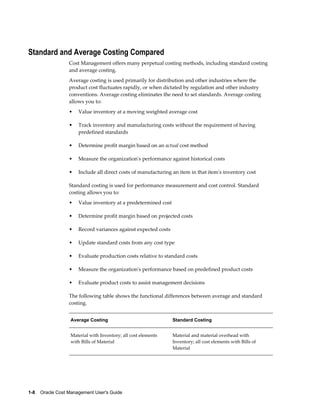
month inventory valuation reports before you complete all transactions for
the period.
Note: If you do not run the inventory reports at period end,
then you can also run the following reports:
• Period Close Summary Report
• Material Account Distribution Detail Report
• Material Account Distribution Summary Report
• Inventory Subledger Report (Average Costing Only)
Note: In an organization using Project Manufacturing
Average Costing, if there is more than one cost group, then
the following valuation reports should not be used for
reconciliation purposes because these reports list the
average value across cost groups.
• Inventory Value Report
• Transaction historical Summary Report
• Receiving Value Report
• All Inventories Value Report
• Elemental Inventory Value Report
• Subinventory Account Value Report
• Item Cost Report
11-6    Oracle Cost Management User's Guide
5. Validate Work in Process inventory.
If you use Work in Process, then check work in process inventory balances against
transactions with the WIP Account Distribution Report.
6. Close Oracle Payables and Oracle Purchasing.
If you use Payables and Purchasing, then close the accounting periods in the
following order:
• Payables
• Purchasing
• Inventory
If you only use Purchasing and Inventory, then close Purchasing first. Close
Payables before Purchasing in preparation for accruing expenses on uninvoiced
receipts. Doing so ensures that all new payables activity is for the new month and
you do not inadvertently match a prior month invoice in payables to a new month
receipt. When you close Purchasing or Inventory, you cannot enter a receipt for that
period. However, as a manual procedure, close Purchasing before Inventory. This
still allows miscellaneous transaction corrections in Inventory.
7. Run the Period Close Reconciliation report.
This report automatically runs in simulation mode for the open period. It is used to
match account balances with inventory value at period end.
8. Close the accounting period.
This sets your Inventory Accounting Period status to Closed not Summarized. If the
CST: Period Summary profile option is set to Automatic, no other steps are
necessary. The period status is set to Closed when the summarization process has
completed.
9. If the CST: Period Summary profile option is set to Manual, create period
summarization transactions by generating the Period Close Reconciliation report.
The concurrent program creates summarized transaction records, and displays the
differences between account balances and inventory value.
See: Period Summarization Process, page 11-3, and Period Close Reconciliation
Report, page 14-41
Unprocessed Transaction Messages
If there are unprocessed transactions, then one of the following messages appears:
Pending receiving transactions for this period
Period Close    11-7
When you use Purchasing, this message indicates you have unprocessed
purchasing transactions in the RCV_TRANSACTIONS_ INTERFACE table. These
transactions include purchase order receipts and returns for inventory. If this
condition exists, you will receive a warning but will be able to close the accounting
period. These transactions are not in your receiving value. However, after you close
the period, these transactions cannot be processed because they have a transaction
date for a closed period.
Unprocessed material transactions exist for this period
This message indicates you have unprocessed material transactions in the
MTL_MATERIAL_TRANSACTIONS_TEMP table. You are unable to close the
period with this condition. Please see your system administrator. Inventory
considers entries in this table as part of the quantity movement.
Closing the period in this situation is not allowed because the resultant accounting
entries would have a transaction date for a closed period, and never be picked up
by the period close or general ledger transfer process.
Pending material transactions for this period
This message indicates you have unprocessed material transactions in the
MTL_TRANSACTIONS_INTERFACE table. If this condition exists, you will receive
a warning but will be able to close the accounting period. These transactions are not
in your inventory value. However, after you close the period, these transactions
cannot be processed because they have a transaction date for a closed period.
Uncosted material transactions exist for this period
This message indicates you have material transactions in the
MTL_MATERIAL_TRANSACTIONS table with no accounting entries (Standard
Costing) and no accounting entries and no costs (Average Costing). You are unable
to close the period with this condition. These transactions are part of your inventory
value.
Closing the period in this situation is not allowed because the resultant accounting
entries would have a transaction date for a closed period, and never be picked up
by the period close or general ledger transfer process.
Pending move transactions for this period
This message indicates you have unprocessed shop floor move transactions in the
WIP_MOVE_TXN_INTERFACE table. If this condition exists, you will receive a
warning but will be able to close the accounting period. These transactions are not
in your work in process value. However, after you close the period, these
transactions cannot be processed because they have a transaction date for a closed
period.
Pending WIP costing transactions exist in this period
This message indicates you have unprocessed resource and overhead accounting
transactions in the WIP_COST_TXN_INTERFACE table. You are unable to close the
11-8    Oracle Cost Management User's Guide
period with this condition. These transactions are in your work in process value,
and awaiting further processing.
Closing the period in this situation is not allowed because the resulting accounting
entries would have a transaction date for a closed period, and never be picked up
by the period close or general ledger transfer process.
Related Topics
Posting Journal Batches, Oracle General Ledger User's Guide.
Period Close Diagnostics
You can view complete details of specific transactions that are preventing period close.
Such transactions are spread across various products including Oracle Inventory (INV),
Oracle Work in Process (WIP), Oracle Shop Floor Management (OSFM), and Oracle
Purchasing. Identifying these transactions is a critical step during period close.
The following transactions must be processed for closing a period:
• Unprocessed material transactions.
• Uncosted material transactions (including uncosted Warehouse Management
transactions).
• Pending Work in Process costing transactions.
• Pending WSM (OSFM) interface transactions.
• Pending Landed Cost adjustment transactions.
• Pending shipping transactions.
Note: When closing a period, it is not required to close pending
shipping transactions if the Period Close Check for Shipping
Transactions client extension
(CST_PeriodCloseOption_PUB.Get_ShippingTxnHook_Value)
specifies Resolution Recommended. Resolution can be optional.
See: Period Close Check for Shipping Transactions, page C-34.
The following transactions will not prevent period close, but may cause problems if
they are not processed before closing the period:
• Pending material interface transactions.
• Pending Work in Process move transactions.
Period Close    11-9
• Pending receiving transactions
• Incomplete eAM work orders
Links are provided to specific windows of different Oracle products to display the
details of pending, errored, or uncosted transactions. From the Inventory Accounting
Periods window, select Pending to go to the Pending Transactions window. From this
window, you can select the Open button to link to specific windows, reports, or pages
to view pending, errored, or uncosted transactions. The windows, reports, or pages that
you link to are determined by your cursor position when you select Open.
The following table describes details of the links to windows and reports:
Type of Transaction Links to Windows/Reports/Pages
Unprocessed Material Interface transactions Inventory Transactions Open Interface
window
Unprocessed Material transactions Inventory Pending Transactions window
Uncosted Material transactions and Uncosted
WSM transactions
View Material Transactions window
Pending Receiving transactions Receiving Transactions window
Pending WIP Costing transactions WIP Pending Resource Transactions window
Pending WIP Move transactions WIP Pending Move Transactions window
Incomplete eAM work orders EAM Work Orders Self-Service page
Pending OSFM transactions Period Close Pending Transactions Report for
Pending OSFM transactions.
Pending Shipping transactions Period Close Pending Transactions Report for
Pending Shipping transactions.
The Period Close Pending Transactions Report displays the details of the transactions
preventing period close. See: Period Close Pending Transactions Report.
System Alerts
System alerts are posted to Oracle Applications Manager (OAM) console and are sent to
subscribed administrators through workflow notifications. System alerts also gather a
variety of context information about the user, the logging process, the operating system,
11-10    Oracle Cost Management User's Guide
and so on. Oracle Applications Manager tracks multiple occurrences of the same alert
message to prevent duplicate notifications to be sent. System alerts require setting up
the profile option FND:Debug Log Enabled to a value of 'Y'.
For Period Close Diagnostics, system alerts are raised when costing of transactions fails
in the cost manager. One alert is raised for each cost worker where transaction(s) failed
costing - not for each failed transaction. Based on the subscriptions created in the
application, the application notifies users through workflow notifications. You can view
details by selecting an Alert Occurrence and choosing View Details. The User Interface
(UI) provides drill-down capabilities for viewing transactions and transaction details.
Period Close    11-11
See: Oracle E-Business Suite System Administrator's Guide.
Business Flows Across Inventory Organizations    12-1
12
Business Flows Across Inventory
Organizations
This chapter covers the following topics:
• Rolling Up Supply Chain Costs
• Inter-Organization Transfers
• Transfer Price Costing
• Transfers Between Process and Discrete Organizations
• Complex Intercompany Invoicing
Rolling Up Supply Chain Costs
The Supply Chain Cost Rollup enables you to roll up costs across multiple
organizations, with a mixture of costing methods and currencies, connected to sourcing
rules. You can perform either a single-level cost rollup, or a full cost rollup:
• A single-level rollup looks only at the first level of the bill structure for each
assembly in the rollup - and rolls the costs for the items at this level into the parent.
This method does not reflect structure or cost changes occurring at a level below the
first level of assemblies. However, it does enables you to generate costs on new
assemblies without changing costs on existing subassemblies.
• A full cost rollup first performs a bill of material explosion for assemblies. The
rollup process builds the cost of assemblies, starting with the lowest level, and
works up the structure to top-level assemblies. This method gives you the most
current bill of material structure and component costs.
You can use any costing method to roll up costs in inventory organizations. The Supply
Chain Rollup process enables you to start from any, single inventory organization.
Every time that you generate the Supply Chain Cost Rollup program, costs are
overwritten from previous rollups for the cost type specified.
12-2    Oracle Cost Management User's Guide
Sourcing Rules
You can define sourcing rules to simulate costs resulting from those rules. The cost
types resulting from the process can be:
• Reviewed for simulation purposes
• Copied to other inventory organizations
• Used for margin analysis reports
• Used as the source cost type for a standard cost update
When a sourcing rule in defined in Oracle Planning applications, you can define the
make, buy, and transfer rules for a specific rank. The rank determines the priority, with
the lower rank having the higher priority. The Supply Chain Cost Rolllup program uses
sourcing rules with the minimum rank value. See: Allocating Demand to Suppliers,
Oracle Advanced Planning User's Guide.
Reports
The cost rollup process includes the option to print a report. You can select either the
Supply Chain Consolidated Bills of Material Cost Report or the Supply Chain Indented
Bills of Material Cost Report. You can submit both of these reports when reporting item
costs. You also have the option to print a temporary rollup report, which enables you to
review the rollup results before changing the cost information.
See: Supply Chain Consolidated Bills of Material Cost Report, page 14-47, and Supply
Chain Indented Bills of Material Cost Report, page 14-51
Phantom Items and Assemblies
The cost rollup includes material costs and routing costs of phantom assemblies of
higher-level assemblies. This process handles phantom items and produces costs used
to set standard costs.
Configure to Order
Configure to Order items use cost type CTO for the rollup calculation. When an item is
created by the AutoCreate Configuration process, the cost of the configuration is based
on the options selected. Single level rollup calculations for Make and Buy CTO
configurations are calculated as follows:
• Buy Item Configurations: The configurations use the CTO cost type specified in the
profile option, BOM:CTO Buy Cost Type for Configurations. The result of the rollup
is the total cost for the configured item.
• Make Item Configurations: The cost type does not hold costs for the model and
options. Therefore, the rollup is performed based on the valuation cost of the
modeled item and optioned items. The cost type is inserted into the CTO cost type.
See: Configuration Item Cost Rollup, Oracle Configure to Order Implementation Manual.
Business Flows Across Inventory Organizations    12-3
Prerequisites
• For cost rollup requests that update changes, you must include the Privilege to
Maintain Cost security function as part of the responsibility. See: Cost Management
Security Functions, page 2-89.
• Define Oracle Bills of Material parameters. If an organization involved in the rollup
does not have the necessary parameters set, the program will not run. See: Defining
Bills of Material Parameters, Oracle Bills of Material User's Guide.
• Verify the bill structure before performing a cost rollup. See: Checking for Bill
Loops, Oracle Bills of Material User's Guide.
• Set the profile option, CST:Cost Rollup - Wait for Table Lock, to lock Cost
Management tables for the rollup. If the profile option is set to Yes, then the
program will continually attempt to lock the tables. If the profile option is set to No,
then the program makes 10 attempts to lock tables before ending the request. See:
Profile Options and Security Functions, page 2-81
To submit a supply chain rollup request:
1. Navigate to the Supply Chain Cost Rollup Request window.
2. In the Name field, select a request type option to display the Parameters window.
Your choices are:
• Supply Chain Cost Rollup - No Report: Rolls up costs and commits them to the
database; does not print a report.
• Supply Chain Cost Rollup - Print Report: Rolls up and updates costs, creates a
report.
• Temporary Supply Chain Cost Rollup - Print Report: Rolls up costs but does
not update them, creates a report.
3. In the Parameters window, optionally enter a Description. This can be any
descriptive text referencing this request.
4. Select a value in the Cost Type field.
Cost type determines how the rollup is performed. If an item does not already have
cost information in this cost type, costs from the organization default cost type are
used. If costs do not exist in the default cost type, then costs from the current
organization's valuation cost type are used.
Note: Every time the Supply Chain Cost Rollup program is
generated, costs are overwritten from previous rollups for the cost
12-4    Oracle Cost Management User's Guide
type specified.
See: Defining Cost Types, page 2-13.
5. Use the Organization and Range fields to specify the list of the top level assemblies
to roll up.
Your choices are to use the current organization, or leave this field blank:
• If you select the current organization, then the top level assemblies are rolled
up from this organization.
• If the field is blank, then the top level assemblies are from all organizations are
rolled up.
For example, if the Range field is specified as All items, and the Organization
field is specified as the current organization, then the rollup is performed with
all items, from the current organization, as the top level assemblies.
6. Optionally select a value in the Assignment Set field.
Once you have defined your sourcing rules and bills of distribution, you assign
them to particular items and/or organizations. These groupings are called
assignment sets. This is where sourcing strategies are defined for a particular
supply chain network. See: Setting up the Supply Chain, Oracle Advanced Planning
User's Guide..
Business Flows Across Inventory Organizations    12-5
7. If you selected an Assignment Set, select a Buy Cost Type.
If you specified a sourcing rule, all the costs defined in Buy Cost Type are summed
in the material cost. For example:
• If both the destination and buy cost types are set up as Pending, the process
searches for pending costs.
• If there are no pending costs, the process then searches for default cost type.
• If there are no default costs in the current organization, the process then
searches for the current organization's valuation cost type. See: Defining
Costing Information, Oracle Inventory User's Guide.
For configure to order items, select the value for the CTO Cost Type defined in
the profile option, BOM:Buy Cost Type for Configurations. See: Configuration
Item Cost Rollup, Oracle Configure to Order Implementation Manual.
See: Defining Costing Information, Oracle Inventory User's Guide.
8. In the Preserve Buy Cost Details field, indicate if you want the details of the item
costs saved. You choices are Yes or No.
If an assignment set is specified in the rollup, then all costs defined in the Buy Cost
Type are summed into this level of material cost. This parameter enables you to
preserve the buy cost details for elemental and subelemental visibility.
9. Select a Conversion Type from the list of values. This is the currency conversion
type used if currency values need to be converted across organizations.
10. Select a Rollup Option. Your choices are:
• Full cost rollup: Performs a bill of material explosion for assemblies, and then
builds the cost of assemblies starting with the lowest level, and works up the
structure to top level assemblies.
• Single-level cost rollup: Assigns new standard costs to the top assembly, but not
to the lower-level assemblies.
11. Select the Range of items to roll up.
Your choices are: All items, Category, Range of items, Specific item, or Zero cost
items.
If you select Zero cost items, the rollup includes zero cost items in the current and
the default cost types that have the attribute, Based on Rollup, enabled.
Note: Inactive items are not rolled up unless you select a Specific
Item that is inactive.
12-6    Oracle Cost Management User's Guide
12. If you selected a request type that prints a report, then select a report type. Your
choices are:
• Consolidated: Prints the Supply Chain Consolidated Bill of Material Cost report,
which lists total quantities of each component used in the parent assembly
regardless of level.
• Detail Indented: Prints the Indented Supply Chain Bill of Material Cost report,
which lists detailed cost structure by level.
See: Supply Chain Consolidated Bills of Material Cost Report, page 14-47, and
Supply Chain Indented Bills of Material Cost Report, page 14-51
13. If you selected a request type that prints a report - in the Material Detail, Material
Overhead Detail, and Routing Detail fields, then indicate if you want these fields to
display on the report. Your choices are Yes or No.
If you select Yes, then Material, Material Overhead, and Routing detail subelements
display on the report.
Note: If you select No, then you limit the amount of subelement
detail and reduce the size of the report.
14. If you selected a request type that prints a report, then enter the maximum report
number of levels to display on the report.
For example, if your assembly had 20 levels and you enter 5 in this field, then the
costs for levels 1 through 5 are detailed. The costs for levels 6 to 20 are summarized
as previous level costs. The default is the maximum bill of material levels value.
See: Defining Bills of Material Parameters, Oracle Bills of Material User's Guide.
15. Enter the Effective Date and time to determine the structure of the bill of material to
use in the cost rollup. You can use this to roll up historical and future bill structures
using current rates and component costs.
16. Indicate whether to Include Unimplemented Engineering Change Orders ECOs in
the rollup. See: Changing the ECO Status, Oracle Engineering User's Guide.
17. Optionally, enter an Alternate Bill name for the assembly to roll up, if applicable,
for the Range you selected.
For example, if an alternate bill is specified, all items in the range are still rolled up:
• The items having an associated bill with that name are rolled up using that bill.
• The items that do not have an associated bill with that name will continue to be
rolled up using the primary bill.
See: Primary and Alternate Bills of Material, Oracle Bills of Material User's Guide.
Business Flows Across Inventory Organizations    12-7
18. Optionally, enter an Alternate Routing name for the assembly to roll up, if
applicable, for the Range you selected.
For example, if an alternate routing is specified, all items specified in the range are
still rolled up:
• The items that do have an associated routing with that name are rolled up using
that routing.
• The items that do not have an associated routing with that name will continue
to be rolled up using the primary routing.
See: Primary and Alternate Routings, Oracle Bills of Material User's Guide.
19. Indicate whether to include Engineering Bills in the cost rollup. If you select Yes,
assemblies with engineering bills are rolled up in addition to the regular
assemblies.
20. You can select lot size parameters in the Lot Size Option field. Select a lot size
multiplier in your cost computations. Your choices are:
• Use Existing Lot Size
• Specify Lot Size
• Use Factor of Standard Lot Size
21. If the Lot Size Option field has the value of Specify Lot Size, or Use Factor of
Standard Lot Size - you can enter a numeric value in the Lot Size Setting field.
Note: When using either the Specify Lot Size or Use Factor of
Standard Lot Size, if Lot Size Setting is not specified, or the
Standard Lot Size is not specified, then the application uses the
existing lot size.
22. Specify items to roll up:
• If you selected Specific Item in the Range field, select an item.
• If you selected Category in the Range field, select either a category set or a
specific category.
If you select a category set, item costs are rolled up for items associated with
this category set. The default is the category set defined for your costing
functional area.
• If you selected Range of items, enter From and To values to specify the range of
items for which to roll up costs.
12-8    Oracle Cost Management User's Guide
23. Choose OK to display the Request window.
24. Choose Submit to process the rollup.
Process Flow for Supply Chain Cost Rollup
The Supply Chain Cost Rollup creates the following process flow to calculate costs.
The process:
• Creates a snapshot of the Sourcing Rules/Bills of Distribution.
• Explodes the bill of material for each assembly in the supply chain.
This explosion logic considers sourcing rules captured in the snapshot process.
It tracks the item and organization combinations.
• Items from multiple sources in the supply chain are merged.
Costs from different sources such as make, buy, and transfer items are merged
to the rolled up cost in the destination organization.
Weights are used from the sourcing snapshot.
The costs transferred from other organizations are considered previous level
costs, and their elemental visibility is preserved. The buy costs are summed into
this level of material cost. You can save the details of the item costs by selecting
Yes in the Preserve Buy Cost Details parameter.
Note: User defined costs for the top level assembly are not
recalculated during the Supply Chain Rollup program.
• Additional markup costs are applied to item costs transferred from other
organizations.
This markup is based on the percentage of Transfer Charge defined in Oracle
Inventory's Shipping Networks window. The markup cost is rolled as this level
of material overhead cost, for the top level assembly, in the destination
organization.
For the destination organization, there must be a value in the Default Material
Overhead Sub-Element field in the Oracle Inventory's Organization Parameters
window in the Costing Information tabbed region.
Example of Process Flow for Supply Chain Cost Rollup
A bill of material structure is defined at Organization 1 and Organization 2. Before
the Supply Chain Cost Rollup program is submitted:
• Item A (at Organization 1) has a user defined cost of $10, and a buy cost defined
as $120.
Business Flows Across Inventory Organizations    12-9
• The unit cost for Item B is $100.
• The Unit cost for Item C (at Organization 2) is $80.
The Transfer Charge Type percentage is defined as 10 percent when transferring
from Organization 2, to Organization 1. The sourcing rule is defined for Item a in
organization 1 as the following:
Source Rank Percentage
Make at Organization 1 1 50
Transfer from Organization
2
1 25
Buy 1 25
When a full cost rollup is submitted for item A, the following process flow occurs:
A supply chain bill of material explosion is performed and the low level codes are
assigned, The program starts with Item B in Organization 1, and Item C in
Organization 2 - and then rolls up the cost for Item A in Organization 2. Then it
completes by rolling up and merging costs for Item A in Organization 1.
12-10    Oracle Cost Management User's Guide
The costs of Item A at Organization 1 are calculated with a total unit cost of $112.
The following information is used::
Source Original Cost Weight Extended Cost
User Defined 10 No re-average 10
Make 100 50% 50
Buy 120 25% 30
Transfer from
Organization 2
80 25% 20
Markup from
Organization 2
_ _ 2
See: Standard Request Submission, Oracle Applications User's Guide, Supply Chain
Consolidated Bills of Material Cost Report, page 14-47, and Supply Chain Indented
Bills of Material Cost Report, page 14-51
Inter-Organization Transfers
You can transfer items directly from one organization to another, or transfer items
through intransit inventory. You can also use internal requisitions to replenish
Business Flows Across Inventory Organizations    12-11
inventory to another organization; however, internal requisitions do not support freight
charges. You can also transfer inventory between discrete and process organizations. As
a result, you must properly handle the costing and accounting of transfers between
process and discrete organizations. Transfers between discrete and process
organizations use a transfer price that is set up between the organizations. See: Transfer
Price Costing, page 12-22.
Inter-organizational transfers use the following functionality:
• Intransit inventory
Intransit inventory represents inventory items that have not arrived at the receiving
organization. You can move items from the shipping organization to intransit
inventory using the Inter-organization Transfer window. Use the Receipts window
to move items to the receiving organization.
• Direct Inter-Organization transfer
When the inter-organization relationship is set to direct transfer in the Shipping
Networks window, an issue and receipt transaction are performed in one step.
• Inter-Organization receipt
Inventory creates the following calculation for material received intransit and
material received directly from another organization:
Current average or standard cost from shipping organization multiplied by
transaction quantity plus freight charges and transfer credit charges.
For a direct receipt, the organization that receives the material does not perform a
transaction. The shipping organization performs a ship transaction to the receiving
organization. Inventory considers the transfer a receipt in the receiving
organization and updates the cost.
• Elemental cost visibility
You can set elemental cost visibility during inter-organization transfers either to
preserve the shipping organization's elemental costs or to summarize all elemental
costs into the material cost element. Enable this option using the Elemental
Visibility Enabled check box on the Main tab in the Shipping Networks window.
This option is available for each line in the shipping network, regardless of
direction.
Combining all cost elements into the material cost element assures that the
receiving organization does not have another organization's overhead in its
calculation.
Note: The correct option for elemental cost visibility must be set at
the time that the transaction is costed, not at the time that the
transaction occurs.
12-12    Oracle Cost Management User's Guide
• Expense subinventories and expense items
When you receive an inter-organization transfer into an expense subinventory, or
receive an expense inventory item, set the Oracle Inventory INV: Allow Expense to
Asset Transfer profile option is set to Yes. This issues the material from the expense
subinventory.
When you receive to expense locations or receive expense inventory items, the
subinventory expense account is debited for the receiving organization instead of
the valuation accounts. The subinventory expense account is charged the total
transaction value from the other organization.
• Inter-Organization transfers and ledgers
The Inter-Organization Direct Transfer transaction supports transfers from any
ledger, including ledgers in different currencies.
• Freight transactions
The Free on Board (FOB) point influences the accounting entries generated for the
shipment to intransit inventory. The FOB point is determined by how the
inter-organization shipping network is defined in the Shipping Networks window.
In addition to accounting for the movement of the items, these transactions also
update the inter-organization receivable and payable accounts.
The FOB point changes the accounting for freight. When FOB is receipt, freight is
accrued on the receipt transaction by the shipping organization. When FOB is
shipment, freight is accrued on the shipment transaction by the receiving
organization. For direct transfers, the receipt and shipment transactions occur at the
same time.
See:
Defining Inter-Organization Shipping Networks, Oracle Inventory User's Guide,
Transferring Between Organizations, Oracle Inventory User's Guide,
Managing Receipts, Oracle Purchasing User's Guide,
Purchase Order Receipt To Inventory, page 4-29,
Subinventory Transfers, page 4-33,
Managing Receipts, Oracle Purchasing User's Guide, and
Entering Receiving Transactions, Oracle Purchasing User's Guide.
Inter-Organization Transfer Transactions
Shipment Transactions (Intransit transfer only)
FOB receipt:
Business Flows Across Inventory Organizations    12-13
Account Organization Debit Credit
Intransit Inventory accounts Shipping XX -
Inventory Valuation accounts Shipping - XX
FOB shipment:
Account Organization Debit Credit
Inter-Organization Receivable Shipping XX -
Inventory Valuation accounts Shipping - XX
Intransit Inventory Material
account
Receiving XX -
Inter-Organization Payable Receiving - XX
Receipt Transaction (Intransit transfer only)
FOB receipt:
Account Organization Debit Credit
Inter-Organization Receivable Shipping XX -
Intransit Inventory accounts Shipping - XX
Org. Inventory Material
account
Receiving XX -
Inter-Organization Payable Receiving - XX
FOB shipment:
12-14    Oracle Cost Management User's Guide
Account Organization Debit Credit
Org. Inventory Material
account
Receiving XX -
Intransit Inventory Material
account
Receiving - XX
Material Overhead and Inter-Organization Transfers
If your item has material overhead, you can earn material overhead in the receiving
organization as part of the receipt transaction.
Account Debit Credit
Organization Material
Overhead account
XX -
Material Overhead
Absorption account
- XX
Direct Inter-Organization Transfer
Account Organization Debit Credit
Inter-Organization Receivable Shipping XX -
Org. Inventory Valuation
accounts
Shipping - XX
Org. Inventory Valuation
accounts
Receiving XX -
Inter-Organization Payable Receiving - XX
Freight and Transfer Charges
FOB receipt:
Business Flows Across Inventory Organizations    12-15
Account Organization Debit Credit
Intransit Inventory Account Shipping - XX
Freight Expense account Shipping - XX
Inter-Organization Receivable Shipping XX -
Inter-Org. Transfer Credit Shipping - XX
Org. Material account Receiving XX -
Inter-Organization Payable Receiving - XX
FOB shipment:
Account Organization Debit Credit
Inter-Organization Receivable Shipping XX -
Inventory Valuation Account Shipping - XX
Inter-Org. Transfer Credit Shipping - XX
Intransit Inventory Material
account
Receiving XX -
Freight Expense account Receiving - XX
Inter-Organization Payable Receiving - XX
Intransit includes both the freight and transfer charges. Inter-organization payable is
only increased for the transfer charge.
Project Manufacturing Transfer Transactions
Direct Transfer
12-16    Oracle Cost Management User's Guide
Account Organization Debit Credit
Expense to Expense No entries
Receiving
- -
Standard Org. to Project excluding Expense to Expense
Account Debit Credit
Cost Group Material (Standard cost of item of
Shipping Org.) plus Freight and Transfer Charges
XX -
Interorg. Payable - XX
Interorg. Receivable at Standard plus Freight and
Transfer Charges
XX -
Subinventory Valuation - XX
Freight Credit - XX
Transfer Credit - XX
Average Org. to or from Project excluding Expense to Expense
Account Debit Credit
Cost Group Material at Current Average Cost (of
Shipping Org.)
XX -
Interorg. Payable - XX
Interorg. Receivable at Current Average Cost (of
Shipping Org.) and Freight and Transfer Charges
XX -
Organization Valuation - XX
Freight Credit - XX
Transfer Credit - XX
Business Flows Across Inventory Organizations    12-17
Project to Standard excluding Expense to Expense
Account Debit Credit
Subinventory Valuation at Standard XX -
Purchase Price Variance (in Receiving
Organizaton) at Difference Between Cost of
Shipping and Receiving Org.
- XX
Interorg. Payable at Current Average Cost (of
Shipping Org. Cost Group)
- XX
Interorg. Receivable at Current Average Cost in
Cost Group of Shipping Org.
XX -
Cost Group Valuation (Shipper) - XX
Receipt - Intransit Standard Organization into Project Organization Using Internal
Orders
FOB receipt:
Account Debit Credit
Cost Group Material (in Receiving organization) at
Standard Cost (of Shipping Organization)
XX -
Interorganization Payable - XX
Interorganization Receivable at Standard Cost XX -
Intransit Inventory - XX
Cost Group Material (in Receiv-ing organization)
at Current Av-erage Cost (of Shipping
Orga-nization Cost Group)
XX -
Interorganization Payable - XX
Interorganization Receivable at Current Average
Cost (of Ship-ping Organization Cost Group)
XX -
12-18    Oracle Cost Management User's Guide
Account Debit Credit
Intransit Inventory - XX
Receipt - Intransit Project Organization into Project Organization Using Internal
Orders
FOB shipment:
Account Debit Credit
Cost Group Material at Current Average Cost (in
Common Cost Group of Shipping Organization)
XX -
Intransit Inventory - XX
Receipt - Intransit into Project Organization using Internal Orders
FOB receipt:
Account Debit Credit
Cost Group Valuation or Expense at Current
Average Cost (of Send-ing Organization) XX –
XX -
Intransit Inventory - XX
Transfer Project Organization from Standard Organization Using Internal Orders
FOB shipment:
Account Debit Credit
Intransit Material (in Receiving Organization) at
Standard Cost (of Sending Organization)
XX -
Interorganization Payable - XX
Interorganization Receivable XX -
Business Flows Across Inventory Organizations    12-19
Account Debit Credit
Subinventory Valuation - XX
Transfer - Project Organization from Project Organization Using Internal Orders
FOB shipment
Account Debit Credit
Intransit Inventory at Current Average Cost (in
Project Cost Group of Sending Organization)
XX -
Interorganization Payable - XX
Interorganization Receivable XX -
Cost Group Valuation - XX
Periodic Average Costing (PAC) Inter-organization Transfers Across Cost Groups
The costing and accounting for all inter-organization transactions that do not use
transfer pricing use the sending cost group's Periodic Weighted Average Cost (PWAC).
However, the sending cost may not be available to the receiving cost group at the time
that the receiving cost processor runs. The sending cost is known only after running the
PAC processes in the sending cost group. Simply running one process before the other
doesn't solve this problem, because some items will go from Cost Group A to B, others
will go from B to A, and some may go in both directions.
The best solution is to estimate the sending cost group's cost at the time that the
application processes the receiving cost group. One method for an accurate estimate is
to use the Periodic Absorption Cost Processor. This is an iterative process that can
develop an exact calculation of the sending cost group's item cost along with the cost in
the receiving cost group.
If your organization does not use the absorption cost processor, the application
estimates the sending organization's PAC cost for this period using the sending
organization's PAC cost from the previous period (if the cost groups are in the same
legal entity). All cost group periods are closed together for a given legal entity, which
ensures that the sending and receiving cost groups both pick up the same value for the
shipment cost. Both groups will use the sending cost of the last closed period. If the
groups are in different legal entities, then the sending cost estimate will come from the
perpetual cost of the shipment transaction.
12-20    Oracle Cost Management User's Guide
Example
PAC cost of item in sending org = $110
PAC cost in receiving Org = $80
Estimated PWAC of sending CG = $100
Quantity transferred = 1 unit
For FOB - Shipment Transfers Using Sending CG PWAC:
The item cost in the receiving organization is re-averaged based on the sending cost
group's estimated cost.
Shipping Transaction Debit Credit
InterOrg Receivables 100 -
Inventory (On Hand) - 110
Transfer Variance 10 -
Intransit Inventory 100 -
InterOrg Payables - 100
Receipt Transaction Debit Credit
Inventory (On Hand) 90 -
Intransit Inventory - 90
Note: Assuming the receiving organization had one unit of the item
prior to this transaction, the new item cost would be (1*100) + (1*80) / 2
= 90.
For FOB - Receipt Transfers Using Sending CG PWAC:
The item cost in the receiving organization is re-averaged based on the sending cost
group's estimated cost.
Shipping Transaction Debit Credit
Business Flows Across Inventory Organizations    12-21
Intransit Inventory 110 -
Inventory (On Hand) - 110
Receipt Transaction Debit Credit
InterOrg Receivables 100 -
Intransit Inventory - 110
Transfer Variance 10 -
Inventory (On Hand) 100 -
InterOrg Payables - 100
Note: Assuming the receiving organization had one unit of the item
prior to this transaction, the new item cost would be (1*100) + (1*80) / 2
= 90.
For Direct Interorganization Transfers Using Sending Cost Group PWAC:
The item cost in the receiving organization is re-averaged based on the sending cost
group's estimated cost.
Shipping Transaction Debit Credit
InterOrg Receivables 100 -
Inventory (On Hand) - 110
Transfer Variance 10 -
Receipt Transaction Debit Credit
Inventory (On Hand) 100 -
12-22    Oracle Cost Management User's Guide
InterOrg Payables - 100
Note: Assuming the receiving organization had one unit of the item
prior to this transaction, the new item cost would be (1*100) + (1*80) / 2
= 90.
In all cases, the inventory valuation account of the sending organization is always
credited at the item's PAC cost, and the transfer variance contains the difference
between the item's PAC cost and the estimated cost of the item in the sending
organization. The estimate comes from either the item's PAC cost last period (same LE),
or the perpetual cost of the shipment transaction (different LE). The Transfer Variance
account entries will have an accounting line type of inter-org profit.
Transfer Price Costing
You have the option to use the transfer price for intercompany accounting. Transfer
price costing occurs when a sales order is created for an intransit transfer, between two
internal organizations, in two different operating units. This functionality is flagged in
the Transfer Pricing Option profile option.
Transfer pricing is used in calculating Profit in Inventory. The operating unit associates
a price list with any operating unit. Features of this functionality include:
• Accounting distributions for internal order transfers are the same entries as an
external sales order and purchase order.
• Incoming item cost for the Receiving organization is the transfer price, rather than
the item cost of the Shipping organization.
• Profit in Inventory is reported at the individual company level for internal order
transfers, and eliminated at time of consolidation.
• The transfer price takes priority over the transfer charge. It is recommended that
transfer credit is not set up in the Shipping Network window to avoid the value
calculated in new entries. For internal order transfers, freight is not charged
directly.
Setup
• Define Intercompany relationships between operating units.
• In the Shipping Networks window in Oracle Inventory, add values for Intransit
Inventory and Profit in Inventory accounts. These fields are located in the Other
Accounts tabbed region.
Business Flows Across Inventory Organizations    12-23
• Set the profile option CST:Transfer Pricing Option to Yes.
See: Intercompany Invoicing Process, Oracle Inventory User's Guide,
Intercompany Invoice Pricing, Oracle Inventory User's Guide,
Overview of Price Lists, Oracle Advanced Pricing User's Guide, and
Creating a Price List, Oracle Advanced Pricing User's Guide.
Standard Cost Examples for Transfer Pricing
The following list accounting values for standard cost transactions.
• Cost of Goods Sold (COGS) account value is derived from the Shipping
organization's inventory cost.
• Intercompany Accrual value equals the transfer price.
• Profit in Inventory value equals the transfer price, minus the Shipping
organization's inventory cost.
In these examples: .
• Company 01 has an inventory cost of $102 - material cost of $100, and material
overhead cost of $2.
• Company 02 has a standard cost of $108. - material cost of $105 and material
overhead cost of $3.
• The transfer price is $120.
Freight On Board (FOB) Shipment Transactions
Two options are available for FOB shipment transactions in standard cost organizations:
• The incoming cost to the receiving organization is the shipping organization's
inventory cost.
• The incoming cost to the receiving organization is based on the transfer price.
Receiving Inventory Valued at Sending Cost
Shipping Organization Debit Credit
COGS Material 100 -
COGS Material Overhead 2 -
12-24    Oracle Cost Management User's Guide
Shipping Organization Debit Credit
Inventory Valuation Material - 100
Inventory Valuation Material Overhead - 2
Receiving Organization Debit Credit
Intransit Inventory 108 -
Profit in Inventory 18 -
Purchase Price Variance - 6
Intercompany Accrual - 120
Receiving Inventory Valued at Transfer Price
Shipping Organization Debit Credit
COGS Material 100 -
COGS Material Overhead 2 -
Inventory Valuation Material - 100
Inventory Valuation Material Overhead - 2
Receiving Organization Debit Credit
Intransit Inventory 108 -
Purchase Price Variance 12 -
Intercompany Accrual - 120
Business Flows Across Inventory Organizations    12-25
Freight on Board (FOB) Receipt Transactions
Two options are available for FOB receipt transactions when incoming cost is derived
from the inventory cost:
• The incoming cost to the receiving organization is the shipping organization's
inventory cost.
• The incoming cost to the receiving organization is based on the transfer price. The
Purchase Price Variance value is derived from the transfer price. The Profit in
Inventory account is not used.
Receiving Inventory Valued at Sending Cost
Shipping Organization Debit Credit
COGS Material 100 -
COGS Material Overhead 2 -
Intransit Inventory - 102
Receiving Organization Debit Credit
Inventory Valuation Material 105 -
Inventory Valuation Material Overhead 3 -
Profit in Inventory 18 -
Purchase Price Variance - 6
Intercompany Accrual - 120
Receiving Inventory Valued at Sending Cost
Shipping Organization Debit Credit
COGS Material 100 -
12-26    Oracle Cost Management User's Guide
Shipping Organization Debit Credit
COGS Material Overhead 2 -
Intransit Inventory - 102
Receiving Organization Debit Credit
Inventory Valuation Material 105 -
Inventory Valuation Material Overhead 3 -
Purchase Price Variance 12 -
Intercompany Accrual - 120
Actual Cost Examples for Transfer Pricing
The following are accounting values for average, FIFO, and LIFO cost organizations
using transfer pricing:
• The Cost of Goods Sold (COGS) account value is derived from the shipping
organization's inventory cost.
• The Intercompany Accrual value equals the transfer price.
• The Profit in Inventory value equals the transfer price, minus the shipping
organization's inventory cost.
In these examples, Company 01 has an inventory cost of $102, and Company 02 has a
average cost of $108. The transfer price is $120.
Freight On Board (FOB) Shipment Transactions
Two options are available for FOB shipment transactions in actual cost organizations:
• The incoming cost to the receiving organization is the Shipping organization's
inventory cost.
• The incoming cost to the receiving organization is based on the transfer price.
Receiving Inventory Valued at Sending Cost
Business Flows Across Inventory Organizations    12-27
Shipping Organization Debit Credit
COGS Material 100 -
COGS Material Overhead 2 -
Inventory Valuation Material - 100
Inventory Valuation Material Overhead - 2
Receiving Organization Debit Credit
Intransit Inventory Material 100 -
Intransit Inventory Material Overhead 2 -
Profit in Inventory 18 -
Intercompany Accrual - 120
Receiving Inventory Valued at Transfer Price
Shipping Organization Debit Credit
COGS Material 100 -
COGS Material Overhead 2 -
Inventory Valuation Material - 100
Inventory Valuation Material Overhead - 2
Receiving Organization Debit Credit
Intransit Inventory Material 120 -
Intransit Inventory Material Overhead 0 -
12-28    Oracle Cost Management User's Guide
Receiving Organization Debit Credit
Intercompany Accrual - 120
Freight on Board (FOB) Receipt Transactions
Two options are available for FOB receipt transactions when incoming cost is derived
from the inventory cost:
• The incoming cost to the receiving organization is the shipping organization's
inventory cost.
• The incoming cost to the receiving organization is based on the transfer price. The
Profit in Inventory account is not used.
Receiving Inventory Valued at Sending Cost
Shipping Organization Debit Credit
COGS Material 100 -
COGS Material Overhead 2 -
Intransit Inventory - 102
Receiving Organization Debit Credit
Inventory Valuation Material 100 -
Inventory Valuation Material Overhead 2 -
Profit in Inventory 18 -
Intercompany Accrual - 120
Receiving Inventory Valued at Transfer Price
Business Flows Across Inventory Organizations    12-29
Shipping Organization Debit Credit
COGS Material 100 -
COGS Material Overhead 2 -
Intransit Inventory - 102
Receiving Organization Debit Credit
Inventory Valuation Material 120 -
Inventory Valuation Material Overhead 0 -
Intercompany Accrual - 120
Period Average Costing (PAC) Examples for Transfer Pricing
The following describes transfer pricing support in PAC and includes shipping
networks and intransit accounting concepts. Similar to perpetual costing, the
application revalues the intransit quantities as part of on-hand inventory for the owning
organization. For example, in the case of FOB shipment, the receiving cost group takes
ownership of the goods at the time of shipment (goods go into the receiving CG's
inventory), and re-averages its inventory with the new costed quantity. The receipt
transaction is a cost-derived transaction and serves only as an accounting-only
transaction. Similarly, for FOB receipts, the sending organization owns the goods in
transit until the receipt is performed, and includes intransit balances when revaluing
on-hand inventory before the receipt takes place.
Transfer Price
For setting up and using a transfer price to cost intercompany transactions, the transfer
pricing functionality for perpetual costing methods is extended to PAC.
There are two limitations to transfer pricing with internal sales orders:
1. Transfer pricing is supported across operating units only. Within the same
operating unit, you must run the transfer as an inter-organizational transfer.
2. Transfer pricing works with intransit transfers only, not with direct transfers.
Example
For an internal sales order transaction with:
12-30    Oracle Cost Management User's Guide
INV: Intercompany Invoicing for Internal Orders = "Yes" and CST: Transfer Pricing
Option = "Yes, Price as Incoming Cost", consider the following scenario:
• PAC cost of Item in sending org = $110
• PAC Cost in Receiving Org = $80
• Transfer Price between the Orgs = $120
• Quantity transferred = 1 unit
• Perpetual Item Cost of shipment transaction in sending org = $100
For FOB – Shipment transfers with CST:Transfer Pricing Option = Yes, Price As Incoming
Cost:
Shipping Organization Debit Credit
COGS 110 -
Inventory (On-Hand) - 110
Intransit Inventory 120 -
Intercompany Accrual - 120
Receiving Organization Debit Credit
Inventory (On-Hand) 100 -
Intransit Inventory - 100
The item cost in the Receiving Org is re-averaged based on the transfer price, when the
item is brought into the receiving cost group's inventory (intransit line type).
Note: The receipt is done at (80 + 100) / 2 = 100, the re-averaged cost
after including the transfer price.
For FOB – Receipt transfers with CST:Transfer Pricing Option = Yes, Price As
Incoming Cost:
Business Flows Across Inventory Organizations    12-31
Shipping Organization Debit Credit
Intransit Inventory 110 -
Inventory (On-Hand) - 110
Receiving Organization Debit Credit
COGS 110 -
Intransit Inventory - 110
Inventory (On-Hand) 120 -
Intercompany Accrual - 120
Note: Assuming the receiving organization had 1 unit of the item prior
to this transaction, the new item cost AFTER THE RECEIPT transaction
would be (1*120) + (1*80) / 2 = 100.
For FOB – Shipment transfers with CST:Transfer Pricing Option = Yes, Price Not As
Incoming Cost:
Shipping Organization Debit Credit
COGS Sending CG PAC
Item Cost at the
time of shipment
-
Inventory (On-Hand) - Sending CG PAC
Item Cost at the
time of shipment
Intransit Inventory Estimated Sending
CG Cost
-
Intercompany Accrual - Transfer Price
12-32    Oracle Cost Management User's Guide
Profit in Inventory Difference between
estimated PWAC
and transfer price
Difference between
estimated PWAC
and transfer price
Receiving Organization Debit Credit
Inventory (On-Hand) Current PWAC
Cost at the time of
receipt
-
Intransit Inventory - Current PWAC
Cost at the time of
receipt
Note: The item cost in the Receiving Organization is re-averaged based
on the estimated sending CG cost when the item is brought into the
receiving cost group's inventory (intransit line type).
For FOB – Receipt transfers with CST:Transfer Pricing Option = Yes, Price Not As
Incoming Cost:
Shipping Organization Debit Credit
Intransit Inventory Sending CG PAC
Item Cost at the
time of shipment
-
Inventory (On-Hand) - Sending CG PAC
Item Cost at the
time of shipment
Receiving Organization Debit Credit
COGS Sending CG PAC
Item Cost at the
time of receipt
-
Business Flows Across Inventory Organizations    12-33
Intransit Inventory - Sending CG PAC
Item Cost at the
time of receipt
Inventory (On-Hand) Estimated Sending
CG Cost
-
Intercompany Accrual - Transfer Price
Profit in Inventory Difference between
estimated PWAC
and transfer price
Difference between
estimated PWAC
and transfer price
Note: The item cost in the Receiving Org is re-averaged based on the
estimated sending CG cost.
Transfers Between Process and Discrete Organizations
Discrete inventory organizations and process inventory organizations share the same
inventory setup and transaction model, and Oracle Inventory and Cost Management
support material transfers between process organizations and discrete organizations.
Along with the transfer of materials, you can also transfer the cost of the material in one
form or another to ensure that the values of inventory movements and transfers are
properly tracked in the various sub-ledgers and in the General Ledger. In addition, in
the case of organizations that use some form of average costing, the cost of the incoming
material is considered for perpetual or periodic averaging.
Consider the example where an item is transferred from an organization (the source
organization) that uses a periodic method of actual costing, to another organization (the
target organization) that uses a perpetual method of costing. Within the target
organization, the cost of the transfer is required at the time of the transfer to accurately
record the incoming inventory value and recalculate the perpetual average in the case
of average costing, or to value the incoming inventory in case of perpetual standard
costing. However, the cost of the item in the source organization is not known until the
cost process is run (which usually occurs at the end of the period). Therefore, to
properly value the inventory that is moved, a Transfer Price is used as the incoming
cost in the receiving organization.
Costing Transfers Using Transfer Price
Transfers between discrete and process organizations use a transfer price that is set up
between the organizations. A new account, Interorganization Profit, is created to
capture the difference in the sending organization.
12-34    Oracle Cost Management User's Guide
The receiving organization uses this transfer price as the cost associated with the
transfer, and if necessary, the receiving organization will recalculate the averages using
this transfer price as the incoming cost. In the sending organization, the difference
between the transfer price and the cost as calculated (possibly at the end of the period )
is recognized as interorganization profit. This profit may be manually reconciled at the
end of the period when reconciling both the source and target organization's books.
Important: The application uses transfer price for transfer between
process and discrete organizations regardless of the type of transfer, or
whether it is within an operating unit or across operating units. The
application always uses the transfer price as the incoming cost in the
receiving organization.
Accounting Transactions for Transfer Pricing
Oracle Inventory allows two types of material transfers between two inventory
organizations:
• Direct: Materials are considered to have been transferred immediately, and the
quantities are decremented and incremented in the source and destination
organization respectively at the same time.
• In-Transit: There is a time lag between when the material leaves the source
organization, and when it is received at the destination organization.
The accounting distributions are different between the various transfer types. The
following table illustrates differences between the two types of transfers.
Direct Transfer Intransit Transfer
Material is transferred immediately and is
decremented and incremented in the source
and destination organization at the same time.
Material goes into in-transit, and is explicitly
received in the destination organization.
The transactions are created using the
Inventory Transfers window, and both from
and to transactions are created at the same
time.
The shipment is created using the Inventory
Transfers window, and is received using the
Receiving windows.
FOB options are not applicable because
transfer happens immediately.
The FOB option can be either shipping or
receiving.
Can also process using internal orders. Can also process using internal orders.
Business Flows Across Inventory Organizations    12-35
Direct Transfer Intransit Transfer
No inter-company invoicing support. Inter-company invoicing is possible for
transfers across operating units that are done
via Internal-Orders.
Freight and transfer credits can be used.
However, freight is not applicable for
internal-order transfers.
Freight and transfer credits can be used.
However, freight is not applicable for
internal-order transfers.
Transfer credit is applicable only in the case
where the transfer happens within the same
operating unit, or when invoicing is not used.
Transfer price is required in cases of
inter-company invoiced transfers.
Note: Transfer price takes priority over the transfer charge. The
application ignores the transfer credit setup in the Shipping Network
window.
The following examples illustrate the accounting entries for various types of inventory
transfers that include direct and in-transit transfers.
Note: For the following examples, recording of the receiving
transaction accounting entry may occur prior to the accounting entry
for the shipping transaction. Transfer Credit is not supported for
process/discrete transfer. Therefore, transfer credit is not used.
Example
1 - Direct Transfer (through inventory transfer, or using internal order)
Example 1-1: Average Costing Organization
Note: For simplicity, the quantity transferred is assumed to be 1 unit.
For direct transfers, inter-company invoicing option is not currently
supported. Therefore, the accounting distribution template for
inter-company option is not discussed in this document.
1. Sending Organization Cost = $100
2. Receiving Organization Cost = $80
3. Transfer Price between these Organizations = $120
12-36    Oracle Cost Management User's Guide
4. Qty. Transferred = 1 Unit
5. Transfer Credit = 10%
6. Freight = $25
Shipping Organization Debit Credit
Inter-Organization Receivables 120 -
Inventory Valuation - 100
Freight Expense a/c - 25
Inter-Organization Profit 5 -
Receiving Organization Debit Credit
Inventory Valuation 120 -
Inter-Organization Payables - 120
The cost in the receiving organization is re-averaged based on the cost of the transfer
(transfer price).
Example
Example 1-2: Standard Costing Organization
1. Sending Organization Cost = $100
2. Receiving Organization Cost = $80
3. Transfer Price between these Organizations = $120
4. Qty. Transferred = 1 Unit
5. Transfer Credit = 10%
6. Freight = $25
Business Flows Across Inventory Organizations    12-37
Shipping Organization Debit Credit
Inter-Organization Receivables 120 -
Inventory Valuation - 100
Freight Expense a/c - 25
Inter-Organization Profit 5 -
Receiving Organization Debit Credit
Inventory Valuation 80 -
Inter-Organization Payables - 120
Purchase Price Variance * 40 -
Note: * Purchase Price Variance (PPV) is recorded for standard costing
organizations only. For average costing organizations, incoming cost
becomes the cost of the transfer and is used in the average cost
calculations, and there will be no PPV.
2a - In-transit Transfer (through inventory transfer, or using internal order) with FOB set to Shipping
Note: For simplicity, the quantity transferred is assumed to be 1 unit.
Inter-Company transfers are considered in the next section.
Example
Example 2a-1: Average Costing Organization
1. Sending Organization Cost = $100
2. Transfer Price between these Organizations = $120
3. Qty. Transferred = 1 Unit
4. Transfer Credit = 10%,
5. Freight = $25
12-38    Oracle Cost Management User's Guide
After Shipment:
Shipping Organization Debit Credit
Inter-Organization Receivables 120 -
Inventory Valuation - 100
Inter-Organization Profit - 20
Receiving Organization Debit Credit
In-Transit Inventory 145 -
Inter-Organization Payables - 120
Freight Expense a/c - 25
Receiving Organization Cost (After Re-averaging) = $80
After Receipt:
Receiving Organization Debit Credit
Inventory Valuation 80 -
In-transit Inventory - 80
The Cost in the receiving organization is re-averaged based on the cost of the transfer
(transfer price)
Example
Example 2a-2: Standard Costing Organization
1. Sending Organization Cost = $100
2. Receiving Organization Cost = $80
3. Transfer Price between these Organizations = $120
4. Qty. Transferred = 1 Unit
5. Transfer Credit = 10%
Business Flows Across Inventory Organizations    12-39
6. Freight = $25
Example
After Shipment:
Shipping Organization Debit Credit
Inter-Organization Receivables 120 -
Inventory Valuation - 100
Inter-Organization Profit - 20
Receiving Organization Debit Credit
In-Transit Inventory 80 -
Inter-Organization Payables - 120
Freight Expense a/c - 25
Purchase Price Variance 65 -
After Receipt:
Receiving Organization Debit Credit
Inventory Valuation 80 -
In-Transit Inventory - 80
2b - In-transit Transfer (through Inventory Transfer or via Internal Order) with FOB set to Receiving
Example
Example 2b-1: Average Costing Organization
1. Sending Organization Cost = $100
2. Receiving Organization Cost = $80
3. Transfer Price between these Organizations = $120
12-40    Oracle Cost Management User's Guide
4. Qty. Transferred = 1 Unit
5. Transfer Credit = 10%
6. Freight = $25
Note: Transfer credit is not used in this case.
After Shipment:
Shipping Organization Debit Credit
In-Transit Inventory 100 -
Inventory Valuation - 100
After Receipt:
Shipping Organization Debit Credit
Inter-Organization Receivables 120 -
In-Transit Inventory - 100
Freight Expense a/c - 25
Inter-Organization Profit 5 -
Receiving Organization Debit Credit
Inventory Valuation 120 -
Inter-Organization Payables - 120
The Cost in the receiving organization is re-averaged based on the cost of the transfer
(transfer price).
Example
Example 2b-2: Standard Costing Organization
1. Sending Organization Cost = $100
Business Flows Across Inventory Organizations    12-41
2. Receiving Organization Cost = $80
3. Transfer Price between these Organizations = $120
4. Qty. Transferred = 1 Unit
5. Transfer Credit = 10%
6. Freight = $25
Note: Transfer credit is not used in this case.
After Shipment:
Shipping Organization Debit Credit
In-Transit Inventory 100 -
Inventory Valuation - 100
After Receipt:
Shipping Organization Debit Credit
Inter-Organization Receivables 120 -
In-Transit Inventory - 100
Freight Expense a/c - 25
Inter-Organization Profit 5 -
Receiving Organization Debit Credit
Inventory Valuation 80 -
Inter-Organization Payables - 120
Purchase Price Variance 40 -
12-42    Oracle Cost Management User's Guide
Intercompany Transfers Using Internal Orders
When a transfer occurs between two inventory organizations that belong to two
different operating units (that may or may not belong to the same ledger), the transfer is
considered to be intercompany. Release 11i9 introduced an option that enables you to
generate intercompany invoices for this type of transfer. Along with the invoicing
option, the release introduced a transfer pricing mechanism to value the transfers. You
can use either the transfer price as the incoming cost, or use the sending organization
cost as the incoming cost in the destination organization. However, the inter-company
accounting option is available only for transfers created using internal orders.
In the case of transfer with intercompany invoicing and transfer prices, the accounting
entries generated are different from those that are generated for a transfer without the
intercompany invoicing option. The accounting entries are also different from those that
are generated for a transfer between inventory organizations belonging to the same
operating unit as in examples 2a & 2b.
The following two sections illustrate how the inter-company transfers are accounted for
inter-company transfers between process and discrete organizations.
Important: For intercompany transfers between process and discrete
inventory organizations, the incoming cost of an item is equal to its
defined transfer price. This cost rule applies regardless of the value
specified in the profile option CST: Transfer Pricing Option. The cost
processor always assumes a profile option value of 'Yes, Transfer Price
as Incoming Cost'. Profile option values of No or Yes, Price Not as
Incoming Cost are ignored in these transfers.
3a - Inter-Company Transfers with Invoicing – FOB set to Shipping
Example
Example 3a-1: Average Costing Organization
1. Sending Organization Cost = $100
2. Transfer Price between these Orgs = $120
3. Qty Transferred = 1 Unit
After Shipment Transaction:
Shipping Organization Debit Credit
COGS 100 -
Business Flows Across Inventory Organizations    12-43
Shipping Organization Debit Credit
Inventory Valuation - 100
Receiving Organization Debit Credit
In-Transit Inventory 120 -
Inter-Company Accrual - 120
Receiving Organization Cost (After Re-averaging) = $80
After Receipt Transaction:
Receiving Organization Debit Credit
Inventory Valuation 80 -
In-Transit Inventory - 80
The Cost in the receiving organization is re-averaged based on the cost of the transfer
(transfer price).
CST: Inter-Company Invoice = YES
CST: Transfer Pricing Option = Yes, Price as Incoming Cost
Inter-Company entries as created by the Inter-Company programs:
Shipping Organization Debit Credit
Inter-Company Receivable 120 -
Inter-Company Revenue - 120
Receiving Organization Debit Credit
Inter-Company Accrual 120 -
12-44    Oracle Cost Management User's Guide
Receiving Organization Debit Credit
Inter-Company Payable - 120
Example
Example 3a-2: Standard Costing Organization
1. Sending Organization Cost = $100
2. Receiving Organization Cost = $80
3. Transfer Price between these Organizations = $120
4. Qty. Transferred = 1 Unit
CST: Inter-Company Invoice = YES
CST: Transfer Pricing Option = Yes, Price as Incoming Cost
After Shipment Transaction:
Shipping Organization Debit Credit
COGS 100 -
Inventory Valuation - 100
Receiving Organization Debit Credit
In-Transit Inventory 80 -
Inter-Company Accrual - 120
Purchase Price Variance 40 -
The Cost in the receiving organization is re-averaged based on the cost of the transfer
(transfer price).
After Receipt Transaction:
Business Flows Across Inventory Organizations    12-45
Receiving Organization Debit Credit
Inventory Valuation 80 -
In-Transit Inventory - 80
Inter-Company entries as created by the Inter-Company programs:
Shipping Organization Debit Credit
Inter-Company Receivable 120 -
Inter-Company Revenue - 120
Receiving Organization Debit Credit
Inter-Company Accrual 120 -
Inter-Company Payable - 120
3b Inter-Company Transfers with Invoicing – FOB set to Receiving
Example
Example 3b-1: Average Costing Organization
1. Sending Organization Cost = $100
2. Receiving Organization Cost = $80
3. Transfer Price between these Organizations = $120
4. Qty. Transferred = 1 Unit
CST: Inter-Company Invoice = YES
CST: Transfer Pricing Option = Yes, Price as Incoming Cost
After Shipment:
12-46    Oracle Cost Management User's Guide
Shipping Organization Debit Credit
In-Transit Inventory 100 -
Inventory Valuation - 100
After Receipt:
Shipping Organization Debit Credit
COGS 100 -
In-Transit Inventory - 100
Receiving Organization Debit Credit
Inventory Valuation 120 -
Inter-Company Accrual - 120
The Cost in the receiving organization is re-averaged based on the cost of the transfer
(transfer price).
Inter-Company entries as created by the Inter-Company programs:
Shipping Organization Debit Credit
Inter-Company Receivable 120 -
Inter-Company Revenue - 120
Receiving Organization Debit Credit
Inter-Company Accrual 120 -
Inter-Company Payable - 120
Business Flows Across Inventory Organizations    12-47
Example
Example 3b-2: Standard Costing Organization
1. Sending Organization Cost = $100
2. Receiving Organization Cost = $80
3. Transfer Price between these Organizations = $120
4. Qty. Transferred = 1 Unit
CST: Inter-Company Invoice = YES
CST: Transfer Pricing Option = Yes, Price as Incoming Cost
After Shipment:
Shipping Organization Debit Credit
In-Transit Inventory 100 -
Inventory Valuation - 100
After Receipt:
Shipping Organization Debit Credit
COGS 100 -
In-Transit Inventory - 100
Receiving Organization Debit Credit
Inventory Valuation 80 -
Inter-Company Accrual - 120
Purchase Price Variance 40 -
Inter-Company entries as created by the Inter-Company programs:
12-48    Oracle Cost Management User's Guide
Shipping Organization Debit Credit
Inter-Company Receivable 120 -
Inter-Company Revenue - 120
Receiving Organization Debit Credit
Inter-Company Accrual 120 -
Inter-Company Payable - 120
Expense Inventory Items and Receiving into Expense Sub-Inventories
When an item is received into an expense sub-inventory, or an expense item is received,
the sub-inventory expense account is debited instead of the material valuation account.
The following example shows only one such transfer.
4a. In-transit transfer of an asset item received into an expense sub-inventory (FOB is Receiving)
Example
After Shipment:
Shipping Organization Debit Credit
In-Transit Inventory Sending
Organization
Cost
-
Inventory Valuation - Sending
Organization
Cost
After Receipt:
Shipping Organization Debit Credit
Inter-Organization Receivables Transfer Price -
Business Flows Across Inventory Organizations    12-49
Shipping Organization Debit Credit
In-Transit Inventory - Sending
Organization
Cost
Freight Expense a/c - Freight
Inter-Organization Profit <Difference> -
Receiving Organization Debit Credit
Sub-Inventory Expense Account Transfer Price -
Inter-Organization Payables - Transfer Price
The Cost in the receiving organization is not re-averaged based on the cost of the
transfer (transfer price).
Complex Intercompany Invoicing
Oracle Cost Management supports and performs the accounting for both physical and
financial flows in intercompany transactions. Many companies distribute goods from a
central location to parties located in other locations. These goods, or drop shipments,
can pass to a controlled entity or subsidiary in the country of sales before shipping to
the customer. Drop shipment is a process where goods are shipped from a company's
supplier directly to the customer. These goods do not physically pass through the
warehouse facilities of the companies.
Corporations create a diverse set of operating unit, organization, entity, and sets of
book combinations to facilitate this business flow. Global procurement enables Oracle
Purchasing to request material from these operating unit combinations to other
operating units. Oracle Inventory creates transactions that do not generate material
movements, but are used for invoicing and accounting purposes. Procurement and sales
transactions are performed across these operating units. Transactions can impact
several organizations and operating units requiring a complex sequence of linked
accounting entries. This functionality supports:
• Shared procurement services: If a purchase order is placed by one operating unit,
and shipped to another operating unit, then the procurement operating can invoice
the receiving operating unit. The invoice is costed at either the purchase order price
or the transfer price. The accounting transactions represents a transfer of ownership
12-50    Oracle Cost Management User's Guide
between the operating units.
• Ownership transfer for shipments: You can generate a transfer of ownership when
shipping a sales order where the operating units are separate for selling and
shipping. The intercompany invoice uses the transfer price.
• Drop ship across ledgers: On a drop shipment sales order, the warehouse
organization and sales order organization can use different ledgers.
• Intercompany relationships: You can define chains of operating units for selling,
procurement, shipping, and receiving. Ownership of the goods is transferred
during transactions. Intercompany invoices are generated between all operating
units, and accounting transactions represent ownership transfer between all
operating units in the chain.
Accounting Transactions for Complex Intercompany Invoicing
The following flow of activities demonstrates this scenario for complex intercompany
invoicing:
• Operating Unit 1 (OU1) receives a sales order from a customer.
• Order price is $25.
• The material is shipped to the customer from Operating Unit 2 (OU2) warehouse.
• OU2 does not stock the material. Global Agreement Rules dictate that the item is
procured by Operating Unit 3 (OU3).
• OU2 creates a requisition to OU3 to purchase the material.
• OU3 creates purchase order to the Supplier.
• Purchase order price is $10.
Business Flows Across Inventory Organizations    12-51
• The Supplier ships the material OU2:
• OU2 has the physical receipt of the material.
• OU3 creates PO Receipt transaction because it purchased the material.
• OU3 also creates a shipping transaction to OU2.
• The transfer price is $15
• OU1 created the sales order, and performs the shipping transaction to the customer.
• The material is physically shipped from OU2
• A transfer transaction is created from OU2 to OU1,at a Transfer price of $20.
• A receipt transaction is created in OU1.
The accounting for this example for intercompany transactions follows this flow:
Operating Unit 3
Receipt Transaction
Receiving Processor Debit Credit
OU1 Clearing 10 -
Accrual - 10
Cost Processor Debit Credit
OU2 Inventory 10 -
OU1 Clearing - 10
Invoicing Debit Credit
Intercompany Receivable 15 -
Intercompany Revenue - 15
12-52    Oracle Cost Management User's Guide
Cost Processor Debit Credit
Intercompany Cost of Goods (COGS) 10 -
OU2 Inventory - 10
Operating Unit 2
Receipt Transaction
Receiving Processor Debit Credit
OU1 Clearing 15 -
Intercompany Accrual - 15
Intercompany Invoicing Debit Credit
Intercompany Accrual 15 -
Intercompany Payable - 15
Deliver Transaction
Cost Processor Debit Credit
OU1 Inventory 15 -
OU1 Receipt - 15
Shipping Transaction
Intercompany Invoicing Debit Credit
Intercompany Receivable 20 -
Business Flows Across Inventory Organizations    12-53
Intercompany Invoicing Debit Credit
OU1 Intercompany Revenue - 20
Cost Processor Debit Credit
Intercompany COGS 15 -
OU1 Inventory - 15
Operating Unit 1
Shipping Transaction
Cost Processor Debit Credit
OU3 Inventory 20 -
OU1 Inventory - 20
Intercompany Invoicing Debit Credit
Intercompany Accrual 20 -
Intercompany Payable - 20
Cost Processor Debit Credit
OU3 COGS 20 -
OU3 Inventory - 20
12-54    Oracle Cost Management User's Guide
Accounts Receivable Invoicing Debit Credit
OU3 Receivable 25 -
OU3 Revenue - 25
Related Topics
Drop Shipments, Oracle Purchasing User's Guide,
Intercompany Invoicing Process Overview, Oracle Inventory User's Guide, and
Intercompany Invoicing Setup, Oracle Inventory User's Guide.
Subledger Accounting (SLA)    13-1
13
Subledger Accounting (SLA)
This chapter covers the following topics:
• Overview of Subledger Accounting (SLA)
• Subledger Accounting Profile Option
• Defining Accounting Derivation Rules
• Create Accounting - Cost Management
• Transfer Journal Entries to GL - Cost Management
• Viewing Accounting and Accounting Events
Overview of Subledger Accounting (SLA)
Accounting for all transactions uses Subledger Accounting (SLA) architecture which is
an enhancement of the standard accounting process, and contains changes to the overall
process flow, user interfaces, and some programs. SLA architecture delivers many
benefits, and lets you customize the way accounting is performed for a specific event.
You can use accounts derived from custom business logic based on data provided by
the application (accounting sources).
SLA is a common rule-based accounting engine used by Oracle products that posts
accounting entries into Oracle General Ledger. Rules are user defined, and reside in a
common repository for all subledger applications such as Oracle Cost Management. The
SLA accounting engine is also a common engine for all subledger applications and
provides you with a single common paradigm for defining your accounting behaviors.
The engine supports multiple currencies, as well as audit tools such as the XML
Publisher based Journal Entries report. This report also displays the balance of an
Inventory Valuation account within a user specified date range. The Journal Entries
report is similar to the Material (or WIP) Account Distribution Summary report and will
display the balance of the Inventory or WIP Valuation Accounts within a specified date.
See: Journal Entries Report, Oracle Subledger Accounting Implementation Guide.
The subledger accounting engine lets the accounting department maintain sophisticated
13-2    Oracle Cost Management User's Guide
control over accounting and charts of accounts. Accounting rules can be defined against
most attributes. For example, you can use an attribute of an item to redirect accounting
to the proper category of Cost of Goods Sold within the Chart of Accounts. You can also
control and avoid user errors from being entered into the application. Incorrect entries
can be redirected to proper accounts.
See the Oracle Subledger Accounting Implementation Guide for details on setting up
and using Subledger Accounting.
Standard and SLA Accounting Processes Compared
Standard Accounting Process
The following illustrates the standard accounting process prior to Release 12 for
generating and viewing accounting entries.
SLA Accounting Process
As of Release 12, Cost Management includes the Cost Management - SLA responsibility
that you can use to create all user-defined accounting data. The request group that is
associated with the Cost Management - SLA responsibility includes all SLA processes in
addition to the standard costing processes. The following illustrates the Cost
Management - SLA process of generating and viewing accounting entries.
Create Accounting
The Cost Management - SLA process includes additional steps for creating accounting
Subledger Accounting (SLA)    13-3
for specific periods, and viewing the resulting accounting entries. The Create
Accounting - Cost Management concurrent request creates the accrual journal entries as
well as accrual reversals and multi-period journal entries. See: Create Accounting - Cost
Management, page 13-4.
Note: You must run the Transfer Journal Entries to GL program to
transfer accounting entries to GL if the option to transfer them to GL is
set to No in the Create Accounting program.
Transfer Journal Entries to GL - Cost Management
The Transfer Journal Entries to GL - Cost Management concurrent request transfers the
accounting entries to GL. You are not required to run this request if the option to
transfer entries to the ledger is selected in the Create Accounting - Cost Management
concurrent request. See: Transfer Journal Entries to GL - Cost Management, page 13-7.
Viewing Accounting Events and Journal Entries
You can view accounting events and journal entries associated with transactions using
the Subledger Accounting user interface (HTML), or view the accounting events and
journal entries using the View Transactions windows. See: Viewing Accounting and
Accounting Events, page 13-8.
Upgrade Accounting to SLA
The SLA data model offers an automated upgrade path and migrates legacy accounting
data for the current fiscal year. When you upgrade to Release 12, you can automatically
migrate Cost Management to Subledger Accounting for historical transactions within a
selected number of periods. You should verify that the accounting events for those
transactions are available in the SLA Accounting Events page. See: Financials and
Procurement Tasks, Oracle E-Business Suite Upgrade Guide.
Subledger Accounting Profile Option
Profile Option
The CST: Receiving Accounting Option controls whether the Receiving Transaction
Processor creates the accounting entries online, or if accounting entries are created by
concurrent request.
If the option is set to Online, then the receiving transaction processor creates the
accounting entries for receiving transactions in SLA. If the option is Concurrent, then
the accounting for receiving occurs when you run the Create Accounting - Cost
Management concurrent request. If encumbrance or federals accounting is enabled,
then this option is not respected and the accounting process is always online.
13-4    Oracle Cost Management User's Guide
Profile Value Description
Online Subledger Accounting entries are created as part of the
receiving transaction processor
Concurrent (default) Subledger Accounting entries are not created as part of
the receiving transaction processor. You must run the
Create Accounting - Cost Management concurrent
request to create the subledger accounting entries.
Note: The profile option CST: Account Summarization is obsolete with
SLA. This profile option is used in the Standard Cost Processor,
Standard Cost Update, and WIP Scrap Processor.
Defining Accounting Derivation Rules
Within the Accounting Methods Builder (AMB) in subledger accounting, you can create
and modify subledger accounting derivation rules and definitions. Account derivation
rules are used to create the accounts for a subledger journal entry line. You can define
various rules in the AMB to determine how a journal entry account is derived. You can
derive accounts segment by segment, or as a complete Accounting Flexfield. You can
also define conditions that determine when a particular rule is used. See Account
Derivation Rules, Oracle Subledger Accounting Implementation Guide and Defining
Account Derivation Rules, Oracle Subledger Accounting Implementaton Guide for details.
You can also use the copy and modify features in the AMB to create copies of seeded
account derivation rules to then customize and modify these rules. See: Copy and
Modify Functionality, Oracle Subledger Accounting Implementation Guide.
Note: When defining custom accounting derivation rules, you should
use the seeded Cost Management - SLA responsibility to make these
custom rule changes. However, you can use any user-defined
responsibility if it is tied to the Cost Management responsibility and
includes the Cost Management Sub Menu; CST_SLA_SUB_MENU.
Create Accounting - Cost Management
Submit the Create Accounting concurrent program to create the originating journal
entry as well as accrual reversals and multiperiod journal entries. The following
parameters determine which accounting events are processed.
Subledger Accounting (SLA)    13-5
Parameter Description
Ledger Required; limits accounting events selected for
processing to those of a particular ledger.
Subledger Accounting lists ledgers that have
events that the responsibility can access due to
transaction-based security. If the profile
option SLA: Enable Data Access Security in
Subledgers is set to Yes, only those ledgers
that are included in General Ledger Access
Sets assigned to the responsibility appear in
the list of values.
If the application is a valuation method
application as defined in the AMB, then both
primary and secondary ledgers within the
access sets are displayed. If the application is
not a valuation method application, then only
primary ledgers are displayed.
Process Category Optional; restricts the events selected for
accounting to a particular process category.
The Create Accounting program selects events
with event types falling into the event classes
assigned to the process category.
End Date Required; end date for the Create Accounting
program; processes only those events with
event dates on or before the end date.
Mode Optional; determines whether the subledger
journal entries are created in Draft or Final
mode.
If Draft mode is selected, then the Transfer to
GL, Post in General Ledger, and General
Ledger Batch Name fields are disabled. Draft
entries cannot be transferred to General
Ledger.
Errors Only Required; limits the creation of accounting to
those events for which accounting has
previously failed.
If Yes is selected, then the Create Accounting
program processes all events with a status of
Error.
13-6    Oracle Cost Management User's Guide
Parameter Description
Report Optional; determines whether to generate a
report showing the results of the Subledger
Accounting program in summary or detail
format
Transfer to General Ledger Required if Mode is set to Final; determines
whether to transfer the subledger journal
entries to General Ledger.
Journal import is not launched if set to Yes.
Post in General Ledger Required if Mode is set to Final or Create
Accounting is set to No; determines whether
to post subledger journal entries in General
Ledger.
If there is a primary ledger with secondary
ledgers attached to it and the application is a
nonvaluation method application, the journal
entries of the secondary ledgers are
automatically posted. This is based on the
application accounting definition that the user
sets up.
If the application is a valuation method
application, then there is a different event for
that secondary ledger and the accounting is
not created in the same run for both ledgers.
General Ledger Batch Name Optional; user-entered batch name that
appears on the transferred General Ledger
subledger journal entries. Transfer to GL
option must be set to Yes.
Include User Transaction Identifiers Required: Identifies the organization that each
accounting entry belongs to.
To submit the Create Accounting - Cost Management concurrent request:
1. Navigate to the Create Accounting - Cost Management concurrent request. The
Parameters window appears.
Subledger Accounting (SLA)    13-7
2. Enter request parameters and choose OK.
3. Choose Submit.
Transfer Journal Entries to GL - Cost Management
If the option Transfer to General Ledger is set to 'No' in Create Accounting - Cost
Management, then you must run Transfer Journal Entries to GL - Cost Management to
transfer accounting entries to GL. The following parameters control the transfer process.
Parameter Description
Ledger Required; limits accounting events selected for
processing to those of a particular ledger.
Process Category Optional; restricts the events selected for
accounting to a particular process category.
End Date Required; end date for the Transfer Journal
Entries to GL program; processes only those
events with event dates on or before the end
date.
13-8    Oracle Cost Management User's Guide
Parameter Description
Post in General Ledger Required if Mode is set to Final or Create
Accounting is set to No; determines whether
to post subledger journal entries in General
Ledger.
General Ledger Batch Name Optional; user-entered batch name that
appears on the transferred General Ledger
subledger journal entries.
To transfer journal entries to GL:
1. Navigate to the Transfer to GL - Cost Management concurrent request window. The
Parameters window appears.
2. Enter request parameters and choose OK.
3. Choose Submit.
Viewing Accounting and Accounting Events
You can view accounting, journal entries associated with transactions, and accounting
events using the subledger accounting user interface (HTML). See: Accounting Events
Inquiry, Oracle Subledger Accounting Implementation Guide. You can access the subledger
accounting user interface from the Cost Management - SLA responsibility by selecting
SLA > Inquiry from the menu. Select Accounting Events, Journal Entries, or Journal
Entry Lines to open the subledger accounting user interface (HTML).
The Transaction Number field refers to the following for various event classes:
• Receiving Accounting Events: Purchase Order Number for Period End Accrual
Subledger Accounting (SLA)    13-9
events and Transaction Identifier from RCV_TRANSACTIONS for other Receiving
events.
• Accrual Write Off: Purchase Order Number
• Material Accounting Events: Transaction Identifier from
MTL_MATERIAL_TRANSACTIONS
• WIP Accounting Events: Transaction Identifier from WIP_TRANSACTIONS
You can also view accounting, journal entries associated with transactions, and
accounting events by accessing the Subledger Accounting user interface from the View
Transactions windows. From the View Receiving Transactions, View Material
Transactions, or View Resource Transactions windows, choose tools from the tool bar,
and then select View Accounting Events. The following illustrates viewing the
Subledger Accounting user interface from the Material Transactions window. Other
View Transactions windows use similar steps.
Note: If transactions have been upgraded to SLA, or are new
transactions, then transactions viewed using the View Accounting
Events option from the Tools menu show transactions from the SLA
tables instead of the receiving subledger table. The View Accounting
Events option is enabled when there are SLA accounting events for the
transaction.
To view accounting events and journal entries from the Material
Transactions window:
1. Navigate to the Material Transactions window. The Find Material Transactions
window appears.
13-10    Oracle Cost Management User's Guide
2. Enter material transaction search criteria and choose Find. The Material
Transactions window appears.
Subledger Accounting (SLA)    13-11
3. Select a transaction and choose Tools from the tool bar. Select View Accounting
Events and the Accounting Events User Interface appears.
4. You can choose View Journal Entries to view accounting and journal entry details.
13-12    Oracle Cost Management User's Guide
5. You can choose View T-Account to view the T Accounts details.
Subledger Accounting (SLA)    13-13
6. You can also choose Activity Summary to view a summary of accounting activities.
13-14    Oracle Cost Management User's Guide
Reports    14-1
14
Reports
This chapter covers the following topics:
• Reports Overview
• All Inventories Value Report
• All Inventories Value Report - by Cost Group
• COGS / Revenue Matching Report
• Cost Type Comparison Report
• Detailed Item Cost Report
• Discrete Job Value Report
• Elemental Cost Report
• Elemental Inventory Value Report - by Subinventory
• Elemental Inventory Value Report - by Cost Group
• Intransit Standard Cost Adjustment Report
• Intransit Value Report
• Inventory Master Book Report
• Inventory Standard Cost Adjustment Report
• Inventory Subledger Report
• Inventory Value Report - by Subinventory
• Inventory Value Report - by Cost Group
• Invoice Transfer to Inventory Report
• Item Cost Reports
• Layer Inventory Value Report - FIFO/LIFO Costing
• Margin Analysis Reports
• Submitting a Margin Analysis Load Run
14-2    Oracle Cost Management User's Guide
• Purging a Margin Analysis Load Run
• Overhead Report
• Period Close Reconciliation Report
• Period Close Pending Transactions Report
• Receiving Value Report
• Shipping Transaction Summary Report
• Transaction Value Historical Summary Report - Average/FIFO/LIFO Costing
• Supply Chain Consolidated Bills of Material Cost Report
• Supply Chain Indented Bills of Material Cost Report
• WIP Standard Cost Adjustment Report
Reports Overview
Oracle Cost Management provides reports for fiscal and internal control purposes. You
can create your own layouts and publish many reports using Oracle XML Publisher.
XML Publisher is a template-based publishing tool that is delivered with the Oracle
E-Business suite that enables you to develop and maintain custom report formats. You
can design and control how the reports are presented by using report templates. When
generating a report, XML Publisher merges report template files with report data to
create documents that support numerous formatting options, including colors, images,
font styles, and headers and footers.
Note: The Cost Management reports based on XML Publisher are
formatted for legal-size output.
All Inventories Value Report
This report lists the quantity and value of items for all inventory for the specified cost
type. If you run this report using either the Frozen or Average cost type, depending on
the costing method, then the subinventories (stock) and intransit items are valued at
current frozen standard or average costs. The system always values receiving inspection
at the purchase order cost for items regardless of costing method. If you choose a
non-implemented (not Frozen or Average) cost type, then the items are valued at their
total cost in that cost type.
The report also displays onhand, intransit, and receiving value as of a specified date.
Report submission:
1. In the Submit Requests window, select the report name.
Reports    14-3
2. Use the Request Cost and Period Close Reports form and enter All Inventories
Value Report in the Name field to submit the All Inventories Value Report.
To enter report parameters:
1. Enter a Title for the report.
2. Enter an As of Date. If a date is specified, then the report will display value as of
the specified date. If a date is not specified, then the report will display current
value.
3. Choose one of the following Sort options:
• Item - Sort by inventory item. The application displays this option as the
default.
• Category, Item - Sort by category, and then by item within category.
4. Select a Cost Type. If you select a non-implemented cost type, then the application
values the items at this cost type. If the cost type is not available, then the
application values the items at the default cost type. For example, if you choose
Quarter1 as the cost type and Quarter1 has Frozen as the default cost type, then the
application values the item at the Quarter1 cost. If Quarter1 is not available, then it
values the items at the Frozen cost type.
5. Choose one of the following Report Ootions:
• Display quantities and values - Report both quantities and values for each
inventory type, subinventories, intransit inventory and receiving inspection, as
well as the total quantity and value for the current organization. The system
displays this option as the default.
• Display quantities only - Report quantities only for each inventory type,
subinventories, intransit inventory and receiving inspection, as well as the total
quantity and value for the current organization.
6. Select a Category Set. The value of all inventory types, subinventories, intransit
inventory and receiving inspection is reported for items associated with this
category set. The default is the category set you defined for your costing functional
area.
7. Enter the Category From/To. Select a beginning and an ending category to restrict
the report to a range of categories.
Important: The query is a range by the entire category value rather
than individual segments. If the category has multiple segments,
14-4    Oracle Cost Management User's Guide
then you cannot query with the beginning or intermediate
segments blank if a later segment is specified. Segment by segment
comparison in which each segment is checked individually to
match the From and To values is not supported. Only concatenated
string comparisons are supported. This means that the search
compares the entire concatenated value of all the segments against
the entire Category From string and the entire Category To string.
For example, if you leave the first segment blank and specify the
second segment as Trackable, then this is equivalent to requesting
the report to give you all items whose three concatenated segments
together fall alphabetically between .Trackable. and .Trackable.
This query will not return any values because all of your categories
contain something in the first segment, and therefore their
concatenated strings will contain some other characters prior to the
first period delimiter.
8. Select a Currency. You can run this report for any defined currency. When you
select a currency other than the ledger currency, item costs are converted to the
selected currency using the End of period rate you choose in the Exchange Rate
field.
9. Select an Exchange Rate. If you choose a currency other than the ledger currency,
then the system displays the most recent End of period rate as the default.
However, you can choose any prior End of period rate.
10. Display Zero Costs Only. Select Yes or No to indicate whether to print zero cost
items only in the report. Select No to find valuation issues.
11. Include Expense Items. Select Yes or No to indicate whether to include expense
items in the report. When you select Yes, this option includes quantities for expense
items in asset subinventories. To include expense items in all subinventories, select
Yes for both the Include Expense Items and the Include Expense Subinventories
parameters. These quantities are not valued.
12. Include Expense Subinventories. Select Yes or No to indicate whether to include
expense subinventories in the report. When you select Yes, this option includes
quantities for asset items in expense subinventories. To include all items in expense
subinventories, select Yes for both the Include Expense Items and the Include
Expense Subinventories parameters.
Related Topics
Standard Request Submission, Oracle Applications User's Guide
Entering Period Rates, Oracle General Ledger User's Guide
Reports    14-5
All Inventories Value Report - by Cost Group
Use the All Inventories Value Report - by Cost Group to display the quantity and value
of items for all inventories of an average costing organization, either for a specified cost
group or for all cost groups. The report includes inventory stored in subinventories,
residing in receiving or intransit. Items in receiving inspection are valued at the PO cost.
The report also displays onhand, intransit, and receiving value as of a specified date.
Report Submission:
In the Submit Requests window, select the report name.
To enter report parameters:
1. Enter a report Title.
2. Enter an As of Date. If a date is specified, then the report will display value as of
the specified date. If a date is not specified, then the report will display current
value.
3. Choose one of the following Cost Group options(required):
• Specific Cost Group - Show the report for a specific cost group only
• All Cost Groups - Show the report for all cost groups
4. Enter a specific Cost Group. The report shows past values associated with items in
this cost group. This option is only available if the Cost Group Option parameter is
set to Specific Cost Group.
5. Choose one of the following Sort Options (required):
• Item - Sort by inventory item. The system displays this option as the default
• Category, Item - Sort the report by category, then by inventory item
6. Enter Item From/To. Select a beginning and an ending item to restrict the report to
a range of items.
7. Select a Category Set. The value of all inventory types, subinventories, intransit
inventory and receiving inspection is reported for items associated with this
category set. The default is the category set you defined for your costing functional
area.
8. Enter the Category From/To. Select a beginning and an ending category to restrict
the report to a range of categories.
14-6    Oracle Cost Management User's Guide
Important: The query is a range by the entire category value rather
than individual segments. If the category has multiple segments,
then you cannot query with the beginning or intermediate
segments blank if a later segment is specified. Segment by segment
comparison in which each segment is checked individually to
match the From and To values is not supported. Only concatenated
string comparisons are supported. This means that the search
compares the entire concatenated value of all the segments against
the entire Category From string and the entire Category To string.
For example, if you leave the first segment blank and specify the
second segment as Trackable, then this is equivalent to requesting
the report to give you all items whose three concatenated segments
together fall alphabetically between .Trackable. and .Trackable.
This query will not return any values because all of your categories
contain something in the first segment, and therefore their
concatenated strings will contain some other characters prior to the
first period delimiter.
9. Select a Currency. You can run this report for any defined currency. When you
select a currency other than the ledger currency, item costs are converted to the
selected currency using the End of period rate you choose in the Exchange Rate
field.
10. Select an Exchange Rate. If you choose a currency other than the ledger currency,
then the system displays the most recent End of period rate as the default.
However, you can choose any prior End of period rate.
11. Display Zero Costs Only (required). Select Yes or No to indicate whether to print
zero cost items only in the report. Select No to find valuation issues.
12. Include Expense Items (required). Select Yes or No to indicate whether to include
expense items in the report. When you select Yes, this option includes quantities for
expense items in asset subinventories. To include expense items in all
subinventories, select Yes for both the Include Expense Items and the Include
Expense Subinventories parameters. These quantities are not valued.
13. Include Expense Subinventories (required). Select Yes or No to indicate whether to
include expense subinventories in the report. When you select Yes, this option
includes quantities for asset items in expense subinventories. To include all items in
expense subinventories, select Yes for both the Include Expense Items and the
Include Expense Subinventories parameters.
Reports    14-7
Related Topics
Standard Request Submission, Oracle Applications User's Guide.
COGS / Revenue Matching Report
The COGS/Revenue Matching Report is based on Oracle XML Publisher technology.
The report displays earned and unearned (deferred) revenue, and cost of goods sold
amounts for sales orders issues specified in the report's run-time parameters. The report
displays shipped sales order and associated sales order lines, and shows the accounts
where the earned and deferred COGS were charged.
Report Submission:
In the Submit Requests window, select Perpetual COGS Revenue Matching Report.
To enter perpetual report parameters:
1. Select an Operating Unit (required). The application displays the accounting ledger
that is associated with the selected Operating Unit.
2. Select an accounting Period (required).
3. Enter the Sales Order Issue Date From / To to restrict the report to sales orders
within the specific date range (optional).
4. Select Yes or No to Display Matched Lines (required). Selecting Yes restricts the
report to matched revenue/COGS lines. Selecting No expands the report output to
matched and unmatched lines.
To enter periodic report parameters:
1. Select a Legal Entity (required).
14-8    Oracle Cost Management User's Guide
2. Select a Cost Type (required).
3. Select a Cost Group (required).
4. Select an accounting Period (required).
5. Enter the Sales Order Issue Date From / To to restrict the report to sales order
issues within the specified date range (optional).
6. Select Yes or No to Display Matched Lines (required). Selecting Yes restricts the
report to matched revenue/COGS lines. Selecting No expands the report output to
matched and unmatched lines.
Cost Type Comparison Report
Use the Cost Type Comparison Report to review the differences in your item costs by
cost type. You should run this report in preparation for a standard cost update, as a
means to find large or erroneous differences.
Report Submission:
In the Submit Requests window, select the report name.
Use the Item Cost Information Reports form and enter Cost Type Comparison Report
in the Name field to submit the report.
To enter report parameters:
1. Choose one of the following report Sort options:
• Category - Sort by category and then by item within the category
• Item - Sort by item. The system displays this option as the default
2. Cost Type 1. Select a first cost type by which to compare item costs.
Reports    14-9
3. Cost Type 2. Select a second cost type by which to compare item costs.
4. Choose one of the following Group By options:
• Activity - Compare your item cost by activity
• Department - Compare your item cost by department
• Element - Compare your item cost by cost element
• Level Type - Compare your item cost by this and previous level costs
• Operation - Compare your item cost by operation
• Subelement - Compare your item cost by subelement
5. Item From/To. Select a beginning and an ending item to restrict the report to a
range of items.
6. Select a Category Set. Item costs associated with this category set are compared.
The default is the category set you defined for your costing functional area.
7. Category From/To. Select a beginning and an ending category to restrict the report
to a range of categories.
8. Minimum Percentage Diff. Enter a minimum percentage difference by which to
limit the items you report. This value is compared to the absolute amount of the
percentage difference between the two cost types. All items greater than or equal to
the value you enter are reported.
9. Minimum Amount Diff. Enter a minimum amount difference by which to limit the
items you report. This value is compared to the absolute difference between the two
cost types. All items greater than or equal to the value you enter are reported.
10. Minimum Unit Cost. Enter a minimum unit cost difference by which to limit the
items you report. This value is compared to the total unit cost in the cost type
entered in the Cost Type 1 field to determine the items to compare. All items greater
than or equal to the value you enter are reported.
Related Topics
Standard Request Submission, Oracle Applications User's Guide.
Detailed Item Cost Report
Use the Detailed Item Cost Report to analyze item cost details for any cost type.
14-10    Oracle Cost Management User's Guide
Report submission:
In the Submit Requests window, select the report name.
Use the Item Cost Information Reports form and enter Detailed Item Cost Report in the
Name field to submit the report.
To enter report parameters:
1. Enter one of the following report Sort options:
• Category - Sort by category and then item within the category
• Item - Sort by item
2. Select a Cost Type. Item cost details are reported by cost type.
3. Item From/To. Select a beginning and an ending item to restrict the report to a
range of items.
4. Select a Category Set. Item cost details associated with this category set are
reported. The category set you defined for the costing functional area is the default.
5. Category From/To. Select a beginning and an ending category to restrict the report
to a range of categories.
6. Summary by Element. Select Yes or No to indicate whether to sub total item cost
information by subelement.
Related Topics
Standard Request Submission, Oracle Applications User's Guide.
Discrete Job Value Report
The Discrete Job Value Report - Average Costing assists you in analyzing your standard
discrete jobs and non-standard asset jobs in project and non-project environments. You
can submit the WIP Value Report before submitting this report to review total variances
and charges for your jobs. You can then submit this report to analyze a summary of the
transactions behind the charges and variances for each job.
This report includes summarized information on all cost transactions including
material, resource, move and resource-based overheads, scraps, completions, and job
close variances. The report also lists period-to-date and cumulative-to-date summary
information, as well as complete job header information.
You can run this report for all project jobs, non-project jobs, or all jobs. You must specify
a cost group when running this report for project jobs.
Reports    14-11
You can also list information for a group of jobs by specifying a job name range, an
accounting class range, an assembly range, and/or a particular job status. Costs are
grouped and subtotalled by transaction type. You can further restrict your job selection
criteria by cost group.
This report also displays details of operation yields for lot-based jobs, including
estimated scrap absorption, scrap variance, and actual scrap by department.
Calculations of scrap in, scrap out, scrap variances, costs relieved, and variances
relieved also appear. See: Overview of Oracle Alert, Oracle Alert User's Guide.
This report provides you with all the information that you need to reconcile your
standard and non-standard asset jobs before closing them.
Important: This report does not include expense non-standard jobs. Use
the Expense Job Value Report to analyze expense non-standard jobs.
Report Submission:
In the Submit Requests window, select Discrete Job Value Report in the Name field.
This report can be submitted when you close standard discrete and project jobs.
To enter report parameters:
1. Choose one of the following Job Selection options:
• Project Jobs Only - If the Project References Enabled organization parameter is set,
then you can choose to report costs for only project jobs. If the parameter is not
set, you cannot access this field. See: Organization Parameters Window, Oracle
Inventory User's Guide. Choose this option to report costs for only project jobs.
See: Project Jobs, Work in Process User's Guide.
• Non-Project Jobs Only - Report costs for non-project standard discrete and
non-standard asset jobs
• Project and Non-Project Jobs - Report costs for all standard discrete and
non-standard asset jobs
2. If your Job Selection option is Project Jobs only, then select a Cost Group. The
default is the organization's default cost group.
3. Choose one of the following Sort By options:
• Assembly, Job - Sort by assembly and then by job within the assembly
• Class, Assembly, Job - Sort by WIP accounting class, then by assembly within
the WIP accounting class, and then by job within the assembly
14-12    Oracle Cost Management User's Guide
• Job - Sort by job
4. Choose one of the following Report Type options:
• Detail using actual completion quantity - Lists each job using the actual
completion quantity of the job to calculate the material usage variance. A detail
report includes the following: job header, material, resource, resource-based
and move-based overhead costs, completion, scrap, and job close variance
transactions. It also includes period-to-date and cumulative-to-date summary
information. If you push material to a job or backflush material at operation
completion and have not completed the assemblies that consumed the material,
your material usage variance is overstated. If you backflush material at
assembly completion, or you have completed all of the assemblies, any material
usage variance is accurate. Use this option if you backflush your requirements
at assembly completion, or if you have already completed most of your
assemblies.
• Detail using planned start quantity - Lists each job using the planned start
quantity of the job to calculate the material usage variance. A detail report
includes the following: job header, material, resource, resource-based and
move-based overhead costs, completion, scrap, and job close variance
transactions. It also includes period-to-date and cumulative-to-date summary
information. If you have not transacted each of the items and resources
required to produce your assemblies, your variances are understated (you have
a favorable variance). You can use this option to analyze the total cost
requirements for a job by cost element, based on your planned assembly
completions.
• Summary - Lists each job and includes job header, period-to-date summary,
and cumulative-to-date summary information. The system also lists summary
elemental account values for each job.
5. Choose one of the following Class Type options:
• Asset non-standard - Report costs for jobs with a WIP accounting class type of
asset non-standard.
• Standard discrete - Report costs for jobs with a WIP accounting class type of
standard discrete.
6. Include Bulk. Select Yes to indicate whether to include bulk-supplied material
requirements. If you have already issued to a particular bulk requirement, the
system lists the requirement, regardless of what you select here.
7. Include Supplier. Select Yes to indicate whether to include supplier-provided
material requirements. If you have already issued to a particular supplier
Reports    14-13
requirement, the system lists the requirement, regardless of what you select here.
8. Classes From/To. Select a beginning and an ending accounting class to restrict the
report to a range of accounting classes.
9. Jobs From/To. Select a beginning and an ending job to restrict the report to a range
of jobs. If your Job Selection option is Project Jobs Only, then you can only select
project jobs. If your Job Selection option is Non-Project Jobs Only, then you can only
select non-project jobs.
10. Select a Status. The available options are Unreleased, Released, Complete,
Complete-No Charges, On Hold, Cancelled, Closed, Pending Close, and Failed
Close jobs. See: Discrete Job Statuses, Oracle Work in Process User's Guide.
11. Assemblies From/To. Select a beginning and an ending assembly to restrict the
report to a range of assemblies.
Important: For discrete jobs, any difference between the cumulative
single level variances and the material usage or efficiency variance
subtotals is from configuration or method variances. The
cumulative-to-date summary compares the costs incurred for the
job with the standard bill/routing requirements for completions out
of the job. Therefore, the difference between the cumulative
variances and the usage/efficiency variance is due to the difference
between the standard bill/routing requirements and the work in
process bill/routing requirements. To find the configuration
variance, you should compare the material usage variance with the
single level material variance. To find the methods variance, you
should compare the efficiency variance with its corresponding
single level variance. For example, you would compare the
resource efficiency variance with the single level; resource and
outside processing variance added together. You would add the
resource-based and move-based overhead efficiency variances and
compare it with the single level overhead variance.
Related Topics
Overview of Discrete Job Close, Oracle Work in Process User's Guide,
Overview of Discrete Manufacturing, Oracle Work in Process User's Guide,
Expense Job Value Report, Oracle Work in Process User's Guide, and
Standard Request Submission, Oracle Applications User's Guide.
14-14    Oracle Cost Management User's Guide
Elemental Cost Report
Use the Elemental Cost Report to report and summarize item costs by cost element.
Note: If you use Average costing, the Item Definition Summary Report
also provides a summary listing with more information.
Report submission:
In the Submit Requests window, select the report name.
Use the Item Cost Information Reports form and enter Elemental Cost Report in the
Name field to submit the report.
To enter report parameters:
1. Choose one of the following report Sort options:
• Category - Sort by category and then item within the category
• Item - Sort by item. This is the default option
2. Zero Cost Only. Select Yes to report only items with zero costs.
3. Select a Cost Type.
4. Item From/To. Select a beginning and an ending item to restrict the report to a
range of items.
5. Select a Category Set. Elemental item costs associated with this category set are
reported. The category set defined for the costing functional area is the default.
6. Category From/To. Select a beginning and an ending category to restrict the report
to a range of categories.
7. Select a Currency. You can run this report for any defined currency. When you
select a currency other than the ledger currency, item costs are converted to the
selected currency. Your ledger currency is the default.
8. Exchange Rate. The application displays the most recent End of period rate, but
you can choose another period. The rate type used, either period average or the
period end, is determined by how the CST:Exchange Rate Type profile option is set..
Related Topics
Standard Request Submission, Oracle Applications User's Guide.
Reports    14-15
Elemental Inventory Value Report - by Subinventory
This report displays the current onhand elemental value by subinventory for a given
organization. The report also displays onhand value as of a specified date. Elemental
values are the material, material overhead, resource, overhead, and outside processing
cost elements of inventory items. This report prints the extended value of each cost
element for the range of items that you choose.
Report submission:
Use the Request Cost and Period Close Reports form and enter Elemental Inventory
Value Report - by Subinventory in the Name field to submit the report.
In the Request value reports window, select the Elemental Inventory Value Report
Name.
To enter report parameters:
1. Enter a Title for the report.
2. Enter an As of Date. If a date is specified, then the report will display value as of
the specified date. If a date is not specified, then the report will display current
value.
3. Select a Cost Type. If you choose a different cost type, then the application values
the items at this cost type. If the cost type is not available, then the application
values the items at the default cost type. For example, if you choose Quarter1 as the
cost type and Quarter1 has Frozen as the default cost type, then the application
values the item at the Quarter1 cost. If Quarter1 is not available, then it values the
items at the Frozen cost type. An asterisk (*) next to the total indicates the unit cost
is from the default cost type.
4. Choose one of the following Sort options:
• Item - Sort by inventory item
• Category, Item - Sort by category and then by item
• Subinventory, Item - Sort by subinventory and then by item
5. Choose one of the following Report options:
• Detail - Include detail information. If you choose the Subinventory, Item sort
option, then the report prints the elemental cost for all items in each
subinventory. If you choose either the Item or Category, Item sort option, then
the report prints the elemental cost for each subinventory the item has an
on-hand balance.
14-16    Oracle Cost Management User's Guide
• Summary - Include only summary information. If you choose the Subinventory,
Item sort option, then the report prints the elemental cost distribution for each
subinventory. If you choose either the Item or Category, Item sort option, then
the report prints the elemental cost distribution for each item.
6. Item From/To. Select a beginning and an ending item to restrict the report to a
range of items.
7. Select a Category Set. The application reports the value of all items associated with
this category set. The category set defined for your costing functional area is the
default.
8. Category From/To. Select a beginning and an ending category to restrict the report
to a range of categories.
Important: The query is a range by the entire category value rather
than individual segments. If the category has multiple segments,
then you cannot query with the beginning or intermediate
segments blank if a later segment is specified. Segment by segment
comparison in which each segment is checked individually to
match the From and To values is not supported. Only concatenated
string comparisons are supported. This means that the search
compares the entire concatenated value of all the segments against
the entire Category From string and the entire Category To string.
For example, if you leave the first segment blank and specify the
second segment as Trackable, then this is equivalent to requesting
the report to give you all items whose three concatenated segments
together fall alphabetically between .Trackable. and .Trackable.
This query will not return any values because all of your categories
contain something in the first segment, and therefore their
concatenated strings will contain some other characters prior to the
first period delimiter.
9. Subinventory From/To. Select a beginning and an ending subinventory to restrict
the report to a range of subinventories.
10. Select a Currency. You can run this report for any defined currency. When you
enter a currency other than the ledger currency, item costs are converted to the
selected currency using the End of period rate you choose in the Exchange Rate
field. Your ledger currency is the default.
11. Select an Exchange Rate. If you choose a currency other than your ledger currency,
then the application displays the most recent End of period rate as the default.
However, you can choose any prior End of period rate.
Reports    14-17
12. Negative Quantities Only. Select Yes or No to indicate whether to report only
items with negative quantities.
13. Display Zero Costs Only. Select Yes or No to indicate whether to report only items
with zero costs in the chosen cost type.
14. Include Expense Items. Select Yes or No to indicate whether to include expense
items on the report.
15. Include Zero Quantities. Select Yes or No to indicate whether to report items with
zero on-hand quantities.
16. Include Unvalued Transactions. Select Yes or No to indicate whether to report
unvalued transactions. These are transactions that have no accounting entries
because they have not been valued by the Material Cost Transaction Processor.
Important: If you set this option to Yes and you have unvalued
transactions, the balance reported will not tie to your general ledger
balances.
17. Include Intransit. Select Yes or No to indicate whether to display valuation of
on-hand, or onhand plus intransit.
Related Topics
Standard Request Submission, Oracle Applications User's Guide and
Entering Period Rates, Oracle General Ledger User's Guide.
Elemental Inventory Value Report - by Cost Group
This report displays the current onhand value by cost group for a given PJM/WMS
organization. The report also displays onhand value as of a user-specified date.
Report submission:
Use the Request Cost and Period Close Reports form and enter Elemental Inventory
Value Report - by Cost Group in the Name field to submit the report.
In the Request value reports window, select the Elemental Inventory Value Report - by
Cost Group name.
To enter report parameters:
1. Enter a Title for the report.
14-18    Oracle Cost Management User's Guide
2. Enter an As of Date. If a date is specified, then the report will display value as of
the specified date. If a date is not specified, then the report will display current
value.
3. Choose one of the following Sort options:
• Item - Sort by inventory item
• Category, Item - Sort by category and then by item
• Subinventory, Item - Sort by subinventory and then by item
4. Select a Cost Type. If you choose a different cost type, then the application values
the items at this cost type. If the cost type is not available, then the application
values the items at the default cost type. For example, if you choose Quarter1 as the
cost type and Quarter1 has Frozen as the default cost type, then the application
values the item at the Quarter1 cost. If Quarter1 is not available, then it values the
items at the Frozen cost type. An asterisk (*) next to the total indicates the unit cost
is from the default cost type.
5. Choose one of the following Report options:
• Detail - Include detail information. If you choose the Subinventory, Item sort
option, then the report prints the elemental cost for all items in each
subinventory. If you choose either the Item or Category, Item sort option, then
the report prints the elemental cost for each subinventory the item has an
on-hand balance.
• Summary - Include only summary information. If you choose the Subinventory,
Item sort option, then the report prints the elemental cost distribution for each
subinventory. If you choose either the Item or Category, Item sort option, then
the report prints the elemental cost distribution for each item.
6. Select a Currency. You can run this report for any defined currency. When you
enter a currency other than the ledger currency, item costs are converted to the
selected currency using the End of period rate you choose in the Exchange Rate
field. Your ledger currency is the default.
7. Select an Exchange Rate. If you choose a currency other than your ledger currency,
then the application displays the most recent End of period rate as the default.
However, you can choose any prior End of period rate.
8. Select a Category Set. The application reports the value of all items associated with
this category set. The category set defined for your costing functional area is the
default.
9. Categories From/To. Select a beginning and an ending category to restrict the
Reports    14-19
report to a range of categories.
Important: The query is a range by the entire category value rather
than individual segments. If the category has multiple segments,
then you cannot query with the beginning or intermediate
segments blank if a later segment is specified. Segment by segment
comparison in which each segment is checked individually to
match the From and To values is not supported. Only concatenated
string comparisons are supported. This means that the search
compares the entire concatenated value of all the segments against
the entire Category From string and the entire Category To string.
For example, if you leave the first segment blank and specify the
second segment as Trackable, then this is equivalent to requesting
the report to give you all items whose three concatenated segments
together fall alphabetically between .Trackable. and .Trackable.
This query will not return any values because all of your categories
contain something in the first segment, and therefore their
concatenated strings will contain some other characters prior to the
first period delimiter.
10. Item From/To. Select a beginning and an ending item to restrict the report to a
range of items.
11. Cost Group From/To. Select a beginning and ending cost group to restrict the
report to a range of cost groups.
12. Display Negative Quantities Only. Select Yes or No to indicate whether to report
only items with negative quantities.
13. Display Zero Costs Only. Select Yes or No to indicate whether to report only items
with zero costs in the chosen cost type.
14. Include Expense Items. Select Yes or No to indicate whether to include expense
items on the report.
15. Include Expense Subinventories. Select Yes or No to indicate whether to include
expense subinventories on the report.
16. Include Zero Quantities. Select Yes or No to indicate whether to report items with
zero on-hand quantities.
17. Include Unvalued Transactions. Select Yes or No to indicate whether to report
unvalued transactions. These are transactions that have no accounting entries
because they have not been valued by the Material Cost Transaction Processor.
14-20    Oracle Cost Management User's Guide
Important: If you set this option to Yes and you have unvalued
transactions, the balance reported will not tie to your general ledger
balances.
18. Include Intransit. Select Yes or No to indicate whether to display valuation of
on-hand, or onhand plus intransit.
Related Topics
Standard Request Submission, Oracle Applications User's Guide and
Entering Period Rates, Oracle General Ledger User's Guide.
Intransit Standard Cost Adjustment Report
This report lists preliminary standard cost adjustments to inventory, or final (historical)
adjustments made to the standards by the cost update process.
Report submission:
You can submit this report in three ways:
• Before the cost update, to simulate the cost update intransit valuation adjustments.
See: Reporting Pending Adjustments, page 4-11.
• As part of the standard cost update process, to print the final intransit valuation
adjustments. See: Updating Pending Costs to Frozen Standard Costs, page 4-13.
• For historical reporting for a prior cost update. See: Reporting Cost Update
Adjustments, page 4-18.
Related Topics
Standard Request Submission, Oracle Applications User's Guide
Intransit Value Report
Use the Intransit Value Report to report the value and quantity of items in intransit
inventory. These are items that are being transferred between organizations using the
intransit transfer method. They have been issued by the sending organization but not
yet received by the receiving organization. For the current organization, this report
includes transfers out where the Free On Board (FOB) point is receipt, and transfers in,
where the FOB point is shipment. The FOB point determines who owns the items. If
there is a possibility that an average costing organization owns the intransit inventory,
this report shows the Owning Cost Group (OCG), regardless of how the Only Display
Reports    14-21
Inventory You Own parameter is set. The following table illustrates what is or is not
displayed, based upon the current organization, the owning organization, and the
setting of the Only Display Inventory You Own (ODIYO) parameter.
The report also displays intransit value as of a user-specified date.
Current
Org
Owning
Org.
ODIYO
Parm.
OCG
Displayed?
OCG
Column
value
Unit cost
column
displayed?
Intransit,
Transfer
Charges,
Freight
Charge
displayed?
Standard Standard Yes No NULL Yes No
Standard Standard No Yes NULL No Yes
Average Average No Yes OCG No Yes
Average Average Yes Yes OCG No Yes
Average Average No Yes OCG No Yes
Average Standard No Yes NULL No Yes
Note that the common cost group is displayed for those average costing transactions
that involve non-project manufacturing organizations or where the owning cost group
is unknown. In standard costing organizations, where cost groups are not applicable,
the cost group is null.
Report submission:
In the Submit Requests window, select the report name.
Use the Request Cost and Period Close Reports form and enter Intransit Value Report
in the Name field to submit the report.
To enter report parameters:
1. Enter a Title for the report.
2. Enter an As of Date. If a date is specified, then the report will display value as of
the specified date. If a date is not specified, then the report will display current
value.
3. Choose one of the following Sort Options:
14-22    Oracle Cost Management User's Guide
• Item - Sort by inventory item. This is the default.
• Category, Item - Sort by category and then by item
• Freight Carrier - Sort by freight carrier and then by item
• Transfer Organization - Sort by transfer organization and then by item
• Shipment Number - Sort by shipment number and then by item
4. Select a Cost Type. The default cost type is Frozen for standard costing
organizations. The cost type field is disabled for average costing organizations.
If you choose a different cost type, then the application values the items at this cost
type. For example, if you choose Quarter1 as the cost type and Quarter1 has Frozen
as the default cost type, then the application values the item at the Quarter1 cost.
An asterisk (*) next to the total indicates the unit cost is from the default cost type.
5. Choose one of the following Report Options:
• Detail - Print the details of each intransit shipment and a summary by item for
all shipments within the sort option you choose in the Sort Option field. This is
the default.
• Summary - Print only item information
6. Select a Currency. You can run this report for any defined currency. When you
enter a currency other than the ledger currency, item costs are converted to the
selected currency using the End of period rate you choose in the Exchange Rate
field. Your ledger currency is the default.
7. Choose an Exchange Rate. If you choose a currency other than your ledger
currency, Cost Management displays the most recent End of period rate as the
default. However, you can choose any prior End of period rate.
8. Select a Category Set. Cost Management reports the value of intransit inventory for
items associated with this category set. The category set defined for the costing
functional area is the default.
9. Category From/To. Select a beginning and an ending category to restrict the report
to a range of categories.
10. Item From/To. Select a beginning and an ending item to restrict the report to a
range of items.
11. Include Pending Receipts. Select Yes or No to indicate whether to include pending
receipts in the report. These are transfers to the current organization where the FOB
Reports    14-23
Point is Shipment.
12. Include Shipments. Select Yes or No to indicate whether to include shipments in
the report. These are transfers from the current organization where the FOB Point is
Receipt.
13. Only Display Inventory You Own. Select Yes or No to indicate whether to display
only the items you own. If you set this option to No, the system prints all items
from or to the current organization regardless of ownership.
Important: If you set this option to No, then the report balance will
not tie to your intransit inventory general ledger balance.
14. Quantities By Revision. Select Yes or No to indicate whether to display item
quantities by the revision of the item on the report. If you choose Yes and you
maintain inventory balances by revision, the system prints a separate row and
quantity for each revision with an on-hand balance.
15. Include Expense Items. Choose Yes or No to indicate whether to include expense
items on the report.
16. Display Zero Costs Only. Select Yes or No to indicate whether to report only items
with zero costs in the chosen cost type.
Related Topics
Standard Request Submission, Oracle Applications User's Guide,
Defining Inter-Organization Shipping Networks, Oracle Inventory User's Guide,
Overview of Standard Costing, page 4-1,
Overview of Average Costing, page 5-1, and
Entering Period Rates, Oracle General Ledger User's Guide.
Inventory Master Book Report
Use the Inventory Master Book Report if you are in a country with a fiscal inventory
reporting requirement. You can report inventory transactions on a periodic basis to
support internal and external auditing. You can run this report for a single inventory
organization or for all inventory organizations assigned to the ledger that is selected,
and belonging to the primary legal entity. This report displays opening inventory of all
items along with transactions and closing inventory balances of all inventory items.
Internal and external auditors can use the Inventory Master Book Report to verify the
movements of all inventory transactions between inventory organizations
(manufacturing facilities, warehouses, distribution centers, etc.) and sub inventories
14-24    Oracle Cost Management User's Guide
within the same legal entity including opening and closing balances of all items.
Report submission:
In the Submit Requests window, select the report name.
To enter report parameters:
1. Select the Legal Entity.
2. Enter a Ledger. The Ledger must belong to the Legal Entity.
3. Select All or Single Inventory Organization. If the selected value is All, then the
report displays for all inventory organizations and the Inventory organization
parameter is not available. If the selected value is Single, then the report displays
the specified inventory organization in the Inventory Organization parameter.
4. Enter the Inventory Organization.
5. Subinventory From/To. Select a beginning and an ending subinventory to restrict
the report to a range of subinventories. The report prints the inventory organization
name, the location name, the location type, and the location address.
6. Dates From/To. Enter the beginning and ending dates to restrict the report to a date
range of inventory transactions.
7. Category Set From/To. Select a beginning and an ending category set value. You
can run the report for a single category set or a range of category sets. The value of
all items associated with this category set are reported.
8. Category From/To. Select the beginning and ending categories to restrict the report
to a range of categories.
9. Items From/To. Select a beginning and an ending item to restrict the report to a
range of assembly items. The report prints the item code, the item description, and
item unit of measure.
10. ABC Assignment Group. Select the group to restrict the report to a specific ABC
Assignment group.
11. ABC Class. If you selected an ABC Assignment group, then you can further restrict
the report to a specific ABC Class by selecting the class. The ABC Classes must
belong to an ABC Assignment Group.
12. Select one of the following Level of Detail options.
The Inventory Master Book report orders the items transaction movements by item
code, transaction date, transaction creation date, and transaction_id.
Reports    14-25
• Detail mode - by transaction date, transaction creation date, transaction_id.
• Intermediate mode - by transaction action and transaction_type.
• Summary mode - by receipt quantity total and by issue quantity total.
13. Display Cost. Include or exclude transaction values. If you select Yes, then the
report displays opening and closing unit costs of items for the date range given, and
also displays transaction values.
14. Select a Break By value. The default value is By Item. The report lets you choose the
following break by conditions:
• By item
• By Item, then by Inventory Organization
• By Item, then by Inventory Organization, then by Subinventory Organization
• By Inventory Organization, then by Item
• By Inventory Organization, then by Subinventory Organization, then by Item
15. Enter Page Numbering value. You must print the page number using the following
format:
• <year>/<page number> or <page number>/<year> for reports printed monthly
but numbered yearly
• <year>/<page number> of <total of pages> or <page number> of <total of
pages>/<year> for reports yearly printed and yearly numbered.
You can print the Inventory Master Book report monthly, but it must be numbered
yearly. Therefore it must be numbered <year>/<page number> and the first page
number in any given report submission must be handled as a report parameter.
16. Enter the Fiscal Year to print on the report.
Restrictions
Inventory Master Book Report follows the following constraints for the report
parameters:
• All Inventory Organizations must belong to the Ledger
• The Subinventory must belong to the Inventory Organization
• The Category Sets must belong to Inventory Organization and Subinventory
14-26    Oracle Cost Management User's Guide
• The Categories must belong to Inventory Organization, Subinventory and Category
Sets
• The Items must belong to Inventory Organization, Subinventory, Category Sets and
Categories
• The ABC Classes must belong to ABC Assignment Group
Inventory Standard Cost Adjustment Report
Use the Inventory Standard Cost Adjustment Report to review either preliminary
standard cost adjustments to inventory, or to show the final adjustments made to the
standards by the cost update process.
Report submission:
You can submit this report in three ways:
• Before the cost update, to simulate the cost update inventory valuation adjustments.
See: Reporting Pending Adjustments, page 4-11.
• As part of the standard cost update process, to print the final inventory valuation
adjustments. See: Updating Pending Costs to Frozen Standard Costs, page 4-13.
• For historical reporting for a prior cost update. See: Reporting Cost Update
Adjustments, page 4-18.
Related Topics
Standard Request Submission, Oracle Applications User's Guide
Inventory Subledger Report
Use the Inventory Subledger Report to show quantity, valuation, and detailed item
information for the subinventories you specify.
Report submission:
In the Submit Requests window, select the report name.
To enter report parameters:
1. Item From/To. Select a beginning and an ending item to restrict the report to a
range of items.
2. Select a Category Set. The application reports the value of all items associated with
Reports    14-27
this category set. The category set you defined for the costing functional area is the
default.
3. Category From/To. Select a beginning and an ending category to restrict the report
to a range of categories.
4. Subinventory From/To. Select a beginning and an ending subinventory to restrict
the report to a range of subinventories.
5. Select a Currency. You can run this report for any defined currency. When you
enter a currency other than the ledger currency, item costs are converted to the
selected currency using the End of period rate you choose in the Exchange Rate
field. Your ledger currency is the default.
6. Choose an Exchange Rate. If you choose a currency other than your ledger
currency, then the application displays the most recent End of period rate as the
default. However, you can choose any prior end of period rate.
7. Quantities by Revision. Select Yes or No to indicate whether to display item
quantities by the revision of the item on the report.
8. Negative Quantities Only. Select Yes or No to indicate whether to report only
items with negative quantities.
9. Include Expense Items. Select Yes or No to indicate whether to include expense
items on the report.
10. Include Zero Quantities. Select Yes or No to indicate whether to report items with
zero quantities.
Related Topics
Standard Request Submission, Oracle Applications User's Guide.
Entering Period Rates, Oracle General Ledger User's Guide.
Inventory Value Report - by Subinventory
Use the Inventory Value Report - by Subinventory to display quantity, valuation, and
detailed item information for the subinventories you specify. The report also displays
onhand value as of a specified date.
Report submission:
In the Submit Requests window, select the report name.
Use the Request Cost and Period Close Reports window and enter Inventory Value
Report - by Subinventory in the Name field to submit the report.
14-28    Oracle Cost Management User's Guide
To enter report parameters:
1. Enter a report Title.
2. Enter an As of Date. If a date is specified, then the report will display value as of
the specified date. If a date is not specified, then the report will display current
value.
3. Select a Cost Type. If you choose a cost type other than Frozen or Average
(depending on your costing method), the system values the items at this cost type.
If that cost type is not available, the system values the items at the default cost type.
For example, if you choose Quarter1 as the cost type and Quarter1 has Frozen as the
default cost type, the system values the item at the Quarter1 cost. If Quarter1 is not
available, it values the items at the Frozen cost type. An asterisk (*) next to the total
indicates the unit cost is from the default cost type.
4. Choose one of the following Sort Options:
• Item - Sort by inventory item
• Category, Item - Sort by category and then by item
• Subinventory, Item - Sort by subinventory and then by item
5. Choose one of the following Report Options:
• Detail - Include detail. If you choose the Subinventory, Item sort option, then
the report prints all items in each subinventory. If you choose either the Item or
Category, Item sort option, then the report prints the subinventory where the
item has an on-hand balance.
• Summary - Include only summary information. If you choose the Subinventory,
Item sort option, then the report prints the elemental cost distribution for each
subinventory. If you choose either the Item or Category, Item sort option, then
the report prints one line for each item showing the quantity and extended
value.
6. Item From/To. Select a beginning and an ending item to restrict the report to a
range of items.
7. Select a Category Set. The system reports the value of all items associated with this
category set. The category set you defined for the costing functional area is the
default.
8. Category From/To. Select a beginning and an ending category to restrict the report
to a range of categories.
Reports    14-29
Important: The query is a range by the entire category value rather
than individual segments. If the category has multiple segments,
then you cannot query with the beginning or intermediate
segments blank if a later segment is specified. Segment by segment
comparison in which each segment is checked individually to
match the From and To values is not supported. Only concatenated
string comparisons are supported. This means that the search
compares the entire concatenated value of all the segments against
the entire Category From string and the entire Category To string.
For example, if you leave the first segment blank and specify the
second segment as Trackable, then this is equivalent to requesting
the report to give you all items whose three concatenated segments
together fall alphabetically between .Trackable. and .Trackable.
This query will not return any values because all of your categories
contain something in the first segment, and therefore their
concatenated strings will contain some other characters prior to the
first period delimiter.
9. Subinventory From/To. Select a beginning and an ending subinventory to restrict
the report to a range of subinventories.
10. Select a Currency. You can run this report for any defined currency. When you
enter a currency other than the ledger currency, item costs are converted to the
selected currency using the End of period rate you choose in the Exchange Rate
field. Your ledger currency is the default.
11. Choose an Exchange Rate. If you choose a currency other than your ledger
currency, then the application displays the most recent End of period rate as the
default. However, you can choose any prior End of period rate.
12. Quantities by Revision. Select Yes or No to indicate whether to display item
quantities by the revision of the item on the report.
13. Negative Quantities Only. Select Yes or No to indicate whether to report only
items with negative quantities.
14. Display Zero Costs Only. Select Yes or No to indicate whether to report only items
with zero costs.
15. Include Expense Items. Select Yes or No to indicate whether to include expense
items on the report.
16. Include Zero Quantities. Select Yes or No to indicate whether to report items with
zero quantities.
14-30    Oracle Cost Management User's Guide
17. Include Unvalued Transactions. Select Yes or No to indicate whether to report
unvalued transactions. These are transactions that have no accounting entries
because they have not been valued by the Material Cost Transaction Processor.
Important: If you set this option to Yes and you have unvalued
transactions, the balance reported will not tie to your general ledger
balances.
Related Topics
Standard Request Submission, Oracle Applications User's Guide and
Entering Period Rates, Oracle General Ledger User's Guide.
Inventory Value Report - by Cost Group
Use this report to display onhand value by cost group for a given PJM/WMS
organization. The report also displays onhand value as of a specified date.
To enter report parameters:
1. Enter a report Title.
2. Enter an As of Date. If a date is specified, then the report will display value as of
the specified date. If a date is not specified, then the report will display current
value.
3. Select a Cost Type. If you choose a cost type other than Frozen or Average
(depending on your costing method), the system values the items at this cost type.
If that cost type is not available, the system values the items at the default cost type.
For example, if you choose Quarter1 as the cost type and Quarter1 has Frozen as the
default cost type, the system values the item at the Quarter1 cost. If Quarter1 is not
available, it values the items at the Frozen cost type. An asterisk (*) next to the total
indicates the unit cost is from the default cost type.
4. Choose one of the following Sort Options:
• Item - Sort by inventory item
• Category, Item - Sort by category and then by item
• Subinventory, Item - Sort by subinventory and then by item
5. Choose one of the following Report Options:
• Detail - Include detail. If you choose the Subinventory, Item sort option, then
Reports    14-31
the report prints all items in each subinventory. If you choose either the Item or
Category, Item sort option, then the report prints the subinventory where the
item has an on-hand balance.
• Summary - Include only summary information. If you choose the Subinventory,
Item sort option, then the report prints the elemental cost distribution for each
subinventory. If you choose either the Item or Category, Item sort option, then
the report prints one line for each item showing the quantity and extended
value.
6. Select a Cost Type.
7. Select a Currency. You can run this report for any defined currency. When you
enter a currency other than the ledger currency, item costs are converted to the
selected currency using the End of period rate you choose in the Exchange Rate
field. Your ledger currency is the default.
8. Choose an Exchange Rate. If you choose a currency other than your ledger
currency, then the application displays the most recent End of period rate as the
default. However, you can choose any prior End of period rate.
9. Select a Category Set. The system reports the value of all items associated with this
category set. The category set you defined for the costing functional area is the
default.
10. Enter a Category To/From. Select a beginning and an ending category to restrict the
report to a range of categories.
Important: The query is a range by the entire category value rather
than individual segments. If the category has multiple segments,
then you cannot query with the beginning or intermediate
segments blank if a later segment is specified. Segment by segment
comparison in which each segment is checked individually to
match the From and To values is not supported. Only concatenated
string comparisons are supported. This means that the search
compares the entire concatenated value of all the segments against
the entire Category From string and the entire Category To string.
For example, if you leave the first segment blank and specify the
second segment as Trackable, then this is equivalent to requesting
the report to give you all items whose three concatenated segments
together fall alphabetically between .Trackable. and .Trackable.
This query will not return any values because all of your categories
contain something in the first segment, and therefore their
concatenated strings will contain some other characters prior to the
first period delimiter.
14-32    Oracle Cost Management User's Guide
11. Items From/To. Select a beginning and an ending item to restrict the report to a
range of items.
12. Category From/To. Select a beginning and an ending category to restrict the report
to a range of categories.
13. Cost Group From/To. Select a beginning and ending cost group to restrict the
report to a range of cost groups.
14. Quantities by Revision. Select Yes or No to indicate whether to display item
quantities by the revision of the item on the report.
15. Negative Quantities Only. Select Yes or No to indicate whether to report only
items with negative quantities.
16. Include Expense Items. Select Yes or No to indicate whether to include expense
items on the report.
17. Include Expense Subinventories. Select Yes or No to indicate whether to include
expense subinventories on the report.
18. Include Zero Quantities. Select Yes or No to indicate whether to report items with
zero quantities.
19. Display Zero Cost Only. Select Yes or No to indicate whether to report items with
zero cost.
20. Include Unvalued Transactions. Select Yes or No to indicate whether to report
unvalued transactions. These are transactions that have no accounting entries
because they have not been valued by the Material Cost Transaction Processor.
Important: If you set this option to Yes and you have unvalued
transactions, the balance reported will not tie to your general ledger
balances.
Invoice Transfer to Inventory Report
Use the Invoice Transfer to Inventory Report to provide detailed invoice information to
support the cost update interface transactions created by the Invoice Transfer processor.
The report displays the invoice price variance amounts of all the invoice distribution
lines for each PO distribution.
Report submission:
In the Submit Requests window, select the report name.
Reports    14-33
To enter report parameters:
1. Select one of the following Report Options:
• Batch Number (optional) - Enter the batch number
• Item (optional) - Select specific items, all items
Related Topics
Transferring Invoice Variance, page 5-21
Item Cost Reports
Use the Item Cost Reports to analyze item costs for any cost type.
Note: You can add more cost reports. Please see the Oracle Bills of
Materials Technical Reference Manual for additional information.
Report submission:
In the Submit Requests window, select the report name.
Use the Item Cost Information Reports form and enter Item Cost Reports in the Name
field to submit the reports.
To enter report parameters:
1. Choose one of the following Report Sort options:
• Category - Sort by category and then by item within the category
• Item - Sort by item
2. Select a Cost Type.
3. Item From/To. Select a beginning and an ending item to restrict the report to a
range of items.
4. Select a Category Set. Item costs associated with this category set are reported. The
category set defined for the costing functional area is the default.
5. Category From/To. Select a beginning and an ending category to restrict the report
to a range of categories.
6. Choose one of the following Report Name options:
14-34    Oracle Cost Management User's Guide
• Activity Summary - Report item costs by activity and department
• Activity by Flexfield Segment Value - Report item costs by the descriptive
flexfield segment you enter
• Activity by Operation - Report item costs by activity and operation sequence
number
• Element - Report item costs by cost element and cost level
• Element by Activity - Report item costs by cost element and activity
• Element by Department - Report item costs by cost element and department
• Element by Operation - Report item costs by cost element and operation
sequence number
• Element by Subelement - Report item costs by cost element and subelement
• Operation Summary by Level - Report item costs by operation sequence
number and cost level
• Operation by Activity - Report item costs by operation sequence number and
activity
• Operation by Subelement - Report item costs by operation sequence number
and subelement
• Subelement - Report item costs by subelement
• Subelement by Activity - Report item costs by subelement and activity
• Subelement by Department - Report item costs by subelement and department
• Subelement by Flexfield Segment Value - Report item costs by the descriptive
flexfield segment you enter
• Subelement by Operation - Report item costs by subelement and operation
sequence number
7. Flexfield Option. Enter the descriptive flexfield segment to report item costs. You
can only enter a value in this field if you selected either the Activity by Flexfield
Segment Valueor Subelement by Flexfield Segment Valuereport.
8. Choose one of the following Report Template options:
• Cost summary - Report item costs summarized as a single level
Reports    14-35
• Cost summary by level - Report item costs summarized by this and previous
level. This level is the cost or value added at the current level of an assembly.
Previous level is the material, material overhead, outside processing, resource
and overhead costs of the components used in the manufacture of an assembly.
Related Topics
Standard Request Submission, Oracle Applications User's Guide.
Layer Inventory Value Report - FIFO/LIFO Costing
Use the Layer Inventory Value Report - FIFO/LIFO Costing to show the quantity, unit
cost and value of your on-hand inventory. If you run this report using either the FIFO
or LIFO cost type, depending on the costing method, the subinventories (stock) and
intransit items are valued at FIFO or LIFO costs.
You can run this report for an item/item range, item category or cost group.
Report submission:
In the Submit Requests window, select the report name.
To enter report parameters:
1. Select a Cost Group option: All cost groups or specific cost group.
2. Choose one of the following Report options:
• Summary - Include only summary information
• Detail - Include detail, showing the layer on-hand quantity, item cost by cost
element and extended value for the selected items
3. Choose one of the following Sort options:
• Item - Sort by inventory item. The system displays this option as the default.
• Category, Item - Sort by category, and then by item within category
4. Item From/To. Select a beginning and an ending item to restrict the report to a
range of items.
5. Select a Category Set. The value of all inventory types, subinventories, intransit
inventory and receiving inspection is reported for items associated with this
category set. The default is the category set you defined for your costing functional
area.
14-36    Oracle Cost Management User's Guide
6. Category From/To. Select a beginning and an ending category to restrict the report
to a range of categories.
7. Select a Currency. You can run this report for any defined currency. When you
select a currency other than the ledger currency, item costs are converted to the
selected currency using the End of period rate you choose in the Exchange Rate
field.
8. Select an Exchange Rate. If you choose a currency other than the ledger currency,
the system displays the most recent End of period rate as the default. However, you
can choose any prior End of period rate.
9. Include Zero Cost Layers. Select Yes or No to indicate whether to print zero cost
items only in the report. Select No to find valuation issues.
10. Include Expense Subinventories. Select Yes or No to indicate whether to include
expense subinventories in the report. When you select Yes, this option includes
quantities for asset items in expense subinventories. To include all items in expense
subinventories, select Yes for both the Include Expense Items and the Include
Expense Subinventories parameters.
Related Topics
Standard Request Submission, Oracle Applications User's Guide.
Margin Analysis Reports
Use the Margin Analysis Reports to report sales revenue, cost of goods sold, and gross
margin information for each item shipped/invoiced within the specified date range.
These report earned revenue versus recognized COGS, and you can print both
summary and detail information. The detail report provides the information by
customer, order, and line number.
Note: With Release 11i, there are now two Margin Analysis Reports. In
general, this discussion refers to both reports. The new report, Margin
Analysis for Order Management, works with the new Order
Management system. The old report, still entitled Margin Analysis in
the reports menu, enables you to create reports from old builds. The
procedures for creating the two reports vary slightly. These differences
are further explained in the Prerequisites section of this discussion and
in Submitting a Margin Analysis Load Run, page 14-39.
Margin Analysis Reports display sales revenue, cost of goods sold, and gross margin
information for all inventory organizations within an operating unit.
You can combine the Customer Name, Sales Representative, Sales Channel, and
Reports    14-37
Industry parameters to restrict the report to a single customer, sales representative,
sales channel, and industry.
Prerequisites:
Margin Analysis Report for Order Management
The Margin Analysis Report for Order Management requires Oracle Order
Management, Oracle Inventory, and Oracle Receivables. If you are missing one of these
applications, then the report does not run.
Run this report from tables populated by submission of the Margin Analysis Load Run
program. The first time that this program runs under Order Management, it populates
empty tables. Subsequent submission of the program appends data to the tables, but the
tables are never purged. A continuous build is created. See: Submitting a Margin
Analysis Load Run, page 14-39.
Since the continuous build is based on valuation cost types (standard or average), the
cost type is selected when you submit the report.
With the Application Technology Multi-Organization Access Control (MOAC), the SRS
window for this report includes an Operating Unit List of Values that lists the
Operating Units attached to the Responsibility's Security Profile.
Margin Analysis Report
This report is provided for backwards compatibility. You may continue to run reports
from old builds, however, you cannot create any new builds. You may, however, purge
the builds by name.
Report submission:
In the Submit Requests window, select the report name.
To enter report parameters:
1. Select an Operating Unit (for the continuous build.) This parameter is only
available for the Margin Analysis Report for Order Management.
2. Select a Build Name (for old builds) from previous submissions of the Margin
Analysis Load Run. This is the data from which the Margin Analysis report is
derived. This parameter is not available for the Margin Analysis Report for Order
Management.
3. Choose one of the following Report options:
• Summary - Include only summary information
• Detail - Include customer detail, such as sold to customer, order type, order
number, line type, RMA/invoice number, and line number.
14-38    Oracle Cost Management User's Guide
4. Select one of the following Sort options:
• Item - Sort by item (default). Line type, RMA/invoice number, and line number
are included when using a detail report option.
• Category, Item - Sort by category and then by item within the category. The
displayed categories are from the master organization for the organization
submitting the report. Line type, RMA/invoice number, and line number are
included when using a detail report option.
• Order, Item - Sort the report by order and then by item within the order. This
sort option is only available with the Summary report option.
5. Select the sales Order Number.
6. Item From/To. Select a beginning and an ending item to restrict the report to a
range of items.
7. Select a Category Set. Cost Management reports items associated with this category
set. The category set defined for the costing functional area is the default. The
displayed category sets are from the item master organization of the organization
submitting the report.
8. Category From/To. Select a beginning and an ending category to restrict the report
to a range of categories.
9. Margin Percentage From/To. To restrict the report to a range of margin
percentages, select a beginning margin and an ending margin. You can enter a
negative value.
10. Select a Cost Type (for the Continuous Build.). This parameter is only available for
the Margin Analysis for Order Management Report.
11. Select a Currency. You can run this report for any defined currency. When you
enter a currency other than the ledger currency, the reported revenue and costs are
converted to the selected currency using the End of period rate or Average period
rateyou choose in the Exchange Rate field. Your ledger currency is the default.
12. Select an Exchange Rate. If you choose a currency other than the ledger currency,
then the most recent End of period rate or Average period rateis the default,
depending on how the CST:Exchange Rate Type profile option is set. However, you
can choose any prior rate from the list.
13. Select the Customer Types to report.
14. Select the Customer Names to report.
Reports    14-39
15. Select the Sales Representative to report.
16. Select the Sales Channel to report.
17. Select the Industry to report.
18. Select the Sales Territory to report.
Related Topics
Standard Request Submission, Oracle Applications User's Guide,
Entering Period Rates, Oracle General Ledger User's Guide,
Purging a Margin Analysis Load Run, page 14-40.
Submitting a Margin Analysis Load Run
You must run the Margin Analysis Load Run program in order to create the build from
which Margin Analysis reports are derived.
When you upgraded to Release 11i with Order Management, all the Order Entry data
was migrated to Order Management tables, allowing you to create a new margin build.
You create this new margin build the first time that you run the Margin Analysis Load
Run program.
Subsequently, you rerun the Margin Analysis Load Run program to increment or
refresh the build.
Note: When Oracle Order Management is installed, the Margin
Analysis Load Run (or Build) tables are continuous and ongoing. The
build cannot be purged.
To submit a margin analysis load run:
1. Navigate to the Requests window.
2. Select Margin Analysis Load Run.
3. Select the following parameters:
• From Date (Null or a user-defined date)
• Null (default) - from last load when the load option is increment
• Null - from the first sales order when the load option is refresh
14-40    Oracle Cost Management User's Guide
• To Date - user-defined (defaults to current date)
• Overlap Days - intended to pick up transactions in interface tables (default 5
days)
• Load Option
• Increment - appends to the build since last load and refreshes data in
Overlap Days
• Refresh - overwrites all data from the From Date minus the Overlaps Days
to the To Date
With null as the From Date, Refresh will completely rebuild the table to the
To Date (which could be a long process)
4. Select okay.
Related Topics
Margin Analysis Report, page 14-36 and
Standard Request Submission, Oracle Applications User's Guide.
Purging a Margin Analysis Load Run
You can purge only those previous margin analysis load runs which are not continuous.
Margin Analysis Load Runs created with Oracle Order Management installed are
continuous and cannot be purged.
To purge a margin analysis load run:
1. Navigate to the Purge Margin Analysis Run window.
2. Enter the load name to purge.
Related Topics
Margin Analysis Report, page 14-36
Standard Request Submission, Oracle Applications User's Guide.
Overhead Report
Use the Overhead Report to report overhead information.
Reports    14-41
Report submission:
In the Submit Requests window, select the report name.
Related Topics
Standard Request Submission, Oracle Applications User's Guide.
Use the Request Cost and Period Close Reports form and enter Overhead Report in the
Name field to submit the report.
Period Close Reconciliation Report
This concurrent program and report is used to create summarized transaction records,
the final step in closing your accounting period. It displays the differences between
accounted value and inventory in the Discrepancy column. The inventory value is used
as the baseline for calculation for the next period summarization values.
The Period Close Reconciliation report can be run at any time during the period. If it is
generated for an open period, you are creating a simulation, or snapshot of the period.
If the program is run for an accounting period that is not in Closed status, the report
reads directly from a temporary table, The simulation status is indicated in the report
title.
To submit the Period Reconciliation concurrent program and report:
1. Navigate to the Period Close Reconciliation Report Request window to display the
Parameters window.
2. In the Sort Option field, select how the results are to be sorted on the report.
Your choices are by Cost Group, Subinventory, or Item - in any sort combination.
3. In the Period field, the current open accounting period displays.
You can enter previously summarized periods to review the data.
4. In the Run to Date field, enter the ending date for records to summarize.
This value enables you to choose a date, for reconciliation purposes, where a
discrepancy occurred in an open period.
5. In the Cost Group From and To fields, you have the option to specify a range of cost
groups.
6. In the Subinventory From and To fields. you have the option to specify a range of
subinventory locations.
14-42    Oracle Cost Management User's Guide
7. In the Item From and To fields. you have the option to specify a range of items.
8. In the Currency and Exchange Rate fields, select the currency used for this
Inventory Organization and the exchange rate defined.
9. Choose OK to display the Request window.
10. Choose Submit to submit this request.
Related Topics
Standard Request Submission, Oracle Applications User's Guide.
Period Summarization Process, page 11-3
Period Close Pending Transactions Report
The Period Close Pending Transactions Report provides details of transactions
preventing period close.
To submit the Period Close Pending Transactions Report:
1. Navigate to the Period Close Pending Transaction Report Request window to
display the Parameters window.
2. Select an Organization Name.
3. Enter an Accounting Period.
4. Select a Resolution Type to restrict the report to resolution required or resolution
recommended. Valid values are All, Resolution Required, and Resolution
Recommended.
5. Select a Transaction Type to further restrict the report to particular transaction
types.
6. Choose Submit to submit this request.
Related Topics
Standard Request Submission, Oracle Applications User's Guide.
Period Summarization Process, page 11-3
Receiving Value Report
Use the Receiving Value Report to display item quantity, valuation, and detailed receipt
Reports    14-43
information for the receiving inspection location. If you run the report using the Detail
report option, then the report also displays details of the quantity in Receiving
Inspection for each receiving shipment. Each line displays the quantity remaining in
Receiving Inspection for the parent Receive transaction.
The report also displays receiving value as of a specified date.
Report submission:
In the Submit Requests window, select the report name.
Use the Request Cost and Period Close Reports form and enter Receiving Value Report
in the Name field to submit the report.
To enter report parameters:
1. Enter an As of Date. If a date is specified, then the report will display value as of
the specified date. If a date is not specified, then the report will display current
value.
2. Select the Organization to restrict the report to a specific organization.
3. Choose one of the following Report options:
• Detail - Include detail receipt information, such as receipt date, receipt number,
shipment number, current location, deliver-to location, packing slip, document
type, document number, and item revision.
• Summary - Include only summary information for the item, such as item
description, quantity, average unit price, and total purchase value.
4. Choose one of the following Sort options:
• Category - Sort by category set and category
• Item - Sort by item
• Location - Sort by current receiving location and then by item
• Vendor - Sort by vendor and then by item
5. Item From/To. Select a beginning and an ending item to restrict the report to a
range of items.
6. Select a Category Set. The value of all items associated with this category set is
reported. The category set defined for the costing functional area is the default.
7. Category From/To. Select a beginning and an ending category to restrict the report
to a range of categories.
14-44    Oracle Cost Management User's Guide
8. Select a Currency. You can run this report for any defined currency. When you
enter a currency other than your ledger currency, the item costs are converted to the
selected currency using the End of period rate you choose in the Exchange Rate
field.
9. Choose an Exchange Rate. If you choose a currency other than your ledger
currency, then the most recent End of period rate is the default. However, you can
choose any prior End of period rate.
10. Quantities by Revision. Select Yes or No to indicate whether to display item
quantities by the revision of the item on the report. You can see revision quantities
only when you choose Detail for the Report Option.
11. Include One-Time Items. Select Yes or No to indicate whether to display one-time
(description) items in the report.
12. Include Period End Accruals. Select Yes or No to indicate whether to display
period end accrual PO shipment receipts in the report. Otherwise, the report will
show online accruals only.
Related Topics
Standard Request Submission, Oracle Applications User's Guide.
Shipping Transaction Summary Report
Use the Shipping Transaction Summary Report to display the total quantity, cost, and
value for all the shipment transactions created against sales orders in an organization.
The report displays item name, description, category, total quantity, unit cost, and total
value of items. The quantities and value for each item are consolidated by shipping cost.
The report runs for the current organization and you can run the report for a category
set and date range. The default category set is the category set you defined for your
costing functional area.
Report submission:
In the Submit Requests window, select the Shipping Transaction Summary Report.
To enter report parameters:
1. Select a Sort Option for this report. Sort Options include:
• Item: By Item
• Category, Item: By category, then by item within the category.
Reports    14-45
2. Enter the Date From / To to restrict the report to orders within the specific date
range (optional).
3. Select a Category Set. The application reports the value of all items associated with
this category set. The category set defined for your costing functional area is the
default.
4. Select a Currency. You can run this report for any defined currency. When you
enter a currency other than the ledger currency, item costs are converted to the
selected currency using the End of Period rate you choose in the Exchange Rate
field. Your ledger currency is the default.
5. Select an Exchange Rate. If you choose a currency other than your ledger currency,
then the application displays the most recent End of Period rate as the default.
However, you can choose any prior End of Period rate.
Transaction Value Historical Summary Report - Average/FIFO/LIFO
Costing
Use the Transaction Historical Value Summary Report - Average/FIFO/LIFO Costing to
report past item values. The report calculates historical balances based on a rollback
date. The report rolls back all of the transactions for the item to the date that you specify
and prints the value as of that date. In addition, you can specify the source type. The
report sums the transactions for the item and reports the value by source type. The
report aggregates transaction source types not selected for a specific column in the
Other column of the report.
You can use the report totals to determine the gross change in monetary value of a cost
group for a period of time. For example, if you have two periods open and you want to
see the prior period's inventory balance, you can roll back all transactions to the
beginning date of the period. In another example, you can generate the report and put
the rollback date as of your last physical inventory. This would allow you to audit the
source transaction values that have created the change from the last physical inventory
to the current inventory value.
You can also use this report to measure the monetary value throughput for the
inventory or a cost group from a date that you specify. For example, you can analyze
the source type sales orders and inventory transfers for the value transacted for the last
month. By contrast, you can run the quantity option for the same source types and see
the number of units transacted for the same period.
Finally, you can use the report to analyze the source of the transactions that have raised
and lowered the quantity or value for the items by category. This is a useful tool for
sales or purchasing evaluations of item categories.
14-46    Oracle Cost Management User's Guide
Report submission:
In the Submit Requests window, select the report name.
To enter report parameters:
1. Enter a report Title.
2. Enter an As of Date. If a date is specified, then the report will display value as of
the specified date and time. If a date is not specified, then the report will display
current value.
3. Choose one of the following Cost Group options:
• Specific Cost Group - Show the report for a specific cost group only
• All Cost Groups - Show the report for all cost groups
4. Enter a specific cost group. The report shows past values associated with items in
this cost group. This option is only available if the Cost Group Option parameter is
set to Specific Cost Group.
5. Choose one of the following Sort By options:
• Item - Sort by inventory item
• Category - Sort the report by category, then by inventory item
6. Rollback to this Date. Enter a date from which you want to report past values.
7. Enter a Category Set. The report shows past values associated with items in this
category set.
8. Categories From/To (Optional). Enter beginning and ending categories to restrict
the report to a range of categories.
9. Items From/To (Optional). Enter beginning and ending items to restrict the report
to a range of items.
10. Source Type for Column One (Optional). Enter a transaction source type. The
report enumerates transaction quantities or value associated with this transaction
source type. Source types not selected for a specific column are aggregated as Other
in the report.
11. Source Type for Column Two (Optional). Enter a transaction source type. The
report enumerates transaction quantities or value associated with this transaction
source type.
Reports    14-47
12. Source Type for Column Three (Optional). Enter a transaction source type. The
report enumerates transaction quantities or value associated with this transaction
source type.
13. Source Type for Column Four (Optional). Enter a transaction source type. The
report enumerates transaction quantities or value associated with this transaction
source type.
Related Topics
Standard Request Submission, Oracle Applications User's Guide.
Supply Chain Consolidated Bills of Material Cost Report
Use the Supply Chain Consolidated Bills of Material Cost Report to report assembly
costs across multiple organizations, costing methods, and currencies - connected to
sourcing rules. This report consolidates usage quantities of components across all bill
levels; that is, it lists total quantities of each component used in the parent assembly
regardless of level. The system prints a single row for each component on the bill of
material even if it appears on the bill of material for multiple subassemblies. The report
contains a Basis/Yield type column for displaying the component type as lot or item.
You can report costs in inventory organizations using all costing methods. You can
define sourcing rules to simulate costs, and report the results from those rules.
Report Submission:
You can submit this report as part of the Supply Chain Cost Rollup process, or when
reporting item costs. Only an historical report is printed when reporting item costs. A
cost rollup is not performed. Cost Rollup uses costs stored as the result of a prior cost
rollup. Oracle recommends that you run this report using a past rollup to ensure that
the appropriate information is available for the report. If you do not choose a past
rollup, the report may not balance.
Use the Indented Bills of Material Cost Report form and enter Indented Bills of Material
Cost Report in the Name field to submit the Indented Bills of Material Cost Report.
To enter report parameters:
1. Description. Optionally enter any descriptive text referencing this request.
2. Select a value in the Cost Type field.
Cost type determines how the rollup is performed. If an item does not already have
cost information in this cost type, costs from the organization default cost type are
used. If costs do not exist in the default cost type, then costs from the current
organization's valuation cost type are used.
14-48    Oracle Cost Management User's Guide
Note: Every time the Supply Chain Cost Rollup program is
generated, costs are overwritten from previous rollups for the cost
type specified.
See: Defining Cost Types, page 2-13.
3. Organization. You can use the default current organization, or leave this field
blank. The Organization and Range fields are used together to specify the list of the
top level assemblies to roll up.
• If you select the current organization, then the top level assemblies are rolled
up from this organization.
• If the field is blank, then the top level assemblies are from all organizations are
rolled up.
4. Optionally, select a value for the Assignment Set. Once you have defined your
sourcing rules and bills of distribution, assign them to particular items and/or
organizations. These groupings are called assignment sets. This is where sourcing
strategies are defined for a particular supply chain network. See: Setting up the
Supply Chain, Oracle Advanced Planning User's Guide.
5. If you selected an Assignment Set, then select a Buy Cost Type.
If you specified a sourcing rule, then all the costs defined in Buy Cost Type are
summed in the material cost. For example:
• If both the destination and buy cost types are set up as Pending, then the
process searches for pending costs.
• If there are no pending costs, then the process then searches for default cost
type.
• If there are no default costs in the current organization, then the process then
searches for the current organization's valuation cost type.
See: Defining Costing Information, Oracle Inventory User's Guide.
For configure to order items, select the value for the CTO Cost Type defined in
the profile option, BOM:Buy Cost Type for Configurations. See: Configuration
Item Cost Rollup, Oracle Configure to Order Implementation Manual.
See: Defining Costing Information, Oracle Inventory User's Guide.
6. Select a Conversion Type from the list of values. This is the currency conversion
type used if currency values need to be converted across organizations.
7. Select the Range of items to roll up.
Reports    14-49
Your choices are: All items, Category, Range of items, Specific item, or Zero cost
items.
If you select Zero cost items, then the rollup includes zero cost items in the current
and the default cost types that have the attribute, Based on Rollup, enabled.
Note: Inactive items are not rolled up unless you select a Specific
Item that is inactive.
8. Select a Rollup Option. Your choices are:
• Full cost rollup: Performs a bill of material explosion for assemblies, and then
builds the cost of assemblies starting with the lowest level, and works up the
structure to top level assemblies.
• Single-level cost rollup: Assigns new standard costs to the top assembly, but not
to the lower-level assemblies.
9. If you selected a request type that prints a report, then select a Report Type. Your
choices are:
• Consolidated: Prints the Supply Chain Consolidated Bill of Material Cost report,
which lists total quantities of each component used in the parent assembly
regardless of level.
• Detail Indented: Prints the Indented Supply Chain Bill of Material Cost report,
which lists detailed cost structure by level.
See: Supply Chain Consolidated Bills of Material Cost Report, page 14-47, and
Supply Chain Indented Bills of Material Cost Report, page 14-51
10. If you selected a request type that prints a report, then in the Material Detail,
Material Overhead Detail, and Routing Detail fields, indicate if you want these
fields to display on the report. Your choices are Yes or No.
If you select Yes, then Material, Material Overhead, and Routing detail subelements
display on the report.
Note: If you select No, then you limit the amount of subelement
detail and reduce the size of the report.
11. Report Number of Levels. Select the number of levels to display on the report. For
example, if your assembly had 20 levels and you enter 10 in this field, then the costs
for levels 1 to 10 would be detailed. The costs for levels 11 to 20 would be
summarized as previous level costs.
12. Enter the Effective Date to determine the structure of the bill of material to use in
14-50    Oracle Cost Management User's Guide
the cost rollup. You can use this to roll up historical and future bill structures using
current rates and component costs.
13. Include Unimplemented ECOs. Select Yes or No to indicate whether to include
unimplemented ECOs in the bill structure.
14. Select an Alternate Bill to copy the structure of the bill. Otherwise, the primary bill
structures are used. By selecting an alternate bill, you can get an indented bill of
material cost report that reflects the frozen cost, even if the bill structures have
changed. Set the cost type to snapshot the bill structure. When you run this report,
specify the same alternate bill that you set up in the cost type.
15. Optionally, enter an Alternate Routing for the assembly to roll up, if applicable, for
the Range that you selected.
For example, if an alternate routing is specified, all items specified in the range are
still rolled up:
• The items that do have an associated routing with that name are rolled up using
that routing.
• The items that do not have an associated routing with that name will continue
to be rolled up using the primary routing.
See: Primary and Alternate Routings, Oracle Bills of Material User's Guide.
16. Engineering Bills. Select Yes or No to indicate whether to report engineering bills.
17. Optionally, enter a Specific Item to roll up:
• If you selected Specific Item in the Range field, then select an item.
• If you selected Category in the Range field, then select either a category set or a
specific category.
If you select a category set, then item costs are rolled up for items associated
with this category set. The default is the category set defined for your costing
functional area.
• If you selected Range of items, then enter From and To values to specify the
range of items for which to roll up costs.
18. Select a Category Set. Indented bill cost information is reported for items associated
with this category set. The default is the category set you defined for your
functional area.
19. Specific Category. Select a specific category to restrict the report to a range of
categories. Indented bill cost information is reported for items associated with these
category sets.
Reports    14-51
20. Item From/To. Select a beginning and an ending item to restrict the report to a
range of assembly items.
Related Topics
Standard Request Submission, Oracle Applications User's Guide.
Rolling Up Supply Chain Costs, page 12-1
Supply Chain Indented Bills of Material Cost Report
This report lists item costs by level, detailiing assembly costs by subelement to the
lowest level of your bill. Each item is detailed regardless of the number of levels it
appears at on the bill. You can report item costs across multiple organizations, costing
methods, and currencies - connected to sourcing rules.
The report contains a Basis/Yield type column for displaying the component type as Lot
or Item.
Report submission:
You can submit this report as part of the cost rollup process, or when reporting item
costs. Only an historical report is printed when reporting item costs. A cost rollup is not
performed. It uses costs stored as the result of a prior cost rollup. Oracle recommends
you run this report using a past rollup to ensure that the appropriate information is
available for the report.
Use the Indented Bills of Material Cost Report form and enter Indented Bills of
Material Cost Report in the Name field to submit the Indented Bills of Material Cost
Report.
To enter report parameters:
1. Enter a Description. Optionally enter any descriptive text referencing this request.
2. Select a value in the Cost Type field.
Cost type determines how the rollup is performed. If an item does not already have
cost information in this cost type, costs from the organization default cost type are
used. If costs do not exist in the default cost type, then costs from the current
organization's valuation cost type are used.
Note: Every time the Supply Chain Cost Rollup program is
generated, costs are overwritten from previous rollups for the cost
type specified.
See: Defining Cost Types, page 2-13.
14-52    Oracle Cost Management User's Guide
3. Enter an Organization. You can use the default current organization, or leave this
field blank. The Organization and Range fields are used together to specify the list
of the top level assemblies to roll up.
• If you select the current organization, then the top level assembly items are
rolled up from this organization.
• If the field is blank, then the top level assembly items are from all organizations
are rolled up.
4. Optionally, select a value for Assignment Set. Once you have defined your
sourcing rules and bills of distribution, assign them to particular items and/or
organizations. These groupings are called assignment sets. This is where sourcing
strategies are defined for a particular supply chain network. See: Setting up the
Supply Chain, Oracle Advanced Planning Implementation and User's Guide.
5. If you selected an Assignment Set, select a Buy Cost Type.
If you specified a sourcing rule, all the costs defined in Buy Cost Type are summed
in the material cost. For example:
• If both the destination and buy cost types are set up as Pending, the process
searches for pending costs.
• If there are no pending costs, the process then searches for default cost type.
• If there are no default costs in the current organization, the process then
searches for the current organization's valuation cost type. See: Defining
Costing Information, Oracle Inventory User's Guide.
For configure to order items, select the value for the CTO Cost Type defined in
the profile option, BOM:Buy Cost Type for Configurations. See: Configuration
Item Cost Rollup, Oracle Configure to Order Implementation Manual.
See: Defining Costing Information, Oracle Inventory User's Guide.
6. Select a Conversion Type from the list of values. This is the currency conversion
type used if currency values need to be converted across organizations.
7. Select the Range of items to roll up.
Your choices are: All items, Category, Range of items, Specific item, or Zero cost
items.
If you select Zero cost items, then the rollup includes zero cost items in the current
and the default cost types that have the attribute, Based on Rollup, enabled.
Note: Inactive items are not rolled up unless you select a Specific
Item that is inactive.
Reports    14-53
8. Select a Rollup Option. Your choices are:
• Full cost rollup: Performs a bill of material explosion for assemblies, and then
builds the cost of assemblies starting with the lowest level, and works up the
structure to top level assemblies.
• Single-level cost rollup: Assigns new standard costs to the top assembly, but not
to the lower-level assemblies.
9. If you selected a request type that prints a report, then select a Report Type. Your
choices are:
• Consolidated: Prints the Supply Chain Consolidated Bill of Material Cost report,
which lists total quantities of each component used in the parent assembly
regardless of level.
• Detail Indented: Prints the Indented Supply Chain Bill of Material Cost report,
which lists detailed cost structure by level.
See: Supply Chain Consolidated Bills of Material Cost Report, page 14-47, and
Supply Chain Indented Bills of Material Cost Report, page 14-51
10. If you selected a request type that prints a report, in the Material Detail, Material
Overhead Detail, and Routing Detail fields, indicate if you want these fields to
display on the report. Your choices are Yes or No.
If you select Yes, then Material, Material Overhead, and Routing detail subelements
display on the report.
Note: If you select No, then you limit the amount of subelement
detail and reduce the size of the report.
11. Report Number of Levels. Select the number of levels to display on the report. For
example, if your assembly had 20 levels and you enter 10 in this field, then the costs
for levels 1 to 10 would be detailed. The costs for levels 11 to 20 would be
summarized as previous level costs.
12. Enter the Effective Date to determine the structure of the bill of material to use in
the cost rollup. You can use this to roll up historical and future bill structures using
current rates and component costs.
13. Include Unimplemented ECOs. Select Yes or No to indicate whether to include
unimplemented ECOs in the bill structure.
14. Select an Alternate Bill to copy the structure of the bill. Otherwise, the primary bill
structures are used. By selecting an alternate bill, you can get an indented bill of
material cost report that reflects the frozen cost, even if the bill structures have
14-54    Oracle Cost Management User's Guide
changed. Set the cost type to snapshot the bill structure. When you run this report,
specify the same alternate bill that you set up in the cost type.
15. Optionally, enter an Alternate Routing for the assembly to roll up, if applicable, for
the Range that you selected.
For example, if an alternate routing is specified, all items specified in the range are
still rolled up:
• The items that do have an associated routing with that name are rolled up using
that routing.
• The items that do not have an associated routing with that name will continue
to be rolled up using the primary routing.
See: Primary and Alternate Routings, Oracle Bills of Material User's Guide.
16. Engineering Bill. Select Yes or No to indicate whether to report engineering bills.
17. Optionally, enter a Specific Item to roll up:
• If you selected Specific Item in the Range field, then select an item.
• If you selected Category in the Range field, then select either a category set or a
specific category.
If you select a category set, then item costs are rolled up for items associated
with this category set. The default is the category set defined for your costing
functional area.
• If you selected Range of items, then enter From and To values to specify the
range of items for which to roll up costs.
18. Select a Category Set. Indented bill cost information is reported for items associated
with this category set. The default is the category set you defined for your
functional area.
19. Specific Category. Select a specific category to restrict the report to a range of
categories. Indented bill cost information is reported for items associated with these
category sets.
20. Item From/To. Select a beginning and an ending item to restrict the report to a
range of assembly items.
Related Topics
Standard Request Submission, Oracle Applications User's Guide.
Rolling Up Supply Chain Costs, page 12-1
Reports    14-55
WIP Standard Cost Adjustment Report
The WIP Standard Cost Adjustment Report lists either preliminary standard cost
adjustments to work in process, or the final adjustments made to the standards by the
cost update process. The report also displays the basis type.
Note: You can only obtain this report if you have Oracle Work in
Process installed.
Report submission:
You can submit this report in three ways:
• Before the cost update, to simulate the cost update work in process valuation
adjustments. See: Reporting Pending Adjustments, page 4-11.
• As part of the standard cost update process, to print the final work in process
valuation adjustments. See: Updating Pending Costs to Frozen Standard Costs,
page 4-13.
• For historical reporting for a prior cost update. See: Reporting Cost Update
Adjustments, page 4-18.
Related Topics
Standard Request Submission, Oracle Applications User's Guide.
Windows and Navigator Paths    A-1
A
Windows and Navigator Paths
This appendix covers the following topics:
• Windows and Navigator Paths
Windows and Navigator Paths
For windows described in other manuals:
BOM Oracle Bills of Material User's Guide
CAP Oracle Capacity User's Guide
ENG Oracle Engineering User's Guide
Flex Oracle E-Business Suite Flexfields Manual
GL Oracle General Ledger User's Guide
HR Oracle Human Resources User's Guide
PO Oracle Purchasing User's Guide
MRP Oracle Master Scheduling/MRP and Oracle
Supply Chain Planning User's Guide
SYS Oracle System Administrator's Guide
User Oracle E-Business Suite User's Guide
WIP Oracle Work in Process User's Guide
A-2    Oracle Cost Management User's Guide
Text in brackets ([ ]) indicates a button. Although your system administrator may have
customized your navigator, typical navigator paths are presented in the following table:
Window Name Navigation Path
Account Alias (See: Defining Account Aliases,
Oracle Inventory User's Guide Inventory)
Setup > Account Assignments > Account
Aliases
Calendar, Oracle General Ledger User's Guide Setup > Financials > Accounting Calendar >
Accounting
Activities, page 2-17 Setup > Activities
Activity Costs, page 2-17 Setup > Activities > Activity Costs
Accrual Write Off, Oracle Purchasing User's
Guide
Periodic Costing > Periodic Close Cycle >
Accrual Write Off
Alternates, Oracle Bills of Material User's Guide Setup > Alternates
Bill Components Comparison Operational Analysis > View Bills >
Comparison
Bill Details Operational Analysis > View Bills > Bills > [Bill
Details]
Bills of Material Operational Analysis > View Bills > Bills
Bill Components Comparison (See BOM) Operational Analysis > View Bills >
Comparison
Categories Setup > Categories > Category Codes
Categories (See INV) Setup > Categories > Category Codes
Category Accounts, Oracle Inventory User's
Guide
Setup > Category Accounts
Category Set, Oracle Inventory User's Guide Setup > Categories > Category Sets
Change Organization (See MRP) Change Organization
Close Discrete Jobs (See WIP) Discrete Jobs > Close Discrete Jobs > Close
Discrete Jobs (Form)
Windows and Navigator Paths    A-3
Window Name Navigation Path
Close Discrete Jobs Discrete Jobs > Close Discrete Jobs > Close
Discrete Jobs (SRS)
Close Discrete Jobs (See WIP) Discrete Jobs > Close Discrete Jobs > Close
Discrete Jobs (SRS)
Collect Revenue Recognition Information COGS Recognition > Collect Revenue
Recognition Information
Copy Period Costs Periodic Costing > Copy Period Costs
Cost Groups, page 2-78 Setup > Cost Groups
Cost Types, page 2-13 Setup > Cost Types
Currencies Setup > Financials > Currencies > Currencies
Currencies (See GL) Setup > Financials > Currencies > Currencies
Daily Rates, Oracle General Ledger User's Guide Setup > Financials > Currencies > Daily Rates
Daily Rates (See GL) Setup > Financials > Currencies > Daily Rates
Default Category Sets, Oracle Inventory User's
Guide
Setup > Categories > Default Category Sets
Default WIP Accounting Classes for
Categories
Setup > Account Assignments > Category
Default WIP Classes
Descriptive Elements, Oracle Bills of Material
User's Guide
Operational Analysis > View Bills > Bills >
[Elements]
Detailed On-hand Quantities (See INV) Operational Analysis > View Material >
On-hand Quantities > [Detailed] > [Find]
Employee Labor Rates Setup > Employees > Labor Rates
Employee Labor Rates (See HR) Setup > Employees > Labor Rates
Expenditure Types for Cost Elements Setup > Expenditure Types for Cost Elements
A-4    Oracle Cost Management User's Guide
Window Name Navigation Path
Freight Carriers Setup > Account Assignments > Freight
Carriers
Freight Carriers (See INV) Setup > Account Assignments > Freight
Carriers
General Ledger Transfer Accounting Close Cycle > View General
Ledger Transfers
General Ledger Transfers (See INV) Accounting Close Cycle > View General
Ledger Transfers
Generate COGS Recognition Events COGS Recognition > Generate COGS
Recognition Events
GL Accounts Setup > Account Assignments > Accounts
GL Accounts (See GL) Setup > Account Assignments > Accounts
Import Period Costs, page 9-40 Periodic Costing > Import Period Costs
Indented Bills of Material Item Costs > View Costed Indented Bills >
[Find]
Item Attributes Operational Analysis > View Material > Item
Information > [Attributes]
Item Attributes (See INV) Operational Analysis > View Material > Item
Information > [Attributes]
Item Categories Operational Analysis > View Material > Item
Information > [Categories]
Item Categories (See INV) Operational Analysis > View Material > Item
Information > [Categories]
Item Costs, page 3-3 Item Costs > Item Costs > Item Costs
Summary > [Costs]
Item Costs Details, page 3-3 Item Costs > Item Costs > [New]
Windows and Navigator Paths    A-5
Window Name Navigation Path
Item Cost History, page 5-26 Item Costs > Item Cost History > [Cost
History]
Item Cost Inquiry, page 9-26 Periodic Costing > Item Cost Inquiry
Item Costs Summary, page 3-3 Item Costs > Item Costs
Item On-hand Quantities (See INV) Operational Analysis > View Material >
On-hand Quantities > [Item] > [Find]
Item Revisions Operational Analysis > View Material > Item
Information > [Revisions]
Item Revisions (See INV) Operational Analysis > View Material > Item
Information > [Revisions]
Item Revisions Operational Analysis > View Bills > Bills >
[Find] > [Revision]
Item Search Operational Analysis > View Material > Item
Search > [Find]
Item Search (See INV) Operational Analysis > View Material > Item
Search > [Find]
Item WhereUsed Operational Analysis > View Bills > Item
Usages
Item WhereUsed (See BOM) Operational Analysis > View Bills > Item
Usages
Inventory Accounting Periods Accounting Close Cycle > Inventory
Accounting Periods
Inventory Accounting Periods (See INV) Accounting Close Cycle > Inventory
Accounting Periods
Mass Edit Cost Information, page 2-44 Cost > Cost Mass Edits > Mass Edit Cost
Information
Material and receiving transactions, page 9-29 Periodic Costing > View Transactions >
Material and Receiving Transactions
A-6    Oracle Cost Management User's Guide
Window Name Navigation Path
Material Overhead Absorption Rules, page 2-
22
Setup > Sub-Elements > Material Overhead
Absorption Rules
Material Overhead Defaults, page 2-40 Setup > Subelements > Defaults
Material Subelements, page 2-20 Setup > Subelements > Material
Material Transactions, page 3-26 View Transactions > Material Transactions
Material Transactions (See INV) View Transactions > Material Transactions
Material Transaction Distributions, page 3-18 View Transactions > Material Distributions >
[Find]
Org Cost Group/Cost Type Associations, page
9-13
Periodic Costing > Setup > Org Cost
Group/Cost Type Association
Organization Setup > Account Assignments > Organizations
Organization Cost Groups, page 9-11 Periodic Costing > Setup > Organization Cost
Group
Organizations (See INV) Setup > Account Assignments > Organizations
Organization Parameters Setup > Account Assignments > Organization
Parameters
Organization Parameters (See INV) Setup > Account Assignments > Organization
Parameters
Overhead Rates, page 2-22 Setup > Subelements > Overheads > [Rates]
Overheads, page 2-22 Setup > Subelements > Overheads
Pending Transactions View Transactions > Pending Material
Transactions > [Find]
Pending Transactions (See INV) View Transactions > Pending Material
Transactions > [Find]
Windows and Navigator Paths    A-7
Window Name Navigation Path
Pending Transactions Accounting Close Cycle > Inventory
Accounting Periods > [Pending]
Pending Transactions (See INV) Accounting Close Cycle > Inventory
Accounting Periods > [Pending]
Periodic Absorption Cost Processor Periodic Costing > Periodic Cost
Periodic Account Assignments, page 9-17 Periodic Costing > Setup > Periodic Account
Assignments
Periodic Accounting Periods, page 9-33 Periodic Costing > Periodic Close Cycle >
Periodic Accounting Periods
Periodic Acquisition Cost, page 9-20 Periodic Costing > Periodic Acquisition Cost
Periodic Cost (Processor), page 9-24 Periodic Costing > Periodic Cost
Periodic Cost Update, page 9-41 Periodic Costing > Periodic Cost Update
Periodic Distributions, page 9-25 Periodic Costing > Periodic Distributions
Period Rates Setup > Financials > Currencies > Period Rates
Period Rates (See GL) Setup > Financials > Currencies > Period Rates
Period Types, page 2-12 Setup > Financials > Accounting Calendar >
Types
Period Types (See GL) Setup > Financials > Accounting Calendar >
Types
Persons Setup > Employees > Persons
Persons (See HR) Setup > Employees > Persons
Project Cost Transfer, page 8-18 Projects > Control > Project Cost Transfer
Purchase Order Headers Operational Analysis > View Purchases >
Purchase Orders
A-8    Oracle Cost Management User's Guide
Window Name Navigation Path
Purchase Orders (See PO) Operational Analysis > View Purchases >
Purchase Orders
Purchasing Options Setup > Account Assignments > Purchasing
Options
Purchasing Options (See PO) Setup > Account Assignments > Purchasing
Options
Receiving Options Setup > Account Assignments > Receiving
Options
Receiving Options (See PO) Setup > Account Assignments > Receiving
Options
Receipt Transactions Summary View Transactions > Receiving Transactions
Receipt Transactions Summary (See PO) View Transactions > Receiving Transactions
Record Order Management Transactions COGS Recognition > Record Order
Management Transactions
Reference Designators See BOM Operational Analysis > View Bills > Bills >
[Designators]
Report Standard Cost Adjustments Report > Cost > Adjustment
Requisition Headers Summary Operational Analysis > View Purchases >
Requisitions
Requisitions (See PO) Operational Analysis > View Purchases >
Requisitions
Resource Overhead Associations, page 2-22 Setup > Subelements > Overheads >
[Resources]
Resource WhereUsed Operational Analysis > View Routings >
Resource Usage
Resource WhereUsed (See BOM) Operational Analysis > View Routings >
Resource Usage
Windows and Navigator Paths    A-9
Window Name Navigation Path
Revision On-hand Quantities (See INV) Operational Analysis > View Material >
On-hand Quantities > [Revision] > [Find]
Resources Setup > Subelements > Resources
Resources (See BOM) Setup > Subelements > Resources
Routing Details Operational Analysis > View Routings >
Routings > [Routing Details]
Routing Details (See BOM) Operational Analysis > View Routings >
Routings > [Routing Details]
Routing Revisions Operational Analysis > View Routings >
Routings > [Routing Revisions]
Routing Revisions (See BOM) Operational Analysis > View Routings >
Routings > [Routing Revisions]
Routings Operational Analysis > View Routings >
Routings
Ledger Setup > Financials > Books
Ledger (See GL) Setup > Financials > Books
Shipping Networks Setup > Account Assignments > Shipping
Network
Shipping Networks (See INV) Setup > Account Assignments > Shipping
Network
Standard Cost History, page 4-20 Item Costs > Standard Cost Update > View
Cost History
Standard Cost Update Item Costs > Standard Cost Update > Update
Costs
Standard Operations Operational Analysis > View Routings >
Standard Operations
A-10    Oracle Cost Management User's Guide
Window Name Navigation Path
Standard Operations (See BOM) Operational Analysis > View Routings >
Standard Operations
Subinventories Summary Setup > Account Assignments >
Subinventories
Subinventories Summary (See INV) Setup > Account Assignments >
Subinventories
Subinventory On-hand Quantities (See INV) Operational Analysis > View Material >
On-hand Quantities > [Subinventory] > [Find]
Subledger Accounting Methods
Substitute Components Operational Analysis > View Bills > Bills >
[Find] > [Substitutes]
Substitute Components (See BOM) Operational Analysis > View Bills > Bills >
[Find] > [Substitutes]
Summarize Transactions View Transactions > Transaction Summaries
Summarize Transactions (See INV) View Transactions > Transaction Summaries
Transaction Calendar Setup > Financials > Accounting Calendar >
Transaction
Transaction Calendar (See GL) Setup > Financials > Accounting Calendar >
Transaction
Transfer Invoice Variance, page 5-21 Item Costs > Average Cost Update >Transfer
Invoice Variance
Transfer to General Ledger, page 9-36 Periodic Costing > Periodic Close
Cycle>Transfer to General Ledger
Update Average Cost, page 5-16 Item Costs > Average Cost Update > Update
Costs
Update Layer Cost, page 6-24 Item Costs > Layer Cost Update > Update
Costs
Windows and Navigator Paths    A-11
Window Name Navigation Path
Update Periodic Costs , page 9-41 Periodic Costing > Update Periodic Costs
View Bills of Material Operational Analysis > View Bills > Bills
View Discrete Jobs Operational Analysis > View Work in Process
> Discrete Jobs
View Item Costs Details, page 3-3 Item Costs > Item Costs > [Views] > [Details]
View Item Costs Summary, page 3-3 Item Costs > Item Costs > [Views]
View Material Requirements Operational Analysis > View Work in Process
> Material Requirements
View Material Requirements (See WIP) Operational Analysis > View Work in Process
> Material Requirements
View Material Transactions, page 3-26 View Transactions > Material Transactions
View Move Transactions View Transactions > Move Transactions
View Operations Operational Analysis > Work in Process >
Operations
View Pending Resource Transactions (See
WIP)
View Transactions > View Pending Resource
Transactions
View Repetitive Schedules Operational Analysis > View Work in Process
> Repetitive Schedules
View Resource Requirements Operational Analysis > View Work in Process
> Resource Requirements
View Resource Requirements (See WIP) Operational Analysis > View Work in Process
> Resource Requirements
View Resource Transactions View Transactions > Resource Transactions >
[Find]
View Resource Transactions (See WIP) View Transactions > Resource Transactions >
[Find]
A-12    Oracle Cost Management User's Guide
Window Name Navigation Path
View Standard Cost Update, page 4-22 Item Costs > Standard Cost Update > View
Cost Update
View Transaction Layer Cost, page 6-35 View Transactions > Material Transaction
Layer Cost
View WIP Layers Discrete Jobs > View WIP Layer Cost
WIP Accounting Classes, page 2-75 Setup > Account Assignments > WIP
Accounting Classes
WIP Accounting Classes (See WIP) Setup > Account Assignments > WIP
Accounting Classes
WIP Account Classes, page 2-78 Setup > Cost Groups > [WIPAccounting
Classes]
WIP Jobs and Schedules, page 3-22 View Transactions > WIP Value Summary >
[Find]
WIP Transactions, page 9-31 Periodic Costing > View Transactions > WIP
Transactions
WIP Transaction Distributions, page 3-19 View Transactions > WIP Value Summary >
[Find] > [Distributions]
WIP Value Summary, page 3-22 View Transactions > WIP Value Summary >
[Find] > [Value Summary]
Cost Management Alerts    B-1
B
Cost Management Alerts
Oracle Cost Management Alerts
Cost Management includes two pre-coded alerts you can use with or without
customizing:
• Zero Cost Items notifies you of items that are costed but have zero frozen costs
• Zero Cost Account Distributions notifies you of inventory transactions for items
without standard costs
Zero Cost Items
This alert notifies you of items that are costed but have zero frozen costs.
Alert Type - Periodic
Periodicity - On-Demand
Inputs - Organization
Zero Cost Account Distributions
This alert notifies you of inventory transactions for items without standard costs.
Alert Type - Periodic
Periodicity - On Demand
Inputs - Organization
Oracle Cost Management Client Extensions    C-1
C
Oracle Cost Management Client Extensions
Client Extensions
Oracle Cost Management provides flexible cost processing. However, many companies
have business requirements that are unique to their company or country. To address
these unique requirements, Cost Management provides subprograms which enable you
to extend the functionality of the product to implement and automate company-specific
business rules. In other words, subprograms provide extensibility by letting you tailor
the PL/SQL language to suit your needs. For this reason these subprograms are
commonly known as client extensions.
Note: Extensions are applicable to all organizations unless the client
extension is designed to restrict its use.
The following tables list the Cost Management client extensions and their predefined
template function files. The template function files are stored in the Cost Management
patch/115/sq directory.
Note: Accounting Entry Extensions are obsolete for Release 12. If you
have implemented Accounting Entry Extensions and are upgrading to
Release 12, then you must implement the logic in those extensions by
customizing the base Costing SLA rules.
Standard Cost Client
Extensions
Package Specification File Package Body File
Account Generation
Extension, page C-12
CSTSCHKS.pls CSTSCHKB.pls
C-2    Oracle Cost Management User's Guide
Cost Client Extensions Package Specification File Package Body File
Transaction Cost Extension,
page C-10
CSTACHKS.pls CSTACHKB.pls
Account Generation
Extension, page C-12
CSTACHKS.pls CSTACHKB.pls
Cost Processing Cutoff Date
Extension, page C-22
CSTACHKS.pls CSTACHKB.pls
Project Cost Collector
Transaction Client Extension,
page C-23
CSTCCHKS.pls CSTCCHKB.pls
Project Cost Collector
Accounting Extension, page
C-28
CSTPMHKS.pls CSTPMHKB.pls
PAC Account Generation
Extension, page C-30
CSTAPHKS.pls CSTAPHKB.pls
Period Close Check for
Shipping Transactions, page
C-34
CSTINVRS.pls CSTINVRB.pls
Get Absorption Account
Extension, page C-36
CSTACHKS.pls CSTACHKB.pls
Validate Job Re-estimation
Extension, page C-37
CSTACHKS.pls CSTACHKB.pls
FIFO/LIFO Layer
Consumption Extension, page
C-39
CSTACHKS.pls CSTACHKB.pls
Disable Accrual Accounting
Extension, page C-44
CSTRVHKS.pls CSTRVHKB.pls
PAC Actual Cost Extension,
page C-45
CSTPCHKS.pls CSTPCHKB.pls
PAC Beginning Balance
Extension, page C-48
CSTPCHKS.pls CSTPCHKB.pls
Oracle Cost Management Client Extensions    C-3
Cost Client Extensions Package Specification File Package Body File
PAC Acquisition Cost
Extension, page C-50
CSTPAHKS.pls CSTPAHKB.pls
PAC Acquisition Receipt Cost
Extension, page C-52
CSTPAHKS.pls CSTPAHKB.pls
Supply Chain Cost Rollup
Buy Cost Extension, page C-
54
CSTSCHOS.pls CSTSCHOB.pls
Supply Chain Cost Rollup
Markup Cost Extension, page
C-56
CSTSCHOS.pls CSTSCHOB.pls
Supply Chain Cost Rollup
Shipping Cost Extension,
page C-58
CSTSCHOS.pls CSTSCHOB.pls
In Average/FIFO/LIFO costing organizations, you can implement Transaction Cost,
Account Generation, and Cost Processing Cutoff Date client extensions. In standard
costing, you can only implement the Account Generation extension.
To define company specific rules using client extensions, design and write these rules
using PL/SQL functions; these functions are called during specific points in the normal
processing flow of Cost Management.
These functions that you write are extensions rather than customizations because they are
supported features within the product and are easily upgradable between releases of
the product. Customizations are changes made to the base product and are not
supported nor easily upgraded.
Important: You are responsible for the support and upgrade of the logic
within the functions that you write, which may be impacted by changes
between releases of Oracle E-Business Suite products.
This essay provides a general overview of client extensions and their implementation as
well as specific information about the client extensions available in Cost Management.
Related Topics
Types of Client Extensions, page C-4
Implementing Client Extensions, page C-4
C-4    Oracle Cost Management User's Guide
Determining Your Business Needs, page C-5
Designing Client Extensions, page C-5
Writing PL/SQL Procedures/Functions, page C-7
Storing Your Functions, page C-9
Types of Client Extensions
You can implement the following extensions to help you address your company's
business requirements.
Transaction Cost Extension
You can use this extension to reset the elemental costs of transactions in
Average/FIFO/LIFO costing organizations.
Account Generation Extension
You can use this extension to provide alternative accounts per your requirements for
account distributions. These accounts are picked and used by the cost processor when
the cost processor performs accounting distributions. You can use this extension in all
costing organizations.
Cost Processing Cutoff Date Extension
You can use this extension to process only transactions up through a user-specified
date. You can only use this extension in Average/FIFO/LIFO costing organizations.
Related Topics
Client Extensions, page C-1
Transaction Cost Extension, page C-10
Account Generation Extension, page C-12
Costs Processing Cutoff Date Extension, page C-22
Implementing Client Extensions
The implementation of client extensions primarily consists of the following three steps:
• Determining your business requirements
• Designing client extension logic
• Modifying appropriate template function files using PL/SQL
Each of these steps requires a specific expertise. The analysis and design portions
require an implementation team member who is functionally knowledgeable about the
Oracle Cost Management Client Extensions    C-5
company specific business rules, the implementation of Cost Management for your
company, and the conceptual flow of the client extensions. The PL/SQL coding portion
requires an implementation team member who is technically knowledgeable with
PL/SQL and the Cost Management data structures.
Determining Your Business Requirements
The first step of implementing client extensions is to determine if you need to use the
client extensions. You can do this by following these steps, which are part of the process
of any Cost Management implementation:
1. Clearly define and document your company specific business requirements and
rules.
2. Determine if these business rules are handled by the normal functionality of Cost
Management.
3. For those business rules not handled by the normal functionality, review the client
extensions and determine if a client extension can help address the specific business
rules, based on your documented business requirements.
Designing Client Extensions
Designing your client extension is the most significant part of implementing client
extensions. This design cycle involves the following aspects:
1. Understand the appropriate client extension, including its intended purpose, its
processing flow, the predefined place that it is called, and its input values.
2. Define and document the requirements and logic of your business rules under all
possible conditions. This logic includes the required inputs, the calculations
performed, and the corresponding outputs.
3. Determine the data elements required to drive your rules and how you will select
or derive each of the required elements. Define additional implementation data and
document additional business functions of using the system based on the
requirements of your business rules.
Determining Data Elements
Predefined Parameters
Cost Management provides predefined parameters for each client extension. The
program which calls and executes the client extension passes in values for the
predefined parameters, which define the context of what transaction is being processed.
C-6    Oracle Cost Management User's Guide
Derived Information
You can derive additional information from the predefined parameters. For example, a
client extension may have a predefined parameter of TRANSACTION_ID, which is the
identifier of the transaction. Your business rule needs transaction type, so you derive
the transaction type from the TRANSACTION_ID.
Example of Designing a Client Extension
Let's use the earlier extension example to illustrate these design steps.
1. After studying client extensions, you have decided to use the account generation
extension to implement the following policy:
You should only use product line accounts for subinventory transfers
2. You define the logic for the account generation extension as:
IF transaction is (subinventory_transfer) THEN Find out Product Line Account for
this item, organization, and subinventory RETURN Accounts
3. Determine what input data and output data is required. Per the above example, the
data required and its source is listed in the following table:
Input Type of Parameter
Transaction identifier Predefined
Organization identifier Predefined
Inventory item identifier Derived
Subinventory Code Predefined
Transaction Action Derived
The SQL script for capturing the derived data listed in the above table is as follows:
SELECT Transaction_action, inventory_item
identifier
FROM mtl_material_transactions
WHERE transaction identifier = current transaction
The following outputs must be derived from these inputs:
SELECT product line accounts
FROM mtl_category_accounts
WHERE inventory_item_id = current item identifier
AND organization_id = current organization identifier
AND subinventory_code = subinventory code
Oracle Cost Management Client Extensions    C-7
Writing PL/SQL Functions/Procedures
To help you to write PL/SQL functions for client extensions, we first provide you with a
brief technical background of PL/SQL functions. Then, we provide you with
information on how to use predefined functions and parameters in writing your own
functions. We recommend that you read the PL/SQL User's Guide and Reference to
learn more about PL/SQL.
Packages
Packages are database objects that group logically related PL/SQL types, objects, and
subprograms. Packages usually consist of two files: a package specification file and a
package body file. The specification file is the interface to your applications; it declares
the types, variables, constants, exceptions, cursors, and subprograms available for use
in the package. It contains the name of the package and functions function declarations.
The package body defines cursors and subprograms, contains the actual PL/SQL code
for the functions, and so implements the specification.
Functions
Functions are subprograms within a package that are invoked by the application,
perform a specific action, and compute a value. Functions define what parameters will
be passed in as context for the program, how the inputs are processed, and what output
is returned. A function consists of the following elements:
• Inputs - Each function has predefined input parameters, which must be passed in
the predefined order. The parameters identify the transaction being processed and
the context in which the program is called. You can derive additional inputs from
any Oracle table based on the pre-defined input parameters.
• Logic - The function uses the inputs and performs any logical processing and
calculations. The program can be a simple program, such that it returns a fixed
number, or it can be a complex algorithm that performs a number of functions.
• Outputs - Each function returns whatever value you de-fine it to return. For
example, your function for account generation extensions may return a null value if
the transaction passes all val-idation rules; or an error message if validation fails.
Syntax for Functions
A function consists of two parts: the specification and the body. The function
specification begins with the keyword FUNCTION and ends with the function name or
a parameter list. The function body begins with the keyword IS and ends with the
keyword END followed by an optional function name. The function body has three
parts: a declarative part, an executable part, and an optional error handling part. You
write functions using the following syntax:
C-8    Oracle Cost Management User's Guide
FUNCTION name [ (parameter [, parameter,...]) ] RETURN
DATATYPE IS
[local declarations]
BEGIN
executable statements
[EXCEPTION
exception handlers]
END [name];
The parameter syntax above expands to the following syntax:
parameter_name [IN | OUT | IN OUT] datatype [{:= | DEFAULT}
expr]
For more information, refer to the PL/SQL User's Guide and Reference Manual.
Using Template Functions
Cost Management provides you with template functions for each client extension that
you can use to write your own functions. Each function contains predefined parameters
that are passed into the function by the program that calls the function; you cannot
change these predefined input parameters. The Client Extensions Table: page C – 2 lists
each client extension and its predefined template function filenames. The template
function files are stored in the Cost Management admin/sql directory.
• Suggestion: Review the appropriate files before you design and implement a client
extension. They provide a lot of useful information, including the predefined input
parameter list and example case studies.
• Suggestion: You should make a copy of these template files in a directory used by
your company to store code that you have written. You should make changes to
these copies of the files instead of writing directly into these template files. These
template files will be replaced when the software is upgraded between releases. Use
your modified files to reinstall your functions after an upgrade to a new release of
Cost Management.
Writing Logic in Your PL/SQL Functions
You write the logic in the PL/SQL functions based on the functional specifications
created during the design process. Before you begin to write the client extension
PL/SQL functions, you should have a clear understanding of the client extension
functions; including the inputs and outputs, the error handling of the extension, along
with any example functions provided for each extension. Read the appropriate client
extension essays and template functions to obtain detailed information about the client
extensions.
As you determine how to best write the client extension, you should consider these
issues:
• Can I derive every derived input parameter based on the data structures known?
• What outputs should the client extension return?
Oracle Cost Management Client Extensions    C-9
• How does the client extension handle exceptions?
• Are there functions which I can write which are reusable across similar client
extensions?
• How I can write logical, well commented code that is easy to maintain and debug?
• How do I test and debug this client extension?
• Are there any performance considerations in the client extension? If so, what are
they and how do I address them?
Important: You must not commit data within your PL/SQL
function. Cost Management processes that call your functions
handle the commit logic.
Storing Your Functions
After you write your functions and ensure that the specification file correctly includes
any functions that you have defined, you need to compile and store the functions in the
database in the Applications Oracle username. You must install the package
specification before the package body.
The syntax for compiling and storing PL/SQL functions is included in the template
function files. Assuming you have written your functions using copies of these template
function files, you can use these steps to compile and store your functions:
Change to the directory in which your files are stored (use the command that is
appropriate to your operating system).
$ sqlplus <apps username> / <apps password>
SQL> @<spec_filename>.pls
SQL> @<body_filename>.pls
For example, use the following commands to install your account generation extension
(assuming your Oracle E-Business Suite Oracle username/password is apps/apps):
$ sqlplus apps/apps
SQL> @CSTPSCHK.pls apps apps @ CSTSCHKS.pls
SQL> @CSTPSCHK.pls apps apps @ CSTSCHKB.pls
If you encounter compilation errors in trying to create your packages and its functions,
then you must debug the errors, correct your package definitions, and try to create your
packages again. You must successfully compile and store your package and its
functions in the database before you can use the client extensions in Cost Management.
Testing Your Functions
After you have created your client extension functions, you must test your client
extension definitions within the processing flow of Cost Management to verify the
results are as you expect.
C-10    Oracle Cost Management User's Guide
Transaction Cost Extension
The Transaction Cost Extension allows you to reset the transaction costs by cost element
and by level in an Average/FIFO/LIFO costing organization.
Processing
Cost Management calls the transaction cost extensions for most transactions at the time
of processing. The three exceptions are Average Cost Update transactions, in an average
costing organization, a Common Issue to Project Work in Process transaction, in a
project manufacturing costing organization, and Interorganization Transfer
transactions.
You should ensure that the cost element by level costs is in
MTL_CST_ACTUAL_COST_DETAILS according to your requirements.
Return Values of Function
When this extension is called, the system determines whether it has been implemented
and returns a value accordingly. The return values are as follows:
• 1 - The extension has been used and costs have been reset by cost element and by
level.
• 0 - The extension has not been used.
Related Topics
Client Extensions, page C-1
Writing Transaction Cost Extensions, page C-10
PL/SQL User's Guide and Reference
Oracle Bills of Material Technical Reference Manual, Release 12
Writing Transaction Cost Extensions
Cost Management provides a template package and function that you use as the basis of
your transaction cost extension functions. The name of the package is CSTPACHK.
Print out and review the following files before you begin writing transaction costing
extensions. The files are located in the Cost Management plsql/115/sql directory.
• CSTACHKS.pls - Transaction Cost Extension Package Specifica-tion Template. If
you create functions within the package, outside the predefined function, you must
also modify this package.
Oracle Cost Management Client Extensions    C-11
• CSTACHKB.pls - Transaction Cost Extension Package Body Template. This file
contains the function that you modify to implement transaction cost ex-tensions.
You can define as many functions as you like within this package or within the
pre-defined function.
Tip: After you write the function, do not forget to compile it and store it
in the database. See: Storing Your functions, page C-9.
Package Function
actual_cost_hook
The following table lists the parameters for Transaction Cost type extensions.
Parameter Usage Type Description
i_org_id IN NUMBER The organization that
the cur-rent
transaction is done in
i_txn_id IN NUMBER Transaction identifier
i_layer_id IN NUMBER The costing layer this
transac-tion item
corresponds to.
Us-ing the layer_id,
one can ob-tain the
current average cost
stored in
cst_quantity_layers
i_cost_type IN NUMBER The valuation cost
type the cost
processor is running
for.
i_user_id IN NUMBER User identifier
i_login_id IN NUMBER Login identifier
i_req_id IN NUMBER Request ID for
program
C-12    Oracle Cost Management User's Guide
Parameter Usage Type Description
i_prg_appl_id IN NUMBER Application ID of
program
i_prg_id IN NUMBER Program identifier
l_err_num OUT NUMBER Error number
l_err_code OUT NUMBER Error code
l_err_msg OUT VARCHAR2 Error message
Error Handling
l_err_num
This parameter indicates the processing status of your extension as follows:
1_err_num = 0 - The extension executed successfully.
1_err_num <> 0 - An error occurred and the extension did not process successfully.
l_err_code and l_err_msg
Values for error_code, l_err_code, and error_explanation, l_err_msg, are stored in the
MTL_MATERIAL_TRANSACTIONS table.
Related Topics
Client Extensions, page C-1
Transaction Cost Extension, page C-10
Oracle Bills of Material Technical Reference Manual, Release 12
Account Generation Extension
The Account Generation Extension allows you to provide alternative accounts. The
Account Generation Extension has two template functions: one for material and scrap
transactions and another for standard cost update transactions.
Note: Although the resulting accounts are provided as default accounts
if these extensions are used, it is not recommended to write new
extensions. You should use Subledger Accounting (SLA) to derive
custom accounts. See: Oracle Subledger Accounting Implementation
Oracle Cost Management Client Extensions    C-13
Guide.
Processing
Cost Management calls the Account Generation extension each time standard or
average costing material or standard cost update transactions are performed.
Return Values of Function
When this extension is called the system determines whether it has been implemented
and returns a value accordingly. The return values are as follows:
• –1 - The extension was not used and the normal default accounts should be used.
• >0 - The extension was used and the user specified accounts should be used.
Related Topics
Client Extensions, page C-1
Writing Account Generation Extensions for Standard Costing, page C-13
Writing Account Generation Extensions for Average Costing, page C-19
PL/SQL User's Guide and Reference
Oracle Bills of Material Technical Reference, Release 12
Writing Account Generation Extensions for Standard Costing
Cost Management provides a template package and functions as a basis for account
generation type extensions. The name of the template package is CSTPSCHK.
Print the following files before you begin writing Account Generation type extensions.
The files are located in the Cost Management plsql/115/sql directory.
• CSTSCHKS.pls - Account Generation Type Extension Package Specification
Template. If you create functions outside the predefined function within the
CSTPSCHK package, you must also modify this file to include those new functions.
• CSTSCHKB.pls - Account Generation Type Extension Package Body Template.
This file contains the function that you can modify to implement the Ac-count
Generation type extension.
Tip: After you write the function, do not forget to compile it and store it
in the database. See: Writing PL/SQL Functions/Procedures, page C-7.
C-14    Oracle Cost Management User's Guide
Package Function for Material and Scrap Transactions
You can use this function for either material or scrap transactions.
std_get_account_id
The following table lists the parameters for Account Generation type extensions that
provide alternate material transaction accounts in standard costing organizations.
Parameter Usage Type Description
i_org_id IN NUMBER The organization that
the actual cost worker
is running in
i_txn_id IN NUMBER Transaction identifier
i_debit_credit IN NUMBER Transaction type;
debit or credit
i_acct_line_type IN NUMBER Accounting line type
i_cost_element_id IN NUMBER Cost element
identifier
i_resource_id IN NUMBER Resource identifier
i_subinv IN VARCHAR2 Subinventory
involved
i_exp IN NUMBER Expense or asset
account indicator
i_snd_rcv_org IN NUMBER Sending or receiving
organization
indicator
i_txn_type_id IN NUMBER Transaction type
identifier
i_txn_act_id IN NUMBER Transaction action
identifier
i_txn_src_type_id IN NUMBER Transaction source
type identifier
Oracle Cost Management Client Extensions    C-15
Parameter Usage Type Description
i_item_id IN NUMBER Item identifier
i_cg_id IN NUMBER Cost group identifier
o_err_code OUT VARCHAR2 Output error code.
Can be any SQL code.
o_err_num OUT NUMBER Output error number
o_err_msg OUT VARCHAR2 Error message
Additional Information About Parameters
Debit/Credit
The valid values of i_debit_credit are as follows and indicate whether the traction is a
debit or a credit:
• i_debit_credit = 1 Indicates a debit.
• i_debit_credit = –1 Indicates a credit.
Expense Account Indicator
The valid values of i_exp are:
• i_exp = 0 - Expense item transaction.
• i_exp = 1 - Asset item transaction.
Sending/Receiving Organization
The valid values of i_snd_rcvg_org are:
• i_snd_rcvg_org = 1 - The organization (i_org_id) is a sending orga-nization for inter
–organization transactions.
• i_snd_rcvg_org = 2 - The organization (i_org_id) is a receiving or-ganization for
inter–organization transactions.
Error Handling
o_err_num
This parameter indicates the processing status of your extension as follows:
C-16    Oracle Cost Management User's Guide
• o_err_num = 0 - The extension executed successfully.
• o_err_num <> 0 - An error condition has occurred and the ex-tension did not
process successfully.
o_err_code and o_err_msg
Values for error_code, o_err_code, and error_explanation, o_err_msg, are stored in the
MTL_MATERIAL_TRANSACTIONS table.
Package Function for Standard Cost Update Transactions
std_get_update_acct_id
The following table lists the parameters for Account Generation type extensions that
provide alternate cost update accounts in standard costing organizations.
Parameter Usage Type Description
i_org_id IN NUMBER The organization that
the cost distributor is
running in
i_update_id IN NUMBER Cost update session
identifier
i_debit_credit IN NUMBER Type of transaction,
debit or credit
i_cost_element_id IN NUMBER Cost element
identifier
i_acct_line_type IN NUMBER The accounting line
type
i_resource_id IN NUMBER Resource identifier
i_subinv IN VARCHAR2 Subinventory
identifier
i_exp IN NUMBER Expense or asset
account indicator
i_snd_rcv_org IN NUMBER Sending or receiving
organization
indicator
Oracle Cost Management Client Extensions    C-17
Parameter Usage Type Description
o_err_code OUT VARCHAR2 Output error code.
Can be any SQL code.
o_err_num OUT NUMBER Output error number
o_err_msg OUT VARCHAR2 Error message
Additional Information About Parameters
Debit/Credit
The valid values of i_debit_credit are as follows and indicate whether the traction is a
debit or a credit:
• i_debit_credit = 1 - Indicates a debit.
• i_debit_credit = –1 - Indicates a credit.
Expense Account Identifier
The valid values of i_exp are:
• i_exp = 0 - The transaction is an asset transaction.
• i_exp <> 0 - The transaction is an expense transaction.
Error Handling
o_err_num
This parameter indicates the processing status of your extension as follows:
• o_err_num = 0 - The extension executed successfully.
• o_err_num <> 0 - An error condition has occurred and the ex-tension did not
process successfully.
o_err_code and o_err_msg
Values for error_code, o_err_code, and error_explanation, o_err_msg, are stored in the
MTL_MATERIAL_TRANSACTIONS table.
Package Function
std_get_update_scrap_acct_id
C-18    Oracle Cost Management User's Guide
This routine lets you select the account to be used for posting scrap adjustments in the
standard cost update process for standard lot based jobs.
Parameter Usage Type Description
i_org_id IN NUMBER The organization that the cost distributor is
running in
i_cost_update_id IN NUMBER Cost update session identifier
I_WIP_ENTITY_ID IN NUMBER wip_entity_id of the work order
I_DEPT_ID IN NUMBER department_id of the department that runs
the operation
I_OPERATION_SEQ_
NUM
IN NUMBER operation sequence number of the operation
Return Values of Function
When this extension is called, the application determines if it has been implemented
and returns a value accordingly. The return values are:
• -1 The extension was not used. Hence use the normal department scrap account
• <>-1 use this return value as the scrap adjustment account
Package Function
std_get_est_scrap_rev_acct_id
This routine lets you select the account to be used for posting estimated scrap reversal
in the operation yield processor for scrap transactions.
Parameter Usage Type Description
i_org_id IN NUMBER The organization that the cost distributor is
running in
I_WIP_ENTITY_ID IN NUMBER wip_entity_id of the work order
I_OPERATION_SEQ_
NUM
IN NUMBER operation sequence number of the operation
Oracle Cost Management Client Extensions    C-19
Return Values of Function
When this extension is called, the application determines if it has been implemented
and returns a value accordingly. The return values are:
• -1 The extension was not used. The default scrap account of current operation will
be used.
• <>-1 use this return value to be charged for scrap reversal transaction
Related Topics
Client Extensions, page C-1
Account Generation Extension, page C-12
Writing Account Generation Extensions for Average Costing, page C-19
Oracle Bills of Material Technical Reference Manual, Release 12
Writing Account Generation Extensions for Average/FIFO/LIFO Costing
Cost Management provides a template package and function for account generation
type extensions. The name of the template package is CSTPACHK.
Print the following files before you begin writing Accounting Generation type
extensions. The files are located in the Cost Management plsql/115/sql directory.
• CSTACHKS.pls - Accounting Generation Type Extension Pack-age Specification
Template. If you create func-tions outside the predefined function within the
CSTPACHK package, you must also modify this file to include those new
func-tions.
• CSTACHKB.pls - Accounting Generation Type Extension Pack-age Body Template.
This file contains the function that you can modify to implement the Account
Generation type extension.
Tip: After you write the function, do not forget to compile it and store it
in the database. See: Writing PL/SQL Functions/Procedures, page C-7.
Package Function for Material Transactions
get_account_id
The following table lists the parameters for Account Generation type extensions that
provide alternate material transaction accounts in Average/FIFO/LIFO costing
organizations.
C-20    Oracle Cost Management User's Guide
Parameter Usage Type Description
i_org_id IN NUMBER The organization that
the actual cost worker
is running in
i_txn__id IN NUMBER Transaction identifier
i_debit_credit IN NUMBER Transaction type;
debit or credit
i_acct_line_type IN NUMBER Accounting line type
i_cost_element_id IN NUMBER Cost element
Identifier
i_resource_id IN NUMBER Resource identifier
i_subinv IN VARCHAR2 Subinventory
involved (optional)
i_exp IN NUMBER Expense or asset
account identifier
i_snd_rcv_org IN NUMBER Sending or receiving
organization
identifier
i_txn_type_id IN NUMBER Transaction type
identifier
i_txn_type_id IN NUMBER Transaction action
identifier
i_txn_src_type_id IN NUMBER Transaction source
type identifier
i_item_id IN NUMBER Item identifier
i_cg_id IN NUMBER Cost group identifier
o_err_code OUT VARCHAR2 Output error code.
Can be any SQL code.
Oracle Cost Management Client Extensions    C-21
Parameter Usage Type Description
o_err_nun OUT NUMBER Output error number
o_err_msg OUT VARCHAR2 Error message
Additional Information About Parameters
Debit/Credit
The valid values of i_debit_credit are as follows and indicate whether the transaction is
a debit or a credit:
• i_debit_credit = 1 - Indicates a debit.
• i_debit_credit = –1 - Indicates a credit.
Expense Account Identifier
The valid values of i_exp are:
• i_exp = 0 - The transaction is an asset transaction.
• i_exp <> 0 - The transaction is an expense transaction.
Sending/Receiving Organization
The valid values of i_snd_rcvg_org are:
• i_snd_rcvg_org = 1 - The organization (i_org_id) is a sending orga-nization.
• i_snd_rcvg_org = 2 - The organization (i_org_id) is a receiving or-ganization.
Error Handling
o_err_num
This parameter indicates the processing status of your extension as follows:
• o_err_num = 0 - The extension executed successfully.
• o_err_num <> 0 - An error condition has occurred and the ex-tension did not
process successfully.
o_err_code and o_err_msg
Values for error_code, o_err_code, and error_explanation, o_err_msg, are stored in the
MTL_MATERIAL_TRANSACTIONS table.
C-22    Oracle Cost Management User's Guide
Related Topics
Client Extensions, page C-1
Account Generation Extension, page C-12
Writing Account Generation Extensions for Standard Costing, page C-13
Oracle Bills of Material Technical Reference Manual, Release 12
Cost Processing Cutoff Date Extension
The Cost Processing Cutoff Date Extension allows you to cost (process) transactions up
through a user–specified date.
Processing
Cost Management calls the cost processing cutoff date extension as each transaction is
processed.
Return Values of Function
• Date (DD–MON–YYYY) - The extension was invoked and costs were processed up
through the date returned.
• SYSDATE + 1 - The extension was not used.
For example, if the return value is 01–DEC–1998, the system processes all costs up to
11:59:59 pm on 30–NOV–1998.
Related Topics
Client Extensions, page C-1
PL/SQL User's Guide and Reference
Oracle Bills of Material Technical Reference Manual
Writing Cost Processing Cutoff Date Extensions
Cost Management provides a template package and function that you use as the basis of
your cost processing cutoff date extension functions. The name of the template package
is CSTPACHK.
Print the following files before you begin writing Cost Processing Cutoff Date type
extensions. The files are located in the Cost Management plsql/115/sql directory.
• CSTACHKS.pls - Cost Processing Cutoff Date Type Extension Package
Oracle Cost Management Client Extensions    C-23
Specification Template. If you create functions outside the predefined function
within the CSTPSCHK package, you must also modify this file to include those new
functions.
• CSTACHKB.pls - Cost Processing Cutoff Date Extension Package Body Template.
This file contains the function that you can modify to implement the Cost
Processing Cutoff Date type extension.
Tip: After you write the function, do not forget to compile it and store it
in the database. See: Writing PL/SQL Functions/Procedures, page C-7.
Package Function for Cutoff Date
get_date
You can use this function for either material or scrap transactions. The following table
lists the parameters for the Cost Processing Cutoff Date extension.
Parameters
Parameter Usage Type Description
i_org_id IN NUMBER The organization that
the current
transaction is done in
o_error_message OUT VARCHAR2 Error message
Related Topics
Client Extensions, page C-1
Oracle Bills of Materials and Oracle Configurator Technical Reference Manual, Release 12
Project Cost Collector Transaction Client Extension
The Project Cost Collector Transaction client extension provides you the flexibility to
control the logic of inserting records into the Projects interface table
(PA_TRANSACTIONS_INTERFACE_ALL) for each inventory transaction.
An example of this flexibility includes the ability to write individual records by serial
number.
C-24    Oracle Cost Management User's Guide
Processing
The extension is invoked only for transactions that are eligible to be transferred to
Oracle Projects. For a description of transactions that are eligible for transfer to Oracle
Projects, see: Project Manufacturing Costing Transactions, page 8-7. If activated, the
Cost Collector does not insert a record in the Projects interface table, but relies on the
customized code to do so.
Return Values of Function
When this extension is called the system determines whether it has been implemented
and returns a value accordingly. The return values are as follows:
Returns a non–zero value in variable o_hook_used if being used.
Writing Project Cost Collector Transaction Client Extension
Cost Management provides a template package and function that you use as the basis of
your project cost collector transaction extension functions. The name of the template
package is CST_COST_COLLECTOR_HOOK.
Print the following files before you begin writing Cost Collector Transaction Client
Extensions. The files are located in the Cost Management plsql/115/sql directory.
• CSTCCHKS.pls - Project Cost Collector Transaction Extension Package
Specification Template.
• CSTCCHKB.pls - Project Cost Collector Transaction Extension Body Template.
Tip: After you write the function, do not forget to compile it and store it
in the database. See: Writing PL/SQL Functions/Procedures, page C-7.
Package Function
pm_invtxn_hook
The following table lists the parameters for Project Cost Collector Transaction
Extensions.
Parameter Usage Type Description
p_transaction_id IN NUMBER Transaction identifier
p_organization_id IN NUMBER Organization
identifier
Oracle Cost Management Client Extensions    C-25
Parameter Usage Type Description
p_transaction_action
_id
IN NUMBER Transaction action
identifier
p_transaction_source
_type_id
IN NUMBER Transaction source
type identifier
p_type_class IN NUMBER Type class identifier
(=1 if proj
miscellaneous
transactions)
p_project_id IN NUMBER Project identifier
p_task_id IN NUMBER Task identifier
p_transaction_date IN DATE Transaction date
p_primary_quantity IN NUMBER Transaction quantity
p_cost_group_id IN NUMBER Cost group identifier
p_transfer_cost_grou
p_id
IN NUMBER Transfer cost group
p_inventory_item_id IN NUMBER Item
p_transaction_source
_id
IN NUMBER Transaction source
p_to_project_id IN NUMBER Destination project ID
p_to_task_id IN NUMBER Destination task ID
p_source_project_id IN NUMBER Source project ID
p_source_task_id IN NUMBER Source task ID
p_transfer_transactio
n_id
IN NUMBER Transfer transaction
identifier
C-26    Oracle Cost Management User's Guide
Parameter Usage Type Description
p_primary_cost
_method
IN NUMBER Organization's cost
method
p_acct_period_id IN NUMBER Inventory accounting
period
p_exp_org_id IN NUMBER Expenditure
organization
p_distribution
_account_id
IN NUMBER Distribution account
p_proj_job_ind IN NUMBER Flag to indicate a
project job
p_first_matl_se_exp
_type
IN VARCHAR2 First material
subelement
expenditure type
p_inv_txn_source
_literal
IN VARCHAR2 Inventory transaction
source literal
p_cap_txn_source
_literal
IN VARCHAR2 Capital transaction
source literal
p_inv_syslink_literal IN VARCHAR2 Inventory system
linkage literal
p_bur_syslink_literal IN VARCHAR2 Burden system
linkage literal
p_wip_syslink_literal IN VARCHAR2 Work in process
system linkage literal
p_user_def_exp_type IN NUMBER Flag to indicate user
defined expenditure
type profile option
p_transfer
_organization_id
IN NUMBER Transfer organization
Oracle Cost Management Client Extensions    C-27
Parameter Usage Type Description
p_flow_schedule IN NUMBER Flag to indicate a flow
schedule
p_si_asset_yes_no IN NUMBER Flag to indicate an
asset subinventory
p_transfer_si_asset
_yes_no
IN NUMBER Flag to indicate an
asset transfer
subinventory
p_exp_type IN NUMBER Expenditure type
p_dr_code
_combination_id
IN NUMBER Debit account
p_cr_code
_combination_id
IN NUMBER Credit account
p_raw_cost IN NUMBER Raw cost
p_burden_cost IN NUMBER Burden cost
o_hook_used OUT NUMBER Flag to indicate if this
extension is being
used
o_err_ num OUT VARCHAR2 Error number
o_err_code OUT VARCHAR2 Error code
o_err_msg OUT VARCHAR2 Error message
Error Handling
o_err_num
This parameter indicates the processing status of your extension as follows:
• o_err_num = 0 - The extension executed successfully.
• o_err_num <> 0 - An error condition has occurred and the ex-tension did not
process successfully.
C-28    Oracle Cost Management User's Guide
o_err_code and o_err_msg
Values for error_code, o_err_code, and error_explanation, o_err_msg, are stored in the
MTL_MATERIAL_TRANSACTIONS table.
Related Topics
Client Extensions, page C-1
Writing Transaction Cost Extensions, page C-10
PL/SQL User's Guide and Reference
Project Cost Collector Accounting Extension
This extension gives the users the flexibility to pass accounts to the project interface. The
extension may be used for passing custom capitalization accounts.
Processing
The extension is invoked only for transactions that are eligible to be transferred to
Oracle Projects. For a description of transactions that are eligible for transfer to Oracle
Projects, see: Project Manufacturing Costing Transactions, page 8-7.
Return Values of Function
When this extension is called the system determines whether it has been implemented
and returns a value accordingly. The return values are as follows:
Returns True if being used.
Writing Project Cost Collector Accounting Extension
Cost Management provides a template package and function that you use as the basis of
your project cost collector accounting extension functions. The name of the template
package is CST_PRJMFG_ACCT_HOOK.
Print the following files before you begin writing Cost Collector Accounting Extensions.
The files are located in the Cost Management plsql/115/sql directory.
• CSTPMHKS.pls - Project Cost Collector Accounting Extension Package
Specification Template.
• CSTPMHKB.pls - Project Cost Collector Accounting Extension Body Template.
Tip: After you write the function, do not forget to compile it and store it
in the database. See: Writing PL/SQL Functions/Procedures, page C-7.
Oracle Cost Management Client Extensions    C-29
Package Function
pm_use_hook_acct
The following table lists the parameters for Project Collector Accounting Extensions.
Parameter Usage Type Description
p_transaction_id IN NUMBER Transaction identifier
p_transaction_action
_id
IN NUMBER Transaction action
identifier
p_transaction_source
_type_id
IN NUMBER Transaction source
type identifier
p_organization_id IN NUMBER Organization
identifier
p_inventory_item_id IN NUMBER Item identifier
p_cost_element_id IN NUMBER Cost element
p_resource_id IN NUMBER Subelement identifier
p_primary_quantity IN NUMBER Transaction quantity
expressed in primary
unit of measure
p_transfer
_organization_id
IN NUMBER Transfer organization
identifier
p_fob_point IN NUMBER FOB point identifier
p_wip_entity_id IN NUMBER WIP entity identifier
p_basis_resource_id IN NUMBER Basis subelemnt for
resource based
overheads
o_dr_code
_combination_id
OUT NUMBER Debit account
C-30    Oracle Cost Management User's Guide
Parameter Usage Type Description
o_cr_code
_combination_id
OUT NUMBER Credit account
Related Topics
Client Extensions, page C-1
Writing Transaction Cost Extensions, page C-10
PL/SQL User's Guide and Reference
Periodic Average Costing Account Generation Extension
The Periodic Average Costing Account Generation Extension lets you provide
alternative accounts.
Processing
Cost Management calls the Account Generation extension each time a transaction is
processed by the Periodic Distributions Processor.
Return Values of Function
When this extension is called, the application determines if it has been implemented,
and returns a value accordingly. The return values are as follows:
• –1 The extension was not used and the normal default accounts should be used.
• >0 The extension was used and the user specified accounts should be used. The
return value should be a valid code_combination_id from the
GL_CODE_COMBINATIONS table for the ledger associated with the cost group.
Writing Account Generation Extensions for Periodic Average Costing
Cost Management provides a template package and function for account generation
extension for Periodic Average Costing. The name of the template package is
CSTPAPHK.
Print the following files before you begin writing Periodic Average Costing Account
extensions. The files are located in the Cost Management patch/115/sql directory.
• CSTAPHKS.pls Account Generation Extension Package Specification Template. If
you create functions outside the predefined function within the CSTPACHK
Oracle Cost Management Client Extensions    C-31
package, then you must also modify this file to include those new functions.
• CSTAPHKB.pls Account Generation Extension Package Body Template. This file
contains the function get_account_id that you can modify to implement the
Account Generation extension.
Tip: After you write the function, do not forget to compile it and
store it in the database. See: Writing PL/SQL Functions/Procedures,
page C-7.
Package Function for Periodic Average Costing Account Generation client extension
get_account_id
The following table lists the parameters for Account Generation extension that provide
alternate accounts in Periodic Average Costing.
Parameter Usage Type Description
I_TXN_ID IN NUMBER Transaction Identifier
I_LEGAL_ENTITY IN NUMBER Legal Entity Identifier
I_COST_TYPE_ID IN NUMBER Cost Type being
processed
I_COST_GROUP_ID IN NUMBER Cost Group being
processed
I_DR_FLAG IN BOOLEAN Flag indicating if this
is the debit line
I_ACCT_LINE_TYPE IN NUMBER Accounting Line
Type
I_COST_ELEMENT_I
D
IN NUMBER Cost Element
Identifier
I_RESOURCE_ID IN NUMBER Resource Identifier
I_SUBINV IN VARCHAR2 Subinventory on the
transaction
C-32    Oracle Cost Management User's Guide
Parameter Usage Type Description
I_EXP IN BOOLEAN Expense or Asset
identifier
O_Err_Num OUT NUMBER Output Error Number
O_Err_Code OUT VARCHAR2 Output Error Code –
can be any SQL error
code
O_Err_Msg OUT VARCHAR2 Output Error
Message
Additional Information About Parameters
Debit/Credit
The valid values of i_dr_flag are as follows and indicate whether the accounting entry is
a debit or a credit:
• i_dr_flag = TRUE Indicates a debit
• i_dr_flag = FALSE Indicates a credit
(TRUE and FALSE are pre-defined PL/SQL constants that can be assigned to
BOOLEAN variables).
Expense Account Identifier
The valid values of i_exp are:
• i_exp = TRUE The transaction is an expense distribution.
• i_exp = FALSE The transaction is an asset distribution.
(TRUE and FALSE are pre-defined PL/SQL constants that can be assigned to
BOOLEAN variables).
Error Handling
o_err_num
This parameter indicates the processing status of your extension as follows:
• o_err_num = 0 The extension executed successfully.
• o_err_num <> 0 An error condition has occurred and the extension did not process
Oracle Cost Management Client Extensions    C-33
successfully.
o_err_code and o_err_msg
Values for o_err_code, and o_err_msg can be viewed in the Periodic Distributions
Processor Log file.
Related Topics
Client Extensions, page C-1
Writing Transaction Cost Extensions, page C-10
PL/SQL User's Guide and Reference
Oracle Bills of Material Technical Reference Manual, Release 12
Periodic Average Costing Landed Cost Extension
The Periodic Average Costing Landed Cost Extension is used by Brazil customers for
localization purposes.
You must run the custom landed cost calculation API through
CST_LandedCostHook_PUB.landed_cost_hook.
This lets you bypass the acquisition cost processing from Periodic Acquisition Cost
Processor and Periodic Acquisition Cost Adjustment Processor.
Important: You can only use this extension as country localization by
checking the country code. You should not use this extension
customization purposes.
Parameter Usage Type Description
I_PERIOD IN NUMBER Period Indentifier
I_START_DATE IN NUMBER Start Date
I_END_DATE IN NUMBER End Date
I_COST_TYPE_ID IN NUMBER Cost Type being
processed
I_COST_GROUP_ID IN NUMBER Cost Group being
processed
C-34    Oracle Cost Management User's Guide
Parameter Usage Type Description
I_USER_ID IN NUMBER User Identifier
I_LOGIN_ID IN NUMBER User Login Identifier
I_REQ_ID IN NUMBER  
I_PROG_ID IN NUMBER  
I_PROG_APPL_ID IN    
l_ERR_NUM OUT NUMBER Output Error Number
I_ERR_CODE OUT VARCHAR2 Output Error Code –
can be any SQL error
code
l_ERR_MSG OUT VARCHAR2 Output Error
Message
Period Close Check for Shipping Transactions
The Period Close Check for Shipping Transactions client extension
(CST_PeriodCloseOption_PUB.Get_ShippingTxnHook_Value) checks for pending
transactions that prevent the period close program from processing. You can use this
client extension to specify whether Shipping Transactions should be Resolution
Required or Resolution Recommended. If you modify the code in the client extension
procedure to return a value of 1 instead of 0 (default), then resolution of shipping
transactions becomes optional. By default, the resolution of shipping transactions is
required.
After a sales order is Ship Confirmed in the Oracle Manufacturing Shipping application,
the inventory quantities must be depleted for the items in the sales order, and this is
accomplished by running the Inventory Interface concurrent program. This concurrent
program inserts rows into the Mtl_transaction_interface table. You can run the deferred
transactions at a later date.
The Period Close process checks for unprocessed shipping transactions. You can view
unprocessed transactions from the Inventory Accounting Periods window by selecting
an Open accounting period, and choosing the Pending option to open the Pending
Transactions window.
The Inventory Period Close validation also checks for pending landed cost adjustment
Oracle Cost Management Client Extensions    C-35
records in the CST_LC_ADJ_INTERFACE table when LCM is enabled for a given
inventory organization.
The Pending Transactions window displays the Resolution settings for shipping
transactions.
You can also set up system alerts and view notifications in the Oracle Applications
Manager (OAM) console. Set up system alerts by selecting System Alert Setup in the
System Alerts- Notification window.
See: System Alerts, page 11-9 ,
Period Close Diagnostics, page 11-8.
C-36    Oracle Cost Management User's Guide
For details on setting up System Alerts, see the Oracle E-Business Suite System
Administrator's Guide.
Get Absorption Account Extension
The Get Absorption Account (CSTPACHK.get_absorption_account_id) client extension
lets you specify alternative resource absorption account based on resource instance and
charge department for eAM jobs. This client extension is valid for all costing
organizations. The value returned by the function is the absorption account which is
used to create the resource absorption accounting for the resource or outside processing
transactions in eAM jobs.
Processing
Cost Management calls the Get Absorption Account extension each time a resource or
outside processing transaction is processed.
Return Values of Function
When this extension is called, the application determines if it has been implemented
and returns a value accordingly. The return values are:
• -1 The extension was not used and the normal default accounts should be used.
• >0 The extension was used and the user specified accounts should be used. The
return value should be a valid code_combination_id from the
GL_CODE_COMBINATIONS table for the ledger associated with the organization.
Writing Get Absorption Account Extension
Cost Management provides a template package and function that you use as the basis of
your get absorption account id extension function. The name of the template package is
CSTPACHK. The files are located in the Cost Management plsql/115/sql directory.
• CSTACHKS.pls – Get Absorption Account Extension Package Specification
Template. If you create functions outside the predefined function within the
CSTPACHK package, you must also modify this file to include those new functions.
• CSTACHKB.pls - Get Absorption Account Extension Package Body Template. This
file contains the function that you can modify to implement the Get Absorption
Account extension.
Tip: After you write the function, do not forget to compile it and store it
in the database. See: Writing PL/SQL Functions/Procedures, page C-7.
Oracle Cost Management Client Extensions    C-37
Package Function for Resource and Outside Processing Transactions
Get_absorption_account_id
You can use this function for either resource or outside processing transactions. The
following table lists the parameters for the get absorption account id extension.
Parameter Usage Type Description
I_ORG_ID IN NUMBER Organization identifier
I_TXN_ID IN NUMBER Transaction identifier
I_CHARGE_DEPT_
ID
IN NUMBER Department to be charged identifier
I_RES_INSTANCE_
ID
IN NUMBER Resource Instance Identifier
Validate Job Re-estimation Extension
The Validate Job Re-estimation (CSTPACHK.validate_job_est_status_hook) client
extension lets you override default validation for allow or disallow cost re-estimation
for eAM jobs. You can modify the function validate_job_est_status_hook to implement
your own logic for determining whether to allow or disallow cost re-estimation.
Processing
The Work Order Value summary form calls this function to determine if the
re-estimation flag can be updated or not.
Return Values of Function
When this extension is called, the application determines if it has been implemented
and returns a value accordingly. The return values are:
• 0 - hook is not used
• 1 - hook is used
Writing Validate Job Re-estimation Extension
Cost Management provides a template package and function that you use as the basis of
C-38    Oracle Cost Management User's Guide
your get absorption account id extension function. The name of the template package is
CSTPACHK. The files are located in the Cost Management plsql/115/sql directory.
• CSTACHKS.pls – Validate Job Re-estimation Extension Package Specification
Template. If you create functions outside the predefined function within the
CSTPACHK package, you must also modify this file to include those new functions.
• CSTACHKB.pls - Validate Job Re-estimation Extension Package Body Template.
This file contains the function that you can modify to implement the Validate Job
Re-estimation extension.
Tip: After you write the function, do not forget to compile it and store it
in the database. See: Writing PL/SQL Functions/Procedures, page C-7.
Package Function
validate_job_est_status_hook
The following table lists the parameters for Validate Job Re-estimation Extension.
Parameter Usage Type Description
i_wip_entity_id IN NUMBER Work Order identifier
i_job_status IN NUMBER Work Order status identifier
i_urr_est_status IN NUMBER Current Estimation status of the Work
Order
o_validate_flag OUT NUMBER Organization identifier
O_Err_Num OUT NUMBER Output Error Number
O_Err_Code OUT VARCHAR2 Output Error Code – can be any SQL
error code
O_Err_Msg OUT VARCHAR2 Output Error Message
VALUES for o_validate_flag
• 0 - Re-estimation flag is not updateable in Work Order Value summary form.
• 1 - Re-estimation flag is updateable Work Order Value summary form.
Oracle Cost Management Client Extensions    C-39
Error Handling
o_err_num
This parameter indicates the processing status of your extension as follows:
• o_err_num = 0 - The extension executed successfully.
• o_err_num <> 0 - An error condition has occurred and the ex-tension did not
process successfully.
FIFO/LIFO Layer Consumption Extension
Three client extensions are provided to let you modify the behavior of layer
consumption logic in FIFO/LIFO. The name of the package is CSTPACHK. The files are
located in the Cost Management plsql/115/sql directory.
• CSTACHKS.pls – FIFO/LIFO Layer Consumption Extension Package Specification
Template.
• CSTACHKB.pls – FIFO/LIFO Layer Consumption Extension Package Body
Template.
Consumption Logic
For issues from asset sub inventories, the layers will be consumed in the following
order:
1. quantity in the layer specified by the layer_hook .
2. Drive the layer specified by the layer_hook negative only if there are no other
positive layers.
3. Positive quantity from the layers specified by the layers_hook in the order that they
are specified.
4. For return to receiving, corrections and assembly returns:
• Positive quantity from the layers that was created for the deliveries for the same
PO or completions from the same job in FIFO/LIFO manner.
• Drive the earliest / latest layer that was created for the deliveries for the same
PO or completions from the same job negative only if there are no other positive
layers.
C-40    Oracle Cost Management User's Guide
Package Function for Single Layer Consumption
This client extension lets you define a layer from which a transaction should consume.
Cost Management calls this single layer consumption extension for each transaction at
the time of costing for FIFO/LIFO transactions.
layer_hook
The following table lists the parameters for Single Layer Consumption Extension.
Parameter Usage Type Description
i_org_id IN NUMBER The organization that the layer cost
worker is running in
i_txn_id IN NUMBER Transaction identifier
i_layer_id IN NUMBER Layer Id of the transaction to be
consumed
i_cost_method IN NUMBER Costing method used for processing the
transaction
i_user_id IN NUMBER User identifier
i_login_id IN NUMBER Login identifier
i_req_id IN VARCHAR2 Request ID for program
i_prg_appl_id IN NUMBER Application ID of program
i_prg_id IN NUMBER Program identifier
o_err_code OUT VARCHAR2 Output error code. Can be any SQL code.
o_err_num OUT NUMBER Output error number
o_err_msg OUT VARCHAR2 Error message
Return Values of Function
• >0 The extension has been used, return value is the inventory layer id from
Oracle Cost Management Client Extensions    C-41
CST_INV_LAYERS.
• 0 The extension has not been used.
Additional Information about Parameters
Transaction Information
• i_org_id: The organization id corresponding to the transaction in
MTL_MATERIAL_TRANSACTIONS.
• i_txn_id: This transaction id should correspond to the id of the material transaction
in MTL_MATERIAL_TRANSACTIONS table that requires the layer consumption.
• i_layer_id: This is the input layer id from CST_QUANTITY_LAYERS for a
combination of organization, item and cost group.
Costing Method
The valid values for i_cost_method are:
• i_cost_method = 5 – FIFO
• i_cost_method = 6 – LIFO
Error Handling
o_err_num
This parameter indicates the processing status of your extension as follows:
• o_err_num = 0 - The extension executed successfully.
• o_err_num <> 0 - An error condition has occurred and the ex-tension did not
process successfully.
o_err_code and o_err_msg
Values for error_code, o_err_code, and error_explanation, o_err_msg, are stored in the
MTL_MATERIAL_TRANSACTIONS table.
Procedure for Multilayer Consumption
This client extension lets you define multiple layers from which a transaction should
consume from. Cost Management calls this multilayer consumption extension for each
transaction at the time of costing for FIFO/LIFO transactions.
C-42    Oracle Cost Management User's Guide
layers_hook
The following table lists the parameters for the multiple layer consumption:
Parameter Usage Type Description
i_txn_id IN NUMBER Transaction identifier
i_required_qty IN NUMBER Quantity that transaction needs to
consume
i_cost_method IN NUMBER Costing method used for processing the
transaction
o_custom_layers IN OUT INV_LAYER
_TBL
PL/SQL table that contains the layers and
the quantities that should be consumed
for this transaction
o_err_code OUT VARCHAR2 Output error code. Can be any SQL code.
o_err_num OUT NUMBER Output error number
o_err_msg OUT VARCHAR2 Error message
Additional Information about Parameters
Transaction Information
• i_txn_id: The transaction id of the material transaction in
MTL_MATERIAL_TRANSACTIONS.
• i_required_qty: The quantity in primary Unit of Measure that this transaction
should consume.
List of inventory layers
o_custom_layers: This is a PL/SQL table that contains records of type inv_layer_rec.
The records have two columns, one contains the layer id that should be matched with
the inv_layer_id in CST_INV_LAYERS table and the other one contains the layer
quantity that should be consumed for this layer.
Costing Method
The valid values for i_cost_method are:
• i_cost_method = 5 – FIFO
Oracle Cost Management Client Extensions    C-43
• i_cost_method = 6 – LIFO
Error Handling
o_err_num
This parameter indicates the processing status of your extension as follows:
• o_err_num = 0 - The extension executed successfully.
• o_err_num <> 0 - An error condition has occurred and the ex-tension did not
process successfully.
o_err_code and o_err_msg
Values for error_code, o_err_code, and error_explanation, o_err_msg, are stored in the
MTL_MATERIAL_TRANSACTIONS table.
Function for Layers Merge
This client extension lets you specify if a layer merge should be attempted for the
desired transactions. It will attempt to combine the quantity from the specified receipt
transaction with an existing inventory layer. Cost Management calls this client
extension every time a layer is going to be created to check if this new layer should be
merged with an existing layer. By default, the program attempts to merge layers.
LayerMerge_hook
The following table lists the parameters for the Layer Merge consumption:
Parameter Usage Type Description
i_txn_id IN NUMBER Transaction identifier
o_err_code OUT VARCHAR2 Output error code. Can be any SQL code.
o_err_num OUT NUMBER Output error number
o_err_msg OUT VARCHAR2 Error message
Return Values of Function:
• 1 - When the system has attempted to combine the quantity from the specified
receipt transaction with an existing inventory layer.
C-44    Oracle Cost Management User's Guide
• 0 - When a new inventory layer has been created for the specified receipt
transaction.
Error Handling
o_err_num
This parameter indicates the processing status of your extension as follows:
• o_err_num = 0 - The extension executed successfully.
• o_err_num <> 0 - An error condition has occurred and the ex-tension did not
process successfully.
o_err_code and o_err_msg
Values for error_code, o_err_code, and error_explanation, o_err_msg, are stored in the
MTL_MATERIAL_TRANSACTIONS table.
Disable Accrual Accounting Extension
The Disable Accrual Accounting Extension lets you disable accrual accounting entries
for all PO receiving transactions. When disabled, accrual accounting distributions are
not created for all PO receiving transactions.
Processing
Cost Management calls the Disable Accrual Accounting Extension through the
receiving interface transaction manager.
Return Values of Function
When this extension is called, the application determines whether it has been
implemented and returns a value accordingly. The return values are:
• 1 - disable receipt accrual accounting
• 0 - do receipt accrual accounting
• -999 - error occurred
Writing Disable Accrual Accounting Extension
Cost Management provides a package and function that you use to disable accrual
accounting extension function. The name of the package is CSTRVHKS. The files are
located in the Cost Management plsql/115/sql directory.
Oracle Cost Management Client Extensions    C-45
• CSTRVHKS.pls – Disable Accrual Accounting Extension Package Specification
Template.
• CSTRVHKB.pls – Disable Accrual Accounting Extension Package Body Template.
Tip: After you write the function, do not forget to compile it and store it
in the database. See: Writing PL/SQL Functions/Procedures, page C-7.
Package Function
disable_accrual
The following table lists the parameters for disable accrual accounting extension.
Parameter Usage Type Description
err_num OUT NUMBER Error number
err_code OUT NUMBER Error code
err_msg OUT VARCHAR2 Error message
Error Handling
err_num
This parameter indicates the processing status of your extension as follows:
err_num <> 0 - An error occurred and the extension did not process successfully.
err_code and err_msg
If err_num <> 0, values for err_code is sqlcode and err_msg is the error message from
sqlerrm.
PAC Actual Cost Extension
The PAC Actual Cost Extension allows you to reset the actual cost for cost owned
transactions of asset items in periodic average costing.
Processing
Cost Management calls the actual cost extension for the transactions satisfying
following criteria:
C-46    Oracle Cost Management User's Guide
• Asset Item
• Cost Owned transactions
• No WIP related transactions
PAC Actual cost extension is invoked in the Periodic Average Cost Processor while
computing the periodic weighted average cost. Ensure that the cost element by level
costs are in MTL_PAC_ACTUAL_COST_DETAILS according to your requirements.
Return Values of Function
When this extension is called, the system determines whether it has been implemented
and returns a value accordingly. The return values are as follows:
• 1 - The extension has been used and actual costs have been reset for this transaction
id.
• -1 - The extension has not been used. Continue cost processing for this transaction
as usual.
Writing PAC Actual Cost Extension
Cost Management provides a template package and function that you use as the basis of
your PAC actual cost extension. The name of the package is CSTPPCHK. The files are
located in the Cost Management plsql/115/sql directory.
• CSTPCHKS.pls - PAC Actual Cost Extension Package Specification Template.
• CSTPCHKB.pls - PAC Actual Cost PAC Extension Package Body Template.
Tip: After you write the function, do not forget to compile it and store it
in the database. See: Writing PL/SQL Functions/Procedures, page C-7.
Package Function
actual_cost_hook
The following table lists the parameters for Actual Cost PAC extension.
Parameter Usage Type Description
i_pac_period_id IN NUMBER PAC period id
Oracle Cost Management Client Extensions    C-47
Parameter Usage Type Description
i_cost_group_id IN NUMBER PAC Cost Group id
i_cost_type_id IN NUMBER PAC Cost Type id
i_cost_method IN NUMBER 3 - used for Periodic Average Costing, 4 -
used for Incremental LIFO
i_txn_id IN NUMBER Material Transaction id
i_cost_layer_id IN NUMBER PAC cost layer id
i_qty_layer_id IN NUMBER PAC quantity layer id
i_pac_rates_id IN NUMBER PAC Rates identifier
i_user_id IN NUMBER User identifier
i_login_id IN NUMBER Login identifier
i_req_id IN NUMBER Request ID for program
i_prg_appl_id IN NUMBER Application ID of program
i_prg_id IN NUMBER Program identifier
o_err_num OUT NUMBER Error number
o_err_code OUT NUMBER Error code
o_err_msg OUT VARCHAR2 Error message
Error Handling
o_err_num
This parameter indicates the processing status of your extension as follows:
o_err_num = 0 - The extension executed successfully.
o_err_num <> 0 - An error occurred and the extension did not process successfully.
o_err_code and o_err_msg
C-48    Oracle Cost Management User's Guide
Values for o_err_code, and o_err_msg are retrieved from SQLCODE and SQLERRM
when error occurs.
Related Topics
Client Extensions, page C-1
PL/SQL User's Guide and Reference
Oracle Bills of Material Technical Reference Manual, Release 12
PAC Beginning Balance Extension
PAC Beginning Balance Extension lets you initialize the beginning costs and beginning
quantities in periodic average costing.
Processing
Cost Management calls the PAC beginning balance extension in Periodic Average Cost
Processor, while setting up the beginning balance for the current PAC period. Ensure
that the cost element by level costs are in CST_PAC_ITEM_COST_DETAILS, PAC item
costs are in CST_PAC_ITEM_COSTS, and PAC layer quantity information is in
CST_PAC_QUANTITY_LAYERS. For WIP completion items, operation requirements,
applied value, applied quantity, relieved value, relieved quantity information to be
populated in CST_PAC_REQ_OPER_COST_DETAILS.
Return Values of Function
When this extension is called, the system determines whether it has been implemented
and returns a value accordingly. The return values are as follows:
• 1 - The extension has been used and beginning balance is set for the current PAC
period, cost group, cost type.
• -1 - The extension has not been used. Copy beginning balance from previous PAC
period.
Writing PAC Beginning Balance Extension
Cost Management provides a template package and function that you use as the basis to
set the beginning balance for current PAC period, cost group and cost type. The name
of the package is CSTPPCHK. The files are located in the Cost Management
plsql/115/sql directory.
• CSTPCHKS.pls - Beginning Balance PAC Extension Package Specification
Template.
Oracle Cost Management Client Extensions    C-49
• CSTPCHKB.pls - Beginning Balance PAC Extension Package Body Template.
Tip: After you write the function, do not forget to compile it and store it
in the database. See: Writing PL/SQL Functions/Procedures, page C-7.
Package Function
beginning_balance_hook
The following table lists the parameters for beginning balance PAC extension.
Parameter Usage Type Description
i_pac_period_id IN NUMBER Current PAC period id
i_prior_pac_period
_id
IN NUMBER Previous PAC period id
i_legal_entity IN NUMBER PAC Legal Entity
i_cost_type_id IN NUMBER PAC Cost Type id
i_cost_group_id IN NUMBER PAC Cost Group id
i_cost_method IN NUMBER 3 - Periodic Average Costing. Cannot be
used for other costing methods.
i_user_id IN NUMBER User identifier
i_login_id IN NUMBER Login identifier
i_req_id IN NUMBER Request ID for program
i_prg_appl_id IN NUMBER Application ID of program
i_prg_id IN NUMBER Program identifier
o_err_num OUT NUMBER Error number
o_err_code OUT NUMBER Error code
o_err_msg OUT VARCHAR2 Error message
C-50    Oracle Cost Management User's Guide
Error Handling
o_err_num
This parameter indicates the processing status of your extension as follows:
o_err_num = 0 - The extension executed successfully.
o_err_num <> 0 - An error occurred and the extension did not process successfully.
o_err_code and o_err_msg
Values for o_err_code, and o_err_msg are retrieved from SQLCODE and SQLERRM
when error occurs.
Related Topics
Client Extensions, page C-1
PL/SQL User's Guide and Reference
Oracle Bills of Material Technical Reference Manual, Release 12
PAC Acquisition Cost Extension
The PAC Acquisition Cost Extension lets you circumvent the standard periodic
acquisition cost process.
Processing
Cost Management calls the acquisition cost extension from Periodic Acquisition Cost
Processor and Periodic Acquisition Cost Adjustment Processor. Ensure that acquisition
costs are available in the following tables:
CST_RCV_ACQ_COSTS and CST_RCV_ACQ_COST_DETAILS for each PO receipt
belong to current PAC period. They are processed through Periodic Acquisition Cost
Processor.
CST_RCV_ACQ_COSTS_ADJ and CST_RCV_ACQ_COST_DETAILS_ADJ for each
parent PO receipt of the prior PAC periods where matched AP invoices belongs to
current PAC period. They are processed through Periodic Acquisition Cost Adjustment
Processor.
Return Values of Function
When this extension is called, the application determines whether it has been
implemented and returns a value accordingly. The return values are:
• 1 - The extension has been used to circumvent the standard periodic acquisition cost
process.
Oracle Cost Management Client Extensions    C-51
• 0 - The extension has not been used. Continue to use periodic acquisition cost
processes.
Writing PAC Acquisition Cost Extension
Cost Management provides a template package and function that you use as the basis of
your Acquisition cost extension functions. The name of the package is CSTPPAHK. The
files are located in the Cost Management plsql/115/sql directory.
• CSTPAHKS.pls - PAC Acquisition Cost Extension Package Specification Template.
• CSTPAHKB.pls - PAC Acquisition Cost Extension Package Body Template.
Tip: After you write the function, do not forget to compile it and store it
in the database. See: Writing PL/SQL Functions/Procedures, page C-7.
Package Function
acq_cost_hook
The following table lists the parameters for PAC Acquisition Cost extension.
Parameter Usage Type Description
i_period_id IN NUMBER PAC period id
i_start_date IN DATE PAC period start date
i_end_date IN DATE PAC period end date
i_cost_type_id IN NUMBER PAC Cost Type id
i_cost_group_id IN NUMBER PAC Cost Group id
i_user_id IN NUMBER User identifier
i_login_id IN NUMBER Login identifier
i_req_id IN NUMBER Request ID for program
i_prg_id IN NUMBER Program identifier
C-52    Oracle Cost Management User's Guide
Parameter Usage Type Description
i_prg_appl_id IN NUMBER Application ID of program
o_err_num OUT
NOCOPY
NUMBER Error number
o_err_code OUT
NOCOPY
NUMBER Error code
o_err_msg OUT
NOCOPY
VARCHAR2 Error message
Error Handling
o_err_num
This parameter indicates the processing status of your extension as follows:
o_err_num = 0 - The extension executed successfully.
o_err_num <> 0 - An error occurred and the extension did not process successfully.
o_err_code and o_err_msg
Values for o_err_code, and o_err_msg are retrieved from SQLCODE and SQLERRM
when error occurs.
Related Topics
Client Extensions, page C-1
PL/SQL User's Guide and Reference
Oracle Bills of Material Technical Reference Manual, Release 12
PAC Acquisition Receipt Cost Extension
The PAC Acquisition Receipt Cost Extension lets you reset the acquisition costs of
receiving transactions in Periodic Average Costing.
Processing
Cost Management calls the acquisition receipt cost extension in Periodic Average Cost
Processor. Acquisition Receipt cost extension is used to set the acquisition costs
according to user requirements. Acquisition Receipt cost extension is invoked only
when there is no data found in CST_RCV_ACQ_COSTS.
Oracle Cost Management Client Extensions    C-53
Output of Procedure
When this extension is called, the application determines whether it has been
implemented and outputs the values accordingly.
O_HOOK_COST
• 0 - acquisition cost is 0 for the transaction. The extension might not have been used.
• <>0 - acquisition cost has a non-zero value for the transaction.
Writing PAC Acquisition Receipt Cost Extension
Cost Management provides a template package and procedure that you use as the basis
of your Acquisition Receipt cost extension procedure. The name of the package is
CSTPPAHK. The files are located in the Cost Management plsql/115/sql directory.
• CSTPAHKS.pls - PAC Acquisition Receipt Cost Extension Package Specification
Template.
• CSTPAHKB.pls - PAC Acquisition Receipt Cost Extension Package Body Template.
Tip: After you write the function, do not forget to compile it and store it
in the database. See: Writing PL/SQL Functions/Procedures, page C-7.
Package Procedure
acq_receipt_cost_hook
The following table lists the parameters for PAC Acquisition Receipt Cost extension.
Parameter Usage Type Description
i_cost_type_id IN NUMBER PAC Cost Type id
i_cost_group_id IN NUMBER PAC Cost Group id
i_par_txn IN NUMBER Transaction id of parent receive or match
receiving transactions
o_hook_cost OUT
NOCOPY
NUMBER Hook Acquisition Cost for the receiving
transaction
C-54    Oracle Cost Management User's Guide
Parameter Usage Type Description
o_error_num OUT
NOCOPY
NUMBER Error number
o_error_msg OUT
NOCOPY
VARCHAR2 Error message
Error Handling
o_error_num
This parameter indicates the processing status of your extension as follows:
o_error_num = -1 - The extension executed successfully.
o_error_num <> -1 - An error occurred and the extension did not process successfully.
o_error_msg
Value for o_error_msg is retrieved from SQLCODE and SQLERRM when error occurs.
Related Topics
Client Extensions, page C-1
PL/SQL User's Guide and Reference
Oracle Bills of Material Technical Reference Manual, Release 12
Supply Chain Cost Rollup Buy Cost Extension
The Supply Chain Cost Rollup Buy Cost Extension lets you override the buy cost for a
buy/purchase item defined against the buy cost type parameter.
Processing
Cost Management calls the Supply Chain Cost Rollup Buy Cost Extension for each item
and organization at the time of populating buy costs against the assignment set for the
Vendor source type. If this client extension is used, then the returned value is taken as
the buy cost of the item, or the cost from the item costs table defined against the buy
cost type is used.
Return Values of Function
When this extension is called, the application determines whether it has been
implemented and returns a value accordingly. The return values are:
Oracle Cost Management Client Extensions    C-55
• -1 - The extension has not been used and processing would be based on the
standard definitions.
• <> -1 - The extension has been used and the returned value is taken as the buy cost
for the item.
Writing Supply Chain Cost Rollup Buy Cost Extension
Cost Management provides a template package and function that you use as the basis of
your supply chain cost extension functions. The name of the package is CSTPSCHO.
The files are located in the Cost Management patch/115/sql directory.
• CSTSCHOS.pls - Supply Chain Cost Rollup Extension Package Specification
Template.
• CSTSCHOB.pls - Supply Chain Cost Rollup Extension Package Body Template.
Package Function
Get_Buy_Cost_Hook
The following table lists the parameters for Get Buy Cost Hook extension.
Parameter Usage Type Description
p_rollup_id IN NUMBER Rollup Identifier sequence
p_assignment_set_i
d
IN NUMBER Assignment set value used
p_item_id IN NUMBER Inventory Item Identifier
p_organization_id IN NUMBER Organization Identifier
p_vendor_id IN NUMBER Vendor Identifier
p_site_id IN NUMBER Vendor Site Identifier
p_ship_method IN NUMBER Vendor Ship Method
x_err_code OUT NUMBER Error Code
x_err_buf OUT VARCHAR2 Error Message
C-56    Oracle Cost Management User's Guide
Error Handling
x_err_code
This parameter indicates whether the Hook has been customized.
x_err_code = 0 - The extension executed successfully.
x_err_code <> 0 - An error occurred and the extension did not process successfully.
x_err_buf
x_err_buf returns the error description.
Related Topics
Client Extensions, page C-1
PL/SQL User's Guide and Reference
Oracle Bills of Material Technical Reference Manual, Release 12
Supply Chain Cost Rollup Markup Cost Extension
The Supply Chain Cost Rollup Markup Cost Extension lets you override the Interorg
transfer charge based on the item, source organization, destination organization and
markup code.
Processing
Cost Management calls the Supply Chain Cost Rollup Markup Cost Extension for each
item and organization at the time of populating Interorg transfer charge against the
Transfer source type. This is charged as material overhead cost from source
organization. If this client extension is used, then the value assigned to markup
indicates the amount or percentage and the markup code indicates whether the markup
amount is in terms of amount or percentage.
Return Values of Function
When this extension is called, the system determines whether it has been implemented
and returns a value accordingly. The return values are:
X_Markup_Code
• -1 - The extension has not been used and processing would be based on the
standard definitions.
• 2 - The extension has been used and the returned value indicates the markup value
is in terms of amount.
Oracle Cost Management Client Extensions    C-57
• 3 - The extension has been used and the returned value indicates the markup value
is in terms of percentage.
X_Markup
Returned value indicates the markup cost.
Writing Supply Chain Cost Rollup Markup Cost Extension
Cost Management provides a template package and function that you use as the basis of
your supply chain cost extension functions. The name of the package is CSTPSCHO.
The files are located in the Cost Management patch/115/sql directory.
• CSTSCHOS.pls - Supply Chain Cost Rollup Extension Package Specification
Template.
• CSTSCHOB.pls - Supply Chain Cost Rollup Extension Package Body Template.
Package Function
Get_Markup_Hook
The following table lists the parameters for Get Markup Hook extension.
Parameter Usage Type Description
L_rollup_id IN NUMBER Rollup Identifier sequence
L_item_id IN NUMBER Inventory Item Identifier
l_org_id IN NUMBER Organization Identifier
l_src_org_id IN NUMBER Source Organization Identifier
l_dest_cost_type_id IN NUMBER Destination Cost Type Identifier
l_buy_cost_type_id IN NUMBER Buy Cost Type Identifier
l_markup OUT NUMBER Markup value in Amount or Percent
C-58    Oracle Cost Management User's Guide
Parameter Usage Type Description
l_markup_code OUT NUMBER Indicate whether the markup value is
amount or percentage.
2 - Indicates value in amount.
3 - Indicates value in percentage.
Other values are ignored.
x_err_code OUT NUMBER Error Code
x_err_buf OUT VARCHAR2 Error Message
Error Handling
x_err_code
This parameter indicates whether the Hook has been customized.
x_err_code = 0 - The extension executed successfully.
x_err_code <> 0 - An error occurred and the extension did not process successfully.
Related Topics
Client Extensions, page C-1
PL/SQL User's Guide and Reference
Oracle Bills of Material Technical Reference Manual, Release 12
Supply Chain Cost Rollup Shipping Cost Extension
The Supply Chain Cost Rollup Shipping Cost Extension lets you override the shipping
cost based on the item, source organization, destination organization, and shipping
method.
Processing
Cost Management calls the Supply Chain Cost Rollup Shipping Cost Extension for each
item and organization at the time of populating shipping costs for Transfer source type.
This is charged as material overhead from source organization. If this client extension is
used, then the value assigned to ship charge indicates the value and the
ship_charge_code indicates whether the ship charge value is in terms of amount or
percentage.
Oracle Cost Management Client Extensions    C-59
Return Values of Function
When this extension is called, the application determines whether it has been
implemented and returns a value accordingly. The return values are:
X_Ship_Charge_Code
• -1 - The extension has not been used and processing would be based on the
standard definitions.
• 2 - The extension has been used and the returned value indicates the ship charge
value is in terms of amount.
• 3 - The extension has been used and the returned value indicates the ship charge
value is in terms of percentage.
X_Ship_Charge
Returned value indicates the ship charge cost.
Writing Supply Chain Cost Rollup Shipping Cost Extensions
Cost Management provides a template package and function that you use as the basis of
your supply chain cost extension functions. The name of the package is CSTPSCHO.
The files are located in the Cost Management patch/115/sql directory.
• CSTSCHOS.pls - Supply Chain Cost Rollup Extension Package Specification
Template.
• CSTSCHOB.pls - Supply Chain Cost Rollup Extension Package Body Template.
Package Function
Get_Shipping_Hook
The following table lists the parameters for Get Shipping Hook extension.
Parameter Usage Type Description
L_rollup_id IN NUMBER Rollup Identifier sequence
L_item_id IN NUMBER Inventory Item Identifier
l_org_id IN NUMBER Organization Identifier
C-60    Oracle Cost Management User's Guide
Parameter Usage Type Description
l_src_org_id IN NUMBER Source Organization Identifier
l_dest_cost_type_id IN NUMBER Destination Cost Type Identifier
l_buy_cost_type_id IN NUMBER Buy Cost Type Identifier
L_ship_method IN NUMBER Shipping Method
x_ship_charge OUT NUMBER Ship Charge value in Amount or Percent
x_ship_charge_cod
e
OUT NUMBER Indicates whether x_ship_charge value is
in amount or percentage.
2 Indicates value in amount.
3 Indicates value in percentage
Other values are ignored.
x_err_code OUT NUMBER Error Code
x_err_buf OUT VARCHAR2 Error Message
Error Handling
x_err_code
This parameter indicates whether the Hook has been customized.
x_err_code = 0 - The extension executed successfully.
x_err_code <> 0 - An error occurred and the extension did not process successfully.
x_err_buf
x_err_buf returns the error description
Related Topics
Client Extensions, page C-1
PL/SQL User's Guide and Reference
Oracle Bills of Material Technical Reference Manual, Release 12
Oracle Cost Management Workflows    D-1
D
Oracle Cost Management Workflows
Account Generation Extension Workflow
The Account Generation Extension workflow is called from the Account Generator
Client Extension. The workflow is designed to provide a graphical user interface to the
Client Extension, as well as additional features such as drag and drop functionality. The
workflow, like the Client Extension, allows you to specify the accounts for distribution
based on the type of transaction or to define your own business functions to generate
the desired accounts.
Note: Although these accounts are provided as default accounts, it is
not recommended to write new extensions. You should use Subledger
Accounting (SLA) to derive custom accounts. See: Oracle Subledger
Accounting Implementation Guide.
You may choose to continue using the Account Generator Client Extension without
using the workflow, by turning off the call to the workflow within the client extension.
If you choose to use the workflow, then modify the workflow rather than the Client
Extension.
The Account Generation Extension workflow has two item types: the Standard Costing
Workflow Item Type and Average Costing Workflow Item Type. Each of these
workflow item types has 19 processes, one for each accounting line type. Line types
identify which accounts are used, for example, inventory valuation or WIP variance
accounts. Each process can be initiated from the Account Generation Client Extension,
based on the costing method and the accounting line type. For standard costing
transactions, the std_get_account_id package function is called. For average costing
transactions the get_account_id package function is called. See: Account Generation
Extension, page C-12.
D-2    Oracle Cost Management User's Guide
Related Topics
Customizing the Account Generation Process, page D-2
The Workflow Item Type, page D-4
Summary of the Account Generation Process, page D-7
Account Generation Workflow Process Activities, page D-8
Customizing the Account Generation Extension Processes
You can customize the use of the Account Generation Extension workflow processes, or
you can use the default. When the processes are executed, they end by returning a user–
defined account number which by default returns (–1). This default causes the
distribution processor to perform distributions using the system–defined accounts.
You can view a workflow process in a Process window using Oracle Workflow Builder.
Displaying the Process in Oracle Workflow Builder
You can displaying the process in Oracle Workflow Builder in three steps:
1. Choose Open from the File menu, and connect to the database.
Oracle Cost Management Workflows    D-3
2. Expand the data source, then the item type branch within that data source.
3. Expand the Processes branch within your item type, then double-click on a process
activity to display the diagram of the process in a Process window.
Required Modifications
There are no required modifications.
Customization Examples
Although you can use the Account Generation Extension workflow processes as is, you
may wish to customize them to accommodate your organization's specific needs. For
example, you can:
• Customize the Inventory Valuation Workflow process using one or more of the five
seeded functions that return product line accounts.
• Add new functions that return accounts specific to your organization's needs.
Turning Off the Account Generation Extension Workflow
You can turn off the workflow, for example, if you find that it is using too much
overhead. You do this in the client extension that calls the workflow, by commenting
out lines of code and substituting this line.
return –1;
For Standard Costing
Comment out these lines in the function std_get_account_id() of CSTSCHKB.pls.
SELECT transaction_type_id,
transaction_action_id,
transaction_source_type_id,
inventory_item_id
INTO l_txn_type_id,
l_txn_act_id,
l_txn_src_type_id,
l_item_id
FROM MTL_MATERIAL_TRANSACTIONS
WHERE transaction_id = I_TXN_ID;
l_account_num := CSTPSCWF.START_STD_WF(i_txn_id,
l_txn_type_id,l_txn_act_id,
l_txn_src_type_id, i_org_id,
l_item_id, i_cost_element_id,
i_acct_line_type, i_subinv,i_cg_id,i_resource_id,
wf_err_num, wf_err_code, wf_err_msg);
o_err_num := NVL(wf_err_num, 0);
o_err_code := NVL(wf_err_code, 'No Error in
CSTPSWF.START_STD_WF');
o_err_msg := NVL(wf_err_msg, 'No Error in
CSTPSWF.START_STD_WF');
D-4    Oracle Cost Management User's Guide
return l_account_num;
For Average Costing
Comment out these lines in the function get_account_id() of CSTACHKB.pls.
SELECT transaction_type_id,
transaction_action_id,
transaction_source_type_id,
inventory_item_id,
nvl(cost_group_id, –1)
INTO l_txn_type_id,
l_txn_act_id,
l_txn_src_type_id,
l_item_id,
l_cg_id
FROM MTL_MATERIAL_TRANSACTIONS
WHERE transaction_id = I_TXN_ID;
l_account_num := CSTPACWF.START_AVG_WF(i_txn_id,
l_txn_type_id,l_txn_act_id,
l_txn_src_type_id,i_org_id, l_item_id,
i_cost_element_id,i_acct_line_type,
l_cg_id,i_resource_id, wf_err_num,
wf_err_code, wf_err_msg);
o_err_num := NVL(wf_err_num, 0);
o_err_code := NVL(wf_err_code, 'No Error in
CSTPAWF.START_AVG_WF');
o_err_msg := NVL(wf_err_msg, 'No Error in
CSTPAWF.START_AVG_WF');
–– if –1 then use default account, else use this account for
distribution
return l_account_num;
Creating a New Custom Process
You can create a new custom process and use it as a subprocess within one of the 19
processes provided.
Related Topics
Account Generation Workflow Processes
The Account Generation Workflow Item Types
Summary of the Account Generation Process
The Account Generation Extension Workflow Item Types
The Account Generation Extension workflows are associated with two item types:
• Standard Costing
• Average Costing
These item types identify all account generation workflow processes available.
Oracle Cost Management Workflows    D-5
• Account
• Accrual
• Avg Cost Variance
• Clearing Account
• Encumbrance Reversal
• Interorg Freight Charge
• Interorg Payable
• Interorg Receivable
• Interorg Transfer Credit
• Intransit Inventory
• Inventory Valuation
• Overhead Absorption
• Profit in Inventory
• Purchase Price or Rate Variance
• Receiving Inspection
• Resource Absorption
• Retroactive Price Adjustment
• WIP Valuation
• WIP Variance
The Account Generation Extension workflow item types also have several attributes
associated with them. These attributes reference information in the demonstration
application tables. The attributes are used and maintained by function activities
throughout the process, as presented in the following tables.
Standard Costing Account Generation Item Type Attributes
D-6    Oracle Cost Management User's Guide
Display Name Description Type
Org ID Organization Number
Item ID Inventory Item ID Number
Subinventory Code Subinventory Code Test
Transaction ID Transaction ID Number
Account Generated Account Generated Number
Cost Element ID Cost Element ID Number
Cost Group ID Cost Group ID Number
Error Number Error number is –1 for errors,
0 for no errors
Number
Error Message System error message Test
Resource ID Resource ID Number
Error Code System Error code Test
Transaction Type ID Transaction Type ID Number
Transaction Action ID Transaction Action ID Number
Transaction Source Type ID Transaction Source Type ID Number
Average Costing Account Generation Item Type Attributes
Display Name Description Type
Org ID Organization Number
Item ID Inventory Item ID Number
Transaction ID Transaction ID Number
Oracle Cost Management Workflows    D-7
Display Name Description Type
Account Generated Account Generated Number
Cost Element ID Cost Element ID Number
Cost Group ID Cost Group ID Number
Error Number Error number is –1 for errors,
0 for no errors
Number
Error Message System error message Test
Resource ID Resource ID Number
Error Code System Error code Test
Transaction Type ID Transaction Type ID Number
Transaction Action ID Transaction Action ID Number
Transaction Source Type ID Transaction Source Type ID Number
Summary of the Account Generation Extension Workflow
To view the properties of any of the processes, select the process in the navigator tree,
then choose Properties from the Edit menu.
When you display the Process window for an Account Generation Extension process,
you see that the process consists of three unique activities, several of which are reused
to comprise the three activity nodes that appear in each workflow process diagram. The
nodes are numbered for referencing below, but the numbers are not part of the process
diagram.
As illustrated in the following diagram, all of the processes in the Account Generation
Extension workflow have the same structure and therefore only one is shown in this
document.
D-8    Oracle Cost Management User's Guide
Each of the workflows processes is launched from the Account Generation Client
Extension. The exact workflow process called is dependent on the costing method
(standard or average) and the accounting line type.
The workflow begins at node 1 with the Start activity. At node 2, the default account (–
1) is returned. Node 3 is the end activity.
Account Generation Workflow Extension Process Activities
This section provides a description of each activity listed by the activity's display name.
You can create all the components for an activity in the graphical Oracle Workflow
Builder except for the PL/SQL stored procedures that the function activities call. All
function activities execute PL/SQL stored procedures which you must create and store
in the Oracle RDBMS. The naming convention for the PL/SQL stored procedures used
in the Account Generation Extension workflow processes are:
CSTPSCWF.<PROCEDURE> (for standard costing)
CSTPACWF.<PROCEDURE> (for average costing)
CSTPSCWF or CSTPACWF are the names of the packages that group the procedures
used by each process for standard and average costing respectively. <PROCEDURE>
represents the name of the procedure.
STANDARD COSTING
CSTPSCWF is the name of the package.
Standard Costing Procedures
The following procedures are used:
• START_STD_WF
• GET_DEF_ACC
The following procedures are seeded to return product line accounts but are not used:
• GET_STD_MTL_PLA
• GET_STD_MO_PLA
Oracle Cost Management Workflows    D-9
• GET_STD_RES_PLA
• GET_STD_OSP_PLA
• GET_STD_OVH_PLA
• GET_STD_CE
AVERAGE COSTING
CSTPACWF is the name of the package.
Average Costing Procedures
The following procedures are used:
• START_AVG_WF
• GET_DEF_ACC
The following procedures are seeded but not used:
• GET_AVG_MTL_PLA
• GET_AVG_MO_PLA
• GET_AVG_RES_PLA
• GET_AVG_OSP_PLA
• GET_AVG_OVH_PLA
• GET_AVG_CE
Start (Node 1)
This is a Standard function activity that simply marks the start of the process.
• Function – WF_STANDARD.NOOP
• Result Type – None
• Required – Yes
• Prerequisite – None
Get Default Account (Node 2)
This function activity returns (–1) to indicate that the extension has not been used.
• Function – CSTPSCWF.GET_DEF_ACC (for standard costing)
D-10    Oracle Cost Management User's Guide
CSTPACWF.GET_DEF_ACC (for average costing)
• Result Type – (–1)
• Required – Yes
• Prerequisite Activities – None
End (Node 3)
This is a Standard function activity that simply marks the end of the process.
• Function – WF_STANDARD.NOOP
• Result Type – None
• Required – Yes
• Prerequisite – None
Product Line Accounting Setup    E-1
E
Product Line Accounting Setup
Product Line Accounting
Product line accounting makes it possible for you to do all of the following:
• Default WIP accounting classes based on product line categories when converting
planned orders to execution orders
• Default WIP accounting classes based on product line categories when defining
discrete jobs, associating repetitive assemblies and lines, and when performing
work order-less completions
• Perform distributions using these default WIP classes and their valuation and
variance accounts
• Track work in process and inventory transactions by product line
Implementing Product Line Accounting
To implement product line accounting, you must complete your product line
accounting setup, then define and implement the Account Generation client extension.
If you do not implement this extension, then the default WIP accounting classes defined
in the Category Default WIP Accounting Classes window are used, but the accounts
defined in the Category Accounts window are not, therefore your implementation will
be incomplete.
Note: Although these accounts are provided as default accounts, if
these extensions are used, then it is not recommended to write new
extensions. You should use Subledger Accounting (SLA) to derive
custom accounts. See: Oracle Subledger Accounting Implementation
Guide.
E-2    Oracle Cost Management User's Guide
See: Account Generation Extension, page C-12
See also: Client Extensions, page C-1 and Product Line Accounting Setup, page E-2
Product Line Accounting Setup
Prerequisites
Optionally, define a default category set and assign it to the Product Line Functional
area.
See: Defining Category Sets, Oracle Inventory User's Guide and Defining Default
Category Sets, Oracle Inventory User's Guide
To setup product line accounting, you must:
1. Create product line categories and associate them with the default category set you
assigned to the Product Line Functional Area.
2. Define category accounts in the Category Accounts window. See: Defining
Category Accounts, page 2-73.
You can define category accounts for product line accounting in both standard and
average costing organizations.
3. Define the WIP Accounting Classes that you plan to use as your default WIP
accounting classes. See: WIP Accounting Classes, Oracle Work in Process User's Guide
and Defining WIP Accounting Classes, Oracle Work in Process User's Guide.
4. Associate WIP accounting classes with categories. See: Associating WIP Accounting
Classes with Categories, page 2-75.
You can define WIP accounting classes at the category level in standard costing
organization and at the cost group/category level in average costing organization.
Important: As of Release 11i, the Inter-organization Shipping Network
window does not support additional product line accounts.
For more information about how default WIP Accounting Classes are used see: WIP
Accounting Classe Defaults, Work in Process User's Guide.
Related Topics
Product Line Accounting, page E-1
Character Mode Forms and Corresponding GUI Windows    F-1
F
Character Mode Forms and Corresponding
GUI Windows
Oracle Cost Management Character Mode Forms and Corresponding GUI
Windows
The following table matches character mode forms with their corresponding GUI
windows or processes. This information supplements Windows and Navigator Paths in
the product online documentation. Text in brackets ([ ]) indicates a button.
The GUI Navigator paths are based on the Cost Manager GUI US1 responsibility.
For more information on any window, navigate to the window and choose the help
icon.
Character Mode Form and Menu Path GUI Window or Process, and Navigation
Path
Assign Descriptive Security Rules
Navigate Setup Flexfields Descriptive
Security Assign
Define Security Rules
Navigator: Setup > Flexfields > Descriptive >
Security > Define
Assign Key Flexfield Security Rules
Navigate Setup Flexfields Key Security
Assign
Assign Security Rules
Navigator: Setup > Flexfields > Key > Security
> Assign
Assign Security Rules
Navigate Setup Flexfields Validation
Security Assign
Assign Security Rules
Navigator: Setup > Flexfields > Validation >
Security > Assign
F-2    Oracle Cost Management User's Guide
Character Mode Form and Menu Path GUI Window or Process, and Navigation
Path
Change Organization
Navigate Other ChangeOrg
Organizations
Navigator: Change Organization
Close Accounting Period
Navigate Period Close
Inventory Accounting Periods
Navigator: Accounting Close Cycle >
Inventory Accounting Periods
Close Discrete Jobs
Navigate CloseJobs
Close Discrete Jobs
Navigator: Discrete Jobs > Close Discrete Jobs
> Close Discrete Jobs (SRS)
or
Navigator: Discrete Jobs > Close Discrete Jobs
> Close Discrete Jobs (Forms)
Compare Bills of Material
Navigate Inquiry BOM Bill Compare
Bill Components Comparison
Navigator: Operational Analysis > View Bills >
Comparison
Copy Item Cost Information
Navigate ItemCost Copy
Copy Cost Information
Navigator: Cost Mass Edits > Copy Cost
Information
Define Account Alias
Navigate Setup SystemAcct AcctAlias
Account Aliases
Navigator: Setup > Account Assignments >
Account Aliases
Define Accounting Flexfield Combination
Navigate Setup Financial Accounts
GL Accounts
Navigator: Setup > Account Assignments >
Accounts
Define Activities
Navigate Setup Activity
Activities
Navigator: Setup > Activities
Define Alternates
Navigate Setup Alternates
Alternates
Navigator: Setup > Alternates
Character Mode Forms and Corresponding GUI Windows    F-3
Character Mode Form and Menu Path GUI Window or Process, and Navigation
Path
Define Calendar
Navigate Setup Financial Calendar Periods
Accounting Calendar
Navigator: Setup > Financials > Accounting
Calendar > Accounting
Define Category
Navigate Setup Category Name
Categories
Navigator: Setup > Categories > Category
Codes
Define Category Set
Navigate Setup Category Set
Category Set
Navigator: Setup > Categories > Category Sets
Define Cost Type
Navigate Setup CostType
Cost Types
Navigator: Setup > Cost Types
Define Cross-Validation Rule
Navigate Setup Flexfields Key Rules
Cross-Validation Rules
Navigator: Setup > Flexfields > Key > Rules
Define Currency
Navigate Setup Financial Currencies Define
Currencies
Navigator: Setup > Financials > Currencies >
Currencies
Define Daily Rates
Navigate Setup Financial Currencies Rates
Daily
Daily Rates
Navigator: Setup > Financials > Currencies >
Daily Rates
Define Default Category Sets
Navigate Setup Category Defaults
Default Category Sets
Navigator: Setup > Categories > Default
Category Sets
Define Default Material Overhead
Navigate Setup Sub-Element Defaults
Material Overhead Defaults
Navigator: Setup > Sub-Elements > Defaults
Define Descriptive Flexfield Segments
Navigate Setup Flexfields Descriptive
Segments
Descriptive Flexfield Segments
Navigator: Setup > Flexfields > Descriptive >
Segments
F-4    Oracle Cost Management User's Guide
Character Mode Form and Menu Path GUI Window or Process, and Navigation
Path
Define Descriptive Security Rule
Navigate Setup Flexfields Descriptive
Security Define
Define Security Rules
Navigator: Setup > Flexfields > Descriptive >
Security > Define
Define Descriptive Segment Values
Navigate Setup Flexfields Descriptive Values
Segment Values
Navigator: Setup > Flexfields > Descriptive >
Values
Define Employee Labor Rate
Navigate Setup Employee Rates
Employee Labor Rates
Navigator: Setup > Employees > Labor Rates
Define Freight Carriers
Navigate Setup SystemAcct FrtCarrier
Freight Carriers
Navigator: Setup > Account Assignments >
Freight Carriers
Define Item Costs
Navigate ItemCost Define
Item Costs Summary
Navigator: Item Costs > Item Costs
and
Item Costs
Navigator: Item Costs > Item Costs > [Costs]
and
Item Costs Details
Navigator: Item Costs > Item Costs > [New]
Define Key Flexfield Security Rule
Navigate Setup Flexfields Key Security
Define
Define Security Rules
Navigator: Setup > Flexfields > Key > Security
> Define
Define Key Flexfield Segments
Navigate Setup Flexfields Key Segments
Key Flexfield Segments
Navigator: Setup > Flexfields > Key >
Segments
Define Key Segment Values
Navigate Setup Flexfields Key Values
Segment Values
Navigator: Setup > Flexfields > Key > Values
Character Mode Forms and Corresponding GUI Windows    F-5
Character Mode Form and Menu Path GUI Window or Process, and Navigation
Path
Define Material Sub-Elements
Navigate Setup Sub-Element Material
Material Subelements
Navigator: Setup > Sub-Elements > Material
Define Organization Parameters
Navigate Setup SystemAcct Organization
Organization Parameters
Navigator: Setup > Account Assignments >
Organization Parameters
Define Organization Shipping Network
Navigate Setup SystemAcct InterOrg
Shipping Networks
Navigator: Setup > Account Assignments >
Shipping Network
Define Overhead
Navigate Setup Sub-Element Overhead
Overhead Rates
Navigator: Setup > Sub-Elements > Overheads
> [Rates]
and
Overheads
Navigator: Setup > Sub-Elements > Overheads
and
Resource Overhead Associations
Navigator: Setup > Sub-Elements > Overheads
> [Resources]
Define Period Rates
Navigate Setup Financial Currencies Rates
Period
Period Rates
Navigator: Setup > Financials > Currencies >
Period Rates
Define Period Types
Navigate Setup Financial Calendar Types
Period Types
Navigator: Setup > Financials > Accounting
Calendar > Types
Define Resource
Navigate Setup Sub-Element Resource
Resources
Navigator: Setup > Sub-Elements > Resources
F-6    Oracle Cost Management User's Guide
Character Mode Form and Menu Path GUI Window or Process, and Navigation
Path
Define Rollup Groups
Navigate Setup Flexfields Key Groups
Rollup Groups
Navigator: Setup > Flexfields > Key > Groups
Define Security Rule
Navigate Setup Flexfields Validation
Security Define
Define Security Rules
Navigator: Setup > Flexfields > Validation >
Security > Define
Define Segment Values
Navigate Setup Flexfields Validation Values
Segment Values
Navigator: Setup > Flexfields > Validation >
Values
Define Ledger
Navigate Setup Financial Books
Ledger
Navigator: Setup > Financials > Books
Define Shorthand Aliases
Navigate Setup Flexfields Key Aliases
Shorthand Aliases
Navigator: Setup > Flexfields > Key > Aliases
Define Subinventory
Navigate Setup SystemAcct Subinventory
Subinventories Summary
Navigator: Setup > Account Assignments >
Subinventories
Define Value Set
Navigate Setup Flexfields Validation Sets
Value Sets
Navigator: Setup > Flexfields > Validation >
Sets
Define WIP Accounting Class
Navigate Setup SystemAcct WipClass
WIP Accounting Classes
Navigator: Setup > Account Assignments >
WIP Accounting Classes
Enter Employee
Navigate Setup Employee Enter
Enter Person
Navigator: Setup > Employees > Persons
Mass Edit Item Accounts
Navigate ItemCost MassEdit Account
Mass Edit Item Accounts
Navigator: Cost Mass Edits > Mass Edit Item
Accounts
Character Mode Forms and Corresponding GUI Windows    F-7
Character Mode Form and Menu Path GUI Window or Process, and Navigation
Path
Mass Edit Item Cost Information
Navigate ItemCost MassEdit Cost
Mass Edit Cost Information
Navigator: Cost Mass Edits > Mass Edit Cost
Information
Open Accounting Periods
Navigate Period Open
Inventory Accounting Periods
Navigator: Accounting Close Cycle >
Inventory Account Periods
Purge Cost Information
Navigate ItemCost Purge
Purge Cost Information
Navigator: Cost Mass Edits > Purge Cost
Information
Purge Standard Cost Update History
Navigate ItemCost Update Purge
Purge Standard Cost History
Navigator: Item Costs > Standard Cost Update
> Purge Cost Update History
Request Bill of Material Reports
Navigate Report BOM
Report Item Cost Information
Navigator: Reports > Cost > Item
Request Chart of Accounts Reports
Navigate Report Account
Request Chart of Accounts Reports
Navigator: Report > Account
Request Cost Audit Reports
Navigate Report Audit
Audit Information Report
Navigator: Report > Audits
Request Cost Setup Reports
Navigate Report Setup
Request Cost Setup Reports
Navigator: Report > Setup [Submit a New
Request]
Request Interface Managers
Navigate Other InterfaceMgr
Interface Managers
Navigator: Setup > Interface Managers
Request Inventory Reports
Navigate Report INV
Request Value Reports
Navigator: Report > Value > Item [Submit a
New Request]
F-8    Oracle Cost Management User's Guide
Character Mode Form and Menu Path GUI Window or Process, and Navigation
Path
Request Item Cost Reports
Navigate Report Cost Item
Report Item Cost Information
Navigator: Report > Cost > Item [Submit a
New Request]
Request Margin Analysis Reports
Navigate Report Margin
Request Analysis Reports
Navigator: Report > Operational Analysis
Request MRP Cost Reports
Navigate Report MRP
Request Analysis Reports
Navigator: Report > Operational Analysis
Request Purchasing Reports
Navigate Report PUR
Request Analysis Reports
Navigator: Report > Operational Analysis
Request Work in Process Reports
Navigate Report WIP
Request Transaction Reports
Navigator: Report > Transactions
Run Reports
Navigate Report
Obsolete in GUI
Search Items
Navigate Inquiry Item Catalog
Item Search
Navigator: Operational Analysis > View
Material > Item Search
Transfers Transactions to General Ledger
Navigate Period GLTransfer
General Ledger Transfer
Navigator: Accounting Close Cycle > General
Ledger Transfers
Update Accounting Periods
Navigate Period Update
Inventory Accounting Periods
Navigator: Accounting Close Cycle >
Inventory Accounting Periods
Update Average Cost
Navigate ItemCost Update Update
Update Average Cost
Navigator: Item Costs > Average Cost Update
> Update Costs
Character Mode Forms and Corresponding GUI Windows    F-9
Character Mode Form and Menu Path GUI Window or Process, and Navigation
Path
Update Personal Profile Options
Navigate Other Profile
Personal Profile Values
Navigator: Setup > Profiles
Update Standard Costs
Navigate ItemCost Update Update
Standard Cost Update
Navigator: Item Costs > Standard Cost Update
> Update Costs
View Activities
Navigate Inquiry Setup Activity
Activities
Navigator: Setup > Activities
View Bill of Material Details
Navigate Inquiry BOM Bill Detail
Bills of Material
Navigator: Operational Analysis > View Bills >
Bills
View Component Item Requirements
Navigate Inquiry WIP Components
View Material Requirements
Navigator: Operational Analysis > View Work
in Process > Material Requirements
View Concurrent Requests
Navigate Other Request
Requests
Navigator: Requests
Choose:
[View Output] - to view Request Output
[View Log] button - to view Request Log
Use the Menu to choose:
Tools Menu > Managers - to view Manager
Log
View Cost Type
Navigate Inquiry Setup CostType
Cost Types
Navigator: Setup > Cost Types
View Department
Navigate Inquiry Setup Department
Departments
Navigator: Operational Analysis > View
Routings > Departments
F-10    Oracle Cost Management User's Guide
Character Mode Form and Menu Path GUI Window or Process, and Navigation
Path
View Discrete Job
Navigate Inquiry WIP Discrete Job
View Discrete Jobs
Navigator: View Work in Process > Discrete
Jobs
View Indented Bill of Material
Navigate Inquiry BOM Bill Indented
Indented Bills of Material
Navigator: Item Costs > ViewCosted Indented
Bills > [Find]
View Item Attributes
Navigate Inquiry Items Attributes
Find Item Information
Navigator: Operational Analysis > View
Materials> Item Information
View Item Cost Information
Navigate Inquiry Cost Item
View Item Costs Details
Navigator: Item Costs > Item Costs > [Views] >
[Details]
and
View Item Costs Summary
Navigator: Item Costs > Item Costs > [Views]
View Item Quantities
Navigate Inquiry INV Onhand Item
Item On-hand Quantities
Navigator: Operational Analysis > View
Material > On-hand Quantities
View Item Standard Cost History
Navigate Inquiry CostHistory
Standard Cost History
Navigator: Item Costs > Standard Cost Update
> View Cost History
View Item Status
Navigate Inquiry Item Status
Use the Inventory responsibility and See:
Inventory Character Mode Forms and
Corresponding GUI Windows
View Item Usage
Navigate Inquiry BOM WhereUsed Item
Item WhereUsed
Navigator: Operational Analysis > View Bills >
Item Usages
Character Mode Forms and Corresponding GUI Windows    F-11
Character Mode Form and Menu Path GUI Window or Process, and Navigation
Path
View Job Lot Composition
Navigate Inquiry WIP Discrete Lot
Use the Work in Process responsibility and
See: Work in Proceess Character Mode Forms
and Corresponding GUI Windows.
View Jobs by Assembly
Navigate Inquiry WIP Discrete Assembly
View Discrete Jobs
Navigator: Operational Analysis > View Work
in Process > Discrete Jobs (by Assembly)
View Locator Quantities
Navigate Inquiry INV Onhand Locator
Use the Inventory responsibility and See:
Inventory Character Mode Forms and
Corresponding GUI Windows.
View Material Overhead Defaults
Navigate Inquiry Setup Defaults
Material Overhead Defaults
Navigator: Setup > Sub-Elements > Defaults
View Material Sub-Elements
Navigate Inquiry Setup Material
Material Subelements
Navigator: Setup > Sub-Elements > Material
View Negative Inventory Information
Navigate Inquiry INV Onhand Negative
Use the Inventory responsibility and See:
Inventory Character Mode Forms and
Corresponding GUI Windows.
View Overhead
Navigate Inquiry Setup Overhead
Overheads
Navigator: Setup > Sub-Elements > Overheads
View Pending Interface Activity
Navigate Inquiry Transact Interface
Use the Inventory responsibility and See:
Inventory Character Mode Forms and
Corresponding GUI Windows.
View Pending WIP Transactions
Navigate Inquiry WIP Interface
Pending Move Transactions
Navigator: View Transactions > Pending
Move Transactions
and
Pending Resource Transactions
Navigator: View Transactions > Pending
Resource Transactions
F-12    Oracle Cost Management User's Guide
Character Mode Form and Menu Path GUI Window or Process, and Navigation
Path
View Period Close Information
Navigate Inquiry INV PeriodClose
Inventory Accounting Periods
Navigator: Accounting Close Cycle >
Inventory Accounting Periods
View Purchase History
Navigate Inquiry PUR PoHistory
Supplier Item Catalog
Navigator: Operational Analysis > View
Purchases > Purchase Item History
View Purchase Order Distributions
Navigate Inquiry PUR PoDistributions
Purchase Order Distributions
Navigator: Operational Analysis > View
Purchases > Purchase Orders > [Find]
View Purchase Order
Navigate Inquiry PUR Purchases
Purchase Orders
Navigator: Operational Analysis > View
Purchases > Purchase Orders
View Receiving Transactions
Navigate Inquiry PUR Receipts
Receiving Transactions
Navigator: View Transactions > Receiving
Transactions
View Requisition Distributions
Navigate Inquiry PUR ReqDistributions
Requisition Header Summary
Navigator: Operational Analysis > View
Purchases > Requisitions
View Repetitive Schedules by Assembly
Navigate Inquiry WIP Repetitive
View Repetitive Schedules Summary
Navigator: Operational Analysis > View Work
in Process > Repetitive Schedules (by
Assembly) [Find]
View Reports
Navigate Report View
Requests
Navigator: Requests
To view Manager Log:
Navigator: Requests > Tools menu > Managers
View Resource
Navigate Inquiry Setup Resource
Resources
Navigator: Setup > Sub-Elements > Resources
Character Mode Forms and Corresponding GUI Windows    F-13
Character Mode Form and Menu Path GUI Window or Process, and Navigation
Path
View Resource Usage
Navigate Inquiry BOM WhereUsed Resource
Resource WhereUsed
Navigator: Operational Analysis > View
Routings > Resource Usage
View Routing
Navigate Inquiry BOM Routing
Routings
Navigator: Operational Analysis > View
Routings > Routings
View Standard Cost History
Navigate Inquiry CostHistory
Standard Cost History
Navigator: Item Costs > Standard Cost Update
> View Cost History
View Standard Cost Updates
Navigate Inquiry Cost Update
View Standard Cost Update
Navigator: Item Costs > Standard Cost Update
> View Cost Update
View Subinventory Quantities
Navigate Inquiry INV Onhand Subinventory
Item On-hand Quantities
Navigator: Operational Analysis > View
Material > On-hand Quantities
View Transaction Distributions
Navigate Inquiry INV Distribution
Material Transaction Distributions
Navigator: View Transactions > Material
Distributions > [Find]
View Transactions
Navigate Inquiry INV Transactions
Material Transactions
Navigator: View Transactions > Material
Transactions
View Transactions by Source Type
Navigate Inquiry INV Source
Material Transactions
Navigator: View Transactions > Material
Transactions
View WIP Operations
Navigate Inquiry WIP Operations
View Operations
Navigator: Operational Analysis > View Work
in Process > Operations
F-14    Oracle Cost Management User's Guide
Character Mode Form and Menu Path GUI Window or Process, and Navigation
Path
View WIP Transactions
Navigate Inquiry WIP Transactions
View Move Transactions
Navigator: View Transactions > Move
Transactions
and
View Resource Transactions
Navigator: Transactions > Resource
Transactions
View WIP Value
Navigate Inquiry WIP Value
WIP Value Summary
Navigator: View Transactions > WIP Value
Summary > WIP Jobs and Schedules > [Value
Summary]
SLA Costing Events - Accounting    G-1
G
SLA Costing Events - Accounting
SLA Costing Events Model
Event Entity: WIP Accounting Events
Event Class Name Journal Line Types Event Type Name
WIP Absorption Work in Process
Valuation
Resource Absorption
  Estimated Scrap
Absorption
 
  Overhead Absorption Resource Overhead Absorption
  Resource Absorption  
  Resource Rate Variance Estimated Scrap Absorption
Outside Processing Work in Process
Valuation
Outside Processing Transaction
  Resource Absorption  
  Overhead Absorption Shop Floor Delivery for Direct Items
  Receiving Inspection IPV Transfer to Work Order
  Purchase Price Variance  
G-2    Oracle Cost Management User's Guide
Event Class Name Journal Line Types Event Type Name
  Offset  
WIP Variance Work in Process
Valuation
Period Close Variance
  Work in Process
Variance
Job Close Variance
    Final Completion Variance
WIP Lot Work in Process
Valuation
WIP Lot Split
  Offset WIP Lot Merge
    WIP Lot Update Quantity
    WIP Lot Bonus
WIP Cost Update Work in Process
Valuation
WIP Cost Update
  Cost Update Adjustment  
Event Entity: Receiving Accounting Events
Event Class Name Journal Line Types Event Type Name
Receipt into Receiving
Inspection
Accrual Receipt into Receiving Inspection
  Receiving Inspection Return to Vendor
  Clearing Logical Receipt
    Logical Return to Vendor
  Intercompany Accrual  
SLA Costing Events - Accounting    G-3
Event Class Name Journal Line Types Event Type Name
  Intercompany COGS  
Delivery to Expense
Destination
Charge Delivery to Expense
  Receiving Inspection Return to Receiving Inspection from
Expense
Period End Accrual Accrual Period End Accrual
  Charge  
Retroactive Price
Adjustment to Receipt
Accrual Retroactive Price Adjustment to
Receipt
  Retroactive Price
Adjustment
 
  Intercompany Cost of
Goods Sold
 
  Receiving Inspection  
Retroactive Price
Adjustment to Delivery
Retroactive Price
Adjustment
Retroactive Price Adjustment to
Delivery
  Charge  
  Receiving Inspection  
Event Entity: Accrual Write-Off Events
Event Class Name Journal Line Types Event Type Name
Accrual Write-Off Event Accrual Accrual Write-Off
  Account  
  Offset  
G-4    Oracle Cost Management User's Guide
Event Class Name Journal Line Types Event Type Name
  Exchange Rate Variance  
Event Entity: Material Accounting Events
Event Class Name Journal Line Types Event Type Name
PO Delivery into
Inventory
Inventory Valuation Return to Receiving Inspection from
Inventory
  Receiving Inspection PO Delivery into Inventory
  Clearing PO Delivery Adjustment
  Material Overhead
Absorption
 
  Purchase Price Variance  
  Cost Variance Logical PO Delivery into Inventory
  Shikyu Variance Logical PO Delivery Adjustment
  Offset Logical PO Delivery into Inventory
    Logical Return to Receiving
Inspection from Inventory
Sales Order Issue Inventory Valuation RMA Return
  Cost of Goods Sold RMA Receipt
  Deferred COGS Sales Order Issue
  Cost Variance COGS Recognition
  Cost Update Adjustment Logical Sales Order Issue
    Logical RMA Receipt
SLA Costing Events - Accounting    G-5
Event Class Name Journal Line Types Event Type Name
    Backdated COGS Recognition
    COGS Recognition Adjustment
Internal Order to Expense Inventory Valuation Internal Order Issue to Expense
  Offset Internal Order Receipt into Expense
  Interorg Profit (OPM) Internal Order Receipt into Expense,
no Transfer Pricing
  Interorg Receivables Internal Order Receipt into Expense,
Transfer Pricing
  Interorg Payables Internal Order Issue to Expense, no
Transfer Pricing
    Internal Order Issue to Expense,
Transfer Pricing
WIP Material Inventory Valuation WIP Component Issue
  Work in Process Valuation WIP Negative Component Issue
  Material Overhead
Absorption
WIP Component Return
  Cost Variance WIP Negative Component Return
  Offset WIP Assembly Completion
    WIP Assembly Return
    WIP Assembly Scrap
    WIP Assembly Scrap Return
Consigned Inventory
Ownership Transfer
Inventory Valuation Transfer from Consigned to Regular
Inventory
G-6    Oracle Cost Management User's Guide
Event Class Name Journal Line Types Event Type Name
  Accrual Transfer from Regular to Consigned
Inventory
  Material Overhead
Absorption
 
  Purchase Price Variance  
  Cost Variance  
Miscellaneous Inventory Valuation Move Order Issue
  Offset Account Alias Issue
  Cost Variance Account Issue
    Account Receipt
    Account Alias Receipt
    Miscellaneous Issue
    Miscellaneous Receipt
    Project Contract Issue
    Inventory Lot Translate
    Internal Requisition Receipt
Adjustment
    Shipment Receipt Adjustment
    Cycle Count Adjustment
    Physical Inventory Adjustment
Intraorganization Transfer Inventory Valuation Move Order Transfer
  Cost Variance Internal Order Transfer
SLA Costing Events - Accounting    G-7
Event Class Name Journal Line Types Event Type Name
  Offset Cycle Count Transfer
    Physical Inventory Transfer
    Subinventory Transfer
    Cost Group Transfer
    Planning Transfer
    Internal Order Staging Transfer
    Sales Order Staging Transfer
Direct Interorg Shipment Inventory Valuation Direct Interorg Shipment
  Interorg Receivables Direct Interorg Shipment, No
Transfer Price
  Interorg Transfer Credit Direct Interorg Shipment, Transfer
Price
  Interorg Freight Charge  
  Interorg Payables  
  Material Overhead
Absorption
 
  Offset  
  Purchase Price Variance  
  Interorg Profit (OPM)  
Direct Interorg Receipt Inventory Valuation Direct Interorg Receipt
  Interorg Receivables Direct Interorg Receipt, No Transfer
Price
G-8    Oracle Cost Management User's Guide
Event Class Name Journal Line Types Event Type Name
  Interorg Transfer Credit Direct Interorg Receipt, Transfer
Price
  Interorg Freight Charge  
  Interorg Payables  
  Material Overhead
Absorption
 
  Offset  
  Purchase Price Variance  
  Cost Variance  
Intransit Interorg
Shipment for FOB Receipt
Inventory Valuation Intransit Interorg Shipment for FOB
Receipt
  Intransit Valuation  
  Offset  
Sender-side Intransit
Interorg Receipt for FOB
Receipt
Intransit Valuation Sender-side Intransit Interorg Receipt
for FOB Receipt without Transfer
Pricing
  Interorg Profit (OPM) Sender-side Intransit Interorg Receipt
for FOB Receipt with Transfer
Pricing
  Interorg Transfer Credit  
  Interorg Freight Charge  
  Interorg Receivables  
  Cost of Goods Sold  
  Offset  
SLA Costing Events - Accounting    G-9
Event Class Name Journal Line Types Event Type Name
Recipient-side Intransit
Interorg Receipt for FOB
Receipt
Inventory Valuation Recipient-side Intransit Interorg
Receipt for FOB Receipt without
Transfer Pricing
  Interorg Payables Recipient-side Intransit Interorg
Receipt for FOB Receipt with
Transfer Pricing
  Material Overhead
Absorption
 
  Purchase Price Variance  
  Intercompany Expense  
  Profit in Inventory  
  Cost Variance  
  Offset  
Sender-side Intransit
Interorg Shipment for
FOB Shipment
Inventory Valuation Sender-side Intransit Interorg
Shipment for FOB Shipment without
Transfer Pricing
  Interorg Profit (OPM) Sender-side Intransit Interorg
Shipment for FOB Shipment with
Transfer Pricing
  Interorg Transfer Credit  
  Interorg Receivables  
  Cost of Goods Sold  
  Offset  
Recipient-side Intransit
Interorg Shipment for
FOB Shipment
Intransit Valuation Recipient-side Intransit Interorg
Shipment for FOB Shipment without
Transfer Pricing
G-10    Oracle Cost Management User's Guide
Event Class Name Journal Line Types Event Type Name
  Interorg Payables Recipient-side Intransit Interorg
Shipment for FOB Shipment with
Transfer Pricing
  Interorg Freight Charge  
  Material Overhead
Absorption
 
  Purchase Price Variance  
  Intercompany Expense  
  Profit in Inventory  
  Cost Variance  
  Offset  
Intransit Interorg Receipt
for FOB Shipment
Inventory Valuation Intransit Interorg Receipt for FOB
Shipment
  Intransit Valuation  
  Offset  
Material Cost Update Inventory Valuation Standard Cost Update
  Cost Variance Average Cost Update
  Cost Update Adjustment IPV Transfer to Inventory
  Intransit Valuation Layer Cost Update
Retroactive Price
Adjustment
Accrual Retroactive Price Adjustment
  Retroactive Price
Adjusment
 
Logical Intercompany Inventory Valuation Logical Intercompany Sales Issue
SLA Costing Events - Accounting    G-11
Event Class Name Journal Line Types Event Type Name
  Intercompany Accrual Logical Intercompany Sales Return
  Clearing Logical Intercompany Shipment
Receipt
  Intercompany COGS Logical Intercompany Receipt Return
  Offset Logical Intercompany Procurement
Receipt
    Logical Intercompany Procurement
Return
WIP Material Lot Work in Process Valuation Lot Split
  Offset Lot Merge
    Lot Bonus
    Lot Quantity Update
Event Class Journal Line Type Conditions
Event Entity: WIP Accounting Events
Event Class
Name
Journal Line Types Condition to Generate the Journal Line
WIP
Absorption
Work in Process
Valuation
Accounting Line Type = 7
  Estimated Scrap
Absorption
Accounting Line Type = 29
  Overhead Absorption Accounting Line Type = 3
  Resource Absorption Accounting Line Type = 4
G-12    Oracle Cost Management User's Guide
Event Class
Name
Journal Line Types Condition to Generate the Journal Line
  Resource Rate
Variance
Accounting Line Type = 6
Outside
Processing
Work in Process
Valuation
Accounting Line Type = 7
  Resource Absorption Accounting Line Type = 4
  Overhead Absorption Accounting Line Type = 3
  Receiving Inspection Accounting Line Type = 5
  Purchase Price
Variance
Accounting Line Type = 6
  Offset Accounting Line Type = 2
WIP Variance Work in Process
Valuation
Accounting Line Type = 7
  Work in Process
Variance
Accounting Line Type = 8
WIP Lot Work in Process
Valuation
Accounting Line Type =21 OR Accounting Line
Type =22 OR Accounting Line Type =23 OR
Accounting Line Type =24 OR Accounting Line
Type =26 OR Accounting Line Type =28
  Offset Accounting Line Type =25 OR Accounting Line
Type =27
WIP Cost
Update
Work in Process
Valuation
Accounting Line Type =7
  Cost Update
Adjustment
Accounting Line Type =2
SLA Costing Events - Accounting    G-13
Event Entity: Receiving Accounting Events
Event Class
Name
Journal Line Types Condition to Generate the Journal Line
Receipt into
Receving
Inspection
Accrual Receiving Accounting Line Type = 'Accrual'
  Receiving Inspection Receiving Accounting Line Type = 'Receiving
Inspection'
  Clearing Receiving Accounting Line Type = 'Clearing'
  Intercompany Accrual Receiving Accounting Line Type = 'IC Accrual'
  Intercompany COGS Receiving Accounting Line Type = 'IC Cost of Sales'
Delivery to
Expense
Destination
Charge Receiving Accounting Line Type = 'Charge'
  Receiving Inspection Receiving Accounting Line Type = 'Receiving
Inspection'
Period End
Accrual
Accrual Receiving Accounting Line Type = 'Accrual'
  Charge Receiving Accounting Line Type = 'Charge'
Retroactive
Price
Adjustment to
Receipt
Accrual Receiving Accounting Line Type = 'Accrual'
  Retroactive Price
Adjustment
Receiving Accounting Line Type = 'Retroprice
Adjustment'
  Intercompany Cost of
Goods Sold
Receiving Accounting Line Type = 'IC Cost of Sales'
  Receiving Inspection Receiving Accounting Line Type = 'Receiving
Inspection'
G-14    Oracle Cost Management User's Guide
Event Class
Name
Journal Line Types Condition to Generate the Journal Line
Retroactive
Price
Adjustment to
Delivery
Retroactive Price
Adjustment
Receiving Accounting Line Type = 'Retroprice
Adjustment'
  Charge Receiving Accounting Line Type = 'Charge'
  Receiving Inspection Receiving Accounting Line Type = 'Receiving
Inspection'
Event Entity: Accrual Write-Off Events
Event Class
Name
Journal Line Types Condition to Generate the Journal Line
Accrual
Write-Off
Event
Accrual Line Number =1
  Offset Line Number =1
  Accrual to Offset ERV Line Number =2
  Exchange Rate
Variance
Line Number =2
Event Entity: Material Accounting Events
Event Class
Name
Journal Line Types Condition to Generate the Journal Line
PO Delivery
into Inventory
Inventory Valuation Accounting Line Type =1
  Receiving Inspection Accounting Line Type =5
  Clearing Accounting Line Type =31
SLA Costing Events - Accounting    G-15
Event Class
Name
Journal Line Types Condition to Generate the Journal Line
  Material Overhead
Absorption
Accounting Line Type =3
  Purchase Price
Variance
Accounting Line Type =6
  Cost Variance Accounting Line Type =13
  Shikyu Variance Accounting Line Type =33
  Offset Accounting Line Type =2
Sales Order
Issue
Inventory Valuation Accounting Line Type =1
  Cost of Goods Sold Accounting Line Type =35
  Deferred COGS Accounting Line Type =36
  Cost Variance Accounting Line Type =13
  Cost Update
Adjustment
Accounting Line Type =37
Internal Order
to Expense
Inventory Valuation Accounting Line Type =1
  Offset Accounting Line Type =2
  Interorg Profit (OPM) Accounting Line Type =34
  Interorg Receivables Accounting Line Type =10
  Interorg Payables Accounting Line Type =9
WIP Material Inventory Valuation Accounting Line Type =1
  Work in Process
Valuation
Accounting Line Type =7
G-16    Oracle Cost Management User's Guide
Event Class
Name
Journal Line Types Condition to Generate the Journal Line
  Material Overhead
Absorption
Accounting Line Type =3
  Cost Variance Accounting Line Type =13
  Offset Accounting Line Type =2
Consigned
Inventory
Ownership
Transfer
Inventory Valuation Accounting Line Type =1
  Accrual Accounting Line Type =16
  Material Overhead
Absorption
Accounting Line Type =3
  Purchase Price
Variance
Accounting Line Type =6
  Cost Variance Accounting Line Type =13
Miscellaneous Inventory Valuation Accounting Line Type =1
  Offset Accounting Line Type =2
  Cost Variance Accounting Line Type =13
Intraorganizati
on Transfer
Inventory Valuation Accounting Line Type =1
  Cost Variance Accounting Line Type =13
  Offset Accounting Line Type =2
Direct Interorg
Shipment
Inventory Valuation Accounting Line Type =1
  Interorg Receivables Accounting Line Type =10
SLA Costing Events - Accounting    G-17
Event Class
Name
Journal Line Types Condition to Generate the Journal Line
  Interorg Transfer
Credit
Accounting Line Type =11
  Interorg Freight
Charge
Accounting Line Type =12
  Interorg Payables Accounting Line Type =9
  Material Overhead
Absorption
Accounting Line Type =3
  Offset Accounting Line Type =2
  Purchase Price
Variance
Accounting Line Type =6
  Interorg Profit (OPM) Accounting Line Type =34
Direct Interorg
Receipt
Inventory Valuation Accounting Line Type =1
  Interorg Receivables Accounting Line Type =10
  Interorg Transfer
Credit
Accounting Line Type =11
  Interorg Freight
Charge
Accounting Line Type =12
  Interorg Payables Accounting Line Type =9
  Material Overhead
Absorption
Accounting Line Type =3
  Offset Accounting Line Type =2
  Purchase Price
Variance
Accounting Line Type =6
  Cost Variance Accounting Line Type =13
G-18    Oracle Cost Management User's Guide
Event Class
Name
Journal Line Types Condition to Generate the Journal Line
Intransit
Interorg
Shipment for
FOB Receipt
Inventory Valuation Accounting Line Type =1
  Intransit Valuation Accounting Line Type =14
  Offset Accounting Line Type =2
Sender-side
Intransit
Interorg
Receipt for
FOB Receipt
Intransit Valuation Accounting Line Type =14
  Interorg Profit (OPM) Accounting Line Type =34
  Interorg Transfer
Credit
Accounting Line Type =11
  Interorg Freight
Charge
Accounting Line Type =12
  Interorg Receivables Accounting Line Type =10
  Cost of Goods Sold Accounting Line Type =2 AND Accounted Amount
>0
  Offset Accounting Line Type =2 AND Accounted Amount
<=0
Recipient-side
Intransit
Interorg
Receipt for
FOB Receipt
Inventory Valuation Accounting Line Type =1
  Interorg Payables Accounting Line Type =9
  Material Overhead
Absorption
Accounting Line Type =3
SLA Costing Events - Accounting    G-19
Event Class
Name
Journal Line Types Condition to Generate the Journal Line
  Purchase Price
Variance
Accounting Line Type =6
  Intercompany Expense Accounting Line Type =2 AND Accounted Amount
<0
  Profit in Inventory Accounting Line Type =30
  Cost Variance Accounting Line Type =13
  Offset Accounting Line Type =2 AND Accounted Amount
>=0
Sender-side
Intransit
Interorg
Shipment for
FOB Shipment
Inventory Valuation Accounting Line Type =1
  Interorg Profit (OPM) Accounting Line Type =34
  Interorg Transfer
Credit
Accounting Line Type =11
  Interorg Receivables Accounting Line Type =10
  Cost of Goods Sold Accounting Line Type =2 AND Accounted Amount
>0
  Offset Accounting Line Type =2 AND Accounted Amount
<=0
Recipient-side
Intransit
Interorg
Shipment for
FOB Shipment
Intransit Valuation Accounting Line Type =14
  Interorg Payables Accounting Line Type =9
G-20    Oracle Cost Management User's Guide
Event Class
Name
Journal Line Types Condition to Generate the Journal Line
  Interorg Freight
Charge
Accounting Line Type =12
  Material Overhead
Absorption
Accounting Line Type =3
  Purchase Price
Variance
Accounting Line Type =6
  Intercompany Expense Accounting Line Type =2 AND Accounted Amount
<0
  Profit in Inventory Accounting Line Type =30
  Cost Variance Accounting Line Type =13
  Offset Accounting Line Type =2 AND Accounted Amount
>=0
Intransit
Interorg
Receipt for
FOB Shipment
Inventory Valuation Accounting Line Type =1
  Intransit Valuation Accounting Line Type =14
  Offset Accounting Line Type =2
Material Cost
Update
Inventory Valuation Accounting Line Type =1
  Cost Variance Accounting Line Type =13
  Cost Update
Adjustment
Accounting Line Type =2
  Intransit Valuation Accounting Line Type =14
Retroactive
Price
Adjustment
Accrual Accounting Line Type =16
SLA Costing Events - Accounting    G-21
Event Class
Name
Journal Line Types Condition to Generate the Journal Line
  Retroactive Price
Adjusment
Accounting Line Type =32
Logical
Intercompany
Inventory Valuation Accounting Line Type =1
  Intercompany Accrual Accounting Line Type =16
  Clearing Accounting Line Type =31
  Intercompany COGS Accounting Line Type =2 AND ( ( Accounted
Amount >=0 AND Transaction Action Name
=Logical Intercompany Sales ) OR ( Accounted
Amount <=0 AND Transaction Action Name
=Logical Intercompany Sales Return ) )
  Offset Accounting Line Type =2 AND ( ( Accounted
Amount <=0 AND Transaction Action Name
=Logical Intercompany Receipt Return ) OR (
Accounted Amount >=0 AND Transaction Action
Name =Logical Intercompany Receipt ) )
WIP Material
Lot
Work in Process
Valuation
Accounting Line Type =21 OR Accounting Line
Type =22 OR Accounting Line Type =23 OR
Accounting Line Type =24 OR Accounting Line
Type =26 OR Accounting Line Type =28
  Offset Accounting Line Type =25 OR Accounting Line
Type =27
Event Class and Journal Line Type Assignments
Receiving Accounting Events
Event Class Name Journal Line Types JLT Selected when …
Receipt into Receiving
Inspection
Accrual RALT = 'Accrual'
G-22    Oracle Cost Management User's Guide
Event Class Name Journal Line Types JLT Selected when …
  Receiving Inspection RALT = 'Receiving Inspection'
  Clearing RALT = 'Clearing'
  Intercompany Accrual RALT = 'IC Accrual'
  Intercompany COGS RALT = 'IC Cost of Sales'
Delivery to Expense
Destination
Charge RALT = 'Charge'
  Receiving Inspection RALT = 'Receiving Inspection'
Period End Accrual Accrual RALT = 'Accrual'
  Charge RALT = 'Charge'
Retroactive Price Adjustment
to Receipt
Accrual RALT = 'Accrual'
  Retroactive Price
Adjustment
RALT = 'Retroprice Adjustment'
  Intercompany Cost of
Goods Sold
RALT = 'IC Cost of Sales'
  Receiving Inspection RALT = 'Receiving Inspection'
Retroactive Price Adjustment
to Delivery
Retroactive Price
Adjustment
RALT = 'Retroprice Adjustment'
  Charge RALT = 'Charge'
  Receiving Inspection RALT = 'Receiving Inspection'
SLA Costing Events - Accounting    G-23
Material Accounting Events
Event Class Name Journal Line Types JLT Selected when …
PO Delivery into Inventory Inventory Valuation ALT =1
  Receiving Inspection ALT =5
  Clearing ALT =31
  Material Overhead
Absorption
ALT =3
  Purchase Price Variance ALT =6
  Cost Variance ALT =13
  Shikyu Variance ALT =33
  Offset ALT =2
Sales Order Issue Inventory Valuation ALT =1
  Cost of Goods Sold ALT =35
  Deferred COGS ALT =36
  Cost Variance ALT =13
  Cost Update
Adjustment
ALT =37
Internal Order to Expense Inventory Valuation ALT =1
  Offset ALT =2
  Interorg Profit (OPM) ALT =34
  Interorg Receivables ALT =10
  Interorg Payables Interorg Payables
G-24    Oracle Cost Management User's Guide
Event Class Name Journal Line Types JLT Selected when …
WIP Material Inventory Valuation ALT =1
  Work in Process
Valuation
ALT =7
  Material Overhead
Absorption
ALT =3
  Cost Variance ALT =13
  Offset ALT =2
Consigned Inventory
Ownership Transfer
Inventory Valuation ALT =1
  Accrual ALT =16
  Material Overhead
Absorption
ALT =3
  Purchase Price Variance ALT =6
  Cost Variance ALT =13
Miscellaneous Inventory Valuation ALT =1
  Offset ALT =2
  Cost Variance ALT =13
Intraorganization Transfer Inventory Valuation ALT =1
  Cost Variance ALT =13
  Offset ALT =2
Direct Interorg Shipment Inventory Valuation ALT =1
  Interorg Receivables ALT =10
SLA Costing Events - Accounting    G-25
Event Class Name Journal Line Types JLT Selected when …
  Interorg Transfer Credit ALT =11
  Interorg Freight Charge ALT =12
  Interorg Payables ALT =9
  Material Overhead
Absorption
ALT =3
  Offset ALT =2
  Purchase Price Variance ALT =6
  Interorg Profit (OPM) ALT =34
Direct Interorg Receipt Inventory Valuation ALT =1
  Interorg Receivables ALT =10
  Interorg Transfer Credit ALT =11
  Interorg Freight Charge ALT =12
  Interorg Payables ALT =9
  Material Overhead
Absorption
ALT =3
  Offset ALT =2
  Purchase Price Variance ALT =6
  Cost Variance ALT =13
Intransit Interorg Shipment
for FOB Receipt
Inventory Valuation ALT =1
  Intransit Valuation ALT =14
  Offset ALT =2
G-26    Oracle Cost Management User's Guide
Event Class Name Journal Line Types JLT Selected when …
Sender-side Intransit Interorg
Receipt for FOB Receipt
Intransit Valuation ALT =14
  Interorg Profit (OPM) ALT =34
  Interorg Transfer Credit ALT =11
  Interorg Freight Charge ALT =12
  Interorg Receivables ALT =10
  Cost of Goods Sold ALT =2 AND AA >0
  Offset ALT =2 AND AA <=0
Recipient-side Intransit
Interorg Receipt for FOB
Receipt
Inventory Valuation ALT =1
  Interorg Payables ALT =9
  Material Overhead
Absorption
ALT =3
  Purchase Price Variance ALT =6
  Intercompany Expense ALT =2 AND AA <0
  Profit in Inventory ALT =30
  Cost Variance ALT =13
  Offset ALT =2 AND AA >=0
Sender-side Intransit Interorg
Shipment for FOB Shipment
Inventory Valuation ALT =1
  Interorg Profit (OPM) ALT =34
  Interorg Transfer Credit ALT =11
SLA Costing Events - Accounting    G-27
Event Class Name Journal Line Types JLT Selected when …
  Interorg Receivables ALT =10
  Cost of Goods Sold ALT =2 AND AA >0
  Offset ALT =2 AND AA <=0
Recipient-side Intransit
Interorg Shipment for FOB
Shipment
Intransit Valuation ALT =14
  Interorg Payables ALT =9
  Interorg Freight Charge ALT =12
  Material Overhead
Absorption
ALT =3
  Purchase Price Variance ALT =6
  Intercompany Expense ALT =2 AND AA <0
  Profit in Inventory ALT =30
  Cost Variance ALT =13
  Offset ALT =2 AND AA >=0
Intransit Interorg Receipt for
FOB Shipment
Inventory Valuation ALT =1
  Intransit Valuation ALT =14
  Offset ALT =2
Material Cost Update Inventory Valuation ALT =1
  Cost Variance ALT =13
  Cost Update
Adjustment
ALT =2
G-28    Oracle Cost Management User's Guide
Event Class Name Journal Line Types JLT Selected when …
  Intransit Valuation ALT =14
Retroactive Price Adjustment Accrual ALT =16
  Retroactive Price
Adjusment
ALT =32
Logical Intercompany Inventory Valuation ALT =1
  Intercompany Accrual ALT =16
  Clearing ALT =31
  Intercompany COGS ALT =2 AND ( ( AA >=0 AND
Transaction Action Name =Logical
Intercompany Sales ) OR ( AA <=0
AND Transaction Action Name
=Logical Intercompany Sales
Return ) )
  Offset ALT =2 AND ( ( AA <=0 AND
Transaction Action Name =Logical
Intercompany Receipt Return ) OR
( AA >=0 AND Transaction Action
Name =Logical Intercompany
Receipt ) )
WIP Material Lot Work in Process
Valuation
ALT =21 OR ALT =22 OR ALT =23
OR ALT =24 OR ALT =26 OR ALT
=28
  Offset ALT =25 OR ALT =27
WIP Accounting Events
Event Class Name Journal Line Types JLT Selected when …
WIP Absorption Work in Process
Valuation
ALT = 7
SLA Costing Events - Accounting    G-29
Event Class Name Journal Line Types JLT Selected when …
  Estimated Scrap
Absorption
ALT = 29
  Overhead Absorption ALT = 3
  Resource Absorption ALT = 4
  Resource Rate Variance ALT = 6
Outside Processing Work in Process
Valuation
ALT = 7
  Resource Absorption ALT = 4
  Overhead Absorption ALT = 3
  Receiving Inspection ALT = 5
  Purchase Price Variance ALT = 6
  Offset ALT = 2
WIP Variance Work in Process
Valuation
ALT = 7
  Work in Process
Variance
ALT = 8
WIP Lot Work in Process
Valuation
ALT =21 OR ALT =22 OR ALT =23
OR ALT =24 OR ALT =26 OR ALT
=28
  Offset ALT =25 OR ALT =27
WIP Cost Update Work in Process
Valuation
ALT =7
  Cost Update
Adjustment
ALT =2
G-30    Oracle Cost Management User's Guide
Accrual Write-Off Events
Event Class Name Journal Line Types JLT Selected when …
Accrual Write-Off Event Accrual LN =1
  Account LN =1
  Offset LN =2
  Exchange Rate Variance LN =2
Legend
AA = Accounted Amount
ALT = Accounting Line Type
LN = Line Number
RALT = Receiving Accounting Line Type
TAN = Transaction Action Name
Event Transaction Type Mapping
Receiving Event Transaction Mapping
Existing
Transaction Type
Transaction
Type it
Corrects
Transaction Type
Identifier
SLA Event Type Name
Receive   1 Receipt into Receiving Inspection
Deliver   2 Delivery to Expense
Correct Deliver 3 Delivery to Expense
Correct Return to
Vendor
3 Return to Vendor
Correct Return to
Receiving
3 Return to Receiving
SLA Costing Events - Accounting    G-31
Existing
Transaction Type
Transaction
Type it
Corrects
Transaction Type
Identifier
SLA Event Type Name
Correct Receive 3 Receipt into Receiving Inspection
Correct Match 3 Receipt into Receiving Inspection
Match   4 Receipt into Receiving Inspection
Return to Receiving   5 Return to Receiving
Return to Supplier   6 Return to Vendor
Retroactive Price
Adjustment to
Receipt
  7 Retroactive Price Adjustment to
Receipt
Retroactive Price
Adjustment to
Delivery
  8 Retroactive Price Adjustment to
Delivery
Logical Receipt   9 Logical Receipt
Logical Return to
Vendor
  10 Logical Return to Vendor
Period End Accrual   14 Period End Accrual
WIP Event Transaction Mapping
Existing
Transaction Type
Existing
Transaction
Type ID
Special Case SLA Event Type Name
Resource
transaction
1   Resource Absorption
Overhead
transaction
2   Overhead Absorption
Outside processing 3   Outside Processing
G-32    Oracle Cost Management User's Guide
Existing
Transaction Type
Existing
Transaction
Type ID
Special Case SLA Event Type Name
Outside processing 3 IPV transfer to
Work Order
IPV Transfer to Work Order
Cost update 4   WIP Cost Update
Period close
variance
5   Period Close Variance
Job close variance 6   Job close variance
Final completion
variance
7   Final completion variance
WIP Lot Split 11   WIP Lot Split
WIP Lot Merge 12   WIP Lot Merge
WIP Lot Bonus 13   WIP Lot Bonus
WIP Lot Quantity
Update
14   WIP Lot Quantity Update
Estimated Scrap
Absorption
15   Estimated Scrap Absorption
Estimated Scrap
Reallocation
16   Job Close Variance
Direct Shopfloor
Delivery
17   Shop Floor Delivery for Direct
Items
SLA Costing Events - Accounting    G-33
Inventory Event Transaction Mapping
Existing
Transaction
Type
Transaction
Action ID
Transaction
Source Type
ID
Transfer
Pricing
Enabled
SLA Event Type
Name
Event
Created In
Return to
Vendor
1 1   Return to Receiving
Inspection from
Inventory
Transaction
Organization
Transfer to
Regular
6 1   Transfer from
Consigned to
Regular Inventory
Transaction
Organization
Logical
Return to
Vendor
7 1   Logical Return to
Receiving
Inspection from
Inventory
Transaction
Organization
Logical PO
Receipt
Adjustment
11 1   Logical PO Delivery
Adjustment
Transaction
Organization
Retroactive
Price Update
25 1   Retroactive Price
Adjustment
Transaction
Organization
Logical PO
Receipt
26 1   Logical PO Delivery
into Inventory
Transaction
Organization
PO Receipt 27 1   PO Delivery into
Inventory
Transaction
Organization
PO Rcpt
Adjust
29 1   PO Delivery
Adjustment
Transaction
Organization
Sales order
issue
1 2   Sales Order Issue Transaction
Organization
Logical Sales
Order Issue
7 2   Logical Sales Order
Issue
Transaction
Organization
Sales Order
Pick
28 2   Sales Order Staging
Transfer
Transaction
Organization
G-34    Oracle Cost Management User's Guide
Existing
Transaction
Type
Transaction
Action ID
Transaction
Source Type
ID
Transfer
Pricing
Enabled
SLA Event Type
Name
Event
Created In
Account
issue
1 3   Account Issue Transaction
Organization
Account
receipt
27 3   Account Receipt Transaction
Organization
Move Order
Issue
1 4   Move Order Issue Transaction
Organization
Move Order
Transfer
2 4   Move Order
Transfer
Transaction
Organization
WIP Issue 1 5   WIP Component
Issue
Transaction
Organization
WIP Return 27 5   WIP Component
Return
Transaction
Organization
WIP
assembly
scrap
30 5   WIP Assembly
Scrap
Transaction
Organization
WIP return
from scrap
30 5   WIP Assembly
Scrap
Transaction
Organization
WIP
estimated
scrap
30 5   WIP Assembly
Scrap
Transaction
Organization
WIP
Completion
31 5   WIP Assembly
Completion
Transaction
Organization
WIP
Byproduct
Completion
31 5   WIP Assembly
Completion
Transaction
Organization
WIP
Completion
Return
32 5   WIP Assembly
Return
Transaction
Organization
SLA Costing Events - Accounting    G-35
Existing
Transaction
Type
Transaction
Action ID
Transaction
Source Type
ID
Transfer
Pricing
Enabled
SLA Event Type
Name
Event
Created In
WIP
Byproduct
Return
32 5   WIP Assembly
Return
Transaction
Organization
WIP
Negative
Issue
33 5   WIP Negative
Component Issue
Transaction
Organization
WIP
Negative
Return
34 5   WIP Negative
Component Return
Transaction
Organization
WIP Lot
Split
40 5   Lot Split Transaction
Organization
WIP Lot
Merge
41 5   Lot Merge Transaction
Organization
WIP Lot
Bonus
42 5   Lot Bonus Transaction
Organization
WIP Lot
Quantity
Update
43 5   Lot Quantity
Update
Transaction
Organization
Account
alias issue
1 6   Account Alias Issue Transaction
Organization
Account
alias receipt
27 6   Account Alias
Receipt
Transaction
Organization
Int Req Intr
Rcpt
12 7   Intransit Interorg
Receipt for FOB
Shipment
Transaction
Organization
Int Req Intr
Rcpt
12 7 Yes Sender-side
Intransit Interorg
Receipt for FOB
Receipt, Transfer
Pricing
Transfer
Organization
G-36    Oracle Cost Management User's Guide
Existing
Transaction
Type
Transaction
Action ID
Transaction
Source Type
ID
Transfer
Pricing
Enabled
SLA Event Type
Name
Event
Created In
Int Req Intr
Rcpt
12 7 Yes Recipient-side
Intransit Interorg
Receipt for FOB
Receipt, Transfer
Pricing
Transaction
Organization
Int Req Intr
Rcpt
12 7 No Sender-side
Intransit Interorg
Receipt for FOB
Receipt, no Transfer
Pricing
Transfer
Organization
Int Req Intr
Rcpt
12 7 No Recipient-side
Intransit Interorg
Receipt for FOB
Receipt, no Transfer
Pricing
Transaction
Organization
Int Req Rcpt
Adjust
29 7   Internal Requisition
Receipt Adjustment
Transaction
Organization
Internal
Order Xfer
2 8   Internal Order
Transfer
Transaction
Organization
Int Order
Intr Ship
21 8 Yes Sender-side
Intransit Interorg
Shipment for FOB
Shipment, Transfer
Pricing
Transaction
Organization
Int Order
Intr Ship
21 8 Yes Recipient-side
Intransit Interorg
Shipment for FOB
Shipment, Transfer
Pricing
Transfer
Organization
Int Order
Intr Ship
21 8   Intransit Interorg
Shipment for FOB
Receipt
Transaction
Organization
SLA Costing Events - Accounting    G-37
Existing
Transaction
Type
Transaction
Action ID
Transaction
Source Type
ID
Transfer
Pricing
Enabled
SLA Event Type
Name
Event
Created In
Int Order
Intr Ship
21 8 No Sender-side
Intransit Interorg
Shipment for FOB
Shipment, no
Transfer Pricing
Transaction
Organization
Int Order
Intr Ship
21 8 No Recipient-side
Intransit Interorg
Shipment for FOB
Shipment, no
Transfer Pricing
Transfer
Organization
Internal
Order Pick
28 8   Internal Order
Staging Transfer
Transaction
Organization
Cycle Count
Transfer
2 9   Cycle Count
Transfer
Transaction
Organization
Cycle Count
Adjust
4 9   Cycle Count
Adjustment
Transaction
Organization
Physical Inv
Transfer
2 10   Physical Inventory
Transfer
Transaction
Organization
Physical Inv
Adjust
8 10   Physical Inventory
Adjustment
Transaction
Organization
Standard
cost update
24 11   Standard Cost
Update
Transaction
Organization
RMA Return 1 12   RMA Return Transaction
Organization
Logical RMA
Receipt
26 12   Logical RMA
Receipt
Transaction
Organization
RMA
Receipt
27 12   RMA Receipt Transaction
Organization
Miscellaneou
s Issue
1 13   Miscellaneous Issue Transaction
Organization
G-38    Oracle Cost Management User's Guide
Existing
Transaction
Type
Transaction
Action ID
Transaction
Source Type
ID
Transfer
Pricing
Enabled
SLA Event Type
Name
Event
Created In
Field Service
Usage
1 13   Miscellaneous Issue Transaction
Organization
Lot
Conversion
Decrease
1 13   Miscellaneous Issue Transaction
Organization
Deduct
Sample Qty
1 13   Miscellaneous Issue Transaction
Organization
Miscellaneou
s issue
1 13   Cost Group
Transfer
Transaction
Organization
Field Service
Usage
1 13   Cost Group
Transfer
Transaction
Organization
Lot
Conversion
Decrease
1 13   Cost Group
Transfer
Transaction
Organization
Deduct
Sample Qty
1 13   Cost Group
Transfer
Transaction
Organization
Subinventor
y Transfer
2 13   Subinventory
Transfer
Transaction
Organization
Backflush
Transfer
2 13   Subinventory
Transfer
Transaction
Organization
Project
Borrow
2 13   Subinventory
Transfer
Transaction
Organization
Project
Transfer
2 13   Subinventory
Transfer
Transaction
Organization
Project
Payback
2 13   Subinventory
Transfer
Transaction
Organization
Planning
Transfer
5 13   Planning Transfer Transaction
Organization
SLA Costing Events - Accounting    G-39
Existing
Transaction
Type
Transaction
Action ID
Transaction
Source Type
ID
Transfer
Pricing
Enabled
SLA Event Type
Name
Event
Created In
Transfer to
Consigned
6 13   Transfer from
Regular to
Consigned
Inventory
Transaction
Organization
Logical
Intercompan
y Sales Issue
9 13   Logical
Intercompany Sales
Issue
Transaction
Organization
Logical
Intercompan
y Shipment
Receipt
10 13   Logical
Intercompany
Shipment Receipt
Transaction
Organization
Logical
Intercompan
y
Procurement
Receipt
10 13   Logical
Intercompany
Shipment Receipt
Transaction
Organization
Intransit
Receipt
12 13   Intransit Interorg
Receipt for FOB
Shipment
Transaction
Organization
Intransit
Receipt
12 13 Yes Sender-side
Intransit Interorg
Receipt for FOB
Receipt, Transfer
Pricing
Transfer
Organization
Intransit
Receipt
12 13 Yes Recipient-side
Intransit Interorg
Receipt for FOB
Receipt, Transfer
Pricing
Transaction
Organization
Intransit
Receipt
12 13 No Sender-side
Intransit Interorg
Receipt for FOB
Receipt, no Transfer
Pricing
Transfer
Organization
G-40    Oracle Cost Management User's Guide
Existing
Transaction
Type
Transaction
Action ID
Transaction
Source Type
ID
Transfer
Pricing
Enabled
SLA Event Type
Name
Event
Created In
Intransit
Receipt
12 13 No Recipient-side
Intransit Interorg
Receipt for FOB
Receipt, no Transfer
Pricing
Transaction
Organization
Logical
Intercompan
y Receipt
Return
13 13   Logical
Intercompany
Receipt Return
Transaction
Organization
Logical
Intercompan
y
Procurement
Return
13 13   Logical
Intercompany
Receipt Return
Transaction
Organization
Logical
Intercompan
y Sales
Return
14 13   Logical
Intercompany Sales
Return
Transaction
Organization
Intransit
Shipment
21 13 Yes Sender-side
Intransit Interorg
Shipment for FOB
Shipment, Transfer
Pricing
Transaction
Organization
Intransit
Shipment
21 13 Yes Recipient-side
Intransit Interorg
Shipment for FOB
Shipment, Transfer
Pricing
Transfer
Organization
Intransit
Shipment
21 13   Intransit Interorg
Shipment for FOB
Receipt
Transaction
Organization
SLA Costing Events - Accounting    G-41
Existing
Transaction
Type
Transaction
Action ID
Transaction
Source Type
ID
Transfer
Pricing
Enabled
SLA Event Type
Name
Event
Created In
Intransit
Shipment
21 13 No Sender-side
Intransit Interorg
Shipment for FOB
Shipment, no
Transfer Pricing
Transaction
Organization
Intransit
Shipment
21 13 No Recipient-side
Intransit Interorg
Shipment for FOB
Shipment, no
Transfer Pricing
Transfer
Organization
Average cost
update
24 13   Average Cost
Update
Transaction
Organization
Average cost
update
24 13   IPV Transfer to
Inventory
Transaction
Organization
Miscellaneou
s receipt
27 13   Miscellaneous
Receipt
Transaction
Organization
Field Service
Recovery
27 13   Miscellaneous
Receipt
Transaction
Organization
Lot
Conversion
Increase
27 13   Miscellaneous
Receipt
Transaction
Organization
Shipment
Rcpt Adjust
29 13   Shipment Receipt
Adjustment
Transaction
Organization
Inventory
Lot Translate
42 13   Inventory Lot
Translate
Transaction
Organization
Cost Group
Transfer
55 13   Cost Group
Transfer
Transaction
Organization
Layer Cost
Update
24 15   Layer Cost Update Transaction
Organization
G-42    Oracle Cost Management User's Guide
Existing
Transaction
Type
Transaction
Action ID
Transaction
Source Type
ID
Transfer
Pricing
Enabled
SLA Event Type
Name
Event
Created In
Project
Contract
Issue
1 16   Project Contract
Issue
Transaction
Organization
COGS
Recognition
36 2   COGS Recognition
Adjustment
Transaction
Organization
COGS
Recognition
36 2   COGS Recognition Transaction
Organization
Direct Org
Transfer
3 13 Yes Direct Interorg
Shipment, Transfer
Price
Transaction
Organization
Direct Org
Transfer
3 13 No Direct Interorg
Shipment, No
Transfer Price
Transaction
Organization
Direct Org
Transfer
3 13 Yes Direct Interorg
Receipt, Transfer
Price
Transfer
Organization
Direct Org
Transfer
3 13 No Direct Interorg
Receipt, No
Transfer Price
Transfer
Organization
Logical
Intransit
Shipment
22 8 Yes Sender-side
Intransit Interorg
Receipt for FOB
Receipt, Transfer
Pricing
Transaction
Organization
Logical
Intransit
Shipment
22 13 Yes Sender-side
Intransit Interorg
Receipt for FOB
Receipt, Transfer
Pricing
Transaction
Organization
SLA Costing Events - Accounting    G-43
Existing
Transaction
Type
Transaction
Action ID
Transaction
Source Type
ID
Transfer
Pricing
Enabled
SLA Event Type
Name
Event
Created In
Logical
Intransit
Receipt
15 7 Yes Recipient-side
Intransit Interorg
Shipment for FOB
Shipment, Transfer
Pricing
Transaction
Organization
Logical
Intransit
Receipt
15 13 Yes Recipient-side
Intransit Interorg
Shipment for FOB
Shipment, Transfer
Pricing
Transaction
Organization
Int Order
Direct Ship
3 8 Yes Direct Interorg
Shipment, Transfer
Price
Transaction
Organization
Int Order
Direct Ship
3 8 No Direct Interorg
Shipment, No
Transfer Price
Transaction
Organization
Int Order
Direct Ship
3 8 Yes Direct Interorg
Receipt, Transfer
Price
Transfer
Organization
Int Order
Direct Ship
3 8 No Direct Interorg
Receipt, No
Transfer Price
Transfer
Organization
Logical
Expense
Requisition
Receipt
17 7 Yes Internal Order
Receipt into
Expense, Transfer
Pricing
Transaction
Organization
Logical
Expense
Requisition
Receipt
17 7 No Internal Order
Receipt into
Expense, no
Transfer Pricing
Transaction
Organization
Internal
order issue
1 8 Yes Internal Order Issue
to Expense,
Transfer Pricing
Transaction
Organization
G-44    Oracle Cost Management User's Guide
Existing
Transaction
Type
Transaction
Action ID
Transaction
Source Type
ID
Transfer
Pricing
Enabled
SLA Event Type
Name
Event
Created In
Internal
order issue
1 8 No Internal Order Issue
to Expense, no
Transfer Pricing
Transaction
Organization
Int Req
Direct Org
Xfer
3 7 Yes Direct Interorg
Receipt, Transfer
Price
Transaction
Organization
Int Req
Direct Org
Xfer
3 7 No Direct Interorg
Receipt, No
Transfer Price
Transaction
Organization
Direct Org
Transfer
3 13 Yes Direct Interorg
Receipt, Transfer
Price
Transaction
Organization
Direct Org
Transfer
3 13 No Direct Interorg
Receipt, No
Transfer Price
Transaction
Organization
Int Req
Direct Org
Xfer
3 7 Yes Direct Interorg
Receipt, Transfer
Price
Transfer
Organization
Int Req
Direct Org
Xfer
3 7 No Direct Interorg
Receipt, No
Transfer Price
Transfer
Organization
Migration of AX-IC Rules Into SLA     H-1
H
Migration of AX-IC Rules Into SLA
This appendix covers the following topics:
• Overview of Global Accounting Rules into SLA
• Setting Up AX Support for SLA
• Migration of Rules
• Supporting References
• Upgrade
Overview of Global Accounting Rules into SLA
The Global Accounting Engine provides an accounting system for Oracle subledger
applications, including Oracle Payables, Oracle Receivables, and Oracle Inventory that
satisfies legal and fiscal requirements in certain countries.
You can create subledger journal entries for Inventory and Work In Process (WIP)
material transactions using permanent inventory accounting rules. There are Subledger
Accounting (SLA) rules with the same functionality that is made available by the Global
Accounting Engine (AX) rules in previous releases. Inventory rules from prior releases
of the Global Accounting Engine (AX) are compatible with rules in the Sub Ledger
Accounting (SLA) architecture.
Setting Up AX Support for SLA
This section describes the setup required for AX support in Subledger Accounting
(SLA).
H-2    Oracle Cost Management User's Guide
Migration of AX-IC Rules Into SLA     H-3
To set up the Subledger Accounting Method:
1. Navigate to the Subledger Accounting Methods window. In the Find Subledger
Accounting Methods window, click the New button to create a new method, or
enter search criteria to view existing subledger accounting methods.
H-4    Oracle Cost Management User's Guide
2. Click New to create a Subledger Accounting Method for the Costing application.
3. Save your work.
Migration of AX-IC Rules Into SLA     H-5
To set up the Item Category flexfield structure:
1. Navigate to the Key Flexfield Segments window.
H-6    Oracle Cost Management User's Guide
2. Enter Accounting (Item) Category details.
3. Save your work.
To set up the Product Line Category:
1. From the Inventory responsibility, navigate to the Categories window.
2. Create a Category Code.
Migration of AX-IC Rules Into SLA     H-7
3. Create a Category Set.
H-8    Oracle Cost Management User's Guide
4. Assign a Product Line Accounting functional area category set.
Migration of AX-IC Rules Into SLA     H-9
5. Save your work.
To set up Category Accounts:
1. Navigate to the Category Accounts window.
2. Enter Category Account details.
3. Save your work.
To assign the Product Line Category to items:
1. Navigate to the Organization Item window.
H-10    Oracle Cost Management User's Guide
2. Select an Item from the Find Organization Items window..
3. From the Tools menu, choose Categories. The Category Assignment window
appears.
4. Enter the Category Set, Control Level, and Category.
5. Save your work.
Setting Up for Inter-organization Transactions and Work In Process (WIP)
• The inter-organization bridging, expense, and revenue accounts are set up in the
Shipping Networks window.
• The WIP bridging and expense accounts are set up in the WIP Accounting Class
window.
Migration of Rules
Existing inventory rules in the Global Accounting Engine will be migrated into the
Subledger Accounting Architecture. The rules have been migrated according to t
he specifications defined in the following sections.
Migration of AX-IC Rules Into SLA     H-11
Receiving Transactions
Transaction Scenario Expected Journal Entry DR CR
Receipt into
receiving
inspection
One-time item
delivered to an expense
destination
10 units of item @11.00
Receiving Area
Quantity * PO price
Expense
Quantity * PO price
110.00
110.00
Asset item delivered to
an expense destination
10 units of item @11.00
Receiving Area
Quantity * PO price
Expense
Quantity * PO price
110.00
110.00
Asset item delivered to
an inventory
destination
10 units of item @11.00
Receiving Area
Quantity * PO price
Inventory AP Accrual
Quantity * PO price
110.00
110.00
  Expense item delivered
to an inventory
destination
10 units of item @11.00
Receiving Area
Quantity * PO price
Inventory AP Accrual
Quantity * PO price
110.00
110.00
H-12    Oracle Cost Management User's Guide
Transaction Scenario Expected Journal Entry DR CR
  OSP Item with Shop
Floor Destination
10 units of item @11.00
Receiving Area
Quantity * PO price
Inventory AP Accrual
Quantity * PO price
110.00
110.00
Return to
Supplier fro
E13635
E13635
E13635
E13635
E13635
E13635
E13635
E13635
E13635
E13635
E13635
E13635
E13635
E13635
E13635
E13635
E13635
E13635
E13635
E13635
E13635
E13635
E13635
E13635
E13635
E13635
E13635
E13635
E13635
E13635
E13635
E13635
E13635
E13635
E13635
E13635
E13635
E13635
E13635
E13635
E13635
E13635
E13635
E13635
E13635
E13635
E13635
E13635
E13635
E13635
E13635
E13635
E13635
E13635
E13635
E13635
E13635
E13635
E13635
E13635
E13635
E13635
E13635
E13635
E13635
E13635
E13635
E13635
E13635
E13635
E13635
E13635
E13635
E13635
E13635
E13635
E13635
E13635
E13635
E13635
E13635
E13635
E13635
E13635
E13635
E13635
E13635
E13635
E13635
E13635
E13635
E13635
E13635
E13635
E13635
E13635
E13635
E13635
E13635
E13635
E13635
E13635

E13635

  • 1.
    Oracle® Cost Management User'sGuide Release 12.1 Part No. E13635-05 August 2010
  • 2.
    Oracle Cost ManagementUser's Guide, Release 12.1 Part No. E13635-05 Copyright © 1996, 2010, Oracle and/or its affiliates. All rights reserved. Primary Author:     Kevin Brown Oracle is a registered trademark of Oracle Corporation and/or its affiliates. Other names may be trademarks of their respective owners. This software and related documentation are provided under a license agreement containing restrictions on use and disclosure and are protected by intellectual property laws. Except as expressly permitted in your license agreement or allowed by law, you may not use, copy, reproduce, translate, broadcast, modify, license, transmit, distribute, exhibit, perform, publish or display any part, in any form, or by any means. Reverse engineering, disassembly, or decompilation of this software, unless required by law for interoperability, is prohibited. The information contained herein is subject to change without notice and is not warranted to be error-free. If you find any errors, please report them to us in writing. If this software or related documentation is delivered to the U.S. Government or anyone licensing it on behalf of the U.S. Government, the following notice is applicable: U.S. GOVERNMENT RIGHTS Programs, software, databases, and related documentation and technical data delivered to U.S. Government customers are "commercial computer software" or "commercial technical data" pursuant to the applicable Federal Acquisition Regulation and agency-specific supplemental regulations. As such, the use, duplication, disclosure, modification, and adaptation shall be subject to the restrictions and license terms set forth in the applicable Government contract, and, to the extent applicable by the terms of the Government contract, the additional rights set forth in FAR 52.227-19, Commercial Computer Software License (December 2007). Oracle USA, Inc., 500 Oracle Parkway, Redwood City, CA 94065. This software is developed for general use in a variety of information management applications. It is not developed or intended for use in any inherently dangerous applications, including applications which may create a risk of personal injury. If you use this software in dangerous applications, then you shall be responsible to take all appropriate fail-safe, backup, redundancy and other measures to ensure the safe use of this software. Oracle Corporation and its affiliates disclaim any liability for any damages caused by use of this software in dangerous applications. This software and documentation may provide access to or information on content, products and services from third parties. Oracle Corporation and its affiliates are not responsible for and expressly disclaim all warranties of any kind with respect to third party content, products and services. Oracle Corporation and its affiliates will not be responsible for any loss, costs, or damages incurred due to your access to or use of third party content, products or services.
  • 3.
        iii   Contents Send UsYour Comments Preface 1 Cost Management Overview Overview of Cost Management................................................................................................ 1-1 Cost Structure............................................................................................................................ 1-2 Standard and Average Costing Compared............................................................................... 1-8 Changing from Standard to Average Costing ...................................................................1-10 Retroactive Pricing.................................................................................................................. 1-10 Landed Cost Management (LCM)........................................................................................... 1-12 2 Setting Up Oracle Cost Management Overview of Setting Up.............................................................................................................2-2 Setup Checklist .........................................................................................................................2-7 Setup Steps ............................................................................................................................... 2-8 Default Interorganization Options......................................................................................... 2-10 Default Inter-Organization Transfer Accounts...................................................................... 2-11 Setting Up Periods .................................................................................................................. 2-12 Defining Cost Types ...............................................................................................................2-13 Defining Activities and Activity Costs .................................................................................. 2-17 Defining Subelements............................................................................................................ 2-19 Defining Material Subelements .............................................................................................2-20 Defining Overhead .................................................................................................................2-22 Defining Material Overhead Defaults ...................................................................................2-40 Mass Editing Item Accounts................................................................................................... 2-43
  • 4.
    iv Mass Editing CostInformation............................................................................................... 2-44 Setting Cost Controls.............................................................................................................. 2-59 Copying Costs..........................................................................................................................2-61 Default Basis Types.................................................................................................................2-70 Associating Expenditure Types with Cost Elements .............................................................2-71 Defining Category Accounts .................................................................................................. 2-73 Account Update Restrictions...................................................................................................2-73 Associating WIP Accounting Classes with Categories...........................................................2-75 Project Cost Groups.................................................................................................................2-77 Profile Options and Security Functions................................................................................. 2-81 Landed Cost Management (LCM)........................................................................................... 2-86 Cost Management Security Functions.................................................................................... 2-89 3 Item Costing Overview of Item Costing Activities........................................................................................ 3-1 Selecting an Item/Cost Type Association ................................................................................ 3-2 Defining Item Costs.................................................................................................................. 3-3 Defining Item Costs Details .....................................................................................................3-6 Viewing Item Costs .................................................................................................................. 3-7 Cost Type Inquiries................................................................................................................. 3-11 Purging Cost Information....................................................................................................... 3-16 Viewing Material Transaction Distributions ........................................................................ 3-18 Viewing WIP Transaction Distributions ............................................................................... 3-19 Viewing WIP Value Summaries ............................................................................................ 3-22 Viewing Material Transactions...............................................................................................3-26 Pending Landed Cost Adjustments........................................................................................ 3-28 Receiving Accounting Events..................................................................................................3-31 Error Resubmission................................................................................................................. 3-34 4 Standard Costing Overview of Standard Costing..................................................................................................4-1 Work in Process Transaction Cost Flow...............................................................................4-2 Standard Costing Setup............................................................................................................ 4-3 Setting Up Standard Costing.................................................................................................... 4-3 Setting Up Standard Costing for Manufacturing..................................................................... 4-5 Bills and Cost Rollups............................................................................................................... 4-7 Updating Standard Costs.......................................................................................................... 4-9 Phantom Costing..................................................................................................................... 4-10 Reporting Pending Adjustments ........................................................................................... 4-11 Updating Pending Costs to Frozen Standard Costs ...............................................................4-13
  • 5.
        v Reporting CostUpdate Adjustments...................................................................................... 4-18 Viewing Standard Cost History ............................................................................................. 4-20 Viewing a Standard Cost Update ...........................................................................................4-22 Purging Standard Cost Update History ................................................................................. 4-23 Standard Cost Valuation......................................................................................................... 4-25 Overview of Standard Cost Variances.................................................................................... 4-25 Manufacturing Standard Cost Variances................................................................................4-26 Standard Cost Transactions.................................................................................................... 4-28 Manufacturing Standard Cost Transactions...........................................................................4-35 5 Average Costing Overview of Average Costing................................................................................................... 5-1 Setting Up Average Costing...................................................................................................... 5-5 Setting Up Average Costing for Manufacturing...................................................................... 5-6 Average Costing Flows..............................................................................................................5-9 Updating Average Costs..........................................................................................................5-16 Transferring Invoice Variance................................................................................................ 5-21 Average Cost Recalculation.................................................................................................... 5-22 Viewing Item Cost History Information ................................................................................5-26 Average Cost Valuation ..........................................................................................................5-31 Average Cost Variances...........................................................................................................5-32 Average Cost Transactions...................................................................................................... 5-33 Average Costing Purchasing Transactions............................................................................. 5-35 Average Costing Inventory Transactions............................................................................... 5-40 Average Costing Order Management/Shipping Execution Transactions..............................5-44 Average Cost Update............................................................................................................... 5-46 Manufacturing Average Cost Transactions............................................................................ 5-47 6 FIFO and LIFO Costing Overview of FIFO and LIFO Costing (also known as Layer Costing)..................................... 6-1 Describing the Major Features of FIFO/LIFO Costing.............................................................6-7 Setting Up Layer Costing.......................................................................................................... 6-9 Layer Maintenance.................................................................................................................. 6-12 Setting Up Layer Costing for Manufacturing.........................................................................6-15 Layer Costing Flows................................................................................................................ 6-19 Updating Layer Costs ............................................................................................................. 6-24 Layer Cost................................................................................................................................ 6-32 Viewing Layer Item Costs ...................................................................................................... 6-35 Layer Cost Valuation............................................................................................................... 6-40 Cost Variances ........................................................................................................................ 6-41
  • 6.
    vi Layer Cost Transactions......................................................................................................... 6-42 Layer Costing Purchasing Transactions..................................................................................6-42 Layer Costing Inventory Transactions....................................................................................6-46 Layer Costing Order Management/Shipping Execution Transactions.................................. 6-49 Layer Cost Update................................................................................................................... 6-51 Manufacturing Transactions................................................................................................... 6-52 7 Revenue and COGS Matching Overview of Revenue / COGS Matching..................................................................................7-1 Revenue / COGS Recognition Methodology............................................................................7-2 COGS Recognition and Concurrent Processes......................................................................... 7-3 Supported Business Scenarios.................................................................................................. 7-8 8 Project Manufacturing Costing Overview of Project Manufacturing......................................................................................... 8-1 Setting Up Project Manufacturing Costing.............................................................................. 8-4 Cost Elements, Subelements, and Expenditure Types............................................................. 8-5 Project Manufacturing Valuations and Variances................................................................... 8-6 Project Manufacturing Costing Transactions........................................................................... 8-7 Material Overhead Application.............................................................................................. 8-17 Material Overhead Defaulting................................................................................................8-18 Project Cost Collector ............................................................................................................. 8-18 Applying Overhead Rate by Oracle Projects..........................................................................8-21 Work in Process Resource Employee Transactions................................................................ 8-22 9 Periodic Costing Overview of Periodic Costing................................................................................................... 9-1 Periodic Costing Methods......................................................................................................... 9-5 Periodic Cost Setup................................................................................................................. 9-10 Periodic Cost Processing......................................................................................................... 9-20 Periodic Incremental LIFO Business Examples......................................................................9-45 Reports..................................................................................................................................... 9-49 eAM Report for Estimates and Actuals..............................................................................9-49 Periodic Acquisition Cost Report.......................................................................................9-50 Periodic Incremental LIFO Valuation Report.....................................................................9-51 Periodic Accrual Reconciliation Report............................................................................. 9-51 Periodic Accrual Write-Off Report.....................................................................................9-54 Periodic Inventory Value Report....................................................................................... 9-54 Periodic Item Cost Change Report.....................................................................................9-56 Periodic WIP Value Report................................................................................................ 9-57
  • 7.
        vii Periodic Materialand Receiving Distribution Summary Report....................................... 9-58 Periodic Material and Receiving Distribution Details Report............................................ 9-59 Periodic WIP Distribution Details Report.......................................................................... 9-61 Periodic WIP Distribution Summary Report..................................................................... 9-63 10 Iterative Periodic Average Costing Iterative Periodic Average Costing (IPAC) Overview............................................................10-1 Comparing IPAC and Standard Periodic Average Costing................................................... 10-2 Iteration Process...................................................................................................................... 10-3 Setting Up IPAC...................................................................................................................... 10-7 Running IPAC......................................................................................................................... 10-8 Viewing IPAC Process Status For a Period...........................................................................10-10 11 Period Close Overview of Period Close....................................................................................................... 11-1 Closing a Period ......................................................................................................................11-4 Period Close Diagnostics........................................................................................................ 11-8 12 Business Flows Across Inventory Organizations Rolling Up Supply Chain Costs..............................................................................................12-1 Inter-Organization Transfers................................................................................................ 12-10 Transfer Price Costing........................................................................................................... 12-22 Transfers Between Process and Discrete Organizations...................................................... 12-33 Complex Intercompany Invoicing........................................................................................ 12-49 13 Subledger Accounting (SLA) Overview of Subledger Accounting (SLA)............................................................................. 13-1 Subledger Accounting Profile Option.................................................................................... 13-3 Defining Accounting Derivation Rules.................................................................................. 13-4 Create Accounting - Cost Management.................................................................................. 13-4 Transfer Journal Entries to GL - Cost Management............................................................... 13-7 Viewing Accounting and Accounting Events.........................................................................13-8 14 Reports Reports Overview.................................................................................................................... 14-2 All Inventories Value Report ................................................................................................. 14-2 All Inventories Value Report - by Cost Group.......................................................................14-5 COGS / Revenue Matching Report......................................................................................... 14-7 Cost Type Comparison Report ............................................................................................... 14-8
  • 8.
    viii Detailed Item CostReport ......................................................................................................14-9 Discrete Job Value Report .................................................................................................... 14-10 Elemental Cost Report .......................................................................................................... 14-14 Elemental Inventory Value Report - by Subinventory.........................................................14-15 Elemental Inventory Value Report - by Cost Group............................................................ 14-17 Intransit Standard Cost Adjustment Report ........................................................................14-20 Intransit Value Report .......................................................................................................... 14-20 Inventory Master Book Report .............................................................................................14-23 Inventory Standard Cost Adjustment Report ......................................................................14-26 Inventory Subledger Report .................................................................................................14-26 Inventory Value Report - by Subinventory.......................................................................... 14-27 Inventory Value Report - by Cost Group............................................................................. 14-30 Invoice Transfer to Inventory Report .................................................................................. 14-32 Item Cost Reports ................................................................................................................. 14-33 Layer Inventory Value Report - FIFO/LIFO Costing ........................................................... 14-35 Margin Analysis Reports ......................................................................................................14-36 Submitting a Margin Analysis Load Run.............................................................................14-39 Purging a Margin Analysis Load Run ..................................................................................14-40 Overhead Report .................................................................................................................. 14-40 Period Close Reconciliation Report...................................................................................... 14-41 Period Close Pending Transactions Report.......................................................................... 14-42 Receiving Value Report.........................................................................................................14-42 Shipping Transaction Summary Report............................................................................... 14-44 Transaction Value Historical Summary Report - Average/FIFO/LIFO Costing ................. 14-45 Supply Chain Consolidated Bills of Material Cost Report ................................................. 14-47 Supply Chain Indented Bills of Material Cost Report ........................................................ 14-51 WIP Standard Cost Adjustment Report ...............................................................................14-55 A Windows and Navigator Paths Windows and Navigator Paths................................................................................................. A-1 B Cost Management Alerts Oracle Cost Management Alerts...............................................................................................B-1 C Oracle Cost Management Client Extensions Client Extensions...................................................................................................................... C-1 Types of Client Extensions.................................................................................................. C-4 Implementing Client Extensions......................................................................................... C-4 Determining Your Business Requirements..........................................................................C-5 Designing Client Extensions................................................................................................C-5
  • 9.
        ix Writing PL/SQLFunctions/Procedures............................................................................... C-7 Transaction Cost Extension.................................................................................................... C-10 Writing Transaction Cost Extensions................................................................................ C-10 Account Generation Extension............................................................................................... C-12 Writing Account Generation Extensions for Standard Costing............................................ C-13 Writing Account Generation Extensions for Average/FIFO/LIFO Costing...........................C-19 Cost Processing Cutoff Date Extension..................................................................................C-22 Writing Cost Processing Cutoff Date Extensions.................................................................. C-22 Project Cost Collector Transaction Client Extension............................................................. C-23 Writing Project Cost Collector Transaction Client Extension............................................ C-24 Project Cost Collector Accounting Extension........................................................................ C-28 Periodic Average Costing Account Generation Extension.................................................... C-30 Periodic Average Costing Landed Cost Extension.................................................................C-33 Period Close Check for Shipping Transactions..................................................................... C-34 Get Absorption Account Extension........................................................................................C-36 Writing Get Absorption Account Extension.......................................................................... C-36 Validate Job Re-estimation Extension....................................................................................C-37 Writing Validate Job Re-estimation Extension...................................................................... C-37 FIFO/LIFO Layer Consumption Extension............................................................................ C-39 Disable Accrual Accounting Extension..................................................................................C-44 Writing Disable Accrual Accounting Extension.................................................................... C-44 PAC Actual Cost Extension.................................................................................................... C-45 Writing PAC Actual Cost Extension.......................................................................................C-46 PAC Beginning Balance Extension.........................................................................................C-48 Writing PAC Beginning Balance Extension........................................................................... C-48 PAC Acquisition Cost Extension............................................................................................ C-50 Writing PAC Acquisition Cost Extension.............................................................................. C-51 PAC Acquisition Receipt Cost Extension...............................................................................C-52 Writing PAC Acquisition Receipt Cost Extension.................................................................C-53 Supply Chain Cost Rollup Buy Cost Extension.....................................................................C-54 Writing Supply Chain Cost Rollup Buy Cost Extension....................................................... C-55 Supply Chain Cost Rollup Markup Cost Extension.............................................................. C-56 Writing Supply Chain Cost Rollup Markup Cost Extension................................................ C-57 Supply Chain Cost Rollup Shipping Cost Extension............................................................ C-58 Writing Supply Chain Cost Rollup Shipping Cost Extensions.............................................C-59 D Oracle Cost Management Workflows Account Generation Extension Workflow............................................................................... D-1 Customizing the Account Generation Extension Processes................................................ D-2 The Account Generation Extension Workflow Item Types................................................. D-4
  • 10.
    x Summary of theAccount Generation Extension Workflow................................................ D-7 Account Generation Workflow Extension Process Activities..............................................D-8 E Product Line Accounting Setup Product Line Accounting.......................................................................................................... E-1 F Character Mode Forms and Corresponding GUI Windows Oracle Cost Management Character Mode Forms and Corresponding GUI Windows..........F-1 G SLA Costing Events - Accounting SLA Costing Events Model...................................................................................................... G-1 Event Class Journal Line Type Conditions............................................................................G-11 Event Class and Journal Line Type Assignments..................................................................G-21 Event Transaction Type Mapping..........................................................................................G-30 H Migration of AX-IC Rules Into SLA Overview of Global Accounting Rules into SLA.....................................................................H-1 Setting Up AX Support for SLA............................................................................................... H-1 Migration of Rules.................................................................................................................. H-10 Supporting References........................................................................................................... H-90 Upgrade................................................................................................................................... H-91 Index
  • 11.
        xi   Send UsYour Comments Oracle Cost Management User's Guide, Release 12.1 Part No. E13635-05 Oracle welcomes customers' comments and suggestions on the quality and usefulness of this document. Your feedback is important, and helps us to best meet your needs as a user of our products. For example: • Are the implementation steps correct and complete? • Did you understand the context of the procedures? • Did you find any errors in the information? • Does the structure of the information help you with your tasks? • Do you need different information or graphics? If so, where, and in what format? • Are the examples correct? Do you need more examples? If you find any errors or have any other suggestions for improvement, then please tell us your name, the name of the company who has licensed our products, the title and part number of the documentation and the chapter, section, and page number (if available). Note: Before sending us your comments, you might like to check that you have the latest version of the document and if any concerns are already addressed. To do this, access the new Oracle E-Business Suite Release Online Documentation CD available on My Oracle Support and www.oracle.com. It contains the most current Documentation Library plus all documents revised or released recently. Send your comments to us using the electronic mail address: appsdoc_us@oracle.com Please give your name, address, electronic mail address, and telephone number (optional). If you need assistance with Oracle software, then please contact your support representative or Oracle Support Services. If you require training or instruction in using Oracle software, then please contact your Oracle local office and inquire about our Oracle University offerings. A list of Oracle offices is available on our Web site at www.oracle.com.
  • 13.
        xiii   Preface Intended Audience Welcometo Release 12.1 of the Oracle Cost Management User's Guide. This guide assumes you have a working knowledge of the following: • The principles and customary practices of your business area. • Oracle Cost Management. If you have never used Oracle Cost Management, then Oracle suggests you attend one or more of the Oracle Cost Management training classes available through Oracle University. • Oracle E-Business Suite graphical user interface. To learn more about the Oracle E-Business Suite graphical user interface, read the Oracle E-Business Suite User's Guide. Other Information Sources You can choose from many sources of information including training, online documentation, and support services to increase your knowledge and understanding of Oracle Cost Management. If this guide refers you to other Oracle E-Business Suite documentation, then use only the Release 12 versions of those guides. For a full list of documentation resources for Oracle E-Business Suite Release 12, see Oracle Applications Documentation Resources, Release 12 , Oracle MetaLink Document 394692.1. Training Oracle offers a complete set of training courses to help you and your staff master Oracle Cost Management and reach full productivity quickly. These courses are organized into functional learning paths, so you take only those courses appropriate to your job or area
  • 14.
    xiv of responsibility. You havea choice of educational environments. You can attend courses offered by Oracle University at any of our many Education Centers, you can arrange for our trainers to teach at your facility, or you can use Oracle Learning Network (OLN), Oracle University's online education utility. In addition, Oracle training professionals can tailor standard courses or develop custom courses to meet your needs. For example, you may want to use your organization structure, terminology, and data as examples in a customized training session delivered at your own facility. See Related Information Sources on page xv for more Oracle E-Business Suite product information. Deaf/Hard of Hearing Access to Oracle Support Services To reach Oracle Support Services, use a telecommunications relay service (TRS) to call Oracle Support at 1.800.223.1711. An Oracle Support Services engineer will handle technical issues and provide customer support according to the Oracle service request process. Information about TRS is available at http://www.fcc.gov/cgb/consumerfacts/trs.html, and a list of phone numbers is available at http://www.fcc.gov/cgb/dro/trsphonebk.html. Documentation Accessibility Our goal is to make Oracle products, services, and supporting documentation accessible to all users, including users that are disabled. To that end, our documentation includes features that make information available to users of assistive technology. This documentation is available in HTML format, and contains markup to facilitate access by the disabled community. Accessibility standards will continue to evolve over time, and Oracle is actively engaged with other market-leading technology vendors to address technical obstacles so that our documentation can be accessible to all of our customers. For more information, visit the Oracle Accessibility Program Web site at http://www.oracle.com/accessibility/. Accessibility of Code Examples in Documentation Screen readers may not always correctly read the code examples in this document. The conventions for writing code require that closing braces should appear on an otherwise empty line; however, some screen readers may not always read a line of text that consists solely of a bracket or brace. Accessibility of Links to External Web Sites in Documentation This documentation may contain links to Web sites of other companies or organizations that Oracle does not own or control. Oracle neither evaluates nor makes any representations regarding the accessibility of these Web sites.
  • 15.
        xv Structure 1  CostManagement Overview 2  Setting Up Oracle Cost Management 3  Item Costing 4  Standard Costing 5  Average Costing 6  FIFO and LIFO Costing 7  Revenue and COGS Matching 8  Project Manufacturing Costing 9  Periodic Costing 10  Iterative Periodic Average Costing 11  Period Close 12  Business Flows Across Inventory Organizations 13  Subledger Accounting (SLA) 14  Reports A  Windows and Navigator Paths B  Cost Management Alerts C  Oracle Cost Management Client Extensions D  Oracle Cost Management Workflows E  Product Line Accounting Setup F  Character Mode Forms and Corresponding GUI Windows G  SLA Costing Events - Accounting H  Migration of AX-IC Rules Into SLA Related Information Sources Oracle E-Business Suite User's Guide This guide explains how to enter data, query, run reports, and navigate using the graphical user interface (GUI) available with this release of Cost Management (and any other Oracle E-Business Suite product). This guide also includes information on setting user profiles, as well as running and reviewing reports and concurrent processes. You can access this user's guide online by choosing "Getting Started with Oracle E-Business Suite" from any Oracle E-Business Suite help file. Oracle E-Business Suite Flexfields Guide This guide provides flexfields planning, setup and reference information. This manual also provides information on creating custom reports on flexfields data. Oracle Bills of Material User's Guide This guide describes how to create various bills of materials to maximize efficiency, improve quality and lower cost for the most sophisticated manufacturing environments. By detailing integrated product structures and processes, flexible product and process definition, and configuration management, this guide enables you to manage product details within and across multiple manufacturing sites. Oracle Financials Global Accounting Engine User's Guide
  • 16.
    xvi Use the GlobalAccounting Engine to replace the transfer to General Ledger and create subledger accounting entries that meet additional statutory standards within some countries. The Accounting Engine provides subledger balances, legal reports, and bi-directional drilldown from General Ledger to the subledger transaction. Oracle Flow Manufacturing User's Guide This guide describes how to use Oracle's Flow Manufacturing functionality to support the processes of flow manufacturing. It describes design features of demand management, line design and balancing, and kanban planning. It also describes production features of line scheduling, production, and kanban execution. Oracle General Ledger User's Guide This guide explains how to plan and define your chart of accounts, accounting period types and accounting calendar, functional currency, and ledger. It also describes how to define journal entry sources and categories so you can create journal entries for your general ledger. If you use multiple currencies, use this manual when you define additional rate types, and enter daily rates. This manual also includes complete information on implementing Budgetary Control. Oracle Inventory User's Guide This guide describes how to define items and item information, perform receiving and inventory transactions, maintain cost control, plan items, perform cycle counting and physical inventories, and set up Oracle Inventory. Oracle Order Management User's Guide This guide describes how to enter sales orders and returns, copy existing sales orders, schedule orders, release orders, create price lists and discounts for orders, run processes, and create reports. Oracle Payables User's Guide This guide describes how accounts payable transactions are created and entered in Oracle Payables. This guide also contains detailed setup information for Oracle Payables. Oracle Project Manufacturing User's Guide This guide describes the unique set of features Oracle Project Manufacturing provides for a project-based manufacturing environment. Oracle Project Manufacturing can be tightly integrated with Oracle Projects. Oracle Purchasing User's Guide This guide describes how to create and approve purchasing documents, including requisitions, different types of purchase orders, quotations, RFQs, and receipts. This guide also describes how to manage your supply base through agreements, sourcing rules and approved supplier lists. In addition, this guide explains how you can automatically create purchasing documents based on business rules through integration with Oracle Workflow technology, which automates many of the key procurement processes.
  • 17.
        xvii Oracle ReceivablesUser's Guide Use this manual to learn how to implement flexible address formats for different countries. You can use flexible address formats in the suppliers, banks, invoices, and payments windows. Oracle Workflow User's Guide This guide describes how Oracle E-Business Suite users can view and respond to workflow notifications and monitor the progress of their workflow processes. Oracle Work in Process User's Guide This guide describes how Oracle Work in Process provides a complete production management system. Specifically this guide describes how discrete, repetitive, assemble-to-order, project, flow, and mixed manufacturing environments are supported. Integration Repository The Oracle Integration Repository is a compilation of information about the service endpoints exposed by the Oracle E-Business Suite of applications. It provides a complete catalog of Oracle E-Business Suite's business service interfaces. The tool lets users easily discover and deploy the appropriate business service interface for integration with any system, application, or business partner. The Oracle Integration Repository is shipped as part of the E-Business Suite. As your instance is patched, the repository is automatically updated with content appropriate for the precise revisions of interfaces in your environment. Installation and System Administration Installing Oracle E-Business Suite Products This guide provides instructions for managing the installation of Oracle E-Business Suite products. In Release 12, much of the installation process is handled using Oracle Rapid Install, which minimizes the time to install Oracle E-Business Suite products and the technology stack by automating many of the required steps. This guide contains instructions for using Oracle Rapid Install and lists the tasks you need to perform to finish your installation. You should use this guide in conjunction with individual product user's guides and implementation guides. Maintaining Oracle E-Business Suite Products Use this guide to help you run the various AD utilities, such as AutoUpgrade, AutoPatch, AD Administration, AD Controller, AD Relink, License Manager, and others. It contains how-to steps, screenshots, and other information that you need to run the AD utilities. This guide also provides information on maintaining the Oracle E-Business Suite file system and database. Oracle Alert User's Guide
  • 18.
    xviii This guide explainshow to define periodic and event alerts to monitor the status of your Oracle E-Business Suite data. Oracle E-Business Suite Developer's Guide This guide contains the coding standards followed by the Oracle E-Business Suite development staff. It describes the Oracle Application Object Library components needed to implement the Oracle E-Business Suite user interface described in the Oracle E-Business Suite User Interface Standards for Forms-Based Products. It also provides information to help you build your custom Oracle Forms Developer forms so that they integrate with Oracle E-Business Suite. Oracle E-Business Suite System Administrator's Guide This guide provides planning and reference information for the Oracle E-Business Suite System Administrator. It contains information on how to define security, customize menus and online help, and manage concurrent processing. Oracle eTechnical Reference Manuals Each eTechnical Reference Manual (eTRM) contains database diagrams and a detailed description of database tables, forms, reports, and programs for a specific Oracle E-Business Suite product. This information helps you convert data from your existing applications and integrate Oracle E-Business Suite data with non-Oracle applications, and write custom reports for Oracle E-Business Suite products. Oracle eTRM is available on Oracle MetaLink. Oracle Workflow Administrator's Guide This guide explains how to complete the setup steps necessary for any Oracle E-Business Suite product that includes workflow-enabled processes, as well as how to monitor the progress of runtime workflow processes. Oracle Workflow Developer's Guide This guide explains how to define new workflow business processes and customize existing Oracle E-Business Suite-embedded workflow processes. It also describes how to define and customize business events and event subscriptions. Oracle E-Business Suite Upgrade Guide Refer to this guide if you are upgrading your Oracle E-Business Suite Release 11i products to Release 12. This guide describes the upgrade process and lists database and product-specific upgrade tasks. Do Not Use Database Tools to Modify Oracle E-Business Suite Data Oracle STRONGLY RECOMMENDS that you never use SQL*Plus, Oracle Data Browser, database triggers, or any other tool to modify Oracle E-Business Suite data unless otherwise instructed. Oracle provides powerful tools you can use to create, store, change, retrieve, and maintain information in an Oracle database. But if you use Oracle tools such as
  • 19.
        xix SQL*Plus tomodify Oracle E-Business Suite data, you risk destroying the integrity of your data and you lose the ability to audit changes to your data. Because Oracle E-Business Suite tables are interrelated, any change you make using an Oracle E-Business Suite form can update many tables at once. But when you modify Oracle E-Business Suite data using anything other than Oracle E-Business Suite, you may change a row in one table without making corresponding changes in related tables. If your tables get out of synchronization with each other, you risk retrieving erroneous information and you risk unpredictable results throughout Oracle E-Business Suite. When you use Oracle E-Business Suite to modify your data, Oracle E-Business Suite automatically checks that your changes are valid. Oracle E-Business Suite also keeps track of who changes information. If you enter information into database tables using database tools, you may store invalid information. You also lose the ability to track who has changed your information because SQL*Plus and other database tools do not keep a record of changes.
  • 21.
    Cost Management Overview   1-1 1 Cost Management Overview This chapter covers the following topics: • Overview of Cost Management • Cost Structure • Standard and Average Costing Compared • Retroactive Pricing • Landed Cost Management (LCM) Overview of Cost Management Oracle Cost Management is a full absorption, perpetual, and periodic cost system for purchasing, inventory, work in process, and order management transactions. Cost Management supports multiple cost elements, costed transactions, comprehensive valuation and variance reporting, and thorough integration with Oracle Financials. Cost Management automatically costs and values all inventory, work in process, and purchasing transactions. This means that inventory and work in process costs are up-to-date, and inventory value matches the cumulative total of accounting transactions. Cost Management provides flexible cost setup features, including multiple cost elements and unlimited subelements, unlimited resources and overheads, and unlimited activities. You can use one or more of the following cost elements: material, material overhead, resource, outside processing, and overhead. Subelements enable you to analyze costs in greater detail. For example, you can have multiple material overhead subelements, such as purchasing, material handling, freight, duty, and so on. This flexibility enables you to accurately define and maintain costs and associate them with items. Cost Management provides flexible account setup, including accounts by organization, subinventory, and work in process accounting class so that you can distribute costs to the proper expense accounts and capture valuation in the proper asset accounts.
  • 22.
    1-2    Oracle CostManagement User's Guide Cost Management provides comprehensive valuation and variance reporting. Perpetual inventory and work in process balances are maintained on-line. Multiple variances are supported: purchase price, standard cost, cycle count, physical inventory, work in process usage, and work in process efficiency. Cost Management also provides extensive cost simulation, copying, and editing capabilities that enable you to project costs and keep them accurate. Cost Management supports flexible period-based accounting that lets you transact in more than one open period at the same time. You can reconcile and analyze one open period while conducting business in a subsequent period. Additionally, you can transfer summary or detail account activity to Oracle General Ledger at any time and close a period at any time. Costing Methods Cost Management supports four perpetual costing methods: Standard Costing, Average Costing, FIFO Costing, and LIFO Costing. You can use the Average Costing method for one organization and the Standard Costing method for another organization. See: Standard and Average Costing Compared, page 1-8. You can use FIFO Costing, which is based on the assumption that the first inventory units acquired are the first units used. You can use LIFO Costing, which is based on the assumption that the last inventory units acquired are the first units used. Cost Management also supports Periodic Costing. See Overview of Periodic Costing, page 9- 1 Oracle Cost Management does not support costing for process inventory organizations. See: Oracle Process Manufacturing Costing for costing and accounting functions for process organizations. Related Topics Overview of Standard Costing, page 4-1 Overview of Average Costing, page 5-1 Overview of FIFO/LIFO Costing, page 6-1 Describing the Major Features of FIFO/LIFO Costing, page 6-7 Cost Structure A cost structure is the collection of definitions and methods used to cost inventory, bills of material, and work in process. The cost structure is composed of: • Organizations • Cost organizations and shared costs
  • 23.
    Cost Management Overview   1-3 • Cost elements • Subelements • Activities • Basis types • General Ledger accounts Inventory Organizations In Oracle Manufacturing, each inventory organization must have a cost structure that you define. Organizations can have their own cost structure or can share attributes of a similar cost structure. See:Defining Organization Access, Oracle Inventory User's Guide . Before you set up Inventory, Bills of Material, or Work in Process, examine the current cost structure of your organization(s) to determine which costing features and functions to use. Cost Organizations and Shared Costs You can share costs across standard cost organizations as long as the child cost organizations have not enabled WIP. You cannot share costs across average costing organizations. The two item attribute controls, Costing Enabled and Inventory Asset Value, determine whether you share costs. If you plan to share costs across standard costing organizations, then set the control level for these attributes to the item level. The organization that holds the costs is called the cost master organization. Costs are maintained by the cost master organization and shared by the child cost organizations. All reports, inquiries, and processes use the shared costs. You cannot enter costs into the child cost organizations. Note: The cost master organization can be a manufacturing organization using Work in Process. You can also set up average cost organizations even if you share standard costs with another group of organizations. The average and standard costing organizations can share the same item master organization. However, the average cost organization does not share costs. For each organization to create and maintain its own costs, set the control level for Costing Enabled and Inventory Asset Value item attributes to the item/org level. Even if each organization holds its own costs, multiple organizations can share the same common item master. See: Defining Items, Oracle Inventory User's Guide.
  • 24.
    1-4    Oracle CostManagement User's Guide Cost Elements Product costs are the sum of their elemental costs. Cost elements are defined as follows: • Material - The raw material/component cost at the lowest level of the bill of material determined from the unit cost of the component item. • Material Overhead - The overhead cost of material, calculated as a percentage of the total cost, or as a fixed charge per item, lot, or activity. You can use material overhead for any costs attributed to direct material costs. If you use Work in Process, then you can also apply material overhead at the assembly level using a variety of allocation charge methods. • Resource - Direct costs, such as people (labor), machines, space, or miscellaneous charges, required to manufacture products. Resources can be calculated as the standard resource rate times the standard units on the routing, per operation, or as a fixed charge per item or lot passing through an operation. • Overhead - The overhead cost of resource and outside processing, calculated as a percentage of the resource or outside processing cost, as a fixed amount per resource unit, or as a fixed charge per item or lot passing through an operation. Overhead is used as a means to allocate department costs or activities. For example, you can define multiple overhead subelements to cover both fixed and variable overhead, each with its own rate. You can assign multiple overhead subelements to a single department, and vice versa. • Outside Processing - This is the cost of outside processing purchased from a supplier. Outside processing may be a fixed charge per item or lot processed, a fixed amount per outside processing resource unit, or the standard resource rate times the standard units on the routing operation. To implement outside processing costs, you must define a routing operation, and use an outside processing resource. Subelements You can use subelements as smaller classifications of the cost elements. Each cost element must be associated with one or more subelements. Define subelements for each cost element and assign a rate or amount to each one. You can define as many subelements as needed. • Material Subelements - Classify your material costs, such as plastic, steel, or aluminum. Define material subelements and assign them to item costs. Determine the basis type (allocation charge method) for the cost and assign an appropriate amount. See: Defining Material Subelements, page 2-20. • Material Overhead Subelements - Define material overhead subelements and assign them to item costs. Determine the
  • 25.
    Cost Management Overview   1-5 basis type for the cost and define an appropriate rate or amount, such as purchasing, freight, duty, or material handling. See: Defining Overhead, page 2-22. • Resource Subelements - Define resource subelements. Determine the basis type for the cost and define an appropriate rate or amount. Each resource you define is a subelement, can be set up to charge actual or standard costs, and may generate a rate variance when charged. See: Defining a Resource, Oracle Bills of Material User's Guide. • Overhead Subelements - Define overhead subelements and assign them to your item costs. Determine the basis type for the cost and define an appropriate rate or amount. Overhead subelements are applied in the routing and usually represent production overhead. You can define overheads based on the number of units or lot moved through the operation, or based on the number of resource units or value charged in the operation. See: Defining Overhead, page 2-22. • Outside Processing Subelements - Define outside processing subelements. Determine the basis type for the cost and define an appropriate rate or amount. This subelement is associated with the outside processing cost element and represents service provided by suppliers. Each outside processing resource you define is a subelement, may be set up to charge actual or standard costs, and may generate a purchase price variance when charged. See: Defining a Resource, Oracle Bills of Material User's Guide. Note: Negative item costs are not supported in Oracle Cost Management. Activities An action or task you perform in a business that uses a resource or incurs cost. You can associate all product costs to activities. You can define activities and assign them to any subelement. You can also assign costs to your activities and build your item costs based on activities. Basis Types Basis types determine how costs are assigned to the item. Basis types are assigned to subelements, which are then assigned to the item. Each subelement must have a basis type. Examples: one hour of outside processing per basis item, two quarts of material per basis lot. Basis types are assigned to subelements in three windows and, for the overhead subelement, a setting established in one window may not always be applicable in another. (This refers specifically to the overhead subelement, not the material overhead subelement.)
  • 26.
    1-6    Oracle CostManagement User's Guide Basis types in Subelement and Routing Windows Basis types assigned to subelements in subelement and routing windows are the defaults for the purpose of routing. Basis types Resource Units and Resource Value, when assigned to an overhead subelement(Routing only in the table below), are available to flow through to routing, but are not available in the Item Cost window. Basis types in the Item Cost window When you are defining item costs, for any overhead subelement with a previously assigned basis of Resource Units or Resource Value, that basis is ignored, and only item or lot appears in the basis pop-up window. This does not change the assigned basis for the purpose of routing. The following table details the basis types available for use with each subelement. Basis Types Available to Subelements Basis Type Material Material Overhead Resource Outside Processing Overhead Activity n/a yes n/a n/a n/a Item yes yes yes yes yes Lot yes yes yes yes yes Resource Units n/a yes n/a n/a Routing only Resource Value n/a yes n/a n/a Routing Only Total Value n/a yes n/a n/a n/a Item Used with material and material overhead subelements to assign a fixed amount per item, generally for purchased components. Used with resource, outside processing and overhead subelements to charge a fixed amount per item moved through an operation.
  • 27.
    Cost Management Overview   1-7 Lot Used to assign a fixed lot charge to items or operations. The cost per item is calculated by dividing the fixed cost by the item's standard lot size for material and material overhead subelements. For routing steps, the cost per item is calculated by dividing the fixed cost by the standard lot quantity moved through the operation associated with a resource, outside processing, or overhead subelement. Resource Value Used to apply overhead to an item, based on the resource value earned in the routing operation. Used with the overhead subelement only and usually expressed as a rate. The overhead calculation is based on resource value: resource value earned in the operation x overhead rate Resource Units Used to allocate overhead to an item, based on the number of resource units earned in the routing operation. Used with the overhead subelement only. The overhead calculation is based on resource units: resource units earned in an operation X overhead rate or amount Note: You may optionally use resource units and resource value to earn material overhead when you complete units from a job or repetitive schedule. Total Value Used to assign material overhead to an item, based on the total value of the item. Used with the material overhead subelement only. Material overhead calculation is based on total value: Activity Used to directly assign the activity cost to an item. Used with the material overhead subelement only. The material overhead calculation is based on activity: activity occurances / # of items X activity rate Cost Transfer and Distribution to the General Ledger All costs are maintained by cost element. If you assign a different account to each cost element as you define your subinventories and WIP accounting classes (if you use Work in Process), then elemental account visibility is maintained when transactions are processed.
  • 28.
    1-8    Oracle CostManagement User's Guide Standard and Average Costing Compared Cost Management offers many perpetual costing methods, including standard costing and average costing. Average costing is used primarily for distribution and other industries where the product cost fluctuates rapidly, or when dictated by regulation and other industry conventions. Average costing eliminates the need to set standards. Average costing allows you to: • Value inventory at a moving weighted average cost • Track inventory and manufacturing costs without the requirement of having predefined standards • Determine profit margin based on an actual cost method • Measure the organization's performance against historical costs • Include all direct costs of manufacturing an item in that item's inventory cost Standard costing is used for performance measurement and cost control. Standard costing allows you to: • Value inventory at a predetermined cost • Determine profit margin based on projected costs • Record variances against expected costs • Update standard costs from any cost type • Evaluate production costs relative to standard costs • Measure the organization's performance based on predefined product costs • Evaluate product costs to assist management decisions The following table shows the functional differences between average and standard costing. Average Costing Standard Costing Material with Inventory; all cost elements with Bills of Material Material and material overhead with Inventory; all cost elements with Bills of Material
  • 29.
    Cost Management Overview   1-9 Average Costing Standard Costing Item costs held by cost element Item costs held by cost subelement Unlimited subelements Unlimited subelements No shared costs; average cost is maintained separately in each organization Can share costs across child organizations when not using Work in Process Maintains the average unit cost with each transaction Moving average cost is not maintained Separate valuation accounts for each cost group and cost element Separate valuation accounts for each subinventory and cost element Little or No variances for Work in Process Transactions Variances for Work in Process transactions Under average costing, you cannot share costs. Average costs are maintained separately in each organization. Under standard costing, if you use Inventory without Work in Process, then you can define your item costs in the organization that controls your costs and share those costs across organizations. If you share standard costs across multiple organizations, then all reports, inquiries, and processes use those costs. You are not required to enter duplicate costs. See: Defining Costing Information, Oracle Inventory User's Guide. Note: The organization that controls your costs can be a manufacturing organization that uses Work in Process or Bills of Material. Organizations that share costs with the organization that controls your costs cannot use Bills of Material. Valuation Accounts and Cost Elements with Average Costing The system maintains the average unit cost at the organization level; it does not use any subinventory valuation accounts. If you had separate valuation accounts by subinventory, then total inventories would balance, but account balances by subinventory would not match the inventory valuation reports. Note: In Average Costing, depending on the FOB point, the elemental valuation accounts defined are used for either the cost group or the transfer cost group as the intransit accounts. Otherwise, the balances of
  • 30.
    1-10    Oracle CostManagement User's Guide inventory valuation reports do not equal the sum of accounting transactions. Work in Process: Elemental Visibility You can assign different accounts to each cost element when you define a WIP accounting class. This provides maximum elemental account visibility. In average costing and standard costing, elemental account visibility is automatically maintained. Related Topics Work in Process Transaction Cost Flow, page 4-2 Changing from Standard to Average Costing You cannot change the costing method of an organization once transactions have been performed. Defining Organization Parameters, Oracle Inventory User's Guide and Defining Costing Information, Oracle Inventory User's Guide. Related Topics Overview of Standard Costing, page 4-1 Standard Cost Transactions, page 4-28 Manufacturing Standard Cost Transactions, page 4-35 Overview of Average Costing, page 5-1 Average Cost Transactions, page 5-33 Manufacturing Average Cost Transactions, page 5-47 Standard Cost Valuation, page 4-25 Average Cost Valuation, page 5-31 Standard Cost Variances, page 4-25 Manufacturing Standard Cost Variances, page 4-26 Average Cost Variances, page 5-32 Retroactive Pricing Cost Management supports retroactive price changes in Oracle Purchasing. Over the life of purchasing documents, prices can change. The Retroactive Price Update on Purchasing Documents concurrent program automatically updates standard purchase
  • 31.
    Cost Management Overview   1-11 orders against global agreements and blanket releases retroactively with price changes. When this occurs, the accounting is adjusted: • For purchase orders with a destination type of Inventory/Shopfloor, the adjustment account is posted to the Retroactive Price Adjustment account. This account is defined at the organization level in the Receiving Options window in Oracle Purchasing. The following accounts and costs are not adjusted: • Inventory and Work in Process valuation accounts • Average and LIFO/FIF0 cost organizations (costs are not recalculated) • Purchase price variance When a price change is approved, adjustments for prior receipts are created: Account Debit Credit Retroactive Price Adjustment XX - Inventory AP Accrual - XX • For purchase orders with a destination type of Expense, the adjustment amount is posted to the Charge account specified on the purchase order. When a price change is approved, adjustments are created in the following accounts: Account Debit Credit Charge XX - Inventory AP Accrual - XX • For periodic costing, the adjustment is posted to the Periodic Retroactive Adjustment account. This account is defined at the Legal Entity and Organization Cost Group level, in the Periodic Account Assignments window. • Transfer of ownership transactions, created for consigned goods, are also adjusted when the price on the associated blanket agreement is changed and approved. Note: The application prevents retroactive price adjustment
  • 32.
    1-12    Oracle CostManagement User's Guide transactions when purchase orders are Landed Cost Management (LCM) enabled. Related Topics Retroactive Price Update on Purchasing Documents, Oracle Purchasing User's Guide. Landed Cost Management (LCM) Oracle Landed Cost Management is a new application for Release 12.1. Landed Cost Management (LCM) enables organizations to gain insight into all of the real costs associated with acquiring products. These costs are initially estimated and then updated with actual amounts as they become known, allocating them to shipments, orders, and products. Cost methods and inventory valuations are accurately maintained providing better visibility into an individual product's profitability and an organization's outstanding exposure. This data provides better insight for product forecasting and budgeting, and provides clear evidence of the detailed accumulation of expenses for regulatory requirements and reporting. Landed cost is the cost to "land" a product on the buyer's ultimate (final) location. These costs include, but are not limited to: • Freight • Transportation • Insurance • Handling • Storage costs • Container fees • Import and export charges • Taxes • Pier fees • Minimum and maximum order charges • Discounts • Surcharges
  • 33.
    Cost Management Overview   1-13 • Currency revaluations Landed Cost is calculated to accurately measure a corporation's costs and profitability by the goods and items, product line, lot, business unit, organization, and so on. Landed cost plays a significant role in actual costing, evaluating on-hand inventory, as well as setting sales prices and revenue forecasting. Standard Costing, Average Costing, FIFO and LIFO Costing, and Periodic Average Costing methods all support LCM. See the Oracle Landed Cost Management Process Guide for complete details on setting up and using Landed Cost Management.
  • 35.
    Setting Up OracleCost Management    2-1 2 Setting Up Oracle Cost Management This chapter covers the following topics: • Overview of Setting Up • Setup Checklist • Setup Steps • Default Interorganization Options • Default Inter-Organization Transfer Accounts • Setting Up Periods • Defining Cost Types • Defining Activities and Activity Costs • Defining Subelements • Defining Material Subelements • Defining Overhead • Defining Material Overhead Defaults • Mass Editing Item Accounts • Mass Editing Cost Information • Setting Cost Controls • Copying Costs • Default Basis Types • Associating Expenditure Types with Cost Elements • Defining Category Accounts • Account Update Restrictions • Associating WIP Accounting Classes with Categories • Project Cost Groups
  • 36.
    2-2    Oracle CostManagement User's Guide • Profile Options and Security Functions • Landed Cost Management (LCM) • Cost Management Security Functions Overview of Setting Up This section contains an overview of each task you need to complete to set up Oracle Cost Management. Related Product Setup Steps The following steps may need to be performed to implement Oracle Cost Management. These steps are discussed in detail in the Setting Up sections of other Oracle product user's guides. Set Up Underlying Oracle E-Business Suite Technology You need to complete several other setup steps, including: • Performing system–wide setup tasks such as configuring concurrent managers and printers • Managing data security, which includes setting up responsibilities to allow access to a specific set of business data and complete a specific set of transactions, and assigning individual users to one or more of these responsibilities. • Setting up Oracle Workflow • Setting up an Oracle E-Business Suite System Administrator responsibility. See: Setting Up Oracle E-Business Suite System Administrator, Oracle Applications System Administrator's Guide See also: Oracle E-Business Suite System Administrator's Guide Oracle Workflow Guide Oracle General Ledger Setup Steps Use the Setting Up General Ledger section in the General Ledger User's Guide for help in completing the following setup steps.
  • 37.
    Setting Up OracleCost Management    2-3 Step Reference Define Your ledger for Perpetual Costing See: Defining Ledgers, Oracle General Ledger User's Guide. Note: If you are not implementing Oracle General Ledger, you can use the Ledger window in Oracle Inventory or Oracle Cost Management to define your ledger. Common Applications See: Entering Daily Rates, Oracle General Ledger User's Guide Common Applications Oracle Inventory Setup Steps Use the Setting Up Oracle Inventory section in the Oracle Inventory User's Guide for help in completing the following setup steps. Step Reference Define Organizations See: Inventory Structure, Inventory User's Guide. Common Applications Define Organization Parameters for Perpetual Costing. See: Defining Organization Parameters, Oracle Inventory User's Guide . Note: Organization parameters define the costing method for your organization, the general ledger transfer option (Required), the organization level default and system accounts, and the inter–organization transfer information. Common Applications Define Units of Measure. See: Defining Units of Measure, Oracle Inventory User's Guide. Note: If you are not implementing Oracle Inventory, you can use the Units of Measure window in Oracle Inventory to define your units of measure. Common Applications Define Subinventories. See: Defining Subinventories, Oracle Inventory User's Guide. Common Applications
  • 38.
    2-4    Oracle CostManagement User's Guide Step Reference Define Categories See: Defining Categories, Oracle Inventory User's Guide. Common Applications Define Category Sets. See: Defining Category Sets, Oracle Inventory User's Guide. Common Applications Open Accounting Periods. See: Maintaining Accounting Periods, Oracle Inventory User's Guide. Common Applications Define Default Category Sets. See: Defining Default Category Sets, Oracle Inventory User's Guide. Common Applications Define Items, Item Attributes, and Controls. See: Defining Item Attribute Controls, Oracle Inventory User's Guide. Common Applications Define Account Aliases. See: Defining Account Aliases, Oracle Inventory User's Guide. Common Applications Launch Transaction Managers. See: Launching Transaction Managers, Oracle Inventory User's Guide (Oracle Inventory User's Guide). Common Applications Oracle Purchasing Setup Steps Use the Setting Up Oracle Purchasing section in the Oracle Purchasing User's Guide for help in completing the following steps. Note: These steps are required only if you plan to use Purchasing as part of costing. Step Reference Define Receiving Options and Controls. See: Setup Overview, Oracle Applications User's Guide. Common Applications
  • 39.
    Setting Up OracleCost Management    2-5 Step Reference Define Purchasing Options. See: Defining Purchase Options, Oracle Purchasing User's Guide. Common Applications Oracle Bills of Material Setup Steps Use the Setting Up Oracle Bills of Material section in the Oracle Bills of Materials User's Guide for help in completing the following steps. Note: These steps are required only if you plan to use Bills of Material as part of costing. Step Reference Define Bills of Material Parameters. See: Defining Bills of Material Parameters, Oracle Bills of Material User's Guide. Common Applications Define Resources. See: Defining a Resource, Oracle Bills of Material User's Guide. Common Applications Define Departments. See: Defining a Department, Oracle Bills of Material User's Guide. Common Applications Assign Resources to a Department Common Applications Define Overheads and Assign them to Departments. See: Defining a Resource, Oracle Bills of Material User's Guide. Common Applications Oracle Work in Process Setup Steps Use the Setting Up Oracle Work in Process section for help in completing the following steps. Note: These steps are required only if you plan to use Work in Process as part of costing.
  • 40.
    2-6    Oracle CostManagement User's Guide Step Reference Define WIP Accounting Classes and Valuation Accounts Common Applications Define WIP Parameters Common Applications Setup Flowchart Some of the steps outlined in this flowchart and setup checklist are required and some are optional. Required step with defaults refers to setup functionality that comes with pre-seeded, default values in the database; however, you should review those defaults and decide whether to change them to suit your business needs. If you want or need to change them, you should perform that setup step. You need to perform optional steps only if you plan to use the related feature or complete certain business functions. Note: Oracle Cost Management does not support costing for process
  • 41.
    Setting Up OracleCost Management    2-7 inventory organizations. If you open costing setup windows in a process inventory organization context, then an error message displays a message indicating that the function is not available for a process organization, and the window process will not open. Setup Checklist The following table lists setup step. After you log on to Oracle E-Business Suite, complete these steps to implement Oracle Cost Management: Step No. Required Step Step 1 Required Set Cost Management Profile Options Step 2 Required Set Cost Management Security Functions Step 3 Required Define Cost Types Step 4 Optional Defining Activities and Activity Costs Step 5 Only Available and Required for Project Manufacturing Costing Define Cost Groups Step 6 Optional Define Material Subelements Step 7 Optional Define Overheads Step 8 Optional Define Material Overhead Defaults Step 9 Only Available and Required for Project Manufacturing Costing Associate Expenditure Types with Cost Element Step 10 Optional Define Category Accounts
  • 42.
    2-8    Oracle CostManagement User's Guide Step No. Required Step Step 11 Optional Associate WIP Account Classes with Category Accounts Setup Steps Step 1: Set Personal Profile Options Cost Management personal profile options control defaults within windows as well as data processing options. Step 2: Set Security Functions Cost Management security functions determine what information can be viewed, created, updated, and deleted in certain windows in Cost Management. See: Cost Management Security Functions, page 2-89. Step 3: Define Cost Types You must define cost types. Each cost type contains a unique set of costs and has its own set of cost controls. • Default: Frozen for Standard Costing, Average and Average Rates for Average Costing • Context: N/A See: Defining Cost Types, page 2-13. Step 4: Defining Activities and Activity Costs You can define activities, activity rate information, and activity and activity cost type associations. You can assign an activity to any cost. If you use the activity basis type, you can directly assign the activity cost to the item. When you use the other basis types, the cost is based on the subelement, basis type, and entered rate or amount. The activity defaults from the subelement; and, if needed, you can override the default. Default: N/A Context: N/A See: Defining Item Costs, page 3-3 and Defining Activities and Activity Costs, page 2- 17. Step 5: Define Cost Groups You can define cost groups and use them to group project related costs.
  • 43.
    Setting Up OracleCost Management    2-9 Note: This step is conditionally required if you plan to transfer project costs to Oracle Projects. Default: The organization's default cost group. Context: Additional cost groups are required to group project related costs. See: Defining Project Cost Groups, page 2-78 and Project Manufacturing Implementation Manual. Step 6: Define Material Subelements Material subelements classify material costs, such as plastic or metal. A material subelement has a default activity and a default basis type assigned to it. Default: N/A Context: N/A See: Defining Material Subelements, page 2-20. Step 7: Define Overheads You can use material overhead and overhead cost subelements to add indirect costs to item costs on either a percentage basis or as a fixed amount. Default: N/A Context: N/A See: Defining Overhead, page 2-22. Step 8: Define Material Overhead Defaults You can define and update default material overhead subelements and rates at the organization or category level. When you define items in Oracle Inventory, these defaults are automatically used. This speed data entry when defining items. Default: N/A Context: N/A See: Defining Material Overhead Defaults, page 2-40. Step 9: Associate Expenditure Types with Cost Elements You must associate expenditure types with cost elements so that project transfers and the project related costs associated with miscellaneous transactions can be properly processed once they are transferred to Oracle Projects. Note: This step is conditionally required if you to plan to transfer project costs to Oracle Projects. Default: N/A Context: N/A
  • 44.
    2-10    Oracle CostManagement User's Guide See: Associating Expenditure Types with Cost Elements, page 2-71. Step 10: Define Category Accounts (Optional) You can define category accounts. Category accounts are part of the product line accounting setup. Default: N/A Context: N/A See: Product Line Accounting Setup, page E-2 and Defining Category Accounts, page 2-73. Step 11: Associate WIP Accounting Classes with Categories (Optional) You can associate WIP accounting classes with category accounts. Default WIP accounting classes are part of product line accounting setup. Default: N/A Context: N/A See: Product Line Accounting Setup, page E-2 and Associating WIP Accounting Classes with Categories, page 2-75. Important: Oracle recommends that you set the Interface Manager to run in five minute intervals. Default Interorganization Options This option determines how you charge your internal cost to transfer material between organizations. For example, transfer costs might include the cost of preparing the paperwork, the cost of boxing the item for shipment, or a formal transfer profit charged between the sending and receiving organizations. This is different from the transportation cost that you pay to a freight carrier to physically move the material. This is different from the transportation cost paid to a freight carrier. These options affect your entries in Inter-Organization Transfer: No transfer charges Do not add transfer charges to a material transfer. Predefined percent of transaction value Add a predefined percent of the transaction value to the material transfer. Define a default percentage in Define Organization Parameters.
  • 45.
    Setting Up OracleCost Management    2-11 Requested added value Request a discrete value to add to the material transfer. Enter the value in the Transfer Between Organizations at the time of the transfer. Requested percent of transaction value Request a percentage of the transfer value to add to the material transfer. Enter the value in Transfer Between Organizations at the time of the transfer. Default Inter-Organization Transfer Accounts Oracle Inventory uses the following inter-organization accounts as defaults when you define a relationship between the current organization and another organization: Inter-Inventory Transfer Credit Collects the cost of the transfer charge. These charges reduce expenses for the sending organization. Inter-Organization Payable Used by the receiving organization as a clearing account, and represents inter-company payables. Reconcile inter-organization payable and receivable accounts during period close. Intransit Inventory Represents the value of transferred inventory that has not arrived at the receiving organization. Depending on the Free On Board (FOB) point defined for this transfer, the Intransit inventory is owned by either the shipping organization, FOB receipt, or the receiving organization, FOB shipment. Inventory uses this account when the transfer organizations use intransit inventory. If you use average costing, this account defaults from the organization level material account and you cannot change it.. Inter-Organization Receivable Used by the shipping organization as a clearing account, and represents inter-company receivables. You should reconcile inter-organization payable and receivable accounts during period close.
  • 46.
    2-12    Oracle CostManagement User's Guide Inter-Organization PPV Under standard costing, the receiving organization uses this account to recognize the difference between the shipping organization standard cost and the receiving organization standard cost. Note: These defaults are defined for each organization and the appropriate accounts from each organization are used when an inter-organization relationship is defined. Setting Up Periods Cost Management uses the accounting periods you define for your general ledger. You define accounting periods through period types and a calendar. To set up periods: 1. Define an accounting period type. Period types can be months, quarters, or years. Specify the number per year of the period type and whether the type corresponds to a system calendar (January to December) or a fiscal calendar. See: Period Types, Oracle General Ledger User's Guide. 2. Define the accounting periods in your calendar and associate one calendar with each General Ledger you set up. Inventory allows you to have multiple calendars, such as a fiscal calendar for one ledger and a different calendar for another ledger. For each calendar, name the periods within the calendar (such as month names: Jan., Feb., and so on), the accounting period type, the year and quarter of the period, the period number, and the start and end date of the period.. 3. Open the accounting periods you defined in your calendar for transaction collection purposes. All Inventory and Work in Process transactions require an open period. The transaction date you specify (typically the current date) must fall within an open period. See: Maintaining Accounting Periods, Oracle Inventory User's Guide. Important: You can only open the period type accounted by your ledger. For most organizations, this is the monthly period type. You also cannot open an adjustments-type period-such as a thirteenth period for year-end adjustments.
  • 47.
    Setting Up OracleCost Management    2-13 Inventory also allows you to have multiple open periods for late transactions or correction of data before period close. Defining Cost Types A cost type is a set of costs uniquely identified by name. Two cost types are predefined for you, Frozen (for standard costs) and Average. You can define and update an unlimited number of additional simulation or unimplemented cost types. Each cost type has its own set of cost controls. Cost Types for Average Costing In a manufacturing average costing organization, two costs types are required for inventory valuation and transaction costing: the Average cost type and a user-defined Average Rates cost type. These two cost types are defined as follows: Average This cost type holds the current average unit cost of items on hand, and is used to value transactions such as issues and transfers out (see transaction table below for details). You can update costs in this cost type only by using the average cost update routine. A history is kept of all such update transactions. This cost type is seeded and does not have to be defined. Average Rates cost type This user-defined cost type holds resource to overhead associations and current overhead rates, and any other user-defined subelement rates to be used in cost rollups and to cost applicable transactions. Important: You must define an Average Rates cost type to hold subelement rates/amounts. There should be no information associated with this cost type; any information found is ignored. After defining this cost type, you must select it when defining the Average Rates Cost Type parameter in the Organization Parameters window in Oracle Inventory. Rates/amount in this cost type are used, as applicable, until you redefine them. See: Setting Up Average Costing, page 5-5 and Defining Costing Information, Oracle Inventory User's Guide.
  • 48.
    2-14    Oracle CostManagement User's Guide Predefined Cost Type Name Costing Method Purpose Description Frozen Standard Frozen standard costs Used to value transactions and inventory balances for organizations that use standard costing. This cost type is not available for organizations using average costing. Average Average Average costs Used to value transactions and inventory balances for organizations that use average costing. This cost type is not available for organizations using standard costing. None; user-defined Average Average rates Used to hold resource to overhead associations, current overhead rates, and any other user-defined subelement rates used in cost rollups and to cost applicable transactions. This cost type is not available for organizations using standard costing. You must define a cost type for average rates. None; user-defined Either standard or average All other cost types Use all other cost types for any purpose: cost history, product cost simulation, or to develop future frozen costs. These costs are not implemented (not frozen) costs. You can transfer costs from all other cost types to update the Frozen cost type. Prerequisites Ì To define, update, or delete cost information, the Cost Types: Maintain security function must be included as part of the responsibility. See: Cost Management
  • 49.
    Setting Up OracleCost Management    2-15 Security Functions, page 2-89. To define a cost type: 1. Navigate to the Cost Types window. 2. Enter a cost type name. 3. Select the default cost type. For items where costs have not been defined for the cost type, the default cost type is used as the next source of costs that the cost rollup and the inventory value reports use for items not associated with the cost type being rolled up or reported upon. You can have a cost type default to itself. The default reflects the current organization's costing method: Frozen for standard costing and Average for average costing. 4. Select a date on which to inactivate the cost type. You cannot inactivate the Frozen or Average cost types. You can still inquire (but not change) inactive cost types. Inquiring has no effect on bill assemblies or work in process. 5. Indicate whether the cost type is a multi-organization cost type to share with other organizations. Note: If disabled, this cost type name is available only to the inventory organization that creates it. If enabled, only the cost type name is shared, not the costs. 6. Indicate whether to allow updates in this cost type.
  • 50.
    2-16    Oracle CostManagement User's Guide If Multi-Org is selected, then the Allow Updates functionality is disabled. If Allow Updates is set to enabled (the default), then you can change this cost type by using processes such as mass edits, copy cost information, cost rollup, and cost update. To freeze the cost information in this cost type, disable the Allow Updates functionality. Even if updates are not allowed, you can still use this cost type to report, inquire, and update Frozen costs. 7. Indicate whether this cost type is available to Oracle Engineering. 8. Select rollup options: • Indicate whether to include the effect of component yield when rolling up costs for this cost type. Important: Changing the Include Component Yield flag when there are open WIP jobs in the inventory organization may result in inaccurate cost variances. For example, if the standard cost rollup includes component yield and the Include Component Yield flag is clear, then backflush transactions will no longer factor in component yield and artificial variances will result. • Indicate whether to save a snapshot of the bill of material structure for items that you roll up. This creates an alternate bill. (This is available only if you have Oracle Bills of Material installed.) Oracle recommends that you use an alternate designator intended for the specific purpose of maintaining a snapshot of the bill being rolled up. If Snapshot of Bills is enabled, you must select an alternate name. You can then run the Indented Bill of Material Cost report for the alternate, even if the primary bill has changed. 9. Select previous level rollup options. These options determine how much information is generated by the rollup. (These options do not effect the total unit cost.) If all options are not selected (if the options are clear), then the rollup generates one record for all prior level costs and stores the total in the material cost element. The options are as follows: Element: Indicates that detail cost information by cost element is retained at previous levels. If not selected (cleared), then all prior level costs are stored in the material cost element. Subelement: Indicates whether to track subelement costs at previous levels. If not selected, then all prior level information does not reference a subelement. Note: For cost types to be frozen, retain detail for at least the cost
  • 51.
    Setting Up OracleCost Management    2-17 element and subelement. Activity: Indicates whether to track activity costs at previous levels. If not selected, then all prior level information does not reference an activity. Operation: Indicates whether to track operation costs at previous levels. If not selected, then all prior level information does not reference an operation. Related Topics Overview of Standard Costing, page 4-1 Overview of Average Costing, page 5-1 Updating Pending Costs to Frozen Standard Costs, page 4-13 Defining Activities and Activity Costs Define activities, activity rate information, and activity and cost type associations. Use activities to assign indirect costs to items based upon the effort expended to obtain or produce the item, rather than as a percentage of a direct cost or an amount per item. Activities are processes or procedures that consume costs and time. In addition to cost elements and subelements, costs may be associated with an activity. Activities may be directly related to building items, such as runtime or setup time; or they may be indirect, such as purchase order generation, payroll, and engineering activities. The goal of activity based cost accounting is to accurately identify your product costs, especially overhead costs. Prerequisites Ì To define, update, or delete cost information, the Activities: Maintain security function must be included as part of the responsibility. See: Cost Management Security Functions, page 2-89. To define activities and activity costs: 1. Navigate to the Activities window.
  • 52.
    2-18    Oracle CostManagement User's Guide 2. Enter an activity. 3. Check Multi-Org to indicate whether the activity name is a multi-organization activity to share with other organizations. Note: If disabled, the name is only available to the organization that creates it. If enabled, only the activity name is shared, not the activity. 4. Select the activity default basis. Basis is the method used to determine how to charge a transaction or apply product costs. The value you select here is defaulted when you define item costs. The activity default basis will override the subelement default basis as long as the basis is valid for the cost element. See: Defining Item Costs, page 3-3. Activity: Used to apply activity costs to items. The activity basis type can only be used with the material overhead subelement. The item cost is calculated by multiplying the activity cost by the ratio of the number of times the activity occurs, divided into the cumulative quantity of the item associated with those occurrences. Item: Used to earn and apply costs for all subelements. For material and material overhead subelements, you charge a fixed amount per item. For resource, outside processing, and overhead subelements, you charge a fixed amount per item moved in an operation. Lot: Used to earn and apply costs for all subelements. The item cost is calculated the same as an Item basis cost, except the unit cost is divided by the cost type lot size to derive the cost per item. 5. Optionally, select a date to inactivate the activity.
  • 53.
    Setting Up OracleCost Management    2-19 An inactive activity cannot be assigned as a default activity when defining material subelements, resources, or overhead. An inactive activity also cannot be associated with any resource when defining a routing, with a material overhead subelement when defining material overhead defaults, or with any subelement when defining item costs, even if the activity is the default activity for the subelement. An inactive activity, however, can still be used when defining item costs. (This applies for a new item if the inactive activity was previously specified for a material subelement as material overhead defaults were defined.) Also, previously defined subelements referencing an inactive activity can still be used. 6. Enter the Activity Measure (allocation basis or cost driver) for your activity. For example, if the activity is allocating purchasing costs, the activity measure might be the number of purchase orders generated during a given period. 7. Choose the Activity Costs button and select a cost type to associate with your activity. Each activity can be associated with any number of cost types and each cost type and activity combination can have a different cost. 8. Enter the total cost budgeted for the activity cost pool. This is the total activity cost you expect to incur during a specified time. 9. Enter the total number of times you expect to perform this activity during the budget period. The system calculates the cost per occurrence by dividing the total cost by the total occurrences. This cost is used when you use a basis type activity for the material overhead subelement. Defining Subelements You can define the following subelements in Cost Management:
  • 54.
    2-20    Oracle CostManagement User's Guide • Defining Material Subelements, page 2-20 • Defining Overhead, page 2-22 • Defining Material Overhead Defaults, page 2-40 You can define resource subelements in Oracle Bills of Material. See: Defining a Resource, Oracle Bills of Material User's Guide. Defining Material Subelements Material subelements classify material costs, such as plastic or metal. A material subelement has a default activity and a default basis type assigned to it. Prerequisites Ì To define, update, or delete cost information, the Material Subelements: Maintain security function must be included as part of the responsibility. See: Cost Management Security Functions, page 2-89. To define material subelements: 1. Navigate to the Material Subelements window. 2. In the Defaults tabbed region, enter a material subelement name. 3. Select the default activity. This activity is defaulted each time the subelement is used to define an item cost. Activities are processes or procedures that consume costs and time. In addition to the cost element and subelement, all costs are associated with an activity. Activities
  • 55.
    Setting Up OracleCost Management    2-21 may be directly related to building items, such as runtime or setup time; or they may be indirect, such as purchase order generation, payroll, and engineering change order activities. See: Defining Activities and Activity Costs, page 2-17. 4. Select the default basis for the material subelement. This basis type is defaulted when you define item costs. Basis is the method used to determine how to charge a transaction or apply product costs. The options are as follows: Item: Used for all subelements. For material and material overhead subelements, you charge a fixed amount per item. This is the default. Lot: Used for all cost elements. The item cost is calculated by dividing the order cost by the lot size. 5. Optionally, select a date on which to inactivate the material subelement. Note: You cannot disable the default material subelement for the organization. A disabled material subelement cannot be used to define a material cost when defining item costs, or to define a default material subelement when defining organization parameters. You can continue to use item costs previously defined for the inactive material subelement. To associate an expenditure type with a subelement: 1. Select an expenditure type. If the Project Cost Collection Enabled parameter in the Organization Parameters window is set, you must associate an expenditure type with each subelement. See: Organization Parameters Window, Oracle Inventory User's Guide You can only select expenditure types that belong to the Inventory expenditure class. Expenditure types are defined in Oracle Projects. 2. Save your work. You can use material overhead and overhead cost subelements to add indirect costs to item costs on either a percentage basis or as a fixed amount in both standard and average costing organizations. Each overhead subelement has a default basis, a default activity, and an absorption account. The overhead absorption account offsets the corresponding overhead cost pool in the general ledger. You can base the overhead charge on the number of resource units or percentage of resource value earned in the routing operation. Or, you can set up move-based overheads where the rate or amount is charged for each item moved in an
  • 56.
    2-22    Oracle CostManagement User's Guide operation. To do this, use the Item or Lot basis types. You can base the material overhead charge on a percentage of the total value, which is earned when you receive purchase orders or perform WIP completion transactions. Or, you can use the Item or Lot basis types. You can apply each of these subelements using different basis types for increased flexibility. Material overhead is earned when an item is received into inventory or completed from work in process. Overhead, based upon resources, is earned as the assembly moves through operations in work in process. Defining Overhead You can use material overhead and overhead cost subelements to add indirect costs to item costs on either a percentage basis or as a fixed amount in both standard and average costing organizations. Each overhead subelement has a default basis, a default activity, and an absorption account. The overhead absorption account offsets the corresponding overhead cost pool in the general ledger. You can base the overhead charge on the number of resource units or percentage of resource value earned in the routing operation. You can also set up move-based overheads where the rate or amount is charged for each item moved in an operation. To do this, use the Item or Lot basis types. You can base the material overhead charge on a percentage of the total value, which is earned when you receive purchase orders or perform WIP completion transactions. You can also use the Item or Lot basis types. You can apply each of these subelements, using different basis types, for increased flexibility. Material overhead is earned when an item is received into inventory or completed from work in process. Overhead, based upon resources, is earned as the assembly moves through operations in work in process. Material Overhead is earned by an item during purchase order receipt, inter-organization receipt, and WIP completion transactions. You can choose to decide if material overhead is to be earned during purchase order receipt, inter-organization transactions, and assembly returns and completions for non-standard costing organizations. You have the flexibility to decide if the transaction is going to earn material overhead, depending on the item type. Note: If you use Oracle Bills of Materials, you must first define the bill of material parameters to use the overhead cost element in the Overhead window. If the bills of material parameters are not set up, you only have access to material overhead cost element. See: Defining Bills of Material Parameters, Oracle Bills of Material User's Guide.
  • 57.
    Setting Up OracleCost Management    2-23 Prerequisites Ì To define, update, or delete cost information, the Overheads: Maintain security function must be included as part of the responsibility. See: Cost Management Security Functions, page 2-89. Defining overhead: 1. Navigate to the Overheads window. 2. Enter an overhead name. 3. Select a cost element: Material Overhead: Define material overhead. Overhead: Define resource and move-based overhead. This is only available if Bills of Material is installed. 4. Select an overhead absorption account. This is the offset account for any cost earned to the inventory or work in process value. 5. Select a default basis type to be used as a default for the overhead being defined. This basis type is used to determine how the overhead cost is earned and how it is applied to product costs. See: Default Basis Types, page 2-70. 6. Select a default activity to use for this overhead. Activities are processes or procedures that consume costs and time. Your activities
  • 58.
    2-24    Oracle CostManagement User's Guide may be directly related to building your items, such as runtime or setup time; or they may be indirect, such as purchase order generation, payroll, and engineering activities. The goal of activity based cost accounting is to accurately identify your product costs, especially overhead costs. See: Defining Activities and Activity Costs, page 2-17 Note: Negative item costs are not supported in Oracle Cost Management. 7. Select an expenditure type. If the Project Cost Collection Enabled parameter in the Organization Parameters window is set, you must associate an expenditure type with each subelement. See: Organization Parameters Window, Oracle Inventory User's Guide. You can only select expenditure types that belong to the Burden Transactions expenditure class. 8. Optionally, select a date on which to inactivate a material overhead or overhead. An inactive overhead subelement cannot be used to define an overhead cost (when defining item costs) or associated with a resource (when defining a resource). You can continue to use item costs previously defined for and resources previously associated with the inactive overhead subelement. The cost rollup will continue to roll up previously defined inactive overhead subelements. 9. Do one of the following: • To earn overheads and material overheads based on resource units or value, you must associate resources to overhead and material overhead for a specific cost type. Choose the Resources button to open the Resource Overhead Associations window. • To associate department and overhead combinations with a cost type, choose the Rates button to open the Overhead Rates window. This option is available for overheads only. 10. Save your work. To associate resources to overhead for a cost type: 1. Navigate to the Resource Overhead Associations window.
  • 59.
    Setting Up OracleCost Management    2-25 2. Select a cost type to associate resources to overhead with. This is only necessary for material overhead and overhead subelements with a basis type of Resource Value or Resource Units. Important: You only apply these overheads when they are associated with a resource. 3. Select the resource. 4. Save your work. To associate department and overhead combinations with a cost type: 1. Navigate to the Overhead Rates window.
  • 60.
    2-26    Oracle CostManagement User's Guide 2. Select a cost type. 3. Select a department and enter an overhead rate or amount. The department will be associated with the overhead being defined in the selected cost type. The specified overhead rate or amount will be used for that department. Rates and amounts are required for both resource and move (item or lot basis type) overheads. 4. Optionally, select an activity. The default is the activity selected as the default in the Overheads window. See: Defining Overhead, page 2-22. 5. Select the basis. The default is the basis selected as the default in the Overheads window. See: Default Basis Types, page 2-70. 6. Enter the percentage rate or the fixed amount, as appropriate for the basis. If the basis is resource value, enter a rate in this field. If the basis is resource units, item, or lot, enter an amount in this field. 7. Save your work. To define material overhead absorption rules: You can decide if material overhead is to be earned during purchase order receipt and inter-organization transactions. You have the flexibility to decide if the transaction is going to earn material overhead, depending on the item type. The rules you define override the default material overhead absorption for purchase order receipt, assembly completion and return, and inter-organization transfers for Standard, Average, FIFO, and LIFO, costing organizations. The rules you define will not override material overhead absorption for work in process completion transactions in standard costing organizations.
  • 61.
    Setting Up OracleCost Management    2-27 1. Navigate to the Material Overhead Absorption Rules. 2. Select a valid Transaction from the list of values to specify a transaction that you wish to define a rule against. 3. Select an Item Type from the list of values. Valid values are Make items, Buy items, and All items. 4. Indicate whether the transaction earns material overhead. Inter- organization Transfer Accounting Distribution Examples for Standard Costing Organizations Item M1 is being transferred from Organization O1 to Organization O2. The costs for the item are set up for both organizations as follows: Organization Item Cost Element Cost O1 (Sending) M1 Material 12 O1 (Sending) M1 Material Overhead 2 O2 (Receiving) M1 Material 10
  • 62.
    2-28    Oracle CostManagement User's Guide Organization Item Cost Element Cost O2 (Receiving) M1 Material Overhead (Transfer) 2 O2 (Receiving) M1 Material Overhead (Transportation) 3 The following tables display distributions if the material overhead absorption rules have been set to earn material overhead for the receiving organization. FOB Receipt The accounting entries for the sending organization O1 are as follows: Account Debit Credit Inter-organization Receivables 19 - Intransit Inventory - 14 Transfer Cost - 2 Transportation Cost - 3 The accounting entries for the receiving organization O2 are as follows: Account Debit Credit Inventory Valuation (Material) 10 - Inventory Valuation (Material Overhead) 5 (2 + 3) - Purchase Price Variance 6 - Material Overhead Absorption - 2
  • 63.
    Setting Up OracleCost Management    2-29 Account Debit Credit Inter-organization Payables - 19 (12 + 2 + 2 + 3) FOB Shipment The accounting entries for the sending organization O1 are as follows: Account Debit Credit Inter-organization Receivables 16 - Intransit Inventory - 14 Transfer Cost - 2 The accounting entries for the receiving organization O2 are as follows: Account Debit Credit Inventory Valuation (Material) 10 - Inventory Valuation (Material Overhead) 5 (2 + 3) - Purchase Price Variance 6 (3 + 3) - Material Overhead Absorption - 2 Inter-organization Payables - 16 (12 + 2 + 2) Freight - 3 The following tables display distributions if the material overhead absorption rules have been set to NOT earn material overhead for the receiving organization.
  • 64.
    2-30    Oracle CostManagement User's Guide FOB Receipt The accounting entries for the receiving organization O2 are as follows: Account Debit Credit Inventory Valuation (Material) 10 - Inventory Valuation (Material Overhead) 5 (2 + 3) - Purchase Price Variance 4 - Inter-organization Payables - 19 (12 + 2 + 2 + 3) FOB Shipment The accounting entries for the receiving organization O2 are as follows: Account Debit Credit Inventory Valuation (Material) 10 - Inventory Valuation (Material Overhead) 5 (2 + 3) - Purchase Price Variance 4 (1 + 3) - Inter-organization Payables - 16 (12 + 2 + 2) Freight - 3 Purchase Order Receipt Accounting Distribution Examples for a Standard Cost Organization. A purchase order is received at a purchase order price of 10. The costs associated with item M1 are as follows:
  • 65.
    Setting Up OracleCost Management    2-31 Cost Element Cost Material 12 Material Overhead 2 The following table displays distributions if the material overhead absorption rules have been set to earn material overhead. Purchase Order Receipt Transaction Account Debit Credit Inventory Valuation (Material) 12 - Inventory Valuation (Material Overhead) 2 - Purchase Price Variance - 2 Receiving Inspection - 10 Material Overhead Absorption - 2 The following table displays distributions if the material overhead absorption rules have been set to NOT earn material overhead. Account Debit Credit Inventory Valuation (Material) 12 - Inventory Valuation (Material Overhead) 2 - Purchase Price Variance - 4
  • 66.
    2-32    Oracle CostManagement User's Guide Account Debit Credit Receiving Inspection - 10 Inter–organization Transfer Accounting Distribution Examples for Average Costing Organizations Item M1 is being transferred from Organization O1 to Organization O2. The material overhead rate for item M1 in the receiving organization, O2, is 3 per item. The Transfer Cost is 2, while the Transportation Cost is 3. The costs for the item are set up for both organizations as follows: Organization Item Cost Element Cost O1 (Sending) M1 Material 12 O1 (Sending) M1 Material Overhead 2 O2 (Receiving) M1 Material 10 O2 (Receiving) M1 Material Overhead 2 The following tables display distributions if the material overhead absorption rules have been set to earn material overhead for the receiving organization. FOB Receipt The accounting entries for the sending organization O1 are as follows: Account Debit Credit Inter-organization Receivables 19 - Intransit Inventory - 14 Transfer Cost - 2 Transportation Cost - 3 The accounting entries for the receiving organization O2 are as follows:
  • 67.
    Setting Up OracleCost Management    2-33 Account Debit Credit Inventory Valuation (Material) 12 - Inventory Valuation (Material Overhead) 10 (7 + 3) - Material Overhead Absorption - 3 Inter-organization Payables - 19 (12 + 2 + 2 + 3) The re-averaged cost of M1 in receiving organization O2 is as follows: Cost Element Cost Material 11 [(12 + 10)/2] Material Overhead 6 [(2 + 10)/2] FOB Shipment The accounting entries for the sending organization O1 are as follows: Account Debit Credit Inter-organization Receivables 16 - Intransit Inventory - 14 Transfer Cost - 2 The accounting entries for the receiving organization O2 are as follows:
  • 68.
    2-34    Oracle CostManagement User's Guide Account Debit Credit Inventory Valuation (Material) 12 - Inventory Valuation (Material Overhead) 10 (2 + 3 + 3 + 2) - Material Overhead Absorption - 3 Inter-organization Payables - 16 (12 + 2 + 2) Freight - 3 The re-averaged cost of M1 in receiving organization O2 is as follows: Cost Element Cost Material 11 [(12 + 10)/2] Material Overhead 6 [(2 + 10)/2] The following tables display distributions if the material overhead absorption rules have been set to NOT earn material overhead for the receiving organization. FOB Receipt The accounting entries for the receiving organization O2 are as follows: Account Debit Credit Inventory Valuation (Material) 12 - Inventory Valuation (Material Overhead) 7 (2 + 2 + 3) - Inter-organization Payables - 19 (12 + 2 + 2 + 3) The re-averaged cost of M1 in receiving organization O2 is as follows:
  • 69.
    Setting Up OracleCost Management    2-35 Cost Element Cost Material 11 [(12 + 10)/2] Material Overhead 4.5 [(2 + 7/2] FOB Shipment The accounting entries for the receiving organization O2 are as follows: Account Debit Credit Inventory Valuation (Material) 12 - Inventory Valuation (Material Overhead) 7 (2 + 2 + 3) - Inter-organization Payables - 16 (12 + 2 + 2) Freight - 3 The re-averaged cost of M1 in receiving organization O2 is as follows: Cost Element Cost Material 11 [(12 + 10)/2] Material Overhead 4.5 [(2 + 7/2] Purchase Order Receipt Accounting Distribution Examples for an Average Costing Organization A purchase order is received at a purchase order price of 10. The material overhead rate for item M1 in organization, O2, is 2 per item. The costs associated with item M1 are as follows:
  • 70.
    2-36    Oracle CostManagement User's Guide Cost Element Cost Material 12 Material Overhead 2 The following table displays distributions if the material overhead absorption rules have been set to earn material overhead. Purchase Order Receipt Transaction Account Debit Credit Inventory Valuation (Material) 10 - Inventory Valuation (Material Overhead) 2 - Receiving Inspection - 10 Material Overhead Absorption - 2 The re-averaged cost of M1 in receiving organization O2 is as follows: Cost Element Cost Material 11 [(12 + 10)/2] Material Overhead 2 [(2 + 2/2] The following table displays distributions if the material overhead absorption rules have been set to NOT earn material overhead.
  • 71.
    Setting Up OracleCost Management    2-37 Account Debit Credit Inventory Valuation (Material) 10 - Receiving Inspection - 10 The re-averaged cost of M1 in receiving organization O2 is as follows: Cost Element Cost Material 11 [(12 + 10)/2] Material Overhead 1 [(2 + 0/2] Assembly Completion and Return Accounting Distribution Example for an Average Costing Organization A bill of material for item A consists of items B and C. The costs associated are as follows: Item Cost Element Present Average Cost A Material 8 B Material 5 B Material Overhead 2 C Material 5 C Material Overhead 5 The material overhead rates for Item A are: Item Cost Element Present Average Cost A Material Overhead - 1 2
  • 72.
    2-38    Oracle CostManagement User's Guide Item Cost Element Present Average Cost A Material Overhead - 2 3 The following table displays distributions, at assembly completion, if the material overhead absorption rules have been set to earn material overhead. WIP Assembly Completion Transactions Account Debit Credit Inventory Valuation (Material) 10 - Inventory Valuation (Material Overhead) 7 - Inventory Valuation (Material Overhead) 5 - WIP Valuation (Material) - 10 WIP Valuation (Material Overhead) - 7 Material Overhead Absorption - 5 The re-averaged cost of item A is as follows: Cost Element Cost Material 9 [(8 + 10)/2] Material Overhead 6 [(5 + 7)/2] The following tables depict the material overhead absorbed at a different rate than the standard rate in the current organization:
  • 73.
    Setting Up OracleCost Management    2-39 Item Cost Element Present Average Cost A Material Overhead - 1 1 A Material Overhead - 2 2 Account Debit Credit Inventory Valuation (Material) 10 - Inventory Valuation (Material Overhead) 7 - Inventory Valuation (Material Overhead) 3 - WIP Valuation (Material) - 10 WIP Valuation (Material Overhead) - 7 Material Overhead Absorption - 3 The re-averaged cost of item A is as follows: Cost Element Cost Material 9 [(8 + 10)/2] Material Overhead 5 [(7 + 3)/2] The following table displays distributions, at assembly completion, if the material overhead absorption rules have been set to NOT earn material overhead.
  • 74.
    2-40    Oracle CostManagement User's Guide Account Debit Credit Inventory Valuation (Material) 10 - Inventory Valuation (Material Overhead) 7 - WIP Valuation (Material) - 10 WIP Valuation (Material Overhead) - 7 The re-averaged cost of item A is as follows: Cost Element Cost Material 9 [(8 + 10)/2] Material Overhead 3.5 [(7 + 0)/2] Related Topics Overhead Report, page 14-40 Defining Material Overhead Defaults You can define and update default material overhead subelements and rates. These defaults speed data entry when defining items. When you define items, these material overheads are defaulted into the Frozen cost type under standard costing, and into the cost type you defined to hold average rates under average costing. See: Defining Cost Types, page 2-13. For buy items, enter material costs. For make items, roll up costs. You can specify an organization and category default for the same material overhead subelement. When you have multiple defaults for the same subelement, the category default takes precedent over the organization default. If you have two category level defaults, the default that matches the item's planning code takes precedence.
  • 75.
    Setting Up OracleCost Management    2-41 Prerequisites Ì You must be in the master cost organization to define material overhead defaults. To define material overhead defaults: 1. Navigate to the Material Overhead Defaults window. 2. Select a default level for the material overhead subelement and rate. The options are by organization or by inventory item category. 3. If you select category as the default level, select an item category. See: Overview of Item Categories, Oracle Inventory User's Guide. 4. In the Cost tabbed region, select a material overhead subelement to assign to the current organization or category. You can enter a material overhead subelement more than once. For the same material overhead subelement, material overhead rates you assign to a specific category override any material overhead rates you assign to an organization. 5. Select the item type: make items, buy items, or all items. The system applies the default material overhead based upon an item's planning code. This determines the material overhead subelements and rates for items for items you purchase, manufacture, or for all items. Within a category or organization, if the value you enter for Item Type matches the item's Make or Buy item attribute, the system uses the material overhead information associated with it instead of the information you enter for the All items value.
  • 76.
    2-42    Oracle CostManagement User's Guide 6. Select an activity. You can associate the subelement with any activity. The default is derived from the default activity you assigned when you defined material overhead. See: Defining Overhead, page 2-22. 7. Select a basis. The default is the value you entered for the default basis when you defined overhead. Activity: Directly associate the activity cost with the item. Item: Assign a fixed cost per item. Lot: Assign a lot charge to items and operations. Resource units: Charge overhead by multiplying the overhead amount by the number of resource units earned in the routing operation. Resource value: Charge overhead by multiplying the overhead rate by the resource value earned in the routing operation. Total value: Charge overhead by multiplying the total cost of the item, less material overhead earned at this level, by the material overhead rate. 8. Enter the rate or amount for the material overhead as appropriate for the basis. Material overhead subelements with basis types of Total value and Resource value are usually defined as rates; those with basis types of Item, Lot, Activity and Resource units are usually defined as amounts. Note: Negative item costs are not supported in Oracle Cost Management. 9. If you select Activity for the basis, open the Activity tabbed region and: • Enter the number of activity occurrences for the current costing period, i.e., the total number of times this activity is performed during the current costing period. • Enter the total number of items you expect to be associated with the activity during the current costing period, i.e., the total number of units that flow through the activity during the same period. Related Topics Defining Items, Oracle Inventory User's Guide and Defining Item Attribute Controls, Oracle Inventory User's Guide.
  • 77.
    Setting Up OracleCost Management    2-43 Mass Editing Item Accounts Mass edit account assignments for selected items. These accounts include: Cost of Goods Sold, Encumbrance, Expense, and Sales. You can edit your account assignments for all items, a category of items, or a specific item. Important: If you share standard costs, you do not share the item accounts. If you need to change your accounts, you must change them in all organizations. To mass edit item accounts: 1. Navigate to the Mass Edit Item Accounts window. 2. In the Parameters window, select which account type to change. The options are Cost of Goods Sold, Encumbrance, Expense, or Sales accounts.
  • 78.
    2-44    Oracle CostManagement User's Guide 3. Select an item range option. You can edit item accounts for All items, all items in a specific Category, or a Specific item. 4. If you selected Category in the Item Range field, select either a category set or a category. See: Overview of Item Categories, Oracle Inventory User's Guide. If you selected Specific item in the Item Range field, select an item. 5. Optionally, select the old account for the item. Only these accounts are edited. For example, if you choose Cost of Goods Sold as your account type, All Items as your item range, and enter 123-456-000000 as the old account, only accounts with this criteria are changed. If you do not specify an old account, all old Cost of Goods Sold accounts for all items are replaced with the account you specify in the New field. 6. Select the new account for the item. 7. Choose OK to save your work. All items that meet the account type and old account number criteria entered are updated to the new account number. Related Topics Standard Request Submission, Oracle Applications User's Guide. Mass Editing Cost Information You can apply mass edits to cost information, including: • Apply new activity rates to item costs • Edit item shrinkage rates to a specified rate or a rate equal to your planning shrinkage rates
  • 79.
    Setting Up OracleCost Management    2-45 • Create new costs and change costs to a specified amount by a percentage or an absolute amount • Create new costs by averaging the purchase order price for open purchase orders or historical purchase order receipts, or actual accounts payable invoice prices for items Important: You may want to limit mass edits to subelements with similar basis types. All subelements to be edited should be either rate-based or amount-based. The values entered for Fixed Rate and Change Amount fields have drastically different effects on subelement cost, depending on the basis. For example, if you enter 10 for Fixed Rate, the mass edit updates the subelement cost for amount-based subelements to 10 units of your ledger currency. If the subelement has a rate-based type, the mass edit updates the subelement rate to 1000 percent, not 10 percent. To mass edit cost information: 1. Navigate to the Mass Edit Cost Information window: See: Standard Request Submission, Oracle Applications User's Guide.
  • 80.
    2-46    Oracle CostManagement User's Guide 2. Select a Request Name. Apply Latest Activity Rates: Change item costs after modifying activity rates. Change Cost Shrinkage Rates: Modify the costing shrinkage rates for items. This can be a specific rate or the item's planning shrinkage rate. Mass Edit Actual Material Costs: Generate costs for items based upon purchasing activity. You can update item costs to be an average of or equal to actual accounts payable invoices, open purchase orders, or historical purchase order receipts for the specified date range. Mass Edit Material Costs: Update material subelements by a fixed amount or a percentage as appropriate for the basis type. Mass Edit Material Overhead Costs: Update material overhead subelements by a fixed amount or a percentage, as appropriate for the basis type. See the instructions below for further information. To apply latest activity rates to item costs: 1. Select a cost type.
  • 81.
    Setting Up OracleCost Management    2-47 2. Select a range of Items From and To. 3. Indicate whether to edit only items that have a Based on Rollup attribute set to Yes, only those items that have a Based on Rollup set to No, or leave Based on Rollup blank to indicate all items. 4. Select a Category Set. The default is the category for your costing functional responsibility. 5. Optionally, select a range of Categories From and To. 6. Optionally, select an activity. The new rates are applied to only this activity. 7. Optionally, indicate whether to copy costs from a specific cost type before performing the mass edit. If you set Copy Costs to Yes, specify the cost type to copy costs from. 8. Indicate whether to print a cost type comparison report. If enabled, specify another cost type to compare with the current cost type. To change the cost shrinkage rate: 1. Select an edit option: whether to update the item shrinkage rate to equal the item's planning shrinkage rate or a specified rate.
  • 82.
    2-48    Oracle CostManagement User's Guide
  • 83.
    Setting Up OracleCost Management    2-49 2. Select a cost type. 3. Select a range of Items From and To. 4. Select a Category Set. 5. Optionally, select a range of Categories From and To. 6. If you selected to update the shrinkage to specified shrinkage, enter the Fixed Rate (as a decimal). This must be less than 1. 7. Optionally, indicate whether to copy costs from a specific cost type before performing the mass edit. If you set Copy Costs to Yes, specify the cost type to copy costs from. 8. Indicate whether to print a cost type comparison report. If enabled, specify the cost type to compare with the current cost type. To mass edit actual material costs: 1. Select an edit option:
  • 84.
    2-50    Oracle CostManagement User's Guide
  • 85.
    Setting Up OracleCost Management    2-51 Update material costs to open PO average: This edit uses a hierarchy of dates when determining if the record falls within the specified date range. The hierarchy is as follows: the promised date from the purchase order shipment is used; if this date is not entered, the need-by date from the purchase order shipment is used; and, if this date is not entered, the approval date of the purchase order is used. The approval date always exists, as it is generated by the system upon approval of the purchase order. The mass edit uses only approved purchase orders. Note: Non-recoverable tax is included in the Open PO Price for the mass edit concurrent program Update Material Costs to Open PO Average. Update material costs to PO receipt average: This edit uses the transaction date of the purchase order receipt into inventory when determining if the record falls within the specified date range. Update material costs to invoice cost: This edit uses the accounting date accounts payable used for the invoice posting when determining if the record falls within the specified date range. 2. Select a cost type. 3. Select a range of Items From and To. 4. Indicate whether to edit only items that have a Based on Rollup attribute set to Yes, only those items that have a Based on Rollup set to No, or all items.
  • 86.
    2-52    Oracle CostManagement User's Guide 5. Select a Category Set. 6. Optionally, select a range of Categories From and To. 7. Optionally, select a date range. 8. Optionally, select an activity. Only subelements associate with this activity are edited. 9. Optionally, enter an Change Percentage value (expressed as a decimal) by which to increase or decrease the average cost calculated by the mass edit. For example, if the mass edit calculates an average cost of 100 and you enter a value of 0.10, the resulting cost of the subelement is 110. You can use the Change Percentage field with the Change Amount field. 10. Optionally, enter an Change Amount to increase or decrease the average cost calculated by the mass edit, or change the average cost after it is modified by the amount entered in the Change Percentage field, if appropriate. For example, if the mass edit calculates an average cost of 100 and you enter a value of 0.10 in the Change Percentage field and a value of 10 in this field, the resulting cost of the subelement is 120: (calculated average cost x (1 + change percentage) + change amount) 11. Select a material subelement to limit the mass edit to items associated with a specific material subelement. This subelement is also used by the mass edit when it creates new item costs. The default is the organization's default material subelement, if one exists. 12. Optionally, indicate whether to copy costs from a specific cost type before performing the mass edit. If you set Copy Costs to Yes, specify the cost type to copy costs from. 13. Indicate whether to print a cost type comparison report. If enabled, specify the cost type to compare with the current cost type. To mass edit material costs: 1. Select a cost type.
  • 87.
    Setting Up OracleCost Management    2-53
  • 88.
    2-54    Oracle CostManagement User's Guide 2. Select a range of Items From and To. 3. Indicate whether to edit only items that have a Based on Rollup attribute set to Yes, only those items that have a Based on Rollup set to No, or leave blank to indicate all items. 4. Select a Category Set. The default is the category for your costing functional responsibility. 5. Optionally, select a range of Categories From and To. 6. Optionally, select a basis type by which to limit the mass edit. 7. Optionally, select a specific activity to mass edit only subelements associated with a specific activity. 8. Optionally, select a value to change the current subelement amount to a new fixed amount. You can use this value with the Change Percentage and/or the Change Amount fields. Leave this field blank to have the current subelement amount modified by the values entered in the Change Percentage and/or the Change Amount fields. 9. Optionally, enter an Change Percentage (positive or negative) by which to increase or decrease the subelement amount.
  • 89.
    Setting Up OracleCost Management    2-55 The Fixed value, if not blank, is multiplied by the Change Percentage value. If the Fixed field is blank, the current subelement amount is multiplied by the Change Percentage. For example, if the value for Fixed is 200 and the value for Change Percentage is -5, the resulting cost of the subelement is 190: fixed or current amount x (1 + (change percentage / 100)) 10. Optionally, enter an Change Amount by which to increase or decrease the subelement amount by a fixed amount. For example, the subelement amount before this update is 25, and you enter 10 in the Change Amount field, the new amount for the subelement is 35. A Change Amount can also be used with an Change Percentage to increase or decrease the subelement cost after it is modified by the amount entered in the Change Percentage field. If, the Change Amount is 10 and the Change Percentage is 5, the resulting cost of the subelement is 195: fixed or current amount x (1 + (change percentage / 100)) + change amount 11. Select a material subelement by which to limit the mass edit of items associated with a specific material subelement. 12. Optionally, indicate whether to copy costs from a specific cost type before performing the mass edit. If you set Copy Costs to Yes, specify the cost type to copy costs from. 13. Indicate whether to print a cost type comparison report. If enabled, specify the cost type to compare with the current cost type. To mass edit material overhead costs: 1. Select a cost type.
  • 90.
    2-56    Oracle CostManagement User's Guide
  • 91.
    Setting Up OracleCost Management    2-57 2. Select a range of Items From and To. 3. Indicate whether to edit only items that have a Based on Rollup attribute set to Yes, only those items that have a Based on Rollup set to No, or leave blank to indicate all items. 4. Select a Category Set. The default is the category for your costing functional responsibility. 5. Optionally, select a range of Categories From and To. 6. Optionally, select a basis type by which to limit the mass edit. 7. Optionally, select a specific activity to mass edit only items associated with a specific activity. 8. Optionally, select a value to change the current subelement rate or amount to a new fixed rate or amount. The system considers this a currency amount if the subelement being updated has a basis type of Item, Lot, or Resource Units. For example, if the ledger currency is U.S. Dollars, 10 = $10. If the subelement basis type is Resource Value or Total Value, the value entered is used as a percentage (for example, 10 = 1000%). You can use this value with the Change Percentage and/or the Change Amount fields. Leave this field blank to have the current subelement rate or amount modified by the values entered in the Change Percentage and/or the Change Amount fields.
  • 92.
    2-58    Oracle CostManagement User's Guide 9. Optionally, enter an Change Percentage (positive or negative) by which to increase or decrease the subelement rate or amount. The Fixed Rate value, if not blank, is multiplied by the Change Percentage value. If the Fixed Rate field is blank, the current subelement rate or amount is multiplied by the Change Percentage. For example, if Fixed Rate is 0.20 and Change Percentage is -10, the resulting rate of the subelement is 0.18: fixed or current rate or amount x (1 + (increase percentage / 100)) 10. Optionally, enter an Change Amount by which to increase or decrease the subelement rate or amount by a fixed amount. The system uses this value as a currency amount if the subelement being updated has a basis type of Item, Lot, or Resource Units. For example, if the ledger currency is U.S. Dollars, the subelement amount before this update is 25, and you enter 10 in this field, the new amount for the subelement is 35. If the subelement basis type is Resource Value or Total Value, the value you enter is used as a percentage. For example, if the subelement rate before this update is 250% and you enter 0.25, the new rate for the subelement is 275%. An Change Amount can also be used with an Change Percentage to increase or decrease the subelement cost after it is modified by the amount entered in the Change Percentage field. If, the Change Amount is 10 and the Change Percentage is 5, the resulting cost of the subelement is 195: fixed or current amount x (1 + (change percentage / 100)) + change amount 11. Select a material overhead subelement by which to limit the mass edit of items associated with a specific material overhead subelement. 12. Optionally, indicate whether to copy costs from a specific cost type before performing the mass edit. If you set Copy Costs to Yes, specify the cost type to copy costs from. 13. Indicate whether to print a cost type comparison report. If enabled, specify the cost type to compare with the current cost type. Related Topics Standard Request Submission, Oracle Applications User's Guide.
  • 93.
    Setting Up OracleCost Management    2-59 Setting Cost Controls The Set Cost Controls concurrent program is a mass edit program that lets you set the following fields for item costs in a batch process: • Based On Rollup flag • Defaulted flag • Lot Size You have the option of manually setting each field value, copying the values from another cost type, or copying from default values from an item definition. To set Cost Controls: 1. From the Cost Mass Edits menu, navigate to the Set Cost Controls concurrent program. The Parameters window appears. 2. Select a Cost Type. 3. Select the Range. 4. Enter the Specific item if you selected Specific item in the Range field. 5. Select a Category Set. 6. Optionally, select a range of Categories From and To.
  • 94.
    2-60    Oracle CostManagement User's Guide 7. Select a range of Items From and To. Note: Specific Item, Item From, Item To, Category Set, Category from and Category to are always enabled. You can populate any or all of these fields, but all values will be ignored except for the field(s) matching the Range selection. For example, if you select Range of items for the Range value, then only the values in Item From and Item To will be used to create the item list. 8. Select a Copy option. You can set the Copy Option to 'From item definition' or 'From cost type'. If you select 'From item definition', then the values for Based on Rollup or Lot size that specify Copy are populated from the item definition of the corresponding organization and item. If you select 'From item definition', then the Defaulted flag cannot specify Copy because this flag is not available in the item definition. If you select 'From item cost type', then the values for any of the three fields specifying Copy are populated from the item cost that corresponds to the Source Cost Type entered in the next field. 9. If you selected the 'From Cost Type Copy' option, then select a Source Cost Type. 10. Select a value for the Based On Rollup flag. Available values include: • Set to Yes • Set to No • Copy • Keep current setting 11. Select a value for the Defaulted Flag. Available values include: • Set to Yes • Set to No • Copy (Only available if the Copy option is selected is 'From item cost type') • Keep current setting 12. Select a value for Lot Size. Available values include: • Set to number • Copy
  • 95.
    Setting Up OracleCost Management    2-61 • Keep current setting 13. If you selected 'Set to Number' in the Lot Size field, then enter a number in the Lot Size Setting field. 14. If all parameters are entered, then click OK. 15. Click Submit in the Request window to run the request. Note: Normally, the Based on Rollup flag should only be set to 'No' if the shrinkage rate is zero because purchased items should not have a shrinkage factor, only assembled items. This program allows the flag to be set to 'No' even when a nonzero shrinkage rate exists. If you specify a source for the Based on Rollup field that sets the value to 'No' (either explicitly or by copying), then the program checks the shrinkage rate in the target items. For any record that contains a nonzero shrinkage rate, the program first sets this shrinkage rate to zero, and then updates the Based on Rollup flag to 'No'. It also updates the Usage Rate for the item cost accordingly. It indicates this by setting the concurrent request status to WARNING and a log file displays the details. The defaulted flag can only be updated to 'Yes' if user-defined (manually-entered) costs do not exist. If you specify a source for the defaulted field that sets it to 'Yes' (either explicitly or by copying), then the program checks for existing user-defined costs. If there are user-defined costs, then the program does not update the defaulted flag. It indicates this by setting the concurrent request status to WARNING and log displays the details. Copying Costs You can copy from one cost type to another and specify an item or a category range. You can copy from the Frozen cost type, but you cannot copy to the Frozen cost type. Under average costing, you can copy from the Average cost type, but you cannot copy to the Average cost type. Under FIFO/LIFO costing, you can copy from the FIFO/LIFO cost type, but you cannot copy to the FIFO/LIFO cost type. In a standard cost, inventory organization, you can perform a standard cost update from the newly copied costs. In average, FIFO, or LIFO cost, inventory organizations, copied costs are generally used for simulations or comparisons only. You can copy item costs within an organization or across organizations. Within an organization, you can also copy resource and overhead costs, or resource and overhead associations. There are three copying options:
  • 96.
    2-62    Oracle CostManagement User's Guide • merge and update existing costs • copy over new information only • remove and replace all cost information Across organizations, you have the flexibility to create new sub-elements, if required, or summarize the item costs over all sub-elements into a pre-defined, summary sub-element in the destination organization. You can use interorganizational cost copy to copy item cost information across two different organizations, specifying which items you want to include in the item cost copy. Interorganizational cost copy supports supply chain cost rollup. Supply chain cost rollup enables you to estimate item costs created within BOM. Copy Cost Examples: Copy from Cost Type 1 to Cost Type 2 Initial values in Cost Type 1 and Cost Type 2 Item From: Cost Type 1 To: Cost Type 2 A 20 Does not exist (Null) B 10 50 C Does not exist (Null) 30 The results for the Merge and Update Existing Costs option are: A = 20, B = 10, and C = 30. Item C did not exist in Cost Type 1, so C's value in Cost Type 2 does not change. The results for the New Information Only option are: A = 20, B = 50, and C = 30. Item A did not exist in Cost Type 2, so its value is copied from Cost Type 1. Item B has a cost in Cost Type 2, so it's value does not change. Item C did not exist in Cost Type 1, so C's value in Cost Type 2 does not change. The results for the Remove and Replace All Cost Information option are: A = 20, B = 10, and item C does not exist. These are the same values found in Cost Type 1; all values in Cost Type 1 replace those in Cost Type 2. Note: You can also use the Supply Chain Cost Rollup to copy costs for based-on rollup items (assemblies). When the assembly does not exist in the Supply Chain Cost type that you roll up, the rollup copies the assembly information from the default cost type.
  • 97.
    Setting Up OracleCost Management    2-63 Note: For costs that are copied across organizations, the based on rollup flag for all copied costs is set as User-Defined. To copy costs between cost types: 1. Navigate to the Copy Cost Information window. 2. Select the Name of the request. This identifies what to copy:
  • 98.
    2-64    Oracle CostManagement User's Guide Copy Item Costs: copy item costs between cost types. Copy Item Costs Across Organizations: copy item costs between organizations to maintain the same standard cost in multiple organizations but not to share costs. Copy Overhead Costs: copy overhead costs between cost types. Copy Resource Costs: copy resource costs between cost types. Copy Resource Overhead Associations: copy resource and overhead associations between cost types. 3. Select a copy option: Merge and update existing costs: Costs that do not exist in the To cost type are copied, costs that already exist in the To cost type are updated, costs that exist only in the To cost type are left unchanged. The system compares total costs to determine which costs to update. The system does not compare by sub-element. New cost information only: Costs that do not exist in the To cost type are copied; all other costs are left unchanged. Remove and replace all cost information: All costs in the To cost type are deleted and replaced with costs in the From cost type. 4. Select a cost type to copy From. 5. Select a cost type to copy To. 6. Do one of the following: • If you are copying item costs between cost types or across organizations, select All Items, those belonging to a Category, or a Specific Item. If you select
  • 99.
    Setting Up OracleCost Management    2-65 Category, specify a Category Set or a Specific Category. If you select Specific Item, specify the item. • If you are copying overhead costs, indicate whether to copy All Overheads or a Specific Overhead that you enter. Indicate whether to copy All Departments or a Specific Department that you enter.
  • 100.
    2-66    Oracle CostManagement User's Guide • If you are copying resource costs, indicate whether to copy All Resources or a Specific Resource that you enter. • If you are copying resource overhead associations, indicate whether to copy All Resources or a Specific Resource that you select. Indicate whether to copy All Overheads or a Specific Overhead that you select. • If you are copying across organizations, select the Name of the request as Copy Item Costs Across Organizations.
  • 101.
    Setting Up OracleCost Management    2-67 If you are copying across organizations, select a sub-element option from the Sub-Element Summary Option parameter based on the following: • Creating new sub-elements • Summarizing sub-elements and using a default sub-element • Keeping matching sub-elements as is and summarizing unmatched sub-elements • Performing a regular cost copy only when all sub-elements match Note: The Sub-Element Summary Option determines the method of cost copy if matching sub-elements do not exist in the from and to organizations. With this option, costs are summarized within the context of a cost element. The cost copy across organizations process does not enable the total cost to be summarized into a single cost element in the destination organization.
  • 102.
    2-68    Oracle CostManagement User's Guide • If you select the Sub-Element Summary Option as Create Sub-Elements or Match Sub-Elements, the Summary Sub- Elements for material, material overhead, resource, outside processing and overhead are not enabled. • If you select the Sub-Element Summary Option as Create Sub-Elements, the system will automatically create missing sub-elements in the destination organization with default accounts from the organization parameters. After saving your newly created sub-elements with default accounts, you can change the accounts that are associated to your sub-elements.
  • 103.
    Setting Up OracleCost Management    2-69 • If you select the Sub-Element Summary Option as Summarize Sub-Elements or Summarize Non-Matching Sub-Elements, you need to specify the Summary Sub-Elements for material, material overhead, resource, outside processing and overhead. When you Summarize Sub-Elements, the total cost in each cost element will be copied to one sub-element. When you Summarize Non-Matching Sub-Elements, the system summarizes the costs of the non-matching sub-elements into a single sub-element. For each option, the default sub-element is defined with a basis type of Item.
  • 104.
    2-70    Oracle CostManagement User's Guide • Specify the Currency Conversion Type in order to handle currency conversions. Default Basis Types This basis type is used to determine how the overhead cost is earned and how it is applied to product costs. Activity Used to apply activity costs to items. The activity basis type can only be used with the material overhead subelement. The item cost is calculated by multiplying the activity cost by the ratio of the number of times the activity occurs divided into the cumulative quantity of the item associated with those occurrences. Item (default) Used to earn and apply costs for all subelements. For material and material overhead subelements, you charge a fixed amount per item. For resource, outside processing, and overhead subelements, you charge a fixed amount per item moved in an operation.
  • 105.
    Setting Up OracleCost Management    2-71 Lot Used to earn and apply costs for all subelements. The item cost is calculated the same as an Item basis cost except that the unit cost is divided by the cost type standard lot size to derive the cost per item. Resource units Used for material overhead and overhead subelements. For the overhead subelement, you earn and apply a fixed amount of overhead for each resource unit you earn on the operation. For the material overhead subelement, this basis type may be used to apply overhead to an item's product cost. However, these costs are not earned in work in process. Resource value Used for material overhead and overhead subelements. For the overhead subelement, you earn and apply a percentage of the resource value you earn on the operation as overhead. For the material overhead subelement, this basis type may be used to apply overhead to an item's product cost. However, these costs are not earned in work in process. Total value Used to earn and apply costs with the material overhead subelement. This cost is applied to product cost and earned as a percentage of the item's total cost less any this level material overhead. For purchased items, the cost is earned when the item is received. For assemblies, the cost is earned when the assembly is completed from a job or schedule. Associating Expenditure Types with Cost Elements Expenditure types are used to classify project-related transaction costs that are collected using the Cost Collector then transferred to Oracle Projects. You must associate in and out expenditure types with each of the five cost elements so that costs for the following inventory transfer transactions can be collected and transferred to Oracle Projects. • Subinventory transfers between locators with different projects or tasks. See: Transferring Between Organizations, Oracle Inventory User's Guide.
  • 106.
    2-72    Oracle CostManagement User's Guide • Miscellaneous issue from a project locator. See: Performing Miscellaneous Transactions, Oracle Inventory User's Guide. • Miscellaneous Receipt into a project locator. • Project related miscellaneous transactions which issue inventory to, or receive it from, Projects. In expenditure types are used to cost the value of transfers into a project. Out expenditure types are used to cost the value of transfers out of a project. To define expenditure types for cost elements: 1. Navigate to the Expenditure Types for Cost Elements window. 2. Select a Transfer In / Transfer Out Expenditure type for each of the following cost elements: Material: A general ledger account to accumulate material costs. This is usually an asset account. Material Overhead: A general ledger account to accumulate material overhead or burden costs. This is usually an asset account. Resource: A general ledger account to accumulate resource costs. This is usually an asset account. Outside Processing: A general ledger account to accumulate outside processing costs. This is usually an asset account. Overhead: A general ledger account to accumulate resource overhead or department overhead costs. This is usually an asset account. Important: You can choose only Expenditure Types that are not
  • 107.
    Setting Up OracleCost Management    2-73 defined as Rate Required in Oracle Projects. Defining Category Accounts You can use the Category Accounts Summary window to define, query, and update category valuation and expense accounts. If your current organization is a standard costing organization, you can define category accounts at the category and optionally subinventory level. If your current organization is an average costing organization you must define category accounts at the cost group/category level. You can only define category accounts for categories that belong to the default category set for the product line functional area. See: Defining Category Sets, Oracle Inventory User's Guide and Defining Default Category Sets, Oracle Inventory User's Guide. Account Update Restrictions You cannot update category accounts if any of the restrictions explained in the following table exist: Condition Preventing Account Update Standard Costing Organization Average Costing Organization On hand Quantity > 0 Quantities exist in the subinventory. Note: If subinventory is null, all subinventories in the organization are considered. Quantities exist in any locator associated with the cost group Pending Transactions Pending transactions associated with the subinventory and category exist Pending transactions associated with the project and cost group exist Uncosted Transactions Uncosted transactions associated with the subinventory and category exist Unclosed transactions associated with the cost group exist To define or change category accounts in a standard costing organization: 1. Navigate to the Category Accounts window. The Find Category Accounts window appears.
  • 108.
    2-74    Oracle CostManagement User's Guide 2. Choose New to define a new category account. Choose Find to search for an existing record. You can select a category, or subinventory, or both when searching for records. The Category Accounts Summary window appears. 3. Optionally, select a Subinventory. If a subinventory is not selected, then you can define accounts that are specific to the category. Once you define a category account with a null subinventory, the accounts that are associated with that category are defaulted each time you define a new category/subinventory combination for that category. 4. Select a Category. When you select a category, accounts are defaulted from the organization level. 5. Select account numbers for the following: Note: All subinventories that contain items belonging to the selected category set use these accounts for inventory valuation. You therefore cannot change an account if there is on–hand inventory in any of these subinventories. Material: A default general ledger account to accumulate material costs for this category/subinventory combination. This is usually an asset account. Outside Processing: A default general ledger account to accumulate outside processing costs for this category/subinventory combination. This is usually an asset account. Material Overhead: A default general ledger account to accumulate material overhead or burden costs for this category/subinventory combination. This is usually an asset account. Overhead: A default general ledger account to accumulate resource or department overhead costs for this for this category/subinventory combination. This is usually an asset account. Resource: A default general ledger account to accumulate resource costs for this category/subinventory combination. This is usually an asset account. Encumbrance: A default general ledger account to hold the value of encumbrances against subinventory items belonging to this category set. Bridging: This account is optional. You can also optionally enter an Analytical Invoice Price Variance, Analytical Purchase Mirror, Non–Invoiced Sales Order, Non–Invoiced Revenue, Analytical Revenue Mirror, Analytical Margins of Goods Sold, and Average Cost Variance account.
  • 109.
    Setting Up OracleCost Management    2-75 6. Save your work. Associating WIP Accounting Classes with Categories In a standard costing organization, you can associate standard discrete and repetitive assembly WIP accounting classes with categories that belong to the default category set for the Product Line Functional area. In an average costing organization, you can create similar associations by associating accounting classes with categories and cost groups. The defaults defined in this window can be defaulted when you create discrete jobs, associate repetitive assemblies with production lines, and when you perform work order–less completions. See: WIP Accounting Class Defaults, Oracle Work in Process User's Guide. The category/accounting class associations can be changed as required. To define default WIP accounting classes for categories in a standard costing organization: 1. Navigate to the Default WIP Accounting Classes for Categories window. The Find Default WIP Accounting Classes for Categories window appears. 2. Choose the New button. The Default WIP Accounting Classes for Categories window appears. 3. Select a Category. You must select a category. You can only select categories that belong to the default category set for the Product Line Functional area. You cannot enter a duplicate cost group/category combination. 4. Select a Standard Discrete and/or Repetitive Assembly Accounting Class. You can only select active Standard Discrete and Repetitive Assembly accounting classes. You can optionally associate both a Standard Discrete and Repetitive Assembly accounting class with the same category. See: WIP Accounting Classes, Oracle Work in Process User's Guide. To define default WIP accounting classes for categories in a average costing organization: 1. Navigate to the Default WIP Accounting Classes for Categories window. The Find Default WIP Accounting Classes for Categories window appears.
  • 110.
    2-76    Oracle CostManagement User's Guide 2. Choose the New button. The Default WIP Accounting Classes for Categories window appears. 3. Select a Cost Group. If the Project Cost Collection Enabled parameter in the Organization Parameters window is set, then the cost group specified in the Project Manufacturing parameters window is defaulted but can be overridden. See: Organization Parameters Window, Oracle Inventory User's Guide, and Assigning Project Parameters, Oracle Project Manufacturing User's Guide. If the Project Cost Collection Enabled parameter is not set, then you cannot select a cost group and the organization's default cost group is used. 4. Select a Category.
  • 111.
    Setting Up OracleCost Management    2-77 You must select a category. You can only select categories that belong to the default category set for the Product Line Functional area. You cannot enter a duplicate cost group/category combination. 5. Select a Standard Discrete Accounting Class. You can only select an active Standard Discrete accounting class. See: WIP Accounting Classes, Oracle Work in Process User's Guide. 6. Save your work. Project Cost Groups You can define and subsequently use project cost groups if the Project Cost Collection Enabled parameter in the Organization Parameters window in Oracle Inventory is set. Project cost groups are used to group project related costs. Organization's Cost Group The organization's default cost group is seeded when you install Cost Management. This is a multiple organization (multi–org) cost group and is used as the default in organizations that have a Costing Method of Average and the CST: Average Costing Option profile option set to Inventory and Work in Process. These organizations do not, however, have to have their Project Cost Collection Enabled parameter set. The valuation accounts defined in the Organization Parameters window are used for this cost group and cannot be changed or made inactive. However, in an organization that is Project Cost Collection Enabled the name and description of this cost group can be changed. If you assign a project the organization's default cost group, then the project is costed at common inventory costs. User–Defined Cost Groups A project must be associated with a project cost group. If you do not specifically assign a project to a user–defined cost group, costs for that project are derived using the organization's default cost group. Project cost groups can have more than one project assigned to them. Project cost groups can be specific to an organization or available in multiple organizations. If a cost group is assigned to projects that are defined in multiple inventory organizations, it must be defined as a multi–org cost group. Average costs are calculated and held at the cost group level within each inventory organization; since subinventory valuation accounts cannot be defined at a level lower than the level at which average costs are held, value in every locator belonging to a project in a particular cost group is held in that group's valuation accounts. Through the use of cost groups, an item may have a different cost in different projects as well as a unique cost in common inventory, all within the same organization. Item costs can apply to a single project if each project belongs to a distinct cost group, or
  • 112.
    2-78    Oracle CostManagement User's Guide apply to a group of projects if all projects in the group are associated to the same project cost group. Items in common inventory belong to the organization's default cost group and are costed separately from items in projects. Defining Project Cost Groups You can define and subsequently use project cost groups if the Project Cost Collection Enabled parameter in the Organization Parameters window in Oracle Inventory is set. See: Organization Parameters Window, Oracle Inventory User's Guide. For each project cost group, you must define five elemental subinventory valuation accounts, an average cost variance account, and an encumbrance account. You can use different accounts or the same account for all five elemental accounts. You do not have to use separate accounts to maintain elemental visibility for project related costs. Cost visibility is maintained at the subelemental level through the use of expenditure types. You can associate WIP accounting classes with a project cost group. This association defines which WIP accounting classes are valid for use with the project or projects belonging to this cost group. By restricting the use of a WIP class to only one cost group, you can avoid commingling Work in Process costs for multiple projects into one set of valuation accounts. To define project cost groups: 1. Navigate to the Cost Groups window.
  • 113.
    Setting Up OracleCost Management    2-79 2. Enter an alphanumeric name to identify the Cost Group. 3. Enter a cost group Description. 4. Enter an Inactive On date. As of this date, you can no longer assign this project cost group to a project, however, you can query and process records that use it. If you do not enter a Inactive On date, the cost group is valid indefinitely. 5. Check Multi–Org to indicate that the cost group name can be shared with other organizations. Note: If not set to Multi–Org, the cost group is only available to the organization that it is created in. If enabled, only the cost group name is shared across organizations. If the project cost group is to include projects that are defined in multiple inventory organizations, it must be defined as a multi–org cost group. 6. Enter account numbers: When you define a cost group for an organization, the accounts defined in the Organization Parameters window appear by default, but you can change them. See: Organization Parameters, Oracle Inventory User's Guide and Defining Costing Information, Oracle Inventory User's Guide See: Organization Parameters, Oracle
  • 114.
    2-80    Oracle CostManagement User's Guide Inventory User's Guide and Defining Costing Information, Oracle Inventory User's Guide. You can make changes to the cost group accounts within a given organization if: 1. Material On-hand Quantities contain zero quantity. 2. Cost Quantity Layers (for non-standard costing organizations) contain zero quantity. 3. There are no pending material transactions. 4. There are no uncosted material transactions. Note: Locators that reference projects that belong to a project cost group use these accounts for inventory valuation. You therefore cannot change an account if there is on–hand inventory in any of the following locators: Material: A general ledger account to accumulate material costs for this cost group. This is usually an asset account. Material Overhead: A general ledger account to accumulate material overhead or burden costs for this cost group. This is usually an asset account. Resource: A general ledger account to accumulate resource costs for this cost group. This is usually an asset account. Outside Processing: A general ledger account to accumulate outside processing costs for this cost group. This is usually an asset account. Overhead: A general ledger account to accumulate resource overhead or department overhead costs for this cost group. This is usually an asset account. Average Cost Variance: A general ledger account to accumulate the balances that may occur when transactions are processed for an item whose on–hand inventory is negative. This account represents the inventory valuation error caused by issuing inventory before receiving it. Encumbrance: A general ledger account to hold the value of encumbrances against subinventory items. Borrow Payback Variance Account: A general ledger account that is used to track the difference between the current average cost and the original borrowing cost. This account is mandatory.
  • 115.
    Setting Up OracleCost Management    2-81 To associate WIP accounting classes with the cost group: 1. Choose the WIP Accounting Classes button. The WIP Accounting Classes for Cost Groups window appears. 2. Select a WIP Accounting Class. You can only select any Standard Discrete Accounting Class. See: WIP Accounting Classes, Oracle Work in Process User's Guide and Defining WIP Accounting Classes, Oracle Work in Process User's Guide. 3. Save your work. Profile Options and Security Functions During implementation the system administrator sets up security functions and profile options. Profile Options During implementation, you set a value for each user profile option to specify how Oracle Cost Management controls access to and processes data. Generally, the system administrator sets and updates profile values. See: Setting User Profile Options, Oracle Applications System Administrator's Guide.
  • 116.
    2-82    Oracle CostManagement User's Guide Implementing Profile Options Summary The table below indicates whether you (the User) can view or update the profile option and at which System Administrator levels the profile options can be updated: at the user, responsibility, application, or site levels. A Required profile option requires you to provide a value. An Optional profile option already provides a default value, so you only need to change it if you do not want to accept the default.   User Sys Admin Sys Admin Sys Admin Sys Admin     Profile Option User User Resp App Site Required Default Value CST: Accrual Age In Days - - Yes - Yes No Last Activity Date CST: Allow Early Inventory Period - - - - Yes No No CST: Category Accounts Definition Level - 0 0 0 Yes No Subinventory CST: Cost Rollup - Include Phantom's This Level Material/MOH Costs - 0 Yes Yes Yes No Yes CST: Cost Rollup – Wait For Table Locks - - Yes Yes Yes Yes None CST: Cost Update Debug Level 0 Yes Yes Yes Yes Yes None CST:Exchange Rate Type - - - - Yes Yes None CST: Item Category for Inflation Adjustment Columbia Only n/a n/a n/a n/a n/a n/a n/a
  • 117.
    Setting Up OracleCost Management    2-83   User Sys Admin Sys Admin Sys Admin Sys Admin     Profile Option User User Resp App Site Required Default Value CST: Item Category Set for Inflation Adjustment Columbia Only n/a n/a n/a n/a n/a n/a n/a CST: Maintain Cost Privilege - Yes Yes Yes Yes No Yes CST: Mark Zero Cost Records As Error During Cost Collection - Yes Yes Yes Yes No No CST: Period Summary - - - - Yes No Automatic CST: Price Index for Inflation Adjustment Columbia Only n/a n/a n/a n/a n/a n/a n/a CST: Transfer Pricing Option - - - - Yes No No CST: View Cost Privilege - Yes Yes Yes Yes Yes None Yes You can update the profile option - You can view the profile option value but you cannot change it. 0 You cannot view or change the profile option value. CST: Accrual Age In Days Indicates whether to use the last receipt date or last activity date for age in days calculation.
  • 118.
    2-84    Oracle CostManagement User's Guide Last Activity Date: A PO distribution's age in days is determined by the last invoice date or last receipt date, whichever occurs at last. Last Receipt Date: A PO distribution's age in days is always determined by the last receipt date. CST: Allow Early Inventory Period Close This profile option determines whether an inventory accounting period can be to closed earlier than the period end date specified. Yes: The period is allowed to be closed earlier than the period end date. No: The period is not allowed to be closed earlier than the period end date. CST: Category Accounts Definition Level Indicates the definition level for category accounts. Subinventy: The category accounts are defined at subinventory level. Cost Group: The category accounts are defined at cost group level. CST: Cost Rollup - Include Phantom's This Level Material/MOH Costs This profile option determines if a phantom subassembly's this level material and material overhead cost should be rolled up into final assembly's cost. Yes: The phantom subassembly's this level material and material overhead cost will be rolled up into final assembly's cost. No: The phantom subassembly's this level material and material overhead cost will not be rolled up into final assembly's cost. CST: Cost Rollup – Wait For Table Lock Indicates whether the cost rollup waits until the desired information in Cost Management tables is available: Yes: The program will continually attempt to lock the tables. No: The program tries 10 attempts to lock tables before ending rollup request. CST: Cost Update Debug Level Indicates none or the level and type of debug messages to print in the cost update log file. Regular: Every subroutine. Extended: Every SQL statement. Full: Same as Extended and keeps any temporary data in the database. CST: Exchange Rate Type Indicates how to convert foreign currency. The options are period average rate or
  • 119.
    Setting Up OracleCost Management    2-85 period end rate. This profile is also used to control the exchange rate type used for the Margin Analysis Report, the Material Distribution Report, and the WIP Distribution Report. When entering a foreign exchange rate for one of these reports, you must specify the exchange rate type. For reporting profit and loss results, different countries use different financial standards. For example, U.S. companies convert using the period average rate, and Australian companies use the period end rate. CST: Item Category for Inflation Adjustment Ignore this unless you are using the Colombia responsibility. See: Oracle Financials for Colombia User's Guide. CST: Item Category Sets for Inflation Adjustment Ignore this unless you are using the Colombia responsibility. See: Oracle Financials for Colombia User's Guide. CST: Maintain Cost Privilege This profile option is used in the security function when you define, update, or delete cost information. The profile option must be set to Yes to submit the Purge Standard Cost Update History concurrent program. Yes: Profile option is enabled. No: Profile option is disabled. CST: Mark Zero Cost Records As Error During Cost Collection Transactions with zero actual cost that are not reported to Oracle Projects are flagged with an error status by the Cost Collection Manager based on the value set for the profile option CST: Mark Zero Cost Records As Error During Cost Collection. Zero cost transactions are flagged with an error when this profile value is set to 'Yes'. CST:Period Summary This profile option is used to indicate if period summarization is performed when the closing an accounting period using the Inventory Accounting Periods window. The values are: Automatic: Period summarization process is performed automatically when the period is closed. The status of the period becomes Closed after the summarization process is completed. This is the default value. Manual: When a period is closed, the period summarization process is not automatically launched. The status of the period is Closed not Summarized. You must run the Period Close Reconciliation report if you want to calulate summarization data -and at that point the status becomes Closed. See: Period Summarization Process, page 11-3 and Period Close Reconciliation Report,
  • 120.
    2-86    Oracle CostManagement User's Guide page 14-41. CST: Price Index for Inflation Adjustment Ignore this unless you are using the Colombia responsibility. See: Oracle Financials for Colombia User's Guide. CST: Transfer Pricing Option This profile option is used to enable transfer price functionality for intercompany accounting. See: Transfer Price Costing, page 12-22 Your choices are: No: Transfer price costing is disabled. This is the default value. Yes, Price Not As Incoming Cost: The incoming cost to the receiving organization is the shipping organization's inventory cost. Yes, Price As Incoming Cost: The incoming cost to the receiving organization is based on the transfer price. Note: For intercompany transfers between process and discrete inventory organizations, the incoming cost of an item is equal to its defined transfer price. This cost rule applies regardless of the value specified in the profile option CST: Transfer Pricing Option. The cost processor always assumes a profile option value of 'Yes, Transfer Price as Incoming Cost'. Profile option values of No or Yes, Price Not as Incoming Cost are ignored in these transfers. CST: View Cost Privilege This profile option determines whether certain costing reports indicate display cost information. Related Topics Setting User Profile Options, Oracle Applications User's Guide Profile Options in Oracle Application Object Library, Oracle Applications User's Guide Landed Cost Management (LCM) Landed Cost Management (LCM) is enabled at the Organization level. To enable Landed Cost Management at the Organization level: 1. Navigate to the Organizations window: Inventory > Setup > Organization > Parameters
  • 121.
    Setting Up OracleCost Management    2-87 2. Select the Landed Cost Management Enabled check box. 3. Navigate to the Organizations window, Other Accounts tab: Inventory > Setup > Organization > Parameters > Other Accounts (T)
  • 122.
    2-88    Oracle CostManagement User's Guide 4. Enter the Landed Cost variance account. Note: Oracle Logistics is responsible for making changes. Oracle Costing uses this window to enable LCM and use the landed cost variance account for the accounting entries. 5. Save your work. To set up Purchase Order Receiving Options: 1. Navigate to the Receiving Options window: Inventory > Setup > Receiving > Receiving
  • 123.
    Setting Up OracleCost Management    2-89 2. Set up the Landed Cost Absorption account. Note: Logistics is responsible for making changes. Oracle Costing uses this window to enable LCM. 3. Save your work. Cost Management Security Functions Security function options specify how Oracle Cost Management controls access to and processes data. The system administrator sets up and maintains security functions. Privilege to View Cost (CST_VIEW_COST_INFORMATION) Determines whether the privilege to view costing information can be prohibited from the following windows: • Resources (in Bills of Material) • Departments (in Bills of Material) • Indented Bills of Material (in Bills of Material and Engineering)
  • 124.
    2-90    Oracle CostManagement User's Guide Note: By leaving the Privilege to View Cost security function as part of a user's responsibility, but excluding the Privilege to Maintain Cost function, you can allow the user to print reports but not change any stored costs. Privilege to Maintain Cost (CST_MAINTAIN_COST_INFORMATION) Determines whether the privilege to create, update, or delete costing information can be prohibited from the following windows: The following windows are governed by this function: • Bills of Material (in Bills of Material and Engineering) • Routing (in Bills of Material and Engineering) Note: To use either of the Cost Rollup options where costs are committed to the database, the Privilege to Maintain Cost security function must be included as part of the responsibility. Cost Group: Maintain (CST_CSTFDCGA_MAINTAIN) Determines whether the privilege to create, update, or delete cost group information can be prohibited from the Define Cost Group window. Activities: Maintain (CST_CSTFDATY_MAINTAIN) Determines whether costing information can be created, updated, or deleted from the Activities window. Cost Types: Maintain (CST_CSTFDCTP_MAINTAIN) Determines whether costing information can be created, updated, or deleted from the Cost Types window. Item Costs: Maintain (CST_CSTFITCT_MAINTAIN) Determines whether costing information can be created, updated, or deleted from the Item Costs window. Material Subelements: Maintain (CST_CSTFDMSE_MAINTAIN) Determines whether costing information can be created, updated, or deleted from the Material Subelements window.
  • 125.
    Setting Up OracleCost Management    2-91 Overheads: Maintain (CST_CSTFDOVH_MAINTAIN) Determines whether costing information can be created, updated, or deleted from the Overheads window.
  • 127.
    Item Costing    3-1 3 ItemCosting This chapter covers the following topics: • Overview of Item Costing Activities • Selecting an Item/Cost Type Association • Defining Item Costs • Defining Item Costs Details • Viewing Item Costs • Cost Type Inquiries • Purging Cost Information • Viewing Material Transaction Distributions • Viewing WIP Transaction Distributions • Viewing WIP Value Summaries • Viewing Material Transactions • Pending Landed Cost Adjustments • Receiving Accounting Events • Error Resubmission Overview of Item Costing Activities Item costing requires certain associations and settings most of which apply to a perpetual costing method: Standard or Average or FIFO or LIFO. You perform various activities in the perpetual costing methods. These include viewing, inquiring, purging, and error resubmission activities.
  • 128.
    3-2    Oracle CostManagement User's Guide Selecting an Item/Cost Type Association To define or view item cost information, you must first select an item / cost type association. Item costs are always associated with a cost type. Prerequisites Ì To define, update, or delete costing information, you must include the Item Costs: Maintain security function as part of the responsibility. See: Cost Management Security Functions, page 2-89. To select an item / cost type association: 1. Navigate to the Item Costs Summary folder window. 2. Enter search criteria in the Find Item/Cost Type window. The Item Costs Summary folder window displays costing information for the item for all cost types. 3. Do one of the following: • Choose the New button to define new cost information, or the Open button to review existing cost information. The Item Costs Details window appears. • To view item cost details, choose the Views button. After you select an inquiry, the Item Costs Summary window appears.
  • 129.
    Item Costing    3-3 •To define or maintain item cost information, choose the Costs button. The Item Cost window appears. Related Topics Defining Item Costs, page 3-6 and Viewing Item Costs, page 3-7. Defining Item Costs Define costs for buy items or enter additional costs for assemblies with costs generated from the cost rollup. If you share costs, you can define costs only in the cost master organization. When you define an item, the system creates a cost record according to the costing method, the Frozen or Average cost type. You can modify the Frozen cost type if no inventory transactions have occurred, enabling you to directly set the frozen standard cost for the item. If inventory transactions have occurred, you must define a cost in a cost type other than Frozen and perform a cost update to load a frozen cost for the item. You cannot use the Item Costs window to edit average costs. See: Updating Average Costs, page 5-16. For Bills of Material users, you can use the costs in any cost type for the costed bill of material explosion reports to examine other cost scenarios. Tip: If you use Bills of Materials, and intend to use the resource, outside processing, and overhead cost elements when you define item costs, then you must first define bill parameters to have access to material and material overhead cost elements. See: Defining Bills of Material Parameters, Oracle Bills of Material User's Guide. Note: Negative item costs are not supported in Oracle Cost Management. To define item costs: 1. Navigate to the Item Costs window. Choose the Costs button from either the Item Costs Summary folder window or from the Item Costs Details window. See: Selecting An Item / Cost Type Association, page 3-2 and Defining Item Costs Details, page 3-6.
  • 130.
    3-4    Oracle CostManagement User's Guide If you are defining an item cost in a cost type other than Frozen, then the existing cost information is copied from the default cost type to the current cost type. You can use this cost information or modify it to create a new cost for the current cost type. If you use the average cost method, you can create budget or simulation costs here. You cannot edit average costs from this window. 2. Select the cost element. If you are defining a frozen cost for your item, a row is inserted for any applicable default material overhead subelements you defined. 3. Select the subelement. For material cost elements, the default is the material subelement you defined for the current organization. 4. Select the activity. The default activity you associated with the subelement is the default. 5. Select the basis. The default is the default basis associated with the subelement. 6. If you choose a basis type of Activity for a material overhead subelement, enter the following: • the number of times you expect the activity to occur for the current item during the period the costs are in effect • the cumulative quantity of the item passing through the activity during the same period. 7. Enter a percentage rate or a fixed amount, as appropriate for the basis.
  • 131.
    Item Costing    3-5 Costinformation for the current item and cost type combination is displayed: • The basis factor is the amount or quantity the rate/amount is multiplied by to calculate the unit cost of the subelement. The basis factor for subelements with a basis type of Item is always 1. The basis factor for subelements with a basis type of Lot is the ratio of 1 over the item's standard lot size. The basis factor for subelements with a basis type of Activity is the ratio of activity occurrencesover number of items. The basis factor for subelements with a basis type of Resource Unitsis the number of resource units earned on an assembly routing. The basis factor for subelements with a basis type of Resource Valueis the extended value of the resource earned on an assembly routing. The basis factor for subelements with a basis type of Total Valueis the total cost of the item, less any this level material overhead. • The manufacturing shrink factor (the multiplier used in the unit cost calculation), which uses the following equation: 1 / (1 - manufacturing shrinkage) What's Next The Item Costs window displays material costs rolled up for item-based and lot-based components in different rows. However, if the Element option is selected during cost type setup, then the differentiation based on basis types (item or lot) is lost and only consolidated rows for each cost-element appear. The sub-element associated with a resource has the same name as the resource. The default basis type of the resource is defined as item-based or lot-based when defining the resource. The rolled up costs in the Item Costs window displays the cost due to this level resource, along with the name and basis type. All costs within respective cost elements that are associated with Lot Based Material display the basis type as lot when the corresponding BOM level includes a lot-based material. In the case of a Material cost element, that row displays the total cost incurred due solely to item-based components, and different rows display costs incurred due to lot-based components. The basis type of lot is used to indicate costs due to lot-based components, and a basis type of item indicates costs due to item-based components. Related Topics Indented Bills of Material Cost Report, page 14-51
  • 132.
    3-6    Oracle CostManagement User's Guide Defining Item Costs Details Item costs details include cost control information and basic cost information. To define item cost details: 1. Navigate to the Item Costs Details window. Do this by choosing the New or Open buttons from the Item Costs Summary folder window. See: Selecting An Item / Cost Type Association, page 3-2. 2. Indicate whether to use default cost controls from the default cost type or those you define for the current cost type. Important: If you turn this on, you cannot modify the cost controls or create user-entered costs for this item. 3. Turn Inventory Asset on to indicate that for this cost type the item is an asset and has a cost. Turn Inventory Asset off to indicate that for this cost type the item is an inventory expense item and cannot have a cost. 4. Indicate whether costs are based on a rollup of the item's bill of material and routing. This determines if the structure of the item is exploded during the cost rollup process. Turn this off if the assembly for which you do not want to change the cost.
  • 133.
    Item Costing    3-7 Generally,assemblies (make items) have this control turned on, and buy items have this control turned off. You can freeze the cost of an assembly (for example, for an obsolete item) for the current cost type by turning this off after performing a cost rollup. Future cost rollups do not change the cost for this item. The default is the value of the MPS/MRP Planning make or buy attribute from the template used to define the item default. 5. Enter the costing lot size for the item. Use this to determine the unit cost of subelements with a basis type of Lot. The costing lot size is separate from the planning lead time lot size. When you define an item cost for the Frozen cost type, the default is either the standard lot size, or 1, if the standard lot size is blank. 6. Enter the manufacturing shrinkage rate. The cost rollup uses the value you enter here to determine the incremental component requirements due to the assembly shrinkage of the current item. You cannot enter shrinkage for items that do not base costs on a rollup of the item's bill of material and routing(buy items). Detailed cost information is displayed for reference. 7. Do one of the following: • Choose the Views button to open the View Item Cost Summary window. • Choose the Costs button to open the Item Cost window. Viewing Item Costs View item costs using multiple inquiries. From each inquiry, you can drill down into cost details. Note: You can create additional cost inquiries. See: Oracle Manufacturing, Distribution, Sales and Service Open Interfaces Manual, Release 12. To view item cost information: 1. Navigate to the View Item Costs Summary window by choosing the Views button from the Item Costs Summary or Item Costs Details windows. 2. Select an inquiry by which to view cost information.
  • 134.
    3-8    Oracle CostManagement User's Guide The View Item Costs Summary window displays information on the item cost and the associated cost type.
  • 135.
    Item Costing    3-9 3.Drill down on Unit Cost to open the View Item Cost Details window. If you chose a by level inquiry, you can also drill down on This Level Cost and Previous Level Cost.
  • 136.
    3-10    Oracle CostManagement User's Guide The View Item Cost Details window displays different information depending upon the selected inquiry. 4. Optionally, select another inquiry by which to view cost type details by choosing the Views button again. 5. From the Item Costs Summary window, select an item line and choose Open. The Item Costs Details window appears. The Item Costs Details window includes the following cost fields: • Last PO Price - displays the Purchase Order Price for the last receipt of this item including non-recoverable tax, if any. • Invoice Price - displays the invoice price for the last AP Invoice of this item excluding taxes.
  • 137.
    Item Costing    3-11 RelatedTopics Selecting An Item / Cost Type Association, page 3-2 Cost Type Inquiries, page 3-11 Defining Item Costs Details, page 3-6 Cost Type Inquiries When viewing item cost information, the Item Costs Summary and View Item Costs Details windows display different information, depending on what inquiry you select. The inquiries and the information they display are listed below. Important: If you use average costing, you cannot view subelemental information.
  • 138.
    3-12    Oracle CostManagement User's Guide Activity by department The type of activity, department, name (description) of the responsible department, unit cost by department, percent of total unit cost for each department, and the total item unit cost. Cost Management displays non-routing based costs, generally material and material overhead without a department. Activity by flexfield segment value The flexfield options you have defined using the activity flexfield. Cost Management displays the unit cost by flexfield segment, percent of total unit cost for each flexfield segment, and the total item unit cost. For example, you might set up a Value Added flexfield segment with the values low, medium, or high, then you can view your activity costs by the Value Added flexfield segment. Activity by level The activity, this level, previous level costs, and total unit cost for each activity, the percent of total unit cost for each activity, total costs for the item by level and in total, and the percentage total. Activity by operation The activities sorted by operation with a description of the operation. Cost Management displays the unit cost by activity by operation, percent of total unit cost for each activity by operation, and the total item unit cost.
  • 139.
    Item Costing    3-13 Activityflexfield segment value by level The flexfield options you have defined using the activity flexfield. Cost Management displays this level, previous level and total unit cost of the activity by flexfield segment, percent of total unit cost for each flexfield segment, total costs for the item by level and in total, and the percentage total. For example, you might set up Value Added with the values low, medium, or high for your activity flexfield, and you can see your activity costs by the Value Added flexfield segment. Activity summary The activity, the description of the activity, unit cost of the activity, percent of total unit cost for each activity, and total amounts for unit costs and percentages. Element by activity The cost element, activity, description of the activity, unit cost of the cost element by activity, percent of total unit cost for each cost element by activity, and the total item unit cost. Element by department The type of cost element, department, name (description) of the responsible department, unit cost by cost element by department, percent of total unit cost for each cost element by department, and the total item unit cost. Element by level The cost element, this level, previous level and total item unit cost, the percent of total unit cost for each cost element, total costs for the item by level and in total, and the percentage total.
  • 140.
    3-14    Oracle CostManagement User's Guide Element by operation The cost elements, operation, a description of the operation. Oracle Cost Management displays the unit cost by cost element by operation, percent of total unit cost for each cost element by operation, and the total item unit cost. Element by subelement The cost element, subelement, the name (description) of the subelement, item unit cost, percent of total unit cost for each cost element by subelement, and the total item unit cost. Element summary The cost element, the name (description) of the cost element, unit cost of the cost element, percent of total unit cost for each cost element, and the total item unit cost. Operation summary by level The operation name, operation sequence number, this level, previous level and total operation unit cost, the percent of total unit cost for each operation, total costs for the item by level and in total, and the percentage total. Subelement by activity The subelement, activity, activity description, unit cost by subelement by activity, percent of total unit cost for each subelement by activity, the total item unit cost, and the percentage total. Subelement by department The subelement, department, name (description) of the responsible department, unit cost by subelement by department, percent of total unit cost for each subelement by department, and the total item unit cost.
  • 141.
    Item Costing    3-15 Subelementby flexfield segment value The flexfield options you have defined using the subelement flexfield. Cost Management displays the total unit cost of the item by flexfield segment, percent of total unit cost for each flexfield segment, item total cost, and the percentage total. For example, you might set up the flexfield Fixed or Variable with the same values to classify the subelement. You could then see your subelement costs by the Fixed or Variable flexfield segments. Subelement by level The subelement, this level, previous level and total subelement unit cost, the percent of total unit cost for each subelement, total costs for the item by level and in total, and the percentage total. Subelement by operation The subelements, operation, description of the operation. Cost Management displays the unit cost by subelement by operation, percent of total unit cost for each subelement by operation, and the total item unit cost. Subelement flexfield segment value by level The flexfield options you have defined using the subelement flexfield. Cost Management displays this level, previous level and total unit cost of subelement by flexfield segment, percent of total unit cost for each subelement by flexfield segment, total costs for the item by level and in total, and the percentage total. For example, you might set up the flexfield Fixed or Variable with the same values to classify the subelement. You could then see your subelement costs by the Fixed or Variable flexfield segments.
  • 142.
    3-16    Oracle CostManagement User's Guide Subelement summary The subelement, subelement description, item unit cost, the percentage of the total unit cost for each subelement, the item unit cost, and percentage total. Total cost by level This level, previous level costs, and total item unit costs. Total cost by summary The item unit cost. Purging Cost Information You can purge cost types and all costs within the cost type. Or, you can purge only part of the cost information, such as make or buy items, resource and outside processing costs, overhead rates and amounts, or resource and overhead associations. You cannot purge frozen costs in standard costing or average costs in average costing. Important: This feature permanently removes the selected cost type information from the database. These records are not retrievable. You can safeguard selected cost types from inadvertent purging by disabling the Allow Updates check box when defining cost types. To purge cost information: 1. Navigate to the Purge Cost Information window. 2. Enter a cost type to purge associated item cost information.
  • 143.
    Item Costing    3-17 3.Select one of the following purge options: Based on rollup items, costs and controls: Cost information for based on rollup items, costs and controls associated with the cost type. Cost type and all costs: The cost type and all associated cost information. This is the default. Department overhead costs and rates: Department overhead costs and rates associated with the cost type. Not based on rollup items, costs and controls: Cost information for items not based on the cost rollup, costs and controls. Resource costs: Resource costs associated with the cost type. Resource/Overhead associations: Resource/overhead association costs.
  • 144.
    3-18    Oracle CostManagement User's Guide Related Topics Defining Cost Types, page 2-13 Standard Request Submission, Oracle Applications User's Guide. Viewing Material Transaction Distributions View inventory accounting distributions. View account, currency, location, and transaction type information for transactions performed within a date range. To view inventory transaction distributions: 1. Navigate to the Material Transaction Distributions window. The Find Material Transaction Distributions window appears. 2. Enter the required search criteria. The Material Transactions Distributions window displays transaction dates and five tabbed regions: Account, Location, Type, Currency, and Comments.
  • 145.
    Item Costing    3-19 Account:Displays the account, transaction value, item, revision, and the accounting type. Location: Displays the subinventory, locator, operation sequence, and transaction ID. Type: Displays the transaction type (such as miscellaneous issue, sales order issue, or cycle count adjustment), source type (the origin of the inventory transaction), source (such as account number), the UOM, and the primary quantity (in the item's primary UOM). Currency: Displays currency, the transaction value (for foreign currency), and displays the conversion (exchange) rate, type (such as Spot, Corporate, or User Defined), and exchange rate date. Comments: Displays transaction reason, transaction reference, and the general ledger batch ID (if transferred to the general ledger). Related Topics Overview of Query Find, Oracle Applications User's Guide. Searching For Data, Oracle Applications User's Guide. Viewing WIP Transaction Distributions View detailed accounting transactions for the job or repetitive schedule.
  • 146.
    3-20    Oracle CostManagement User's Guide To view WIP transaction distributions: 1. Navigate to the WIP Transaction Distributions window. The Find WIP Transaction Distributions window appears. 2. Enter your search criteria. 3. Choose the Find button. The WIP Transaction Distribution window displays transaction dates and six tabbed regions: Account, Location, Currency, Transaction, Job/Schedule, and Comments:
  • 147.
    Item Costing    3-21 Account:Displays the account, transaction value, the item/subelement, revision, and the transaction type (such as Job close variance, Resource transaction, WIP component issue, or Cost update). Location: Displays the operation sequence, department, resource sequence (for resource transactions), subinventory, and transaction ID. Currency: Displays currency, the transaction value (for foreign currency), and displays the conversion (exchange) rate, type (such as Spot, Corporate, or User Defined), and exchange rate date. Transaction: Displays accounting type, the transaction source (such as the account number), the UOM, and the primary quantity (in the item's primary UOM). Job/Schedule: Displays the job or schedule, line, assembly, and basis (Item if it is a material transaction, or Lot). Comments: Displays transaction reason, transaction reference, and the general ledger batch ID (if not yet transferred to the general ledger). Note: Lot Based Components are not supported in Repetitive Schedules and are issued as Item based components. During explosion for repetitive schedules, lot-based components are converted to item based components. Related Topics Overview of Query Find, Oracle Applications User's Guide. Searching For Data, Oracle Applications User's Guide.
  • 148.
    3-22    Oracle CostManagement User's Guide Viewing WIP Value Summaries You can view and analyze the work in process values of a job or repetitive line by cost element, such as material, material overhead, resource, outside processing, and overhead. You can also drill down to detailed accounting transactions. Values are displayed in your organization's base currency. To view WIP value information: 1. Navigate to the WIP Value Summary window. The Find WIP Jobs and Schedules window appears. 2. Indicate whether to find a Job or a Repetitive item. 3. Select your search criteria. If you are choose to find jobs, you can search by job, class, assembly, type, and status. This search does not use period range information. If you choose to find repetitive items, you can search by line, assembly, and class. The search criteria are defined as follows: Job: The name of the job. Line: The production line associated with the repetitive assembly. Assembly: The job or repetitive assembly. Class: The WIP accounting class. Only jobs or schedules associated with this class are displayed. Type: The WIP job or schedule type.
  • 149.
    Item Costing    3-23 Status:The status of the job or jobs. Only jobs with this status are displayed. See: Discrete Job Statuses, Oracle Work in Process User's Guide. 4. Optionally, enter a period range for transactions, a posted variance range, a potential variance range, or a net activity range. To use Reported Variances, Potential Variances, or Net Activity criteria, you must enter a period range. Reported variances are recorded variances from closed jobs or schedules. Potential variances are for jobs or schedules that are not closed or with open balances with unrecognized variances. The calculation is costs incurred minus costs relieved minus variance relieved. Depending on the timing of issue and completion transactions, this may not represent an accurate variance. Net activity is the total of the WIP transactions for the selected period range. If a To value is left blank, the selected records are greater than or equal to the From value. If a From value is blank, the selected records are less than or equal to the To value. The period range information is only used for the variance and net activity criteria. 5. Choose the Find button to initiate the search, or the Clear button to clear all entries. 6. Use the WIP Jobs and Schedules window to review summary information for WIP jobs or schedules. You can now optionally do one of the following: • Select a row and choose the Distributions button to open the WIP Transactions Distribution window. • Select a row and choose the Value Summary button to open the WIP Value Summary window. You must also enter a period range to enable the Distributions and Value
  • 150.
    3-24    Oracle CostManagement User's Guide Summary buttons. The quantity completed and scrapped calculations, and other data displayed in the WIP Value Summary window depend on a period range. Note: Modify the period date range and choose the Summary button to refresh the results in the WIP Value Summary window. Since the View WIP Value window calculates the quantity completed from the accounting transactions, and the accounting transactions may be unprocessed, you may see a different quantity in the View Discrete Jobs or View WIP Operations windows. These windows display summary quantity information that is available before the accounting occurs. To review WIP value summary information: 1. Navigate to the WIP Value Summary window. Do this by choosing the Value Summary button from the WIP Jobs and Schedules window. The period date range defaults from values entered in the WIP Jobs and Schedules window. The quantity of the assembly, quantity completed, and quantity scrapped during the period date range for this job or schedule is displayed. 2. Optionally, modify the period date range and choose the Refresh button to view WIP value results for a given period date range.
  • 151.
    Item Costing    3-25 TheWIP value results display cost information by cost element and valuation account for the job or repetitive schedule's accounting class. The Summary tabbed region displays the following information for the cost element of the job or repetitive schedule: Costs Incurred: Costs associated with material issues/returns, resource, and overhead transactions of a job or repetitive schedule. Costs Relieved: Standard costs relieved by cost element when assemblies from a job or repetitive schedule are completed or scrapped. Variances Relieved: Variances relieved by cost element when a job or accounting period is closed, or when a repetitive schedule is cancelled. Net Activity: Cost element net activity, the difference between the costs incurred and the costs and variances relieved. 3. Select the Level tabbed region to view elemental cost information, incurred and relieved, for this and the previous level of the bill of material. 4. Choose the Distributions button to open the WIP Transaction Distributions window. Related Topics Overview of Query Find, Oracle Applications User's Guide. Searching For Data, Oracle Applications User's Guide.
  • 152.
    3-26    Oracle CostManagement User's Guide Viewing Material Transactions You can view detail associated with inventory transactions, including error messages, and resubmit those transactions that have errorred. Search for transaction information by entering a combination of search criteria. Two drop-down lists, labeled Costed and Transferred to Projects, which enable additional search criteria, are described in the section on errorred transactions, See: Error Resubmission, page 3-34 To view detail associated with inventory transactions: 1. Navigate to the Material Transactions folder window from the Cost function. The Find Material Transactions window appears. 2. Enter any combination of search criteria and choose Find. The results display in the Material Transactions folder window.
  • 153.
    Item Costing    3-27 3.View information in the following tabbed regions: • Location: Displays the item, subinventory, locator, revision, transfer locator, transfer subinventory, transfer organization, transaction date, and transaction type information. • Intransit: Displays the item, shipment number, waybill/airbill number, freight code, container, quantity, and transaction type information. • Reason, Reference: Displays the item, reason, reference, costed indicator, transferred to Projects indicator, error code, error explanation, supplier lot, source code, source line ID, and transaction type information. • Transaction ID: Displays the item, transfer transaction ID, transaction header number, receiving transaction ID, move transaction ID, transaction UOM, completion transaction ID, department code, operation sequence number, transaction quantity, transaction ID, transaction date, source, source type, transaction type, source project number, source task number, project number, task number, to project number, to task number, expenditure type, expenditure organization, error code, and error explanation. • Transaction Type: Displays the item, source, source type, transaction type, transaction action, transaction UOM, transaction quantity, transaction ID, and transaction date information.
  • 154.
    3-28    Oracle CostManagement User's Guide To view lot/serial number information for a transaction: 1. Select a transaction and choose the Lot/Serial button. 2. View information on lot/serial numbers, quantities, and locations. To view transaction distribution information: 1. Select a transaction. 2. Choose the Distributions button. Related Topics Overview of Inventory Transactions, Oracle Inventory User's Guide. Pending Landed Cost Adjustments Use the Pending Landed Cost Adjustment Transactions window to view pending landed cost adjustment transactions. You can also use this window to resubmit any erred pending adjustment transactions. See the Oracle Landed Cost Management Process Guide for complete details on setting up and using Landed Cost Management. To view pending landed cost adjustments: 1. Navigate to the Pending Landed Cost Adjustment Transactions window. The Find Pending Landed Cost Adjustment window appears.
  • 155.
    Item Costing    3-29 2.Enter your search criteria and click Find. The Pending Landed Cost Adjustment Transactions window appears and displays pending transaction details. 3. Select the Transaction tab to view transaction details that include Item, Item Description, Transaction Date, Prior Landed Cost, and New Landed Cost.
  • 156.
    3-30    Oracle CostManagement User's Guide 4. Select the Source Tab to view source details that include Receiving Transaction, PO Number, Receipt Number, and Receipt Line Number. 5. Select the Resubmit checkbox for each erred transaction that you want to resubmit, and click save. You can also select the Resubmit checkboxes for all rows by clicking Tools > Select All for Resubmit.
  • 157.
    Item Costing    3-31 ReceivingAccounting Events Use the Receiving Accounting Events window to verify landed cost adjustments for parent PO receipts. You can view all receiving accounting events including landed cost adjustment receipts in an organization for a specified date range. Use this window to: • View perpetual and period end accrual receiving accounting events and corresponding accounting distributions • Find the accounting distributions for specific receiving accounting events Note: Receiving Accounting Events: PAC Landed Cost Adjustment – Receive, and PAC Landed Cost Adjustment – Delivery, are separate accounting events specific to PAC based on the perpetual landed cost adjustment transactions. These PAC accounting events should not be mistaken for Perpetual Landed Cost Adjustment - Receive, or Perpetual Landed Cost Adjustment - Delivery events. See the Oracle Landed Cost Management Process Guide for complete details on setting up and using Landed Cost Management. To view Receiving Accounting Events and Distributions: 1. Navigate to the Accounting Events window. The Find Receiving Accounting Events window appears. 2. Enter any combination of search criteria and choose Find. The results display in the Accounting Events window.
  • 158.
    3-32    Oracle CostManagement User's Guide
  • 159.
  • 160.
    3-34    Oracle CostManagement User's Guide 3. Click Distributions to view distribution details. Error Resubmission If you are using Standard or Average Inventory Costing, including Project Manufacturing Costing, then you can resubmit cost transactions that have failed to cost, and projects that have failed to transfer. • Standard Costing: Any error occurring during the cost processing of a transaction flags the transaction as errorred. The cost processing of other transactions
  • 161.
    Item Costing    3-35 continues. •Average Costing: Any error during the cost processing of a transaction for a particular organization flags the transaction as errorred and prevents the cost processing of other transactions in that particular organization. Failed cost updates can be resubmitted just like other errors. Note: You can view and resubmit WIP transactions using the View Pending Resource Transactions window. See: Finding Pending Resource Transactions, Oracle Work in Process User's Guide. Project Costing All transactions that were costed successfully but errorred during the transfer to Projects can be be resubmitted. Viewing Inventory Errors You can view inventory errors through the Material Transactions window in the Cost function. See: Viewing Material Transactions , page 3-26. It is important that you view Material Transactions from the Cost function, rather than the Inventory function. The following two features are only available from the Cost function: • Submit options: allow resubmission of errorred transactions. • Display of average cost updates: lists the item with transaction type as cost update. The Find Material Transactions window includes two drop–down lists: • Costed: includes Yes, No, and Error • Transferred to Projects: includes Yes, No, Error, and Not Applicable. This list is only applicable to Project Manufacturing Costing. Selections from these drop–down lists, along with the other search criteria, bring up the Material Transactions window. When Error is selected, the error indicator appears in the Reason, Reference tab, for those transactions that have errorred. The error indicator appears in either the Costed column or the Transferred to Projects column, whichever is appropriate. The Reason, Reference tab also includes error codes and error explanations which enable you to analyze and correct errors before resubmitting transactions.
  • 162.
    3-36    Oracle CostManagement User's Guide To view, select, and resubmit failed inventory transactions: 1. Navigate to the Find Material Transactions window from the Cost function. 2. Select Error from the Costed or the Transferred to Projects drop–down list. Note: To view errorred Transfers to Projects, do not make a selection from the Costed list. All errorred transfers to Projects are costed successfully. 3. Navigate to the Costed column of the Reason, Reference tab in the View Material Transactions window. 4. Select errorred transactions to resubmit as follows: • All errors: Choose Submit all from the Tools menu • One error: Place the cursor in the error cell and execute a control–click • A range of errors: Select one error as above, then move the cursor to the next error and execute a shift–click. Continue for all of the range. Then select Submit # from the Tools menu. 5. Save your work
  • 163.
    Standard Costing    4-1 4 StandardCosting This chapter covers the following topics: • Overview of Standard Costing • Standard Costing Setup • Setting Up Standard Costing • Setting Up Standard Costing for Manufacturing • Bills and Cost Rollups • Updating Standard Costs • Phantom Costing • Reporting Pending Adjustments • Updating Pending Costs to Frozen Standard Costs • Reporting Cost Update Adjustments • Viewing Standard Cost History • Viewing a Standard Cost Update • Purging Standard Cost Update History • Standard Cost Valuation • Overview of Standard Cost Variances • Manufacturing Standard Cost Variances • Standard Cost Transactions • Manufacturing Standard Cost Transactions Overview of Standard Costing Under standard costing, predetermined costs are used for valuing inventory and for charging material, resource, overhead, period close, and job close and schedule
  • 164.
    4-2    Oracle CostManagement User's Guide complete transactions. Differences between standard costs and actual costs are recorded as variances. Use standard costing for performance measurement and cost control. Manufacturing industries typically use standard costing. Standard costing enables you to: • Establish and maintain standard costs • Define cost elements for product costing • Value inventory and WIP balances • Perform extensive cost simulations using unlimited cost types • Determine profit margin using expected product costs • Update standard costs from any cost type • Revalue on-hand inventories, intransit inventory, and discrete WIP jobs when updating costs • Record variances against expected product costs • Measure your organization's performance based on predefined product costs If you use Inventory without WIP, you can define your item costs once for each item (in the cost master organization) and share those costs with other organizations. If you share standard costs across multiple organizations, all reports, inquiries, and processes use those costs. You are not required to enter duplicate costs. The cost master organization can be a manufacturing organization that uses WIP or Bills of Material. No organization sharing costs with the cost master organization can use Bills of Material. Related Topics Overview of Cost Management, page 1-1 Work in Process Transaction Cost Flow The following diagram displays the cost flow associated with WIP transactions. Valuation accounts are charged when material is issued to a job or schedule, or when resources, outside processing, or overhead are earned by a job or schedule. Valuation accounts are also relieved when assemblies are completed from a job or schedule. The following graphic displays that variance accounts are charged upon job or period close, depending on how the WIP (WIP) parameters are set (for repetitive schedules) or the type of job, asset, or expense.
  • 165.
    Standard Costing    4-3 RelatedTopics Work in Process: Elemental Visibility, page 1-10 Standard Costing Setup Follow the process in this section to set up perpetual standard costing. Steps previously covered in the Setup Prerequisites or the Setup Checklist are mentioned here only if there is setup information that is specific to standard costing. Related Topics Overview of Setting Up Cost Management, page 2-2 Setup Checklist, page 2-7 Setting Up Standard Costing The following steps are required when setting up standard costing. Additional steps follow in the next section for those also using WIP or BOM or both. • Define organization parameters:
  • 166.
    4-4    Oracle CostManagement User's Guide • Costing Method is set to Standard. • Transfer Detail to GL is appropriately set. • Default Material Subelement account (required). • Define cost types. • Define activities and activity costs. • Define material overhead defaults. • Define item and item costs, and establish item cost controls. See: Overview of Item Setup and Control, Oracle Inventory User's Guide. • Launch transaction managers. To set up standard costing: 1. Define item costs. See: Defining Item Costs, page 3-3. 2. Set activity costs for items. You can assign an activity to any cost. If you use the activity basis type, you can directly assign the activity cost to the item. When you use the other basis types, the cost is based on the subelement, basis type, and entered rate or amount. The activity defaults from the subelement, and, if needed, you can override the default. See: Defining Activities and Activity Costs, page 2-17. 3. Edit costs. You can mass edit item costs and activities using several predefined mass edits: • Reflect increases in supplier prices or other changes in business conditions. • Change item costs to reflect new activity rates. • Create new material costs based on a weighted average of actual payables invoice cost, open purchase orders, or historical purchase order receipts. • Mass edit existing material and material overhead costs to a specified amount, by a percentage change, or by an absolute amount. • For Oracle Manufacturing installations, edit manufacturing shrinkage rates to a specified rate or set it equal to planning shrinkage rates. With these mass edits, you can specify a range of items or categories, a specific cost type, a basis type, an activity, or a type of item (make or buy). The weighted average mass edits enable you to specify a transaction date range. All cost mass
  • 167.
    Standard Costing    4-5 editscan copy from an existing cost type and simultaneously submit a cost comparison report. Oracle Consulting or your MIS staff can create and add custom mass edits to the list of available mass edits. Each mass edit is a stored procedure in the database, and each stored procedure is registered in a mass edits table. 4. Edit item accounts. See: Mass Editing Item Accounts, page 2-43. 5. Copy costs between cost types. See: Copying Costs Between Cost Types, page 2-61. 6. Perform cost update, if needed. This final step is optional if your frozen standard costs are complete. If you use Bills of Material, and you are updating assemblies, then you must roll up your assembly costs before you update. See: Updating Standard Costs, page 4-9. Setting Up Standard Costing for Manufacturing In addition to the steps required in the previous section, the following prerequisites and steps are applicable to standard costing with Bills of Material (BOM) or Work in Process (WIP), or both. Again, note that some of these steps were previously covered in the Setup Prerequisites. These steps are covered again here to highlight the setup requirements that are specific to standard costing . Prerequisites • Define Bills of Material parameters. See: Defining Bills of Material Parameters, Oracle Bills of Material User's Guide This ensures that bill and routing information (resource, outside processing, and overhead cost elements) is accessible when you define item costs and define overhead. • Define resources. You define resource subelements by creating resources, departments, bills, and routings with Bills of Material. Resources can be costed or not costed; because you can have multiple resources per operation, you could use an uncosted resource for scheduling and a costed resource for costing. The cost rollup/update process and accounting transaction processing ignore uncosted resources. You can set up the resource to apply charges at the actual rate or standard rate. If you apply actual rates and specify that the resource charges at standard, then you create rate variances. If you apply actual rates and specify that the resource does not charge at standard, then you collect actual costs in the job/schedule and recognize a
  • 168.
    4-6    Oracle CostManagement User's Guide variance at the end of the job or schedule. You can also set up a fixed amount for each unit earned in the routing step. For each resource, the charge type determines whether the resource is for internal (labor, machine, and so on) or outside processing. Use PO Move and PO Receipt charge types for outside processing. Each resource has its own absorption account and variance account. By cost type, you define a cost per unit of measure, and use the cost rollup/update process to change the pending rates to Frozen resource rates. • Define departments. • Assign resources to departments. For capacity planning and overhead assignment purposes, you must assign each resource to one or more departments. Once you assign a resource, you can select it when you define a routing. • Define overheads and assign them to departments. The cost rollup uses the assigned basis type to apply the overhead charge, and assigns the activity to the calculated overhead cost. You can define pending rates and use the cost rollup/update process to change the pending rates to Frozen overhead rates. • Review routing and bill structures to confirm that costs will roll up properly. • Control overheads by resource. For overheads based on resource units or resource value, you must specify the resources on which the overhead is based. You can then charge multiple resources in the same department for the same operation, while still earning separate overhead for each resource. If you do not associate your overheads and resources, you do not apply overhead in the cost rollup or charge resource-based overhead in WIP. • Confirm that the WIP parameters: Recognize Period Variance and Require Scrap Account are set as required. • Confirm that your WIP accounting classes and their valuations and accounts are properly set up. If you use the same account numbers for different valuation and variance accounts, then Cost Management automatically maintains your inventory and WIP values by cost element. Even if you use the same cost element account in a given subinventory or WIP accounting class, Oracle recommends that you use different accounts for each and never share account numbers between subinventories and WIP accounting classes. If you do, then you will have difficulty reconciling Inventory and WIP valuation reports to your account balances.
  • 169.
    Standard Costing    4-7 Toset up standard costing with BOM and WIP: 1. Run a summary audit to validate your structures. After you have defined your bill and routing structures, items and unit costs, you should run the summary audits to ensure information integrity. These audits check for bill of material structures with no headers, valued items with no costs, and so on. The summary audits are generated by the Audit Information Report from Oracle MRP. See: Audit Information Report, Oracle Master Scheduling/MRP and Oracle Supply Chain Planning User's Guide. 2. Perform cost rollup as appropriate to set initial standard costs. See: Rolling Up Supply Chain Costs, page 12-1 With the initial cost rollup/update, you complete the setup of the manufacturing cost structure and begin normal processing, including purchase order receipts, material issues, job/schedule creation, shop floor moves, and so on. Later, you analyze, report, and distribute costs through the period close process. 3. Perform a cost update after rolling up assemblies. This revalues inventory and implements new costs. See: Updating Pending Costs to Frozen Standard Costs, page 4-13. Related Topics Bills and Cost Rollups, page 4-7 Phantom Costing, page 4-10 Bills and Cost Rollups Bills and routings define the foundation for cost rollups, elemental distribution, and all related manufacturing costing functions. WIP uses the bill of material to determine material requirements and control material transactions. In addition, the primary bill for an assembly determines the standard material and material overhead costs of that assembly. WIP uses the routing to do the following: • Determine production schedules • Specify shop floor and operation moves • Control resource, outside processing, and overhead cost transactions In addition, the primary routing for the assembly determines the standard resource, outside processing, and resource overhead costs of that assembly.
  • 170.
    4-8    Oracle CostManagement User's Guide When you submit a cost rollup, you may include or not include unimplemented engineering change orders. The cost rollup also considers the effective date. Components and resources with effective dates on or before the rollup date are included in the rollup. The cost rollup does not include disabled components or resources. Note: For phantom assemblies, the cost rollup includes the material costs and the routing costs in the cost of higher level assemblies. WIP charges and values phantom assembly material costs and phantom assembly routing costs at this level. Purchased assemblies show different elemental costs when you buy the assemblies rather than build or make them. Buy Assembly The total cost consists of the material and material overhead cost elements only. Make Assembly The total cost consists of the material, resource, overhead, and outside processing cost elements. Therefore, the value of the material cost element may differ in buy versus make situations. The value of the material cost element affects job cost, period close distributions, and variances. A component yield of less than 100 percent increases the usage quantity of the component and the material and material overhead value of that component in the assembly. According to your cost type controls, the cost rollup may or may not include any component yield factors. See: Yield, Oracle Bills of Material User's Guide. Important: Changing the Include Component Yield flag when there are open WIP jobs in the inventory organization may result in inaccurate cost variances. For example, if the standard cost rollup includes component yield and the Include Component Yield flag is cleared, backflush transactions will no longer factor in component yield. Artificial variances will result. When you roll up an assembly using a common bill, the cost rollup uses the common bill structure to determine the appropriate cost elements. The exception is assembly material overhead. You assign assembly material overhead to the assembly item itself, not the bill structure. This means that the cost rollup uses the material overhead rate of the assembly that points to the common bill, not the assembly that owns the common bill. See: Referencing Common Bills and Routings, Oracle Bills of Material User's Guide. For example, suppose you have a material overhead and a bill for assembly A. Suppose further that you define assembly B using A as a common bill. However, you also define
  • 171.
    Standard Costing    4-9 amaterial overhead rate for B. A cost rollup on A uses A's material overhead. A rollup on B uses B's material overhead. Common routings are similar to common bills of material. The cost rollup costs common routings like standard routings. You can define multiple alternates for a bill or routing. You can roll up alternate structures and update these costs into your Frozen cost type. Related Topics Overview of Bills of Material, Oracle Bills of Material User's Guide and Overview of Routings, Oracle Bills of Material User's Guide. Updating Standard Costs The standard cost update procedure lets you define and roll up pending costs, simulate changes to standard costs for analysis, and then update pending costs to the Frozen standard cost type. Note: You can also update costs using the Supply Chain Cost Rollup. This cost rollup enables you to roll up costs across multiple organizations connected to sourcing rules. You can preserve the buy cost detail visibility and use a lot size multiplier in calculations. See: Rolling Up Supply Chain Costs, page 12-1 If possible, run your cost update at the beginning of your inventory accounting period before transactions have started for the new period. To update standard costs, define costs and rates, and run the following procedures: • Define a cost type for pending standard costs. • Define pending costs for each of the cost elements: material (inventory items: both components and assemblies), material overhead, resources, overhead, and outside processing. If you have changed your activity rates, as well as the base material overhead on these activity rates, then you must run the activity mass edit to recalculate the activity based material overhead. You can also define pending rates for resources and overhead. • Roll up pending costs. This adds up pending costs for all cost elements of an assembly and creates a new pending cost for the assembly. • Print and review preliminary adjustment reports to see potential changes to the frozen standard costs.
  • 172.
    4-10    Oracle CostManagement User's Guide • Update pending costs to frozen standard costs. • (Optional) Print new standard cost reports. Caution: If you are using Oracle Enterprise Install Base and have the profile option CSE: Use eIB Costing Hook set to 'Y', then be aware that standard cost adjustments for change in the standard cost of eIB trackable items will be incorrect if your asset subinventories have quantities of these items that have already been converted to fixed assets. For details about the meaning of some of the terms above and for a set of recommendations to avoid incorrect adjustments, see the Oracle Enterprise Install Base and Implementation Guide. Related Topics Defining Cost Types, Oracle Bills of Material User's Guide, Defining Item Costs, page 3-3, Defining a Resource, Oracle Bills of Material User's Guide, Defining Overhead, Oracle Bills of Material User's Guide, Rolling Up Supply Chain Costs, page 12-1, Reporting Pending Adjustments, Oracle Bills of Material User's Guide, Updating Pending Costs to Frozen Standard Costs, Oracle Bills of Material User's Guide, Detailed Item Cost Report, page 14-9, Elemental Cost Report, page 14-14, Indented Bills of Material Cost Report, page 14-51, and Overhead Report, page 14-40. Phantom Costing You can cost phantom assemblies in the following: • Work in Process • Discrete and repetitive manufacturing environments • Standard and average organizations You can set up phantom assemblies just like any other assembly and include resource and overhead costs.
  • 173.
    Standard Costing    4-11 TwoBOM parameters control the behavior of phantoms: • Inherit Phantom Operation Sequence: Controls inheritance of the parent's operation sequence. Note: Inherit Phantom Operation Sequence, previously a WIP parameter, is now a BOM parameter. • Use Phantom Routings: Determines if resources and overheads on phantom routings are recognized for costing and capacity planning purposes. These parameters affect the job at the time of creation and at the time of cost update or rollups. Consequently, inappropriate variances can occur if a parameter is changed after the job is created and the change remains in effect at the time of the update or rollup. The Supply Chain Cost Rollup costs the routings assigned to phantom assemblies. The bill of material for the phantom determines how the component is treated. If you are rolling up the phantom assembly, the cost of the routing is included in this level cost of the assembly in parent assembly's this level cost. For the parent assembly, when the subassembly's supply type is Phantom, the routing costs from the lower level assembly are included in the cost of the parent assembly. If you change the supply type and the subassembly is no longer a phantom, the parent assembly includes the lower level routing cost in the parent assembly's previous level costs. You can see resources in phantom routings under WIP operation resources. Resources inherit parent operation sequence numbers from the main routing but maintain their own departments as specified in the phantom routing. Resources have associated overhead from those phantom departments. Reporting Pending Adjustments Report pending adjustments to simulate a change in standard costs. This launches two processes, one to simulate a cost update from the cost type that you specify to the Frozen cost type, and one to launch the Inventory, Intransit, and WIP Standard Cost Adjustment reports. These reports enable you to preview the changes that the standard cost update would perform for current inventory balances. These same three reports are run as part of a cost update. In this case, the reports show adjustments made to the inventory valuation by the cost update process. To report pending adjustments: 1. Navigate to the Report Pending Cost Adjustments window.
  • 174.
    4-12    Oracle CostManagement User's Guide 2. In the Parameters window, select a Cost Type. 3. Select an item range to perform a simulated standard cost update and generate preliminary adjustment reports for: All items: This is the default. Based on rollup items: Items that have Based on Rollup turned on in the Frozen cost
  • 175.
    Standard Costing    4-13 type.This is only available if you use Inventory with Bills of Material. Category: All items in a category you specify. Not based on rollup items: Items that have Based on Rollup turned off in the Frozen cost type. This is only available if you use Inventory with Bills of Material. Range of items: Range of items you specify. Specific item: Specific item you specify. Zero cost items: Items with zero cost in the Frozen cost type. 4. Select a sort option for the adjustment reports: by category, by item, or by subinventory (default). 5. Select an update option: Item costs only: This is the default. Resource, overhead, and item costs: This is only available if you use Inventory with Bills of Material. If you use WIP, choose this option to reflect resource and overhead cost changes for actual charges to standard and non-standard asset jobs. 6. Do one of the following: • If you selected Specific item in the Item Range field, enter the specific item to include in the simulated cost update. • If you selected Category in the Item Range field, enter a specific category. • If you selected Range of items in the Item Range field, enter values for Item From and Item To. A simulated standard cost update is performed for all items in this range, inclusive. Related Topics Standard Request Submission, Oracle Applications User's Guide. Updating Pending Costs to Frozen Standard Costs Updating pending costs to Frozen standard costs does the following: • Updates the existing standard costs with the costs created in the new cost type and creates the resulting adjustment accounting entries. If you use Work in Process, the cost update revalues discrete job balances, creates accounting adjustments, and prints the adjustments along with the new job values in its report.
  • 176.
    4-14    Oracle CostManagement User's Guide • Creates item cost history. • Prints the Inventory, Intransit, and WIP Standard Cost Adjustment reports that detail the valuation changes in your inventory due to the change in the standard costs. • If you share costs across inventory organizations, the standard cost update automatically revalues the on-hand balances in all organizations that share costs. Oracle recommends that you also print the Cost Type Comparison Reports to display differences in item costs for any two cost types. You can compare by cost element, activity, subelement, department, this/previous level, or operation. • Optionally, saves update details for rerunning adjustment reports You can only update standard costs from the master costing organization, which must use standard costing. The standard cost update is a batch process that can run while you perform normal transactions. Doing so delays accounting transactions until the cost update is complete. (Consider scheduling large-scale cost updates for off hours.) However, if the period close, job close, or general ledger transfer processes are running, the standard cost update is delayed until they are complete. Because this function changes the frozen standard value of inventory, Oracle recommends that you take appropriate security precautions. Important: Cost Management does not update the standard costs of those items for which you do not define a cost. The standard cost is updated to zero only if you define a zero cost for the item. Prerequisites Ì To define, update, or delete cost information, the Privilege to Maintain Cost security function must be included as part of the responsibility. See: Cost Management Security Functions, page 2-89. To update pending costs to Frozen standard costs: 1. Navigate to the Update Standard Cost window.
  • 177.
    Standard Costing    4-15 2.In the Parameters window, select a Cost Type.
  • 178.
    4-16    Oracle CostManagement User's Guide Cost information (a set of costs for items, activities, resources, outside processing, and overhead) is copied from this cost type into the Frozen cost type. 3. Select an Adjustment Account. This account is used to collect the changes in value to each item, and to automatically generate transactions that adjust your inventory accounts. Your inventory is adjusted by subinventory and elemental cost account. Your discrete WIP is adjusted by job and cost element account. The WIP accounting class defines the adjustment account for your discrete jobs. 4. Optionally, enter a Description. 5. Select an Item Range option. The options are as follows: All items: This is the default. Based on rollup items: Items that have Based on Rollup turned on in the Frozen cost type. Category: All items in a selected category. Not based on rollup items: Items that have Based on Rollup turned off in the Frozen cost type. Range of items: Range of items you specify. Specific item: Specific item you specify. Zero cost items: Items with zero cost in the Frozen cost type.
  • 179.
    Standard Costing    4-17 6.Select a Sort Option for the adjustment report. The options are as follows: Item: By item Category, Item: By category, then by item within the category Subinventory, Item: By subinventory, then by item within the subinventory (Default) 7. If you selected All Items for Item Range, select an update option: either Overhead, resource, activity, and item costs, or Resource, overhead, and item costs. Overhead, resource, activity, and item costs: Resource, overhead, and item costs: This is only available if you use Inventory with Bills of Material. If you use WIP, choose this option to reflect resource and overhead cost changes for actual charges to standard and non-standard asset jobs. Activity and item Costs: Item costs only: This is the default. 8. If you selected Specific item for the Item Range, select the Specific Item to be updated. 9. If you selected Category for the Item Range, do one of the following: • Select a Category Set. The default is the category set defined for the costing functional area. • Select a specific category. 10. If you selected Range of items in the Item Range field, select beginning and ending Item From and To values. Standard costs are updated for all items in this range, inclusive. 11. Indicate whether to save details. Selecting Yes saves a snapshot of the inventory and WIP on-hand quantities cost update details. If you select Yes, then you can rerun the adjustment reports as long as you choose to maintain the details. You can purge standard cost history to delete these details. Related Topics Updating Standard Costs, page 4-9, Standard Request Submission, Oracle Applications User's Guide, Purging Standard Cost Update History, page 4-23, and Defining Items, Oracle Inventory User's Guide.
  • 180.
    4-18    Oracle CostManagement User's Guide Reporting Cost Update Adjustments For previous standard cost updates where you chose to save the details, you can print Historical Inventory and Intransit Standard Cost Adjustment reports. If you use WIP, you can also print the Historical WIP Standard Cost Update Report. These reports show the adjustments made to inventory and WIP valuation due to the cost update. To report cost update adjustments: 1. Navigate to the Report Standard Cost Adjustments window. This submits the Historical Intransit Standard Cost, Historical WIP Standard Cost Adjustment, and Historical Inventory Standard Cost reports. 2. In the Parameters window, enter the date and a time of a previous cost update.
  • 181.
    Standard Costing    4-19 3.Select a report Sort Option. The options are as follows: Item: By item Category, Item: By category, then by item within the category Subinventory, Item: By subinventory, then by item within the subinventory 4. Select a Cost Type. 5. To restrict the report to a range of items, select a beginning and ending Item. Related Topics Standard Request Submission, Oracle Applications User's Guide.
  • 182.
    4-20    Oracle CostManagement User's Guide Viewing Standard Cost History View standard cost history and inventory adjustment values and quantities for your items. All historical cost information for your items is displayed for each cost update, even if you did not choose to save cost update details. All item costs updated or defined using the Define Item Cost window are also displayed. If you share costs and are accessing this window from the master costing organization, you can choose to view the adjustment values for the current organization only or for all organizations that share the same standard costs. If you access this window from a child organization (non-cost master organization), you can only view the adjustment values for that organization. Prerequisites Ì To view cost information, the Privilege to View Cost security function must be included as part of the responsibility. See: Cost Management Security Functions, page 2-89. To view standard cost history: 1. Navigate to the View Cost History window. The Find Standard Cost History window appears. 2. Enter your search criteria. 3. Choose Find to initiate the search, and choose History to view the Standard Cost
  • 183.
    Standard Costing    4-21 Historywindow. The Standard Cost History window lists item cost updates. There are four tabbed regions: Cost Update, Cost Elements, Adjustment Values, and Adjustment Quantity. The Adjustment Values and Adjustment Quantity tabbed regions are available for the current organization. They are available for all organizations if you are in the costing master organization and there are child organizations that point to the master for cost information. The Cost Update tabbed region displays the update date, the unit cost, the update description, and the update ID. The Cost Elements tabbed region displays cost element information. The Adjustment Values tabbed region displays the update date, the inventory and intransit adjustment values, and, if you use WIP, the WIP adjustment value. The Adjustment Quantity tabbed region displays the update date, the inventory and intransit adjustment quantities, and, if you use WIP, the WIP adjustment quantity. Related Topics Overview of Query Find, Oracle Applications User's Guide, Searching For Data, Oracle Applications User's Guide, Defining Item Costs, page 3-3.
  • 184.
    4-22    Oracle CostManagement User's Guide Viewing a Standard Cost Update View previous standard cost update requests, options, and ranges. Prerequisites Ì To view cost information, the Privilege to View Cost security function must be included as part of the responsibility. See: Cost Management Security Functions, page 2-89. To view a standard cost updates: 1. Navigate to the View Standard Cost Update window. 2. Enter information by which to find a previous standard cost update to view. 3. Choose the History button to view previous standard cost update requests.
  • 185.
    Standard Costing    4-23 RelatedTopics Updating Pending Costs to Frozen Standard Costs, page 4-13 Purging Standard Cost Update History When you update costs and choose to save details, information associated with the update is retained so that you can rerun adjustment reports. When you no longer need such information, purge it. Prerequisites Ì To define, update, or delete cost information, the Privilege to Maintain Cost security function must be included as part of the responsibility. To purge standard cost update history: 1. Navigate to the Purge Standard Cost History window.
  • 186.
    4-24    Oracle CostManagement User's Guide 2. Enter the date and time of a standard cost update to purge. 3. Select to purge only the cost update adjustment details available, only the item cost history, or both. Important: If you choose to purge the item cost history, then note that this impacts the period close summarization values. In the absence of item cost history, the period close summarization process assumes zero as the standard cost for the item at the end of the period that is being summarized.
  • 187.
    Standard Costing    4-25 RelatedTopics Standard Request Submission, Oracle Applications User's Guide and Cost Management Security Functions, page 2-89. Standard Cost Valuation Inventory and WIP continually update inventory value with each transaction. WIP balances are updated with each related accounting transaction. Inventory subinventory values may be reported when the quantity movement occurs. Value by Cost Element Inventory or WIP value is maintained and reported on by distinct cost element (such as material, material overhead, and so on), even if you assign the same general ledger valuation account to each cost element. You can also report WIP value by cost element within specific WIP accounting classes. Standard Costing Under standard costing, the value of inventory is determined using the material and material overhead standard costs of each inventory item. If you use Bills of Material, Inventory maintains the standard cost by cost element (material, material overhead, resource, outside processing, and overhead). Unlimited Cost Types You can define an unlimited number of cost types and use them with any inventory valuation and margin analysis reports. This allows you to see the potential effects of a cost rollup/update. You can also update your standard costs from any of the cost types you have defined. When you use Bills of Material with Inventory, you can specify the cost type in explosion reports and report these costs for simulation purposes. See: Defining Cost Types, page 2-13 and Defining Item Costs, page 3-3. Overview of Standard Cost Variances This section describes standard cost variances. Standard Cost Inventory Variances In general, inventory records purchase price variance (PPV) and recognizes cycle count and physical inventory adjustments as variances.
  • 188.
    4-26    Oracle CostManagement User's Guide Purchase Price Variance (PPV) During a purchase order receipt, Inventory calculates purchase price variance. In general, this is the difference between what you pay the supplier and the item's standard cost. Inventory calculates this value as follows: PPV = (PO unit price - standard unit cost) x quantity received Inventory updates the purchase price variance account with the PPV value. If the purchase order price is in a foreign currency, Inventory converts it into the ledger currency of the inventory organization and calculates the purchase price variance. Purchasing reports PPV using the Purchase Price Variance Report. You distribute this variance to the general ledger when you perform the general ledger transfer, or period close. Invoice Price Variance In general, invoice price variance is the difference between the purchase price and the invoice price paid for a purchase order receipt. Purchasing reports invoice variance. Upon invoice approval, Payables automatically records Invoice Price Variance, to both invoice price variance and exchange rate variance accounts. Cycle Count and Physical Inventory Inventory considers cycle count and physical inventory adjustments as variance. Distribute these variances to the general ledger when you perform the general ledger transfer or period close. Related Topics Overview of Period Close, page 11-1 Standard Cost Transactions, page 4-28 Manufacturing Standard Cost Variances WIP provides usage, efficiency, and standard cost adjustment variances. Usage and Efficiency Variances Usage and efficiency variances result when the total costs charged to a job or schedule do not equal the total costs relieved from a job or schedule at standard. Charges occur from issues and returns, resource and overhead charges, and outside processing
  • 189.
    Standard Costing    4-27 receipts.Cost relief occurs from assembly completions, scrap transactions, and close transactions. You can view these variances in the Discrete Job Value report, the Repetitive Value report, and by using the WIP Value Summary window. WIP reports usage and efficiency variances as you incur them, but does not update the appropriate variance accounts until you close a job or period. WIP updates the standard cost adjustment variance account at cost update. Usage and efficiency variances are primarily quantity variances. They identify the difference between the amount of material, resources, outside processing, and overheads required at standard, and the actual amounts you use to manufacture an assembly. Efficiency variance can also include rate variance as well as quantity variance if you charged resources or outside processing at actual. You can calculate and report usage and efficiency variances based on planned start quantity or the actual quantity completed. You can use the planned start quantity to check potential variances during the job or repetitive schedule. You can use the actual quantity completed to check the variances before the job or period close. Your choice of planned start quantity or actual quantity completed determines the standard requirements. These standard requirements are compared to the actual material issues, resource, outside processing, and overhead charges to determine the reported variance. WIP calculates, reports, and recognizes the following quantity variances: Material Usage Variance The material usage variance is the difference between the actual material issued and the standard material required to build a given assembly, calculated as follows: standard material cost x (quantity issued - quantity required) This variance occurs when you over or under issue components or use an alternate bill. Resource and Outside Processing Efficiency Variance The resource and outside processing efficiency variances is the difference between the resources and outside processing charges incurred and the standard resource and outside processing charges required to build a given assembly, calculated as follows: (applied resource units x standard or actual rate) - (standard resource units at standard resource rate) This variance occurs when you use an alternate routing, add new operations to a standard routing during production, assign costed resources to No - direct charge
  • 190.
    4-28    Oracle CostManagement User's Guide operations skipped by shop floor moves, overcharge or undercharge a resource, or charge a resource at actual. Move Based Overhead Efficiency Variance Move based overhead efficiency variance is the difference between overhead charges incurred for move based overheads (overhead basis of Item or Lot) and standard move based overheads required to build a given assembly, calculated as follows: applied move based overheads - standard move based overheads This variance occurs when you use an alternate routing, add operations to a standard routing during production, or do not complete all the move transactions associated with the assembly quantity being built. Resource Based Overhead Efficiency Variance Resource based overhead efficiency variance is the difference between overhead charges incurred for resource based overheads (overhead basis of Resource units or Resource value) and standard resource based overheads required to build a given assembly, calculated as follows: applied resource based overheads - standard resource based overheads This variance occurs when you use an alternate routing, add new operations to a standard routing during production, assign costed resources to No - direct charge operations skipped by shop floor moves, overcharge or undercharge a resource, or charge a resource at actual. Standard Cost Adjustment Variance Standard cost adjustment variance is the difference between costs at the previous standards and costs at the new standards created by cost update transactions. Related Topics Work in Process Cost Update Transactions, page 4-35 Standard Cost Transactions The following cost transactions can occur in distribution organizations: • Inter-Organization Transfer Transactions
  • 191.
    Standard Costing    4-29 •Standard Costing Order Management/Shipping Execution Transactions • Standard Costing Purchasing Transactions Note: For purchasing related transactions, this table applies to inventory destinations. See: Overview of Receipt Accounting, Oracle Purchasing User's Guide. See: Standard and Average Costing Compared, page 1-8 Purchase Order Receipt to Inventory When you receive material from a supplier directly to inventory, the receipt and delivery transactions are performed in one step. First, the Receiving Inspection account is debited and the Inventory A/P Accrual account credited based on quantity received and the purchase order price. Account Debit Credit Receiving Inspection account @ PO Cost XX - Inventory A/P Accrual account @ PO Cost - XX Next, the Subinventory and Receiving Inspection accounts are, respectively, debited and credited based on the transaction quantity and standard cost of the received item. Account Debit Credit Subinventory accounts @ standard cost XX - Receiving Inspection account @ PO Cost - XX Debit/Credit Purchase Price Variance     If your item has material overhead(s), then the subinventory entry is debited for the material overhead and the material overhead absorption account(s) is credited.
  • 192.
    4-30    Oracle CostManagement User's Guide Account Debit Credit Subinventory accounts XX - Material Overhead Absorption account - XX Important: If the subinventory account is combined with the above entry, then the material overhead absorption account adds one additional entry. See: Delivery From Receiving Inspection to Inventory, page 5-36 See: Overview of Receipt Accounting, Oracle Purchasing User's Guide Return To Supplier From Receiving Use the Receiving Returns and Receiving Corrections windows to return material to suppliers. If you use receiving inspection and have delivered material into inventory, then you must first return the goods to receiving before you can return to your supplier. When items are returned to a supplier from receiving inspection, the Inventory A/P Accrual account is debited and the receiving inspection account is credited, thus reversing the accounting entry created for the original receipt. See: Entering Returns, Oracle Purchasing User's Guide See: Outside Processing Charges, page 4-41. Return To Supplier From Inventory When you do not use receiving inspection, the return to supplier transaction updates the same accounts as the direct receipt to inventory, with reverse transaction amounts. The Inventory A/P Accrual account is debited and the Receiving Inspection account is credited based on quantity received and the purchase order price. Foreign Currencies As with the purchase order receipt to inventory transaction, the system converts the purchase order price to the ledger currency and uses this converted value for the return to supplier accounting entries. See: Entering Returns, Oracle Purchasing User's Guide. Sales Order Shipments Ship material on a sales order using Oracle Shipping Execution. Here are the accounting
  • 193.
    Standard Costing    4-31 entriesgenerated by a sales order shipment: Account Debit Credit Deferred Cost of Goods Sold account XX - Subinventory accounts @ standard cost - XX Important: You do not create any accounting information when you ship from an expense subinventory or ship an expense inventory item. RMA Receipts You can receive items back from a customer using the return material authorization (RMA) Receipts window. An RMA receipt results in a credit to total COGS (split appropriately between deferred COGS and COGS if necessary), and a debit to inventory. Account Debit Credit Subinventory accounts at standard cost XX - Cost of Goods Sold Account - XX Deferred Cost of Goods Sold Account - XX This example uses the same account as the original cost of goods sold transaction. Important: You do not create any accounting entries when you receive material for an RMA for an expense item or expense subinventory. See: Return Material Authorizations, Oracle Purchasing User's Guide. RMA Returns You can return items received into inventory through an RMA back to the customer using the RMA Returns window. For example, you can send back (return) an item that
  • 194.
    4-32    Oracle CostManagement User's Guide was returned by the customer to you for repair. This example transaction reverses an RMA receipt. It also mimics a sales order shipment and updates the same accounts as a sales order shipment. Account Debit Credit Cost of Goods Sold Account XX - Deferred Cost of Goods Sold Account XX - Subinventory accounts @ standard cost - XX The return amount is split between COGS and Deferred COGS. The application returns non-referenced RMA's at the current standard COGS. Referenced RMA's are returned at the original sales order issue cost. This leaves an unallocated balance (variance) that is due to one or more standard cost updates that must have occurred since the original sales order issue. This variance is created using the item COGS account, but the line type is the standard cost update adjustment account. The COGS account should be replaced in subledger accounting (SLA) with an actual standard cost update adjustment account. Important: Do not create any accounting entries when you return material for an RMA for an expense item or expense subinventory. See: Return Material Authorizations, Oracle Purchasing User's Guide. Miscellaneous Transactions Using the Miscellaneous Transaction window, you can issue material from a subinventory to a general ledger account (or account alias) or receive material to a subinventory from an account or alias. An account alias identifies another name for a general ledger account. Tip: Use account aliases for account numbers that you use frequently. For example, use the alias SCRAP for your general ledger scrap account. Issuing material from a subinventory to a general ledger account or alias generates the following accounting entries:
  • 195.
    Standard Costing    4-33 AccountDebit Credit Entered General Ledger Account @ standard cost XX - Subinventory accounts @ standard cost - XX Receiving material to a subinventory from an account or an alias generates the following accounting entries: Account Debit Credit Subinventory accounts @ standard cost XX - Entered General Ledger Account @ standard cost - XX Expense Subinventories and Expense Items When you receive into an expense location or receive an expense item, you have expensed the material. If you use the miscellaneous transaction to issue from an expense location, then you can issue to an account or to an asset subinventory if the INV:Allow Expense to Asset Transfer profile option in Oracle Inventory is set to Yes. If issued to an account, then the system assumes the material is consumed at the expense location and moves the quantity without any associated value. If transferred to an asset subinventory, the material moves at its current cost. When you perform a miscellaneous transaction to receive an expense item to either an asset or expense subinventory, no accounting occurs. Because the account balance could involve different costs over time, the system assumes that the cost of the expense item is unknown. See: Performing Miscellaneous Transactions, Oracle Inventory User's Guide Subinventory Transfers This transaction increases the accounts of the to subinventory and decreases the from subinventory, but has no net effect on overall inventory value. If you specify the same subinventory as the fFrom and to subinventory, then you can move material between locators within a subinventory.
  • 196.
    4-34    Oracle CostManagement User's Guide Account Subinventory Debit Credit Subinventory accounts To XX - Subinventory accounts From - XX Expense Subinventories and Expense Items You can issue from an asset to an expense subinventory, but you can transfer from an expense subinventory only if the Oracle Inventory INV:Allow Expense to Asset Transfer profile option is set to Yes. The system assumes the material is consumed at the expense location. See: Transferring Between Subinventories, Oracle Inventory User's Guide Internal Requisitions You can use the internal requisitions to replenish inventory. You can source material from a supplier, a subinventory within your organization, or from another organization. Depending upon the source that you choose, the accounting entries are similar to one of the proceeding scenarios. However, unlike inter-organization transfers, internal requisitions do not support freight charges. See: Overview of Internal Requisitions, Oracle Purchasing User's Guide See: Purchase Order Receipt To Inventory, page 4-29 See: Inter-Organization Transfers, page 12-10 See: Subinventory Transfers, page 4-33 Cycle Count and Physical Inventory Use cycle counting and physical inventory to correct inventory on-hand balances. A cycle count updates the accounts of the affected subinventory and offsets the adjustment account you specify. If you physically count more than your on-hand balance, then here are the accounting entries: Account Debit Credit Subinventory accounts @ standard cost XX -
  • 197.
    Standard Costing    4-35 AccountDebit Credit Adjustment account @ standard cost - XX If you count less than your on-hand balance, then here are the accounting entries: Account Debit Credit Adjustment account @ standard cost XX - Subinventory accounts @ standard cost - XX Like a cycle count, a physical inventory adjustment also updates the accounts of the affected subinventories and the physical inventory adjustment account you specify. Tip: Since the standard cost is not stored as you freeze the physical quantities, you should not perform a standard cost update until you have adjusted your physical inventory. Expense Subinventories and Expense Items The application does not record accounting entries for expense subinventories or expense items for either physical inventory or cycle count adjustments. However, the on-hand balance of an expense subinventory is corrected if you track the quantities. See: Overview of Cycle Counting, Oracle Inventory User's Guide See: Entering Cycle Counts, Oracle Inventory User's Guide See: Overview of Physical Inventory, Oracle Inventory User's Guide See: Processing Physical Inventory Adjustments, Oracle Inventory User's Guide See: Updating Pending Costs to Frozen Standard Costs, page 4-13 Manufacturing Standard Cost Transactions The following cost transactions can occur when Oracle Work in Process is installed: • Component Issue and Return Transactions • Move Transactions
  • 198.
    4-36    Oracle CostManagement User's Guide • Resource Charges • Outside Processing Charges • Overhead Charges • Assembly Scrap Transactions • Assembly Completion Transactions • Job Close Transactions • Period Close Transactions • WIP Cost Update Transactions Component Issue and Return Transactions Component issue and return transactions can be launched in a variety of ways. See: Component Issue and Return Transaction Options, Oracle Work in Process User's Guide and Backflush Transactions, Oracle Work in Process User's Guide. Costing Issue and Return Transactions Issue transactions increase the WIP valuation and decrease the inventory valuation. Here are the accounting entries for issue transactions: Note: The accounts in the following tables are the default accounts when standard costing is used. If Subledger Accounting (SLA) is enabled and SLA rules are customized, then the following default accounts are not used. Account Debit Credit WIP accounting class valuation accounts XX - Subinventory elemental accounts - XX Here are the accounting entries for return transactions:
  • 199.
    Standard Costing    4-37 AccountDebit Credit Subinventory elemental accounts XX - WIP accounting class valuation accounts - XX Subinventory accounts are defined in the Define Subinventories window in Oracle Inventory. WIP elemental accounts are defined in the WIP Accounting Classes window in WIP. See: Defining Subinventories, Oracle Inventory User's Guide, Subinventory General Ledger Account Fields, Oracle Inventory User's Guide, and WIP Accounting Classes, Oracle Work in Process User's Guide. See: Overview of Material Control, Oracle Work in Process User's Guide Move Transactions A move transaction moves assemblies within an operation, such as from queue to run, or from one operation to the next. Move transactions can automatically launch operation completion backflushing and charge resources and overheads. You can perform move transactions using the Move Transactions window, Open Move Transaction Interface window, or the Enter Receipts window in purchasing. Backflush Material Transactions With backflushing, issue component material used in an assembly or subassembly by exploding the bills of material. Then multiply the bills of material by the number of assemblies produced. Move transactions can create operation pull backflush material transactions that issue component material from designated WIP supply subinventories and locators to a job or repetitive schedule. For backflush components under lot or serial number control, assign the lot or serial numbers during the move transaction. When you move backward in a routing, WIP automatically reverses operation pull backflush transactions. Here are the accounting entries for move transactions: Account Debit Credit WIP accounting class valuation accounts XX -
  • 200.
    4-38    Oracle CostManagement User's Guide Account Debit Credit Subinventory elemental accounts - XX Here are the accounting entries for return transactions: Account Debit Credit Subinventory elemental accounts XX - WIP accounting class valuation accounts - XX Moved Based Resource Charging As the assemblies you build pass through the operations on their routings, move transactions charge all pre-assigned resources with an auto-charge type of WIP Moveat their standard rates. You can charge resources based upon a fixed amount per item moved in an operation (item basis) or based upon a fixed lot charge per item moved in an operation (lot basis). For resources with a basis of lot, WIP automatically charges the lot cost upon completion of the first assembly in the operation. You can also enter manual resource transactions associated with a move, or independent of any moves. You can manually charge resources to a job and repetitive schedule, provided that the job and repetitive schedule has a routing. You can also transact resources through the Open Resource Transaction Interface. See: Overview of Resource Management, Oracle Work in Process User's Guide See: Charging Resources with Move Transactions, Oracle Work in Process User's Guide See: Backflush Transactions, Oracle Work in Process User's Guide Resource Charges WIP supports four resource autocharging methods: Manual,WIP Move,PO Move,and PO Receipt.You can charge resources at an actual rate. You can also charge resource overheads automatically as you charge resources. WIP Move Resource Charges You can automatically charge resources at their standard rate to a job or repetitive
  • 201.
    Standard Costing    4-39 schedulewhen you perform a move transaction using either the Move Transactions window or the Open Move Transaction Interface. When you move assemblies from the queue or run intraoperation steps forward to the to move, reject, or scrap intraoperation steps, or to the next operation, WIP charges all pre-assigned resources with an charge type of WIP Moveat their standard rates. For resources with a basis of item, WIP automatically charges the resource's usage rate or amount multiplied by the resource's standard cost upon completion of each assembly in the operation. For resources with a basis of lot, WIP automatically charges the resource's usage rate or amount multiplied by the resource's standard cost upon completion of the first assembly in the operation. You can undo the WIP move resource charges automatically by moving the assemblies from queue or run of your current operation to queue or run of any prior operation, or by moving the assemblies from the to move, reject, or scrap intraoperation steps backward to the queue or run intraoperation steps of the same operation, or to any intraoperation step of any prior operation. WIP applies WIP Move resource transactions to multiple repetitive schedules on a line based on how the assemblies being moved are allocated. WIP allocates moves across multiple repetitive schedules based on a first in, first out basis. Manual Resource Charges You can charge manual resources associated with a move transaction or independent of any moves. Manual resource transactions require you to enter the actual resource units applied rather than autocharging the resource's usage rate or amount based on the move quantity. You can charge resources using that resource's unit of measure or any valid alternate. You can manually charge resources to a job or repetitive schedule provided that the job or repetitive schedule has a routing. If you use the Move Transactions window to perform moves and manual resource transactions at the same time, then WIP displays all pre-assigned manual resources with an charge type of manual assigned to the operations completed in the move. If the resource is a person-type resource, you can enter an employee number. In addition to the resources that appear, you can manually charge any resource to a job or repetitive schedule, even if you have not previously assigned the resource to an operation in the job or repetitive schedule. You can also manually charge resources to an operation added ad hoc by entering any resource defined for the department associated with the operation. WIP applies manual resource transactions to the first open repetitive schedule on the line. You can correct or undo manual resource transactions by entering negative resource units worked. Costing Resource Charges at Resource Standard Resource charges increase WIP valuation. Here are the accounting entries for resource transactions:
  • 202.
    4-40    Oracle CostManagement User's Guide Account Debit Credit WIP accounting class resource valuation account XX - Resource absorption account - XX If Autocharge is set to WIP Move, WIP and labor are charged at standard. There are no resource rate or efficiency variances. Here are the accounting entries for negative manual resource transactions and backward moves for WIP move resources: Account Debit Credit Resource absorption account XX - WIP accounting class resource valuation account - XX Costing Labor Charges at Actual You can charge labor charges at actual in two ways. You can enter an actual rate for the employee using the Open Resource Transaction Interface or when you define employee rates. Here are the accounting entries for labor charges using an actual or employee rate for a resource for which charge standard rate is turned off: Account Debit Credit WIP accounting class resource valuation account XX - Resource absorption account - XX Any difference between the total labor charged at actual and the standard labor amount is recognized as an efficiency variance at period close. If the Standard Rates check box is selected and you enter an actual rate for a resource, then the system charges the job or repetitive schedule at standard. If Autocharge is set to Manual and actual rates and quantities are recorded, then a rate variance is recognized immediately for any rate difference. Any quantity difference is recognized as an efficiency variance at period close. Here are the accounting entries for the actual
  • 203.
    Standard Costing    4-41 laborcharges: Account Debit Credit WIP accounting class resource valuation account XX - Resource rate variance account (Debit when actual rate is greater than the standard rate. Credit when the actual rate is less than the standard rate.) XX XX Resource absorption account - XX PO Receipt and PO Move Transactions You can receive purchased items associated with outside resources from an outside processing operation back into WIP in Oracle Purchasing. For these items, WIP creates resource transactions at the standard or actual rate for all outside resources with an auto charge type of PO receipt or PO move. See: Overview of Resource Management, Oracle Work in Process User's Guide See: Managing Receipts, Oracle Purchasing User's Guide See: Introduction to Outside Processing, Oracle Work in Process User's Guide Outside Processing Charges WIP automatically creates resource transactions at the standard or actual rate for all outside processing resources with an charge type of PO Receipt or PO Move when you receive assemblies from an outside processing operation back into WIP, using the Enter Receipts window in Purchasing. For outside processing resources with an charge type of PO Move, WIP also performs a move of the assemblies from the queue or run intraoperation step of your outside processing operation into the queue intraoperation step of your next operation or into the to move intraoperation step if the outside processing operation is the last operation on your routing. If you assigned internal resources to an outside operation with an charge type of manual, then use the Move Transactions window or the Open Resource Transaction Interface to charges these resources. If you return assemblies to the supplier, then WIP automatically reverses the charges to all automatic resources associated with the operation. You must manually reverse all manual resource charges using the Move Transactions window. For outside processing resources with an charge type of PO Move, WIP automatically moves the assemblies
  • 204.
    4-42    Oracle CostManagement User's Guide from the queue intraoperation step of the operation immediately following the outside processing operation into the queue intraoperation step of your outside processing operation. If the outside processing operation is the last operation on your routing, then WIP automatically moves the assemblies from the to move intraoperation step to the queue intraoperation step. WIP applies PO Move resource transactions to multiple repetitive schedules on a line based on how the assemblies being moved are allocated. WIP allocates moves across multiple repetitive schedules based on a first in, first out basis. WIP applies PO Receipt resource transactions to the first open repetitive schedule on the line. Costing Outside Processing Charges at Standard When you receive the assembly from the supplier, Purchasing sends the resource charges to WIP at either standard cost or actual purchase order price, depending upon how you specified the standard rate for the outside processing resource. If the Standard Rates option is enabled for the outside processing resource being charged, then the application charges WIP at the standard rate and creates a purchase price variance for the difference between the standard rate and the purchase order price. Here are the accounting entries for outside processing items: Account Debit Credit WIP accounting class outside processing valuation account XX - Purchase price variance account (Debit when the actual rate is greater than the standard rate. Credit when the actual rate is less than the standard rate.) XX XX Organization Receiving account - XX Any quantity or usage difference is recognized as an outside processing efficiency variance at period close. The accounting entries for return to supplier for outside processing are:
  • 205.
    Standard Costing    4-43 AccountDebit Credit Organization Receiving account XX - Purchase price variance account (Debit when actual rate is less than the standard rate. Credit when the actual rate is greater than the standard rate. XX XX WIP accounting class outside processing valuation account - XX Costing Outside Processing Charges at Actual Purchase Order Price If the Standard Rates option is disabled for the outside processing resource being charged, then the system charges WIP the purchase order price and does not create a purchase price variance. Here are the accounting transactions for outside processing charges at purchase order price: Account Debit Credit WIP accounting class outside processing valuation account XX - Organization Receiving account - XX Any difference from the standard is recognized as a resource efficiency variance at period close. See: Overview of Shop Floor Control, Oracle Work in Process User's Guide Overhead Charges Move Based Overhead Charging WIP automatically charges appropriate overhead costs as you move assemblies through the shop floor. You can charge overheads directly based on move transactions or based on resource charges. For overheads charged based on move transactions with a basis of
  • 206.
    4-44    Oracle CostManagement User's Guide item, WIP automatically charges overheads upon completion of each assembly in the operation. WIP automatically reverses these charges during a backward move transaction. For overheads based on move transactions with a basis of lot, WIP automatically charges overheads upon completion of the first assembly in the operation. WIP automatically reverses these charges during a backward move transaction if it results in zero net assemblies completed in the operation. Resource Based Overhead Charging WIP automatically charges appropriate overhead costs as you charge resources. You can charge overheads based on resource units or value. WIP automatically reverses overhead charges when you reverse the underlying resource charge. Costing Overhead Charges Overhead charges increase WIP valuation. Here are the accounting entries for overhead charges: Account Debit Credit WIP accounting class overhead account XX - Overhead absorption account - XX You can reverse overhead charges by entering negative Manual resource charges or performing backward moves for WIP Moveresources. The accounting entries for reverse overhead charges are: Account Debit Credit Overhead absorption account XX - WIP accounting class overhead account - XX See: Overview of Shop Floor Control, Oracle Work in Process User's Guide. Assembly Scrap Transactions You can move partially completed assemblies that you consider unrecoverable to the scrap intraoperation step of that operation. If necessary, you can recover assemblies
  • 207.
    Standard Costing    4-45 fromscrap by moving them to another intraoperation step. By moving into the scrap intraoperation step, you can effectively isolate good assemblies from bad. WIP considers a move into the scrap intraoperation step from the queue or run of the same operation as an operation completion, and thus updates operation completion information, backflushes components, and charges resource and overhead costs according to the elemental cost setup. You can also move assemblies back to the scrap intraoperation step of the previous operation for queue or run if no work has been completed at the current operation. Costing Assembly Scrap Transactions When you define WIP parameters, you can specify whether moves into the scrap intraoperation step require a scrap account. If you enter a scrap account or alias when you move assemblies into scrap, then the scrap account is debited and the job or repetitive schedule elemental accounts for the standard cost of the assembly through the scrap operation are credited. This removes the cost of the scrapped assemblies from the job or repetitive schedule. If you do not enter a scrap account or select an alias, then the cost of the scrap remains in the job or schedule until job or period close. If you recover assemblies from scrap, then the scrap account is credited and the job or repetitive schedule elemental accounts for the standard cost of this assembly through this operation are debited. Here are the accounting entries for scrap transactions: Account Debit Credit Scrap account XX - WIP accounting class valuation accounts @ calculated scrap value - XX The accounting entries for reverse scrap transactions are: Account Debit Credit WIP accounting class valuation accounts @ calculated scrap value XX - Scrap account @ calculated scrap value - XX Overview of Shop Floor Control, Oracle Work in Process User's Guide.
  • 208.
    4-46    Oracle CostManagement User's Guide Assembly Completion Transactions Use the Completion Transactions window, Move Transactions window, and Inventory Transaction Interface to move completed assemblies from WIP into subinventories. Completion transactions relieve the valuation account of the accounting class and charge the subinventory accounts (for example, finished goods) based upon the assembly's elemental cost structure. Overcompletions If you have overcompleted a job, it is not necessary to change the job quantity. However, if you are overcompleting assemblies associated with lot based resources and overheads, these resources and overheads are over-relieved from WIP. See: Assembly Over-Completions and Over-Moves, Oracle Work in Process User's Guide and Move Completion/Return Transactions, Oracle Work in Process User's Guide. Costing Assembly Completion Transactions Completions decrease WIP valuation and increase inventory valuation at standard costs. Here are the accounting entries for completion transactions: Account Debit Credit Subinventory elemental accounts XX - WIP accounting class valuation accounts - XX Earning Assembly Material Overhead on Completion You can assign overheads based on item, lot or total value basis. For standard discrete jobs and repetitive schedules, you can earn these overheads as you complete assemblies from WIP to inventory. Here are the the accounting entries for material overhead on completion transactions for standard discrete jobs and repetitive schedules: Account Debit Credit Subinventory material overhead account XX -
  • 209.
    Standard Costing    4-47 AccountDebit Credit Inventory material overhead absorption account - XX Use non-standard expense jobs for such activities as repair and maintenance. Use non-standard asset jobs to upgrade assemblies, for teardown, and to prototype production. Non-standard discrete jobs do not earn overhead on completion. Because you have already earned overhead to produce the assemblies as you are repairing or reworking, WIP prevents you from double earning material overhead on these assemblies. Here are the accounting entries for material overhead on completion transactions for non-standard expense and non-standard asset jobs: Account Debit Credit Subinventory material overhead account XX - WIP accounting class material overhead account - XX Note: This accounting entry does not indicate that the jobs are earning material overhead, but rather that material overhead already in the job from a previous level is being credited. Unlike average costing, non-standard discrete jobs do not earn overhead on completion in standard costing. See: Completing and Returning Assemblies, Oracle Work in Process User's Guide. Job Close Transactions Until you close a job or change the status of the job to Complete - No Charges, you can make material, resource, and scrap charges to the job. Closing a discrete job prevents any further activity on the job. Costing Job Close Transactions Closing a job calculates final costs and variances. The actual close date that you specify determines the accounting period that WIP uses to recognize variances. You can back date the close to a prior open period if desired.
  • 210.
    4-48    Oracle CostManagement User's Guide The close process writes off the balances remaining in the WIP elemental valuation accounts to the elemental variance accounts that you defined by accounting class, leaving a zero balance remaining in the closed job. If there is a positive balance in the job at the end of the close, here are the accounting entries for a job close: Account Debit Credit WIP accounting class variance accounts XX - WIP accounting class valuation accounts - XX Period Close Transactions - Standard Costing The period close process in Inventory recognizes variances for non-standard expense jobs and repetitive schedules. It also transfers the WIP period costs to the general ledger. Costing Nonstandard Expense Job Period Close Transactions You can close discrete jobs and recognize variances for non-standard expense jobs at any time. In addition, the period close process automatically recognizes variances on all non-standard expense job charges incurred during the period. Therefore, open non-standard expense jobs have zero WIP accounting balances at the start of a new period. If there is a positive balance in the job at the end of the period, here are the accounting entries for nonstandard expense jobs at period close: Account Debit Credit WIP accounting class variance accounts XX - WIP accounting class valuation accounts - XX Costing Repetitive Schedule Period Close Transactions You do not close a repetitive schedule. However, you do recognize variances on a period basis that result in zero WIP accounting balances at the start of the new period. You
  • 211.
    Standard Costing    4-49 shouldcheck your transactions and balances using the Repetitive Value Report before you close a period. When you define WIP parameters, you can specify which repetitive schedule variances that you recognize when you close an accounting period. You can either recognize variances for all repetitive schedules when you close an accounting period, or recognize variances for those repetitive schedules with statuses of either Complete - No Charges or Cancelled. Assuming positive balances in the repetitive schedules at the end of the period, here are the accounting entries for repetitive schedules at period close: Account Debit Credit WIP accounting class variance accounts XX - WIP accounting class valuation accounts - XX See: Overview of Period Close, page 11-1, Overview of Discrete Job Close, Oracle Work in Process User's Guide, and Defining WIP Parameters, Oracle Work in Process User's Guide. Work in Process Standard Cost Update Transactions The standard cost update process revalues standard and non-standard asset discrete jobs and updates pending costs to frozen standard costs. Repetitive schedules and non-standard expense jobs do not get revalued by the cost update. The cost update creates accounting transactions by job and cost element valuation account. Each standard and non-standard asset discrete job is updated using the following formula: Standard cost update adjustment = [new costs in (material, resource, outside processing, and overhead charges) - new costs out (scrap and assembly completion charges)] - [old costs in (material, resource, outside processing, and overhead charges) - old costs out (scrap and assembly completion charges)] If the result of the cost update is an increase in the standard cost of the job, here are the accounting entries for a cost update transaction:
  • 212.
    4-50    Oracle CostManagement User's Guide Account Debit Credit WIP accounting class valuation accounts XX - WIP Standard cost adjustment account - XX If the result of the cost update is a decrease in the standard cost of the job, here are the accounting entries for a cost update transaction: Account Debit Credit WIP Standard cost adjustment account XX - WIP accounting class valuation accounts - XX When the cost update occurs for open jobs, standards and WIP balances are revalued according to the new standard, thus retaining relief variances incurred up to the date of the update.
  • 213.
    Average Costing    5-1 5 AverageCosting Overview of Average Costing Under average cost systems, the unit cost of an item is the average value of all receipts of that item to inventory, on a per unit basis. Each receipt of material to inventory updates the unit cost of the item received. Issues from inventory use the current average cost as the unit cost. By using Oracle Cost Management's average costing method, you can perpetually value inventory at an average cost, weighted by quantity (inventory value = average unit cost * quantity). For purchased items, this is a weighted average of the actual procurement cost of an item. For manufactured items, this is a weighted average of the cost of all resources and materials consumed. Note: Weighted average costing cannot be applied to repetitively manufactured items. Therefore, you cannot define repetitive schedules in an organization that is defined as a manufacturing average cost organization. This same average cost is used to value transactions. You can reconcile inventory and WIP balances to your accounting entries. Note: Under average costing, you cannot share costs; average costs are maintained separately in each inventory organization. Average costing enables you to: • Approximate actual material costs • Value inventory and transact at average cost
  • 214.
    5-2    Oracle CostManagement User's Guide • Maintain average costs • Automatically interface with your general ledger • Reconcile inventory balances with general ledger • Analyze profit margins using an actual cost method Inventory allows negative on-hand quantity balances without adversely affecting average costs. Charge Resources to WIP at Actual Cost You can charge WIP resources at an actual rate. You can charge the same resource at different rates over time. You can also charge outside processing costs to a job at the purchase order unit cost. Complete Assemblies at an Average Cost When you complete assemblies into inventory, costs are relieved from WIP, and inventory is charged using a cost that is calculated based upon a combination of several options. Inventory Valued at Average Cost Under average costing, all asset purchased items in inventory are valued based on their purchase order cost. This results in item unit costs that reflect the weighted average of the purchase order unit costs for all quantity onhand. There is only one average unit cost for each item in an organization. The same item in multiple subinventories within the same organization has the same unit cost. Perpetual Recalculation of Unit Cost For the following transactions, the transaction unit cost may be different from the current unit cost for an item: • Purchase order delivery to subinventory • Return to vendor • Transfer between organizations where the receiving organization uses average costing • Miscellaneous and account receipts • Miscellaneous and account issues
  • 215.
    Average Costing    5-3 •Average cost update • Assembly completion In such cases, after the transaction has been processed, the item's unit average cost is automatically recalculated. As a result, at any time, inventory is valued at a current, up-to-date average unit cost. See: Average Cost Transactions, page 5-33. This Level/Previous Level Elemental Costs Elemental costs for manufactured items are kept at two levels: this level and previous level. This level costs are those costs incurred in producing the part at the current bill of material level. Previous level costs are those incurred at lower levels. This level costs might include labor and overhead supplied to bring an assembly to a certain state of completion. Previous level costs might include material and labor and outside processing costs incurred to bring an item to its current state of completion. Totals costs for an item are calculated by summing this level and previous level costs as shown in the following table. Example of This Level and Previous Level Costs Costs in Dollars Material Material Overhead Resource Outside Processing Overhead Previous Level 100 20 25 27 5 This Level 0 2 3 3 1 Total Costs 100 22 28 30 6 Cost Element Visibility For tracking and analysis purposes, you can see cost details by cost element in two ways: • For unit costs, as a breakout of the total unit cost into each of the five cost elements. From this detail, you can determine the value of labor, overhead, and material components in inventory. • For WIP, as all job charges (including previous level subassemblies) and relief in cost element detail.
  • 216.
    5-4    Oracle CostManagement User's Guide Average Cost Updates When you update average costs, items in all asset subinventories in your organization and inventory in intransit that is owned by your organization are updated (revalued) by changing the unit cost to the new specified cost. You can change costs by cost element and can choose one, several, or all cost elements at the same time. The offset to the change in inventory value resulting from a cost update is posted to the average cost adjustment account that you specify. Items in WIP are not revalued by an average cost update, nor are expense items or any item in an expense subinventory. See: Updating Average Costs, page 5-16. Material Overhead Application You can add costs (receiving, stocking, material movement, and handling) using material overhead. You can define as many material overheads as required and include that additional cost in the average unit cost. Material overheads are associated to items on an item-by-item basis. As in standard costing, you can define default material overheads to apply to selected categories of items or all items in your organization. Specifically, you can charge material overhead when you perform any of the following three transactions: • Deliver purchased items to subinventory • Complete assemblies from WIP to subinventory • Receive items being transferred from another organization and deliver to subinventory Material overhead is applied at the rate or amount in effect at the time of the transaction. On-hand balances are not revalued when the rate or amount of a material overhead is redefined. Transaction and Cost Processing You can set up the transaction processor, which affects current on-hand quantities of items, to run either periodically (in the background) or on line (quantities updated immediately). Oracle strongly recommends that you set the transaction processor to run on line. The cost processor is always run in the background at user-defined intervals. Transaction Backdating You can backdate transactions. If you backdate transactions, the next time transactions are processed, the backdated transactions are processed first, before all other unprocessed transactions. Previously processed transactions, however, are not rolled
  • 217.
    Average Costing    5-5 backand reprocessed. Setting Up Average Costing Follow the steps in this section to set up perpetual average costing. Steps previously covered in the Setup Prerequisites or the Setup Checklist are mentioned here only if there is setup information that is specific to average costing. The following steps are required when setting up average costing. Additional steps follow in the next section for those also using Bills of Material (BOM) alone or WIP and BOM together. Overview of Setting Up Cost Management, page 2-2 Setup Checklist, page 2-7 Prerequisites Ì Define organization parameters. See: Organization Parameters Window, Oracle Inventory User's Guide. • Costing Method is set to Average • Transfer Detail to GL is appropriately set • (Optional) Default Material Subelement account Ì Define material overhead defaults. Ì Define item and item costs, and establish item cost controls. See: Overview of Item Setup and Control, Oracle Inventory User's Guide. Ì Launch transaction managers. To set up average costing: 1. Set the Control Level for your items to Organization. Organizations cannot share average cost. 2. Define, at minimum, one cost type to hold the average rates or amounts for material overhead rates. See: Defining Cost Types, page 2-13. Inventory valuation and transaction costing in an average cost organization involve two cost types: Seeded: Average and User-Defined: Average Rates. 3. Assign the cost type defined in the last step as the Average Rates Cost Type in the Organization Parameters window in Oracle Inventory. See: Organization Parameters Window, Oracle Inventory User's Guide and Defining Costing
  • 218.
    5-6    Oracle CostManagement User's Guide Information, Oracle Inventory User's Guide. 4. Set the TP: INV:Transaction Processing Mode profile option in Oracle Inventory to On-line processing. When using average costing, you must properly sequence transactions so that the application uses the correct costs to value transactions and calculate unit costs. Proper transaction sequencing can only be ensured if all transaction processing occurs on line. See: Inventory Profile Options, Oracle Inventory User's Guide. Setting Up Average Costing for Manufacturing In addition to the preliminary steps in the previous section, the following steps are required to use perpetual average costing with BOM alone or with WIP and BOM together. Prerequisites Ì • Set the INV:Transaction Date Validation profile option to Do not allow past date. See: Inventory Profile Options, Oracle Inventory User's Guide. • Define bills of material parameters. See: Defining Bills of Material Parameters, Oracle Bills of Material User's Guide. Defining bills of material parameters ensures that bill and routing information (resource, outside processing, and overhead cost elements) is accessible when you define item costs and overhead. • Define resources. See: Defining a Resource, Oracle Bills of Material User's Guide You define resource subelements by creating resources, departments, bills, and routings with Bills of Material. Resources can be costed or not costed. Because you can have multiple resources per operation, you can use a non-costed resource for scheduling and a costed resource for costing. The cost update process and accounting transaction processing ignore uncosted resources. For each resource, the charge type determines whether the resource is for internal (labor, machine, and such) or outside processing. Use PO Move and PO Receipt charge types for outside processing. Each resource has its own absorption account and variance account. • Define departments. See: Defining a Department, Oracle Bills of Material User's Guide • Assign resources to departments. See: Creating a Routing, Oracle Bills of Material User's Guide
  • 219.
    Average Costing    5-7 Forcapacity planning and overhead assignment purposes, you must assign each resource to one or more departments. Once you assign a resource, you can select that resource when you define a routing. • Define overheads and assign to departments. See: Defining Overhead, page 2- 22 The cost processor uses the assigned basis type to apply the overhead charge and to assign the activity to the calculated overhead cost. You can define pending rates and use the cost update process to specify the pending rates as the Average Rates cost type. • Review routing and bill structures. See: Overview of Bills of Material, Oracle Bills of Material User's Guide and Overview of Routings, Oracle Bills of Material User's Guide • Control overheads by resource. For overheads based on resource units or resource value, you must specify the resources on which the overhead is based. You can then charge multiple resources in the same department for the same operation, while still earning separate overhead for each resource. If you do not associate your overheads and resources, then you do not apply overhead or charge resource-based overhead in WIP. • Confirm that the WIP parameters, Recognize Period Variance and Require Scrap Account are set as required. • Confirm that your WIP accounting classes and their valuations and accounts are properly set up. See: WIP Accounting Classes, Oracle Work in Process User's Guide and Defining WIP Accounting Classes, Oracle Work in Process User's Guide . If you use the same account numbers for different valuation and variance accounts, Cost Management automatically maintains your inventory and WIP values by cost element. Even if you use the same cost element account for inventory or a WIP accounting class, Oracle recommends that you use different accounts for each and never share account numbers between subinventories and WIP accounting classes. If you do, then you will have difficulty reconciling Inventory and WIP valuation reports to your account balances. To set up average costing with BOM and WIP: 1. In addition to setting the TP: INV:Transaction Processing Mode profile option in Oracle Inventory to On-line processing, you must also set the following WIP transaction processing profile options to On-line: • TP:WIP:Completion Transactions Form
  • 220.
    5-8    Oracle CostManagement User's Guide • TP:WIP:Material Transactions Form • TP:WIP:Move Transaction • TP:WIP:Operation Backflush Setup • TP:WIP:Shop Floor Material Processing See: Inventory Profile Options, Oracle Inventory User's Guide See: Profile Options, Oracle Work in Process User's Guide 2. Define rates for your resources and associate these resources and rates with the Average rate cost type. See: Defining a Resource, Oracle Bills of Material User's Guide. Unlike under standard costing, charging a resource defined as a Standard rate resource does not create rate variances. For each resource, the charge type determines whether the resource is for internal (labor, machine, and such) or outside processing. Use PO Move and PO Receipt charge types for outside processing. Each resource has its own absorption account and variance account. 3. Define overheads and assign them to departments. See: Defining Overhead, page 2- 22. For each overhead subelement, define a rate of amount in the cost type that you have specified as the average rates cost type. Overheads with a basis type of Resource Units or Resource Value use the actual transaction resource amount or hours to calculate the overhead amount. The cost processor uses the assigned basis type to apply the overhead charge and assigns the activity to the calculated overhead cost. You can define pending rates and use the cost update process to specify the pending rate as the Average Rates cost type. 4. Define WIP parameters. See: Defining WIP Parameters, Oracle Work in Process User's Guide. You can use the Require Scrap Account parameter to determine whether a scrap account is mandatory when you move assemblies into a scrap intraoperation step. Requiring a scrap account relieves scrap from the job or schedule. Not requiring a scrap account leaves the cost of scrap in the job or schedule. If the Require Scrap Account is set to No, scrap costs remain in the job. See the following sections from Oracle Work in Process User's Guide: WIP Parameters, Assembly Scrap, and Scrapping Assemblies. You must set the appropriate average costing parameters (Default Completion Cost Source, Cost Type, Auto Compute Final Completion, and System Option) to determine how completions are charged. Applying these parameters is explained in the Assembly Completion Transaction and Resource Transaction sections.
  • 221.
    Average Costing    5-9 5.Define WIP accounting classes. See: WIP Accounting Classes, Oracle Work in Process User's Guide and Defining WIP Accounting Classes, Oracle Work in Process User's Guide. Accounting classes determine which valuation and variance accounts are charged and when. You can define the following elemental accounts for WIP accounting classes that are used with average costing: material, material overhead, resource, outside processing, overhead, material variance, resource variance, outside processing variance, overhead variance, bridging, and expense accounts. See: WIP Valuation and Variance Accounts, Oracle Work in Process User's Guide. Note: If you use the same account numbers for different valuation and variance accounts, Cost Management automatically maintains your inventory and WIP values by cost element even if you use the same cost element account in a given subinventory or WIP accounting class. Oracle recommends that you use different accounts for each and never share account numbers between subinventories and WIP accounting classes. If you do, you will have difficulty reconciling Inventory and WIP valuation reports to your account balances. 6. Define subinventories and subinventory valuation accounts. The five Valuation accounts and the Expense account are defined at the organization level. The valuation accounts apply to each subinventory and intransit within the organization. You cannot change these accounts at the subinventory level under average costing. The expense account defaults to each subinventory within the organization and you can override it. You can choose a different valuation account for each cost element, or use the same account for several or all elements. How you set up your accounts determines the level of elemental detail in the General Ledger and on Inventory valuation reports. See: Defining Subinventories, Oracle Inventory User's Guide. Average Costing Flows The following sections discuss transaction flows that occur when transacting jobs in an average costing organization. • Labor Charges • Overhead Charges • Component Issues • Material Overhead Charges
  • 222.
    5-10    Oracle CostManagement User's Guide • Scrap Charges • Assembly Completions • Assembly Returns • Job Closures and Cancellations • Average Cost Update Labor Charges to WIP You can charge person-type resources to jobs either at a predefined labor rate or at the actual labor rate. If you choose to charge labor at the predefined rate, move transactions that complete an operation automatically charge WIP Move resources associated with that operation at the resource's rate as defined in the Average Rates cost type. Resource rates are associated with cost types when you define resources. If you choose to charge labor at an actual employee rate, you can enter an employee rate as you charge manual resources. You can charge labor at either an actual or a predefined rate if you choose to import resource transaction through the Open Resource Cost Interface. A predetermined number of labor hours can be charged by adding a WIP Move resource to a routing operation, or you can charge the actual hours to a manual resource by either: • Entering the actual hours as assemblies are moved • Entering the actual hours as part of an independent resource transaction • Importing resource transactions through the WIP Resource Cost Transaction Interface See: Charging Resources with Move Transactions, Oracle Work in Process User's Guide, Charging Resources Manually, Oracle Work in Process User's Guide, and Open Resource Transaction Interface, Oracle Work in Process User's Guide. Resource labor transactions are valued at the rate in effect at the time of the transaction no matter whether the predefined average rate or actual labor rate method is used. As a result, when the same labor subelement or employee is charged to the same job at different times, different rates may be in effect. Overhead Charges to WIP For each overhead subelement, define a rate or amount in the cost type you have specified as the Average Rates cost type.Overheads with a basis type of Resource Units or Resource Value use the actual transaction resource amount or hours to calculate the overhead amount. See: Defining Overhead, page 2-22.
  • 223.
    Average Costing    5-11 ComponentsIssued to WIP Component items can be defined as push or pull requirements on your jobs. Components issued to jobs are valued at the inventory average cost in effect at the time of the transaction. Components issued to a job in several different transactions may have different unit costs for each transaction. If a component's unit cost is composed of more than one cost element, this elemental detail continues to be visible after it is charged to a job. These costs are held and relieved as previous level costs. Material Overhead Application Define as many material overhead subelements as desired and base their charging in a variety of ways: by item, activity or lot, or based on transaction value. See: Defining Overhead, page 2-22. When defining item costs, you can associate material overhead(s) to items and define the rate / amount manually using the Average Rates cost type. Once defined, the material overhead(s) are applied whenever the particular item is involved in an applicable transaction. These overheads can be changed at any time. Making a change affects future transactions, but has no impact on the current unit cost in inventory. See: Defining Item Costs, page 3-3. For purchase order receipts and transfers between organizations, the material overhead amount earned is added to the purchase order cost / transfer cost of the item (but held as a separate cost element) when it is delivered to inventory. For assembly completions, the material overhead amount earned is added to the cost of the completion in inventory, but is never charged to the job. Material Overhead Defaulting For ease in assigning material overheads to items, you may choose to default them when an item is first defined rather than manually associating them item by item. This is done in average costing the same as in standard costing. Defaults may be created to apply at the organization level or at an item category level. Within either of those, the default may be chosen to apply to make or buy items only, or to all items. If more than one rate or amount is defined for the same material overhead subelement, the order of priority is: category level make or buy items, category level all items, organization level make or buy items, organization level all items; with the higher priority rate / amount taking precedence and overriding any other. If you wish to apply more than one material overhead, you must use different subelements. When you change material overhead defaults, that change you make applies only to items defined later; there is no impact to existing items. See: Defining Material Overhead Defaults, page 2-40.
  • 224.
    5-12    Oracle CostManagement User's Guide Assembly Scrap The WIP Require Scrap Account parameter determines how assembly scrap is handled. If you enter a scrap account as you move assemblies into scrap, the transaction is costed by an algorithm that calculates the cost of each assembly through the operation at which the scrap occurred; the scrap account is debited and the job elemental accounts are credited. If you do not enter a scrap account, the cost of scrap remains in the job. If the job is then completed using the final completion option in the Completion Transactions window, the cost is included in the finished assembly cost. Otherwise, the cost is written off as a variance when the non-standard asset and standard discrete jobs are closed and at period close for non-standard expense jobs. If you enter a scrap account as you move assemblies out of a Scrap intraoperation step, the above accounting transactions are reversed. Assembly Completions Out of WIP When finished assemblies are completed from a job to inventory, they are costed according to the Completion Cost Source: either User Defined or System Calculated. Set the default for the Completion Cost Source through the Default Completion Cost Source parameter in the WIP Parameters window. These parameters are the defaults in the WIP Accounting Class window as you define standard and non-standard discrete accounting classes. If you choose System Calculated, you must then choose a system option, either Use Actual Resources or Use Pre-defined Resources. The system option determines how the system calculates costs. If you chose User Defined, you must choose a cost type. The Default Completion Cost Source parameter can be overridden, but in the case of System Calculated, not the system option. If it is necessary to use both system options, you should set the Default Cost Source parameter to User Defined, override this parameter to System Calculated and choose a system option for each WIP accounting class.
  • 225.
    Average Costing    5-13 Userdefined You must ensure that the item specified cost type rolls up correctly before completing an assembly item using this method. In other words, all component and this-level resource and overhead details have been defined. To value the unit(s) being completed using this method, you must predefine a cost in a user-designated cost type and specify that cost type. Select this method to use the current average cost of the assembly or a target cost. Then use a final completion to flush all (positive) unrelieved costs at the end of the job. System calculated You must select a system option. The options are as follows: Use Actual Resources: The unit cost to be relieved from the job is calculated based on actual job charges and is charged to inventory as each unit is completed. This algorithm costs the completions using a prorated amount of actual resources charged to the job and material usages as defined on the assembly bill, multiplied by the average unit costs in the job. Note that for completions out of a nonstandard job having no routing, this algorithm selects the unit cost from the Average cost type. This method works best for jobs that have resources charged in a timely manner. Use Pre-defined resources: Resource costs are relieved from the job based on the job routing resource usages. This option works best for jobs with accurate routings. No matter which method is used, job assemblies completed in the same transaction have the same unit cost. As part of a completion transaction, the unit cost of the assembly in inventory is recalculated when it is different from the unit cost used in the completion transaction. Note: You cannot complete assemblies to more than one subinventory in the same transaction. Overcompletions If you have overcompleted a job, then it is not necessary to change the job quantity. However, if you have chosen the Use Predefined Resources system option and are
  • 226.
    5-14    Oracle CostManagement User's Guide overcompleting assemblies associated with lot based resources and overheads, then these resources and overheads are over-relieved from WIP. You can avoid this problem by selecting the Use Actual Resources system option. See: Assembly Over-Completions and Over-Moves, Oracle Work in Process User's Guide and Work in Process, Move Completion/Return Transactions, Oracle Work in Process User's Guide. Final Completion The Final Completion option check box in the WIP Assembly Completion window allows an additional costing option for the assemblies currently being completed: Enabled: Costs these assemblies by taking the current job balances and spreading them evenly over the assembly units being completed or taking them to variance. Disabled : Costs these assemblies according the Completion Cost Source method set. Final completions ensure that no positive or negative residual balances are left in the job after the current assembly has been completed. Note: Use of the final completion option is unrelated to whether or not this is the last completion of the job. The WIP Auto Compute Final Completion parameter setting determines whether the Final Completion option check box defaults to checked (enabled) or unchecked (disabled): Note: When the last assembly in a job is a scrap, a residual balance may remain in the job regardless of how you have chosen to deal with assembly scrap (see Assembly Scrap paragraph above), because the above routine for clearing the job balance is not invoked. Assembly Returns If you return completed assemblies back to a job, the assemblies being returned are valued at the average cost of all completions in this job (net of any prior completion reversals), if the completion cost source is System Calculated. This is true for both the Use Pre-Defined Resources option and the Use Actual Resources option. If the completion cost source is User-defined, then the assembly is returned at the User-defined costs. WIP Job Closures and Cancellations Variance accounts are defined for each standard and non-standard discrete WIP accounting class. Any balance remaining in a job after it has been closed is written off elementally to these accounts. Just prior to job closure, either all costs in the job have been relieved, leaving a zero balance, or a balance will be left in the job. If the job was completed, all units required
  • 227.
    Average Costing    5-15 wereeither completed or rejected / scrapped, and the Final Completion option was used, the job balance is zero. The final units completed have absorbed all remaining job costs into their value. However if the job balance is not zero, it is written off to the elemental variance accounts defined for the job's WIP accounting class. A residual job balance may remain under the following conditions: • On the element by level, the job was over-relieved, resulting in a negative net activity for that element by level in the WIP Value Summary • All assemblies were completed but the final completion was not used • A late transaction was posted after the completions • The job was cancelled and closed short (not all assemblies were completed / rejected) The elemental account for the job's WIP accounting class should be different from the Average Cost Variance account. Average Cost Variances Define this account in organization parameters. All variances occurring in any subinventory within an organization are charged to the same account. This account is charged if you choose to allow negative quantities in inventory or a transaction results in a negative amount in inventory for one or more cost elements of an item. See: Average Cost Variances, page 5-32. Miscellaneous Issues A transaction unit cost can be entered when performing a Miscellaneous Issue. Because entering a cost that is significantly different from the current average can cause large swings in the unit cost of remaining on-hand inventory, you should not allow the cost to be entered. Average Cost Update You can manually change the average cost of an item by performing an Average Cost Update transaction. See: Updating Average Costs, page 5-16. Note: Average cost updates should be performed only to correct transaction costing errors affecting items in subinventory. If the cost error originates from a WIP issue transaction, the impacted quantities must be returned to a subinventory, corrected there, then reissued to WIP after the update is completed.
  • 228.
    5-16    Oracle CostManagement User's Guide Updating Average Costs For average cost organizations only, you can directly update the average cost of items to include additional costs, such as freight, invoice price variances, or job variances. You can update one or more cost elements or levels (this and previous) individually or to the total unit cost. Any change made to the total unit cost is spread to all cost elements and levels in the same proportion as existed prior to the update. Note: Average cost updates that fail can be viewed and resubmitted, using the View Material Transactions window from the Cost function. See Error Resubmission, page 3-34. You can make the following three types of updates: • A new average cost - enter the new cost by cost element and level (and the new total unit cost is automatically calculated), or enter a new total cost (the amount of change will automatically be proportioned across all cost elements and levels); on-hand inventory in all subinventories in the cost group will be revalued. If you are updating the cost of an item in common inventory, the cost of that item in intransit owned by the current organization will also be updated. • The percentage change in the unit cost - select cost element(s) and level(s) to adjust up or down (and the new total unit cost will be automatically calculated), or adjust the total (the percentage change will automatically be applied to all cost elements and levels); on-hand inventory in all subinventories in the cost group will be revalued. • The value change by which on-hand inventory is to be incremented or decremented - select cost element(s) and level(s) to be adjusted or adjust the total and the system will revalue on-hand inventory by that amount and recalculate the item's average cost for the cost group. You cannot change the average cost in this way unless the item has quantity on hand. Note: Average cost update transactions are inserted into the Open Item Interface in Oracle Inventory. Update transaction details can be viewed using the Transaction Interface Details window. This window is accessed using the Cost Detail button from the Oracle Inventory Transaction Interface window. See: Viewing and Updating Transaction Open Interface, Oracle Inventory User's Guide. See: Oracle Inventory Open Interfaces, Oracle Manufacturing, Distribution, Sales and Service Open Interfaces Manual.
  • 229.
    Average Costing    5-17 Toupdate total unit average costs: 1. Navigate to the Update Average Cost window. Select a transaction date. You can select any date within an open period, up to and including the current date. 2. Select the Average cost update in the Type field. 3. Optionally, select a Source type for the transaction. Source types define origins for transactions. 4. Select an average cost update Adjustment Account. If you increase average costs, then debit your subinventory accounts and credit the specified adjustment account. If you decrease average costs, then the reverse adjustments are generated. You must select an Adjustment Account. 5. If you are updating costs using a percentage change, then enter a default to use as the percentage change for individual item costs. 6. Select the item for the average cost update. 7. Select a Cost Group.
  • 230.
    5-18    Oracle CostManagement User's Guide If the Project References Enabled and Project Cost Collection Enabled parameters are set in the Organization Parameters window in Oracle Inventory, you can select a cost group. See: Organization Parameters Window, Oracle Inventory User's Guide If these parameters are not set, the organization's default cost group is used. 8. Update the total unit average cost. Do one of the following: • Enter a New Average Cost. This value cannot be negative. On-hand inventory in all subinventories and intransit are revalued. • Enter a percentage change in the item's average cost. The item cost is updated by this percentage value. On-hand inventory in all subinventories and intransit is revalued. • Enter the amount to increase or decrease the current on-hand inventory value. To decrease the value, enter a negative amount. However, you cannot enter a value that drives the inventory value negative. On-hand inventory is revalued by this amount and the item's average cost is recalculated by dividing the on–hand quantity into the new inventory value. You cannot change the average cost value by this method unless the item has quantity on–hand. The offset to the inventory revaluation in all cases above is booked to the average cost adjustment account(s) specified at the time the update is performed. • Specify the adjustment quantity (Adjustment Qty) for value change. • If the on-hand at the time of cost processing is greater than the user-specified Adjustment Quantity, then the entire value change due to landed cost adjustment is applied to inventory valuation. • If the on-hand is less than the user-specified Adjustment Quantity, then only the proportionate value change is applied to the on-hand quantity. Inventory valuation is performed for the on-hand quantity based on the proportionate value change. The left-off value goes to the Expense account specified by the user. Note: Adjustment Quantity can be entered only for Average Cost Update – Value Change transaction. Adjustment Quantity cannot be entered for Average Cost Update – New Cost or percentage transaction. 9. Open the Accounts tabbed region and enter an Expense account for adjustment quantity adjustments.
  • 231.
    Average Costing    5-19 10.Open the Value Change tabbed region and review the change in inventory value. 11. Optionally, open the Comments tabbed region and enter a reason for the transaction. Use a reason code to classify or explain the transaction. 12. Optionally, enter up to 240 characters of reference text. 13. Optionally, choose Cost Elements to update average costs by element by level. To update average costs by element and / or level: 1. Navigate to the Cost Elements window. Choose the Cost Elements button from the Update Average Costs window.
  • 232.
    5-20    Oracle CostManagement User's Guide 2. For each level and / or element, do one of the following: • Enter a New Average Cost. On-hand inventory in all subinventories and intransit is revalued. • Enter a percentage change in the item's average cost. The item cost is updated by this percentage value. On-hand inventory in all subinventories and intransit is revalued. • Enter the amount to increase or decrease the current on-hand inventory value. On-hand inventory is revalued by this amount and the item's average cost is recalculated by dividing the on-hand quantity into the new inventory value. You cannot change the average cost value by this method unless the item has quantity on-hand. See the Oracle Landed Cost Management Process Guide for complete details on setting up and using Landed Cost Management. The offset to the inventory revaluation in all cases above is booked to the average cost adjustment account(s) specified at the time the update is performed. 3. Save your work. Related Topics Overview of Average Costing, Oracle Cost Management User's Guide
  • 233.
    Average Costing    5-21 TransactionTypes, Oracle Inventory User's Guide Defining and Updating Transaction Source Types, Oracle Inventory User's Guide Defining Transaction Reasons, Oracle Inventory User's Guide Transferring Invoice Variance You can transfer variances between purchase order price and invoice price back to inventory, from your user-defined adjustment account, usually an Invoice Price Variance (IPV) account. This lets you value your inventory at costs as close to actual as possible. Note: The application prevents IPV transfers to Inventory Valuation for the Landed Cost Management (LCM) enabled parent PO receipts. The transfer process picks up only invoices that have been posted to GL to ensure that the invoices are approved for payment, and that variances can be added back to inventory. Note: Support for Project Manufacturing: If the IPV transfer is for material belonging to a specific project, only that project's inventory will be revalued and its item costs reaveraged. For any open period, you can specify the date of the IPV transfer. You can override the default date for each transaction on the Transaction Open Interface form before submitting them for update. You can only run the transfer process for one organization at a time. You can only specify one adjustment account when running this transfer process. You can make changes to the material account for each adjustment transaction on the Transaction Open Interface form. Note: The Invoice Variance Transfer is listed as an average cost update in the Item Cost History or View Material Transaction inquiry. It does not transfer the Exchange Rate Variance (ERV). Navigate to Transfer Invoice Variance: 1. Select Transfer Invoice Variance to Inventory Valuation. 2. Select following parameters: • Transfer Description (Optional) • Item Range
  • 234.
    5-22    Oracle CostManagement User's Guide • Specific Item • Category Set • Specific Category • Invoice Option • Specific Project • Adjustment Account • Invoice Cutoff Date • Automatic Update If you choose Yes, then the process automatically updates the inventory. If you choose No, then the process creates cost update open interface transactions and submits them to the Inventory Interface Manager. You can then run the Invoice Transfer to Inventory Report, review it, and submit transactions using the Inventory Transaction Open Interface manager. See: Viewing and Updating Transaction Open Interface Activity, Oracle Inventory User's Guide. 3. Choose OK. 4. Choose Submit. Related Topics Invoice Transfer to Inventory Report, Oracle Cost Management User's Guide Oracle Manufacturing, Distribution, Sales and Service Open Interfaces Manual Average Cost Recalculation This section discusses those transactions that change the average unit cost and those transactions that use the average unit cost without changing it. Moving Average Cost Formula Inventory uses the following formula to recalculate the average cost of an inventory asset item:
  • 235.
    Average Costing    5-23 averagecost = (transaction value + current inventory value) / (transaction quantity + current on-hand quantity) The following transactions use the above formula to update the average unit cost of an item: • Receipt to inventory • Inter-organization receipt • Receipt from account • Issue to account • Return to supplier • Return from Customer (RMA receipt) • Other transactions • Negative inventory balances Receipt to Inventory This includes both purchase order receipts to inventory and deliveries to inventory from receiving inspection. This does not include receipts to receiving inspection, which do not update the average cost. Inventory calculates the transaction value as follows: transaction value = purchase order price x transaction quantity If the purchase order uses a foreign currency, Inventory calculates the transaction value as follows: transaction value = purchase order price converted to inventory functional currency transaction quantity See: Overview of Cost Management, page 1-1 Receipt from Account This refers to a miscellaneous receipt of material from a general ledger account or account alias. Inventory calculates the transaction value as follows:
  • 236.
    5-24    Oracle CostManagement User's Guide transaction value = current average cost in inventory x transaction quantity If you use the current average cost of the item, then this transaction does not update the average cost. However, for this type of transaction, you can override the average cost Inventory suggests and enter your own average cost. If this cost is different from the current average cost, then the transaction cost is spread elementally proportional to the current average cost elements. For example, if you enter a user-defined transaction cost of $20 for an item that has a current average cost of $10 (distributed as shown in the following table), then the transaction elemental costs are distributed proportionally (also shown in the following table): Cost Element Current Average Cost Distribution of Transaction Cost Material $5 $10 Material Overhead (MOH) $2 $4 Resource $1 $2 Overhead $1 $2 Outside Processing $1 $2 Total $10 $20 See: Performing Miscellaneous Transactions, Oracle Inventory User's Guide. Issue to Account This refers to a miscellaneous issues of material to a general ledger account or account alias. Inventory calculates the transaction value as follows: transaction value = current average cost in inventory x transaction quantity If you use the current average cost of the item, this transaction does not update the average cost. For this type of transaction, you can override the defaulted current average cost with your own cost.
  • 237.
    Average Costing    5-25 Warning:The difference between the prior average cost and the entered cost may greatly and adversely affect the new average cost. See: Performing Miscellaneous Transactions, Oracle Inventory User's Guide. Return to Supplier This includes both purchase order returns from inventory direct to the supplier and returns to receiving inspection. Inventory calculates the transaction value as follows: The following transactions recalculate the average cost of an inventory asset item: transaction value = purchase order price x transaction quantity If the purchase order uses a foreign currency, Inventory calculates the transaction value as follows: transaction value = purchase order price converted to inventory functional currency x transaction quantity See: Managing Receipts, Oracle Purchasing User's Guide and Entering Receiving Transactions, Oracle Purchasing User's Guide. Return from Customer (RMA Receipt) When accounting for RMAs, the distribution of credits between deferred COGS and actual COGS maintains the existing proportion from Costing. You can adjust this proportion once you create an MMT COGS recognition event, indicating that AR changed its proportion of total receivables that is recognized as revenue (possibly due to a related credit memo). RMAs are received into inventory at the same cost that they were issued and are treated as cost owned transactions. RMA's are received at the sales order cost, and the current average cost is updated. Subinventory Transfer This transaction uses the current average cost of the item to value the transfer. Since this cost is the same for all subinventories in an organization, this transaction does not update the average cost of the item you transfer in the receiving subinventory. Negative Inventory Balances Transactions that update negative on-hand inventory balances are handled differently depending on whether the new on-hand quantity after the transaction is negative, zero,
  • 238.
    5-26    Oracle CostManagement User's Guide or positive. New Balance is Negative or Zero If the new on-hand quantity is negative or zero, the transaction is costed at the current average cost. New Balance is Positive If the new on-hand quantity is positive after the transaction, the transaction is split into two parts and costed as explained below: Quantity from negative to zero Inventory uses the current average cost of the item-rather than the transaction cost-for that portion of the receipt quantity that increases the on-hand balance from negative to zero. For example, if the on-hand balance is -25, and the receipt quantity is 40, Inventory receives 25 each at the current average cost. In effect, this does not change the average unit cost of the item. Quantity from zero to positive Inventory uses the transaction cost for that portion of the receipt quantity that increases the on-hand balance from zero to positive. From the example above, Inventory receives 15 each at the transaction cost. In effect, this establishes the unit cost of the Transaction as the new average cost of the item. Inventory writes off any difference between the total receipt cost and the cost charged to your inventory to the average cost variance account. This feature insures that the accounting transactions you report to the general ledger and your inventory value reports balance at all times. Viewing Item Cost History Information You can examine your item costs to determine how and why they have changed. The following windows can be used to assist you in this process: • Item Costs for Cost Groups: Displays total item costs and their elemental cost components (Material, Material Overhead, Resource, Overhead, and Outside Processing) by Cost Group.
  • 239.
    Average Costing    5-27 •Item Cost Details for Cost Groups: Displays the this level, previous level, and current unit costs for an item within a cost group by cost element. • Item Cost History: Displays the transactions, including quantities and transaction costs, that have contributed to the new (current) cost of an item. You can also view the quantity and cost of an item just prior to the current transaction. The following windows are accessed by buttons in the Item Cost History window: • Cost Elements: Displays by cost element the new, prior, or transaction cost of an item. • Item Cost History Graph: Displays a graphical representation of the cost history of an item. To view item costs: 1. Navigate to the Item Costs for Cost Groups window. The Find Item Costs for Cost Groups window appears. 2. Enter your search criteria. You can search for all items within a cost group or for an item across cost groups. 3. Choose the Find button. The results display in the Item Costs for Cost Groups window.
  • 240.
    5-28    Oracle CostManagement User's Guide To view cost details for an item in a specific cost group: 1. Select one of the items displayed in the Item Cost for Cost Groups window. 2. Choose the Cost Details button. The Item Cost Details for Cost Groups window appears.
  • 241.
    Average Costing    5-29 Youcan view any elemental costs defined for the item at this and the previous level. You can also view each cost element's percentage contribution to the total cost. To view the cost history of an item: 1. Navigate back to the Item Costs for Cost Groups window. 2. Select one of the item records displayed. 3. Choose the Cost History button. The Find Item Cost History window appears. 4. Enter your search criteria. To restrict the search to a range of dates, select a From and To Date. To further restrict the search you can choose the Only Transactions Which Change Unit Cost option.
  • 242.
    5-30    Oracle CostManagement User's Guide 5. Choose the Find button. The transactions that meet the search criteria are displayed in the Item Cost History window. To view prior, transaction, or new (current) elemental costs for an item: 1. Select a transaction record in the Item Cost History window. 2. Choose the Cost Elements button. The Pick a Cost window appears. 3. In the Pick a Cost window, select one of the following options:
  • 243.
    Average Costing    5-31 PriorCost Elements: Display the elemental cost of the selected item prior to the last transaction. Transaction Cost Elements: Display the elemental transaction costs for the item. New Cost Elements: Display the new elemental costs for the item after the transaction. 4. Choose the OK button. The Cost Elements window appears and displays the Prior, Transaction, or New Cost values depending on your selection. To view the graph of an item's cost history: 1. Navigate to the Item Cost History window. 2. Choose the Graph button. The graph appears on your web browser. You can view costs and dates by selecting points on the graph. Related Topics Project Cost Groups, page 2-77 Average Cost Valuation Inventory continually maintains the value of inventory, updating it with each transaction. This means that you can report your inventory value quickly and accurately.
  • 244.
    5-32    Oracle CostManagement User's Guide Unlimited Cost Types You can define an unlimited number of cost types and use them with any inventory valuation and margin analysis reports. This allows you to compare simulation and budget cost types against your actual average costs. You can also periodically save your average costs into another cost type for year to year and other comparisons. When you use Oracle Bills of Material with Inventory, you can specify the cost type in explosion reports and report these costs for simulation purposes. See: Defining Cost Types, page 2-13 and Defining Item Costs, page 3-3. Average Cost Variances Under average costing, variances are generated and handled as follows: Average Cost Variance Average cost variances are generated if you issue additional material even though the inventory balances for that material is negative. Inventory balances can be driven negative if the Allow Negative Balances parameter is set in the Organization Parameters window in Oracle Inventory is set. See: Organization Parameters Window, Oracle Inventory User's Guide and Defining Default Inventory Parameters, Oracle Inventory User's Guide. If negative quantities are allowed, when a receipt (or transfer in) transaction occurs for an item with negative on-hand inventory, the following takes place: • If the transaction quantity is less than or equal to the absolute value of the negative on-hand quantity, that is, the on-hand quantity would be zero or negative if the transaction were processed, then the transaction is valued at the current average unit cost. • If the transaction quantity is greater than the absolute value of the negative on-hand quantity, that is, the on-hand quantity would be positive if the transaction were processed, then the transaction is valued in two parts: • At the current average unit cost for the quantity required to bring on-hand inventory balance to zero • At the normal transaction unit cost for the remainder of the transaction quantity. The difference between the units valued at the current average unit cost and those valued at the normal transaction unit cost is written to the average cost variance account. The Average Cost Variance account is also charged when a transaction results in a
  • 245.
    Average Costing    5-33 negativeamount in inventory for one or more cost elements of an item. See: Defining Costing Information, Oracle Inventory User's Guide. Important: If you develop a large balance in the Average Cost Variance account, adjust your average costs. Invoice Price Variance (IPV) Invoice price variance is the difference between the purchase price and the invoice price paid for a purchase order receipt. Invoice price variances are generated when the invoice is processed and matched to the PO line items. Upon invoice approval, Oracle Payables automatically records this variance to both the invoice price variance and exchange rate variance accounts. IPV is determined and recorded the same under standard and average costing. Note: The application prevents IPV transfers to Inventory Valuation for the Landed Cost Management (LCM) enabled parent PO receipts. Cycle Count and Physical Inventory Inventory considers cycle count and physical inventory adjustments as variances. Distribute these variances to the general ledger when you perform the general ledger transfer or period close. Borrow Payback Variance Under project manufacturing costing, borrow/payback variance accounts are set up in the Cost Group window to make it possible for one project to borrow from another and return (payback) in the original cost See: Using the Account Generator in Oracle Purchasing, Oracle Purchasing User's Guide. See also: Overview of Period Close, page 11-1 and Inventory Average Cost Transactions, page 5-33 Average Cost Transactions The following types of cost transactions can occur: • Average Costing Purchasing Transactions, page 5-35 Note: For purchasing related transactions, this table applies to inventory destinations. See: Overview of Receipt Accounting,
  • 246.
    5-34    Oracle CostManagement User's Guide Oracle Purchasing User's Guide. • Average Costing Inventory Transactions, page 5-40 • Average Costing Order Management/Shipping Transactions, page 5-44 • Average Cost Update, page 5-46 See: Standard and Average Costing Compared, page 1-8 Effects of Transactions on Item Averages The following table indicates whether specific transactions update the average unit cost of an item. Transactions Update Average Purchase Order Receipt to Receiving Inspection No Delivery from Receiving Inspection to Inventory Yes Purchase Order Receipt to Inventory Yes Return to Supplier from Receiving No Return to Supplier from Inventory Yes Miscellaneous Issue No (if default cost is used) Miscellaneous Receipt No (if default cost is used) Shipment Transaction/FOB Receipt No Shipment Transaction/FOB Shipment: Sending Org No Shipment Transaction/FOB Shipment: Receiving Org Yes Receipt Transaction/FOB Receipt: Sending Org No
  • 247.
    Average Costing    5-35 TransactionsUpdate Average Receipt Transaction/FOB Receipt: Receiving Org Yes Receipt Transaction/FOB Shipment No Direct Inter-Organization Transfer: Sending Org No Direct Inter-Organization Transfer: Receiving Org Yes Cycle Count No Physical Inventory No Sales Order Shipments No RMA Receipts Yes RMA Returns No Average Cost Update Yes Note: The accounts in average costing transactions are the default accounts when average costing is used. If Subledger Accounting (SLA) is enabled and SLA rules are customized, then the default accounts are not used. Average Costing Purchasing Transactions This section shows accounting entries for average costing purchasing transactions. Note: The accounts in average costing purchasing transactions are the default accounts when average costing is used. If Subledger Accounting (SLA) is enabled and SLA rules are customized, then the default accounts are not used.
  • 248.
    5-36    Oracle CostManagement User's Guide Purchase Order Receipt to Receiving Inspection You can use the Receipts window in Oracle Purchasing to receive material or outside processing items from a supplier into a receiving location (destination type = receiving). You can also use this window to receive material directly to inventory. See: Purchase Order Receipt To Inventory, page 4-29. When you receive material or outside processing items from a supplier into receiving inspection, the Receiving Inspection account is debited and the Inventory A/P Accrual account is credited based on the quantity received and the purchase order price. Account Debit Credit Receiving Inspection account @ PO cost XX - Inventory A/P Accrual account @ PO cost - XX Important: If a purchase order line item lacks a defined price, the system uses zero to value the transaction. See: Receipt Accounting, Oracle Purchasing User's Guide, Overview of the Account Generator, Oracle Applications User's Guide, Using the Account Generator in Oracle Purchasing, Oracle Purchasing User's Guide. Delivery From Receiving Inspection to Inventory You can use the Receiving Transactions window to move material from receiving inspection to inventory. The system uses the quantity and the purchase order price of the delivered item to update the receiving inspection account and quantity. The system uses the average cost. The accounting entries are as follows: Account Debit Credit Organization Material account @ PO cost XX - Receiving Inspection account @ PO cost - XX
  • 249.
    Average Costing    5-37 Theaverage cost is recalculated using the transaction value of the purchase order cost times the transaction quantity. Material Overhead If your item has material overhead(s), you earn material overhead on deliveries from receiving inspection. The accounting entries are as follows: Account Debit Credit Subinventory accounts XX - Material Overhead Absorption account - XX Foreign Currencies If the purchase order uses a foreign currency, the purchase order cost is converted to the functional currency before the accounting entries are generated. This converted value is used for receiving accounting purposes. The average cost is recalculated using the transaction value of the purchase price converted to the inventory functional currency times the transaction quantity. Expense Subinventories and Expense Inventory Items With Oracle Purchasing and Inventory, there are two types of expense items. Purchasing has non-inventory purchases, such as office supplies or capital equipment. These items use an expense destination type for the purchase order's distribution information. You can inspect these purchasing items in receiving, but you cannot deliver these items into inventory. However, expense inventory itemscan be stocked in a subinventory, but cannot be valued. Expense inventory items use an inventory destination type for the purchase order's distribution information. Expense inventory items can be delivered into both expense or asset subinventories. When you receive to expense locations or receive expense inventory items the accounting entries are as follows: Account Debit Credit Subinventory Expense account @ PO cost XX -
  • 250.
    5-38    Oracle CostManagement User's Guide Account Debit Credit Inventory A/P Accrual account @ PO cost - XX When you receive into an expense subinventory or receive an expense (non-asset) inventory item, the system debits the subinventory expense account instead of the valuation accounts. Entering Receiving Transactions, Oracle Purchasing User's Guide, Defining Ledgers, Oracle General Ledger User's Guide and Organization Parameters Window, Oracle Inventory User's Guide. Purchase Order Receipt to Inventory You can use the Receipts window to receive material directly from a supplier to inventory (destination type = inventory). When you receive material from a supplier directly to inventory, a receipt and delivery transaction are performed in one step. The accounting entries for the receipt portion of the transaction are as follows: Account Debit Credit Receiving Inspection account @ PO cost XX - Inventory A/P Accrual account @ PO cost - XX Account Debit Credit Organization Material account @ PO cost XX - Receiving Inspection account @ PO cost - XX
  • 251.
    Average Costing    5-39 MaterialOverhead If your item has material overhead(s), you earn material overhead on the delivery portion of the transaction. The accounting entries are as follows: Account Debit Credit Organization Material Overhead account XX - Material Overhead Absorption account - XX Foreign Currencies The average cost is recalculated using the transaction value of the purchase price converted to the inventory functional currency times the transaction quantity. Delivery From Receiving Inspection to Inventory, page 5-36 and Overview of Receipt Accounting, Oracle Purchasing User's Guide. Invoice Variance Transfer You can transfer variances between purchase order price and invoice price back to inventory, from your user-defined adjustment account, usually an IPV account. Note: The application prevents IPV transfers to Inventory Valuation for the Landed Cost Management (LCM) enabled parent PO receipts. The accounting entries for this transaction varies depending on which account goes negative: Account Debit Credit User-Defined Adjustment Account XX - Organization Material Valuation Account - XX or
  • 252.
    5-40    Oracle CostManagement User's Guide Account Debit Credit Organization Material Valuation Account XX - User-Defined Adjustment Account - XX Transferring Invoice Variance, page 5-21 Return To Supplier From Receiving Use Receiving Returns and Receiving Corrections windows to return material from receiving inspection or from inventory to a supplier. If you use receiving inspection and you have delivered the material into inventory, you must first return the goods to receiving before you can return to the supplier. For a return from inspection, the application decreases the receiving inspection balance and reverses the accounting entry created for the original receipt. To decrease the inventory balance, the return to supplier transaction uses the purchase order cost, not the current average unit cost. See: Entering Returns, Oracle Purchasing User's Guide and Outside Processing Charges, page 4-41 Return To Supplier From Inventory When you do not use receiving inspection, the return to supplier transaction updates the same accounts as the direct receipt to inventory, with reverse transaction amounts. To decrease the inventory balance, the return to supplier transaction uses the purchase order cost. Foreign Currencies As with the purchase order receipts to inventory, if the purchase order uses a foreign currency, the purchase order cost is converted to the functional currency before the accounting entries are generated. Entering Returns, Oracle Purchasing User's Guide. Average Costing Inventory Transactions This section shows accounting entries for average costing inventory transactions. Miscellaneous Transactions You can use the Miscellaneous Transaction window to issue itemsfrom a subinventory
  • 253.
    Average Costing    5-41 toa general ledger account (or account alias) and to receive items into a subinventory from an account / account alias. An account alias identifies another name for a general ledger account that you define. Tip: Use account aliases for account numbers you use frequently. For example, use the alias SCRAP for your general ledger scrap account. The accounting entries for issuing material from a subinventory to a general ledger account or alias are as follows: Note: The accounts in average costing inventory transactions are the default accounts when average costing is used. If Subledger Accounting (SLA) is enabled and SLA rules are customized, then the default accounts are not used. Account Debit Credit Entered G/L account @ current average cost XX - Organization Valuation accounts @ current average cost - XX The accounting entries for receiving material to a subinventory from an account or an alias are as follows: Account Debit Credit Organization Valuation accounts @ current average cost XX - Entered G/L account @ current average cost - XX Note: Under average costing, you can enter a unit cost which the system uses in place of the current average cost.
  • 254.
    5-42    Oracle CostManagement User's Guide Expense Subinventories and Expense Items When you receive into an expense location or receive an expense item, you have expensed the item. If you use the miscellaneous transaction to issue from an expense location, you can issue to an account or to an asset subinventory of the INV:Allow Expense to Asset Transfer profile option in Oracle Inventory is set to Yes. If issued to an account the system assumes the item is consumed at the expense location and moves the quantity without any associated value. If transferred to an asset subinventory, the item moves at its current cost. When you receive an expense item to either an asset or expense subinventory, no accounting occurs. Since the account balance could involve different costs over time, the system assumes the cost of the expense item is unknown. Transaction Unit Cost Caution: Transaction unit costs can be entered when you perform a miscellaneous transaction in Inventory. However, entering a cost that is significantly different from the current average can cause large swings in the unit cost of remaining on-hand inventory. Oracle recommends you take the appropriate measures to control the ability to enter the transaction unit cost. Subinventory Transfers Use the Subinventory Transfer window to move material from one subinventory to another. If you specify the same subinventory as the From and To Subinventory, you can move material between locators within a subinventory. In subinventory transfers, the debit and credit transactions occur for the same account because only one set of valuation accounts is maintained in an average costing organization. If you are using average costing in Oracle Warehouse Management or Oracle Projects organizations - you can maintain multiple cost groups with different sets of valuation accounts. Expense Subinventories and Expense Items You can issue from an asset to an expense subinventory, and you can issue from an expense subinventory if the Oracle Inventory INV:Allow Expense to Asset Transfer profile option is set to Yes. The system assumes the item is consumed at the expense location. See: Transferring Between Subinventories, Oracle Inventory User's Guide. Internal Requisitions You can replenish your inventory using internal requisition. You can choose to source material from a supplier, a subinventory within your organization, or from another
  • 255.
    Average Costing    5-43 organization.Depending upon the source you choose, the accounting entries are similar to one of the proceeding scenarios. However, unlike inter-organization transfers internal requisitions do not support freight charges. See: Overview of Internal Requisitions, Oracle Purchasing User's Guide, Purchase Order Receipt To Inventory, page 4-29, Inter-Organization Transfers, Oracle Inventory User's Guide and Subinventory Transfers, page 4-33. Cycle Count and Physical Inventory You can use cycle counting and physical inventory to correct your inventory on-hand balances. If you physically count more than your on-hand balance, then the accounting entries are as follows: Account Debit Credit Organization Valuation accounts @ current average cost XX - Adjustment account @ current average cost - XX If you countless than your on-hand balance, then the accounting entries are as follows: Account Debit Credit Adjustment account @ current average cost XX - Organization Valuation accounts @ current average cost - XX The accounting entries for physical inventory adjustments are the same as those for cycle counts. Tip: Since the quantities, not the average cost, is kept when you freeze the physical inventory, you should not perform any transactions that
  • 256.
    5-44    Oracle CostManagement User's Guide might affect your average costs until you have adjusted your physical inventory. Expense Subinventories and Expense Items The system does not record accounting entries when physical inventory or cycle count adjustments involve expense subinventories or expense items. However, quantity balances in expense subinventories are corrected if the quantities in these subinventories are tracked. See: Overview of Cycle Counting, Oracle Inventory User's Guide, Entering Cycle Counts, Oracle Inventory User's Guide, Overview of Physical Inventory, Oracle Inventory User's Guide, and Processing Physical Inventory Adjustments, Oracle Inventory User's Guide. Average Costing Order Management/Shipping Execution Transactions This section shows accounting entries for average costing order management and shipping transactions. Note: The following accounts in average costing order management/shipping execution transactions are the default accounts when average costing is used. If Subledger Accounting (SLA) is enabled and SLA rules are customized, then the default accounts are not used. Sales Order Shipments Ship material on a sales order using Oracle Order Shipping Execution. The accounting entries for sales order shipments are as follows: Account Debit Credit Deferred Cost of Goods Sold account @ current average cost XX - Organization Valuation accounts @ current average cost - XX
  • 257.
    Average Costing    5-45 Important:You do not create any accounting information when you ship from an expense subinventory or ship an expense inventory item. See: Overview of Ship Confirm, Oracle Order Management/Shipping User's Guide. RMA Receipts You can receive items back from a customer using the RMA (return material authorization) Receipts window. There is no variance in average costing for RMA receipts. Non-referenced RMA's occur at the existing average cost (cost-derived). The accounting entries for an RMA receipt are as follows: Account Debit Credit Organization Valuation accounts @ current average cost XX - Cost of Goods Sold account @ current average cost - XX Deferred Cost of Goods Sold account @ current average cost - XX Use the same account as the original cost of goods sold transaction. Important: You do not create any accounting entries for a return to an expense subinventory or return for an expense inventory item. See: Return Material Authorizations, Oracle Purchasing User's Guide. RMA Returns You can return items received into inventory through an RMA back to the customer using RMA Returns window. For example, you can send back - "return" - an item that was returned by the customer to you for repair. This transaction reverses an RMA receipt. It also mimics a sales order shipment and updates the same accounts as a sales order shipment. The accounting entries for an RMA return are as follows:
  • 258.
    5-46    Oracle CostManagement User's Guide Account Debit Credit Cost of Goods Sold account @ current average cost XX - Deferred Cost of Goods Sold account @ current average cost XX - Organization Valuation accounts @ current average cost - XX Important: You do not create any accounting entries when you return a customer RMA from an expense subinventory or for an expense inventory item. See: Return Material Authorizations, Oracle Purchasing User's Guide. Average Cost Update You can view and update the average cost of an item by cost element and level (this level and previous level). You can update average costs using a percentage change, a new average cost, or a value change. A change made to the total unit cost of an item is spread to all cost elements and levels in the same proportion as they existed before the update. The offset to the inventory revaluation in all cases above will be booked to the Average Cost Adjustment account(s) you specified at the time you perform the update. Note: The average cost update feature is intended to be used sparingly to correct a transaction costing error affecting items in subinventory. If the cost error is in WIP, the impacted quantities will need to be returned to a subinventory, corrected there, then reissued to WIP after the update has been completed. If the adjustment increases inventory, then the accounting entry is as follows: Note: The following average cost update accounts are the default accounts when average costing is used. If Subledger Accounting (SLA) is enabled and SLA rules are customized, then the default accounts are not used.
  • 259.
    Average Costing    5-47 AccountDebit Credit Inventory Valuation accounts @ current average cost XX - Adjustment account @ current average cost - XX If the adjustment decreases inventory, then the accounting entry is as follows: Account Debit Credit Adjustment account @ current average cost XX - Inventory Valuation accounts @ current average cost - XX Updating Average Costs, page 5-16 Manufacturing Average Cost Transactions The following cost transactions can occur when Oracle Work in Process (WIP) is installed: • Component Issue and Return Transactions • Move Transactions • Resource Charges • Outside Processing Charges • Overhead Charges • Assembly Scrap Transactions • Assembly Completion Transactions • Assembly Returns • Job Close Transactions
  • 260.
    5-48    Oracle CostManagement User's Guide • Period Close Transactions Component Issue and Return Transactions You can perform the following transactions: • Issue component items to jobs from inventory • Return components from jobs back to inventory • Issue or return directly by performing a WIP material transaction or by using the Inventory Transaction Interface • Backflush components using the Move Transactions and Completion Transactions windows in WIP, the Receipts window in Purchasing (for outside processing), or by using the WIP Open Move Transaction Interface Costing Issue and Return Transactions Issue transactions increase the WIP valuation and decrease the inventory valuation. Components issued to or returned from jobs are valued at the inventory average cost in effect at the time of the transaction. Components issued to a job or returned from a job in several different transactions may have different unit costs for each transaction. If a component's unit cost is composed of more than one cost element, this elemental detail continues to be visible after it is charged to a job. The accounting entries for issue transactions are as follows: Note: The following accounts are the default accounts when average costing is used. If Subledger Accounting (SLA) is enabled and SLA rules are customized, then the default accounts are not used. Account Debit Credit WIP accounting class valuation accounts XX - Subinventory elemental accounts - XX The accounting entries for return transactions are:
  • 261.
    Average Costing    5-49 AccountDebit Credit Subinventory elemental accounts XX - WIP accounting class valuation accounts - XX See: Overview of Material Control, Work in Process User's Guide. Move Transactions A move transaction moves assemblies within an operation, such as from queue to run, or from one operation to the next. Move transactions can automatically launch operation completion backflushing and charge resources and overheads. If the supply type is Operation Pull, then the total quantity of a lot-based material required at an operation is issued at the first move transaction (scrap, to move, and the like) for the operation. If the supply type is Push, then there is no change. If the supply type is Assembly Pull, then the first completion triggers the required quantity of lot-based materials to be issued to the job (as it is completion, total required quantities of all lot-based components in the BOM are issued). For all other items, if the basis is Item, then the functionality is unchanged. See the Oracle Work in Process User's Guide for additional details. You can perform move transactions using the Move Transactions window, Open Move Transaction Interface, or the Receipts window in Purchasing. Backflush Material Transactions With backflushing, you issue component material used in an assembly or subassembly by exploding the bills of material, and then multiplying them by the number of assemblies produced. Move transactions can create operation pull backflush material transactions that issue component material from designated WIP supply subinventories and locators to a job. For backflush components under lot or serial number control, assign the lot or serial numbers during the move transaction. When you move backward in a routing, WIP automatically reverses operation pull backflush transactions. Here are the accounting entries for move transactions:
  • 262.
    5-50    Oracle CostManagement User's Guide Account Debit Credit WIP accounting class valuation accounts XX - Organization valuation accounts - XX Account Debit Credit Organization valuation accounts XX - WIP accounting class valuation accounts - XX See: Overview of Material Control, Oracle Work in Process User's Guide. Moved Based Resource Charging As the assemblies you build pass through the operations on their routings, move transactions charge all pre-assigned resources with an auto-charge type of WIP Moveat their standard rate. You can charge resources based upon a fixed amount per item moved in an operation (Item basis) or based upon a fixed lot charge per item moved in an operation (Lot basis). For resources with a basis of Lot, WIP automatically charges the lot cost upon completion of the first assembly in the operation. You can also enter manual resource transactions associated with a move, or independent of any moves. You can manually charge resources to a job, provided it has a routing. You can also transact resources through the Open Resource Transaction Interface. See: Overview of Resource Management, Oracle Work in Process User's Guide. Resource Charges WIP supports four resource autocharging methods: Manual,WIP Move,PO Move,and PO Receipt. You can charge resources at an actual rate. You can also charge resource overheads automatically as you charge resources. WIP Move Resource Charges You can automatically charge resources at a predefined rate to a job when you perform
  • 263.
    Average Costing    5-51 amove transaction using either the Move Transaction window or the Open Move Transaction Interface. When you move assemblies from the queue or run intraoperation steps forward to the to move, reject, or scrap intraoperation steps, or to the next operation, WIP charges all pre-assigned resources with an charge type of WIP Moveat their predefined rates. For resources with a basis of item, WIP automatically charges the resource's usage rate or amount multiplied by the resource's predefined cost upon completion of each assembly in the operation. For resources with a basis of lot, WIP automatically charges the resource's usage rate or amount multiplied by the resource's predefined cost upon completion of the first assembly in the operation. You can undo the WIP Move resource charges automatically by moving the assemblies from queue or run of your current operation to queue or run of any prior operation, or by moving the assemblies from the to move, reject, or scrap intraoperation steps backward to the queue or run intraoperation steps of the same operation, or to any intraoperation step of any prior operation. Phantom Costing Phantom assemblies can be costed fully in Release 12. To cost the routings of the phantom, you check these BOM parameters: • Use phantom routings. • Inherit phantom operation sequence. The overhead and resources on the phantom routing will be charged at this level. Your parent assembly will be costed as if the operation contained the resources and overheads of the phantom routing. Manual Resource Charges You can charge manual resources associated with a move transaction or independently of any moves. Manual resource transactions require you to enter the actual resource units applied rather than autocharging the resource's usage rate or amount based on the move quantity. You can charge resources using that resource's unit of measure or any valid alternate. You can manually charge resources to a job, provided that the job has a routing. If you use the Move Transactions window to perform moves and manual resource transactions at the same time, then WIP displays all pre-assigned manual resources with a charge type of Manual assigned to the operations completed in the move. If the resource is a person, then you can enter an employee number. In addition to the resources displayed, you can manually charge any resource to a job, even if you have not previously assigned the resource to an operation in the job. You can also manually charge resources to an operation added ad hoc by entering any resource defined for the department associated with the operation.
  • 264.
    5-52    Oracle CostManagement User's Guide You can correct or undo manual resource transactions by entering negative resource units worked. Costing Resource Charges at Resource Standard Resource charges increase WIP valuation. Here are the accounting entries for resource transactions: Account Debit Credit WIP accounting class resource valuation account XX - Resource absorption account - XX If Autocharge is set to WIP Move, then WIP and labor are charged at a predefined amount. There are no resource rate or efficiency variances. Here are the accounting entries for negative Manual resource transactions and backward moves for WIP Move resources: Account Debit Credit Resource absorption account XX - WIP accounting class resource valuation account - XX Costing Labor Charges at Actual You can charge labor charges at actual in two ways. You can enter an actual rate for the employee using the Open Resource Transaction Interface or when you define employee rates. For labor charges using an actual or employee rate for a resource for which charge standard rate is turned off, here are the accounting entries: Account Debit Credit WIP accounting class resource valuation account XX - Resource absorption account - XX
  • 265.
    Average Costing    5-53 Ifyou enter an actual rate for a resource for which Charge Standard Rate is enabled, then WIP charges the job at a predefined amount. If Autocharge is set to Manual and actual rates and quantities are recorded, then a rate variance is recognized immediately for any rate difference. Here are the accounting entries for the actual labor charges: Account Debit Credit WIP accounting class resource valuation account XX - Resource rate variance account (Debit when actual rate is greater than the standard rate. Credit when the actual rate is less than the standard rate.) XX XX Resource absorption account - XX PO Receipt and PO Move Transactions You can receive purchased items associated with outside resources from an outside processing operation back into WIP in Oracle Purchasing. For these items, WIP creates resource transactions at the standard or actual rate for all outside resources with an autocharge type of PO receipt or PO move. See: Overview of Resource Management, Oracle Work in Process User's Guide, Managing Receipts, Oracle Purchasing User's Guide, and Overview of Outside Processing, Oracle Work in Process User's Guide. Outside Processing Charges Using the Receipts window in Purchasing, WIP automatically creates resource transactions at the standard or actual rate for all outside processing resources with an charge type of PO Receipt or PO Move when you receive assemblies from an outside processing operation back into WIP. For outside processing resources with a charge type of PO Move, WIP also performs a move of the assemblies from the queue or run intraoperation step of your outside processing operation into the queue intraoperation step of your next operation or into the to move intraoperation step if the outside processing operation is the last operation on your routing. If you assigned internal resources to an outside operation with an charge type of Manual, you use the Move Transactions window or the Open Resource Transaction Interface to charge these resources. If you return assemblies to the supplier, the system automatically reverses the charges
  • 266.
    5-54    Oracle CostManagement User's Guide to all automatic resources associated with the operation. You must manually reverse all manual resource charges using the Move Transactions window. For outside processing resources with an charge type of PO Move, WIP automatically moves the assemblies from the queue intraoperation step of the operation immediately following the outside processing operation into the queue intraoperation step of your outside processing operation. If the outside processing operation is the last operation on your routing, WIP automatically moves the assemblies from the To move intraoperation step to the queue intraoperation step. Costing Outside Processing Charges at a Predefined Rate When you receive the assembly from the supplier, Purchasing sends the resource charges to WIP at either a predefined cost or actual purchase order price, depending upon how you specified the standard rate for the outside processing resource. If you enabled Charge Standard Rate for the outside processing resource being charged, then Purchasing charges WIP at the standard rate. WIP creates a purchase price variance for the difference between the standard rate and the purchase order price. Here are the WIP accounting entries for outside processing items: Account Debit Credit WIP accounting class outside processing valuation account XX - Purchase price variance account (Debit when the actual rate is greater than the standard rate. Credit when the actual rate is less than the standard rate.) XX XX Organization Receiving account - XX Any quantity or usage difference is recognized as an outside processing efficiency variance at period close. Here are the accounting entries for return to supplier for outside processing: Account Debit Credit Organization Receiving account XX -
  • 267.
    Average Costing    5-55 AccountDebit Credit Purchase price variance account (Debit when actual rate is less than the standard rate. Credit when the actual rate is greater than the standard rate. XX XX WIP accounting class outside processing valuation account - XX Costing Outside Processing Charges at Actual Purchase Order Price If you disable Standard option for the outside processing resource being charged, Purchasing charges WIP the purchase order price and does not create a purchase price variance. Here are the accounting entries for outside processing charges at purchase order price: Account Debit Credit WIP accounting class outside processing valuation account XX - Organization Receiving account - XX See: Overview of Shop Floor Control, Oracle Work in Process User's Guide. Overhead Charges Move Based Overhead Charging WIP automatically charges appropriate overhead costs as you move assemblies through the shop floor. You can charge overheads directly based on move transactions or based on resource charges. For overheads charged based on move transactions with a basis of item, WIP automatically charges overheads upon completion of each assembly in the operation. WIP automatically reverses these charges during a backward move transaction. For overheads based on move transactions with a basis of lot, WIP automatically charges overheads upon completion of the first assembly in the operation. WIP automatically reverses these charges during a backward move transaction if the transaction results in zero net assemblies completed in the operation.
  • 268.
    5-56    Oracle CostManagement User's Guide Resource Based Overhead Charging WIP automatically charges appropriate overhead costs as you charge resources. You can charge overheads based on resource units or value. WIP automatically reverses overhead charges when you reverse the underlying resource charge. Costing Overhead Charges Overhead charges increase WIP valuation. Here are the accounting entries for overhead charges: Account Debit Credit WIP accounting class overhead account XX - Overhead absorption account - XX You can reverse overhead charges by entering negative Manual resource charges or performing backward moves for WIP Moveresources. Here are the accounting entries for reverse overhead charges: Account Debit Credit Overhead absorption account XX - WIP accounting class overhead account - XX Overview of Shop Floor Control, Oracle Work in Process User's Guide. Assembly Scrap Transactions If you move assemblies into the scrap intraoperation step of an operation and the WIP Require Scrap Account parameter is set, then you must enter a scrap account number or account alias. If you do not specify that a scrap account is required, then it is optional. If you do not provide a scrap account, then the cost of scrap remains in the job or schedule until job or period close. If the job is then completed using the final completion option in the Completion Transactions window, then the cost is included in the finished assembly cost. Otherwise, the cost is written off as a variance when the non-standard asset and standard discrete jobs are closed and at period close for non-standard expense jobs. WIP considers assemblies that are moved into the scrap intraoperation step from the
  • 269.
    Average Costing    5-57 queueor run of the same operation as complete at that operation. Operation completion information is updated, components are backflushed, and resource and overhead costs are charged according to the elemental cost setup. See: Scrapping Assemblies, Oracle Work in Process User's Guide. If a scrap account is entered, the cost of scrapped assemblies is determined using an algorithm that calculates the assembly costs through the operation at which the scrap occurred. The scrap account is debited and the job elemental accounts are credited. If you move assemblies out of a scrap operation step, therefore reversing the ordinal scrap transaction, then these accounting entries are reversed. Here are the accounting entries for scrap transactions: Account Debit Credit Scrap account XX - WIP accounting class valuation accounts@ calculated scrap value - XX The accounting entries for reverse scrap transactions are: Account Debit Credit WIP accounting class valuation accounts@calculated scrap value XX - Scrap account - XX Overview of Shop Floor Control, Oracle Work in Process User's Guide. Assembly Completion Transactions Use the Completion Transactions or the WIP Move window in WIP or the Inventory Transaction Interface to receive completed assemblies from WIP into asset subinventories. Completion transactions relieve the valuation account of the accounting class and charge the organization valuation accounts based upon the Cost Source. Costing Assembly Completion Transactions Completions decrease WIP valuation and increase inventory valuation. Here are the accounting entries for completion transactions:
  • 270.
    5-58    Oracle CostManagement User's Guide Account Debit Credit Inventory organization valuation accounts XX - WIP accounting class valuation accounts - XX Costing Assembly Completions Using Final Completion Option When the final completion option is used for an assembly completion, no residual balance, positive or negative, is left in the job. The accounting entries are different for positive and negative residual balances. Positive residual balances post to inventory and negative residual balances post to variance. The balances are held by element, by level, and are not summed. Therefore, transactions per given element may have balances going to inventory and variance for the same element, at different levels. If there are positive residual balances at an assembly completion with the final completion option enabled, then here are the accounting entries: Account Debit Credit Inventory organization valuation accounts XX - WIP accounting class valuation accounts - XX Account Debit Credit WIP accounting class variance accounts XX - WIP accounting class valuation accounts - XX Earning Assembly Material Overhead on Completion You can assign overheads based on item, lot or total value basis. For standard discrete jobs, you can earn these overheads as you complete assemblies from WIP to inventory. Use non-standard expense jobs for such activities as repair and maintenance. Use
  • 271.
    Average Costing    5-59 non-standardasset jobs to upgrade assemblies, for teardown, and to prototype production. Note: RE: average and standard costing. Unlike standard costing, in average costing, non-standard discrete jobs do earn overhead on completion. Here are the accounting entries for material overhead on completion transactions for both standard and non-standard, asset and expense jobs: Account Debit Credit Subinventory material overhead account XX - Inventory material overhead absorption account - XX Do not complete the assembly if you want to: • Expense all the rework cost • Not add the cost to inventory • Not earn material overhead Instead, return the assembly, by component return, to inventory and then close the job. See: Completing and Returning Assemblies, Oracle Work in Process User's Guide Assembly Returns The Completion Transactions window in WIP or the Inventory Transaction Interface are used to return completed assemblies from asset subinventories to WIP. The costing of resources, overhead, and outside processing on assembly returns differs depending on the completion cost source method: system calculated or user-defined. Here is assembly return costing for the two completion methods: User defined at user-defined cost System calculated the weighted average of previous completions of that job. Returns increase WIP valuation and decrease inventory valuation. Here are the
  • 272.
    5-60    Oracle CostManagement User's Guide accounting entries for assembly return transactions: Account Debit Credit WIP accounting class valuation accounts XX - Inventory organization valuation accounts - XX Job Close Transactions Until you close a job, or change the status of the job to Complete - No Charges, you can make material, resource, and scrap charges to the job. Closing a discrete job prevents any further activity on the job. Costing Job Close Transactions WIP recognizes variances when you close a job. The actual close date you specify determines the accounting period WIP to recognize variances. You can back date the close to a prior open period if desired. The close process writes off the balances remaining in the WIP elemental valuation accounts to the elemental variance accounts you defined by accounting class, leaving a zero balance remaining in the closed job. If there is a positive balance in the job at the end of the close, then here are the accounting entries for a job close: Account Debit Credit WIP accounting class variance accounts XX - WIP accounting class valuation accounts - XX Period Close Transactions - Average Costing The period close process in Inventory recognizes variances for non-standard expense jobs. It also transfers the WIP period costs to the general ledger.
  • 273.
    Average Costing    5-61 CostingNon-Standard Expense Job Period Close Transactions You can close a discrete job and recognize variances for non-standard expense jobs at any time. In addition, the period close process automatically recognizes variances on all non-standard expense job charges incurred during the period. Therefore, open non-standard expense jobs have zero WIP accounting balances at the start of a new period. If there is a positive balance in the job at the end of the period, then here are the accounting entries for non-standard expense jobs at period close: Account Debit Credit WIP accounting class variance accounts XX - WIP accounting class valuation accounts - XX See: Overview of Period Close, page 11-1, Closing Discrete Jobs, Oracle Work in Process User's Guide and Defining WIP Parameters, Oracle Work in Process User's Guide.
  • 275.
    FIFO and LIFOCosting    6-1 6 FIFO and LIFO Costing This chapter covers the following topics: • Overview of FIFO and LIFO Costing (also known as Layer Costing) • Describing the Major Features of FIFO/LIFO Costing • Setting Up Layer Costing • Layer Maintenance • Setting Up Layer Costing for Manufacturing • Layer Costing Flows • Updating Layer Costs • Layer Cost • Viewing Layer Item Costs • Layer Cost Valuation • Cost Variances • Layer Cost Transactions • Layer Costing Purchasing Transactions • Layer Costing Inventory Transactions • Layer Costing Order Management/Shipping Execution Transactions • Layer Cost Update • Manufacturing Transactions Overview of FIFO and LIFO Costing (also known as Layer Costing) First In, First Out (FIFO) and Last In, First Out (LIFO) are two separate perpetual costing methods based on actual costs. These methods are also referred to as layer costing. A perpetual costing method is selected for each inventory organization
  • 276.
    6-2    Oracle CostManagement User's Guide including Standard costing, Weighted Average costing, FIFO costing, or LIFO costing. Inventory balances and values are updated perpetually after each transaction is sequentially costed. FIFO costing is based on the assumption that the first inventory units acquired are the first units used. LIFO costing is based on the assumption that the last inventory units acquired are the first units used. Layer costing methods are additional costing methods to complement the Standard and Weighted Average costing methods. In layer costing, a layer is the quantity of an asset item received or grouped together in inventory and sharing the same costs. Available inventories are made of identifiable cost layers. • Inventory layer On-hand inventory contains layers that are receipt-based (purchased items) or completion-based (manufactured items). • Work in Process (WIP) layer Components issued to a WIP job are maintained in layers within the job itself. Each issue to WIP represents a separate layer within the job. In addition, each WIP layer consists of only one inventory layer initially consumed by the issue transaction. The costs of those inventory layers are held separately within the WIP layer. Process Costs at Organizational Level Based on Purchase Order Prices FIFO/LIFO costing is processed at the inventory organizational level. Under FIFO/LIFO cost systems, the unit cost of an item is the value of one receipt in one layer, selected by the FIFO or the LIFO rule. Each receipt of material to inventory has its own unit cost. Each receipt of material is valued at the purchase order price. Each receipt or assembly completion creates either a new layer for each organization. Layer creation is minimized for item and organization combinations. Layer creation transactions following a transaction for the same type, cost, and cost group for the same organization. Do not create single layers as in previous versions of Oracle Cost Management. The item quantity is added to the last layer created. New layers are created when the next transaction is of a different type, cost, or cost group. Note: New layers are created for transactions where the cost is user-defined, rather than system calculated. This includes transactions that meet all the qualifying conditions and have an equal cost value. Other features include: • If an organization is defined as a FIFO costing organization, all inventories of the organization are valued at FIFO. You cannot specify that some inventory items are costed at FIFO, while others are costed at standard or weighted-average, for example.
  • 277.
    FIFO and LIFOCosting    6-3 • You can only specify only one cost flow assumption for an organization. All inventory items of an organization must be costed at FIFO or at LIFO. You cannot specify some items to be costed at FIFO and other items to be costed at LIFO. • FIFO/LIFO costing is based on purchase order prices. Neither invoices nor acquisition costs are considered when costing a receipt from a supplier. For purchased items, each receipt creates a layer cost. For manufactured items, each completion creates a layer. All assemblies in that layer have the same unit cost. Note: FIFO/LIFO costing cannot be applied to repetitively manufactured items. Therefore, you cannot define repetitive schedules in an organization that is defined as a manufacturing FIFO/LIFO cost organization. This same FIFO/LIFO cost is used to value transactions. You can reconcile inventory and WIP balances to your accounting entries. Note: Under layer costing, you cannot share costs; FIFO/LIFO costs are maintained separately in each inventory organization. Perpetually Value Inventory at FIFO Cost or at LIFO Cost You can perpetually value inventory at a FIFO/LIFO cost. When an organization uses FIFO or LIFO costing methods, inventory costs are maintained in layers, each with its own costs. The cost flows of FIFO and LIFO are opposite. • In FIFO valuation, the earliest-received stock is assumed to be used first; the latest-received stock is assumed to be still on hand. • In LIFO valuation, the earliest-received stock is assumed to be still on hand; the latest-received stock is assumed to be used first. FIFO/LIFO costing enables you to: • Approximate actual material costs • Value inventory and transact at layer cost • Maintain layer costs • Automatically interface with your general ledger • Reconcile inventory balances with general ledger • Analyze profit margins using an actual cost method
  • 278.
    6-4    Oracle CostManagement User's Guide Layer Item Cost The first layer cost is cost of the first layer with a positive quantity. The layer item cost is the unit cost shared by the layer quantity. It is the average unit cost of a layer. Layer Item Cost = layer's acquisition cost / layer's quantity FIFO Item Cost FIFO item cost is the weighted–average of all inventory layer costs divided by the sum of layer quantities. For example: Layer 1 LQ1 = 20 ea. LC1 = $2/each Layer 2 LQ2 = 10 ea. LC2 = $1.40/each FIFO Item cost = ($2*20 + $1.40*10) / (20+10) = $1.80 Charge Resources to Work in Process at Actual Cost You can charge WIP resources at an actual rate. You can charge the same resource at different rates over time. You can also charge outside processing costs to a job at the purchase order unit cost. Inventory Valued at Layer Cost Under layer costing, all asset purchased items in inventory are valued based on their purchase order cost. This results in item unit costs that reflect the layer of the purchase order unit costs for all quantity on-hand. This Level/Previous Level Elemental Costs Elemental costs for manufactured items are kept at two levels: this level and previous level. This level costs are those costs incurred in producing the part at the current bill of material level. Previous level costs are those incurred at lower levels. This level costs might include labor and overhead supplied to bring an assembly to a certain state of completion. Previous level costs might include material and labor, and outside processing costs incurred to bring a component or subassembly to its current state of completion. Totals costs for an item are calculated by summing the this level and previous level costs as shown in the following table. Example of This Level and Previous Level Costs
  • 279.
    FIFO and LIFOCosting    6-5 Costs in Dollars Material Material Overhead Resource Outside Processing Overhead Previous Level 100 20 25 27 5 This Level 0 2 3 3 1 Total Costs 100 22 28 30 6 Cost Element Visibility For tracking and analysis purposes, you can see cost details by cost element in two ways: • For unit costs, as a breakout of the total unit cost into each of the five cost elements. From this detail, you can determine the value of labor, overhead, and material components in inventory. • For WIP, as all job charges (including previous level subassemblies) and relief in cost element detail. Layer Cost Updates When you update layer costs, you update the layer regardless of the subinventory. You can change costs by cost element and can choose one, several, or all cost elements at the same time. The offset to the change in inventory value resulting from a cost update is posted to the layer cost adjustment account that you specify. Items in WIP are not revalued by a layer cost update, nor are expense items or any item in an expense subinventory. You can also perform a mass changes for multiple layers in a group for the cost, account number, and reason values. Material Overhead Application You can add costs (receiving, stocking, material movement, and handling) using material overhead. You can define as many material overheads as required and include that additional cost be included in the layer cost. Material overheads are associated to items in a layer. As in standard costing and in average costing, you can define default material overheads to apply to selected categories of items or all items in your organization. Specifically, you can charge material overhead when you perform any of the following
  • 280.
    6-6    Oracle CostManagement User's Guide three transactions: • Deliver purchased items to subinventory • Complete assemblies from WIP to subinventory • Receive items being transferred from another organization and deliver to subinventory Material overhead is applied at the rate or amount in effect at the time of the transaction. On-hand balances are not revalued when the rate or amount of a material overhead is redefined. Transfers Between Organizations You can transfer items in inventory to a subinventory in a different organization. This is done using a direct transfer or through an intransit transfer, just as in standard costing and in average costing. Because item unit costs are held elementally, like standard costs, elemental detail is available for items being transferred whether they are in subinventory or in intransit. When such an item is received into a layer costing organization and delivered to the destination subinventory, you can choose whether all of its cost elements from the shipping organization, plus freight, plus transfer charges, if any, are combined into the material cost element in the receiving organization or if they are to remain separate and elementally visible. Note: Combining all cost elements into the material cost element assures that the receiving organization does not have another organization's overhead (over which they have no control and for which they have no absorption) combined with their own. You can earn material overhead on the delivery as stated above. That amount goes into the material overhead cost element. Transaction and Cost Processing The transaction processor, which affects current on-hand quantities of items, can be set up to run either periodically (in the background) or on line (quantities updated immediately). Oracle strongly recommends that you set up the transaction processor to run on line. The cost processor is always run in the background at user-defined intervals. Transaction Backdating You can backdate transactions. If you backdate transactions, the next time transactions are processed, the backdated transactions are processed first, before all other
  • 281.
    FIFO and LIFOCosting    6-7 unprocessed transactions. Previously processed transactions, however, are not rolled back and reprocessed. Describing the Major Features of FIFO/LIFO Costing • FIFO Costing is organization specific. • All items in inventory for an organization are valued at FIFO, when you specify FIFO as the primary costing method for the organization. You can still maintain other costing methods, such as standard or weighted-average for other inventory organizations. But each organization can have only one primary costing method. • You cannot share costs across organizations using FIFO costing. • You can specify the cost type that stores all your resource and overhead rates for FIFO costing as the rates cost type. • Receipts are valued at purchase order prices. When you deliver a purchase order receipt to inventory, it is valued at the purchase order price. The costs to your inventory consist of the purchase order cost and any specified material overhead earned. • Inventory is maintained in receipt-based layers only. • Layer creation: Receipts into inventory create new layers with their own quantity and cost. • Layer consumption: Issues consume earliest layers that still have quantity balance. Issue transactions are costed based on the cost of the consumed layers. You can specify the first inventory layer to be consumed, using the layer hook (client extension). The return transactions (such as returns to vendor, WIP component returns, WIP assembly returns) are the exception to the FIFO flow. Note: Layers are maintained only for the seeded FIFO or LIFO cost types. User-defined cost types do not have layer costs. • Layer creation is minimized for item and organization combinations. • Layer creation transactions following a transaction for the same type, cost, and cost group for the same organization - do not create a new layer as in previous versions of Oracle Cost Management. The item quantity is added to the last layer created. New layers are created when the next transaction is of a different
  • 282.
    6-8    Oracle CostManagement User's Guide type, cost, or cost group. The qualifying transactions include: • Return material authorizations • Miscellaneous receipts • Account receipt • Account alias receipt Note: New layers are created for transactions where the cost is defined by the user, rather than calculated by the application. This includes transactions that meet all the qualifying conditions and have an equal cost value. • WIP components are held in layers within a job. Component issues are held in layers within each job. Each issue creates a WIP layer. In addition, component issued to a job will not lose their inventory layer identification and costs. • Items are returned to inventory as new layers. • WIP component return A new inventory layer is created when a component is returned to inventory from WIP. The return transaction is valued at the latest WIP layer costs. The last layers issued to a job at a specified operation are the first layers returned to inventory. • RMA receipts A receipt of customer return also creates a new layer at the same cost as the original shipment. This new layer is created as a latest layer cost for LIFO without a sales order reference, an earliest positive layer cost for FIFO without a sales order reference, or an original sales order issue cost if the RMA has a sales order reference. • Returns to vendor are returned from inventory at original layers and layer costs. Unlike most of the other issues from inventory, returns to vendor and assembly returns do not consume the earliest receipt layers. They are layer-identified transactions. In other words, they are issue transactions that have reference to specific layers. • Returns to vendor consume the layers created for the original receipts. • Assembly returns consume the layers created for the original completions.
  • 283.
    FIFO and LIFOCosting    6-9 • Layers are maintained at the cost group level in Project Manufacturing. Layers are maintained at the project cost group level within an inventory organization. Issues from a cost group consume the earliest layers within the cost group. Note: Cost layers are not held at subinventory level. • Layer cost can be updated by the user. • At any given time during an open period, you can perform a cost update to revalue your inventory. You will have the option to update the costs of an item layer by a specified amount, a percent of the selected layer's costs, or user -entered layer costs by cost element and level. • The cost update process calculates the adjustment values for your inventory layer cost, and creates corresponding adjustment accounting entries. Note: Just as in average costing, you must specify the items to be updated. You cannot update all items or a range of items. You can update only a single receipt layer for any given item. You can update only one layer at a time. • Both FIFO item costs and layer costs are maintained at elemental levels. • Both the FIFO item cost and the layer costs are maintained at elemental levels and by cost groups. • The FIFO item costs, which is the weighted average of layer item costs, is used for current inquiries and reports, such as inventory by sub-inventory, by category, and so on. Functionality (such as copy cost, mass edits, cost rollup) also uses FIFO item costs in its process. • The layer costs are used to value the unconsumed inventory layers and to cost transactions based on FIFO cost flow. • Reports by layers are available. Most standard reports that are currently available for average costing are also available for FIFO costing. In addition, you have reports at the layer level. Setting Up Layer Costing The following steps are required when setting up perpetual layer costing. Additional steps follow in the next section for those also using BOM alone, or WIP and BOM
  • 284.
    6-10    Oracle CostManagement User's Guide together. Prerequisites Ì Create a cost type to hold rates for resources and overheads Ì Define organization parameters. See: Organization Parameters Window, Oracle Inventory User's Guide • Set the costing method to FIFO Costing. • Set Transfer Detail to GL appropriately. • (Optional) Set the Default Material Subelement account. • Assign the user-defined cost type as the rates cost type. Ì Define material overhead defaults. Ì Define item, item costs, and establish item cost controls. See: Overview of Item Setup and Control, Oracle Inventory User's Guide Ì Launch transaction managers. Selecting FIFO Costing To select FIFO costing, a perpetual cost method in Organization Parameters: 1. Navigate to the Organization Parameters window, and open the Costing Information tab.
  • 285.
    FIFO and LIFOCosting    6-11 2. Enter the Costing Organization. 3. Enter FIFO as the Costing Method from the List of Values and select OK. 4. Enter the Rates Cost Type, previously created. 5. Set Transfer Detail to GL appropriately. 6. Optionally, specify a Default Material Subelement account. To set up layer costing: 1. Set the Control Level for your items to Organization. Layer cost cannot be shared between organizations. 2. Define, at minimum, one cost type to hold the layer rates or amounts for material overhead rates. Inventory valuation and transaction costing in a layer cost organization involve two cost types: Seeded: FIFO and User-Defined: Rates.
  • 286.
    6-12    Oracle CostManagement User's Guide 3. Assign the cost type defined above as the rates cost type in the Organization Parameters window in Oracle Inventory. See: Organization Parameters Window, Oracle Inventory User's Guide and Defining Costing Information, Oracle Inventory User's Guide. 4. Set the TP: INV:Transaction Processing Mode profile option in Oracle Inventory to On-line processing. When using layer costing, transactions must be properly sequenced to ensure that the correct costs are used to value transactions so that unit costs can be accurately calculated. Proper transaction sequencing can only be ensured if all transaction processing occurs on line. See: Inventory Profile Options, Oracle Inventory User's Guide. Layer Maintenance Transactions can be classified into two different types in the context of FIFO/LIFO costing: • Layer-identified transactions These transactions identify specific layers. Identified layers can be new layers, like new purchase order receipt layers, or existing layers, like receipt layers specified for return to vendor transactions or for assembly returns. All receipt transactions are layer-identified transactions. Only a few issue transactions carry layer identification. • Layer-derived transactions These transactions do not have layer identification. Most issues are layer-derived transactions; they do not consume layers created by specific transactions. Instead, they consume the oldest layers first for FIFO, and the most recent layers first for LIFO. Inventory Layer Creation • Receipts Into Inventory Create New Layers. For both FIFO and LIFO cost methods, each receipt into stores creates a new receipt layer which is costed as follows: • Purchase order receipts are valued at purchase order price • Assembly completions are valued at job completion cost • Miscellaneous receipts, account receipts and user-defined transactions are valued at user-entered transaction cost, or latest receipt layer cost
  • 287.
    FIFO and LIFOCosting    6-13 • Direct interorganization transfer and intransit receipt are valued at the transfer transaction cost • WIP component returns are valued at the job's component costs • Each positive cycle count adjustment and each positive physical inventory adjustment is valued at the latest layer's cost and creates a new layer • Positive receipt corrections are valued at purchase order price • Customer returns (RMA receive transaction) creates a new layer at the same cost as the original shipment. This new layer is created as a latest layer cost for LIFO without a sales order reference, an earliest positive layer cost for FIFO without a sales order reference, or an original sales order issue cost if the RMA has a sales order reference. • Receipt Into Inventory Replenishes Negative Layers. If there are negative layers when the transaction is performed, then a receipt into inventory will also trigger the replenishment of the negative layers. Those layers will be replenished up to a zero balance, starting with the oldest negative layers for FIFO and the most recent layer first for LIFO. Inventory Layer Consumption • Inventory layers are consumed when items are: • Issued to jobs • Transferred out of inventory, project cost group, or organization • Sold • Considered a loss, such as in cycle count adjustments or in physical count adjustments • Issues from inventory consume the oldest layers. Oldest layers with positive balances are consumed by issue transactions. However, layer-identified transactions consume the specified layer first, then the oldest layers with positive quantity balances if there is insufficient quantity to be consumed from the specified layers. Some of the layer-identified issue transactions are return to vendor, negative receipt correction, assembly return to WIP, and transactions using the layer hook (client extensions). • Consumption may drive the latest layer negative when the transaction is
  • 288.
    6-14    Oracle CostManagement User's Guide performed. If there is insufficient quantity to consume, an issue transaction will drive the latest layer negative when the transaction is performed. If the on-hand quantity is already negative, the latest layer is updated by the consumption quantity. There should be no layer with a positive quantity balance if negative layers exist for an item in a cost group. • The cost of inventory layer consumed does not always match the transaction cost. Layer-identified transactions have their own transaction costs and consume the specified layer if it still has a positive quantity balance. • Return to Vendor (RTV) transactions, receiving correction transactions are valued at the purchase order price associated with the original receipt transactions. The sequence of a RTV (or receiving correction) layer consumption is as follows: • Consume the initial receipt layer first. • If there is insufficient quantity, consume the oldest layers with quantity balance. • The latest layer at time of transaction can be driven negative by the consumption. • Assembly Return to WIP transactions are valued at the job completion cost. (Also see WIP Layer Relief section.) The consumption sequence is similar to RTV transactions. When a layer-identified issue transaction cannot consume the specified layer(s) because the layer quantity has already been consumed by other transactions, it will have to consume other layers that do not necessarily have the same costs. In such case, the difference between the cost of the transaction and the value of the layer(s) actually consumed is debited or credited to a variance account. An under-costed transaction is an inventory transaction that incurs a negative variance. An over-costed transaction incurs a positive variance. You enter the variance account when defining costing information in organization parameters costing, or when defining cost groups. WIP Layer Creation • A WIP Component Issue transaction creates a WIP layer and a corresponding WIP layer ID. Because components are issued to WIP at specific operations, WIP layers are maintained at the job operation level. • Each WIP layer consists of one inventory layer. Depending upon the number of inventory layers consumed by the issue transaction, the WIP layers are identified by
  • 289.
    FIFO and LIFOCosting    6-15 the combination of WIP layer ID and the inventory layer IDs. • Quantity and costs are maintained separately for each inventory layer within a WIP layer. • If there are no previous issues to the job and no backflush transactions, the relieved cost of a component is computed using the cost of the earliest inventory layer with positive quantity at the time of transaction. • A WIP Component Return will move back to inventory the latest WIP layers at the specified operation. However, this transaction will create a new layer in inventory. It will not "unconsume" the inventory layer(s) previously consumed by the initial Component Issue transaction. WIP Layer Relief • At assembly completion, relieved material costs are computed using the earliest inventory layers' costs within a WIP layer that are still available to be relieved. WIP layers at each operation are relieved on the FIFO basis. • A scrap transaction should relieve WIP layers in the FIFO manner as an assembly completion. • An assembly return should trigger an adjustment to the WIP layer quantity, and the cost relieved should initially be the assembly completion. Note: The component cost computation for assembly completions uses the same algorithm as for average costing. Setting Up Layer Costing for Manufacturing Prerequisites Ì Set the INV:Transaction Date Validation profile option to Do not allow past date. See: Inventory Profile Options, Oracle Inventory User's Guide. Ì Define bills of material parameters. See: Defining Bills of Material Parameters, Oracle Bills of Material User's Guide. Defining bills of material parameters ensures that bill and routing information (resource, outside processing, and overhead cost elements) is accessible when you define item costs and define overhead. Ì Define resources. See: Defining a Resource, Oracle Bills of Material User's Guide.
  • 290.
    6-16    Oracle CostManagement User's Guide Define resource subelements by creating resources, departments, bills, and routings with Bills of Material. Resources can be costed or not costed. Because you can have multiple resources per operation, you can use a non-costed resource for scheduling and a costed resource for costing. The cost update process and accounting transaction processing ignore uncosted resources. For each resource, the charge type determines whether the resource is for internal (labor, machine, and such) or outside processing. Use PO Move and PO Receipt charge types for outside processing. Each resource has its own absorption account and variance account. Ì Define departments. See: Defining a Department, Oracle Bills of Material User's Guide . Ì Assign resources to departments. See: Creating a Routing, Oracle Bills of Material User's Guide. For capacity planning and overhead assignment purposes, you must assign each resource to one or more departments. Once you assign a resource, you can select that resource when you define a routing. Ì Define overheads and assign them to departments. See: Defining Overhead, page 2- 22. The cost processor uses the assigned basis type to apply the overhead charge and assigns the activity to the calculated overhead cost. You can define pending rates and use the cost update process to specify the pending rates as the rates cost type. Ì Review routing and bill structures. See: Overview of Bills of Material, Oracle Bills of Material User's Guide and Overview of Routings, Oracle Bills of Material User's Guide. Ì Control overheads by resource. For overheads based on resource units or resource value, you must specify the resources on which the overhead is based. You can then charge multiple resources in the same department for the same operation, while still earning separate overhead for each resource. If you do not associate your overheads and resources, you do not apply overhead or charge resource-based overhead in WIP. Ì Confirm that the WIP parameters, Recognize Period Variance and Require Scrap Account, are set as required. Ì Confirm that your WIP accounting classes and their valuations and accounts are properly set up. See: WIP Accounting Classes, Oracle Work in Process User's Guide, Defining WIP Accounting Classes, Oracle Work in Process User's Guide, and Work in Process Valuation and Variances, Oracle Work in Process User's Guide. If you use the same account numbers for different valuation and variance accounts,
  • 291.
    FIFO and LIFOCosting    6-17 then Cost Management automatically maintains your inventory and WIP values by cost element. Even if you use the same cost element account for inventory or a WIP accounting class, Oracle recommends that you use different accounts for each and never share account numbers between subinventories and WIP accounting classes. If you do, you will have difficulty reconciling Inventory and Work in Process valuation reports to your account balances. To set up layer costing with BOM and WIP: 1. In addition to setting the TP: INV:Transaction Processing Mode profile option in Oracle Inventory to On-line processing. See: Inventory Profile Options, Oracle Inventory User's Guide. You must also set the following WIP transaction processing profile options to On-line: • TP:WIP:Completion Transactions Form • TP:WIP:Material Transactions Form • TP:WIP:Move Transaction • TP:WIP:Operation Backflush Setup • TP:WIP:Shop Floor Material Processing See: Profile Options, Oracle Work in Process User's Guide. 2. Define rates for your resources and associate these resources and rates with the Rates cost type. See: Defining a Resource, Oracle Bills of Material User's Guide. Unlike under standard costing, charging a resource defined as a Standard rate resource does not create rate variances. For each resource the charge type determines whether the resource is for internal (labor, machine, etc.) or outside processing. Use PO Move and PO Receipt charge types for outside processing. Each resource has its own absorption account and variance account. 3. Define overheads and assign to departments. See: Defining Overhead, page 2-22. For each overhead subelement, define a rate of amount in the cost type you have specified as the rates cost type. Overheads with a basis type of Resource Units or Resource Value use the actual transaction resource amount or hours to calculate the overhead amount. The cost processor uses the assigned basis type to apply the overhead charge and assigns the activity to the calculated overhead cost. You can define pending rates and use the cost update process to specify the pending rate as the rates cost type. 4. Define WIP parameters. See: Defining WIP Parameters, Oracle Work in Process User's Guide.
  • 292.
    6-18    Oracle CostManagement User's Guide You can use the Require Scrap Account parameter to determine whether a scrap account is mandatory when you move assemblies into a scrap intraoperation step. Requiring a scrap account relieves scrap from the job or schedule. Not requiring a scrap account leaves the cost of scrap in the job or schedule. If the Require Scrap Account is set to No, scrap costs remain in the job. See: the following sections from Oracle Work in Process User's Guide: WIP Parameters, Assembly Scrap, and Scrapping Assemblies. You must set the appropriate layer costing parameters - Default Completion Cost Source, Cost Type, Auto Compute Final Completion, and System Option - to determine how completions are charged. How these parameters are applied is explained in the Assembly Completion Transaction and Resource Transaction sections. 5. Define WIP accounting classes. See: WIP Accounting Classes, Oracle Work in Process User's Guide and Defining WIP Accounting Classes, Oracle Work in Process User's Guide. Accounting classes determine which valuation and variance accounts are charged and when. You can define the following elemental accounts for WIP accounting classes that are used with layer costing: material, material overhead, resource, outside processing, overhead, material variance, resource variance, outside processing variance, overhead variance, bridging, and expense accounts. See: WIP Valuation and Variances, Oracle Work in Process User's Guide. Note: If you use the same account numbers for different valuation and variance accounts, then Cost Management automatically maintains your inventory and WIP values by cost element even if you use the same cost element account in a given subinventory or WIP accounting class. Oracle recommends you use different accounts for each and never share account numbers between subinventories and WIP accounting classes. If you do, you will have difficulty reconciling Inventory and WIP valuation reports to your account balances. 6. Define subinventories and subinventory valuation accounts. The five Valuation accounts and the default Expense account are defined at the organization level. The valuation accounts apply to each subinventory and intransit within the organization. They cannot be changed at the subinventory level under layer costing. The expense account defaults to each subinventory within the organization and can be overridden. You can choose a different valuation account for each cost element, or use the same account for several or all elements. How you set up your accounts determines the level of elemental detail in the General Ledger and on Inventory valuation reports. See: Defining Subinventories,
  • 293.
    FIFO and LIFOCosting    6-19 Oracle Inventory User's Guide. Layer Costing Flows The following sections discuss transaction flows that occur when transacting jobs in a layer costing organization: • Labor charges • Overhead charges • Component issues • Material overhead charges • Scrap charges • Assembly completions • Assembly returns • Job closures and cancellations • Layer cost update Labor Charges to WIP You can charge person-type resources to jobs either at a predefined labor rate or at the actual labor rate. If you choose to charge labor at the predefined rate, move transactions that complete an operation automatically charge WIP Move resources associated with that operation at the resource's rate, as defined as the rates cost type. Resource rates are associated with cost types when you define resources. If you choose to charge labor at an actual employee rate, you can enter an employee rate as you charge manual resources. You can charge labor at either an actual or a predefined rate if you choose to import resource transaction through the Open Resource Cost Interface. You can charge a predetermined number of labor hours by adding a WIP Move resource to a routing operation, or you can charge the actual hours to a manual resource by either: • Entering the actual hours as assemblies are moved • Entering the actual hours as part of an independent resource transaction • Importing resource transactions through the WIP Resource Cost Transaction Interface Resource labor transactions are valued at the rate in effect at the time of the transaction.
  • 294.
    6-20    Oracle CostManagement User's Guide As a result, when the same labor subelement or employee is charged to the same job at different times, different rates may be in effect. Overhead Charges to WIP For each overhead subelement, define a rate or amount in the cost type that you have specified as the rates cost type.Overheads with a basis type of resource units or resource value use the actual transaction resource amount or hours to calculate the overhead amount. See: Defining Overhead, page 2-22. Components Issued to WIP Component items can be defined as push or pull requirements on your jobs. Components issued to jobs are valued at the inventory layer cost in effect at the time of the transaction. Components issued to a job in several different transactions may have different unit costs for each transaction. If a component's unit cost is composed of more than one cost element, then this elemental detail continues to be visible after it is charged to a job. These costs are held and relieved as previous level costs. Material Overhead Application Define as many material overhead subelements as desired and base their charging in a variety of ways: by item, by activity or lot, or based on transaction value. See: Defining Overhead, page 2-22. When defining item costs, you can associate material overhead(s) to items and define the rate / amount manually using the rates cost type. Once defined, the material overhead(s) are applied whenever the particular item is involved in an applicable transaction. You can change these overheads at any time. Making a change affects future transactions, but has no impact on the FIFO unit cost in inventory. See: Defining Item Costs, page 3-3. For purchase order receipts and transfers between organizations, the material overhead amount earned is added to the purchase order cost / transfer cost of the item (but held as a separate cost element) when it is delivered to inventory. For assembly completions, the material overhead amount earned is added to the cost of the completion in inventory, but is never charged to the job. Material Overhead Defaulting For ease in assigning material overheads to items, you may choose to default them when an item is first defined rather than manually associating them item by item. You default material overhead in layer costing the same as in standard costing. You can create defaults to apply at the organization level or at an item category level. Within either of these, you can choose the default to apply to make or buy items only, or to all items. If you define more than one rate or amount for the same material overhead subelement,
  • 295.
    FIFO and LIFOCosting    6-21 the order of priority is category level make or buy items, category level all items, organization level make or buy items, and organization level all items, with the higher priority rate/amount taking precedence and overriding any other. If you want to apply more than one material overhead, then you must use different subelements. When you change material overhead defaults, the change that you make applies only to items defined later; there is no impact to existing items. See: Defining Material Overhead Defaults, page 2-40. Assembly Scrap The WIP Require Scrap Account parameter determines how assembly scrap is handled. If you enter a scrap account as you move assemblies into scrap, then the transaction is costed by an algorithm that calculates the cost of each assembly through the operation at which the scrap occurred. The scrap account is debited, and the job elemental accounts are credited. If you do not enter a scrap account, the cost of scrap remains in the job. If the job is then completed using the final completion option in the Completion Transactions window, the cost is included in the finished assembly cost. Otherwise, the cost is written off as a variance when the nonstandard asset and standard discrete jobs are closed and when nonstandard expense jobs are closed for the period. If you enter a scrap account as you move assemblies out of a scrap intraoperation step, the above accounting transactions are reversed. Assembly Completions Out of WIP When finished assemblies are completed from a job to inventory, they are costed in System Calculated - Actual Resources. You set the default for the Completion Cost Source through the Default Completion Cost Source parameter in the WIP Parameters window. These parameters are the defaults in the WIP Accounting Class window as you define standard and non-standard discrete accounting classes. If you choose System Calculated, then you must choose the system option, Use Actual Resources because Use Pre-defined Resources is not available. The system option determines how the applicaton calculates costs. If you choose User Defined, then you must choose a cost type. If you choose System Calculated, then you can override the Default Completion Cost Source parameter. If you choose System calculated, then select a system option. If you select Use Actual Resources, then the unit cost to be relieved from the job is calculated based on actual job charges and is charged to inventory as each unit is completed. This algorithm costs the completions using a prorated amount of actual resources charged to the job and material usages as defined on the assembly bill, multiplied by the layer costs in the job.
  • 296.
    6-22    Oracle CostManagement User's Guide Note: For completions out of a nonstandard job having no routing, this algorithm selects the unit cost from the Layer cost type. This method works best for jobs that have resources charged in a timely manner. Job assemblies completed in the same transaction have the same layer unit cost. As part of a completion transaction, the unit cost of the assembly in inventory is recalculated when it is different from the unit cost used in the completion transaction. Overcompletions If you have overcompleted a job, then it is not necessary to change the job quantity. Final Completion The Final Completion option check box in the WIP Assembly Completion window allows an additional costing option for the assemblies currently being completed: Enabled: Costs these assemblies by taking the current job balances and spreading them evenly over the assembly units being completed or taking them to variance. Disabled : Costs these assemblies according the Completion Cost Source method set. Final completions ensure that no positive or negative residual balances are left in the job after the current assembly has been completed. Note: Use of the final completion option is unrelated to whether or not this is the last completion of the job. The WIP Auto Compute Final Completion parameter setting determines whether the Final Completion option check box defaults to selected (enabled) or clear (disabled). Note: When the last assembly in a job is a scrap, a residual balance may remain in the job, regardless of how you have chosen to deal with assembly scrap (see Assembly Scrap paragraph above), because the above routine for clearing the job balance is not invoked. Assembly Returns If you return completed assemblies back to a job, then the assemblies being returned are valued at the layer cost of all completions in this job (net of any prior completion reversals), if the completion cost source is System Calculated and the Use Actual Resources option. If the completion cost source is User-defined, then the assembly is returned at User-defined costs.
  • 297.
    FIFO and LIFOCosting    6-23 WIP Job Closures and Cancellations Define variance accounts for each standard and non-standard discrete WIP accounting class. Any balance remaining in a job after it has been closed is written off elementally to these accounts. Just prior to job closure, either all costs in the job have been relieved, leaving a zero balance, or a balance will be left in the job. If the job was completed, all units required were either completed or rejected / scrapped. If you used the Final Completion option, then the job balance is zero. The final units completed have absorbed all remaining job costs into their value. However if the job balance is not zero, it is written off to the elemental variance accounts defined for the job's WIP accounting class. A residual job balance may remain under the following conditions: • On the element by level, the job was over-relieved, resulting in a negative net activity for that element by level in the WIP Value Summary. • All assemblies were completed, but the final completion was not used. • A late transaction was posted after the completions. • The job was cancelled and closed short (not all assemblies were completed / rejected). The elemental account for the job's WIP accounting class should be different from the Cost Variance account. Cost Variances Define this account in organization parameters. All variances occurring in any subinventory within an organization are charged to the same account. This account is charged if you choose to allow negative quantities in inventory or a transaction results in a negative amount in inventory for one or more cost elements of an item. Miscellaneous Issues You can enter a transaction unit cost when performing a Miscellaneous Issue transaction. Because entering a cost that is significantly different from the layer can cause large swings in the unit cost of remaining on-hand inventory, you should not allow the cost to be entered. Layer Cost Update You can manually change the layer cost of an item by performing an Layer Cost Update transaction. The Update Layer Cost window is used to enter cost transaction
  • 298.
    6-24    Oracle CostManagement User's Guide information for inventory layers. You first select to display the appropriate transaction records. You can perform a mass change for multiple layers in a group including cost, account number, and reason values. Note: You should perform layer cost updates only to correct transaction costing errors that affect items in subinventory. If the cost error originates from a WIP issue transaction, then the impacted quantities must be returned to a subinventory, corrected there, then reissued to WIP after the update is completed. Updating Layer Costs You can directly update each layer cost of an item to include additional costs such as freight, invoice price variances, or job variances. You can update cost elements individually, or you can update to the total cost. You can also perform a mass edit for multiple layers in a group. You can change costs by updating one of the following values in your record. These changes can be updated for a specific record, or for the total (which is proportioned across all cost elements and levels). Layer cost update transactions are inserted into the Transaction Open Interface in Oracle Inventory. Transaction details are viewed in the Create Transaction tabbed region. See: Oracle Inventory Open Interfaces, Oracle Manufacturing, Distribution, Sales and Service Open Interfaces Manual. To search for records for layer cost updates: 1. Navigate to the Update Layer Cost window. The Update Layer Cost search window displays for entering criteria.
  • 299.
    FIFO and LIFOCosting    6-25 2. In the Update Transaction Region, select a transaction date within any open period. 3. Select Layer Cost Update in the Type field. 4. Optionally, you can enter a Source type to describe the origins for transactions. 5. Select an expense account in the Adjustment Acct field. 6. In the Item region, select the item for the layer cost update. The description, unit of measure, and cost group information defaults. If the Project References Enabled and Project Cost Collection Enabled parameters are set in the Organization Parameters window in Oracle Inventory, you can select a cost group. See: Organization Parameters Window, Oracle Inventory User's Guide. If these parameters are not set, the organization's default cost group is used. 7. Optionally, you can filter your search by selecting information in the Inventory Layer region. Select a value in the Create Transaction Type field for the transaction creating the inventory layer. 8. Select a value in the Transaction Source Type field for the type of transaction that created the inventory layer. 9. If you have a value in the Transaction Source Type field, then you can select a value in the Create Transaction Source field. This indicates the source of the transaction that created the inventory layer.
  • 300.
    6-26    Oracle CostManagement User's Guide 10. In the Create Transaction Date field, you can select a specific transaction date. 11. If you are searching for specific layers, then select a number or range of numbers in the Layer Number field. The layer number comes from a layer belonging to the cost group and having positive layer quantity balance. 12. Choose Continue to display the results of your search on the Layer Cost Update Transactions window. Or choose Clear to remove the data entry to perform a new search. The Layer Cost Update Transactions window has four tabbed regions for viewing and updating information: • Cost Change • Accounts • Comments • Create Transaction To update a specific layer cost: 1. Select the Cost Change tabbed region. Information for your search results display in the Layer Number, Layer Quantity, Create Quantity, and Layer Cost fields.
  • 301.
    FIFO and LIFOCosting    6-27 2. Enter a value in one of the cost fields for that record. • New Layer Cost: Enter the new cost. The cost element and level, and the new total unit cost are automatically calculated when you save your work. Onhand inventory in all subinventories in the cost group is revalued. Note: If you are updating the cost of an item in common inventory, then the cost of that item intransit owned by the current organization is updated. • % Change: Enter a percentage change in this field as a whole value. The item cost is updated by this percentage value. The cost element and level, and the new total unit cost are automatically calculated when you save your work. Onhand inventory in all subinventories in the cost group is revalued. • Layer Value Change: Enter the amount to increase or decrease the current on– hand inventory value. To decrease the value, enter a negative amount. Layer inventory is revalued by this amount, and the item's layer cost is recalculated by dividing the on–hand quantity into the new layer inventory value. To protect each element/level from becoming negative, the cost update reduces the value to zero and distributes the remainder to the cost variance account. • Specify the adjustment quantity (Adjustment Qty) for value change. • If the layer quantity at the time of cost processing is greater than the user entered Adjustment Quantity, then the entire value change due to landed cost adjustment is applied to the layer's inventory valuation. • If the layer quantity is less than the user entered Adjustment Quantity, then only the proportionate value change is applied to the layer's inventory valuation. The left-off value goes to the Expense account specified by the user. Note: Adjustment Quantity can be entered only for Layer Cost Update – Value Change transaction. Adjustment Quantity cannot be entered for Layer Cost Update – New Cost or percentage transaction. See the Oracle Landed Cost Management Process Guide for complete details on setting up and using Landed Cost Management. 3. Update any changes in the other tabbed regions before saving your work. Save your work.
  • 302.
    6-28    Oracle CostManagement User's Guide To update layer costs by element or level: 1. Choose Cost Elements to display the Layer Cost Update Transactions Details window. 2. In the Level field, select either This Level, or Previous Level. 3. Select a value in the Cost Element field. Your choices are Material, Material Overhead, Resource, Outside Processing, or Overhead. 4. For each level or element, enter a value in one of the cost fields. • New Layer Cost: Enter the new cost. • % Change: Enter a percentage change in this field as a whole value. • Layer Value Change: Enter the amount to increase or decrease the current on– hand inventory value. To decrease the value, enter a negative amount. For any of the values changed, the cost element, level, and total unit cost are automatically calculated when you save your work. Onhand inventory in all subinventories in the cost group is revalued. Layer inventory is revalued by this amount and the item's layer cost is recalculated by dividing the on–hand quantity into the new layer inventory value. You cannot change the layer cost value by this method unless the item has quantity on–hand. 5. Update any changes in the other tabbed regions before saving your work. Save your work.
  • 303.
    FIFO and LIFOCosting    6-29 To update layer cost by Total Cost and perform a mass change for your records: 1. Enter a value in one of the cost Total fields. • New Layer Cost Total: Enter the new total. • % Change Total: Enter a percentage change in this field as a whole value. The total cost is updated by this percentage value. • Layer Value Change Total: Enter the amount to increase or decrease the current on–hand inventory value. To decrease the value, enter a negative amount. 2. Update any changes in the other tabbed regions before saving your work. 3. Choose Mass Edit to update all your records displaying on this window. When you save your record, the new total cost and the amount of change is automatically proportioned across all cost elements and levels. Onhand inventory in all subinventories in the cost group is revalued. To view and enter account information: 1. Select the Accounts tabbed region. 2. Enter values for the accounts you want to change. You can update information for the following accounts: Material, Material Overhead, Resource, Outside Processing, and Overhead. The offset to the inventory revaluation is applied to the layer cost adjustment account specified. You can update individual account records. You can also change all records displaying by entering an account value in the Total field. Enter an Expense account for adjustment quantity.
  • 304.
    6-30    Oracle CostManagement User's Guide 3. Update any changes in the other tabbed regions before saving your work. 4. Save your work. For mass changes, choose Mass Edit to update all displayed records. You can use Mass Edit for adjustment quantity, and the application apportions the total adjustment quantity according to the layer quantity. To view or add reason and reference information for transactions: 1. Select the Comments tabbed region. 2. Select a reason code in the Reason field to classify or explain the transaction.
  • 305.
    FIFO and LIFOCosting    6-31 3. In the Reference field, you have the option to enter any descriptive text. 4. Update any changes in the other tabbed regions before saving your work. 5. Save your work. For mass changes, choose Mass Edit to update all displayed records. To review all previous transactions for your search results: Select the Create Transaction tabbed region. Layer number, cost, and quantity information display – along with the transaction identification number and type of transaction.
  • 306.
    6-32    Oracle CostManagement User's Guide Layer Cost This section discusses those transactions that create layer cost and those transactions that use layer cost. Receipt to Inventory This includes both purchase order receipts to inventory and deliveries to inventory from receiving inspection. This does not include receipts to receiving inspection, which do not update the layer cost. Inventory calculates the transaction value as follows: Transaction value equals purchase order price times transaction quantity If the purchase order uses a foreign currency, then inventory calculates the transaction value as follows: Transaction value equals purchase order price converted to inventory ledger currency times transaction quantity Inter-Organization Receipt This includes material you receive directly from another organization and from intransit inventory. Inventory calculates the transaction value as follows: Transaction value equals [(cost from sending organization times transaction quantity) plus freight charges plus transfer credit charges For a direct receipt, the organization that receives the material does not perform a
  • 307.
    FIFO and LIFOCosting    6-33 transaction. The sending organization performs a ship transaction to the receiving organization. Inventory considers the transfer a receipt in the receiving organization and creates the layer and cost accordingly. Receipt from Account This refers to a miscellaneous receipt of material from a general ledger account or account alias. Inventory calculates the transaction value as follows: Transaction value equals latest layer cost in inventory times transaction quantity However, you can enter your own layer cost. This cost is spread elementally proportional to the average layer cost elements. For example, if you enter a user-defined transaction cost of $20 for an item that has an average layer cost of $10 (distributed as shown in the following table), then the transaction elemental costs are distributed proportionally (also shown in the table): Cost Element Weighted Average Layer Cost Distribution of Transaction Cost Material $5 $10 Material Overhead (MOH) $2 $4 Resource $1 $2 Overhead $1 $2 Outside Processing $1 $2 Total $10 $20 See: Performing Miscellaneous Transactions, Oracle Inventory User's Guide. Issue to Account This refers to a miscellaneous issue of material to a general ledger account or account alias. Inventory calculates the transaction value as follows: Transaction value equals first layer cost in inventory times transaction quantity If you use the first layer's cost of the item, this transaction does not update the layer cost. For this type of transaction, you can override the defaulted first layer's cost with your own cost.
  • 308.
    6-34    Oracle CostManagement User's Guide Warning: The difference between the prior layer's cost and the entered cost may greatly and adversely affect the layer cost of the layer consumed. See: Performing Miscellaneous Transactions, Oracle Inventory User's Guide. Return to Supplier This includes both purchase order returns from inventory direct to the supplier and returns to receiving inspection. Inventory calculates the transaction value as follows: Transaction value equals purchase order price times transaction quantity If the purchase order uses a foreign currency, Inventory calculates the transaction value as follows: Transaction value equals purchase order price converted to inventory ledger currency times transaction quantity Material overhead is also reversed based on the current material overhead rate(s). See: Managing Receipts, Oracle Purchasing User's Guide and Entering Receiving Transactions, Oracle Purchasing User's Guide. Return from Customer (RMA Receipt) Although this transaction is a receipt, it creates a new layer at the same cost as the original shipment. This new layer is created as a latest layer cost for LIFO without a sales order reference, an earliest positive layer cost for FIFO without a sales order reference, or an original sales order issue cost if the RMA has a sales order reference. Tip: Use the layer cost update to revise this layer's cost. Subinventory Transfer This transaction uses the first layer's cost of the item to value the transfer. Since this cost is the same for all subinventories in a cost group, this transaction does not update the layer cost of the item in the receiving subinventory, if you transfer within the same cost group. Negative Inventory Balances When your on-hand inventory balance is negative, the transaction is split into three parts and costed as explained below: 1. The receipt creates a new layer.
  • 309.
    FIFO and LIFOCosting    6-35 2. Immediately that layer replenishes the layer(s) with negative quantity. The difference in costs between the layers creates an entry to the cost variance account. 3. The new layer is updated with the balance quantity. Viewing Layer Item Costs You can examine your FIFO/LIFO item costs to determine how and why they have changed. The following windows can be used to assist you in this process: • View Item Costs: Displays item costs and their elemental cost components (Material, Material Overhead, Resource, Overhead, and Outside Processing) for FIFO/LIFO cost types. You cannot update layer costs here. • View Transaction Layer Costs: Displays the cost of the consumed layer(s) for each inventory transaction and shows you how much quantity and at what cost the consumption is valued. Displays the receipt layer created or the negative layer, replenished for the receipt transactions. You can query by date/date range, specific item, transaction id, transaction source type/source. • View WIP Layer Costs: For issue transactions, it displays all the WIP layers by item and by operation for a specified job. The inventory layers that make up the WIP layers and their elemental costs are also displayed. To view transaction layer costs: 1. Navigate to the View Transaction Layer Cost window. The Find Transaction Layer Cost window appears.
  • 310.
    6-36    Oracle CostManagement User's Guide 2. Enter your search criteria. You can search for items by the following search criteria: • Date/date range • Item (item description is only a display field) • Transaction ID • Source type and source (the source field will be enabled only after you choose a source type) 3. Choose the Find button. The results display in the View Transaction Layer Cost window.
  • 311.
    FIFO and LIFOCosting    6-37 4. Select a transaction for an item displayed in the Transactions block of the View Transaction Layer Cost window.
  • 312.
    6-38    Oracle CostManagement User's Guide For each transaction selected in the master block, you can view in the detail block all the layers created, consumed or replenished by the transaction. For each layer, you can view the elemental costs as well as the source type and the source of the transaction which creates the layer. To view WIP layer costs: 1. Navigate to the WIP Layers window.
  • 313.
    FIFO and LIFOCosting    6-39 2. Select your job by entering a valid job number or choosing from the List of Values. 3. Choose the Find button. The results display in the detail block of the WIP Layers window.
  • 314.
    6-40    Oracle CostManagement User's Guide For a specified job number, you can view all the material operation requirements by item, by operation. When you select a component which has been issued to the job, you can view WIP layers related to the issues with the quantity issued and relieved in the detail block. Quantity relieved represents the total of components reliefs due to assembly completions and scrap transactions. Since an issue to WIP transaction can consume multiple inventory layers, you can also view those inventory layers with their elemental costs. You can view the ID of the transaction creating the WIP layers. Layer Cost Valuation Inventory continually maintains the value of inventory, updating it with each transaction. This means that you can report your inventory value quickly and accurately. Unlimited Cost Types You can define an unlimited number of cost types and use them with any inventory valuation and margin analysis reports. This allows you to compare simulation and budget cost types against your actual layer costs. You can also periodically save your layer costs into another cost type for year to year and other comparisons. When you use Oracle Bills of Material with Inventory, you can specify the cost type in explosion reports and report these costs for simulation purposes.
  • 315.
    FIFO and LIFOCosting    6-41 Cost Variances Under layer costing, variances are generated and handled as follows: Cost Variance Cost variances are generated if you issue additional material even though the inventory balances for that material are negative. Inventory balances can be driven negative if the Allow Negative Balances parameter is set in the Organization Parameters window in Oracle Inventory. Return to Vendor (RTV) and Negative Delivery Adjustments can drive specified layers negative because they are layer-specified transactions. This can occur even if other layers have positive quantities. If negative quantities are allowed, when a receipt (or transfer in) transaction occurs for an item with negative on-hand inventory, the following takes place: • The negative layers are replenished in a FIFO or in a LIFO manner, up to the receipt quantity available. In addition, the new receipt layer is created with zero quantity. • If the transaction quantity is greater than the absolute value of the negative on-hand quantity (that is, the on-hand quantity would be positive if the transaction were processed), then the negative layers are completely replenished in FIFO/LIFO and a new layer with the balance quantity is created. The difference between the units valued at the negative layer unit cost and those valued at the normal transaction unit cost is written to the cost variance account. The Cost Variance account is also charged when a transaction results in a negative amount in inventory for one or more cost elements of an item. Important: If you develop a large balance in the Cost Variance account, adjust your layer costs. Invoice Price Variance Invoice Price Variance (IPV) is the difference between the purchase price and the invoice price paid for a purchase order receipt. IPV's are generated when the invoice is processed and matched to the purchase order line items. Upon invoice approval, Oracle Payables automatically records this variance to both the invoice price variance and the exchange rate variance accounts. IPV is determined and recorded the same under both standard and average costing.
  • 316.
    6-42    Oracle CostManagement User's Guide Cycle Count and Physical Inventory Inventory considers cycle count and physical inventory adjustments as variances. Distribute these variances to the general ledger when you perform the general ledger transfer or period close. Borrow Payback Variance Under project manufacturing costing, borrow/payback variance accounts are set up in the Cost Group window to make it possible for one project to borrow from another and return (payback) in the original cost. Layer Cost Transactions The following types of cost transactions can occur: • Layer Costing Purchasing Transactions, page 6-42 • Layer Costing Inventory Transactions, page 6-46 • Layer Costing Order Management/Shipping Transactions, page 6-49 • Layer Cost Update, page 6-51 Note: Layer Cost Transactions use default accounts. If Subledger Accounting (SLA) is enabled and SLA rules are customized, then the default accounts are not used. Layer Costing Purchasing Transactions This section shows accounting entries for layer costing purchasing transactions. Note: The following accounts are the default accounts when layer costing is used. If Subledger Accounting (SLA) is enabled and SLA rules are customized, then the default accounts are not used. Purchase Order Receipt to Receiving Inspection You can use the Receipts window in Oracle Purchasing to receive material or outside processing items from a supplier into a receiving location (destination type equals receiving). You can also use this window to receive material directly to inventory. When you receive material or outside processing items from a supplier into receiving
  • 317.
    FIFO and LIFOCosting    6-43 inspection, the Receiving Inspection account is debited and the Inventory A/P Accrual account is credited based on the quantity received and the purchase order price. Account Debit Credit Receiving Inspection account at PO cost XX - Inventory A/P Accrual account at PO cost - XX Important: If a purchase order line item lacks a defined price, the system uses zero to value the transaction. Delivery From Receiving Inspection to Inventory You can use the Receiving Transactions window to move material from receiving inspection to inventory. The system uses the quantity and the purchase order price of the delivered item to update the receiving inspection account and quantity. The system uses the layer cost. Here are the accounting entries: Account Debit Credit Organization Material account at PO cost XX - Receiving Inspection account at PO cost - XX A new layer is created at PO price. Material Overhead If your item has material overhead(s), you earn material overhead on deliveries from receiving inspection. Here are the accounting entries: Account Debit Credit Subinventory accounts XX -
  • 318.
    6-44    Oracle CostManagement User's Guide Account Debit Credit Material Overhead Absorption account - XX Foreign Currencies If the purchase order uses a foreign currency, the purchase order cost is converted to the ledger currency before the accounting entries are generated. This converted value is used for receiving accounting purposes. The layer cost is recalculated using the transaction value of the purchase price converted to the inventory ledger currency times the transaction quantity. Expense Subinventories and Expense Inventory Items With Oracle Purchasing and Inventory, there are two types of expense items. Purchasing has non-inventory purchases, such as office supplies or capital equipment. These items use an expense destination type for the purchase order's distribution information. You can inspect these purchasing items in receiving, but you cannot deliver these items into inventory. However, expense inventory itemscan be stocked in a subinventory, but cannot be valued. Expense inventory items use an inventory destination type for the purchase order's distribution information. Expense inventory items can be delivered into both expense or asset subinventories. When you receive to expense locations or receive expense inventory items, here are the accounting entries: Account Debit Credit Subinventory Expense account at PO cost XX - Inventory A/P Accrual account at PO cost - XX When you receive into an expense subinventory or receive an expense (non-asset) inventory item, the system debits the subinventory expense account instead of the valuation accounts. See: Entering Receiving Transactions, Oracle Purchasing User's Guide, Defining Ledgers, Oracle General Ledger User's Guide and Organization Parameters Window, Oracle Inventory User's Guide
  • 319.
    FIFO and LIFOCosting    6-45 Purchase Order Receipt to Inventory You can use the Receipts window to receive material directly from a supplier to inventory (destination type equals inventory). When you receive material from a supplier directly to inventory, a receipt and delivery transaction are performed in one step. Here are the accounting entries for the receipt portion of the transaction: Account Debit Credit Receiving Inspection account at PO cost XX - Inventory A/P Accrual account at PO cost - XX Here are the accounting entries for the delivery portion of the transaction: Account Debit Credit Organization Material account at PO cost XX - Receiving Inspection account at PO cost - XX Material Overhead If your item has material overhead(s), you earn material overhead on the delivery portion of the transaction. Here are the accounting entries: Account Debit Credit Organization Material Overhead account XX - Material Overhead Absorption account - XX
  • 320.
    6-46    Oracle CostManagement User's Guide Foreign Currencies The layer cost is recalculated using the transaction value of the purchase price converted to the inventory ledger currency times the transaction quantity. Return To Supplier From Receiving Use Receiving Returns and Receiving Corrections windows to return material from receiving inspection or from inventory to a supplier. If you use receiving inspection and you have delivered the material into inventory, then you must first return the goods to receiving before you can return to the supplier. For a return from inspection, the system decreases the receiving inspection balance and reverses the accounting entry created for the original receipt. To decrease the inventory balance, the return to supplier transaction uses the purchase order cost. Entering Returns, Oracle Purchasing User's Guide. Return To Supplier From Inventory When you do not use receiving inspection, the return to supplier transaction updates the same accounts as the direct receipt to inventory, with reverse transaction amounts. To decrease the inventory balance, the return to supplier transaction uses the purchase order cost. Foreign Currencies As with the purchase order receipts to inventory, if the purchase order uses a foreign currency, the purchase order cost is converted to the ledger currency before the accounting entries are generated. See: Entering Returns, Oracle Purchasing User's Guide. Layer Costing Inventory Transactions This section describes the accounting entries for layer costing inventory transactions. Note: The following accounts are the default accounts when layer costing is used. If Subledger Accounting (SLA) is enabled and SLA rules are customized, then the default accounts are not used. Miscellaneous Transactions You can use the Miscellaneous Transaction window to issue itemsfrom a subinventory to a general ledger account (or account alias) and to receive items into a subinventory from an account / account alias. An account alias identifies another name for a general ledger account that you define.
  • 321.
    FIFO and LIFOCosting    6-47 Tip: Use account aliases for account numbers you use frequently. For example, use the alias SCRAP for your general ledger scrap account. Here are the accounting entries for issuing material from a subinventory to a general ledger account or alias: Account Debit Credit Entered G/L account at layer cost XX - Inventory Valuation accounts at layer cost - XX Here are the accounting entries for receiving material to a subinventory from an account or an alias: Account Debit Credit Inventory Valuation accounts at layer cost XX - Entered G/L account at layer cost - XX Note: Under layer costing, you can enter a unit cost which the system uses in place of the layer cost. Performing Miscellaneous Transactions, Oracle Inventory User's Guide. Expense Subinventories and Expense Items When you receive into an expense location or receive an expense item, you have expensed the item. If you use the miscellaneous transaction to issue from an expense location, you can issue to an account or to an asset subinventory of the INV:Allow Expense to Asset Transfer profile option in Oracle Inventory is set to Yes. If issued to an account the system assumes the item is consumed at the expense location and moves the quantity without any associated value. If transferred to an asset subinventory, the item moves at its current cost. When you receive an expense item to either an asset or expense subinventory, no accounting occurs. Since the account balance could involve different costs over time, the
  • 322.
    6-48    Oracle CostManagement User's Guide system assumes the cost of the expense item is unknown. Transaction Unit Cost Caution: Transaction unit costs can be entered when you perform a miscellaneous transaction in Inventory. However, entering a cost that is significantly different from the layer can cause large swings in the unit cost of remaining on-hand inventory. Oracle recommends you take the appropriate measures to control the ability to enter the transaction unit cost. Subinventory Transfers Use the Subinventory Transfer window to move material from one subinventory to another. If you specify the same subinventory as the From and To Subinventory, you can move material between locators within a subinventory. Since you use the same valuation accounts for your subinventories (the organization inventory valuation accounts), this transaction has no net effect on overall inventory value, and no accounting entries are generated. Expense Subinventories and Expense Items You can issue from an asset to an expense subinventory, and you can issue from an expense subinventory if the Oracle Inventory INV:Allow Expense to Asset Transfer profile option is set to Yes. The application assumes the item is consumed at the expense location. See: Transferring Between Subinventories, Oracle Inventory User's Guide. Cycle Count and Physical Inventory You can use cycle counting and physical inventory to correct your inventory on-hand balances. If you physically count more than your on-hand balance, then here are the accounting entries: Account Debit Credit Inventory Valuation accounts at layer cost XX - Adjustment account at layer cost - XX
  • 323.
    FIFO and LIFOCosting    6-49 If you countless than your on-hand balance, then here are the accounting entries: Account Debit Credit Adjustment account at layer cost XX - Inventory Valuation accounts at layer cost - XX The accounting entries for physical inventory adjustments are the same as those for cycle counts. Tip: Since the quantities, not the layer cost, is kept when you freeze the physical inventory, you should not perform any transactions that might affect your layer costs until you have adjusted your physical inventory. Expense Subinventories and Expense Items The system does not record accounting entries when physical inventory or cycle count adjustments involve expense subinventories or expense items. However, quantity balances in expense subinventories are corrected if the quantities in these subinventories are tracked. Related Topics Overview of Cycle Counting, Oracle Inventory User's Guide, Entering Cycle Counts, Oracle Inventory User's Guide, Overview of Physical Inventory, Oracle Inventory User's Guide, and Processing Physical Inventory Adjustments, Oracle Inventory User's Guide. Layer Costing Order Management/Shipping Execution Transactions This section shows accounting entries for layer costing order management and shipping transactions. Note: The following accounts are the default accounts when layer costing is used. If Subledger Accounting (SLA) is enabled and SLA rules are customized, then the default accounts are not used.
  • 324.
    6-50    Oracle CostManagement User's Guide Sales Order Shipments You ship material on a sales order using Oracle Order Shipping Execution. Here are the accounting entries for sales order shipments: Account Debit Credit Deferred Cost of Goods Sold account at layer cost XX - Inventory Valuation accounts at layer cost - XX Important: You do not create any accounting information when you ship from an expense subinventory or ship an expense inventory item. RMA Receipts You can receive items back from a customer using the RMA (return material authorization) Receipts window. Non-referenced RMA receipts are made at the earliest or latest layer cost, depending on whether it is FIFO or LIFO respectively. Here are the accounting entries for an RMA receipt: Account Debit Credit Inventory Valuation accounts at latest cost XX - Cost of Goods Sold account at latest cost - XX Deferred Cost of Goods Sold account at latest cost - XX You use the same account as the original cost of goods sold transaction. Important: You do not create any accounting entries for a return to an expense subinventory or return for an expense inventory item. See: Return Material Authorizations, Oracle Purchasing User's Guide.
  • 325.
    FIFO and LIFOCosting    6-51 RMA Returns You can return items received into inventory through an RMA back to the customer using the RMA Returns window. For example, you can send back - "return" - an item that was returned by the customer to you for repair. This transaction reverses an RMA receipt. It also mimics a sales order shipment and updates the same accounts as a sales order shipment. Here are the accounting entries for an RMA return: Account Debit Credit Cost of Goods Sold account at layer cost XX - Deferred Cost of Goods Sold account at layer cost - - Inventory Valuation accounts at layer cost - XX Important: You do not create any accounting entries when you return a customer RMA from an expense subinventory or for an expense inventory item. See: Return Material Authorizations, Oracle Purchasing User's Guide. Layer Cost Update You can view and update the layer cost of an item by cost element and level (this level and previous level). You can update layer costs using a percentage change, a new layer cost, or a value change. A change made to the total unit cost of an item is spread to all cost elements and levels in the same proportion as they existed before the update. The offset to the inventory revaluation in all cases above will be booked to the Layer Cost Adjustment account(s) you specified at the time you perform the update. Note: The layer cost update feature is intended to be used sparingly to correct a transaction costing error affecting items in subinventory. If the cost error is in WIP, the impacted quantities will need to be returned to a subinventory, corrected there, then reissued to WIP after the update has been completed.
  • 326.
    6-52    Oracle CostManagement User's Guide If the adjustment increases inventory, then here are the accounting entries: Note: The following accounts are the default accounts when layer costing is used. If Subledger Accounting (SLA) is enabled and SLA rules are customized, then the default accounts are not used. Account Debit Credit Inventory Valuation accounts XX - Adjustment account - XX If the adjustment decreases inventory, then here are the accounting entries: Account Debit Credit Adjustment account XX - Inventory Valuation accounts - XX Related Topics Updating Layer Costs, page 6-24 Manufacturing Transactions The following cost transactions can occur when Oracle Work in Process is installed: • Component Issue and Return Transactions • Move Transactions • Resource Charges • Outside Processing Charges • Overhead Charges • Assembly Scrap Transactions • Assembly Completion Transactions
  • 327.
    FIFO and LIFOCosting    6-53 • Assembly Returns • Job Close Transactions • Period Close Transactions Component Issue and Return Transactions in Layers You can perform the following transactions: • Issue component items to jobs from an inventory layer • Return components from jobs back to inventory, creating a layer • Issue or return directly by performing a WIP material transaction or by using the Inventory Transaction Interface • Backflush components using the Move Transactions and Completion Transactions windows in WIP, the Receipts window in Purchasing (for outside processing), or by using the WIP Open Move Transaction Interface Costing Issue and Return Transactions Issue transactions increase the WIP valuation and decrease the inventory valuation. Components issued to or returned from jobs are valued at the inventory layer cost in effect at the time of the transaction. Components issued to a job or returned from a job in several different transactions may have different unit costs for each transaction. If a component's unit cost is composed of more than one cost element, this elemental detail continues to be visible after it is charged to a job. Here are the accounting entries for issue transactions: Note: The following accounts are the default accounts when layer costing is used. If Subledger Accounting (SLA) is enabled and SLA rules are customized, then the default accounts are not used. Account Debit Credit WIP accounting class valuation accounts XX - Subinventory elemental accounts - XX Here are the accounting entries for return transactions:
  • 328.
    6-54    Oracle CostManagement User's Guide Account Debit Credit Subinventory elemental accounts XX - WIP accounting class valuation accounts - XX See: Overview of Material Control, Oracle Work in Process User's Guide. Move Transactions A move transaction moves assemblies within an operation, such as from Queue to Run, or from one operation to the next. Move transactions can automatically launch operation completion backflushing and charge resources and overheads. The total quantity required at an operation is issued at the first move transaction (scrap, to move, etc.) for the operation. You can perform move transactions using the Move Transactions window, Open Move Transaction Interface, or the Receipts window in Purchasing. Backflush Material Transactions Come From Layers and Create Layers With backflushing, you issue component material used in an assembly or subassembly by exploding the bills of material, and then multiplying by the number of assemblies produced. Move transactions can create operation pull backflush material transactions that issue component material from Inventory layers into WIP layers. For backflush components under lot or serial number control, you assign the lot or serial numbers during the move transaction. When you move backward in a routing, WIP automatically reverses operation pull backflush transactions. Here are the accounting entries for move transactions: Account Debit Credit WIP accounting class valuation accounts XX - Inventory Valuation accounts - XX Here are the accounting entries for return transactions:
  • 329.
    FIFO and LIFOCosting    6-55 Account Debit Credit Inventory Valuation accounts XX - WIP accounting class valuation accounts - XX See: Overview of Material Control, Oracle Work inProcess User's Guide. Moved Based Resource Charging As the assemblies you build pass through the operations on their routings, move transactions charge all pre-assigned resources with an auto-charge type of WIP Moveat their standard rate. You can charge resources based upon a fixed amount per item moved in an operation (Item basis) or based upon a fixed lot charge per item moved in an operation (Lot basis). For resources with a basis of Lot, WIP automatically charges the lot cost upon completion of the first assembly in the operation. You can also enter manual resource transactions associated with a move, or independent of any moves. You can manually charge resources to a job, provided it has a routing. You can also transact resources through the Open Resource Transaction Interface. See: Overview of Resource Management, Oracle Work in Process User' Guide. Resource Charges WIP supports four resource auto-charging methods: Manual, WIP Move, PO Move, and PO Receipt. You can charge resources at an actual rate. You can also charge resource overheads automatically as you charge resources. WIP Move Resource Charges You can automatically charge resources at predefined rates to a job when you perform a move transaction using either the Move Transaction window or the Open Move Transaction Interface. When you move assemblies from the queue or run intraoperation steps forward to the to move, reject, or scrap intraoperation steps, or to the next operation, WIP charges all pre-assigned resources with an charge type of WIP Moveat their predefined rate. For resources with a basis of item, WIP automatically charges the resource's usage rate or amount multiplied by the resource's predefined cost upon completion of each assembly in the operation. For resources with a basis of lot, WIP automatically charges the resource's usage rate or amount multiplied by the resource's predefined cost upon completion of the first assembly in the operation.
  • 330.
    6-56    Oracle CostManagement User's Guide You can undo the WIP Move resource charges automatically in these ways: • By moving the assemblies from queue or run of your current operation to queue or run of any prior operation • By moving the assemblies from the to move, reject, or scrap intraoperation steps backward to the queue or run intraoperation steps of the same operation, or to any intraoperation step of any prior operation Phantom Costing Phantom assemblies can be costed fully in Release 12. To cost the routings of the phantom, you check these BOM parameters: • Use Phantom Routings • Inherit Phantom Operation Sequence The overhead and resources on the phantom routing are charged at this level. Your parent assembly is costed as if the operation contained the resources and overheads of the phantom routing. Manual Resource Charges You can charge manual resources associated with a move transaction or independently of any moves. Manual resource transactions require you to enter the actual resource units applied rather than autocharging the resource's usage rate or amount based on the move quantity. You can charge resources using that resource's unit of measure or any valid alternate. You can manually charge resources to a job, provided that it has a routing. If you use the Move Transactions window to perform moves and manual resource transactions at the same time, WIP displays all pre-assigned manual resources with a charge type of manual assigned to the operations completed in the move. If the resource is a person, you can enter an employee number. In addition to the resources that appear, you can manually charge any resource to a job, even if you have not previously assigned the resource to an operation in the job. You can also manually charge resources to an operation added ad hoc by entering any resource defined for the department associated with the operation. You can correct or undo manual resource transactions by entering negative resource units worked. Costing Labor Charges at Actual You can charge labor charges at actual in two ways. You can enter an actual rate for the employee using the Open Resource Transaction Interface or when you define employee rates. For labor charges using an actual or employee rate for a resource for which charge standard rate is turned off, here are the accounting entries:
  • 331.
    FIFO and LIFOCosting    6-57 Account Debit Credit WIP accounting class resource valuation account XX - Resource absorption account - XX If you enter an actual rate for a resource for which Charge Standard Rate is enabled, WIP charges the job at a predefined amount. If Autocharge is set to manual and actual rates and quantities are recorded, then a rate variance is recognized immediately for any rate difference. Here are the accounting entries for the actual labor charges: Account Debit Credit WIP accounting class resource valuation account XX - Resource rate variance account (Debit when actual rate is greater than the standard rate. Credit when the actual rate is less than the standard rate.) XX XX Resource absorption account - XX PO Receipt and PO Move Transactions You can receive purchased items associated with outside resources from an outside processing operation back into WIP in Oracle Purchasing. For these items, WIP creates resource transactions at the standard or actual rate for all outside resources with an autocharge type of PO receipt or PO move. See: Overview of Resource Management, Oracle Work in Process User's Guide , Managing Receipts, Oracle Purchasing User's Guide and Overview of Outside Processing, Oracle Work in Process User's Guide. Outside Processing Charges WIP automatically creates resource transactions at the standard or actual rate for all outside processing resources with an charge type of PO Receipt or PO Move when you use the Receipts window in Purchasing to receive assemblies from an outside processing operation back into WIP. For outside processing resources with a charge
  • 332.
    6-58    Oracle CostManagement User's Guide type of PO Move, WIP also performs a move of the assemblies from the queue or run intraoperation step of your outside processing operation into the queue intraoperation step of your next operation or into the to move intraoperation step if the outside processing operation is the last operation on your routing. If you assigned internal resources to an outside operation with an charge type of manual, you use the Move Transactions window or the Open Resource Transaction Interface to charge these resources. If you return assemblies to the supplier, the system automatically reverses the charges to all automatic resources associated with the operation. You must manually reverse all manual resource charges using the Move Transactions window. For outside processing resources with an charge type of PO Move, WIP automatically moves the assemblies from the queue intraoperation step of the operation immediately following the outside processing operation into the queue intraoperation step of your outside processing operation. If the outside processing operation is the last operation on your routing, WIP automatically moves the assemblies from the to move intraoperation step to the queue intraoperation step. Costing Outside Processing Charges at a Predefined Rate When you receive the assembly from the supplier, Purchasing sends the resource charges to WIP at either a predefined cost or actual purchase order price, depending upon how you specified the standard rate for the outside processing resource. If you enabled Charge Standard Rate for the outside processing resource being charged, then Purchasing charges WIP at the standard rate. WIP then creates a purchase price variance for the difference between the standard rate and the purchase order price. Here are the WIP accounting entries for outside processing items: Account Debit Credit WIP accounting class outside processing valuation account XX - Purchase price variance account (Debit when the actual rate is greater than the standard rate. Credit when the actual rate is less than the standard rate.) XX XX Organization Receiving account - XX Any quantity or usage difference is recognized as an outside processing efficiency variance at period close.
  • 333.
    FIFO and LIFOCosting    6-59 Here are the accounting entries for return to supplier for outside processing: Account Debit Credit Organization Receiving account XX - Purchase price variance account (Debit when actual rate is less than the standard rate. Credit when the actual rate is greater than the standard rate. XX XX WIP accounting class outside processing valuation account - XX Costing Outside Processing Charges at Actual Purchase Order Price If you disable standard option for the outside processing resource being charged, purchasing charges WIP the purchase order price and does not create a purchase price variance. Here are the accounting transactions for outside processing charges at purchase order price: Account Debit Credit WIP accounting class outside processing valuation account XX - Organization Receiving account - XX See: Overview of Shop Floor Control, Oracle Work in Process User's Guide Overhead Charges Moved Based Overhead Charging WIP automatically charges appropriate overhead costs as you move assemblies through the shop floor. You can charge overheads directly based on move transactions or based on resource charges. For overhead charges based on move transactions with a basis of
  • 334.
    6-60    Oracle CostManagement User's Guide item, WIP automatically charges overheads upon completion of each assembly in the operation. WIP automatically reverses these charges during a backward move transaction. For overheads based on move transactions with a basis of lot, WIP automatically charges overheads upon completion of the first assembly in the operation. WIP automatically reverses these charges during a backward move transaction if it results in zero net assemblies completed in the operation. Resource Based Overhead Charging WIP automatically charges appropriate overhead costs as you charge resources. You can charge overheads based on resource units or values. WIP automatically reverses overhead charges when you reverse the underlying resource charge. Costing Overhead Charges Overhead charges increase WIP valuation. Here are the accounting entries for overhead charges: Account Debit Credit WIP accounting class overhead account XX - Overhead absorption account - XX You can reverse overhead charges by entering negative manual resource charges or performing backward moves for WIP moveresources. Here are the accounting entries for reverse overhead charges: Account Debit Credit Overhead absorption account XX - WIP accounting class overhead account - XX See: Overview of Shop Floor Control, Oracle Work in Process User's Guide Assembly Scrap Transactions The cost of components in the assembly comes from FIFO/LIFO rules.
  • 335.
    FIFO and LIFOCosting    6-61 If you move assemblies into the scrap intraoperation step of an operation and the WIP Require Scrap Account parameter is set, you must enter a scrap account number or account alias. If you do not specify that a scrap account is required, then it is optional. If you do not provide a scrap account, then the cost of scrap remains in the job or schedule until job or period close. If the job is then completed using the final completion option in the Completion Transactions window, then the cost is included in the finished assembly cost. Otherwise, the cost is written off as a variance when the non-standard asset and standard discrete jobs are closed and at period close for non-standard expense jobs. WIP considers assemblies that are moved into the scrap intraoperation step from the queue or run of the same operation as complete at that operation. Operation completion information is updated, components are backflushed, and resource and overhead costs are charged according to the elemental cost setup. See: Scrapping Assemblies, Oracle Work in Process User's Guide. If a scrap account is entered, then the cost of scrapped assemblies is determined using an algorithm that calculates the assembly costs through the operation at which the scrap occurred. The scrap account is then debited; the job elemental accounts are credited. The scrap calculation uses jog requirements, rather than cost incurred. If you move assemblies out of a scrap operation step, therefore reversing the ordinal scrap transaction, these accounting entries are reversed. Here are the accounting entries for scrap transactions: Account Debit Credit Scrap account XX - WIP accounting class valuation accounts at calculated scrap value - XX Here are the accounting entries for reverse scrap transactions: Account Debit Credit WIP accounting class valuation accounts at calculated scrap value XX - Scrap account - XX See: Overview of Shop Floor Control, Oracle Work in Process User's Guide.
  • 336.
    6-62    Oracle CostManagement User's Guide Assembly Completion Transactions Use the Completion Transactions or the WIP Move window in WIP or the Inventory Transaction Interface to receive completed assemblies from WIP into asset subinventories. Completion transactions relieve the valuation account of the accounting class and charge the Inventory Valuation accounts based upon the Cost Source. Completions are in layers. Resources, overhead, and outside processing are held at job average. Costing Assembly Completion Transactions Completions decrease WIP valuation and increase inventory valuation. Here are the accounting entries for completion transactions: Account Debit Credit Inventory Inventory Valuation accounts XX - WIP accounting class valuation accounts - XX Costing Assembly Completions Using Final Completion Option When the final completion option is used for an assembly completion, no residual balance, positive or negative, is left in the job. The accounting entries are different for positive and negative residual balances. Positive residual balances post to inventory and negative residual balances post to variance. The balances are held by element, by level and are not summed. Therefore, transactions per given element may have balances going to inventory and variance for the same element, at different levels. If there are positive residual balances at an assembly completion with the final completion option enabled, then here are the accounting entries: Account Debit Credit Inventory Inventory Valuation accounts XX - WIP accounting class valuation accounts - XX If there are negative residual balances at an assembly completion with the final
  • 337.
    FIFO and LIFOCosting    6-63 completion option enabled, then here are the accounting entries: Account Debit Credit WIP accounting class variance accounts XX - WIP accounting class valuation accounts - XX Earning Assembly Material Overhead on Completion You can assign overheads based on Item, Lot or Total Value basis. For standard discrete jobs, you can earn these overheads as you complete assemblies from WIP to inventory. Use non-standard expense jobs for such activities as repair and maintenance. Use non-standard asset jobs to upgrade assemblies, for teardown, and to prototype production. Note: Unlike standard costing, in layer costing, non-standard discrete jobs earn overhead on completion. Here are the accounting entries for material overhead on completion transactions for both standard and non-standard, asset and expense jobs: Account Debit Credit Subinventory material overhead account XX - Inventory material overhead absorption account - XX Note: Do not complete the assembly if you want to: • Expense all the rework cost • Not add the cost to inventory • Not earn material overhead Instead, return the assembly, by component return, to inventory and then close the job.
  • 338.
    6-64    Oracle CostManagement User's Guide See: Completing and Returning Assemblies, Oracle Work in Process User's Guide. Assembly Returns The Completion Transactions window in WIP or the Inventory Transaction Interface is used to return completed assemblies from asset subinventories to WIP. The costing of resources, overhead, and outside processing on assembly returns differs depending on the completion cost source method: system calculated or user-defined. The layer cost worker uses the FIFO rule to select the appropriate inventory layer from the specified job to determine the amount to credit inventory. The same cost worker calculates the debit to the WIP valuation accounts as a reversal to the latest (most recent) completion(s). The difference is captured in the Cost Variance account. Assembly return costing is as follows for the two completion methods: • User defined - At user-defined cost • System calculated - The weighted layer of previous completions of that job. Returns increase WIP valuation and decrease inventory valuation. Here are the accounting entries for assembly return transactions: Account Debit Credit WIP accounting class valuation accounts XX - Inventory Valuation accounts - XX Cost Variance account XX XX Job Close Transactions Until you close a job, or change the status of the job to Complete - No Charges, you can make material, resource, and scrap charges to the job. Closing a discrete job prevents any further activity on the job. The completion method has no bearing on the Cost Variance that is generated. Costing Job Close Transactions WIP recognizes variances when you close a job. The actual close date that you specify determines the accounting period WIP uses to recognize variances. You can back date the close to a prior open period if desired. The close process writes off the balances remaining in the WIP elemental valuation
  • 339.
    FIFO and LIFOCosting    6-65 accounts to the elemental variance accounts that you defined by accounting class, leaving a zero balance remaining in the closed job. If there is a positive balance in the job at the end of the close, then here are the accounting entries for a job close: Account Debit Credit WIP accounting class variance accounts XX - WIP accounting class valuation accounts - XX Period Close Transactions - Layer Costing The period close process in Inventory recognizes variances for non-standard expense jobs. It also transfers the WIP period costs to the general ledger. Costing Nonstandard Expense Job Period Close Transactions You can close a discrete job and recognize variances for non-standard expense jobs at any time. In addition, the period close process automatically recognizes variances on all non-standard expense job charges incurred during the period. Therefore, open non-standard expense jobs have zero WIP accounting balances at the start of a new period. If there is a positive balance in the job at the end of the period, then here are the accounting entries for non-standard expense jobs at period close: Account Debit Credit WIP accounting class variance accounts XX - WIP accounting class valuation accounts - XX See: Overview of Period Close, page 11-1, Closing Discrete Jobs, Oracle Work in Process User's Guide and Defining WIP Parameters, Oracle Work in Process User's Guide.
  • 341.
    Revenue and COGSMatching    7-1 7 Revenue and COGS Matching This chapter covers the following topics: • Overview of Revenue / COGS Matching • Revenue / COGS Recognition Methodology • COGS Recognition and Concurrent Processes • Supported Business Scenarios Overview of Revenue / COGS Matching Financial accounting has two important generally accepted accounting principles (GAAP) that guide the statement of financial earnings: • Revenue recognition principle • Cost matching principle The revenue recognition principle requires revenues to be recognized when a firm has performed all, or a substantial portion of services to be provided, and cash receipt is reasonably certain. The matching principle requires that cash outlays associated directly with revenues are expensed in the period in which the firm recognizes the revenue. The Oracle e-Business Suite supports this matching principle by synchronizing the recognition of cost of goods sold (COGS) with the revenue recognized in Oracle Receivables for shipments made in Oracle Order Management, or other order fulfillment systems. With this feature, sales order revenue and the associated COGS are recognized in the same period. In addition, when sales order revenue is only partially recognized, the associated COGS is recognized in the same proportion. Revenue / COGS Recognition Process Flow When you ship confirm one or more order lines in Oracle Order Management and then run the applicable Cost Management cost and accounting processes, the cost of goods
  • 342.
    7-2    Oracle CostManagement User's Guide sold associated with the sales order line is immediately debited to a Deferred COGS account pending the invoicing and recognition of the sales order revenue in Oracle Receivables. When Oracle Receivables recognizes all or part of the sales revenue associated with a sales order line, you run a cost process that calculates the percentage of total billed revenue recognized. Oracle Inventory then creates a cost recognition transaction that adjusts the Deferred COGS and regular COGS amount for the order line. The proportion of total shipment cost that is recognized as COGS will always match the proportion of total billable quantity that is recognized as revenue. Related Topics Recognizing Revenue, Oracle Receivables User's Guide Revenue / COGS Recognition Methodology The following describes how Oracle Cost Management synchronizes the recognition of earned COGS to earned sales order revenue in a variety of business scenarios. 1. Revenue / COGS recognition main business flow • At sales order shipment, order lines are costed and booked to a Deferred Cost of Goods Sold (COGS) account. This account is subsequently adjusted for any change in the percentage of earned or recognized revenue associated with the sales order lines. This is done to ensure that amount of earned COGS is recognized proportionately as the amount of earned revenue. • You run a set of concurrent processes to record sales order and revenue recognition transactions and to create and cost COGS recognition transactions. These COGS recognition transactions adjust deferred and earned COGS in an amount that synchronizes the % of earned COGS to earned revenue on sales order shipment lines. 1. Record Order Management Transactions: records new sales order transaction activity such as shipments and RMA returns in Oracle Order Management. 2. Collect Revenue Recognition Information: determines the percentage of recognized or earned revenue related to invoiced sales order shipment lines in Oracle Receivables. 3. Generate COGS Recognition Events: creates and costs COGS recognition events for new sales order shipments/returns and changes in revenue recognition and credits for invoiced sales order shipment lines. • COGS recognition events are created for: 1. Invoiceable and shippable order lines
  • 343.
    Revenue and COGSMatching    7-3 2. Configured items: invoiceable (parent) line if it has any shippable but not invoiceable children. 3. A shippable non-invoiceable line that has no invoiceable parent. • A COGS recognition event generates a COGS recognition transaction whose date and time stamp is the end of day as specified in the inventory organization's legal entity time zone. • A rejected acceptance-enabled sales order line will not interface with Oracle Receivables and Oracle Order Management. • An RMA receipt will result in a credit to total COGS (split appropriately between deferred COGS and COGS if necessary) with a debit to inventory. 2. Customer acceptance only affects Costing indirectly, in that: • It is a revenue recognition contingency for an order line. • A rejected sales order line means all shipped quantities for that line will never be invoiced in A/R. When you close this order line, Order Management flags this as an uninvoiced line. When this occurs, Cost Management moves the balance of the sales order line from deferred COGS to COGS. 3. There is no accounting when a sales order line is rejected. Costing only creates accounting when the rejected items are received and then either delivered to a regular or a scrap asset subinventory. 4. In customer drop ship scenarios with advanced accounting, revenue / COGS matching occurs only in the customer-facing organization. If advanced accounting is not enabled, revenue and COGS matching does not occur. Costing books the entire sales order shipment amount to COGS. COGS Recognition and Concurrent Processes The matching and synchronization of the earned and deferred components of sales order revenue and COGS is accomplished by running the following COGS recognition concurrent processes at user-defined intervals: • Record Order Management Transactions • Collect Revenue Recognition Information • Generate COGS Recognition Events
  • 344.
    7-4    Oracle CostManagement User's Guide Record Order Management Transactions The Record Order Management Transactions concurrent process picks up and costs all uncosted sales order issue and RMA return transactions and creates a record for each new order line in the costing COGS recognition matching table. This process is not mandatory. If you don't run this process, then the cost processor will select and cost the uncosted sales order issues and insert them in the COGS matching table. This process can be used if you need to process the COGS recognition transactions at shorter intervals than the cost processor. To record order management transactions: 1. Navigate to the Record Order Management Transactions window. The Parameters window appears. 2. Select a Ledger from the list of values. 3. Click Submit to run the request. Collect Revenue Recognition Information The Collect Revenue Recognition Information concurrent process calls an Oracle Receivables API to retrieve the latest revenue recognition percentage of all invoiced sales order lines in Oracle receivables for a specific ledger and with activity dates within
  • 345.
    Revenue and COGSMatching    7-5 a user-specified date range. This process must be run before the Generate COGS recognition Event concurrent process. To collect revenue recognition information: 1. Navigate to the Collect Revenue Recognition Information window. The Parameters window appears. 2. Select a Ledger to restrict revenue recognition events within a specific ledger.. 3. This concurrent request has two date parameters that allow you to restrict processing of revenue recognition events to a range of dates: Start Date: Transactions prior to this date are not selected. The default value is the date of the last successful run of the concurrent request. End Date: Transactions after this date are not selected. 4. Choose OK. 5. Choose Submit to run the request.
  • 346.
    7-6    Oracle CostManagement User's Guide Generate COGS Recognition Events The Generate COGS Recognition Events concurrent request compares the COGS recognition percentage for each sales order line and accounting period combination to the current earned revenue percentage. When the compared percentages are different, the process raises a COGS recognition event and creates a COGS recognition transaction in Oracle Inventory that adjusts the ratio of earned and deferred COGS to match that of earned and deferred revenue. You must run this process after completion of the Collect Revenue Recognition Information concurrent process. To generate COGS recognition events: 1. Navigate to the Generate COGS Recognition Events window. The Parameters window appears. 2. Select a Ledger from the list of values.
  • 347.
    Revenue and COGSMatching    7-7 3. Click Submit to run the request. Period Close Considerations • Ensure that there are open GL period in each ledger for the periods in which you run the concurrent process. • In perpetual costing organizations, you can create backdated COGS recognition events and transactions in open and closed inventory periods. • In periodic costing organizations, only events and transactions that are within the current periodic period's start and end dates will be processed. • The inventory period close process must be synchronized with Oracle Receivables period close to ensure proper recognition of revenue and COGS in an accounting period. • In periodic costing organizations, you cannot close the accounting period if Oracle Receivables has not soft closed its accounting period. Attempting to do so generates an error message. This condition ensures that all backdated revenue recognition transactions in Oracle Receivables are processed in costing prior to period close. • In periodic costing organizations, run the Generate COGS Recognition Events concurrent process after the close of an inventory accounting period to ensure that
  • 348.
    7-8    Oracle CostManagement User's Guide all COGS recognition events have been processed and costed. Rerun the Periodic Cost Processor and Periodic Distribution Processor. Costing performs a validation to ensure that all organizations in a Periodic Average Costing (PAC) cost group have no mismatched revenue and COGS order lines, and generates an error message if unmatched lines are found. Supported Business Scenarios Revenue / COGS matching is supported for the following sales order business scenarios: • Sales orders: no customer acceptance • Sales orders: customer acceptance enabled • Sales orders: configured items - ATO / PTO Sales Orders: No Customer Acceptance The following scenarios illustrate Revenue / COGS matching for sales orders where customer acceptance is not in the business process flow. The underlying assumption in this set of scenarios is that ownership is transferred at the time of shipment. They apply when customer acceptance is not enabled in Oracle Order Management. Scenarios include: 1. Scenario 1: Sales order/invoicing, RMA, and credit memo 2. Scenario 2: Alternate revenue allocation in credit memo 3. Scenario 3: Credit memo before RMA 4. Scenario 4: RMA following full revenue recognition 5. Scenario 5: Sales order, multiple RMA's, revenue recognition, credit memos 6. Scenario 6: RMA not tied to sales order 7. Scenario 7: Uninvoiced sales order Scenario 1: Sales order/invoicing, RMA, and credit memo Time 1 – Sales order issue: Qty = 10, Cost = $50, Price = $100
  • 349.
    Revenue and COGSMatching    7-9 Account Debit Credit Deferred COGS 500 - Inventory - 500 COGS - - Deferred Revenue - 1000 Receivables 1000 - Revenue - - Time 2 – Revenue recognized at 50% in A/R Account Debit Credit Deferred Revenue 500 - Revenue - 500 COGS accounting distributions are adjusted based on the total shipped quantity. A/R flags that 50 percent of the revenue for the 10 invoiced units has been recognized. Costing applies the same percentage to the regular and deferred COGS accounts. COGS = 500 * .50 = $250 Account Debit Credit COGS 250 - Deferred COGS - 250 Time 3 – RMA for 2 units received into inventory The A/R earned revenue percentage remains at 50 percent. When accounting for the RMA receipt, costing reduces the total COGS balance so that the proportion of deferred to earned is maintained. The value of the RMA is 2 x $50 = $100. Costing adjusts the earned and deferred COGS accounts as follows:
  • 350.
    7-10    Oracle CostManagement User's Guide Account Debit Credit Inventory 100 - COGS - 50 Deferred COGS - 50 At this point in time, the COGS account balance is (500-100) x .50 or $200, and the Deferred COGS account balance is (500-100) x .50 or $200 Time 4 – Credit memo created in AR related to the RMA for 2 units A/R elects to debit the entire amount of the credit memo in the deferred revenue account and nothing in the earned revenue account. This can occur when there is an outstanding contingency on the returned units and it's assumed that the revenue on the returned units had previously not been recognized. Account Debit Credit Deferred Revenue 200 - Receivables - 200 After this transaction, total expected revenue is reduced from $1000 to $800. The earned/unearned revenue proportion has changed and costing needs to create a COGS recognition event to keep the ratio of earned/deferred COGS the same as the ratio of earned/unearned revenue. New earned revenue percentage: $500 / ($500 + $300) = 62.5 percent Required earned/deferred COGS percentages: 62.5 percent / 37.5 percent Total expected COGS balance before RMA/credit memo: $400 Allocated as follows: $400 x .50 = $200 earned, $400 x .50 = $200 deferred Total expected COGS balance after RMA/credit memo: $400 Allocated as follows: 400 x .625 = $250 earned, 400 x .375 = $150 deferred COGS recognition transaction: $50 adjustment from deferred to earned COGS
  • 351.
    Revenue and COGSMatching    7-11 Account Debit Credit COGS 50 - Deferred COGS - 50 As the credit memo accounting distribution in A/R altered the ratio of earned to deferred revenue, costing will generate a COGS recognition adjustment transaction that keeps the associated earned/deferred COGS ratio the same as the revenue ratio. Scenario 2 - Alternate Revenue Allocation in Credit Memo Note: Time 1 to Time 3 transactions are the same as those in scenario 1. Time 4 - Credit memo created in A/R related to the RMA for these 2 units Instead of applying the entire credit memo amount to deferred revenue, A/R elects to apply it equally to the earned and deferred revenue accounts. Account Debit Credit Deferred Revenue 100 - Revenue 100 - Receivables - 200 After the credit memo is applied, costing will not create a COGS recognition transaction as the proportion of earned/deferred COGS is still equal to the proportion of earned/deferred revenue. New earned revenue percentage: $400 / ($400 + $400) = 50.0 percent Required earned/deferred COGS percentages: 50.0 percent / 50.0 percent Previous earned/deferred COGS percentages: 50.0 percent / 50.0 percent Total expected COGS balance before RMA/credit memo: $400 Allocated as follows: $400 x .50 = $200 earned, $400 x .50 = $200 deferred Total expected COGS balance RMA/after credit memo: $400 Allocated as follows: 400 x .50 = $200 earned, 400 x .50 = $200 deferred COGS recognition transaction: none
  • 352.
    7-12    Oracle CostManagement User's Guide Scenario 3: Credit Memo Before RMA Note: Time 1 to time 2 transactions are the same as those in scenario 1. Time 3 – Credit memo pegged to originating sales order created in A/R for $200 Account Debit Credit Deferred Revenue 100 - Revenue 100 - Receivables - 200 Costing will not need to create a COGS recognition adjustment transaction as the credit memo accounting distribution does not change the ratio of earned/deferred revenue. Scenario 4: RMA After Full Revenue Recognition Time 1 – Sales order issue, full revenue recognition: Qty = 10, Cost = $50, Price = $100 When the items are shipped, the full value of the shipment is booked to the deferred COGS account. Account Debit Credit Deferred COGS 500 - Inventory - 500 In A/R, the sales order line is billed and all of the revenue is recognized. Account Debit Credit Receivables 1000 - Revenue - 1000 Costing creates a COGS adjustment event to recognize the full amount of COGS as earned.
  • 353.
    Revenue and COGSMatching    7-13 Account Debit Credit COGS 500 - Deferred COGS - 500 Time 2 – RMA for 2 units received into inventory Since the current ratio of earned to unearned revenue is 1/0 (earned/unearned), costing applies the entire amount of the RMA to the earned COGS account. Account Debit Credit Inventory 100 - COGS - 100 This RMA could have been created to replace a defective product. As a result, no credit memo is expected and replacement units are expected to be shipped at a later date. The expected COGS is temporarily reduced to $400 pending the shipment of the replacements. Scenario 5: Sales Order, Multiple RMA's, Revenue Recognition, Credit Memos Time 1 – Sales order issue, full revenue recognition: Qty = 10, Cost = $50, Price = $100 When the items are shipped, the full value of the shipment is booked to the deferred COGS account. Account Debit Credit Deferred COGS 500 - Inventory - 500 In A/R, the sales order line is invoiced and all of the revenue is deferred. Account Debit Credit Receivables 1000 -
  • 354.
    7-14    Oracle CostManagement User's Guide Account Debit Credit Deferred Revenue - 1000 Time 2 – RMA receipt for 2 units and credit memo An RMA for 2 units pegged to the originating sales order is received into inventory and costing books the full amount of the RMA into deferred COGS. Account Debit Credit Inventory 100 - Deferred COGS - 100 Time 3 – Credit memo for RMA created in A/R A/R creates a credit memo to reduce the expected revenue and customer receivable due to the returned units. Account Debit Credit Deferred Revenue 200 - Receivables - 200 As the credit memo does not change the ratio of earned/unearned revenue, no COGS recognition adjustment transaction is needed as a result of the credit memo. Time 4 – RMA no receipt for 3 units and credit memo An RMA with no associated receipt does not generate any accounting. After the RMA no receipt is created, A/R creates a credit memo. As no revenue on the associated sales order has yet been recognized in this scenario, the full amount of the credit memo is a debit to the deferred revenue account. Note: The non-receipt of RMA items may result in the understatement of COGS. For further information, see the Special Case section near the end of this chapter.
  • 355.
    Revenue and COGSMatching    7-15 Account Debit Credit Deferred Revenue 300 - Receivables - 300 Time 5 – Revenue recognition at 40 percent on remaining 5 units The original sales order shipped 10 units to the customer, an RMA - with receipt and credit returned 2 units into inventory, and an RMA - no receipt but with credit for 3 units (presumably scrapped) yields an expected revenue/receivable on only 5 units. A/R recognizes 40 percent of the expected revenue on these 5 units, therefore $500 x .40 or $200 of earned revenue must be booked. Account Debit Credit Deferred Revenue 200 - Revenue - 200 Assuming the scrap transaction alternative in Time 4 is not performed, the total expected COGS for these 5 units is $400 ($500 minus $100 for the RMA – with receipt). Costing creates a COGS recognition transaction to recognize 40 percent of the cost on these units, which is $400 x .40, or $160. Account Debit Credit COGS 160 - Deferred COGS - 160 To revisit the topic introduced at Time 5, COGS may be understated if you expected the RMA in step Time 5 to be a scrap event. However, as explained, you should create an explicit scrap by receiving the RMA into a scrap subinventory. Time 6 – RMA no receipt for 1 unit and credit memo An RMA with no associated receipt into inventory does not generate any accounting. An additional RMA no receipt with credit memo is created. After the RMA no receipt is created, A/R creates a credit memo and allocates the amount entirely to the unearned (Deferred) revenue accounts.
  • 356.
    7-16    Oracle CostManagement User's Guide Note: The non-receipt of RMA items may result in the understatement of COGS. For further information, see the Special Case section near the end of this chapter. Account Debit Credit Deferred Revenue 100 - Receivables - 100 An additional RMA no receipt with credit memo is created. A/R creates a credit memo for the RMA and allocates the amount equally between the earned and unearned revenue accounts. At this point in time, total expected revenue is $400 ($1000 less $600 for three RMA's) of which $200 or 50 percent has been earned and recognized. As the credit memo changes the ratio of earned/deferred revenue, costing creates a COGS recognition transaction to align earned/deferred COGS and revenue. Current earned revenue percentage: $200 / ($200 + $200) = 50.0 percent. Required earned/deferred COGS percentages: 50 percent/50 percent Total expected COGS balance before credit memo: $400 Total expected COGS balance after credit memo: $400 COGS recognition transaction: $40 adjustment from deferred to earned COGS Account Debit Credit COGS 40 - Deferred COGS - 40 As this scenario demonstrates, when you create an RMA with credit and do no receive the RMA units into inventory, then earned COGS will be understated (and deferred COGS overstated) by the amount of the unreceived RMA units. This under/overstatement applies from the time the RMA credit is processed to the time revenue and COGS are fully recognized and earned. For example, in Time 4, the credit memo reduces the total expected revenue by $300 from $800 to $500 with the entire amount in deferred revenue. Had the 3 RMA units been received into inventory, total COGS would have been reduced by $150 from $400 to $250 with the entire amount in deferred COGS. However, the RMA units were not
  • 357.
    Revenue and COGSMatching    7-17 received into inventory and were presumably scrapped by the customer. As a result the deferred COGS account is overstated by $150 at Time 4. For further details, see the Special Case section near the end of this chapter. Scenario 6: RMA Not Tied to Sales Order When you process an RMA that is not tied or pegged to an originating sales order, A/R cannot associate the returned items to any particular shipment or customer invoice. As a result, previously earned or deferred revenue on the returned items is not changed. In this scenario, costing assumes that all of the revenue associated with the return was previously recognized and credits the entire amount of the RMA in the earned COGS account. Account Debit Credit Inventory 500 - COGS - 500 Scenario 7: Uninvoiced Sales Order Time 1 – New sales order is created to ship 10 units, no invoicing created When customers return goods, it is common practice to exchange returned units with new ones with no credit memo for the returned units, and no customer invoice for the replacement units. When the replacement units are shipped to the customer, a sales order is created. However, no invoice will be created for it. When the replacement sales order ships, costing does not know that the order will not be billed and accounts for the transaction as a regular that is to be invoiced as a sales order shipment. Account Debit Credit Deferred COGS 500 - Inventory - 500 Time 2 – Order is closed No invoice will be created for the shipment, and the accounted amount will remain in the deferred COGS account until the sales order line is closed in Oracle Order Management. The closing of a sales order line with uninvoiced items creates an assumption that revenue has been recognized outside of the normal process, or that revenue will never be recognized. In either case, costing moves the uninvoiced amount from the Deferred COGS account to COGS.
  • 358.
    7-18    Oracle CostManagement User's Guide Account Debit Credit COGS 500 - Deferred COGS - 500 Sales Orders: Customer Acceptance Enabled The following scenarios illustrate Revenue / COGS Matching for sales orders where customer acceptance is in the business process flow. The underlying assumption in this set of scenarios is that ownership is transferred at the time of shipment. They apply when customer acceptance is not enabled in Oracle Order Management. Scenarios include: • Scenario 1 - Sales order, acceptance, invoicing, revenue recognition, RMA, credit memo • Scenario 2 - Sales order, RMA replacement, acceptance, invoicing, pre-invoicing acceptance • Scenario 3 - Sales order, invoicing, RMA receipt with credit, rejection, RMA no receipt with credit, post-invoicing acceptance • Scenario 4 - Sales order, rejection • Scenario 5 - Uninvoiced sales order Scenario 1 - Sales Order, Acceptance, Invoicing, Revenue Recognition, RMA, Credit Memo Time 1 – Sales order issue: Qty = 10, Cost = $50, Price = $100 When customer acceptance is enabled for a sales order in Oracle Order Management, revenue recognition must be deferred until the acceptance is received and recorded. Account Debit Credit Deferred COGS 500 - Inventory - 500 Time 2 – Customer accepts the entire shipment No accounting
  • 359.
    Revenue and COGSMatching    7-19 Time 3 – Customer billed for the entire quantity Once customer acceptance is received and recorded, A/R creates a customer invoice and the pending receivable. Account Debit Credit Receivables 1000 - Deferred Revenue - 1000 Time 4 – Revenue recognition of 50 percent Revenue on the customer acceptance sales order is 50 percent recognized. This can occur when contract contingencies or other revenue recognition rules require partial recognition. Account Debit Credit Deferred Revenue 500 - Revenue - 500 With the 50 percent recognition of sales order revenue, costing creates a COGS recognition transaction that moves 50 percent of the sales order shipment cost from the deferred to earned COGS account. Account Debit Credit COGS 250 - Deferred COGS - 250 Time 5 – RMA for 2 units received into Inventory The customer returns 2 units that are received into inventory. The RMA references the originating sales order lines on which 50 percent of the revenue has been recognized. Costing allocates the RMA amount equally between the deferred and earned COGS accounts.
  • 360.
    7-20    Oracle CostManagement User's Guide Account Debit Credit Inventory 100 - Deferred COGS - 50 COGS - 50 Time 6 – Credit memo created for RMA for 2 units A/R elects to debit the entire RMA amount in the deferred revenue account. Contract contingencies or other revenue recognition rules determine whether RMA/credit memos for shipments whose revenue has not been fully recognized will reduce earned or deferred revenue. Account Debit Credit Deferred Revenue 200 - Receivables - 200 The allocation of the credit memo amount to the deferred revenue account changes the prior ratio of earned/deferred revenue. As a result, costing creates a COGS recognition transaction to realign the earned/deferred portions of COGS and revenue. New earned revenue percentage: $500 / ($500 + $300) = 62.5 percent Required earned/deferred COGS percentages: 62.5 percent / 37.5 percent Previous earned/deferred COGS percentages: 50.0 percent / 50.0 percent Total expected COGS balance before RMA/credit memo: $500 Allocated as follows: $500 x .50 = $250 earned, $500 x .50 = $250 deferred Total expected COGS balance after RMA/credit memo: $400 Allocated as follows: 400 x .50 = $200 earned, 400 x .500 = $200 deferred COGS allocation required: 400 x .625 = $250 earned, 400 x .375 = $150 deferred COGS recognition transaction: $50 adjustment from deferred to earned COGS Account Debit Credit COGS 50 -
  • 361.
    Revenue and COGSMatching    7-21 Account Debit Credit Deferred COGS - 50 Scenario 2 - Sales Order, RMA Replacement, Acceptance, Invoicing, Pre-invoicing Acceptance Time 1 – Sales order issue Order #1: Qty = 10, Cost = $50, Price = $100 Sales Order 1 is shipped to a customer subject to customer acceptance. Account Debit Credit Deferred COGS 500 - Inventory - 500 Time 2 – RMA for 4 units on Sales Order 1 Customer returns 4 units of sales order and these are received into inventory. Account Debit Credit Inventory 200 - Deferred COGS - 200 Time 3 – Sales order shipment of replacements units on Sales Order 2 Sales Order 2 is created and replacement items are shipped to customer. Account Debit Credit Deferred COGS 200 - Inventory - 200 Time 4 – Sales Order 2 is closed This sales order was created to ship replacement items to the customer. Sales order lines will not be invoiced as replacements are provided to the customer at no cost as a gesture of good will. When the sales order is closed, costing moves the cost of the
  • 362.
    7-22    Oracle CostManagement User's Guide shipped items from the deferred to earned COGS account. Account Debit Credit COGS 200 - Deferred COGS - 200 Time 5 – Acceptance and invoicing of 10 units on Sales Order 1 The customer sends a customer acceptance notification for the 10 units in sales order 1, and A/R invoices the customer for these units. Account Debit Credit Receivables 1000 - Deferred Revenue - 1000 At this point in time, the proportion of earned/deferred in revenue and COGS are no longer the same. The transaction flow generated $1000 in deferred revenue and only $300 in deferred COGS. The closing of Sales Order 2 in the previous step reduced the deferred account by $200 and booked this amount to earned COGS. Note: In order to keep the COGS accounts properly synchronized with the revenue accounts when the transactions span multiple accounting periods, a manual journal entry may be needed that reverses the accounting generated by the replacement order (Sales Order 2). This adjustment increases the Deferred COGS account balance to $500 and reduces the earned COGS account balance to zero which exactly synchronizes with the revenue accounts. Account Debit Credit Deferred COGS 200 - COGS - 200 Time 6 – Revenue recognition of 50 percent - Sales Order 1 A/R recognizes 50 percent of the $1000 revenue for Sales Order 1.
  • 363.
    Revenue and COGSMatching    7-23 Account Debit Credit Deferred Revenue 500 - Revenue - 500 With the 50 percent recognition of sales order revenue, costing creates a COGS recognition transaction that moves 50 percent of the $300 cost of Sales Order 1 from the deferred to the earned COGS account. Account Debit Credit COGS 150 - Deferred COGS - 150 At this point in time, the proportion of earned/deferred in revenue and COGS is no longer the same. The transaction flow generated $500/$500 or 50 percent in earned/deferred revenue, and the earned/deferred COGS account balances for the combined orders are $150/$350 Important: In order to keep the COGS accounts properly synchronized with the revenue accounts when the transactions span multiple accounting periods, a manual GL journal entry is needed to increase the earned COGS for the combined orders to $250. Account Debit Credit COGS 100 - Deferred COGS - 100 This adjustment results in earned/deferred COGS account balances of $100/$100 or 50 percent for Sales Order 2 to $100, and $250/$250 or 50 percent for the combined orders. This procedure is required if you want to synchronize revenue/COGS matching across an originating sales order with an RMA, and an associated unbilled replacement sales order whose cost is recognized when the order is closed. If the accounting impact is not material or the transaction flow does not cross accounting periods, an alternative accounting approach is to forego the manual GL
  • 364.
    7-24    Oracle CostManagement User's Guide journal entries. This will result in the early recognition of COGS for unbilled replacement orders and a reduced recognition of COGS in subsequent periods on the originating sales order. Scenario 3: Sales Order, Invoicing, RMA Receipt With Credit, Rejection, RMA no Receipt With Credit Time 1 – Sales order issue: Qty = 10, Cost = $50, Price = $100 A sales order is shipped to customer subject to customer acceptance. Account Debit Credit Deferred COGS 500 - Inventory - 500 Time 2 – Customer billed for the entire quantity A/R creates an invoice that bills the customer for the sales order shipment. Account Debit Credit Receivables 1000 - Deferred Revenue - 1000 Time 3 – Revenue recognition of 50 percent When customer acceptance is enabled for a sales order in Oracle Order Management, revenue recognition must be deferred until the acceptance is received and recorded. The attempt to recognize revenue fails. Time 4 – RMA receipt with credit for 2 units, received into inventory The customer returns 2 units for credit that are received into inventory. Account Debit Credit Inventory 100 - Deferred COGS - 100 Time 5 – Credit memo created for RMA for 2 units A/R creates a credit memo and the entire amount is allocated to deferred revenue
  • 365.
    Revenue and COGSMatching    7-25 because no revenue has been recognized. Account Debit Credit Deferred Revenue 200 - Receivables - 200 Note: No COGS recognition transaction is needed because there is no change in proportion of earned/deferred revenue. Time 6 – Sales order shipment is rejected by customer No accounting. Time 7 – RMA for 4 units into scrap subinventory An RMA for 4 units is received into a scrap asset subinventory for inspection and subsequent disposal. Account Debit Credit Expense Subinventory 200 - Deferred COGS - 200 Note: You must set up a scrap asset subinventory so that a specified scrap expense account is charged upon RMA receipt. Scenario 4: Sales Order Rejection Time 1 – Sales order issue: Qty = 10, Cost = $50, Price = $100 A sales order is shipped to the customer and is subject to customer acceptance. Account Debit Credit Deferred COGS 500 - Inventory - 500 Time 2 – Customer rejects the sales order shipment
  • 366.
    7-26    Oracle CostManagement User's Guide The customer rejects the sales order shipment and does not return the rejected items because these will be scrapped at the customer site. The sales order line is closed and costing creates a COGS recognition transaction to record the earned cost. Account Debit Credit COGS 500 - Deferred COGS - 500 Scenario 5: Uninvoiced Sales Order On orders where customer acceptance has been enabled, you cannot close a sales order line until the line is accepted. Once the sales order line is accepted, the transaction flow and accounting is the same as sales orders where customer acceptance has not been enabled. See: Uninvoiced Sales Order, page 7-17. Sales Orders: Configured Items – PTO / ATO Oracle Cost Management supports the allocation of item cost between earned and deferred COGS for Assemble to Order (ATO) and Pick to Order (PTO) items. Revenue/COGS synchronization for configured items is achieved by matching a shipped, costed line to the invoiceable line that it most closely relates to. If the shipped line is invoiced, then the revenue recognition schedule for that line drives COGS recognition. If the shipped line is not invoiced, then COGS for that line will be driven by the revenue recognition for the nearest invoiced line that it rolls up to. You can synchronize revenue/COGS for the following types of configured items: • Kit (PTO without options) • ATO model • PTO model • PTO model with imbedded ATO model Scenario 1: Kit (Pick To Order Item Without Options) A kit is a grouped set of items that are sold together as a unit and in which there are no optional items. A BOM is used to define the kit's components. In the Oracle e-Business Suite, sales orders, price lists, and invoices are created and managed at the kit level. However, order shipments and shipment costs are managed at the included item level. The following example illustrates how revenue and COGS are synchronized after the shipment of a kit.
  • 367.
    Revenue and COGSMatching    7-27 Kit item K1 is composed of two included items, A and B. Items A and B are shipped but only K1 is invoiceable. Ship Model Complete When a kit is shipped with all of its included items, a deferred COGS transaction is created for each of the shippable, costed items. In this example, these are items A and B. When A/R invoices and recognizes revenue for kit K1, costing first performs a check to determine whether all of the kit's items have been shipped. In this example, if the kit is ship model complete, costing creates a COGS transaction for item A and item B which results in the recognition of earned COGS for A and B that is proportional to the earned revenue for kit K1. Non-ship Model Complete Non-ship model complete occurs when you invoice the kit, but ship only part of the included items that make up the kit. For example, item A is shipped and the model is invoiced before B is shipped. When revenue is recognized, costing only creates a COGS recognition transaction for the shipment line with item A. Only when item B is subsequently shipped will costing apply the earned revenue percentage it. Scenario 2: Assemble To Order (ATO) Model An Assemble to Order (ATO) model is a configuration that is manufactured or assembled in response to a customer order that includes both mandatory and optional items. The ATO model is created using a model bill of material with included and optional items and option selection rules. It is configured during the entry of a customer order and may be shipped to the customer complete or in staged shipments. In the Oracle e-Business Suite, it's the ATO model and its optional items that are ordered, priced, and invoiced. However, it's the configured item (star item) that gets shipped and costed. The following diagram illustrates an ATO model that is defined by a bill of material and routing that produces a model with a rolled-up cost, and optional items O1 and O2. During sales order configuration, the ATO model is a mandatory order line selection while one or both of the optional items (O1 and O2) can be selected. The configured item ATO* is shipped. However, it's the ATO model (and its included items) O1 and O2 that are invoiced.
  • 368.
    7-28    Oracle CostManagement User's Guide Scenario 3: Pick To Order (PTO) Model A Pick to Order (PTO) model is a configuration that is fulfilled in the warehouse in response to a customer order that includes both mandatory and optional items. The PTO model is created using a model bill of material with included and optional items, and option selection rules. It is configured during the entry of a customer order, picked and fulfilled in the warehouse, and may be shipped to the customer complete or in staged shipments. In the Oracle e-Business Suite, it's the PTO model and its optional items that are ordered, priced, and invoiced. However, any combination of the model line, included items, and optional items can be shipped and costed. The following diagram illustrates a PTO model item that is composed of included items A and B, optional item O1, and option class OC with included item C and optional item O2. PTO models can be shipped complete or in stages with multiple shipments, depending on the availability of the model's specified items. For example, all of the model's items (PTO Model, A, B, O1, and O2) are shipped (option classes are not shippable or costing-enabled). When A/R invoices the customer for the configured model, only three of the items are invoiced (PTO Model, O1 and O2). Items A and B are included items in the model and are not priced or invoiced separately. Model option C has no price and is not invoiceable. All items except option class OC are costed. When the six sales order lines are ship confirmed, costing raises a COGS recognition event for each shipment line and books the item cost into a deferred COGS account.
  • 369.
    Revenue and COGSMatching    7-29 When A/R invoices and recognizes revenue for PTO Model and options O1 and O2, costing applies the revenue recognition percentage to the costed items and records earned COGS for those items. In cases where a model item is not invoiceable, the revenue recognition percentage of the nearest parent item is used. Scenario 4: PTO Model With Embedded ATO Model A PTO model may have one or more ATO models defined in its Bill of Material. For example, PTO Model 2 is composed of included items A and B and optional items ATO2 and C2. In this example, PTO2, A, B, ATO2* and C2 are shipped, but PTO2, ATO2 and its options and C2 are invoiced. This is no different than the previous example. The ATO is just another shippable line that must have the percentage applied when it is passed from AR for the top model. Drop Shipments and Intercompany Accounting For internal drop shipments to customers, Cost Management only synchronizes revenue and COGS in the customer facing Operating Unit (OU) when advanced accounting is enabled. Revenue/COGS synchronization is not performed in the non-customer facing operating units. For a sales order issue out of the shipping operating unit and other intermediate operating units, the intercompany COGS is not deferred. The application applies the entire cost of the shipment in all of the non-booking operating units to Intercompany COGS and intercompany revenue. Time 1 – Sales order issue in Booking OU from Ship OU: Qty = 10, Cost = $50, Price =
  • 370.
    7-30    Oracle CostManagement User's Guide $75 An internal order is created in the booking OU (customer facing OU) and shipped directly to the customer from the shipping OU. An intermediate operating unit is part of the transaction flow. The internal transfer price is $75 in all operating units. Account Debit Credit Intercompany COGS (Shipping OU) 500 - Inventory (Shipping OU) - 500 Deferred COGS (Booking OU) 750 - Inventory (Booking OU) - 750 External Drop Shipment (from Supplier to Customer) In external drop shipment scenarios where shipments are made directly from the supplier to the customer, intercompany revenue and COGS are fully recognized. The revenue and COGS deferrals take place only in the customer-facing booking operating unit. A Special Case – RMA with no Receipt If you need to immediately recognize the scrapping of physically non-received RMA items, Oracle recommends that you create an RMA with receipt, and then perform a virtual receipt of the unreceived into an asset subinventory designated as a scrap inventory. The valuation account for this subinventory can be set up to point to a scrap valuation or expense account so the RMA receipt is immediately recognized as either an impaired asset or a realized scrap expense. If your business needs mandate that you process the unreceived RMA items as an RMA – no receipt, then the deferred COGS associated with the originating sales order shipment will be overstated and the scrapping or disposal of returned units will not be booked to a scrap or other designated expense account. Once revenue/COGS are fully recognized, the earned COGS account for the sales order shipment will include the cost of the rejected, unreceived RMA units. If this cost needs to be reclassified as a scrap/loss/disposal expense, then you can create
  • 371.
    Revenue and COGSMatching    7-31 a manual GL journal entry to transfer RMA no receipt amounts from deferred COGS to a designated expense account. Other Special Cases Cash and Carry The physical flow for cash and carry sales orders typically includes picking, staging, and shipment activities. Goods can be picked up in a warehouse or show room by the customer, and paid in cash. However, the sales order lines are ship confirmed and a sales order issue transaction is created in the same way as a non-cash sales order. Cash and carry sales orders are interfaced with Oracle Receivables that invoices the sales order and recognizes revenue as earned. When the sales order issue transaction is created, the accounting flow is the same as that of regular non-cash sales orders. The sales order issue amount is charged to the deferred COGS account and transferred to earned COGS when a revenue recognition event is received from Oracle Receivables. RMA Receipt after Standard Cost Update When you perform an RMA receipt for an item which references the originating sales order, Oracle Cost Management looks up the cost of the item at the time of shipment and credits the COGS account for that amount. If the order is shipped from a standard costing method organization and you have performed a standard cost update on the item after the item shipped, but prior to the RMA receipt, then the difference between shipped and updated cost is credited to the deferred COGS account debited at shipment. For example, an item is shipped at a cost of $100, a standard cost update changes the cost to $110, and an RMA receipt is performed. Revenue on this item has not been recognized. In this scenario, the accounting entries are as follows: Accounting when the item ships: Account Debit Credit Deferred COGS 100 - Inventory - 100 Then an RMA receipt is performed: Account Debit Credit Inventory 110 -
  • 372.
    7-32    Oracle CostManagement User's Guide Account Debit Credit Deferred COGS - 100 Standard Cost Update Adjustment - 10 Note: The COGS account defined in the Organization Parameters window will be used for the Standard Cost Update Adjustment account.
  • 373.
    Project Manufacturing Costing   8-1 8 Project Manufacturing Costing This chapter covers the following topics: • Overview of Project Manufacturing • Setting Up Project Manufacturing Costing • Cost Elements, Subelements, and Expenditure Types • Project Manufacturing Valuations and Variances • Project Manufacturing Costing Transactions • Material Overhead Application • Material Overhead Defaulting • Project Cost Collector • Applying Overhead Rate by Oracle Projects • Work in Process Resource Employee Transactions Overview of Project Manufacturing You can cost all project-related manufacturing transactions, then capture these costs and transfer them to Oracle Projects. You can associate items and manufacturing business processes with specific projects, and optionally tasks, to track quantity and cost information through these business processes. Project Manufacturing costing enables you to process and cost material, labor, and associated overheads against a specific project or a group of projects for a specific customer. Work Breakdown Structure: Project and Tasks Define projects and tasks in Oracle Projects. Project tasks make up the Work Breakdown Structure of a project. Projects and tasks can be referenced throughout Oracle Manufacturing Applications. See: Work Breakdown Structure, Oracle Projects User's Guide and Overview of Projects
  • 374.
    8-2    Oracle CostManagement User's Guide and Tasks, Oracle Projects User's Guide. Cost Collector You can use the Cost Collector to pass project-related costs from Oracle Manufacturing Applications to the Transaction Import Interface table in Oracle Projects. These transactions can then be imported from the interface table into Oracle Projects. The Cost Collector collects costs by project, task, expenditure type, expenditure organization, and expenditure date. See: Project Cost Collector, page 8-18. Task Auto Assignment Task auto assignment assures that each project transaction has a task, if one has not already been assigned. Task Auto Assignment enables you to manage your manufacturing activities by project and collect manufacturing costs by different tasks. See: Task Auto Assignment Process, Oracle Project Manufacturing User's Guide. Common Project The cost collection manager updates the transaction information with a specified project, if required. See: Common Project Assignment, Oracle Project Management User's Guide. Reports Project Manufacturing makes use of all Cost Management reports. However, if there is more than one cost group in a Project Manufacturing average organization, you should not use the following valuation reports for reconciliation purposes: • Transaction Historical Summary Report • Receiving Value Report • All Inventories Value Report/ Inventory Value Report • Elemental Inventory Value Report • Subinventory Account Value Report • Item Cost Report (also Item Cost window) Costing Methods The four perpetual costing methods - Standard, Average, FIFO, and LIFO - are
  • 375.
    Project Manufacturing Costing   8-3 supported for Project Manufacturing. The cost group for all perpetual costing methods determines the inventory valuation accounts. Item unit costs are held at the cost group level for Average, FIFO, and LIFO methods. However, standard costs are held at the inventory organization level. Project and Non-Project Manufacturing You can cost both project referenced and non-project referenced (common) transactions in the same organization. For example, you can define and transact both non-project or 'common' discrete jobs as well as project jobs. For a listing of project-referenced transactions, see: Project Manufacturing Costing Transactions, page 8-7 Project Inventory You can perform the following type of inventory transactions for project-referenced inventory: • Miscellaneous Issue • Miscellaneous Receipt • Project Transfer • Borrow and Payback Transfers • Inter-organization Transfer (Direct) • Inter-Org Internal Orders (Instransit) • Cycle Count Adjustment • Physical Inventory Adjustment Transactions between expense subinventories are not eligible for project cost collection. Project Jobs You can create project jobs by assigning project and task references to jobs in the Discrete Jobs window in Oracle Work in Process. You can also implement project jobs planned in Master Scheduling/MRP and Supply Chain Planning. You can define both standard and non-standard project jobs. You can assign different WIP accounting classes to project jobs. You can also define WIP accounting classes to be valid only for a specific cost group if you have associated the WIP class to the project cost group. Doing so makes it possible to keep the WIP costs of projects belonging to the same cost group in specific general ledger accounts. You can also track WIP resource and material transactions to the project job.
  • 376.
    8-4    Oracle CostManagement User's Guide Project Purchasing and Receiving You can create project purchase requisitions and project purchase orders directly in Oracle Purchasing. You can implement project purchase orders that are planned in Master Scheduling/MRP and Supply Chain Planning. You can receive items on project purchase orders, or inspect them, and deliver them to project inventory. You can also track the status of all purchase requisitions and purchase orders for a project. Cost Elements and Subelements in Average, FIFO, and LIFO Organizations Purchasing-related transactions are the only Project Manufacturing transactions that can capture project material costs at the cost subelement level. Resource and associated overheads charged to WIP are captured at the subelement level. All other material transactions are held at the cost element level. Cost subelement delineation makes it possible to analyze performance within labor, overhead, material, or other direct costs. See: Setting Up Project Manufacturing Costing, page 8-4 Cost Elements, Subelements, and Expenditure Types, page 8-5 Project Manufacturing Transactions, page 8-7 Project Manufacturing Inventory Valuation, page 8-6 Project Manufacturing Cost Variances, page 8-7 Borrow Payback You can borrow material from one project and return it using the Project Borrow Payback transaction. The applicable unit cost is moved from the lending project to the borrowing project. Repayment is made to the lending project at the original (borrowed) cost when a replenishment order is received by the borrowing project. The borrowing project absorbs any cost difference between the original and replenished materials. See: Borrow Payback, Oracle Project Manufacturing User's Guide. Setting Up Project Manufacturing Costing Prerequisites Ì Check the Project Cost Collection Enabled parameter in the Organization Parameters window in Oracle Inventory. Note: This check box can be enabled if only Oracle Projects is
  • 377.
    Project Manufacturing Costing   8-5 installed. It has no relation to the Project Reference Enabled check box, and it does not depend on installation of Project Management. To set up Project Manufacturing costing: 1. Associate Expenditure Types with Cost Subelements. See: Associating Expenditure Types with Cost Elements, page 2-71. See: Overview of Expenditure Classifications, Oracle Projects User's Guide. 2. Associate expenditure types with cost subelements. See: Defining Material Subelements, page 2-20 and Defining Overhead, page 2-22 and Resources window in BOM. 3. Define project cost groups and associate WIP accounting classes with each project cost group. Repeat for all new projects See: Defining Project Cost Groups, page 2-78. Cost Elements, Subelements, and Expenditure Types Some Project Manufacturing transactions can capture project cost only at the cost element level. Other transactions support an unlimited number of user-defined cost subelements costs at the subelement level. Cost subelement delineation is required so that you can analyze performance in terms of labor, overhead, material, or other direct costs. The Cost Collector collects costs by project, task, and expenditure type. Associating expenditure types with cost subelements ensures that Project Manufacturing costs can be collected and transferred to Oracle Projects. Subelement Correspondence to Expenditure Type There is a many-to-one relationship between subelements in Manufacturing and expenditure types in Projects; you define these relationships at the organization level. As a result, for any resource, material, or other subelement that you use on multiple projects, the expenditure type is the same across projects. The same is true within the same project, so a resource or purchased item with two different uses in different tasks, for example, would carry the same expenditure type in both tasks. However, you may specify a different expenditure type for each subelement. To pass detailed data from Manufacturing to Projects, each cost subelement in Manufacturing must correspond to an expenditure type in Projects. This relationship is defined at the organization level on the Resource, Overhead, and Material Subelements windows in Cost Management, and is mandatory if you selected the Project Cost Collection Enabled parameter for this organization. When you define a cost subelement, you must associate it with an expenditure type. The Cost Collector uses this expenditure type to pass the subelement's transaction cost to the appropriate project
  • 378.
    8-6    Oracle CostManagement User's Guide and task in transactions that cross a project and task boundary. Cost visibility and reporting, down to the expenditure type level of detail, is available using Oracle Projects. Elemental Cost Visibility in the General Ledger You can charge cost elements of an item in a project job or locator either to different valuation accounts or all to the same account in Manufacturing. Because Manufacturing passes accounting entries to General Ledger, the account detail that you define determines the level of elemental detail that you are able to see in your General Ledger. Either way, elemental cost visibility is maintained in Manufacturing and that detail is passed to Projects using expenditure types. Cost Element Correspondence to Expenditure Type If project cost collection is enabled in your Inventory Organization parameters, a prerequisite to running the Cost Collector, each of the five cost elements must have two expenditure types linked to it. Users create these links in the Expenditure Types for Cost Elements window within Cost Management. These expenditure types are used when passing costs to Projects when any material transactions, except those related to purchasing, occur in Manufacturing. Of the two expenditure types for each cost element, one is used to hold the value of transfers out of projects, the other to hold the value of transfers into projects. Because expenditure types are for a specific use, you may want to choose those types types that are not associated with any cost subelement. Related Topics Defining Material Subelements, page 2-20 Defining Overhead, page 2-22 Associating Expenditure Types with Cost Elements, page 2-71 Defining Cost Types, page 2-13 Defining Item Costs, page 3-3 Project Manufacturing Valuations and Variances Project Manufacturing Inventory Valuation Inventory under Project Manufacturing costing is valued based on the organization's costing method. For further information about project cost groups and their function, see: Project Cost Groups, page 2-77 and Defining Project Cost Groups, page 2-78.
  • 379.
    Project Manufacturing Costing   8-7 Project Manufacturing Cost Variances Average Cost Variances Under Project Manufacturing costing, cost variances are generated in a similar fashion to costing for non-project related transactions. See: Average Cost Variances, page 5-32. There are, however, a couple of important differences. quantity in the specified inventory organization is driven negative. Under Project Manufacturing costing, cost variances are generated when the total item quantity across all subinventories in a project cost group is driven negative. Another difference - cost variances generated in non-Project Manufacturing organizations, the organization level Cost Variance account is used. Under Project Manufacturing costing, variances occurring in any project within a cost group are charged to a Cost Variance account defined for that cost group. Borrow Payback Variance Borrow payback variance accounts are set up in the Cost Group window to record variances generated by borrow payback transactions. See: Borrow Payback, Oracle Project Manufacturing User's Guide. Invoice Price Variance (IPV) Invoice Price Variance is the difference between the purchase price and the invoice price paid for a purchase order receipt. Invoice price variances are generated when the invoice is processed and matched to the PO line items. Upon invoice approval, Oracle Payables automatically records this variance to both the invoice price variance and exchange rate variance accounts. IPV is determined and recorded the same under project and non-project costing. Note: The application prevents IPV transfers to Inventory Valuation for the Landed Cost Management (LCM) enabled parent PO receipts. Related Topics Overview of Period Close, page 11-1 Inventory Average Cost Transactions, page 5-33 Project Manufacturing Costing Transactions In Oracle Project Manufacturing, you can have organizations which concurrently manufacture for projects and non-project customer orders. For proper management
  • 380.
    8-8    Oracle CostManagement User's Guide control purposes, item costs and charges for non-project orders are maintained and tracked distinctly separate from projects. Standard cost organizations have one item cost. Project Cost Groups Using Project Manufacturing, you can have many projects active at any one time. You can also have items in common (non-project) inventory at the same time. Using project cost groups, an item may have a different cost in different projects as well as a cost in common inventory, all within the same organization. Item costs can apply to a single project if each project belongs to a distinct cost group or apply to a group of projects assigned to the same cost group. Items in common inventory belong to the organization's default cost group. Items in the organization's default cost group are costed separately from items in projects. Intransit Shipping When internal order intransit shipments and internal requisition intransit receipts are performed, items are transferred using the cost from the sending cost group, not the organization's default cost group. Transfer to Projects The Project Cost Collector transfers the costs to the Transaction Import Interface table in Oracle Projects, for import into Oracle Projects when material transactions: • Cross a project boundary (i.e. from project to non-project, from non-project to project, and between two different projects) or • Cross the task boundary of the same project See: Project Cost Collector, page 8-18 For transactions within the same project, if no specific task is entered, it is assumed to be a transaction within the same task, and hence transfer to Projects is not required. Upon transfer by the Project Cost Collector, Projects either: • Increments project cost when material is moved into a project-related entity from a non-project-related entity (e.g. locator, work order, etc.) • Decrements project cost when material is moved out of a project-related entity into a non-project-related entity • Decrements the From project and task and increments the To project and task when a transaction moves material between two projects or tasks
  • 381.
    Project Manufacturing Costing   8-9 The following table summarizes some important transactions, whether they are or are not transferred to Oracle Projects, their respective debits and credits, and the cost used in the transaction: Unless otherwise stated, the cost specified for the debit side of the transaction applies also to the credit side. Note: MOH stands for material overhead. For information on material overhead charges, see Material Overhead Application, page 8-17. The following tables present Purchasing, Inventory, or Order Management Project Referenced Transactions. Note: The following accounts are the default accounts for Project Manufacturing Costing. If Subledger Accounting (SLA) is enabled and SLA rules are customized, then the default accounts are not used. Purchase Order Receipt to Receiving Inspection Account and Cost Debit Credit Transfer to Projects Receiving Inspection at PO Cost XX - No Inventory A/P Accrual - XX Delivery From Receiving Inspection To Inventory Account and Cost Debit Credit Transfer to Projects Cost Group Material at PO Cost XX - Yes Receiving Inspection - XX Purchase Order Receipt To Inventory
  • 382.
    8-10    Oracle CostManagement User's Guide Account and Cost Debit Credit Transfer to Projects Receiving Inspection at PO Cost XX - Yes Inventory A/P Accrual - XX Cost Group Material at PO Cost XX - Receiving Inspection - XX Sales Order Shipments Account and Cost Debit Credit Transfer to Projects Deferred Cost of Goods Sold at Current Cost (in Cost Group) XX - No Cost Group Valuation - XX Miscellaneous Transactions Receipt into Project Locator Account and Cost Debit Credit Transfer to Projects Cost Group Valuation at Current (in Project Cost Group) or User-specified Cost XX - Yes User-specified account - XX
  • 383.
    Project Manufacturing Costing   8-11 Receipt from Project Locator     Account and Cost Debit Credit Transfer to Projects User Specified account at Current (in Project Cost Group) or User-specified Cost XX - Yes Cost Group Valuation - XX Project Transfer: Expense to Expense Subinventory, from or to same or different Project No entries - - Project Transfer: Different Project or Task, Asset to Asset Locator Account and Cost Debit Credit Transfer to Projects Cost Group Valuation (in Receiving Project) at Current Average Cost (in Cost Group of Sending Project) XX - Yes Cost Group Valuation or Expense (in Sending Project) - XX Project Transfer: Different Project or Task, Asset to Expense Subinventory or vice versa
  • 384.
    8-12    Oracle CostManagement User's Guide Account and Cost Debit Credit Transfer to Projects Cost Group Valuation or Expense (in Receiving Project) at Current Cost in Cost Group (of Sending Project) XX - Yes Cost Group Valuation (in Sending Project) - XX Project Transfer: Project to Non-project, Asset to Asset Subinventory Account and Cost Debit Credit Transfer to Projects Organization Valuation at Current Cost (in Project Cost Group) XX - Yes Cost Group Valuation (in Sending Project) - XX Project Transfer: Non-project to Project, Asset to Asset Locator Account and Cost Debit Credit Transfer to Projects Cost Group Valuation (in Sending Project) at Current Cost in default Cost Group XX - Yes Organization Valuation - XX Cycle Count and Physical Inventory: Count < On hand
  • 385.
    Project Manufacturing Costing   8-13 Account and Cost Debit Credit Transfer to Projects Inventory Adjustment at Current Cost in Cost Group XX - No Cost Group Valuation - XX Cycle Count and Physical Inventory: Count > On hand Account and Cost Debit Credit Transfer to Projects Cost Group Valuation at Current Cost in Cost Group XX - No Inventory Adjustment - XX Cost Update Account and Cost Debit Credit Transfer to Projects Cost Group Valuation at User-Defined Cost Increase/Decrease XX - No Inventory Adjustment - XX Project Referenced Manufacturing Transaction Component Issue and Return Transaction: Issue Project Expense Job from Project Expense Locator
  • 386.
    8-14    Oracle CostManagement User's Guide Account and Cost Debit Credit Notify Projects No entries - - No Component Issue and Return Transaction: Issue (other than Expense to Expense) to Project Job from Project Locator; same Project or Task Account and Cost Debit Credit Notify Projects WIP Inventory at Current Cost (in Project Cost Group) XX - No Cost Group Valuation or Expense - XX Component Issue and Return Transaction: Issue (other than Expense to Expense) to Project Job from Project Locator; same Project different Task Account and Cost Debit Credit Notify Projects WIP Inventory at Current Cost (in Project Cost Group) XX - Yes Cost Group Valuation or Expense - XX Component Issue and Return Transaction: Issue (other than Expense to Expense) to Project Job from Common Subinventory Account and Cost Debit Credit Notify Projects Cost Group Valuation at Cost XX - Yes
  • 387.
    Project Manufacturing Costing   8-15 Account and Cost Debit Credit Notify Projects Organization Valuation - XX WIP Inventory at Current Cost (in Project Cost Group) XX - Cost Group Valuation - XX Resource Charges: Charge Labor Resource to Project Job Account and Cost Debit Credit Notify Projects WIP Resource at Actual Employee Rate or User-Defined Cost XX - Yes Resource Absorption - XX Resource Charges: Charge Non-labor Resource to Job Account and Cost Debit Credit Notify Projects WIP Resource at User-Defined Cost XX - Yes Resource Absorption - XX Overhead Charges
  • 388.
    8-16    Oracle CostManagement User's Guide Account and Cost Debit Credit Notify Projects WIP Overhead Valuation at User-Defined Cost or Rate XX - Yes Overhead Absorption - XX Outside Processing Charges Account and Cost Debit Credit Notify Projects WIP Outside Processing at Purchase Order Cost XX - Yes Outside Processing Absorption - XX Note: Notify Projects: Yes Assembly Scrap Transaction: Scrap Account and Cost Debit Credit Notify Projects Scrap at Calculated Scrap Value XX - No WIP Accounting Class Valuation - XX Assembly Scrap Transaction: Reverse Scrap
  • 389.
    Project Manufacturing Costing   8-17 Account and Cost Debit Credit Notify Projects WIP Accounting Class Valuation XX - No Scrap at Calculated Scrap Value - XX Assembly Completion Transaction: Complete Assemblies from Project Job into Asset Project Locator Account and Cost Debit Credit Notify Projects Cost Group Valuation at User-Defined or System Calculated + MOH XX - Yes (for MOH amount only) WIP Accounting Class Valuation - XX Material Overhead Absorption - XX Job Close Transactions Account and Cost Debit Credit Notify Projects WIP Accounting Class Variance XX - No WIP Accounting Class Valuation - XX Material Overhead Application Material overhead application is essentially the same for Project Manufacturing, with one difference in the accounting transaction. The account debited is for the project cost
  • 390.
    8-18    Oracle CostManagement User's Guide group, rather than the organization, as in non-project average costing. The accounting entry that follows applies to: • Material overhead on deliveries from receiving inspection • Complete assemblies from WIP • Receipt from Intransit (Standard or Project Org) into Project Org (FOB Receipt) Account Debit Credit Cost group MOH account @ MOH cost XX - Material overhead absorption account - XX Defining Material Overhead Subelements Define material overhead subelements for projects in the same way as in non-project cost organizations. You can define as many material overhead subelements as desired and base their charging in a variety of ways: by item, activity, or lot, or based on total value. Related Topics Defining Material Overhead Defaults, page 2-40 Defining Item Costs, page 3-3 Material Overhead Defaulting You can define material overhead defaults without charge. Defaults may be created to apply at the organization level or at an item category level. Project Cost Collector The Project Cost Collector collects the costs of project-related organization's default cost group transactions, then passes these costs by project, task, and expenditure type to the Transaction Import Interface table in Oracle Projects. These transactions can then be imported into Oracle Projects. You can view and resubmit project transactions that fail to transfer using the Cost function View Material Transactions window.
  • 391.
    Project Manufacturing Costing   8-19 Prerequisites Ì Enable Project Manufacturing costing. See: Setting Up Project Manufacturing Costing, page 8-4. Perform project-related cost transactions. See: Project Manufacturing Costing Transactions, page 8-7. Currency Support: When there is a separate reporting ledger, the Cost Collector collects both functional and reporting currency information. This information is passed to Projects and made available for reporting. A transaction (such as PO, Direct IO) created in a currency other than the functional currency of the organization, is transferred to Projects using the functional currency. For inventory and WIP transactions, the accounting currency is the same as the functional currency. Transferring Project Costs: The Cost Collector collects all Project Manufacturing-related costs and inserts them into the Transaction Import Interface Table of Oracle Projects. Each of these records includes the project, task, and expenditure type reference required by Oracle Projects. The Cost Collector derives the accounting information from the manufacturing subledger unless the accounting extension is used to customize project accounts. See: Client Extensions, page C-1. Note: If you perform Inventory or other manufacturing transactions for a project owned by an operating unit other than the operating unit of the Inventory organization, then you must run the Cost Collector from a responsibility that has the profile option (MO: Operating Unit profile), set to the project owning operating unit. If Cost Element to Expenditure Type Association is not set up, and the profile option Project Miscellellaneous Transaction Expenditure Type is user defined, then cost collection will take place only for Project Miscellaneous transactions. Cost collection errors out for any organization that has the cost collection feature turned off. You can turn on Cost Collection if Oracle Projects is installed. Records in the Transaction Import Interface Table can then be imported into Oracle Projects using Transaction Import in Oracle Projects. See: Transaction Import, Oracle Projects User's Guide. To collect project related cost: 1. Navigate to the Project Cost Transfer window. Submit a request for the Cost Collection Manager. The Parameters window appears.
  • 392.
    8-20    Oracle CostManagement User's Guide 2. Specify the project cost collection time fence, the Number of Days to Leave Costs Uncollected, by entering a whole number of days. For example, suppose today is Thursday and project costs were collected up through Friday of the previous week. If you enter 4 as the Number of Days, costs will be collected for Saturday and Sunday. If there are uncosted transaction records in the MTL_MATERIAL_TRANSACTIONS table within the specified time fence, then project costs for these transactions are not collected. You can check to see if transactions are uncosted, as indicated by the costed indicator, through the Material Transactions window. See: Viewing Material Transactions, Oracle Inventory User's Guide. Uncosted transactions and transactions that lack complete information are flagged Error.
  • 393.
    Project Manufacturing Costing   8-21 3. Choose Submit to run the request. Related Topics Transaction Import, Oracle Projects User's Guide. Applying Overhead Rate by Oracle Projects You have the option, at the Inventory organization level, to post Project Manufacturing transactions to Oracle General Ledger, either from Oracle Manufacturing or from Oracle Projects. When you select the option to post the General Ledger in Oracle Projects, you can use Projects Burden Schedules to apply overhead to Project Manufacturing transactions. If you select this option, and continue to apply overhead in Manufacturing, then the overhead amount is imported into Projects as raw (not burden) cost. If you select the option to post the GL from Projects, then only the transactions that are cost collected are posted to the General Ledger. Transactions that are not cost collected include: • Sales order issues • Work in Process component issues from the same project/task as the project/task on the WIP job • Assembly completions • Average and standard cost updates • Job close and average cost variances • Scrap transactions Setting Up This feature is enabled at the Inventory organization level by setting parameters in the Project Manufacturing Parameters window in the Costing tabbed region. You can select these options for an existing Project Manufacturing organization if there are no cost transactions for the open period. Select one of the options for each parameter: GL Posting Option • Manufacturing: Transactions are transferred to Oracle Projects as GL accounted and burdened. Non-manufacturing transactions are posted to General Ledger from Oracle Projects.
  • 394.
    8-22    Oracle CostManagement User's Guide • Projects: All Project Manufacturing and non-manufacturing project transactions are posted to General Ledger from Oracle Projects. Account Option • Use AutoAccounting: All accounts are derived using the Accounting Rules Engine in Oracle Projects. Inventory transactions are transferred to Projects as Inventory with No Accounts. Work in Process transactions are transferred as WIP with No Accounts. • Send Accounts to PA: Cost Group and WIP Accounting Class valuation accounts are transferred to Projects. Inventory transactions are transferred to Projects as Inventory with Accounts. Work in Process transactions are transferred as WIP with Accounts. Work in Process Resource Employee Transactions You have the option at the Inventory organization level, to transfer WIP Resource employee transactions to Oracle Projects as WIP Straight Time. If you select this option, you can include WIP Straight Time hours in Oracle Projects summarization of hours for billing calculations. Setting Up You set up this feature at the Inventory organization level in the Project Manufacturing Parameters window in the Costing tabbed region. Enable this feature by checking the parameter box for: WIP Person Resource as Straight Time Additionally, if the Account Option parameter is set to one of the selections, the transaction source type has one of the following values: • Use AutoAccounting: WIP Resource transactions with employee name and number are transferred to Oracle Projects as WIP Straight Time with No Accounts. • Send Accounts to PA: WIP Resource transactions with employee name and number are transferred to Oracle Projects as WIP Straight Time with Accounts.
  • 395.
    Periodic Costing    9-1 9 PeriodicCosting This chapter covers the following topics: • Overview of Periodic Costing • Periodic Costing Methods • Periodic Cost Setup • Periodic Cost Processing • Periodic Incremental LIFO Business Examples • Reports Overview of Periodic Costing As an option to the mandatory perpetual costing system, which uses either the standard or average or FIFO (First-In First-Out) or LIFO (Last-In First-Out) costing methods, Cost Management provides support for two methods of Periodic Costing: • Periodic Average Costing (PAC) • Periodic Incremental LIFO (Last-In First-Out) Periodic Costing is an option that enables you to value inventory on a periodic basis. There are three principal objectives of Periodic Costing: • To capture actual acquisition costs based on supplier invoiced amounts plus other direct procurement charges required by national legislation or company policy • To capture actual transaction costs using fully absorbed resource and overhead rates • To average inventory costs over a prescribed period, rather than on a transactional basis You must set up a perpetual costing method (standard or average or FIFO or LIFO) for
  • 396.
    9-2    Oracle CostManagement User's Guide each inventory organization that you establish in Oracle Inventory. In addition, you have the option to use Periodic Costing. You can choose to create Periodic Costing distributions and send them to the General ledger after a Periodic Costing run. You can also disable the perpetual costing General Ledger transfer, electing instead to produce accounting entries only after a Periodic Costing run. Prior to Release 12, the Periodic Cost Processor computed the assembly unit cost based on actual quantities issued to the job, and not Bills of Material (BOM) requirements. You now have the option to adopt BOM requirements in PAC costing. With the functionality for defining an item as lot-based made available in BOM, the Periodic Cost Processor supports lot-based components. Oracle maintains the perpetual system and the periodic system (if one is enabled) separately and produces separate reports. Uses You may want to use Periodic Costing if: • You want to incorporate acquisition costs in your inventory valuation, possibly to set standards or update perpetual standard costs. • You are in a country with a fiscal requirement to transact and/or report on inventory costs using one or both Periodic Costing methods. Major Features Periodic Costing lets you cost items from one or more inventory organizations on a periodic basis. This cost is based on invoice price if the invoice is available; otherwise, the purchase price is used for purchased items. For manufactured items, Periodic Costing is the sum of the actual cost of resources and materials consumed. Acquisition Costing: The Periodic Costing processor uses acquisition costs (including additional charges such as freight, customs, and insurance) to value receipts and returns. If no invoice is matched to the receipt at the time the cost processor is run, the PO price is used. You can view receipts that use PO Cost and make any corrections necessary. Full Absorption: Using periodic rates cost types, you can create rates that fully absorb resource and overhead costs. The Periodic Cost processor uses these rates to cost Inventory and Work in Process (WIP) transactions. Shared Periodic Costs: You can share Periodic Costs across a group of inventory organizations within a Legal Entity. Perpetual cost methods for the individual organizations in the legal entity can be a mixture of standard cost and average cost. Reports: In addition to inventory valuation reports, you can run reports to see the detailed cost of receipts and identify receipts that used the PO price instead of the
  • 397.
    Periodic Costing    9-3 invoiceprice. Flexible use of Cost Methods: You can use either or both Periodic Incremental LIFO and Periodic Average Costing to cost the inventory transactions of a period. You can view the results and produce inventory valuation reports using either method. Periodic Costing Distributions: You can choose to post periodic distributions or perpetual costing distributions to the General Ledger. While it is not recommended, you could also post both distributions to the General Ledger. Full absorption of material and resource cost into the final assembly cost: Periodic Costing relieves the remaining job balance into the final assembly cost. Relieve material charges using predefined (BOM) quantity or actual quantity: Customers can choose to relieve component charges using the quantity defined in the job's bill, or using the actual quantity of components issued to the job. Scrap Absorption: For Scrap Absorption there are two solutions as follows: 1. If you choose to have the completion cost derived based on the job's bill (standard quantity completion algorithm), then you can use the final completion flag to relieve the additional scrap value out of the job. 2. If you choose to have the completion cost derived based on actual material usage, then the scrap value will be automatically absorbed by completions performed after the scraps. Support for Material Overhead Absorption Rules for PAC: You can define Material Overhead Absorption Rules for controlling material overhead absorption. See: To define material overhead absorption rules, page 2-26. These rules are respected in PAC as well. eAM Support in PAC: You can associate eAM-enabled organizations to be included in the cost group setups so that you can use PAC. Periodic Cost Updates You can manually change the periodic cost of an item by performing a periodic cost update. Periodic Costing provides similar features to perpetual average costing, but with certain restrictions. See Updating Periodic Costs., page 9-41 Requirements In order to use Periodic Costing, the following requirements must be met: • Only one master item organization exists for each organization cost group. Only one master item organization is recommended per database instance. • An organization cost group must be assigned to a single legal entity. A legal entity
  • 398.
    9-4    Oracle CostManagement User's Guide can contain several organization cost groups. • An inventory organization can be associated with only one organization cost group. • Frozen and average cost types cannot be used for Periodic Costing. • Cost types used for Periodic Costing must be multiorg and non-updatable. • Periodic Rates cost types must be multiorg and updatable. • Cost types used for Periodic Costing cannot be disabled. • Organization cost groups cannot be disabled. • The Actual Cost extension is not allowed for cost derived transactions, WIP Assembly Completion, and WIP Assembly return. • Oracle Bills of Material must be installed. Terms Cost Owned Transactions Cost owned transactions are transactions that carry their own costs and are used to compute an average unit cost, which is applied to cost derived transactions. Examples: • PO receipt transactions • WIP completion transactions • Interorg transfers between cost groups • WIP labor/resource transactions Cost-Derived Transactions Cost-derived transactions are transactions that are transacted at the newly computed average unit cost of the period. Examples: • Material issues • Issues to WIP • Returns to WIP
  • 399.
    Periodic Costing    9-5 •Returns from customer Note: Returns from customer are only cost derived if they have no reference to sales orders. If they do reference sales orders, then they are costed at the original sales order issue cost. Periodic Rates Cost Type A periodic rates cost type is the cost type that stores the material overhead, resource, outside processing, and overhead rates for a specific legal entity/cost type association. This is similar to the Average Rates cost type in perpetual average costing. The periodic rates cost type is defined in cost setup like any other cost type. It is associated with a legal entity/cost type using the Org Cost Group/Cost Type Associations window. You can update the periodic rates cost type field. For example, you can update the periodic rates each period. Each legal entity/cost type combination can have its own periodic rates cost type or share a periodic rates cost type. See: Defining Cost Types, page 2-13. Period End Cost Layers (Periodic Incremental LIFO only) Period end cost layers contain the recorded weighted average cost of all items purchased and produced in a period. Layers will remain in the system permanently. Delta Quantity (Periodic Incremental LIFO Only) Delta quantity refers to the net quantity of a year's production. For example, if 10 items were produced, 5 bought and 12 issued, the delta quantity is 3. Periodic Costing Methods Cost Management provides two Periodic Costing methods: • Periodic Average Costing • Periodic Incremental LIFO Costing. Determine your Periodic Costing methods in setting up. See: Choosing Periodic Cost Method, page 9-10 Oracle Cost Management requires that you use one of the perpetual accounting methods. However, you can choose to post either periodic distributions or perpetual costing distributions to the General Ledger. While it is not recommended, you can also post both distributions to the General Ledger. See: Processing Periodic Cost Distribution, page 9-25 Average Cost
  • 400.
    9-6    Oracle CostManagement User's Guide For both Periodic Costing methods, (weighted) average costs are calculated in the following manner: On a per item basis, within a period, cost owned transactions are costed first. Then the cost-derived transactions are calculated by averaging the accumulated amount and units for the period. This usually means that the system processes receipts into inventory before costing cost-derived transactions such as issues to jobs. Periodic Average Costing In Periodic Average Costing, the weighted average calculation adds the opening Inventory Value amounts and units to the current period's cost-owned transactions before calculating the cost-derived transaction costs. Cost-derived transactions change quantities but not item unit costs. The derived cost and the ending Inventory Value are used as the beginning Inventory Value of the next period. Calculating Periodic Item Cost Periodic item cost is not calculated for each cost-owned inventory transaction. It is calculated only after processing all the cost-owned transactions, which results in posting a variance once, not for every transaction. The application posts a variance only when quantity is zero or the cost is negative (when the Inventory Value is > 0 and Quantity is < 0, or vice versa) after processing all cost-owned transactions. Variance absorbs remaining inventory value, and the inventory value becomes 0. No variance generated: • PO Receipt of 5 units @ $5 each • RTV of 4 units @ $6 • Miscellaneous receipt of 10 units without cost PO receipt 5@ $5 Inventory Value 25, Quantity 5 RTV of 4@ $6 Inventory Value 1, Quantity 1 Calculate Cost Periodic Cost 1, Variance 0 Misc Receipt 10 Inventory Value 11, Quantity 11 Variance Generated (Quantity = 0) • PO receipt of 5 units @ $5 each • RTV of 5 units @ 4 each
  • 401.
    Periodic Costing    9-7 •Periodic Cost update: New cost: $6 • Miscellaneous receipt of 10 units without cost Cost Update Periodic Cost 6, Inventory Value 0 PO receipt 5 @ $5 Inventory Value 25, Quantity 5 RTV of 5 @ $4 Inventory Value 5, Quantity 0 Calculate Cost Periodic Cost 6 (Period Beginning Cost), Variance 5, Inventory Value 0 Misc Receipt 10 Inventory Value 60, Quantity 10 Variance Generated (Quantity > 0 , Inventory Value < 0) • PO receipt of 5 units @ $5 each • RTV of 3 units @ $9 each • Miscellaneous Receipt of 10 units without cost PO receipt 5 @ $5 Inventory Value 25, Quantity 5 RTV of 3 @ $9 Inventory Value -2, Quantity 2 Calculate Cost Periodic Cost 0, Variance –2, Inventory Value 0 Misc Receipt 10 Inventory Value 0, Quantity 12 Variance Generated (Quantity < 0 , Inventory Value > 0) • PO receipt of 5 units @ $5 each • RTV of 6 units @ $4 each • Miscellaneous Receipt of 10 units without cost PO receipt 5 @ $5 Inventory Value 25, Quantity 5
  • 402.
    9-8    Oracle CostManagement User's Guide RTV of 6 @ $4 Inventory Value 1, Quantity -1 Calculate Cost Periodic Cost 0, Variance 1, Inventory Value 0 Misc Receipt 10 Inventory Value 0, Quantity 9 WIP Rework Transactions: • PO receipt of 5 units @ $5 each • RTV of 6 units @ $4 each • Non-rework completion of 3 units @ $6 each • Issue to rework job of 5 units • Completion from rework of 5 units @ $8 each • Miscellaneous Receipt of 10 units without cost PO receipt 5 @ $5 Inventory Value 25, Quantity 5 RTV of 6 @ $4 Inventory Value 1, Quantity –1 Non-Rework Completion Inventory Value 19, Quantity 2 Cost Calculation Periodic Cost 9.5, Variance 0, Inventory Value 19 Rework Issue Inventory Value -28.5, Quantity -3 Rework Completion Inventory Value 11.5, Quantity 2 Cost Calculation Periodic Cost 5.75, Quantity 2, Variance 0 Misc Receipt Inventory Value 69, Quantity 12 Periodic Incremental LIFO The Periodic Incremental LIFO (last-in first-out) costing method provides support for periodic valuation of inventory for both fiscal and managerial reporting purposes. With this costing method, the costs of the most recently acquired items are relieved
  • 403.
    Periodic Costing    9-9 frominventory first. This results in financial statements that match current costs with current revenues. Periodic Incremental LIFO is useful for situations where the current replacement cost of inventory exceeds historical values. Note: Periodic Incremental LIFO meets the statutory requirements for Italian manufacturing and distribution companies. Market Value Periodic Incremental LIFO also allows valuation of inventory according to Lower of Cost or Market principles. To do this, you replace the calculated LIFO item cost with the market value, if the market value of an item is lower. The costing information generated can be used to produce detailed and summary LIFO costing reports, where required. You use the Item Cost Inquiry screen to compare the calculated LIFO item cost with a published market value. See: Making Item Cost Inquiries, page 9-26. For more information on calculating a LIFO item cost, See: Periodic Incremental LIFO Calculations, page 9-9. If the market value is less than the calculated LIFO item cost, then you can enter that value along with a mandatory justification. This market value replaces the calculated LIFO item cost for quantities in all period cost layers and in the Incremental LIFO Valuation reports run at this time. You can update and remove the market value and justification until the period is closed. The inventory valuation that is carried forward is now based on that market value. Previous layers do not figure in future calculations, but they are not purged, so that you can still run reports from prior periods, for auditing purposes and to maintain historical records of Incremental LIFO quantities. See: Periodic Incremental LIFO Business Example, page 9-45. Periodic Incremental LIFO Calculations Cost Management calculates Periodic Incremental LIFO in this manner: • Items received into inventory are costed at the weighted average of the period in which they are received. • For any period where items received (purchased or manufactured) exceed items issued (or scrapped), a period cost layer is created to record the weighted average per item and the quantity. • In periods where items issued exceed items received, further issues are then made from prior existing period cost layers in LIFO order.
  • 404.
    9-10    Oracle CostManagement User's Guide • The inventory value at any point consists of the remaining items in the period cost layers at their average costs (that is, each year's remaining units at the average cost of that period), except where a market value has been used. See: Market Value, page 9-9. • Whenever a period ends with an inventory value of zero, prior period cost layers are no longer used in calculations, but the information remains available for historical purposes. • The LIFO item cost is calculated using an average calculation (inventory value/total quantity) for inventory valuation. The item cost is used for comparison to a potential market value. Note: The LIFO item cost used for purposes of valuation differs from the item cost that might be removed from inventory. Using Both Costing Methods You can run the cost processors and produce inventory valuation reports using both Periodic Costing methods. If changing Periodic Cost methods is permitted by the accounting rules of your country, you may then decide which report to submit. You can use the two periodic methods simultaneously by associating cost types designated for both Periodic Costing methods, with the same legal entity (See: Selecting an Item/Cost Type Association, page 3-2). To compare the values, run the Acquisition Cost processor, the Periodic Cost processor, and reports for the legal entity, using cost types designated for one method first, and the other method second. In Periodic Costing, the item cost is held at the cost type/organization cost group/period combination. Periodic Cost Setup Using Periodic Costing requires that you first install a perpetual cost method. See Setup, page 2-2 Choosing Periodic Cost Method In Periodic Costing, the cost type is associated with the Periodic Costing method. When you run the Periodic Cost processor and choose cost type, you implicitly choose a cost method. Ledger If you enable distributions for a Legal Entity/Cost Type, then associate the same ledger that you used in the perpetual cost type. If you enable distributions for a Legal Entity/Cost Type, then associate the same ledger that you used in the perpetual cost type. If you do not enable distributions for a Legal Entity/Cost Type, then you can use a
  • 405.
    Periodic Costing    9-11 differentledger but the chart of account and currency must be the same as those used in the perpetual cost type. Setup Steps In Periodic Costing, the item cost is held at the cost type/organization cost group/period combination. There are six setup steps specific to Periodic Costing: • Defining the organization cost group. • Creating cost types and periodic rates cost types for use in Periodic Costing. • Associating the organization with an organization cost group. • Associating the cost type with the legal entity. • Setting accounting options (required if using Periodic Cost Distributions). • Assigning periodic accounts (required if using Periodic Cost Distributions). The end result, once all these associations are set up, is a many-to-many relationship between organization cost groups and cost types through the legal entity. Step 1: Defining Organization Cost Group Each organization cost group must be associated with a legal entity. To define an organization cost group: 1. Navigate to the Organization Cost Group window.
  • 406.
    9-12    Oracle CostManagement User's Guide 2. Enter a name for the Org Cost Group. 3. Enter a description for the Org Cost Group. 4. Select the legal entity to associate with the Org Cost Group. 5. Enter the Item Master Organization ID. 6. Save your work. Step 2: Creating Cost Types and Periodic Rates Cost Types Oracle Cost Management Periodic Costing methods require the use of cost types and periodic rates cost types (similar to average rates cost type used in average costing for manufacturing). Both are created in the main setup window for cost types. Cost types for Periodic Costing must be multi-org and not updatable. Periodic rates cost types are not restricted. Any user defined cost type can be a periodic rates cost type if it is so designated in the Cost Type Association tab of the Org Cost Group/Cost Type Associations window. To create cost types and periodic rates cost types: 1. Navigate to the Cost Types window. 2. Create cost types and periodic rates cost types. Cost types must be multi-org and not updatable. If you make these selections, then other options appear available, but are not. Periodic rates cost types must be multi-org and updatable.
  • 407.
    Periodic Costing    9-13 3.Save your work. Step 3: Associating Organization with an Organization Cost Group Once an inventory organization is associated with an Organization Cost Group and transactions have been processed, that association is permanent and exclusive. An Organization Cost Group can be associated with one or more organizations. Those inventory organizations which can be associated with an organization cost group meet the following qualifications: • The organization already belongs to the legal entity. • The organization is not associated with any other organization cost group. To associate an organization with the organization cost group: 1. Navigate to the Org Cost Group/Cost Type Associations window. 2. Select the appropriate legal entity. 3. Navigate to the Org Cost Group Associations tab. 4. Select the organization cost group.
  • 408.
    9-14    Oracle CostManagement User's Guide 5. Select the organizations you wish to associate with this cost group. Only those organizations which met the qualifications listed above will be available for selection. 6. Save your work. Step 4: Associating Cost Type with Legal Entity To associate the cost type with legal entity and select cost method: 1. Navigate to the Org Cost Group/Cost Type Association window. 2. Select the appropriate legal entity. 3. Navigate to the Cost Type Associations tab. 4. Select the Cost Type. 5. Select a value for the Cost Method. The available values are: Incremental LIFO Periodic Average
  • 409.
    Periodic Costing    9-15 6.Select the Ledger. 7. Select the Periodic Rates Cost Type. 8. Select the Enable Iterative Periodic Average Costing indicator to enable the Iterative Periodic Average Costing (IPAC) processor at the legal entity and cost type level. If you leave this unchecked, then the application uses the standard periodic cost processor. See: Iterative Periodic Average Costing (IPAC), page 10-1 and Setting Up Iterative Periodic Average Costing (IPAC), page 10-7. 9. Select the Material Relief Algorithm indicator to Use Pre-defined Materials, or Use Actual Materials. If there have been no prior WIP transactions for the chosen Cost Type in all previous periods, then you can use the relief algorithm option to relieve material using the quantity that is actually used, or using the quantity defined in the BOM. If there are WIP related transactions based on actuals, then relief costs for all subsequent transactions cannot be based on BOM. The relief algorithm is only applicable for components. Resource and overhead are always relieved using the actual quantity. 10. Select the Restrict Documents by Process Upto Date indicator if you want to run partial period processing. You can run a partial period by entering the date in the parameter Process Upto Date field in the periodic acquisition processors. 11. Save your work. 12. If you need to set accounting options, choose Accounting Options and follow the instructions in the next section. See Step 53: Setting Accounting Options, page 9-15 See: Setting Up Iterative Periodic Average Costing (IPAC), page 10-7 for setting the Iterative Periodic Average Costing (IPAC). Step 5: Setting Accounting Options (Optional) Using the Cost Type Associations Accounting Options window, you can set options pertaining to the creation of accounting entries (cost distributions) and posting (transferring) to General Ledger. If you do not Create Accounting Entries, you cannot post to the General Ledger from Periodic Costing, and therefore General Ledger options are unavailable to you. You can choose to submit the Journal Import at the same time as the transfer to General Ledger or as a separate process. You can check Allow Override at Program Submission which allows the user to change these options:
  • 410.
    9-16    Oracle CostManagement User's Guide • Journal Import • Transfer mode (detail or summary) . To set your accounting options: 1. Navigate to the Cost Type Associations Accounting Options window. 2. Check Create Accounting Entries if you wish to have Periodic Cost distribution entries created. If you do not check this option, all the other options are unavailable to you. Exit from this window. 3. Select an Accounting Library. The options are: • US GAAP • PAC Brazil Note: Landed Cost Management (LCM) related accounting is only supported for US GAAP. 4. Check Post entries to GL if you wish to post your Periodic Cost distributions to the General Ledger.
  • 411.
    Periodic Costing    9-17 Thisenables options for additional options. 5. Make selections on the following options: • Allow Override at Program Submission. • Transfer to GL Interface. Choose one: • In Detail • Summarize by Accounting Date • Summarize by Accounting Period • Submit Journal Import. 6. Save your work. Step 6: Assigning Periodic Accounts This step is required if you are using the Periodic Cost Distributions Processor. Periodic Cost Accounts are used during Periodic Cost distributions. The periodic accounting library may use these accounts to create accounting entries. Users can only specify these accounts if distribution is enabled for the legal entity cost type. There are two sets of accounts: • Cost group category level accounts: used to perform periodic inventory accounting based on categories defined in the master item organization for the cost group. • Cost group level accounts: used independently of the category to define variance and inventory offset accounts. To assign periodic accounts: 1. Navigate to Periodic Account Assignments. 2. Select your legal entity and cost type association. 3. Select the cost group. 4. Choose the MTL Account tab to assign accounts for the category.
  • 412.
    9-18    Oracle CostManagement User's Guide 5. In the category column, select item family and class. 6. Select accounts for the following: • Material • Material Overhead • Overhead • Resource • Outside Processing • Expense • Bridging • Non-Invoice Sales orders • Non-Invoiced Revenue 7. Choose the Cost Group Accounts tab to assign variance accounts. 8. Select an account for Cost Variance. 9. Select an adjustment account for Retroactive Price Adjustment Account if you are
  • 413.
    Periodic Costing    9-19 usingthe Retroactive Pricing functionality. This account must be entered in your initial setup only. Note: The application prevents retroactive price adjustment transactions when the Purchase Order is Landed Cost Management (LCM) enabled. See: Retroactive Pricing, page 1-10 10. Enter a Landed Cost Absorption account and a Landed Cost Variance account when Landed Cost Management (LCM) is enabled for any of the inventory organizations that belong to PAC Cost Groups. 11. Save your work. You can choose the Open button in the MTL Accounts tab to view the accounts in list format. Note: Accounts are required when Landed Cost Management (LCM) is enabled for any of the inventory organizations that belong to the PAC cost group.
  • 414.
    9-20    Oracle CostManagement User's Guide Periodic Cost Processing The following list is the procedure for processing Periodic Costs: • Run the Periodic Acquisition Cost Processor, page 9-20 • Optionally, for invoices matched to receipts of closed periods, you can submit the Periodic Acquisition Cost Adjustment Processor, page 9-22 • Run the Periodic Cost Processor, page 9-24 • Optionally, you can run the Periodic Cost Distributions Processor, page 9-25 • Perform any other required activities such as cost copy, item cost inquiry, and Periodic Cost update • Run Reports • Close the period, page 9-33 • Transfer to General Ledger, page 9-36 Partial Period Runs You can submit the Periodic Acquisition Cost Processor, the Periodic Acquisition Cost Adjustment Processor, and the Periodic Cost Processor for the whole period or a partial period. A partial period run must always begin with the first day of the period. Any further partial period runs, or a complete run (the whole period) must also start with the first day of the period. Any processing runs after the first one will repeat the others in a specific period. To enable this option, check the box for Restrict Documents by Process Upto Date on the Org Cost Group/Cost Type Associations window. You can run a partial period by entering the date in the parameter Process Upto Date. In order to complete processing and close the period, The entire period must be run for all cost groups in a legal entity. See: Associating Cost Type with Legal Entity, page 9-14 Processing Periodic Acquisition Costs The Periodic Acquisition Cost Processor computes acquisitions from Oracle Purchasing and Oracle Payables. This concurrent program calculates costs of the receipt using the invoice price, or, if that is not available, the purchase order price. Acquisition costs are the sum of the costs associated with the acquisition of the goods. They include material costs, freight, special charges, and non-recoverable taxes. The acquisition cost processor processes all receipt transactions that take place within a period for a particular cost group and cost type.
  • 415.
    Periodic Costing    9-21 Note:When Landed Cost Management (LCM) is enabled, acquisition cost is based on landed costs computed by LCM product for the corresponding LCM enabled PO receipt. For each receipt, the net quantity received is frozen at the end of the period. The costs are frozen based on the invoices matched to the receipt at the time of period close. Resubmitting the Acquisition Processor Acquisition processing can be resubmitted if additional matching invoices are received, provided the period is still open. If the period is closed, manual updates are made using the Periodic Cost Update program. Resubmitting the Periodic Acquisition Cost Processor purges prior processing, including cost processor computations, accounting distribution entries, reconciliation information, and write off information. Exchange Rates and Acquisition Costs Exchange rates are handled in the following manner: • If the invoice is used, then the exchange rate at the invoice time is used. • If purchase order price is used and the match option is set to Match to PO, then the exchange rate at the time of the purchase order is used. • If purchase order price is used and the match option is set to Match to Receipt, then the exchange rate at the time of the receipt is used. To run the Periodic Acquisition Cost Processor: 1. Navigate to Periodic Acquisition Cost Processor concurrent window. The Parameters window displays.
  • 416.
    9-22    Oracle CostManagement User's Guide 2. Select information in the following parameters: • Legal Entity • Cost Type • Period • Process Upto Date - If you want to create a partial period run, enter the date for limiting records in the submission • Cost Group 3. The Run Option field is used when you want to regenerate a run that has started. Your options are: • Start - Regenerates the Periodic Acquisition Cost Processor concurrent program. • Resume - This option is only available when the processor is stopped because of errors. It enables you to resume the program from the beginning phase, to the phase where the error began. 4. Choose OK. 5. Choose Submit on the Request window to process this request. Processing Periodic Acquisition Cost Adjustments You can transfer costs generated in closed accounting periods to your current open
  • 417.
    Periodic Costing    9-23 period.The invoice for a receipt in a closed period is used to generate a periodic cost update in the open period. Examples of such invoices from previous periods can include invoice price variances, and charges such as freight and tax. The new acquisition cost calculated represents what the acquisition cost would have been if the invoices had been received in the same period. Acquisition cost adjustments enable you to: • Create periodic cost update transactions to adjust the acquisition cost for a closed period • Use invoice accounting date to restrict invoice eligibility, and transaction date for return to vendor eligibility when you run the program • Run the Periodic Acquisition Cost Processor for historical periods The Acquisition Cost Adjustment Processor can be continually resubmitted for the period that is open. Every time the Acquisition Cost Adjustment Processor is submitted, the amount posted is recalculated and the data for the latest run is retained. The data for previous run is deleted. Note: The Acquisition Cost Adjustment Processor is not used for LCM enabled Purchase Orders. To run the Periodic Acquisition Cost Adjustment Processor: 1. Navigate to Periodic Acquisition Cost Adjustment Processor concurrent window. The Parameters window displays. 2. Select information in the following parameters: • Legal Entity
  • 418.
    9-24    Oracle CostManagement User's Guide • Cost Type • Period • Process Upto Date - If you want to create a partial period run, then enter the date for limiting records in the submission • Cost Group • Run Option - You can run the program for All Invoices, Particular Invoice, or Particular Receipt • Parent Receipt - This is the original receipt number before corrections were submitted • Invoice Number • Adjustment Account 3. Choose OK. 4. Choose Submit on the Request window to process this request. Running the Periodic Cost Processor The Periodic Cost Processor calculates the Periodic Cost for all asset items in asset subinventories. The Periodic Cost processor is run manually, by submission, not automatically. The Periodic Cost Processor can be run using either the Periodic Average or Incremental LIFO algorithm. You can define different cost types for each and associate them with one appropriate cost method. To run the Periodic Cost Processor: 1. Navigate to Periodic Cost Processor concurrent window. The Parameters window displays. 2. Select information in the following parameters: • Legal Entity • Cost Type • Period • Process Upto Date - If you want to create a partial period run, then enter the
  • 419.
    Periodic Costing    9-25 datefor limiting records in the submission • Cost Group 3. The Run Option field is used when you want to regenerate a run that has started. Your options are: • Start - Regenerates the Periodic Cost Processor concurrent program. • Resume - This option is only available when the processor is stopped because of errors. It enables you to resume the program from the beginning phase, to the phase where the error began. 4. Choose OK. 5. Choose Submit on the Request window to process this request. Processing Periodic Cost Distributions The Periodic Cost Distributions Processor uses the accounts set up in Periodic Account Assignment to create accounting entries (distributions) which are copied to the manufacturing subledgers. When Landed Cost Management (LCM) is enabled, accounting entries are generated based on landed costs for LCM enabled PO receipts. Unlike other PO receipt transactions, the difference between acquisition cost (calculated from Landed Cost) and PO price goes into the Landed Cost Absorption account instead of the IPV or ERV account. Separate accounting events that include PAC Landed Cost Adjustment – Receipt, and PAC Landed Cost Adjustment – Delivery, are created from the perpetual landed cost adjustment transactions when the latest perpetual landed cost adjustment transactions are within the current PAC period for which the parent PO receipts are in the previous PAC period. PAC Landed Cost Adjustment – Receipt, and PAC Landed Cost Adjustment – Delivery accounting events are not created when perpetual landed cost adjustment transactions are in the current PAC period for which parent PO receipts are also in the same PAC period. When LCM is enabled, the application creates PAC Accounting Distributions for the new accounting events: • PAC Landed Cost Adjustment – Receipt • PAC Landed Cost Adjustment – Delivery Options for the distribution processor are set in the Cost Type Associations Accounting Options window, which is chosen from the Cost Type Associations tab of the Org Cost
  • 420.
    9-26    Oracle CostManagement User's Guide Group/Cost Type Associations window. See: Setting Accounting Options, page 9-15. Note: To use Periodic Distributions, your ledger for the cost type must be the same as for the perpetual costing method. To run Periodic Distributions: 1. Navigate to Periodic Cost Distributions concurrent window. The Parameters window displays. 2. Select the following parameters. • Legal Entity • Cost Type • Cost Group • Period 3. Choose OK. 4. Choose Submit on the Request window to process this request. Making Item Cost Inquiries In the Item Cost Inquiry window, you can list items by the following: • Cost Group • Cost Type • Period This window includes fields for entering market values and justifying the market values to be used with the Incremental LIFO costing method. These fields still appear when the method is periodic average costing, but are ignored. Note: You must specify values for Legal Entity, Organization Cost Group, Cost Type, and Period in the Find Window (mandatory). Additionally, you can choose options for Item Category, Item Range, or Particular Item. Entering Market Values (Incremental LIFO) You can view the calculated inventory item cost per period in the Item Cost Inquiry window. Also, you can run and review the Incremental LIFO Valuation report.
  • 421.
    Periodic Costing    9-27 Ifthe market value of an item is less than the calculated LIFO item cost, then you may manually enter that value along with a mandatory justification. The market values replaces the LIFO item cost. You may update and delete the market value and it's justification while the period is open. The Incremental LIFO Valuation report calculates the Inventory Value using the formula: Inventory Value = Total Item Quantity x LIFO item cost If you enter a market value, the report uses this calculation: Inventory Value = Total Item Quantity x Market Value For that particular point in time, this market value is applied to accumulated items. The totals for that point in time will be carried forward and calculated using the previous formula, considering the market value as if it were an item cost. To perform an item cost inquiry or enter a market value: 1. Navigate to the Item Cost Inquiry window.
  • 422.
    9-28    Oracle CostManagement User's Guide 2. Query for desired cost item information, including LIFO item cost for possible entry of market value in the current period.
  • 423.
    Periodic Costing    9-29 3.Enter a market value in place of the LIFO item cost if it is appropriate. 4. Save if you have entered a market value. See: Periodic Incremental LIFO, page 9-8 and Periodic Incremental LIFO Business Example, page 9-45 Viewing Material and Receiving Transactions The Viewing Material and Receiving Transactions window enables you to view those transactions, per cost type, that have been: • Processed by the Periodic Cost processor and the Periodic Acquisition processor • Distributed using the Periodic Costing Transfer to General Ledger. See: Transferring to General Ledger, page 9-36. Transactions that have not been processed and distributed cannot be viewed. These same transactions are viewable in the perpetual system. Note: This feature differs from the corresponding feature in perpetual costing, in that you view transactions by organization and cost type. Perpetual costing is limited to the default cost type for the costing method (standard or average). For a discussion of the perpetual system feature, See: Viewing Material Transaction Distributions, page 3-18.
  • 424.
    9-30    Oracle CostManagement User's Guide A transaction from receiving to inventory appears twice since it is both a receiving and an inventory transaction. To view Material and Receiving Transactions: 1. Navigate to Material and Receiving Transactions. The Find Transactions window appears. 2. Enter search criteria in the Find Transactions window. 3. Choose Find to initiate the search.
  • 425.
    Periodic Costing    9-31 TheMaterial and Receiving Transactions window displays six tabs: • Location • Intransit • Reason, Reference • Transaction ID • Transaction Type • Receipt Transaction Note: You can view the accounting debits and credits, and the T-accounts from the Tools menu. Viewing WIP Transactions You can view WIP transactions from the Periodic Costing View WIP Transactions window. If distributions were run, view by cost type. For a discussion of the corresponding perpetual system feature, See: Viewing WIP Transaction Distributions, page 3-19.
  • 426.
    9-32    Oracle CostManagement User's Guide To view WIP transactions: 1. Navigate to WIP Transactions. The Find WIP Transactions window appears. 2. Select the following required criteria: • Legal Entity • Cost Group 3. Enter any additional optional criteria. 4. Choose Find to initiate the search.
  • 427.
    Periodic Costing    9-33 TheWIP Transactions window displays five tabs: • Job or Schedule Header • Operation, Quantities • Resource Information • Transaction Comments • Project Note: You can view the accounting debits and credits, and the T– accounts from the Tools menu. Closing Periodic Cycle Periodic Accounting Periods displays accounting periods for the legal entity and the cost type, along with the status of the periods. Unopened periods are labeled future. A period can be changed to open only if there are no other open periods. The current period is the open period in the Periodic Costing calendar for the cost type. Before the period can be closed, all cost groups associated with a legal entity must be processed by the acquisition cost processor and the Periodic Cost processor. Before closing a period validate that: • All cost groups have been successfully processed up to the last phase (either the
  • 428.
    9-34    Oracle CostManagement User's Guide cost processing phase or the distribution phase, as the case may be). • No backdated transactions have been performed in any cost group since the last time the cost group was processed. • There are no pending transactions for the period in Inventory, Work in Process, or Receiving for the cost group. • There are no pending Landed Cost Adjustment interface records if any of the inventory organization is enabled with LCM. • The perpetual periods are closed. • The A/P period is closed. Note: A period cannot be closed if only a partial period has been processed. • The A/R period is closed. Note: The A/R period must be closed before the Costing period can be closed. The period cannot be closed until the concurrent request Create COGS Recognition Events is run to clear all events that may fall into the period you are trying to close. For those periods with a status of open, processing status can be viewed from a window on the Periodic Accounting Periods window. Accounting Period Status The available statuses for a period are: • Future: Can not be changed back. • Open: Can only be opened if the previous period is closed and there are no other open periods. Can only be changed to closed. • Closed: Can only be changed to closed if the previous period is closed. Can only be changed to closed if the perpetual period has been closed. Cannot be changed. • Processing: Cannot be changed until processing is completed. • Error: Cannot process until the error is corrected. Processing Status The Process Status window shows any organization cost groups that are unprocessed by either the acquisition processor, Periodic Cost processor, or periodic distributions
  • 429.
    Periodic Costing    9-35 processor.Possible process statuses are: • Unprocessed: Unprocessed. • Complete: Fully processed. • Error: Cannot process until the error is corrected. To view or change the status of periodic accounting periods: 1. Navigate to the Periodic Accounting Periods window. 2. Select the legal entity and cost type. 3. Choose Change Status and select one of the following options: • Change future to open • Change open to closed This activates the period close program. 4. Choose Process Status to view the current processing status of the period.
  • 430.
    9-36    Oracle CostManagement User's Guide If necessary, close Periodic Accounting Periods, complete any necessary processing, and begin again. 5. Save your work. Note: If the distribution option is enabled for a legal entity cost type, the General Ledger transfer should be run after period close. The application performs a validation to check for pending Landed Cost Adjustment interface records. The PAC period cannot be closed until the inventory period is closed. Inventory period can be closed only when all pending transactions, including landed cost adjustment interface records, are cleared. Transferring to General Ledger You can transfer your cost distributions to the General Ledger if you have checked the Post Entries to GL check box in the Cost Type Associations Accounting Options window. You have the option of transferring your cost distributions to the General Ledger for either Periodic or perpetual costing, or both. However, Cost Management warns you of the possibility of inadvertently transferring both distributions to the General Ledger. The warning displays if there is at least one legal entity-cost type combination that has the Periodic Cost Post Entries to GL option checked, where the organization under that legal entity also has the perpetual cost GL transfer enabled. For a discussion of General Ledger transfers in perpetual costing, See: Transfer Transactions to General Ledger, page 11-3.
  • 431.
    Periodic Costing    9-37 Totransfer Periodic Cost distributions to the General Ledger: 1. Navigate to Transfer to General Ledger. 2. Select Transfer Periodic Cost Distributions to GL. 3. Select the following parameters: • Legal Entity • Cost Type • Period • Batch Name (Optional) The system generates a batch name from the journal entry source, the Request ID, the group ID, and the Actual Flag (A (actual), B (budget), or E (encumbrance). If you wish, you can enter a name for your journal entry for easy identification. The system uses this name as the prefix to the generated name. • GL Transfer Mode There are three choices:
  • 432.
    9-38    Oracle CostManagement User's Guide • In Detail • Summarized by Accounting Date • Summarized by Accounting Period • Submit Journal Import Select Yes or No to determine whether the Journal Import is submitted during posting or later. 4. Choose Submit. Writing Off Accruals You can use the Periodic Accrual Write-Off window to write off entries that have accrued but have not been removed from the Periodic Accrual Reconciliation report because of problems such as: • Differences in quantities between receipts and invoices • Discrepancies in Supplier billing • Errors in Purchase Order to Purchase Order line matching • Inventory or WIP transactions posted to incorrect accrual accounts You should run and review the Periodic Accrual Reconciliation Report and determine which transactions need to be written off. This report is run for a legal entity, cost type, cost group, period, and source. See: Periodic Accrual Reconciliation Report, page 9-51 The Accrual Write-Off function permits you to list a reason for the write-off and change the date from the system default to any date in the current accounting period. To make an accrual write-off: 1. Navigate to Accrual Write-Offs. A Find Write-Offs window appears. 2. In the Find AP and PO Write-Off Candidates, Find Miscellaneous Write_Off Candidates, or Find Write-Off Transactions windows, select an Operating Unit from the list of values (required). 3. Enter additional search parameters (optional).
  • 433.
    Periodic Costing    9-39 4.Enable the following, if desired: • AP-PO Write-Offs Only • Miscellaneous Write-Offs Only 5. Click the Find button to initiate the search. 6. Select the Write-off checkboxes for those transactions that you want to write off. 7. Enter any reasons and comments. 8. Save your work. Copying Periodic Costs You can copy costs from one Periodic Cost type to a destination perpetual cost type. For instance, you can copy your Periodic Cost ending balances to your standard cost beginning balances of the following period. Requirements In order to use the copying Periodic Costs feature, the following conditions must be met: • The destination cost type must be multi-org. • The period for which costs are being copied has been processed successfully. • Appropriate unit of measure conversions must be made for copying cost from master item organization to individual child organization, since costs in CPIC are stored based on master item organization's primary unit of measure.
  • 434.
    9-40    Oracle CostManagement User's Guide To copy costs from a Periodic Cost type to a managerial cost type: 1. Navigate to Copy Periodic Costs. 2. Select Copy Item Period Cost. 3. Select the following parameters: • Legal Entity • Cost Type • Cost Group • Period • To Organization • To Cost Type • Material Subelement • Material Overhead Subelement • Resource Subelement • Outside Processing Subelement • Overhead Subelement • Copy Option • Range • Specific Item (Optional) • Category Set (Optional) • Specific Category (Optional) 4. Submit request. Importing Periodic Costs Oracle Periodic Cost Open Interface provides an open interface for you to load Periodic Costs transactions from external applications or legacy systems and then import them into Cost Management.
  • 435.
    Periodic Costing    9-41 Ifyou have entered beginning balances for Periodic Costs using the Periodic Cost Open Interface, you can then import those costs using the Import Periodic Cost feature. Note: This feature is only available for importing beginning balances and does not work after new transactions have been entered. To import Periodic Costs: 1. Navigate to Import 2. Select Period Cost Import Manager 3. Select a parameter for: Delete Interface Rows After Import 4. Submit the request Updating Periodic Costs Update Periodic Costs must be run for any items that have been updated using the average cost update. The main use of the Periodic Cost update is to update Invoice Price Variances (IPVs) that have been updated by average cost update. Periodic Costing provides the same three types of updates as average costing, but with more restrictions on when the updates may be performed, as described below: • Percent Change: changes the periodic item cost by a given percentage. Performed at the beginning of the period. • New Periodic Cost: replaces the periodic item cost with the specified amount. Performed at the beginning of the period. • Inventory Value Change: changes the inventory values with a specified amount. Performed after all cost owned transactions and before any cost derived transactions. Changes in the Update Periodic Cost window for all three types of updates is applied only against the Material Cost Element, and is not automatically proportioned across all cost elements and levels. The first two types of updates are performed as the first transaction of the period. These types of updates overwrite beginning balances. The % change is mainly used in the event of a currency fluctuation. The new Periodic Cost is generally used to bring in beginning balances or where a legacy system did not come up with good results. The inventory value change is performed after all cost owned transactions and before any cost derived transactions. It is generally performed to allow for unmatched invoices or for additional overhead or resources for a make item.
  • 436.
    9-42    Oracle CostManagement User's Guide Note: You can also create Periodic Cost Update transactions using the following open interface tables: • MTL_TRANSACTIONS_INTERFACE • MTL_TXN_COST_DET_INTERFACE Periodic cost updates for New Periodic Cost, Percent Change, and Inventory Value Change transactions are supported and are valid transactions that are created using Oracle open interface tables. For additional detail on updating Periodic Costs, review the section on Average Cost Update (even if you are a standard cost user). See: Updating Average Cost, page 5-16. To update Periodic Costs: 1. Navigate to the Update Periodic Cost window. 2. Enter the following parameters: • Legal Entity • Cost Type • Org Cost Group • Transaction Date • Item Master Organization
  • 437.
    Periodic Costing    9-43 3.In the Transaction Change tab, enter the following: • New Periodic Cost • % Change • Inventory Value Change • Adjustment Quantity • You can enter the adjustment quantity for Periodic Cost Update - Value Change. • If the on-hand at the time of cost processing is greater than the user-entered Adjustment Quantity, then the entire value change is applied to inventory valuation. • If the on-hand is less than the user-entered Adjustment Quantity, then only the proportionate value change is applied to the on-hand quantity. Inventory valuation is performed for the on-hand quantity based on proportionate value change. The left-off value goes to the Expense account that you specify. • Adjustment Quantity can be entered only for Periodic Cost Update - Value Change transactions. Adjustment Quantity cannot be entered for Periodic Cost Update - New Cost or percentage transactions.
  • 438.
    9-44    Oracle CostManagement User's Guide 4. Select the Accounts tab and enter the following accounts: • Material • Material Overhead • Resource • Outside Processing • Overhead • Expense - enter if Adjustment Quantity is specified 5. Enter a change in item cost or value. 6. Enter an Adjustment Quantity for Landed Costs. 7. Click the Cost Elements button to view Update Periodic Cost Details.
  • 439.
    Periodic Costing    9-45 8.Save your work. Periodic Incremental LIFO Business Examples The following three tables present different possible scenarios for XYZ company's inventory of material x using Periodic Incremental LIFO. Example 1: Typical Example 1 describes basic Periodic Incremental LIFO calculations. Period Delta Qty. Weighted Average for year LIFO Calculations: yearly quantities remaining at Weighted Average LIFO Item cost (total inventory/total quantity) 1995 +5 20 1995 5 * 20 =100 100/5 =20
  • 440.
    9-46    Oracle CostManagement User's Guide 1996 +5 23 1995 5 * 20 =100 1996 5 * 23 =115 Total Qty. 10 Total Inv. 215 215/10 =21.5 1997 -4 24 1995 5 * 20 =100 1996 1 * 23 = 23 Total Qty. 6 Total Inv. 123 123/6 =20.50 1998 +3 25 1995 5 * 20 =100 1996 1 * 23 = 23 1998 3 * 25 = 75 Total Qty. 9 Total Inv. 198 198/9 =22 In the first year (1995), XYZ company purchased 100 units of material x. Five units (the delta) remain at the end of the year, and their various costs average out to 20. Because there is only one year to consider, the total quantity is the same as the delta quantity for the year and the weighted average item cost is the same as the LIFO item cost. At the end of the year, the 5 remaining units constitute the initial LIFO period cost layer. A new layer for 1996 of 5 units at weighted average cost 23 is added. Since the delta for the year is positive, the 1995 layer remains unchanged. The LIFO item cost equals the total inventory divided by the total quantity. In 1997, since the quantity on hand decreased by 4 units, no new layer is created for the year and the last 4 units were subtracted from the most recent year, 1996, at the weighted average cost of 23. With a positive delta, a new layer for 1998 is added and the previous layers remain unchanged. Example 2: When Inventory is Depleted Example 2 describes when total inventory is depleted.
  • 441.
    Periodic Costing    9-47 PeriodDelta Qty. Weighted Average for year LIFO Calculations: yearly quantities remaining at Weighted Average LIFO Item cost (total inventory/total quantity) 1995 +5 20 1995 5 * 20 =100 100/5 =20 1996 +5 23 1995 5 * 20 =100 1996 5 * 23 =115 Total Qty. 10 Total Inv. 215 215/10 =21.5 1997 -10 24 Total Qty. 0 Total Inv. 0 N/A 1998 +3 25 1998 3 * 25 = 75 Total Qty. 3 Total Inv. 75 75/3 =25 In 1997, all units in inventory were issued. The total inventory valuation is 0. If the total inventory is depleted, as in 1997, then the range of periods that are included in calculations restarts with the next period that includes a positive total inventory balance. The effect is seen in 1998, where only period cost layers for 1998 are used for calculation. Subsequent calculations will include period cost layers for 1998 and forward until the next time that the total inventory is depleted. Example 3: Use of Market Value Example 3 illustrates a situation where a market value is used.
  • 442.
    9-48    Oracle CostManagement User's Guide Period Delta Qty. Weighted Average for year LIFO Calculations yearly quantities remaining at Weighted Average Or new market value and inventory LIFO Item cost (total inventory/total quantity) or new market value 1995 +5 20 1995 5 * 20 =100 100/5 =20 1996 +5 23 1995 5 * 20 =100 1996 5 * 23 =115 Total Qty. 10 Total Inv. 215 215/10 =21.5 1997 -4 24 new market value 20.25 Total Qty. 6 Total Inv. 6 * 20.25 = 121.50 new market value 20.25 1998 +3 25 1997 6*20.25 = 121.50 1998 3 * 25 = 75 Total Qty. 9 Total Inv. 196.50 196.50/9 =21.83 In the year 1997, the market value (20.25) is lower than the calculated LIFO item cost of 20.50 (see calculation in Example 1). This market value replaces the LIFO item cost in the 1997 and prior period cost layers. Note: Period cost layers are removed from the above tables for the purposes of explaining the calculations; however, they still remain in the system for possible auditing purposes. See: Periodic Incremental LIFO, page 9-8 and Making Item Inquiries, page 9-26
  • 443.
    Periodic Costing    9-49 Reports Thefollowing reports are available in Periodic Costing: • eAM Report for Estimates and Actuals, page 9-49 • Periodic Acquisition Cost Report, page 9-50 • Periodic Incremental LIFO Valuation Report, page 9-51 • Periodic Accrual Reconciliation Report, page 9-51 • Periodic Accrual Write-Off Report, page 9-54 • Periodic Inventory Value Report, page 9-54 • Periodic Item Cost Change Report, page 9-56 • Periodic WIP Value Report, page 9-57 • Periodic Material and Receiving Distribution Summary Report, page 9-58 • Periodic Material and Receiving Distribution Details Report, page 9-59 • Periodic WIP Distribution Details Report, page 9-61 • Periodic WIP Distributions Summary Report, page 9-63 eAM Report for Estimates and Actuals The PAC eAM Report for Estimates and Actuals displays the estimates versus actuals bucketed into the EAM cost elements. Report Submission In the Submit Requests window, select the report name. Report Parameters Legal Entity Select a legal entity Cost Type Select a cost type Cost Group Select an organization cost group
  • 444.
    9-50    Oracle CostManagement User's Guide From Work Order Select a beginning work order To Work Order Select an ending work order Range Select a work order range. You can specify all work orders, specific work orders, or a range of work orders. Periodic Acquisition Cost Report Use this Periodic Costing report to analyze the acquisition cost for each receive transaction. Report Submission In the Submit Requests window, select the report name. Report Parameters Choose one of the following options: Sort Options receipt number Purchase Order Receipt Number receipt line Purchase Order Receipt Line Number parent distribution id Invoice Distribution ID matched to the Receipt distribution number Distribution Line Number Legal Entity Select a legal entity Cost Group Select an organization cost group Cost Type Select a cost type Period Select a period Item From / To (Optional)
  • 445.
    Periodic Costing    9-51 Torestrict the report to a range of assembly items, select a beginning and an ending item. Periodic Incremental LIFO Valuation Report Use this report to view the final results of the Periodic Incremental LIFO calculation process. The report is used for fiscal purposes. The information in the report is added to the balance sheet as the inventory valuation at the end of the fiscal year. Report Submission In the Submit Requests window, select the report name. Report Parameters Report Option Choose one of the following options: Detail Report the item costs by item and period. Summary Report the item cost of each item in the current period. Legal Entity Select a legal entity Cost Group Select an organization cost group Cost Type Select a cost type Period Select a period Item From / To (Optional) To restrict the report to a range of items, select a beginning and an ending item. See: Periodic Incremental LIFO, page 9-8 and LIFO Business Example, page 9-45 Periodic Accrual Reconciliation Report Use this report to view detailed accounting entries in A/P accrual accounts for certain legal entity, cost type and organization cost group in a period. The report is available in two versions:
  • 446.
    9-52    Oracle CostManagement User's Guide • Periodic Accrual Reconciliation Report • Periodic Accrual Rebuild Reconciliation Report The Periodic Accrual Rebuild Reconciliation Report collects all accounting entries from appropriate subledgers and stores them in a temporary table. This accounting information resides in a temporary table and remains until you rebuild this information again. The Periodic Accrual Reconciliation Report uses the information stored in the temporary table by the last Periodic Accrual Rebuild Reconciliation Report. When you specify Accrual Reconciliation Report, the report does not reselect this information. Instead, it merely reports using the pre-existing information. This feature saves you time, because you do not have to recreate the accrual information every time you submit a report. Typically, you specify the Accrual Rebuild Reconciliation Report at month end and use the Accrual Reconciliation Report for interim reports. With the Application Technology Multi-Organization Access Control (MOAC), the SRS window for this report includes an Operating Unit List of Values that lists the Operating Units attached to the Responsibility's Security Profile. Report Submission In the Submit Requests window, select the report name. You can choose either report. The parameters are the same. Report Parameters Sort By Choose either of the following options: • Item • Vendor Title (Optional) Enter a title Legal Entity Select a legal entity Cost Type Select a cost type Cost Group Select an organization cost group Period
  • 447.
    Periodic Costing    9-53 Selecta period Items From / To (Optional) To restrict the report to a range of items, select a beginning and an ending item. Vendors From / To (Optional) To restrict the report to a range of vendors, select a beginning and an ending vendor. Include All Transactions Enter Yes or No to indicate whether you want to print zero balance purchase order line subtotals on the report. The report adds up all receipts and invoices by purchase order line. When you specify Yes and the net purchase order line amount is zero, the report prints all receipt or invoice entries for that line. When you specify No, the report considers the Transaction Amount Tolerance and Transaction Quantity Tolerance parameters. When you choose the Accrual Rebuild Reconciliation Report, the default is No. When you choose the Accrual Reconciliation Report, the default is Yes. Tip: To minimize the size of the report, you should specify No for this option. However, if you want to see all accrual entries, you should specify Yes. Transaction Amount Tolerance If you selected Nofor Include All Transactions, specify the net amount below which purchase order line transactions are not included in the report. Transaction Quantity Tolerance If you selected No for Include All Transactions, then specify the net quantity below which transactions are not included. This condition is checked only if the transaction amount tolerance is satisfied. Dynamic Quantity Precision Select the quantity precision. Include Written Off Transactions Enter Yes or No to indicate whether you want to print written off entries on the report. When you specify Yes, an asterisk appears in the far right column to indicate a written off transaction. By selecting No, you decrease the report size. The default is No. Aging Number of Days (Optional) Enter the number of days you would like the report to group information. For example, if you enter 60, for 60 days, then the report first groups all purchase order lines that have the earliest transaction date in the past sixty days, and then groups the next set of lines with the earliest transaction date from 60 to 120 days, and so on. If you do not specify a number, then the report displays all receipts and invoices together. This report parameter helps you separate your older activity from your current activity. When you enter a number of days, a subheading appears on the report to indicate the to and from
  • 448.
    9-54    Oracle CostManagement User's Guide range of days for each group of information. See: Writing Off Accruals, page 9-38 Periodic Accrual Write-Off Report Use this report to list details for each Accrual Write-off Account Number. The details listed include the item number, PO Number, Source, organization, accrual amount, date, transaction quantity, unit price, and write off reason. All the transactions that have been chosen for write off will be queried and presented in the report based on your criteria. With the Application Technology Multi-Organization Access Control (MOAC), the SRS window for this report includes an Operating Unit List of Values that lists the Operating Units attached to the Responsibility's Security Profile. Report Submission In the Submit Requests window, select the report name. Report Parameters Legal Entity Select a legal entity Cost Type Select a cost type Cost Group Select an organization cost group Period Select a period Reason Code (Optional) Enter a reason code Title (Optional) Enter a title Print Comments (Optional) Yes / No to print comments Periodic Inventory Value Report Use this report to value inventory at the end of a period. This report is run for a particular legal entity, cost group, period, cost type, and category set combination.
  • 449.
    Periodic Costing    9-55 ReportSubmission In the Submit Requests window, select the report name. Report Parameters Report Options Choose one of the following options: Detailed Displays elemental costs Summary Summarizes elemental costs Sort Options Item Sort by item name. Category Sort by category, then by item name within the category. Legal Entity Select a legal entity Cost Type Select a cost type Period Select a period Cost Group Select an organization cost group Item From / To (Optional) To restrict the report to a range of items, select a beginning and an ending item. Category Set Select a category set. The value of all items associated with this category set are reported. The category set defined for the costing functional area is the default. Category From / To (Optional) To restrict the report to a range of categories, select a beginning and an ending category. Currency
  • 450.
    9-56    Oracle CostManagement User's Guide Select a currency. You can run this report for any defined currency. When you enter a currency other than your ledger currency, the system converts item costs to the selected currency using the End of period rate you choose in the Exchange Rate field. Exchange Rate Choose an exchange rate. If you choose a currency other than your ledger currency, the most recent End of period rate is the default. However, you can choose any prior End of period rate. Periodic Item Cost Change Report Use this report to outline the periodic item cost calculation in a given period for an item. Report Submission In the Submit Requests window, select the report name. Report Parameters Legal Entity Select a legal entity Cost Type Select a cost type Period Select a period Cost Group Select a Cost Group Category Set Select a category set. The value of all items associated with this category set are reported. The category set defined for the costing functional area is the default. Category Organization Select the Category Organization Category From / To (Optional) To restrict the report to a range of categories, select a beginning and an ending category. Item From / To (Optional) If you selected Range of items in the Item Range field, select beginning and ending Item From and To values.
  • 451.
    Periodic Costing    9-57 PeriodicWIP Value Report Use this report to view the value of jobs in an organization cost group at the end of a period. You can also view cost element level information that includes beginning balance, costs incurred, costs relieved, and ending balance. Report Submission In the Submit Requests window, select the report name. Report Parameters Report Option Period To Date Report the value of jobs/schedules resulting from the activity in the specified period. Those values are displayed in the Beginning Balance, Cost Incurred, Cost Relieved, Variance Relieved and Ending Balance columns. The Ending Balance column displays the net total value at the end of the specified period. Cumulative To Date Report the net total value of jobs/schedules resulting from all activity up to the end of the specified period. Legal Entity Select a legal entity Cost Type Select a cost type Period Select a period Cost Group Select an organization cost group Class Type (Optional) Choose one of the following accounting class options: Asset non-standard To report costs for asset non-standard jobs.
  • 452.
    9-58    Oracle CostManagement User's Guide Expense non-standard To report costs for expense non-standard jobs. Repetitive To report costs for repetitive assemblies. Standard discrete To report costs for standard discrete jobs. Job/Schedules From/To (Optional) To restrict the report to a range of jobs or repetitive schedules, enter a beginning and ending job/repetitive schedule. You cannot specify a job/schedule range unless you first enter a value in the Class Type field. For repetitive schedules, you are actually entering a repetitive assembly value, such as an item number. For discrete jobs, you are entering a job name. Assemblies From/To (Optional) To restrict the report to a range of assemblies, enter a beginning and an ending assembly. You cannot specify an assembly range unless you first enter a value in the Class Type field. If you are reporting values for repetitive schedules, you do not need to enter both a job/schedule and assembly range unless you changed a repetitive assembly item number since you defined your repetitive assembly. Currency Code Enter the currency code in which you want to report your WIP inventory values. The system defaults the ledger currency from the ledger associated with your organization. Exchange Rate Choose an exchange rate. If you choose a currency other than your ledger currency, the most recent End of period rate is the default. However, you can choose any prior End of period rate. Periodic Material and Receiving Distribution Summary Report Use this report to view material and receiving transaction accounting distributions summarized. Report Submission In the Submit Requests window, select the report name. Report Parameters Legal Entity Select a legal entity
  • 453.
    Periodic Costing    9-59 SortBy Choose one of the following sort options: • account and item • account and transaction type • account and source type Organization Cost Group Select an organization cost group Cost Type Select a cost type Period Select a period Account From/To (Optional) To restrict the display of accounting distributions, select a range of accounts. Periodic Material and Receiving Distribution Details Report Use this report to view detailed accounting distribution information of both material transactions and receiving transactions. Report Submission In the Submit Requests window, select the report name. Report Parameters Sort Options Choose one of the following sort options: • Account • Account and item • Item and account Legal Entity Select a legal entity Cost Group Select an organization cost group Cost Type
  • 454.
    9-60    Oracle CostManagement User's Guide Select a cost type Period Select a period Accounts From/To (Optional) To restrict the range of accounts, enter a beginning and an ending account. Category Set (Optional) Select a category set. The value of all items associated with this category set are reported. The category set defined for the costing functional area is the default. Categories From/To (Optional) To restrict the report to a range of categories, select a beginning and an ending category. Items From/To (Optional) To restrict the report to a range of items, select a beginning and an ending item. Values From/To (Optional) Enter beginning and ending transaction values to restrict the report to a range of transaction values. Note: When you use this option, the report evaluates the transaction amounts in absolute value. Therefore, if you enter a from value of 100, the report selects all transactions with positive (debit) or negative (credit) values greater than or equal to 100. If you enter a to value of 100, the report selects all transactions with positive or negative values less than or equal to 100. Transaction Source Type (Optional) Choose one of the following options. In addition to the predefined source types listed below, you may have additional user-defined source types. Account Report general ledger account transactions. Account alias Report account alias transactions. Cycle Count Report cycle count transactions. Internal order Report internal order transactions. Internal Requisition Report internal requisition transactions. Inventory Report inventory transactions.
  • 455.
    Periodic Costing    9-61 Jobor Schedule Report job or repetitive schedule transactions. Physical Inventory Report physical inventory transactions. Purchase order Report purchase order transactions. RMA Report return material authorization transactions. Sales order Report sales order transactions. Standard cost update Report standard cost update transactions. Sources From/To (Optional) Enter the beginning and ending source values to restrict the report to a range of source values for the transaction source type you specified. Transaction Type (Optional) Choose to display by transaction type or transaction source type. Transaction Reason (Optional) Enter a beginning and an ending transaction reason to restrict the report to a range of transaction reasons. Currency Select a currency. You can run this report for any defined currency. When you enter a currency other than your ledger currency, the system converts item costs to the selected currency using the End of period rate you choose in the Exchange Rate field. Exchange Rate Choose an exchange rate. If you choose a currency other than your ledger currency, the most recent End of period rate is the default. However, you can choose any prior End of period rate. Periodic WIP Distribution Details Report Use this report to view the detailed accounting distribution information of WIP transactions for a specific legal entity, cost type, and period combination. Report Submission In the Submit Requests window, select the report name.
  • 456.
    9-62    Oracle CostManagement User's Guide Report Parameters Legal Entity Select a legal entity Cost Type Select a cost type Organization Cost Group Select an organization cost group Period Select a period Accounts From/To (Optional) To restrict the range of accounts, enter a beginning and an ending account. Organization Select an organization Job/Schedule (Optional) Enter a specific job or schedule. Line (Optional) Enter a production line. Assembly (Optional) Enter an assembly. Transaction Type (Optional) Select a transaction type from the following: • Resource transactions • Overhead transaction • Outside processing • Cost update • Period close variance • Job close variance • Final completion variance Department (Optional)
  • 457.
    Periodic Costing    9-63 Entera department name. Activity (Optional) Enter an activity. Class (Optional) Enter a WIP accounting class name. Currency Select a currency. You can run this report for any defined currency. When you enter a currency other than your ledger currency, the system converts item costs to the selected currency using the End of period rate you choose in the Exchange Rate field. Exchange Rate Choose an exchange rate. If you choose a currency other than your ledger currency, the most recent End of period rate is the default. However, you can choose any prior End of period rate. Periodic WIP Distribution Summary Report Use this report to view Work in Process transaction accounting distributions summarized. Report Submission In the Submit Requests window, select the report name. Report Parameters Legal Entity Select a legal entity Cost Group Select an organization cost group Organization Cost Type Select an organization cost type. Period Select a period Account From/To (Optional) To restrict the display of accounting distributions, select a range of accounts.
  • 459.
    Iterative Periodic AverageCosting    10-1 10 Iterative Periodic Average Costing This chapter covers the following topics: • Iterative Periodic Average Costing (IPAC) Overview • Comparing IPAC and Standard Periodic Average Costing • Iteration Process • Setting Up IPAC • Running IPAC • Viewing IPAC Process Status For a Period Iterative Periodic Average Costing (IPAC) Overview Iterative Periodic Average Costing (IPAC) is an alternative approach to standard periodic average costing and differs in the method of valuating the inter-organization transfers across cost groups. It is applicable in countries where the standards of cost absorption for inter-organization transfers across cost groups are more stringent and are not met by standard Periodic Average Costing (PAC). The inter-organization transfers that are impacted in this costing model are those transfers across cost groups within the same legal entity. Inter-organization transfers within the same cost group or across cost groups in different legal entities are not impacted in this costing model. Glossary Cost Group One or more premises of a company (e.g. manufacturing plants and/or warehouses) considered as a unit for costing purposes. All the premises belonging to the same cost group will carry the same unit cost. Cost Owned Transactions Cost owned transactions are transactions that carry their own costs and are used to compute the periodic average unit cost, which is applied to cost derived transactions.
  • 460.
    10-2    Oracle CostManagement User's Guide Some examples of cost owned transactions include PO receipts, WIP job completions, miscellaneous transactions with cost, and inter-organization transfers across cost groups. Cost Derived Transactions Cost-derived transactions are transactions that are transacted at the newly computed periodic average unit cost of the period. Some examples include sales order issue, issues to WIP job, material issues, and returns to WIP. Periodic Moving Average Cost Periodic Moving Average Cost (PMAC) is the cost computed by moving the previous period's cost and inventory balance at each step of the PAC calculation process for the current period. PMAC is used during the iteration process for valuating inter-organization transfers across cost groups. The final PMAC computed after valuating all transactions is the PAC for the period. PMAC is calculated as follows: PMAC = ((Prior Cost * Prior Quantity) + (Inter-organization receipt quantity * PMAC cost of the corresponding shipment cost group)) / (Prior Quantity + inter-organization receipt qty) Where: Prior Quantity: Previous Period Quantity + SUM (Transaction Quantity). Prior Cost: ((Previous Period Quantity * Previous Period Cost) + SUM (Transaction Quantity * Transaction Cost)) / (Prior Quantity + SUM Transaction Quantity) Previous Period Cost The previous periods' Item cost. Transaction Quantity Receipt transaction quantities not including inter-organization receipts in the current period. Transaction Cost Receipt estimated prices or vendor's invoice final prices within the costing period. Recursive Inter-organization Transfers Recursive inter-organization transfers refer to goods that move in both directions between two cost groups. One cost group ships to and also receives from the other cost group the same item. Comparing IPAC and Standard Periodic Average Costing IPAC model is different from standard PAC in the following areas: • IPAC model uses the current PMAC for valuating the inter-organization transfers across cost groups. Standard PAC uses the prior period PAC for these transfers. • When recursive transfers across cost groups exist (when both shipments and
  • 461.
    Iterative Periodic AverageCosting    10-3 receipts occur between two cost groups for the same item) an iteration process is used to derive the periodic cost to minimize the variance. Standard PAC does not treat these transactions in any special manner. • Items are processed in a specific hierarchy during cost rollup to ensure that the iteration process for the child items is completed before they are rolled up into parent items' cost. The detailed differences between IPAC and standard PAC can be described by the differences in how the detailed PAC calculation steps are processed between these two costing models. In standard PAC, there are different phases of calculation and you must run three concurrent programs to complete the entire process. Details are as follows: 1. Acquisition Cost Processor: This program runs Phase 1 where acquisition cost is calculated. 2. Periodic Cost Processor: This program runs Phase 2 through Phase 5. Periodic cost is calculated during phase 5 and preceding phases process the transactions to facilitate the periodic cost calculation in Phase 5. 3. Periodic Cost Distributions Processor: This program runs Phase 6 where distributions are created. Note: The first two programs are run separately for each cost group in standard PAC. In the IPAC method, a single program is used to run the acquisition cost processor and the periodic cost processor, and this program runs concurrently for all cost groups under a legal entity. The primary difference in the IPAC process is during Phase 5. In both standard PAC and IPAC, Phase 5 is further divided into several steps, one of such steps processes the cost owned transactions to compute the PAC that is used in subsequent steps. In standard PAC, inter-organization transfers across cost groups are processed with the other cost owned transactions such as PO receipt. In IPAC, these transfers are segregated and processed separately from the other cost owned transactions. The two significant processes used in the valuation of these inter-organization transfers across cost groups include: 1. Using an iteration process to reduce variance. 2. Using specific sequencing, referred to as absorption hierarchy, for processing items to ensure that the iteration process for child items is completed before their costs are rolled up into the parent items' cost. Iteration Process The significance of the iteration process is illustrated in the following example.
  • 462.
    10-4    Oracle CostManagement User's Guide There are two cost groups, CGA and CGB, under the same legal entity. Each cost group is associated with the appropriate inventory organizations. Use an example of a recursive inter-organization transfer of Item A between these two cost groups. Period beginning quantity and prior period PAC in CGA are 10 each and $9 respectively. Similarly in CGB they are 20 each and $12 respectively. PMAC is the current period moving periodic cost calculated prior to valuating the inter-organization transfers. This transfer can be viewed as four transactions: 1. TX1 is inter-organization shipment from CGA 2. TX2 is inter-organization receipt into CGB 3. TX3 is inter-organization shipment from CGB 4. TX4 is inter-organization receipt into CGA Standard PAC: In standard PAC, TX1 and TX2 are valuated at $9 (prior period PAC of sending cost group) and TX3 and TX4 are valuated at $12. IPAC: In IPAC, these transactions are valuated using an iteration process. At the end of each iteration, item PMAC cost (aggregate of all sub-elemental costs) is compared with the item PMAC cost derived in the previous iteration and it is verified that the difference is within the tolerance. Tolerance can be specified when running this process. PMAC is calculated using the following formula: You should first consider CGA. TX4 is a receipt and must be valuated with PMAC of CGB: 15. Based on this, the revised PMAC for CGA is 10.833. Use this to valuate TX1 and TX2. Based on this, the revised PMAC in CGB is 14.6212. At the end of one iteration, the costs in both cost groups are: Because the tolerance check is done between the item cost in nth iteration with the item cost in the previous n-1 iteration, no tolerance check is done after the first iteration.
  • 463.
    Iterative Periodic AverageCosting    10-5 Tolerance check is done from 2nd iteration onwards. In this case, the second iteration is performed at the end and the costs will be as follows: Differences after the second iteration are as follows: CGA: 10.8333 - 10.7702 = 0.063 CGB: 14.6212 - 14.6154 = 0.0058 Because the difference is within tolerance, the iteration for the item ends at this point and these costs are used as periodic costs for further processing. Diverging Scenarios In cases of negative inventory scenarios tolerance, the differences between successive iterations may diverge. This means that the difference increases rather than decreases between two iterations. In such cases, the iteration process is stopped for the item in those cost groups, but the process continues for the other entire cost group until completion. Absorption Hierarchy Absorption hierarchy determines the correct sequence for processing items. This absorption hierarchy is derived based on the BOM level of an item across cost groups. Use the following procedure to determine the absorption hierarchy: • Identify the corresponding level in all existing BOM across cost groups for each item. • Identify the highest BOM level across cost groups. Items that are not involved in any BOM are treated as leaf nodes, or at the lowest BOM level. • Create a unique hierarchy with the levels identified in the previous step, further resolving any interdependencies of the item levels across cost groups. This hierarchy determines the priority sequence in which items should be processed. The process starts from the lowest level (leaf nodes) and moves to the highest parent level. The following example illustrates the Absorption Hierarchy:
  • 464.
    10-6    Oracle CostManagement User's Guide In this example, there are three cost groups CG1, CG2 and CG3. There are three BOM structures with different items in different levels. The lowest BOM level is considered as the leaf node and is represented by number 1000. The next higher levels are represented as 999, 998 and so on. The BOM level for each cost group from the above illustration will be: Item CG1 CG2 CG3 Highest F3 1000 1000 M1 999 1000 999 T1 998 1000 998 C1 1000 1000 1000 T4 998 1000 998 M6 999 999 T3 999 999 Further analysis is done to resolve the item level dependencies between cost groups. In the above example, items M1, M6, and T3 are at the same level of 999. However, T3 cannot be processed before T1 because T1 is a child item for T3 in cost group 2. Similarly, M6 cannot be processed before M1 and T3. Such interdependencies are resolved and a unique hierarchy of eligible items is derived for this example as follows:
  • 465.
    Iterative Periodic AverageCosting    10-7 Item New Level Codes F3, C1 1000.0000 M1 999.0000 T1 998.0000 T3 997.0000 T4 996.0000 M6 995.0000 Items F3 and C1 are first processed for deriving their periodic costs, and then the next level of items are processed. Deadlock Scenario There can be a deadlock scenario when there are BOM loops across cost groups. in a deadlock scenario, the same item is a parent and child of another item. For example, Item A is a parent of Item B in cost group 1, and Item B is a parent of Item A in cost group 2. In such cases, the IPAC process ends abruptly and you must resolve the deadlock scenario and run the process again. Setting Up IPAC IPAC is set up in the same way as standard PAC. The only additional step is to enable IPAC when defining the legal entity cost type associations. To enable or disable IPAC: 1. Navigate to the Org Cost Group / Cost Type Associations window.
  • 466.
    10-8    Oracle CostManagement User's Guide 2. Select the Cost Type Associations tab. 3. Select the Enable Iterative Periodic Average Costing check box to use IPAC. 4. You can also select the Perform Multiple Iterations check box. This attribute determines whether multiple iterations should be performed until the tolerance is achieved when inter-organization transfers across cost groups are processed. If this is not checked, then only one iteration is performed. Note: You can leave this unchecked to improve the performance if you do not follow stringent standards to comply with the tolerance. 5. Save your work. Running IPAC IPAC is calculated by running the Compute Iterative Periodic Average Cost concurrent program. To run the Compute Iterative Periodic Average Cost concurrent program: 1. Navigate to the Compute Iterative Periodic Average Cost concurrent window. The Parameters window displays.
  • 467.
    Iterative Periodic AverageCosting    10-9 Note: Run this process for all cost groups under a legal entity and cost type. 2. Enter Run Options. Run Options include Start, Resume From Error, Resume for Non Tolerance, and Final Iteration. • Start - Start the processor from the beginning. The application will re-run the process for all items and transactions, regardless whether the tolerance is achieved for any of them in earlier runs. • Resume from Error - Resume from error can be used when the program ends abruptly due to some unexpected errors or due to deadlock scenario. • Resume for Non Tolerance - Resume from non-tolerance can be used when the program ends but the tolerance is not achieved. This option resumes the processor from the Rollup Iteration Process, only for those items that have not met the tolerance required, in earlier run. • Final Iteration - Finish the iteration process regardless of the tolerance achieved for the items. The option Final Iteration can be used when the earlier run ends in non-tolerance but you would like to finalize the periodic costs with whatever values are arrived at after one more final iteration. This option is applicable if you are not too particular of achieving the tolerance. 3. Enter Process Upto Date. This value defaults to the end date of the current period. You can specify the date for selecting the transactions that should be processed by the program. This date must be within the period specified above. 4. Enter Tolerance. Specify the tolerance that the variance should be within. 5. Enter Number Of Iterations. This is the maximum number of iterations that should be performed. The iteration process ends after the tolerance specified is achieved or
  • 468.
    10-10    Oracle CostManagement User's Guide the number of iterations is completed, whichever occurs first. 6. Specify the Number Of Workers. You can specify the number of workers that can be processed simultaneously to enable parallel processing and to improve performance. This number should be less than or equal to the number of cost groups. 7. Click OK. What's Next The report output of the process displays the detailed iteration calculation for all items and cost groups. You can review the report for details. Any errors or exception scenarios are included in the report. A typical report output would look like the following: Viewing IPAC Process Status For a Period There is not a separate phase for tracking the IPAC process. The cost processing phase is used for tracking and viewing the process status for a period. To view IPAC process status for a period: 1. Navigate to the Process Status window.
  • 469.
    Iterative Periodic AverageCosting    10-11 Note: If the program ends in non-tolerance, then the status is shown as Resume for Non-tolerance. Restrictions Viewing Periodic Cost calculated by IPAC The same item cost inquiry used for standard PAC is used to view the costs calculated by IPAC. Creating Distributions There is no change in the way distributions are created when IPAC is enabled. Distributions are created in the same way when standard PAC is enabled. Enhancements in Release 12 Release 12 includes the following enhancements: • The iteration process is optional and you can choose not to use the iteration process while enabling IPAC at the legal entity and cost type level. • EAM organizations are supported. • Transfer cost specified on the organization parameters or shipping network is applied on the basis of PMAC. It was based on the perpetual cost prior to Release 12. • Because Oracle Process Manufacturing (OPM) and discrete organizations are converged at the inventory organization level, inter-organization receipts from an
  • 470.
    10-12    Oracle CostManagement User's Guide OPM organization are processed like any other cost owned receipts. The price of the receipt is determined from the transfer price list specified in the shipping network between these two organizations, or you can use the client hook provided to pass the desired price. • PAC supports transfer price for internal movements processed using internal orders. Therefore, IPAC does not process internal order shipments and receipts when transfer price is applicable. If the profile option CST: Transfer Pricing Option is set to Yes, Price as incoming cost, then such transactions are excluded from the iteration process.
  • 471.
    Period Close    11-1 11 PeriodClose This chapter covers the following topics: • Overview of Period Close • Closing a Period • Period Close Diagnostics Overview of Period Close The period close process for perpetual costing enables you to summarize costs related to inventory and manufacturing activities for a given accounting period. Generally, you should open and close periods for each separate inventory organization independently. By keeping only one period open, you can ensure that your transactions are dated correctly and posted to the correct accounting period. (For month-end adjustment purposes, you can temporarily hold multiple open periods.) The accounting periods and the period close process in Cost Management use the same periods, fiscal calendar, and other financial information found in General Ledger (GL). Inventory and Work in Process (WIP) transactions automatically create accounting entries. All accounting entries have transaction dates that belong in one accounting period. You can report and reconcile your transaction activity to an accounting period and GL. Note: Transactions use default accounts when standard costing is used. If Subledger Accounting (SLA) is enabled and SLA rules are customized, then the default accounts are not used. Note: Purchasing holds the accounting entries for receipts into receiving inspection and for deliveries into expense destinations. This includes any perpetual receipt accruals. Purchasing also has a separate
  • 472.
    11-2    Oracle CostManagement User's Guide period open and close, and uses separate processes to load the general ledger interface. It is not required to summarize transaction records before closing one accounting period, and opening the new accounting period. The period status is set to Closed not Summarized until the summarization process is completed. You can set the profile option CST:Period Summary to perform the summarization process automatically when you close the period. You can also set the option to perform the summarization process manually, which enables you to delay or not perform summarization. The Period Close Reconciliation report can be run at any time during the period. • If generated for an open period, then it is a simulation of the period summarization. • If generated for a Closed not Summarized period, then it creates summarization data that cannot be changed and sets the period status to Closed.. • If generated for a Closed period, then it retrieves the summarized data. Caution: If you are using Oracle Enterprise Install Base and have the profile option 'CSE: Use eIB Costing Hook set to Y, then be aware that the accounted value and onhand value of eIB trackable items will not reconcile if your asset subinventories have quantities of these items that have already been converted to fixed assets. For details about the meaning of some of the terms used in this discussion and for a set of recommendations to avoid potential reconciliation issues for eIB trackable items, see the Oracle Enterprise Install Base and Implementation Guide. See: Overview of Receipt Accounting, Oracle Purchasing User's Guide, Functions of Period Close Process, page 11-2, Period Summarization Process, page 11-3, Closing a Period, page 11-4, and Period Close Reconciliation Report, page 14-41 Functions of Period Close Process The Cost Management period close process for perpetual costing performs a number of functions: • Closes the open period for Inventory and Work in Process • Calculates ending period subinventory values Closes Open Period
  • 473.
    Period Close    11-3 Theperiod close process permanently closes an open period. You can no longer charge transactions to a closed period. Once you close a period, you cannot reopen it. As a precaution, you can do a GL transfer without closing the period. See: Transactions to General Ledger, page 11-3. Calculates Ending Period Subinventory Values For each subinventory, the period close adds the net transaction value for the current period to the prior period's ending value. This, along with values intransit, creates the ending value for the current period. See: Closing an Accounting Period, Oracle Accounts Payable User's Guide and Unprocessed Transaction Messages, page 11-6 Transferring Transactions to General Ledger Transfer of accounting transaction information to General Ledger takes place through the Subledger Accounting (SLA) process. See: Transfer Journal Entries to GL Program, Oracle Subledger Accounting Implementation Guide. Period Summarization Process Summarization of transaction records for the open period is the last step in period close. You have the option to perform this process automatically or manually using the profile option CST:Period Summary. If the profile option is set to Automatic, then the period is closed and summarized when you change the period status from Open to Closed. If the profile option is set to Manual, then you can delay summarization, but you must summarize these delayed periods in accounting period order. For example, if you delay summarization for a given period, then the following period cannot be summarized until the previous period is summarized. In situations where summarization is delayed, the longer the delay, the larger the number of transaction records needed for reconciliation purposes. This situation can cause summarization to take more time to complete. If you do not choose to summarize periods, then set the period status to Closed not Summarized. The Period Close Reconciliation report is used to compare account balances with inventory value at period end. You can run the report in simulation mode by generating it for an open period. The report can be generated at any time during the period. Warning: Discrepancies shown in the Period Close Reconciliation Report will not be accurate indications of error in account balances or inventory value if you have backdated transactions across periods. Such discrepancies can be prevented by setting the Cost Cutoff Date. See the Oracle Inventory User's Guide for setting the Cost Cutoff Date. You should set the Cost Cutoff Date to be the end of a period, and not
  • 474.
    11-4    Oracle CostManagement User's Guide change it until you summarize that period. For example, if JAN06 is your current period, set the Cost Cutoff date to the end of JAN06. In the future, when you start performing transactions in FEB06, do not move the cost cutoff date forward until you have closed and summarized JAN06. See: Profile Options and Security Functions, page 2-81 and Period Close Reconciliation Report, page 14-41 Closing a Period To close a period: 1. Enter all transactions. Be sure you enter all transactions for the period. Perform all issues, receipts, and adjustments. Verify that no hard copy records exist or are waiting for data entry, such as packing slips in receiving. 2. Perform all Period Close Diagnostics to view details of transactions that are preventing period close. See: Period Close Diagnostics, page 11-8. 3. Review Inventory transactions. Before you close a period, review all of the transactions using the Material Account Distribution Report for the period with a high dollar value and/or a high transaction quantity. Check that you charged the proper accounts. Correcting improper account charges before you close a period is easier than creating manual journal entries. 4. Balance perpetual inventory. Check that your ending perpetual inventory value for the period being closed matches the value you report in the general ledger. Perpetual inventory value normally balances automatically with the general ledger. However, one of the following sources can create a discrepancy: • Other inventory journal entries. Journal entries from products other than Inventory that affect the inventory accounts. • Charges to improper accounts: For example, you issued material from a subinventory to a miscellaneous account, but used one of the subinventory accounts as that miscellaneous account. • Issue to miscellaneous account: For example, the following miscellaneous
  • 475.
    Period Close    11-5 transactionissue would cause an out of balance situation: debit account specified at transaction 123, credit subinventory valuation account 123. The debit and credit net to zero with no financial charge, but since the inventory quantity decreased, the month-end inventory valuation reports will not equal the general ledger account balance. • Purging standard cost history: See: Purging Standard Cost Update History, page 4-23 for the impact of purging standard cost history on period end discrepancies. • Transactions after period end reports. This occurs when you run the end of month inventory valuation reports before you complete all transactions for the period. Note: If you do not run the inventory reports at period end, then you can also run the following reports: • Period Close Summary Report • Material Account Distribution Detail Report • Material Account Distribution Summary Report • Inventory Subledger Report (Average Costing Only) Note: In an organization using Project Manufacturing Average Costing, if there is more than one cost group, then the following valuation reports should not be used for reconciliation purposes because these reports list the average value across cost groups. • Inventory Value Report • Transaction historical Summary Report • Receiving Value Report • All Inventories Value Report • Elemental Inventory Value Report • Subinventory Account Value Report • Item Cost Report
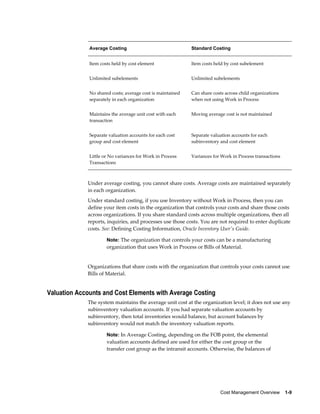
  • 476.
    11-6    Oracle CostManagement User's Guide 5. Validate Work in Process inventory. If you use Work in Process, then check work in process inventory balances against transactions with the WIP Account Distribution Report. 6. Close Oracle Payables and Oracle Purchasing. If you use Payables and Purchasing, then close the accounting periods in the following order: • Payables • Purchasing • Inventory If you only use Purchasing and Inventory, then close Purchasing first. Close Payables before Purchasing in preparation for accruing expenses on uninvoiced receipts. Doing so ensures that all new payables activity is for the new month and you do not inadvertently match a prior month invoice in payables to a new month receipt. When you close Purchasing or Inventory, you cannot enter a receipt for that period. However, as a manual procedure, close Purchasing before Inventory. This still allows miscellaneous transaction corrections in Inventory. 7. Run the Period Close Reconciliation report. This report automatically runs in simulation mode for the open period. It is used to match account balances with inventory value at period end. 8. Close the accounting period. This sets your Inventory Accounting Period status to Closed not Summarized. If the CST: Period Summary profile option is set to Automatic, no other steps are necessary. The period status is set to Closed when the summarization process has completed. 9. If the CST: Period Summary profile option is set to Manual, create period summarization transactions by generating the Period Close Reconciliation report. The concurrent program creates summarized transaction records, and displays the differences between account balances and inventory value. See: Period Summarization Process, page 11-3, and Period Close Reconciliation Report, page 14-41 Unprocessed Transaction Messages If there are unprocessed transactions, then one of the following messages appears: Pending receiving transactions for this period
  • 477.
    Period Close    11-7 Whenyou use Purchasing, this message indicates you have unprocessed purchasing transactions in the RCV_TRANSACTIONS_ INTERFACE table. These transactions include purchase order receipts and returns for inventory. If this condition exists, you will receive a warning but will be able to close the accounting period. These transactions are not in your receiving value. However, after you close the period, these transactions cannot be processed because they have a transaction date for a closed period. Unprocessed material transactions exist for this period This message indicates you have unprocessed material transactions in the MTL_MATERIAL_TRANSACTIONS_TEMP table. You are unable to close the period with this condition. Please see your system administrator. Inventory considers entries in this table as part of the quantity movement. Closing the period in this situation is not allowed because the resultant accounting entries would have a transaction date for a closed period, and never be picked up by the period close or general ledger transfer process. Pending material transactions for this period This message indicates you have unprocessed material transactions in the MTL_TRANSACTIONS_INTERFACE table. If this condition exists, you will receive a warning but will be able to close the accounting period. These transactions are not in your inventory value. However, after you close the period, these transactions cannot be processed because they have a transaction date for a closed period. Uncosted material transactions exist for this period This message indicates you have material transactions in the MTL_MATERIAL_TRANSACTIONS table with no accounting entries (Standard Costing) and no accounting entries and no costs (Average Costing). You are unable to close the period with this condition. These transactions are part of your inventory value. Closing the period in this situation is not allowed because the resultant accounting entries would have a transaction date for a closed period, and never be picked up by the period close or general ledger transfer process. Pending move transactions for this period This message indicates you have unprocessed shop floor move transactions in the WIP_MOVE_TXN_INTERFACE table. If this condition exists, you will receive a warning but will be able to close the accounting period. These transactions are not in your work in process value. However, after you close the period, these transactions cannot be processed because they have a transaction date for a closed period. Pending WIP costing transactions exist in this period This message indicates you have unprocessed resource and overhead accounting transactions in the WIP_COST_TXN_INTERFACE table. You are unable to close the
  • 478.
    11-8    Oracle CostManagement User's Guide period with this condition. These transactions are in your work in process value, and awaiting further processing. Closing the period in this situation is not allowed because the resulting accounting entries would have a transaction date for a closed period, and never be picked up by the period close or general ledger transfer process. Related Topics Posting Journal Batches, Oracle General Ledger User's Guide. Period Close Diagnostics You can view complete details of specific transactions that are preventing period close. Such transactions are spread across various products including Oracle Inventory (INV), Oracle Work in Process (WIP), Oracle Shop Floor Management (OSFM), and Oracle Purchasing. Identifying these transactions is a critical step during period close. The following transactions must be processed for closing a period: • Unprocessed material transactions. • Uncosted material transactions (including uncosted Warehouse Management transactions). • Pending Work in Process costing transactions. • Pending WSM (OSFM) interface transactions. • Pending Landed Cost adjustment transactions. • Pending shipping transactions. Note: When closing a period, it is not required to close pending shipping transactions if the Period Close Check for Shipping Transactions client extension (CST_PeriodCloseOption_PUB.Get_ShippingTxnHook_Value) specifies Resolution Recommended. Resolution can be optional. See: Period Close Check for Shipping Transactions, page C-34. The following transactions will not prevent period close, but may cause problems if they are not processed before closing the period: • Pending material interface transactions. • Pending Work in Process move transactions.
  • 479.
    Period Close    11-9 •Pending receiving transactions • Incomplete eAM work orders Links are provided to specific windows of different Oracle products to display the details of pending, errored, or uncosted transactions. From the Inventory Accounting Periods window, select Pending to go to the Pending Transactions window. From this window, you can select the Open button to link to specific windows, reports, or pages to view pending, errored, or uncosted transactions. The windows, reports, or pages that you link to are determined by your cursor position when you select Open. The following table describes details of the links to windows and reports: Type of Transaction Links to Windows/Reports/Pages Unprocessed Material Interface transactions Inventory Transactions Open Interface window Unprocessed Material transactions Inventory Pending Transactions window Uncosted Material transactions and Uncosted WSM transactions View Material Transactions window Pending Receiving transactions Receiving Transactions window Pending WIP Costing transactions WIP Pending Resource Transactions window Pending WIP Move transactions WIP Pending Move Transactions window Incomplete eAM work orders EAM Work Orders Self-Service page Pending OSFM transactions Period Close Pending Transactions Report for Pending OSFM transactions. Pending Shipping transactions Period Close Pending Transactions Report for Pending Shipping transactions. The Period Close Pending Transactions Report displays the details of the transactions preventing period close. See: Period Close Pending Transactions Report. System Alerts System alerts are posted to Oracle Applications Manager (OAM) console and are sent to subscribed administrators through workflow notifications. System alerts also gather a variety of context information about the user, the logging process, the operating system,
  • 480.
    11-10    Oracle CostManagement User's Guide and so on. Oracle Applications Manager tracks multiple occurrences of the same alert message to prevent duplicate notifications to be sent. System alerts require setting up the profile option FND:Debug Log Enabled to a value of 'Y'. For Period Close Diagnostics, system alerts are raised when costing of transactions fails in the cost manager. One alert is raised for each cost worker where transaction(s) failed costing - not for each failed transaction. Based on the subscriptions created in the application, the application notifies users through workflow notifications. You can view details by selecting an Alert Occurrence and choosing View Details. The User Interface (UI) provides drill-down capabilities for viewing transactions and transaction details.
  • 481.
    Period Close    11-11 See:Oracle E-Business Suite System Administrator's Guide.
  • 483.
    Business Flows AcrossInventory Organizations    12-1 12 Business Flows Across Inventory Organizations This chapter covers the following topics: • Rolling Up Supply Chain Costs • Inter-Organization Transfers • Transfer Price Costing • Transfers Between Process and Discrete Organizations • Complex Intercompany Invoicing Rolling Up Supply Chain Costs The Supply Chain Cost Rollup enables you to roll up costs across multiple organizations, with a mixture of costing methods and currencies, connected to sourcing rules. You can perform either a single-level cost rollup, or a full cost rollup: • A single-level rollup looks only at the first level of the bill structure for each assembly in the rollup - and rolls the costs for the items at this level into the parent. This method does not reflect structure or cost changes occurring at a level below the first level of assemblies. However, it does enables you to generate costs on new assemblies without changing costs on existing subassemblies. • A full cost rollup first performs a bill of material explosion for assemblies. The rollup process builds the cost of assemblies, starting with the lowest level, and works up the structure to top-level assemblies. This method gives you the most current bill of material structure and component costs. You can use any costing method to roll up costs in inventory organizations. The Supply Chain Rollup process enables you to start from any, single inventory organization. Every time that you generate the Supply Chain Cost Rollup program, costs are overwritten from previous rollups for the cost type specified.
  • 484.
    12-2    Oracle CostManagement User's Guide Sourcing Rules You can define sourcing rules to simulate costs resulting from those rules. The cost types resulting from the process can be: • Reviewed for simulation purposes • Copied to other inventory organizations • Used for margin analysis reports • Used as the source cost type for a standard cost update When a sourcing rule in defined in Oracle Planning applications, you can define the make, buy, and transfer rules for a specific rank. The rank determines the priority, with the lower rank having the higher priority. The Supply Chain Cost Rolllup program uses sourcing rules with the minimum rank value. See: Allocating Demand to Suppliers, Oracle Advanced Planning User's Guide. Reports The cost rollup process includes the option to print a report. You can select either the Supply Chain Consolidated Bills of Material Cost Report or the Supply Chain Indented Bills of Material Cost Report. You can submit both of these reports when reporting item costs. You also have the option to print a temporary rollup report, which enables you to review the rollup results before changing the cost information. See: Supply Chain Consolidated Bills of Material Cost Report, page 14-47, and Supply Chain Indented Bills of Material Cost Report, page 14-51 Phantom Items and Assemblies The cost rollup includes material costs and routing costs of phantom assemblies of higher-level assemblies. This process handles phantom items and produces costs used to set standard costs. Configure to Order Configure to Order items use cost type CTO for the rollup calculation. When an item is created by the AutoCreate Configuration process, the cost of the configuration is based on the options selected. Single level rollup calculations for Make and Buy CTO configurations are calculated as follows: • Buy Item Configurations: The configurations use the CTO cost type specified in the profile option, BOM:CTO Buy Cost Type for Configurations. The result of the rollup is the total cost for the configured item. • Make Item Configurations: The cost type does not hold costs for the model and options. Therefore, the rollup is performed based on the valuation cost of the modeled item and optioned items. The cost type is inserted into the CTO cost type. See: Configuration Item Cost Rollup, Oracle Configure to Order Implementation Manual.
  • 485.
    Business Flows AcrossInventory Organizations    12-3 Prerequisites • For cost rollup requests that update changes, you must include the Privilege to Maintain Cost security function as part of the responsibility. See: Cost Management Security Functions, page 2-89. • Define Oracle Bills of Material parameters. If an organization involved in the rollup does not have the necessary parameters set, the program will not run. See: Defining Bills of Material Parameters, Oracle Bills of Material User's Guide. • Verify the bill structure before performing a cost rollup. See: Checking for Bill Loops, Oracle Bills of Material User's Guide. • Set the profile option, CST:Cost Rollup - Wait for Table Lock, to lock Cost Management tables for the rollup. If the profile option is set to Yes, then the program will continually attempt to lock the tables. If the profile option is set to No, then the program makes 10 attempts to lock tables before ending the request. See: Profile Options and Security Functions, page 2-81 To submit a supply chain rollup request: 1. Navigate to the Supply Chain Cost Rollup Request window. 2. In the Name field, select a request type option to display the Parameters window. Your choices are: • Supply Chain Cost Rollup - No Report: Rolls up costs and commits them to the database; does not print a report. • Supply Chain Cost Rollup - Print Report: Rolls up and updates costs, creates a report. • Temporary Supply Chain Cost Rollup - Print Report: Rolls up costs but does not update them, creates a report. 3. In the Parameters window, optionally enter a Description. This can be any descriptive text referencing this request. 4. Select a value in the Cost Type field. Cost type determines how the rollup is performed. If an item does not already have cost information in this cost type, costs from the organization default cost type are used. If costs do not exist in the default cost type, then costs from the current organization's valuation cost type are used. Note: Every time the Supply Chain Cost Rollup program is generated, costs are overwritten from previous rollups for the cost
  • 486.
    12-4    Oracle CostManagement User's Guide type specified. See: Defining Cost Types, page 2-13. 5. Use the Organization and Range fields to specify the list of the top level assemblies to roll up. Your choices are to use the current organization, or leave this field blank: • If you select the current organization, then the top level assemblies are rolled up from this organization. • If the field is blank, then the top level assemblies are from all organizations are rolled up. For example, if the Range field is specified as All items, and the Organization field is specified as the current organization, then the rollup is performed with all items, from the current organization, as the top level assemblies. 6. Optionally select a value in the Assignment Set field. Once you have defined your sourcing rules and bills of distribution, you assign them to particular items and/or organizations. These groupings are called assignment sets. This is where sourcing strategies are defined for a particular supply chain network. See: Setting up the Supply Chain, Oracle Advanced Planning User's Guide..
  • 487.
    Business Flows AcrossInventory Organizations    12-5 7. If you selected an Assignment Set, select a Buy Cost Type. If you specified a sourcing rule, all the costs defined in Buy Cost Type are summed in the material cost. For example: • If both the destination and buy cost types are set up as Pending, the process searches for pending costs. • If there are no pending costs, the process then searches for default cost type. • If there are no default costs in the current organization, the process then searches for the current organization's valuation cost type. See: Defining Costing Information, Oracle Inventory User's Guide. For configure to order items, select the value for the CTO Cost Type defined in the profile option, BOM:Buy Cost Type for Configurations. See: Configuration Item Cost Rollup, Oracle Configure to Order Implementation Manual. See: Defining Costing Information, Oracle Inventory User's Guide. 8. In the Preserve Buy Cost Details field, indicate if you want the details of the item costs saved. You choices are Yes or No. If an assignment set is specified in the rollup, then all costs defined in the Buy Cost Type are summed into this level of material cost. This parameter enables you to preserve the buy cost details for elemental and subelemental visibility. 9. Select a Conversion Type from the list of values. This is the currency conversion type used if currency values need to be converted across organizations. 10. Select a Rollup Option. Your choices are: • Full cost rollup: Performs a bill of material explosion for assemblies, and then builds the cost of assemblies starting with the lowest level, and works up the structure to top level assemblies. • Single-level cost rollup: Assigns new standard costs to the top assembly, but not to the lower-level assemblies. 11. Select the Range of items to roll up. Your choices are: All items, Category, Range of items, Specific item, or Zero cost items. If you select Zero cost items, the rollup includes zero cost items in the current and the default cost types that have the attribute, Based on Rollup, enabled. Note: Inactive items are not rolled up unless you select a Specific Item that is inactive.
  • 488.
    12-6    Oracle CostManagement User's Guide 12. If you selected a request type that prints a report, then select a report type. Your choices are: • Consolidated: Prints the Supply Chain Consolidated Bill of Material Cost report, which lists total quantities of each component used in the parent assembly regardless of level. • Detail Indented: Prints the Indented Supply Chain Bill of Material Cost report, which lists detailed cost structure by level. See: Supply Chain Consolidated Bills of Material Cost Report, page 14-47, and Supply Chain Indented Bills of Material Cost Report, page 14-51 13. If you selected a request type that prints a report - in the Material Detail, Material Overhead Detail, and Routing Detail fields, then indicate if you want these fields to display on the report. Your choices are Yes or No. If you select Yes, then Material, Material Overhead, and Routing detail subelements display on the report. Note: If you select No, then you limit the amount of subelement detail and reduce the size of the report. 14. If you selected a request type that prints a report, then enter the maximum report number of levels to display on the report. For example, if your assembly had 20 levels and you enter 5 in this field, then the costs for levels 1 through 5 are detailed. The costs for levels 6 to 20 are summarized as previous level costs. The default is the maximum bill of material levels value. See: Defining Bills of Material Parameters, Oracle Bills of Material User's Guide. 15. Enter the Effective Date and time to determine the structure of the bill of material to use in the cost rollup. You can use this to roll up historical and future bill structures using current rates and component costs. 16. Indicate whether to Include Unimplemented Engineering Change Orders ECOs in the rollup. See: Changing the ECO Status, Oracle Engineering User's Guide. 17. Optionally, enter an Alternate Bill name for the assembly to roll up, if applicable, for the Range you selected. For example, if an alternate bill is specified, all items in the range are still rolled up: • The items having an associated bill with that name are rolled up using that bill. • The items that do not have an associated bill with that name will continue to be rolled up using the primary bill. See: Primary and Alternate Bills of Material, Oracle Bills of Material User's Guide.
  • 489.
    Business Flows AcrossInventory Organizations    12-7 18. Optionally, enter an Alternate Routing name for the assembly to roll up, if applicable, for the Range you selected. For example, if an alternate routing is specified, all items specified in the range are still rolled up: • The items that do have an associated routing with that name are rolled up using that routing. • The items that do not have an associated routing with that name will continue to be rolled up using the primary routing. See: Primary and Alternate Routings, Oracle Bills of Material User's Guide. 19. Indicate whether to include Engineering Bills in the cost rollup. If you select Yes, assemblies with engineering bills are rolled up in addition to the regular assemblies. 20. You can select lot size parameters in the Lot Size Option field. Select a lot size multiplier in your cost computations. Your choices are: • Use Existing Lot Size • Specify Lot Size • Use Factor of Standard Lot Size 21. If the Lot Size Option field has the value of Specify Lot Size, or Use Factor of Standard Lot Size - you can enter a numeric value in the Lot Size Setting field. Note: When using either the Specify Lot Size or Use Factor of Standard Lot Size, if Lot Size Setting is not specified, or the Standard Lot Size is not specified, then the application uses the existing lot size. 22. Specify items to roll up: • If you selected Specific Item in the Range field, select an item. • If you selected Category in the Range field, select either a category set or a specific category. If you select a category set, item costs are rolled up for items associated with this category set. The default is the category set defined for your costing functional area. • If you selected Range of items, enter From and To values to specify the range of items for which to roll up costs.
  • 490.
    12-8    Oracle CostManagement User's Guide 23. Choose OK to display the Request window. 24. Choose Submit to process the rollup. Process Flow for Supply Chain Cost Rollup The Supply Chain Cost Rollup creates the following process flow to calculate costs. The process: • Creates a snapshot of the Sourcing Rules/Bills of Distribution. • Explodes the bill of material for each assembly in the supply chain. This explosion logic considers sourcing rules captured in the snapshot process. It tracks the item and organization combinations. • Items from multiple sources in the supply chain are merged. Costs from different sources such as make, buy, and transfer items are merged to the rolled up cost in the destination organization. Weights are used from the sourcing snapshot. The costs transferred from other organizations are considered previous level costs, and their elemental visibility is preserved. The buy costs are summed into this level of material cost. You can save the details of the item costs by selecting Yes in the Preserve Buy Cost Details parameter. Note: User defined costs for the top level assembly are not recalculated during the Supply Chain Rollup program. • Additional markup costs are applied to item costs transferred from other organizations. This markup is based on the percentage of Transfer Charge defined in Oracle Inventory's Shipping Networks window. The markup cost is rolled as this level of material overhead cost, for the top level assembly, in the destination organization. For the destination organization, there must be a value in the Default Material Overhead Sub-Element field in the Oracle Inventory's Organization Parameters window in the Costing Information tabbed region. Example of Process Flow for Supply Chain Cost Rollup A bill of material structure is defined at Organization 1 and Organization 2. Before the Supply Chain Cost Rollup program is submitted: • Item A (at Organization 1) has a user defined cost of $10, and a buy cost defined as $120.
  • 491.
    Business Flows AcrossInventory Organizations    12-9 • The unit cost for Item B is $100. • The Unit cost for Item C (at Organization 2) is $80. The Transfer Charge Type percentage is defined as 10 percent when transferring from Organization 2, to Organization 1. The sourcing rule is defined for Item a in organization 1 as the following: Source Rank Percentage Make at Organization 1 1 50 Transfer from Organization 2 1 25 Buy 1 25 When a full cost rollup is submitted for item A, the following process flow occurs: A supply chain bill of material explosion is performed and the low level codes are assigned, The program starts with Item B in Organization 1, and Item C in Organization 2 - and then rolls up the cost for Item A in Organization 2. Then it completes by rolling up and merging costs for Item A in Organization 1.
  • 492.
    12-10    Oracle CostManagement User's Guide The costs of Item A at Organization 1 are calculated with a total unit cost of $112. The following information is used:: Source Original Cost Weight Extended Cost User Defined 10 No re-average 10 Make 100 50% 50 Buy 120 25% 30 Transfer from Organization 2 80 25% 20 Markup from Organization 2 _ _ 2 See: Standard Request Submission, Oracle Applications User's Guide, Supply Chain Consolidated Bills of Material Cost Report, page 14-47, and Supply Chain Indented Bills of Material Cost Report, page 14-51 Inter-Organization Transfers You can transfer items directly from one organization to another, or transfer items through intransit inventory. You can also use internal requisitions to replenish
  • 493.
    Business Flows AcrossInventory Organizations    12-11 inventory to another organization; however, internal requisitions do not support freight charges. You can also transfer inventory between discrete and process organizations. As a result, you must properly handle the costing and accounting of transfers between process and discrete organizations. Transfers between discrete and process organizations use a transfer price that is set up between the organizations. See: Transfer Price Costing, page 12-22. Inter-organizational transfers use the following functionality: • Intransit inventory Intransit inventory represents inventory items that have not arrived at the receiving organization. You can move items from the shipping organization to intransit inventory using the Inter-organization Transfer window. Use the Receipts window to move items to the receiving organization. • Direct Inter-Organization transfer When the inter-organization relationship is set to direct transfer in the Shipping Networks window, an issue and receipt transaction are performed in one step. • Inter-Organization receipt Inventory creates the following calculation for material received intransit and material received directly from another organization: Current average or standard cost from shipping organization multiplied by transaction quantity plus freight charges and transfer credit charges. For a direct receipt, the organization that receives the material does not perform a transaction. The shipping organization performs a ship transaction to the receiving organization. Inventory considers the transfer a receipt in the receiving organization and updates the cost. • Elemental cost visibility You can set elemental cost visibility during inter-organization transfers either to preserve the shipping organization's elemental costs or to summarize all elemental costs into the material cost element. Enable this option using the Elemental Visibility Enabled check box on the Main tab in the Shipping Networks window. This option is available for each line in the shipping network, regardless of direction. Combining all cost elements into the material cost element assures that the receiving organization does not have another organization's overhead in its calculation. Note: The correct option for elemental cost visibility must be set at the time that the transaction is costed, not at the time that the transaction occurs.
  • 494.
    12-12    Oracle CostManagement User's Guide • Expense subinventories and expense items When you receive an inter-organization transfer into an expense subinventory, or receive an expense inventory item, set the Oracle Inventory INV: Allow Expense to Asset Transfer profile option is set to Yes. This issues the material from the expense subinventory. When you receive to expense locations or receive expense inventory items, the subinventory expense account is debited for the receiving organization instead of the valuation accounts. The subinventory expense account is charged the total transaction value from the other organization. • Inter-Organization transfers and ledgers The Inter-Organization Direct Transfer transaction supports transfers from any ledger, including ledgers in different currencies. • Freight transactions The Free on Board (FOB) point influences the accounting entries generated for the shipment to intransit inventory. The FOB point is determined by how the inter-organization shipping network is defined in the Shipping Networks window. In addition to accounting for the movement of the items, these transactions also update the inter-organization receivable and payable accounts. The FOB point changes the accounting for freight. When FOB is receipt, freight is accrued on the receipt transaction by the shipping organization. When FOB is shipment, freight is accrued on the shipment transaction by the receiving organization. For direct transfers, the receipt and shipment transactions occur at the same time. See: Defining Inter-Organization Shipping Networks, Oracle Inventory User's Guide, Transferring Between Organizations, Oracle Inventory User's Guide, Managing Receipts, Oracle Purchasing User's Guide, Purchase Order Receipt To Inventory, page 4-29, Subinventory Transfers, page 4-33, Managing Receipts, Oracle Purchasing User's Guide, and Entering Receiving Transactions, Oracle Purchasing User's Guide. Inter-Organization Transfer Transactions Shipment Transactions (Intransit transfer only) FOB receipt:
  • 495.
    Business Flows AcrossInventory Organizations    12-13 Account Organization Debit Credit Intransit Inventory accounts Shipping XX - Inventory Valuation accounts Shipping - XX FOB shipment: Account Organization Debit Credit Inter-Organization Receivable Shipping XX - Inventory Valuation accounts Shipping - XX Intransit Inventory Material account Receiving XX - Inter-Organization Payable Receiving - XX Receipt Transaction (Intransit transfer only) FOB receipt: Account Organization Debit Credit Inter-Organization Receivable Shipping XX - Intransit Inventory accounts Shipping - XX Org. Inventory Material account Receiving XX - Inter-Organization Payable Receiving - XX FOB shipment:
  • 496.
    12-14    Oracle CostManagement User's Guide Account Organization Debit Credit Org. Inventory Material account Receiving XX - Intransit Inventory Material account Receiving - XX Material Overhead and Inter-Organization Transfers If your item has material overhead, you can earn material overhead in the receiving organization as part of the receipt transaction. Account Debit Credit Organization Material Overhead account XX - Material Overhead Absorption account - XX Direct Inter-Organization Transfer Account Organization Debit Credit Inter-Organization Receivable Shipping XX - Org. Inventory Valuation accounts Shipping - XX Org. Inventory Valuation accounts Receiving XX - Inter-Organization Payable Receiving - XX Freight and Transfer Charges FOB receipt:
  • 497.
    Business Flows AcrossInventory Organizations    12-15 Account Organization Debit Credit Intransit Inventory Account Shipping - XX Freight Expense account Shipping - XX Inter-Organization Receivable Shipping XX - Inter-Org. Transfer Credit Shipping - XX Org. Material account Receiving XX - Inter-Organization Payable Receiving - XX FOB shipment: Account Organization Debit Credit Inter-Organization Receivable Shipping XX - Inventory Valuation Account Shipping - XX Inter-Org. Transfer Credit Shipping - XX Intransit Inventory Material account Receiving XX - Freight Expense account Receiving - XX Inter-Organization Payable Receiving - XX Intransit includes both the freight and transfer charges. Inter-organization payable is only increased for the transfer charge. Project Manufacturing Transfer Transactions Direct Transfer
  • 498.
    12-16    Oracle CostManagement User's Guide Account Organization Debit Credit Expense to Expense No entries Receiving - - Standard Org. to Project excluding Expense to Expense Account Debit Credit Cost Group Material (Standard cost of item of Shipping Org.) plus Freight and Transfer Charges XX - Interorg. Payable - XX Interorg. Receivable at Standard plus Freight and Transfer Charges XX - Subinventory Valuation - XX Freight Credit - XX Transfer Credit - XX Average Org. to or from Project excluding Expense to Expense Account Debit Credit Cost Group Material at Current Average Cost (of Shipping Org.) XX - Interorg. Payable - XX Interorg. Receivable at Current Average Cost (of Shipping Org.) and Freight and Transfer Charges XX - Organization Valuation - XX Freight Credit - XX Transfer Credit - XX
  • 499.
    Business Flows AcrossInventory Organizations    12-17 Project to Standard excluding Expense to Expense Account Debit Credit Subinventory Valuation at Standard XX - Purchase Price Variance (in Receiving Organizaton) at Difference Between Cost of Shipping and Receiving Org. - XX Interorg. Payable at Current Average Cost (of Shipping Org. Cost Group) - XX Interorg. Receivable at Current Average Cost in Cost Group of Shipping Org. XX - Cost Group Valuation (Shipper) - XX Receipt - Intransit Standard Organization into Project Organization Using Internal Orders FOB receipt: Account Debit Credit Cost Group Material (in Receiving organization) at Standard Cost (of Shipping Organization) XX - Interorganization Payable - XX Interorganization Receivable at Standard Cost XX - Intransit Inventory - XX Cost Group Material (in Receiv-ing organization) at Current Av-erage Cost (of Shipping Orga-nization Cost Group) XX - Interorganization Payable - XX Interorganization Receivable at Current Average Cost (of Ship-ping Organization Cost Group) XX -
  • 500.
    12-18    Oracle CostManagement User's Guide Account Debit Credit Intransit Inventory - XX Receipt - Intransit Project Organization into Project Organization Using Internal Orders FOB shipment: Account Debit Credit Cost Group Material at Current Average Cost (in Common Cost Group of Shipping Organization) XX - Intransit Inventory - XX Receipt - Intransit into Project Organization using Internal Orders FOB receipt: Account Debit Credit Cost Group Valuation or Expense at Current Average Cost (of Send-ing Organization) XX – XX - Intransit Inventory - XX Transfer Project Organization from Standard Organization Using Internal Orders FOB shipment: Account Debit Credit Intransit Material (in Receiving Organization) at Standard Cost (of Sending Organization) XX - Interorganization Payable - XX Interorganization Receivable XX -
  • 501.
    Business Flows AcrossInventory Organizations    12-19 Account Debit Credit Subinventory Valuation - XX Transfer - Project Organization from Project Organization Using Internal Orders FOB shipment Account Debit Credit Intransit Inventory at Current Average Cost (in Project Cost Group of Sending Organization) XX - Interorganization Payable - XX Interorganization Receivable XX - Cost Group Valuation - XX Periodic Average Costing (PAC) Inter-organization Transfers Across Cost Groups The costing and accounting for all inter-organization transactions that do not use transfer pricing use the sending cost group's Periodic Weighted Average Cost (PWAC). However, the sending cost may not be available to the receiving cost group at the time that the receiving cost processor runs. The sending cost is known only after running the PAC processes in the sending cost group. Simply running one process before the other doesn't solve this problem, because some items will go from Cost Group A to B, others will go from B to A, and some may go in both directions. The best solution is to estimate the sending cost group's cost at the time that the application processes the receiving cost group. One method for an accurate estimate is to use the Periodic Absorption Cost Processor. This is an iterative process that can develop an exact calculation of the sending cost group's item cost along with the cost in the receiving cost group. If your organization does not use the absorption cost processor, the application estimates the sending organization's PAC cost for this period using the sending organization's PAC cost from the previous period (if the cost groups are in the same legal entity). All cost group periods are closed together for a given legal entity, which ensures that the sending and receiving cost groups both pick up the same value for the shipment cost. Both groups will use the sending cost of the last closed period. If the groups are in different legal entities, then the sending cost estimate will come from the perpetual cost of the shipment transaction.
  • 502.
    12-20    Oracle CostManagement User's Guide Example PAC cost of item in sending org = $110 PAC cost in receiving Org = $80 Estimated PWAC of sending CG = $100 Quantity transferred = 1 unit For FOB - Shipment Transfers Using Sending CG PWAC: The item cost in the receiving organization is re-averaged based on the sending cost group's estimated cost. Shipping Transaction Debit Credit InterOrg Receivables 100 - Inventory (On Hand) - 110 Transfer Variance 10 - Intransit Inventory 100 - InterOrg Payables - 100 Receipt Transaction Debit Credit Inventory (On Hand) 90 - Intransit Inventory - 90 Note: Assuming the receiving organization had one unit of the item prior to this transaction, the new item cost would be (1*100) + (1*80) / 2 = 90. For FOB - Receipt Transfers Using Sending CG PWAC: The item cost in the receiving organization is re-averaged based on the sending cost group's estimated cost. Shipping Transaction Debit Credit
  • 503.
    Business Flows AcrossInventory Organizations    12-21 Intransit Inventory 110 - Inventory (On Hand) - 110 Receipt Transaction Debit Credit InterOrg Receivables 100 - Intransit Inventory - 110 Transfer Variance 10 - Inventory (On Hand) 100 - InterOrg Payables - 100 Note: Assuming the receiving organization had one unit of the item prior to this transaction, the new item cost would be (1*100) + (1*80) / 2 = 90. For Direct Interorganization Transfers Using Sending Cost Group PWAC: The item cost in the receiving organization is re-averaged based on the sending cost group's estimated cost. Shipping Transaction Debit Credit InterOrg Receivables 100 - Inventory (On Hand) - 110 Transfer Variance 10 - Receipt Transaction Debit Credit Inventory (On Hand) 100 -
  • 504.
    12-22    Oracle CostManagement User's Guide InterOrg Payables - 100 Note: Assuming the receiving organization had one unit of the item prior to this transaction, the new item cost would be (1*100) + (1*80) / 2 = 90. In all cases, the inventory valuation account of the sending organization is always credited at the item's PAC cost, and the transfer variance contains the difference between the item's PAC cost and the estimated cost of the item in the sending organization. The estimate comes from either the item's PAC cost last period (same LE), or the perpetual cost of the shipment transaction (different LE). The Transfer Variance account entries will have an accounting line type of inter-org profit. Transfer Price Costing You have the option to use the transfer price for intercompany accounting. Transfer price costing occurs when a sales order is created for an intransit transfer, between two internal organizations, in two different operating units. This functionality is flagged in the Transfer Pricing Option profile option. Transfer pricing is used in calculating Profit in Inventory. The operating unit associates a price list with any operating unit. Features of this functionality include: • Accounting distributions for internal order transfers are the same entries as an external sales order and purchase order. • Incoming item cost for the Receiving organization is the transfer price, rather than the item cost of the Shipping organization. • Profit in Inventory is reported at the individual company level for internal order transfers, and eliminated at time of consolidation. • The transfer price takes priority over the transfer charge. It is recommended that transfer credit is not set up in the Shipping Network window to avoid the value calculated in new entries. For internal order transfers, freight is not charged directly. Setup • Define Intercompany relationships between operating units. • In the Shipping Networks window in Oracle Inventory, add values for Intransit Inventory and Profit in Inventory accounts. These fields are located in the Other Accounts tabbed region.
  • 505.
    Business Flows AcrossInventory Organizations    12-23 • Set the profile option CST:Transfer Pricing Option to Yes. See: Intercompany Invoicing Process, Oracle Inventory User's Guide, Intercompany Invoice Pricing, Oracle Inventory User's Guide, Overview of Price Lists, Oracle Advanced Pricing User's Guide, and Creating a Price List, Oracle Advanced Pricing User's Guide. Standard Cost Examples for Transfer Pricing The following list accounting values for standard cost transactions. • Cost of Goods Sold (COGS) account value is derived from the Shipping organization's inventory cost. • Intercompany Accrual value equals the transfer price. • Profit in Inventory value equals the transfer price, minus the Shipping organization's inventory cost. In these examples: . • Company 01 has an inventory cost of $102 - material cost of $100, and material overhead cost of $2. • Company 02 has a standard cost of $108. - material cost of $105 and material overhead cost of $3. • The transfer price is $120. Freight On Board (FOB) Shipment Transactions Two options are available for FOB shipment transactions in standard cost organizations: • The incoming cost to the receiving organization is the shipping organization's inventory cost. • The incoming cost to the receiving organization is based on the transfer price. Receiving Inventory Valued at Sending Cost Shipping Organization Debit Credit COGS Material 100 - COGS Material Overhead 2 -
  • 506.
    12-24    Oracle CostManagement User's Guide Shipping Organization Debit Credit Inventory Valuation Material - 100 Inventory Valuation Material Overhead - 2 Receiving Organization Debit Credit Intransit Inventory 108 - Profit in Inventory 18 - Purchase Price Variance - 6 Intercompany Accrual - 120 Receiving Inventory Valued at Transfer Price Shipping Organization Debit Credit COGS Material 100 - COGS Material Overhead 2 - Inventory Valuation Material - 100 Inventory Valuation Material Overhead - 2 Receiving Organization Debit Credit Intransit Inventory 108 - Purchase Price Variance 12 - Intercompany Accrual - 120
  • 507.
    Business Flows AcrossInventory Organizations    12-25 Freight on Board (FOB) Receipt Transactions Two options are available for FOB receipt transactions when incoming cost is derived from the inventory cost: • The incoming cost to the receiving organization is the shipping organization's inventory cost. • The incoming cost to the receiving organization is based on the transfer price. The Purchase Price Variance value is derived from the transfer price. The Profit in Inventory account is not used. Receiving Inventory Valued at Sending Cost Shipping Organization Debit Credit COGS Material 100 - COGS Material Overhead 2 - Intransit Inventory - 102 Receiving Organization Debit Credit Inventory Valuation Material 105 - Inventory Valuation Material Overhead 3 - Profit in Inventory 18 - Purchase Price Variance - 6 Intercompany Accrual - 120 Receiving Inventory Valued at Sending Cost Shipping Organization Debit Credit COGS Material 100 -
  • 508.
    12-26    Oracle CostManagement User's Guide Shipping Organization Debit Credit COGS Material Overhead 2 - Intransit Inventory - 102 Receiving Organization Debit Credit Inventory Valuation Material 105 - Inventory Valuation Material Overhead 3 - Purchase Price Variance 12 - Intercompany Accrual - 120 Actual Cost Examples for Transfer Pricing The following are accounting values for average, FIFO, and LIFO cost organizations using transfer pricing: • The Cost of Goods Sold (COGS) account value is derived from the shipping organization's inventory cost. • The Intercompany Accrual value equals the transfer price. • The Profit in Inventory value equals the transfer price, minus the shipping organization's inventory cost. In these examples, Company 01 has an inventory cost of $102, and Company 02 has a average cost of $108. The transfer price is $120. Freight On Board (FOB) Shipment Transactions Two options are available for FOB shipment transactions in actual cost organizations: • The incoming cost to the receiving organization is the Shipping organization's inventory cost. • The incoming cost to the receiving organization is based on the transfer price. Receiving Inventory Valued at Sending Cost
  • 509.
    Business Flows AcrossInventory Organizations    12-27 Shipping Organization Debit Credit COGS Material 100 - COGS Material Overhead 2 - Inventory Valuation Material - 100 Inventory Valuation Material Overhead - 2 Receiving Organization Debit Credit Intransit Inventory Material 100 - Intransit Inventory Material Overhead 2 - Profit in Inventory 18 - Intercompany Accrual - 120 Receiving Inventory Valued at Transfer Price Shipping Organization Debit Credit COGS Material 100 - COGS Material Overhead 2 - Inventory Valuation Material - 100 Inventory Valuation Material Overhead - 2 Receiving Organization Debit Credit Intransit Inventory Material 120 - Intransit Inventory Material Overhead 0 -
  • 510.
    12-28    Oracle CostManagement User's Guide Receiving Organization Debit Credit Intercompany Accrual - 120 Freight on Board (FOB) Receipt Transactions Two options are available for FOB receipt transactions when incoming cost is derived from the inventory cost: • The incoming cost to the receiving organization is the shipping organization's inventory cost. • The incoming cost to the receiving organization is based on the transfer price. The Profit in Inventory account is not used. Receiving Inventory Valued at Sending Cost Shipping Organization Debit Credit COGS Material 100 - COGS Material Overhead 2 - Intransit Inventory - 102 Receiving Organization Debit Credit Inventory Valuation Material 100 - Inventory Valuation Material Overhead 2 - Profit in Inventory 18 - Intercompany Accrual - 120 Receiving Inventory Valued at Transfer Price
  • 511.
    Business Flows AcrossInventory Organizations    12-29 Shipping Organization Debit Credit COGS Material 100 - COGS Material Overhead 2 - Intransit Inventory - 102 Receiving Organization Debit Credit Inventory Valuation Material 120 - Inventory Valuation Material Overhead 0 - Intercompany Accrual - 120 Period Average Costing (PAC) Examples for Transfer Pricing The following describes transfer pricing support in PAC and includes shipping networks and intransit accounting concepts. Similar to perpetual costing, the application revalues the intransit quantities as part of on-hand inventory for the owning organization. For example, in the case of FOB shipment, the receiving cost group takes ownership of the goods at the time of shipment (goods go into the receiving CG's inventory), and re-averages its inventory with the new costed quantity. The receipt transaction is a cost-derived transaction and serves only as an accounting-only transaction. Similarly, for FOB receipts, the sending organization owns the goods in transit until the receipt is performed, and includes intransit balances when revaluing on-hand inventory before the receipt takes place. Transfer Price For setting up and using a transfer price to cost intercompany transactions, the transfer pricing functionality for perpetual costing methods is extended to PAC. There are two limitations to transfer pricing with internal sales orders: 1. Transfer pricing is supported across operating units only. Within the same operating unit, you must run the transfer as an inter-organizational transfer. 2. Transfer pricing works with intransit transfers only, not with direct transfers. Example For an internal sales order transaction with:
  • 512.
    12-30    Oracle CostManagement User's Guide INV: Intercompany Invoicing for Internal Orders = "Yes" and CST: Transfer Pricing Option = "Yes, Price as Incoming Cost", consider the following scenario: • PAC cost of Item in sending org = $110 • PAC Cost in Receiving Org = $80 • Transfer Price between the Orgs = $120 • Quantity transferred = 1 unit • Perpetual Item Cost of shipment transaction in sending org = $100 For FOB – Shipment transfers with CST:Transfer Pricing Option = Yes, Price As Incoming Cost: Shipping Organization Debit Credit COGS 110 - Inventory (On-Hand) - 110 Intransit Inventory 120 - Intercompany Accrual - 120 Receiving Organization Debit Credit Inventory (On-Hand) 100 - Intransit Inventory - 100 The item cost in the Receiving Org is re-averaged based on the transfer price, when the item is brought into the receiving cost group's inventory (intransit line type). Note: The receipt is done at (80 + 100) / 2 = 100, the re-averaged cost after including the transfer price. For FOB – Receipt transfers with CST:Transfer Pricing Option = Yes, Price As Incoming Cost:
  • 513.
    Business Flows AcrossInventory Organizations    12-31 Shipping Organization Debit Credit Intransit Inventory 110 - Inventory (On-Hand) - 110 Receiving Organization Debit Credit COGS 110 - Intransit Inventory - 110 Inventory (On-Hand) 120 - Intercompany Accrual - 120 Note: Assuming the receiving organization had 1 unit of the item prior to this transaction, the new item cost AFTER THE RECEIPT transaction would be (1*120) + (1*80) / 2 = 100. For FOB – Shipment transfers with CST:Transfer Pricing Option = Yes, Price Not As Incoming Cost: Shipping Organization Debit Credit COGS Sending CG PAC Item Cost at the time of shipment - Inventory (On-Hand) - Sending CG PAC Item Cost at the time of shipment Intransit Inventory Estimated Sending CG Cost - Intercompany Accrual - Transfer Price
  • 514.
    12-32    Oracle CostManagement User's Guide Profit in Inventory Difference between estimated PWAC and transfer price Difference between estimated PWAC and transfer price Receiving Organization Debit Credit Inventory (On-Hand) Current PWAC Cost at the time of receipt - Intransit Inventory - Current PWAC Cost at the time of receipt Note: The item cost in the Receiving Organization is re-averaged based on the estimated sending CG cost when the item is brought into the receiving cost group's inventory (intransit line type). For FOB – Receipt transfers with CST:Transfer Pricing Option = Yes, Price Not As Incoming Cost: Shipping Organization Debit Credit Intransit Inventory Sending CG PAC Item Cost at the time of shipment - Inventory (On-Hand) - Sending CG PAC Item Cost at the time of shipment Receiving Organization Debit Credit COGS Sending CG PAC Item Cost at the time of receipt -
  • 515.
    Business Flows AcrossInventory Organizations    12-33 Intransit Inventory - Sending CG PAC Item Cost at the time of receipt Inventory (On-Hand) Estimated Sending CG Cost - Intercompany Accrual - Transfer Price Profit in Inventory Difference between estimated PWAC and transfer price Difference between estimated PWAC and transfer price Note: The item cost in the Receiving Org is re-averaged based on the estimated sending CG cost. Transfers Between Process and Discrete Organizations Discrete inventory organizations and process inventory organizations share the same inventory setup and transaction model, and Oracle Inventory and Cost Management support material transfers between process organizations and discrete organizations. Along with the transfer of materials, you can also transfer the cost of the material in one form or another to ensure that the values of inventory movements and transfers are properly tracked in the various sub-ledgers and in the General Ledger. In addition, in the case of organizations that use some form of average costing, the cost of the incoming material is considered for perpetual or periodic averaging. Consider the example where an item is transferred from an organization (the source organization) that uses a periodic method of actual costing, to another organization (the target organization) that uses a perpetual method of costing. Within the target organization, the cost of the transfer is required at the time of the transfer to accurately record the incoming inventory value and recalculate the perpetual average in the case of average costing, or to value the incoming inventory in case of perpetual standard costing. However, the cost of the item in the source organization is not known until the cost process is run (which usually occurs at the end of the period). Therefore, to properly value the inventory that is moved, a Transfer Price is used as the incoming cost in the receiving organization. Costing Transfers Using Transfer Price Transfers between discrete and process organizations use a transfer price that is set up between the organizations. A new account, Interorganization Profit, is created to capture the difference in the sending organization.
  • 516.
    12-34    Oracle CostManagement User's Guide The receiving organization uses this transfer price as the cost associated with the transfer, and if necessary, the receiving organization will recalculate the averages using this transfer price as the incoming cost. In the sending organization, the difference between the transfer price and the cost as calculated (possibly at the end of the period ) is recognized as interorganization profit. This profit may be manually reconciled at the end of the period when reconciling both the source and target organization's books. Important: The application uses transfer price for transfer between process and discrete organizations regardless of the type of transfer, or whether it is within an operating unit or across operating units. The application always uses the transfer price as the incoming cost in the receiving organization. Accounting Transactions for Transfer Pricing Oracle Inventory allows two types of material transfers between two inventory organizations: • Direct: Materials are considered to have been transferred immediately, and the quantities are decremented and incremented in the source and destination organization respectively at the same time. • In-Transit: There is a time lag between when the material leaves the source organization, and when it is received at the destination organization. The accounting distributions are different between the various transfer types. The following table illustrates differences between the two types of transfers. Direct Transfer Intransit Transfer Material is transferred immediately and is decremented and incremented in the source and destination organization at the same time. Material goes into in-transit, and is explicitly received in the destination organization. The transactions are created using the Inventory Transfers window, and both from and to transactions are created at the same time. The shipment is created using the Inventory Transfers window, and is received using the Receiving windows. FOB options are not applicable because transfer happens immediately. The FOB option can be either shipping or receiving. Can also process using internal orders. Can also process using internal orders.
  • 517.
    Business Flows AcrossInventory Organizations    12-35 Direct Transfer Intransit Transfer No inter-company invoicing support. Inter-company invoicing is possible for transfers across operating units that are done via Internal-Orders. Freight and transfer credits can be used. However, freight is not applicable for internal-order transfers. Freight and transfer credits can be used. However, freight is not applicable for internal-order transfers. Transfer credit is applicable only in the case where the transfer happens within the same operating unit, or when invoicing is not used. Transfer price is required in cases of inter-company invoiced transfers. Note: Transfer price takes priority over the transfer charge. The application ignores the transfer credit setup in the Shipping Network window. The following examples illustrate the accounting entries for various types of inventory transfers that include direct and in-transit transfers. Note: For the following examples, recording of the receiving transaction accounting entry may occur prior to the accounting entry for the shipping transaction. Transfer Credit is not supported for process/discrete transfer. Therefore, transfer credit is not used. Example 1 - Direct Transfer (through inventory transfer, or using internal order) Example 1-1: Average Costing Organization Note: For simplicity, the quantity transferred is assumed to be 1 unit. For direct transfers, inter-company invoicing option is not currently supported. Therefore, the accounting distribution template for inter-company option is not discussed in this document. 1. Sending Organization Cost = $100 2. Receiving Organization Cost = $80 3. Transfer Price between these Organizations = $120
  • 518.
    12-36    Oracle CostManagement User's Guide 4. Qty. Transferred = 1 Unit 5. Transfer Credit = 10% 6. Freight = $25 Shipping Organization Debit Credit Inter-Organization Receivables 120 - Inventory Valuation - 100 Freight Expense a/c - 25 Inter-Organization Profit 5 - Receiving Organization Debit Credit Inventory Valuation 120 - Inter-Organization Payables - 120 The cost in the receiving organization is re-averaged based on the cost of the transfer (transfer price). Example Example 1-2: Standard Costing Organization 1. Sending Organization Cost = $100 2. Receiving Organization Cost = $80 3. Transfer Price between these Organizations = $120 4. Qty. Transferred = 1 Unit 5. Transfer Credit = 10% 6. Freight = $25
  • 519.
    Business Flows AcrossInventory Organizations    12-37 Shipping Organization Debit Credit Inter-Organization Receivables 120 - Inventory Valuation - 100 Freight Expense a/c - 25 Inter-Organization Profit 5 - Receiving Organization Debit Credit Inventory Valuation 80 - Inter-Organization Payables - 120 Purchase Price Variance * 40 - Note: * Purchase Price Variance (PPV) is recorded for standard costing organizations only. For average costing organizations, incoming cost becomes the cost of the transfer and is used in the average cost calculations, and there will be no PPV. 2a - In-transit Transfer (through inventory transfer, or using internal order) with FOB set to Shipping Note: For simplicity, the quantity transferred is assumed to be 1 unit. Inter-Company transfers are considered in the next section. Example Example 2a-1: Average Costing Organization 1. Sending Organization Cost = $100 2. Transfer Price between these Organizations = $120 3. Qty. Transferred = 1 Unit 4. Transfer Credit = 10%, 5. Freight = $25
  • 520.
    12-38    Oracle CostManagement User's Guide After Shipment: Shipping Organization Debit Credit Inter-Organization Receivables 120 - Inventory Valuation - 100 Inter-Organization Profit - 20 Receiving Organization Debit Credit In-Transit Inventory 145 - Inter-Organization Payables - 120 Freight Expense a/c - 25 Receiving Organization Cost (After Re-averaging) = $80 After Receipt: Receiving Organization Debit Credit Inventory Valuation 80 - In-transit Inventory - 80 The Cost in the receiving organization is re-averaged based on the cost of the transfer (transfer price) Example Example 2a-2: Standard Costing Organization 1. Sending Organization Cost = $100 2. Receiving Organization Cost = $80 3. Transfer Price between these Organizations = $120 4. Qty. Transferred = 1 Unit 5. Transfer Credit = 10%
  • 521.
    Business Flows AcrossInventory Organizations    12-39 6. Freight = $25 Example After Shipment: Shipping Organization Debit Credit Inter-Organization Receivables 120 - Inventory Valuation - 100 Inter-Organization Profit - 20 Receiving Organization Debit Credit In-Transit Inventory 80 - Inter-Organization Payables - 120 Freight Expense a/c - 25 Purchase Price Variance 65 - After Receipt: Receiving Organization Debit Credit Inventory Valuation 80 - In-Transit Inventory - 80 2b - In-transit Transfer (through Inventory Transfer or via Internal Order) with FOB set to Receiving Example Example 2b-1: Average Costing Organization 1. Sending Organization Cost = $100 2. Receiving Organization Cost = $80 3. Transfer Price between these Organizations = $120
  • 522.
    12-40    Oracle CostManagement User's Guide 4. Qty. Transferred = 1 Unit 5. Transfer Credit = 10% 6. Freight = $25 Note: Transfer credit is not used in this case. After Shipment: Shipping Organization Debit Credit In-Transit Inventory 100 - Inventory Valuation - 100 After Receipt: Shipping Organization Debit Credit Inter-Organization Receivables 120 - In-Transit Inventory - 100 Freight Expense a/c - 25 Inter-Organization Profit 5 - Receiving Organization Debit Credit Inventory Valuation 120 - Inter-Organization Payables - 120 The Cost in the receiving organization is re-averaged based on the cost of the transfer (transfer price). Example Example 2b-2: Standard Costing Organization 1. Sending Organization Cost = $100
  • 523.
    Business Flows AcrossInventory Organizations    12-41 2. Receiving Organization Cost = $80 3. Transfer Price between these Organizations = $120 4. Qty. Transferred = 1 Unit 5. Transfer Credit = 10% 6. Freight = $25 Note: Transfer credit is not used in this case. After Shipment: Shipping Organization Debit Credit In-Transit Inventory 100 - Inventory Valuation - 100 After Receipt: Shipping Organization Debit Credit Inter-Organization Receivables 120 - In-Transit Inventory - 100 Freight Expense a/c - 25 Inter-Organization Profit 5 - Receiving Organization Debit Credit Inventory Valuation 80 - Inter-Organization Payables - 120 Purchase Price Variance 40 -
  • 524.
    12-42    Oracle CostManagement User's Guide Intercompany Transfers Using Internal Orders When a transfer occurs between two inventory organizations that belong to two different operating units (that may or may not belong to the same ledger), the transfer is considered to be intercompany. Release 11i9 introduced an option that enables you to generate intercompany invoices for this type of transfer. Along with the invoicing option, the release introduced a transfer pricing mechanism to value the transfers. You can use either the transfer price as the incoming cost, or use the sending organization cost as the incoming cost in the destination organization. However, the inter-company accounting option is available only for transfers created using internal orders. In the case of transfer with intercompany invoicing and transfer prices, the accounting entries generated are different from those that are generated for a transfer without the intercompany invoicing option. The accounting entries are also different from those that are generated for a transfer between inventory organizations belonging to the same operating unit as in examples 2a & 2b. The following two sections illustrate how the inter-company transfers are accounted for inter-company transfers between process and discrete organizations. Important: For intercompany transfers between process and discrete inventory organizations, the incoming cost of an item is equal to its defined transfer price. This cost rule applies regardless of the value specified in the profile option CST: Transfer Pricing Option. The cost processor always assumes a profile option value of 'Yes, Transfer Price as Incoming Cost'. Profile option values of No or Yes, Price Not as Incoming Cost are ignored in these transfers. 3a - Inter-Company Transfers with Invoicing – FOB set to Shipping Example Example 3a-1: Average Costing Organization 1. Sending Organization Cost = $100 2. Transfer Price between these Orgs = $120 3. Qty Transferred = 1 Unit After Shipment Transaction: Shipping Organization Debit Credit COGS 100 -
  • 525.
    Business Flows AcrossInventory Organizations    12-43 Shipping Organization Debit Credit Inventory Valuation - 100 Receiving Organization Debit Credit In-Transit Inventory 120 - Inter-Company Accrual - 120 Receiving Organization Cost (After Re-averaging) = $80 After Receipt Transaction: Receiving Organization Debit Credit Inventory Valuation 80 - In-Transit Inventory - 80 The Cost in the receiving organization is re-averaged based on the cost of the transfer (transfer price). CST: Inter-Company Invoice = YES CST: Transfer Pricing Option = Yes, Price as Incoming Cost Inter-Company entries as created by the Inter-Company programs: Shipping Organization Debit Credit Inter-Company Receivable 120 - Inter-Company Revenue - 120 Receiving Organization Debit Credit Inter-Company Accrual 120 -
  • 526.
    12-44    Oracle CostManagement User's Guide Receiving Organization Debit Credit Inter-Company Payable - 120 Example Example 3a-2: Standard Costing Organization 1. Sending Organization Cost = $100 2. Receiving Organization Cost = $80 3. Transfer Price between these Organizations = $120 4. Qty. Transferred = 1 Unit CST: Inter-Company Invoice = YES CST: Transfer Pricing Option = Yes, Price as Incoming Cost After Shipment Transaction: Shipping Organization Debit Credit COGS 100 - Inventory Valuation - 100 Receiving Organization Debit Credit In-Transit Inventory 80 - Inter-Company Accrual - 120 Purchase Price Variance 40 - The Cost in the receiving organization is re-averaged based on the cost of the transfer (transfer price). After Receipt Transaction:
  • 527.
    Business Flows AcrossInventory Organizations    12-45 Receiving Organization Debit Credit Inventory Valuation 80 - In-Transit Inventory - 80 Inter-Company entries as created by the Inter-Company programs: Shipping Organization Debit Credit Inter-Company Receivable 120 - Inter-Company Revenue - 120 Receiving Organization Debit Credit Inter-Company Accrual 120 - Inter-Company Payable - 120 3b Inter-Company Transfers with Invoicing – FOB set to Receiving Example Example 3b-1: Average Costing Organization 1. Sending Organization Cost = $100 2. Receiving Organization Cost = $80 3. Transfer Price between these Organizations = $120 4. Qty. Transferred = 1 Unit CST: Inter-Company Invoice = YES CST: Transfer Pricing Option = Yes, Price as Incoming Cost After Shipment:
  • 528.
    12-46    Oracle CostManagement User's Guide Shipping Organization Debit Credit In-Transit Inventory 100 - Inventory Valuation - 100 After Receipt: Shipping Organization Debit Credit COGS 100 - In-Transit Inventory - 100 Receiving Organization Debit Credit Inventory Valuation 120 - Inter-Company Accrual - 120 The Cost in the receiving organization is re-averaged based on the cost of the transfer (transfer price). Inter-Company entries as created by the Inter-Company programs: Shipping Organization Debit Credit Inter-Company Receivable 120 - Inter-Company Revenue - 120 Receiving Organization Debit Credit Inter-Company Accrual 120 - Inter-Company Payable - 120
  • 529.
    Business Flows AcrossInventory Organizations    12-47 Example Example 3b-2: Standard Costing Organization 1. Sending Organization Cost = $100 2. Receiving Organization Cost = $80 3. Transfer Price between these Organizations = $120 4. Qty. Transferred = 1 Unit CST: Inter-Company Invoice = YES CST: Transfer Pricing Option = Yes, Price as Incoming Cost After Shipment: Shipping Organization Debit Credit In-Transit Inventory 100 - Inventory Valuation - 100 After Receipt: Shipping Organization Debit Credit COGS 100 - In-Transit Inventory - 100 Receiving Organization Debit Credit Inventory Valuation 80 - Inter-Company Accrual - 120 Purchase Price Variance 40 - Inter-Company entries as created by the Inter-Company programs:
  • 530.
    12-48    Oracle CostManagement User's Guide Shipping Organization Debit Credit Inter-Company Receivable 120 - Inter-Company Revenue - 120 Receiving Organization Debit Credit Inter-Company Accrual 120 - Inter-Company Payable - 120 Expense Inventory Items and Receiving into Expense Sub-Inventories When an item is received into an expense sub-inventory, or an expense item is received, the sub-inventory expense account is debited instead of the material valuation account. The following example shows only one such transfer. 4a. In-transit transfer of an asset item received into an expense sub-inventory (FOB is Receiving) Example After Shipment: Shipping Organization Debit Credit In-Transit Inventory Sending Organization Cost - Inventory Valuation - Sending Organization Cost After Receipt: Shipping Organization Debit Credit Inter-Organization Receivables Transfer Price -
  • 531.
    Business Flows AcrossInventory Organizations    12-49 Shipping Organization Debit Credit In-Transit Inventory - Sending Organization Cost Freight Expense a/c - Freight Inter-Organization Profit <Difference> - Receiving Organization Debit Credit Sub-Inventory Expense Account Transfer Price - Inter-Organization Payables - Transfer Price The Cost in the receiving organization is not re-averaged based on the cost of the transfer (transfer price). Complex Intercompany Invoicing Oracle Cost Management supports and performs the accounting for both physical and financial flows in intercompany transactions. Many companies distribute goods from a central location to parties located in other locations. These goods, or drop shipments, can pass to a controlled entity or subsidiary in the country of sales before shipping to the customer. Drop shipment is a process where goods are shipped from a company's supplier directly to the customer. These goods do not physically pass through the warehouse facilities of the companies. Corporations create a diverse set of operating unit, organization, entity, and sets of book combinations to facilitate this business flow. Global procurement enables Oracle Purchasing to request material from these operating unit combinations to other operating units. Oracle Inventory creates transactions that do not generate material movements, but are used for invoicing and accounting purposes. Procurement and sales transactions are performed across these operating units. Transactions can impact several organizations and operating units requiring a complex sequence of linked accounting entries. This functionality supports: • Shared procurement services: If a purchase order is placed by one operating unit, and shipped to another operating unit, then the procurement operating can invoice the receiving operating unit. The invoice is costed at either the purchase order price or the transfer price. The accounting transactions represents a transfer of ownership
  • 532.
    12-50    Oracle CostManagement User's Guide between the operating units. • Ownership transfer for shipments: You can generate a transfer of ownership when shipping a sales order where the operating units are separate for selling and shipping. The intercompany invoice uses the transfer price. • Drop ship across ledgers: On a drop shipment sales order, the warehouse organization and sales order organization can use different ledgers. • Intercompany relationships: You can define chains of operating units for selling, procurement, shipping, and receiving. Ownership of the goods is transferred during transactions. Intercompany invoices are generated between all operating units, and accounting transactions represent ownership transfer between all operating units in the chain. Accounting Transactions for Complex Intercompany Invoicing The following flow of activities demonstrates this scenario for complex intercompany invoicing: • Operating Unit 1 (OU1) receives a sales order from a customer. • Order price is $25. • The material is shipped to the customer from Operating Unit 2 (OU2) warehouse. • OU2 does not stock the material. Global Agreement Rules dictate that the item is procured by Operating Unit 3 (OU3). • OU2 creates a requisition to OU3 to purchase the material. • OU3 creates purchase order to the Supplier. • Purchase order price is $10.
  • 533.
    Business Flows AcrossInventory Organizations    12-51 • The Supplier ships the material OU2: • OU2 has the physical receipt of the material. • OU3 creates PO Receipt transaction because it purchased the material. • OU3 also creates a shipping transaction to OU2. • The transfer price is $15 • OU1 created the sales order, and performs the shipping transaction to the customer. • The material is physically shipped from OU2 • A transfer transaction is created from OU2 to OU1,at a Transfer price of $20. • A receipt transaction is created in OU1. The accounting for this example for intercompany transactions follows this flow: Operating Unit 3 Receipt Transaction Receiving Processor Debit Credit OU1 Clearing 10 - Accrual - 10 Cost Processor Debit Credit OU2 Inventory 10 - OU1 Clearing - 10 Invoicing Debit Credit Intercompany Receivable 15 - Intercompany Revenue - 15
  • 534.
    12-52    Oracle CostManagement User's Guide Cost Processor Debit Credit Intercompany Cost of Goods (COGS) 10 - OU2 Inventory - 10 Operating Unit 2 Receipt Transaction Receiving Processor Debit Credit OU1 Clearing 15 - Intercompany Accrual - 15 Intercompany Invoicing Debit Credit Intercompany Accrual 15 - Intercompany Payable - 15 Deliver Transaction Cost Processor Debit Credit OU1 Inventory 15 - OU1 Receipt - 15 Shipping Transaction Intercompany Invoicing Debit Credit Intercompany Receivable 20 -
  • 535.
    Business Flows AcrossInventory Organizations    12-53 Intercompany Invoicing Debit Credit OU1 Intercompany Revenue - 20 Cost Processor Debit Credit Intercompany COGS 15 - OU1 Inventory - 15 Operating Unit 1 Shipping Transaction Cost Processor Debit Credit OU3 Inventory 20 - OU1 Inventory - 20 Intercompany Invoicing Debit Credit Intercompany Accrual 20 - Intercompany Payable - 20 Cost Processor Debit Credit OU3 COGS 20 - OU3 Inventory - 20
  • 536.
    12-54    Oracle CostManagement User's Guide Accounts Receivable Invoicing Debit Credit OU3 Receivable 25 - OU3 Revenue - 25 Related Topics Drop Shipments, Oracle Purchasing User's Guide, Intercompany Invoicing Process Overview, Oracle Inventory User's Guide, and Intercompany Invoicing Setup, Oracle Inventory User's Guide.
  • 537.
    Subledger Accounting (SLA)   13-1 13 Subledger Accounting (SLA) This chapter covers the following topics: • Overview of Subledger Accounting (SLA) • Subledger Accounting Profile Option • Defining Accounting Derivation Rules • Create Accounting - Cost Management • Transfer Journal Entries to GL - Cost Management • Viewing Accounting and Accounting Events Overview of Subledger Accounting (SLA) Accounting for all transactions uses Subledger Accounting (SLA) architecture which is an enhancement of the standard accounting process, and contains changes to the overall process flow, user interfaces, and some programs. SLA architecture delivers many benefits, and lets you customize the way accounting is performed for a specific event. You can use accounts derived from custom business logic based on data provided by the application (accounting sources). SLA is a common rule-based accounting engine used by Oracle products that posts accounting entries into Oracle General Ledger. Rules are user defined, and reside in a common repository for all subledger applications such as Oracle Cost Management. The SLA accounting engine is also a common engine for all subledger applications and provides you with a single common paradigm for defining your accounting behaviors. The engine supports multiple currencies, as well as audit tools such as the XML Publisher based Journal Entries report. This report also displays the balance of an Inventory Valuation account within a user specified date range. The Journal Entries report is similar to the Material (or WIP) Account Distribution Summary report and will display the balance of the Inventory or WIP Valuation Accounts within a specified date. See: Journal Entries Report, Oracle Subledger Accounting Implementation Guide. The subledger accounting engine lets the accounting department maintain sophisticated
  • 538.
    13-2    Oracle CostManagement User's Guide control over accounting and charts of accounts. Accounting rules can be defined against most attributes. For example, you can use an attribute of an item to redirect accounting to the proper category of Cost of Goods Sold within the Chart of Accounts. You can also control and avoid user errors from being entered into the application. Incorrect entries can be redirected to proper accounts. See the Oracle Subledger Accounting Implementation Guide for details on setting up and using Subledger Accounting. Standard and SLA Accounting Processes Compared Standard Accounting Process The following illustrates the standard accounting process prior to Release 12 for generating and viewing accounting entries. SLA Accounting Process As of Release 12, Cost Management includes the Cost Management - SLA responsibility that you can use to create all user-defined accounting data. The request group that is associated with the Cost Management - SLA responsibility includes all SLA processes in addition to the standard costing processes. The following illustrates the Cost Management - SLA process of generating and viewing accounting entries. Create Accounting The Cost Management - SLA process includes additional steps for creating accounting
  • 539.
    Subledger Accounting (SLA)   13-3 for specific periods, and viewing the resulting accounting entries. The Create Accounting - Cost Management concurrent request creates the accrual journal entries as well as accrual reversals and multi-period journal entries. See: Create Accounting - Cost Management, page 13-4. Note: You must run the Transfer Journal Entries to GL program to transfer accounting entries to GL if the option to transfer them to GL is set to No in the Create Accounting program. Transfer Journal Entries to GL - Cost Management The Transfer Journal Entries to GL - Cost Management concurrent request transfers the accounting entries to GL. You are not required to run this request if the option to transfer entries to the ledger is selected in the Create Accounting - Cost Management concurrent request. See: Transfer Journal Entries to GL - Cost Management, page 13-7. Viewing Accounting Events and Journal Entries You can view accounting events and journal entries associated with transactions using the Subledger Accounting user interface (HTML), or view the accounting events and journal entries using the View Transactions windows. See: Viewing Accounting and Accounting Events, page 13-8. Upgrade Accounting to SLA The SLA data model offers an automated upgrade path and migrates legacy accounting data for the current fiscal year. When you upgrade to Release 12, you can automatically migrate Cost Management to Subledger Accounting for historical transactions within a selected number of periods. You should verify that the accounting events for those transactions are available in the SLA Accounting Events page. See: Financials and Procurement Tasks, Oracle E-Business Suite Upgrade Guide. Subledger Accounting Profile Option Profile Option The CST: Receiving Accounting Option controls whether the Receiving Transaction Processor creates the accounting entries online, or if accounting entries are created by concurrent request. If the option is set to Online, then the receiving transaction processor creates the accounting entries for receiving transactions in SLA. If the option is Concurrent, then the accounting for receiving occurs when you run the Create Accounting - Cost Management concurrent request. If encumbrance or federals accounting is enabled, then this option is not respected and the accounting process is always online.
  • 540.
    13-4    Oracle CostManagement User's Guide Profile Value Description Online Subledger Accounting entries are created as part of the receiving transaction processor Concurrent (default) Subledger Accounting entries are not created as part of the receiving transaction processor. You must run the Create Accounting - Cost Management concurrent request to create the subledger accounting entries. Note: The profile option CST: Account Summarization is obsolete with SLA. This profile option is used in the Standard Cost Processor, Standard Cost Update, and WIP Scrap Processor. Defining Accounting Derivation Rules Within the Accounting Methods Builder (AMB) in subledger accounting, you can create and modify subledger accounting derivation rules and definitions. Account derivation rules are used to create the accounts for a subledger journal entry line. You can define various rules in the AMB to determine how a journal entry account is derived. You can derive accounts segment by segment, or as a complete Accounting Flexfield. You can also define conditions that determine when a particular rule is used. See Account Derivation Rules, Oracle Subledger Accounting Implementation Guide and Defining Account Derivation Rules, Oracle Subledger Accounting Implementaton Guide for details. You can also use the copy and modify features in the AMB to create copies of seeded account derivation rules to then customize and modify these rules. See: Copy and Modify Functionality, Oracle Subledger Accounting Implementation Guide. Note: When defining custom accounting derivation rules, you should use the seeded Cost Management - SLA responsibility to make these custom rule changes. However, you can use any user-defined responsibility if it is tied to the Cost Management responsibility and includes the Cost Management Sub Menu; CST_SLA_SUB_MENU. Create Accounting - Cost Management Submit the Create Accounting concurrent program to create the originating journal entry as well as accrual reversals and multiperiod journal entries. The following parameters determine which accounting events are processed.
  • 541.
    Subledger Accounting (SLA)   13-5 Parameter Description Ledger Required; limits accounting events selected for processing to those of a particular ledger. Subledger Accounting lists ledgers that have events that the responsibility can access due to transaction-based security. If the profile option SLA: Enable Data Access Security in Subledgers is set to Yes, only those ledgers that are included in General Ledger Access Sets assigned to the responsibility appear in the list of values. If the application is a valuation method application as defined in the AMB, then both primary and secondary ledgers within the access sets are displayed. If the application is not a valuation method application, then only primary ledgers are displayed. Process Category Optional; restricts the events selected for accounting to a particular process category. The Create Accounting program selects events with event types falling into the event classes assigned to the process category. End Date Required; end date for the Create Accounting program; processes only those events with event dates on or before the end date. Mode Optional; determines whether the subledger journal entries are created in Draft or Final mode. If Draft mode is selected, then the Transfer to GL, Post in General Ledger, and General Ledger Batch Name fields are disabled. Draft entries cannot be transferred to General Ledger. Errors Only Required; limits the creation of accounting to those events for which accounting has previously failed. If Yes is selected, then the Create Accounting program processes all events with a status of Error.
  • 542.
    13-6    Oracle CostManagement User's Guide Parameter Description Report Optional; determines whether to generate a report showing the results of the Subledger Accounting program in summary or detail format Transfer to General Ledger Required if Mode is set to Final; determines whether to transfer the subledger journal entries to General Ledger. Journal import is not launched if set to Yes. Post in General Ledger Required if Mode is set to Final or Create Accounting is set to No; determines whether to post subledger journal entries in General Ledger. If there is a primary ledger with secondary ledgers attached to it and the application is a nonvaluation method application, the journal entries of the secondary ledgers are automatically posted. This is based on the application accounting definition that the user sets up. If the application is a valuation method application, then there is a different event for that secondary ledger and the accounting is not created in the same run for both ledgers. General Ledger Batch Name Optional; user-entered batch name that appears on the transferred General Ledger subledger journal entries. Transfer to GL option must be set to Yes. Include User Transaction Identifiers Required: Identifies the organization that each accounting entry belongs to. To submit the Create Accounting - Cost Management concurrent request: 1. Navigate to the Create Accounting - Cost Management concurrent request. The Parameters window appears.
  • 543.
    Subledger Accounting (SLA)   13-7 2. Enter request parameters and choose OK. 3. Choose Submit. Transfer Journal Entries to GL - Cost Management If the option Transfer to General Ledger is set to 'No' in Create Accounting - Cost Management, then you must run Transfer Journal Entries to GL - Cost Management to transfer accounting entries to GL. The following parameters control the transfer process. Parameter Description Ledger Required; limits accounting events selected for processing to those of a particular ledger. Process Category Optional; restricts the events selected for accounting to a particular process category. End Date Required; end date for the Transfer Journal Entries to GL program; processes only those events with event dates on or before the end date.
  • 544.
    13-8    Oracle CostManagement User's Guide Parameter Description Post in General Ledger Required if Mode is set to Final or Create Accounting is set to No; determines whether to post subledger journal entries in General Ledger. General Ledger Batch Name Optional; user-entered batch name that appears on the transferred General Ledger subledger journal entries. To transfer journal entries to GL: 1. Navigate to the Transfer to GL - Cost Management concurrent request window. The Parameters window appears. 2. Enter request parameters and choose OK. 3. Choose Submit. Viewing Accounting and Accounting Events You can view accounting, journal entries associated with transactions, and accounting events using the subledger accounting user interface (HTML). See: Accounting Events Inquiry, Oracle Subledger Accounting Implementation Guide. You can access the subledger accounting user interface from the Cost Management - SLA responsibility by selecting SLA > Inquiry from the menu. Select Accounting Events, Journal Entries, or Journal Entry Lines to open the subledger accounting user interface (HTML). The Transaction Number field refers to the following for various event classes: • Receiving Accounting Events: Purchase Order Number for Period End Accrual
  • 545.
    Subledger Accounting (SLA)   13-9 events and Transaction Identifier from RCV_TRANSACTIONS for other Receiving events. • Accrual Write Off: Purchase Order Number • Material Accounting Events: Transaction Identifier from MTL_MATERIAL_TRANSACTIONS • WIP Accounting Events: Transaction Identifier from WIP_TRANSACTIONS You can also view accounting, journal entries associated with transactions, and accounting events by accessing the Subledger Accounting user interface from the View Transactions windows. From the View Receiving Transactions, View Material Transactions, or View Resource Transactions windows, choose tools from the tool bar, and then select View Accounting Events. The following illustrates viewing the Subledger Accounting user interface from the Material Transactions window. Other View Transactions windows use similar steps. Note: If transactions have been upgraded to SLA, or are new transactions, then transactions viewed using the View Accounting Events option from the Tools menu show transactions from the SLA tables instead of the receiving subledger table. The View Accounting Events option is enabled when there are SLA accounting events for the transaction. To view accounting events and journal entries from the Material Transactions window: 1. Navigate to the Material Transactions window. The Find Material Transactions window appears.
  • 546.
    13-10    Oracle CostManagement User's Guide 2. Enter material transaction search criteria and choose Find. The Material Transactions window appears.
  • 547.
    Subledger Accounting (SLA)   13-11 3. Select a transaction and choose Tools from the tool bar. Select View Accounting Events and the Accounting Events User Interface appears. 4. You can choose View Journal Entries to view accounting and journal entry details.
  • 548.
    13-12    Oracle CostManagement User's Guide 5. You can choose View T-Account to view the T Accounts details.
  • 549.
    Subledger Accounting (SLA)   13-13 6. You can also choose Activity Summary to view a summary of accounting activities.
  • 550.
    13-14    Oracle CostManagement User's Guide
  • 551.
    Reports    14-1 14 Reports This chaptercovers the following topics: • Reports Overview • All Inventories Value Report • All Inventories Value Report - by Cost Group • COGS / Revenue Matching Report • Cost Type Comparison Report • Detailed Item Cost Report • Discrete Job Value Report • Elemental Cost Report • Elemental Inventory Value Report - by Subinventory • Elemental Inventory Value Report - by Cost Group • Intransit Standard Cost Adjustment Report • Intransit Value Report • Inventory Master Book Report • Inventory Standard Cost Adjustment Report • Inventory Subledger Report • Inventory Value Report - by Subinventory • Inventory Value Report - by Cost Group • Invoice Transfer to Inventory Report • Item Cost Reports • Layer Inventory Value Report - FIFO/LIFO Costing • Margin Analysis Reports • Submitting a Margin Analysis Load Run
  • 552.
    14-2    Oracle CostManagement User's Guide • Purging a Margin Analysis Load Run • Overhead Report • Period Close Reconciliation Report • Period Close Pending Transactions Report • Receiving Value Report • Shipping Transaction Summary Report • Transaction Value Historical Summary Report - Average/FIFO/LIFO Costing • Supply Chain Consolidated Bills of Material Cost Report • Supply Chain Indented Bills of Material Cost Report • WIP Standard Cost Adjustment Report Reports Overview Oracle Cost Management provides reports for fiscal and internal control purposes. You can create your own layouts and publish many reports using Oracle XML Publisher. XML Publisher is a template-based publishing tool that is delivered with the Oracle E-Business suite that enables you to develop and maintain custom report formats. You can design and control how the reports are presented by using report templates. When generating a report, XML Publisher merges report template files with report data to create documents that support numerous formatting options, including colors, images, font styles, and headers and footers. Note: The Cost Management reports based on XML Publisher are formatted for legal-size output. All Inventories Value Report This report lists the quantity and value of items for all inventory for the specified cost type. If you run this report using either the Frozen or Average cost type, depending on the costing method, then the subinventories (stock) and intransit items are valued at current frozen standard or average costs. The system always values receiving inspection at the purchase order cost for items regardless of costing method. If you choose a non-implemented (not Frozen or Average) cost type, then the items are valued at their total cost in that cost type. The report also displays onhand, intransit, and receiving value as of a specified date. Report submission: 1. In the Submit Requests window, select the report name.
  • 553.
    Reports    14-3 2. Usethe Request Cost and Period Close Reports form and enter All Inventories Value Report in the Name field to submit the All Inventories Value Report. To enter report parameters: 1. Enter a Title for the report. 2. Enter an As of Date. If a date is specified, then the report will display value as of the specified date. If a date is not specified, then the report will display current value. 3. Choose one of the following Sort options: • Item - Sort by inventory item. The application displays this option as the default. • Category, Item - Sort by category, and then by item within category. 4. Select a Cost Type. If you select a non-implemented cost type, then the application values the items at this cost type. If the cost type is not available, then the application values the items at the default cost type. For example, if you choose Quarter1 as the cost type and Quarter1 has Frozen as the default cost type, then the application values the item at the Quarter1 cost. If Quarter1 is not available, then it values the items at the Frozen cost type. 5. Choose one of the following Report Ootions: • Display quantities and values - Report both quantities and values for each inventory type, subinventories, intransit inventory and receiving inspection, as well as the total quantity and value for the current organization. The system displays this option as the default. • Display quantities only - Report quantities only for each inventory type, subinventories, intransit inventory and receiving inspection, as well as the total quantity and value for the current organization. 6. Select a Category Set. The value of all inventory types, subinventories, intransit inventory and receiving inspection is reported for items associated with this category set. The default is the category set you defined for your costing functional area. 7. Enter the Category From/To. Select a beginning and an ending category to restrict the report to a range of categories. Important: The query is a range by the entire category value rather than individual segments. If the category has multiple segments,
  • 554.
    14-4    Oracle CostManagement User's Guide then you cannot query with the beginning or intermediate segments blank if a later segment is specified. Segment by segment comparison in which each segment is checked individually to match the From and To values is not supported. Only concatenated string comparisons are supported. This means that the search compares the entire concatenated value of all the segments against the entire Category From string and the entire Category To string. For example, if you leave the first segment blank and specify the second segment as Trackable, then this is equivalent to requesting the report to give you all items whose three concatenated segments together fall alphabetically between .Trackable. and .Trackable. This query will not return any values because all of your categories contain something in the first segment, and therefore their concatenated strings will contain some other characters prior to the first period delimiter. 8. Select a Currency. You can run this report for any defined currency. When you select a currency other than the ledger currency, item costs are converted to the selected currency using the End of period rate you choose in the Exchange Rate field. 9. Select an Exchange Rate. If you choose a currency other than the ledger currency, then the system displays the most recent End of period rate as the default. However, you can choose any prior End of period rate. 10. Display Zero Costs Only. Select Yes or No to indicate whether to print zero cost items only in the report. Select No to find valuation issues. 11. Include Expense Items. Select Yes or No to indicate whether to include expense items in the report. When you select Yes, this option includes quantities for expense items in asset subinventories. To include expense items in all subinventories, select Yes for both the Include Expense Items and the Include Expense Subinventories parameters. These quantities are not valued. 12. Include Expense Subinventories. Select Yes or No to indicate whether to include expense subinventories in the report. When you select Yes, this option includes quantities for asset items in expense subinventories. To include all items in expense subinventories, select Yes for both the Include Expense Items and the Include Expense Subinventories parameters. Related Topics Standard Request Submission, Oracle Applications User's Guide Entering Period Rates, Oracle General Ledger User's Guide
  • 555.
    Reports    14-5 All InventoriesValue Report - by Cost Group Use the All Inventories Value Report - by Cost Group to display the quantity and value of items for all inventories of an average costing organization, either for a specified cost group or for all cost groups. The report includes inventory stored in subinventories, residing in receiving or intransit. Items in receiving inspection are valued at the PO cost. The report also displays onhand, intransit, and receiving value as of a specified date. Report Submission: In the Submit Requests window, select the report name. To enter report parameters: 1. Enter a report Title. 2. Enter an As of Date. If a date is specified, then the report will display value as of the specified date. If a date is not specified, then the report will display current value. 3. Choose one of the following Cost Group options(required): • Specific Cost Group - Show the report for a specific cost group only • All Cost Groups - Show the report for all cost groups 4. Enter a specific Cost Group. The report shows past values associated with items in this cost group. This option is only available if the Cost Group Option parameter is set to Specific Cost Group. 5. Choose one of the following Sort Options (required): • Item - Sort by inventory item. The system displays this option as the default • Category, Item - Sort the report by category, then by inventory item 6. Enter Item From/To. Select a beginning and an ending item to restrict the report to a range of items. 7. Select a Category Set. The value of all inventory types, subinventories, intransit inventory and receiving inspection is reported for items associated with this category set. The default is the category set you defined for your costing functional area. 8. Enter the Category From/To. Select a beginning and an ending category to restrict the report to a range of categories.
  • 556.
    14-6    Oracle CostManagement User's Guide Important: The query is a range by the entire category value rather than individual segments. If the category has multiple segments, then you cannot query with the beginning or intermediate segments blank if a later segment is specified. Segment by segment comparison in which each segment is checked individually to match the From and To values is not supported. Only concatenated string comparisons are supported. This means that the search compares the entire concatenated value of all the segments against the entire Category From string and the entire Category To string. For example, if you leave the first segment blank and specify the second segment as Trackable, then this is equivalent to requesting the report to give you all items whose three concatenated segments together fall alphabetically between .Trackable. and .Trackable. This query will not return any values because all of your categories contain something in the first segment, and therefore their concatenated strings will contain some other characters prior to the first period delimiter. 9. Select a Currency. You can run this report for any defined currency. When you select a currency other than the ledger currency, item costs are converted to the selected currency using the End of period rate you choose in the Exchange Rate field. 10. Select an Exchange Rate. If you choose a currency other than the ledger currency, then the system displays the most recent End of period rate as the default. However, you can choose any prior End of period rate. 11. Display Zero Costs Only (required). Select Yes or No to indicate whether to print zero cost items only in the report. Select No to find valuation issues. 12. Include Expense Items (required). Select Yes or No to indicate whether to include expense items in the report. When you select Yes, this option includes quantities for expense items in asset subinventories. To include expense items in all subinventories, select Yes for both the Include Expense Items and the Include Expense Subinventories parameters. These quantities are not valued. 13. Include Expense Subinventories (required). Select Yes or No to indicate whether to include expense subinventories in the report. When you select Yes, this option includes quantities for asset items in expense subinventories. To include all items in expense subinventories, select Yes for both the Include Expense Items and the Include Expense Subinventories parameters.
  • 557.
    Reports    14-7 Related Topics StandardRequest Submission, Oracle Applications User's Guide. COGS / Revenue Matching Report The COGS/Revenue Matching Report is based on Oracle XML Publisher technology. The report displays earned and unearned (deferred) revenue, and cost of goods sold amounts for sales orders issues specified in the report's run-time parameters. The report displays shipped sales order and associated sales order lines, and shows the accounts where the earned and deferred COGS were charged. Report Submission: In the Submit Requests window, select Perpetual COGS Revenue Matching Report. To enter perpetual report parameters: 1. Select an Operating Unit (required). The application displays the accounting ledger that is associated with the selected Operating Unit. 2. Select an accounting Period (required). 3. Enter the Sales Order Issue Date From / To to restrict the report to sales orders within the specific date range (optional). 4. Select Yes or No to Display Matched Lines (required). Selecting Yes restricts the report to matched revenue/COGS lines. Selecting No expands the report output to matched and unmatched lines. To enter periodic report parameters: 1. Select a Legal Entity (required).
  • 558.
    14-8    Oracle CostManagement User's Guide 2. Select a Cost Type (required). 3. Select a Cost Group (required). 4. Select an accounting Period (required). 5. Enter the Sales Order Issue Date From / To to restrict the report to sales order issues within the specified date range (optional). 6. Select Yes or No to Display Matched Lines (required). Selecting Yes restricts the report to matched revenue/COGS lines. Selecting No expands the report output to matched and unmatched lines. Cost Type Comparison Report Use the Cost Type Comparison Report to review the differences in your item costs by cost type. You should run this report in preparation for a standard cost update, as a means to find large or erroneous differences. Report Submission: In the Submit Requests window, select the report name. Use the Item Cost Information Reports form and enter Cost Type Comparison Report in the Name field to submit the report. To enter report parameters: 1. Choose one of the following report Sort options: • Category - Sort by category and then by item within the category • Item - Sort by item. The system displays this option as the default 2. Cost Type 1. Select a first cost type by which to compare item costs.
  • 559.
    Reports    14-9 3. CostType 2. Select a second cost type by which to compare item costs. 4. Choose one of the following Group By options: • Activity - Compare your item cost by activity • Department - Compare your item cost by department • Element - Compare your item cost by cost element • Level Type - Compare your item cost by this and previous level costs • Operation - Compare your item cost by operation • Subelement - Compare your item cost by subelement 5. Item From/To. Select a beginning and an ending item to restrict the report to a range of items. 6. Select a Category Set. Item costs associated with this category set are compared. The default is the category set you defined for your costing functional area. 7. Category From/To. Select a beginning and an ending category to restrict the report to a range of categories. 8. Minimum Percentage Diff. Enter a minimum percentage difference by which to limit the items you report. This value is compared to the absolute amount of the percentage difference between the two cost types. All items greater than or equal to the value you enter are reported. 9. Minimum Amount Diff. Enter a minimum amount difference by which to limit the items you report. This value is compared to the absolute difference between the two cost types. All items greater than or equal to the value you enter are reported. 10. Minimum Unit Cost. Enter a minimum unit cost difference by which to limit the items you report. This value is compared to the total unit cost in the cost type entered in the Cost Type 1 field to determine the items to compare. All items greater than or equal to the value you enter are reported. Related Topics Standard Request Submission, Oracle Applications User's Guide. Detailed Item Cost Report Use the Detailed Item Cost Report to analyze item cost details for any cost type.
  • 560.
    14-10    Oracle CostManagement User's Guide Report submission: In the Submit Requests window, select the report name. Use the Item Cost Information Reports form and enter Detailed Item Cost Report in the Name field to submit the report. To enter report parameters: 1. Enter one of the following report Sort options: • Category - Sort by category and then item within the category • Item - Sort by item 2. Select a Cost Type. Item cost details are reported by cost type. 3. Item From/To. Select a beginning and an ending item to restrict the report to a range of items. 4. Select a Category Set. Item cost details associated with this category set are reported. The category set you defined for the costing functional area is the default. 5. Category From/To. Select a beginning and an ending category to restrict the report to a range of categories. 6. Summary by Element. Select Yes or No to indicate whether to sub total item cost information by subelement. Related Topics Standard Request Submission, Oracle Applications User's Guide. Discrete Job Value Report The Discrete Job Value Report - Average Costing assists you in analyzing your standard discrete jobs and non-standard asset jobs in project and non-project environments. You can submit the WIP Value Report before submitting this report to review total variances and charges for your jobs. You can then submit this report to analyze a summary of the transactions behind the charges and variances for each job. This report includes summarized information on all cost transactions including material, resource, move and resource-based overheads, scraps, completions, and job close variances. The report also lists period-to-date and cumulative-to-date summary information, as well as complete job header information. You can run this report for all project jobs, non-project jobs, or all jobs. You must specify a cost group when running this report for project jobs.
  • 561.
    Reports    14-11 You canalso list information for a group of jobs by specifying a job name range, an accounting class range, an assembly range, and/or a particular job status. Costs are grouped and subtotalled by transaction type. You can further restrict your job selection criteria by cost group. This report also displays details of operation yields for lot-based jobs, including estimated scrap absorption, scrap variance, and actual scrap by department. Calculations of scrap in, scrap out, scrap variances, costs relieved, and variances relieved also appear. See: Overview of Oracle Alert, Oracle Alert User's Guide. This report provides you with all the information that you need to reconcile your standard and non-standard asset jobs before closing them. Important: This report does not include expense non-standard jobs. Use the Expense Job Value Report to analyze expense non-standard jobs. Report Submission: In the Submit Requests window, select Discrete Job Value Report in the Name field. This report can be submitted when you close standard discrete and project jobs. To enter report parameters: 1. Choose one of the following Job Selection options: • Project Jobs Only - If the Project References Enabled organization parameter is set, then you can choose to report costs for only project jobs. If the parameter is not set, you cannot access this field. See: Organization Parameters Window, Oracle Inventory User's Guide. Choose this option to report costs for only project jobs. See: Project Jobs, Work in Process User's Guide. • Non-Project Jobs Only - Report costs for non-project standard discrete and non-standard asset jobs • Project and Non-Project Jobs - Report costs for all standard discrete and non-standard asset jobs 2. If your Job Selection option is Project Jobs only, then select a Cost Group. The default is the organization's default cost group. 3. Choose one of the following Sort By options: • Assembly, Job - Sort by assembly and then by job within the assembly • Class, Assembly, Job - Sort by WIP accounting class, then by assembly within the WIP accounting class, and then by job within the assembly
  • 562.
    14-12    Oracle CostManagement User's Guide • Job - Sort by job 4. Choose one of the following Report Type options: • Detail using actual completion quantity - Lists each job using the actual completion quantity of the job to calculate the material usage variance. A detail report includes the following: job header, material, resource, resource-based and move-based overhead costs, completion, scrap, and job close variance transactions. It also includes period-to-date and cumulative-to-date summary information. If you push material to a job or backflush material at operation completion and have not completed the assemblies that consumed the material, your material usage variance is overstated. If you backflush material at assembly completion, or you have completed all of the assemblies, any material usage variance is accurate. Use this option if you backflush your requirements at assembly completion, or if you have already completed most of your assemblies. • Detail using planned start quantity - Lists each job using the planned start quantity of the job to calculate the material usage variance. A detail report includes the following: job header, material, resource, resource-based and move-based overhead costs, completion, scrap, and job close variance transactions. It also includes period-to-date and cumulative-to-date summary information. If you have not transacted each of the items and resources required to produce your assemblies, your variances are understated (you have a favorable variance). You can use this option to analyze the total cost requirements for a job by cost element, based on your planned assembly completions. • Summary - Lists each job and includes job header, period-to-date summary, and cumulative-to-date summary information. The system also lists summary elemental account values for each job. 5. Choose one of the following Class Type options: • Asset non-standard - Report costs for jobs with a WIP accounting class type of asset non-standard. • Standard discrete - Report costs for jobs with a WIP accounting class type of standard discrete. 6. Include Bulk. Select Yes to indicate whether to include bulk-supplied material requirements. If you have already issued to a particular bulk requirement, the system lists the requirement, regardless of what you select here. 7. Include Supplier. Select Yes to indicate whether to include supplier-provided material requirements. If you have already issued to a particular supplier
  • 563.
    Reports    14-13 requirement, thesystem lists the requirement, regardless of what you select here. 8. Classes From/To. Select a beginning and an ending accounting class to restrict the report to a range of accounting classes. 9. Jobs From/To. Select a beginning and an ending job to restrict the report to a range of jobs. If your Job Selection option is Project Jobs Only, then you can only select project jobs. If your Job Selection option is Non-Project Jobs Only, then you can only select non-project jobs. 10. Select a Status. The available options are Unreleased, Released, Complete, Complete-No Charges, On Hold, Cancelled, Closed, Pending Close, and Failed Close jobs. See: Discrete Job Statuses, Oracle Work in Process User's Guide. 11. Assemblies From/To. Select a beginning and an ending assembly to restrict the report to a range of assemblies. Important: For discrete jobs, any difference between the cumulative single level variances and the material usage or efficiency variance subtotals is from configuration or method variances. The cumulative-to-date summary compares the costs incurred for the job with the standard bill/routing requirements for completions out of the job. Therefore, the difference between the cumulative variances and the usage/efficiency variance is due to the difference between the standard bill/routing requirements and the work in process bill/routing requirements. To find the configuration variance, you should compare the material usage variance with the single level material variance. To find the methods variance, you should compare the efficiency variance with its corresponding single level variance. For example, you would compare the resource efficiency variance with the single level; resource and outside processing variance added together. You would add the resource-based and move-based overhead efficiency variances and compare it with the single level overhead variance. Related Topics Overview of Discrete Job Close, Oracle Work in Process User's Guide, Overview of Discrete Manufacturing, Oracle Work in Process User's Guide, Expense Job Value Report, Oracle Work in Process User's Guide, and Standard Request Submission, Oracle Applications User's Guide.
  • 564.
    14-14    Oracle CostManagement User's Guide Elemental Cost Report Use the Elemental Cost Report to report and summarize item costs by cost element. Note: If you use Average costing, the Item Definition Summary Report also provides a summary listing with more information. Report submission: In the Submit Requests window, select the report name. Use the Item Cost Information Reports form and enter Elemental Cost Report in the Name field to submit the report. To enter report parameters: 1. Choose one of the following report Sort options: • Category - Sort by category and then item within the category • Item - Sort by item. This is the default option 2. Zero Cost Only. Select Yes to report only items with zero costs. 3. Select a Cost Type. 4. Item From/To. Select a beginning and an ending item to restrict the report to a range of items. 5. Select a Category Set. Elemental item costs associated with this category set are reported. The category set defined for the costing functional area is the default. 6. Category From/To. Select a beginning and an ending category to restrict the report to a range of categories. 7. Select a Currency. You can run this report for any defined currency. When you select a currency other than the ledger currency, item costs are converted to the selected currency. Your ledger currency is the default. 8. Exchange Rate. The application displays the most recent End of period rate, but you can choose another period. The rate type used, either period average or the period end, is determined by how the CST:Exchange Rate Type profile option is set.. Related Topics Standard Request Submission, Oracle Applications User's Guide.
  • 565.
    Reports    14-15 Elemental InventoryValue Report - by Subinventory This report displays the current onhand elemental value by subinventory for a given organization. The report also displays onhand value as of a specified date. Elemental values are the material, material overhead, resource, overhead, and outside processing cost elements of inventory items. This report prints the extended value of each cost element for the range of items that you choose. Report submission: Use the Request Cost and Period Close Reports form and enter Elemental Inventory Value Report - by Subinventory in the Name field to submit the report. In the Request value reports window, select the Elemental Inventory Value Report Name. To enter report parameters: 1. Enter a Title for the report. 2. Enter an As of Date. If a date is specified, then the report will display value as of the specified date. If a date is not specified, then the report will display current value. 3. Select a Cost Type. If you choose a different cost type, then the application values the items at this cost type. If the cost type is not available, then the application values the items at the default cost type. For example, if you choose Quarter1 as the cost type and Quarter1 has Frozen as the default cost type, then the application values the item at the Quarter1 cost. If Quarter1 is not available, then it values the items at the Frozen cost type. An asterisk (*) next to the total indicates the unit cost is from the default cost type. 4. Choose one of the following Sort options: • Item - Sort by inventory item • Category, Item - Sort by category and then by item • Subinventory, Item - Sort by subinventory and then by item 5. Choose one of the following Report options: • Detail - Include detail information. If you choose the Subinventory, Item sort option, then the report prints the elemental cost for all items in each subinventory. If you choose either the Item or Category, Item sort option, then the report prints the elemental cost for each subinventory the item has an on-hand balance.
  • 566.
    14-16    Oracle CostManagement User's Guide • Summary - Include only summary information. If you choose the Subinventory, Item sort option, then the report prints the elemental cost distribution for each subinventory. If you choose either the Item or Category, Item sort option, then the report prints the elemental cost distribution for each item. 6. Item From/To. Select a beginning and an ending item to restrict the report to a range of items. 7. Select a Category Set. The application reports the value of all items associated with this category set. The category set defined for your costing functional area is the default. 8. Category From/To. Select a beginning and an ending category to restrict the report to a range of categories. Important: The query is a range by the entire category value rather than individual segments. If the category has multiple segments, then you cannot query with the beginning or intermediate segments blank if a later segment is specified. Segment by segment comparison in which each segment is checked individually to match the From and To values is not supported. Only concatenated string comparisons are supported. This means that the search compares the entire concatenated value of all the segments against the entire Category From string and the entire Category To string. For example, if you leave the first segment blank and specify the second segment as Trackable, then this is equivalent to requesting the report to give you all items whose three concatenated segments together fall alphabetically between .Trackable. and .Trackable. This query will not return any values because all of your categories contain something in the first segment, and therefore their concatenated strings will contain some other characters prior to the first period delimiter. 9. Subinventory From/To. Select a beginning and an ending subinventory to restrict the report to a range of subinventories. 10. Select a Currency. You can run this report for any defined currency. When you enter a currency other than the ledger currency, item costs are converted to the selected currency using the End of period rate you choose in the Exchange Rate field. Your ledger currency is the default. 11. Select an Exchange Rate. If you choose a currency other than your ledger currency, then the application displays the most recent End of period rate as the default. However, you can choose any prior End of period rate.
  • 567.
    Reports    14-17 12. NegativeQuantities Only. Select Yes or No to indicate whether to report only items with negative quantities. 13. Display Zero Costs Only. Select Yes or No to indicate whether to report only items with zero costs in the chosen cost type. 14. Include Expense Items. Select Yes or No to indicate whether to include expense items on the report. 15. Include Zero Quantities. Select Yes or No to indicate whether to report items with zero on-hand quantities. 16. Include Unvalued Transactions. Select Yes or No to indicate whether to report unvalued transactions. These are transactions that have no accounting entries because they have not been valued by the Material Cost Transaction Processor. Important: If you set this option to Yes and you have unvalued transactions, the balance reported will not tie to your general ledger balances. 17. Include Intransit. Select Yes or No to indicate whether to display valuation of on-hand, or onhand plus intransit. Related Topics Standard Request Submission, Oracle Applications User's Guide and Entering Period Rates, Oracle General Ledger User's Guide. Elemental Inventory Value Report - by Cost Group This report displays the current onhand value by cost group for a given PJM/WMS organization. The report also displays onhand value as of a user-specified date. Report submission: Use the Request Cost and Period Close Reports form and enter Elemental Inventory Value Report - by Cost Group in the Name field to submit the report. In the Request value reports window, select the Elemental Inventory Value Report - by Cost Group name. To enter report parameters: 1. Enter a Title for the report.
  • 568.
    14-18    Oracle CostManagement User's Guide 2. Enter an As of Date. If a date is specified, then the report will display value as of the specified date. If a date is not specified, then the report will display current value. 3. Choose one of the following Sort options: • Item - Sort by inventory item • Category, Item - Sort by category and then by item • Subinventory, Item - Sort by subinventory and then by item 4. Select a Cost Type. If you choose a different cost type, then the application values the items at this cost type. If the cost type is not available, then the application values the items at the default cost type. For example, if you choose Quarter1 as the cost type and Quarter1 has Frozen as the default cost type, then the application values the item at the Quarter1 cost. If Quarter1 is not available, then it values the items at the Frozen cost type. An asterisk (*) next to the total indicates the unit cost is from the default cost type. 5. Choose one of the following Report options: • Detail - Include detail information. If you choose the Subinventory, Item sort option, then the report prints the elemental cost for all items in each subinventory. If you choose either the Item or Category, Item sort option, then the report prints the elemental cost for each subinventory the item has an on-hand balance. • Summary - Include only summary information. If you choose the Subinventory, Item sort option, then the report prints the elemental cost distribution for each subinventory. If you choose either the Item or Category, Item sort option, then the report prints the elemental cost distribution for each item. 6. Select a Currency. You can run this report for any defined currency. When you enter a currency other than the ledger currency, item costs are converted to the selected currency using the End of period rate you choose in the Exchange Rate field. Your ledger currency is the default. 7. Select an Exchange Rate. If you choose a currency other than your ledger currency, then the application displays the most recent End of period rate as the default. However, you can choose any prior End of period rate. 8. Select a Category Set. The application reports the value of all items associated with this category set. The category set defined for your costing functional area is the default. 9. Categories From/To. Select a beginning and an ending category to restrict the
  • 569.
    Reports    14-19 report toa range of categories. Important: The query is a range by the entire category value rather than individual segments. If the category has multiple segments, then you cannot query with the beginning or intermediate segments blank if a later segment is specified. Segment by segment comparison in which each segment is checked individually to match the From and To values is not supported. Only concatenated string comparisons are supported. This means that the search compares the entire concatenated value of all the segments against the entire Category From string and the entire Category To string. For example, if you leave the first segment blank and specify the second segment as Trackable, then this is equivalent to requesting the report to give you all items whose three concatenated segments together fall alphabetically between .Trackable. and .Trackable. This query will not return any values because all of your categories contain something in the first segment, and therefore their concatenated strings will contain some other characters prior to the first period delimiter. 10. Item From/To. Select a beginning and an ending item to restrict the report to a range of items. 11. Cost Group From/To. Select a beginning and ending cost group to restrict the report to a range of cost groups. 12. Display Negative Quantities Only. Select Yes or No to indicate whether to report only items with negative quantities. 13. Display Zero Costs Only. Select Yes or No to indicate whether to report only items with zero costs in the chosen cost type. 14. Include Expense Items. Select Yes or No to indicate whether to include expense items on the report. 15. Include Expense Subinventories. Select Yes or No to indicate whether to include expense subinventories on the report. 16. Include Zero Quantities. Select Yes or No to indicate whether to report items with zero on-hand quantities. 17. Include Unvalued Transactions. Select Yes or No to indicate whether to report unvalued transactions. These are transactions that have no accounting entries because they have not been valued by the Material Cost Transaction Processor.
  • 570.
    14-20    Oracle CostManagement User's Guide Important: If you set this option to Yes and you have unvalued transactions, the balance reported will not tie to your general ledger balances. 18. Include Intransit. Select Yes or No to indicate whether to display valuation of on-hand, or onhand plus intransit. Related Topics Standard Request Submission, Oracle Applications User's Guide and Entering Period Rates, Oracle General Ledger User's Guide. Intransit Standard Cost Adjustment Report This report lists preliminary standard cost adjustments to inventory, or final (historical) adjustments made to the standards by the cost update process. Report submission: You can submit this report in three ways: • Before the cost update, to simulate the cost update intransit valuation adjustments. See: Reporting Pending Adjustments, page 4-11. • As part of the standard cost update process, to print the final intransit valuation adjustments. See: Updating Pending Costs to Frozen Standard Costs, page 4-13. • For historical reporting for a prior cost update. See: Reporting Cost Update Adjustments, page 4-18. Related Topics Standard Request Submission, Oracle Applications User's Guide Intransit Value Report Use the Intransit Value Report to report the value and quantity of items in intransit inventory. These are items that are being transferred between organizations using the intransit transfer method. They have been issued by the sending organization but not yet received by the receiving organization. For the current organization, this report includes transfers out where the Free On Board (FOB) point is receipt, and transfers in, where the FOB point is shipment. The FOB point determines who owns the items. If there is a possibility that an average costing organization owns the intransit inventory, this report shows the Owning Cost Group (OCG), regardless of how the Only Display
  • 571.
    Reports    14-21 Inventory YouOwn parameter is set. The following table illustrates what is or is not displayed, based upon the current organization, the owning organization, and the setting of the Only Display Inventory You Own (ODIYO) parameter. The report also displays intransit value as of a user-specified date. Current Org Owning Org. ODIYO Parm. OCG Displayed? OCG Column value Unit cost column displayed? Intransit, Transfer Charges, Freight Charge displayed? Standard Standard Yes No NULL Yes No Standard Standard No Yes NULL No Yes Average Average No Yes OCG No Yes Average Average Yes Yes OCG No Yes Average Average No Yes OCG No Yes Average Standard No Yes NULL No Yes Note that the common cost group is displayed for those average costing transactions that involve non-project manufacturing organizations or where the owning cost group is unknown. In standard costing organizations, where cost groups are not applicable, the cost group is null. Report submission: In the Submit Requests window, select the report name. Use the Request Cost and Period Close Reports form and enter Intransit Value Report in the Name field to submit the report. To enter report parameters: 1. Enter a Title for the report. 2. Enter an As of Date. If a date is specified, then the report will display value as of the specified date. If a date is not specified, then the report will display current value. 3. Choose one of the following Sort Options:
  • 572.
    14-22    Oracle CostManagement User's Guide • Item - Sort by inventory item. This is the default. • Category, Item - Sort by category and then by item • Freight Carrier - Sort by freight carrier and then by item • Transfer Organization - Sort by transfer organization and then by item • Shipment Number - Sort by shipment number and then by item 4. Select a Cost Type. The default cost type is Frozen for standard costing organizations. The cost type field is disabled for average costing organizations. If you choose a different cost type, then the application values the items at this cost type. For example, if you choose Quarter1 as the cost type and Quarter1 has Frozen as the default cost type, then the application values the item at the Quarter1 cost. An asterisk (*) next to the total indicates the unit cost is from the default cost type. 5. Choose one of the following Report Options: • Detail - Print the details of each intransit shipment and a summary by item for all shipments within the sort option you choose in the Sort Option field. This is the default. • Summary - Print only item information 6. Select a Currency. You can run this report for any defined currency. When you enter a currency other than the ledger currency, item costs are converted to the selected currency using the End of period rate you choose in the Exchange Rate field. Your ledger currency is the default. 7. Choose an Exchange Rate. If you choose a currency other than your ledger currency, Cost Management displays the most recent End of period rate as the default. However, you can choose any prior End of period rate. 8. Select a Category Set. Cost Management reports the value of intransit inventory for items associated with this category set. The category set defined for the costing functional area is the default. 9. Category From/To. Select a beginning and an ending category to restrict the report to a range of categories. 10. Item From/To. Select a beginning and an ending item to restrict the report to a range of items. 11. Include Pending Receipts. Select Yes or No to indicate whether to include pending receipts in the report. These are transfers to the current organization where the FOB
  • 573.
    Reports    14-23 Point isShipment. 12. Include Shipments. Select Yes or No to indicate whether to include shipments in the report. These are transfers from the current organization where the FOB Point is Receipt. 13. Only Display Inventory You Own. Select Yes or No to indicate whether to display only the items you own. If you set this option to No, the system prints all items from or to the current organization regardless of ownership. Important: If you set this option to No, then the report balance will not tie to your intransit inventory general ledger balance. 14. Quantities By Revision. Select Yes or No to indicate whether to display item quantities by the revision of the item on the report. If you choose Yes and you maintain inventory balances by revision, the system prints a separate row and quantity for each revision with an on-hand balance. 15. Include Expense Items. Choose Yes or No to indicate whether to include expense items on the report. 16. Display Zero Costs Only. Select Yes or No to indicate whether to report only items with zero costs in the chosen cost type. Related Topics Standard Request Submission, Oracle Applications User's Guide, Defining Inter-Organization Shipping Networks, Oracle Inventory User's Guide, Overview of Standard Costing, page 4-1, Overview of Average Costing, page 5-1, and Entering Period Rates, Oracle General Ledger User's Guide. Inventory Master Book Report Use the Inventory Master Book Report if you are in a country with a fiscal inventory reporting requirement. You can report inventory transactions on a periodic basis to support internal and external auditing. You can run this report for a single inventory organization or for all inventory organizations assigned to the ledger that is selected, and belonging to the primary legal entity. This report displays opening inventory of all items along with transactions and closing inventory balances of all inventory items. Internal and external auditors can use the Inventory Master Book Report to verify the movements of all inventory transactions between inventory organizations (manufacturing facilities, warehouses, distribution centers, etc.) and sub inventories
  • 574.
    14-24    Oracle CostManagement User's Guide within the same legal entity including opening and closing balances of all items. Report submission: In the Submit Requests window, select the report name. To enter report parameters: 1. Select the Legal Entity. 2. Enter a Ledger. The Ledger must belong to the Legal Entity. 3. Select All or Single Inventory Organization. If the selected value is All, then the report displays for all inventory organizations and the Inventory organization parameter is not available. If the selected value is Single, then the report displays the specified inventory organization in the Inventory Organization parameter. 4. Enter the Inventory Organization. 5. Subinventory From/To. Select a beginning and an ending subinventory to restrict the report to a range of subinventories. The report prints the inventory organization name, the location name, the location type, and the location address. 6. Dates From/To. Enter the beginning and ending dates to restrict the report to a date range of inventory transactions. 7. Category Set From/To. Select a beginning and an ending category set value. You can run the report for a single category set or a range of category sets. The value of all items associated with this category set are reported. 8. Category From/To. Select the beginning and ending categories to restrict the report to a range of categories. 9. Items From/To. Select a beginning and an ending item to restrict the report to a range of assembly items. The report prints the item code, the item description, and item unit of measure. 10. ABC Assignment Group. Select the group to restrict the report to a specific ABC Assignment group. 11. ABC Class. If you selected an ABC Assignment group, then you can further restrict the report to a specific ABC Class by selecting the class. The ABC Classes must belong to an ABC Assignment Group. 12. Select one of the following Level of Detail options. The Inventory Master Book report orders the items transaction movements by item code, transaction date, transaction creation date, and transaction_id.
  • 575.
    Reports    14-25 • Detailmode - by transaction date, transaction creation date, transaction_id. • Intermediate mode - by transaction action and transaction_type. • Summary mode - by receipt quantity total and by issue quantity total. 13. Display Cost. Include or exclude transaction values. If you select Yes, then the report displays opening and closing unit costs of items for the date range given, and also displays transaction values. 14. Select a Break By value. The default value is By Item. The report lets you choose the following break by conditions: • By item • By Item, then by Inventory Organization • By Item, then by Inventory Organization, then by Subinventory Organization • By Inventory Organization, then by Item • By Inventory Organization, then by Subinventory Organization, then by Item 15. Enter Page Numbering value. You must print the page number using the following format: • <year>/<page number> or <page number>/<year> for reports printed monthly but numbered yearly • <year>/<page number> of <total of pages> or <page number> of <total of pages>/<year> for reports yearly printed and yearly numbered. You can print the Inventory Master Book report monthly, but it must be numbered yearly. Therefore it must be numbered <year>/<page number> and the first page number in any given report submission must be handled as a report parameter. 16. Enter the Fiscal Year to print on the report. Restrictions Inventory Master Book Report follows the following constraints for the report parameters: • All Inventory Organizations must belong to the Ledger • The Subinventory must belong to the Inventory Organization • The Category Sets must belong to Inventory Organization and Subinventory
  • 576.
    14-26    Oracle CostManagement User's Guide • The Categories must belong to Inventory Organization, Subinventory and Category Sets • The Items must belong to Inventory Organization, Subinventory, Category Sets and Categories • The ABC Classes must belong to ABC Assignment Group Inventory Standard Cost Adjustment Report Use the Inventory Standard Cost Adjustment Report to review either preliminary standard cost adjustments to inventory, or to show the final adjustments made to the standards by the cost update process. Report submission: You can submit this report in three ways: • Before the cost update, to simulate the cost update inventory valuation adjustments. See: Reporting Pending Adjustments, page 4-11. • As part of the standard cost update process, to print the final inventory valuation adjustments. See: Updating Pending Costs to Frozen Standard Costs, page 4-13. • For historical reporting for a prior cost update. See: Reporting Cost Update Adjustments, page 4-18. Related Topics Standard Request Submission, Oracle Applications User's Guide Inventory Subledger Report Use the Inventory Subledger Report to show quantity, valuation, and detailed item information for the subinventories you specify. Report submission: In the Submit Requests window, select the report name. To enter report parameters: 1. Item From/To. Select a beginning and an ending item to restrict the report to a range of items. 2. Select a Category Set. The application reports the value of all items associated with
  • 577.
    Reports    14-27 this categoryset. The category set you defined for the costing functional area is the default. 3. Category From/To. Select a beginning and an ending category to restrict the report to a range of categories. 4. Subinventory From/To. Select a beginning and an ending subinventory to restrict the report to a range of subinventories. 5. Select a Currency. You can run this report for any defined currency. When you enter a currency other than the ledger currency, item costs are converted to the selected currency using the End of period rate you choose in the Exchange Rate field. Your ledger currency is the default. 6. Choose an Exchange Rate. If you choose a currency other than your ledger currency, then the application displays the most recent End of period rate as the default. However, you can choose any prior end of period rate. 7. Quantities by Revision. Select Yes or No to indicate whether to display item quantities by the revision of the item on the report. 8. Negative Quantities Only. Select Yes or No to indicate whether to report only items with negative quantities. 9. Include Expense Items. Select Yes or No to indicate whether to include expense items on the report. 10. Include Zero Quantities. Select Yes or No to indicate whether to report items with zero quantities. Related Topics Standard Request Submission, Oracle Applications User's Guide. Entering Period Rates, Oracle General Ledger User's Guide. Inventory Value Report - by Subinventory Use the Inventory Value Report - by Subinventory to display quantity, valuation, and detailed item information for the subinventories you specify. The report also displays onhand value as of a specified date. Report submission: In the Submit Requests window, select the report name. Use the Request Cost and Period Close Reports window and enter Inventory Value Report - by Subinventory in the Name field to submit the report.
  • 578.
    14-28    Oracle CostManagement User's Guide To enter report parameters: 1. Enter a report Title. 2. Enter an As of Date. If a date is specified, then the report will display value as of the specified date. If a date is not specified, then the report will display current value. 3. Select a Cost Type. If you choose a cost type other than Frozen or Average (depending on your costing method), the system values the items at this cost type. If that cost type is not available, the system values the items at the default cost type. For example, if you choose Quarter1 as the cost type and Quarter1 has Frozen as the default cost type, the system values the item at the Quarter1 cost. If Quarter1 is not available, it values the items at the Frozen cost type. An asterisk (*) next to the total indicates the unit cost is from the default cost type. 4. Choose one of the following Sort Options: • Item - Sort by inventory item • Category, Item - Sort by category and then by item • Subinventory, Item - Sort by subinventory and then by item 5. Choose one of the following Report Options: • Detail - Include detail. If you choose the Subinventory, Item sort option, then the report prints all items in each subinventory. If you choose either the Item or Category, Item sort option, then the report prints the subinventory where the item has an on-hand balance. • Summary - Include only summary information. If you choose the Subinventory, Item sort option, then the report prints the elemental cost distribution for each subinventory. If you choose either the Item or Category, Item sort option, then the report prints one line for each item showing the quantity and extended value. 6. Item From/To. Select a beginning and an ending item to restrict the report to a range of items. 7. Select a Category Set. The system reports the value of all items associated with this category set. The category set you defined for the costing functional area is the default. 8. Category From/To. Select a beginning and an ending category to restrict the report to a range of categories.
  • 579.
    Reports    14-29 Important: Thequery is a range by the entire category value rather than individual segments. If the category has multiple segments, then you cannot query with the beginning or intermediate segments blank if a later segment is specified. Segment by segment comparison in which each segment is checked individually to match the From and To values is not supported. Only concatenated string comparisons are supported. This means that the search compares the entire concatenated value of all the segments against the entire Category From string and the entire Category To string. For example, if you leave the first segment blank and specify the second segment as Trackable, then this is equivalent to requesting the report to give you all items whose three concatenated segments together fall alphabetically between .Trackable. and .Trackable. This query will not return any values because all of your categories contain something in the first segment, and therefore their concatenated strings will contain some other characters prior to the first period delimiter. 9. Subinventory From/To. Select a beginning and an ending subinventory to restrict the report to a range of subinventories. 10. Select a Currency. You can run this report for any defined currency. When you enter a currency other than the ledger currency, item costs are converted to the selected currency using the End of period rate you choose in the Exchange Rate field. Your ledger currency is the default. 11. Choose an Exchange Rate. If you choose a currency other than your ledger currency, then the application displays the most recent End of period rate as the default. However, you can choose any prior End of period rate. 12. Quantities by Revision. Select Yes or No to indicate whether to display item quantities by the revision of the item on the report. 13. Negative Quantities Only. Select Yes or No to indicate whether to report only items with negative quantities. 14. Display Zero Costs Only. Select Yes or No to indicate whether to report only items with zero costs. 15. Include Expense Items. Select Yes or No to indicate whether to include expense items on the report. 16. Include Zero Quantities. Select Yes or No to indicate whether to report items with zero quantities.
  • 580.
    14-30    Oracle CostManagement User's Guide 17. Include Unvalued Transactions. Select Yes or No to indicate whether to report unvalued transactions. These are transactions that have no accounting entries because they have not been valued by the Material Cost Transaction Processor. Important: If you set this option to Yes and you have unvalued transactions, the balance reported will not tie to your general ledger balances. Related Topics Standard Request Submission, Oracle Applications User's Guide and Entering Period Rates, Oracle General Ledger User's Guide. Inventory Value Report - by Cost Group Use this report to display onhand value by cost group for a given PJM/WMS organization. The report also displays onhand value as of a specified date. To enter report parameters: 1. Enter a report Title. 2. Enter an As of Date. If a date is specified, then the report will display value as of the specified date. If a date is not specified, then the report will display current value. 3. Select a Cost Type. If you choose a cost type other than Frozen or Average (depending on your costing method), the system values the items at this cost type. If that cost type is not available, the system values the items at the default cost type. For example, if you choose Quarter1 as the cost type and Quarter1 has Frozen as the default cost type, the system values the item at the Quarter1 cost. If Quarter1 is not available, it values the items at the Frozen cost type. An asterisk (*) next to the total indicates the unit cost is from the default cost type. 4. Choose one of the following Sort Options: • Item - Sort by inventory item • Category, Item - Sort by category and then by item • Subinventory, Item - Sort by subinventory and then by item 5. Choose one of the following Report Options: • Detail - Include detail. If you choose the Subinventory, Item sort option, then
  • 581.
    Reports    14-31 the reportprints all items in each subinventory. If you choose either the Item or Category, Item sort option, then the report prints the subinventory where the item has an on-hand balance. • Summary - Include only summary information. If you choose the Subinventory, Item sort option, then the report prints the elemental cost distribution for each subinventory. If you choose either the Item or Category, Item sort option, then the report prints one line for each item showing the quantity and extended value. 6. Select a Cost Type. 7. Select a Currency. You can run this report for any defined currency. When you enter a currency other than the ledger currency, item costs are converted to the selected currency using the End of period rate you choose in the Exchange Rate field. Your ledger currency is the default. 8. Choose an Exchange Rate. If you choose a currency other than your ledger currency, then the application displays the most recent End of period rate as the default. However, you can choose any prior End of period rate. 9. Select a Category Set. The system reports the value of all items associated with this category set. The category set you defined for the costing functional area is the default. 10. Enter a Category To/From. Select a beginning and an ending category to restrict the report to a range of categories. Important: The query is a range by the entire category value rather than individual segments. If the category has multiple segments, then you cannot query with the beginning or intermediate segments blank if a later segment is specified. Segment by segment comparison in which each segment is checked individually to match the From and To values is not supported. Only concatenated string comparisons are supported. This means that the search compares the entire concatenated value of all the segments against the entire Category From string and the entire Category To string. For example, if you leave the first segment blank and specify the second segment as Trackable, then this is equivalent to requesting the report to give you all items whose three concatenated segments together fall alphabetically between .Trackable. and .Trackable. This query will not return any values because all of your categories contain something in the first segment, and therefore their concatenated strings will contain some other characters prior to the first period delimiter.
  • 582.
    14-32    Oracle CostManagement User's Guide 11. Items From/To. Select a beginning and an ending item to restrict the report to a range of items. 12. Category From/To. Select a beginning and an ending category to restrict the report to a range of categories. 13. Cost Group From/To. Select a beginning and ending cost group to restrict the report to a range of cost groups. 14. Quantities by Revision. Select Yes or No to indicate whether to display item quantities by the revision of the item on the report. 15. Negative Quantities Only. Select Yes or No to indicate whether to report only items with negative quantities. 16. Include Expense Items. Select Yes or No to indicate whether to include expense items on the report. 17. Include Expense Subinventories. Select Yes or No to indicate whether to include expense subinventories on the report. 18. Include Zero Quantities. Select Yes or No to indicate whether to report items with zero quantities. 19. Display Zero Cost Only. Select Yes or No to indicate whether to report items with zero cost. 20. Include Unvalued Transactions. Select Yes or No to indicate whether to report unvalued transactions. These are transactions that have no accounting entries because they have not been valued by the Material Cost Transaction Processor. Important: If you set this option to Yes and you have unvalued transactions, the balance reported will not tie to your general ledger balances. Invoice Transfer to Inventory Report Use the Invoice Transfer to Inventory Report to provide detailed invoice information to support the cost update interface transactions created by the Invoice Transfer processor. The report displays the invoice price variance amounts of all the invoice distribution lines for each PO distribution. Report submission: In the Submit Requests window, select the report name.
  • 583.
    Reports    14-33 To enterreport parameters: 1. Select one of the following Report Options: • Batch Number (optional) - Enter the batch number • Item (optional) - Select specific items, all items Related Topics Transferring Invoice Variance, page 5-21 Item Cost Reports Use the Item Cost Reports to analyze item costs for any cost type. Note: You can add more cost reports. Please see the Oracle Bills of Materials Technical Reference Manual for additional information. Report submission: In the Submit Requests window, select the report name. Use the Item Cost Information Reports form and enter Item Cost Reports in the Name field to submit the reports. To enter report parameters: 1. Choose one of the following Report Sort options: • Category - Sort by category and then by item within the category • Item - Sort by item 2. Select a Cost Type. 3. Item From/To. Select a beginning and an ending item to restrict the report to a range of items. 4. Select a Category Set. Item costs associated with this category set are reported. The category set defined for the costing functional area is the default. 5. Category From/To. Select a beginning and an ending category to restrict the report to a range of categories. 6. Choose one of the following Report Name options:
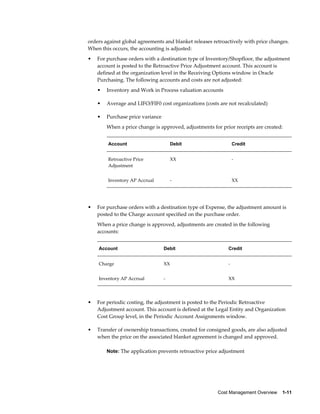
  • 584.
    14-34    Oracle CostManagement User's Guide • Activity Summary - Report item costs by activity and department • Activity by Flexfield Segment Value - Report item costs by the descriptive flexfield segment you enter • Activity by Operation - Report item costs by activity and operation sequence number • Element - Report item costs by cost element and cost level • Element by Activity - Report item costs by cost element and activity • Element by Department - Report item costs by cost element and department • Element by Operation - Report item costs by cost element and operation sequence number • Element by Subelement - Report item costs by cost element and subelement • Operation Summary by Level - Report item costs by operation sequence number and cost level • Operation by Activity - Report item costs by operation sequence number and activity • Operation by Subelement - Report item costs by operation sequence number and subelement • Subelement - Report item costs by subelement • Subelement by Activity - Report item costs by subelement and activity • Subelement by Department - Report item costs by subelement and department • Subelement by Flexfield Segment Value - Report item costs by the descriptive flexfield segment you enter • Subelement by Operation - Report item costs by subelement and operation sequence number 7. Flexfield Option. Enter the descriptive flexfield segment to report item costs. You can only enter a value in this field if you selected either the Activity by Flexfield Segment Valueor Subelement by Flexfield Segment Valuereport. 8. Choose one of the following Report Template options: • Cost summary - Report item costs summarized as a single level
  • 585.
    Reports    14-35 • Costsummary by level - Report item costs summarized by this and previous level. This level is the cost or value added at the current level of an assembly. Previous level is the material, material overhead, outside processing, resource and overhead costs of the components used in the manufacture of an assembly. Related Topics Standard Request Submission, Oracle Applications User's Guide. Layer Inventory Value Report - FIFO/LIFO Costing Use the Layer Inventory Value Report - FIFO/LIFO Costing to show the quantity, unit cost and value of your on-hand inventory. If you run this report using either the FIFO or LIFO cost type, depending on the costing method, the subinventories (stock) and intransit items are valued at FIFO or LIFO costs. You can run this report for an item/item range, item category or cost group. Report submission: In the Submit Requests window, select the report name. To enter report parameters: 1. Select a Cost Group option: All cost groups or specific cost group. 2. Choose one of the following Report options: • Summary - Include only summary information • Detail - Include detail, showing the layer on-hand quantity, item cost by cost element and extended value for the selected items 3. Choose one of the following Sort options: • Item - Sort by inventory item. The system displays this option as the default. • Category, Item - Sort by category, and then by item within category 4. Item From/To. Select a beginning and an ending item to restrict the report to a range of items. 5. Select a Category Set. The value of all inventory types, subinventories, intransit inventory and receiving inspection is reported for items associated with this category set. The default is the category set you defined for your costing functional area.
  • 586.
    14-36    Oracle CostManagement User's Guide 6. Category From/To. Select a beginning and an ending category to restrict the report to a range of categories. 7. Select a Currency. You can run this report for any defined currency. When you select a currency other than the ledger currency, item costs are converted to the selected currency using the End of period rate you choose in the Exchange Rate field. 8. Select an Exchange Rate. If you choose a currency other than the ledger currency, the system displays the most recent End of period rate as the default. However, you can choose any prior End of period rate. 9. Include Zero Cost Layers. Select Yes or No to indicate whether to print zero cost items only in the report. Select No to find valuation issues. 10. Include Expense Subinventories. Select Yes or No to indicate whether to include expense subinventories in the report. When you select Yes, this option includes quantities for asset items in expense subinventories. To include all items in expense subinventories, select Yes for both the Include Expense Items and the Include Expense Subinventories parameters. Related Topics Standard Request Submission, Oracle Applications User's Guide. Margin Analysis Reports Use the Margin Analysis Reports to report sales revenue, cost of goods sold, and gross margin information for each item shipped/invoiced within the specified date range. These report earned revenue versus recognized COGS, and you can print both summary and detail information. The detail report provides the information by customer, order, and line number. Note: With Release 11i, there are now two Margin Analysis Reports. In general, this discussion refers to both reports. The new report, Margin Analysis for Order Management, works with the new Order Management system. The old report, still entitled Margin Analysis in the reports menu, enables you to create reports from old builds. The procedures for creating the two reports vary slightly. These differences are further explained in the Prerequisites section of this discussion and in Submitting a Margin Analysis Load Run, page 14-39. Margin Analysis Reports display sales revenue, cost of goods sold, and gross margin information for all inventory organizations within an operating unit. You can combine the Customer Name, Sales Representative, Sales Channel, and
  • 587.
    Reports    14-37 Industry parametersto restrict the report to a single customer, sales representative, sales channel, and industry. Prerequisites: Margin Analysis Report for Order Management The Margin Analysis Report for Order Management requires Oracle Order Management, Oracle Inventory, and Oracle Receivables. If you are missing one of these applications, then the report does not run. Run this report from tables populated by submission of the Margin Analysis Load Run program. The first time that this program runs under Order Management, it populates empty tables. Subsequent submission of the program appends data to the tables, but the tables are never purged. A continuous build is created. See: Submitting a Margin Analysis Load Run, page 14-39. Since the continuous build is based on valuation cost types (standard or average), the cost type is selected when you submit the report. With the Application Technology Multi-Organization Access Control (MOAC), the SRS window for this report includes an Operating Unit List of Values that lists the Operating Units attached to the Responsibility's Security Profile. Margin Analysis Report This report is provided for backwards compatibility. You may continue to run reports from old builds, however, you cannot create any new builds. You may, however, purge the builds by name. Report submission: In the Submit Requests window, select the report name. To enter report parameters: 1. Select an Operating Unit (for the continuous build.) This parameter is only available for the Margin Analysis Report for Order Management. 2. Select a Build Name (for old builds) from previous submissions of the Margin Analysis Load Run. This is the data from which the Margin Analysis report is derived. This parameter is not available for the Margin Analysis Report for Order Management. 3. Choose one of the following Report options: • Summary - Include only summary information • Detail - Include customer detail, such as sold to customer, order type, order number, line type, RMA/invoice number, and line number.
  • 588.
    14-38    Oracle CostManagement User's Guide 4. Select one of the following Sort options: • Item - Sort by item (default). Line type, RMA/invoice number, and line number are included when using a detail report option. • Category, Item - Sort by category and then by item within the category. The displayed categories are from the master organization for the organization submitting the report. Line type, RMA/invoice number, and line number are included when using a detail report option. • Order, Item - Sort the report by order and then by item within the order. This sort option is only available with the Summary report option. 5. Select the sales Order Number. 6. Item From/To. Select a beginning and an ending item to restrict the report to a range of items. 7. Select a Category Set. Cost Management reports items associated with this category set. The category set defined for the costing functional area is the default. The displayed category sets are from the item master organization of the organization submitting the report. 8. Category From/To. Select a beginning and an ending category to restrict the report to a range of categories. 9. Margin Percentage From/To. To restrict the report to a range of margin percentages, select a beginning margin and an ending margin. You can enter a negative value. 10. Select a Cost Type (for the Continuous Build.). This parameter is only available for the Margin Analysis for Order Management Report. 11. Select a Currency. You can run this report for any defined currency. When you enter a currency other than the ledger currency, the reported revenue and costs are converted to the selected currency using the End of period rate or Average period rateyou choose in the Exchange Rate field. Your ledger currency is the default. 12. Select an Exchange Rate. If you choose a currency other than the ledger currency, then the most recent End of period rate or Average period rateis the default, depending on how the CST:Exchange Rate Type profile option is set. However, you can choose any prior rate from the list. 13. Select the Customer Types to report. 14. Select the Customer Names to report.
  • 589.
    Reports    14-39 15. Selectthe Sales Representative to report. 16. Select the Sales Channel to report. 17. Select the Industry to report. 18. Select the Sales Territory to report. Related Topics Standard Request Submission, Oracle Applications User's Guide, Entering Period Rates, Oracle General Ledger User's Guide, Purging a Margin Analysis Load Run, page 14-40. Submitting a Margin Analysis Load Run You must run the Margin Analysis Load Run program in order to create the build from which Margin Analysis reports are derived. When you upgraded to Release 11i with Order Management, all the Order Entry data was migrated to Order Management tables, allowing you to create a new margin build. You create this new margin build the first time that you run the Margin Analysis Load Run program. Subsequently, you rerun the Margin Analysis Load Run program to increment or refresh the build. Note: When Oracle Order Management is installed, the Margin Analysis Load Run (or Build) tables are continuous and ongoing. The build cannot be purged. To submit a margin analysis load run: 1. Navigate to the Requests window. 2. Select Margin Analysis Load Run. 3. Select the following parameters: • From Date (Null or a user-defined date) • Null (default) - from last load when the load option is increment • Null - from the first sales order when the load option is refresh
  • 590.
    14-40    Oracle CostManagement User's Guide • To Date - user-defined (defaults to current date) • Overlap Days - intended to pick up transactions in interface tables (default 5 days) • Load Option • Increment - appends to the build since last load and refreshes data in Overlap Days • Refresh - overwrites all data from the From Date minus the Overlaps Days to the To Date With null as the From Date, Refresh will completely rebuild the table to the To Date (which could be a long process) 4. Select okay. Related Topics Margin Analysis Report, page 14-36 and Standard Request Submission, Oracle Applications User's Guide. Purging a Margin Analysis Load Run You can purge only those previous margin analysis load runs which are not continuous. Margin Analysis Load Runs created with Oracle Order Management installed are continuous and cannot be purged. To purge a margin analysis load run: 1. Navigate to the Purge Margin Analysis Run window. 2. Enter the load name to purge. Related Topics Margin Analysis Report, page 14-36 Standard Request Submission, Oracle Applications User's Guide. Overhead Report Use the Overhead Report to report overhead information.
  • 591.
    Reports    14-41 Report submission: Inthe Submit Requests window, select the report name. Related Topics Standard Request Submission, Oracle Applications User's Guide. Use the Request Cost and Period Close Reports form and enter Overhead Report in the Name field to submit the report. Period Close Reconciliation Report This concurrent program and report is used to create summarized transaction records, the final step in closing your accounting period. It displays the differences between accounted value and inventory in the Discrepancy column. The inventory value is used as the baseline for calculation for the next period summarization values. The Period Close Reconciliation report can be run at any time during the period. If it is generated for an open period, you are creating a simulation, or snapshot of the period. If the program is run for an accounting period that is not in Closed status, the report reads directly from a temporary table, The simulation status is indicated in the report title. To submit the Period Reconciliation concurrent program and report: 1. Navigate to the Period Close Reconciliation Report Request window to display the Parameters window. 2. In the Sort Option field, select how the results are to be sorted on the report. Your choices are by Cost Group, Subinventory, or Item - in any sort combination. 3. In the Period field, the current open accounting period displays. You can enter previously summarized periods to review the data. 4. In the Run to Date field, enter the ending date for records to summarize. This value enables you to choose a date, for reconciliation purposes, where a discrepancy occurred in an open period. 5. In the Cost Group From and To fields, you have the option to specify a range of cost groups. 6. In the Subinventory From and To fields. you have the option to specify a range of subinventory locations.
  • 592.
    14-42    Oracle CostManagement User's Guide 7. In the Item From and To fields. you have the option to specify a range of items. 8. In the Currency and Exchange Rate fields, select the currency used for this Inventory Organization and the exchange rate defined. 9. Choose OK to display the Request window. 10. Choose Submit to submit this request. Related Topics Standard Request Submission, Oracle Applications User's Guide. Period Summarization Process, page 11-3 Period Close Pending Transactions Report The Period Close Pending Transactions Report provides details of transactions preventing period close. To submit the Period Close Pending Transactions Report: 1. Navigate to the Period Close Pending Transaction Report Request window to display the Parameters window. 2. Select an Organization Name. 3. Enter an Accounting Period. 4. Select a Resolution Type to restrict the report to resolution required or resolution recommended. Valid values are All, Resolution Required, and Resolution Recommended. 5. Select a Transaction Type to further restrict the report to particular transaction types. 6. Choose Submit to submit this request. Related Topics Standard Request Submission, Oracle Applications User's Guide. Period Summarization Process, page 11-3 Receiving Value Report Use the Receiving Value Report to display item quantity, valuation, and detailed receipt
  • 593.
    Reports    14-43 information forthe receiving inspection location. If you run the report using the Detail report option, then the report also displays details of the quantity in Receiving Inspection for each receiving shipment. Each line displays the quantity remaining in Receiving Inspection for the parent Receive transaction. The report also displays receiving value as of a specified date. Report submission: In the Submit Requests window, select the report name. Use the Request Cost and Period Close Reports form and enter Receiving Value Report in the Name field to submit the report. To enter report parameters: 1. Enter an As of Date. If a date is specified, then the report will display value as of the specified date. If a date is not specified, then the report will display current value. 2. Select the Organization to restrict the report to a specific organization. 3. Choose one of the following Report options: • Detail - Include detail receipt information, such as receipt date, receipt number, shipment number, current location, deliver-to location, packing slip, document type, document number, and item revision. • Summary - Include only summary information for the item, such as item description, quantity, average unit price, and total purchase value. 4. Choose one of the following Sort options: • Category - Sort by category set and category • Item - Sort by item • Location - Sort by current receiving location and then by item • Vendor - Sort by vendor and then by item 5. Item From/To. Select a beginning and an ending item to restrict the report to a range of items. 6. Select a Category Set. The value of all items associated with this category set is reported. The category set defined for the costing functional area is the default. 7. Category From/To. Select a beginning and an ending category to restrict the report to a range of categories.
  • 594.
    14-44    Oracle CostManagement User's Guide 8. Select a Currency. You can run this report for any defined currency. When you enter a currency other than your ledger currency, the item costs are converted to the selected currency using the End of period rate you choose in the Exchange Rate field. 9. Choose an Exchange Rate. If you choose a currency other than your ledger currency, then the most recent End of period rate is the default. However, you can choose any prior End of period rate. 10. Quantities by Revision. Select Yes or No to indicate whether to display item quantities by the revision of the item on the report. You can see revision quantities only when you choose Detail for the Report Option. 11. Include One-Time Items. Select Yes or No to indicate whether to display one-time (description) items in the report. 12. Include Period End Accruals. Select Yes or No to indicate whether to display period end accrual PO shipment receipts in the report. Otherwise, the report will show online accruals only. Related Topics Standard Request Submission, Oracle Applications User's Guide. Shipping Transaction Summary Report Use the Shipping Transaction Summary Report to display the total quantity, cost, and value for all the shipment transactions created against sales orders in an organization. The report displays item name, description, category, total quantity, unit cost, and total value of items. The quantities and value for each item are consolidated by shipping cost. The report runs for the current organization and you can run the report for a category set and date range. The default category set is the category set you defined for your costing functional area. Report submission: In the Submit Requests window, select the Shipping Transaction Summary Report. To enter report parameters: 1. Select a Sort Option for this report. Sort Options include: • Item: By Item • Category, Item: By category, then by item within the category.
  • 595.
    Reports    14-45 2. Enterthe Date From / To to restrict the report to orders within the specific date range (optional). 3. Select a Category Set. The application reports the value of all items associated with this category set. The category set defined for your costing functional area is the default. 4. Select a Currency. You can run this report for any defined currency. When you enter a currency other than the ledger currency, item costs are converted to the selected currency using the End of Period rate you choose in the Exchange Rate field. Your ledger currency is the default. 5. Select an Exchange Rate. If you choose a currency other than your ledger currency, then the application displays the most recent End of Period rate as the default. However, you can choose any prior End of Period rate. Transaction Value Historical Summary Report - Average/FIFO/LIFO Costing Use the Transaction Historical Value Summary Report - Average/FIFO/LIFO Costing to report past item values. The report calculates historical balances based on a rollback date. The report rolls back all of the transactions for the item to the date that you specify and prints the value as of that date. In addition, you can specify the source type. The report sums the transactions for the item and reports the value by source type. The report aggregates transaction source types not selected for a specific column in the Other column of the report. You can use the report totals to determine the gross change in monetary value of a cost group for a period of time. For example, if you have two periods open and you want to see the prior period's inventory balance, you can roll back all transactions to the beginning date of the period. In another example, you can generate the report and put the rollback date as of your last physical inventory. This would allow you to audit the source transaction values that have created the change from the last physical inventory to the current inventory value. You can also use this report to measure the monetary value throughput for the inventory or a cost group from a date that you specify. For example, you can analyze the source type sales orders and inventory transfers for the value transacted for the last month. By contrast, you can run the quantity option for the same source types and see the number of units transacted for the same period. Finally, you can use the report to analyze the source of the transactions that have raised and lowered the quantity or value for the items by category. This is a useful tool for sales or purchasing evaluations of item categories.
  • 596.
    14-46    Oracle CostManagement User's Guide Report submission: In the Submit Requests window, select the report name. To enter report parameters: 1. Enter a report Title. 2. Enter an As of Date. If a date is specified, then the report will display value as of the specified date and time. If a date is not specified, then the report will display current value. 3. Choose one of the following Cost Group options: • Specific Cost Group - Show the report for a specific cost group only • All Cost Groups - Show the report for all cost groups 4. Enter a specific cost group. The report shows past values associated with items in this cost group. This option is only available if the Cost Group Option parameter is set to Specific Cost Group. 5. Choose one of the following Sort By options: • Item - Sort by inventory item • Category - Sort the report by category, then by inventory item 6. Rollback to this Date. Enter a date from which you want to report past values. 7. Enter a Category Set. The report shows past values associated with items in this category set. 8. Categories From/To (Optional). Enter beginning and ending categories to restrict the report to a range of categories. 9. Items From/To (Optional). Enter beginning and ending items to restrict the report to a range of items. 10. Source Type for Column One (Optional). Enter a transaction source type. The report enumerates transaction quantities or value associated with this transaction source type. Source types not selected for a specific column are aggregated as Other in the report. 11. Source Type for Column Two (Optional). Enter a transaction source type. The report enumerates transaction quantities or value associated with this transaction source type.
  • 597.
    Reports    14-47 12. SourceType for Column Three (Optional). Enter a transaction source type. The report enumerates transaction quantities or value associated with this transaction source type. 13. Source Type for Column Four (Optional). Enter a transaction source type. The report enumerates transaction quantities or value associated with this transaction source type. Related Topics Standard Request Submission, Oracle Applications User's Guide. Supply Chain Consolidated Bills of Material Cost Report Use the Supply Chain Consolidated Bills of Material Cost Report to report assembly costs across multiple organizations, costing methods, and currencies - connected to sourcing rules. This report consolidates usage quantities of components across all bill levels; that is, it lists total quantities of each component used in the parent assembly regardless of level. The system prints a single row for each component on the bill of material even if it appears on the bill of material for multiple subassemblies. The report contains a Basis/Yield type column for displaying the component type as lot or item. You can report costs in inventory organizations using all costing methods. You can define sourcing rules to simulate costs, and report the results from those rules. Report Submission: You can submit this report as part of the Supply Chain Cost Rollup process, or when reporting item costs. Only an historical report is printed when reporting item costs. A cost rollup is not performed. Cost Rollup uses costs stored as the result of a prior cost rollup. Oracle recommends that you run this report using a past rollup to ensure that the appropriate information is available for the report. If you do not choose a past rollup, the report may not balance. Use the Indented Bills of Material Cost Report form and enter Indented Bills of Material Cost Report in the Name field to submit the Indented Bills of Material Cost Report. To enter report parameters: 1. Description. Optionally enter any descriptive text referencing this request. 2. Select a value in the Cost Type field. Cost type determines how the rollup is performed. If an item does not already have cost information in this cost type, costs from the organization default cost type are used. If costs do not exist in the default cost type, then costs from the current organization's valuation cost type are used.
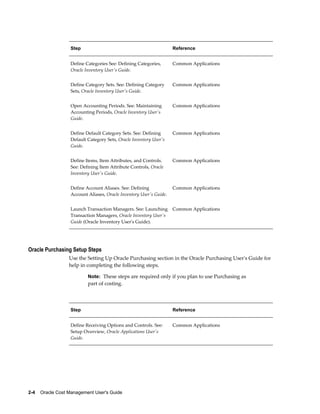
  • 598.
    14-48    Oracle CostManagement User's Guide Note: Every time the Supply Chain Cost Rollup program is generated, costs are overwritten from previous rollups for the cost type specified. See: Defining Cost Types, page 2-13. 3. Organization. You can use the default current organization, or leave this field blank. The Organization and Range fields are used together to specify the list of the top level assemblies to roll up. • If you select the current organization, then the top level assemblies are rolled up from this organization. • If the field is blank, then the top level assemblies are from all organizations are rolled up. 4. Optionally, select a value for the Assignment Set. Once you have defined your sourcing rules and bills of distribution, assign them to particular items and/or organizations. These groupings are called assignment sets. This is where sourcing strategies are defined for a particular supply chain network. See: Setting up the Supply Chain, Oracle Advanced Planning User's Guide. 5. If you selected an Assignment Set, then select a Buy Cost Type. If you specified a sourcing rule, then all the costs defined in Buy Cost Type are summed in the material cost. For example: • If both the destination and buy cost types are set up as Pending, then the process searches for pending costs. • If there are no pending costs, then the process then searches for default cost type. • If there are no default costs in the current organization, then the process then searches for the current organization's valuation cost type. See: Defining Costing Information, Oracle Inventory User's Guide. For configure to order items, select the value for the CTO Cost Type defined in the profile option, BOM:Buy Cost Type for Configurations. See: Configuration Item Cost Rollup, Oracle Configure to Order Implementation Manual. See: Defining Costing Information, Oracle Inventory User's Guide. 6. Select a Conversion Type from the list of values. This is the currency conversion type used if currency values need to be converted across organizations. 7. Select the Range of items to roll up.
  • 599.
    Reports    14-49 Your choicesare: All items, Category, Range of items, Specific item, or Zero cost items. If you select Zero cost items, then the rollup includes zero cost items in the current and the default cost types that have the attribute, Based on Rollup, enabled. Note: Inactive items are not rolled up unless you select a Specific Item that is inactive. 8. Select a Rollup Option. Your choices are: • Full cost rollup: Performs a bill of material explosion for assemblies, and then builds the cost of assemblies starting with the lowest level, and works up the structure to top level assemblies. • Single-level cost rollup: Assigns new standard costs to the top assembly, but not to the lower-level assemblies. 9. If you selected a request type that prints a report, then select a Report Type. Your choices are: • Consolidated: Prints the Supply Chain Consolidated Bill of Material Cost report, which lists total quantities of each component used in the parent assembly regardless of level. • Detail Indented: Prints the Indented Supply Chain Bill of Material Cost report, which lists detailed cost structure by level. See: Supply Chain Consolidated Bills of Material Cost Report, page 14-47, and Supply Chain Indented Bills of Material Cost Report, page 14-51 10. If you selected a request type that prints a report, then in the Material Detail, Material Overhead Detail, and Routing Detail fields, indicate if you want these fields to display on the report. Your choices are Yes or No. If you select Yes, then Material, Material Overhead, and Routing detail subelements display on the report. Note: If you select No, then you limit the amount of subelement detail and reduce the size of the report. 11. Report Number of Levels. Select the number of levels to display on the report. For example, if your assembly had 20 levels and you enter 10 in this field, then the costs for levels 1 to 10 would be detailed. The costs for levels 11 to 20 would be summarized as previous level costs. 12. Enter the Effective Date to determine the structure of the bill of material to use in
  • 600.
    14-50    Oracle CostManagement User's Guide the cost rollup. You can use this to roll up historical and future bill structures using current rates and component costs. 13. Include Unimplemented ECOs. Select Yes or No to indicate whether to include unimplemented ECOs in the bill structure. 14. Select an Alternate Bill to copy the structure of the bill. Otherwise, the primary bill structures are used. By selecting an alternate bill, you can get an indented bill of material cost report that reflects the frozen cost, even if the bill structures have changed. Set the cost type to snapshot the bill structure. When you run this report, specify the same alternate bill that you set up in the cost type. 15. Optionally, enter an Alternate Routing for the assembly to roll up, if applicable, for the Range that you selected. For example, if an alternate routing is specified, all items specified in the range are still rolled up: • The items that do have an associated routing with that name are rolled up using that routing. • The items that do not have an associated routing with that name will continue to be rolled up using the primary routing. See: Primary and Alternate Routings, Oracle Bills of Material User's Guide. 16. Engineering Bills. Select Yes or No to indicate whether to report engineering bills. 17. Optionally, enter a Specific Item to roll up: • If you selected Specific Item in the Range field, then select an item. • If you selected Category in the Range field, then select either a category set or a specific category. If you select a category set, then item costs are rolled up for items associated with this category set. The default is the category set defined for your costing functional area. • If you selected Range of items, then enter From and To values to specify the range of items for which to roll up costs. 18. Select a Category Set. Indented bill cost information is reported for items associated with this category set. The default is the category set you defined for your functional area. 19. Specific Category. Select a specific category to restrict the report to a range of categories. Indented bill cost information is reported for items associated with these category sets.
  • 601.
    Reports    14-51 20. ItemFrom/To. Select a beginning and an ending item to restrict the report to a range of assembly items. Related Topics Standard Request Submission, Oracle Applications User's Guide. Rolling Up Supply Chain Costs, page 12-1 Supply Chain Indented Bills of Material Cost Report This report lists item costs by level, detailiing assembly costs by subelement to the lowest level of your bill. Each item is detailed regardless of the number of levels it appears at on the bill. You can report item costs across multiple organizations, costing methods, and currencies - connected to sourcing rules. The report contains a Basis/Yield type column for displaying the component type as Lot or Item. Report submission: You can submit this report as part of the cost rollup process, or when reporting item costs. Only an historical report is printed when reporting item costs. A cost rollup is not performed. It uses costs stored as the result of a prior cost rollup. Oracle recommends you run this report using a past rollup to ensure that the appropriate information is available for the report. Use the Indented Bills of Material Cost Report form and enter Indented Bills of Material Cost Report in the Name field to submit the Indented Bills of Material Cost Report. To enter report parameters: 1. Enter a Description. Optionally enter any descriptive text referencing this request. 2. Select a value in the Cost Type field. Cost type determines how the rollup is performed. If an item does not already have cost information in this cost type, costs from the organization default cost type are used. If costs do not exist in the default cost type, then costs from the current organization's valuation cost type are used. Note: Every time the Supply Chain Cost Rollup program is generated, costs are overwritten from previous rollups for the cost type specified. See: Defining Cost Types, page 2-13.
  • 602.
    14-52    Oracle CostManagement User's Guide 3. Enter an Organization. You can use the default current organization, or leave this field blank. The Organization and Range fields are used together to specify the list of the top level assemblies to roll up. • If you select the current organization, then the top level assembly items are rolled up from this organization. • If the field is blank, then the top level assembly items are from all organizations are rolled up. 4. Optionally, select a value for Assignment Set. Once you have defined your sourcing rules and bills of distribution, assign them to particular items and/or organizations. These groupings are called assignment sets. This is where sourcing strategies are defined for a particular supply chain network. See: Setting up the Supply Chain, Oracle Advanced Planning Implementation and User's Guide. 5. If you selected an Assignment Set, select a Buy Cost Type. If you specified a sourcing rule, all the costs defined in Buy Cost Type are summed in the material cost. For example: • If both the destination and buy cost types are set up as Pending, the process searches for pending costs. • If there are no pending costs, the process then searches for default cost type. • If there are no default costs in the current organization, the process then searches for the current organization's valuation cost type. See: Defining Costing Information, Oracle Inventory User's Guide. For configure to order items, select the value for the CTO Cost Type defined in the profile option, BOM:Buy Cost Type for Configurations. See: Configuration Item Cost Rollup, Oracle Configure to Order Implementation Manual. See: Defining Costing Information, Oracle Inventory User's Guide. 6. Select a Conversion Type from the list of values. This is the currency conversion type used if currency values need to be converted across organizations. 7. Select the Range of items to roll up. Your choices are: All items, Category, Range of items, Specific item, or Zero cost items. If you select Zero cost items, then the rollup includes zero cost items in the current and the default cost types that have the attribute, Based on Rollup, enabled. Note: Inactive items are not rolled up unless you select a Specific Item that is inactive.
  • 603.
    Reports    14-53 8. Selecta Rollup Option. Your choices are: • Full cost rollup: Performs a bill of material explosion for assemblies, and then builds the cost of assemblies starting with the lowest level, and works up the structure to top level assemblies. • Single-level cost rollup: Assigns new standard costs to the top assembly, but not to the lower-level assemblies. 9. If you selected a request type that prints a report, then select a Report Type. Your choices are: • Consolidated: Prints the Supply Chain Consolidated Bill of Material Cost report, which lists total quantities of each component used in the parent assembly regardless of level. • Detail Indented: Prints the Indented Supply Chain Bill of Material Cost report, which lists detailed cost structure by level. See: Supply Chain Consolidated Bills of Material Cost Report, page 14-47, and Supply Chain Indented Bills of Material Cost Report, page 14-51 10. If you selected a request type that prints a report, in the Material Detail, Material Overhead Detail, and Routing Detail fields, indicate if you want these fields to display on the report. Your choices are Yes or No. If you select Yes, then Material, Material Overhead, and Routing detail subelements display on the report. Note: If you select No, then you limit the amount of subelement detail and reduce the size of the report. 11. Report Number of Levels. Select the number of levels to display on the report. For example, if your assembly had 20 levels and you enter 10 in this field, then the costs for levels 1 to 10 would be detailed. The costs for levels 11 to 20 would be summarized as previous level costs. 12. Enter the Effective Date to determine the structure of the bill of material to use in the cost rollup. You can use this to roll up historical and future bill structures using current rates and component costs. 13. Include Unimplemented ECOs. Select Yes or No to indicate whether to include unimplemented ECOs in the bill structure. 14. Select an Alternate Bill to copy the structure of the bill. Otherwise, the primary bill structures are used. By selecting an alternate bill, you can get an indented bill of material cost report that reflects the frozen cost, even if the bill structures have
  • 604.
    14-54    Oracle CostManagement User's Guide changed. Set the cost type to snapshot the bill structure. When you run this report, specify the same alternate bill that you set up in the cost type. 15. Optionally, enter an Alternate Routing for the assembly to roll up, if applicable, for the Range that you selected. For example, if an alternate routing is specified, all items specified in the range are still rolled up: • The items that do have an associated routing with that name are rolled up using that routing. • The items that do not have an associated routing with that name will continue to be rolled up using the primary routing. See: Primary and Alternate Routings, Oracle Bills of Material User's Guide. 16. Engineering Bill. Select Yes or No to indicate whether to report engineering bills. 17. Optionally, enter a Specific Item to roll up: • If you selected Specific Item in the Range field, then select an item. • If you selected Category in the Range field, then select either a category set or a specific category. If you select a category set, then item costs are rolled up for items associated with this category set. The default is the category set defined for your costing functional area. • If you selected Range of items, then enter From and To values to specify the range of items for which to roll up costs. 18. Select a Category Set. Indented bill cost information is reported for items associated with this category set. The default is the category set you defined for your functional area. 19. Specific Category. Select a specific category to restrict the report to a range of categories. Indented bill cost information is reported for items associated with these category sets. 20. Item From/To. Select a beginning and an ending item to restrict the report to a range of assembly items. Related Topics Standard Request Submission, Oracle Applications User's Guide. Rolling Up Supply Chain Costs, page 12-1
  • 605.
    Reports    14-55 WIP StandardCost Adjustment Report The WIP Standard Cost Adjustment Report lists either preliminary standard cost adjustments to work in process, or the final adjustments made to the standards by the cost update process. The report also displays the basis type. Note: You can only obtain this report if you have Oracle Work in Process installed. Report submission: You can submit this report in three ways: • Before the cost update, to simulate the cost update work in process valuation adjustments. See: Reporting Pending Adjustments, page 4-11. • As part of the standard cost update process, to print the final work in process valuation adjustments. See: Updating Pending Costs to Frozen Standard Costs, page 4-13. • For historical reporting for a prior cost update. See: Reporting Cost Update Adjustments, page 4-18. Related Topics Standard Request Submission, Oracle Applications User's Guide.
  • 607.
    Windows and NavigatorPaths    A-1 A Windows and Navigator Paths This appendix covers the following topics: • Windows and Navigator Paths Windows and Navigator Paths For windows described in other manuals: BOM Oracle Bills of Material User's Guide CAP Oracle Capacity User's Guide ENG Oracle Engineering User's Guide Flex Oracle E-Business Suite Flexfields Manual GL Oracle General Ledger User's Guide HR Oracle Human Resources User's Guide PO Oracle Purchasing User's Guide MRP Oracle Master Scheduling/MRP and Oracle Supply Chain Planning User's Guide SYS Oracle System Administrator's Guide User Oracle E-Business Suite User's Guide WIP Oracle Work in Process User's Guide
  • 608.
    A-2    Oracle CostManagement User's Guide Text in brackets ([ ]) indicates a button. Although your system administrator may have customized your navigator, typical navigator paths are presented in the following table: Window Name Navigation Path Account Alias (See: Defining Account Aliases, Oracle Inventory User's Guide Inventory) Setup > Account Assignments > Account Aliases Calendar, Oracle General Ledger User's Guide Setup > Financials > Accounting Calendar > Accounting Activities, page 2-17 Setup > Activities Activity Costs, page 2-17 Setup > Activities > Activity Costs Accrual Write Off, Oracle Purchasing User's Guide Periodic Costing > Periodic Close Cycle > Accrual Write Off Alternates, Oracle Bills of Material User's Guide Setup > Alternates Bill Components Comparison Operational Analysis > View Bills > Comparison Bill Details Operational Analysis > View Bills > Bills > [Bill Details] Bills of Material Operational Analysis > View Bills > Bills Bill Components Comparison (See BOM) Operational Analysis > View Bills > Comparison Categories Setup > Categories > Category Codes Categories (See INV) Setup > Categories > Category Codes Category Accounts, Oracle Inventory User's Guide Setup > Category Accounts Category Set, Oracle Inventory User's Guide Setup > Categories > Category Sets Change Organization (See MRP) Change Organization Close Discrete Jobs (See WIP) Discrete Jobs > Close Discrete Jobs > Close Discrete Jobs (Form)
  • 609.
    Windows and NavigatorPaths    A-3 Window Name Navigation Path Close Discrete Jobs Discrete Jobs > Close Discrete Jobs > Close Discrete Jobs (SRS) Close Discrete Jobs (See WIP) Discrete Jobs > Close Discrete Jobs > Close Discrete Jobs (SRS) Collect Revenue Recognition Information COGS Recognition > Collect Revenue Recognition Information Copy Period Costs Periodic Costing > Copy Period Costs Cost Groups, page 2-78 Setup > Cost Groups Cost Types, page 2-13 Setup > Cost Types Currencies Setup > Financials > Currencies > Currencies Currencies (See GL) Setup > Financials > Currencies > Currencies Daily Rates, Oracle General Ledger User's Guide Setup > Financials > Currencies > Daily Rates Daily Rates (See GL) Setup > Financials > Currencies > Daily Rates Default Category Sets, Oracle Inventory User's Guide Setup > Categories > Default Category Sets Default WIP Accounting Classes for Categories Setup > Account Assignments > Category Default WIP Classes Descriptive Elements, Oracle Bills of Material User's Guide Operational Analysis > View Bills > Bills > [Elements] Detailed On-hand Quantities (See INV) Operational Analysis > View Material > On-hand Quantities > [Detailed] > [Find] Employee Labor Rates Setup > Employees > Labor Rates Employee Labor Rates (See HR) Setup > Employees > Labor Rates Expenditure Types for Cost Elements Setup > Expenditure Types for Cost Elements
  • 610.
    A-4    Oracle CostManagement User's Guide Window Name Navigation Path Freight Carriers Setup > Account Assignments > Freight Carriers Freight Carriers (See INV) Setup > Account Assignments > Freight Carriers General Ledger Transfer Accounting Close Cycle > View General Ledger Transfers General Ledger Transfers (See INV) Accounting Close Cycle > View General Ledger Transfers Generate COGS Recognition Events COGS Recognition > Generate COGS Recognition Events GL Accounts Setup > Account Assignments > Accounts GL Accounts (See GL) Setup > Account Assignments > Accounts Import Period Costs, page 9-40 Periodic Costing > Import Period Costs Indented Bills of Material Item Costs > View Costed Indented Bills > [Find] Item Attributes Operational Analysis > View Material > Item Information > [Attributes] Item Attributes (See INV) Operational Analysis > View Material > Item Information > [Attributes] Item Categories Operational Analysis > View Material > Item Information > [Categories] Item Categories (See INV) Operational Analysis > View Material > Item Information > [Categories] Item Costs, page 3-3 Item Costs > Item Costs > Item Costs Summary > [Costs] Item Costs Details, page 3-3 Item Costs > Item Costs > [New]
  • 611.
    Windows and NavigatorPaths    A-5 Window Name Navigation Path Item Cost History, page 5-26 Item Costs > Item Cost History > [Cost History] Item Cost Inquiry, page 9-26 Periodic Costing > Item Cost Inquiry Item Costs Summary, page 3-3 Item Costs > Item Costs Item On-hand Quantities (See INV) Operational Analysis > View Material > On-hand Quantities > [Item] > [Find] Item Revisions Operational Analysis > View Material > Item Information > [Revisions] Item Revisions (See INV) Operational Analysis > View Material > Item Information > [Revisions] Item Revisions Operational Analysis > View Bills > Bills > [Find] > [Revision] Item Search Operational Analysis > View Material > Item Search > [Find] Item Search (See INV) Operational Analysis > View Material > Item Search > [Find] Item WhereUsed Operational Analysis > View Bills > Item Usages Item WhereUsed (See BOM) Operational Analysis > View Bills > Item Usages Inventory Accounting Periods Accounting Close Cycle > Inventory Accounting Periods Inventory Accounting Periods (See INV) Accounting Close Cycle > Inventory Accounting Periods Mass Edit Cost Information, page 2-44 Cost > Cost Mass Edits > Mass Edit Cost Information Material and receiving transactions, page 9-29 Periodic Costing > View Transactions > Material and Receiving Transactions
  • 612.
    A-6    Oracle CostManagement User's Guide Window Name Navigation Path Material Overhead Absorption Rules, page 2- 22 Setup > Sub-Elements > Material Overhead Absorption Rules Material Overhead Defaults, page 2-40 Setup > Subelements > Defaults Material Subelements, page 2-20 Setup > Subelements > Material Material Transactions, page 3-26 View Transactions > Material Transactions Material Transactions (See INV) View Transactions > Material Transactions Material Transaction Distributions, page 3-18 View Transactions > Material Distributions > [Find] Org Cost Group/Cost Type Associations, page 9-13 Periodic Costing > Setup > Org Cost Group/Cost Type Association Organization Setup > Account Assignments > Organizations Organization Cost Groups, page 9-11 Periodic Costing > Setup > Organization Cost Group Organizations (See INV) Setup > Account Assignments > Organizations Organization Parameters Setup > Account Assignments > Organization Parameters Organization Parameters (See INV) Setup > Account Assignments > Organization Parameters Overhead Rates, page 2-22 Setup > Subelements > Overheads > [Rates] Overheads, page 2-22 Setup > Subelements > Overheads Pending Transactions View Transactions > Pending Material Transactions > [Find] Pending Transactions (See INV) View Transactions > Pending Material Transactions > [Find]
  • 613.
    Windows and NavigatorPaths    A-7 Window Name Navigation Path Pending Transactions Accounting Close Cycle > Inventory Accounting Periods > [Pending] Pending Transactions (See INV) Accounting Close Cycle > Inventory Accounting Periods > [Pending] Periodic Absorption Cost Processor Periodic Costing > Periodic Cost Periodic Account Assignments, page 9-17 Periodic Costing > Setup > Periodic Account Assignments Periodic Accounting Periods, page 9-33 Periodic Costing > Periodic Close Cycle > Periodic Accounting Periods Periodic Acquisition Cost, page 9-20 Periodic Costing > Periodic Acquisition Cost Periodic Cost (Processor), page 9-24 Periodic Costing > Periodic Cost Periodic Cost Update, page 9-41 Periodic Costing > Periodic Cost Update Periodic Distributions, page 9-25 Periodic Costing > Periodic Distributions Period Rates Setup > Financials > Currencies > Period Rates Period Rates (See GL) Setup > Financials > Currencies > Period Rates Period Types, page 2-12 Setup > Financials > Accounting Calendar > Types Period Types (See GL) Setup > Financials > Accounting Calendar > Types Persons Setup > Employees > Persons Persons (See HR) Setup > Employees > Persons Project Cost Transfer, page 8-18 Projects > Control > Project Cost Transfer Purchase Order Headers Operational Analysis > View Purchases > Purchase Orders
  • 614.
    A-8    Oracle CostManagement User's Guide Window Name Navigation Path Purchase Orders (See PO) Operational Analysis > View Purchases > Purchase Orders Purchasing Options Setup > Account Assignments > Purchasing Options Purchasing Options (See PO) Setup > Account Assignments > Purchasing Options Receiving Options Setup > Account Assignments > Receiving Options Receiving Options (See PO) Setup > Account Assignments > Receiving Options Receipt Transactions Summary View Transactions > Receiving Transactions Receipt Transactions Summary (See PO) View Transactions > Receiving Transactions Record Order Management Transactions COGS Recognition > Record Order Management Transactions Reference Designators See BOM Operational Analysis > View Bills > Bills > [Designators] Report Standard Cost Adjustments Report > Cost > Adjustment Requisition Headers Summary Operational Analysis > View Purchases > Requisitions Requisitions (See PO) Operational Analysis > View Purchases > Requisitions Resource Overhead Associations, page 2-22 Setup > Subelements > Overheads > [Resources] Resource WhereUsed Operational Analysis > View Routings > Resource Usage Resource WhereUsed (See BOM) Operational Analysis > View Routings > Resource Usage
  • 615.
    Windows and NavigatorPaths    A-9 Window Name Navigation Path Revision On-hand Quantities (See INV) Operational Analysis > View Material > On-hand Quantities > [Revision] > [Find] Resources Setup > Subelements > Resources Resources (See BOM) Setup > Subelements > Resources Routing Details Operational Analysis > View Routings > Routings > [Routing Details] Routing Details (See BOM) Operational Analysis > View Routings > Routings > [Routing Details] Routing Revisions Operational Analysis > View Routings > Routings > [Routing Revisions] Routing Revisions (See BOM) Operational Analysis > View Routings > Routings > [Routing Revisions] Routings Operational Analysis > View Routings > Routings Ledger Setup > Financials > Books Ledger (See GL) Setup > Financials > Books Shipping Networks Setup > Account Assignments > Shipping Network Shipping Networks (See INV) Setup > Account Assignments > Shipping Network Standard Cost History, page 4-20 Item Costs > Standard Cost Update > View Cost History Standard Cost Update Item Costs > Standard Cost Update > Update Costs Standard Operations Operational Analysis > View Routings > Standard Operations
  • 616.
    A-10    Oracle CostManagement User's Guide Window Name Navigation Path Standard Operations (See BOM) Operational Analysis > View Routings > Standard Operations Subinventories Summary Setup > Account Assignments > Subinventories Subinventories Summary (See INV) Setup > Account Assignments > Subinventories Subinventory On-hand Quantities (See INV) Operational Analysis > View Material > On-hand Quantities > [Subinventory] > [Find] Subledger Accounting Methods Substitute Components Operational Analysis > View Bills > Bills > [Find] > [Substitutes] Substitute Components (See BOM) Operational Analysis > View Bills > Bills > [Find] > [Substitutes] Summarize Transactions View Transactions > Transaction Summaries Summarize Transactions (See INV) View Transactions > Transaction Summaries Transaction Calendar Setup > Financials > Accounting Calendar > Transaction Transaction Calendar (See GL) Setup > Financials > Accounting Calendar > Transaction Transfer Invoice Variance, page 5-21 Item Costs > Average Cost Update >Transfer Invoice Variance Transfer to General Ledger, page 9-36 Periodic Costing > Periodic Close Cycle>Transfer to General Ledger Update Average Cost, page 5-16 Item Costs > Average Cost Update > Update Costs Update Layer Cost, page 6-24 Item Costs > Layer Cost Update > Update Costs
  • 617.
    Windows and NavigatorPaths    A-11 Window Name Navigation Path Update Periodic Costs , page 9-41 Periodic Costing > Update Periodic Costs View Bills of Material Operational Analysis > View Bills > Bills View Discrete Jobs Operational Analysis > View Work in Process > Discrete Jobs View Item Costs Details, page 3-3 Item Costs > Item Costs > [Views] > [Details] View Item Costs Summary, page 3-3 Item Costs > Item Costs > [Views] View Material Requirements Operational Analysis > View Work in Process > Material Requirements View Material Requirements (See WIP) Operational Analysis > View Work in Process > Material Requirements View Material Transactions, page 3-26 View Transactions > Material Transactions View Move Transactions View Transactions > Move Transactions View Operations Operational Analysis > Work in Process > Operations View Pending Resource Transactions (See WIP) View Transactions > View Pending Resource Transactions View Repetitive Schedules Operational Analysis > View Work in Process > Repetitive Schedules View Resource Requirements Operational Analysis > View Work in Process > Resource Requirements View Resource Requirements (See WIP) Operational Analysis > View Work in Process > Resource Requirements View Resource Transactions View Transactions > Resource Transactions > [Find] View Resource Transactions (See WIP) View Transactions > Resource Transactions > [Find]
  • 618.
    A-12    Oracle CostManagement User's Guide Window Name Navigation Path View Standard Cost Update, page 4-22 Item Costs > Standard Cost Update > View Cost Update View Transaction Layer Cost, page 6-35 View Transactions > Material Transaction Layer Cost View WIP Layers Discrete Jobs > View WIP Layer Cost WIP Accounting Classes, page 2-75 Setup > Account Assignments > WIP Accounting Classes WIP Accounting Classes (See WIP) Setup > Account Assignments > WIP Accounting Classes WIP Account Classes, page 2-78 Setup > Cost Groups > [WIPAccounting Classes] WIP Jobs and Schedules, page 3-22 View Transactions > WIP Value Summary > [Find] WIP Transactions, page 9-31 Periodic Costing > View Transactions > WIP Transactions WIP Transaction Distributions, page 3-19 View Transactions > WIP Value Summary > [Find] > [Distributions] WIP Value Summary, page 3-22 View Transactions > WIP Value Summary > [Find] > [Value Summary]
  • 619.
    Cost Management Alerts   B-1 B Cost Management Alerts Oracle Cost Management Alerts Cost Management includes two pre-coded alerts you can use with or without customizing: • Zero Cost Items notifies you of items that are costed but have zero frozen costs • Zero Cost Account Distributions notifies you of inventory transactions for items without standard costs Zero Cost Items This alert notifies you of items that are costed but have zero frozen costs. Alert Type - Periodic Periodicity - On-Demand Inputs - Organization Zero Cost Account Distributions This alert notifies you of inventory transactions for items without standard costs. Alert Type - Periodic Periodicity - On Demand Inputs - Organization
  • 621.
    Oracle Cost ManagementClient Extensions    C-1 C Oracle Cost Management Client Extensions Client Extensions Oracle Cost Management provides flexible cost processing. However, many companies have business requirements that are unique to their company or country. To address these unique requirements, Cost Management provides subprograms which enable you to extend the functionality of the product to implement and automate company-specific business rules. In other words, subprograms provide extensibility by letting you tailor the PL/SQL language to suit your needs. For this reason these subprograms are commonly known as client extensions. Note: Extensions are applicable to all organizations unless the client extension is designed to restrict its use. The following tables list the Cost Management client extensions and their predefined template function files. The template function files are stored in the Cost Management patch/115/sq directory. Note: Accounting Entry Extensions are obsolete for Release 12. If you have implemented Accounting Entry Extensions and are upgrading to Release 12, then you must implement the logic in those extensions by customizing the base Costing SLA rules. Standard Cost Client Extensions Package Specification File Package Body File Account Generation Extension, page C-12 CSTSCHKS.pls CSTSCHKB.pls
  • 622.
    C-2    Oracle CostManagement User's Guide Cost Client Extensions Package Specification File Package Body File Transaction Cost Extension, page C-10 CSTACHKS.pls CSTACHKB.pls Account Generation Extension, page C-12 CSTACHKS.pls CSTACHKB.pls Cost Processing Cutoff Date Extension, page C-22 CSTACHKS.pls CSTACHKB.pls Project Cost Collector Transaction Client Extension, page C-23 CSTCCHKS.pls CSTCCHKB.pls Project Cost Collector Accounting Extension, page C-28 CSTPMHKS.pls CSTPMHKB.pls PAC Account Generation Extension, page C-30 CSTAPHKS.pls CSTAPHKB.pls Period Close Check for Shipping Transactions, page C-34 CSTINVRS.pls CSTINVRB.pls Get Absorption Account Extension, page C-36 CSTACHKS.pls CSTACHKB.pls Validate Job Re-estimation Extension, page C-37 CSTACHKS.pls CSTACHKB.pls FIFO/LIFO Layer Consumption Extension, page C-39 CSTACHKS.pls CSTACHKB.pls Disable Accrual Accounting Extension, page C-44 CSTRVHKS.pls CSTRVHKB.pls PAC Actual Cost Extension, page C-45 CSTPCHKS.pls CSTPCHKB.pls PAC Beginning Balance Extension, page C-48 CSTPCHKS.pls CSTPCHKB.pls
  • 623.
    Oracle Cost ManagementClient Extensions    C-3 Cost Client Extensions Package Specification File Package Body File PAC Acquisition Cost Extension, page C-50 CSTPAHKS.pls CSTPAHKB.pls PAC Acquisition Receipt Cost Extension, page C-52 CSTPAHKS.pls CSTPAHKB.pls Supply Chain Cost Rollup Buy Cost Extension, page C- 54 CSTSCHOS.pls CSTSCHOB.pls Supply Chain Cost Rollup Markup Cost Extension, page C-56 CSTSCHOS.pls CSTSCHOB.pls Supply Chain Cost Rollup Shipping Cost Extension, page C-58 CSTSCHOS.pls CSTSCHOB.pls In Average/FIFO/LIFO costing organizations, you can implement Transaction Cost, Account Generation, and Cost Processing Cutoff Date client extensions. In standard costing, you can only implement the Account Generation extension. To define company specific rules using client extensions, design and write these rules using PL/SQL functions; these functions are called during specific points in the normal processing flow of Cost Management. These functions that you write are extensions rather than customizations because they are supported features within the product and are easily upgradable between releases of the product. Customizations are changes made to the base product and are not supported nor easily upgraded. Important: You are responsible for the support and upgrade of the logic within the functions that you write, which may be impacted by changes between releases of Oracle E-Business Suite products. This essay provides a general overview of client extensions and their implementation as well as specific information about the client extensions available in Cost Management. Related Topics Types of Client Extensions, page C-4 Implementing Client Extensions, page C-4
  • 624.
    C-4    Oracle CostManagement User's Guide Determining Your Business Needs, page C-5 Designing Client Extensions, page C-5 Writing PL/SQL Procedures/Functions, page C-7 Storing Your Functions, page C-9 Types of Client Extensions You can implement the following extensions to help you address your company's business requirements. Transaction Cost Extension You can use this extension to reset the elemental costs of transactions in Average/FIFO/LIFO costing organizations. Account Generation Extension You can use this extension to provide alternative accounts per your requirements for account distributions. These accounts are picked and used by the cost processor when the cost processor performs accounting distributions. You can use this extension in all costing organizations. Cost Processing Cutoff Date Extension You can use this extension to process only transactions up through a user-specified date. You can only use this extension in Average/FIFO/LIFO costing organizations. Related Topics Client Extensions, page C-1 Transaction Cost Extension, page C-10 Account Generation Extension, page C-12 Costs Processing Cutoff Date Extension, page C-22 Implementing Client Extensions The implementation of client extensions primarily consists of the following three steps: • Determining your business requirements • Designing client extension logic • Modifying appropriate template function files using PL/SQL Each of these steps requires a specific expertise. The analysis and design portions require an implementation team member who is functionally knowledgeable about the
  • 625.
    Oracle Cost ManagementClient Extensions    C-5 company specific business rules, the implementation of Cost Management for your company, and the conceptual flow of the client extensions. The PL/SQL coding portion requires an implementation team member who is technically knowledgeable with PL/SQL and the Cost Management data structures. Determining Your Business Requirements The first step of implementing client extensions is to determine if you need to use the client extensions. You can do this by following these steps, which are part of the process of any Cost Management implementation: 1. Clearly define and document your company specific business requirements and rules. 2. Determine if these business rules are handled by the normal functionality of Cost Management. 3. For those business rules not handled by the normal functionality, review the client extensions and determine if a client extension can help address the specific business rules, based on your documented business requirements. Designing Client Extensions Designing your client extension is the most significant part of implementing client extensions. This design cycle involves the following aspects: 1. Understand the appropriate client extension, including its intended purpose, its processing flow, the predefined place that it is called, and its input values. 2. Define and document the requirements and logic of your business rules under all possible conditions. This logic includes the required inputs, the calculations performed, and the corresponding outputs. 3. Determine the data elements required to drive your rules and how you will select or derive each of the required elements. Define additional implementation data and document additional business functions of using the system based on the requirements of your business rules. Determining Data Elements Predefined Parameters Cost Management provides predefined parameters for each client extension. The program which calls and executes the client extension passes in values for the predefined parameters, which define the context of what transaction is being processed.
  • 626.
    C-6    Oracle CostManagement User's Guide Derived Information You can derive additional information from the predefined parameters. For example, a client extension may have a predefined parameter of TRANSACTION_ID, which is the identifier of the transaction. Your business rule needs transaction type, so you derive the transaction type from the TRANSACTION_ID. Example of Designing a Client Extension Let's use the earlier extension example to illustrate these design steps. 1. After studying client extensions, you have decided to use the account generation extension to implement the following policy: You should only use product line accounts for subinventory transfers 2. You define the logic for the account generation extension as: IF transaction is (subinventory_transfer) THEN Find out Product Line Account for this item, organization, and subinventory RETURN Accounts 3. Determine what input data and output data is required. Per the above example, the data required and its source is listed in the following table: Input Type of Parameter Transaction identifier Predefined Organization identifier Predefined Inventory item identifier Derived Subinventory Code Predefined Transaction Action Derived The SQL script for capturing the derived data listed in the above table is as follows: SELECT Transaction_action, inventory_item identifier FROM mtl_material_transactions WHERE transaction identifier = current transaction The following outputs must be derived from these inputs: SELECT product line accounts FROM mtl_category_accounts WHERE inventory_item_id = current item identifier AND organization_id = current organization identifier AND subinventory_code = subinventory code
  • 627.
    Oracle Cost ManagementClient Extensions    C-7 Writing PL/SQL Functions/Procedures To help you to write PL/SQL functions for client extensions, we first provide you with a brief technical background of PL/SQL functions. Then, we provide you with information on how to use predefined functions and parameters in writing your own functions. We recommend that you read the PL/SQL User's Guide and Reference to learn more about PL/SQL. Packages Packages are database objects that group logically related PL/SQL types, objects, and subprograms. Packages usually consist of two files: a package specification file and a package body file. The specification file is the interface to your applications; it declares the types, variables, constants, exceptions, cursors, and subprograms available for use in the package. It contains the name of the package and functions function declarations. The package body defines cursors and subprograms, contains the actual PL/SQL code for the functions, and so implements the specification. Functions Functions are subprograms within a package that are invoked by the application, perform a specific action, and compute a value. Functions define what parameters will be passed in as context for the program, how the inputs are processed, and what output is returned. A function consists of the following elements: • Inputs - Each function has predefined input parameters, which must be passed in the predefined order. The parameters identify the transaction being processed and the context in which the program is called. You can derive additional inputs from any Oracle table based on the pre-defined input parameters. • Logic - The function uses the inputs and performs any logical processing and calculations. The program can be a simple program, such that it returns a fixed number, or it can be a complex algorithm that performs a number of functions. • Outputs - Each function returns whatever value you de-fine it to return. For example, your function for account generation extensions may return a null value if the transaction passes all val-idation rules; or an error message if validation fails. Syntax for Functions A function consists of two parts: the specification and the body. The function specification begins with the keyword FUNCTION and ends with the function name or a parameter list. The function body begins with the keyword IS and ends with the keyword END followed by an optional function name. The function body has three parts: a declarative part, an executable part, and an optional error handling part. You write functions using the following syntax:
  • 628.
    C-8    Oracle CostManagement User's Guide FUNCTION name [ (parameter [, parameter,...]) ] RETURN DATATYPE IS [local declarations] BEGIN executable statements [EXCEPTION exception handlers] END [name]; The parameter syntax above expands to the following syntax: parameter_name [IN | OUT | IN OUT] datatype [{:= | DEFAULT} expr] For more information, refer to the PL/SQL User's Guide and Reference Manual. Using Template Functions Cost Management provides you with template functions for each client extension that you can use to write your own functions. Each function contains predefined parameters that are passed into the function by the program that calls the function; you cannot change these predefined input parameters. The Client Extensions Table: page C – 2 lists each client extension and its predefined template function filenames. The template function files are stored in the Cost Management admin/sql directory. • Suggestion: Review the appropriate files before you design and implement a client extension. They provide a lot of useful information, including the predefined input parameter list and example case studies. • Suggestion: You should make a copy of these template files in a directory used by your company to store code that you have written. You should make changes to these copies of the files instead of writing directly into these template files. These template files will be replaced when the software is upgraded between releases. Use your modified files to reinstall your functions after an upgrade to a new release of Cost Management. Writing Logic in Your PL/SQL Functions You write the logic in the PL/SQL functions based on the functional specifications created during the design process. Before you begin to write the client extension PL/SQL functions, you should have a clear understanding of the client extension functions; including the inputs and outputs, the error handling of the extension, along with any example functions provided for each extension. Read the appropriate client extension essays and template functions to obtain detailed information about the client extensions. As you determine how to best write the client extension, you should consider these issues: • Can I derive every derived input parameter based on the data structures known? • What outputs should the client extension return?
  • 629.
    Oracle Cost ManagementClient Extensions    C-9 • How does the client extension handle exceptions? • Are there functions which I can write which are reusable across similar client extensions? • How I can write logical, well commented code that is easy to maintain and debug? • How do I test and debug this client extension? • Are there any performance considerations in the client extension? If so, what are they and how do I address them? Important: You must not commit data within your PL/SQL function. Cost Management processes that call your functions handle the commit logic. Storing Your Functions After you write your functions and ensure that the specification file correctly includes any functions that you have defined, you need to compile and store the functions in the database in the Applications Oracle username. You must install the package specification before the package body. The syntax for compiling and storing PL/SQL functions is included in the template function files. Assuming you have written your functions using copies of these template function files, you can use these steps to compile and store your functions: Change to the directory in which your files are stored (use the command that is appropriate to your operating system). $ sqlplus <apps username> / <apps password> SQL> @<spec_filename>.pls SQL> @<body_filename>.pls For example, use the following commands to install your account generation extension (assuming your Oracle E-Business Suite Oracle username/password is apps/apps): $ sqlplus apps/apps SQL> @CSTPSCHK.pls apps apps @ CSTSCHKS.pls SQL> @CSTPSCHK.pls apps apps @ CSTSCHKB.pls If you encounter compilation errors in trying to create your packages and its functions, then you must debug the errors, correct your package definitions, and try to create your packages again. You must successfully compile and store your package and its functions in the database before you can use the client extensions in Cost Management. Testing Your Functions After you have created your client extension functions, you must test your client extension definitions within the processing flow of Cost Management to verify the results are as you expect.
  • 630.
    C-10    Oracle CostManagement User's Guide Transaction Cost Extension The Transaction Cost Extension allows you to reset the transaction costs by cost element and by level in an Average/FIFO/LIFO costing organization. Processing Cost Management calls the transaction cost extensions for most transactions at the time of processing. The three exceptions are Average Cost Update transactions, in an average costing organization, a Common Issue to Project Work in Process transaction, in a project manufacturing costing organization, and Interorganization Transfer transactions. You should ensure that the cost element by level costs is in MTL_CST_ACTUAL_COST_DETAILS according to your requirements. Return Values of Function When this extension is called, the system determines whether it has been implemented and returns a value accordingly. The return values are as follows: • 1 - The extension has been used and costs have been reset by cost element and by level. • 0 - The extension has not been used. Related Topics Client Extensions, page C-1 Writing Transaction Cost Extensions, page C-10 PL/SQL User's Guide and Reference Oracle Bills of Material Technical Reference Manual, Release 12 Writing Transaction Cost Extensions Cost Management provides a template package and function that you use as the basis of your transaction cost extension functions. The name of the package is CSTPACHK. Print out and review the following files before you begin writing transaction costing extensions. The files are located in the Cost Management plsql/115/sql directory. • CSTACHKS.pls - Transaction Cost Extension Package Specifica-tion Template. If you create functions within the package, outside the predefined function, you must also modify this package.
  • 631.
    Oracle Cost ManagementClient Extensions    C-11 • CSTACHKB.pls - Transaction Cost Extension Package Body Template. This file contains the function that you modify to implement transaction cost ex-tensions. You can define as many functions as you like within this package or within the pre-defined function. Tip: After you write the function, do not forget to compile it and store it in the database. See: Storing Your functions, page C-9. Package Function actual_cost_hook The following table lists the parameters for Transaction Cost type extensions. Parameter Usage Type Description i_org_id IN NUMBER The organization that the cur-rent transaction is done in i_txn_id IN NUMBER Transaction identifier i_layer_id IN NUMBER The costing layer this transac-tion item corresponds to. Us-ing the layer_id, one can ob-tain the current average cost stored in cst_quantity_layers i_cost_type IN NUMBER The valuation cost type the cost processor is running for. i_user_id IN NUMBER User identifier i_login_id IN NUMBER Login identifier i_req_id IN NUMBER Request ID for program
  • 632.
    C-12    Oracle CostManagement User's Guide Parameter Usage Type Description i_prg_appl_id IN NUMBER Application ID of program i_prg_id IN NUMBER Program identifier l_err_num OUT NUMBER Error number l_err_code OUT NUMBER Error code l_err_msg OUT VARCHAR2 Error message Error Handling l_err_num This parameter indicates the processing status of your extension as follows: 1_err_num = 0 - The extension executed successfully. 1_err_num <> 0 - An error occurred and the extension did not process successfully. l_err_code and l_err_msg Values for error_code, l_err_code, and error_explanation, l_err_msg, are stored in the MTL_MATERIAL_TRANSACTIONS table. Related Topics Client Extensions, page C-1 Transaction Cost Extension, page C-10 Oracle Bills of Material Technical Reference Manual, Release 12 Account Generation Extension The Account Generation Extension allows you to provide alternative accounts. The Account Generation Extension has two template functions: one for material and scrap transactions and another for standard cost update transactions. Note: Although the resulting accounts are provided as default accounts if these extensions are used, it is not recommended to write new extensions. You should use Subledger Accounting (SLA) to derive custom accounts. See: Oracle Subledger Accounting Implementation
  • 633.
    Oracle Cost ManagementClient Extensions    C-13 Guide. Processing Cost Management calls the Account Generation extension each time standard or average costing material or standard cost update transactions are performed. Return Values of Function When this extension is called the system determines whether it has been implemented and returns a value accordingly. The return values are as follows: • –1 - The extension was not used and the normal default accounts should be used. • >0 - The extension was used and the user specified accounts should be used. Related Topics Client Extensions, page C-1 Writing Account Generation Extensions for Standard Costing, page C-13 Writing Account Generation Extensions for Average Costing, page C-19 PL/SQL User's Guide and Reference Oracle Bills of Material Technical Reference, Release 12 Writing Account Generation Extensions for Standard Costing Cost Management provides a template package and functions as a basis for account generation type extensions. The name of the template package is CSTPSCHK. Print the following files before you begin writing Account Generation type extensions. The files are located in the Cost Management plsql/115/sql directory. • CSTSCHKS.pls - Account Generation Type Extension Package Specification Template. If you create functions outside the predefined function within the CSTPSCHK package, you must also modify this file to include those new functions. • CSTSCHKB.pls - Account Generation Type Extension Package Body Template. This file contains the function that you can modify to implement the Ac-count Generation type extension. Tip: After you write the function, do not forget to compile it and store it in the database. See: Writing PL/SQL Functions/Procedures, page C-7.
  • 634.
    C-14    Oracle CostManagement User's Guide Package Function for Material and Scrap Transactions You can use this function for either material or scrap transactions. std_get_account_id The following table lists the parameters for Account Generation type extensions that provide alternate material transaction accounts in standard costing organizations. Parameter Usage Type Description i_org_id IN NUMBER The organization that the actual cost worker is running in i_txn_id IN NUMBER Transaction identifier i_debit_credit IN NUMBER Transaction type; debit or credit i_acct_line_type IN NUMBER Accounting line type i_cost_element_id IN NUMBER Cost element identifier i_resource_id IN NUMBER Resource identifier i_subinv IN VARCHAR2 Subinventory involved i_exp IN NUMBER Expense or asset account indicator i_snd_rcv_org IN NUMBER Sending or receiving organization indicator i_txn_type_id IN NUMBER Transaction type identifier i_txn_act_id IN NUMBER Transaction action identifier i_txn_src_type_id IN NUMBER Transaction source type identifier
  • 635.
    Oracle Cost ManagementClient Extensions    C-15 Parameter Usage Type Description i_item_id IN NUMBER Item identifier i_cg_id IN NUMBER Cost group identifier o_err_code OUT VARCHAR2 Output error code. Can be any SQL code. o_err_num OUT NUMBER Output error number o_err_msg OUT VARCHAR2 Error message Additional Information About Parameters Debit/Credit The valid values of i_debit_credit are as follows and indicate whether the traction is a debit or a credit: • i_debit_credit = 1 Indicates a debit. • i_debit_credit = –1 Indicates a credit. Expense Account Indicator The valid values of i_exp are: • i_exp = 0 - Expense item transaction. • i_exp = 1 - Asset item transaction. Sending/Receiving Organization The valid values of i_snd_rcvg_org are: • i_snd_rcvg_org = 1 - The organization (i_org_id) is a sending orga-nization for inter –organization transactions. • i_snd_rcvg_org = 2 - The organization (i_org_id) is a receiving or-ganization for inter–organization transactions. Error Handling o_err_num This parameter indicates the processing status of your extension as follows:
  • 636.
    C-16    Oracle CostManagement User's Guide • o_err_num = 0 - The extension executed successfully. • o_err_num <> 0 - An error condition has occurred and the ex-tension did not process successfully. o_err_code and o_err_msg Values for error_code, o_err_code, and error_explanation, o_err_msg, are stored in the MTL_MATERIAL_TRANSACTIONS table. Package Function for Standard Cost Update Transactions std_get_update_acct_id The following table lists the parameters for Account Generation type extensions that provide alternate cost update accounts in standard costing organizations. Parameter Usage Type Description i_org_id IN NUMBER The organization that the cost distributor is running in i_update_id IN NUMBER Cost update session identifier i_debit_credit IN NUMBER Type of transaction, debit or credit i_cost_element_id IN NUMBER Cost element identifier i_acct_line_type IN NUMBER The accounting line type i_resource_id IN NUMBER Resource identifier i_subinv IN VARCHAR2 Subinventory identifier i_exp IN NUMBER Expense or asset account indicator i_snd_rcv_org IN NUMBER Sending or receiving organization indicator
  • 637.
    Oracle Cost ManagementClient Extensions    C-17 Parameter Usage Type Description o_err_code OUT VARCHAR2 Output error code. Can be any SQL code. o_err_num OUT NUMBER Output error number o_err_msg OUT VARCHAR2 Error message Additional Information About Parameters Debit/Credit The valid values of i_debit_credit are as follows and indicate whether the traction is a debit or a credit: • i_debit_credit = 1 - Indicates a debit. • i_debit_credit = –1 - Indicates a credit. Expense Account Identifier The valid values of i_exp are: • i_exp = 0 - The transaction is an asset transaction. • i_exp <> 0 - The transaction is an expense transaction. Error Handling o_err_num This parameter indicates the processing status of your extension as follows: • o_err_num = 0 - The extension executed successfully. • o_err_num <> 0 - An error condition has occurred and the ex-tension did not process successfully. o_err_code and o_err_msg Values for error_code, o_err_code, and error_explanation, o_err_msg, are stored in the MTL_MATERIAL_TRANSACTIONS table. Package Function std_get_update_scrap_acct_id
  • 638.
    C-18    Oracle CostManagement User's Guide This routine lets you select the account to be used for posting scrap adjustments in the standard cost update process for standard lot based jobs. Parameter Usage Type Description i_org_id IN NUMBER The organization that the cost distributor is running in i_cost_update_id IN NUMBER Cost update session identifier I_WIP_ENTITY_ID IN NUMBER wip_entity_id of the work order I_DEPT_ID IN NUMBER department_id of the department that runs the operation I_OPERATION_SEQ_ NUM IN NUMBER operation sequence number of the operation Return Values of Function When this extension is called, the application determines if it has been implemented and returns a value accordingly. The return values are: • -1 The extension was not used. Hence use the normal department scrap account • <>-1 use this return value as the scrap adjustment account Package Function std_get_est_scrap_rev_acct_id This routine lets you select the account to be used for posting estimated scrap reversal in the operation yield processor for scrap transactions. Parameter Usage Type Description i_org_id IN NUMBER The organization that the cost distributor is running in I_WIP_ENTITY_ID IN NUMBER wip_entity_id of the work order I_OPERATION_SEQ_ NUM IN NUMBER operation sequence number of the operation
  • 639.
    Oracle Cost ManagementClient Extensions    C-19 Return Values of Function When this extension is called, the application determines if it has been implemented and returns a value accordingly. The return values are: • -1 The extension was not used. The default scrap account of current operation will be used. • <>-1 use this return value to be charged for scrap reversal transaction Related Topics Client Extensions, page C-1 Account Generation Extension, page C-12 Writing Account Generation Extensions for Average Costing, page C-19 Oracle Bills of Material Technical Reference Manual, Release 12 Writing Account Generation Extensions for Average/FIFO/LIFO Costing Cost Management provides a template package and function for account generation type extensions. The name of the template package is CSTPACHK. Print the following files before you begin writing Accounting Generation type extensions. The files are located in the Cost Management plsql/115/sql directory. • CSTACHKS.pls - Accounting Generation Type Extension Pack-age Specification Template. If you create func-tions outside the predefined function within the CSTPACHK package, you must also modify this file to include those new func-tions. • CSTACHKB.pls - Accounting Generation Type Extension Pack-age Body Template. This file contains the function that you can modify to implement the Account Generation type extension. Tip: After you write the function, do not forget to compile it and store it in the database. See: Writing PL/SQL Functions/Procedures, page C-7. Package Function for Material Transactions get_account_id The following table lists the parameters for Account Generation type extensions that provide alternate material transaction accounts in Average/FIFO/LIFO costing organizations.
  • 640.
    C-20    Oracle CostManagement User's Guide Parameter Usage Type Description i_org_id IN NUMBER The organization that the actual cost worker is running in i_txn__id IN NUMBER Transaction identifier i_debit_credit IN NUMBER Transaction type; debit or credit i_acct_line_type IN NUMBER Accounting line type i_cost_element_id IN NUMBER Cost element Identifier i_resource_id IN NUMBER Resource identifier i_subinv IN VARCHAR2 Subinventory involved (optional) i_exp IN NUMBER Expense or asset account identifier i_snd_rcv_org IN NUMBER Sending or receiving organization identifier i_txn_type_id IN NUMBER Transaction type identifier i_txn_type_id IN NUMBER Transaction action identifier i_txn_src_type_id IN NUMBER Transaction source type identifier i_item_id IN NUMBER Item identifier i_cg_id IN NUMBER Cost group identifier o_err_code OUT VARCHAR2 Output error code. Can be any SQL code.
  • 641.
    Oracle Cost ManagementClient Extensions    C-21 Parameter Usage Type Description o_err_nun OUT NUMBER Output error number o_err_msg OUT VARCHAR2 Error message Additional Information About Parameters Debit/Credit The valid values of i_debit_credit are as follows and indicate whether the transaction is a debit or a credit: • i_debit_credit = 1 - Indicates a debit. • i_debit_credit = –1 - Indicates a credit. Expense Account Identifier The valid values of i_exp are: • i_exp = 0 - The transaction is an asset transaction. • i_exp <> 0 - The transaction is an expense transaction. Sending/Receiving Organization The valid values of i_snd_rcvg_org are: • i_snd_rcvg_org = 1 - The organization (i_org_id) is a sending orga-nization. • i_snd_rcvg_org = 2 - The organization (i_org_id) is a receiving or-ganization. Error Handling o_err_num This parameter indicates the processing status of your extension as follows: • o_err_num = 0 - The extension executed successfully. • o_err_num <> 0 - An error condition has occurred and the ex-tension did not process successfully. o_err_code and o_err_msg Values for error_code, o_err_code, and error_explanation, o_err_msg, are stored in the MTL_MATERIAL_TRANSACTIONS table.
  • 642.
    C-22    Oracle CostManagement User's Guide Related Topics Client Extensions, page C-1 Account Generation Extension, page C-12 Writing Account Generation Extensions for Standard Costing, page C-13 Oracle Bills of Material Technical Reference Manual, Release 12 Cost Processing Cutoff Date Extension The Cost Processing Cutoff Date Extension allows you to cost (process) transactions up through a user–specified date. Processing Cost Management calls the cost processing cutoff date extension as each transaction is processed. Return Values of Function • Date (DD–MON–YYYY) - The extension was invoked and costs were processed up through the date returned. • SYSDATE + 1 - The extension was not used. For example, if the return value is 01–DEC–1998, the system processes all costs up to 11:59:59 pm on 30–NOV–1998. Related Topics Client Extensions, page C-1 PL/SQL User's Guide and Reference Oracle Bills of Material Technical Reference Manual Writing Cost Processing Cutoff Date Extensions Cost Management provides a template package and function that you use as the basis of your cost processing cutoff date extension functions. The name of the template package is CSTPACHK. Print the following files before you begin writing Cost Processing Cutoff Date type extensions. The files are located in the Cost Management plsql/115/sql directory. • CSTACHKS.pls - Cost Processing Cutoff Date Type Extension Package
  • 643.
    Oracle Cost ManagementClient Extensions    C-23 Specification Template. If you create functions outside the predefined function within the CSTPSCHK package, you must also modify this file to include those new functions. • CSTACHKB.pls - Cost Processing Cutoff Date Extension Package Body Template. This file contains the function that you can modify to implement the Cost Processing Cutoff Date type extension. Tip: After you write the function, do not forget to compile it and store it in the database. See: Writing PL/SQL Functions/Procedures, page C-7. Package Function for Cutoff Date get_date You can use this function for either material or scrap transactions. The following table lists the parameters for the Cost Processing Cutoff Date extension. Parameters Parameter Usage Type Description i_org_id IN NUMBER The organization that the current transaction is done in o_error_message OUT VARCHAR2 Error message Related Topics Client Extensions, page C-1 Oracle Bills of Materials and Oracle Configurator Technical Reference Manual, Release 12 Project Cost Collector Transaction Client Extension The Project Cost Collector Transaction client extension provides you the flexibility to control the logic of inserting records into the Projects interface table (PA_TRANSACTIONS_INTERFACE_ALL) for each inventory transaction. An example of this flexibility includes the ability to write individual records by serial number.
  • 644.
    C-24    Oracle CostManagement User's Guide Processing The extension is invoked only for transactions that are eligible to be transferred to Oracle Projects. For a description of transactions that are eligible for transfer to Oracle Projects, see: Project Manufacturing Costing Transactions, page 8-7. If activated, the Cost Collector does not insert a record in the Projects interface table, but relies on the customized code to do so. Return Values of Function When this extension is called the system determines whether it has been implemented and returns a value accordingly. The return values are as follows: Returns a non–zero value in variable o_hook_used if being used. Writing Project Cost Collector Transaction Client Extension Cost Management provides a template package and function that you use as the basis of your project cost collector transaction extension functions. The name of the template package is CST_COST_COLLECTOR_HOOK. Print the following files before you begin writing Cost Collector Transaction Client Extensions. The files are located in the Cost Management plsql/115/sql directory. • CSTCCHKS.pls - Project Cost Collector Transaction Extension Package Specification Template. • CSTCCHKB.pls - Project Cost Collector Transaction Extension Body Template. Tip: After you write the function, do not forget to compile it and store it in the database. See: Writing PL/SQL Functions/Procedures, page C-7. Package Function pm_invtxn_hook The following table lists the parameters for Project Cost Collector Transaction Extensions. Parameter Usage Type Description p_transaction_id IN NUMBER Transaction identifier p_organization_id IN NUMBER Organization identifier
  • 645.
    Oracle Cost ManagementClient Extensions    C-25 Parameter Usage Type Description p_transaction_action _id IN NUMBER Transaction action identifier p_transaction_source _type_id IN NUMBER Transaction source type identifier p_type_class IN NUMBER Type class identifier (=1 if proj miscellaneous transactions) p_project_id IN NUMBER Project identifier p_task_id IN NUMBER Task identifier p_transaction_date IN DATE Transaction date p_primary_quantity IN NUMBER Transaction quantity p_cost_group_id IN NUMBER Cost group identifier p_transfer_cost_grou p_id IN NUMBER Transfer cost group p_inventory_item_id IN NUMBER Item p_transaction_source _id IN NUMBER Transaction source p_to_project_id IN NUMBER Destination project ID p_to_task_id IN NUMBER Destination task ID p_source_project_id IN NUMBER Source project ID p_source_task_id IN NUMBER Source task ID p_transfer_transactio n_id IN NUMBER Transfer transaction identifier
  • 646.
    C-26    Oracle CostManagement User's Guide Parameter Usage Type Description p_primary_cost _method IN NUMBER Organization's cost method p_acct_period_id IN NUMBER Inventory accounting period p_exp_org_id IN NUMBER Expenditure organization p_distribution _account_id IN NUMBER Distribution account p_proj_job_ind IN NUMBER Flag to indicate a project job p_first_matl_se_exp _type IN VARCHAR2 First material subelement expenditure type p_inv_txn_source _literal IN VARCHAR2 Inventory transaction source literal p_cap_txn_source _literal IN VARCHAR2 Capital transaction source literal p_inv_syslink_literal IN VARCHAR2 Inventory system linkage literal p_bur_syslink_literal IN VARCHAR2 Burden system linkage literal p_wip_syslink_literal IN VARCHAR2 Work in process system linkage literal p_user_def_exp_type IN NUMBER Flag to indicate user defined expenditure type profile option p_transfer _organization_id IN NUMBER Transfer organization
  • 647.
    Oracle Cost ManagementClient Extensions    C-27 Parameter Usage Type Description p_flow_schedule IN NUMBER Flag to indicate a flow schedule p_si_asset_yes_no IN NUMBER Flag to indicate an asset subinventory p_transfer_si_asset _yes_no IN NUMBER Flag to indicate an asset transfer subinventory p_exp_type IN NUMBER Expenditure type p_dr_code _combination_id IN NUMBER Debit account p_cr_code _combination_id IN NUMBER Credit account p_raw_cost IN NUMBER Raw cost p_burden_cost IN NUMBER Burden cost o_hook_used OUT NUMBER Flag to indicate if this extension is being used o_err_ num OUT VARCHAR2 Error number o_err_code OUT VARCHAR2 Error code o_err_msg OUT VARCHAR2 Error message Error Handling o_err_num This parameter indicates the processing status of your extension as follows: • o_err_num = 0 - The extension executed successfully. • o_err_num <> 0 - An error condition has occurred and the ex-tension did not process successfully.
  • 648.
    C-28    Oracle CostManagement User's Guide o_err_code and o_err_msg Values for error_code, o_err_code, and error_explanation, o_err_msg, are stored in the MTL_MATERIAL_TRANSACTIONS table. Related Topics Client Extensions, page C-1 Writing Transaction Cost Extensions, page C-10 PL/SQL User's Guide and Reference Project Cost Collector Accounting Extension This extension gives the users the flexibility to pass accounts to the project interface. The extension may be used for passing custom capitalization accounts. Processing The extension is invoked only for transactions that are eligible to be transferred to Oracle Projects. For a description of transactions that are eligible for transfer to Oracle Projects, see: Project Manufacturing Costing Transactions, page 8-7. Return Values of Function When this extension is called the system determines whether it has been implemented and returns a value accordingly. The return values are as follows: Returns True if being used. Writing Project Cost Collector Accounting Extension Cost Management provides a template package and function that you use as the basis of your project cost collector accounting extension functions. The name of the template package is CST_PRJMFG_ACCT_HOOK. Print the following files before you begin writing Cost Collector Accounting Extensions. The files are located in the Cost Management plsql/115/sql directory. • CSTPMHKS.pls - Project Cost Collector Accounting Extension Package Specification Template. • CSTPMHKB.pls - Project Cost Collector Accounting Extension Body Template. Tip: After you write the function, do not forget to compile it and store it in the database. See: Writing PL/SQL Functions/Procedures, page C-7.
  • 649.
    Oracle Cost ManagementClient Extensions    C-29 Package Function pm_use_hook_acct The following table lists the parameters for Project Collector Accounting Extensions. Parameter Usage Type Description p_transaction_id IN NUMBER Transaction identifier p_transaction_action _id IN NUMBER Transaction action identifier p_transaction_source _type_id IN NUMBER Transaction source type identifier p_organization_id IN NUMBER Organization identifier p_inventory_item_id IN NUMBER Item identifier p_cost_element_id IN NUMBER Cost element p_resource_id IN NUMBER Subelement identifier p_primary_quantity IN NUMBER Transaction quantity expressed in primary unit of measure p_transfer _organization_id IN NUMBER Transfer organization identifier p_fob_point IN NUMBER FOB point identifier p_wip_entity_id IN NUMBER WIP entity identifier p_basis_resource_id IN NUMBER Basis subelemnt for resource based overheads o_dr_code _combination_id OUT NUMBER Debit account
  • 650.
    C-30    Oracle CostManagement User's Guide Parameter Usage Type Description o_cr_code _combination_id OUT NUMBER Credit account Related Topics Client Extensions, page C-1 Writing Transaction Cost Extensions, page C-10 PL/SQL User's Guide and Reference Periodic Average Costing Account Generation Extension The Periodic Average Costing Account Generation Extension lets you provide alternative accounts. Processing Cost Management calls the Account Generation extension each time a transaction is processed by the Periodic Distributions Processor. Return Values of Function When this extension is called, the application determines if it has been implemented, and returns a value accordingly. The return values are as follows: • –1 The extension was not used and the normal default accounts should be used. • >0 The extension was used and the user specified accounts should be used. The return value should be a valid code_combination_id from the GL_CODE_COMBINATIONS table for the ledger associated with the cost group. Writing Account Generation Extensions for Periodic Average Costing Cost Management provides a template package and function for account generation extension for Periodic Average Costing. The name of the template package is CSTPAPHK. Print the following files before you begin writing Periodic Average Costing Account extensions. The files are located in the Cost Management patch/115/sql directory. • CSTAPHKS.pls Account Generation Extension Package Specification Template. If you create functions outside the predefined function within the CSTPACHK
  • 651.
    Oracle Cost ManagementClient Extensions    C-31 package, then you must also modify this file to include those new functions. • CSTAPHKB.pls Account Generation Extension Package Body Template. This file contains the function get_account_id that you can modify to implement the Account Generation extension. Tip: After you write the function, do not forget to compile it and store it in the database. See: Writing PL/SQL Functions/Procedures, page C-7. Package Function for Periodic Average Costing Account Generation client extension get_account_id The following table lists the parameters for Account Generation extension that provide alternate accounts in Periodic Average Costing. Parameter Usage Type Description I_TXN_ID IN NUMBER Transaction Identifier I_LEGAL_ENTITY IN NUMBER Legal Entity Identifier I_COST_TYPE_ID IN NUMBER Cost Type being processed I_COST_GROUP_ID IN NUMBER Cost Group being processed I_DR_FLAG IN BOOLEAN Flag indicating if this is the debit line I_ACCT_LINE_TYPE IN NUMBER Accounting Line Type I_COST_ELEMENT_I D IN NUMBER Cost Element Identifier I_RESOURCE_ID IN NUMBER Resource Identifier I_SUBINV IN VARCHAR2 Subinventory on the transaction
  • 652.
    C-32    Oracle CostManagement User's Guide Parameter Usage Type Description I_EXP IN BOOLEAN Expense or Asset identifier O_Err_Num OUT NUMBER Output Error Number O_Err_Code OUT VARCHAR2 Output Error Code – can be any SQL error code O_Err_Msg OUT VARCHAR2 Output Error Message Additional Information About Parameters Debit/Credit The valid values of i_dr_flag are as follows and indicate whether the accounting entry is a debit or a credit: • i_dr_flag = TRUE Indicates a debit • i_dr_flag = FALSE Indicates a credit (TRUE and FALSE are pre-defined PL/SQL constants that can be assigned to BOOLEAN variables). Expense Account Identifier The valid values of i_exp are: • i_exp = TRUE The transaction is an expense distribution. • i_exp = FALSE The transaction is an asset distribution. (TRUE and FALSE are pre-defined PL/SQL constants that can be assigned to BOOLEAN variables). Error Handling o_err_num This parameter indicates the processing status of your extension as follows: • o_err_num = 0 The extension executed successfully. • o_err_num <> 0 An error condition has occurred and the extension did not process
  • 653.
    Oracle Cost ManagementClient Extensions    C-33 successfully. o_err_code and o_err_msg Values for o_err_code, and o_err_msg can be viewed in the Periodic Distributions Processor Log file. Related Topics Client Extensions, page C-1 Writing Transaction Cost Extensions, page C-10 PL/SQL User's Guide and Reference Oracle Bills of Material Technical Reference Manual, Release 12 Periodic Average Costing Landed Cost Extension The Periodic Average Costing Landed Cost Extension is used by Brazil customers for localization purposes. You must run the custom landed cost calculation API through CST_LandedCostHook_PUB.landed_cost_hook. This lets you bypass the acquisition cost processing from Periodic Acquisition Cost Processor and Periodic Acquisition Cost Adjustment Processor. Important: You can only use this extension as country localization by checking the country code. You should not use this extension customization purposes. Parameter Usage Type Description I_PERIOD IN NUMBER Period Indentifier I_START_DATE IN NUMBER Start Date I_END_DATE IN NUMBER End Date I_COST_TYPE_ID IN NUMBER Cost Type being processed I_COST_GROUP_ID IN NUMBER Cost Group being processed
  • 654.
    C-34    Oracle CostManagement User's Guide Parameter Usage Type Description I_USER_ID IN NUMBER User Identifier I_LOGIN_ID IN NUMBER User Login Identifier I_REQ_ID IN NUMBER   I_PROG_ID IN NUMBER   I_PROG_APPL_ID IN     l_ERR_NUM OUT NUMBER Output Error Number I_ERR_CODE OUT VARCHAR2 Output Error Code – can be any SQL error code l_ERR_MSG OUT VARCHAR2 Output Error Message Period Close Check for Shipping Transactions The Period Close Check for Shipping Transactions client extension (CST_PeriodCloseOption_PUB.Get_ShippingTxnHook_Value) checks for pending transactions that prevent the period close program from processing. You can use this client extension to specify whether Shipping Transactions should be Resolution Required or Resolution Recommended. If you modify the code in the client extension procedure to return a value of 1 instead of 0 (default), then resolution of shipping transactions becomes optional. By default, the resolution of shipping transactions is required. After a sales order is Ship Confirmed in the Oracle Manufacturing Shipping application, the inventory quantities must be depleted for the items in the sales order, and this is accomplished by running the Inventory Interface concurrent program. This concurrent program inserts rows into the Mtl_transaction_interface table. You can run the deferred transactions at a later date. The Period Close process checks for unprocessed shipping transactions. You can view unprocessed transactions from the Inventory Accounting Periods window by selecting an Open accounting period, and choosing the Pending option to open the Pending Transactions window. The Inventory Period Close validation also checks for pending landed cost adjustment
  • 655.
    Oracle Cost ManagementClient Extensions    C-35 records in the CST_LC_ADJ_INTERFACE table when LCM is enabled for a given inventory organization. The Pending Transactions window displays the Resolution settings for shipping transactions. You can also set up system alerts and view notifications in the Oracle Applications Manager (OAM) console. Set up system alerts by selecting System Alert Setup in the System Alerts- Notification window. See: System Alerts, page 11-9 , Period Close Diagnostics, page 11-8.
  • 656.
    C-36    Oracle CostManagement User's Guide For details on setting up System Alerts, see the Oracle E-Business Suite System Administrator's Guide. Get Absorption Account Extension The Get Absorption Account (CSTPACHK.get_absorption_account_id) client extension lets you specify alternative resource absorption account based on resource instance and charge department for eAM jobs. This client extension is valid for all costing organizations. The value returned by the function is the absorption account which is used to create the resource absorption accounting for the resource or outside processing transactions in eAM jobs. Processing Cost Management calls the Get Absorption Account extension each time a resource or outside processing transaction is processed. Return Values of Function When this extension is called, the application determines if it has been implemented and returns a value accordingly. The return values are: • -1 The extension was not used and the normal default accounts should be used. • >0 The extension was used and the user specified accounts should be used. The return value should be a valid code_combination_id from the GL_CODE_COMBINATIONS table for the ledger associated with the organization. Writing Get Absorption Account Extension Cost Management provides a template package and function that you use as the basis of your get absorption account id extension function. The name of the template package is CSTPACHK. The files are located in the Cost Management plsql/115/sql directory. • CSTACHKS.pls – Get Absorption Account Extension Package Specification Template. If you create functions outside the predefined function within the CSTPACHK package, you must also modify this file to include those new functions. • CSTACHKB.pls - Get Absorption Account Extension Package Body Template. This file contains the function that you can modify to implement the Get Absorption Account extension. Tip: After you write the function, do not forget to compile it and store it in the database. See: Writing PL/SQL Functions/Procedures, page C-7.
  • 657.
    Oracle Cost ManagementClient Extensions    C-37 Package Function for Resource and Outside Processing Transactions Get_absorption_account_id You can use this function for either resource or outside processing transactions. The following table lists the parameters for the get absorption account id extension. Parameter Usage Type Description I_ORG_ID IN NUMBER Organization identifier I_TXN_ID IN NUMBER Transaction identifier I_CHARGE_DEPT_ ID IN NUMBER Department to be charged identifier I_RES_INSTANCE_ ID IN NUMBER Resource Instance Identifier Validate Job Re-estimation Extension The Validate Job Re-estimation (CSTPACHK.validate_job_est_status_hook) client extension lets you override default validation for allow or disallow cost re-estimation for eAM jobs. You can modify the function validate_job_est_status_hook to implement your own logic for determining whether to allow or disallow cost re-estimation. Processing The Work Order Value summary form calls this function to determine if the re-estimation flag can be updated or not. Return Values of Function When this extension is called, the application determines if it has been implemented and returns a value accordingly. The return values are: • 0 - hook is not used • 1 - hook is used Writing Validate Job Re-estimation Extension Cost Management provides a template package and function that you use as the basis of
  • 658.
    C-38    Oracle CostManagement User's Guide your get absorption account id extension function. The name of the template package is CSTPACHK. The files are located in the Cost Management plsql/115/sql directory. • CSTACHKS.pls – Validate Job Re-estimation Extension Package Specification Template. If you create functions outside the predefined function within the CSTPACHK package, you must also modify this file to include those new functions. • CSTACHKB.pls - Validate Job Re-estimation Extension Package Body Template. This file contains the function that you can modify to implement the Validate Job Re-estimation extension. Tip: After you write the function, do not forget to compile it and store it in the database. See: Writing PL/SQL Functions/Procedures, page C-7. Package Function validate_job_est_status_hook The following table lists the parameters for Validate Job Re-estimation Extension. Parameter Usage Type Description i_wip_entity_id IN NUMBER Work Order identifier i_job_status IN NUMBER Work Order status identifier i_urr_est_status IN NUMBER Current Estimation status of the Work Order o_validate_flag OUT NUMBER Organization identifier O_Err_Num OUT NUMBER Output Error Number O_Err_Code OUT VARCHAR2 Output Error Code – can be any SQL error code O_Err_Msg OUT VARCHAR2 Output Error Message VALUES for o_validate_flag • 0 - Re-estimation flag is not updateable in Work Order Value summary form. • 1 - Re-estimation flag is updateable Work Order Value summary form.
  • 659.
    Oracle Cost ManagementClient Extensions    C-39 Error Handling o_err_num This parameter indicates the processing status of your extension as follows: • o_err_num = 0 - The extension executed successfully. • o_err_num <> 0 - An error condition has occurred and the ex-tension did not process successfully. FIFO/LIFO Layer Consumption Extension Three client extensions are provided to let you modify the behavior of layer consumption logic in FIFO/LIFO. The name of the package is CSTPACHK. The files are located in the Cost Management plsql/115/sql directory. • CSTACHKS.pls – FIFO/LIFO Layer Consumption Extension Package Specification Template. • CSTACHKB.pls – FIFO/LIFO Layer Consumption Extension Package Body Template. Consumption Logic For issues from asset sub inventories, the layers will be consumed in the following order: 1. quantity in the layer specified by the layer_hook . 2. Drive the layer specified by the layer_hook negative only if there are no other positive layers. 3. Positive quantity from the layers specified by the layers_hook in the order that they are specified. 4. For return to receiving, corrections and assembly returns: • Positive quantity from the layers that was created for the deliveries for the same PO or completions from the same job in FIFO/LIFO manner. • Drive the earliest / latest layer that was created for the deliveries for the same PO or completions from the same job negative only if there are no other positive layers.
  • 660.
    C-40    Oracle CostManagement User's Guide Package Function for Single Layer Consumption This client extension lets you define a layer from which a transaction should consume. Cost Management calls this single layer consumption extension for each transaction at the time of costing for FIFO/LIFO transactions. layer_hook The following table lists the parameters for Single Layer Consumption Extension. Parameter Usage Type Description i_org_id IN NUMBER The organization that the layer cost worker is running in i_txn_id IN NUMBER Transaction identifier i_layer_id IN NUMBER Layer Id of the transaction to be consumed i_cost_method IN NUMBER Costing method used for processing the transaction i_user_id IN NUMBER User identifier i_login_id IN NUMBER Login identifier i_req_id IN VARCHAR2 Request ID for program i_prg_appl_id IN NUMBER Application ID of program i_prg_id IN NUMBER Program identifier o_err_code OUT VARCHAR2 Output error code. Can be any SQL code. o_err_num OUT NUMBER Output error number o_err_msg OUT VARCHAR2 Error message Return Values of Function • >0 The extension has been used, return value is the inventory layer id from
  • 661.
    Oracle Cost ManagementClient Extensions    C-41 CST_INV_LAYERS. • 0 The extension has not been used. Additional Information about Parameters Transaction Information • i_org_id: The organization id corresponding to the transaction in MTL_MATERIAL_TRANSACTIONS. • i_txn_id: This transaction id should correspond to the id of the material transaction in MTL_MATERIAL_TRANSACTIONS table that requires the layer consumption. • i_layer_id: This is the input layer id from CST_QUANTITY_LAYERS for a combination of organization, item and cost group. Costing Method The valid values for i_cost_method are: • i_cost_method = 5 – FIFO • i_cost_method = 6 – LIFO Error Handling o_err_num This parameter indicates the processing status of your extension as follows: • o_err_num = 0 - The extension executed successfully. • o_err_num <> 0 - An error condition has occurred and the ex-tension did not process successfully. o_err_code and o_err_msg Values for error_code, o_err_code, and error_explanation, o_err_msg, are stored in the MTL_MATERIAL_TRANSACTIONS table. Procedure for Multilayer Consumption This client extension lets you define multiple layers from which a transaction should consume from. Cost Management calls this multilayer consumption extension for each transaction at the time of costing for FIFO/LIFO transactions.
  • 662.
    C-42    Oracle CostManagement User's Guide layers_hook The following table lists the parameters for the multiple layer consumption: Parameter Usage Type Description i_txn_id IN NUMBER Transaction identifier i_required_qty IN NUMBER Quantity that transaction needs to consume i_cost_method IN NUMBER Costing method used for processing the transaction o_custom_layers IN OUT INV_LAYER _TBL PL/SQL table that contains the layers and the quantities that should be consumed for this transaction o_err_code OUT VARCHAR2 Output error code. Can be any SQL code. o_err_num OUT NUMBER Output error number o_err_msg OUT VARCHAR2 Error message Additional Information about Parameters Transaction Information • i_txn_id: The transaction id of the material transaction in MTL_MATERIAL_TRANSACTIONS. • i_required_qty: The quantity in primary Unit of Measure that this transaction should consume. List of inventory layers o_custom_layers: This is a PL/SQL table that contains records of type inv_layer_rec. The records have two columns, one contains the layer id that should be matched with the inv_layer_id in CST_INV_LAYERS table and the other one contains the layer quantity that should be consumed for this layer. Costing Method The valid values for i_cost_method are: • i_cost_method = 5 – FIFO
  • 663.
    Oracle Cost ManagementClient Extensions    C-43 • i_cost_method = 6 – LIFO Error Handling o_err_num This parameter indicates the processing status of your extension as follows: • o_err_num = 0 - The extension executed successfully. • o_err_num <> 0 - An error condition has occurred and the ex-tension did not process successfully. o_err_code and o_err_msg Values for error_code, o_err_code, and error_explanation, o_err_msg, are stored in the MTL_MATERIAL_TRANSACTIONS table. Function for Layers Merge This client extension lets you specify if a layer merge should be attempted for the desired transactions. It will attempt to combine the quantity from the specified receipt transaction with an existing inventory layer. Cost Management calls this client extension every time a layer is going to be created to check if this new layer should be merged with an existing layer. By default, the program attempts to merge layers. LayerMerge_hook The following table lists the parameters for the Layer Merge consumption: Parameter Usage Type Description i_txn_id IN NUMBER Transaction identifier o_err_code OUT VARCHAR2 Output error code. Can be any SQL code. o_err_num OUT NUMBER Output error number o_err_msg OUT VARCHAR2 Error message Return Values of Function: • 1 - When the system has attempted to combine the quantity from the specified receipt transaction with an existing inventory layer.
  • 664.
    C-44    Oracle CostManagement User's Guide • 0 - When a new inventory layer has been created for the specified receipt transaction. Error Handling o_err_num This parameter indicates the processing status of your extension as follows: • o_err_num = 0 - The extension executed successfully. • o_err_num <> 0 - An error condition has occurred and the ex-tension did not process successfully. o_err_code and o_err_msg Values for error_code, o_err_code, and error_explanation, o_err_msg, are stored in the MTL_MATERIAL_TRANSACTIONS table. Disable Accrual Accounting Extension The Disable Accrual Accounting Extension lets you disable accrual accounting entries for all PO receiving transactions. When disabled, accrual accounting distributions are not created for all PO receiving transactions. Processing Cost Management calls the Disable Accrual Accounting Extension through the receiving interface transaction manager. Return Values of Function When this extension is called, the application determines whether it has been implemented and returns a value accordingly. The return values are: • 1 - disable receipt accrual accounting • 0 - do receipt accrual accounting • -999 - error occurred Writing Disable Accrual Accounting Extension Cost Management provides a package and function that you use to disable accrual accounting extension function. The name of the package is CSTRVHKS. The files are located in the Cost Management plsql/115/sql directory.
  • 665.
    Oracle Cost ManagementClient Extensions    C-45 • CSTRVHKS.pls – Disable Accrual Accounting Extension Package Specification Template. • CSTRVHKB.pls – Disable Accrual Accounting Extension Package Body Template. Tip: After you write the function, do not forget to compile it and store it in the database. See: Writing PL/SQL Functions/Procedures, page C-7. Package Function disable_accrual The following table lists the parameters for disable accrual accounting extension. Parameter Usage Type Description err_num OUT NUMBER Error number err_code OUT NUMBER Error code err_msg OUT VARCHAR2 Error message Error Handling err_num This parameter indicates the processing status of your extension as follows: err_num <> 0 - An error occurred and the extension did not process successfully. err_code and err_msg If err_num <> 0, values for err_code is sqlcode and err_msg is the error message from sqlerrm. PAC Actual Cost Extension The PAC Actual Cost Extension allows you to reset the actual cost for cost owned transactions of asset items in periodic average costing. Processing Cost Management calls the actual cost extension for the transactions satisfying following criteria:
  • 666.
    C-46    Oracle CostManagement User's Guide • Asset Item • Cost Owned transactions • No WIP related transactions PAC Actual cost extension is invoked in the Periodic Average Cost Processor while computing the periodic weighted average cost. Ensure that the cost element by level costs are in MTL_PAC_ACTUAL_COST_DETAILS according to your requirements. Return Values of Function When this extension is called, the system determines whether it has been implemented and returns a value accordingly. The return values are as follows: • 1 - The extension has been used and actual costs have been reset for this transaction id. • -1 - The extension has not been used. Continue cost processing for this transaction as usual. Writing PAC Actual Cost Extension Cost Management provides a template package and function that you use as the basis of your PAC actual cost extension. The name of the package is CSTPPCHK. The files are located in the Cost Management plsql/115/sql directory. • CSTPCHKS.pls - PAC Actual Cost Extension Package Specification Template. • CSTPCHKB.pls - PAC Actual Cost PAC Extension Package Body Template. Tip: After you write the function, do not forget to compile it and store it in the database. See: Writing PL/SQL Functions/Procedures, page C-7. Package Function actual_cost_hook The following table lists the parameters for Actual Cost PAC extension. Parameter Usage Type Description i_pac_period_id IN NUMBER PAC period id
  • 667.
    Oracle Cost ManagementClient Extensions    C-47 Parameter Usage Type Description i_cost_group_id IN NUMBER PAC Cost Group id i_cost_type_id IN NUMBER PAC Cost Type id i_cost_method IN NUMBER 3 - used for Periodic Average Costing, 4 - used for Incremental LIFO i_txn_id IN NUMBER Material Transaction id i_cost_layer_id IN NUMBER PAC cost layer id i_qty_layer_id IN NUMBER PAC quantity layer id i_pac_rates_id IN NUMBER PAC Rates identifier i_user_id IN NUMBER User identifier i_login_id IN NUMBER Login identifier i_req_id IN NUMBER Request ID for program i_prg_appl_id IN NUMBER Application ID of program i_prg_id IN NUMBER Program identifier o_err_num OUT NUMBER Error number o_err_code OUT NUMBER Error code o_err_msg OUT VARCHAR2 Error message Error Handling o_err_num This parameter indicates the processing status of your extension as follows: o_err_num = 0 - The extension executed successfully. o_err_num <> 0 - An error occurred and the extension did not process successfully. o_err_code and o_err_msg
  • 668.
    C-48    Oracle CostManagement User's Guide Values for o_err_code, and o_err_msg are retrieved from SQLCODE and SQLERRM when error occurs. Related Topics Client Extensions, page C-1 PL/SQL User's Guide and Reference Oracle Bills of Material Technical Reference Manual, Release 12 PAC Beginning Balance Extension PAC Beginning Balance Extension lets you initialize the beginning costs and beginning quantities in periodic average costing. Processing Cost Management calls the PAC beginning balance extension in Periodic Average Cost Processor, while setting up the beginning balance for the current PAC period. Ensure that the cost element by level costs are in CST_PAC_ITEM_COST_DETAILS, PAC item costs are in CST_PAC_ITEM_COSTS, and PAC layer quantity information is in CST_PAC_QUANTITY_LAYERS. For WIP completion items, operation requirements, applied value, applied quantity, relieved value, relieved quantity information to be populated in CST_PAC_REQ_OPER_COST_DETAILS. Return Values of Function When this extension is called, the system determines whether it has been implemented and returns a value accordingly. The return values are as follows: • 1 - The extension has been used and beginning balance is set for the current PAC period, cost group, cost type. • -1 - The extension has not been used. Copy beginning balance from previous PAC period. Writing PAC Beginning Balance Extension Cost Management provides a template package and function that you use as the basis to set the beginning balance for current PAC period, cost group and cost type. The name of the package is CSTPPCHK. The files are located in the Cost Management plsql/115/sql directory. • CSTPCHKS.pls - Beginning Balance PAC Extension Package Specification Template.
  • 669.
    Oracle Cost ManagementClient Extensions    C-49 • CSTPCHKB.pls - Beginning Balance PAC Extension Package Body Template. Tip: After you write the function, do not forget to compile it and store it in the database. See: Writing PL/SQL Functions/Procedures, page C-7. Package Function beginning_balance_hook The following table lists the parameters for beginning balance PAC extension. Parameter Usage Type Description i_pac_period_id IN NUMBER Current PAC period id i_prior_pac_period _id IN NUMBER Previous PAC period id i_legal_entity IN NUMBER PAC Legal Entity i_cost_type_id IN NUMBER PAC Cost Type id i_cost_group_id IN NUMBER PAC Cost Group id i_cost_method IN NUMBER 3 - Periodic Average Costing. Cannot be used for other costing methods. i_user_id IN NUMBER User identifier i_login_id IN NUMBER Login identifier i_req_id IN NUMBER Request ID for program i_prg_appl_id IN NUMBER Application ID of program i_prg_id IN NUMBER Program identifier o_err_num OUT NUMBER Error number o_err_code OUT NUMBER Error code o_err_msg OUT VARCHAR2 Error message
  • 670.
    C-50    Oracle CostManagement User's Guide Error Handling o_err_num This parameter indicates the processing status of your extension as follows: o_err_num = 0 - The extension executed successfully. o_err_num <> 0 - An error occurred and the extension did not process successfully. o_err_code and o_err_msg Values for o_err_code, and o_err_msg are retrieved from SQLCODE and SQLERRM when error occurs. Related Topics Client Extensions, page C-1 PL/SQL User's Guide and Reference Oracle Bills of Material Technical Reference Manual, Release 12 PAC Acquisition Cost Extension The PAC Acquisition Cost Extension lets you circumvent the standard periodic acquisition cost process. Processing Cost Management calls the acquisition cost extension from Periodic Acquisition Cost Processor and Periodic Acquisition Cost Adjustment Processor. Ensure that acquisition costs are available in the following tables: CST_RCV_ACQ_COSTS and CST_RCV_ACQ_COST_DETAILS for each PO receipt belong to current PAC period. They are processed through Periodic Acquisition Cost Processor. CST_RCV_ACQ_COSTS_ADJ and CST_RCV_ACQ_COST_DETAILS_ADJ for each parent PO receipt of the prior PAC periods where matched AP invoices belongs to current PAC period. They are processed through Periodic Acquisition Cost Adjustment Processor. Return Values of Function When this extension is called, the application determines whether it has been implemented and returns a value accordingly. The return values are: • 1 - The extension has been used to circumvent the standard periodic acquisition cost process.
  • 671.
    Oracle Cost ManagementClient Extensions    C-51 • 0 - The extension has not been used. Continue to use periodic acquisition cost processes. Writing PAC Acquisition Cost Extension Cost Management provides a template package and function that you use as the basis of your Acquisition cost extension functions. The name of the package is CSTPPAHK. The files are located in the Cost Management plsql/115/sql directory. • CSTPAHKS.pls - PAC Acquisition Cost Extension Package Specification Template. • CSTPAHKB.pls - PAC Acquisition Cost Extension Package Body Template. Tip: After you write the function, do not forget to compile it and store it in the database. See: Writing PL/SQL Functions/Procedures, page C-7. Package Function acq_cost_hook The following table lists the parameters for PAC Acquisition Cost extension. Parameter Usage Type Description i_period_id IN NUMBER PAC period id i_start_date IN DATE PAC period start date i_end_date IN DATE PAC period end date i_cost_type_id IN NUMBER PAC Cost Type id i_cost_group_id IN NUMBER PAC Cost Group id i_user_id IN NUMBER User identifier i_login_id IN NUMBER Login identifier i_req_id IN NUMBER Request ID for program i_prg_id IN NUMBER Program identifier
  • 672.
    C-52    Oracle CostManagement User's Guide Parameter Usage Type Description i_prg_appl_id IN NUMBER Application ID of program o_err_num OUT NOCOPY NUMBER Error number o_err_code OUT NOCOPY NUMBER Error code o_err_msg OUT NOCOPY VARCHAR2 Error message Error Handling o_err_num This parameter indicates the processing status of your extension as follows: o_err_num = 0 - The extension executed successfully. o_err_num <> 0 - An error occurred and the extension did not process successfully. o_err_code and o_err_msg Values for o_err_code, and o_err_msg are retrieved from SQLCODE and SQLERRM when error occurs. Related Topics Client Extensions, page C-1 PL/SQL User's Guide and Reference Oracle Bills of Material Technical Reference Manual, Release 12 PAC Acquisition Receipt Cost Extension The PAC Acquisition Receipt Cost Extension lets you reset the acquisition costs of receiving transactions in Periodic Average Costing. Processing Cost Management calls the acquisition receipt cost extension in Periodic Average Cost Processor. Acquisition Receipt cost extension is used to set the acquisition costs according to user requirements. Acquisition Receipt cost extension is invoked only when there is no data found in CST_RCV_ACQ_COSTS.
  • 673.
    Oracle Cost ManagementClient Extensions    C-53 Output of Procedure When this extension is called, the application determines whether it has been implemented and outputs the values accordingly. O_HOOK_COST • 0 - acquisition cost is 0 for the transaction. The extension might not have been used. • <>0 - acquisition cost has a non-zero value for the transaction. Writing PAC Acquisition Receipt Cost Extension Cost Management provides a template package and procedure that you use as the basis of your Acquisition Receipt cost extension procedure. The name of the package is CSTPPAHK. The files are located in the Cost Management plsql/115/sql directory. • CSTPAHKS.pls - PAC Acquisition Receipt Cost Extension Package Specification Template. • CSTPAHKB.pls - PAC Acquisition Receipt Cost Extension Package Body Template. Tip: After you write the function, do not forget to compile it and store it in the database. See: Writing PL/SQL Functions/Procedures, page C-7. Package Procedure acq_receipt_cost_hook The following table lists the parameters for PAC Acquisition Receipt Cost extension. Parameter Usage Type Description i_cost_type_id IN NUMBER PAC Cost Type id i_cost_group_id IN NUMBER PAC Cost Group id i_par_txn IN NUMBER Transaction id of parent receive or match receiving transactions o_hook_cost OUT NOCOPY NUMBER Hook Acquisition Cost for the receiving transaction
  • 674.
    C-54    Oracle CostManagement User's Guide Parameter Usage Type Description o_error_num OUT NOCOPY NUMBER Error number o_error_msg OUT NOCOPY VARCHAR2 Error message Error Handling o_error_num This parameter indicates the processing status of your extension as follows: o_error_num = -1 - The extension executed successfully. o_error_num <> -1 - An error occurred and the extension did not process successfully. o_error_msg Value for o_error_msg is retrieved from SQLCODE and SQLERRM when error occurs. Related Topics Client Extensions, page C-1 PL/SQL User's Guide and Reference Oracle Bills of Material Technical Reference Manual, Release 12 Supply Chain Cost Rollup Buy Cost Extension The Supply Chain Cost Rollup Buy Cost Extension lets you override the buy cost for a buy/purchase item defined against the buy cost type parameter. Processing Cost Management calls the Supply Chain Cost Rollup Buy Cost Extension for each item and organization at the time of populating buy costs against the assignment set for the Vendor source type. If this client extension is used, then the returned value is taken as the buy cost of the item, or the cost from the item costs table defined against the buy cost type is used. Return Values of Function When this extension is called, the application determines whether it has been implemented and returns a value accordingly. The return values are:
  • 675.
    Oracle Cost ManagementClient Extensions    C-55 • -1 - The extension has not been used and processing would be based on the standard definitions. • <> -1 - The extension has been used and the returned value is taken as the buy cost for the item. Writing Supply Chain Cost Rollup Buy Cost Extension Cost Management provides a template package and function that you use as the basis of your supply chain cost extension functions. The name of the package is CSTPSCHO. The files are located in the Cost Management patch/115/sql directory. • CSTSCHOS.pls - Supply Chain Cost Rollup Extension Package Specification Template. • CSTSCHOB.pls - Supply Chain Cost Rollup Extension Package Body Template. Package Function Get_Buy_Cost_Hook The following table lists the parameters for Get Buy Cost Hook extension. Parameter Usage Type Description p_rollup_id IN NUMBER Rollup Identifier sequence p_assignment_set_i d IN NUMBER Assignment set value used p_item_id IN NUMBER Inventory Item Identifier p_organization_id IN NUMBER Organization Identifier p_vendor_id IN NUMBER Vendor Identifier p_site_id IN NUMBER Vendor Site Identifier p_ship_method IN NUMBER Vendor Ship Method x_err_code OUT NUMBER Error Code x_err_buf OUT VARCHAR2 Error Message
  • 676.
    C-56    Oracle CostManagement User's Guide Error Handling x_err_code This parameter indicates whether the Hook has been customized. x_err_code = 0 - The extension executed successfully. x_err_code <> 0 - An error occurred and the extension did not process successfully. x_err_buf x_err_buf returns the error description. Related Topics Client Extensions, page C-1 PL/SQL User's Guide and Reference Oracle Bills of Material Technical Reference Manual, Release 12 Supply Chain Cost Rollup Markup Cost Extension The Supply Chain Cost Rollup Markup Cost Extension lets you override the Interorg transfer charge based on the item, source organization, destination organization and markup code. Processing Cost Management calls the Supply Chain Cost Rollup Markup Cost Extension for each item and organization at the time of populating Interorg transfer charge against the Transfer source type. This is charged as material overhead cost from source organization. If this client extension is used, then the value assigned to markup indicates the amount or percentage and the markup code indicates whether the markup amount is in terms of amount or percentage. Return Values of Function When this extension is called, the system determines whether it has been implemented and returns a value accordingly. The return values are: X_Markup_Code • -1 - The extension has not been used and processing would be based on the standard definitions. • 2 - The extension has been used and the returned value indicates the markup value is in terms of amount.
  • 677.
    Oracle Cost ManagementClient Extensions    C-57 • 3 - The extension has been used and the returned value indicates the markup value is in terms of percentage. X_Markup Returned value indicates the markup cost. Writing Supply Chain Cost Rollup Markup Cost Extension Cost Management provides a template package and function that you use as the basis of your supply chain cost extension functions. The name of the package is CSTPSCHO. The files are located in the Cost Management patch/115/sql directory. • CSTSCHOS.pls - Supply Chain Cost Rollup Extension Package Specification Template. • CSTSCHOB.pls - Supply Chain Cost Rollup Extension Package Body Template. Package Function Get_Markup_Hook The following table lists the parameters for Get Markup Hook extension. Parameter Usage Type Description L_rollup_id IN NUMBER Rollup Identifier sequence L_item_id IN NUMBER Inventory Item Identifier l_org_id IN NUMBER Organization Identifier l_src_org_id IN NUMBER Source Organization Identifier l_dest_cost_type_id IN NUMBER Destination Cost Type Identifier l_buy_cost_type_id IN NUMBER Buy Cost Type Identifier l_markup OUT NUMBER Markup value in Amount or Percent
  • 678.
    C-58    Oracle CostManagement User's Guide Parameter Usage Type Description l_markup_code OUT NUMBER Indicate whether the markup value is amount or percentage. 2 - Indicates value in amount. 3 - Indicates value in percentage. Other values are ignored. x_err_code OUT NUMBER Error Code x_err_buf OUT VARCHAR2 Error Message Error Handling x_err_code This parameter indicates whether the Hook has been customized. x_err_code = 0 - The extension executed successfully. x_err_code <> 0 - An error occurred and the extension did not process successfully. Related Topics Client Extensions, page C-1 PL/SQL User's Guide and Reference Oracle Bills of Material Technical Reference Manual, Release 12 Supply Chain Cost Rollup Shipping Cost Extension The Supply Chain Cost Rollup Shipping Cost Extension lets you override the shipping cost based on the item, source organization, destination organization, and shipping method. Processing Cost Management calls the Supply Chain Cost Rollup Shipping Cost Extension for each item and organization at the time of populating shipping costs for Transfer source type. This is charged as material overhead from source organization. If this client extension is used, then the value assigned to ship charge indicates the value and the ship_charge_code indicates whether the ship charge value is in terms of amount or percentage.
  • 679.
    Oracle Cost ManagementClient Extensions    C-59 Return Values of Function When this extension is called, the application determines whether it has been implemented and returns a value accordingly. The return values are: X_Ship_Charge_Code • -1 - The extension has not been used and processing would be based on the standard definitions. • 2 - The extension has been used and the returned value indicates the ship charge value is in terms of amount. • 3 - The extension has been used and the returned value indicates the ship charge value is in terms of percentage. X_Ship_Charge Returned value indicates the ship charge cost. Writing Supply Chain Cost Rollup Shipping Cost Extensions Cost Management provides a template package and function that you use as the basis of your supply chain cost extension functions. The name of the package is CSTPSCHO. The files are located in the Cost Management patch/115/sql directory. • CSTSCHOS.pls - Supply Chain Cost Rollup Extension Package Specification Template. • CSTSCHOB.pls - Supply Chain Cost Rollup Extension Package Body Template. Package Function Get_Shipping_Hook The following table lists the parameters for Get Shipping Hook extension. Parameter Usage Type Description L_rollup_id IN NUMBER Rollup Identifier sequence L_item_id IN NUMBER Inventory Item Identifier l_org_id IN NUMBER Organization Identifier
  • 680.
    C-60    Oracle CostManagement User's Guide Parameter Usage Type Description l_src_org_id IN NUMBER Source Organization Identifier l_dest_cost_type_id IN NUMBER Destination Cost Type Identifier l_buy_cost_type_id IN NUMBER Buy Cost Type Identifier L_ship_method IN NUMBER Shipping Method x_ship_charge OUT NUMBER Ship Charge value in Amount or Percent x_ship_charge_cod e OUT NUMBER Indicates whether x_ship_charge value is in amount or percentage. 2 Indicates value in amount. 3 Indicates value in percentage Other values are ignored. x_err_code OUT NUMBER Error Code x_err_buf OUT VARCHAR2 Error Message Error Handling x_err_code This parameter indicates whether the Hook has been customized. x_err_code = 0 - The extension executed successfully. x_err_code <> 0 - An error occurred and the extension did not process successfully. x_err_buf x_err_buf returns the error description Related Topics Client Extensions, page C-1 PL/SQL User's Guide and Reference Oracle Bills of Material Technical Reference Manual, Release 12
  • 681.
    Oracle Cost ManagementWorkflows    D-1 D Oracle Cost Management Workflows Account Generation Extension Workflow The Account Generation Extension workflow is called from the Account Generator Client Extension. The workflow is designed to provide a graphical user interface to the Client Extension, as well as additional features such as drag and drop functionality. The workflow, like the Client Extension, allows you to specify the accounts for distribution based on the type of transaction or to define your own business functions to generate the desired accounts. Note: Although these accounts are provided as default accounts, it is not recommended to write new extensions. You should use Subledger Accounting (SLA) to derive custom accounts. See: Oracle Subledger Accounting Implementation Guide. You may choose to continue using the Account Generator Client Extension without using the workflow, by turning off the call to the workflow within the client extension. If you choose to use the workflow, then modify the workflow rather than the Client Extension. The Account Generation Extension workflow has two item types: the Standard Costing Workflow Item Type and Average Costing Workflow Item Type. Each of these workflow item types has 19 processes, one for each accounting line type. Line types identify which accounts are used, for example, inventory valuation or WIP variance accounts. Each process can be initiated from the Account Generation Client Extension, based on the costing method and the accounting line type. For standard costing transactions, the std_get_account_id package function is called. For average costing transactions the get_account_id package function is called. See: Account Generation Extension, page C-12.
  • 682.
    D-2    Oracle CostManagement User's Guide Related Topics Customizing the Account Generation Process, page D-2 The Workflow Item Type, page D-4 Summary of the Account Generation Process, page D-7 Account Generation Workflow Process Activities, page D-8 Customizing the Account Generation Extension Processes You can customize the use of the Account Generation Extension workflow processes, or you can use the default. When the processes are executed, they end by returning a user– defined account number which by default returns (–1). This default causes the distribution processor to perform distributions using the system–defined accounts. You can view a workflow process in a Process window using Oracle Workflow Builder. Displaying the Process in Oracle Workflow Builder You can displaying the process in Oracle Workflow Builder in three steps: 1. Choose Open from the File menu, and connect to the database.
  • 683.
    Oracle Cost ManagementWorkflows    D-3 2. Expand the data source, then the item type branch within that data source. 3. Expand the Processes branch within your item type, then double-click on a process activity to display the diagram of the process in a Process window. Required Modifications There are no required modifications. Customization Examples Although you can use the Account Generation Extension workflow processes as is, you may wish to customize them to accommodate your organization's specific needs. For example, you can: • Customize the Inventory Valuation Workflow process using one or more of the five seeded functions that return product line accounts. • Add new functions that return accounts specific to your organization's needs. Turning Off the Account Generation Extension Workflow You can turn off the workflow, for example, if you find that it is using too much overhead. You do this in the client extension that calls the workflow, by commenting out lines of code and substituting this line. return –1; For Standard Costing Comment out these lines in the function std_get_account_id() of CSTSCHKB.pls. SELECT transaction_type_id, transaction_action_id, transaction_source_type_id, inventory_item_id INTO l_txn_type_id, l_txn_act_id, l_txn_src_type_id, l_item_id FROM MTL_MATERIAL_TRANSACTIONS WHERE transaction_id = I_TXN_ID; l_account_num := CSTPSCWF.START_STD_WF(i_txn_id, l_txn_type_id,l_txn_act_id, l_txn_src_type_id, i_org_id, l_item_id, i_cost_element_id, i_acct_line_type, i_subinv,i_cg_id,i_resource_id, wf_err_num, wf_err_code, wf_err_msg); o_err_num := NVL(wf_err_num, 0); o_err_code := NVL(wf_err_code, 'No Error in CSTPSWF.START_STD_WF'); o_err_msg := NVL(wf_err_msg, 'No Error in CSTPSWF.START_STD_WF');
  • 684.
    D-4    Oracle CostManagement User's Guide return l_account_num; For Average Costing Comment out these lines in the function get_account_id() of CSTACHKB.pls. SELECT transaction_type_id, transaction_action_id, transaction_source_type_id, inventory_item_id, nvl(cost_group_id, –1) INTO l_txn_type_id, l_txn_act_id, l_txn_src_type_id, l_item_id, l_cg_id FROM MTL_MATERIAL_TRANSACTIONS WHERE transaction_id = I_TXN_ID; l_account_num := CSTPACWF.START_AVG_WF(i_txn_id, l_txn_type_id,l_txn_act_id, l_txn_src_type_id,i_org_id, l_item_id, i_cost_element_id,i_acct_line_type, l_cg_id,i_resource_id, wf_err_num, wf_err_code, wf_err_msg); o_err_num := NVL(wf_err_num, 0); o_err_code := NVL(wf_err_code, 'No Error in CSTPAWF.START_AVG_WF'); o_err_msg := NVL(wf_err_msg, 'No Error in CSTPAWF.START_AVG_WF'); –– if –1 then use default account, else use this account for distribution return l_account_num; Creating a New Custom Process You can create a new custom process and use it as a subprocess within one of the 19 processes provided. Related Topics Account Generation Workflow Processes The Account Generation Workflow Item Types Summary of the Account Generation Process The Account Generation Extension Workflow Item Types The Account Generation Extension workflows are associated with two item types: • Standard Costing • Average Costing These item types identify all account generation workflow processes available.
  • 685.
    Oracle Cost ManagementWorkflows    D-5 • Account • Accrual • Avg Cost Variance • Clearing Account • Encumbrance Reversal • Interorg Freight Charge • Interorg Payable • Interorg Receivable • Interorg Transfer Credit • Intransit Inventory • Inventory Valuation • Overhead Absorption • Profit in Inventory • Purchase Price or Rate Variance • Receiving Inspection • Resource Absorption • Retroactive Price Adjustment • WIP Valuation • WIP Variance The Account Generation Extension workflow item types also have several attributes associated with them. These attributes reference information in the demonstration application tables. The attributes are used and maintained by function activities throughout the process, as presented in the following tables. Standard Costing Account Generation Item Type Attributes
  • 686.
    D-6    Oracle CostManagement User's Guide Display Name Description Type Org ID Organization Number Item ID Inventory Item ID Number Subinventory Code Subinventory Code Test Transaction ID Transaction ID Number Account Generated Account Generated Number Cost Element ID Cost Element ID Number Cost Group ID Cost Group ID Number Error Number Error number is –1 for errors, 0 for no errors Number Error Message System error message Test Resource ID Resource ID Number Error Code System Error code Test Transaction Type ID Transaction Type ID Number Transaction Action ID Transaction Action ID Number Transaction Source Type ID Transaction Source Type ID Number Average Costing Account Generation Item Type Attributes Display Name Description Type Org ID Organization Number Item ID Inventory Item ID Number Transaction ID Transaction ID Number
  • 687.
    Oracle Cost ManagementWorkflows    D-7 Display Name Description Type Account Generated Account Generated Number Cost Element ID Cost Element ID Number Cost Group ID Cost Group ID Number Error Number Error number is –1 for errors, 0 for no errors Number Error Message System error message Test Resource ID Resource ID Number Error Code System Error code Test Transaction Type ID Transaction Type ID Number Transaction Action ID Transaction Action ID Number Transaction Source Type ID Transaction Source Type ID Number Summary of the Account Generation Extension Workflow To view the properties of any of the processes, select the process in the navigator tree, then choose Properties from the Edit menu. When you display the Process window for an Account Generation Extension process, you see that the process consists of three unique activities, several of which are reused to comprise the three activity nodes that appear in each workflow process diagram. The nodes are numbered for referencing below, but the numbers are not part of the process diagram. As illustrated in the following diagram, all of the processes in the Account Generation Extension workflow have the same structure and therefore only one is shown in this document.
  • 688.
    D-8    Oracle CostManagement User's Guide Each of the workflows processes is launched from the Account Generation Client Extension. The exact workflow process called is dependent on the costing method (standard or average) and the accounting line type. The workflow begins at node 1 with the Start activity. At node 2, the default account (– 1) is returned. Node 3 is the end activity. Account Generation Workflow Extension Process Activities This section provides a description of each activity listed by the activity's display name. You can create all the components for an activity in the graphical Oracle Workflow Builder except for the PL/SQL stored procedures that the function activities call. All function activities execute PL/SQL stored procedures which you must create and store in the Oracle RDBMS. The naming convention for the PL/SQL stored procedures used in the Account Generation Extension workflow processes are: CSTPSCWF.<PROCEDURE> (for standard costing) CSTPACWF.<PROCEDURE> (for average costing) CSTPSCWF or CSTPACWF are the names of the packages that group the procedures used by each process for standard and average costing respectively. <PROCEDURE> represents the name of the procedure. STANDARD COSTING CSTPSCWF is the name of the package. Standard Costing Procedures The following procedures are used: • START_STD_WF • GET_DEF_ACC The following procedures are seeded to return product line accounts but are not used: • GET_STD_MTL_PLA • GET_STD_MO_PLA

  • 689.
    Oracle Cost ManagementWorkflows    D-9 • GET_STD_RES_PLA • GET_STD_OSP_PLA • GET_STD_OVH_PLA • GET_STD_CE AVERAGE COSTING CSTPACWF is the name of the package. Average Costing Procedures The following procedures are used: • START_AVG_WF • GET_DEF_ACC The following procedures are seeded but not used: • GET_AVG_MTL_PLA • GET_AVG_MO_PLA • GET_AVG_RES_PLA • GET_AVG_OSP_PLA • GET_AVG_OVH_PLA • GET_AVG_CE Start (Node 1) This is a Standard function activity that simply marks the start of the process. • Function – WF_STANDARD.NOOP • Result Type – None • Required – Yes • Prerequisite – None Get Default Account (Node 2) This function activity returns (–1) to indicate that the extension has not been used. • Function – CSTPSCWF.GET_DEF_ACC (for standard costing)
  • 690.
    D-10    Oracle CostManagement User's Guide CSTPACWF.GET_DEF_ACC (for average costing) • Result Type – (–1) • Required – Yes • Prerequisite Activities – None End (Node 3) This is a Standard function activity that simply marks the end of the process. • Function – WF_STANDARD.NOOP • Result Type – None • Required – Yes • Prerequisite – None
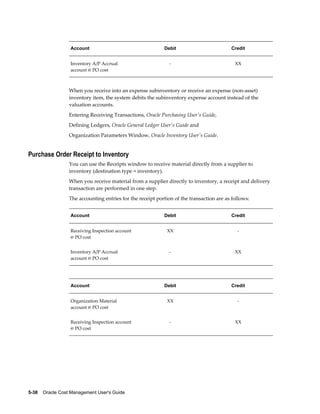
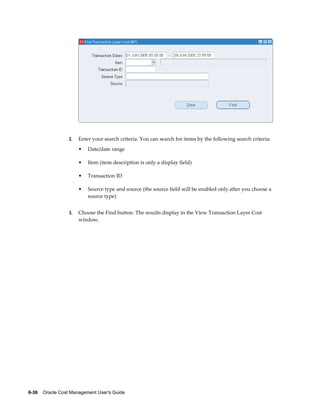
  • 691.
    Product Line AccountingSetup    E-1 E Product Line Accounting Setup Product Line Accounting Product line accounting makes it possible for you to do all of the following: • Default WIP accounting classes based on product line categories when converting planned orders to execution orders • Default WIP accounting classes based on product line categories when defining discrete jobs, associating repetitive assemblies and lines, and when performing work order-less completions • Perform distributions using these default WIP classes and their valuation and variance accounts • Track work in process and inventory transactions by product line Implementing Product Line Accounting To implement product line accounting, you must complete your product line accounting setup, then define and implement the Account Generation client extension. If you do not implement this extension, then the default WIP accounting classes defined in the Category Default WIP Accounting Classes window are used, but the accounts defined in the Category Accounts window are not, therefore your implementation will be incomplete. Note: Although these accounts are provided as default accounts, if these extensions are used, then it is not recommended to write new extensions. You should use Subledger Accounting (SLA) to derive custom accounts. See: Oracle Subledger Accounting Implementation Guide.
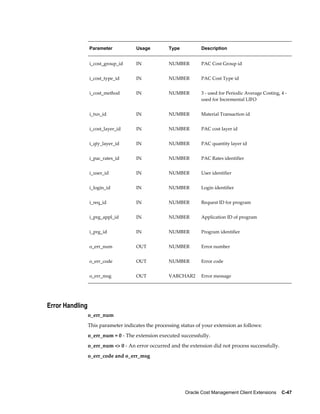
  • 692.
    E-2    Oracle CostManagement User's Guide See: Account Generation Extension, page C-12 See also: Client Extensions, page C-1 and Product Line Accounting Setup, page E-2 Product Line Accounting Setup Prerequisites Optionally, define a default category set and assign it to the Product Line Functional area. See: Defining Category Sets, Oracle Inventory User's Guide and Defining Default Category Sets, Oracle Inventory User's Guide To setup product line accounting, you must: 1. Create product line categories and associate them with the default category set you assigned to the Product Line Functional Area. 2. Define category accounts in the Category Accounts window. See: Defining Category Accounts, page 2-73. You can define category accounts for product line accounting in both standard and average costing organizations. 3. Define the WIP Accounting Classes that you plan to use as your default WIP accounting classes. See: WIP Accounting Classes, Oracle Work in Process User's Guide and Defining WIP Accounting Classes, Oracle Work in Process User's Guide. 4. Associate WIP accounting classes with categories. See: Associating WIP Accounting Classes with Categories, page 2-75. You can define WIP accounting classes at the category level in standard costing organization and at the cost group/category level in average costing organization. Important: As of Release 11i, the Inter-organization Shipping Network window does not support additional product line accounts. For more information about how default WIP Accounting Classes are used see: WIP Accounting Classe Defaults, Work in Process User's Guide. Related Topics Product Line Accounting, page E-1
  • 693.
    Character Mode Formsand Corresponding GUI Windows    F-1 F Character Mode Forms and Corresponding GUI Windows Oracle Cost Management Character Mode Forms and Corresponding GUI Windows The following table matches character mode forms with their corresponding GUI windows or processes. This information supplements Windows and Navigator Paths in the product online documentation. Text in brackets ([ ]) indicates a button. The GUI Navigator paths are based on the Cost Manager GUI US1 responsibility. For more information on any window, navigate to the window and choose the help icon. Character Mode Form and Menu Path GUI Window or Process, and Navigation Path Assign Descriptive Security Rules Navigate Setup Flexfields Descriptive Security Assign Define Security Rules Navigator: Setup > Flexfields > Descriptive > Security > Define Assign Key Flexfield Security Rules Navigate Setup Flexfields Key Security Assign Assign Security Rules Navigator: Setup > Flexfields > Key > Security > Assign Assign Security Rules Navigate Setup Flexfields Validation Security Assign Assign Security Rules Navigator: Setup > Flexfields > Validation > Security > Assign
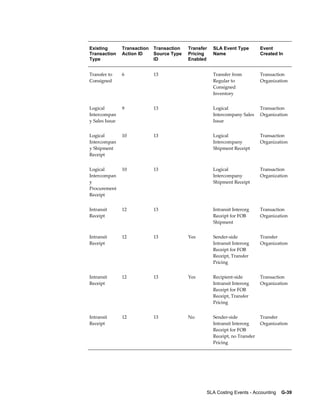
  • 694.
    F-2    Oracle CostManagement User's Guide Character Mode Form and Menu Path GUI Window or Process, and Navigation Path Change Organization Navigate Other ChangeOrg Organizations Navigator: Change Organization Close Accounting Period Navigate Period Close Inventory Accounting Periods Navigator: Accounting Close Cycle > Inventory Accounting Periods Close Discrete Jobs Navigate CloseJobs Close Discrete Jobs Navigator: Discrete Jobs > Close Discrete Jobs > Close Discrete Jobs (SRS) or Navigator: Discrete Jobs > Close Discrete Jobs > Close Discrete Jobs (Forms) Compare Bills of Material Navigate Inquiry BOM Bill Compare Bill Components Comparison Navigator: Operational Analysis > View Bills > Comparison Copy Item Cost Information Navigate ItemCost Copy Copy Cost Information Navigator: Cost Mass Edits > Copy Cost Information Define Account Alias Navigate Setup SystemAcct AcctAlias Account Aliases Navigator: Setup > Account Assignments > Account Aliases Define Accounting Flexfield Combination Navigate Setup Financial Accounts GL Accounts Navigator: Setup > Account Assignments > Accounts Define Activities Navigate Setup Activity Activities Navigator: Setup > Activities Define Alternates Navigate Setup Alternates Alternates Navigator: Setup > Alternates
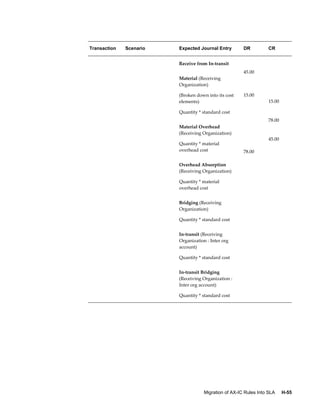
  • 695.
    Character Mode Formsand Corresponding GUI Windows    F-3 Character Mode Form and Menu Path GUI Window or Process, and Navigation Path Define Calendar Navigate Setup Financial Calendar Periods Accounting Calendar Navigator: Setup > Financials > Accounting Calendar > Accounting Define Category Navigate Setup Category Name Categories Navigator: Setup > Categories > Category Codes Define Category Set Navigate Setup Category Set Category Set Navigator: Setup > Categories > Category Sets Define Cost Type Navigate Setup CostType Cost Types Navigator: Setup > Cost Types Define Cross-Validation Rule Navigate Setup Flexfields Key Rules Cross-Validation Rules Navigator: Setup > Flexfields > Key > Rules Define Currency Navigate Setup Financial Currencies Define Currencies Navigator: Setup > Financials > Currencies > Currencies Define Daily Rates Navigate Setup Financial Currencies Rates Daily Daily Rates Navigator: Setup > Financials > Currencies > Daily Rates Define Default Category Sets Navigate Setup Category Defaults Default Category Sets Navigator: Setup > Categories > Default Category Sets Define Default Material Overhead Navigate Setup Sub-Element Defaults Material Overhead Defaults Navigator: Setup > Sub-Elements > Defaults Define Descriptive Flexfield Segments Navigate Setup Flexfields Descriptive Segments Descriptive Flexfield Segments Navigator: Setup > Flexfields > Descriptive > Segments
  • 696.
    F-4    Oracle CostManagement User's Guide Character Mode Form and Menu Path GUI Window or Process, and Navigation Path Define Descriptive Security Rule Navigate Setup Flexfields Descriptive Security Define Define Security Rules Navigator: Setup > Flexfields > Descriptive > Security > Define Define Descriptive Segment Values Navigate Setup Flexfields Descriptive Values Segment Values Navigator: Setup > Flexfields > Descriptive > Values Define Employee Labor Rate Navigate Setup Employee Rates Employee Labor Rates Navigator: Setup > Employees > Labor Rates Define Freight Carriers Navigate Setup SystemAcct FrtCarrier Freight Carriers Navigator: Setup > Account Assignments > Freight Carriers Define Item Costs Navigate ItemCost Define Item Costs Summary Navigator: Item Costs > Item Costs and Item Costs Navigator: Item Costs > Item Costs > [Costs] and Item Costs Details Navigator: Item Costs > Item Costs > [New] Define Key Flexfield Security Rule Navigate Setup Flexfields Key Security Define Define Security Rules Navigator: Setup > Flexfields > Key > Security > Define Define Key Flexfield Segments Navigate Setup Flexfields Key Segments Key Flexfield Segments Navigator: Setup > Flexfields > Key > Segments Define Key Segment Values Navigate Setup Flexfields Key Values Segment Values Navigator: Setup > Flexfields > Key > Values
  • 697.
    Character Mode Formsand Corresponding GUI Windows    F-5 Character Mode Form and Menu Path GUI Window or Process, and Navigation Path Define Material Sub-Elements Navigate Setup Sub-Element Material Material Subelements Navigator: Setup > Sub-Elements > Material Define Organization Parameters Navigate Setup SystemAcct Organization Organization Parameters Navigator: Setup > Account Assignments > Organization Parameters Define Organization Shipping Network Navigate Setup SystemAcct InterOrg Shipping Networks Navigator: Setup > Account Assignments > Shipping Network Define Overhead Navigate Setup Sub-Element Overhead Overhead Rates Navigator: Setup > Sub-Elements > Overheads > [Rates] and Overheads Navigator: Setup > Sub-Elements > Overheads and Resource Overhead Associations Navigator: Setup > Sub-Elements > Overheads > [Resources] Define Period Rates Navigate Setup Financial Currencies Rates Period Period Rates Navigator: Setup > Financials > Currencies > Period Rates Define Period Types Navigate Setup Financial Calendar Types Period Types Navigator: Setup > Financials > Accounting Calendar > Types Define Resource Navigate Setup Sub-Element Resource Resources Navigator: Setup > Sub-Elements > Resources
  • 698.
    F-6    Oracle CostManagement User's Guide Character Mode Form and Menu Path GUI Window or Process, and Navigation Path Define Rollup Groups Navigate Setup Flexfields Key Groups Rollup Groups Navigator: Setup > Flexfields > Key > Groups Define Security Rule Navigate Setup Flexfields Validation Security Define Define Security Rules Navigator: Setup > Flexfields > Validation > Security > Define Define Segment Values Navigate Setup Flexfields Validation Values Segment Values Navigator: Setup > Flexfields > Validation > Values Define Ledger Navigate Setup Financial Books Ledger Navigator: Setup > Financials > Books Define Shorthand Aliases Navigate Setup Flexfields Key Aliases Shorthand Aliases Navigator: Setup > Flexfields > Key > Aliases Define Subinventory Navigate Setup SystemAcct Subinventory Subinventories Summary Navigator: Setup > Account Assignments > Subinventories Define Value Set Navigate Setup Flexfields Validation Sets Value Sets Navigator: Setup > Flexfields > Validation > Sets Define WIP Accounting Class Navigate Setup SystemAcct WipClass WIP Accounting Classes Navigator: Setup > Account Assignments > WIP Accounting Classes Enter Employee Navigate Setup Employee Enter Enter Person Navigator: Setup > Employees > Persons Mass Edit Item Accounts Navigate ItemCost MassEdit Account Mass Edit Item Accounts Navigator: Cost Mass Edits > Mass Edit Item Accounts
  • 699.
    Character Mode Formsand Corresponding GUI Windows    F-7 Character Mode Form and Menu Path GUI Window or Process, and Navigation Path Mass Edit Item Cost Information Navigate ItemCost MassEdit Cost Mass Edit Cost Information Navigator: Cost Mass Edits > Mass Edit Cost Information Open Accounting Periods Navigate Period Open Inventory Accounting Periods Navigator: Accounting Close Cycle > Inventory Account Periods Purge Cost Information Navigate ItemCost Purge Purge Cost Information Navigator: Cost Mass Edits > Purge Cost Information Purge Standard Cost Update History Navigate ItemCost Update Purge Purge Standard Cost History Navigator: Item Costs > Standard Cost Update > Purge Cost Update History Request Bill of Material Reports Navigate Report BOM Report Item Cost Information Navigator: Reports > Cost > Item Request Chart of Accounts Reports Navigate Report Account Request Chart of Accounts Reports Navigator: Report > Account Request Cost Audit Reports Navigate Report Audit Audit Information Report Navigator: Report > Audits Request Cost Setup Reports Navigate Report Setup Request Cost Setup Reports Navigator: Report > Setup [Submit a New Request] Request Interface Managers Navigate Other InterfaceMgr Interface Managers Navigator: Setup > Interface Managers Request Inventory Reports Navigate Report INV Request Value Reports Navigator: Report > Value > Item [Submit a New Request]
  • 700.
    F-8    Oracle CostManagement User's Guide Character Mode Form and Menu Path GUI Window or Process, and Navigation Path Request Item Cost Reports Navigate Report Cost Item Report Item Cost Information Navigator: Report > Cost > Item [Submit a New Request] Request Margin Analysis Reports Navigate Report Margin Request Analysis Reports Navigator: Report > Operational Analysis Request MRP Cost Reports Navigate Report MRP Request Analysis Reports Navigator: Report > Operational Analysis Request Purchasing Reports Navigate Report PUR Request Analysis Reports Navigator: Report > Operational Analysis Request Work in Process Reports Navigate Report WIP Request Transaction Reports Navigator: Report > Transactions Run Reports Navigate Report Obsolete in GUI Search Items Navigate Inquiry Item Catalog Item Search Navigator: Operational Analysis > View Material > Item Search Transfers Transactions to General Ledger Navigate Period GLTransfer General Ledger Transfer Navigator: Accounting Close Cycle > General Ledger Transfers Update Accounting Periods Navigate Period Update Inventory Accounting Periods Navigator: Accounting Close Cycle > Inventory Accounting Periods Update Average Cost Navigate ItemCost Update Update Update Average Cost Navigator: Item Costs > Average Cost Update > Update Costs
  • 701.
    Character Mode Formsand Corresponding GUI Windows    F-9 Character Mode Form and Menu Path GUI Window or Process, and Navigation Path Update Personal Profile Options Navigate Other Profile Personal Profile Values Navigator: Setup > Profiles Update Standard Costs Navigate ItemCost Update Update Standard Cost Update Navigator: Item Costs > Standard Cost Update > Update Costs View Activities Navigate Inquiry Setup Activity Activities Navigator: Setup > Activities View Bill of Material Details Navigate Inquiry BOM Bill Detail Bills of Material Navigator: Operational Analysis > View Bills > Bills View Component Item Requirements Navigate Inquiry WIP Components View Material Requirements Navigator: Operational Analysis > View Work in Process > Material Requirements View Concurrent Requests Navigate Other Request Requests Navigator: Requests Choose: [View Output] - to view Request Output [View Log] button - to view Request Log Use the Menu to choose: Tools Menu > Managers - to view Manager Log View Cost Type Navigate Inquiry Setup CostType Cost Types Navigator: Setup > Cost Types View Department Navigate Inquiry Setup Department Departments Navigator: Operational Analysis > View Routings > Departments
  • 702.
    F-10    Oracle CostManagement User's Guide Character Mode Form and Menu Path GUI Window or Process, and Navigation Path View Discrete Job Navigate Inquiry WIP Discrete Job View Discrete Jobs Navigator: View Work in Process > Discrete Jobs View Indented Bill of Material Navigate Inquiry BOM Bill Indented Indented Bills of Material Navigator: Item Costs > ViewCosted Indented Bills > [Find] View Item Attributes Navigate Inquiry Items Attributes Find Item Information Navigator: Operational Analysis > View Materials> Item Information View Item Cost Information Navigate Inquiry Cost Item View Item Costs Details Navigator: Item Costs > Item Costs > [Views] > [Details] and View Item Costs Summary Navigator: Item Costs > Item Costs > [Views] View Item Quantities Navigate Inquiry INV Onhand Item Item On-hand Quantities Navigator: Operational Analysis > View Material > On-hand Quantities View Item Standard Cost History Navigate Inquiry CostHistory Standard Cost History Navigator: Item Costs > Standard Cost Update > View Cost History View Item Status Navigate Inquiry Item Status Use the Inventory responsibility and See: Inventory Character Mode Forms and Corresponding GUI Windows View Item Usage Navigate Inquiry BOM WhereUsed Item Item WhereUsed Navigator: Operational Analysis > View Bills > Item Usages
  • 703.
    Character Mode Formsand Corresponding GUI Windows    F-11 Character Mode Form and Menu Path GUI Window or Process, and Navigation Path View Job Lot Composition Navigate Inquiry WIP Discrete Lot Use the Work in Process responsibility and See: Work in Proceess Character Mode Forms and Corresponding GUI Windows. View Jobs by Assembly Navigate Inquiry WIP Discrete Assembly View Discrete Jobs Navigator: Operational Analysis > View Work in Process > Discrete Jobs (by Assembly) View Locator Quantities Navigate Inquiry INV Onhand Locator Use the Inventory responsibility and See: Inventory Character Mode Forms and Corresponding GUI Windows. View Material Overhead Defaults Navigate Inquiry Setup Defaults Material Overhead Defaults Navigator: Setup > Sub-Elements > Defaults View Material Sub-Elements Navigate Inquiry Setup Material Material Subelements Navigator: Setup > Sub-Elements > Material View Negative Inventory Information Navigate Inquiry INV Onhand Negative Use the Inventory responsibility and See: Inventory Character Mode Forms and Corresponding GUI Windows. View Overhead Navigate Inquiry Setup Overhead Overheads Navigator: Setup > Sub-Elements > Overheads View Pending Interface Activity Navigate Inquiry Transact Interface Use the Inventory responsibility and See: Inventory Character Mode Forms and Corresponding GUI Windows. View Pending WIP Transactions Navigate Inquiry WIP Interface Pending Move Transactions Navigator: View Transactions > Pending Move Transactions and Pending Resource Transactions Navigator: View Transactions > Pending Resource Transactions
  • 704.
    F-12    Oracle CostManagement User's Guide Character Mode Form and Menu Path GUI Window or Process, and Navigation Path View Period Close Information Navigate Inquiry INV PeriodClose Inventory Accounting Periods Navigator: Accounting Close Cycle > Inventory Accounting Periods View Purchase History Navigate Inquiry PUR PoHistory Supplier Item Catalog Navigator: Operational Analysis > View Purchases > Purchase Item History View Purchase Order Distributions Navigate Inquiry PUR PoDistributions Purchase Order Distributions Navigator: Operational Analysis > View Purchases > Purchase Orders > [Find] View Purchase Order Navigate Inquiry PUR Purchases Purchase Orders Navigator: Operational Analysis > View Purchases > Purchase Orders View Receiving Transactions Navigate Inquiry PUR Receipts Receiving Transactions Navigator: View Transactions > Receiving Transactions View Requisition Distributions Navigate Inquiry PUR ReqDistributions Requisition Header Summary Navigator: Operational Analysis > View Purchases > Requisitions View Repetitive Schedules by Assembly Navigate Inquiry WIP Repetitive View Repetitive Schedules Summary Navigator: Operational Analysis > View Work in Process > Repetitive Schedules (by Assembly) [Find] View Reports Navigate Report View Requests Navigator: Requests To view Manager Log: Navigator: Requests > Tools menu > Managers View Resource Navigate Inquiry Setup Resource Resources Navigator: Setup > Sub-Elements > Resources
  • 705.
    Character Mode Formsand Corresponding GUI Windows    F-13 Character Mode Form and Menu Path GUI Window or Process, and Navigation Path View Resource Usage Navigate Inquiry BOM WhereUsed Resource Resource WhereUsed Navigator: Operational Analysis > View Routings > Resource Usage View Routing Navigate Inquiry BOM Routing Routings Navigator: Operational Analysis > View Routings > Routings View Standard Cost History Navigate Inquiry CostHistory Standard Cost History Navigator: Item Costs > Standard Cost Update > View Cost History View Standard Cost Updates Navigate Inquiry Cost Update View Standard Cost Update Navigator: Item Costs > Standard Cost Update > View Cost Update View Subinventory Quantities Navigate Inquiry INV Onhand Subinventory Item On-hand Quantities Navigator: Operational Analysis > View Material > On-hand Quantities View Transaction Distributions Navigate Inquiry INV Distribution Material Transaction Distributions Navigator: View Transactions > Material Distributions > [Find] View Transactions Navigate Inquiry INV Transactions Material Transactions Navigator: View Transactions > Material Transactions View Transactions by Source Type Navigate Inquiry INV Source Material Transactions Navigator: View Transactions > Material Transactions View WIP Operations Navigate Inquiry WIP Operations View Operations Navigator: Operational Analysis > View Work in Process > Operations
  • 706.
    F-14    Oracle CostManagement User's Guide Character Mode Form and Menu Path GUI Window or Process, and Navigation Path View WIP Transactions Navigate Inquiry WIP Transactions View Move Transactions Navigator: View Transactions > Move Transactions and View Resource Transactions Navigator: Transactions > Resource Transactions View WIP Value Navigate Inquiry WIP Value WIP Value Summary Navigator: View Transactions > WIP Value Summary > WIP Jobs and Schedules > [Value Summary]
  • 707.
    SLA Costing Events- Accounting    G-1 G SLA Costing Events - Accounting SLA Costing Events Model Event Entity: WIP Accounting Events Event Class Name Journal Line Types Event Type Name WIP Absorption Work in Process Valuation Resource Absorption   Estimated Scrap Absorption     Overhead Absorption Resource Overhead Absorption   Resource Absorption     Resource Rate Variance Estimated Scrap Absorption Outside Processing Work in Process Valuation Outside Processing Transaction   Resource Absorption     Overhead Absorption Shop Floor Delivery for Direct Items   Receiving Inspection IPV Transfer to Work Order   Purchase Price Variance  
  • 708.
    G-2    Oracle CostManagement User's Guide Event Class Name Journal Line Types Event Type Name   Offset   WIP Variance Work in Process Valuation Period Close Variance   Work in Process Variance Job Close Variance     Final Completion Variance WIP Lot Work in Process Valuation WIP Lot Split   Offset WIP Lot Merge     WIP Lot Update Quantity     WIP Lot Bonus WIP Cost Update Work in Process Valuation WIP Cost Update   Cost Update Adjustment   Event Entity: Receiving Accounting Events Event Class Name Journal Line Types Event Type Name Receipt into Receiving Inspection Accrual Receipt into Receiving Inspection   Receiving Inspection Return to Vendor   Clearing Logical Receipt     Logical Return to Vendor   Intercompany Accrual  
  • 709.
    SLA Costing Events- Accounting    G-3 Event Class Name Journal Line Types Event Type Name   Intercompany COGS   Delivery to Expense Destination Charge Delivery to Expense   Receiving Inspection Return to Receiving Inspection from Expense Period End Accrual Accrual Period End Accrual   Charge   Retroactive Price Adjustment to Receipt Accrual Retroactive Price Adjustment to Receipt   Retroactive Price Adjustment     Intercompany Cost of Goods Sold     Receiving Inspection   Retroactive Price Adjustment to Delivery Retroactive Price Adjustment Retroactive Price Adjustment to Delivery   Charge     Receiving Inspection   Event Entity: Accrual Write-Off Events Event Class Name Journal Line Types Event Type Name Accrual Write-Off Event Accrual Accrual Write-Off   Account     Offset  
  • 710.
    G-4    Oracle CostManagement User's Guide Event Class Name Journal Line Types Event Type Name   Exchange Rate Variance   Event Entity: Material Accounting Events Event Class Name Journal Line Types Event Type Name PO Delivery into Inventory Inventory Valuation Return to Receiving Inspection from Inventory   Receiving Inspection PO Delivery into Inventory   Clearing PO Delivery Adjustment   Material Overhead Absorption     Purchase Price Variance     Cost Variance Logical PO Delivery into Inventory   Shikyu Variance Logical PO Delivery Adjustment   Offset Logical PO Delivery into Inventory     Logical Return to Receiving Inspection from Inventory Sales Order Issue Inventory Valuation RMA Return   Cost of Goods Sold RMA Receipt   Deferred COGS Sales Order Issue   Cost Variance COGS Recognition   Cost Update Adjustment Logical Sales Order Issue     Logical RMA Receipt
  • 711.
    SLA Costing Events- Accounting    G-5 Event Class Name Journal Line Types Event Type Name     Backdated COGS Recognition     COGS Recognition Adjustment Internal Order to Expense Inventory Valuation Internal Order Issue to Expense   Offset Internal Order Receipt into Expense   Interorg Profit (OPM) Internal Order Receipt into Expense, no Transfer Pricing   Interorg Receivables Internal Order Receipt into Expense, Transfer Pricing   Interorg Payables Internal Order Issue to Expense, no Transfer Pricing     Internal Order Issue to Expense, Transfer Pricing WIP Material Inventory Valuation WIP Component Issue   Work in Process Valuation WIP Negative Component Issue   Material Overhead Absorption WIP Component Return   Cost Variance WIP Negative Component Return   Offset WIP Assembly Completion     WIP Assembly Return     WIP Assembly Scrap     WIP Assembly Scrap Return Consigned Inventory Ownership Transfer Inventory Valuation Transfer from Consigned to Regular Inventory
  • 712.
    G-6    Oracle CostManagement User's Guide Event Class Name Journal Line Types Event Type Name   Accrual Transfer from Regular to Consigned Inventory   Material Overhead Absorption     Purchase Price Variance     Cost Variance   Miscellaneous Inventory Valuation Move Order Issue   Offset Account Alias Issue   Cost Variance Account Issue     Account Receipt     Account Alias Receipt     Miscellaneous Issue     Miscellaneous Receipt     Project Contract Issue     Inventory Lot Translate     Internal Requisition Receipt Adjustment     Shipment Receipt Adjustment     Cycle Count Adjustment     Physical Inventory Adjustment Intraorganization Transfer Inventory Valuation Move Order Transfer   Cost Variance Internal Order Transfer
  • 713.
    SLA Costing Events- Accounting    G-7 Event Class Name Journal Line Types Event Type Name   Offset Cycle Count Transfer     Physical Inventory Transfer     Subinventory Transfer     Cost Group Transfer     Planning Transfer     Internal Order Staging Transfer     Sales Order Staging Transfer Direct Interorg Shipment Inventory Valuation Direct Interorg Shipment   Interorg Receivables Direct Interorg Shipment, No Transfer Price   Interorg Transfer Credit Direct Interorg Shipment, Transfer Price   Interorg Freight Charge     Interorg Payables     Material Overhead Absorption     Offset     Purchase Price Variance     Interorg Profit (OPM)   Direct Interorg Receipt Inventory Valuation Direct Interorg Receipt   Interorg Receivables Direct Interorg Receipt, No Transfer Price
  • 714.
    G-8    Oracle CostManagement User's Guide Event Class Name Journal Line Types Event Type Name   Interorg Transfer Credit Direct Interorg Receipt, Transfer Price   Interorg Freight Charge     Interorg Payables     Material Overhead Absorption     Offset     Purchase Price Variance     Cost Variance   Intransit Interorg Shipment for FOB Receipt Inventory Valuation Intransit Interorg Shipment for FOB Receipt   Intransit Valuation     Offset   Sender-side Intransit Interorg Receipt for FOB Receipt Intransit Valuation Sender-side Intransit Interorg Receipt for FOB Receipt without Transfer Pricing   Interorg Profit (OPM) Sender-side Intransit Interorg Receipt for FOB Receipt with Transfer Pricing   Interorg Transfer Credit     Interorg Freight Charge     Interorg Receivables     Cost of Goods Sold     Offset  
  • 715.
    SLA Costing Events- Accounting    G-9 Event Class Name Journal Line Types Event Type Name Recipient-side Intransit Interorg Receipt for FOB Receipt Inventory Valuation Recipient-side Intransit Interorg Receipt for FOB Receipt without Transfer Pricing   Interorg Payables Recipient-side Intransit Interorg Receipt for FOB Receipt with Transfer Pricing   Material Overhead Absorption     Purchase Price Variance     Intercompany Expense     Profit in Inventory     Cost Variance     Offset   Sender-side Intransit Interorg Shipment for FOB Shipment Inventory Valuation Sender-side Intransit Interorg Shipment for FOB Shipment without Transfer Pricing   Interorg Profit (OPM) Sender-side Intransit Interorg Shipment for FOB Shipment with Transfer Pricing   Interorg Transfer Credit     Interorg Receivables     Cost of Goods Sold     Offset   Recipient-side Intransit Interorg Shipment for FOB Shipment Intransit Valuation Recipient-side Intransit Interorg Shipment for FOB Shipment without Transfer Pricing
  • 716.
    G-10    Oracle CostManagement User's Guide Event Class Name Journal Line Types Event Type Name   Interorg Payables Recipient-side Intransit Interorg Shipment for FOB Shipment with Transfer Pricing   Interorg Freight Charge     Material Overhead Absorption     Purchase Price Variance     Intercompany Expense     Profit in Inventory     Cost Variance     Offset   Intransit Interorg Receipt for FOB Shipment Inventory Valuation Intransit Interorg Receipt for FOB Shipment   Intransit Valuation     Offset   Material Cost Update Inventory Valuation Standard Cost Update   Cost Variance Average Cost Update   Cost Update Adjustment IPV Transfer to Inventory   Intransit Valuation Layer Cost Update Retroactive Price Adjustment Accrual Retroactive Price Adjustment   Retroactive Price Adjusment   Logical Intercompany Inventory Valuation Logical Intercompany Sales Issue
  • 717.
    SLA Costing Events- Accounting    G-11 Event Class Name Journal Line Types Event Type Name   Intercompany Accrual Logical Intercompany Sales Return   Clearing Logical Intercompany Shipment Receipt   Intercompany COGS Logical Intercompany Receipt Return   Offset Logical Intercompany Procurement Receipt     Logical Intercompany Procurement Return WIP Material Lot Work in Process Valuation Lot Split   Offset Lot Merge     Lot Bonus     Lot Quantity Update Event Class Journal Line Type Conditions Event Entity: WIP Accounting Events Event Class Name Journal Line Types Condition to Generate the Journal Line WIP Absorption Work in Process Valuation Accounting Line Type = 7   Estimated Scrap Absorption Accounting Line Type = 29   Overhead Absorption Accounting Line Type = 3   Resource Absorption Accounting Line Type = 4
  • 718.
    G-12    Oracle CostManagement User's Guide Event Class Name Journal Line Types Condition to Generate the Journal Line   Resource Rate Variance Accounting Line Type = 6 Outside Processing Work in Process Valuation Accounting Line Type = 7   Resource Absorption Accounting Line Type = 4   Overhead Absorption Accounting Line Type = 3   Receiving Inspection Accounting Line Type = 5   Purchase Price Variance Accounting Line Type = 6   Offset Accounting Line Type = 2 WIP Variance Work in Process Valuation Accounting Line Type = 7   Work in Process Variance Accounting Line Type = 8 WIP Lot Work in Process Valuation Accounting Line Type =21 OR Accounting Line Type =22 OR Accounting Line Type =23 OR Accounting Line Type =24 OR Accounting Line Type =26 OR Accounting Line Type =28   Offset Accounting Line Type =25 OR Accounting Line Type =27 WIP Cost Update Work in Process Valuation Accounting Line Type =7   Cost Update Adjustment Accounting Line Type =2
  • 719.
    SLA Costing Events- Accounting    G-13 Event Entity: Receiving Accounting Events Event Class Name Journal Line Types Condition to Generate the Journal Line Receipt into Receving Inspection Accrual Receiving Accounting Line Type = 'Accrual'   Receiving Inspection Receiving Accounting Line Type = 'Receiving Inspection'   Clearing Receiving Accounting Line Type = 'Clearing'   Intercompany Accrual Receiving Accounting Line Type = 'IC Accrual'   Intercompany COGS Receiving Accounting Line Type = 'IC Cost of Sales' Delivery to Expense Destination Charge Receiving Accounting Line Type = 'Charge'   Receiving Inspection Receiving Accounting Line Type = 'Receiving Inspection' Period End Accrual Accrual Receiving Accounting Line Type = 'Accrual'   Charge Receiving Accounting Line Type = 'Charge' Retroactive Price Adjustment to Receipt Accrual Receiving Accounting Line Type = 'Accrual'   Retroactive Price Adjustment Receiving Accounting Line Type = 'Retroprice Adjustment'   Intercompany Cost of Goods Sold Receiving Accounting Line Type = 'IC Cost of Sales'   Receiving Inspection Receiving Accounting Line Type = 'Receiving Inspection'
  • 720.
    G-14    Oracle CostManagement User's Guide Event Class Name Journal Line Types Condition to Generate the Journal Line Retroactive Price Adjustment to Delivery Retroactive Price Adjustment Receiving Accounting Line Type = 'Retroprice Adjustment'   Charge Receiving Accounting Line Type = 'Charge'   Receiving Inspection Receiving Accounting Line Type = 'Receiving Inspection' Event Entity: Accrual Write-Off Events Event Class Name Journal Line Types Condition to Generate the Journal Line Accrual Write-Off Event Accrual Line Number =1   Offset Line Number =1   Accrual to Offset ERV Line Number =2   Exchange Rate Variance Line Number =2 Event Entity: Material Accounting Events Event Class Name Journal Line Types Condition to Generate the Journal Line PO Delivery into Inventory Inventory Valuation Accounting Line Type =1   Receiving Inspection Accounting Line Type =5   Clearing Accounting Line Type =31
  • 721.
    SLA Costing Events- Accounting    G-15 Event Class Name Journal Line Types Condition to Generate the Journal Line   Material Overhead Absorption Accounting Line Type =3   Purchase Price Variance Accounting Line Type =6   Cost Variance Accounting Line Type =13   Shikyu Variance Accounting Line Type =33   Offset Accounting Line Type =2 Sales Order Issue Inventory Valuation Accounting Line Type =1   Cost of Goods Sold Accounting Line Type =35   Deferred COGS Accounting Line Type =36   Cost Variance Accounting Line Type =13   Cost Update Adjustment Accounting Line Type =37 Internal Order to Expense Inventory Valuation Accounting Line Type =1   Offset Accounting Line Type =2   Interorg Profit (OPM) Accounting Line Type =34   Interorg Receivables Accounting Line Type =10   Interorg Payables Accounting Line Type =9 WIP Material Inventory Valuation Accounting Line Type =1   Work in Process Valuation Accounting Line Type =7
  • 722.
    G-16    Oracle CostManagement User's Guide Event Class Name Journal Line Types Condition to Generate the Journal Line   Material Overhead Absorption Accounting Line Type =3   Cost Variance Accounting Line Type =13   Offset Accounting Line Type =2 Consigned Inventory Ownership Transfer Inventory Valuation Accounting Line Type =1   Accrual Accounting Line Type =16   Material Overhead Absorption Accounting Line Type =3   Purchase Price Variance Accounting Line Type =6   Cost Variance Accounting Line Type =13 Miscellaneous Inventory Valuation Accounting Line Type =1   Offset Accounting Line Type =2   Cost Variance Accounting Line Type =13 Intraorganizati on Transfer Inventory Valuation Accounting Line Type =1   Cost Variance Accounting Line Type =13   Offset Accounting Line Type =2 Direct Interorg Shipment Inventory Valuation Accounting Line Type =1   Interorg Receivables Accounting Line Type =10
  • 723.
    SLA Costing Events- Accounting    G-17 Event Class Name Journal Line Types Condition to Generate the Journal Line   Interorg Transfer Credit Accounting Line Type =11   Interorg Freight Charge Accounting Line Type =12   Interorg Payables Accounting Line Type =9   Material Overhead Absorption Accounting Line Type =3   Offset Accounting Line Type =2   Purchase Price Variance Accounting Line Type =6   Interorg Profit (OPM) Accounting Line Type =34 Direct Interorg Receipt Inventory Valuation Accounting Line Type =1   Interorg Receivables Accounting Line Type =10   Interorg Transfer Credit Accounting Line Type =11   Interorg Freight Charge Accounting Line Type =12   Interorg Payables Accounting Line Type =9   Material Overhead Absorption Accounting Line Type =3   Offset Accounting Line Type =2   Purchase Price Variance Accounting Line Type =6   Cost Variance Accounting Line Type =13
  • 724.
    G-18    Oracle CostManagement User's Guide Event Class Name Journal Line Types Condition to Generate the Journal Line Intransit Interorg Shipment for FOB Receipt Inventory Valuation Accounting Line Type =1   Intransit Valuation Accounting Line Type =14   Offset Accounting Line Type =2 Sender-side Intransit Interorg Receipt for FOB Receipt Intransit Valuation Accounting Line Type =14   Interorg Profit (OPM) Accounting Line Type =34   Interorg Transfer Credit Accounting Line Type =11   Interorg Freight Charge Accounting Line Type =12   Interorg Receivables Accounting Line Type =10   Cost of Goods Sold Accounting Line Type =2 AND Accounted Amount >0   Offset Accounting Line Type =2 AND Accounted Amount <=0 Recipient-side Intransit Interorg Receipt for FOB Receipt Inventory Valuation Accounting Line Type =1   Interorg Payables Accounting Line Type =9   Material Overhead Absorption Accounting Line Type =3
  • 725.
    SLA Costing Events- Accounting    G-19 Event Class Name Journal Line Types Condition to Generate the Journal Line   Purchase Price Variance Accounting Line Type =6   Intercompany Expense Accounting Line Type =2 AND Accounted Amount <0   Profit in Inventory Accounting Line Type =30   Cost Variance Accounting Line Type =13   Offset Accounting Line Type =2 AND Accounted Amount >=0 Sender-side Intransit Interorg Shipment for FOB Shipment Inventory Valuation Accounting Line Type =1   Interorg Profit (OPM) Accounting Line Type =34   Interorg Transfer Credit Accounting Line Type =11   Interorg Receivables Accounting Line Type =10   Cost of Goods Sold Accounting Line Type =2 AND Accounted Amount >0   Offset Accounting Line Type =2 AND Accounted Amount <=0 Recipient-side Intransit Interorg Shipment for FOB Shipment Intransit Valuation Accounting Line Type =14   Interorg Payables Accounting Line Type =9
  • 726.
    G-20    Oracle CostManagement User's Guide Event Class Name Journal Line Types Condition to Generate the Journal Line   Interorg Freight Charge Accounting Line Type =12   Material Overhead Absorption Accounting Line Type =3   Purchase Price Variance Accounting Line Type =6   Intercompany Expense Accounting Line Type =2 AND Accounted Amount <0   Profit in Inventory Accounting Line Type =30   Cost Variance Accounting Line Type =13   Offset Accounting Line Type =2 AND Accounted Amount >=0 Intransit Interorg Receipt for FOB Shipment Inventory Valuation Accounting Line Type =1   Intransit Valuation Accounting Line Type =14   Offset Accounting Line Type =2 Material Cost Update Inventory Valuation Accounting Line Type =1   Cost Variance Accounting Line Type =13   Cost Update Adjustment Accounting Line Type =2   Intransit Valuation Accounting Line Type =14 Retroactive Price Adjustment Accrual Accounting Line Type =16
  • 727.
    SLA Costing Events- Accounting    G-21 Event Class Name Journal Line Types Condition to Generate the Journal Line   Retroactive Price Adjusment Accounting Line Type =32 Logical Intercompany Inventory Valuation Accounting Line Type =1   Intercompany Accrual Accounting Line Type =16   Clearing Accounting Line Type =31   Intercompany COGS Accounting Line Type =2 AND ( ( Accounted Amount >=0 AND Transaction Action Name =Logical Intercompany Sales ) OR ( Accounted Amount <=0 AND Transaction Action Name =Logical Intercompany Sales Return ) )   Offset Accounting Line Type =2 AND ( ( Accounted Amount <=0 AND Transaction Action Name =Logical Intercompany Receipt Return ) OR ( Accounted Amount >=0 AND Transaction Action Name =Logical Intercompany Receipt ) ) WIP Material Lot Work in Process Valuation Accounting Line Type =21 OR Accounting Line Type =22 OR Accounting Line Type =23 OR Accounting Line Type =24 OR Accounting Line Type =26 OR Accounting Line Type =28   Offset Accounting Line Type =25 OR Accounting Line Type =27 Event Class and Journal Line Type Assignments Receiving Accounting Events Event Class Name Journal Line Types JLT Selected when … Receipt into Receiving Inspection Accrual RALT = 'Accrual'
  • 728.
    G-22    Oracle CostManagement User's Guide Event Class Name Journal Line Types JLT Selected when …   Receiving Inspection RALT = 'Receiving Inspection'   Clearing RALT = 'Clearing'   Intercompany Accrual RALT = 'IC Accrual'   Intercompany COGS RALT = 'IC Cost of Sales' Delivery to Expense Destination Charge RALT = 'Charge'   Receiving Inspection RALT = 'Receiving Inspection' Period End Accrual Accrual RALT = 'Accrual'   Charge RALT = 'Charge' Retroactive Price Adjustment to Receipt Accrual RALT = 'Accrual'   Retroactive Price Adjustment RALT = 'Retroprice Adjustment'   Intercompany Cost of Goods Sold RALT = 'IC Cost of Sales'   Receiving Inspection RALT = 'Receiving Inspection' Retroactive Price Adjustment to Delivery Retroactive Price Adjustment RALT = 'Retroprice Adjustment'   Charge RALT = 'Charge'   Receiving Inspection RALT = 'Receiving Inspection'
  • 729.
    SLA Costing Events- Accounting    G-23 Material Accounting Events Event Class Name Journal Line Types JLT Selected when … PO Delivery into Inventory Inventory Valuation ALT =1   Receiving Inspection ALT =5   Clearing ALT =31   Material Overhead Absorption ALT =3   Purchase Price Variance ALT =6   Cost Variance ALT =13   Shikyu Variance ALT =33   Offset ALT =2 Sales Order Issue Inventory Valuation ALT =1   Cost of Goods Sold ALT =35   Deferred COGS ALT =36   Cost Variance ALT =13   Cost Update Adjustment ALT =37 Internal Order to Expense Inventory Valuation ALT =1   Offset ALT =2   Interorg Profit (OPM) ALT =34   Interorg Receivables ALT =10   Interorg Payables Interorg Payables
  • 730.
    G-24    Oracle CostManagement User's Guide Event Class Name Journal Line Types JLT Selected when … WIP Material Inventory Valuation ALT =1   Work in Process Valuation ALT =7   Material Overhead Absorption ALT =3   Cost Variance ALT =13   Offset ALT =2 Consigned Inventory Ownership Transfer Inventory Valuation ALT =1   Accrual ALT =16   Material Overhead Absorption ALT =3   Purchase Price Variance ALT =6   Cost Variance ALT =13 Miscellaneous Inventory Valuation ALT =1   Offset ALT =2   Cost Variance ALT =13 Intraorganization Transfer Inventory Valuation ALT =1   Cost Variance ALT =13   Offset ALT =2 Direct Interorg Shipment Inventory Valuation ALT =1   Interorg Receivables ALT =10
  • 731.
    SLA Costing Events- Accounting    G-25 Event Class Name Journal Line Types JLT Selected when …   Interorg Transfer Credit ALT =11   Interorg Freight Charge ALT =12   Interorg Payables ALT =9   Material Overhead Absorption ALT =3   Offset ALT =2   Purchase Price Variance ALT =6   Interorg Profit (OPM) ALT =34 Direct Interorg Receipt Inventory Valuation ALT =1   Interorg Receivables ALT =10   Interorg Transfer Credit ALT =11   Interorg Freight Charge ALT =12   Interorg Payables ALT =9   Material Overhead Absorption ALT =3   Offset ALT =2   Purchase Price Variance ALT =6   Cost Variance ALT =13 Intransit Interorg Shipment for FOB Receipt Inventory Valuation ALT =1   Intransit Valuation ALT =14   Offset ALT =2
  • 732.
    G-26    Oracle CostManagement User's Guide Event Class Name Journal Line Types JLT Selected when … Sender-side Intransit Interorg Receipt for FOB Receipt Intransit Valuation ALT =14   Interorg Profit (OPM) ALT =34   Interorg Transfer Credit ALT =11   Interorg Freight Charge ALT =12   Interorg Receivables ALT =10   Cost of Goods Sold ALT =2 AND AA >0   Offset ALT =2 AND AA <=0 Recipient-side Intransit Interorg Receipt for FOB Receipt Inventory Valuation ALT =1   Interorg Payables ALT =9   Material Overhead Absorption ALT =3   Purchase Price Variance ALT =6   Intercompany Expense ALT =2 AND AA <0   Profit in Inventory ALT =30   Cost Variance ALT =13   Offset ALT =2 AND AA >=0 Sender-side Intransit Interorg Shipment for FOB Shipment Inventory Valuation ALT =1   Interorg Profit (OPM) ALT =34   Interorg Transfer Credit ALT =11
  • 733.
    SLA Costing Events- Accounting    G-27 Event Class Name Journal Line Types JLT Selected when …   Interorg Receivables ALT =10   Cost of Goods Sold ALT =2 AND AA >0   Offset ALT =2 AND AA <=0 Recipient-side Intransit Interorg Shipment for FOB Shipment Intransit Valuation ALT =14   Interorg Payables ALT =9   Interorg Freight Charge ALT =12   Material Overhead Absorption ALT =3   Purchase Price Variance ALT =6   Intercompany Expense ALT =2 AND AA <0   Profit in Inventory ALT =30   Cost Variance ALT =13   Offset ALT =2 AND AA >=0 Intransit Interorg Receipt for FOB Shipment Inventory Valuation ALT =1   Intransit Valuation ALT =14   Offset ALT =2 Material Cost Update Inventory Valuation ALT =1   Cost Variance ALT =13   Cost Update Adjustment ALT =2
  • 734.
    G-28    Oracle CostManagement User's Guide Event Class Name Journal Line Types JLT Selected when …   Intransit Valuation ALT =14 Retroactive Price Adjustment Accrual ALT =16   Retroactive Price Adjusment ALT =32 Logical Intercompany Inventory Valuation ALT =1   Intercompany Accrual ALT =16   Clearing ALT =31   Intercompany COGS ALT =2 AND ( ( AA >=0 AND Transaction Action Name =Logical Intercompany Sales ) OR ( AA <=0 AND Transaction Action Name =Logical Intercompany Sales Return ) )   Offset ALT =2 AND ( ( AA <=0 AND Transaction Action Name =Logical Intercompany Receipt Return ) OR ( AA >=0 AND Transaction Action Name =Logical Intercompany Receipt ) ) WIP Material Lot Work in Process Valuation ALT =21 OR ALT =22 OR ALT =23 OR ALT =24 OR ALT =26 OR ALT =28   Offset ALT =25 OR ALT =27 WIP Accounting Events Event Class Name Journal Line Types JLT Selected when … WIP Absorption Work in Process Valuation ALT = 7
  • 735.
    SLA Costing Events- Accounting    G-29 Event Class Name Journal Line Types JLT Selected when …   Estimated Scrap Absorption ALT = 29   Overhead Absorption ALT = 3   Resource Absorption ALT = 4   Resource Rate Variance ALT = 6 Outside Processing Work in Process Valuation ALT = 7   Resource Absorption ALT = 4   Overhead Absorption ALT = 3   Receiving Inspection ALT = 5   Purchase Price Variance ALT = 6   Offset ALT = 2 WIP Variance Work in Process Valuation ALT = 7   Work in Process Variance ALT = 8 WIP Lot Work in Process Valuation ALT =21 OR ALT =22 OR ALT =23 OR ALT =24 OR ALT =26 OR ALT =28   Offset ALT =25 OR ALT =27 WIP Cost Update Work in Process Valuation ALT =7   Cost Update Adjustment ALT =2
  • 736.
    G-30    Oracle CostManagement User's Guide Accrual Write-Off Events Event Class Name Journal Line Types JLT Selected when … Accrual Write-Off Event Accrual LN =1   Account LN =1   Offset LN =2   Exchange Rate Variance LN =2 Legend AA = Accounted Amount ALT = Accounting Line Type LN = Line Number RALT = Receiving Accounting Line Type TAN = Transaction Action Name Event Transaction Type Mapping Receiving Event Transaction Mapping Existing Transaction Type Transaction Type it Corrects Transaction Type Identifier SLA Event Type Name Receive   1 Receipt into Receiving Inspection Deliver   2 Delivery to Expense Correct Deliver 3 Delivery to Expense Correct Return to Vendor 3 Return to Vendor Correct Return to Receiving 3 Return to Receiving
  • 737.
    SLA Costing Events- Accounting    G-31 Existing Transaction Type Transaction Type it Corrects Transaction Type Identifier SLA Event Type Name Correct Receive 3 Receipt into Receiving Inspection Correct Match 3 Receipt into Receiving Inspection Match   4 Receipt into Receiving Inspection Return to Receiving   5 Return to Receiving Return to Supplier   6 Return to Vendor Retroactive Price Adjustment to Receipt   7 Retroactive Price Adjustment to Receipt Retroactive Price Adjustment to Delivery   8 Retroactive Price Adjustment to Delivery Logical Receipt   9 Logical Receipt Logical Return to Vendor   10 Logical Return to Vendor Period End Accrual   14 Period End Accrual WIP Event Transaction Mapping Existing Transaction Type Existing Transaction Type ID Special Case SLA Event Type Name Resource transaction 1   Resource Absorption Overhead transaction 2   Overhead Absorption Outside processing 3   Outside Processing
  • 738.
    G-32    Oracle CostManagement User's Guide Existing Transaction Type Existing Transaction Type ID Special Case SLA Event Type Name Outside processing 3 IPV transfer to Work Order IPV Transfer to Work Order Cost update 4   WIP Cost Update Period close variance 5   Period Close Variance Job close variance 6   Job close variance Final completion variance 7   Final completion variance WIP Lot Split 11   WIP Lot Split WIP Lot Merge 12   WIP Lot Merge WIP Lot Bonus 13   WIP Lot Bonus WIP Lot Quantity Update 14   WIP Lot Quantity Update Estimated Scrap Absorption 15   Estimated Scrap Absorption Estimated Scrap Reallocation 16   Job Close Variance Direct Shopfloor Delivery 17   Shop Floor Delivery for Direct Items
  • 739.
    SLA Costing Events- Accounting    G-33 Inventory Event Transaction Mapping Existing Transaction Type Transaction Action ID Transaction Source Type ID Transfer Pricing Enabled SLA Event Type Name Event Created In Return to Vendor 1 1   Return to Receiving Inspection from Inventory Transaction Organization Transfer to Regular 6 1   Transfer from Consigned to Regular Inventory Transaction Organization Logical Return to Vendor 7 1   Logical Return to Receiving Inspection from Inventory Transaction Organization Logical PO Receipt Adjustment 11 1   Logical PO Delivery Adjustment Transaction Organization Retroactive Price Update 25 1   Retroactive Price Adjustment Transaction Organization Logical PO Receipt 26 1   Logical PO Delivery into Inventory Transaction Organization PO Receipt 27 1   PO Delivery into Inventory Transaction Organization PO Rcpt Adjust 29 1   PO Delivery Adjustment Transaction Organization Sales order issue 1 2   Sales Order Issue Transaction Organization Logical Sales Order Issue 7 2   Logical Sales Order Issue Transaction Organization Sales Order Pick 28 2   Sales Order Staging Transfer Transaction Organization
  • 740.
    G-34    Oracle CostManagement User's Guide Existing Transaction Type Transaction Action ID Transaction Source Type ID Transfer Pricing Enabled SLA Event Type Name Event Created In Account issue 1 3   Account Issue Transaction Organization Account receipt 27 3   Account Receipt Transaction Organization Move Order Issue 1 4   Move Order Issue Transaction Organization Move Order Transfer 2 4   Move Order Transfer Transaction Organization WIP Issue 1 5   WIP Component Issue Transaction Organization WIP Return 27 5   WIP Component Return Transaction Organization WIP assembly scrap 30 5   WIP Assembly Scrap Transaction Organization WIP return from scrap 30 5   WIP Assembly Scrap Transaction Organization WIP estimated scrap 30 5   WIP Assembly Scrap Transaction Organization WIP Completion 31 5   WIP Assembly Completion Transaction Organization WIP Byproduct Completion 31 5   WIP Assembly Completion Transaction Organization WIP Completion Return 32 5   WIP Assembly Return Transaction Organization
  • 741.
    SLA Costing Events- Accounting    G-35 Existing Transaction Type Transaction Action ID Transaction Source Type ID Transfer Pricing Enabled SLA Event Type Name Event Created In WIP Byproduct Return 32 5   WIP Assembly Return Transaction Organization WIP Negative Issue 33 5   WIP Negative Component Issue Transaction Organization WIP Negative Return 34 5   WIP Negative Component Return Transaction Organization WIP Lot Split 40 5   Lot Split Transaction Organization WIP Lot Merge 41 5   Lot Merge Transaction Organization WIP Lot Bonus 42 5   Lot Bonus Transaction Organization WIP Lot Quantity Update 43 5   Lot Quantity Update Transaction Organization Account alias issue 1 6   Account Alias Issue Transaction Organization Account alias receipt 27 6   Account Alias Receipt Transaction Organization Int Req Intr Rcpt 12 7   Intransit Interorg Receipt for FOB Shipment Transaction Organization Int Req Intr Rcpt 12 7 Yes Sender-side Intransit Interorg Receipt for FOB Receipt, Transfer Pricing Transfer Organization
  • 742.
    G-36    Oracle CostManagement User's Guide Existing Transaction Type Transaction Action ID Transaction Source Type ID Transfer Pricing Enabled SLA Event Type Name Event Created In Int Req Intr Rcpt 12 7 Yes Recipient-side Intransit Interorg Receipt for FOB Receipt, Transfer Pricing Transaction Organization Int Req Intr Rcpt 12 7 No Sender-side Intransit Interorg Receipt for FOB Receipt, no Transfer Pricing Transfer Organization Int Req Intr Rcpt 12 7 No Recipient-side Intransit Interorg Receipt for FOB Receipt, no Transfer Pricing Transaction Organization Int Req Rcpt Adjust 29 7   Internal Requisition Receipt Adjustment Transaction Organization Internal Order Xfer 2 8   Internal Order Transfer Transaction Organization Int Order Intr Ship 21 8 Yes Sender-side Intransit Interorg Shipment for FOB Shipment, Transfer Pricing Transaction Organization Int Order Intr Ship 21 8 Yes Recipient-side Intransit Interorg Shipment for FOB Shipment, Transfer Pricing Transfer Organization Int Order Intr Ship 21 8   Intransit Interorg Shipment for FOB Receipt Transaction Organization
  • 743.
    SLA Costing Events- Accounting    G-37 Existing Transaction Type Transaction Action ID Transaction Source Type ID Transfer Pricing Enabled SLA Event Type Name Event Created In Int Order Intr Ship 21 8 No Sender-side Intransit Interorg Shipment for FOB Shipment, no Transfer Pricing Transaction Organization Int Order Intr Ship 21 8 No Recipient-side Intransit Interorg Shipment for FOB Shipment, no Transfer Pricing Transfer Organization Internal Order Pick 28 8   Internal Order Staging Transfer Transaction Organization Cycle Count Transfer 2 9   Cycle Count Transfer Transaction Organization Cycle Count Adjust 4 9   Cycle Count Adjustment Transaction Organization Physical Inv Transfer 2 10   Physical Inventory Transfer Transaction Organization Physical Inv Adjust 8 10   Physical Inventory Adjustment Transaction Organization Standard cost update 24 11   Standard Cost Update Transaction Organization RMA Return 1 12   RMA Return Transaction Organization Logical RMA Receipt 26 12   Logical RMA Receipt Transaction Organization RMA Receipt 27 12   RMA Receipt Transaction Organization Miscellaneou s Issue 1 13   Miscellaneous Issue Transaction Organization
  • 744.
    G-38    Oracle CostManagement User's Guide Existing Transaction Type Transaction Action ID Transaction Source Type ID Transfer Pricing Enabled SLA Event Type Name Event Created In Field Service Usage 1 13   Miscellaneous Issue Transaction Organization Lot Conversion Decrease 1 13   Miscellaneous Issue Transaction Organization Deduct Sample Qty 1 13   Miscellaneous Issue Transaction Organization Miscellaneou s issue 1 13   Cost Group Transfer Transaction Organization Field Service Usage 1 13   Cost Group Transfer Transaction Organization Lot Conversion Decrease 1 13   Cost Group Transfer Transaction Organization Deduct Sample Qty 1 13   Cost Group Transfer Transaction Organization Subinventor y Transfer 2 13   Subinventory Transfer Transaction Organization Backflush Transfer 2 13   Subinventory Transfer Transaction Organization Project Borrow 2 13   Subinventory Transfer Transaction Organization Project Transfer 2 13   Subinventory Transfer Transaction Organization Project Payback 2 13   Subinventory Transfer Transaction Organization Planning Transfer 5 13   Planning Transfer Transaction Organization
  • 745.
    SLA Costing Events- Accounting    G-39 Existing Transaction Type Transaction Action ID Transaction Source Type ID Transfer Pricing Enabled SLA Event Type Name Event Created In Transfer to Consigned 6 13   Transfer from Regular to Consigned Inventory Transaction Organization Logical Intercompan y Sales Issue 9 13   Logical Intercompany Sales Issue Transaction Organization Logical Intercompan y Shipment Receipt 10 13   Logical Intercompany Shipment Receipt Transaction Organization Logical Intercompan y Procurement Receipt 10 13   Logical Intercompany Shipment Receipt Transaction Organization Intransit Receipt 12 13   Intransit Interorg Receipt for FOB Shipment Transaction Organization Intransit Receipt 12 13 Yes Sender-side Intransit Interorg Receipt for FOB Receipt, Transfer Pricing Transfer Organization Intransit Receipt 12 13 Yes Recipient-side Intransit Interorg Receipt for FOB Receipt, Transfer Pricing Transaction Organization Intransit Receipt 12 13 No Sender-side Intransit Interorg Receipt for FOB Receipt, no Transfer Pricing Transfer Organization
  • 746.
    G-40    Oracle CostManagement User's Guide Existing Transaction Type Transaction Action ID Transaction Source Type ID Transfer Pricing Enabled SLA Event Type Name Event Created In Intransit Receipt 12 13 No Recipient-side Intransit Interorg Receipt for FOB Receipt, no Transfer Pricing Transaction Organization Logical Intercompan y Receipt Return 13 13   Logical Intercompany Receipt Return Transaction Organization Logical Intercompan y Procurement Return 13 13   Logical Intercompany Receipt Return Transaction Organization Logical Intercompan y Sales Return 14 13   Logical Intercompany Sales Return Transaction Organization Intransit Shipment 21 13 Yes Sender-side Intransit Interorg Shipment for FOB Shipment, Transfer Pricing Transaction Organization Intransit Shipment 21 13 Yes Recipient-side Intransit Interorg Shipment for FOB Shipment, Transfer Pricing Transfer Organization Intransit Shipment 21 13   Intransit Interorg Shipment for FOB Receipt Transaction Organization
  • 747.
    SLA Costing Events- Accounting    G-41 Existing Transaction Type Transaction Action ID Transaction Source Type ID Transfer Pricing Enabled SLA Event Type Name Event Created In Intransit Shipment 21 13 No Sender-side Intransit Interorg Shipment for FOB Shipment, no Transfer Pricing Transaction Organization Intransit Shipment 21 13 No Recipient-side Intransit Interorg Shipment for FOB Shipment, no Transfer Pricing Transfer Organization Average cost update 24 13   Average Cost Update Transaction Organization Average cost update 24 13   IPV Transfer to Inventory Transaction Organization Miscellaneou s receipt 27 13   Miscellaneous Receipt Transaction Organization Field Service Recovery 27 13   Miscellaneous Receipt Transaction Organization Lot Conversion Increase 27 13   Miscellaneous Receipt Transaction Organization Shipment Rcpt Adjust 29 13   Shipment Receipt Adjustment Transaction Organization Inventory Lot Translate 42 13   Inventory Lot Translate Transaction Organization Cost Group Transfer 55 13   Cost Group Transfer Transaction Organization Layer Cost Update 24 15   Layer Cost Update Transaction Organization
  • 748.
    G-42    Oracle CostManagement User's Guide Existing Transaction Type Transaction Action ID Transaction Source Type ID Transfer Pricing Enabled SLA Event Type Name Event Created In Project Contract Issue 1 16   Project Contract Issue Transaction Organization COGS Recognition 36 2   COGS Recognition Adjustment Transaction Organization COGS Recognition 36 2   COGS Recognition Transaction Organization Direct Org Transfer 3 13 Yes Direct Interorg Shipment, Transfer Price Transaction Organization Direct Org Transfer 3 13 No Direct Interorg Shipment, No Transfer Price Transaction Organization Direct Org Transfer 3 13 Yes Direct Interorg Receipt, Transfer Price Transfer Organization Direct Org Transfer 3 13 No Direct Interorg Receipt, No Transfer Price Transfer Organization Logical Intransit Shipment 22 8 Yes Sender-side Intransit Interorg Receipt for FOB Receipt, Transfer Pricing Transaction Organization Logical Intransit Shipment 22 13 Yes Sender-side Intransit Interorg Receipt for FOB Receipt, Transfer Pricing Transaction Organization
  • 749.
    SLA Costing Events- Accounting    G-43 Existing Transaction Type Transaction Action ID Transaction Source Type ID Transfer Pricing Enabled SLA Event Type Name Event Created In Logical Intransit Receipt 15 7 Yes Recipient-side Intransit Interorg Shipment for FOB Shipment, Transfer Pricing Transaction Organization Logical Intransit Receipt 15 13 Yes Recipient-side Intransit Interorg Shipment for FOB Shipment, Transfer Pricing Transaction Organization Int Order Direct Ship 3 8 Yes Direct Interorg Shipment, Transfer Price Transaction Organization Int Order Direct Ship 3 8 No Direct Interorg Shipment, No Transfer Price Transaction Organization Int Order Direct Ship 3 8 Yes Direct Interorg Receipt, Transfer Price Transfer Organization Int Order Direct Ship 3 8 No Direct Interorg Receipt, No Transfer Price Transfer Organization Logical Expense Requisition Receipt 17 7 Yes Internal Order Receipt into Expense, Transfer Pricing Transaction Organization Logical Expense Requisition Receipt 17 7 No Internal Order Receipt into Expense, no Transfer Pricing Transaction Organization Internal order issue 1 8 Yes Internal Order Issue to Expense, Transfer Pricing Transaction Organization
  • 750.
    G-44    Oracle CostManagement User's Guide Existing Transaction Type Transaction Action ID Transaction Source Type ID Transfer Pricing Enabled SLA Event Type Name Event Created In Internal order issue 1 8 No Internal Order Issue to Expense, no Transfer Pricing Transaction Organization Int Req Direct Org Xfer 3 7 Yes Direct Interorg Receipt, Transfer Price Transaction Organization Int Req Direct Org Xfer 3 7 No Direct Interorg Receipt, No Transfer Price Transaction Organization Direct Org Transfer 3 13 Yes Direct Interorg Receipt, Transfer Price Transaction Organization Direct Org Transfer 3 13 No Direct Interorg Receipt, No Transfer Price Transaction Organization Int Req Direct Org Xfer 3 7 Yes Direct Interorg Receipt, Transfer Price Transfer Organization Int Req Direct Org Xfer 3 7 No Direct Interorg Receipt, No Transfer Price Transfer Organization
  • 751.
    Migration of AX-ICRules Into SLA     H-1 H Migration of AX-IC Rules Into SLA This appendix covers the following topics: • Overview of Global Accounting Rules into SLA • Setting Up AX Support for SLA • Migration of Rules • Supporting References • Upgrade Overview of Global Accounting Rules into SLA The Global Accounting Engine provides an accounting system for Oracle subledger applications, including Oracle Payables, Oracle Receivables, and Oracle Inventory that satisfies legal and fiscal requirements in certain countries. You can create subledger journal entries for Inventory and Work In Process (WIP) material transactions using permanent inventory accounting rules. There are Subledger Accounting (SLA) rules with the same functionality that is made available by the Global Accounting Engine (AX) rules in previous releases. Inventory rules from prior releases of the Global Accounting Engine (AX) are compatible with rules in the Sub Ledger Accounting (SLA) architecture. Setting Up AX Support for SLA This section describes the setup required for AX support in Subledger Accounting (SLA).
  • 752.
    H-2    Oracle CostManagement User's Guide
  • 753.
    Migration of AX-ICRules Into SLA     H-3 To set up the Subledger Accounting Method: 1. Navigate to the Subledger Accounting Methods window. In the Find Subledger Accounting Methods window, click the New button to create a new method, or enter search criteria to view existing subledger accounting methods.
  • 754.
    H-4    Oracle CostManagement User's Guide 2. Click New to create a Subledger Accounting Method for the Costing application. 3. Save your work.
  • 755.
    Migration of AX-ICRules Into SLA     H-5 To set up the Item Category flexfield structure: 1. Navigate to the Key Flexfield Segments window.
  • 756.
    H-6    Oracle CostManagement User's Guide 2. Enter Accounting (Item) Category details. 3. Save your work. To set up the Product Line Category: 1. From the Inventory responsibility, navigate to the Categories window. 2. Create a Category Code.
  • 757.
    Migration of AX-ICRules Into SLA     H-7 3. Create a Category Set.
  • 758.
    H-8    Oracle CostManagement User's Guide 4. Assign a Product Line Accounting functional area category set.
  • 759.
    Migration of AX-ICRules Into SLA     H-9 5. Save your work. To set up Category Accounts: 1. Navigate to the Category Accounts window. 2. Enter Category Account details. 3. Save your work. To assign the Product Line Category to items: 1. Navigate to the Organization Item window.
  • 760.
    H-10    Oracle CostManagement User's Guide 2. Select an Item from the Find Organization Items window.. 3. From the Tools menu, choose Categories. The Category Assignment window appears. 4. Enter the Category Set, Control Level, and Category. 5. Save your work. Setting Up for Inter-organization Transactions and Work In Process (WIP) • The inter-organization bridging, expense, and revenue accounts are set up in the Shipping Networks window. • The WIP bridging and expense accounts are set up in the WIP Accounting Class window. Migration of Rules Existing inventory rules in the Global Accounting Engine will be migrated into the Subledger Accounting Architecture. The rules have been migrated according to t he specifications defined in the following sections.
  • 761.
    Migration of AX-ICRules Into SLA     H-11 Receiving Transactions Transaction Scenario Expected Journal Entry DR CR Receipt into receiving inspection One-time item delivered to an expense destination 10 units of item @11.00 Receiving Area Quantity * PO price Expense Quantity * PO price 110.00 110.00 Asset item delivered to an expense destination 10 units of item @11.00 Receiving Area Quantity * PO price Expense Quantity * PO price 110.00 110.00 Asset item delivered to an inventory destination 10 units of item @11.00 Receiving Area Quantity * PO price Inventory AP Accrual Quantity * PO price 110.00 110.00   Expense item delivered to an inventory destination 10 units of item @11.00 Receiving Area Quantity * PO price Inventory AP Accrual Quantity * PO price 110.00 110.00
  • 762.
    H-12    Oracle CostManagement User's Guide Transaction Scenario Expected Journal Entry DR CR   OSP Item with Shop Floor Destination 10 units of item @11.00 Receiving Area Quantity * PO price Inventory AP Accrual Quantity * PO price 110.00 110.00 Return to Supplier fro