1001 Things You Wanted
To Know About
Visual FoxPro
Marcia Akins
Andy Kramek
Rick Schummer
Hentzenwerke Publishing
Published by:
Hentzenwerke Publishing
980 East Circle Drive
Whitefish Bay WI 53217 USA
Hentzenwerke Publishing books are available through booksellers and directly from the
publisher. Contact Hentzenwerke Publishing at:
414.332.9876
414.332.9463 (fax)
www.hentzenwerke.com
books@hentzenwerke.com
1001 Things You Wanted to Know About Visual FoxPro
By Marcia Akins, Andy Kramek and Rick Schummer
Technical Editor: John Hosier
Copy Editor: Julie A. Martin
Copyright © 2000 by Marcia Akins, Andy Kramek and Rick Schummer
All other products and services identified throughout this book are trademarks or registered
trademarks of their respective companies. They are used throughout this book in editorial
fashion only and for the benefit of such companies. No such uses, or the use of any trade name,
is intended to convey endorsement or other affiliation with this book.
All rights reserved. No part of this book, or the .CHM Help files available by download from
Hentzenwerke Publishing, may be reproduced or transmitted in any form or by any means,
electronic, mechanical photocopying, recording, or otherwise, without the prior written
permission of the publisher, except that program listings and sample code files may be entered,
stored and executed in a computer system.
The information and material contained in this book are provided “as is,” without warranty of
any kind, express or implied, including without limitation any warranty concerning the
accuracy, adequacy, or completeness of such information or material or the results to be
obtained from using such information or material. Neither Hentzenwerke Publishing nor the
authors or editors shall be responsible for any claims attributable to errors, omissions, or other
inaccuracies in the information or material contained in this book. In no event shall
Hentzenwerke Publishing or the authors or editors be liable for direct, indirect, special,
incidental, or consequential damages arising out of the use of such information or material.
ISBN: 0-9655093-3-8
Manufactured in the United States of America.
Dedications
Andy Kramek
This work is dedicated to my father, who was so proud when I began to have some of my
writing published, but died shortly before completion of this, latest, book which I know would
have made him even more happy.
Marcia Akins
To my sister Nancy who taught me that it's never too late to try and without whose help and
support I would not have been able to do all that I have in the past year. Thank you, I would
not have been able to write this book without you.
Rick Schummer
This book is dedicated to the memory of my Grandpa, Richard Holden. Grandpa gave me a
pep talk on the darkest day of my college career. I was actually considering giving up my path
to a degree in Computer Science from Oakland University. This man never finished high
school, yet is one of the wisest people I have met in this lifetime. Had it not been for his
perspective, I might not be the computer geek that I am today. For this direction I am eternally
grateful.
v
List of Chapters
Introduction 1
Chapter 1: Controlling the VFP Environment 3
Chapter 2: Functions and Procedures 31
Chapter 3: Design, Design and Nothing Else 55
Chapter 4: Basic Controls 85
Chapter 5: Combos and Lists 127
Chapter 6: Grids: The Misunderstood Controls 159
Chapter 7: Working with Data 197
Chapter 8: Data Buffering and Transactions 239
Chapter 9: Views in Particular, SQL in General 277
Chapter 10: Non-Visual Classes 313
Chapter 11: Forms and Other Visual Classes 363
Chapter 12: Developer Productivity Tools 391
Chapter 13: Miscellaneous Things 423
Chapter 14: Project Management 461
Chapter 15: Project Objects and Projecthooks 479
Chapter 16: Creating Reports 505
Chapter 17: Managing Reports 529
vi
vii
Table of Contents
Our Contract With You, The Reader xix
Acknowledgements xxi
About Us xxiii
How to Download the Files xxv
Introduction 1
What is this book? 1
A word about the code in this book 1
So who is this book for? 1
What is in this book? 2
What is not in this book? 2
Where do you start? 2
Chapter 1: Controlling the VFP Environment 3
Starting Visual FoxPro 3
Configuration files 3
How to specify a config.fpw file 4
How VFP locates its configuration file 4
How VFP starts up when no configuration file is found 4
Including a configuration file in the project 4
How to suppress a configuration file 5
How to determine which configuration file is being used 5
What goes into the configuration file? 5
Special settings 5
SET Commands 6
Commands 6
Giving VFP a path 7
How VFP looks for files 7
Setting the default directory 7
Using the SET PATH command 8
Where am I? 9
How to set a path programmatically 9
Making sure VFP is only started once 10
Using a 'semaphore' file 10
Using the Windows API 11
Combination of semaphore and Windows API 12
SET Commands and DataSessions 13
What exactly does "Default DataSession" mean? 13
viii
So can I have a "public" Datasession? 14
How can I ensure SET commands apply to a private data session? 14
Adding code to BeforeOpenTables() 15
Suppressing auto-open tables 16
Creating an environment setting class 16
How do I get rid of the system toolbars? 18
The system toolbar "Gotcha!" 18
Can I make use of keyboard macros in VFP? 19
How can I construct a more complex macro? 19
What is a "Macro Set"? 20
What's the difference between a macro and an On Key Label? 21
How do I create a 'Splash' screen? 22
How do I run my splash screen? 22
An alternative to the splash screen 23
How to wallpaper your desktop 23
So how can I get the size of the current _Screen area? 24
Do I really need to create all these bitmaps? 24
A toolbar 'gotcha!' 25
Tidying up your development environment 25
Closing VFP down 27
What is an On ShutDown procedure? 27
What triggers an On Shutdown procedure? 27
What goes into an On Shutdown procedure? 28
Chapter 2: Functions and Procedures 31
How shall we proceed? 31
Parameters (an aside) 32
By reference, by value? 32
How do I know what was passed? 33
How should I position my parameters? 33
How can I return multiple values from a function? 33
What about using named parameters? 34
Passing parameters optionally 35
Date and time functions 35
Elapsed time 35
Date in words 36
Calculating Age 37
What date is the second Tuesday in October of 2000? 37
Setting up a payment schedule 38
What date is ten business days from today? 40
Gotcha! Strict date format and parameterized views 41
Working with numbers 41
Converting numbers to strings 41
Gotcha! calculations that involve money 42
ix
String functions 42
Gotcha! string concatenation 42
Converting between strings and data 43
Other useful functions 44
How do I determine if a tag exists? 44
How do I determine if a string contains at least one alpha character? 45
How to convert numbers to words 46
How to extract a specified item from a list 49
Is there a simple way of encrypting passwords? 50
Where do you want to GOTO? 52
Chapter 3: Design, Design and Nothing Else 55
So why all the fuss about OOP anyway? 55
So, just what does all this OOP jargon mean? 56
Property 56
Method 56
Event 57
Messages 57
Classes and Objects 57
Inheritance 58
Composition 60
Aggregation 60
Delegation 61
Encapsulation 61
Polymorphism 61
Hierarchies 62
Practical object oriented programming (POOP) 62
When should you define a class? 62
So how do you go about designing a class? 63
This all sounds very good but what does it mean in practice? 64
How do you go about building your classes? 66
But does all this design stuff really work in practice? 67
How does the design actually translate into code? 69
Working with your classes 73
How do I get my classes into the form controls toolbar? 73
While we're at it, how can I identify my custom classes in the toolbar? 74
But whenever I want white in my bitmaps it shows up gray! 75
How do I make Visual FoxPro use my classes instead of base classes? 75
How do I change the caption of the label that VFP adds? 76
So can I get a browse to show the field name when a caption is set? 77
User interface design 78
Perception governs acceptance 78
Keep your users focussed 80
Use the right control for the job 81
x
Chapter 4: Basic Controls 85
What do we mean by 'basic'? 85
Text boxes 85
Text box label class 87
Date text box 88
Incremental search text box 89
Numeric text box 92
Handling time 101
A time entry text box 102
A time entry composite class 103
The true time spinner 107
Blinking labels 111
The expanding edit box 111
Calendar combo 118
Command buttons 120
Gotcha! Programming the logical controls 121
Pages and page frames 122
Chapter 5: Combos and Lists 127
Combo and list box basics 127
List and ListItem collections 127
When do the events fire? 129
How do I bind my combo and list boxes? 131
How do I refer to the items in my combo and list boxes? 132
What is the difference between DisplayValue and Value? 133
What's the difference between RowSourceTypes "alias" and "fields"? 134
How do I make my combo and list boxes point to a particular item? 135
Quickfill combos 135
How do I add new items to my combo and list boxes? 137
How do I filter the items displayed in a second combo or list box
based on the selection made in the first? 139
A word about lookup tables 142
Generic lookup combos and lists 143
So what if I want to bind my combo to a value that isn't in the list? 145
How do I disable individual items in a combo or list? 150
How do I create a list box with check boxes like the one displayed by
Visual FoxPro when I select "View Toolbars" from the menu? 151
A mover list class 153
What if I need to display hundreds of items in my combo box? 156
Chapter 6: Grids: The Misunderstood Controls 159
When do the events fire? 159
Gotcha! Grid's valid fires before the valid of the current control 160
xi
What is the difference between ActiveRow and RelativeRow? 161
ActiveColumn does not really tell you which is the active column 162
How do I highlight the current grid row? 162
Keeping a grid from scrolling when the user tabs off the last column 164
How do I create multiline headers? 165
Gotcha! Scrolled event does not fire when cursor keys scroll the grid 169
Using tool tip text instead of multiline headers 171
How do I change the grid's display order? 172
How do I control the cursor? 173
How do I display the last full page of a grid? 173
How do I use a grid to select one or more rows? 175
How do I give my multiselect grid incremental search capability? 176
How do I use DynamicCurrentControl? 178
How do I filter the contents of a grid? 180
So what about data entry grids? 182
How do I add new records to my grid? 182
How do I handle row level validation in my data entry grid? 184
How do I delete records in my data entry grid? 187
How do I add a combo box to my grid? 190
Conclusion 195
Chapter 7: Working with Data 197
Tables in Visual FoxPro 197
Some basics 197
How to open the specific table you want to use 197
How to get the structure of a table 199
How to compare the structures of two tables? 200
How to test for the presence of a field in a table 202
How to check if a table is being used by another user 204
What is exactly is a cursor? 206
Indexes in Visual FoxPro 208
Types of indexes 209
How to get information about an index 209
How to test for the existence of an index tag 210
Using candidate (and primary) keys 211
What is a "surrogate key"? 211
Managing user-entered keys 215
Using indexes with bound tables 217
How to index mixed data types when creating a compound key 218
How to index a buffered table 218
Working with the database container 220
Using long table names 220
Using long field names - don't!!! 221
Using database containers 222
xii
How to validate a database container 223
How to pack a database container 223
Moving a database container 224
Renaming a database container 226
Managing referential integrity in Visual FoxPro 227
Limitations of the generated RI Code 228
Using compound keys in relationships 229
What about other RI options? 231
Using triggers and rules in Visual FoxPro 231
So what's the practical difference between a 'trigger' and a 'rule'? 232
Why, when adding a trigger to a table, does VFP sometimes reject it? 232
Can I temporarily disable a trigger or rule then? 233
How do I actually create my trigger and rule procedures? 234
How do I add a trigger to a table? 235
So when should I use a trigger? 235
And when should I use a rule? 237
Must a trigger or rule always refer to a single function? 238
Chapter 8: Data Buffering and Transactions 239
Using data buffering 239
Where are we coming from? 239
What do we mean by 'buffering' anyway? 239
What does all this mean when creating data-bound forms? 241
So just how do I set up buffering in a form? 244
So what mode of buffering should I use in my forms? 245
Changing the buffer mode of a table 246
IsChanged() - another function that FoxPro forgot? 246
Using TableUpdate() and TableRevert() 249
Managing the scope of updates 249
TableUpdate()'s second (force) parameter 250
Specifying the table to be updated or reverted 251
Conclusion 251
How can I handle 'save' and 'undo' functionality generically? 252
The design of the form class 253
Using the new form class 255
Detecting and resolving conflicts 256
The role of OldVal() and CurVal() 257
So how do I actually detect conflicts? 258
OK then, having detected an update conflict, what can I do about it? 261
Conflict resolution sounds fine in theory, how does it work in practice? 262
Using transactions 269
When do I need a transaction? 269
What effect does rollback have on my data? 270
How does a transaction impact on FoxPro's locking mechanisms? 271
xiii
Can I use multiple transactions simultaneously? 272
Some things to watch for when using buffering in applications 274
Cannot use OLDVAL() to revert a field under table buffering 274
Gotcha! Row buffering and commands that move the record pointer 275
Chapter 9: Views in Particular, SQL in General 277
Visual FoxPro views 277
What exactly is a view? 277
How do I create a view? 278
When should I use a view instead of a table? 279
Hang on! What is a parameterized view? 280
How do I control the contents of a view when it is opened? 283
Why do changes made in a view not get into the underlying table? 284
Why create a view that is simply a copy of an existing table? 285
What is the best way to index a view? 288
More on using views 289
SQL in Visual FoxPro 294
Joining tables 295
Constructing SQL queries 296
How to Check the results of a query 297
How to extend a SQL generated cursor 299
How to check your query's optimization 306
Which is better for updating tables, SQL or native FoxPro commands? 311
Conclusion 311
Chapter 10: Non-Visual Classes 313
How can I make use of INI files? 313
Overview 313
Initializing the manager 314
The default file 314
File registration 316
The public interface 316
Using the INI file manager 320
How to select a different work area, OOP style! 322
Overview 322
A word on creating the selector object 323
How the selector class is constructed 323
Using the selector class 325
How can I manage paths in a form's dataenvironment? 327
The data path manager class 328
The path management table 329
The path management class 330
Using the data path manager 333
xiv
How can I manage forms and toolbars in my application? 335
The managed form class 335
The managed toolbar class 338
The form manager class 339
Using the form manager 350
How can I track and handle errors? 352
Classifying Visual FoxPro's errors 353
Logging errors 354
How can I simplify getting messages to my users? 357
The standard message table 357
The message handling class 358
Using the message handler 361
Conclusion 362
Chapter 11: Forms and Other Visual Classes 363
How do I make forms fill the screen regardless of screen resolution? 363
How do I create resizable forms? 366
How do I search for particular records? 370
How do I build SQL on the fly? 374
How can I simulate the Command Window in my executable? 377
Wrappers for common Visual FoxPro functions 379
Presentation classes 381
Postal code lookup class 381
Generic log-in form 385
The lookup text box class 387
Conclusion 389
Chapter 12: Developer Productivity Tools 391
Form/class library editor 391
Using the SCX/VCX editor 392
Form Inspector 393
The table information page 394
The form information page 394
The object list page 396
Construction of the inspection form 397
Our industrial strength grid builder 403
Resizing grid columns properly 405
Renaming columns and their controls appropriately 406
The Custom Controls page of the grid builder 407
Adding method code to grid columns 408
Class cataloger 409
What VCXList does 410
xv
A wrapper for 'modify class' 410
A form/class library documentation utility 412
Share.prg - a class browser add-in 415
A kinder finder 416
Conclusion 421
Chapter 13: Miscellaneous Things 423
Using the Visual FoxPro debugger 423
Features of the debugger windows 423
Configuring the debugger 425
Setting breakpoints 426
Useful breakpoint expressions 428
Writing code for ease of debugging and maintenance 430
Working with datasessions 433
How do I share datasessions between forms? 433
How do I change datasessions? 434
How do I get a list of all active datasessions? 435
Miscellaneous items 435
What is the event sequence when a form is instantiated or destroyed? 435
How do I get a reference to a form's parent form? 437
How do I get a list of all objects on a form? 437
How can I set focus to the first control in the tab order? 441
How do I return a value from a modal form? 441
How do I change the mouse pointer while a process is running? 443
How can I create a 'global' property for my application? 445
How can I 'browse' an array? 445
Windows API Calls 447
How do I find the file associated with a file type? 447
How can I open a file using Windows file associations? 449
How can I get the user's Windows log-in name? 450
How can I get directory information? 450
How can I get the number of colors available? 452
How do I get the values for Windows color settings? 453
How do I change the cursor? 454
How do I customize my beeps? 455
How do I find out if a specific application is running? 456
Using the DECLARE command 458
xvi
Chapter 14: Project Management 461
What happens when building an executable? 461
How to use the project options to your advantage 462
How do you use a project's Debug Info setting? 462
How do you use a project's Encrypted setting? 463
How do you set a custom icon for an executable? 463
How do you manage files in the Project Manager? 464
How do you manage Servers from the Project Manager? 464
How do you set the project's object description? 464
How to set the executable version information 465
What are the advantages of including the Config.fpw in the project? 467
How can we include non-VFP objects in the project? 468
How to reduce screen real estate taken by the Project Manager 470
How to tear off tabs from the Project Manager 471
What problems exist when opening a database in the project? 472
Project dragging and dropping tricks 473
What happens when dragging from one project to another? 473
How do I drag objects from a project to a designer? 473
What happens when dragging from project to program code? 474
What happens when dragging from Class Browser or Component
Gallery to a project? 474
What happens when dragging from a non-VFP application to a project? 475
How to take advantage of the project User field 475
How to go about documenting the project file 476
Conclusion 477
Chapter 15: Project Objects and Projecthooks 479
How to use ProjectHooks to catch a big fish 479
How to set up a global ProjectHook for all projects 481
What happens when a ProjectHook is lost or deleted? 481
What did Microsoft leave out of the first release of ProjectHooks? 482
How to access information in the Project and Files object 483
How to use Project Objects in development 483
How to build a basic Application Wizard 484
ProjectHook and Project Object tricks 488
How to enhance the base projecthook 488
How to create a useful development projecthook 489
How to have the projecthook set the current directory and path 492
How to programmatically control the VFP IntelliDrop settings 484
How to remove the printer information from VFP reports 496
How to track what is done within the Project Manager 499
How to generate automatic backups of metadata 500
xvii
RAS Project Builder 502
Conclusion 504
Chapter 16: Creating Reports 505
Report Rule #1 506
Formatting techniques 506
How to speed printing with printer fonts 506
How to generate the "greenbar" effect 507
How to generate CheckBoxes in reports 508
How to reduce/increase white space when printing memo fields 510
How to display a field in preview but not print mode 511
How to minimize pain using lines and boxes 511
How to use float to your advantage 512
How to print bullet symbols with stretchable fields 512
How to build a mailing address without gaps 513
How to use DBC field captions in reports 514
Band problems 515
How to avoid orphaned headers and widowed footers 515
How to have second summary bands with EOF() 516
How to create flexible control breaks 517
How to build two (or more) sets of detail lines 518
How to simulate a detail line longer than one page 520
How to fix the location of footer 521
How to print "Continued" when detail overflows 522
Other report techniques 523
How to avoid hard coded printer problems 523
Using Expression Builder for undefined fields in the DataEnvironment 524
How to get the label formats to be available 525
Report Metadata Manipulation 526
How do you change fonts programmatically? 526
How to convert paper sizes (Letter -> A4 Print) 527
xviii
Conclusion 528
Chapter 17: Managing Reports 529
How to leverage reports and datasessions 529
How to create a report template for a project 530
How to print a range of pages 531
How to print 'Page x of y' on a report 531
How to allow users to select number of copies 532
How to find "Variable not found" errors in a report 533
How to avoid having a report disable the system menu 534
How to collate pages from different reports 534
How to display a custom 'Printing Dialog' 536
How to change the title of Print Preview window 538
How to show a report preview as a Top-Level form 539
How to preview multiple reports at once 540
How to remove printer info. in production reports 542
How to allow end users to modify report layouts 543
How to print a memo field with Rich Text Format 545
How to select the paper tray 547
Other alternatives to the native Report Designer 548
How to use OLE Automation to Word 548
How to output to other file types 550
How to create HTML and ASCII text output 551
How to generate PDF output 553
How to review code from the report/label designer 555
Conclusion 557
xix
Our Contract with You,
The Reader
In which we, the folks that make up Hentzenwerke Publishing, describe what you, the
reader, can expect from this book and from us.
Hi there!
I’ve been writing professionally (in other words, eventually getting a paycheck for my
scribbles) since 1974 and writing about software development since 1992. As an author, I’ve
worked with a half-dozen different publishers and corresponded with thousands of readers over
the years. As a software developer and all-around geek, I’ve also acquired a library of over a
hundred computer and software-related books.
Thus, when I donned the publisher’s cap four years ago to produce the 1997 Developer’s
Guide, I had some pretty good ideas of what I liked (and didn’t like) from publishers, what
readers liked and didn’t like and what I, as a reader, liked and didn’t like.
Now, with our new titles for the spring and summer of 2000, we’re entering our third
season. (For those keeping track, the ’97 DevGuide was our first, albeit abbreviated, season
and the batch of six "Essentials" for Visual FoxPro 6.0 in 1999 was our second.)
John Wooden, the famed UCLA basketball coach, had posited that teams aren’t consistent
– they’re always getting better – or worse. We’d like to get better… One of my goals for this
season is to build a closer relationship with you, the reader.
In order to do this, you’ve got to know what you should expect from us.
• You have the right to expect that your order will be processed quickly and correctly
and that your book will be delivered to you in new condition.
• You have the right to expect that the content of your book is technically accurate, up
to date, that the explanations are clear and that the layout is easy to read and follow
without a lot of fluff or nonsense.
• You have the right to expect access to source code, errata, FAQs and other
information that’s relevant to the book via our website.
• You have the right to expect an electronic version of your printed book (in compiled
HTML Help format) to be available via our website.
• You have the right to expect that, if you report errors to us, your report will be
responded to promptly and that the appropriate notice will be included in the errata
and/or FAQs for the book.
Naturally, there are some limits that we bump up against. There are humans involved and
they make mistakes. A book of 500 pages contains, on average, 150,000 words and several
megabytes of source code. It’s not possible to edit and re-edit multiple times to catch every last
misspelling and typo, nor is it possible to test the source code on every permutation of
development environment and operating system – and still price the book affordably.
xx
Once printed, bindings break, ink gets smeared, signatures get missed during binding. On
the delivery side, websites go down, packages get lost in the mail.
Nonetheless, we’ll make our best effort to correct these problems – once you let us know
about them.
And, thus, in return, when you have a question or run into a problem, we ask that you first
consult the errata and/or FAQs for your book on our website. If you don’t find the answer
there, please email us at books@hentzenwerke.com with as much information and detail,
including (1) the steps to reproduce the problem, (2) what happened and (3) what you expected
to happen, together with (4) any other relevant information.
I’d like to stress that we need you to communicate questions and problems clearly. For
example…
"Your downloads don’t work" isn’t enough information for us to help you. "I get a 404
error when I click on the Download Source Code link on
www.hentzenwerke.com/book/downloads.html." is something we can help you with.
"The code in chapter 14 caused an error" again isn’t enough information. "I performed the
following steps to run the source code program DisplayTest.PRG in chapter 14 and
receive an error that said "Variable m.liCounter" not found" is something we can help
you with.
We’ll do our best to get back to you within a couple of days either with an answer, or at
least an acknowledgment that we’ve received your inquiry and that we’re working on it.
On behalf of the authors, technical editors, copy editors, layout artists, graphic artists,
indexers and all the other folks who have worked to put this book in your hands, I’d like to
thank you for purchasing this book and hope that it will prove to be a valuable addition to your
technical library. Please let us know what you think about this book – we’re looking forward to
hearing from you.
As Groucho Marx once observed, "Outside of a dog, a book is a man’s best friend. Inside
of a dog, it’s too dark to read."
Whil Hentzen
Hentzenwerke Publishing
May, 2000
xxi
Acknowledgements
If we were to try and acknowledge, individually, all of those who had contributed, even
indirectly, to this book we would have a list of acknowledgements longer than the book
itself. But there are some whose contributions have been so significant that we must
acknowledge specifically.
First, we'd like to recognize our Technical Editor, John Hosier. Without John the book would
never have been in such good shape. Not only did he correct us when we were wrong but his
suggestions and improvements were invaluable to us all. The job of Technical Editor is, in
many ways, harder than actually writing (and even more thankless) but he has managed it
wonderfully - thank you so much, John.
Next, of course, comes our friend and gallant publisher, Whil Hentzen. He was the
inspiration behind this book, (though we are still not sure that what he got was what he
originally wanted) and his support and assistance has been invaluable. Thanks are also due to
all of the team at Hentzenwerke for taking our random scribblings and creating this wonderful
book from them. We really appreciate it.
Now we must tackle the most difficult group, the FoxPro Community. We consider
ourselves very fortunate to be members, however humble, of this wonderful, multi-national,
community. Without you, this book could not have been written and certainly would never
have sold a single copy.
The FoxPro Community really IS a community and it sustains itself physically through the
many Fox-based User Groups in all parts of the world, electronically through the CompuServe
Forums, News Groups, Universal Thread, FoxForum, the Wiki and so on. The comradeship
and mutual support is, we believe, unrivalled and long may it continue to be so. Putting faces
to names has always been part of the fun of attending DevCon, WhilFest, SoCal, Frankfurt,
Amsterdam or any of the many other FoxPro conferences and meetings all over the world. That
so many of those "faces" have also become friends is a wonderful bonus and we look forward
to renewing old friendships and forging new ones over the years to come.
While it is true that everyone in the community has contributed, in some way, to this book,
there are a few individuals whose contributions have been very direct and very specific and we
want to take this opportunity to thank them publicly.
• Steven Black (for his "Share" and "MC" utilities)
• Gary DeWitt (for mining the Windows API constants)
• Tamar Granor and Ted Roche (for the indispensable "Hacker's Guide to Visual
FoxPro 6.0")
• Doug Hennig (for sharing his work with the Visual FoxPro Builders)
• Christof Lange (for his method of making a FoxPro application "single instance")
• John Petersen (for his contribution of OptUtility)
Last, but by no means least, comes the most important person to us authors, you, our
Reader. Thank you for buying the book. We hope that it both pleases you and is useful to you.
xxii
Maybe, if we are ever crazy enough to tackle another, you will remember us and give us a look
then too.
Andy Kramek
Marcia Akins
Rick Schummer
February 2000
xxiii
About Us
Andy Kramek
Andy is an independent consultant and long-standing FoxPro developer based, at the time of
writing, in England. As well as being a Microsoft Most Valuable Professional, he is also a
Microsoft Certified Professional for Visual FoxPro in both Desktop and Distributed
applications. Andy is a long time member of the FoxPro support forums on CompuServe,
where he is also a SysOp.
Andy's published work includes "The Revolutionary Guide to Visual FoxPro OOP" (Wrox
Press, 1996) and, together with his friend and colleague Paul Maskens, the monthly "Kitbox"
column in FoxTalk (Pinnacle Publications). Andy has spoken at conferences and user group
meetings in England, mainland Europe and the USA.
In the little spare time that he has, Andy enjoys playing squash and golf (though not
necessarily at the same time), traveling and listening to Marcia.
You can reach Andy at:
AndyKr@Compuserve.com
Marcia Akins
Marcia is an experienced developer in several languages who has been working mainly in
Visual FoxPro for the past eight years. She is an independent consultant and, at the time of
writing, had deserted her native Ohio to live and work (with Andy) for a year or so in England.
She is a Microsoft Most Valuable Professional, and holds Microsoft Certified Professional
qualifications for both Visual FoxPro Desktop and Distributed applications.
She has several articles in FoxPro Advisor to her credit and is widely, and at least half-
seriously, known as the "Queen 'o' the Grids". She has spoken at conferences and user group
meetings in the USA, England and mainland Europe and is a frequent contributor to
CompuServe, the Universal Thread and FoxForum.com.
When she is not busy developing software, Marcia enjoys golfing, skiing, playing tennis,
working out at the gym, traveling, and harassing Andy.
You can reach Marcia at:
MarciaGAkins@Compuserve.com
Rick Schummer
Rick is the Director of Development for Kirtland Associates, Inc. in Troy MI, USA. Kirtland
Associates writes custom database applications for a rapidly expanding customer base. He not
only directs the development of this fun organization, but also participates in the education of
new and experienced Visual FoxPro developers. It is a great way to further your own skills.
After hours he enjoys writing developer tools that improve his team's productivity and
occasionally pens articles for FoxTalk, FoxPro Advisor, and several user group newsletters.
xxiv
Rick recently became a Microsoft Certified Professional by passing both the VFP Desktop
and Distributed exams.
He spends his free time with his family, cheers the kids as they play soccer, has a
volunteer role with the Boy Scouts, and loves spending time camping, cycling, coin collecting,
photographing and reading. Rick is a founding member and secretary of both the Detroit Area
Fox User Group (DAFUG – http://www.dafug.org) and Sterling Heights Computer Club
(http://member.apcug.org/shcc).
You can reach Rick at:
rschummer@compuserve.com
ras@kirtlandsys.com
http://my.voyager.net/rschummer
John Hosier
John has been active in the FoxPro community since 1987 and has been a developer,
consultant, author, conference speaker and trainer. John was also a founding board member of
the Mid-Atlantic FoxPro User Group and has served as its president and treasurer. As a
consultant, John has worked with both large and small clients in Eastern and Western Europe,
the Middle East, the Caribbean and all over the United States. John’s publishing credits include
FoxPro Advisor, FoxTalk, FoxPro User’s Journal and a German magazine called “Data Base:
Das Fachmagazin für Datenbankentwickler.” No, John does not speak German, but he thinks it
is pretty funny that he wrote an article that he was unable read in the final publication. As a
Microsoft Certified Professional in Visual FoxPro, John has worked on a wide variety of
projects including client server, internet/intranet (including an XML parser written in VFP) and
distributed applications. John currently makes his home in the Chicago area.
You can reach John at:
JHosier@earthlink.net
xxv
How to Download the Files
There are two sets of files that accompany this book. The first is the source code
referenced throughout the text, and noted by the spider web icon; the second is the e-
book version of this book – the compiled HTML Help (.CHM) file. Here’s how to get them.
Both the source code and the CHM file are available for download from the Hentzenwerke
website. In order to do so, following these instructions:
1. Point your web browser to www.hentzenwerke.com.
2. Look for the link that says "Download Source Code & .CHM Files." (The text for this link
may change over time – if it does, look for a link that references Books or Downloads.)
3. A page describing the download process will appear. This page has two sections.
Section 1: If you were issued a username/password from Hentzenwerke Publishing, you can
enter them into this page.
Section 2: If you did not receive a username/password from Hentzenwerke Publishing, don’t
worry! Just enter your email alias and look for the question about your book. Note that you’ll
need your book when you answer the question.
4. A page that lists the hyperlinks for the appropriate downloads will appear.
Note that the .CHM file is covered by the same copyright laws as the printed book.
Reproduction and/or distribution of the .CHM file is against the law.
If you have questions or problems, the fastest way to get a response is to email us at
books@hentzenwerke.com.
xxvi
Introduction 1
Introduction
Thank you for buying this book. We hope that you have as much fun reading it as we did
in writing it and that you manage to find as many useful things as we did when compiling
it. The objectives behind this book underwent considerable change between its inception
(at the Dutch User Group "Conference to the Max" held in Arnhem, Holland in May 1999)
and the version of the text which you now hold in your hands. However, the paragraphs
below describe what we finally hoped to achieve with the book.
What is this book?
First, it must be stated that this is not a book that will teach you how to use Visual FoxPro. Our
primary objective has been to try and distill some of the (often painful) experiences which we,
and many others, have accumulated over the years so that you can avoid falling into the same
traps that we did and maybe even find some alternative ways of doing things. This is not to say
that there is always a 'best' or even a 'right' way of doing things in FoxPro. The language is so
rich and powerful that there are usually several ways of tackling any given problem, however,
there are also many traps for the unwary, and many techniques that have proven useful. The
problem which we have tried to tackle is to collect such tricks and traps together, to group them
into some logical order and to try and provide the one thing that almost every developer we
know has been asking for – concise and 'relevant' example code.
A word about the code in this book
The code samples in this book have been consciously written to make them easy to follow – at
times this has meant that we have forgone some obvious optimizations. Thus you will find
many places where you might say 'Why didn't they do it like this? It would have saved a dozen
lines of code!' Please bear with us, and remember that not everyone is as perceptive as you are.
You will also note that, for similar reasons, we have not repeated, in every code snippet,
method or function, the "standard" tests and error handling code that you would normally
expect to find (like checking the type of parameters passed to a function). We have assumed
that you know how to do this and, if you want to use the code from this book, will add it
yourself where necessary.
So who is this book for?
As we have already said, this book will not teach you to use Visual FoxPro – it assumes you
have a reasonable degree of comfort with the basic operation of the VFP Database and
Command Language and with the basic principles of Object Oriented Programming. We would
expect that you will have read and used such excellent and useful references as Whil Hentzen's
'Programming VFP,' 'The Revolutionary Guide to VFP OOP' by Will Phelps, Andy Kramek
and Bob Grommes and, of course, the indispensable 'Hacker's Guide to VFP,' by Tamar Granor
and Ted Roche.
If you are looking for alternative ways of tackling problems, code improvement hints,
workarounds for common traps and 'war stories' of those who have been there and done it (yes,
we even have the tee-shirts), then this book is for you.
2 1001 Things You Always Wanted to Know About Visual FoxPro
What is in this book?
This book includes tried and tested solutions to common problems in Visual FoxPro together
with some basic techniques for building Visual FoxPro tools and components. The book is
organized into chapters that attempt to group subjects under logical headings. Each chapter
consists, essentially, of a series of 'How Do I …?' questions. Each question includes a working
example, and each chapter's example code may be downloaded individually.
All example code was written and tested using Visual FoxPro Version 6.0 (with Service
Pack 3). While much of it should run in any version of Visual FoxPro, there are obviously
some things that are version specific. (Each new version of Visual FoxPro has introduced some
entirely new commands and functions to the language.)
What is not in this book?
An awful lot! In order to keep this book to a manageable size we have left out a lot of things.
Since this is essentially a 'How To' book for Visual FoxPro, we have not even attempted to
cover such topics as building COM components, or Internet web pages (there are excellent
books on these subjects available). Nor have we covered ActiveX controls or Automation
(another book would be needed for this topic alone). We recognise that there are significant
omissions but felt that since we could not possibly cover everything, we should concentrate on
the 'pure' Visual FoxPro issues – and we make no apology for doing so.
Where do you start?
The short answer is wherever you want to! While it has been one of our main concerns to make
this a "readable" book, we recognize that you are probably looking at this book because you
have a specific problem (or maybe more than one) to deal with and are looking for inspiration
if not an actual solution. We cannot hope to provide "solutions" for everyone but if we can
offer you a little inspiration, backed up with sample code to get you started, then we will have
succeeded in our aims – and you can relax in the knowledge that your modest expenditure on
this tome has already proven a worthwhile investment.
Chapter 1: Controlling the VFP Environment 3
Chapter 1
Controlling the VFP
Environment
"To begin at the beginning" (Narrator, "Under Milk Wood" by Dylan Thomas)
One of the major benefits of developing in Visual FoxPro is that you have almost
complete control over the environment in which your code will run. However, like many
benefits this can be a double-edged sword and there are many things to be aware of
when establishing and controlling both your development and production environments.
In this chapter we will cover some of the techniques we have found to work well.
Starting Visual FoxPro
Visual FoxPro, like most applications, supports several 'command line switches'. Most of the
time these tend to get forgotten, but they do exist and are all documented in the online Help
files in the 'Customizing Visual FoxPro Startup Options' topic. Probably the most useful ones
to remember are:
• -C which specifies the configuration file to use
• -T which suppresses the VFP sign-on screen
• -R which refreshes the VFP registry settings (Note, the settings that get refreshed are
those relating to information about VFP, such as file associations. The –R switch does
not update the settings controlled through Visual FoxPro's Options Dialog. This is
only done when 'Set As Default' is used to exit the dialog).
So to start Visual FoxPro without the sign-on screen display and with a refresh of the
registry settings the required command line would be:
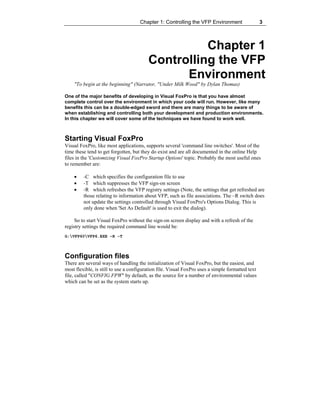
G:VFP60VFP6.EXE –R -T
Configuration files
There are several ways of handling the initialization of Visual FoxPro, but the easiest, and
most flexible, is still to use a configuration file. Visual FoxPro uses a simple formatted text
file, called "CONFIG.FPW" by default, as the source for a number of environmental values
which can be set as the system starts up.
4 1001 Things You Always Wanted to Know About Visual FoxPro
How to specify a config.fpw file
The actual file name does not matter as you can specify the configuration file which Visual
FoxPro is to use as a command line parameter by using the '-c' switch in the command line
which is used to start Visual FoxPro. So to set up your own configuration file (for example for
a specific application) use the following command line:
G:VFP60APPSMYAPP.EXE –cG:VFP60myconfig.txt
How VFP locates its configuration file
The default behavior of Visual FoxPro, in the absence of a specific configuration file, is to
search the following locations for a file named 'config.fpw' in this order:
• The current working directory
• The directory from which Visual FoxPro is being started
• All directories in the DOS path
If you are using the '-c' switch to specify a file named other than the default, or in a
specific location, you must include the fully qualified path and file name. This provides a
simple method of handling the initialization of different applications installed on the same
machine.
How VFP starts up when no configuration file is found
If no configuration file is found or specified, then Visual FoxPro will be started with only those
settings that are specified in the Options Dialog (located on the TOOLS pad of the main Visual
FoxPro menu).
Why these settings in particular?
The answer is simply that all of the settings from this dialog are actually stored in the
Windows Registry and can be found under the Registry Key:
HKEY_CURRENT_USERSoftwareMicrosoftVisualFoxPro6.0Options
Including a configuration file in the project
One little "trap" to watch out for – if you add a configuration file named 'config.fpw' to your
project as a text file, it will be INCLUDED in the project by default. When you build an .exe
from the project, the config.fpw file will be built into the resulting file. Since Visual FoxPro
looks for a file named 'config.fpw' during startup, it will always find the built-in version first
and will not look any further. This would apply even if you were to explicitly specify a
different configuration file using the '-C' switch! Your specified file would be ignored, and the
built-in congfiguration file would be executed. The best solution is NOT to add your
configuration file to the project at all, but if you do, to make sure that it is marked as 'excluded'
from the build.
Chapter 1: Controlling the VFP Environment 5
How to suppress a configuration file
Starting Visual FoxPro with the command line parameter '-c' alone suppresses the default
behavior and prevents any configuration file that may be found from being run. The result is
that you can force Visual FoxPro to start up with its default settings only.
How to determine which configuration file is being used
One of the commonest problems with configuration files is failing to ensure that Visual FoxPro
is reading the correct CONFIG.FPW. As noted above, if Visual FoxPro can't find a
configuration file, it will search the DOS path and simply use the first one it finds. This could
be anywhere on a network. The SYS(2019) function will return the full path and file name of
the configuration file that Visual FoxPro actually used. If no configuration file was found, the
function merely returns an empty string.
What goes into the configuration file?
Now that we know something about how the configuration file is used, the next question is
what can we put into it? The answer is quite a lot! Essentially there are three categories of
things that can be specified in the configuration file as follows:
Special settings
There are a number of settings that can ONLY be made in a configuration file. (For full details
see the "Special Terms for Configuration Files" topic in the Visual FoxPro online Help and the
entry under "Configuring Visual FoxPro" in the online documentation.) Notice that the ability
to set the location for temporary files is also available in the Options Dialog. Specifying the
TMPFILES location in the configuration file will override any setting that is made there and
can be useful when you need to differentiate between development and run time locations for
temporary files.
Table 1.1 Example of specific Configuration File terms
KeyWord Description
MVCOUNT =
nn
Sets the maximum number of variables that Visual FoxPro can maintain. This value can
range from 128 to 65,000; default is 1024.
TMPFILES =
drive:
Specifies where temporary EDITWORK, SORTWORK, and PROGWORK work files are
stored if they have not been specified with any of the other options. Because work files
can become very large, specify a location with plenty of free space. For faster
performance, especially in a multiuser environment, specify a fast disk (such as a local
disk). Default is the startup directory.
OUTSHOW =
OFF
Disables the ability to hide all windows in front of the current output by pressing
SHIFT+CTRL+ALT. Default is ON.
One other setting that can be used in the configuration file only, but which is not included
in the Help file list is "SCREEN = OFF". This prevents the Visual FoxPro main screen from
being displayed when your application starts and prevents the annoying 'flash' of the VFP
screen that still occurs even if your startup program turns off the main screen with the
6 1001 Things You Always Wanted to Know About Visual FoxPro
command _Screen.Visible = .F. (which enables you to present your application's initial
form, or a "splash" screen, without displaying the main VFP window first).
SET Commands
Virtually all of the standard SET commands can be issued in a configuration file. The only
thing to watch out for is that some settings are actually scoped to the datasession. (See the "Set
DataSession" topic in the online Help for a full listing.) So, there is little point in specifying
them in the configuration file if you plan to use Private DataSessions for your forms. The
syntax for specifying SET commands in the configuration file is a simple assignment in which
the keyword 'SET' is omitted:
DEFAULT = C:VFP60TIPSBOOK
DATE = BRITISH
Commands
Well actually you can only specify one (count 'em!) command, and it must be the last line of
the configuration file. Like other configuration file entries, it is entered as a simple assignment:
COMMAND = DO setupfox
What is the use of just ONE command? Well, quite a lot really because that one command
can call a FoxPro program, and that can do a lot of things!
One of the main limitations of the configuration file is that you cannot actually set things
that are internal to Visual FoxPro (e.g. system variables) because, when the configuration file
runs, Visual FoxPro hasn't actually started. Using this setting allows you to specify a program
file to run immediately after Visual FoxPro has started up – even before the command window
is displayed.
This program can then be used to set up your development environment the way that you
really want it. For example, here are some of the things that are in our standard setup file:
*** Standard 'SET' options (These could be entered directly into the Config
File)
SET TALK OFF
SET BELL OFF
SET SAFETY OFF
SET STATUS OFF
SET STATUS BAR ON
SET DATE BRITISH
SET CENTURY ON
*** Re-define Function Keys
SET FUNCTION 2 TO "CLOSE TABLES ALL;CLEAR WINDOWS;"
SET FUNCTION 3 TO "CANCEL;SET SYSMENU TO DEFA;ACTIVATE WINDOW COMMAND;"
SET FUNCTION 4 TO "CLEAR ALL;SET CLASSLIB TO;SET PROC TO;"
SET FUNCTION 5 TO "DISP STRU;"
SET FUNCTION 6 TO "DISP STAT;"
SET FUNCTION 7 TO "DISP MEMO LIKE *"
SET FUNCTION 8 TO "CLEAR;CLEAR WINDOWS;"
SET FUNCTION 9 TO "MODI FORM "
Chapter 1: Controlling the VFP Environment 7
SET FUNCTION 10 TO "MODI COMM "
SET FUNCTION 11 TO "DO setpath WITH "
SET FUNCTION 12 TO "=CHGDEFA(); "
***Set up the Screen properties
_SCREEN.CAPTION = "VFP 6.0 (Development Mode)"
_SCREEN.CLOSABLE = .F.
_SCREEN.FONTNAME = "Arial"
_SCREEN.FONTSIZE = 10
_SCREEN.FONTBOLD = .F.
*** Run Cobb Editor Extensions
DO G:VFP60CEE6CEE6.APP
*** Set up some On Key Labels
ON KEY LABEL CTRL+F10 suspend
ON KEY LABEL CTRL+F11 o=SYS(1270)
ON KEY LABEL CTRL+F12 RELEASE o
*** Set up any system variables required
_Include = HOME() + "Foxpro.h"
_Throttle = 0.1
*** Set up any standard "Public" variables
PUBLIC gcUserName, gcAppPath, gcDataPath
STORE "" TO gcUserName, gcAppPath, gcDataPath
*** Run Standard Path Set-up
DO setpath WITH 1
As you can see, apart from setting up the basic VFP system environment and handling our
own particular requirements, this 'one' command available in the configuration file has now
been used to run a couple of other programs (CEE and our own SetPath procedure) so we get
three for the price of one. By putting these settings in a program, we also have a simple way of
re-initialising the environment by re-running this program at any time.
Giving VFP a path
Visual FoxPro has the ability to use its own search path and, as a general rule, you should
always specify a path for Visual FoxPro for both development and production environments -
although they may be very different (see above for one way of handling this requirement).
Setting a path for Visual FoxPro does not change the normal DOS search path but can
significantly speed up your application by limiting the places that Visual FoxPro has to search
in order to find its files – especially in a network environment.
How VFP looks for files
By default Visual FoxPro uses the current directory as its 'path' and you can always restore this
setting by simply issuing: SET PATH TO
However for more sophisticated applications, and in development, you will normally have
some sort of directory structure and you should always set a proper search path to include all
required directories.
Setting the default directory
Normally you still will want to set a default (or "working") directory – this is where Visual
FoxPro will look first for any file that it requires. This can be done in a number of ways,
depending on your requirements:
8 1001 Things You Always Wanted to Know About Visual FoxPro
• Specify a default in the Configuration File using DEFAULT = <path to directory>
• Set the default directly in code using SET DEFAULT TO <path to directory>
• Change to a directory using the CD <path to directory> and issue SET PATH TO
Note that using the Get, Put or Locate functions (e.g. GetDir()) does not change either the
default directory or the path. To change the default directory interactively use: SET DEFAULT
TO ( GetDir() ). (The 'CD' (or 'CHDIR') command can also be used to change both drive and
directory to the specified location).
Using the SET PATH command
Setting the path is simplicity itself. Just issue the SET PATH command followed by a list of
the directories that you wish to include. You do not need to fully qualify subdirectories –
separating them with either commas or semi-colons is sufficient. The example shows a typical
Visual FoxPro search path:
SET PATH TO G:VFP60;C:VFP60TIPSBOOK;DATA;FORMS;LIBS;PROGS;UTILS;
To retrieve the current path setting you can use the SET() function (which will work with
most of the Visual FoxPro SET commands) as shown below. You can assign the result directly
to a variable or, as shown below, directly to the clipboard so that you can then paste the current
path into a program or documentation file:
_ClipText = SET( 'PATH' )
Visual FoxPro allows the use of both UNC path names, like:
SERVERNAMEDIRECTORYNAME.
and allows the use of embedded spaces (when enclosed in quotation marks) in directory
names like:
"..COMMON DIRECTORY"
However, while the latter may be allowed, we tend to subscribe to the principle that
'although you can use embedded spaces, arsenic is quicker.' (The same, by the way, applies to
file names with spaces!) While improving readability, spaces can also cause problems when
trying to handle files and directories programmatically and we still feel that the best advice is
to avoid them wherever possible in applications. For example, the following code works
perfectly well for conventional directory names, but will fail if the selected directory contains
embedded spaces:
LOCAL lcDir
lcDir = GETDIR()
IF ! EMPTY(lcDir)
SET DEFAULT TO &lcDir
ENDIF
Chapter 1: Controlling the VFP Environment 9
Where am I?
Fortunately, Visual FoxPro provides us with a number of functions that will help us locate
where we are at any time:
• SYS(2004) returns the directory from which Visual FoxPro was started but in a
distributed run time application, this will always be the location of the VFP6R.DLL
(which is normally the appropriate version of the Windows 'System' directory)
• HOME() returns the directory from which Visual FoxPro was started by default, but has
a number of additional useful options in VFP6 which return information about Visual
Studio Components
• _VFP.FULLNAME accesses a property of the Visual FoxPro application object that
contains the full path and file name which was used to start VFP
• FULLPATH('') or FULLPATH( CURDIR() ) returns the full drive and directory of the
current working directory (including the terminal "").
• SYS(5) returns the default drive (including the ':')
• CD shows the current drive and directory in the current output window – but will also
change drive and directory in one single command
• CHDIR will change to the specified Drive/Driectory (just like CD) but will not report the
current status (and so does not mess up your forms)
• CURDIR() returns just the current directory (with terminal '') but not the drive
How to set a path programmatically
As an alternative to hard coding the paths in your setup file, it is possible to derive the path
(assuming that you use standard directory structures) using the native Visual FoxPro functions.
The little function below shows how this might be done to account for both development and
run time structures. It uses the PROGRAM() function to determine how it was called and returns a
different path when called from a Form or a Program than when called from a compiled file:
*******************************************************************************
* Program....: CalcPath.prg
* Version....: 1.0
* Author.....: Andy Kramek
* Date.......: August 16, 1999
* Compiler...: Visual FoxPro 06.00.8492.00 for Windows
* Abstract...: Sets a VFP Path based on the type of the calling program.
* ...........: Assumes standard directory structures – but could use lookups
*******************************************************************************
FUNCTION CalcPath()
LOCAL lcSys16, lcProgram, lcPath, lcOldDir
*** Get the name of program that called this one.
lcSys16 = SYS(16, 1)
*** Save current working directory
lcOldDir = (SYS(5)+CURDIR())
*** Make the directory from which it was run current
lcProgram = SUBSTR(lcSys16, AT(":", lcSys16) - 1)
CD LEFT(lcProgram, RAT("", lcProgram))
IF INLIST( JUSTEXT( lcProgram ), "FXP", "SCX" )
10 1001 Things You Always Wanted to Know About Visual FoxPro
*** If we are running a PRG/Form directly, then find the parent directory
CD ..
*** Set up path to include VFP Home plus the standard DEV directory tree
lcPath = (HOME()+';'+SYS(5)+CURDIR()+";DATA;FORMS;LIBS;PROGS;UTILS")
ELSE
*** We are using an EXE/APP! Adjust path for DISTRIBUTION directory tree
lcPath = (HOME()+';'+SYS(5)+CURDIR()+";DATA")
ENDIF
*** Restore original directory
CD (lcOldDir)
*** Return the calculated path
RETURN lcPath
ENDFUNC
Making sure VFP is only started once
So far so good! We have managed to cover the process of starting VFP and setting up the basic
environments for both development and production. At this point one of the things we all come
across is the absent-minded user who minimizes an application and then, ten minutes later,
starts a fresh copy from their desktop. Within the hour they have six copies of the application
running and are complaining that their machine is slowing down. What to do? (Apart from
shooting the user which, appealing though the idea may be, is generally frowned upon and,
depending on their seniority, may also be a career-limiting move.) There are actually several
approaches that can be taken, as described below.
Using a 'semaphore' file
This is probably the simplest approach of all. It relies on your application creating, on first
launch, a zero-byte file whose sole purpose is to indicate that the application is running. Any
time the application is launched, it looks for this file and, if it finds it, simply shuts down again:
*******************************************************************************
* Program....: ChkSFile.prg
* Compiler...: Visual FoxPro 06.00.8492.00 for Windows
* Abstract...: Checks for a Semaphore File, creates one if not found and
* ...........: returns a flag
*******************************************************************************
FUNCTION ChkSFile( tcAppName )
LOCAL lcAppName, lcFile, lnHnd, llRetVal
*** Default lcAppName if nothing passed
lcAppName = IIF( EMPTY(tcAppName) OR VARTYPE( tcAppName ) # "C", ;
'apprun', LOWER( ALLTRIM( tcAppName ) ) )
*** Force a TXT extension for the semaphore file in current directory
lcFile = (SYS(5) + CURDIR() + FORCEEXT( lcAppName, 'txt' ))
*** Now check for the file?
IF ! FILE( lcFile )
*** File not found, so create it
lnHnd = FCREATE( lcFile )
IF lnHnd < 0
Chapter 1: Controlling the VFP Environment 11
*** Cannot create the file, some sort of error! Set Return Flag
llRetVal = .T.
ELSE
*** Close the file
FCLOSE( lnHnd )
ENDIF
ELSE
*** Set Return Flag
llRetVal = .T.
ENDIF
*** Return Status Flag
RETURN llRetVal
The function returns a logical value that can be used to determine whether to allow the
current application to continue, as the following snippet illustrates:
*** Check for a second instance of the application
IF ChkSFile()
QUIT
ENDIF
Of course the catch with this approach is that your application must delete the file as part
of its close-down routine (unless you really want a once-only application). That raises the
question of what can you do if, heaven forbid, the application terminates abnormally
(euphemism for 'crash') or the user makes an improper exit (disconnecting the power supply for
example!). The answer is "Not much." Typically this will require the intervention of 'System
Support' to physically delete the file.
But it is a nice, easy approach with no other real drawbacks providing that the semaphore
file is always created on the end-user's machine, or in a specific user directory.
Using the Windows API
The function below makes use of three Windows API functions to look for a window that is
named the same as the application (FindWindow), to make an existing window the uppermost
window (BringWindowToTop) and to maximize it (ShowWindow):
*******************************************************************************
* Program....: OnceOnly.prg
* Compiler...: Visual FoxPro 06.00.8492.00 for Windows
* Abstract...: Checks for an existing instance of the application window
* ...........: and, if found, activates the original and returns a flag.
*******************************************************************************
FUNCTION OnceOnly
LOCAL lnHWND, lcTitle, llRetVal
*** Set UP API Calls
Declare Integer FindWindow IN Win32Api AS FindApp String, String
Declare BringWindowToTop IN Win32APi AS MakeTop Integer
Declare ShowWindow IN Win32Api AS ShowWin Integer, Integer
*** Get the current Screen Caption
lcTitle = _Screen.Caption
12 1001 Things You Always Wanted to Know About Visual FoxPro
*** Change it to avoid finding the current instance
_Screen.Caption = SYS(3)
*** Now locate another instance
lnHWND = FindApp( NULL, lcTitle )
*** And restore the original caption
_Screen.Caption = lcTitle
*** Check the results
IF lnHWND > 0
*** We have found something!
*** So make it uppermost and maximize it (ShowWin => 3)
MakeTop( lnHWND )
ShowWin( lnHWND, 3 )
*** Set the Return Value
llRetVal = .T.
ENDIF
*** Return Status for action
RETURN llRetVal
The function returns a logical value that can be used to determine whether to allow the
current application to continue, as the following snippet illustrates:
*** Check for a second instance of the application
IF OnceOnly()
QUIT
ENDIF
There is one major drawback to watch out for here. The API functions used check for the
name of a window – in this case we are using _Screen.Caption. If your application changes
the Caption of the screen at run time (as many do), this approach will not work.
Combination of semaphore and Windows API
The last example here shows how combining the principles of the other two examples gives a
better all-round approach:
******************************************************************************
* Program....: IsAppRun.prg
* Compiler...: Visual FoxPro 06.00.8492.00 for Windows
* Abstract...: Checks for a window which is created with a Unique ID by and
* ...........: in the application. Combination of Semaphore and API.
* ...........: Based on code originally posted into the Public Domain
* ...........: by Christof Lange
******************************************************************************
FUNCTION IsAppRun( tcUniqueID )
LOCAL llRetVal, lcUniqueID
*** MUST pass an application ID to this function!
IF EMPTY(tcUniqueID) OR VARTYPE( tcUniqueID ) # "C"
MESSAGEBOX( 'An Application Specific Character ID is mandatory' + CHR(13) ;
+ 'when calling the IsAppRun() function', 16, 'Developer Error' )
RETURN .T.
Chapter 1: Controlling the VFP Environment 13
ELSE
*** Strip out any spaces
lcUniqueID = STRTRAN( tcUniqueID, " " )
ENDIF
*** First check for the existence of the Semaphore window
IF WEXIST("_Semaphore_")
RETURN .T.
ENDIF
*** Look for an occurrence of this ID as a Window Name
DECLARE INTEGER FindWindow IN Win32Api AS FindApp String, String
IF FindApp( NULL, lcUniqueID ) > 0
*** We found one! Set Return Value
llRetVal = .T.
ELSE
*** Create a new window with this ID
DEFINE WINDOW _Semaphore_ IN DESKTOP FROM 1,1 TO 2,2 TITLE lcUniqueID
ENDIF
*** Return Status Flag
RETURN llRetVal
To use this function, it is simplest to include a #DEFINE in your standard startup file so
that you can specify a new unique ID for each application:
#DEFINE APPID "App0001-99"
IF IsAppRun( APPID )
QUIT
ENDIF
This very neat solution avoids both the problem of 'dangling files' in the semaphore
method and that of changing the caption in the API method because the window can only be
created and maintained within an instance of the application. As soon as it terminates in any
way – even as a result of a crash - the window is destroyed and there is nothing to clean up.
Since the window gets its name explicitly from the application, it does not rely on the caption
being constant either. Cool stuff Christof, thank you!
SET Commands and DataSessions
OK – we've got Visual FoxPro up and running (and made sure that we can only start one
instance of our application) so now what? There are, in case you hadn't noticed, an awful lot of
SET commands in Visual FoxPro that allow you to configure the environment in detail. Many
of these affect the environment globally, but some are scoped to the currently active
datasession (see the "Set DataSession" topic in the on-line help for a full listing of these).
When you start Visual FoxPro you are always in the DEFAULT datasession.
What exactly does "Default DataSession" mean?
The Oxford English Dictionary (Ninth Edition) offers a definition of "default" as:
"A pre-selected option adopted by a computer program when no alternative is specified by
the user or programmer"
Unfortunately Visual FoxPro seems to prefer to define the word according to the rules
proffered by Humpty-Dumpty in Lewis Carroll's 'Alice Through the Looking Glass':
14 1001 Things You Always Wanted to Know About Visual FoxPro
"When I use a word," Humpty Dumpty said in rather a scornful tone, "it means just what I
choose it to mean – neither more nor less."
In fact the Default DataSession is actually DataSession #1 – neither more nor less. It has
no special significance other than that when you start Visual FoxPro, it is selected (just as
Work Area #1 is always selected as the first available work area in any DataSession). This is
easily demonstrated using the SET DATASESSION window and the command window.
When you open the DataSession window, it will display the name of the current
DataSession as 'Default(1)', however the command:
SET DATASESSION TO DEFAULT
results in a 'Variable Default Not Found' error, while
SET DATASESSION TO 1
is accepted without comment.
However, when you run a form whose DataSession property is set to "1 Default Data
Session", VFP interprets the term "default" as meaning 'CURRENT' – in other words, a Form
which is designed using this setting will use whichever data session is active when the form is
initialized. This does not appear very logical at first sight since one might reasonably expect
that because Data Session #1 is named 'Default', setting a form's DataSession property to '1
Default Data Session' would ensure that the form would actually use that Data Session and no
other. Not so!
The actual behavior makes sense when you wish forms to share a data session. By setting
the child form's DataSession property to 1 (Default Data Session), it will use whatever
DataSession its parent form was using – whether that DataSession is Private or not.
So can I have a "public" Datasession?
The short answer is NO! Visual FoxPro does support the concept of a truly 'default' (or 'public')
DataSession. In other words, if a specified table is not found in the current Data Session VFP
will not look for it elsewhere. All DataSessions are effectively "Private" – even Data Session
#1.
How can I ensure SET commands apply to a private data session?
This is actually a complex question and the answer, as so often in VFP, is 'it depends.'
Normally you will be using data sessions that are being created by a form (or formset) as
'Private'. It also matters whether you are using the Form's native DataEnvironment or not. In
any case it is important to understand the order in which things happen – the sequence below
shows how a form with a Private DataSession, and a table in its native DE, is initialized:
METHOD: DATAENVIRONMENT.OPENTABLES()
DATASESSION: 2
ALIAS(): <None>
METHOD: DATAENVIRONMENT.BEFOREOPENTABLES()
DATASESSION: 2
Chapter 1: Controlling the VFP Environment 15
ALIAS(): <None>
METHOD(): FORM.LOAD()
DATASESSION: 2
ALIAS(): <TableName>
METHOD: DATAENVIRONMENT.INIT()
DATASESSION: 2
ALIAS(): <TableName>
Notice that the DataSession is always 2, the new Private DataSession, and that the table is
already available in that DataSession when the form Load() event fires.
The anomaly that OpenTables() occurs before BeforeOpenTables() is
more apparent than real and is occasioned by the fact that the
BeforeOpenTables() event is actually triggered by the OpenTables()
method.
A note here is needed to explain the terminology that we are using for
"Events" and "Methods". Unfortunately Visual FoxPro uses both
terms in the Properties Sheet which can be confusing. In fact it is
actually quite simple since you cannot, in Visual FoxPro, either create or modify
an "Event", only the method code "associated WITH that event". What this means
is that accessing the "<xxx> Event" from the properties sheet actually takes you to
the "<xxx> Method". The practice we have adopted throughout the book is,
therefore, to refer to the "<xxx> METHOD" when we are talking the place where
you write code, and to the <xxx> EVENT when referring to the action, or 'trigger'
which causes that code to be executed.
So if you need to explicitly change settings that apply to the way in which tables are
handled (e.g. MultiLocks) you really need to do it in the DataEnvironment's
BeforeOpenTables() code – anything else is just too late because the DataSession is already
present, with tables open, by the time the first form based method (Load()) fires.
This presents a problem because a VFP Form class doesn't have a DataEnvironment, so
you cannot just add code to the class from which you create your forms. There are really only
two solutions if you have to use the form's DataEnvironment, and both require code, or more
specifically some action in every instance of a form:
• Add the relevant code (or a call to a Procedure) to every form's BeforeOpenTables()
event
• Don't allow the native DataEnvironment to open your tables automatically. Set
AutoOpenTables = .F. and call the OpenTables() method explicitly from within the
Form Load()
16 1001 Things You Always Wanted to Know About Visual FoxPro
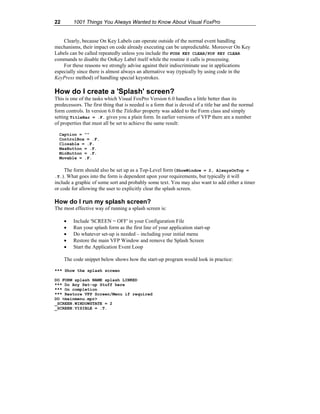
Adding code to BeforeOpenTables()
This is very simple, but must be done in every instance of the form. Simply open the Form
DataEnvironment in the designer and add whatever environmental settings you require directly
to the BeforeOpenTables method. Alternatively you could place the relevant code in a
procedure and call it from the method or create an environment setting class (see below) and
instantiate it using the Form's AddObject() method. (A DataEnvironment does have an
AddObject() of its own, but you can only add objects based on Cursor and Relation classes
directly to the DataEnvironment.)
One additional suggestion, if you adopt this methodology, is to place code in the Load()
event of your form class which checks for a specific setting and if it is not found displays a
MessageBox. Thus:
IF This.DataSessionId # 1
*** We have a Private DataSession
IF SET( 'MULTILOCKS' ) = 'OFF'
*** Or whatever setting you ALWAYS set!
lcText = "You have not set the BeforeOpenTables() Code Up"
MESSAGEBOX( lcText, 16, 'Developer Blunder!' )
ENDIF
ENDIF
Suppressing auto-open tables
If you wish to use the Form's Load method to set options for a DataSession, you must first
suppress the default behavior of the DataEnvironment that is to automatically open tables. This
is a simple matter of setting the AutoOpenTables property to false in the DataEnvironment, but
again it must be done explicitly in each instance of the form. Once you have suppressed this
property you can put code into the form's load method to either call a procedure, or a form
method, which will handle the setting of the environment. Our preferred method is to use an
environment setting class and simply instantiate an object based on that class directly in the
form's Load method as illustrated in the next section.
Creating an environment setting class
We think that the best method of setting up your own environment in a Private DataSession is
to use a class. By placing all of the necessary SET commands in a method which is called by
the Init method of the class, merely instantiating an object based on this class will set things up
the way you want them. The code to do this can then be placed in the Load method of your
form class so that every time the form is instantiated, the correct settings are applied. The only
limitation of this methodology is that, as noted above, you cannot allow the DataEnvironment
to automatically handle the opening of tables. The following code shows how such a class may
be defined programmatically (although there is no reason why such a class should not be
created in the visual class designer):
******************************************************************************
* Program....: EnvSet.prg
* Compiler...: Visual FoxPro 06.00.8492.00 for Windows
Chapter 1: Controlling the VFP Environment 17
* Abstract...: Class definition for setting environmental options.
Instantiating
* ...........: the class sets the required options. The GetOption() method
shows
* ...........: how the object can be used to retrieve settings as well.
******************************************************************************
DEFINE CLASS cusEnvSet AS custom
*****************************************************************************
*** Init merely calls the SetOptions() method
*****************************************************************************
PROCEDURE Init
This.SetOptions()
ENDPROC
*****************************************************************************
*** Sets Required Environmental options
*****************************************************************************
PROCEDURE SetOptions
*** Locking and Environment
SET TALK OFF
SET MULTILOCKS ON
SET REPROCESS TO AUTOMATIC
SET DELETED ON
SET SAFETY OFF
SET BELL OFF
SET ECHO OFF
SET NOTIFY OFF
SET CONFIRM OFF
SET EXACT OFF
SET REFRESH TO 60,60
SET STATUS BAR ON
*** Path
*** Date and Currency
SET CENTURY ON
SET CENTURY TO 19 ROLLOVER 75
SET DATE TO BRITISH
SET CURRENCY LEFT
SET CURRENCY TO "£"
ENDPROC
*****************************************************************************
*** Returns current setting of an environment option
*****************************************************************************
PROCEDURE GetOption( tcOption )
LOCAL luRetVal, lcOption
STORE "" TO luRetVal
lcOption = UPPER(ALLTRIM( tcOption ))
*** If we were given a setting, get its current status
*** NOTE: If really needed this method would require more checking
*** and options because not every setting can simply be returned
*** by the SET() function - but this illustrates the point!
IF VARTYPE( lcOption ) = "C" AND ! EMPTY( lcOption )
luRetVal = SET( lcOption )
ENDIF
RETURN luRetVal
ENDPROC
ENDDEFINE
To use this class, simply add the following code to the Load method of your Form class:
18 1001 Things You Always Wanted to Know About Visual FoxPro
*** Add object to set environment (suppress any display explicitly)
SET TALK OFF
IF ! "ENVSET" $ UPPER( SET( 'PROCEDURE' ))
SET PROCEDURE TO envset ADDITIVE
ENDIF
This.AddObject( "oCusEnv", "CusEnvSet" )
This will instantiate the object, thereby setting the defined options, and at the same time
creates a reference on the form so that any additional methods that you may have defined (e.g.
the GetOption() method outlined above) can be accessed.
How do I get rid of the system toolbars?
When you start Visual FoxPro, one or more of the system toolbars will normally be visible.
(The actual toolbar status is stored in the Resource File.) Fortunately all of the system toolbars
can be addressed using their window names (which are actually the same as their Captions) and
so manipulating them is relatively simple.
The simplest way of ensuring that only those toolbars that you require are visible is to
create an array of all the toolbar names, then loop through it, testing to see if each is visible and
hiding those that are not required. The following code will hide all visible system toolbars:
DIMENSION laTbState[11]
laTbState[ 1]="Color Palette"
laTbState[ 2]="Database Designer"
laTbState[ 3]="Form Controls"
laTbState[ 4]="Form Designer"
laTbState[ 5]="Layout"
laTbState[ 6]="Print Preview"
laTbState[ 7]="Query Designer"
laTbState[ 8]="Report Controls"
laTbState[ 9]="Report Designer"
laTbState[10]="Standard"
laTbState[11]="View Designer"
FOR lnCnt = 1 TO 11
IF WEXIST(laTbState[lnCnt])
HIDE WINDOW ( laTbState[lnCnt] )
ENDIF
NEXT
Of course, this raises the issue of what happens if you then wish to re-display a system
toolbar. Perhaps unsurprisingly, the SHOW WINDOW command can be used to re-display a
previously hidden system toolbar, while RELEASE WINDOW will actually release the specified
toolbar.
The system toolbar "Gotcha!"
But there is a catch! In order to use Show Window, the named window must have been defined
to VFP and even though the System Toolbars are generated by VFP, there is no way of
actually defining or activating the toolbars programmatically. The consequence is that unless a
toolbar is first activated by VFP itself, you cannot later make it visible. The only toolbars that
can be made visible by default are the 'Standard', 'Layout' and 'Form Designer' but there does
Chapter 1: Controlling the VFP Environment 19
not seem to be any reliable way of programmatically forcing any of the other system toolbars
to be made visible at startup.
Can I make use of keyboard macros in VFP?
The short answer is yes. In fact, one of the often-forgotten capabilities of Visual FoxPro is its
ability to use keyboard macros. These can, with a little thought, make your life as a developer
much easier when you assign your own particular keystrokes to a simple key combination. For
example instead of running a 'reset' program to close tables and databases, release class
libraries and restore the default FoxPro menu, you can program the necessary commands on to
the 'F2' function key like this:
SET FUNCTION F2 TO "CLEAR ALL ;" ;
+ "SET CLASSLIB TO ;" ;
+ "SET PROC TO ;" ;
+ "CLOSE ALL ;" ;
+ "SET SYSMENU TO DEFAULT ;" ;
+ "ACTIVATE WINDOW COMMAND;"
Of course you can also use the Macro Editor (invoked from the Tools|Macros option of
the main menu) to create your macros. The macro created by the above command is visible,
and editable, in the Macro Editor as:
CLEAR{SPACEBAR}ALL{SPACEBAR}{ENTER}
SET{SPACEBAR}CLASSLIB{SPACEBAR}TO{SPACEBAR}{ENTER}
SET{SPACEBAR}PROC{SPACEBAR}TO{SPACEBAR}{ENTER}
CLOSE{SPACEBAR}ALL{SPACEBAR}{ENTER}
SET{SPACEBAR}SYSMENU{SPACEBAR}TO{SPACEBAR}DEFAULT{SPACEBAR}{ENTER}
ACTIVATE{SPACEBAR}WINDOW{SPACEBAR}COMMAND{ENTER}
How can I construct a more complex macro?
You can use the macro "record" facility (yes, just like in Word or Excel!) to save yourself the
grief of working out exactly how to write the necessary keyboard commands. We normally use
an empty program file to do this sort of thing, as the following steps illustrate:
• Open a PRG file (MODIFY COMMAND)
• Choose Tools, Macros, Record from the Main System menu
• Write your code as normal
• Choose Tools, Macros to stop recording
• Test your macro!
Using this technique, the following code to write a simple Yes/No Messagebox handler
(and leave the cursor positioned between the first set of quotes in the MessageBox function
call) was assigned to the F9 key. The code written was:
LOCAL lnOpt
lnOpt = MessageBox( '', 36, '' )
20 1001 Things You Always Wanted to Know About Visual FoxPro
IF lnOpt = 6 && YES
ENDIF
And the resulting macro was:
LOCAL{ SPACEBAR}lnOpt{ENTER}
lnOpt{SPACEBAR}={SPACEBAR}MessageBox({SPACEBAR}'',
{SPACEBAR}36,{SPACEBAR}''{SPACEBAR}){ENTER}
IF{SHIFT+SPACEBAR}lnOpt{SPACEBAR}={SPACEBAR}6
{TAB}&&{SPACEBAR}YES{ENTER}
{ENTER}
ENDIF{UPARROW}{UPARROW}{UPARROW}{END}{LEFTARROW}{LEFTARROW}{LEFTARROW}
{LEFTARROW}{LEFTARROW}{LEFTARROW}{LEFTARROW}{LEFTARROW}{LEFTARROW}
{LEFTARROW}{LEFTARROW}
What is a "Macro Set"?
Visual FoxPro allows you define and save 'sets' of macros. These are stored in a special file
format with a default extension of '.FKY' (the Help file has a topic devoted to FKY file
structure). You can create multiple sets of macros and save them to files that can be loaded and
unloaded through the macro editor. You can also specify a set of 'developer' macros as defaults
to be loaded automatically when Visual FoxPro starts up. (Although if you adopt this approach,
we advise you to include a CLEAR MACROS command in all application start-up programs.)
Some 'developer' macros that we have found useful are:
• Insert WITH This…ENDWITH (ALT+T)
WITH{ SPACEBAR}This{ENTER}
{ENTER}
ENDWITH{UPARROW}{TAB}
• Insert WITH ThisForm…ENDWITH (ALT+F)
WITH{ SPACEBAR}ThisForm{ENTER}
{ENTER}
ENDWITH{UPARROW}{TAB}
• Insert Quoted Parentheses ("") (ALT+B)
(""){LEFTARROW}{LEFTARROW}
• Insert a WAIT "" WINDOW NOWAIT command (ALT+W)
WAIT{ SPACEBAR}""{SPACEBAR}WINDOW{ SPACEBAR}NOWAIT
{LEFTARROW}{LEFTARROW}{LEFTARROW}{LEFTARROW}{LEFTARROW}
• Open 'Find Next' Window and paste in highlighted text (SHIFT+ALT+F)
{CTRL+C}{CTRL+HOME}{CTRL+F}{CTRL+V}{TAB}{BACKSPACE}{CTRL+ENTER}
The scope for creating custom shortcuts like these is limited only by your imagination but
can greatly enhance your productivity when writing code or even when working interactively
through the command window.
Finally, also check out the PLAY MACROS command, which allows you to run macros
programmatically (for creating self-running demos, or even simple test scripts), although the
behavior of this command has some quirks all of its own.
Chapter 1: Controlling the VFP Environment 21
What's the difference between a macro and an On Key Label?
The key difference is that a macro is just a Visual FoxPro program which streams keyboard
entry. In this sense it is no different than any other program and runs within the normal Visual
FoxPro event loop. An On Key Label, on the other hand, operates outside of the normal event
processing and allows a specific command to be executed even when VFP is ostensibly
engaged in some other task. This can be very useful, but is also potentially dangerous! The
following little program illustrates the difference in behavior clearly. The On Key Label will
interrupt the pending READ command immediately and suspend the program, while the
Keyboard Macro is simply ignored:
******************************************************************************
* Program....: MACOKL.prg
* Compiler...: Visual FoxPro 06.00.8492.00 for Windows
* Abstract...: Illustrate the difference between a keyboard macro
* ...........: and an On Key Label command. Enter '99' to exit from either loop
* ...........: and continue with the program!
******************************************************************************
*** Define an On Key Label
ON KEY LABEL F10 SUSPEND
CLEAR
*** Initialise Key Buffer
LOCAL lnKey
lnKey = 0
*** Start Loop – Use 99 to exit
DO WHILE .T.
*** Check for 'x' to exit
? "Inside an OKL loop"
@ 10,10 GET lnKey PICT "99"
READ
IF lnKey = 99
EXIT
ENDIF
ENDDO
*** Clear the OKL
ON KEY LABEL F10
CLEAR
*** Now define a Function Key Macro
SET FUNCTION 10 TO "SUSPEND;"
*** Initialise Key Buffer
lnKey = 0
*** Start Loop – Use 99 to exit
DO WHILE .T.
*** Check for 'x' to exit
? "Inside a F10 loop"
@ 10,10 GET lnKey PICT "99"
READ
IF lnKey = 99
EXIT
ENDIF
ENDDO
*** Clear the macro
SET FUNCTION 10 TO ""
22 1001 Things You Always Wanted to Know About Visual FoxPro
Clearly, because On Key Labels can operate outside of the normal event handling
mechanisms, their impact on code already executing can be unpredictable. Moreover On Key
Labels can be called repeatedly unless you include the PUSH KEY CLEAR/POP KEY CLEAR
commands to disable the OnKey Label itself while the routine it calls is processing.
For these reasons we strongly advise against their indiscriminate use in applications
especially since there is almost always an alternative way (typically by using code in the
KeyPress method) of handling special keystrokes.
How do I create a 'Splash' screen?
This is one of the tasks which Visual FoxPro Version 6.0 handles a little better than its
predecessors. The first thing that is needed is a form that is devoid of a title bar and the normal
form controls. In version 6.0 the TitleBar property was added to the Form class and simply
setting TitleBar = .F. gives you a plain form. In earlier versions of VFP there are a number
of properties that must all be set to achieve the same result:
Caption = ""
ControlBox = .F.
Closable = .F.
MaxButton = .F.
MinButton = .F.
Movable = .F.
The form should also be set up as a Top-Level form (ShowWindow = 2, AlwaysOnTop =
.T.). What goes into the form is dependent upon your requirements, but typically it will
include a graphic of some sort and probably some text. You may also want to add either a timer
or code for allowing the user to explicitly clear the splash screen.
How do I run my splash screen?
The most effective way of running a splash screen is:
• Include 'SCREEN = OFF' in your Configuration File
• Run your splash form as the first line of your application start-up
• Do whatever set-up is needed – including your initial menu
• Restore the main VFP Window and remove the Splash Screen
• Start the Application Event Loop
The code snippet below shows how the start-up program would look in practice:
*** Show the splash screen
DO FORM splash NAME splash LINKED
*** Do Any Set-up Stuff here
*** On completion
*** Restore VFP Screen/Menu if required
DO <mainmenu.mpr>
_SCREEN.WINDOWSTATE = 2
_SCREEN.VISIBLE = .T.
Chapter 1: Controlling the VFP Environment 23
*** Remove Splash Screen when ready
RELEASE splash
*** Start Application Event Loop
READ EVENTS
An alternative to the splash screen
If your application is going to be using the main Visual FoxPro window as its desktop, then
rather than using a form as a splash screen, it is simpler to add an object directly to the VFP
Screen and remove it when ready. The Visual FoxPro _Screen object has both AddObject() and
RemoveObject() methods which can be called from within your programs.
All that is needed is to create a container class that includes the graphic, and any other
controls, and add it directly to the screen. Once your application set up is completed, the object
can simply be removed. This is simpler to implement since it does not require that the screen
be turned off on start up, as the following code snippet shows:
*** Maximise the Screen
WITH _Screen
.WINDOWSTATE = 2
*** Add the Container
SET CLASSLIB TO splashfiles
.AddObject( 'cntSplash', 'xCntSplash' )
*** Report Progress
WITH .cntSplash.txtProcess
.Value = 'Loading Class Libraries'
*** Load Application Libs
.Value = 'Initialising Data'
*** Set up DBC
*** Set up Menus and so on…
ENDWITH
.RemoveObject( 'cntSplash' )
ENDWITH
*** Start Application Event Loop
READ EVENTS
(Note: We are assuming that the class definition includes the Top/Left settings and a
This.Visible = .T. command in the container's Init() method so there is no need to explicitly
make the object visible, or re-position it, in the application code.)
How to wallpaper your desktop
Adding a background (for example a company logo) to your application's desktop can add a
'professional' look and feel to your VFP application. However it is not always as easy as it first
appears. The basic principle is easy enough – simply set the Picture property of Visual
FoxPro's _Screen object to the required bitmap.
The catch is that the default behavior is to 'tile' the bitmap if its dimensions do not exactly
match the size of the available screen area in the currently selected resolution. The result is that
what works at, say 800 x 600 resolution will not look right at either higher or lower
resolutions. Moreover the available area depends on whether you have the status bar on or off,
whether you have a menu displayed and whether you have toolbars docked or not. So in order
24 1001 Things You Always Wanted to Know About Visual FoxPro
to get it right it seems that you need to know the actual size of the desktop at various
resolutions and to create an appropriately sized bitmap for each possibility.
So how can I get the size of the current _Screen area?
The Visual FoxPro's SCOLS() and SROWS() functions return the number of columns and rows
in the current screen area (based on the selected display font). So to determine, in pixels, the
size of the display area you also need to use the Fontmetric() function, as follows:
lnScreenHeight = SROWS()* FONTMETRIC(1, _screen.fontname, _screen.fontsize)
lnScreenWidth = SCOLS()* FONTMETRIC(6, _screen.fontname, _screen.fontsize)
Using these formulae we get the following results with a single line menu visible:
Table 1.2. Available Screen Heights at various resolutions with Screen Font set to
Arial 10pt
Screen Status Bar =
ON
Status Bar =
OFF
Resolution Docked Tbar UnDocked Tbar Docked Tbar UnDocked Tbar
1024 x 768 646 678 670 702
800 x 600 478 510 502 534
640 x 480 358 390 382 414
The screen width is (unless toolbars are docked at the side of the screen) always the same
as the horizontal resolution. When designing your application you will, of course, only need to
use one set of values since you will always start the application in the same way (in respect of
menus, toolbars and status bars).
If you were now to create a series of bitmaps, sized correctly for each resolution, you can
simply set the _Screen.Picture property to the appropriate one in the application start-up.
Do I really need to create all these bitmaps?
Well, actually, the answer is possibly not! There is an alternative strategy, although its success
will depend on the nature of the picture you wish to display. You could simply create a class
(based on the IMAGE baseclass, named, for example, aImgWallPaper) which has its Picture
property set to a single bitmap, and its Stretch property set to 2 (expand to fill the control). Add
a method named 'AdjustSize' and call it from the Init method of this class. It should be coded
like this:
WITH This
.Height = FONTMETRIC(1, _SCREEN.FONTNAME, _SCREEN.FONTSIZE) * SROWS()
.Width = FONTMETRIC(6, _SCREEN.FONTNAME, _SCREEN.FONTSIZE) * SCOLS()
.Visible = .T.
ENDWITH
Now in your application start-up you simply add an object based on this class directly to
the screen immediately before you execute your DO EVENTS as follows:
_Screen.AddObject( 'oWallPaper', 'aImgWallPaper')
Chapter 1: Controlling the VFP Environment 25
The image will then auto-size itself to fill the available screen area giving a really
professional look to your application. The only thing to watch for is that if your bitmap is not
symmetrical, setting the image's Stretch = 2 may give a distorted image. A possible solution
is to use Stretch = 1 (Isometric) which will keep the relative proportion of the original
bitmap, but this may not entirely fill the screen when it is re-sized. The best advice here is to
experiment.
A toolbar 'gotcha!'
One problem with using wallpapers in conjunction with toolbars is that docking and undocking
a toolbar alters the visible screen area, but not the size of the image. Handling the docking of a
toolbar is quite straightforward since the _Screen.Resize() event is fired after the toolbar's
BeforeDock() event but before the AfterDock() event. Actually the event tracker indicates that
the Resize event fires twice! (Presumably this is so that the screen resizes when the toolbar is
moved from the main screen area to the title bar, and again after it is actually docked). So your
image class 'AdjustSize' method can be called from the toolbar's AfterDock() event to handle
docking cleanly, thus:
IF VARTYPE( _Screen.oWallPaper ) = 'O'
WITH _Screen
.LockScreen = .T.
.oWallPaper.AdjustSize()
.LockScreen = .F.
ENDWITH
ENDIF
Unfortunately it would appear that undocking a toolbar does not fire the _Screen.Resize()
event at all! Although the screen actually does re-size when a toolbar is undocked, the new size
is not available to any method that can be called from within the toolbar. We think this must be
a bug because an explicit call to the image AdjustSize method (from outside the toolbar) after
undocking is completed, recalculates the size correctly and adjusts the image appropriately. We
do not have a satisfactory solution to this problem other than to avoid movable toolbars when
using desktop wallpapers that are not defined directly in the Picture property.
Tidying up your development environment
One of the hazards that you may occasionally encounter when developing in Visual FoxPro is
that one of your programs will crash. (We know that this is extremely rare but are assured that
it really does happen to some other people from time to time.) In such a situation it is useful to
have a simple way of cleaning up and getting back to your starting point. We like to use a little
program called 'ClearAll' to handle this for us which makes sure that everything is properly
closed down and cleaned up.
The first thing that this program does is to turn off any error handling. This will allow us
to force through any anomalous commands (such as selecting a datasession that does not exist)
without interruption – after all since we clearing up we do not really care about errors any
more!
26 1001 Things You Always Wanted to Know About Visual FoxPro
**********************************************************************
* Program....: ClearAll.PRG
* Compiler...: Visual FoxPro 06.00.8492.00 for Windows
* Abstract...: Cleans up the Development environment
**********************************************************************
LOCAL lnCnt, lnCntUsed
LOCAL ARRAY laUsed[1]
*** Turn off error handling for now
ON ERROR *
Next we just clear the screen and post a wait window, before rolling back any open
transactions:
*** Clear Screen
CLEAR
WAIT WINDOW 'Clearing... please wait...' NOWAIT
*** Roll Back Any Transactions
IF TXNLEVEL() > 0
DO WHILE TXNLEVEL() > 0
ROLLBACK
ENDDO
ENDIF
Now we need to handle any uncommitted changes. Of course we cannot know how many
forms there may be open, or what datasession each form is actually using. The solution is to
use the Forms collection and to work through each form's datasession reverting all tables in
that datasession and closing them before releasing the form itself.
*** Revert Tables and Close Them
FOR EACH loForm IN _Screen.Forms
*** Find out what Datasession it is in
lnDS = loForm.DataSessionID
*** Has it any tables open?
lnCntUsed = AUSED(laUsed, lnDS)
IF lnCntUsed > 0
SET DATASESSION TO (lnDS)
*** If so, revert all uncommitted changes
FOR lnCnt = 1 TO lnCntUsed
SELECT (laUsed[lnCnt,2])
IF CURSORGETPROP('Buffering') > 1
=TABLEREVERT( .T. )
ENDIF
USE
NEXT
ENDIF
*** And release the form
loForm.Release()
NEXT
Having got rid of the forms we can now close any remaining tables and their associated
databases, and clear out any programs in memory, memory variables and libraries:
*** Now Close other tables and databases
CLOSE TABLES ALL
Chapter 1: Controlling the VFP Environment 27
CLOSE DATA ALL
*** Release Memory Variables, Procedures
*** and Class Libraries
CLEAR MEMORY
CLEAR ALL
SET PROCEDURE TO
SET CLASSLIB TO
With all of this gone we can safely restore the command window and the default system
menu and clear out any global settings defined using the ON commands:
*** Get the command window and system menu back
ACTIVATE WINDOW COMMAND
SET SYSMENU TO DEFAULT
*** Clear global settings
ON SHUTDOWN
ON ERROR
ON KEY
ON ESCAPE
WAIT CLEAR
The final step is to cancel any open programs (including this one). This is needed to ensure
that any forms that have called modal dialogs are properly released:
*** Cancel any open programs
CANCEL
Closing VFP down
Thus far we have been concentrating on setting up and managing the Visual FoxPro
environment, however, the way in which you close down Visual FoxPro is just as important. In
the run-time environment there are two ways of initiating the closing down process. Firstly
through the use of the CLEAR EVENTS command, either within a menu or in the Release method
of a form. Secondly through the standard windows close button of the main Visual FoxPro
window. Fortunately, Visual FoxPro provides us with a global handler for the close down
process, irrespective if how it is initiated – the ON SHUTDOWN command.
What is an On ShutDown procedure?
Like other ON commands, the ON SHUTDOWN command is implemented by a special handler that
is outside of the normal Visual FoxPro event processing loop. When invoked, control is
immediately transferred to whatever command, or function, has been specified as the target.
This is by far the best way (if not the only way) to ensure that Visual FoxPro closes down
cleanly without the irritating the 'Cannot Quit Visual FoxPro' message.
What triggers an On Shutdown procedure?
The command specified in ON SHUTDOWN is executed if you try to exit Visual FoxPro by
clicking the 'Close' button in the main Visual FoxPro screen, by choosing Exit from the
FoxPro control menu, or by issuing the QUIT command in a program (or the command
window!). Additionally it will be triggered if you try to exit Windows while Visual FoxPro is
28 1001 Things You Always Wanted to Know About Visual FoxPro
open. (Control is returned to Visual FoxPro and the specified ON SHUTDOWN procedure is
executed.)
What goes into an On Shutdown procedure?
The procedure called by an ON SHUTDOWN command contains anything that you can legally
place into a Visual FoxPro program, with the exception of SUSPEND or CANCEL commands (both
of which will cause an error), but at a minimum it must handle the following issues:
• Close any Open Transactions
• Commit or Revert any pending changes in tables or views
• Close all forms (an open Modal Form is one cause of the 'Cannot Quit' message)
• Issue a Clear Events (an active READ EVENTS is another cause of the 'Cannot Quit'
message)
• Restore the Development Environment (if not running an APP or .exe file) OR
• Quit Visual FoxPro (if running an APP or .exe file)
The behavior in VFP3.0 was that a QUIT command would close open
Modal forms and cancel any existing READ EVENTS. This is not the
case in either Version 5.0 or 6.0.
You will notice that these elements are almost identical to those which we placed in our
'ClearAll.prg' for cleaning up the development environment and the code which was used there
can, with minor modifications, be used as the basis for your shut down procedure.
One such modification is to include a test to determine whether the currently executing
program was actually called from the development or run-time environments. This is one of the
few things for which we advocate the use of a Public variable. In our application startup
program we include the following code:
*** Check for Run Mode
RELEASE glExeRunning
PUBLIC glExeRunning
glExeRunning = "EXE" $ UPPER( SYS(16) ) OR 'APP' $ UPPER( SYS(16) )
IF glExeRunning
*** Do the full start-up, Splash screen, log-in etc
ELSE
*** Start up in development mode
ENDIF
While you do not actually need a public variable (a normal Private variable would actually
work here) we like to define such 'system' variables explicitly and to treat them as exceptions to
the general rules. Having defined the variable we can now use it in our shutdown routine to
detemine whether to actually quit Visual FoxPro or simply to cancel the current program as
follows:
IF glExeRunning
QUIT
ELSE
Chapter 1: Controlling the VFP Environment 29
CANCEL
ENDIF
Some people also advocate placing an 'Are You Sure' message box in the shutdown
procedure – while this is a matter of style, we do not like it! It seems to us that there can be
nothing more irritating to a user who has just specifically chosen 'Quit' than to be asked if they
really meant to do it. If your user interface is designed in such a way that a user can
"accidentally" shut down your application then we would, very respectfully, suggest that you
may need to re-visit the UI design.
30 1001 Things You Always Wanted to Know About Visual FoxPro
Chapter 2: Functions and Procedures 31
Chapter 2
Functions and Procedures
"We can forgive a man for making a useful thing as long as he does not admire it. The
only excuse for making a useless thing is that one admires it intensely." ("The Picture of
Dorian Gray" by Oscar Wilde)
How many times have you inherited an application from another developer who used
twenty lines of code when one or two would have been sufficient? How often have you
plowed through miles of code and wondered why it wasn't broken up into separate
methods to handle discrete functionality? A well-stocked library of re-usable functions
reduces the number of lines of code required to accomplish a given task. In addition to
reducing method code at the instance level, descriptive function and procedure names
make your code more self-documenting. In this chapter we will share some of the cool
functions we have discovered over the years as well as some gotchas to watch out for.
All of the code in this chapter is contained in the CH02.PRG procedure file in the
subdirectory of the same name.
How shall we proceed?
In prior versions of FoxPro, applications were limited to a single active procedure file at any
time. This meant that all user-defined functions and commonly used procedures were kept in a
single file. With Visual FoxPro, the ability to have multiple procedure files active at any given
time provides much more flexibility. Such procedures can now be grouped logically, by
functionality, into different procedure files that can be loaded incrementally as needed. The
downside, of course, is that procedure files are loaded into memory by Visual FoxPro and held
until explicitly released. This may not be the best use of that precious resource.
Fortunately, it is also possible to define procedure classes. The individual functions that
would previously have been kept in a procedure file can now become methods of a class. This
approach has the benefit that, when defined visually in the Class Designer, all the functions in
the procedure can be neatly viewed under the methods tab of the property sheet. Procedure
classes containing specific functionality can be dropped onto forms that require this
functionality. A second major benefit is that a procedure class can be sub-classed - for those
special situations when standard functionality must be augmented.
The approach that we like is a combination of these two approaches. We recommend using
a procedure file for truly generic functions (i.e. those that are used, unchanged, by many
different applications). For example, our procedure file contains a NewID function for
generating surrogate primary keys, a SetPath function to set the path for the application and a
few key functions that Visual FoxPro should have, but doesn't. Two examples of such
functions are the Str2Exp and Exp2Str functions (used later in this chapter These functions, as
the names imply, are used to convert character strings into the values of another specified data
type and vice versa.
32 1001 Things You Always Wanted to Know About Visual FoxPro
Separate Procedure Classes contain application specific functionality. For example, an
accounting application might require several functions to calculate tax and invoice totals. The
Accounting Procedures Class can be dropped onto any form that requires these functions – or
can be instantiated as an Application Level object. Clearly, such functions are not generic, nor
are they even required by the entire application. By grouping them into a single procedure
class, we can make this functionality available at the specific parts of the application that
require it without compromising the rest of the application.
Parameters (an aside)
We have all used parameters extensively in FoxPro but in Visual FoxPro’s object oriented
environment, parameters have taken on a new importance as the principle means of
implementing messaging – the very lifeblood of an OO application! (We have more to say on
this subject later!)
By reference, by value?
Parameters are passed either by reference or by value. When a parameter is passed to a
function or procedure by reference, any changes made to its value in the called code are
reflected in the original value in the calling program. Conversely when a parameter is passed
by value, the called code can change that value but the value in the calling program remains
unchanged.
Visual FoxPro interprets the code being called by the mechanism by which parameters are
passed. So when the calling syntax looks like this:
luRetVal = CallMyFunction( param1, param2 )
Visual FoxPro treats this as a Function Call and passes the parameters by value. However
if the same code is called like this:
DO CallMyFunction WITH param1, param2
then Visual FoxPro treats this as a Procedure Call and passes the parameters by reference.
The old coding rule that a “Function must always return a value” is not really true in Visual
FoxPro, but it does make sense when the calling syntax is considered.
You can change this default behavior in two ways. One way is to:
SET UDFPARMS TO REFERENCE or SET UDFPARMS TO VALUE
However, we do not consider this a good idea because it affects the way all functions in
your entire application handle the parameters they are passed. (It is never a good idea to use a
global solution to solve a local problem). In this case there is a simple solution because
parameters can be passed by value explicitly just by enclosing them in parentheses. Thus:
DO CallMyFunction WITH (param1), (param2)
Chapter 2: Functions and Procedures 33
passes the parameters by value, even though the syntax used would normally cause them
to be passed by reference. To pass parameters explicitly by reference, simply preface the
parameter with the “@” symbol. (This is, by the way, the only way to pass an entire array to a
procedure, function or method). So we could also make our function call and pass its
parameters by reference like this:
luRetVal = CallMyFunction( @param1, @param2 )
How do I know what was passed?
There are two ways for a function to determine how many parameters were passed to it. The
PARAMETERS() function returns the number of parameters that were passed to the most
recently called function or procedure. This can give unexpected results since it is reset each
time a function or procedure is called. Most importantly, it is also reset by functions that are
not called explicitly, such as ON KEY LABEL routines.
A better way of determining how many parameters were passed to a function is to use the
PCOUNT() function. This always returns the number of parameters that were passed to the
currently executing code. Save yourself a lot of grief and unnecessary hair pulling by always
using PCOUNT() for determining the number of parameters passed.
How should I position my parameters?
The best advice is that if a function takes optional parameters, you should place these at the
end of the parameter list. PCOUNT() can then be used in the function to determine whether or
not the optional parameters were passed allowing the function to take the appropriate action.
You can take advantage of the fact that Visual FoxPro always initializes parameters as
logical false. By setting up your function to expect a logical false as its default, you can invoke
the function without passing it any parameters. Then, in those cases where you want an
alternative behavior, just invoke the function by passing it a logical true.
How can I return multiple values from a function?
Of course, returning values is simply the reverse of passing parameters - with one gotcha!.
While you can easily pass multiple parameters to a function, there is no obvious mechanism for
returning multiple values! The RETURN command only allows a single value to be passed
back to the calling program.
One solution is to pass multiple values as a comma-delimited string. This is a little messy,
however, as you will need to convert your values into character format to build the return
string and then parse out the individual values again in the receiving code.
Another possibility is to define all the values you want populated by the function as
Private variables in the calling program. As such, they will be available to any function or
procedure that is called subsequently and they can be populated directly. However, this is
neither specific nor easy to maintain and is not really a good solution.
A better possibility is to create an array in the calling code for the return values and then
pass that array by reference. The called function can then simply populate the array and the
values will also be available in the calling program. This is workable, at the very least, and was
34 1001 Things You Always Wanted to Know About Visual FoxPro
probably the most common method of handling the issue prior to the introduction of Visual
FoxPro.
Once again Visual FoxPro has made life a lot easier. Returning multiple values from a
UDF is easy if you create, and use, a parameter class. Ours is based on the Line baseclass and
is named xParameters. You can find it in the CH02.VCX class library. All it needs is one
custom array property, aParameters, to hold the return values and this line of code in its
INIT():
LPARAMETERS taArray
ACOPY(taArray, This.aParameters)
The user-defined function can then simply populate its own local array with the values it
needs to return and create the parameter object on the fly — and populate the object’s array
property with a single line of code:
RETURN CREATOBJECT( 'xParameters', @laArray )
What about using named parameters?
The parameter object discussed above passes parameters by position, in much the same way as
Visual FoxPro. Although Visual FoxPro does not actually support the concept of named
parameters, you can, in Version 6.0, use the AddProperty() method to add named parameters to
your object by creating a property for each parameter or value that you want to transfer
Even when using this approach, there is no need to create a special class for the parameter
object. It can be created on the fly using a lightweight baseclass such as Line or Separator as
the following code snippet shows:
LOCAL oParam
oParam = CREATEOBJECT( ‘line’ )
WITH oParam
.AddProperty( “Name”, “Christine Johannson” )
.AddProperty( “Age”, 34 )
.AddProperty( “Sex”, “Female” )
ENDWITH
RETURN oParam
To retrieve values in this fashion your calling code would simply assign the return value of
the called function to an object reference and read off its properties locally:
LOCAL oRetVal
oRetVal = CallMyFunction()
lcName = oRetVal.Name
lnAge = oRetVal.Age
lcSex = oRetVal.Sex
Of all the possibilities discussed so far, we like this the best!
Chapter 2: Functions and Procedures 35
Passing parameters optionally
There is an important side benefit to the ability to use named parameters. This becomes
especially important when a function accepts a large number of parameters, many of which are
optional. For example, a function to set fonts might have many parameters (name, size, bold,
italic, underline, strikethrough and so on). A simple check for:
PEMSTATUS( toParameterObject, 'FontName', 5 )
determines unambiguously whether or not a specific parameter was passed. This approach
removes the tedious task of counting commas in the calling program (as well as the necessity to
remember the specific order in which parameters are expected by the called function). The
elapsed time function below shows how an object employing named parameters can be used to
return multiple values.
Date and time functions
Visual FoxPro has several handy dandy, built in functions for manipulating dates. The
functions below illustrate how they can be used to perform a few of the most common tasks
required when dealing with dates in your applications.
Elapsed time
Simply subtracting one DateTime expression from another gives you the elapsed time – this is
good. Unfortunately Visual FoxPro gives you this result as the number of seconds between the
two – this is bad. This value is seldom directly useful! You can use this little set of functions,
which rely on the Modulus operator (%), to calculate the components of elapsed time in days,
hours, minutes and seconds.
FUNCTION GetDays( tnElapsedSeconds )
RETURN INT(tnElapsedSeconds / 86400)
FUNCTION GetHours( tnElapsedSeconds )
RETURN INT(( tnElapsedSeconds % 86400 ) / 3600 )
FUNCTION GetMinutes( tnElapsedSeconds )
RETURN INT(( tnElapsedSeconds % 3600 ) / 60 )
FUNCTION GetSeconds( tnElapsedSeconds )
RETURN INT( tnElapsedSeconds % 60 )
Of course, there is more than one way to skin the fox. You can also use a single function
to return an array containing the elapsed time positionally, with days as its first element
through to seconds as its fourth like so:
FUNCTION GetElapsedTime( tnElapsedSeconds )
LOCAL laTime[4]
laTime[1] = INT( tnElapsedSeconds / 86400 )
laTime[2] = INT(( tnElapsedSeconds % 86400 ) / 3600 )
laTime[3] = INT(( tnElapsedSeconds % 3600 ) / 60 )
laTime[4] = INT( tnElapsedSeconds % 60 )
RETURN CREATEOBJECT( 'xParameters', @laTime )
36 1001 Things You Always Wanted to Know About Visual FoxPro
If you prefer named parameters to the positional variety, the following code accomplishes
the task:
FUNCTION GetElapsedTime( tnElapsedSeconds )
LOCAL loObject
loObject = CREATEOBJECT( 'Line' )
WITH loObject
.AddProperty( 'nDays', INT( tnElapsedSeconds / 86400 ) )
.AddProperty( 'nHours', INT(( tnElapsedSeconds % 86400 ) / 3600 ) )
.AddProperty( 'nMins', INT(( tnElapsedSeconds % 3600 ) / 60 ) )
.AddProperty( 'nSecs', INT( tnElapsedSeconds % 60 ) )
ENDWITH
RETURN loObject
Alternatively, if you merely require a string that contains the elapsed time in words, you
can just reduce it to a single line of code!
FUNCTION GetElapsedTime( tnElapsedSeconds )
RETURN PADL( INT( tnElapsedSeconds / 86400 ), 3 )+' Days ';
+ PADL( INT(( tnElapsedSeconds % 86400 ) / 3600 ), 2, '0' )+' Hrs ' ;
+ PADL( INT(( tnElapsedSeconds % 3600 ) / 60 ), 2, '0')+' Min ' ;
+ PADL( INT( tnElapsedSeconds % 60 ), 2, '0' )+' Sec '
Date in words
Converting a value from date format into text can be a tricky business, especially when you are
writing international applications. Visual FoxPro makes this task a lot easier with its native
MDY(), CMONTH(), CDOW(), MONTH(), DAY() and YEAR() functions, to name but a few.
Version 6.0, with its ability to use strict dates, makes this task even easier. The following
function provides one example of how to use these functions.
FUNCTION DateInWords( tdDate )
RETURN CDOW( tdDate ) + ', ' + MDY( tdDate )
However, the function listed above will not attach the ordinal suffix to the day portion of
the date. If your application requires these suffixes when formatting the date in words, use the
longer form of the function listed below. You could even extract the portion that calculates the
suffix and place it in a function called MakeOrdinal. It can then be invoked any time you need
to format a given number n as nth.
FUNCTION DateInWords( tdDate )
LOCAL lnDay, lnNdx, lcSuffix[31]
*** Initialize suffix for day
lnDay = DAY( tdDate )
lnNdx = lnDay % 10
IF NOT BETWEEN( lnNdx, 1, 3 )
lcSuffix = 'th'
ELSE
IF INT( lnDay / 10 ) = 1
lcSuffix = 'th'
ELSE
Chapter 2: Functions and Procedures 37
lcSuffix = SUBSTR( 'stndrd', ( 2 * lnNdx ) - 1, 2 )
ENDIF
ENDIF
RETURN CDOW( tdDate ) + ', ' + CMONTH( tdDate ) + ;
' ' + ALLTRIM( STR( lnDay )) + lcSuffix + ;
', ' + ALLTRIM( STR( YEAR( tdDate )))
Calculating Age
Calculating age is even trickier than calculating elapsed time. This is because months do not
contain the same number of days and every fourth year is a leap year. The function below
calculates age on a given date and returns the value as a formatted string containing the number
of years and months. It can easily be modified to return the values in a parameters object like
the ElapsedTime() function listed above.
FUNCTION CalcAge( tdDob, tdBaseDate )
*** Default Base Date to Today if empty
IF TYPE( "tdBaseDate" ) # "D" OR EMPTY(tdBaseDate)
tdBaseDate = DATE()
ENDIF
LOCAL lnYrs, lnMth, lcRetVal, lnBaseYear, lnBaseMnth
lnYrs = YEAR( tdBaseDate ) - YEAR( tdDob )
*** Calculate this year's Birthday
ldCurBdy = CTOD('^' + STR( YEAR( tdBaseDate )) + '-' + ;
PADL( MONTH( tdDob ), 2, '0' ) + '-' + ;
PADL( DAY( tdDob ), 2, '0'))
*** Calculate Age
IF ldCurBdy > tdBaseDate
lnYrs = lnYrs - 1
lnMth = 12 - (MONTH( tdBaseDate ) - MONTH( tdDob )) - 1
ELSE
lnMth = MONTH( tdBaseDate ) - MONTH( tdDob )
ENDIF
*** Format Output String
lcRetVal = PADL( lnYrs, 4 ) + " Years, " + PADL( lnMth, 2, '0' ) + " Month" + ;
IIF( lnMth = 1, "", "s" )
RETURN ALLTRIM( lcRetVal )
What date is the second Tuesday in October of 2000?
This is a handy little function that can be used to calculate the exact date of holidays in a given
year. For example, in the United States, Thanksgiving always falls on the fourth Thursday in
November. Another example we encountered recently was that the academic year for schools
and universities always begins on the first Monday in August. The ability to calculate the
actual dates for such defined days is essential in any application that requires planning an
annual schedule.
38 1001 Things You Always Wanted to Know About Visual FoxPro
**********************************************************************
* Program....: nthSomeDayOfMonth
* Compiler...: Visual FoxPro 06.00.8492.00 for Windows
* Abstract...: Returns the date of a specific type of day; e.g., the
* ...........: second Tuesday in November of the year 2001
* ...........: nthSomedayOfMonth( 4, 3, 7, 2000 ) returns the date of
* ...........: the 3rd Wednesday in July of the year 2000
* Parameters.: tnDayNum: Day number 1=Sunday 7=Saturday
* ...........: tnWhich : Which one to find; 1st, 2nd, etc.
* ...........: If tnwhich > the number of this kind of day
* ...........: in the month, the last one is returned
* ...........: tnMonth : Month Number in which to find the day
* ...........: tnYear : Year in which to find the day
**********************************************************************
FUNCTION nthSomedayOfMonth( tnDayNum, tnWhich, tnMonth, tnYear )
LOCAL ldDate, lnCnt
*** Start at the first day of the specified month
ldDate = DATE( tnYear, tnMonth, 01 )
*** Find the first one of the specified day of the week
DO WHILE DOW( ldDate ) # tnDayNum
ldDate = ldDate + 1
ENDDO
*** Find the specified one of these...e.g, 2nd, 3rd, or last
IF tnWhich > 1
lnCnt = 1
DO WHILE lnCnt < tnWhich
lnCnt = lnCnt + 1
*** Move forward one week to get the next one of these in the month
ldDate = ldDate + 7
*** Are we are still in the correct month?
IF MONTH( ldDate ) # tnMonth
*** If not, jump back to the last one of these we found and exit
ldDate = ldDate - 7
EXIT
ENDIF
ENDDO
ENDIF
RETURN ldDate
Setting up a payment schedule
Another interesting problem is that of setting up a monthly schedule. Take, for example, a
schedule of monthly payments to be collected via direct debit of a debtor's checking account.
Obviously these payments cannot be collected on Sundays or holidays. They also cannot be
collected earlier than the day specified when the schedule is first set up. This poses some
interesting problems if the initial seed date for the schedule is between the 28th
and the 31st
of
the month. So, in this case, simply using the GOMONTH() function may return an
unacceptable date.
This function handles weekends, holidays, and GOMONTH() and assumes that you have
created your holiday table with two columns: one for the date and one for the name of the
Chapter 2: Functions and Procedures 39
holiday. An index on the holiday date is also desirable. Also keep in mind that to be useful, this
holiday table must contain, at the very least, the holidays for both this year and next year.
FUNCTION MonthlySchedule ( tdStartDate, tnNumberOfMonths )
LOCAL laDates[1], lnCnt, ldDate, llOK, llUsed
*** Make sure we have the class library loaded
IF 'CH02' $ SET( 'CLASSLIB' )
*** Do nothing...class library is loaded
ELSE
SET CLASSLIB TO CH02 ADDITIVE
ENDIF
*** Make sure we have the Holidays table available
IF !USED( 'Holidays' )
USE Holidays In 0
llUsed = .F.
ELSE
llUsed = .T.
ENDIF
SELECT Holidays
SET ORDER TO dHoliday
FOR lnCnt = 1 TO tnNumberOfMonths
*** we want to return the passed date as date[1]
IF lnCnt > 1
ldDate = GOMONTH( tdStartDate, lnCnt-1 )
ELSE
ldDate = tdStartDate
ENDIF
*** Now we have to check to be sure that GoMonth didn't give us back a day
*** that is earlier than the seed date...can't do a direct debit BEFORE the
*** specified date i.e., the 28th of the month
IF DAY(tdStartDate) > 28
IF BETWEEN( DAY( ldDate ), 28, DAY( tdStartDate ) - 1 )
ldDate = ldDate + 1
ENDIF
ENDIF
llOK = .F.
DO WHILE !llOK
*** If current date is a Saturday, go to Monday
IF DOW( ldDate ) = 7
ldDate = ldDate + 2
ELSE
*** If current date is a Sunday, go to Monday
IF DOW( ldDate ) = 1
ldDate = ldDate + 1
ENDIF
ENDIF
*** OK, now check for Holidays
IF !SEEK( ldDate, 'Holidays', 'dHoliday' )
llOK = .T.
ELSE
ldDate = ldDate + 1
ENDIF
ENDDO
DIMENSION laDates[lnCnt]
laDates[lnCnt] = ldDate
40 1001 Things You Always Wanted to Know About Visual FoxPro
ENDFOR
IF !llUsed
USE IN Holidays
ENDIF
RETURN CREATEOBJECT( 'xParameters', @laDates )
What date is ten business days from today?
A somewhat similar problem is how to calculate a date that is a specified number of business
days from a given date. As with the previous example, this assumes the existence of a holiday
table that is both region and application specific.
FUNCTION BusinessDays ( tdStartDate, tnNumberOfDays )
LOCAL lnCnt, ldDate, llOK, llUsed
*** Make sure we have the Holidays table available
IF !USED( 'Holidays' )
USE Holidays In 0
llUsed = .F.
ELSE
llUsed = .T.
ENDIF
SELECT Holidays
SET ORDER TO dHoliday
ldDate = tdStartDate
FOR lnCnt = 1 TO tnNumberOfDays
ldDate = ldDate + 1
llOK = .F.
DO WHILE !llOK
*** If current date is a Saturday, go to Monday
IF DOW( ldDate ) = 7
ldDate = ldDate + 2
ELSE
*** If current date is a Sunday, go to Monday
IF DOW( ldDate ) = 1
ldDate = ldDate + 1
ENDIF
ENDIF
*** OK, now check for Holidays
IF !SEEK( ldDate, 'Holidays', 'dHoliday' )
llOK = .T.
ELSE
ldDate = ldDate + 1
ENDIF
ENDDO
ENDFOR
IF !llUsed
USE IN Holidays
ENDIF
RETURN ldDate
Chapter 2: Functions and Procedures 41
Gotcha! Strict date format and parameterized views
Visual FoxPro's StrictDate format is especially comforting with the specter of the millennium
bug looming large in front of us. At least it is as we are writing this. There, is however, one
small bug that you should be aware of. If you have SET STRICTDATE TO 2 and try to open a
parameterized view that takes a date as its parameter, you will be in for trouble. If the view
parameter is not defined or is not in scope when you open or re-query the view, the friendly
little dialog box prompting for the view parameter will not accept anything you enter. It will
keep saying you have entered an ambiguous date/datetime constant.
The workaround is to ensure your view parameter is defined and in scope before trying to
open or re-query the view. This means that, if your view is part of a form’s data environment,
its NoDataOnLoad property must be set to avoid getting the dialog as the form loads.
The other workaround, setting StrictDate to 0 and then back to 2, is not recommended. As
we have already mentioned, using a global solution for a local problem is a little bit like
swatting flies with a sledgehammer.
Working with numbers
Mathematical calculations have been handled fairly well since the days of Eniac and Maniac,
except for the notable bug in the Pentium math co-processor. The most common problems arise
because many calculations produce irrational results such as numbers that carry on for an
infinite number of decimal places. Rounding errors are impossible to avoid because computing
demands these numbers be represented in a finite form. The study of numerical analysis deals
with how to minimize these errors by changing the order in which mathematical operations are
performed as well as providing methods such as the trapezoidal method for calculating the area
under the curve. A discussion of this topic is beyond the scope of this book, but we can give
you some tips and gotchas to watch out for when working with numbers in your application.
Converting numbers to strings
Converting integers to strings is fairly straightforward. ALLTRIM( STR( lnSomeNumber ) )
will handle the conversion if the integer contains ten digits or less. If the integer contains more
than ten digits, this function will produce a string in scientific notation format unless you
specify the length of the string result as the second parameter. When converting numeric values
containing decimal points or currency values, it is probably better to use another function.
Although it can be accomplished using the STR() function, it is difficult to write a generic
conversion routine. In order to convert the entire number you must specify both the total length
of the number (including the decimal point) and the number of digits to the right of the decimal
point. Thus STR(1234.5678) will produce '1235' as its result, and to get the correct conversion
you must specify STR(1234.5678, 9, 4).
In Visual FoxPro 6.0, the TRANSFORM() function has been extended so that when called
without any formatting parameters, it simply returns the passed value as its equivalent
character string. Thus TRANSFORM(1234.5678) will correctly return '1234.5678'.
In all versions of Visual FoxPro you can use ALLTRIM( PADL ( lnSomeNumber, 32 ) )
to get the same result (providing that the total length of lnSomeNumber is less than thirty-two
digits).
42 1001 Things You Always Wanted to Know About Visual FoxPro
Gotcha! calculations that involve money
This one can bite if you are not careful. Try this in the command window and you will see
what we mean.
? ( $1000 / 3 )
returns the expected result of 333.3333 since currency values are always calculated to a
precision of four decimal places. However,
? ( $1000 * ( 1/3 ) )
returns 333.3000, which is not a very accurate result! Especially when you consider the
result of the equivalent numeric calculation:
SET DECIMALS TO 4
? ( 1000 * ( 1/3 ) )
returns 333.3333. The actual precision of the displayed result depends on the setting of
SET DECIMALS, although the result is actually calculated to 8 places by default.
The moral of this story is that currency values should always be converted to numeric prior
to using them in arithmetic operations. The functions MTON() and NTOM() are essential in this
scenario, although watch out for unexpected results if you do not convert both ways!
? ( MTON( $1000 ) * ( 1/3 ) )
displays 333.333333 even with decimals set to 2. While
? NTOM( ( MTON( $1000 ) * ( 1/3 ) ) )
finally gets the expected result of 333.3333.
String functions
Visual FoxPro has several native string manipulation functions to handle almost everything
you could ever need. ALLTRIM() to remove leading and trailing spaces, PADL() and PADR()
to left and right pad, and STRTRAN() and CHRTRAN() to replace individual characters within a
string. But did you know that you can use this line of code:
cString1 – cString2 – cString3
to accomplish the same thing as this one?
RTRIM( cString1 ) + RTRIM( cString2 ) + RTRIM( cString3 )
Gotcha! string concatenation
Even if the tables in your application do not allow null values, you may still need to deal with
them. Very often, SQL statements using outer joins result in one or more columns that contain
null values. This can be troublesome in cases where you may want to display a concatenated
value from a result set, for example, in a drop down list. Try this in the command window:
Chapter 2: Functions and Procedures 43
c1 = 'Yada Yada Yada'
c2 = .NULL.
? c1 + c2
As you might expect, Visual FoxPro complains about an operator/operand type mismatch.
If, however, you do this instead:
? c1 + ALLTRIM( c2 )
you will see .NULL. displayed on the Visual FoxPro screen.
No error, just .NULL. If you do not cater for null values by using NVL() to trap for them,
you may find this behavior a little difficult to debug when it occurs in your application. We
sure did the first time we encountered this behavior!
Converting between strings and data
The following are examples of functions that Visual FoxPro doesn't have, but in our opinion
definitely should have. We keep these in our general all-purpose procedure file because we use
them so frequently.
Combo and List boxes store their internal lists as string values. So when you need to use
these to update or seek values of other data types, you need to convert these strings to the
appropriate data type before you are able to use them. The first of these functions is used to do
just that:
FUNCTION Str2Exp( tcExp, tcType )
*** Convert the passed string to the passed data type
LOCAL luRetVal, lcType
*** Remove double quotes (if any)
tcExp = STRTRAN( ALLTRIM( tcExp ), CHR( 34 ), "" )
*** If no type passed -- map to expression type
lcType = IIF( TYPE( 'tcType' ) = 'C', UPPER(ALLTRIM( tcType )), TYPE( tcExp ) )
*** Convert from Character to the correct type
DO CASE
CASE INLIST( lcType, 'I', 'N' ) AND ;
INT( VAL( tcExp ) ) == VAL( tcExp ) && Integer
luRetVal = INT( VAL( tcExp ) )
CASE INLIST( lcType, 'N', 'Y', ‘B’ ) && Numeric or Currency
luRetVal = VAL( tcExp )
CASE INLIST( lcType, 'C', 'M' ) && Character or memo
luRetVal = tcExp
CASE lcType = 'L' && Logical
luRetVal = IIF( !EMPTY( tcExp ), .T., .F.)
CASE lcType = 'D' && Date
luRetVal = CTOD( tcExp )
CASE lcType = 'T' && DateTime
luRetVal = CTOT( tcExp )
OTHERWISE
*** There is no otherwise unless, of course, Visual FoxPro adds
*** a new data type. In this case, the function must be modified
ENDCASE
*** Return value as Data Type
RETURN luRetVal
44 1001 Things You Always Wanted to Know About Visual FoxPro
If you write client/server applications, you already know that you must convert all
expressions to strings before using them within a SQLEXEC(). Even if you are not doing
client/server development, you will require this functionality in order to build any kind of SQL
on the fly.
The following function not only converts the passed parameter to a character value, it also
wraps the result in quotation marks where appropriate. This is especially useful when invoking
the function from an onthefly SQL generator. It is even easier in Visual FoxPro 6.0 because
you can use the TRANSFORM function without a format string to convert the first argument to
character. TRANSFORM( 1234.56 ) produces the same result as ALLTRIM( PADL( 1234.56,
32 ) ).
FUNCTION Exp2Str( tuExp, tcType )
*** Convert the passed expression to string
LOCAL lcRetVal, lcType
*** If no type passed -- map to expression type
lcType=IIF( TYPE('tcType' )='C', UPPER( ALLTRIM( tcType ) ), TYPE( 'tuExp' ) )
*** Convert from type to char
DO CASE
CASE INLIST( lcType, 'I', 'N' ) AND INT( tuExp ) = tuExp && Integer
lcRetVal = ALLTRIM( STR( tuExp, 16, 0 ) )
CASE INLIST( lcType, 'N', 'Y', 'B' ) && Numeric or Currency
lcRetVal = ALLTRIM( PADL( tuExp, 32 ) )
CASE lcType = 'C' && Character
lcRetVal = '"' + ALLTRIM( tuExp ) + '"'
CASE lcType = 'L' && Logical
lcRetVal = IIF( !EMPTY( tuExp ), '.T.', '.F.')
CASE lcType = 'D' && Date
lcRetVal = '"' + ALLTRIM( DTOC( tuExp ) ) + '"'
CASE lcType = 'T' && DateTime
lcRetVal = '"' + ALLTRIM( TTOC( tuExp ) ) + '"'
OTHERWISE
*** There is no otherwise unless, of course, Visual FoxPro adds
*** a new data type. In this case, the function must be modified
ENDCASE
*** Return value as character
RETURN lcRetVal
Other useful functions
There are several other generic functions that can live in your general procedure file or base
procedure class. One obvious example is the SetPath() function (presented in Chapter One).
We find the following functions particularly useful and hope you will too.
How do I determine if a tag exists?
Wouldn't it be nice if Visual FoxPro had a native function that returned true if a tag existed?
This would be especially useful, for example, when creating a custom grid class that allows the
user to click on a column header to sort the grid by the tag on that column. It would also be
useful to test for the existence of an index if it must be created programmatically. This code
provides that functionality.
Chapter 2: Functions and Procedures 45
FUNCTION ISTAG( tcTagName, tcTable )
LOCAL lnCnt, llRetVal, lnSelect
IF TYPE( 'tcTagName' ) # 'C'
*** Error - must pass a Tag Name
ERROR '9000: Must Pass a Tag Name when calling ISTAG()'
RETURN .F.
ENDIF
*** Save Work Area Number
lnSelect = SELECT()
IF TYPE( 'tcTable' ) = 'C' AND ! EMPTY( tcTable )
*** If a table specified, select it
SELECT lcTable
ENDIF
*** Check Tags
FOR lnCnt = 1 TO TAGCOUNT()
IF UPPER(ALLTRIM( tcTagName ) ) == UPPER( ALLTRIM( TAG( lnCnt ) ) )
llRetVal = .T.
EXIT
ENDIF
NEXT
*** Restore Work Area
SELECT (lnSelect)
*** Return Whether Tag Found
RETURN llRetVal
By the way, notice the use of the ERROR command in this function. Rather than simply
displaying a message when a parameter fails validation, this function raises an application error
that can be trapped by an error handler, just like a normal Visual FoxPro error.
How do I determine if a string contains at least one alphabetic
character?
The Visual FoxPro ISALPHA() returns .T. if the string passed to it begins with a letter.
Similarly, ISDIGIT() will do the same if the string begins with a number. But what if you need
to know if the string contains any alphabetic characters? Code like this would work, but it is
slow and bulky:
FUNCTION ContainsAlpha( tcString )
LOCAL lnChar, llRetVal
llRetVal = .F.
*** Loop through the string and test each character
FOR lnChar = 1 TO LEN( tcString )
IF ISALPHA( SUBSTR( tcString, lnChar, 1 )
llRetVal = .T.
EXIT
ENDIF
ENDFOR
RETURN llRetVal
However, why write ten lines of code when two will do the same job?
46 1001 Things You Always Wanted to Know About Visual FoxPro
FUNCTION ContainsAlpha( tcString )
RETURN LEN( CHRTRAN( UPPER( tcString ), "ABCDEFGHIJKLMNOPQRSTUVWXYZ", "" ) );
# LEN( tcString )
Obviously, a similar methodology can be used to determine if a string contains any digits.
However, we refuse to insult our readers' intelligence by listing it here. After all, you were all
smart enough to buy this book, weren't you?
How to convert numbers to words
One common problem is that of converting numbers into character strings, for printing checks,
or as confirmation of an invoice or order total. There have been many solutions proposed for
this over the years, but we still like this one the best because it handles large numbers, negative
numbers and adopts an innovative approach to decimals too.
**********************************************************************
* Program....: NumToStr
* Compiler...: Visual FoxPro 06.00.8492.00 for Windows
* Abstract...: Convert number into a text string
* Notes......: Handles Numbers up to 99,999,999 and will accommodate
* ...........: negative numbers. Decimals are rounded to Two Places
* ...........: And returned as 'and xxxx hundredths'
************************************************************************
FUNCTION NumToStr
LPARAMETERS tnvalue
LOCAL lnHund, lnThou, lnHTho, lnMill, lnInt, lnDec
LOCAL llDecFlag, llHFlag, llTFlag, llMFlag, llNegFlag
LOCAL lcRetVal
*** Evaluate Parameters
DO CASE
CASE TYPE('tnValue') # 'N'
RETURN('')
CASE tnvalue = 0
RETURN 'Zero'
CASE tnvalue < 0
*** Set the Negative Flag and convert value to positive
llNegFlag = .T.
tnvalue = ABS(tnvalue)
OTHERWISE
llNegFlag = .F.
ENDCASE
*** Initialise Variables
STORE .F. TO llHFlag,llTFlag,llMFlag
STORE 0 TO lnHund, lnThou, lnMill
STORE "" TO lcRetVal
*** Get the Integer portion
lnInt = INT(tnvalue)
*** Check for Decimals
IF MOD( tnValue, 1) # 0
lnDec = ROUND(MOD(tnvalue,1),2)
llDecFlag = .T.
ELSE
llDecFlag = .F.
ENDIF
Chapter 2: Functions and Procedures 47
*** Do the Integer Portion first
DO WHILE .T.
DO CASE
CASE lnInt < 100 && TENS
IF EMPTY(lcRetVal)
lcRetVal = lcRetVal + ALLTRIM(con_tens(lnInt))
ELSE
IF RIGHT(lcRetVal,5)#" and "
lcRetVal = lcRetVal+' and '
ENDIF
lcRetVal = lcRetVal + ALLTRIM(con_tens(lnInt))
ENDIF
CASE lnInt < 1000 && HUNDREDS
lnHund = INT(lnInt/100)
lnInt = lnInt - (lnHund*100)
lcRetVal = lcRetVal + ALLTRIM(con_tens(lnHund)) + " Hundred"
IF lnInt # 0
lcRetVal = lcRetVal+" and "
LOOP
ENDIF
CASE lnInt < 100000 && THOUSANDS
lnThou = INT(lnInt/1000)
lnInt = lnInt - (lnThou*1000)
lcRetVal = lcRetVal + ALLTRIM(con_tens(lnThou)) + " Thousand"
IF lnInt # 0
lcRetVal = lcRetVal + " "
LOOP
ENDIF
CASE lnInt < 1000000 && Hundred Thousands
lnHTho = INT(lnInt/100000)
lnInt = lnInt - (lnHTho * 100000)
lcRetVal = lcRetVal + ALLTRIM(con_tens(lnHTho)) + " Hundred"
IF lnInt # 0
lcRetVal = lcRetVal + " and "
LOOP
ELSE
lcRetVal = lcRetVal + " Thousand"
ENDIF
CASE lnInt < 100000000 && Millions
lnMill = INT(lnInt/1000000)
lnInt = lnInt - (lnMill * 1000000)
lcRetVal = lcRetVal + ALLTRIM(con_tens(lnMill)) + " Million"
IF lnInt # 0
lcRetVal = lcRetVal + ", "
LOOP
ENDIF
ENDCASE
EXIT
ENDDO
*** Now Handle any Decimals
IF llDecFlag
lnDec = lnDec * 100
lcRetVal = lcRetVal + " and " + ALLTRIM(con_tens(lnDec)) + ' Hundredths'
ENDIF
*** Finally Handle the Negative Flag
IF llNegFlag
lcRetVal = "[MINUS " + ALLTRIM(lcRetVal) + "]"
ENDIF
*** Return the finished string
48 1001 Things You Always Wanted to Know About Visual FoxPro
RETURN lcRetVal
***********************************************
*** Handle the TENS conversion
***********************************************
FUNCTION con_tens
LPARAMETERS tndvalue
LOCAL lcStrVal, lcStrTeen
STORE '' TO lcStrVal,lcStrTeen
DO CASE
CASE tnDValue < 20
RETURN(con_teens(tnDValue))
CASE tnDValue < 30
lcStrVal = 'Twenty'
tnDValue = tnDValue - 20
CASE tnDValue < 40
lcStrVal = 'Thirty'
tnDValue = tnDValue - 30
CASE tnDValue < 50
lcStrVal = 'Forty'
tnDValue = tnDValue - 40
CASE tnDValue < 60
lcStrVal = 'Fifty'
tnDValue = tnDValue - 50
CASE tnDValue < 70
lcStrVal = 'Sixty'
tnDValue = tnDValue - 60
CASE tnDValue < 80
lcStrVal = 'Seventy'
tnDValue = tnDValue - 70
CASE tnDValue < 90
lcStrVal = 'Eighty'
tnDValue = tnDValue - 80
CASE tnDValue < 100
lcStrVal = 'Ninety'
tnDValue = tnDValue - 90
ENDCASE
*** Now convert any remaining portion
lcStrTeen = con_teens(tnDValue)
IF LEN(lcStrTeen) # 0
*** Add on the relevant text
lcStrVal = lcStrVal + '-' + lcStrTeen
ENDIF
RETURN TRIM(lcStrVal)
***********************************************
*** Handle the Units/Teens Conversion
***********************************************
FUNCTION con_teens
LPARAMETERS tntvalue
DO CASE
CASE tntvalue = 0
RETURN('')
CASE tntvalue = 1
RETURN('One ')
CASE tntvalue = 2
RETURN('Two ')
CASE tntvalue = 3
RETURN('Three ')
CASE tntvalue = 4
Chapter 2: Functions and Procedures 49
RETURN('Four ')
CASE tntvalue = 5
RETURN('Five ')
CASE tntvalue = 6
RETURN('Six ')
CASE tntvalue = 7
RETURN('Seven ')
CASE tntvalue = 8
RETURN('Eight ')
CASE tntvalue = 9
RETURN('Nine ')
CASE tntvalue = 10
RETURN('Ten ')
CASE tntvalue = 11
RETURN('Eleven ')
CASE tntvalue = 12
RETURN('Twelve ')
CASE tntvalue = 13
RETURN('Thirteen ')
CASE tntvalue = 14
RETURN('Fourteen ')
CASE tntvalue = 15
RETURN('Fifteen ')
CASE tntvalue = 16
RETURN('Sixteen ')
CASE tntvalue = 17
RETURN('Seventeen ')
CASE tntvalue = 18
RETURN('Eighteen ')
CASE tntvalue = 19
RETURN('Nineteen ')
ENDCASE
The design here is interesting in itself. The problem has been tackled by reducing the
various components of a number to a minimum, and the result is a useful function that can be
used as a single line call as follows:
lcOutStr = NumToStr(1372.23) + “ Dollars”
Returns: “One Thousand Three Hundred and Seventy-Two and Twenty-Three
Hundredths Dollars”
How to extract a specified item from a list
More and more often we need to be able to accept and interpret data that is supplied in a
separated list format. This may be a simple, comma-delimited file or possibly the result of a
more complex data transfer mechanism or just some data we need to pass around internally.
The construction of a string that contains data in a separated format is simple enough.
Retrieving the data from such a string, however, can be a little more problematic. Enter the
GetItem() function.
This function parses the string it is given, looking for the specified occurrence of the
separator and extracting the item it finds. It assumes that, unless specified otherwise, you want
the first item and the separator is a comma. However, both elements can be specified. Here it
is:
50 1001 Things You Always Wanted to Know About Visual FoxPro
**********************************************************************
* Program....: GetItem.PRG
* Compiler...: Visual FoxPro 06.00.8492.00 for Windows
* Abstract...: Extracts the specified element from a list
**********************************************************************
FUNCTION GetItem( tcList, tnItem, tcSepBy )
LOCAL lcRetVal, lnStPos, lnEnPos, lcSepBy
lcRetVal = ""
*** Default to Comma Separator if none specified
lcSep = IIF( VARTYPE(tcSepBy) # 'C' OR EMPTY( tcSepBy ), ',', tcSepBy )
*** Default to First Item if nothing specified
tnItem = IIF( TYPE( 'tnItem' ) # "N" OR EMPTY( tnItem ), 1, tnItem)
*** Add terminal separator to list to simplify search
tcList = ALLTRIM( tcList ) + lcSep
*** Determine the length of the required string
IF tnItem = 1
lnStPos = 1
ELSE
lnStPos = AT( lcSep, tcList, tnItem - 1 ) + 1
ENDIF
*** Find next separator
lnEnPos = AT( lcSep, tcList, tnItem )
IF lnEnPos = 0 OR (lnEnPos - lnStPos) = 0
*** End of String
lcRetVal = NULL
ELSE
*** Extract the relevant item
lcRetVal = SUBSTR( tcList, lnStPos, lnEnPos - lnStPos )
ENDIF
*** Return result
RETURN ALLTRIM(lcRetVal)
Typically we use this function inside a loop to retrieve the items from a separated list in
the order in which it was constructed, as follows:
lcStr = “David|Jones|12 The Street|Someplace|”
lnCnt = 0
DO WHILE .T.
lnCnt = lnCnt + 1
lcItem = GetItem( lcStr, lnCnt, “|” )
IF ! ISNULL(lcItem)
*** Do whatever with it
ELSE
*** End of the string – exit
EXIT
ENDIF
ENDDO
Is there a simple way of encrypting passwords?
The answer (and since we asked the question, you would expect nothing less) is Yes! The next
pair of functions provide an easy way to add a reasonable level of password security. The
encryption process is based on converting each character in the plain string to its ASCII
number and then adding a constant. We have used 17 in this example but suggest that if you
adopt these functions you use a different number, plus a random seed number, plus the
Chapter 2: Functions and Procedures 51
position of the letter in the string to that value. The character represented by this new number is
then returned as the encrypted version. The returned string includes the seed number used in its
generation as the first character so it can always be decoded. This methodology has several
benefits:
• The same string will, within the limits of Visual FoxPro’s RAND() function, produce
different encrypted strings each time it is passed through the function
• There is no easy way to translate an encrypted character since the result for any given
character depends on the seed number and its position in the string
• The encrypted password is always one character longer than the original because of
the seed value
• There is no restriction on the number of characters (i.e. it will handle 6, 8 or 12
character passwords equally well)
• The password can include numbers and special characters
• While by no means foolproof, it is actually quite difficult to hack since although the
plain string is always converted to upper case, the encrypted string can contain any
combination of characters
• Since the password contains its seed, an administrator can always decode passwords
Anyway, here are both the Encode and Decode functions:
**********************************************************************
* Program....: AEnCode.PRG
* Compiler...: Visual FoxPro 06.00.8492.00 for Windows
* Abstract...: Encrypt a Password
**********************************************************************
FUNCTION aencode(tcKeyWord)
LOCAL lcRaw, lnVar, lcEnc
IF TYPE('tcKeyWord') # "C" OR EMPTY(tcKeyWord)
*** Must pass a character key to this process
ERROR( "9000: A Character string is the required parameter for AEnCode" )
RETURN ""
ENDIF
lcRaw = UPPER(ALLTRIM(tcKeyWord)) && Keyword
lnVar = INT(RAND() * 10) && Random Number Key: 0 - 9
lcEnc = ALLTRIM(STR(lnVar)) && Encrypted string starts with key #
*** Parse the Keyword and encrypt each character
*** Using its ASCII code + 17 + Random Key + Position in Keyword
FOR lnCnt = 1 TO LEN(lcRaw)
lcChar = SUBSTR(lcRaw, lnCnt,1)
lcEnc = lcEnc + CHR( ASC(lcChar) + 17 + lnVar + lnCnt + 1)
NEXT
RETURN lcEnc
**********************************************************************
* Program....: ADeCode.PRG
* Compiler...: Visual FoxPro 06.00.8492.00 for Windows
* Abstract...: Decodes a password encrypted with AEnCode()
**********************************************************************
FUNCTION adecode(tcKeyWord)
LOCAL lcRaw, lnVar, lcEnc
52 1001 Things You Always Wanted to Know About Visual FoxPro
IF TYPE('tcKeyWord') # "C" OR EMPTY(tcKeyWord)
*** Must pass a character key to this process
ERROR( "9000: An Encrypted string is the required parameter for ADeCode" )
RETURN ""
ENDIF
lcEnc = ALLTRIM(tcKeyWord) && Keyword
lnVar = VAL(LEFT(lcEnc,1)) && Encryption Key
lcRaw = "" && Decoded Password
*** Parse the Keyword and decrypt each character
*** Using its ASCII code + 17 + Random Key + Position in Keyword
FOR lnCnt = 2 TO LEN(lcEnc)
lcChar = SUBSTR(lcEnc, lnCnt, 1)
lcRaw = lcRaw + CHR( ASC(lcChar) - (17 + lnVar + lnCnt) )
NEXT
RETURN lcRaw
And here are some samples of the encrypted output:
Pass 1 ? AEnCode( 'Andy%Kr#02' ) 8jawDksESV
Pass 2 ? AEnCode( 'Andy%Kr#02' ) 6Zh_uBiqCQT
Pass 3 ? AEnCode( 'Andy%Kr#02' ) 3Wer?fn@NQ
Each of which decodes back to the same original string:
Pass 1 ? ADeCode( '8jawDksESV’ ) ANDY%KR#02
Pass 2 ? ADeCode( '6Zh_uBiqCQT’ ) ANDY%KR#02
Pass 3 ? ADeCode( '3Wer?fn@NQ’ ) ANDY%KR#02
We are sure you will find ways of improving or adapting these functions, but they have
served us well for several years now and we hope you like them.
Where do you want to GOTO?
We all use the GOTO <nn> command from time to time, but one of a Visual FoxPro
programmer’s little annoyances is that GOTO does not do any error checking of its own. If you
tell Visual FoxPro to GOTO a specific record number it just tries to go there. Of course if the
record number you have specified is not in the table, or if you inadvertently have the wrong
work area selected you get an ugly error.
The problem of the work area selection has been largely resolved with the introduction of
the IN clause for many commands – including GOTO. However that does not resolve the
problem of other errors. We got tired of putting checks around every GOTO statement in our
code so we devised a little function to wrap the GOTO command and make it safer and
friendlier. We named it GOSAFE() and here it is:
**********************************************************************
* Program....: GoSafe.PRG
* Compiler...: Visual FoxPro 06.00.8492.00 for Windows
* Abstract...: Wrapper around the GOTO command
**********************************************************************
FUNCTION GoSafe( tnRecNum, tcAlias )
LOCAL ARRAY laErrs[1]
LOCAL lcAlias, lnCount, lnCurRec, lnErrCnt, lLRetVal
Chapter 2: Functions and Procedures 53
*** Check parameter is numeric and valid
IF VARTYPE( tnRecNum ) # "N" OR EMPTY( tnRecNum )
ERROR "9000: A valid numeric parameter must be passed to GoSafe()"
RETURN .F.
ENDIF
*** Default alias to current alias if not specified
IF VARTYPE( tcAlias) #"C" OR EMPTY( tcAlias )
lcAlias = ALIAS()
ELSE
lcAlias = UPPER( ALLTRIM( tcAlias ))
ENDIF
*** Check that we have got the specified Alias
IF EMPTY( lcAlias ) OR ! USED( lcAlias )
ERROR "9000: No table was specified or the specified table is not open"
RETURN .F.
ENDIF
*** Get Max No records and the currently selected
*** record number in the specified alias
lnCount = RECCOUNT( lcAlias )
lnCurRec = RECNO( lcAlias )
*** Save Error handling and turn off error trapping for now
lcOldError = ON("ERROR")
ON ERROR *
*** Now try and GO to the required record
GOTO tnRecNum IN (lcAlias)
*** Did we succeed?
IF RECNO( lcAlias ) # tnRecNum
*** Check for Errors
lnErrCnt = AERROR( laErrs )
IF lnErrCnt > 0
DO CASE
CASE laErrs[1,1] = 5
*** Record Out of Range
lcErrTxt = 'Record Number ' + ALLTRIM(PADL(tnRecNum, 32)) ;
+ ' Is not available in Alias: ' + lcAlias
CASE laErrs[1,1] = 20
*** Record Not in Index
lcErrTxt = 'Record Number ' + ALLTRIM(PADL(tnRecNum, 32)) ;
+ ' Is not in the Index for Alias: ' + lcAlias ;
+ CHR(13) + 'Table needs to be Re-Indexed'
OTHERWISE
*** An unexpected error
lcErrTxt = 'An unexpected error prevented the GOTO succeeding'
ENDCASE
MESSAGEBOX( lcErrTxt, 16, 'Command Failed' )
ENDIF
*** Restore the original record
GOTO lnCurRec IN (lcAlias)
llRetVal = .F.
ELSE
llRetVal = .T.
ENDIF
*** Restore Error Handler
ON ERROR &lcOldError
RETURN lLRetVal
54 1001 Things You Always Wanted to Know About Visual FoxPro
One thing to notice in this program is the use of the ON(“ERROR”) function to save off the
current error handler so that we can safely suppress the normal error handling with ON ERROR *
and restore things at the end of the function.
This is a very important point and is all too easily forgotten in the heat of battle. Any
procedure or function should save environmental settings before changing any of them (well,
maybe we should state that it is best to validate parameters first. After all, if they are incorrect,
the function is not going to do anything anyway.) On completion, your procedure or function
absolutely must reset everything exactly as it was before the function was called.
Chapter 3: Design, Design and Nothing Else 55
Chapter 3
Design, Design and Nothing
Else
"It's by design." (Anonymous, but often associated with Microsoft Corporation)
Can you guess what this chapter is all about? Correct, it's about the three most
important things to consider when working with Visual FoxPro's object oriented
environment. We are not strictly certain that this chapter comprises 'Tips', but it is
certainly full of advice – most of it hard-won over the years that we have been working
with Visual FoxPro. We will cover quite a range of topics, starting with some basic
reminders of what OOP is all about.
So why all the fuss about OOP anyway?
It's always difficult to know where to start. In this case we felt it was probably worth beginning
with a few words about why on earth you should bother with all this OOP stuff – and what
adopting the OOP paradigm will mean to you as a developer.
The first point to make about OOP is that it is not, of itself, a new programming language,
but is actually a different way of looking at the way you design and build computer programs.
In terms of VFP this is the good news – it means that you don't actually have to learn a whole
new language – just a different way of doing things. The bad news is that the new way of
doing things is so radically different that you'll probably wish you just had to learn a new
language. Like so many aspects of programming, doing OOP is easy, doing it well is much
harder!
Two of the most basic benefits that programmers have long striven for are re-usability
(write a piece of code once, debug it once and use it many times) and extensibility (make
changes to one part of a system without bringing the rest of it crashing down around you).
Properly implemented, OOP has the capability to deliver both of these benefits. The only
question is how?
Firstly, as implied by its name, Object Orientation is focused on 'Objects' that are designed
and created independently of applications. The key thing to remember about an object is that it
should know HOW to do what it is meant to do. In other words, an object must have a
function. Whether that function is entirely self contained, or merely a link in a chain, is
irrelevant providing that the function is clearly defined as being the responsibility of a
particular object.
In terms of an application, or a system, the overall functionality is achieved by
manipulating the characteristics and interactions of the objects that make up the system. It
follows then that modifications to the system's functionality will be made by adding or
removing objects, rather than by altering the code within an existing object.
There are, of course, consequences inherent in adopting this approach to system
development. First it will mean a change in the emphasis of the development cycle. Much
56 1001 Things You Always Wanted to Know About Visual FoxPro
more time will have to be spent in the design, creation and testing of the objects required by an
application. Fortunately, less time will actually be needed to develop the system. By the time
you have a stock of properly tested objects, you will also have the majority of the functionality
needed by an application and all you need to do is to link things properly. (Sounds pretty good
so far.)
Of course, there is also a learning curve. Not just in terms of the mechanics of
programming in Visual FoxPro's OOP environment (that's the easy bit) but also learning to
change the way you think about your development work. The bad news is that while there has
never been a substitute for good software design, in the OOP world design is not only critical,
it is everything! Get your original design right and everything is simple. Get it wrong and life
rapidly becomes a misery.
The final bit of bad news is that not only is the design critical, but so is documentation.
Since your objective is to write a piece of code once, and once only, and then lock it away
forever, it is imperative that you document what each object does, what information it needs
and what functionality it delivers. (Notice that we don't need to know how it does whatever it
does – that is the object's responsibility.)
So, just what does all this OOP jargon mean?
As with any new technology, the advent of Object Orientation has introduced a lot of new
words and phrases into the FoxPro development language. While most of the jargon is
'standard' in the object oriented world, it is not always immediately obvious to those of us who
come from a FoxPro background. Working with objects requires an understanding of PEMs
(Properties, Events and Methods). Just what do these terms actually mean?
Property
A property of an object is a variable that defines some characteristic of that object. All objects
have a default 'Set' of properties (derived initially from the class definition) which describe the
object's state.
For example a text box object has properties for:
• Size and location (e.g. Height, Width, Top, Left)
• Appearance (e.g. FontName, FontSize)
• Status (e.g. ReadOnly)
• Contents (e.g. Controlsource, Value)
The property set of an object may be extended in Visual FoxPro by the addition of
"custom properties" to the class definition from which the object is derived.
Properties answer the question: "What is the state of the object?"
Method
A method of an object is a procedure associated with that object. All objects have a default
'Set' of methods (derived initially from the class definition) which define how an object
behaves. For example a text box object has methods for:
Chapter 3: Design, Design and Nothing Else 57
• Updating itself (Refresh)
• Making an object current (SetFocus)
• Changing its position (Move)
The method set of an object may be extended in Visual FoxPro by the addition of "custom
methods" to the class definition.
Methods answer the question: "What does the object do?"
Event
An event is an action that an object can recognize, and to which it can respond. All objects
have a default 'Set' of events which they inherit from the FoxPro Base Class. Thus, for
example, a text box object can recognize events like:
• Mouse or keyboard actions
• Changes to its current value
• Receiving or losing focus
The action that an object takes when an event occurs is determined by the content of a
method associated with the event. However, calling such a method directly does NOT cause
the event to fire, it merely executes the method. Certain events have default actions in their
methods which are defined by the FoxPro Base Class (e.g. GotFocus ) while others do not (e.g.
Click ).
The event set of an object cannot be extended - you cannot create "custom events".
However, code can be added to the method associated with an event to call another method.
Events answer the question: "When does the object do something?"
Messages
A message is the result of an object's action and is the mechanism by which it communicates
with its environment. In Visual FoxPro messages are handled by passing parameters/returning
values or by setting properties/calling methods.
Messages answer the question "How do we know an object has done something?"
Classes and Objects
Understanding the difference between a Class and an Object is crucial to OOP. A class is the
template from which objects are created. However, objects are not "copies" of a class
definition, they are references to it. The consequence is that when a class definition is changed,
any object derived from that class will reflect that change. This is what is meant by
'Inheritance'.
The relationship between an Object and its Class is similar to that between a recipe for a
cake and the actual cake – the recipe tells you how to make the cake, but you cannot actually
eat the recipe! In the same way a class does not actually DO anything. It is only when an
object is created as an "INSTANCE" of that class (the process is therefore called 'Instantiation')
that anything useful can actually be done.
58 1001 Things You Always Wanted to Know About Visual FoxPro
In Visual FoxPro Classes may be defined hierarchically, and objects may be instantiated
from any level of the hierarchy. It is important, therefore, that the definition of classes is
undertaken using a logical and consistent methodology – referred to as 'Abstraction'. The
principle behind abstraction is to identify the key characteristics appropriate to the level of
hierarchy under consideration.
This sounds more complex than it actually is – we all do it every day without thinking
about it. For example, if someone stated "Hand me a pen," we would not normally hesitate to
consider just what a 'pen' actually is – we just "know what a pen is."
In fact there is no such thing as 'a pen' – the term is actually an abstraction which describes
a class of physical objects which share certain characteristics and which differ from other
classes of physical objects. We wouldn't normally confuse a pen and a pencil – even though
both are clearly writing implements.
This basic principle translates directly in the construction of classes within VFP. Starting
with the VFP base classes we can construct our own class hierarchies by adding to the
functionality (Augmentation) or changing the functionality (Specialization) in subclasses
which then form the Class Hierarchy.
Inheritance
Inheritance is the term used to describe the way in which an object (an 'Instance' of a class)
derives its functionality from its parent class. In Visual FoxPro whenever you use an object,
you are actually creating a reference back to that parent class definition. This reference is not
static and is re-evaluated every time the object is instantiated. The result is that if you change
the definition in the parent class, any object based on that class will exhibit the result of the
change the next time it is instantiated.
This is why, when working in Visual FoxPro, you will occasionally get
an error message saying 'Cannot modify a class that is in use'. What
this is telling you is that you actually have one or more definitions in
memory that are required by the object that you are trying to edit.
Issuing a 'CLEAR ALL' command will usually resolve this problem for you.
How VFP implements inheritance
Visual FoxPro implements inheritance in a bottom upward fashion. When an event occurs
which requires that an object takes some action, Visual FoxPro begins by executing any code
that has been defined in the method associated with that event in the object (such code is,
therefore, referred to as "Instance Level" and it will override any inherited code unless an
explicit 'DODEFAULT()' function call is included at some point).
If there is no code in the object (or a DoDefault() has been specified), VFP continues by
executing any code defined in the same method in the class identified in the object's
ParentClass property. This process continues up the hierarchy defined by successive
ParentClass references until either a method containing code without an explicit DoDefault()
or a class where the ParentClass property points directly to a Visual FoxPro baseclass, is
Chapter 3: Design, Design and Nothing Else 59
found. Either condition identifies the 'Top' of the class hierarchy for that object and no further
references are searched for.
On completion of any instance level code, and any inherited code, Visual FoxPro finally
runs any code that is defined in the relevant native baseclass method. (Any such code will
always be executed unless you include an explicit NODEFAULT command somewhere in the
inheritance chain.) Unfortunately there is no documentation to tell you which baseclass
methods actually do have executable code, although some are obvious. KeyPress, GotFocus
and LostFocus are all examples of events that require native behavior and which, therefore,
have code in the baseclasses. Conversely there are events that obviously do not have any native
behavior – Click, When and Valid are all examples of baseclass methods which simply return
the default value (a logical .T.).
The inheritance 'trap'
Inheritance seems, at first sight, to embody the very essence of working in an object oriented
manner. By defining a class, and then creating subclasses that are either augmented or
specialized, it would appear that we can greatly simplify the task of building an application.
However, there is a subtle trap in relying too much on inheritance as the following simple
example illustrates.
Let us suppose that we wish to create a standard Form class that we will use in all of our
applications. We decide that one thing every form will need is an 'Exit' button and so we add a
suitably captioned command button to our form class and in its Click method, we place a
'ThisForm.Release()' call. This is just fine, and every time we create a new form it comes
complete with an "Exit" button which works, although there is no code in the button's Click
method. (Of course there really is code, but instead of being in every form it exists only once -
in the button that we defined as part of the Form class and to which the button on each instance
of our form class always refers). So far, so good. Over time we add more "standard"
functionality to our form class by creating custom properties and methods to handle our needs.
Then one day we get asked to create a new form which, instead of an 'Exit' button, has two
buttons 'OK' and 'Cancel'. The first must "save changes and exit the form" and the second must
"discard changes and exit the form". We immediately have a problem because we cannot
simply create a subclass of our standard form! Any subclass will ALWAYS have an 'Exit' button
that simply releases the form, and we cannot delete that button in a subclass because Visual
FoxPro will complain that it 'Cannot delete objects because some are members of a parent
class'. Of course we could simply create a new subclass of the form base class, but that would
not have any of our other custom properties and methods! We would have to add them all
again and copy and paste code into our new form class, thereby creating two sets of code to
maintain forever more and losing one of the main benefits of using Object Orientation at all.
One solution we have seen to this dilemma is to go ahead and create the subclass anyway.
Then, in that subclass, the inherited Exit button's Enabled and Visible properties are set to
FALSE and the required new buttons are added! OK, this will work but, we are sure you will
agree, it is not exactly the best way of doing things.
The correct approach is, as we explain in the "So how do you go about designing a class"
section later in this chapter, is to design your classes properly and instead of relying entirely on
inheritance, to use composition to add specific functionality when it is needed.
60 1001 Things You Always Wanted to Know About Visual FoxPro
Composition
Composition is a term used to describe the technique in which a class is given access to
specific behavior (or functionality) by adding an object which already has that behavior, rather
than by adding code directly to the class. This is actually a far better way of constructing
complex objects than relying directly on inheritance because it allows you to define
functionality in discrete units that can be re-used in many different situations. (It is also the
best way of avoiding the 'inheritance trap' outlined in the preceding section.)
Most importantly you are not limited to using composition only at design time. All Visual
FoxPro containers (i.e. those classes which can 'contain' other objects - including Forms and
Toolbars, PageFrames and Pages, Grids and Columns, as well as both the Container and
Custom classes)) have native AddObject and RemoveObject methods which make using
composition at run time a relatively straightforward matter. (For a diagrammatic representation
of the categorization of base classes see "Chapter 3: Object-Oriented Programming" in the
Programmer's Guide or online documentation.)
The result of using composition, whether at design or run time, is always that the added
object becomes a "child" (or "member") of the object to which it is being added. This ensures
that the child object shares the same lifetime as its parent - when the parent is destroyed, so are
all of its children.
Finally, note that composition is not limited to particular types of classes - it is perfectly
possible (and permissible) to mix Visual and Non-Visual classes in the same composite object.
The only restriction is that the intended parent object must be based on a class that is capable
of containing the type of object to be added. In other words you cannot add an object based on
a Visual FoxPro "column" class to anything other than a grid, no matter how you define it.
Aggregation
Aggregation is the term used to describe the technique in which a class is given access to
specific behavior (or functionality) by creating a reference to an object which already has that
behavior, rather than by adding code directly to the class. If this sounds similar to composition,
it is, since composition is actually a special case of Aggregation. The difference is that
aggregation is based on creating a reference to an object as a member of the class, while
composition requires that the child object itself be created as a member of the class. The
consequence is that aggregation is not limited to container classes and there is no requirement
for the aggregated object to share the same lifetime as the object that refers to it.
It is precisely because Aggregation relies on "loose coupling" between objects that it is
both more flexible than composition and potentially more hazardous. It is more flexible
because it does not require direct containership (so that, for example, an object based on a text
box class could be given a direct reference to another object based on a DataEnvironment
class). It is more hazardous because the lifetimes of the object that owns the reference and the
referenced object are not directly linked. You must ensure that any references are properly
resolved when releasing either object and this can be difficult in Visual FoxPro because there
is no way for an object to know what external references to it may exist at any time.
The simplest form of aggregation (and therefore the safest) is when an object actually
creates the target object itself and assigns that object's reference directly to one of its own
Chapter 3: Design, Design and Nothing Else 61
properties. The more complex form is when one object either passes a reference to itself to
another object, or acquires a reference to an existing object.
Delegation
Delegation is the term used to describe the situation in which one object instructs another to
perform an action on its behalf. It is, effectively, a form of classless inheritance because it
allows functionality that actually belongs to objects of a specific class to be accessed by objects
that do not inherit from that class. This is an extremely powerful tool in the developer's armory
because it allows us to centralize our code and call on it when needed.
The power of delegation can be seen when you consider the situation in which you need
controls for a form to be implemented either as contained objects (e.g. Command Buttons) or
as stand-alone objects (e.g. a Toolbar). Obviously the situation with buttons on a form is fairly
easy – the buttons belong to the form after all so code can be placed in their own methods.
However, a toolbar is more difficult.
To provide different toolbars for every type of form would be both time-consuming and
wasteful of resources, not to say difficult to maintain. By adding code directly to standard form
methods it is possible to code both toolbars and buttons generically so that a single button set
or toolbar (or both) may be used with any form. Each individual button, wherever it is situated,
can delegate its function to a method of the currently active form – which, by the way, is
entirely in keeping with our earlier definition of objects needing to know how to get something
done, without actually needing to know how it is implemented.
Encapsulation
There are two aspects to encapsulation. The first is that an object must be self-contained, and
that no dependencies on the way in which an object works may exist outside of the object
itself. Clearly if such dependencies were permitted, inheritance would not work properly since
a change to the way in which a class was defined would affect not only those objects which
derived from that class but also objects which depended on derived objects functioning in a
particular way.
The second is the requirement to protect an object's inner workings from its environment.
This is necessary to ensure that an object can perform its allotted function reliably in all
situations and follows from the first.
The mechanism for defining the interaction of an object with its environment is referred to
as its 'Public Interface'. Many of the so called 'pure' OOP languages demand total encapsulation
of an object and limit the Public Interface to a few specific "Get and Set" methods. Visual
FoxPro (for better or worse) is more open, and by default an object exposes all of its PEMs in
its Public Interface unless specifically instructed otherwise. The "Access" and "Assign"
methods, introduced in Visual FoxPro Version 6.0, correspond in many ways to the Get and
Set methods referred to above, although the implementation is different.
Polymorphism
Polymorphism is a characteristic of object oriented languages that arises out of the requirement
that, when calling a method of an object, the reference to the object must be included as part of
the call. The consequence is that it's perfectly possible to have methods which have the same
62 1001 Things You Always Wanted to Know About Visual FoxPro
name in several different objects but which actually do different things in different objects. The
call to a method is only meaningful in the context of a specific object and there is therefore no
possibility of confusion.
This is a very powerful tool in the context of application development and maintenance
because it allows objects to be added or swapped for one another without the necessity of
actually changing the working application's code.
Hierarchies
When working within Visual FoxPro it is important to remember that there are two distinct
hierarchies with which you are interacting:
• The first is the "Class" (or "Inheritance") hierarchy that is defined by the relationships
of the various classes that you create. It is the relationship of an object (through its
parent class) to this hierarchy that determines what PEMs it will inherit. The
construction and management of the Class Hierarchy is, therefore, essentially a
'design time' issue.
• The second is the "Object" (or "Containership") hierarchy. This is determined by the
relationships between objects (irrespective of their Class) and the containers in which
they reside. It is the position of an object in this hierarchy that determines how you
must manage its interactions with other objects. Whilst the construction of the Object
Hierarchy may be initiated at design time, the management of it is, essentially, a 'run
time' issue.
Practical object oriented programming (POOP)
So much for the theory, now lets get down to some more practical issues. The key question is
how can we turn all this theory into practice? That is what POOP is all about! (We have, by the
way, noticed that 'Rules of Three' play an important role in the POOP world).
When should you define a class?
Right away we hit our first 'Rule of Three', which defines the criteria for deciding that a new
class (or a new subclass of an existing class) is required. These, we suggest, are:
• Is the object going to be re-used?
• Will it ease the management of complexity?
• Is it worth the effort?
Re-usability
This is probably the most common reason for creating a class and the achievement of re-
usability is, after all, one of the primary goals of OOP. At its simplest level this can mean as
little as setting up your own personal preferences for objects – Font, Color and Style for
example, so that all objects of your class are created with the correct settings in place.
Chapter 3: Design, Design and Nothing Else 63
Things get a little trickier when you consider functionality. How often, in practice, do you
do exactly the same thing, in exactly the same way, to achieve exactly the same results, in
exactly the same environment? The answer is probably "not very often" and you may even
begin to wonder whether re-usability is so valuable after all. This leads us neatly to the second
criterion.
Managing complexity
As we hinted in the preceding section, it is actually very rare that anything other than the
simplest of functional classes can simply be re-used 'as-is'. There are almost always differences
in the environment, the input or the output requirements and sometimes all of them. This
apparent complexity can sometimes obscure the issue, which is that the desired functionality
remains constant, although the implementation may differ in detail between applications.
By applying the rules for designing classes outlined in the next section, you should find it
easier to decide whether using a class will ease the management of this complexity or not.
Even if the creation of a class could ease the management of the complexity, we still have to
consider our third criterion.
Is it worth the effort?
You will recall we stated above that an object should be encapsulated so that it contains within
itself all of the information needed to complete its task, and that no object should ever rely on
the internal implementation of another object.
Clearly this can make life extremely difficult. It could mean that your class will have to
check dozens of possible conditions to determine (for itself) exactly what the state of the
system is before it can perform its allotted function. When considering the creation of a new
class, it is important to be sure that it is actually worth the effort of doing so.
So how do you go about designing a class?
The first and most basic requirement is to be sure that you know what the class is actually
going to do. This may sound obvious, but there is a subtle trap here. It is very easy to build so
much into every class you design that before you realize it, you have built classes that are not
re-usable because they do too much! The solution is always to be sure that you have identified
the 'Responsibilities' of your class, and have categorized them before you start writing code.
A responsibility can be defined simply here as "some element of functionality that has to
be completed". This categorization, in keeping with our 'Rules of Three', can be done by
assigning each identified responsibility to one of three pigeonholes as follows:
• Must Do
• Could Do
• Should Be Done
Actions which fall into the first 'Must Do' category are those things which an object
derived from the class would have to do in every situation and are, therefore, clearly the direct
and sole responsibilities of the class. These must form part of the class definition.
64 1001 Things You Always Wanted to Know About Visual FoxPro
Things which come in the 'Could Do' category are normally indicators that the class may
itself require either one or more subclasses (or, more rarely, the cooperation of objects of
another class). In other words these are the things that it would be possible for the class to do,
but which would not actually be required in every situation. It is the inclusion of such 'Could
Do' items in a class definition that can actually prevent that definition from being properly re-
usable.
The final category is very important indeed. This is the category that defines the
'assumptions' that a class must have fulfilled in order to function properly. Items listed here are
definitely not the sole responsibility of the class in question but must, nonetheless, be done
somehow.
Having defined and categorized the Responsibilities of the new class, you must define its
Public Interface by deciding what Properties and Methods it will require, and how it will reveal
itself to other objects with which it will interact.
At last you can code the class definition, instantiate an object from it and test it
(thoroughly). But when all is done, you have still not finished because you MUST thoroughly
document the new class and any subclasses.
This all sounds very good but what does it mean in practice?
Consider a simple example. The creation of a standard table navigation bar that might look
something like this:
Figure 3.1 A standard Table Navigation Bar
Do we need a class for this at all?
Following the steps outlined above we can assess the need for the class as follows:
• Is it going to be re-usable? While this will, to some extent, depend on the type of
applications you are building, navigation through a table (or cursor, or view) is a
fundamental requirement and so this really should be re-usable in many different
situations.
• Will it help us to manage complexity? The answer here is also "yes." The actual task
of navigating between records in a table, cursor or view is not particularly difficult in
Visual FoxPro. But there are still issues that need to be handled (like what to do at the
beginning or end of a file for example).
• Is it worth the effort of creating the class? Given the answers to the first two
questions, this one is a no-brainer – it is quite clear that we really do need a class for
this task.
Chapter 3: Design, Design and Nothing Else 65
So what are the responsibilities of the class going to be?
This is an easy one - it's going to handle the navigation between records in a table, cursor or
view! Unfortunately while this describes the intention, it does not really tell us what the
'responsibilities' of the class actually are. The best way we have found of doing this is to write
down all the things that we can think of – as they occur to us – like this (this is by no means a
complete listing):
• Display Message to Re-Cycle at BOF()/EOF()
• Ensure Data Table is open
• Ensure Records are available
• Handle BOF()/EOF() Errors
• Move Record Pointer
• Refresh Parent Form
• Select Correct Work Area
• Selectively Enable/Disable Buttons
• Select Specific Field on Completion
Having created our list, we then apply the "Must-Could-Should" rule to each item in order to
refine our definition – the result might look something like:
Table 3.1 Refined list of responsibilities
Responsibility Category
Display Message to Re-Cycle at BOF()/EOF() Could
Ensure Data Table is open Should
Ensure Records are available Should
Handle BOF()/EOF() Errors Must
Move Record Pointer Must
Refresh Parent Form Must
Select Correct Work Area Should
Selectively Enable/Disable Buttons Must
Select Specific Field on Completion Could
From this list we can immediately see that we have four 'Must-Do' items. These will be
required in all situations and must form the basis of the class definition. The two 'Could-Do'
items clearly would apply only in special situations and are therefore candidates for sub-classes
since we would not want either of these behaviors in all situations.
The three 'Should Do' items are more interesting. Clearly our class will not work if no
table is available, or if it is open but contains no records, but then neither (presumably) would
anything else on the form which houses the control. As for selecting the 'correct' area, why
should the navigation bar care which table it navigates in? None of these are tasks that relate
solely to the navigation bar class – all have wider ramifications and should be addressed
outside of this class.
66 1001 Things You Always Wanted to Know About Visual FoxPro
Put simply, the function of the navigation bar class is to move the record pointer, handle
any errors that might arise from that movement and update its parent form when it has finished.
No other class could handle any of these tasks, and there are no tasks here that do not relate
solely to the class in question.
This now looks like a working definition and we can progress to the next stage.
How do you go about building your classes?
Here is another 'Rule of Three' – this time related to the way in which you design and construct
your class libraries and the classes in them.
• Design your class structure as a whole before coding anything
• Look for Patterns when defining classes
• Code in Methods, not Events
Class Library Structure
There are no hard and fast rules about this. In fact Visual FoxPro is remarkably flexible in this
respect (a class library is only a table after all) and makes no assumptions whatsoever about
class libraries. If you wished, you could keep all your classes and all their sub classes in one
single library. However, this would probably get a bit unwieldy after a while so it is
recommended that you work within a logical library structure. Another consideration to bear in
mind is that when working in a team environment, under source control, keeping all of your
classes in one library can make maintenance very difficult indeed!
Essentially you can differentiate classes into three groups (yet another "Rule of Three"):
• Root (Abstract) Classes
• Generic Classes
• Application Specific Classes
The Root classes are your personal sub classes of the VFP Base Classes on which all the
remainder of your classes are built. These should never be used to instantiate objects directly
and so are "abstract" classes. Generic Classes are those that are not specific to any particular
application and would normally consist of your standard controls. The application specific
classes are, of course, those created for an application and will be subclasses of either your
Root classes or one (or more) of the Generic Classes.
Whether you choose to further sub-divide you libraries is, of course, entirely up to you.
We do keep all of our form classes in a separate library. We also create individual libraries for
groups of classes which are related to specific functionality. (Our 'Graphics.vcx' is an example
of a functional library. All the classes in this library are concerned with displaying various
types of information graphically on screen. This allows exclusion of the entire library from an
application if not needed).
Chapter 3: Design, Design and Nothing Else 67
Look for patterns
Design patterns are a way of communicating design experience and knowledge because
problems always need solutions. Naturally similar problems tend to engender similar solutions
and the reason that the solutions are similar is that they share a common core, or approach, to
resolving the problem. A design pattern is simply a recognition of such a core and a description
of that core in such a way that it can be used in many different scenarios. It is, in short, a
generic description of how to solve a problem. Note however, that a Design Pattern is not a
solution to a problem. Patterns are just as relevant in the context of designing classes as they
are to application design. When designing your own classes it is important to look for patterns
in your requirements so that your classes themselves can reflect the patterns that you will use
when they are deployed.
By far the best reference we have found so far for learning about patterns is the excellent
'Design Patterns, Elements of Reusable Object-Oriented Software,' by Gamma, Helm, Johnson
and Vlissides published by Addison-Wesley. We strongly recommend you get a copy of this
book, either in paper form (ISBN 0-201-63361-2) so you can scribble in the margins, or in the
newer CD format (ISBN 0-201-63498-8) so you can carry it around, search it and quote from it
more easily.
Code in methods, not events
This is not really a rule, but we think it is good practice. When coding your classes try to avoid
placing code directly in Visual FoxPro's native methods and events. Instead create custom
methods and call those from the native methods. There is, admittedly, no requirement to do
things this way, but it will make your life easier for (yet again) three reasons:
• Firstly it will allow you to give meaningful names to your method code. This may
sound trivial, but it makes maintenance a lot easier when the code that actually
'calculates the tax' is called by 'ThisForm.CalcTax()' rather than
'ThisForm.CmdButton1.Click()'
• Secondly it allows you change the interface, if necessary, by simply re-locating the
single line of code which calls the method instead of having to cut and paste
functional code (with all the attendant possibilities for error that this entails).
• Finally it allows you to break complex code up into multiple, (and potentially re-
usable) methods. The code in the method associated with the event merely acts as the
initiator for your code.
But does all this design stuff really work in practice?
Well we certainly think so! The accompanying files for this chapter, in the CH03 directory,
include a project which implements the design concepts discussed above. Figure 3.2 (below)
shows the Classes Tab of the project at an early stage in the development of the class libraries.
Even though only partially built, the basic structure is already clear.
68 1001 Things You Always Wanted to Know About Visual FoxPro
Figure 3.2 Example class structure
We will have more to say about the naming convention later. For the moment let's look at
the class structure here. What you see is the beginnings of our 'generic' class libraries. As the
name implies these libraries contain classes which do not contain any application specific
functionality and are effectively the 'standard' controls that we have created.
The RootClas.vcx library
The first (lowest level) library in our structure is named RootClas.vcx and this contains the first
level subclasses of the VFP Base Class controls. It is an abstract library (the sole function of
these classes is to be the parent for other classes) and classes from this library are, therefore,
never instantiated directly. By the same token the only classes that are ever added to this
library are 'first level' abstract classes. This rule serves two functions:
• It provides an "insulating" layer between our classes and the VFP Base Classes.
Should a new release of VFP change base class defaults or behavior, existing code can
be corrected simply by changing the appropriate root class.
• It ensures that standard settings (and any custom properties and methods which are
added to the root class) are available to all descendant classes. Changes in the root
class will, by definition, be reflected in all classes based on them.
Chapter 3: Design, Design and Nothing Else 69
The GenForms.vcx library
The next library is a functional library, used to contain our form classes. The reason for
splitting them out into a library of their own is simply so that we do not get form classes
cluttering up the Controls ToolBar. One of the many developer-friendly enhancements, which
VFP 6.0 introduced, was an extension to the CREATE FORM command which allows you to
specify the class from which the new form is to be created. When developing, there is no
longer any need to tinker with the "Form Options" setting, or create a formset, add a form of
the required class and delete the base class that is supplied by default and so on. This command
now does the job:
CREATE FORM mynewForm AS xFrmStd FROM genforms
All of the classes in this library ultimately descend from the 'xFrm' root class. By the way,
in our naming convention the name of a class always indicates its lineage (this is achieved by
naming it with a suffix to the name of the class from which it derives). We like this because it
ensures that when a library is listed in alphabetical order (as in the project manager, or the
Modify Class dialog) they are also in inheritance order. So, if we were to add a new 'Data' form
class to this library based on the 'standard' form class, it would be named "xFrmStdData" and
would appear in the listing immediately below the 'xFrmStd' class.
This is an important point because there is no reason why all classes in a library should be
at the same level of inheritance, but it is useful to be able to distinguish, at a glance, just where
a given class sits in its hierarchy.
The GenClass.vcx library
This library contains all of our 'generic' classes and is the library which, by default, is loaded
into the Form Controls toolbar by VFP at startup (See below for details on how to make this
happen). It is the classes in this library that we use to create our objects. Our convention is that
every control in the Root Class library has a 'Std' version in the GenClass library that is the
basis for all further sub classes and is the 'standard' version of the control that we use when
creating composite controls.
In some cases the standard class is actually a simple copy of the root class, while in others
the standard class may introduce additional functionality which we have designed as applicable
to all future classes. For example our standard command button class has a new custom method
added to it named 'OnClick'. The native VFP Click Method has been amended so that, by
default, it simply calls the OnClick method that is where all of our instance level code will be
placed.
Even if we later change our mind and find that we need a class that does not include such
additional functionality, we are not totally lost because we can simply use our root class as the
parent for a new inheritance hierarchy.
How does the design actually translate into code?
If you look at the Navigation bar class (yes, finally we get back to it) you will see that we have
constructed it so that all that the command buttons do is to call up to the parent container's
Navigate method from their OnClick method. This conforms to the principle that an object
70 1001 Things You Always Wanted to Know About Visual FoxPro
only needs to know how to get something done without actually knowing what code is being
implemented which, in this case, has been implemented by using delegation. All buttons can
now have the same code in their OnClick method (and it is just one line) though they each pass
a different parameter as shown:
First Button: This.Parent.Navigate( 'FIRST' )
Prev Button: This.Parent.Navigate( 'PREV' )
Next Button: This.Parent.Navigate( 'NEXT' )
Last Button: This.Parent.Navigate( 'LAST' )
The Container's Navigate method is where most of the work is done and is where the
actual code that moves the record pointer is located. Although this is a method of the
navigation bar class, the code does not depend upon anything other than being passed a
parameter indicating the type of navigation required and so will work equally well whether it is
called from one of the contained buttons or another, external, object:
LPARAMETERS tcMoveTo
LOCAL lcMoveTo, lcNewPos, lnRec
IF VARTYPE( tcMoveTo ) # "C" OR EMPTY( tcMoveTo )
RETURN .F.
ENDIF
lcMoveTo = UPPER(ALLTRIM(tcMoveTo))
lcNewPos = 'MID'
*** Now we can process the parameter
DO CASE
CASE lcMoveTo = "NEXT"
*** Go to the next record
SKIP
IF EOF()
*** We were on the last record anyway
GO BOTTOM
*** Set Position Flag accordingly
lcNewPos = "LAST"
ELSE
*** Did we move TO the last record
lnRec = RECNO()
SKIP
IF EOF()
*** Yes we did, set position flag
lcNewPos = "LAST"
ENDIF
GO lnRec
ENDIF
CASE lcMoveTo = "PREV"
*** Go to the previous record
SKIP -1
IF BOF()
*** We were on the First record anyway
GO TOP
*** Set Position Flag accordingly
lcNewPos = "FIRST"
ELSE
*** Did we move TO the First record
lnRec = RECNO()
Chapter 3: Design, Design and Nothing Else 71
SKIP -1
IF BOF()
*** Yes we did, set position flag
lcNewPos = "FIRST"
ENDIF
GO lnRec
ENDIF
CASE lcMoveTo = "LAST"
*** Going to last record, so do it and set flag
GO BOTTOM
lcNewPos = "LAST"
CASE lcMoveTo = "FIRST"
*** Going to First Record, so do it and set flag
GO TOP
lcNewPos = "FIRST"
OTHERWISE
*** We have an invalid parameter! In this example
*** we will just ignore it and abandon the move
*** but return a ".F." in case this method is being
*** called externally!
RETURN .F.
ENDCASE
Notice that the case statement is ordered so that the Next/Prior methods come before the
Last/First. In Visual FoxPro the speed of execution of a DO CASE statement depends upon the
relative position of the statement which will be executed. It is likely that this code will be
called most often for single step navigation than for jumps, so these options are placed first. It
is, in this example, a small point but worth getting into the habit of doing.
We have also adopted a strategy of assigning a local variable indicating the placement of
the record pointer within the table after navigation (lcNewPos). This has been initialized to
'MID' – the middle of the table being the most likely result in a running application. This value
is then passed to another container method that handles the enabling and disabling of the
buttons based on the value it receives:
*** Call the SetButtons Method for Enabling/Disabling
*** But disable the screen first!
ThisForm.LockScreen = .T.
This.SetButtons( lcNewPos )
*** Call the RefreshParent Method to Update the display
This.RefreshParent()
*** Re-Enable the screen
ThisForm.LockScreen = .F.
*** Any method returns .T. by default, so this is not really needed
*** but is useful when stepping through code since it allows for a
*** breakpoint to be set to check values
RETURN .T.
The final responsibility (refreshing the parent form) is handled by another container
method, the RefreshParent method. By splitting up the functionality like this we can handle
different methods of navigation (calling form methods instead, for example) by simply
overriding the Navigate method when necessary. Similarly we can change the button behavior
or refresh behavior, without affecting anything else.
72 1001 Things You Always Wanted to Know About Visual FoxPro
This last point is very important. If you examine the RefreshParent method you will notice
that it refers explicitly to ThisForm:
*** This Method refreshes the parent form for the Navigation Bar
*** If we have a RefreshForm Method, call it, otherwise use native Refresh
IF PEMSTATUS( ThisForm, 'RefreshForm', 5 )
ThisForm.RefreshForm()
ELSE
ThisForm.Refresh()
ENDIF
This is not an unreasonable assumption because to make an object visible in Visual
FoxPro it must be contained in either a Form or a Toolbar and the visual appearance of this
control as we have it right now makes it unsuitable for a toolbar in its current format.
Creating a sub-class for use in a toolbar
To create a navigation bar that would be suitable for a toolbar we can simply sub-class this
control and override the RefreshParent method in the subclass to utilize the form of
referencing more appropriate to a toolbar (i.e. _Screen.ActiveForm, instead of ThisForm). Such
a subclass is included in the CH03 project, and you will note that apart from changing the
appearance of the class, the only code that has had to change is the single method which deals
with the refresh which now looks like this:
*** This Method overrides the parent class behavior which refreshes the form
*** And uses _Screen.ActiveForm instead
WITH _Screen.ActiveForm
IF PEMSTATUS( _Screen.ActiveForm, 'RefreshForm', 5 )
.RefreshForm()
ELSE
.Refresh()
ENDIF
ENDWITH
One possible 'gotcha' here occurs when you are using forms with Private DataSessions.
Any toolbar that is relying on _Screen.ActiveForm to access data associated with that form
must ensure that it first switches itself into the same datasession. This is not as simple as it
might appear at first glance because a toolbar cannot receive focus. However you can use the
following code in the MouseMove method to handle the problem:
IF TYPE( "_Screen.ActiveForm" ) = "O" AND ! ISNULL(_Screen.ActiveForm)
This.DataSessionId = _Screen.ActiveForm.DataSessionId
ENDIF
Further extensions to the class
Another useful extension to this class would be to add behavior so that it automatically adjusts
the button settings when it is initialized and perhaps whenever the form on which it resides is
reactivated. To do this we would add another custom method (perhaps CheckRecPointer
would be a suitable name). This would determine whether the record pointer is at the first, last
or an intermediate record and call the SetButtons method with the appropriate parameter. The
Chapter 3: Design, Design and Nothing Else 73
new method could then be called from the Init of the container itself to handle initialization
and by an external event such as a form Activate or a toolbar MouseMove to force a status
update.
Conclusion
This example, while trivial in detail, shows how important design is in the object oriented
environment. The final design of this control is a long way from the "traditional" approach
where the code for moving the record pointer would have been placed directly in the buttons.
The secret of good design actually lies in determining what each component in the class is
really responsible for. Thus in the navigation bar example above, the real responsibility of the
buttons is to recognize that the user wishes to navigate in a particular fashion and to
communicate that fact to the appropriate handler. These buttons do not need to be responsible
for doing anything else and therefore should not DO anything else!
Working with your classes
Once you have defined your classes you will, of course, want to start using them in your daily
work instead of merely hacking the Visual FoxPro base classes on an 'as needed' basis. To do
this effectively you need to be able to instruct FoxPro when to use your classes instead of the
standard defaults provided with the product.
How do I get my classes into the form controls toolbar?
The Form Controls toolbar shows the contents of one class library at any time, and by default
opens the VFP Base Classes as 'Standard'. To change what is displayed, select the library icon
from the Form Controls toolbar (Figure 3.3).
Figure 3.3 The "Library" Icon from the Form Control toolbar
This will bring up a pop-up menu which shows all the libraries currently available, which you
can select and make current, and which also allows you to add an additional library to the
toolbar.
74 1001 Things You Always Wanted to Know About Visual FoxPro
Figure 3.4 The Add Class Library pop-up
The entries for 'Standard' and 'ActiveX Controls' are always present. You can add one, or
more, libraries to this list as part of Visual FoxPro's startup procedure by specifying the
required library files in the Controls tab of the VFP Options dialog. Any libraries defined here
are stored in the Registry under the key:
HKEY_CURRENT_USERSoftwareMicrosoftVisualFoxPro6.0OptionsVCXList
While the list of libraries to load is stored in the Registry, the library that you were using
last is actually stored in the resource file. So if you want to preserve your setting between
FoxPro sessions, you must have SET RESOURCE ON.
To change the library that will be displayed, simply open either the form or class designer,
select the library that you want to make current, and then save your change when you close the
designer. The next time you open the designer the last used library will be on the toolbar for
you.
While we're at it, how can I identify my custom classes in the
toolbar?
All classes have two properties (which can be accessed through the Class Info dialog by
selecting the Class pad from the menu while in the Class Designer) named 'Container Icon' and
'Toolbar Icon'. The first refers to the icon that appears next to the class name in the Project
Manager. The second refers to the icon which will be displayed in the Form Controls toolbar.
VFP is expecting a 16 x 16 pixel image size for these icons, and despite referred to them to as
'icons', will accept either Icon or BMP format for display.
The Navigation bar in the CH03.vcx class library has been assigned separate bitmaps for
the two properties. The reason for needing two is that the background for the toolbar icon is
light gray but for the container icon must be white.
So, it is easy enough to do, but creating sufficiently distinctive and memorable pictures
has proved rather more difficult, and we confess that we tend to stick with the standard VFP
Icons unless there is an overwhelmingly good reason to do otherwise. After all, the class name
Chapter 3: Design, Design and Nothing Else 75
is automatically displayed in the tooltip for each button in the form controls toolbar and we
find that this is usually sufficient for our needs. (Although one of our wish-list items is that the
tooltip would display the class description, rather than the name, if one is available.)
In Visual FoxPro Version 5.0 and later the display of a class's
'Container Icon' in the project manager is controlled by the setting of
a check box on the Project tab of the global Options dialog. The entry
in the Help files about Container Icons fails to mention this rather vital piece of
information.
But whenever I want white in my bitmaps it shows up gray!
One of Windows' irritating little quirks is that it interprets white in a bitmap or icon file as
transparent and displays, instead, its default background color. To prevent this from
happening, you need to create a "mask" file for each bitmap that uses white, in which all of the
areas that you wish to see as white in the presented bitmap are colored black. This is best done
by modifying your original bitmap and saving it with a '.MSK' extension into the same
directory. Figure 3.5 shows how the bitmaps and mask files we used for our navigation bar
example actually look.
Figure 3.5 Using a MSK file to display white in bitmaps
Without the mask file, the 'CNNavbar' bitmap would look exactly the same as the
"TBNavbar" bitmap, but with the mask file it will be displayed correctly. You can see the
result in the CH03 project Class tab.
How do I make Visual FoxPro use my classes instead of base
classes?
Visual FoxPro 5.0 introduced the "intellidrop" functionality which allows you define which
classes are used for controls that are created when a data field is dragged onto a form from
either the DataEnvironment or the Project Manager data tab. There are two ways of setting up
this information.
The default information that VFP uses is stored in the Registry in the key:
HKEY_CURRENT_USERSoftwareMicrosoftVisualFoxPro6.0OptionsIntelliDrop
76 1001 Things You Always Wanted to Know About Visual FoxPro
If there is nothing in this key, then the VFP Base Classes are used. To set up your own
classes as defaults you can use the 'Field Mapping' tab of the Options Dialog. This allows you
to define which class, from which library, to use for controls based on the data type of the field
(see Figure 3.6 below). Any settings you define here will be saved to the registry and used for
all tables by default.
If you are using a database container, you have another way of setting up intellidrop that
will override any default settings on a field by field basis. In the Table designer for bound
tables there is a "Map field type to classes" section where you can define the class and library
to be used whenever a specific field is dragged onto a form. This overrides any default setting
and is useful when you have a field where the class to be used depends upon the actual content
rather than the data type (for example, you might have a special ZipCode text box class which
should be used any time a ZipCode is required).
Figure 3.6 Field Mapping Dialog for setting the default IntelliDrop classes
How do I change the caption of the label that VFP adds?
When dragging a field onto a form (or in the class designer) from either the data environment,
or from the project manager, the default behavior of intellidrop is to add a label whose caption
is the name of the field. This is the only option that is available for a free table, but for tables
which are part of a database there are some additional settings that can be made.
Chapter 3: Design, Design and Nothing Else 77
Again the Field Mapping tab of the Options dialog provides the mechanism for setting
default behaviors. Notice the check boxes at the foot of this dialog – there are four of them.
• Drag and drop field caption: When checked, Visual FoxPro will add a label (of
whatever class you have defined) to each field when it is dragged and set its caption to
the "Caption" defined in the table designer for that field. If there is no caption defined,
or the table is a 'free' table, the field name will be inserted instead. To prevent the
automatic addition of a label, just un-check this box.
• Copy field comment: Each control has a 'Comment' property. When this option is
checked the contents of the field's "Comment" property are inserted into the
'Comment' property of the target control.
• Copy field input mask: Ensures that any input mask that has been defined in the
database is copied to the InputMask property of the inserted control.
• Copy field format: Ensures that any format that has been defined in the database is
copied to the Format property of the inserted control.
When working with bound tables (those which are part of a database container) the Table
Designer provides the ability to set all of the above items at individual field level. These are
extremely useful and, in our experience anyway, woefully under-utilized by developers. As
part of your database design you should always set the Caption and Comment properties as a
minimum.
The only drawback is that the Caption is also used by Visual FoxPro for Grid Header
(which is useful) and in Browse windows (which if you, like us, tend to use a command line
BROWSE to check field names is not so useful). It may be the latter behavior, for which there is
no override, which explains why so many developers seem reluctant to use the field level
capabilities provided.
So can I get a browse to show the field name when a caption is
set?
Well actually you can because in Visual FoxPro, the Browse window happens to be a grid
object! Try this code from the command line:
USE clients
BROWSE NAME oBrowse NOWAIT
*** Minimise the browse window (so you can see the screen)
DISPLAY MEMORY LIKE oB*
The result will be:
OBROWSE Pub O GRID
So if you need to be able to browse a table, and see the field names, all you need is a little
'decorator' program to enhance the standard BROWSE command. The following program does
just that and could be a candidate for your 'Development Environment' Procedure file (we
hope it would have no value at run time!):
78 1001 Things You Always Wanted to Know About Visual FoxPro
**********************************************************************
* Program....: BrowExt.prg
* Compiler...: Visual FoxPro 06.00.8492.00 for Windows
* Abstract...: Decorator for standard Browse Command that restores the
* ...........: field name in place of the Caption in the Browse Window
**********************************************************************
*** This Version only works in VFP5 or later
LOCAL lnCnt
BROWSE NAME oBrowse NOWAIT
FOR EACH loCol IN oBrowse.Columns
loCol.Header1.Caption = PROPER( SUBSTR(loCol.ControlSource, ;
RAT('.',loCol.ControlSource)+1 ))
NEXT
User interface design
Thus far we have been concentrating on some of the key issues in designing and working with
classes. However the design of your user interface is, ultimately, even more important if only
because to your end users the UI actually is the application. In fact, users resemble objects in
that they rarely, if ever, need to know how something is done, only where to go to get it done!
The principles governing your UI design are, therefore, not dissimilar to those we have already
expounded for designing classes.
In this section we are not going to dwell on such basic issues as using fonts, colors and the
placement of labels, text boxes and other controls. We assume that you either already have, or
will adopt, a set of standards for deciding such matters. Instead we want to try and cover some
of the less obvious issues which, all too often, are implemented badly, if not incorrectly.
Perception governs acceptance
The first, and probably the most important issue, is that more often than not end users will
judge your application by its perceived performance. If an application is intuitive and easy to
use, and looks and feels quick and responsive, then it is likely to be well accepted even if it
does not do things in exactly the way that people originally expected. Conversely, if your
application is seen as being 'difficult' to use, sluggish or unresponsive, then users are less likely
to accept it - even if it does exactly what was wanted in precisely the way that was requested.
So how can you ensure that your application does not impart the wrong perception?
Make something happen immediately!
The first, golden rule is to ensure that something happens as soon as your user interacts with
your application. The Microsoft Windows 95/98 interface has an excellent example of this
principle. Clicking on the "Start" button will, in almost every situation, immediately display the
entire first level "start menu". Of course it can then take several seconds, depending on what
the system is doing, for a selection from that menu to be executed - but that is not the point.
The key is that there is an instant response.
Alas, all too often we have seen applications in which a user clicks on a button and after a
few seconds a message window pops up saying 'Working…Please Wait'. Of course, by this
time the user has usually clicked the button several more times and has now locked up the
entire application for several hours by causing the same lengthy process to run half a dozen
Chapter 3: Design, Design and Nothing Else 79
times in succession. (Do users really think the system sometimes doesn't 'hear' the click?) The
usual solution then appears to be to "Ctrl+Alt+Delete!"
Of course there are situations, especially in networked or client/server applications, when
there will be a delay while data is retrieved, but this is no reason for not providing the user with
some immediate feedback. One neat solution to this particular problem is to make the
command button disable itself immediately after a click. This achieves two things – it provides
a visual cue that something has happened, and more importantly it stops the user from
inadvertently firing off the process multiple times by re-clicking on the button. The
'xCmdStdDisable' class in the CH03.VCX library is based on our standard command button
class but overrides the click method to add this functionality:
WITH This
.Enabled = .F.
DODEFAULT()
.Enabled = .T.
ENDWITH
Of course, if you use graphics on your command buttons you can even specify different
pictures for each of the three states of the button simply by setting properties.
Table 3.2 Command Button Picture Properties
Property Function
Picture Displayed when the button is active but not selected
DownPicture Displayed when the button is clicked, and held down
DisabledPicture Displayed when the button is disabled
Keep the user informed of progress
The second important rule is keep users informed of what the system is doing – especially if
the application is running a process which takes a significant amount of time.. How much time
is significant? The only real answer is that 'it depends'. We would normally recommend that
anything over five seconds requires some sort of information, even if only a wait window, and
anything that runs over one minute should have some sort of progress display.
This begs the question of what sort of progress display should you use? The standard
Windows approach is to use a "thermometer bar". We have included a sample class
(ThermBar.VCX ) and demonstration program (ShoTherm.PRG) in the sample code for this
chapter. However, it is not the only mechanism for displaying progress, and in some
circumstances, is not even the best. For example, when you have a very long or multi-stage
process that does not necessarily progress linearly with time, a thermometer bar is not very
helpful.
In such situations we like to use a list box because it has the major benefit that a user can
scroll up and see what has been done, and thus gain an idea of how the process is progressing.
Again we have included an example class (ListProg.VCX) and demonstration program
(ShoList.PRG) in the code for this chapter.
80 1001 Things You Always Wanted to Know About Visual FoxPro
Don't overdo progress reporting!
There is one caveat in respect to progress reporting. You must ensure that the process of
reporting progress does not, of itself, significantly impact the process being reported. Too
much is as bad as too little in this respect and while 'cute' methods for showing progress can be
fun to program, they can rapidly become irritating for the end user. Again Microsoft has
provided a classic example – when copying files in Windows Explorer, the little fluttering
pages are amusing the first time you see them but it doesn't take long to realize that if you use a
DOS Copy command, you can copy files much faster than Explorer. Why so? The answer is
that continuously updating the progress display significantly slows the copying process.
Keep your users focussed
One of the most common flaws that we see in user interfaces are screens that are stuffed full of
controls with hardly a square pixel free. This usually means that the screens are slow to load
and almost impossible to work with unless you happen to have eyes like a hawk to spot the
cursor amongst the mass of controls. Normally the reason given is that users need to see all the
information at once and this can present some serious problems for the developer. There are,
however, some steps you can take to help your users.
Make your controls select-on-entry
Editable controls in Visual FoxPro have a SelectOnEntry property that you might think would
ensure that whenever a control is selected, (i.e. receives focus) the entire contents of the control
will be highlighted as 'selected'. This is obviously a useful thing to do, especially on cluttered
screens, since it makes it clear to the user where the focus currently resides. The Help file for
SelectOnEntry states that it:
Specifies whether text in a column cell, edit box, or text box is selected when the user
moves to it. Available at design time and run time.
It also notes that only controls contained in grid columns will exhibit this behavior by
default. Notice however that the text uses the phrase 'when the user moves to it'. In other
words, it only works when a control receives focus by virtue of its position – it does NOT work
when the user just clicks into a control with the mouse (neither does the alternate solution of
setting the Format property = 'K'). So you need to write some code if you want a true 'Select
On Entry' capability.
The best solution we have found is to use the GotFocus method and, (in your class) add
the following code:
TextBox::GotFocus()
This.SelStart = 0
This.SelLength = 999
NODEFAULT
This purpose of this code may not be obvious until you remember that GotFocus is one of
the native events that does have some behavior defined. Part of this native behavior is,
apparently, to set both SelStart and SelLength to 0!
Chapter 3: Design, Design and Nothing Else 81
So to make our code work in all circumstances, we must first force VFP to execute the
base class behavior 'out of sequence'. (Normally the base class code runs after any custom code
and we DO need it because without it, the control will not get focus at all!) Once that has been
done, we can set the properties to position the cursor (SelStart) and to add the highlight
(SelLength) to highlight the entire contents of the control. Finally we must stop the base class
code from executing in its normal place, so we add a NODEFAULT command. The xTxtStdSel text
box class (see GenClass.VCX library in the code for this chapter) has this behavior and will
properly select all text, however the user gives focus to a control.
Use tooltips to help your users work with the form
One of the nicest features of Visual FoxPro is that all controls have a ToolTipText property
that behaves like all other tooltips in Windows. When you hover the mouse over a control, the
tip is displayed after a couple of seconds. This is non-intrusive and only appears when the user
actually 'asks' for it. More importantly, it appears at the location of the mouse pointer as
opposed to the text specified by the StatusBarText property that only appears on the status bar.
(This then requires that your application use a status bar and so is useless unless your
application runs inside the main VFP screen.)
Remember – although the ability to have a tooltip is a property of an object, the ability to
display it is a property of the Form (or Toolbar) on which it resides. To enable tooltips you
should, set the ShowTips property to TRUE in your root class for both Form and Toolbar
classes.
But tooltips are NOT a substitute for context sensitive help! The maximum length allowed
is 127 characters (and even that is really too long!). We do recommend using tooltips for:
• Warning the user that an entry in a field is required
• Specifying that the control is limited to a particular type of entry
• Reminding users when additional options exist (e.g. Right-Click menus)
Use the right control for the job
This may sound obvious, but is amazing how many times we have heard people say something
like "I'm trying to load a combo box with 13,000 rows and it's slow." Well, there's a surprise!
By the way, just how is a user supposed to work with a combo box that, in all versions of VFP
prior to Version 6.0, is limited to a 7 row display but contains 13,000 rows of data? Even with
incremental search, that's a pretty daunting combo. Worse yet, a combo box is not an easy
control to manipulate at the best of times - one slip of the mouse and you have to start all over
again.
Use a grid for long lists
We will have a lot more to say about the mechanics of handing list controls in the chapter
devoted specifically to them, for now we want to concentrate on the 'when' rather than the
'how' we should use them. So here is our ideal guideline, though we recognize that, in practice,
you may have to break it:
82 1001 Things You Always Wanted to Know About Visual FoxPro
For lists containing a few TENS of rows, a combo (or list box) is fine, but for anything more
than that you should really consider using a read-only grid.
Why use a read-only grid? The reason is that a grid will load data sequentially, as needed,
rather than having to retrieve all data on initialization, which a list or combo box must do. The
trick here is to set up a grid class that looks like an ordinary list box. This is simple enough,
just set a few properties for the grid (see xGrdStdList class in the GenClass.VCX library):
ColumnCount = 1
AllowHeaderSizing = .F.
AllowRowSizing = .F.
DeleteMark = .F.
GridLines = 0
HeaderHeight = 0
ReadOnly = .T.
RecordMark = .F.
ScrollBars = 2
SplitBar = .F.
Then set the Movable property to .F. for the column.
A couple of refinements have been added. First we have added a nRows property to the
class to define how many rows should be visible. This is used, in the Init method of the class,
to set the grid height exactly and to avoid the unsightly 'partial rows' that all too often mar the
appearance of grids. Secondly, we also size the visible column to fill the entire width of the
display area (less the width of vertical scroll bar of course):
*** Set Height to the exact number of rows specified in nRows property
This.Height = This.RowHeight * This.nRows
*** Force Column to fill the available width
This.Columns[1].Width = This.Width - SYSMETRIC(7)
Finally the grid's text box includes the select-on-entry code, which we explained earlier, to
ensure that when a user clicks into the grid the 'row' is properly highlighted. However, because
the text box is in a grid, instead of placing the code in the text box GotFocus method, it must
go in the Click method!
Depending on your use for a long list class you will need to add any necessary code, and
maybe some custom properties and methods, but the basic behavior is already provided. Since
scrolling in a grid will move the record pointer in its recordsource, getting the selected item is
not an issue – just grab the record number (or contents of whichever field you want).
Most importantly, because the grid can use all fields in the table you are searching, you do
not even have to specify which fields you need. You can even use a cursor (or view) to create a
subset of data from multiple tables.
The only problem is that you may need to use a combo box, rather than a list box, to
conserve space on a form. To address this issue we have created a "combo-grid" class which
mimics the behavior of a combo but uses a grid instead of the standard drop down list – see the
chapter on Combos and Lists for details.
An example using a modal form to return a selected client ID is included in the sample
code for this chapter. Note that to set the initial highlight, we simply locate the desired record
Chapter 3: Design, Design and Nothing Else 83
in the form's Init method and set focus to the grid. To run this form, simply do the following
from the command window (109 is simply a key value for the table):
DO FORM frmGList WITH 109 TO lcSelection
? lcSelection
Figure 3.7 The grdList class in use
84 1001 Things You Always Wanted to Know About Visual FoxPro
Chapter 4: Basic Controls 85
Chapter 4
Basic Controls
"There is a great satisfaction in building good tools for other people to use."
("Disturbing the Universe" by Freeman Dyson)
The majority of time required to design and develop an application is spent creating the
interface. A well-designed library of reusable control classes will greatly reduce the
amount of work required to create this interface. Inheritance allows common
functionality to be built into your classes once at the higher levels of the class hierarchy
leaving you free to concentrate on the complex logical processes of your specific
application. In this chapter, we will share some cool features we have built into our set of
base classes. You will find all of the classes described in the CH04.VCX library.
What do we mean by 'basic'?
You may wonder what we mean by "basic" controls. For the purpose of this chapter we are
referring to controls that form the majority of any user interface. This typically includes text
boxes, edit boxes, spinners, command buttons and the like. All of the custom controls
presented in this chapter will work when dropped on a form, page, or when placed inside a
container. However, they are not guaranteed to work when placed in a grid as grids impose
different requirements on the construction of their controls. Custom controls for use inside
grids, therefore, will be covered in chapter 6 "Grids: The Misunderstood Controls". Grids,
especially data entry grids, are sufficiently complex that we have devoted an entire section
exclusively to them.
Text boxes (Example: CH04.VCX::txtBase)
Most of the controls in your interface will probably be based on either text boxes or edit boxes.
They are unambiguous, understood by even novice users. They can be used as they come out
of the box but do not possess anything more than the most basic functionality. For example, to
make a text box select its entire contents when it receives focus, you might just set the
SelectOnEntry property to .T. (or set the Format property to "K"). In fact either of these will
only work when the control receives focus by movement from another control and will not do
anything when the user mouse-clicks into the text box. Fortunately, it is easy enough to give all
text boxes this basic functionality by putting this code in the GotFocus method of your
standard text box class:
TextBox::GetFocus()
.SelStart = 0
.SelLength = 999
NODEFAULT
Since this is a root class, you may wonder why we use the line Textbox::GotFocus()
instead of just issuing a DODEFAULT(). The reason is that in Visual FoxPro 5.0a, there was a
86 1001 Things You Always Wanted to Know About Visual FoxPro
bug in DODEFAULT() that caused the Visual FoxPro base class behavior to be executed after
executing the code in the parent class. This meant that, unless you had a NODEFAULT at the
end of the method in the sub class, the base class code would be executed twice. (This is
because, by default, Visual FoxPro runs any custom code that you have put into a method and
then runs the base class code afterward.) In Visual FoxPro 6.0, DODEFAULT() no longer runs
the base class code unless, of course, the subclass is directly descended from Visual FoxPro's
base class. So in Visual FoxPro 6.0, base class behavior is guaranteed to execute when calling
it directly with the scope resolution operator.
As usual, there is more than one way to skin a fox. This single line of code in the text
box's GotFocus() method accomplishes the same thing as the four lines listed above:
This.SetFocus()
We like our text boxes to be selected on entry by default. You, however, may prefer
different behavior. In order to provide flexibility, we conditionally execute the code above only
if the text box's SelectOnEntry property is set to true.
We have also added a custom SetInputMask method to our text box root class, as follows:
LOCAL lcAlias, lcField, lcType, laFields[1], ;
lnElement, lnRow, lcIntegerPart, lcDecimalPart
WITH This
IF ! EMPTY( .ControlSource )
IF EMPTY( .InputMask )
*** Only set the inputmask for numeric and character fields
*** and check the data type of the underlying field so we
*** can set it appropriately
lcType = TYPE( This.ControlSource )
IF INLIST( lcType, 'C', 'N' )
*** Parse the alias and the field name from the ControlSource
lcAlias = JUSTSTEM( .ControlSource )
lcField = JUSTEXT ( .ControlSource )
*** Don't attempt to check the properties of the underlying
*** field if we are bound to a form property
IF UPPER( lcAlias ) # 'THISFORM'
*** format the field if it is character
IF lcType = 'C'
InputMask = REPLICATE( 'X', FSIZE( lcField, lcAlias ) )
ELSE
AFIELDS(laFields, lcAlias)
lnElement = ASCAN(laFields, UPPER(lcField))
IF lnElement > 0
lnRow = ASUBSCRIPT(laFields, lnElement, 1)
lcIntegerPart = REPLICATE('9', laFields[lnRow, 3] - ;
laFields[lnRow, 4] - 1)
lcDecimalPart = REPLICATE('9', laFields[lnRow, 4])
.InputMask = lcIntegerPart + '.' + lcDecimalPart
ENDIF
ENDIF
ENDIF
ENDIF
ENDIF
ENDIF
Chapter 4: Basic Controls 87
ENDWITH
This code simply sets up a default input mask for bound controls that have no input mask
specified if the control is bound to character and numeric data. In the case of character data,
users are prevented from typing in more characters than could be saved into the underlying
field without restricting, what those characters may be. For numeric fields, it prevents numeric
overflow errors.
Text box gotchas
You probably know that you cannot issue a call to a control's SetFocus method from the Valid
method of any control in Visual FoxPro version 5.0 and higher. This makes perfect sense when
you consider that the sole purpose of the Valid method is to determine whether or not the
control should be allowed to lose focus. To retain focus in a control when your validation fails,
you can simply issue a RETURN 0, which tells VFP that focus must remain in the current
control. The best way to explicitly pass focus to another control is to use code like this in the
LostFocus method:
This.Parent.SomeControl.SetFocus()
NODEFAULT
This works well, but you should also be aware that when you put this code in the
LostFocus method of a text box, its Valid method will be fired again whenever it executes.
This is not a problem unless you have code in the Valid method that relies on a single
execution before the text box loses focus (for example, incrementing a counter or displaying a
message box).
Text box label class (Example: CH04.VCX::txtLabel)
When you need to have a label that can be bound to some data, we find it handy to have a text
box class that looks and acts like a label. Because a label does not have a refresh and a text box
does, it's easy to change the display when the form is refreshed. We also like our labels to be
right justified so we set up our txtLabel class to do this by default. (You can just as easily set
yours up to be left or center justified.) The only minor limitation to our txtLabel class is that
while it is easy enough to provide for hotkeys (by adding code to the Keypress method), there
is simply no way to indicate what the hot key actually is. Setting up a text box to look and act
like a label is a simple matter and involves changing the default values of the following
properties:
Alignment = 1 – Right
BackStyle = 0 – Transparent
BorderStyle = 0 – None
IntegralHeight = .T.
SpecialEffect = 1 – Plain
StrictDateEntry = 0 – Loose
TabStop = .F.
88 1001 Things You Always Wanted to Know About Visual FoxPro
To perfectly mimic the behavior of a label, we also need to ensure that our altered text box
class cannot receive focus. This is achieved by adding a single line of code to its When method
so that it always returns a logical FALSE value:
RETURN .F.
Date text box (Example: CH04.VCX::txtDate)
The date entry text box is a very simple yet effective control. It makes use of the Format
property to display the date in whatever format is specified by the user's Windows Long Date
setting (Format = "YL"). Some simple code called from GotFocus and LostFocus forces the
Century and Rollover settings to values that are set as class properties and ensures that users
who insist on entering dates with a last-two-digit century do not cause invalid data to be
committed to your tables. (We also like this form of display for dates.)
Figure 4.1 Date Entry Text box
Table 4.1 Custom properties of the date text box
Custom Property Purpose
nRollYear Set at design time and used by the custom SetCent method to set the rollover year
nCentury Set at design time and used by the custom SetCent method to set the century
cCentWas Used internally by the custom SetCent method to save the current values of SET
( 'CENTURY' ), SET( 'CENTURY', 1 ) and SET( 'CENTURY' , 2 )
SetCent is called from the text box's GotFocus method to save the current century settings
and reset them using the control's nRollYear and nCentury properties The original century
settings are restored in the RestCent method that is called from the LostFocus method. This
code from the control's SetCent method shows you how we save the original settings before
using the custom properties to reset them:
LOCAL lcCentWas, lcCentury, lcRollOn, lnRollYear, lnCentury
WITH This
*** Save Current settings
STORE '' TO lcCentWas, lcCent, lcRollOn
*** Century On/OFF
lcCentWas = PADL( SET('Century'), 3)
*** Base Century
lcCentury = PADL( SET('Century',1), 2, '0' )
*** Rollover Year
lcRollOn = PADL( SET('Century',2), 2, '0' )
*** Save off as character string
.cCentWas = lcCentWas + lcCentury + lcRollOn
*** If we have a specific RollOver Year use it, else default to current
lnRollYear = IIF( !EMPTY( .nRollYear), .nRollYear, INT( VAL( lcRollOn )) )
*** If we have a specific Century use it, else default to current
Chapter 4: Basic Controls 89
lnCentury = IIF( !EMPTY( .nCentury ), .nCentury, INT( VAL( lcCentury )) )
*** Set Century and Rollover
SET CENTURY TO (lnCentury) ROLLOVER (lnRollYear)
*** Force Century On
SET CENTURY ON
ENDWITH
This simply saves whatever settings are currently in force for the Century and sets up new
settings based on the control's properties. This is useful because SET CENTURY is one of the
many settings that is scoped to a DataSession and can be overlooked. Furthermore, because
each control handles its own version of the century, you can set up several controls with
different base centuries and different rollover years to handle such things as birth dates and
insurance policy maturation dates on the same form. The RestCent method restores the original
settings on the way out of the control:
LOCAL lcCentWas, lnCentury, lnRollOn
STORE '' TO lcCentWas
WITH This
*** Read back the saved settings
IF ! EMPTY( .cCentWas )
lcCentWas = ALLTRIM( SUBSTR( .cCentWas, 1, 3) )
lnCentury = INT( VAL( SUBSTR( .cCentWas, 4, 2) ))
lnRollOn = INT( VAL( SUBSTR( .cCentWas, 6, 2) ))
*** Set Century to default
SET CENTURY &lcCentWas
*** Restore Original Settings
SET CENTURY TO (lnCentury) ROLLOVER (lnRollOn)
ENDIF
ENDWITH
Incremental search text box (Example: CH04.VCX::txtSearch)
An incremental search text box is an extremely useful tool. Not only can it be used as is to find
specific items of data in a form, it can also be made into a subclass for use in incremental
search grids and other composite controls that require this functionality. For example, you can
use this class to build a control that acts like the Help File index (you type into a text box and a
list box displays the closest match).
Most of the incremental search text boxes we have seen use the KeyPress method to call
custom methods that handle the keystrokes, manipulate the text box's SelStart and SelLength
properties and do the searching. In our version of the class we call these methods from the
InteractiveChange method instead. Since InteractiveChange fires after KeyPress it is easier
(and requires less code) to let KeyPress handle the actual input as it always does and then do
what we want to do afterward. As a matter of fact, our incremental search text box has no
custom code at all in its KeyPress method. The only code is in InteractiveChange, which
merely calls the custom HandleKey method when necessary as follows:
90 1001 Things You Always Wanted to Know About Visual FoxPro
*** If the key pressed was a printable character, a backspace, or delete
*** handle the keystroke and search
IF This.SelStart > 0
IF ( LASTKEY() > 31 AND LASTKEY() < 128 ) OR ( LASTKEY() = 7 )
This.HandleKey()
ENDIF
ENDIF
So what functionality does an incremental search text box require? Obviously, it should
search the specified table for a match on the specified field as the user is typing it in. Also, it
should optimize the search by using an index tag, if available. To meet these requirements we
add some custom properties to our incremental search text box class:
cAlias = The table to search
cField = The field to search
cTag = The index tag (if any) to use when searching
The text box should also auto-complete the text box entry (just like Quicken's quick fill
does). But should it also refresh the controls in its parent container after repositioning the
record pointer in the specified table? Maybe, but then again not always. Since this last feature
is required only in specific circumstances, we need to add a logical property to determine when
this behavior should occur. The property lRefreshParent is added to the class and set to true by
default to provide this flexibility. Only when lRefreshParent is true, will our HandleKey
method call the text box's RefreshParent method:
LOCAL loControl
FOR EACH loControl IN This.Parent.Controls
IF loControl.name # This.name
*** Make sure the control has a refresh method!!!
*** Remember, labels don't have a refresh method!
IF PEMSTATUS( loControl, 'Refresh', 5 )
loControl.Refresh()
ENDIF
ENDIF
ENDFOR
Finally, an incremental search text box must, by definition, be an unbound control. (If it
were bound, the value specified by its Controlsource would be changed with each keystroke.)
So, we need a way to refresh the initial value when the user navigates to a new record.
Therefore, a single Synchronize method has been added and is called from the Refresh method.
This does all the necessary work:
Chapter 4: Basic Controls 91
LOCAL lnSelStart
WITH This
*** Save the insertion point
lnSelStart = .SelStart
*** Update the value of the text box with the underlying field
.Value = EVAL( .cAlias + '.' + .cField )
*** Reset the insertion point and select the remainder of the text
.SelStart = lnSelStart
.SelLength = LEN( ALLTRIM( .Value ) ) - lnSelStart
ENDWITH
The rest of the code in our incremental search text box class resides in the HandleKey
method. Despite the fact that it actually does most of the work, the amount of code is
surprisingly small. We strongly recommend that methods be highly focussed in terms of their
functionality. It allows you to keep the code short, making the tasks of debugging and
maintaining the class much simpler. So now, without further ado, here is the code you've been
dying to see:
LOCAL lcSofar, lnSelect, lnSelStart, lnSelLength
WITH This
*** Save the insertion point
lnSelStart = IIF( LASTKEY() # 127, .SelStart, .SelStart - 1 )
Here we make sure we do not display erroneous values in the text box if, for example, the
user backspaces past the first character in the text box, leaving it empty. You may prefer to
have the text box display the value for the first record in the table being searched. If so, this is
where to change our standard behavior:
*** Handle an empty value in the text box
IF lnSelStart = 0
.Value = ''
.SelStart = 0
GO BOTTOM IN ( .cAlias )
SKIP IN ( .cAlias )
ELSE
Now for the important stuff! We need to ensure the cursor is positioned at the end of the
character string typed thus far by the user. So we must obtain that string and search the table
specified by the text box's cAlias property for a match. The search uses the index tag indicated
in the cTag property if one was specified. Otherwise, it must use LOCATE to attempt to find a
matching record. Since the LOCATE command is scoped to the current work area (and cannot
reference any other), we must make sure we save the current work area before selecting cAlias
so we can restore the status quo afterward:
*** Get the value typed in so far
lcSofar = LEFT( .Value, lnSelStart )
.Value = lcSoFar
*** Use seek to find the record if a tag was provided
IF ! EMPTY( .cTag )
IF SEEK( UPPER( lcSoFar ), .cAlias, .cTag )
92 1001 Things You Always Wanted to Know About Visual FoxPro
.Value = EVAL( .cAlias + '.' + .cField )
ENDIF
ELSE
*** Otherwise, save the current work area
*** before switching to the specified table
lnSelect = SELECT()
SELECT ( .cAlias )
*** And locate the specified record
LOCATE FOR UPPER( ALLTRIM( EVAL (.cField ) ) ) = UPPER( lcSoFar )
IF FOUND()
.Value = EVAL( .cAlias + '.' + .cField )
ENDIF
*** Restore the original work area
SELECT ( lnSelect )
ENDIF
ENDIF
At this point we have either found the desired record in cAlias or we are at the end of the
file. All that remains to be done is to reset the highlighted portion of the text box correctly and
refresh the controls in the parent container (if this was specified by setting .lRefreshParent =
.T.):
*** If we need to refresh the parent container do it here
IF .lRefreshParent
.RefreshParent()
ENDIF
*** Highlight the portion of the value after the insertion point
.SelStart = lnSelStart
lnSelLength = LEN( .Value ) - lnSelStart
IF lnSelLength > 0
.SelLength = lnSelLength
ENDIF
*** If we have refreshed the controls in the parent container,
*** there are timing issues to overcome
*** Even though .SelStart and .SelLength have the correct values,
*** the search box does not appear highlighted correctly without this delay
=INKEY( .1, 'H' )
ENDWITH
Notice the INKEY() command here, and take some time to read the comment above if you
haven't already. This problem is not specific to our incremental search text box and timing
issues like this are not uncommon in Visual FoxPro. (We have also run into it when displaying
multi-select list boxes in which the previous selections are highlighted. In that case, using
INKEY() in the form's refresh allows the list box to be highlighted correctly.) It is interesting to
note that the INKEY() command is not required in the code above when lRefreshParent = .F.
This lends support to the assumption that this is nothing more than a timing issue. The short
pause allows Visual FoxPro to catch up.
Numeric text box (Example: CH04.VCX::txtNum and txtNumeric)
Visual FoxPro has inherited some serious shortcomings with respect to entering numeric data
from its FoxPro ancestors. It's not too bad when the entire field is selected, and the number is
not formatted with separators. However, problems begin to occur when the insertion point is
Chapter 4: Basic Controls 93
not at the beginning of the displayed value. Sometimes the user is trying to type the number 10,
but all he can type is 1 and, with confirm set off, the value of the text box becomes 1 and the
cursor moves on to the next field. We have also seen the opposite problem. The user wants to
enter 3 but after typing 3 and exiting the control, the number 30 is displayed instead of the
intended 3. So what can a Visual FoxPro developer do to help?
There are a few workarounds to this problem. You could create a numeric text box to
select the entire field and remove any separators used to format the number. This code in the
text box's GotFocus method allows the number to be entered correctly:
WITH This
*** Save the input mask
.cOldInputMask = .InputMask
*** Remove separators from input mask
.InputMask = STRTRAN( .cOldInputMask, ',', '' )
*** Perform Visual FoxPro native GotFocus()
TextBox::GotFocus()
*** Select the entire field
.SelStart = 0
.SelLength = LEN( .cOldInputMask )
*** Don't let base class behavior reset SelStart/SelLength
NODEFAULT
ENDWITH
Since we need to change the text box's inputMask to accomplish this, we add a custom
property called cOldInputMask to hold the original inputMask assigned to the control. We will
need this property in the text box's LostFocus method in order to restore the formatting like so:
This.InputMask = This.cOldInputMask
Of course, we already have a text box class that correctly selects the entire field where you
tab into it or mouse-click on it. Our base class text box does this when SelectOnEntry = .T. So
all we have to do is base our numeric text box on our base class text box, set SelectOnEntry to
true, and put this code in its GotFocus method:
WITH This
*** Save the original input mask
.cOldInputMask = .InputMask
*** Remove separators from input mask
.InputMask = STRTRAN( .cOldInputMask, ',', '' )
*** Perform the parent class behavior
DODEFAULT()
ENDWITH
The numeric text box described above may be sufficient for you. It's easy to create, doesn't
contain a lot of code and works around the problems involved in entering numeric data
correctly. But wouldn't it be nicer to have a numeric text box that does calculator style entry
from right to left? We have seen several examples of such text boxes and, in our opinion, they
all suffer from the same shortcoming. Either the cursor can be seen flashing to the left as
characters appear from the right or there is no cursor at all. Both of these solutions tend to
make things confusing for the user. So we set out to create the ultimate Visual FoxPro numeric
94 1001 Things You Always Wanted to Know About Visual FoxPro
text box. And we very quickly discovered why none currently exists. It was HARD! So we
hope you find this useful as it is the result of entirely too many hours and too much blood,
sweat, and tears. Not only does it do calculator style entry, the cursor is also positioned on the
correct character. When the value in the text box is not selected, you can even delete or insert
individual digits in the middle of the number displayed in the text box.
The numeric text box is a simple control to use. Just drop it on a form, page or container
and set its ControlSource property. That's all! You don't even need to set its InputMask unless
you want the control to be unbound because it is capable of formatting itself when bound. The
way most numeric text boxes work is by changing the value into a character string,
manipulating the string and the InputMask and then re-converting the string to a numeric value.
However, our numeric text box is actually an unbound control (even though you can set it up
as if it were bound) and works because its value actually is a character string and is
manipulated as such. It uses custom code to update its ControlSource with the numeric
equivalent of the character string which is its value.
This example is designed to work either unbound or bound to a field in a table, cursor or
view. If you need to bind to a form property, the code will need a little modification to account
for it. An example of how to do this can be found in the UpdateControlSource method of the
spnTime class described later in this chapter.
The following, eight custom properties were added to our custom numeric text box. They
are all used internally by the control and you do not need to do anything with them explicitly.
Table 4.2 Custom properties of the numeric text box
Property Description
CcontrolSource Saves the controlSource if this is a bound control before it is unbound in the Init
method
Cfield Field name portion of ControlSource if it is bound
CinputMask Stores original inputMask when it is specified, otherwise stores the inputMask
constructed by the control
ColdConfirm Original setting of SET( 'CONFIRM' ) saved in GotFocus so it can be restored in
LostFocus.
ColdBell Original setting of SET('BELL') saved in GotFocus so it can be restored in
LostFocus
Cpoint Character returned by SET( 'POINT' )
Cseparator Character returned by SET( 'SEPARATOR' )
Ctable Table name portion of ControlSource if it is bound
LchangingFocus Flag set to suppress KEYBOARD '{END}' which is used to position the cursor at
the rightmost position in the text box. If we do this when the control is losing focus,
it messes up the tab order
NmaxVal Maximum value allowed in the control
The SetUp method, called by the TextBox's Init method, saves the content of the
ControlSource property to the custom cControlSource property before unbinding the control
from its ControlSource. It also determines, and sets up, the InputMask for the control. Even
though this code is executed only once when the text box is instantiated, we have put it in a
custom method to avoid coding explicitly in events whenever possible. Notice that we use
Chapter 4: Basic Controls 95
SET( 'POINT' ) and SET( 'SEPARATOR' ) to specify the characters used as the
decimal point and separator instead of hard-coding a specific character. This allows the control
to be used just as easily in Europe as it is in the United States without the necessity of
modifying code:
LOCAL laFields[1], lnElement, lnRow, lcIntegerPart, lcDecimalPart, lcMsg
WITH This
*** Save the decimal point and separator characters so we can use this
*** class in either the USA or Europe
.cPoint = SET( 'POINT' )
.cSeparator = SET( 'SEPARATOR' )
*** Save the controlSource
IF EMPTY( .cControlSource )
.cControlSource = .ControlSource
ENDIF
Next we parse the table name and field name out of the controlSource. It may seem
redundant to store these two properties since they can easily be obtained by executing this
section of code. However, because there are various sections of code that refer to one or the
other, it's much faster to save them as localized properties when the text box is instantiated.
You may wonder then why we have bothered to have a cControlSource property when we
could just as easily have referred to This.cTable + '.' + This.cField. We believe this is more
self-documenting and makes the code more readable. This is just as important as performance
considerations. Be nice to the developer who inherits your work. You never know when you
may wind up working for her! This code from the text box's Setup method makes its purpose
very clear:
IF ! EMPTY( .cControlSource )
*** If This is a bound control, save table and field bound to
*** Parse out the name of the table if ControlSource is prefixed by an alias
IF AT( '.', .cControlSource ) > 0
.cTable = LEFT( .cControlSource, AT( '.', .cControlSource ) - 1 )
.cField = SUBSTR( .cControlSource, AT( '.', .cControlSource ) + 1 )
ELSE
.cField = .cControlSource
*** No alias in ControlSource
*** assume the table is the one in the currently selected work area
.ctable = ALIAS()
ENDIF
The setup routine also saves any specified InputMask to the cInputMask property. If this is
a bound control, you do not need to specify an InputMask, although you can do so if you wish.
This section of the code will do it for you by getting the structure of the underlying field. It
also sets the control's nMaxVal property, required during data entry to ensure the user cannot
enter a number that is too large, causing a numeric overflow error:
*** Find out how the field should be formatted if no InputMask specified
IF EMPTY(.InputMask)
AFIELDS(laFields, .cTable)
lnElement = ASCAN(laFields, UPPER(.cField))
96 1001 Things You Always Wanted to Know About Visual FoxPro
IF lnElement > 0
*** If the field is of integer or currency type
*** and no InputMask is specified, set it up for
*** the largest value the field will accommodate
DO CASE
CASE laFields[ lnRow, 2 ] = 'I'
.cInputMask = "9999999999"
.nMaxVal = 2147483647
CASE laFields[ lnRow, 2 ] = 'Y'
.cInputMask = "999999999999999.9999"
.nMaxVal = 922337203685477.5807
CASE laFields[ lnRow, 2 ] = 'N'
lcIntegerPart = REPLICATE('9', laFields[lnRow, 3] – ;
laFields[lnRow, 4] - 1)
lcDecimalPart = REPLICATE('9', laFields[lnRow, 4])
.cInputMask = lcIntegerPart + '.' + lcDecimalPart
.nMaxVal = VAL( .cInputMask )
OTHERWISE
lcMsg = IIF( INLIST( laFields[ lnRow, 2 ], 'B', 'F' ), ;
'You must specify an input mask for double and float data types', ;
'Invalid data type for this control' ) + ': ' + This.Name
MESSAGEBOX( lcMsg, 16, 'Developer Error!' )
RETURN .F.
ENDCASE
ENDIF
ELSE
.cInputMask = STRTRAN( .InputMask, ',', '' )
.nMaxVal = VAL( .cInputMask )
ENDIF
ELSE
.cInputMask = STRTRAN( .InputMask, ',', '' )
.nMaxVal = VAL( .cInputMask )
ENDIF
Now that we have saved the Control Source to our internal cControlSource property, we
can safely unbind the control. We also set the lChangingFocus flag to true. This ensures our
numeric text box will keep the focus if it's the first object in the tab order when SET(
'CONFIRM' ) = 'OFF'. This is essential because our text box positions the cursor by using a
KEYBOARD '{END}'. This would immediately set focus to the second object in the tab order
when the form is instantiated because we cannot force a SET CONFIRM OFF until our text box
actually has focus:
.ControlSource = ''
*** This keeps us from KEYBOARDing an '{END}' and moving to the next control
*** if this is the first one in the tab order
.lChangingFocus = .T.
.FormatValue()
ENDWITH
The FormatValue method performs the same function that the native Visual FoxPro
refresh method does for bound controls. It updates the control's value from its ControlSource.
Actually, in this case, it updates the control's value from its cControlSource. Since
Chapter 4: Basic Controls 97
cControlSource evaluates to a numeric value, the first thing we must do is convert this value to
a string. We then format the string nicely with separators and position the cursor at the end of
the string:
WITH This
*** cControlSource is numeric, so convert it to string
IF ! EMPTY ( .cControlSource )
IF ! EMPTY ( EVAL( .cControlSource ) )
.Value = ALLTRIM( PADL ( EVAL( .cControlSource ), 32 ) )
ELSE
.Value = ' '
ENDIF
*** And format it nicely with separators
.AddSeparators()
ELSE
.Value = ' '
.InputMask = '#'
ENDIF
*** Position the cursor at the right end of the textbox
IF .lChangingFocus
.lChangingFocus = .F.
ELSE
KEYBOARD '{END}'
ENDIF
ENDWITH
The AddSeparators method is used to display the formatted value of the text box. The first
step is to calculate the length of the integer and decimal portions of the current string:
LOCAL lcInputMask, lnPointPos, lnIntLen, lnDecLen, lnCnt
*** Reset the InputMask with separators for the current value of the text box
lcInputMask = ''
WITH This
*** Find the length of the integer portion of the number
lnPointPos = AT( .cPoint, ALLTRIM( .Value ) )
IF lnPointPos = 0
lnIntLen = LEN( .Value )
ELSE
lnIntLen = LEN( LEFT(.Value, lnPointPos - 1 ) )
ENDIF
*** Find the length of the decimal portion of the number
IF AT( .cPoint, .cInputMask ) > 0
lnDecLen = LEN( SUBSTR( .cInputMask, AT( .cPoint, .cInputMask ) + 1 ) )
ELSE
lnDecLen = 0
ENDIF
Once we have calculated these lengths, we can reconstruct the inputMask, inserting
commas where appropriate. The easy way is to count characters beginning with the rightmost
character of the integer portion of the string. We can then insert a comma after the format
character if the current character is in the thousands position (lnCnt = 4), the millions position
(lnCnt = 7) and so on. However, if the text box contains a negative value, this could possibly
result in "-,123,456" being displayed as the formatted value. We check for this possibility after
the commas are inserted:
98 1001 Things You Always Wanted to Know About Visual FoxPro
*** Insert the separator at the appropriate interval
lcInputMask = ''
FOR lnCnt = lnIntLen TO 1 STEP -1
IF INLIST( lnCnt, 4, 7, 10, 13, 16, 19, 21, 24 )
lcInputMask = lcInputMask + "#" + .cSeparator
ELSE
lcInputMask = lcInputMask + "#"
ENDIF
ENDFOR
*** Make sure that negative numbers are formatted correctly
IF LEFT( ALLTRIM( .Value ), 1 ) = '-'
IF LEN( lcInputMask ) > 3
IF LEFT( lcInputMask, 2 ) = '#,'
lcInputMask = '#' + SUBSTR( lcInputMask, 3 )
ENDIF
ENDIF
ENDIF
We finish up by adding a placeholder for the decimal point and any placeholders that are
needed to represent the decimal portion of the number:
IF lnPointPos > 0
*** Allow for the decimal point in the input mask
lcInputMask = lcInputMask + '#'
*** Add to the input mask if there is a decimal portion
IF lnDecLen > 0
lcInputMask = lcInputMask + REPLICATE( '#', lnDecLen )
ENDIF
ENDIF
.InputMask = lcInputMask
ENDWITH
In order for the user to enter data, the control must receive focus. This requires that a
number of things be done in the GotFocus method. The first is to make sure that SET (
'CONFIRM' ) = 'ON' and that the bell is silenced, otherwise we will have problems when we
KEYBOARD '{END}' to position the cursor at the end of the field. Next we have to strip the
separators out of the InputMask, and finally we want to execute the default SelectOnEntry
behavior of our base class text box. So the inherited 'Select on Entry' code in the GotFocus
method has to be modified to handle these additional requirements, as follows:
This.cOldConfirm = SET('CONFIRM')
This.cOldBell = SET( 'BELL' )
SET CONFIRM ON
SET BELL OFF
This.SetInputMask()
DODEFAULT()
Note that the SetInputMask method is also called from the HandleKey method to adjust the
InputMask as the user enters data. Here it is:
LOCAL lcInputMask, lnChar
*** Reset the InputMask for the current value of the text box
Chapter 4: Basic Controls 99
lcInputMask = ''
FOR lnChar = 1 to LEN( This.Value )
lcInputMask = lcInputMask + '#'
ENDFOR
lcInputMask = lcInputMask + '#'
This.InputMask = lcInputMask
Like our incremental search text box, the numeric text box handles the keystroke in the
HandleKey method that is called from InteractiveChange after KeyPress has processed the
keystroke. The incremental search text box does not require any code in the KeyPress method
because all characters are potentially valid. In the numeric text box, however, only a subset of
the keystrokes are valid. We need to trap any illegal keystrokes in the control's KeyPress
method and when one is detected, issue a NODEFAULT to suppress the input. We do this by
passing the current keystroke to the OK2Continue method. If it's an invalid character, this
method returns false to the KeyPress method, which issues the required NODEFAULT command:
LPARAMETERS tnKeyCode
LOCAL lcCheckVal, llretVal
llRetVal = .T.
WITH This
Since the current character does not become a part of the text box's value until after the
InteractiveChange method has completed, we can prevent multiple decimal points by checking
for them here:
DO CASE
*** Make sure we only allow one decimal point in the entry
CASE CHR( tnKeyCode ) = .cPoint && decimal point
IF AT( .cPoint, .Value ) > 0
llRetVal = .F.
ENDIF
Likewise, we will not allow a minus sign to be typed in unless it is the first character in the
string:
*** Make sure we only have a minus sign at the beginning of the number
CASE tnKeyCode = 45
IF .SelStart > 0
llRetVal = .F.
ENDIF
The most complex task handled by the OK2Continue method is the check for numeric
overflow. We do this by determining what the value will be if we allow the current keystroke
and compare this value to the one stored in the control's nMaxVal property:
*** Guard against numeric overflow!!!!
OTHERWISE
IF ! EMPTY( .cInputMask )
IF .SelLength = 0
IF tnKeyCode > 47 AND tnKeyCode < 58
DO CASE
100 1001 Things You Always Wanted to Know About Visual FoxPro
CASE .SelStart = 0
lcCheckVal = CHR( tnKeyCode ) + ALLTRIM( .Value )
CASE .SelStart = LEN( ALLTRIM( .Value ) )
lcCheckVal = ALLTRIM( .Value ) + CHR( tnKeyCode )
OTHERWISE
lcCheckVal = LEFT( .Value, .SelStart ) + CHR( tnKeyCode ) + ;
ALLTRIM( SUBSTR( .Value, .SelStart + 1 ) )
ENDCASE
IF ABS( VAL( lcCheckVal ) ) > .nMaxVal
llRetVal = .F.
ENDIF
*** Make sure that if the input mask specifies a
*** certain number of decimals, we don't allow more
*** than the number of decimal places specified
IF AT( '.', lcCheckVal ) > 0
IF AT( '.', .cInputMask ) > 0
IF LEN( JUSTEXT( lcCheckVal ) ) > LEN( JUSTEXT( .cInputMask ) )
llretVal = .F.
ENDIF
ENDIF
ENDIF
ENDIF && tnKeyCode > 47 AND tnKeyCode < 58
ENDIF && .SelLength = 0
ENDIF && ! EMPTY( .cInputMask )
ENDCASE
ENDWITH
RETURN llRetVal
This code may look rather ugly, but in fact it executes extremely quickly because the
nested IF structure ensures that various checks are performed sequentially and that if any one
fails, the rest are never processed at all.
Like our incremental search text box, a lot of work is done using a little bit of code in our
HandleKey method. We can handle the positioning of the cursor and formatting of the value
here because InteractiveChange will only fire after KeyPress has succeeded. Therefore,
handling the keystrokes here requires less code than handling them directly in KeyPress:
LOCAL lcInputMask, lnSelStart, lnEnd
*** Save the cursor's insertion point and length of the value typed in so far
lnSelStart = This.SelStart
lnEnd = LEN( This.Value ) - 1
WITH This
*** Get rid of any trailing spaces so we can Right justify the value
.Value = ALLTRIM(.Value)
*** We need special handling to remove the decimal point
IF LASTKEY() = 127 && backspace
IF .Value = .cPoint
.Value = ' '
.InputMask = '#'
ENDIF
ENDIF
.SetInputMask()
Chapter 4: Basic Controls 101
If the character just entered was in the middle of the text box, we leave the cursor where it
was. Otherwise we position it explicitly at the end of the value currently being entered:
IF lnSelStart >= lnEnd
KEYBOARD '{END}'
ELSE
.SelStart = lnSelStart
ENDIF
ENDWITH
Nearly there now! If this was originally a bound control, we must update the field
specified by the cControlSource property. The Valid method is the appropriate place for this,
so we use it:
WITH This
IF ! EMPTY( .cControlSource )
REPLACE ( .cField ) WITH VAL( .Value ) IN ( .cTable )
ENDIF
ENDWITH
Finally, we need a little bit of code in the text box's LostFocus method to reset CONFIRM to
its original value and to format the displayed value with the appropriate separators:
WITH This
*** Set flag so we don't keyboard an end and mess up the tab order
.lChangingFocus = .T.
.Refresh()
IF .cOldConfirm = 'OFF'
SET CONFIRM OFF
ENDIF
ENDWITH
Handling time
One of the perennial problems when constructing a user interface is how to handle the entry of
time. Many applications require this support and we have seen varied approaches, often based
on spinner controls. We feel there are actually two types of time entry that need to be
considered, and their differences require different controls.
First there is the direct entry of an actual time. Typically this will be used in a time
recording situation when the user needs to enter, for example, a start and a finish time for a
task. This is a pure data entry scenario and a text box is the best tool for the job, but there are
some issues that need to be addressed.
Second there is the entry of time as an interval or setting. Typically this type will be used
in a planning situation when the user needs to enter, for example, the estimated duration for a
task. In this case, a spinner is well suited to the task since users can easily adjust the value up
or down and can see the impact of their changes.
102 1001 Things You Always Wanted to Know About Visual FoxPro
A time entry text box (Example: CH04.VCX::txtTime)
The basic assumption here is that a time value will always be stored as a character string in the
form hh:mm. We do not expect to handle seconds in this type of direct entry situation. Actually
this is not unreasonable, since most time manipulation only requires a precision of hours and
minutes. This is easiest when the value is already in character form. (If you truly need to enter
seconds, it would be a simple matter to make this control into a subclass to handle them.) Also
we have decided to work on a 24-hour clock. Again this simplifies the interface by removing
the necessity to add the familiar concept of an AM/PM designator.
These decisions make the class' user interface simple to build because Visual FoxPro
provides us with both an InputMask and a Format property. The former specifies how data
entered into the control should be interpreted, while the latter defines how it should be
displayed. In our txtTime class (based on our txtbase class) these properties are defined as
follows:
InputMask = 99:99
Format = R
The 'R' in the format tells Visual FoxPro to use the input mask defined but not to include
the formatting characters as part of the value to be stored. Although it can only be used with
character and numeric data, it is very useful indeed. In this case the separator ':' is always
visible but is not actually stored with the value. It is, therefore, always a four-character string.
We have some additional code in both the GotFocus and LostFocus methods to save and
restore the current setting of CONFIRM and to force it to ON while the time entry text box has
focus. While not absolutely necessary, we believe it's good practice when limiting entry lengths
to ensure that confirm is on to prevent users from inadvertently typing through the field.
All of the remaining code in the class is in the Valid method of the text box and this is
where we need to address the issues alluded to above about how users will use this control. The
key issue is how to handle partial times. For example, if a user enters the string: '011' do they
actually mean '01:10' (ten minutes past one in the morning) or '00:11' (eleven minutes past
midnight)? How about an entry of '09'?
In fact there is no absolute way of knowing. All we can do is define and implement some
reasonable rulesfor this class as follows:
Table 4.3 Rules for entering a time value
User Enters Interpret as Result
1 A specific hour, no minutes 01:00
11 Hours only, no minutes 11:00
111 Hours and minutes, leading zero omitted 01:11
1111 Exact time 11:11
The code implementing these rules is quite straightforward:
Chapter 4: Basic Controls 103
LOCAL luHrs, luMins, lcTime, lnLen
*** Note: we have to assume that a user only omits leading or trailing
*** zeroes. We cannot guess at the intended result otherwise!!!
lcTime = ALLTRIM(This.Value)
lnLen = LEN(lcTime)
DO CASE
CASE lnLen = 4
*** We have 4 digits so we have a complete time!
*** Do nothing else
CASE lnLen = 3
*** Assume minutes are correct, hours leading zero was omitted
lcTime = PADL( lcTime, 4, '0' )
CASE lnLen = 2
*** Assume we have just got hours, no minutes
lcTime = PADR( lcTime, 4, '0' )
OTHERWISE
*** A single number must be an hour!
lcTime = "0" + lcTime + "00"
ENDCASE
*** Get the Hours and minutes components
luHrs = LEFT( lcTime, 2 )
luMins = RIGHT( lcTime, 2 )
*** Check that we have not gone over 23:59, or less than 00:00
IF ! BETWEEN( INT(VAL(luMins)), 0, 59) OR ! BETWEEN( INT(VAL(luHrs)), 0, 23)
WAIT "Invalid Time Entered" WINDOW NOWAIT
This.Value = ""
RETURN 0
ELSE
This.Value = luHrs + luMins
RETURN 1
ENDIF
A time entry composite class (Example: CH04.VCX::cntTime)
As noted in the introduction to this section, a spinner control is useful when you need to give
the user the ability to change times, as opposed to entering them directly. However, one
significant difference between using a spinner and a text box to enter time is that a spinner
requires a numeric value. This means if we still want to store our time value as a character
string, we need to convert from character to numeric and back again. For simplicity, this
control is set up to always display a time in hh:mm:ss format and expects that, if bound, it will
be bound to a Character (6) field. (The purpose here is to show the basic techniques. Modifying
the control for other scenarios is left as an exercise for the reader.)
The next issue is how to get the time to be meaningful as a numeric value to display
properly. Fortunately we can again make use of the Format and InputMask properties to
resolve this dilemma. By setting the Spinner's InputMask = 99:99:99, and the Format = "RL"
we can display a six digit numeric value with leading zeroes. (The 'L' option only works with
numeric values, so we could not use it in the preceding example.)
The final issue we need to address is how to determine which portion of our six-digit
number will be changed when the spinner's up/down buttons are clicked. The solution is to
create a composite class that is based on a container with a spinner and a three-button option
group. The Option group is used to determine which portion of the spinner gets incremented
104 1001 Things You Always Wanted to Know About Visual FoxPro
(i.e. hours, minutes or seconds) and the Spinner's UpClick and DownClick methods are coded
to act appropriately. Here is the class in use:
Figure 4.2 Time Spinner Control
The time spinner's container
The container is a subclass of our standard cntBase class, with a single custom property
(cControlSource) and one custom method (SetSpinValue). These handle the requirement to
convert between a character data source for our class and the numeric value required by the
spinner. The cControlSource property is populated at design time with the name of the control
source for the spinner. Code has been added to the Refresh method of the container to call the
SetSpinValue method to perform the conversion when the control is bound. The Refresh code
is simply:
WITH This
IF !EMPTY( .cControlSource )
This.SetSpinValue()
ENDIF
ENDWITH
The code in SetSpinValue is equally simple, it merely converts the control source's value to
a six-digit number padded with zeroes. However, there is one gotcha here – notice the use of
the INT() function in this conversion. We must ensure our numeric value is actually an integer
at all times. Whether we are dealing with hours, minutes or seconds is based on the positions of
the digits in the numeric value and decimal places would interfere when using the PADx()
functions:
WITH This
IF !EMPTY( .cControlSource )
.spnTime.Value = INT( VAL( PADL( EVAL( .cControlSource ), 6, "0" )))
ENDIF
ENDWITH
The time spinner's option group
This is the simplest part of the class. It has no custom code whatsoever other than the change of
its name from the Visual FoxPro default to OptPick. The native behavior of an option group is
to record, in the Value property of the group itself, the number of the option button selected.
Since we only need to know which button is selected, we don't need to do anything else.
Chapter 4: Basic Controls 105
The time spinner's spinner
This is, unsurprisingly, where most of the work in the class is done. Three properties have been
set – the InputMask and Format (to handle the display issues) and the Increment. This has been
set to 0 to suppress the native behavior of the spinner since we need to handle the value change
in a more sophisticated manner.
The GotFocus and LostFocus methods are used to turn the cursor off and back on again,
since this control is not intended for direct typing, eliminating the need to show the cursor.
The Valid method handles the conversion of the spinner's numeric value back into a
character string and, if the control is bound, handles the REPLACE to update the control source.
This code is also quite straightforward:
WITH This.Parent
IF !EMPTY( .cControlSource )
REPLACE (.cControlSource) WITH PADL( INT( This.Value ), 6, "0" )
ENDIF
ENDWITH
The tricky bits are handled in the UpClick and DownClick methods. While this code may
look a little daunting at first glance, it's really quite straightforward and relies on interpreting
the position of the digits in the numeric value and handling them accordingly. The UpClick
method checks the setting of the option group and increments the relevant portion of the
numeric value:
LOCAL lnPick, lnNewVal, lnHrs, lnMins, lnSecs
lnPick = This.Parent.optPick.Value
DO CASE
CASE lnPick = 1 && Hrs
*** Get the next Hours value
lnNewVal = This.Value + 10000
*** If 24 or more, reset to 0 by subtracting
This.Value = IIF( lnNewVal >= 240000, lnNewVal - 240000, lnNewVal )
CASE lnPick = 2 && Mins
*** Get the next value as a character string
lcNewVal = PADL(INT(This.Value) + 100, 6, '0' )
*** Extract hours as a value multiplied by 10000
lnHrs = VAL(LEFT(lcNewVal,2)) * 10000
*** Get the minutes as a character string
lnMins = SUBSTR( lcNewVal, 3, 2)
*** Check the value of this string, and either multiply up by 100
*** or, if above 59, roll it over to 00
lnMins = VAL(IIF( VAL(lnMins) > 59, "00", lnMins )) * 100
*** Extract the seconds portion
lnSecs = VAL(RIGHT(lcNewVal, 2 ))
*** Reconstruct the Numeric Value
This.Value = lnHrs + lnMins + lnSecs
CASE lnPick = 3 && Secs
*** Get the next value as a character string
lcNewVal = PADL(INT(This.Value) + 1, 6, '0' )
*** Extract hours as a value multiplied by 10000
lnHrs = VAL(LEFT(lcNewVal,2)) * 10000
*** Extract minutes as a value multiplied by 100
lnMins = VAL(SUBSTR( lcNewVal, 3, 2)) * 100
*** Get the seconds as a character string
106 1001 Things You Always Wanted to Know About Visual FoxPro
lnSecs = RIGHT( lcNewVal, 2)
*** Check the value of this string,
*** If above 59, roll it over to 00
lnSecs = VAL(IIF( VAL(lnSecs) > 59, "00", lnSecs ))
*** Reconstruct the Numeric Value
This.Value = lnHrs + lnMins + lnSecs
ENDCASE
For hours the increment is 10000, for minutes it is 100 and for seconds it is just 1.
The control is designed so that if the user tries to increment the hours portion above '23', it
rolls over to '00' by simply subtracting the value 240000 from the spinner's new value. Both the
minutes and seconds are rolled over from '59' to '00', but in this case we need to actually strip
out each component of the time to check the relevant portion before re-building the value by
adding up the individual parts.
A similar approach has been taken in the DownClick method, which decrements the
control's value. In this case we need to store the current value and use it to maintain the settings
of the parts of the control that are not being affected. Otherwise the principles are the same as
for the UpClick method:
LOCAL lnPick, lcNewVal, lnHrs, lnMins, lnSecs, lcOldVal
*** Get the Current value of the control as a string
lcOldVal = PADL(INT(This.Value), 6, '0' )
lnPick = This.Parent.optPick.Value
DO CASE
CASE lnPick = 1 && Hrs
*** Decrement the hours portion
lnHrs = VAL( LEFT( lcOldVal, 2 ) ) - 1
*** If it is in the desired range, use it, otherwise set to 0
lnHrs = IIF( BETWEEN(lnHrs, 0, 23), lnHrs, 23 ) * 10000
*** Extract the minutes
lnMins = VAL(SUBSTR( lcOldVal, 3, 2)) * 100
*** Extract the seconds
lnSecs = VAL(RIGHT( lcOldVal, 2))
CASE lnPick = 2 && Mins
*** Determine the new, decremented, value
lcNewVal = PADL(INT(This.Value) - 100, 6, '0' )
*** Retrieve the current Hours portion
lnHrs = VAL(LEFT(lcOldVal,2)) * 10000
*** Get the minutes portion from the new value
lnMins = VAL(SUBSTR( lcNewVal, 3, 2))
*** Check for validity with the range, set to 0 if invalid
lnMins = IIF( BETWEEN( lnMins, 0, 59), lnMins, 59 ) * 100
*** Retrieve the current Seconds portion
lnSecs = VAL(RIGHT(lcOldVal, 2 ))
CASE lnPick = 3 && Secs
*** Determine the new, decremented, value
lcNewVal = PADL(INT(This.Value) - 1, 6, '0' )
*** Retrieve the current Hours portion
lnHrs = VAL(LEFT(lcOldVal,2)) * 10000
*** Retrieve the current Minutes portion
lnMins = VAL(SUBSTR( lcOldVal, 3, 2)) * 100
*** Get the Seconds portion from the new value
lnSecs = VAL(RIGHT( lcNewVal, 2))
*** Check for validity with the range, set to 0 if invalid
lnSecs = IIF( BETWEEN(lnSecs, 0, 59), lnSecs, 59 )
Chapter 4: Basic Controls 107
ENDCASE
*** Set the Value to the new, decremented, result
This.Value = lnHrs + lnMins + lnSecs
Conclusion
This time spinner is somewhat restricted in its ability to handle more than the simple
environment that we defined for it. While clear to the end user, the mechanism for selecting
which part of the time needs to be incremented or decremented is a bit cumbersome. A more
elegant solution is offered in the final control in this section.
The true time spinner (Example: CH04.VCX::spnTime)
This control looks and acts just like the time spinner you see when using the Date/Time Picker
ActiveX control that ships with Visual Studio. However, it has several features that make it
more generally useful than the ActiveX control. First, this control does not require that it be
bound to a field of the DateTime data type. As we have said, the best format for storing user
entered time is in a character field formatted to include the universal ':' time separator. The
control can be configured to display and recognize either a 5-character 'hh:mm' format or a full
8-character 'hh:mm:ss' format and update either appropriately. This is controlled by a single
property, lShowSeconds. Finally, because this is a native Visual FoxPro control it does not
suffer from the inherent problems that haunt ActiveX controls with respect to the multiple
versions of specific windows DLLs, nor are there any problems associated with registering the
control.
As with the container-based spinner, this control uses a cControlSource property for
binding to an external data source and has associated methods (RefreshSpinner and
UpdateControlSource) to handle the issue of converting between character (source) and
numeric (internal) values and back. Unlike the container-based spinner, this control can also
handle being bound to a form property, as well as to a data source. The UpdateControlSource
method, called from the spinner's Valid method, allows the time spinner, which is really an
unbound control, to behave just like one that is bound when its cControlSource property is set:
LOCAL lcTable, lcField, lcValue, lcTemp
WITH This
*** Parse out the name of the table and the field in cControlSource
IF ! EMPTY( .cControlSource )
*** Get the name of the table if the ControlSource is prefaced by an alias
IF '.' $ .cControlSource
lcTable = LEFT( .cControlSource, AT( '.', .cControlSource ) - 1 )
lcField = SUBSTR( .cControlSource, AT( '.', .cControlSource ) + 1 )
ELSE
*** Assume the alias is the current selected alias if none is specified.
*** This is a little dangerous, but if it is a bad assumption, the
*** program will blow up very quickly in development mode giving
*** the developer a very clear indication of what is wrong once he checks
*** out the problem in the debugger.
lcTable = ALIAS()
lcField = .cControlSource
ENDIF
108 1001 Things You Always Wanted to Know About Visual FoxPro
We must now convert the numeric value of the spinner to the character value required by
the field or form property specified in cControlSource if this is a bound control. We must also
format this character string with colons and take into account whether we are using hh:mm or
hh:mm:ss format:
lcTemp = IIF( .lShowSeconds, PADL( INT ( .Value ), 6, '0' ), ;
PADL( INT ( .Value ), 4, '0' ) )
lcValue = LEFT( lcTemp, 2 ) + ':' + SUBSTR( lcTemp, 3, 2 ) + ;
IIF( .lShowSeconds, ':' + RIGHT( lcTemp, 2 ), '' )
*** Check here to see if our alias is ThisForm. If it is,
*** we will assume that we are bound to a form property
IF UPPER( lcTable ) = 'THISFORM'
STORE lcValue TO ( .cControlSource )
ELSE
REPLACE ( lcField ) WITH lcValue IN ( lcTable )
ENDIF
ENDIF
ENDWITH
Conversely, the RefreshSpinner method updates the spinner's value from its
cControlSource. In true bound controls, this function is handled automatically whenever the
control is refreshed. Our RefreshSpinner method is called from the spinner's Refresh to provide
this functionality:
WITH This
IF ! EMPTY( .cControlSource )
.Value = IIF( .lSHowSeconds, ;
VAL( STRTRAN( EVAL( .cControlSource ), ':', '' ) ), ;
VAL( STRTRAN( LEFT ( EVAL( .cControlSource ), 5 ), ':', '' ) ) )
ELSE
.Value = IIF( .lShowSeconds, VAL( STRTRAN( TIME(), ':', '' ) ), ;
VAL( STRTRAN( LEFT( TIME(), 5), ':', '' ) ) )
ENDIF
ENDWITH
To change the time, a user merely has to click on the hour, minutes or seconds displayed
and then increment or decrement that value. Alternatively, the time can be entered by typing
directly into the control and the cursor left and right keys can be used to navigate within the
control. The hours are limited to the range 0 – 23, and minutes and seconds to the 0 – 59 range.
Each unit of time acts independently and rolls over from its upper to lower limit and vice versa
(just like setting a digital alarm clock).
At first we thought we would implement a continuous scroll function with our time
spinner. It didn't take long before we gave up on the idea. We quickly discovered there was no
convenient way to implement this functionality because of the order in which the spinner
events fire. As you might expect, the MouseDown event happens first. This, however, is
followed by the MouseUp event followed by either the UpClick or DownClick method. You
can see this behavior yourself by keeping the down arrow of the spinner depressed. The
spinner does not increment or decrement its value until you release the mouse!
The logic used to increment and decrement the different time segments is similar to that
discussed previously. The primary difference between this control and the container discussed
Chapter 4: Basic Controls 109
above is the methodology used to determine which time segment to increment or decrement.
Since clicking on the up arrow or down arrow of the spinner causes the control's SelStart
property to be reset to zero, this value is saved to the custom spinner property nSelStart
whenever a particular time segment is selected. The control uses two custom methods,
SetHighlight and MoveHighlight to select the appropriate time segment and store the cursor
position to this property. The SetHightlight method below is used to select the appropriate time
segment whenever the user clicks in the spinner with the mouse:
WITH This
DO CASE
*** Hightlight Hours
CASE BETWEEN( .SelStart, 0, 2 )
.SelStart = 0
*** Highlight minutes
CASE BETWEEN( .SelStart, 3, 5 )
.SelStart = 3
OTHERWISE
*** Hightlight seconds if applicable
.SelStart = IIF( .lShowSeconds, 6, 0 )
ENDCASE
.SelLength = 2
*** Save insertion point
.nSelStart = .SelStart
ENDWITH
The MoveHighlight method handles moving the highlight to the appropriate segment of
the spinner when the user presses either the right (keycode = 4) or left (keycode = 19) cursor
keys. It is called from the spinner's KeyPress method if the current time segment contains a
valid value. When the user types a time segment directly into the control, the ValidateSegment
method is called to make sure it is in the correct range. If it isn't, the time spinner's
lSegmentIsValid property is set to false. This prevents the user from moving to either a
different segment within the control or to any other object on the form without first correcting
the input:
LOCAL llDecrement
WITH This
DO CASE
CASE nKeyCode = 19 OR nKeyCode = 4
IF .lSegmentIsValid
.MoveHighlight( nKeyCode )
ENDIF
NODEFAULT
CASE nKeyCode = 5 OR nKeyCode = 24 && Up or down arrow
IF nKeyCode = 24
llDecrement = .T.
ENDIF
ChangeTime( llDecrement )
SelStart = .nSelStart
SelLength = 2
NODEFAULT
OTHERWISE
110 1001 Things You Always Wanted to Know About Visual FoxPro
*** So we don't mess up the formatted time
*** If we start typing numbers and Part of the value is selected,
*** we lose digits and the remaining ones shift
.SelLength = 0
*** If we are typing a number directly into the control,
*** make sure it is a valid hours, minutes, or seconds value
IF BETWEEN( nKeyCode, 48, 57 )
Spinner::KeyPress( nKeyCode, nShiftAltCtrl )
.ValidateSegment()
IF ! .lSegmentIsValid
.SelStart = .nSelStart
.SelLength = 2
ENDIF
NODEFAULT
ENDIF
ENDCASE
ENDWITH
The MoveHighlight method is somewhat similar to the SetHighlight method above. Based
on the current location of the cursor and the key that was just pressed, it decides which time
segment to select:
WITH This
DO CASE
CASE BETWEEN( .SelStart, 0, 2 )
IF .lShowSeconds
.SelStart = IIF( nKeyCode = 19, 6, 3 )
ELSE
.SelStart = 3
ENDIF
CASE BETWEEN( .SelStart, 3, 5 )
IF .lShowSeconds
.SelStart = IIF( nKeyCode = 19, 0, 6 )
ELSE
.SelStart = 0
ENDIF
OTHERWISE
.SelStart = IIF( nKeyCode = 19, 3, 0 )
ENDCASE
.SelLength = 2
.nSelStart = .SelStart
ENDWITH
Incrementing and decrementing the time segments is handled by the ChangeTime method.
This is an overloaded method that is called from both the UpClick and DownClick spinner
methods. A single logical parameter passed to this function tells it whether or not to increment
or decrement the specified segment. The ChangeTime method then invokes the appropriate
method to handle the hours and minutes calculations. Since the manipulation of the seconds
value is so straightforward, it is handled directly in the ChangeTime method:
LPARAMETERS tlDecrement
*** when tlDecrement is true, we are decrementing the time, otherwise we are
*** incrementing. First, we must select which segment is being adjusted by
*** examining the previously saved value of nselstart
WITH This
Chapter 4: Basic Controls 111
DO CASE
CASE BETWEEN( .nSelStart, 0, 2 )
.IncrementHours( tlDecrement )
CASE BETWEEN( .nSelStart, 3, 5 )
.IncrementMinutes( tlDecrement )
OTHERWISE
IF tlDecrement
.Value = IIF( INT( .Value % 100 ) = 0 OR INT( .Value % 100 > 59 ), ;
INT( .Value / 100 ) * 100 + 59, .Value - 1 )
ELSE
.Value = IIF( INT( .Value % 100 ) > 58, ;
INT( .Value / 100 ) * 100, .Value + 1 )
ENDIF
ENDCASE
.lSegmentIsValid = .T.
ENDWITH
Blinking labels (Example: CH04.VCX::cntLblBlink)
Even though some of this writing team is British, this is not a derisive comment about labels.
Back in the days of FoxPro for DOS and FoxPro for Windows, we could specify blinking text
by setting a format code of 'B'. Unfortunately this no longer works in Visual FoxPro. However
if you need a blinking label on occasion, creating this class is very simple.
All you need is a container with its backStyle set to 0-transparent and borderwidth set to 0.
Drop a label and a timer into the container. Set the timer's interval to 300 and add the following
line of code to its timer method:
WITH This.Parent.lblBase
.Visible = !.Visible
ENDWITH
Voila! Blinking labels!
The expanding edit box (Example: CH04.VCX::edtBase)
One of the shortcomings of the Visual FoxPro base class edit box is that it may be too small to
allow the user to see all the text in the memo field being displayed. We can solve this problem
easily enough by adding a few properties to our base class edit box and a couple of methods to
shrink and expand it.
At first glance one may be tempted to automatically expand the edit box when it gets focus
and shrink it again when it loses focus. However, on reflection you will probably agree this
would not make a good interface design and would, at the very least, be somewhat
disconcerting for the end user. Therefore we have opted to allow the user to expand and shrink
the edit box by creating a shortcut menu called from the edit box RightClick method. This
menu also gives the user the ability to change the font of the text displayed in the edit box.
(Your end users will appreciate the ability to ease the strain on their eyes by enlarging the font,
especially when the memo fields to be edited are lengthy.)
112 1001 Things You Always Wanted to Know About Visual FoxPro
Figure 4.3 The expanding edit box at instantiation
Figure 4.4 The expanding edit box when maximized with altered font
Chapter 4: Basic Controls 113
Our expanding edit box class uses nine custom properties, of which only the first three
require any direct manipulation – but only if you want to change the default behavior.
Table 4.4 Custom properties of the expanding edit box
Property Description
lCleanUpOnExit Set to true to strip unprintable characters off the end of the memo
lPositionAtEnd When true, positions the cursor at the end of existing text when the edit box
gets focus
lResize When true, enables the option to expand and shrink the edit box when the
user right mouse clicks in the edit box to display the shortcut menu
lMaximized Set to true when the edit box is maximized and false when it isn't
nOrigColWidths Saves original column widths of all the columns in the grid that contains this
edit box so we can expand the edit box to take up the space of the entire
visible portion of the grid
nOrigHeight Height of the edit box at instantiation
nOrigLeft Left of the edit box at instantiation
nOrigRowHeight Original RowHeight of the grid containing the edit box (if the edit box is
contained in a grid)
nOrigTop Top of the edit box at instantiation
nOrigWidth Width of the edit box at instantiation
By the way, this particular control will work as is, even when inside a grid despite the
caution at the start of this chapter. So how does it work? When the control is instantiated, a
call from its Init method runs the custom SaveOriginalDimensions method, which does exactly
what its name implies:
LOCAL lnCol
WITH This
*** Save the editbox's original dimensions and position
.nOrigHeight = .Height
.nOrigWidth = .Width
.nOrigTop = .Top
.nOrigLeft = .Left
*** If it is in a grid, save the grid's rowheight and columnwidths
IF UPPER( .Parent.BaseClass ) = 'COLUMN'
.nOrigRowHeight = .Parent.Parent.RowHeight
FOR lnCol = 1 TO .Parent.Parent.ColumnCount
DIMENSION .nOrigColWidths[lnCol]
.nOrigColWidths[lnCol] = .Parent.Parent.Columns[lnCol].Width
ENDFOR
ENDIF
ENDWITH
As with our text box classes, we like to be able to select all contents when the edit box gets
focus, so we check if SelectOnEntry = .T. and select all text if required. In addition, we
position the cursor at the end of the selected text using a KEYBOARD '{CTRL+END}', if our
lPositionAtEnd property is set:
114 1001 Things You Always Wanted to Know About Visual FoxPro
WITH This
IF .SelectOnEntry
.SelStart = 0
.SelLength = LEN( .Value )
ENLSE
IF .lPositionAtEnd
KEYBOARD '{CTRL + END}'
ENDIF
ENDIF
ENDWITH
NODEFAULT
The edit box's RightClick method calls its ShowMenu method if its lResize property is set
to true. The ShowMenu method then displays the shortcut menu (mnuEditBox) and takes the
appropriate action based on what was chosen from the menu:
LOCAL lcFontString, lcFontStyle, lcFontName, lcFontSize, llBold, llItalic, ;
lnComma1Pos, lnComma2Pos
PRIVATE pnMenuChoice
pnMenuChoice = 0
DO mnuEditbox.mpr
WITH This
DO CASE
*** If enlarge was selected, expand the edit box unless it is
*** already expanded
CASE pnMenuChoice = 1
IF !.lMaximized
.Enlarge()
ENDIF
*** If shrink was selected, shrink the edit box if it is expanded
CASE pnMenuChoice = 2
IF .lMaximized
.Shrink()
ENDIF
CASE pnMenuChoice = 3
lcFontStyle = IIF( .FontBold, 'B', '' ) + IIF( .FontItalic, 'I', '' )
*** Get the user's choice of font to use
lcFontString = GETFONT(.FontName, .FontSize, lcFontStyle )
*** parse out the font properties from the returned string
*** after checking to make sure that the user selected something
IF ! EMPTY ( lcFontString )
lnComma1Pos = AT( ',', lcFontString )
lcFontName = LEFT( lcFontString, lnComma1Pos - 1 )
lnComma2Pos = RAT( ',', lcFontString )
lnFontSize = VAL( SUBSTR( lcFontString, lnComma1Pos + 1, ;
lnComma2Pos - lnComma1Pos - 1 ) )
lcFontStyle = SUBSTR( lcFontString, lnComma2Pos + 1 )
llBold = IIF( 'B' $ lcFontStyle, .T., .F. )
llItalic = IIF( 'I' $ lcFontStyle, .T., .F. )
.FontName = lcFontName
.FontSize = lnFontSize
.FontBold = llBold
.FontItalic = llItalic
ENDIF
Chapter 4: Basic Controls 115
ENDCASE
ENDWITH
The GETFONT() function returns a string in the form FontName, FontSize, FontStyle
(where Fontstyle is 'B' if it is bold, 'I' if it is Italic and 'BI' if it is both). After parsing this font
string, we convert the FontStyle characters, if any, to the logical values expected by the
corresponding properties of the edit box.
The Enlarge method is used to expand the edit box, but the way in which the control is
actually expanded has to take account of the various types of container in which it can be
placed.
We could have called the method 'expand', but this is the sort of
descriptive name that may well become a reserved word in some
later version of Visual FoxPro. To program defensively we tend to shy
away from using potential reserved words as method and field names. This has
been a problem in the past as various versions of FoxPro have introduced new
commands and functions. This holds true for Visual FoxPro too, as new
properties, events and methods have been introduced. For example, many
developers once used variables named OldVal or CurVal in FoxPro V2.x – only to
have their code break when run in Visual FoxPro where both names refer to native
functions.
The code is, therefore, somewhat complex:
WITH This
DO CASE
CASE UPPER( .Parent.BaseClass ) = 'COLUMN'
If this is the CurrentControl in a grid column, we must expand the current grid cell before
expanding the edit box. Then we can adjust the size of the edit box to fill the entire grid:
.ExpandGridCell()
.Height = .Parent.Parent.RowHeight
.Width = .Parent.Width
CASE UPPER( .Parent.BaseClass ) = 'PAGE'
This is also a special case because pages do not have a height property. Instead the
PageFrame itself has a PageHeight property, so we have to use that to expand the edit box:
.Top = 0
.Left = 0
.Height = .Parent.Parent.PageHeight
.Width = .Parent.Parent.PageWidth
Then we must make sure the edit box appears on top of all the other controls on the page.
Calling its ZOrder method with a parameter of 0 will do this:
116 1001 Things You Always Wanted to Know About Visual FoxPro
.zOrder(0)
That takes care of the special cases. All other situations can be handled in the Otherwise
clause as follows:
OTHERWISE
.Top = 0
.Left = 0
.Height = .Parent.Height
.Width = .Parent.Width
.zOrder(0)
ENDCASE
Finally, we must set the flag to indicate that the edit box is now in a maximized state:
.lMaximized = .T.
ENDWITH
If the edit box is in a grid, the handling requires a separate method to adjust both the
column widths and the grid's RowHeight property before the edit box can be expanded. The
expandGridCell method accomplishes this with just a few lines of code:
LOCAL lnCol
WITH This.Parent
First, we set the ColumnWidth property of all the columns in the grid to zero:
FOR lnCol = 1 TO .Parent.ColumnCount
.Parent.Columns[lnCol].Width = 0
ENDFOR
Then we resize the ColumnWidth of the column containing the edit box to the same width
as the grid. We also set the grid's RowHeight to the height of the grid itself (minus the
HeaderHeight of the grid):
.Width = .Parent.Width
.Parent.RowHeight = .Parent.Height - .Parent.HeaderHeight
Finally, we must scroll the grid down until the current row is in the visible portion of the
grid. The code below works because the visible portion of the grid, after it is resized, contains
only a single row:
DO WHILE .Parent.RelativeRow # 1
.Parent.DoScroll(1)
ENDDO
ENDWITH
The Shrink method of the edit box, as its name implies, resizes the edit box to its original
dimensions and contains similar code to that of the Enlarge method. In fact a good
optimization for this control would be to add a 'SetParent' method that would evaluate the
Chapter 4: Basic Controls 117
parent container, make any adjustments required, and return the height and width to which the
edit box should now be set. However, such a method would have to be overloaded to cope with
both expanding and contracting the edit box. The approach we have taken is both simpler and
clearer. As always we try to code with maintenance in mind.
Finally, we place a little code in the edit box's Valid method to shrink it in case the user
decides to navigate to a new record while it is maximized. Most developers use some kind of
WriteBuffer method that is called when the user clicks on a navigation button in a toolbar. This
method, in its simplest form, contains code similar to this:
IF TYPE( '_Screen.ActiveForm.ActiveControl.Name' ) = 'C'
*** For grid's you must drill down and set focus to the contained control
IF UPPER( _Screen.ActiveForm.ActiveControl.BaseClass ) # 'GRID'
_Screen.ActiveForm.ActiveControl.SetFocus()
ENDIF
ENDIF
This will cause the Valid of the ActiveControl to fire. Obviously, it will also fire if the user
clicks on a command button in order to navigate to a new record. So the code in the edit box's
Valid method ensures that the control cleans up after itself even when the user forgets. It also
strips any unprintable characters off the end of the memo field if the user has repeatedly
pressed the ENTER key in an attempt to exit the field. This functionality is invoked when the
edit box's lCleanUpOnExit property is set:
WITH This
IF .lCleanUpOnExit
.CleanUp()
ENDIF
IF .lMaximized
.Shrink()
ENDIF
ENDWITH
The Cleanup method works backwards from the last character in the field and removes any
character whose ASCII value is less than 33 (the first printable, non-space character in the
ASCII character set):
LOCAL lcMemoFld, lnChar
*** This will get rid of the empty lines which occur when the user presses
<Enter>
*** or other strange keys instead of <Tab> to exit the edit box
WITH This
lcMemoFld = IIF( EMPTY( .Value ), '', ALLTRIM( .Value ) )
*** Strip off invalid chars at the end of the MEMO-field.
*** Loop backwards through the field and get the position of the
*** first byte which is not a space, TAB or CR/LF or any other
*** character with an ASCII-value smaller then 33:
FOR lnChar = LEN( lcMemoFld ) TO 1 STEP -1
IF ASC( SUBSTR( lcMemoFld, lnChar, 1 ) ) > 32
EXIT
ENDIF
ENDFOR
IF lnChar > 1
118 1001 Things You Always Wanted to Know About Visual FoxPro
lcMemoFld = LEFT( lcMemoFld, lnChar )
ENDIF
.Value = lcMemoFld
ENDWITH
Calendar combo (Example: CH04.VCX::cntCalendar)
This class is actually a composite designed to mimic the behavior of a drop-down list for
entering dates. We have included it in our basic controls set because most applications require
the entry/update of date fields.
The first step in creating this control was to create a subclass of Visual FoxPro's native
container class as our own cntBase class. We based our cntDate class on this container rather
than directly on the Visual FoxPro base class. To our new class we added a text box, a
command button and finally an OLE Container object. (We used the Insert Control option of
the OLE Container's native Insert Object dialog to select the calendar control that ships with
Visual FoxPro and add it to the container.)
Figure 4.5 Insert object dialog
We generally design our composite classes so the member objects call container methods
to perform their functions. For example, we could have just set the ControlSource of the text
box in the container to bind to the underlying data source. Instead, we added a cControlSource
property to cntDate as well as a SetControlSource method. The reason is so that at design time,
we do not need to drill down into the container to set individual properties of the contained
objects. Thus, to set up the contained text box we need only set the exposed cControlSource
property on the container and leave the rest to the SetControlSource method, which is called
from the container's Init method. The same method also initializes the caption of the command
button so that it begins life as a down arrow.
We might have made this the default in the button and, indeed we tried to do so. However,
testing the control after it was dropped on a form yielded inconsistent results. Sometimes it
would display the desired down arrow while at other times it would display an up arrow when
the form was instantiated. We found no obvious explanation for the behavior but did establish
Chapter 4: Basic Controls 119
that the only way to prevent this inconsistency was to initialize the button's caption upon
instantiation:
WITH This
.txtDate.ControlSource = .cControlSource
.CmdDrop.Caption = CHR( 25 )
ENDWITH
The drop-down functionality is implemented through three custom methods;
DropCalendar, PopCalendar and SetCalendar.
DropCalendar makes the calendar visible and changes the caption on the command button
from a down arrow to an up arrow. It is called from the click method of the command button
and the KeyPress method of the text box. Since we want this control to behave like a combo,
the calendar is opened whenever the user presses either F4 or ALT+DNARROW:
WITH This
.OleCalendar.Visible = .T.
.cmdDrop.Caption = CHR( 24 )
ENDWITH
PopCalendar hides the opened calendar when either the command button is clicked or an
entry is made from the calendar. It also updates the value of the text box with the value
selected from the calendar. Finally, it changes the icon on the command button from an up
arrow to a down arrow:
WITH This
.txtDate.Value = TTOD( .OleCalendar.Object.Value )
.OleCalendar.Visible = .F.
.cmdDrop.Caption = CHR( 25 )
ENDWITH
SetCalendar synchronizes the date display of the calendar with the value contained in the
text box. It is called from the LostFocus method of the text box in case the calendar is visible
when the user types a new date in the text box. It is also called from the Refresh method to take
care of the possibility that the user has navigated to a new record while the calendar is visible
by ensuring that both the text box and the calendar display the same date. Finally, we call the
SetCalendar directly from the container's DropCalendar method to ensure the correct date is
always displayed when the calendar is made visible:
WITH This
.OleCalendar.Object.Value = .txtDate.Value
.OleCalendar.Refresh()
ENDWITH
We also need some code to mimic the native behavior of drop-down lists, which can be
opened using F4 or <ALT>+<DNARROW>. We trap these keys in the Keypress method of the text
box so we can make the calendar visible when they are detected:
120 1001 Things You Always Wanted to Know About Visual FoxPro
*** Check for F4 and ALT+DNARROW
IF ( nKeyCode = -3 ) OR ( nKeyCode = 160 )
WITH This.Parent
*** Make the calendar visible if it isn't
IF ! .OleCalendar.Visible
.DropCalendar()
NODEFAULT
ENDIF
ENDWITH
ENDIF
Figure 4.6 Calendar Combo
The only other code in this class is in the AfterUpdate method of the calendar control
itself. It simply calls the container's PopCalendar method to update the text box with the value
that was selected and make the calendar invisible.
Command buttons (Example: CH04.VCX::cmdBase)
Besides allowing the user to enter data, most applications also allow the user to take some sort
of action. This is where command buttons, or some variation like toolbar buttons, enter the
picture. As we discussed in the chapter on design, clicking a command button should give the
user instant feedback that something has occurred. You can easily do this by disabling it,
preventing the user from clicking it repeatedly and perhaps locking up the system. We put this
functionality in our command button base class. Of course, you may not want every command
Chapter 4: Basic Controls 121
button in all of your applications to exhibit this type of behavior. We planned ahead and added
the property lDisableOnClick to the class. This way, clicking the command button only
disables it when this property is set to true. We also added a custom OnClick method to this
class. The command button's click calls its onClick method. Any instance specific code always
goes in this onClick method.
The only code in our command button base class resides in its click method:
WITH This
*** Disable the button if specified
IF .lDisableOnClick
.Enabled = .F.
ENDIF
*** Execute the custom code
.OnClick()
*** Re-enable the button
IF ! .lDisableOnClick
.Enabled = .T.
ENDIF
ENDWITH
Notice that this approach allows us to disable a button and leave it disabled by changing its
lDisAbleOnClick property in an instance's OnClick method. This is useful for buttons that
should only be used once and are only enabled when some external condition is met (e.g. a
'Save' or 'Revert' button).
Gotcha! Programming the logical controls
Check boxes are designed primarily to handle logical data (i.e. Yes/No, On/Off etc). The Style
property determines whether the checkbox is displayed conventionally or as a button. When
using the mouse, there are only two possible values for a checkbox, a logical .T. (or numeric 1)
and logical .F. (numeric 0).
The value property can accept either logical or numeric values and can even interchange
between the two types providing that the control is not bound. However, setting the value
programmatically to anything other than .T. or .F. or to any numeric value other than 0 or 1
gives a strange result, as Figure 4.7 shows:
122 1001 Things You Always Wanted to Know About Visual FoxPro
Figure 4.7 Check box programmatic behavior
Notice that the conventional check box appears to be both checked and disabled at the
same time when an invalid value is specified. Worse, for the graphical style check box, there is
no apparent difference between a valid positive and an invalid value! However, the saving
grace is that in all cases and despite the visual appearance, the Value property does return the
actual value.
Pages and page frames (Example: CH04.VCX::pgfBase and CH04.PRG)
You can subclass Visual FoxPro's pageframe base class visually in the class designer. There is
only one small problem – all of the contained pages are Visual FoxPro base class pages and
there is no way of subclassing the Page base class visually. Worse yet, if you make a subclass
for the pageframe and give it, for example, three pages, you cannot later use it on a form and
remove one of the pages in the form designer. You will also find that if you use this type of
subclassed page frame, you cannot even change the names of the pages in an instance of it.
This is because you cannot delete or change the names of contained objects that belong to
a parent class. For this reason it is best, when subclassing the page frame, to set its PageCount
property to 0 in the subclass. However, there may be situations in which you need to add
methods directly to pages rather than to the page frame, something you can only do if you
create a custom page class.
Actually you can subclass the page base class. You just can't do it visually in the class
designer. It must be done in code. The good news is this is an easy task. Now for the bad news
– the only way we found to use our custom pages was by adding them to our custom page
frame at run time. The page frame does not have any accessible property to store to the class
on which to base its pages and always instantiates the number of required pages from the
Visual FoxPro Page base class. This means that custom pages are virtually useless unless you
intend to use delayed instantiation.
Chapter 4: Basic Controls 123
Aside: what is 'delayed instantiation'?
Delayed instantiation is a technique in which an object is only instantiated when it is actually
required. In the context of a page frame this means that when you have designed a page, you
select all its controls (CTRL+A will do this) and then choose 'Save As Class' from the File menu.
This will copy all the controls into a Visual FoxPro container class and save it as a new class.
Now you can delete all the controls from the page and add them back by dropping your new
container class on to the page and positioning it. Make a note of the Top and Left property
values for the new container – you will need these later when you add the container at run
time! Finally you can delete the entire page contents, leaving it blank and repeat the process for
all pages in your page frame.
Note that you must plan your page's object hierarchy properly in order for this to work.
Adding the controls to a container also adds an extra layer of referencing because the container
now sits between the controls it contains and the page. So any references to the page as:
This.Parent.<something>
Must be replaced with:
This.Parent.Parent.<something>
to account for this. Another possibility is to use a constant if you are prototyping and then
save the container class. So, instead of referring to This.Parent.<something>, you could
#DEFINE Mom This.Parent and refer to the other objects as Mom.<Something>. Then you
only need to change the way the constant is defined after the container is saved as a class.
Finally you just add code directly to each page's Activate method like this:
IF This.ControlCount = 0
This.AddObject( 'pagctrls', <controlclass> )
WITH This.pagctrls
.Top = <saved top position>
.Left = <saved left position>
.Visible = .T.
ENDWITH
ENDIF
Now when you run the form containing this page frame, each page will be empty when the
form instantiates, so the form will appear much quicker than normal (after all Visual FoxPro
does not now have to instantiate and bind all of the controls on the 'invisible' pages). When the
user clicks on a page for the first time, the appropriate container, with all the controls, is
instantiated. While there is obviously a small delay upon first clicking a page, it is rarely
noticeable to the users who will normally be very happy that their forms appear so much faster!
Now back to custom pages
In order to make use of custom pages we created a custom page frame class (pgfBase) in the
class designer and set its PageCount and ActivePage properties to 0. It has one custom method
named SetPages that is called from the Init method and whose sole purpose is to remove
Visual FoxPro's base class pages and add our custom pages at run time. Here it is:
124 1001 Things You Always Wanted to Know About Visual FoxPro
LOCAL lnPageCount, lnCnt
*** Make sure we can find the prg that defines the custom pages
SET PROC TO CH04 ADDITIVE
*** Remove base class pages and add our custom pages
WITH This
lnPageCount = .PageCount
.PageCount = 0
.ActivePage = 0
FOR lnCnt = 1 TO lnPageCount
*** Add new one
.AddObject( 'PgBase'+ALLTRIM( STR( lnCnt ) ), 'PgBase' )
ENDFOR
.PageCount = lnPageCount
.ActivePage = 1
ENDWITH
However, we couldn't think of any other custom property or method which our new page
frame class needed. Communication between pages could be handled by custom methods of
the page frame that contains them. Typically this type of communication is handled by custom
form methods. Arguably the page frame would actually be the more appropriate mediator.
Next, we defined our custom page class in code. We gave it a custom property called
lRefreshOnActivate. When set to true, the page is refreshed when it becomes active and we
added a custom method called RefreshPage that is used to wrap the page's refresh method in
the same way that our RefreshForm method wraps the form's refresh method. We also added
the property lReadOnly to allow our page frame to contain a combination of editable and view
only pages. Our custom page checks this property in its Activate and sets its contained controls
appropriately using a single line of code:
WITH This
.SetAll( 'Enabled', !.lReadOnly )
ENDWITH
Just to be flexible, we also added this code to our RefreshPage method in case some action
taken by the user (clicking on a toolbar button, for example) could possibly change the state of
the current page. Finally, we gave it a cPrimaryTable property to be used for those forms that
update multiple tables. In forms of this type, most developers tend to display the individual
tables on separate pages. This addition of this property to the page enables the code that is
written to be more generic:
DEFINE CLASS PgBase AS Page
lRefreshOnActivate = .T.
lReadOnly = .F.
cPrimaryTable = ''
FUNCTION Activate
WITH This
.SetAll( 'Enabled', !.lReadOnly )
ENDWITH
ENDFUNC
Chapter 4: Basic Controls 125
FUNCTION RefreshPage
*** This is a template method akin to RefreshForm
*** If you need to refresh this page, put code here instead of in Refresh
WITH This
.SetAll( 'Enabled', !.lReadOnly )
ENDWITH
ENDFUNC
ENDDEFINE
It seems that the class definition of the page frame is intrinsically linked to its contained
pages at instantiation. We created a little page frame builder (pgfbuild.prg) in an attempt to add
our custom pages to the page frame at design time. It appeared to work until we tried to run the
form. Then, to our surprise, the snazzy new custom pages we had just added had been replaced
by Visual FoxPro base class pages for no apparent reason!
The reason becomes apparent if you open an SCX file containing a page frame as a table
and browse it. There is no record for any of the pages in the page frame and therefore no means
for the page frame to determine which class to base its pages on. Instead, the properties field
for the page frame object defines all the properties for its contained pages. Another interesting
point is that after running our builder, the properties field of the page frame referenced those
pages by the names that we had given them and showed them as being our custom pages! But
when we looked at this same form in the form designer, the property sheet listed the pages as
base class pages with the default names 'Page1', 'Page2', and so on. (Incidentally, the same
appears to be true for Grids and their Columns. While you can specify custom headers for
columns, and any control you like for inclusion in a column, grids always instantiate the actual
columns directly from the Visual FoxPro base class.)
If you would like to see this behavior for yourself, just run the program pages.prg that is
included with the sample code for this chapter. Set the number of pages in the page frame to
some number greater than zero and run the builder. When the browse window appears, fill in
the names and captions of your choice. Close and save the form. When you do, pages.prg runs
the form that was just saved.
The conclusion is, therefore, that although you can define a custom page class and use a
builder to add pages based on that class to a page frame at design time, the changes you make
are lost when the page frame is instantiated. To use pages based on a custom class you must
add them at run time, which means they must either be defined with all necessary controls, or
you must add the controls individually (using the AddObject method) or use the deferred
instantiation technique referred to above.
Our intention here was to give you an easy and convenient way to add custom pages to
your own custom page frame in the form designer. Much to our disappointment, we
discovered that it just couldn't be done. But at least we now know.
126 1001 Things You Always Wanted to Know About Visual FoxPro
Chapter 5: Combos and Lists 127
Chapter 5
Combos and Lists
"Why can't somebody give us a list of things that everybody thinks and nobody says, and
another list of things that everybody says and nobody thinks."
("The Professor at the Breakfast-Table" by Oliver Wendell Holmes, Sr.)
Combos and lists are two very powerful controls that allow the user to select from a
predetermined set of values. Used properly, they provide a valuable means of ensuring
data validity. Used improperly, they can be your worst nightmare. If you use a combo
box to present the user with thousands of items, you are asking for trouble! In this
chapter, we present some handy combo and lists classes that can be used to provide a
polished, professional interface while significantly reducing your development time. All
the classes presented in this chapter can be found in the CH05 class library.
Combo and list box basics
One look at the properties and methods of combo and list boxes, and you can see they function
internally in much the same way. Although a drop-down combo allows you to add items to its
RowSource, you can't do this with a drop-down or scrolling list – or rather not with native base
class controls. With no less than ten possible RowSourceTypes and two different ways of
handling their internal lists (ListItemID and ListIndex), these classes provide the developer with
almost too much flexibility. Of the ten RowSourceTypes, 0-None, 1-Value, 2-Alias, 3-SQL
Statement, 5-Array and 6-Fields are the most useful. This chapter contains examples using
these six RowSourceTypes.
The remaining four, 4-Query (.QPR), 7-Files, 8-Structure and 9-Popup are not covered
because they are either very specific in their nature (7-Files and 8-Structure) or are included to
provide backward compatibility (4-Query and 9-Popup) and do not fit in the context of a
Visual FoxPro application.
List and ListItem collections
These two collections allow you to access the items in the control's internal list without having
to know anything about its specific RowSource or RowSourceType. Because of this, these
collections and their associated properties and methods can be used to write some very generic
code. The List collection references the items contained in the list in the same order in which
they are displayed. The ListItem collection references these same items by their ItemID's. The
ItemID is a unique number, analogous to a primary key that is assigned to items when they are
added to the list. Initially, the Index and the ItemID of a specific item in the list are identical.
But as items are sorted, removed and added, these numbers are not necessarily the same
anymore.
128 1001 Things You Always Wanted to Know About Visual FoxPro
Table 5.1 Properties and methods associated with the List collection
Property or
method
What does it do?
List Contains a character string used to access the items in the list by index. Not
available at design time. Read only at run time.
ListIndex Contains the index of the selected item in the list or 0 if nothing is selected
NewIndex Contains the index of the item most recently added to the list. It is very useful
when adding items to a sorted list. Not available at design time. Read only at
run time.
TopIndex Contains the index of the item that appears at the top of the list. Not available
at design time. Read only at run time.
AddItem Adds an item to a list with RowSourceType 0-none or 1-value
IndexToItemID Returns the ItemID for an item in the list when you know its index
RemoveItem Removes an item from a list with RowSourceType 0-none or 1-value
Table 5.2 Properties and methods associated with the ListItem collection
Property or
method
What does it do?
ListItem Contains a character string used to access the items in the list by ItemID. Not
available at design time. Read only at run time.
ListItemID Contains the ItemID of the selected item in the list or -1 if nothing is selected
NewItemID Contains the ItemID of the item most recently added to the list. It is very useful
when adding items to a sorted list. Not available at design time. Read only at
run time.
TopItemID Contains the ItemID of the item that appears at the top of the list. Not available
at design time. Read only at run time.
AddListItem Adds an item to a list with RowSourceType 0-none or 1-value
IItemIDToIndex Returns the Index for an item in the list when you know its itemID
RemoveListItem Removes an item from a list with RowSourceType 0-none or 1-value
Gotcha! AddItem
The online help states that the syntax for this command is Control.AddItem(cItem [,
nIndex] [, nColumn]). It goes on to say that when you specify the optional nIndex and
nColumn parameters, the new item is added to that row and column in the control. If you
specify a row that already exists, the new item is inserted at that row and the remaining items
are moved down a row. Sounds good! Unfortunately, it doesn't work quite like that.
The AddItem method really adds an entire row to the list. If the list has multiple columns
and you use this syntax to add items to each column, the result is not what you would expect.
When using the AddItem method to populate a combo or list, add the new item to the first
column of each row using the syntax Control.AddItem( 'MyNewValue' ). Assign values to
the remaining columns in that row using the syntax Control.List[Control.NewIndex,
nColumn] = 'MyOtherNewValue'. The AddListItem method, however, does work as
advertised. This gotcha! is clearly illustrated in the form ListAndListItem, included with the
sample code for this chapter.
Chapter 5: Combos and Lists 129
When do the events fire?
The answer to that, as usual, is "it depends." The events fire a little differently depending on
the style of the combo box. The order in which they fire also depends on whether the user is
navigating and selecting items with the mouse or with the keyboard. It is a gross
understatement to say understanding the event model is important when one is programming in
an object-oriented environment. This is absolutely critical when creating reusable classes,
especially complex classes like combo and list boxes.
As expected, the first events that fire when the control gets focus are When and GotFocus.
This is true for combo boxes of both styles as well as list boxes. And these events occur in this
order whether you tab into the control or click on it with the mouse. Once small peculiarity
about the drop-down combo is that the next event to fire is Combo.Text1.GotFocus! Text1 is
not accessible to the developer. Visual FoxPro responds to any attempt to access it in code with
"Unknown member: TEXT1." We assume that text1 is a protected member of Visual FoxPro's
base class combo when it's style is set to 0 – DropDown Combo.
The following list contains the events that you will most often be concerned with when
dealing with combo and list boxes. It is by no means a comprehensive list, but all the
significant events are there. For example, the MouseDown and MouseUp events fire before the
object's Click event. For the sake of simplicity and clarity, the mouse events are omitted.
130 1001 Things You Always Wanted to Know About Visual FoxPro
Table 5.3 Combo and list box event sequence
Action DropDown
Combo
DropDown List ListBox
Scroll through list using the down
arrow (without dropping the
combo's list first)
Not applicable KeyPress( 24, 0 )
InteractiveChange
Click
Valid
When
KeyPress( 24, 0 )
InteractiveChange
Click
When
Use the mouse to drop the list DropDown DropDown Not Applicable
Use ALT+DNARROW to drop the
list
KeyPress( 160, 4 )
DropDown
KeyPress( 160, 4
)
DropDown
Not Applicable
Scroll through dropped-down list
using the down arrow
KeyPress( 24, 0 )
InteractiveChange
KeyPress( 24, 0 )
InteractiveChange
KeyPress( 24, 0 )
InteractiveChange
Click
When
Select an item in the list using the
mouse
InteractiveChange
Click
Valid
When
InteractiveChange
Click
Valid
When
InteractiveChange
Click
When
Select an item in the list by
pressing the <ENTER> key
KeyPress( 13, 0 )
Click
Valid
KeyPress( 13, 0 )
Click
Valid
KeyPress( 13, 0 )
DblClick
Valid
Exit the control by clicking
elsewhere with the mouse
Valid
LostFocus
Text1.LostFocus
LostFocus LostFocus
Exit the control using the <TAB>
key
KeyPress( 9, 0 )
Valid
LostFocus
Text1.LostFocus
KeyPress( 9, 0 )
LostFocus
KeyPress( 9, 0 )
LostFocus
It is interesting to note that the Valid event does not fire when the control loses focus for
either the DropDown List or the ListBox. One consequence of this behavior is that any code
called from the Valid method will not get executed when the user merely tabs through a
DropDown List or a ListBox. In our opinion, this is a good thing. It means that we can place
code that updates underlying data sources in methods called from the Valid method of these
controls and not worry about dirtying the buffers if the user hasn't changed anything.
It is also worth noting that for ComboBoxes, the Valid event fires whenever the user
selects an item from the list. (However, if the user selects an item in the list by clicking on it
with the mouse, the When event also fires.) Conversely for ListBoxes, the Valid event only
fires when the user selects an item by pressing the ENTER key or by double clicking on it. It is
interesting to note that selecting an item with the ENTER key also fires the dblClick event.
Another anomaly worth noting is that the Click event of the ListBox fires inconsistently
depending on which key is used to navigate the list! When the user presses the up arrow and
down arrow keys, the Click event fires. When the page up and page down keys are used, it
doesn't.
Chapter 5: Combos and Lists 131
How do I bind my combo and list boxes?
Obviously, you bind your combo and list boxes by setting the ControlSource property to the
name of a field in a table, cursor, or view or to a form property. One gotcha! to be aware of is
that you can only bind these controls to character, numeric, or null data sources. If you try to
bind a combo or list box to a Date or DateTime field, Visual FoxPro will complain and display
the following error at run time:
Error with <ComboName>-Value: Data Type Mismatch.
Unbinding object <ComboName>
If you must bind a combo or list box to a Date or DateTime field, you will have to resort to
a little trickery. In this case you cannot use RowSourceTypes of 2-Alias or 6-Fields. You can,
for example, set the RowSourceType to 3-SQL Statement and use a SQL statement similar to
this as the RowSource:
SELECT DTOC( DateField ) AS DisplayDate, yada, nada, blah FROM MyTable ;
ORDER BY MyTable.DateField INTO CURSOR MyCursor
Leave the ControlSource blank and add this code to its Valid method to update the date
field in the underlying table:
REPLACE DateField WITH CTOD( This.Value ) IN MyTable
You will also need to write some code to manually update the control's Value from its
ControlSource to mimic the behavior of a bound control when you Refresh it. This code in the
combo or list box's Refresh method does the trick:
This.Value = DTOC( MyTable.DateField )
Another gotcha! that may bite you occurs when the ControlSource of your combo box
refers to a numeric value that contains negative numbers. This appears to be a problem that
only occurs when the RowSourceType of the control is 3-SQL Statement and may actually be a
bug in Visual FoxPro. The result is that nothing at all is displayed in the text portion of the
control for any negative values. However, even though the control's DisplayValue is blank, its
Value is correct. The easy workaround is to use a RowSourceType, other than 3-SQL
Statement, when the control is bound to a data source that can contain negative values. It's not
as if there are a lack of alternatives.
So what are BoundTo and BoundColumn used for?
These properties determine how the control gets its value. The value of a combo or list box is
taken from the column of its internal list that is specified by its BoundColumn. A combo box's
DisplayValue, the value that is displayed in the text portion of the control, always comes from
column one! Its value, on the other hand, can be taken from any column of its internal list.
This means you can display meaningful text, such as the description from a lookup table, at the
132 1001 Things You Always Wanted to Know About Visual FoxPro
same time the control gets its value from the associated key. You do not even have to display
this associated key in the list to have access to it.
For example, suppose the user must assign a particular contact type to each contact when it
is entered. The appropriate contact type can be selected from a DropDown List with its
RowSourceType set to 6-Fields, its RowSource set to “ContactType.CT_Type, CT_Key” where
CT_Type is the description and CT_Key is its associated key in the ContactType table. To set up
the control, first set the DropDown List's ColumnCount to 2 and its ColumnWidths to 150, 0.
Then set the BoundColumn to 2 to update the bound field in the Contacts table from the key
value instead of the description.
The setting of BoundTo specifies whether the value property of a combo or list box is
determined by its List or its ListIndex property. The setting of BoundTo only matters when the
control is bound to a numeric data source. If the ControlSource of the combo or list box refers
to numeric data, setting the control's BoundTo property to true tells Visual FoxPro to update
the ControlSource using the data from the bound column of the control's internal list. Leaving
BoundTo set to false here causes the ControlSource to be updated with the control's ListIndex,
that is, the row number of the currently selected item.
The easiest way to illustrate how this works is by using a little code that simulates how the
setting of the BoundTo property affects the way in which the control’s Value property is
updated:
WITH This
IF .BoundTo
.Value = VAL( .List[.ListIndex, .BoundColumn] )
ELSE
.Value = .ListIndex
ENDIF
ENDIF
How do I refer to the items in my combo and list boxes?
As discussed earlier, you can use either the List or ListItem collection to refer to the items in
your combo or list box. The big advantage to using these collections to access the items in the
control's RowSource is that it is not necessary to know anything about that RowSource. You
can use either ListIndex or ListItemID property to refer to the currently selected row. If nothing
in the list is selected, the control's ListIndex property is 0 and its ListItemID property is –1. So
in the Valid method of the combo box or the LostFocus method of the list box, you can check
to see if the user selected something like this:
WITH This
IF .ListIndex = 0 && You can also use .ListItemID = -1 here
MESSAGEBOX( 'You must select an item from the list', 16, ;
'Please make a selection' )
IF LOWER( .BaseClass ) = 'combobox'
RETURN 0 && If this code is in the valid of a combo box
ELSE
NODEFAULT && If this code is in the LostFocus of a ListBox
ENDIF
ENDIF
ENDWITH
Chapter 5: Combos and Lists 133
There are also several ways to refer to the value of a combo or list box. The simplest of
them all is Control.Value. When nothing is selected, the control's value is empty. This is
something to be considered if the RowSource for the control permits empty values. It means
you cannot determine whether the user has made a selection merely by checking for an empty
value property.
Because the List and ListItem collections are arrays, you can address them as you would
any other array. (However, although you can address these collections as arrays, you cannot
actually manipulate them directly using the native Visual FoxPro array functions such as
ASCAN(), ADEL() or ALEN().)
To access the selected item in the control's internal list when its ListIndex is greater than
zero you can use:
Control.List[Control.ListIndex, Control.BoundColumn]
while this does exactly the same thing when its ListItemID is not –1:
Control.ListItem[Control.ListItemID, Control.BoundColumn]
You can also access the items in the other columns of the selected row of the control by
referring to Control.List[Control.ListIndex, 1], Control.List[Control.ListIndex, 2], and so on all
the way up to and including Control.List[Control.ListIndex, Control.ColumnCount].
Remember that, when using the control's List and ListItem collections in this manner, all
the items in the control's internal list are stored as character strings. If the control's RowSource
contains numeric, date, or datetime values, these items will always be represented internally as
character strings. This means that if you want to perform some "behind the scenes" updates
using the items in the currently selected row of the list, you will need to convert these items to
the appropriate data type first. Otherwise, Visual FoxPro will complain, giving you a data type
mismatch error.
List boxes with MultiSelect set to true behave a little bit differently. Its ListIndex and
ListItemID properties point to the last row in the control that was selected. To do something
with all of the control's selected items, it is necessary to loop through its internal list and check
the Selected property of each item like so:
WITH Thisform.LstMultiSelect
FOR lnCnt = 1 TO .ListCount
IF .Selected[lnCnt]
*** The item is selected, take the appropriate action
ELSE
*** It isn't selected, do something else if necessary
ENDIF
ENDFOR
ENDWITH
What is the difference between DisplayValue and Value?
Combo boxes are particularly powerful controls because they enable you to display descriptive
text from a lookup table while binding the control to its associated key value. This is possible
134 1001 Things You Always Wanted to Know About Visual FoxPro
only because the combo box has these two properties. Understanding the role each of them
plays can be confusing, to say the least.
DisplayValue is the descriptive text that is displayed in the textbox portion of the control.
This is what you see when the combo box is "closed". The combo's DisplayValue always
comes from the first column of its RowSource. On the other hand, the combo's Value comes
from whichever column is specified as its BoundColumn. If the BoundColumn of the combo
box is column one, its Value and DisplayValue are the same when the user picks an item from
the list. When the control's BoundColumn is not column one, these two properties are not the
same. See Table 5.4 below for the differences between these two properties in different
situations.
Table 5.4 Combo and list box event sequence
Bound
Column
Action DisplayValue Value
1 Select an item in the list Column 1 of selected
row
Column 1 of selected row
1 Type item not in list Typed text Empty
N # 1 Select an item in the list Column 1 of selected
row
Column n of selected row
N # 1 Type item not in list Typed text Empty
What’s the difference between RowSourceTypes "alias" and
"fields"?
The basic difference is that RowSourceType "2-Alias" allows the RowSource property to
contain just an Alias name. The control fills the number of columns it has available (defined by
the ColumnCount property) by reading the data from the fields in the specified alias in the
order in which they are defined. You may, however, specify a list of fields that are to be used
even when the RowSourceType is set to "2-Alias." In this case there is no practical difference
between the Fields and the Alias settings.
When using RowSourceType "6-Fields" the RowSource property must be filled in using
the following format:
<Alias Name>.<first field>,<second field>,…….<last field>
When using either RowSourceType "2-Alias" or "6-Fields," you can still access any of the
fields in the underlying data source - even if they are not specifically included in the
RowSource. It is also worth remembering that whenever a selection is made, the record pointer
in the underlying data source is automatically moved to the appropriate record. However if no
valid selection is made, the record pointer is left at the last record in the data source - not, as
you might expect, at EOF().
Chapter 5: Combos and Lists 135
By the way, when using RowSourceType of "3-SQL", always select
INTO a destination cursor when specifying the RowSource. Failing to
specify a target cursor will result in a browse window being displayed!
The behavior of the cursor is the same as when using a table or view directly - all
fields in the cursor are available, and selecting an item in the list moves the record
pointer in the cursor.
How do I make my combo and list boxes point to a
particular item?
When these are bound controls, they automatically display the selection specified by their
ControlSources so you don’t need to do anything at all. But what if the control isn't bound or
you want to display some default value when adding a new record? As usual, there is more
than one way to skin a fox. Perhaps the easiest way to accomplish this is:
Thisform.MyList.ListIndex = 1
This statement, either in the form's Init method or immediately after adding a new record,
selects the first item in the list. You can also initialize a combo or list box by directly setting its
value. However, when initializing combos and lists that are bound to buffered data, the act of
doing so will dirty the buffers. This means that if you have a routine that checks for changes to
the current record using GETFLDSTATE(), the function will detect the "change" in the current
record even though the user hasn't touched a single key. To avoid undesirable side effects, such
as the user being prompted to save changes when he thinks he hasn't made any, use
SETFLDSTATE() to reset any affected fields after initializing the value of your bound combo or
list box.
One thing that will not initialize the value of a combo or list box is setting the selected
property of one of its list items to true in the Init method of a form. The statement:
Thisform.MyList.Selected[1]
in the form's Init method, does not select an item in a combo or list box. This same
statement in the form's Activate method will, however, achieve the desired result so we suspect
the failure of the statement when used in the form’s Init method might actually be a bug.
Quickfill combos (Example: CH05.VCX::cboQFill)
One example of quickfill methodology (and a more detailed explanation of just what
"quickfill" is) was presented in Chapter 4 in the incremental search TextBox. This
methodology is even easier to implement for the ComboBox class. Quickfill combo boxes give
your forms a polished and professional look. They also make the task of selecting an item in
the list much easier for the end user. Just type the letter 'S' in the text portion of the combo, and
'Samuel' is displayed. Next type the letter 'm' and the DisplayValue changes to 'Smith.' Very
cool stuff!
136 1001 Things You Always Wanted to Know About Visual FoxPro
Our quickfill combo can be used no matter what the RowSource of the ComboBox
happens to be because it operates on the control's internal list. For this reason, it should only be
used for controls that display, at most, a few dozen items. If you require this functionality, but
need to display hundreds of items, we refer you to Tamar Granor's article on the subject in the
September 1998 issue of FoxPro Advisor.
The quickfill combo has one custom property called cOldExact. Because we are looking
for the first item that matches what has been typed in so far, we want to SET EXACT OFF. In
the control's GotFocus method, the original value of SET( 'EXACT' )is saved so it can be
restored when the control loses focus. When SET( 'EXACT' ) = 'OFF', there is no need to
use the LEFT() function to compare what the user has typed so far to find the closest match in
the list. This improves the performance of the search.
Just as in the incremental search TextBox described earlier, the HandleKey method is
invoked from the control's InteractiveChange method after the keystrokes have already been
processed. In fact, there is no code at all in the ComboBox's KeyPress method. The
InteractiveChange method contains only the code necessary to determine if the key must be
handled:
IF This.SelStart > 0
*** Handle printable character, backspace, and delete keys
IF ( LASTKEY() > 31 AND LASTKEY() < 128 ) OR ( LASTKEY() = 7 )
This.HandleKey()
ENDIF
ENDIF
Most of the work is accomplished in the HandleKey method. It iterates through the
combo's internal list to find a match for what the user has typed in so far:
LOCAL lcSofar, lnSelStart, lnSelLength, lnRow
WITH This
*** Handle backspace key
IF LASTKEY() = 127
.SelStart = .SelStart - 1
ENDIF
*** Save the insertion point and extract what the user has typed so far
lnSelStart = .SelStart
lcSofar = LEFT( .DisplayValue, lnSelStart )
*** Find a match in the first column of the combo's internal list
FOR lnRow = 1 TO .ListCount
IF UPPER( .List[ lnRow, 1 ] ) = UPPER( lcSoFar )
.ListIndex = lnRow
EXIT
ENDIF
ENDFOR
*** Highlight the portion of the value after the insertion point
.SelStart = lnSelStart
lnSelLength = LEN( ALLTRIM( .DisplayValue ) ) - lnSelStart
IF lnSelLength > 0
.SelLength = lnSelLength
Chapter 5: Combos and Lists 137
ENDIF
ENDWITH
This is all that is required for a quickfill combo that works with any RowSourceType. Just
drop it on a form and set its RowSourceType, RowSource and ControlSource (if it is to be a
bound control). Nothing could be easier. The form Quickfill.scx, provided with the sample
code for this chapter, illustrates the use of this class with several different RowSourceTypes.
How do I add new items to my combo and list boxes?
(Example: CH05.VCX::cboAddNew and lstAddNew)
Figure 5.1 Add new items and edit existing items in combo and list boxes
Adding a new item to a ComboBox with style = 0-DropDown Combo is a pretty
straightforward process because the control's Valid event fires whenever a selection is made
from the list and again before it loses focus. When a user has typed something that is not in the
current list, the control’s DisplayValue property will hold the newly entered data but the Value
property will be empty. A little code in the Valid method of the control allows you to determine
whether the user selected an item in the list or typed a value not in the list. For example the
following code could be used:
IF NOT( EMPTY( This.DisplayValue ) ) AND EMPTY( This.Value )
*** The user has typed in a value not in the list
However, this will not be reliable if the RowSource allows for empty values so a better
solution is to use either:
IF NOT( EMPTY( This.DisplayValue ) ) AND This.ListIndex = 0
138 1001 Things You Always Wanted to Know About Visual FoxPro
OR
If NOT( EMPTY( This.DisplayValue ) ) AND This.ListItemID = -1
You must then take action to add the new item to the control's RowSource. The code used
to do this will be instance specific, depending on how the control is populated. If the combo's
RowSourceType is "0-None" or "1-Value," use the AddItem or AddListItem method to add the
new value to the list. If the RowSourceType is "2-Alias," "3-SQL Statement" or "6-Fields," the
new item must be added to the underlying table and the combo or list box requeried to refresh
its internal list. For RowSourceType "5-Array," add the item to the array and requery the
control.
Although it is simple enough to add a new item to a DropDown Combo, this simplistic
solution may not be adequate. If the only requirement is to add a new description along with its
primary key to a lookup table, the methodology discussed above is up to the task. Much of the
time, however, a lookup table contains more than two columns. (For example, the lookup table
provided with the sample code for this chapter has a column for a user-defined code.)
Additional fields may also need to be populated when a new item is added to the combo box.
We must also consider the fact that there is no quick and easy way to add new items to a
ListBox. Considering how similar the ComboBox and ListBox classes are, we think it is
appropriate that they share a common interface for adding new items. If the end-users add new
items in the same manner, they have one thing to remember instead of two. The cboAddNew
and lstAddNew classes provide this functionality through a shortcut menu invoked by right
clicking the control. This shortcut menu also provides edit functionality. More often than not, if
an item in a combo or list is misspelled, the user will realize it when he is selecting an item
from the list. It is much more convenient to fix the mistake at this point, than having to use a
separate maintenance form.
We created cboAddNew as a subclass of cboQuickfill to achieve a more consistent user
interface. All of our custom combo box classes inherit from our quickfill combo class, so all
behave in a similar manner. This type of consistency helps make an application feel intuitive to
end users.
The "Add New" combo and list box classes have three additional properties. The
cForm2Call property contains the name of the maintenance form to instantiate when the user
wants to add or edit an item. The settings of the lAllowNew and lAllowEdit properties
determine whether new items can be added or existing items edited. They are, by default, set to
true because the object of this exercise is to allow new items to be added and current items to
be edited. However, when designing the class we did our best to build in maximum flexibility,
so these properties can be set to override this behavior at the instance level.
The code that does most of the work resides in the custom ShowMenu method and is
called from the RightClick method of both. In this example, the combo's BoundColumn
contains the primary key associated with the underlying data. It is assumed that the
maintenance form will return the primary key after it adds a new item (If you need different
functionality, code it accordingly.):
LOCAL lnRetVal, loparameters
PRIVATE pnMenuChoice
Chapter 5: Combos and Lists 139
WITH This
*** Don't display the menu if we can't add or edit
IF .lAllowNew OR .lAllowEdit
*** Display the shortcut menu
pnMenuChoice = 0
DO mnuCombo.mpr
IF pnMenuChoice > 0
*** Create the parameter object and populate it
loParameters = CREATEOBJECT( 'Line' )
loParameters.AddProperty('cAction', IIF( pnMenuChoice = 1, 'ADD', 'EDIT'
) )
loParameters.AddProperty('uValue', .Value )
*** Add any optional parameters if needed
.AddOptionalParameters( @loParameters )
*** Now call the maintenance form
DO FORM ( .cForm2Call ) WITH loParameters TO lnRetVal
lnValue = IIF(lnRetVal = 0, This.Value, lnRetVal )
.Requery()
.Value = lnValue
ENDIF
ENDIF
ENDWITH
The specifics of the maintenance form obviously depend upon the table being updated.
However, any maintenance form called from the combo or list box's ShowMenu method will
need to accept the parameter object passed to its Init method and use the passed information to
do its job. It will also need to return to the required primary key after it has successfully added
a new entry. While the specific fields to be updated by this process will vary depending on the
table being updated, the process itself is fairly generic. All the forms used to add and edit
entries are based on the frmAddOrEdit form class provided with the sample code for this
chapter. This class clearly illustrates how the process works, and you can check out
Itineraries.scx to see how this maintenance form is called by the lstAddNew and cboAddNew
objects.
How do I filter the items displayed in a second combo or
list box based on the selection made in the first? (Example:
FilterList.SCX)
This is a lot easier than you may think. FilterList.scx, in the sample code for this chapter, not
only filters a ListBox depending on what is selected in a ComboBox, it also filters the
ComboBox depending on what is selected in the OptionGroup.
140 1001 Things You Always Wanted to Know About Visual FoxPro
Figure 5.2 Dynamically filter the contents of a combo or list box
Our preferred RowSourceType for filtered controls is "3-SQL Statement" because it makes
setting up the dependency easy. We just specify WHERE Somefield = (
Thisform.MasterControl.Value ) in the WHERE clause of the dependent control's
RowSource. Then, each time the dependent control is requeried, it gets populated with the
appropriate values.
There are two little snags here. First, if we use the expression ThisForm in the dependent
control's RowSource directly in the property sheet, Visual FoxPro kicks up a fuss at run time. It
tells us that ThisForm can only be used within a method. Secondly, although we could set the
dependent control's RowSource in its Init method, this may also result in some rather
unpleasant run-time surprises. If the dependent control is instantiated before the master control,
Visual FoxPro will complain that ThisForm.MasterControl is not an object.
The trick to making this work properly is to put the code initializing the RowSources of the
dependent controls in the right place. Since the form's controls are instantiated before the
form's Init fires, a custom method called from the form's Init method is a good place to put this
sort of code. This is exactly what we have done in our sample form's SetForm method:
LOCAL lcRowSource
*** Select only the items that have a Cat_No equal to the option selected
*** in the option group
All the controls on the sample form are bound to form properties. The OptionGroup is
bound to Thisform.nType. Because this property is initialized to 1 in the property sheet, all the
controls contain a value when the form displays for the first time:
lcRowSource = 'SELECT Cat_Desc, Cat_Key, UPPER( Categories.Cat_Desc ) AS '
lcRowSource = lcRowSource + 'UpperDesc FROM Categories '
lcRowSOurce = lcRowSOurce + 'WHERE Categories.Cat_No = ( Thisform.nType ) '
lcRowSource = lcRowSource + 'INTO CURSOR csrCategories ORDER BY UpperDesc'
*** Now set up the combo's properties
Chapter 5: Combos and Lists 141
WITH Thisform.cboCategories
.RowSourceType = 3
.RowSource = lcRowSource
*** Don't forget to repopulate the control's internal list
.Requery()
*** Inialize it to display the first item
.ListIndex = 1
ENDWITH
Now that we have initialized the categories combo box, we can set up the SQL statement
to use as the RowSource for the detail list box. We want to select only the items that match the
Item selected in the combo box:
lcRowSource = 'SELECT Det_Desc, Det_Key, UPPER( Details.Det_Desc ) AS '
lcRowSource = lcRowSOurce + 'UpperDesc FROM Details '
lcRowSource = lcRowSource + 'WHERE Details.De_Cat_Key = ( Thisform.nCategory )
'
lcRowSOurce = lcRowSOurce + 'INTO CURSOR csrDetails ORDER BY UpperDesc'
*** Now set up the list box's properties
WITH Thisform.lstDetails
.RowSourceType = 3
.RowSource = lcRowSource
*** Don't forget to repopulate the control's internal list
.Requery()
*** Initialize it to display the first item
.ListIndex = 1
ENDWITH
This code, in the Valid method of the OptionGroup, updates the contents of the
ComboBox when a new selection is made. It also updates the contents of the ListBox so all
three controls stay in synch:
WITH Thisform
.cboCategories.Requery()
.cboCategories.ListIndex = 1
.lstDetails.Requery()
.lstDetails.ListIndex = 1
ENDWITH
Finally, this code in the ComboBox's Valid method updates the contents of the ListBox
each time a selection is made from the combo. This code will work just as well if placed in the
ComboBox's InteractiveChange method. The choice of method, in this case, is a matter of
personal preference:
WITH Thisform
.lstDetails.Requery()
.lstDetails.ListIndex = 1
ENDWITH
142 1001 Things You Always Wanted to Know About Visual FoxPro
A word about lookup tables
It is inevitable that a discussion about combo and list boxes should turn to the subject of
lookup tables. After all, combos and lists are most commonly used to allow the user to select
among a set of values kept in such a table. Generally speaking, the descriptive text from the
lookup table is displayed in a control that is bound to the foreign key value in a data file. But
what is the best way to structure a lookup table? Should there be one, all-purpose lookup table?
Or should the application use many specialized lookup tables? Once again, the answer is "It
depends." You need to pick the most appropriate solution for your particular application. Of
course to make an informed decision, it helps to know the advantages and disadvantages of
each approach. So here we go…
There are two major advantages to using a single, consolidated lookup table. The first is
that by using a single structure, you can create generic, reusable combo and list box lookup
classes that are capable of populating themselves. This minimizes the amount of code needed at
the instance level, and less code means less debugging. The second advantage to this approach
is that your application requires only one data entry form for maintaining the various lookups.
A two-page lookup maintenance form accomplishes this task quite nicely. The user can select
the lookup category from a list on the first page. The second page then displays the appropriate
items for the selected category. An edit button on page two can then be used to launch a modal
form for editing the current item. The big disadvantage to this approach is that all lookups
share a common structure. This means that if you have a lookup category requiring more
information for each item, you must either create a separate lookup table for that category or
add extra columns to your consolidated table that will seldom be used.
Using a separate table for each type of lookup in your application provides more flexibility
than the previous approach. Increased flexibility also brings increased overhead. It is more
difficult to create generic, reusable lookup classes. This solution also requires multiple lookup
table maintenance forms.
We use a combination of the two approaches. A single, all-purpose lookup table works for
simple items that are likely to be reused across applications. We use separate tables for
specialized lookups that are likely to have a unique structure. Our standard lookup table is
actually two tables: a lookup header table containing the lookup categories and an associated
lookup detail table that holds the items for each category.
Table 5.5 Structure of the Lookup Header table
Field Name Data Type Field Length Purpose
Lh_Key Integer Primary Key – uniquely identify record
Lh_Desc Character 30 Lookup Category Description
Lh_Default Integer Default Value (if any) to use from Lookup
Details Table
Chapter 5: Combos and Lists 143
Table 5.6 Data contained in the Lookup Header table
Lh_Key Lh_Desc Lh_Default
1 Contact Types 1
2 Telephone Types 5
3 Countries 10
4 Business Types 23
5 Relationships 63
6 Colors
Table 5.7 Structure of the Lookup Details table
Field Name Data Type Field Length Purpose
Ld_Lh_Key Integer Foreign key from Lookup Header Table
Ld_Key Integer Primary Key – uniquely identify record
Ld_Code Character 3 User defined code (if any) for item
Ld_Desc Character 30 Lookup detail item description
Table 5.8 Partial listing of data contained in the Lookup Details table
Ld_lh_key Ld_Key Ld_Code Ld_Desc
1 1 Client
1 2 Prospect
1 3 Competitor
1 4 Personal
2 5 Home
2 6 Business
2 7 Fax
2 8 Cellular
2 9 Pager
3 10 USA United States
3 11 UK United
Kingdom
3 12 CAN Canada
3 13 GER Germany
As you can see from the listings, it is quite easy to extract data from the detail table for any
category. Since each item in the detail table has its own unique key, there is no ambiguity even
if the same description is used in different "categories."
Generic lookup combos and lists (Example: CH05.VCX::cboLookUp
and lstLookUp)
Generic, reusable combo and list box lookup classes allow you to implement your all-purpose
lookup table with very little effort. Because of the way the lookup table is structured, it lends
144 1001 Things You Always Wanted to Know About Visual FoxPro
itself very well to RowSourceType = "3-SQL Statement." All that's required is a couple custom
properties and a little code to initialize the control.
The cCursorName property is used to specify the cursor that holds the result of the SQL
select. This is required in case there are multiple instances of the control on a single form.
Each instance requires its own cursor to hold the result of the SQL statement in its RowSource.
If the same name is used in every case, the cursor will be overwritten as each control
instantiates. You will end up with all controls referring to the version of the cursor created by
the control instantiated last.
Figure 5.3 Generic lookup combo and list box classes in action
The nHeaderKey property is used to limit the contents of the control's list to a single
category in the Lookup Header table. It contains the value of the primary key of the desired
category and is used to construct the WHERE clause for the control's RowSource.
The control's Setup method, invoked upon instantiation, populates its RowSource using the
properties specified above:
LOCAL lcRowSource
*** Make sure the developer set up the required properties
ASSERT !EMPTY( This.cCursorName ) MESSAGE ;
'cCursorName MUST contain the name of the result cursor for the SQL SELECT!'
ASSERT !EMPTY( This.nHeaderKey ) MESSAGE ;
'nHeaderKey MUST contain the PK of an item in LookupHeader.dbf!'
*** Set up the combo's RowSource
lcRowSource = 'SELECT ld_Desc, ld_Key FROM LookUpDetail WHERE '
lcRowSource = lcRowSource + 'LookUpDetail.ld_lh_key = ( This.nHeaderKey ) '
lcRowSource = lcRowSource + 'INTO CURSOR ( This.cCursorName ) '
lcRowSource = lcRowSource + 'ORDER BY ld_Desc'
Chapter 5: Combos and Lists 145
*** Set up the combo's properties
WITH This
.RowSourceType = 3
.RowSource = lcRowSource
.ColumnWidths = ALLTRIM( STR( .Width ) ) + ',0'
.Requery()
ENDWITH
Using the lookup combo is very easy. Just drop it on a form, set its ControlSource, and fill
in the cCursorName and nHeaderKey properties. Since it inherits from the cboAddNew class,
it is also possible to add new entries to the lookup table and edit existing items on the fly. Since
all instances of our generic lookup combo and list boxes populate their lists from the same
generic lookup table, we can even put the name of the lookup maintenance form in the class's
cForm2Call property. What could be easier? Lookups.scx, which is included with the sample
code for this chapter, illustrates just how easy it is.
So what if I want to bind my combo to a value that isn't in
the list? (Example: CH05.VCX::cboSpecial and CH05.VCX::cboNotInList)
The first question that leaps to mind here is "Then why are you using a combo box?" Combo
and list boxes are used to limit data entry to a set of predefined selections. Permitting the user
to enter an item that isn't in the list defeats the purpose of using a combo box in the first place.
Having said that, we realize there may be occasions where this sort of functionality is required.
For example, let's suppose a particular field in a table is usually populated from a set of
standard selections. However, occasionally none of the standard selections are suitable and the
end user needs to enter something that is not in the list. Clearly, if the non-standard items were
regularly added to the underlying lookup table, the table would grow quickly with seldom used
entries. In this instance, the field bound to the combo box must contain the description of the
item in the lookup table and not its key value. Obviously, if we allow the field to be bound to
items that are not in the list, we must store the information in this non-normalized manner. The
only place to "look up" such ad hoc items is in the bound field itself!
146 1001 Things You Always Wanted to Know About Visual FoxPro
Figure 5.4 Special combo class that binds to items not in the list
Since such a combo can only be used when the table to which it is bound is not
normalized, we are tempted to use a combo box with RowSourceType = 1-None and its Sorted
property set to true. This code, in the combo's Init method, populates it with the types that
currently exist in our "People" table:
LOCAL lnSelect
LnSelect = SELECT()
SELECT DISTINCT cType FROM People ORDER BY cType INTO CURSOR csrTypes
IF _TALLY > 0
SELECT csrTypes
SCAN
This.AddItem( csrTypes.cType )
ENDSCAN
ENDIF
SELECT ( lnSelect )
Then in the combo's Valid method, we could check to see if the user typed a value not in
the list and add it:
WITH This
IF !( UPPER( ALLTRIM( .DisplayValue ) ) == UPPER( ALLTRIM( .Value ) ) )
.AddItem ( .DisplayValue )
ENDIF
ENDWITH
While it's true this code works, there are a few fundamental problems. First, if the source
table has a large number of records, the initial query could cause significant delay when the
form is instantiated. Second, this will not solve the original problem. If new items are always
added to the list, the list will continue to grow, making it difficult for the user to select an
Chapter 5: Combos and Lists 147
entry. This illustration also does not allow the user to distinguish which items are the
"standard" selections in the list and which are merely ad hoc entries.
Our cboSpecial class, consisting of a text box, list box, and command button inside a
container, solves the problem. The text box is the bound control. The list box is left unbound
and its RowSource and RowSourceType are populated to display the standard selections. The
class contains code to provide the text box with "quick fill" functionality and to synchronize
the display in its contained controls.
The text box portion of the class uses this code in its KeyPress method to make the list
portion visible when the user presses ALT+DNARROW or F4. It also makes sure the list becomes
invisible when the TAB or ESC keys are pressed:
*** <ALT>+<DNARROW> OR <F4> were pressed
IF nKeyCode = 160 OR nKeyCode = -3
This.Parent.DropList()
NODEFAULT
ENDIF
*** <TAB> or <ESC> were pressed
IF nKeyCode = 9 OR nKeyCode = 27
This.Parent.lstSearch.Visible = .F.
ENDIF
The only other code in the text box resides in its InteractiveChange method and its only
purpose is to invoke the container's Search method:
*** If a valid character was entered, let the parent's search method handle it
IF This.SelStart > 0
IF ( LASTKEY() > 31 AND LASTKEY() < 128 ) OR ( LASTKEY() = 7 )
This.Parent.Search()
ENDIF
ENDIF
The container's Search method then does the required work:
LOCAL lcSofar, lnSelStart, lnSelLength, lnRow
WITH This
WITH .txtqFill
*** Handle backspace key
IF LASTKEY() = 127
.SelStart = .SelStart - 1
ENDIF
*** Get the value typed in so far
lnSelStart = .SelStart
lcSofar = LEFT( .Value, lnSelStart )
ENDWITH
*** Find a match in column #1 of the list portion of this control
WITH .lstSearch
*** Reset the list index in case we have type ion something that is not
*** in the list
.ListIndex = 0
FOR lnRow = 1 TO .ListCount
IF UPPER( .List[ lnRow, 1 ] ) = UPPER( lcSoFar )
148 1001 Things You Always Wanted to Know About Visual FoxPro
.ListIndex = lnRow
*** Synchronize the contents of the textbox with what is selected
*** in the list
This.txtQfill.Value = .Value
EXIT
ENDIF
ENDFOR
ENDWITH
WITH .txtqFill
*** Highlight the portion of the value after the insertion point
.SelStart = lnSelStart
lnSelLength = LEN( ALLTRIM( .Value ) ) - lnSelStart
IF lnSelLength > 0
.SelLength = lnSelLength
ENDIF
ENDWITH
ENDWITH
The control's list box portion contains code in its KeyPress and InteractiveChange
methods to update the text box's value with its value when the user selects from the list. This
code is required in both methods because pressing either the ENTER key or the SPACE BAR to
select a list item will cause its KeyPress event to fire but will not fire its InteractiveChange
event. Selecting an item with the mouse fires the InteractiveChange event but does not fire the
KeyPress, even though LASTKEY() returns the value 13 whether the mouse or the ENTER key is
used. This code, from the list box's InteractiveChange method, is similar but not identical to
the code in its KeyPress method:
IF LASTKEY() # 27
This.Parent.TxtQFill.Value = This.Value
*** a mouse click gives a LASTKEY() value of 13 (just like pressing enter)
IF LASTKEY() = 13
This.Visible = .F.
This.Parent.txtQfill.SetFocus()
ENDIF
ENDIF
The only other code in the list box portion of the class resides in its GotFocus method.
This code simply invokes the container's RefreshList method to ensure the selected list box
item is synchronized with the text box's value when the list box is made visible:
LOCAL lnRow
WITH This.lstSearch
.ListIndex = 0
FOR lnRow = 1 to .Listcount
IF UPPER( ALLTRIM( .List[ lnRow ] ) ) = ;
UPPER( ALLTRIM( This.txtQFill.Value ) )
.ListIndex = lnRow
EXIT
ENDIF
ENDFOR
ENDWITH
Chapter 5: Combos and Lists 149
One of the shortcomings of the container class is that is cannot easily be used in a grid. To
fulfill this requirement, we created the cboNotInList combo class. As you can see in Figure
5.4, when the list in the grid is dropped, the first item is highlighted when the DisplayValue is
not in the list. That is why we prefer to use the cboSpecial class when it does not need to be
placed in a grid. When DisplayValue is not in the list, notice no selection of the composite
class is highlighted.
The cboNotInList combo class uses the same trick that we used when constructing the
numeric textbox in Chapter 4. Although it may be a bound control, we unbind it behind the
scenes in its Init method and save its ControlSource to the custom cControlSource property:
IF DODEFAULT()
WITH This
.cControlSource = .ControlSource
.ControlSource = ''
ENDWITH
ENDIF
The combo's RefreshDisplayValue method is called from both its Refresh and GotFocus
methods to update its DisplayValue with the value of the field to which it is bound. It is
interesting to note that it is only necessary to invoke this method from the combo's GotFocus
when the combo is in a grid:
LOCAL lcControlSource
WITH This
IF ! EMPTY( .cControlSource )
lcControlSource = .cControlSource
.DisplayValue = &lcControlSource
ENDIF
ENDWITH
Finally, the combo's UpdateControlSource method is called from its Valid to (you guessed
it) update its control source from its DisplayValue:
LOCAL lcAlias, lcControlSource
WITH This
IF ! EMPTY( .cControlSource )
lcAlias = JUSTSTEM( .cControlSource )
IF UPPER( ALLTRIM( lcAlias ) ) = 'THISFORM'
lcControlSource = .cControlSource
STORE .DisplayValue TO &lcControlSource
ELSE
REPLACE ( .cControlSource ) WITH .DisplayValue IN ( lcAlias )
ENDIF
ENDIF
ENDWITH
See NotInList.scx in the sample code for this chapter to see both these classes in action.
150 1001 Things You Always Wanted to Know About Visual FoxPro
How do I disable individual items in a combo or list?
Our first reaction is "Why are you displaying items in a combo box that the user is not allowed
to select?" It certainly seems to be at odds with the basic reasoning for using a combo box in
the first place: to allow the user to choose from a pre-defined list of allowable entries. If the
user is not allowed to select an item, what the heck is it doing in the combo or list box to begin
with? Again we realize there may be valid scenarios that require such functionality. For
example, the CPT codes used in medical applications to define various transactions and the
ICD-9 code used to define standard diagnoses may change over time. One cannot merely delete
codes that are no longer used because historical detail may be linked to these obsolete codes.
When displaying this historical data, it would be useful to display the inactive code as disabled.
This way, a combo box bound to the ICD-9 code would not "lose" its display value because the
code could not be found in the control's list. Nor would the user be permitted to select it for a
current entry since it would be disabled.
Figure 5.5 Disabled items in a combo box
To disable an item in a combo or list box, just add a back slash to the beginning of the
string that defines the content of the first column in the control's RowSource. However, this
only works for RowSourceTypes "0-None", "1-Value", and "5-Array". The form
DisabledItems.scx, provided with the sample code for this chapter, provides an example for a
combo with RowSourceType "5-Array". This code in the combo box's Init method populates
the array and disables items only if the date in the underlying table indicates this item is
inactive. This type of logic can be also used to disable specific items based on the value of a
logical field that determines if the item is still active:
SELECT IIF( !EMPTY( PmtMethods.pm_dStop ), ''+pm_Desc, pm_Desc ) AS pm_Desc, ;
pm_Key FROM PmtMethods ORDER BY pm_Desc INTO ARRAY This.aContents
Chapter 5: Combos and Lists 151
This.Requery()
We could just as easily set the combo box up with a RowSourceType of "0-None", set its
Sorted property to true and populated it like this instead:
LOCAL lcItem
SELECT PmtMethods
SCAN
lcItem = IIF( EMPTY( dStop ), dStop, '' + dStop )
This.AddItem( lcItem )
ENDSCAN
How do I create a list box with check boxes like the one
displayed by Visual FoxPro when I select "View
Toolbars" from the menu? (Example: CH05.VCX::lstChkBox)
Did you ever notice that list boxes have a Picture property? You can find this property listed
under the layout tab of the property sheet. Technically speaking, the picture property really
belongs to the list box's items rather than to the list box as an object. Essentially, you can
manipulate the Picture property of the current ListItem and set it to a checked box if it is
selected and to a plain box if it is not.
Figure 5.6 Multiselect list box using check boxes
List boxes of this type exhibit other nonstandard behavior that requires special
programming. For example, clicking on a selected item in this list box de-selects it. Pressing
152 1001 Things You Always Wanted to Know About Visual FoxPro
the space bar also acts like a toggle for selecting and de-selecting items. This is much more
convenient than the standard CTRL+CLICK and CTRL+SPACE BAR combinations normally used
for selecting multiple items in a list box.
This list box class requires a custom array property to track the selected items. We can't
just use the native Selected property because it is not always set in the expected way. For
example, pressing the space bar selects the current item. But the item's Selected property isn't
set to true until after the KeyPress method completes. Suppose we want to manipulate this
property in the list box's KeyPress method. This.Selected[ This.ListIndex ] would return
false even if we had just pressed the space bar to select the current item! You can see the
dilemma. And it becomes even more complicated when trying to use the key to toggle the
item's Selected property. The simple and straightforward solution is to maintain our own list of
current selections over which we have total control. This is implemented using a custom array
property (aSelected), initialized in the control's Reset method, which is called from its Init:
WITH This
*** clear all selections
*** If other behavior is required by default, put it here and call this
*** method from any place that the list box's contents must be reset
.ListIndex = 0
DIMENSION .aSelected[.ListCount]
.aSelected = .F.
ENDWITH
The SetListItem method is called from the list box's Click and KeyPress methods. Since the
Click event fires so frequently (every time the user scrolls through the list using the cursor
keys) we must make sure we only call the SetListItem method when the user actually clicks on
an item. We do this by checking for LASTKEY() = 13. Likewise, it is only invoked from the
KeyPress method when the user presses either the ENTER key or the SPACE BAR. This method
sets the specified row in the custom array that tracks the list box selections and sets the item's
Picture property to the appropriate picture for its current state:
WITH This
IF .ListIndex > 0
*** The item is currently selected so de-select it
IF .aSelected[.ListIndex]
.Picture[.ListIndex] = 'Box.bmp'
.aSelected[.ListIndex] = .F.
ELSE
*** The item is not selected yet, so select it
.Picture[.ListIndex] = 'CheckBx.bmp'
.aSelected[.ListIndex] = .T.
ENDIF
ENDIF
ENDWITH
Visual FoxPro's standard behavior is to de-select all list box items when it gets focus. It
seems that this default behavior also resets all of the pictures in the list. Because we do not
want our multi-select list box to exhibit this type of amnesia, we call our its custom RefreshList
method from its GotFocus method:
Chapter 5: Combos and Lists 153
LOCAL lnItem
WITH This
FOR lnItem = 1 TO .ListCount
.Picture[ lnItem ] = IIF( .aSelected[ lnItem ], 'CheckBx.bmp', 'Box.bmp' )
ENDFOR
ENDWITH
A mover list class (Example: CH05.VCX::cntMover)
Mover lists, like the "check box" list box class discussed above, are more user-friendly than the
multi-select list box. Although they appear to be complex controls, it is relatively simple to
create a generic, reusable, mover list class. Our mover list class consists of a container with one
list box to hold the set of items from which the user may choose and another that will be
populated with the selected items. It also contains four command buttons to move items
between the two lists. The mover bars on the destination list are enabled to provide maximum
flexibility. If the order of the selected items is critical to the mover list's functionality, this
provides a mechanism for the user to order his selections. The container's ResetList method,
which initially populates the lists, is the only method that is instance specific. The form
MoverList.scx, provided with the sample code for this chapter, uses this method to populate the
mover's source list from our "PmtMethods" table:
WITH This
.lstSource.Clear()
.lstDestination.Clear()
SELECT Countries
SCAN
.lstSource.AddItem( c_Desc )
ENDSCAN
ENDWITH
Our mover list class is by no means the last word in movers, but it will give you something to
build upon.
154 1001 Things You Always Wanted to Know About Visual FoxPro
Figure 5.7 Simple mover list
The command buttons are not the only way to move items between the two lists. Double
clicking on an item removes it from the current list and adds it to the other. Selected items may
also be dragged from one list and dropped into the other. In fact, it doesn't matter how the
items are moved between the lists. All movement is accomplished by invoking the container's
MoveItem method and passing it a reference to the source list for the move. There is a call to
this method from the DblClick and DragDrop methods of each of the list boxes as well as in
the OnClick method of the two command buttons, cmdMove and cmdRemove:
LPARAMETERS toSource
LOCAL lnItem, toDestination
Since this method is passed an object reference to the source list, we can use this reference
to determine which is the destination list:
WITH This
IF toSource = .lstSource
toDestination = .lstDestination
ELSE
toDestination = .lstSource
ENDIF
ENDWITH
*** Lock the screen so to avoid the distracting visual side-effects
*** that result from moving the item(s)
THISFORM.LockScreen = .T.
We now loop through the source list to add each selected item to the destination list and
remove it from the source list afterward. As items are removed from the source list, their
ListCount properties are decreased by one. So we use a DO WHILE loop instead of a FOR loop to
have more control over when the index into the source list is incremented. We increment it
only when the current item in the list is not selected to move on to the next:
Chapter 5: Combos and Lists 155
lnItem = 1
WITH toSource
DO WHILE lnItem <= .ListCount
IF .Selected[ lnItem ]
toDestination.AddItem( .List[ lnItem ] )
.RemoveItem( lnItem )
ELSE
lnItem = lnItem + 1
ENDIF
ENDDO
ENDWITH
*** Don't forget to unlock the screen!
THISFORM.LockScreen = .F.
Implementing drag and drop functionality requires a little more code. To accomplish this,
we have added the nMouseX, nMouseY and nDragThreshold properties to the container. The
MouseDown method of the contained list boxes sets the nMouseX and nMouseY properties to
the current coordinates when the left mouse button is depressed. This is done to prevent
dragging an item when the user has just clicked to select it. The drag operation does not begin
unless the mouse has moved at least the number of pixels specified by the nDragTheshold
property. The container's StartDrag method, called from the list boxes' MouseMove method,
checks to see if the mouse has been moved sufficiently to start the Drag operation. The calling
list passes an object reference to itself and the current coordinates of the mouse to this method:
LPARAMETERS toList, tnX, tnY
WITH This
*** Only begin the drag operation if the mouse has moved
*** at least the minumun number pixels
IF ABS( tnX - .nMouseX ) > .nDragThreshold OR ;
ABS( tnY - .nMouseY ) > .nDragThreshold
toList.Drag()
ENDIF
ENDWITH
Finally, the list's DragIcon property from which the drag operation originated, needs to be
changed to the appropriate icon. When the cursor is on a portion of the screen that does not
permit the item to be dropped, we want to display the familiar circle with a slash inside it that
universally means "NO!" We do this by calling the container's ChangeIcon method from the
list's DragOver method. This method, as the name implies, merely changes the drag icon to the
appropriate icon:
LPARAMETERS toSource, tnState
IF tnState = 0
*** allowed to drop
toSource.DragIcon = THIS.cDropIcon
ELSE
IF tnState = 1
*** not allowed to drop
toSource.DragIcon = THIS.cNoDropIcon
156 1001 Things You Always Wanted to Know About Visual FoxPro
ENDIF
ENDIF
Not only is the mover list a lot easier to use than the multi-select list box, it also gives the
application a more professional look and feel – without a lot of extra effort.
What if I need to display hundreds of items in my combo
box?
In this case, a combo box is too slow because it must always populate its internal list with all
items from the underlying data source. If we were able to combine the efficiency of a grid
(which can load data as needed) with the incremental search capability of our quickfill combo
box, we would have the prefect solution. Fortunately, using composition, we can do exactly
that and we created a class for this "ComboGrid" control that uses a textbox, a command
button and a grid as its main components.
The construction is similar to that described for our "cboSpecial" class - used to permit
binding a control to a value not contained in the internal list. The main difference is that
instead of the list box used in the earlier control, we now use a grid for the drop-down
functionality. Some special handling is required at the container level to ensure that everything
operates smoothly but the techniques are the same.
This control was originally written and posted as a "FreeHelp" contribution to the
CompuServe Visual FoxPro forum, and later was used as the basis for an article in FoxTalk
magazine. For a full discussion of the design and implementation of this control see "Now you
see it, now you don’t" an article in the July 1999 edition of FoxTalk. Figures 5.8 and 5.9 show
the two incarnations of the combo grid:
Figure 5.8 The dormant ComboGrid
Chapter 5: Combos and Lists 157
Figure 5.9 The active ComboGrid
Release Notes for the ComboGrid Class (Class: CboGrid.vcx, Example Form:
FrmCGrd.scx)
Created By: Marcia G. Akins and Andy Kramek, and placed in the Public Domain in February
1999.
This class is designed to use a grid in place of a standard VFP Combobox for a large data
volume or to enter data into more than one lookup table field, used to populate the dropdown.
The class consists of a Textbox, a Command Button and a Grid inside a Container. The grid is
normally invisible and the class looks and behaves just like a standard VFP combo box.
The class is controlled by 7 properties, as follows:
Table 5.9 ComboGrid Custom Properties
Property Function
CAlias Name of the Table to use as the RecordSource for the Grid
CColSource Comma separated list of field names for columns in the Grid
CControlSource Data Source for the Textbox (if required to be bound)
CkeyField Field to use to set the Value of the TextBox
CtagName Tag to use in cAlias
LAddNewEntry Determines whether new entries are added to the Grid Table as well as
to the textbox controlsource
NColCount Number of columns to display in the grid
A single Instance level method is available so data can be read from the grid after a
selection is made, for example, to populate other fields on the form:
Table 5.10 ComboGrid custom methods
Method Function
RefreshControls Instance Level Method called by Grid AfterRowColChange() and by
KeyPress in the QuickFill TextBox
158 1001 Things You Always Wanted to Know About Visual FoxPro
There are four ways of using this control depending on the setting of the cControlSource
and lAddNewEntry properties as follows:
• cControlSource:= “” and lAddNewEntry = .F. The text box is NOT bound and
although the incremental search will operate, and new data may be entered into the
text box, new records will not be added to the grid’s underlying table.
• cControlSource:= “” and lAddNewEntry = .T. The text box is NOT bound and new
data may be entered into the text box, new records will be added to the grid’s
underlying table. Additional columns may have data entered by right clicking in the
appropriate cell.
• cControlSource:= <Specified> and lAddNewEntry = .F. The text box is bound and
will read its initial value from the specified table and will write changes to that field
back to the table. New records will not be added to the grid’s underlying table.
• cControlSource:= <Specified> and lAddNewEntry = .T. The text box is bound and
will read its initial value from the specified table and will write changes to that field
back to the table. Additional columns may have data entered by right clicking in the
appropriate cell.
Acknowledgements
Thanks are due to Tamar Granor for the QuickFill methodology that she published in the
September 1998 issue of FoxPro Advisor and to Paul Maskens who provided the inspiration
for the self-sizing container and grid.
Following a suggestion by Dick Beebe, the ComboGrid was enhanced to incorporate a
right-click menu in the drop-down grid. Depending on the settings, you can either sort by the
selected column or edit the currently selected row. If neither is appropriate the menu does not
appear.
To enable editing, the Container’s lAddNewEntry property must be set. To enable sorting
the grid’s data source, you must have an index tag named exactly the same as the field used as
the controlsource for the column. If this is not your normal practice, you should probably
consider it anyway.
Author’s disclaimer
As always we have tried to make the ComboGrid foolproof, but we have placed this control
class in the Public Domain "as is," with no warranty implied or given. We cannot accept
liability for any loss or damage resulting from its use (proper or improper). All source code is
included in the CboGrid sub-directory of this chapter’s sample code, so feel free to modify,
change or enhance it to meet your specific needs.
Chapter 6: Grids: The Misunderstood Controls 159
Chapter 6
Grids: The Misunderstood
Controls
"To be great is to be misunderstood." (Essays, "Self-Reliance" by Ralph Waldo Emerson)
The grid is the most maligned control in Visual FoxPro. Many experts have publicly
expressed the opinion that they never, under any circumstances use a grid for data
entry. Although it's difficult to tame, the grid can be used very effectively for this
purpose in the right situation. A grid is also the best choice when it comes to displaying
large amounts of data very quickly. In this chapter we will present you with some tried
and tested techniques that you can use to get more from your grids.
When working with grids, the first thing to remember is that a grid is not a spreadsheet,
although it may look like one. There is really only one row in a grid. The rest is done with
smoke and mirrors. You can't refer to the cell in the third column of the tenth row of the grid.
But you can refer to the third field in the tenth record of the grid's RecordSource. Generally
speaking, if you need to access values in a particular grid cell, your best bet is to get that
information from the field in the underlying data source.
A grid usually displays data from the data source that you specify in its RecordSource
property. However even if you don't specify a RecordSource, you can still display data in the
grid. If there is a cursor open in the currently selected work area, the grid will pull its data from
there! The grid's RecordSourceType property specifies how to open the data source that
populates the grid control. We usually choose the default, "2-Alias" as it's the most generally
useful.
When do the events fire? (Example: GridEvents.scx)
Being able to use grids effectively relies on understanding when the events fire. There are also
some gotchas! to note before you start. This is what happens when the grid first gets focus:
• The grid's When event fires
• The When event of the CurrentControl in the first column fires
• The GotFocus event of the CurrentControl in the ActiveColumn fires
• The grid's AfterRowColChange event fires
This alone has some important implications. If you place code in the grid's
AfterRowColChange method thinking that it only fires after you move off the current cell,
think again! It fires whenever the grid gets focus. Speaking of which, have you noticed that the
grid is missing a GotFocus method although it has a SetFocus method?
Keep in mind that when the grid gets focus, its ActiveColumn is going to be the same
column that was active when the grid previously lost focus. The first time you tab into a grid,
160 1001 Things You Always Wanted to Know About Visual FoxPro
the CurrentControl in the first column will become the ActiveCell. Suppose you then navigate
to the third grid column before clicking on another form object. The next time the grid gets
focus, the ActiveColumn, by default, will be the third column.
Things happen a little differently when the grid loses focus. And by the way, even though
the grid loses focus, it has no LostFocus method. Interesting isn't it?
• The grid's Valid event fires
• The Grid's BeforeRowColChange event fires
• The Valid event of the CurrentControl in the ActiveColumn fires
• The LostFocus event of the active cell in the grid fires
Once the grid has focus and you use the keyboard to navigate between cells in the grid, the
events fire like this:
• The KeyPress event of the CurrentControl in the ActiveColumn fires
• The grid's BeforeRowColChange event fires
• The Valid event of the CurrentControl in the ActiveColumn fires
• The LostFocus event of the active cell fires
• The When event of the CurrentControl in the column that you move to fires
• The GotFocus event of the new active cell fires
• The grid's AfterRowColChange event fires
When you use the mouse to navigate between the cells in a grid, obviously the KeyPress
event does not fire. The remaining events fire in exactly the same order as they do when using
the keyboard to navigate. However when using the mouse, the Click event of the newly active
cell fires immediately after the grid's AfterRowColChange. This sequence is the same even
when the CurrentControl in the grid's ActiveColumn is a combo box instead of a text box.
Gotcha! Grid's valid fires before the valid of the current control
Notice that when moving from a grid to another object on the form, the grid's Valid fires
before the Valid of the active cell. This is a bug. Normally you would expect to use the
control's Valid method to determine whether that control can lose focus. However, when a
control is contained within a grid, there are two levels at which focus operates. First, between
the control and other controls that are also within the grid. In this context things behave
normally.
Second there is the issue of which form object has focus. This bug will bite you when
focus is being moved between the grid and another object. It is, as you would expect, the grid’s
Valid method that determines whether the grid can lose focus. However, because the grid’s
Valid is called before that of any contained control, a contained control cannot prevent the grid
from losing focus even though its own validation has failed.
This can and will allow bad data to be entered into the grid. Fortunately, there is an easy
workaround, which ensures that the grid’s Valid explicitly calls and returns the result of any
Chapter 6: Grids: The Misunderstood Controls 161
contained control’s validation. So if the text box in the first column of the grid has code in its
Valid, this line in the grid's Valid method takes care of the problem:
RETURN This.Column1.Text1.Valid()
What is the difference between ActiveRow and
RelativeRow? (Example: ActiveRow&RelativeRow.scx)
A grid has two sets of properties that can be used to refer to its current row and column. The
ActiveRow and ActiveColumn properties contain "absolute" values. Suppose the grid is being
used to display all the fields in all the records of its RecordSource in natural order. In this
situation, the grid's ActiveRow is the same as the record number and ActiveColumn is the same
as the field number. However, if the RecordSource is not in natural order, ActiveRow holds the
offset of the current record from the first record in the current order. If a subset of fields is
displayed in the grid, ActiveColumn holds the positional offset of the current field from the first
field in this subset.
On the other hand, the RelativeRow and RelativeColumn properties refer to the position of
the current row and column with respect to the visible portion of the grid. Seems pretty
straightforward, doesn't it?
Well, not exactly. The above holds true only as long as the grid is the active control. When
another form object is the active control, these properties are reset to zero. Furthermore, their
values are reliable only when the active cell is in the visible portion of the grid. If a cell in the
grid has focus and the vertical scroll bars are used to scroll the grid so the active cell is no
longer visible, both ActiveRow and RelativeRow are set to zero! When this cell reappears in the
grid, the RelativeRow and ActiveRow are reset to their correct values. The value held by the
grid's ActiveColumn does not change, even when the active cell is scrolled out of sight. In this
situation, the grid's RelativeColumn contains the correct values if you interpret this value as
being the offset from the first column in the visible portion of the grid. In other words, the first
"invisible" column immediately to the left of the first visible column in the grid is at offset 0.
The column immediately to the left of the one at offset 0, is at offset –1, and so on.
So what does all this mean? Not a lot, really. The anomalies are interesting but will not
have any effect on the way we use these properties. ActiveRow and RelativeRow properties are
very useful when we want to provide our grid with special behavior. For example, the default
behavior of the TAB key is to move focus to the next column in the current row of the grid.
Suppose you want to move focus to the same column in the next row instead. You cannot do
this just by incrementing the grid's ActiveRow. Instead, you need to make use of the grid's
RelativeRow property to determine when to invoke its DoScroll method. The sample code to
accomplish this task appears later in this chapter. We have also included a grid combo box
class that allows the cursor keys to traverse the grid when the combo is "closed." This behavior
is also implemented by making use of these properties.
162 1001 Things You Always Wanted to Know About Visual FoxPro
Gotcha! ActiveColumn does not really tell you which is the active
column
The ActiveColumn property sounds as though it should tell us which grid column is the one
being accessed by the user and, after a fashion, it does. However, this is not very useful
because it merely tells us the position of the currently active column in the grid, not which of
the columns is currently active.
Personally, we think that if the grid's ActiveColumn is 1, it would be useful if this meant
that Grid.Columns[1] was the active column. This is, in fact, true only if the grid's columns are
not movable and if the developer did not rearrange the columns in the form designer before
setting the column's movable property to false.
Take, for example, a grid containing five movable columns. If the columns are rearranged
so they are in this order:
.Columns[4] .Columns[5] .Columns[1] .Columns[2] .Columns[3]
and the user tabs into the textbox contained in .Columns[5], the grid's ActiveColumn is 2.
This is the same value as the ColumnOrder property of .Columns[5]. In order to do anything
meaningful with the grid's ActiveColumn, we must write code to find out which is the active
column:
FOR EACH loColumn IN This.Columns
IF loColumn.ColumnOrder = This.ActiveColumn
*** This is the active column
*** Get a reference or do whatever needs to be done with it here
EXIT
ENDIF
ENDFOR
How do I highlight the current grid row? (Example:
CH06.VCX::grdBase)
When you look at the grid's property sheet, you'll see a property called HighlightRow under the
layout tab. The first time you saw it, you probably thought that leaving this property at its
default setting would highlight the current grid row. Wrong! At first glance, it appears that
setting this property to either true or false does nothing. This is also incorrect. If you set
HighlightRow to true, you'll notice the border of the current grid row is highlighted. Not very
useful, is it? We suggest you set this property to false in your base grid class because leaving it
set to true degrades performance.
Chapter 6: Grids: The Misunderstood Controls 163
Figure 6.1 Highlight the current grid row
Fortunately, it is a fairly simple matter to add this functionality to your base class grid. The
grid requires two custom properties to accomplish this. The first, initialized to zero, is nRecNo.
It will hold the number of the record currently in the grid's ActiveRow. The second, initialized
to false, is lAbout2LeaveGrid. It is used to reset the highlight properly when we are navigating
in the grid and to make sure the grid stays highlighted when focus moves on to another form
object. This code, in the grid's Init method, will highlight the current grid row in cyan:
LOCAL lcForeColor, lcBackColor
lcForeColor = 'IIF( RECNO( This.RecordSource ) = This.nRecNo, '
lcForeColor = lcForeColor + 'RGB( 0, 0, 128 ), RGB( 0, 0, 0 ) )'
lcBackColor = 'IIF( RECNO( This.RecordSource ) = This.nRecNo, '
lcBackColor = lcBackColor + 'RGB( 0, 255, 255 ), RGB( 255, 255, 255 ) )'
WITH This
.nRecNo = RECNO( .RecordSource )
.SetAll( 'DynamicForeColor', lcForeColor, 'COLUMN' )
.SetAll( 'DynamicBackColor', lcBackColor, 'COLUMN' )
To change the highlight when the current grid row changes, this code is needed in the
When method of each control in every column of the grid:
WITH This.Parent.Parent
.nRecNo = RECNO( .RecordSource )
ENDWITH
164 1001 Things You Always Wanted to Know About Visual FoxPro
We also need to set the grid's lAbout2LeaveGrid property to true in its Valid method and
to false in its When. The only other required code is in the grid's BeforeRowColChange
method:
IF !This.lAbout2LeaveGrid
This.nRecNo = 0
ENDIF
How do I keep my grid from scrolling when the user tabs
off the last column?
If you are the patient type, it is possible to do this visually in the form designer. You can very
carefully make sure to leave one pixel between the right edge of your last grid column and the
right edge of your grid. However, most of us have more important things to and don't have the
patience for this kind of nonsense.
We added a custom method called SetGrid to our base class grid to set it up properly when
it's instantiated. We make sure that the grid sizes itself correctly by adding a little code to our
base class grid's SetGrid method. This code is only executed when the grid does not have
horizontal scroll bars because it relies upon determining which is the last column in the visible
portion of the grid. Clearly, when the grid can be scrolled horizontally, there is no fixed "last
column."
This brings up another point. Grids that scroll horizontally demonstrate bad interface
design. We believe all information presented in a grid should be immediately visible to the end
user. This is especially important with data entry grids. In heads down data entry situations, it
is difficult for end users to keep their place and is distracting when information is scrolling on
and off the screen. It also requires fiddling around to view relevant information when it is
hidden from view in a grid that scrolls horizontally:
*** If the grid does not scroll horizontally, make sure the columns are sized
*** properly so the grid doesn't scroll when you tab off the last column
WITH This
IF INLIST( .ScrollBars, 0, 2 )
*** Calculate the total width of all columns
lnTotColWidth = 0
FOR lnCnt = 1 TO .ColumnCount
*** Add-on the width of this column
lnTotColWidth = lnTotColWidth + .Columns[ lnCnt ].Width + 1
*** work out if this is the last column
IF .Columns[ lnCnt ].ColumnOrder = .ColumnCount
lnLastColumn = lnCnt
ENDIF
ENDFOR
*** Add-on the width of the scroll bar (if required)
lnTotColWidth = lnTotColWidth + IIF( .ScrollBars = 2, ;
SYSMETRIC( 5 ), 0 ) + 2
*** Add-on the delete mark (if required)
Chapter 6: Grids: The Misunderstood Controls 165
lnTotColWidth = lnTotColWidth + IIF( .DeleteMark, 8, 0 )
*** Add-on the record mark (if required)
lnTotColWidth = lnTotColWidth + IIF( .RecordMark, 10, 0 )
*** Resize last column to ensure grid is completely filled
.Columns[ lnLastColumn ].Width = .Columns[ lnLastColumn ].Width + ;
( .Width - lnTotColWidth )
ENDIF
ENDWITH
How do I create multiline headers? (Example:
CH06.VCX::grdBigHeaders and grdMLHeaders)
Personally, we think multiline headers are too much trouble and are far too restrictive. Having
said this, we created a grid class that uses them. In order to use this class, all grid columns
must have their resizable and movable properties set to false. This is because the class sets the
grid's HeaderHeight property to zero and replaces the header with labels that sit above the
grid. Because these labels do not resize or move, the grid class does not allow horizontal
scrolling.
Figure 6.2 Multiline grid headers in a static grid
Our multiline header grid class has two new methods: ReplaceHeaders, which creates the
labels above the grid, and WhiteShadow, which creates the visual effects to make these labels
166 1001 Things You Always Wanted to Know About Visual FoxPro
look more like native Visual FoxPro headers. We also added some code to our SetGrid method
to ensure the columns in this grid class cannot be moved or resized:
LOCAL lnCnt
DODEFAULT()
WITH This
FOR lnCnt = 1 TO .ColumnCount
.Columns[ lnCnt ].Movable = .F.
.Columns[ lnCnt ].Resizable = .F.
ENDFOR
*** Set up the multi-line headers
.ReplaceHeaders()
ENDWITH
The ReplaceHeaders method, as the name implies, replaces the grid's column header with
labels. Keep in mind that the grid's HeaderHeight must be set high enough in the form designer
to accommodate the multiline caption. This value is used to set the label's height in the
ReplaceHeaders method:
LOCAL lnLeft, li, lnVSBWidth, lcName, lnDelRecBlobWidth, ;
lnTop, lnHeaderHeight, lnOrdinal
WITH This
LnLeft = IIF (.DeleteMark, 8,0) && Offset for delete mark
LnLeft = lnLeft + IIF (.RecordMark,10,0) && Offset for record mark
lnDelRecBlobWidth = lnLeft
lnHeaderHeight = .HeaderHeight
lnTop = .Top + 1 && save Grid top position
*** Reset grid header height to zero, to prevent it from interfering
.HeaderHeight = 0
*** Shift the grid down by headerheight
.Top = .Top + lnHeaderHeight
*** Adjust the grid height by headerheight
.Height = .Height - lnHeaderHeight
lnVSBWidth = SYSMETRIC (5) + 1 && Get width of vertical scroll bar
*** quick scan through columns to find the column order
LOCAL ARRAY laSequence[ .ColumnCount ]
FOR li = 1 TO .ColumnCount
laSequence[ li ] = This.Columns[ li ].ColumnOrder
ENDFOR
FOR li = 1 TO .ColumnCount
*** find the ordinal column reference from the column order sequence number
lnOrdinal = ASCAN( laSequence, li )
lcName = "dHeader" + LTRIM( STR( lnOrdinal ) )
Chapter 6: Grids: The Misunderstood Controls 167
This.Parent.Addobject(lcName, "Label")
WITH EVAL("This.Parent." + lcName)
.BackStyle = 1
.BorderStyle = 1
.WordWrap = .T.
.Visible = .T.
.Alignment = 2 && Center alignment looks best
.Caption = This.Columns[ lnOrdinal ].Controls[ 1 ].Caption
.BackColor = This.Columns[ lnOrdinal ].Controls[ 1 ].BackColor
.FontName = This.Columns[ lnOrdinal ].Controls[ 1 ].Fontname
.FontSize = This.Columns[ lnOrdinal ].Controls[ 1 ].FontSize
.FontBold = This.Columns[ lnOrdinal ].Controls[ 1 ].FontBold
.Height = lnHeaderHeight
.Width = This.Columns[ lnOrdinal ].Width + 2
.Left = This.Left + lnLeft
.Top = lnTop
This.Columns[ lnOrdinal ].Controls[ 1 ].Caption = SPACE(0)
This.WhiteShadow (.Left, .Top, .Height, .Width)
lnLeft = lnLeft + This.Columns[ lnOrdinal ].Width + 1
ENDWITH
ENDFOR
*** Add blob above record / delete mark
IF lnDelRecBlobWidth > 0
WITH .Parent
.Addobject ('shpDelRecBlob', "Shape")
.shpDelRecBlob.Backcolor = RGB (192,192,192)
.shpDelRecBlob.Height = lnHeaderHeight
.shpDelRecBlob.Width = lnDelRecBlobWidth + 1
.shpDelRecBlob.Left = This.Left
.shpDelRecBlob.Top = lnTop
.shpDelRecBlob.Visible = .T.
WITH .shpDelRecBlob
This.WhiteShadow (.Left, .Top, .Height, .Width)
ENDWITH
ENDWITH
ENDIF
*** Add blob above vertical scroll bar
IF .Scrollbars = 2
WITH .Parent
.Addobject ('cmdScrollBlob', "CommandButton")
WITH .cmdScrollBlob
.Enabled = .F.
.Height = lnHeaderHeight
.Width = lnVSBWidth
.Left = This.Left + This.Width - lnVSBWidth
.Top = lnTop
.Caption = SPACE (0)
.Visible = .T.
ENDWITH
ENDWITH
ENDIF
ENDWITH
168 1001 Things You Always Wanted to Know About Visual FoxPro
This class is reusable and does not require a lot of instance specific code. It is, however,
limited to static grids. We realize that once in a blue moon you may need a grid with multiline
headers that also supports horizontal scrolling and columns that are both resizable and
movable, so we created a class to do this. The function that makes this possible is
OBJTOCLIENT(). This function returns the Top, Left, Height or Width property of an object
relative to its form. Since neither grid columns nor grid headers have a Left property, this
position must either be calculated by adding the width of each column to an accumulator, as in
the previous example, or by using the OBJTOCLIENT function.
The result looks very cool and will impress all your geek buddies. However, there's no
such thing as a free lunch. The price for this functionality is a large increase in the amount of
instance specific code required to support it.
Instead of the ReplaceHeaders method used in the previous example, this grid class has a
SetHeaders method because the headers are not actually replaced. The SetHeaders method
creates transparent labels that float above the grid's existing headers with a margin sufficient to
allow the end user to click on the header below in order to move or resize the column.
This grid class has two new custom properties:
• nHdrMargin: specifies the number of pixels to leave between the edges of the label
and the grid header – the default is five pixels
• nRight: stores the x coordinate of the rightmost position in the visible portion of the
grid so if we have columns that are not visible, we don't make the labels for their
headers visible
We have also added the RefreshHeaders method to reposition the labels every time the
grid is scrolled or the columns are moved or resized. RefreshHeaders is called from the grid
class's SetHeaders and Scrolled methods. It must also be called from each column's Moved and
Resize methods. The last two calls must be placed in every instance of this grid class, a task
that can be made less tedious by creating a builder for this class. We will discuss such a builder
later in the chapter on developer productivity tools.
Chapter 6: Grids: The Misunderstood Controls 169
Figure 6.3 Grid with multiline headers supporting horizontal scrolling and movable
columns
Gotcha! Scrolled event does not fire when cursor keys scroll the
grid
We may just be quibbling about semantics here, but the Visual FoxPro Help file says the
Scrolled event occurs in a grid control or form when the horizontal or vertical scroll bars are
clicked or a scroll box is moved. The parameter nDirection specifies how the user scrolled
though the contents of a grid control or form. It then goes on to list the following possible
values for nDirection:
Table 6.1 Possible values for nDirection parameter in the grid's scrolled method
Value User scrolled using…
0 UP ARROW Key
1 DOWN ARROW Key
2 Vertical scroll bar in the area above the scroll box
3 Vertical scroll bar in the area below the scroll box
4 LEFT ARROW key
5 RIGHT ARROW key
6 Horizontal scroll bar in the area to the left of the scroll bar
7 Horizontal scroll bar in the area to the right of the scroll
bar
We think the reference to LEFT ARROW and RIGHT ARROW keys implies that the use of these
cursor keys to scroll the grid horizontally fires the Scrolled method and passes a value of either
170 1001 Things You Always Wanted to Know About Visual FoxPro
4 or 5 for nDirection. It does not. Even though the grid may scroll as a result of using these
keys, its Scrolled event never fires. What the Help file meant when it spoke about LEFT ARROW
and RIGHT ARROW keys was, in fact, the left and right arrows on the horizontal scroll bar.
This is the reason that the AfterRowColChange method of the grdMLHeader class contains
the following lines of code:
Grid::AfterRowColChange( nColIndex )
This.RefreshHeaders()
NODEFAULT
The key to the functionality of this grid class can be found in its RefreshHeaders method.
This method ensures that each column in the visible portion of the grid has the appropriate
label positioned correctly above its header:
LOCAL lnCol, lcName, lnHdrLeft, lnHdrWidth
Thisform.LockScreen = .T.
WITH This
*** Loop through each column and make sure that the label's Left and Width
*** properties are set correctly
FOR lnCol = 1 TO .ColumnCount
lcName = "dHeader" + LTRIM( STR( lnCol ) )
WITH EVAL("This.Parent." + lcName)
lnHdrWidth = This.Columns[ lnCol ].Width - ( 2 * This.nHdrMargin )
.Width = IIF( lnHdrWidth > 0, lnHdrWidth, 0 )
lnHdrLeft = OBJTOCLIENT( This.Columns[ lnCol ].Controls[ 1 ], 2 )
*** If we are in a container, find out the offset from the form
*** and adjust the left value
IF UPPER( This.Parent.BaseClass ) # 'FORM'
lnHdrLeft = lnHdrLeft - OBJTOCLIENT( This.Parent, 2 )
ENDIF
If the column is not in the visible portion of the grid, the first call to OBJTOCLIENT returns
zero. If the grid is on a page or in another container, lnHdrLeft will contain a negative value
after the second call. So if lnHdrLeft is greater than zero, the current column must be in the
visible portion of the grid:
*** Only set the left and visible properties if this column in the
*** visible portion of the grid.
IF lnHdrLeft > 0
.Left = lnHdrLeft + This.nHdrMargin
.Visible = .T.
*** make sure that the width doesn't overflow the visible
*** portion of the grid
IF .Left + .Width > This.nRight
lnHdrWidth = This.nRight - .Left - ( 2 * This.nHdrMargin )
.Width = IIF( lnHdrWidth > 0, lnHdrWidth, 0 )
ENDIF
ELSE
.Visible = .F.
Chapter 6: Grids: The Misunderstood Controls 171
ENDIF
ENDWITH
ENDFOR
ENDWITH
Thisform.LockScreen = .F.
The grid class contains another method called KeepHeadersVisible. This method, as its
name implies, keeps the labels that float above the grid headers visible when the grid loses
focus. Whenever the grid loses focus, the multiline headers disappear because the grid's
headers move to the front of the z-order and hide the labels. The only way we found to keep
this from happening was by invoking the grid's KeepHeadersVisible method in the GotFocus
method of every object on the form as well as in the form's LostFocus. As we stated earlier, the
increased functionality of this grid class carries a high price tag.
Using tool tip text instead of multiline headers
A simple solution for providing verbose descriptions for grid column headers is providing tool
tips for the user. This is can be accomplished quickly even though headers do not have a
ToolTipText property. The header can make use of the grid's ToolTipText. A single line of
code, in the header's MouseMove method, sets the grid's ToolTipText appropriately. Just
remember to set the form's ShowTips property to true, since it is set to false by default:
This.Parent.Parent.ToolTipText = 'This is a long header description for the
column'
Of course, there is always the possibility that once your end users see these nifty tool tips,
they will clamor to have them on every grid in the application. In that case, you will probably
want to create a custom header class containing the code to set the grid's ToolTipText property
in its MouseMove method. It is easy to define custom headers, but it cannot be done visually. It
has to be defined with code:
DEFINE CLASS HdrBase AS Header
FUNCTION MouseMove
LPARAMETERS nButton, nShift, nXCoord, nYCoord
WITH This
.Parent.Parent.ToolTipText = .Tag
ENDWITH
ENDFUNC
ENDDEFINE
The last requirement is a custom grid builder that, among other things, automatically
replaces Visual FoxPro's base class headers with your custom headers at design time. After
running the builder, you can place the ToolTipText into the custom header's tag property. For
our industrial strength grid builder, see the chapter on developer productivity tools.
172 1001 Things You Always Wanted to Know About Visual FoxPro
How do I change the grid's display order? (Example:
Ch06.VCX::grdSetOrder)
As usual, the answer is "it depends." The Combo-Grid in the last chapter used a shortcut menu
selection to accomplish this. The same functionality can be obtained by calling a custom grid
method from the header's Click. Like the previous example, if all of your grids need this is
functionality you should enhance your custom header class by adding some code to its Click
method.
Figure 6.4 Grid items displayed in order by country after clicking on the header
Here is the code that goes in the header's Click method:
WITH This.Parent
.Parent.SetOrder( JUSTEXT( .ControlSource ) )
ENDWITH
There is a hidden assumption here – that you, like us, follow the convention of giving
single field index tags the same name as the fields on which they are based. The SetOrder
method of this grid class, which is called from the header's Click method, depends on this
being true:
LPARAMETERS tcTag
*** Make sure a valid tag name was passed
IF ! EMPTY( tcTag )
*** Make sure we have the procedure file loaded so we can access the
Chapter 6: Grids: The Misunderstood Controls 173
*** IsTag() function
SET PROCEDURE TO Ch06 ADDITIVE
WITH This
*** Make sure it really is a tag for the grid's RecordSource
IF IsTag( tcTag, .RecordSource )
*** Go ahead and set the order for the table
SELECT ( .RecordSource )
SET ORDER TO ( tcTag )
.SetFocus()
ENDIF
ENDWITH
ENDIF
How do I control the cursor? (Example: NxtGridRow.scx)
When the user presses the TAB or ENTER key to navigate to the next cell, the grid's default
behavior is to move to the next column in the same row. You may require your grid to behave
a little differently, especially if it's being used to display mathematical calculations. Although a
grid is not a spreadsheet, your end users may find it easier to learn if its keystrokes behave in a
familiar way, perhaps like Microsoft Excel. It is a simple task to build grids that navigate
vertically instead of horizontally when the user presses TAB or ENTER and because you can
create it as a class, it only has to be done once. The txtGrdNextRow text box class provided
with the sample code for this chapter provides this functionality. It has a single custom method
called Move2NextRow and is called from the text box's KeyPress method when the ENTER or
TAB key is detected:
LOCAL lnMaxRows
lnMaxRows = INT( ( .Height - .HeaderHeight - ;
IIF( INLIST( .ScrollBars, 1, 3 ), SYSMETRIC( 8 ), 0 ) ) / .RowHeight )
WITH This.Parent.Parent
IF RelativeRow >= lnMaxRows
*** This means we are on the last row in the visible portion of the grid
*** So we have to scroll the grid down one line
.DoScroll( 1 )
ENDIF
.ActivateCell( .RelativeRow + 1, .RelativeColumn )
ENDWITH
How do I display the last full page of a grid? (Example:
EndofGrid.scx)
Generally speaking, when a form containing a grid is instantiated, the first record displayed in
the grid is the first record in its RecordSource. Obviously, if you have code in the grid's Init
method that moves the record pointer, this is not going to be true. But there are situations in
174 1001 Things You Always Wanted to Know About Visual FoxPro
which you want to display a fully populated grid where the last available record is displayed as
the last line of the grid. This can be done, but it is not a trivial exercise.
At first you may think "Oh, this is a piece of cake! All I have to do is something like this:"
WITH This
GO BOTTOM IN ( .RecordSource )
SKIP - <Number of rows - 1> IN ( .RecordSource )
.SetFocus()
ENDWITH
But if you actually test this approach, you will quickly discover that it doesn't perform
correctly. Even though the grid is positioned on the correct record, this record is in the middle
of the page and you must use the PAGE DOWN key to see the last record. If this is a common
requirement for your grids, this sample code in the Init method of EndOfGrid.scx is generic
and can easily be put in a custom method of your grid class:
LOCAL lnKey, lnMaxRows, lcKeyField
*** Make sure procedure file is loaded
SET PROCEDURE TO Ch06.prg ADDITIVE
*** Display the last page of the grid when the form instantiates
IF DODEFAULT()
WITH Thisform.GrdCustomer
*** Calculate the maximum number of rows per grid page
lnMaxRows = INT( ( .Height - .HeaderHeight - ;
IIF( INLIST( .ScrollBars, 1, 3 ), SYSMETRIC( 8 ), 0 ) ) / .RowHeight )
*** Get the name of the primary key field in the grid's RecordSource
*** GetPKFieldName is a function defined in the procedure file for this
*** Chapter (Ch06.prg)
lcKeyField = GetPKFieldName( .RecordSource )
*** Get the primary or candidate key of the first record to be displayed
*** on the last page of the grid since the goal is to have the grid filled
*** when the form opens
GO BOTTOM IN ( .RecordSource )
SKIP -( lnMaxRows - 1 ) IN ( .RecordSource )
*** Save the primary or candidate key of this record if it has one
IF ! EMPTY( lcKeyField )
lnKey = EVAL( .RecordSource + '.' + lcKeyField )
GO BOTTOM IN ( .RecordSource )
.Refresh()
*** Scroll up one record until we are on the one we want
DO WHILE .T.
.ActivateCell( 1, 1 )
IF EVAL( .RecordSource + '.' + lcKeyField ) = lnKey
EXIT
ELSE
.DoScroll( 0 )
ENDIF
ENDDO
Chapter 6: Grids: The Misunderstood Controls 175
ENDIF
ENDWITH
ENDIF
How do I use a grid to select one or more rows? (Example:
SelGrid.scx)
A multiselect grid is the perfect solution when you must present the user with a large list of
items from which multiple selections may be made. The only requirement is that the table used
as the grid's RecordSource must have a logical field that can be set to true when that row is
selected. If the base table does not have a logical field, it's a simple matter to provide one by
either creating a local view from the table or by using it to construct an updateable cursor. See
Chapter 9 for details on how to construct a RecordSource for the grid containing this selection
flag.
Figure 6.5 Multiselect grid using graphical style checkboxes
Setting up this grid is so easy it doesn't even require a custom grid class. In the example
above, we merely dropped one of our base class grids (Ch06::grdBase) onto our form and
added three lines of code to its SetGrid method:
DODEFAULT()
*** Set up for highlighting ALL Selected Rows
This.SetAll( 'DynamicBackColor', ;
'IIF( lSelected, RGB( 0, 0, 128 ), RGB( 0, 0, 0 ) )', 'COLUMN' )
This.SetAll( 'DynamicBackColor', ;
'IIF( lSelected, RGB( 0,255,255 ), RGB( 255, 255, 255 ) )', 'COLUMN' )
176 1001 Things You Always Wanted to Know About Visual FoxPro
All that remains is to add a graphical style check box to the grid's first column and put two
lines of code in its Click method:
DODEFAULT()
KEYBOARD '{DNARROW}'
This code moves the cursor to the next row in the grid. More importantly, it correctly
highlights the current row depending on whether or not the user selected it. This is because the
SETALL method that is used to highlight selected rows, does not change the grid's appearance
until either a Grid.SetFocus() or a Grid.Refresh() is issued. Constantly refreshing the grid will
degrade performance and moving to the next row accomplishes the same objective and makes
the grid more convenient for the end user.
How do I give my multiselect grid incremental search capability?
(Example: Ch06.VCX::txtSearchGrid)
Technically speaking, this is accomplished by dropping a text box with incremental search
capability into one or more columns of the grid. Obviously, any column with this functionality
must, by definition, be read-only. Otherwise, the user would constantly be changing the data as
he was searching!
The key to creating an incremental search text box for use in a grid is the addition of the
cSearchString property to hold the current search string. This implies that all keystrokes are
intercepted and passed to a custom keystroke handler that either uses the key to build the
search string or passes it through to the control's KeyPress method to be handled by default.
(Navigation keys like TAB, ENTER, and DNARROW can be handled as Visual FoxPro normally
handles such keystrokes.)
The keystroke handler also requires some means of implementing a "time out" condition to
reset the search string. The custom property, nTimeOut, holds the maximum number of seconds
that may elapse between keystrokes before the control times out and its cSearchString property
is reset. We also added the tLastPress property to hold the last time a key was pressed in
DateTime format. These two properties are used by our custom Handlekey method to
accomplish this task.
We gave the text box a SetTag method that includes code to optimize searching by using
index tags if they are available. It runs when the control is instantiated. We assume, as always,
that all single field index tags have the same name as the field on which they are based. This is
how the SetTag method initializes the text box's custom cTag property:
WITH This.Parent
*** If the column is bound, see if there is a tag in the grid's RecordSource
*** that has the same name as the field the column is bound to
IF ! EMPTY( .ControlSource )
*** Make sure the procedure file is loaded
SET PROCEDURE TO Ch06.Prg ADDITIVE
IF IsTag( JUSTEXT( .ControlSource ), .Parent.RecordSource )
This.cTag = JUSTEXT( .ControlSource )
ENDIF
ENDIF
Chapter 6: Grids: The Misunderstood Controls 177
ENDWITH
Most of the work is done in the control's HandleKey method, which is called from its
KeyPress method. If the keystroke is handled successfully by this method, .T. is returned to
the KeyPress method, which then issues a NODEFAULT. If the keystroke is not handled by this
method, .F. is returned and the default Visual FoxPro KeyPress behavior occurs:
LPARAMETERS tnKeyCode
*** First check to see if we have a key that we can handle
*** A 'printable' character, backspace or <DEL> are good candidates
IF BETWEEN( tnKeyCode, 32, 128 ) OR tnKeyCode = 7
WITH This
*** First check to see if we have timed out
*** and reset the search string if we have
IF DATETIME() - .tLastPress > .nTimeOut
.cSearchString = ''
ENDIF
*** So now handle the key
DO CASE
CASE tnKeyCode = 7
*** If the delete key was pressed, reset the search string
*** and exit stage left
.cSearchString = ''
RETURN .T.
CASE tnKeyCode = 127
*** Backspace: Remove the last character from the Search string
IF LEN( .cSearchString ) . 1
.cSearchString = LEFT( .cSearchString, LEN( .cSearchString ) - 1 )
ELSE
.cSearchString = ''
RETURN .T.
ENDIF
OTHERWISE
*** A garden variety printable character
*** add it to the search string
.cSearchString = .cSearchString + CHR( tnKeyCode )
ENDCASE
*** Search for the closest match in the grid's recordsource
.Search()
*** Update value for KeyPress interval timer
.tLastPress = DATETIME()
ENDWITH
ELSE
*** Not a key we can handle. Let VFP handle it by default
This.cSearchString = ''
RETURN .F.
ENDIF
178 1001 Things You Always Wanted to Know About Visual FoxPro
The Search method tries to find the closest match to the search string in the grid's
RecordSource. If no match is found, it restores the record pointer to its current position:
LOCAL lnSelect, lnCurRec, lcAlias
*** Save Current work area
lnSelect = SELECT()
*** Get the grid's RecordSource
lcAlias = This.Parent.Parent.RecordSource
Thisform.LockScreen = .T.
*** Search for the closes match to the Search string
WITH This
*** Save the current record
lnCurRec = RECNO( lcAlias )
IF ! EMPTY( .cTag )
*** Use an index tag if one exists
IF SEEK( UPPER( .cSearchString ), lcAlias, .cTag )
*** Do nothing...we found a record
ELSE
*** Restore the record pointer
GO lnCurRec IN ( lcAlias )
ENDIF
ELSE
*** No Tag...have to use LOCATE
SELECT ( lcAlias )
LOCATE FOR UPPER( EVAL( JUSTEXT( .Parent.ControlSource ) ) ) = ;
UPPER( .cSearchString )
IF ! FOUND()
GO lnCurRec
ENDIF
SELECT ( lnSelect )
ENDIF
ENDWITH
Thisform.LockScreen = .F.
How do I use DynamicCurrentControl? (Example: DCCGrid.scx)
Use this property to choose which of several possible controls in single grid column is
displayed at any time. Like other dynamic properties such as DynamicBackColor and
DynamicForeColor, you can specify a condition that is evaluated each time the grid is
refreshed.
Chapter 6: Grids: The Misunderstood Controls 179
Figure 6.6 Using DynamicCurrentControl to display different controls
This example uses DynamicCurrentControl to selectively enable the graphical style check
box in the first column of the grid. This is the only way to accomplish this as using the
column's SetAll method to selectively enable the check boxes does not work. This code, in the
grid's SetGrid method, causes any check box in the column to become disabled when an
attempt is made to set focus to it:
This.collSelected.setall( "Enabled", ;
IIF( UPPER( ALLTRIM( lv_Customer.Title ) ) = 'OWNER', .F., .T. ), ;
"CHECKBOX" )
To take advantage of the column's DynamicCurrentControl, make sure the column
contains all the controls to be displayed. For this to work, the column's Sparse property must
also be set to false. The first column in the above grid contains two controls. The first is a base
class graphical style check box. The second is a custom "disabled check box" class. After
adding the controls to the column, the only other requirement is this line of code in the grid's
SetGrid method:
This.collSelected.DynamicCurrentControl = ;
"IIF( UPPER( ALLTRIM( lv_Customer.Title ) ) = 'OWNER', ;
'chkDisabled', 'chkSelected' )"
When you run the example, you will see you cannot select any row where the contact's
title is 'Owner.'
180 1001 Things You Always Wanted to Know About Visual FoxPro
How do I filter the contents of a grid? (Example: FilterGrid.scx)
These days, it is rare for an application to present the user with all the records contained in a
table. Most of the time, a subset of the available data is selected based on some criteria. The
traditional method in FoxPro has been to use a filter. However, it's a bad idea to filter data
being displayed in grid because grids cannot use Rushmore optimization. In fact, setting a filter
on the RecordSource of your grid is the quickest way we know to bring your application to its
knees. Moreover, as soon as you start working with data from a backend database, setting a
filter is not even an option. You must select a subset of the data into either a view or an
updateable cursor.
Figure 6.7 Filtered grids using updateable cursor and parameterized view
The code populating the RecordSources for the grids pictured above can be found in their
respective Reset methods. The Reset method is a template method that was added to our base
class grid for this purpose. Since the contents of the details grid depends on which row is the
ActiveRow in the categories grid, and the contents of the categories grid depends on what is
selected in the combo box, a ResetGrids method was added to the form. The method is called
from the combo box's Valid method and merely calls each grid's Reset method.
The RecordSource of the categories grid is an updateable cursor. This cursor, csrCategory,
is defined in the form's Load method using the CREATE CURSOR command. The cursor is
populated in the grid's Reset method by ZAPping csrCategory, SELECTing the appropriate
records into a temporary cursor and then appending the records from the temporary cursor into
csrCategory. Reset is a custom method we added to our grid class to consistently populate or
re-populate all grids using a common method. Here is the code from the categories grid's Reset
method:
Chapter 6: Grids: The Misunderstood Controls 181
SELECT csrCategory
ZAP
SELECT * FROM Categories ;
WHERE Categories.Cat_No = This.Parent.cboSections.Value ;
INTO CURSOR Temp NOFILTER
SELECT csrCategory
APPEND FROM DBF( 'Temp' )
USE IN Temp
GO TOP IN csrCategory
This.nRecNo = 1
This.Refresh()
There are a few reasons for doing it like this. First, we can set the categories grid up
visually in the form designer since its RecordSource exists prior to instantiation. More
important is the fact that a grid does not like having its RecordSource ripped out from under it.
If the grid's RecordSource were updated by SELECTing into it directly, it would appear as a
blank grey blob on the screen. This is because the SELECT closes the cursor and effectively
leaves the grid hanging in mid air, so to speak. ZAPping it, on the other hand, does not.
One way to avoid having the grid turn into a blank grey blob is to set its RecordSource to
an empty string before running the SELECT and then resetting it afterward. Although this will
work in the simplest of cases, it is not a solution we recommend. While it will keep your grid
from losing its mind, the grid's columns still lose their ControlSources and any embedded
controls. So, this works if your grid uses base class headers, base class text boxes, and displays
the fields from the cursor in exactly the same order as they are SELECTed. Otherwise, you have
to write a lot more code to restore all the things that get lost when the grid is re-initialized.
Another way to display a filtered subset in a grid is to use a parameterized view as its
RecordSource. This is how it is accomplished in the details grid. It's Reset method uses the
following code to change what is displayed. This method is called from the
AfterRowColChange method of the categories grid to keep the two in synch:
LOCAL vp_Cat_Key
vp_Cat_Key = csrCategory.Cat_Key
REQUERY( 'lv_Details' )
GO TOP IN lv_Details
This.nRecNo = 1
This.Refresh()
The view to which it is bound is in the form's data environment and has its
NoDataOnLoad property set to true. We do this because we don't know which details will be
displayed in the grid initially and we do not want Visual FoxPro to prompt the user for a view
parameter when the form opens. For more detailed information on parameterized views, see
Chapter 9.
182 1001 Things You Always Wanted to Know About Visual FoxPro
So what about data entry grids? (Example: Ch06.VCX::grdDataEntry
and DataEntryGrid.scx)
So what about them? They are definitely not for the timid. If you try to force them to do things
they don't handle well, they will be your worst nightmare! For example, in some accounting
applications it makes sense to provide a grid for data entry. In this case, the end user is
probably going to be most comfortable using this type of interface since most accountants seem
to love spreadsheets. We have been able to use data entry grids without tearing out our hair in
the process. This is because we have taken time to understand how grids work and have found
some techniques that work consistently and reliably. We are sharing them with you so your
experience with data entry grids can be less painful than it seems to be for most.
A word of caution is in order here. If you examine the code in our sample data entry grid
form, you will be struck by the number of work-arounds (kludges, if you want to be blunt
about it) required to implement functionality within the grid itself. We left it in the sample to
show you that it can be done. However, you pay a high price if you try to get too cute with
your data entry grids. The more functionality you try to include within the grid, the more
problems you will have because of the complex interaction between grid events and those of
the contained controls. For example, if you have code in the LostFocus method of a text box in
a grid column that causes the grid's BeforeRowColChange event to fire, and there is code in
that method that should not execute in this situation, you must use a flag to determine when it
should be executed. This can get ugly very quickly. Keep it simple, and you will keep your
headaches to a minimum.
How do I add new records to my grid?
The AllowAddNew property was added to the grid in Visual FoxPro version 5.0. When this
property is set to true, a new record is added to the grid automatically if the user presses the
DOWN ARROW key while the cursor is positioned on the grid's last row. Setting this property to
true to add new records to the grid is not ideal because you have no control over when and how
records are added.
There are a couple of different ways to add new records to the grid. We prefer using a NEW
button next to the grid. A command button displayed next to the grid with the caption "New
<Something or Other>" is unambiguous. Even a novice end-user can figure out that clicking on
a "New" button adds a new record to the grid (although we did wonder if someone would
mistakenly think it meant "New Grid"). You can also simulate what Visual FoxPro does when
AllowAddNew is set to true. For example, check to see if the user pressed the ENTER, TAB, or
DOWN ARROW key in the grid's last column and add a record if the cursor is positioned on the last
row of the grid.
Most users seem to prefer to add new records to the bottom of the grid. This is the default
behavior when the grid's RecordSource is displayed in natural order. However, if the grid's
RecordSource has a controlling index tag in effect, the newly appended record appears at the
top of the grid. This is why our custom AddNewRecord method of the data entry grid class
saves the current order and turns off the indexes before adding the new record. After the new
record has focus, the original order is restored, leaving the newly appended record as the last
one in the grid:
Chapter 6: Grids: The Misunderstood Controls 183
LOCAL lcOrder, loColumn
WITH This
*** First check to see if we have an index order set on the table
*** because we want add the new record to the bottom of the grid
*** and not in index order
lcOrder = ORDER( .RecordSource )
Thisform.LockScreen = .T.
SELECT ( .RecordSource )
SET ORDER TO
APPEND BLANK IN ( .RecordSource )
*** Find out which column is the first column
FOR EACH loColumn IN .Columns
IF loColumn.ColumnOrder = 1
loColumn.SetFocus()
EXIT
ENDIF
ENDFOR
*** Reset the previous order
IF ! EMPTY( lcOrder )
SET ORDER TO ( lcOrder ) IN ( .RecordSource )
ENDIF
.RefreshControls()
ThisForm.LockScreen = .F.
ENDWITH
This method can be called from the custom OnClick method of a command button, or it
can be called conditionally from the KeyPress method of a control contained in a grid column.
This code in the LostFocus method of the text box in the last grid column can be used to
automatically add a new record in the grid when the cursor is positioned on its last row. Take
note of the code that explicitly sets focus to a different object on the form. Attempting to add a
record to the grid's RecordSource when the grid is the ActiveControl, causes Visual FoxPro to
raise error 109 ("Record in use by another").
*** Check to see if TAB, ENTER, or DNARROW was pressed
IF INLIST( LASTKEY(), 9, 13, 24 )
WITH This.Parent.Parent
*** Check for EOF so if we are at end of file we can add a new record if
*** TAB, ENTER, OR DownArrow was hit
SKIP IN ( .RecordSource )
IF ! EOF( .RecordSource )
SKIP -1 IN ( .RecordSource )
ELSE
*** Set focus elsewhere to avoid Error 109 - 'Record in use by another'
*** We may as well set focus to the page temporarily
*** Also, if we do NOT set focus elsewhere, even though the AddNewRecord
*** method DOES indeed add a new record, the cursor moves to the first
*** column of the last row and does NOT move to the first column of the
*** newly added record. We must also set the lAdding flag so validation
*** doesn't occur on the record before it is displayed in the grid
.lAdding = .T.
.Parent.SetFocus()
184 1001 Things You Always Wanted to Know About Visual FoxPro
.AddNewRecord()
.lAdding = .F.
NODEFAULT
ENDIF
ENDWITH
ENDIF
Once the new record has been added and the user begins editing, what should happen? If
the grid is displayed in indexed order, the newly added record should move to its proper
position as soon as the relevant field is populated. In order to display the record in its proper
position, you could just move the record pointer, move it back, and refresh the grid. This works
but may have some unpleasant visual side effects. A better solution can be found in the
txtOrderGrid text box class. It can be used in grid columns that are bound to the key field of
the grid's controlling index tag in order to change the grid's display order as soon as the text
box loses focus:
LOCAL lnrecno
*** If the grid's RecordSource has its order set to the index tag
*** on this field, we want make sure that as soon as we change its contents,
*** the grid's display order reflects this change.
*** First, check to see if we have changed this field
IF INLIST( GETFLDSTATE( JUSTEXT( This.ControlSource ), ;
This.Parent.Parent.RecordSource ), 2, 4 )
Thisform.LockScreen = .T.
WITH This.Parent.Parent
lnRecno = RECNO( .RecordSource )
*** Scroll Up one Page
GO TOP IN ( .RecordSource )
.DoScroll(2)
*** Scroll back down one page
GO BOTTOM IN ( .RecordSource )
.DoScroll(3)
*** Finally, go back to the original record
GO lnRecno IN ( .RecordSource )
ENDWITH
Thisform.LockScreen = .f.
ENDIF
How do I handle row level validation in my data entry grid?
As usual, there are several ways to handle record level validation. If the data entry grid is
bound to a Visual FoxPro table, a rule can be defined in the DBC (see Chapter 7 for more
information on table rules). If the grid's RecordSource is a view, DBSETPROP() can be used to
define a row level rule. Any time the user attempts to move to a different row in the grid, the
rule will fire and validate the current row. Seems pretty simple, doesn't it? Well, not exactly.
Table rules do not provide complete row level validation in all situations and code is still
required to ensure this validation is performed where required. For example, the user can exit
the grid and close the form, leaving an invalid record in the grid's RecordSource. In this case,
Chapter 6: Grids: The Misunderstood Controls 185
the table rule does not fire because the record pointer hasn't moved. And what if you decide to
use an updateable cursor as the RecordSource for your grid? Technically speaking, you are
then scientifically out of luck.
Our data entry grid class contains generic code to handle record level validation. The
actual validation is handled in the template method called ValidateCurrentRow that we added
to our data entry grid class for just this purpose. The code in this method is instance specific
and can be used to validate the current row in the grid's RecordSource even if it is an
updateable cursor. If you have chosen to define a record level rule for your table or view, the
method can be left empty with no problem. The result is a generic data entry grid class that can
be used with any type of RecordSource and perform row level validation when necessary. The
only requirement is that the grid's RecordSource be table buffered.
The basic methodology used here is to save the current record number in the grid's
BeforeRowColChange method. Then, in its AfterRowColChange method, this saved value is
compared to the current record number. If they are different, the user has moved to a different
row in the grid. In this case, the record pointer is moved back to the record that the user just
left, and the contents of that record are validated. If the record is valid, the intended movement
to the new record is allowed to proceed.
The only problem is that moving the record pointer programmatically in the grid's
RecordSource causes its BeforeRowColChange event to fire. That's why we check to see if we
are in the middle of the validation process in this method:
WITH This
IF .lValidatingRow
NODEFAULT
ELSE
*** Save current record number to grid property
.nRec2Validate = RECNO(.RecordSource)
*** This code handles highlighting the current row
IF !.lAbout2LeaveGrid
.nRecNo = 0
ENDIF
ENDIF
ENDWITH
The grid's lValidatingRow property is set to true in its AfterRowColChange method when
the validation process begins. Here is the code that initiates the process and handles the
movement between grid rows:
LOCAL lnRec2GoTo
WITH This
*** If there is no record to validate, exit stage left
IF .nRec2Validate = 0
RETURN
ENDIF
*** Save the current record number in case we have changed rows
lnRec2GoTo = RECNO( .RecordSource )
186 1001 Things You Always Wanted to Know About Visual FoxPro
*** Check to see if the row has changed
IF .nRec2Validate # lnRec2GoTo
*** We are validating the row we are attempting to leave...set the flag
.lValidatingRow = .T.
*** Return to the record we just left
GOTO .nRec2Validate IN ( .RecordSource )
*** If it checks out, let the user move to the new row
IF .ValidateCurrentRow()
GOTO lnRec2GoTo IN ( .RecordSource )
.RefreshControls()
ENDIF
*** Finished with validation...reset flag
.lValidatingRow = .F.
ENDIF
ENDWITH
Finally, we add a little code to the data entry grid class's Valid method. This prevents the
user from leaving the grid if the current row contains invalid information:
*** Make sure the current row stays highlighted when focus leaves the grid
This.LAbout2LeaveGrid = .T.
*** Make sure the current grid row is valid before leaving the grid
IF ! This.ValidateCurrentRow()
RETURN 0
ENDIF
The code in the grid's ValidateCurrentRow method is instance specific. Since it is called
whenever the user attempts to move off the current row, changes to this record can be
committed if they pass validation. However, there is a small problem when this method is
called from the Grid's Valid method. Because the grid's Valid fires before the Valid of the
CurrentControl in the grid, this method must also ensure that the ControlSource of the active
grid cell has been updated from its value before it attempts to validate the current record.
Trying to explain this reasoning is difficult, so we are going to attempt to clarify this using an
example.
Suppose a new record has been added to the grid and the information is being entered.
After entering the telephone number, the user clicks on the form's close button to exit. In this
case, the grid's Valid fires, calling its ValidateCurrentRow method. At this point, the Valid
event of the text box, bound to the telephone number field, has not yet fired. Therefore, the text
box in the grid contains the value that was just entered by the user, but its ControlSource (i.e.;
the telephone number in the record buffer) is still empty. Attempting to run the record level
validation at this point, before forcing the Valid of the text box to fire, would produce
erroneous results. The validation would correctly display a message informing the user that the
telephone number field could not be blank even though the user could see a telephone number
on the screen!
To take care of this problem, we added code to the ValidateCurrentRow method, forcing
the Valid method of the grid's active cell to fire before attempting to validate the current row.
Chapter 6: Grids: The Misunderstood Controls 187
The following code, from the sample form's ValidateCurrentRow method, illustrates the
technique:
LOCAL lnRelativeColumn
*** Sneaky way to update data source from buffer
*** Otherwise, if this is called from the grid's valid when the user
*** tries to close the form by clicking on the close button or tries
*** to activate page 2, the error message will fire even if we have just
*** added a phone number but not tabbed off the cell yet
WITH This
lnRelativeColumn = .RelativeColumn
Thisform.LockScreen = .T.
IF lnRelativeColumn = 1
.ActivateCell( .RelativeRow, 2 )
ELSE
.ActivateCell( .RelativeRow, 1 )
ENDIF
.ActivateCell( .RelativeRow, lnRelativeColumn )
Thisform.LockScreen = .F.
SELECT ( .RecordSource )
*** Company, contact, and phone are required fields
IF EMPTY( Company ) OR EMPTY( Contact ) OR EMPTY( Phone )
MESSAGEBOX( 'Company, contact and telephone are required.', 48, ;
'Please fix your entry' )
RETURN .F.
ELSE
*** All is valid...go ahead and update the grid's record source
IF !TABLEUPDATE( 0, .F., .RecordSource )
MESSAGEBOX( 'Problem updating customer table', 64, 'So Sorry' )
ENDIF
ENDIF
ENDWITH
How do I delete records in my data entry grid?
A grid's DeleteMark property determines whether the delete flag is displayed for each row in
the grid. When it is displayed, the user may toggle the deleted status of a record by clicking on
the DeleteMark. However, allowing users to delete records in this fashion is not a good idea
because is does not allow control over when and how the records are deleted. A better solution
is to present the user with a command button that provides this functionality. Since there is no
"right" answer, we have presented both approaches in the sample code.
As stated earlier, code volume and headaches are directly proportional to the amount of
functionality you try to implement within your data entry grid. This is especially true when you
allow users to delete and recall records in the grid by clicking on its DeleteMark. This is why
the DeleteRecord method that we have added to the grdDataEntry class assumes it is being
called from an object outside the grid.
The biggest problem when deleting grid records is making the record disappear from the
grid. This problem is solved quite easily by moving the record pointer in the grids
RecordSource and refreshing the grid, either by explicitly calling its Refresh method or by
188 1001 Things You Always Wanted to Know About Visual FoxPro
setting focus to it. Obviously, in order for this to work, DELETED must be set ON. Remember,
SET DELETED is one of a long list of settings that is scoped to the current data session! This
code from the DeleteRecord method of our data entry grid class illustrates how to make the
deleted record disappear from the grid after it is deleted:
LOCAL loColumn
*** Make sure the user REALLY wants to delete the current record
*** Display Yes and No buttons, the exclamation point icon
*** and make the second button (NO) the default button
IF MESSAGEBOX( 'Are you ABSOLUTELY POSITIVELY Without a Doubt SURE' + ;
CHR(13) + 'You Want to Delete This Record?', 4+48+256, ;
'Are you REALLY Sure?' ) = 6
WITH This
*** If we are in the process of adding a record and decide to delete it
*** Just revert it instead
IF '3' $ GETFLDSTATE( -1, .RecordSource ) OR ;
'4' $ GETFLDSTATE( -1, .RecordSource )
TABLEREVERT( .F., .RecordSource )
GO TOP IN ( .RecordSource )
ELSE
DELETE IN ( .RecordSource )
SKIP IN ( .RecordSource )
IF EOF()
GO BOTTOM IN ( .RecordSource )
ENDIF
ENDIF
*** Find out which column is the first column
FOR EACH loColumn IN .Columns
IF loColumn.ColumnOrder = 1
loColumn.SetFocus()
EXIT
ENDIF
ENDFOR
ENDWITH
ENDIF
You can obtain enhanced functionality by setting the grid's DeleteMark property to true
and calling DeleteRecord from the grid's Deleted method. It is much easier to allow the user to
cancel out of an add operation without having to go through all the validation that takes place
when he tries to click the delete button. It also allows the user to recall a record if he deleted
one by accident. OK, so what's the downside? It is expensive because more code is required.
This is also not a good solution if the grid's RecordSource is involved in persistent
relationships. Recalling and deleting records in this situation could have some interesting
consequences if you are using triggers to maintain referential integrity. Here is the code called
from the grid's Deleted method that deletes and recalls records:
LPARAMETERS nRecNo
LOCAL llOK2Continue, loColumn
llOK2Continue = .T.
WITH This
Chapter 6: Grids: The Misunderstood Controls 189
Before taking action, we must verify we are positioned on the record to be deleted. It is
possible to click on the delete mark in any row of the grid. The record pointer in the grid's
RecordSource does not move until the Deleted method has completed. This means that, at this
point in time, it's possible that nRecNo, the parameter passed to the Deleted method, is not the
same as the RECNO() of the current record. However, moving the record pointer
unconditionally to nRecNo causes the grid's AfterRowColChange to fire. Setting focus to the
grid afterward to refresh it causes the grid's Valid to fire. Both these events cause the row level
validation to take place. If the user is trying to delete a record that he just mistakenly added, we
don't want this validation to occur. We just want to revert the record. And just to make things
interesting, the record number of the newly appended record is a negative number while
nRecNo is positive:
SELECT Cust_ID from Customer WHERE nRecNo = RECNO( ) INTO CURSOR Temp
IF _TALLY > 0
*** Not the same record...so move the record pointer.
IF Temp.Cust_ID # Customer.Cust_ID
*** Make sure we are not in the middle of adding one record and trying to
*** delete or recall one in a different one
IF .ValidateCurrentRow()
.Parent.SetFocus()
GO nRecNo IN ( .RecordSource )
.SetFocus()
ELSE
llOK2Continue = .F.
ENDIF
ENDIF
ENDIF
*** Since the record is not actually deleted yet
*** This will work to decide if we are actually recalling a record
IF llOK2Continue
IF DELETED( .RecordSource )
RECALL IN ( .RecordSource )
*** Move record pointer to refresh grid
SKIP IN ( .RecordSource )
SKIP -1 IN ( .RecordSource )
ELSE
*** Check here to see if we were in the middle of adding this record
*** when we turned around and decided to delete it instead.
*** In this case, just revert the add to avoid PK violations later
*** if we decide to recall it
IF '3' $ GETFLDSTATE( -1, .RecordSource ) OR ;
'4' $ GETFLDSTATE( -1, .RecordSource )
TABLEREVERT( .F., .RecordSource )
GO TOP IN ( .RecordSource )
ELSE
DELETE IN ( .RecordSource )
*** Must do a TableUpdate as soon as the record is deleted.
*** Otherwise, when it is recalled, you will get a PK violation
190 1001 Things You Always Wanted to Know About Visual FoxPro
IF ! TABLEUPDATE ( 0, .F., .RecordSource )
MESSAGEBOX( 'Unable to Update Customer Table', 48, 'So Sorry!' )
ENDIF
*** Need to move record pointer to refresh display
SKIP IN ( .RecordSource )
IF EOF( .RecordSource )
GO BOTTOM IN ( .RecordSource )
ENDIF
ENDIF
ENDIF
*** Refresh the grid by setting focus to it
*** Find out which column is the first column
FOR EACH loColumn IN .Columns
IF loColumn.ColumnOrder = 1
loColumn.SetFocus()
EXIT
ENDIF
ENDFOR
ENDIF
ENDWITH
How do I add a combo box to my grid? (Example: cboGrid::Ch06.vcx and
cboInGrid.scx)
The mechanics of adding a combo box to a grid are exactly the same as any other control.
However, a combo box is quite complex in its own right (see Chapter 5 for combo box details)
and integrating its native functionality with a grid can be tricky. The biggest problem involves
binding the grid column to a foreign key in its RecordSource while displaying the descriptive
text associated with it. Secondary issues include controlling the grid's appearance and
providing keyboard navigation. This section presents a classy solution to these issues. The
sample code included with this chapter illustrates this solution using a drop down combo
(Business Type) as well as a drop down list (Locations).
Chapter 6: Grids: The Misunderstood Controls 191
Figure 6.8 Combo box in a grid
The most common approach used when adding a combo box to a grid is to set the
column's Sparse property to false. While this takes care of the problem of displaying
descriptive text when the column is bound to a foreign key value, it's not a good solution.
When combo boxes are displayed in every row, the grid looks cluttered. Apart from the
unsightly appearance (see Figure 6.9 below), there is a Gotcha! associated with using this
technique to manage combos inside grids. The combo's DisplayValue may be truncated
because the default InputMask for the grid column is calculated based on the width of its
ControlSource. Fortunately, the workaround is simple. Just specify an InputMask for the
column wide enough to accommodate the combo's DisplayValue. Unfortunately, there is no
easy way to put this functionality into a class, so it is yet another task that must be performed at
the instance level.
192 1001 Things You Always Wanted to Know About Visual FoxPro
Figure 6.9 Combos in every row appear cluttered
When a combo box is required in a grid, we bind the grid to a local view or an updateable
cursor. We make sure the descriptive text associated with the foreign key is present in the view
or cursor so we can bind the column to that instead. You may wonder how we update the
foreign key value in the grid's RecordSource. We use a special combo box class designed to
address this issue. The code is generic, so it can be implemented with little additional overhead.
There are just a few properties the developer must set.
The combo's cFkField property contains the name of the foreign key field in the grid's
RecordSource that is associated with the descriptive text bound to the column. Its nFkColumn
property specifies the column number containing the key value. The optional lAllowAddNew
property, when set to true, allows the user to add entries to the combo's RowSource on the fly.
We added four custom methods to our grid combo box class: ProcessSelection,
UpdateGridRecordSource, AddNewEntry and HandleKey. The combo's ProcessSelection
method, called from its Valid method, calls its UpdateGridRecordSource method when the user
selects a new value from the combo. If the combo's value hasn't changed, there is no need to
update the grid's RecordSource and dirty the buffers. This method also invokes the
AddNewEntry method when appropriate. AddNewEntry is a template method and code to insert
a record into the lookup table must be added at the instance level, when the user is permitted to
add new entries on the fly. All this activity is coordinated in the following ProcessSelection
method:
WITH This
*** Check to see if we have selected a valid entry in the combo
Chapter 6: Grids: The Misunderstood Controls 193
IF .ListIndex > 0
*** If we haven't changed values, do not update the grid's recordSource
*** We don't want to dirty the buffers if nothing has changed
IF .uOriginalValue # .Value
.UpdateGridRecordSource()
ENDIF
ELSE
*** If not, see if we typed something in the combo box
*** that is not in the list
IF ! EMPTY( .DisplayValue )
*** add the new entry to the combo's RowSource
*** if we are allowing the user to add new entries on the fly
IF .lAllowAddNew
.AddNewEntry( )
ELSE
MESSAGEBOX( 'Please select a valid entry in the list', 48, ;
'Invalid Selection' )
.Value = .uOriginalValue
ENDIF
ENDIF
ENDIF
ENDWITH
The UpdateGridRecordSource method replaces the Foreign key in the Grid's
RecordSource with the primary key in the combo's RowSource. Because items in the combo's
internal list are always stored as character data, we must first convert the list item to the correct
data type using the Str2Exp function introduced in Chapter 2:
LOCAL lcField, lcTable
IF !EMPTY( .cFKField ) AND !EMPTY( .nFKColumn )
lcTable = IIF( EMPTY( .cPrimaryTable ), ;
.Parent.Parent.RecordSource, .cPrimaryTable)
IF EMPTY( lcTable )
MESSAGEBOX ;
( "You MUST set either This.cPrimaryTable OR the grid's RecordSource!", ;
16, 'Developer Error!' )
ELSE
lcField = lcTable + "." + .cFKField
REPLACE ( .cFKField ) WITH ;
Str2Exp( .List[ .ListIndex, .nFKColumn ], ;
TYPE( lcField ) ) IN ( lcTable )
ENDIF
ENDIF
What other special functionality should a combo box have when inside a grid? We think
the UP ARROW and DOWN ARROW keys should allow the user to navigate in the grid when the
combo is closed but should also allow the user to traverse the list when it is dropped. The
combo's custom HandleKey method is called from its KeyPress method to provide this
functionality:
194 1001 Things You Always Wanted to Know About Visual FoxPro
LPARAMETERS nKeyCode
LOCAL lnMaxRows, llRetVal
WITH This
*** If escape or enter pressed, the list is not dropped down anymore
IF nKeyCode = 27 OR nKeyCode = 13
.lDroppedDown = .F.
ENDIF
*** If the list is not dropped down, traverse the grid with cursor keys
IF !.lDroppedDown
WITH .Parent.Parent
*** Calculate the maximum number of rows in the visible portion of the grid
lnMaxRows = INT( ( .Height - .HeaderHeight - ;
IIF( INLIST( .ScrollBars, 1, 3 ), SYSMETRIC( 8 ), 0 ) ) / .RowHeight )
*** Move up a row in the grid
IF nKeyCode = 5 THEN
*** If we are on the top row in the visible portion of the grid,
*** Scroll the grid up a row in case there is a previous record
IF .RelativeRow = 1
.DoScroll( 0 )
ENDIF
.ActivateCell( .RelativeRow - 1, .RelativeColumn )
ENDIF
*** Let KeyPress know we have handled the keystroke
llRetVal = .T.
ELSE
*** If we are on the bottom row in the visible portion of the grid,
*** Scroll the grid down a row in case there is a next record
IF nKeyCode = 24 THEN
IF .RelativeRow >= lnMaxRows
.DoScroll( 1 )
ENDIF
.ActivateCell( .RelativeRow + 1, .RelativeColumn )
llRetVal = .T.
ENDIF
ENDIF
ENDWITH
ENDIF
ENDWITH
RETURN llRetVal
Is there anything else we might want a combo box in a grid to do? An obvious
enhancement is to make each grid row display a different set of values. Take, for example, the
grid pictured in Figure 6.8. It is possible for each client to have multiple locations. If screen
real estate is at a premium, these locations can be displayed in a combo box. Just create a
parameterized local view of locations by client. Set the combo box's RowSourceType to 6-
Fields and select the required fields for the combo box's RowSource. A little code in the combo
Chapter 6: Grids: The Misunderstood Controls 195
box's GotFocus method changes the contents of its RowSource to display the correct
information for each grid row:
LOCAL lcGridAlias, vp_cl_key
DODEFAULT()
WITH This
*** Requery the locations view to obtain all the locations for
*** The client displayed in the current grid row
WITH .Parent.Parent
.nRecNo = RECNO(.RecordSource)
lcGridAlias = .RecordSource
ENDWITH
vp_cl_Key = &lcGridAlias..Cl_Key
REQUERY( 'lv_location' )
*** Refresh the combo
.Requery()
.Refresh()
ENDWITH
Conclusion
Hopefully grids are now a little less misunderstood than when you started this chapter. We
cannot hope to provide all the answers but have tried to offer as many pointers and hints as we
can.
196 1001 Things You Always Wanted to Know About Visual FoxPro
Chapter 7: Working with Data 197
Chapter 7
Working with Data
"It is a capital mistake to theorize before one has data."
("The Adventures of Sherlock Holmes" by Sir Arthur Conan Doyle)
Visual FoxPro is, first and foremost, a relational database management system (RDMS). It
has always had the fastest and most powerful data engine available on a PC platform.
However, like all powerful development tools, Visual FoxPro can still prove awkward if
you don’t do things the way it expects. In this chapter we will cover some of the
techniques and tips that we have learned from working with data in Visual FoxPro.
Tables in Visual FoxPro
Some basics
The basic unit of data storage in Visual FoxPro is still the 'DBF' file, and its associated 'FPT'
(memo field) file. These files have their roots in the history of the xBase language and their
format is still recognized as one of the standard structures by many applications. The DBF file
format defines a record in terms of a number of fixed length fields whose data type is also
defined. In what is now considered standard nomenclature, fields are referred to as the
‘Columns’ and records as the 'Rows,' while the DBF file itself is the ‘Table.’
Tables in Visual FoxPro are always stored as individual files (unlike Microsoft Access, for
example, where the tables exist only inside the database [.MDB] file) and can exist as either
"free" tables or be "bound" to a database container. A table can only be bound to a single
database container at any time and, while it is bound to a database container, gains access to
additional attributes and functionality which are not available when it is free (see the section on
the database container in this chapter for more details). However, un-binding a table from a
database container causes the irretrievable loss of these attributes and can result in major
problems if it happens in an application environment.
The Visual FoxPro language has many commands and functions, which are concerned
with the creation, modification and management of tables (and their close cousins, Cursors and
Views). Part 2 of the Visual FoxPro Programmer’s Guide (Chapters 5 through 8) is devoted to
working with data and covers the basics pretty well. Additional information about the way the
individual data management commands actually work can be found in ‘The Hackers Guide to
Visual FoxPro 6.0’ (Granor and Roche, Hentzenwerke Publishing, 1998).
How to open the specific table you want to use
When working with the visual form designer, there is no real problem about identifying a
table. You simply select the table through the 'Add' dialog called from the form’s data
environment. However when you need to refer to a table programmatically, things are more
difficult.
198 1001 Things You Always Wanted to Know About Visual FoxPro
The basic USE <table> command will open the first table with the specified name that it
finds, according to the following rules:
• If a database is open, and is defined as the current database, it is searched first.
• If no database is open, or none is defined as current, the normal FoxPro search path is
used
This has some implications for the programmer. If a table with the same name exists in
more than one database, you must include a reference to the database when opening that table.
The following code shows how this works:
CLOSE ALL
OPEN DATABASE C:VFP60CH03ch03
? SET( ‘DATABASE’ ) && Returns ‘CH03’
OPEN DATABASE C:VFP60TIPSBOOKDATAtipsbook
? SET( ‘DATABASE’ ) && Returns ‘TIPSBOOK’
USE clients && Error – file does not exist!
USE ch03!clients && Opens the correct table
By the way, notice that opening a database also sets it as the current database! Notice also
that opening multiple databases makes the last one to be opened current. This needs watching
when accessing stored procedures or using functions that operate on the currently set database
(e.g. DBGETPROP() )
However if the database is not already open, and is not on the current search path, then
even specifying the database will not be sufficient. You will need the full path as well. Thus to
be certain of opening the ‘Clients’ table in our "CH03" database we need to use a command
like this:
CLOSE ALL
OPEN DATABASE C:VFP60TIPSBOOKDATAtipsbook
? SET( ‘DATABASE’ ) && Returns ‘Tipsbook’
USE clients && Error – file does not exist!
USE ch03!clients && Error – file does not exist
USE C:VFP60CH03ch03!clients && Opens the correct table
These search rules also mean that if a table name is used twice, once for a table in an open
database container and again for a free table then opening the free table presents a problem
unless you specify a hard-coded path as part of the USE command. By the way, we do not
recommended this practice, it really is poor design. There is simply no mechanism, other than
using an explicit path, to tell Visual FoxPro that the table being requested is a free table and
Visual FoxPro will always search the open database container first. The only solution that we
have found to this problem is to save the current database setting, then close the database, open
the free table and, finally, restore the database setting, like this:
lcDBC = SET(‘DATABASE’)
SET DATABASE TO
USE <free table name>
SET DATABASE TO (lcDBC)
Chapter 7: Working with Data 199
How to get the structure of a table
The introduction of the database container finally allowed us to use long field names in Visual
FoxPro (up to 128 characters, although the old 10 character limit remains applicable to free
tables). While this isn't necessarily a good thing (after all, we also have both a Caption property
and a Comment for fields in bound tables!) the use of long field names has proven popular
with many people. The big snag is that the old FoxPro commands that list table structure have
not caught up – even in Version 6.0a. Both the LIST and DISPLAY STRUCTURE commands are
limited to 12 character output to leading to annoying displays like the following:
Structure for table: C:VFP60CH07JUNK.DBF
Number of data records: 0
Date of last update: 02/10/1999
Code Page: 1252
Field Field Name Type Width Dec Index Collate Nulls
1 THISISALONGF.. Character 10 No
2 THISISALONGF.. Character 10 No
** Total ** 21
You can use the COPY STRUCTURE EXTENDED TO <table> command to get the full
structure of the table but this creates problems. First, you must output the results to a table –
meaning that you have to remember to delete the table when finished. Secondly, the output
table uses memo fields for much of the data so you also have an FPT file to deal with, and this
makes reviewing the information more difficult. The benefit is that it's easy to modify the
structure and you can use the output table directly to create a new table.
However for getting a simple listing, the best solution is to use the AFIELDS() function
(which will get the full field name) and to write a little function to replace the old, and now
inadequate, structure listing commands. An example of such a function is included in the
sample code for this chapter (see getStru1.prg) which produces, for the same table, the output
below by writing a text file and then opening the file in a MODIFY FILE window. (Of course
you now have a text file to get rid of but this, in our opinion, is less of a bother than a table and
is less likely to cause concern than deleting DBF and FPT files from your data directory):
Structure For: C:VFP60CH07JUNK.DBF
=====================================
Long Name: A LONG TABLE NAME CAN BE USED HERE
Comment: This is a junk table to illustrate the use of Long Field Names
Field Definitions
=================
THISISALONGFIELDNAME C ( 10,0 ) NOT NULL
Default: "something"
(Error Message: VFP Default)
Valid: .NOT.EMPTY(thisisalongfieldname)
(Error Message: "This field may not be left empty")
THISISALONGFIELDNAMETHATISDIFFERENT C ( 10,0 ) NOT NULL
However, there is much more information that would be useful in a listing. For example,
the name of the DBC from which the table comes would be useful, as would the names of any
200 1001 Things You Always Wanted to Know About Visual FoxPro
associated files. Most importantly it would be very nice to know what indexes were defined for
the table too. The second variant (GetStru2.prg) produces the following result:
Structure For: C:VFP60CH07JUNK.DBF
=====================================
DBC : CH07.DBC
CDX : JUNK.CDX
Memo : No Memo File
Associated Indexes
==================
F02REG: THISISALONGFIELDNAMETHATISDIFFERENT
ISDEL: DELETED()
(Candidate): F03CAN: THISISALONGFIELDNAME+THISISALONGFIELDNAMETHATISDIFFERENT
*** PRIMARY KEY: F01PRIME: THISISALONGFIELDNAME
Table Information
=================
Long Name: A LONG TABLE NAME CAN BE USED HERE
Comment: This is a junk table to illustrate the use of Long Field Names
No Table Rule
On Insert: on_insert()
On Update: on_update()
On Delete: on_delete()
Field Details
=============
THISISALONGFIELDNAME C ( 10,0 ) NOT NULL
Default: "something"
(Error Message: VFP Default)
Valid: .NOT.EMPTY(thisisalongfieldname)
(Error Message: "This field may not be left empty")
THISISALONGFIELDNAMETHATISDIFFERENT C ( 10,0 ) NOT NULL
This function can be called in a couple of ways. First with no parameters, in which case
the currently selected table (if there is one) is assumed. This method will work with both
cursors and views in addition to tables! Second, you can pass a FILE name (include the
extension if not simply the default ‘DBF’) and it will try and find the file, open it if it isn’t
already open, return the structure and then close any table that it opened itself. Finally you can
call it interactively using:
GetStru2( GETFILE() )
– which will bring up the file location dialog for you as well.
How to compare the structures of two tables?
Sometimes it's necessary to know whether two tables are actually identical in structure
particularly when you are copying data using the APPEND FROM command which works on
fields that are named the same irrespective of their data type or size. Perhaps oddly for a
database system, Visual FoxPro does not have any direct way of comparing the structure of
two tables, so we have to create our own. The following program (CompStru.prg) does just
this and in the form presented here returns a simple logical value indicating whether or not the
Chapter 7: Working with Data 201
two tables are actually identical. However, it would be a simple matter to make this function
display a list of the mismatched fields if that were necessary.
This function must be called with two FILE names. Just passing in ALIAS names is not
sufficient because we will want to use the FILE() function to determine whether the physical
file exists and can be found. We cannot assume that all files will actually have a ‘DBF’
extension. (For an example of forcing an extension see the program "GetStru2" in this
chapter’s code.):
**********************************************************************
* Program....: CompStru
* Compiler...: Visual FoxPro 06.00.8492.00 for Windows
* Abstract...: Compares the structure of two tables
**********************************************************************
LPARAMETERS tcFile1, tcFile2
LOCAL ARRAY laFields[1]
LOCAL lnSelect, lnCnt, lcFile, llRetVal
*** Did we get two parameters
IF NOT ( ( VARTYPE( tcFile1 ) = "C" AND ! EMPTY( tcFile1 ) ) ;
AND ( VARTYPE( tcFile2 ) = "C" AND ! EMPTY( tcFile2 ) ) )
ERROR "9000: Must pass two valid file names to CompStru()"
RETURN .F.
ENDIF
*** Check Parameters to see if the files specified exist
IF NOT ( FILE( tcFile1 ) AND FILE ( tcFile2 ) )
ERROR "9000: Must pass two valid file names to CompStru()"
RETURN .F.
ENDIF
*** Now make sure they are both usable tables
*** (ISDBF() is a function in this program)
IF ! ISDBF( tcFile1 )
ERROR "9000: File " + tcFile1 + " is not a usable FoxPro Table"
RETURN .F.
ENDIF
IF ! ISDBF( tcFile2 )
ERROR "9000: File " + tcFile2 + " is not a usable FoxPro Table"
RETURN .F.
ENDIF
*** Save current work area
lnSelect = SELECT()
SELECT 0
*** Create a temporary cursor for comparing structures
CREATE CURSOR tmpstru ( ;
fname C(10), ftype C(1), flen N(3,0), fdec N(3,0), fnul L(1) )
*** Open the files to compare and get their structures into the cursor
FOR lnCnt = 1 TO 2
lcFile = ("tcFile" + PADL(lnCnt,1))
USE (&lcFile) AGAIN IN 0 SHARED ALIAS TestFile
AFIELDS( laFields, 'TestFile' )
APPEND FROM ARRAY laFields
USE IN TestFile
202 1001 Things You Always Wanted to Know About Visual FoxPro
NEXT
*** Now see if the fields are identical
SELECT *, COUNT(*) cnt ;
FROM tmpstru ;
GROUP BY fname, ftype, flen, fdec, fnul ;
HAVING cnt # 2 ;
INTO ARRAY junk
*** Return Logical T/F if structure is identical
SELECT (lnSelect)
USE IN tmpstru
llRetVal = (_TALLY = 0)
RETURN llRetVal
********************************************************************
*** Check to see if a file can be opened as a table
********************************************************************
FUNCTION ISDBF( tcFile )
LOCAL lcErrWas, llRetVal
*** Disable Error handling temporarily
lcErrWas = ON("ERROR")
ON ERROR *
*** Open the specified file as a DBF
USE (tcFile) IN 0 AGAIN ALIAS testopen
*** If successful it WAS a valid table
IF USED( 'TestOpen' )
llRetVal = .T.
USE IN TestOpen
ENDIF
*** Restore Error Handling and Work
ON ERROR &lcErrWas
RETURN llRetVal
Here, by the way, is another "oddity". Visual FoxPro does not include a function to
determine whether a file is actually a usable table. So again we have had to create one (the
ISDBF() function). This relies on disabling any error handling and trying to open the file – if
successful then we can assume that the file is usable as a table.
How to test for the presence of a field in a table
This is a tricky one! Again it seems odd there is no native function to do this for us, but there
are (as usual in Visual FoxPro) several possible solutions. However, all suffer from potential
problems. Here are some suggestions:
Test for FSIZE()
The theory here is that if you ask Visual FoxPro for the size of a non-existent field, it will
return 0. The code is very simple indeed:
IF FSIZE( ‘myfield’ ) > 0
*** The field exists in the table, do something
ENDIF
However, note that the FSIZE()function (according to the Help file):
Chapter 7: Working with Data 203
"Returns the size in bytes of a specified field or file."
Note the "OR" at the end of that sentence. We normally think of FSIZE() as returning the field
width, but it doesn’t always do so! The setting of SET COMPATIBLE determines which size
gets returned (field or file) and if COMPATIBLE is ON, then you will either get the size of the file
or an error if no file exists with the name you specify.
Use TYPE()
This function will return a value of "U" if the specified field does not exist. However, you do
need to add the alias name to ensure that VFP actually looks at the field in the table, and not at
a variable named the same as the field if the field does not exist.
IF TYPE( "junk.myfield" ) # "U"
*** The field exists in the table, do something
ENDIF
There is, however, a real danger here. The same syntax of <alias.field> is used to
reference <object.property> and the TYPE() function will handle both with equal facility and
may well give you a totally wrong answer. It is not, therefore, a good solution!
Incidentally, the fact that the same syntax style is used for both
<object.property> and <table.field> can be very useful. The functions
JUSTSTEM() and JUSTEXT() were designed for extracting the table
name and extension from a file name, but work just as well with object.property
strings - or indeed ANY string which contains a "." Separator. (The fact that the
Help file states that JUSTEXT() returns a "three letter extension" is simply
inaccurate, it actually returns all characters to the right of the rightmost period in a
string, irrespective of length. Similarly JUSTSTEM() returns all characters to the
left of the rightmost period in a string).
Use VARTYPE()
What about using VARTYPE()instead? This new function was introduced in Version 6.0 , but in
this case it will not do at all. If you specify the field name without an alias there is the same
possibility of a false positive if a variable exists and the field doesn’t – even though Visual
FoxPro will always return the field type if both exist. However if you also specify the alias (to
force VFP to ignore variables) you will get a ‘Variable <name> is not found’ error because
VARTYPE() does not evaluate things the same way as TYPE().
Use AFIELDS() and ASCAN()
This approach makes use of the AFIELDS() function to get a list of all the field names (plus, as
we have already seen, a lot more information) in a table. Then ASCAN() is used to find the field
you are looking for. If you get a match, the field exists:
lnFieldCnt = AFIELDS(laFields, 'MyAlias')
IF ASCAN(laFields, 'MYFIELD') > 0
204 1001 Things You Always Wanted to Know About Visual FoxPro
*** The field exists in the table, do something
ENDIF
This has the benefit of simplicity but suffers from two possible gotcha!’. First make sure that
SET EXACT is ON, and also format the string you are searching for to upper case, otherwise VFP
might find "CLINICAL" when you are actually searching for "CLINIC." Also, because
ASCAN() searches all columns, make sure the item you found is in the first (i.e. the field name)
column. Otherwise you might have found only part of the validation code, comment or an error
message. You can obviously make this approach work without these potential flaws, but it does
require more code than would first seem necessary.
For example, a safer although slower method would be to use AFIELDS() and then loop
through the array comparing the first column in each row with the field name you are searching
for using a "==" for comparison. Thus,
lnFieldCnt = AFIELDS(laFields, 'MyAlias')
FOR lnCnt = 1 TO lnFieldCnt
IF laFields[ lnCnt, 1 ] == ‘MYFIELD’
*** The field exists in the table, do something
EXIT
ENDIF
NEXT
The unambiguous solution
The most reliable solution is to use FCOUNT() to control a loop and check the name of each
field as returned by the FIELD() function, using the double "=" to force an exact comparison,
as follows:
FOR lnCnt = 1 TO FCOUNT()
IF UPPER( FIELD( lnCnt) ) == 'MYFIELD'
*** The field exists in the table, do something
EXIT
ENDIF
NEXT
While this may not be the fastest method, or the least amount of code, it does use only
functions, which refer specifically to fields in a table and will reliably return whether or not the
specified field really exists.
How to check if a table is being used by another user
Visual FoxPro does not provide this native functionality so we must resort to trickery to ensure
the table we choose is not already in use by someone else. Why is this important to know?
Typically this is needed when writing maintenance routines that will require exclusive use of a
table. The solution is based on gaining exclusive use of the specified table, on the basis that if
you can get such it then the table is not in use by anyone else. The only possible snag is that if
you already have the table open with uncommitted changes pending you will lose them, and
depending on the buffer mode, you may also get an error. However, we feel this must be your
Chapter 7: Working with Data 205
own responsibility and that to add checks for this situation is unnecessarily complicating the
function. Here is our IsInUse function:
**********************************************************************
* Program....: IsInUse.prg
* Compiler...: Visual FoxPro 06.00.8492.00 for Windows
* Abstract...: Tries to gain exclusive use of a table to see if the table
* ...........: is used by someone else
**********************************************************************
LPARAMETERS tcTable
LOCAL lcTable, lcOldError, llRetVal, lnWasUsedIn, lnWasOrder
*** Check parameters and ensure a table is available
IF EMPTY( tcTable ) OR VARTYPE( tcTable ) # 'C'
MESSAGEBOX('No Table Passed to IsInUse()', 16, 'Aborting...')
RETURN
ELSE
lcTable = UPPER( ALLTRIM( tcTable ))
ENDIF
*** If we have the table in use already, close it and note the fact!
llWasUsedHere = USED( lcTable )
IF llWasUsedHere
*** We were using it, so find out where and save it
lnWasUsedIn = SELECT( lcTable )
lnWasOrder = ORDER( lcTable )
lnWasRec = IIF( RECNO( lcTable ) > RECCOUNT( lcTable ), ;
RECCOUNT( lcTable ), RECNO( lcTable ) )
USE IN ( lcTable )
ELSE
lnWasUsedIn = 0
lnWasOrder = 0
lnWasRec = 0
ENDIF
*** Save current error handling and disable it temporarily
lcOldError = ON( "ERROR" )
ON ERROR llRetVal = .T.
*** Try and use the table exlusively
USE ( lcTable ) IN 0 EXCLUSIVE
*** If we succeeded, close it again
IF ! llRetVal
USE IN ( lcTable )
ENDIF
*** Restore the Error Handler
ON ERROR &lcOldError
*** If it was open, then reset it properly
IF llWasUsedHere
USE ( lcTable ) AGAIN IN ( lnWasUsedIn ) ORDER ( lnWasOrder )
IF lnWasRec # 0
*** It was on a specific record
GOTO ( lnWasRec ) IN ( lcTable )
ELSE
*** Just go to the first available record
GO TOP IN ( lcTable )
ENDIF
ENDIF
*** Return the result
RETURN llRetVal
206 1001 Things You Always Wanted to Know About Visual FoxPro
Notice that if we already have the table open in our own session we restore it on
completion. This may not actually be valid because presumably the usage of this function
would be immediately prior to a USE EXCLUSIVE command, which would then fail anyway
because we still have the table open. However, it provides a suitable opportunity to show how
to restore a table so we have left this functionality in place. If you do not want it, just remove
it!
One problem arises when the required table is already open in another work area under a
different alias, or when a SQL generated cursor exists which is actually a filtered view of a
table opened with a different alias on the current workstation. The function relies on the native
Visual FoxPro USED() function which only tests the specified "alias". In either situation, the
function will return False (correctly indicating that the table is already in use) but subsequent
attempts to find the alias will fail with an ‘Alias not found’ error as the following code snippets
illustrate:
*** Open Table under different Alias
USE clients ALIAS fred
? ISINUSE( ‘clients’ ) && RETURNS .T.
SELECT clients && ERROR: ‘Alias CLIENTS is not found’
*** Create filtered view from table with different alias
USE clients ALIAS fred
SELECT * FROM fred WHERE clisid = 96 INTO CURSOR joe && Creates a filtered
view
USE IN fred && Closes ‘clients’
? ISINUSE( ‘clients’ ) && RETURNS .T.
SELECT clients && ERROR: ‘Alias CLIENTS is not found’
This could be an issue under some circumstances but we must look at the intended use for
this function – which is to determine whether the specified table is in use by another user. The
scenario outlined above could be resolved on a single workstation using the AUSED() function
to get an array of all aliases in use in the current DataSession. Each alias could then be tested
using the DBF() function to get the underlying table name, and the whole operation enclosed in
a loop to test all open data sessions. But this could not be applied to another user’s workstation
anyway so we see little value in increasing the function's complexity. After all, it doesn't matter
how the table is used, this function is intended to tell us it is in use somewhere.
What is exactly is a cursor?
The term "cursor" is an acronym derived from the phrase "CURrent Set Of Records." In Visual
FoxPro a cursor is implemented as a temporary file which is created in whatever directory is
pointed to by the TMPFILES system variable (if no TMPFILES setting has been specified, the VFP
startup directory is used by default). Cursors are, therefore, very useful indeed for holding
transient data because Visual FoxPro will clean them up for you.
A cursor can be created in two ways – first by executing a SQL Select statement, which
includes the INTO CURSOR <name> clause. In all versions of FoxPro up to and including
Version 6.0 this always creates a read-only cursor, and we will have more to say about SQL
generated cursors in the chapter devoted to SQL. For now, we will simply note that creating a
cursor in this way also opens the source table in a free work area if it's not already in use.
Chapter 7: Working with Data 207
Secondly by using one of the variants of the CREATE CURSOR command. This produces a
read/write cursor which is for all practical purposes, indistinguishable from a standard table. It
is on this cursor type that we shall concentrate in this section. (Note that irrespective of how a
cursor is created, it is always created explicitly on the user’s local system and is always
exclusive to that user.)
How to create a cursor based on an existing table
Probably the simplest way to create a cursor is to base it on an existing table. We have already
used the AFIELDS() function several times in this chapter (and, no doubt, will be using it
again!) to get the details of a table’s structure into an array. The array it produces can be used
directly to create a cursor (and yes, although a cursor is actually a ‘free’ table, it can
accommodate long field names) using the command:
CREATE CURSOR <aliasname> FROM ARRAY <arrayname>
However there is one gotcha! in this! If the table being used as the source for the
AFIELDS() function is bound to a database, then ALL information gathered about that table is
transferred to the target cursor – including details like the long table name, triggers and default
values. This will cause problems so we have created a little function to make a cursor based on
a table that only gets the actual structural information needed (CreCur.prg). This function
requires that a valid table name for the source be passed but will generate a default cursor name
(‘Cur_’ + table name) if you do not specify a cursor name:
**********************************************************************
* Program....: CreCur.prg
* Compiler...: Visual FoxPro 06.00.8492.00 for Windows
* Abstract...: Creates a cursor based on the structure of the named table
* ...........: Removes anything but the basic structural information
**********************************************************************
LPARAMETERS tcSceTable, tcCursorName
LOCAL laFields[1]
LOCAL lcTable, lcTgtCur, lnSelect, llWasOpen, llRetVal, lnFields
LOCAL lnRow, lnCol
STORE .T. TO llWasOpen, llRetVal
*** Clean parameters and ensure a table is available
IF EMPTY(tcSceTable) OR VARTYPE(tcSceTable)#'C'
lcTable = ALIAS()
ELSE
lcTable = UPPER(ALLTRIM(tcSceTable))
ENDIF
IF EMPTY(lcTable)
MESSAGEBOX('No Table Passed or Open', 16, 'Aborting...')
RETURN
ENDIF
*** Save current work area (the create cursor command will change it!)
lnSelect = SELECT()
*** Open the table if necessary and note the fact!
IF ! USED( lcTable )
USE (lcTable) IN 0
llWasOpen = .F.
ENDIF
208 1001 Things You Always Wanted to Know About Visual FoxPro
*** Default the cursor name if none passed
IF EMPTY(tcCursorName) OR VARTYPE(tcCursorName)#'C'
lcTgtCur = "CUR_" + UPPER(ALLTRIM(lcTable))
ELSE
lcTgtCur = UPPER(ALLTRIM(tcCursorName))
ENDIF
*** Get the structure of the table
lnFields = AFIELDS( laFields, lcTable )
*** Now blank out everything after Column 6 of the array
FOR lnRow = 1 TO lnFields
FOR lnCol = 7 TO ALEN( laFields, 2 )
laFields[ lnRow, lnCol ] = ""
NEXT
NEXT
*** Create the Cursor
CREATE CURSOR (lcTgtCur) FROM ARRAY laFields
*** Get the Return value
llRetVal = USED( lcTgtCur )
*** Tidy Up
IF ! llWasOpen
USE IN ( tcSceTable )
ENDIF
SELECT ( lnSelect )
RETURN lLRetVal
When can a cursor be used?
Once your cursor has been created, you can use it as if it were actually a table. It can be
indexed, used as the source for an SQL Select, the RecordSource for a grid or the RowSource
for a list or combo box. The only thing to remember is that certain operations require the actual
file name instead of the alias and in those cases you need to use the DBF() function to ensure
Visual FoxPro reads the cursor correctly. For example, to append from a cursor into a physical
table you need to use the syntax:
APPEND FROM DBF( ‘<CursorName>’ ) instead of APPEND FROM <CursorName>
The most common use for a cursor is in situations where you would otherwise require a
temporary table. The advantage of a cursor is that it will not remain on your system once
Visual FoxPro has closed down and you do not have to worry about deleting it or having your
data directory filled up with temporary tables. The only exception to this is when Visual
FoxPro terminates abnormally (another euphemism for "crashes"). Under these circumstances
the cursors will not be deleted automatically. It is easy to find them though, by checking the
creation date and time, and then simply deleting them manually.
For example, if you have to import data from an external source, validate it and then
append only the valid records to a physical table, a cursor is the ideal intermediary precisely
because it can be handled as if it were the "real" table.
Indexes in Visual FoxPro
To say that indexes are important when working with data in Visual FoxPro is a "mild
understatement". The speed and flexibility of working with data is governed, to a large extent,
Chapter 7: Working with Data 209
by the way you set up and use your indexes. It is precisely because indexes are so important
that there is often a temptation to index everything in a table. As with most things, however,
too much is as bad as too little. We are confining our remarks here specifically to the use of
structural indexes and have included a note about some of the problems associated with stand-
alone indexes later in this chapter.
First we need to remind ourselves of some the basic rules governing indexes.
Types of indexes
Visual FoxPro provides for four basic types of indexes as illustrated by the following table:
Table 7.1 Visual FoxPro index types
Type Characteristics Comments
Primary Only applies to bound tables
Only one Primary index per table
Index enforces uniqueness of keys
Used by Visual FoxPro to handle
persistent relationships between tables
Identify the ‘one’ end of a one-to-many
relationship
Candidate Applies to both Free and Bound tables
May define multiple candidate indexes
Index enforces uniqueness of keys
So called because such indexes are
‘candidates’ to be made into primary keys
Identify the ‘one’ end of a one-to-many
relationship
Regular Apply to both Free and Bound tables
May define multiple regular indexes
Any key value may be indexed whether
unique or not
The standard Visual FoxPro index
Identify the ‘many’ end of a one-to-many
relationship
Unique Apply to both Free and Bound tables
May define multiple unique indexes
Only the first occurrence of a key value is
indexed, whether unique or not
Essentially a "legacy" from xBase – has
no real function in Visual FoxPro and
should be avoided
There are some rules that apply to the creation of all index types, as follows:
• The maximum number of bytes in an index key for compact indexes is 240, for non-
compact indexes the limit is reduced to 100 bytes per key.
• Filtered indexes (i.e. those whose keys include expressions with FOR or NOT clauses)
cannot be used to optimize operations that utilize Rushmore technology.
• If the table supports NULL values, an additional byte per key value is required,
reducing the maximum length of the key string.
• SET COLLATE affects how index keys are stored. If the default ("MACHINE") setting is
used, each character in the key requires one byte. All other settings require two bytes
per character.
• The setting of SET COLLATE determines the sort order Visual FoxPro uses.
How to get information about an index
Visual FoxPro provides a number of functions that return information about the indexes
associated with a table, as illustrated in the following table:
210 1001 Things You Always Wanted to Know About Visual FoxPro
Table 7.2 Functions that return information about indexes
Function Returns
KEY() The index key expression for a specified tag, or current controlling tag if none
specified
TAG() The name of the tag corresponding to the specified number, or current
controlling tag if none specified
TAGNO() The number of the tag whose name has been specified, or current controlling
tag if none specified
TAGCOUNT() The number of index tags in the compound index associated with the table
CANDIDATE() Returns logical value indicating whether the specified tag number is a
candidate key
PRIMARY() Returns logical value indicating whether the specified tag number is a primary
key
ORDER() The name of the currently controlling index tag
SYS(14) The name for the specified tag number (equivalent to KEY())
SYS(21) The number of the currently controlling index tag (equivalent to TAGNO())
SYS(22) The name of the currently controlling index tag (equivalent to ORDER())
SYS(2021) The filter expression for the specified tag number (if any)
As you can see, about the only information you cannot obtain is whether an index was
created in Ascending or Descending order, and this does not really matter anyway since any
index can be inverted by specifically adding the ASCENDING or DESCENDING keyword to the SET
ORDER command. Consider the following:
USE clients ORDER TAG clisid ASCENDING
GO TOP
LIST NEXT 3 clisid && Returns 96, 97, 98
USE clients ORDER TAG clisid DESCENDING
GO TOP
LIST NEXT 3 clisid && Returns 186, 185, 184
How to test for the existence of an index tag
The simplest situation here is when you know the name of the tag that you need to test for. In
this case you can simply use the TAGNO() function to return the index number of the name. If
the return value is greater than 0, the tag exists otherwise it doesn’t. Thus:
IF TAGNO( ‘mytag’, ‘mytable’ ) > 0
*** The tag exists for the specified table
ENDIF
Things get more complex if you do not know the tag name but need to know if an index on
a specific expression exists. In this case you need to loop through all of the tags, and check the
KEY() expression using code like this:
lcTagName = ""
FOR lnCnt = 1 TO TAGCOUNT()
IF UPPER( ALLTRIM( KEY(lnCnt) ) ) == <expression to find>
Chapter 7: Working with Data 211
lcTagName = TAG( lnCnt )
EXIT
ENDIF
NEXT
RETURN lcTagName
Using candidate (and primary) keys
The essential feature of all indexes that have been defined as candidate (including the one
candidate key that can be defined, for a bound table, as ‘primary’) is that the responsibility for
ensuring uniqueness of keys is handled by the indexing process itself. This sounds wonderful –
no more code to check that a key does not already exist. There is, of course, a catch – after all,
what can Visual FoxPro do if it finds that the index key is a duplicate while adding a new
record? The answer is to do exactly what it does – raise an error and reject the addition. The
consequence is that as developers, we need to ensure that the key we offer to VFP is unique
when using candidate indexes. This raises two issues, first how to handle keys that are system
generated (usually as "surrogate" keys) and second how to handle keys that are entered
directly by a user.
What is a "surrogate key"?
A surrogate key has no business significance whatsoever and is simply a value stored in a
specific field for the sole purpose of uniquely identifying that row in the table. Usually it's
simply an integer value generated automatically by the system itself when a new record is
added to a table. You may be wondering, at this point, why we do not simply use the record
number, since that already uniquely identifies a record. (We obviously cannot have two records
with the same record number in the same table.)
The reason is that the record number in Visual FoxPro is "positional" (i.e. it identifies the
physical location in the file) and is not related to the actual record content. Certain commands
in Visual FoxPro change the physical location of records within a table (e.g. PACK and SORT),
while if you extract data from the file into a cursor or view the record number generated for the
result set will not match the record number in the original table. These issues are avoided if the
key is actually part of the data contained by the record.
Surrogate keys have two functions, both related to the fact that they uniquely identify
records. First they can be used as the key for the primary index for tables that are acting as the
parent in persistent relationships and as foreign keys in related tables. Secondly they can be
used for joining tables when constructing SQL statements.
How should I implement surrogate keys?
Firstly your table structures must include fields for the keys. The simplest (and most usual)
implementation uses an INTEGER data type. This data type requires only 4 bytes of storage per
record, and allows for values in the range –2,147,483,647 to 2,147,483,647 (a range of just
about 4 billion) - which should be enough for most practical purposes.
When designing tables that will use surrogate keys to maintain relationships you will need
at least two additional fields. One in the parent table to store the actual record ID (the 'Primary
key') and one in each child table for the corresponding parent table record ID (the 'Foreign
212 1001 Things You Always Wanted to Know About Visual FoxPro
key'). Various proposals have been put forward for naming such fields, and there is no "right"
answer. The one we like uses "xxxSID" for a primary key (where "xxx" is the identifier for the
table, and "SID" stands for ‘System ID’) and, in each related table includes a field named
"xxxKey" (where the "xxx" again refers to the table that owns the system ID, and the "KEY"
indicates this is a foreign key to that table). Other conventions suggest adding the suffix "PK"
or "FK" to the field name as appropriate. It really doesn't matter how you name your keys but it
is important to adopt a convention and be consistent in its use. Figure 7.1 shows a typical
relational structure using Primary/Foreign keys named in our preferred way:
Figure 7.1 Relational structure using surrogate keys
You can see from the diagram that to get a list of all orders for a given customer a SQL
statement like this can be constructed:
SELECT <fieldList> ;
FROM Customer CU JOIN Orders OR ;
ON OR.cuskey = CU.cussid ;
WHERE CU.cussid = <value> ;
INTO CURSOR cur_OrdList
Not only does this make joining the tables quite straightforward, but by including the SID
fields from each table in the result set, you have an immediate and unambiguous route back to
the source data at all levels, at all times. This is extremely useful in situations where you
provide the user with lists of data to select a specific item for further work. The surrogate key
points directly to the records required.
Finally you should also define an index on your surrogate key as the primary key for each
table. This has several benefits:
• It avoids the necessity for compound keys. The surrogate key always identifies one,
and only one, record
• You can use an auto-generated key, which will always be unique and so avoid the
need to check for duplicate keys when adding a record.
• The key field doesn't need to be seen by the user and certainly never needs to be
editable, simplifying the code needed to maintain referential integrity between tables.
How do I generate surrogate keys?
We think that the best solution is to use integer keys and use the field level Default for the key
field to call a procedure to generate the next number in sequence. The procedure can either be
a stand-alone procedure, included in a procedure file, or a stored procedure in a database
Chapter 7: Working with Data 213
container. We prefer keeping the procedure as a stored procedure in a database container (if
only because if a table is opened outside the application, and a new record is inserted, the
presence of the DBC will ensure the correct new key value is inserted). So what should this
procedure look like, and how should it be called?
The setting for the default value in the table designer is very simple indeed. All that's
required is a call to a function that will return the value to be inserted. We have included a
table named "Clients" in the CH07 database that has a surrogate key field "clisid," which is
used as the primary key for the table. (We always try to name our index tags so they indicate
the field on which they are based. It makes it easier to remember the name of the key!) This
field has a default defined that calls the NEWID() stored procedure to return the next available
key when a new record is inserted. Notice that the function call includes the name of the table
for which the key is required:
Figure 7.2 How to set up a default value for a sequential primary key
The actual procedure relies on the presence of a table that maintains a list of all tables in
the database and the last primary key value that was assigned to each. We call this table
"SYSTABLE" and it has the following structure (Actually we usually include a lot more table–
related information in our systable, but this is all that's required for generating primary keys.):
214 1001 Things You Always Wanted to Know About Visual FoxPro
Structure For: C:VFP60CH07SYSTABLE.DBF
=========================================
DBC : CH07.DBC
CDX : SYSTABLE.CDX
Memo : No Memo File
Associated Indexes
==================
*** PRIMARY KEY: CTABLE: CTABLE
Table Information
=================
Long Name: SYSTABLE
Comment: System Table for recording Primary Key Usage
Field Details
=============
CTABLE C ( 8,0 ) NOT NULL
ILASTKEY I ( 4,0 ) NOT NULL
The NewId() function is quite straightforward and is listed below. Points to note are that
systable is opened without buffering (thereby avoiding the need to use a TableUpdate() ) and
is explicitly locked before the new key value is obtained (so that it will work reliably in a
multi-user environment). Also the function is self-correcting. If you forget to add a new table
to the list, the first time a record is inserted into that table, a new record will be inserted
automatically into systable. However, while useful in development, making this function self-
correcting is not necessarily a good thing in an application environment. The very act of
correcting itself may hide the fact that a serious problem has occurred in a system's database!
The example here shows the developer's version:
FUNCTION newid( tcTable )
LOCAL lcTable, lnNextVal, lnOldRepro
*** Check Param and convert to upper case
IF EMPTY(tcTable) OR TYPE( "tcTable" ) # "C"
RETURN 0
ENDIF
lcTable = UPPER(ALLTRIM( tcTable ))
*** Save Settings and Open Systable if not already open
lnOldRepro = SET('REPROCESS')
IF ! USED('systable')
USE systable IN 0
*** Make sure that the table is not buffered
=CURSORSETPROP( 'Buffering', 1, 'systable' )
ENDIF
*** Now find the required table
IF SEEK( lcTable, 'systable', 'cTable' )
*** Found the required table
*** Get a Lock on systable
SET REPROCESS TO AUTOMATIC
IF RLOCK( 'systable' )
*** Get next value and update systable
lnNextVal = systable.iLastKey + 1
REPLACE iLastKey with lnNextVal IN systable
UNLOCK IN systable
Chapter 7: Working with Data 215
ELSE
*** This should NEVER happen!
lnNextVal = 0
ENDIF
ELSE
*** Table Not Found!
*** Needs a new entry in systable
lnNextVal = 1
INSERT INTO systable (cTable, iLastKey) VALUES ( lcTable, lnNextVal )
ENDIF
*** Return New ID
SET REPROCESS TO (lnOldRepro)
RETURN lnNextVal
ENDFUNC
That's all that there is to it. This function can be found as a stored procedure in the CH07
database. Whenever a record is appended to the Clients table it will be automatically assigned
the next ID in sequence.
What do I do if a user reverts an addition?
The short answer is "Nothing at all!" You'll have realized this approach means that a new ID is
added to a record as soon as that record is appended to the table. If you do not commit that new
record, the ID is "wasted" – there is no functionality to recover the used ID, nor is such
functionality desirable. In a multi-user environment trying to recoup a lost ID is the very stuff
of which nightmares are made and, if as we have suggested, you use an integer key you have
nearly 2 billion values to play with (even if you ignore the values less than 0).
More importantly because the ID you are assigning is a surrogate ID it just does not
matter if the numbers are out of sequence, or if there are gaps in the sequence. Remember, the
only function of the key is to identify its record!
Managing user-entered keys
As already indicated, we strongly advocate using surrogate keys for managing referential
integrity and as the basis for referencing data in SQL queries and statements. However there
are still situations in which users need to be able to enter unique values (order and invoice
numbers spring to mind). For these, the candidate index is ideal if we can ensure such values
are in fact unique when we try to commit changes to the tables.
Of course, there is no absolute way of preventing users from ever entering duplicate values
because we are dealing with data that is perfectly valid – it's just in that context it happens to be
wrong. It is axiomatic that there is no software solution to the problem of valid but wrong data!
You will still, therefore, need to handle the inevitable errors that will arise when you try to
commit changes, but you can take steps to minimize the occurrence of 'Trigger Failed,' ‘Update
Conflict’ or ‘Uniqueness of Key Violated’ errors by doing a little pre-save validation.
The SQL solution
The simplest solution is to use a SQL query to check the underlying table and see if the newly
entered value already exists. There are two points to note here. First, a SQL query always
refers to the physical database, so it cannot be "confused" by what is in any buffered entry.
216 1001 Things You Always Wanted to Know About Visual FoxPro
Second, because the SQL always refers to the data on disk it will detect changes made (and
saved) by other users. (In fact there is no way to detect other user’s uncommitted changes
anyway - they can only ever exist in the buffers on a user’s machine.)
A big benefit of using SQL is that it does not move the record pointer in the table and so
can be used even when a table is row-buffered. Here is a simple example that will check to see
if an ‘invoice number’ already exists in the 'payments' table:
lcInvNum = ThisForm.txtInvNum.Value
SELECT invoice_number ;
FROM payments ;
WHERE invoice_number = lcInvNum ;
INTO ARRAY results
IF _TALLY > 0
*** Invoice number already exists
*** So take appropriate action
ENDIF
The only drawback with this approach is that it may be quite slow when tables are very
large unless you have all the necessary fields indexed. However as we have already pointed
out, too many indexes can cause other problems, especially on large tables..
Other solutions
There are a couple of alternatives that do not use SQL and that may be better in some
situations. If the table has the relevant indexes you can use the INDEXSEEK() function
(introduced in VFP 6.0). This function will return a logical value depending on whether the
value specified already exists in the index for the table. Unlike SEEK() the default behavior of
INDEXSEEK() is not to move the record pointer to the matching record, although it can take an
additional parameter (in the second position) to force the record pointer to be moved when
necessary. This means it will not interfere with row-buffered tables, although it still requires
that the table be indexed on the relevant field. The same results as illustrated above could be
achieved using INDEXSEEK() like this:
lcInvNum = ThisForm.txtInvNum.Value
IF INDEXSEEK( ‘lcInvNum’, .F., ‘payments’, ‘invoice_number’ )
*** Invoice number already exists
*** So take appropriate action
ENDIF
There is one problem with using INDEXSEEK() with buffered tables. As soon as the record
pointer is moved off the newly added row, the index is updated to include the new value - even
if table buffering is in force. So the INDEXSEEK() solution is only valid if it is applied
immediately upon adding a new record.
Another alternative is to make use of Visual FoxPro’s ability to use the same table
multiple times and simply scan the entire table. Surprisingly, Visual FoxPro is very good at this
sort of manipulation, which doesn’t require any indexes and is often faster than executing the
equivalent SQL statement - even when the table has the relevant indexes. The code is very
simple and the same results for our example can be achieved with the following few lines
(which could even be parameterized and called in a form method):
Chapter 7: Working with Data 217
lcInvNum = ThisForm.txtInvNum.Value
lnSelect = SELECT()
USE payments AGAIN SHARED IN 0 ALIAS schfile NOUPDATE
SELECT schfile
llRetVal = .F.
SCAN
IF invoice_number = lcInvnum
llRetVal = .T.
EXIT
ENDIF
ENDSCAN
USE IN schfile
SELECT (lnSelect)
RETURN llRetVal
Using indexes with bound tables
To create or delete a tag in the structural index for a table which is a part of a DBC (i.e. one
which is bound) you must first have the table opened exclusively. This may seem restrictive,
but it makes sense in the context of maintaining the integrity of the DBC’s information about
its tables. (This restriction does not apply to free tables or cursors, nor to the creation and
modification of CDX files which are not structural for bound tables.) So at first sight it would
seem that the best approach is to index everything that could possibly require an index when
creating tables that are part of a DBC.
However, a major problem with maintaining large numbers of index tags in structural
indexes is that updating the table can take a long time because of the necessity to maintain all
the tags. (We did say that too much is as bad as too little in the context of indexes.) We
strongly recommend, therefore, that you keep the number of index tags on your tables to the
absolute minimum required at all times.
There is, of course, a gotcha here! To optimize the queries (and other commands that make
use of indexes) you may need several indexes that are used only infrequently in an application.
If you were using free tables you could simply create temporary indexes and delete them after
use but for bound tables you need to adopt a different strategy.
One option is to use non-structural CDX files because you do not need to have exclusive
use of the table in order to create them. While this will work, we do not generally recommend
it because such indexes must be kept up to date. Visual FoxPro always maintains a structural
index but non-structural indexes are only maintained as long as they are open. Unless you
specifically re-index (or re-create the tags) on each use, there is always the danger of the index
getting out of synchronization with its parent table.
A preferable alternative is to use an indexed cursor instead of accessing the bound table
directly. While this may involve more thought when it comes to creating and populating the
cursor or updating the underlying data, it ensures the structural index on the base table can be
kept small. This helps reduce the overhead when updating the table and avoids having to
maintain or re-build non-structural indexes, which can be lengthy for large tables.
218 1001 Things You Always Wanted to Know About Visual FoxPro
How to index mixed data types when creating a compound key
We must say up front that we don't like compound keys – especially when they are included in
the structural index of a table. However, we also recognize there may be special circumstances
when a compound key is absolutely the only thing that will allow you to achieve your
requirements. This raises two immediate questions.
First, how can we create an index using a mixture of data types? The answer is simply to
create a single concatenated key in which each component is of the same data type. Normally
this requires conversion of each component to its character equivalent. So to create an index on
a character field and a numeric field the index expression would be:
INDEX ON <charfield> + STR( <numfield> ) TAG <name>
While the equivalent involving a date would be:
INDEX ON DTOS( <datefield> ) + <charfield> TAG <name>
Second, how can we create an index involving one element sorted in ascending order, with
another element sorted in descending order? The ASCENDING/DESCENDING clauses apply to the
expression as a whole, and only one can be applied in any index expression in any case. The
solution is to create an expression that reverses the natural order for the element which must be
inverted. For example:
INDEX ON acctref + STR( 10000000 - VAL( SYS( 11, invoicedate )) ) TAG
lastinvoice
would generate an index in which the ""acctref"" field is in ascending order, while the
"invoicedate" field is in descending order, thereby placing the last invoice received for each
customer at the top of the sort order. The SYS(11) function is being used here to convert the
date field into a Julian Day (in numeric format) which is then subtracted from a very large
number to invert the order before being converted to a string. As you may imagine, this would
not be a good index to create, or maintain, on a large table that has a high level of update
activity and is a case where one of the solutions outlined in the preceding section would be
more applicable!
How to index a buffered table
The short answer here is that you cannot index a table for which Table buffering is enabled,
Visual FoxPro will generate an error if you try. However, if you have no buffering, or Row
buffering, an index can be created in the usual way. So all that is needed is to ensure that all
tables are forced into a low level of buffering before indexing, or re-indexing.
The only catch is that you must also ensure that any pending changes are either committed
or reverted before changing the buffer mode of the table. You can use the CURSORGETPROP(
‘buffering’ ) function to return the current buffering setting for a table and, if the result is
either 4 or 5 (i.e. table buffered) check for pending changes, and either commit or revert them
as appropriate. Code like this will be required:
Chapter 7: Working with Data 219
lnOldBuffMode = CURSORGETPROP( 'buffering' )
IF lnOldBuffMode > 3
*** You have table Buffering
IF GETNEXTMODIFIED(0) > 0
*** There are uncommitted changes
*** Handle them here
ENDIF
ELSE
IF lnOldBuffMode > 1
*** You have Row Buffering
lcStatus = GETFIELDSTATE( -1 )
IF '2' $ lcStatus OR '4' $ lcStatus
*** The current row has uncommitted changes
*** Handle them here
ENDIF
ENDIF
ENDIF
*** Force to Row Buffering if necessary
IF lnOldBuffMode > 1
CURSORSETPROP( ' Buffering', 3 )
ENDIF
*** Now Build Indexes
INDEX ON <whatever> TAG <newtag>
*** Restore Buffering
CURSORSETPROP( 'Buffering', lnOldBuffMode )
RETURN
Some words of explanation about stand-alone indexes
In the introduction to this section, we stated that using stand-alone indexes does not fit
comfortably with the Visual FoxPro model of using buffered tables and data sessions but did
not explain any further. In fact using stand-alone (IDX) files (to create a temporary index for
example) can cause some very strange things to happen.
This is because an IDX file is available in all data sessions, irrespective of where it was
created. This behavior leads to some very peculiar results if you try use the index in one data
session while the table to which it relates is opened in table buffered mode in another. The
good news is that Visual FoxPro will trap for this situation, but the bad news is that it reports it
with error number 1579 which states that:
"Command cannot be issued on a table with cursors in table buffering mode"
This can be disconcerting when the command is SET INDEX TO <file> and the table for
which you are trying to set the index is definitely NOT using table buffering! Furthermore, if
you are using multiple data sessions and a table is opened using table buffering in any of them,
you cannot even create a stand-alone index on that table. You will get the same error!
If you realize what is going on and cheat by forcing buffering to either none or row mode
in the offending data session, create the index and set it and then re-set the buffering you will
find that you cannot then close the index file without getting Error #1579.
Don’t even try and do the same thing while you have a transaction in force. If you manage
to create the index (by playing around with the buffer modes) Visual FoxPro will not allow
you to close the transaction while this index is in use. However, you will then find you cannot
220 1001 Things You Always Wanted to Know About Visual FoxPro
close the index while the transaction is open! We had to re-boot Visual FoxPro to get out of
this one! The bottom line is, therefore, stay away from stand-alone indexes when using
buffered tables.
Working with the database container
The advent of the database container in Visual FoxPro 3.0 provided some long-overdue
functionality. While retaining the classical DBF format for tables, the DBC added many
features that are standard in modern relational database management systems but which had to
be developed individually in previous versions of FoxPro. The DBC provides support for:
• Data dictionary
• Persistent relationships
• Built-in referential integrity (RI)
• Insert, Update and Delete triggers for tables
• Long table names and record validation rules
• Long field names and field validation rules
• Default value and Comments for fields
• Field InputMask and Format properties
• Mapping of UI control classes to table fields
• Connections to remote data sources
• Local and Remote Views
The price for this was a modification to the header of the DBF file to include a 'backlink'
to indicate the database container in which all this information was stored. The consequence is
that bound VFP Tables cannot be read by older versions of FoxPro. However unless you
absolutely MUST have your tables readable directly in both VFP and FP2.x there is absolutely
no reason not to use the database container.
The limitation is that a table can only ever belong to one database container at a time.
While Visual FoxPro can cope with multiple database containers being opened, the code to do
so can get messy. So there is still a place for ‘Free’ tables in Visual FoxPro – especially for
lookup data which is shared across several applications – even though a free table cannot share
in the benefits that are available to its bound cousins.
Using long table names
When creating a table that is linked to a database container, you may specify a table name that
is different from the file name and can contain up to 128 characters (must begin with a letter or
an underscore!) and can include spaces.
The default behavior of FoxPro has always been to open a table with the same alias name
as the file name unless an alias was explicitly supplied. When bound tables are opened, a
reference is made back to the database container and, if a table name has been specified, it is
used as the alias instead of the file name (although if the table name you specified contains
spaces – horror! – underscores are inserted). The result is that you can define standard
‘Aliases’ for your tables.
Chapter 7: Working with Data 221
However, because the long table name is stored in the database container, freeing a table
from the database container means that its long name will be lost. Note that the standard COPY
TO command will, by default, create a free table and will therefore not preserve any long table
names (or any other DBC-related information). To avoid this you must always use the
DATABASE clause and copy the table to another database container (which must already exist,
Visual FoxPro will not create a new DBC "on the fly"), thus:
SELECT mytable
COPY TO newtable && Creates a FREE table, but loses DBC-related
information
COPY TO newtable DATABASE newdbc && Copies the table and all data to the
new DBC
Using long field names – don’t!!!
The DBC also allows you to use long field names in your tables (again, up to 128 characters).
However, in our opinion, this is not a good thing! There is a real and present danger in the use
of long field names, in addition to the difficulty of merely typing correctly them into controls
and in code. As with the long table name, the actual data for long field names is stored in the
database container. The limit for field names in a free table is exactly the same as it always has
been in FoxPro – 10 characters. The consequence is that if you free a bound table which uses
long field names, the long name is lost and Visual FoxPro substitutes a 10-character field
name. If the shortened field names are not unique, FoxPro makes them so by taking the first
<n> characters and adding a numeric suffix – thus:
Table 7.3 Truncating long field names
Long Name Short Name
THISISALONGFIELDNAME THISISALON
THISISALONGFIELDNAMETHATISDIFFERENT THISISALO2
This will break code and is very nasty indeed – although it is hard to see what else Visual
FoxPro can do given this situation. So, you may say, we just won’t free up tables that use long
names…problem solved.
Alas, this is not the only situation in which field names get truncated. Cursors DO support
long field names, so a SQL select out of a table that uses them will preserve the field name
intact. However, if you then wish to preserve your cursor (we do this a lot when testing code
that acts on large tables) and try to copy the result set to a temporary table – you end up with a
free table, with shortened field names and code that will not run. Of course you could create
another DBC, or create the table with a new name in the existing DBC – but neither solution
will allow your existing code to run without modification!
So we think that the question that you must ask yourself is why you need long field names
at all?
Every field in a bound table has a Caption property that is used, by default, instead of the
field name in every place that a field name would normally be displayed by Visual FoxPro.
This includes in the header of a grid, as the caption of the label that Visual FoxPro adds to
222 1001 Things You Always Wanted to Know About Visual FoxPro
your textbox control when dragging a field from the DE on to a form and in a BROWSE
window. In fact the only places that you cannot directly display a field’s caption property are in
a structure listing or when using AFIELDS() (because the information is in the DBC and not in
the table itself).
In any environment the field caption can always be retrieved from the DBC (which must
be available, even if not already set as current, if the table is in use) using the DBGETPROP()
function so it seems to us that although long field names are supported, there is not really a
good case for using them.
Using database containers
When using the Visual FoxPro database container it is important to recognize that Visual
FoxPro differentiates between a DBC which is merely open and the DBC which is current.
Most database-related commands and functions only operate on the current DBC (e.g.
DBGETPROP(), DBSETPROP(), ADBOBJECTS() and INDBC()). The CREATE command also
behaves differently when a DBC is defined as current. The table created will be automatically
added to that DBC, otherwise a free table is created.
Opening a table that is bound to a DBC also opens (but does NOT make current) the
associated DBC while opening a DBC explicitly (OPEN DATABASE <name>) also makes that the
current database container but does not open any of its tables.
To make an open DBC as the current database you must use the SET DATABASE TO <name>
command. The database that is current remains current until either another OPEN DATABASE, or
SET DATABASE TO, command is encountered. This allows Visual FoxPro to handle multiple
database containers simultaneously, but using multiple DBCs can also make life tricky for the
developer, particularly when both contain stored procedures as the ShoStPro.prg program
illustrates:
**********************************************************************
* Program....: ShoStPro.prg
* Compiler...: Visual FoxPro 06.00.8492.00 for Windows
* Abstract...: Illustrate the problems when using multiple DBCs
**********************************************************************
*** Open up two database containers
CLEAR
OPEN DATA bCH07
OPEN DATA aCH07
*** Call the Store Procs
? "Current DBC = " + SET("DATABASE")
DO CheckStProc
*** Now make aCH07 current
SET DATA TO aCH07
? "Current DBC = " + SET("DATABASE")
DO CheckStProc
*** Now make bCH07 current
SET DATA TO bCH07
? "Current DBC = " + SET("DATABASE")
DO CheckStProc
*** Now make NO DBC current
SET DATABASE TO
? "Current DBC = " + SET("DATABASE")
DO CheckStProc
Chapter 7: Working with Data 223
CLOSE ALL
RETURN
PROCEDURE CheckStProc
DO dummy
DO OnlyaCH07
DO OnlybCH07
If you run this program from the command line you will see that with multiple DBCs
open, calling a stored procedure which exists only in one DBC is fine.It does not matter which
DBC is current, the correct procedure is located. However, if both DBCs contain a stored
procedure that is named the same, then the setting of the DBC is vitally important since Visual
FoxPro will always search the current database first and only then will it search any other open
databases.
Finally if NO DBC is defined as current, then Visual FoxPro executes the first procedure it
finds – in this example it is always the 'dummy' procedure in the aCH07 database container.
Reversing the order in which the two DBCs are opened in the ShoStPro program changes the
result for the last test. This suggests that Visual FoxPro is maintaining an internal collection of
open databases, in which the last database to be opened is at the head of the list, and is
searched first, when no database is set as current.
How to validate a database container
Visual FoxPro provides a VALIDATE DATABASE command that will run an internal consistency
check on the currently open database. Currently (Version 6.0a) this command can ONLY be
issued from the command window and by default its results are output to the main FoxPro
screen. Attempting to use it within an application causes an error.
You can validate a database without first gaining exclusive use, but the DBC index will
not be re-built, nor will you be able to fix any errors that the process may find. With exclusive
use you may choose either to rebuild the index (a plain VALIDATE DATABASE command will do
just that) or to invoke the repair mechanism by adding the ‘RECOVER’ clause to the command.
While not very sophisticated, the recovery option at least highlights anything that VFP
feels is wrong with your DBC and offers you options to either locate or delete a missing item
and to delete or re-build missing indexes (providing that the necessary information is available
in the DBC itself). The best way to avoid problems in the DBC is to ensure you always make
changes to its tables (or views) through the DBC’s own mechanisms. Avoid actions like
building temporary indexes outside the DBC or programmatically changing view or table
definitions without first getting exclusive use of the DBC.
In short, while not exactly fragile, the DBC relies heavily on its own internal consistency
and errors (real or imagined) will inevitably cause you problems sooner or later.
How to pack a database container
The Visual FoxPro database container is, itself, a normal Visual FoxPro table in which each
row contains the stored information for one object in the database. Like all Visual FoxPro
tables, deleting a record only marks that record for deletion and the physical record is not
224 1001 Things You Always Wanted to Know About Visual FoxPro
removed from the DBC. This means, over time, that a database can get large, even though it
actually contains very few current items.
The PACK DATABASE command is the only method that you should use to clean up a DBC.
Simply opening the DBC as a table and issuing a standard PACK command is not sufficient
because the DBC maintains an internal numbering system for its objects that will not be
updated unless the PACK DATABASE command is used. Using this command requires that you
gain exclusive use to the database.
Moving a database container
We mentioned earlier in this section that the only price for gaining all the functionality that a
database container provides is a minor modification to the header of the table to include a
backlink to the DBC. This is, indeed, a trivial thing UNTIL you try to move a database
container. Then its significance can assume monstrous proportions. The reason is that Visual
FoxPro stores the relative path from the table back to the owning DBC directly in the table
header. Providing that you always keep the DBC and all of its data tables in the same directory,
all will be well because all that gets stored is the name of the database container.
However, when you have a database container that is NOT in the same directory as its
tables you are laying yourself open to potential problems. We created a table in our working
directory (C:VFP60CH07) and attached it to a database that resided in the C:TEMP
directory. The backlink added to the table was:
....TEMPTESTDBC.DBC
After moving this database container to the C:WINDOWSTEMP directory, any attempt to
open the table resulted in a ‘cannot resolve backlink’ error and the option to either locate the
missing DBC, delete the link and free the table (with all the dire consequences for long field
names that this entails) or to cancel. Being optimists we chose to locate the database container
and were given a dialog to find it. Unfortunately having found our DBC and selected it, we
were immediately confronted with Error 110 informing us that the "File must be opened
exclusively" Not very helpful!
Fixing the backlink for a table
So what can be done? Fortunately the structure of the DBF Header is listed in the Help file (see
the "Table File Structure" topic for more details) and Visual FoxPro provides us with some
neat low level file handling functions which allow us to open a file and read and write to it at
the byte level. So we can just write in the new location for the DBC and all will be well. The
only question is where to write it?
You will see from the Help file that the size of the table header is actually determined by
the formula:
32 + ( nFields * 32) +264 bytes
Where nFields is the number of fields in the table, which we could get using FCOUNT() – if
we could only open the table! (There is also a HEADER() – a useful little function that actually
Chapter 7: Working with Data 225
tells us how big the table header is. Unfortunately it also requires that we be able to open the
table.) But if we could open the table, we wouldn’t need to fix the backlink either.
The backlink itself is held as the last 263 bytes of the table header. However, the only
certain way of getting those vital 263 bytes is to try and read the maximum possible number of
bytes that could ever be in a table header. (Trying to read beyond the end of file does not
generate an error in a low level read, it just stops at the end of file marker.) Visual FoxPro is
limited to 255 fields per record so we need, using the formula above, to read in 8,456 bytes.
This is well within the new upper limit of 16,777,184 characters per character string or
memory variable so all is well.
Fortunately the field records section of the header always ends with a string of 13 "NULL"
characters (ASCII Character 0) followed by a "Carriage Return" (ASCII Character 13). So if
we locate this string within the block we have read from the table, we will have the start of the
backlink. The following function uses this technique to read the backlink information from a
table (when only the table file name is passed) or to write a new backlink string (pass both the
file name and the new backlink):
**********************************************************************
* Program....: BackLink.prg
* Compiler...: Visual FoxPro 06.00.8492.00 for Windows
* Abstract...: Sets/Returns Backlink Information from a table
* ...........: Pass both DBF File name (including extension) only to
* ...........: to return backlink, also pass new backlink string to
* ...........: write a new backlink
**********************************************************************
LPARAMETERS tcTable, tcDBCPath
LOCAL lnParms, lnHnd, lnHdrStart, lnHdrSize, lcBackLink, lcNewLink
lnParms = PCOUNT()
*** Check that the file exists
IF ! FILE( tcTable )
ERROR "9000: Cannot locate file " + tcTable
RETURN .F.
ENDIF
*** Open the file at low level - Read Only if just reading info
lnHnd = FOPEN( tcTable, IIF( lnParms > 1, 2, 0) )
*** Check file is open
IF lnHnd > 0
*** Backlink is last 263 bytes of the header so calculate position
*** Max header size is (32 + ( 255 * 32 ) + 264) = 8456 Bytes
lcStr = FREAD( lnHnd, 8456 )
*** Field records end with 13 NULLS + "CR"
lcFieldEnd = REPLICATE( CHR(0), 13 ) + CHR(13)
lnHeaderStart = AT( lcFieldEnd, lcStr ) + 13
*** Move file pointer to header start position
FSEEK( lnHnd, lnHeaderStart )
*** Read backlink
lcBackLink = UPPER( ALLTRIM( STRTRAN( FGETS( lnHnd, 263 ), CHR(0) ) ) )
*** If we are writing a new backlink
IF lnParms > 1
*** Get the path (max 263 characters!)
tcDBCPath = LEFT(tcDBCPath,263)
*** Pad it out to the full length with NULLS
lcNewLink = PADR( ALLTRIM( LOWER( tcDBCPath ) ), 263, CHR(0) )
*** Go to start of Backlink
FSEEK( lnHnd, lnHeaderStart )
226 1001 Things You Always Wanted to Know About Visual FoxPro
*** Write the new backlink information
FWRITE( lnHnd, lcNewLink )
*** Set the new backlink as the return value
lcBackLink = tcDbcPath
ENDIF
*** Close the file
FCLOSE(lnHnd)
ELSE
ERROR "9000: Unable to open table file"
lcBackLink = ""
ENDIF
*** Return the backlink
RETURN lcBackLink
What happens to views when I move the database container?
The good news is that moving a database container has no effect on views. Views are stored as
SQL statements inside the database container and, although they reference the DBC by name,
they do not hold any path information. So there is no need to worry about them if you move a
DBC from one location to another (phew!).
Renaming a database container
Renaming a database container presents a different set of problems. This time, both tables and
views are affected. Tables will be affected because of the backlink they hold - which will end
up pointing to something that no longer exists. However, this is relatively easy to fix, as we
have already seen, and can easily be automated. In this case, though, Views will be affected
because Visual FoxPro very helpfully includes the name of the DBC as part of the query that is
stored. Here is part of the output for a query (generated by the GENDBC.PRG utility that ships
with Visual FoxPro, and which can be found in the VFPTools sub-directory):
FUNCTION MakeView_TESTVIEW
***************** View setup for TESTVIEW ***************
CREATE SQL VIEW "TESTVIEW" ;
AS SELECT Optutil.config, Optutil.type, Optutil.classname FROM
testdbc!optutil
DBSetProp('TESTVIEW', 'View', 'Tables', 'testdbc!optutil')
* Props for the TESTVIEW.config field.
DBSetProp('TESTVIEW.config', 'Field', 'KeyField', .T.)
DBSetProp('TESTVIEW.config', 'Field', 'Updatable', .F.)
DBSetProp('TESTVIEW.config', 'Field', 'UpdateName', 'testdbc!optutil.config')
DBSetProp('TESTVIEW.config', 'Field', 'DataType', "C(20)")
* Props for the TESTVIEW.type field.
DBSetProp('TESTVIEW.type', 'Field', 'UpdateName', 'testdbc!optutil.type')
* Props for the TESTVIEW.classname field.
DBSetProp('TESTVIEW.classname', 'Field', 'UpdateName',
'testdbc!optutil.classname')
ENDFUNC
Notice that the database container is prepended to the table name on every occasion - not
just in the actual SELECT line but also as part of each field’s "updatename" property. This is, no
Chapter 7: Working with Data 227
doubt, very helpful when working with multiple database containers but is a royal pain when
you need to rename your one and only DBC. Unfortunately we have not been able to find a
good solution to this problem. The only thing we can suggest is that if you use Views, you
should avoid renaming your DBC if at all possible.
If you absolutely must rename the DBC, then the safest solution is to run GENDBC.PRG
before you rename it and extract all of the view definitions into a separate program file that you
can then edit to update all occurrences of the old name with the new. Once you have renamed
your DBC simply delete all of the views and run your edited program to re-create them in the
newly renamed database.
Note: The SQL code to generate a view is stored in the "properties" field of each "View"
record in the database container. Although it is stored as object code, the names of fields and
tables are visible as plain text. We have seen suggestions that involve hacking this properties
field directly to replace the DBC name but cannot advocate this practice! In our testing it
proved to be a thoroughly unreliable method which more often than not rendered the view both
unusable and unable to be edited. Using GENDBC may be less glamorous, but it is a lot safer!
Managing referential integrity in Visual FoxPro
The term "referential integrity", usually just abbreviated to "RI", means ensuring that the
records contained in related tables are consistent. In other words that every child record (at any
level) has a corresponding parent, and that any action that changes the key value used to
identify a parent is reflected in all of its children. The objective is to ensure that 'orphan'
records can never get into, or be left in place in, a table.
Visual FoxPro introduced built-in RI rules in Version 3.0. They are implemented by using
the persistent relationships between tables defined in the database container and triggers on the
tables to ensure that changes to key values in tables are handled according to rules that you
define. The standard RI builder allows for three kinds of rule as follows:
• Ignore: The default setting for all actions, no RI is enforced and any update to any
table is allowed to proceed - exactly as in earlier versions of FoxPro
• Cascade: Changes to the key value in the parent table are automatically reflected in
the corresponding foreign keys in all of the child tables to maintain the relationships
• Restrict: Changes which would result in a violation of RI are prohibited
Setting up RI in Visual FoxPro is quite straightforward and the RI builder handles all of
the work for you. Figure 7.3, below, shows the set-up in progress for a simple relational
structure involving four tables (We have used the tables from the VFP Samples "TestData"
database to illustrate this section). So far the following rules have been established:
228 1001 Things You Always Wanted to Know About Visual FoxPro
Table 7.4 Typical RI Rule set-up
Parent Table Child Table Action Rule
Customer Orders Insert Ignore
Customer Orders Update Cascade
Customer Orders Delete Restrict
Orders OrdItems Insert Restrict
Orders OrdItems Update Cascade
Orders OrdItems Delete Restrict
The consequences of these rules are that a user can always add a new customer (Ignore
Customer Insert), but cannot delete a customer who has orders on file (Restrict Customer
Delete) and any change to a customer’s key will update the corresponding order keys (Cascade
Customer Update). For the orders table the rules are that an order item may only be inserted
against a valid order (Restrict Order Insert), that no order may be deleted while it has items
associated with it (Restrict Order Delete) and that any changes to an order’s key value will be
reflected in all of the items to which it refers (Cascade Order Update).
Figure 7.3 Using the VFP RI builder
Limitations of the generated RI Code
Unfortunately the implementation in Visual FoxPro is not very efficient - generating RI rules
for a lot of tables results in an enormous amount of classical 'xBase-style' procedural code
Chapter 7: Working with Data 229
being added to the Stored Procedures in your database container. The rules defined in the
example above resulted in 636 lines of code in 12 separate procedures. Each table has its own
named procedure for each trigger generated - thus in the example above procedures are
generated named:
PROCEDURE __RI_DELETE_customer
PROCEDURE __RI_DELETE_orders
PROCEDURE __RI_INSERT_orditems
procedure __RI_UPDATE_customer
procedure __RI_UPDATE_orders
procedure __RI_UPDATE_orditems
(Note the inconsistency in capitalization of the ‘PROCEDURE’ key word!) Adding more
tables and more rules increases the amount of code. Moreover this code is not well commented,
and in early versions, contained several bugs which could cause it to fail under certain
conditions - at least one of which has persisted through into the latest version of Visual
FoxPro.
The following code is taken directly from the stored procedures generated by VFP V6.0
(Build 8492) for the example shown above:
procedure RIDELETE
local llRetVal
llRetVal=.t.
IF (ISRLOCKED() and !deleted()) OR !RLOCK()
llRetVal=.F.
ELSE
IF !deleted()
DELETE
IF CURSORGETPROP('BUFFERING') > 1
=TABLEUPDATE()
ENDIF
llRetVal=pnerror=0
ENDIF not already deleted
ENDIF
UNLOCK RECORD (RECNO())
RETURN llRetVal
You will notice that the italicized line of code is incorrectly placed, and should be outside
of the IF !DELETED() block. As it stands, the return value from this code may be incorrect
(depending on the value of 'pnerror' at the time) if the record being tested is already marked for
deletion.
Apart from this specific bug, and despite the criticisms leveled at the mechanism for
generating the RI code, the code actually works well when used with tables that are structured
in the way that was expected. It is certainly easier to use the RI builder than to try and write
your own code! There is, however, one additional caution to bear in mind when using the RI
builder.
Using compound keys in relationships
When generating the RI code for the tables in the example, this warning was displayed:
230 1001 Things You Always Wanted to Know About Visual FoxPro
Figure 7.4 Warning!
What on earth does this mean? Clearly it is a serious warning or Visual FoxPro would not
generate it! The answer is that the regular index used as the target for the persistent relationship
between the Orders and OrdItems table is actually based on a compound key comprising the
foreign key to the Orders Table plus the Item Number. The index expression in question is the
one used on the child table orditems, which is actually "order_id+STR(line_no,5,0)". (This
was set up so that when items are displayed they will appear in line number order. Not really
an unreasonable thing to do!) However any attempt to insert or change a record in the child
table (orditems), will cause a 'Trigger Failed' error.
The problem is that any rule set up on this table which needs to refer to the parent table
will use, as a key for the SEEK(), the concatenated field values from the child table. This will,
obviously, always fail since the key to the parent table ('orders') is merely the first part of the
concatenated key in the child. As the warning says, you can (fairly easily) edit the generated
code so that the correct key value is used in these situations.
The following extract shows the problem:
PROCEDURE __RI_UPDATE_orditems
*** Other code here ***
*** Then we get the old and new values for the child table
SELECT (lcChildWkArea)
*** Here is where the error arises!!!
lcChildID=ORDER_ID+STR(LINE_NO,5,0)
lcOldChildID=oldval("ORDER_ID+STR(LINE_NO,5,0)")
*** Other code here ***
*** If the values have changed, we have a problem!!!
IF lcChildID<>lcOldChildID
pcParentDBF=dbf(lcParentWkArea)
*** And here is where it all goes wrong
llRetVal=SEEK(lcChildID,lcParentWkArea)
*** And here is where the actual error is generated
IF NOT llRetVal
DO rierror with -1,"Insert restrict rule violated.",","
IF _triggerlevel=1
DO riend WITH llRetVal
ENDIF at the end of the highest trigger level
ENDIF this value was changed
Chapter 7: Working with Data 231
Since the key for the Child ID is hard-coded when the RI code is generated, the actual edit
required is very simple - just delete the concatenation. Unfortunately your changes will only
hold good as long as you do not re-generate the RI code.
The real answer to this problem, however, is very simple. Just don’t do it! As we have
already suggested, surrogate keys should always be used to relate tables so that you have an
unambiguous method of joining two tables together. In addition to their other virtues, they also
ensure that you never need to use compound keys in order to enforce RI.
What about other RI options?
The native builder handles only three possible alternatives when enforcing RI- Cascade,
Restrict and Delete - and makes the assumption that 'orphan' records are always a "bad thing".
In practice this is not necessarily the case (providing that you design for that contingency!) and
there is at least one case in which an 'Adopt' option would be useful. Consider the situation
when a salesman, who is responsible for a group of customers and hence for their orders,
leaves the company. Naturally we need to indicate that that salesman’s ID is no longer valid as
the salesman responsible for those customers and we need to assign a new person. But what
about orders the salesman actually took while working for the company?
If we simply delete the salesman, an RI "Restrict" rule would disallow the delete because
there are "child" records for that key. What is really needed is a variant on the deletion rule that
says:
"If the parent record is being deleted, and a valid key is supplied assign any existing child
records to the specified key."
This is not yet available in Visual FoxPro, but a trigger that enforces such a rule would be
easy enough to create, the pseudo code is simply:
Check to see if any records exist referencing the key to be deleted
If none, allow the delete and exit
If a new, valid, key has been specified
Change all existing child records to the new key
Delete the original parent record
Exit
Want more details on RI?
For more details on the subject of RI in Visual FoxPro and an example of a complete SQL-
based alternative to the native RI code, we can do no better than refer you to Chapter 6 of the
excellent "Effective Techniques for Application Development with Visual FoxPro 6.0," by Jim
Booth and Steve Sawyer (Hentzenwerke Publishing, 1998).
Using triggers and rules in Visual FoxPro
First we need some definitions. Triggers and rules can only be implemented for tables that are
part of a database container to allow the developer to handle issues relating to data integrity.
Triggers only fire when data is actually written to the physical table - so they cannot be used
for checking values as they are entered into a buffered table. There are actually two sets of
rules available - Field Rules and Table rules. Both field level and table level (or more
232 1001 Things You Always Wanted to Know About Visual FoxPro
accurately, 'Row Level') rules can reference or modify any single field, or combination of fields
in the current row. Rules are fired whenever the object to which they refer loses focus -
whether the table is buffered or not - and so can be used for validating data as it is entered.
So what’s the practical difference between a ‘trigger’ and a ‘rule’?
A trigger, as implemented in Visual FoxPro, is a test that is applied whenever the database
detects a change being written to one of its tables. There are, therefore, three types of triggers -
one for each of the types of change that can occur (Insert, Update and Delete). The essence of
a trigger is that the expression which calls it must return a logical value indicating whether the
change should be allowed to proceed or not. This is simplest if the trigger itself always returns
a logical value, so if a trigger returns a value of .F. an error is raised (Error #1539 - ‘Trigger
Failed’) and the change is not committed to the underlying table. Triggers cannot be used to
change values in the record that has caused them to fire, but they can be used to make changes
in other tables. A very common use of triggers is, therefore, for the creation of audit logs! (By
the way, if you are wondering why this restriction exists, just consider what would happen if
you could change the current row in code that was called whenever changes in the current row
were detected!).
Like triggers, calls to rules must also return a logical value; but unlike triggers, they can
make changes to the data in the row to which they refer. Also, since they do fire for buffered
tables, rules can be used for performing validation directly in an application’s UI thereby
avoiding the necessity of writing code directly in the interface. A rule can also be used to
modify fields that are not part of the UI (for example a "last changed" date, or a user id field).
In practice the only difference between Field and Table rules is when they are fired.
Both triggers and rules apply (like any other stored procedure) whether the table in
question is opened in an application or just in a Browse window. The differences between
Triggers and Rules can be summarized like this:
Table 7.5 Differences between Triggers and Rules
Item Fires Capability
Field Rule When field loses focus Can reference or modify any field in the record
Table Rule When the record pointer moves Can reference or modify any field in the record
Trigger When data is saved to disk Cannot modify data in the record that fired the
trigger
Why, when adding a trigger to a table, does VFP sometimes reject
it?
Normally this indicates that the data that you have in your table already conflicts with the rule
you are trying to apply.(You will sometimes see a similar problem when trying to add a
candidate index to a populated table.) When you alter a table to add a trigger or rule, Visual
FoxPro applies that test to all existing records - if the data in an existing record fails the rule,
then you will get this error. The only solution is to correct the data before re-applying the rule.
Chapter 7: Working with Data 233
Check the logic in your rules carefully
Another possible reason for errors when applying rules or triggers is faulty logic on the part of
the developer. You need to be careful when defining rules to ensure you do not inadvertently
throw Visual FoxPro into an endless loop. This can easily happen when using a rule to change
the data because the change causes the same rule to fire again. For example, the following field
rule will cause a "Do Nesting Level" error:
IF !EMPTY(ALLTRIM(clicmpy)) AND NOT ALLTRIM(PROPER(clicmpy))== ALLTRIM(clicmpy)
*** Force the format to UPPER case! (This is a nonsense rule!)
REPLACE clicmpy WITH UPPER(clicmpy)
ENDIF
The reason is that it can simply never succeed! The test actually states that if the field is
not in PROPER() format, change it to UPPER(). Therefore the first time this rule fires, Visual
FoxPro is locked into an endless loop where it finds the field is in the wrong format. It then
changes the format to another format that fires the rule again, but the field is still in the wrong
format, so it changes it again … and so on ad infinitum! The following rule WILL work as
expected:
IF !EMPTY(ALLTRIM(clicmpy)) AND NOT ALLTRIM(PROPER(clicmpy))== ALLTRIM(clicmpy)
*** Force the format to PROPER case
REPLACE clicmpy WITH PROPER(clicmpy)
ENDIF
Can I temporarily disable a trigger or rule then?
Certainly. The easiest way to do this is to include a test for an application level flag, (i.e. either
a variable that is 'public' to the application, or a property on an application object) in the code
that the trigger or rule implements. We would suggest using a variable because you may also
want to do this outside of an application and it is easier to create a public variable from the
command line than to have to instantiate your application object every time you want to use a
table. The following code, placed in the stored procedure and called by a trigger will simply
return a value of .T. when the specified variable is not found:
IF VARTYPE( glDisableRules ) = "L" AND ! EMPTY( glDisableRules )
RETURN .T.
ENDIF
One question you may be asking yourself is why would anyone want to disable triggers or
rules - after having gone to all the trouble of setting them up? It may be that if you are doing a
bulk data load, or a block REPLACE, the penalty of validating each row individually would slow
things down too much - especially when the changes have already been pre-validated before
being applied. If this is a feature of your application it may actually be better to add a separate
stored procedure to test whether rules should be applied or not and call it from every trigger or
rule. Thus:
234 1001 Things You Always Wanted to Know About Visual FoxPro
FUNCTION ApplyRules
LOCAL llRetVal
STORE .T. TO llRetVal
*** Test for presence of the disabling variable
IF VARTYPE( glDisableRules ) = "L" AND ! EMPTY( glDisableRules )
llRetVal = .F.
ENDIF
RETURN llRetVal
Every trigger or rule function would then begin:
FUNCTION SomeTrigger
IF ! ApplyRules()
RETURN .T.
ENDIF
*** Actual trigger code here
It is imperative that your triggers and rules return a logical .T. when their code
is not being executed, otherwise a ‘Trigger Failed’ error will be generated.
How do I actually create my trigger and rule procedures?
The actual code, assuming you need more than a simple one-line rule, for triggers and rules is
best stored in the database container as a Stored Procedure. This is not an absolute requirement,
since Visual FoxPro would find a procedure even if it were not in the database container
(providing that the necessary file had been established with a "Set Procedure To" command).
However, since the procedure might be needed at any time the table that calls it is used, it
makes more sense to leave it in the database container so that it is available whenever, and
however, the table is used.
So the question remains - how do you create the actual code? There are (as usual in Visual
FoxPro) two options. You can do it interactively using either the Edit Stored Procedures
option when modifying the database or by simply issuing MODIFY PROCEDURES from the
command window. You can also write (and test!) your code in a stand-alone program file and
add it to the stored procedures programmatically using APPEND PROCEDURES FROM
<filename>. Either way you must first have opened, and made current, the relevant database.
Gotcha with the Append Procedures command
There is one thing to bear in mind when using the Append Procedures command. The Help file
comments on this command are literally accurate in respect of what the OVERWRITE clause for
this command actually does. The Help file states that the OVERWRITE clause:
Specifies that the current stored procedures in the database are overwritten by
those in the text file.
This does NOT mean that "any procedure with the same name will be overwritten", it
means exactly what it says. ALL procedures currently in your database container are deleted
Chapter 7: Working with Data 235
and replaced by whatever is in the source file that you specify. We strongly recommend that
you consign the OverWrite clause of this command to the trash bin right now.
But if I am updating a procedure without "overwrite", doesn’t that mean I end up
with two?
Indeed it does. If you already have a procedure in the database container named 'mytestproc'
and then append a new version of the same procedure, you will have two procedures named
'mytestproc' in the database container. Fortunately, the newly appended procedure will be at
the end of the file and thus will always be the version that VFP actually compiles, and uses.
While it may look messy, it will work correctly. However, you should not really leave the
database container in this state and as soon as possible you should get access to it and delete
any redundant procedures.
An alternative approach is to always maintain stored procedures as a complete set of
replacement procedures in an external file and then use the OverWrite clause of APPEND
PROCEDURES to force the total replacement of all procedures. If you practice watertight version
control you may feel confident enough to do this on a working application. (In which case, to
paraphrase Rudyard Kipling, "You’re a braver man than I am, Gunga-Din".)
How do I add a trigger to a table?
As with the code in the trigger procedure, this can be done either interactively in the table
designer by inserting the appropriate expression in the "Table" tab of the dialog, or
programmatically using the CREATE TRIGGER command. Remember that the calling expression
must evaluate to a logical value, and it is preferable that a call to a stored procedure should
return a logical value. Either way you will require exclusive access to the table.
So when should I use a trigger?
The answer, as always, is that it depends on your requirements. Triggers are normally used for
either (and sometimes both) of two reasons. First, to maintain referential integrity (RI) - and
this is how Visual FoxPro implements the code generated by the RI builder. Second, to create
audit trails by tracking changes to a table. Remember that a trigger only fires when changes to
a physical table are made and so are of no relevance when working with buffered data.
It is worth noting that within a trigger, the restriction that the GetFldState() and
OldVal() functions can only be used on tables that have buffering enabled does not apply.
Both functions will work without error, even on un-buffered tables, which is extremely useful
when creating audit trails inside triggers.
A working example using triggers
The sample code for this chapter includes a small database ('Auditlog') and a simple form
('FrmAudit'’) which illustrates how triggers can be used to build an audit log. The form can be
run stand-alone directly from the command line using the DO FORM command. The tables have
been constructed as follows (the fields prefixed with a '#' are the primary keys):
236 1001 Things You Always Wanted to Know About Visual FoxPro
Figure 7.5 Audit Logging Tables
Triggers on the "Stock" table add data to the audit tables whenever a change is committed,
however only the items which are actually changed get written during an update (all items are,
by definition, changed when doing either an insert or delete). Other stored procedures are used
to implement a standard "newid" function for generating primary keys, and also to implement a
field rule for calculating the value of a stock item when both a quantity and a cost are supplied.
The audit logging functionality is handled by the "BildLog" function consisting of three
parts. Firstly, because the function will use a transaction, it ensures that all of the supporting
tables (including the PK generation table) are available and in the correct state. We cannot
change the buffering mode of a table inside a transaction, so the normal PK generation routine
(which will open the table and set BufferMode = 1) would cause an error unless the table is
already open.
The next part of the trigger begins a transaction and inserts the table name and action
(which are passed as parameters to the trigger) plus the current date, time and user id into the
log header table. This insert is then committed before any further action is taken.
Finally, but still within the transaction, the insert to the audit details table is handled. A
major issue with audit logging is to prevent the log tables from getting too large - which can be
a real problem with high activity tables. The code here only writes the fields which have
actually changed when an Update is taking place - though the entire record must be written for
all Inserts and Deletes - which helps minimize the size of the tables.
The sample form, although simple, is fully functional and allows for adding, deleting and
editing of the "Stock" table on page one and uses a view, constructed from the audit log tables,
to review the history of changes to the table on page two. Figure 7.6 shows the two pages of
the form.
Chapter 7: Working with Data 237
Figure 7.6 Audit Log Demonstration form
And when should I use a rule?
Rules are most commonly used for validation of data and, since they DO fire on buffered data,
can be used to handle "pre-save" validation. By pre-save validation we mean checking that the
data that has been entered or modified will not, of itself, cause an insert or update to fail.
Whether you use a Field Rule or a Table Rule will depend on when you want the rule to fire
(see Table 7.5 for details).
Another common use for rules is for maintaining calculated (or dependent) fields within a
record. Despite the fact that the rules for normalizing data to third normal form state that a row
should not contain fields which are derived solely from other fields in the same row, there are
many occasions when the inclusion of such fields is beneficial. Usually this is when tables are
likely to get large and the overhead of re-calculating dependent values every time a form,
report or other query is run becomes unacceptable. (In other words, "de-normalizing for
performance"). Such a de-normalization carries with it the problem of ensuring that calculated
fields are correctly maintained - but a simple rule, entered as a Field Rule, will ensure that
things cannot get out of synchronization.
For example, consider the situation where a table is used to record details of the lines on
an invoice. Typically you will have fields for Sale Price and Quantity Ordered. To display each
line’s value, without actually storing the calculated data, requires code in the UI control’s
Valid or LostFocus methods to re-calculate the value. By including a value field in the table,
you can use a rule instead and simply bind a (Read-Only) control to that field. Here is an
238 1001 Things You Always Wanted to Know About Visual FoxPro
example of such a rule which would be called by both the Sale Price, and the Quantity Ordered
fields:
FUNCTION CheckLineVal
IF NVL(SalePrice, 0) # 0 AND NVL(QtyOrdered, 0) # 0
IF LineValue # SalePrice * QtyOrdered
REPLACE LineValue WITH (SalePrice * QtyOrdered)
ENDIF
ELSE
IF NVL( LineValue, 0 ) # 0
REPLACE LineValue WITH 0
ENDIF
ENDIF
RETURN .T.
We need to call it from both fields to ensure that whichever is changed, the value is
correctly updated. Note that we also check for and handle NULL values. A very similar rule is
used on the "Stock" table in the "AuditLog" example for this chapter to calculate the value of
stock held.
Must a trigger or rule always refer to a single function?
The only requirement is that the expression that you use to call a trigger or rule must always
evaluate to a logical value. Providing that you can construct your calling expression so that
Visual FoxPro can evaluate it to a logical value, there is no restriction on the number of
functions that may be called. The following expressions are perfectly valid as either a trigger
or a rule:
Field Rule: SalePrice # 0 AND CheckLineVal()
Message: "Sale Price cannot be $0.00. To raise a credit, enter Price less than
$0.00"
Field Rule: QtyOrdered > 0 AND CheckLineVal()
Message: "Quantity cannot be 0. To raise a credit, enter Price less than $0.00"
Using triggers and rules does, however, impose an overhead on the process of making
changes and committing data to tables. The more complex your rules, the longer your
navigation and save routines will take to execute. As always there is a trade-off between
increased functionality and performance. The level that is acceptable in any situation can really
only be determined by trial and error in the context of your application's requirements.
Chapter 8: Data Buffering and Transactions 239
Chapter 8
Data Buffering and
Transactions
"The first faults are theirs that commit them, the second theirs that permit them." (Old
English Proverb)
The whole topic of using data buffering and transactions in Visual FoxPro is an
intrinsically confusing one - which is not helped by the choice of terminology associated
with the functionality. This chapter seeks to de-mystify the issues surrounding buffering
and transactions and shows how you can use the tools Visual FoxPro provides to
manage data most effectively.
Using data buffering
Where are we coming from?
As stated in the introduction to this chapter, working with data buffering in Visual FoxPro
seems to cause a lot of confusion. We feel this is largely due to the rather confusing
implementation of buffering, and the somewhat odd (by accepted standards) nomenclature
associated with the topic.
For example, to set buffering for a Visual FoxPro DBF file (which is a table) we have to
use the heavily overloaded CURSORSETPROP() function. Why not a separate, unambiguous,
'SetBufferMode()' function? While to confirm a pending transaction, the command is END
TRANSACTION. Why not 'COMMIT' as in every other database language - a choice which is even
more peculiar since the standard 'ROLLBACK' command is used to undo a transaction?
Furthermore, perhaps because of the way in which Visual FoxPro implements record (as
opposed to 'Page') locking, the issue of controlling the placing and releasing of locks is
apparently inextricably bound up with buffering. For example, in order to enable row
buffering, which only operates on a single record, SET MULTILOCKS must be ON - but according
to the Help file this setting merely determines Visual FoxPro's ability to lock multiple records
in the same table - and it is scoped to the current data session anyway. This does not seem very
logical and it is not really surprising that we get confused by it all.
What do we mean by 'buffering' anyway?
The principle is actually very simple. The concept of buffering is that when you make changes
to data, those changes are not written directly to the source table, instead they go into a
'holding area' (the 'Buffer') until such time as you instruct Visual FoxPro to either save them to
permanent storage or discard them. Figure 8.1 illustrates the concept. This holding area is
what you actually 'see' in Visual FoxPro when using a buffered table and is, in reality, an
240 1001 Things You Always Wanted to Know About Visual FoxPro
updateable cursor based on the source table. All changes are made to this cursor and are only
written to the underlying table when the appropriate "update" command is issued.
Figure 8.1 Data buffering conceptualized
Buffering strategies
Tables can be used with three different "Buffering Strategies". The first option is not to use
buffering at all.
This was the only option in all versions of FoxPro prior to Visual FoxPro Version 3.0 and
it is still the default behavior for Visual FoxPro tables today. This mode can be explicitly set
using CURSORSETPROP('Buffering') with a parameter of "1". Any changes made are written
directly and immediately to the underlying table. There is no 'undo' capability unless it is
programmed explicitly - by using SCATTER and GATHER for example.
The second option is for "Row" buffering which is set using
CURSORSETPROP('Buffering') with a parameter of either "2" or "3". Changes are not sent to
the underlying table unless one of two things happens. Either an explicit TableUpdate() or
TableRevert() command is issued in the code, or the record pointer is moved in the underlying
table. Any movement of the record pointer, however it is initiated for a table which is in row
buffered mode, always causes an 'implicit' TableUpdate().
The third option is for "Table" buffering which is set using CURSORSETPROP('Buffering')
with a parameter of either "4" or "5". In this mode changes are never sent 'automatically' to the
underlying table, an explicit TableUpdate() command must always be used to send changes in
the buffer to the underlying table, or TableRevert() to cancel changes. Attempting to close a
table-buffered table while it still has uncommitted changes caused Visual FoxPro to generate
an error in Version 3.0 but this behavior was changed in later versions so that pending changes
Chapter 8: Data Buffering and Transactions 241
are simply lost. There is no error, and no warning that changes are about to be lost, the
buffered table is just closed.
Locking strategies
Closely allied with buffering is the question of "locking". Visual FoxPro always needs to lock
the physical record in a table while changes are being made to its contents, and there are two
possible strategies.
Firstly, a record can be locked as soon as a user starts making changes. (The lock is
actually placed as soon as a valid key press is detected.) This is 'Pessimistic Locking' and it
prevents any other user from making or saving changes to that record until the current user has
completed their changes and released the record by either committing or reverting their
changes.
Secondly Visual FoxPro can attempt to lock a record only when changes are sent to the
table. This is 'Optimistic Locking' and means that even though a user is making changes to data,
the record remains available to other users who could also make, and possibly save, changes to
the same record while the first user is still working it.
Buffering modes
The buffer "mode" for a table is, therefore, the specific combination of the Buffering and
Locking strategies. There are a total of five buffering modes for a table as illustrated by Table
8.1.
Table 8.1 Visual FoxPro Buffering Modes
Mode Locking Buffering Comment
1 Pessimistic None The only option for FP2.x, default for VFP, tables
2 Pessimistic Row Lock placed by KeyPress Event. Record pointer movement
forces save
3 Optimistic Row Lock placed by TableUpdate(). Record pointer movement
forces save
4 Pessimistic Table Lock placed by KeyPress Event. Save must be initiated
explicitly
5 Optimistic Table Lock placed by TableUpdate(). Save must be initiated explicitly
When working with Visual FoxPro we must be careful to distinguish between the
individual strategies which we are setting for Buffering and Locking and the buffering mode
which results from the combination of them. Unfortunately, as we shall see, Visual FoxPro
itself is less careful about this distinction.
What does all this mean when creating data-bound forms?
This is where things start to get a little more complex (and not only because of the
nomenclature). Let us consider the 'normal' situation where tables are added to form by the
native dataenvironment. The form has a property named 'Buffermode' that has three possible
settings:
242 1001 Things You Always Wanted to Know About Visual FoxPro
• 0 None (default)
• 1 Pessimistic
• 2 Optimistic
Notice that these actually refer to the options for the locking strategy and have nothing to
do with buffering at all! In fact the form will determine the buffering strategy for its tables all
by itself, based upon their usage.
The sample code includes two forms 'DemOne' (Figure 8.2) and 'DemTwo' (Figure 8.3)
which, when initialized, display the values for the Form's Buffermode property and the
buffering mode of each table in the labeled textboxes. (The form's Buffermode can only be set
at design time, so open the form and change the BufferMode, then run it to see the results for
the different settings.) Both forms use the same two tables, which have a one-to-many
relationship, but they display the 'many' side of the relationship in different ways. The first uses
a grid, while the second simply shows individual fields directly on the form.
Figure 8.2 Auto-set buffer mode when a grid is present on the form
Notice that when the 'many' table is displayed in a grid it is opened, by the form, in table
buffered mode. However, if the 'many' table is merely displaying single fields, then the
buffering for the table will be the same as for the 'one' table for all settings of the Form's
Buffermode property.
Chapter 8: Data Buffering and Transactions 243
Figure 8.3 Auto-set buffer mode with no grid
If you run through all the options for the form's Buffermode property, you will have
noticed that even with the form's BufferMode property set to 0-(None) the cursor created by
Visual FoxPro is still opened in row buffered mode when the tables are opened by the form's
dataenvironment. "No buffering" apparently means "Row Buffering" to a form!
However, this is NOT the case when tables are opened directly with a USE command.
Form 'DemThree' is identical to 'DemOne' except that instead of using the form's
dataenvironment to open the tables they are opened explicitly in the Load method. In this
situation the form's Buffermode property has no impact whatsoever, and the tables are opened
according to settings in the 'Locking and Buffering' section on the 'Data' tab of the Options
dialog. This dialog really does set the buffer mode. It has five options which correspond to the
five modes defined in Table 8.1 above and which use the same numeric identifiers as the
CursorSetProp() function.
However, the settings specified in the Options Dialog only apply to the default
datasession. If the form is running a private datasession, then tables opened with the USE
command will be set to whatever mode is specified for that datasession and this, by default,
will be for no buffering at all.
Are you confused yet?
We certainly are! As far as we can tell, the situation is actually as follows:
244 1001 Things You Always Wanted to Know About Visual FoxPro
• For tables opened by a Form's dataenvironment, it does not matter whether the form is
running in the Default or a Private datasession. Tables are always buffered to at least
Optimistic Row level.
• The form's BufferMode property actually determines the locking strategy, not the
buffer mode, but only for tables which are opened by that form's dataenvironment.
• In the default datasession, tables that are opened explicitly have both their buffering
and locking strategies set to the option chosen in the global Options Dialog.
• In a Private DataSession, tables that are opened explicitly have their buffering and
locking strategies set according to the settings that apply for that datasession (Default
= "No buffering").
These results can be verified by setting the various options in the three demonstration
forms.
So just how do I set up buffering in a form?
The short answer, as always, is 'it depends'. If you use the form's dataenvironment to open
tables then you can normally leave the choice of buffering to Visual FoxPro. Otherwise you
can simply use the CursorSetProp() function in your code to set up each table as required.
Either way you need to be aware of the consequences so that you can code your update
routines appropriately.
Using BufferModeOverride
The dataenvironment class provides a property for each table (or, more accurately, 'cursor')
named "BufferModeOverride". This will set the buffer mode for that table (and only that table)
to one of its six options - yes, that's right, SIX options, not five - as follows:
• 0 None
• 1 (Default) Use form Setting
• 2 Pessimistic row buffering
• 3 Optimistic row buffering
• 4 Pessimistic table buffering
• 5 Optimistic table buffering
Firstly notice that while the numbers 2 through 5 match the parameters for
CursorSetProp() and are the same as those available through the Options dialog, the value
required for setting "no buffering" is now 0 instead of 1. This is yet another inconsistency in
the set up for buffering!
Secondly notice that the default value for this property is "1 - Use Form Setting". The
form 'setting' referred to is, of course, the "BufferMode" property which, as we have seen, is
actually for choosing the locking strategy to be applied. There is no form setting for
controlling buffering!
Chapter 8: Data Buffering and Transactions 245
Having said that, setting the BufferModeOverride property will ensure that the table is
opened using the buffer mode that you specify. At least this property is correctly named, it
overrides everything else and forces the table into the specified buffer mode in all situations.
Using CursorSetProp()
Irrespective of how a table is opened, you can always use the CursorSetProp() function to
change the buffer mode of a table. However, if you are not using the form's dataenvironment to
open your tables, then you have two options depending on whether your forms use the Default
DataSession or a Private DataSession. In the first case you can simply set the required mode in
the Options dialog and forget about it. All tables will always be opened with that setting and
you will always know where you are.
If you use a Private DataSession then you need to do two things. Firstly you must ensure
that the environment is set up to support buffering. A number of environment settings are
scoped to the datasession and you may need to change the default behavior of some, or all of
the following (see the SET DATASESSION topic in the help file for a full list of settings
affected):
• SET MULTILOCKS Must be set to ON to enable buffering, Default is OFF
• SET DELETED Default is OFF
• SET DATABASE "No database" is set by default in a Private DataSession
• SET EXCLUSIVE Default is OFF for a Private DataSession
• SET LOCK Default is OFF
• SET COLLATE Default is 'MACHINE'
• SET EXACT Default is OFF
Secondly you need to explicitly set the buffer mode of each table using the
CursorSetProp() function with the appropriate parameter because the settings in the Options
Dialog do not apply to private datasessions.
So what mode of buffering should I use in my forms?
To us the answer is simple. You should always use table buffering with an optimistic locking
strategy (i.e. Buffer Mode 5). The reason is simply that, with the exception of building an
index, there is nothing you can do in any other mode that cannot be done in this mode. While
row buffering can be useful in development, we do not believe it has any place in a working
application.There are just too many ways in which the implicit TableUpdate() (caused by
moving the record pointer) can be triggered, and not all of them are under our direct control.
For example, the KeyMatch() function is defined in the Help file as;
Searches an index tag or index file for an index key
Seems harmless enough - surely searching an index file cannot cause any problems. But a
note (in the Remarks section right at the end of the topic) also states that:
246 1001 Things You Always Wanted to Know About Visual FoxPro
KEYMATCH( ) returns the record pointer to the record on which it was originally
positioned before KEYMATCH( ) was issued.
Hang on right there! Surely 'returns the record pointer' implies that it moves the record
pointer - which indeed it does. The consequence is that if you are using row buffering and want
to check for a duplicate key by using KeyMatch(), you will immediately commit any pending
change. (Of course in Version 6.0 or later you can always use IndexSeek() instead.) However,
the same issue arises with many of the commands and functions that operate on a table -
especially the older ones that were introduced into FoxPro before the days of buffering (e.g.
CALCULATE, SUM and AVERAGE).
The fact that you have a table set up for table buffering does not prevent you from treating
the table as if it were actually row buffered. Both the TableUpdate() and TableRevert()
functions have the ability to act solely on the current row. The only practical difference,
therefore, is that that no update will happen unless you explicitly call TableUpdate(). This may
mean that you have to write a little more code, but it does prevent a lot of problems.
Changing the buffer mode of a table
We said, at the start of the last section, that you can always use CursorSetProp() to set or
change the buffering mode of a table. This is true, but if the table is already table buffered, it
may not be so simple because changing the buffering state will force Visual FoxPro to check
the state of any existing buffers.
If the table is Row Buffered and has uncommitted changes, Visual FoxPro simply commits
the changes and allows the change of mode. However, if the target is table buffered, and you
try to change its buffer mode while there are uncommitted changes, Visual FoxPro complains
and raises Error 1545 ("Table buffer for alias "name" contains uncommitted changes"). This is
a problem because you cannot index a table while it is table buffered, so the only way to create
an index on such a table is to switch, temporarily, to row buffering. Of course, the solution is
simple enough - just ensure there are no changes pending before you try to change the buffer
mode. But how can you do that?
IsChanged() - another function that FoxPro forgot?
Visual FoxPro provides two native functions that can be used to check the status of the buffers
- GetFldState() and GetNextModified(). However, the first of these works only on the
current row of a table and the second can only be used when Table Buffering is in effect. It
seems to us that what is missing is a single function that will work in all situations and let you
know whether there are changes pending in a table buffer. Here is our attempt at writing such a
function:
**********************************************************************
* Program....: IsChanged.prg
* Compiler...: Visual FoxPro 06.00.8492.00 for Windows
* Abstract...: Returns a logical value indicating whether a table has
* ...........: pending changes, whatever the buffer mode employed
**********************************************************************
LPARAMETERS tcTable
LOCAL lcTable, lnBuffMode, lnRecNo, llRetVal, lcFldState
Chapter 8: Data Buffering and Transactions 247
*** Check the parameter, assume current alias if nothing passed
lcTable = IIF( VARTYPE(tcTable) # "C" OR EMPTY( tcTable ), ;
ALIAS(), ALLTRIM( UPPER( tcTable )))
*** Check that the specified table name is used as an alias
IF EMPTY( lcTable ) OR ! USED( JUSTSTEM( lcTable) )
*** We have an error - probably a developer error, so use an Error to
report it!
ERROR "9000: IsChanged() requires that the alias of an open table be" +
CHR(13) ;
+ "passed, or that the current work area should contain an" +
CHR(13) ;
+ "open table"
RETURN .F.
ENDIF
*** Check the buffering status
lnBuffMode = CURSORGETPROP( 'Buffering', lcTable )
*** If no buffering, just return .F.
IF lnBuffMode = 1
RETURN .F.
ENDIF
*** Now deal with the two buffer modes
IF INLIST( lnBuffMode, 2, 3 )
*** If Row Buffered, use GetFldState()
lcFldState = NVL( GETFLDSTATE( -1, lcTable ), "")
*** If lcFldState contains anything but 1's then something has changed
*** All 3's indicates an empty, appended record, but that is still a
change!
*** Use CHRTRAN to strip out 1's - and just see if anything is left.
llRetVal = !EMPTY( CHRTRAN( lcFldState, "1", "") )
ELSE
*** Find the record number of the first changed record.
*** Appended records will have a record number which is negative
*** so we must check for a return value of "NOT EQUAL TO 0",
*** rather than simply "GREATER THAN 0"
llRetVal = ( GETNEXTMODIFIED( 0, lcTable ) # 0 )
ENDIF
RETURN lLRetVal
Essentially all that this function does is determine the type of buffering employed and use
the appropriate native function to see if there are any changes. There are, however, a couple of
assumptions here. Firstly, the function sees a newly appended, but totally unedited, row as "a
change". This is reasonable since the only objective is determining whether the table has
changed, not whether the change should be saved or not. Secondly, for tables using buffering
modes of 4 or 5, no indication is given of how many changes there may be or whether the
"current row" has actually changed. Again, given the objective this is reasonable.
It would be perfectly possible to amend the code to address these issues (perhaps by
returning a numeric value indicating different conditions rather than a simple 'yes/no'). In our
248 1001 Things You Always Wanted to Know About Visual FoxPro
view, however, that might make the function too specific to qualify as a candidate for a generic
procedure file which is where we would want to place the function.
Gotcha! when appending records with default values
There is, however, one potential problem to watch out for when using a routine such as this
one. If you are adding a new record to a table which supplies a default value for one or more
fields, you will get a "false positive" return when testing an otherwise unchanged record. This
is because Visual FoxPro inserts a default value after the record is appended and therefore is
seen by the functions that test fields as 'changed'. Fortunately there is a solution - the
SETFLDSTATE() function can be used to clear the changed status of a specific field.
There is one limitation! SetFldState() uses the same numeric values as are returned by
the GetFldState() function, so that values of 1 or 2 relate to edited records, while 3 and 4
relate to appended records. You cannot use SetFldState() to change the status of the record,
only of individual fields. Thus you cannot tell VFP that a record being edited is suddenly a
newly appended record by changing the status of all of its fields to "3", or that an appended
record actually being edited by changing its fields to state "2". The following code shows what
happens:
*** Open Table, add a record and check status
USE demone
CURSORSETPROP( 'Buffering', 5)
APPEND BLANK
? GETFLDSTATE( -1 ) && Returns "3433"
Remember, GetFldState( -1 ) always includes the status of the record's Deleted flag as
the first item in its return string. So the return value here actually indicates that the first field in
the table has changed (as expected, since it is the SID field and has a default value specified).
*** Now try and change the field state for the Key field
*** To 'UnEdited'
? SETFLDSTATE( 1, 1 )
This immediately generates Error 11, "Function argument value, type, or count is invalid"
because the record is not being edited, it is an appended record. However, the following:
*** Change the field state for the Key field
*** To 'UnChanged'
? SETFLDSTATE( 1, 3 ) && Returns .T.
? GETFLDSTATE( -1 ) && Now returns "3333"
is perfectly acceptable, and IsChanged() will now return only the consequences of user
initiated actions and will not see the changes arising from the use of default values. The
obvious place to put such code is in a hook method called from the one that actually adds the
new record. Such a method could use IsChanged() to determine if any default values were
supplied and use SetFldState() to reset the record's field state.
Chapter 8: Data Buffering and Transactions 249
Gotcha! Using GetFldState() when a table is at EOF()
One word of caution about using GetFldState() (which is not mentioned in the VFP Help
Files). If the table you are testing happens to be at EOF(), the function will return a NULL
value instead of the expected data type. You must ensure that you handle this situation properly
by always using the NVL() function to convert any null return back to an empty string when
using the "-1" parameter like this:
lcFldState = NVL( GetFldState(-1), "" )
or, if testing a specific field, to convert back into the expected numeric data type:
lcFldState = NVL( GetFldState("name"), 0 )
If you fail to do so, then any code which tests the return value will fail because of the way
in which NULLS are propagated.
Interpreting NULL values: We find that the best way to think about a
null value is to translate it as "I don't know." When viewed in this light
the behavior of NULL values is clear - the answer to any question
about the status of something whose value is "I don't know" is always going to be
"I don't know!" Thus:
llTestVal = .NULL.
*** Is llTestVal Empty?
? EMPTY( llTestVal ) && Answer: .F. ('I don't know' is NOT a value defined as 'Empty')
*** Is llTestVal greater than 0
? llTestVal > 0 && Answer: .NULL. ('I don't know')
*** Is the name either Dave or Fred?
? INLIST( llTestVal, "Dave", "Fred" ) && Answer: .NULL. ('I don't know')
Using TableUpdate() and TableRevert()
When working with buffered data, two functions are absolutely vital - namely TableUpdate()
and TableRevert(). These are the basic means by which you control the transfer of data
between the Visual FoxPro buffers and the underlying data source. TableUpdate() takes
pending changes from the buffers and commits them to the underlying table while
TableRevert() refreshes the buffers by re-reading the data from the underlying data source.
Successful completion of either function results in a 'clean' buffer meaning that, as far as
Visual FoxPro is concerned, the buffers and the underlying data source are synchronized.
Managing the scope of updates
Since Visual FoxPro supports both Row and Table buffering, both of the data transfer
functions can operate either on the 'current record only' or on 'all changed records.' The first
parameter that is passed to either function determines the scope and, alas, we have another
250 1001 Things You Always Wanted to Know About Visual FoxPro
source of possible confusion right here. The functions operate in slightly different ways and
use different return values.
In Version 3.0 of Visual FoxPro, both TableUpdate() and TableRevert() would accept only
a logical parameter to determine the scope of the change that they managed. Passing a value of
.T. meant that all pending changes were to be actioned, while .F. restricted operations to the
current row only, irrespective of the buffer mode in force.
TableRevert() returns the number of rows which were reverted and cannot really 'fail' -
unless there is a physical problem, like losing a network connection. In a row buffered table, or
when specifying the scope as .F., the return value will, therefore, always be 1.
TableUpdate() always returns a logical value indicating whether the specified update
succeeded, irrespective of the scope. In other words a return value of .T. indicates that all
records in the scope have been successfully updated. However, when you use a logical
parameter to determine the scope and the update fails for any reason, no error is generated and
the function returns a value of .F. leaving the record pointer at the record which failed.
If you are updating a single record this is quite straightforward, but if you are updating
multiple records in a table, and one record cannot be updated, it means that any further updates
have not been tested. So, after resolving the conflict for the record that failed, there is no
guarantee that re-submitting the update will not fail on the very next record. This can be a
problem!
The behavior of TableUpdate() was, therefore, changed in Version 5 to accept either a
logical or a numeric parameter for the scope, where 0 is equivalent to using .F. and 1 to
using .T. The new behavior, which can only be specified by passing "2" as the scope
parameter, specifically addresses the issues of updating multiple records.
When using table buffering, calling TableUpdate() with a scope parameter of "2"
attempts to update all records which have pending changes. However, if a record cannot be
updated, instead of stopping the function logs the record number which failed to an array
(which you can specify as the fourth parameter) and continues trying to update any other
changed records. The function will still return .F. if any record fails to update, but it will also
have at least tried to update all available records. The output array contains a list of the record
numbers that failed to update.
TableUpdate()'s second (force) parameter
One major difference between the syntax for TableUpdate() and TableRevert() is that the
former can take an extra, logical, parameter in the second position in the parameter list. This
controls the way in which the update behaves whenever a conflict is encountered.
By default, Visual FoxPro will reject an update whenever a conflict between the buffered
data and the underlying data is detected (see the next section for a full discussion of conflict
detection and resolution). By specifying a logical ".T." as the second parameter you can force
an update to be accepted even in situations where it would otherwise fail. Naturally, this is not
something that you would wish to do by default but there are, as we shall see later, situations
where this behavior is not only desirable but also essential.
Chapter 8: Data Buffering and Transactions 251
Specifying the table to be updated or reverted
Both TableUpdate() and TableRevert() operate on one table at a time. Their default behavior is
that, unless specifically directed otherwise, they will act on the table in the currently selected
work area. If no table is open in this work area, you get an error (Error #13: Alias is not
found). Both, however, can act on any open table available in the current datasession and can
accept either an ALIAS name (third parameter for TableUpdate(), second for TableRevert()) or
a work area number.
We do not recommend the use of work area numbers in this, or any,
situation where you are specifying a table other than the currently
selected one. As far as we can see this functionality is included only
for backward compatibility and has no place in the VFP environment. There are
two reasons for avoiding the use of work area numbers. Firstly, they make your
code dependent upon specific tables being opened in specific work areas - which
is a major limitation if things change! Secondly you do not actually have any
control over where VFP opens tables, cursors or views when you use a Form's
DataEnvironment anyway. So relying on the work area number, rather than the
alias, is a very risky strategy and is unnecessary.
The only time we recommend using the work area number is when saving the
current work area by storing the return value of the SELECT() function. Using the
work area number in this case ensures that should the current work area actually
be empty, or the table it contains be closed during whatever operation you are
doing, you can still return to it without error.
Conclusion
There is a lot of functionality and flexibility hidden away inside TableUpdate() and
TableRevert(). When using buffering, you do need to be aware of exactly what the various
combinations of their parameters can provide and to ensure that you are using the correct
combination to meet your needs. While TableRevert() is pretty straightforward, TableUpdate()
is more complex and so Table 8.2 below provides a summary of what the various "practical"
combinations of parameters for TableUpdate() will do.
252 1001 Things You Always Wanted to Know About Visual FoxPro
Table 8.2 TableUpdate() options
Parameters
Scope Force Table Output Action
0 or .F. .F. Attempt to update the current row only of current alias.
0 or .F. .T. Force update of the current row only of current alias.
0 or .F. .F./.T. Alias Attempt/Force update of current row only of specified
alias.
1 or .T. .F. Attempt update of all available rows of current alias.
Stop on Failure.
1 or .T. .T. Force update of all available rows of current alias.
1 or .T. .F./.T. Alias Attempt/Force update of all available rows of specified
alias. Stop on Failure.
2 .F. Alias Array Attempt all to update all available rows of specified
alias. Note failures but do not stop.
2 .T. Force update all available rows of current/specified
alias.
2 .F./.T. Alias Array Attempt/Force update of all available rows of specified
alias. Note failures but do not stop.
How can I handle 'save' and 'undo' functionality
generically?
It seems to us that many developers write this functionality directly into interface objects over
and over again. The rationale is usually that 'each form has different requirements' - but is this
really true? We are not so sure. The actual process of updating or reverting a table is always
the same. The only issues are when you do it, which is determined by the validation processes,
and what you do when something goes wrong. These are both serious issues and are indeed
dependent on the situation, but neither affect the process of actually updating or reverting a
table!
Reduced to the basics, therefore, the only real problem arises when you need to handle
several tables at once because TableUpdate() and TableRevert() both expect to be passed a
single table name on which to operate. The pseudo code for a generic 'Save' method therefore
looks something like this:
Receive Alias of all tables to update as a comma separated list
For each table in the list
Check buffering status
Issue the appropriate variant of TableUpdate()
Build a list of any errors
Return the result
While for a generic 'Undo' method the code is very similar indeed:
Receive Alias of all tables to revert as a comma separated list
For each table in the list
Check buffering status
Issue the appropriate variant of TableRevert()
Chapter 8: Data Buffering and Transactions 253
Return the result
We have already discussed a function for retrieving an item from a comma separated list
(see GetItem() in Chapter 2) so the only real issue is where should the code go? There are two
basic options. Firstly, the code could be implemented as part of a "data handling" class which
could simply be added to forms that require the functionality. Secondly, the necessary methods
can be included as part of a "Data-Aware" Form class. We have chosen to illustrate the form
class approach because the vast majority of Visual FoxPro applications are essentially form
based. The occasions on which a separate data object would be necessary are, therefore,
exceptions rather than the rule.
The design of the form class
In order to implement Save and Undo functionality for a form, we first need to set up our form
class to provide the necessary methods. We have chosen to provide a set of template methods
in our 'Root' form class (xFrm in RootClas.vcx) which will manage the Save process by
implementing a Hook pattern.
The SaveForm method is the controller for the process and is the method which code in an
instance of a form based on this class would call to actually attempt a "save". The SaveForm
method first makes a call to the BeforeSave method. Any instance-specific code that needs to
be called immediately before the actual save (e.g. pre-save validation) will be placed here. If
this method returns .T., the DataSave method is then called, which is where the actual save will
be attempted, and depending on the result, either the AfterSave or the AfterFailSave method is
called to handle any instance-specific post-save processing.
A similar set of methods handles the Revert process, but since a TableRevert() cannot
really "fail" we need only a single AfterRevert method.
The SaveForm method
The actual code used in the SaveForm and RevertForm methods is in fact identical, with the
exception of the names of the methods to be called. It would, therefore, be possible to call a
common, 'overloaded', handler method with a parameter indicating whether "Save" or "Revert"
action is required. However, we do not really like this approach because it makes maintenance
more difficult and does not really provide any tangible benefit. After all, only one type of
action will ever be called at any time!
*** This method wraps the call to the DataSave method
*** and includes calls to the Before and After Hooks
LPARAMETERS tcTables
LOCAL lcTables, llOk
WITH ThisForm
*** If nothing is passed, assume all tables!
lcTables = IIF(VARTYPE( tcTables ) # "C" OR EMPTY( tcTables ), .GetAllUsed(),
tcTables )
IF ! EMPTY(lcTables)
*** Call Instance-Level "Before" Hook
llOk = .BeforeSave(lcTables)
254 1001 Things You Always Wanted to Know About Visual FoxPro
*** If BeforeSave fails, code to handle the failure must be placed there
IF llOk
*** Before was OK, so call main Save
llOk = .DataSave( lcTables )
IF llOk
*** All saved, so call the Instance-Level "After" Hook
.AfterSave( lcTables )
ELSE
*** Save failed, so call alternate Instance-Level "After" Hook
.AfterFailSave( lcTables )
ENDIF
ENDIF
ELSE
*** No tables in use, just return .T.
llOk = .T.
ENDIF
ENDWITH
RETURN llOk
The result of this approach is that we can now code the DataSave method specifically to
handle the actual call to TableUpdate() because we have provided alternate locations for any
instance specific code in either Before or After methods and because we also have coded the
Revert functionality into its own set of methods.
A moot point is whether these "wrapper" methods should also issue a form level refresh.
On the whole we prefer not to have it do so, since the type of refresh required may depend on
the results of the save and so should be handled by instance specific code in either the
AfterSave or AfterFailSave as appropriate. You may, of course, choose to do it differently.
The DataSave method
The actual code in this method is identical to that in DataRevert with the exception that the
latter calls TableRevert(). Again these two methods could have been combined into a single
method, but the reasons for not doing so are the same.
Although not yet discussed in this chapter, you will note that we are using a transaction
here. We will have more to say about the whole issue of transactions later, but for now just
accept that we are using one to ensure that multiple table updates or reverts either succeed, or
fail, as a block - just as if we were really dealing with a single table:
LPARAMETERS tcTables
LOCAL llRetVal, lnCnt, lcToDo, lnBuffMode
WITH ThisForm
*** Initialise Return Value to .T.
llRetVal = .T.
*** Start a transaction
BEGIN TRANSACTION
*** Loop through all tables
Chapter 8: Data Buffering and Transactions 255
lnCnt = 0
DO WHILE .T.
*** Retrieve table name
lnCnt = lnCnt + 1
lcToDo = .GetItem( tcTables, lnCnt )
*** NULL return indicates end of the string
IF ISNULL( lcToDo )
EXIT
ENDIF
*** Check buffer mode of each
lnBuffMode = .GetBufferMode( lcToDo )
*** Issue the correct update command and "AND" the result
DO CASE
CASE INLIST( lnBuffMode, 2, 3 )
*** We are Row Buffered
llRetVal = llRetVal AND TABLEUPDATE( 0, .F., lcToDo )
CASE INLIST( lnBuffMode, 4, 5 )
*** We are Table Buffered
llRetVal = llRetVal AND TABLEUPDATE( 1, .F., lcToDo )
OTHERWISE
*** No Buffering at all - so do nothing
ENDCASE
ENDDO
*** Commit or Revert the transaction
IF llRetVal
*** Everything was just fine
END TRANSACTION
ELSE
*** Something went wrong
ROLLBACK
ENDIF
ENDWITH
*** Return Status
RETURN llRetVal
Using the new form class
The sample form DemSave.scx illustrates how the form class described can be used. We have
created two new button classes (xCmdStdDisableSave and xCmdStdDisableUndo) based on
our self-disabling button class which just call the form's SaveForm or RevertForm custom
methods from their OnClick methods. Since these classes are intended solely for use with a
form that has these methods, there is no code to check that the method actually exists! In fact
we might have added these buttons directly to the form class itself but have not done so
because we can never be sure that we will always want both buttons. (Remember - you cannot
256 1001 Things You Always Wanted to Know About Visual FoxPro
delete an object that is defined by the parent class in either a sub-class or an instance.) This
follows from our assertion (see Chapter 3) that if the functionality is not in the "MUST"
category, it doesn't belong in the class!
Figure 8.4 A form using the Generic Save/Undo methods
In this example, the AfterSave, AfterFailSave and AfterRevert methods simply display an
appropriate message before calling a form level refresh. To test this form out simply start two
instances of VFP and open the demone table in the second instance. After running the form in
the first instance, make and save a change to the table in the second and then make and save a
change to the same record in the form.
Detecting and resolving conflicts
In the preceding sections, we have seen how to detect changes in a table and how to attempt to
update a buffered table, so the next issue is to ensure that the proposed change is not going to
cause an update conflict when saved. One of the inherent problems with using optimistic
locking in a multi-user environment is that it is possible for more than one user to make
changes to the same record at the same time.
You may wonder why such a thing would ever be possible - surely two users could not be
updating the same record at the time? In practice there are lots of scenarios where this can
legitimately happen. Consider the situation in a Sales Order processing system. When an order
is placed for an item, the current "available stock" must be adjusted to reflect the reduction. If
two customers, being handled by two operators simultaneously, include the same item on their
orders there is a good chance that a conflict will arise. Obviously this cannot happen if the
system uses pessimistic locking but that has other, usually undesirable, consequences. In this
scenario, the second operator who tried to access the item in question would receive a message
that the record was in use by someone else and would not be able to make changes - not much
Chapter 8: Data Buffering and Transactions 257
help! Moreover pessimistic locking can only be used when a Visual FoxPro table is used
directly as the data source - you cannot pessimistically lock a view of any sort.
When using buffering, Visual FoxPro makes a copy of all data as it is retrieved from the
physical table and, when an update is requested, compares this copy with the current state of
the data. If there are no changes, the update is allowed, otherwise the appropriate update
conflict error (#1585 for Views, #1595 for tables) is generated. Figure 8.5 illustrates,
schematically, how this works and how an update conflict is detected.
Figure 8.5 Update schematic for a buffered table
The role of OldVal() and CurVal()
The basis of all conflict detection lies in two native functions, "OLDVAL()" and "CURVAL()",
which access the intermediate cursors created by Visual FoxPro when using buffered data. As
their names imply, OLDVAL()retrieves the value of a field as it was when the user last read the
data from the source, while CURVAL() retrieves the current state of the data in the source table.
Both of these functions operate at the field level and, although both can accept an expression
that evaluates to a list of fields, they are best used to retrieve field values singly to avoid the
problem of resolving different data types.
There is one gotcha! with using CURVAL() to check the status of a view. Visual FoxPro
actually maintains an additional level of buffering for a view which, unless the view is
refreshed immediately before checking a field's value, may cause CURVAL() to return the wrong
answer. We will have more to say about the Refresh() function, and its use, in the section on
Views.
258 1001 Things You Always Wanted to Know About Visual FoxPro
So how do I actually detect conflicts?
Before getting into the discussion of how to detect a conflict, let us be clear about what Visual
FoxPro's definition of a conflict is. As intimated earlier, Visual FoxPro makes two copies of a
record whenever a user accesses data. One copy is made available as the editable cursor and is
where a user makes changes. The other is retained in its original state. Before allowing an
update to proceed, Visual FoxPro compares this original cursor with the data currently stored
on disk. A conflict occurs when these two versions of the data do not match exactly, and there
are two ways in which that can happen. The first, and most obvious, is because the current user
makes changes to a record and tries to save those changes after someone else has already
changed and saved the same record. The second is a little less obvious and arises when a user
does NOT make any changes but tries to "save" a record that another user HAS changed. Visual
FoxPro will still see this as a conflict because the OLDVAL() and CURVAL() values are in fact
different. This is best handled by not actually doing a TableUpdate()unless the current user
really has made changes which is precisely why the IsChanged() function is so useful. It
allows you to determine whether a TableUpdate() is necessary and to use code like this in
your save routines:
llRetVal = .T.
IF IsChanged()
llRetVal = TABLEUPDATE()
ENDIF
RETURN llRetVal
So, having avoided the possibility of conflicts when the current user has not made any
changes by simply not trying to commit the record, there are basically two strategies you can
adopt to detect conflicts. The first we call the 'Suck It and See' approach. This simply means
that you do not try and detect potential conflicts but just trap the result of a TableUpdate()
command and, when it fails, take steps to find out why.
The second is the 'Belt and Braces' approach in which you check each changed field and
resolve conflicts before attempting to update the underlying table. While this looks more
defensive, and therefore 'better', there is actually a hidden problem with it. In the amount of
time that it takes (albeit very small) to check all changed fields against their current values,
another user may succeed in changing the very record you are checking. So, unless you also
explicitly lock the record before starting to check values, the actual update could still fail.
Since we really want to avoid explicitly placing locks, you need to incorporate exactly the
same check of the result of the TableUpdate() command, and provide the same handling for
failure that you need in the much simpler just 'suck it and see' strategy!
Therefore, unless you have an overriding reason for pre-validating changes, we strongly
recommend that you let Visual FoxPro detect conflicts and just trap for and handle such errors
as they arise. However whichever strategy you choose, you will still need some means of
finding which fields in a given record have changed, so that you can get the appropriate values
from CurVal() and OldVal(). The following function, GetUserChanges(), returns a comma
separated list of fields which have been changed by the current user:
Chapter 8: Data Buffering and Transactions 259
**********************************************************************
* Program....: GetUserChanges.prg
* Compiler...: Visual FoxPro 06.00.8492.00 for Windows
* Abstract...: Returns a comma separated list of fields that have been changed
* ...........: by the user in the current row of the specified table
**********************************************************************
LPARAMETERS tcTable
LOCAL lcTable, lcRetVal, lnBuffMode, lcFldState, lnCnt, lcStatus
*** Check the parameter, assume current alias if nothing passed
lcTable = IIF( VARTYPE(tcTable) # "C" OR EMPTY( tcTable ), ;
ALIAS(), ALLTRIM( UPPER( tcTable )))
*** Check that the specified table name is used as an alias
IF EMPTY( lcTable ) OR ! USED( JUSTSTEM( lcTable) )
*** Error - probably a developer error, so use an Error to report it!
ERROR "9000: GetUserChanges() requires the alias of an open table" ;
+ CHR(13) + "be passed, or that the current work area should " ;
+ "contain an" + CHR(13) + "open table"
RETURN .F.
ENDIF
lcRetVal = ''
*** Check the buffering status
lnBuffMode = CURSORGETPROP( 'Buffering', lcTable )
IF lnBuffMode = 1
*** Not buffered, so can be no 'pending changes'
RETURN lcRetVal
ENDIF
*** If we get this far, we have a buffered record which MAY have changes
*** So check for fields that have changed values
lcFldState = NVL( GETFLDSTATE( -1, lcTable ), "")
IF EMPTY( CHRTRAN( lcFldState, '1', ''))
*** Nothing but '1', therefore nothing has changed
RETURN lcRetVal
ENDIF
*** So, we HAVE got at least one changed field! But we need to handle the
*** DELETED flag indicator first. We can use "DELETED()" as the field name
here!
IF ! INLIST( LEFT( lcFldState, 1), "1", "3" )
lcRetVal = "DELETED()"
ENDIF
*** Now Get Rid of the Deleted Flag indicator
lcFldState = SUBSTR( lcFldState, 2 )
*** Get the field names for changed fields
FOR lnCnt = 1 TO FCOUNT()
*** Loop through the fields
lcStatus = SUBSTR( lcFldState, lnCnt, 1 )
IF INLIST( lcStatus, "2", "4" )
lcRetVal = lcRetVal + IIF( ! EMPTY( lcRetVal ), ",", "") + FIELD( lnCnt )
ENDIF
NEXT
*** Return the list of changed fields
RETURN lcRetVal
Notice that we use the native DELETED() function as a field name in this function. Both
CurVal() and OldVal() will accept this as a valid "field name" (returning a logical value
indicating whether the field was deleted in the underlying table) so we can actually check for
deletions as well as changes.
260 1001 Things You Always Wanted to Know About Visual FoxPro
Having got a list of fields that have changed, we can use a function like GetItem() (one of
our generic procedures, described in Chapter 2) to retrieve the individual field names if
necessary. The original and current values for each changed field can then be retrieved and
compared to determine where conflicts occur. The sample program ListFields.prg illustrates
how this works, and lists on the screen the actual value, CurVal() and OldVal() for changes
made to one of the demonstration tables. Here is the code:
**********************************************************************
* Program....: ListFields.prg
* Compiler...: Visual FoxPro 06.00.8492.00 for Windows
* Abstract...: Illustrate use of GetUserChanges(), GetItem(), CurVal() and
OldVal()
**********************************************************************
LOCAL lcChgFlds, lnCnt, lcCurFld
*** Open the Procedure file
SET PROC TO CH08 ADDITIVE
*** Open a Table and buffer it
USE demone
CURSORSETPROP("Buffering", 5, 'demone')
*** Make some changes
REPLACE d1Name WITH "William", d1City WITH "WallHouse"
*** Get list of changed fields
lcChgFlds = GetUserChanges( 'demone' )
*** Display Results
lnCnt = 0
DO WHILE .T.
*** Retrieve field name
lnCnt = lnCnt + 1
lcCurFld = GETITEM( lcChgFlds, lnCnt )
*** NULL return indicates end of the string
IF ISNULL( lcCurFld )
EXIT
ENDIF
*** Show field name
? "Field Name: " + CHR(9)
?? lcCurFld
*** Show current Value
? "Actual Field Value " + CHR(9)
?? &lcCurFld
*** Current Disk Value
? "CURVAL() Value " + CHR(9)
?? CURVAL( lcCurFld, 'demone' )
*** Original Value
? "OLDVAL() Value " + CHR(9)
?? OLDVAL( lcCurFld, 'demone' )
ENDDO
Chapter 8: Data Buffering and Transactions 261
*** Lose changes
TABLEREVERT( .T., 'demone')
CLOSE TABLES ALL
OK then, having detected an update conflict, what can I do about
it?
There are four basic strategies for handling update conflicts. You can choose one, or combine
more than one in an application depending on the actual situation:
[1] The Current User Always Wins: This strategy is appropriate only in those situations in
which the user who is actually trying to save is one whose data is assumed to be the most
accurate. Typically this would be implemented on the basis of the ID of the user who is
actually doing the save and would implement a business rule that certain people's information
is of more value than others.
An example might be in a TeleSales application where an operator talking to the customer
could have override rights to contact information for the customer (on the basis that the person
actually talking to the customer is most likely to be able to get the correct details). Conflicts
could arise in this situation when an administrator is updating a customer's details from data on
file or last order, while an operator is getting new details directly from the customer.
The implementation of this strategy in Visual FoxPro is very simple indeed. Simply set the
"FORCE" (second) parameter in the TableUpdate() function to ".T." and re-submit the update.
[2] The Current User Always Loses: This is the exact reverse of the above situation. The
current user is only allowed to save changes providing that no other user has made changes.
Again this would normally be implemented on the basis of a User's ID and would reflect the
probability that this particular user is likely to be working from "historical", rather than
"current", information.
The implementation in Visual FoxPro is also very simple. The current user's changes are
reverted, the source data is re-queried, and the user has to make any changes still required all
over again. This is probably the strategy that is most often adopted - but usually on an across-
the-board basis!
[3] The Current User Sometimes Wins: This strategy is the most complex of the four to
implement but is actually quite common. The underlying principle is that when an update
conflict occurs, you determine whether any of the fields that the current user has changed will
affect the changes that were made by the other user. If not, the current user's record is updated
automatically (using the CURVAL() values) so that the cause of the conflict is negated and the
update is then re-submitted. However, because you cannot change the values returned by
OldVal(), you need to force this second update.
Incidentally, this strategy also addresses the issue of how to handle a 'false positive' update
conflict. This occurs when there is a discrepancy between the values on disk and those in the
current user's buffer, but the current user's changes do not actually conflict with any of the
changes made. Clearly this situation is not really a conflict but does need to be handled.
262 1001 Things You Always Wanted to Know About Visual FoxPro
While not trivial, the implementation in Visual FoxPro is relatively easy. First, the
CURVAL() function is used to determine how to update the current user's buffer so that it will
not overwrite changes made by another user. Then the update is applied using the FORCE
(second) parameter in the TableUpdate() to tell Visual FoxPro to ignore the conflict that will
arise because OldVal() and CurVal() do not correspond.
[4] The Current User Decides: This is the "Catch All" scenario. The conflict does not fall
under any recognizable business rule so the only solution is to ask the user whose save action
has triggered the conflict what they wish to do about it. The underlying idea here is that you
present the user who has triggered the conflict with a list of values - the one they just entered,
the value that was in the table (i.e. that which they have just changed) and the value that is now
in the table (i.e. that to which someone else has changed the original value). The user can then
decide whether to force or revert their own changes.
The basic tools for implementing this strategy have already been discussed in the
preceding section. All that is required is to determine which fields actually conflict and to
present them to the user in such a way that the user can decide on a field by field basis what to
do about the conflicts. In practice, this strategy is usually combined with Strategy [3] above so
that the user is only presented with a list of fields where there is actually a conflict in the fields
they have themselves modified.
Conflict resolution sounds fine in theory, how does it work in
practice?
There are many ways of implementing conflict resolution. The most appropriate method will
depend upon your application's requirements. However, in order to illustrate how you might
implement it we have created a class named "UpdRes" (in the UpdRes.vcx library). This
consists of a form, which has methods to create and populate a local cursor with the three
required values for all fields causing a conflict. It implements a combination of the "Current
User Sometimes Wins" and the "Current User Decides" strategies (Figure 8.6).
Figure 8.6 A simple conflict resolution display class
Chapter 8: Data Buffering and Transactions 263
The form shows the user how many conflicts have been detected and displays, for each
conflicting field, the values from OLDVAL(), CURVAL() and the current buffer. By default, all
conflicts are flagged for resolution by reverting the current user's change and a simple option
group allows the user to override the existing change on a field by field basis. An additional
refinement is the "FORCE ALL" option which sets all conflicts to be resolved using the current
user's values. When the user is satisfied, clicking on the exit button will apply the changes as
specified to the table.
The Init method
The class is set up as a modal form and expects to receive two parameters - the DataSession
number of the form which has called it, and the name of the table in that datasession which has
caused the conflict. The code here simply sets the form into the correct datasession and then
calls the SetUpForm and CheckUpdates methods:
LPARAMETERS tnDSID, tcTable
LOCAL llRetVal
WITH ThisForm
*** Set this form to the passed in DataSession
.DataSessionID = tnDSID
*** Ceate cursor and bind fields to it
.SetUpForm()
*** Run the CheckUpdates() method for the specified table
llRetVal = .CheckUpdates( tcTable )
RETURN llRetVal
ENDWITH
The CheckUpdates method returns a logical value indicating whether there actually are
any conflicts requiring user intervention and, because this value is returned from the Class Init
method, will prevent the class from being instantiated when there are no conflicts that cannot
be resolved programmatically. The calling code for this class must, therefore, take this
possibility into account.
The SetUpForm method
This is extremely simple and merely creates the local cursor and sets the form controls to use
this cursor as their controlsource. This needs to be done either in the Init, or in a method called
from the Init, because we need to get the form into the correct datasession before creating the
cursor. Since the required DataSession ID is passed as a parameter, we cannot access it in any
method before the Form's own Init:
WITH ThisForm
*** Create a local cursor for storing conflicts
CREATE CURSOR curcflix ( ;
cfxRecNum C ( 8), ; && Conflict Number
cfxFldNam C (200), ; && Field Name
cfxOldVal C (200), ; && Original Value
cfxCurVal C (200), ; && Current Value on disk
264 1001 Things You Always Wanted to Know About Visual FoxPro
cfxUsrVal C (200), ; && Change in the buffer
cfxForcit N ( 1) ) && User defined action
*** Bind The Controls to it
.TxtRecNum.ControlSource = "curcflix.cfxRecNum"
.txtFldNam.ControlSource = "curcflix.cfxFldNam"
.txtOrgVal.ControlSource = "curcflix.cfxOldVal"
.txtCurVal.ControlSource = "curcflix.cfxCurVal"
.txtNewVal.ControlSource = "curcflix.cfxUsrVal"
.OptUsrChoice.ControlSource = "curcflix.cfxforcit"
.Refresh()
ENDWITH
RETURN .T.
The CheckUpdates method
This is where some of the real work of the class is done. The first part of the code is concerned
with ensuring that the correct table is available, selected and then determines what buffering it
is using:
LPARAMETERS tuTable
LOCAL llRetval, lnBuffMode, lcTable, lnOldArea, lnNextRec, lnRows
*** Check Parameters
IF EMPTY(tuTable)
*** Nothing passed, use current table
lcTable = ALLTRIM( ALIAS() )
IF EMPTY( lcTable )
*** No table
RETURN .F.
ENDIF
ELSE
DO CASE
CASE TYPE( "tuTable" ) = "C"
*** Assume Character string is the Required Alias
lcTable = ALLTRIM( tuTable)
CASE TYPE( "tuTable" ) = "N"
*** Get the Alias for the specified work area
lcTable = ALIAS( tuTable )
OTHERWISE
*** Invalid parameter - exit with error
RETURN .F.
ENDCASE
ENDIF
*** Check BufferMode
llRetVal = .T.
lnBuffMode = CURSORGETPROP( 'Buffering', lcTable )
IF lnBuffMode < 2
*** If Table is not buffered just return
RETURN .F.
ELSE
Chapter 8: Data Buffering and Transactions 265
*** Save current work area and select required table
lnOldArea = SELECT()
SELECT (lcTable)
ENDIF
The next part of the method depends upon the mode of buffering that is being used. If
Table Buffering is in force, the CheckRec method is called once for each row in which changes
have been detected in order to populate the conflict cursor if necessary. If Row buffering is
used, only a single call is necessary.
*** Need to handle Row Buffering and Table Buffering differently
WITH ThisForm
*** Set form Caption and store target table to a Form property
*** For use in the DoUpdates() method
.caption = "Update Conflicts in Table: " + lcTable
.cTarget = ALIAS()
*** Check buffering mode
IF lnBuffMode < 4
*** Row Buffering
llRetVal = .ChkRec( RECNO(), lcTable )
ELSE
*** Table Buffering - need to find all modified records
lnNextRec = 0
DO WHILE .T.
lnNextRec = GETNEXTMODIFIED( lnNextRec )
IF lnNextRec = 0
EXIT
ENDIF
*** Try and update the record
llRetVal = .ChkRec( lnNextRec, lcTable )
IF ! llRetVal
*** If failed, exit
EXIT
ENDIF
ENDDO
ENDIF
The final section of code merely checks the record count of the conflict cursor to see if
anything needs to be done by the user. If not, a forced TableUpdate() is done on all records to
clear the buffer:
*** Check the Conflict Cursor
IF RECCOUNT( "curcflix") = 0
*** There are no unresolvable conflicts so just force the update
*** By returning .F. to the Init() we prevent the object instantiating
*** and the user will see nothing!
llRetVal = ! TableUpdate( .T., .T. )
266 1001 Things You Always Wanted to Know About Visual FoxPro
ELSE
GO TOP IN curcflix
ENDIF
ENDWITH
*** Tidy Up
SELECT (lnOldArea)
RETURN llRetVal
The ChkRec method
This method is called once for each row that needs to be validated and is where the decision is
made as to whether user intervention is required or not. For rows where a conflict cannot be
resolved programmatically, a record for each field that requires user intervention is inserted
into the conflict cursor:
LPARAMETERS tnRecNum, tcTable
LOCAL lnCnt, luCurVal, luOldVal, lnRows, llRetVal, lcFldList, lcFldName,
luUsrVal
*** Force the correct record to be current
SELECT (tcTable)
IF RECNO() # tnRecNum
GOTO tnRecNum
ENDIF
*** Get the list of fields changed by the Current User
lcFldList = ""
lcFldList = ThisForm.GetUserChanges( tcTable )
*** Scan through the fields
FOR lnCnt = 1 TO FCOUNT()
lcFldName = FIELD( lnCnt )
luCurVal = CURVAL( FIELD( lnCnt ))
luOldVal = OLDVAL( FIELD( lnCnt ))
luUsrVal = EVAL( FIELD( lnCnt ))
*** Will this field cause a conflict?
IF luCurVal == luOldVal
*** No Changes have been made to the field
*** So no problem will arise
LOOP
ENDIF
*** Changes have been made to the field
IF ! FIELD( lnCnt ) $ lcFldList
*** But The curent user has not modified the field
*** So we can just update it from CurVal()
REPLACE (FIELD(lnCnt)) WITH luCurVal
ELSE
*** Something has changed! The question is WHAT?
IF EVAL( FIELD(lnCnt) ) == luCurval
Chapter 8: Data Buffering and Transactions 267
*** User has not actually changed anything
LOOP
ELSE
*** This is a conflict that we cannot resolve programmatically
*** So add it to the Conflict Cursor
WITH ThisForm
INSERT INTO curcflix ;
( cfxRecNum, ;
cfxFldNam, ;
cfxOldVal, ;
cfxCurVal, ;
cfxUsrVal, ;
cfxForcit ) ;
VALUES ;
( .ExpToStr(RECNO()), ;
lcFldName, ;
.ExpToStr(luOldVal), ;
.ExpToStr(luCurVal), ;
.ExpToStr(luUsrVal), ;
2 )
ENDWITH
ENDIF
ENDIF
NEXT
For each field in the record, this method reads the current user's buffered value, the
OldVal() and Curval() values and passes them through a logic check as follows:
IF the user has not changed this field, and the Old and Current values are
identical,
ignore this field
ELSE
IF the user has not changed the field, but the Old and Current values are
different,
update the buffer directly with the Current Value
ELSE
IF the user has changed the field, but the value in the buffer is already
identical
to the Current Value, ignore this change
ELSE
This really IS a conflict, so insert a row into the conflicts cursor
Note that this method uses the GetUserChanges function discussed above, although,
because this is a class, the code has been added (unchanged) as a method. The same logic
applies to the apparent duplication of the ExpToStr and StrToExp functions (which we
introduced in Chapter 2) as methods. This class depends upon the data being handled in a
specific way and must not rely on anything outside of itself. If we were to rely on these
functions being available in a procedure file, we would be breaking the encapsulation of the
class and leaving ourselves open to potential problems if the external procedures were to be
modified.
To see this class in action simply run the ShowConf.prg program included in the sample
code for this chapter. This program creates two instances of a simple data form (see Figure
8.7). Make some changes to one instance of the form then, without clicking SAVE, switch to
268 1001 Things You Always Wanted to Know About Visual FoxPro
the other instance and make and SAVE some more changes. Clicking SAVE in the first form
will now invoke the conflict resolution screen always assuming that the changes you made in
the other instance have caused one or more conflicts.
Figure 8.7 Forcing update conflicts
The code invoking the conflict resolution screen is contained (for the purposes of this
demonstration) in the click method of the Save button of the form. Very little code is required,
as follows:
*** Select the main table
SELECT (Thisform.PrimaryTable)
*** Try and update
llOk = TABLEUPDATE()
*** If update fails, create the conflict resolution object
IF ! llOk
Chapter 8: Data Buffering and Transactions 269
oUpd = CREATEOBJECT( 'updres', ThisForm.DataSessionID, ALIAS() )
*** If the object exists there IS a real conflict, show the form
IF TYPE( 'oUpd' ) = "O" AND ! ISNULL( oUpd )
oUpd.Show()
ENDIF
ENDIF
Remember - the way the conflict resolution class is constructed ensures that the object
only persists when a conflict that cannot be resolved programmatically is detected. This
approach ensures that the user only sees a conflict when there really is one that needs positive
intervention - everything else is handled transparently.
Using transactions
A transaction in Visual FoxPro provides an extra layer of buffering which can span changes to
multiple tables (as opposed to "normal" buffering which is table-specific). There are, however,
no options for controlling this additional layer. For any one transaction it is either "all or
nothing," although you can nest transactions up to five levels deep and such nested transactions
are unwound on a "Last-In, First Out" basis. The primary function of a transaction is to ensure
that when changes to several tables are dependent on each other's success, no changes are made
to any table unless all associated table updates can also be made.
A Transaction is initiated with a "Begin Transaction" command and is terminated by
either an "End Transaction" ('Commit') or "RollBack" command. However, these are separate
commands and do not constitute a 'Control Structure' (like IF…ELSE…ENDIF or DO
CASE…ENDCASE). There is no requirement for the closing command to be in the same method (or
even the same program) as the initiating command, the only rule is that each Begin
Transaction command is properly ended somewhere. However, it is certainly easier to read
and maintain your code when your transaction management code is kept in one place.
Restrictions and limitations
Visual FoxPro controls and manages transactions through the DBC, therefore free tables
cannot participate in a transaction, although a single transaction may include tables from
multiple databases.
While a transaction is active, all records (from all tables) that are participating in the
transaction are fully locked – you cannot either read from, or write to, these records! For this
reason it is imperative that, in multi-user applications, transactions are only active for as short
a time as possible.
Finally, commands that change the state of a table (as opposed to its data) cannot be used
inside a transaction. A full list of these can be found in the Help file under the "Begin
Transaction" topic. Note especially that the CursorSetProp() and TableRevert() functions are
not supported while a transaction is active.
When do I need a transaction?
The only time that you really need to use a transaction is when handling data that, although
stored in different tables, is interdependent. For example, in an inventory management
application you would not actually want to update the free stock of an item if the order line for
270 1001 Things You Always Wanted to Know About Visual FoxPro
that item could not be saved for some reason. Although quite separate, these two actions are
clearly inter-related and should be handled as if they really were a single operation. Thus, if the
order can be placed, the stock must be updated but if the order cannot be placed, then the stock
should not be updated.
It is perfectly possible to write code that achieves the necessary result (and many systems
written in earlier versions of FoxPro have such code) but it is not a trivial exercise. A
transaction gives us the ability to handle all of the issues with some very simple code like this:
BEGIN TRANSACTION
LOCAL llOk
llOk = TABLEUPDATE( 2, .F., "OrderLines", laFailed )
IF llOK
*** Lines were updated OK, now do the stock
llOk = TABLEUPDATE( 2, .F., "FreeStock", laFailed )
ELSE
*** Handle Order Item update errors here
ENDIF
IF llOK
*** All OK, so commit the changes
END TRANSACTION
ELSE
*** Something failed, so undo everything
ROLLBACK
ENDIF
What effect does rollback have on my data?
The short answer here is none! The objective of a transaction is to ensure that either all
changes get committed, or none do. It follows therefore that in the event of a failed transaction,
the tables should be in precisely the same state as they were before the transaction was
initiated. Rollback is not the same as a TableRevert() and it does not change the initial state of
any data. However, if you have made changes to data inside the transaction, then any such
changes will be undone as part of the rollback. The following code can be run from the
command line to see how this works:
USE demone
CURSORSETPROP( 'Buffering', 5 )
BEGIN TRANSACTION
BROWSE
REPLACE ALL d1city WITH "London"
Note that this does in fact change all the data. There are no restrictions on changing data
inside a transaction, although you cannot change the state of a table (its Buffering Mode,
Indexes and so on). You can even use TableUpdate() to "confirm" the changes:
? TABLEUPDATE( 2, .F., 'demone' )
Chapter 8: Data Buffering and Transactions 271
will apparently confirm the changes as shown by the fact that a SQL Select can now 'see'
the change:
SELECT DISTINCT d1City FROM demone INTO CURSOR cur_city NOFILTER
now gives you a single row with 'London' as the only city. However, although updated, the
changes are still not "committed" and can still be reversed by rolling back the transaction:
ROLLBACK
SELECT DISTINCT d1City FROM demone INTO CURSOR cur_city NOFILTER
Re-running the query returns the original list of cities as if nothing had happened.
Hey, does that mean I can use a transaction to enable SQL to see 'pending'
changes?
The short answer is YES! A SQL query normally gets its data from the underlying table, so
you cannot use SQL to check something that a user has entered, or changed, in a buffered table
until the change has been saved using a TableUpdate(). However, Visual FoxPro always
checks data which is cached in the transaction buffer before resorting to that stored on disk for
queries on tables involved in transactions. So, by wrapping the TableUpdate() in a transaction,
you can 'temporarily' update a table, run your SQL, and then roll back the changes.
There is, of course, a cost here (after all nothing is really free!). You must always
remember that a transaction locks other users out of the records involved - so the golden rule
when using a transaction is always to keep it active for as short a time as possible. We would
not recommend using this technique for large amounts of data or complex queries, but it can be
very effective when used for single table operations (like summing a set of values displayed in
an editing grid).
How does a transaction impact on FoxPro's locking mechanisms?
At the simplest level, the answer is that a transaction has little effect on the way that Visual
FoxPro handles the placing of locks. In other words, any time that a lock is called for either
implicitly or explicitly, it will be placed. Many Visual FoxPro commands call for an "implicit"
lock. (A full list of these commands, together with the type of lock they place, can be found in
the Programmer's Guide, Chapter 17 "Programming for Shared Access.") Whenever one of
these commands is used within a transaction, Visual FoxPro releases the lock it places on
termination of the transaction.
Locks which are placed explicitly (using RLOCK() or FLOCK()) are respected by
transactions and must, therefore, also be released explicitly by the appropriate UNLOCK
command. However, we must say that we generally find little use for explicit locking in Visual
FoxPro. If you are using buffered tables and transactions (and why would you not be?), the
best and safest way to handle locking inside a transaction is to let Visual FoxPro do it for you.
Gotcha! Automatic locks not always released in Visual FoxPro Version 5.0
One word of caution if you are using Version 5.0 – there is a bug that can cause problems if
you use commands which place automatic File Locks within a transaction. These locks are
NOT released when the transaction terminates. The following code shows the problem:
272 1001 Things You Always Wanted to Know About Visual FoxPro
*** Open a table
USE <table>
*** Set Table Buffering
CURSORSETPROP( 'Buffering', 5 )
*** Begin a Transaction
BEGIN TRANSACTION
*** Use a command which calls for a file lock
REPLACE ALL <field> WITH <testval> FOR <condition>
*** Check Locking Status
? ISFLOCKED() && .F.
*** Update the Table
? TABLEUPDATE(.T.) && .T.
*** Check Locking Status
? ISFLOCKED() && .T.
*** Complete the Transaction
END TRANSACTION
*** Check Locking Status - file is STILL locked
? ISFLOCKED() && .T.
This can, in a multi-user environment, be a major problem when you need to do block
updates on tables involved in one-to-many relationships. Fortunately, there is a simple work-
around by using a SCAN…ENDSCAN with an explicit replace for the appropriate rows instead of a
REPLACE ALL. Even more fortunately, this problem has been fixed in later versions of Visual
FoxPro.
Can I use multiple transactions simultaneously?
Yes, currently transactions can be nested up to five levels deep and the TXNLEVEL()function
can be used to determine the number of open transactions. However, nested transactions are
always released on a Last-In First-Out basis so the logic needs to be constructed carefully to
avoid inadvertently closing the wrong one - especially if the controlling code is contained in
more than one method (or procedure). Providing that the sequencing is properly handled, it is
no more difficult to use multiple transactions than to use a single one.
Multiple transactions are used when updating tables that form logical groups but which
need not all be treated as a single unit. Since we cannot control events inside a transaction at
any greater level of granularity than the transaction itself, the only way to handle such cases is
by nesting the sub-group transactions inside a main or "wrapper" transaction. For example,
consider adding a new customer and that customer's first order to a typical set of tables.
Clearly we do not want to add records to the Order Header table unless we have
successfully added the new customer's first. This is the classic situation in which we would use
a transaction. However, we would not want to add the order details if the order header could
not be saved. This too implies a transaction, but should we reject both the customer and the
order header just because we cannot update a detail line? In some situations the answer may
well be yes, but in most cases we would really want the addition of the customer to 'stick' even
Chapter 8: Data Buffering and Transactions 273
if the order could not be added. A single transaction is not enough, but a pair of nested
transactions will meet the bill very well as illustrated below:
*** Start the outermost ('Wrapper') transaction
BEGIN TRANSACTION
*** Update the Customer table first
llTx1 = TableUpdate( 1, .F., 'customer' )
IF llTx1
*** Customer table updated successfully
*** Start the second, 'inner' transaction for Orders
BEGIN TRANSACTION
llTx2 = TableUpdate( 1, .F., 'orderheader' )
IF llTx2
*** Orders Updated, now try details
llTx2 = TableUpdate( 2, .F., 'orderdetails' )
IF llTx2
*** Both Order tables updated successfully
*** So commit the orders transaction
END TRANSACTION
ELSE
*** Order Detail update failed
*** Roll back entire orders transaction
ROLLBACK
ENDIF
ELSE
*** Order Header update failed - no point in trying details
ROLLBACK
ENDIF
*** But the customer update had already succeeded, so commit
END TRANSACTION
ELSE
*** Customer update failed - no point in proceeding
ROLLBACK
ENDIF
This code may look a little strange at first sight but does emphasize the point that
BEGIN…END TRANSACTION does not constitute a control structure. Notice that there are two
starting commands, one for each transaction and two 'Commit' commands, one for the
customer table and one for the pair of order tables. However there are three rollback
commands. One for the outer transaction but two for the inner transaction to cater to the fact
that either table involved might fail.
The logic gets a little more tricky as more tables are involved but the principles remain the
same. However, when many tables are involved, or if you are writing generic routines to
handle an indeterminate number of tables at each level, it will probably be necessary to break
the transactions up into separate methods to handle Update, Commit and Rollback functions
274 1001 Things You Always Wanted to Know About Visual FoxPro
and to use the TXNLEVEL() function to keep track of the number of transactions. (Remember
that Visual FoxPro is limited to five simultaneous transactions.)
Some things to watch for when using buffering in
applications
Cannot use OLDVAL() to revert a field under table buffering
You may have wondered, when reading the discussion of conflict resolution earlier in this
chapter, why we did not make use of the OLDVAL() function to cancel a user's changes in the
same way that we used the value returned by CURVAL() to clear conflicts in different fields.
The answer is simply that we cannot do it this way when using any form of table buffering if
the field is used in either a Primary or Candidate index without getting a "Uniqueness of index
<name> is violated" error. This is an acknowledged bug in all versions of Visual FoxPro and,
since the work-around offered by Microsoft is to use the TableRevert() function instead, it
seems unlikely to us that it will ever be fixed.
However, this does not seem to be an entirely satisfactory solution because TableRevert()
cannot operate at anything other than "Row" level and so undoing a change to a key field
without losing any other changes in the same record requires a little more thought. The best
solution that we have found is to make use of the SCATTER NAME command to create an object
whose properties are named the same as the fields in the table. The values assigned to the
object's properties are the current values from the record buffer and we can change the
property values using a simple assignment. The following program illustrates both the problem
and the solution:
**********************************************************************
* Program....: ShoOVal.prg
* Compiler...: Visual FoxPro 06.00.8492.00 for Windows
* Abstract...: Illustrates problem with using OldVal() to revert field
* ...........: which is used in a Candidate key
* ...........: Ref: MS Knowledgebase PSS ID Number: Q157405
**********************************************************************
*** Create and populate a sample table
CREATE TABLE sample ( Field1 C(5) UNIQUE, Field2 N(2) )
INSERT INTO sample ( Field1, Field2 ) VALUES ( "one ", 1 )
INSERT INTO sample ( Field1, Field2 ) VALUES ( "two ", 2 )
INSERT INTO sample ( Field1, Field2 ) VALUES ( "three", 3 )
*** Force into Table Buffered mode
SET MULTILOCK ON
CURSORSETPROP( "Buffering", 5 )
*** FIRST THE PROBLEM
*** Change key field
GO TOP
REPLACE field1 WITH "four", field2 WITH 4
SKIP
SKIP -1
*** Revert value using OldVal()
REPLACE field1 WITH OLDVAL( "Field1" )
Chapter 8: Data Buffering and Transactions 275
SKIP
SKIP -1
*** You now get a "Uniqueness of index FIELD1 is violated" error message
*** Click IGNORE and revert the table - loses changes in all fields!
TableRevert(.T.)
*** NOW THE SOLUTION
*** Repeat the Replace
GO TOP
REPLACE field1 WITH "four", field2 WITH 4
SKIP
SKIP -1
*** Scatter the fields to an Object
SCATTER NAME loReverter
*** Revert the Key Field value
loReverter.Field1 = OLDVAL( 'Field1' )
*** Revert the row in the table
TableRevert(.F.)
*** Gather values back
GATHER NAME loReverter
SKIP
SKIP-1
*** NOTE: No error, and the change in Field2 is retained
*** Confirm the reversion
TableUpdate(1)
BROW NOWAIT
At the time of writing, the behavior outlined above was rather erratic
when a character string was used as the candidate key. For example,
if you REPLACE field1 WITH "seven" you do not get an error at all!
However, there is nothing magical about the string "seven" as several other values
were found that did not cause an error, but we could not discern a pattern in, or
formulate any logical explanation for, the observed behavior.
Gotcha! Row buffering and commands that move the record
pointer
We noted earlier that changes to a record in a row buffered table are automatically committed
by Visual FoxPro whenever the record pointer for that table is moved. This is implicit in the
design of Row Buffering and is entirely desirable. What is not so desirable is that it is not
always obvious that a specific command is actually going to move the record pointer and this
can lead to unexpected results. For example, it is predictable that issuing a SEEK or a SKIP
command is going to move the record pointer and therefore we would not normally allow such
a command to be executed without first checking the buffer mode and, if row buffering is in
force, checking for uncommitted changes.
276 1001 Things You Always Wanted to Know About Visual FoxPro
Similarly you would expect that using a GOTO command would also move the record
pointer if the specified record was not already selected. However, GOTO always moves the
record pointer, even if you use the GOTO RECNO() form of the command (which keeps the
record pointer on the same record) and so will always attempt to commit pending changes
under row buffering.
In fact, any command which can take either an explicit record number or has a Scope (FOR
or WHILE) clause is going to cause the record pointer to move and is, therefore, a likely cause of
problems when used in conjunction with Row Buffering. There are many such commands in
Visual FoxPro including the obvious like SUM, AVERAGE and CALCULATE as well as some less
obvious ones like COPY TO ARRAY and UNLOCK.
This last is particularly sneaky. What it means is that if you are using explicit locking with
a row buffered table, then unlocking a record is directly equivalent to issuing a TableUpdate()
and you immediately lose the ability to undo changes. We are not sure whether this was really
the intended behavior (though we can guess!) but it does underline the points made earlier in
the chapter. First, there is no real place for row buffering in an application, and second, the
best way to handle locking when using buffering is to allow Visual FoxPro to do it.
Chapter 9: Views in Particular, SQL in General 277
Chapter 9
Views in Particular, SQL in
General
"There are many paths to the top of the mountain, but the view is always the same."
(Chinese Proverb)
The preceding two chapters have concentrated mainly on the management and use of
tables in Visual FoxPro but there is much, much more that can be done by branching out
into the world of SQL in general, and Views in particular. Since we are concentrating on
Visual FoxPro, this chapter deals mainly with Local Views and does not address the
subject of Offline or Remote views in any detail. We hope you will still find enough
nuggets here to keep you interested.
Visual FoxPro views
The sample code for this chapter includes a separate database (CH09.DBC) which contains the
local tables and views used in the examples for this section. We have not included any specific
examples that use remote views (if only because we cannot guarantee that you will have a
suitable data source set up on your machine) but where appropriate we have indicated any
significant differences between local and remote views.
What exactly is a view?
The Visual FoxPro Help file defines a view in the following terms:
"A customized virtual table definition that can be local, remote, or parameterized. Views
reference one or more tables, or other views. They can be updated, and they can reference
remote tables."
The key word here is 'definition' because a view is actually a SQL query that is stored
within a database container but, unlike a simple Query (.QPR) file, a view is represented
visually in the database container as if it actually were a table. It can, for all practical purposes,
be treated as if it really were a table (i.e. to open a view, you simply USE it, and it can also be
added to the dataenvironment of a form at design time). There are at least three major benefits
to be gained from using views.
First, because a view does not actually store any data persistently, it requires no permanent
disk storage space. However, because the definition is stored, the view can be re-created any
time it is required without the need to re-define the SQL. Second, unlike a cursor created
directly by a SQL Query, a view is always updateable and can, if required, also be defined to
update the table, or tables, on which it is based. Third, a view can be based upon local (VFP)
278 1001 Things You Always Wanted to Know About Visual FoxPro
tables, or can use tables from a remote data source (using ODBC and a 'Connection') and can
even use other views as the source for its data - or any combination of the above.
How do I create a view?
Visual FoxPro allows a view to be created in two ways, either visually (using the View
Designer) or programmatically with the CREATE SQL VIEW command. For full details on using
the View Designer, see Chapter 8: Creating Views in the Programmer's Guide. (However,
remember that, like all the designers, the View Designer does have some limitations and
certain types of views really do need to be created in code.) Whichever method you use, the
process entails four steps:
• Define the fields which the view will contain and the table(s) from which those fields
are to be selected
• Specify any join conditions, filters or parameters required
• Define the update mechanism and criteria (if the view is to be used to update its
source tables)
• Name and save the view to a database container
One big benefit of using the view designer to create views is that it hides the complexity of
the code required and, while the code is not actually difficult, there can be an awful lot of it
(even for a simple view) as the following example shows. Here is the SQL for a simple, but
updateable, one-table view that lists Company Names by city for a given country as shown in
the View Designer:
SELECT DISTINCT Clients.clisid, Clients.clicmpy, Clients.clicity;
FROM ch09!clients;
WHERE Clients.clictry = ?cCountry;
ORDER BY Clients.clicity, Clients.clicmpy
While here is the code required to create the same view programmatically:
CREATE SQL VIEW "CPYBYCITY" ;
AS SELECT DISTINCT Clients.clisid, Clients.clicmpy, Clients.clicity ;
FROM ch09!clients ;
WHERE Clients.clictry = ?cCountry ;
ORDER BY Clients.clicity, Clients.clicmpy
DBSetProp('CPYBYCITY', 'View', 'UpdateType', 1)
DBSetProp('CPYBYCITY', 'View', 'WhereType', 3)
DBSetProp('CPYBYCITY', 'View', 'FetchMemo', .T.)
DBSetProp('CPYBYCITY', 'View', 'SendUpdates', .T.)
DBSetProp('CPYBYCITY', 'View', 'UseMemoSize', 255)
DBSetProp('CPYBYCITY', 'View', 'FetchSize', 100)
DBSetProp('CPYBYCITY', 'View', 'MaxRecords', -1)
DBSetProp('CPYBYCITY', 'View', 'Tables', 'ch09!clients')
DBSetProp('CPYBYCITY', 'View', 'Prepared', .F.)
DBSetProp('CPYBYCITY', 'View', 'CompareMemo', .T.)
DBSetProp('CPYBYCITY', 'View', 'FetchAsNeeded', .F.)
Chapter 9: Views in Particular, SQL in General 279
DBSetProp('CPYBYCITY', 'View', 'FetchSize', 100)
DBSetProp('CPYBYCITY', 'View', 'ParameterList', "cCountry,'C'")
DBSetProp('CPYBYCITY', 'View', 'Comment', "")
DBSetProp('CPYBYCITY', 'View', 'BatchUpdateCount', 1)
DBSetProp('CPYBYCITY', 'View', 'ShareConnection', .F.)
DBSetProp('CPYBYCITY.clisid', 'Field', 'KeyField', .T.)
DBSetProp('CPYBYCITY.clisid', 'Field', 'Updatable', .F.)
DBSetProp('CPYBYCITY.clisid', 'Field', 'UpdateName', 'ch09!clients.clisid')
DBSetProp('CPYBYCITY.clisid', 'Field', 'DataType', "I")
DBSetProp('CPYBYCITY.clicmpy', 'Field', 'KeyField', .F.)
DBSetProp('CPYBYCITY.clicmpy', 'Field', 'Updatable', .T.)
DBSetProp('CPYBYCITY.clicmpy', 'Field', 'UpdateName', 'ch09!clients.clicmpy')
DBSetProp('CPYBYCITY.clicmpy', 'Field', 'DataType', "C(40)")
DBSetProp('CPYBYCITY.clicity', 'Field', 'KeyField', .F.)
DBSetProp('CPYBYCITY.clicity', 'Field', 'Updatable', .T.)
DBSetProp('CPYBYCITY.clicity', 'Field', 'UpdateName', 'ch09!clients.clicity')
DBSetProp('CPYBYCITY.clicity', 'Field', 'DataType', "C(15)")
First, it must be said that it is not really as bad as it looks! Many of the View level settings
defined here are the default values and only need to be specified when you need something set
up differently. Having said that, it still remains a non-trivial exercise (just getting all of the
statements correctly typed is difficult enough!). So how can we simplify things a bit? Well,
Visual FoxPro includes a very useful little tool named GENDBC.PRG that creates a program to
re-generate a database container (You will find it in the ..VFP60TOOLSGENDBC sub-
directory). Views are, as stated above, stored in a database container. So why not let Visual
FoxPro do all the hard work?
Simply create a temporary (empty) database container and define your view in it. Run
GENDBC and you have a program file that not only documents your view, but can be run to
re-create the view in your actual database container. More importantly there are, as we said,
some limitations to what the designer can handle. One such limitation involves creating views
that join multiple tables related to a common parent, but not to each other. The join clauses
produced by the designer cannot really handle this situation and the only way to ensure the
correct results is to create such views in code. Using the designer to do most of the work, and
simply editing the join conditions in a PRG file, is the easiest way to create complex views.
One word of caution! If you do create views programmatically, be sure that you do not
then inadvertently try to modify them in the view designer because you may end up with a
view that no longer does what it is meant to. We strongly recommend naming such views
differently to distinguish them from views that can be safely modified in the designer. To
modify a programmatically created view, simply edit the program that creates it and re-run it.
When should I use a view instead of a table?
Actually you never need to use a table again! You can always use a view, even if that view is
simply an exact copy of a single table. We will cover this point later in the chapter (see the
section on Scalability). However, there are certainly some occasions when we think that a view
should be used rather than using tables directly.
The first, and probably the most obvious, is when creating reports that require data from
related tables. While the Visual FoxPro Report Writer is quite a flexible tool, it is not (in our
opinion) easy to use when trying to work with multiple tables. A single view can reduce a
280 1001 Things You Always Wanted to Know About Visual FoxPro
complex relational structure to a "flat file" which is easily handled by the report writer, making
the task of setting up reports that use grouped data much easier.
Another, perhaps less obvious use is that some controls, like grids and list or combo boxes,
often need to use look-up tables to display descriptions associated with code fields. Creating an
updateable view to combine the descriptions along with the 'real' data provides a simple and
efficient way of handling such tasks. Chapter 6 (Grids: The Misunderstood Controls) includes
an example which uses a view for precisely this purpose - a view, used as the RecordSource for
the grid, includes a description field from a lookup table, and all fields except the description
are updateable.
Views also provide a mechanism for accessing data in older versions of FoxPro without
needing to convert the source data. If you try to add a FoxPro 2.x table to a Visual FoxPro
database container, the tables become unusable by the 2.x application. In cases where you need
to access the same table in both FoxPro 2.x and Visual FoxPro, a view provides the solution.
Although the view must be stored within a DBC, the tables that it uses do not have to be.
This ability is, of course, not limited to FoxPro tables. A view can be defined to retrieve
data from any data source into Visual FoxPro, providing that an ODBC connection to that data
source can be established. Once the data has been pulled into a view it can be manipulated in
exactly the same way as if it were native Visual FoxPro data. By making such a "Remote" view
updateable, any changes made in Visual FoxPro can be submitted to the original data source.
The final occasion to use a view is when you need to obtain a sub-set of data. In this
situation, creating a parameterized view is often better than simply setting a filter. In fact, when
dealing with grids it is always better because grids cannot make use of Rushmore to optimize
filters. For more details on using views in grids, see Chapter 6.
Hang on! What is a parameterized view?
Ah! Did we not mention this? A view does not always have to include all data from a table, nor
do you always have to specify the exact filter condition at design time. Instead you can define a
view which includes a filter condition which will be based on a parameter supplied at run time
- hence the term 'Parameterized View'.
A parameterized view is defined by including a filter condition that refers to a variable
name, property or field in an open table which has been prefixed with a "?" as follows:
WHERE Clients.clicity = ?city_to_view ;
When the view is opened or re-queried, Visual FoxPro will look for the named variable
and, if it finds it will simply apply the condition as specified to the SQL statement which
populates the view. A simple parameterized view is included in the samples for this chapter
(see lv_CpyByCity in CH09.dbc). If the named parameter is not found when the view is
opened, or re-queried, a dialog box which requests a value for the parameter is displayed - like
this:
Chapter 9: Views in Particular, SQL in General 281
Figure 9.1 View Parameter Dialog
Defining view parameters
Notice that the prompt begins 'Enter a character value…'. How does Visual FoxPro know that
City_To_View is a character string? The answer is that it doesn't! This particular view was
created in the view designer and, when using the designer, there is an option on the 'Query'
pad of the system menu ('View parameters') which allows you to define the names and data
types of any parameters you specify in the definition for the view.
Figure 9.2 View Parameter Definition
If you are going to make use of the view parameters dialog in an application, and you
define those views in the designer, always define your parameters explicitly in this dialog. (We
would suggest that you use very descriptive names too!) If you do not define the parameter,
then the dialog displayed to the user will not include the type of value expected and will
simply state "Enter a value for City_To_View". (To do the same thing when defining a view in
code merely requires (yet another) call to the DBSETPROP() function).
However, in our opinion, simply using the default dialog is not a good thing to do in an
application for three reasons. First, Visual FoxPro does not validate the entry the user types
into the dialog (even when you pre-define the parameter and its data type), and you cannot
validate that entry before it is applied either. So if the parameter is invalid, you will simply get
an error. Second, the dialog itself is not really very user-friendly. After all, what is the average
282 1001 Things You Always Wanted to Know About Visual FoxPro
user going to make of something that is asking for a 'View Parameter'? Finally, if you are using
multiple parameters then, because Visual FoxPro can accept only one parameter at a time, the
user will be presented with a series of dialogs one after another (very ugly).
Using parameterized views in a form
The solution is really very simple - just ensure that the appropriate parameter has been defined,
is in scope and has been populated before opening or re-querying the view. There are many
ways of doing this, but our preferred method is to create properties for view parameters at the
Form level and then to transfer the values from those properties into the appropriate variables
in whatever method is querying the view. This has two benefits. First, it ensures that the
current values used by the view are available to the entire form. Second, it allows us to validate
the parameters before they are passed to the view.
To enable a user to specify the necessary parameters, we must provide the user with an
appropriate means for entering the parameters. This might be a pop-up form or some sort of
selection control on the form itself. Most importantly, we can also get multiple parameters in
one operation if necessary. A form that gives an example of such a mechanism is included in
the sample code for this chapter (VuParams.scx).
Figure 9.3 Using a Parameterized View in a form
This form uses a view (lv_adcampanes) that joins three tables, which are related as shown
in Figure 9.4 and accepts two parameters, one for the "Client Name" and the other for a "Start
Date."
Chapter 9: Views in Particular, SQL in General 283
Figure 9.4 Tables for View lv_AdCampanes
The view has been added to the dataenvironment of the form with its NODATAONLOAD
property set to .T. Since the "Clients" table is used both in the view and as the RowSource for
the combo box, it has had its BufferModeOverride property set to none to disable buffering on
that table (even though, in this example, the view is not updateable). The form has two custom
properties to store the results of the user's selections. The "ReQuery" button has code in its
Click method to ensure that these properties contain values and to transfer them to the defined
parameters for the view before calling the REQUERY() function.
How do I control the contents of a view when it is opened?
The default behavior of any view (local or remote) is that whenever the view is first opened, it
populates itself by executing the SQL that defines it. This applies whether you open the view
explicitly with a USE command in code (or from the command window) or implicitly by adding
it to the dataenvironment of a form. However, this may not always be the behavior that you
want, especially when dealing with parameterized views or with any view, local or remote, that
accesses large tables.
To prevent a view from loading all of its data, you must specify the NODATA option when
opening it. In code, the key word is added to the end of the normal USE command like this:
USE lv_CpyByCity NODATA
However, in a Form's dataenvironment the cursor for the view has a NoDataOnLoad
property that is set, by default, to .F. Setting this property to .T. ensures that you do not get
the 'Enter value for xxx' dialog when you initialize the form.
Whichever way you open your view, the result is the same: you get a view consisting of all
the defined fields but no records. In a form, this allows bound controls to be initialized
properly even when there is no actual data for them to display. However, unless you
subsequently (typically in the Init method or a method called from the Init) populate the view,
any controls bound to it will be disabled when the form is displayed. Visual FoxPro provides
two functions which operate on views to control the way in which they obtain their data,
REQUERY() and REFRESH().
What is the difference between REQUERY() and REFRESH()
The REQUERY() function is used to populate a view which has been opened with no data. It is
also used to update the contents of a parameterized view whenever the parameter has changed.
When a view is requeried, the SQL defining the view is executed and the appropriate data set
is retrieved. The function returns either 1 (indicating that the query succeeded) or 0 (if the
query failed). However, note that the return value does NOT tell you if any records were
284 1001 Things You Always Wanted to Know About Visual FoxPro
retrieved, merely if the SQL was executed properly. To get the number of matching records
you still need to use _TALLY as the following code shows:
USE lv_cpybycity NODATA
City_to_view = 'London'
? REQUERY() && Returns 1
? _TALLY && Returns 6
City_to_view = 'Peterborough'
? REQUERY() && Returns 1
? _TALLY && Returns 0
The REFRESH() function has an entirely different purpose. It updates the contents of an
existing view to reflect any changes to the underlying data since the view was last requeried.
By default, only the current record is refreshed, although the function allows you specify the
number of records, and the range for those records (based on an offset from the current record)
that will be updated. However, REFRESH()does not re-query the data, even in a parameterized
view for which the parameter has changed, as illustrated here:
USE lv_cpybycity NODATA
City_to_view = 'London'
? REQUERY() && Returns 1
? _TALLY && Returns 6
? clicity && Returns 'London'
City_to_view = 'Peterborough'
? REFRESH() && Returns 1
? clicity && Returns 'London'
If REFRESH() simply ignores the changed parameter, what is the use of it? The answer is
that because a view is always created locally on the client machine, and is exclusive to the
current user, changes to the underlying table can be made which are not reflected in the view.
This is easily seen if you open a view and then go to the underlying table and make a change
directly. The view itself will not change but if you then try and make a change to the view and
save it you will get an update conflict. Even worse, reverting the change in the view will still
not give you the current value from the table - merely that which was originally in the view.
The only way to get the view updated is to call a REFRESH().
This is because the view has its own buffer, independent of that for the underlying table. It
is not really an issue if you re-query a view each time the user wants to access a new data set.
A REQUERY() always populates the view afresh. However, if you have a situation where several
records are retrieved into a view and a user may make changes to any of them, it's best to
ensure that as each record is selected, the view is refreshed. This ensures that what the user
actually sees reflects the current state of the underlying table.
Why do changes made in a view sometimes not get into the
underlying table?
This can happen when you are working with an updateable local view which is based on a
table which was already open and buffered when the view was opened. The problem occurs
because you then have two "layers" of buffering in force, but the view only knows about one
of them. The standard behavior of Visual FoxPro when working with a local view is to open
Chapter 9: Views in Particular, SQL in General 285
the underlying table with no buffering when the view is first queried. It does not matter to
Visual FoxPro whether the view is opened from the command line, in a program or through the
dataenvironment of a form.
This behavior ensures that when a TableUpdate() is called for the view (which always uses
optimistic buffering), the changes to the underlying table are immediately committed.
However, if the table is itself buffered, all that gets updated is the table's buffer and another
TableUpdate() is required to ensure the changes are saved. To avoid this problem, do not
explicitly open the table (or tables) on which the view is based. In other words when using a
view in a form, do not add the source tables for the view to the form's dataenvironment. (If you
absolutely must do so, then set the buffermodeoverride property for these tables to ensure that
they are opened with no buffering.)
There is, of course, another situation in which the problem can arise. This is when you are
using the Default datasession and have more than one form open. Obviously, since different
forms may use tables in different ways, there is no reliable way of knowing that tables used by
a view in one form have not already been opened in another form without explicitly testing for
each table. If a table has been opened, and buffered, by another form what can you do about it?
You cannot simply change the table's buffer mode. (That would affect the other form also.)
You could modify your update commands to force an explicit TableUpdate() on the underlying
table, but that seems (to us anyway) to defeat one of the main benefits of using a view - which
is that it allows you to use data from multiple tables and treat it as if there were really only a
single table involved.
The solution to this dilemma is to ensure that you use Private DataSessions for the forms
that use updateable views. By using a private datasession you effectively force Visual FoxPro
to open the underlying tables afresh (analogous to doing a USE…AGAIN on the table) and then
there can be no ambiguity about the buffering state. In fact we would go further and say that, as
a general rule, you really should not mix updateable views and the tables on which they are
based in the same datasession. Either use views for everything (remember, you can create a
view which is simply a direct 'copy' of the table) or use the tables directly!
Why would I want to create a view that is simply a copy of an
existing table?
There are three reasons for doing this. The first, as discussed in the preceding section, is to
avoid having to mix tables and views in the same form. The second is when the actual data is
contained in an older version of FoxPro and is used by another application written in that
version, which would prevent you from simply upgrading the tables to Visual FoxPro format.
The third, and in our opinion the most important, is when you are creating a scaleable
application.
What do you mean by a 'scaleable' application?
A scaleable application is one which is written to enable the source of the data to be changed
from Visual FoxPro tables to some other data source - typically a back end server like SQL
Server or Oracle. One of the biggest advantages of using views is that the same view definition
can be used to access either local (i.e. Visual FoxPro) tables or remote (i.e. back end) data. The
only practical difference between a local and a remote view is that the latter requires a
286 1001 Things You Always Wanted to Know About Visual FoxPro
"connection" to be defined in order to enable the data source to be queried. In all other respects
the behavior of a local and a remote view is identical and the commands to manipulate them
are the same.
This means that you can build, test and run an application entirely in Visual FoxPro. You
can also, at a later date, redefine the views from "local" to "remote" and have your application
run from a different data source without changing any of the code. (This assumes, of course,
that the table names and their structures are the same in both Visual FoxPro and the back end
database.)
Sounds cool! How do I do that?
In principle it is very simple – use views instead of tables. However, it is not just a question of
substituting views for tables. There are many issues to consider because, when working with
views, you really are working with a remote data source. A view-based application should,
therefore, be modeled on a proper client/server architecture. So, having designed your
application to use views that are based on local Visual FoxPro tables, you no longer need to
use tables directly in the application. This gives you a working application that can later be
switched over to use a different data source without requiring any code modification because
once a view has been populated it does not matter to Visual FoxPro whether it is based on local
or remote data. So how would you actually convert an application from local views to remote
views? There are two possible solutions, assuming that table names and structures are identical
in both Visual FoxPro and the remote data source.
One way is to create three database containers. The first contains the local Visual FoxPro
tables and the second contains only the local views based on the tables in the first. The third
contains the equivalent remote views (and the relevant connection information). This allows
you to keep the names of both the Local and Remote views the same. Within the application,
you provide a mechanism for specifying which of the View-based database containers is to be
used. (This could be done by reading from an INI file or a registry setting.) By simply changing
this database pointer, the application switches from using local to remote views and requires no
additional code whatsoever.
This is the most flexible approach because it retains the possibility of running against
either local or remote data. It also requires more set up and maintenance to ensure that the
Local and Remote views are always synchronized with the tables. As with everything, there is
a trade-off here.
The second way is actually to convert local views into remote views. This is best done by
creating, as before, multiple database containers – although in this case we require only two
(one for the local tables and one for views). To convert the views from local to remote, you
first generate the code for the local views (using GenDbc.prg) as a program. This program can
then be modified to redefine the views as remote views. The modified program is then run to
generate a new database container including only remote views.
Although simpler to maintain, this is essentially a one-way operation because you lose the
ability to run against local data when the views are re-defined. The approach will, as always,
depend upon the specific needs of the application.
Chapter 9: Views in Particular, SQL in General 287
Converting local views into remote views programmatically
The following code shows how little the definition for a local view needs to be modified to
turn it into a remote view. As you can see, apart from specifying the connection and the name
of the database, there is actually no difference:
LOCAL: CREATE SQL VIEW "CUSTOMERS" ;
AS SELECT * FROM Vfpdata!customers
REMOTE: CREATE SQL VIEW " CUSTOMERS" ;
REMOTE CONNECT "SQL7" ;
AS SELECT * FROM dbo.Customers Customers
In fact, the rest of the code required to create either the Local or the Remote view is, again
with the exception of the database name, identical - so, for example the Keyfield
("customerid") definitions look like this:
LOCAL
* Props for the CUSTOMERS.customerid field.
DBSetProp('CUSTOMERS.customerid', 'Field', 'KeyField', .T.)
DBSetProp('CUSTOMERS.customerid', 'Field', 'Updatable', .F.)
DBSetProp('CUSTOMERS.customerid', 'Field', 'UpdateName',
'vfpdata!customers.customerid')
DBSetProp('CUSTOMERS.customerid', 'Field', 'DataType', "C(5)")
REMOTE
* Props for the CUSTOMERS.customerid field.
DBSetProp('CUSTOMERS.customerid', 'Field', 'KeyField', .T.)
DBSetProp('CUSTOMERS.customerid', 'Field', 'Updatable', .F.)
DBSetProp('CUSTOMERS.customerid', 'Field', 'UpdateName',
'dbo.customers.customerid')
DBSetProp('CUSTOMERS.customerid', 'Field', 'DataType', "C(5)")
While the code for creating the connection is also very simple indeed and looks like this:
CREATE CONNECTION SQL7 ;
DATASOURCE "SQL7 Northwind" ;
USERID "xxxxxx" ;
PASSWORD "yyyyyy"
**** Connection properties
DBSetProp('SQL7', 'Connection', 'Asynchronous', .F.)
DBSetProp('SQL7', 'Connection', 'BatchMode', .T.)
DBSetProp('SQL7', 'Connection', 'Comment', '')
DBSetProp('SQL7', 'Connection', 'DispLogin', 1)
DBSetProp('SQL7', 'Connection', 'ConnectTimeOut', 15)
DBSetProp('SQL7', 'Connection', 'DispWarnings', .F.)
DBSetProp('SQL7', 'Connection', 'IdleTimeOut', 0)
DBSetProp('SQL7', 'Connection', 'QueryTimeOut', 0)
DBSetProp('SQL7', 'Connection', 'Transactions', 1)
DBSetProp('SQL7', 'Connection', 'Database', '')
It is unlikely that in a production environment you would leave all of these settings at their
defaults (which is what we see here), but the amount of modification required is very limited.
288 1001 Things You Always Wanted to Know About Visual FoxPro
Of course, there is a whole raft of issues associated with actually designing and building a truly
scaleable application. While that is definitely outside the scope of this book, the mechanics of
scaling a view-based application are, as we have seen, really quite straightforward.
What is the best way to index a view?
Since a view is actually created by an SQL statement, it does not have any indexes of its own.
However, since a view is always created locally and is exclusive to the current user, creating
indexes for views is not, of itself, problematic (providing that you remember to turn off table
buffering when creating the index). See "How to index a buffered table" in Chapter 7 for more
information on this topic. The only question is whether it is better to create the index before, or
after, populating the view.
To some extent this depends on the amount of data that you expect to bring down into the
view and where that data is being retrieved. For example, to download some 90 records from a
local SQL Server installation into a view and build indexes on two fields, we obtained the
following results:
Open View and Populate = 0.042 secs
Index Populated View = 0.003 secs
Total Time = 0.045 secs
Open View and Index = 0.033 secs
Populate Indexed View = 0.016 secs
Total Time = 0.049 secs
As you can see there is little practical difference here. The exact same processes, from the
equivalent local Visual FoxPro table, yielded the following results:
Open View and Populate = 0.011 secs
Index Populated View = 0.003 secs
Total Time = 0.014 secs
Open View and Index = 0.006 secs
Populate Indexed View = 0.008 secs
Total Time = 0.014 secs
The results here show even less difference. Using larger tables, running over a network or
having a machine with different hardware and setup are all going to influence the actual
timing. However in general, it seems reasonable to suppose that you should build indexes after
the view has been populated. After all, indexing a view is always a purely local function, which
cannot be said for the actual population of the view. In our little example, it is clear that
retrieving the data takes longer than creating the indexes. When using views that are sub-sets
of data, this is usually going to be the case, so the quicker the required data can be retrieved,
the better. Adding indexes before populating the view imposes an overhead on this process and
can generally be left until later.
Chapter 9: Views in Particular, SQL in General 289
More on using views
Views are extremely useful, whether you are building an application which is to be run entirely
in Visual FoxPro, or is to be scaleable, or is just to be run against a remote data source.
However, they do require a little more thought and some additional care in use. This section
lists some additional things that we have found when working with views in general.
Using a default value to open a parameterized view
Earlier in this chapter, we said that when using a parameterized view, it is best to ensure that
the view is opened with either an explicit NODATA clause or by setting the NODATAONLOAD
property to .T. However, this approach means that opening a view actually requires two
queries to be sent to the data source. The first query retrieves the structure of the view, and the
second query populates it. This is unlikely to cause significant delays when working with a
local view, even on a relatively slow network. However, as soon as we begin to think about
remote views, another factor comes into play. In order to maximize performance, we do not
want to send multiple queries to the back end. The question is – how can we avoid having to
retrieve all available data (which might be an awful lot!) and also avoid the dreaded 'Enter a
value for xxx' dialog when a form using a parameterized view is initialized?
In fact, Visual FoxPro only requires the parameter on two occasions. First, when a view is
opened for the very first time and second whenever a view is re-queried. At any other time, the
parameter is irrelevant because you already have the view populated. Therefore, there is no
need to make the parameter available globally, providing that it is initialized in whatever
method is actually going to call the REQUERY() function. The solution is, therefore, to explicitly
define a default value parameter in the OpenTables() method of the dataenvironment.
However, this is not as simple as it might seem at first. The example form, DefParam.SCX, in
the code which accompanies this chapter, uses a parameterized view (lv_cpybycity) and
initializes it to retrieve data for 'London' by including the following in the OpenTables()
method of the dataenvironment:
City_to_view = "London"
DODEFAULT()
NODEFAULT
Notice that both the DoDefault() and the NoDefault are required here because of the way
the interaction between the OpenTables method and its associated BeforeOpenTables event is
implemented in Visual FoxPro - it looks a bit odd, but it works!
Using a view again
We have mentioned already that for all practical purposes, you can regard a view as a table.
This should mean that you can issue a USE <name> AGAIN command for a view, and indeed
you can do so. However, there is one difference between re-using views and using tables or
cursors with the AGAIN keyword. When a view is used AGAIN, Visual FoxPro creates a pointer
to the original view rather than creating a completely new, or 'disconnected', cursor for it. The
consequence is that if you change the content of the original view, the content of the alternate
alias also changes. To be honest, we are not sure if this is a good thing or a bad thing, but
either way it does seem to be a limitation to the usefulness of the USE <view> AGAIN option.
290 1001 Things You Always Wanted to Know About Visual FoxPro
It is worth noting that, for REMOTE views only, there is also a NOREQUERY option that can
be used with the USE <view> AGAIN command to prevent Visual FoxPro from re-loading the
data for the view from the back end server.
Using dates as view parameters
Unfortunately, at the time of writing, there is a bug in Visual FoxPro Version 6.0 (SP3),
associated with the setting of StrictDate, which affects the use of dates as parameters for
views. When a setting for STRICTDATE other than 0 is specified, there is no simple way to enter
a date parameter through the default dialog. The only format that will be accepted is the
unambiguous: 1999,01,01 but although this will be accepted without error, it will still not give
the correct result when the query executes.
This is yet another reason for not using the default dialog to gather parameters for views.
However, the workaround is fairly simple; just set STRICTDATE to 0 before opening or re-
querying a view using date parameters and the view will then accept parameters in the normal
date format. The sample code for this chapter includes a parameterized view (lv_campanelist)
that requires a date. The following snippets show the result of various ways of supplying the
parameter:
SET STRICTDATE TO 1
USE lv_campanelist
*** Enter in dialog: {12/12/1999}
*** Result: Syntax error!
*** Enter in dialog: 12/12/1999
*** Result: Error 2032: Ambiguous Date/DateTime constant
*** Enter in dialog: 1999,12,12
*** Result: View is populated with ALL data irrespective of the value
entered
SET STRICTDATE TO 0
USE lv_campanelist
*** Enter in dialog: 12/12/99
*** Result: View is correctly populated with data
Of course, if you are initializing your parameters in code, there is no need to alter
STRICTDATE at all. Although you must still ensure that dates passed as parameters are
unambiguous, that is easily done using either the DATE( yyyy,mm,dd) function or the {^yyyy-
mm-dd} form to specify the value.
Creating views involving multiple look-up tables (Example: LkUpQry.prg)
We mentioned earlier in this chapter that the View Designer has some limitations when it
comes to building views. Perhaps the most serious of these is that the designer always
generates queries using the 'nested join' syntax which simply cannot deal with queries
involving certain types of relationship. This is clearly seen when you try to build a view that
includes tables linked to the same parent table, but not related directly to each other. Typically
such linkages arise in the context of look-up tables. Consider the following schema:
Chapter 9: Views in Particular, SQL in General 291
Figure 9.5 View Parameter Dialog
In this design, the parent table (Customer) has a single child table (Address) which is used
to store the various locations at which a given customer carries on his business. Each address
record contains two foreign keys, in addition to that of its parent, which link into lookup tables
for 'Region' and 'Business Type'. Clearly, there is no direct relation between these two lookups,
but it is easy to see why it would be necessary to be able to include the relevant descriptions in
a view that provides details of a customer.
Figure 9.6 shows the view designer set-up for creating a view of these tables using the
join conditions offered by the designer as default.
Figure 9.6 View designer for a view involving lookup tables
292 1001 Things You Always Wanted to Know About Visual FoxPro
This produces the following query:
SELECT Customer.cusname, Address.address, Address.city, ;
Bustype.busdesc, Region.regdesc;
FROM ch09!customer INNER JOIN ch09!address;
INNER JOIN ch09!bustype;
INNER JOIN ch09!region ;
ON Region.regsid = Address.regkey ;
ON Bustype.bussid = Address.buskey ;
ON Customer.cussid = Address.cuskey;
ORDER BY Customer.cusname, Address.city
This first joins Address to Customer, then joins business type and finally region. Looks
reasonable enough, doesn't it? However the results of running this query look a little peculiar
(Figure 9.7):
Figure 9.7 Query results
As you can see, all customers are, apparently, in the same region. Even worse, when we
attempt to save this view, an "Error 1806" message appears stating that:
"SQL: Column regkey is not found"
Maybe we need the keys in the result set to make this work? But no, adding the key fields
does not help either. Maybe we need to specify Outer Joins instead of Inner joins for the
lookup table? Again the answer is no. Finally, in desperation, let's try adding the tables in a
different order. First add Address and the two lookup tables. Build the query and run it.
Everything looks just fine! Now add in the customer table and join it. Re-run the query and
now, instead of only one region, we get only one customer (and the error when we try and save
the view is that "Column cuskey is not found").
The problem is that this type of query simply cannot be resolved in a single pass using the
"nested join" syntax generated by the visual designer. To do it, we need to construct two
queries - and this is why the View Designer cannot do it for us.
The 'visual' solution is first to join the Address table to its lookup tables (including the
customer key) and save the resulting view definition. Next, join the customer table to this view.
(Remember a view can include other views in its definition.) The views lv_AddLkup and
lv_CustAddress in the sample code for this chapter show the intermediate and final results of
this approach (Figure 9.8):
Chapter 9: Views in Particular, SQL in General 293
Figure 9.8 The correct result at last!
This will give the correct results and, while it is a rather long-winded approach, is the only
way we know of to correctly resolve the problem using the view designer. Of course the
solution is easily handled if you create the view definition in code. You can either use the
standard SQL syntax as follows:
*** Standard Query Syntax
SELECT CU.cusname, AD.address, AD.city, BU.busdesc, RG.regdesc;
FROM customer CU, address AD, bustype BU, region RG;
WHERE AD.cuskey = CU.cussid ;
AND BU.bussid = AD.buskey;
AND RG.regsid = AD.regkey;
ORDER BY cusname, city
or, if you prefer to use the ANSI 92 format, you can use 'sequential' joins, like this:
SELECT CU.cusname, AD.address, AD.city, BU.busdesc, RG.regdesc;
FROM customer CU JOIN address AD ON AD.cuskey = CU.cussid ;
JOIN bustype BU ON BU.bussid = AD.buskey ;
JOIN region RG ON RG.regsid = AD.regkey ;
ORDER BY cusname, city
These queries are included in LkUpQry.prg in the sample code, but if you want to use the
nested join syntax, we are afraid you are on your own! While it may be possible, in certain
situations, to get queries of this type to work using the nested join syntax, it is not worth the
effort (unless you really like crossword puzzles). There are simpler, more reliable ways of
handling the problem. Whichever approach you take, you will probably end up coding such
views yourself rather than using the View Designer.
Creating parameterized views that require lists of parameters
Another major limitation of the view designer is that it cannot create a parameterized view that
will correctly accept a list of parameters. In fact, the situation is even worse because although
you can code such a parameterized view, you cannot specify the parameters through the dialog
in a way that is meaningful to the SQL engine. The only solution that we have been able to
find (to date) is to hand code the view and use macro substitution for the parameter. The SQL
looks like this:
294 1001 Things You Always Wanted to Know About Visual FoxPro
CREATE SQL VIEW lvCityList AS ;
SELECT clicmpy, clicity, cliphon ;
FROM clients ;
WHERE INLIST( clicity, &?city_list )
When you open (USE) the view that this code creates, things look promising - the default
dialog pops up asking for a value for 'city_list'. So enter a list, but how? Well, the INLIST()
function expects the values to be separated by commas, and each value has to be in quotation
marks, so something like this should be just fine:
'London','Berlin','Stuttgart'
Clicking the dialog's "OK" button after entering this string, immediately raises Error 1231
("Missing operand"). In fact ANY value that you enter causes this error and (obviously) the
query does not populate the view. However, if you specify the same list of values and store
them to the view parameter first, like this:
city_list = "'London','Berlin','Stuttgart'"
the view will function as required. To be perfectly honest, we are not sure why the dialog
cannot be used to populate the parameter in this scenario, but clearly there is a problem with
the way in which the entry from the default dialog is interpreted when the SQL is executed.
The solution, if you require this functionality, is simply to avoid the View Designer and
eschew (yet again) the default dialog for gathering parameters for the query.
A final word about the view designer
Let us repeat the warning we gave earlier about using the view designer. If you are using views
you created in code, we strongly recommend that you name them differently from those that
you create in the designer in order to avoid inadvertently modifying such a view visually. If
you try and do so, the chances are that you will destroy your view completely because the
designer will re-write the definition using the nested join syntax, which as we have already
seen, may not be appropriate.
So is the designer really of any use? Yes, of course it is. For one thing it is much easier,
even for a view that you know you will really have to code by hand, to use the designer to
collect the relevant tables, get the selected field list, basic join conditions, filters and update
criteria. Use the designer to create the view, but copy the SQL it produces into your own
program file at the same time. Then use GenDBC.prg to get all the associated set-up code for
the view and add that to your creation program too. Finally, edit the actual SQL to remove the
nested joins and re-generate the view "correctly."
SQL in Visual FoxPro
Whether you are building database applications or middle-tier components, or are looking for a
front end to a remote database, perhaps the most important reason for using Visual FoxPro is
its integrated SQL engine. Many tools can use SQL, but few have the combination of a native
database, embedded SQL Engine and GUI programming which makes Visual FoxPro so
Chapter 9: Views in Particular, SQL in General 295
flexible and powerful. In this section we will cover some of the things that we have learned
(often the hard way) about using SQL. The sample code for this chapter includes a separate
database (SQLSAMP.DBC) which contains the tables used in the examples for this section.
Joining tables (Example ExJoins.prg)
One of the most welcome changes in Visual FoxPro was the introduction, in Visual FoxPro
5.0, of support for a full set of joins. This effectively removed, for most developers, the
necessity of fighting with the rather unwieldy (not to say downright persnickety) UNION
command that previously had been the only way to manage anything other than a simple 'Inner
Join'. We will, therefore, begin our discussion of using SQL with a brief review of the various
join types that are available and the syntax for implementing them before we move on to other
matters.
Table 9.1 (below) lists the four types of join that can be specified in SQL statements in
Visual FoxPro. The basic syntax that must be used in all cases is:
SELECT <fields> FROM <table1> <JOIN TYPE> <table2> ON <condition>
Where <JOIN TYPE> may be any of those listed in the first column of the table:
Table 9.1 SQL Join Types in Visual FoxPro
Join Type Includes in the result set
Inner Join Only those records whose keys match in both tables
Left Outer Join All records from the first table plus matching records from the second
Right Outer Join Matching records from the first table plus all records from the second
Full Join All records from both tables irrespective of whether any matches exist
The program ExJoins.prg runs the same simple query against the same pair of tables four
times, using a different join condition each time. The actual results are shown in Figure 9.9,
and the number of rows returned by each type of query was:
Full Join (top left): 14 Rows
Inner Join (bottom left): 9 Rows
Right Outer Join (top right): 10 Rows
Left Outer Join (bottom right): 13 Rows
296 1001 Things You Always Wanted to Know About Visual FoxPro
Figure 9.9 Different joins produce different results from the same data
Notice that with every condition, except the Inner Join, there is at least one row that
contains a NULL value in at least one column. This is something that needs to be accounted for
in code (or forms) which rely on either Outer or Full joins. As we have already mentioned,
NULL values propagate themselves in Visual FoxPro and can cause unexpected results if their
occurrence is not handled properly.
Constructing SQL queries
While there are usually at least two ways of doing things in Visual FoxPro, in this case there
are three! You may use the 'standard' SQL syntax which uses a WHERE clause to specify both
joins and filter conditions, or you can use the newer "ANSI 92" syntax which implements joins
using the JOIN…ON clause and uses a WHERE clause to specify additional filters. The ANSI 92
syntax has two ways of specifying joins, either "sequential" or "nested" and they each have
their advantages and disadvantages.
The following query uses standard SQL syntax to perform an inner join on three tables
where the client name begins with the letter "D" and order the result:
SELECT CL.cliname, CO.consname, CO.confname, PH.phnnum, CO.conemail;
FROM sqlcli CL, sqlcon CO, sqlpho PH ;
WHERE CL.clisid = CO.clikey ;
AND CO.consid = PH.conkey ;
AND CL.cliname = "D" ;
ORDER BY cliname, consname
Notice that there is no clear distinction between "join" and "filter" conditions. The
equivalent query using "sequential join" syntax is a little clearer since the joins and their
conditions are separated from the filter condition:
Chapter 9: Views in Particular, SQL in General 297
SELECT CL.cliname, CO.consname, CO.confname, PH.phnnum, CO.conemail ;
FROM sqlcli CL ;
INNER JOIN sqlcon CO ON CL.clisid = CO.clikey ;
INNER JOIN sqlpho PH ON CO.consid = PH.conkey ;
WHERE CL.cliname = "D" ;
ORDER BY cliname, consname
The "nested join" format makes it even easier to separate the joins from their conditions. It
is important to note that in this syntax, the joins and their conditions are processed from the
outside in. Thus, in the following query, the first join to be processed adds the 'sqlcon' table
using the last 'ON' condition; the next to be processed adds 'sqlpho' using the second-to-last 'ON'
condition. Any additional joins would be processed in the same manner:
SELECT CL.cliname, CO.consname, CO.confname, PH.phnnum, CO.conemail;
FROM sqlcli CL ;
INNER JOIN sqlcon CO ;
INNER JOIN sqlpho PH ;
ON CO.consid = PH.conkey ;
ON CL.clisid = CO.clikey;
WHERE CL.cliname = "D";
ORDER BY cliname, consname
Remember that all three of these queries actually produce the same results - the choice of
style, in this case at least, is merely one of personal preference. However, while the style may
not matter, the order in which you specify the joins definitely does matter as soon as you use
either the nested, or the sequential join format. Changing the order in which the joins are
specified can alter the result, and even prevent the query from running at all. (Reversing the
sequence in the second illustration causes an 'Alias CO is not found' error because the 'sqlcon'
table has not yet been joined to the query.) The standard syntax has the advantage in this
respect because all necessary tables are specified first. The order in which the joins are listed
does not affect the result, and you can even mix joins and filters without adversely affecting the
outcome.
While the nested style is used to generate the SQL produced by the Visual FoxPro View
and Query designers, we have already seen that there are some types of relationships that
cannot easily be handled by this format. As far as we know, there are no conditions that the
nested style can handle that the sequential style cannot and this is, therefore, our preferred
style.
There is, however, one limitation to the implementation of the ANSI 92 syntax in Visual
FoxPro. It is restricted to a maximum of nine joins. Now it may be just coincidence that Visual
FoxPro also has a limit of nine UNIONs in a single SELECT statement. Or could it be that the way
the syntax is actually implemented is by doing a union 'behind the scenes'? Either way, this
limits the maximum number of tables that can be addressed to ten, but it is a limitation that, as
far as we can determine, applies only if you use the join-based syntax.
How to Check the results of a query (Example ChkQry.prg)
How can we tell whether a SQL query has actually returned anything? After all, the query
statement itself does not generate a return value. The answer is that there are several ways and
298 1001 Things You Always Wanted to Know About Visual FoxPro
each has its advantages and disadvantages. Which one you actually use will depend on the type
of query that you are running and the destination to which the output is directed.
Using Reccount()
Perhaps the most obvious thing to check is the record count of the output table or cursor.
Visual FoxPro has a standard function, RECCOUNT( 'AliasName' ), that returns the number of
records in the specified record set without even having to select the work area (although the
normal result of running a SQL query is to change work areas anyway). However, this is not an
infallible guide for a number of reasons:
• RECCOUNT() always returns the number of physical records in a table, cursor or view.
In other words it ignores the setting of the deleted flag on a record. The only time that
RECCOUNT() changes is when a new record is added to the table or when the table is
packed to remove deleted records.
• If the result of a query is a filtered view of the original data, RECCOUNT() returns the
number of records in the underlying table (or cursor, or view) that has been queried.
This particular problem can be avoided by forcing Visual FoxPro to always create a
physical cursor for a query by including the NOFILTER clause.
• RECCOUNT() gets its information from the header of the table and does not actually
perform a count of the number of records in the result set. While this is unlikely to be
wrong, it may not give you the information that you need in every situation. For
example, if you have records that contain only NULL values – is this really a valid
result for a query?
• RECCOUNT() is only applicable if the output destination for the query is a cursor or
table. If you are creating an array it is useless.
Using _TALLY
The second method for determining whether a query has returned anything is to use the system
variable _TALLY. However, while it is certainly true that _TALLY will tell you how many records
were returned by a query, it is important to remember that _TALLY is also set by a number of
other commands. We are, once again, indebted to the tireless Tamar Granor and Ted Roche,
and the 'Hackers Guide,' for determining the definitive list of such commands:
• Append From Average Blank Calculate Copy To
• Copy To Array Count Delete Delete-SQL Export
• Index Pack Recall Reindex Replace
• Replace From Array Select-SQL Sort Sum Update-SQL
_TALLY does report the number of rows returned, irrespective of the output destination,
but we must stress that it is only really reliable if tested immediately after the SQL query has
Chapter 9: Views in Particular, SQL in General 299
been executed. Relying on it retaining its value is not safe and so, if you think you will need to
know later what a particular query returned, always store the value to a variable immediately.
Two other cautions about using _TALLY. First, it will only tell you the number of records
that qualified for inclusion in the result set. It does not mean that all records contain valid
values. Second, if you are executing a query that includes a COUNT(), remember that such
queries always return at least one record – even when the result is zero.
Using SELECT COUNT()
This is definitely the most reliable way of getting the number of records in a table or cursor.
Moreover, there are two distinct ways of counting the records. By using SELECT COUNT(*), you
get the number of records irrespective of their contents (i.e. it is identical to _TALLY); but by
specifying a particular field to count, you limit the result to include only those records where
the specified field is not NULL.
However, like RECCOUNT(), this can only be used when a query directs its output to a
physical cursor or table. If the result is a filtered view, the only way to use SELECT COUNT() is
against the underlying table - and the result is, therefore, useless.
The test program (ChkQry.prg) shows the result of using RECCOUNT(), _TALLY and SELECT
COUNT() in different situations. First, for a query involving an outer join that returns some
records with NULL values. Second, by running the same query twice – once when it creates a
filtered view and again to produce a physical cursor.
Table 9.2 RECCOUNT(), _TALLY and SELECT COUNT() can differ!
Query Reccount() _Tally Count(*) Count(<field>)
Outer Join - 13 Records, 4 with Nulls 13 13 13 9
Query produces a Filtered View (2 Records
Qualify)
9 2 9 9
Repeat last query into a physical cursor (2
Records)
2 2 2 2
How to extend a SQL generated cursor
While SQL is normally thought of as providing a method for extracting data from an existing
table or set of tables, it is perfectly possible to rename, or even create and populate, columns in
a generated cursor. The method for doing so depends upon what you want as a result. The
following sections illustrate some of the techniques that can be used to address different issues.
Defining new columns
The standard method for defining a new column is to include a constant value of the
appropriate data type in the fields clause of a SELECT statement and use the 'AS' keyword to
define a name for the column.
300 1001 Things You Always Wanted to Know About Visual FoxPro
Note: In fact Visual FoxPro does not require the inclusion of the 'AS'
keyword at all, nor do most back-end servers. In fact, some older
versions of servers do not support the 'AS' keyword at all and including
it in a query sent to such a back end causes an 'Invalid Column Name' error.
Fortunately, the standard now seems to be that, even when not required, including
'AS' does not cause an error. There is no doubt that it does improve the readability
of a query and its use is, we feel, amply justified on these grounds alone.
The only possible gotcha! here is that when you specify the constants for the new columns
you must ensure that you define large enough values for them to hold the data. For example,
defining a new character column as "SPACE(1)" will do exactly that – create a column of type
character with a width of one character. Similarly a column defined as "0.0" will create a
numeric column whose definition is N (3,1), while simply specifying "0", rather than creating
an integer data type, creates a numeric column of dimensions (1,0). Of course, for those data
types (Currency, Date, DateTime and Logical) which are pre-defined, there is no issue. A full
list of the standard data types and their appropriate initializing constants is given in Table 9.3
below.
Table 9.3 Constants for initializing new columns
Data Type
Required
Initialize With…
Character SPACE( n )
Numeric As many zeroes as needed, include decimal point if required
Currency Either $0 or NTOM(0)
Logical .T. or .F. as appropriate
Date {} or a Date
DateTime {/:} or DTOT( {} ) or a DateTime()
Other Data Types Unconditionally join a cursor (or table) with just required field(s) and a single
blank record
Adding a non standard data type
While you can define a constant value for all the basic data types supported by Visual FoxPro,
there are no "constant" values for some of the other data types (e.g. memo, integer, float,
double etc). The best solution that we know of is to create a dummy cursor which consists of a
field (or fields) of the desired type and has a single record in it. This cursor can then be joined
to the other tables used in a query and the result set will include an empty field of the
appropriate type as illustrated below for Memo and Integer fields:
CREATE CURSOR memodummy ( memofield M(4), intfield I(4) )
APPEND BLANK IN memodummy
SELECT SQLCLI.*, MEMODUMMY.memofield AS CliNotes, MEMODUMMY.intfield AS CliInt
;
FROM sqlcli ;
JOIN memodummy ON 1=1;
INTO CURSOR CurMemTest
Chapter 9: Views in Particular, SQL in General 301
Notice that, because we are using the JOIN…ON syntax, we must specify an ON condition. In
this case we wish every record in the output set to have the extra fields, so we have specified a
condition that always evaluates to TRUE. (Why not just use "=.T."? In case we need to
communicate with a back end server that does not support logical fields. Any SQL engine will
interpret "WHERE 1=1" as TRUE and "WHERE 0=1" as FALSE). Using the standard SQL syntax, no
such trickery is needed and the equivalent SELECT is simply:
SELECT SQLCLI.*, MEMODUMMY.memofield AS CliNotes, MEMODUMMY.intfield AS CliInt
;
FROM sqlcli, memodummy ;
INTO CURSOR memtest
Making a SQL generated cursor updateable
If you are adding empty fields to a SQL generated cursor, it is presumably because you want to
insert some values into them. However, the cursor generated as the result of a SQL query is
always Read-Only. The simplest way to make such a cursor updateable is to issue a USE DBF(
'cursor alias' ) AGAIN. But this will only work as long the cursor is not merely a filtered
view of the underlying data. Adding a NOFILTER clause to a SQL ensures that Visual FoxPro
must create a physical cursor for the result set and not merely generate a filtered view. The
following example creates an updateable cursor containing both fields from the source table
and a new column:
SELECT SQLCLI.*, SPACE(12) AS NewField ;
FROM sqlcli ;
INTO CURSOR junk NOFILTER
USE DBF('junk') AGAIN IN 0 ALIAS UpdCur
USE IN junk
SELECT updCur
Concatenating character fields (Example: concat.prg)
Unfortunately, there is no easy way to concatenate character fields in a SQL Query. In reports,
you can use commas to trim fields that need to be concatenated (and semi colons to add line
breaks) but that will not work in a query. The nearest that Visual FoxPro has to an "operator"
to concatenate two strings is the minus sign ("-"). However, this merely trims trailing spaces
from the first field and appends the entire second field (untrimmed) to the result. Thus, given
two fields defined as Character (10), the result will be as follows:
F1 => "Fred "
F2 => "Smith "
(F1-F2) => "FredSmith "
which is not exactly what we would normally want. The only realistic alternative is to use
explicit trimming functions around the fields to be concatenated and to include any necessary
punctuation or spaces explicitly in the SELECT. So to generate a normal looking name field
from the two fields above we would need to do one of the following:
302 1001 Things You Always Wanted to Know About Visual FoxPro
SELECT ( ALLTRIM(F1) + " " + ALLTRIM(F2) ) AS FullName
SELECT ( ALLTRIM(F2) + ", " + ALLTRIM(F1) ) AS SortName
Not very elegant, but effective. There is, however, one gotcha! lying in wait here. If one
of the fields is NULL, the concatenated result is also NULL. We are at a loss to explain this
behavior. After all, trying to concatenate a character field with a NULL normally raises a "data
type mismatch" error. We cannot see why merely adding an ALLTRIM() should change this
behavior, but it does, and it can be very tricky to debug when it happens. The following
program creates a result set that should contain a formatted string consisting of company name
and a contact name:
**********************************************************************
* Program....: ConCat.prg
* Compiler...: Visual FoxPro 06.00.8492.00 for Windows
* Abstract...: Illustrate the problem of concatenating character strings
* ...........: When one or other contains NULL values
**********************************************************************
*** Generate a cursor containing NULL values for consname
SELECT CL.cliname, CO.consname ;
FROM sqlcli CL ;
LEFT OUTER JOIN sqlcon CO ;
ON CO.clikey = CL.clisid ;
ORDER BY cliname, consname ;
INTO CURSOR lojoin
*** Create a Formatted output
SELECT ( ALLTRIM( cliname ) + " CONTACT: " + ALLTRIM( consname ) ) ;
FROM lojoin ;
INTO CURSOR Formatted NOFILTER
The result set from the first query looks like this:
Figure 9.10 Intermediate result set
But the second looks like this:
Chapter 9: Views in Particular, SQL in General 303
Figure 9.11 Final result set - complete with NULL values
Notice that the NULL values have propagated through into the final result set! This is yet
another example of how important it has become, in Visual FoxPro, to be aware of the
possibility of NULL values appearing as the result of using Outer Joins. Fortunately, the solution
is fairly simple. We only need to modify the second select to substitute an empty character
string if either value is NULL, and the NVL() function does this for us:
*** Create a Formatted output
SELECT ( ALLTRIM( NVL(cliname,"") ) + " CONTACT: " ;
+ ALLTRIM( NVL( consname,"") ) ) ;
FROM lojoin ;
INTO CURSOR Formatted NOFILTER
This modified version will, at least, ensure that we see all of the company names, which is
precisely why we used a left outer join in the first place.
Performing calculations (Example: SQLCalc.prg)
We often need to perform calculations on data that we extract using queries, so the question
arises as to whether it is better to do such calculations as part of the query or to post-process
the result set and do the calculations outside. There is no hard and fast answer but, if the
calculation is relatively simple, and the data set to be processed is not too large, the overhead
on the query should not be significant. The problem with post processing a query is that you
will need to make the result set read/write, so there are actually three steps involved - the initial
query, creating the read/write cursor and the process itself. The only real solution is to try it
both ways in each case and see which works best in your particular situation.
Performing calculations in the query is not difficult, although you need to remember a
couple of basic rules. First, the field that will store the result of the calculation should be
named and formatted appropriately. Second, you cannot refer to a calculated field in either the
field list or filter conditions. Any such reference will generate an error. The following SELECT
clause is, therefore, invalid:
304 1001 Things You Always Wanted to Know About Visual FoxPro
SELECT SUM( invamt ) AS totalinv, ;
SUM( invpaid ) AS totalpaid, ;
(totalinv - totalpaid) AS invbal ;
Conditionally including fields in a result set
The Visual FoxPro Immediate IF function (IIF()) can be used in a query to conditionally
extract data from either of two fields into a single field. However, there is an overhead
associated with this and the significance of that overhead will depend upon the nature of the
condition and the number of records to be processed because the test will be applied to every
record. As with performing calculations, the only way to tell if this is going to be a problem is
to test thoroughly on realistic volumes of data.
The syntax for using it is exactly as you would expect. The following SELECT gets the
content of one or other of two fields, depending on the value of a third:
SELECT IIF(type = "Residential", ResidenceCode, BusinessCode ) AS Type
Converting fields from one data type to another (Example: SQLConv.prg)
A very common requirement is to extract data from a database in some other format, usually as
text for transferring to another application. Visual FoxPro has always provided a number of
functions that can handle the conversion from various data types to their character string
equivalents (STR(), DTOC() and so on). These can be used in queries to convert data from its
original type into the appropriate character string.
Visual FoxPro Version 6.0 added new functionality to the TRANSFORM() function so
that if used on an expression, WITHOUT specifying any formatting codes, a default conversion of
the data to its string equivalent is performed. This greatly simplifies the task of converting data
into character strings and is a welcome change indeed. For full details of this function's
capabilities (and limitations) see the online Help File, but the basic functionality for creating a
cursor which contains only character data from a table can now be provided very easily as
follows:
*** Extract raw Customer/Invoice Information
SELECT TRANSFORM( CL.cliname ) AS cliname, ;
TRANSFORM( IN.invdate ) AS invdate, ;
TRANSFORM( IN.invamt ) AS invamt, ;
TRANSFORM( IN.invpaid ) AS payment, ;
TRANSFORM( invamt - invpaid ) AS invbal ;
FROM sqlcli CL ;
JOIN sqlinv IN ON IN.clikey = CL.clisid ;
ORDER BY cliname ;
INTO CURSOR curNumeric
Notice that the TRANSFORM() has converted the values to integers and formatted the field
sizes accordingly which produces a cursor with the following structure:
CLINAME Character 40
INVDATE Character 8
INVAMT Character 3
PAYMENT Character 3
Chapter 9: Views in Particular, SQL in General 305
INVBAL Character 1
Unfortunately it is WRONG! This is a common gotcha! that can trip you up whenever you
allow Visual FoxPro to determine the size of a field which is created in a result set. Visual
FoxPro always bases the field sizing on the first value it retrieves and then dumps all other data
into the same field - in this case truncating the data to make it fit. So we have actually lost data
here because the first invoice processed happened to have a balance of 0.00 which, after being
transformed, results in a single character "0", in turn determining the width of the generated
column. The very next record should have a balance of 622.00, but it now shows up as "6."
Similarly, if we wanted to convert the data into, say, currency format we could simply
wrap an NTOM() function around each expression. But this would produce a cursor with the
following structure:
CLINAME Character 40
INVDATE Character 8
INVAMT Character 7
PAYMENT Character 7
INVBAL Character 5
This time the "invbal" field gets sized to 5 characters because that is the length required to
store the first value that is calculated (now a transformed currency value "£0.00") and, once
again we lose data in any other record where the balance exceeds "£9.99."
The obvious solution is to provide the appropriate formatting for the TRANSFORM()
function; but in fact, in a SQL, query the PADL() function is the better option for two reasons.
Like TRANSFORM(), it will convert any of the standard data types to their character equivalents.
More importantly, it allows you to define the size of the resulting string and forces Visual
FoxPro to size its generated column accordingly. So if we re-write the SQL above as follows:
*** Use PADL() instead of transform to get the 'right' results
SELECT PADL( CL.cliname, 40 ) AS cliname, ;
PADL( IN.invdate, 10 ) AS invdate, ;
PADL( IN.invamt, 10 ) AS invamt, ;
PADL( IN.invpaid, 10 ) AS payment, ;
PADL( invamt - invpaid, 10 ) AS invbal ;
FROM sqlcli CL ;
JOIN sqlinv IN ON IN.clikey = CL.clisid ;
ORDER BY cliname ;
INTO CURSOR curCorrect
We get a cursor whose structure is appropriate for the task in hand:
CLINAME Character 40
INVDATE Character 10
INVAMT Character 10
PAYMENT Character 10
INVBAL Character 10
306 1001 Things You Always Wanted to Know About Visual FoxPro
Of course, there are many other ways of converting data into a text file.
One that we really like (although it is only useful for files that are required
in SDF format) is to make use of the new STRTOFILE() function in
conjunction with the VFP application object's DataToClip method as follows:
*** Open a table
USE <table>
*** Copy contents to clipboard
_cliptext = _VFP.DataToClip()
*** Create a text file
STRTOFILE( _cliptext, '<output file name>' )
How to check your query's optimization (Example: SQLShow.prg)
The Visual FoxPro SYS(3054) function enables the nearest equivalent that we have to a
"showplan" tool for checking the optimization of a query. While it is somewhat limited (for
example its only display option is direct to the current output window), it can provide you with
a lot of very useful information about the way Visual FoxPro sees your queries. The quickest
way to get the output of SYS(3054) into a usable form is to use SET ALTERNATE to echo all
screen output to a file of your choosing, as follows:
SET ALTERNATE TO showplan.txt
SET ALTERNATE ON
If you are running a program, you can also suppress the on-screen output using SET
CONSOLE OFF (but this has no effect if you are just executing code from the command window).
When finished, cancel the echoing of the output using:
SET ALTERNATE OFF
SET ALTERNATE TO
The SYS(3054) function has two levels of display determined by the parameter passed in
the function call. The first level (parameter = 1) shows the utilization of indexes on tables and
indicates the Rushmore Optimization for each table involved in the query as either None,
Partial or Full. The following program (SQLShow.prg) shows how it works:
**********************************************************************
* Program....: SQLShow.prg
* Compiler...: Visual FoxPro 06.00.8492.00 for Windows
* Abstract...: Illustrate the use of VFP ShowPlan reporting
*** Enable Showplan reporting
SYS(3054,1) && Actually returns "1" indicating Level 1 reporting is enabled
*** Disable screen and direct output to file
SET CONSOLE OFF
SET ALTERNATE TO showplan.txt
SET ALTERNATE ON
*** We need deleted ON to see the results
Chapter 9: Views in Particular, SQL in General 307
lcOldDel = SET( 'DELETED')
SET DELETED ON
*** Execute the query
SELECT CL.cliname, CO.consname ;
FROM sqlcli CL ;
JOIN sqlcon CO ON CO.clikey = CL.clisid ;
ORDER BY cliname, consname ;
INTO CURSOR ijoin
*** Restore settings
SET CONSOLE ON
SET ALTERNATE OFF
SET ALTERNATE TO
SET DELETED &lcOldDel
*** Turn off showplan reporting
SYS(3054,0)
This produces the following (unformatted) output in showplan.txt:
Using index tag Isdel to rushmore optimize table cl
Rushmore optimization level for table cl: full
Using index tag Isdel to rushmore optimize table co
Rushmore optimization level for table co: full
The second level (parameter = 11) shows both the index utilization for the table and also
for any joins involved in the query. Using this option, the above query produces the following
output:
Using index tag Isdel to rushmore optimize table cl
Rushmore optimization level for table cl: full
Using index tag Isdel to rushmore optimize table co
Rushmore optimization level for table co: full
Joining table cl and table co using index tag clikey
This tells us is that we have a "fully optimized" query. Both tables have an index on
DELETED() and we are running with DELETED = ON (see the next section for more details on
the role of DELETED), so the individual tables are both Rushmore optimizable. In addition, there
is an existing index on the field used in the join condition. However, if we were to add a filter
condition to the query (for example: WHERE consname = "A" AND confname = "B" ), the
results would now look like this:
Using index tag Isdel to rushmore optimize table cl
Rushmore optimization level for table cl: full
Using index tag Consname to rushmore optimize table co
Using index tag Isdel to rushmore optimize table co
Rushmore optimization level for table co: partial
Joining table co and table cl using index tag Clisid
308 1001 Things You Always Wanted to Know About Visual FoxPro
Notice that the table 'co' is now only partially optimized because, although there is an
index on 'consname' that can be used for the first part of the filter condition, there is no
corresponding index that can be used for the second.
Things get a little more complex when more than two tables are involved, but the
information is still very revealing. Consider the following query (the actual results don't matter
for now):
SELECT CL.cliname, CO.consname, PH.phnnum, SI.Invdate ;
FROM sqlcli CL ;
JOIN sqlcon CO ON CO.clikey = CL.clisid;
JOIN sqlpho PH ON PH.conkey = CO.consid;
JOIN sqlinv SI ON SI.clikey = CL.clisid ;
ORDER BY cliname, consname ;
INTO CURSOR ijoin
When this is executed, showplan gives us the following report:
Using index tag Isdel to rushmore optimize table cl
Rushmore optimization level for table cl: full
Using index tag Isdel to rushmore optimize table co
Rushmore optimization level for table co: full
Using index tag Isdel to rushmore optimize table ph
Rushmore optimization level for table ph : full
Using index tag Isdel to rushmore optimize table si
Rushmore optimization level for table si: full
Joining table cl and table si using index tag Clikey
Joining intermediate result and table co using index tag Clikey
Joining intermediate result and table ph using index tag Conkey
The first few lines are similar to what we have been seeing already, but it is the join
information we are really interested in. We can now see the sequence that Visual FoxPro is
actually using to join the tables. In this case, it first joins 'SI' (invoices) to 'CL' (clients) and
then adds 'CO' (contacts) and finally 'PH' (phone numbers). Normally you can safely allow
Visual FoxPro to determine how best to join the tables, but just occasionally it will get it
wrong (or at least, join them in a way that does not give you the results that you wanted). In
these situations, we can use the additional 'FORCE' keyword in the FROM clause to ensure
that Visual FoxPro runs the query exactly as we defined it. For example, amending the
example query to force the join sequence:
SELECT CL.cliname, CO.consname, PH.phnnum, SI.Invdate ;
FROM FORCE sqlcli CL ;
JOIN sqlcon CO ON CO.clikey = CL.clisid;
JOIN sqlpho PH ON PH.conkey = CO.consid;
JOIN sqlinv SI ON SI.clikey = CL.clisid ;
ORDER BY cliname, consname ;
INTO CURSOR ijoin
Chapter 9: Views in Particular, SQL in General 309
produces the following results from showplan, and confirms that Visual FoxPro has
indeed done what we asked for:
Using index tag Isdel to rushmore optimize table cl
Rushmore optimization level for table cl: full
Using index tag Isdel to rushmore optimize table co
Rushmore optimization level for table co: full
Joining table cl and table co using index tag Clikey
Rushmore optimization level for intermediate result: none
Using index tag Isdel to rushmore optimize table ph
Rushmore optimization level for table ph: full
Joining intermediate result and table ph using index tag Conkey
Rushmore optimization level for intermediate result: none
Using index tag Isdel to rushmore optimize table si
Rushmore optimization level for table si: full
Joining intermediate result and table si using index tag Clikey
So when should we actually use showplan? The glib answer is, of course, always!
However, in practice it should be the first thing you check in two situations:
• When you find yourself wondering why a query is taking longer than expected
• When a query returns unexpected results
The effect of DELETED() on SQL
This is perhaps one of the least understood aspects of Visual FoxPro's SQL engine. While the
details of the way in which Rushmore optimization actually works are still a closely guarded
secret, the essential fact is that Rushmore relies on indexes in order to speed up the selection of
data. The most significant factor is the way in which it handles records marked for deletion.
When you run Visual FoxPro with deleted set to ON, you are telling it to ignore any record
which is marked for deletion, but how is it to find out which records are marked for deletion?
The answer is that, unless you have an index that specifically includes those records, it has to
check each and every record individually - even if you have no records marked for deletion.
This is a comparatively slow operation and is probably the single most common cause of poor
SQL performance in applications. The solution is simple, include a specific index on
DELETED().
Running with deleted set OFF avoids the need for an index on DELETED(), but means that
you may have to explicitly include an additional filter in your queries ( i.e. WHERE !
DELETED() ) if your tables can contain deleted records. However, this will result in only
'partial' optimization of your queries and may give you a worse performance than using an
index on DELETED(), and setting DELETED = ON, even though you never have any deleted
records.
However, creating an index on DELETED() is not, itself, the universal panacea - especially
when large tables are involved. This is because whenever you access a table, (whether with an
explicit USE command, or through a query) Visual FoxPro looks for, and loads into memory,
the index on DELETED(). If you are running over a network this can be a long job for very large
310 1001 Things You Always Wanted to Know About Visual FoxPro
tables and, in such circumstances, it is usually better not to have an index on DELETED().
Unfortunately there are no hard and fast rules about this, and the only real advice we can offer
is to try things out in your own environment to determine the optimum combination of indexes
and the setting of DELETED.
So what indexes should I create?
Unfortunately there are no 'easy' answers to this question. As you will have realized from the
preceding sections, the role of indexes on tables is crucial when we are considering SQL in
Visual FoxPro. While it is impossible to be absolutely prescriptive about this, there are a few
basic guidelines, but be prepared to amend them as a result of testing things with your own
data in your own operational environment.
The first one is that you should always create an index on the primary key field of your
tables - even if this is not defined as a "primary key" in your database. If you are not already
using surrogate keys (and why not?) you should still create an index on whatever field, or
combinations of fields, uniquely identify a record. If nothing else you will need this in order to
be able to join the table efficiently in queries.
Secondly, consider creating an index on DELETED(). While this will undoubtedly speed up
queries when you run Visual FoxPro with DELETED = ON, it may have an undesirable impact on
performance in other areas (e.g. loading forms), especially if your tables are very large. As
always, test in your own environment.
Thirdly, create indexes for any fields on which you will normally be conducting searches,
or setting filters. This will allow Rushmore to optimize both table joins and filter conditions
properly and will vastly improve the performance of your queries. Remember that the index
expression should exactly match the one that you will use in specifying the search or filter
condition. So, if you are adding an index on 'surname', but will normally be filtering for
"UPPER(surname)," then create the index on "UPPER(surname)" also.
The presence of indexes whose keys are not defined in exactly the
same terms that are used when querying the tables is probably the
second most common cause of poor performance in SQL, but is one
that is easily picked up by using showplan. You will know that you have fallen foul
of this when you see a result showing partial optimization for a query that should
return full optimization because you know that there IS an index on the field in
question.
Fourthly, avoid creating conditional indexes (i.e. those which use 'FOR <condition>') or
indexes based on inequality (i.e. those which use a 'NOT <condition>'). Rushmore cannot use
indexes of either type and simply ignores them. If you need them for other reasons, then create
both the required index and a simple index on the field. (This, too, is easily detected using
showplan.)
Finally, avoid inverting your tables. Your initial reaction to this question may be that it
would be safest to simply create an index on every field in the table – after all you never know
what you may want to search on do you? This is, however, usually a bad move, especially in
tables which have high levels of activity (whether Inserts, Updates or Deletions) because you
are forcing Visual FoxPro to maintain a large number of indexes with every transaction on the
Chapter 9: Views in Particular, SQL in General 311
table. This can significantly affect performance and, as always, there is a trade-off between
performance in one area and performance in another.
Which is better for updating tables, SQL or native FoxPro
commands?
This is a complex question and the answer depends on the type of update and the nature of the
table. The best solution also varies depending on whether you are adding new records or
updating existing data.
SQL INSERT vs APPEND
Generally speaking SQL INSERT will give better performance because it requires only a single
update of any indexes associated with the table. When adding records to a table, Visual FoxPro
has to update the table header and update any indexes with new values based on what has been
added. Using INSERT is more efficient because it requires only one operation. The new record
and its values are added simultaneously and the indexes updated.
However, in order to achieve this you must have all information available when the insert
is performed and this is not always possible (e.g. when adding blank records through a data
entry form). In this situation, especially if tables are buffered, it makes little practical difference
how you actually add the record.
SQL UPDATE/DELETE vs REPLACE/DELETE
The answer here depends on how many records need to be updated. For single record updates,
especially where the record is already selected and immediately available, we would tend to
stick with the REPLACE/DELETE commands. In fact, even when the required record is not
immediately available, it is usually better to use a SEEK and REPLACE/DELETE strategy rather
than the SQL equivalent. The reason is simply that the SQL commands require a WHERE clause
and must check the entire table (or at least the indexes) to ensure that there is not more than
one record being specified. Conversely the default scope for the native Visual FoxPro
commands is always the current record (i.e. NEXT 1) and so, for single record updates or
deletions, it is usually quicker.
When we have to update multiple records, the situation is different. Both REPLACE and
DELETE can take a conditional scope (i.e. FOR <condition> ). This puts them into the same
category as the SQL commands with their WHERE clause and the same rules will apply.
Providing that the condition is optimizable, Visual FoxPro will use Rushmore in both
situations and the difference will be insignificant. However, when the condition is not
optimizable, the SQL commands will usually give a slightly better performance. The answer,
as always, is to test individual cases and decide on their merits.
Conclusion
The whole question of using SQL in Visual FoxPro, whether directly or in views, is dependent
upon so many factors that it is very difficult to be prescriptive about any aspect of it. The
golden rule is to plan your table structures and indexes properly and to test, test and re-test
your solutions in as many different ways as possible. Use SYS(3054) to confirm that what you
expect is what is really happening, and be prepared for a few surprises when you do.
312 1001 Things You Always Wanted to Know About Visual FoxPro
Chapter 10: Non-Visual Classes 313
Chapter 10
Non-Visual Classes
"Delight at having understood a very abstract and obscure system leads most people to
believe in the truth of what it demonstrates." (Aphorisms "Notebook J" by G. C. Lichtenberg)
The ability to define our own classes in Visual FoxPro is one of the most powerful
features of the language. It allows us to create tools that can be re-used in a wide variety
of circumstances and, because they are created as classes, also allows us to extend or
modify their standard behaviors when requirements change in specific applications.
That we can also create classes in code opens up a whole new realm of possibilities for
developing standard approaches to common problems. In this chapter we explore some
of the non-visual classes which we have developed to make our lives easier when
writing Visual FoxPro applications. While not designed specifically as 'framework'
classes, much of the functionality described in these classes would typically fall into the
scope of an application framework.
How can I make use of INI files? (Example: INIMAINT.SCX)
While there is an increasing tendency to use the Windows Registry for storing data which
relates to an application, the older INI file still offers several advantages for the application
developer. First, it is simply a text file that can be stored locally on a client machine to hold
user-specific information. This is a major benefit because it makes it easy to manipulate -
whether you do so programmatically or with any available text editor. Second, because it can
be located in an application's home directory, it is easy to remove if the application has to be
removed from a machine, and is easy to replace if it inadvertently gets deleted. Third, it is
possible to instruct even a novice user in how to correct errors or add new items to an INI file
if necessary - even over the telephone if necessary.
While the registry provides a good home for information that is required 'system-wide'
because it is automatically available to Windows applications, it is neither developer, nor user-
friendly. It is tricky, not to say dangerous, to manipulate programmatically and uninstalling an
application completely is much more difficult when entries have to be located in, and deleted
from, the registry. Furthermore we would be very nervous about giving an experienced user
(let alone a novice) access to their machine's registry - and the prospect of coaching a user, by
telephone, to edit the registry is one which frankly, we find terrifying! Finally, if the
information to be stored is purely application specific, and is accessed by nothing except the
application, we can see no reason for not storing it with the application.
Overview
The INI File manager is a class that is designed to provide a seamless handling of .INI files (or
any other text-based file that respects the INI file format). An INI file is a structured text file
("STF") which consists of a series of Section Headings (there must always be at least one of
these) delimited with "[ ]" and then Item and Value pairings which include an "=". All data is
314 1001 Things You Always Wanted to Know About Visual FoxPro
held as character strings in INI files and, although there is a limitation of 64k on the size of an
INI file, most applications are unlikely to get anywhere near this. A typical file might look
something like:
Name: SYSTEM.INI
[SYSTEM]
NAME=SomeSystem
COPYRIGHT=Tightline Computers Ltd
[CONSTANTS]
STANDARDRATE=17.50
CONCESSIONRATE=15.00
UTILITYRATE=8.50
The key purpose of an INI file is to provide a means of storing information required by an
application without having to resort to using a data table. Since an INI file is a simple text file,
the information in it can be updated or amended by an end user using any text editor.
Windows provides a number of API functions that can access and write to INI files, but
like all such functions, they are relatively complex. The manager is an example of a "Wrapper
Class" which provides basic management functions for INI files, while also offering a more
developer friendly interface to these API functions.
The INI file manager exposes six methods in its public interface, which are described in
detail below. It is designed to be instantiated as a system level object – although it could be
created as a transient object if required or as a component of an "Application Object". Almost
all functionality in the INI File Manager is internal, the exceptions are that it requires some
Visual FoxPro functions which, prior to Version 6.0 were only available in the FoxTools
library. If this class is to be used with an earlier version of Visual FoxPro, a modification will
be needed to the "ChkFileName()" method to load the library if it is not already present in
memory.
Initializing the manager
There are two ways of creating the manager object. You can either load the class definition as a
procedure file (which would be the best approach if the manager is to be created as a transient
object), or you can run the program directly and create the manager as a global object. (This
will create the reference to the manager as a PUBLIC variable but does not load the file into
memory as a procedure.)
Whichever way is used, the initialization process takes an optional parameter which is the
name of the INI file to be used as the default file by the manager. Internal checking processes
will format this name into a fully qualified file name with the default extension "INI" and the
default path of the current drive and directory. However, specific paths or other extensions will
be respected if supplied.
Chapter 10: Non-Visual Classes 315
Table 10.1 Creating the INI file manager object
Creating the Manager as a global object Creating the Manager as a transient
object
RELEASE goIniMgr DO iniproc WITH <inifile>
PUBLIC goIniMgr RELEASE goIniMgr
SET PROCEDURE TO iniproc ADDITIVE
GoIniMgr = CREATEOBJECT( 'iniproc', <inifile>)
If the file passed as the default file cannot be located on the specified path or on the
default path, it will be created with a single section that is named the same as the file. Thus the
setup command:
goIniMgr = CREATEOBJECT( 'inimgr', 'c:testingnosuch.txt')
will result (given the appropriate permissions and file creation rights) in the creation of a
file named "NOSUCH.TXT" in the "C:TESTING" directory containing simply the section
header "[NOSUCH]" because, as noted in the introduction, an INI file always requires at least
one header section.
The nocreate option
The class can accept a second, logical, parameter that is used to determine whether a new INI
file should be created if a specified file is not found. The setting, initialized at start up, is held
in a protected property and when explicitly set to .T., prevents the INI File Manager from
attempting to create a file when the requested file is not found. Thus:
goIniMgr = CREATEOBJECT( 'inimgr', 'c:testingnosuch.txt', .T.)
will still instantiate the manager object and set the default file property, but it does not
create the requested file if it does not already exist.
The default file
The INI Manager maintains an internal collection of file names that it recognizes and also
keeps one of these files registered as the default file. When any read or write method is called,
data will be read from or written to the default file, unless a specific file is passed as part of the
instruction. The purpose of the default file is simply to avoid the necessity of having to keep
passing and validating the file name of the same INI file since, normally, applications will use
only a single INI file.
However, the INI Manager has the capability to query a specific file without actually
changing the default setting (for example to read a specific value from a System INI or STF
file) and to change whichever file is registered as default at any time.
316 1001 Things You Always Wanted to Know About Visual FoxPro
File registration
The INI Manager uses an internal registration procedure to ensure that all file names passed to
it are properly qualified with full path and extension. If no path is passed, the current working
drive and directory are assumed, and if no extension is included the file is assumed to have an
'.INI' extension. Although defaults are assigned to replace missing items of data, the INI
manager will respect any path or extension information that is passed to it.
The public interface
The INI Manager public interface is extremely simple. There are only six methods that can be
accessed and the manager has no exposed properties at all. The individual methods, and
examples of how they may be used, are discussed in the following sections.
GetIniFile()
The GetIniFile() method takes no parameters and simply returns the name of whichever file the
INI Manager is currently defining as the default file. If no file is registered, GetIniFile() returns
an empty character string.
Examples:
This method can be called as part of a test to ensure that a file is registered:
IF EMPTY( goIniMgr.GetIniFile() )
*** No INI File is defined
ENDIF
Alternatively the fully qualified file name of the current default file can be retrieved into a
variable, or the return value can be used in a REPLACE or UPDATE statement. The following
command simply displays the name of the currently registered INI file on screen:
? goIniMgr.GetIniFile()
SetIniFile()
The SetIniFile() method is used to set a specific INI file as the default target for Read/Write
operations or to create a new INI file and set it as the default for future use. The method takes a
single parameter – the name of a file – and sets that file as the new Default File for use by the
Manager object. The return value is numeric as and will have one of three possible values:
• -1 Error in Input Parameters
• 0 Unable to Register the File
• 1 Specified File is Set as Default
If the file whose name is supplied does not exist on the specified (or default) path, the INI
Manager will create the file and assign it a single section named the same as the file name, and
make the new file the Default file.
Chapter 10: Non-Visual Classes 317
Examples:
To set the standard Windows 'WIN.INI' file as the default file:
lnSuccess = goIniMgr.SetIniFile( 'C:WINDOWSWIN.INI' )
To set an INI file in the current working directory as the default file:
lnSuccess = goIniMgr.SetIniFile( 'eusys' )
To create a new file using INI file format in a specific location and set it as default:
lnSuccess = goIniMgr.SetIniFile( 'G:DEVSYSTEMWORK.STF' )
GetValue( <Section>, <Item> [,<file>] )
The GetValue() method returns the value stored for a specified item from the specified section
of a file which observes the standard INI file format. The method takes two mandatory
parameters (the name of the Section, and the name of the Item) and an optional third (the file to
use). If the third parameter is omitted, the current default file is assumed.
The return value will always be of type character and will either be the specified value or
an empty string. This method does not return an error value under any circumstances. Thus if
either the Section or the Item name do not exist, or if the combination of Section and Item is
invalid, an empty string is all is that is returned. Similarly if a parameter is omitted or invalid,
an empty string is returned.
Examples:
To retrieve the value from the current default file of the 'Name' item in the 'System' section:
lcName = goIniMgr.GetValue( 'SYSTEM', 'NAME' )
To retrieve the name of the ODBC driver set up for reading FoxPro tables to the clipboard:
_ClipText = goinimgr.getvalue( 'FOXPRO FILES', 'DRIVER32',
'c:windowsodbc.ini' )
Note: Retrieving a value from a file other than the default file does not
change the default file setting. The only way to change the default file
setting is through the SetIniFile() method.
SetValue( <Section>, <Item>, <Value> [,<file>] )
The SetValue() method writes the specified value to the Item and Section specified. If either the
Section or Item do not already exist in the specified file, the appropriate entries are created
otherwise existing values are simply overwritten. All of the parameters, including the value,
must be passed as character strings but parameters are not case sensitive. The usual rules
318 1001 Things You Always Wanted to Know About Visual FoxPro
governing character strings apply, and FoxPro conversion functions may be embedded in the
method call as normal.
SetValue() returns a numeric value as one of:
• -1 Error in Input Parameters
• 0 Unable to write to the specified file
• 1 Value Written successfully
Examples:
To set the value of the DATE Item in the System Section of the default file:
lnSuccess = goIniMgr.SetValue( 'SYSTEM', 'DATE', DMY(DATE()) )
To create a new Item in the system section of the default file:
lnSuccess = goIniMgr.SetValue( 'SYSTEM', 'newitem', 'newvalue' )
To create a new Section and Item in the default file:
IF goIniMgr.SetValue( 'NewSection', 'NewItem', 'somevalue' ) > 0
*** Entries written successfully
ENDIF
Note: SetValue() will NOT create a new file if the specified file does
not already exist or if there is no default file registered. In these
situations the return value will always be 0.
ReadIniFile( <@ArrayName> [,<file>] )
The ReadIniFile() method reads an entire INI file into a two-column array (which must be
created in the calling routine and passed by reference). The array will always be correctly
dimensioned for the values that are found in the INI file. The first column of the array contains
the names of Section headings (including their '[]' delimiters) or Items, while the second
column contains the delimiting symbols '[]' for Section headings or the actual values for Items.
ReadIniFile() returns a numeric value indicating the number of valid lines which were read
into the target array. If no file name is passed as a parameter, the default file is assumed.
Example:
To read the entire contents of the default file into the array laData:
LOCAL ARRAY laData[1]
IF goIniMgr.ReadIniFile( @laData ) > 0
*** At least one row found
ELSE
*** No data returned
ENDIF
Chapter 10: Non-Visual Classes 319
The contents of laData will look something like this:
laData[1,1] [SYSTEM]
laData[1,2] []
laData[2,1] NAME
laData[2,2] Test System
laData[3,1] DATE
laData[3,2] 01/10/1998
WriteIniFile( <@ArrayName> [,<file>] )
The WriteIniFile() method writes the contents of a two-column array (which must be created in
the calling routine and passed by reference) to the specified INI File. The first column of the
array must contain the names of the Section headings (no '[]' delimiters should be used) or the
Items, while the second column must contain the delimiting symbols '[]' for Section headers
and the actual values for Items.
The array must be ordered so that the first Element is always a Section name (i.e. has the
second element set to "[]"). Subsequent rows of the array are treated as Item/Value pairs that
belong to that section until a new Section Header row is encountered.
If a Section Name is not found, a new section is automatically created in the INI file, and
if an Item name is not found, the item will be added to the parent section.
WriteIniFile() returns a numeric value indicating the number of valid lines which were
written to the target file. If no file name is passed as a parameter, the default file is assumed,
and if the file specified cannot be found or written to, a value of 0 is returned.
Example:
To write an INI File from an array:
LOCAL ARRAY laData[4,2]
laData[1,1] = "SYSTEM"
laData[1,2] = "[]"
laData[2,1] = "NAME"
laData[2,2] = "Test System"
laData[3,1] = "NewSection"
laData[3,2] = "[]"
laData[4,1] = "Version"
laData[4,2] = " 1.0G"
IF goIniMgr.WriteIniFile( @laData ) > 0
*** Data was written successfully
ENDIF
The INI file will then look like:
[SYSTEM]
NAME=Test System
[NEWSECTION]
Version=1.0G
320 1001 Things You Always Wanted to Know About Visual FoxPro
Using the INI file manager
The most obvious use for the INI file manager is for retrieving and updating system constants,
stored in an external text file from within an application. The whole structure of the manager is
designed specifically to simplify this process in a typical application environment where a
single INI file is used to store all relevant data by making that file the default for all operations.
However, both the GetValue() and SetValue() methods provide the capability to address files
other than the default file when necessary.
The second main use for the INI file manager is to assist in the maintenance of application
INI files. The ReadIniFile() and WriteIniFile() methods are designed to transfer a block of
information between a FoxPro Array and an INI file. Probably the simplest way of handling
this is to create a table (or cursor) with two columns which correspond to the required array
structure and to use FoxPro's SQL SELECT…INTO ARRAY and SQL INSERT INTO …. FROM
ARRAY to get data into something which can be used in a Form. The sample code
accompanying this chapter includes a form ("INIMAINT.SCX") which uses a cursor to
maintain the entries for an INI file.
Figure 10.1 Simple maintenance form for INI files
While by no means comprehensive in its error handling, this example shows how to use
the INI File Manager to read and write an INI file. The form provides for reading from either
an existing INI file, creating a completely new one or reading data from a Visual FoxPro table.
In this example the manager is created as a global object (goIniMgr) in the form's Load
method.
Chapter 10: Non-Visual Classes 321
Reading the data from the specified source into the form's cursor is handled by the custom
ReadFile() method as follows:
LOCAL ARRAY laTfer[1,2]
LOCAL lcSceFile, lcOldFile
WITH ThisForm
*** Check the source file, clear cursor if a new file is being created
IF .chkSource() > 0
IF EMPTY( ALLTRIM( .txtFName.Value ) )
*** Creating a new file - just return
ZAP IN curIniFile
.RefreshForm()
RETURN
ENDIF
ELSE
*** Source file check failed!
RETURN
ENDIF
*** Specified source is OK, so gather full path and file name
lcSceFile = ALLTRIM( ADDBS( .txtDir.Value )) + ALLTRIM( .txtFName.Value )
IF JUSTEXT( lcSceFile ) = "DBF"
*** It's a table, so just read it into an array
SELECT heading, item FROM (lcSceFile) ORDER BY sortorder INTO ARRAY laTfer
ELSE
*** It's an INI File (maybe). So read it
goIniMgr.ReadIniFile( @laTfer, lcSceFile )
ENDIF
*** Clear Cursor and Copy results in
ZAP IN curIniFile
INSERT INTO curIniFile FROM ARRAY laTfer
*** Strip off heading "[]" - they will be re-written anyway
REPLACE ALL heading WITH CHRTRAN( heading, '[]','') IN curIniFile
.RefreshForm()
ENDWITH
Writing the data out from the cursor is handled in the custom WriteFile() method as
follows:
LOCAL ARRAY laTfer[1,2]
LOCAL lcOldFile, lcDestFile
WITH ThisForm
*** Must have a destination
IF EMPTY( .txtDestFName.Value )
MESSAGEBOX( 'An output file must be specified!', 16, 'Unable to Continue')
.txtDestFName.SetFocus()
RETURN
ENDIF
*** We have a destination
lcDestFile = ALLTRIM(ADDBS(.txtDestDir.Value)) + ALLTRIM(.txtDestFName.Value)
*** Delete the File if it already exists
IF ! FILE( lcDestFile )
DELETE FILE (lcDestFile)
ENDIF
*** Now create a new, empty file ready for writing to
*** We need to do this to ensure that deletions get made properly
lnHnd = FCREATE( lcDestFile )
322 1001 Things You Always Wanted to Know About Visual FoxPro
IF lnHnd < 0
MESSAGEBOX( 'Unable to create new file ' + CHR(13) ;
+ lcDestFile, 16, 'Cannot Contuinue')
RETURN
ELSE
FCLOSE(lnHnd)
ENDIF
*** Now write the new file - ignore empty "heading" fields
SELECT * FROM curinifile WHERE ! EMPTY(heading) INTO ARRAY laTfer
WITH goIniMgr
*** Write file contents
.WriteIniFile( @laTfer, lcDestFile )
ENDWITH
*** Clear Cursor
ZAP IN curIniFile
.RefreshForm()
ENDWITH
How to select a different work area, OOP style! (Example:
ChgArea.prg)
One of the most frequently written snippets of code, in almost any application, looks
something like this:
*** Save Current work area
lnSelect = SELECT()
*** Select Required Area
IF ! USED( <Alias> )
USE <table> IN 0 AGAIN ALIAS <Alias>
ENDIF
SELECT <New Work Area>
*** Do Something There
…
<commands>
…
*** Return to original work area
SELECT (lnSelect)
Now, admittedly, this is not really very difficult, but it or some variant is repeated many
times in an application. We really should be able to do better than this now that we have all the
power of Object Orientation behind us and indeed we can.
Overview
The SelAlias class is designed to accept the alias name of a table as a parameter and switch to
that table's work area. If the table is not open it will open the table for us. More importantly it
will 'remember' that it opened the table and will, by default, close it when it is destroyed. The
class provides support for an additional parameter which can be used to specify an alias name
when it is necessary to open a table with an alias other than the real name of the table.
Chapter 10: Non-Visual Classes 323
The class has no exposed properties or methods and does all of its work in its Init and
Destroy methods. By creating an object based on this class, and scoping it as LOCAL, we need
never write code like that shown above again.
A word on creating the selector object
A selector object may be created in the usual way by first loading the procedure file into
memory and then using the CreateObject() function whenever an instance is needed. However,
Version 6.0 of Visual FoxPro introduced an alternative method, using the NewObject()
function, which allows you to specify the class library from which a class should be
instantiated as a parameter. While it is marginally slower, it does mean that you do not need to
load and retain procedure files in memory and is useful when you need to create an object 'on
the fly', like this one. The syntax for both methods is given below. (Note that with
NewObject(), if the class is not a visual class library, Visual FoxPro expects both a 'module or
program' name as the second parameter and either an application name or an empty string or a
NULL value as the third.)
*** Using CreateObject()
SET PROCEDURE TO selalias ADDITIVE
loSel = CREATEOBJECT( 'xSelAlias', <Alias>, [|<Table Name>])
*** Using NewObject()
loSel = NEWOBJECT( 'xSelAlias', 'selalias.prg', NULL, <Alias>, [|<Table Name>])
One word of caution – if you use multiple instances of this class in the same procedure or
method to open tables, either ensure that all objects are created from the same work area or that
they are released in the reverse order to that in which they were instantiated. If you do not do
this you could end up in a work area that was selected as a result of opening a table but which
is now empty.
How the selector class is constructed
As mentioned in the overview this class has no exposed properties or methods and does all of
its work in its Init or Destroy methods. Internally it uses three protected properties to record:
• the work area in which it was instantiated
• the alias of the table it is managing
• whether the table was already open on instantiation
The selector class Init method
The Init method does four things. First it checks the parameters. An alias name is the
minimum that must be passed, and in the absence of the optional second parameter – the table
name, it assumes that the table is named the same as the alias. If passed, the table name may
include an extension and may also include a path. (Notice the use of ASSERT in this part of the
method. The objective here is to warn developers of errors that may arise in the calling syntax
without impacting the run time code.)
324 1001 Things You Always Wanted to Know About Visual FoxPro
PROCEDURE INIT( tcAlias, tcTable )
LOCAL llRetVal
*** No Alias Passed - Bail Out
IF ! VARTYPE( tcAlias ) = "C"
ASSERT .F. MESSAGE "Must Pass an Alias Name to Work Area Selector"
RETURN .F.
ENDIF
tcAlias = UPPER( ALLTRIM( tcAlias ))
IF VARTYPE( tcTable ) # "C" OR EMPTY( tcTable )
tcTable = tcAlias
ELSE
tcTable = UPPER( ALLTRIM( tcTable ))
ENDIF
Next, it checks the currently selected alias. If this is already the required alias, it simply
returns a value of .F. and the object is not instantiated. The reason is simply that if the table is
already open and selected, there is nothing for the object to do anyway:
*** If already in correct work area - do nothing
IF UPPER(ALLTRIM( ALIAS() )) == tcAlias
RETURN .F.
ENDIF
Then it determines whether the required alias is already in use and, if not, tries to open the
table under the specified alias. If it succeeds it sets its 'lWasOpen' property to .F. This allows
the same table to be opened more than once under different aliases. If the table cannot be
opened, a value of .F. will be returned and the object will not be instantiated. (NOTE: A
"production" version of this class should also check that the file exists, and that it is a valid
Visual FoxPro table, before attempting to open it with a USE command. Such code has already
been covered elsewhere and has been deliberately omitted from this class to keep it as simple
as possible. See the ISDBF() function in Chapter 7, "How to compare the structures of two
tables" for one solution.)
*** If Specified Alias not open - Open it
IF ! USED( tcAlias )
USE (tcTable) AGAIN IN 0 ALIAS (tcAlias) SHARED
*** And Check!
llRetVal = USED( tcAlias )
*** If Forced Open, Note the fact
IF llRetVal
This.lWasOpen = .F.
ENDIF
ELSE
llRetVal = .T.
ENDIF
Finally it stores the currently selected work area number and the alias name to its
'nOldarea' and 'cAlias' properties and switches to the required work area. The object is,
therefore, only instantiated when everything has worked as expected:
*** IF OK, save current work area and
*** Now Move to the specified Work Area
Chapter 10: Non-Visual Classes 325
IF llRetVal
This.nOldArea = SELECT()
SELECT (tcAlias)
This.cAlias = tcAlias
ENDIF
*** Return Status
RETURN llRetVal
ENDPROC
The selector class Destroy method
The Destroy method handles the tidying up of the environment. If the selector opened the table,
it is closed – otherwise it is left open. The work area in which the object was instantiated is
then selected and the object released:
PROCEDURE DESTROY
WITH This
*** If table opened by this object, close it
IF ! .lWasOpen
USE IN (This.cAlias)
ENDIF
*** Restore Previous work area
IF ! EMPTY( .nOldArea )
SELECT ( .nOldArea )
ENDIF
ENDWITH
ENDPROC
Using the selector class
The class is intended to be used to instantiate a local object in a procedure or method whenever
it is necessary to change work areas. The example program (ChgArea.prg) shows how it may
be used:
**********************************************************************
* Program....: ChgArea.prg
* Compiler...: Visual FoxPro 06.00.8492.00 for Windows
* Abstract...: Illustrate the use of the SELALIAS class for controlling
* ...........: and changing Work Areas. Output results to screen
**********************************************************************
*** Make sure we are all closed up
CLEAR
CLOSE TABLES ALL
*** Open Clients table
USE sqlcli ORDER 1 IN 0
? 'Using Selector with Just an Alias'
? '================================='
?
? "USE sqlcli ORDER 1 IN 0"
? "Area:"+PADL(SELECT(),2)+" Using Table "+JUSTSTEM(DBF())+" as Alias "+ALIAS()
?
*** Create a Client Selection Object
loSelCli = NEWOBJECT( 'xSelAlias', 'SelAlias.prg', NULL, 'SqlCli' )
? "loSelCli = NEWOBJECT( 'xSelAlias', 'SelAlias.prg', NULL, 'SqlCli' )"
326 1001 Things You Always Wanted to Know About Visual FoxPro
? "Area:"+PADL(SELECT(),2)+" Using Table "+JUSTSTEM(DBF())+" as Alias "+ALIAS()
?
*** Open Invoices Table (temporarily)
loSelInv = NEWOBJECT( 'xSelAlias', 'SelAlias.prg', NULL, 'SqlInv' )
? "loSelInv = NEWOBJECT( 'xSelAlias', 'SelAlias.prg', NULL, 'SqlInv' )"
? "Area:"+PADL(SELECT(),2)+" Using Table "+JUSTSTEM(DBF())+" as Alias "+ALIAS()
?
*** Now close the Invoices table by releasing the object
RELEASE loSelInv
? "RELEASE loSelInv"
? "USED( 'SqlInv' ) => "+IIF( USED( 'SqlInv' ), "Still In Use", "Not Open" )
?
*** Now releaswe the Client table object
RELEASE loSelCli
? "RELEASE loSelCli"
? "USED( 'SqlCli' ) => "+IIF( USED( 'SqlCli' ), "Still In Use", "Not Open" )
?
? "Area:"+PADL(SELECT(),2)+" Using Table "+JUSTSTEM(DBF())+" as Alias "+ALIAS()
?
? "Press a key to clear the screen and continue..."
INKEY(0, 'hm' )
CLEAR
? 'Using Selector to create an Alias'
? '================================='
?
? "Area:"+PADL(SELECT(),2)+" Using Table "+JUSTSTEM(DBF())+" as Alias "+ALIAS()
?
*** Open Clients Again under new Alias
loSelCli = NEWOBJECT( 'xSelAlias', 'SelAlias.prg', NULL, 'Clients', 'SqlCli' )
? "loSelCli = NEWOBJECT('xSelAlias', 'SelAlias.prg', NULL, 'Clients',
'SqlCli')"
? "Area:"+PADL(SELECT(),2)+" Using Table "+JUSTSTEM(DBF())+" as Alias "+ALIAS()
?
*** Open Invoices Table (temporarily)
loSelInv = NEWOBJECT( 'xSelAlias', 'SelAlias.prg', NULL, 'Invoices', 'SqlInv' )
? "loSelInv = NEWOBJECT('xSelAlias','SelAlias.prg', NULL, 'Invoices',
'SqlInv')"
? "Area:"+PADL(SELECT(),2)+" Using Table "+JUSTSTEM(DBF())+" as Alias "+ALIAS()
?
*** Now close the Invoices table by releasing the object
RELEASE loSelInv
? "RELEASE loSelInv"
? "USED( 'Invoices' ) => "+IIF( USED( 'Invoices' ), "Still In Use", "Not Open"
)
?
*** Now release the Client table object
RELEASE loSelCli
? "RELEASE loSelCli"
? "USED( 'Clients' ) => "+IIF( USED( 'Clients' ), "Still In Use", "Not Open" )
?
? "Area:"+PADL(SELECT(),2)+" Using Table "+JUSTSTEM(DBF())+" as Alias "+ALIAS()
?
? "Press a key to clear the screen and finish..."
INKEY(0, 'hm' )
CLEAR
Chapter 10: Non-Visual Classes 327
How can I manage paths in a form's dataenvironment?
The form's dataenvironment provides many benefits including the facility to auto-open and
close tables, to set the buffering of individual tables and, at design time, to use drag and drop to
create data bound controls on a form. However, there is one perennial problem with using the
form's dataenvironment - the way in which it handles the issue of paths for the tables it
contains is, to say the least, convoluted.
Every cursor created in the dataenvironment has two properties that are involved with the
table name and path information, namely 'Database' and 'CursorSource'. However, they are
used differently depending on whether the table in question is free or bound to a database
container. The actual way in which information gets stored depends upon the location of the
tables at design time according to the following rules:
Table 10.2 Cursor properties that determine the location of source data
Table Type and Location Database CursorSource
Bound Table, DBC on current
drive
Relative Path and File Name of
DBC
The name of the table in the DBC
Bound Table, DBC on different
drive
Absolute Path and File Name of
DBC
The name of the table in the DBC
Free Table on current drive
Empty
Relative Path and File Name of
DBF
Free Table on different drive
Empty
Absolute Path and File Name of
DBF
The following examples show the results of adding a table to the DE of a form while
running a VFP session with drive "G:"set as the default drive and "VFP60" as the current
directory:
[1] Free Table on a different drive
Alias = "messageb"
Database = ""
CursorSource = e:vfp50commonlibsmessageb.dbf
[2] Free table in subdirectory of current working directory (G:VFP60)
Alias = "customer"
Database = ""
CursorSource = datacustomer.dbf
[3] Table from a DBC on a different drive
Alias = "demone"
Database = c:vfp60ch08ch08.dbc
CursorSource = "demone"
[4] Table from a DBC on the same drive but NOT a subdirectory of working directory
(G:VFP60)
Alias = "clients"
328 1001 Things You Always Wanted to Know About Visual FoxPro
Database = ..samplesdatatestdata.dbc
CursorSource = "clients"
[5] Table from a DBC in subdirectory of current working directory (G:VFP60)
Alias = "clients"
Database = datatestdata.dbc
CursorSource = "clients"
At run time Visual FoxPro will always try and use the information saved with the cursor first,
but if the file cannot be found at the specified location, it will continue to search all available
paths.
The 'no code' solution!
The easy answer to this issue is, therefore, to keep all tables (free or bound) and database
containers in the same directory and to make sure it is defined as a sub-directory of your
development directory. This ensures that Visual FoxPro only ever stores the relative path for
tables. (See examples 2 and 5 above.)
When you distribute your application, ensure that a subdirectory (named the same as the
one used during development) is created under the application's home directory and that all
data files are installed there. However, there are many times when this solution is just not
possible, most obviously when the application is being run on client machines but using shared
data stored on a server. So what can we do about it?
The hard-coded solution!
A form's native dataenvironment cannot be sub-classed (although we can, of course, create our
own dataenvironment classes in code). This means that there is no way of writing code into a
form class at design time to handle the resolution of paths, because such code would have to be
placed into the dataenvironment BeforeOpenTables method. (Why BeforeOpenTables?
Because the OpenTables method creates the cursor objects and then calls BeforeOpenTables
after the objects are created but before the information in them is used to actually open the
tables.) So one approach is to add some code to the BeforeOpenTables method of every form to
set the paths for the contained tables as necessary. This will work, but seems rather an 'old-
fashioned' way of doing it. Apart from anything else it would make maintaining an application
with a lot of forms a major undertaking. There must be a better way!
The data-driven object solution!
If we cannot sub-class the native dataenvironment, perhaps we could create our own class to
handle the work, and simply limit the code that has to be added to each instance of a form class
to a single line? Indeed we can do just that, and if we use a table to hold path information we
can also greatly simplify the task of maintaining the application. Such a solution is presented in
the next section of this chapter.
The data path manager class
The data path manager class is designed to be instantiated as a transient object in the
BeforeOpenTables method of a Form dataenvironment. It's function is to scan through all of
Chapter 10: Non-Visual Classes 329
the member objects of the dataenvironment and, for each cursor object that it finds, perform a
look up in a separate 'system' table which defines the paths to be used for its tables at run time.
While we still need to add code to the BeforeOpenTables method of the dataenvironment in
every form that we create, we only need to add one line. The code executed is contained in a
single class and uses a single table of pre-defined structure. Maintenance is, therefore, a minor
matter when you adopt this strategy.
The path management table
The first component that we need in order to implement the strategy outlined above is the
lookup table that will hold the information we wish Visual FoxPro to use at run time. This
table has been (imaginatively) named 'datapath.dbf' and although we have included it in the
project's database container we would normally recommend that it be used as a free table. The
structure is as follows:
Structure For: C:VFP60CH10DATAPATH.DBF
=========================================
DBC : CH10.DBC
CDX : DATAPATH.CDX
Associated Indexes
==================
*** PRIMARY KEY: CTABLE: UPPER(CTABLE)
ISDEL: DELETED()
Field Details
=============
CTABLE C ( 20,0 ) NOT NULL && Table Name - either DBC Name or DBF File
name
SET_PATH C ( 60,0 ) NOT NULL && Drive and Path
SET_DBC C ( 20,0 ) NOT NULL && DBC Name (Bound Tables only)
SET_TABLE C ( 20,0 ) NOT NULL && Name of table in DBC (Bound Tables)
&& File name and extension (Free Tables)
To speed searches the table is indexed on the table name field and has an index on
DELETED(). Since this table would probably be set up locally on a client machine (to handle
individual's drive mappings), the issue of bringing down large indexes on DELETED() over the
network is not likely to arise. We have our example table populated as illustrated in Figure
10.2 below:
Figure 10.2 Data path mapping table
330 1001 Things You Always Wanted to Know About Visual FoxPro
The path management class (Example: chgpaths.scx)
The actual class, like the work area selector, does its work directly in the Init method, or
methods called from Init, and has no exposed methods or properties. This means that, when
instantiated, the object automatically carries out its function and can then be released. The
class defines two protected properties for its internal use, an array to hold object references to
the dataenvironment cursors and a property to store the reference to the calling
dataenvironment object itself.
The principle behind its operation is that it receives a reference to the calling
dataenvironment (as a parameter) and validates that the reference is both a valid object and
actually relates to an object whose base class is 'dataenvironment.' The calling DE is then
parsed to get a reference to each cursor object, which is stored to the internal array. Having
opened the lookup table the final step is to retrieve each cursor's reference in turn and
determine the name of the table on which it is based (uses JUSTSTEM() to return the name
from the CursorSource property).
The table name is then looked up in the mapping table and depending on the data found (if
any) the Database and CursorSource properties are updated. The actual code used is:
**********************************************************************
* Program....: DPathMgr.prg
* Compiler...: Visual FoxPro 06.00.8492.00 for Windows
* Abstract...: Uses lookup table to get correct paths for tables
* ...........: at run time, set the paths in DE Cursor Object
* ...........: Call from BeforeOpenTables Method of a Form DE
* ...........: Expects a reference to the DE to be passed - can use
NEWOBJECT():
* ...........: loPathSet = NEWOBJECT( 'dPathMgr', 'dpathmgr.prg', NULL, THIS )
**********************************************************************
DEFINE CLASS DPathMgr AS relation
*** Define Protected Properties ***
*** Array for list of Cursors
PROTECTED aCursors[1]
aCursors[1] = NULL
*** Object Reference to the DE
PROTECTED oDe
oDe = NULL
The Init method is used to control the processing and first checks the parameter passed to
ensure that it is a reference to a dataenvironment object. Next it calls the GetTables method
and, if any tables are found, calls OpenRefTable to open the lookup table. Finally it calls the
SetPaths method to actually check each cursor and see if a new path has been defined for it:
PROCEDURE Init( toDe )
LOCAL lnCursors
*** Check the parameter
IF VARTYPE( toDe ) = "O"
*** Have a valid Object reference
Chapter 10: Non-Visual Classes 331
This.oDe = toDe
IF LOWER( This.oDE.BaseClass ) # "dataenvironment"
*** But it's not a DE!
ASSERT .F. MESSAGE "DPathMgr Class Requires a reference to the " ;
+ CHR(13) + "DataEnvironment Object which calls it."
RETURN .F.
ENDIF
ELSE
*** Whoops - Not even an Object
RETURN .F.
ENDIF
*** How many cursors are there?
lnCursors = This.GetTables()
IF lnCursors < 1
*** Nothing to do - so just return OK
RETURN
ENDIF
*** Check for DataPath Table and open it if necessary
IF ! This.OpenRefTable()
*** Cannot find the reference table
RETURN .F.
ENDIF
*** Set the paths for the Cursors
This.SetPaths( lnCursors )
RETURN
ENDPROC
The OpenRefTable explicitly tries to open the DataPath table. This could, if necessary, be
parameterized but we cannot see any great immediate benefit for doing so (rather the opposite
in fact). There may conceivably be situations in which multiple mapping tables would be
required by an application and it would then be entirely appropriate to pass a parameter for the
table to use. However, by doing so you lose one of the main benefits of this approach, which is
that the code to be inserted into the BeforeOpenTables of forms would no longer be the same
for every form:
PROTECTED PROCEDURE openreftable
*** Open up the Reference table
IF ! USED('DataPath')
USE datapath AGAIN IN 0 SHARED NOUPDATE
ENDIF
RETURN USED( 'DataPath' )
ENDPROC
The GetTables method uses the stored object reference to the calling dataenvironment to
populate an array with all member objects. This is then scanned and references to cursor
objects are stored to the array property. The method returns the number of cursors that it
found:
332 1001 Things You Always Wanted to Know About Visual FoxPro
PROTECTED PROCEDURE GetTables
LOCAL ARRAY laObj[1]
LOCAL lnObjCnt, lnCnt, loObj, lnRows, lcObjName
*** Get a list of all objects in the DE
lnObjCnt = AMEMBERS( laObj, This.oDe, 2)
*** Scan the list
lnRows = 0
FOR lnCnt = 1 TO lnObjCnt
*** Check if this object is actually a Cursor
loObj = EVAL( "This.oDe." + laObj[lnCnt] )
IF loObj.BaseClass = "Cursor"
*** It is, so save its reference to the internal array
*** Add a new row to the cursors array
lnRows = lnRows + 1
DIMENSION This.aCursors[ lnRows, 1]
This.aCursors[lnRows] = loObj
ENDIF
NEXT
*** Return Number of Cursors
RETURN lnRows
ENDPROC
The SetPaths method is where the lookup into the mapping table is done and the results
are used to reset each cursor's Database and CursorSource properties accordingly. If there is
no entry in the lookup table, the cursor's properties are not changed in any way:
PROTECTED PROCEDURE SetPaths( tnCursors )
LOCAL lnCnt, loObj, lcTable
*** Scan the list
FOR lnCnt = 1 TO tnCursors
*** Retrieve the Object Reference from the array
loObj = This.aCursors[lnCnt]
*** Find the Table Name
lcTable = UPPER( JUSTSTEM( loObj.CursorSource ))
*** Look up the name in the reference table which lists
*** where the data should be taken from
IF SEEK( lcTable, "datapath", "ctable")
*** We have a reference for this table!
IF ! EMPTY( set_dbc )
*** We have a bound table
loObj.Database = ALLTRIM( datapath.set_path ) ;
+ ALLTRIM( DataPath.set_dbc )
loObj.CursorSource = ALLTRIM(DataPath.set_table)
ELSE
*** Must be a free table
Chapter 10: Non-Visual Classes 333
loObj.Database = ""
loObj.CursorSource = ALLTRIM( datapath.set_path ) ;
+ ALLTRIM( DataPath.set_table )
ENDIF
ENDIF
NEXT
ENDPROC
ENDDEFINE
Using the data path manager
The sample form ChgPaths.SCX uses the data path manager to change the paths of the tables
that have been added to its dataenvironment. To experiment with this, simply copy the
CH10.DBC (and all the tables) to an alternate location and change the SET_PATH field in the
copy of the DataPath table that remains in the original location. The only code that has been
added to the form's dataenvironment is the single line in the BeforeOpenTables method, as
follows:
NEWOBJECT( 'dpathmgr', 'dpathmgr.prg', NULL, THIS )
which instantiates the data path manager object and passes it a reference to the
dataenvironment.
As shown in Figure 10.3, the original setup for each table in the form dataenvironment is
derived from the local tables in the C:VFP60CH10 directory. Figure 10.4 shows the result of
running the form and, as expected, the tables in the form are being drawn from a completely
different drive and directory.
334 1001 Things You Always Wanted to Know About Visual FoxPro
Figure 10.3 Setup for the SQLCLI tables in the example form DE
Figure 10.4 The example form running – note that tables are now drawn from a
different source
Chapter 10: Non-Visual Classes 335
How can I manage forms and toolbars in my application?
There are probably as many answers to this question as there are developers writing
applications using Visual FoxPro. A key part of any application framework is the mechanism
for managing forms and all frameworks include a "Form Manager" of some sort. The
mechanism for implementing it will depend on your framework but there are certain basic
tasks that any such manager object must perform:
• Instantiation of forms (whether SCX or VCX based)
• Tracking which form (and which instance of a form) is currently active
• Ensuring that the appropriate toolbar is available
• Adding and removing forms to its own list of active forms as they are initialized or
released
Of course there are many other functions that could be performed by the form manager
(for example, adding/removing items to the Window list or 'cascading' forms as they are
initialized) but the four listed above constitute the basic functionality which the class must
provide.
In order to implement a form manager, it is necessary to create a 'managed' subclass, for
both Forms and Toolbars so that the additional code to interact with the manager can be
isolated. The following sections present the code for these classes and for a form manager class
that will handle all the basic tasks described above. This class has been designed to be
instantiated as a 'global' object, which isn't the only way to do it, but is the simplest to
illustrate. We could also have implemented the necessary methods as part of a broader
'application manager' class or even handled the instantiation and referencing of the form
manager indirectly through an application object.
The managed form class
Forms intended to work with the form manager belong to a special class ('xFrmStdManaged' in
GenForms.vcx). In addition to some necessary code in the Init, Activate and Destroy methods,
three custom properties and two methods are required for interaction with the Form Manager
as follows:
Table 10.3 Custom properties and methods for the managed form class
Name PEM Purpose
cInsName Property Instance name, assigned by the form manager when form
initialized
cTbrName Property Name of the toolbar used by the form (if any)
lOneInstance Property When .T. prevents Form Mgr from creating multiple instances of
the form
ReportAction Method Call manager's FormAction method
CheckFrmMgr Method Returns an object reference to the form manager
336 1001 Things You Always Wanted to Know About Visual FoxPro
The custom properties
• The cInsName property is used to store the instance name assigned by the form
manager, to a form when it is initialized. The form manager stores both the form name
and the assigned instance name in its internal collection. This caters for multiple
instances of a form by providing the form manager a means for uniquely identifying
each instance of a particular form.
• The cTbrName is populated at design time with the name of the toolbar class
associated with the form. This property will be read by the form manager at run time
to determine which, if any, toolbars are needed and to ensure that when a particular
form is activated, the correct toolbar is displayed.
• The lOneInstance property may be set to indicate to the form manager that the form is
single instance only. When the form manager is instructed to instantiate a form which
already exists in its collection, it will simply restore and activate the existing form if
this property is set.
Form class ReportAction method
This method provides the "single point of contact" between the form and the form manager. It
can be called by any form method that passes a parameter indicating the type of action
required from the form manager (in our example, this would be either 'ACTIVATE' or 'DESTROY'):
LPARAMETERS tcAction
LOCAL loFrmMgr
*** Check parameter
IF VARTYPE( tcAction ) # "C"
ASSERT .F. MESSAGE "Form's ReportAction method must be called with a
required action"
RETURN
ENDIF
*** Now handle the call to the Form Manager
WITH ThisForm
*** Get a Reference to the form Manager
loFrmMgr = .CheckFrmMgr()
IF VARTYPE( loFrmMgr ) = "O"
*** Tell Form Manager to make this the active form
loFrmMgr.FormAction( tcAction, .cInsName )
ELSE
*** No form Manager, so nothing special required
ENDIF
ENDWITH
The responsibility for checking for the existence of the form manager is passed to the
CheckFrmMgr method, which returns either the appropriate object reference or a NULL value. If
a valid reference is returned, the method then calls the manager's FormAction method and
passes both the required action and the form's instance name to provide an unambiguous
reference for the form manager.
Chapter 10: Non-Visual Classes 337
Form class Init method
The form class Init method expects to receive either a parameter object containing a property
named cInsName or a character string which is the name to be stored to its cInsName property:
LPARAMETERS tuParam
*** Class method expects the Instance Name to be passed
*** either as 'cInsName' in a parameter object or as a string.
*** Could actually test here but what the heck! Live dangerously!
*** (In fact the test should be done in either the instance or the subclass)
IF VARTYPE( tuParam ) = "O"
*** Store cInsName property to form property
ThisForm.cInsName = tuParam.cInsName
RETURN .T.
ENDIF
*** If not an object, is it a string?
IF VARTYPE( tuParam ) = "C"
*** Store what is passed to form property
ThisForm.cInsName = tuParam
RETURN .T.
ELSE
*** We have something seriously wrong here!
ASSERT .F. ;
MESSAGE "The form class used requires that an instance name" + CHR(13) ;
+ "be generated by form manager and passed to the form." + CHR(13)
;
+ "Aborting form initialisation"
RETURN .T.
ENDIF
This does mean that any instance of the form that requires additional parameters must
extract, from its own list of parameters, the form manager generated instance name and pass
that back to the class as follows:
LPARAMETERS toParams
*** Extract Instance name from the parameter object
IF VARTYPE( toParams ) = 'O' AND PEMSTATUS( toParams, 'cInsName', 5 )
*** Pass Instance Name up to parent class method
DODEFAULT( toParams.cInsName )
IF toParams.nParamCount > 0
*** Extract additional parameters named as "tuParm1" through "tuParmn"
ENDIF
ELSE
*** No Instance Name specified
*** Take whatever action is appropriate at the time
ENDIF
*** Do whatever else is needed here
One major benefit of using a parameter object like this, as we discussed in Chapter 2, is
that it allows you to use 'named' parameters which simplifies the code needed to read the
passed in values.
338 1001 Things You Always Wanted to Know About Visual FoxPro
Form class Activate, Release and QueryUnload methods
In addition, the class includes two lines of code in both the Activate and Release methods to
initiate communication with the form manager. The code, in each case, calls the ReportAction
method and passes the name of the method which is executing:
ThisForm.ReportAction( JUSTEXT( PROGRAM() ))
DODEFAULT()
Finally, the QueryUnLoad method of this class includes an explicit call to the Release
method to ensure that however the user exits from the form, the Form Manager is notified.
(This is because QueryUnLoad normally bypasses the Release method. The next event
common to both Release and QueryUnload is Destroy, and this is too late for the Form
Manager.)
The managed toolbar class
The use of toolbars in an application is difficult to address generically. Whether you use
different toolbars for different forms, or use a single toolbar and enable/disable options as
necessary will affect the design details. However, whichever approach you take, the toolbar
will need to interact with your forms. Since the Form Manager controls the forms, it seems
entirely reasonable that it should also look after the toolbars, which must, therefore, be
designed accordingly. Our managed abstract toolbar class ("xTbrStdManaged" in
GenClass.vcx) has been set up as follows.
First, the toolbar's ControlBox property has been set to .F. thereby ensuring that a user
cannot inadvertently close a toolbar (now the responsibility of the form manger) and the
toolbar has been given a Private DataSession. Three custom methods have been added and
some code added to the native Activate method of the class as follows.
The toolbar class Activate method
The issue addressed here is to ensure that whenever a toolbar is activated, it will synchronize
itself with whatever form is currently active on the screen. A toolbar's Activate method is called
whenever the toolbar is shown, and since the form manager will handle toolbars by calling
their Show and Hide methods we can use this to call the method that will synchronize the
toolbar's settings with the current form:
*** Synchronize Toolbar to currently active form
*** Activate is called from Show() so will always fire
*** When Form Manager calls the Toolbar.Show()
This.SetDataSession()
The toolbar class SetDataSession method
When called, this method will either set the toolbar to the same datasession as the currently
active form and then call the toolbar's custom SynchWithForm method. If no form is active, it
simply calls the custom SetDisabled method:
Chapter 10: Non-Visual Classes 339
LOCAL loForm
*** Get reference to active form
IF TYPE( "_Screen.ActiveForm" ) = "O" AND ! ISNULL( _Screen.ActiveForm )
*** Get Reference to Active Form
loForm = _Screen.ActiveForm
*** Force Datasession to the same one
This.DataSessionID = loForm.DataSessionID
*** Call synchronisation method to handle toolbar settings
This.SynchWithForm( loForm )
ELSE
*** No form, so disable the toolbar!
*** Note: This should never happen because the form manager should
*** always be handling the visibility of the toolbar
This.SetDisAbled()
ENDIF
The toolbar class SynchWithForm method
This is simply a template method to be completed in a concrete class. It is called by the custom
SetDataSession method when an active form is found and is where you would handle any
synchronization details (enabling/disabling buttons and so on). It receives, as a parameter, a
reference to the currently active form.
The toolbar class SetDisabled method
This method provides default behavior to disable all controls on the toolbar when no active
form is found. This should never happen when running under form manager control, but the
behavior is provided for anyway.
The form manager class
The form manager class illustrated here has a very simple public interface. There are only three
custom methods ('DoForm', 'FormAction' and 'ReleaseAll'). The DoForm method is intended to
be called explicitly in code and is responsible for creating forms and their associated toolbars.
The FormAction method is called automatically from the Activate and Destroy methods in the
managed form class but could easily be extended to handle other actions if needed. The
ReleaseAll method is designed to be called from the shutdown process but could also be called
from a 'Close All Forms' menu item. This class is designed to work together with the Managed
Form and Managed Toolbar classes described in the preceding sections. The actual code is
discussed in the following sections.
Form manager definition and Init method
The class defines two arrays and four properties, all of which are protected as follows:
340 1001 Things You Always Wanted to Know About Visual FoxPro
Table 10.4 Custom properties and methods for the form manager form class
Name PEM Purpose
aFmList Array Property The Forms Collection
aTbList Array Property The Toolbars Collection
nFmCount Property Number of forms contained in the Forms Collection
nTbCount Property Number of toolbars contained in the toolbars Collection
nFmIndex Property Index to the currently active form in the Forms Collection
nTbIndex Property Index to the currently active toolbar in the Toolbar Collection
The Init method simply initializes these properties:
DEFINE CLASS xFrmMgr AS RELATION
PROTECTED ARRAY aFmList[1,4], aTbList[1,3]
PROTECTED nFmIndex, nFmCount, nTbCount, nTbIndex
FUNCTION Init
WITH This
*** Initialise Properties
.aFmList = "" && Form Collection
.nFmCount = 0 && Managed Form Count
.nFmIndex = 0 && Index into the Collection for current form
.aTbList = "" && Toolbar Collection
.nTbCount = 0 && Toolbar Count
.nTBIndex = 0 && Index into the Collection for current toolbar
ENDWITH
ENDFUNC
The form manager DoForm method
This custom method is where the form manager creates forms and any associated toolbars. It is
the largest single method in the class but does not really lend itself to further decomposition.
The method allows for up to three parameters to be passed in, but we would normally expect to
pass a single parameter object. The only reason for this structure is to simplify calling the
method directly from a menu item.
The first two parameters are used for the name and method to be used for instantiating the
form. When calling an SCX only the form name need be passed, unless there are additional
parameters, because the default value for the second will be .F. - which will invoke the DO
FORM mechanism. If the form is to be instantiated from a class, the second parameter must
always be passed explicitly as .T.
The first thing this method does is to check the parameters and generate (using
SYS(2015)) a valid character string which will be used for both the object reference to the form
and its "instance" name:
****************************************************************
*** xFrmMgr::DoForm( tcFmName, tlIsClass, tuParm1, tuParm2, tuParm3 )
*** Exposed Method to Run a Form
*** Provision for 3 params, but normally would expect only 1 (as
*** A parameter object)
****************************************************************
Chapter 10: Non-Visual Classes 341
FUNCTION DoForm ( tcFmName, tlIsClass, tuParm1, tuParm2, tuParm3 )
LOCAL lnFormParams, lcFmName, loFmRef, lnFmIdx, llRetVal, lnCnt
WITH This
*** Check Parameters
IF VARTYPE( tcFmName ) # "C"
*** Form name is not supplied!
ASSERT .F. MESSAGE ;
"Name of a Form, or a Form Class," + CHR(13) ;
+ "Must be passed to Form Manager DoForm()"
RETURN .F.
ENDIF
*** Set Return Flag
llRetVal = .T.
*** Form Name and Type must be present, how many form params?
lnFormParams = PCOUNT() - 2
The next thing is to check whether the form has already been instantiated and, if so,
whether the form has been defined as 'single instance'. The way the manager handles such
forms is to simply re-activate the existing instance, set the toolbar (if any) and exit:
*** Check to see if we have this Form already?
.nFmIndex = .FmIdx(tcFmName)
*** If we have it, is it single instance
IF .nFmIndex > 0
*** Get a reference to the form and see if we can
*** have multiple instances of it.
loFmRef = .aFmList[.nFmIndex, 1]
WITH loFmRef
*** Check to see if the form is single-instance
IF .lOneInstance
*** Restore form if minimised
IF .WindowState > 0
.WindowState = 0
ENDIF
*** Force to top
.AlwaysOnTop = .T.
*** Activate the form
.Activate()
*** Cancel Force To Top
.AlwaysOnTop = .F.
*** Sort out Toolbars, pass the toolbar name (if any)
.SetToolBar( .aFmList[.nFmIndex, 4])
*** And Exit right now
RETURN llRetVal
ENDIF
ENDWITH
ENDIF
342 1001 Things You Always Wanted to Know About Visual FoxPro
If the form is not already instantiated, or if it is but is not single instance, then a new form
is required. First we generate the object reference and instance name, and then construct a
parameter object for the form:
*** Either first run of the form, or a new instance is required
*** Create the parameter object
*** Generate an Instance Name and Object Reference
STORE SYS(2015) TO lcFmName, loFmRef
*** Create the Parameter Object
oParams = NEWOBJECT( "xParam", "genclass.vcx" )
WITH oParams
*** First the Instance Name
.AddProperty( 'cInsName', lcFmName )
*** Add a property count
.AddProperty( 'nParamCount', lnFormParams )
*** Add any additional parameters to be passed to the form
IF lnFormParams > 0
FOR lnCnt = 1 TO lnFormParams
lcPName = "tuParm" + ALLTRIM(STR(lnCnt))
.AddProperty( lcPName, &lcPName )
NEXT
ENDIF
ENDWITH
Finally we can create the form itself. The tlIsClass parameter is used to decide whether the
required form is an SCX file or a class and to instantiate the form appropriately:
*** Instantiate the form
IF tlIsClass
*** Create as a class
loFmRef = CREATEOBJECT( tcFmName, oParams )
ELSE
*** Run as a Form using NAME and LINKED clauses
DO FORM (tcFmName) NAME loFmRef WITH oParams LINKED
ENDIF
*** Update the Collection with the new form details
IF VARTYPE( loFmRef ) = "O"
*** YEP - got a form, so increment form count and populate the collection
.nFmCount = .nFmCount + 1
DIMENSION .aFmList[.nFmCount, 4]
.aFmList[.nFmCount, 1] = loFmRef && Object Reference
.aFmList[.nFmCount, 2] = lcFmName && Instance Name
.aFmList[.nFmCount, 3] = tcFmName && Form Name
.aFmList[.nFmCount, 4] = UPPER( ALLTRIM ( loFmRef.cTbrName )) && Toolbar
to use
*** Make this the Active Form
Chapter 10: Non-Visual Classes 343
.nFmIndex = .nFmCount
*** Show the new form
loFmRef.Show()
ELSE
*** Form Initialisation failed for some reason
llRetVal = .F.
ENDIF
After creating the form we check to ensure that the form really did get created, and then
we populate the Forms collection with the relevant information. The last thing to do is to
handle display of the toolbars, which is done by calling the DoToolBar method:
*** Finally sort out the toolbar requirement
IF llRetVal
.DoToolBar( .aFmList[.nFmCount, 4] )
ENDIF
RETURN llRetVal
ENDWITH
ENDFUNC
The form manager DoToolbar method
This method is called only when a new form, or a new instance of a form, is created. Its
function is to update the Toolbar collection if the new form requires a toolbar. This may
involve incrementing the count of an existing toolbar or creating a new toolbar. The same
method handles both contingencies:
****************************************************************
*** xFrmMgr::DoToolBar( tcTbName )
*** Protected method to create or set the named toolbar active
*** Called when creating a form
****************************************************************
PROTECTED FUNCTION DoToolBar( tcTbName )
WITH This
LOCAL lnTbIdx
*** Do we need a toolbar at all?
IF EMPTY( tcTbName )
*** No ToolBar Required, hide all
.SetToolBar( "" )
RETURN
ENDIF
*** Check to see if we have the toolbar already
lnTbIdx = .TbIdx( tcTbName )
IF lnTbIdx > 0
*** We already have this one, so activate it
*** And increment its counter by one
.aTbList[ lnTbIdx, 2] = .aTbList[ lnTbIdx, 2] + 1
ELSE
*** We need to create it and add it to the collection
344 1001 Things You Always Wanted to Know About Visual FoxPro
.nTbCount = .nTbCount + 1
DIMENSION .aTbList[ .nTBCount, 3]
.aTbList[ .nTbCount, 1] = CREATEOBJECT( tcTbName ) && Object Ref
.aTbList[ .nTbCount, 2] = 1 && Toolbar Counter
.aTbList[ .nTbCount, 3] = UPPER( ALLTRIM( tcTbName )) && Toolbar Name
ENDIF
*** Make the toolbar the active one
.nTbIndex = .nTbCount
.SetToolBar( .aTbList[ .nTbCount, 3] )
ENDWITH
ENDFUNC
This method calls the SetToolBar method to sort out the display of toolbars and passes
either the name of the required toolbar (if there is one) or an empty string. The latter causes the
SetToolBar method to hide all existing toolbars.
The form manager FormAction method
This method is called from a form to request action from the form manager. Two parameters
are expected, the first is the action required and the second is the instance name of the form
that is requesting action. The managed form class calls this method whenever a form is
activated or released to notify the manager of a change in status, passing the name of the
calling method as the first parameter. The action taken depends on the call and additional
actions could easily be provided for here:
****************************************************************
*** xFrmMgr::FormAction( tcAction, tcInsName )
*** Exposed method for handling form requests
****************************************************************
FUNCTION FormAction( tcAction, tcInsName )
WITH This
LOCAL lnFmIndex
*** Do we have this form?
lnFmIndex = 0
lnFmIndex = .FmIdx(tcInsName)
*** If we have it
IF lnFmIndex > 0
DO CASE
CASE UPPER( tcAction ) = "ACTIVATE"
*** Make this the Active form
.nFmIndex = lnFmIndex
.SetToolBar( .aFmList[.nFmIndex, 4])
CASE UPPER( tcAction ) = "RELEASE"
*** Clear the form from the collection
.nFmIndex = lnFmIndex
.ClearForm( .aFmList[.nFmIndex, 1] )
OTHERWISE
ASSERT .F. ;
MESSAGE "Action: " + tcAction + " passed to Form Mgr " ;
+ CHR(13) + "But is not recognised"
RETURN .F.
Chapter 10: Non-Visual Classes 345
ENDCASE
ELSE
*** Form was not started by Form Manager
*** Nothing to do about it
ENDIF
RETURN
ENDWITH
ENDFUNC
The form manager ReleaseAll method
As implied by the name, the last of the main methods simply releases all forms and toolbars
that the form manager has in its collections. This is normally called from the shutdown process
but may also be used to provide a 'Clear All' option in a menu:
****************************************************************
*** xFrmMgr::ReleaseAll
*** Exposed method for releasing ALL forms held by the Form Manager
*** Used when closing an application with forms still open
****************************************************************
FUNCTION ReleaseAll
WITH THIS
LOCAL loFmRef, loTbRef
.nFmIndex = .nFmCount
*** Release All forms
DO WHILE .nFmIndex > 0
*** Check we still have a form object
loFmRef = .aFmList[.nFmIndex, 1]
IF VARTYPE( loFmRef ) = "O"
*** Release It
loFmRef.Release()
ENDIF
.nFmIndex = .nFmIndex - 1
ENDDO
*** Re-Initialise Forms Collection
DIMENSION .aFmList[1,4]
.nFmCount = 0
.nFmIndex = 0
.aFmList = ""
*** Release all Toolbars
.nTbIndex = .nTbCount
DO WHILE .nTbIndex > 0
*** Check we still have a toolbar object
loTbRef = .aTbList[.nTbIndex, 1]
IF VARTYPE( loTbRef ) = "O"
*** Release It
loTbRef.Release()
ENDIF
.nTbIndex = .nTbIndex - 1
ENDDO
*** Re-Initialise Toolbar Collection
DIMENSION .aTbList[1,3]
.nTbCount = 0
.nTbIndex = 0
346 1001 Things You Always Wanted to Know About Visual FoxPro
.aTbList = ""
RETURN .T.
ENDWITH
ENDFUNC
The form manager ShowForms and HideForms methods
These two additional custom methods are exposed in the form manager to provide a
mechanism for hiding and re-displaying all visible forms. This is useful if you are running a
report to preview and do not wish any existing forms to interfere with the visibility of the
report. The methods are essentially the same and loop through the form collection setting the
visible property of all forms. The hide method finishes by calling SetToolBar with an empty
string to remove any existing toolbars. The show method calls the Show method of the last
form that was active to restore it and its associated toolbar:
****************************************************************
*** xFrmMgr::HideForms
*** Exposed method to hide all forms held by the Form Manager
*** Used When running Print Preview with multiple forms open
****************************************************************
FUNCTION HideForms
WITH This
LOCAL nIndex, loFmRef
nIndex = .nFmCount
*** Hide All forms
DO WHILE nIndex > 0
*** Check we still have a form object
loFmRef = .aFmList[nIndex, 1]
IF VARTYPE( loFmRef ) = "O"
*** Hide It
loFmRef.Visible = .F.
ENDIF
nIndex = nIndex - 1
ENDDO
*** Hide all toolbars
.SetToolBar( "" )
ENDWITH
ENDFUNC
****************************************************************
*** xFrmMgr::ShowForms
*** Exposed method to show all forms held by the Form Manager
*** Used when closing Print Preview with multiple forms open
****************************************************************
FUNCTION ShowForms
WITH This
LOCAL nIndex, loFmRef
nIndex = 0
*** Show All forms
DO WHILE nIndex < .nFmCount
nIndex = nIndex + 1
*** Check we still have a form object
loFmRef = .aFmList[nIndex, 1]
IF VARTYPE( loFmRef ) = "O"
Chapter 10: Non-Visual Classes 347
*** Show it
loFmRef.Visible = .T.
ENDIF
ENDDO
*** Restore the last active Form
.aFmList[ .nFmIndex, 1].Show()
ENDWITH
ENDFUNC
The form manager ClearForm method
This protected custom method removes a form and its associated toolbar from the forms and
toolbars collections. It is called from the FormAction method when a form notifies the
manager that it is being released:
****************************************************************
*** xFrmMgr::ClearForm( toFmRef )
*** Protected method to Remove a Form from the collection
****************************************************************
PROTECTED FUNCTION ClearForm(toFmRef)
WITH This
*** Cancel if not an Object
IF Type('toFmRef') # "O" OR ISNULL(toFmRef)
RETURN .F.
ENDIF
*** Check For an associated Toolbar
lcTbName = .aFmList[.nFmIndex, 4]
IF ! EMPTY( lcTbName )
.ClearToolBar( lcTbName )
ENDIF
*** Clear the Form Collection Entry
.nFmCount = .nFmCount - 1
IF .nFmCount < 1
*** Re-Initialise the Array if this was the last form
DIMENSION .aFmList[1,4]
.nFmCount = 0
.nFmIndex = 0
.aFmList = ""
ELSE
*** Just Re-Dimension it
=ADEL(.aFmList, .nFmIndex )
DIMENSION .aFmList[.nFmCount ,4]
ENDIF
*** Re-Set the index = form count
*** (The next form activation will re-set it anyway)
.nFmIndex = .nFmCount
ENDWITH
ENDFUNC
348 1001 Things You Always Wanted to Know About Visual FoxPro
The form manager FmIdx method
This protected custom method is called with either an object reference to a form or the instance
name of a form and searches the form collection to find and return the correct index into the
collection for that form:
****************************************************************
*** xFrmMgr::FmIdx( tuFmRef )
*** Scan the Forms Collection for the Reference which may
*** be either an object reference to a form or an instance name
*** Returns the ROW number if found
****************************************************************
PROTECTED FUNCTION FmIdx(tuFmRef)
WITH This
LOCAL lnElem, lnIdx
lnIdx = 0
IF ! ISNULL(tuFmRef) AND .nFmCount > 0
SET EXACT ON
*** Scan the array
IF TYPE("tuFmRef") = "O"
lnElem = ASCAN(.aFmList, tuFmRef.cInsName)
ELSE
lnElem = ASCAN(.aFmList, tuFmRef)
ENDIF
*** Calculate the Row Number
IF lnElem > 0
lnIdx = ASUBSCRIPT(.aFmList, lnElem, 1)
ENDIF
SET EXACT OFF
ENDIF
RETURN lnIdx
ENDWITH
ENDFUNC
The form manager TbIdx method
This protected custom method performs the same function for toolbars as the fmIdx method
does for forms. It returns the index number of a toolbar in the toolbar collection. However,
because this method is always called in the context of a known form, it always expects the
name of the toolbar to be passed as a parameter. (The toolbar name is stored in the fourth
column of the form collection.)
****************************************************************
*** xFrmMgr::TbIdx( tcTbName )
*** Scan the Toolbar Collection for the Reference which will
*** be the name of the required Toolbar
*** Returns the ROW number if found
****************************************************************
PROTECTED FUNCTION TbIdx(tcTbName)
WITH This
LOCAL lnElem, lnIdx
lnIdx = 0
*** Check we have a name, and at least one toolbar registered
IF ! EMPTY(tcTbName) AND .nTbCount > 0
SET EXACT ON
Chapter 10: Non-Visual Classes 349
*** Scan the array
lnElem = ASCAN(.aTbList, tcTbName)
*** Calculate the Row Number
IF lnElem > 0
lnIdx = ASUBSCRIPT(.aTbList, lnElem, 1)
ENDIF
SET EXACT OFF
ENDIF
*** Return the relevant Row Number
RETURN lnIdx
ENDWITH
ENDFUNC
The form manager SetToolbar method
This protected custom method is responsible for controlling the display of toolbars on the
screen. It expects to receive either the name of a toolbar or an empty string, as a parameter. The
method simply loops through the toolbar collection and hides all toolbars except the one
specified. If nothing is specified, all toolbars are hidden:
****************************************************************
*** xFrmMgr::SetToolBar( tcTbrName )
*** Protected method to make the named toolbar active
*** Passing an empty string hides all toolbars
*** Called when activating a form
****************************************************************
PROTECTED FUNCTION SetToolBar( tcTbName )
WITH This
LOCAL lnCnt
*** Loop through the toolbar collection and hide all but the required one
FOR lnCnt = 1 TO .nTBCount
DO CASE
CASE EMPTY( .aTbList[ lnCnt, 3 ] )
*** No toolbars defined - Do Nothing
*** Needed to avoid comparing to an empty string!
CASE EMPTY( tcTbName )
*** No Toolbar required, so hide it
.aTbList[lnCnt, 1].Hide()
CASE tcTbName == .aTbList[ lnCnt, 3 ]
*** We want this one, so show it
.aTbList[lnCnt, 1].Show()
OTHERWISE
*** Don't want this one, so hide it
.aTbList[lnCnt, 1].Hide()
ENDCASE
NEXT
ENDWITH
ENDFUNC
350 1001 Things You Always Wanted to Know About Visual FoxPro
The form manager ClearToolbar method
This protected custom method corresponds to the ClearForm method and removes a toolbar
from the form manager's toolbar collection. However because toolbars are only instantiated
once, removing a form that has an associated toolbar does not necessarily mean that the toolbar
should be released. Other forms may still require it. This method handles both situations by
just decrementing the counter (held in column two of the toolbar collection) unless it falls
below 1. In that situation the toolbar is released and the entire row is deleted from the
collection:
****************************************************************
*** xFrmMgr::ClearToolBar( tcTbrName )
*** Protected method to make the named toolbar active
*** Passing an empty string hides all toolbars
*** Called when activating a form
****************************************************************
PROTECTED FUNCTION ClearToolBar( tcTbName )
WITH This
LOCAL lnIdx
*** Find the row in the Toolbar Collection
lnIdx = 0
lnIdx = .TbIdx( tcTbName )
IF lnIdx = 0
*** This toolbar is not registered anyway
RETURN
ENDIF
*** Decrement the counter
.aTbList[ lnIdx, 2] = .aTbList[ lnIdx, 2] - 1
IF .aTbList[ lnIdx, 2] = 0
*** No Other Reference, so release the Toolbar
.aTbList[ lnIdx, 1].Release()
.nTbCount = .nTbCount - 1
IF .nTbCount < 1
*** Re-Initialise the Array if this was the last one
DIMENSION .aTbList[1,3]
.nTbCount = 0
.nTbIndex = 0
.aTbList = ""
ELSE
*** Just Re-Dimension it
=ADEL(.aTbList, lnIdx )
DIMENSION .aTbList[.nTbCount , 3]
ENDIF
ENDIF
ENDWITH
ENDFUNC
Using the form manager (Example: FmgrTest.prg)
As stated in the introduction to this section, the form manager class is designed to be
instantiated as a global object. This has been done to avoid the necessity of the manager
passing a reference to itself to every form created – with all the potential pitfalls for garbage
Chapter 10: Non-Visual Classes 351
collection that this would imply. The result is that the managed form class has to know how to
check for the presence of the form manager and this is handled in that class by the
CheckFrmMgr method. We accept that this may be seen as the 'wrong' way of doing things but
take the view that "simpler is better" in this case. Adopting a different method would only
require a change to a single method in the form class and we feel that the benefits of simplicity
outweigh the loss of flexibility for this type of manager object.
The sample program instantiates a form manager object and uses it to create three pairs of
forms. Each pair consists of the same form defined as both a SCX and as Class. One pair has
no toolbar, one pair requires a 'button' toolbar and the third uses a 'combo box' toolbar. The
basic code is:
SET CLASSLIB TO genclass, fmgrtest ADDITIVE
RELEASE goFrmMgr
PUBLIC goFrmMgr
*** Create the Form Manager Object
goFrmMgr = newobject('xFrmMgr', 'formmgr.prg', NULL)
*** Now run some forms as both Class and SCX
*** With and Without Toolbars.
*** Note that the Class-based forms require a logical .T. as parameter 2
goFrmMgr.Doform('btnbarfm')
goFrmMgr.Doform('btnbarfm',.T.)
goFrmMgr.Doform('cbobarfm')
goFrmMgr.Doform('cbobarfm',.T.)
goFrmMgr.Doform('notbarfm')
goFrmMgr.Doform('notbarfm',.T.)
The actual code also staggers the forms on screen so as to present the appearance
illustrated in Figure 10.5 below:
Figure 10.5 Running multiple forms under the Form Manager
As different forms get focus they are brought to the top and their associated toolbar is
activated, as shown by the following illustrations:
352 1001 Things You Always Wanted to Know About Visual FoxPro
Figure 10.6 SCX form with associated toolbar
Figure 10.7 VCX form with associated toolbar
The form's behavior can also be tested by calling the form manager's HideForms and
ShowForms methods directly:
GoFrmMgr.HideForms() and goFrmMgr.ShowForms()
Forms can also be released by clicking their close button and re-instantiated as necessary.
To release all forms, call the form manager's ReleaseAll() method:
goFrmMgr.ReleaseAll()
How can I track and handle errors?
Probably the most comprehensive treatment of error handling strategy in Visual FoxPro is
Doug Hennig's excellent paper, "Error Handling in Visual FoxPro," which is available for
download, complete with sample code, from his web site at www.stonefield.com. There is little
point here in reiterating what Doug says, and the best advice we can offer is that if you need a
complete error handling scheme, go get this paper and study it.
So what can we offer here instead? Well, we suspect that, in practice, most applications
(as opposed to tools or utilities) do not actually try, or even need, to handle errors. This is
because most of the errors that will arise in an application are likely to be code errors (i.e.
errors in logic), with data consistency errors running a close second. The priorities in these
situations are, therefore, to protect data integrity, inform the user that something has gone
wrong and close the application down gracefully and safely. What we really need for this
Chapter 10: Non-Visual Classes 353
situation is something that will record what happened and provide as much information as
possible about the state of the system when the error occurred.
Since Visual FoxPro is a database, it does not seem unreasonable to think that this sort of
information should be recorded in a table, so that the information could be used to generate
reports, record fixes and so on. What we are really talking about, therefore, is 'error recording'
rather than 'error handling!' Of course, we still have to rely on Visual FoxPro's error handler to
tell us when something has gone wrong. Not every error that Visual FoxPro detects will
necessitate shutting down the application so there is still some handling element about it all -
though perhaps not as much as you might think.
Classifying Visual FoxPro's errors
Visual FoxPro's default error handler provides for over 700 recognized errors, but they are not
really categorized in any useful fashion. To try and make better use of the standard errors
provided we have created a table ('errmsg.dbf') containing all Visual FoxPro's standard error
numbers and their associated text. Included in this table are three additional fields for
"Category", "Type" and "Action" to give us the following structure:
ERRNUM N ( 4)
ERRCAT C ( 20)
ERRTYPE C ( 20)
ERRACTION C ( 10)
ERRTEXT C (200)
We classified the errors into one of the five categories listed below.
• Design Time Errors: These are things that can only occur during development of an
application and which we would not, therefore, expect to encounter at any other time.
These are mainly either compilation or 'In Use' errors. Example: Error 1169: "Project
file is read-only."
• Developer Errors: Items in this category arise through errors in the code or logic.
Many of these will be caught in testing and they arise from carelessness, fatigue,
insufficiently defensive code or invalid assumptions on the part of the developer.
Fixing these errors will invariably require changes to the source code. Example: Error
1127: "You must use a logical expression with a FOR or WHILE clause."
• Run Time Errors: This category includes things that would be hard to catch at design
time and which may not even be caught in testing. Most of these are related to missing
or invalid files or to operations that may succeed in a development environment but
which can fail at run time. As with developer errors, fixes will usually require changes
to the source code. Example: Error 109 "Record is in use by another user."
• System Errors: These are things that are not normally caused directly by errors in the
source code but arise because of system environment or resource issues. The majority
of these can really only be handled by shutting down the application. Example: Error
1986 "GDI memory is low, close one or more windows and try again."
354 1001 Things You Always Wanted to Know About Visual FoxPro
• User Errors: Only 11 out of the 700 standard errors could really be ascribed to this
category. These are errors that we would normally expect to occur only as the result
of some user action. Most should be capable of resolution without needing to close
the application down, although it is unlikely that a generic solution could be devised
to handle them. Example: Error 1523 "Execution was canceled by the user."
However, the problem is that some errors may well arise for different reasons. For
example Error 1152 "Cannot access the selected table." could be caused by the network
connection being lost (a 'system' error), but also because the table used as the rowsource for a
combo or list box has been closed too soon (either a 'developer' or a 'run time' error).
For each error we added a standard action which would either be to close down the entire
application, abort the current process or to resolve the error. Note that these are not solutions,
merely an indication of the expected severity of the error!
The error message text in this table is simply the standard message that Visual FoxPro
generates. These are rarely 'user-friendly' and we would suggest replacing the standard
messages with something more appropriate for your situation. (But this is definitely an
'exercise for the reader.')
Finally, where possible, we assigned each error a 'Type' related to the situation in which it
is most likely to be occur, for example 'SQL,' 'Print,' 'Index' or 'Table.' Only about half the
errors could be assigned in this way, and not all these assignments are necessarily exclusive,
but we felt it was a useful exercise nevertheless.
Logging errors (Example: TrackErr.prg, ErrorLog.prg)
There are three issues to address when creating an error-logging program. First, what should be
logged? The short answer is 'as much as possible'! It is easy to disregard superfluous
information in an error log, but it is usually very difficult, if not impossible, to re-create the
exact conditions in which an error occurred. The more information that you can gather about
what happened, at the time it happens, the easier it will be resolve the problem.
Second, where should the log be stored? There is no generic answer to this question, but
the solution we prefer is to include an entry in the application's INI file. This should define
both the name and location of the error log and only needs to be read once when the
application is started (see the INI File Manager topic, in this chapter, for details). The result
can be stored to either a global variable or to a property of the application object, for use later.
One key benefit of doing it this way is that it does allow each user to set up a local error log if
necessary. (especially useful for developers and testers) without compromising your ability to
maintain a centralized error log for the application as a whole.
The third issue is how should the error log be created? There are two basic options and
each has some merit. We could use a table and write a record for each error directly to it. The
obvious benefit of this approach is that it lends itself to analysis and reporting, and details of
solutions and fixes can even be stored in the same table. The snag is that, especially in a large
system, there is always the danger of running into conflicts when trying to access the table.
Each record will, of necessity, involve a large amount of data and the last thing that you want
to happen when trying to record an error is to raise another one!
Alternatively we could simply generate a text file with the details of each error, and in a
table, record a summary of that error together with a reference to the output file. On the whole
Chapter 10: Non-Visual Classes 355
we like this approach better because it is the most flexible and keeps the size of the error log
table to a minimum. One particularly neat idea we have seen was that whenever an error file
was generated, it was automatically E-Mailed to the Development Team Leader.
Our error logging class, which is defined as a non-visual class ( 'ErrorLog.prg'), adopts the
second approach and uses a table to record summary information and an auto generated text
file to record details of the error and system state. Note that we have made no attempt to handle
the situation in which an error in the error handling routines occurs. Not only is handling such
an error a complex problem in its own right, it is far beyond the scope of this particular class to
cover. The following sections discuss the main elements of the class.
The "errorlog" table
This table is used by the error logging class to record summary information about each error
that occurs, and has the following structure:
LOGSID Integer 4 && Error ID Number
LOGDTIME DateTime 8 && Date/Time Stamp
LOGERRNUM Integer 4 && VFP Error Number
LOGERRPROG Character 60 && Program in which Error Occurred
LOGERRLINE Integer 4 && Line Number in which Error Occurred
LOGERRUSER Character 20 && User ID
LOGERRTXT Character 60 && Error Log Path/FileName
A unique ID is generated for each error that is recorded in this table. This ID is then used
as part of the name of the text file that records the details of the error to provide an easy means
of cross-referencing.
Using the error-logging class (Example: Errorlog.prg)
This class is based on the Visual FoxPro "Formset" base class so that it can be given a private
datasession. (The FormCount and Visible properties have been protected and set to 0, and .F.,
respectively). When the class is instantiated, it opens the Error Log and Error Message tables
(with no buffering) in its private datasession and determines the path to which the log file
should be written and the name of the application. We normally instantiate the error logging
object at application start-up and assign it a global reference:
RELEASE goErrorLog
PUBLIC goErrorLog
goErrorLog = NEWOBJECT( 'xErrLog', 'errorlog.prg', NULL )
The class has only one exposed custom method, the "LogError" method and two exposed
custom properties, cNextAction and cUserMsg.
Visual FoxPro's ON ERROR setting is then pointed to a simple wrapper program that will
receive the DataSession, Program and Line Number in which the error occurred and call the
LogError method, passing the parameters through, like this:
ON ERROR DO TrackErr WITH SET("DATASESSION"), PROGRAM(), LINENO()
356 1001 Things You Always Wanted to Know About Visual FoxPro
The error-logging object inserts a record into the error log table and writes the detailed
information to a text file. It then populates its exposed properties with the message and next
action from the customized error message table. The wrapper program then reads these
properties and the appropriate action is taken. The benefit of this approach is that it separates
the logging process from that of communicating directly with the user and allows us to use the
error logging class in situations where simply displaying a message box directly would not be
appropriate.
The TrackErr.prg program typically looks something like this:
**********************************************************************
* Program....: TrackErr.prg
* Compiler...: Visual FoxPro 06.00.8492.00 for Windows
* Abstract...: Program called by ON ERROR to log Error Details
* ...........: ON ERROR DO TrackErr WITH SET("DATASESSION"), PROGRAM(),
LINENO()
**********************************************************************
LPARAMETERS tnDSID, tcProgram, tnLineNo
LOCAL lcNextAction, lcUserMsg
IF VARTYPE( goErrorLog ) = "O"
*** Call Logging Method
goErrorLog.LogError( tnDSID, tcProgram, tnLineNo )
*** Now check the results
lcNextAction = goErrorLog.cNextAction && Next Action Required
lcUserMsg = goErrorLog.cUserMsg && User Mesage Text
*** Take Whatever Action is appropriate
*** Typically this would be to display a Message for the user
*** And either Re-Try or Close Down
MESSAGEBOX( lcUserMsg, 16, "Application Error" )
ELSE
MESSAGEBOX( "Error Logging is not Available", 16, "System Error" )
ENDIF
The text file created consists of a header and six detail sections as follows:
********* NEW ERROR: 12/22/99 09:50:44 AM *******************
Error : 1925: Unknown member TXTOUTPUT.
at line 29 in FRMCHGPATHS.SETFORM
Source Code: ThisForm.txtOutPut.Value = ""
User : TLC HOME # andykr
================================================================
Category: Developer
Type:
Action: Endproc
****************************************************************
[1] *** Memory dump: LIST MEMORY
[2] *** Data Dump
[3] *** Calling Chain
[4] *** Clipboard contents
[5] *** Object dump: LIST OBJECTS
[6] *** Data Session status: LIST STATUS
Chapter 10: Non-Visual Classes 357
The program TestErr.prg, included in the sample code for this chapter, sets up the error-
logging object and then generates an error.
How can I simplify getting messages to my users?
Visual FoxPro provides us with two built in mechanisms for communicating with our users.
First, there is the WAIT WINDOW command, which is most suitable for handling status and
information messages. Second, is the MESSAGEBOX() function, which provides for various
formats of a modal form containing text and requires some action from the user. Both are quite
useable and, while the various optional settings for the Messagebox() function are not easy to
remember, it seems unnecessary to try and "re-invent the wheel" when it comes to message
handling by devising a replacement for these two native tools.
However, one thing that we ought to consider (especially in the context of COM
components, n-tier architecture and multiple 'front-end' applications) is that we would really
like to avoid coding explicit calls to functions like MESSAGEBOX() and WAIT WINDOW. After all,
both of these functions assume that you are running in an environment in which the concept of
a 'window' means something and this may not always be the case.
We also want to remove the actual message text from our program code by extracting it
into a table. This not only allows us to re-use messages but also helps keep messages consistent
in our applications – so we don't ask the user to 'Confirm Changes' in one place and 'Save
Changes' in another. It also makes changing the actual message text easier and, if you need to
handle multiple languages, is the only practical way to do so. The following sections outline
the construction and use of our table-driven message handling class.
Figure 10.8 Simple message handler class
The standard message table (Example: Msgtable.dbf)
This table is used to store all of the relevant information for the user interface messages that
we create. It is defined as a free table which, since it is always read-only at run time, we build
into the EXE. In this case we are trading the benefits of having the table as part of a DBC for
speed of access at run time. The structure of the table is very simple:
358 1001 Things You Always Wanted to Know About Visual FoxPro
MSGNUM I ( 4,0 ) NOT NULL && Message ID (Candidate Key)
MSGTYP C ( 1,0 ) NOT NULL && Display Type Required
MSGTIT C ( 60,0 ) NOT NULL && Title for MessageBox, Text for Wait
Window/Status
MSGBTN N ( 1,0 ) NOT NULL && Button to set as default (For MessageBox only)
MSGTXT M ( 4,0 ) NOT NULL && Message Text (For Messagebox Only)
A single (candidate) key is defined on the MsgNum field to provide a quick search capability
by message number. Note that we have used a memo field for storing the actual message text,
so that both the text and the layout of each message can be pre-defined.
We have defined a limited number of standard message types, which we use to pre-define
the way in which a message is actually displayed, as follows:
Table 10.5 Standard Message Type Definitions
Code Type Style Display Type
E Error Dialog Stop Icon with default 'OK' Button only 16
W Warning Dialog Exclamation Icon with 'OK' and 'Cancel'
buttons
49
I Information Dialog Information Icon with default 'OK' Button only 64
C Confirmation Dialog Question Icon with 'Yes' and 'No' Buttons 36
X Centered Window Wait Window, centered on screen 99
Y Default Window Wait Window, top right corner of screen 98
Z Status Bar Sets text on default Status Bar 97
The message handling class (Example: Msgmgr.prg)
This class, like the Error Logging class described in the previous section, is based on a
FormSet so it may have its own Private DataSession. The class is set up so that it need be
instantiated only once as part of the application start up. Its Init method stores its own
datasession to a protected property and sets up the message table in that datasession (which
helps to ensure that the message table does not get inadvertently closed by the actions of other
objects):
**********************************************************************
* Program....: MsgMgr.prg
* Compiler...: Visual FoxPro 06.00.8492.00 for Windows
* Abstract...: Class Definition for Message Handler
**********************************************************************
DEFINE CLASS xMsgMgr AS FORMSET
PROTECTED FormCount, Visible, DataSession, nDSId
FormCount = 0 && Don't allow any forms
Visible = .F. && Keep the Formset invisible
DataSession = 2 && In a Private Datasession
nDSId = 1 && Default DS to 1
PROCEDURE Init
WITH This
*** Open up the message table
IF ! USED('msgtable')
USE msgtable IN 0 AGAIN SHARED ALIAS msgtable
Chapter 10: Non-Visual Classes 359
ENDIF
*** Save Message Handler's DataSession
.nDSId = .DataSessionID
ENDWITH
ENDPROC
The class also has a single exposed custom method (ShoMsg) which expects to receive the
ID Number of a message in the standard message table as a parameter. Having checked that
the parameter is numeric, this method saves the current datasession and changes into the
message handler's private datasession:
PROCEDURE ShoMsg( tnMsgNum )
LOCAL lnOrigDS, lnRetVal
WITH This
*** Message Number must be numeric
IF VARTYPE( tnMsgNum ) # "N"
ERROR "9000: A valid numeric parameter must be passed to ShoMsg()"
*** Return Error Indicator
RETURN -1
ENDIF
*** Switch to Mesage Handler's DS
lnOrigDS = SET("DATASESSION")
SET DATASESSION TO (.nDSId )
*** Locate Required Message Details
IF SEEK( tnMsgNum, 'msgtable', 'msgnum' )
*** Call Appropriate Handler for this message based on Type
lnRetVal = .GetMsgStyle()
ELSE
*** Message Number not Valid
ERROR "9000: Message Number " + ALLTRIM(STR( tnMsgNum )) + " Not
Recognised"
*** Return Error Indicator
lnRetVal = 0
ENDIF
*** Restore Original DS and Return
SET DATASESSION TO (lnOrigDS)
RETURN lnRetVal
ENDWITH
ENDPROC
If the passed in message number is not found, the handler simply returns an error code (0),
otherwise the record pointer is left pointing at the correct message and the protected
GetMsgStyle custom method is called to pass the actual display of the message to the correct
method, as follows:
********************************************************************
*** MsgMgr::GetMsgStyle() - Check Message Type and call appropriate handler
********************************************************************
PROTECTED PROCEDURE GetMsgStyle
*** Check the current message type and call correct handler with
*** any necessary parameters
LOCAL lcMsgTyp, lnRetVal
lcMsgTyp = msgtable.msgtyp
DO CASE
CASE lcMsgTyp = "E"
360 1001 Things You Always Wanted to Know About Visual FoxPro
*** Standard Error = "STOP" + "OK" button
lnRetVal = .DoMsgBox( 16 )
CASE lcMsgTyp = "W"
*** Standard Warning = "EXCLAMATION" + "OK/Cancel" button
lnRetVal = .DoMsgBox( 49 )
CASE lcMsgTyp = "I"
*** Standard Information = "INFO" + OK Button
lnRetVal = .DoMsgBox( 64 )
CASE lcMsgTyp = "C"
*** Standard Confirmation = "QUESTION" + Yes/No Options
lnRetVal = .DoMsgBox( 36 )
CASE lcMsgTyp = "X"
*** Wait Window Centered on screen
lnRetVal = .DoWait(.T.)
CASE lcMsgTyp = "Y"
*** Wait Window at Top Right
lnRetVal = .DoWait()
CASE lcMsgTyp = "Z"
*** Status Bar Message
lnRetVal = .DoStat()
OTHERWISE
*** No Display Required - Return Success
lnRetVal = 1
ENDCASE
*** Return Display Type
RETURN lnRetVal
ENDPROC
The actual message displays are, with the exception of calculating the position for the
centered 'wait window,' quite straightforward:
********************************************************************
*** MsgMgr::DoMsgBox( tnParam ) - Call Message Box to display message
*** Return Button used to close Message Box
********************************************************************
PROTECTED PROCEDURE DoMsgBox( tnParam )
LOCAL lnRetVal, lcTxt, lcTit
*** Get Message and Title from table
lcTxt = ALLTRIM( msgtable.msgtxt )
lcTit = ALLTRIM( msgtable.msgtit )
*** Set Default Button - Store in Table as 1, 2 or 3
IF ! EMPTY(msgtable.msgbtn)
lnParam = tnParam + ((msgtable.msgbtn - 1) * 256)
ELSE
lnParam = tnParam
ENDIF
lnRetVal = MESSAGEBOX( lcTxt, lnParam, lcTit )
RETURN lnRetVal
ENDPROC
********************************************************************
*** MsgMgr::DoWait( tlCenter ) - Display Wait Window Message
*** No Specific Return Value
********************************************************************
PROTECTED PROCEDURE DoWait( tlCenter )
LOCAL lcTxt
*** Get Message from table
Chapter 10: Non-Visual Classes 361
lcTxt = ALLTRIM( msgtable.msgtit )
IF tlCenter
LOCAL lnTexLen, lnRows, lnAvgChar, lcDispText, lnCnt, lcLine, lnCol, lnRow
*** Calculate the size of the message
SET MEMOWIDTH TO 80
_MLINE = 0
lnTexLen = 0
lnRows = MEMLINES(lcTxt)
*** Calculate the text size for positioning
lnAvgChar = FONTMETRIC( 6, 'Arial', 8) / ;
FONTMETRIC( 6, _SCREEN.FontName, _SCREEN.FontSize )
lcDispText = ''
*** Find longest row of text in the message
FOR lnCnt = 1 TO lnRows
lcLine = ' ' + MLINE( lcTxt, 1, _MLINE) + ' '
lcDispText = IIF(! EMPTY( lcDispText ), CHR(13), "") + lcDispText +
lcLine
lnTexLen = MAX( TXTWIDTH(lcLine,'MS Sans Serif',8,'B')+4, lnTexLen) && 4
is border
NEXT
*** Work out position for window based on longest row
lnCol = INT((SCOLS() - lnTexLen * lnAvgChar )/2)
lnRow = INT((SROWS() - lnRows)/2)
*** Show Window centered
WAIT WINDOW lcDispText AT lnRow, lnCol NOWAIT
ELSE
*** Simple Wait Window at Top/Right
WAIT WINDOW lcTxt NOWAIT
ENDIF
*** Return 'Success'
RETURN 1
ENDPROC
********************************************************************
*** MsgMgr::DoStat() - Display Status Bar Message
*** No Specific Return Value
********************************************************************
PROTECTED PROCEDURE DoStat()
LOCAL lcTxt
*** Get Message from table
lcTxt = ALLTRIM( msgtable.msgtit )
SET MESSAGE TO lcTxt
*** Return 'Success'
RETURN 1
ENDPROC
Using the message handler
Once the message-handling object is created, all that is needed to display a message is to call
the ShoMsg method and pass the number of the required message. The sample code for this
chapter includes a message table that defines one of each type of message. To test the handler,
simply create the object and call a message:
goMsgMgr = NEWOBJECT('xMsgMgr', 'msgmgr.prg', NULL)
lnChoice = goMsgMgr.ShoMsg(1030)
362 1001 Things You Always Wanted to Know About Visual FoxPro
The message handler will always return the identifying code for the button pressed to close a
message box, or a numeric '1' for all other messages displayed.
Conclusion
We hope that the examples in this chapter have given you some useful ideas and are sure that
you will be able to think of many other ways to use the power and flexibility of non-visual
classes.
Chapter 11: Forms and Other Visual Classes 363
Chapter 11
Forms and Other Visual
Classes
"Form and function are a unity, two sides of one coin. In order to enhance function,
appropriate form must exist or be created." ("Rolfing: The Integration of Human Structions,"
by Ida P. Rolf).
Your application may implement logic that is more complex than rocket science, but if
the interface is user-surly, no one will ever know or care. The most important thing to the
people who will be using your application is whether or not it makes their job easier to
do. Software that causes more work, or makes someone's working life more difficult, is
bad software, no matter how you slice it. In this chapter, we will share some classes with
you that will not only make life easier for your end-users but will also make life easier for
you as you develop it.
How do I make my forms fill the entire screen regardless
of the screen resolution? (Example: CH11.VCX::FrmMaximize and
Maximize.scx)
If the application you are building is sovereign, (i.e. an application intended to be used
exclusively by a user, as opposed to merely sharing a portion of the user's screen with other
applications) you will probably want the forms to maximize themselves when instantiated,
regardless of the screen resolution a particular user has set.
To do this you will need to calculate the ratio by which the current screen resolution
differs from the standard (which should always be 640 x 480 anyway!) for which your forms
are designed. This ratio can then be applied to all forms and their controls to resize everything
without changing relative proportions. This is best accomplished by adding a ResizeControls
method to the form class and calling it from the form's Init method, after first re-sizing the
form itself, like so:
LOCAL loControl
WITH Thisform
*** Determine the ratio needed to maximize the form
*** depending on screen resolution and store it to form properties
.WidthRatio = SYSMETRIC( 1 ) / 640
.HeightRatio = SYSMETRIC( 2 ) / 480
*** If resolution is higher than 640 x 480, reposition
*** and maximize the form
IF .WidthRatio > 1
.Top = 0
.Left = 0
.Width = .Width * .WidthRatio
.Height = .Height * .HeightRatio
*** And resize each control contained in the form
364 1001 Things You Always Wanted to Know About Visual FoxPro
FOR EACH loControl IN .Controls
.ResizeControls( loControl )
ENDFOR
ENDIF
ENDWITH
Note that we are using the native SysMetric() function to determine the current screen
resolution and then calculate both the horizontal and vertical ratios. These ratios are saved as
form properties and used immediately to re-size the form itself. We then loop through each of
the objects in the form's Controls collection, calling the ResizeControls method, and passing an
object reference to the control for each one.
The ResizeControls method must take different action depending on whether the object
that it receives is a simple control or another container with more controls. To handle this
situation the method has to be able to drill down into containers by calling itself recursively.
The first task, however, is to set the Top, Left, Height and Width properties for the passed
control if it has these properties. (Your first thought may well be that surely all visual controls
have these properties? Not so, Pageframes, for example, do not actually have Height and
Width, instead they have PageHeight and PageWidth properties.)
LPARAMETERS toControl
LOCAL loPage, loControl, loColumn, lnColumnWidths[1], lnCol
IF PEMSTATUS( toControl, 'Width', 5 )
toControl.Width = toControl.Width * Thisform.WidthRatio
ENDIF
IF PEMSTATUS( toControl, 'Height', 5 )
toControl.Height = toControl.Height * Thisform.HeightRatio
ENDIF
IF PEMSTATUS( toControl, 'Top', 5 )
toControl.Top = toControl.Top * Thisform.HeightRatio
ENDIF
IF PEMSTATUS( toControl, 'Left', 5 )
toControl.Left = toControl.Left * Thisform.HeightRatio
ENDIF
Next, we need to resize the font for the current control. If this happens to be a grid, it is a
special case and must be handled separately because changing the font of a grid resets the
column widths of the grid. Before modifying a grid, we must save all the column widths so that
we can restore them afterward:
IF UPPER( ALLTRIM( toControl.Baseclass ) ) = 'GRID'
DIMENSION lnColumnWidths[toControl.ColumnCount]
FOR lnCol = 1 TO toControl.ColumnCount
lnColumnWidths[lnCol] = toControl.Columns[lnCol].Width
ENDFOR
toControl.Fontsize = INT( toControl.FontSize * Thisform.WidthRatio )
FOR lnCol = 1 TO toControl.ColumnCount
toControl.Columns[lnCol].Width = lnColumnWidths[lnCol]
ENDFOR
ELSE
IF PEMSTATUS( toControl, 'Fontsize', 5 )
toControl.Fontsize = INT( toControl.FontSize * Thisform.WidthRatio )
Chapter 11: Forms and Other Visual Classes 365
ENDIF
ENDIF
Next, we must determine if we have an object that contains other objects. When this is the
case, we must call the ResizeControls method recursively and pass it a reference to each of the
contained objects. The following code does this when the current object is a pageframe, page,
container, commandgroup, or optiongroup.
DO CASE
CASE UPPER( toControl.BaseClass ) = 'PAGEFRAME'
FOR EACH loPage IN toControl.Pages
Thisform.ResizeControls( loPage )
ENDFOR
CASE INLIST( UPPER( toControl.BaseClass ), 'PAGE', 'CONTAINER' )
FOR EACH loControl IN toControl.Controls
Thisform.ResizeControls( loControl )
ENDFOR
CASE INLIST( UPPER( ALLTRIM( toControl.BaseClass ) ), ;
'COMMANDGROUP', 'OPTIONGROUP' )
LOCAL lnButton
FOR lnButton = 1 TO toControl.ButtonCount
ThisForm.resizeControls( toControl.Buttons[lnButton] )
ENDFOR
Finally, we must handle the special cases. If the current object is a grid, we must set its
RowHeight and HeaderHeight properties. We must also iterate through its columns collection
and set the Width of each column contained in the grid:
CASE UPPER( toControl.BaseClass ) = 'GRID'
WITH toControl
.RowHeight = .RowHeight * Thisform.HeightRatio
.HeaderHeight = .HeaderHeight * Thisform.HeightRatio
FOR EACH loColumn IN .Columns
loColumn.Width = loColumn.Width * Thisform.WidthRatio
ENDFOR
ENDWITH
But if the current object is either a combo or list box, we must recalculate and reset its
ColumnWidths:
CASE INLIST( UPPER( toControl.BaseClass ), 'COMBOBOX', 'LISTBOX' )
LOCAL lnCol, lnStart, lnEnd, lnLen, lcColumnWidths
WITH toControl
IF .ColumnCount < 2
.ColumnWidths = ALLTRIM( STR( .Width ) )
ELSE
lcColumnWidths = ''
lnStart = 1
FOR lnCol = 1 TO .ColumnCount - 1
lnEnd = AT( ',', .ColumnWidths, lnCol )
lnLen = lnEnd - lnStart
366 1001 Things You Always Wanted to Know About Visual FoxPro
lcColumnWidths = lcColumnWidths + ;
IIF( EMPTY( lcColumnWidths ), '', ',' ) + ;
ALLTRIM( STR( VAL (SUBSTR( .ColumnWidths, lnStart, lnLen ) ) ;
* Thisform.WidthRatio ) )
lnStart = lnEnd + 1
ENDFOR
lnLen = LEN( .ColumnWidths ) - lnStart + 1
lcColumnWidths = lcColumnWidths + ',' + ;
ALLTRIM( STR( VAL (SUBSTR( .ColumnWidths, lnStart, lnLen ) ) ;
* Thisform.WidthRatio ) )
.ColumnWidths = lcColumnWidths
ENDIF
ENDWITH
OTHERWISE
*** There is no otherwise...I think we got all cases
ENDCASE
How do I create resizable forms? (Example: CH11.VCX::cusResizer and
Resize.scx)
The self-maximizing form class discussed above is a special case of a re-sizable form, in that it
is a once-only operation, but the basic principles are the same. Each time the form is resized,
we need to calculate the ratio by which the form's height and width have changed relative to its
original dimensions and then apply that ratio to each control on the form to retain the same
relative size and positions at all times.
Figure 11.1 Resizable form - as instantiated with original dimensions
Chapter 11: Forms and Other Visual Classes 367
The best way to handle this is to create a class that will do the necessary calculations and
simply add it to each form that needs to be made resizable. The foundation classes that ship
with Visual FoxPro version 6.0 actually include such a resizer class. However, while it may be
adequate for simple forms, with a few basic controls, it is rather limited and does not handle
more complex controls like grids, combos or list boxes properly. Nor does it even attempt to
resize or reposition OptionGroups or CommandGroups. As a result, in our opinion it does not
merit much attention.
Figure 11.2 Resizable form - made smaller
To provide maximum flexibility, we have created a Resizer class that will handle all these
requirements properly. The object based on this class must be added to the form or form class
in its Init method because it needs to save the original dimensions of all form controls when it
is instantiated. Clearly, we must ensure that all form controls have been instantiated before the
resizer's Init method runs so we use code like this in the form's Init method:
IF DODEFAULT()
This.AddObject( 'Resizer', 'cusResizer' )
ENDIF
As stated above, the key to making the class function property is first to save all the
relevant visual orientation properties for each object on the form. In Visual FoxPro 6.0, we can
make use of each form control's AddProperty method to save this information within the object
itself. Thus, when the resizer object is instantiated, its SaveOriginalDimensions method
368 1001 Things You Always Wanted to Know About Visual FoxPro
processes the form's controls collection, drilling down into all containers (similar to the
frmMaximize class presented above). This method creates the properties required to save
Height, Width, PageHeight, ColumnWidths and so on. Obviously, the object's base class
determines which properties are added via AddProperty. This code, in the resizer's Init method,
invokes its custom SaveOriginalDimensions method like so:
LOCAL loControl
WITH Thisform
*** Save form dimensions at instantiation
.AddProperty( 'nOriginalHeight', .Height )
.AddProperty( 'nOriginalWidth', .Width )
*** Set a minimun Width and Height to avoid errors later
.MinWidth = .Width / 2
.MinHeight = .Height / 2
*** Now save the relevant visual properties (height, width, columnwidths,
etc)
*** of all the controls on the form
FOR EACH loControl IN .Controls
This.SaveOriginalDimensions( loControl )
ENDFOR
ENDWITH
SaveOriginalDimensions drills down into all containers, adding the required properties
and initializing them with the correct values as it spins through the form's controls collection:
LPARAMETERS toControl
LOCAL loPage, loControl, loColumn, lnCol
Obviously, if the object does not have an AddProperty method, we can't use it to add the
properties required to save the original dimensions. If this is the case, we bail out. This may
cause some anomalies later when the form is resized, but it is certainly preferable to having a
fatal error:
IF ! PEMSTATUS( toControl, 'AddProperty', 5 )
RETURN
ENDIF
Next we check for the usual properties: Height, Width, Top and Left. If they are valid
properties for the current object, we add the required properties to the object and save its
original dimensions:
IF PEMSTATUS( toControl, 'Width', 5 )
toControl.AddProperty( 'nOriginalWidth', toControl.Width )
ENDIF
IF PEMSTATUS( toControl, 'Height', 5 )
toControl.AddProperty( 'nOriginalHeight', toControl.Height )
ENDIF
IF PEMSTATUS( toControl, 'Top', 5 )
Chapter 11: Forms and Other Visual Classes 369
toControl.AddProperty( 'nOriginalTop', toControl.Top )
ENDIF
IF PEMSTATUS( toControl, 'Left', 5 )
toControl.AddProperty( 'nOriginalLeft', toControl.Left )
ENDIF
IF PEMSTATUS( toControl, 'Fontsize', 5 )
toControl.AddProperty( 'nOriginalFontSize', toControl.FontSize )
ENDIF
Next we check to see if the current object is a container. If it is and it contains other
objects, we will have to pass them to this method recursively:
DO CASE
CASE UPPER( toControl.BaseClass ) = 'PAGEFRAME'
FOR EACH loPage IN toControl.Pages
This.SaveOriginalDimensions( loPage )
ENDFOR
CASE INLIST( UPPER( toControl.BaseClass ), 'PAGE', 'CONTAINER' )
FOR EACH loControl IN toControl.Controls
This.SaveOriginalDimensions( loControl )
ENDFOR
CASE INLIST( UPPER( ALLTRIM( toControl.BaseClass ) ), 'COMMANDGROUP',
'OPTIONGROUP' )
LOCAL lnButton
FOR lnButton = 1 TO toControl.ButtonCount
This.SaveOriginalDimensions( toControl.Buttons[lnButton] )
ENDFOR
We can also handle the special cases here. For example, grids have RowHeight and
HeaderHeight properties that need to be saved and we need to save the original widths of all of
its contained columns. Combo and List boxes also require special handling to save the original
ColumnWidths:
CASE UPPER( toControl.BaseClass ) = 'GRID'
WITH toControl
.AddProperty( 'nOriginalRowHeight', .RowHeight )
.AddProperty( 'nOriginalHeaderHeight', .HeaderHeight )
.AddProperty( 'nOriginalColumnWidths[1]' )
DIMENSION .nOriginalColumnWidths[ .ColumnCount ]
FOR lnCol = 1 TO .ColumnCount
.nOriginalColumnWidths[lnCol] = .Columns[lnCol].Width
ENDFOR
ENDWITH
CASE INLIST( UPPER( toControl.BaseClass ), 'COMBOBOX', 'LISTBOX' )
WITH toControl
.AddProperty( 'nOriginalColumnWidths', .ColumnWidths )
ENDWITH
OTHERWISE
*** There is no otherwise...I think we got all cases
ENDCASE
370 1001 Things You Always Wanted to Know About Visual FoxPro
Having saved all the original values, we need to ensure that the resizer is invoked
whenever the form is resized. A single line of code in the form's Resize method is all that is
needed:
Thisform.cusResizer.AdjustControls()
The custom AdjustControls method loops through the form's controls collection in much
the same way as the SaveOriginalDimensions method. In this case, however, the method
invokes the ResizeControls method to resize and reposition the controls using the form's
current width divided by its original width as the factor by which its contained controls are
made wider or narrower.
The sample form Resize.SCX shows how the class can be used to handle resizing a
reasonably complex form. However, a word of caution is in order here. This class will not cope
with objects that are added at run time using delayed instantiation. This is simply because the
set up assumes that all objects exist before the resizer itself is instantiated. If you need to use
delayed instantiation in a resizable form, call the resizer's SaveOriginalDimensions method
explicitly with a reference to the newly added object and then immediately invoke the
ResizeControls method.
Certain other classes that we introduced earlier in this book would also require
modification to function properly in a resizable form. For example, when used in a resizable
form the expanding edit box introduced in Chapter 4 requires that its SaveOriginalDimensions
method be called each time it is expanded. Since its size and position changes whenever the
form is resized, it is not enough to store this information once when the edit box is instantiated.
How do I search for particular records? (Example: SearchDemo.scx
and Srch.scx)
The ability to find a specific record based on some sort of search criterion is a very common
requirement. We have created a generic 'pop-up' form (Srch.scx) which can be used to search
for a match on any field in a given table. You just need to be sure that any form that calls it,
does so with the following parameters in the order in which they are listed.
Table 11.1 Parameters passed to the search form
Parameter Name Parameter Description
ToParent Object reference to the calling form
TcAlias Alias in which to perform the search
TcField Field in which to search for a match
TcAction Action to take when a match is found
Chapter 11: Forms and Other Visual Classes 371
Figure 11.3 Generic search form in action
Each object on the calling form must be capable of registering itself with this form as the
current object. This is required because when the user clicks on the 'search' button, the button
becomes the form's ActiveControl. However, we want to search on the field bound to the
control that was the ActiveControl prior to clicking on the search button, so we need some way
of identifying it. All we need to achieve this functionality is a custom form property called
oActiveControl and the following code in the LostFocus method of our data aware controls:
IF PEMSTATUS( Thisform, 'oActiveControl', 5 )
Thisform.oActiveControl = This
ENDIF
The search form is instantiated with this code in the calling form's custom Search method.
Notice that the search form is only instantiated if the calling form does not have a reference to
one that already exists:
*** First see if we already have a search form available
IF VARTYPE( Thisform.oChild ) = 'O'
*** If we have one, just set the field to search
Thisform.oChild.cField = JUSTEXT( This.oActiveControl.ControlSource )
Thisform.oChild.Activate()
ELSE
DO FORM Srch WITH This, This.cPrimaryTable, ;
JUSTEXT( This.oActiveControl.ControlSource ), ;
'This.oParent.oActiveControl.SetFocus()'
372 1001 Things You Always Wanted to Know About Visual FoxPro
ENDIF
*** This works because all controls that are referenced in code
*** have a three character prefix defining what they are ( e.g., txt )
*** followed by a descriptive name
Thisform.oChild.Caption = 'Search for ' + SUBSTR( This.oActiveControl.Name, 4 )
The search form saves the parameters it receives to custom form properties so they are
available to the entire form. It also sends a reference to itself back to the calling form so that
the calling form is able to release the search form (if it still exists) when it is released:
LPARAMETERS toParent, tcAlias, tcField, tcAction
IF DODEFAULT( toParent, tcAlias, tcField, tcAction )
WITH Thisform
*** Save reference to the form that kicked off the search
.oParent = toParent
*** Also save the table to search and the field name to search
.cAlias = tcAlias
.cField = tcField
*** Finally, save the action to take when a match is found
.cAction = tcAction
*** Save Current record number
.nRecNo = RECNO( .cAlias )
*** Give the parent form a reference to the search form
*** So when we close the parent form we also close the search form
.oParent.oChild = This
ENDWITH
ENDIF
The search form has three custom methods, one for each of the command buttons. The
Find method searches for the first match on the specified field to the value typed into the
textbox like so:
LOCAL lnSelect, lcField, luValue, lcAction
*** Save current work area
lnSelect = SELECT()
WITH ThisForm
If the field contains character data, we want to force the value in the textbox to uppercase.
This is easily accomplished by placing a ! in its format property in the property sheet.
Therefore, there is no need to perform this task in code:
luValue = IIF( VARTYPE( .txtSearchString.Value ) = 'C', ;
ALLTRIM( .txtSearchString.Value ), .txtSearchString.Value )
SELECT ( .cAlias )
Chapter 11: Forms and Other Visual Classes 373
We then check for an index tag on the specified field using our handy dandy IsTag()
function. If we have a tag, we will use SEEK to find a match. Otherwise, we have to use
LOCATE:
IF IsTag( .cField )
SEEK luValue ORDER TAG ( .cField ) IN ( .cAlias )
ELSE
lcField = .cField
IF VARTYPE( EVAL( .cAlias + '.' + lcField ) ) = 'C'
LOCATE FOR UPPER( &lcField ) = luValue
ELSE
LOCATE FOR &lcField = luValue
ENDIF
ENDIF
If a match is found, we perform the next action that was passed to the form's Init method
and save the record number of the current record. Otherwise, we display a message to let the
user know that no match was found and restore the record pointer to where it was before we
started the search:
*** If a match was found, perform the next action
IF FOUND()
*** Save record number of matching record
.nRecNo = RECNO( .cAlias )
SELECT ( lnSelect )
lcAction = .cAction
&lcAction
ELSE
WAIT WINDOW 'No Match Found!' NOWAIT
*** Restore Record Pointer
GOTO .nRecNo IN (.cAlias )
SELECT ( lnSelect )
ENDIF
ENDWITH
The code in the FindNext method is very similar to the code in the Find method.
Unfortunately, we must use LOCATE in the FindNext method because SEEK always finds the first
match and always starts from the top of the file. The is the code that finds the next record, if
there is one:
*** If we are on the last record found, skip to the next record
SKIP
*** Must use LOCATE to Find next because seek always starts
*** at the top and finds the first match
lcField = .cField
luValue = IIF( VARTYPE( .txtSearchString.Value ) = 'C', ;
ALLTRIM( .txtSearchString.Value ), .txtSearchString.Value )
IF VARTYPE( EVAL( .cAlias + '.' + lcField ) ) = 'C'
LOCATE FOR UPPER( &lcField ) = luValue REST
ELSE
LOCATE FOR &lcField = luValue REST
374 1001 Things You Always Wanted to Know About Visual FoxPro
ENDIF
The code in the search form's custom Cancel method cancels the search, repositions the
record pointer, and closes the search form like so:
WITH Thisform
GOTO .nRecNo IN ( .cAlias )
.Release()
ENDWITH
Some of the most important code resides in the Destroy method of each form. If the search
form did not have this code in its Destroy method:
IF TYPE( 'Thisform.oParent.Name' ) = 'C'
Thisform.oParent.oChild = .NULL.
ENDIF
it would refuse to go away when the user clicked on the CANCEL button because the form
that called it would still be pointing to it. In this case, the reference held by the calling form is
known as a dangling reference. The reference that the search form has to the calling form
(This.oParent) cleans up after itself automatically, so it is less troublesome. When the search
form is released, the reference it holds to the calling form is released too. This code in the
calling form's Destroy method makes certain that when it dies, it takes the search form with it:
*** Release the Search form if it is still open
IF VARTYPE( Thisform.oChild ) # 'X'
Thisform.oChild.Release()
ENDIF
How do I build SQL on the fly? (Example: FilterDemo.scx and
BuildFilter.scx)
Many excellent third-party tools are available and provide this functionality as well as the
ability to create, modify, and print reports over the output of user-generated SQL. It is not our
intention to re-invent the wheel here. If the requirements of your application for end-user
generated SQL are complex, clearly the solution is one of these very fine products. Having
said that, there are occasions when it is necessary to present the end-user with a means of
building a very simple filter condition that can be applied to a single table. In this case, the
third-party tool may provide a lot more functionality than you require. BuildFilter.scx is a
simple filter builder and is provided with the sample code for this chapter. It builds the filter
condition for a single alias. With slight modification and the addition of a pageframe, this form
can easily be modified to join two tables (or more) prior to building the filter.
Chapter 11: Forms and Other Visual Classes 375
Figure 11.4 Generic form to build filter condition
Call BuildFilter.scx using this syntax:
DO FORM BUILDFILTER WITH '<ALIAS>' TO lcSQLString
You can then use the returned filter condition to run a SQL query like this:
SELECT * FROM <alias> WHERE &lcSQLstring INTO CURSOR Temp NOFILTER
or to set a filter on the specified alias like this:
SELECT <alias>
SET FILTER TO ( lcSQLstring )
The BuildFilter form expects to receive a table alias as a parameter and stores it to the
custom cAlias property in order to make it available to the entire form. The custom SetForm
method is then invoked to populate the custom aFieldNames array property that is used as the
RowSource for the drop down list of field names pictured above. After ensuring that the
specified alias is available, the SetForm method uses the AFIELDS() function to create laFields,
a local array containing the names of the fields in the passed alias. Since we do not want to
allow the user to include memo fields in any filter condition, we scan the laFields array to
remove all memo fields like so:
LOCAL lnFieldCnt, laFields[1], lnCnt, lcCaption, lnArrayLen
WITH Thisform
*** Make sure alias is available
IF !USED( .cAlias )
USE ( .cAlias ) IN 0
376 1001 Things You Always Wanted to Know About Visual FoxPro
ENDIF
*** Get all the field names in the passed alias
lnFieldCnt = AFIELDS( laFields, .cAlias )
*** Don't include memo fields in the field list
lnArrayLen = lnFieldCnt
lnCnt = 1
DO WHILE lnCnt <= lnArrayLen
IF lnCnt > lnFieldCnt
EXIT
ENDIF
IF TYPE( .cAlias + "." + laFields[ lnCnt, 1 ] ) = "M"
=ADEL( laFields,lnCnt )
lnFieldCnt = lnFieldCnt - 1
ELSE
lnCnt = lnCnt + 1
ENDIF
ENDDO
After the memo fields have been removed, the array, ThisForm.aFieldNames, is built
using the remaining elements in the laFields array. Thisform.aFieldNames contains two
columns. The first column contains the field's caption if the passed alias is a table or view in
the current dbc and the caption property for the field is not empty. If the passed alias is a free
table or its caption is empty, the first column of the array contains the name of the field. The
second column of the array always contains the field name:
DIMENSION .aFieldNames[ lnFieldCnt,2 ]
FOR lnCnt = 1 TO lnFieldCnt
lcCaption = ""
IF !EMPTY( DBC() ) AND ( INDBC( .cAlias, 'TABLE' ) ;
OR INDBC( .cAlias, 'VIEW' ) )
lcCaption = PADR( DBGetProp( .cAlias + "." + laFields[ lnCnt, 1 ], ;
'FIELD', 'CAPTION' ), 40 )
ENDIF
IF EMPTY( lcCaption )
lcCaption = PADR( laFields[ lnCnt, 1 ], 40 )
ENDIF
.aFieldNames[ lnCnt, 1 ] = lcCaption
.aFieldNames[ lnCnt, 2 ] = PADR( laFields[ lnCnt, 1 ], 40 )
ENDFOR
.cboFieldNames.Requery()
.cboFieldNames.ListIndex = 1
ENDWITH
It is the form's custom BuildFilter method that adds the current condition to the filter. It is
invoked each time the ADD CONDITION button is clicked:
LOCAL lcCondition
WITH Thisform
IF TYPE( .cAlias + '.' + ALLTRIM( .cboFieldNames.Value ) ) = 'C'
lcCondition = 'UPPER(' + ALLTRIM( .cboFieldNames.Value ) + ') ' + ;
ALLTRIM( Thisform.cboConditions.Value ) + ' '
ELSE
lcCondition = ALLTRIM( .cboFieldNames.Value ) + ' ' + ;
Chapter 11: Forms and Other Visual Classes 377
ALLTRIM( Thisform.cboConditions.Value ) + ' '
ENDIF
*** Add the quotation marks if the field type is character
IF TYPE( .cAlias + '.' + ALLTRIM( .cboFieldNames.Value ) ) = 'C'
lcCondition = lcCondition + CHR( 34 ) + ;
UPPER( ALLTRIM( .txtValues.Value ) ) + CHR( 34 )
ELSE
lcCondition = lcCondition + ALLTRIM( .txtValues.Value )
ENDIF
*** If there are multiple conditions and them together
.cFilter = IIF( EMPTY( .cFilter ), lcCondition, .cFilter + ;
' AND ' + lcCondition )
ENDWITH
Thisform.edtFilter.Refresh()
There is no validation performed on the values entered for the filter condition. This is
something that you will definitely want to add if you use this little form as the basis of a SQL
generator in your production application. This could be accomplished by adding a
ValidateCondition method to the form. This method would be called by the BuildCondition
method and return a logical true if the text box contains a value appropriate for the data type of
the field selected in the drop down list. Our Str2Exp function introduced in Chapter 2 would
help to accomplish this goal.
How can I simulate the Command Window in my
executable? (Example: Command.scx)
Occasionally you may find it necessary to walk an end-user of your production application
through a simple operation such as browsing a specific table. You may think that your users
need a copy of Visual FoxPro in order to do this. Not true! With a simple form, a couple of
lines of code and a little macro expansion, you can easily create a command window simulator
to help you accomplish this task.
378 1001 Things You Always Wanted to Know About Visual FoxPro
Figure 11.5 Simulated Command Window for your executable
The Command Window form consists of an edit box and a list box. The form's custom
ExecuteCmd method is invoked whenever the user types a command into the edit box and
presses the ENTER key. The command is also added to the list box using this code in the edit
box's KeyPress method:
*** IF <ENTER> Key is pressed, execute the command
IF nKeyCode = 13
*** Make sure there is a command to execute
IF !EMPTY( This.Value )
WITH Thisform
*** Add the command to the command history list
.lstHistory.AddItem( ALLTRIM( This.Value ) )
*** Execute the command
.ExecuteCmd( ALLTRIM( This.Value ) )
ENDWITH
*** Clear the edit box
This.Value = ''
This.SelStart = 0
ENDIF
*** Don't put a carriage return in the edit box!
NODEFAULT
ENDIF
A command may also be selected for execution by highlighting it in the list box and
pressing ENTER or double-clicking on it. The list box's dblClick method has code to display
Chapter 11: Forms and Other Visual Classes 379
the current command in the edit box and invoke the form's ExecuteCmd method. The command
is executed, via macro substitution, in this method:
LPARAMETERS tcCommand
*** Direct output to _screen
ACTIVATE SCREEN
*** Execute command
&tcCommand
*** Re-activate this form
ACTIVATE WINDOW FrmCommand
If the command is invalid or has been typed incorrectly, the form's Error method displays
the error message. This is all that is required to provide your executable with basic command
window functionality.
Wrappers for common Visual FoxPro functions (Example:
CH11.VCX::cntGetFile and CH11.VCX::cntGetDir)
We find there are certain Visual FoxPro functions that we use over and over again in our
applications. GetFile() and GetDir() are two that immediately spring to mind. GetFile() is
especially troublesome because it accepts so many parameters. We can never remember all of
them and have to go to the Help file each time we invoke the function. Creating a little
wrapper class for it has two major benefits. First, it provides our end-users with a consistent
interface whenever they must select a file or directory. Secondly, we no longer have to refer to
the Help file each time we need to use the GetFile() function. All of its parameters are now
properties of the container class and they are well documented.
380 1001 Things You Always Wanted to Know About Visual FoxPro
Figure 11.6 Wrapper classes for GetFile() and GetDir() in action
CntGetFile is the container class used to wrap the GetFile() function. It consists of two
text boxes and a command button. The first text box contains the name of the file returned by
the function. The second text box contains path. The command button is used to invoke the
GetFile() function with the appropriate parameters. The following table lists the custom
properties used for parameters accepted by GetFile()
Chapter 11: Forms and Other Visual Classes 381
Table 11.2 cntGetFile custom properties used as parameters to GetFile()
Property Explanation
cFileExtensions Specifies the extensions of the files displayed in the list box when 'All Files'
is not selected. When "Tables" is chosen from the Files of Type list, all files
with a .dbf extension are displayed. When "Forms" is chosen from the Files
of Type list, all files with .scx and .vcx extensions are displayed.
cText Text for the directory list in the Open dialog box
cTitleBarCaption Title bar caption for the GetFile() dialog box
nButtonType 0: OK and Cancel buttons.
1: OK, New and Cancel buttons
2: OK, None and Cancel buttons
"Untitled" is returned with the path specified in the Open dialog box if
nButtonType is 1 and the user chooses the New button
cOpenButtonCaption Caption for the OK button
To use the class, just drop it on the form, set all or none of the properties specified above,
and you are finished. The fully qualified file name returned from the GetFile() function is
stored in the container's custom cFileName property.
CntGetDir wraps the native GetDir() function and operates in a very similar fashion. The
parameters accepted by the function are custom properties of the container and the function's
return value is stored in its custom cPath property.
Presentation classes
A stock of standard presentation classes will make your life as a developer much easier. These
presentation classes are generally composite classes that you have "canned" because they
perform common tasks that are required in many different parts of the application. These
presentation classes tend to be application specific. For example, a visual customer header or
order header class will speed development of all forms that display customer or order
information. Not only do presentation classes such as these enable you to develop applications
more quickly, they also give the application a consistent look and feel that will be appreciated
by your end-users.
Although presentation classes tend to be application specific, we have a few that we use
across many applications.
Postal code lookup class (Example: CH11.VCX::cntAddress and GetLocation.scx)
Generally speaking, the fewer times the end-user has to touch the keyboard, the better your
application will run. When you can find ways to reduce the amount of information that must be
entered, you can reduce the number of mistakes made during the data entry process. This is
why lookup classes like the one presented in this section are so useful. The entry of address
information lends itself to this kind of implementation because postal code lists are readily
available from a variety of sources.
382 1001 Things You Always Wanted to Know About Visual FoxPro
Figure 11.7 Postal Code lookup form called from presentation class
When the postal code or zip code lookup table is used to populate a set of address fields,
all of the relevant information (city, province or state and country if necessary) is copied from
the lookup table. That is, the address information is not normalized out of the table containing
it. The postal code lookup table is only used to populate the required fields with the correct
information if it is found. Typically, postal code lists are purchased from and maintained by a
third party. Changing such tables locally is not a good idea because there is no guarantee that
the next update won't clobber these changes.
The popup form is called from the custom FindCity method of the cntAddress presentation
class. The address container looks like this and can be dropped on any form that needs to
display an address:
Chapter 11: Forms and Other Visual Classes 383
Figure 11.8 Standard address container class
Our address container and associated lookup form expect to have a parameterized view
present called lv_PostalCode. This view contains city, state and country information by postal
code and has the following structure:
Table 11.3 Structure of lv_PostalCode parameterized view
Field Name Data Type Description
City Character City Name
Sp_Name Character State/Province/Region Name
PostalCode Character Postal Code
Ctry_Name Character Country Name
Pc_Key Integer Postal Code Primary Key
The view parameter, vp_PostalCode, determines how the view is populated. So if you
want to use this container class and its associated lookup form, you have two choices. You can
create the lv_PostalCode parameterized view from your lookup table(s) as described above. Or
you can modify to container class and the lookup form to use the structure of your particular
postal code lookup table. The result is a class that can be used wherever you need to display or
lookup address information in your application.
The address container class has one custom property called lPostalCodeChanged. This
property is set to false when txtPostalCode gets focus. It is set to true in the text box's
InterActiveChange method. This is done so we have some way of knowing, in the container's
FindCity method, whether the user actually typed something into the postal code text box.
FindCity is invoked when the postal code text box loses focus. Clearly, if the user made no
changes to the contents of the textbox, we do not want to search for the postal code and
populate the text boxes in the container:
LOCAL vp_PostalCode, loLocation, lnTop, lnLeft
*** Check to see if the user changed the postal code
384 1001 Things You Always Wanted to Know About Visual FoxPro
*** If nothing was changed, we do not want to do anything
IF ! This.lPostalCodeChanged
RETURN
ENDIF
*** Get all the records in the lookup table for this postal code
vp_PostalCode = ALLTRIM( This.txtPostalCode.Value )
REQUERY( 'lv_PostalCode' )
If the view contains more than a single record, we must present the user with a popup
form from which he can select one entry. We use the OBJTOCLIENT function to pass the top and
left co-ordinates to the popup form so that it can position itself nicely under the postal code
text box:
*** If more than one match found, pop up the city/state selection screen
IF RECCOUNT( 'lv_PostalCode' ) > 1
*** Get co-ordinates at which to pop up the form
*** Make it pretty so it pops up right under the textbox
lnTop = OBJTOCLIENT( This.txtAddress, 1 ) + This.txtAddress.Height + ;
Thisform.Top
lnLeft = OBJTOCLIENT( This.txtAddress, 2 ) + Thisform.Left
The popup form is modal. It must be if we expect to get a return value from the form
using the following syntax. We pass the form the view parameter and the coordinates at which
it should position itself. The modal form returns an object that contains the record details of
which item was selected, if one was selected in the lookup form:
DO FORM GetLocation WITH vp_PostalCode, lnTop, lnLeft TO loLocation
*** Now we check loLocation to see what the modal form returned
WITH This
*** Since we are storing address info in the customer record
*** we want to make sure we do not clobber anything that was entered
*** that is NOT in the postal code lookup
IF !EMPTY( loLocation.PostalCode )
.txtPostalCode.Value = loLocation.PostalCode
ENDIF
IF !EMPTY( loLocation.City )
.txtCity.Value = loLocation.City
ENDIF
IF !EMPTY( loLocation.StateProv )
.txtState.Value = loLocation.StateProv
ENDIF
IF !EMPTY( loLocation.Country )
.txtCountry.Value = loLocation.Country
ENDIF
ENDWITH
ELSE
If there is either one matching record or no matching records, we do not want to pop up
the city selection form. We merely want to populate the text boxes with the information in the
Chapter 11: Forms and Other Visual Classes 385
lookup table. If you wanted to allow the user to add a new entry to the lookup table, you could
call the appropriate maintenance form from here if the view contains no records:
WITH This
IF !EMPTY( lv_PostalCode.PostalCode )
.txtPostalCode.Value = lv_PostalCode.PostalCode
ENDIF
IF !EMPTY( lv_PostalCode.City )
.txtCity.Value = lv_PostalCode.City
ENDIF
IF !EMPTY( lv_PostalCode.Sp_Name )
.txtState.Value = lv_PostalCode.sp_name
ENDIF
IF !EMPTY( lv_PostalCode.Ctry_Name )
.txtCountry.Value = lv_PostalCode.Ctry_name
ENDIF
ENDWITH
ENDIF
The Location Selection form uses the parameters passed to its Init method to position itself
appropriately and populate its list box. The object that returns the selected information is
populated in its Unload method.
Generic log-in form (Example: LogIn.scx)
Almost every application requires a user to log-in, whether as part of a security model or
simply to record the current user's name (so we know who to blame when things go wrong!).
This little form uses a view that lists all current user names and their associated passwords and
checks that the entered values are valid. If all is well, the form returns the current user name,
otherwise it returns an empty string.
Note that it doesn't matter how you actually store your user information, providing that
you can create a view called lv_UserList with two fields (named UserName and Password)
containing a list of valid Log-In Names and their associated Passwords for use by this form.
Figure 11.9 Generic log-in form
386 1001 Things You Always Wanted to Know About Visual FoxPro
Log-in form construction
The log-in form is very simple indeed and has three custom properties and three custom
methods, as follows:
Table 11.4 Log-in form properties and methods
PEM Type Description
cUserName Property User Log-In name, returned after successful log-in
nAttempts Property Records number of failed attempts at logging in
nMaxAttempts Property Determine the number of tries a user is allowed before shut-down
Cancel Method Closes Log-In Form and returns an Empty String
ValidateUserName Method Check User Name is in the current list of valid users
ValidatePassword Method Check Password is correct for the given user name
When the form is instantiated, focus is set to the User Name entry field. The Valid method
of this field allows for the user to use the "cancel" button to close the form but otherwise will
not allow focus to leave the field unless the form's ValidateUserName method returns .T. This
form has been set up so that both User Name and Password entry are case sensitive (although
you may prefer a different approach). The ValidateUserName method is very simple and
merely checks to see if what has been entered by the user matches an entry in the form's
lv_userlist view as follows:
SELECT lv_UserList
*** Get an exact match only!
LOCATE FOR ALLTRIM( lv_UserList.UserName ) == ALLTRIM(
Thisform.txtUserName.Value )
IF !FOUND()
*** User name is not valid
Thisform.txtUserName.Value = ''
MESSAGEBOX( 'We do not recognize you. Please re-enter your name', ;
16, 'Invalid user name' )
RETURN .F.
ELSE
*** User Name is Valid - save it to the form property
Thisform.cUserName = ALLTRIM( Thisform.txtUserName.Value )
ENDIF
The password entry field behaves very similarly, although since this is only accessible
once a valid user name has been entered, the ValidatePassword method merely checks the
currently selected record to see if the password supplied matches the one required for the user
name:
SELECT lv_UserList
IF ALLTRIM( lv_UserList.Password ) == ALLTRIM( Thisform.txtPassword.Value )
*** Everything is just peachy keen
ELSE
*** Password was incorrect!
Thisform.txtPassword.Value = ''
*** Increment Attempt Counter
Chapter 11: Forms and Other Visual Classes 387
Thisform.nAttempts = Thisform.nAttempts + 1
*** Check that we have not reached the maximum allowed attempts
IF Thisform.nAttempts = Thisform.nMaxAttempts
*** Still No good - throw user out!
MESSAGEBOX( 'You obviously do not remember your password. Good-bye!', ;
16, 'Too Many Bad Login Attempts' )
Thisform.Cancel()
ELSE
*** Allow another try
MESSAGEBOX( 'Invalid password. Please re-enter.', 16, 'Invalid Password' )
RETURN .F.
ENDIF
ENDIF
The number of attempts that a user is allowed to make is controlled by the nMaxAttempts
property, which is set to 3 by default.
Using the log-in form
The form is defined as a modal form so that it can be executed in the start-up routine of an
application using the DO FORM <name> TO <variable> syntax. The action taken after the log-in
form is run will, obviously, depend on the result and code similar to the following can be used
in the start up program for the application:
CLEAR ALL
CLEAR
DO FORM login TO lcUserId
IF EMPTY( lcUserID )
*** Log-In Failed
QUIT
ENDIF
*** Log - In was succesful carry on
The lookup text box class (Example: CH11.VCX::txtlookup and Contacts.SCX )
It is often possible to handle the lookup and display of information on a form merely by setting
a relation into the lookup table. If, however, the lookup table does not have an appropriate
index tag to use in a relation, you need another way to do this. This is when it is useful to have
a text box that can perform a lookup and then display the result. The lookup text box class,
used to display the contact type in the Contacts.scx form pictured below, allows you to handle
this task by merely setting a few properties.
388 1001 Things You Always Wanted to Know About Visual FoxPro
Figure 11.10 Lookup text box class in use
The text box is designed to be used unbound and instead uses the table and field specified
in its cControlSource property to determine the value it should be taking as its ControlSource.
Table 11.5 Custom properties for the lookup text box class
Property Description
cAlias Alias name of the table to be searched
cControlSource Table and Field which contains the key value to use in the
lookup
cRetField Field from the search table whose value is to be returned
cSchField Field from the search table in which the key is to be looked up
cTagToUse Name of the index tag to use in the lookup (Optional)
Initializing the lookup text box
When the text box is initialized, it sets its Value to the contents of the specified field by
evaluating its cControlSource property in its Init method as follows:
DODEFAULT()
*** Copy-in control source
IF EMPTY(This.ControlSource) AND !EMPTY(This.cControlSource)
This.Value = EVAL(This.cControlSource)
ENDIF
Updating the lookup
A custom method (UpdateVal) is called from the native Refresh method to handle the actual
lookup as follows:
Chapter 11: Forms and Other Visual Classes 389
LOCAL lcRetFld, luSchVal, lcSchFld, luRetVal
*** If table has been specified, add it to the Search and Return Field names
IF !EMPTY(THIS.cAlias)
lcRetFld = This.cAlias + '.' + This.cRetField
lcSchFld = This.cAlias + '.' + This.cSchField
ELSE
lcRetFld = This.cRetField
lcSchFld = This.cSchField
ENDIF
*** Get the current key value
luSchVal = EVAL(This.cControlSource)
IF ! EMPTY(luSchVal)
*** Do LookUp - using index if one has been specified
IF EMPTY(This.cTagToUse)
luRetVal = LOOKUP(&lcRetFld, luSchVal, &lcSchFld)
ELSE
luRetVal = LOOKUP(&lcRetFld, luSchVal, &lcSchFld, This.cTagToUse)
ENDIF
ELSE
luRetVal = " "
ENDIF
*** Update Display
IF ! EMPTY( luRetVal )
This.Value = luRetVal
ELSE
This.Value = ""
ENDIF
Using the lookup text box class
Since the basis on which the class operates is that it is always unbound, it can only be used as a
read-only "display" control. Moreover it cannot be used inside a grid because there would be
no way for the control to determine, for anything other than the current row, what should be
displayed. Given these limitations, the class is still useful for those occasions when it is
necessary to display the result of a lookup in an interactive environment. All you need to do is
set its custom cControlSource to the name of the field that contains the foreign key from the
lookup table. In our sample form, this is Contact.ct_key. Put the name of the lookup table into
its custom cAlias property. CSchField and cRetField properties must contain the names of the
fields in the lookup table that contain the key value and the descriptive text to display. If the
lookup table is indexed on this key value, place the name of this tag in the control's custom
cTagToUse property.
Conclusion
A stock of generic presentation classes will give you a big productivity boost because you can
use them over and over again. Not only will they help you produce applications more quickly,
they will also help to reduce the number of bugs you have to fix because they get tested each
time you use them. We hope that this chapter has given you a few classes you can use
immediately as well as some ideas for creating new classes that are even more useful.
390 1001 Things You Always Wanted to Know About Visual FoxPro
Chapter 12: Developer Productivity Tools 391
Chapter 12
Developer Productivity Tools
"In an industrial society which confuses work and productivity, the necessity of producing
has always been an enemy of the desire to create." ("The Revolution of Everyday Life" by
Raoul Vaneigem)
The tools included in this chapter were developed to make our lives as developers
simpler. None of these would normally be available (or even useful) in an application,
ut all are permanent members of our development toolkits. Having said that, none of
these tools is really finished. There is always something more that could be added and
we hope that you, like us, will enjoy adding your own touches.
Form/class library editor (Example: ClasEdit.prg)
As you are probably aware, the formats of the Visual FoxPro Form (SCX) file and Class
Library (VCX) file are identical. Both are actually Visual FoxPro tables and the only
differences are in the way that certain fields are used and that an SCX file can only contain the
object details for a single form, whereas a class library can contain many classes. Since they
are both tables we can 'hack' them by simply using the file directly as a table and opening the
table in a browse window. However, this is not easy to do because, with the exception of the
first three fields (Platform, UniqueID and Timstamp), all the information is held in memo
fields. So we have created a form to display the information contained in either a SCX or a
VCX file more easily (Figure 12.1 below).
Figure 12.1 SCX/VCX editor
392 1001 Things You Always Wanted to Know About Visual FoxPro
Why do we need this? How often have you wanted to be able to change the class on which
some object contained in a form is based or to be able to redefine the parent class library for a
class? If you are anything like us, it is something we often want to do and there is no other
simple way of doing it than by directly editing the relevant SCX or VCX file. The most
important fields in the files are listed in Table 12.1 below:
Table 12.1 Main fields in a SCX/VCX file
FieldName Used For
CLASS Contains the class on which the object is based
CLASSLOC If the class is not a base class, the field contains the VCX file name containing the class
definition. If the class is a base class, the field is empty.
BASECLASS Contains the name of the base class for this object
OBJNAME Contains the object's Instance Name
PARENT Contains the name of the object's immediate container
PROPERTIES Contains a list of all the object's properties and their values that are not merely left at
default values
PROTECTED Contains a list of the object's protected members
METHODS Contains the object's method/event code
OBJCODE Contains the compiled version of the event code in binary format
OLE Contains binary data used by OLE controls
OLE2 Contains binary data used by OLE controls
RESERVED1 Contains 'Class' if this record is the start of a class definition, otherwise empty
RESERVED2 Logical true (.T.) if the class is OLEPUBLIC, otherwise logical false (.F.)
RESERVED3 Lists all User-defined members. Prefix "*" is a Method, "^" is an Array, otherwise it's a
Property
RESERVED4 Relative path and file name of the bitmap for a custom class icon
RESERVED5 Relative path and file name for a custom Project Manager or Class Browser class icon
RESERVED6 ScaleMode of the class, Pixels or Foxels
RESERVED7 Description of the class
RESERVED8 #Include File name
Of all these fields, we are most likely to want to amend the OBJNAME, CLASS and
CLASSLOC fields and these are the three fields that we have placed first in the grid. The edit
regions below the grid show the contents of the Properties and Methods fields for each row in
the file and although you could edit property settings, or even method code, directly in these
windows we prefer to work through the property sheet. (We have not found any problems
doing it directly, but it doesn't feel safe somehow!)
One useful feature of the form is that we can enter one line commands directly into the
'Run' box and execute them. As the illustration shows, this is useful for handling global
changes to items inside a form or class library.
Using the SCX/VCX editor
To run the editor we use a simple wrapper program, named clasedit.prg (which is included
with the sample code for this chapter). This simply runs the form inside a loop as long as a
new SCX or VCX file is selected from the dialog. As soon as no selection is made, the loop
Chapter 12: Developer Productivity Tools 393
exits and releases everything. Each time the editor is closed the SCX or VCX file is re-
compiled to ensure any changes that have been made are properly saved.
**********************************************************************
* Program....: ClasEdit.prg
* Compiler...: Visual FoxPro 06.00.8492.00 for Windows
* Abstract...: Runs the SCX/VCX Editor inside a loop until no file
*............: is selected in the GetFile() Dialog
**********************************************************************
LOCAL lcSceFile
CLEAR
CLEAR ALL
CLOSE ALL
*** Close any open libraries
SET CLASSLIB TO
*** And SCX/VCX Files
IF USED('vcxedit')
USE IN vcxedit
ENDIF
*** Initialise the control variable
DO WHILE .T.
*** Get Source File Name
lcSceFile = GETFILE( 'SCX;VCX' )
IF EMPTY(lcSceFile)
EXIT
ENDIF
*** Open Source file and set buffer mode to Optimistic Table
USE (lcSceFile) IN 0 ALIAS vcxedit EXCLUSIVE
CURSORSETPROP( 'Buffering', 5 )
*** Run the form
DO FORM ClasEdit WITH lcSceFile
READ EVENTS
*** Compile the SCX/VCX File
IF JUSTEXT( lcSceFile ) = "SCX"
COMPILE FORM (lcSceFile)
ELSE
COMPILE CLASSLIB (lcSceFile)
ENDIF
ENDDO
Form Inspector (Example: InspFprm.scx and ShoCode.scx)
This simple little tool provides the ability to inspect a form and all of its objects while that
form is actually running. There are several ways to do this, but we like this one because it is
simple, easy to use and allows us to get a 'quick and dirty' look at what a form is doing when
we are running it in development mode. It also allows us to set or change properties of the
form, or any object on the form, interactively.
The form is designed to accept an object reference to an active form and to display
information about that form in its pageframe. Typically we use it by setting an On Key Label
command like this:
ON KEY LABEL CTRL+F9 DO FORM inspForm WITH _Screen.ActiveForm
394 1001 Things You Always Wanted to Know About Visual FoxPro
The table information page
When activated, the "Table Information" page is displayed The list box on this page shows any
tables that are used by the target form. (If the form does not use any tables, the only entry in
this list box will be 'No Tables Used.') Selecting a table in the list populates the associated
fields showing the status of that table and the grid which shows the current record details.
Figure 12.2 Form Inspector - table information page
The form information page
The second page of the form contains a list box which is populated when the form is
initialized, using the native AMEMBERS() function, with all properties, events, methods and any
objects from the target form.
Chapter 12: Developer Productivity Tools 395
Figure 12.3 Form Inspector - form information page
Double-clicking a method or event in this list brings forward a modal window containing
any code associated with that method in the form (Note: only code which has been added
directly to the form is viewable in this way, inherited code will not be seen here):
396 1001 Things You Always Wanted to Know About Visual FoxPro
Figure 12.4 Form Inspector - code display
Double-clicking a property brings forward a dialog that allows you to change the value of
that property. (Warning: There is no error checking associated with this function and if you try
to set a property that is read-only, Visual FoxPro will raise an error. This is a 'quick and dirty'
tool!)
Figure 12.5 Form Inspector - property setting dialog
Finally, double-clicking an object populates the third page of the form with the properties,
events, methods and any contained objects for that object.
The object list page
The third page is used to display details of any object on the form. As with the form list,
double-clicking on a method or event displays any code associated with that method and
double-clicking on a Property brings forward the setting dialog. Note that method code is
retrieved using the GetPem() function and there appears to be a bug in this function in Version
6.0 so it will not retrieve code that exists in methods of a "page." Code in any object on a page,
Chapter 12: Developer Productivity Tools 397
or in methods of the pageframe, is retrieved correctly, but methods of the page always show as
empty even when they do have code at the instance level.
Figure 12.6 Form Inspector - object information page
Double-clicking on an object in this list box re-populates the list with the details of that
object and updates the 'Current Object' line on the page. Right-clicking in the list box selects
the parent of the current object (if there is one) and makes it possible to walk up and down the
object hierarchy.
Construction of the inspection form
The Init and SetUpForm methods
The Init method is used to receive and store the object reference to the form to be inspected to
a form property. It then forces the inspection form into the calling form's datasession and sets
its caption to include the caption of the calling form. Finally it calls the custom SetUpForm
method:
LPARAMETERS toSceForm
IF VARTYPE( toSceForm ) # "O"
*** Not passed a form object
RETURN .F.
ENDIF
398 1001 Things You Always Wanted to Know About Visual FoxPro
WITH ThisForm
*** Save reference to Calling Form
.oCallingForm = toSceForm
*** Set DataSession to same as the Calling Form
.DataSessionID = .oCallingForm.DataSessionID
*** Set Up Caption
This.Caption = "Inspecting Form: " + .oCallingForm.Caption
*** Set Up this form
.SetUpForm()
ENDWITH
The SetUpForm method is primarily responsible for populating the list box on Page One
of the inspection form with a list of the tables being used by the calling form. It then calls the
custom UpdFormProps method to populate the list box on the "Form Members" page before
returning control to the form's initialization process. The actual code in the SetUpForm method
is:
LOCAL ARRAY laTables[1]
LOCAL lnTables
*** Get a list of tables in use in the calling form's DataSession
lnTables = AUSED( laTables, ThisForm.DataSessionId )
*** Build a cursor for all open tables
CREATE CURSOR curAlias ( ;
cTable C(30), ;
nArea I( 4) )
IF lnTables > 0
INSERT INTO curAlias FROM ARRAY laTables
ELSE
INSERT INTO curAlias VALUES ('No Tables Used', 0 )
ENDIF
*** Set Up the Tables List Box
WITH ThisForm.pgfMembers.Page1.lstTables
.RowSourceType = 6
.RowSource = "curalias.cTable, nArea"
.ReQuery()
.ListIndex = 1
ENDWITH
*** Get the Form Properties
ThisForm.UpdFormProps()
The UpdTable method
This custom method is called from the Activate method of the 'Tables' page and is responsible
for populating the status fields, and the grid on that page, with the details for the currently
selected table. The method is also called from the InterActiveChange method of the list box on
page one so that the details are kept synchronized with the currently selected table.
LOCAL lcTable, lcMode, lnMode, lnSelect, lcSafety, lcField, lcFVal
WITH ThisForm
*** Lock the screen while updating
.LockScreen = .T.
Chapter 12: Developer Productivity Tools 399
WITH .pgfMembers.page1
lcTable = ALLTRIM(.lstTables.Value)
*** If no tables used
IF lcTable == 'No Tables Used'
ThisForm.LockScreen = .F.
RETURN
ENDIF
*** Record Count & Record Number
.txtRecCount.Value = RECCOUNT( lcTable )
.txtCurRecNo.Value = IIF( EOF(lcTable), "At EOF()", RECNO( lcTable ))
*** Current Index Tag & Key Expression
.txtCurTag.Value = ORDER( lcTable )
*** Buffer Mode
lcMode = ""
lnMode = CURSORGETPROP( 'Buffering', lcTable )
lcMode = IIF( lnMode = 1, 'No Buffering', lcMode)
lcMode = IIF( lnMode = 2, 'Pessimistic Row', lcMode)
lcMode = IIF( lnMode = 3, 'Optimistic Row', lcMode)
lcMode = IIF( lnMode = 4, 'Pessimistic Table', lcMode)
lcMode = IIF( lnMode = 5, 'Optimistic Row', lcMode)
.txtBufMode.Value = lcMode
*** Field Status
IF lnMode > 1
.txtFldState.Value = NVL( GETFLDSTATE( -1, lcTable ), "At EOF()")
ELSE
.txtFldState.Value = ""
ENDIF
ENDWITH
*** Current Record Details
lnSelect = SELECT()
IF USED( 'currec' )
lcSafety = SET("SAFETY")
SET SAFETY OFF
ZAP IN currec
SET SAFETY &lcSafety
ELSE
CREATE CURSOR curRec ( ;
cField C (40), ;
cValue C (60) )
ENDIF
SELECT (lcTable)
*** Get the record Details
FOR lnCnt = 1 TO FCOUNT()
lcField = FIELD( lnCnt )
lcFVal = TRANSFORM( &lcField )
INSERT INTO currec VALUES (lcField, lcFVal)
NEXT
SELECT (lnSelect)
*** Populate and update the Grid
WITH ThisForm.pgfMembers.Page1.grdCurRec
.RecordSource = "currec"
400 1001 Things You Always Wanted to Know About Visual FoxPro
GO TOP IN currec
.SetFocus()
ENDWITH
*** Release the screen
.LockScreen = .F.
ENDWITH
The UpdFormProps method
This custom method simply gets the list of form members by using the native AMEMBERS()
function. Details are written out to a local cursor. The only tricky items here are that certain
properties are not directly recoverable, either because they are actually collections (e.g.
'Controls') or because they are themselves object references which only have values within the
calling form (e.g. 'ActiveControl' ). These are specifically excluded and the keyword
'Reference' is inserted so they will not cause problems later on:
LOCAL ARRAY laObj[1]
LOCAL lnObj, lnCnt, lcProp, lcPName, lcPVal
WITH ThisForm
*** Lock Screen while updating display
.LockScreen = .T.
*** Get a list of all Properties, Methods and Object members
lnObj = AMEMBERS( laObj, ThisForm.oCallingForm, 1 )
*** Create the necessary cusors
IF USED( 'curFormProp' )
USE IN curformprop
ENDIF
CREATE CURSOR curFormProp ( ;
cProp C(40), ;
cValue C(40) )
*** Populate Form Property and Object List cursors
FOR lnCnt = 1 TO lnObj
IF LOWER( laObj[lnCnt,2] ) = "object"
INSERT INTO curFormProp VALUES (laObj[lnCnt,1], "Object")
ELSE
lcProp = LOWER( laObj[lnCnt,2] )
IF lcProp = "property"
lcPName = LOWER(laObj[lnCnt,1])
*** Ignore properties that return Object References/Collections
IF lcPName=='columns' OR lcPName=='pages' OR lcPName=='controls' ;
OR lcPName == 'buttons' OR lcPName == 'objects' ;
OR lcPName == 'parent' OR lcPName == 'activecontrol' ;
OR lcPName == 'activeform'
INSERT INTO curFormProp VALUES (laObj[lnCnt,1], 'Reference')
LOOP
ENDIF
*** Otherwise get the current Value
lcPVal = TRANSFORM( EVAL("ThisForm.oCallingForm."+laObj[lnCnt,1]) )
INSERT INTO curFormProp VALUES (laObj[lnCnt,1], lcPVal)
ELSE
INSERT INTO curFormProp VALUES (laObj[lnCnt,1], laObj[lnCnt,2])
ENDIF
ENDIF
Chapter 12: Developer Productivity Tools 401
NEXT
*** Set up the Form Property ListBox on Page 2
WITH ThisForm.pgfMembers.page2.lstFormProps
.RowSourceType = 6
.RowSource = "curFormProp.cProp, cValue"
.ReQuery()
.ListIndex = 1
ENDWITH
*** Unlock the screen
.LockScreen = .F.
ENDWITH
The UpdObjProps method
This custom method is essentially the same as the UpdFormProps method above except that it
updates the inspection form's 'current object' reference and retrieves the PEMs for whatever
object this reference is currently pointing to. The information is displayed in the list box on
page three of the inspection form:
LPARAMETERS tlSetForm
LOCAL ARRAY laObj[1]
LOCAL loFormObj, lnObj, lnCnt, lcProp, lcPName, lcPVal
WITH ThisForm
*** Freeze Screen while updating
.LockScreen = .T.
IF ! tlSetForm
*** Update the Current Object Reference
loFormObj = EVAL( "This.oCurobj." ;
+ ThisForm.pgfMembers.page3.lstObjProps.Value )
*** Save Current Object Ref
.oCurObj = loFormObj
ELSE
loFormObj = .oCurObj
ENDIF
lnObj = AMEMBERS( laObj, loFormObj, 1 )
*** Create local cursor
IF USED('curobjlist')
USE IN curObjList
ENDIF
CREATE CURSOR curObjList ( ;
cProp C(40), ;
cValue C(40) )
*** Populate Property List cursor
FOR lnCnt = 1 TO lnObj
lcProp = LOWER( laObj[lnCnt,2] )
IF lcProp = "property"
lcPName = LOWER(laObj[lnCnt,1])
*** Ignore properties that return Object References/Collections
IF lcPName == 'columns' OR lcPName == 'pages' OR lcPName == 'controls' ;
OR lcPName == 'buttons' OR lcPName == 'objects' ;
OR lcPName == 'parent' OR lcPName == 'activecontrol' ;
402 1001 Things You Always Wanted to Know About Visual FoxPro
OR lcPName == 'activeform'
INSERT INTO curObjList VALUES (laObj[lnCnt,1], 'Reference')
LOOP
ENDIF
*** Otherwise get the current Value
lcPVal = GETPEM( loFormObj, laObj[lnCnt,1] )
INSERT INTO curObjList VALUES (laObj[lnCnt,1], TRANSFORM( lcPVal ))
ELSE
INSERT INTO curObjList VALUES (laObj[lnCnt,1], laObj[lnCnt,2])
ENDIF
NEXT
*** Set up the Object Property ListBox on Page 3
WITH .pgfMembers.page3.lstObjProps
.RowSourceType = 6
.RowSource = "curObjList.cProp, cValue"
.ReQuery()
.ListIndex = 1
ENDWITH
*** Update Current Control
.pgfMembers.page3.txtCurObj.Value = SYS(1272, .oCurObj )
*** Unlock Screen
.LockScreen = .F.
ENDWITH
The list box behaviors
The only other significant code in the inspection form is in the DoubleClick method of the list
boxes on both pages two and three and additionally in the RightClick method of the list box on
page three. The RightClick code is very simple and merely determines whether the currently
selected object has a parent and, if so, makes that object the current object before calling the
form's UpdObjProps method as follows:
WITH ThisForm
*** Check for Parent
IF TYPE("ThisForm.oCurObj.Parent" ) = "O"
*** Make Parent Current
.oCurObj = .oCurObj.Parent
.updObjProps(.T.)
ELSE
*** Do Nothing
MESSAGEBOX( "Current Object Has No Parent", 16, "Cannot Step Back" )
ENDIF
ENDWITH
The code in the DoubleClick methods is a little more complex and uses the current record
in the cursor to which the list box is bound to determine what action is required. The code for
both list boxes is essentially the same and looks like this:
LOCAL lcStr, loCurObj, lcProperty, lcType
WITH ThisForm
Chapter 12: Developer Productivity Tools 403
DO CASE
CASE INLIST( curObjList.cValue, 'Method', 'Event' )
*** And we have an object
IF VARTYPE( ThisForm.oCurObj ) = "O"
*** Get any Code in the method
lcStr = GetPem( ThisForm.oCurObj, ALLTRIM(curObjList.cProp) )
IF EMPTY(lcStr)
lcStr = "No Code at this level"
ENDIF
*** Show the code Window
DO FORM shoCode WITH lcStr, ;
ThisForm.oCurObj.Name + "::" + ALLTRIM(curObjList.cProp)
ENDIF
CASE curObjList.cValue = "Object"
*** Get New Object PEMS
.UpdObjProps(.F.)
CASE curObjList.cValue # "Reference"
*** Must be a property - Get its current value
loCurObj = EVAL( "ThisForm.oCurObj." + ALLTRIM( curObjList.cProp) )
*** And name
lcProperty = SYS(1272,ThisForm.oCurObj) + "." + ALLTRIM(curObjList.cProp)
*** And Data Type
lcType = TYPE( "loCurObj" )
*** Get new value
DO FORM SetProp WITH lcProperty, lcType, loCurObj TO luNewVal
*** Update the Property
lcProperty = "ThisForm.oCurObj." + ALLTRIM( curObjList.cProp)
&lcProperty = luNewVal
*** Update the display
.UpdObjProps(.T.)
OTHERWISE
*** Ignore it!
ENDCASE
ENDWITH
Our industrial strength grid builder (Example: gridbuild.vcx::gridbuild)
When you take our super duper, industrial strength grid builder for a test drive, you will
probably be struck by its close similarity to the native Visual FoxPro grid builder. This
resemblance is no accident. Microsoft ships the source code for its wizards and builders with
Visual FoxPro version 6.0. So if you require special functionality from a builder, you no
longer have to re-invent the wheel. You can customize the Visual FoxPro's very own builders.
We are especially grateful to Doug Hennig for sharing with us his initial work on the grid
builder. It made the development of this variant of the builder much easier.
404 1001 Things You Always Wanted to Know About Visual FoxPro
Figure 12.7 Grid builder with enhanced functionality
In order to use our improved builder, you first need to register it by running
GridBuildReg.prg included with the sample code for this chapter. This program adds a new
record to Builder.dbf in the Visual FoxPro wizards subdirectory. Builder.app uses this table to
determine which builder program to run.
Now you will need to rebuild the GridBuild.pjx, the project that contains our industrial
strength grid builder and is included with the sample code for this chapter. If you have not
already done so, you must unzip the source code for the builders which is supplied with Visual
FoxPro 6.0. You will find it in HOME() + 'TOOLSXSOURCEXSOURCE.ZIP'. Unzipping
the file using the default settings creates a directory structure that starts at
HOME()+'TOOLSVFPSOURCE' and spans several levels. After you have unzipped the
source code, follow these steps to install the industrial strength grid builder:
1. Copy the files GridBuild.pjx and GridBuild.pjt from the directory containing the
sample code for this chapter to HOME()+'TOOLSVFPSOURCEBUILDERS.'
2. Copy the files GridMain.prg, GridBuild.vcx and GridBuild.vct from the directory
containing the sample code for this chapter to the
HOME()+'TOOLSVFPSOURCEBUILDERSGRIDBLDR' folder.
3. Now you are ready to rebuild the project. Build GridBuild.App and when it is
finished, move the app to the HOME()+'WIZARDS' directory.
Chapter 12: Developer Productivity Tools 405
From now on your grid builder will have new and improved functionality. If you reinstall
Visual FoxPro or apply a service pack that overwrites Builder.dbf, all you need to do is rerun
GridBuildReg.prg to re-register GridBuild.app as the default grid builder.
So why did we need an improved grid builder? The native Visual FoxPro grid builder has
the following shortcomings:
• It does not size bound columns correctly, i.e. based on the width of their
ControlSource
• It does not name bound columns and their contained controls appropriately for the
column's ControlSource
• There is no way to tell it to use custom classes
This version of the builder addresses all three of these issues but, after struggling to get
our enhancements working, we began to wonder if it might not have been easier to write our
own builder from scratch. It was very nice of Microsoft to give us access to the source code for
these builders. It would have been even nicer if they had commented and debugged it! For
example, we found several bugs in the native builder, especially when we began removing
columns from the grid.
We eventually discovered that the builder code could not handle removals if the columns
had names other than the default "column1", "column2", etc. We also discovered that the
native grid builder expected all the headers to have their default names in order to handle them
without blowing up!
Since we wanted to touch as little of the original code as possible, we renamed the
columns and headers to their default names in the Load method of our custom GridBuild class.
For this reason, if you invoke the builder and use the CANCEL button to exit, you will find that
all your column and header names have been reset to their Visual FoxPro default names. This
is easy to fix. Just invoke the builder and exit by pressing the OK button.
Most of the native grid builder's functionality can be found in the GridBldr class of
GridBldr.vcx. Just in case new functionality is added to this class in future versions of Visual
FoxPro, we decided to subclass it and modify our subclass. You will find the code that
provides the enhanced functionality in the class GridBuild.vcx::GridBuild.
Resizing grid columns properly
Fortunately, we did not have to bang our heads against the keyboard to figure this one out.
Most of the work had already been done by Doug Hennig and presented at the Third Annual
Southern California Visual FoxPro Conference in August, 1999. What he discovered was that
the grid builder already had a method called SetColWidth to perform the necessary calculations
and resize the columns. However, the builder was passing the wrong value to the method!
After much digging and experimenting, we discovered that Visual FoxPro was adding new
columns to the grid with a default width of 75 pixels in its ResetColumns method. That method
then performed the following check in order to decide whether or not to size the new column
correctly with respect to the bound field:
406 1001 Things You Always Wanted to Know About Visual FoxPro
*- don't reset the width if the user already changed it
IF wbaTemp[m.wbi,1] # wbaCols[m.wbi,1] AND wbaCols[m.wbi,1] # 0
wbaTemp[m.wbi,1] = wbaCols[m.wbi,1]
ENDIF
Since wbaCols[m.wbi, 1] holds the current ColumnWidth of the column being processed
by the grid builder, it was never equal to zero and the ColumnWidth was never resized
properly. All we had to do was initialize the ColumnWidth for newly added columns to zero
and they were resized properly.
Renaming columns and their controls appropriately
We added a method called, strangely enough, RenameControls to our GridBuild class to
handle this task. This method is called from the Click method of the builder's OK button and
renames the columns and its contained controls based on the name of the field to which the
column is bound. This method also replaces base class headers and base class text boxes with
your custom classes if a custom class has been specified of the "Custom Controls" page of the
builder.
LOCAL lnRows, lnCnt, lcField, loColumn, lcHeader, loHeader, ;
lnCtl, lnControls, lacontrols[ 1, 2 ], lnCount, lcCaption
*** If no columns defined, bail out now
IF wbaControl[ 1 ].ColumnCount = -1
RETURN
ENDIF
lnRows = ALEN( wbaCols, 1 )
Next, we loop through the builder's wbaCols array to rename each column to reflect the
name of the field to which it is bound. The builder stores the current column name in column
seven of its wbaCols array. The name of the field to which it is bound is stored in column two.
The builder maintains one row in the array for each column in the grid:
FOR lnCnt = 1 TO lnRows
lcField = wbaCols[ lnCnt, 2 ]
IF NOT EMPTY( lcField )
*** Get the default name of the column
loColumn = EVALUATE( 'wbaControl[1].' + wbaCols[ lnCnt, 7 ] )
*** Rename the column and header according to the field name
loColumn.Name = 'col' + lcField
wbaCols[ lnCnt, 7 ] = loColumn.Name
This code removes base class headers and replaces them with our custom headers if this
option was specified on the fifth page of the builder. It then renames the header in a manner
consistent with the column in which it resides. Note that, when adding custom headers to the
grid column, we must first remove all controls contained in the column because the column
expects its header to be the first control in its controls collection. If it isn't, the resulting grid
will not function properly. After the custom header is added to the column, the rest of the
controls are re-added:
Chapter 12: Developer Productivity Tools 407
IF ThisFormSet.Form1.Pageframe1.Page5.chkCustomHeaders.Value = .T. AND ;
!EMPTY( Thisformset.cHeaderClass )
*** Now remove all the base class headers and add custom headers
*** We have to remove all the objects in the column so that
*** the newly added custom header is controls[1]
lnControls = loColumn.ControlCount
lnCount = 0
FOR lnCtl = 1 TO lnControls
IF UPPER( loColumn.Controls[ 1 ].BaseClass ) = 'HEADER'
*** Save the header's caption before removing it
lcCaption = loColumn.Controls[ 1 ].Caption
loColumn.RemoveObject( loColumn.Controls[ 1 ].Name )
ELSE
*** Save information about the other controls in the column
*** before removing them
lnCount = lnCount + 1
DIMENSION laControls[ lnCount, 2 ]
laControls[ lnCount, 1 ] = loColumn.Controls[ 1 ].Name
laControls[ lnCount, 2 ] = loColumn.Controls[ 1 ].Class
loColumn.RemoveObject( loColumn.Controls[ 1 ].Name )
ENDIF
ENDFOR
*** Add the custom header
loColumn.AddObject( 'hdr' + lcField, Thisformset.cHeaderClass )
*** Make sure to set the caption
loColumn.Controls[ 1 ].Caption = lcCaption
*** Add back the other column controls
FOR lnCtl = 1 TO lnCount
loColumn.AddObject( laControls[ lnCtl, 1 ], laControls[ lnCtl, 2 ] )
ENDFOR
ELSE
*** If we are not using custom headers, just rename it
loColumn.Controls[ 1 ].Name = 'hdr' + lcField
ENDIF
The method also replaces the native text boxes and renames them. The code that does this
is very similar to the code presented above.
The Custom Controls page of the grid builder
Adding this page to the grid builder was probably the easiest part of enhancing it. It was also
the most fun because we got to use two really cool functions that are new to Visual FoxPro
6.0: FILETOSTR() and ALINES(). These functions enabled us to populate the combo box from
which a custom header class can be selected. Since custom headers cannot be defined visually
and must be defined and stored in a program file, these two functions greatly simplified the job
of parsing out the names of the classes from within the program file. Here is our cool code
from the Valid method of the text box containing the name of the procedure file to use:
408 1001 Things You Always Wanted to Know About Visual FoxPro
LOCAL lcProcFile, lcStr, laLines[ 1 ], lnLines, lnCnt, lcClass, lnLen
IF EMPTY( ThisformSet.cProcFile )
RETURN
ENDIF
lcProcFile = Thisformset.cProcFile
*** Now populate the combo with the names
*** of the custom classes in the procedure file
This.Parent.cboHeaderClass.Clear()
lcStr = FILETOSTR( lcProcFile )
lnLines = ALINES( laLines, lcStr )
FOR lnCnt = 1 TO lnLines
IF 'DEFINE CLASS' $ UPPER( laLines[ lnCnt ] )
lnLen = AT( ' AS', UPPER( laLines[ lnCnt ] ) ) - 13
lcClass = ALLTRIM( SUBSTR( laLines[ lnCnt ], 13, lnLen ) )
This.Parent.cboHeaderClass.AddItem( lcClass )
ENDIF
ENDFOR
This.Parent.cboHeaderClass.ListIndex = 1
*** Make sure custom header class is available
IF !EMPTY( lcProcFile )
IF lcProcFile $ SET( 'PROCEDURE' )
ELSE
lcProcFile = '"' + lcProcFile + '"'
SET PROCEDURE TO &lcProcFile ADDITIVE
ENDIF
ENDIF
Adding method code to grid columns
In Chapter 6, we presented a grid class with multiline headers. Using the class is very
expensive because a lot of code has to be added to the instance in order for it to function
properly. In order to make it easier to implement, we added a little code to our grid builder so
it would add the required code to the grid columns at design time. This code, in the builder's
OK button, eliminated the need to manually add code to each column's Moved and Resize
method:
*** OK, now see if we are using a dynamic multi-line header grid
*** If so, prompt the user to see if code should be written into the
*** column's moved and resize methods
IF LOWER( wbaControl[1].class ) = 'grdmlheaders'
IF MESSAGEBOX( 'Do you want to add the required code' + chr( 13 ) + ;
'to the grid columns to keep' + chr( 13 ) + ;
'the multi-line headers positioned correctly?';
, 4 + 32, 'Add code Now?' ) = 6
FOR EACH loColumn IN wbaControl[1].columns
loColumn.WriteMethod('Moved', 'Column::Moved()' + CHR( 13 ) + ;
'This.Parent.RefreshHeaders()' + CHR( 13 ) + ;
'NODEFAULT' )
loColumn.WriteMethod('Resize', 'Column::Moved()' + CHR( 13 ) + ;
'This.Parent.RefreshHeaders()' + CHR( 13 ) + ;
'NODEFAULT' )
ENDFOR
Chapter 12: Developer Productivity Tools 409
ENDIF
ENDIF
If you should happen to experience any little quirks when using our grid builder, keep in
mind that they are more likely to be quirks of the native Visual FoxPro grid builder. The only
time we have experienced anything out of the ordinary is when we have repeatedly added,
removed and re-ordered columns in a single builder session. It is possible that you may too. If
you are able to track down the reasons for these anomalies by examining
GridBldr.vcx::GridBldr (the native grid builder), please e-mail us with the solution. One look
at the source code, and you will understand why we had neither time nor patience to
investigate further.
Class cataloger (Example: vcxlist.scx)
The purpose of VCXList is to read the contents of a specified project file and to build a table
which contains the details of all of the visual classes used in that project. It is extremely simple
to use, just invoke the form, select the project and hit the 'Go' button.
A new table will be created in the home directory of the project, named vcxlist.dbf with
the following structure:
CCLASLIB C ( 60,0 ) && Class library name
CCLASNAME C ( 35,0 ) && Class Name
CBASECLAS C ( 25,0 ) && VFP Base Class
CPARENT C ( 50,0 ) && Parent Class library and name
CDESC C (150,0 ) && Class Description
This table is also used by our "MC.PRG" utility (see below).
410 1001 Things You Always Wanted to Know About Visual FoxPro
Figure 12.8 Class Cataloger - vcxlist.scx
While you have this form open, you can also open the class designer for any class by
simply selecting the class in the list box and clicking on the "Modify Selected Class" button.
What VCXList does
This form does all of its work in the custom SetUp method. First, the method reads the name of
the selected project and changes the default directory to that of the project. If a table named
vcxlist.dbf is found, it is opened exclusively and cleared. Otherwise, a new table is created
in the project home directory. This table needs to be located there because all the paths stored
in the project file are relative to the project home directory. If this is not also the default
directory, then opening class libraries can be problematic.
The project file is then opened as a DBF and a local array is populated from the NAME field
of the project for all entries whose TYPE = "V" (Visual Class Library). Then for each class
library identified, the native AVCXCLASSES() function is used to retrieve the details of the
classes it contains and to insert the data into the table.
Finally the list box is populated (by the custom Updlist method) and the form is ready for
immediate use to provide quick access to any class used in the project. While this is quite
useful in its own right, the real purpose of this utility is to create the vcxlist table.
A wrapper for 'modify class' (Example:mc.prg)
This little program was originally devised by Steven Black when we were all working on a
very large project in early 1999. The problem we faced was that there were a large number of
Chapter 12: Developer Productivity Tools 411
class libraries and remembering which library held which class was difficult. The purpose of
MC.PRG is to simplify the task of opening a specific class for modification by using a table to
store the necessary details of all classes. This incarnation of the program makes use of the
vcxlist.dbf table, which was described in the preceding section.
To open the class designer, just call MC, as a function with the name of the required class:
MC( <class name> )
You can even specify a method to modify so that when the designer opens, that method's
code window will be opened for editing.
MC( <class name>, <method name> )
Here is the code for the program:
**********************************************************************
* Program....: MC.PRG
* Compiler...: Visual FoxPro 06.00.8492.00 for Windows
* Abstract...: This program was originally devised and written by Steven Black
* ...........: while we were all working together on a major project in early
1999.
* ...........: We would like to acknowledge this, and all Steven's
contributions,
* ...........: and to thank him for his willingness to share his ingenuity
* ...........: and knowledge with the rest of us.
* Syntax.....: MC( <classname>[,<methodname>]) or
* ...........: DO MC WITH <classname>[,<methodname>]
LPARAMETERS tcClass, tcMethod
LOCAL lcClass, lnSelect, lcOrigDir, lcOldError, lcLoc, lcMethod
*** Must pass a class name at least!
IF VARTYPE( tcClass ) # "C" OR EMPTY( tcClass )
RETURN
ELSE
*** Get the Class name
lcClass = LOWER( ALLTRIM( tcClass ))
ENDIF
*** Save Current Work Area
lnSelect= SELECT()
*** Open VCXList Table
IF ! USED("VcxList")
*** Disable Error handling temporarily
lcOldError = ON("ERROR")
ON ERROR *
lcLoc = ""
*** Locate the VCXList Table to use
lcLoc = LOCFILE( "VCXList", "DBF", "Where is" )
*** Restore Error handling and check result
ON ERROR &lcOldError
IF ! EMPTY( lcLoc ) AND 'vcxlist' $ LOWER( lcLoc )
*** OK - Open the Table
USE (lcLoc) AGAIN SHARED IN 0
412 1001 Things You Always Wanted to Know About Visual FoxPro
ELSE
*** Not located - Abort
WAIT WINDOW "Cannot locate VCXList.DBF - Aborting"
RETURN
ENDIF
ENDIF
*** Select VCXList
SELECT VCXList
*** Make VCXList Location current default because the
*** classlibs are saved with paths which are relative
*** to the project's location (and hence to VCXList)!
lcOrigDir = FULLPATH( CURDIR() )
SET DEFAULT TO JUSTPATH( DBF() )
*** Did we get a method name too?
IF VARTYPE(tcMethod) = "C" AND ! EMPTY( tcMethod)
lcMethod= " Method " + tcMethod
ELSE
lcMethod= ''
ENDIF
*** Find the Required Class
LOCATE FOR ALLTRIM(cclasname) == lcClass
IF FOUND()
*** Show the VCX name
WAIT WINDOW 'Opening Class Libray: ' + ALLTRIM(cClasLib) NOWAIT
MODI CLASS (ALLTRIM(cClasName)) of (ALLTRIM(cClasLib)) &lcMethod NOWAIT
ELSE
WAIT WINDOW "Class " + lcClass + " Not Found" NOWAIT
ENDIF
*** Restore Original Location and Work Area
SET DEFAULT TO (lcOrigDir)
SELECT (lnSelect)
The code itself is quite straightforward. The only thing to note is the use of the LOCFILE()
function to find the vcxlist.dbf table. As far as we can tell, it's an entirely undocumented
feature of LOCFILE() that when used to locate a file, the file path is added automatically to the
current VFP search path. (This is true in all versions of Visual FoxPro.)
This means that once you have identified where the table is located, the directory is added
to your current search path and all subsequent calls to MC will find the table. Of course, if you
are working on several projects this could be a problem, and you may prefer to replace
LOCFILE() with a simple GETFILE() which does not alter your search path. However we feel
that since most of us work on only one project at a time, adding the location of vcxlist.dbf to
the search path is a useful time-saver.
A form/class library documentation utility (Example:genscode.scx)
One of the many things that changed with the introduction of Visual FoxPro Version 3.0 was
that it became more difficult to visualize the code for forms. This is because instead of
producing a program file for a screen, all code was stored in memo fields in the table that
defines the form. A similar strategy was also adopted for class libraries. The documentation
wizard included with Visual FoxPro, and the 'code export' option provided with the class
Chapter 12: Developer Productivity Tools 413
browser are both useful. However, we still felt the need for a simple utility to document all
properties and methods of a form, and for documenting either a single class, or an entire class
library. Genscode.SCX is the result.
Figure 12.9 Genscode.scx: Form/VCX Documenter
When a form, or class library is selected and either the "Preview" or "Print" button is
clicked, the form's custom WriteCode method is called to produce the output as a text file
which is either opened for on screen viewing or sent directly to the printer. The text file is not
saved by default so if you need to create a permanent record, use the preview option and use
the standard "Save As" menu option to save the file under a new name. Here is the code that
actually produces the documentation, which is contained in the WriteCode method.
First we define some constants and open the source and destination files:
******************************************************************************
*** Genscode::WriteCode() Method
******************************************************************************
LOCAL ARRAY laText[1]
LOCAL lcSource, lcTarget, lnFno, lnOldMemo, lnNumLine, lnCnt, lcText,
lcClassName
*** Announce
WAIT WINDOW NOWAIT 'Generating Source Code...'
*** Print property constants
#DEFINE CRLF CHR(13)+CHR(10)
#DEFINE LOC_USER '***** USER DEFINED *****' + CRLF
#DEFINE LOC_PROP '***** PROPERTIES *****' + CRLF
#DEFINE LOC_METH '***** METHODS *****' + CRLF
#DEFINE LOC_LINE REPLICATE('=',SET('MEMOWIDTH'))
*** Extract source file name
lcSource = THISFORM.txtSource.Value
lcTarget = THISFORM.cOutputName
*** Ensure target file does not exist
IF FILE(lcTarget)
DELETE FILE (lcTarget)
ENDIF
*** Open target file for writing
lnFno = FCREATE(lcTarget)
414 1001 Things You Always Wanted to Know About Visual FoxPro
*** Write header info
lcText = 'SOURCE FILE: ' +UPPER(ALLTRIM(lcSource))
FPUTS(lnFno,lcText)
FPUTS(lnFno,LOC_LINE)
lcText = 'Documented: '+TTOC(DATETIME()) + CRLF
FPUTS(lnFno,lcText)
The actual details are gathered using the ALINES() function to read the contents of the
memo fields into a local array, and then written out line by line to the destination text file. A
standard header block is written first for each new object or class that is encountered. Next any
User-defined properties or methods are written (from the Reserved3 field), and then the
content of the properties and methods fields are written. Once the end of the source file is
reached, the output file is closed so that it can either be viewed or printed as necessary.
*** Write details (by looping thru VCX)
SELECT vcx
SCAN
*** Ignore font info / old versions etc.
IF EMPTY(timestamp) OR DELETED()
LOOP
ENDIF
*** Get Class Name
lcClassName = ALLTRIM(objname)
IF Thisform.cboSelectClass.ListIndex > 1
*** Ignore classes unless required
IF ! (UPPER(ALLTRIM(lcClassName)) == ;
UPPER(ALLTRIM(Thisform.cboSelectClass.DisplayValue)))
LOOP
ENDIF
ENDIF
*** Object header
FPUTS(lnFno,PADR('Name ',17,'.') + ' ' + UPPER(ALLTRIM(objname)) )
FPUTS(lnFno,PADR('Class ',17,'.') + ' ' + UPPER(ALLTRIM(class)) )
FPUTS(lnFno,PADR('Parent ',17,'.') + ' ' + UPPER(ALLTRIM(parent)) )
FPUTS(lnFno,PADR('Base Class ',17,'.') + ' ' + UPPER(ALLTRIM(baseclass)) )
FPUTS(lnFno,PADR('Description ',17,'.') + ' ' + UPPER(ALLTRIM(reserved7)) +
CRLF)
*** User defined items
IF !EMPTY(reserved3)
DIMENSION laText[1]
laText = ""
lnNumLine = ALINES( laText, reserved3)
FPUTS(lnFno,LOC_USER)
FOR lnCnt = 1 TO lnNumLine
lcText = laText[ lnCnt ]
DO CASE
CASE ISBLANK(lcText)
lcText = ''
CASE LEFT(lcText,1) = '*'
lcText = 'Method: ' + SUBSTR(lcText,2)
OTHERWISE
lcText = 'Property: ' + lcText
Chapter 12: Developer Productivity Tools 415
ENDCASE
IF !EMPTY(lcText)
FPUTS(lnFno,lcText)
ENDIF
NEXT
FPUTS(lnFno, LOC_LINE + CRLF)
ENDIF
*** Properties
IF !EMPTY(properties)
DIMENSION laText[1]
laText = ""
lnNumLine = ALINES( laText, properties)
FPUTS(lnFno,LOC_PROP)
FOR lnCnt = 1 TO lnNumLine
lcText = laText[ lnCnt ]
FPUTS(lnFno,lcText)
NEXT
FPUTS(lnFno, LOC_LINE + CRLF)
ENDIF
*** Methods
IF !EMPTY(methods)
DIMENSION laText[1]
laText = ""
lnNumLine = ALINES( laText, methods)
FPUTS(lnFno,LOC_METH)
FOR lnCnt = 1 TO lnNumLine
lcText = laText[ lnCnt ]
DO CASE
CASE UPPER(LEFT(lcText,9)) = 'PROCEDURE'
lcText = '*** '+UPPER(ALLTRIM(SUBSTR(lcText,10))) + ' METHOD'
CASE UPPER(LEFT(lcText,7)) = 'ENDPROC'
lcText = LOC_LINE + CRLF
CASE ISBLANK(lcText)
lcText = ''
ENDCASE
IF !EMPTY(lcText)
FPUTS(lnFno,lcText)
ENDIF
NEXT
ENDIF
ENDSCAN
*** Tidy-up - close output file
FCLOSE(lnFno)
*** Clear messages
WAIT CLEAR
Share.prg - a class browser add-in
This very useful tool was created by Steven Black and is available for free download from his
web site at www.stevenblack.com. Its function is to take a single class and copy it into a new
class library. However, not only does it extract the specified class, it will also determine and
copy all the classes in the specified class' inheritance hierarchy to the new library.. The result is
416 1001 Things You Always Wanted to Know About Visual FoxPro
that your new library will contain all of the classes necessary to use the selected class without
the necessity for supplying a full set of class libraries.
Figure 12.10 (below) shows the result of using this utility to extract all of the classes
required for a complex composite class in an 'appclass' library. As you can see, the new VCX
has included the entire class hierarchies for all the controls used, even though they are actually
defined in several different libraries:
Figure 12.10 Results produced by the Share.prg Class Browser add-In
In order to use this utility you first need to register the program as a Class Browser add-in.
To do so, first copy the share.prg program to the same directory in which browser.app and
browser.dbf reside (normally the VFP home directory). Next, open the Class Browser to
create the system object reference to the browser ("_oBrowser") and from the command
window call the browser's 'AddIn' method as follows:
_oBrowser.AddIn( "Class Extractor", "share.prg" )
That's all that there is to it. Now you can open any class library in the browser and when
you bring up the right-click menu, the "Class Extractor" will be available through the "Add-
Ins" option. (Remember, the Class Browser has two different short-cut menus depending on
where you click. The Add-Ins option is on the main Browser shortcut menu and is not
available on the Class menu that appears when you right-click in either of the main detail
windows.) It is hard to overestimate the usefulness of this little tool and even if you do not use
the class browser for anything else, this should definitely be part of your standard toolkit.
A kinder finder (Example: Finder.scx)
Have you ever needed to know all the places within an application that a particular table was
used? Or how about all the forms that contain an instance of a specific class? Our kinder finder
makes this a very easy job indeed. All you need to do is enter the search string and select the
directory to search. The form then populates the file types combo box with the valid file types
found in the specified directory. The "Files to Search" and "Field Names to Search" lists are
Chapter 12: Developer Productivity Tools 417
populated appropriately when a new file type is selected. After selecting one or more files and
specifying at least one field to search, press the GO button, and the form displays the results on
the next page.
Figure 12.11 Finder.scx: Searching for all classes that have a setup method
The directories to search are placed into the form's custom aDirectories property by its
custom SetDirectories method. It also repopulates the combo and list boxes by calling the
form's custom GetFileTypes method:
IF ! EMPTY ( .cDirectory )
*** Check out the file types in the selected directory
*** Add what is available to the combo box of file types
.GetFileTypes( .cDirectory )
*** See if we need to recurse through the selected directory
IF .lRecurse
.GetChildDirectories( .cDirectory )
ENDIF
ENDIF
This code in the custom GetChildDirectories method fills the array with the fully qualified
path of all subdirectories in the tree:
418 1001 Things You Always Wanted to Know About Visual FoxPro
LPARAMETERS tcDirectory
LOCAL lnDirCnt, laDirs[1], lnCnt, lnLen
IF ! ( tcDirectory == Thisform.cDirectory )
*** add the current directory to the list if it isn't the root
lnLen = ALEN( Thisform.aDirectories ) + 1
DIMENSION Thisform.aDirectories[ lnLen ]
Thisform.aDirectories [ lnLen ] = tcDirectory
*** see if we must add any new file types
Thisform.GetFileTypes( tcDirectory )
ENDIF
*** Now see if we have any directories under the current directory
lnDirCnt = ADIR( laDirs, tcDirectory + '*.*', 'D' )
IF lnDirCnt > 1
FOR lnCnt = 1 TO lnDirCnt
IF LEFT( laDirs[ lnCnt, 1 ], 1 ) # '.'
*** Make sure we have a directory and not a file
IF DIRECTORY( tcDirectory + laDirs[ lnCnt, 1 ] )
Thisform.GetChildDirectories( tcDirectory + laDirs[ lnCnt, 1 ] + '')
ENDIF
ENDIF
ENDFOR
ENDIF
The GetFileTypes method uses the entries in the table FinderTypes.dbf to determine which
file types should be included in the combo box. It examines the extension of each file in the
specified directory and adds it to the form's aFileTypes array if it can be found in
FinderTypes.dbf and is not yet a member of the array:
LOCAL lnFileCount, laFiles[ 1 ], lnFile, lcExtension, lnSelect, lnLen
lnSelect = SELECT()
lnFileCount = ADIR( laFiles, tcDirectory + '*.*' )
IF lnFileCount > 0
FOR lnFile = 1 TO lnFileCount
lcExtension = UPPER( ALLTRIM( JUSTEXT( laFiles[ lnFile, 1 ] ) ) )
*** See if this is a 'legal' file extention
SELECT FinderTypes
LOCATE FOR ALLTRIM( FinderTypes.cExtension ) == lcExtension
IF ! FOUND()
LOOP
ENDIF
*** Legal entension...see if we already have it in the array
IF ASCAN( Thisform.aFileTypes, FinderTypes.cAbbr ) = 0
*** If this is the first file type found,
*** replace the '(none)' entry that the combo was initialized with
lnLen = ALEN( Thisform.aFileTypes, 1 )
IF lnLen = 1 AND Thisform.aFileTypes[ 1, 1] = ' (None) '
ELSE
lnLen = lnLen + 1
Chapter 12: Developer Productivity Tools 419
DIMENSION Thisform.aFileTypes[ lnLen, 2 ]
ENDIF
*** Add this file type to the list
Thisform.aFileTypes[ lnLen, 1 ] = FinderTypes.cAbbr
Thisform.aFileTypes[ lnLen, 2 ] = FinderTypes.cExtension
ENDIF
ENDFOR
ENDIF
SELECT ( lnSelect )
Each time a selection is made in the combo box, the form's GetFileNames method is
invoked to repopulate the list box of files to search:
LOCAL lnfile, lnFileCnt, lnDirCnt, lnDir, laFiles[1], lnTotalFiles, lcFileType
lnTotalFiles = 0
*** If we only have '(none)' as a file type, do nothing
IF EMPTY( Thisform.cFileType )
RETURN
ELSE
lcFileType = UPPER( ALLTRIM( Thisform.cFileType ) )
ENDIF
lnDirCnt = ALEN( Thisform.aDirectories )
FOR lnDir = 1 TO lnDirCnt
*** Get all the files in the current direcotry
lnFileCnt = ADIR( laFiles, Thisform.aDirectories[ lnDir ] + '*.*' )
*** Loop through the files and add the ones of the correct type to the array
*** Column 1 is the file name and column 2 is the directory it is located in
FOR lnFile = 1 TO lnFileCnt
IF UPPER( ALLTRIM( JUSTEXT( laFiles[ lnFile, 1 ] ) ) ) == lcFileType
lnTotalFiles = lnTotalFiles + 1
DIMENSION Thisform.aFileNames[ lnTotalFiles, 2 ]
Thisform.aFileNames[ lnTotalFiles, 1 ] = JUSTSTEM( laFiles[ lnFile, 1 ] )
Thisform.aFileNames[ lnTotalFiles, 2 ] = Thisform.aDirectories[ lnDir ]
ENDIF
ENDFOR
ENDFOR
*** Sort the file names
ASORT( Thisform.aFileNames, 1 )
The form's GetFieldNames method is then used to repopulate the fields to search list box:
LOCAL lcExtension, lnSelect, lnFld, lnFldCnt, lcFile, laFields[ 1 ]
lnSelect = SELECT()
lcExtension = UPPER( ALLTRIM( Thisform.cFileType ) )
*** See what kind of file we have
SELECT FinderTypes
LOCATE FOR ALLTRIM( FinderTypes.cExtension ) == lcExtension
420 1001 Things You Always Wanted to Know About Visual FoxPro
IF FOUND()
*** It's a text file so we can't select any fields
IF FinderTypes.lIsText
DIMENSION ThisForm.aFieldNames[ 1 ]
Thisform.aFieldNames [ 1 ] = ''
ELSE
*** It's some standard structure like a pjx, scx, vcx etc.
*** Get its structure into the aFieldNames array and refresh the list box
IF FinderTypes.lStatic
lcFile = ALLTRIM( Thisform.aFileNames[ 1, 1 ] )
SELECT 0
USE ( Thisform.aFileNames[ 1, 2 ] + lcFile + '.' + lcExtension ) ;
AGAIN NOUPDATE
lnFldCnt = AFIELDS( laFields )
USE
DIMENSION Thisform.aFieldNames[ lnFldCnt ]
FOR lnFld = 1 TO lnFldCnt
Thisform.aFieldNames[ lnFld ] = laFields[ lnFld, 1 ]
ENDFOR
ELSE
*** The selected file type is dbf
Thisform.GetDBFFields()
ENDIF
ENDIF
ENDIF
SELECT ( lnSelect )
The form's custom Search method spins through each selected file, looking for a match on
the specified search string in the selected fields. When a match is found, a record is inserted
into a cursor so that the search results can be displayed in the grid on the second page.
Chapter 12: Developer Productivity Tools 421
Figure 12.12 Search results: a list of all classes that have a setup method
Most of the work is accomplished in the custom SearchTextFile method if the chosen file
is a text file and in the custom SearchTable method if it is a form, class or other table based
entity. Clicking on the MODIFY button allows you to edit the form, class, report, etc. right from
the results page.
Conclusion
As stated in the introduction to this Chapter, these tools are intended for Developers to use and
are not offered as 'complete and production ready'. Please don't be offended if you discover a
bug and feel free to alter or extend any of these tools to suit yourselves. We would love to
hear of any major problems you find, and of any new directions that these examples may
suggest to you.
422 1001 Things You Always Wanted to Know About Visual FoxPro
Chapter 13: Miscellaneous Things 423
Chapter 13
Miscellaneous Things
"There are three roads to ruin; women, gambling and technicians. The most pleasant is
with women, the quickest is with gambling, but the surest is with technicians." (Georges
Pompidou, French president. Quoted in "Sunday Telegraph," London, 26 May 1968).
This chapter contains an assortment of useful tips and utilities that do not really belong
in any one place but which may be useful in their own right from time to time. Enjoy!
Using the Visual FoxPro debugger
The Visual FoxPro debugger, in the form that was first introduced in Version 5.0, is a very
powerful set of tools which can be of enormous value when testing your code. However, it is
also quite a complex tool and can take some getting used to.
Features of the debugger windows
Each of the windows available in the debugger has some interesting feature that may not be
obvious. Here are some of the things that we have gleaned about them:
Locals Window
• You can change the value of a local variable or property by clicking in the values
column of the window and typing in a new value. Such changes will be retained as
long as the variable or property remains in scope
• Right-clicking brings up a shortcut menu which allows you to toggle the visibility
status, and hence the clarity of the display, of :
o Public Variables declared with the PUBLIC keyword
o Local Variables declared with the LOCAL keyword
o Standard All variables in the scope of the procedure named by "Locals for"
o Objects Object references
• You can drill down into an object or array by clicking on the "+" sign in the window
• The Locals Window can be invoked programmatically with ACTIVATE WINDOW LOCALS
Watch Window
• You can change the value of a local variable or property by clicking in the values
column of the window and typing in a new value. Such changes will be retained as
long as the variable or property remains in scope
• You can drill down into an object or array by clicking on the "+" sign in the window
424 1001 Things You Always Wanted to Know About Visual FoxPro
• You can drag expressions to and from the Command Window and the 'Watch' entry
line
• You can drag expressions from the trace window directly into the 'Watch' entry line
• Shortcut references like This and ThisForm can be used in Watch expressions
• To see the name of whichever object is under the mouse pointer at any time include
the following in the list of Watch expressions: "SYS(1272, SYS(1270))"
• The watch window can be activated programmatically with ACTIVATE WINDOW WATCH
Trace Window
• In addition to the 'Resume' (green triangle) and 'Cancel' (Red circle) options, the
debugger provides four movement options when tracing code as follows:
o Step Into: Execute current line of code only
o Step Over: Disables trace while executing a subroutine, or call to a method
or user-defined function
o Step Out: Resumes execution of the current procedure or method but
suspends again when the procedure/method is completed
o Run to Cursor: Resumes execution from the current line and suspends when
the line containing the cursor is reached
• Hovering the mouse pointer over a variable or property reference displays a tooltip
window showing the current value for that item. You can limit what is evaluated by
highlighting text in the trace window. One use for this is verifying that an object is
really an object by stripping off a method call. For example, hovering the mouse over
"oObj.Init()" will not display anything, but if you highlight only "oObj," you will get a
tooltip showing "Object." Another use is to get the value of items enclosed in quotes;
selecting the "toObj.Name" from "CASE TYPE("toObj.Name") =" will display the
value of the name property in the tooltip.
• Set Next Statement option: When you are in trace mode, you can jump blocks of
code, or re-execute code, simply by moving the mouse cursor to the required row and
choosing 'Set Next Statement' from the 'Debug' menu (Keyboard: "ALT D + N").
Whereas the 'Run to Cursor' option temporarily disables tracing but still runs the code,
'Set Next Statement' moves directly to the specified location without executing any
intervening code at all.
• Code can be copied from the trace window and pasted into the command window or
to a temporary program and executed independently either as a block or by
highlighting lines and executing them directly.
• You can highlight and drag text directly from the trace into the watch window.
• The Trace window can be activated programmatically with ACTIVATE WINDOW TRACE.
Chapter 13: Miscellaneous Things 425
Debugout Window
• Any valid FoxPro expression preceded with the command DEBUGOUT is evaluated and
echoed to the debug output window. All of the following are valid: DEBUGOUT "Hello
World", DEBUGOUT DATE(), DEBUGOUT 22/7.
• DEBUGOUT output can be enabled programmatically using SET DEBUGOUT TO <file>
[ADDITIVE] and disabled with SET DEBUGOUT TO.
• ASSERT messages, and any events that are being tracked in the event tracker, are also
echoed to the DebugOut destination (i.e. to file or window or both).
• To track custom methods or native methods that are not available in the event tracker,
include DEBUGOUT PROGRAM() statements. (Note: Such statements do not even need to
be removed. If the output window is not available because it is not open or because
the program is being executed under a run time environment, all DebugOut commands
are simply ignored.)
• The DebugOut window can be activated programmatically with ACTIVATE WINDOW
"Debug Output."
CallStack Window
• Enabling "Show Call Stack Order" places a sequential number alongside each
program in the Call Stack window indicating the order in which they are executing.
For some reason, control of this function has been named 'Ordinal Position' in the
pop-up menu which appears when you right-click in the Call Stack window.
• Enabling the 'Call Stack' Indicator displays a black triangle in the border of both the
Call Stack and Trace windows whenever you are viewing a program other than the
one that is currently executing. In the Call Stack window this triangle indicates which
program you are viewing, while in the Trace window it indicates the line, in that
program, which is executing.
Configuring the debugger
The set-up for the debugger is controlled through the Options dialog, where it has its own tab.
The settings are all stored (as with all other options controlled by this dialog) in the Windows
registry.
Which frame to use?
The debugger can be run in either its own 'frame,' which makes it a separate application, or
within the FoxPro 'frame,' in which case it becomes a set of individual windows which are
available from the tools menu and which float over the desktop. The main benefits of using the
debug frame are that it doesn't take precious screen space away from whatever you are
running, all of the debugger windows are contained in a single top level window and are
readily accessible and the "Fix" option works. The main drawback to using the debug frame is
that if you have code in LostFocus or Deactivate events, that code will get fired when you
switch to and from the debugger and may interfere with whatever you are trying to debug.
426 1001 Things You Always Wanted to Know About Visual FoxPro
Setting up the debugger windows
The debugger's default configuration options can be found in the Visual FoxPro Options dialog
(accessible from the Tools pad of the main menu) where they have their own tab. However, the
interface for this page is non-standard and it is not immediately obvious that the items
available for configuration depend on which window is specified by the option button in the
'Specify Window' section, as follows:
Table 13.1 Debug window set-up options
Window Options
Call Stack Font and Colors
Call Stack Order
Call Stack Current Line Indicator
Call Stack Indicator
Locals Font and Colors
Output Font and Colors
Log output to file (specify default file)
Trace Font and Colors
Show line numbers
Trace between breakpoints
Pause between line execution
Watch Font and Colors
The significance of 'trace between breaks'
Note that for the Call Stack window to be available in the debugger, you need "Trace between
break points" to be set ON but this option is, helpfully, located under the "Trace Window"
options. However, unless you are actively inspecting the Call Stack, we strongly recommend
that you keep this window closed. It is the slowest debugger window to refresh while stepping
through code.
In fact the setting of "Trace between breaks" is the main factor in determining the impact
of keeping the debugger open while running code. We prefer to leave it turned off by default,
only setting it from the shortcut menu in the debugger when needed.
Close debug windows that you do not need!
The more debug windows you have open, the greater the impact on your code's execution
time. It is worth noting that, when running the debugger in "debug frame", you do not actually
need to have any of the individual debugger windows open, so long as the frame itself is
active. If you have defined and enabled any required breakpoints, (including those defined in
the Watch Window) the breakpoints will still fire as expected. This means that you can run
your code with the absolute minimum of slowdown.
Setting breakpoints
Visual FoxPro allows for four types of breakpoints as shown in the following table. The main
difference is that the breakpoints based on a location halt execution before the line of code
executes, while those based on expressions take effect after the line of code has executed.
Chapter 13: Miscellaneous Things 427
Table 13.2 Types of breakpoints
Breakpoint Type Takes Effect
At Location Immediately before the line of code is executed
At Location If expression is
true
Immediately before the line of code is executed if condition is met
When expression is true Immediately after the line of code that caused expression to become true
When expression is changed Immediately after the line of code that caused expression to change
There are many ways of setting breakpoints in the debugger. Here are some that we find most
useful:
• Right-click on a line of code while editing method code in the form or class designer
or in a PRG and choose "Set Breakpoint" (applies to Version 6.0 with service pack 3).
This sets a 'break at location' breakpoint.
• In the trace window, you can select any line of code, then right-click - Run To Cursor.
This is a quickie breakpoint that's very useful for, for example, stopping after a loop
terminates or at some other immediate juncture without setting a permanent
breakpoint.
• In the trace window, click on the margin beside a line of code. This sets a 'break at
location' breakpoint and displays a red dot in the margin to indicate the breakpoint.
Double-click on the same line again, to clear the breakpoint.
• In the watch window click in the margin beside any watched expression. This sets a
'when the expression changes' breakpoint, and displays a red dot in the margin to
indicate the breakpoint.
• From the debugger tools menu choose 'Breakpoints' to bring up a dialog where you
can set any of the different breakpoint types explicitly. However, as far as we know,
this is also, the only place in which you can set the PASS COUNT option for an 'at
location' breakpoint. This is a useful one to remember if you want to set a breakpoint
inside a loop but not have it executed until a specific number of iterations of the loop
have occurred.
• Add an explicit "SET STEP ON" anywhere in any code. This will unconditionally
suspend execution and display the debugger with the trace window open.
When running the debugger in its own frame, an additional dialog shows all currently
defined breakpoints and allows you to selectively enable/disable them. Note that the 'Clear All'
button not only disables all breakpoints, it also clears them from history.
428 1001 Things You Always Wanted to Know About Visual FoxPro
Figure 13.1 BreakPoint dialog
Despite the Help File stating that "CTRL+B" will display this dialog in either Debug or
FoxPro frame, this dialog does not seem to be available when running the debugger in FoxPro
Frame.
Useful breakpoint expressions
Often the most difficult decision is how to get Visual FoxPro to break at precisely the point
that you want, without having to add explicit code to whatever you are testing. Here are a
couple of suggestions we have found useful:
Use a "time based" breakpoint
Quite often we want to examine the state of our objects immediately after some user
interaction - like immediately after a message box or other modal dialog. Enter a watch
expression like this:
MINUTE( DATETIME() )
and set a breakpoint on it. Then run your test code and wait at the appropriate dialog until
the minute changes before exiting from the dialog. The breakpoint will immediately halt
Chapter 13: Miscellaneous Things 429
execution and allow you to examine the state of the system. The same expression can also be
used to halt large (or endless!) loops.
Use the program function
To set a breakpoint that will fire whenever a specified program or method is executed use an
expression like:
"checkmethod" $ LOWER( PROGRAM() )
This will switch from .F. to .T. whenever "checkmethod" starts executing and by setting a
'when expression changes' breakpoint you can halt execution right at the start of the code
block. This can, and should, be made very specific - especially when you want to break on a
call to a native VFP method which may exist in many objects. For example, the following
breakpoint will only interrupt when the Click method of an object named 'cmdnext' begins to
execute:
"cmdnext.click" $ LOWER( PROGRAM() )
while the following line will break in when any method of the same 'cmdnext' object
executes:
"cmdnext" $ LOWER( PROGRAM() )
Limiting breakpoints to changes
One of the problems with using a 'when expression changes' breakpoint is that Visual FoxPro
will regard the watched expression as changed when whatever is being monitored comes into,
or goes out of, scope. To avoid this and limit breaks to those occasions on which the value has
really changed, use an IIF() function to return a constant from the watch expression unless the
value has really changed. For example, the following expression will interrupt program
execution whenever a variable named 'lnCnt' is in scope and changes to or from a value of "3,"
but otherwise will be totally ignored:
IIF(TYPE("lnCnt")="N" AND lncnt = 3, .T., .F.)
Similarly the return value from a SET("DATASESSION") test can be used to ensure that
when debugging with multiple datasessions open, only the correct one is being tracked by the
debugger. Thus setting a breakpoint on a watch expression like this:
IIF( SET("DATASESSION") # 1, ALIAS(), "WRONG DS")
will break only when the currently selected ALIAS() changes in a data session except the
Visual FoxPro default datasession (i.e. DataSession = 1).
430 1001 Things You Always Wanted to Know About Visual FoxPro
How do I ensure that my custom methods fire when I expect them to?
One of the biggest problems that we all encounter when working with objects is that it is not
always obvious when events fire. The purpose of the Event Tracker, which is built into the
debugger, is to allow you to follow the sequence in which Visual FoxPro's native events fire.
By enabling Event Tracking you can direct Visual FoxPro to echo the name of events and
methods as they fire, to either the debug output window or to a text file. However, you cannot
track all of Visual FoxPro's native events and methods and there is no provision at all for
tracking custom methods. So if you need to track exactly what is being executed, you must
either use the coverage logger or include code to create a log file into your classes.
Fortunately, the introduction of the STRTOFILE() function in Version 6.0 makes this very
simple indeed. A single line of code is all that is needed, as follows:
STRTOFILE( PROGRAM() + CHR(10) + CHR(13), '<log file name>', .T. )
This will output the name of the currently executing method or procedure to the specified
file. The final parameter ensures that the text is added to the target file if it already exists,
otherwise STRTOFILE() would simply overwrite the log file.
We have used this technique to monitor exactly what code in a compiled application
actually gets executed during 'user testing.' In order to do this selectively, we wrap the line of
code that writes the log file in a test for a system variable (read from the application's INI file at
start-up). Thereafter simply changing the setting in the INI file allows us to turn run time
logging on and off.
Writing code for ease of debugging and maintenance
There have been many pages of good advice written to try convince programmers that they
should adopt good defensive practices, use proper, standardized naming conventions and plan
their code before writing it. Alas, all too often we still see things that make us wonder whether
some programmers are even remotely bothered about being able to test, debug and even
maintain their code. Here are some of our thoughts, for what they are worth, on writing better
code.
Use a variable/property naming convention
There has been much debate in the FoxPro community over the years about such topics as
whether the "m." prefix is a good thing to use or whether the standard Microsoft convention
should be adopted for naming variables in all situations. We don't think that it matters too
much what the details of your naming convention actually are, so long as you are consistent in
its application. Why so?
The reason is that Visual FoxPro is a weakly typed language. In other words, it does not
enforce data typing for its properties or variables. This means that without specific testing, you
cannot be sure what type of data a variable actually holds because a variable derives its type
from its data and changes to reflect whatever data it is given. This is, paradoxically, both one
of Visual FoxPro's strengths, and also one of its great weaknesses.
Chapter 13: Miscellaneous Things 431
It is a strength because it allows us to define a variable anywhere that we need one
(without having to formally declare it) simply by assigning a value to a reference. This makes
the programming language very flexible and easy to use.
It is a weakness for two reasons. First it means that there need not be a single place in a
method, procedure or function where all the variables used are declared. This can lead to the
same variable name being re-declared at different places within the code. Another consequence
is that minor typographic errors cause errors at run time because what is actually a misspelled
variable name is accepted by the compiler as a new variable declaration. Second, it means that
even when a variable has been explicitly declared, named and initialized with a specific data
type, the mere act of assigning data of an inappropriate type will not generate an error. The
variable simply changes to accommodate the data.
To address the first issue, we strongly recommend you make a habit of declaring any
variables that you create in a specific part of the program (normally right at the very start).
There is no easy way to avoid the second problem except to ensure that when data is assigned
to a variable, that variable's name correctly indicates the data type. This may result in more
variables being created and used but, in our opinion, this is a small price to pay for clarity and
ease of maintenance.
While using a naming convention will not actually prevent errors, we find it tends to make
it easier to keep things conceptually separate and so minimizes the chance of introducing error.
Whether you extend your naming convention to include Objects, Fields and Files is really up to
you, but these things are generally less immediately significant. We feel it is better to ensure
that there is proper documentation for a database and its tables, and for exposed properties and
methods of classes.
Keep procedures and methods as short as possible
This may sound obvious, but less code means fewer bugs. More importantly it is easier to both
manage the code and understand the logic when dealing with clearly focussed methods or
procedures. As a general rule a method should handle one, and only one, specific piece of
functionality. (Adopting this principle also makes it easier to name methods!) The greater the
degree by which a method is overloaded, the more difficult it is to maintain and the greater the
risk of something going wrong.
Use "return" statements in method and procedure code
Like most Visual FoxPro programmers we tend to be a little sloppy in our use of Return
statements, especially when we are not actually returning a value explicitly. Most of the time
this is not a problem. The FoxPro compiler is smart enough to accept that when it runs out of
code in one place, it should return to the bit of code that started it off and it will implement an
'implicit' RETURN for us. However, this can cause problems when debugging code, especially in
situations where the last line to be executed is either a function call or a call to another method.
By adding the explicit RETURN statement, you have an opportunity to stop within the calling
method when tracing code in the debugger.
Use asserts to help catch errors at development time
Asserts are extremely valuable to the developer because they allow us to handle problems
differently at development and at run time without actually having to change any code. This is
432 1001 Things You Always Wanted to Know About Visual FoxPro
because Visual FoxPro will only execute a line of code that begins with an 'ASSERT' statement if
the code is running in development mode and SET ASSERTS is ON. In any other situation the line
is treated as if it were a comment and does not interfere with program execution.
One common use of ASSERT is to warn developers (and testers) when something has not
behaved as expected. The objective here is to provide additional information when testing in
development. The following code snippet shows how this might be done:
luSomeVar = SomeProcessResult()
IF VARTYPE( luSomeVar ) # "C"
ASSERT .F. MESSAGE 'SomeProcessResult has failed to return a Character String'
RETURN .F.
ENDIF
The error message will only ever be displayed when SET ASSERTS is on and the process
fails to return a character string. In all other situations, if the process fails to return a character
string, the code will simply return a logical .F. and continue its normal execution.
The second common use of Asserts is to check programming logic. This is slightly
different from the first example in that the test, in this case, will only be performed when
ASSERTS are enabled and so at run time the test will not even be attempted:
ASSERT PCOUNT() # 3 MESSAGE "Expected 3 parameters, received " +
PADL(PCOUNT(),2)
Keep processing and logic separate
One of the easiest ways of simplifying your code is to ensure that you do not mix up
processing and logic. As an example of what we mean, consider the following code that was
taken, as shown here, from an actual application:
IF cheknam(alltrim(table2.legal_name ))== cheknam(alltrim(;
thisform.pageframe1.page1.text1.value)) AND NOT cheknam(alltrim(;
table2.legal_name)) == cheknam(alltrim(curval('legal_name','BUYER'))
This may look very cool - but how on earth is one supposed to interpret and debug
something like this? In fact, if you check this line of code carefully you will discover that there
is actually a missing parenthesis! How should the statements have been written? Well maybe
something like this would have been a little clearer:
*** Do all ChekNam() functions first
lcSceName = ChekNam( ALLTRIM( table2.legal_name ))
lcInpName = ChekNam( ALLTRIM( ThisForm.PageFrame1.Page1.Text1.value ))
lcLegName = ChekNam( ALLTRIM( CURVAL( 'legal_name', 'BUYER')))
*** Now do the test!
IF lcSceName == lcInpName AND NOT lcSceName == lcLegName
Why do we think this is better? There are three reasons:
Chapter 13: Miscellaneous Things 433
• The calls to the ChekNam() function are handled separately. We can therefore check,
(in the debugger even if we did not want to place checking code in the program) that
the return values are really what we expect.
• We can actually reduce the number of calls that we make to the ChekNam function.
The test requires that the value that we called lcSceName be used twice, so the
original code has to make two calls to the function, passing the same value each time.
• We now have separated the program logic from the processing carried out by the
ChekNam() function. This means that even without knowing what the ChekNam()
function does, we can at least see what the IF statement is actually testing and can
validate the results in the debugger.
Working with datasessions
We have not covered the use of datasessions specifically in any other part of the book - mainly
because we could not decide whether the topic was related to data or to forms. Here are a few
tips and tricks for using datasessions.
How do I share datasessions between forms?
It is actually very easy to get a form (or report) to use the private datasession of the object that
called it. Simply set the child object's DataSession property to "1 - Default Data Session". This
works because of the way Visual FoxPro interprets the term 'Default' in this context and it isn't
what you might reasonably expect!
When you first start Visual FoxPro and open the "DataSession Window", you will notice
that the current datasession is "Default(1)". Setting a form's datasession property to "1 - Default
Data Session" would seem likely to ensure that the form uses the same DataSession number 1
that VFP refers to as Default. Alas this is not necessarily true! In this context the term 'Default'
really means that the form does NOT create a private datasession for itself but just uses
whatever datasession is current when it is instantiated. This is why a form whose datasession
property is left at "1 -Default Data Session" shares the data session of the form that launches it.
If a form uses its own dataenvironment to AutoOpen/AutoClose tables, only those tables
that are actually opened by the child form will be closed. In other words, if the child form
requires a table which is already open in the parent form's datasession, Visual FoxPro is smart
enough to recognize that fact and will not re-open such tables when the child form is
instantiated, or close them when the child form is released.
One thing to note is that if you allow a form to share in the private datasession of another,
when you release the child form the Visual FoxPro Current DataSession name will change to
'Unknown(n)', where 'n' is the datasession number of the form which originally created the
datasession. However, this does not appear to cause Visual FoxPro any problem although it can
be a little disconcerting when you first notice it happen. The reason appears to be that although
Visual FoxPro is capable of re-naming the datasession to the current owner when the child
form is instantiated, it does not know how to re-name it when that form is released and so
simply leaves it as 'Unknown'.
434 1001 Things You Always Wanted to Know About Visual FoxPro
How do I change datasessions?
Despite the information to the contrary in the Help File, a form's DataSessionID property is
actually read-write at run time. You can, therefore, force a form to run in a specific datasession
by setting its DataSessionID property directly in code. However, if you have any bound
controls on your form, changing the form's data session after they have been bound will cause
you serious problems. The degree of severity will depend on the control in question. A grid
will simply lose its RecordSource and go irrevocably blank. A list box whose RowSource is
taken from a table will cause an 'Unable to Access Selected Table' error and will disappear,
while a combo box will simply go blank. Interestingly, re-connecting the form to the correct
datasession will restore things to normal in the case of both list and combo boxes, though not
for grids. The moral of this story is that if you need to change a form's datasession, do it in the
form's LOAD before any controls have been instantiated, and do not allow the form's
dataenvironment to AutoOpen tables.
There may, however, be occasions in which you will need to manipulate an object's
DataSessionID property. For example, toolbars are often required to switch themselves into the
datasession of the currently active form. (Our "managed" toolbar class in Chapter 10 has such
code and this is not a problem because such generic toolbars do not have data bound controls.)
For objects that do not have a DataSessionID property, you must use the SET
DATASESSION command to change the global datasession. This may be required for a global
object (e.g. an Application Object) that is created in the Visual FoxPro default data session, but
which may need access to tables opened by a form in a private datasession. Providing that you
first save the current datasession and restore it immediately afterwards, this should not cause
problems, even when other objects with data bound controls are present. The following code
snippet shows how:
*** Save Current DS
lnDSID = SET( "DATASESSION" )
*** Change Datasession
SET DATASESSION TO <new session number>
*** Do whatever is needed and then revert
SET DATASESSION TO (lnDSId)
Chapter 13: Miscellaneous Things 435
How do I get a list of all active datasessions? (Example: getallds.prg)
There is no native way to get a list of all active datasessions programmatically, but since we
would normally only be interested in the datasessions being used by forms, we can use the
_Screen.Forms collection to determine which are active. The following function does precisely
this and populates an array (which is passed by reference) with the datasession number and the
owning object name. The function returns the number of active datasessions that it finds:
**********************************************************************
* Program....: GetAllDS.prg
* Compiler...: Visual FoxPro 06.00.8492.00 for Windows
* Abstract...: Populate array with all open datasessions
* ...........: Pass target array by reference to this function
* ...........: DIMENSION aDSList[1]
* ...........: lnNumSess = GetAllDs( @aDSList )
**********************************************************************
LPARAMETERS taSessions
EXTERNAL ARRAY taSessions
LOCAL lnCurDatasession, lnSessions
*** Initialize Counter
lnSessions = 0
*** Loop through Forms Collection
FOR EACH oForm IN _SCREEN.FORMS
*** Have we got this session already?
IF ASCAN( taSessions, oForm.DatasessionID) = 0
*** If not, add it to the array
lnSessions = lnSessions + 1
DIMENSION taSessions[lnSessions,2]
taSessions[lnSessions,1] = oForm.DatasessionID
taSessions[lnSessions,2] = oForm.Name
ENDIF
NEXT
*** Return the number of sessions
RETURN lnSessions
Miscellaneous items
The remainder of this chapter is a collection of things that we haven't specifically included
elsewhere. There is no particular link between them, but they are worth mentioning, even if
only as a reminder.
What is the event sequence when a form is instantiated or
destroyed?
As is often the case with Visual FoxPro, the answer is that 'it depends.' In this case it depends
upon whether the form is being instantiated from a SCX file using 'DO FORM' or from a VCX file
using CREATEOBJECT() or NEWOBJECT(). Instantiating the form as a class is the simplest, and
here is the sequence of events:
FORM.LOAD
INIT for each control
436 1001 Things You Always Wanted to Know About Visual FoxPro
FORM.INIT
FORM.SHOW
FORM.ACTIVATE
FORM.REFRESH
WHEN for 1st
control in Taborder
GOTFOCUS for 1st
Control in Taborder (if it has one)
The basic start-up sequence is, therefore, given by the acronym "L.I.S.A.R.". By default,
the individual controls on the form are instantiated in the order in which they were added to the
class in the designer. However by using the 'Bring to Front' and 'Send to Back' options, you can
alter the sequence in which controls are instantiated. (Although it really shouldn't matter in
what order things are instantiated. Creating classes that rely on controls being instantiated in a
particular order is not, in our opinion, good design!)
Releasing a form class is essentially the reverse of the initialization process. The Release
method provides the means to programmatically initiate the process, while the QueryUnload
method is called when a user clicks on the 'window close' button in a form. Neither calls the
other unless you specifically add code to make them do so, but both call the form's Destroy
method:
FORM.RELEASE or FORM.QUERYUNLOAD
FORM.DESTROY
DESTROY for each control (in reverse order)
FORM.UNLOAD
This means that if you require code to be executed irrespective of whether the user closes a
form by clicking on a command button (which calls Release) or the 'window close' button
(which calls QueryUnload), then that code must be placed in the form's Destroy method.
In the case of a form created from a SCX, the basic sequence of form events is the same,
but the presence of the native DataEnvironment complicates the issue. Notice that the
dataenvironment OpenTables method is the first method called (it fires BeforeOpenTables) –
even before the form's Load method is called. After the form Load method has completed
successfully, the cursors are initialized. This ensures that when the form's controls are
instantiated, those that are bound to data will be able to do so properly:
DATAENVIRONMENT.OPENTABLES
DATAENVIRONMENT.BEFOREOPENTABLES
FORM.LOAD
INIT for each cursor in the DataEnvironment
DATAENVIRONMENT.INIT
INIT for each control in the form
FORM.INIT
FORM.SHOW
FORM.ACTIVATE
FORM.REFRESH
WHEN for 1st
control in Taborder
GOTFOCUS for 1st
Control in Taborder (if it has one)
The release process is, as far as the form itself is concerned, identical to that above. Notice
that the DataEnvironment is not actually destroyed until after the form has been unloaded from
memory:
Chapter 13: Miscellaneous Things 437
FORM.RELEASE or FORM.QUERYUNLOAD
FORM.DESTROY
DESTROY for each control (in reverse order)
FORM.UNLOAD
DATAENVIRONMENT.AFTERCLOSETABLES
DATAENVIRONMENT.DESTROY
DESTROY for each Cursor in the DE (in reverse order)
How do I get a reference to a form's parent form?
There are a couple of ways of doing this, the most obvious being simply to have the parent
form pass a reference to itself when calling the child form - thus:
DO FORM <child form> WITH This
However this does require that the child form's Init method must be set up to receive the
object reference as a parameter and then store it to a form property. Interestingly the object
pointed to by Visual FoxPro's _Screen.ActiveForm property does not change when a new form
is instantiated until that form's Init method has completed successfully. (This makes sense
when you remember that returning a logical .F. from either the Load or Init methods will
prevent the new form from instantiating.)
Therefore to get a reference to the calling form, there is no need to pass anything at all.
Simply store _Screen.ActiveForm to a property in either the Load or Init method of the child
form. Normally we would place this sort of code in the Load method (to leave the Init free for
handling parameters) like this:
IF TYPE("_Screen.ActiveForm.Name") # "U"
ThisForm.oCalledBy = _Screen.ActiveForm
ENDIF
Note that we cannot reliably use the VARTYPE() function here because it will fail if there is
no active form.
How do I get a list of all objects on a form?
The Visual FoxPro Form object has a collection named "Controls" and an associated counter
property ("ControlCount") holds a reference to every object on the form. However, this
collection only holds references to objects that are DIRECTLY contained by the form. So, for
example, it will not include objects that are on a page, inside a pageframe on the form. All it
will have is the reference to the pageframe. To get a list of all objects, we will therefore need to
'drill down' into each container that is encountered.
Fortunately every Visual FoxPro container class has a collection (and associated counter)
which holds references to the objects that the container owns. Unfortunately, these collections
are not all named the same as the following table indicates:
438 1001 Things You Always Wanted to Know About Visual FoxPro
Table 13.3 Container class collections
Base Class Collection Counter Property
_Screen Forms FormCount
_Screen Controls ControlCount
Formset Forms FormCount
Form Controls ControlCount
Toolbar Controls ControlCount
PageFrame Pages PageCount
Page Controls ControlCount
Grid Columns ColumnCount
Column Controls ControlCount
Container Controls ControlCount
Custom Controls ControlCount
Control Controls ControlCount
This variation in naming makes writing a routine that will drill down through a form a
little more difficult because we must test the baseclass of each container that we encounter in
order to ascertain what its collection property is called. The sample form LogCtrls.Scx has a
recursive custom method (GetControls) and a custom array property (aAllControls) which is
used as the collection for all controls and is populated by the custom AddToCollection method.
Finally, a custom RegisterControls method is used to initialize the array property and to start
the drill down process by calling the GetControls method with a reference to the form itself.
Here is the code for the RegisterControls method:
*** LogCtrls::RegisterControls Method
*** Initialises Form Collection and Calls the recursive GetControls()
WITH ThisForm
*** Clear the current list (if any)
DIMENSION .aAllControls[1,3]
.aAllControls = ""
*** Start the Drill-Down with the Form Object itself
.GetControls( This )
ENDWITH
The GetControls method is a little more complex. The first thing it does is to create a local
reference to the object passed to it as a parameter (note that it will use the Form itself if nothing
is passed). Next it calls the AddToCollection method to add the object to the collection and
then stores the object's base class into another local variable for use later:
*** LogCtrls::GetControls Method
*** Drills down through form and populates the custom collection array
LPARAMETERS toStartObj
LOCAL loRef, lnCnt, lnControls, loObj
*** Get ref to parent or to form, by default
loRef = IIF( TYPE('toStartObj')='O', toStartObj, THISFORM )
*** Add This object to the collection
ThisForm.AddToCollection( loRef )
Chapter 13: Miscellaneous Things 439
*** Get the Base Class of the current object
lcClass = LOWER(ALLTRIM(loRef.BaseClass))
Next we need to determine what sort of object we are dealing with in the current iteration.
First we check to see whether we are dealing with one of the classes which use something other
than a 'controls' collection. If so we call the GetControls method recursively while looping
through that object's collection:
*** Now Process the current object
DO CASE
CASE lcClass = 'pageframe'
FOR lnCnt = 1 TO loRef.PageCount
*** Call this method for each page
THISFORM.GetControls( loRef.Pages[lnCnt] )
NEXT
CASE lcClass = 'grid'
FOR lnCnt = 1 TO loRef.ColumnCount
*** Call this method for each column
THISFORM.GetControls( loRef.Columns[lnCnt] )
NEXT
CASE lcClass = 'formset'
FOR lnCnt = 1 TO loRef.FormCount
*** Call this method for each form
THISFORM.GetControls( loRef.Forms[lnCnt] )
NEXT
Any other container class will be using a "Controls" collection so we can process them all
in a single case statement. (Notice that we check, using an exact comparison, for the 'page'
base class. This is to avoid falling foul of Visual FoxPro's slightly idiosyncratic string
comparison which would return .T. if we simply included 'page' in the list, but the object was
a 'pageframe'.)
If the current object is a container, this code loops through its controls collection. Again
we check the base class of each object that we encounter and, if it is another container, call the
GetControls method recursively passing a reference to the object. However, if it is not a
container, a reference to it is passed to the AddToCollection method so that it can be logged:
*** OK, is it an object which has a controls collection?
CASE INLIST( lcClass, 'form', 'container', 'column', 'custom', 'control' ) ;
OR lcClass == 'page'
*** If so, loop through its collection
FOR lnCnt = 1 TO loRef.ControlCount
*** Get a reference to the current object
loObj = loRef.Controls[lnCnt]
IF INLIST( loObj.BaseClass, 'Container', 'Pageframe', 'Grid', 'Custom',
'Control' )
*** Call this method recursively if it is a contained container
ThisForm.GetControls( loObj )
ELSE
*** Just add the object to the collection
ThisForm.AddToCollection( loObj )
ENDIF
440 1001 Things You Always Wanted to Know About Visual FoxPro
NEXT
If the current object does not trigger any of the conditions in this case statement, it is not a
container and has already been logged so we can safely ignore it and exit from this level of
recursion:
OTHERWISE
*** Nothing more to do at this level
ENDCASE
*** Just return
RETURN
The only other code is that which actually adds an object to the form's 'aAllControls'
collection. This is very simple indeed because it receives a direct reference to the object that it
has to log as a parameter from the GetControls method:
LPARAMETERS toObj
LOCAL loRef
IF VARTYPE( toObj ) # "O"
*** If not an object, just return
RETURN
ELSE
*** Get Local Reference
loRef = toObj
ENDIF
After checking that the parameter is indeed an object, the next task is to determine how
many items have already been logged:
WITH ThisForm
*** Get number of rows already in collection
lnControls = ALEN( .aAllControls, 1 )
*** If 1 row - is it populated?
IF lnControls = 1
lnControls = IIF( EMPTY( .aAllControls[1,1]), 0, 1 )
ENDIF
*** Increment the counter
lnControls = lnControls + 1
A new row is then added to the collection and the elements of the collection populated:
*** Add a row to the array
DIMENSION .aAllControls[ lnControls, 3]
*** Populate the new row
.aAllControls[ lnControls, 1] = loRef.Name && Object Name
.aAllControls[ lnControls, 2] = loRef && Object Reference
.aAllControls[ lnControls, 3] = SYS(1272, loRef ) && Object Hierarchy
ENDWITH
*** Just Return
Chapter 13: Miscellaneous Things 441
RETURN
There are many situations in which it is useful to be able to loop through all controls on a
form. While this code is specifically written to populate a collection array, with the exception
of the two calls to the AddToCollection method, the code is completely generic and could be
used anytime it's necessary to drill down through a form. Furthermore, since the GetControls
method is called with an object reference, it does not have to start with the form. It can just
start with whatever object reference it is passed.
How can I set focus to the first control in the tab order?
One answer to this question is that you could use code similar to that given in the preceding
section to drill down through a container (i.e. the form, or a page in a form) to find the
contained object that has its TabIndex property set to 1. Then simply set focus to that object
and exit.
Alternatively when using forms with multiple pages, rather than repeatedly executing this
drill down code, you might prefer to build a special collection (when the form is instantiated)
to record for each page a reference to the object which is first in the Tab Order. Then all that
would be needed would be to scan that collection for the required page and set focus to the
specified object.
How do I return a value from a modal form?
Elsewhere, we have already discussed some techniques for passing parameters between objects
of varying types. What we have not covered specifically anywhere else are the various
techniques for getting values back from a modal form. The concept of "returning a value" is
only meaningful when the form returning the value is modal because the implicit requirement
is that some process must be interrupted, or suspended, until the required value is returned.
Only by using a modal form can you ensure that:
• The process cannot continue until the value is available
• The value is returned to the correct place in the calling code.
There are essentially three ways of getting a value back from a modal form, but one of
them works only for forms which are run as SCX files, one works with forms that are
instantiated from VCX files and one works irrespective of how the form is created. Remember
that, although we are talking about returning 'a value', this 'value' could be a parameter object
containing multiple items (see Chapter 2 "Functions and Procedures" for more information on
creating and using parameter objects).
Returning a value from a form
The actual mechanism for returning a value from a form is quite straightforward. You simply
place a RETURN <value> command as the last line of code in the form's UNLOAD method.
This is the last form method to be executed before a form is released and so it is a perfectly
logical place for the return statement. However, there is one little catch. If the value that you
wish to return is coming from a control on the form, by the time the form's Unload method
442 1001 Things You Always Wanted to Know About Visual FoxPro
runs all controls have been released, so the values that they held will no longer be available. To
get around this problem you must ensure that any control values you wish to return are saved to
form properties no later than in the Form's Destroy method. (See the section earlier in this
chapter for details of the event sequence when a form is instantiated or destroyed.)
Hiding a modal form
One way of getting access to values that are contained within a modal form is simply to hide
the form instead of releasing it. When a modal form is hidden, whichever form was active
immediately prior to the modal form being instantiated becomes the active form once again. In
other words, the form that called the modal form is re-activated. Providing that you have,
within the calling form, a valid reference to the modal form you can access any exposed
properties of the form, or of its contained controls. This approach will work irrespective of the
way in which the form is instantiated.
The following code snippet shows how this might be done for a form instantiated directly
from a class:
*** Instantiate a modal form
oFm = NEWOBJECT( 'modalform', 'formclasses' )
*** Show the form and ensure that it is modal
oFm.Show(1)
*** When form is 'released' it is actually hidden!
*** Access the Modal form's properties directly
ThisForm.SomeProperty = oFm.ModalFormProperty
*** Release the modal form when done
oFm.Release()
While for a form that is created from an SCX file, the following code is equivalent:
*** Instantiate the modal form
DO FORM modalform NAME oFm LINKED
*** When the modal form is "released" it is actually hidden!
*** The NAME 'oFm' can now be used to access it directly:
ThisForm.SomeProperty = oFm.ModalFormProperty
*** Release the modal form when done by releasing the "linked name"
RELEASE oFm
Using do form <name> to <variable>
For modal forms that have been created as SCX files and which are run using the DO FORM
command, there is a specific syntax you use to save a value which is returned from the form, as
follows:
DO FORM modalform TO luRetVal
When the modal form is released, whatever was returned from the form's Unload method
will be saved to the variable 'luRetVal'. Note that this variable does not need to have been
previously declared and will be created as needed. However, if the called form does not
contain a RETURN statement in its Unload method, the variable will NOT be created. So, in our
Chapter 13: Miscellaneous Things 443
opinion, it is much safer to always explicitly declare the return variable, and initialize it, rather
than just relying on there being a return statement.
Returning a value from a form instantiated directly from a class
The problem in this situation is that there is no way to return both the object reference AND a
return value from either the CreateObject or NewObject functions. Since both must return a
reference to the new object we have to find another way of getting a value back. The solution
is to pass a parameter object to the form that can then be returned by the modal form when it is
released.
The form class must be set up to receive, and store to a property, the parameter object that
is passed to it. (Normally we would also have the class Init method call its Show method
directly to make the form visible immediately on instantiation.). This object must be populated
with the relevant properties while the form is active and returned to the calling method (or
procedure) from the modal form's Unload method. The code to instantiate the modal form
would look like this:
*** Create the Parameter object
oParamObj = CREATEOBJECT( 'parameterobject' )
*** Instantiate the modal form
oModalForm = CREATEOBJECT( 'modalformclass', oParamObj )
*** Check the returned object properties
IF oParamObj.FormWasOK
*** Do whatever
ELSE
*** Do something else
ENDIF
How do I change the mouse pointer in a form while a process is
running?
As usual, the basic answer is very simple. All visual controls have a MousePointer property
that determines the shape of the mouse cursor when the cursor is positioned over a control.
However, because each control has its own setting for controlling the mouse pointer there is no
single property or method to control the MousePointer property for all controls on a form at
once.
The standard way to change all the values of a property for all objects on a form is to use
the form's SETALL method. The following code sets the mouse pointer for all controls on a
form to the 'hourglass':
WITH ThisForm
*** Set the form's own mouse pointer
.MousePointer = 11
*** Now all contained objects
.SetAll( 'MousePointer', 11 )
ENDWITH
To restore to the default setting, simply repeat this code with a value of 0 instead of 11.
However, this does rely on all controls on the form using the same MousePointer property
setting at all times. If you already have different MousePointer property settings for different
444 1001 Things You Always Wanted to Know About Visual FoxPro
classes of control, the only alternative is to loop through all controls on a form and save each
control's current MousePointer property and set it explicitly to the required value. (You can
use code similar to that shown in the "How do I get a list of all objects on a form?" section of
this chapter.). To restore the mouse pointer you would simply have to repeat the process and
read the saved value. We feel this is a fairly unusual scenario and would normally expect to
find all controls using their 'default' (MousePointer = 0) setting.
So far, so good! Unfortunately there is an exception to everything that we have said above
when a grid is involved. While a grid does have a MousePointer property, we are not quite sure
why. In Version 6.0, anyway, it does not seem to behave the same way as other controls and
only affects the display when the mouse is over an area of the grid which does not contain any
data. No matter what the grid's MousePointer property is set to, moving the mouse over the
populated portion of the grid always displays the "I" beam cursor.
The best solution that we can come up with is to add a transparent SHAPE object to cover
the grid (except for the scrollbars). The result is that it is actually the shape object's
MousePointer that the user sees when they move their mouse pointer over the grid. Of course if
the grid is not Read-Only, we must provide some mechanism for detecting a click on the shape
and transferring it to the relevant portion of the grid. Fortunately some new functions in
Version 6.0 can help us out here. The sample code includes a form ("ChgMPtr.scx") which
shows how this works. Here is the code from the Click method of the shape that overlays the
grid:
*** We need to know the name of the grid
WITH ThisForm.grdVatrates
*** Use AMOUSEOBJ() to get details of the mouse position
LOCAL ARRAY laList[1]
AMOUSEOBJ( laList, 1 )
*** X and Y co-ordinates are in Rows 3 and 4
lnX = laList[3]
lnY = laList[4]
*** Initialise some variables
lnGObj = 0
lnGrow = 0
lnGCol = 0
*** Use GRIDHITTEST() to get Grid Row/Col under the mouse
llStat = .GridHitTest(lnX, lnY, @lnGobj, @lnGRow, @lnGCol)
*** Send Shape behind the grid
This.ZORDER(1)
*** Activate the correct cell in the grid
.ActivateCell( lnGRow, lnGCol)
.SetFocus()
ENDWITH
This code determines where in the shape the click occurred and translates that position
into the corresponding row and column of the grid. We then drop the shape behind the grid
Chapter 13: Miscellaneous Things 445
and activate the correct cell. The only trick is that we need to restore the shape to its 'On Top'
position when the grid loses focus, but the Grid has no LostFocus method! So we have to add
code to the grid's Valid method instead, and call the grid's own ZOrder method to send the grid
'To Bottom' thereby restoring the shape object to its original position over the grid.
How can I create a 'global' property for my application?
In Visual FoxPro, properties are scoped to objects so it is not really possible for a property to
be "global" in the same way that a memory variable can. The best we can do is to define the
property as belonging to an object whose scope is global. Given this approach we have a
couple of options.
First we could simply create an object of the required class and associate its reference with
a Public variable, like this:
RELEASE goGlobalObject
PUBLIC goGlobalObject
goGlobalObject = NEWOBJECT( <class>, <classlibrary> )
Anything in the application now has access to 'goGlobalObject' and hence to all of its
properties and methods. This is how an 'Application Object' (sometimes known as a 'god'
object) is usually created. Of course if the object is created in the startup program of the
application, there is no need to explicitly declare its reference as 'Public', providing that it is not
explicitly declared as 'Local'. Any private variable created in the startup program is effectively
'public' to the application anyway.
With the introduction into the language (in Version 6.0) of the AddProperty method, an
intriguing alternative to creating a global object was opened up. The Visual FoxPro "_Screen"
object is actually a ready-made global object and since it has an AddProperty method of its
own, we can simply add any properties that we require globally directly to the screen object as
follows:
_Screen.AddProperty( 'cCurrentUser', '' )
But wait, we hear you cry, what happened if you run your application with the screen
turned off? Actually it makes no difference at all. The _Screen object is still available even if
you do not show it and you can still access its properties and methods – including any custom
properties or those of added objects – at any time.
How can I 'browse' an array? (Example ArToCurs.prg)
One of Visual FoxPro's minor irritants is that there is no good way to actually see the contents
of an array. There are, of course, several ways of getting at an array. You can use the debugger
to expand and drill down through an array or you can list it to screen, or to a text file, but none
of them are entirely satisfactory. After all, we can create an array from a cursor using SQL by
simply issuing a command like this:
SELECT <fields> FROM <table> INTO ARRAY <name>
446 1001 Things You Always Wanted to Know About Visual FoxPro
What we cannot do is the opposite – turn an array back into a cursor so that we can
browse it, or view it in a form or whatever else we may need at the time. The ArToCurs
function does the job for us by taking a reference to an array, and optionally a cursor name,
and building a cursor from the contents of the array.
There is a caveat for the code as presented here. This function will not handle arrays
containing object references. It would not be difficult to amend the code so that it did (maybe
by getting the name of the object), but this function was not intended for that purpose so it is
not written that way. The return value is the number of rows in the cursor that was created.
Here is the code:
**********************************************************************
* Program....: ArToCurs.prg
* Compiler...: Visual FoxPro 06.00.8492.00 for Windows
* Abstract...: Accepts an array and converts it into a cursor
**********************************************************************
LPARAMETERS taSceArray, tcCursorName
LOCAL ARRAY laStru[1]
LOCAL lnRows, lnCols, lnCnt, lcColNum, lnColSize, lcInstr
EXTERNAL ARRAY taSceArray
*** Check that we have an array as a parameter
*** NB Cannot use VarType() here in case array does NOT exist!
IF TYPE( "taSceArray[1]" ) = "U"
ASSERT .F. MESSAGE "Must pass a valid Array to ArToCurs()"
RETURN
ENDIF
*** Default Cursor Name to "arraycur" if nothing passed
lcCursor = IIF( VARTYPE( tcCursorName ) = "C" AND ! EMPTY( tcCursorName ), ;
ALLTRIM( LOWER( tcCursorName )), "arraycur" )
*** Determine the size of the array
lnRows = ALEN(taSceArray,1)
lnCols = MAX( ALEN(taSceArray,2), 1 )
DIMENSION laStru(lnCols, 4)
*** Create the structure array
lcInstr = ""
FOR lnCnt = 1 TO lnCols
*** Name Columns with the Data Type + Zero Padded number
lcColNum = PADL( lnCnt, 5, "0" )
laStru[ lnCnt, 1 ] = VARTYPE( taSceArray[ 1, lnCnt] ) + lcColNum
laStru[ lnCnt, 2 ] = "C" && Data Type
*** Determine Maximum Column width needed
lnColSize = 1
FOR lnRowCnt = 1 TO lnRows
lnColSize = MAX( lnColSize, LEN( TRANSFORM( taSceArray[lnRowCnt, lnCnt] )))
NEXT
laStru[ lnCnt, 3 ] = lnColSize && Col Width
laStru[ lnCnt, 4 ] = 0 && No Decimals
*** Add the field to the Insert String
IF ! EMPTY( lcInstr )
lcInStr = lcInstr + ","
ENDIF
IF lnCols > 1
lcInStr = lcInstr+"TRANSFORM(taSceArray[lnCnt,"+ALLTRIM(STR(lnCnt))+"])"
Chapter 13: Miscellaneous Things 447
ELSE
lcInStr = lcInstr+"TRANSFORM(taSceArray[lnCnt"+"])"
ENDIF
NEXT
*** Create the cursor from the structure array
CREATE CURSOR (lcCursor) FROM ARRAY laStru
*** Populate the cursor
FOR lnCnt = 1 TO lnRows
INSERT INTO (lcCursor) VALUES ( &lcInStr )
NEXT
GO TOP IN (lcCursor)
*** Return Number of records
RETURN RECCOUNT( lcCursor )
Windows API Calls
There are an awful lot of these and they are, alas, not well documented for Visual FoxPro
users. Here are some Visual FoxPro functions which use API calls that we have found useful.
Although presented here as stand-alone functions, normally we would collect these sort of
functions into either a procedure file, or as methods of a class. The benefit of using a visual
class (e.g. a 'custom' class) is that when these functions are needed, an object based on the class
can simply be added directly to the form that needs it.
One of the biggest problems for most Visual FoxPro developers when beginning to work
with the Windows API is that the functions rely heavily on defined constants. But it is not
always easy to determine where these constants actually come from, or even what they are.
Gary DeWitt has gleaned, and very generously made available to everyone, over 4000
Windows constants as Visual FoxPro "#DEFINE" statements. A copy of his file ('windows.h') is
included with the sample code for this chapter.
How do I find the file associated with a file type? (Example: findexec.prg)
This little function is useful because it tells you where the executable file associated with a
given file extension is located. For any file extension that has a specific Windows association,
the return value consists of the full path and file name to the executable program. This can then
be manipulated using the native Visual FoxPro functions (JUSTPATH(), JUSTFNAME() etc) to
extract whatever information you really need.
Note that the API function that we are using here (FindExecutable()) can accept a specific
path and file name, but the file must exist. So, to be absolutely certain, we have opted to create
a temporary file, with the required extension, in the current working directory and use that file
to determine the result. However, this means that passing any of the Windows executable
extensions (i.e. 'COM', 'BAT' or 'EXE'), which are not associated to specific applications, will
simply return the location of this temporary file. This is not a problem, since the whole
purpose of the function is to determine where the executable program which runs a non-
executable file type is located:
**********************************************************************
* Program....: FindExec.prg
448 1001 Things You Always Wanted to Know About Visual FoxPro
* Compiler...: Visual FoxPro 06.00.8492.00 for Windows
* Abstract...: Returns the full path and file name of the windows exe
* ...........: which is associated with the specified function
**********************************************************************
LPARAMETERS tcExt
LOCAL lcRetVal, lcFileExt, lcFileName, lnFileHandle, lcDirectory, lcResBuff
STORE "" TO lcRetVal, lcFileExt, lcFileName, lcDirectory
*** Check that an extension is passed
IF VARTYPE( tcExt ) # "C" OR EMPTY( tcExt )
ERROR "9000: Must pass a file extension to FindExec()"
RETURN lcRetVal
ELSE
lcFileExt = UPPER( ALLTRIM( tcExt ))
ENDIF
*** This function MUST have a file of the requisite type
*** So create one right here (just temporary)!
lcFileName = "DUMMY." + lcFileExt
lnFileHandle = FCREATE( lcFileName )
IF lnFileHandle < 1
*** Cannot create file
ERROR "9000: Unable to create file. FindExec() must stop" ;
+ CHR(13) + "Check that you have the necessary rights for file creation"
RETURN lcRetVal
ENDIF
FCLOSE( lnFileHandle )
*** Create the return value buffer and declare the API Function
lcResBuff = SPACE(128)
DECLARE INTEGER FindExecutable IN SHELL32 ;
STRING @cFileName, ;
STRING @cDirectory, ;
STRING @cBuffer
*** Now call it with filename and directory
lnRetVal = FindExecutable( @lcFileName, @lcDirectory, @lcResBuff)
*** Check the return value
lcMsgTxt = ""
DO CASE
CASE lnRetVal = 0
lcMsgTxt = "Out of memory or resources"
CASE lnRetVal = 2
lcMsgTxt = "Specified file not found"
CASE lnRetVal = 3
lcMsgTxt = "Specified path not found"
CASE lnRetVal = 11
lcMsgTxt = "Invalid EXE format"
CASE lnRetVal = 31
lcMsgTxt = "No association for file type " + lcFileExt
OTHERWISE
*** We got something back
*** String is Null-terminated in the result buffer so:
lcRetVal = LEFT(lcResBuff, AT(CHR(0), lcResBuff) - 1)
ENDCASE
*** Delete the dummy file we created.
DELETE FILE (lcFileName)
Chapter 13: Miscellaneous Things 449
*** Display Results and return
IF ! EMPTY( lcMsgTxt )
MESSAGEBOX( lcMsgTxt, 16, "FindExec Failed" )
ENDIF
RETURN lcRetVal
How can I open a file using Windows file associations? (Example:
runfile.prg)
This is remarkably simple using the ShellExecute() function. This function either opens or
prints the specified file (which can either be an executable file or a document). Here is the
code:
**********************************************************************
* Program....: RunFile.prg
* Compiler...: Visual FoxPro 06.00.8492.00 for Windows
* Abstract...: Open or Print a named file/document using windows association
**********************************************************************
LPARAMETERS tcDocName, tlPrint
LOCAL lnRetVal, lnShow, lcAction
*** Check Parameters
IF VARTYPE( tcDocName ) # "C" OR EMPTY(tcDocName)
WAIT WINDOW "Must Pass a valid document name and extension" NOWAIT
RETURN
ENDIF
*** Must have an Extension too
IF EMPTY( JUSTEXT( tcDocName ))
WAIT WINDOW "Must Pass a valid document name and extension" NOWAIT
RETURN
ENDIF
*** Check action, if tlPrint = .T., the "Print" otherwise "Open"
lcAction = IIF( tlPrint, "Print", "Open" )
lnShow = IIF( tlPrint, 0, 5 )
*** Declare API function
DECLARE INTEGER ShellExecute IN Shell32.dll ;
LONG HWnd, ;
STRING cAction, ;
STRING cFileName, ;
STRING cParameters, ;
STRING cPath, ;
INTEGER nShowWindow
*** Now execute it
lnRetVal = ShellExecute( 0, lcAction, tcDocName, "", "", lnShow)
RETURN
Note that we have set this function up to accept a fully qualified path and file name as a
single parameter. In fact you could use it equally well by splitting the parameter into file name
and path and passing them separately as the cFileName and cPath parameters.
450 1001 Things You Always Wanted to Know About Visual FoxPro
The nShowWindow value is set to 5 (i.e. 'Show' the application) when opening a
document, and to 0 (hide the application) when printing a document. (The full range of values
can be found in the WinUser.h file under the "ShowWindow() Commands" heading.)
How can I get the user's Windows log-in name? (Example: getlogin.prg)
There is actually a purely VFP way of getting this information by using the SYS(0) function
which returns the machine name and current user log-in name. The return value is a single
string and uses the "#" symbol to separate the machine name from the user name. So one
possible solution is to use:
lcCurrentUser = ALLTRIM( SUBSTR( SYS(0), AT('#', SYS(0))+1))
However there is also a GetUserName() function which will return the same information
and which can be wrapped as a simple, user defined function as follows:
****************************************************
* Program....: GetLogIn.prg
* Compiler...: Visual FoxPro 06.00.8492.00 for Windows
* Abstract...: Get Windows Log-In Name
****************************************************
LOCAL lcUserName, lcRetVal
*** Declare API Function
DECLARE GetUserName IN Win32Api ;
STRING @cString, ;
INTEGER @nBuffer
*** Initialise the buffers
lcUserName = SPACE(50)
*** Get the Login Name
GetUserName( @lcUserName, LEN(lcUserName) )
*** String is Null-terminated in the result buffer so:
lcRetVal = LEFT(lcUserName, AT(CHR(0), lcUserName) - 1)
*** Return Login ID
RETURN lcRetVal
How can I get directory information? (Example: windir.prg)
The Windows API contains several functions that can be used to get directory information.
Some are also available from within Visual FoxPro ( e.g. changing the current directory )
while others are not (e.g. finding the Windows or System directories). The following program
collects several of these functions together and uses a numeric index to determine the action
required as follows:
Chapter 13: Miscellaneous Things 451
Table 13.4 API directory functions
Index Action
1 Returns the full path to the Windows System Directory.
2 Returns the full path to the Windows Home Directory.
3 Returns the full path to the current working directory. (Equivalent to "CD" in Visual FoxPro).
4 Accepts additional parameter which is either a relative path, or a fully qualified path, and
makes that the current working directory. Returns either the fully qualified current directory or
an error message if the specified directory does not exist.
5 Accepts additional parameter which is either a relative path, or a fully qualified path, and
creates the directory. Returns either 'Created' or 'Failed'.
6 Accepts additional parameter which is either a relative path, or a fully qualified path, and
deletes the directory. Returns either 'Removed' or 'Failed'.
It is worth noting that these functions will handle either UNC or conventional drive
identifiers with equal facility that may make them useful in some situations. Here is the code:
**********************************************************************
* Program....: WinDir.prg
* Compiler...: Visual FoxPro 06.00.8492.00 for Windows
* Abstract...: Windows API Directory Functions
* ...........: Calling Options
* ...........: 1 -> Return Windows System Directory
* ...........: 2 -> Return Windows Directory
* ...........: 3 -> Return Current Working Directory
* ...........: 4, <path> -> Set Working Directory (Accepts Relative Path)
* ...........: 5, <path> -> Create Named Directory (Accepts Relative Path)
* ...........: 6, <path> -> Remove Named Directory (Accepts Relative Path)
**********************************************************************
LPARAMETERS tnWhich, tcDirName
LOCAL lcSysDir, lnBuffer, lnDirLen, lcRetVal
*** Initialize the buffers
lcSysDir = REPLICATE(CHR(0),255)
lnBuffer = 255
*** Execute Appropriate call
Do CASE
CASE tnWhich = 1
*** Windows system directory
DECLARE INTEGER GetSystemDirectory IN Win32API ;
STRING @cBuffer, ;
INTEGER nSize
*** Call the function
lnDirLen = GetSystemDirectory( @lcSysDir, lnBuffer )
lcRetVal = LEFT( lcSysDir, lnDirLen )
CASE tnWhich = 2
*** Windows system directory
DECLARE INTEGER GetWindowsDirectory IN Win32API ;
STRING @cBuffer, ;
INTEGER nSize
*** Call the function
lnDirLen = GetWindowsDirectory( @lcSysDir, lnBuffer )
lcRetVal = LEFT( lcSysDir, lnDirLen )
452 1001 Things You Always Wanted to Know About Visual FoxPro
CASE tnWhich = 3
*** Current working directory
DECLARE INTEGER GetCurrentDirectory IN Win32API ;
INTEGER nSize, ;
STRING @cBuffer
*** Call the function
lnDirLen = GetCurrentDirectory( lnBuffer, @lcSysDir )
lcRetVal = LEFT( lcSysDir, lnDirLen )
CASE tnWhich = 4
*** Set Default Directory
DECLARE INTEGER SetCurrentDirectory IN WIN32API ;
STRING cNewDir
*** Call the function, return name if OK, empty string if not
lcRetVal = IIF( SetCurrentDirectory( tcDirName) = 1, tcDirName, ;
"Directory does not exist")
CASE tnWhich = 5
*** Create Directory
DECLARE INTEGER CreateDirectory IN WIN32API ;
STRING cNewDir, ;
STRING cAttrib
*** Call the function
lnSuccess = CreateDirectory ( tcDirName, "")
lcRetVal = IIF( lnSuccess = 1, "Created", "Failed" )
CASE tnWhich = 6
*** Remove Directory
DECLARE INTEGER RemoveDirectory IN WIN32API ;
STRING cKillDir
*** Call the function
lnSuccess = RemoveDirectory( tcDirName)
lcRetVal = IIF( lnSuccess = 1, "Removed", "Failed" )
OTHERWISE
*** Unknown Parameter
lcRetVal = ""
ENDCASE
*** Return the directory location
RETURN lcRetVal
Note that the "remove directory" option will only operate if the target directory is empty of
all files.
How can I get the number of colors available? (Example: wincols.prg)
The number of colors can be calculated from the number of color bits that are allocated for
each pixel. This is one (of many) values that can be obtained using the GetDeviceCaps()
function. However, in order to determine where to get its values, this function needs to be
passed the context id (which is obtained from the GetDC() function) to get which we need the
Windows "WHnd" handle. This can be obtained either by using the FoxTools library like this:
SET LIBRARY TO FoxTools.fll ADDITIVE
Chapter 13: Miscellaneous Things 453
lnHWND = _WHTOHWND( _WMainWind() )
or, as here, the API function GetActiveWindow() can be used to return the handle to the
main FoxPro window:
**********************************************************************
* Program....: WinCols.prg
* Compiler...: Visual FoxPro 06.00.8492.00 for Windows
* Abstract...: Returns the number of colors available
**********************************************************************
LOCAL lnHWND, lnBitsPixel, lnDeviceContext
*** Declare API Functions
DECLARE INTEGER GetActiveWindow IN WIN32API
DECLARE INTEGER GetDC IN Win32Api ;
INTEGER nWHnd
DECLARE INTEGER GetDeviceCaps IN Win32Api ;
INTEGER nDeviceContext, ;
INTEGER nValueToGet
*** Get the Windows Handle for the Active Window
lnHWND = GetActiveWindow()
*** First get the device context for the current window
lnDeviceContext = GetDC( lnHWND )
*** Then get number of color bits per pixel
lnBitsPixel = GetDeviceCaps( lnDeviceContext, 12)
*** Return Result
RETURN (2 ^ lnBitsPixel)
How do I get the values for Windows color settings? (Example:
getwcol.prg)
There are two parts involved in this process. Firs we need to retrieve the color setting for the
required Windows item from Windows itself. (There is an API function that will do this.) Then
we convert that value into the red, green and blue components that we can use within Visual
FoxPro. (Although, if all you are doing is setting a color property, then Visual FoxPro can use
the Windows Color Number directly and the conversion is not necessary.) Here is the function:
**********************************************************************
* Program....: GetWCol.prg
* Compiler...: Visual FoxPro 06.00.8492.00 for Windows
* Abstract...: Returns the Red, Green, and Blue color values for a
* ...........: given numbered Windows Object Color
**********************************************************************
LPARAMETERS tnObjectNumber
*** Check Parameter
IF VARTYPE( tnObjectNumber ) # "N" OR ! BETWEEN( tnObjectNumber, 0, 28)
WAIT WINDOW "Must pass windows color number between 0 and 28" NOWAIT
RETURN
454 1001 Things You Always Wanted to Know About Visual FoxPro
ENDIF
*** Get the required color setting
DECLARE INTEGER GetSysColor IN Win32API ;
INTEGER nObject
lnWinCol = GetSysColor(tnObjectNumber)
*** Convert to RGB Values
lnSq256 = 256 ^ 2
lnRedGrn = MOD( lnWinCol, lnSq256 )
*** Now get the individual components
lcBlue = TRANSFORM( INT( lnWinCol/lnSq256 ) )
lcGreen = TRANSFORM( INT( lnRedGrn/256) )
lcRed = TRANSFORM( MOD( lnRedGrn,256) )
*** Return RGB string
RETURN (lcRed + "," + lcGreen + "," + lcBlue)
This function requires a numeric constant that identifies a Windows element. These are all
defined in the "Windows.h" file included with the sample code for this chapter, but some of the
key ones are listed here for convenience.
Table 13.5 Constants for Windows element colors
Constant Windows Element Color
1 Background (Windows Desktop)
2 Title Bar (Active Window)
3 Title Bar (Inactive Window)
5 Window Background
9 Title Bar Caption Text (Active Window)
19 Title Bar Caption Text (Inactive Window)
13 Highlighted Item Background
14 Highlighted Item Text
17 Command Button
18 Command Button Text
How do I change the cursor? (Example: ChgCursor.prg)
You can easily customize your cursors using the Windows API. For example, you can replace
the standard static hourglass with an animated hourglass that rotates, just by issuing this
function call:
ChgCursor( FULLPATH( 'HourGlas.ani' ), 32514 )
Note that the ChgCursor() function takes two parameters. The first is file name that is to
be used for the cursor – in the example above this is one of the Windows standard "animated"
cursor files. The second parameter is a constant which defines which cursor type ( i.e. I-beam,
hand, hourglass ) will be replaced with the new file. These constants can be found in
Windows.h and a list of them is also included in ChgCursor.prg itself.
Chapter 13: Miscellaneous Things 455
One good use for this function is to change the standard I-beam cursor to an arrow when
you want to use a grid that is either read-only, or looks like a list box, using a single line of
code (as opposed to the methodology we outlined earlier in this chapter):
ChgCursor( FULLPATH( 'Arrow_m.cur' ), 32513 )
Just be aware that if you do, all of your I-beam cursor will be replaced by the arrow. This
includes any text boxes that may be on the form so make sure that the change only applies
when the mouse is over the grid. Here is the program we use to change the cursor:
**********************************************************************
* Program....: ChgCursor.prg
* Compiler...: Visual FoxPro 06.00.8492.00 for Windows
* Abstract...: Changes the specified cursor to the specified .cur or .ani file
**********************************************************************
LPARAMETERS tcCursorFile, tnCursorType
LOCAL lcNewCursor
ASSERT VARTYPE( tcCursorFile ) = 'C' ;
MESSAGE 'Must Pass a File Name to ChgCursor.Prg'
ASSERT VARTYPE( tnCursorType ) = 'N' ;
MESSAGE 'Must Pass a Numeric Cursor Type to ChgCursor.Prg'
IF INLIST( JUSTEXT( tcCursorFile ), 'CUR', 'ANI' )
IF FILE( tcCursorFile )
DECLARE INTEGER LoadCursorFromFile in Win32Api String
DECLARE SetSystemCursor in Win32Api Integer, Integer
lcNewCursor = LoadCursorFromFile( tcCursorFile )
SetSystemCursor( lcNewCursor, tnCursorType )
ENDIF
ENDIF
How do I customize my beeps? (Example: MsgBeep.Prg)
If you look at system sounds in the Windows control panel, you will notice that different
sounds are defined for different types of events. It is a very simple matter to use these settings
to play sounds that are consistent with other Windows application when you display a message
box in Visual FoxPro. It is even more convenient because the MESSAGEBOX icon constants are
identical to those used to identify the associated sounds in the Windows API. To play the
sound associated with critical stop set up in the Windows control panel, all you need to do is
this:
MsgBeep( 16 )
The program used to wrap this API function is very simple indeed:
**********************************************************************
* Program....: MsgBeep.prg
* Compiler...: Visual FoxPro 06.00.8492.00 for Windows
* Abstract...: Play the specified system sound as a beep
456 1001 Things You Always Wanted to Know About Visual FoxPro
* Note that the beep constants correspond to the MESSAGEBOX Icon
constants
**********************************************************************
LPARAMETERS tnBeep
DECLARE INTEGER MessageBeep IN Win32API INTEGER
MessageBeep( tnBeep )
How do I find out if a specific application is running? (Example:
IsRunning.prg)
As you read through the Window API Help, you may run into the FindWindow function and
think that you can use this to find out if a particular application is running. Unfortunately, this
function requires you to know the exact caption displayed in the application window's title bar.
Sometimes this is impossible. For example, when a document is being edited in Microsoft
Word, the Word window's caption contains the name of the document being edited. Because it
is generally not possible for your Visual FoxPro application to know these details, we cannot
use the FindWindow() function to determine whether Word is running. To solve this problem,
our IsRunning() function makes use of the Windows API GetWindowText function.
IsRunning() is an overloaded function. If called with no parameters, it returns a parameter
object that contains an array property. This array contains the names of all the running
applications. If a partial string such as 'Microsoft Word' is passed, it returns a logical true if the
application is running. If you wanted to expand upon its functionality, you could modify it to
return a two-dimensional array and populate the second column of the array with the
application's window handle:
**********************************************************************
* Program....: IsRunning.prg
* Compiler...: Visual FoxPro 06.00.8492.00 for Windows
* Abstract...: When passed a string (i.e., 'Microsoft Word'), return .T.
* ...........: if the application is running. When invoked with no parameters,
*............: returns a parameter object whose array lists all running
*............: applications
*************************************************************************
FUNCTION IsRunning
LPARAMETERS luApplication
LOCAL luRetVal, lnFoxHwnd, lnWindow, lnWhich, lcText, ;
lnLen, laApps[1], lnAppCnt
*** Declare necessary Windows API functions
DECLARE INTEGER GetActiveWindow IN Win32Api
DECLARE INTEGER GetWindow IN Win32Api ;
INTEGER lnWindow, ;
INTEGER lnWhich
DECLARE INTEGER GetWindowText IN Win32Api ;
INTEGER lnWindow, ;
STRING @lcText, ;
INTEGER lnLen
Chapter 13: Miscellaneous Things 457
DECLARE INTEGER IsWindowVisible IN Win32Api ;
INTEGER lnWindow
lnAppCnt = 0
*** Get the HWND (handle) to the main FoxPro window
lnFoxHwnd = GetActiveWindow()
IF lnFoxHwnd = 0
MESSAGEBOX( 'Invalid return value from GetActiveWindow', 16, 'Fatal Error' )
RETURN
ENDIF
*** Loop through all the running applications
lnWindow = GetWindow( lnFoxHwnd, 0 )
DO WHILE lnWindow # 0
*** Make sure we do not have the Visual Foxpro window
IF lnWindow # lnFoxHwnd
IF GetWindow( lnWindow, 4 ) = 0 AND IsWindowVisible( lnWindow ) # 0
lcText = SPACE( 254 )
lnLen = GetWindowText( lnWindow, @lcText, LEN( lcText ) )
*** If the function was passed an Application Name, check for a match
*** Otherwise, Add this to the array
IF lnLen > 0
IF VARTYPE( luApplication ) = 'L'
lnAppCnt = lnAppCnt + 1
DIMENSION laApps[ lnAppCnt ]
laApps[ lnAppCnt ] = LEFT( lcText, lnLen )
ELSE
IF UPPER( ALLTRIM( luApplication ) ) $ UPPER( ALLTRIM( lcText ) )
RETURN .T.
ENDIF
ENDIF
ENDIF
ENDIF
ENDIF
*** See if there is another running application
lnWindow = GetWindow( lnWindow, 2 )
ENDDO
*** Either we haven't found a match for the passed application name
*** or we are returning an array of all running applications
IF VARTYPE( luApplication ) = 'L'
SET CLASSLIB TO Ch13 ADDITIVE
luRetVal = CREATEOBJECT( 'xParameters', @laApps )
ELSE
luRetVal = .F.
ENDIF
RETURN luRetVal
To see IsRunning() in action, just type DO DemoIsRunning in the command window (after
you have downloaded and unzipped the sample code, of course!) to view a cursor which lists
all running applications.
458 1001 Things You Always Wanted to Know About Visual FoxPro
Using the DECLARE command
You will have realized from the preceding sections that the key to accessing the Windows API
is the Visual FoxPro DECLARE command. This command registers a function which is defined in
a Windows Dynamic Linked Library (.DLL file) and makes it available to Visual FoxPro as if it
actually were a native function. You can think of DLLs as the Windows equivalent of the
familiar Visual FoxPro procedure files but, unlike a procedure file, the functions contained in a
DLL must be registered individually before they can be accessed.
The basic syntax and usage of DECLARE is explained reasonably clearly in the online
Help files, and even more clearly in the "Hacker's Guide to Visual FoxPro 6.0," but there are a
few points that are worth emphasizing when working with API functions:
• The function name is actually case sensitive! This is most unusual in Visual FoxPro
and is therefore worth mentioning here. If you receive an error that states "Cannot find
entry point…." then almost certainly you have the case for the function name wrong..
• Not only is the function name case sensitive but in some cases the actual function
name may not be the same as that which is stated. (This is because there may be
different functions for different character sets. Thus the API "MessageBox" function is
actually two functions – "MessageBoxA" which works with single-byte character sets
and "MessageBoxW" for unicode character sets. However, you do not normally need
to worry about this since, if Visual FoxPro cannot find the function specified, it will
append an "A" and try again.)
• There is no such file as 'WIN32API.DLL" despite the fact that you will often see
functions being declared in this library. It is actually a 'shortcut' that instructs Visual
FoxPro to search a pre-defined list of files including: Kernel32.dll, Gdi32.dll,
User32.dll, Mpr.dll, and Advapi32.dll.
• When declaring a function, you can specify a local alias for that function by including
the 'AS' keyword in the declaration. This can be useful because while the actual
function name is case sensitive, the local alias (being known only to Visual FoxPro) is
not.
How do I check what API functions are loaded?
The native DISPLAY STATUS report includes, at the very end, a list of all declared DLL
functions together with the actual file in which the function is located as illustrated:
Declared DLLs:
GetActiveWindow C:WINDOWSSYSTEMUSER32.DLL
GetSystemDirectory C:WINDOWSSYSTEMKERNEL32.DLL
GetWindow C:WINDOWSSYSTEMUSER32.DLL
GetWindowText C:WINDOWSSYSTEMUSER32.DLL
IsWindowVisible C:WINDOWSSYSTEMUSER32.DLL
Chapter 13: Miscellaneous Things 459
How do I release an API function?
Unfortunately, there is no way to release a single API function once it has been declared.
Issuing either a CLEAR DLLS or a CLEAR ALL will release all declared functions but in this
case at least, it really is "all or nothing!"
460 1001 Things You Always Wanted to Know About Visual FoxPro
Chapter 14: Project Management 461
Chapter 14
Project Management
"After one look at this planet any visitor from outer space would say 'I WANT TO SEE
THE MANAGER.' " ("The Adding Machine" by William Burroughs)
FoxPro developers have been using the Project Manager to manage files since the
introduction of FoxPro 2.0. This chapter will discuss some Project Manager tricks in
Visual FoxPro.
The Project Manager has been an important tool to Visual FoxPro developers over the years. It
allows developers to organize all the files that are included for an application. It provides an
easy mechanism to modify any of these files and to compile all the source code included in the
project, as well as build APP files, EXEs, and DLLs. The release of Visual FoxPro 6.0 Service
Pack 3 also allows developers to build multi-threaded COM objects.
The Project Manager is the VFP interface to the project metadata file. The project
metadata file is a VFP free table that ends with the PJX extension and a memo file that has the
PJT extension. These files combine information about each file that is tracked in the project.
The project metadata files contain one record per file and a reference pointer to each file.
Information like the version number, author name and address, whether the source code is
included in the executable for debug reasons, and whether the executable is encrypted is also
tracked in the project file.
What happens when building an executable?
The building of a project entails many steps. First, all the files referenced in the code are
verified to be in the project. If they are not in the project, the build process searches them out
in all directories already referenced in the project (via files already in the project) and adds
them. If they are not found, the developer is prompted to manually locate them. Each file is
compiled if the source has been updated since the last build, the databases’ stored procedures
are compiled, and menu code is generated and compiled. The rest of the process depends on
the choice of build type selected.
There are several Build options available in Visual FoxPro 6.0, Service
Pack 3 (the latest update from Microsoft as of the writing of this book).
We note the version of VFP since Service Pack 3 introduced the newest
build option, the multi-threaded COM server DLL. The build dialog was changed to
reflect this new option and clarify exactly what the other build options are used for.
The rebuild project build option tells VFP to step through the previously described
process. There is no further action performed. This is by far the fastest of the build options.
The application build option performs the actions that are done for a rebuild, and then
merges all the source files marked for inclusion into an application (.APP) style of executable
file. This is a full executable file in Visual FoxPro, but it requires Visual FoxPro to be
462 1001 Things You Always Wanted to Know About Visual FoxPro
executed directly. It can be called from another VFP executable that is already running within
the run time environment.
The Win32 executable / COM server (.exe) build option performs all the actions that are
done for the application executable. Then the app file goes through a metamorphic process that
adds the needed boot code to make it a Windows executable that calls the needed run- time
DLL files, adds the icon and the .exe version information. The executable generated will
require the VFP run-time files (Vfp6r.dll and Vfp6rXXX.dll (XXX denotes the specific
language version)) to run outside of the VFP development environment. A Type Library file is
generated if there are OLE Public classes in the project.
The single-threaded COM server (.DLL) build option and the multi-threaded COM server
(.DLL) options build full COM objects and the needed Type Library (.TLB) files after going
through the rebuild process. The Type Library file is generated in the same directory as the
DLL. These projects also need to have classes marked as OLE Public. The multi-threaded DLL
requires a special run-time file called VFP6T.DLL. All servers that are built are added to the
Server page of the Project Information dialog.
How to use the project options to your advantage
The Project Information dialog presents developers with key details about the project and the
files that are part of the project.
The first page is the Project tab. This form allows the developer to enter in their address
information. This information is stored in generated code for menus. Other than that, it is only
documentation for the project. Back in the 2.x days, the project information was also stored in
the generated screen code. More importantly, this page gives developers access to key settings
for the build process.
How do you use a project’s Debug Info setting?
The Debug Info setting is critical in two situations. The first is when debugging an application
and tracing through code. If the code was not compiled with the Debug Info on (checked), then
you get a "Source is out of date" message in the Trace Window. This can be truly aggravating
when you are ten levels deep in the call stack and you hit a program that was compiled without
the debug code. We hate when that happens!
It is critical to note that a file is not compiled unless the Recompile All is checked when
doing the build or the file was modified since the last build. Checking on the Debug Code
option does not guarantee that all files will have source compiled in. The only time is when the
Rebuild All is marked. The second situation that is critical is when you are building the final
shipping version of the application.
There is a significant difference in executable size between the Debug Code being
checked on and off. We recommend checking this option off when building the code to be
shipped with the release. The size could be more than 10 times bigger with code included. We
had one case of an .exe being 50 megabytes with source code included for debugging and just
over 4 megabytes without it. Sending code with Debug Code set on ships the source code in
the executable. This is how the Trace Window can display each line being executed. Note that
the customer or another developer will have access to this code if it is shipped to the
production arena.
Chapter 14: Project Management 463
How do you use a project’s Encrypted setting?
This brings us to the Encrypted setting. Don’t you just love how this all flows together? The
Encrypted setting causes the generated executable to be encrypted so other developers cannot
get access to the source code inside of the executable. It is pretty useless in the author’s mind
since there are third party tools that will decompile an executable. Naturally, these third party
tools allow you to stamp a key so another copy of the product cannot decompile it. This is
rather like blackmailing you to buy the product isn’t it? On the other hand, the tool has some
excellent use when someone loses the source code or the original developer skips town so it
might be worth buying. Encrypted executables also cannot be compressed when zipped up
based on the encryption scheme used internally. This author would love if Microsoft would
allow the developer to enter a key when encrypting the executable to circumvent third-party
tools and truly make it a valuable setting.
The Last Built text box displays the date and time the last build was completed – a useful
reminder of when you last compiled the application. The projecthook setting is tackled in
Chapter 15, Project Objects and ProjectHooks.
How do you set a custom icon for an executable?
This is a two-step process. The first is to assign the _screen.Icon property to the icon file in
the main start up program. The second is to use the Project Information dialog to attach the
icon to the project. What happens during the project build with this icon? Well, it is physically
stored into the executable. This gives Windows the ability to display your custom application
icon instead of the cute fox icon. We say the cute icon, since we actually had a customer once
note that they did not want us to replace the "cute" foxhead with some other icon for their
application <g>.
The icon file (.ico) can store multiple copies of the icon image. Each
of these images is a different resolution. It is important to edit both
images since Windows uses a 16 x 16 pixel image for application
windows and the 32 x 32 pixel image for displaying a larger view in applications
like Windows Explorer.
We recommend getting one of the icon editing tools so you can either create your own
icons or modify icons that you purchase. It is very important to use an icon editor that can edit
both images. We use the Microsoft Imagedit.exe applet that shipped with VFP 5.0. When an
icon is opened you are typically asked which of the images you want to edit. You should be
able to select either the EGA/VGA 16 Color image (32x32) or the Small Icon 16 Color image
(16x16). If one of the images is missing from the icon file, we do a "select all" on the image
that does exist, and copy it to the clipboard. We open up the other image in the icon file and
paste the clipboard contents to the image editor. The second image will either be expanded or
shrunk. We like the automatic adjustment option that ImageEdit provides when expanding or
shrinking the graphic to fit the new size.
The proper use of icons can polish up an application and give it a more professional
appearance. One of the easiest ways to build up a good collection of icons is to purchase
several third-party image/icon CD-ROMs. There is plenty of useless icons on these CDs, but
464 1001 Things You Always Wanted to Know About Visual FoxPro
one good icon is easily worth the price of the entire CD when you consider how much time
you can spend creating your own.
How do you manage files in the Project Manager?
The Project Information Files tab allows you to sort via the ListView that contains the list of
files. This means that developers can sort the list of files by the file type, the file name, last
modified, whether it is included and the code page. Double-clicking on the "headers" will
cause the column to be sorted. This dialog also allows you to toggle if the file is included or
excluded from the application or executable builds. The included files show an "X" and the
excluded files display an empty box. If the box is gray filled, that indicates the main file for the
project. Files that maintain a code page can also be updated to the native code page. This is
important for developers building applications that run outside of their native language and/or
code pages.
How do you manage Servers from the Project Manager?
The Project Information Servers tab lists the classes in the project, both in Visual Class
Libraries and program files (via DEFINE CLASS code) that are marked OLEPublic. Each class
that is available as a server is listed in the list box on the left side of the page. As you scroll
down the list, the Class Name, Class Library, description, help file, and help context id change
for that specific class. Settings can be made to indicate if the Automation Server is single-
threaded, multi-threaded, or cannot be created at all through the Instancing option.
This is an important setting from a performance perspective. Single-threaded servers need
an instance for each and every reference to the class. Only one process can be called at a time
to that instance. This was a problem prior to Service Pack 3 when two processes needed to
access separate methods in a server as only one could be handled at a time. If this is a
performance issue, the multi-threaded server can step in and handle both calls with one
instance. Type Library information is also displayed on this dialog.
How do you set the project’s object description?
Creating technical documentation has always been a low priority for most developers we
know. It is not one of the fun things we do in our job. Each file that is tracked in the project has
an optional description that can be filled in. This particular feature of the Project Manager is
very useful in a team environment so all developers can understand what the file accomplishes
or which features it supports. It can also be helpful in one-person shops to remind the
developer what the purpose of the file is.
The description can be accessed via the Project Manager’s shortcut menu (right-click
menu) or the main menu Project|Edit Description... option. This option displays the Edit
Description dialog (see Figure 14.1). Enter in the text that describes the file and save it by
pressing the OK button. Naturally, pressing the Cancel button will revert the changes you just
typed in.
Chapter 14: Project Management 465
Figure 14.1 Using the file description to describe the file’s purpose in the application
can help you and your teammates understand what it is for without opening the file up.
Several files retain the description inside the file source code metadata, others are saved in
the project’s metadata. The descriptions entered in the Project Manager are retained in the class
definitions (not the same for class libraries), databases, contained tables and the view
definitions. If the descriptions are added/changed via the Class, Database, Table, or View
Designer, they are stored in the source metadata and displayed in the Project Manager. The rest
of the descriptions are stored directly in the project file. This is important to know if you ever
have a project file corrupted. (Yes it does happen, although less frequently than in the 2.x
days.) If you do not keep solid backups of the project files and have one corrupted, you will
lose the descriptions during the rebuild of a new project.
How to set the executable version information
The Visual FoxPro 6.0 Project Manager stores the latest version information that is set up
through the Build Dialog (see Figure 14.2). This information is used by the build process and
stored in the resulting executable (.EXE). It should be noted that it is not stored in the
application (.APP) file if that is the type of executable you generate.
466 1001 Things You Always Wanted to Know About Visual FoxPro
Figure 14.2 Using the Build Options dialog to get the Version dialog, VFP developers
can store information directly into the resulting executable. Some of this information
can be seen in tools like Windows Explorer.
This version information can be extracted via the new native function AFILEVERSION. If for
some reason you are using VFP 5.0, you will need to use the GetFileVersion function that is
available in FoxTools.fll. There are some differences in the calling of the functions and the
information in the array of each function, so if you use VFP 5.0, consult the Help file.
In VFP 6, AFILEVERSION function returns a zero if the file specified in the second
parameter is not found. If the file is found, the array is created with 15 elements. Table 14.1
contains the information that would be seen by executing a LIST MEMO in the Command
Window:
?AGETFILEVERSION(laEXEDetails, "Sample01.exe")
Chapter 14: Project Management 467
Table 14.1 – Sample output from AGETFILEVERSION of the Sample01.exe
Array
Position
Contents Sample Values
1 Comment "Developed for 1001 Things You Wanted to Know About
VFP"
2 Company Name "Kirtland Associates"
3 File Description "Cool Application"
4 File Version "1.0.1"
5 Internal Name "sample01"
6 Legal Copyright "January 2000"
7 Legal Trademark "Sample Trademark"
8 Original File Name "sample01.exe"
9 Private Build ""
10 Product Name "Sample.exe"
11 Product Version "1.0.1"
12 Special Build ""
13 OLE Self Registration ""
14 Language "English (United States)"
15 Translation Code "040904e4"
The AFILEVERSION function can be used to determine the version details in more than just
VFP executables; it can also be used to get version specifics on other Windows executables.
Therefore if you run the following code, you will get 9.0.2719 echoed to the screen for the
initial version of Excel 2000:
AGETFILEVERSION(laEXEDetails, ;
"C:Program FilesMicrosoft OfficeOfficeEXCEL.EXE")
?laExeDetails[4]
So what is the use of this feature? We use it to display the version information in both our
standard splash screen and on the application’s About window.
What are the advantages of including the Config.fpw in
the project?
The Config.fpw file allows Visual FoxPro developers control over the VFP environment
settings. Adding the file to the project allows for easy editing of the settings for the
application. Marking it included in the project will incorporate the configuration into the
executable. VFP automatically uses this file to make any configuration changes as the
application is starting. If the file is not marked as included in the project, it needs to be
distributed separately with the executable.
This is a sample Config.fpw file that can be included in the project. The settings inside
this file would cause VFP to start up without the main screen being displayed and the FoxUser
file in the system directory under the application root directory to be used as the apps resource
file:
468 1001 Things You Always Wanted to Know About Visual FoxPro
* Application starts with VFP Frame off
screen = off
resource = systemfoxuser.dbf
Including the file in the executable will eliminate the need for the install process having to
load a configuration file and then assigning it through the usual mechanisms. In the past we
might have included to a –c parameter on the command line within a shortcut for the
application. If the user double-clicked on the executable in Windows Explorer, the settings
were never made because the configuration file was never loaded. The other mechanism is the
FOXPROWCFG DOS environment variable, but this forces the support staff or the user to
make sure this is set up on each machine that the executable is run on. The other disadvantage
of using the DOS environment setting is that it is the default configuration file for all loaded
VFP applications. We like to have more control for each application, thus assigning a specific
configuration file for each released system.
How can we include non-VFP objects in the project?
VFP developers are familiar with the different file types that are tracked in a standard VFP
project like forms, reports, labels, visual class libraries, programs, APIs, applications, menus,
text files, databases, and free tables. Did you know that you could include files from your
favorite word processor, spreadsheet, graphics package or other application?
There are several non-VFP files we like to include in the project manager for all
applications we develop. If you have the Project Manager configured to open the file when
double-clicked, it works just like Windows Explorer and will fire up the associated program
and open the file. We like to include these non-VFP file types in the Other Files category in the
Project Manager since it shows the file extension. One of the issues with this technique is the
default file type for this category is a bitmap (.bmp;.msk) and the rest of the file types in the
list are graphical. You need to select the "All Files" option and pick the file you want added to
the project.
Chapter 14: Project Management 469
Figure 14.3 Project Manager with non-VFP files included in the project
There are a couple of noteworthy items to mention with this functionality. If you do not
exclude these files, they will be built into the executable generated during the build process.
They are included by default when you add them in. This can be beneficial if you want them
shipped with the end product and do not want to send them as a separate file. The negative side
of the coin is that these files will add the full byte size of the file to your executable. These
bloated files can lead to slower loading executables and the need for more memory to run the
application.
The first of the files we like to have as part of the project is a ReadMe.txt file. This file
includes any details that the development staff needs to include for the users to read after they
load the latest revision of the application. This file has a list of new features, bug fixes, and
outstanding issues for the version we are releasing. This gives the user base a starting point to
understand what they need to review and the development staff a way to track a history of what
was worked on for the release and what still needs to be completed before we ship.
The second type of file we typically include are word processing files. There are several
documents used for project management and development within the life cycle of a project.
These include proposals, functional specifications, change control orders, priority listings and
OLE Automation documents. Adding these files to a project can save the time required to find
the directory within the word processor each time one of these documents needs to be
470 1001 Things You Always Wanted to Know About Visual FoxPro
modified. It would also be prudent to mention that these files should be closely managed
outside of the project as well, since they are important to the success of the project.
Help files can be included whether they are the older HLP format or the newer compiled
HTML format (CHM). This gives the project developers access to the generated Help file
without firing up the application.
HTML files can be modified using the native VFP editor, but there are better tools that
modify this file type. If you have the HTM extension assigned to a tool like FrontPage or Hot
Metal, or defaulting to a browser like Netscape Navigator or Internet Explorer, these files will
be opened outside of Visual FoxPro.
Even though project files are native to Visual FoxPro, they can be added to a project as an
Other File. Sounds kind of strange, doesn’t it? Double-clicking on this file will open the
project in its own instance of the Project Manager. If the architecture you have selected has one
main executable and several applications that are run from the main executable you can set up
the controlling project and have the "app" projects available from within it.
There is virtually no limit to the number of external files that are part of the project file,
only the 2 gigabyte file size limit on the project metadata table. The only requirement is that
the file added must have a registered file extension that is associated with a program. We
encourage you to leverage this functionality when you find it appropriate.
How to reduce screen real estate taken by the Project
Manager
Docking functionality is usually associated with toolbars. Many new VFP developers have not
been introduced to the docking capability of the VFP Project Manager because they see it as a
form on the desktop. The Project Manager can be a full size form or can be shrunk to a
toolbar-like existence. This can be toggled by clicking on the arrow command button to the
right of the tabs.
The Project Manager gets docked only when it is dragged to the top toolbar/menu area of
the development environment or by double-clicking the Project Manager TitleBar (also known
as the form Caption). The only way to close a docked project is by using the File|Close menu
option. You can also undock the project to close it via the close button.
Chapter 14: Project Management 471
Figure 14.4 This is what the Project Manager looks like when it is docked to a toolbar
and one of the pages are accessed by clicking on the page tab
How to tear off tabs from the Project Manager
Tear off tabs have nothing to do with your favorite canned cold beverage. Well it might if you
have some old fashioned cans, but when it comes to Visual FoxPro, tear off tabs have to do
with the Project Manager that has been reduced to its toolbar-like state. Click on the page of
your choice, and then drag the page tab off the toolbar. This will leave the tab on the desktop.
Once the tab has been torn off the toolbar, you can drag it anywhere you want on the VFP
desktop. VFP remembers where you left the project when it is closed, but for some reason it
does not save the state of the pages torn off. Grabbing the lower right corner of the tab allows
you to size it just like a regular sizable window. Dragging any of the sides cannot do this – it
must be the corner. Closing and reopening the project reattaches the tabs that were previously
torn off. Clicking on the pushpin will toggle the pushpin. This should lock where the tab is, so
you cannot drag it anywhere until it is again toggled "out". In VFP 6.0 with Service Pack 3
applied, the pushpin has no effect on the drag capability.
472 1001 Things You Always Wanted to Know About Visual FoxPro
Figure 14.5 Here is this chapter's sample project with the All and Code pages torn off
You can expand the Project Manager to full size even with the tabs torn off. The pages
that are torn off are disabled and remain torn off. You can return the tabs back to the Project
Manager in either expanded or reduced size by dragging them back, but you can only tear
them off when the Project Manager is in the reduced state.
What problems exist when opening a database in the
project?
One thing we learned early and often is that the project automatically opens any databases that
have their hierarchy expanded on the Data or All tabs the first time either tab is given focus. If
the project was closed when the Data tab had focus, it will open up any databases that are
expanded when the project is opened.
The databases are opened exclusively or in shared mode, based on the environment setting
of SET EXCLUSIVE. This can be critical if developing in a team situation that does not use some
form of source code control with copies of the same project with different names. This author
has struggled through this with his team until he instituted a projecthook class that SET
EXCLUSIVE OFF when the project opens. This way, everyone on the team can play in the same
sandbox without locking out access to the databases. If one developer gets exclusive use of the
database and another opens the data tab, the Project Manager tries to get the different details
out of the database but cannot read the database. It goes into "slow motion" mode and slowly
Chapter 14: Project Management 473
draws the TreeView with just the nodes native to VFP. No tables, views, connections, or stored
procedures are displayed. Another problem with this mode is that nobody else can build an
application since the Project Manager needs exclusive use of the database to recompile the
stored procedures. We are not sure why this is necessary since they are compiled each time
they are saved after an edit session.
If the database is opened via the Project Manager, it cannot be closed with the CLOSE
DATABASES ALL command. The command effectively does a SET DATABASE TO, which makes
no database the current database. The only way to close databases opened via the Project
Manager is to select the database and press the Project Manager’s close button or close the
project.
Project dragging and dropping tricks
Many developers are surprised to find out that the Project Manager is a drag-n-drop client and
server. This means that files can be dragged to the Project Manager from many sources
including other projects and from outside of Visual FoxPro.
What happens when dragging from one project to another?
Dragging files between two different projects creates a reference in the second project for that
file. If there is a description for the file, this description is also added to the second project,
even for files that don’t store the description in the file itself. If the file is a program set as the
main program of the originating project, VFP will prompt you with a question that asks if you
want to make the file the main program in the second project. You do not need to be on the
same page in each project. The file is naturally added to the correct category based on the file
extension.
How do I drag objects from a project to a designer?
Dragging files from the project to a form or class designer can save time during development.
Many project objects can be dragged to the Form or Class Designer. The dropped objects are
instantiated in the designer.
Dragging a field from a database contained table, view or free table to a form or class will
instantiate the associated class for the data type. The advantage of this feature is that it creates a
bound object in the class without the use of a dataenvironment. Many developers we have
instructed over the years feel they need to first drop on a class and then set the ControlSource.
While the manual setting of the ControlSource works, it requires developers to perform an
extra step. The other advantage of this technique is that it incorporates the IntelliDrop
capability seen when you perform this operation from the dataenvironment. This way the
classes specified in advance are used instead of the VFP base classes.
Tables dragged to a form or class will instantiate a grid. If you right-click and drag, you
are presented with the option of the grid class (or other class you have set for the Multiple
setting in the Field Mapping in the Tool|Options).
If you want a specific class dropped on another container class, you can select it in the
Project Manager and drag it to the container class. This does not bind the object like the drag
operation of a table field. This allows you to override the IntelliDrop settings that are pre-
mapped.
474 1001 Things You Always Wanted to Know About Visual FoxPro
We expected that an icon dropped on a form might set the form Icon property and that
dropping a graphic would generate an image object. They don’t. Other objects not mentioned
in this section cannot be dropped onto a form or container class.
What happens when dragging from project to program code?
In the same spirit described in the preceding section, you can drag and drop different project
objects to code editors. The name of the object is displayed in the code window. For instance,
if you drop a field name in the Command Window, you get the field name. Unfortunately you
do not get the table.fieldname syntax. This works for every object type in the project except the
stored procedure names. The only objects that carry over the file extension are the files in the
"other" category.
What happens when dragging from Class Browser or Component
Gallery to a project?
We tested a couple of other ideas with this capability by dragging files from the VFP Class
Browser and its close cousin, the Component Gallery.
We expected that dragging classes from the Class Browser to the Project Manager would
add the class. Unfortunately, this does not work. We dragged the icon in the upper left corner
to the project, just like we have many times to another instance of the Class Browser. It plain
does not work in the version of VFP 6.0 that we run, which is Service Pack 3.
Even more interesting is that performing the same tests in the Component Gallery proved
successful. Pick the class in the Component Gallery and drag the icon in the upper left hand
corner or the icon in the right pane and drag it to the Project Manager. If the file is a class,
there is a dialog presented which is asking how you want to add the file to the project (see
Figure 14.6). You have an option to add the existing class library or add a copy of the class to
another class library. The file is added. Cool! Any file that can be added to a project can be
dropped from the Component Gallery. Quickly adding common files to a project from your
favorite catalog is a pretty powerful technique!
Chapter 14: Project Management 475
Figure 14.6 Here is the Add Class to Project dialog that is presented when dropping
files from the Component Gallery into a project
What happens when dragging from a non-VFP application to a
project?
Another cool capability is that files can be dragged onto the Project Manager from outside of
VFP. The Project Manager is just one of many parts of VFP that were enabled for OLE Drop
and Drag in VFP 6.0.
So how can I leverage this feature? Pop open Windows Explorer or your favorite
replacement. If we drag and drop VFP specific files from Explorer to the Project Manager,
they are added to the appropriate category. Non-VFP files are added to the "other" category. If
we drag a shortcut from the desktop, we get a shortcut (.LNK) file added to the "other"
category in the Project Manager.
How to take advantage of the project User field
Each of the Visual FoxPro metadata files contains a User field that is not used at all by VFP
itself. It is designed to be used by developers for whatever purpose they see fit. This field is
not exposed by the Project Manager interface but can be accessed by opening the project
metadata as a table and browsing it.
We have not met many developers that use this functionality in the project file. One use
that we have been thinking about lately is storing a last backed up date/time stamp in this field
476 1001 Things You Always Wanted to Know About Visual FoxPro
and hooking in a process that zips up all the files in the project to a compressed file via
DynaZip. Unfortunately the current Files object does not expose this field to the developer at
this time and the backup process will need to "hack" the project file.
How to go about documenting the project file
Until the projecthook was given to us in VFP 6.0, the only way to access the project
information was to open up the project file as a table and process through the records. It is very
important to remember that you should process through a copy of the original project file. This
precaution is needed in case you make an accidental change to a field that confuses the Project
Manager and disables the ability to open it.
Hacking the project file is not as big a deal as it might initially sound since the project file
is well documented in what else, a project, which is in the HOME()+"Filespec" directory. See
Table 14.2 for a list of projects for each of the releases.
Table 14.2 – List of the VFP project file layout specifications available
Project Reports VFP Releases
60Spec.pjx 60Pjx1.frx
60Pjx2.frx
VFP 6.0
50Spec.pjx 50Pjx1.frx
50Pjx2.frx
VFP 5.0
30Spec.pjx 30Pjx1.frx
30Pjx2.frx
VFP 3.0
26Spec.pjx 26Pjx1.frx
26Pjx2.frx
All VFP Release
Back in the 2.x days, the author created a developer tool called the Project Lister. This
tool was originally created to generate a checklist of all the files in a project to process
all the files for documentation or to make changes for a particular upgrade. This tool
has evolved over the years and is included as an example of what you can do when "hacking"
the project. It is available in the Developer Download files at www.hentzenwerke.com. The file
is called pl60.zip and is included with the other files associated with this chapter.
Chapter 14: Project Management 477
Figure 14.7 This is the VFP Project Lister that is an example of "hacking" the VFP
project file
The Project Lister utility lists the different source objects that are in a specific VFP
project. As noted, this tool was created to list each of the objects in the project as a checklist as
an application was being developed. As time moved on, more and more features were added to
give more details about each of the objects. Now the Project Lister i
E book visual foxpro

E book visual foxpro

  • 2.
    1001 Things YouWanted To Know About Visual FoxPro Marcia Akins Andy Kramek Rick Schummer Hentzenwerke Publishing
  • 3.
    Published by: Hentzenwerke Publishing 980East Circle Drive Whitefish Bay WI 53217 USA Hentzenwerke Publishing books are available through booksellers and directly from the publisher. Contact Hentzenwerke Publishing at: 414.332.9876 414.332.9463 (fax) www.hentzenwerke.com books@hentzenwerke.com 1001 Things You Wanted to Know About Visual FoxPro By Marcia Akins, Andy Kramek and Rick Schummer Technical Editor: John Hosier Copy Editor: Julie A. Martin Copyright © 2000 by Marcia Akins, Andy Kramek and Rick Schummer All other products and services identified throughout this book are trademarks or registered trademarks of their respective companies. They are used throughout this book in editorial fashion only and for the benefit of such companies. No such uses, or the use of any trade name, is intended to convey endorsement or other affiliation with this book. All rights reserved. No part of this book, or the .CHM Help files available by download from Hentzenwerke Publishing, may be reproduced or transmitted in any form or by any means, electronic, mechanical photocopying, recording, or otherwise, without the prior written permission of the publisher, except that program listings and sample code files may be entered, stored and executed in a computer system. The information and material contained in this book are provided “as is,” without warranty of any kind, express or implied, including without limitation any warranty concerning the accuracy, adequacy, or completeness of such information or material or the results to be obtained from using such information or material. Neither Hentzenwerke Publishing nor the authors or editors shall be responsible for any claims attributable to errors, omissions, or other inaccuracies in the information or material contained in this book. In no event shall Hentzenwerke Publishing or the authors or editors be liable for direct, indirect, special, incidental, or consequential damages arising out of the use of such information or material. ISBN: 0-9655093-3-8 Manufactured in the United States of America.
  • 4.
    Dedications Andy Kramek This workis dedicated to my father, who was so proud when I began to have some of my writing published, but died shortly before completion of this, latest, book which I know would have made him even more happy. Marcia Akins To my sister Nancy who taught me that it's never too late to try and without whose help and support I would not have been able to do all that I have in the past year. Thank you, I would not have been able to write this book without you. Rick Schummer This book is dedicated to the memory of my Grandpa, Richard Holden. Grandpa gave me a pep talk on the darkest day of my college career. I was actually considering giving up my path to a degree in Computer Science from Oakland University. This man never finished high school, yet is one of the wisest people I have met in this lifetime. Had it not been for his perspective, I might not be the computer geek that I am today. For this direction I am eternally grateful.
  • 6.
    v List of Chapters Introduction1 Chapter 1: Controlling the VFP Environment 3 Chapter 2: Functions and Procedures 31 Chapter 3: Design, Design and Nothing Else 55 Chapter 4: Basic Controls 85 Chapter 5: Combos and Lists 127 Chapter 6: Grids: The Misunderstood Controls 159 Chapter 7: Working with Data 197 Chapter 8: Data Buffering and Transactions 239 Chapter 9: Views in Particular, SQL in General 277 Chapter 10: Non-Visual Classes 313 Chapter 11: Forms and Other Visual Classes 363 Chapter 12: Developer Productivity Tools 391 Chapter 13: Miscellaneous Things 423 Chapter 14: Project Management 461 Chapter 15: Project Objects and Projecthooks 479 Chapter 16: Creating Reports 505 Chapter 17: Managing Reports 529
  • 7.
  • 8.
    vii Table of Contents OurContract With You, The Reader xix Acknowledgements xxi About Us xxiii How to Download the Files xxv Introduction 1 What is this book? 1 A word about the code in this book 1 So who is this book for? 1 What is in this book? 2 What is not in this book? 2 Where do you start? 2 Chapter 1: Controlling the VFP Environment 3 Starting Visual FoxPro 3 Configuration files 3 How to specify a config.fpw file 4 How VFP locates its configuration file 4 How VFP starts up when no configuration file is found 4 Including a configuration file in the project 4 How to suppress a configuration file 5 How to determine which configuration file is being used 5 What goes into the configuration file? 5 Special settings 5 SET Commands 6 Commands 6 Giving VFP a path 7 How VFP looks for files 7 Setting the default directory 7 Using the SET PATH command 8 Where am I? 9 How to set a path programmatically 9 Making sure VFP is only started once 10 Using a 'semaphore' file 10 Using the Windows API 11 Combination of semaphore and Windows API 12 SET Commands and DataSessions 13 What exactly does "Default DataSession" mean? 13
  • 9.
    viii So can Ihave a "public" Datasession? 14 How can I ensure SET commands apply to a private data session? 14 Adding code to BeforeOpenTables() 15 Suppressing auto-open tables 16 Creating an environment setting class 16 How do I get rid of the system toolbars? 18 The system toolbar "Gotcha!" 18 Can I make use of keyboard macros in VFP? 19 How can I construct a more complex macro? 19 What is a "Macro Set"? 20 What's the difference between a macro and an On Key Label? 21 How do I create a 'Splash' screen? 22 How do I run my splash screen? 22 An alternative to the splash screen 23 How to wallpaper your desktop 23 So how can I get the size of the current _Screen area? 24 Do I really need to create all these bitmaps? 24 A toolbar 'gotcha!' 25 Tidying up your development environment 25 Closing VFP down 27 What is an On ShutDown procedure? 27 What triggers an On Shutdown procedure? 27 What goes into an On Shutdown procedure? 28 Chapter 2: Functions and Procedures 31 How shall we proceed? 31 Parameters (an aside) 32 By reference, by value? 32 How do I know what was passed? 33 How should I position my parameters? 33 How can I return multiple values from a function? 33 What about using named parameters? 34 Passing parameters optionally 35 Date and time functions 35 Elapsed time 35 Date in words 36 Calculating Age 37 What date is the second Tuesday in October of 2000? 37 Setting up a payment schedule 38 What date is ten business days from today? 40 Gotcha! Strict date format and parameterized views 41 Working with numbers 41 Converting numbers to strings 41 Gotcha! calculations that involve money 42
  • 10.
    ix String functions 42 Gotcha!string concatenation 42 Converting between strings and data 43 Other useful functions 44 How do I determine if a tag exists? 44 How do I determine if a string contains at least one alpha character? 45 How to convert numbers to words 46 How to extract a specified item from a list 49 Is there a simple way of encrypting passwords? 50 Where do you want to GOTO? 52 Chapter 3: Design, Design and Nothing Else 55 So why all the fuss about OOP anyway? 55 So, just what does all this OOP jargon mean? 56 Property 56 Method 56 Event 57 Messages 57 Classes and Objects 57 Inheritance 58 Composition 60 Aggregation 60 Delegation 61 Encapsulation 61 Polymorphism 61 Hierarchies 62 Practical object oriented programming (POOP) 62 When should you define a class? 62 So how do you go about designing a class? 63 This all sounds very good but what does it mean in practice? 64 How do you go about building your classes? 66 But does all this design stuff really work in practice? 67 How does the design actually translate into code? 69 Working with your classes 73 How do I get my classes into the form controls toolbar? 73 While we're at it, how can I identify my custom classes in the toolbar? 74 But whenever I want white in my bitmaps it shows up gray! 75 How do I make Visual FoxPro use my classes instead of base classes? 75 How do I change the caption of the label that VFP adds? 76 So can I get a browse to show the field name when a caption is set? 77 User interface design 78 Perception governs acceptance 78 Keep your users focussed 80 Use the right control for the job 81
  • 11.
    x Chapter 4: BasicControls 85 What do we mean by 'basic'? 85 Text boxes 85 Text box label class 87 Date text box 88 Incremental search text box 89 Numeric text box 92 Handling time 101 A time entry text box 102 A time entry composite class 103 The true time spinner 107 Blinking labels 111 The expanding edit box 111 Calendar combo 118 Command buttons 120 Gotcha! Programming the logical controls 121 Pages and page frames 122 Chapter 5: Combos and Lists 127 Combo and list box basics 127 List and ListItem collections 127 When do the events fire? 129 How do I bind my combo and list boxes? 131 How do I refer to the items in my combo and list boxes? 132 What is the difference between DisplayValue and Value? 133 What's the difference between RowSourceTypes "alias" and "fields"? 134 How do I make my combo and list boxes point to a particular item? 135 Quickfill combos 135 How do I add new items to my combo and list boxes? 137 How do I filter the items displayed in a second combo or list box based on the selection made in the first? 139 A word about lookup tables 142 Generic lookup combos and lists 143 So what if I want to bind my combo to a value that isn't in the list? 145 How do I disable individual items in a combo or list? 150 How do I create a list box with check boxes like the one displayed by Visual FoxPro when I select "View Toolbars" from the menu? 151 A mover list class 153 What if I need to display hundreds of items in my combo box? 156 Chapter 6: Grids: The Misunderstood Controls 159 When do the events fire? 159 Gotcha! Grid's valid fires before the valid of the current control 160
  • 12.
    xi What is thedifference between ActiveRow and RelativeRow? 161 ActiveColumn does not really tell you which is the active column 162 How do I highlight the current grid row? 162 Keeping a grid from scrolling when the user tabs off the last column 164 How do I create multiline headers? 165 Gotcha! Scrolled event does not fire when cursor keys scroll the grid 169 Using tool tip text instead of multiline headers 171 How do I change the grid's display order? 172 How do I control the cursor? 173 How do I display the last full page of a grid? 173 How do I use a grid to select one or more rows? 175 How do I give my multiselect grid incremental search capability? 176 How do I use DynamicCurrentControl? 178 How do I filter the contents of a grid? 180 So what about data entry grids? 182 How do I add new records to my grid? 182 How do I handle row level validation in my data entry grid? 184 How do I delete records in my data entry grid? 187 How do I add a combo box to my grid? 190 Conclusion 195 Chapter 7: Working with Data 197 Tables in Visual FoxPro 197 Some basics 197 How to open the specific table you want to use 197 How to get the structure of a table 199 How to compare the structures of two tables? 200 How to test for the presence of a field in a table 202 How to check if a table is being used by another user 204 What is exactly is a cursor? 206 Indexes in Visual FoxPro 208 Types of indexes 209 How to get information about an index 209 How to test for the existence of an index tag 210 Using candidate (and primary) keys 211 What is a "surrogate key"? 211 Managing user-entered keys 215 Using indexes with bound tables 217 How to index mixed data types when creating a compound key 218 How to index a buffered table 218 Working with the database container 220 Using long table names 220 Using long field names - don't!!! 221 Using database containers 222
  • 13.
    xii How to validatea database container 223 How to pack a database container 223 Moving a database container 224 Renaming a database container 226 Managing referential integrity in Visual FoxPro 227 Limitations of the generated RI Code 228 Using compound keys in relationships 229 What about other RI options? 231 Using triggers and rules in Visual FoxPro 231 So what's the practical difference between a 'trigger' and a 'rule'? 232 Why, when adding a trigger to a table, does VFP sometimes reject it? 232 Can I temporarily disable a trigger or rule then? 233 How do I actually create my trigger and rule procedures? 234 How do I add a trigger to a table? 235 So when should I use a trigger? 235 And when should I use a rule? 237 Must a trigger or rule always refer to a single function? 238 Chapter 8: Data Buffering and Transactions 239 Using data buffering 239 Where are we coming from? 239 What do we mean by 'buffering' anyway? 239 What does all this mean when creating data-bound forms? 241 So just how do I set up buffering in a form? 244 So what mode of buffering should I use in my forms? 245 Changing the buffer mode of a table 246 IsChanged() - another function that FoxPro forgot? 246 Using TableUpdate() and TableRevert() 249 Managing the scope of updates 249 TableUpdate()'s second (force) parameter 250 Specifying the table to be updated or reverted 251 Conclusion 251 How can I handle 'save' and 'undo' functionality generically? 252 The design of the form class 253 Using the new form class 255 Detecting and resolving conflicts 256 The role of OldVal() and CurVal() 257 So how do I actually detect conflicts? 258 OK then, having detected an update conflict, what can I do about it? 261 Conflict resolution sounds fine in theory, how does it work in practice? 262 Using transactions 269 When do I need a transaction? 269 What effect does rollback have on my data? 270 How does a transaction impact on FoxPro's locking mechanisms? 271
  • 14.
    xiii Can I usemultiple transactions simultaneously? 272 Some things to watch for when using buffering in applications 274 Cannot use OLDVAL() to revert a field under table buffering 274 Gotcha! Row buffering and commands that move the record pointer 275 Chapter 9: Views in Particular, SQL in General 277 Visual FoxPro views 277 What exactly is a view? 277 How do I create a view? 278 When should I use a view instead of a table? 279 Hang on! What is a parameterized view? 280 How do I control the contents of a view when it is opened? 283 Why do changes made in a view not get into the underlying table? 284 Why create a view that is simply a copy of an existing table? 285 What is the best way to index a view? 288 More on using views 289 SQL in Visual FoxPro 294 Joining tables 295 Constructing SQL queries 296 How to Check the results of a query 297 How to extend a SQL generated cursor 299 How to check your query's optimization 306 Which is better for updating tables, SQL or native FoxPro commands? 311 Conclusion 311 Chapter 10: Non-Visual Classes 313 How can I make use of INI files? 313 Overview 313 Initializing the manager 314 The default file 314 File registration 316 The public interface 316 Using the INI file manager 320 How to select a different work area, OOP style! 322 Overview 322 A word on creating the selector object 323 How the selector class is constructed 323 Using the selector class 325 How can I manage paths in a form's dataenvironment? 327 The data path manager class 328 The path management table 329 The path management class 330 Using the data path manager 333
  • 15.
    xiv How can Imanage forms and toolbars in my application? 335 The managed form class 335 The managed toolbar class 338 The form manager class 339 Using the form manager 350 How can I track and handle errors? 352 Classifying Visual FoxPro's errors 353 Logging errors 354 How can I simplify getting messages to my users? 357 The standard message table 357 The message handling class 358 Using the message handler 361 Conclusion 362 Chapter 11: Forms and Other Visual Classes 363 How do I make forms fill the screen regardless of screen resolution? 363 How do I create resizable forms? 366 How do I search for particular records? 370 How do I build SQL on the fly? 374 How can I simulate the Command Window in my executable? 377 Wrappers for common Visual FoxPro functions 379 Presentation classes 381 Postal code lookup class 381 Generic log-in form 385 The lookup text box class 387 Conclusion 389 Chapter 12: Developer Productivity Tools 391 Form/class library editor 391 Using the SCX/VCX editor 392 Form Inspector 393 The table information page 394 The form information page 394 The object list page 396 Construction of the inspection form 397 Our industrial strength grid builder 403 Resizing grid columns properly 405 Renaming columns and their controls appropriately 406 The Custom Controls page of the grid builder 407 Adding method code to grid columns 408 Class cataloger 409 What VCXList does 410
  • 16.
    xv A wrapper for'modify class' 410 A form/class library documentation utility 412 Share.prg - a class browser add-in 415 A kinder finder 416 Conclusion 421 Chapter 13: Miscellaneous Things 423 Using the Visual FoxPro debugger 423 Features of the debugger windows 423 Configuring the debugger 425 Setting breakpoints 426 Useful breakpoint expressions 428 Writing code for ease of debugging and maintenance 430 Working with datasessions 433 How do I share datasessions between forms? 433 How do I change datasessions? 434 How do I get a list of all active datasessions? 435 Miscellaneous items 435 What is the event sequence when a form is instantiated or destroyed? 435 How do I get a reference to a form's parent form? 437 How do I get a list of all objects on a form? 437 How can I set focus to the first control in the tab order? 441 How do I return a value from a modal form? 441 How do I change the mouse pointer while a process is running? 443 How can I create a 'global' property for my application? 445 How can I 'browse' an array? 445 Windows API Calls 447 How do I find the file associated with a file type? 447 How can I open a file using Windows file associations? 449 How can I get the user's Windows log-in name? 450 How can I get directory information? 450 How can I get the number of colors available? 452 How do I get the values for Windows color settings? 453 How do I change the cursor? 454 How do I customize my beeps? 455 How do I find out if a specific application is running? 456 Using the DECLARE command 458
  • 17.
    xvi Chapter 14: ProjectManagement 461 What happens when building an executable? 461 How to use the project options to your advantage 462 How do you use a project's Debug Info setting? 462 How do you use a project's Encrypted setting? 463 How do you set a custom icon for an executable? 463 How do you manage files in the Project Manager? 464 How do you manage Servers from the Project Manager? 464 How do you set the project's object description? 464 How to set the executable version information 465 What are the advantages of including the Config.fpw in the project? 467 How can we include non-VFP objects in the project? 468 How to reduce screen real estate taken by the Project Manager 470 How to tear off tabs from the Project Manager 471 What problems exist when opening a database in the project? 472 Project dragging and dropping tricks 473 What happens when dragging from one project to another? 473 How do I drag objects from a project to a designer? 473 What happens when dragging from project to program code? 474 What happens when dragging from Class Browser or Component Gallery to a project? 474 What happens when dragging from a non-VFP application to a project? 475 How to take advantage of the project User field 475 How to go about documenting the project file 476 Conclusion 477 Chapter 15: Project Objects and Projecthooks 479 How to use ProjectHooks to catch a big fish 479 How to set up a global ProjectHook for all projects 481 What happens when a ProjectHook is lost or deleted? 481 What did Microsoft leave out of the first release of ProjectHooks? 482 How to access information in the Project and Files object 483 How to use Project Objects in development 483 How to build a basic Application Wizard 484 ProjectHook and Project Object tricks 488 How to enhance the base projecthook 488 How to create a useful development projecthook 489 How to have the projecthook set the current directory and path 492 How to programmatically control the VFP IntelliDrop settings 484 How to remove the printer information from VFP reports 496 How to track what is done within the Project Manager 499 How to generate automatic backups of metadata 500
  • 18.
    xvii RAS Project Builder502 Conclusion 504 Chapter 16: Creating Reports 505 Report Rule #1 506 Formatting techniques 506 How to speed printing with printer fonts 506 How to generate the "greenbar" effect 507 How to generate CheckBoxes in reports 508 How to reduce/increase white space when printing memo fields 510 How to display a field in preview but not print mode 511 How to minimize pain using lines and boxes 511 How to use float to your advantage 512 How to print bullet symbols with stretchable fields 512 How to build a mailing address without gaps 513 How to use DBC field captions in reports 514 Band problems 515 How to avoid orphaned headers and widowed footers 515 How to have second summary bands with EOF() 516 How to create flexible control breaks 517 How to build two (or more) sets of detail lines 518 How to simulate a detail line longer than one page 520 How to fix the location of footer 521 How to print "Continued" when detail overflows 522 Other report techniques 523 How to avoid hard coded printer problems 523 Using Expression Builder for undefined fields in the DataEnvironment 524 How to get the label formats to be available 525 Report Metadata Manipulation 526 How do you change fonts programmatically? 526 How to convert paper sizes (Letter -> A4 Print) 527
  • 19.
    xviii Conclusion 528 Chapter 17:Managing Reports 529 How to leverage reports and datasessions 529 How to create a report template for a project 530 How to print a range of pages 531 How to print 'Page x of y' on a report 531 How to allow users to select number of copies 532 How to find "Variable not found" errors in a report 533 How to avoid having a report disable the system menu 534 How to collate pages from different reports 534 How to display a custom 'Printing Dialog' 536 How to change the title of Print Preview window 538 How to show a report preview as a Top-Level form 539 How to preview multiple reports at once 540 How to remove printer info. in production reports 542 How to allow end users to modify report layouts 543 How to print a memo field with Rich Text Format 545 How to select the paper tray 547 Other alternatives to the native Report Designer 548 How to use OLE Automation to Word 548 How to output to other file types 550 How to create HTML and ASCII text output 551 How to generate PDF output 553 How to review code from the report/label designer 555 Conclusion 557
  • 20.
    xix Our Contract withYou, The Reader In which we, the folks that make up Hentzenwerke Publishing, describe what you, the reader, can expect from this book and from us. Hi there! I’ve been writing professionally (in other words, eventually getting a paycheck for my scribbles) since 1974 and writing about software development since 1992. As an author, I’ve worked with a half-dozen different publishers and corresponded with thousands of readers over the years. As a software developer and all-around geek, I’ve also acquired a library of over a hundred computer and software-related books. Thus, when I donned the publisher’s cap four years ago to produce the 1997 Developer’s Guide, I had some pretty good ideas of what I liked (and didn’t like) from publishers, what readers liked and didn’t like and what I, as a reader, liked and didn’t like. Now, with our new titles for the spring and summer of 2000, we’re entering our third season. (For those keeping track, the ’97 DevGuide was our first, albeit abbreviated, season and the batch of six "Essentials" for Visual FoxPro 6.0 in 1999 was our second.) John Wooden, the famed UCLA basketball coach, had posited that teams aren’t consistent – they’re always getting better – or worse. We’d like to get better… One of my goals for this season is to build a closer relationship with you, the reader. In order to do this, you’ve got to know what you should expect from us. • You have the right to expect that your order will be processed quickly and correctly and that your book will be delivered to you in new condition. • You have the right to expect that the content of your book is technically accurate, up to date, that the explanations are clear and that the layout is easy to read and follow without a lot of fluff or nonsense. • You have the right to expect access to source code, errata, FAQs and other information that’s relevant to the book via our website. • You have the right to expect an electronic version of your printed book (in compiled HTML Help format) to be available via our website. • You have the right to expect that, if you report errors to us, your report will be responded to promptly and that the appropriate notice will be included in the errata and/or FAQs for the book. Naturally, there are some limits that we bump up against. There are humans involved and they make mistakes. A book of 500 pages contains, on average, 150,000 words and several megabytes of source code. It’s not possible to edit and re-edit multiple times to catch every last misspelling and typo, nor is it possible to test the source code on every permutation of development environment and operating system – and still price the book affordably.
  • 21.
    xx Once printed, bindingsbreak, ink gets smeared, signatures get missed during binding. On the delivery side, websites go down, packages get lost in the mail. Nonetheless, we’ll make our best effort to correct these problems – once you let us know about them. And, thus, in return, when you have a question or run into a problem, we ask that you first consult the errata and/or FAQs for your book on our website. If you don’t find the answer there, please email us at books@hentzenwerke.com with as much information and detail, including (1) the steps to reproduce the problem, (2) what happened and (3) what you expected to happen, together with (4) any other relevant information. I’d like to stress that we need you to communicate questions and problems clearly. For example… "Your downloads don’t work" isn’t enough information for us to help you. "I get a 404 error when I click on the Download Source Code link on www.hentzenwerke.com/book/downloads.html." is something we can help you with. "The code in chapter 14 caused an error" again isn’t enough information. "I performed the following steps to run the source code program DisplayTest.PRG in chapter 14 and receive an error that said "Variable m.liCounter" not found" is something we can help you with. We’ll do our best to get back to you within a couple of days either with an answer, or at least an acknowledgment that we’ve received your inquiry and that we’re working on it. On behalf of the authors, technical editors, copy editors, layout artists, graphic artists, indexers and all the other folks who have worked to put this book in your hands, I’d like to thank you for purchasing this book and hope that it will prove to be a valuable addition to your technical library. Please let us know what you think about this book – we’re looking forward to hearing from you. As Groucho Marx once observed, "Outside of a dog, a book is a man’s best friend. Inside of a dog, it’s too dark to read." Whil Hentzen Hentzenwerke Publishing May, 2000
  • 22.
    xxi Acknowledgements If we wereto try and acknowledge, individually, all of those who had contributed, even indirectly, to this book we would have a list of acknowledgements longer than the book itself. But there are some whose contributions have been so significant that we must acknowledge specifically. First, we'd like to recognize our Technical Editor, John Hosier. Without John the book would never have been in such good shape. Not only did he correct us when we were wrong but his suggestions and improvements were invaluable to us all. The job of Technical Editor is, in many ways, harder than actually writing (and even more thankless) but he has managed it wonderfully - thank you so much, John. Next, of course, comes our friend and gallant publisher, Whil Hentzen. He was the inspiration behind this book, (though we are still not sure that what he got was what he originally wanted) and his support and assistance has been invaluable. Thanks are also due to all of the team at Hentzenwerke for taking our random scribblings and creating this wonderful book from them. We really appreciate it. Now we must tackle the most difficult group, the FoxPro Community. We consider ourselves very fortunate to be members, however humble, of this wonderful, multi-national, community. Without you, this book could not have been written and certainly would never have sold a single copy. The FoxPro Community really IS a community and it sustains itself physically through the many Fox-based User Groups in all parts of the world, electronically through the CompuServe Forums, News Groups, Universal Thread, FoxForum, the Wiki and so on. The comradeship and mutual support is, we believe, unrivalled and long may it continue to be so. Putting faces to names has always been part of the fun of attending DevCon, WhilFest, SoCal, Frankfurt, Amsterdam or any of the many other FoxPro conferences and meetings all over the world. That so many of those "faces" have also become friends is a wonderful bonus and we look forward to renewing old friendships and forging new ones over the years to come. While it is true that everyone in the community has contributed, in some way, to this book, there are a few individuals whose contributions have been very direct and very specific and we want to take this opportunity to thank them publicly. • Steven Black (for his "Share" and "MC" utilities) • Gary DeWitt (for mining the Windows API constants) • Tamar Granor and Ted Roche (for the indispensable "Hacker's Guide to Visual FoxPro 6.0") • Doug Hennig (for sharing his work with the Visual FoxPro Builders) • Christof Lange (for his method of making a FoxPro application "single instance") • John Petersen (for his contribution of OptUtility) Last, but by no means least, comes the most important person to us authors, you, our Reader. Thank you for buying the book. We hope that it both pleases you and is useful to you.
  • 23.
    xxii Maybe, if weare ever crazy enough to tackle another, you will remember us and give us a look then too. Andy Kramek Marcia Akins Rick Schummer February 2000
  • 24.
    xxiii About Us Andy Kramek Andyis an independent consultant and long-standing FoxPro developer based, at the time of writing, in England. As well as being a Microsoft Most Valuable Professional, he is also a Microsoft Certified Professional for Visual FoxPro in both Desktop and Distributed applications. Andy is a long time member of the FoxPro support forums on CompuServe, where he is also a SysOp. Andy's published work includes "The Revolutionary Guide to Visual FoxPro OOP" (Wrox Press, 1996) and, together with his friend and colleague Paul Maskens, the monthly "Kitbox" column in FoxTalk (Pinnacle Publications). Andy has spoken at conferences and user group meetings in England, mainland Europe and the USA. In the little spare time that he has, Andy enjoys playing squash and golf (though not necessarily at the same time), traveling and listening to Marcia. You can reach Andy at: AndyKr@Compuserve.com Marcia Akins Marcia is an experienced developer in several languages who has been working mainly in Visual FoxPro for the past eight years. She is an independent consultant and, at the time of writing, had deserted her native Ohio to live and work (with Andy) for a year or so in England. She is a Microsoft Most Valuable Professional, and holds Microsoft Certified Professional qualifications for both Visual FoxPro Desktop and Distributed applications. She has several articles in FoxPro Advisor to her credit and is widely, and at least half- seriously, known as the "Queen 'o' the Grids". She has spoken at conferences and user group meetings in the USA, England and mainland Europe and is a frequent contributor to CompuServe, the Universal Thread and FoxForum.com. When she is not busy developing software, Marcia enjoys golfing, skiing, playing tennis, working out at the gym, traveling, and harassing Andy. You can reach Marcia at: MarciaGAkins@Compuserve.com Rick Schummer Rick is the Director of Development for Kirtland Associates, Inc. in Troy MI, USA. Kirtland Associates writes custom database applications for a rapidly expanding customer base. He not only directs the development of this fun organization, but also participates in the education of new and experienced Visual FoxPro developers. It is a great way to further your own skills. After hours he enjoys writing developer tools that improve his team's productivity and occasionally pens articles for FoxTalk, FoxPro Advisor, and several user group newsletters.
  • 25.
    xxiv Rick recently becamea Microsoft Certified Professional by passing both the VFP Desktop and Distributed exams. He spends his free time with his family, cheers the kids as they play soccer, has a volunteer role with the Boy Scouts, and loves spending time camping, cycling, coin collecting, photographing and reading. Rick is a founding member and secretary of both the Detroit Area Fox User Group (DAFUG – http://www.dafug.org) and Sterling Heights Computer Club (http://member.apcug.org/shcc). You can reach Rick at: rschummer@compuserve.com ras@kirtlandsys.com http://my.voyager.net/rschummer John Hosier John has been active in the FoxPro community since 1987 and has been a developer, consultant, author, conference speaker and trainer. John was also a founding board member of the Mid-Atlantic FoxPro User Group and has served as its president and treasurer. As a consultant, John has worked with both large and small clients in Eastern and Western Europe, the Middle East, the Caribbean and all over the United States. John’s publishing credits include FoxPro Advisor, FoxTalk, FoxPro User’s Journal and a German magazine called “Data Base: Das Fachmagazin für Datenbankentwickler.” No, John does not speak German, but he thinks it is pretty funny that he wrote an article that he was unable read in the final publication. As a Microsoft Certified Professional in Visual FoxPro, John has worked on a wide variety of projects including client server, internet/intranet (including an XML parser written in VFP) and distributed applications. John currently makes his home in the Chicago area. You can reach John at: JHosier@earthlink.net
  • 26.
    xxv How to Downloadthe Files There are two sets of files that accompany this book. The first is the source code referenced throughout the text, and noted by the spider web icon; the second is the e- book version of this book – the compiled HTML Help (.CHM) file. Here’s how to get them. Both the source code and the CHM file are available for download from the Hentzenwerke website. In order to do so, following these instructions: 1. Point your web browser to www.hentzenwerke.com. 2. Look for the link that says "Download Source Code & .CHM Files." (The text for this link may change over time – if it does, look for a link that references Books or Downloads.) 3. A page describing the download process will appear. This page has two sections. Section 1: If you were issued a username/password from Hentzenwerke Publishing, you can enter them into this page. Section 2: If you did not receive a username/password from Hentzenwerke Publishing, don’t worry! Just enter your email alias and look for the question about your book. Note that you’ll need your book when you answer the question. 4. A page that lists the hyperlinks for the appropriate downloads will appear. Note that the .CHM file is covered by the same copyright laws as the printed book. Reproduction and/or distribution of the .CHM file is against the law. If you have questions or problems, the fastest way to get a response is to email us at books@hentzenwerke.com.
  • 27.
  • 28.
    Introduction 1 Introduction Thank youfor buying this book. We hope that you have as much fun reading it as we did in writing it and that you manage to find as many useful things as we did when compiling it. The objectives behind this book underwent considerable change between its inception (at the Dutch User Group "Conference to the Max" held in Arnhem, Holland in May 1999) and the version of the text which you now hold in your hands. However, the paragraphs below describe what we finally hoped to achieve with the book. What is this book? First, it must be stated that this is not a book that will teach you how to use Visual FoxPro. Our primary objective has been to try and distill some of the (often painful) experiences which we, and many others, have accumulated over the years so that you can avoid falling into the same traps that we did and maybe even find some alternative ways of doing things. This is not to say that there is always a 'best' or even a 'right' way of doing things in FoxPro. The language is so rich and powerful that there are usually several ways of tackling any given problem, however, there are also many traps for the unwary, and many techniques that have proven useful. The problem which we have tried to tackle is to collect such tricks and traps together, to group them into some logical order and to try and provide the one thing that almost every developer we know has been asking for – concise and 'relevant' example code. A word about the code in this book The code samples in this book have been consciously written to make them easy to follow – at times this has meant that we have forgone some obvious optimizations. Thus you will find many places where you might say 'Why didn't they do it like this? It would have saved a dozen lines of code!' Please bear with us, and remember that not everyone is as perceptive as you are. You will also note that, for similar reasons, we have not repeated, in every code snippet, method or function, the "standard" tests and error handling code that you would normally expect to find (like checking the type of parameters passed to a function). We have assumed that you know how to do this and, if you want to use the code from this book, will add it yourself where necessary. So who is this book for? As we have already said, this book will not teach you to use Visual FoxPro – it assumes you have a reasonable degree of comfort with the basic operation of the VFP Database and Command Language and with the basic principles of Object Oriented Programming. We would expect that you will have read and used such excellent and useful references as Whil Hentzen's 'Programming VFP,' 'The Revolutionary Guide to VFP OOP' by Will Phelps, Andy Kramek and Bob Grommes and, of course, the indispensable 'Hacker's Guide to VFP,' by Tamar Granor and Ted Roche. If you are looking for alternative ways of tackling problems, code improvement hints, workarounds for common traps and 'war stories' of those who have been there and done it (yes, we even have the tee-shirts), then this book is for you.
  • 29.
    2 1001 ThingsYou Always Wanted to Know About Visual FoxPro What is in this book? This book includes tried and tested solutions to common problems in Visual FoxPro together with some basic techniques for building Visual FoxPro tools and components. The book is organized into chapters that attempt to group subjects under logical headings. Each chapter consists, essentially, of a series of 'How Do I …?' questions. Each question includes a working example, and each chapter's example code may be downloaded individually. All example code was written and tested using Visual FoxPro Version 6.0 (with Service Pack 3). While much of it should run in any version of Visual FoxPro, there are obviously some things that are version specific. (Each new version of Visual FoxPro has introduced some entirely new commands and functions to the language.) What is not in this book? An awful lot! In order to keep this book to a manageable size we have left out a lot of things. Since this is essentially a 'How To' book for Visual FoxPro, we have not even attempted to cover such topics as building COM components, or Internet web pages (there are excellent books on these subjects available). Nor have we covered ActiveX controls or Automation (another book would be needed for this topic alone). We recognise that there are significant omissions but felt that since we could not possibly cover everything, we should concentrate on the 'pure' Visual FoxPro issues – and we make no apology for doing so. Where do you start? The short answer is wherever you want to! While it has been one of our main concerns to make this a "readable" book, we recognize that you are probably looking at this book because you have a specific problem (or maybe more than one) to deal with and are looking for inspiration if not an actual solution. We cannot hope to provide "solutions" for everyone but if we can offer you a little inspiration, backed up with sample code to get you started, then we will have succeeded in our aims – and you can relax in the knowledge that your modest expenditure on this tome has already proven a worthwhile investment.
  • 30.
    Chapter 1: Controllingthe VFP Environment 3 Chapter 1 Controlling the VFP Environment "To begin at the beginning" (Narrator, "Under Milk Wood" by Dylan Thomas) One of the major benefits of developing in Visual FoxPro is that you have almost complete control over the environment in which your code will run. However, like many benefits this can be a double-edged sword and there are many things to be aware of when establishing and controlling both your development and production environments. In this chapter we will cover some of the techniques we have found to work well. Starting Visual FoxPro Visual FoxPro, like most applications, supports several 'command line switches'. Most of the time these tend to get forgotten, but they do exist and are all documented in the online Help files in the 'Customizing Visual FoxPro Startup Options' topic. Probably the most useful ones to remember are: • -C which specifies the configuration file to use • -T which suppresses the VFP sign-on screen • -R which refreshes the VFP registry settings (Note, the settings that get refreshed are those relating to information about VFP, such as file associations. The –R switch does not update the settings controlled through Visual FoxPro's Options Dialog. This is only done when 'Set As Default' is used to exit the dialog). So to start Visual FoxPro without the sign-on screen display and with a refresh of the registry settings the required command line would be: G:VFP60VFP6.EXE –R -T Configuration files There are several ways of handling the initialization of Visual FoxPro, but the easiest, and most flexible, is still to use a configuration file. Visual FoxPro uses a simple formatted text file, called "CONFIG.FPW" by default, as the source for a number of environmental values which can be set as the system starts up.
  • 31.
    4 1001 ThingsYou Always Wanted to Know About Visual FoxPro How to specify a config.fpw file The actual file name does not matter as you can specify the configuration file which Visual FoxPro is to use as a command line parameter by using the '-c' switch in the command line which is used to start Visual FoxPro. So to set up your own configuration file (for example for a specific application) use the following command line: G:VFP60APPSMYAPP.EXE –cG:VFP60myconfig.txt How VFP locates its configuration file The default behavior of Visual FoxPro, in the absence of a specific configuration file, is to search the following locations for a file named 'config.fpw' in this order: • The current working directory • The directory from which Visual FoxPro is being started • All directories in the DOS path If you are using the '-c' switch to specify a file named other than the default, or in a specific location, you must include the fully qualified path and file name. This provides a simple method of handling the initialization of different applications installed on the same machine. How VFP starts up when no configuration file is found If no configuration file is found or specified, then Visual FoxPro will be started with only those settings that are specified in the Options Dialog (located on the TOOLS pad of the main Visual FoxPro menu). Why these settings in particular? The answer is simply that all of the settings from this dialog are actually stored in the Windows Registry and can be found under the Registry Key: HKEY_CURRENT_USERSoftwareMicrosoftVisualFoxPro6.0Options Including a configuration file in the project One little "trap" to watch out for – if you add a configuration file named 'config.fpw' to your project as a text file, it will be INCLUDED in the project by default. When you build an .exe from the project, the config.fpw file will be built into the resulting file. Since Visual FoxPro looks for a file named 'config.fpw' during startup, it will always find the built-in version first and will not look any further. This would apply even if you were to explicitly specify a different configuration file using the '-C' switch! Your specified file would be ignored, and the built-in congfiguration file would be executed. The best solution is NOT to add your configuration file to the project at all, but if you do, to make sure that it is marked as 'excluded' from the build.
  • 32.
    Chapter 1: Controllingthe VFP Environment 5 How to suppress a configuration file Starting Visual FoxPro with the command line parameter '-c' alone suppresses the default behavior and prevents any configuration file that may be found from being run. The result is that you can force Visual FoxPro to start up with its default settings only. How to determine which configuration file is being used One of the commonest problems with configuration files is failing to ensure that Visual FoxPro is reading the correct CONFIG.FPW. As noted above, if Visual FoxPro can't find a configuration file, it will search the DOS path and simply use the first one it finds. This could be anywhere on a network. The SYS(2019) function will return the full path and file name of the configuration file that Visual FoxPro actually used. If no configuration file was found, the function merely returns an empty string. What goes into the configuration file? Now that we know something about how the configuration file is used, the next question is what can we put into it? The answer is quite a lot! Essentially there are three categories of things that can be specified in the configuration file as follows: Special settings There are a number of settings that can ONLY be made in a configuration file. (For full details see the "Special Terms for Configuration Files" topic in the Visual FoxPro online Help and the entry under "Configuring Visual FoxPro" in the online documentation.) Notice that the ability to set the location for temporary files is also available in the Options Dialog. Specifying the TMPFILES location in the configuration file will override any setting that is made there and can be useful when you need to differentiate between development and run time locations for temporary files. Table 1.1 Example of specific Configuration File terms KeyWord Description MVCOUNT = nn Sets the maximum number of variables that Visual FoxPro can maintain. This value can range from 128 to 65,000; default is 1024. TMPFILES = drive: Specifies where temporary EDITWORK, SORTWORK, and PROGWORK work files are stored if they have not been specified with any of the other options. Because work files can become very large, specify a location with plenty of free space. For faster performance, especially in a multiuser environment, specify a fast disk (such as a local disk). Default is the startup directory. OUTSHOW = OFF Disables the ability to hide all windows in front of the current output by pressing SHIFT+CTRL+ALT. Default is ON. One other setting that can be used in the configuration file only, but which is not included in the Help file list is "SCREEN = OFF". This prevents the Visual FoxPro main screen from being displayed when your application starts and prevents the annoying 'flash' of the VFP screen that still occurs even if your startup program turns off the main screen with the
  • 33.
    6 1001 ThingsYou Always Wanted to Know About Visual FoxPro command _Screen.Visible = .F. (which enables you to present your application's initial form, or a "splash" screen, without displaying the main VFP window first). SET Commands Virtually all of the standard SET commands can be issued in a configuration file. The only thing to watch out for is that some settings are actually scoped to the datasession. (See the "Set DataSession" topic in the online Help for a full listing.) So, there is little point in specifying them in the configuration file if you plan to use Private DataSessions for your forms. The syntax for specifying SET commands in the configuration file is a simple assignment in which the keyword 'SET' is omitted: DEFAULT = C:VFP60TIPSBOOK DATE = BRITISH Commands Well actually you can only specify one (count 'em!) command, and it must be the last line of the configuration file. Like other configuration file entries, it is entered as a simple assignment: COMMAND = DO setupfox What is the use of just ONE command? Well, quite a lot really because that one command can call a FoxPro program, and that can do a lot of things! One of the main limitations of the configuration file is that you cannot actually set things that are internal to Visual FoxPro (e.g. system variables) because, when the configuration file runs, Visual FoxPro hasn't actually started. Using this setting allows you to specify a program file to run immediately after Visual FoxPro has started up – even before the command window is displayed. This program can then be used to set up your development environment the way that you really want it. For example, here are some of the things that are in our standard setup file: *** Standard 'SET' options (These could be entered directly into the Config File) SET TALK OFF SET BELL OFF SET SAFETY OFF SET STATUS OFF SET STATUS BAR ON SET DATE BRITISH SET CENTURY ON *** Re-define Function Keys SET FUNCTION 2 TO "CLOSE TABLES ALL;CLEAR WINDOWS;" SET FUNCTION 3 TO "CANCEL;SET SYSMENU TO DEFA;ACTIVATE WINDOW COMMAND;" SET FUNCTION 4 TO "CLEAR ALL;SET CLASSLIB TO;SET PROC TO;" SET FUNCTION 5 TO "DISP STRU;" SET FUNCTION 6 TO "DISP STAT;" SET FUNCTION 7 TO "DISP MEMO LIKE *" SET FUNCTION 8 TO "CLEAR;CLEAR WINDOWS;" SET FUNCTION 9 TO "MODI FORM "
  • 34.
    Chapter 1: Controllingthe VFP Environment 7 SET FUNCTION 10 TO "MODI COMM " SET FUNCTION 11 TO "DO setpath WITH " SET FUNCTION 12 TO "=CHGDEFA(); " ***Set up the Screen properties _SCREEN.CAPTION = "VFP 6.0 (Development Mode)" _SCREEN.CLOSABLE = .F. _SCREEN.FONTNAME = "Arial" _SCREEN.FONTSIZE = 10 _SCREEN.FONTBOLD = .F. *** Run Cobb Editor Extensions DO G:VFP60CEE6CEE6.APP *** Set up some On Key Labels ON KEY LABEL CTRL+F10 suspend ON KEY LABEL CTRL+F11 o=SYS(1270) ON KEY LABEL CTRL+F12 RELEASE o *** Set up any system variables required _Include = HOME() + "Foxpro.h" _Throttle = 0.1 *** Set up any standard "Public" variables PUBLIC gcUserName, gcAppPath, gcDataPath STORE "" TO gcUserName, gcAppPath, gcDataPath *** Run Standard Path Set-up DO setpath WITH 1 As you can see, apart from setting up the basic VFP system environment and handling our own particular requirements, this 'one' command available in the configuration file has now been used to run a couple of other programs (CEE and our own SetPath procedure) so we get three for the price of one. By putting these settings in a program, we also have a simple way of re-initialising the environment by re-running this program at any time. Giving VFP a path Visual FoxPro has the ability to use its own search path and, as a general rule, you should always specify a path for Visual FoxPro for both development and production environments - although they may be very different (see above for one way of handling this requirement). Setting a path for Visual FoxPro does not change the normal DOS search path but can significantly speed up your application by limiting the places that Visual FoxPro has to search in order to find its files – especially in a network environment. How VFP looks for files By default Visual FoxPro uses the current directory as its 'path' and you can always restore this setting by simply issuing: SET PATH TO However for more sophisticated applications, and in development, you will normally have some sort of directory structure and you should always set a proper search path to include all required directories. Setting the default directory Normally you still will want to set a default (or "working") directory – this is where Visual FoxPro will look first for any file that it requires. This can be done in a number of ways, depending on your requirements:
  • 35.
    8 1001 ThingsYou Always Wanted to Know About Visual FoxPro • Specify a default in the Configuration File using DEFAULT = <path to directory> • Set the default directly in code using SET DEFAULT TO <path to directory> • Change to a directory using the CD <path to directory> and issue SET PATH TO Note that using the Get, Put or Locate functions (e.g. GetDir()) does not change either the default directory or the path. To change the default directory interactively use: SET DEFAULT TO ( GetDir() ). (The 'CD' (or 'CHDIR') command can also be used to change both drive and directory to the specified location). Using the SET PATH command Setting the path is simplicity itself. Just issue the SET PATH command followed by a list of the directories that you wish to include. You do not need to fully qualify subdirectories – separating them with either commas or semi-colons is sufficient. The example shows a typical Visual FoxPro search path: SET PATH TO G:VFP60;C:VFP60TIPSBOOK;DATA;FORMS;LIBS;PROGS;UTILS; To retrieve the current path setting you can use the SET() function (which will work with most of the Visual FoxPro SET commands) as shown below. You can assign the result directly to a variable or, as shown below, directly to the clipboard so that you can then paste the current path into a program or documentation file: _ClipText = SET( 'PATH' ) Visual FoxPro allows the use of both UNC path names, like: SERVERNAMEDIRECTORYNAME. and allows the use of embedded spaces (when enclosed in quotation marks) in directory names like: "..COMMON DIRECTORY" However, while the latter may be allowed, we tend to subscribe to the principle that 'although you can use embedded spaces, arsenic is quicker.' (The same, by the way, applies to file names with spaces!) While improving readability, spaces can also cause problems when trying to handle files and directories programmatically and we still feel that the best advice is to avoid them wherever possible in applications. For example, the following code works perfectly well for conventional directory names, but will fail if the selected directory contains embedded spaces: LOCAL lcDir lcDir = GETDIR() IF ! EMPTY(lcDir) SET DEFAULT TO &lcDir ENDIF
  • 36.
    Chapter 1: Controllingthe VFP Environment 9 Where am I? Fortunately, Visual FoxPro provides us with a number of functions that will help us locate where we are at any time: • SYS(2004) returns the directory from which Visual FoxPro was started but in a distributed run time application, this will always be the location of the VFP6R.DLL (which is normally the appropriate version of the Windows 'System' directory) • HOME() returns the directory from which Visual FoxPro was started by default, but has a number of additional useful options in VFP6 which return information about Visual Studio Components • _VFP.FULLNAME accesses a property of the Visual FoxPro application object that contains the full path and file name which was used to start VFP • FULLPATH('') or FULLPATH( CURDIR() ) returns the full drive and directory of the current working directory (including the terminal ""). • SYS(5) returns the default drive (including the ':') • CD shows the current drive and directory in the current output window – but will also change drive and directory in one single command • CHDIR will change to the specified Drive/Driectory (just like CD) but will not report the current status (and so does not mess up your forms) • CURDIR() returns just the current directory (with terminal '') but not the drive How to set a path programmatically As an alternative to hard coding the paths in your setup file, it is possible to derive the path (assuming that you use standard directory structures) using the native Visual FoxPro functions. The little function below shows how this might be done to account for both development and run time structures. It uses the PROGRAM() function to determine how it was called and returns a different path when called from a Form or a Program than when called from a compiled file: ******************************************************************************* * Program....: CalcPath.prg * Version....: 1.0 * Author.....: Andy Kramek * Date.......: August 16, 1999 * Compiler...: Visual FoxPro 06.00.8492.00 for Windows * Abstract...: Sets a VFP Path based on the type of the calling program. * ...........: Assumes standard directory structures – but could use lookups ******************************************************************************* FUNCTION CalcPath() LOCAL lcSys16, lcProgram, lcPath, lcOldDir *** Get the name of program that called this one. lcSys16 = SYS(16, 1) *** Save current working directory lcOldDir = (SYS(5)+CURDIR()) *** Make the directory from which it was run current lcProgram = SUBSTR(lcSys16, AT(":", lcSys16) - 1) CD LEFT(lcProgram, RAT("", lcProgram)) IF INLIST( JUSTEXT( lcProgram ), "FXP", "SCX" )
  • 37.
    10 1001 ThingsYou Always Wanted to Know About Visual FoxPro *** If we are running a PRG/Form directly, then find the parent directory CD .. *** Set up path to include VFP Home plus the standard DEV directory tree lcPath = (HOME()+';'+SYS(5)+CURDIR()+";DATA;FORMS;LIBS;PROGS;UTILS") ELSE *** We are using an EXE/APP! Adjust path for DISTRIBUTION directory tree lcPath = (HOME()+';'+SYS(5)+CURDIR()+";DATA") ENDIF *** Restore original directory CD (lcOldDir) *** Return the calculated path RETURN lcPath ENDFUNC Making sure VFP is only started once So far so good! We have managed to cover the process of starting VFP and setting up the basic environments for both development and production. At this point one of the things we all come across is the absent-minded user who minimizes an application and then, ten minutes later, starts a fresh copy from their desktop. Within the hour they have six copies of the application running and are complaining that their machine is slowing down. What to do? (Apart from shooting the user which, appealing though the idea may be, is generally frowned upon and, depending on their seniority, may also be a career-limiting move.) There are actually several approaches that can be taken, as described below. Using a 'semaphore' file This is probably the simplest approach of all. It relies on your application creating, on first launch, a zero-byte file whose sole purpose is to indicate that the application is running. Any time the application is launched, it looks for this file and, if it finds it, simply shuts down again: ******************************************************************************* * Program....: ChkSFile.prg * Compiler...: Visual FoxPro 06.00.8492.00 for Windows * Abstract...: Checks for a Semaphore File, creates one if not found and * ...........: returns a flag ******************************************************************************* FUNCTION ChkSFile( tcAppName ) LOCAL lcAppName, lcFile, lnHnd, llRetVal *** Default lcAppName if nothing passed lcAppName = IIF( EMPTY(tcAppName) OR VARTYPE( tcAppName ) # "C", ; 'apprun', LOWER( ALLTRIM( tcAppName ) ) ) *** Force a TXT extension for the semaphore file in current directory lcFile = (SYS(5) + CURDIR() + FORCEEXT( lcAppName, 'txt' )) *** Now check for the file? IF ! FILE( lcFile ) *** File not found, so create it lnHnd = FCREATE( lcFile ) IF lnHnd < 0
  • 38.
    Chapter 1: Controllingthe VFP Environment 11 *** Cannot create the file, some sort of error! Set Return Flag llRetVal = .T. ELSE *** Close the file FCLOSE( lnHnd ) ENDIF ELSE *** Set Return Flag llRetVal = .T. ENDIF *** Return Status Flag RETURN llRetVal The function returns a logical value that can be used to determine whether to allow the current application to continue, as the following snippet illustrates: *** Check for a second instance of the application IF ChkSFile() QUIT ENDIF Of course the catch with this approach is that your application must delete the file as part of its close-down routine (unless you really want a once-only application). That raises the question of what can you do if, heaven forbid, the application terminates abnormally (euphemism for 'crash') or the user makes an improper exit (disconnecting the power supply for example!). The answer is "Not much." Typically this will require the intervention of 'System Support' to physically delete the file. But it is a nice, easy approach with no other real drawbacks providing that the semaphore file is always created on the end-user's machine, or in a specific user directory. Using the Windows API The function below makes use of three Windows API functions to look for a window that is named the same as the application (FindWindow), to make an existing window the uppermost window (BringWindowToTop) and to maximize it (ShowWindow): ******************************************************************************* * Program....: OnceOnly.prg * Compiler...: Visual FoxPro 06.00.8492.00 for Windows * Abstract...: Checks for an existing instance of the application window * ...........: and, if found, activates the original and returns a flag. ******************************************************************************* FUNCTION OnceOnly LOCAL lnHWND, lcTitle, llRetVal *** Set UP API Calls Declare Integer FindWindow IN Win32Api AS FindApp String, String Declare BringWindowToTop IN Win32APi AS MakeTop Integer Declare ShowWindow IN Win32Api AS ShowWin Integer, Integer *** Get the current Screen Caption lcTitle = _Screen.Caption
  • 39.
    12 1001 ThingsYou Always Wanted to Know About Visual FoxPro *** Change it to avoid finding the current instance _Screen.Caption = SYS(3) *** Now locate another instance lnHWND = FindApp( NULL, lcTitle ) *** And restore the original caption _Screen.Caption = lcTitle *** Check the results IF lnHWND > 0 *** We have found something! *** So make it uppermost and maximize it (ShowWin => 3) MakeTop( lnHWND ) ShowWin( lnHWND, 3 ) *** Set the Return Value llRetVal = .T. ENDIF *** Return Status for action RETURN llRetVal The function returns a logical value that can be used to determine whether to allow the current application to continue, as the following snippet illustrates: *** Check for a second instance of the application IF OnceOnly() QUIT ENDIF There is one major drawback to watch out for here. The API functions used check for the name of a window – in this case we are using _Screen.Caption. If your application changes the Caption of the screen at run time (as many do), this approach will not work. Combination of semaphore and Windows API The last example here shows how combining the principles of the other two examples gives a better all-round approach: ****************************************************************************** * Program....: IsAppRun.prg * Compiler...: Visual FoxPro 06.00.8492.00 for Windows * Abstract...: Checks for a window which is created with a Unique ID by and * ...........: in the application. Combination of Semaphore and API. * ...........: Based on code originally posted into the Public Domain * ...........: by Christof Lange ****************************************************************************** FUNCTION IsAppRun( tcUniqueID ) LOCAL llRetVal, lcUniqueID *** MUST pass an application ID to this function! IF EMPTY(tcUniqueID) OR VARTYPE( tcUniqueID ) # "C" MESSAGEBOX( 'An Application Specific Character ID is mandatory' + CHR(13) ; + 'when calling the IsAppRun() function', 16, 'Developer Error' ) RETURN .T.
  • 40.
    Chapter 1: Controllingthe VFP Environment 13 ELSE *** Strip out any spaces lcUniqueID = STRTRAN( tcUniqueID, " " ) ENDIF *** First check for the existence of the Semaphore window IF WEXIST("_Semaphore_") RETURN .T. ENDIF *** Look for an occurrence of this ID as a Window Name DECLARE INTEGER FindWindow IN Win32Api AS FindApp String, String IF FindApp( NULL, lcUniqueID ) > 0 *** We found one! Set Return Value llRetVal = .T. ELSE *** Create a new window with this ID DEFINE WINDOW _Semaphore_ IN DESKTOP FROM 1,1 TO 2,2 TITLE lcUniqueID ENDIF *** Return Status Flag RETURN llRetVal To use this function, it is simplest to include a #DEFINE in your standard startup file so that you can specify a new unique ID for each application: #DEFINE APPID "App0001-99" IF IsAppRun( APPID ) QUIT ENDIF This very neat solution avoids both the problem of 'dangling files' in the semaphore method and that of changing the caption in the API method because the window can only be created and maintained within an instance of the application. As soon as it terminates in any way – even as a result of a crash - the window is destroyed and there is nothing to clean up. Since the window gets its name explicitly from the application, it does not rely on the caption being constant either. Cool stuff Christof, thank you! SET Commands and DataSessions OK – we've got Visual FoxPro up and running (and made sure that we can only start one instance of our application) so now what? There are, in case you hadn't noticed, an awful lot of SET commands in Visual FoxPro that allow you to configure the environment in detail. Many of these affect the environment globally, but some are scoped to the currently active datasession (see the "Set DataSession" topic in the on-line help for a full listing of these). When you start Visual FoxPro you are always in the DEFAULT datasession. What exactly does "Default DataSession" mean? The Oxford English Dictionary (Ninth Edition) offers a definition of "default" as: "A pre-selected option adopted by a computer program when no alternative is specified by the user or programmer" Unfortunately Visual FoxPro seems to prefer to define the word according to the rules proffered by Humpty-Dumpty in Lewis Carroll's 'Alice Through the Looking Glass':
  • 41.
    14 1001 ThingsYou Always Wanted to Know About Visual FoxPro "When I use a word," Humpty Dumpty said in rather a scornful tone, "it means just what I choose it to mean – neither more nor less." In fact the Default DataSession is actually DataSession #1 – neither more nor less. It has no special significance other than that when you start Visual FoxPro, it is selected (just as Work Area #1 is always selected as the first available work area in any DataSession). This is easily demonstrated using the SET DATASESSION window and the command window. When you open the DataSession window, it will display the name of the current DataSession as 'Default(1)', however the command: SET DATASESSION TO DEFAULT results in a 'Variable Default Not Found' error, while SET DATASESSION TO 1 is accepted without comment. However, when you run a form whose DataSession property is set to "1 Default Data Session", VFP interprets the term "default" as meaning 'CURRENT' – in other words, a Form which is designed using this setting will use whichever data session is active when the form is initialized. This does not appear very logical at first sight since one might reasonably expect that because Data Session #1 is named 'Default', setting a form's DataSession property to '1 Default Data Session' would ensure that the form would actually use that Data Session and no other. Not so! The actual behavior makes sense when you wish forms to share a data session. By setting the child form's DataSession property to 1 (Default Data Session), it will use whatever DataSession its parent form was using – whether that DataSession is Private or not. So can I have a "public" Datasession? The short answer is NO! Visual FoxPro does support the concept of a truly 'default' (or 'public') DataSession. In other words, if a specified table is not found in the current Data Session VFP will not look for it elsewhere. All DataSessions are effectively "Private" – even Data Session #1. How can I ensure SET commands apply to a private data session? This is actually a complex question and the answer, as so often in VFP, is 'it depends.' Normally you will be using data sessions that are being created by a form (or formset) as 'Private'. It also matters whether you are using the Form's native DataEnvironment or not. In any case it is important to understand the order in which things happen – the sequence below shows how a form with a Private DataSession, and a table in its native DE, is initialized: METHOD: DATAENVIRONMENT.OPENTABLES() DATASESSION: 2 ALIAS(): <None> METHOD: DATAENVIRONMENT.BEFOREOPENTABLES() DATASESSION: 2
  • 42.
    Chapter 1: Controllingthe VFP Environment 15 ALIAS(): <None> METHOD(): FORM.LOAD() DATASESSION: 2 ALIAS(): <TableName> METHOD: DATAENVIRONMENT.INIT() DATASESSION: 2 ALIAS(): <TableName> Notice that the DataSession is always 2, the new Private DataSession, and that the table is already available in that DataSession when the form Load() event fires. The anomaly that OpenTables() occurs before BeforeOpenTables() is more apparent than real and is occasioned by the fact that the BeforeOpenTables() event is actually triggered by the OpenTables() method. A note here is needed to explain the terminology that we are using for "Events" and "Methods". Unfortunately Visual FoxPro uses both terms in the Properties Sheet which can be confusing. In fact it is actually quite simple since you cannot, in Visual FoxPro, either create or modify an "Event", only the method code "associated WITH that event". What this means is that accessing the "<xxx> Event" from the properties sheet actually takes you to the "<xxx> Method". The practice we have adopted throughout the book is, therefore, to refer to the "<xxx> METHOD" when we are talking the place where you write code, and to the <xxx> EVENT when referring to the action, or 'trigger' which causes that code to be executed. So if you need to explicitly change settings that apply to the way in which tables are handled (e.g. MultiLocks) you really need to do it in the DataEnvironment's BeforeOpenTables() code – anything else is just too late because the DataSession is already present, with tables open, by the time the first form based method (Load()) fires. This presents a problem because a VFP Form class doesn't have a DataEnvironment, so you cannot just add code to the class from which you create your forms. There are really only two solutions if you have to use the form's DataEnvironment, and both require code, or more specifically some action in every instance of a form: • Add the relevant code (or a call to a Procedure) to every form's BeforeOpenTables() event • Don't allow the native DataEnvironment to open your tables automatically. Set AutoOpenTables = .F. and call the OpenTables() method explicitly from within the Form Load()
  • 43.
    16 1001 ThingsYou Always Wanted to Know About Visual FoxPro Adding code to BeforeOpenTables() This is very simple, but must be done in every instance of the form. Simply open the Form DataEnvironment in the designer and add whatever environmental settings you require directly to the BeforeOpenTables method. Alternatively you could place the relevant code in a procedure and call it from the method or create an environment setting class (see below) and instantiate it using the Form's AddObject() method. (A DataEnvironment does have an AddObject() of its own, but you can only add objects based on Cursor and Relation classes directly to the DataEnvironment.) One additional suggestion, if you adopt this methodology, is to place code in the Load() event of your form class which checks for a specific setting and if it is not found displays a MessageBox. Thus: IF This.DataSessionId # 1 *** We have a Private DataSession IF SET( 'MULTILOCKS' ) = 'OFF' *** Or whatever setting you ALWAYS set! lcText = "You have not set the BeforeOpenTables() Code Up" MESSAGEBOX( lcText, 16, 'Developer Blunder!' ) ENDIF ENDIF Suppressing auto-open tables If you wish to use the Form's Load method to set options for a DataSession, you must first suppress the default behavior of the DataEnvironment that is to automatically open tables. This is a simple matter of setting the AutoOpenTables property to false in the DataEnvironment, but again it must be done explicitly in each instance of the form. Once you have suppressed this property you can put code into the form's load method to either call a procedure, or a form method, which will handle the setting of the environment. Our preferred method is to use an environment setting class and simply instantiate an object based on that class directly in the form's Load method as illustrated in the next section. Creating an environment setting class We think that the best method of setting up your own environment in a Private DataSession is to use a class. By placing all of the necessary SET commands in a method which is called by the Init method of the class, merely instantiating an object based on this class will set things up the way you want them. The code to do this can then be placed in the Load method of your form class so that every time the form is instantiated, the correct settings are applied. The only limitation of this methodology is that, as noted above, you cannot allow the DataEnvironment to automatically handle the opening of tables. The following code shows how such a class may be defined programmatically (although there is no reason why such a class should not be created in the visual class designer): ****************************************************************************** * Program....: EnvSet.prg * Compiler...: Visual FoxPro 06.00.8492.00 for Windows
  • 44.
    Chapter 1: Controllingthe VFP Environment 17 * Abstract...: Class definition for setting environmental options. Instantiating * ...........: the class sets the required options. The GetOption() method shows * ...........: how the object can be used to retrieve settings as well. ****************************************************************************** DEFINE CLASS cusEnvSet AS custom ***************************************************************************** *** Init merely calls the SetOptions() method ***************************************************************************** PROCEDURE Init This.SetOptions() ENDPROC ***************************************************************************** *** Sets Required Environmental options ***************************************************************************** PROCEDURE SetOptions *** Locking and Environment SET TALK OFF SET MULTILOCKS ON SET REPROCESS TO AUTOMATIC SET DELETED ON SET SAFETY OFF SET BELL OFF SET ECHO OFF SET NOTIFY OFF SET CONFIRM OFF SET EXACT OFF SET REFRESH TO 60,60 SET STATUS BAR ON *** Path *** Date and Currency SET CENTURY ON SET CENTURY TO 19 ROLLOVER 75 SET DATE TO BRITISH SET CURRENCY LEFT SET CURRENCY TO "£" ENDPROC ***************************************************************************** *** Returns current setting of an environment option ***************************************************************************** PROCEDURE GetOption( tcOption ) LOCAL luRetVal, lcOption STORE "" TO luRetVal lcOption = UPPER(ALLTRIM( tcOption )) *** If we were given a setting, get its current status *** NOTE: If really needed this method would require more checking *** and options because not every setting can simply be returned *** by the SET() function - but this illustrates the point! IF VARTYPE( lcOption ) = "C" AND ! EMPTY( lcOption ) luRetVal = SET( lcOption ) ENDIF RETURN luRetVal ENDPROC ENDDEFINE To use this class, simply add the following code to the Load method of your Form class:
  • 45.
    18 1001 ThingsYou Always Wanted to Know About Visual FoxPro *** Add object to set environment (suppress any display explicitly) SET TALK OFF IF ! "ENVSET" $ UPPER( SET( 'PROCEDURE' )) SET PROCEDURE TO envset ADDITIVE ENDIF This.AddObject( "oCusEnv", "CusEnvSet" ) This will instantiate the object, thereby setting the defined options, and at the same time creates a reference on the form so that any additional methods that you may have defined (e.g. the GetOption() method outlined above) can be accessed. How do I get rid of the system toolbars? When you start Visual FoxPro, one or more of the system toolbars will normally be visible. (The actual toolbar status is stored in the Resource File.) Fortunately all of the system toolbars can be addressed using their window names (which are actually the same as their Captions) and so manipulating them is relatively simple. The simplest way of ensuring that only those toolbars that you require are visible is to create an array of all the toolbar names, then loop through it, testing to see if each is visible and hiding those that are not required. The following code will hide all visible system toolbars: DIMENSION laTbState[11] laTbState[ 1]="Color Palette" laTbState[ 2]="Database Designer" laTbState[ 3]="Form Controls" laTbState[ 4]="Form Designer" laTbState[ 5]="Layout" laTbState[ 6]="Print Preview" laTbState[ 7]="Query Designer" laTbState[ 8]="Report Controls" laTbState[ 9]="Report Designer" laTbState[10]="Standard" laTbState[11]="View Designer" FOR lnCnt = 1 TO 11 IF WEXIST(laTbState[lnCnt]) HIDE WINDOW ( laTbState[lnCnt] ) ENDIF NEXT Of course, this raises the issue of what happens if you then wish to re-display a system toolbar. Perhaps unsurprisingly, the SHOW WINDOW command can be used to re-display a previously hidden system toolbar, while RELEASE WINDOW will actually release the specified toolbar. The system toolbar "Gotcha!" But there is a catch! In order to use Show Window, the named window must have been defined to VFP and even though the System Toolbars are generated by VFP, there is no way of actually defining or activating the toolbars programmatically. The consequence is that unless a toolbar is first activated by VFP itself, you cannot later make it visible. The only toolbars that can be made visible by default are the 'Standard', 'Layout' and 'Form Designer' but there does
  • 46.
    Chapter 1: Controllingthe VFP Environment 19 not seem to be any reliable way of programmatically forcing any of the other system toolbars to be made visible at startup. Can I make use of keyboard macros in VFP? The short answer is yes. In fact, one of the often-forgotten capabilities of Visual FoxPro is its ability to use keyboard macros. These can, with a little thought, make your life as a developer much easier when you assign your own particular keystrokes to a simple key combination. For example instead of running a 'reset' program to close tables and databases, release class libraries and restore the default FoxPro menu, you can program the necessary commands on to the 'F2' function key like this: SET FUNCTION F2 TO "CLEAR ALL ;" ; + "SET CLASSLIB TO ;" ; + "SET PROC TO ;" ; + "CLOSE ALL ;" ; + "SET SYSMENU TO DEFAULT ;" ; + "ACTIVATE WINDOW COMMAND;" Of course you can also use the Macro Editor (invoked from the Tools|Macros option of the main menu) to create your macros. The macro created by the above command is visible, and editable, in the Macro Editor as: CLEAR{SPACEBAR}ALL{SPACEBAR}{ENTER} SET{SPACEBAR}CLASSLIB{SPACEBAR}TO{SPACEBAR}{ENTER} SET{SPACEBAR}PROC{SPACEBAR}TO{SPACEBAR}{ENTER} CLOSE{SPACEBAR}ALL{SPACEBAR}{ENTER} SET{SPACEBAR}SYSMENU{SPACEBAR}TO{SPACEBAR}DEFAULT{SPACEBAR}{ENTER} ACTIVATE{SPACEBAR}WINDOW{SPACEBAR}COMMAND{ENTER} How can I construct a more complex macro? You can use the macro "record" facility (yes, just like in Word or Excel!) to save yourself the grief of working out exactly how to write the necessary keyboard commands. We normally use an empty program file to do this sort of thing, as the following steps illustrate: • Open a PRG file (MODIFY COMMAND) • Choose Tools, Macros, Record from the Main System menu • Write your code as normal • Choose Tools, Macros to stop recording • Test your macro! Using this technique, the following code to write a simple Yes/No Messagebox handler (and leave the cursor positioned between the first set of quotes in the MessageBox function call) was assigned to the F9 key. The code written was: LOCAL lnOpt lnOpt = MessageBox( '', 36, '' )
  • 47.
    20 1001 ThingsYou Always Wanted to Know About Visual FoxPro IF lnOpt = 6 && YES ENDIF And the resulting macro was: LOCAL{ SPACEBAR}lnOpt{ENTER} lnOpt{SPACEBAR}={SPACEBAR}MessageBox({SPACEBAR}'', {SPACEBAR}36,{SPACEBAR}''{SPACEBAR}){ENTER} IF{SHIFT+SPACEBAR}lnOpt{SPACEBAR}={SPACEBAR}6 {TAB}&&{SPACEBAR}YES{ENTER} {ENTER} ENDIF{UPARROW}{UPARROW}{UPARROW}{END}{LEFTARROW}{LEFTARROW}{LEFTARROW} {LEFTARROW}{LEFTARROW}{LEFTARROW}{LEFTARROW}{LEFTARROW}{LEFTARROW} {LEFTARROW}{LEFTARROW} What is a "Macro Set"? Visual FoxPro allows you define and save 'sets' of macros. These are stored in a special file format with a default extension of '.FKY' (the Help file has a topic devoted to FKY file structure). You can create multiple sets of macros and save them to files that can be loaded and unloaded through the macro editor. You can also specify a set of 'developer' macros as defaults to be loaded automatically when Visual FoxPro starts up. (Although if you adopt this approach, we advise you to include a CLEAR MACROS command in all application start-up programs.) Some 'developer' macros that we have found useful are: • Insert WITH This…ENDWITH (ALT+T) WITH{ SPACEBAR}This{ENTER} {ENTER} ENDWITH{UPARROW}{TAB} • Insert WITH ThisForm…ENDWITH (ALT+F) WITH{ SPACEBAR}ThisForm{ENTER} {ENTER} ENDWITH{UPARROW}{TAB} • Insert Quoted Parentheses ("") (ALT+B) (""){LEFTARROW}{LEFTARROW} • Insert a WAIT "" WINDOW NOWAIT command (ALT+W) WAIT{ SPACEBAR}""{SPACEBAR}WINDOW{ SPACEBAR}NOWAIT {LEFTARROW}{LEFTARROW}{LEFTARROW}{LEFTARROW}{LEFTARROW} {LEFTARROW}{LEFTARROW}{LEFTARROW}{LEFTARROW}{LEFTARROW} {LEFTARROW}{LEFTARROW}{LEFTARROW}{LEFTARROW}{LEFTARROW} • Open 'Find Next' Window and paste in highlighted text (SHIFT+ALT+F) {CTRL+C}{CTRL+HOME}{CTRL+F}{CTRL+V}{TAB}{BACKSPACE}{CTRL+ENTER} The scope for creating custom shortcuts like these is limited only by your imagination but can greatly enhance your productivity when writing code or even when working interactively through the command window. Finally, also check out the PLAY MACROS command, which allows you to run macros programmatically (for creating self-running demos, or even simple test scripts), although the behavior of this command has some quirks all of its own.
  • 48.
    Chapter 1: Controllingthe VFP Environment 21 What's the difference between a macro and an On Key Label? The key difference is that a macro is just a Visual FoxPro program which streams keyboard entry. In this sense it is no different than any other program and runs within the normal Visual FoxPro event loop. An On Key Label, on the other hand, operates outside of the normal event processing and allows a specific command to be executed even when VFP is ostensibly engaged in some other task. This can be very useful, but is also potentially dangerous! The following little program illustrates the difference in behavior clearly. The On Key Label will interrupt the pending READ command immediately and suspend the program, while the Keyboard Macro is simply ignored: ****************************************************************************** * Program....: MACOKL.prg * Compiler...: Visual FoxPro 06.00.8492.00 for Windows * Abstract...: Illustrate the difference between a keyboard macro * ...........: and an On Key Label command. Enter '99' to exit from either loop * ...........: and continue with the program! ****************************************************************************** *** Define an On Key Label ON KEY LABEL F10 SUSPEND CLEAR *** Initialise Key Buffer LOCAL lnKey lnKey = 0 *** Start Loop – Use 99 to exit DO WHILE .T. *** Check for 'x' to exit ? "Inside an OKL loop" @ 10,10 GET lnKey PICT "99" READ IF lnKey = 99 EXIT ENDIF ENDDO *** Clear the OKL ON KEY LABEL F10 CLEAR *** Now define a Function Key Macro SET FUNCTION 10 TO "SUSPEND;" *** Initialise Key Buffer lnKey = 0 *** Start Loop – Use 99 to exit DO WHILE .T. *** Check for 'x' to exit ? "Inside a F10 loop" @ 10,10 GET lnKey PICT "99" READ IF lnKey = 99 EXIT ENDIF ENDDO *** Clear the macro SET FUNCTION 10 TO ""
  • 49.
    22 1001 ThingsYou Always Wanted to Know About Visual FoxPro Clearly, because On Key Labels can operate outside of the normal event handling mechanisms, their impact on code already executing can be unpredictable. Moreover On Key Labels can be called repeatedly unless you include the PUSH KEY CLEAR/POP KEY CLEAR commands to disable the OnKey Label itself while the routine it calls is processing. For these reasons we strongly advise against their indiscriminate use in applications especially since there is almost always an alternative way (typically by using code in the KeyPress method) of handling special keystrokes. How do I create a 'Splash' screen? This is one of the tasks which Visual FoxPro Version 6.0 handles a little better than its predecessors. The first thing that is needed is a form that is devoid of a title bar and the normal form controls. In version 6.0 the TitleBar property was added to the Form class and simply setting TitleBar = .F. gives you a plain form. In earlier versions of VFP there are a number of properties that must all be set to achieve the same result: Caption = "" ControlBox = .F. Closable = .F. MaxButton = .F. MinButton = .F. Movable = .F. The form should also be set up as a Top-Level form (ShowWindow = 2, AlwaysOnTop = .T.). What goes into the form is dependent upon your requirements, but typically it will include a graphic of some sort and probably some text. You may also want to add either a timer or code for allowing the user to explicitly clear the splash screen. How do I run my splash screen? The most effective way of running a splash screen is: • Include 'SCREEN = OFF' in your Configuration File • Run your splash form as the first line of your application start-up • Do whatever set-up is needed – including your initial menu • Restore the main VFP Window and remove the Splash Screen • Start the Application Event Loop The code snippet below shows how the start-up program would look in practice: *** Show the splash screen DO FORM splash NAME splash LINKED *** Do Any Set-up Stuff here *** On completion *** Restore VFP Screen/Menu if required DO <mainmenu.mpr> _SCREEN.WINDOWSTATE = 2 _SCREEN.VISIBLE = .T.
  • 50.
    Chapter 1: Controllingthe VFP Environment 23 *** Remove Splash Screen when ready RELEASE splash *** Start Application Event Loop READ EVENTS An alternative to the splash screen If your application is going to be using the main Visual FoxPro window as its desktop, then rather than using a form as a splash screen, it is simpler to add an object directly to the VFP Screen and remove it when ready. The Visual FoxPro _Screen object has both AddObject() and RemoveObject() methods which can be called from within your programs. All that is needed is to create a container class that includes the graphic, and any other controls, and add it directly to the screen. Once your application set up is completed, the object can simply be removed. This is simpler to implement since it does not require that the screen be turned off on start up, as the following code snippet shows: *** Maximise the Screen WITH _Screen .WINDOWSTATE = 2 *** Add the Container SET CLASSLIB TO splashfiles .AddObject( 'cntSplash', 'xCntSplash' ) *** Report Progress WITH .cntSplash.txtProcess .Value = 'Loading Class Libraries' *** Load Application Libs .Value = 'Initialising Data' *** Set up DBC *** Set up Menus and so on… ENDWITH .RemoveObject( 'cntSplash' ) ENDWITH *** Start Application Event Loop READ EVENTS (Note: We are assuming that the class definition includes the Top/Left settings and a This.Visible = .T. command in the container's Init() method so there is no need to explicitly make the object visible, or re-position it, in the application code.) How to wallpaper your desktop Adding a background (for example a company logo) to your application's desktop can add a 'professional' look and feel to your VFP application. However it is not always as easy as it first appears. The basic principle is easy enough – simply set the Picture property of Visual FoxPro's _Screen object to the required bitmap. The catch is that the default behavior is to 'tile' the bitmap if its dimensions do not exactly match the size of the available screen area in the currently selected resolution. The result is that what works at, say 800 x 600 resolution will not look right at either higher or lower resolutions. Moreover the available area depends on whether you have the status bar on or off, whether you have a menu displayed and whether you have toolbars docked or not. So in order
  • 51.
    24 1001 ThingsYou Always Wanted to Know About Visual FoxPro to get it right it seems that you need to know the actual size of the desktop at various resolutions and to create an appropriately sized bitmap for each possibility. So how can I get the size of the current _Screen area? The Visual FoxPro's SCOLS() and SROWS() functions return the number of columns and rows in the current screen area (based on the selected display font). So to determine, in pixels, the size of the display area you also need to use the Fontmetric() function, as follows: lnScreenHeight = SROWS()* FONTMETRIC(1, _screen.fontname, _screen.fontsize) lnScreenWidth = SCOLS()* FONTMETRIC(6, _screen.fontname, _screen.fontsize) Using these formulae we get the following results with a single line menu visible: Table 1.2. Available Screen Heights at various resolutions with Screen Font set to Arial 10pt Screen Status Bar = ON Status Bar = OFF Resolution Docked Tbar UnDocked Tbar Docked Tbar UnDocked Tbar 1024 x 768 646 678 670 702 800 x 600 478 510 502 534 640 x 480 358 390 382 414 The screen width is (unless toolbars are docked at the side of the screen) always the same as the horizontal resolution. When designing your application you will, of course, only need to use one set of values since you will always start the application in the same way (in respect of menus, toolbars and status bars). If you were now to create a series of bitmaps, sized correctly for each resolution, you can simply set the _Screen.Picture property to the appropriate one in the application start-up. Do I really need to create all these bitmaps? Well, actually, the answer is possibly not! There is an alternative strategy, although its success will depend on the nature of the picture you wish to display. You could simply create a class (based on the IMAGE baseclass, named, for example, aImgWallPaper) which has its Picture property set to a single bitmap, and its Stretch property set to 2 (expand to fill the control). Add a method named 'AdjustSize' and call it from the Init method of this class. It should be coded like this: WITH This .Height = FONTMETRIC(1, _SCREEN.FONTNAME, _SCREEN.FONTSIZE) * SROWS() .Width = FONTMETRIC(6, _SCREEN.FONTNAME, _SCREEN.FONTSIZE) * SCOLS() .Visible = .T. ENDWITH Now in your application start-up you simply add an object based on this class directly to the screen immediately before you execute your DO EVENTS as follows: _Screen.AddObject( 'oWallPaper', 'aImgWallPaper')
  • 52.
    Chapter 1: Controllingthe VFP Environment 25 The image will then auto-size itself to fill the available screen area giving a really professional look to your application. The only thing to watch for is that if your bitmap is not symmetrical, setting the image's Stretch = 2 may give a distorted image. A possible solution is to use Stretch = 1 (Isometric) which will keep the relative proportion of the original bitmap, but this may not entirely fill the screen when it is re-sized. The best advice here is to experiment. A toolbar 'gotcha!' One problem with using wallpapers in conjunction with toolbars is that docking and undocking a toolbar alters the visible screen area, but not the size of the image. Handling the docking of a toolbar is quite straightforward since the _Screen.Resize() event is fired after the toolbar's BeforeDock() event but before the AfterDock() event. Actually the event tracker indicates that the Resize event fires twice! (Presumably this is so that the screen resizes when the toolbar is moved from the main screen area to the title bar, and again after it is actually docked). So your image class 'AdjustSize' method can be called from the toolbar's AfterDock() event to handle docking cleanly, thus: IF VARTYPE( _Screen.oWallPaper ) = 'O' WITH _Screen .LockScreen = .T. .oWallPaper.AdjustSize() .LockScreen = .F. ENDWITH ENDIF Unfortunately it would appear that undocking a toolbar does not fire the _Screen.Resize() event at all! Although the screen actually does re-size when a toolbar is undocked, the new size is not available to any method that can be called from within the toolbar. We think this must be a bug because an explicit call to the image AdjustSize method (from outside the toolbar) after undocking is completed, recalculates the size correctly and adjusts the image appropriately. We do not have a satisfactory solution to this problem other than to avoid movable toolbars when using desktop wallpapers that are not defined directly in the Picture property. Tidying up your development environment One of the hazards that you may occasionally encounter when developing in Visual FoxPro is that one of your programs will crash. (We know that this is extremely rare but are assured that it really does happen to some other people from time to time.) In such a situation it is useful to have a simple way of cleaning up and getting back to your starting point. We like to use a little program called 'ClearAll' to handle this for us which makes sure that everything is properly closed down and cleaned up. The first thing that this program does is to turn off any error handling. This will allow us to force through any anomalous commands (such as selecting a datasession that does not exist) without interruption – after all since we clearing up we do not really care about errors any more!
  • 53.
    26 1001 ThingsYou Always Wanted to Know About Visual FoxPro ********************************************************************** * Program....: ClearAll.PRG * Compiler...: Visual FoxPro 06.00.8492.00 for Windows * Abstract...: Cleans up the Development environment ********************************************************************** LOCAL lnCnt, lnCntUsed LOCAL ARRAY laUsed[1] *** Turn off error handling for now ON ERROR * Next we just clear the screen and post a wait window, before rolling back any open transactions: *** Clear Screen CLEAR WAIT WINDOW 'Clearing... please wait...' NOWAIT *** Roll Back Any Transactions IF TXNLEVEL() > 0 DO WHILE TXNLEVEL() > 0 ROLLBACK ENDDO ENDIF Now we need to handle any uncommitted changes. Of course we cannot know how many forms there may be open, or what datasession each form is actually using. The solution is to use the Forms collection and to work through each form's datasession reverting all tables in that datasession and closing them before releasing the form itself. *** Revert Tables and Close Them FOR EACH loForm IN _Screen.Forms *** Find out what Datasession it is in lnDS = loForm.DataSessionID *** Has it any tables open? lnCntUsed = AUSED(laUsed, lnDS) IF lnCntUsed > 0 SET DATASESSION TO (lnDS) *** If so, revert all uncommitted changes FOR lnCnt = 1 TO lnCntUsed SELECT (laUsed[lnCnt,2]) IF CURSORGETPROP('Buffering') > 1 =TABLEREVERT( .T. ) ENDIF USE NEXT ENDIF *** And release the form loForm.Release() NEXT Having got rid of the forms we can now close any remaining tables and their associated databases, and clear out any programs in memory, memory variables and libraries: *** Now Close other tables and databases CLOSE TABLES ALL
  • 54.
    Chapter 1: Controllingthe VFP Environment 27 CLOSE DATA ALL *** Release Memory Variables, Procedures *** and Class Libraries CLEAR MEMORY CLEAR ALL SET PROCEDURE TO SET CLASSLIB TO With all of this gone we can safely restore the command window and the default system menu and clear out any global settings defined using the ON commands: *** Get the command window and system menu back ACTIVATE WINDOW COMMAND SET SYSMENU TO DEFAULT *** Clear global settings ON SHUTDOWN ON ERROR ON KEY ON ESCAPE WAIT CLEAR The final step is to cancel any open programs (including this one). This is needed to ensure that any forms that have called modal dialogs are properly released: *** Cancel any open programs CANCEL Closing VFP down Thus far we have been concentrating on setting up and managing the Visual FoxPro environment, however, the way in which you close down Visual FoxPro is just as important. In the run-time environment there are two ways of initiating the closing down process. Firstly through the use of the CLEAR EVENTS command, either within a menu or in the Release method of a form. Secondly through the standard windows close button of the main Visual FoxPro window. Fortunately, Visual FoxPro provides us with a global handler for the close down process, irrespective if how it is initiated – the ON SHUTDOWN command. What is an On ShutDown procedure? Like other ON commands, the ON SHUTDOWN command is implemented by a special handler that is outside of the normal Visual FoxPro event processing loop. When invoked, control is immediately transferred to whatever command, or function, has been specified as the target. This is by far the best way (if not the only way) to ensure that Visual FoxPro closes down cleanly without the irritating the 'Cannot Quit Visual FoxPro' message. What triggers an On Shutdown procedure? The command specified in ON SHUTDOWN is executed if you try to exit Visual FoxPro by clicking the 'Close' button in the main Visual FoxPro screen, by choosing Exit from the FoxPro control menu, or by issuing the QUIT command in a program (or the command window!). Additionally it will be triggered if you try to exit Windows while Visual FoxPro is
  • 55.
    28 1001 ThingsYou Always Wanted to Know About Visual FoxPro open. (Control is returned to Visual FoxPro and the specified ON SHUTDOWN procedure is executed.) What goes into an On Shutdown procedure? The procedure called by an ON SHUTDOWN command contains anything that you can legally place into a Visual FoxPro program, with the exception of SUSPEND or CANCEL commands (both of which will cause an error), but at a minimum it must handle the following issues: • Close any Open Transactions • Commit or Revert any pending changes in tables or views • Close all forms (an open Modal Form is one cause of the 'Cannot Quit' message) • Issue a Clear Events (an active READ EVENTS is another cause of the 'Cannot Quit' message) • Restore the Development Environment (if not running an APP or .exe file) OR • Quit Visual FoxPro (if running an APP or .exe file) The behavior in VFP3.0 was that a QUIT command would close open Modal forms and cancel any existing READ EVENTS. This is not the case in either Version 5.0 or 6.0. You will notice that these elements are almost identical to those which we placed in our 'ClearAll.prg' for cleaning up the development environment and the code which was used there can, with minor modifications, be used as the basis for your shut down procedure. One such modification is to include a test to determine whether the currently executing program was actually called from the development or run-time environments. This is one of the few things for which we advocate the use of a Public variable. In our application startup program we include the following code: *** Check for Run Mode RELEASE glExeRunning PUBLIC glExeRunning glExeRunning = "EXE" $ UPPER( SYS(16) ) OR 'APP' $ UPPER( SYS(16) ) IF glExeRunning *** Do the full start-up, Splash screen, log-in etc ELSE *** Start up in development mode ENDIF While you do not actually need a public variable (a normal Private variable would actually work here) we like to define such 'system' variables explicitly and to treat them as exceptions to the general rules. Having defined the variable we can now use it in our shutdown routine to detemine whether to actually quit Visual FoxPro or simply to cancel the current program as follows: IF glExeRunning QUIT ELSE
  • 56.
    Chapter 1: Controllingthe VFP Environment 29 CANCEL ENDIF Some people also advocate placing an 'Are You Sure' message box in the shutdown procedure – while this is a matter of style, we do not like it! It seems to us that there can be nothing more irritating to a user who has just specifically chosen 'Quit' than to be asked if they really meant to do it. If your user interface is designed in such a way that a user can "accidentally" shut down your application then we would, very respectfully, suggest that you may need to re-visit the UI design.
  • 57.
    30 1001 ThingsYou Always Wanted to Know About Visual FoxPro
  • 58.
    Chapter 2: Functionsand Procedures 31 Chapter 2 Functions and Procedures "We can forgive a man for making a useful thing as long as he does not admire it. The only excuse for making a useless thing is that one admires it intensely." ("The Picture of Dorian Gray" by Oscar Wilde) How many times have you inherited an application from another developer who used twenty lines of code when one or two would have been sufficient? How often have you plowed through miles of code and wondered why it wasn't broken up into separate methods to handle discrete functionality? A well-stocked library of re-usable functions reduces the number of lines of code required to accomplish a given task. In addition to reducing method code at the instance level, descriptive function and procedure names make your code more self-documenting. In this chapter we will share some of the cool functions we have discovered over the years as well as some gotchas to watch out for. All of the code in this chapter is contained in the CH02.PRG procedure file in the subdirectory of the same name. How shall we proceed? In prior versions of FoxPro, applications were limited to a single active procedure file at any time. This meant that all user-defined functions and commonly used procedures were kept in a single file. With Visual FoxPro, the ability to have multiple procedure files active at any given time provides much more flexibility. Such procedures can now be grouped logically, by functionality, into different procedure files that can be loaded incrementally as needed. The downside, of course, is that procedure files are loaded into memory by Visual FoxPro and held until explicitly released. This may not be the best use of that precious resource. Fortunately, it is also possible to define procedure classes. The individual functions that would previously have been kept in a procedure file can now become methods of a class. This approach has the benefit that, when defined visually in the Class Designer, all the functions in the procedure can be neatly viewed under the methods tab of the property sheet. Procedure classes containing specific functionality can be dropped onto forms that require this functionality. A second major benefit is that a procedure class can be sub-classed - for those special situations when standard functionality must be augmented. The approach that we like is a combination of these two approaches. We recommend using a procedure file for truly generic functions (i.e. those that are used, unchanged, by many different applications). For example, our procedure file contains a NewID function for generating surrogate primary keys, a SetPath function to set the path for the application and a few key functions that Visual FoxPro should have, but doesn't. Two examples of such functions are the Str2Exp and Exp2Str functions (used later in this chapter These functions, as the names imply, are used to convert character strings into the values of another specified data type and vice versa.
  • 59.
    32 1001 ThingsYou Always Wanted to Know About Visual FoxPro Separate Procedure Classes contain application specific functionality. For example, an accounting application might require several functions to calculate tax and invoice totals. The Accounting Procedures Class can be dropped onto any form that requires these functions – or can be instantiated as an Application Level object. Clearly, such functions are not generic, nor are they even required by the entire application. By grouping them into a single procedure class, we can make this functionality available at the specific parts of the application that require it without compromising the rest of the application. Parameters (an aside) We have all used parameters extensively in FoxPro but in Visual FoxPro’s object oriented environment, parameters have taken on a new importance as the principle means of implementing messaging – the very lifeblood of an OO application! (We have more to say on this subject later!) By reference, by value? Parameters are passed either by reference or by value. When a parameter is passed to a function or procedure by reference, any changes made to its value in the called code are reflected in the original value in the calling program. Conversely when a parameter is passed by value, the called code can change that value but the value in the calling program remains unchanged. Visual FoxPro interprets the code being called by the mechanism by which parameters are passed. So when the calling syntax looks like this: luRetVal = CallMyFunction( param1, param2 ) Visual FoxPro treats this as a Function Call and passes the parameters by value. However if the same code is called like this: DO CallMyFunction WITH param1, param2 then Visual FoxPro treats this as a Procedure Call and passes the parameters by reference. The old coding rule that a “Function must always return a value” is not really true in Visual FoxPro, but it does make sense when the calling syntax is considered. You can change this default behavior in two ways. One way is to: SET UDFPARMS TO REFERENCE or SET UDFPARMS TO VALUE However, we do not consider this a good idea because it affects the way all functions in your entire application handle the parameters they are passed. (It is never a good idea to use a global solution to solve a local problem). In this case there is a simple solution because parameters can be passed by value explicitly just by enclosing them in parentheses. Thus: DO CallMyFunction WITH (param1), (param2)
  • 60.
    Chapter 2: Functionsand Procedures 33 passes the parameters by value, even though the syntax used would normally cause them to be passed by reference. To pass parameters explicitly by reference, simply preface the parameter with the “@” symbol. (This is, by the way, the only way to pass an entire array to a procedure, function or method). So we could also make our function call and pass its parameters by reference like this: luRetVal = CallMyFunction( @param1, @param2 ) How do I know what was passed? There are two ways for a function to determine how many parameters were passed to it. The PARAMETERS() function returns the number of parameters that were passed to the most recently called function or procedure. This can give unexpected results since it is reset each time a function or procedure is called. Most importantly, it is also reset by functions that are not called explicitly, such as ON KEY LABEL routines. A better way of determining how many parameters were passed to a function is to use the PCOUNT() function. This always returns the number of parameters that were passed to the currently executing code. Save yourself a lot of grief and unnecessary hair pulling by always using PCOUNT() for determining the number of parameters passed. How should I position my parameters? The best advice is that if a function takes optional parameters, you should place these at the end of the parameter list. PCOUNT() can then be used in the function to determine whether or not the optional parameters were passed allowing the function to take the appropriate action. You can take advantage of the fact that Visual FoxPro always initializes parameters as logical false. By setting up your function to expect a logical false as its default, you can invoke the function without passing it any parameters. Then, in those cases where you want an alternative behavior, just invoke the function by passing it a logical true. How can I return multiple values from a function? Of course, returning values is simply the reverse of passing parameters - with one gotcha!. While you can easily pass multiple parameters to a function, there is no obvious mechanism for returning multiple values! The RETURN command only allows a single value to be passed back to the calling program. One solution is to pass multiple values as a comma-delimited string. This is a little messy, however, as you will need to convert your values into character format to build the return string and then parse out the individual values again in the receiving code. Another possibility is to define all the values you want populated by the function as Private variables in the calling program. As such, they will be available to any function or procedure that is called subsequently and they can be populated directly. However, this is neither specific nor easy to maintain and is not really a good solution. A better possibility is to create an array in the calling code for the return values and then pass that array by reference. The called function can then simply populate the array and the values will also be available in the calling program. This is workable, at the very least, and was
  • 61.
    34 1001 ThingsYou Always Wanted to Know About Visual FoxPro probably the most common method of handling the issue prior to the introduction of Visual FoxPro. Once again Visual FoxPro has made life a lot easier. Returning multiple values from a UDF is easy if you create, and use, a parameter class. Ours is based on the Line baseclass and is named xParameters. You can find it in the CH02.VCX class library. All it needs is one custom array property, aParameters, to hold the return values and this line of code in its INIT(): LPARAMETERS taArray ACOPY(taArray, This.aParameters) The user-defined function can then simply populate its own local array with the values it needs to return and create the parameter object on the fly — and populate the object’s array property with a single line of code: RETURN CREATOBJECT( 'xParameters', @laArray ) What about using named parameters? The parameter object discussed above passes parameters by position, in much the same way as Visual FoxPro. Although Visual FoxPro does not actually support the concept of named parameters, you can, in Version 6.0, use the AddProperty() method to add named parameters to your object by creating a property for each parameter or value that you want to transfer Even when using this approach, there is no need to create a special class for the parameter object. It can be created on the fly using a lightweight baseclass such as Line or Separator as the following code snippet shows: LOCAL oParam oParam = CREATEOBJECT( ‘line’ ) WITH oParam .AddProperty( “Name”, “Christine Johannson” ) .AddProperty( “Age”, 34 ) .AddProperty( “Sex”, “Female” ) ENDWITH RETURN oParam To retrieve values in this fashion your calling code would simply assign the return value of the called function to an object reference and read off its properties locally: LOCAL oRetVal oRetVal = CallMyFunction() lcName = oRetVal.Name lnAge = oRetVal.Age lcSex = oRetVal.Sex Of all the possibilities discussed so far, we like this the best!
  • 62.
    Chapter 2: Functionsand Procedures 35 Passing parameters optionally There is an important side benefit to the ability to use named parameters. This becomes especially important when a function accepts a large number of parameters, many of which are optional. For example, a function to set fonts might have many parameters (name, size, bold, italic, underline, strikethrough and so on). A simple check for: PEMSTATUS( toParameterObject, 'FontName', 5 ) determines unambiguously whether or not a specific parameter was passed. This approach removes the tedious task of counting commas in the calling program (as well as the necessity to remember the specific order in which parameters are expected by the called function). The elapsed time function below shows how an object employing named parameters can be used to return multiple values. Date and time functions Visual FoxPro has several handy dandy, built in functions for manipulating dates. The functions below illustrate how they can be used to perform a few of the most common tasks required when dealing with dates in your applications. Elapsed time Simply subtracting one DateTime expression from another gives you the elapsed time – this is good. Unfortunately Visual FoxPro gives you this result as the number of seconds between the two – this is bad. This value is seldom directly useful! You can use this little set of functions, which rely on the Modulus operator (%), to calculate the components of elapsed time in days, hours, minutes and seconds. FUNCTION GetDays( tnElapsedSeconds ) RETURN INT(tnElapsedSeconds / 86400) FUNCTION GetHours( tnElapsedSeconds ) RETURN INT(( tnElapsedSeconds % 86400 ) / 3600 ) FUNCTION GetMinutes( tnElapsedSeconds ) RETURN INT(( tnElapsedSeconds % 3600 ) / 60 ) FUNCTION GetSeconds( tnElapsedSeconds ) RETURN INT( tnElapsedSeconds % 60 ) Of course, there is more than one way to skin the fox. You can also use a single function to return an array containing the elapsed time positionally, with days as its first element through to seconds as its fourth like so: FUNCTION GetElapsedTime( tnElapsedSeconds ) LOCAL laTime[4] laTime[1] = INT( tnElapsedSeconds / 86400 ) laTime[2] = INT(( tnElapsedSeconds % 86400 ) / 3600 ) laTime[3] = INT(( tnElapsedSeconds % 3600 ) / 60 ) laTime[4] = INT( tnElapsedSeconds % 60 ) RETURN CREATEOBJECT( 'xParameters', @laTime )
  • 63.
    36 1001 ThingsYou Always Wanted to Know About Visual FoxPro If you prefer named parameters to the positional variety, the following code accomplishes the task: FUNCTION GetElapsedTime( tnElapsedSeconds ) LOCAL loObject loObject = CREATEOBJECT( 'Line' ) WITH loObject .AddProperty( 'nDays', INT( tnElapsedSeconds / 86400 ) ) .AddProperty( 'nHours', INT(( tnElapsedSeconds % 86400 ) / 3600 ) ) .AddProperty( 'nMins', INT(( tnElapsedSeconds % 3600 ) / 60 ) ) .AddProperty( 'nSecs', INT( tnElapsedSeconds % 60 ) ) ENDWITH RETURN loObject Alternatively, if you merely require a string that contains the elapsed time in words, you can just reduce it to a single line of code! FUNCTION GetElapsedTime( tnElapsedSeconds ) RETURN PADL( INT( tnElapsedSeconds / 86400 ), 3 )+' Days '; + PADL( INT(( tnElapsedSeconds % 86400 ) / 3600 ), 2, '0' )+' Hrs ' ; + PADL( INT(( tnElapsedSeconds % 3600 ) / 60 ), 2, '0')+' Min ' ; + PADL( INT( tnElapsedSeconds % 60 ), 2, '0' )+' Sec ' Date in words Converting a value from date format into text can be a tricky business, especially when you are writing international applications. Visual FoxPro makes this task a lot easier with its native MDY(), CMONTH(), CDOW(), MONTH(), DAY() and YEAR() functions, to name but a few. Version 6.0, with its ability to use strict dates, makes this task even easier. The following function provides one example of how to use these functions. FUNCTION DateInWords( tdDate ) RETURN CDOW( tdDate ) + ', ' + MDY( tdDate ) However, the function listed above will not attach the ordinal suffix to the day portion of the date. If your application requires these suffixes when formatting the date in words, use the longer form of the function listed below. You could even extract the portion that calculates the suffix and place it in a function called MakeOrdinal. It can then be invoked any time you need to format a given number n as nth. FUNCTION DateInWords( tdDate ) LOCAL lnDay, lnNdx, lcSuffix[31] *** Initialize suffix for day lnDay = DAY( tdDate ) lnNdx = lnDay % 10 IF NOT BETWEEN( lnNdx, 1, 3 ) lcSuffix = 'th' ELSE IF INT( lnDay / 10 ) = 1 lcSuffix = 'th' ELSE
  • 64.
    Chapter 2: Functionsand Procedures 37 lcSuffix = SUBSTR( 'stndrd', ( 2 * lnNdx ) - 1, 2 ) ENDIF ENDIF RETURN CDOW( tdDate ) + ', ' + CMONTH( tdDate ) + ; ' ' + ALLTRIM( STR( lnDay )) + lcSuffix + ; ', ' + ALLTRIM( STR( YEAR( tdDate ))) Calculating Age Calculating age is even trickier than calculating elapsed time. This is because months do not contain the same number of days and every fourth year is a leap year. The function below calculates age on a given date and returns the value as a formatted string containing the number of years and months. It can easily be modified to return the values in a parameters object like the ElapsedTime() function listed above. FUNCTION CalcAge( tdDob, tdBaseDate ) *** Default Base Date to Today if empty IF TYPE( "tdBaseDate" ) # "D" OR EMPTY(tdBaseDate) tdBaseDate = DATE() ENDIF LOCAL lnYrs, lnMth, lcRetVal, lnBaseYear, lnBaseMnth lnYrs = YEAR( tdBaseDate ) - YEAR( tdDob ) *** Calculate this year's Birthday ldCurBdy = CTOD('^' + STR( YEAR( tdBaseDate )) + '-' + ; PADL( MONTH( tdDob ), 2, '0' ) + '-' + ; PADL( DAY( tdDob ), 2, '0')) *** Calculate Age IF ldCurBdy > tdBaseDate lnYrs = lnYrs - 1 lnMth = 12 - (MONTH( tdBaseDate ) - MONTH( tdDob )) - 1 ELSE lnMth = MONTH( tdBaseDate ) - MONTH( tdDob ) ENDIF *** Format Output String lcRetVal = PADL( lnYrs, 4 ) + " Years, " + PADL( lnMth, 2, '0' ) + " Month" + ; IIF( lnMth = 1, "", "s" ) RETURN ALLTRIM( lcRetVal ) What date is the second Tuesday in October of 2000? This is a handy little function that can be used to calculate the exact date of holidays in a given year. For example, in the United States, Thanksgiving always falls on the fourth Thursday in November. Another example we encountered recently was that the academic year for schools and universities always begins on the first Monday in August. The ability to calculate the actual dates for such defined days is essential in any application that requires planning an annual schedule.
  • 65.
    38 1001 ThingsYou Always Wanted to Know About Visual FoxPro ********************************************************************** * Program....: nthSomeDayOfMonth * Compiler...: Visual FoxPro 06.00.8492.00 for Windows * Abstract...: Returns the date of a specific type of day; e.g., the * ...........: second Tuesday in November of the year 2001 * ...........: nthSomedayOfMonth( 4, 3, 7, 2000 ) returns the date of * ...........: the 3rd Wednesday in July of the year 2000 * Parameters.: tnDayNum: Day number 1=Sunday 7=Saturday * ...........: tnWhich : Which one to find; 1st, 2nd, etc. * ...........: If tnwhich > the number of this kind of day * ...........: in the month, the last one is returned * ...........: tnMonth : Month Number in which to find the day * ...........: tnYear : Year in which to find the day ********************************************************************** FUNCTION nthSomedayOfMonth( tnDayNum, tnWhich, tnMonth, tnYear ) LOCAL ldDate, lnCnt *** Start at the first day of the specified month ldDate = DATE( tnYear, tnMonth, 01 ) *** Find the first one of the specified day of the week DO WHILE DOW( ldDate ) # tnDayNum ldDate = ldDate + 1 ENDDO *** Find the specified one of these...e.g, 2nd, 3rd, or last IF tnWhich > 1 lnCnt = 1 DO WHILE lnCnt < tnWhich lnCnt = lnCnt + 1 *** Move forward one week to get the next one of these in the month ldDate = ldDate + 7 *** Are we are still in the correct month? IF MONTH( ldDate ) # tnMonth *** If not, jump back to the last one of these we found and exit ldDate = ldDate - 7 EXIT ENDIF ENDDO ENDIF RETURN ldDate Setting up a payment schedule Another interesting problem is that of setting up a monthly schedule. Take, for example, a schedule of monthly payments to be collected via direct debit of a debtor's checking account. Obviously these payments cannot be collected on Sundays or holidays. They also cannot be collected earlier than the day specified when the schedule is first set up. This poses some interesting problems if the initial seed date for the schedule is between the 28th and the 31st of the month. So, in this case, simply using the GOMONTH() function may return an unacceptable date. This function handles weekends, holidays, and GOMONTH() and assumes that you have created your holiday table with two columns: one for the date and one for the name of the
  • 66.
    Chapter 2: Functionsand Procedures 39 holiday. An index on the holiday date is also desirable. Also keep in mind that to be useful, this holiday table must contain, at the very least, the holidays for both this year and next year. FUNCTION MonthlySchedule ( tdStartDate, tnNumberOfMonths ) LOCAL laDates[1], lnCnt, ldDate, llOK, llUsed *** Make sure we have the class library loaded IF 'CH02' $ SET( 'CLASSLIB' ) *** Do nothing...class library is loaded ELSE SET CLASSLIB TO CH02 ADDITIVE ENDIF *** Make sure we have the Holidays table available IF !USED( 'Holidays' ) USE Holidays In 0 llUsed = .F. ELSE llUsed = .T. ENDIF SELECT Holidays SET ORDER TO dHoliday FOR lnCnt = 1 TO tnNumberOfMonths *** we want to return the passed date as date[1] IF lnCnt > 1 ldDate = GOMONTH( tdStartDate, lnCnt-1 ) ELSE ldDate = tdStartDate ENDIF *** Now we have to check to be sure that GoMonth didn't give us back a day *** that is earlier than the seed date...can't do a direct debit BEFORE the *** specified date i.e., the 28th of the month IF DAY(tdStartDate) > 28 IF BETWEEN( DAY( ldDate ), 28, DAY( tdStartDate ) - 1 ) ldDate = ldDate + 1 ENDIF ENDIF llOK = .F. DO WHILE !llOK *** If current date is a Saturday, go to Monday IF DOW( ldDate ) = 7 ldDate = ldDate + 2 ELSE *** If current date is a Sunday, go to Monday IF DOW( ldDate ) = 1 ldDate = ldDate + 1 ENDIF ENDIF *** OK, now check for Holidays IF !SEEK( ldDate, 'Holidays', 'dHoliday' ) llOK = .T. ELSE ldDate = ldDate + 1 ENDIF ENDDO DIMENSION laDates[lnCnt] laDates[lnCnt] = ldDate
  • 67.
    40 1001 ThingsYou Always Wanted to Know About Visual FoxPro ENDFOR IF !llUsed USE IN Holidays ENDIF RETURN CREATEOBJECT( 'xParameters', @laDates ) What date is ten business days from today? A somewhat similar problem is how to calculate a date that is a specified number of business days from a given date. As with the previous example, this assumes the existence of a holiday table that is both region and application specific. FUNCTION BusinessDays ( tdStartDate, tnNumberOfDays ) LOCAL lnCnt, ldDate, llOK, llUsed *** Make sure we have the Holidays table available IF !USED( 'Holidays' ) USE Holidays In 0 llUsed = .F. ELSE llUsed = .T. ENDIF SELECT Holidays SET ORDER TO dHoliday ldDate = tdStartDate FOR lnCnt = 1 TO tnNumberOfDays ldDate = ldDate + 1 llOK = .F. DO WHILE !llOK *** If current date is a Saturday, go to Monday IF DOW( ldDate ) = 7 ldDate = ldDate + 2 ELSE *** If current date is a Sunday, go to Monday IF DOW( ldDate ) = 1 ldDate = ldDate + 1 ENDIF ENDIF *** OK, now check for Holidays IF !SEEK( ldDate, 'Holidays', 'dHoliday' ) llOK = .T. ELSE ldDate = ldDate + 1 ENDIF ENDDO ENDFOR IF !llUsed USE IN Holidays ENDIF RETURN ldDate
  • 68.
    Chapter 2: Functionsand Procedures 41 Gotcha! Strict date format and parameterized views Visual FoxPro's StrictDate format is especially comforting with the specter of the millennium bug looming large in front of us. At least it is as we are writing this. There, is however, one small bug that you should be aware of. If you have SET STRICTDATE TO 2 and try to open a parameterized view that takes a date as its parameter, you will be in for trouble. If the view parameter is not defined or is not in scope when you open or re-query the view, the friendly little dialog box prompting for the view parameter will not accept anything you enter. It will keep saying you have entered an ambiguous date/datetime constant. The workaround is to ensure your view parameter is defined and in scope before trying to open or re-query the view. This means that, if your view is part of a form’s data environment, its NoDataOnLoad property must be set to avoid getting the dialog as the form loads. The other workaround, setting StrictDate to 0 and then back to 2, is not recommended. As we have already mentioned, using a global solution for a local problem is a little bit like swatting flies with a sledgehammer. Working with numbers Mathematical calculations have been handled fairly well since the days of Eniac and Maniac, except for the notable bug in the Pentium math co-processor. The most common problems arise because many calculations produce irrational results such as numbers that carry on for an infinite number of decimal places. Rounding errors are impossible to avoid because computing demands these numbers be represented in a finite form. The study of numerical analysis deals with how to minimize these errors by changing the order in which mathematical operations are performed as well as providing methods such as the trapezoidal method for calculating the area under the curve. A discussion of this topic is beyond the scope of this book, but we can give you some tips and gotchas to watch out for when working with numbers in your application. Converting numbers to strings Converting integers to strings is fairly straightforward. ALLTRIM( STR( lnSomeNumber ) ) will handle the conversion if the integer contains ten digits or less. If the integer contains more than ten digits, this function will produce a string in scientific notation format unless you specify the length of the string result as the second parameter. When converting numeric values containing decimal points or currency values, it is probably better to use another function. Although it can be accomplished using the STR() function, it is difficult to write a generic conversion routine. In order to convert the entire number you must specify both the total length of the number (including the decimal point) and the number of digits to the right of the decimal point. Thus STR(1234.5678) will produce '1235' as its result, and to get the correct conversion you must specify STR(1234.5678, 9, 4). In Visual FoxPro 6.0, the TRANSFORM() function has been extended so that when called without any formatting parameters, it simply returns the passed value as its equivalent character string. Thus TRANSFORM(1234.5678) will correctly return '1234.5678'. In all versions of Visual FoxPro you can use ALLTRIM( PADL ( lnSomeNumber, 32 ) ) to get the same result (providing that the total length of lnSomeNumber is less than thirty-two digits).
  • 69.
    42 1001 ThingsYou Always Wanted to Know About Visual FoxPro Gotcha! calculations that involve money This one can bite if you are not careful. Try this in the command window and you will see what we mean. ? ( $1000 / 3 ) returns the expected result of 333.3333 since currency values are always calculated to a precision of four decimal places. However, ? ( $1000 * ( 1/3 ) ) returns 333.3000, which is not a very accurate result! Especially when you consider the result of the equivalent numeric calculation: SET DECIMALS TO 4 ? ( 1000 * ( 1/3 ) ) returns 333.3333. The actual precision of the displayed result depends on the setting of SET DECIMALS, although the result is actually calculated to 8 places by default. The moral of this story is that currency values should always be converted to numeric prior to using them in arithmetic operations. The functions MTON() and NTOM() are essential in this scenario, although watch out for unexpected results if you do not convert both ways! ? ( MTON( $1000 ) * ( 1/3 ) ) displays 333.333333 even with decimals set to 2. While ? NTOM( ( MTON( $1000 ) * ( 1/3 ) ) ) finally gets the expected result of 333.3333. String functions Visual FoxPro has several native string manipulation functions to handle almost everything you could ever need. ALLTRIM() to remove leading and trailing spaces, PADL() and PADR() to left and right pad, and STRTRAN() and CHRTRAN() to replace individual characters within a string. But did you know that you can use this line of code: cString1 – cString2 – cString3 to accomplish the same thing as this one? RTRIM( cString1 ) + RTRIM( cString2 ) + RTRIM( cString3 ) Gotcha! string concatenation Even if the tables in your application do not allow null values, you may still need to deal with them. Very often, SQL statements using outer joins result in one or more columns that contain null values. This can be troublesome in cases where you may want to display a concatenated value from a result set, for example, in a drop down list. Try this in the command window:
  • 70.
    Chapter 2: Functionsand Procedures 43 c1 = 'Yada Yada Yada' c2 = .NULL. ? c1 + c2 As you might expect, Visual FoxPro complains about an operator/operand type mismatch. If, however, you do this instead: ? c1 + ALLTRIM( c2 ) you will see .NULL. displayed on the Visual FoxPro screen. No error, just .NULL. If you do not cater for null values by using NVL() to trap for them, you may find this behavior a little difficult to debug when it occurs in your application. We sure did the first time we encountered this behavior! Converting between strings and data The following are examples of functions that Visual FoxPro doesn't have, but in our opinion definitely should have. We keep these in our general all-purpose procedure file because we use them so frequently. Combo and List boxes store their internal lists as string values. So when you need to use these to update or seek values of other data types, you need to convert these strings to the appropriate data type before you are able to use them. The first of these functions is used to do just that: FUNCTION Str2Exp( tcExp, tcType ) *** Convert the passed string to the passed data type LOCAL luRetVal, lcType *** Remove double quotes (if any) tcExp = STRTRAN( ALLTRIM( tcExp ), CHR( 34 ), "" ) *** If no type passed -- map to expression type lcType = IIF( TYPE( 'tcType' ) = 'C', UPPER(ALLTRIM( tcType )), TYPE( tcExp ) ) *** Convert from Character to the correct type DO CASE CASE INLIST( lcType, 'I', 'N' ) AND ; INT( VAL( tcExp ) ) == VAL( tcExp ) && Integer luRetVal = INT( VAL( tcExp ) ) CASE INLIST( lcType, 'N', 'Y', ‘B’ ) && Numeric or Currency luRetVal = VAL( tcExp ) CASE INLIST( lcType, 'C', 'M' ) && Character or memo luRetVal = tcExp CASE lcType = 'L' && Logical luRetVal = IIF( !EMPTY( tcExp ), .T., .F.) CASE lcType = 'D' && Date luRetVal = CTOD( tcExp ) CASE lcType = 'T' && DateTime luRetVal = CTOT( tcExp ) OTHERWISE *** There is no otherwise unless, of course, Visual FoxPro adds *** a new data type. In this case, the function must be modified ENDCASE *** Return value as Data Type RETURN luRetVal
  • 71.
    44 1001 ThingsYou Always Wanted to Know About Visual FoxPro If you write client/server applications, you already know that you must convert all expressions to strings before using them within a SQLEXEC(). Even if you are not doing client/server development, you will require this functionality in order to build any kind of SQL on the fly. The following function not only converts the passed parameter to a character value, it also wraps the result in quotation marks where appropriate. This is especially useful when invoking the function from an onthefly SQL generator. It is even easier in Visual FoxPro 6.0 because you can use the TRANSFORM function without a format string to convert the first argument to character. TRANSFORM( 1234.56 ) produces the same result as ALLTRIM( PADL( 1234.56, 32 ) ). FUNCTION Exp2Str( tuExp, tcType ) *** Convert the passed expression to string LOCAL lcRetVal, lcType *** If no type passed -- map to expression type lcType=IIF( TYPE('tcType' )='C', UPPER( ALLTRIM( tcType ) ), TYPE( 'tuExp' ) ) *** Convert from type to char DO CASE CASE INLIST( lcType, 'I', 'N' ) AND INT( tuExp ) = tuExp && Integer lcRetVal = ALLTRIM( STR( tuExp, 16, 0 ) ) CASE INLIST( lcType, 'N', 'Y', 'B' ) && Numeric or Currency lcRetVal = ALLTRIM( PADL( tuExp, 32 ) ) CASE lcType = 'C' && Character lcRetVal = '"' + ALLTRIM( tuExp ) + '"' CASE lcType = 'L' && Logical lcRetVal = IIF( !EMPTY( tuExp ), '.T.', '.F.') CASE lcType = 'D' && Date lcRetVal = '"' + ALLTRIM( DTOC( tuExp ) ) + '"' CASE lcType = 'T' && DateTime lcRetVal = '"' + ALLTRIM( TTOC( tuExp ) ) + '"' OTHERWISE *** There is no otherwise unless, of course, Visual FoxPro adds *** a new data type. In this case, the function must be modified ENDCASE *** Return value as character RETURN lcRetVal Other useful functions There are several other generic functions that can live in your general procedure file or base procedure class. One obvious example is the SetPath() function (presented in Chapter One). We find the following functions particularly useful and hope you will too. How do I determine if a tag exists? Wouldn't it be nice if Visual FoxPro had a native function that returned true if a tag existed? This would be especially useful, for example, when creating a custom grid class that allows the user to click on a column header to sort the grid by the tag on that column. It would also be useful to test for the existence of an index if it must be created programmatically. This code provides that functionality.
  • 72.
    Chapter 2: Functionsand Procedures 45 FUNCTION ISTAG( tcTagName, tcTable ) LOCAL lnCnt, llRetVal, lnSelect IF TYPE( 'tcTagName' ) # 'C' *** Error - must pass a Tag Name ERROR '9000: Must Pass a Tag Name when calling ISTAG()' RETURN .F. ENDIF *** Save Work Area Number lnSelect = SELECT() IF TYPE( 'tcTable' ) = 'C' AND ! EMPTY( tcTable ) *** If a table specified, select it SELECT lcTable ENDIF *** Check Tags FOR lnCnt = 1 TO TAGCOUNT() IF UPPER(ALLTRIM( tcTagName ) ) == UPPER( ALLTRIM( TAG( lnCnt ) ) ) llRetVal = .T. EXIT ENDIF NEXT *** Restore Work Area SELECT (lnSelect) *** Return Whether Tag Found RETURN llRetVal By the way, notice the use of the ERROR command in this function. Rather than simply displaying a message when a parameter fails validation, this function raises an application error that can be trapped by an error handler, just like a normal Visual FoxPro error. How do I determine if a string contains at least one alphabetic character? The Visual FoxPro ISALPHA() returns .T. if the string passed to it begins with a letter. Similarly, ISDIGIT() will do the same if the string begins with a number. But what if you need to know if the string contains any alphabetic characters? Code like this would work, but it is slow and bulky: FUNCTION ContainsAlpha( tcString ) LOCAL lnChar, llRetVal llRetVal = .F. *** Loop through the string and test each character FOR lnChar = 1 TO LEN( tcString ) IF ISALPHA( SUBSTR( tcString, lnChar, 1 ) llRetVal = .T. EXIT ENDIF ENDFOR RETURN llRetVal However, why write ten lines of code when two will do the same job?
  • 73.
    46 1001 ThingsYou Always Wanted to Know About Visual FoxPro FUNCTION ContainsAlpha( tcString ) RETURN LEN( CHRTRAN( UPPER( tcString ), "ABCDEFGHIJKLMNOPQRSTUVWXYZ", "" ) ); # LEN( tcString ) Obviously, a similar methodology can be used to determine if a string contains any digits. However, we refuse to insult our readers' intelligence by listing it here. After all, you were all smart enough to buy this book, weren't you? How to convert numbers to words One common problem is that of converting numbers into character strings, for printing checks, or as confirmation of an invoice or order total. There have been many solutions proposed for this over the years, but we still like this one the best because it handles large numbers, negative numbers and adopts an innovative approach to decimals too. ********************************************************************** * Program....: NumToStr * Compiler...: Visual FoxPro 06.00.8492.00 for Windows * Abstract...: Convert number into a text string * Notes......: Handles Numbers up to 99,999,999 and will accommodate * ...........: negative numbers. Decimals are rounded to Two Places * ...........: And returned as 'and xxxx hundredths' ************************************************************************ FUNCTION NumToStr LPARAMETERS tnvalue LOCAL lnHund, lnThou, lnHTho, lnMill, lnInt, lnDec LOCAL llDecFlag, llHFlag, llTFlag, llMFlag, llNegFlag LOCAL lcRetVal *** Evaluate Parameters DO CASE CASE TYPE('tnValue') # 'N' RETURN('') CASE tnvalue = 0 RETURN 'Zero' CASE tnvalue < 0 *** Set the Negative Flag and convert value to positive llNegFlag = .T. tnvalue = ABS(tnvalue) OTHERWISE llNegFlag = .F. ENDCASE *** Initialise Variables STORE .F. TO llHFlag,llTFlag,llMFlag STORE 0 TO lnHund, lnThou, lnMill STORE "" TO lcRetVal *** Get the Integer portion lnInt = INT(tnvalue) *** Check for Decimals IF MOD( tnValue, 1) # 0 lnDec = ROUND(MOD(tnvalue,1),2) llDecFlag = .T. ELSE llDecFlag = .F. ENDIF
  • 74.
    Chapter 2: Functionsand Procedures 47 *** Do the Integer Portion first DO WHILE .T. DO CASE CASE lnInt < 100 && TENS IF EMPTY(lcRetVal) lcRetVal = lcRetVal + ALLTRIM(con_tens(lnInt)) ELSE IF RIGHT(lcRetVal,5)#" and " lcRetVal = lcRetVal+' and ' ENDIF lcRetVal = lcRetVal + ALLTRIM(con_tens(lnInt)) ENDIF CASE lnInt < 1000 && HUNDREDS lnHund = INT(lnInt/100) lnInt = lnInt - (lnHund*100) lcRetVal = lcRetVal + ALLTRIM(con_tens(lnHund)) + " Hundred" IF lnInt # 0 lcRetVal = lcRetVal+" and " LOOP ENDIF CASE lnInt < 100000 && THOUSANDS lnThou = INT(lnInt/1000) lnInt = lnInt - (lnThou*1000) lcRetVal = lcRetVal + ALLTRIM(con_tens(lnThou)) + " Thousand" IF lnInt # 0 lcRetVal = lcRetVal + " " LOOP ENDIF CASE lnInt < 1000000 && Hundred Thousands lnHTho = INT(lnInt/100000) lnInt = lnInt - (lnHTho * 100000) lcRetVal = lcRetVal + ALLTRIM(con_tens(lnHTho)) + " Hundred" IF lnInt # 0 lcRetVal = lcRetVal + " and " LOOP ELSE lcRetVal = lcRetVal + " Thousand" ENDIF CASE lnInt < 100000000 && Millions lnMill = INT(lnInt/1000000) lnInt = lnInt - (lnMill * 1000000) lcRetVal = lcRetVal + ALLTRIM(con_tens(lnMill)) + " Million" IF lnInt # 0 lcRetVal = lcRetVal + ", " LOOP ENDIF ENDCASE EXIT ENDDO *** Now Handle any Decimals IF llDecFlag lnDec = lnDec * 100 lcRetVal = lcRetVal + " and " + ALLTRIM(con_tens(lnDec)) + ' Hundredths' ENDIF *** Finally Handle the Negative Flag IF llNegFlag lcRetVal = "[MINUS " + ALLTRIM(lcRetVal) + "]" ENDIF *** Return the finished string
  • 75.
    48 1001 ThingsYou Always Wanted to Know About Visual FoxPro RETURN lcRetVal *********************************************** *** Handle the TENS conversion *********************************************** FUNCTION con_tens LPARAMETERS tndvalue LOCAL lcStrVal, lcStrTeen STORE '' TO lcStrVal,lcStrTeen DO CASE CASE tnDValue < 20 RETURN(con_teens(tnDValue)) CASE tnDValue < 30 lcStrVal = 'Twenty' tnDValue = tnDValue - 20 CASE tnDValue < 40 lcStrVal = 'Thirty' tnDValue = tnDValue - 30 CASE tnDValue < 50 lcStrVal = 'Forty' tnDValue = tnDValue - 40 CASE tnDValue < 60 lcStrVal = 'Fifty' tnDValue = tnDValue - 50 CASE tnDValue < 70 lcStrVal = 'Sixty' tnDValue = tnDValue - 60 CASE tnDValue < 80 lcStrVal = 'Seventy' tnDValue = tnDValue - 70 CASE tnDValue < 90 lcStrVal = 'Eighty' tnDValue = tnDValue - 80 CASE tnDValue < 100 lcStrVal = 'Ninety' tnDValue = tnDValue - 90 ENDCASE *** Now convert any remaining portion lcStrTeen = con_teens(tnDValue) IF LEN(lcStrTeen) # 0 *** Add on the relevant text lcStrVal = lcStrVal + '-' + lcStrTeen ENDIF RETURN TRIM(lcStrVal) *********************************************** *** Handle the Units/Teens Conversion *********************************************** FUNCTION con_teens LPARAMETERS tntvalue DO CASE CASE tntvalue = 0 RETURN('') CASE tntvalue = 1 RETURN('One ') CASE tntvalue = 2 RETURN('Two ') CASE tntvalue = 3 RETURN('Three ') CASE tntvalue = 4
  • 76.
    Chapter 2: Functionsand Procedures 49 RETURN('Four ') CASE tntvalue = 5 RETURN('Five ') CASE tntvalue = 6 RETURN('Six ') CASE tntvalue = 7 RETURN('Seven ') CASE tntvalue = 8 RETURN('Eight ') CASE tntvalue = 9 RETURN('Nine ') CASE tntvalue = 10 RETURN('Ten ') CASE tntvalue = 11 RETURN('Eleven ') CASE tntvalue = 12 RETURN('Twelve ') CASE tntvalue = 13 RETURN('Thirteen ') CASE tntvalue = 14 RETURN('Fourteen ') CASE tntvalue = 15 RETURN('Fifteen ') CASE tntvalue = 16 RETURN('Sixteen ') CASE tntvalue = 17 RETURN('Seventeen ') CASE tntvalue = 18 RETURN('Eighteen ') CASE tntvalue = 19 RETURN('Nineteen ') ENDCASE The design here is interesting in itself. The problem has been tackled by reducing the various components of a number to a minimum, and the result is a useful function that can be used as a single line call as follows: lcOutStr = NumToStr(1372.23) + “ Dollars” Returns: “One Thousand Three Hundred and Seventy-Two and Twenty-Three Hundredths Dollars” How to extract a specified item from a list More and more often we need to be able to accept and interpret data that is supplied in a separated list format. This may be a simple, comma-delimited file or possibly the result of a more complex data transfer mechanism or just some data we need to pass around internally. The construction of a string that contains data in a separated format is simple enough. Retrieving the data from such a string, however, can be a little more problematic. Enter the GetItem() function. This function parses the string it is given, looking for the specified occurrence of the separator and extracting the item it finds. It assumes that, unless specified otherwise, you want the first item and the separator is a comma. However, both elements can be specified. Here it is:
  • 77.
    50 1001 ThingsYou Always Wanted to Know About Visual FoxPro ********************************************************************** * Program....: GetItem.PRG * Compiler...: Visual FoxPro 06.00.8492.00 for Windows * Abstract...: Extracts the specified element from a list ********************************************************************** FUNCTION GetItem( tcList, tnItem, tcSepBy ) LOCAL lcRetVal, lnStPos, lnEnPos, lcSepBy lcRetVal = "" *** Default to Comma Separator if none specified lcSep = IIF( VARTYPE(tcSepBy) # 'C' OR EMPTY( tcSepBy ), ',', tcSepBy ) *** Default to First Item if nothing specified tnItem = IIF( TYPE( 'tnItem' ) # "N" OR EMPTY( tnItem ), 1, tnItem) *** Add terminal separator to list to simplify search tcList = ALLTRIM( tcList ) + lcSep *** Determine the length of the required string IF tnItem = 1 lnStPos = 1 ELSE lnStPos = AT( lcSep, tcList, tnItem - 1 ) + 1 ENDIF *** Find next separator lnEnPos = AT( lcSep, tcList, tnItem ) IF lnEnPos = 0 OR (lnEnPos - lnStPos) = 0 *** End of String lcRetVal = NULL ELSE *** Extract the relevant item lcRetVal = SUBSTR( tcList, lnStPos, lnEnPos - lnStPos ) ENDIF *** Return result RETURN ALLTRIM(lcRetVal) Typically we use this function inside a loop to retrieve the items from a separated list in the order in which it was constructed, as follows: lcStr = “David|Jones|12 The Street|Someplace|” lnCnt = 0 DO WHILE .T. lnCnt = lnCnt + 1 lcItem = GetItem( lcStr, lnCnt, “|” ) IF ! ISNULL(lcItem) *** Do whatever with it ELSE *** End of the string – exit EXIT ENDIF ENDDO Is there a simple way of encrypting passwords? The answer (and since we asked the question, you would expect nothing less) is Yes! The next pair of functions provide an easy way to add a reasonable level of password security. The encryption process is based on converting each character in the plain string to its ASCII number and then adding a constant. We have used 17 in this example but suggest that if you adopt these functions you use a different number, plus a random seed number, plus the
  • 78.
    Chapter 2: Functionsand Procedures 51 position of the letter in the string to that value. The character represented by this new number is then returned as the encrypted version. The returned string includes the seed number used in its generation as the first character so it can always be decoded. This methodology has several benefits: • The same string will, within the limits of Visual FoxPro’s RAND() function, produce different encrypted strings each time it is passed through the function • There is no easy way to translate an encrypted character since the result for any given character depends on the seed number and its position in the string • The encrypted password is always one character longer than the original because of the seed value • There is no restriction on the number of characters (i.e. it will handle 6, 8 or 12 character passwords equally well) • The password can include numbers and special characters • While by no means foolproof, it is actually quite difficult to hack since although the plain string is always converted to upper case, the encrypted string can contain any combination of characters • Since the password contains its seed, an administrator can always decode passwords Anyway, here are both the Encode and Decode functions: ********************************************************************** * Program....: AEnCode.PRG * Compiler...: Visual FoxPro 06.00.8492.00 for Windows * Abstract...: Encrypt a Password ********************************************************************** FUNCTION aencode(tcKeyWord) LOCAL lcRaw, lnVar, lcEnc IF TYPE('tcKeyWord') # "C" OR EMPTY(tcKeyWord) *** Must pass a character key to this process ERROR( "9000: A Character string is the required parameter for AEnCode" ) RETURN "" ENDIF lcRaw = UPPER(ALLTRIM(tcKeyWord)) && Keyword lnVar = INT(RAND() * 10) && Random Number Key: 0 - 9 lcEnc = ALLTRIM(STR(lnVar)) && Encrypted string starts with key # *** Parse the Keyword and encrypt each character *** Using its ASCII code + 17 + Random Key + Position in Keyword FOR lnCnt = 1 TO LEN(lcRaw) lcChar = SUBSTR(lcRaw, lnCnt,1) lcEnc = lcEnc + CHR( ASC(lcChar) + 17 + lnVar + lnCnt + 1) NEXT RETURN lcEnc ********************************************************************** * Program....: ADeCode.PRG * Compiler...: Visual FoxPro 06.00.8492.00 for Windows * Abstract...: Decodes a password encrypted with AEnCode() ********************************************************************** FUNCTION adecode(tcKeyWord) LOCAL lcRaw, lnVar, lcEnc
  • 79.
    52 1001 ThingsYou Always Wanted to Know About Visual FoxPro IF TYPE('tcKeyWord') # "C" OR EMPTY(tcKeyWord) *** Must pass a character key to this process ERROR( "9000: An Encrypted string is the required parameter for ADeCode" ) RETURN "" ENDIF lcEnc = ALLTRIM(tcKeyWord) && Keyword lnVar = VAL(LEFT(lcEnc,1)) && Encryption Key lcRaw = "" && Decoded Password *** Parse the Keyword and decrypt each character *** Using its ASCII code + 17 + Random Key + Position in Keyword FOR lnCnt = 2 TO LEN(lcEnc) lcChar = SUBSTR(lcEnc, lnCnt, 1) lcRaw = lcRaw + CHR( ASC(lcChar) - (17 + lnVar + lnCnt) ) NEXT RETURN lcRaw And here are some samples of the encrypted output: Pass 1 ? AEnCode( 'Andy%Kr#02' ) 8jawDksESV Pass 2 ? AEnCode( 'Andy%Kr#02' ) 6Zh_uBiqCQT Pass 3 ? AEnCode( 'Andy%Kr#02' ) 3Wer?fn@NQ Each of which decodes back to the same original string: Pass 1 ? ADeCode( '8jawDksESV’ ) ANDY%KR#02 Pass 2 ? ADeCode( '6Zh_uBiqCQT’ ) ANDY%KR#02 Pass 3 ? ADeCode( '3Wer?fn@NQ’ ) ANDY%KR#02 We are sure you will find ways of improving or adapting these functions, but they have served us well for several years now and we hope you like them. Where do you want to GOTO? We all use the GOTO <nn> command from time to time, but one of a Visual FoxPro programmer’s little annoyances is that GOTO does not do any error checking of its own. If you tell Visual FoxPro to GOTO a specific record number it just tries to go there. Of course if the record number you have specified is not in the table, or if you inadvertently have the wrong work area selected you get an ugly error. The problem of the work area selection has been largely resolved with the introduction of the IN clause for many commands – including GOTO. However that does not resolve the problem of other errors. We got tired of putting checks around every GOTO statement in our code so we devised a little function to wrap the GOTO command and make it safer and friendlier. We named it GOSAFE() and here it is: ********************************************************************** * Program....: GoSafe.PRG * Compiler...: Visual FoxPro 06.00.8492.00 for Windows * Abstract...: Wrapper around the GOTO command ********************************************************************** FUNCTION GoSafe( tnRecNum, tcAlias ) LOCAL ARRAY laErrs[1] LOCAL lcAlias, lnCount, lnCurRec, lnErrCnt, lLRetVal
  • 80.
    Chapter 2: Functionsand Procedures 53 *** Check parameter is numeric and valid IF VARTYPE( tnRecNum ) # "N" OR EMPTY( tnRecNum ) ERROR "9000: A valid numeric parameter must be passed to GoSafe()" RETURN .F. ENDIF *** Default alias to current alias if not specified IF VARTYPE( tcAlias) #"C" OR EMPTY( tcAlias ) lcAlias = ALIAS() ELSE lcAlias = UPPER( ALLTRIM( tcAlias )) ENDIF *** Check that we have got the specified Alias IF EMPTY( lcAlias ) OR ! USED( lcAlias ) ERROR "9000: No table was specified or the specified table is not open" RETURN .F. ENDIF *** Get Max No records and the currently selected *** record number in the specified alias lnCount = RECCOUNT( lcAlias ) lnCurRec = RECNO( lcAlias ) *** Save Error handling and turn off error trapping for now lcOldError = ON("ERROR") ON ERROR * *** Now try and GO to the required record GOTO tnRecNum IN (lcAlias) *** Did we succeed? IF RECNO( lcAlias ) # tnRecNum *** Check for Errors lnErrCnt = AERROR( laErrs ) IF lnErrCnt > 0 DO CASE CASE laErrs[1,1] = 5 *** Record Out of Range lcErrTxt = 'Record Number ' + ALLTRIM(PADL(tnRecNum, 32)) ; + ' Is not available in Alias: ' + lcAlias CASE laErrs[1,1] = 20 *** Record Not in Index lcErrTxt = 'Record Number ' + ALLTRIM(PADL(tnRecNum, 32)) ; + ' Is not in the Index for Alias: ' + lcAlias ; + CHR(13) + 'Table needs to be Re-Indexed' OTHERWISE *** An unexpected error lcErrTxt = 'An unexpected error prevented the GOTO succeeding' ENDCASE MESSAGEBOX( lcErrTxt, 16, 'Command Failed' ) ENDIF *** Restore the original record GOTO lnCurRec IN (lcAlias) llRetVal = .F. ELSE llRetVal = .T. ENDIF *** Restore Error Handler ON ERROR &lcOldError RETURN lLRetVal
  • 81.
    54 1001 ThingsYou Always Wanted to Know About Visual FoxPro One thing to notice in this program is the use of the ON(“ERROR”) function to save off the current error handler so that we can safely suppress the normal error handling with ON ERROR * and restore things at the end of the function. This is a very important point and is all too easily forgotten in the heat of battle. Any procedure or function should save environmental settings before changing any of them (well, maybe we should state that it is best to validate parameters first. After all, if they are incorrect, the function is not going to do anything anyway.) On completion, your procedure or function absolutely must reset everything exactly as it was before the function was called.
  • 82.
    Chapter 3: Design,Design and Nothing Else 55 Chapter 3 Design, Design and Nothing Else "It's by design." (Anonymous, but often associated with Microsoft Corporation) Can you guess what this chapter is all about? Correct, it's about the three most important things to consider when working with Visual FoxPro's object oriented environment. We are not strictly certain that this chapter comprises 'Tips', but it is certainly full of advice – most of it hard-won over the years that we have been working with Visual FoxPro. We will cover quite a range of topics, starting with some basic reminders of what OOP is all about. So why all the fuss about OOP anyway? It's always difficult to know where to start. In this case we felt it was probably worth beginning with a few words about why on earth you should bother with all this OOP stuff – and what adopting the OOP paradigm will mean to you as a developer. The first point to make about OOP is that it is not, of itself, a new programming language, but is actually a different way of looking at the way you design and build computer programs. In terms of VFP this is the good news – it means that you don't actually have to learn a whole new language – just a different way of doing things. The bad news is that the new way of doing things is so radically different that you'll probably wish you just had to learn a new language. Like so many aspects of programming, doing OOP is easy, doing it well is much harder! Two of the most basic benefits that programmers have long striven for are re-usability (write a piece of code once, debug it once and use it many times) and extensibility (make changes to one part of a system without bringing the rest of it crashing down around you). Properly implemented, OOP has the capability to deliver both of these benefits. The only question is how? Firstly, as implied by its name, Object Orientation is focused on 'Objects' that are designed and created independently of applications. The key thing to remember about an object is that it should know HOW to do what it is meant to do. In other words, an object must have a function. Whether that function is entirely self contained, or merely a link in a chain, is irrelevant providing that the function is clearly defined as being the responsibility of a particular object. In terms of an application, or a system, the overall functionality is achieved by manipulating the characteristics and interactions of the objects that make up the system. It follows then that modifications to the system's functionality will be made by adding or removing objects, rather than by altering the code within an existing object. There are, of course, consequences inherent in adopting this approach to system development. First it will mean a change in the emphasis of the development cycle. Much
  • 83.
    56 1001 ThingsYou Always Wanted to Know About Visual FoxPro more time will have to be spent in the design, creation and testing of the objects required by an application. Fortunately, less time will actually be needed to develop the system. By the time you have a stock of properly tested objects, you will also have the majority of the functionality needed by an application and all you need to do is to link things properly. (Sounds pretty good so far.) Of course, there is also a learning curve. Not just in terms of the mechanics of programming in Visual FoxPro's OOP environment (that's the easy bit) but also learning to change the way you think about your development work. The bad news is that while there has never been a substitute for good software design, in the OOP world design is not only critical, it is everything! Get your original design right and everything is simple. Get it wrong and life rapidly becomes a misery. The final bit of bad news is that not only is the design critical, but so is documentation. Since your objective is to write a piece of code once, and once only, and then lock it away forever, it is imperative that you document what each object does, what information it needs and what functionality it delivers. (Notice that we don't need to know how it does whatever it does – that is the object's responsibility.) So, just what does all this OOP jargon mean? As with any new technology, the advent of Object Orientation has introduced a lot of new words and phrases into the FoxPro development language. While most of the jargon is 'standard' in the object oriented world, it is not always immediately obvious to those of us who come from a FoxPro background. Working with objects requires an understanding of PEMs (Properties, Events and Methods). Just what do these terms actually mean? Property A property of an object is a variable that defines some characteristic of that object. All objects have a default 'Set' of properties (derived initially from the class definition) which describe the object's state. For example a text box object has properties for: • Size and location (e.g. Height, Width, Top, Left) • Appearance (e.g. FontName, FontSize) • Status (e.g. ReadOnly) • Contents (e.g. Controlsource, Value) The property set of an object may be extended in Visual FoxPro by the addition of "custom properties" to the class definition from which the object is derived. Properties answer the question: "What is the state of the object?" Method A method of an object is a procedure associated with that object. All objects have a default 'Set' of methods (derived initially from the class definition) which define how an object behaves. For example a text box object has methods for:
  • 84.
    Chapter 3: Design,Design and Nothing Else 57 • Updating itself (Refresh) • Making an object current (SetFocus) • Changing its position (Move) The method set of an object may be extended in Visual FoxPro by the addition of "custom methods" to the class definition. Methods answer the question: "What does the object do?" Event An event is an action that an object can recognize, and to which it can respond. All objects have a default 'Set' of events which they inherit from the FoxPro Base Class. Thus, for example, a text box object can recognize events like: • Mouse or keyboard actions • Changes to its current value • Receiving or losing focus The action that an object takes when an event occurs is determined by the content of a method associated with the event. However, calling such a method directly does NOT cause the event to fire, it merely executes the method. Certain events have default actions in their methods which are defined by the FoxPro Base Class (e.g. GotFocus ) while others do not (e.g. Click ). The event set of an object cannot be extended - you cannot create "custom events". However, code can be added to the method associated with an event to call another method. Events answer the question: "When does the object do something?" Messages A message is the result of an object's action and is the mechanism by which it communicates with its environment. In Visual FoxPro messages are handled by passing parameters/returning values or by setting properties/calling methods. Messages answer the question "How do we know an object has done something?" Classes and Objects Understanding the difference between a Class and an Object is crucial to OOP. A class is the template from which objects are created. However, objects are not "copies" of a class definition, they are references to it. The consequence is that when a class definition is changed, any object derived from that class will reflect that change. This is what is meant by 'Inheritance'. The relationship between an Object and its Class is similar to that between a recipe for a cake and the actual cake – the recipe tells you how to make the cake, but you cannot actually eat the recipe! In the same way a class does not actually DO anything. It is only when an object is created as an "INSTANCE" of that class (the process is therefore called 'Instantiation') that anything useful can actually be done.
  • 85.
    58 1001 ThingsYou Always Wanted to Know About Visual FoxPro In Visual FoxPro Classes may be defined hierarchically, and objects may be instantiated from any level of the hierarchy. It is important, therefore, that the definition of classes is undertaken using a logical and consistent methodology – referred to as 'Abstraction'. The principle behind abstraction is to identify the key characteristics appropriate to the level of hierarchy under consideration. This sounds more complex than it actually is – we all do it every day without thinking about it. For example, if someone stated "Hand me a pen," we would not normally hesitate to consider just what a 'pen' actually is – we just "know what a pen is." In fact there is no such thing as 'a pen' – the term is actually an abstraction which describes a class of physical objects which share certain characteristics and which differ from other classes of physical objects. We wouldn't normally confuse a pen and a pencil – even though both are clearly writing implements. This basic principle translates directly in the construction of classes within VFP. Starting with the VFP base classes we can construct our own class hierarchies by adding to the functionality (Augmentation) or changing the functionality (Specialization) in subclasses which then form the Class Hierarchy. Inheritance Inheritance is the term used to describe the way in which an object (an 'Instance' of a class) derives its functionality from its parent class. In Visual FoxPro whenever you use an object, you are actually creating a reference back to that parent class definition. This reference is not static and is re-evaluated every time the object is instantiated. The result is that if you change the definition in the parent class, any object based on that class will exhibit the result of the change the next time it is instantiated. This is why, when working in Visual FoxPro, you will occasionally get an error message saying 'Cannot modify a class that is in use'. What this is telling you is that you actually have one or more definitions in memory that are required by the object that you are trying to edit. Issuing a 'CLEAR ALL' command will usually resolve this problem for you. How VFP implements inheritance Visual FoxPro implements inheritance in a bottom upward fashion. When an event occurs which requires that an object takes some action, Visual FoxPro begins by executing any code that has been defined in the method associated with that event in the object (such code is, therefore, referred to as "Instance Level" and it will override any inherited code unless an explicit 'DODEFAULT()' function call is included at some point). If there is no code in the object (or a DoDefault() has been specified), VFP continues by executing any code defined in the same method in the class identified in the object's ParentClass property. This process continues up the hierarchy defined by successive ParentClass references until either a method containing code without an explicit DoDefault() or a class where the ParentClass property points directly to a Visual FoxPro baseclass, is
  • 86.
    Chapter 3: Design,Design and Nothing Else 59 found. Either condition identifies the 'Top' of the class hierarchy for that object and no further references are searched for. On completion of any instance level code, and any inherited code, Visual FoxPro finally runs any code that is defined in the relevant native baseclass method. (Any such code will always be executed unless you include an explicit NODEFAULT command somewhere in the inheritance chain.) Unfortunately there is no documentation to tell you which baseclass methods actually do have executable code, although some are obvious. KeyPress, GotFocus and LostFocus are all examples of events that require native behavior and which, therefore, have code in the baseclasses. Conversely there are events that obviously do not have any native behavior – Click, When and Valid are all examples of baseclass methods which simply return the default value (a logical .T.). The inheritance 'trap' Inheritance seems, at first sight, to embody the very essence of working in an object oriented manner. By defining a class, and then creating subclasses that are either augmented or specialized, it would appear that we can greatly simplify the task of building an application. However, there is a subtle trap in relying too much on inheritance as the following simple example illustrates. Let us suppose that we wish to create a standard Form class that we will use in all of our applications. We decide that one thing every form will need is an 'Exit' button and so we add a suitably captioned command button to our form class and in its Click method, we place a 'ThisForm.Release()' call. This is just fine, and every time we create a new form it comes complete with an "Exit" button which works, although there is no code in the button's Click method. (Of course there really is code, but instead of being in every form it exists only once - in the button that we defined as part of the Form class and to which the button on each instance of our form class always refers). So far, so good. Over time we add more "standard" functionality to our form class by creating custom properties and methods to handle our needs. Then one day we get asked to create a new form which, instead of an 'Exit' button, has two buttons 'OK' and 'Cancel'. The first must "save changes and exit the form" and the second must "discard changes and exit the form". We immediately have a problem because we cannot simply create a subclass of our standard form! Any subclass will ALWAYS have an 'Exit' button that simply releases the form, and we cannot delete that button in a subclass because Visual FoxPro will complain that it 'Cannot delete objects because some are members of a parent class'. Of course we could simply create a new subclass of the form base class, but that would not have any of our other custom properties and methods! We would have to add them all again and copy and paste code into our new form class, thereby creating two sets of code to maintain forever more and losing one of the main benefits of using Object Orientation at all. One solution we have seen to this dilemma is to go ahead and create the subclass anyway. Then, in that subclass, the inherited Exit button's Enabled and Visible properties are set to FALSE and the required new buttons are added! OK, this will work but, we are sure you will agree, it is not exactly the best way of doing things. The correct approach is, as we explain in the "So how do you go about designing a class" section later in this chapter, is to design your classes properly and instead of relying entirely on inheritance, to use composition to add specific functionality when it is needed.
  • 87.
    60 1001 ThingsYou Always Wanted to Know About Visual FoxPro Composition Composition is a term used to describe the technique in which a class is given access to specific behavior (or functionality) by adding an object which already has that behavior, rather than by adding code directly to the class. This is actually a far better way of constructing complex objects than relying directly on inheritance because it allows you to define functionality in discrete units that can be re-used in many different situations. (It is also the best way of avoiding the 'inheritance trap' outlined in the preceding section.) Most importantly you are not limited to using composition only at design time. All Visual FoxPro containers (i.e. those classes which can 'contain' other objects - including Forms and Toolbars, PageFrames and Pages, Grids and Columns, as well as both the Container and Custom classes)) have native AddObject and RemoveObject methods which make using composition at run time a relatively straightforward matter. (For a diagrammatic representation of the categorization of base classes see "Chapter 3: Object-Oriented Programming" in the Programmer's Guide or online documentation.) The result of using composition, whether at design or run time, is always that the added object becomes a "child" (or "member") of the object to which it is being added. This ensures that the child object shares the same lifetime as its parent - when the parent is destroyed, so are all of its children. Finally, note that composition is not limited to particular types of classes - it is perfectly possible (and permissible) to mix Visual and Non-Visual classes in the same composite object. The only restriction is that the intended parent object must be based on a class that is capable of containing the type of object to be added. In other words you cannot add an object based on a Visual FoxPro "column" class to anything other than a grid, no matter how you define it. Aggregation Aggregation is the term used to describe the technique in which a class is given access to specific behavior (or functionality) by creating a reference to an object which already has that behavior, rather than by adding code directly to the class. If this sounds similar to composition, it is, since composition is actually a special case of Aggregation. The difference is that aggregation is based on creating a reference to an object as a member of the class, while composition requires that the child object itself be created as a member of the class. The consequence is that aggregation is not limited to container classes and there is no requirement for the aggregated object to share the same lifetime as the object that refers to it. It is precisely because Aggregation relies on "loose coupling" between objects that it is both more flexible than composition and potentially more hazardous. It is more flexible because it does not require direct containership (so that, for example, an object based on a text box class could be given a direct reference to another object based on a DataEnvironment class). It is more hazardous because the lifetimes of the object that owns the reference and the referenced object are not directly linked. You must ensure that any references are properly resolved when releasing either object and this can be difficult in Visual FoxPro because there is no way for an object to know what external references to it may exist at any time. The simplest form of aggregation (and therefore the safest) is when an object actually creates the target object itself and assigns that object's reference directly to one of its own
  • 88.
    Chapter 3: Design,Design and Nothing Else 61 properties. The more complex form is when one object either passes a reference to itself to another object, or acquires a reference to an existing object. Delegation Delegation is the term used to describe the situation in which one object instructs another to perform an action on its behalf. It is, effectively, a form of classless inheritance because it allows functionality that actually belongs to objects of a specific class to be accessed by objects that do not inherit from that class. This is an extremely powerful tool in the developer's armory because it allows us to centralize our code and call on it when needed. The power of delegation can be seen when you consider the situation in which you need controls for a form to be implemented either as contained objects (e.g. Command Buttons) or as stand-alone objects (e.g. a Toolbar). Obviously the situation with buttons on a form is fairly easy – the buttons belong to the form after all so code can be placed in their own methods. However, a toolbar is more difficult. To provide different toolbars for every type of form would be both time-consuming and wasteful of resources, not to say difficult to maintain. By adding code directly to standard form methods it is possible to code both toolbars and buttons generically so that a single button set or toolbar (or both) may be used with any form. Each individual button, wherever it is situated, can delegate its function to a method of the currently active form – which, by the way, is entirely in keeping with our earlier definition of objects needing to know how to get something done, without actually needing to know how it is implemented. Encapsulation There are two aspects to encapsulation. The first is that an object must be self-contained, and that no dependencies on the way in which an object works may exist outside of the object itself. Clearly if such dependencies were permitted, inheritance would not work properly since a change to the way in which a class was defined would affect not only those objects which derived from that class but also objects which depended on derived objects functioning in a particular way. The second is the requirement to protect an object's inner workings from its environment. This is necessary to ensure that an object can perform its allotted function reliably in all situations and follows from the first. The mechanism for defining the interaction of an object with its environment is referred to as its 'Public Interface'. Many of the so called 'pure' OOP languages demand total encapsulation of an object and limit the Public Interface to a few specific "Get and Set" methods. Visual FoxPro (for better or worse) is more open, and by default an object exposes all of its PEMs in its Public Interface unless specifically instructed otherwise. The "Access" and "Assign" methods, introduced in Visual FoxPro Version 6.0, correspond in many ways to the Get and Set methods referred to above, although the implementation is different. Polymorphism Polymorphism is a characteristic of object oriented languages that arises out of the requirement that, when calling a method of an object, the reference to the object must be included as part of the call. The consequence is that it's perfectly possible to have methods which have the same
  • 89.
    62 1001 ThingsYou Always Wanted to Know About Visual FoxPro name in several different objects but which actually do different things in different objects. The call to a method is only meaningful in the context of a specific object and there is therefore no possibility of confusion. This is a very powerful tool in the context of application development and maintenance because it allows objects to be added or swapped for one another without the necessity of actually changing the working application's code. Hierarchies When working within Visual FoxPro it is important to remember that there are two distinct hierarchies with which you are interacting: • The first is the "Class" (or "Inheritance") hierarchy that is defined by the relationships of the various classes that you create. It is the relationship of an object (through its parent class) to this hierarchy that determines what PEMs it will inherit. The construction and management of the Class Hierarchy is, therefore, essentially a 'design time' issue. • The second is the "Object" (or "Containership") hierarchy. This is determined by the relationships between objects (irrespective of their Class) and the containers in which they reside. It is the position of an object in this hierarchy that determines how you must manage its interactions with other objects. Whilst the construction of the Object Hierarchy may be initiated at design time, the management of it is, essentially, a 'run time' issue. Practical object oriented programming (POOP) So much for the theory, now lets get down to some more practical issues. The key question is how can we turn all this theory into practice? That is what POOP is all about! (We have, by the way, noticed that 'Rules of Three' play an important role in the POOP world). When should you define a class? Right away we hit our first 'Rule of Three', which defines the criteria for deciding that a new class (or a new subclass of an existing class) is required. These, we suggest, are: • Is the object going to be re-used? • Will it ease the management of complexity? • Is it worth the effort? Re-usability This is probably the most common reason for creating a class and the achievement of re- usability is, after all, one of the primary goals of OOP. At its simplest level this can mean as little as setting up your own personal preferences for objects – Font, Color and Style for example, so that all objects of your class are created with the correct settings in place.
  • 90.
    Chapter 3: Design,Design and Nothing Else 63 Things get a little trickier when you consider functionality. How often, in practice, do you do exactly the same thing, in exactly the same way, to achieve exactly the same results, in exactly the same environment? The answer is probably "not very often" and you may even begin to wonder whether re-usability is so valuable after all. This leads us neatly to the second criterion. Managing complexity As we hinted in the preceding section, it is actually very rare that anything other than the simplest of functional classes can simply be re-used 'as-is'. There are almost always differences in the environment, the input or the output requirements and sometimes all of them. This apparent complexity can sometimes obscure the issue, which is that the desired functionality remains constant, although the implementation may differ in detail between applications. By applying the rules for designing classes outlined in the next section, you should find it easier to decide whether using a class will ease the management of this complexity or not. Even if the creation of a class could ease the management of the complexity, we still have to consider our third criterion. Is it worth the effort? You will recall we stated above that an object should be encapsulated so that it contains within itself all of the information needed to complete its task, and that no object should ever rely on the internal implementation of another object. Clearly this can make life extremely difficult. It could mean that your class will have to check dozens of possible conditions to determine (for itself) exactly what the state of the system is before it can perform its allotted function. When considering the creation of a new class, it is important to be sure that it is actually worth the effort of doing so. So how do you go about designing a class? The first and most basic requirement is to be sure that you know what the class is actually going to do. This may sound obvious, but there is a subtle trap here. It is very easy to build so much into every class you design that before you realize it, you have built classes that are not re-usable because they do too much! The solution is always to be sure that you have identified the 'Responsibilities' of your class, and have categorized them before you start writing code. A responsibility can be defined simply here as "some element of functionality that has to be completed". This categorization, in keeping with our 'Rules of Three', can be done by assigning each identified responsibility to one of three pigeonholes as follows: • Must Do • Could Do • Should Be Done Actions which fall into the first 'Must Do' category are those things which an object derived from the class would have to do in every situation and are, therefore, clearly the direct and sole responsibilities of the class. These must form part of the class definition.
  • 91.
    64 1001 ThingsYou Always Wanted to Know About Visual FoxPro Things which come in the 'Could Do' category are normally indicators that the class may itself require either one or more subclasses (or, more rarely, the cooperation of objects of another class). In other words these are the things that it would be possible for the class to do, but which would not actually be required in every situation. It is the inclusion of such 'Could Do' items in a class definition that can actually prevent that definition from being properly re- usable. The final category is very important indeed. This is the category that defines the 'assumptions' that a class must have fulfilled in order to function properly. Items listed here are definitely not the sole responsibility of the class in question but must, nonetheless, be done somehow. Having defined and categorized the Responsibilities of the new class, you must define its Public Interface by deciding what Properties and Methods it will require, and how it will reveal itself to other objects with which it will interact. At last you can code the class definition, instantiate an object from it and test it (thoroughly). But when all is done, you have still not finished because you MUST thoroughly document the new class and any subclasses. This all sounds very good but what does it mean in practice? Consider a simple example. The creation of a standard table navigation bar that might look something like this: Figure 3.1 A standard Table Navigation Bar Do we need a class for this at all? Following the steps outlined above we can assess the need for the class as follows: • Is it going to be re-usable? While this will, to some extent, depend on the type of applications you are building, navigation through a table (or cursor, or view) is a fundamental requirement and so this really should be re-usable in many different situations. • Will it help us to manage complexity? The answer here is also "yes." The actual task of navigating between records in a table, cursor or view is not particularly difficult in Visual FoxPro. But there are still issues that need to be handled (like what to do at the beginning or end of a file for example). • Is it worth the effort of creating the class? Given the answers to the first two questions, this one is a no-brainer – it is quite clear that we really do need a class for this task.
  • 92.
    Chapter 3: Design,Design and Nothing Else 65 So what are the responsibilities of the class going to be? This is an easy one - it's going to handle the navigation between records in a table, cursor or view! Unfortunately while this describes the intention, it does not really tell us what the 'responsibilities' of the class actually are. The best way we have found of doing this is to write down all the things that we can think of – as they occur to us – like this (this is by no means a complete listing): • Display Message to Re-Cycle at BOF()/EOF() • Ensure Data Table is open • Ensure Records are available • Handle BOF()/EOF() Errors • Move Record Pointer • Refresh Parent Form • Select Correct Work Area • Selectively Enable/Disable Buttons • Select Specific Field on Completion Having created our list, we then apply the "Must-Could-Should" rule to each item in order to refine our definition – the result might look something like: Table 3.1 Refined list of responsibilities Responsibility Category Display Message to Re-Cycle at BOF()/EOF() Could Ensure Data Table is open Should Ensure Records are available Should Handle BOF()/EOF() Errors Must Move Record Pointer Must Refresh Parent Form Must Select Correct Work Area Should Selectively Enable/Disable Buttons Must Select Specific Field on Completion Could From this list we can immediately see that we have four 'Must-Do' items. These will be required in all situations and must form the basis of the class definition. The two 'Could-Do' items clearly would apply only in special situations and are therefore candidates for sub-classes since we would not want either of these behaviors in all situations. The three 'Should Do' items are more interesting. Clearly our class will not work if no table is available, or if it is open but contains no records, but then neither (presumably) would anything else on the form which houses the control. As for selecting the 'correct' area, why should the navigation bar care which table it navigates in? None of these are tasks that relate solely to the navigation bar class – all have wider ramifications and should be addressed outside of this class.
  • 93.
    66 1001 ThingsYou Always Wanted to Know About Visual FoxPro Put simply, the function of the navigation bar class is to move the record pointer, handle any errors that might arise from that movement and update its parent form when it has finished. No other class could handle any of these tasks, and there are no tasks here that do not relate solely to the class in question. This now looks like a working definition and we can progress to the next stage. How do you go about building your classes? Here is another 'Rule of Three' – this time related to the way in which you design and construct your class libraries and the classes in them. • Design your class structure as a whole before coding anything • Look for Patterns when defining classes • Code in Methods, not Events Class Library Structure There are no hard and fast rules about this. In fact Visual FoxPro is remarkably flexible in this respect (a class library is only a table after all) and makes no assumptions whatsoever about class libraries. If you wished, you could keep all your classes and all their sub classes in one single library. However, this would probably get a bit unwieldy after a while so it is recommended that you work within a logical library structure. Another consideration to bear in mind is that when working in a team environment, under source control, keeping all of your classes in one library can make maintenance very difficult indeed! Essentially you can differentiate classes into three groups (yet another "Rule of Three"): • Root (Abstract) Classes • Generic Classes • Application Specific Classes The Root classes are your personal sub classes of the VFP Base Classes on which all the remainder of your classes are built. These should never be used to instantiate objects directly and so are "abstract" classes. Generic Classes are those that are not specific to any particular application and would normally consist of your standard controls. The application specific classes are, of course, those created for an application and will be subclasses of either your Root classes or one (or more) of the Generic Classes. Whether you choose to further sub-divide you libraries is, of course, entirely up to you. We do keep all of our form classes in a separate library. We also create individual libraries for groups of classes which are related to specific functionality. (Our 'Graphics.vcx' is an example of a functional library. All the classes in this library are concerned with displaying various types of information graphically on screen. This allows exclusion of the entire library from an application if not needed).
  • 94.
    Chapter 3: Design,Design and Nothing Else 67 Look for patterns Design patterns are a way of communicating design experience and knowledge because problems always need solutions. Naturally similar problems tend to engender similar solutions and the reason that the solutions are similar is that they share a common core, or approach, to resolving the problem. A design pattern is simply a recognition of such a core and a description of that core in such a way that it can be used in many different scenarios. It is, in short, a generic description of how to solve a problem. Note however, that a Design Pattern is not a solution to a problem. Patterns are just as relevant in the context of designing classes as they are to application design. When designing your own classes it is important to look for patterns in your requirements so that your classes themselves can reflect the patterns that you will use when they are deployed. By far the best reference we have found so far for learning about patterns is the excellent 'Design Patterns, Elements of Reusable Object-Oriented Software,' by Gamma, Helm, Johnson and Vlissides published by Addison-Wesley. We strongly recommend you get a copy of this book, either in paper form (ISBN 0-201-63361-2) so you can scribble in the margins, or in the newer CD format (ISBN 0-201-63498-8) so you can carry it around, search it and quote from it more easily. Code in methods, not events This is not really a rule, but we think it is good practice. When coding your classes try to avoid placing code directly in Visual FoxPro's native methods and events. Instead create custom methods and call those from the native methods. There is, admittedly, no requirement to do things this way, but it will make your life easier for (yet again) three reasons: • Firstly it will allow you to give meaningful names to your method code. This may sound trivial, but it makes maintenance a lot easier when the code that actually 'calculates the tax' is called by 'ThisForm.CalcTax()' rather than 'ThisForm.CmdButton1.Click()' • Secondly it allows you change the interface, if necessary, by simply re-locating the single line of code which calls the method instead of having to cut and paste functional code (with all the attendant possibilities for error that this entails). • Finally it allows you to break complex code up into multiple, (and potentially re- usable) methods. The code in the method associated with the event merely acts as the initiator for your code. But does all this design stuff really work in practice? Well we certainly think so! The accompanying files for this chapter, in the CH03 directory, include a project which implements the design concepts discussed above. Figure 3.2 (below) shows the Classes Tab of the project at an early stage in the development of the class libraries. Even though only partially built, the basic structure is already clear.
  • 95.
    68 1001 ThingsYou Always Wanted to Know About Visual FoxPro Figure 3.2 Example class structure We will have more to say about the naming convention later. For the moment let's look at the class structure here. What you see is the beginnings of our 'generic' class libraries. As the name implies these libraries contain classes which do not contain any application specific functionality and are effectively the 'standard' controls that we have created. The RootClas.vcx library The first (lowest level) library in our structure is named RootClas.vcx and this contains the first level subclasses of the VFP Base Class controls. It is an abstract library (the sole function of these classes is to be the parent for other classes) and classes from this library are, therefore, never instantiated directly. By the same token the only classes that are ever added to this library are 'first level' abstract classes. This rule serves two functions: • It provides an "insulating" layer between our classes and the VFP Base Classes. Should a new release of VFP change base class defaults or behavior, existing code can be corrected simply by changing the appropriate root class. • It ensures that standard settings (and any custom properties and methods which are added to the root class) are available to all descendant classes. Changes in the root class will, by definition, be reflected in all classes based on them.
  • 96.
    Chapter 3: Design,Design and Nothing Else 69 The GenForms.vcx library The next library is a functional library, used to contain our form classes. The reason for splitting them out into a library of their own is simply so that we do not get form classes cluttering up the Controls ToolBar. One of the many developer-friendly enhancements, which VFP 6.0 introduced, was an extension to the CREATE FORM command which allows you to specify the class from which the new form is to be created. When developing, there is no longer any need to tinker with the "Form Options" setting, or create a formset, add a form of the required class and delete the base class that is supplied by default and so on. This command now does the job: CREATE FORM mynewForm AS xFrmStd FROM genforms All of the classes in this library ultimately descend from the 'xFrm' root class. By the way, in our naming convention the name of a class always indicates its lineage (this is achieved by naming it with a suffix to the name of the class from which it derives). We like this because it ensures that when a library is listed in alphabetical order (as in the project manager, or the Modify Class dialog) they are also in inheritance order. So, if we were to add a new 'Data' form class to this library based on the 'standard' form class, it would be named "xFrmStdData" and would appear in the listing immediately below the 'xFrmStd' class. This is an important point because there is no reason why all classes in a library should be at the same level of inheritance, but it is useful to be able to distinguish, at a glance, just where a given class sits in its hierarchy. The GenClass.vcx library This library contains all of our 'generic' classes and is the library which, by default, is loaded into the Form Controls toolbar by VFP at startup (See below for details on how to make this happen). It is the classes in this library that we use to create our objects. Our convention is that every control in the Root Class library has a 'Std' version in the GenClass library that is the basis for all further sub classes and is the 'standard' version of the control that we use when creating composite controls. In some cases the standard class is actually a simple copy of the root class, while in others the standard class may introduce additional functionality which we have designed as applicable to all future classes. For example our standard command button class has a new custom method added to it named 'OnClick'. The native VFP Click Method has been amended so that, by default, it simply calls the OnClick method that is where all of our instance level code will be placed. Even if we later change our mind and find that we need a class that does not include such additional functionality, we are not totally lost because we can simply use our root class as the parent for a new inheritance hierarchy. How does the design actually translate into code? If you look at the Navigation bar class (yes, finally we get back to it) you will see that we have constructed it so that all that the command buttons do is to call up to the parent container's Navigate method from their OnClick method. This conforms to the principle that an object
  • 97.
    70 1001 ThingsYou Always Wanted to Know About Visual FoxPro only needs to know how to get something done without actually knowing what code is being implemented which, in this case, has been implemented by using delegation. All buttons can now have the same code in their OnClick method (and it is just one line) though they each pass a different parameter as shown: First Button: This.Parent.Navigate( 'FIRST' ) Prev Button: This.Parent.Navigate( 'PREV' ) Next Button: This.Parent.Navigate( 'NEXT' ) Last Button: This.Parent.Navigate( 'LAST' ) The Container's Navigate method is where most of the work is done and is where the actual code that moves the record pointer is located. Although this is a method of the navigation bar class, the code does not depend upon anything other than being passed a parameter indicating the type of navigation required and so will work equally well whether it is called from one of the contained buttons or another, external, object: LPARAMETERS tcMoveTo LOCAL lcMoveTo, lcNewPos, lnRec IF VARTYPE( tcMoveTo ) # "C" OR EMPTY( tcMoveTo ) RETURN .F. ENDIF lcMoveTo = UPPER(ALLTRIM(tcMoveTo)) lcNewPos = 'MID' *** Now we can process the parameter DO CASE CASE lcMoveTo = "NEXT" *** Go to the next record SKIP IF EOF() *** We were on the last record anyway GO BOTTOM *** Set Position Flag accordingly lcNewPos = "LAST" ELSE *** Did we move TO the last record lnRec = RECNO() SKIP IF EOF() *** Yes we did, set position flag lcNewPos = "LAST" ENDIF GO lnRec ENDIF CASE lcMoveTo = "PREV" *** Go to the previous record SKIP -1 IF BOF() *** We were on the First record anyway GO TOP *** Set Position Flag accordingly lcNewPos = "FIRST" ELSE *** Did we move TO the First record lnRec = RECNO()
  • 98.
    Chapter 3: Design,Design and Nothing Else 71 SKIP -1 IF BOF() *** Yes we did, set position flag lcNewPos = "FIRST" ENDIF GO lnRec ENDIF CASE lcMoveTo = "LAST" *** Going to last record, so do it and set flag GO BOTTOM lcNewPos = "LAST" CASE lcMoveTo = "FIRST" *** Going to First Record, so do it and set flag GO TOP lcNewPos = "FIRST" OTHERWISE *** We have an invalid parameter! In this example *** we will just ignore it and abandon the move *** but return a ".F." in case this method is being *** called externally! RETURN .F. ENDCASE Notice that the case statement is ordered so that the Next/Prior methods come before the Last/First. In Visual FoxPro the speed of execution of a DO CASE statement depends upon the relative position of the statement which will be executed. It is likely that this code will be called most often for single step navigation than for jumps, so these options are placed first. It is, in this example, a small point but worth getting into the habit of doing. We have also adopted a strategy of assigning a local variable indicating the placement of the record pointer within the table after navigation (lcNewPos). This has been initialized to 'MID' – the middle of the table being the most likely result in a running application. This value is then passed to another container method that handles the enabling and disabling of the buttons based on the value it receives: *** Call the SetButtons Method for Enabling/Disabling *** But disable the screen first! ThisForm.LockScreen = .T. This.SetButtons( lcNewPos ) *** Call the RefreshParent Method to Update the display This.RefreshParent() *** Re-Enable the screen ThisForm.LockScreen = .F. *** Any method returns .T. by default, so this is not really needed *** but is useful when stepping through code since it allows for a *** breakpoint to be set to check values RETURN .T. The final responsibility (refreshing the parent form) is handled by another container method, the RefreshParent method. By splitting up the functionality like this we can handle different methods of navigation (calling form methods instead, for example) by simply overriding the Navigate method when necessary. Similarly we can change the button behavior or refresh behavior, without affecting anything else.
  • 99.
    72 1001 ThingsYou Always Wanted to Know About Visual FoxPro This last point is very important. If you examine the RefreshParent method you will notice that it refers explicitly to ThisForm: *** This Method refreshes the parent form for the Navigation Bar *** If we have a RefreshForm Method, call it, otherwise use native Refresh IF PEMSTATUS( ThisForm, 'RefreshForm', 5 ) ThisForm.RefreshForm() ELSE ThisForm.Refresh() ENDIF This is not an unreasonable assumption because to make an object visible in Visual FoxPro it must be contained in either a Form or a Toolbar and the visual appearance of this control as we have it right now makes it unsuitable for a toolbar in its current format. Creating a sub-class for use in a toolbar To create a navigation bar that would be suitable for a toolbar we can simply sub-class this control and override the RefreshParent method in the subclass to utilize the form of referencing more appropriate to a toolbar (i.e. _Screen.ActiveForm, instead of ThisForm). Such a subclass is included in the CH03 project, and you will note that apart from changing the appearance of the class, the only code that has had to change is the single method which deals with the refresh which now looks like this: *** This Method overrides the parent class behavior which refreshes the form *** And uses _Screen.ActiveForm instead WITH _Screen.ActiveForm IF PEMSTATUS( _Screen.ActiveForm, 'RefreshForm', 5 ) .RefreshForm() ELSE .Refresh() ENDIF ENDWITH One possible 'gotcha' here occurs when you are using forms with Private DataSessions. Any toolbar that is relying on _Screen.ActiveForm to access data associated with that form must ensure that it first switches itself into the same datasession. This is not as simple as it might appear at first glance because a toolbar cannot receive focus. However you can use the following code in the MouseMove method to handle the problem: IF TYPE( "_Screen.ActiveForm" ) = "O" AND ! ISNULL(_Screen.ActiveForm) This.DataSessionId = _Screen.ActiveForm.DataSessionId ENDIF Further extensions to the class Another useful extension to this class would be to add behavior so that it automatically adjusts the button settings when it is initialized and perhaps whenever the form on which it resides is reactivated. To do this we would add another custom method (perhaps CheckRecPointer would be a suitable name). This would determine whether the record pointer is at the first, last or an intermediate record and call the SetButtons method with the appropriate parameter. The
  • 100.
    Chapter 3: Design,Design and Nothing Else 73 new method could then be called from the Init of the container itself to handle initialization and by an external event such as a form Activate or a toolbar MouseMove to force a status update. Conclusion This example, while trivial in detail, shows how important design is in the object oriented environment. The final design of this control is a long way from the "traditional" approach where the code for moving the record pointer would have been placed directly in the buttons. The secret of good design actually lies in determining what each component in the class is really responsible for. Thus in the navigation bar example above, the real responsibility of the buttons is to recognize that the user wishes to navigate in a particular fashion and to communicate that fact to the appropriate handler. These buttons do not need to be responsible for doing anything else and therefore should not DO anything else! Working with your classes Once you have defined your classes you will, of course, want to start using them in your daily work instead of merely hacking the Visual FoxPro base classes on an 'as needed' basis. To do this effectively you need to be able to instruct FoxPro when to use your classes instead of the standard defaults provided with the product. How do I get my classes into the form controls toolbar? The Form Controls toolbar shows the contents of one class library at any time, and by default opens the VFP Base Classes as 'Standard'. To change what is displayed, select the library icon from the Form Controls toolbar (Figure 3.3). Figure 3.3 The "Library" Icon from the Form Control toolbar This will bring up a pop-up menu which shows all the libraries currently available, which you can select and make current, and which also allows you to add an additional library to the toolbar.
  • 101.
    74 1001 ThingsYou Always Wanted to Know About Visual FoxPro Figure 3.4 The Add Class Library pop-up The entries for 'Standard' and 'ActiveX Controls' are always present. You can add one, or more, libraries to this list as part of Visual FoxPro's startup procedure by specifying the required library files in the Controls tab of the VFP Options dialog. Any libraries defined here are stored in the Registry under the key: HKEY_CURRENT_USERSoftwareMicrosoftVisualFoxPro6.0OptionsVCXList While the list of libraries to load is stored in the Registry, the library that you were using last is actually stored in the resource file. So if you want to preserve your setting between FoxPro sessions, you must have SET RESOURCE ON. To change the library that will be displayed, simply open either the form or class designer, select the library that you want to make current, and then save your change when you close the designer. The next time you open the designer the last used library will be on the toolbar for you. While we're at it, how can I identify my custom classes in the toolbar? All classes have two properties (which can be accessed through the Class Info dialog by selecting the Class pad from the menu while in the Class Designer) named 'Container Icon' and 'Toolbar Icon'. The first refers to the icon that appears next to the class name in the Project Manager. The second refers to the icon which will be displayed in the Form Controls toolbar. VFP is expecting a 16 x 16 pixel image size for these icons, and despite referred to them to as 'icons', will accept either Icon or BMP format for display. The Navigation bar in the CH03.vcx class library has been assigned separate bitmaps for the two properties. The reason for needing two is that the background for the toolbar icon is light gray but for the container icon must be white. So, it is easy enough to do, but creating sufficiently distinctive and memorable pictures has proved rather more difficult, and we confess that we tend to stick with the standard VFP Icons unless there is an overwhelmingly good reason to do otherwise. After all, the class name
  • 102.
    Chapter 3: Design,Design and Nothing Else 75 is automatically displayed in the tooltip for each button in the form controls toolbar and we find that this is usually sufficient for our needs. (Although one of our wish-list items is that the tooltip would display the class description, rather than the name, if one is available.) In Visual FoxPro Version 5.0 and later the display of a class's 'Container Icon' in the project manager is controlled by the setting of a check box on the Project tab of the global Options dialog. The entry in the Help files about Container Icons fails to mention this rather vital piece of information. But whenever I want white in my bitmaps it shows up gray! One of Windows' irritating little quirks is that it interprets white in a bitmap or icon file as transparent and displays, instead, its default background color. To prevent this from happening, you need to create a "mask" file for each bitmap that uses white, in which all of the areas that you wish to see as white in the presented bitmap are colored black. This is best done by modifying your original bitmap and saving it with a '.MSK' extension into the same directory. Figure 3.5 shows how the bitmaps and mask files we used for our navigation bar example actually look. Figure 3.5 Using a MSK file to display white in bitmaps Without the mask file, the 'CNNavbar' bitmap would look exactly the same as the "TBNavbar" bitmap, but with the mask file it will be displayed correctly. You can see the result in the CH03 project Class tab. How do I make Visual FoxPro use my classes instead of base classes? Visual FoxPro 5.0 introduced the "intellidrop" functionality which allows you define which classes are used for controls that are created when a data field is dragged onto a form from either the DataEnvironment or the Project Manager data tab. There are two ways of setting up this information. The default information that VFP uses is stored in the Registry in the key: HKEY_CURRENT_USERSoftwareMicrosoftVisualFoxPro6.0OptionsIntelliDrop
  • 103.
    76 1001 ThingsYou Always Wanted to Know About Visual FoxPro If there is nothing in this key, then the VFP Base Classes are used. To set up your own classes as defaults you can use the 'Field Mapping' tab of the Options Dialog. This allows you to define which class, from which library, to use for controls based on the data type of the field (see Figure 3.6 below). Any settings you define here will be saved to the registry and used for all tables by default. If you are using a database container, you have another way of setting up intellidrop that will override any default settings on a field by field basis. In the Table designer for bound tables there is a "Map field type to classes" section where you can define the class and library to be used whenever a specific field is dragged onto a form. This overrides any default setting and is useful when you have a field where the class to be used depends upon the actual content rather than the data type (for example, you might have a special ZipCode text box class which should be used any time a ZipCode is required). Figure 3.6 Field Mapping Dialog for setting the default IntelliDrop classes How do I change the caption of the label that VFP adds? When dragging a field onto a form (or in the class designer) from either the data environment, or from the project manager, the default behavior of intellidrop is to add a label whose caption is the name of the field. This is the only option that is available for a free table, but for tables which are part of a database there are some additional settings that can be made.
  • 104.
    Chapter 3: Design,Design and Nothing Else 77 Again the Field Mapping tab of the Options dialog provides the mechanism for setting default behaviors. Notice the check boxes at the foot of this dialog – there are four of them. • Drag and drop field caption: When checked, Visual FoxPro will add a label (of whatever class you have defined) to each field when it is dragged and set its caption to the "Caption" defined in the table designer for that field. If there is no caption defined, or the table is a 'free' table, the field name will be inserted instead. To prevent the automatic addition of a label, just un-check this box. • Copy field comment: Each control has a 'Comment' property. When this option is checked the contents of the field's "Comment" property are inserted into the 'Comment' property of the target control. • Copy field input mask: Ensures that any input mask that has been defined in the database is copied to the InputMask property of the inserted control. • Copy field format: Ensures that any format that has been defined in the database is copied to the Format property of the inserted control. When working with bound tables (those which are part of a database container) the Table Designer provides the ability to set all of the above items at individual field level. These are extremely useful and, in our experience anyway, woefully under-utilized by developers. As part of your database design you should always set the Caption and Comment properties as a minimum. The only drawback is that the Caption is also used by Visual FoxPro for Grid Header (which is useful) and in Browse windows (which if you, like us, tend to use a command line BROWSE to check field names is not so useful). It may be the latter behavior, for which there is no override, which explains why so many developers seem reluctant to use the field level capabilities provided. So can I get a browse to show the field name when a caption is set? Well actually you can because in Visual FoxPro, the Browse window happens to be a grid object! Try this code from the command line: USE clients BROWSE NAME oBrowse NOWAIT *** Minimise the browse window (so you can see the screen) DISPLAY MEMORY LIKE oB* The result will be: OBROWSE Pub O GRID So if you need to be able to browse a table, and see the field names, all you need is a little 'decorator' program to enhance the standard BROWSE command. The following program does just that and could be a candidate for your 'Development Environment' Procedure file (we hope it would have no value at run time!):
  • 105.
    78 1001 ThingsYou Always Wanted to Know About Visual FoxPro ********************************************************************** * Program....: BrowExt.prg * Compiler...: Visual FoxPro 06.00.8492.00 for Windows * Abstract...: Decorator for standard Browse Command that restores the * ...........: field name in place of the Caption in the Browse Window ********************************************************************** *** This Version only works in VFP5 or later LOCAL lnCnt BROWSE NAME oBrowse NOWAIT FOR EACH loCol IN oBrowse.Columns loCol.Header1.Caption = PROPER( SUBSTR(loCol.ControlSource, ; RAT('.',loCol.ControlSource)+1 )) NEXT User interface design Thus far we have been concentrating on some of the key issues in designing and working with classes. However the design of your user interface is, ultimately, even more important if only because to your end users the UI actually is the application. In fact, users resemble objects in that they rarely, if ever, need to know how something is done, only where to go to get it done! The principles governing your UI design are, therefore, not dissimilar to those we have already expounded for designing classes. In this section we are not going to dwell on such basic issues as using fonts, colors and the placement of labels, text boxes and other controls. We assume that you either already have, or will adopt, a set of standards for deciding such matters. Instead we want to try and cover some of the less obvious issues which, all too often, are implemented badly, if not incorrectly. Perception governs acceptance The first, and probably the most important issue, is that more often than not end users will judge your application by its perceived performance. If an application is intuitive and easy to use, and looks and feels quick and responsive, then it is likely to be well accepted even if it does not do things in exactly the way that people originally expected. Conversely, if your application is seen as being 'difficult' to use, sluggish or unresponsive, then users are less likely to accept it - even if it does exactly what was wanted in precisely the way that was requested. So how can you ensure that your application does not impart the wrong perception? Make something happen immediately! The first, golden rule is to ensure that something happens as soon as your user interacts with your application. The Microsoft Windows 95/98 interface has an excellent example of this principle. Clicking on the "Start" button will, in almost every situation, immediately display the entire first level "start menu". Of course it can then take several seconds, depending on what the system is doing, for a selection from that menu to be executed - but that is not the point. The key is that there is an instant response. Alas, all too often we have seen applications in which a user clicks on a button and after a few seconds a message window pops up saying 'Working…Please Wait'. Of course, by this time the user has usually clicked the button several more times and has now locked up the entire application for several hours by causing the same lengthy process to run half a dozen
  • 106.
    Chapter 3: Design,Design and Nothing Else 79 times in succession. (Do users really think the system sometimes doesn't 'hear' the click?) The usual solution then appears to be to "Ctrl+Alt+Delete!" Of course there are situations, especially in networked or client/server applications, when there will be a delay while data is retrieved, but this is no reason for not providing the user with some immediate feedback. One neat solution to this particular problem is to make the command button disable itself immediately after a click. This achieves two things – it provides a visual cue that something has happened, and more importantly it stops the user from inadvertently firing off the process multiple times by re-clicking on the button. The 'xCmdStdDisable' class in the CH03.VCX library is based on our standard command button class but overrides the click method to add this functionality: WITH This .Enabled = .F. DODEFAULT() .Enabled = .T. ENDWITH Of course, if you use graphics on your command buttons you can even specify different pictures for each of the three states of the button simply by setting properties. Table 3.2 Command Button Picture Properties Property Function Picture Displayed when the button is active but not selected DownPicture Displayed when the button is clicked, and held down DisabledPicture Displayed when the button is disabled Keep the user informed of progress The second important rule is keep users informed of what the system is doing – especially if the application is running a process which takes a significant amount of time.. How much time is significant? The only real answer is that 'it depends'. We would normally recommend that anything over five seconds requires some sort of information, even if only a wait window, and anything that runs over one minute should have some sort of progress display. This begs the question of what sort of progress display should you use? The standard Windows approach is to use a "thermometer bar". We have included a sample class (ThermBar.VCX ) and demonstration program (ShoTherm.PRG) in the sample code for this chapter. However, it is not the only mechanism for displaying progress, and in some circumstances, is not even the best. For example, when you have a very long or multi-stage process that does not necessarily progress linearly with time, a thermometer bar is not very helpful. In such situations we like to use a list box because it has the major benefit that a user can scroll up and see what has been done, and thus gain an idea of how the process is progressing. Again we have included an example class (ListProg.VCX) and demonstration program (ShoList.PRG) in the code for this chapter.
  • 107.
    80 1001 ThingsYou Always Wanted to Know About Visual FoxPro Don't overdo progress reporting! There is one caveat in respect to progress reporting. You must ensure that the process of reporting progress does not, of itself, significantly impact the process being reported. Too much is as bad as too little in this respect and while 'cute' methods for showing progress can be fun to program, they can rapidly become irritating for the end user. Again Microsoft has provided a classic example – when copying files in Windows Explorer, the little fluttering pages are amusing the first time you see them but it doesn't take long to realize that if you use a DOS Copy command, you can copy files much faster than Explorer. Why so? The answer is that continuously updating the progress display significantly slows the copying process. Keep your users focussed One of the most common flaws that we see in user interfaces are screens that are stuffed full of controls with hardly a square pixel free. This usually means that the screens are slow to load and almost impossible to work with unless you happen to have eyes like a hawk to spot the cursor amongst the mass of controls. Normally the reason given is that users need to see all the information at once and this can present some serious problems for the developer. There are, however, some steps you can take to help your users. Make your controls select-on-entry Editable controls in Visual FoxPro have a SelectOnEntry property that you might think would ensure that whenever a control is selected, (i.e. receives focus) the entire contents of the control will be highlighted as 'selected'. This is obviously a useful thing to do, especially on cluttered screens, since it makes it clear to the user where the focus currently resides. The Help file for SelectOnEntry states that it: Specifies whether text in a column cell, edit box, or text box is selected when the user moves to it. Available at design time and run time. It also notes that only controls contained in grid columns will exhibit this behavior by default. Notice however that the text uses the phrase 'when the user moves to it'. In other words, it only works when a control receives focus by virtue of its position – it does NOT work when the user just clicks into a control with the mouse (neither does the alternate solution of setting the Format property = 'K'). So you need to write some code if you want a true 'Select On Entry' capability. The best solution we have found is to use the GotFocus method and, (in your class) add the following code: TextBox::GotFocus() This.SelStart = 0 This.SelLength = 999 NODEFAULT This purpose of this code may not be obvious until you remember that GotFocus is one of the native events that does have some behavior defined. Part of this native behavior is, apparently, to set both SelStart and SelLength to 0!
  • 108.
    Chapter 3: Design,Design and Nothing Else 81 So to make our code work in all circumstances, we must first force VFP to execute the base class behavior 'out of sequence'. (Normally the base class code runs after any custom code and we DO need it because without it, the control will not get focus at all!) Once that has been done, we can set the properties to position the cursor (SelStart) and to add the highlight (SelLength) to highlight the entire contents of the control. Finally we must stop the base class code from executing in its normal place, so we add a NODEFAULT command. The xTxtStdSel text box class (see GenClass.VCX library in the code for this chapter) has this behavior and will properly select all text, however the user gives focus to a control. Use tooltips to help your users work with the form One of the nicest features of Visual FoxPro is that all controls have a ToolTipText property that behaves like all other tooltips in Windows. When you hover the mouse over a control, the tip is displayed after a couple of seconds. This is non-intrusive and only appears when the user actually 'asks' for it. More importantly, it appears at the location of the mouse pointer as opposed to the text specified by the StatusBarText property that only appears on the status bar. (This then requires that your application use a status bar and so is useless unless your application runs inside the main VFP screen.) Remember – although the ability to have a tooltip is a property of an object, the ability to display it is a property of the Form (or Toolbar) on which it resides. To enable tooltips you should, set the ShowTips property to TRUE in your root class for both Form and Toolbar classes. But tooltips are NOT a substitute for context sensitive help! The maximum length allowed is 127 characters (and even that is really too long!). We do recommend using tooltips for: • Warning the user that an entry in a field is required • Specifying that the control is limited to a particular type of entry • Reminding users when additional options exist (e.g. Right-Click menus) Use the right control for the job This may sound obvious, but is amazing how many times we have heard people say something like "I'm trying to load a combo box with 13,000 rows and it's slow." Well, there's a surprise! By the way, just how is a user supposed to work with a combo box that, in all versions of VFP prior to Version 6.0, is limited to a 7 row display but contains 13,000 rows of data? Even with incremental search, that's a pretty daunting combo. Worse yet, a combo box is not an easy control to manipulate at the best of times - one slip of the mouse and you have to start all over again. Use a grid for long lists We will have a lot more to say about the mechanics of handing list controls in the chapter devoted specifically to them, for now we want to concentrate on the 'when' rather than the 'how' we should use them. So here is our ideal guideline, though we recognize that, in practice, you may have to break it:
  • 109.
    82 1001 ThingsYou Always Wanted to Know About Visual FoxPro For lists containing a few TENS of rows, a combo (or list box) is fine, but for anything more than that you should really consider using a read-only grid. Why use a read-only grid? The reason is that a grid will load data sequentially, as needed, rather than having to retrieve all data on initialization, which a list or combo box must do. The trick here is to set up a grid class that looks like an ordinary list box. This is simple enough, just set a few properties for the grid (see xGrdStdList class in the GenClass.VCX library): ColumnCount = 1 AllowHeaderSizing = .F. AllowRowSizing = .F. DeleteMark = .F. GridLines = 0 HeaderHeight = 0 ReadOnly = .T. RecordMark = .F. ScrollBars = 2 SplitBar = .F. Then set the Movable property to .F. for the column. A couple of refinements have been added. First we have added a nRows property to the class to define how many rows should be visible. This is used, in the Init method of the class, to set the grid height exactly and to avoid the unsightly 'partial rows' that all too often mar the appearance of grids. Secondly, we also size the visible column to fill the entire width of the display area (less the width of vertical scroll bar of course): *** Set Height to the exact number of rows specified in nRows property This.Height = This.RowHeight * This.nRows *** Force Column to fill the available width This.Columns[1].Width = This.Width - SYSMETRIC(7) Finally the grid's text box includes the select-on-entry code, which we explained earlier, to ensure that when a user clicks into the grid the 'row' is properly highlighted. However, because the text box is in a grid, instead of placing the code in the text box GotFocus method, it must go in the Click method! Depending on your use for a long list class you will need to add any necessary code, and maybe some custom properties and methods, but the basic behavior is already provided. Since scrolling in a grid will move the record pointer in its recordsource, getting the selected item is not an issue – just grab the record number (or contents of whichever field you want). Most importantly, because the grid can use all fields in the table you are searching, you do not even have to specify which fields you need. You can even use a cursor (or view) to create a subset of data from multiple tables. The only problem is that you may need to use a combo box, rather than a list box, to conserve space on a form. To address this issue we have created a "combo-grid" class which mimics the behavior of a combo but uses a grid instead of the standard drop down list – see the chapter on Combos and Lists for details. An example using a modal form to return a selected client ID is included in the sample code for this chapter. Note that to set the initial highlight, we simply locate the desired record
  • 110.
    Chapter 3: Design,Design and Nothing Else 83 in the form's Init method and set focus to the grid. To run this form, simply do the following from the command window (109 is simply a key value for the table): DO FORM frmGList WITH 109 TO lcSelection ? lcSelection Figure 3.7 The grdList class in use
  • 111.
    84 1001 ThingsYou Always Wanted to Know About Visual FoxPro
  • 112.
    Chapter 4: BasicControls 85 Chapter 4 Basic Controls "There is a great satisfaction in building good tools for other people to use." ("Disturbing the Universe" by Freeman Dyson) The majority of time required to design and develop an application is spent creating the interface. A well-designed library of reusable control classes will greatly reduce the amount of work required to create this interface. Inheritance allows common functionality to be built into your classes once at the higher levels of the class hierarchy leaving you free to concentrate on the complex logical processes of your specific application. In this chapter, we will share some cool features we have built into our set of base classes. You will find all of the classes described in the CH04.VCX library. What do we mean by 'basic'? You may wonder what we mean by "basic" controls. For the purpose of this chapter we are referring to controls that form the majority of any user interface. This typically includes text boxes, edit boxes, spinners, command buttons and the like. All of the custom controls presented in this chapter will work when dropped on a form, page, or when placed inside a container. However, they are not guaranteed to work when placed in a grid as grids impose different requirements on the construction of their controls. Custom controls for use inside grids, therefore, will be covered in chapter 6 "Grids: The Misunderstood Controls". Grids, especially data entry grids, are sufficiently complex that we have devoted an entire section exclusively to them. Text boxes (Example: CH04.VCX::txtBase) Most of the controls in your interface will probably be based on either text boxes or edit boxes. They are unambiguous, understood by even novice users. They can be used as they come out of the box but do not possess anything more than the most basic functionality. For example, to make a text box select its entire contents when it receives focus, you might just set the SelectOnEntry property to .T. (or set the Format property to "K"). In fact either of these will only work when the control receives focus by movement from another control and will not do anything when the user mouse-clicks into the text box. Fortunately, it is easy enough to give all text boxes this basic functionality by putting this code in the GotFocus method of your standard text box class: TextBox::GetFocus() .SelStart = 0 .SelLength = 999 NODEFAULT Since this is a root class, you may wonder why we use the line Textbox::GotFocus() instead of just issuing a DODEFAULT(). The reason is that in Visual FoxPro 5.0a, there was a
  • 113.
    86 1001 ThingsYou Always Wanted to Know About Visual FoxPro bug in DODEFAULT() that caused the Visual FoxPro base class behavior to be executed after executing the code in the parent class. This meant that, unless you had a NODEFAULT at the end of the method in the sub class, the base class code would be executed twice. (This is because, by default, Visual FoxPro runs any custom code that you have put into a method and then runs the base class code afterward.) In Visual FoxPro 6.0, DODEFAULT() no longer runs the base class code unless, of course, the subclass is directly descended from Visual FoxPro's base class. So in Visual FoxPro 6.0, base class behavior is guaranteed to execute when calling it directly with the scope resolution operator. As usual, there is more than one way to skin a fox. This single line of code in the text box's GotFocus() method accomplishes the same thing as the four lines listed above: This.SetFocus() We like our text boxes to be selected on entry by default. You, however, may prefer different behavior. In order to provide flexibility, we conditionally execute the code above only if the text box's SelectOnEntry property is set to true. We have also added a custom SetInputMask method to our text box root class, as follows: LOCAL lcAlias, lcField, lcType, laFields[1], ; lnElement, lnRow, lcIntegerPart, lcDecimalPart WITH This IF ! EMPTY( .ControlSource ) IF EMPTY( .InputMask ) *** Only set the inputmask for numeric and character fields *** and check the data type of the underlying field so we *** can set it appropriately lcType = TYPE( This.ControlSource ) IF INLIST( lcType, 'C', 'N' ) *** Parse the alias and the field name from the ControlSource lcAlias = JUSTSTEM( .ControlSource ) lcField = JUSTEXT ( .ControlSource ) *** Don't attempt to check the properties of the underlying *** field if we are bound to a form property IF UPPER( lcAlias ) # 'THISFORM' *** format the field if it is character IF lcType = 'C' InputMask = REPLICATE( 'X', FSIZE( lcField, lcAlias ) ) ELSE AFIELDS(laFields, lcAlias) lnElement = ASCAN(laFields, UPPER(lcField)) IF lnElement > 0 lnRow = ASUBSCRIPT(laFields, lnElement, 1) lcIntegerPart = REPLICATE('9', laFields[lnRow, 3] - ; laFields[lnRow, 4] - 1) lcDecimalPart = REPLICATE('9', laFields[lnRow, 4]) .InputMask = lcIntegerPart + '.' + lcDecimalPart ENDIF ENDIF ENDIF ENDIF ENDIF ENDIF
  • 114.
    Chapter 4: BasicControls 87 ENDWITH This code simply sets up a default input mask for bound controls that have no input mask specified if the control is bound to character and numeric data. In the case of character data, users are prevented from typing in more characters than could be saved into the underlying field without restricting, what those characters may be. For numeric fields, it prevents numeric overflow errors. Text box gotchas You probably know that you cannot issue a call to a control's SetFocus method from the Valid method of any control in Visual FoxPro version 5.0 and higher. This makes perfect sense when you consider that the sole purpose of the Valid method is to determine whether or not the control should be allowed to lose focus. To retain focus in a control when your validation fails, you can simply issue a RETURN 0, which tells VFP that focus must remain in the current control. The best way to explicitly pass focus to another control is to use code like this in the LostFocus method: This.Parent.SomeControl.SetFocus() NODEFAULT This works well, but you should also be aware that when you put this code in the LostFocus method of a text box, its Valid method will be fired again whenever it executes. This is not a problem unless you have code in the Valid method that relies on a single execution before the text box loses focus (for example, incrementing a counter or displaying a message box). Text box label class (Example: CH04.VCX::txtLabel) When you need to have a label that can be bound to some data, we find it handy to have a text box class that looks and acts like a label. Because a label does not have a refresh and a text box does, it's easy to change the display when the form is refreshed. We also like our labels to be right justified so we set up our txtLabel class to do this by default. (You can just as easily set yours up to be left or center justified.) The only minor limitation to our txtLabel class is that while it is easy enough to provide for hotkeys (by adding code to the Keypress method), there is simply no way to indicate what the hot key actually is. Setting up a text box to look and act like a label is a simple matter and involves changing the default values of the following properties: Alignment = 1 – Right BackStyle = 0 – Transparent BorderStyle = 0 – None IntegralHeight = .T. SpecialEffect = 1 – Plain StrictDateEntry = 0 – Loose TabStop = .F.
  • 115.
    88 1001 ThingsYou Always Wanted to Know About Visual FoxPro To perfectly mimic the behavior of a label, we also need to ensure that our altered text box class cannot receive focus. This is achieved by adding a single line of code to its When method so that it always returns a logical FALSE value: RETURN .F. Date text box (Example: CH04.VCX::txtDate) The date entry text box is a very simple yet effective control. It makes use of the Format property to display the date in whatever format is specified by the user's Windows Long Date setting (Format = "YL"). Some simple code called from GotFocus and LostFocus forces the Century and Rollover settings to values that are set as class properties and ensures that users who insist on entering dates with a last-two-digit century do not cause invalid data to be committed to your tables. (We also like this form of display for dates.) Figure 4.1 Date Entry Text box Table 4.1 Custom properties of the date text box Custom Property Purpose nRollYear Set at design time and used by the custom SetCent method to set the rollover year nCentury Set at design time and used by the custom SetCent method to set the century cCentWas Used internally by the custom SetCent method to save the current values of SET ( 'CENTURY' ), SET( 'CENTURY', 1 ) and SET( 'CENTURY' , 2 ) SetCent is called from the text box's GotFocus method to save the current century settings and reset them using the control's nRollYear and nCentury properties The original century settings are restored in the RestCent method that is called from the LostFocus method. This code from the control's SetCent method shows you how we save the original settings before using the custom properties to reset them: LOCAL lcCentWas, lcCentury, lcRollOn, lnRollYear, lnCentury WITH This *** Save Current settings STORE '' TO lcCentWas, lcCent, lcRollOn *** Century On/OFF lcCentWas = PADL( SET('Century'), 3) *** Base Century lcCentury = PADL( SET('Century',1), 2, '0' ) *** Rollover Year lcRollOn = PADL( SET('Century',2), 2, '0' ) *** Save off as character string .cCentWas = lcCentWas + lcCentury + lcRollOn *** If we have a specific RollOver Year use it, else default to current lnRollYear = IIF( !EMPTY( .nRollYear), .nRollYear, INT( VAL( lcRollOn )) ) *** If we have a specific Century use it, else default to current
  • 116.
    Chapter 4: BasicControls 89 lnCentury = IIF( !EMPTY( .nCentury ), .nCentury, INT( VAL( lcCentury )) ) *** Set Century and Rollover SET CENTURY TO (lnCentury) ROLLOVER (lnRollYear) *** Force Century On SET CENTURY ON ENDWITH This simply saves whatever settings are currently in force for the Century and sets up new settings based on the control's properties. This is useful because SET CENTURY is one of the many settings that is scoped to a DataSession and can be overlooked. Furthermore, because each control handles its own version of the century, you can set up several controls with different base centuries and different rollover years to handle such things as birth dates and insurance policy maturation dates on the same form. The RestCent method restores the original settings on the way out of the control: LOCAL lcCentWas, lnCentury, lnRollOn STORE '' TO lcCentWas WITH This *** Read back the saved settings IF ! EMPTY( .cCentWas ) lcCentWas = ALLTRIM( SUBSTR( .cCentWas, 1, 3) ) lnCentury = INT( VAL( SUBSTR( .cCentWas, 4, 2) )) lnRollOn = INT( VAL( SUBSTR( .cCentWas, 6, 2) )) *** Set Century to default SET CENTURY &lcCentWas *** Restore Original Settings SET CENTURY TO (lnCentury) ROLLOVER (lnRollOn) ENDIF ENDWITH Incremental search text box (Example: CH04.VCX::txtSearch) An incremental search text box is an extremely useful tool. Not only can it be used as is to find specific items of data in a form, it can also be made into a subclass for use in incremental search grids and other composite controls that require this functionality. For example, you can use this class to build a control that acts like the Help File index (you type into a text box and a list box displays the closest match). Most of the incremental search text boxes we have seen use the KeyPress method to call custom methods that handle the keystrokes, manipulate the text box's SelStart and SelLength properties and do the searching. In our version of the class we call these methods from the InteractiveChange method instead. Since InteractiveChange fires after KeyPress it is easier (and requires less code) to let KeyPress handle the actual input as it always does and then do what we want to do afterward. As a matter of fact, our incremental search text box has no custom code at all in its KeyPress method. The only code is in InteractiveChange, which merely calls the custom HandleKey method when necessary as follows:
  • 117.
    90 1001 ThingsYou Always Wanted to Know About Visual FoxPro *** If the key pressed was a printable character, a backspace, or delete *** handle the keystroke and search IF This.SelStart > 0 IF ( LASTKEY() > 31 AND LASTKEY() < 128 ) OR ( LASTKEY() = 7 ) This.HandleKey() ENDIF ENDIF So what functionality does an incremental search text box require? Obviously, it should search the specified table for a match on the specified field as the user is typing it in. Also, it should optimize the search by using an index tag, if available. To meet these requirements we add some custom properties to our incremental search text box class: cAlias = The table to search cField = The field to search cTag = The index tag (if any) to use when searching The text box should also auto-complete the text box entry (just like Quicken's quick fill does). But should it also refresh the controls in its parent container after repositioning the record pointer in the specified table? Maybe, but then again not always. Since this last feature is required only in specific circumstances, we need to add a logical property to determine when this behavior should occur. The property lRefreshParent is added to the class and set to true by default to provide this flexibility. Only when lRefreshParent is true, will our HandleKey method call the text box's RefreshParent method: LOCAL loControl FOR EACH loControl IN This.Parent.Controls IF loControl.name # This.name *** Make sure the control has a refresh method!!! *** Remember, labels don't have a refresh method! IF PEMSTATUS( loControl, 'Refresh', 5 ) loControl.Refresh() ENDIF ENDIF ENDFOR Finally, an incremental search text box must, by definition, be an unbound control. (If it were bound, the value specified by its Controlsource would be changed with each keystroke.) So, we need a way to refresh the initial value when the user navigates to a new record. Therefore, a single Synchronize method has been added and is called from the Refresh method. This does all the necessary work:
  • 118.
    Chapter 4: BasicControls 91 LOCAL lnSelStart WITH This *** Save the insertion point lnSelStart = .SelStart *** Update the value of the text box with the underlying field .Value = EVAL( .cAlias + '.' + .cField ) *** Reset the insertion point and select the remainder of the text .SelStart = lnSelStart .SelLength = LEN( ALLTRIM( .Value ) ) - lnSelStart ENDWITH The rest of the code in our incremental search text box class resides in the HandleKey method. Despite the fact that it actually does most of the work, the amount of code is surprisingly small. We strongly recommend that methods be highly focussed in terms of their functionality. It allows you to keep the code short, making the tasks of debugging and maintaining the class much simpler. So now, without further ado, here is the code you've been dying to see: LOCAL lcSofar, lnSelect, lnSelStart, lnSelLength WITH This *** Save the insertion point lnSelStart = IIF( LASTKEY() # 127, .SelStart, .SelStart - 1 ) Here we make sure we do not display erroneous values in the text box if, for example, the user backspaces past the first character in the text box, leaving it empty. You may prefer to have the text box display the value for the first record in the table being searched. If so, this is where to change our standard behavior: *** Handle an empty value in the text box IF lnSelStart = 0 .Value = '' .SelStart = 0 GO BOTTOM IN ( .cAlias ) SKIP IN ( .cAlias ) ELSE Now for the important stuff! We need to ensure the cursor is positioned at the end of the character string typed thus far by the user. So we must obtain that string and search the table specified by the text box's cAlias property for a match. The search uses the index tag indicated in the cTag property if one was specified. Otherwise, it must use LOCATE to attempt to find a matching record. Since the LOCATE command is scoped to the current work area (and cannot reference any other), we must make sure we save the current work area before selecting cAlias so we can restore the status quo afterward: *** Get the value typed in so far lcSofar = LEFT( .Value, lnSelStart ) .Value = lcSoFar *** Use seek to find the record if a tag was provided IF ! EMPTY( .cTag ) IF SEEK( UPPER( lcSoFar ), .cAlias, .cTag )
  • 119.
    92 1001 ThingsYou Always Wanted to Know About Visual FoxPro .Value = EVAL( .cAlias + '.' + .cField ) ENDIF ELSE *** Otherwise, save the current work area *** before switching to the specified table lnSelect = SELECT() SELECT ( .cAlias ) *** And locate the specified record LOCATE FOR UPPER( ALLTRIM( EVAL (.cField ) ) ) = UPPER( lcSoFar ) IF FOUND() .Value = EVAL( .cAlias + '.' + .cField ) ENDIF *** Restore the original work area SELECT ( lnSelect ) ENDIF ENDIF At this point we have either found the desired record in cAlias or we are at the end of the file. All that remains to be done is to reset the highlighted portion of the text box correctly and refresh the controls in the parent container (if this was specified by setting .lRefreshParent = .T.): *** If we need to refresh the parent container do it here IF .lRefreshParent .RefreshParent() ENDIF *** Highlight the portion of the value after the insertion point .SelStart = lnSelStart lnSelLength = LEN( .Value ) - lnSelStart IF lnSelLength > 0 .SelLength = lnSelLength ENDIF *** If we have refreshed the controls in the parent container, *** there are timing issues to overcome *** Even though .SelStart and .SelLength have the correct values, *** the search box does not appear highlighted correctly without this delay =INKEY( .1, 'H' ) ENDWITH Notice the INKEY() command here, and take some time to read the comment above if you haven't already. This problem is not specific to our incremental search text box and timing issues like this are not uncommon in Visual FoxPro. (We have also run into it when displaying multi-select list boxes in which the previous selections are highlighted. In that case, using INKEY() in the form's refresh allows the list box to be highlighted correctly.) It is interesting to note that the INKEY() command is not required in the code above when lRefreshParent = .F. This lends support to the assumption that this is nothing more than a timing issue. The short pause allows Visual FoxPro to catch up. Numeric text box (Example: CH04.VCX::txtNum and txtNumeric) Visual FoxPro has inherited some serious shortcomings with respect to entering numeric data from its FoxPro ancestors. It's not too bad when the entire field is selected, and the number is not formatted with separators. However, problems begin to occur when the insertion point is
  • 120.
    Chapter 4: BasicControls 93 not at the beginning of the displayed value. Sometimes the user is trying to type the number 10, but all he can type is 1 and, with confirm set off, the value of the text box becomes 1 and the cursor moves on to the next field. We have also seen the opposite problem. The user wants to enter 3 but after typing 3 and exiting the control, the number 30 is displayed instead of the intended 3. So what can a Visual FoxPro developer do to help? There are a few workarounds to this problem. You could create a numeric text box to select the entire field and remove any separators used to format the number. This code in the text box's GotFocus method allows the number to be entered correctly: WITH This *** Save the input mask .cOldInputMask = .InputMask *** Remove separators from input mask .InputMask = STRTRAN( .cOldInputMask, ',', '' ) *** Perform Visual FoxPro native GotFocus() TextBox::GotFocus() *** Select the entire field .SelStart = 0 .SelLength = LEN( .cOldInputMask ) *** Don't let base class behavior reset SelStart/SelLength NODEFAULT ENDWITH Since we need to change the text box's inputMask to accomplish this, we add a custom property called cOldInputMask to hold the original inputMask assigned to the control. We will need this property in the text box's LostFocus method in order to restore the formatting like so: This.InputMask = This.cOldInputMask Of course, we already have a text box class that correctly selects the entire field where you tab into it or mouse-click on it. Our base class text box does this when SelectOnEntry = .T. So all we have to do is base our numeric text box on our base class text box, set SelectOnEntry to true, and put this code in its GotFocus method: WITH This *** Save the original input mask .cOldInputMask = .InputMask *** Remove separators from input mask .InputMask = STRTRAN( .cOldInputMask, ',', '' ) *** Perform the parent class behavior DODEFAULT() ENDWITH The numeric text box described above may be sufficient for you. It's easy to create, doesn't contain a lot of code and works around the problems involved in entering numeric data correctly. But wouldn't it be nicer to have a numeric text box that does calculator style entry from right to left? We have seen several examples of such text boxes and, in our opinion, they all suffer from the same shortcoming. Either the cursor can be seen flashing to the left as characters appear from the right or there is no cursor at all. Both of these solutions tend to make things confusing for the user. So we set out to create the ultimate Visual FoxPro numeric
  • 121.
    94 1001 ThingsYou Always Wanted to Know About Visual FoxPro text box. And we very quickly discovered why none currently exists. It was HARD! So we hope you find this useful as it is the result of entirely too many hours and too much blood, sweat, and tears. Not only does it do calculator style entry, the cursor is also positioned on the correct character. When the value in the text box is not selected, you can even delete or insert individual digits in the middle of the number displayed in the text box. The numeric text box is a simple control to use. Just drop it on a form, page or container and set its ControlSource property. That's all! You don't even need to set its InputMask unless you want the control to be unbound because it is capable of formatting itself when bound. The way most numeric text boxes work is by changing the value into a character string, manipulating the string and the InputMask and then re-converting the string to a numeric value. However, our numeric text box is actually an unbound control (even though you can set it up as if it were bound) and works because its value actually is a character string and is manipulated as such. It uses custom code to update its ControlSource with the numeric equivalent of the character string which is its value. This example is designed to work either unbound or bound to a field in a table, cursor or view. If you need to bind to a form property, the code will need a little modification to account for it. An example of how to do this can be found in the UpdateControlSource method of the spnTime class described later in this chapter. The following, eight custom properties were added to our custom numeric text box. They are all used internally by the control and you do not need to do anything with them explicitly. Table 4.2 Custom properties of the numeric text box Property Description CcontrolSource Saves the controlSource if this is a bound control before it is unbound in the Init method Cfield Field name portion of ControlSource if it is bound CinputMask Stores original inputMask when it is specified, otherwise stores the inputMask constructed by the control ColdConfirm Original setting of SET( 'CONFIRM' ) saved in GotFocus so it can be restored in LostFocus. ColdBell Original setting of SET('BELL') saved in GotFocus so it can be restored in LostFocus Cpoint Character returned by SET( 'POINT' ) Cseparator Character returned by SET( 'SEPARATOR' ) Ctable Table name portion of ControlSource if it is bound LchangingFocus Flag set to suppress KEYBOARD '{END}' which is used to position the cursor at the rightmost position in the text box. If we do this when the control is losing focus, it messes up the tab order NmaxVal Maximum value allowed in the control The SetUp method, called by the TextBox's Init method, saves the content of the ControlSource property to the custom cControlSource property before unbinding the control from its ControlSource. It also determines, and sets up, the InputMask for the control. Even though this code is executed only once when the text box is instantiated, we have put it in a custom method to avoid coding explicitly in events whenever possible. Notice that we use
  • 122.
    Chapter 4: BasicControls 95 SET( 'POINT' ) and SET( 'SEPARATOR' ) to specify the characters used as the decimal point and separator instead of hard-coding a specific character. This allows the control to be used just as easily in Europe as it is in the United States without the necessity of modifying code: LOCAL laFields[1], lnElement, lnRow, lcIntegerPart, lcDecimalPart, lcMsg WITH This *** Save the decimal point and separator characters so we can use this *** class in either the USA or Europe .cPoint = SET( 'POINT' ) .cSeparator = SET( 'SEPARATOR' ) *** Save the controlSource IF EMPTY( .cControlSource ) .cControlSource = .ControlSource ENDIF Next we parse the table name and field name out of the controlSource. It may seem redundant to store these two properties since they can easily be obtained by executing this section of code. However, because there are various sections of code that refer to one or the other, it's much faster to save them as localized properties when the text box is instantiated. You may wonder then why we have bothered to have a cControlSource property when we could just as easily have referred to This.cTable + '.' + This.cField. We believe this is more self-documenting and makes the code more readable. This is just as important as performance considerations. Be nice to the developer who inherits your work. You never know when you may wind up working for her! This code from the text box's Setup method makes its purpose very clear: IF ! EMPTY( .cControlSource ) *** If This is a bound control, save table and field bound to *** Parse out the name of the table if ControlSource is prefixed by an alias IF AT( '.', .cControlSource ) > 0 .cTable = LEFT( .cControlSource, AT( '.', .cControlSource ) - 1 ) .cField = SUBSTR( .cControlSource, AT( '.', .cControlSource ) + 1 ) ELSE .cField = .cControlSource *** No alias in ControlSource *** assume the table is the one in the currently selected work area .ctable = ALIAS() ENDIF The setup routine also saves any specified InputMask to the cInputMask property. If this is a bound control, you do not need to specify an InputMask, although you can do so if you wish. This section of the code will do it for you by getting the structure of the underlying field. It also sets the control's nMaxVal property, required during data entry to ensure the user cannot enter a number that is too large, causing a numeric overflow error: *** Find out how the field should be formatted if no InputMask specified IF EMPTY(.InputMask) AFIELDS(laFields, .cTable) lnElement = ASCAN(laFields, UPPER(.cField))
  • 123.
    96 1001 ThingsYou Always Wanted to Know About Visual FoxPro IF lnElement > 0 *** If the field is of integer or currency type *** and no InputMask is specified, set it up for *** the largest value the field will accommodate DO CASE CASE laFields[ lnRow, 2 ] = 'I' .cInputMask = "9999999999" .nMaxVal = 2147483647 CASE laFields[ lnRow, 2 ] = 'Y' .cInputMask = "999999999999999.9999" .nMaxVal = 922337203685477.5807 CASE laFields[ lnRow, 2 ] = 'N' lcIntegerPart = REPLICATE('9', laFields[lnRow, 3] – ; laFields[lnRow, 4] - 1) lcDecimalPart = REPLICATE('9', laFields[lnRow, 4]) .cInputMask = lcIntegerPart + '.' + lcDecimalPart .nMaxVal = VAL( .cInputMask ) OTHERWISE lcMsg = IIF( INLIST( laFields[ lnRow, 2 ], 'B', 'F' ), ; 'You must specify an input mask for double and float data types', ; 'Invalid data type for this control' ) + ': ' + This.Name MESSAGEBOX( lcMsg, 16, 'Developer Error!' ) RETURN .F. ENDCASE ENDIF ELSE .cInputMask = STRTRAN( .InputMask, ',', '' ) .nMaxVal = VAL( .cInputMask ) ENDIF ELSE .cInputMask = STRTRAN( .InputMask, ',', '' ) .nMaxVal = VAL( .cInputMask ) ENDIF Now that we have saved the Control Source to our internal cControlSource property, we can safely unbind the control. We also set the lChangingFocus flag to true. This ensures our numeric text box will keep the focus if it's the first object in the tab order when SET( 'CONFIRM' ) = 'OFF'. This is essential because our text box positions the cursor by using a KEYBOARD '{END}'. This would immediately set focus to the second object in the tab order when the form is instantiated because we cannot force a SET CONFIRM OFF until our text box actually has focus: .ControlSource = '' *** This keeps us from KEYBOARDing an '{END}' and moving to the next control *** if this is the first one in the tab order .lChangingFocus = .T. .FormatValue() ENDWITH The FormatValue method performs the same function that the native Visual FoxPro refresh method does for bound controls. It updates the control's value from its ControlSource. Actually, in this case, it updates the control's value from its cControlSource. Since
  • 124.
    Chapter 4: BasicControls 97 cControlSource evaluates to a numeric value, the first thing we must do is convert this value to a string. We then format the string nicely with separators and position the cursor at the end of the string: WITH This *** cControlSource is numeric, so convert it to string IF ! EMPTY ( .cControlSource ) IF ! EMPTY ( EVAL( .cControlSource ) ) .Value = ALLTRIM( PADL ( EVAL( .cControlSource ), 32 ) ) ELSE .Value = ' ' ENDIF *** And format it nicely with separators .AddSeparators() ELSE .Value = ' ' .InputMask = '#' ENDIF *** Position the cursor at the right end of the textbox IF .lChangingFocus .lChangingFocus = .F. ELSE KEYBOARD '{END}' ENDIF ENDWITH The AddSeparators method is used to display the formatted value of the text box. The first step is to calculate the length of the integer and decimal portions of the current string: LOCAL lcInputMask, lnPointPos, lnIntLen, lnDecLen, lnCnt *** Reset the InputMask with separators for the current value of the text box lcInputMask = '' WITH This *** Find the length of the integer portion of the number lnPointPos = AT( .cPoint, ALLTRIM( .Value ) ) IF lnPointPos = 0 lnIntLen = LEN( .Value ) ELSE lnIntLen = LEN( LEFT(.Value, lnPointPos - 1 ) ) ENDIF *** Find the length of the decimal portion of the number IF AT( .cPoint, .cInputMask ) > 0 lnDecLen = LEN( SUBSTR( .cInputMask, AT( .cPoint, .cInputMask ) + 1 ) ) ELSE lnDecLen = 0 ENDIF Once we have calculated these lengths, we can reconstruct the inputMask, inserting commas where appropriate. The easy way is to count characters beginning with the rightmost character of the integer portion of the string. We can then insert a comma after the format character if the current character is in the thousands position (lnCnt = 4), the millions position (lnCnt = 7) and so on. However, if the text box contains a negative value, this could possibly result in "-,123,456" being displayed as the formatted value. We check for this possibility after the commas are inserted:
  • 125.
    98 1001 ThingsYou Always Wanted to Know About Visual FoxPro *** Insert the separator at the appropriate interval lcInputMask = '' FOR lnCnt = lnIntLen TO 1 STEP -1 IF INLIST( lnCnt, 4, 7, 10, 13, 16, 19, 21, 24 ) lcInputMask = lcInputMask + "#" + .cSeparator ELSE lcInputMask = lcInputMask + "#" ENDIF ENDFOR *** Make sure that negative numbers are formatted correctly IF LEFT( ALLTRIM( .Value ), 1 ) = '-' IF LEN( lcInputMask ) > 3 IF LEFT( lcInputMask, 2 ) = '#,' lcInputMask = '#' + SUBSTR( lcInputMask, 3 ) ENDIF ENDIF ENDIF We finish up by adding a placeholder for the decimal point and any placeholders that are needed to represent the decimal portion of the number: IF lnPointPos > 0 *** Allow for the decimal point in the input mask lcInputMask = lcInputMask + '#' *** Add to the input mask if there is a decimal portion IF lnDecLen > 0 lcInputMask = lcInputMask + REPLICATE( '#', lnDecLen ) ENDIF ENDIF .InputMask = lcInputMask ENDWITH In order for the user to enter data, the control must receive focus. This requires that a number of things be done in the GotFocus method. The first is to make sure that SET ( 'CONFIRM' ) = 'ON' and that the bell is silenced, otherwise we will have problems when we KEYBOARD '{END}' to position the cursor at the end of the field. Next we have to strip the separators out of the InputMask, and finally we want to execute the default SelectOnEntry behavior of our base class text box. So the inherited 'Select on Entry' code in the GotFocus method has to be modified to handle these additional requirements, as follows: This.cOldConfirm = SET('CONFIRM') This.cOldBell = SET( 'BELL' ) SET CONFIRM ON SET BELL OFF This.SetInputMask() DODEFAULT() Note that the SetInputMask method is also called from the HandleKey method to adjust the InputMask as the user enters data. Here it is: LOCAL lcInputMask, lnChar *** Reset the InputMask for the current value of the text box
  • 126.
    Chapter 4: BasicControls 99 lcInputMask = '' FOR lnChar = 1 to LEN( This.Value ) lcInputMask = lcInputMask + '#' ENDFOR lcInputMask = lcInputMask + '#' This.InputMask = lcInputMask Like our incremental search text box, the numeric text box handles the keystroke in the HandleKey method that is called from InteractiveChange after KeyPress has processed the keystroke. The incremental search text box does not require any code in the KeyPress method because all characters are potentially valid. In the numeric text box, however, only a subset of the keystrokes are valid. We need to trap any illegal keystrokes in the control's KeyPress method and when one is detected, issue a NODEFAULT to suppress the input. We do this by passing the current keystroke to the OK2Continue method. If it's an invalid character, this method returns false to the KeyPress method, which issues the required NODEFAULT command: LPARAMETERS tnKeyCode LOCAL lcCheckVal, llretVal llRetVal = .T. WITH This Since the current character does not become a part of the text box's value until after the InteractiveChange method has completed, we can prevent multiple decimal points by checking for them here: DO CASE *** Make sure we only allow one decimal point in the entry CASE CHR( tnKeyCode ) = .cPoint && decimal point IF AT( .cPoint, .Value ) > 0 llRetVal = .F. ENDIF Likewise, we will not allow a minus sign to be typed in unless it is the first character in the string: *** Make sure we only have a minus sign at the beginning of the number CASE tnKeyCode = 45 IF .SelStart > 0 llRetVal = .F. ENDIF The most complex task handled by the OK2Continue method is the check for numeric overflow. We do this by determining what the value will be if we allow the current keystroke and compare this value to the one stored in the control's nMaxVal property: *** Guard against numeric overflow!!!! OTHERWISE IF ! EMPTY( .cInputMask ) IF .SelLength = 0 IF tnKeyCode > 47 AND tnKeyCode < 58 DO CASE
  • 127.
    100 1001 ThingsYou Always Wanted to Know About Visual FoxPro CASE .SelStart = 0 lcCheckVal = CHR( tnKeyCode ) + ALLTRIM( .Value ) CASE .SelStart = LEN( ALLTRIM( .Value ) ) lcCheckVal = ALLTRIM( .Value ) + CHR( tnKeyCode ) OTHERWISE lcCheckVal = LEFT( .Value, .SelStart ) + CHR( tnKeyCode ) + ; ALLTRIM( SUBSTR( .Value, .SelStart + 1 ) ) ENDCASE IF ABS( VAL( lcCheckVal ) ) > .nMaxVal llRetVal = .F. ENDIF *** Make sure that if the input mask specifies a *** certain number of decimals, we don't allow more *** than the number of decimal places specified IF AT( '.', lcCheckVal ) > 0 IF AT( '.', .cInputMask ) > 0 IF LEN( JUSTEXT( lcCheckVal ) ) > LEN( JUSTEXT( .cInputMask ) ) llretVal = .F. ENDIF ENDIF ENDIF ENDIF && tnKeyCode > 47 AND tnKeyCode < 58 ENDIF && .SelLength = 0 ENDIF && ! EMPTY( .cInputMask ) ENDCASE ENDWITH RETURN llRetVal This code may look rather ugly, but in fact it executes extremely quickly because the nested IF structure ensures that various checks are performed sequentially and that if any one fails, the rest are never processed at all. Like our incremental search text box, a lot of work is done using a little bit of code in our HandleKey method. We can handle the positioning of the cursor and formatting of the value here because InteractiveChange will only fire after KeyPress has succeeded. Therefore, handling the keystrokes here requires less code than handling them directly in KeyPress: LOCAL lcInputMask, lnSelStart, lnEnd *** Save the cursor's insertion point and length of the value typed in so far lnSelStart = This.SelStart lnEnd = LEN( This.Value ) - 1 WITH This *** Get rid of any trailing spaces so we can Right justify the value .Value = ALLTRIM(.Value) *** We need special handling to remove the decimal point IF LASTKEY() = 127 && backspace IF .Value = .cPoint .Value = ' ' .InputMask = '#' ENDIF ENDIF .SetInputMask()
  • 128.
    Chapter 4: BasicControls 101 If the character just entered was in the middle of the text box, we leave the cursor where it was. Otherwise we position it explicitly at the end of the value currently being entered: IF lnSelStart >= lnEnd KEYBOARD '{END}' ELSE .SelStart = lnSelStart ENDIF ENDWITH Nearly there now! If this was originally a bound control, we must update the field specified by the cControlSource property. The Valid method is the appropriate place for this, so we use it: WITH This IF ! EMPTY( .cControlSource ) REPLACE ( .cField ) WITH VAL( .Value ) IN ( .cTable ) ENDIF ENDWITH Finally, we need a little bit of code in the text box's LostFocus method to reset CONFIRM to its original value and to format the displayed value with the appropriate separators: WITH This *** Set flag so we don't keyboard an end and mess up the tab order .lChangingFocus = .T. .Refresh() IF .cOldConfirm = 'OFF' SET CONFIRM OFF ENDIF ENDWITH Handling time One of the perennial problems when constructing a user interface is how to handle the entry of time. Many applications require this support and we have seen varied approaches, often based on spinner controls. We feel there are actually two types of time entry that need to be considered, and their differences require different controls. First there is the direct entry of an actual time. Typically this will be used in a time recording situation when the user needs to enter, for example, a start and a finish time for a task. This is a pure data entry scenario and a text box is the best tool for the job, but there are some issues that need to be addressed. Second there is the entry of time as an interval or setting. Typically this type will be used in a planning situation when the user needs to enter, for example, the estimated duration for a task. In this case, a spinner is well suited to the task since users can easily adjust the value up or down and can see the impact of their changes.
  • 129.
    102 1001 ThingsYou Always Wanted to Know About Visual FoxPro A time entry text box (Example: CH04.VCX::txtTime) The basic assumption here is that a time value will always be stored as a character string in the form hh:mm. We do not expect to handle seconds in this type of direct entry situation. Actually this is not unreasonable, since most time manipulation only requires a precision of hours and minutes. This is easiest when the value is already in character form. (If you truly need to enter seconds, it would be a simple matter to make this control into a subclass to handle them.) Also we have decided to work on a 24-hour clock. Again this simplifies the interface by removing the necessity to add the familiar concept of an AM/PM designator. These decisions make the class' user interface simple to build because Visual FoxPro provides us with both an InputMask and a Format property. The former specifies how data entered into the control should be interpreted, while the latter defines how it should be displayed. In our txtTime class (based on our txtbase class) these properties are defined as follows: InputMask = 99:99 Format = R The 'R' in the format tells Visual FoxPro to use the input mask defined but not to include the formatting characters as part of the value to be stored. Although it can only be used with character and numeric data, it is very useful indeed. In this case the separator ':' is always visible but is not actually stored with the value. It is, therefore, always a four-character string. We have some additional code in both the GotFocus and LostFocus methods to save and restore the current setting of CONFIRM and to force it to ON while the time entry text box has focus. While not absolutely necessary, we believe it's good practice when limiting entry lengths to ensure that confirm is on to prevent users from inadvertently typing through the field. All of the remaining code in the class is in the Valid method of the text box and this is where we need to address the issues alluded to above about how users will use this control. The key issue is how to handle partial times. For example, if a user enters the string: '011' do they actually mean '01:10' (ten minutes past one in the morning) or '00:11' (eleven minutes past midnight)? How about an entry of '09'? In fact there is no absolute way of knowing. All we can do is define and implement some reasonable rulesfor this class as follows: Table 4.3 Rules for entering a time value User Enters Interpret as Result 1 A specific hour, no minutes 01:00 11 Hours only, no minutes 11:00 111 Hours and minutes, leading zero omitted 01:11 1111 Exact time 11:11 The code implementing these rules is quite straightforward:
  • 130.
    Chapter 4: BasicControls 103 LOCAL luHrs, luMins, lcTime, lnLen *** Note: we have to assume that a user only omits leading or trailing *** zeroes. We cannot guess at the intended result otherwise!!! lcTime = ALLTRIM(This.Value) lnLen = LEN(lcTime) DO CASE CASE lnLen = 4 *** We have 4 digits so we have a complete time! *** Do nothing else CASE lnLen = 3 *** Assume minutes are correct, hours leading zero was omitted lcTime = PADL( lcTime, 4, '0' ) CASE lnLen = 2 *** Assume we have just got hours, no minutes lcTime = PADR( lcTime, 4, '0' ) OTHERWISE *** A single number must be an hour! lcTime = "0" + lcTime + "00" ENDCASE *** Get the Hours and minutes components luHrs = LEFT( lcTime, 2 ) luMins = RIGHT( lcTime, 2 ) *** Check that we have not gone over 23:59, or less than 00:00 IF ! BETWEEN( INT(VAL(luMins)), 0, 59) OR ! BETWEEN( INT(VAL(luHrs)), 0, 23) WAIT "Invalid Time Entered" WINDOW NOWAIT This.Value = "" RETURN 0 ELSE This.Value = luHrs + luMins RETURN 1 ENDIF A time entry composite class (Example: CH04.VCX::cntTime) As noted in the introduction to this section, a spinner control is useful when you need to give the user the ability to change times, as opposed to entering them directly. However, one significant difference between using a spinner and a text box to enter time is that a spinner requires a numeric value. This means if we still want to store our time value as a character string, we need to convert from character to numeric and back again. For simplicity, this control is set up to always display a time in hh:mm:ss format and expects that, if bound, it will be bound to a Character (6) field. (The purpose here is to show the basic techniques. Modifying the control for other scenarios is left as an exercise for the reader.) The next issue is how to get the time to be meaningful as a numeric value to display properly. Fortunately we can again make use of the Format and InputMask properties to resolve this dilemma. By setting the Spinner's InputMask = 99:99:99, and the Format = "RL" we can display a six digit numeric value with leading zeroes. (The 'L' option only works with numeric values, so we could not use it in the preceding example.) The final issue we need to address is how to determine which portion of our six-digit number will be changed when the spinner's up/down buttons are clicked. The solution is to create a composite class that is based on a container with a spinner and a three-button option group. The Option group is used to determine which portion of the spinner gets incremented
  • 131.
    104 1001 ThingsYou Always Wanted to Know About Visual FoxPro (i.e. hours, minutes or seconds) and the Spinner's UpClick and DownClick methods are coded to act appropriately. Here is the class in use: Figure 4.2 Time Spinner Control The time spinner's container The container is a subclass of our standard cntBase class, with a single custom property (cControlSource) and one custom method (SetSpinValue). These handle the requirement to convert between a character data source for our class and the numeric value required by the spinner. The cControlSource property is populated at design time with the name of the control source for the spinner. Code has been added to the Refresh method of the container to call the SetSpinValue method to perform the conversion when the control is bound. The Refresh code is simply: WITH This IF !EMPTY( .cControlSource ) This.SetSpinValue() ENDIF ENDWITH The code in SetSpinValue is equally simple, it merely converts the control source's value to a six-digit number padded with zeroes. However, there is one gotcha here – notice the use of the INT() function in this conversion. We must ensure our numeric value is actually an integer at all times. Whether we are dealing with hours, minutes or seconds is based on the positions of the digits in the numeric value and decimal places would interfere when using the PADx() functions: WITH This IF !EMPTY( .cControlSource ) .spnTime.Value = INT( VAL( PADL( EVAL( .cControlSource ), 6, "0" ))) ENDIF ENDWITH The time spinner's option group This is the simplest part of the class. It has no custom code whatsoever other than the change of its name from the Visual FoxPro default to OptPick. The native behavior of an option group is to record, in the Value property of the group itself, the number of the option button selected. Since we only need to know which button is selected, we don't need to do anything else.
  • 132.
    Chapter 4: BasicControls 105 The time spinner's spinner This is, unsurprisingly, where most of the work in the class is done. Three properties have been set – the InputMask and Format (to handle the display issues) and the Increment. This has been set to 0 to suppress the native behavior of the spinner since we need to handle the value change in a more sophisticated manner. The GotFocus and LostFocus methods are used to turn the cursor off and back on again, since this control is not intended for direct typing, eliminating the need to show the cursor. The Valid method handles the conversion of the spinner's numeric value back into a character string and, if the control is bound, handles the REPLACE to update the control source. This code is also quite straightforward: WITH This.Parent IF !EMPTY( .cControlSource ) REPLACE (.cControlSource) WITH PADL( INT( This.Value ), 6, "0" ) ENDIF ENDWITH The tricky bits are handled in the UpClick and DownClick methods. While this code may look a little daunting at first glance, it's really quite straightforward and relies on interpreting the position of the digits in the numeric value and handling them accordingly. The UpClick method checks the setting of the option group and increments the relevant portion of the numeric value: LOCAL lnPick, lnNewVal, lnHrs, lnMins, lnSecs lnPick = This.Parent.optPick.Value DO CASE CASE lnPick = 1 && Hrs *** Get the next Hours value lnNewVal = This.Value + 10000 *** If 24 or more, reset to 0 by subtracting This.Value = IIF( lnNewVal >= 240000, lnNewVal - 240000, lnNewVal ) CASE lnPick = 2 && Mins *** Get the next value as a character string lcNewVal = PADL(INT(This.Value) + 100, 6, '0' ) *** Extract hours as a value multiplied by 10000 lnHrs = VAL(LEFT(lcNewVal,2)) * 10000 *** Get the minutes as a character string lnMins = SUBSTR( lcNewVal, 3, 2) *** Check the value of this string, and either multiply up by 100 *** or, if above 59, roll it over to 00 lnMins = VAL(IIF( VAL(lnMins) > 59, "00", lnMins )) * 100 *** Extract the seconds portion lnSecs = VAL(RIGHT(lcNewVal, 2 )) *** Reconstruct the Numeric Value This.Value = lnHrs + lnMins + lnSecs CASE lnPick = 3 && Secs *** Get the next value as a character string lcNewVal = PADL(INT(This.Value) + 1, 6, '0' ) *** Extract hours as a value multiplied by 10000 lnHrs = VAL(LEFT(lcNewVal,2)) * 10000 *** Extract minutes as a value multiplied by 100 lnMins = VAL(SUBSTR( lcNewVal, 3, 2)) * 100 *** Get the seconds as a character string
  • 133.
    106 1001 ThingsYou Always Wanted to Know About Visual FoxPro lnSecs = RIGHT( lcNewVal, 2) *** Check the value of this string, *** If above 59, roll it over to 00 lnSecs = VAL(IIF( VAL(lnSecs) > 59, "00", lnSecs )) *** Reconstruct the Numeric Value This.Value = lnHrs + lnMins + lnSecs ENDCASE For hours the increment is 10000, for minutes it is 100 and for seconds it is just 1. The control is designed so that if the user tries to increment the hours portion above '23', it rolls over to '00' by simply subtracting the value 240000 from the spinner's new value. Both the minutes and seconds are rolled over from '59' to '00', but in this case we need to actually strip out each component of the time to check the relevant portion before re-building the value by adding up the individual parts. A similar approach has been taken in the DownClick method, which decrements the control's value. In this case we need to store the current value and use it to maintain the settings of the parts of the control that are not being affected. Otherwise the principles are the same as for the UpClick method: LOCAL lnPick, lcNewVal, lnHrs, lnMins, lnSecs, lcOldVal *** Get the Current value of the control as a string lcOldVal = PADL(INT(This.Value), 6, '0' ) lnPick = This.Parent.optPick.Value DO CASE CASE lnPick = 1 && Hrs *** Decrement the hours portion lnHrs = VAL( LEFT( lcOldVal, 2 ) ) - 1 *** If it is in the desired range, use it, otherwise set to 0 lnHrs = IIF( BETWEEN(lnHrs, 0, 23), lnHrs, 23 ) * 10000 *** Extract the minutes lnMins = VAL(SUBSTR( lcOldVal, 3, 2)) * 100 *** Extract the seconds lnSecs = VAL(RIGHT( lcOldVal, 2)) CASE lnPick = 2 && Mins *** Determine the new, decremented, value lcNewVal = PADL(INT(This.Value) - 100, 6, '0' ) *** Retrieve the current Hours portion lnHrs = VAL(LEFT(lcOldVal,2)) * 10000 *** Get the minutes portion from the new value lnMins = VAL(SUBSTR( lcNewVal, 3, 2)) *** Check for validity with the range, set to 0 if invalid lnMins = IIF( BETWEEN( lnMins, 0, 59), lnMins, 59 ) * 100 *** Retrieve the current Seconds portion lnSecs = VAL(RIGHT(lcOldVal, 2 )) CASE lnPick = 3 && Secs *** Determine the new, decremented, value lcNewVal = PADL(INT(This.Value) - 1, 6, '0' ) *** Retrieve the current Hours portion lnHrs = VAL(LEFT(lcOldVal,2)) * 10000 *** Retrieve the current Minutes portion lnMins = VAL(SUBSTR( lcOldVal, 3, 2)) * 100 *** Get the Seconds portion from the new value lnSecs = VAL(RIGHT( lcNewVal, 2)) *** Check for validity with the range, set to 0 if invalid lnSecs = IIF( BETWEEN(lnSecs, 0, 59), lnSecs, 59 )
  • 134.
    Chapter 4: BasicControls 107 ENDCASE *** Set the Value to the new, decremented, result This.Value = lnHrs + lnMins + lnSecs Conclusion This time spinner is somewhat restricted in its ability to handle more than the simple environment that we defined for it. While clear to the end user, the mechanism for selecting which part of the time needs to be incremented or decremented is a bit cumbersome. A more elegant solution is offered in the final control in this section. The true time spinner (Example: CH04.VCX::spnTime) This control looks and acts just like the time spinner you see when using the Date/Time Picker ActiveX control that ships with Visual Studio. However, it has several features that make it more generally useful than the ActiveX control. First, this control does not require that it be bound to a field of the DateTime data type. As we have said, the best format for storing user entered time is in a character field formatted to include the universal ':' time separator. The control can be configured to display and recognize either a 5-character 'hh:mm' format or a full 8-character 'hh:mm:ss' format and update either appropriately. This is controlled by a single property, lShowSeconds. Finally, because this is a native Visual FoxPro control it does not suffer from the inherent problems that haunt ActiveX controls with respect to the multiple versions of specific windows DLLs, nor are there any problems associated with registering the control. As with the container-based spinner, this control uses a cControlSource property for binding to an external data source and has associated methods (RefreshSpinner and UpdateControlSource) to handle the issue of converting between character (source) and numeric (internal) values and back. Unlike the container-based spinner, this control can also handle being bound to a form property, as well as to a data source. The UpdateControlSource method, called from the spinner's Valid method, allows the time spinner, which is really an unbound control, to behave just like one that is bound when its cControlSource property is set: LOCAL lcTable, lcField, lcValue, lcTemp WITH This *** Parse out the name of the table and the field in cControlSource IF ! EMPTY( .cControlSource ) *** Get the name of the table if the ControlSource is prefaced by an alias IF '.' $ .cControlSource lcTable = LEFT( .cControlSource, AT( '.', .cControlSource ) - 1 ) lcField = SUBSTR( .cControlSource, AT( '.', .cControlSource ) + 1 ) ELSE *** Assume the alias is the current selected alias if none is specified. *** This is a little dangerous, but if it is a bad assumption, the *** program will blow up very quickly in development mode giving *** the developer a very clear indication of what is wrong once he checks *** out the problem in the debugger. lcTable = ALIAS() lcField = .cControlSource ENDIF
  • 135.
    108 1001 ThingsYou Always Wanted to Know About Visual FoxPro We must now convert the numeric value of the spinner to the character value required by the field or form property specified in cControlSource if this is a bound control. We must also format this character string with colons and take into account whether we are using hh:mm or hh:mm:ss format: lcTemp = IIF( .lShowSeconds, PADL( INT ( .Value ), 6, '0' ), ; PADL( INT ( .Value ), 4, '0' ) ) lcValue = LEFT( lcTemp, 2 ) + ':' + SUBSTR( lcTemp, 3, 2 ) + ; IIF( .lShowSeconds, ':' + RIGHT( lcTemp, 2 ), '' ) *** Check here to see if our alias is ThisForm. If it is, *** we will assume that we are bound to a form property IF UPPER( lcTable ) = 'THISFORM' STORE lcValue TO ( .cControlSource ) ELSE REPLACE ( lcField ) WITH lcValue IN ( lcTable ) ENDIF ENDIF ENDWITH Conversely, the RefreshSpinner method updates the spinner's value from its cControlSource. In true bound controls, this function is handled automatically whenever the control is refreshed. Our RefreshSpinner method is called from the spinner's Refresh to provide this functionality: WITH This IF ! EMPTY( .cControlSource ) .Value = IIF( .lSHowSeconds, ; VAL( STRTRAN( EVAL( .cControlSource ), ':', '' ) ), ; VAL( STRTRAN( LEFT ( EVAL( .cControlSource ), 5 ), ':', '' ) ) ) ELSE .Value = IIF( .lShowSeconds, VAL( STRTRAN( TIME(), ':', '' ) ), ; VAL( STRTRAN( LEFT( TIME(), 5), ':', '' ) ) ) ENDIF ENDWITH To change the time, a user merely has to click on the hour, minutes or seconds displayed and then increment or decrement that value. Alternatively, the time can be entered by typing directly into the control and the cursor left and right keys can be used to navigate within the control. The hours are limited to the range 0 – 23, and minutes and seconds to the 0 – 59 range. Each unit of time acts independently and rolls over from its upper to lower limit and vice versa (just like setting a digital alarm clock). At first we thought we would implement a continuous scroll function with our time spinner. It didn't take long before we gave up on the idea. We quickly discovered there was no convenient way to implement this functionality because of the order in which the spinner events fire. As you might expect, the MouseDown event happens first. This, however, is followed by the MouseUp event followed by either the UpClick or DownClick method. You can see this behavior yourself by keeping the down arrow of the spinner depressed. The spinner does not increment or decrement its value until you release the mouse! The logic used to increment and decrement the different time segments is similar to that discussed previously. The primary difference between this control and the container discussed
  • 136.
    Chapter 4: BasicControls 109 above is the methodology used to determine which time segment to increment or decrement. Since clicking on the up arrow or down arrow of the spinner causes the control's SelStart property to be reset to zero, this value is saved to the custom spinner property nSelStart whenever a particular time segment is selected. The control uses two custom methods, SetHighlight and MoveHighlight to select the appropriate time segment and store the cursor position to this property. The SetHightlight method below is used to select the appropriate time segment whenever the user clicks in the spinner with the mouse: WITH This DO CASE *** Hightlight Hours CASE BETWEEN( .SelStart, 0, 2 ) .SelStart = 0 *** Highlight minutes CASE BETWEEN( .SelStart, 3, 5 ) .SelStart = 3 OTHERWISE *** Hightlight seconds if applicable .SelStart = IIF( .lShowSeconds, 6, 0 ) ENDCASE .SelLength = 2 *** Save insertion point .nSelStart = .SelStart ENDWITH The MoveHighlight method handles moving the highlight to the appropriate segment of the spinner when the user presses either the right (keycode = 4) or left (keycode = 19) cursor keys. It is called from the spinner's KeyPress method if the current time segment contains a valid value. When the user types a time segment directly into the control, the ValidateSegment method is called to make sure it is in the correct range. If it isn't, the time spinner's lSegmentIsValid property is set to false. This prevents the user from moving to either a different segment within the control or to any other object on the form without first correcting the input: LOCAL llDecrement WITH This DO CASE CASE nKeyCode = 19 OR nKeyCode = 4 IF .lSegmentIsValid .MoveHighlight( nKeyCode ) ENDIF NODEFAULT CASE nKeyCode = 5 OR nKeyCode = 24 && Up or down arrow IF nKeyCode = 24 llDecrement = .T. ENDIF ChangeTime( llDecrement ) SelStart = .nSelStart SelLength = 2 NODEFAULT OTHERWISE
  • 137.
    110 1001 ThingsYou Always Wanted to Know About Visual FoxPro *** So we don't mess up the formatted time *** If we start typing numbers and Part of the value is selected, *** we lose digits and the remaining ones shift .SelLength = 0 *** If we are typing a number directly into the control, *** make sure it is a valid hours, minutes, or seconds value IF BETWEEN( nKeyCode, 48, 57 ) Spinner::KeyPress( nKeyCode, nShiftAltCtrl ) .ValidateSegment() IF ! .lSegmentIsValid .SelStart = .nSelStart .SelLength = 2 ENDIF NODEFAULT ENDIF ENDCASE ENDWITH The MoveHighlight method is somewhat similar to the SetHighlight method above. Based on the current location of the cursor and the key that was just pressed, it decides which time segment to select: WITH This DO CASE CASE BETWEEN( .SelStart, 0, 2 ) IF .lShowSeconds .SelStart = IIF( nKeyCode = 19, 6, 3 ) ELSE .SelStart = 3 ENDIF CASE BETWEEN( .SelStart, 3, 5 ) IF .lShowSeconds .SelStart = IIF( nKeyCode = 19, 0, 6 ) ELSE .SelStart = 0 ENDIF OTHERWISE .SelStart = IIF( nKeyCode = 19, 3, 0 ) ENDCASE .SelLength = 2 .nSelStart = .SelStart ENDWITH Incrementing and decrementing the time segments is handled by the ChangeTime method. This is an overloaded method that is called from both the UpClick and DownClick spinner methods. A single logical parameter passed to this function tells it whether or not to increment or decrement the specified segment. The ChangeTime method then invokes the appropriate method to handle the hours and minutes calculations. Since the manipulation of the seconds value is so straightforward, it is handled directly in the ChangeTime method: LPARAMETERS tlDecrement *** when tlDecrement is true, we are decrementing the time, otherwise we are *** incrementing. First, we must select which segment is being adjusted by *** examining the previously saved value of nselstart WITH This
  • 138.
    Chapter 4: BasicControls 111 DO CASE CASE BETWEEN( .nSelStart, 0, 2 ) .IncrementHours( tlDecrement ) CASE BETWEEN( .nSelStart, 3, 5 ) .IncrementMinutes( tlDecrement ) OTHERWISE IF tlDecrement .Value = IIF( INT( .Value % 100 ) = 0 OR INT( .Value % 100 > 59 ), ; INT( .Value / 100 ) * 100 + 59, .Value - 1 ) ELSE .Value = IIF( INT( .Value % 100 ) > 58, ; INT( .Value / 100 ) * 100, .Value + 1 ) ENDIF ENDCASE .lSegmentIsValid = .T. ENDWITH Blinking labels (Example: CH04.VCX::cntLblBlink) Even though some of this writing team is British, this is not a derisive comment about labels. Back in the days of FoxPro for DOS and FoxPro for Windows, we could specify blinking text by setting a format code of 'B'. Unfortunately this no longer works in Visual FoxPro. However if you need a blinking label on occasion, creating this class is very simple. All you need is a container with its backStyle set to 0-transparent and borderwidth set to 0. Drop a label and a timer into the container. Set the timer's interval to 300 and add the following line of code to its timer method: WITH This.Parent.lblBase .Visible = !.Visible ENDWITH Voila! Blinking labels! The expanding edit box (Example: CH04.VCX::edtBase) One of the shortcomings of the Visual FoxPro base class edit box is that it may be too small to allow the user to see all the text in the memo field being displayed. We can solve this problem easily enough by adding a few properties to our base class edit box and a couple of methods to shrink and expand it. At first glance one may be tempted to automatically expand the edit box when it gets focus and shrink it again when it loses focus. However, on reflection you will probably agree this would not make a good interface design and would, at the very least, be somewhat disconcerting for the end user. Therefore we have opted to allow the user to expand and shrink the edit box by creating a shortcut menu called from the edit box RightClick method. This menu also gives the user the ability to change the font of the text displayed in the edit box. (Your end users will appreciate the ability to ease the strain on their eyes by enlarging the font, especially when the memo fields to be edited are lengthy.)
  • 139.
    112 1001 ThingsYou Always Wanted to Know About Visual FoxPro Figure 4.3 The expanding edit box at instantiation Figure 4.4 The expanding edit box when maximized with altered font
  • 140.
    Chapter 4: BasicControls 113 Our expanding edit box class uses nine custom properties, of which only the first three require any direct manipulation – but only if you want to change the default behavior. Table 4.4 Custom properties of the expanding edit box Property Description lCleanUpOnExit Set to true to strip unprintable characters off the end of the memo lPositionAtEnd When true, positions the cursor at the end of existing text when the edit box gets focus lResize When true, enables the option to expand and shrink the edit box when the user right mouse clicks in the edit box to display the shortcut menu lMaximized Set to true when the edit box is maximized and false when it isn't nOrigColWidths Saves original column widths of all the columns in the grid that contains this edit box so we can expand the edit box to take up the space of the entire visible portion of the grid nOrigHeight Height of the edit box at instantiation nOrigLeft Left of the edit box at instantiation nOrigRowHeight Original RowHeight of the grid containing the edit box (if the edit box is contained in a grid) nOrigTop Top of the edit box at instantiation nOrigWidth Width of the edit box at instantiation By the way, this particular control will work as is, even when inside a grid despite the caution at the start of this chapter. So how does it work? When the control is instantiated, a call from its Init method runs the custom SaveOriginalDimensions method, which does exactly what its name implies: LOCAL lnCol WITH This *** Save the editbox's original dimensions and position .nOrigHeight = .Height .nOrigWidth = .Width .nOrigTop = .Top .nOrigLeft = .Left *** If it is in a grid, save the grid's rowheight and columnwidths IF UPPER( .Parent.BaseClass ) = 'COLUMN' .nOrigRowHeight = .Parent.Parent.RowHeight FOR lnCol = 1 TO .Parent.Parent.ColumnCount DIMENSION .nOrigColWidths[lnCol] .nOrigColWidths[lnCol] = .Parent.Parent.Columns[lnCol].Width ENDFOR ENDIF ENDWITH As with our text box classes, we like to be able to select all contents when the edit box gets focus, so we check if SelectOnEntry = .T. and select all text if required. In addition, we position the cursor at the end of the selected text using a KEYBOARD '{CTRL+END}', if our lPositionAtEnd property is set:
  • 141.
    114 1001 ThingsYou Always Wanted to Know About Visual FoxPro WITH This IF .SelectOnEntry .SelStart = 0 .SelLength = LEN( .Value ) ENLSE IF .lPositionAtEnd KEYBOARD '{CTRL + END}' ENDIF ENDIF ENDWITH NODEFAULT The edit box's RightClick method calls its ShowMenu method if its lResize property is set to true. The ShowMenu method then displays the shortcut menu (mnuEditBox) and takes the appropriate action based on what was chosen from the menu: LOCAL lcFontString, lcFontStyle, lcFontName, lcFontSize, llBold, llItalic, ; lnComma1Pos, lnComma2Pos PRIVATE pnMenuChoice pnMenuChoice = 0 DO mnuEditbox.mpr WITH This DO CASE *** If enlarge was selected, expand the edit box unless it is *** already expanded CASE pnMenuChoice = 1 IF !.lMaximized .Enlarge() ENDIF *** If shrink was selected, shrink the edit box if it is expanded CASE pnMenuChoice = 2 IF .lMaximized .Shrink() ENDIF CASE pnMenuChoice = 3 lcFontStyle = IIF( .FontBold, 'B', '' ) + IIF( .FontItalic, 'I', '' ) *** Get the user's choice of font to use lcFontString = GETFONT(.FontName, .FontSize, lcFontStyle ) *** parse out the font properties from the returned string *** after checking to make sure that the user selected something IF ! EMPTY ( lcFontString ) lnComma1Pos = AT( ',', lcFontString ) lcFontName = LEFT( lcFontString, lnComma1Pos - 1 ) lnComma2Pos = RAT( ',', lcFontString ) lnFontSize = VAL( SUBSTR( lcFontString, lnComma1Pos + 1, ; lnComma2Pos - lnComma1Pos - 1 ) ) lcFontStyle = SUBSTR( lcFontString, lnComma2Pos + 1 ) llBold = IIF( 'B' $ lcFontStyle, .T., .F. ) llItalic = IIF( 'I' $ lcFontStyle, .T., .F. ) .FontName = lcFontName .FontSize = lnFontSize .FontBold = llBold .FontItalic = llItalic ENDIF
  • 142.
    Chapter 4: BasicControls 115 ENDCASE ENDWITH The GETFONT() function returns a string in the form FontName, FontSize, FontStyle (where Fontstyle is 'B' if it is bold, 'I' if it is Italic and 'BI' if it is both). After parsing this font string, we convert the FontStyle characters, if any, to the logical values expected by the corresponding properties of the edit box. The Enlarge method is used to expand the edit box, but the way in which the control is actually expanded has to take account of the various types of container in which it can be placed. We could have called the method 'expand', but this is the sort of descriptive name that may well become a reserved word in some later version of Visual FoxPro. To program defensively we tend to shy away from using potential reserved words as method and field names. This has been a problem in the past as various versions of FoxPro have introduced new commands and functions. This holds true for Visual FoxPro too, as new properties, events and methods have been introduced. For example, many developers once used variables named OldVal or CurVal in FoxPro V2.x – only to have their code break when run in Visual FoxPro where both names refer to native functions. The code is, therefore, somewhat complex: WITH This DO CASE CASE UPPER( .Parent.BaseClass ) = 'COLUMN' If this is the CurrentControl in a grid column, we must expand the current grid cell before expanding the edit box. Then we can adjust the size of the edit box to fill the entire grid: .ExpandGridCell() .Height = .Parent.Parent.RowHeight .Width = .Parent.Width CASE UPPER( .Parent.BaseClass ) = 'PAGE' This is also a special case because pages do not have a height property. Instead the PageFrame itself has a PageHeight property, so we have to use that to expand the edit box: .Top = 0 .Left = 0 .Height = .Parent.Parent.PageHeight .Width = .Parent.Parent.PageWidth Then we must make sure the edit box appears on top of all the other controls on the page. Calling its ZOrder method with a parameter of 0 will do this:
  • 143.
    116 1001 ThingsYou Always Wanted to Know About Visual FoxPro .zOrder(0) That takes care of the special cases. All other situations can be handled in the Otherwise clause as follows: OTHERWISE .Top = 0 .Left = 0 .Height = .Parent.Height .Width = .Parent.Width .zOrder(0) ENDCASE Finally, we must set the flag to indicate that the edit box is now in a maximized state: .lMaximized = .T. ENDWITH If the edit box is in a grid, the handling requires a separate method to adjust both the column widths and the grid's RowHeight property before the edit box can be expanded. The expandGridCell method accomplishes this with just a few lines of code: LOCAL lnCol WITH This.Parent First, we set the ColumnWidth property of all the columns in the grid to zero: FOR lnCol = 1 TO .Parent.ColumnCount .Parent.Columns[lnCol].Width = 0 ENDFOR Then we resize the ColumnWidth of the column containing the edit box to the same width as the grid. We also set the grid's RowHeight to the height of the grid itself (minus the HeaderHeight of the grid): .Width = .Parent.Width .Parent.RowHeight = .Parent.Height - .Parent.HeaderHeight Finally, we must scroll the grid down until the current row is in the visible portion of the grid. The code below works because the visible portion of the grid, after it is resized, contains only a single row: DO WHILE .Parent.RelativeRow # 1 .Parent.DoScroll(1) ENDDO ENDWITH The Shrink method of the edit box, as its name implies, resizes the edit box to its original dimensions and contains similar code to that of the Enlarge method. In fact a good optimization for this control would be to add a 'SetParent' method that would evaluate the
  • 144.
    Chapter 4: BasicControls 117 parent container, make any adjustments required, and return the height and width to which the edit box should now be set. However, such a method would have to be overloaded to cope with both expanding and contracting the edit box. The approach we have taken is both simpler and clearer. As always we try to code with maintenance in mind. Finally, we place a little code in the edit box's Valid method to shrink it in case the user decides to navigate to a new record while it is maximized. Most developers use some kind of WriteBuffer method that is called when the user clicks on a navigation button in a toolbar. This method, in its simplest form, contains code similar to this: IF TYPE( '_Screen.ActiveForm.ActiveControl.Name' ) = 'C' *** For grid's you must drill down and set focus to the contained control IF UPPER( _Screen.ActiveForm.ActiveControl.BaseClass ) # 'GRID' _Screen.ActiveForm.ActiveControl.SetFocus() ENDIF ENDIF This will cause the Valid of the ActiveControl to fire. Obviously, it will also fire if the user clicks on a command button in order to navigate to a new record. So the code in the edit box's Valid method ensures that the control cleans up after itself even when the user forgets. It also strips any unprintable characters off the end of the memo field if the user has repeatedly pressed the ENTER key in an attempt to exit the field. This functionality is invoked when the edit box's lCleanUpOnExit property is set: WITH This IF .lCleanUpOnExit .CleanUp() ENDIF IF .lMaximized .Shrink() ENDIF ENDWITH The Cleanup method works backwards from the last character in the field and removes any character whose ASCII value is less than 33 (the first printable, non-space character in the ASCII character set): LOCAL lcMemoFld, lnChar *** This will get rid of the empty lines which occur when the user presses <Enter> *** or other strange keys instead of <Tab> to exit the edit box WITH This lcMemoFld = IIF( EMPTY( .Value ), '', ALLTRIM( .Value ) ) *** Strip off invalid chars at the end of the MEMO-field. *** Loop backwards through the field and get the position of the *** first byte which is not a space, TAB or CR/LF or any other *** character with an ASCII-value smaller then 33: FOR lnChar = LEN( lcMemoFld ) TO 1 STEP -1 IF ASC( SUBSTR( lcMemoFld, lnChar, 1 ) ) > 32 EXIT ENDIF ENDFOR IF lnChar > 1
  • 145.
    118 1001 ThingsYou Always Wanted to Know About Visual FoxPro lcMemoFld = LEFT( lcMemoFld, lnChar ) ENDIF .Value = lcMemoFld ENDWITH Calendar combo (Example: CH04.VCX::cntCalendar) This class is actually a composite designed to mimic the behavior of a drop-down list for entering dates. We have included it in our basic controls set because most applications require the entry/update of date fields. The first step in creating this control was to create a subclass of Visual FoxPro's native container class as our own cntBase class. We based our cntDate class on this container rather than directly on the Visual FoxPro base class. To our new class we added a text box, a command button and finally an OLE Container object. (We used the Insert Control option of the OLE Container's native Insert Object dialog to select the calendar control that ships with Visual FoxPro and add it to the container.) Figure 4.5 Insert object dialog We generally design our composite classes so the member objects call container methods to perform their functions. For example, we could have just set the ControlSource of the text box in the container to bind to the underlying data source. Instead, we added a cControlSource property to cntDate as well as a SetControlSource method. The reason is so that at design time, we do not need to drill down into the container to set individual properties of the contained objects. Thus, to set up the contained text box we need only set the exposed cControlSource property on the container and leave the rest to the SetControlSource method, which is called from the container's Init method. The same method also initializes the caption of the command button so that it begins life as a down arrow. We might have made this the default in the button and, indeed we tried to do so. However, testing the control after it was dropped on a form yielded inconsistent results. Sometimes it would display the desired down arrow while at other times it would display an up arrow when the form was instantiated. We found no obvious explanation for the behavior but did establish
  • 146.
    Chapter 4: BasicControls 119 that the only way to prevent this inconsistency was to initialize the button's caption upon instantiation: WITH This .txtDate.ControlSource = .cControlSource .CmdDrop.Caption = CHR( 25 ) ENDWITH The drop-down functionality is implemented through three custom methods; DropCalendar, PopCalendar and SetCalendar. DropCalendar makes the calendar visible and changes the caption on the command button from a down arrow to an up arrow. It is called from the click method of the command button and the KeyPress method of the text box. Since we want this control to behave like a combo, the calendar is opened whenever the user presses either F4 or ALT+DNARROW: WITH This .OleCalendar.Visible = .T. .cmdDrop.Caption = CHR( 24 ) ENDWITH PopCalendar hides the opened calendar when either the command button is clicked or an entry is made from the calendar. It also updates the value of the text box with the value selected from the calendar. Finally, it changes the icon on the command button from an up arrow to a down arrow: WITH This .txtDate.Value = TTOD( .OleCalendar.Object.Value ) .OleCalendar.Visible = .F. .cmdDrop.Caption = CHR( 25 ) ENDWITH SetCalendar synchronizes the date display of the calendar with the value contained in the text box. It is called from the LostFocus method of the text box in case the calendar is visible when the user types a new date in the text box. It is also called from the Refresh method to take care of the possibility that the user has navigated to a new record while the calendar is visible by ensuring that both the text box and the calendar display the same date. Finally, we call the SetCalendar directly from the container's DropCalendar method to ensure the correct date is always displayed when the calendar is made visible: WITH This .OleCalendar.Object.Value = .txtDate.Value .OleCalendar.Refresh() ENDWITH We also need some code to mimic the native behavior of drop-down lists, which can be opened using F4 or <ALT>+<DNARROW>. We trap these keys in the Keypress method of the text box so we can make the calendar visible when they are detected:
  • 147.
    120 1001 ThingsYou Always Wanted to Know About Visual FoxPro *** Check for F4 and ALT+DNARROW IF ( nKeyCode = -3 ) OR ( nKeyCode = 160 ) WITH This.Parent *** Make the calendar visible if it isn't IF ! .OleCalendar.Visible .DropCalendar() NODEFAULT ENDIF ENDWITH ENDIF Figure 4.6 Calendar Combo The only other code in this class is in the AfterUpdate method of the calendar control itself. It simply calls the container's PopCalendar method to update the text box with the value that was selected and make the calendar invisible. Command buttons (Example: CH04.VCX::cmdBase) Besides allowing the user to enter data, most applications also allow the user to take some sort of action. This is where command buttons, or some variation like toolbar buttons, enter the picture. As we discussed in the chapter on design, clicking a command button should give the user instant feedback that something has occurred. You can easily do this by disabling it, preventing the user from clicking it repeatedly and perhaps locking up the system. We put this functionality in our command button base class. Of course, you may not want every command
  • 148.
    Chapter 4: BasicControls 121 button in all of your applications to exhibit this type of behavior. We planned ahead and added the property lDisableOnClick to the class. This way, clicking the command button only disables it when this property is set to true. We also added a custom OnClick method to this class. The command button's click calls its onClick method. Any instance specific code always goes in this onClick method. The only code in our command button base class resides in its click method: WITH This *** Disable the button if specified IF .lDisableOnClick .Enabled = .F. ENDIF *** Execute the custom code .OnClick() *** Re-enable the button IF ! .lDisableOnClick .Enabled = .T. ENDIF ENDWITH Notice that this approach allows us to disable a button and leave it disabled by changing its lDisAbleOnClick property in an instance's OnClick method. This is useful for buttons that should only be used once and are only enabled when some external condition is met (e.g. a 'Save' or 'Revert' button). Gotcha! Programming the logical controls Check boxes are designed primarily to handle logical data (i.e. Yes/No, On/Off etc). The Style property determines whether the checkbox is displayed conventionally or as a button. When using the mouse, there are only two possible values for a checkbox, a logical .T. (or numeric 1) and logical .F. (numeric 0). The value property can accept either logical or numeric values and can even interchange between the two types providing that the control is not bound. However, setting the value programmatically to anything other than .T. or .F. or to any numeric value other than 0 or 1 gives a strange result, as Figure 4.7 shows:
  • 149.
    122 1001 ThingsYou Always Wanted to Know About Visual FoxPro Figure 4.7 Check box programmatic behavior Notice that the conventional check box appears to be both checked and disabled at the same time when an invalid value is specified. Worse, for the graphical style check box, there is no apparent difference between a valid positive and an invalid value! However, the saving grace is that in all cases and despite the visual appearance, the Value property does return the actual value. Pages and page frames (Example: CH04.VCX::pgfBase and CH04.PRG) You can subclass Visual FoxPro's pageframe base class visually in the class designer. There is only one small problem – all of the contained pages are Visual FoxPro base class pages and there is no way of subclassing the Page base class visually. Worse yet, if you make a subclass for the pageframe and give it, for example, three pages, you cannot later use it on a form and remove one of the pages in the form designer. You will also find that if you use this type of subclassed page frame, you cannot even change the names of the pages in an instance of it. This is because you cannot delete or change the names of contained objects that belong to a parent class. For this reason it is best, when subclassing the page frame, to set its PageCount property to 0 in the subclass. However, there may be situations in which you need to add methods directly to pages rather than to the page frame, something you can only do if you create a custom page class. Actually you can subclass the page base class. You just can't do it visually in the class designer. It must be done in code. The good news is this is an easy task. Now for the bad news – the only way we found to use our custom pages was by adding them to our custom page frame at run time. The page frame does not have any accessible property to store to the class on which to base its pages and always instantiates the number of required pages from the Visual FoxPro Page base class. This means that custom pages are virtually useless unless you intend to use delayed instantiation.
  • 150.
    Chapter 4: BasicControls 123 Aside: what is 'delayed instantiation'? Delayed instantiation is a technique in which an object is only instantiated when it is actually required. In the context of a page frame this means that when you have designed a page, you select all its controls (CTRL+A will do this) and then choose 'Save As Class' from the File menu. This will copy all the controls into a Visual FoxPro container class and save it as a new class. Now you can delete all the controls from the page and add them back by dropping your new container class on to the page and positioning it. Make a note of the Top and Left property values for the new container – you will need these later when you add the container at run time! Finally you can delete the entire page contents, leaving it blank and repeat the process for all pages in your page frame. Note that you must plan your page's object hierarchy properly in order for this to work. Adding the controls to a container also adds an extra layer of referencing because the container now sits between the controls it contains and the page. So any references to the page as: This.Parent.<something> Must be replaced with: This.Parent.Parent.<something> to account for this. Another possibility is to use a constant if you are prototyping and then save the container class. So, instead of referring to This.Parent.<something>, you could #DEFINE Mom This.Parent and refer to the other objects as Mom.<Something>. Then you only need to change the way the constant is defined after the container is saved as a class. Finally you just add code directly to each page's Activate method like this: IF This.ControlCount = 0 This.AddObject( 'pagctrls', <controlclass> ) WITH This.pagctrls .Top = <saved top position> .Left = <saved left position> .Visible = .T. ENDWITH ENDIF Now when you run the form containing this page frame, each page will be empty when the form instantiates, so the form will appear much quicker than normal (after all Visual FoxPro does not now have to instantiate and bind all of the controls on the 'invisible' pages). When the user clicks on a page for the first time, the appropriate container, with all the controls, is instantiated. While there is obviously a small delay upon first clicking a page, it is rarely noticeable to the users who will normally be very happy that their forms appear so much faster! Now back to custom pages In order to make use of custom pages we created a custom page frame class (pgfBase) in the class designer and set its PageCount and ActivePage properties to 0. It has one custom method named SetPages that is called from the Init method and whose sole purpose is to remove Visual FoxPro's base class pages and add our custom pages at run time. Here it is:
  • 151.
    124 1001 ThingsYou Always Wanted to Know About Visual FoxPro LOCAL lnPageCount, lnCnt *** Make sure we can find the prg that defines the custom pages SET PROC TO CH04 ADDITIVE *** Remove base class pages and add our custom pages WITH This lnPageCount = .PageCount .PageCount = 0 .ActivePage = 0 FOR lnCnt = 1 TO lnPageCount *** Add new one .AddObject( 'PgBase'+ALLTRIM( STR( lnCnt ) ), 'PgBase' ) ENDFOR .PageCount = lnPageCount .ActivePage = 1 ENDWITH However, we couldn't think of any other custom property or method which our new page frame class needed. Communication between pages could be handled by custom methods of the page frame that contains them. Typically this type of communication is handled by custom form methods. Arguably the page frame would actually be the more appropriate mediator. Next, we defined our custom page class in code. We gave it a custom property called lRefreshOnActivate. When set to true, the page is refreshed when it becomes active and we added a custom method called RefreshPage that is used to wrap the page's refresh method in the same way that our RefreshForm method wraps the form's refresh method. We also added the property lReadOnly to allow our page frame to contain a combination of editable and view only pages. Our custom page checks this property in its Activate and sets its contained controls appropriately using a single line of code: WITH This .SetAll( 'Enabled', !.lReadOnly ) ENDWITH Just to be flexible, we also added this code to our RefreshPage method in case some action taken by the user (clicking on a toolbar button, for example) could possibly change the state of the current page. Finally, we gave it a cPrimaryTable property to be used for those forms that update multiple tables. In forms of this type, most developers tend to display the individual tables on separate pages. This addition of this property to the page enables the code that is written to be more generic: DEFINE CLASS PgBase AS Page lRefreshOnActivate = .T. lReadOnly = .F. cPrimaryTable = '' FUNCTION Activate WITH This .SetAll( 'Enabled', !.lReadOnly ) ENDWITH ENDFUNC
  • 152.
    Chapter 4: BasicControls 125 FUNCTION RefreshPage *** This is a template method akin to RefreshForm *** If you need to refresh this page, put code here instead of in Refresh WITH This .SetAll( 'Enabled', !.lReadOnly ) ENDWITH ENDFUNC ENDDEFINE It seems that the class definition of the page frame is intrinsically linked to its contained pages at instantiation. We created a little page frame builder (pgfbuild.prg) in an attempt to add our custom pages to the page frame at design time. It appeared to work until we tried to run the form. Then, to our surprise, the snazzy new custom pages we had just added had been replaced by Visual FoxPro base class pages for no apparent reason! The reason becomes apparent if you open an SCX file containing a page frame as a table and browse it. There is no record for any of the pages in the page frame and therefore no means for the page frame to determine which class to base its pages on. Instead, the properties field for the page frame object defines all the properties for its contained pages. Another interesting point is that after running our builder, the properties field of the page frame referenced those pages by the names that we had given them and showed them as being our custom pages! But when we looked at this same form in the form designer, the property sheet listed the pages as base class pages with the default names 'Page1', 'Page2', and so on. (Incidentally, the same appears to be true for Grids and their Columns. While you can specify custom headers for columns, and any control you like for inclusion in a column, grids always instantiate the actual columns directly from the Visual FoxPro base class.) If you would like to see this behavior for yourself, just run the program pages.prg that is included with the sample code for this chapter. Set the number of pages in the page frame to some number greater than zero and run the builder. When the browse window appears, fill in the names and captions of your choice. Close and save the form. When you do, pages.prg runs the form that was just saved. The conclusion is, therefore, that although you can define a custom page class and use a builder to add pages based on that class to a page frame at design time, the changes you make are lost when the page frame is instantiated. To use pages based on a custom class you must add them at run time, which means they must either be defined with all necessary controls, or you must add the controls individually (using the AddObject method) or use the deferred instantiation technique referred to above. Our intention here was to give you an easy and convenient way to add custom pages to your own custom page frame in the form designer. Much to our disappointment, we discovered that it just couldn't be done. But at least we now know.
  • 153.
    126 1001 ThingsYou Always Wanted to Know About Visual FoxPro
  • 154.
    Chapter 5: Combosand Lists 127 Chapter 5 Combos and Lists "Why can't somebody give us a list of things that everybody thinks and nobody says, and another list of things that everybody says and nobody thinks." ("The Professor at the Breakfast-Table" by Oliver Wendell Holmes, Sr.) Combos and lists are two very powerful controls that allow the user to select from a predetermined set of values. Used properly, they provide a valuable means of ensuring data validity. Used improperly, they can be your worst nightmare. If you use a combo box to present the user with thousands of items, you are asking for trouble! In this chapter, we present some handy combo and lists classes that can be used to provide a polished, professional interface while significantly reducing your development time. All the classes presented in this chapter can be found in the CH05 class library. Combo and list box basics One look at the properties and methods of combo and list boxes, and you can see they function internally in much the same way. Although a drop-down combo allows you to add items to its RowSource, you can't do this with a drop-down or scrolling list – or rather not with native base class controls. With no less than ten possible RowSourceTypes and two different ways of handling their internal lists (ListItemID and ListIndex), these classes provide the developer with almost too much flexibility. Of the ten RowSourceTypes, 0-None, 1-Value, 2-Alias, 3-SQL Statement, 5-Array and 6-Fields are the most useful. This chapter contains examples using these six RowSourceTypes. The remaining four, 4-Query (.QPR), 7-Files, 8-Structure and 9-Popup are not covered because they are either very specific in their nature (7-Files and 8-Structure) or are included to provide backward compatibility (4-Query and 9-Popup) and do not fit in the context of a Visual FoxPro application. List and ListItem collections These two collections allow you to access the items in the control's internal list without having to know anything about its specific RowSource or RowSourceType. Because of this, these collections and their associated properties and methods can be used to write some very generic code. The List collection references the items contained in the list in the same order in which they are displayed. The ListItem collection references these same items by their ItemID's. The ItemID is a unique number, analogous to a primary key that is assigned to items when they are added to the list. Initially, the Index and the ItemID of a specific item in the list are identical. But as items are sorted, removed and added, these numbers are not necessarily the same anymore.
  • 155.
    128 1001 ThingsYou Always Wanted to Know About Visual FoxPro Table 5.1 Properties and methods associated with the List collection Property or method What does it do? List Contains a character string used to access the items in the list by index. Not available at design time. Read only at run time. ListIndex Contains the index of the selected item in the list or 0 if nothing is selected NewIndex Contains the index of the item most recently added to the list. It is very useful when adding items to a sorted list. Not available at design time. Read only at run time. TopIndex Contains the index of the item that appears at the top of the list. Not available at design time. Read only at run time. AddItem Adds an item to a list with RowSourceType 0-none or 1-value IndexToItemID Returns the ItemID for an item in the list when you know its index RemoveItem Removes an item from a list with RowSourceType 0-none or 1-value Table 5.2 Properties and methods associated with the ListItem collection Property or method What does it do? ListItem Contains a character string used to access the items in the list by ItemID. Not available at design time. Read only at run time. ListItemID Contains the ItemID of the selected item in the list or -1 if nothing is selected NewItemID Contains the ItemID of the item most recently added to the list. It is very useful when adding items to a sorted list. Not available at design time. Read only at run time. TopItemID Contains the ItemID of the item that appears at the top of the list. Not available at design time. Read only at run time. AddListItem Adds an item to a list with RowSourceType 0-none or 1-value IItemIDToIndex Returns the Index for an item in the list when you know its itemID RemoveListItem Removes an item from a list with RowSourceType 0-none or 1-value Gotcha! AddItem The online help states that the syntax for this command is Control.AddItem(cItem [, nIndex] [, nColumn]). It goes on to say that when you specify the optional nIndex and nColumn parameters, the new item is added to that row and column in the control. If you specify a row that already exists, the new item is inserted at that row and the remaining items are moved down a row. Sounds good! Unfortunately, it doesn't work quite like that. The AddItem method really adds an entire row to the list. If the list has multiple columns and you use this syntax to add items to each column, the result is not what you would expect. When using the AddItem method to populate a combo or list, add the new item to the first column of each row using the syntax Control.AddItem( 'MyNewValue' ). Assign values to the remaining columns in that row using the syntax Control.List[Control.NewIndex, nColumn] = 'MyOtherNewValue'. The AddListItem method, however, does work as advertised. This gotcha! is clearly illustrated in the form ListAndListItem, included with the sample code for this chapter.
  • 156.
    Chapter 5: Combosand Lists 129 When do the events fire? The answer to that, as usual, is "it depends." The events fire a little differently depending on the style of the combo box. The order in which they fire also depends on whether the user is navigating and selecting items with the mouse or with the keyboard. It is a gross understatement to say understanding the event model is important when one is programming in an object-oriented environment. This is absolutely critical when creating reusable classes, especially complex classes like combo and list boxes. As expected, the first events that fire when the control gets focus are When and GotFocus. This is true for combo boxes of both styles as well as list boxes. And these events occur in this order whether you tab into the control or click on it with the mouse. Once small peculiarity about the drop-down combo is that the next event to fire is Combo.Text1.GotFocus! Text1 is not accessible to the developer. Visual FoxPro responds to any attempt to access it in code with "Unknown member: TEXT1." We assume that text1 is a protected member of Visual FoxPro's base class combo when it's style is set to 0 – DropDown Combo. The following list contains the events that you will most often be concerned with when dealing with combo and list boxes. It is by no means a comprehensive list, but all the significant events are there. For example, the MouseDown and MouseUp events fire before the object's Click event. For the sake of simplicity and clarity, the mouse events are omitted.
  • 157.
    130 1001 ThingsYou Always Wanted to Know About Visual FoxPro Table 5.3 Combo and list box event sequence Action DropDown Combo DropDown List ListBox Scroll through list using the down arrow (without dropping the combo's list first) Not applicable KeyPress( 24, 0 ) InteractiveChange Click Valid When KeyPress( 24, 0 ) InteractiveChange Click When Use the mouse to drop the list DropDown DropDown Not Applicable Use ALT+DNARROW to drop the list KeyPress( 160, 4 ) DropDown KeyPress( 160, 4 ) DropDown Not Applicable Scroll through dropped-down list using the down arrow KeyPress( 24, 0 ) InteractiveChange KeyPress( 24, 0 ) InteractiveChange KeyPress( 24, 0 ) InteractiveChange Click When Select an item in the list using the mouse InteractiveChange Click Valid When InteractiveChange Click Valid When InteractiveChange Click When Select an item in the list by pressing the <ENTER> key KeyPress( 13, 0 ) Click Valid KeyPress( 13, 0 ) Click Valid KeyPress( 13, 0 ) DblClick Valid Exit the control by clicking elsewhere with the mouse Valid LostFocus Text1.LostFocus LostFocus LostFocus Exit the control using the <TAB> key KeyPress( 9, 0 ) Valid LostFocus Text1.LostFocus KeyPress( 9, 0 ) LostFocus KeyPress( 9, 0 ) LostFocus It is interesting to note that the Valid event does not fire when the control loses focus for either the DropDown List or the ListBox. One consequence of this behavior is that any code called from the Valid method will not get executed when the user merely tabs through a DropDown List or a ListBox. In our opinion, this is a good thing. It means that we can place code that updates underlying data sources in methods called from the Valid method of these controls and not worry about dirtying the buffers if the user hasn't changed anything. It is also worth noting that for ComboBoxes, the Valid event fires whenever the user selects an item from the list. (However, if the user selects an item in the list by clicking on it with the mouse, the When event also fires.) Conversely for ListBoxes, the Valid event only fires when the user selects an item by pressing the ENTER key or by double clicking on it. It is interesting to note that selecting an item with the ENTER key also fires the dblClick event. Another anomaly worth noting is that the Click event of the ListBox fires inconsistently depending on which key is used to navigate the list! When the user presses the up arrow and down arrow keys, the Click event fires. When the page up and page down keys are used, it doesn't.
  • 158.
    Chapter 5: Combosand Lists 131 How do I bind my combo and list boxes? Obviously, you bind your combo and list boxes by setting the ControlSource property to the name of a field in a table, cursor, or view or to a form property. One gotcha! to be aware of is that you can only bind these controls to character, numeric, or null data sources. If you try to bind a combo or list box to a Date or DateTime field, Visual FoxPro will complain and display the following error at run time: Error with <ComboName>-Value: Data Type Mismatch. Unbinding object <ComboName> If you must bind a combo or list box to a Date or DateTime field, you will have to resort to a little trickery. In this case you cannot use RowSourceTypes of 2-Alias or 6-Fields. You can, for example, set the RowSourceType to 3-SQL Statement and use a SQL statement similar to this as the RowSource: SELECT DTOC( DateField ) AS DisplayDate, yada, nada, blah FROM MyTable ; ORDER BY MyTable.DateField INTO CURSOR MyCursor Leave the ControlSource blank and add this code to its Valid method to update the date field in the underlying table: REPLACE DateField WITH CTOD( This.Value ) IN MyTable You will also need to write some code to manually update the control's Value from its ControlSource to mimic the behavior of a bound control when you Refresh it. This code in the combo or list box's Refresh method does the trick: This.Value = DTOC( MyTable.DateField ) Another gotcha! that may bite you occurs when the ControlSource of your combo box refers to a numeric value that contains negative numbers. This appears to be a problem that only occurs when the RowSourceType of the control is 3-SQL Statement and may actually be a bug in Visual FoxPro. The result is that nothing at all is displayed in the text portion of the control for any negative values. However, even though the control's DisplayValue is blank, its Value is correct. The easy workaround is to use a RowSourceType, other than 3-SQL Statement, when the control is bound to a data source that can contain negative values. It's not as if there are a lack of alternatives. So what are BoundTo and BoundColumn used for? These properties determine how the control gets its value. The value of a combo or list box is taken from the column of its internal list that is specified by its BoundColumn. A combo box's DisplayValue, the value that is displayed in the text portion of the control, always comes from column one! Its value, on the other hand, can be taken from any column of its internal list. This means you can display meaningful text, such as the description from a lookup table, at the
  • 159.
    132 1001 ThingsYou Always Wanted to Know About Visual FoxPro same time the control gets its value from the associated key. You do not even have to display this associated key in the list to have access to it. For example, suppose the user must assign a particular contact type to each contact when it is entered. The appropriate contact type can be selected from a DropDown List with its RowSourceType set to 6-Fields, its RowSource set to “ContactType.CT_Type, CT_Key” where CT_Type is the description and CT_Key is its associated key in the ContactType table. To set up the control, first set the DropDown List's ColumnCount to 2 and its ColumnWidths to 150, 0. Then set the BoundColumn to 2 to update the bound field in the Contacts table from the key value instead of the description. The setting of BoundTo specifies whether the value property of a combo or list box is determined by its List or its ListIndex property. The setting of BoundTo only matters when the control is bound to a numeric data source. If the ControlSource of the combo or list box refers to numeric data, setting the control's BoundTo property to true tells Visual FoxPro to update the ControlSource using the data from the bound column of the control's internal list. Leaving BoundTo set to false here causes the ControlSource to be updated with the control's ListIndex, that is, the row number of the currently selected item. The easiest way to illustrate how this works is by using a little code that simulates how the setting of the BoundTo property affects the way in which the control’s Value property is updated: WITH This IF .BoundTo .Value = VAL( .List[.ListIndex, .BoundColumn] ) ELSE .Value = .ListIndex ENDIF ENDIF How do I refer to the items in my combo and list boxes? As discussed earlier, you can use either the List or ListItem collection to refer to the items in your combo or list box. The big advantage to using these collections to access the items in the control's RowSource is that it is not necessary to know anything about that RowSource. You can use either ListIndex or ListItemID property to refer to the currently selected row. If nothing in the list is selected, the control's ListIndex property is 0 and its ListItemID property is –1. So in the Valid method of the combo box or the LostFocus method of the list box, you can check to see if the user selected something like this: WITH This IF .ListIndex = 0 && You can also use .ListItemID = -1 here MESSAGEBOX( 'You must select an item from the list', 16, ; 'Please make a selection' ) IF LOWER( .BaseClass ) = 'combobox' RETURN 0 && If this code is in the valid of a combo box ELSE NODEFAULT && If this code is in the LostFocus of a ListBox ENDIF ENDIF ENDWITH
  • 160.
    Chapter 5: Combosand Lists 133 There are also several ways to refer to the value of a combo or list box. The simplest of them all is Control.Value. When nothing is selected, the control's value is empty. This is something to be considered if the RowSource for the control permits empty values. It means you cannot determine whether the user has made a selection merely by checking for an empty value property. Because the List and ListItem collections are arrays, you can address them as you would any other array. (However, although you can address these collections as arrays, you cannot actually manipulate them directly using the native Visual FoxPro array functions such as ASCAN(), ADEL() or ALEN().) To access the selected item in the control's internal list when its ListIndex is greater than zero you can use: Control.List[Control.ListIndex, Control.BoundColumn] while this does exactly the same thing when its ListItemID is not –1: Control.ListItem[Control.ListItemID, Control.BoundColumn] You can also access the items in the other columns of the selected row of the control by referring to Control.List[Control.ListIndex, 1], Control.List[Control.ListIndex, 2], and so on all the way up to and including Control.List[Control.ListIndex, Control.ColumnCount]. Remember that, when using the control's List and ListItem collections in this manner, all the items in the control's internal list are stored as character strings. If the control's RowSource contains numeric, date, or datetime values, these items will always be represented internally as character strings. This means that if you want to perform some "behind the scenes" updates using the items in the currently selected row of the list, you will need to convert these items to the appropriate data type first. Otherwise, Visual FoxPro will complain, giving you a data type mismatch error. List boxes with MultiSelect set to true behave a little bit differently. Its ListIndex and ListItemID properties point to the last row in the control that was selected. To do something with all of the control's selected items, it is necessary to loop through its internal list and check the Selected property of each item like so: WITH Thisform.LstMultiSelect FOR lnCnt = 1 TO .ListCount IF .Selected[lnCnt] *** The item is selected, take the appropriate action ELSE *** It isn't selected, do something else if necessary ENDIF ENDFOR ENDWITH What is the difference between DisplayValue and Value? Combo boxes are particularly powerful controls because they enable you to display descriptive text from a lookup table while binding the control to its associated key value. This is possible
  • 161.
    134 1001 ThingsYou Always Wanted to Know About Visual FoxPro only because the combo box has these two properties. Understanding the role each of them plays can be confusing, to say the least. DisplayValue is the descriptive text that is displayed in the textbox portion of the control. This is what you see when the combo box is "closed". The combo's DisplayValue always comes from the first column of its RowSource. On the other hand, the combo's Value comes from whichever column is specified as its BoundColumn. If the BoundColumn of the combo box is column one, its Value and DisplayValue are the same when the user picks an item from the list. When the control's BoundColumn is not column one, these two properties are not the same. See Table 5.4 below for the differences between these two properties in different situations. Table 5.4 Combo and list box event sequence Bound Column Action DisplayValue Value 1 Select an item in the list Column 1 of selected row Column 1 of selected row 1 Type item not in list Typed text Empty N # 1 Select an item in the list Column 1 of selected row Column n of selected row N # 1 Type item not in list Typed text Empty What’s the difference between RowSourceTypes "alias" and "fields"? The basic difference is that RowSourceType "2-Alias" allows the RowSource property to contain just an Alias name. The control fills the number of columns it has available (defined by the ColumnCount property) by reading the data from the fields in the specified alias in the order in which they are defined. You may, however, specify a list of fields that are to be used even when the RowSourceType is set to "2-Alias." In this case there is no practical difference between the Fields and the Alias settings. When using RowSourceType "6-Fields" the RowSource property must be filled in using the following format: <Alias Name>.<first field>,<second field>,…….<last field> When using either RowSourceType "2-Alias" or "6-Fields," you can still access any of the fields in the underlying data source - even if they are not specifically included in the RowSource. It is also worth remembering that whenever a selection is made, the record pointer in the underlying data source is automatically moved to the appropriate record. However if no valid selection is made, the record pointer is left at the last record in the data source - not, as you might expect, at EOF().
  • 162.
    Chapter 5: Combosand Lists 135 By the way, when using RowSourceType of "3-SQL", always select INTO a destination cursor when specifying the RowSource. Failing to specify a target cursor will result in a browse window being displayed! The behavior of the cursor is the same as when using a table or view directly - all fields in the cursor are available, and selecting an item in the list moves the record pointer in the cursor. How do I make my combo and list boxes point to a particular item? When these are bound controls, they automatically display the selection specified by their ControlSources so you don’t need to do anything at all. But what if the control isn't bound or you want to display some default value when adding a new record? As usual, there is more than one way to skin a fox. Perhaps the easiest way to accomplish this is: Thisform.MyList.ListIndex = 1 This statement, either in the form's Init method or immediately after adding a new record, selects the first item in the list. You can also initialize a combo or list box by directly setting its value. However, when initializing combos and lists that are bound to buffered data, the act of doing so will dirty the buffers. This means that if you have a routine that checks for changes to the current record using GETFLDSTATE(), the function will detect the "change" in the current record even though the user hasn't touched a single key. To avoid undesirable side effects, such as the user being prompted to save changes when he thinks he hasn't made any, use SETFLDSTATE() to reset any affected fields after initializing the value of your bound combo or list box. One thing that will not initialize the value of a combo or list box is setting the selected property of one of its list items to true in the Init method of a form. The statement: Thisform.MyList.Selected[1] in the form's Init method, does not select an item in a combo or list box. This same statement in the form's Activate method will, however, achieve the desired result so we suspect the failure of the statement when used in the form’s Init method might actually be a bug. Quickfill combos (Example: CH05.VCX::cboQFill) One example of quickfill methodology (and a more detailed explanation of just what "quickfill" is) was presented in Chapter 4 in the incremental search TextBox. This methodology is even easier to implement for the ComboBox class. Quickfill combo boxes give your forms a polished and professional look. They also make the task of selecting an item in the list much easier for the end user. Just type the letter 'S' in the text portion of the combo, and 'Samuel' is displayed. Next type the letter 'm' and the DisplayValue changes to 'Smith.' Very cool stuff!
  • 163.
    136 1001 ThingsYou Always Wanted to Know About Visual FoxPro Our quickfill combo can be used no matter what the RowSource of the ComboBox happens to be because it operates on the control's internal list. For this reason, it should only be used for controls that display, at most, a few dozen items. If you require this functionality, but need to display hundreds of items, we refer you to Tamar Granor's article on the subject in the September 1998 issue of FoxPro Advisor. The quickfill combo has one custom property called cOldExact. Because we are looking for the first item that matches what has been typed in so far, we want to SET EXACT OFF. In the control's GotFocus method, the original value of SET( 'EXACT' )is saved so it can be restored when the control loses focus. When SET( 'EXACT' ) = 'OFF', there is no need to use the LEFT() function to compare what the user has typed so far to find the closest match in the list. This improves the performance of the search. Just as in the incremental search TextBox described earlier, the HandleKey method is invoked from the control's InteractiveChange method after the keystrokes have already been processed. In fact, there is no code at all in the ComboBox's KeyPress method. The InteractiveChange method contains only the code necessary to determine if the key must be handled: IF This.SelStart > 0 *** Handle printable character, backspace, and delete keys IF ( LASTKEY() > 31 AND LASTKEY() < 128 ) OR ( LASTKEY() = 7 ) This.HandleKey() ENDIF ENDIF Most of the work is accomplished in the HandleKey method. It iterates through the combo's internal list to find a match for what the user has typed in so far: LOCAL lcSofar, lnSelStart, lnSelLength, lnRow WITH This *** Handle backspace key IF LASTKEY() = 127 .SelStart = .SelStart - 1 ENDIF *** Save the insertion point and extract what the user has typed so far lnSelStart = .SelStart lcSofar = LEFT( .DisplayValue, lnSelStart ) *** Find a match in the first column of the combo's internal list FOR lnRow = 1 TO .ListCount IF UPPER( .List[ lnRow, 1 ] ) = UPPER( lcSoFar ) .ListIndex = lnRow EXIT ENDIF ENDFOR *** Highlight the portion of the value after the insertion point .SelStart = lnSelStart lnSelLength = LEN( ALLTRIM( .DisplayValue ) ) - lnSelStart IF lnSelLength > 0 .SelLength = lnSelLength
  • 164.
    Chapter 5: Combosand Lists 137 ENDIF ENDWITH This is all that is required for a quickfill combo that works with any RowSourceType. Just drop it on a form and set its RowSourceType, RowSource and ControlSource (if it is to be a bound control). Nothing could be easier. The form Quickfill.scx, provided with the sample code for this chapter, illustrates the use of this class with several different RowSourceTypes. How do I add new items to my combo and list boxes? (Example: CH05.VCX::cboAddNew and lstAddNew) Figure 5.1 Add new items and edit existing items in combo and list boxes Adding a new item to a ComboBox with style = 0-DropDown Combo is a pretty straightforward process because the control's Valid event fires whenever a selection is made from the list and again before it loses focus. When a user has typed something that is not in the current list, the control’s DisplayValue property will hold the newly entered data but the Value property will be empty. A little code in the Valid method of the control allows you to determine whether the user selected an item in the list or typed a value not in the list. For example the following code could be used: IF NOT( EMPTY( This.DisplayValue ) ) AND EMPTY( This.Value ) *** The user has typed in a value not in the list However, this will not be reliable if the RowSource allows for empty values so a better solution is to use either: IF NOT( EMPTY( This.DisplayValue ) ) AND This.ListIndex = 0
  • 165.
    138 1001 ThingsYou Always Wanted to Know About Visual FoxPro OR If NOT( EMPTY( This.DisplayValue ) ) AND This.ListItemID = -1 You must then take action to add the new item to the control's RowSource. The code used to do this will be instance specific, depending on how the control is populated. If the combo's RowSourceType is "0-None" or "1-Value," use the AddItem or AddListItem method to add the new value to the list. If the RowSourceType is "2-Alias," "3-SQL Statement" or "6-Fields," the new item must be added to the underlying table and the combo or list box requeried to refresh its internal list. For RowSourceType "5-Array," add the item to the array and requery the control. Although it is simple enough to add a new item to a DropDown Combo, this simplistic solution may not be adequate. If the only requirement is to add a new description along with its primary key to a lookup table, the methodology discussed above is up to the task. Much of the time, however, a lookup table contains more than two columns. (For example, the lookup table provided with the sample code for this chapter has a column for a user-defined code.) Additional fields may also need to be populated when a new item is added to the combo box. We must also consider the fact that there is no quick and easy way to add new items to a ListBox. Considering how similar the ComboBox and ListBox classes are, we think it is appropriate that they share a common interface for adding new items. If the end-users add new items in the same manner, they have one thing to remember instead of two. The cboAddNew and lstAddNew classes provide this functionality through a shortcut menu invoked by right clicking the control. This shortcut menu also provides edit functionality. More often than not, if an item in a combo or list is misspelled, the user will realize it when he is selecting an item from the list. It is much more convenient to fix the mistake at this point, than having to use a separate maintenance form. We created cboAddNew as a subclass of cboQuickfill to achieve a more consistent user interface. All of our custom combo box classes inherit from our quickfill combo class, so all behave in a similar manner. This type of consistency helps make an application feel intuitive to end users. The "Add New" combo and list box classes have three additional properties. The cForm2Call property contains the name of the maintenance form to instantiate when the user wants to add or edit an item. The settings of the lAllowNew and lAllowEdit properties determine whether new items can be added or existing items edited. They are, by default, set to true because the object of this exercise is to allow new items to be added and current items to be edited. However, when designing the class we did our best to build in maximum flexibility, so these properties can be set to override this behavior at the instance level. The code that does most of the work resides in the custom ShowMenu method and is called from the RightClick method of both. In this example, the combo's BoundColumn contains the primary key associated with the underlying data. It is assumed that the maintenance form will return the primary key after it adds a new item (If you need different functionality, code it accordingly.): LOCAL lnRetVal, loparameters PRIVATE pnMenuChoice
  • 166.
    Chapter 5: Combosand Lists 139 WITH This *** Don't display the menu if we can't add or edit IF .lAllowNew OR .lAllowEdit *** Display the shortcut menu pnMenuChoice = 0 DO mnuCombo.mpr IF pnMenuChoice > 0 *** Create the parameter object and populate it loParameters = CREATEOBJECT( 'Line' ) loParameters.AddProperty('cAction', IIF( pnMenuChoice = 1, 'ADD', 'EDIT' ) ) loParameters.AddProperty('uValue', .Value ) *** Add any optional parameters if needed .AddOptionalParameters( @loParameters ) *** Now call the maintenance form DO FORM ( .cForm2Call ) WITH loParameters TO lnRetVal lnValue = IIF(lnRetVal = 0, This.Value, lnRetVal ) .Requery() .Value = lnValue ENDIF ENDIF ENDWITH The specifics of the maintenance form obviously depend upon the table being updated. However, any maintenance form called from the combo or list box's ShowMenu method will need to accept the parameter object passed to its Init method and use the passed information to do its job. It will also need to return to the required primary key after it has successfully added a new entry. While the specific fields to be updated by this process will vary depending on the table being updated, the process itself is fairly generic. All the forms used to add and edit entries are based on the frmAddOrEdit form class provided with the sample code for this chapter. This class clearly illustrates how the process works, and you can check out Itineraries.scx to see how this maintenance form is called by the lstAddNew and cboAddNew objects. How do I filter the items displayed in a second combo or list box based on the selection made in the first? (Example: FilterList.SCX) This is a lot easier than you may think. FilterList.scx, in the sample code for this chapter, not only filters a ListBox depending on what is selected in a ComboBox, it also filters the ComboBox depending on what is selected in the OptionGroup.
  • 167.
    140 1001 ThingsYou Always Wanted to Know About Visual FoxPro Figure 5.2 Dynamically filter the contents of a combo or list box Our preferred RowSourceType for filtered controls is "3-SQL Statement" because it makes setting up the dependency easy. We just specify WHERE Somefield = ( Thisform.MasterControl.Value ) in the WHERE clause of the dependent control's RowSource. Then, each time the dependent control is requeried, it gets populated with the appropriate values. There are two little snags here. First, if we use the expression ThisForm in the dependent control's RowSource directly in the property sheet, Visual FoxPro kicks up a fuss at run time. It tells us that ThisForm can only be used within a method. Secondly, although we could set the dependent control's RowSource in its Init method, this may also result in some rather unpleasant run-time surprises. If the dependent control is instantiated before the master control, Visual FoxPro will complain that ThisForm.MasterControl is not an object. The trick to making this work properly is to put the code initializing the RowSources of the dependent controls in the right place. Since the form's controls are instantiated before the form's Init fires, a custom method called from the form's Init method is a good place to put this sort of code. This is exactly what we have done in our sample form's SetForm method: LOCAL lcRowSource *** Select only the items that have a Cat_No equal to the option selected *** in the option group All the controls on the sample form are bound to form properties. The OptionGroup is bound to Thisform.nType. Because this property is initialized to 1 in the property sheet, all the controls contain a value when the form displays for the first time: lcRowSource = 'SELECT Cat_Desc, Cat_Key, UPPER( Categories.Cat_Desc ) AS ' lcRowSource = lcRowSource + 'UpperDesc FROM Categories ' lcRowSOurce = lcRowSOurce + 'WHERE Categories.Cat_No = ( Thisform.nType ) ' lcRowSource = lcRowSource + 'INTO CURSOR csrCategories ORDER BY UpperDesc' *** Now set up the combo's properties
  • 168.
    Chapter 5: Combosand Lists 141 WITH Thisform.cboCategories .RowSourceType = 3 .RowSource = lcRowSource *** Don't forget to repopulate the control's internal list .Requery() *** Inialize it to display the first item .ListIndex = 1 ENDWITH Now that we have initialized the categories combo box, we can set up the SQL statement to use as the RowSource for the detail list box. We want to select only the items that match the Item selected in the combo box: lcRowSource = 'SELECT Det_Desc, Det_Key, UPPER( Details.Det_Desc ) AS ' lcRowSource = lcRowSOurce + 'UpperDesc FROM Details ' lcRowSource = lcRowSource + 'WHERE Details.De_Cat_Key = ( Thisform.nCategory ) ' lcRowSOurce = lcRowSOurce + 'INTO CURSOR csrDetails ORDER BY UpperDesc' *** Now set up the list box's properties WITH Thisform.lstDetails .RowSourceType = 3 .RowSource = lcRowSource *** Don't forget to repopulate the control's internal list .Requery() *** Initialize it to display the first item .ListIndex = 1 ENDWITH This code, in the Valid method of the OptionGroup, updates the contents of the ComboBox when a new selection is made. It also updates the contents of the ListBox so all three controls stay in synch: WITH Thisform .cboCategories.Requery() .cboCategories.ListIndex = 1 .lstDetails.Requery() .lstDetails.ListIndex = 1 ENDWITH Finally, this code in the ComboBox's Valid method updates the contents of the ListBox each time a selection is made from the combo. This code will work just as well if placed in the ComboBox's InteractiveChange method. The choice of method, in this case, is a matter of personal preference: WITH Thisform .lstDetails.Requery() .lstDetails.ListIndex = 1 ENDWITH
  • 169.
    142 1001 ThingsYou Always Wanted to Know About Visual FoxPro A word about lookup tables It is inevitable that a discussion about combo and list boxes should turn to the subject of lookup tables. After all, combos and lists are most commonly used to allow the user to select among a set of values kept in such a table. Generally speaking, the descriptive text from the lookup table is displayed in a control that is bound to the foreign key value in a data file. But what is the best way to structure a lookup table? Should there be one, all-purpose lookup table? Or should the application use many specialized lookup tables? Once again, the answer is "It depends." You need to pick the most appropriate solution for your particular application. Of course to make an informed decision, it helps to know the advantages and disadvantages of each approach. So here we go… There are two major advantages to using a single, consolidated lookup table. The first is that by using a single structure, you can create generic, reusable combo and list box lookup classes that are capable of populating themselves. This minimizes the amount of code needed at the instance level, and less code means less debugging. The second advantage to this approach is that your application requires only one data entry form for maintaining the various lookups. A two-page lookup maintenance form accomplishes this task quite nicely. The user can select the lookup category from a list on the first page. The second page then displays the appropriate items for the selected category. An edit button on page two can then be used to launch a modal form for editing the current item. The big disadvantage to this approach is that all lookups share a common structure. This means that if you have a lookup category requiring more information for each item, you must either create a separate lookup table for that category or add extra columns to your consolidated table that will seldom be used. Using a separate table for each type of lookup in your application provides more flexibility than the previous approach. Increased flexibility also brings increased overhead. It is more difficult to create generic, reusable lookup classes. This solution also requires multiple lookup table maintenance forms. We use a combination of the two approaches. A single, all-purpose lookup table works for simple items that are likely to be reused across applications. We use separate tables for specialized lookups that are likely to have a unique structure. Our standard lookup table is actually two tables: a lookup header table containing the lookup categories and an associated lookup detail table that holds the items for each category. Table 5.5 Structure of the Lookup Header table Field Name Data Type Field Length Purpose Lh_Key Integer Primary Key – uniquely identify record Lh_Desc Character 30 Lookup Category Description Lh_Default Integer Default Value (if any) to use from Lookup Details Table
  • 170.
    Chapter 5: Combosand Lists 143 Table 5.6 Data contained in the Lookup Header table Lh_Key Lh_Desc Lh_Default 1 Contact Types 1 2 Telephone Types 5 3 Countries 10 4 Business Types 23 5 Relationships 63 6 Colors Table 5.7 Structure of the Lookup Details table Field Name Data Type Field Length Purpose Ld_Lh_Key Integer Foreign key from Lookup Header Table Ld_Key Integer Primary Key – uniquely identify record Ld_Code Character 3 User defined code (if any) for item Ld_Desc Character 30 Lookup detail item description Table 5.8 Partial listing of data contained in the Lookup Details table Ld_lh_key Ld_Key Ld_Code Ld_Desc 1 1 Client 1 2 Prospect 1 3 Competitor 1 4 Personal 2 5 Home 2 6 Business 2 7 Fax 2 8 Cellular 2 9 Pager 3 10 USA United States 3 11 UK United Kingdom 3 12 CAN Canada 3 13 GER Germany As you can see from the listings, it is quite easy to extract data from the detail table for any category. Since each item in the detail table has its own unique key, there is no ambiguity even if the same description is used in different "categories." Generic lookup combos and lists (Example: CH05.VCX::cboLookUp and lstLookUp) Generic, reusable combo and list box lookup classes allow you to implement your all-purpose lookup table with very little effort. Because of the way the lookup table is structured, it lends
  • 171.
    144 1001 ThingsYou Always Wanted to Know About Visual FoxPro itself very well to RowSourceType = "3-SQL Statement." All that's required is a couple custom properties and a little code to initialize the control. The cCursorName property is used to specify the cursor that holds the result of the SQL select. This is required in case there are multiple instances of the control on a single form. Each instance requires its own cursor to hold the result of the SQL statement in its RowSource. If the same name is used in every case, the cursor will be overwritten as each control instantiates. You will end up with all controls referring to the version of the cursor created by the control instantiated last. Figure 5.3 Generic lookup combo and list box classes in action The nHeaderKey property is used to limit the contents of the control's list to a single category in the Lookup Header table. It contains the value of the primary key of the desired category and is used to construct the WHERE clause for the control's RowSource. The control's Setup method, invoked upon instantiation, populates its RowSource using the properties specified above: LOCAL lcRowSource *** Make sure the developer set up the required properties ASSERT !EMPTY( This.cCursorName ) MESSAGE ; 'cCursorName MUST contain the name of the result cursor for the SQL SELECT!' ASSERT !EMPTY( This.nHeaderKey ) MESSAGE ; 'nHeaderKey MUST contain the PK of an item in LookupHeader.dbf!' *** Set up the combo's RowSource lcRowSource = 'SELECT ld_Desc, ld_Key FROM LookUpDetail WHERE ' lcRowSource = lcRowSource + 'LookUpDetail.ld_lh_key = ( This.nHeaderKey ) ' lcRowSource = lcRowSource + 'INTO CURSOR ( This.cCursorName ) ' lcRowSource = lcRowSource + 'ORDER BY ld_Desc'
  • 172.
    Chapter 5: Combosand Lists 145 *** Set up the combo's properties WITH This .RowSourceType = 3 .RowSource = lcRowSource .ColumnWidths = ALLTRIM( STR( .Width ) ) + ',0' .Requery() ENDWITH Using the lookup combo is very easy. Just drop it on a form, set its ControlSource, and fill in the cCursorName and nHeaderKey properties. Since it inherits from the cboAddNew class, it is also possible to add new entries to the lookup table and edit existing items on the fly. Since all instances of our generic lookup combo and list boxes populate their lists from the same generic lookup table, we can even put the name of the lookup maintenance form in the class's cForm2Call property. What could be easier? Lookups.scx, which is included with the sample code for this chapter, illustrates just how easy it is. So what if I want to bind my combo to a value that isn't in the list? (Example: CH05.VCX::cboSpecial and CH05.VCX::cboNotInList) The first question that leaps to mind here is "Then why are you using a combo box?" Combo and list boxes are used to limit data entry to a set of predefined selections. Permitting the user to enter an item that isn't in the list defeats the purpose of using a combo box in the first place. Having said that, we realize there may be occasions where this sort of functionality is required. For example, let's suppose a particular field in a table is usually populated from a set of standard selections. However, occasionally none of the standard selections are suitable and the end user needs to enter something that is not in the list. Clearly, if the non-standard items were regularly added to the underlying lookup table, the table would grow quickly with seldom used entries. In this instance, the field bound to the combo box must contain the description of the item in the lookup table and not its key value. Obviously, if we allow the field to be bound to items that are not in the list, we must store the information in this non-normalized manner. The only place to "look up" such ad hoc items is in the bound field itself!
  • 173.
    146 1001 ThingsYou Always Wanted to Know About Visual FoxPro Figure 5.4 Special combo class that binds to items not in the list Since such a combo can only be used when the table to which it is bound is not normalized, we are tempted to use a combo box with RowSourceType = 1-None and its Sorted property set to true. This code, in the combo's Init method, populates it with the types that currently exist in our "People" table: LOCAL lnSelect LnSelect = SELECT() SELECT DISTINCT cType FROM People ORDER BY cType INTO CURSOR csrTypes IF _TALLY > 0 SELECT csrTypes SCAN This.AddItem( csrTypes.cType ) ENDSCAN ENDIF SELECT ( lnSelect ) Then in the combo's Valid method, we could check to see if the user typed a value not in the list and add it: WITH This IF !( UPPER( ALLTRIM( .DisplayValue ) ) == UPPER( ALLTRIM( .Value ) ) ) .AddItem ( .DisplayValue ) ENDIF ENDWITH While it's true this code works, there are a few fundamental problems. First, if the source table has a large number of records, the initial query could cause significant delay when the form is instantiated. Second, this will not solve the original problem. If new items are always added to the list, the list will continue to grow, making it difficult for the user to select an
  • 174.
    Chapter 5: Combosand Lists 147 entry. This illustration also does not allow the user to distinguish which items are the "standard" selections in the list and which are merely ad hoc entries. Our cboSpecial class, consisting of a text box, list box, and command button inside a container, solves the problem. The text box is the bound control. The list box is left unbound and its RowSource and RowSourceType are populated to display the standard selections. The class contains code to provide the text box with "quick fill" functionality and to synchronize the display in its contained controls. The text box portion of the class uses this code in its KeyPress method to make the list portion visible when the user presses ALT+DNARROW or F4. It also makes sure the list becomes invisible when the TAB or ESC keys are pressed: *** <ALT>+<DNARROW> OR <F4> were pressed IF nKeyCode = 160 OR nKeyCode = -3 This.Parent.DropList() NODEFAULT ENDIF *** <TAB> or <ESC> were pressed IF nKeyCode = 9 OR nKeyCode = 27 This.Parent.lstSearch.Visible = .F. ENDIF The only other code in the text box resides in its InteractiveChange method and its only purpose is to invoke the container's Search method: *** If a valid character was entered, let the parent's search method handle it IF This.SelStart > 0 IF ( LASTKEY() > 31 AND LASTKEY() < 128 ) OR ( LASTKEY() = 7 ) This.Parent.Search() ENDIF ENDIF The container's Search method then does the required work: LOCAL lcSofar, lnSelStart, lnSelLength, lnRow WITH This WITH .txtqFill *** Handle backspace key IF LASTKEY() = 127 .SelStart = .SelStart - 1 ENDIF *** Get the value typed in so far lnSelStart = .SelStart lcSofar = LEFT( .Value, lnSelStart ) ENDWITH *** Find a match in column #1 of the list portion of this control WITH .lstSearch *** Reset the list index in case we have type ion something that is not *** in the list .ListIndex = 0 FOR lnRow = 1 TO .ListCount IF UPPER( .List[ lnRow, 1 ] ) = UPPER( lcSoFar )
  • 175.
    148 1001 ThingsYou Always Wanted to Know About Visual FoxPro .ListIndex = lnRow *** Synchronize the contents of the textbox with what is selected *** in the list This.txtQfill.Value = .Value EXIT ENDIF ENDFOR ENDWITH WITH .txtqFill *** Highlight the portion of the value after the insertion point .SelStart = lnSelStart lnSelLength = LEN( ALLTRIM( .Value ) ) - lnSelStart IF lnSelLength > 0 .SelLength = lnSelLength ENDIF ENDWITH ENDWITH The control's list box portion contains code in its KeyPress and InteractiveChange methods to update the text box's value with its value when the user selects from the list. This code is required in both methods because pressing either the ENTER key or the SPACE BAR to select a list item will cause its KeyPress event to fire but will not fire its InteractiveChange event. Selecting an item with the mouse fires the InteractiveChange event but does not fire the KeyPress, even though LASTKEY() returns the value 13 whether the mouse or the ENTER key is used. This code, from the list box's InteractiveChange method, is similar but not identical to the code in its KeyPress method: IF LASTKEY() # 27 This.Parent.TxtQFill.Value = This.Value *** a mouse click gives a LASTKEY() value of 13 (just like pressing enter) IF LASTKEY() = 13 This.Visible = .F. This.Parent.txtQfill.SetFocus() ENDIF ENDIF The only other code in the list box portion of the class resides in its GotFocus method. This code simply invokes the container's RefreshList method to ensure the selected list box item is synchronized with the text box's value when the list box is made visible: LOCAL lnRow WITH This.lstSearch .ListIndex = 0 FOR lnRow = 1 to .Listcount IF UPPER( ALLTRIM( .List[ lnRow ] ) ) = ; UPPER( ALLTRIM( This.txtQFill.Value ) ) .ListIndex = lnRow EXIT ENDIF ENDFOR ENDWITH
  • 176.
    Chapter 5: Combosand Lists 149 One of the shortcomings of the container class is that is cannot easily be used in a grid. To fulfill this requirement, we created the cboNotInList combo class. As you can see in Figure 5.4, when the list in the grid is dropped, the first item is highlighted when the DisplayValue is not in the list. That is why we prefer to use the cboSpecial class when it does not need to be placed in a grid. When DisplayValue is not in the list, notice no selection of the composite class is highlighted. The cboNotInList combo class uses the same trick that we used when constructing the numeric textbox in Chapter 4. Although it may be a bound control, we unbind it behind the scenes in its Init method and save its ControlSource to the custom cControlSource property: IF DODEFAULT() WITH This .cControlSource = .ControlSource .ControlSource = '' ENDWITH ENDIF The combo's RefreshDisplayValue method is called from both its Refresh and GotFocus methods to update its DisplayValue with the value of the field to which it is bound. It is interesting to note that it is only necessary to invoke this method from the combo's GotFocus when the combo is in a grid: LOCAL lcControlSource WITH This IF ! EMPTY( .cControlSource ) lcControlSource = .cControlSource .DisplayValue = &lcControlSource ENDIF ENDWITH Finally, the combo's UpdateControlSource method is called from its Valid to (you guessed it) update its control source from its DisplayValue: LOCAL lcAlias, lcControlSource WITH This IF ! EMPTY( .cControlSource ) lcAlias = JUSTSTEM( .cControlSource ) IF UPPER( ALLTRIM( lcAlias ) ) = 'THISFORM' lcControlSource = .cControlSource STORE .DisplayValue TO &lcControlSource ELSE REPLACE ( .cControlSource ) WITH .DisplayValue IN ( lcAlias ) ENDIF ENDIF ENDWITH See NotInList.scx in the sample code for this chapter to see both these classes in action.
  • 177.
    150 1001 ThingsYou Always Wanted to Know About Visual FoxPro How do I disable individual items in a combo or list? Our first reaction is "Why are you displaying items in a combo box that the user is not allowed to select?" It certainly seems to be at odds with the basic reasoning for using a combo box in the first place: to allow the user to choose from a pre-defined list of allowable entries. If the user is not allowed to select an item, what the heck is it doing in the combo or list box to begin with? Again we realize there may be valid scenarios that require such functionality. For example, the CPT codes used in medical applications to define various transactions and the ICD-9 code used to define standard diagnoses may change over time. One cannot merely delete codes that are no longer used because historical detail may be linked to these obsolete codes. When displaying this historical data, it would be useful to display the inactive code as disabled. This way, a combo box bound to the ICD-9 code would not "lose" its display value because the code could not be found in the control's list. Nor would the user be permitted to select it for a current entry since it would be disabled. Figure 5.5 Disabled items in a combo box To disable an item in a combo or list box, just add a back slash to the beginning of the string that defines the content of the first column in the control's RowSource. However, this only works for RowSourceTypes "0-None", "1-Value", and "5-Array". The form DisabledItems.scx, provided with the sample code for this chapter, provides an example for a combo with RowSourceType "5-Array". This code in the combo box's Init method populates the array and disables items only if the date in the underlying table indicates this item is inactive. This type of logic can be also used to disable specific items based on the value of a logical field that determines if the item is still active: SELECT IIF( !EMPTY( PmtMethods.pm_dStop ), ''+pm_Desc, pm_Desc ) AS pm_Desc, ; pm_Key FROM PmtMethods ORDER BY pm_Desc INTO ARRAY This.aContents
  • 178.
    Chapter 5: Combosand Lists 151 This.Requery() We could just as easily set the combo box up with a RowSourceType of "0-None", set its Sorted property to true and populated it like this instead: LOCAL lcItem SELECT PmtMethods SCAN lcItem = IIF( EMPTY( dStop ), dStop, '' + dStop ) This.AddItem( lcItem ) ENDSCAN How do I create a list box with check boxes like the one displayed by Visual FoxPro when I select "View Toolbars" from the menu? (Example: CH05.VCX::lstChkBox) Did you ever notice that list boxes have a Picture property? You can find this property listed under the layout tab of the property sheet. Technically speaking, the picture property really belongs to the list box's items rather than to the list box as an object. Essentially, you can manipulate the Picture property of the current ListItem and set it to a checked box if it is selected and to a plain box if it is not. Figure 5.6 Multiselect list box using check boxes List boxes of this type exhibit other nonstandard behavior that requires special programming. For example, clicking on a selected item in this list box de-selects it. Pressing
  • 179.
    152 1001 ThingsYou Always Wanted to Know About Visual FoxPro the space bar also acts like a toggle for selecting and de-selecting items. This is much more convenient than the standard CTRL+CLICK and CTRL+SPACE BAR combinations normally used for selecting multiple items in a list box. This list box class requires a custom array property to track the selected items. We can't just use the native Selected property because it is not always set in the expected way. For example, pressing the space bar selects the current item. But the item's Selected property isn't set to true until after the KeyPress method completes. Suppose we want to manipulate this property in the list box's KeyPress method. This.Selected[ This.ListIndex ] would return false even if we had just pressed the space bar to select the current item! You can see the dilemma. And it becomes even more complicated when trying to use the key to toggle the item's Selected property. The simple and straightforward solution is to maintain our own list of current selections over which we have total control. This is implemented using a custom array property (aSelected), initialized in the control's Reset method, which is called from its Init: WITH This *** clear all selections *** If other behavior is required by default, put it here and call this *** method from any place that the list box's contents must be reset .ListIndex = 0 DIMENSION .aSelected[.ListCount] .aSelected = .F. ENDWITH The SetListItem method is called from the list box's Click and KeyPress methods. Since the Click event fires so frequently (every time the user scrolls through the list using the cursor keys) we must make sure we only call the SetListItem method when the user actually clicks on an item. We do this by checking for LASTKEY() = 13. Likewise, it is only invoked from the KeyPress method when the user presses either the ENTER key or the SPACE BAR. This method sets the specified row in the custom array that tracks the list box selections and sets the item's Picture property to the appropriate picture for its current state: WITH This IF .ListIndex > 0 *** The item is currently selected so de-select it IF .aSelected[.ListIndex] .Picture[.ListIndex] = 'Box.bmp' .aSelected[.ListIndex] = .F. ELSE *** The item is not selected yet, so select it .Picture[.ListIndex] = 'CheckBx.bmp' .aSelected[.ListIndex] = .T. ENDIF ENDIF ENDWITH Visual FoxPro's standard behavior is to de-select all list box items when it gets focus. It seems that this default behavior also resets all of the pictures in the list. Because we do not want our multi-select list box to exhibit this type of amnesia, we call our its custom RefreshList method from its GotFocus method:
  • 180.
    Chapter 5: Combosand Lists 153 LOCAL lnItem WITH This FOR lnItem = 1 TO .ListCount .Picture[ lnItem ] = IIF( .aSelected[ lnItem ], 'CheckBx.bmp', 'Box.bmp' ) ENDFOR ENDWITH A mover list class (Example: CH05.VCX::cntMover) Mover lists, like the "check box" list box class discussed above, are more user-friendly than the multi-select list box. Although they appear to be complex controls, it is relatively simple to create a generic, reusable, mover list class. Our mover list class consists of a container with one list box to hold the set of items from which the user may choose and another that will be populated with the selected items. It also contains four command buttons to move items between the two lists. The mover bars on the destination list are enabled to provide maximum flexibility. If the order of the selected items is critical to the mover list's functionality, this provides a mechanism for the user to order his selections. The container's ResetList method, which initially populates the lists, is the only method that is instance specific. The form MoverList.scx, provided with the sample code for this chapter, uses this method to populate the mover's source list from our "PmtMethods" table: WITH This .lstSource.Clear() .lstDestination.Clear() SELECT Countries SCAN .lstSource.AddItem( c_Desc ) ENDSCAN ENDWITH Our mover list class is by no means the last word in movers, but it will give you something to build upon.
  • 181.
    154 1001 ThingsYou Always Wanted to Know About Visual FoxPro Figure 5.7 Simple mover list The command buttons are not the only way to move items between the two lists. Double clicking on an item removes it from the current list and adds it to the other. Selected items may also be dragged from one list and dropped into the other. In fact, it doesn't matter how the items are moved between the lists. All movement is accomplished by invoking the container's MoveItem method and passing it a reference to the source list for the move. There is a call to this method from the DblClick and DragDrop methods of each of the list boxes as well as in the OnClick method of the two command buttons, cmdMove and cmdRemove: LPARAMETERS toSource LOCAL lnItem, toDestination Since this method is passed an object reference to the source list, we can use this reference to determine which is the destination list: WITH This IF toSource = .lstSource toDestination = .lstDestination ELSE toDestination = .lstSource ENDIF ENDWITH *** Lock the screen so to avoid the distracting visual side-effects *** that result from moving the item(s) THISFORM.LockScreen = .T. We now loop through the source list to add each selected item to the destination list and remove it from the source list afterward. As items are removed from the source list, their ListCount properties are decreased by one. So we use a DO WHILE loop instead of a FOR loop to have more control over when the index into the source list is incremented. We increment it only when the current item in the list is not selected to move on to the next:
  • 182.
    Chapter 5: Combosand Lists 155 lnItem = 1 WITH toSource DO WHILE lnItem <= .ListCount IF .Selected[ lnItem ] toDestination.AddItem( .List[ lnItem ] ) .RemoveItem( lnItem ) ELSE lnItem = lnItem + 1 ENDIF ENDDO ENDWITH *** Don't forget to unlock the screen! THISFORM.LockScreen = .F. Implementing drag and drop functionality requires a little more code. To accomplish this, we have added the nMouseX, nMouseY and nDragThreshold properties to the container. The MouseDown method of the contained list boxes sets the nMouseX and nMouseY properties to the current coordinates when the left mouse button is depressed. This is done to prevent dragging an item when the user has just clicked to select it. The drag operation does not begin unless the mouse has moved at least the number of pixels specified by the nDragTheshold property. The container's StartDrag method, called from the list boxes' MouseMove method, checks to see if the mouse has been moved sufficiently to start the Drag operation. The calling list passes an object reference to itself and the current coordinates of the mouse to this method: LPARAMETERS toList, tnX, tnY WITH This *** Only begin the drag operation if the mouse has moved *** at least the minumun number pixels IF ABS( tnX - .nMouseX ) > .nDragThreshold OR ; ABS( tnY - .nMouseY ) > .nDragThreshold toList.Drag() ENDIF ENDWITH Finally, the list's DragIcon property from which the drag operation originated, needs to be changed to the appropriate icon. When the cursor is on a portion of the screen that does not permit the item to be dropped, we want to display the familiar circle with a slash inside it that universally means "NO!" We do this by calling the container's ChangeIcon method from the list's DragOver method. This method, as the name implies, merely changes the drag icon to the appropriate icon: LPARAMETERS toSource, tnState IF tnState = 0 *** allowed to drop toSource.DragIcon = THIS.cDropIcon ELSE IF tnState = 1 *** not allowed to drop toSource.DragIcon = THIS.cNoDropIcon
  • 183.
    156 1001 ThingsYou Always Wanted to Know About Visual FoxPro ENDIF ENDIF Not only is the mover list a lot easier to use than the multi-select list box, it also gives the application a more professional look and feel – without a lot of extra effort. What if I need to display hundreds of items in my combo box? In this case, a combo box is too slow because it must always populate its internal list with all items from the underlying data source. If we were able to combine the efficiency of a grid (which can load data as needed) with the incremental search capability of our quickfill combo box, we would have the prefect solution. Fortunately, using composition, we can do exactly that and we created a class for this "ComboGrid" control that uses a textbox, a command button and a grid as its main components. The construction is similar to that described for our "cboSpecial" class - used to permit binding a control to a value not contained in the internal list. The main difference is that instead of the list box used in the earlier control, we now use a grid for the drop-down functionality. Some special handling is required at the container level to ensure that everything operates smoothly but the techniques are the same. This control was originally written and posted as a "FreeHelp" contribution to the CompuServe Visual FoxPro forum, and later was used as the basis for an article in FoxTalk magazine. For a full discussion of the design and implementation of this control see "Now you see it, now you don’t" an article in the July 1999 edition of FoxTalk. Figures 5.8 and 5.9 show the two incarnations of the combo grid: Figure 5.8 The dormant ComboGrid
  • 184.
    Chapter 5: Combosand Lists 157 Figure 5.9 The active ComboGrid Release Notes for the ComboGrid Class (Class: CboGrid.vcx, Example Form: FrmCGrd.scx) Created By: Marcia G. Akins and Andy Kramek, and placed in the Public Domain in February 1999. This class is designed to use a grid in place of a standard VFP Combobox for a large data volume or to enter data into more than one lookup table field, used to populate the dropdown. The class consists of a Textbox, a Command Button and a Grid inside a Container. The grid is normally invisible and the class looks and behaves just like a standard VFP combo box. The class is controlled by 7 properties, as follows: Table 5.9 ComboGrid Custom Properties Property Function CAlias Name of the Table to use as the RecordSource for the Grid CColSource Comma separated list of field names for columns in the Grid CControlSource Data Source for the Textbox (if required to be bound) CkeyField Field to use to set the Value of the TextBox CtagName Tag to use in cAlias LAddNewEntry Determines whether new entries are added to the Grid Table as well as to the textbox controlsource NColCount Number of columns to display in the grid A single Instance level method is available so data can be read from the grid after a selection is made, for example, to populate other fields on the form: Table 5.10 ComboGrid custom methods Method Function RefreshControls Instance Level Method called by Grid AfterRowColChange() and by KeyPress in the QuickFill TextBox
  • 185.
    158 1001 ThingsYou Always Wanted to Know About Visual FoxPro There are four ways of using this control depending on the setting of the cControlSource and lAddNewEntry properties as follows: • cControlSource:= “” and lAddNewEntry = .F. The text box is NOT bound and although the incremental search will operate, and new data may be entered into the text box, new records will not be added to the grid’s underlying table. • cControlSource:= “” and lAddNewEntry = .T. The text box is NOT bound and new data may be entered into the text box, new records will be added to the grid’s underlying table. Additional columns may have data entered by right clicking in the appropriate cell. • cControlSource:= <Specified> and lAddNewEntry = .F. The text box is bound and will read its initial value from the specified table and will write changes to that field back to the table. New records will not be added to the grid’s underlying table. • cControlSource:= <Specified> and lAddNewEntry = .T. The text box is bound and will read its initial value from the specified table and will write changes to that field back to the table. Additional columns may have data entered by right clicking in the appropriate cell. Acknowledgements Thanks are due to Tamar Granor for the QuickFill methodology that she published in the September 1998 issue of FoxPro Advisor and to Paul Maskens who provided the inspiration for the self-sizing container and grid. Following a suggestion by Dick Beebe, the ComboGrid was enhanced to incorporate a right-click menu in the drop-down grid. Depending on the settings, you can either sort by the selected column or edit the currently selected row. If neither is appropriate the menu does not appear. To enable editing, the Container’s lAddNewEntry property must be set. To enable sorting the grid’s data source, you must have an index tag named exactly the same as the field used as the controlsource for the column. If this is not your normal practice, you should probably consider it anyway. Author’s disclaimer As always we have tried to make the ComboGrid foolproof, but we have placed this control class in the Public Domain "as is," with no warranty implied or given. We cannot accept liability for any loss or damage resulting from its use (proper or improper). All source code is included in the CboGrid sub-directory of this chapter’s sample code, so feel free to modify, change or enhance it to meet your specific needs.
  • 186.
    Chapter 6: Grids:The Misunderstood Controls 159 Chapter 6 Grids: The Misunderstood Controls "To be great is to be misunderstood." (Essays, "Self-Reliance" by Ralph Waldo Emerson) The grid is the most maligned control in Visual FoxPro. Many experts have publicly expressed the opinion that they never, under any circumstances use a grid for data entry. Although it's difficult to tame, the grid can be used very effectively for this purpose in the right situation. A grid is also the best choice when it comes to displaying large amounts of data very quickly. In this chapter we will present you with some tried and tested techniques that you can use to get more from your grids. When working with grids, the first thing to remember is that a grid is not a spreadsheet, although it may look like one. There is really only one row in a grid. The rest is done with smoke and mirrors. You can't refer to the cell in the third column of the tenth row of the grid. But you can refer to the third field in the tenth record of the grid's RecordSource. Generally speaking, if you need to access values in a particular grid cell, your best bet is to get that information from the field in the underlying data source. A grid usually displays data from the data source that you specify in its RecordSource property. However even if you don't specify a RecordSource, you can still display data in the grid. If there is a cursor open in the currently selected work area, the grid will pull its data from there! The grid's RecordSourceType property specifies how to open the data source that populates the grid control. We usually choose the default, "2-Alias" as it's the most generally useful. When do the events fire? (Example: GridEvents.scx) Being able to use grids effectively relies on understanding when the events fire. There are also some gotchas! to note before you start. This is what happens when the grid first gets focus: • The grid's When event fires • The When event of the CurrentControl in the first column fires • The GotFocus event of the CurrentControl in the ActiveColumn fires • The grid's AfterRowColChange event fires This alone has some important implications. If you place code in the grid's AfterRowColChange method thinking that it only fires after you move off the current cell, think again! It fires whenever the grid gets focus. Speaking of which, have you noticed that the grid is missing a GotFocus method although it has a SetFocus method? Keep in mind that when the grid gets focus, its ActiveColumn is going to be the same column that was active when the grid previously lost focus. The first time you tab into a grid,
  • 187.
    160 1001 ThingsYou Always Wanted to Know About Visual FoxPro the CurrentControl in the first column will become the ActiveCell. Suppose you then navigate to the third grid column before clicking on another form object. The next time the grid gets focus, the ActiveColumn, by default, will be the third column. Things happen a little differently when the grid loses focus. And by the way, even though the grid loses focus, it has no LostFocus method. Interesting isn't it? • The grid's Valid event fires • The Grid's BeforeRowColChange event fires • The Valid event of the CurrentControl in the ActiveColumn fires • The LostFocus event of the active cell in the grid fires Once the grid has focus and you use the keyboard to navigate between cells in the grid, the events fire like this: • The KeyPress event of the CurrentControl in the ActiveColumn fires • The grid's BeforeRowColChange event fires • The Valid event of the CurrentControl in the ActiveColumn fires • The LostFocus event of the active cell fires • The When event of the CurrentControl in the column that you move to fires • The GotFocus event of the new active cell fires • The grid's AfterRowColChange event fires When you use the mouse to navigate between the cells in a grid, obviously the KeyPress event does not fire. The remaining events fire in exactly the same order as they do when using the keyboard to navigate. However when using the mouse, the Click event of the newly active cell fires immediately after the grid's AfterRowColChange. This sequence is the same even when the CurrentControl in the grid's ActiveColumn is a combo box instead of a text box. Gotcha! Grid's valid fires before the valid of the current control Notice that when moving from a grid to another object on the form, the grid's Valid fires before the Valid of the active cell. This is a bug. Normally you would expect to use the control's Valid method to determine whether that control can lose focus. However, when a control is contained within a grid, there are two levels at which focus operates. First, between the control and other controls that are also within the grid. In this context things behave normally. Second there is the issue of which form object has focus. This bug will bite you when focus is being moved between the grid and another object. It is, as you would expect, the grid’s Valid method that determines whether the grid can lose focus. However, because the grid’s Valid is called before that of any contained control, a contained control cannot prevent the grid from losing focus even though its own validation has failed. This can and will allow bad data to be entered into the grid. Fortunately, there is an easy workaround, which ensures that the grid’s Valid explicitly calls and returns the result of any
  • 188.
    Chapter 6: Grids:The Misunderstood Controls 161 contained control’s validation. So if the text box in the first column of the grid has code in its Valid, this line in the grid's Valid method takes care of the problem: RETURN This.Column1.Text1.Valid() What is the difference between ActiveRow and RelativeRow? (Example: ActiveRow&RelativeRow.scx) A grid has two sets of properties that can be used to refer to its current row and column. The ActiveRow and ActiveColumn properties contain "absolute" values. Suppose the grid is being used to display all the fields in all the records of its RecordSource in natural order. In this situation, the grid's ActiveRow is the same as the record number and ActiveColumn is the same as the field number. However, if the RecordSource is not in natural order, ActiveRow holds the offset of the current record from the first record in the current order. If a subset of fields is displayed in the grid, ActiveColumn holds the positional offset of the current field from the first field in this subset. On the other hand, the RelativeRow and RelativeColumn properties refer to the position of the current row and column with respect to the visible portion of the grid. Seems pretty straightforward, doesn't it? Well, not exactly. The above holds true only as long as the grid is the active control. When another form object is the active control, these properties are reset to zero. Furthermore, their values are reliable only when the active cell is in the visible portion of the grid. If a cell in the grid has focus and the vertical scroll bars are used to scroll the grid so the active cell is no longer visible, both ActiveRow and RelativeRow are set to zero! When this cell reappears in the grid, the RelativeRow and ActiveRow are reset to their correct values. The value held by the grid's ActiveColumn does not change, even when the active cell is scrolled out of sight. In this situation, the grid's RelativeColumn contains the correct values if you interpret this value as being the offset from the first column in the visible portion of the grid. In other words, the first "invisible" column immediately to the left of the first visible column in the grid is at offset 0. The column immediately to the left of the one at offset 0, is at offset –1, and so on. So what does all this mean? Not a lot, really. The anomalies are interesting but will not have any effect on the way we use these properties. ActiveRow and RelativeRow properties are very useful when we want to provide our grid with special behavior. For example, the default behavior of the TAB key is to move focus to the next column in the current row of the grid. Suppose you want to move focus to the same column in the next row instead. You cannot do this just by incrementing the grid's ActiveRow. Instead, you need to make use of the grid's RelativeRow property to determine when to invoke its DoScroll method. The sample code to accomplish this task appears later in this chapter. We have also included a grid combo box class that allows the cursor keys to traverse the grid when the combo is "closed." This behavior is also implemented by making use of these properties.
  • 189.
    162 1001 ThingsYou Always Wanted to Know About Visual FoxPro Gotcha! ActiveColumn does not really tell you which is the active column The ActiveColumn property sounds as though it should tell us which grid column is the one being accessed by the user and, after a fashion, it does. However, this is not very useful because it merely tells us the position of the currently active column in the grid, not which of the columns is currently active. Personally, we think that if the grid's ActiveColumn is 1, it would be useful if this meant that Grid.Columns[1] was the active column. This is, in fact, true only if the grid's columns are not movable and if the developer did not rearrange the columns in the form designer before setting the column's movable property to false. Take, for example, a grid containing five movable columns. If the columns are rearranged so they are in this order: .Columns[4] .Columns[5] .Columns[1] .Columns[2] .Columns[3] and the user tabs into the textbox contained in .Columns[5], the grid's ActiveColumn is 2. This is the same value as the ColumnOrder property of .Columns[5]. In order to do anything meaningful with the grid's ActiveColumn, we must write code to find out which is the active column: FOR EACH loColumn IN This.Columns IF loColumn.ColumnOrder = This.ActiveColumn *** This is the active column *** Get a reference or do whatever needs to be done with it here EXIT ENDIF ENDFOR How do I highlight the current grid row? (Example: CH06.VCX::grdBase) When you look at the grid's property sheet, you'll see a property called HighlightRow under the layout tab. The first time you saw it, you probably thought that leaving this property at its default setting would highlight the current grid row. Wrong! At first glance, it appears that setting this property to either true or false does nothing. This is also incorrect. If you set HighlightRow to true, you'll notice the border of the current grid row is highlighted. Not very useful, is it? We suggest you set this property to false in your base grid class because leaving it set to true degrades performance.
  • 190.
    Chapter 6: Grids:The Misunderstood Controls 163 Figure 6.1 Highlight the current grid row Fortunately, it is a fairly simple matter to add this functionality to your base class grid. The grid requires two custom properties to accomplish this. The first, initialized to zero, is nRecNo. It will hold the number of the record currently in the grid's ActiveRow. The second, initialized to false, is lAbout2LeaveGrid. It is used to reset the highlight properly when we are navigating in the grid and to make sure the grid stays highlighted when focus moves on to another form object. This code, in the grid's Init method, will highlight the current grid row in cyan: LOCAL lcForeColor, lcBackColor lcForeColor = 'IIF( RECNO( This.RecordSource ) = This.nRecNo, ' lcForeColor = lcForeColor + 'RGB( 0, 0, 128 ), RGB( 0, 0, 0 ) )' lcBackColor = 'IIF( RECNO( This.RecordSource ) = This.nRecNo, ' lcBackColor = lcBackColor + 'RGB( 0, 255, 255 ), RGB( 255, 255, 255 ) )' WITH This .nRecNo = RECNO( .RecordSource ) .SetAll( 'DynamicForeColor', lcForeColor, 'COLUMN' ) .SetAll( 'DynamicBackColor', lcBackColor, 'COLUMN' ) To change the highlight when the current grid row changes, this code is needed in the When method of each control in every column of the grid: WITH This.Parent.Parent .nRecNo = RECNO( .RecordSource ) ENDWITH
  • 191.
    164 1001 ThingsYou Always Wanted to Know About Visual FoxPro We also need to set the grid's lAbout2LeaveGrid property to true in its Valid method and to false in its When. The only other required code is in the grid's BeforeRowColChange method: IF !This.lAbout2LeaveGrid This.nRecNo = 0 ENDIF How do I keep my grid from scrolling when the user tabs off the last column? If you are the patient type, it is possible to do this visually in the form designer. You can very carefully make sure to leave one pixel between the right edge of your last grid column and the right edge of your grid. However, most of us have more important things to and don't have the patience for this kind of nonsense. We added a custom method called SetGrid to our base class grid to set it up properly when it's instantiated. We make sure that the grid sizes itself correctly by adding a little code to our base class grid's SetGrid method. This code is only executed when the grid does not have horizontal scroll bars because it relies upon determining which is the last column in the visible portion of the grid. Clearly, when the grid can be scrolled horizontally, there is no fixed "last column." This brings up another point. Grids that scroll horizontally demonstrate bad interface design. We believe all information presented in a grid should be immediately visible to the end user. This is especially important with data entry grids. In heads down data entry situations, it is difficult for end users to keep their place and is distracting when information is scrolling on and off the screen. It also requires fiddling around to view relevant information when it is hidden from view in a grid that scrolls horizontally: *** If the grid does not scroll horizontally, make sure the columns are sized *** properly so the grid doesn't scroll when you tab off the last column WITH This IF INLIST( .ScrollBars, 0, 2 ) *** Calculate the total width of all columns lnTotColWidth = 0 FOR lnCnt = 1 TO .ColumnCount *** Add-on the width of this column lnTotColWidth = lnTotColWidth + .Columns[ lnCnt ].Width + 1 *** work out if this is the last column IF .Columns[ lnCnt ].ColumnOrder = .ColumnCount lnLastColumn = lnCnt ENDIF ENDFOR *** Add-on the width of the scroll bar (if required) lnTotColWidth = lnTotColWidth + IIF( .ScrollBars = 2, ; SYSMETRIC( 5 ), 0 ) + 2 *** Add-on the delete mark (if required)
  • 192.
    Chapter 6: Grids:The Misunderstood Controls 165 lnTotColWidth = lnTotColWidth + IIF( .DeleteMark, 8, 0 ) *** Add-on the record mark (if required) lnTotColWidth = lnTotColWidth + IIF( .RecordMark, 10, 0 ) *** Resize last column to ensure grid is completely filled .Columns[ lnLastColumn ].Width = .Columns[ lnLastColumn ].Width + ; ( .Width - lnTotColWidth ) ENDIF ENDWITH How do I create multiline headers? (Example: CH06.VCX::grdBigHeaders and grdMLHeaders) Personally, we think multiline headers are too much trouble and are far too restrictive. Having said this, we created a grid class that uses them. In order to use this class, all grid columns must have their resizable and movable properties set to false. This is because the class sets the grid's HeaderHeight property to zero and replaces the header with labels that sit above the grid. Because these labels do not resize or move, the grid class does not allow horizontal scrolling. Figure 6.2 Multiline grid headers in a static grid Our multiline header grid class has two new methods: ReplaceHeaders, which creates the labels above the grid, and WhiteShadow, which creates the visual effects to make these labels
  • 193.
    166 1001 ThingsYou Always Wanted to Know About Visual FoxPro look more like native Visual FoxPro headers. We also added some code to our SetGrid method to ensure the columns in this grid class cannot be moved or resized: LOCAL lnCnt DODEFAULT() WITH This FOR lnCnt = 1 TO .ColumnCount .Columns[ lnCnt ].Movable = .F. .Columns[ lnCnt ].Resizable = .F. ENDFOR *** Set up the multi-line headers .ReplaceHeaders() ENDWITH The ReplaceHeaders method, as the name implies, replaces the grid's column header with labels. Keep in mind that the grid's HeaderHeight must be set high enough in the form designer to accommodate the multiline caption. This value is used to set the label's height in the ReplaceHeaders method: LOCAL lnLeft, li, lnVSBWidth, lcName, lnDelRecBlobWidth, ; lnTop, lnHeaderHeight, lnOrdinal WITH This LnLeft = IIF (.DeleteMark, 8,0) && Offset for delete mark LnLeft = lnLeft + IIF (.RecordMark,10,0) && Offset for record mark lnDelRecBlobWidth = lnLeft lnHeaderHeight = .HeaderHeight lnTop = .Top + 1 && save Grid top position *** Reset grid header height to zero, to prevent it from interfering .HeaderHeight = 0 *** Shift the grid down by headerheight .Top = .Top + lnHeaderHeight *** Adjust the grid height by headerheight .Height = .Height - lnHeaderHeight lnVSBWidth = SYSMETRIC (5) + 1 && Get width of vertical scroll bar *** quick scan through columns to find the column order LOCAL ARRAY laSequence[ .ColumnCount ] FOR li = 1 TO .ColumnCount laSequence[ li ] = This.Columns[ li ].ColumnOrder ENDFOR FOR li = 1 TO .ColumnCount *** find the ordinal column reference from the column order sequence number lnOrdinal = ASCAN( laSequence, li ) lcName = "dHeader" + LTRIM( STR( lnOrdinal ) )
  • 194.
    Chapter 6: Grids:The Misunderstood Controls 167 This.Parent.Addobject(lcName, "Label") WITH EVAL("This.Parent." + lcName) .BackStyle = 1 .BorderStyle = 1 .WordWrap = .T. .Visible = .T. .Alignment = 2 && Center alignment looks best .Caption = This.Columns[ lnOrdinal ].Controls[ 1 ].Caption .BackColor = This.Columns[ lnOrdinal ].Controls[ 1 ].BackColor .FontName = This.Columns[ lnOrdinal ].Controls[ 1 ].Fontname .FontSize = This.Columns[ lnOrdinal ].Controls[ 1 ].FontSize .FontBold = This.Columns[ lnOrdinal ].Controls[ 1 ].FontBold .Height = lnHeaderHeight .Width = This.Columns[ lnOrdinal ].Width + 2 .Left = This.Left + lnLeft .Top = lnTop This.Columns[ lnOrdinal ].Controls[ 1 ].Caption = SPACE(0) This.WhiteShadow (.Left, .Top, .Height, .Width) lnLeft = lnLeft + This.Columns[ lnOrdinal ].Width + 1 ENDWITH ENDFOR *** Add blob above record / delete mark IF lnDelRecBlobWidth > 0 WITH .Parent .Addobject ('shpDelRecBlob', "Shape") .shpDelRecBlob.Backcolor = RGB (192,192,192) .shpDelRecBlob.Height = lnHeaderHeight .shpDelRecBlob.Width = lnDelRecBlobWidth + 1 .shpDelRecBlob.Left = This.Left .shpDelRecBlob.Top = lnTop .shpDelRecBlob.Visible = .T. WITH .shpDelRecBlob This.WhiteShadow (.Left, .Top, .Height, .Width) ENDWITH ENDWITH ENDIF *** Add blob above vertical scroll bar IF .Scrollbars = 2 WITH .Parent .Addobject ('cmdScrollBlob', "CommandButton") WITH .cmdScrollBlob .Enabled = .F. .Height = lnHeaderHeight .Width = lnVSBWidth .Left = This.Left + This.Width - lnVSBWidth .Top = lnTop .Caption = SPACE (0) .Visible = .T. ENDWITH ENDWITH ENDIF ENDWITH
  • 195.
    168 1001 ThingsYou Always Wanted to Know About Visual FoxPro This class is reusable and does not require a lot of instance specific code. It is, however, limited to static grids. We realize that once in a blue moon you may need a grid with multiline headers that also supports horizontal scrolling and columns that are both resizable and movable, so we created a class to do this. The function that makes this possible is OBJTOCLIENT(). This function returns the Top, Left, Height or Width property of an object relative to its form. Since neither grid columns nor grid headers have a Left property, this position must either be calculated by adding the width of each column to an accumulator, as in the previous example, or by using the OBJTOCLIENT function. The result looks very cool and will impress all your geek buddies. However, there's no such thing as a free lunch. The price for this functionality is a large increase in the amount of instance specific code required to support it. Instead of the ReplaceHeaders method used in the previous example, this grid class has a SetHeaders method because the headers are not actually replaced. The SetHeaders method creates transparent labels that float above the grid's existing headers with a margin sufficient to allow the end user to click on the header below in order to move or resize the column. This grid class has two new custom properties: • nHdrMargin: specifies the number of pixels to leave between the edges of the label and the grid header – the default is five pixels • nRight: stores the x coordinate of the rightmost position in the visible portion of the grid so if we have columns that are not visible, we don't make the labels for their headers visible We have also added the RefreshHeaders method to reposition the labels every time the grid is scrolled or the columns are moved or resized. RefreshHeaders is called from the grid class's SetHeaders and Scrolled methods. It must also be called from each column's Moved and Resize methods. The last two calls must be placed in every instance of this grid class, a task that can be made less tedious by creating a builder for this class. We will discuss such a builder later in the chapter on developer productivity tools.
  • 196.
    Chapter 6: Grids:The Misunderstood Controls 169 Figure 6.3 Grid with multiline headers supporting horizontal scrolling and movable columns Gotcha! Scrolled event does not fire when cursor keys scroll the grid We may just be quibbling about semantics here, but the Visual FoxPro Help file says the Scrolled event occurs in a grid control or form when the horizontal or vertical scroll bars are clicked or a scroll box is moved. The parameter nDirection specifies how the user scrolled though the contents of a grid control or form. It then goes on to list the following possible values for nDirection: Table 6.1 Possible values for nDirection parameter in the grid's scrolled method Value User scrolled using… 0 UP ARROW Key 1 DOWN ARROW Key 2 Vertical scroll bar in the area above the scroll box 3 Vertical scroll bar in the area below the scroll box 4 LEFT ARROW key 5 RIGHT ARROW key 6 Horizontal scroll bar in the area to the left of the scroll bar 7 Horizontal scroll bar in the area to the right of the scroll bar We think the reference to LEFT ARROW and RIGHT ARROW keys implies that the use of these cursor keys to scroll the grid horizontally fires the Scrolled method and passes a value of either
  • 197.
    170 1001 ThingsYou Always Wanted to Know About Visual FoxPro 4 or 5 for nDirection. It does not. Even though the grid may scroll as a result of using these keys, its Scrolled event never fires. What the Help file meant when it spoke about LEFT ARROW and RIGHT ARROW keys was, in fact, the left and right arrows on the horizontal scroll bar. This is the reason that the AfterRowColChange method of the grdMLHeader class contains the following lines of code: Grid::AfterRowColChange( nColIndex ) This.RefreshHeaders() NODEFAULT The key to the functionality of this grid class can be found in its RefreshHeaders method. This method ensures that each column in the visible portion of the grid has the appropriate label positioned correctly above its header: LOCAL lnCol, lcName, lnHdrLeft, lnHdrWidth Thisform.LockScreen = .T. WITH This *** Loop through each column and make sure that the label's Left and Width *** properties are set correctly FOR lnCol = 1 TO .ColumnCount lcName = "dHeader" + LTRIM( STR( lnCol ) ) WITH EVAL("This.Parent." + lcName) lnHdrWidth = This.Columns[ lnCol ].Width - ( 2 * This.nHdrMargin ) .Width = IIF( lnHdrWidth > 0, lnHdrWidth, 0 ) lnHdrLeft = OBJTOCLIENT( This.Columns[ lnCol ].Controls[ 1 ], 2 ) *** If we are in a container, find out the offset from the form *** and adjust the left value IF UPPER( This.Parent.BaseClass ) # 'FORM' lnHdrLeft = lnHdrLeft - OBJTOCLIENT( This.Parent, 2 ) ENDIF If the column is not in the visible portion of the grid, the first call to OBJTOCLIENT returns zero. If the grid is on a page or in another container, lnHdrLeft will contain a negative value after the second call. So if lnHdrLeft is greater than zero, the current column must be in the visible portion of the grid: *** Only set the left and visible properties if this column in the *** visible portion of the grid. IF lnHdrLeft > 0 .Left = lnHdrLeft + This.nHdrMargin .Visible = .T. *** make sure that the width doesn't overflow the visible *** portion of the grid IF .Left + .Width > This.nRight lnHdrWidth = This.nRight - .Left - ( 2 * This.nHdrMargin ) .Width = IIF( lnHdrWidth > 0, lnHdrWidth, 0 ) ENDIF ELSE .Visible = .F.
  • 198.
    Chapter 6: Grids:The Misunderstood Controls 171 ENDIF ENDWITH ENDFOR ENDWITH Thisform.LockScreen = .F. The grid class contains another method called KeepHeadersVisible. This method, as its name implies, keeps the labels that float above the grid headers visible when the grid loses focus. Whenever the grid loses focus, the multiline headers disappear because the grid's headers move to the front of the z-order and hide the labels. The only way we found to keep this from happening was by invoking the grid's KeepHeadersVisible method in the GotFocus method of every object on the form as well as in the form's LostFocus. As we stated earlier, the increased functionality of this grid class carries a high price tag. Using tool tip text instead of multiline headers A simple solution for providing verbose descriptions for grid column headers is providing tool tips for the user. This is can be accomplished quickly even though headers do not have a ToolTipText property. The header can make use of the grid's ToolTipText. A single line of code, in the header's MouseMove method, sets the grid's ToolTipText appropriately. Just remember to set the form's ShowTips property to true, since it is set to false by default: This.Parent.Parent.ToolTipText = 'This is a long header description for the column' Of course, there is always the possibility that once your end users see these nifty tool tips, they will clamor to have them on every grid in the application. In that case, you will probably want to create a custom header class containing the code to set the grid's ToolTipText property in its MouseMove method. It is easy to define custom headers, but it cannot be done visually. It has to be defined with code: DEFINE CLASS HdrBase AS Header FUNCTION MouseMove LPARAMETERS nButton, nShift, nXCoord, nYCoord WITH This .Parent.Parent.ToolTipText = .Tag ENDWITH ENDFUNC ENDDEFINE The last requirement is a custom grid builder that, among other things, automatically replaces Visual FoxPro's base class headers with your custom headers at design time. After running the builder, you can place the ToolTipText into the custom header's tag property. For our industrial strength grid builder, see the chapter on developer productivity tools.
  • 199.
    172 1001 ThingsYou Always Wanted to Know About Visual FoxPro How do I change the grid's display order? (Example: Ch06.VCX::grdSetOrder) As usual, the answer is "it depends." The Combo-Grid in the last chapter used a shortcut menu selection to accomplish this. The same functionality can be obtained by calling a custom grid method from the header's Click. Like the previous example, if all of your grids need this is functionality you should enhance your custom header class by adding some code to its Click method. Figure 6.4 Grid items displayed in order by country after clicking on the header Here is the code that goes in the header's Click method: WITH This.Parent .Parent.SetOrder( JUSTEXT( .ControlSource ) ) ENDWITH There is a hidden assumption here – that you, like us, follow the convention of giving single field index tags the same name as the fields on which they are based. The SetOrder method of this grid class, which is called from the header's Click method, depends on this being true: LPARAMETERS tcTag *** Make sure a valid tag name was passed IF ! EMPTY( tcTag ) *** Make sure we have the procedure file loaded so we can access the
  • 200.
    Chapter 6: Grids:The Misunderstood Controls 173 *** IsTag() function SET PROCEDURE TO Ch06 ADDITIVE WITH This *** Make sure it really is a tag for the grid's RecordSource IF IsTag( tcTag, .RecordSource ) *** Go ahead and set the order for the table SELECT ( .RecordSource ) SET ORDER TO ( tcTag ) .SetFocus() ENDIF ENDWITH ENDIF How do I control the cursor? (Example: NxtGridRow.scx) When the user presses the TAB or ENTER key to navigate to the next cell, the grid's default behavior is to move to the next column in the same row. You may require your grid to behave a little differently, especially if it's being used to display mathematical calculations. Although a grid is not a spreadsheet, your end users may find it easier to learn if its keystrokes behave in a familiar way, perhaps like Microsoft Excel. It is a simple task to build grids that navigate vertically instead of horizontally when the user presses TAB or ENTER and because you can create it as a class, it only has to be done once. The txtGrdNextRow text box class provided with the sample code for this chapter provides this functionality. It has a single custom method called Move2NextRow and is called from the text box's KeyPress method when the ENTER or TAB key is detected: LOCAL lnMaxRows lnMaxRows = INT( ( .Height - .HeaderHeight - ; IIF( INLIST( .ScrollBars, 1, 3 ), SYSMETRIC( 8 ), 0 ) ) / .RowHeight ) WITH This.Parent.Parent IF RelativeRow >= lnMaxRows *** This means we are on the last row in the visible portion of the grid *** So we have to scroll the grid down one line .DoScroll( 1 ) ENDIF .ActivateCell( .RelativeRow + 1, .RelativeColumn ) ENDWITH How do I display the last full page of a grid? (Example: EndofGrid.scx) Generally speaking, when a form containing a grid is instantiated, the first record displayed in the grid is the first record in its RecordSource. Obviously, if you have code in the grid's Init method that moves the record pointer, this is not going to be true. But there are situations in
  • 201.
    174 1001 ThingsYou Always Wanted to Know About Visual FoxPro which you want to display a fully populated grid where the last available record is displayed as the last line of the grid. This can be done, but it is not a trivial exercise. At first you may think "Oh, this is a piece of cake! All I have to do is something like this:" WITH This GO BOTTOM IN ( .RecordSource ) SKIP - <Number of rows - 1> IN ( .RecordSource ) .SetFocus() ENDWITH But if you actually test this approach, you will quickly discover that it doesn't perform correctly. Even though the grid is positioned on the correct record, this record is in the middle of the page and you must use the PAGE DOWN key to see the last record. If this is a common requirement for your grids, this sample code in the Init method of EndOfGrid.scx is generic and can easily be put in a custom method of your grid class: LOCAL lnKey, lnMaxRows, lcKeyField *** Make sure procedure file is loaded SET PROCEDURE TO Ch06.prg ADDITIVE *** Display the last page of the grid when the form instantiates IF DODEFAULT() WITH Thisform.GrdCustomer *** Calculate the maximum number of rows per grid page lnMaxRows = INT( ( .Height - .HeaderHeight - ; IIF( INLIST( .ScrollBars, 1, 3 ), SYSMETRIC( 8 ), 0 ) ) / .RowHeight ) *** Get the name of the primary key field in the grid's RecordSource *** GetPKFieldName is a function defined in the procedure file for this *** Chapter (Ch06.prg) lcKeyField = GetPKFieldName( .RecordSource ) *** Get the primary or candidate key of the first record to be displayed *** on the last page of the grid since the goal is to have the grid filled *** when the form opens GO BOTTOM IN ( .RecordSource ) SKIP -( lnMaxRows - 1 ) IN ( .RecordSource ) *** Save the primary or candidate key of this record if it has one IF ! EMPTY( lcKeyField ) lnKey = EVAL( .RecordSource + '.' + lcKeyField ) GO BOTTOM IN ( .RecordSource ) .Refresh() *** Scroll up one record until we are on the one we want DO WHILE .T. .ActivateCell( 1, 1 ) IF EVAL( .RecordSource + '.' + lcKeyField ) = lnKey EXIT ELSE .DoScroll( 0 ) ENDIF ENDDO
  • 202.
    Chapter 6: Grids:The Misunderstood Controls 175 ENDIF ENDWITH ENDIF How do I use a grid to select one or more rows? (Example: SelGrid.scx) A multiselect grid is the perfect solution when you must present the user with a large list of items from which multiple selections may be made. The only requirement is that the table used as the grid's RecordSource must have a logical field that can be set to true when that row is selected. If the base table does not have a logical field, it's a simple matter to provide one by either creating a local view from the table or by using it to construct an updateable cursor. See Chapter 9 for details on how to construct a RecordSource for the grid containing this selection flag. Figure 6.5 Multiselect grid using graphical style checkboxes Setting up this grid is so easy it doesn't even require a custom grid class. In the example above, we merely dropped one of our base class grids (Ch06::grdBase) onto our form and added three lines of code to its SetGrid method: DODEFAULT() *** Set up for highlighting ALL Selected Rows This.SetAll( 'DynamicBackColor', ; 'IIF( lSelected, RGB( 0, 0, 128 ), RGB( 0, 0, 0 ) )', 'COLUMN' ) This.SetAll( 'DynamicBackColor', ; 'IIF( lSelected, RGB( 0,255,255 ), RGB( 255, 255, 255 ) )', 'COLUMN' )
  • 203.
    176 1001 ThingsYou Always Wanted to Know About Visual FoxPro All that remains is to add a graphical style check box to the grid's first column and put two lines of code in its Click method: DODEFAULT() KEYBOARD '{DNARROW}' This code moves the cursor to the next row in the grid. More importantly, it correctly highlights the current row depending on whether or not the user selected it. This is because the SETALL method that is used to highlight selected rows, does not change the grid's appearance until either a Grid.SetFocus() or a Grid.Refresh() is issued. Constantly refreshing the grid will degrade performance and moving to the next row accomplishes the same objective and makes the grid more convenient for the end user. How do I give my multiselect grid incremental search capability? (Example: Ch06.VCX::txtSearchGrid) Technically speaking, this is accomplished by dropping a text box with incremental search capability into one or more columns of the grid. Obviously, any column with this functionality must, by definition, be read-only. Otherwise, the user would constantly be changing the data as he was searching! The key to creating an incremental search text box for use in a grid is the addition of the cSearchString property to hold the current search string. This implies that all keystrokes are intercepted and passed to a custom keystroke handler that either uses the key to build the search string or passes it through to the control's KeyPress method to be handled by default. (Navigation keys like TAB, ENTER, and DNARROW can be handled as Visual FoxPro normally handles such keystrokes.) The keystroke handler also requires some means of implementing a "time out" condition to reset the search string. The custom property, nTimeOut, holds the maximum number of seconds that may elapse between keystrokes before the control times out and its cSearchString property is reset. We also added the tLastPress property to hold the last time a key was pressed in DateTime format. These two properties are used by our custom Handlekey method to accomplish this task. We gave the text box a SetTag method that includes code to optimize searching by using index tags if they are available. It runs when the control is instantiated. We assume, as always, that all single field index tags have the same name as the field on which they are based. This is how the SetTag method initializes the text box's custom cTag property: WITH This.Parent *** If the column is bound, see if there is a tag in the grid's RecordSource *** that has the same name as the field the column is bound to IF ! EMPTY( .ControlSource ) *** Make sure the procedure file is loaded SET PROCEDURE TO Ch06.Prg ADDITIVE IF IsTag( JUSTEXT( .ControlSource ), .Parent.RecordSource ) This.cTag = JUSTEXT( .ControlSource ) ENDIF ENDIF
  • 204.
    Chapter 6: Grids:The Misunderstood Controls 177 ENDWITH Most of the work is done in the control's HandleKey method, which is called from its KeyPress method. If the keystroke is handled successfully by this method, .T. is returned to the KeyPress method, which then issues a NODEFAULT. If the keystroke is not handled by this method, .F. is returned and the default Visual FoxPro KeyPress behavior occurs: LPARAMETERS tnKeyCode *** First check to see if we have a key that we can handle *** A 'printable' character, backspace or <DEL> are good candidates IF BETWEEN( tnKeyCode, 32, 128 ) OR tnKeyCode = 7 WITH This *** First check to see if we have timed out *** and reset the search string if we have IF DATETIME() - .tLastPress > .nTimeOut .cSearchString = '' ENDIF *** So now handle the key DO CASE CASE tnKeyCode = 7 *** If the delete key was pressed, reset the search string *** and exit stage left .cSearchString = '' RETURN .T. CASE tnKeyCode = 127 *** Backspace: Remove the last character from the Search string IF LEN( .cSearchString ) . 1 .cSearchString = LEFT( .cSearchString, LEN( .cSearchString ) - 1 ) ELSE .cSearchString = '' RETURN .T. ENDIF OTHERWISE *** A garden variety printable character *** add it to the search string .cSearchString = .cSearchString + CHR( tnKeyCode ) ENDCASE *** Search for the closest match in the grid's recordsource .Search() *** Update value for KeyPress interval timer .tLastPress = DATETIME() ENDWITH ELSE *** Not a key we can handle. Let VFP handle it by default This.cSearchString = '' RETURN .F. ENDIF
  • 205.
    178 1001 ThingsYou Always Wanted to Know About Visual FoxPro The Search method tries to find the closest match to the search string in the grid's RecordSource. If no match is found, it restores the record pointer to its current position: LOCAL lnSelect, lnCurRec, lcAlias *** Save Current work area lnSelect = SELECT() *** Get the grid's RecordSource lcAlias = This.Parent.Parent.RecordSource Thisform.LockScreen = .T. *** Search for the closes match to the Search string WITH This *** Save the current record lnCurRec = RECNO( lcAlias ) IF ! EMPTY( .cTag ) *** Use an index tag if one exists IF SEEK( UPPER( .cSearchString ), lcAlias, .cTag ) *** Do nothing...we found a record ELSE *** Restore the record pointer GO lnCurRec IN ( lcAlias ) ENDIF ELSE *** No Tag...have to use LOCATE SELECT ( lcAlias ) LOCATE FOR UPPER( EVAL( JUSTEXT( .Parent.ControlSource ) ) ) = ; UPPER( .cSearchString ) IF ! FOUND() GO lnCurRec ENDIF SELECT ( lnSelect ) ENDIF ENDWITH Thisform.LockScreen = .F. How do I use DynamicCurrentControl? (Example: DCCGrid.scx) Use this property to choose which of several possible controls in single grid column is displayed at any time. Like other dynamic properties such as DynamicBackColor and DynamicForeColor, you can specify a condition that is evaluated each time the grid is refreshed.
  • 206.
    Chapter 6: Grids:The Misunderstood Controls 179 Figure 6.6 Using DynamicCurrentControl to display different controls This example uses DynamicCurrentControl to selectively enable the graphical style check box in the first column of the grid. This is the only way to accomplish this as using the column's SetAll method to selectively enable the check boxes does not work. This code, in the grid's SetGrid method, causes any check box in the column to become disabled when an attempt is made to set focus to it: This.collSelected.setall( "Enabled", ; IIF( UPPER( ALLTRIM( lv_Customer.Title ) ) = 'OWNER', .F., .T. ), ; "CHECKBOX" ) To take advantage of the column's DynamicCurrentControl, make sure the column contains all the controls to be displayed. For this to work, the column's Sparse property must also be set to false. The first column in the above grid contains two controls. The first is a base class graphical style check box. The second is a custom "disabled check box" class. After adding the controls to the column, the only other requirement is this line of code in the grid's SetGrid method: This.collSelected.DynamicCurrentControl = ; "IIF( UPPER( ALLTRIM( lv_Customer.Title ) ) = 'OWNER', ; 'chkDisabled', 'chkSelected' )" When you run the example, you will see you cannot select any row where the contact's title is 'Owner.'
  • 207.
    180 1001 ThingsYou Always Wanted to Know About Visual FoxPro How do I filter the contents of a grid? (Example: FilterGrid.scx) These days, it is rare for an application to present the user with all the records contained in a table. Most of the time, a subset of the available data is selected based on some criteria. The traditional method in FoxPro has been to use a filter. However, it's a bad idea to filter data being displayed in grid because grids cannot use Rushmore optimization. In fact, setting a filter on the RecordSource of your grid is the quickest way we know to bring your application to its knees. Moreover, as soon as you start working with data from a backend database, setting a filter is not even an option. You must select a subset of the data into either a view or an updateable cursor. Figure 6.7 Filtered grids using updateable cursor and parameterized view The code populating the RecordSources for the grids pictured above can be found in their respective Reset methods. The Reset method is a template method that was added to our base class grid for this purpose. Since the contents of the details grid depends on which row is the ActiveRow in the categories grid, and the contents of the categories grid depends on what is selected in the combo box, a ResetGrids method was added to the form. The method is called from the combo box's Valid method and merely calls each grid's Reset method. The RecordSource of the categories grid is an updateable cursor. This cursor, csrCategory, is defined in the form's Load method using the CREATE CURSOR command. The cursor is populated in the grid's Reset method by ZAPping csrCategory, SELECTing the appropriate records into a temporary cursor and then appending the records from the temporary cursor into csrCategory. Reset is a custom method we added to our grid class to consistently populate or re-populate all grids using a common method. Here is the code from the categories grid's Reset method:
  • 208.
    Chapter 6: Grids:The Misunderstood Controls 181 SELECT csrCategory ZAP SELECT * FROM Categories ; WHERE Categories.Cat_No = This.Parent.cboSections.Value ; INTO CURSOR Temp NOFILTER SELECT csrCategory APPEND FROM DBF( 'Temp' ) USE IN Temp GO TOP IN csrCategory This.nRecNo = 1 This.Refresh() There are a few reasons for doing it like this. First, we can set the categories grid up visually in the form designer since its RecordSource exists prior to instantiation. More important is the fact that a grid does not like having its RecordSource ripped out from under it. If the grid's RecordSource were updated by SELECTing into it directly, it would appear as a blank grey blob on the screen. This is because the SELECT closes the cursor and effectively leaves the grid hanging in mid air, so to speak. ZAPping it, on the other hand, does not. One way to avoid having the grid turn into a blank grey blob is to set its RecordSource to an empty string before running the SELECT and then resetting it afterward. Although this will work in the simplest of cases, it is not a solution we recommend. While it will keep your grid from losing its mind, the grid's columns still lose their ControlSources and any embedded controls. So, this works if your grid uses base class headers, base class text boxes, and displays the fields from the cursor in exactly the same order as they are SELECTed. Otherwise, you have to write a lot more code to restore all the things that get lost when the grid is re-initialized. Another way to display a filtered subset in a grid is to use a parameterized view as its RecordSource. This is how it is accomplished in the details grid. It's Reset method uses the following code to change what is displayed. This method is called from the AfterRowColChange method of the categories grid to keep the two in synch: LOCAL vp_Cat_Key vp_Cat_Key = csrCategory.Cat_Key REQUERY( 'lv_Details' ) GO TOP IN lv_Details This.nRecNo = 1 This.Refresh() The view to which it is bound is in the form's data environment and has its NoDataOnLoad property set to true. We do this because we don't know which details will be displayed in the grid initially and we do not want Visual FoxPro to prompt the user for a view parameter when the form opens. For more detailed information on parameterized views, see Chapter 9.
  • 209.
    182 1001 ThingsYou Always Wanted to Know About Visual FoxPro So what about data entry grids? (Example: Ch06.VCX::grdDataEntry and DataEntryGrid.scx) So what about them? They are definitely not for the timid. If you try to force them to do things they don't handle well, they will be your worst nightmare! For example, in some accounting applications it makes sense to provide a grid for data entry. In this case, the end user is probably going to be most comfortable using this type of interface since most accountants seem to love spreadsheets. We have been able to use data entry grids without tearing out our hair in the process. This is because we have taken time to understand how grids work and have found some techniques that work consistently and reliably. We are sharing them with you so your experience with data entry grids can be less painful than it seems to be for most. A word of caution is in order here. If you examine the code in our sample data entry grid form, you will be struck by the number of work-arounds (kludges, if you want to be blunt about it) required to implement functionality within the grid itself. We left it in the sample to show you that it can be done. However, you pay a high price if you try to get too cute with your data entry grids. The more functionality you try to include within the grid, the more problems you will have because of the complex interaction between grid events and those of the contained controls. For example, if you have code in the LostFocus method of a text box in a grid column that causes the grid's BeforeRowColChange event to fire, and there is code in that method that should not execute in this situation, you must use a flag to determine when it should be executed. This can get ugly very quickly. Keep it simple, and you will keep your headaches to a minimum. How do I add new records to my grid? The AllowAddNew property was added to the grid in Visual FoxPro version 5.0. When this property is set to true, a new record is added to the grid automatically if the user presses the DOWN ARROW key while the cursor is positioned on the grid's last row. Setting this property to true to add new records to the grid is not ideal because you have no control over when and how records are added. There are a couple of different ways to add new records to the grid. We prefer using a NEW button next to the grid. A command button displayed next to the grid with the caption "New <Something or Other>" is unambiguous. Even a novice end-user can figure out that clicking on a "New" button adds a new record to the grid (although we did wonder if someone would mistakenly think it meant "New Grid"). You can also simulate what Visual FoxPro does when AllowAddNew is set to true. For example, check to see if the user pressed the ENTER, TAB, or DOWN ARROW key in the grid's last column and add a record if the cursor is positioned on the last row of the grid. Most users seem to prefer to add new records to the bottom of the grid. This is the default behavior when the grid's RecordSource is displayed in natural order. However, if the grid's RecordSource has a controlling index tag in effect, the newly appended record appears at the top of the grid. This is why our custom AddNewRecord method of the data entry grid class saves the current order and turns off the indexes before adding the new record. After the new record has focus, the original order is restored, leaving the newly appended record as the last one in the grid:
  • 210.
    Chapter 6: Grids:The Misunderstood Controls 183 LOCAL lcOrder, loColumn WITH This *** First check to see if we have an index order set on the table *** because we want add the new record to the bottom of the grid *** and not in index order lcOrder = ORDER( .RecordSource ) Thisform.LockScreen = .T. SELECT ( .RecordSource ) SET ORDER TO APPEND BLANK IN ( .RecordSource ) *** Find out which column is the first column FOR EACH loColumn IN .Columns IF loColumn.ColumnOrder = 1 loColumn.SetFocus() EXIT ENDIF ENDFOR *** Reset the previous order IF ! EMPTY( lcOrder ) SET ORDER TO ( lcOrder ) IN ( .RecordSource ) ENDIF .RefreshControls() ThisForm.LockScreen = .F. ENDWITH This method can be called from the custom OnClick method of a command button, or it can be called conditionally from the KeyPress method of a control contained in a grid column. This code in the LostFocus method of the text box in the last grid column can be used to automatically add a new record in the grid when the cursor is positioned on its last row. Take note of the code that explicitly sets focus to a different object on the form. Attempting to add a record to the grid's RecordSource when the grid is the ActiveControl, causes Visual FoxPro to raise error 109 ("Record in use by another"). *** Check to see if TAB, ENTER, or DNARROW was pressed IF INLIST( LASTKEY(), 9, 13, 24 ) WITH This.Parent.Parent *** Check for EOF so if we are at end of file we can add a new record if *** TAB, ENTER, OR DownArrow was hit SKIP IN ( .RecordSource ) IF ! EOF( .RecordSource ) SKIP -1 IN ( .RecordSource ) ELSE *** Set focus elsewhere to avoid Error 109 - 'Record in use by another' *** We may as well set focus to the page temporarily *** Also, if we do NOT set focus elsewhere, even though the AddNewRecord *** method DOES indeed add a new record, the cursor moves to the first *** column of the last row and does NOT move to the first column of the *** newly added record. We must also set the lAdding flag so validation *** doesn't occur on the record before it is displayed in the grid .lAdding = .T. .Parent.SetFocus()
  • 211.
    184 1001 ThingsYou Always Wanted to Know About Visual FoxPro .AddNewRecord() .lAdding = .F. NODEFAULT ENDIF ENDWITH ENDIF Once the new record has been added and the user begins editing, what should happen? If the grid is displayed in indexed order, the newly added record should move to its proper position as soon as the relevant field is populated. In order to display the record in its proper position, you could just move the record pointer, move it back, and refresh the grid. This works but may have some unpleasant visual side effects. A better solution can be found in the txtOrderGrid text box class. It can be used in grid columns that are bound to the key field of the grid's controlling index tag in order to change the grid's display order as soon as the text box loses focus: LOCAL lnrecno *** If the grid's RecordSource has its order set to the index tag *** on this field, we want make sure that as soon as we change its contents, *** the grid's display order reflects this change. *** First, check to see if we have changed this field IF INLIST( GETFLDSTATE( JUSTEXT( This.ControlSource ), ; This.Parent.Parent.RecordSource ), 2, 4 ) Thisform.LockScreen = .T. WITH This.Parent.Parent lnRecno = RECNO( .RecordSource ) *** Scroll Up one Page GO TOP IN ( .RecordSource ) .DoScroll(2) *** Scroll back down one page GO BOTTOM IN ( .RecordSource ) .DoScroll(3) *** Finally, go back to the original record GO lnRecno IN ( .RecordSource ) ENDWITH Thisform.LockScreen = .f. ENDIF How do I handle row level validation in my data entry grid? As usual, there are several ways to handle record level validation. If the data entry grid is bound to a Visual FoxPro table, a rule can be defined in the DBC (see Chapter 7 for more information on table rules). If the grid's RecordSource is a view, DBSETPROP() can be used to define a row level rule. Any time the user attempts to move to a different row in the grid, the rule will fire and validate the current row. Seems pretty simple, doesn't it? Well, not exactly. Table rules do not provide complete row level validation in all situations and code is still required to ensure this validation is performed where required. For example, the user can exit the grid and close the form, leaving an invalid record in the grid's RecordSource. In this case,
  • 212.
    Chapter 6: Grids:The Misunderstood Controls 185 the table rule does not fire because the record pointer hasn't moved. And what if you decide to use an updateable cursor as the RecordSource for your grid? Technically speaking, you are then scientifically out of luck. Our data entry grid class contains generic code to handle record level validation. The actual validation is handled in the template method called ValidateCurrentRow that we added to our data entry grid class for just this purpose. The code in this method is instance specific and can be used to validate the current row in the grid's RecordSource even if it is an updateable cursor. If you have chosen to define a record level rule for your table or view, the method can be left empty with no problem. The result is a generic data entry grid class that can be used with any type of RecordSource and perform row level validation when necessary. The only requirement is that the grid's RecordSource be table buffered. The basic methodology used here is to save the current record number in the grid's BeforeRowColChange method. Then, in its AfterRowColChange method, this saved value is compared to the current record number. If they are different, the user has moved to a different row in the grid. In this case, the record pointer is moved back to the record that the user just left, and the contents of that record are validated. If the record is valid, the intended movement to the new record is allowed to proceed. The only problem is that moving the record pointer programmatically in the grid's RecordSource causes its BeforeRowColChange event to fire. That's why we check to see if we are in the middle of the validation process in this method: WITH This IF .lValidatingRow NODEFAULT ELSE *** Save current record number to grid property .nRec2Validate = RECNO(.RecordSource) *** This code handles highlighting the current row IF !.lAbout2LeaveGrid .nRecNo = 0 ENDIF ENDIF ENDWITH The grid's lValidatingRow property is set to true in its AfterRowColChange method when the validation process begins. Here is the code that initiates the process and handles the movement between grid rows: LOCAL lnRec2GoTo WITH This *** If there is no record to validate, exit stage left IF .nRec2Validate = 0 RETURN ENDIF *** Save the current record number in case we have changed rows lnRec2GoTo = RECNO( .RecordSource )
  • 213.
    186 1001 ThingsYou Always Wanted to Know About Visual FoxPro *** Check to see if the row has changed IF .nRec2Validate # lnRec2GoTo *** We are validating the row we are attempting to leave...set the flag .lValidatingRow = .T. *** Return to the record we just left GOTO .nRec2Validate IN ( .RecordSource ) *** If it checks out, let the user move to the new row IF .ValidateCurrentRow() GOTO lnRec2GoTo IN ( .RecordSource ) .RefreshControls() ENDIF *** Finished with validation...reset flag .lValidatingRow = .F. ENDIF ENDWITH Finally, we add a little code to the data entry grid class's Valid method. This prevents the user from leaving the grid if the current row contains invalid information: *** Make sure the current row stays highlighted when focus leaves the grid This.LAbout2LeaveGrid = .T. *** Make sure the current grid row is valid before leaving the grid IF ! This.ValidateCurrentRow() RETURN 0 ENDIF The code in the grid's ValidateCurrentRow method is instance specific. Since it is called whenever the user attempts to move off the current row, changes to this record can be committed if they pass validation. However, there is a small problem when this method is called from the Grid's Valid method. Because the grid's Valid fires before the Valid of the CurrentControl in the grid, this method must also ensure that the ControlSource of the active grid cell has been updated from its value before it attempts to validate the current record. Trying to explain this reasoning is difficult, so we are going to attempt to clarify this using an example. Suppose a new record has been added to the grid and the information is being entered. After entering the telephone number, the user clicks on the form's close button to exit. In this case, the grid's Valid fires, calling its ValidateCurrentRow method. At this point, the Valid event of the text box, bound to the telephone number field, has not yet fired. Therefore, the text box in the grid contains the value that was just entered by the user, but its ControlSource (i.e.; the telephone number in the record buffer) is still empty. Attempting to run the record level validation at this point, before forcing the Valid of the text box to fire, would produce erroneous results. The validation would correctly display a message informing the user that the telephone number field could not be blank even though the user could see a telephone number on the screen! To take care of this problem, we added code to the ValidateCurrentRow method, forcing the Valid method of the grid's active cell to fire before attempting to validate the current row.
  • 214.
    Chapter 6: Grids:The Misunderstood Controls 187 The following code, from the sample form's ValidateCurrentRow method, illustrates the technique: LOCAL lnRelativeColumn *** Sneaky way to update data source from buffer *** Otherwise, if this is called from the grid's valid when the user *** tries to close the form by clicking on the close button or tries *** to activate page 2, the error message will fire even if we have just *** added a phone number but not tabbed off the cell yet WITH This lnRelativeColumn = .RelativeColumn Thisform.LockScreen = .T. IF lnRelativeColumn = 1 .ActivateCell( .RelativeRow, 2 ) ELSE .ActivateCell( .RelativeRow, 1 ) ENDIF .ActivateCell( .RelativeRow, lnRelativeColumn ) Thisform.LockScreen = .F. SELECT ( .RecordSource ) *** Company, contact, and phone are required fields IF EMPTY( Company ) OR EMPTY( Contact ) OR EMPTY( Phone ) MESSAGEBOX( 'Company, contact and telephone are required.', 48, ; 'Please fix your entry' ) RETURN .F. ELSE *** All is valid...go ahead and update the grid's record source IF !TABLEUPDATE( 0, .F., .RecordSource ) MESSAGEBOX( 'Problem updating customer table', 64, 'So Sorry' ) ENDIF ENDIF ENDWITH How do I delete records in my data entry grid? A grid's DeleteMark property determines whether the delete flag is displayed for each row in the grid. When it is displayed, the user may toggle the deleted status of a record by clicking on the DeleteMark. However, allowing users to delete records in this fashion is not a good idea because is does not allow control over when and how the records are deleted. A better solution is to present the user with a command button that provides this functionality. Since there is no "right" answer, we have presented both approaches in the sample code. As stated earlier, code volume and headaches are directly proportional to the amount of functionality you try to implement within your data entry grid. This is especially true when you allow users to delete and recall records in the grid by clicking on its DeleteMark. This is why the DeleteRecord method that we have added to the grdDataEntry class assumes it is being called from an object outside the grid. The biggest problem when deleting grid records is making the record disappear from the grid. This problem is solved quite easily by moving the record pointer in the grids RecordSource and refreshing the grid, either by explicitly calling its Refresh method or by
  • 215.
    188 1001 ThingsYou Always Wanted to Know About Visual FoxPro setting focus to it. Obviously, in order for this to work, DELETED must be set ON. Remember, SET DELETED is one of a long list of settings that is scoped to the current data session! This code from the DeleteRecord method of our data entry grid class illustrates how to make the deleted record disappear from the grid after it is deleted: LOCAL loColumn *** Make sure the user REALLY wants to delete the current record *** Display Yes and No buttons, the exclamation point icon *** and make the second button (NO) the default button IF MESSAGEBOX( 'Are you ABSOLUTELY POSITIVELY Without a Doubt SURE' + ; CHR(13) + 'You Want to Delete This Record?', 4+48+256, ; 'Are you REALLY Sure?' ) = 6 WITH This *** If we are in the process of adding a record and decide to delete it *** Just revert it instead IF '3' $ GETFLDSTATE( -1, .RecordSource ) OR ; '4' $ GETFLDSTATE( -1, .RecordSource ) TABLEREVERT( .F., .RecordSource ) GO TOP IN ( .RecordSource ) ELSE DELETE IN ( .RecordSource ) SKIP IN ( .RecordSource ) IF EOF() GO BOTTOM IN ( .RecordSource ) ENDIF ENDIF *** Find out which column is the first column FOR EACH loColumn IN .Columns IF loColumn.ColumnOrder = 1 loColumn.SetFocus() EXIT ENDIF ENDFOR ENDWITH ENDIF You can obtain enhanced functionality by setting the grid's DeleteMark property to true and calling DeleteRecord from the grid's Deleted method. It is much easier to allow the user to cancel out of an add operation without having to go through all the validation that takes place when he tries to click the delete button. It also allows the user to recall a record if he deleted one by accident. OK, so what's the downside? It is expensive because more code is required. This is also not a good solution if the grid's RecordSource is involved in persistent relationships. Recalling and deleting records in this situation could have some interesting consequences if you are using triggers to maintain referential integrity. Here is the code called from the grid's Deleted method that deletes and recalls records: LPARAMETERS nRecNo LOCAL llOK2Continue, loColumn llOK2Continue = .T. WITH This
  • 216.
    Chapter 6: Grids:The Misunderstood Controls 189 Before taking action, we must verify we are positioned on the record to be deleted. It is possible to click on the delete mark in any row of the grid. The record pointer in the grid's RecordSource does not move until the Deleted method has completed. This means that, at this point in time, it's possible that nRecNo, the parameter passed to the Deleted method, is not the same as the RECNO() of the current record. However, moving the record pointer unconditionally to nRecNo causes the grid's AfterRowColChange to fire. Setting focus to the grid afterward to refresh it causes the grid's Valid to fire. Both these events cause the row level validation to take place. If the user is trying to delete a record that he just mistakenly added, we don't want this validation to occur. We just want to revert the record. And just to make things interesting, the record number of the newly appended record is a negative number while nRecNo is positive: SELECT Cust_ID from Customer WHERE nRecNo = RECNO( ) INTO CURSOR Temp IF _TALLY > 0 *** Not the same record...so move the record pointer. IF Temp.Cust_ID # Customer.Cust_ID *** Make sure we are not in the middle of adding one record and trying to *** delete or recall one in a different one IF .ValidateCurrentRow() .Parent.SetFocus() GO nRecNo IN ( .RecordSource ) .SetFocus() ELSE llOK2Continue = .F. ENDIF ENDIF ENDIF *** Since the record is not actually deleted yet *** This will work to decide if we are actually recalling a record IF llOK2Continue IF DELETED( .RecordSource ) RECALL IN ( .RecordSource ) *** Move record pointer to refresh grid SKIP IN ( .RecordSource ) SKIP -1 IN ( .RecordSource ) ELSE *** Check here to see if we were in the middle of adding this record *** when we turned around and decided to delete it instead. *** In this case, just revert the add to avoid PK violations later *** if we decide to recall it IF '3' $ GETFLDSTATE( -1, .RecordSource ) OR ; '4' $ GETFLDSTATE( -1, .RecordSource ) TABLEREVERT( .F., .RecordSource ) GO TOP IN ( .RecordSource ) ELSE DELETE IN ( .RecordSource ) *** Must do a TableUpdate as soon as the record is deleted. *** Otherwise, when it is recalled, you will get a PK violation
  • 217.
    190 1001 ThingsYou Always Wanted to Know About Visual FoxPro IF ! TABLEUPDATE ( 0, .F., .RecordSource ) MESSAGEBOX( 'Unable to Update Customer Table', 48, 'So Sorry!' ) ENDIF *** Need to move record pointer to refresh display SKIP IN ( .RecordSource ) IF EOF( .RecordSource ) GO BOTTOM IN ( .RecordSource ) ENDIF ENDIF ENDIF *** Refresh the grid by setting focus to it *** Find out which column is the first column FOR EACH loColumn IN .Columns IF loColumn.ColumnOrder = 1 loColumn.SetFocus() EXIT ENDIF ENDFOR ENDIF ENDWITH How do I add a combo box to my grid? (Example: cboGrid::Ch06.vcx and cboInGrid.scx) The mechanics of adding a combo box to a grid are exactly the same as any other control. However, a combo box is quite complex in its own right (see Chapter 5 for combo box details) and integrating its native functionality with a grid can be tricky. The biggest problem involves binding the grid column to a foreign key in its RecordSource while displaying the descriptive text associated with it. Secondary issues include controlling the grid's appearance and providing keyboard navigation. This section presents a classy solution to these issues. The sample code included with this chapter illustrates this solution using a drop down combo (Business Type) as well as a drop down list (Locations).
  • 218.
    Chapter 6: Grids:The Misunderstood Controls 191 Figure 6.8 Combo box in a grid The most common approach used when adding a combo box to a grid is to set the column's Sparse property to false. While this takes care of the problem of displaying descriptive text when the column is bound to a foreign key value, it's not a good solution. When combo boxes are displayed in every row, the grid looks cluttered. Apart from the unsightly appearance (see Figure 6.9 below), there is a Gotcha! associated with using this technique to manage combos inside grids. The combo's DisplayValue may be truncated because the default InputMask for the grid column is calculated based on the width of its ControlSource. Fortunately, the workaround is simple. Just specify an InputMask for the column wide enough to accommodate the combo's DisplayValue. Unfortunately, there is no easy way to put this functionality into a class, so it is yet another task that must be performed at the instance level.
  • 219.
    192 1001 ThingsYou Always Wanted to Know About Visual FoxPro Figure 6.9 Combos in every row appear cluttered When a combo box is required in a grid, we bind the grid to a local view or an updateable cursor. We make sure the descriptive text associated with the foreign key is present in the view or cursor so we can bind the column to that instead. You may wonder how we update the foreign key value in the grid's RecordSource. We use a special combo box class designed to address this issue. The code is generic, so it can be implemented with little additional overhead. There are just a few properties the developer must set. The combo's cFkField property contains the name of the foreign key field in the grid's RecordSource that is associated with the descriptive text bound to the column. Its nFkColumn property specifies the column number containing the key value. The optional lAllowAddNew property, when set to true, allows the user to add entries to the combo's RowSource on the fly. We added four custom methods to our grid combo box class: ProcessSelection, UpdateGridRecordSource, AddNewEntry and HandleKey. The combo's ProcessSelection method, called from its Valid method, calls its UpdateGridRecordSource method when the user selects a new value from the combo. If the combo's value hasn't changed, there is no need to update the grid's RecordSource and dirty the buffers. This method also invokes the AddNewEntry method when appropriate. AddNewEntry is a template method and code to insert a record into the lookup table must be added at the instance level, when the user is permitted to add new entries on the fly. All this activity is coordinated in the following ProcessSelection method: WITH This *** Check to see if we have selected a valid entry in the combo
  • 220.
    Chapter 6: Grids:The Misunderstood Controls 193 IF .ListIndex > 0 *** If we haven't changed values, do not update the grid's recordSource *** We don't want to dirty the buffers if nothing has changed IF .uOriginalValue # .Value .UpdateGridRecordSource() ENDIF ELSE *** If not, see if we typed something in the combo box *** that is not in the list IF ! EMPTY( .DisplayValue ) *** add the new entry to the combo's RowSource *** if we are allowing the user to add new entries on the fly IF .lAllowAddNew .AddNewEntry( ) ELSE MESSAGEBOX( 'Please select a valid entry in the list', 48, ; 'Invalid Selection' ) .Value = .uOriginalValue ENDIF ENDIF ENDIF ENDWITH The UpdateGridRecordSource method replaces the Foreign key in the Grid's RecordSource with the primary key in the combo's RowSource. Because items in the combo's internal list are always stored as character data, we must first convert the list item to the correct data type using the Str2Exp function introduced in Chapter 2: LOCAL lcField, lcTable IF !EMPTY( .cFKField ) AND !EMPTY( .nFKColumn ) lcTable = IIF( EMPTY( .cPrimaryTable ), ; .Parent.Parent.RecordSource, .cPrimaryTable) IF EMPTY( lcTable ) MESSAGEBOX ; ( "You MUST set either This.cPrimaryTable OR the grid's RecordSource!", ; 16, 'Developer Error!' ) ELSE lcField = lcTable + "." + .cFKField REPLACE ( .cFKField ) WITH ; Str2Exp( .List[ .ListIndex, .nFKColumn ], ; TYPE( lcField ) ) IN ( lcTable ) ENDIF ENDIF What other special functionality should a combo box have when inside a grid? We think the UP ARROW and DOWN ARROW keys should allow the user to navigate in the grid when the combo is closed but should also allow the user to traverse the list when it is dropped. The combo's custom HandleKey method is called from its KeyPress method to provide this functionality:
  • 221.
    194 1001 ThingsYou Always Wanted to Know About Visual FoxPro LPARAMETERS nKeyCode LOCAL lnMaxRows, llRetVal WITH This *** If escape or enter pressed, the list is not dropped down anymore IF nKeyCode = 27 OR nKeyCode = 13 .lDroppedDown = .F. ENDIF *** If the list is not dropped down, traverse the grid with cursor keys IF !.lDroppedDown WITH .Parent.Parent *** Calculate the maximum number of rows in the visible portion of the grid lnMaxRows = INT( ( .Height - .HeaderHeight - ; IIF( INLIST( .ScrollBars, 1, 3 ), SYSMETRIC( 8 ), 0 ) ) / .RowHeight ) *** Move up a row in the grid IF nKeyCode = 5 THEN *** If we are on the top row in the visible portion of the grid, *** Scroll the grid up a row in case there is a previous record IF .RelativeRow = 1 .DoScroll( 0 ) ENDIF .ActivateCell( .RelativeRow - 1, .RelativeColumn ) ENDIF *** Let KeyPress know we have handled the keystroke llRetVal = .T. ELSE *** If we are on the bottom row in the visible portion of the grid, *** Scroll the grid down a row in case there is a next record IF nKeyCode = 24 THEN IF .RelativeRow >= lnMaxRows .DoScroll( 1 ) ENDIF .ActivateCell( .RelativeRow + 1, .RelativeColumn ) llRetVal = .T. ENDIF ENDIF ENDWITH ENDIF ENDWITH RETURN llRetVal Is there anything else we might want a combo box in a grid to do? An obvious enhancement is to make each grid row display a different set of values. Take, for example, the grid pictured in Figure 6.8. It is possible for each client to have multiple locations. If screen real estate is at a premium, these locations can be displayed in a combo box. Just create a parameterized local view of locations by client. Set the combo box's RowSourceType to 6- Fields and select the required fields for the combo box's RowSource. A little code in the combo
  • 222.
    Chapter 6: Grids:The Misunderstood Controls 195 box's GotFocus method changes the contents of its RowSource to display the correct information for each grid row: LOCAL lcGridAlias, vp_cl_key DODEFAULT() WITH This *** Requery the locations view to obtain all the locations for *** The client displayed in the current grid row WITH .Parent.Parent .nRecNo = RECNO(.RecordSource) lcGridAlias = .RecordSource ENDWITH vp_cl_Key = &lcGridAlias..Cl_Key REQUERY( 'lv_location' ) *** Refresh the combo .Requery() .Refresh() ENDWITH Conclusion Hopefully grids are now a little less misunderstood than when you started this chapter. We cannot hope to provide all the answers but have tried to offer as many pointers and hints as we can.
  • 223.
    196 1001 ThingsYou Always Wanted to Know About Visual FoxPro
  • 224.
    Chapter 7: Workingwith Data 197 Chapter 7 Working with Data "It is a capital mistake to theorize before one has data." ("The Adventures of Sherlock Holmes" by Sir Arthur Conan Doyle) Visual FoxPro is, first and foremost, a relational database management system (RDMS). It has always had the fastest and most powerful data engine available on a PC platform. However, like all powerful development tools, Visual FoxPro can still prove awkward if you don’t do things the way it expects. In this chapter we will cover some of the techniques and tips that we have learned from working with data in Visual FoxPro. Tables in Visual FoxPro Some basics The basic unit of data storage in Visual FoxPro is still the 'DBF' file, and its associated 'FPT' (memo field) file. These files have their roots in the history of the xBase language and their format is still recognized as one of the standard structures by many applications. The DBF file format defines a record in terms of a number of fixed length fields whose data type is also defined. In what is now considered standard nomenclature, fields are referred to as the ‘Columns’ and records as the 'Rows,' while the DBF file itself is the ‘Table.’ Tables in Visual FoxPro are always stored as individual files (unlike Microsoft Access, for example, where the tables exist only inside the database [.MDB] file) and can exist as either "free" tables or be "bound" to a database container. A table can only be bound to a single database container at any time and, while it is bound to a database container, gains access to additional attributes and functionality which are not available when it is free (see the section on the database container in this chapter for more details). However, un-binding a table from a database container causes the irretrievable loss of these attributes and can result in major problems if it happens in an application environment. The Visual FoxPro language has many commands and functions, which are concerned with the creation, modification and management of tables (and their close cousins, Cursors and Views). Part 2 of the Visual FoxPro Programmer’s Guide (Chapters 5 through 8) is devoted to working with data and covers the basics pretty well. Additional information about the way the individual data management commands actually work can be found in ‘The Hackers Guide to Visual FoxPro 6.0’ (Granor and Roche, Hentzenwerke Publishing, 1998). How to open the specific table you want to use When working with the visual form designer, there is no real problem about identifying a table. You simply select the table through the 'Add' dialog called from the form’s data environment. However when you need to refer to a table programmatically, things are more difficult.
  • 225.
    198 1001 ThingsYou Always Wanted to Know About Visual FoxPro The basic USE <table> command will open the first table with the specified name that it finds, according to the following rules: • If a database is open, and is defined as the current database, it is searched first. • If no database is open, or none is defined as current, the normal FoxPro search path is used This has some implications for the programmer. If a table with the same name exists in more than one database, you must include a reference to the database when opening that table. The following code shows how this works: CLOSE ALL OPEN DATABASE C:VFP60CH03ch03 ? SET( ‘DATABASE’ ) && Returns ‘CH03’ OPEN DATABASE C:VFP60TIPSBOOKDATAtipsbook ? SET( ‘DATABASE’ ) && Returns ‘TIPSBOOK’ USE clients && Error – file does not exist! USE ch03!clients && Opens the correct table By the way, notice that opening a database also sets it as the current database! Notice also that opening multiple databases makes the last one to be opened current. This needs watching when accessing stored procedures or using functions that operate on the currently set database (e.g. DBGETPROP() ) However if the database is not already open, and is not on the current search path, then even specifying the database will not be sufficient. You will need the full path as well. Thus to be certain of opening the ‘Clients’ table in our "CH03" database we need to use a command like this: CLOSE ALL OPEN DATABASE C:VFP60TIPSBOOKDATAtipsbook ? SET( ‘DATABASE’ ) && Returns ‘Tipsbook’ USE clients && Error – file does not exist! USE ch03!clients && Error – file does not exist USE C:VFP60CH03ch03!clients && Opens the correct table These search rules also mean that if a table name is used twice, once for a table in an open database container and again for a free table then opening the free table presents a problem unless you specify a hard-coded path as part of the USE command. By the way, we do not recommended this practice, it really is poor design. There is simply no mechanism, other than using an explicit path, to tell Visual FoxPro that the table being requested is a free table and Visual FoxPro will always search the open database container first. The only solution that we have found to this problem is to save the current database setting, then close the database, open the free table and, finally, restore the database setting, like this: lcDBC = SET(‘DATABASE’) SET DATABASE TO USE <free table name> SET DATABASE TO (lcDBC)
  • 226.
    Chapter 7: Workingwith Data 199 How to get the structure of a table The introduction of the database container finally allowed us to use long field names in Visual FoxPro (up to 128 characters, although the old 10 character limit remains applicable to free tables). While this isn't necessarily a good thing (after all, we also have both a Caption property and a Comment for fields in bound tables!) the use of long field names has proven popular with many people. The big snag is that the old FoxPro commands that list table structure have not caught up – even in Version 6.0a. Both the LIST and DISPLAY STRUCTURE commands are limited to 12 character output to leading to annoying displays like the following: Structure for table: C:VFP60CH07JUNK.DBF Number of data records: 0 Date of last update: 02/10/1999 Code Page: 1252 Field Field Name Type Width Dec Index Collate Nulls 1 THISISALONGF.. Character 10 No 2 THISISALONGF.. Character 10 No ** Total ** 21 You can use the COPY STRUCTURE EXTENDED TO <table> command to get the full structure of the table but this creates problems. First, you must output the results to a table – meaning that you have to remember to delete the table when finished. Secondly, the output table uses memo fields for much of the data so you also have an FPT file to deal with, and this makes reviewing the information more difficult. The benefit is that it's easy to modify the structure and you can use the output table directly to create a new table. However for getting a simple listing, the best solution is to use the AFIELDS() function (which will get the full field name) and to write a little function to replace the old, and now inadequate, structure listing commands. An example of such a function is included in the sample code for this chapter (see getStru1.prg) which produces, for the same table, the output below by writing a text file and then opening the file in a MODIFY FILE window. (Of course you now have a text file to get rid of but this, in our opinion, is less of a bother than a table and is less likely to cause concern than deleting DBF and FPT files from your data directory): Structure For: C:VFP60CH07JUNK.DBF ===================================== Long Name: A LONG TABLE NAME CAN BE USED HERE Comment: This is a junk table to illustrate the use of Long Field Names Field Definitions ================= THISISALONGFIELDNAME C ( 10,0 ) NOT NULL Default: "something" (Error Message: VFP Default) Valid: .NOT.EMPTY(thisisalongfieldname) (Error Message: "This field may not be left empty") THISISALONGFIELDNAMETHATISDIFFERENT C ( 10,0 ) NOT NULL However, there is much more information that would be useful in a listing. For example, the name of the DBC from which the table comes would be useful, as would the names of any
  • 227.
    200 1001 ThingsYou Always Wanted to Know About Visual FoxPro associated files. Most importantly it would be very nice to know what indexes were defined for the table too. The second variant (GetStru2.prg) produces the following result: Structure For: C:VFP60CH07JUNK.DBF ===================================== DBC : CH07.DBC CDX : JUNK.CDX Memo : No Memo File Associated Indexes ================== F02REG: THISISALONGFIELDNAMETHATISDIFFERENT ISDEL: DELETED() (Candidate): F03CAN: THISISALONGFIELDNAME+THISISALONGFIELDNAMETHATISDIFFERENT *** PRIMARY KEY: F01PRIME: THISISALONGFIELDNAME Table Information ================= Long Name: A LONG TABLE NAME CAN BE USED HERE Comment: This is a junk table to illustrate the use of Long Field Names No Table Rule On Insert: on_insert() On Update: on_update() On Delete: on_delete() Field Details ============= THISISALONGFIELDNAME C ( 10,0 ) NOT NULL Default: "something" (Error Message: VFP Default) Valid: .NOT.EMPTY(thisisalongfieldname) (Error Message: "This field may not be left empty") THISISALONGFIELDNAMETHATISDIFFERENT C ( 10,0 ) NOT NULL This function can be called in a couple of ways. First with no parameters, in which case the currently selected table (if there is one) is assumed. This method will work with both cursors and views in addition to tables! Second, you can pass a FILE name (include the extension if not simply the default ‘DBF’) and it will try and find the file, open it if it isn’t already open, return the structure and then close any table that it opened itself. Finally you can call it interactively using: GetStru2( GETFILE() ) – which will bring up the file location dialog for you as well. How to compare the structures of two tables? Sometimes it's necessary to know whether two tables are actually identical in structure particularly when you are copying data using the APPEND FROM command which works on fields that are named the same irrespective of their data type or size. Perhaps oddly for a database system, Visual FoxPro does not have any direct way of comparing the structure of two tables, so we have to create our own. The following program (CompStru.prg) does just this and in the form presented here returns a simple logical value indicating whether or not the
  • 228.
    Chapter 7: Workingwith Data 201 two tables are actually identical. However, it would be a simple matter to make this function display a list of the mismatched fields if that were necessary. This function must be called with two FILE names. Just passing in ALIAS names is not sufficient because we will want to use the FILE() function to determine whether the physical file exists and can be found. We cannot assume that all files will actually have a ‘DBF’ extension. (For an example of forcing an extension see the program "GetStru2" in this chapter’s code.): ********************************************************************** * Program....: CompStru * Compiler...: Visual FoxPro 06.00.8492.00 for Windows * Abstract...: Compares the structure of two tables ********************************************************************** LPARAMETERS tcFile1, tcFile2 LOCAL ARRAY laFields[1] LOCAL lnSelect, lnCnt, lcFile, llRetVal *** Did we get two parameters IF NOT ( ( VARTYPE( tcFile1 ) = "C" AND ! EMPTY( tcFile1 ) ) ; AND ( VARTYPE( tcFile2 ) = "C" AND ! EMPTY( tcFile2 ) ) ) ERROR "9000: Must pass two valid file names to CompStru()" RETURN .F. ENDIF *** Check Parameters to see if the files specified exist IF NOT ( FILE( tcFile1 ) AND FILE ( tcFile2 ) ) ERROR "9000: Must pass two valid file names to CompStru()" RETURN .F. ENDIF *** Now make sure they are both usable tables *** (ISDBF() is a function in this program) IF ! ISDBF( tcFile1 ) ERROR "9000: File " + tcFile1 + " is not a usable FoxPro Table" RETURN .F. ENDIF IF ! ISDBF( tcFile2 ) ERROR "9000: File " + tcFile2 + " is not a usable FoxPro Table" RETURN .F. ENDIF *** Save current work area lnSelect = SELECT() SELECT 0 *** Create a temporary cursor for comparing structures CREATE CURSOR tmpstru ( ; fname C(10), ftype C(1), flen N(3,0), fdec N(3,0), fnul L(1) ) *** Open the files to compare and get their structures into the cursor FOR lnCnt = 1 TO 2 lcFile = ("tcFile" + PADL(lnCnt,1)) USE (&lcFile) AGAIN IN 0 SHARED ALIAS TestFile AFIELDS( laFields, 'TestFile' ) APPEND FROM ARRAY laFields USE IN TestFile
  • 229.
    202 1001 ThingsYou Always Wanted to Know About Visual FoxPro NEXT *** Now see if the fields are identical SELECT *, COUNT(*) cnt ; FROM tmpstru ; GROUP BY fname, ftype, flen, fdec, fnul ; HAVING cnt # 2 ; INTO ARRAY junk *** Return Logical T/F if structure is identical SELECT (lnSelect) USE IN tmpstru llRetVal = (_TALLY = 0) RETURN llRetVal ******************************************************************** *** Check to see if a file can be opened as a table ******************************************************************** FUNCTION ISDBF( tcFile ) LOCAL lcErrWas, llRetVal *** Disable Error handling temporarily lcErrWas = ON("ERROR") ON ERROR * *** Open the specified file as a DBF USE (tcFile) IN 0 AGAIN ALIAS testopen *** If successful it WAS a valid table IF USED( 'TestOpen' ) llRetVal = .T. USE IN TestOpen ENDIF *** Restore Error Handling and Work ON ERROR &lcErrWas RETURN llRetVal Here, by the way, is another "oddity". Visual FoxPro does not include a function to determine whether a file is actually a usable table. So again we have had to create one (the ISDBF() function). This relies on disabling any error handling and trying to open the file – if successful then we can assume that the file is usable as a table. How to test for the presence of a field in a table This is a tricky one! Again it seems odd there is no native function to do this for us, but there are (as usual in Visual FoxPro) several possible solutions. However, all suffer from potential problems. Here are some suggestions: Test for FSIZE() The theory here is that if you ask Visual FoxPro for the size of a non-existent field, it will return 0. The code is very simple indeed: IF FSIZE( ‘myfield’ ) > 0 *** The field exists in the table, do something ENDIF However, note that the FSIZE()function (according to the Help file):
  • 230.
    Chapter 7: Workingwith Data 203 "Returns the size in bytes of a specified field or file." Note the "OR" at the end of that sentence. We normally think of FSIZE() as returning the field width, but it doesn’t always do so! The setting of SET COMPATIBLE determines which size gets returned (field or file) and if COMPATIBLE is ON, then you will either get the size of the file or an error if no file exists with the name you specify. Use TYPE() This function will return a value of "U" if the specified field does not exist. However, you do need to add the alias name to ensure that VFP actually looks at the field in the table, and not at a variable named the same as the field if the field does not exist. IF TYPE( "junk.myfield" ) # "U" *** The field exists in the table, do something ENDIF There is, however, a real danger here. The same syntax of <alias.field> is used to reference <object.property> and the TYPE() function will handle both with equal facility and may well give you a totally wrong answer. It is not, therefore, a good solution! Incidentally, the fact that the same syntax style is used for both <object.property> and <table.field> can be very useful. The functions JUSTSTEM() and JUSTEXT() were designed for extracting the table name and extension from a file name, but work just as well with object.property strings - or indeed ANY string which contains a "." Separator. (The fact that the Help file states that JUSTEXT() returns a "three letter extension" is simply inaccurate, it actually returns all characters to the right of the rightmost period in a string, irrespective of length. Similarly JUSTSTEM() returns all characters to the left of the rightmost period in a string). Use VARTYPE() What about using VARTYPE()instead? This new function was introduced in Version 6.0 , but in this case it will not do at all. If you specify the field name without an alias there is the same possibility of a false positive if a variable exists and the field doesn’t – even though Visual FoxPro will always return the field type if both exist. However if you also specify the alias (to force VFP to ignore variables) you will get a ‘Variable <name> is not found’ error because VARTYPE() does not evaluate things the same way as TYPE(). Use AFIELDS() and ASCAN() This approach makes use of the AFIELDS() function to get a list of all the field names (plus, as we have already seen, a lot more information) in a table. Then ASCAN() is used to find the field you are looking for. If you get a match, the field exists: lnFieldCnt = AFIELDS(laFields, 'MyAlias') IF ASCAN(laFields, 'MYFIELD') > 0
  • 231.
    204 1001 ThingsYou Always Wanted to Know About Visual FoxPro *** The field exists in the table, do something ENDIF This has the benefit of simplicity but suffers from two possible gotcha!’. First make sure that SET EXACT is ON, and also format the string you are searching for to upper case, otherwise VFP might find "CLINICAL" when you are actually searching for "CLINIC." Also, because ASCAN() searches all columns, make sure the item you found is in the first (i.e. the field name) column. Otherwise you might have found only part of the validation code, comment or an error message. You can obviously make this approach work without these potential flaws, but it does require more code than would first seem necessary. For example, a safer although slower method would be to use AFIELDS() and then loop through the array comparing the first column in each row with the field name you are searching for using a "==" for comparison. Thus, lnFieldCnt = AFIELDS(laFields, 'MyAlias') FOR lnCnt = 1 TO lnFieldCnt IF laFields[ lnCnt, 1 ] == ‘MYFIELD’ *** The field exists in the table, do something EXIT ENDIF NEXT The unambiguous solution The most reliable solution is to use FCOUNT() to control a loop and check the name of each field as returned by the FIELD() function, using the double "=" to force an exact comparison, as follows: FOR lnCnt = 1 TO FCOUNT() IF UPPER( FIELD( lnCnt) ) == 'MYFIELD' *** The field exists in the table, do something EXIT ENDIF NEXT While this may not be the fastest method, or the least amount of code, it does use only functions, which refer specifically to fields in a table and will reliably return whether or not the specified field really exists. How to check if a table is being used by another user Visual FoxPro does not provide this native functionality so we must resort to trickery to ensure the table we choose is not already in use by someone else. Why is this important to know? Typically this is needed when writing maintenance routines that will require exclusive use of a table. The solution is based on gaining exclusive use of the specified table, on the basis that if you can get such it then the table is not in use by anyone else. The only possible snag is that if you already have the table open with uncommitted changes pending you will lose them, and depending on the buffer mode, you may also get an error. However, we feel this must be your
  • 232.
    Chapter 7: Workingwith Data 205 own responsibility and that to add checks for this situation is unnecessarily complicating the function. Here is our IsInUse function: ********************************************************************** * Program....: IsInUse.prg * Compiler...: Visual FoxPro 06.00.8492.00 for Windows * Abstract...: Tries to gain exclusive use of a table to see if the table * ...........: is used by someone else ********************************************************************** LPARAMETERS tcTable LOCAL lcTable, lcOldError, llRetVal, lnWasUsedIn, lnWasOrder *** Check parameters and ensure a table is available IF EMPTY( tcTable ) OR VARTYPE( tcTable ) # 'C' MESSAGEBOX('No Table Passed to IsInUse()', 16, 'Aborting...') RETURN ELSE lcTable = UPPER( ALLTRIM( tcTable )) ENDIF *** If we have the table in use already, close it and note the fact! llWasUsedHere = USED( lcTable ) IF llWasUsedHere *** We were using it, so find out where and save it lnWasUsedIn = SELECT( lcTable ) lnWasOrder = ORDER( lcTable ) lnWasRec = IIF( RECNO( lcTable ) > RECCOUNT( lcTable ), ; RECCOUNT( lcTable ), RECNO( lcTable ) ) USE IN ( lcTable ) ELSE lnWasUsedIn = 0 lnWasOrder = 0 lnWasRec = 0 ENDIF *** Save current error handling and disable it temporarily lcOldError = ON( "ERROR" ) ON ERROR llRetVal = .T. *** Try and use the table exlusively USE ( lcTable ) IN 0 EXCLUSIVE *** If we succeeded, close it again IF ! llRetVal USE IN ( lcTable ) ENDIF *** Restore the Error Handler ON ERROR &lcOldError *** If it was open, then reset it properly IF llWasUsedHere USE ( lcTable ) AGAIN IN ( lnWasUsedIn ) ORDER ( lnWasOrder ) IF lnWasRec # 0 *** It was on a specific record GOTO ( lnWasRec ) IN ( lcTable ) ELSE *** Just go to the first available record GO TOP IN ( lcTable ) ENDIF ENDIF *** Return the result RETURN llRetVal
  • 233.
    206 1001 ThingsYou Always Wanted to Know About Visual FoxPro Notice that if we already have the table open in our own session we restore it on completion. This may not actually be valid because presumably the usage of this function would be immediately prior to a USE EXCLUSIVE command, which would then fail anyway because we still have the table open. However, it provides a suitable opportunity to show how to restore a table so we have left this functionality in place. If you do not want it, just remove it! One problem arises when the required table is already open in another work area under a different alias, or when a SQL generated cursor exists which is actually a filtered view of a table opened with a different alias on the current workstation. The function relies on the native Visual FoxPro USED() function which only tests the specified "alias". In either situation, the function will return False (correctly indicating that the table is already in use) but subsequent attempts to find the alias will fail with an ‘Alias not found’ error as the following code snippets illustrate: *** Open Table under different Alias USE clients ALIAS fred ? ISINUSE( ‘clients’ ) && RETURNS .T. SELECT clients && ERROR: ‘Alias CLIENTS is not found’ *** Create filtered view from table with different alias USE clients ALIAS fred SELECT * FROM fred WHERE clisid = 96 INTO CURSOR joe && Creates a filtered view USE IN fred && Closes ‘clients’ ? ISINUSE( ‘clients’ ) && RETURNS .T. SELECT clients && ERROR: ‘Alias CLIENTS is not found’ This could be an issue under some circumstances but we must look at the intended use for this function – which is to determine whether the specified table is in use by another user. The scenario outlined above could be resolved on a single workstation using the AUSED() function to get an array of all aliases in use in the current DataSession. Each alias could then be tested using the DBF() function to get the underlying table name, and the whole operation enclosed in a loop to test all open data sessions. But this could not be applied to another user’s workstation anyway so we see little value in increasing the function's complexity. After all, it doesn't matter how the table is used, this function is intended to tell us it is in use somewhere. What is exactly is a cursor? The term "cursor" is an acronym derived from the phrase "CURrent Set Of Records." In Visual FoxPro a cursor is implemented as a temporary file which is created in whatever directory is pointed to by the TMPFILES system variable (if no TMPFILES setting has been specified, the VFP startup directory is used by default). Cursors are, therefore, very useful indeed for holding transient data because Visual FoxPro will clean them up for you. A cursor can be created in two ways – first by executing a SQL Select statement, which includes the INTO CURSOR <name> clause. In all versions of FoxPro up to and including Version 6.0 this always creates a read-only cursor, and we will have more to say about SQL generated cursors in the chapter devoted to SQL. For now, we will simply note that creating a cursor in this way also opens the source table in a free work area if it's not already in use.
  • 234.
    Chapter 7: Workingwith Data 207 Secondly by using one of the variants of the CREATE CURSOR command. This produces a read/write cursor which is for all practical purposes, indistinguishable from a standard table. It is on this cursor type that we shall concentrate in this section. (Note that irrespective of how a cursor is created, it is always created explicitly on the user’s local system and is always exclusive to that user.) How to create a cursor based on an existing table Probably the simplest way to create a cursor is to base it on an existing table. We have already used the AFIELDS() function several times in this chapter (and, no doubt, will be using it again!) to get the details of a table’s structure into an array. The array it produces can be used directly to create a cursor (and yes, although a cursor is actually a ‘free’ table, it can accommodate long field names) using the command: CREATE CURSOR <aliasname> FROM ARRAY <arrayname> However there is one gotcha! in this! If the table being used as the source for the AFIELDS() function is bound to a database, then ALL information gathered about that table is transferred to the target cursor – including details like the long table name, triggers and default values. This will cause problems so we have created a little function to make a cursor based on a table that only gets the actual structural information needed (CreCur.prg). This function requires that a valid table name for the source be passed but will generate a default cursor name (‘Cur_’ + table name) if you do not specify a cursor name: ********************************************************************** * Program....: CreCur.prg * Compiler...: Visual FoxPro 06.00.8492.00 for Windows * Abstract...: Creates a cursor based on the structure of the named table * ...........: Removes anything but the basic structural information ********************************************************************** LPARAMETERS tcSceTable, tcCursorName LOCAL laFields[1] LOCAL lcTable, lcTgtCur, lnSelect, llWasOpen, llRetVal, lnFields LOCAL lnRow, lnCol STORE .T. TO llWasOpen, llRetVal *** Clean parameters and ensure a table is available IF EMPTY(tcSceTable) OR VARTYPE(tcSceTable)#'C' lcTable = ALIAS() ELSE lcTable = UPPER(ALLTRIM(tcSceTable)) ENDIF IF EMPTY(lcTable) MESSAGEBOX('No Table Passed or Open', 16, 'Aborting...') RETURN ENDIF *** Save current work area (the create cursor command will change it!) lnSelect = SELECT() *** Open the table if necessary and note the fact! IF ! USED( lcTable ) USE (lcTable) IN 0 llWasOpen = .F. ENDIF
  • 235.
    208 1001 ThingsYou Always Wanted to Know About Visual FoxPro *** Default the cursor name if none passed IF EMPTY(tcCursorName) OR VARTYPE(tcCursorName)#'C' lcTgtCur = "CUR_" + UPPER(ALLTRIM(lcTable)) ELSE lcTgtCur = UPPER(ALLTRIM(tcCursorName)) ENDIF *** Get the structure of the table lnFields = AFIELDS( laFields, lcTable ) *** Now blank out everything after Column 6 of the array FOR lnRow = 1 TO lnFields FOR lnCol = 7 TO ALEN( laFields, 2 ) laFields[ lnRow, lnCol ] = "" NEXT NEXT *** Create the Cursor CREATE CURSOR (lcTgtCur) FROM ARRAY laFields *** Get the Return value llRetVal = USED( lcTgtCur ) *** Tidy Up IF ! llWasOpen USE IN ( tcSceTable ) ENDIF SELECT ( lnSelect ) RETURN lLRetVal When can a cursor be used? Once your cursor has been created, you can use it as if it were actually a table. It can be indexed, used as the source for an SQL Select, the RecordSource for a grid or the RowSource for a list or combo box. The only thing to remember is that certain operations require the actual file name instead of the alias and in those cases you need to use the DBF() function to ensure Visual FoxPro reads the cursor correctly. For example, to append from a cursor into a physical table you need to use the syntax: APPEND FROM DBF( ‘<CursorName>’ ) instead of APPEND FROM <CursorName> The most common use for a cursor is in situations where you would otherwise require a temporary table. The advantage of a cursor is that it will not remain on your system once Visual FoxPro has closed down and you do not have to worry about deleting it or having your data directory filled up with temporary tables. The only exception to this is when Visual FoxPro terminates abnormally (another euphemism for "crashes"). Under these circumstances the cursors will not be deleted automatically. It is easy to find them though, by checking the creation date and time, and then simply deleting them manually. For example, if you have to import data from an external source, validate it and then append only the valid records to a physical table, a cursor is the ideal intermediary precisely because it can be handled as if it were the "real" table. Indexes in Visual FoxPro To say that indexes are important when working with data in Visual FoxPro is a "mild understatement". The speed and flexibility of working with data is governed, to a large extent,
  • 236.
    Chapter 7: Workingwith Data 209 by the way you set up and use your indexes. It is precisely because indexes are so important that there is often a temptation to index everything in a table. As with most things, however, too much is as bad as too little. We are confining our remarks here specifically to the use of structural indexes and have included a note about some of the problems associated with stand- alone indexes later in this chapter. First we need to remind ourselves of some the basic rules governing indexes. Types of indexes Visual FoxPro provides for four basic types of indexes as illustrated by the following table: Table 7.1 Visual FoxPro index types Type Characteristics Comments Primary Only applies to bound tables Only one Primary index per table Index enforces uniqueness of keys Used by Visual FoxPro to handle persistent relationships between tables Identify the ‘one’ end of a one-to-many relationship Candidate Applies to both Free and Bound tables May define multiple candidate indexes Index enforces uniqueness of keys So called because such indexes are ‘candidates’ to be made into primary keys Identify the ‘one’ end of a one-to-many relationship Regular Apply to both Free and Bound tables May define multiple regular indexes Any key value may be indexed whether unique or not The standard Visual FoxPro index Identify the ‘many’ end of a one-to-many relationship Unique Apply to both Free and Bound tables May define multiple unique indexes Only the first occurrence of a key value is indexed, whether unique or not Essentially a "legacy" from xBase – has no real function in Visual FoxPro and should be avoided There are some rules that apply to the creation of all index types, as follows: • The maximum number of bytes in an index key for compact indexes is 240, for non- compact indexes the limit is reduced to 100 bytes per key. • Filtered indexes (i.e. those whose keys include expressions with FOR or NOT clauses) cannot be used to optimize operations that utilize Rushmore technology. • If the table supports NULL values, an additional byte per key value is required, reducing the maximum length of the key string. • SET COLLATE affects how index keys are stored. If the default ("MACHINE") setting is used, each character in the key requires one byte. All other settings require two bytes per character. • The setting of SET COLLATE determines the sort order Visual FoxPro uses. How to get information about an index Visual FoxPro provides a number of functions that return information about the indexes associated with a table, as illustrated in the following table:
  • 237.
    210 1001 ThingsYou Always Wanted to Know About Visual FoxPro Table 7.2 Functions that return information about indexes Function Returns KEY() The index key expression for a specified tag, or current controlling tag if none specified TAG() The name of the tag corresponding to the specified number, or current controlling tag if none specified TAGNO() The number of the tag whose name has been specified, or current controlling tag if none specified TAGCOUNT() The number of index tags in the compound index associated with the table CANDIDATE() Returns logical value indicating whether the specified tag number is a candidate key PRIMARY() Returns logical value indicating whether the specified tag number is a primary key ORDER() The name of the currently controlling index tag SYS(14) The name for the specified tag number (equivalent to KEY()) SYS(21) The number of the currently controlling index tag (equivalent to TAGNO()) SYS(22) The name of the currently controlling index tag (equivalent to ORDER()) SYS(2021) The filter expression for the specified tag number (if any) As you can see, about the only information you cannot obtain is whether an index was created in Ascending or Descending order, and this does not really matter anyway since any index can be inverted by specifically adding the ASCENDING or DESCENDING keyword to the SET ORDER command. Consider the following: USE clients ORDER TAG clisid ASCENDING GO TOP LIST NEXT 3 clisid && Returns 96, 97, 98 USE clients ORDER TAG clisid DESCENDING GO TOP LIST NEXT 3 clisid && Returns 186, 185, 184 How to test for the existence of an index tag The simplest situation here is when you know the name of the tag that you need to test for. In this case you can simply use the TAGNO() function to return the index number of the name. If the return value is greater than 0, the tag exists otherwise it doesn’t. Thus: IF TAGNO( ‘mytag’, ‘mytable’ ) > 0 *** The tag exists for the specified table ENDIF Things get more complex if you do not know the tag name but need to know if an index on a specific expression exists. In this case you need to loop through all of the tags, and check the KEY() expression using code like this: lcTagName = "" FOR lnCnt = 1 TO TAGCOUNT() IF UPPER( ALLTRIM( KEY(lnCnt) ) ) == <expression to find>
  • 238.
    Chapter 7: Workingwith Data 211 lcTagName = TAG( lnCnt ) EXIT ENDIF NEXT RETURN lcTagName Using candidate (and primary) keys The essential feature of all indexes that have been defined as candidate (including the one candidate key that can be defined, for a bound table, as ‘primary’) is that the responsibility for ensuring uniqueness of keys is handled by the indexing process itself. This sounds wonderful – no more code to check that a key does not already exist. There is, of course, a catch – after all, what can Visual FoxPro do if it finds that the index key is a duplicate while adding a new record? The answer is to do exactly what it does – raise an error and reject the addition. The consequence is that as developers, we need to ensure that the key we offer to VFP is unique when using candidate indexes. This raises two issues, first how to handle keys that are system generated (usually as "surrogate" keys) and second how to handle keys that are entered directly by a user. What is a "surrogate key"? A surrogate key has no business significance whatsoever and is simply a value stored in a specific field for the sole purpose of uniquely identifying that row in the table. Usually it's simply an integer value generated automatically by the system itself when a new record is added to a table. You may be wondering, at this point, why we do not simply use the record number, since that already uniquely identifies a record. (We obviously cannot have two records with the same record number in the same table.) The reason is that the record number in Visual FoxPro is "positional" (i.e. it identifies the physical location in the file) and is not related to the actual record content. Certain commands in Visual FoxPro change the physical location of records within a table (e.g. PACK and SORT), while if you extract data from the file into a cursor or view the record number generated for the result set will not match the record number in the original table. These issues are avoided if the key is actually part of the data contained by the record. Surrogate keys have two functions, both related to the fact that they uniquely identify records. First they can be used as the key for the primary index for tables that are acting as the parent in persistent relationships and as foreign keys in related tables. Secondly they can be used for joining tables when constructing SQL statements. How should I implement surrogate keys? Firstly your table structures must include fields for the keys. The simplest (and most usual) implementation uses an INTEGER data type. This data type requires only 4 bytes of storage per record, and allows for values in the range –2,147,483,647 to 2,147,483,647 (a range of just about 4 billion) - which should be enough for most practical purposes. When designing tables that will use surrogate keys to maintain relationships you will need at least two additional fields. One in the parent table to store the actual record ID (the 'Primary key') and one in each child table for the corresponding parent table record ID (the 'Foreign
  • 239.
    212 1001 ThingsYou Always Wanted to Know About Visual FoxPro key'). Various proposals have been put forward for naming such fields, and there is no "right" answer. The one we like uses "xxxSID" for a primary key (where "xxx" is the identifier for the table, and "SID" stands for ‘System ID’) and, in each related table includes a field named "xxxKey" (where the "xxx" again refers to the table that owns the system ID, and the "KEY" indicates this is a foreign key to that table). Other conventions suggest adding the suffix "PK" or "FK" to the field name as appropriate. It really doesn't matter how you name your keys but it is important to adopt a convention and be consistent in its use. Figure 7.1 shows a typical relational structure using Primary/Foreign keys named in our preferred way: Figure 7.1 Relational structure using surrogate keys You can see from the diagram that to get a list of all orders for a given customer a SQL statement like this can be constructed: SELECT <fieldList> ; FROM Customer CU JOIN Orders OR ; ON OR.cuskey = CU.cussid ; WHERE CU.cussid = <value> ; INTO CURSOR cur_OrdList Not only does this make joining the tables quite straightforward, but by including the SID fields from each table in the result set, you have an immediate and unambiguous route back to the source data at all levels, at all times. This is extremely useful in situations where you provide the user with lists of data to select a specific item for further work. The surrogate key points directly to the records required. Finally you should also define an index on your surrogate key as the primary key for each table. This has several benefits: • It avoids the necessity for compound keys. The surrogate key always identifies one, and only one, record • You can use an auto-generated key, which will always be unique and so avoid the need to check for duplicate keys when adding a record. • The key field doesn't need to be seen by the user and certainly never needs to be editable, simplifying the code needed to maintain referential integrity between tables. How do I generate surrogate keys? We think that the best solution is to use integer keys and use the field level Default for the key field to call a procedure to generate the next number in sequence. The procedure can either be a stand-alone procedure, included in a procedure file, or a stored procedure in a database
  • 240.
    Chapter 7: Workingwith Data 213 container. We prefer keeping the procedure as a stored procedure in a database container (if only because if a table is opened outside the application, and a new record is inserted, the presence of the DBC will ensure the correct new key value is inserted). So what should this procedure look like, and how should it be called? The setting for the default value in the table designer is very simple indeed. All that's required is a call to a function that will return the value to be inserted. We have included a table named "Clients" in the CH07 database that has a surrogate key field "clisid," which is used as the primary key for the table. (We always try to name our index tags so they indicate the field on which they are based. It makes it easier to remember the name of the key!) This field has a default defined that calls the NEWID() stored procedure to return the next available key when a new record is inserted. Notice that the function call includes the name of the table for which the key is required: Figure 7.2 How to set up a default value for a sequential primary key The actual procedure relies on the presence of a table that maintains a list of all tables in the database and the last primary key value that was assigned to each. We call this table "SYSTABLE" and it has the following structure (Actually we usually include a lot more table– related information in our systable, but this is all that's required for generating primary keys.):
  • 241.
    214 1001 ThingsYou Always Wanted to Know About Visual FoxPro Structure For: C:VFP60CH07SYSTABLE.DBF ========================================= DBC : CH07.DBC CDX : SYSTABLE.CDX Memo : No Memo File Associated Indexes ================== *** PRIMARY KEY: CTABLE: CTABLE Table Information ================= Long Name: SYSTABLE Comment: System Table for recording Primary Key Usage Field Details ============= CTABLE C ( 8,0 ) NOT NULL ILASTKEY I ( 4,0 ) NOT NULL The NewId() function is quite straightforward and is listed below. Points to note are that systable is opened without buffering (thereby avoiding the need to use a TableUpdate() ) and is explicitly locked before the new key value is obtained (so that it will work reliably in a multi-user environment). Also the function is self-correcting. If you forget to add a new table to the list, the first time a record is inserted into that table, a new record will be inserted automatically into systable. However, while useful in development, making this function self- correcting is not necessarily a good thing in an application environment. The very act of correcting itself may hide the fact that a serious problem has occurred in a system's database! The example here shows the developer's version: FUNCTION newid( tcTable ) LOCAL lcTable, lnNextVal, lnOldRepro *** Check Param and convert to upper case IF EMPTY(tcTable) OR TYPE( "tcTable" ) # "C" RETURN 0 ENDIF lcTable = UPPER(ALLTRIM( tcTable )) *** Save Settings and Open Systable if not already open lnOldRepro = SET('REPROCESS') IF ! USED('systable') USE systable IN 0 *** Make sure that the table is not buffered =CURSORSETPROP( 'Buffering', 1, 'systable' ) ENDIF *** Now find the required table IF SEEK( lcTable, 'systable', 'cTable' ) *** Found the required table *** Get a Lock on systable SET REPROCESS TO AUTOMATIC IF RLOCK( 'systable' ) *** Get next value and update systable lnNextVal = systable.iLastKey + 1 REPLACE iLastKey with lnNextVal IN systable UNLOCK IN systable
  • 242.
    Chapter 7: Workingwith Data 215 ELSE *** This should NEVER happen! lnNextVal = 0 ENDIF ELSE *** Table Not Found! *** Needs a new entry in systable lnNextVal = 1 INSERT INTO systable (cTable, iLastKey) VALUES ( lcTable, lnNextVal ) ENDIF *** Return New ID SET REPROCESS TO (lnOldRepro) RETURN lnNextVal ENDFUNC That's all that there is to it. This function can be found as a stored procedure in the CH07 database. Whenever a record is appended to the Clients table it will be automatically assigned the next ID in sequence. What do I do if a user reverts an addition? The short answer is "Nothing at all!" You'll have realized this approach means that a new ID is added to a record as soon as that record is appended to the table. If you do not commit that new record, the ID is "wasted" – there is no functionality to recover the used ID, nor is such functionality desirable. In a multi-user environment trying to recoup a lost ID is the very stuff of which nightmares are made and, if as we have suggested, you use an integer key you have nearly 2 billion values to play with (even if you ignore the values less than 0). More importantly because the ID you are assigning is a surrogate ID it just does not matter if the numbers are out of sequence, or if there are gaps in the sequence. Remember, the only function of the key is to identify its record! Managing user-entered keys As already indicated, we strongly advocate using surrogate keys for managing referential integrity and as the basis for referencing data in SQL queries and statements. However there are still situations in which users need to be able to enter unique values (order and invoice numbers spring to mind). For these, the candidate index is ideal if we can ensure such values are in fact unique when we try to commit changes to the tables. Of course, there is no absolute way of preventing users from ever entering duplicate values because we are dealing with data that is perfectly valid – it's just in that context it happens to be wrong. It is axiomatic that there is no software solution to the problem of valid but wrong data! You will still, therefore, need to handle the inevitable errors that will arise when you try to commit changes, but you can take steps to minimize the occurrence of 'Trigger Failed,' ‘Update Conflict’ or ‘Uniqueness of Key Violated’ errors by doing a little pre-save validation. The SQL solution The simplest solution is to use a SQL query to check the underlying table and see if the newly entered value already exists. There are two points to note here. First, a SQL query always refers to the physical database, so it cannot be "confused" by what is in any buffered entry.
  • 243.
    216 1001 ThingsYou Always Wanted to Know About Visual FoxPro Second, because the SQL always refers to the data on disk it will detect changes made (and saved) by other users. (In fact there is no way to detect other user’s uncommitted changes anyway - they can only ever exist in the buffers on a user’s machine.) A big benefit of using SQL is that it does not move the record pointer in the table and so can be used even when a table is row-buffered. Here is a simple example that will check to see if an ‘invoice number’ already exists in the 'payments' table: lcInvNum = ThisForm.txtInvNum.Value SELECT invoice_number ; FROM payments ; WHERE invoice_number = lcInvNum ; INTO ARRAY results IF _TALLY > 0 *** Invoice number already exists *** So take appropriate action ENDIF The only drawback with this approach is that it may be quite slow when tables are very large unless you have all the necessary fields indexed. However as we have already pointed out, too many indexes can cause other problems, especially on large tables.. Other solutions There are a couple of alternatives that do not use SQL and that may be better in some situations. If the table has the relevant indexes you can use the INDEXSEEK() function (introduced in VFP 6.0). This function will return a logical value depending on whether the value specified already exists in the index for the table. Unlike SEEK() the default behavior of INDEXSEEK() is not to move the record pointer to the matching record, although it can take an additional parameter (in the second position) to force the record pointer to be moved when necessary. This means it will not interfere with row-buffered tables, although it still requires that the table be indexed on the relevant field. The same results as illustrated above could be achieved using INDEXSEEK() like this: lcInvNum = ThisForm.txtInvNum.Value IF INDEXSEEK( ‘lcInvNum’, .F., ‘payments’, ‘invoice_number’ ) *** Invoice number already exists *** So take appropriate action ENDIF There is one problem with using INDEXSEEK() with buffered tables. As soon as the record pointer is moved off the newly added row, the index is updated to include the new value - even if table buffering is in force. So the INDEXSEEK() solution is only valid if it is applied immediately upon adding a new record. Another alternative is to make use of Visual FoxPro’s ability to use the same table multiple times and simply scan the entire table. Surprisingly, Visual FoxPro is very good at this sort of manipulation, which doesn’t require any indexes and is often faster than executing the equivalent SQL statement - even when the table has the relevant indexes. The code is very simple and the same results for our example can be achieved with the following few lines (which could even be parameterized and called in a form method):
  • 244.
    Chapter 7: Workingwith Data 217 lcInvNum = ThisForm.txtInvNum.Value lnSelect = SELECT() USE payments AGAIN SHARED IN 0 ALIAS schfile NOUPDATE SELECT schfile llRetVal = .F. SCAN IF invoice_number = lcInvnum llRetVal = .T. EXIT ENDIF ENDSCAN USE IN schfile SELECT (lnSelect) RETURN llRetVal Using indexes with bound tables To create or delete a tag in the structural index for a table which is a part of a DBC (i.e. one which is bound) you must first have the table opened exclusively. This may seem restrictive, but it makes sense in the context of maintaining the integrity of the DBC’s information about its tables. (This restriction does not apply to free tables or cursors, nor to the creation and modification of CDX files which are not structural for bound tables.) So at first sight it would seem that the best approach is to index everything that could possibly require an index when creating tables that are part of a DBC. However, a major problem with maintaining large numbers of index tags in structural indexes is that updating the table can take a long time because of the necessity to maintain all the tags. (We did say that too much is as bad as too little in the context of indexes.) We strongly recommend, therefore, that you keep the number of index tags on your tables to the absolute minimum required at all times. There is, of course, a gotcha here! To optimize the queries (and other commands that make use of indexes) you may need several indexes that are used only infrequently in an application. If you were using free tables you could simply create temporary indexes and delete them after use but for bound tables you need to adopt a different strategy. One option is to use non-structural CDX files because you do not need to have exclusive use of the table in order to create them. While this will work, we do not generally recommend it because such indexes must be kept up to date. Visual FoxPro always maintains a structural index but non-structural indexes are only maintained as long as they are open. Unless you specifically re-index (or re-create the tags) on each use, there is always the danger of the index getting out of synchronization with its parent table. A preferable alternative is to use an indexed cursor instead of accessing the bound table directly. While this may involve more thought when it comes to creating and populating the cursor or updating the underlying data, it ensures the structural index on the base table can be kept small. This helps reduce the overhead when updating the table and avoids having to maintain or re-build non-structural indexes, which can be lengthy for large tables.
  • 245.
    218 1001 ThingsYou Always Wanted to Know About Visual FoxPro How to index mixed data types when creating a compound key We must say up front that we don't like compound keys – especially when they are included in the structural index of a table. However, we also recognize there may be special circumstances when a compound key is absolutely the only thing that will allow you to achieve your requirements. This raises two immediate questions. First, how can we create an index using a mixture of data types? The answer is simply to create a single concatenated key in which each component is of the same data type. Normally this requires conversion of each component to its character equivalent. So to create an index on a character field and a numeric field the index expression would be: INDEX ON <charfield> + STR( <numfield> ) TAG <name> While the equivalent involving a date would be: INDEX ON DTOS( <datefield> ) + <charfield> TAG <name> Second, how can we create an index involving one element sorted in ascending order, with another element sorted in descending order? The ASCENDING/DESCENDING clauses apply to the expression as a whole, and only one can be applied in any index expression in any case. The solution is to create an expression that reverses the natural order for the element which must be inverted. For example: INDEX ON acctref + STR( 10000000 - VAL( SYS( 11, invoicedate )) ) TAG lastinvoice would generate an index in which the ""acctref"" field is in ascending order, while the "invoicedate" field is in descending order, thereby placing the last invoice received for each customer at the top of the sort order. The SYS(11) function is being used here to convert the date field into a Julian Day (in numeric format) which is then subtracted from a very large number to invert the order before being converted to a string. As you may imagine, this would not be a good index to create, or maintain, on a large table that has a high level of update activity and is a case where one of the solutions outlined in the preceding section would be more applicable! How to index a buffered table The short answer here is that you cannot index a table for which Table buffering is enabled, Visual FoxPro will generate an error if you try. However, if you have no buffering, or Row buffering, an index can be created in the usual way. So all that is needed is to ensure that all tables are forced into a low level of buffering before indexing, or re-indexing. The only catch is that you must also ensure that any pending changes are either committed or reverted before changing the buffer mode of the table. You can use the CURSORGETPROP( ‘buffering’ ) function to return the current buffering setting for a table and, if the result is either 4 or 5 (i.e. table buffered) check for pending changes, and either commit or revert them as appropriate. Code like this will be required:
  • 246.
    Chapter 7: Workingwith Data 219 lnOldBuffMode = CURSORGETPROP( 'buffering' ) IF lnOldBuffMode > 3 *** You have table Buffering IF GETNEXTMODIFIED(0) > 0 *** There are uncommitted changes *** Handle them here ENDIF ELSE IF lnOldBuffMode > 1 *** You have Row Buffering lcStatus = GETFIELDSTATE( -1 ) IF '2' $ lcStatus OR '4' $ lcStatus *** The current row has uncommitted changes *** Handle them here ENDIF ENDIF ENDIF *** Force to Row Buffering if necessary IF lnOldBuffMode > 1 CURSORSETPROP( ' Buffering', 3 ) ENDIF *** Now Build Indexes INDEX ON <whatever> TAG <newtag> *** Restore Buffering CURSORSETPROP( 'Buffering', lnOldBuffMode ) RETURN Some words of explanation about stand-alone indexes In the introduction to this section, we stated that using stand-alone indexes does not fit comfortably with the Visual FoxPro model of using buffered tables and data sessions but did not explain any further. In fact using stand-alone (IDX) files (to create a temporary index for example) can cause some very strange things to happen. This is because an IDX file is available in all data sessions, irrespective of where it was created. This behavior leads to some very peculiar results if you try use the index in one data session while the table to which it relates is opened in table buffered mode in another. The good news is that Visual FoxPro will trap for this situation, but the bad news is that it reports it with error number 1579 which states that: "Command cannot be issued on a table with cursors in table buffering mode" This can be disconcerting when the command is SET INDEX TO <file> and the table for which you are trying to set the index is definitely NOT using table buffering! Furthermore, if you are using multiple data sessions and a table is opened using table buffering in any of them, you cannot even create a stand-alone index on that table. You will get the same error! If you realize what is going on and cheat by forcing buffering to either none or row mode in the offending data session, create the index and set it and then re-set the buffering you will find that you cannot then close the index file without getting Error #1579. Don’t even try and do the same thing while you have a transaction in force. If you manage to create the index (by playing around with the buffer modes) Visual FoxPro will not allow you to close the transaction while this index is in use. However, you will then find you cannot
  • 247.
    220 1001 ThingsYou Always Wanted to Know About Visual FoxPro close the index while the transaction is open! We had to re-boot Visual FoxPro to get out of this one! The bottom line is, therefore, stay away from stand-alone indexes when using buffered tables. Working with the database container The advent of the database container in Visual FoxPro 3.0 provided some long-overdue functionality. While retaining the classical DBF format for tables, the DBC added many features that are standard in modern relational database management systems but which had to be developed individually in previous versions of FoxPro. The DBC provides support for: • Data dictionary • Persistent relationships • Built-in referential integrity (RI) • Insert, Update and Delete triggers for tables • Long table names and record validation rules • Long field names and field validation rules • Default value and Comments for fields • Field InputMask and Format properties • Mapping of UI control classes to table fields • Connections to remote data sources • Local and Remote Views The price for this was a modification to the header of the DBF file to include a 'backlink' to indicate the database container in which all this information was stored. The consequence is that bound VFP Tables cannot be read by older versions of FoxPro. However unless you absolutely MUST have your tables readable directly in both VFP and FP2.x there is absolutely no reason not to use the database container. The limitation is that a table can only ever belong to one database container at a time. While Visual FoxPro can cope with multiple database containers being opened, the code to do so can get messy. So there is still a place for ‘Free’ tables in Visual FoxPro – especially for lookup data which is shared across several applications – even though a free table cannot share in the benefits that are available to its bound cousins. Using long table names When creating a table that is linked to a database container, you may specify a table name that is different from the file name and can contain up to 128 characters (must begin with a letter or an underscore!) and can include spaces. The default behavior of FoxPro has always been to open a table with the same alias name as the file name unless an alias was explicitly supplied. When bound tables are opened, a reference is made back to the database container and, if a table name has been specified, it is used as the alias instead of the file name (although if the table name you specified contains spaces – horror! – underscores are inserted). The result is that you can define standard ‘Aliases’ for your tables.
  • 248.
    Chapter 7: Workingwith Data 221 However, because the long table name is stored in the database container, freeing a table from the database container means that its long name will be lost. Note that the standard COPY TO command will, by default, create a free table and will therefore not preserve any long table names (or any other DBC-related information). To avoid this you must always use the DATABASE clause and copy the table to another database container (which must already exist, Visual FoxPro will not create a new DBC "on the fly"), thus: SELECT mytable COPY TO newtable && Creates a FREE table, but loses DBC-related information COPY TO newtable DATABASE newdbc && Copies the table and all data to the new DBC Using long field names – don’t!!! The DBC also allows you to use long field names in your tables (again, up to 128 characters). However, in our opinion, this is not a good thing! There is a real and present danger in the use of long field names, in addition to the difficulty of merely typing correctly them into controls and in code. As with the long table name, the actual data for long field names is stored in the database container. The limit for field names in a free table is exactly the same as it always has been in FoxPro – 10 characters. The consequence is that if you free a bound table which uses long field names, the long name is lost and Visual FoxPro substitutes a 10-character field name. If the shortened field names are not unique, FoxPro makes them so by taking the first <n> characters and adding a numeric suffix – thus: Table 7.3 Truncating long field names Long Name Short Name THISISALONGFIELDNAME THISISALON THISISALONGFIELDNAMETHATISDIFFERENT THISISALO2 This will break code and is very nasty indeed – although it is hard to see what else Visual FoxPro can do given this situation. So, you may say, we just won’t free up tables that use long names…problem solved. Alas, this is not the only situation in which field names get truncated. Cursors DO support long field names, so a SQL select out of a table that uses them will preserve the field name intact. However, if you then wish to preserve your cursor (we do this a lot when testing code that acts on large tables) and try to copy the result set to a temporary table – you end up with a free table, with shortened field names and code that will not run. Of course you could create another DBC, or create the table with a new name in the existing DBC – but neither solution will allow your existing code to run without modification! So we think that the question that you must ask yourself is why you need long field names at all? Every field in a bound table has a Caption property that is used, by default, instead of the field name in every place that a field name would normally be displayed by Visual FoxPro. This includes in the header of a grid, as the caption of the label that Visual FoxPro adds to
  • 249.
    222 1001 ThingsYou Always Wanted to Know About Visual FoxPro your textbox control when dragging a field from the DE on to a form and in a BROWSE window. In fact the only places that you cannot directly display a field’s caption property are in a structure listing or when using AFIELDS() (because the information is in the DBC and not in the table itself). In any environment the field caption can always be retrieved from the DBC (which must be available, even if not already set as current, if the table is in use) using the DBGETPROP() function so it seems to us that although long field names are supported, there is not really a good case for using them. Using database containers When using the Visual FoxPro database container it is important to recognize that Visual FoxPro differentiates between a DBC which is merely open and the DBC which is current. Most database-related commands and functions only operate on the current DBC (e.g. DBGETPROP(), DBSETPROP(), ADBOBJECTS() and INDBC()). The CREATE command also behaves differently when a DBC is defined as current. The table created will be automatically added to that DBC, otherwise a free table is created. Opening a table that is bound to a DBC also opens (but does NOT make current) the associated DBC while opening a DBC explicitly (OPEN DATABASE <name>) also makes that the current database container but does not open any of its tables. To make an open DBC as the current database you must use the SET DATABASE TO <name> command. The database that is current remains current until either another OPEN DATABASE, or SET DATABASE TO, command is encountered. This allows Visual FoxPro to handle multiple database containers simultaneously, but using multiple DBCs can also make life tricky for the developer, particularly when both contain stored procedures as the ShoStPro.prg program illustrates: ********************************************************************** * Program....: ShoStPro.prg * Compiler...: Visual FoxPro 06.00.8492.00 for Windows * Abstract...: Illustrate the problems when using multiple DBCs ********************************************************************** *** Open up two database containers CLEAR OPEN DATA bCH07 OPEN DATA aCH07 *** Call the Store Procs ? "Current DBC = " + SET("DATABASE") DO CheckStProc *** Now make aCH07 current SET DATA TO aCH07 ? "Current DBC = " + SET("DATABASE") DO CheckStProc *** Now make bCH07 current SET DATA TO bCH07 ? "Current DBC = " + SET("DATABASE") DO CheckStProc *** Now make NO DBC current SET DATABASE TO ? "Current DBC = " + SET("DATABASE") DO CheckStProc
  • 250.
    Chapter 7: Workingwith Data 223 CLOSE ALL RETURN PROCEDURE CheckStProc DO dummy DO OnlyaCH07 DO OnlybCH07 If you run this program from the command line you will see that with multiple DBCs open, calling a stored procedure which exists only in one DBC is fine.It does not matter which DBC is current, the correct procedure is located. However, if both DBCs contain a stored procedure that is named the same, then the setting of the DBC is vitally important since Visual FoxPro will always search the current database first and only then will it search any other open databases. Finally if NO DBC is defined as current, then Visual FoxPro executes the first procedure it finds – in this example it is always the 'dummy' procedure in the aCH07 database container. Reversing the order in which the two DBCs are opened in the ShoStPro program changes the result for the last test. This suggests that Visual FoxPro is maintaining an internal collection of open databases, in which the last database to be opened is at the head of the list, and is searched first, when no database is set as current. How to validate a database container Visual FoxPro provides a VALIDATE DATABASE command that will run an internal consistency check on the currently open database. Currently (Version 6.0a) this command can ONLY be issued from the command window and by default its results are output to the main FoxPro screen. Attempting to use it within an application causes an error. You can validate a database without first gaining exclusive use, but the DBC index will not be re-built, nor will you be able to fix any errors that the process may find. With exclusive use you may choose either to rebuild the index (a plain VALIDATE DATABASE command will do just that) or to invoke the repair mechanism by adding the ‘RECOVER’ clause to the command. While not very sophisticated, the recovery option at least highlights anything that VFP feels is wrong with your DBC and offers you options to either locate or delete a missing item and to delete or re-build missing indexes (providing that the necessary information is available in the DBC itself). The best way to avoid problems in the DBC is to ensure you always make changes to its tables (or views) through the DBC’s own mechanisms. Avoid actions like building temporary indexes outside the DBC or programmatically changing view or table definitions without first getting exclusive use of the DBC. In short, while not exactly fragile, the DBC relies heavily on its own internal consistency and errors (real or imagined) will inevitably cause you problems sooner or later. How to pack a database container The Visual FoxPro database container is, itself, a normal Visual FoxPro table in which each row contains the stored information for one object in the database. Like all Visual FoxPro tables, deleting a record only marks that record for deletion and the physical record is not
  • 251.
    224 1001 ThingsYou Always Wanted to Know About Visual FoxPro removed from the DBC. This means, over time, that a database can get large, even though it actually contains very few current items. The PACK DATABASE command is the only method that you should use to clean up a DBC. Simply opening the DBC as a table and issuing a standard PACK command is not sufficient because the DBC maintains an internal numbering system for its objects that will not be updated unless the PACK DATABASE command is used. Using this command requires that you gain exclusive use to the database. Moving a database container We mentioned earlier in this section that the only price for gaining all the functionality that a database container provides is a minor modification to the header of the table to include a backlink to the DBC. This is, indeed, a trivial thing UNTIL you try to move a database container. Then its significance can assume monstrous proportions. The reason is that Visual FoxPro stores the relative path from the table back to the owning DBC directly in the table header. Providing that you always keep the DBC and all of its data tables in the same directory, all will be well because all that gets stored is the name of the database container. However, when you have a database container that is NOT in the same directory as its tables you are laying yourself open to potential problems. We created a table in our working directory (C:VFP60CH07) and attached it to a database that resided in the C:TEMP directory. The backlink added to the table was: ....TEMPTESTDBC.DBC After moving this database container to the C:WINDOWSTEMP directory, any attempt to open the table resulted in a ‘cannot resolve backlink’ error and the option to either locate the missing DBC, delete the link and free the table (with all the dire consequences for long field names that this entails) or to cancel. Being optimists we chose to locate the database container and were given a dialog to find it. Unfortunately having found our DBC and selected it, we were immediately confronted with Error 110 informing us that the "File must be opened exclusively" Not very helpful! Fixing the backlink for a table So what can be done? Fortunately the structure of the DBF Header is listed in the Help file (see the "Table File Structure" topic for more details) and Visual FoxPro provides us with some neat low level file handling functions which allow us to open a file and read and write to it at the byte level. So we can just write in the new location for the DBC and all will be well. The only question is where to write it? You will see from the Help file that the size of the table header is actually determined by the formula: 32 + ( nFields * 32) +264 bytes Where nFields is the number of fields in the table, which we could get using FCOUNT() – if we could only open the table! (There is also a HEADER() – a useful little function that actually
  • 252.
    Chapter 7: Workingwith Data 225 tells us how big the table header is. Unfortunately it also requires that we be able to open the table.) But if we could open the table, we wouldn’t need to fix the backlink either. The backlink itself is held as the last 263 bytes of the table header. However, the only certain way of getting those vital 263 bytes is to try and read the maximum possible number of bytes that could ever be in a table header. (Trying to read beyond the end of file does not generate an error in a low level read, it just stops at the end of file marker.) Visual FoxPro is limited to 255 fields per record so we need, using the formula above, to read in 8,456 bytes. This is well within the new upper limit of 16,777,184 characters per character string or memory variable so all is well. Fortunately the field records section of the header always ends with a string of 13 "NULL" characters (ASCII Character 0) followed by a "Carriage Return" (ASCII Character 13). So if we locate this string within the block we have read from the table, we will have the start of the backlink. The following function uses this technique to read the backlink information from a table (when only the table file name is passed) or to write a new backlink string (pass both the file name and the new backlink): ********************************************************************** * Program....: BackLink.prg * Compiler...: Visual FoxPro 06.00.8492.00 for Windows * Abstract...: Sets/Returns Backlink Information from a table * ...........: Pass both DBF File name (including extension) only to * ...........: to return backlink, also pass new backlink string to * ...........: write a new backlink ********************************************************************** LPARAMETERS tcTable, tcDBCPath LOCAL lnParms, lnHnd, lnHdrStart, lnHdrSize, lcBackLink, lcNewLink lnParms = PCOUNT() *** Check that the file exists IF ! FILE( tcTable ) ERROR "9000: Cannot locate file " + tcTable RETURN .F. ENDIF *** Open the file at low level - Read Only if just reading info lnHnd = FOPEN( tcTable, IIF( lnParms > 1, 2, 0) ) *** Check file is open IF lnHnd > 0 *** Backlink is last 263 bytes of the header so calculate position *** Max header size is (32 + ( 255 * 32 ) + 264) = 8456 Bytes lcStr = FREAD( lnHnd, 8456 ) *** Field records end with 13 NULLS + "CR" lcFieldEnd = REPLICATE( CHR(0), 13 ) + CHR(13) lnHeaderStart = AT( lcFieldEnd, lcStr ) + 13 *** Move file pointer to header start position FSEEK( lnHnd, lnHeaderStart ) *** Read backlink lcBackLink = UPPER( ALLTRIM( STRTRAN( FGETS( lnHnd, 263 ), CHR(0) ) ) ) *** If we are writing a new backlink IF lnParms > 1 *** Get the path (max 263 characters!) tcDBCPath = LEFT(tcDBCPath,263) *** Pad it out to the full length with NULLS lcNewLink = PADR( ALLTRIM( LOWER( tcDBCPath ) ), 263, CHR(0) ) *** Go to start of Backlink FSEEK( lnHnd, lnHeaderStart )
  • 253.
    226 1001 ThingsYou Always Wanted to Know About Visual FoxPro *** Write the new backlink information FWRITE( lnHnd, lcNewLink ) *** Set the new backlink as the return value lcBackLink = tcDbcPath ENDIF *** Close the file FCLOSE(lnHnd) ELSE ERROR "9000: Unable to open table file" lcBackLink = "" ENDIF *** Return the backlink RETURN lcBackLink What happens to views when I move the database container? The good news is that moving a database container has no effect on views. Views are stored as SQL statements inside the database container and, although they reference the DBC by name, they do not hold any path information. So there is no need to worry about them if you move a DBC from one location to another (phew!). Renaming a database container Renaming a database container presents a different set of problems. This time, both tables and views are affected. Tables will be affected because of the backlink they hold - which will end up pointing to something that no longer exists. However, this is relatively easy to fix, as we have already seen, and can easily be automated. In this case, though, Views will be affected because Visual FoxPro very helpfully includes the name of the DBC as part of the query that is stored. Here is part of the output for a query (generated by the GENDBC.PRG utility that ships with Visual FoxPro, and which can be found in the VFPTools sub-directory): FUNCTION MakeView_TESTVIEW ***************** View setup for TESTVIEW *************** CREATE SQL VIEW "TESTVIEW" ; AS SELECT Optutil.config, Optutil.type, Optutil.classname FROM testdbc!optutil DBSetProp('TESTVIEW', 'View', 'Tables', 'testdbc!optutil') * Props for the TESTVIEW.config field. DBSetProp('TESTVIEW.config', 'Field', 'KeyField', .T.) DBSetProp('TESTVIEW.config', 'Field', 'Updatable', .F.) DBSetProp('TESTVIEW.config', 'Field', 'UpdateName', 'testdbc!optutil.config') DBSetProp('TESTVIEW.config', 'Field', 'DataType', "C(20)") * Props for the TESTVIEW.type field. DBSetProp('TESTVIEW.type', 'Field', 'UpdateName', 'testdbc!optutil.type') * Props for the TESTVIEW.classname field. DBSetProp('TESTVIEW.classname', 'Field', 'UpdateName', 'testdbc!optutil.classname') ENDFUNC Notice that the database container is prepended to the table name on every occasion - not just in the actual SELECT line but also as part of each field’s "updatename" property. This is, no
  • 254.
    Chapter 7: Workingwith Data 227 doubt, very helpful when working with multiple database containers but is a royal pain when you need to rename your one and only DBC. Unfortunately we have not been able to find a good solution to this problem. The only thing we can suggest is that if you use Views, you should avoid renaming your DBC if at all possible. If you absolutely must rename the DBC, then the safest solution is to run GENDBC.PRG before you rename it and extract all of the view definitions into a separate program file that you can then edit to update all occurrences of the old name with the new. Once you have renamed your DBC simply delete all of the views and run your edited program to re-create them in the newly renamed database. Note: The SQL code to generate a view is stored in the "properties" field of each "View" record in the database container. Although it is stored as object code, the names of fields and tables are visible as plain text. We have seen suggestions that involve hacking this properties field directly to replace the DBC name but cannot advocate this practice! In our testing it proved to be a thoroughly unreliable method which more often than not rendered the view both unusable and unable to be edited. Using GENDBC may be less glamorous, but it is a lot safer! Managing referential integrity in Visual FoxPro The term "referential integrity", usually just abbreviated to "RI", means ensuring that the records contained in related tables are consistent. In other words that every child record (at any level) has a corresponding parent, and that any action that changes the key value used to identify a parent is reflected in all of its children. The objective is to ensure that 'orphan' records can never get into, or be left in place in, a table. Visual FoxPro introduced built-in RI rules in Version 3.0. They are implemented by using the persistent relationships between tables defined in the database container and triggers on the tables to ensure that changes to key values in tables are handled according to rules that you define. The standard RI builder allows for three kinds of rule as follows: • Ignore: The default setting for all actions, no RI is enforced and any update to any table is allowed to proceed - exactly as in earlier versions of FoxPro • Cascade: Changes to the key value in the parent table are automatically reflected in the corresponding foreign keys in all of the child tables to maintain the relationships • Restrict: Changes which would result in a violation of RI are prohibited Setting up RI in Visual FoxPro is quite straightforward and the RI builder handles all of the work for you. Figure 7.3, below, shows the set-up in progress for a simple relational structure involving four tables (We have used the tables from the VFP Samples "TestData" database to illustrate this section). So far the following rules have been established:
  • 255.
    228 1001 ThingsYou Always Wanted to Know About Visual FoxPro Table 7.4 Typical RI Rule set-up Parent Table Child Table Action Rule Customer Orders Insert Ignore Customer Orders Update Cascade Customer Orders Delete Restrict Orders OrdItems Insert Restrict Orders OrdItems Update Cascade Orders OrdItems Delete Restrict The consequences of these rules are that a user can always add a new customer (Ignore Customer Insert), but cannot delete a customer who has orders on file (Restrict Customer Delete) and any change to a customer’s key will update the corresponding order keys (Cascade Customer Update). For the orders table the rules are that an order item may only be inserted against a valid order (Restrict Order Insert), that no order may be deleted while it has items associated with it (Restrict Order Delete) and that any changes to an order’s key value will be reflected in all of the items to which it refers (Cascade Order Update). Figure 7.3 Using the VFP RI builder Limitations of the generated RI Code Unfortunately the implementation in Visual FoxPro is not very efficient - generating RI rules for a lot of tables results in an enormous amount of classical 'xBase-style' procedural code
  • 256.
    Chapter 7: Workingwith Data 229 being added to the Stored Procedures in your database container. The rules defined in the example above resulted in 636 lines of code in 12 separate procedures. Each table has its own named procedure for each trigger generated - thus in the example above procedures are generated named: PROCEDURE __RI_DELETE_customer PROCEDURE __RI_DELETE_orders PROCEDURE __RI_INSERT_orditems procedure __RI_UPDATE_customer procedure __RI_UPDATE_orders procedure __RI_UPDATE_orditems (Note the inconsistency in capitalization of the ‘PROCEDURE’ key word!) Adding more tables and more rules increases the amount of code. Moreover this code is not well commented, and in early versions, contained several bugs which could cause it to fail under certain conditions - at least one of which has persisted through into the latest version of Visual FoxPro. The following code is taken directly from the stored procedures generated by VFP V6.0 (Build 8492) for the example shown above: procedure RIDELETE local llRetVal llRetVal=.t. IF (ISRLOCKED() and !deleted()) OR !RLOCK() llRetVal=.F. ELSE IF !deleted() DELETE IF CURSORGETPROP('BUFFERING') > 1 =TABLEUPDATE() ENDIF llRetVal=pnerror=0 ENDIF not already deleted ENDIF UNLOCK RECORD (RECNO()) RETURN llRetVal You will notice that the italicized line of code is incorrectly placed, and should be outside of the IF !DELETED() block. As it stands, the return value from this code may be incorrect (depending on the value of 'pnerror' at the time) if the record being tested is already marked for deletion. Apart from this specific bug, and despite the criticisms leveled at the mechanism for generating the RI code, the code actually works well when used with tables that are structured in the way that was expected. It is certainly easier to use the RI builder than to try and write your own code! There is, however, one additional caution to bear in mind when using the RI builder. Using compound keys in relationships When generating the RI code for the tables in the example, this warning was displayed:
  • 257.
    230 1001 ThingsYou Always Wanted to Know About Visual FoxPro Figure 7.4 Warning! What on earth does this mean? Clearly it is a serious warning or Visual FoxPro would not generate it! The answer is that the regular index used as the target for the persistent relationship between the Orders and OrdItems table is actually based on a compound key comprising the foreign key to the Orders Table plus the Item Number. The index expression in question is the one used on the child table orditems, which is actually "order_id+STR(line_no,5,0)". (This was set up so that when items are displayed they will appear in line number order. Not really an unreasonable thing to do!) However any attempt to insert or change a record in the child table (orditems), will cause a 'Trigger Failed' error. The problem is that any rule set up on this table which needs to refer to the parent table will use, as a key for the SEEK(), the concatenated field values from the child table. This will, obviously, always fail since the key to the parent table ('orders') is merely the first part of the concatenated key in the child. As the warning says, you can (fairly easily) edit the generated code so that the correct key value is used in these situations. The following extract shows the problem: PROCEDURE __RI_UPDATE_orditems *** Other code here *** *** Then we get the old and new values for the child table SELECT (lcChildWkArea) *** Here is where the error arises!!! lcChildID=ORDER_ID+STR(LINE_NO,5,0) lcOldChildID=oldval("ORDER_ID+STR(LINE_NO,5,0)") *** Other code here *** *** If the values have changed, we have a problem!!! IF lcChildID<>lcOldChildID pcParentDBF=dbf(lcParentWkArea) *** And here is where it all goes wrong llRetVal=SEEK(lcChildID,lcParentWkArea) *** And here is where the actual error is generated IF NOT llRetVal DO rierror with -1,"Insert restrict rule violated.","," IF _triggerlevel=1 DO riend WITH llRetVal ENDIF at the end of the highest trigger level ENDIF this value was changed
  • 258.
    Chapter 7: Workingwith Data 231 Since the key for the Child ID is hard-coded when the RI code is generated, the actual edit required is very simple - just delete the concatenation. Unfortunately your changes will only hold good as long as you do not re-generate the RI code. The real answer to this problem, however, is very simple. Just don’t do it! As we have already suggested, surrogate keys should always be used to relate tables so that you have an unambiguous method of joining two tables together. In addition to their other virtues, they also ensure that you never need to use compound keys in order to enforce RI. What about other RI options? The native builder handles only three possible alternatives when enforcing RI- Cascade, Restrict and Delete - and makes the assumption that 'orphan' records are always a "bad thing". In practice this is not necessarily the case (providing that you design for that contingency!) and there is at least one case in which an 'Adopt' option would be useful. Consider the situation when a salesman, who is responsible for a group of customers and hence for their orders, leaves the company. Naturally we need to indicate that that salesman’s ID is no longer valid as the salesman responsible for those customers and we need to assign a new person. But what about orders the salesman actually took while working for the company? If we simply delete the salesman, an RI "Restrict" rule would disallow the delete because there are "child" records for that key. What is really needed is a variant on the deletion rule that says: "If the parent record is being deleted, and a valid key is supplied assign any existing child records to the specified key." This is not yet available in Visual FoxPro, but a trigger that enforces such a rule would be easy enough to create, the pseudo code is simply: Check to see if any records exist referencing the key to be deleted If none, allow the delete and exit If a new, valid, key has been specified Change all existing child records to the new key Delete the original parent record Exit Want more details on RI? For more details on the subject of RI in Visual FoxPro and an example of a complete SQL- based alternative to the native RI code, we can do no better than refer you to Chapter 6 of the excellent "Effective Techniques for Application Development with Visual FoxPro 6.0," by Jim Booth and Steve Sawyer (Hentzenwerke Publishing, 1998). Using triggers and rules in Visual FoxPro First we need some definitions. Triggers and rules can only be implemented for tables that are part of a database container to allow the developer to handle issues relating to data integrity. Triggers only fire when data is actually written to the physical table - so they cannot be used for checking values as they are entered into a buffered table. There are actually two sets of rules available - Field Rules and Table rules. Both field level and table level (or more
  • 259.
    232 1001 ThingsYou Always Wanted to Know About Visual FoxPro accurately, 'Row Level') rules can reference or modify any single field, or combination of fields in the current row. Rules are fired whenever the object to which they refer loses focus - whether the table is buffered or not - and so can be used for validating data as it is entered. So what’s the practical difference between a ‘trigger’ and a ‘rule’? A trigger, as implemented in Visual FoxPro, is a test that is applied whenever the database detects a change being written to one of its tables. There are, therefore, three types of triggers - one for each of the types of change that can occur (Insert, Update and Delete). The essence of a trigger is that the expression which calls it must return a logical value indicating whether the change should be allowed to proceed or not. This is simplest if the trigger itself always returns a logical value, so if a trigger returns a value of .F. an error is raised (Error #1539 - ‘Trigger Failed’) and the change is not committed to the underlying table. Triggers cannot be used to change values in the record that has caused them to fire, but they can be used to make changes in other tables. A very common use of triggers is, therefore, for the creation of audit logs! (By the way, if you are wondering why this restriction exists, just consider what would happen if you could change the current row in code that was called whenever changes in the current row were detected!). Like triggers, calls to rules must also return a logical value; but unlike triggers, they can make changes to the data in the row to which they refer. Also, since they do fire for buffered tables, rules can be used for performing validation directly in an application’s UI thereby avoiding the necessity of writing code directly in the interface. A rule can also be used to modify fields that are not part of the UI (for example a "last changed" date, or a user id field). In practice the only difference between Field and Table rules is when they are fired. Both triggers and rules apply (like any other stored procedure) whether the table in question is opened in an application or just in a Browse window. The differences between Triggers and Rules can be summarized like this: Table 7.5 Differences between Triggers and Rules Item Fires Capability Field Rule When field loses focus Can reference or modify any field in the record Table Rule When the record pointer moves Can reference or modify any field in the record Trigger When data is saved to disk Cannot modify data in the record that fired the trigger Why, when adding a trigger to a table, does VFP sometimes reject it? Normally this indicates that the data that you have in your table already conflicts with the rule you are trying to apply.(You will sometimes see a similar problem when trying to add a candidate index to a populated table.) When you alter a table to add a trigger or rule, Visual FoxPro applies that test to all existing records - if the data in an existing record fails the rule, then you will get this error. The only solution is to correct the data before re-applying the rule.
  • 260.
    Chapter 7: Workingwith Data 233 Check the logic in your rules carefully Another possible reason for errors when applying rules or triggers is faulty logic on the part of the developer. You need to be careful when defining rules to ensure you do not inadvertently throw Visual FoxPro into an endless loop. This can easily happen when using a rule to change the data because the change causes the same rule to fire again. For example, the following field rule will cause a "Do Nesting Level" error: IF !EMPTY(ALLTRIM(clicmpy)) AND NOT ALLTRIM(PROPER(clicmpy))== ALLTRIM(clicmpy) *** Force the format to UPPER case! (This is a nonsense rule!) REPLACE clicmpy WITH UPPER(clicmpy) ENDIF The reason is that it can simply never succeed! The test actually states that if the field is not in PROPER() format, change it to UPPER(). Therefore the first time this rule fires, Visual FoxPro is locked into an endless loop where it finds the field is in the wrong format. It then changes the format to another format that fires the rule again, but the field is still in the wrong format, so it changes it again … and so on ad infinitum! The following rule WILL work as expected: IF !EMPTY(ALLTRIM(clicmpy)) AND NOT ALLTRIM(PROPER(clicmpy))== ALLTRIM(clicmpy) *** Force the format to PROPER case REPLACE clicmpy WITH PROPER(clicmpy) ENDIF Can I temporarily disable a trigger or rule then? Certainly. The easiest way to do this is to include a test for an application level flag, (i.e. either a variable that is 'public' to the application, or a property on an application object) in the code that the trigger or rule implements. We would suggest using a variable because you may also want to do this outside of an application and it is easier to create a public variable from the command line than to have to instantiate your application object every time you want to use a table. The following code, placed in the stored procedure and called by a trigger will simply return a value of .T. when the specified variable is not found: IF VARTYPE( glDisableRules ) = "L" AND ! EMPTY( glDisableRules ) RETURN .T. ENDIF One question you may be asking yourself is why would anyone want to disable triggers or rules - after having gone to all the trouble of setting them up? It may be that if you are doing a bulk data load, or a block REPLACE, the penalty of validating each row individually would slow things down too much - especially when the changes have already been pre-validated before being applied. If this is a feature of your application it may actually be better to add a separate stored procedure to test whether rules should be applied or not and call it from every trigger or rule. Thus:
  • 261.
    234 1001 ThingsYou Always Wanted to Know About Visual FoxPro FUNCTION ApplyRules LOCAL llRetVal STORE .T. TO llRetVal *** Test for presence of the disabling variable IF VARTYPE( glDisableRules ) = "L" AND ! EMPTY( glDisableRules ) llRetVal = .F. ENDIF RETURN llRetVal Every trigger or rule function would then begin: FUNCTION SomeTrigger IF ! ApplyRules() RETURN .T. ENDIF *** Actual trigger code here It is imperative that your triggers and rules return a logical .T. when their code is not being executed, otherwise a ‘Trigger Failed’ error will be generated. How do I actually create my trigger and rule procedures? The actual code, assuming you need more than a simple one-line rule, for triggers and rules is best stored in the database container as a Stored Procedure. This is not an absolute requirement, since Visual FoxPro would find a procedure even if it were not in the database container (providing that the necessary file had been established with a "Set Procedure To" command). However, since the procedure might be needed at any time the table that calls it is used, it makes more sense to leave it in the database container so that it is available whenever, and however, the table is used. So the question remains - how do you create the actual code? There are (as usual in Visual FoxPro) two options. You can do it interactively using either the Edit Stored Procedures option when modifying the database or by simply issuing MODIFY PROCEDURES from the command window. You can also write (and test!) your code in a stand-alone program file and add it to the stored procedures programmatically using APPEND PROCEDURES FROM <filename>. Either way you must first have opened, and made current, the relevant database. Gotcha with the Append Procedures command There is one thing to bear in mind when using the Append Procedures command. The Help file comments on this command are literally accurate in respect of what the OVERWRITE clause for this command actually does. The Help file states that the OVERWRITE clause: Specifies that the current stored procedures in the database are overwritten by those in the text file. This does NOT mean that "any procedure with the same name will be overwritten", it means exactly what it says. ALL procedures currently in your database container are deleted
  • 262.
    Chapter 7: Workingwith Data 235 and replaced by whatever is in the source file that you specify. We strongly recommend that you consign the OverWrite clause of this command to the trash bin right now. But if I am updating a procedure without "overwrite", doesn’t that mean I end up with two? Indeed it does. If you already have a procedure in the database container named 'mytestproc' and then append a new version of the same procedure, you will have two procedures named 'mytestproc' in the database container. Fortunately, the newly appended procedure will be at the end of the file and thus will always be the version that VFP actually compiles, and uses. While it may look messy, it will work correctly. However, you should not really leave the database container in this state and as soon as possible you should get access to it and delete any redundant procedures. An alternative approach is to always maintain stored procedures as a complete set of replacement procedures in an external file and then use the OverWrite clause of APPEND PROCEDURES to force the total replacement of all procedures. If you practice watertight version control you may feel confident enough to do this on a working application. (In which case, to paraphrase Rudyard Kipling, "You’re a braver man than I am, Gunga-Din".) How do I add a trigger to a table? As with the code in the trigger procedure, this can be done either interactively in the table designer by inserting the appropriate expression in the "Table" tab of the dialog, or programmatically using the CREATE TRIGGER command. Remember that the calling expression must evaluate to a logical value, and it is preferable that a call to a stored procedure should return a logical value. Either way you will require exclusive access to the table. So when should I use a trigger? The answer, as always, is that it depends on your requirements. Triggers are normally used for either (and sometimes both) of two reasons. First, to maintain referential integrity (RI) - and this is how Visual FoxPro implements the code generated by the RI builder. Second, to create audit trails by tracking changes to a table. Remember that a trigger only fires when changes to a physical table are made and so are of no relevance when working with buffered data. It is worth noting that within a trigger, the restriction that the GetFldState() and OldVal() functions can only be used on tables that have buffering enabled does not apply. Both functions will work without error, even on un-buffered tables, which is extremely useful when creating audit trails inside triggers. A working example using triggers The sample code for this chapter includes a small database ('Auditlog') and a simple form ('FrmAudit'’) which illustrates how triggers can be used to build an audit log. The form can be run stand-alone directly from the command line using the DO FORM command. The tables have been constructed as follows (the fields prefixed with a '#' are the primary keys):
  • 263.
    236 1001 ThingsYou Always Wanted to Know About Visual FoxPro Figure 7.5 Audit Logging Tables Triggers on the "Stock" table add data to the audit tables whenever a change is committed, however only the items which are actually changed get written during an update (all items are, by definition, changed when doing either an insert or delete). Other stored procedures are used to implement a standard "newid" function for generating primary keys, and also to implement a field rule for calculating the value of a stock item when both a quantity and a cost are supplied. The audit logging functionality is handled by the "BildLog" function consisting of three parts. Firstly, because the function will use a transaction, it ensures that all of the supporting tables (including the PK generation table) are available and in the correct state. We cannot change the buffering mode of a table inside a transaction, so the normal PK generation routine (which will open the table and set BufferMode = 1) would cause an error unless the table is already open. The next part of the trigger begins a transaction and inserts the table name and action (which are passed as parameters to the trigger) plus the current date, time and user id into the log header table. This insert is then committed before any further action is taken. Finally, but still within the transaction, the insert to the audit details table is handled. A major issue with audit logging is to prevent the log tables from getting too large - which can be a real problem with high activity tables. The code here only writes the fields which have actually changed when an Update is taking place - though the entire record must be written for all Inserts and Deletes - which helps minimize the size of the tables. The sample form, although simple, is fully functional and allows for adding, deleting and editing of the "Stock" table on page one and uses a view, constructed from the audit log tables, to review the history of changes to the table on page two. Figure 7.6 shows the two pages of the form.
  • 264.
    Chapter 7: Workingwith Data 237 Figure 7.6 Audit Log Demonstration form And when should I use a rule? Rules are most commonly used for validation of data and, since they DO fire on buffered data, can be used to handle "pre-save" validation. By pre-save validation we mean checking that the data that has been entered or modified will not, of itself, cause an insert or update to fail. Whether you use a Field Rule or a Table Rule will depend on when you want the rule to fire (see Table 7.5 for details). Another common use for rules is for maintaining calculated (or dependent) fields within a record. Despite the fact that the rules for normalizing data to third normal form state that a row should not contain fields which are derived solely from other fields in the same row, there are many occasions when the inclusion of such fields is beneficial. Usually this is when tables are likely to get large and the overhead of re-calculating dependent values every time a form, report or other query is run becomes unacceptable. (In other words, "de-normalizing for performance"). Such a de-normalization carries with it the problem of ensuring that calculated fields are correctly maintained - but a simple rule, entered as a Field Rule, will ensure that things cannot get out of synchronization. For example, consider the situation where a table is used to record details of the lines on an invoice. Typically you will have fields for Sale Price and Quantity Ordered. To display each line’s value, without actually storing the calculated data, requires code in the UI control’s Valid or LostFocus methods to re-calculate the value. By including a value field in the table, you can use a rule instead and simply bind a (Read-Only) control to that field. Here is an
  • 265.
    238 1001 ThingsYou Always Wanted to Know About Visual FoxPro example of such a rule which would be called by both the Sale Price, and the Quantity Ordered fields: FUNCTION CheckLineVal IF NVL(SalePrice, 0) # 0 AND NVL(QtyOrdered, 0) # 0 IF LineValue # SalePrice * QtyOrdered REPLACE LineValue WITH (SalePrice * QtyOrdered) ENDIF ELSE IF NVL( LineValue, 0 ) # 0 REPLACE LineValue WITH 0 ENDIF ENDIF RETURN .T. We need to call it from both fields to ensure that whichever is changed, the value is correctly updated. Note that we also check for and handle NULL values. A very similar rule is used on the "Stock" table in the "AuditLog" example for this chapter to calculate the value of stock held. Must a trigger or rule always refer to a single function? The only requirement is that the expression that you use to call a trigger or rule must always evaluate to a logical value. Providing that you can construct your calling expression so that Visual FoxPro can evaluate it to a logical value, there is no restriction on the number of functions that may be called. The following expressions are perfectly valid as either a trigger or a rule: Field Rule: SalePrice # 0 AND CheckLineVal() Message: "Sale Price cannot be $0.00. To raise a credit, enter Price less than $0.00" Field Rule: QtyOrdered > 0 AND CheckLineVal() Message: "Quantity cannot be 0. To raise a credit, enter Price less than $0.00" Using triggers and rules does, however, impose an overhead on the process of making changes and committing data to tables. The more complex your rules, the longer your navigation and save routines will take to execute. As always there is a trade-off between increased functionality and performance. The level that is acceptable in any situation can really only be determined by trial and error in the context of your application's requirements.
  • 266.
    Chapter 8: DataBuffering and Transactions 239 Chapter 8 Data Buffering and Transactions "The first faults are theirs that commit them, the second theirs that permit them." (Old English Proverb) The whole topic of using data buffering and transactions in Visual FoxPro is an intrinsically confusing one - which is not helped by the choice of terminology associated with the functionality. This chapter seeks to de-mystify the issues surrounding buffering and transactions and shows how you can use the tools Visual FoxPro provides to manage data most effectively. Using data buffering Where are we coming from? As stated in the introduction to this chapter, working with data buffering in Visual FoxPro seems to cause a lot of confusion. We feel this is largely due to the rather confusing implementation of buffering, and the somewhat odd (by accepted standards) nomenclature associated with the topic. For example, to set buffering for a Visual FoxPro DBF file (which is a table) we have to use the heavily overloaded CURSORSETPROP() function. Why not a separate, unambiguous, 'SetBufferMode()' function? While to confirm a pending transaction, the command is END TRANSACTION. Why not 'COMMIT' as in every other database language - a choice which is even more peculiar since the standard 'ROLLBACK' command is used to undo a transaction? Furthermore, perhaps because of the way in which Visual FoxPro implements record (as opposed to 'Page') locking, the issue of controlling the placing and releasing of locks is apparently inextricably bound up with buffering. For example, in order to enable row buffering, which only operates on a single record, SET MULTILOCKS must be ON - but according to the Help file this setting merely determines Visual FoxPro's ability to lock multiple records in the same table - and it is scoped to the current data session anyway. This does not seem very logical and it is not really surprising that we get confused by it all. What do we mean by 'buffering' anyway? The principle is actually very simple. The concept of buffering is that when you make changes to data, those changes are not written directly to the source table, instead they go into a 'holding area' (the 'Buffer') until such time as you instruct Visual FoxPro to either save them to permanent storage or discard them. Figure 8.1 illustrates the concept. This holding area is what you actually 'see' in Visual FoxPro when using a buffered table and is, in reality, an
  • 267.
    240 1001 ThingsYou Always Wanted to Know About Visual FoxPro updateable cursor based on the source table. All changes are made to this cursor and are only written to the underlying table when the appropriate "update" command is issued. Figure 8.1 Data buffering conceptualized Buffering strategies Tables can be used with three different "Buffering Strategies". The first option is not to use buffering at all. This was the only option in all versions of FoxPro prior to Visual FoxPro Version 3.0 and it is still the default behavior for Visual FoxPro tables today. This mode can be explicitly set using CURSORSETPROP('Buffering') with a parameter of "1". Any changes made are written directly and immediately to the underlying table. There is no 'undo' capability unless it is programmed explicitly - by using SCATTER and GATHER for example. The second option is for "Row" buffering which is set using CURSORSETPROP('Buffering') with a parameter of either "2" or "3". Changes are not sent to the underlying table unless one of two things happens. Either an explicit TableUpdate() or TableRevert() command is issued in the code, or the record pointer is moved in the underlying table. Any movement of the record pointer, however it is initiated for a table which is in row buffered mode, always causes an 'implicit' TableUpdate(). The third option is for "Table" buffering which is set using CURSORSETPROP('Buffering') with a parameter of either "4" or "5". In this mode changes are never sent 'automatically' to the underlying table, an explicit TableUpdate() command must always be used to send changes in the buffer to the underlying table, or TableRevert() to cancel changes. Attempting to close a table-buffered table while it still has uncommitted changes caused Visual FoxPro to generate an error in Version 3.0 but this behavior was changed in later versions so that pending changes
  • 268.
    Chapter 8: DataBuffering and Transactions 241 are simply lost. There is no error, and no warning that changes are about to be lost, the buffered table is just closed. Locking strategies Closely allied with buffering is the question of "locking". Visual FoxPro always needs to lock the physical record in a table while changes are being made to its contents, and there are two possible strategies. Firstly, a record can be locked as soon as a user starts making changes. (The lock is actually placed as soon as a valid key press is detected.) This is 'Pessimistic Locking' and it prevents any other user from making or saving changes to that record until the current user has completed their changes and released the record by either committing or reverting their changes. Secondly Visual FoxPro can attempt to lock a record only when changes are sent to the table. This is 'Optimistic Locking' and means that even though a user is making changes to data, the record remains available to other users who could also make, and possibly save, changes to the same record while the first user is still working it. Buffering modes The buffer "mode" for a table is, therefore, the specific combination of the Buffering and Locking strategies. There are a total of five buffering modes for a table as illustrated by Table 8.1. Table 8.1 Visual FoxPro Buffering Modes Mode Locking Buffering Comment 1 Pessimistic None The only option for FP2.x, default for VFP, tables 2 Pessimistic Row Lock placed by KeyPress Event. Record pointer movement forces save 3 Optimistic Row Lock placed by TableUpdate(). Record pointer movement forces save 4 Pessimistic Table Lock placed by KeyPress Event. Save must be initiated explicitly 5 Optimistic Table Lock placed by TableUpdate(). Save must be initiated explicitly When working with Visual FoxPro we must be careful to distinguish between the individual strategies which we are setting for Buffering and Locking and the buffering mode which results from the combination of them. Unfortunately, as we shall see, Visual FoxPro itself is less careful about this distinction. What does all this mean when creating data-bound forms? This is where things start to get a little more complex (and not only because of the nomenclature). Let us consider the 'normal' situation where tables are added to form by the native dataenvironment. The form has a property named 'Buffermode' that has three possible settings:
  • 269.
    242 1001 ThingsYou Always Wanted to Know About Visual FoxPro • 0 None (default) • 1 Pessimistic • 2 Optimistic Notice that these actually refer to the options for the locking strategy and have nothing to do with buffering at all! In fact the form will determine the buffering strategy for its tables all by itself, based upon their usage. The sample code includes two forms 'DemOne' (Figure 8.2) and 'DemTwo' (Figure 8.3) which, when initialized, display the values for the Form's Buffermode property and the buffering mode of each table in the labeled textboxes. (The form's Buffermode can only be set at design time, so open the form and change the BufferMode, then run it to see the results for the different settings.) Both forms use the same two tables, which have a one-to-many relationship, but they display the 'many' side of the relationship in different ways. The first uses a grid, while the second simply shows individual fields directly on the form. Figure 8.2 Auto-set buffer mode when a grid is present on the form Notice that when the 'many' table is displayed in a grid it is opened, by the form, in table buffered mode. However, if the 'many' table is merely displaying single fields, then the buffering for the table will be the same as for the 'one' table for all settings of the Form's Buffermode property.
  • 270.
    Chapter 8: DataBuffering and Transactions 243 Figure 8.3 Auto-set buffer mode with no grid If you run through all the options for the form's Buffermode property, you will have noticed that even with the form's BufferMode property set to 0-(None) the cursor created by Visual FoxPro is still opened in row buffered mode when the tables are opened by the form's dataenvironment. "No buffering" apparently means "Row Buffering" to a form! However, this is NOT the case when tables are opened directly with a USE command. Form 'DemThree' is identical to 'DemOne' except that instead of using the form's dataenvironment to open the tables they are opened explicitly in the Load method. In this situation the form's Buffermode property has no impact whatsoever, and the tables are opened according to settings in the 'Locking and Buffering' section on the 'Data' tab of the Options dialog. This dialog really does set the buffer mode. It has five options which correspond to the five modes defined in Table 8.1 above and which use the same numeric identifiers as the CursorSetProp() function. However, the settings specified in the Options Dialog only apply to the default datasession. If the form is running a private datasession, then tables opened with the USE command will be set to whatever mode is specified for that datasession and this, by default, will be for no buffering at all. Are you confused yet? We certainly are! As far as we can tell, the situation is actually as follows:
  • 271.
    244 1001 ThingsYou Always Wanted to Know About Visual FoxPro • For tables opened by a Form's dataenvironment, it does not matter whether the form is running in the Default or a Private datasession. Tables are always buffered to at least Optimistic Row level. • The form's BufferMode property actually determines the locking strategy, not the buffer mode, but only for tables which are opened by that form's dataenvironment. • In the default datasession, tables that are opened explicitly have both their buffering and locking strategies set to the option chosen in the global Options Dialog. • In a Private DataSession, tables that are opened explicitly have their buffering and locking strategies set according to the settings that apply for that datasession (Default = "No buffering"). These results can be verified by setting the various options in the three demonstration forms. So just how do I set up buffering in a form? The short answer, as always, is 'it depends'. If you use the form's dataenvironment to open tables then you can normally leave the choice of buffering to Visual FoxPro. Otherwise you can simply use the CursorSetProp() function in your code to set up each table as required. Either way you need to be aware of the consequences so that you can code your update routines appropriately. Using BufferModeOverride The dataenvironment class provides a property for each table (or, more accurately, 'cursor') named "BufferModeOverride". This will set the buffer mode for that table (and only that table) to one of its six options - yes, that's right, SIX options, not five - as follows: • 0 None • 1 (Default) Use form Setting • 2 Pessimistic row buffering • 3 Optimistic row buffering • 4 Pessimistic table buffering • 5 Optimistic table buffering Firstly notice that while the numbers 2 through 5 match the parameters for CursorSetProp() and are the same as those available through the Options dialog, the value required for setting "no buffering" is now 0 instead of 1. This is yet another inconsistency in the set up for buffering! Secondly notice that the default value for this property is "1 - Use Form Setting". The form 'setting' referred to is, of course, the "BufferMode" property which, as we have seen, is actually for choosing the locking strategy to be applied. There is no form setting for controlling buffering!
  • 272.
    Chapter 8: DataBuffering and Transactions 245 Having said that, setting the BufferModeOverride property will ensure that the table is opened using the buffer mode that you specify. At least this property is correctly named, it overrides everything else and forces the table into the specified buffer mode in all situations. Using CursorSetProp() Irrespective of how a table is opened, you can always use the CursorSetProp() function to change the buffer mode of a table. However, if you are not using the form's dataenvironment to open your tables, then you have two options depending on whether your forms use the Default DataSession or a Private DataSession. In the first case you can simply set the required mode in the Options dialog and forget about it. All tables will always be opened with that setting and you will always know where you are. If you use a Private DataSession then you need to do two things. Firstly you must ensure that the environment is set up to support buffering. A number of environment settings are scoped to the datasession and you may need to change the default behavior of some, or all of the following (see the SET DATASESSION topic in the help file for a full list of settings affected): • SET MULTILOCKS Must be set to ON to enable buffering, Default is OFF • SET DELETED Default is OFF • SET DATABASE "No database" is set by default in a Private DataSession • SET EXCLUSIVE Default is OFF for a Private DataSession • SET LOCK Default is OFF • SET COLLATE Default is 'MACHINE' • SET EXACT Default is OFF Secondly you need to explicitly set the buffer mode of each table using the CursorSetProp() function with the appropriate parameter because the settings in the Options Dialog do not apply to private datasessions. So what mode of buffering should I use in my forms? To us the answer is simple. You should always use table buffering with an optimistic locking strategy (i.e. Buffer Mode 5). The reason is simply that, with the exception of building an index, there is nothing you can do in any other mode that cannot be done in this mode. While row buffering can be useful in development, we do not believe it has any place in a working application.There are just too many ways in which the implicit TableUpdate() (caused by moving the record pointer) can be triggered, and not all of them are under our direct control. For example, the KeyMatch() function is defined in the Help file as; Searches an index tag or index file for an index key Seems harmless enough - surely searching an index file cannot cause any problems. But a note (in the Remarks section right at the end of the topic) also states that:
  • 273.
    246 1001 ThingsYou Always Wanted to Know About Visual FoxPro KEYMATCH( ) returns the record pointer to the record on which it was originally positioned before KEYMATCH( ) was issued. Hang on right there! Surely 'returns the record pointer' implies that it moves the record pointer - which indeed it does. The consequence is that if you are using row buffering and want to check for a duplicate key by using KeyMatch(), you will immediately commit any pending change. (Of course in Version 6.0 or later you can always use IndexSeek() instead.) However, the same issue arises with many of the commands and functions that operate on a table - especially the older ones that were introduced into FoxPro before the days of buffering (e.g. CALCULATE, SUM and AVERAGE). The fact that you have a table set up for table buffering does not prevent you from treating the table as if it were actually row buffered. Both the TableUpdate() and TableRevert() functions have the ability to act solely on the current row. The only practical difference, therefore, is that that no update will happen unless you explicitly call TableUpdate(). This may mean that you have to write a little more code, but it does prevent a lot of problems. Changing the buffer mode of a table We said, at the start of the last section, that you can always use CursorSetProp() to set or change the buffering mode of a table. This is true, but if the table is already table buffered, it may not be so simple because changing the buffering state will force Visual FoxPro to check the state of any existing buffers. If the table is Row Buffered and has uncommitted changes, Visual FoxPro simply commits the changes and allows the change of mode. However, if the target is table buffered, and you try to change its buffer mode while there are uncommitted changes, Visual FoxPro complains and raises Error 1545 ("Table buffer for alias "name" contains uncommitted changes"). This is a problem because you cannot index a table while it is table buffered, so the only way to create an index on such a table is to switch, temporarily, to row buffering. Of course, the solution is simple enough - just ensure there are no changes pending before you try to change the buffer mode. But how can you do that? IsChanged() - another function that FoxPro forgot? Visual FoxPro provides two native functions that can be used to check the status of the buffers - GetFldState() and GetNextModified(). However, the first of these works only on the current row of a table and the second can only be used when Table Buffering is in effect. It seems to us that what is missing is a single function that will work in all situations and let you know whether there are changes pending in a table buffer. Here is our attempt at writing such a function: ********************************************************************** * Program....: IsChanged.prg * Compiler...: Visual FoxPro 06.00.8492.00 for Windows * Abstract...: Returns a logical value indicating whether a table has * ...........: pending changes, whatever the buffer mode employed ********************************************************************** LPARAMETERS tcTable LOCAL lcTable, lnBuffMode, lnRecNo, llRetVal, lcFldState
  • 274.
    Chapter 8: DataBuffering and Transactions 247 *** Check the parameter, assume current alias if nothing passed lcTable = IIF( VARTYPE(tcTable) # "C" OR EMPTY( tcTable ), ; ALIAS(), ALLTRIM( UPPER( tcTable ))) *** Check that the specified table name is used as an alias IF EMPTY( lcTable ) OR ! USED( JUSTSTEM( lcTable) ) *** We have an error - probably a developer error, so use an Error to report it! ERROR "9000: IsChanged() requires that the alias of an open table be" + CHR(13) ; + "passed, or that the current work area should contain an" + CHR(13) ; + "open table" RETURN .F. ENDIF *** Check the buffering status lnBuffMode = CURSORGETPROP( 'Buffering', lcTable ) *** If no buffering, just return .F. IF lnBuffMode = 1 RETURN .F. ENDIF *** Now deal with the two buffer modes IF INLIST( lnBuffMode, 2, 3 ) *** If Row Buffered, use GetFldState() lcFldState = NVL( GETFLDSTATE( -1, lcTable ), "") *** If lcFldState contains anything but 1's then something has changed *** All 3's indicates an empty, appended record, but that is still a change! *** Use CHRTRAN to strip out 1's - and just see if anything is left. llRetVal = !EMPTY( CHRTRAN( lcFldState, "1", "") ) ELSE *** Find the record number of the first changed record. *** Appended records will have a record number which is negative *** so we must check for a return value of "NOT EQUAL TO 0", *** rather than simply "GREATER THAN 0" llRetVal = ( GETNEXTMODIFIED( 0, lcTable ) # 0 ) ENDIF RETURN lLRetVal Essentially all that this function does is determine the type of buffering employed and use the appropriate native function to see if there are any changes. There are, however, a couple of assumptions here. Firstly, the function sees a newly appended, but totally unedited, row as "a change". This is reasonable since the only objective is determining whether the table has changed, not whether the change should be saved or not. Secondly, for tables using buffering modes of 4 or 5, no indication is given of how many changes there may be or whether the "current row" has actually changed. Again, given the objective this is reasonable. It would be perfectly possible to amend the code to address these issues (perhaps by returning a numeric value indicating different conditions rather than a simple 'yes/no'). In our
  • 275.
    248 1001 ThingsYou Always Wanted to Know About Visual FoxPro view, however, that might make the function too specific to qualify as a candidate for a generic procedure file which is where we would want to place the function. Gotcha! when appending records with default values There is, however, one potential problem to watch out for when using a routine such as this one. If you are adding a new record to a table which supplies a default value for one or more fields, you will get a "false positive" return when testing an otherwise unchanged record. This is because Visual FoxPro inserts a default value after the record is appended and therefore is seen by the functions that test fields as 'changed'. Fortunately there is a solution - the SETFLDSTATE() function can be used to clear the changed status of a specific field. There is one limitation! SetFldState() uses the same numeric values as are returned by the GetFldState() function, so that values of 1 or 2 relate to edited records, while 3 and 4 relate to appended records. You cannot use SetFldState() to change the status of the record, only of individual fields. Thus you cannot tell VFP that a record being edited is suddenly a newly appended record by changing the status of all of its fields to "3", or that an appended record actually being edited by changing its fields to state "2". The following code shows what happens: *** Open Table, add a record and check status USE demone CURSORSETPROP( 'Buffering', 5) APPEND BLANK ? GETFLDSTATE( -1 ) && Returns "3433" Remember, GetFldState( -1 ) always includes the status of the record's Deleted flag as the first item in its return string. So the return value here actually indicates that the first field in the table has changed (as expected, since it is the SID field and has a default value specified). *** Now try and change the field state for the Key field *** To 'UnEdited' ? SETFLDSTATE( 1, 1 ) This immediately generates Error 11, "Function argument value, type, or count is invalid" because the record is not being edited, it is an appended record. However, the following: *** Change the field state for the Key field *** To 'UnChanged' ? SETFLDSTATE( 1, 3 ) && Returns .T. ? GETFLDSTATE( -1 ) && Now returns "3333" is perfectly acceptable, and IsChanged() will now return only the consequences of user initiated actions and will not see the changes arising from the use of default values. The obvious place to put such code is in a hook method called from the one that actually adds the new record. Such a method could use IsChanged() to determine if any default values were supplied and use SetFldState() to reset the record's field state.
  • 276.
    Chapter 8: DataBuffering and Transactions 249 Gotcha! Using GetFldState() when a table is at EOF() One word of caution about using GetFldState() (which is not mentioned in the VFP Help Files). If the table you are testing happens to be at EOF(), the function will return a NULL value instead of the expected data type. You must ensure that you handle this situation properly by always using the NVL() function to convert any null return back to an empty string when using the "-1" parameter like this: lcFldState = NVL( GetFldState(-1), "" ) or, if testing a specific field, to convert back into the expected numeric data type: lcFldState = NVL( GetFldState("name"), 0 ) If you fail to do so, then any code which tests the return value will fail because of the way in which NULLS are propagated. Interpreting NULL values: We find that the best way to think about a null value is to translate it as "I don't know." When viewed in this light the behavior of NULL values is clear - the answer to any question about the status of something whose value is "I don't know" is always going to be "I don't know!" Thus: llTestVal = .NULL. *** Is llTestVal Empty? ? EMPTY( llTestVal ) && Answer: .F. ('I don't know' is NOT a value defined as 'Empty') *** Is llTestVal greater than 0 ? llTestVal > 0 && Answer: .NULL. ('I don't know') *** Is the name either Dave or Fred? ? INLIST( llTestVal, "Dave", "Fred" ) && Answer: .NULL. ('I don't know') Using TableUpdate() and TableRevert() When working with buffered data, two functions are absolutely vital - namely TableUpdate() and TableRevert(). These are the basic means by which you control the transfer of data between the Visual FoxPro buffers and the underlying data source. TableUpdate() takes pending changes from the buffers and commits them to the underlying table while TableRevert() refreshes the buffers by re-reading the data from the underlying data source. Successful completion of either function results in a 'clean' buffer meaning that, as far as Visual FoxPro is concerned, the buffers and the underlying data source are synchronized. Managing the scope of updates Since Visual FoxPro supports both Row and Table buffering, both of the data transfer functions can operate either on the 'current record only' or on 'all changed records.' The first parameter that is passed to either function determines the scope and, alas, we have another
  • 277.
    250 1001 ThingsYou Always Wanted to Know About Visual FoxPro source of possible confusion right here. The functions operate in slightly different ways and use different return values. In Version 3.0 of Visual FoxPro, both TableUpdate() and TableRevert() would accept only a logical parameter to determine the scope of the change that they managed. Passing a value of .T. meant that all pending changes were to be actioned, while .F. restricted operations to the current row only, irrespective of the buffer mode in force. TableRevert() returns the number of rows which were reverted and cannot really 'fail' - unless there is a physical problem, like losing a network connection. In a row buffered table, or when specifying the scope as .F., the return value will, therefore, always be 1. TableUpdate() always returns a logical value indicating whether the specified update succeeded, irrespective of the scope. In other words a return value of .T. indicates that all records in the scope have been successfully updated. However, when you use a logical parameter to determine the scope and the update fails for any reason, no error is generated and the function returns a value of .F. leaving the record pointer at the record which failed. If you are updating a single record this is quite straightforward, but if you are updating multiple records in a table, and one record cannot be updated, it means that any further updates have not been tested. So, after resolving the conflict for the record that failed, there is no guarantee that re-submitting the update will not fail on the very next record. This can be a problem! The behavior of TableUpdate() was, therefore, changed in Version 5 to accept either a logical or a numeric parameter for the scope, where 0 is equivalent to using .F. and 1 to using .T. The new behavior, which can only be specified by passing "2" as the scope parameter, specifically addresses the issues of updating multiple records. When using table buffering, calling TableUpdate() with a scope parameter of "2" attempts to update all records which have pending changes. However, if a record cannot be updated, instead of stopping the function logs the record number which failed to an array (which you can specify as the fourth parameter) and continues trying to update any other changed records. The function will still return .F. if any record fails to update, but it will also have at least tried to update all available records. The output array contains a list of the record numbers that failed to update. TableUpdate()'s second (force) parameter One major difference between the syntax for TableUpdate() and TableRevert() is that the former can take an extra, logical, parameter in the second position in the parameter list. This controls the way in which the update behaves whenever a conflict is encountered. By default, Visual FoxPro will reject an update whenever a conflict between the buffered data and the underlying data is detected (see the next section for a full discussion of conflict detection and resolution). By specifying a logical ".T." as the second parameter you can force an update to be accepted even in situations where it would otherwise fail. Naturally, this is not something that you would wish to do by default but there are, as we shall see later, situations where this behavior is not only desirable but also essential.
  • 278.
    Chapter 8: DataBuffering and Transactions 251 Specifying the table to be updated or reverted Both TableUpdate() and TableRevert() operate on one table at a time. Their default behavior is that, unless specifically directed otherwise, they will act on the table in the currently selected work area. If no table is open in this work area, you get an error (Error #13: Alias is not found). Both, however, can act on any open table available in the current datasession and can accept either an ALIAS name (third parameter for TableUpdate(), second for TableRevert()) or a work area number. We do not recommend the use of work area numbers in this, or any, situation where you are specifying a table other than the currently selected one. As far as we can see this functionality is included only for backward compatibility and has no place in the VFP environment. There are two reasons for avoiding the use of work area numbers. Firstly, they make your code dependent upon specific tables being opened in specific work areas - which is a major limitation if things change! Secondly you do not actually have any control over where VFP opens tables, cursors or views when you use a Form's DataEnvironment anyway. So relying on the work area number, rather than the alias, is a very risky strategy and is unnecessary. The only time we recommend using the work area number is when saving the current work area by storing the return value of the SELECT() function. Using the work area number in this case ensures that should the current work area actually be empty, or the table it contains be closed during whatever operation you are doing, you can still return to it without error. Conclusion There is a lot of functionality and flexibility hidden away inside TableUpdate() and TableRevert(). When using buffering, you do need to be aware of exactly what the various combinations of their parameters can provide and to ensure that you are using the correct combination to meet your needs. While TableRevert() is pretty straightforward, TableUpdate() is more complex and so Table 8.2 below provides a summary of what the various "practical" combinations of parameters for TableUpdate() will do.
  • 279.
    252 1001 ThingsYou Always Wanted to Know About Visual FoxPro Table 8.2 TableUpdate() options Parameters Scope Force Table Output Action 0 or .F. .F. Attempt to update the current row only of current alias. 0 or .F. .T. Force update of the current row only of current alias. 0 or .F. .F./.T. Alias Attempt/Force update of current row only of specified alias. 1 or .T. .F. Attempt update of all available rows of current alias. Stop on Failure. 1 or .T. .T. Force update of all available rows of current alias. 1 or .T. .F./.T. Alias Attempt/Force update of all available rows of specified alias. Stop on Failure. 2 .F. Alias Array Attempt all to update all available rows of specified alias. Note failures but do not stop. 2 .T. Force update all available rows of current/specified alias. 2 .F./.T. Alias Array Attempt/Force update of all available rows of specified alias. Note failures but do not stop. How can I handle 'save' and 'undo' functionality generically? It seems to us that many developers write this functionality directly into interface objects over and over again. The rationale is usually that 'each form has different requirements' - but is this really true? We are not so sure. The actual process of updating or reverting a table is always the same. The only issues are when you do it, which is determined by the validation processes, and what you do when something goes wrong. These are both serious issues and are indeed dependent on the situation, but neither affect the process of actually updating or reverting a table! Reduced to the basics, therefore, the only real problem arises when you need to handle several tables at once because TableUpdate() and TableRevert() both expect to be passed a single table name on which to operate. The pseudo code for a generic 'Save' method therefore looks something like this: Receive Alias of all tables to update as a comma separated list For each table in the list Check buffering status Issue the appropriate variant of TableUpdate() Build a list of any errors Return the result While for a generic 'Undo' method the code is very similar indeed: Receive Alias of all tables to revert as a comma separated list For each table in the list Check buffering status Issue the appropriate variant of TableRevert()
  • 280.
    Chapter 8: DataBuffering and Transactions 253 Return the result We have already discussed a function for retrieving an item from a comma separated list (see GetItem() in Chapter 2) so the only real issue is where should the code go? There are two basic options. Firstly, the code could be implemented as part of a "data handling" class which could simply be added to forms that require the functionality. Secondly, the necessary methods can be included as part of a "Data-Aware" Form class. We have chosen to illustrate the form class approach because the vast majority of Visual FoxPro applications are essentially form based. The occasions on which a separate data object would be necessary are, therefore, exceptions rather than the rule. The design of the form class In order to implement Save and Undo functionality for a form, we first need to set up our form class to provide the necessary methods. We have chosen to provide a set of template methods in our 'Root' form class (xFrm in RootClas.vcx) which will manage the Save process by implementing a Hook pattern. The SaveForm method is the controller for the process and is the method which code in an instance of a form based on this class would call to actually attempt a "save". The SaveForm method first makes a call to the BeforeSave method. Any instance-specific code that needs to be called immediately before the actual save (e.g. pre-save validation) will be placed here. If this method returns .T., the DataSave method is then called, which is where the actual save will be attempted, and depending on the result, either the AfterSave or the AfterFailSave method is called to handle any instance-specific post-save processing. A similar set of methods handles the Revert process, but since a TableRevert() cannot really "fail" we need only a single AfterRevert method. The SaveForm method The actual code used in the SaveForm and RevertForm methods is in fact identical, with the exception of the names of the methods to be called. It would, therefore, be possible to call a common, 'overloaded', handler method with a parameter indicating whether "Save" or "Revert" action is required. However, we do not really like this approach because it makes maintenance more difficult and does not really provide any tangible benefit. After all, only one type of action will ever be called at any time! *** This method wraps the call to the DataSave method *** and includes calls to the Before and After Hooks LPARAMETERS tcTables LOCAL lcTables, llOk WITH ThisForm *** If nothing is passed, assume all tables! lcTables = IIF(VARTYPE( tcTables ) # "C" OR EMPTY( tcTables ), .GetAllUsed(), tcTables ) IF ! EMPTY(lcTables) *** Call Instance-Level "Before" Hook llOk = .BeforeSave(lcTables)
  • 281.
    254 1001 ThingsYou Always Wanted to Know About Visual FoxPro *** If BeforeSave fails, code to handle the failure must be placed there IF llOk *** Before was OK, so call main Save llOk = .DataSave( lcTables ) IF llOk *** All saved, so call the Instance-Level "After" Hook .AfterSave( lcTables ) ELSE *** Save failed, so call alternate Instance-Level "After" Hook .AfterFailSave( lcTables ) ENDIF ENDIF ELSE *** No tables in use, just return .T. llOk = .T. ENDIF ENDWITH RETURN llOk The result of this approach is that we can now code the DataSave method specifically to handle the actual call to TableUpdate() because we have provided alternate locations for any instance specific code in either Before or After methods and because we also have coded the Revert functionality into its own set of methods. A moot point is whether these "wrapper" methods should also issue a form level refresh. On the whole we prefer not to have it do so, since the type of refresh required may depend on the results of the save and so should be handled by instance specific code in either the AfterSave or AfterFailSave as appropriate. You may, of course, choose to do it differently. The DataSave method The actual code in this method is identical to that in DataRevert with the exception that the latter calls TableRevert(). Again these two methods could have been combined into a single method, but the reasons for not doing so are the same. Although not yet discussed in this chapter, you will note that we are using a transaction here. We will have more to say about the whole issue of transactions later, but for now just accept that we are using one to ensure that multiple table updates or reverts either succeed, or fail, as a block - just as if we were really dealing with a single table: LPARAMETERS tcTables LOCAL llRetVal, lnCnt, lcToDo, lnBuffMode WITH ThisForm *** Initialise Return Value to .T. llRetVal = .T. *** Start a transaction BEGIN TRANSACTION *** Loop through all tables
  • 282.
    Chapter 8: DataBuffering and Transactions 255 lnCnt = 0 DO WHILE .T. *** Retrieve table name lnCnt = lnCnt + 1 lcToDo = .GetItem( tcTables, lnCnt ) *** NULL return indicates end of the string IF ISNULL( lcToDo ) EXIT ENDIF *** Check buffer mode of each lnBuffMode = .GetBufferMode( lcToDo ) *** Issue the correct update command and "AND" the result DO CASE CASE INLIST( lnBuffMode, 2, 3 ) *** We are Row Buffered llRetVal = llRetVal AND TABLEUPDATE( 0, .F., lcToDo ) CASE INLIST( lnBuffMode, 4, 5 ) *** We are Table Buffered llRetVal = llRetVal AND TABLEUPDATE( 1, .F., lcToDo ) OTHERWISE *** No Buffering at all - so do nothing ENDCASE ENDDO *** Commit or Revert the transaction IF llRetVal *** Everything was just fine END TRANSACTION ELSE *** Something went wrong ROLLBACK ENDIF ENDWITH *** Return Status RETURN llRetVal Using the new form class The sample form DemSave.scx illustrates how the form class described can be used. We have created two new button classes (xCmdStdDisableSave and xCmdStdDisableUndo) based on our self-disabling button class which just call the form's SaveForm or RevertForm custom methods from their OnClick methods. Since these classes are intended solely for use with a form that has these methods, there is no code to check that the method actually exists! In fact we might have added these buttons directly to the form class itself but have not done so because we can never be sure that we will always want both buttons. (Remember - you cannot
  • 283.
    256 1001 ThingsYou Always Wanted to Know About Visual FoxPro delete an object that is defined by the parent class in either a sub-class or an instance.) This follows from our assertion (see Chapter 3) that if the functionality is not in the "MUST" category, it doesn't belong in the class! Figure 8.4 A form using the Generic Save/Undo methods In this example, the AfterSave, AfterFailSave and AfterRevert methods simply display an appropriate message before calling a form level refresh. To test this form out simply start two instances of VFP and open the demone table in the second instance. After running the form in the first instance, make and save a change to the table in the second and then make and save a change to the same record in the form. Detecting and resolving conflicts In the preceding sections, we have seen how to detect changes in a table and how to attempt to update a buffered table, so the next issue is to ensure that the proposed change is not going to cause an update conflict when saved. One of the inherent problems with using optimistic locking in a multi-user environment is that it is possible for more than one user to make changes to the same record at the same time. You may wonder why such a thing would ever be possible - surely two users could not be updating the same record at the time? In practice there are lots of scenarios where this can legitimately happen. Consider the situation in a Sales Order processing system. When an order is placed for an item, the current "available stock" must be adjusted to reflect the reduction. If two customers, being handled by two operators simultaneously, include the same item on their orders there is a good chance that a conflict will arise. Obviously this cannot happen if the system uses pessimistic locking but that has other, usually undesirable, consequences. In this scenario, the second operator who tried to access the item in question would receive a message that the record was in use by someone else and would not be able to make changes - not much
  • 284.
    Chapter 8: DataBuffering and Transactions 257 help! Moreover pessimistic locking can only be used when a Visual FoxPro table is used directly as the data source - you cannot pessimistically lock a view of any sort. When using buffering, Visual FoxPro makes a copy of all data as it is retrieved from the physical table and, when an update is requested, compares this copy with the current state of the data. If there are no changes, the update is allowed, otherwise the appropriate update conflict error (#1585 for Views, #1595 for tables) is generated. Figure 8.5 illustrates, schematically, how this works and how an update conflict is detected. Figure 8.5 Update schematic for a buffered table The role of OldVal() and CurVal() The basis of all conflict detection lies in two native functions, "OLDVAL()" and "CURVAL()", which access the intermediate cursors created by Visual FoxPro when using buffered data. As their names imply, OLDVAL()retrieves the value of a field as it was when the user last read the data from the source, while CURVAL() retrieves the current state of the data in the source table. Both of these functions operate at the field level and, although both can accept an expression that evaluates to a list of fields, they are best used to retrieve field values singly to avoid the problem of resolving different data types. There is one gotcha! with using CURVAL() to check the status of a view. Visual FoxPro actually maintains an additional level of buffering for a view which, unless the view is refreshed immediately before checking a field's value, may cause CURVAL() to return the wrong answer. We will have more to say about the Refresh() function, and its use, in the section on Views.
  • 285.
    258 1001 ThingsYou Always Wanted to Know About Visual FoxPro So how do I actually detect conflicts? Before getting into the discussion of how to detect a conflict, let us be clear about what Visual FoxPro's definition of a conflict is. As intimated earlier, Visual FoxPro makes two copies of a record whenever a user accesses data. One copy is made available as the editable cursor and is where a user makes changes. The other is retained in its original state. Before allowing an update to proceed, Visual FoxPro compares this original cursor with the data currently stored on disk. A conflict occurs when these two versions of the data do not match exactly, and there are two ways in which that can happen. The first, and most obvious, is because the current user makes changes to a record and tries to save those changes after someone else has already changed and saved the same record. The second is a little less obvious and arises when a user does NOT make any changes but tries to "save" a record that another user HAS changed. Visual FoxPro will still see this as a conflict because the OLDVAL() and CURVAL() values are in fact different. This is best handled by not actually doing a TableUpdate()unless the current user really has made changes which is precisely why the IsChanged() function is so useful. It allows you to determine whether a TableUpdate() is necessary and to use code like this in your save routines: llRetVal = .T. IF IsChanged() llRetVal = TABLEUPDATE() ENDIF RETURN llRetVal So, having avoided the possibility of conflicts when the current user has not made any changes by simply not trying to commit the record, there are basically two strategies you can adopt to detect conflicts. The first we call the 'Suck It and See' approach. This simply means that you do not try and detect potential conflicts but just trap the result of a TableUpdate() command and, when it fails, take steps to find out why. The second is the 'Belt and Braces' approach in which you check each changed field and resolve conflicts before attempting to update the underlying table. While this looks more defensive, and therefore 'better', there is actually a hidden problem with it. In the amount of time that it takes (albeit very small) to check all changed fields against their current values, another user may succeed in changing the very record you are checking. So, unless you also explicitly lock the record before starting to check values, the actual update could still fail. Since we really want to avoid explicitly placing locks, you need to incorporate exactly the same check of the result of the TableUpdate() command, and provide the same handling for failure that you need in the much simpler just 'suck it and see' strategy! Therefore, unless you have an overriding reason for pre-validating changes, we strongly recommend that you let Visual FoxPro detect conflicts and just trap for and handle such errors as they arise. However whichever strategy you choose, you will still need some means of finding which fields in a given record have changed, so that you can get the appropriate values from CurVal() and OldVal(). The following function, GetUserChanges(), returns a comma separated list of fields which have been changed by the current user:
  • 286.
    Chapter 8: DataBuffering and Transactions 259 ********************************************************************** * Program....: GetUserChanges.prg * Compiler...: Visual FoxPro 06.00.8492.00 for Windows * Abstract...: Returns a comma separated list of fields that have been changed * ...........: by the user in the current row of the specified table ********************************************************************** LPARAMETERS tcTable LOCAL lcTable, lcRetVal, lnBuffMode, lcFldState, lnCnt, lcStatus *** Check the parameter, assume current alias if nothing passed lcTable = IIF( VARTYPE(tcTable) # "C" OR EMPTY( tcTable ), ; ALIAS(), ALLTRIM( UPPER( tcTable ))) *** Check that the specified table name is used as an alias IF EMPTY( lcTable ) OR ! USED( JUSTSTEM( lcTable) ) *** Error - probably a developer error, so use an Error to report it! ERROR "9000: GetUserChanges() requires the alias of an open table" ; + CHR(13) + "be passed, or that the current work area should " ; + "contain an" + CHR(13) + "open table" RETURN .F. ENDIF lcRetVal = '' *** Check the buffering status lnBuffMode = CURSORGETPROP( 'Buffering', lcTable ) IF lnBuffMode = 1 *** Not buffered, so can be no 'pending changes' RETURN lcRetVal ENDIF *** If we get this far, we have a buffered record which MAY have changes *** So check for fields that have changed values lcFldState = NVL( GETFLDSTATE( -1, lcTable ), "") IF EMPTY( CHRTRAN( lcFldState, '1', '')) *** Nothing but '1', therefore nothing has changed RETURN lcRetVal ENDIF *** So, we HAVE got at least one changed field! But we need to handle the *** DELETED flag indicator first. We can use "DELETED()" as the field name here! IF ! INLIST( LEFT( lcFldState, 1), "1", "3" ) lcRetVal = "DELETED()" ENDIF *** Now Get Rid of the Deleted Flag indicator lcFldState = SUBSTR( lcFldState, 2 ) *** Get the field names for changed fields FOR lnCnt = 1 TO FCOUNT() *** Loop through the fields lcStatus = SUBSTR( lcFldState, lnCnt, 1 ) IF INLIST( lcStatus, "2", "4" ) lcRetVal = lcRetVal + IIF( ! EMPTY( lcRetVal ), ",", "") + FIELD( lnCnt ) ENDIF NEXT *** Return the list of changed fields RETURN lcRetVal Notice that we use the native DELETED() function as a field name in this function. Both CurVal() and OldVal() will accept this as a valid "field name" (returning a logical value indicating whether the field was deleted in the underlying table) so we can actually check for deletions as well as changes.
  • 287.
    260 1001 ThingsYou Always Wanted to Know About Visual FoxPro Having got a list of fields that have changed, we can use a function like GetItem() (one of our generic procedures, described in Chapter 2) to retrieve the individual field names if necessary. The original and current values for each changed field can then be retrieved and compared to determine where conflicts occur. The sample program ListFields.prg illustrates how this works, and lists on the screen the actual value, CurVal() and OldVal() for changes made to one of the demonstration tables. Here is the code: ********************************************************************** * Program....: ListFields.prg * Compiler...: Visual FoxPro 06.00.8492.00 for Windows * Abstract...: Illustrate use of GetUserChanges(), GetItem(), CurVal() and OldVal() ********************************************************************** LOCAL lcChgFlds, lnCnt, lcCurFld *** Open the Procedure file SET PROC TO CH08 ADDITIVE *** Open a Table and buffer it USE demone CURSORSETPROP("Buffering", 5, 'demone') *** Make some changes REPLACE d1Name WITH "William", d1City WITH "WallHouse" *** Get list of changed fields lcChgFlds = GetUserChanges( 'demone' ) *** Display Results lnCnt = 0 DO WHILE .T. *** Retrieve field name lnCnt = lnCnt + 1 lcCurFld = GETITEM( lcChgFlds, lnCnt ) *** NULL return indicates end of the string IF ISNULL( lcCurFld ) EXIT ENDIF *** Show field name ? "Field Name: " + CHR(9) ?? lcCurFld *** Show current Value ? "Actual Field Value " + CHR(9) ?? &lcCurFld *** Current Disk Value ? "CURVAL() Value " + CHR(9) ?? CURVAL( lcCurFld, 'demone' ) *** Original Value ? "OLDVAL() Value " + CHR(9) ?? OLDVAL( lcCurFld, 'demone' ) ENDDO
  • 288.
    Chapter 8: DataBuffering and Transactions 261 *** Lose changes TABLEREVERT( .T., 'demone') CLOSE TABLES ALL OK then, having detected an update conflict, what can I do about it? There are four basic strategies for handling update conflicts. You can choose one, or combine more than one in an application depending on the actual situation: [1] The Current User Always Wins: This strategy is appropriate only in those situations in which the user who is actually trying to save is one whose data is assumed to be the most accurate. Typically this would be implemented on the basis of the ID of the user who is actually doing the save and would implement a business rule that certain people's information is of more value than others. An example might be in a TeleSales application where an operator talking to the customer could have override rights to contact information for the customer (on the basis that the person actually talking to the customer is most likely to be able to get the correct details). Conflicts could arise in this situation when an administrator is updating a customer's details from data on file or last order, while an operator is getting new details directly from the customer. The implementation of this strategy in Visual FoxPro is very simple indeed. Simply set the "FORCE" (second) parameter in the TableUpdate() function to ".T." and re-submit the update. [2] The Current User Always Loses: This is the exact reverse of the above situation. The current user is only allowed to save changes providing that no other user has made changes. Again this would normally be implemented on the basis of a User's ID and would reflect the probability that this particular user is likely to be working from "historical", rather than "current", information. The implementation in Visual FoxPro is also very simple. The current user's changes are reverted, the source data is re-queried, and the user has to make any changes still required all over again. This is probably the strategy that is most often adopted - but usually on an across- the-board basis! [3] The Current User Sometimes Wins: This strategy is the most complex of the four to implement but is actually quite common. The underlying principle is that when an update conflict occurs, you determine whether any of the fields that the current user has changed will affect the changes that were made by the other user. If not, the current user's record is updated automatically (using the CURVAL() values) so that the cause of the conflict is negated and the update is then re-submitted. However, because you cannot change the values returned by OldVal(), you need to force this second update. Incidentally, this strategy also addresses the issue of how to handle a 'false positive' update conflict. This occurs when there is a discrepancy between the values on disk and those in the current user's buffer, but the current user's changes do not actually conflict with any of the changes made. Clearly this situation is not really a conflict but does need to be handled.
  • 289.
    262 1001 ThingsYou Always Wanted to Know About Visual FoxPro While not trivial, the implementation in Visual FoxPro is relatively easy. First, the CURVAL() function is used to determine how to update the current user's buffer so that it will not overwrite changes made by another user. Then the update is applied using the FORCE (second) parameter in the TableUpdate() to tell Visual FoxPro to ignore the conflict that will arise because OldVal() and CurVal() do not correspond. [4] The Current User Decides: This is the "Catch All" scenario. The conflict does not fall under any recognizable business rule so the only solution is to ask the user whose save action has triggered the conflict what they wish to do about it. The underlying idea here is that you present the user who has triggered the conflict with a list of values - the one they just entered, the value that was in the table (i.e. that which they have just changed) and the value that is now in the table (i.e. that to which someone else has changed the original value). The user can then decide whether to force or revert their own changes. The basic tools for implementing this strategy have already been discussed in the preceding section. All that is required is to determine which fields actually conflict and to present them to the user in such a way that the user can decide on a field by field basis what to do about the conflicts. In practice, this strategy is usually combined with Strategy [3] above so that the user is only presented with a list of fields where there is actually a conflict in the fields they have themselves modified. Conflict resolution sounds fine in theory, how does it work in practice? There are many ways of implementing conflict resolution. The most appropriate method will depend upon your application's requirements. However, in order to illustrate how you might implement it we have created a class named "UpdRes" (in the UpdRes.vcx library). This consists of a form, which has methods to create and populate a local cursor with the three required values for all fields causing a conflict. It implements a combination of the "Current User Sometimes Wins" and the "Current User Decides" strategies (Figure 8.6). Figure 8.6 A simple conflict resolution display class
  • 290.
    Chapter 8: DataBuffering and Transactions 263 The form shows the user how many conflicts have been detected and displays, for each conflicting field, the values from OLDVAL(), CURVAL() and the current buffer. By default, all conflicts are flagged for resolution by reverting the current user's change and a simple option group allows the user to override the existing change on a field by field basis. An additional refinement is the "FORCE ALL" option which sets all conflicts to be resolved using the current user's values. When the user is satisfied, clicking on the exit button will apply the changes as specified to the table. The Init method The class is set up as a modal form and expects to receive two parameters - the DataSession number of the form which has called it, and the name of the table in that datasession which has caused the conflict. The code here simply sets the form into the correct datasession and then calls the SetUpForm and CheckUpdates methods: LPARAMETERS tnDSID, tcTable LOCAL llRetVal WITH ThisForm *** Set this form to the passed in DataSession .DataSessionID = tnDSID *** Ceate cursor and bind fields to it .SetUpForm() *** Run the CheckUpdates() method for the specified table llRetVal = .CheckUpdates( tcTable ) RETURN llRetVal ENDWITH The CheckUpdates method returns a logical value indicating whether there actually are any conflicts requiring user intervention and, because this value is returned from the Class Init method, will prevent the class from being instantiated when there are no conflicts that cannot be resolved programmatically. The calling code for this class must, therefore, take this possibility into account. The SetUpForm method This is extremely simple and merely creates the local cursor and sets the form controls to use this cursor as their controlsource. This needs to be done either in the Init, or in a method called from the Init, because we need to get the form into the correct datasession before creating the cursor. Since the required DataSession ID is passed as a parameter, we cannot access it in any method before the Form's own Init: WITH ThisForm *** Create a local cursor for storing conflicts CREATE CURSOR curcflix ( ; cfxRecNum C ( 8), ; && Conflict Number cfxFldNam C (200), ; && Field Name cfxOldVal C (200), ; && Original Value cfxCurVal C (200), ; && Current Value on disk
  • 291.
    264 1001 ThingsYou Always Wanted to Know About Visual FoxPro cfxUsrVal C (200), ; && Change in the buffer cfxForcit N ( 1) ) && User defined action *** Bind The Controls to it .TxtRecNum.ControlSource = "curcflix.cfxRecNum" .txtFldNam.ControlSource = "curcflix.cfxFldNam" .txtOrgVal.ControlSource = "curcflix.cfxOldVal" .txtCurVal.ControlSource = "curcflix.cfxCurVal" .txtNewVal.ControlSource = "curcflix.cfxUsrVal" .OptUsrChoice.ControlSource = "curcflix.cfxforcit" .Refresh() ENDWITH RETURN .T. The CheckUpdates method This is where some of the real work of the class is done. The first part of the code is concerned with ensuring that the correct table is available, selected and then determines what buffering it is using: LPARAMETERS tuTable LOCAL llRetval, lnBuffMode, lcTable, lnOldArea, lnNextRec, lnRows *** Check Parameters IF EMPTY(tuTable) *** Nothing passed, use current table lcTable = ALLTRIM( ALIAS() ) IF EMPTY( lcTable ) *** No table RETURN .F. ENDIF ELSE DO CASE CASE TYPE( "tuTable" ) = "C" *** Assume Character string is the Required Alias lcTable = ALLTRIM( tuTable) CASE TYPE( "tuTable" ) = "N" *** Get the Alias for the specified work area lcTable = ALIAS( tuTable ) OTHERWISE *** Invalid parameter - exit with error RETURN .F. ENDCASE ENDIF *** Check BufferMode llRetVal = .T. lnBuffMode = CURSORGETPROP( 'Buffering', lcTable ) IF lnBuffMode < 2 *** If Table is not buffered just return RETURN .F. ELSE
  • 292.
    Chapter 8: DataBuffering and Transactions 265 *** Save current work area and select required table lnOldArea = SELECT() SELECT (lcTable) ENDIF The next part of the method depends upon the mode of buffering that is being used. If Table Buffering is in force, the CheckRec method is called once for each row in which changes have been detected in order to populate the conflict cursor if necessary. If Row buffering is used, only a single call is necessary. *** Need to handle Row Buffering and Table Buffering differently WITH ThisForm *** Set form Caption and store target table to a Form property *** For use in the DoUpdates() method .caption = "Update Conflicts in Table: " + lcTable .cTarget = ALIAS() *** Check buffering mode IF lnBuffMode < 4 *** Row Buffering llRetVal = .ChkRec( RECNO(), lcTable ) ELSE *** Table Buffering - need to find all modified records lnNextRec = 0 DO WHILE .T. lnNextRec = GETNEXTMODIFIED( lnNextRec ) IF lnNextRec = 0 EXIT ENDIF *** Try and update the record llRetVal = .ChkRec( lnNextRec, lcTable ) IF ! llRetVal *** If failed, exit EXIT ENDIF ENDDO ENDIF The final section of code merely checks the record count of the conflict cursor to see if anything needs to be done by the user. If not, a forced TableUpdate() is done on all records to clear the buffer: *** Check the Conflict Cursor IF RECCOUNT( "curcflix") = 0 *** There are no unresolvable conflicts so just force the update *** By returning .F. to the Init() we prevent the object instantiating *** and the user will see nothing! llRetVal = ! TableUpdate( .T., .T. )
  • 293.
    266 1001 ThingsYou Always Wanted to Know About Visual FoxPro ELSE GO TOP IN curcflix ENDIF ENDWITH *** Tidy Up SELECT (lnOldArea) RETURN llRetVal The ChkRec method This method is called once for each row that needs to be validated and is where the decision is made as to whether user intervention is required or not. For rows where a conflict cannot be resolved programmatically, a record for each field that requires user intervention is inserted into the conflict cursor: LPARAMETERS tnRecNum, tcTable LOCAL lnCnt, luCurVal, luOldVal, lnRows, llRetVal, lcFldList, lcFldName, luUsrVal *** Force the correct record to be current SELECT (tcTable) IF RECNO() # tnRecNum GOTO tnRecNum ENDIF *** Get the list of fields changed by the Current User lcFldList = "" lcFldList = ThisForm.GetUserChanges( tcTable ) *** Scan through the fields FOR lnCnt = 1 TO FCOUNT() lcFldName = FIELD( lnCnt ) luCurVal = CURVAL( FIELD( lnCnt )) luOldVal = OLDVAL( FIELD( lnCnt )) luUsrVal = EVAL( FIELD( lnCnt )) *** Will this field cause a conflict? IF luCurVal == luOldVal *** No Changes have been made to the field *** So no problem will arise LOOP ENDIF *** Changes have been made to the field IF ! FIELD( lnCnt ) $ lcFldList *** But The curent user has not modified the field *** So we can just update it from CurVal() REPLACE (FIELD(lnCnt)) WITH luCurVal ELSE *** Something has changed! The question is WHAT? IF EVAL( FIELD(lnCnt) ) == luCurval
  • 294.
    Chapter 8: DataBuffering and Transactions 267 *** User has not actually changed anything LOOP ELSE *** This is a conflict that we cannot resolve programmatically *** So add it to the Conflict Cursor WITH ThisForm INSERT INTO curcflix ; ( cfxRecNum, ; cfxFldNam, ; cfxOldVal, ; cfxCurVal, ; cfxUsrVal, ; cfxForcit ) ; VALUES ; ( .ExpToStr(RECNO()), ; lcFldName, ; .ExpToStr(luOldVal), ; .ExpToStr(luCurVal), ; .ExpToStr(luUsrVal), ; 2 ) ENDWITH ENDIF ENDIF NEXT For each field in the record, this method reads the current user's buffered value, the OldVal() and Curval() values and passes them through a logic check as follows: IF the user has not changed this field, and the Old and Current values are identical, ignore this field ELSE IF the user has not changed the field, but the Old and Current values are different, update the buffer directly with the Current Value ELSE IF the user has changed the field, but the value in the buffer is already identical to the Current Value, ignore this change ELSE This really IS a conflict, so insert a row into the conflicts cursor Note that this method uses the GetUserChanges function discussed above, although, because this is a class, the code has been added (unchanged) as a method. The same logic applies to the apparent duplication of the ExpToStr and StrToExp functions (which we introduced in Chapter 2) as methods. This class depends upon the data being handled in a specific way and must not rely on anything outside of itself. If we were to rely on these functions being available in a procedure file, we would be breaking the encapsulation of the class and leaving ourselves open to potential problems if the external procedures were to be modified. To see this class in action simply run the ShowConf.prg program included in the sample code for this chapter. This program creates two instances of a simple data form (see Figure 8.7). Make some changes to one instance of the form then, without clicking SAVE, switch to
  • 295.
    268 1001 ThingsYou Always Wanted to Know About Visual FoxPro the other instance and make and SAVE some more changes. Clicking SAVE in the first form will now invoke the conflict resolution screen always assuming that the changes you made in the other instance have caused one or more conflicts. Figure 8.7 Forcing update conflicts The code invoking the conflict resolution screen is contained (for the purposes of this demonstration) in the click method of the Save button of the form. Very little code is required, as follows: *** Select the main table SELECT (Thisform.PrimaryTable) *** Try and update llOk = TABLEUPDATE() *** If update fails, create the conflict resolution object IF ! llOk
  • 296.
    Chapter 8: DataBuffering and Transactions 269 oUpd = CREATEOBJECT( 'updres', ThisForm.DataSessionID, ALIAS() ) *** If the object exists there IS a real conflict, show the form IF TYPE( 'oUpd' ) = "O" AND ! ISNULL( oUpd ) oUpd.Show() ENDIF ENDIF Remember - the way the conflict resolution class is constructed ensures that the object only persists when a conflict that cannot be resolved programmatically is detected. This approach ensures that the user only sees a conflict when there really is one that needs positive intervention - everything else is handled transparently. Using transactions A transaction in Visual FoxPro provides an extra layer of buffering which can span changes to multiple tables (as opposed to "normal" buffering which is table-specific). There are, however, no options for controlling this additional layer. For any one transaction it is either "all or nothing," although you can nest transactions up to five levels deep and such nested transactions are unwound on a "Last-In, First Out" basis. The primary function of a transaction is to ensure that when changes to several tables are dependent on each other's success, no changes are made to any table unless all associated table updates can also be made. A Transaction is initiated with a "Begin Transaction" command and is terminated by either an "End Transaction" ('Commit') or "RollBack" command. However, these are separate commands and do not constitute a 'Control Structure' (like IF…ELSE…ENDIF or DO CASE…ENDCASE). There is no requirement for the closing command to be in the same method (or even the same program) as the initiating command, the only rule is that each Begin Transaction command is properly ended somewhere. However, it is certainly easier to read and maintain your code when your transaction management code is kept in one place. Restrictions and limitations Visual FoxPro controls and manages transactions through the DBC, therefore free tables cannot participate in a transaction, although a single transaction may include tables from multiple databases. While a transaction is active, all records (from all tables) that are participating in the transaction are fully locked – you cannot either read from, or write to, these records! For this reason it is imperative that, in multi-user applications, transactions are only active for as short a time as possible. Finally, commands that change the state of a table (as opposed to its data) cannot be used inside a transaction. A full list of these can be found in the Help file under the "Begin Transaction" topic. Note especially that the CursorSetProp() and TableRevert() functions are not supported while a transaction is active. When do I need a transaction? The only time that you really need to use a transaction is when handling data that, although stored in different tables, is interdependent. For example, in an inventory management application you would not actually want to update the free stock of an item if the order line for
  • 297.
    270 1001 ThingsYou Always Wanted to Know About Visual FoxPro that item could not be saved for some reason. Although quite separate, these two actions are clearly inter-related and should be handled as if they really were a single operation. Thus, if the order can be placed, the stock must be updated but if the order cannot be placed, then the stock should not be updated. It is perfectly possible to write code that achieves the necessary result (and many systems written in earlier versions of FoxPro have such code) but it is not a trivial exercise. A transaction gives us the ability to handle all of the issues with some very simple code like this: BEGIN TRANSACTION LOCAL llOk llOk = TABLEUPDATE( 2, .F., "OrderLines", laFailed ) IF llOK *** Lines were updated OK, now do the stock llOk = TABLEUPDATE( 2, .F., "FreeStock", laFailed ) ELSE *** Handle Order Item update errors here ENDIF IF llOK *** All OK, so commit the changes END TRANSACTION ELSE *** Something failed, so undo everything ROLLBACK ENDIF What effect does rollback have on my data? The short answer here is none! The objective of a transaction is to ensure that either all changes get committed, or none do. It follows therefore that in the event of a failed transaction, the tables should be in precisely the same state as they were before the transaction was initiated. Rollback is not the same as a TableRevert() and it does not change the initial state of any data. However, if you have made changes to data inside the transaction, then any such changes will be undone as part of the rollback. The following code can be run from the command line to see how this works: USE demone CURSORSETPROP( 'Buffering', 5 ) BEGIN TRANSACTION BROWSE REPLACE ALL d1city WITH "London" Note that this does in fact change all the data. There are no restrictions on changing data inside a transaction, although you cannot change the state of a table (its Buffering Mode, Indexes and so on). You can even use TableUpdate() to "confirm" the changes: ? TABLEUPDATE( 2, .F., 'demone' )
  • 298.
    Chapter 8: DataBuffering and Transactions 271 will apparently confirm the changes as shown by the fact that a SQL Select can now 'see' the change: SELECT DISTINCT d1City FROM demone INTO CURSOR cur_city NOFILTER now gives you a single row with 'London' as the only city. However, although updated, the changes are still not "committed" and can still be reversed by rolling back the transaction: ROLLBACK SELECT DISTINCT d1City FROM demone INTO CURSOR cur_city NOFILTER Re-running the query returns the original list of cities as if nothing had happened. Hey, does that mean I can use a transaction to enable SQL to see 'pending' changes? The short answer is YES! A SQL query normally gets its data from the underlying table, so you cannot use SQL to check something that a user has entered, or changed, in a buffered table until the change has been saved using a TableUpdate(). However, Visual FoxPro always checks data which is cached in the transaction buffer before resorting to that stored on disk for queries on tables involved in transactions. So, by wrapping the TableUpdate() in a transaction, you can 'temporarily' update a table, run your SQL, and then roll back the changes. There is, of course, a cost here (after all nothing is really free!). You must always remember that a transaction locks other users out of the records involved - so the golden rule when using a transaction is always to keep it active for as short a time as possible. We would not recommend using this technique for large amounts of data or complex queries, but it can be very effective when used for single table operations (like summing a set of values displayed in an editing grid). How does a transaction impact on FoxPro's locking mechanisms? At the simplest level, the answer is that a transaction has little effect on the way that Visual FoxPro handles the placing of locks. In other words, any time that a lock is called for either implicitly or explicitly, it will be placed. Many Visual FoxPro commands call for an "implicit" lock. (A full list of these commands, together with the type of lock they place, can be found in the Programmer's Guide, Chapter 17 "Programming for Shared Access.") Whenever one of these commands is used within a transaction, Visual FoxPro releases the lock it places on termination of the transaction. Locks which are placed explicitly (using RLOCK() or FLOCK()) are respected by transactions and must, therefore, also be released explicitly by the appropriate UNLOCK command. However, we must say that we generally find little use for explicit locking in Visual FoxPro. If you are using buffered tables and transactions (and why would you not be?), the best and safest way to handle locking inside a transaction is to let Visual FoxPro do it for you. Gotcha! Automatic locks not always released in Visual FoxPro Version 5.0 One word of caution if you are using Version 5.0 – there is a bug that can cause problems if you use commands which place automatic File Locks within a transaction. These locks are NOT released when the transaction terminates. The following code shows the problem:
  • 299.
    272 1001 ThingsYou Always Wanted to Know About Visual FoxPro *** Open a table USE <table> *** Set Table Buffering CURSORSETPROP( 'Buffering', 5 ) *** Begin a Transaction BEGIN TRANSACTION *** Use a command which calls for a file lock REPLACE ALL <field> WITH <testval> FOR <condition> *** Check Locking Status ? ISFLOCKED() && .F. *** Update the Table ? TABLEUPDATE(.T.) && .T. *** Check Locking Status ? ISFLOCKED() && .T. *** Complete the Transaction END TRANSACTION *** Check Locking Status - file is STILL locked ? ISFLOCKED() && .T. This can, in a multi-user environment, be a major problem when you need to do block updates on tables involved in one-to-many relationships. Fortunately, there is a simple work- around by using a SCAN…ENDSCAN with an explicit replace for the appropriate rows instead of a REPLACE ALL. Even more fortunately, this problem has been fixed in later versions of Visual FoxPro. Can I use multiple transactions simultaneously? Yes, currently transactions can be nested up to five levels deep and the TXNLEVEL()function can be used to determine the number of open transactions. However, nested transactions are always released on a Last-In First-Out basis so the logic needs to be constructed carefully to avoid inadvertently closing the wrong one - especially if the controlling code is contained in more than one method (or procedure). Providing that the sequencing is properly handled, it is no more difficult to use multiple transactions than to use a single one. Multiple transactions are used when updating tables that form logical groups but which need not all be treated as a single unit. Since we cannot control events inside a transaction at any greater level of granularity than the transaction itself, the only way to handle such cases is by nesting the sub-group transactions inside a main or "wrapper" transaction. For example, consider adding a new customer and that customer's first order to a typical set of tables. Clearly we do not want to add records to the Order Header table unless we have successfully added the new customer's first. This is the classic situation in which we would use a transaction. However, we would not want to add the order details if the order header could not be saved. This too implies a transaction, but should we reject both the customer and the order header just because we cannot update a detail line? In some situations the answer may well be yes, but in most cases we would really want the addition of the customer to 'stick' even
  • 300.
    Chapter 8: DataBuffering and Transactions 273 if the order could not be added. A single transaction is not enough, but a pair of nested transactions will meet the bill very well as illustrated below: *** Start the outermost ('Wrapper') transaction BEGIN TRANSACTION *** Update the Customer table first llTx1 = TableUpdate( 1, .F., 'customer' ) IF llTx1 *** Customer table updated successfully *** Start the second, 'inner' transaction for Orders BEGIN TRANSACTION llTx2 = TableUpdate( 1, .F., 'orderheader' ) IF llTx2 *** Orders Updated, now try details llTx2 = TableUpdate( 2, .F., 'orderdetails' ) IF llTx2 *** Both Order tables updated successfully *** So commit the orders transaction END TRANSACTION ELSE *** Order Detail update failed *** Roll back entire orders transaction ROLLBACK ENDIF ELSE *** Order Header update failed - no point in trying details ROLLBACK ENDIF *** But the customer update had already succeeded, so commit END TRANSACTION ELSE *** Customer update failed - no point in proceeding ROLLBACK ENDIF This code may look a little strange at first sight but does emphasize the point that BEGIN…END TRANSACTION does not constitute a control structure. Notice that there are two starting commands, one for each transaction and two 'Commit' commands, one for the customer table and one for the pair of order tables. However there are three rollback commands. One for the outer transaction but two for the inner transaction to cater to the fact that either table involved might fail. The logic gets a little more tricky as more tables are involved but the principles remain the same. However, when many tables are involved, or if you are writing generic routines to handle an indeterminate number of tables at each level, it will probably be necessary to break the transactions up into separate methods to handle Update, Commit and Rollback functions
  • 301.
    274 1001 ThingsYou Always Wanted to Know About Visual FoxPro and to use the TXNLEVEL() function to keep track of the number of transactions. (Remember that Visual FoxPro is limited to five simultaneous transactions.) Some things to watch for when using buffering in applications Cannot use OLDVAL() to revert a field under table buffering You may have wondered, when reading the discussion of conflict resolution earlier in this chapter, why we did not make use of the OLDVAL() function to cancel a user's changes in the same way that we used the value returned by CURVAL() to clear conflicts in different fields. The answer is simply that we cannot do it this way when using any form of table buffering if the field is used in either a Primary or Candidate index without getting a "Uniqueness of index <name> is violated" error. This is an acknowledged bug in all versions of Visual FoxPro and, since the work-around offered by Microsoft is to use the TableRevert() function instead, it seems unlikely to us that it will ever be fixed. However, this does not seem to be an entirely satisfactory solution because TableRevert() cannot operate at anything other than "Row" level and so undoing a change to a key field without losing any other changes in the same record requires a little more thought. The best solution that we have found is to make use of the SCATTER NAME command to create an object whose properties are named the same as the fields in the table. The values assigned to the object's properties are the current values from the record buffer and we can change the property values using a simple assignment. The following program illustrates both the problem and the solution: ********************************************************************** * Program....: ShoOVal.prg * Compiler...: Visual FoxPro 06.00.8492.00 for Windows * Abstract...: Illustrates problem with using OldVal() to revert field * ...........: which is used in a Candidate key * ...........: Ref: MS Knowledgebase PSS ID Number: Q157405 ********************************************************************** *** Create and populate a sample table CREATE TABLE sample ( Field1 C(5) UNIQUE, Field2 N(2) ) INSERT INTO sample ( Field1, Field2 ) VALUES ( "one ", 1 ) INSERT INTO sample ( Field1, Field2 ) VALUES ( "two ", 2 ) INSERT INTO sample ( Field1, Field2 ) VALUES ( "three", 3 ) *** Force into Table Buffered mode SET MULTILOCK ON CURSORSETPROP( "Buffering", 5 ) *** FIRST THE PROBLEM *** Change key field GO TOP REPLACE field1 WITH "four", field2 WITH 4 SKIP SKIP -1 *** Revert value using OldVal() REPLACE field1 WITH OLDVAL( "Field1" )
  • 302.
    Chapter 8: DataBuffering and Transactions 275 SKIP SKIP -1 *** You now get a "Uniqueness of index FIELD1 is violated" error message *** Click IGNORE and revert the table - loses changes in all fields! TableRevert(.T.) *** NOW THE SOLUTION *** Repeat the Replace GO TOP REPLACE field1 WITH "four", field2 WITH 4 SKIP SKIP -1 *** Scatter the fields to an Object SCATTER NAME loReverter *** Revert the Key Field value loReverter.Field1 = OLDVAL( 'Field1' ) *** Revert the row in the table TableRevert(.F.) *** Gather values back GATHER NAME loReverter SKIP SKIP-1 *** NOTE: No error, and the change in Field2 is retained *** Confirm the reversion TableUpdate(1) BROW NOWAIT At the time of writing, the behavior outlined above was rather erratic when a character string was used as the candidate key. For example, if you REPLACE field1 WITH "seven" you do not get an error at all! However, there is nothing magical about the string "seven" as several other values were found that did not cause an error, but we could not discern a pattern in, or formulate any logical explanation for, the observed behavior. Gotcha! Row buffering and commands that move the record pointer We noted earlier that changes to a record in a row buffered table are automatically committed by Visual FoxPro whenever the record pointer for that table is moved. This is implicit in the design of Row Buffering and is entirely desirable. What is not so desirable is that it is not always obvious that a specific command is actually going to move the record pointer and this can lead to unexpected results. For example, it is predictable that issuing a SEEK or a SKIP command is going to move the record pointer and therefore we would not normally allow such a command to be executed without first checking the buffer mode and, if row buffering is in force, checking for uncommitted changes.
  • 303.
    276 1001 ThingsYou Always Wanted to Know About Visual FoxPro Similarly you would expect that using a GOTO command would also move the record pointer if the specified record was not already selected. However, GOTO always moves the record pointer, even if you use the GOTO RECNO() form of the command (which keeps the record pointer on the same record) and so will always attempt to commit pending changes under row buffering. In fact, any command which can take either an explicit record number or has a Scope (FOR or WHILE) clause is going to cause the record pointer to move and is, therefore, a likely cause of problems when used in conjunction with Row Buffering. There are many such commands in Visual FoxPro including the obvious like SUM, AVERAGE and CALCULATE as well as some less obvious ones like COPY TO ARRAY and UNLOCK. This last is particularly sneaky. What it means is that if you are using explicit locking with a row buffered table, then unlocking a record is directly equivalent to issuing a TableUpdate() and you immediately lose the ability to undo changes. We are not sure whether this was really the intended behavior (though we can guess!) but it does underline the points made earlier in the chapter. First, there is no real place for row buffering in an application, and second, the best way to handle locking when using buffering is to allow Visual FoxPro to do it.
  • 304.
    Chapter 9: Viewsin Particular, SQL in General 277 Chapter 9 Views in Particular, SQL in General "There are many paths to the top of the mountain, but the view is always the same." (Chinese Proverb) The preceding two chapters have concentrated mainly on the management and use of tables in Visual FoxPro but there is much, much more that can be done by branching out into the world of SQL in general, and Views in particular. Since we are concentrating on Visual FoxPro, this chapter deals mainly with Local Views and does not address the subject of Offline or Remote views in any detail. We hope you will still find enough nuggets here to keep you interested. Visual FoxPro views The sample code for this chapter includes a separate database (CH09.DBC) which contains the local tables and views used in the examples for this section. We have not included any specific examples that use remote views (if only because we cannot guarantee that you will have a suitable data source set up on your machine) but where appropriate we have indicated any significant differences between local and remote views. What exactly is a view? The Visual FoxPro Help file defines a view in the following terms: "A customized virtual table definition that can be local, remote, or parameterized. Views reference one or more tables, or other views. They can be updated, and they can reference remote tables." The key word here is 'definition' because a view is actually a SQL query that is stored within a database container but, unlike a simple Query (.QPR) file, a view is represented visually in the database container as if it actually were a table. It can, for all practical purposes, be treated as if it really were a table (i.e. to open a view, you simply USE it, and it can also be added to the dataenvironment of a form at design time). There are at least three major benefits to be gained from using views. First, because a view does not actually store any data persistently, it requires no permanent disk storage space. However, because the definition is stored, the view can be re-created any time it is required without the need to re-define the SQL. Second, unlike a cursor created directly by a SQL Query, a view is always updateable and can, if required, also be defined to update the table, or tables, on which it is based. Third, a view can be based upon local (VFP)
  • 305.
    278 1001 ThingsYou Always Wanted to Know About Visual FoxPro tables, or can use tables from a remote data source (using ODBC and a 'Connection') and can even use other views as the source for its data - or any combination of the above. How do I create a view? Visual FoxPro allows a view to be created in two ways, either visually (using the View Designer) or programmatically with the CREATE SQL VIEW command. For full details on using the View Designer, see Chapter 8: Creating Views in the Programmer's Guide. (However, remember that, like all the designers, the View Designer does have some limitations and certain types of views really do need to be created in code.) Whichever method you use, the process entails four steps: • Define the fields which the view will contain and the table(s) from which those fields are to be selected • Specify any join conditions, filters or parameters required • Define the update mechanism and criteria (if the view is to be used to update its source tables) • Name and save the view to a database container One big benefit of using the view designer to create views is that it hides the complexity of the code required and, while the code is not actually difficult, there can be an awful lot of it (even for a simple view) as the following example shows. Here is the SQL for a simple, but updateable, one-table view that lists Company Names by city for a given country as shown in the View Designer: SELECT DISTINCT Clients.clisid, Clients.clicmpy, Clients.clicity; FROM ch09!clients; WHERE Clients.clictry = ?cCountry; ORDER BY Clients.clicity, Clients.clicmpy While here is the code required to create the same view programmatically: CREATE SQL VIEW "CPYBYCITY" ; AS SELECT DISTINCT Clients.clisid, Clients.clicmpy, Clients.clicity ; FROM ch09!clients ; WHERE Clients.clictry = ?cCountry ; ORDER BY Clients.clicity, Clients.clicmpy DBSetProp('CPYBYCITY', 'View', 'UpdateType', 1) DBSetProp('CPYBYCITY', 'View', 'WhereType', 3) DBSetProp('CPYBYCITY', 'View', 'FetchMemo', .T.) DBSetProp('CPYBYCITY', 'View', 'SendUpdates', .T.) DBSetProp('CPYBYCITY', 'View', 'UseMemoSize', 255) DBSetProp('CPYBYCITY', 'View', 'FetchSize', 100) DBSetProp('CPYBYCITY', 'View', 'MaxRecords', -1) DBSetProp('CPYBYCITY', 'View', 'Tables', 'ch09!clients') DBSetProp('CPYBYCITY', 'View', 'Prepared', .F.) DBSetProp('CPYBYCITY', 'View', 'CompareMemo', .T.) DBSetProp('CPYBYCITY', 'View', 'FetchAsNeeded', .F.)
  • 306.
    Chapter 9: Viewsin Particular, SQL in General 279 DBSetProp('CPYBYCITY', 'View', 'FetchSize', 100) DBSetProp('CPYBYCITY', 'View', 'ParameterList', "cCountry,'C'") DBSetProp('CPYBYCITY', 'View', 'Comment', "") DBSetProp('CPYBYCITY', 'View', 'BatchUpdateCount', 1) DBSetProp('CPYBYCITY', 'View', 'ShareConnection', .F.) DBSetProp('CPYBYCITY.clisid', 'Field', 'KeyField', .T.) DBSetProp('CPYBYCITY.clisid', 'Field', 'Updatable', .F.) DBSetProp('CPYBYCITY.clisid', 'Field', 'UpdateName', 'ch09!clients.clisid') DBSetProp('CPYBYCITY.clisid', 'Field', 'DataType', "I") DBSetProp('CPYBYCITY.clicmpy', 'Field', 'KeyField', .F.) DBSetProp('CPYBYCITY.clicmpy', 'Field', 'Updatable', .T.) DBSetProp('CPYBYCITY.clicmpy', 'Field', 'UpdateName', 'ch09!clients.clicmpy') DBSetProp('CPYBYCITY.clicmpy', 'Field', 'DataType', "C(40)") DBSetProp('CPYBYCITY.clicity', 'Field', 'KeyField', .F.) DBSetProp('CPYBYCITY.clicity', 'Field', 'Updatable', .T.) DBSetProp('CPYBYCITY.clicity', 'Field', 'UpdateName', 'ch09!clients.clicity') DBSetProp('CPYBYCITY.clicity', 'Field', 'DataType', "C(15)") First, it must be said that it is not really as bad as it looks! Many of the View level settings defined here are the default values and only need to be specified when you need something set up differently. Having said that, it still remains a non-trivial exercise (just getting all of the statements correctly typed is difficult enough!). So how can we simplify things a bit? Well, Visual FoxPro includes a very useful little tool named GENDBC.PRG that creates a program to re-generate a database container (You will find it in the ..VFP60TOOLSGENDBC sub- directory). Views are, as stated above, stored in a database container. So why not let Visual FoxPro do all the hard work? Simply create a temporary (empty) database container and define your view in it. Run GENDBC and you have a program file that not only documents your view, but can be run to re-create the view in your actual database container. More importantly there are, as we said, some limitations to what the designer can handle. One such limitation involves creating views that join multiple tables related to a common parent, but not to each other. The join clauses produced by the designer cannot really handle this situation and the only way to ensure the correct results is to create such views in code. Using the designer to do most of the work, and simply editing the join conditions in a PRG file, is the easiest way to create complex views. One word of caution! If you do create views programmatically, be sure that you do not then inadvertently try to modify them in the view designer because you may end up with a view that no longer does what it is meant to. We strongly recommend naming such views differently to distinguish them from views that can be safely modified in the designer. To modify a programmatically created view, simply edit the program that creates it and re-run it. When should I use a view instead of a table? Actually you never need to use a table again! You can always use a view, even if that view is simply an exact copy of a single table. We will cover this point later in the chapter (see the section on Scalability). However, there are certainly some occasions when we think that a view should be used rather than using tables directly. The first, and probably the most obvious, is when creating reports that require data from related tables. While the Visual FoxPro Report Writer is quite a flexible tool, it is not (in our opinion) easy to use when trying to work with multiple tables. A single view can reduce a
  • 307.
    280 1001 ThingsYou Always Wanted to Know About Visual FoxPro complex relational structure to a "flat file" which is easily handled by the report writer, making the task of setting up reports that use grouped data much easier. Another, perhaps less obvious use is that some controls, like grids and list or combo boxes, often need to use look-up tables to display descriptions associated with code fields. Creating an updateable view to combine the descriptions along with the 'real' data provides a simple and efficient way of handling such tasks. Chapter 6 (Grids: The Misunderstood Controls) includes an example which uses a view for precisely this purpose - a view, used as the RecordSource for the grid, includes a description field from a lookup table, and all fields except the description are updateable. Views also provide a mechanism for accessing data in older versions of FoxPro without needing to convert the source data. If you try to add a FoxPro 2.x table to a Visual FoxPro database container, the tables become unusable by the 2.x application. In cases where you need to access the same table in both FoxPro 2.x and Visual FoxPro, a view provides the solution. Although the view must be stored within a DBC, the tables that it uses do not have to be. This ability is, of course, not limited to FoxPro tables. A view can be defined to retrieve data from any data source into Visual FoxPro, providing that an ODBC connection to that data source can be established. Once the data has been pulled into a view it can be manipulated in exactly the same way as if it were native Visual FoxPro data. By making such a "Remote" view updateable, any changes made in Visual FoxPro can be submitted to the original data source. The final occasion to use a view is when you need to obtain a sub-set of data. In this situation, creating a parameterized view is often better than simply setting a filter. In fact, when dealing with grids it is always better because grids cannot make use of Rushmore to optimize filters. For more details on using views in grids, see Chapter 6. Hang on! What is a parameterized view? Ah! Did we not mention this? A view does not always have to include all data from a table, nor do you always have to specify the exact filter condition at design time. Instead you can define a view which includes a filter condition which will be based on a parameter supplied at run time - hence the term 'Parameterized View'. A parameterized view is defined by including a filter condition that refers to a variable name, property or field in an open table which has been prefixed with a "?" as follows: WHERE Clients.clicity = ?city_to_view ; When the view is opened or re-queried, Visual FoxPro will look for the named variable and, if it finds it will simply apply the condition as specified to the SQL statement which populates the view. A simple parameterized view is included in the samples for this chapter (see lv_CpyByCity in CH09.dbc). If the named parameter is not found when the view is opened, or re-queried, a dialog box which requests a value for the parameter is displayed - like this:
  • 308.
    Chapter 9: Viewsin Particular, SQL in General 281 Figure 9.1 View Parameter Dialog Defining view parameters Notice that the prompt begins 'Enter a character value…'. How does Visual FoxPro know that City_To_View is a character string? The answer is that it doesn't! This particular view was created in the view designer and, when using the designer, there is an option on the 'Query' pad of the system menu ('View parameters') which allows you to define the names and data types of any parameters you specify in the definition for the view. Figure 9.2 View Parameter Definition If you are going to make use of the view parameters dialog in an application, and you define those views in the designer, always define your parameters explicitly in this dialog. (We would suggest that you use very descriptive names too!) If you do not define the parameter, then the dialog displayed to the user will not include the type of value expected and will simply state "Enter a value for City_To_View". (To do the same thing when defining a view in code merely requires (yet another) call to the DBSETPROP() function). However, in our opinion, simply using the default dialog is not a good thing to do in an application for three reasons. First, Visual FoxPro does not validate the entry the user types into the dialog (even when you pre-define the parameter and its data type), and you cannot validate that entry before it is applied either. So if the parameter is invalid, you will simply get an error. Second, the dialog itself is not really very user-friendly. After all, what is the average
  • 309.
    282 1001 ThingsYou Always Wanted to Know About Visual FoxPro user going to make of something that is asking for a 'View Parameter'? Finally, if you are using multiple parameters then, because Visual FoxPro can accept only one parameter at a time, the user will be presented with a series of dialogs one after another (very ugly). Using parameterized views in a form The solution is really very simple - just ensure that the appropriate parameter has been defined, is in scope and has been populated before opening or re-querying the view. There are many ways of doing this, but our preferred method is to create properties for view parameters at the Form level and then to transfer the values from those properties into the appropriate variables in whatever method is querying the view. This has two benefits. First, it ensures that the current values used by the view are available to the entire form. Second, it allows us to validate the parameters before they are passed to the view. To enable a user to specify the necessary parameters, we must provide the user with an appropriate means for entering the parameters. This might be a pop-up form or some sort of selection control on the form itself. Most importantly, we can also get multiple parameters in one operation if necessary. A form that gives an example of such a mechanism is included in the sample code for this chapter (VuParams.scx). Figure 9.3 Using a Parameterized View in a form This form uses a view (lv_adcampanes) that joins three tables, which are related as shown in Figure 9.4 and accepts two parameters, one for the "Client Name" and the other for a "Start Date."
  • 310.
    Chapter 9: Viewsin Particular, SQL in General 283 Figure 9.4 Tables for View lv_AdCampanes The view has been added to the dataenvironment of the form with its NODATAONLOAD property set to .T. Since the "Clients" table is used both in the view and as the RowSource for the combo box, it has had its BufferModeOverride property set to none to disable buffering on that table (even though, in this example, the view is not updateable). The form has two custom properties to store the results of the user's selections. The "ReQuery" button has code in its Click method to ensure that these properties contain values and to transfer them to the defined parameters for the view before calling the REQUERY() function. How do I control the contents of a view when it is opened? The default behavior of any view (local or remote) is that whenever the view is first opened, it populates itself by executing the SQL that defines it. This applies whether you open the view explicitly with a USE command in code (or from the command window) or implicitly by adding it to the dataenvironment of a form. However, this may not always be the behavior that you want, especially when dealing with parameterized views or with any view, local or remote, that accesses large tables. To prevent a view from loading all of its data, you must specify the NODATA option when opening it. In code, the key word is added to the end of the normal USE command like this: USE lv_CpyByCity NODATA However, in a Form's dataenvironment the cursor for the view has a NoDataOnLoad property that is set, by default, to .F. Setting this property to .T. ensures that you do not get the 'Enter value for xxx' dialog when you initialize the form. Whichever way you open your view, the result is the same: you get a view consisting of all the defined fields but no records. In a form, this allows bound controls to be initialized properly even when there is no actual data for them to display. However, unless you subsequently (typically in the Init method or a method called from the Init) populate the view, any controls bound to it will be disabled when the form is displayed. Visual FoxPro provides two functions which operate on views to control the way in which they obtain their data, REQUERY() and REFRESH(). What is the difference between REQUERY() and REFRESH() The REQUERY() function is used to populate a view which has been opened with no data. It is also used to update the contents of a parameterized view whenever the parameter has changed. When a view is requeried, the SQL defining the view is executed and the appropriate data set is retrieved. The function returns either 1 (indicating that the query succeeded) or 0 (if the query failed). However, note that the return value does NOT tell you if any records were
  • 311.
    284 1001 ThingsYou Always Wanted to Know About Visual FoxPro retrieved, merely if the SQL was executed properly. To get the number of matching records you still need to use _TALLY as the following code shows: USE lv_cpybycity NODATA City_to_view = 'London' ? REQUERY() && Returns 1 ? _TALLY && Returns 6 City_to_view = 'Peterborough' ? REQUERY() && Returns 1 ? _TALLY && Returns 0 The REFRESH() function has an entirely different purpose. It updates the contents of an existing view to reflect any changes to the underlying data since the view was last requeried. By default, only the current record is refreshed, although the function allows you specify the number of records, and the range for those records (based on an offset from the current record) that will be updated. However, REFRESH()does not re-query the data, even in a parameterized view for which the parameter has changed, as illustrated here: USE lv_cpybycity NODATA City_to_view = 'London' ? REQUERY() && Returns 1 ? _TALLY && Returns 6 ? clicity && Returns 'London' City_to_view = 'Peterborough' ? REFRESH() && Returns 1 ? clicity && Returns 'London' If REFRESH() simply ignores the changed parameter, what is the use of it? The answer is that because a view is always created locally on the client machine, and is exclusive to the current user, changes to the underlying table can be made which are not reflected in the view. This is easily seen if you open a view and then go to the underlying table and make a change directly. The view itself will not change but if you then try and make a change to the view and save it you will get an update conflict. Even worse, reverting the change in the view will still not give you the current value from the table - merely that which was originally in the view. The only way to get the view updated is to call a REFRESH(). This is because the view has its own buffer, independent of that for the underlying table. It is not really an issue if you re-query a view each time the user wants to access a new data set. A REQUERY() always populates the view afresh. However, if you have a situation where several records are retrieved into a view and a user may make changes to any of them, it's best to ensure that as each record is selected, the view is refreshed. This ensures that what the user actually sees reflects the current state of the underlying table. Why do changes made in a view sometimes not get into the underlying table? This can happen when you are working with an updateable local view which is based on a table which was already open and buffered when the view was opened. The problem occurs because you then have two "layers" of buffering in force, but the view only knows about one of them. The standard behavior of Visual FoxPro when working with a local view is to open
  • 312.
    Chapter 9: Viewsin Particular, SQL in General 285 the underlying table with no buffering when the view is first queried. It does not matter to Visual FoxPro whether the view is opened from the command line, in a program or through the dataenvironment of a form. This behavior ensures that when a TableUpdate() is called for the view (which always uses optimistic buffering), the changes to the underlying table are immediately committed. However, if the table is itself buffered, all that gets updated is the table's buffer and another TableUpdate() is required to ensure the changes are saved. To avoid this problem, do not explicitly open the table (or tables) on which the view is based. In other words when using a view in a form, do not add the source tables for the view to the form's dataenvironment. (If you absolutely must do so, then set the buffermodeoverride property for these tables to ensure that they are opened with no buffering.) There is, of course, another situation in which the problem can arise. This is when you are using the Default datasession and have more than one form open. Obviously, since different forms may use tables in different ways, there is no reliable way of knowing that tables used by a view in one form have not already been opened in another form without explicitly testing for each table. If a table has been opened, and buffered, by another form what can you do about it? You cannot simply change the table's buffer mode. (That would affect the other form also.) You could modify your update commands to force an explicit TableUpdate() on the underlying table, but that seems (to us anyway) to defeat one of the main benefits of using a view - which is that it allows you to use data from multiple tables and treat it as if there were really only a single table involved. The solution to this dilemma is to ensure that you use Private DataSessions for the forms that use updateable views. By using a private datasession you effectively force Visual FoxPro to open the underlying tables afresh (analogous to doing a USE…AGAIN on the table) and then there can be no ambiguity about the buffering state. In fact we would go further and say that, as a general rule, you really should not mix updateable views and the tables on which they are based in the same datasession. Either use views for everything (remember, you can create a view which is simply a direct 'copy' of the table) or use the tables directly! Why would I want to create a view that is simply a copy of an existing table? There are three reasons for doing this. The first, as discussed in the preceding section, is to avoid having to mix tables and views in the same form. The second is when the actual data is contained in an older version of FoxPro and is used by another application written in that version, which would prevent you from simply upgrading the tables to Visual FoxPro format. The third, and in our opinion the most important, is when you are creating a scaleable application. What do you mean by a 'scaleable' application? A scaleable application is one which is written to enable the source of the data to be changed from Visual FoxPro tables to some other data source - typically a back end server like SQL Server or Oracle. One of the biggest advantages of using views is that the same view definition can be used to access either local (i.e. Visual FoxPro) tables or remote (i.e. back end) data. The only practical difference between a local and a remote view is that the latter requires a
  • 313.
    286 1001 ThingsYou Always Wanted to Know About Visual FoxPro "connection" to be defined in order to enable the data source to be queried. In all other respects the behavior of a local and a remote view is identical and the commands to manipulate them are the same. This means that you can build, test and run an application entirely in Visual FoxPro. You can also, at a later date, redefine the views from "local" to "remote" and have your application run from a different data source without changing any of the code. (This assumes, of course, that the table names and their structures are the same in both Visual FoxPro and the back end database.) Sounds cool! How do I do that? In principle it is very simple – use views instead of tables. However, it is not just a question of substituting views for tables. There are many issues to consider because, when working with views, you really are working with a remote data source. A view-based application should, therefore, be modeled on a proper client/server architecture. So, having designed your application to use views that are based on local Visual FoxPro tables, you no longer need to use tables directly in the application. This gives you a working application that can later be switched over to use a different data source without requiring any code modification because once a view has been populated it does not matter to Visual FoxPro whether it is based on local or remote data. So how would you actually convert an application from local views to remote views? There are two possible solutions, assuming that table names and structures are identical in both Visual FoxPro and the remote data source. One way is to create three database containers. The first contains the local Visual FoxPro tables and the second contains only the local views based on the tables in the first. The third contains the equivalent remote views (and the relevant connection information). This allows you to keep the names of both the Local and Remote views the same. Within the application, you provide a mechanism for specifying which of the View-based database containers is to be used. (This could be done by reading from an INI file or a registry setting.) By simply changing this database pointer, the application switches from using local to remote views and requires no additional code whatsoever. This is the most flexible approach because it retains the possibility of running against either local or remote data. It also requires more set up and maintenance to ensure that the Local and Remote views are always synchronized with the tables. As with everything, there is a trade-off here. The second way is actually to convert local views into remote views. This is best done by creating, as before, multiple database containers – although in this case we require only two (one for the local tables and one for views). To convert the views from local to remote, you first generate the code for the local views (using GenDbc.prg) as a program. This program can then be modified to redefine the views as remote views. The modified program is then run to generate a new database container including only remote views. Although simpler to maintain, this is essentially a one-way operation because you lose the ability to run against local data when the views are re-defined. The approach will, as always, depend upon the specific needs of the application.
  • 314.
    Chapter 9: Viewsin Particular, SQL in General 287 Converting local views into remote views programmatically The following code shows how little the definition for a local view needs to be modified to turn it into a remote view. As you can see, apart from specifying the connection and the name of the database, there is actually no difference: LOCAL: CREATE SQL VIEW "CUSTOMERS" ; AS SELECT * FROM Vfpdata!customers REMOTE: CREATE SQL VIEW " CUSTOMERS" ; REMOTE CONNECT "SQL7" ; AS SELECT * FROM dbo.Customers Customers In fact, the rest of the code required to create either the Local or the Remote view is, again with the exception of the database name, identical - so, for example the Keyfield ("customerid") definitions look like this: LOCAL * Props for the CUSTOMERS.customerid field. DBSetProp('CUSTOMERS.customerid', 'Field', 'KeyField', .T.) DBSetProp('CUSTOMERS.customerid', 'Field', 'Updatable', .F.) DBSetProp('CUSTOMERS.customerid', 'Field', 'UpdateName', 'vfpdata!customers.customerid') DBSetProp('CUSTOMERS.customerid', 'Field', 'DataType', "C(5)") REMOTE * Props for the CUSTOMERS.customerid field. DBSetProp('CUSTOMERS.customerid', 'Field', 'KeyField', .T.) DBSetProp('CUSTOMERS.customerid', 'Field', 'Updatable', .F.) DBSetProp('CUSTOMERS.customerid', 'Field', 'UpdateName', 'dbo.customers.customerid') DBSetProp('CUSTOMERS.customerid', 'Field', 'DataType', "C(5)") While the code for creating the connection is also very simple indeed and looks like this: CREATE CONNECTION SQL7 ; DATASOURCE "SQL7 Northwind" ; USERID "xxxxxx" ; PASSWORD "yyyyyy" **** Connection properties DBSetProp('SQL7', 'Connection', 'Asynchronous', .F.) DBSetProp('SQL7', 'Connection', 'BatchMode', .T.) DBSetProp('SQL7', 'Connection', 'Comment', '') DBSetProp('SQL7', 'Connection', 'DispLogin', 1) DBSetProp('SQL7', 'Connection', 'ConnectTimeOut', 15) DBSetProp('SQL7', 'Connection', 'DispWarnings', .F.) DBSetProp('SQL7', 'Connection', 'IdleTimeOut', 0) DBSetProp('SQL7', 'Connection', 'QueryTimeOut', 0) DBSetProp('SQL7', 'Connection', 'Transactions', 1) DBSetProp('SQL7', 'Connection', 'Database', '') It is unlikely that in a production environment you would leave all of these settings at their defaults (which is what we see here), but the amount of modification required is very limited.
  • 315.
    288 1001 ThingsYou Always Wanted to Know About Visual FoxPro Of course, there is a whole raft of issues associated with actually designing and building a truly scaleable application. While that is definitely outside the scope of this book, the mechanics of scaling a view-based application are, as we have seen, really quite straightforward. What is the best way to index a view? Since a view is actually created by an SQL statement, it does not have any indexes of its own. However, since a view is always created locally and is exclusive to the current user, creating indexes for views is not, of itself, problematic (providing that you remember to turn off table buffering when creating the index). See "How to index a buffered table" in Chapter 7 for more information on this topic. The only question is whether it is better to create the index before, or after, populating the view. To some extent this depends on the amount of data that you expect to bring down into the view and where that data is being retrieved. For example, to download some 90 records from a local SQL Server installation into a view and build indexes on two fields, we obtained the following results: Open View and Populate = 0.042 secs Index Populated View = 0.003 secs Total Time = 0.045 secs Open View and Index = 0.033 secs Populate Indexed View = 0.016 secs Total Time = 0.049 secs As you can see there is little practical difference here. The exact same processes, from the equivalent local Visual FoxPro table, yielded the following results: Open View and Populate = 0.011 secs Index Populated View = 0.003 secs Total Time = 0.014 secs Open View and Index = 0.006 secs Populate Indexed View = 0.008 secs Total Time = 0.014 secs The results here show even less difference. Using larger tables, running over a network or having a machine with different hardware and setup are all going to influence the actual timing. However in general, it seems reasonable to suppose that you should build indexes after the view has been populated. After all, indexing a view is always a purely local function, which cannot be said for the actual population of the view. In our little example, it is clear that retrieving the data takes longer than creating the indexes. When using views that are sub-sets of data, this is usually going to be the case, so the quicker the required data can be retrieved, the better. Adding indexes before populating the view imposes an overhead on this process and can generally be left until later.
  • 316.
    Chapter 9: Viewsin Particular, SQL in General 289 More on using views Views are extremely useful, whether you are building an application which is to be run entirely in Visual FoxPro, or is to be scaleable, or is just to be run against a remote data source. However, they do require a little more thought and some additional care in use. This section lists some additional things that we have found when working with views in general. Using a default value to open a parameterized view Earlier in this chapter, we said that when using a parameterized view, it is best to ensure that the view is opened with either an explicit NODATA clause or by setting the NODATAONLOAD property to .T. However, this approach means that opening a view actually requires two queries to be sent to the data source. The first query retrieves the structure of the view, and the second query populates it. This is unlikely to cause significant delays when working with a local view, even on a relatively slow network. However, as soon as we begin to think about remote views, another factor comes into play. In order to maximize performance, we do not want to send multiple queries to the back end. The question is – how can we avoid having to retrieve all available data (which might be an awful lot!) and also avoid the dreaded 'Enter a value for xxx' dialog when a form using a parameterized view is initialized? In fact, Visual FoxPro only requires the parameter on two occasions. First, when a view is opened for the very first time and second whenever a view is re-queried. At any other time, the parameter is irrelevant because you already have the view populated. Therefore, there is no need to make the parameter available globally, providing that it is initialized in whatever method is actually going to call the REQUERY() function. The solution is, therefore, to explicitly define a default value parameter in the OpenTables() method of the dataenvironment. However, this is not as simple as it might seem at first. The example form, DefParam.SCX, in the code which accompanies this chapter, uses a parameterized view (lv_cpybycity) and initializes it to retrieve data for 'London' by including the following in the OpenTables() method of the dataenvironment: City_to_view = "London" DODEFAULT() NODEFAULT Notice that both the DoDefault() and the NoDefault are required here because of the way the interaction between the OpenTables method and its associated BeforeOpenTables event is implemented in Visual FoxPro - it looks a bit odd, but it works! Using a view again We have mentioned already that for all practical purposes, you can regard a view as a table. This should mean that you can issue a USE <name> AGAIN command for a view, and indeed you can do so. However, there is one difference between re-using views and using tables or cursors with the AGAIN keyword. When a view is used AGAIN, Visual FoxPro creates a pointer to the original view rather than creating a completely new, or 'disconnected', cursor for it. The consequence is that if you change the content of the original view, the content of the alternate alias also changes. To be honest, we are not sure if this is a good thing or a bad thing, but either way it does seem to be a limitation to the usefulness of the USE <view> AGAIN option.
  • 317.
    290 1001 ThingsYou Always Wanted to Know About Visual FoxPro It is worth noting that, for REMOTE views only, there is also a NOREQUERY option that can be used with the USE <view> AGAIN command to prevent Visual FoxPro from re-loading the data for the view from the back end server. Using dates as view parameters Unfortunately, at the time of writing, there is a bug in Visual FoxPro Version 6.0 (SP3), associated with the setting of StrictDate, which affects the use of dates as parameters for views. When a setting for STRICTDATE other than 0 is specified, there is no simple way to enter a date parameter through the default dialog. The only format that will be accepted is the unambiguous: 1999,01,01 but although this will be accepted without error, it will still not give the correct result when the query executes. This is yet another reason for not using the default dialog to gather parameters for views. However, the workaround is fairly simple; just set STRICTDATE to 0 before opening or re- querying a view using date parameters and the view will then accept parameters in the normal date format. The sample code for this chapter includes a parameterized view (lv_campanelist) that requires a date. The following snippets show the result of various ways of supplying the parameter: SET STRICTDATE TO 1 USE lv_campanelist *** Enter in dialog: {12/12/1999} *** Result: Syntax error! *** Enter in dialog: 12/12/1999 *** Result: Error 2032: Ambiguous Date/DateTime constant *** Enter in dialog: 1999,12,12 *** Result: View is populated with ALL data irrespective of the value entered SET STRICTDATE TO 0 USE lv_campanelist *** Enter in dialog: 12/12/99 *** Result: View is correctly populated with data Of course, if you are initializing your parameters in code, there is no need to alter STRICTDATE at all. Although you must still ensure that dates passed as parameters are unambiguous, that is easily done using either the DATE( yyyy,mm,dd) function or the {^yyyy- mm-dd} form to specify the value. Creating views involving multiple look-up tables (Example: LkUpQry.prg) We mentioned earlier in this chapter that the View Designer has some limitations when it comes to building views. Perhaps the most serious of these is that the designer always generates queries using the 'nested join' syntax which simply cannot deal with queries involving certain types of relationship. This is clearly seen when you try to build a view that includes tables linked to the same parent table, but not related directly to each other. Typically such linkages arise in the context of look-up tables. Consider the following schema:
  • 318.
    Chapter 9: Viewsin Particular, SQL in General 291 Figure 9.5 View Parameter Dialog In this design, the parent table (Customer) has a single child table (Address) which is used to store the various locations at which a given customer carries on his business. Each address record contains two foreign keys, in addition to that of its parent, which link into lookup tables for 'Region' and 'Business Type'. Clearly, there is no direct relation between these two lookups, but it is easy to see why it would be necessary to be able to include the relevant descriptions in a view that provides details of a customer. Figure 9.6 shows the view designer set-up for creating a view of these tables using the join conditions offered by the designer as default. Figure 9.6 View designer for a view involving lookup tables
  • 319.
    292 1001 ThingsYou Always Wanted to Know About Visual FoxPro This produces the following query: SELECT Customer.cusname, Address.address, Address.city, ; Bustype.busdesc, Region.regdesc; FROM ch09!customer INNER JOIN ch09!address; INNER JOIN ch09!bustype; INNER JOIN ch09!region ; ON Region.regsid = Address.regkey ; ON Bustype.bussid = Address.buskey ; ON Customer.cussid = Address.cuskey; ORDER BY Customer.cusname, Address.city This first joins Address to Customer, then joins business type and finally region. Looks reasonable enough, doesn't it? However the results of running this query look a little peculiar (Figure 9.7): Figure 9.7 Query results As you can see, all customers are, apparently, in the same region. Even worse, when we attempt to save this view, an "Error 1806" message appears stating that: "SQL: Column regkey is not found" Maybe we need the keys in the result set to make this work? But no, adding the key fields does not help either. Maybe we need to specify Outer Joins instead of Inner joins for the lookup table? Again the answer is no. Finally, in desperation, let's try adding the tables in a different order. First add Address and the two lookup tables. Build the query and run it. Everything looks just fine! Now add in the customer table and join it. Re-run the query and now, instead of only one region, we get only one customer (and the error when we try and save the view is that "Column cuskey is not found"). The problem is that this type of query simply cannot be resolved in a single pass using the "nested join" syntax generated by the visual designer. To do it, we need to construct two queries - and this is why the View Designer cannot do it for us. The 'visual' solution is first to join the Address table to its lookup tables (including the customer key) and save the resulting view definition. Next, join the customer table to this view. (Remember a view can include other views in its definition.) The views lv_AddLkup and lv_CustAddress in the sample code for this chapter show the intermediate and final results of this approach (Figure 9.8):
  • 320.
    Chapter 9: Viewsin Particular, SQL in General 293 Figure 9.8 The correct result at last! This will give the correct results and, while it is a rather long-winded approach, is the only way we know of to correctly resolve the problem using the view designer. Of course the solution is easily handled if you create the view definition in code. You can either use the standard SQL syntax as follows: *** Standard Query Syntax SELECT CU.cusname, AD.address, AD.city, BU.busdesc, RG.regdesc; FROM customer CU, address AD, bustype BU, region RG; WHERE AD.cuskey = CU.cussid ; AND BU.bussid = AD.buskey; AND RG.regsid = AD.regkey; ORDER BY cusname, city or, if you prefer to use the ANSI 92 format, you can use 'sequential' joins, like this: SELECT CU.cusname, AD.address, AD.city, BU.busdesc, RG.regdesc; FROM customer CU JOIN address AD ON AD.cuskey = CU.cussid ; JOIN bustype BU ON BU.bussid = AD.buskey ; JOIN region RG ON RG.regsid = AD.regkey ; ORDER BY cusname, city These queries are included in LkUpQry.prg in the sample code, but if you want to use the nested join syntax, we are afraid you are on your own! While it may be possible, in certain situations, to get queries of this type to work using the nested join syntax, it is not worth the effort (unless you really like crossword puzzles). There are simpler, more reliable ways of handling the problem. Whichever approach you take, you will probably end up coding such views yourself rather than using the View Designer. Creating parameterized views that require lists of parameters Another major limitation of the view designer is that it cannot create a parameterized view that will correctly accept a list of parameters. In fact, the situation is even worse because although you can code such a parameterized view, you cannot specify the parameters through the dialog in a way that is meaningful to the SQL engine. The only solution that we have been able to find (to date) is to hand code the view and use macro substitution for the parameter. The SQL looks like this:
  • 321.
    294 1001 ThingsYou Always Wanted to Know About Visual FoxPro CREATE SQL VIEW lvCityList AS ; SELECT clicmpy, clicity, cliphon ; FROM clients ; WHERE INLIST( clicity, &?city_list ) When you open (USE) the view that this code creates, things look promising - the default dialog pops up asking for a value for 'city_list'. So enter a list, but how? Well, the INLIST() function expects the values to be separated by commas, and each value has to be in quotation marks, so something like this should be just fine: 'London','Berlin','Stuttgart' Clicking the dialog's "OK" button after entering this string, immediately raises Error 1231 ("Missing operand"). In fact ANY value that you enter causes this error and (obviously) the query does not populate the view. However, if you specify the same list of values and store them to the view parameter first, like this: city_list = "'London','Berlin','Stuttgart'" the view will function as required. To be perfectly honest, we are not sure why the dialog cannot be used to populate the parameter in this scenario, but clearly there is a problem with the way in which the entry from the default dialog is interpreted when the SQL is executed. The solution, if you require this functionality, is simply to avoid the View Designer and eschew (yet again) the default dialog for gathering parameters for the query. A final word about the view designer Let us repeat the warning we gave earlier about using the view designer. If you are using views you created in code, we strongly recommend that you name them differently from those that you create in the designer in order to avoid inadvertently modifying such a view visually. If you try and do so, the chances are that you will destroy your view completely because the designer will re-write the definition using the nested join syntax, which as we have already seen, may not be appropriate. So is the designer really of any use? Yes, of course it is. For one thing it is much easier, even for a view that you know you will really have to code by hand, to use the designer to collect the relevant tables, get the selected field list, basic join conditions, filters and update criteria. Use the designer to create the view, but copy the SQL it produces into your own program file at the same time. Then use GenDBC.prg to get all the associated set-up code for the view and add that to your creation program too. Finally, edit the actual SQL to remove the nested joins and re-generate the view "correctly." SQL in Visual FoxPro Whether you are building database applications or middle-tier components, or are looking for a front end to a remote database, perhaps the most important reason for using Visual FoxPro is its integrated SQL engine. Many tools can use SQL, but few have the combination of a native database, embedded SQL Engine and GUI programming which makes Visual FoxPro so
  • 322.
    Chapter 9: Viewsin Particular, SQL in General 295 flexible and powerful. In this section we will cover some of the things that we have learned (often the hard way) about using SQL. The sample code for this chapter includes a separate database (SQLSAMP.DBC) which contains the tables used in the examples for this section. Joining tables (Example ExJoins.prg) One of the most welcome changes in Visual FoxPro was the introduction, in Visual FoxPro 5.0, of support for a full set of joins. This effectively removed, for most developers, the necessity of fighting with the rather unwieldy (not to say downright persnickety) UNION command that previously had been the only way to manage anything other than a simple 'Inner Join'. We will, therefore, begin our discussion of using SQL with a brief review of the various join types that are available and the syntax for implementing them before we move on to other matters. Table 9.1 (below) lists the four types of join that can be specified in SQL statements in Visual FoxPro. The basic syntax that must be used in all cases is: SELECT <fields> FROM <table1> <JOIN TYPE> <table2> ON <condition> Where <JOIN TYPE> may be any of those listed in the first column of the table: Table 9.1 SQL Join Types in Visual FoxPro Join Type Includes in the result set Inner Join Only those records whose keys match in both tables Left Outer Join All records from the first table plus matching records from the second Right Outer Join Matching records from the first table plus all records from the second Full Join All records from both tables irrespective of whether any matches exist The program ExJoins.prg runs the same simple query against the same pair of tables four times, using a different join condition each time. The actual results are shown in Figure 9.9, and the number of rows returned by each type of query was: Full Join (top left): 14 Rows Inner Join (bottom left): 9 Rows Right Outer Join (top right): 10 Rows Left Outer Join (bottom right): 13 Rows
  • 323.
    296 1001 ThingsYou Always Wanted to Know About Visual FoxPro Figure 9.9 Different joins produce different results from the same data Notice that with every condition, except the Inner Join, there is at least one row that contains a NULL value in at least one column. This is something that needs to be accounted for in code (or forms) which rely on either Outer or Full joins. As we have already mentioned, NULL values propagate themselves in Visual FoxPro and can cause unexpected results if their occurrence is not handled properly. Constructing SQL queries While there are usually at least two ways of doing things in Visual FoxPro, in this case there are three! You may use the 'standard' SQL syntax which uses a WHERE clause to specify both joins and filter conditions, or you can use the newer "ANSI 92" syntax which implements joins using the JOIN…ON clause and uses a WHERE clause to specify additional filters. The ANSI 92 syntax has two ways of specifying joins, either "sequential" or "nested" and they each have their advantages and disadvantages. The following query uses standard SQL syntax to perform an inner join on three tables where the client name begins with the letter "D" and order the result: SELECT CL.cliname, CO.consname, CO.confname, PH.phnnum, CO.conemail; FROM sqlcli CL, sqlcon CO, sqlpho PH ; WHERE CL.clisid = CO.clikey ; AND CO.consid = PH.conkey ; AND CL.cliname = "D" ; ORDER BY cliname, consname Notice that there is no clear distinction between "join" and "filter" conditions. The equivalent query using "sequential join" syntax is a little clearer since the joins and their conditions are separated from the filter condition:
  • 324.
    Chapter 9: Viewsin Particular, SQL in General 297 SELECT CL.cliname, CO.consname, CO.confname, PH.phnnum, CO.conemail ; FROM sqlcli CL ; INNER JOIN sqlcon CO ON CL.clisid = CO.clikey ; INNER JOIN sqlpho PH ON CO.consid = PH.conkey ; WHERE CL.cliname = "D" ; ORDER BY cliname, consname The "nested join" format makes it even easier to separate the joins from their conditions. It is important to note that in this syntax, the joins and their conditions are processed from the outside in. Thus, in the following query, the first join to be processed adds the 'sqlcon' table using the last 'ON' condition; the next to be processed adds 'sqlpho' using the second-to-last 'ON' condition. Any additional joins would be processed in the same manner: SELECT CL.cliname, CO.consname, CO.confname, PH.phnnum, CO.conemail; FROM sqlcli CL ; INNER JOIN sqlcon CO ; INNER JOIN sqlpho PH ; ON CO.consid = PH.conkey ; ON CL.clisid = CO.clikey; WHERE CL.cliname = "D"; ORDER BY cliname, consname Remember that all three of these queries actually produce the same results - the choice of style, in this case at least, is merely one of personal preference. However, while the style may not matter, the order in which you specify the joins definitely does matter as soon as you use either the nested, or the sequential join format. Changing the order in which the joins are specified can alter the result, and even prevent the query from running at all. (Reversing the sequence in the second illustration causes an 'Alias CO is not found' error because the 'sqlcon' table has not yet been joined to the query.) The standard syntax has the advantage in this respect because all necessary tables are specified first. The order in which the joins are listed does not affect the result, and you can even mix joins and filters without adversely affecting the outcome. While the nested style is used to generate the SQL produced by the Visual FoxPro View and Query designers, we have already seen that there are some types of relationships that cannot easily be handled by this format. As far as we know, there are no conditions that the nested style can handle that the sequential style cannot and this is, therefore, our preferred style. There is, however, one limitation to the implementation of the ANSI 92 syntax in Visual FoxPro. It is restricted to a maximum of nine joins. Now it may be just coincidence that Visual FoxPro also has a limit of nine UNIONs in a single SELECT statement. Or could it be that the way the syntax is actually implemented is by doing a union 'behind the scenes'? Either way, this limits the maximum number of tables that can be addressed to ten, but it is a limitation that, as far as we can determine, applies only if you use the join-based syntax. How to Check the results of a query (Example ChkQry.prg) How can we tell whether a SQL query has actually returned anything? After all, the query statement itself does not generate a return value. The answer is that there are several ways and
  • 325.
    298 1001 ThingsYou Always Wanted to Know About Visual FoxPro each has its advantages and disadvantages. Which one you actually use will depend on the type of query that you are running and the destination to which the output is directed. Using Reccount() Perhaps the most obvious thing to check is the record count of the output table or cursor. Visual FoxPro has a standard function, RECCOUNT( 'AliasName' ), that returns the number of records in the specified record set without even having to select the work area (although the normal result of running a SQL query is to change work areas anyway). However, this is not an infallible guide for a number of reasons: • RECCOUNT() always returns the number of physical records in a table, cursor or view. In other words it ignores the setting of the deleted flag on a record. The only time that RECCOUNT() changes is when a new record is added to the table or when the table is packed to remove deleted records. • If the result of a query is a filtered view of the original data, RECCOUNT() returns the number of records in the underlying table (or cursor, or view) that has been queried. This particular problem can be avoided by forcing Visual FoxPro to always create a physical cursor for a query by including the NOFILTER clause. • RECCOUNT() gets its information from the header of the table and does not actually perform a count of the number of records in the result set. While this is unlikely to be wrong, it may not give you the information that you need in every situation. For example, if you have records that contain only NULL values – is this really a valid result for a query? • RECCOUNT() is only applicable if the output destination for the query is a cursor or table. If you are creating an array it is useless. Using _TALLY The second method for determining whether a query has returned anything is to use the system variable _TALLY. However, while it is certainly true that _TALLY will tell you how many records were returned by a query, it is important to remember that _TALLY is also set by a number of other commands. We are, once again, indebted to the tireless Tamar Granor and Ted Roche, and the 'Hackers Guide,' for determining the definitive list of such commands: • Append From Average Blank Calculate Copy To • Copy To Array Count Delete Delete-SQL Export • Index Pack Recall Reindex Replace • Replace From Array Select-SQL Sort Sum Update-SQL _TALLY does report the number of rows returned, irrespective of the output destination, but we must stress that it is only really reliable if tested immediately after the SQL query has
  • 326.
    Chapter 9: Viewsin Particular, SQL in General 299 been executed. Relying on it retaining its value is not safe and so, if you think you will need to know later what a particular query returned, always store the value to a variable immediately. Two other cautions about using _TALLY. First, it will only tell you the number of records that qualified for inclusion in the result set. It does not mean that all records contain valid values. Second, if you are executing a query that includes a COUNT(), remember that such queries always return at least one record – even when the result is zero. Using SELECT COUNT() This is definitely the most reliable way of getting the number of records in a table or cursor. Moreover, there are two distinct ways of counting the records. By using SELECT COUNT(*), you get the number of records irrespective of their contents (i.e. it is identical to _TALLY); but by specifying a particular field to count, you limit the result to include only those records where the specified field is not NULL. However, like RECCOUNT(), this can only be used when a query directs its output to a physical cursor or table. If the result is a filtered view, the only way to use SELECT COUNT() is against the underlying table - and the result is, therefore, useless. The test program (ChkQry.prg) shows the result of using RECCOUNT(), _TALLY and SELECT COUNT() in different situations. First, for a query involving an outer join that returns some records with NULL values. Second, by running the same query twice – once when it creates a filtered view and again to produce a physical cursor. Table 9.2 RECCOUNT(), _TALLY and SELECT COUNT() can differ! Query Reccount() _Tally Count(*) Count(<field>) Outer Join - 13 Records, 4 with Nulls 13 13 13 9 Query produces a Filtered View (2 Records Qualify) 9 2 9 9 Repeat last query into a physical cursor (2 Records) 2 2 2 2 How to extend a SQL generated cursor While SQL is normally thought of as providing a method for extracting data from an existing table or set of tables, it is perfectly possible to rename, or even create and populate, columns in a generated cursor. The method for doing so depends upon what you want as a result. The following sections illustrate some of the techniques that can be used to address different issues. Defining new columns The standard method for defining a new column is to include a constant value of the appropriate data type in the fields clause of a SELECT statement and use the 'AS' keyword to define a name for the column.
  • 327.
    300 1001 ThingsYou Always Wanted to Know About Visual FoxPro Note: In fact Visual FoxPro does not require the inclusion of the 'AS' keyword at all, nor do most back-end servers. In fact, some older versions of servers do not support the 'AS' keyword at all and including it in a query sent to such a back end causes an 'Invalid Column Name' error. Fortunately, the standard now seems to be that, even when not required, including 'AS' does not cause an error. There is no doubt that it does improve the readability of a query and its use is, we feel, amply justified on these grounds alone. The only possible gotcha! here is that when you specify the constants for the new columns you must ensure that you define large enough values for them to hold the data. For example, defining a new character column as "SPACE(1)" will do exactly that – create a column of type character with a width of one character. Similarly a column defined as "0.0" will create a numeric column whose definition is N (3,1), while simply specifying "0", rather than creating an integer data type, creates a numeric column of dimensions (1,0). Of course, for those data types (Currency, Date, DateTime and Logical) which are pre-defined, there is no issue. A full list of the standard data types and their appropriate initializing constants is given in Table 9.3 below. Table 9.3 Constants for initializing new columns Data Type Required Initialize With… Character SPACE( n ) Numeric As many zeroes as needed, include decimal point if required Currency Either $0 or NTOM(0) Logical .T. or .F. as appropriate Date {} or a Date DateTime {/:} or DTOT( {} ) or a DateTime() Other Data Types Unconditionally join a cursor (or table) with just required field(s) and a single blank record Adding a non standard data type While you can define a constant value for all the basic data types supported by Visual FoxPro, there are no "constant" values for some of the other data types (e.g. memo, integer, float, double etc). The best solution that we know of is to create a dummy cursor which consists of a field (or fields) of the desired type and has a single record in it. This cursor can then be joined to the other tables used in a query and the result set will include an empty field of the appropriate type as illustrated below for Memo and Integer fields: CREATE CURSOR memodummy ( memofield M(4), intfield I(4) ) APPEND BLANK IN memodummy SELECT SQLCLI.*, MEMODUMMY.memofield AS CliNotes, MEMODUMMY.intfield AS CliInt ; FROM sqlcli ; JOIN memodummy ON 1=1; INTO CURSOR CurMemTest
  • 328.
    Chapter 9: Viewsin Particular, SQL in General 301 Notice that, because we are using the JOIN…ON syntax, we must specify an ON condition. In this case we wish every record in the output set to have the extra fields, so we have specified a condition that always evaluates to TRUE. (Why not just use "=.T."? In case we need to communicate with a back end server that does not support logical fields. Any SQL engine will interpret "WHERE 1=1" as TRUE and "WHERE 0=1" as FALSE). Using the standard SQL syntax, no such trickery is needed and the equivalent SELECT is simply: SELECT SQLCLI.*, MEMODUMMY.memofield AS CliNotes, MEMODUMMY.intfield AS CliInt ; FROM sqlcli, memodummy ; INTO CURSOR memtest Making a SQL generated cursor updateable If you are adding empty fields to a SQL generated cursor, it is presumably because you want to insert some values into them. However, the cursor generated as the result of a SQL query is always Read-Only. The simplest way to make such a cursor updateable is to issue a USE DBF( 'cursor alias' ) AGAIN. But this will only work as long the cursor is not merely a filtered view of the underlying data. Adding a NOFILTER clause to a SQL ensures that Visual FoxPro must create a physical cursor for the result set and not merely generate a filtered view. The following example creates an updateable cursor containing both fields from the source table and a new column: SELECT SQLCLI.*, SPACE(12) AS NewField ; FROM sqlcli ; INTO CURSOR junk NOFILTER USE DBF('junk') AGAIN IN 0 ALIAS UpdCur USE IN junk SELECT updCur Concatenating character fields (Example: concat.prg) Unfortunately, there is no easy way to concatenate character fields in a SQL Query. In reports, you can use commas to trim fields that need to be concatenated (and semi colons to add line breaks) but that will not work in a query. The nearest that Visual FoxPro has to an "operator" to concatenate two strings is the minus sign ("-"). However, this merely trims trailing spaces from the first field and appends the entire second field (untrimmed) to the result. Thus, given two fields defined as Character (10), the result will be as follows: F1 => "Fred " F2 => "Smith " (F1-F2) => "FredSmith " which is not exactly what we would normally want. The only realistic alternative is to use explicit trimming functions around the fields to be concatenated and to include any necessary punctuation or spaces explicitly in the SELECT. So to generate a normal looking name field from the two fields above we would need to do one of the following:
  • 329.
    302 1001 ThingsYou Always Wanted to Know About Visual FoxPro SELECT ( ALLTRIM(F1) + " " + ALLTRIM(F2) ) AS FullName SELECT ( ALLTRIM(F2) + ", " + ALLTRIM(F1) ) AS SortName Not very elegant, but effective. There is, however, one gotcha! lying in wait here. If one of the fields is NULL, the concatenated result is also NULL. We are at a loss to explain this behavior. After all, trying to concatenate a character field with a NULL normally raises a "data type mismatch" error. We cannot see why merely adding an ALLTRIM() should change this behavior, but it does, and it can be very tricky to debug when it happens. The following program creates a result set that should contain a formatted string consisting of company name and a contact name: ********************************************************************** * Program....: ConCat.prg * Compiler...: Visual FoxPro 06.00.8492.00 for Windows * Abstract...: Illustrate the problem of concatenating character strings * ...........: When one or other contains NULL values ********************************************************************** *** Generate a cursor containing NULL values for consname SELECT CL.cliname, CO.consname ; FROM sqlcli CL ; LEFT OUTER JOIN sqlcon CO ; ON CO.clikey = CL.clisid ; ORDER BY cliname, consname ; INTO CURSOR lojoin *** Create a Formatted output SELECT ( ALLTRIM( cliname ) + " CONTACT: " + ALLTRIM( consname ) ) ; FROM lojoin ; INTO CURSOR Formatted NOFILTER The result set from the first query looks like this: Figure 9.10 Intermediate result set But the second looks like this:
  • 330.
    Chapter 9: Viewsin Particular, SQL in General 303 Figure 9.11 Final result set - complete with NULL values Notice that the NULL values have propagated through into the final result set! This is yet another example of how important it has become, in Visual FoxPro, to be aware of the possibility of NULL values appearing as the result of using Outer Joins. Fortunately, the solution is fairly simple. We only need to modify the second select to substitute an empty character string if either value is NULL, and the NVL() function does this for us: *** Create a Formatted output SELECT ( ALLTRIM( NVL(cliname,"") ) + " CONTACT: " ; + ALLTRIM( NVL( consname,"") ) ) ; FROM lojoin ; INTO CURSOR Formatted NOFILTER This modified version will, at least, ensure that we see all of the company names, which is precisely why we used a left outer join in the first place. Performing calculations (Example: SQLCalc.prg) We often need to perform calculations on data that we extract using queries, so the question arises as to whether it is better to do such calculations as part of the query or to post-process the result set and do the calculations outside. There is no hard and fast answer but, if the calculation is relatively simple, and the data set to be processed is not too large, the overhead on the query should not be significant. The problem with post processing a query is that you will need to make the result set read/write, so there are actually three steps involved - the initial query, creating the read/write cursor and the process itself. The only real solution is to try it both ways in each case and see which works best in your particular situation. Performing calculations in the query is not difficult, although you need to remember a couple of basic rules. First, the field that will store the result of the calculation should be named and formatted appropriately. Second, you cannot refer to a calculated field in either the field list or filter conditions. Any such reference will generate an error. The following SELECT clause is, therefore, invalid:
  • 331.
    304 1001 ThingsYou Always Wanted to Know About Visual FoxPro SELECT SUM( invamt ) AS totalinv, ; SUM( invpaid ) AS totalpaid, ; (totalinv - totalpaid) AS invbal ; Conditionally including fields in a result set The Visual FoxPro Immediate IF function (IIF()) can be used in a query to conditionally extract data from either of two fields into a single field. However, there is an overhead associated with this and the significance of that overhead will depend upon the nature of the condition and the number of records to be processed because the test will be applied to every record. As with performing calculations, the only way to tell if this is going to be a problem is to test thoroughly on realistic volumes of data. The syntax for using it is exactly as you would expect. The following SELECT gets the content of one or other of two fields, depending on the value of a third: SELECT IIF(type = "Residential", ResidenceCode, BusinessCode ) AS Type Converting fields from one data type to another (Example: SQLConv.prg) A very common requirement is to extract data from a database in some other format, usually as text for transferring to another application. Visual FoxPro has always provided a number of functions that can handle the conversion from various data types to their character string equivalents (STR(), DTOC() and so on). These can be used in queries to convert data from its original type into the appropriate character string. Visual FoxPro Version 6.0 added new functionality to the TRANSFORM() function so that if used on an expression, WITHOUT specifying any formatting codes, a default conversion of the data to its string equivalent is performed. This greatly simplifies the task of converting data into character strings and is a welcome change indeed. For full details of this function's capabilities (and limitations) see the online Help File, but the basic functionality for creating a cursor which contains only character data from a table can now be provided very easily as follows: *** Extract raw Customer/Invoice Information SELECT TRANSFORM( CL.cliname ) AS cliname, ; TRANSFORM( IN.invdate ) AS invdate, ; TRANSFORM( IN.invamt ) AS invamt, ; TRANSFORM( IN.invpaid ) AS payment, ; TRANSFORM( invamt - invpaid ) AS invbal ; FROM sqlcli CL ; JOIN sqlinv IN ON IN.clikey = CL.clisid ; ORDER BY cliname ; INTO CURSOR curNumeric Notice that the TRANSFORM() has converted the values to integers and formatted the field sizes accordingly which produces a cursor with the following structure: CLINAME Character 40 INVDATE Character 8 INVAMT Character 3 PAYMENT Character 3
  • 332.
    Chapter 9: Viewsin Particular, SQL in General 305 INVBAL Character 1 Unfortunately it is WRONG! This is a common gotcha! that can trip you up whenever you allow Visual FoxPro to determine the size of a field which is created in a result set. Visual FoxPro always bases the field sizing on the first value it retrieves and then dumps all other data into the same field - in this case truncating the data to make it fit. So we have actually lost data here because the first invoice processed happened to have a balance of 0.00 which, after being transformed, results in a single character "0", in turn determining the width of the generated column. The very next record should have a balance of 622.00, but it now shows up as "6." Similarly, if we wanted to convert the data into, say, currency format we could simply wrap an NTOM() function around each expression. But this would produce a cursor with the following structure: CLINAME Character 40 INVDATE Character 8 INVAMT Character 7 PAYMENT Character 7 INVBAL Character 5 This time the "invbal" field gets sized to 5 characters because that is the length required to store the first value that is calculated (now a transformed currency value "£0.00") and, once again we lose data in any other record where the balance exceeds "£9.99." The obvious solution is to provide the appropriate formatting for the TRANSFORM() function; but in fact, in a SQL, query the PADL() function is the better option for two reasons. Like TRANSFORM(), it will convert any of the standard data types to their character equivalents. More importantly, it allows you to define the size of the resulting string and forces Visual FoxPro to size its generated column accordingly. So if we re-write the SQL above as follows: *** Use PADL() instead of transform to get the 'right' results SELECT PADL( CL.cliname, 40 ) AS cliname, ; PADL( IN.invdate, 10 ) AS invdate, ; PADL( IN.invamt, 10 ) AS invamt, ; PADL( IN.invpaid, 10 ) AS payment, ; PADL( invamt - invpaid, 10 ) AS invbal ; FROM sqlcli CL ; JOIN sqlinv IN ON IN.clikey = CL.clisid ; ORDER BY cliname ; INTO CURSOR curCorrect We get a cursor whose structure is appropriate for the task in hand: CLINAME Character 40 INVDATE Character 10 INVAMT Character 10 PAYMENT Character 10 INVBAL Character 10
  • 333.
    306 1001 ThingsYou Always Wanted to Know About Visual FoxPro Of course, there are many other ways of converting data into a text file. One that we really like (although it is only useful for files that are required in SDF format) is to make use of the new STRTOFILE() function in conjunction with the VFP application object's DataToClip method as follows: *** Open a table USE <table> *** Copy contents to clipboard _cliptext = _VFP.DataToClip() *** Create a text file STRTOFILE( _cliptext, '<output file name>' ) How to check your query's optimization (Example: SQLShow.prg) The Visual FoxPro SYS(3054) function enables the nearest equivalent that we have to a "showplan" tool for checking the optimization of a query. While it is somewhat limited (for example its only display option is direct to the current output window), it can provide you with a lot of very useful information about the way Visual FoxPro sees your queries. The quickest way to get the output of SYS(3054) into a usable form is to use SET ALTERNATE to echo all screen output to a file of your choosing, as follows: SET ALTERNATE TO showplan.txt SET ALTERNATE ON If you are running a program, you can also suppress the on-screen output using SET CONSOLE OFF (but this has no effect if you are just executing code from the command window). When finished, cancel the echoing of the output using: SET ALTERNATE OFF SET ALTERNATE TO The SYS(3054) function has two levels of display determined by the parameter passed in the function call. The first level (parameter = 1) shows the utilization of indexes on tables and indicates the Rushmore Optimization for each table involved in the query as either None, Partial or Full. The following program (SQLShow.prg) shows how it works: ********************************************************************** * Program....: SQLShow.prg * Compiler...: Visual FoxPro 06.00.8492.00 for Windows * Abstract...: Illustrate the use of VFP ShowPlan reporting *** Enable Showplan reporting SYS(3054,1) && Actually returns "1" indicating Level 1 reporting is enabled *** Disable screen and direct output to file SET CONSOLE OFF SET ALTERNATE TO showplan.txt SET ALTERNATE ON *** We need deleted ON to see the results
  • 334.
    Chapter 9: Viewsin Particular, SQL in General 307 lcOldDel = SET( 'DELETED') SET DELETED ON *** Execute the query SELECT CL.cliname, CO.consname ; FROM sqlcli CL ; JOIN sqlcon CO ON CO.clikey = CL.clisid ; ORDER BY cliname, consname ; INTO CURSOR ijoin *** Restore settings SET CONSOLE ON SET ALTERNATE OFF SET ALTERNATE TO SET DELETED &lcOldDel *** Turn off showplan reporting SYS(3054,0) This produces the following (unformatted) output in showplan.txt: Using index tag Isdel to rushmore optimize table cl Rushmore optimization level for table cl: full Using index tag Isdel to rushmore optimize table co Rushmore optimization level for table co: full The second level (parameter = 11) shows both the index utilization for the table and also for any joins involved in the query. Using this option, the above query produces the following output: Using index tag Isdel to rushmore optimize table cl Rushmore optimization level for table cl: full Using index tag Isdel to rushmore optimize table co Rushmore optimization level for table co: full Joining table cl and table co using index tag clikey This tells us is that we have a "fully optimized" query. Both tables have an index on DELETED() and we are running with DELETED = ON (see the next section for more details on the role of DELETED), so the individual tables are both Rushmore optimizable. In addition, there is an existing index on the field used in the join condition. However, if we were to add a filter condition to the query (for example: WHERE consname = "A" AND confname = "B" ), the results would now look like this: Using index tag Isdel to rushmore optimize table cl Rushmore optimization level for table cl: full Using index tag Consname to rushmore optimize table co Using index tag Isdel to rushmore optimize table co Rushmore optimization level for table co: partial Joining table co and table cl using index tag Clisid
  • 335.
    308 1001 ThingsYou Always Wanted to Know About Visual FoxPro Notice that the table 'co' is now only partially optimized because, although there is an index on 'consname' that can be used for the first part of the filter condition, there is no corresponding index that can be used for the second. Things get a little more complex when more than two tables are involved, but the information is still very revealing. Consider the following query (the actual results don't matter for now): SELECT CL.cliname, CO.consname, PH.phnnum, SI.Invdate ; FROM sqlcli CL ; JOIN sqlcon CO ON CO.clikey = CL.clisid; JOIN sqlpho PH ON PH.conkey = CO.consid; JOIN sqlinv SI ON SI.clikey = CL.clisid ; ORDER BY cliname, consname ; INTO CURSOR ijoin When this is executed, showplan gives us the following report: Using index tag Isdel to rushmore optimize table cl Rushmore optimization level for table cl: full Using index tag Isdel to rushmore optimize table co Rushmore optimization level for table co: full Using index tag Isdel to rushmore optimize table ph Rushmore optimization level for table ph : full Using index tag Isdel to rushmore optimize table si Rushmore optimization level for table si: full Joining table cl and table si using index tag Clikey Joining intermediate result and table co using index tag Clikey Joining intermediate result and table ph using index tag Conkey The first few lines are similar to what we have been seeing already, but it is the join information we are really interested in. We can now see the sequence that Visual FoxPro is actually using to join the tables. In this case, it first joins 'SI' (invoices) to 'CL' (clients) and then adds 'CO' (contacts) and finally 'PH' (phone numbers). Normally you can safely allow Visual FoxPro to determine how best to join the tables, but just occasionally it will get it wrong (or at least, join them in a way that does not give you the results that you wanted). In these situations, we can use the additional 'FORCE' keyword in the FROM clause to ensure that Visual FoxPro runs the query exactly as we defined it. For example, amending the example query to force the join sequence: SELECT CL.cliname, CO.consname, PH.phnnum, SI.Invdate ; FROM FORCE sqlcli CL ; JOIN sqlcon CO ON CO.clikey = CL.clisid; JOIN sqlpho PH ON PH.conkey = CO.consid; JOIN sqlinv SI ON SI.clikey = CL.clisid ; ORDER BY cliname, consname ; INTO CURSOR ijoin
  • 336.
    Chapter 9: Viewsin Particular, SQL in General 309 produces the following results from showplan, and confirms that Visual FoxPro has indeed done what we asked for: Using index tag Isdel to rushmore optimize table cl Rushmore optimization level for table cl: full Using index tag Isdel to rushmore optimize table co Rushmore optimization level for table co: full Joining table cl and table co using index tag Clikey Rushmore optimization level for intermediate result: none Using index tag Isdel to rushmore optimize table ph Rushmore optimization level for table ph: full Joining intermediate result and table ph using index tag Conkey Rushmore optimization level for intermediate result: none Using index tag Isdel to rushmore optimize table si Rushmore optimization level for table si: full Joining intermediate result and table si using index tag Clikey So when should we actually use showplan? The glib answer is, of course, always! However, in practice it should be the first thing you check in two situations: • When you find yourself wondering why a query is taking longer than expected • When a query returns unexpected results The effect of DELETED() on SQL This is perhaps one of the least understood aspects of Visual FoxPro's SQL engine. While the details of the way in which Rushmore optimization actually works are still a closely guarded secret, the essential fact is that Rushmore relies on indexes in order to speed up the selection of data. The most significant factor is the way in which it handles records marked for deletion. When you run Visual FoxPro with deleted set to ON, you are telling it to ignore any record which is marked for deletion, but how is it to find out which records are marked for deletion? The answer is that, unless you have an index that specifically includes those records, it has to check each and every record individually - even if you have no records marked for deletion. This is a comparatively slow operation and is probably the single most common cause of poor SQL performance in applications. The solution is simple, include a specific index on DELETED(). Running with deleted set OFF avoids the need for an index on DELETED(), but means that you may have to explicitly include an additional filter in your queries ( i.e. WHERE ! DELETED() ) if your tables can contain deleted records. However, this will result in only 'partial' optimization of your queries and may give you a worse performance than using an index on DELETED(), and setting DELETED = ON, even though you never have any deleted records. However, creating an index on DELETED() is not, itself, the universal panacea - especially when large tables are involved. This is because whenever you access a table, (whether with an explicit USE command, or through a query) Visual FoxPro looks for, and loads into memory, the index on DELETED(). If you are running over a network this can be a long job for very large
  • 337.
    310 1001 ThingsYou Always Wanted to Know About Visual FoxPro tables and, in such circumstances, it is usually better not to have an index on DELETED(). Unfortunately there are no hard and fast rules about this, and the only real advice we can offer is to try things out in your own environment to determine the optimum combination of indexes and the setting of DELETED. So what indexes should I create? Unfortunately there are no 'easy' answers to this question. As you will have realized from the preceding sections, the role of indexes on tables is crucial when we are considering SQL in Visual FoxPro. While it is impossible to be absolutely prescriptive about this, there are a few basic guidelines, but be prepared to amend them as a result of testing things with your own data in your own operational environment. The first one is that you should always create an index on the primary key field of your tables - even if this is not defined as a "primary key" in your database. If you are not already using surrogate keys (and why not?) you should still create an index on whatever field, or combinations of fields, uniquely identify a record. If nothing else you will need this in order to be able to join the table efficiently in queries. Secondly, consider creating an index on DELETED(). While this will undoubtedly speed up queries when you run Visual FoxPro with DELETED = ON, it may have an undesirable impact on performance in other areas (e.g. loading forms), especially if your tables are very large. As always, test in your own environment. Thirdly, create indexes for any fields on which you will normally be conducting searches, or setting filters. This will allow Rushmore to optimize both table joins and filter conditions properly and will vastly improve the performance of your queries. Remember that the index expression should exactly match the one that you will use in specifying the search or filter condition. So, if you are adding an index on 'surname', but will normally be filtering for "UPPER(surname)," then create the index on "UPPER(surname)" also. The presence of indexes whose keys are not defined in exactly the same terms that are used when querying the tables is probably the second most common cause of poor performance in SQL, but is one that is easily picked up by using showplan. You will know that you have fallen foul of this when you see a result showing partial optimization for a query that should return full optimization because you know that there IS an index on the field in question. Fourthly, avoid creating conditional indexes (i.e. those which use 'FOR <condition>') or indexes based on inequality (i.e. those which use a 'NOT <condition>'). Rushmore cannot use indexes of either type and simply ignores them. If you need them for other reasons, then create both the required index and a simple index on the field. (This, too, is easily detected using showplan.) Finally, avoid inverting your tables. Your initial reaction to this question may be that it would be safest to simply create an index on every field in the table – after all you never know what you may want to search on do you? This is, however, usually a bad move, especially in tables which have high levels of activity (whether Inserts, Updates or Deletions) because you are forcing Visual FoxPro to maintain a large number of indexes with every transaction on the
  • 338.
    Chapter 9: Viewsin Particular, SQL in General 311 table. This can significantly affect performance and, as always, there is a trade-off between performance in one area and performance in another. Which is better for updating tables, SQL or native FoxPro commands? This is a complex question and the answer depends on the type of update and the nature of the table. The best solution also varies depending on whether you are adding new records or updating existing data. SQL INSERT vs APPEND Generally speaking SQL INSERT will give better performance because it requires only a single update of any indexes associated with the table. When adding records to a table, Visual FoxPro has to update the table header and update any indexes with new values based on what has been added. Using INSERT is more efficient because it requires only one operation. The new record and its values are added simultaneously and the indexes updated. However, in order to achieve this you must have all information available when the insert is performed and this is not always possible (e.g. when adding blank records through a data entry form). In this situation, especially if tables are buffered, it makes little practical difference how you actually add the record. SQL UPDATE/DELETE vs REPLACE/DELETE The answer here depends on how many records need to be updated. For single record updates, especially where the record is already selected and immediately available, we would tend to stick with the REPLACE/DELETE commands. In fact, even when the required record is not immediately available, it is usually better to use a SEEK and REPLACE/DELETE strategy rather than the SQL equivalent. The reason is simply that the SQL commands require a WHERE clause and must check the entire table (or at least the indexes) to ensure that there is not more than one record being specified. Conversely the default scope for the native Visual FoxPro commands is always the current record (i.e. NEXT 1) and so, for single record updates or deletions, it is usually quicker. When we have to update multiple records, the situation is different. Both REPLACE and DELETE can take a conditional scope (i.e. FOR <condition> ). This puts them into the same category as the SQL commands with their WHERE clause and the same rules will apply. Providing that the condition is optimizable, Visual FoxPro will use Rushmore in both situations and the difference will be insignificant. However, when the condition is not optimizable, the SQL commands will usually give a slightly better performance. The answer, as always, is to test individual cases and decide on their merits. Conclusion The whole question of using SQL in Visual FoxPro, whether directly or in views, is dependent upon so many factors that it is very difficult to be prescriptive about any aspect of it. The golden rule is to plan your table structures and indexes properly and to test, test and re-test your solutions in as many different ways as possible. Use SYS(3054) to confirm that what you expect is what is really happening, and be prepared for a few surprises when you do.
  • 339.
    312 1001 ThingsYou Always Wanted to Know About Visual FoxPro
  • 340.
    Chapter 10: Non-VisualClasses 313 Chapter 10 Non-Visual Classes "Delight at having understood a very abstract and obscure system leads most people to believe in the truth of what it demonstrates." (Aphorisms "Notebook J" by G. C. Lichtenberg) The ability to define our own classes in Visual FoxPro is one of the most powerful features of the language. It allows us to create tools that can be re-used in a wide variety of circumstances and, because they are created as classes, also allows us to extend or modify their standard behaviors when requirements change in specific applications. That we can also create classes in code opens up a whole new realm of possibilities for developing standard approaches to common problems. In this chapter we explore some of the non-visual classes which we have developed to make our lives easier when writing Visual FoxPro applications. While not designed specifically as 'framework' classes, much of the functionality described in these classes would typically fall into the scope of an application framework. How can I make use of INI files? (Example: INIMAINT.SCX) While there is an increasing tendency to use the Windows Registry for storing data which relates to an application, the older INI file still offers several advantages for the application developer. First, it is simply a text file that can be stored locally on a client machine to hold user-specific information. This is a major benefit because it makes it easy to manipulate - whether you do so programmatically or with any available text editor. Second, because it can be located in an application's home directory, it is easy to remove if the application has to be removed from a machine, and is easy to replace if it inadvertently gets deleted. Third, it is possible to instruct even a novice user in how to correct errors or add new items to an INI file if necessary - even over the telephone if necessary. While the registry provides a good home for information that is required 'system-wide' because it is automatically available to Windows applications, it is neither developer, nor user- friendly. It is tricky, not to say dangerous, to manipulate programmatically and uninstalling an application completely is much more difficult when entries have to be located in, and deleted from, the registry. Furthermore we would be very nervous about giving an experienced user (let alone a novice) access to their machine's registry - and the prospect of coaching a user, by telephone, to edit the registry is one which frankly, we find terrifying! Finally, if the information to be stored is purely application specific, and is accessed by nothing except the application, we can see no reason for not storing it with the application. Overview The INI File manager is a class that is designed to provide a seamless handling of .INI files (or any other text-based file that respects the INI file format). An INI file is a structured text file ("STF") which consists of a series of Section Headings (there must always be at least one of these) delimited with "[ ]" and then Item and Value pairings which include an "=". All data is
  • 341.
    314 1001 ThingsYou Always Wanted to Know About Visual FoxPro held as character strings in INI files and, although there is a limitation of 64k on the size of an INI file, most applications are unlikely to get anywhere near this. A typical file might look something like: Name: SYSTEM.INI [SYSTEM] NAME=SomeSystem COPYRIGHT=Tightline Computers Ltd [CONSTANTS] STANDARDRATE=17.50 CONCESSIONRATE=15.00 UTILITYRATE=8.50 The key purpose of an INI file is to provide a means of storing information required by an application without having to resort to using a data table. Since an INI file is a simple text file, the information in it can be updated or amended by an end user using any text editor. Windows provides a number of API functions that can access and write to INI files, but like all such functions, they are relatively complex. The manager is an example of a "Wrapper Class" which provides basic management functions for INI files, while also offering a more developer friendly interface to these API functions. The INI file manager exposes six methods in its public interface, which are described in detail below. It is designed to be instantiated as a system level object – although it could be created as a transient object if required or as a component of an "Application Object". Almost all functionality in the INI File Manager is internal, the exceptions are that it requires some Visual FoxPro functions which, prior to Version 6.0 were only available in the FoxTools library. If this class is to be used with an earlier version of Visual FoxPro, a modification will be needed to the "ChkFileName()" method to load the library if it is not already present in memory. Initializing the manager There are two ways of creating the manager object. You can either load the class definition as a procedure file (which would be the best approach if the manager is to be created as a transient object), or you can run the program directly and create the manager as a global object. (This will create the reference to the manager as a PUBLIC variable but does not load the file into memory as a procedure.) Whichever way is used, the initialization process takes an optional parameter which is the name of the INI file to be used as the default file by the manager. Internal checking processes will format this name into a fully qualified file name with the default extension "INI" and the default path of the current drive and directory. However, specific paths or other extensions will be respected if supplied.
  • 342.
    Chapter 10: Non-VisualClasses 315 Table 10.1 Creating the INI file manager object Creating the Manager as a global object Creating the Manager as a transient object RELEASE goIniMgr DO iniproc WITH <inifile> PUBLIC goIniMgr RELEASE goIniMgr SET PROCEDURE TO iniproc ADDITIVE GoIniMgr = CREATEOBJECT( 'iniproc', <inifile>) If the file passed as the default file cannot be located on the specified path or on the default path, it will be created with a single section that is named the same as the file. Thus the setup command: goIniMgr = CREATEOBJECT( 'inimgr', 'c:testingnosuch.txt') will result (given the appropriate permissions and file creation rights) in the creation of a file named "NOSUCH.TXT" in the "C:TESTING" directory containing simply the section header "[NOSUCH]" because, as noted in the introduction, an INI file always requires at least one header section. The nocreate option The class can accept a second, logical, parameter that is used to determine whether a new INI file should be created if a specified file is not found. The setting, initialized at start up, is held in a protected property and when explicitly set to .T., prevents the INI File Manager from attempting to create a file when the requested file is not found. Thus: goIniMgr = CREATEOBJECT( 'inimgr', 'c:testingnosuch.txt', .T.) will still instantiate the manager object and set the default file property, but it does not create the requested file if it does not already exist. The default file The INI Manager maintains an internal collection of file names that it recognizes and also keeps one of these files registered as the default file. When any read or write method is called, data will be read from or written to the default file, unless a specific file is passed as part of the instruction. The purpose of the default file is simply to avoid the necessity of having to keep passing and validating the file name of the same INI file since, normally, applications will use only a single INI file. However, the INI Manager has the capability to query a specific file without actually changing the default setting (for example to read a specific value from a System INI or STF file) and to change whichever file is registered as default at any time.
  • 343.
    316 1001 ThingsYou Always Wanted to Know About Visual FoxPro File registration The INI Manager uses an internal registration procedure to ensure that all file names passed to it are properly qualified with full path and extension. If no path is passed, the current working drive and directory are assumed, and if no extension is included the file is assumed to have an '.INI' extension. Although defaults are assigned to replace missing items of data, the INI manager will respect any path or extension information that is passed to it. The public interface The INI Manager public interface is extremely simple. There are only six methods that can be accessed and the manager has no exposed properties at all. The individual methods, and examples of how they may be used, are discussed in the following sections. GetIniFile() The GetIniFile() method takes no parameters and simply returns the name of whichever file the INI Manager is currently defining as the default file. If no file is registered, GetIniFile() returns an empty character string. Examples: This method can be called as part of a test to ensure that a file is registered: IF EMPTY( goIniMgr.GetIniFile() ) *** No INI File is defined ENDIF Alternatively the fully qualified file name of the current default file can be retrieved into a variable, or the return value can be used in a REPLACE or UPDATE statement. The following command simply displays the name of the currently registered INI file on screen: ? goIniMgr.GetIniFile() SetIniFile() The SetIniFile() method is used to set a specific INI file as the default target for Read/Write operations or to create a new INI file and set it as the default for future use. The method takes a single parameter – the name of a file – and sets that file as the new Default File for use by the Manager object. The return value is numeric as and will have one of three possible values: • -1 Error in Input Parameters • 0 Unable to Register the File • 1 Specified File is Set as Default If the file whose name is supplied does not exist on the specified (or default) path, the INI Manager will create the file and assign it a single section named the same as the file name, and make the new file the Default file.
  • 344.
    Chapter 10: Non-VisualClasses 317 Examples: To set the standard Windows 'WIN.INI' file as the default file: lnSuccess = goIniMgr.SetIniFile( 'C:WINDOWSWIN.INI' ) To set an INI file in the current working directory as the default file: lnSuccess = goIniMgr.SetIniFile( 'eusys' ) To create a new file using INI file format in a specific location and set it as default: lnSuccess = goIniMgr.SetIniFile( 'G:DEVSYSTEMWORK.STF' ) GetValue( <Section>, <Item> [,<file>] ) The GetValue() method returns the value stored for a specified item from the specified section of a file which observes the standard INI file format. The method takes two mandatory parameters (the name of the Section, and the name of the Item) and an optional third (the file to use). If the third parameter is omitted, the current default file is assumed. The return value will always be of type character and will either be the specified value or an empty string. This method does not return an error value under any circumstances. Thus if either the Section or the Item name do not exist, or if the combination of Section and Item is invalid, an empty string is all is that is returned. Similarly if a parameter is omitted or invalid, an empty string is returned. Examples: To retrieve the value from the current default file of the 'Name' item in the 'System' section: lcName = goIniMgr.GetValue( 'SYSTEM', 'NAME' ) To retrieve the name of the ODBC driver set up for reading FoxPro tables to the clipboard: _ClipText = goinimgr.getvalue( 'FOXPRO FILES', 'DRIVER32', 'c:windowsodbc.ini' ) Note: Retrieving a value from a file other than the default file does not change the default file setting. The only way to change the default file setting is through the SetIniFile() method. SetValue( <Section>, <Item>, <Value> [,<file>] ) The SetValue() method writes the specified value to the Item and Section specified. If either the Section or Item do not already exist in the specified file, the appropriate entries are created otherwise existing values are simply overwritten. All of the parameters, including the value, must be passed as character strings but parameters are not case sensitive. The usual rules
  • 345.
    318 1001 ThingsYou Always Wanted to Know About Visual FoxPro governing character strings apply, and FoxPro conversion functions may be embedded in the method call as normal. SetValue() returns a numeric value as one of: • -1 Error in Input Parameters • 0 Unable to write to the specified file • 1 Value Written successfully Examples: To set the value of the DATE Item in the System Section of the default file: lnSuccess = goIniMgr.SetValue( 'SYSTEM', 'DATE', DMY(DATE()) ) To create a new Item in the system section of the default file: lnSuccess = goIniMgr.SetValue( 'SYSTEM', 'newitem', 'newvalue' ) To create a new Section and Item in the default file: IF goIniMgr.SetValue( 'NewSection', 'NewItem', 'somevalue' ) > 0 *** Entries written successfully ENDIF Note: SetValue() will NOT create a new file if the specified file does not already exist or if there is no default file registered. In these situations the return value will always be 0. ReadIniFile( <@ArrayName> [,<file>] ) The ReadIniFile() method reads an entire INI file into a two-column array (which must be created in the calling routine and passed by reference). The array will always be correctly dimensioned for the values that are found in the INI file. The first column of the array contains the names of Section headings (including their '[]' delimiters) or Items, while the second column contains the delimiting symbols '[]' for Section headings or the actual values for Items. ReadIniFile() returns a numeric value indicating the number of valid lines which were read into the target array. If no file name is passed as a parameter, the default file is assumed. Example: To read the entire contents of the default file into the array laData: LOCAL ARRAY laData[1] IF goIniMgr.ReadIniFile( @laData ) > 0 *** At least one row found ELSE *** No data returned ENDIF
  • 346.
    Chapter 10: Non-VisualClasses 319 The contents of laData will look something like this: laData[1,1] [SYSTEM] laData[1,2] [] laData[2,1] NAME laData[2,2] Test System laData[3,1] DATE laData[3,2] 01/10/1998 WriteIniFile( <@ArrayName> [,<file>] ) The WriteIniFile() method writes the contents of a two-column array (which must be created in the calling routine and passed by reference) to the specified INI File. The first column of the array must contain the names of the Section headings (no '[]' delimiters should be used) or the Items, while the second column must contain the delimiting symbols '[]' for Section headers and the actual values for Items. The array must be ordered so that the first Element is always a Section name (i.e. has the second element set to "[]"). Subsequent rows of the array are treated as Item/Value pairs that belong to that section until a new Section Header row is encountered. If a Section Name is not found, a new section is automatically created in the INI file, and if an Item name is not found, the item will be added to the parent section. WriteIniFile() returns a numeric value indicating the number of valid lines which were written to the target file. If no file name is passed as a parameter, the default file is assumed, and if the file specified cannot be found or written to, a value of 0 is returned. Example: To write an INI File from an array: LOCAL ARRAY laData[4,2] laData[1,1] = "SYSTEM" laData[1,2] = "[]" laData[2,1] = "NAME" laData[2,2] = "Test System" laData[3,1] = "NewSection" laData[3,2] = "[]" laData[4,1] = "Version" laData[4,2] = " 1.0G" IF goIniMgr.WriteIniFile( @laData ) > 0 *** Data was written successfully ENDIF The INI file will then look like: [SYSTEM] NAME=Test System [NEWSECTION] Version=1.0G
  • 347.
    320 1001 ThingsYou Always Wanted to Know About Visual FoxPro Using the INI file manager The most obvious use for the INI file manager is for retrieving and updating system constants, stored in an external text file from within an application. The whole structure of the manager is designed specifically to simplify this process in a typical application environment where a single INI file is used to store all relevant data by making that file the default for all operations. However, both the GetValue() and SetValue() methods provide the capability to address files other than the default file when necessary. The second main use for the INI file manager is to assist in the maintenance of application INI files. The ReadIniFile() and WriteIniFile() methods are designed to transfer a block of information between a FoxPro Array and an INI file. Probably the simplest way of handling this is to create a table (or cursor) with two columns which correspond to the required array structure and to use FoxPro's SQL SELECT…INTO ARRAY and SQL INSERT INTO …. FROM ARRAY to get data into something which can be used in a Form. The sample code accompanying this chapter includes a form ("INIMAINT.SCX") which uses a cursor to maintain the entries for an INI file. Figure 10.1 Simple maintenance form for INI files While by no means comprehensive in its error handling, this example shows how to use the INI File Manager to read and write an INI file. The form provides for reading from either an existing INI file, creating a completely new one or reading data from a Visual FoxPro table. In this example the manager is created as a global object (goIniMgr) in the form's Load method.
  • 348.
    Chapter 10: Non-VisualClasses 321 Reading the data from the specified source into the form's cursor is handled by the custom ReadFile() method as follows: LOCAL ARRAY laTfer[1,2] LOCAL lcSceFile, lcOldFile WITH ThisForm *** Check the source file, clear cursor if a new file is being created IF .chkSource() > 0 IF EMPTY( ALLTRIM( .txtFName.Value ) ) *** Creating a new file - just return ZAP IN curIniFile .RefreshForm() RETURN ENDIF ELSE *** Source file check failed! RETURN ENDIF *** Specified source is OK, so gather full path and file name lcSceFile = ALLTRIM( ADDBS( .txtDir.Value )) + ALLTRIM( .txtFName.Value ) IF JUSTEXT( lcSceFile ) = "DBF" *** It's a table, so just read it into an array SELECT heading, item FROM (lcSceFile) ORDER BY sortorder INTO ARRAY laTfer ELSE *** It's an INI File (maybe). So read it goIniMgr.ReadIniFile( @laTfer, lcSceFile ) ENDIF *** Clear Cursor and Copy results in ZAP IN curIniFile INSERT INTO curIniFile FROM ARRAY laTfer *** Strip off heading "[]" - they will be re-written anyway REPLACE ALL heading WITH CHRTRAN( heading, '[]','') IN curIniFile .RefreshForm() ENDWITH Writing the data out from the cursor is handled in the custom WriteFile() method as follows: LOCAL ARRAY laTfer[1,2] LOCAL lcOldFile, lcDestFile WITH ThisForm *** Must have a destination IF EMPTY( .txtDestFName.Value ) MESSAGEBOX( 'An output file must be specified!', 16, 'Unable to Continue') .txtDestFName.SetFocus() RETURN ENDIF *** We have a destination lcDestFile = ALLTRIM(ADDBS(.txtDestDir.Value)) + ALLTRIM(.txtDestFName.Value) *** Delete the File if it already exists IF ! FILE( lcDestFile ) DELETE FILE (lcDestFile) ENDIF *** Now create a new, empty file ready for writing to *** We need to do this to ensure that deletions get made properly lnHnd = FCREATE( lcDestFile )
  • 349.
    322 1001 ThingsYou Always Wanted to Know About Visual FoxPro IF lnHnd < 0 MESSAGEBOX( 'Unable to create new file ' + CHR(13) ; + lcDestFile, 16, 'Cannot Contuinue') RETURN ELSE FCLOSE(lnHnd) ENDIF *** Now write the new file - ignore empty "heading" fields SELECT * FROM curinifile WHERE ! EMPTY(heading) INTO ARRAY laTfer WITH goIniMgr *** Write file contents .WriteIniFile( @laTfer, lcDestFile ) ENDWITH *** Clear Cursor ZAP IN curIniFile .RefreshForm() ENDWITH How to select a different work area, OOP style! (Example: ChgArea.prg) One of the most frequently written snippets of code, in almost any application, looks something like this: *** Save Current work area lnSelect = SELECT() *** Select Required Area IF ! USED( <Alias> ) USE <table> IN 0 AGAIN ALIAS <Alias> ENDIF SELECT <New Work Area> *** Do Something There … <commands> … *** Return to original work area SELECT (lnSelect) Now, admittedly, this is not really very difficult, but it or some variant is repeated many times in an application. We really should be able to do better than this now that we have all the power of Object Orientation behind us and indeed we can. Overview The SelAlias class is designed to accept the alias name of a table as a parameter and switch to that table's work area. If the table is not open it will open the table for us. More importantly it will 'remember' that it opened the table and will, by default, close it when it is destroyed. The class provides support for an additional parameter which can be used to specify an alias name when it is necessary to open a table with an alias other than the real name of the table.
  • 350.
    Chapter 10: Non-VisualClasses 323 The class has no exposed properties or methods and does all of its work in its Init and Destroy methods. By creating an object based on this class, and scoping it as LOCAL, we need never write code like that shown above again. A word on creating the selector object A selector object may be created in the usual way by first loading the procedure file into memory and then using the CreateObject() function whenever an instance is needed. However, Version 6.0 of Visual FoxPro introduced an alternative method, using the NewObject() function, which allows you to specify the class library from which a class should be instantiated as a parameter. While it is marginally slower, it does mean that you do not need to load and retain procedure files in memory and is useful when you need to create an object 'on the fly', like this one. The syntax for both methods is given below. (Note that with NewObject(), if the class is not a visual class library, Visual FoxPro expects both a 'module or program' name as the second parameter and either an application name or an empty string or a NULL value as the third.) *** Using CreateObject() SET PROCEDURE TO selalias ADDITIVE loSel = CREATEOBJECT( 'xSelAlias', <Alias>, [|<Table Name>]) *** Using NewObject() loSel = NEWOBJECT( 'xSelAlias', 'selalias.prg', NULL, <Alias>, [|<Table Name>]) One word of caution – if you use multiple instances of this class in the same procedure or method to open tables, either ensure that all objects are created from the same work area or that they are released in the reverse order to that in which they were instantiated. If you do not do this you could end up in a work area that was selected as a result of opening a table but which is now empty. How the selector class is constructed As mentioned in the overview this class has no exposed properties or methods and does all of its work in its Init or Destroy methods. Internally it uses three protected properties to record: • the work area in which it was instantiated • the alias of the table it is managing • whether the table was already open on instantiation The selector class Init method The Init method does four things. First it checks the parameters. An alias name is the minimum that must be passed, and in the absence of the optional second parameter – the table name, it assumes that the table is named the same as the alias. If passed, the table name may include an extension and may also include a path. (Notice the use of ASSERT in this part of the method. The objective here is to warn developers of errors that may arise in the calling syntax without impacting the run time code.)
  • 351.
    324 1001 ThingsYou Always Wanted to Know About Visual FoxPro PROCEDURE INIT( tcAlias, tcTable ) LOCAL llRetVal *** No Alias Passed - Bail Out IF ! VARTYPE( tcAlias ) = "C" ASSERT .F. MESSAGE "Must Pass an Alias Name to Work Area Selector" RETURN .F. ENDIF tcAlias = UPPER( ALLTRIM( tcAlias )) IF VARTYPE( tcTable ) # "C" OR EMPTY( tcTable ) tcTable = tcAlias ELSE tcTable = UPPER( ALLTRIM( tcTable )) ENDIF Next, it checks the currently selected alias. If this is already the required alias, it simply returns a value of .F. and the object is not instantiated. The reason is simply that if the table is already open and selected, there is nothing for the object to do anyway: *** If already in correct work area - do nothing IF UPPER(ALLTRIM( ALIAS() )) == tcAlias RETURN .F. ENDIF Then it determines whether the required alias is already in use and, if not, tries to open the table under the specified alias. If it succeeds it sets its 'lWasOpen' property to .F. This allows the same table to be opened more than once under different aliases. If the table cannot be opened, a value of .F. will be returned and the object will not be instantiated. (NOTE: A "production" version of this class should also check that the file exists, and that it is a valid Visual FoxPro table, before attempting to open it with a USE command. Such code has already been covered elsewhere and has been deliberately omitted from this class to keep it as simple as possible. See the ISDBF() function in Chapter 7, "How to compare the structures of two tables" for one solution.) *** If Specified Alias not open - Open it IF ! USED( tcAlias ) USE (tcTable) AGAIN IN 0 ALIAS (tcAlias) SHARED *** And Check! llRetVal = USED( tcAlias ) *** If Forced Open, Note the fact IF llRetVal This.lWasOpen = .F. ENDIF ELSE llRetVal = .T. ENDIF Finally it stores the currently selected work area number and the alias name to its 'nOldarea' and 'cAlias' properties and switches to the required work area. The object is, therefore, only instantiated when everything has worked as expected: *** IF OK, save current work area and *** Now Move to the specified Work Area
  • 352.
    Chapter 10: Non-VisualClasses 325 IF llRetVal This.nOldArea = SELECT() SELECT (tcAlias) This.cAlias = tcAlias ENDIF *** Return Status RETURN llRetVal ENDPROC The selector class Destroy method The Destroy method handles the tidying up of the environment. If the selector opened the table, it is closed – otherwise it is left open. The work area in which the object was instantiated is then selected and the object released: PROCEDURE DESTROY WITH This *** If table opened by this object, close it IF ! .lWasOpen USE IN (This.cAlias) ENDIF *** Restore Previous work area IF ! EMPTY( .nOldArea ) SELECT ( .nOldArea ) ENDIF ENDWITH ENDPROC Using the selector class The class is intended to be used to instantiate a local object in a procedure or method whenever it is necessary to change work areas. The example program (ChgArea.prg) shows how it may be used: ********************************************************************** * Program....: ChgArea.prg * Compiler...: Visual FoxPro 06.00.8492.00 for Windows * Abstract...: Illustrate the use of the SELALIAS class for controlling * ...........: and changing Work Areas. Output results to screen ********************************************************************** *** Make sure we are all closed up CLEAR CLOSE TABLES ALL *** Open Clients table USE sqlcli ORDER 1 IN 0 ? 'Using Selector with Just an Alias' ? '=================================' ? ? "USE sqlcli ORDER 1 IN 0" ? "Area:"+PADL(SELECT(),2)+" Using Table "+JUSTSTEM(DBF())+" as Alias "+ALIAS() ? *** Create a Client Selection Object loSelCli = NEWOBJECT( 'xSelAlias', 'SelAlias.prg', NULL, 'SqlCli' ) ? "loSelCli = NEWOBJECT( 'xSelAlias', 'SelAlias.prg', NULL, 'SqlCli' )"
  • 353.
    326 1001 ThingsYou Always Wanted to Know About Visual FoxPro ? "Area:"+PADL(SELECT(),2)+" Using Table "+JUSTSTEM(DBF())+" as Alias "+ALIAS() ? *** Open Invoices Table (temporarily) loSelInv = NEWOBJECT( 'xSelAlias', 'SelAlias.prg', NULL, 'SqlInv' ) ? "loSelInv = NEWOBJECT( 'xSelAlias', 'SelAlias.prg', NULL, 'SqlInv' )" ? "Area:"+PADL(SELECT(),2)+" Using Table "+JUSTSTEM(DBF())+" as Alias "+ALIAS() ? *** Now close the Invoices table by releasing the object RELEASE loSelInv ? "RELEASE loSelInv" ? "USED( 'SqlInv' ) => "+IIF( USED( 'SqlInv' ), "Still In Use", "Not Open" ) ? *** Now releaswe the Client table object RELEASE loSelCli ? "RELEASE loSelCli" ? "USED( 'SqlCli' ) => "+IIF( USED( 'SqlCli' ), "Still In Use", "Not Open" ) ? ? "Area:"+PADL(SELECT(),2)+" Using Table "+JUSTSTEM(DBF())+" as Alias "+ALIAS() ? ? "Press a key to clear the screen and continue..." INKEY(0, 'hm' ) CLEAR ? 'Using Selector to create an Alias' ? '=================================' ? ? "Area:"+PADL(SELECT(),2)+" Using Table "+JUSTSTEM(DBF())+" as Alias "+ALIAS() ? *** Open Clients Again under new Alias loSelCli = NEWOBJECT( 'xSelAlias', 'SelAlias.prg', NULL, 'Clients', 'SqlCli' ) ? "loSelCli = NEWOBJECT('xSelAlias', 'SelAlias.prg', NULL, 'Clients', 'SqlCli')" ? "Area:"+PADL(SELECT(),2)+" Using Table "+JUSTSTEM(DBF())+" as Alias "+ALIAS() ? *** Open Invoices Table (temporarily) loSelInv = NEWOBJECT( 'xSelAlias', 'SelAlias.prg', NULL, 'Invoices', 'SqlInv' ) ? "loSelInv = NEWOBJECT('xSelAlias','SelAlias.prg', NULL, 'Invoices', 'SqlInv')" ? "Area:"+PADL(SELECT(),2)+" Using Table "+JUSTSTEM(DBF())+" as Alias "+ALIAS() ? *** Now close the Invoices table by releasing the object RELEASE loSelInv ? "RELEASE loSelInv" ? "USED( 'Invoices' ) => "+IIF( USED( 'Invoices' ), "Still In Use", "Not Open" ) ? *** Now release the Client table object RELEASE loSelCli ? "RELEASE loSelCli" ? "USED( 'Clients' ) => "+IIF( USED( 'Clients' ), "Still In Use", "Not Open" ) ? ? "Area:"+PADL(SELECT(),2)+" Using Table "+JUSTSTEM(DBF())+" as Alias "+ALIAS() ? ? "Press a key to clear the screen and finish..." INKEY(0, 'hm' ) CLEAR
  • 354.
    Chapter 10: Non-VisualClasses 327 How can I manage paths in a form's dataenvironment? The form's dataenvironment provides many benefits including the facility to auto-open and close tables, to set the buffering of individual tables and, at design time, to use drag and drop to create data bound controls on a form. However, there is one perennial problem with using the form's dataenvironment - the way in which it handles the issue of paths for the tables it contains is, to say the least, convoluted. Every cursor created in the dataenvironment has two properties that are involved with the table name and path information, namely 'Database' and 'CursorSource'. However, they are used differently depending on whether the table in question is free or bound to a database container. The actual way in which information gets stored depends upon the location of the tables at design time according to the following rules: Table 10.2 Cursor properties that determine the location of source data Table Type and Location Database CursorSource Bound Table, DBC on current drive Relative Path and File Name of DBC The name of the table in the DBC Bound Table, DBC on different drive Absolute Path and File Name of DBC The name of the table in the DBC Free Table on current drive Empty Relative Path and File Name of DBF Free Table on different drive Empty Absolute Path and File Name of DBF The following examples show the results of adding a table to the DE of a form while running a VFP session with drive "G:"set as the default drive and "VFP60" as the current directory: [1] Free Table on a different drive Alias = "messageb" Database = "" CursorSource = e:vfp50commonlibsmessageb.dbf [2] Free table in subdirectory of current working directory (G:VFP60) Alias = "customer" Database = "" CursorSource = datacustomer.dbf [3] Table from a DBC on a different drive Alias = "demone" Database = c:vfp60ch08ch08.dbc CursorSource = "demone" [4] Table from a DBC on the same drive but NOT a subdirectory of working directory (G:VFP60) Alias = "clients"
  • 355.
    328 1001 ThingsYou Always Wanted to Know About Visual FoxPro Database = ..samplesdatatestdata.dbc CursorSource = "clients" [5] Table from a DBC in subdirectory of current working directory (G:VFP60) Alias = "clients" Database = datatestdata.dbc CursorSource = "clients" At run time Visual FoxPro will always try and use the information saved with the cursor first, but if the file cannot be found at the specified location, it will continue to search all available paths. The 'no code' solution! The easy answer to this issue is, therefore, to keep all tables (free or bound) and database containers in the same directory and to make sure it is defined as a sub-directory of your development directory. This ensures that Visual FoxPro only ever stores the relative path for tables. (See examples 2 and 5 above.) When you distribute your application, ensure that a subdirectory (named the same as the one used during development) is created under the application's home directory and that all data files are installed there. However, there are many times when this solution is just not possible, most obviously when the application is being run on client machines but using shared data stored on a server. So what can we do about it? The hard-coded solution! A form's native dataenvironment cannot be sub-classed (although we can, of course, create our own dataenvironment classes in code). This means that there is no way of writing code into a form class at design time to handle the resolution of paths, because such code would have to be placed into the dataenvironment BeforeOpenTables method. (Why BeforeOpenTables? Because the OpenTables method creates the cursor objects and then calls BeforeOpenTables after the objects are created but before the information in them is used to actually open the tables.) So one approach is to add some code to the BeforeOpenTables method of every form to set the paths for the contained tables as necessary. This will work, but seems rather an 'old- fashioned' way of doing it. Apart from anything else it would make maintaining an application with a lot of forms a major undertaking. There must be a better way! The data-driven object solution! If we cannot sub-class the native dataenvironment, perhaps we could create our own class to handle the work, and simply limit the code that has to be added to each instance of a form class to a single line? Indeed we can do just that, and if we use a table to hold path information we can also greatly simplify the task of maintaining the application. Such a solution is presented in the next section of this chapter. The data path manager class The data path manager class is designed to be instantiated as a transient object in the BeforeOpenTables method of a Form dataenvironment. It's function is to scan through all of
  • 356.
    Chapter 10: Non-VisualClasses 329 the member objects of the dataenvironment and, for each cursor object that it finds, perform a look up in a separate 'system' table which defines the paths to be used for its tables at run time. While we still need to add code to the BeforeOpenTables method of the dataenvironment in every form that we create, we only need to add one line. The code executed is contained in a single class and uses a single table of pre-defined structure. Maintenance is, therefore, a minor matter when you adopt this strategy. The path management table The first component that we need in order to implement the strategy outlined above is the lookup table that will hold the information we wish Visual FoxPro to use at run time. This table has been (imaginatively) named 'datapath.dbf' and although we have included it in the project's database container we would normally recommend that it be used as a free table. The structure is as follows: Structure For: C:VFP60CH10DATAPATH.DBF ========================================= DBC : CH10.DBC CDX : DATAPATH.CDX Associated Indexes ================== *** PRIMARY KEY: CTABLE: UPPER(CTABLE) ISDEL: DELETED() Field Details ============= CTABLE C ( 20,0 ) NOT NULL && Table Name - either DBC Name or DBF File name SET_PATH C ( 60,0 ) NOT NULL && Drive and Path SET_DBC C ( 20,0 ) NOT NULL && DBC Name (Bound Tables only) SET_TABLE C ( 20,0 ) NOT NULL && Name of table in DBC (Bound Tables) && File name and extension (Free Tables) To speed searches the table is indexed on the table name field and has an index on DELETED(). Since this table would probably be set up locally on a client machine (to handle individual's drive mappings), the issue of bringing down large indexes on DELETED() over the network is not likely to arise. We have our example table populated as illustrated in Figure 10.2 below: Figure 10.2 Data path mapping table
  • 357.
    330 1001 ThingsYou Always Wanted to Know About Visual FoxPro The path management class (Example: chgpaths.scx) The actual class, like the work area selector, does its work directly in the Init method, or methods called from Init, and has no exposed methods or properties. This means that, when instantiated, the object automatically carries out its function and can then be released. The class defines two protected properties for its internal use, an array to hold object references to the dataenvironment cursors and a property to store the reference to the calling dataenvironment object itself. The principle behind its operation is that it receives a reference to the calling dataenvironment (as a parameter) and validates that the reference is both a valid object and actually relates to an object whose base class is 'dataenvironment.' The calling DE is then parsed to get a reference to each cursor object, which is stored to the internal array. Having opened the lookup table the final step is to retrieve each cursor's reference in turn and determine the name of the table on which it is based (uses JUSTSTEM() to return the name from the CursorSource property). The table name is then looked up in the mapping table and depending on the data found (if any) the Database and CursorSource properties are updated. The actual code used is: ********************************************************************** * Program....: DPathMgr.prg * Compiler...: Visual FoxPro 06.00.8492.00 for Windows * Abstract...: Uses lookup table to get correct paths for tables * ...........: at run time, set the paths in DE Cursor Object * ...........: Call from BeforeOpenTables Method of a Form DE * ...........: Expects a reference to the DE to be passed - can use NEWOBJECT(): * ...........: loPathSet = NEWOBJECT( 'dPathMgr', 'dpathmgr.prg', NULL, THIS ) ********************************************************************** DEFINE CLASS DPathMgr AS relation *** Define Protected Properties *** *** Array for list of Cursors PROTECTED aCursors[1] aCursors[1] = NULL *** Object Reference to the DE PROTECTED oDe oDe = NULL The Init method is used to control the processing and first checks the parameter passed to ensure that it is a reference to a dataenvironment object. Next it calls the GetTables method and, if any tables are found, calls OpenRefTable to open the lookup table. Finally it calls the SetPaths method to actually check each cursor and see if a new path has been defined for it: PROCEDURE Init( toDe ) LOCAL lnCursors *** Check the parameter IF VARTYPE( toDe ) = "O" *** Have a valid Object reference
  • 358.
    Chapter 10: Non-VisualClasses 331 This.oDe = toDe IF LOWER( This.oDE.BaseClass ) # "dataenvironment" *** But it's not a DE! ASSERT .F. MESSAGE "DPathMgr Class Requires a reference to the " ; + CHR(13) + "DataEnvironment Object which calls it." RETURN .F. ENDIF ELSE *** Whoops - Not even an Object RETURN .F. ENDIF *** How many cursors are there? lnCursors = This.GetTables() IF lnCursors < 1 *** Nothing to do - so just return OK RETURN ENDIF *** Check for DataPath Table and open it if necessary IF ! This.OpenRefTable() *** Cannot find the reference table RETURN .F. ENDIF *** Set the paths for the Cursors This.SetPaths( lnCursors ) RETURN ENDPROC The OpenRefTable explicitly tries to open the DataPath table. This could, if necessary, be parameterized but we cannot see any great immediate benefit for doing so (rather the opposite in fact). There may conceivably be situations in which multiple mapping tables would be required by an application and it would then be entirely appropriate to pass a parameter for the table to use. However, by doing so you lose one of the main benefits of this approach, which is that the code to be inserted into the BeforeOpenTables of forms would no longer be the same for every form: PROTECTED PROCEDURE openreftable *** Open up the Reference table IF ! USED('DataPath') USE datapath AGAIN IN 0 SHARED NOUPDATE ENDIF RETURN USED( 'DataPath' ) ENDPROC The GetTables method uses the stored object reference to the calling dataenvironment to populate an array with all member objects. This is then scanned and references to cursor objects are stored to the array property. The method returns the number of cursors that it found:
  • 359.
    332 1001 ThingsYou Always Wanted to Know About Visual FoxPro PROTECTED PROCEDURE GetTables LOCAL ARRAY laObj[1] LOCAL lnObjCnt, lnCnt, loObj, lnRows, lcObjName *** Get a list of all objects in the DE lnObjCnt = AMEMBERS( laObj, This.oDe, 2) *** Scan the list lnRows = 0 FOR lnCnt = 1 TO lnObjCnt *** Check if this object is actually a Cursor loObj = EVAL( "This.oDe." + laObj[lnCnt] ) IF loObj.BaseClass = "Cursor" *** It is, so save its reference to the internal array *** Add a new row to the cursors array lnRows = lnRows + 1 DIMENSION This.aCursors[ lnRows, 1] This.aCursors[lnRows] = loObj ENDIF NEXT *** Return Number of Cursors RETURN lnRows ENDPROC The SetPaths method is where the lookup into the mapping table is done and the results are used to reset each cursor's Database and CursorSource properties accordingly. If there is no entry in the lookup table, the cursor's properties are not changed in any way: PROTECTED PROCEDURE SetPaths( tnCursors ) LOCAL lnCnt, loObj, lcTable *** Scan the list FOR lnCnt = 1 TO tnCursors *** Retrieve the Object Reference from the array loObj = This.aCursors[lnCnt] *** Find the Table Name lcTable = UPPER( JUSTSTEM( loObj.CursorSource )) *** Look up the name in the reference table which lists *** where the data should be taken from IF SEEK( lcTable, "datapath", "ctable") *** We have a reference for this table! IF ! EMPTY( set_dbc ) *** We have a bound table loObj.Database = ALLTRIM( datapath.set_path ) ; + ALLTRIM( DataPath.set_dbc ) loObj.CursorSource = ALLTRIM(DataPath.set_table) ELSE *** Must be a free table
  • 360.
    Chapter 10: Non-VisualClasses 333 loObj.Database = "" loObj.CursorSource = ALLTRIM( datapath.set_path ) ; + ALLTRIM( DataPath.set_table ) ENDIF ENDIF NEXT ENDPROC ENDDEFINE Using the data path manager The sample form ChgPaths.SCX uses the data path manager to change the paths of the tables that have been added to its dataenvironment. To experiment with this, simply copy the CH10.DBC (and all the tables) to an alternate location and change the SET_PATH field in the copy of the DataPath table that remains in the original location. The only code that has been added to the form's dataenvironment is the single line in the BeforeOpenTables method, as follows: NEWOBJECT( 'dpathmgr', 'dpathmgr.prg', NULL, THIS ) which instantiates the data path manager object and passes it a reference to the dataenvironment. As shown in Figure 10.3, the original setup for each table in the form dataenvironment is derived from the local tables in the C:VFP60CH10 directory. Figure 10.4 shows the result of running the form and, as expected, the tables in the form are being drawn from a completely different drive and directory.
  • 361.
    334 1001 ThingsYou Always Wanted to Know About Visual FoxPro Figure 10.3 Setup for the SQLCLI tables in the example form DE Figure 10.4 The example form running – note that tables are now drawn from a different source
  • 362.
    Chapter 10: Non-VisualClasses 335 How can I manage forms and toolbars in my application? There are probably as many answers to this question as there are developers writing applications using Visual FoxPro. A key part of any application framework is the mechanism for managing forms and all frameworks include a "Form Manager" of some sort. The mechanism for implementing it will depend on your framework but there are certain basic tasks that any such manager object must perform: • Instantiation of forms (whether SCX or VCX based) • Tracking which form (and which instance of a form) is currently active • Ensuring that the appropriate toolbar is available • Adding and removing forms to its own list of active forms as they are initialized or released Of course there are many other functions that could be performed by the form manager (for example, adding/removing items to the Window list or 'cascading' forms as they are initialized) but the four listed above constitute the basic functionality which the class must provide. In order to implement a form manager, it is necessary to create a 'managed' subclass, for both Forms and Toolbars so that the additional code to interact with the manager can be isolated. The following sections present the code for these classes and for a form manager class that will handle all the basic tasks described above. This class has been designed to be instantiated as a 'global' object, which isn't the only way to do it, but is the simplest to illustrate. We could also have implemented the necessary methods as part of a broader 'application manager' class or even handled the instantiation and referencing of the form manager indirectly through an application object. The managed form class Forms intended to work with the form manager belong to a special class ('xFrmStdManaged' in GenForms.vcx). In addition to some necessary code in the Init, Activate and Destroy methods, three custom properties and two methods are required for interaction with the Form Manager as follows: Table 10.3 Custom properties and methods for the managed form class Name PEM Purpose cInsName Property Instance name, assigned by the form manager when form initialized cTbrName Property Name of the toolbar used by the form (if any) lOneInstance Property When .T. prevents Form Mgr from creating multiple instances of the form ReportAction Method Call manager's FormAction method CheckFrmMgr Method Returns an object reference to the form manager
  • 363.
    336 1001 ThingsYou Always Wanted to Know About Visual FoxPro The custom properties • The cInsName property is used to store the instance name assigned by the form manager, to a form when it is initialized. The form manager stores both the form name and the assigned instance name in its internal collection. This caters for multiple instances of a form by providing the form manager a means for uniquely identifying each instance of a particular form. • The cTbrName is populated at design time with the name of the toolbar class associated with the form. This property will be read by the form manager at run time to determine which, if any, toolbars are needed and to ensure that when a particular form is activated, the correct toolbar is displayed. • The lOneInstance property may be set to indicate to the form manager that the form is single instance only. When the form manager is instructed to instantiate a form which already exists in its collection, it will simply restore and activate the existing form if this property is set. Form class ReportAction method This method provides the "single point of contact" between the form and the form manager. It can be called by any form method that passes a parameter indicating the type of action required from the form manager (in our example, this would be either 'ACTIVATE' or 'DESTROY'): LPARAMETERS tcAction LOCAL loFrmMgr *** Check parameter IF VARTYPE( tcAction ) # "C" ASSERT .F. MESSAGE "Form's ReportAction method must be called with a required action" RETURN ENDIF *** Now handle the call to the Form Manager WITH ThisForm *** Get a Reference to the form Manager loFrmMgr = .CheckFrmMgr() IF VARTYPE( loFrmMgr ) = "O" *** Tell Form Manager to make this the active form loFrmMgr.FormAction( tcAction, .cInsName ) ELSE *** No form Manager, so nothing special required ENDIF ENDWITH The responsibility for checking for the existence of the form manager is passed to the CheckFrmMgr method, which returns either the appropriate object reference or a NULL value. If a valid reference is returned, the method then calls the manager's FormAction method and passes both the required action and the form's instance name to provide an unambiguous reference for the form manager.
  • 364.
    Chapter 10: Non-VisualClasses 337 Form class Init method The form class Init method expects to receive either a parameter object containing a property named cInsName or a character string which is the name to be stored to its cInsName property: LPARAMETERS tuParam *** Class method expects the Instance Name to be passed *** either as 'cInsName' in a parameter object or as a string. *** Could actually test here but what the heck! Live dangerously! *** (In fact the test should be done in either the instance or the subclass) IF VARTYPE( tuParam ) = "O" *** Store cInsName property to form property ThisForm.cInsName = tuParam.cInsName RETURN .T. ENDIF *** If not an object, is it a string? IF VARTYPE( tuParam ) = "C" *** Store what is passed to form property ThisForm.cInsName = tuParam RETURN .T. ELSE *** We have something seriously wrong here! ASSERT .F. ; MESSAGE "The form class used requires that an instance name" + CHR(13) ; + "be generated by form manager and passed to the form." + CHR(13) ; + "Aborting form initialisation" RETURN .T. ENDIF This does mean that any instance of the form that requires additional parameters must extract, from its own list of parameters, the form manager generated instance name and pass that back to the class as follows: LPARAMETERS toParams *** Extract Instance name from the parameter object IF VARTYPE( toParams ) = 'O' AND PEMSTATUS( toParams, 'cInsName', 5 ) *** Pass Instance Name up to parent class method DODEFAULT( toParams.cInsName ) IF toParams.nParamCount > 0 *** Extract additional parameters named as "tuParm1" through "tuParmn" ENDIF ELSE *** No Instance Name specified *** Take whatever action is appropriate at the time ENDIF *** Do whatever else is needed here One major benefit of using a parameter object like this, as we discussed in Chapter 2, is that it allows you to use 'named' parameters which simplifies the code needed to read the passed in values.
  • 365.
    338 1001 ThingsYou Always Wanted to Know About Visual FoxPro Form class Activate, Release and QueryUnload methods In addition, the class includes two lines of code in both the Activate and Release methods to initiate communication with the form manager. The code, in each case, calls the ReportAction method and passes the name of the method which is executing: ThisForm.ReportAction( JUSTEXT( PROGRAM() )) DODEFAULT() Finally, the QueryUnLoad method of this class includes an explicit call to the Release method to ensure that however the user exits from the form, the Form Manager is notified. (This is because QueryUnLoad normally bypasses the Release method. The next event common to both Release and QueryUnload is Destroy, and this is too late for the Form Manager.) The managed toolbar class The use of toolbars in an application is difficult to address generically. Whether you use different toolbars for different forms, or use a single toolbar and enable/disable options as necessary will affect the design details. However, whichever approach you take, the toolbar will need to interact with your forms. Since the Form Manager controls the forms, it seems entirely reasonable that it should also look after the toolbars, which must, therefore, be designed accordingly. Our managed abstract toolbar class ("xTbrStdManaged" in GenClass.vcx) has been set up as follows. First, the toolbar's ControlBox property has been set to .F. thereby ensuring that a user cannot inadvertently close a toolbar (now the responsibility of the form manger) and the toolbar has been given a Private DataSession. Three custom methods have been added and some code added to the native Activate method of the class as follows. The toolbar class Activate method The issue addressed here is to ensure that whenever a toolbar is activated, it will synchronize itself with whatever form is currently active on the screen. A toolbar's Activate method is called whenever the toolbar is shown, and since the form manager will handle toolbars by calling their Show and Hide methods we can use this to call the method that will synchronize the toolbar's settings with the current form: *** Synchronize Toolbar to currently active form *** Activate is called from Show() so will always fire *** When Form Manager calls the Toolbar.Show() This.SetDataSession() The toolbar class SetDataSession method When called, this method will either set the toolbar to the same datasession as the currently active form and then call the toolbar's custom SynchWithForm method. If no form is active, it simply calls the custom SetDisabled method:
  • 366.
    Chapter 10: Non-VisualClasses 339 LOCAL loForm *** Get reference to active form IF TYPE( "_Screen.ActiveForm" ) = "O" AND ! ISNULL( _Screen.ActiveForm ) *** Get Reference to Active Form loForm = _Screen.ActiveForm *** Force Datasession to the same one This.DataSessionID = loForm.DataSessionID *** Call synchronisation method to handle toolbar settings This.SynchWithForm( loForm ) ELSE *** No form, so disable the toolbar! *** Note: This should never happen because the form manager should *** always be handling the visibility of the toolbar This.SetDisAbled() ENDIF The toolbar class SynchWithForm method This is simply a template method to be completed in a concrete class. It is called by the custom SetDataSession method when an active form is found and is where you would handle any synchronization details (enabling/disabling buttons and so on). It receives, as a parameter, a reference to the currently active form. The toolbar class SetDisabled method This method provides default behavior to disable all controls on the toolbar when no active form is found. This should never happen when running under form manager control, but the behavior is provided for anyway. The form manager class The form manager class illustrated here has a very simple public interface. There are only three custom methods ('DoForm', 'FormAction' and 'ReleaseAll'). The DoForm method is intended to be called explicitly in code and is responsible for creating forms and their associated toolbars. The FormAction method is called automatically from the Activate and Destroy methods in the managed form class but could easily be extended to handle other actions if needed. The ReleaseAll method is designed to be called from the shutdown process but could also be called from a 'Close All Forms' menu item. This class is designed to work together with the Managed Form and Managed Toolbar classes described in the preceding sections. The actual code is discussed in the following sections. Form manager definition and Init method The class defines two arrays and four properties, all of which are protected as follows:
  • 367.
    340 1001 ThingsYou Always Wanted to Know About Visual FoxPro Table 10.4 Custom properties and methods for the form manager form class Name PEM Purpose aFmList Array Property The Forms Collection aTbList Array Property The Toolbars Collection nFmCount Property Number of forms contained in the Forms Collection nTbCount Property Number of toolbars contained in the toolbars Collection nFmIndex Property Index to the currently active form in the Forms Collection nTbIndex Property Index to the currently active toolbar in the Toolbar Collection The Init method simply initializes these properties: DEFINE CLASS xFrmMgr AS RELATION PROTECTED ARRAY aFmList[1,4], aTbList[1,3] PROTECTED nFmIndex, nFmCount, nTbCount, nTbIndex FUNCTION Init WITH This *** Initialise Properties .aFmList = "" && Form Collection .nFmCount = 0 && Managed Form Count .nFmIndex = 0 && Index into the Collection for current form .aTbList = "" && Toolbar Collection .nTbCount = 0 && Toolbar Count .nTBIndex = 0 && Index into the Collection for current toolbar ENDWITH ENDFUNC The form manager DoForm method This custom method is where the form manager creates forms and any associated toolbars. It is the largest single method in the class but does not really lend itself to further decomposition. The method allows for up to three parameters to be passed in, but we would normally expect to pass a single parameter object. The only reason for this structure is to simplify calling the method directly from a menu item. The first two parameters are used for the name and method to be used for instantiating the form. When calling an SCX only the form name need be passed, unless there are additional parameters, because the default value for the second will be .F. - which will invoke the DO FORM mechanism. If the form is to be instantiated from a class, the second parameter must always be passed explicitly as .T. The first thing this method does is to check the parameters and generate (using SYS(2015)) a valid character string which will be used for both the object reference to the form and its "instance" name: **************************************************************** *** xFrmMgr::DoForm( tcFmName, tlIsClass, tuParm1, tuParm2, tuParm3 ) *** Exposed Method to Run a Form *** Provision for 3 params, but normally would expect only 1 (as *** A parameter object) ****************************************************************
  • 368.
    Chapter 10: Non-VisualClasses 341 FUNCTION DoForm ( tcFmName, tlIsClass, tuParm1, tuParm2, tuParm3 ) LOCAL lnFormParams, lcFmName, loFmRef, lnFmIdx, llRetVal, lnCnt WITH This *** Check Parameters IF VARTYPE( tcFmName ) # "C" *** Form name is not supplied! ASSERT .F. MESSAGE ; "Name of a Form, or a Form Class," + CHR(13) ; + "Must be passed to Form Manager DoForm()" RETURN .F. ENDIF *** Set Return Flag llRetVal = .T. *** Form Name and Type must be present, how many form params? lnFormParams = PCOUNT() - 2 The next thing is to check whether the form has already been instantiated and, if so, whether the form has been defined as 'single instance'. The way the manager handles such forms is to simply re-activate the existing instance, set the toolbar (if any) and exit: *** Check to see if we have this Form already? .nFmIndex = .FmIdx(tcFmName) *** If we have it, is it single instance IF .nFmIndex > 0 *** Get a reference to the form and see if we can *** have multiple instances of it. loFmRef = .aFmList[.nFmIndex, 1] WITH loFmRef *** Check to see if the form is single-instance IF .lOneInstance *** Restore form if minimised IF .WindowState > 0 .WindowState = 0 ENDIF *** Force to top .AlwaysOnTop = .T. *** Activate the form .Activate() *** Cancel Force To Top .AlwaysOnTop = .F. *** Sort out Toolbars, pass the toolbar name (if any) .SetToolBar( .aFmList[.nFmIndex, 4]) *** And Exit right now RETURN llRetVal ENDIF ENDWITH ENDIF
  • 369.
    342 1001 ThingsYou Always Wanted to Know About Visual FoxPro If the form is not already instantiated, or if it is but is not single instance, then a new form is required. First we generate the object reference and instance name, and then construct a parameter object for the form: *** Either first run of the form, or a new instance is required *** Create the parameter object *** Generate an Instance Name and Object Reference STORE SYS(2015) TO lcFmName, loFmRef *** Create the Parameter Object oParams = NEWOBJECT( "xParam", "genclass.vcx" ) WITH oParams *** First the Instance Name .AddProperty( 'cInsName', lcFmName ) *** Add a property count .AddProperty( 'nParamCount', lnFormParams ) *** Add any additional parameters to be passed to the form IF lnFormParams > 0 FOR lnCnt = 1 TO lnFormParams lcPName = "tuParm" + ALLTRIM(STR(lnCnt)) .AddProperty( lcPName, &lcPName ) NEXT ENDIF ENDWITH Finally we can create the form itself. The tlIsClass parameter is used to decide whether the required form is an SCX file or a class and to instantiate the form appropriately: *** Instantiate the form IF tlIsClass *** Create as a class loFmRef = CREATEOBJECT( tcFmName, oParams ) ELSE *** Run as a Form using NAME and LINKED clauses DO FORM (tcFmName) NAME loFmRef WITH oParams LINKED ENDIF *** Update the Collection with the new form details IF VARTYPE( loFmRef ) = "O" *** YEP - got a form, so increment form count and populate the collection .nFmCount = .nFmCount + 1 DIMENSION .aFmList[.nFmCount, 4] .aFmList[.nFmCount, 1] = loFmRef && Object Reference .aFmList[.nFmCount, 2] = lcFmName && Instance Name .aFmList[.nFmCount, 3] = tcFmName && Form Name .aFmList[.nFmCount, 4] = UPPER( ALLTRIM ( loFmRef.cTbrName )) && Toolbar to use *** Make this the Active Form
  • 370.
    Chapter 10: Non-VisualClasses 343 .nFmIndex = .nFmCount *** Show the new form loFmRef.Show() ELSE *** Form Initialisation failed for some reason llRetVal = .F. ENDIF After creating the form we check to ensure that the form really did get created, and then we populate the Forms collection with the relevant information. The last thing to do is to handle display of the toolbars, which is done by calling the DoToolBar method: *** Finally sort out the toolbar requirement IF llRetVal .DoToolBar( .aFmList[.nFmCount, 4] ) ENDIF RETURN llRetVal ENDWITH ENDFUNC The form manager DoToolbar method This method is called only when a new form, or a new instance of a form, is created. Its function is to update the Toolbar collection if the new form requires a toolbar. This may involve incrementing the count of an existing toolbar or creating a new toolbar. The same method handles both contingencies: **************************************************************** *** xFrmMgr::DoToolBar( tcTbName ) *** Protected method to create or set the named toolbar active *** Called when creating a form **************************************************************** PROTECTED FUNCTION DoToolBar( tcTbName ) WITH This LOCAL lnTbIdx *** Do we need a toolbar at all? IF EMPTY( tcTbName ) *** No ToolBar Required, hide all .SetToolBar( "" ) RETURN ENDIF *** Check to see if we have the toolbar already lnTbIdx = .TbIdx( tcTbName ) IF lnTbIdx > 0 *** We already have this one, so activate it *** And increment its counter by one .aTbList[ lnTbIdx, 2] = .aTbList[ lnTbIdx, 2] + 1 ELSE *** We need to create it and add it to the collection
  • 371.
    344 1001 ThingsYou Always Wanted to Know About Visual FoxPro .nTbCount = .nTbCount + 1 DIMENSION .aTbList[ .nTBCount, 3] .aTbList[ .nTbCount, 1] = CREATEOBJECT( tcTbName ) && Object Ref .aTbList[ .nTbCount, 2] = 1 && Toolbar Counter .aTbList[ .nTbCount, 3] = UPPER( ALLTRIM( tcTbName )) && Toolbar Name ENDIF *** Make the toolbar the active one .nTbIndex = .nTbCount .SetToolBar( .aTbList[ .nTbCount, 3] ) ENDWITH ENDFUNC This method calls the SetToolBar method to sort out the display of toolbars and passes either the name of the required toolbar (if there is one) or an empty string. The latter causes the SetToolBar method to hide all existing toolbars. The form manager FormAction method This method is called from a form to request action from the form manager. Two parameters are expected, the first is the action required and the second is the instance name of the form that is requesting action. The managed form class calls this method whenever a form is activated or released to notify the manager of a change in status, passing the name of the calling method as the first parameter. The action taken depends on the call and additional actions could easily be provided for here: **************************************************************** *** xFrmMgr::FormAction( tcAction, tcInsName ) *** Exposed method for handling form requests **************************************************************** FUNCTION FormAction( tcAction, tcInsName ) WITH This LOCAL lnFmIndex *** Do we have this form? lnFmIndex = 0 lnFmIndex = .FmIdx(tcInsName) *** If we have it IF lnFmIndex > 0 DO CASE CASE UPPER( tcAction ) = "ACTIVATE" *** Make this the Active form .nFmIndex = lnFmIndex .SetToolBar( .aFmList[.nFmIndex, 4]) CASE UPPER( tcAction ) = "RELEASE" *** Clear the form from the collection .nFmIndex = lnFmIndex .ClearForm( .aFmList[.nFmIndex, 1] ) OTHERWISE ASSERT .F. ; MESSAGE "Action: " + tcAction + " passed to Form Mgr " ; + CHR(13) + "But is not recognised" RETURN .F.
  • 372.
    Chapter 10: Non-VisualClasses 345 ENDCASE ELSE *** Form was not started by Form Manager *** Nothing to do about it ENDIF RETURN ENDWITH ENDFUNC The form manager ReleaseAll method As implied by the name, the last of the main methods simply releases all forms and toolbars that the form manager has in its collections. This is normally called from the shutdown process but may also be used to provide a 'Clear All' option in a menu: **************************************************************** *** xFrmMgr::ReleaseAll *** Exposed method for releasing ALL forms held by the Form Manager *** Used when closing an application with forms still open **************************************************************** FUNCTION ReleaseAll WITH THIS LOCAL loFmRef, loTbRef .nFmIndex = .nFmCount *** Release All forms DO WHILE .nFmIndex > 0 *** Check we still have a form object loFmRef = .aFmList[.nFmIndex, 1] IF VARTYPE( loFmRef ) = "O" *** Release It loFmRef.Release() ENDIF .nFmIndex = .nFmIndex - 1 ENDDO *** Re-Initialise Forms Collection DIMENSION .aFmList[1,4] .nFmCount = 0 .nFmIndex = 0 .aFmList = "" *** Release all Toolbars .nTbIndex = .nTbCount DO WHILE .nTbIndex > 0 *** Check we still have a toolbar object loTbRef = .aTbList[.nTbIndex, 1] IF VARTYPE( loTbRef ) = "O" *** Release It loTbRef.Release() ENDIF .nTbIndex = .nTbIndex - 1 ENDDO *** Re-Initialise Toolbar Collection DIMENSION .aTbList[1,3] .nTbCount = 0 .nTbIndex = 0
  • 373.
    346 1001 ThingsYou Always Wanted to Know About Visual FoxPro .aTbList = "" RETURN .T. ENDWITH ENDFUNC The form manager ShowForms and HideForms methods These two additional custom methods are exposed in the form manager to provide a mechanism for hiding and re-displaying all visible forms. This is useful if you are running a report to preview and do not wish any existing forms to interfere with the visibility of the report. The methods are essentially the same and loop through the form collection setting the visible property of all forms. The hide method finishes by calling SetToolBar with an empty string to remove any existing toolbars. The show method calls the Show method of the last form that was active to restore it and its associated toolbar: **************************************************************** *** xFrmMgr::HideForms *** Exposed method to hide all forms held by the Form Manager *** Used When running Print Preview with multiple forms open **************************************************************** FUNCTION HideForms WITH This LOCAL nIndex, loFmRef nIndex = .nFmCount *** Hide All forms DO WHILE nIndex > 0 *** Check we still have a form object loFmRef = .aFmList[nIndex, 1] IF VARTYPE( loFmRef ) = "O" *** Hide It loFmRef.Visible = .F. ENDIF nIndex = nIndex - 1 ENDDO *** Hide all toolbars .SetToolBar( "" ) ENDWITH ENDFUNC **************************************************************** *** xFrmMgr::ShowForms *** Exposed method to show all forms held by the Form Manager *** Used when closing Print Preview with multiple forms open **************************************************************** FUNCTION ShowForms WITH This LOCAL nIndex, loFmRef nIndex = 0 *** Show All forms DO WHILE nIndex < .nFmCount nIndex = nIndex + 1 *** Check we still have a form object loFmRef = .aFmList[nIndex, 1] IF VARTYPE( loFmRef ) = "O"
  • 374.
    Chapter 10: Non-VisualClasses 347 *** Show it loFmRef.Visible = .T. ENDIF ENDDO *** Restore the last active Form .aFmList[ .nFmIndex, 1].Show() ENDWITH ENDFUNC The form manager ClearForm method This protected custom method removes a form and its associated toolbar from the forms and toolbars collections. It is called from the FormAction method when a form notifies the manager that it is being released: **************************************************************** *** xFrmMgr::ClearForm( toFmRef ) *** Protected method to Remove a Form from the collection **************************************************************** PROTECTED FUNCTION ClearForm(toFmRef) WITH This *** Cancel if not an Object IF Type('toFmRef') # "O" OR ISNULL(toFmRef) RETURN .F. ENDIF *** Check For an associated Toolbar lcTbName = .aFmList[.nFmIndex, 4] IF ! EMPTY( lcTbName ) .ClearToolBar( lcTbName ) ENDIF *** Clear the Form Collection Entry .nFmCount = .nFmCount - 1 IF .nFmCount < 1 *** Re-Initialise the Array if this was the last form DIMENSION .aFmList[1,4] .nFmCount = 0 .nFmIndex = 0 .aFmList = "" ELSE *** Just Re-Dimension it =ADEL(.aFmList, .nFmIndex ) DIMENSION .aFmList[.nFmCount ,4] ENDIF *** Re-Set the index = form count *** (The next form activation will re-set it anyway) .nFmIndex = .nFmCount ENDWITH ENDFUNC
  • 375.
    348 1001 ThingsYou Always Wanted to Know About Visual FoxPro The form manager FmIdx method This protected custom method is called with either an object reference to a form or the instance name of a form and searches the form collection to find and return the correct index into the collection for that form: **************************************************************** *** xFrmMgr::FmIdx( tuFmRef ) *** Scan the Forms Collection for the Reference which may *** be either an object reference to a form or an instance name *** Returns the ROW number if found **************************************************************** PROTECTED FUNCTION FmIdx(tuFmRef) WITH This LOCAL lnElem, lnIdx lnIdx = 0 IF ! ISNULL(tuFmRef) AND .nFmCount > 0 SET EXACT ON *** Scan the array IF TYPE("tuFmRef") = "O" lnElem = ASCAN(.aFmList, tuFmRef.cInsName) ELSE lnElem = ASCAN(.aFmList, tuFmRef) ENDIF *** Calculate the Row Number IF lnElem > 0 lnIdx = ASUBSCRIPT(.aFmList, lnElem, 1) ENDIF SET EXACT OFF ENDIF RETURN lnIdx ENDWITH ENDFUNC The form manager TbIdx method This protected custom method performs the same function for toolbars as the fmIdx method does for forms. It returns the index number of a toolbar in the toolbar collection. However, because this method is always called in the context of a known form, it always expects the name of the toolbar to be passed as a parameter. (The toolbar name is stored in the fourth column of the form collection.) **************************************************************** *** xFrmMgr::TbIdx( tcTbName ) *** Scan the Toolbar Collection for the Reference which will *** be the name of the required Toolbar *** Returns the ROW number if found **************************************************************** PROTECTED FUNCTION TbIdx(tcTbName) WITH This LOCAL lnElem, lnIdx lnIdx = 0 *** Check we have a name, and at least one toolbar registered IF ! EMPTY(tcTbName) AND .nTbCount > 0 SET EXACT ON
  • 376.
    Chapter 10: Non-VisualClasses 349 *** Scan the array lnElem = ASCAN(.aTbList, tcTbName) *** Calculate the Row Number IF lnElem > 0 lnIdx = ASUBSCRIPT(.aTbList, lnElem, 1) ENDIF SET EXACT OFF ENDIF *** Return the relevant Row Number RETURN lnIdx ENDWITH ENDFUNC The form manager SetToolbar method This protected custom method is responsible for controlling the display of toolbars on the screen. It expects to receive either the name of a toolbar or an empty string, as a parameter. The method simply loops through the toolbar collection and hides all toolbars except the one specified. If nothing is specified, all toolbars are hidden: **************************************************************** *** xFrmMgr::SetToolBar( tcTbrName ) *** Protected method to make the named toolbar active *** Passing an empty string hides all toolbars *** Called when activating a form **************************************************************** PROTECTED FUNCTION SetToolBar( tcTbName ) WITH This LOCAL lnCnt *** Loop through the toolbar collection and hide all but the required one FOR lnCnt = 1 TO .nTBCount DO CASE CASE EMPTY( .aTbList[ lnCnt, 3 ] ) *** No toolbars defined - Do Nothing *** Needed to avoid comparing to an empty string! CASE EMPTY( tcTbName ) *** No Toolbar required, so hide it .aTbList[lnCnt, 1].Hide() CASE tcTbName == .aTbList[ lnCnt, 3 ] *** We want this one, so show it .aTbList[lnCnt, 1].Show() OTHERWISE *** Don't want this one, so hide it .aTbList[lnCnt, 1].Hide() ENDCASE NEXT ENDWITH ENDFUNC
  • 377.
    350 1001 ThingsYou Always Wanted to Know About Visual FoxPro The form manager ClearToolbar method This protected custom method corresponds to the ClearForm method and removes a toolbar from the form manager's toolbar collection. However because toolbars are only instantiated once, removing a form that has an associated toolbar does not necessarily mean that the toolbar should be released. Other forms may still require it. This method handles both situations by just decrementing the counter (held in column two of the toolbar collection) unless it falls below 1. In that situation the toolbar is released and the entire row is deleted from the collection: **************************************************************** *** xFrmMgr::ClearToolBar( tcTbrName ) *** Protected method to make the named toolbar active *** Passing an empty string hides all toolbars *** Called when activating a form **************************************************************** PROTECTED FUNCTION ClearToolBar( tcTbName ) WITH This LOCAL lnIdx *** Find the row in the Toolbar Collection lnIdx = 0 lnIdx = .TbIdx( tcTbName ) IF lnIdx = 0 *** This toolbar is not registered anyway RETURN ENDIF *** Decrement the counter .aTbList[ lnIdx, 2] = .aTbList[ lnIdx, 2] - 1 IF .aTbList[ lnIdx, 2] = 0 *** No Other Reference, so release the Toolbar .aTbList[ lnIdx, 1].Release() .nTbCount = .nTbCount - 1 IF .nTbCount < 1 *** Re-Initialise the Array if this was the last one DIMENSION .aTbList[1,3] .nTbCount = 0 .nTbIndex = 0 .aTbList = "" ELSE *** Just Re-Dimension it =ADEL(.aTbList, lnIdx ) DIMENSION .aTbList[.nTbCount , 3] ENDIF ENDIF ENDWITH ENDFUNC Using the form manager (Example: FmgrTest.prg) As stated in the introduction to this section, the form manager class is designed to be instantiated as a global object. This has been done to avoid the necessity of the manager passing a reference to itself to every form created – with all the potential pitfalls for garbage
  • 378.
    Chapter 10: Non-VisualClasses 351 collection that this would imply. The result is that the managed form class has to know how to check for the presence of the form manager and this is handled in that class by the CheckFrmMgr method. We accept that this may be seen as the 'wrong' way of doing things but take the view that "simpler is better" in this case. Adopting a different method would only require a change to a single method in the form class and we feel that the benefits of simplicity outweigh the loss of flexibility for this type of manager object. The sample program instantiates a form manager object and uses it to create three pairs of forms. Each pair consists of the same form defined as both a SCX and as Class. One pair has no toolbar, one pair requires a 'button' toolbar and the third uses a 'combo box' toolbar. The basic code is: SET CLASSLIB TO genclass, fmgrtest ADDITIVE RELEASE goFrmMgr PUBLIC goFrmMgr *** Create the Form Manager Object goFrmMgr = newobject('xFrmMgr', 'formmgr.prg', NULL) *** Now run some forms as both Class and SCX *** With and Without Toolbars. *** Note that the Class-based forms require a logical .T. as parameter 2 goFrmMgr.Doform('btnbarfm') goFrmMgr.Doform('btnbarfm',.T.) goFrmMgr.Doform('cbobarfm') goFrmMgr.Doform('cbobarfm',.T.) goFrmMgr.Doform('notbarfm') goFrmMgr.Doform('notbarfm',.T.) The actual code also staggers the forms on screen so as to present the appearance illustrated in Figure 10.5 below: Figure 10.5 Running multiple forms under the Form Manager As different forms get focus they are brought to the top and their associated toolbar is activated, as shown by the following illustrations:
  • 379.
    352 1001 ThingsYou Always Wanted to Know About Visual FoxPro Figure 10.6 SCX form with associated toolbar Figure 10.7 VCX form with associated toolbar The form's behavior can also be tested by calling the form manager's HideForms and ShowForms methods directly: GoFrmMgr.HideForms() and goFrmMgr.ShowForms() Forms can also be released by clicking their close button and re-instantiated as necessary. To release all forms, call the form manager's ReleaseAll() method: goFrmMgr.ReleaseAll() How can I track and handle errors? Probably the most comprehensive treatment of error handling strategy in Visual FoxPro is Doug Hennig's excellent paper, "Error Handling in Visual FoxPro," which is available for download, complete with sample code, from his web site at www.stonefield.com. There is little point here in reiterating what Doug says, and the best advice we can offer is that if you need a complete error handling scheme, go get this paper and study it. So what can we offer here instead? Well, we suspect that, in practice, most applications (as opposed to tools or utilities) do not actually try, or even need, to handle errors. This is because most of the errors that will arise in an application are likely to be code errors (i.e. errors in logic), with data consistency errors running a close second. The priorities in these situations are, therefore, to protect data integrity, inform the user that something has gone wrong and close the application down gracefully and safely. What we really need for this
  • 380.
    Chapter 10: Non-VisualClasses 353 situation is something that will record what happened and provide as much information as possible about the state of the system when the error occurred. Since Visual FoxPro is a database, it does not seem unreasonable to think that this sort of information should be recorded in a table, so that the information could be used to generate reports, record fixes and so on. What we are really talking about, therefore, is 'error recording' rather than 'error handling!' Of course, we still have to rely on Visual FoxPro's error handler to tell us when something has gone wrong. Not every error that Visual FoxPro detects will necessitate shutting down the application so there is still some handling element about it all - though perhaps not as much as you might think. Classifying Visual FoxPro's errors Visual FoxPro's default error handler provides for over 700 recognized errors, but they are not really categorized in any useful fashion. To try and make better use of the standard errors provided we have created a table ('errmsg.dbf') containing all Visual FoxPro's standard error numbers and their associated text. Included in this table are three additional fields for "Category", "Type" and "Action" to give us the following structure: ERRNUM N ( 4) ERRCAT C ( 20) ERRTYPE C ( 20) ERRACTION C ( 10) ERRTEXT C (200) We classified the errors into one of the five categories listed below. • Design Time Errors: These are things that can only occur during development of an application and which we would not, therefore, expect to encounter at any other time. These are mainly either compilation or 'In Use' errors. Example: Error 1169: "Project file is read-only." • Developer Errors: Items in this category arise through errors in the code or logic. Many of these will be caught in testing and they arise from carelessness, fatigue, insufficiently defensive code or invalid assumptions on the part of the developer. Fixing these errors will invariably require changes to the source code. Example: Error 1127: "You must use a logical expression with a FOR or WHILE clause." • Run Time Errors: This category includes things that would be hard to catch at design time and which may not even be caught in testing. Most of these are related to missing or invalid files or to operations that may succeed in a development environment but which can fail at run time. As with developer errors, fixes will usually require changes to the source code. Example: Error 109 "Record is in use by another user." • System Errors: These are things that are not normally caused directly by errors in the source code but arise because of system environment or resource issues. The majority of these can really only be handled by shutting down the application. Example: Error 1986 "GDI memory is low, close one or more windows and try again."
  • 381.
    354 1001 ThingsYou Always Wanted to Know About Visual FoxPro • User Errors: Only 11 out of the 700 standard errors could really be ascribed to this category. These are errors that we would normally expect to occur only as the result of some user action. Most should be capable of resolution without needing to close the application down, although it is unlikely that a generic solution could be devised to handle them. Example: Error 1523 "Execution was canceled by the user." However, the problem is that some errors may well arise for different reasons. For example Error 1152 "Cannot access the selected table." could be caused by the network connection being lost (a 'system' error), but also because the table used as the rowsource for a combo or list box has been closed too soon (either a 'developer' or a 'run time' error). For each error we added a standard action which would either be to close down the entire application, abort the current process or to resolve the error. Note that these are not solutions, merely an indication of the expected severity of the error! The error message text in this table is simply the standard message that Visual FoxPro generates. These are rarely 'user-friendly' and we would suggest replacing the standard messages with something more appropriate for your situation. (But this is definitely an 'exercise for the reader.') Finally, where possible, we assigned each error a 'Type' related to the situation in which it is most likely to be occur, for example 'SQL,' 'Print,' 'Index' or 'Table.' Only about half the errors could be assigned in this way, and not all these assignments are necessarily exclusive, but we felt it was a useful exercise nevertheless. Logging errors (Example: TrackErr.prg, ErrorLog.prg) There are three issues to address when creating an error-logging program. First, what should be logged? The short answer is 'as much as possible'! It is easy to disregard superfluous information in an error log, but it is usually very difficult, if not impossible, to re-create the exact conditions in which an error occurred. The more information that you can gather about what happened, at the time it happens, the easier it will be resolve the problem. Second, where should the log be stored? There is no generic answer to this question, but the solution we prefer is to include an entry in the application's INI file. This should define both the name and location of the error log and only needs to be read once when the application is started (see the INI File Manager topic, in this chapter, for details). The result can be stored to either a global variable or to a property of the application object, for use later. One key benefit of doing it this way is that it does allow each user to set up a local error log if necessary. (especially useful for developers and testers) without compromising your ability to maintain a centralized error log for the application as a whole. The third issue is how should the error log be created? There are two basic options and each has some merit. We could use a table and write a record for each error directly to it. The obvious benefit of this approach is that it lends itself to analysis and reporting, and details of solutions and fixes can even be stored in the same table. The snag is that, especially in a large system, there is always the danger of running into conflicts when trying to access the table. Each record will, of necessity, involve a large amount of data and the last thing that you want to happen when trying to record an error is to raise another one! Alternatively we could simply generate a text file with the details of each error, and in a table, record a summary of that error together with a reference to the output file. On the whole
  • 382.
    Chapter 10: Non-VisualClasses 355 we like this approach better because it is the most flexible and keeps the size of the error log table to a minimum. One particularly neat idea we have seen was that whenever an error file was generated, it was automatically E-Mailed to the Development Team Leader. Our error logging class, which is defined as a non-visual class ( 'ErrorLog.prg'), adopts the second approach and uses a table to record summary information and an auto generated text file to record details of the error and system state. Note that we have made no attempt to handle the situation in which an error in the error handling routines occurs. Not only is handling such an error a complex problem in its own right, it is far beyond the scope of this particular class to cover. The following sections discuss the main elements of the class. The "errorlog" table This table is used by the error logging class to record summary information about each error that occurs, and has the following structure: LOGSID Integer 4 && Error ID Number LOGDTIME DateTime 8 && Date/Time Stamp LOGERRNUM Integer 4 && VFP Error Number LOGERRPROG Character 60 && Program in which Error Occurred LOGERRLINE Integer 4 && Line Number in which Error Occurred LOGERRUSER Character 20 && User ID LOGERRTXT Character 60 && Error Log Path/FileName A unique ID is generated for each error that is recorded in this table. This ID is then used as part of the name of the text file that records the details of the error to provide an easy means of cross-referencing. Using the error-logging class (Example: Errorlog.prg) This class is based on the Visual FoxPro "Formset" base class so that it can be given a private datasession. (The FormCount and Visible properties have been protected and set to 0, and .F., respectively). When the class is instantiated, it opens the Error Log and Error Message tables (with no buffering) in its private datasession and determines the path to which the log file should be written and the name of the application. We normally instantiate the error logging object at application start-up and assign it a global reference: RELEASE goErrorLog PUBLIC goErrorLog goErrorLog = NEWOBJECT( 'xErrLog', 'errorlog.prg', NULL ) The class has only one exposed custom method, the "LogError" method and two exposed custom properties, cNextAction and cUserMsg. Visual FoxPro's ON ERROR setting is then pointed to a simple wrapper program that will receive the DataSession, Program and Line Number in which the error occurred and call the LogError method, passing the parameters through, like this: ON ERROR DO TrackErr WITH SET("DATASESSION"), PROGRAM(), LINENO()
  • 383.
    356 1001 ThingsYou Always Wanted to Know About Visual FoxPro The error-logging object inserts a record into the error log table and writes the detailed information to a text file. It then populates its exposed properties with the message and next action from the customized error message table. The wrapper program then reads these properties and the appropriate action is taken. The benefit of this approach is that it separates the logging process from that of communicating directly with the user and allows us to use the error logging class in situations where simply displaying a message box directly would not be appropriate. The TrackErr.prg program typically looks something like this: ********************************************************************** * Program....: TrackErr.prg * Compiler...: Visual FoxPro 06.00.8492.00 for Windows * Abstract...: Program called by ON ERROR to log Error Details * ...........: ON ERROR DO TrackErr WITH SET("DATASESSION"), PROGRAM(), LINENO() ********************************************************************** LPARAMETERS tnDSID, tcProgram, tnLineNo LOCAL lcNextAction, lcUserMsg IF VARTYPE( goErrorLog ) = "O" *** Call Logging Method goErrorLog.LogError( tnDSID, tcProgram, tnLineNo ) *** Now check the results lcNextAction = goErrorLog.cNextAction && Next Action Required lcUserMsg = goErrorLog.cUserMsg && User Mesage Text *** Take Whatever Action is appropriate *** Typically this would be to display a Message for the user *** And either Re-Try or Close Down MESSAGEBOX( lcUserMsg, 16, "Application Error" ) ELSE MESSAGEBOX( "Error Logging is not Available", 16, "System Error" ) ENDIF The text file created consists of a header and six detail sections as follows: ********* NEW ERROR: 12/22/99 09:50:44 AM ******************* Error : 1925: Unknown member TXTOUTPUT. at line 29 in FRMCHGPATHS.SETFORM Source Code: ThisForm.txtOutPut.Value = "" User : TLC HOME # andykr ================================================================ Category: Developer Type: Action: Endproc **************************************************************** [1] *** Memory dump: LIST MEMORY [2] *** Data Dump [3] *** Calling Chain [4] *** Clipboard contents [5] *** Object dump: LIST OBJECTS [6] *** Data Session status: LIST STATUS
  • 384.
    Chapter 10: Non-VisualClasses 357 The program TestErr.prg, included in the sample code for this chapter, sets up the error- logging object and then generates an error. How can I simplify getting messages to my users? Visual FoxPro provides us with two built in mechanisms for communicating with our users. First, there is the WAIT WINDOW command, which is most suitable for handling status and information messages. Second, is the MESSAGEBOX() function, which provides for various formats of a modal form containing text and requires some action from the user. Both are quite useable and, while the various optional settings for the Messagebox() function are not easy to remember, it seems unnecessary to try and "re-invent the wheel" when it comes to message handling by devising a replacement for these two native tools. However, one thing that we ought to consider (especially in the context of COM components, n-tier architecture and multiple 'front-end' applications) is that we would really like to avoid coding explicit calls to functions like MESSAGEBOX() and WAIT WINDOW. After all, both of these functions assume that you are running in an environment in which the concept of a 'window' means something and this may not always be the case. We also want to remove the actual message text from our program code by extracting it into a table. This not only allows us to re-use messages but also helps keep messages consistent in our applications – so we don't ask the user to 'Confirm Changes' in one place and 'Save Changes' in another. It also makes changing the actual message text easier and, if you need to handle multiple languages, is the only practical way to do so. The following sections outline the construction and use of our table-driven message handling class. Figure 10.8 Simple message handler class The standard message table (Example: Msgtable.dbf) This table is used to store all of the relevant information for the user interface messages that we create. It is defined as a free table which, since it is always read-only at run time, we build into the EXE. In this case we are trading the benefits of having the table as part of a DBC for speed of access at run time. The structure of the table is very simple:
  • 385.
    358 1001 ThingsYou Always Wanted to Know About Visual FoxPro MSGNUM I ( 4,0 ) NOT NULL && Message ID (Candidate Key) MSGTYP C ( 1,0 ) NOT NULL && Display Type Required MSGTIT C ( 60,0 ) NOT NULL && Title for MessageBox, Text for Wait Window/Status MSGBTN N ( 1,0 ) NOT NULL && Button to set as default (For MessageBox only) MSGTXT M ( 4,0 ) NOT NULL && Message Text (For Messagebox Only) A single (candidate) key is defined on the MsgNum field to provide a quick search capability by message number. Note that we have used a memo field for storing the actual message text, so that both the text and the layout of each message can be pre-defined. We have defined a limited number of standard message types, which we use to pre-define the way in which a message is actually displayed, as follows: Table 10.5 Standard Message Type Definitions Code Type Style Display Type E Error Dialog Stop Icon with default 'OK' Button only 16 W Warning Dialog Exclamation Icon with 'OK' and 'Cancel' buttons 49 I Information Dialog Information Icon with default 'OK' Button only 64 C Confirmation Dialog Question Icon with 'Yes' and 'No' Buttons 36 X Centered Window Wait Window, centered on screen 99 Y Default Window Wait Window, top right corner of screen 98 Z Status Bar Sets text on default Status Bar 97 The message handling class (Example: Msgmgr.prg) This class, like the Error Logging class described in the previous section, is based on a FormSet so it may have its own Private DataSession. The class is set up so that it need be instantiated only once as part of the application start up. Its Init method stores its own datasession to a protected property and sets up the message table in that datasession (which helps to ensure that the message table does not get inadvertently closed by the actions of other objects): ********************************************************************** * Program....: MsgMgr.prg * Compiler...: Visual FoxPro 06.00.8492.00 for Windows * Abstract...: Class Definition for Message Handler ********************************************************************** DEFINE CLASS xMsgMgr AS FORMSET PROTECTED FormCount, Visible, DataSession, nDSId FormCount = 0 && Don't allow any forms Visible = .F. && Keep the Formset invisible DataSession = 2 && In a Private Datasession nDSId = 1 && Default DS to 1 PROCEDURE Init WITH This *** Open up the message table IF ! USED('msgtable') USE msgtable IN 0 AGAIN SHARED ALIAS msgtable
  • 386.
    Chapter 10: Non-VisualClasses 359 ENDIF *** Save Message Handler's DataSession .nDSId = .DataSessionID ENDWITH ENDPROC The class also has a single exposed custom method (ShoMsg) which expects to receive the ID Number of a message in the standard message table as a parameter. Having checked that the parameter is numeric, this method saves the current datasession and changes into the message handler's private datasession: PROCEDURE ShoMsg( tnMsgNum ) LOCAL lnOrigDS, lnRetVal WITH This *** Message Number must be numeric IF VARTYPE( tnMsgNum ) # "N" ERROR "9000: A valid numeric parameter must be passed to ShoMsg()" *** Return Error Indicator RETURN -1 ENDIF *** Switch to Mesage Handler's DS lnOrigDS = SET("DATASESSION") SET DATASESSION TO (.nDSId ) *** Locate Required Message Details IF SEEK( tnMsgNum, 'msgtable', 'msgnum' ) *** Call Appropriate Handler for this message based on Type lnRetVal = .GetMsgStyle() ELSE *** Message Number not Valid ERROR "9000: Message Number " + ALLTRIM(STR( tnMsgNum )) + " Not Recognised" *** Return Error Indicator lnRetVal = 0 ENDIF *** Restore Original DS and Return SET DATASESSION TO (lnOrigDS) RETURN lnRetVal ENDWITH ENDPROC If the passed in message number is not found, the handler simply returns an error code (0), otherwise the record pointer is left pointing at the correct message and the protected GetMsgStyle custom method is called to pass the actual display of the message to the correct method, as follows: ******************************************************************** *** MsgMgr::GetMsgStyle() - Check Message Type and call appropriate handler ******************************************************************** PROTECTED PROCEDURE GetMsgStyle *** Check the current message type and call correct handler with *** any necessary parameters LOCAL lcMsgTyp, lnRetVal lcMsgTyp = msgtable.msgtyp DO CASE CASE lcMsgTyp = "E"
  • 387.
    360 1001 ThingsYou Always Wanted to Know About Visual FoxPro *** Standard Error = "STOP" + "OK" button lnRetVal = .DoMsgBox( 16 ) CASE lcMsgTyp = "W" *** Standard Warning = "EXCLAMATION" + "OK/Cancel" button lnRetVal = .DoMsgBox( 49 ) CASE lcMsgTyp = "I" *** Standard Information = "INFO" + OK Button lnRetVal = .DoMsgBox( 64 ) CASE lcMsgTyp = "C" *** Standard Confirmation = "QUESTION" + Yes/No Options lnRetVal = .DoMsgBox( 36 ) CASE lcMsgTyp = "X" *** Wait Window Centered on screen lnRetVal = .DoWait(.T.) CASE lcMsgTyp = "Y" *** Wait Window at Top Right lnRetVal = .DoWait() CASE lcMsgTyp = "Z" *** Status Bar Message lnRetVal = .DoStat() OTHERWISE *** No Display Required - Return Success lnRetVal = 1 ENDCASE *** Return Display Type RETURN lnRetVal ENDPROC The actual message displays are, with the exception of calculating the position for the centered 'wait window,' quite straightforward: ******************************************************************** *** MsgMgr::DoMsgBox( tnParam ) - Call Message Box to display message *** Return Button used to close Message Box ******************************************************************** PROTECTED PROCEDURE DoMsgBox( tnParam ) LOCAL lnRetVal, lcTxt, lcTit *** Get Message and Title from table lcTxt = ALLTRIM( msgtable.msgtxt ) lcTit = ALLTRIM( msgtable.msgtit ) *** Set Default Button - Store in Table as 1, 2 or 3 IF ! EMPTY(msgtable.msgbtn) lnParam = tnParam + ((msgtable.msgbtn - 1) * 256) ELSE lnParam = tnParam ENDIF lnRetVal = MESSAGEBOX( lcTxt, lnParam, lcTit ) RETURN lnRetVal ENDPROC ******************************************************************** *** MsgMgr::DoWait( tlCenter ) - Display Wait Window Message *** No Specific Return Value ******************************************************************** PROTECTED PROCEDURE DoWait( tlCenter ) LOCAL lcTxt *** Get Message from table
  • 388.
    Chapter 10: Non-VisualClasses 361 lcTxt = ALLTRIM( msgtable.msgtit ) IF tlCenter LOCAL lnTexLen, lnRows, lnAvgChar, lcDispText, lnCnt, lcLine, lnCol, lnRow *** Calculate the size of the message SET MEMOWIDTH TO 80 _MLINE = 0 lnTexLen = 0 lnRows = MEMLINES(lcTxt) *** Calculate the text size for positioning lnAvgChar = FONTMETRIC( 6, 'Arial', 8) / ; FONTMETRIC( 6, _SCREEN.FontName, _SCREEN.FontSize ) lcDispText = '' *** Find longest row of text in the message FOR lnCnt = 1 TO lnRows lcLine = ' ' + MLINE( lcTxt, 1, _MLINE) + ' ' lcDispText = IIF(! EMPTY( lcDispText ), CHR(13), "") + lcDispText + lcLine lnTexLen = MAX( TXTWIDTH(lcLine,'MS Sans Serif',8,'B')+4, lnTexLen) && 4 is border NEXT *** Work out position for window based on longest row lnCol = INT((SCOLS() - lnTexLen * lnAvgChar )/2) lnRow = INT((SROWS() - lnRows)/2) *** Show Window centered WAIT WINDOW lcDispText AT lnRow, lnCol NOWAIT ELSE *** Simple Wait Window at Top/Right WAIT WINDOW lcTxt NOWAIT ENDIF *** Return 'Success' RETURN 1 ENDPROC ******************************************************************** *** MsgMgr::DoStat() - Display Status Bar Message *** No Specific Return Value ******************************************************************** PROTECTED PROCEDURE DoStat() LOCAL lcTxt *** Get Message from table lcTxt = ALLTRIM( msgtable.msgtit ) SET MESSAGE TO lcTxt *** Return 'Success' RETURN 1 ENDPROC Using the message handler Once the message-handling object is created, all that is needed to display a message is to call the ShoMsg method and pass the number of the required message. The sample code for this chapter includes a message table that defines one of each type of message. To test the handler, simply create the object and call a message: goMsgMgr = NEWOBJECT('xMsgMgr', 'msgmgr.prg', NULL) lnChoice = goMsgMgr.ShoMsg(1030)
  • 389.
    362 1001 ThingsYou Always Wanted to Know About Visual FoxPro The message handler will always return the identifying code for the button pressed to close a message box, or a numeric '1' for all other messages displayed. Conclusion We hope that the examples in this chapter have given you some useful ideas and are sure that you will be able to think of many other ways to use the power and flexibility of non-visual classes.
  • 390.
    Chapter 11: Formsand Other Visual Classes 363 Chapter 11 Forms and Other Visual Classes "Form and function are a unity, two sides of one coin. In order to enhance function, appropriate form must exist or be created." ("Rolfing: The Integration of Human Structions," by Ida P. Rolf). Your application may implement logic that is more complex than rocket science, but if the interface is user-surly, no one will ever know or care. The most important thing to the people who will be using your application is whether or not it makes their job easier to do. Software that causes more work, or makes someone's working life more difficult, is bad software, no matter how you slice it. In this chapter, we will share some classes with you that will not only make life easier for your end-users but will also make life easier for you as you develop it. How do I make my forms fill the entire screen regardless of the screen resolution? (Example: CH11.VCX::FrmMaximize and Maximize.scx) If the application you are building is sovereign, (i.e. an application intended to be used exclusively by a user, as opposed to merely sharing a portion of the user's screen with other applications) you will probably want the forms to maximize themselves when instantiated, regardless of the screen resolution a particular user has set. To do this you will need to calculate the ratio by which the current screen resolution differs from the standard (which should always be 640 x 480 anyway!) for which your forms are designed. This ratio can then be applied to all forms and their controls to resize everything without changing relative proportions. This is best accomplished by adding a ResizeControls method to the form class and calling it from the form's Init method, after first re-sizing the form itself, like so: LOCAL loControl WITH Thisform *** Determine the ratio needed to maximize the form *** depending on screen resolution and store it to form properties .WidthRatio = SYSMETRIC( 1 ) / 640 .HeightRatio = SYSMETRIC( 2 ) / 480 *** If resolution is higher than 640 x 480, reposition *** and maximize the form IF .WidthRatio > 1 .Top = 0 .Left = 0 .Width = .Width * .WidthRatio .Height = .Height * .HeightRatio *** And resize each control contained in the form
  • 391.
    364 1001 ThingsYou Always Wanted to Know About Visual FoxPro FOR EACH loControl IN .Controls .ResizeControls( loControl ) ENDFOR ENDIF ENDWITH Note that we are using the native SysMetric() function to determine the current screen resolution and then calculate both the horizontal and vertical ratios. These ratios are saved as form properties and used immediately to re-size the form itself. We then loop through each of the objects in the form's Controls collection, calling the ResizeControls method, and passing an object reference to the control for each one. The ResizeControls method must take different action depending on whether the object that it receives is a simple control or another container with more controls. To handle this situation the method has to be able to drill down into containers by calling itself recursively. The first task, however, is to set the Top, Left, Height and Width properties for the passed control if it has these properties. (Your first thought may well be that surely all visual controls have these properties? Not so, Pageframes, for example, do not actually have Height and Width, instead they have PageHeight and PageWidth properties.) LPARAMETERS toControl LOCAL loPage, loControl, loColumn, lnColumnWidths[1], lnCol IF PEMSTATUS( toControl, 'Width', 5 ) toControl.Width = toControl.Width * Thisform.WidthRatio ENDIF IF PEMSTATUS( toControl, 'Height', 5 ) toControl.Height = toControl.Height * Thisform.HeightRatio ENDIF IF PEMSTATUS( toControl, 'Top', 5 ) toControl.Top = toControl.Top * Thisform.HeightRatio ENDIF IF PEMSTATUS( toControl, 'Left', 5 ) toControl.Left = toControl.Left * Thisform.HeightRatio ENDIF Next, we need to resize the font for the current control. If this happens to be a grid, it is a special case and must be handled separately because changing the font of a grid resets the column widths of the grid. Before modifying a grid, we must save all the column widths so that we can restore them afterward: IF UPPER( ALLTRIM( toControl.Baseclass ) ) = 'GRID' DIMENSION lnColumnWidths[toControl.ColumnCount] FOR lnCol = 1 TO toControl.ColumnCount lnColumnWidths[lnCol] = toControl.Columns[lnCol].Width ENDFOR toControl.Fontsize = INT( toControl.FontSize * Thisform.WidthRatio ) FOR lnCol = 1 TO toControl.ColumnCount toControl.Columns[lnCol].Width = lnColumnWidths[lnCol] ENDFOR ELSE IF PEMSTATUS( toControl, 'Fontsize', 5 ) toControl.Fontsize = INT( toControl.FontSize * Thisform.WidthRatio )
  • 392.
    Chapter 11: Formsand Other Visual Classes 365 ENDIF ENDIF Next, we must determine if we have an object that contains other objects. When this is the case, we must call the ResizeControls method recursively and pass it a reference to each of the contained objects. The following code does this when the current object is a pageframe, page, container, commandgroup, or optiongroup. DO CASE CASE UPPER( toControl.BaseClass ) = 'PAGEFRAME' FOR EACH loPage IN toControl.Pages Thisform.ResizeControls( loPage ) ENDFOR CASE INLIST( UPPER( toControl.BaseClass ), 'PAGE', 'CONTAINER' ) FOR EACH loControl IN toControl.Controls Thisform.ResizeControls( loControl ) ENDFOR CASE INLIST( UPPER( ALLTRIM( toControl.BaseClass ) ), ; 'COMMANDGROUP', 'OPTIONGROUP' ) LOCAL lnButton FOR lnButton = 1 TO toControl.ButtonCount ThisForm.resizeControls( toControl.Buttons[lnButton] ) ENDFOR Finally, we must handle the special cases. If the current object is a grid, we must set its RowHeight and HeaderHeight properties. We must also iterate through its columns collection and set the Width of each column contained in the grid: CASE UPPER( toControl.BaseClass ) = 'GRID' WITH toControl .RowHeight = .RowHeight * Thisform.HeightRatio .HeaderHeight = .HeaderHeight * Thisform.HeightRatio FOR EACH loColumn IN .Columns loColumn.Width = loColumn.Width * Thisform.WidthRatio ENDFOR ENDWITH But if the current object is either a combo or list box, we must recalculate and reset its ColumnWidths: CASE INLIST( UPPER( toControl.BaseClass ), 'COMBOBOX', 'LISTBOX' ) LOCAL lnCol, lnStart, lnEnd, lnLen, lcColumnWidths WITH toControl IF .ColumnCount < 2 .ColumnWidths = ALLTRIM( STR( .Width ) ) ELSE lcColumnWidths = '' lnStart = 1 FOR lnCol = 1 TO .ColumnCount - 1 lnEnd = AT( ',', .ColumnWidths, lnCol ) lnLen = lnEnd - lnStart
  • 393.
    366 1001 ThingsYou Always Wanted to Know About Visual FoxPro lcColumnWidths = lcColumnWidths + ; IIF( EMPTY( lcColumnWidths ), '', ',' ) + ; ALLTRIM( STR( VAL (SUBSTR( .ColumnWidths, lnStart, lnLen ) ) ; * Thisform.WidthRatio ) ) lnStart = lnEnd + 1 ENDFOR lnLen = LEN( .ColumnWidths ) - lnStart + 1 lcColumnWidths = lcColumnWidths + ',' + ; ALLTRIM( STR( VAL (SUBSTR( .ColumnWidths, lnStart, lnLen ) ) ; * Thisform.WidthRatio ) ) .ColumnWidths = lcColumnWidths ENDIF ENDWITH OTHERWISE *** There is no otherwise...I think we got all cases ENDCASE How do I create resizable forms? (Example: CH11.VCX::cusResizer and Resize.scx) The self-maximizing form class discussed above is a special case of a re-sizable form, in that it is a once-only operation, but the basic principles are the same. Each time the form is resized, we need to calculate the ratio by which the form's height and width have changed relative to its original dimensions and then apply that ratio to each control on the form to retain the same relative size and positions at all times. Figure 11.1 Resizable form - as instantiated with original dimensions
  • 394.
    Chapter 11: Formsand Other Visual Classes 367 The best way to handle this is to create a class that will do the necessary calculations and simply add it to each form that needs to be made resizable. The foundation classes that ship with Visual FoxPro version 6.0 actually include such a resizer class. However, while it may be adequate for simple forms, with a few basic controls, it is rather limited and does not handle more complex controls like grids, combos or list boxes properly. Nor does it even attempt to resize or reposition OptionGroups or CommandGroups. As a result, in our opinion it does not merit much attention. Figure 11.2 Resizable form - made smaller To provide maximum flexibility, we have created a Resizer class that will handle all these requirements properly. The object based on this class must be added to the form or form class in its Init method because it needs to save the original dimensions of all form controls when it is instantiated. Clearly, we must ensure that all form controls have been instantiated before the resizer's Init method runs so we use code like this in the form's Init method: IF DODEFAULT() This.AddObject( 'Resizer', 'cusResizer' ) ENDIF As stated above, the key to making the class function property is first to save all the relevant visual orientation properties for each object on the form. In Visual FoxPro 6.0, we can make use of each form control's AddProperty method to save this information within the object itself. Thus, when the resizer object is instantiated, its SaveOriginalDimensions method
  • 395.
    368 1001 ThingsYou Always Wanted to Know About Visual FoxPro processes the form's controls collection, drilling down into all containers (similar to the frmMaximize class presented above). This method creates the properties required to save Height, Width, PageHeight, ColumnWidths and so on. Obviously, the object's base class determines which properties are added via AddProperty. This code, in the resizer's Init method, invokes its custom SaveOriginalDimensions method like so: LOCAL loControl WITH Thisform *** Save form dimensions at instantiation .AddProperty( 'nOriginalHeight', .Height ) .AddProperty( 'nOriginalWidth', .Width ) *** Set a minimun Width and Height to avoid errors later .MinWidth = .Width / 2 .MinHeight = .Height / 2 *** Now save the relevant visual properties (height, width, columnwidths, etc) *** of all the controls on the form FOR EACH loControl IN .Controls This.SaveOriginalDimensions( loControl ) ENDFOR ENDWITH SaveOriginalDimensions drills down into all containers, adding the required properties and initializing them with the correct values as it spins through the form's controls collection: LPARAMETERS toControl LOCAL loPage, loControl, loColumn, lnCol Obviously, if the object does not have an AddProperty method, we can't use it to add the properties required to save the original dimensions. If this is the case, we bail out. This may cause some anomalies later when the form is resized, but it is certainly preferable to having a fatal error: IF ! PEMSTATUS( toControl, 'AddProperty', 5 ) RETURN ENDIF Next we check for the usual properties: Height, Width, Top and Left. If they are valid properties for the current object, we add the required properties to the object and save its original dimensions: IF PEMSTATUS( toControl, 'Width', 5 ) toControl.AddProperty( 'nOriginalWidth', toControl.Width ) ENDIF IF PEMSTATUS( toControl, 'Height', 5 ) toControl.AddProperty( 'nOriginalHeight', toControl.Height ) ENDIF IF PEMSTATUS( toControl, 'Top', 5 )
  • 396.
    Chapter 11: Formsand Other Visual Classes 369 toControl.AddProperty( 'nOriginalTop', toControl.Top ) ENDIF IF PEMSTATUS( toControl, 'Left', 5 ) toControl.AddProperty( 'nOriginalLeft', toControl.Left ) ENDIF IF PEMSTATUS( toControl, 'Fontsize', 5 ) toControl.AddProperty( 'nOriginalFontSize', toControl.FontSize ) ENDIF Next we check to see if the current object is a container. If it is and it contains other objects, we will have to pass them to this method recursively: DO CASE CASE UPPER( toControl.BaseClass ) = 'PAGEFRAME' FOR EACH loPage IN toControl.Pages This.SaveOriginalDimensions( loPage ) ENDFOR CASE INLIST( UPPER( toControl.BaseClass ), 'PAGE', 'CONTAINER' ) FOR EACH loControl IN toControl.Controls This.SaveOriginalDimensions( loControl ) ENDFOR CASE INLIST( UPPER( ALLTRIM( toControl.BaseClass ) ), 'COMMANDGROUP', 'OPTIONGROUP' ) LOCAL lnButton FOR lnButton = 1 TO toControl.ButtonCount This.SaveOriginalDimensions( toControl.Buttons[lnButton] ) ENDFOR We can also handle the special cases here. For example, grids have RowHeight and HeaderHeight properties that need to be saved and we need to save the original widths of all of its contained columns. Combo and List boxes also require special handling to save the original ColumnWidths: CASE UPPER( toControl.BaseClass ) = 'GRID' WITH toControl .AddProperty( 'nOriginalRowHeight', .RowHeight ) .AddProperty( 'nOriginalHeaderHeight', .HeaderHeight ) .AddProperty( 'nOriginalColumnWidths[1]' ) DIMENSION .nOriginalColumnWidths[ .ColumnCount ] FOR lnCol = 1 TO .ColumnCount .nOriginalColumnWidths[lnCol] = .Columns[lnCol].Width ENDFOR ENDWITH CASE INLIST( UPPER( toControl.BaseClass ), 'COMBOBOX', 'LISTBOX' ) WITH toControl .AddProperty( 'nOriginalColumnWidths', .ColumnWidths ) ENDWITH OTHERWISE *** There is no otherwise...I think we got all cases ENDCASE
  • 397.
    370 1001 ThingsYou Always Wanted to Know About Visual FoxPro Having saved all the original values, we need to ensure that the resizer is invoked whenever the form is resized. A single line of code in the form's Resize method is all that is needed: Thisform.cusResizer.AdjustControls() The custom AdjustControls method loops through the form's controls collection in much the same way as the SaveOriginalDimensions method. In this case, however, the method invokes the ResizeControls method to resize and reposition the controls using the form's current width divided by its original width as the factor by which its contained controls are made wider or narrower. The sample form Resize.SCX shows how the class can be used to handle resizing a reasonably complex form. However, a word of caution is in order here. This class will not cope with objects that are added at run time using delayed instantiation. This is simply because the set up assumes that all objects exist before the resizer itself is instantiated. If you need to use delayed instantiation in a resizable form, call the resizer's SaveOriginalDimensions method explicitly with a reference to the newly added object and then immediately invoke the ResizeControls method. Certain other classes that we introduced earlier in this book would also require modification to function properly in a resizable form. For example, when used in a resizable form the expanding edit box introduced in Chapter 4 requires that its SaveOriginalDimensions method be called each time it is expanded. Since its size and position changes whenever the form is resized, it is not enough to store this information once when the edit box is instantiated. How do I search for particular records? (Example: SearchDemo.scx and Srch.scx) The ability to find a specific record based on some sort of search criterion is a very common requirement. We have created a generic 'pop-up' form (Srch.scx) which can be used to search for a match on any field in a given table. You just need to be sure that any form that calls it, does so with the following parameters in the order in which they are listed. Table 11.1 Parameters passed to the search form Parameter Name Parameter Description ToParent Object reference to the calling form TcAlias Alias in which to perform the search TcField Field in which to search for a match TcAction Action to take when a match is found
  • 398.
    Chapter 11: Formsand Other Visual Classes 371 Figure 11.3 Generic search form in action Each object on the calling form must be capable of registering itself with this form as the current object. This is required because when the user clicks on the 'search' button, the button becomes the form's ActiveControl. However, we want to search on the field bound to the control that was the ActiveControl prior to clicking on the search button, so we need some way of identifying it. All we need to achieve this functionality is a custom form property called oActiveControl and the following code in the LostFocus method of our data aware controls: IF PEMSTATUS( Thisform, 'oActiveControl', 5 ) Thisform.oActiveControl = This ENDIF The search form is instantiated with this code in the calling form's custom Search method. Notice that the search form is only instantiated if the calling form does not have a reference to one that already exists: *** First see if we already have a search form available IF VARTYPE( Thisform.oChild ) = 'O' *** If we have one, just set the field to search Thisform.oChild.cField = JUSTEXT( This.oActiveControl.ControlSource ) Thisform.oChild.Activate() ELSE DO FORM Srch WITH This, This.cPrimaryTable, ; JUSTEXT( This.oActiveControl.ControlSource ), ; 'This.oParent.oActiveControl.SetFocus()'
  • 399.
    372 1001 ThingsYou Always Wanted to Know About Visual FoxPro ENDIF *** This works because all controls that are referenced in code *** have a three character prefix defining what they are ( e.g., txt ) *** followed by a descriptive name Thisform.oChild.Caption = 'Search for ' + SUBSTR( This.oActiveControl.Name, 4 ) The search form saves the parameters it receives to custom form properties so they are available to the entire form. It also sends a reference to itself back to the calling form so that the calling form is able to release the search form (if it still exists) when it is released: LPARAMETERS toParent, tcAlias, tcField, tcAction IF DODEFAULT( toParent, tcAlias, tcField, tcAction ) WITH Thisform *** Save reference to the form that kicked off the search .oParent = toParent *** Also save the table to search and the field name to search .cAlias = tcAlias .cField = tcField *** Finally, save the action to take when a match is found .cAction = tcAction *** Save Current record number .nRecNo = RECNO( .cAlias ) *** Give the parent form a reference to the search form *** So when we close the parent form we also close the search form .oParent.oChild = This ENDWITH ENDIF The search form has three custom methods, one for each of the command buttons. The Find method searches for the first match on the specified field to the value typed into the textbox like so: LOCAL lnSelect, lcField, luValue, lcAction *** Save current work area lnSelect = SELECT() WITH ThisForm If the field contains character data, we want to force the value in the textbox to uppercase. This is easily accomplished by placing a ! in its format property in the property sheet. Therefore, there is no need to perform this task in code: luValue = IIF( VARTYPE( .txtSearchString.Value ) = 'C', ; ALLTRIM( .txtSearchString.Value ), .txtSearchString.Value ) SELECT ( .cAlias )
  • 400.
    Chapter 11: Formsand Other Visual Classes 373 We then check for an index tag on the specified field using our handy dandy IsTag() function. If we have a tag, we will use SEEK to find a match. Otherwise, we have to use LOCATE: IF IsTag( .cField ) SEEK luValue ORDER TAG ( .cField ) IN ( .cAlias ) ELSE lcField = .cField IF VARTYPE( EVAL( .cAlias + '.' + lcField ) ) = 'C' LOCATE FOR UPPER( &lcField ) = luValue ELSE LOCATE FOR &lcField = luValue ENDIF ENDIF If a match is found, we perform the next action that was passed to the form's Init method and save the record number of the current record. Otherwise, we display a message to let the user know that no match was found and restore the record pointer to where it was before we started the search: *** If a match was found, perform the next action IF FOUND() *** Save record number of matching record .nRecNo = RECNO( .cAlias ) SELECT ( lnSelect ) lcAction = .cAction &lcAction ELSE WAIT WINDOW 'No Match Found!' NOWAIT *** Restore Record Pointer GOTO .nRecNo IN (.cAlias ) SELECT ( lnSelect ) ENDIF ENDWITH The code in the FindNext method is very similar to the code in the Find method. Unfortunately, we must use LOCATE in the FindNext method because SEEK always finds the first match and always starts from the top of the file. The is the code that finds the next record, if there is one: *** If we are on the last record found, skip to the next record SKIP *** Must use LOCATE to Find next because seek always starts *** at the top and finds the first match lcField = .cField luValue = IIF( VARTYPE( .txtSearchString.Value ) = 'C', ; ALLTRIM( .txtSearchString.Value ), .txtSearchString.Value ) IF VARTYPE( EVAL( .cAlias + '.' + lcField ) ) = 'C' LOCATE FOR UPPER( &lcField ) = luValue REST ELSE LOCATE FOR &lcField = luValue REST
  • 401.
    374 1001 ThingsYou Always Wanted to Know About Visual FoxPro ENDIF The code in the search form's custom Cancel method cancels the search, repositions the record pointer, and closes the search form like so: WITH Thisform GOTO .nRecNo IN ( .cAlias ) .Release() ENDWITH Some of the most important code resides in the Destroy method of each form. If the search form did not have this code in its Destroy method: IF TYPE( 'Thisform.oParent.Name' ) = 'C' Thisform.oParent.oChild = .NULL. ENDIF it would refuse to go away when the user clicked on the CANCEL button because the form that called it would still be pointing to it. In this case, the reference held by the calling form is known as a dangling reference. The reference that the search form has to the calling form (This.oParent) cleans up after itself automatically, so it is less troublesome. When the search form is released, the reference it holds to the calling form is released too. This code in the calling form's Destroy method makes certain that when it dies, it takes the search form with it: *** Release the Search form if it is still open IF VARTYPE( Thisform.oChild ) # 'X' Thisform.oChild.Release() ENDIF How do I build SQL on the fly? (Example: FilterDemo.scx and BuildFilter.scx) Many excellent third-party tools are available and provide this functionality as well as the ability to create, modify, and print reports over the output of user-generated SQL. It is not our intention to re-invent the wheel here. If the requirements of your application for end-user generated SQL are complex, clearly the solution is one of these very fine products. Having said that, there are occasions when it is necessary to present the end-user with a means of building a very simple filter condition that can be applied to a single table. In this case, the third-party tool may provide a lot more functionality than you require. BuildFilter.scx is a simple filter builder and is provided with the sample code for this chapter. It builds the filter condition for a single alias. With slight modification and the addition of a pageframe, this form can easily be modified to join two tables (or more) prior to building the filter.
  • 402.
    Chapter 11: Formsand Other Visual Classes 375 Figure 11.4 Generic form to build filter condition Call BuildFilter.scx using this syntax: DO FORM BUILDFILTER WITH '<ALIAS>' TO lcSQLString You can then use the returned filter condition to run a SQL query like this: SELECT * FROM <alias> WHERE &lcSQLstring INTO CURSOR Temp NOFILTER or to set a filter on the specified alias like this: SELECT <alias> SET FILTER TO ( lcSQLstring ) The BuildFilter form expects to receive a table alias as a parameter and stores it to the custom cAlias property in order to make it available to the entire form. The custom SetForm method is then invoked to populate the custom aFieldNames array property that is used as the RowSource for the drop down list of field names pictured above. After ensuring that the specified alias is available, the SetForm method uses the AFIELDS() function to create laFields, a local array containing the names of the fields in the passed alias. Since we do not want to allow the user to include memo fields in any filter condition, we scan the laFields array to remove all memo fields like so: LOCAL lnFieldCnt, laFields[1], lnCnt, lcCaption, lnArrayLen WITH Thisform *** Make sure alias is available IF !USED( .cAlias ) USE ( .cAlias ) IN 0
  • 403.
    376 1001 ThingsYou Always Wanted to Know About Visual FoxPro ENDIF *** Get all the field names in the passed alias lnFieldCnt = AFIELDS( laFields, .cAlias ) *** Don't include memo fields in the field list lnArrayLen = lnFieldCnt lnCnt = 1 DO WHILE lnCnt <= lnArrayLen IF lnCnt > lnFieldCnt EXIT ENDIF IF TYPE( .cAlias + "." + laFields[ lnCnt, 1 ] ) = "M" =ADEL( laFields,lnCnt ) lnFieldCnt = lnFieldCnt - 1 ELSE lnCnt = lnCnt + 1 ENDIF ENDDO After the memo fields have been removed, the array, ThisForm.aFieldNames, is built using the remaining elements in the laFields array. Thisform.aFieldNames contains two columns. The first column contains the field's caption if the passed alias is a table or view in the current dbc and the caption property for the field is not empty. If the passed alias is a free table or its caption is empty, the first column of the array contains the name of the field. The second column of the array always contains the field name: DIMENSION .aFieldNames[ lnFieldCnt,2 ] FOR lnCnt = 1 TO lnFieldCnt lcCaption = "" IF !EMPTY( DBC() ) AND ( INDBC( .cAlias, 'TABLE' ) ; OR INDBC( .cAlias, 'VIEW' ) ) lcCaption = PADR( DBGetProp( .cAlias + "." + laFields[ lnCnt, 1 ], ; 'FIELD', 'CAPTION' ), 40 ) ENDIF IF EMPTY( lcCaption ) lcCaption = PADR( laFields[ lnCnt, 1 ], 40 ) ENDIF .aFieldNames[ lnCnt, 1 ] = lcCaption .aFieldNames[ lnCnt, 2 ] = PADR( laFields[ lnCnt, 1 ], 40 ) ENDFOR .cboFieldNames.Requery() .cboFieldNames.ListIndex = 1 ENDWITH It is the form's custom BuildFilter method that adds the current condition to the filter. It is invoked each time the ADD CONDITION button is clicked: LOCAL lcCondition WITH Thisform IF TYPE( .cAlias + '.' + ALLTRIM( .cboFieldNames.Value ) ) = 'C' lcCondition = 'UPPER(' + ALLTRIM( .cboFieldNames.Value ) + ') ' + ; ALLTRIM( Thisform.cboConditions.Value ) + ' ' ELSE lcCondition = ALLTRIM( .cboFieldNames.Value ) + ' ' + ;
  • 404.
    Chapter 11: Formsand Other Visual Classes 377 ALLTRIM( Thisform.cboConditions.Value ) + ' ' ENDIF *** Add the quotation marks if the field type is character IF TYPE( .cAlias + '.' + ALLTRIM( .cboFieldNames.Value ) ) = 'C' lcCondition = lcCondition + CHR( 34 ) + ; UPPER( ALLTRIM( .txtValues.Value ) ) + CHR( 34 ) ELSE lcCondition = lcCondition + ALLTRIM( .txtValues.Value ) ENDIF *** If there are multiple conditions and them together .cFilter = IIF( EMPTY( .cFilter ), lcCondition, .cFilter + ; ' AND ' + lcCondition ) ENDWITH Thisform.edtFilter.Refresh() There is no validation performed on the values entered for the filter condition. This is something that you will definitely want to add if you use this little form as the basis of a SQL generator in your production application. This could be accomplished by adding a ValidateCondition method to the form. This method would be called by the BuildCondition method and return a logical true if the text box contains a value appropriate for the data type of the field selected in the drop down list. Our Str2Exp function introduced in Chapter 2 would help to accomplish this goal. How can I simulate the Command Window in my executable? (Example: Command.scx) Occasionally you may find it necessary to walk an end-user of your production application through a simple operation such as browsing a specific table. You may think that your users need a copy of Visual FoxPro in order to do this. Not true! With a simple form, a couple of lines of code and a little macro expansion, you can easily create a command window simulator to help you accomplish this task.
  • 405.
    378 1001 ThingsYou Always Wanted to Know About Visual FoxPro Figure 11.5 Simulated Command Window for your executable The Command Window form consists of an edit box and a list box. The form's custom ExecuteCmd method is invoked whenever the user types a command into the edit box and presses the ENTER key. The command is also added to the list box using this code in the edit box's KeyPress method: *** IF <ENTER> Key is pressed, execute the command IF nKeyCode = 13 *** Make sure there is a command to execute IF !EMPTY( This.Value ) WITH Thisform *** Add the command to the command history list .lstHistory.AddItem( ALLTRIM( This.Value ) ) *** Execute the command .ExecuteCmd( ALLTRIM( This.Value ) ) ENDWITH *** Clear the edit box This.Value = '' This.SelStart = 0 ENDIF *** Don't put a carriage return in the edit box! NODEFAULT ENDIF A command may also be selected for execution by highlighting it in the list box and pressing ENTER or double-clicking on it. The list box's dblClick method has code to display
  • 406.
    Chapter 11: Formsand Other Visual Classes 379 the current command in the edit box and invoke the form's ExecuteCmd method. The command is executed, via macro substitution, in this method: LPARAMETERS tcCommand *** Direct output to _screen ACTIVATE SCREEN *** Execute command &tcCommand *** Re-activate this form ACTIVATE WINDOW FrmCommand If the command is invalid or has been typed incorrectly, the form's Error method displays the error message. This is all that is required to provide your executable with basic command window functionality. Wrappers for common Visual FoxPro functions (Example: CH11.VCX::cntGetFile and CH11.VCX::cntGetDir) We find there are certain Visual FoxPro functions that we use over and over again in our applications. GetFile() and GetDir() are two that immediately spring to mind. GetFile() is especially troublesome because it accepts so many parameters. We can never remember all of them and have to go to the Help file each time we invoke the function. Creating a little wrapper class for it has two major benefits. First, it provides our end-users with a consistent interface whenever they must select a file or directory. Secondly, we no longer have to refer to the Help file each time we need to use the GetFile() function. All of its parameters are now properties of the container class and they are well documented.
  • 407.
    380 1001 ThingsYou Always Wanted to Know About Visual FoxPro Figure 11.6 Wrapper classes for GetFile() and GetDir() in action CntGetFile is the container class used to wrap the GetFile() function. It consists of two text boxes and a command button. The first text box contains the name of the file returned by the function. The second text box contains path. The command button is used to invoke the GetFile() function with the appropriate parameters. The following table lists the custom properties used for parameters accepted by GetFile()
  • 408.
    Chapter 11: Formsand Other Visual Classes 381 Table 11.2 cntGetFile custom properties used as parameters to GetFile() Property Explanation cFileExtensions Specifies the extensions of the files displayed in the list box when 'All Files' is not selected. When "Tables" is chosen from the Files of Type list, all files with a .dbf extension are displayed. When "Forms" is chosen from the Files of Type list, all files with .scx and .vcx extensions are displayed. cText Text for the directory list in the Open dialog box cTitleBarCaption Title bar caption for the GetFile() dialog box nButtonType 0: OK and Cancel buttons. 1: OK, New and Cancel buttons 2: OK, None and Cancel buttons "Untitled" is returned with the path specified in the Open dialog box if nButtonType is 1 and the user chooses the New button cOpenButtonCaption Caption for the OK button To use the class, just drop it on the form, set all or none of the properties specified above, and you are finished. The fully qualified file name returned from the GetFile() function is stored in the container's custom cFileName property. CntGetDir wraps the native GetDir() function and operates in a very similar fashion. The parameters accepted by the function are custom properties of the container and the function's return value is stored in its custom cPath property. Presentation classes A stock of standard presentation classes will make your life as a developer much easier. These presentation classes are generally composite classes that you have "canned" because they perform common tasks that are required in many different parts of the application. These presentation classes tend to be application specific. For example, a visual customer header or order header class will speed development of all forms that display customer or order information. Not only do presentation classes such as these enable you to develop applications more quickly, they also give the application a consistent look and feel that will be appreciated by your end-users. Although presentation classes tend to be application specific, we have a few that we use across many applications. Postal code lookup class (Example: CH11.VCX::cntAddress and GetLocation.scx) Generally speaking, the fewer times the end-user has to touch the keyboard, the better your application will run. When you can find ways to reduce the amount of information that must be entered, you can reduce the number of mistakes made during the data entry process. This is why lookup classes like the one presented in this section are so useful. The entry of address information lends itself to this kind of implementation because postal code lists are readily available from a variety of sources.
  • 409.
    382 1001 ThingsYou Always Wanted to Know About Visual FoxPro Figure 11.7 Postal Code lookup form called from presentation class When the postal code or zip code lookup table is used to populate a set of address fields, all of the relevant information (city, province or state and country if necessary) is copied from the lookup table. That is, the address information is not normalized out of the table containing it. The postal code lookup table is only used to populate the required fields with the correct information if it is found. Typically, postal code lists are purchased from and maintained by a third party. Changing such tables locally is not a good idea because there is no guarantee that the next update won't clobber these changes. The popup form is called from the custom FindCity method of the cntAddress presentation class. The address container looks like this and can be dropped on any form that needs to display an address:
  • 410.
    Chapter 11: Formsand Other Visual Classes 383 Figure 11.8 Standard address container class Our address container and associated lookup form expect to have a parameterized view present called lv_PostalCode. This view contains city, state and country information by postal code and has the following structure: Table 11.3 Structure of lv_PostalCode parameterized view Field Name Data Type Description City Character City Name Sp_Name Character State/Province/Region Name PostalCode Character Postal Code Ctry_Name Character Country Name Pc_Key Integer Postal Code Primary Key The view parameter, vp_PostalCode, determines how the view is populated. So if you want to use this container class and its associated lookup form, you have two choices. You can create the lv_PostalCode parameterized view from your lookup table(s) as described above. Or you can modify to container class and the lookup form to use the structure of your particular postal code lookup table. The result is a class that can be used wherever you need to display or lookup address information in your application. The address container class has one custom property called lPostalCodeChanged. This property is set to false when txtPostalCode gets focus. It is set to true in the text box's InterActiveChange method. This is done so we have some way of knowing, in the container's FindCity method, whether the user actually typed something into the postal code text box. FindCity is invoked when the postal code text box loses focus. Clearly, if the user made no changes to the contents of the textbox, we do not want to search for the postal code and populate the text boxes in the container: LOCAL vp_PostalCode, loLocation, lnTop, lnLeft *** Check to see if the user changed the postal code
  • 411.
    384 1001 ThingsYou Always Wanted to Know About Visual FoxPro *** If nothing was changed, we do not want to do anything IF ! This.lPostalCodeChanged RETURN ENDIF *** Get all the records in the lookup table for this postal code vp_PostalCode = ALLTRIM( This.txtPostalCode.Value ) REQUERY( 'lv_PostalCode' ) If the view contains more than a single record, we must present the user with a popup form from which he can select one entry. We use the OBJTOCLIENT function to pass the top and left co-ordinates to the popup form so that it can position itself nicely under the postal code text box: *** If more than one match found, pop up the city/state selection screen IF RECCOUNT( 'lv_PostalCode' ) > 1 *** Get co-ordinates at which to pop up the form *** Make it pretty so it pops up right under the textbox lnTop = OBJTOCLIENT( This.txtAddress, 1 ) + This.txtAddress.Height + ; Thisform.Top lnLeft = OBJTOCLIENT( This.txtAddress, 2 ) + Thisform.Left The popup form is modal. It must be if we expect to get a return value from the form using the following syntax. We pass the form the view parameter and the coordinates at which it should position itself. The modal form returns an object that contains the record details of which item was selected, if one was selected in the lookup form: DO FORM GetLocation WITH vp_PostalCode, lnTop, lnLeft TO loLocation *** Now we check loLocation to see what the modal form returned WITH This *** Since we are storing address info in the customer record *** we want to make sure we do not clobber anything that was entered *** that is NOT in the postal code lookup IF !EMPTY( loLocation.PostalCode ) .txtPostalCode.Value = loLocation.PostalCode ENDIF IF !EMPTY( loLocation.City ) .txtCity.Value = loLocation.City ENDIF IF !EMPTY( loLocation.StateProv ) .txtState.Value = loLocation.StateProv ENDIF IF !EMPTY( loLocation.Country ) .txtCountry.Value = loLocation.Country ENDIF ENDWITH ELSE If there is either one matching record or no matching records, we do not want to pop up the city selection form. We merely want to populate the text boxes with the information in the
  • 412.
    Chapter 11: Formsand Other Visual Classes 385 lookup table. If you wanted to allow the user to add a new entry to the lookup table, you could call the appropriate maintenance form from here if the view contains no records: WITH This IF !EMPTY( lv_PostalCode.PostalCode ) .txtPostalCode.Value = lv_PostalCode.PostalCode ENDIF IF !EMPTY( lv_PostalCode.City ) .txtCity.Value = lv_PostalCode.City ENDIF IF !EMPTY( lv_PostalCode.Sp_Name ) .txtState.Value = lv_PostalCode.sp_name ENDIF IF !EMPTY( lv_PostalCode.Ctry_Name ) .txtCountry.Value = lv_PostalCode.Ctry_name ENDIF ENDWITH ENDIF The Location Selection form uses the parameters passed to its Init method to position itself appropriately and populate its list box. The object that returns the selected information is populated in its Unload method. Generic log-in form (Example: LogIn.scx) Almost every application requires a user to log-in, whether as part of a security model or simply to record the current user's name (so we know who to blame when things go wrong!). This little form uses a view that lists all current user names and their associated passwords and checks that the entered values are valid. If all is well, the form returns the current user name, otherwise it returns an empty string. Note that it doesn't matter how you actually store your user information, providing that you can create a view called lv_UserList with two fields (named UserName and Password) containing a list of valid Log-In Names and their associated Passwords for use by this form. Figure 11.9 Generic log-in form
  • 413.
    386 1001 ThingsYou Always Wanted to Know About Visual FoxPro Log-in form construction The log-in form is very simple indeed and has three custom properties and three custom methods, as follows: Table 11.4 Log-in form properties and methods PEM Type Description cUserName Property User Log-In name, returned after successful log-in nAttempts Property Records number of failed attempts at logging in nMaxAttempts Property Determine the number of tries a user is allowed before shut-down Cancel Method Closes Log-In Form and returns an Empty String ValidateUserName Method Check User Name is in the current list of valid users ValidatePassword Method Check Password is correct for the given user name When the form is instantiated, focus is set to the User Name entry field. The Valid method of this field allows for the user to use the "cancel" button to close the form but otherwise will not allow focus to leave the field unless the form's ValidateUserName method returns .T. This form has been set up so that both User Name and Password entry are case sensitive (although you may prefer a different approach). The ValidateUserName method is very simple and merely checks to see if what has been entered by the user matches an entry in the form's lv_userlist view as follows: SELECT lv_UserList *** Get an exact match only! LOCATE FOR ALLTRIM( lv_UserList.UserName ) == ALLTRIM( Thisform.txtUserName.Value ) IF !FOUND() *** User name is not valid Thisform.txtUserName.Value = '' MESSAGEBOX( 'We do not recognize you. Please re-enter your name', ; 16, 'Invalid user name' ) RETURN .F. ELSE *** User Name is Valid - save it to the form property Thisform.cUserName = ALLTRIM( Thisform.txtUserName.Value ) ENDIF The password entry field behaves very similarly, although since this is only accessible once a valid user name has been entered, the ValidatePassword method merely checks the currently selected record to see if the password supplied matches the one required for the user name: SELECT lv_UserList IF ALLTRIM( lv_UserList.Password ) == ALLTRIM( Thisform.txtPassword.Value ) *** Everything is just peachy keen ELSE *** Password was incorrect! Thisform.txtPassword.Value = '' *** Increment Attempt Counter
  • 414.
    Chapter 11: Formsand Other Visual Classes 387 Thisform.nAttempts = Thisform.nAttempts + 1 *** Check that we have not reached the maximum allowed attempts IF Thisform.nAttempts = Thisform.nMaxAttempts *** Still No good - throw user out! MESSAGEBOX( 'You obviously do not remember your password. Good-bye!', ; 16, 'Too Many Bad Login Attempts' ) Thisform.Cancel() ELSE *** Allow another try MESSAGEBOX( 'Invalid password. Please re-enter.', 16, 'Invalid Password' ) RETURN .F. ENDIF ENDIF The number of attempts that a user is allowed to make is controlled by the nMaxAttempts property, which is set to 3 by default. Using the log-in form The form is defined as a modal form so that it can be executed in the start-up routine of an application using the DO FORM <name> TO <variable> syntax. The action taken after the log-in form is run will, obviously, depend on the result and code similar to the following can be used in the start up program for the application: CLEAR ALL CLEAR DO FORM login TO lcUserId IF EMPTY( lcUserID ) *** Log-In Failed QUIT ENDIF *** Log - In was succesful carry on The lookup text box class (Example: CH11.VCX::txtlookup and Contacts.SCX ) It is often possible to handle the lookup and display of information on a form merely by setting a relation into the lookup table. If, however, the lookup table does not have an appropriate index tag to use in a relation, you need another way to do this. This is when it is useful to have a text box that can perform a lookup and then display the result. The lookup text box class, used to display the contact type in the Contacts.scx form pictured below, allows you to handle this task by merely setting a few properties.
  • 415.
    388 1001 ThingsYou Always Wanted to Know About Visual FoxPro Figure 11.10 Lookup text box class in use The text box is designed to be used unbound and instead uses the table and field specified in its cControlSource property to determine the value it should be taking as its ControlSource. Table 11.5 Custom properties for the lookup text box class Property Description cAlias Alias name of the table to be searched cControlSource Table and Field which contains the key value to use in the lookup cRetField Field from the search table whose value is to be returned cSchField Field from the search table in which the key is to be looked up cTagToUse Name of the index tag to use in the lookup (Optional) Initializing the lookup text box When the text box is initialized, it sets its Value to the contents of the specified field by evaluating its cControlSource property in its Init method as follows: DODEFAULT() *** Copy-in control source IF EMPTY(This.ControlSource) AND !EMPTY(This.cControlSource) This.Value = EVAL(This.cControlSource) ENDIF Updating the lookup A custom method (UpdateVal) is called from the native Refresh method to handle the actual lookup as follows:
  • 416.
    Chapter 11: Formsand Other Visual Classes 389 LOCAL lcRetFld, luSchVal, lcSchFld, luRetVal *** If table has been specified, add it to the Search and Return Field names IF !EMPTY(THIS.cAlias) lcRetFld = This.cAlias + '.' + This.cRetField lcSchFld = This.cAlias + '.' + This.cSchField ELSE lcRetFld = This.cRetField lcSchFld = This.cSchField ENDIF *** Get the current key value luSchVal = EVAL(This.cControlSource) IF ! EMPTY(luSchVal) *** Do LookUp - using index if one has been specified IF EMPTY(This.cTagToUse) luRetVal = LOOKUP(&lcRetFld, luSchVal, &lcSchFld) ELSE luRetVal = LOOKUP(&lcRetFld, luSchVal, &lcSchFld, This.cTagToUse) ENDIF ELSE luRetVal = " " ENDIF *** Update Display IF ! EMPTY( luRetVal ) This.Value = luRetVal ELSE This.Value = "" ENDIF Using the lookup text box class Since the basis on which the class operates is that it is always unbound, it can only be used as a read-only "display" control. Moreover it cannot be used inside a grid because there would be no way for the control to determine, for anything other than the current row, what should be displayed. Given these limitations, the class is still useful for those occasions when it is necessary to display the result of a lookup in an interactive environment. All you need to do is set its custom cControlSource to the name of the field that contains the foreign key from the lookup table. In our sample form, this is Contact.ct_key. Put the name of the lookup table into its custom cAlias property. CSchField and cRetField properties must contain the names of the fields in the lookup table that contain the key value and the descriptive text to display. If the lookup table is indexed on this key value, place the name of this tag in the control's custom cTagToUse property. Conclusion A stock of generic presentation classes will give you a big productivity boost because you can use them over and over again. Not only will they help you produce applications more quickly, they will also help to reduce the number of bugs you have to fix because they get tested each time you use them. We hope that this chapter has given you a few classes you can use immediately as well as some ideas for creating new classes that are even more useful.
  • 417.
    390 1001 ThingsYou Always Wanted to Know About Visual FoxPro
  • 418.
    Chapter 12: DeveloperProductivity Tools 391 Chapter 12 Developer Productivity Tools "In an industrial society which confuses work and productivity, the necessity of producing has always been an enemy of the desire to create." ("The Revolution of Everyday Life" by Raoul Vaneigem) The tools included in this chapter were developed to make our lives as developers simpler. None of these would normally be available (or even useful) in an application, ut all are permanent members of our development toolkits. Having said that, none of these tools is really finished. There is always something more that could be added and we hope that you, like us, will enjoy adding your own touches. Form/class library editor (Example: ClasEdit.prg) As you are probably aware, the formats of the Visual FoxPro Form (SCX) file and Class Library (VCX) file are identical. Both are actually Visual FoxPro tables and the only differences are in the way that certain fields are used and that an SCX file can only contain the object details for a single form, whereas a class library can contain many classes. Since they are both tables we can 'hack' them by simply using the file directly as a table and opening the table in a browse window. However, this is not easy to do because, with the exception of the first three fields (Platform, UniqueID and Timstamp), all the information is held in memo fields. So we have created a form to display the information contained in either a SCX or a VCX file more easily (Figure 12.1 below). Figure 12.1 SCX/VCX editor
  • 419.
    392 1001 ThingsYou Always Wanted to Know About Visual FoxPro Why do we need this? How often have you wanted to be able to change the class on which some object contained in a form is based or to be able to redefine the parent class library for a class? If you are anything like us, it is something we often want to do and there is no other simple way of doing it than by directly editing the relevant SCX or VCX file. The most important fields in the files are listed in Table 12.1 below: Table 12.1 Main fields in a SCX/VCX file FieldName Used For CLASS Contains the class on which the object is based CLASSLOC If the class is not a base class, the field contains the VCX file name containing the class definition. If the class is a base class, the field is empty. BASECLASS Contains the name of the base class for this object OBJNAME Contains the object's Instance Name PARENT Contains the name of the object's immediate container PROPERTIES Contains a list of all the object's properties and their values that are not merely left at default values PROTECTED Contains a list of the object's protected members METHODS Contains the object's method/event code OBJCODE Contains the compiled version of the event code in binary format OLE Contains binary data used by OLE controls OLE2 Contains binary data used by OLE controls RESERVED1 Contains 'Class' if this record is the start of a class definition, otherwise empty RESERVED2 Logical true (.T.) if the class is OLEPUBLIC, otherwise logical false (.F.) RESERVED3 Lists all User-defined members. Prefix "*" is a Method, "^" is an Array, otherwise it's a Property RESERVED4 Relative path and file name of the bitmap for a custom class icon RESERVED5 Relative path and file name for a custom Project Manager or Class Browser class icon RESERVED6 ScaleMode of the class, Pixels or Foxels RESERVED7 Description of the class RESERVED8 #Include File name Of all these fields, we are most likely to want to amend the OBJNAME, CLASS and CLASSLOC fields and these are the three fields that we have placed first in the grid. The edit regions below the grid show the contents of the Properties and Methods fields for each row in the file and although you could edit property settings, or even method code, directly in these windows we prefer to work through the property sheet. (We have not found any problems doing it directly, but it doesn't feel safe somehow!) One useful feature of the form is that we can enter one line commands directly into the 'Run' box and execute them. As the illustration shows, this is useful for handling global changes to items inside a form or class library. Using the SCX/VCX editor To run the editor we use a simple wrapper program, named clasedit.prg (which is included with the sample code for this chapter). This simply runs the form inside a loop as long as a new SCX or VCX file is selected from the dialog. As soon as no selection is made, the loop
  • 420.
    Chapter 12: DeveloperProductivity Tools 393 exits and releases everything. Each time the editor is closed the SCX or VCX file is re- compiled to ensure any changes that have been made are properly saved. ********************************************************************** * Program....: ClasEdit.prg * Compiler...: Visual FoxPro 06.00.8492.00 for Windows * Abstract...: Runs the SCX/VCX Editor inside a loop until no file *............: is selected in the GetFile() Dialog ********************************************************************** LOCAL lcSceFile CLEAR CLEAR ALL CLOSE ALL *** Close any open libraries SET CLASSLIB TO *** And SCX/VCX Files IF USED('vcxedit') USE IN vcxedit ENDIF *** Initialise the control variable DO WHILE .T. *** Get Source File Name lcSceFile = GETFILE( 'SCX;VCX' ) IF EMPTY(lcSceFile) EXIT ENDIF *** Open Source file and set buffer mode to Optimistic Table USE (lcSceFile) IN 0 ALIAS vcxedit EXCLUSIVE CURSORSETPROP( 'Buffering', 5 ) *** Run the form DO FORM ClasEdit WITH lcSceFile READ EVENTS *** Compile the SCX/VCX File IF JUSTEXT( lcSceFile ) = "SCX" COMPILE FORM (lcSceFile) ELSE COMPILE CLASSLIB (lcSceFile) ENDIF ENDDO Form Inspector (Example: InspFprm.scx and ShoCode.scx) This simple little tool provides the ability to inspect a form and all of its objects while that form is actually running. There are several ways to do this, but we like this one because it is simple, easy to use and allows us to get a 'quick and dirty' look at what a form is doing when we are running it in development mode. It also allows us to set or change properties of the form, or any object on the form, interactively. The form is designed to accept an object reference to an active form and to display information about that form in its pageframe. Typically we use it by setting an On Key Label command like this: ON KEY LABEL CTRL+F9 DO FORM inspForm WITH _Screen.ActiveForm
  • 421.
    394 1001 ThingsYou Always Wanted to Know About Visual FoxPro The table information page When activated, the "Table Information" page is displayed The list box on this page shows any tables that are used by the target form. (If the form does not use any tables, the only entry in this list box will be 'No Tables Used.') Selecting a table in the list populates the associated fields showing the status of that table and the grid which shows the current record details. Figure 12.2 Form Inspector - table information page The form information page The second page of the form contains a list box which is populated when the form is initialized, using the native AMEMBERS() function, with all properties, events, methods and any objects from the target form.
  • 422.
    Chapter 12: DeveloperProductivity Tools 395 Figure 12.3 Form Inspector - form information page Double-clicking a method or event in this list brings forward a modal window containing any code associated with that method in the form (Note: only code which has been added directly to the form is viewable in this way, inherited code will not be seen here):
  • 423.
    396 1001 ThingsYou Always Wanted to Know About Visual FoxPro Figure 12.4 Form Inspector - code display Double-clicking a property brings forward a dialog that allows you to change the value of that property. (Warning: There is no error checking associated with this function and if you try to set a property that is read-only, Visual FoxPro will raise an error. This is a 'quick and dirty' tool!) Figure 12.5 Form Inspector - property setting dialog Finally, double-clicking an object populates the third page of the form with the properties, events, methods and any contained objects for that object. The object list page The third page is used to display details of any object on the form. As with the form list, double-clicking on a method or event displays any code associated with that method and double-clicking on a Property brings forward the setting dialog. Note that method code is retrieved using the GetPem() function and there appears to be a bug in this function in Version 6.0 so it will not retrieve code that exists in methods of a "page." Code in any object on a page,
  • 424.
    Chapter 12: DeveloperProductivity Tools 397 or in methods of the pageframe, is retrieved correctly, but methods of the page always show as empty even when they do have code at the instance level. Figure 12.6 Form Inspector - object information page Double-clicking on an object in this list box re-populates the list with the details of that object and updates the 'Current Object' line on the page. Right-clicking in the list box selects the parent of the current object (if there is one) and makes it possible to walk up and down the object hierarchy. Construction of the inspection form The Init and SetUpForm methods The Init method is used to receive and store the object reference to the form to be inspected to a form property. It then forces the inspection form into the calling form's datasession and sets its caption to include the caption of the calling form. Finally it calls the custom SetUpForm method: LPARAMETERS toSceForm IF VARTYPE( toSceForm ) # "O" *** Not passed a form object RETURN .F. ENDIF
  • 425.
    398 1001 ThingsYou Always Wanted to Know About Visual FoxPro WITH ThisForm *** Save reference to Calling Form .oCallingForm = toSceForm *** Set DataSession to same as the Calling Form .DataSessionID = .oCallingForm.DataSessionID *** Set Up Caption This.Caption = "Inspecting Form: " + .oCallingForm.Caption *** Set Up this form .SetUpForm() ENDWITH The SetUpForm method is primarily responsible for populating the list box on Page One of the inspection form with a list of the tables being used by the calling form. It then calls the custom UpdFormProps method to populate the list box on the "Form Members" page before returning control to the form's initialization process. The actual code in the SetUpForm method is: LOCAL ARRAY laTables[1] LOCAL lnTables *** Get a list of tables in use in the calling form's DataSession lnTables = AUSED( laTables, ThisForm.DataSessionId ) *** Build a cursor for all open tables CREATE CURSOR curAlias ( ; cTable C(30), ; nArea I( 4) ) IF lnTables > 0 INSERT INTO curAlias FROM ARRAY laTables ELSE INSERT INTO curAlias VALUES ('No Tables Used', 0 ) ENDIF *** Set Up the Tables List Box WITH ThisForm.pgfMembers.Page1.lstTables .RowSourceType = 6 .RowSource = "curalias.cTable, nArea" .ReQuery() .ListIndex = 1 ENDWITH *** Get the Form Properties ThisForm.UpdFormProps() The UpdTable method This custom method is called from the Activate method of the 'Tables' page and is responsible for populating the status fields, and the grid on that page, with the details for the currently selected table. The method is also called from the InterActiveChange method of the list box on page one so that the details are kept synchronized with the currently selected table. LOCAL lcTable, lcMode, lnMode, lnSelect, lcSafety, lcField, lcFVal WITH ThisForm *** Lock the screen while updating .LockScreen = .T.
  • 426.
    Chapter 12: DeveloperProductivity Tools 399 WITH .pgfMembers.page1 lcTable = ALLTRIM(.lstTables.Value) *** If no tables used IF lcTable == 'No Tables Used' ThisForm.LockScreen = .F. RETURN ENDIF *** Record Count & Record Number .txtRecCount.Value = RECCOUNT( lcTable ) .txtCurRecNo.Value = IIF( EOF(lcTable), "At EOF()", RECNO( lcTable )) *** Current Index Tag & Key Expression .txtCurTag.Value = ORDER( lcTable ) *** Buffer Mode lcMode = "" lnMode = CURSORGETPROP( 'Buffering', lcTable ) lcMode = IIF( lnMode = 1, 'No Buffering', lcMode) lcMode = IIF( lnMode = 2, 'Pessimistic Row', lcMode) lcMode = IIF( lnMode = 3, 'Optimistic Row', lcMode) lcMode = IIF( lnMode = 4, 'Pessimistic Table', lcMode) lcMode = IIF( lnMode = 5, 'Optimistic Row', lcMode) .txtBufMode.Value = lcMode *** Field Status IF lnMode > 1 .txtFldState.Value = NVL( GETFLDSTATE( -1, lcTable ), "At EOF()") ELSE .txtFldState.Value = "" ENDIF ENDWITH *** Current Record Details lnSelect = SELECT() IF USED( 'currec' ) lcSafety = SET("SAFETY") SET SAFETY OFF ZAP IN currec SET SAFETY &lcSafety ELSE CREATE CURSOR curRec ( ; cField C (40), ; cValue C (60) ) ENDIF SELECT (lcTable) *** Get the record Details FOR lnCnt = 1 TO FCOUNT() lcField = FIELD( lnCnt ) lcFVal = TRANSFORM( &lcField ) INSERT INTO currec VALUES (lcField, lcFVal) NEXT SELECT (lnSelect) *** Populate and update the Grid WITH ThisForm.pgfMembers.Page1.grdCurRec .RecordSource = "currec"
  • 427.
    400 1001 ThingsYou Always Wanted to Know About Visual FoxPro GO TOP IN currec .SetFocus() ENDWITH *** Release the screen .LockScreen = .F. ENDWITH The UpdFormProps method This custom method simply gets the list of form members by using the native AMEMBERS() function. Details are written out to a local cursor. The only tricky items here are that certain properties are not directly recoverable, either because they are actually collections (e.g. 'Controls') or because they are themselves object references which only have values within the calling form (e.g. 'ActiveControl' ). These are specifically excluded and the keyword 'Reference' is inserted so they will not cause problems later on: LOCAL ARRAY laObj[1] LOCAL lnObj, lnCnt, lcProp, lcPName, lcPVal WITH ThisForm *** Lock Screen while updating display .LockScreen = .T. *** Get a list of all Properties, Methods and Object members lnObj = AMEMBERS( laObj, ThisForm.oCallingForm, 1 ) *** Create the necessary cusors IF USED( 'curFormProp' ) USE IN curformprop ENDIF CREATE CURSOR curFormProp ( ; cProp C(40), ; cValue C(40) ) *** Populate Form Property and Object List cursors FOR lnCnt = 1 TO lnObj IF LOWER( laObj[lnCnt,2] ) = "object" INSERT INTO curFormProp VALUES (laObj[lnCnt,1], "Object") ELSE lcProp = LOWER( laObj[lnCnt,2] ) IF lcProp = "property" lcPName = LOWER(laObj[lnCnt,1]) *** Ignore properties that return Object References/Collections IF lcPName=='columns' OR lcPName=='pages' OR lcPName=='controls' ; OR lcPName == 'buttons' OR lcPName == 'objects' ; OR lcPName == 'parent' OR lcPName == 'activecontrol' ; OR lcPName == 'activeform' INSERT INTO curFormProp VALUES (laObj[lnCnt,1], 'Reference') LOOP ENDIF *** Otherwise get the current Value lcPVal = TRANSFORM( EVAL("ThisForm.oCallingForm."+laObj[lnCnt,1]) ) INSERT INTO curFormProp VALUES (laObj[lnCnt,1], lcPVal) ELSE INSERT INTO curFormProp VALUES (laObj[lnCnt,1], laObj[lnCnt,2]) ENDIF ENDIF
  • 428.
    Chapter 12: DeveloperProductivity Tools 401 NEXT *** Set up the Form Property ListBox on Page 2 WITH ThisForm.pgfMembers.page2.lstFormProps .RowSourceType = 6 .RowSource = "curFormProp.cProp, cValue" .ReQuery() .ListIndex = 1 ENDWITH *** Unlock the screen .LockScreen = .F. ENDWITH The UpdObjProps method This custom method is essentially the same as the UpdFormProps method above except that it updates the inspection form's 'current object' reference and retrieves the PEMs for whatever object this reference is currently pointing to. The information is displayed in the list box on page three of the inspection form: LPARAMETERS tlSetForm LOCAL ARRAY laObj[1] LOCAL loFormObj, lnObj, lnCnt, lcProp, lcPName, lcPVal WITH ThisForm *** Freeze Screen while updating .LockScreen = .T. IF ! tlSetForm *** Update the Current Object Reference loFormObj = EVAL( "This.oCurobj." ; + ThisForm.pgfMembers.page3.lstObjProps.Value ) *** Save Current Object Ref .oCurObj = loFormObj ELSE loFormObj = .oCurObj ENDIF lnObj = AMEMBERS( laObj, loFormObj, 1 ) *** Create local cursor IF USED('curobjlist') USE IN curObjList ENDIF CREATE CURSOR curObjList ( ; cProp C(40), ; cValue C(40) ) *** Populate Property List cursor FOR lnCnt = 1 TO lnObj lcProp = LOWER( laObj[lnCnt,2] ) IF lcProp = "property" lcPName = LOWER(laObj[lnCnt,1]) *** Ignore properties that return Object References/Collections IF lcPName == 'columns' OR lcPName == 'pages' OR lcPName == 'controls' ; OR lcPName == 'buttons' OR lcPName == 'objects' ; OR lcPName == 'parent' OR lcPName == 'activecontrol' ;
  • 429.
    402 1001 ThingsYou Always Wanted to Know About Visual FoxPro OR lcPName == 'activeform' INSERT INTO curObjList VALUES (laObj[lnCnt,1], 'Reference') LOOP ENDIF *** Otherwise get the current Value lcPVal = GETPEM( loFormObj, laObj[lnCnt,1] ) INSERT INTO curObjList VALUES (laObj[lnCnt,1], TRANSFORM( lcPVal )) ELSE INSERT INTO curObjList VALUES (laObj[lnCnt,1], laObj[lnCnt,2]) ENDIF NEXT *** Set up the Object Property ListBox on Page 3 WITH .pgfMembers.page3.lstObjProps .RowSourceType = 6 .RowSource = "curObjList.cProp, cValue" .ReQuery() .ListIndex = 1 ENDWITH *** Update Current Control .pgfMembers.page3.txtCurObj.Value = SYS(1272, .oCurObj ) *** Unlock Screen .LockScreen = .F. ENDWITH The list box behaviors The only other significant code in the inspection form is in the DoubleClick method of the list boxes on both pages two and three and additionally in the RightClick method of the list box on page three. The RightClick code is very simple and merely determines whether the currently selected object has a parent and, if so, makes that object the current object before calling the form's UpdObjProps method as follows: WITH ThisForm *** Check for Parent IF TYPE("ThisForm.oCurObj.Parent" ) = "O" *** Make Parent Current .oCurObj = .oCurObj.Parent .updObjProps(.T.) ELSE *** Do Nothing MESSAGEBOX( "Current Object Has No Parent", 16, "Cannot Step Back" ) ENDIF ENDWITH The code in the DoubleClick methods is a little more complex and uses the current record in the cursor to which the list box is bound to determine what action is required. The code for both list boxes is essentially the same and looks like this: LOCAL lcStr, loCurObj, lcProperty, lcType WITH ThisForm
  • 430.
    Chapter 12: DeveloperProductivity Tools 403 DO CASE CASE INLIST( curObjList.cValue, 'Method', 'Event' ) *** And we have an object IF VARTYPE( ThisForm.oCurObj ) = "O" *** Get any Code in the method lcStr = GetPem( ThisForm.oCurObj, ALLTRIM(curObjList.cProp) ) IF EMPTY(lcStr) lcStr = "No Code at this level" ENDIF *** Show the code Window DO FORM shoCode WITH lcStr, ; ThisForm.oCurObj.Name + "::" + ALLTRIM(curObjList.cProp) ENDIF CASE curObjList.cValue = "Object" *** Get New Object PEMS .UpdObjProps(.F.) CASE curObjList.cValue # "Reference" *** Must be a property - Get its current value loCurObj = EVAL( "ThisForm.oCurObj." + ALLTRIM( curObjList.cProp) ) *** And name lcProperty = SYS(1272,ThisForm.oCurObj) + "." + ALLTRIM(curObjList.cProp) *** And Data Type lcType = TYPE( "loCurObj" ) *** Get new value DO FORM SetProp WITH lcProperty, lcType, loCurObj TO luNewVal *** Update the Property lcProperty = "ThisForm.oCurObj." + ALLTRIM( curObjList.cProp) &lcProperty = luNewVal *** Update the display .UpdObjProps(.T.) OTHERWISE *** Ignore it! ENDCASE ENDWITH Our industrial strength grid builder (Example: gridbuild.vcx::gridbuild) When you take our super duper, industrial strength grid builder for a test drive, you will probably be struck by its close similarity to the native Visual FoxPro grid builder. This resemblance is no accident. Microsoft ships the source code for its wizards and builders with Visual FoxPro version 6.0. So if you require special functionality from a builder, you no longer have to re-invent the wheel. You can customize the Visual FoxPro's very own builders. We are especially grateful to Doug Hennig for sharing with us his initial work on the grid builder. It made the development of this variant of the builder much easier.
  • 431.
    404 1001 ThingsYou Always Wanted to Know About Visual FoxPro Figure 12.7 Grid builder with enhanced functionality In order to use our improved builder, you first need to register it by running GridBuildReg.prg included with the sample code for this chapter. This program adds a new record to Builder.dbf in the Visual FoxPro wizards subdirectory. Builder.app uses this table to determine which builder program to run. Now you will need to rebuild the GridBuild.pjx, the project that contains our industrial strength grid builder and is included with the sample code for this chapter. If you have not already done so, you must unzip the source code for the builders which is supplied with Visual FoxPro 6.0. You will find it in HOME() + 'TOOLSXSOURCEXSOURCE.ZIP'. Unzipping the file using the default settings creates a directory structure that starts at HOME()+'TOOLSVFPSOURCE' and spans several levels. After you have unzipped the source code, follow these steps to install the industrial strength grid builder: 1. Copy the files GridBuild.pjx and GridBuild.pjt from the directory containing the sample code for this chapter to HOME()+'TOOLSVFPSOURCEBUILDERS.' 2. Copy the files GridMain.prg, GridBuild.vcx and GridBuild.vct from the directory containing the sample code for this chapter to the HOME()+'TOOLSVFPSOURCEBUILDERSGRIDBLDR' folder. 3. Now you are ready to rebuild the project. Build GridBuild.App and when it is finished, move the app to the HOME()+'WIZARDS' directory.
  • 432.
    Chapter 12: DeveloperProductivity Tools 405 From now on your grid builder will have new and improved functionality. If you reinstall Visual FoxPro or apply a service pack that overwrites Builder.dbf, all you need to do is rerun GridBuildReg.prg to re-register GridBuild.app as the default grid builder. So why did we need an improved grid builder? The native Visual FoxPro grid builder has the following shortcomings: • It does not size bound columns correctly, i.e. based on the width of their ControlSource • It does not name bound columns and their contained controls appropriately for the column's ControlSource • There is no way to tell it to use custom classes This version of the builder addresses all three of these issues but, after struggling to get our enhancements working, we began to wonder if it might not have been easier to write our own builder from scratch. It was very nice of Microsoft to give us access to the source code for these builders. It would have been even nicer if they had commented and debugged it! For example, we found several bugs in the native builder, especially when we began removing columns from the grid. We eventually discovered that the builder code could not handle removals if the columns had names other than the default "column1", "column2", etc. We also discovered that the native grid builder expected all the headers to have their default names in order to handle them without blowing up! Since we wanted to touch as little of the original code as possible, we renamed the columns and headers to their default names in the Load method of our custom GridBuild class. For this reason, if you invoke the builder and use the CANCEL button to exit, you will find that all your column and header names have been reset to their Visual FoxPro default names. This is easy to fix. Just invoke the builder and exit by pressing the OK button. Most of the native grid builder's functionality can be found in the GridBldr class of GridBldr.vcx. Just in case new functionality is added to this class in future versions of Visual FoxPro, we decided to subclass it and modify our subclass. You will find the code that provides the enhanced functionality in the class GridBuild.vcx::GridBuild. Resizing grid columns properly Fortunately, we did not have to bang our heads against the keyboard to figure this one out. Most of the work had already been done by Doug Hennig and presented at the Third Annual Southern California Visual FoxPro Conference in August, 1999. What he discovered was that the grid builder already had a method called SetColWidth to perform the necessary calculations and resize the columns. However, the builder was passing the wrong value to the method! After much digging and experimenting, we discovered that Visual FoxPro was adding new columns to the grid with a default width of 75 pixels in its ResetColumns method. That method then performed the following check in order to decide whether or not to size the new column correctly with respect to the bound field:
  • 433.
    406 1001 ThingsYou Always Wanted to Know About Visual FoxPro *- don't reset the width if the user already changed it IF wbaTemp[m.wbi,1] # wbaCols[m.wbi,1] AND wbaCols[m.wbi,1] # 0 wbaTemp[m.wbi,1] = wbaCols[m.wbi,1] ENDIF Since wbaCols[m.wbi, 1] holds the current ColumnWidth of the column being processed by the grid builder, it was never equal to zero and the ColumnWidth was never resized properly. All we had to do was initialize the ColumnWidth for newly added columns to zero and they were resized properly. Renaming columns and their controls appropriately We added a method called, strangely enough, RenameControls to our GridBuild class to handle this task. This method is called from the Click method of the builder's OK button and renames the columns and its contained controls based on the name of the field to which the column is bound. This method also replaces base class headers and base class text boxes with your custom classes if a custom class has been specified of the "Custom Controls" page of the builder. LOCAL lnRows, lnCnt, lcField, loColumn, lcHeader, loHeader, ; lnCtl, lnControls, lacontrols[ 1, 2 ], lnCount, lcCaption *** If no columns defined, bail out now IF wbaControl[ 1 ].ColumnCount = -1 RETURN ENDIF lnRows = ALEN( wbaCols, 1 ) Next, we loop through the builder's wbaCols array to rename each column to reflect the name of the field to which it is bound. The builder stores the current column name in column seven of its wbaCols array. The name of the field to which it is bound is stored in column two. The builder maintains one row in the array for each column in the grid: FOR lnCnt = 1 TO lnRows lcField = wbaCols[ lnCnt, 2 ] IF NOT EMPTY( lcField ) *** Get the default name of the column loColumn = EVALUATE( 'wbaControl[1].' + wbaCols[ lnCnt, 7 ] ) *** Rename the column and header according to the field name loColumn.Name = 'col' + lcField wbaCols[ lnCnt, 7 ] = loColumn.Name This code removes base class headers and replaces them with our custom headers if this option was specified on the fifth page of the builder. It then renames the header in a manner consistent with the column in which it resides. Note that, when adding custom headers to the grid column, we must first remove all controls contained in the column because the column expects its header to be the first control in its controls collection. If it isn't, the resulting grid will not function properly. After the custom header is added to the column, the rest of the controls are re-added:
  • 434.
    Chapter 12: DeveloperProductivity Tools 407 IF ThisFormSet.Form1.Pageframe1.Page5.chkCustomHeaders.Value = .T. AND ; !EMPTY( Thisformset.cHeaderClass ) *** Now remove all the base class headers and add custom headers *** We have to remove all the objects in the column so that *** the newly added custom header is controls[1] lnControls = loColumn.ControlCount lnCount = 0 FOR lnCtl = 1 TO lnControls IF UPPER( loColumn.Controls[ 1 ].BaseClass ) = 'HEADER' *** Save the header's caption before removing it lcCaption = loColumn.Controls[ 1 ].Caption loColumn.RemoveObject( loColumn.Controls[ 1 ].Name ) ELSE *** Save information about the other controls in the column *** before removing them lnCount = lnCount + 1 DIMENSION laControls[ lnCount, 2 ] laControls[ lnCount, 1 ] = loColumn.Controls[ 1 ].Name laControls[ lnCount, 2 ] = loColumn.Controls[ 1 ].Class loColumn.RemoveObject( loColumn.Controls[ 1 ].Name ) ENDIF ENDFOR *** Add the custom header loColumn.AddObject( 'hdr' + lcField, Thisformset.cHeaderClass ) *** Make sure to set the caption loColumn.Controls[ 1 ].Caption = lcCaption *** Add back the other column controls FOR lnCtl = 1 TO lnCount loColumn.AddObject( laControls[ lnCtl, 1 ], laControls[ lnCtl, 2 ] ) ENDFOR ELSE *** If we are not using custom headers, just rename it loColumn.Controls[ 1 ].Name = 'hdr' + lcField ENDIF The method also replaces the native text boxes and renames them. The code that does this is very similar to the code presented above. The Custom Controls page of the grid builder Adding this page to the grid builder was probably the easiest part of enhancing it. It was also the most fun because we got to use two really cool functions that are new to Visual FoxPro 6.0: FILETOSTR() and ALINES(). These functions enabled us to populate the combo box from which a custom header class can be selected. Since custom headers cannot be defined visually and must be defined and stored in a program file, these two functions greatly simplified the job of parsing out the names of the classes from within the program file. Here is our cool code from the Valid method of the text box containing the name of the procedure file to use:
  • 435.
    408 1001 ThingsYou Always Wanted to Know About Visual FoxPro LOCAL lcProcFile, lcStr, laLines[ 1 ], lnLines, lnCnt, lcClass, lnLen IF EMPTY( ThisformSet.cProcFile ) RETURN ENDIF lcProcFile = Thisformset.cProcFile *** Now populate the combo with the names *** of the custom classes in the procedure file This.Parent.cboHeaderClass.Clear() lcStr = FILETOSTR( lcProcFile ) lnLines = ALINES( laLines, lcStr ) FOR lnCnt = 1 TO lnLines IF 'DEFINE CLASS' $ UPPER( laLines[ lnCnt ] ) lnLen = AT( ' AS', UPPER( laLines[ lnCnt ] ) ) - 13 lcClass = ALLTRIM( SUBSTR( laLines[ lnCnt ], 13, lnLen ) ) This.Parent.cboHeaderClass.AddItem( lcClass ) ENDIF ENDFOR This.Parent.cboHeaderClass.ListIndex = 1 *** Make sure custom header class is available IF !EMPTY( lcProcFile ) IF lcProcFile $ SET( 'PROCEDURE' ) ELSE lcProcFile = '"' + lcProcFile + '"' SET PROCEDURE TO &lcProcFile ADDITIVE ENDIF ENDIF Adding method code to grid columns In Chapter 6, we presented a grid class with multiline headers. Using the class is very expensive because a lot of code has to be added to the instance in order for it to function properly. In order to make it easier to implement, we added a little code to our grid builder so it would add the required code to the grid columns at design time. This code, in the builder's OK button, eliminated the need to manually add code to each column's Moved and Resize method: *** OK, now see if we are using a dynamic multi-line header grid *** If so, prompt the user to see if code should be written into the *** column's moved and resize methods IF LOWER( wbaControl[1].class ) = 'grdmlheaders' IF MESSAGEBOX( 'Do you want to add the required code' + chr( 13 ) + ; 'to the grid columns to keep' + chr( 13 ) + ; 'the multi-line headers positioned correctly?'; , 4 + 32, 'Add code Now?' ) = 6 FOR EACH loColumn IN wbaControl[1].columns loColumn.WriteMethod('Moved', 'Column::Moved()' + CHR( 13 ) + ; 'This.Parent.RefreshHeaders()' + CHR( 13 ) + ; 'NODEFAULT' ) loColumn.WriteMethod('Resize', 'Column::Moved()' + CHR( 13 ) + ; 'This.Parent.RefreshHeaders()' + CHR( 13 ) + ; 'NODEFAULT' ) ENDFOR
  • 436.
    Chapter 12: DeveloperProductivity Tools 409 ENDIF ENDIF If you should happen to experience any little quirks when using our grid builder, keep in mind that they are more likely to be quirks of the native Visual FoxPro grid builder. The only time we have experienced anything out of the ordinary is when we have repeatedly added, removed and re-ordered columns in a single builder session. It is possible that you may too. If you are able to track down the reasons for these anomalies by examining GridBldr.vcx::GridBldr (the native grid builder), please e-mail us with the solution. One look at the source code, and you will understand why we had neither time nor patience to investigate further. Class cataloger (Example: vcxlist.scx) The purpose of VCXList is to read the contents of a specified project file and to build a table which contains the details of all of the visual classes used in that project. It is extremely simple to use, just invoke the form, select the project and hit the 'Go' button. A new table will be created in the home directory of the project, named vcxlist.dbf with the following structure: CCLASLIB C ( 60,0 ) && Class library name CCLASNAME C ( 35,0 ) && Class Name CBASECLAS C ( 25,0 ) && VFP Base Class CPARENT C ( 50,0 ) && Parent Class library and name CDESC C (150,0 ) && Class Description This table is also used by our "MC.PRG" utility (see below).
  • 437.
    410 1001 ThingsYou Always Wanted to Know About Visual FoxPro Figure 12.8 Class Cataloger - vcxlist.scx While you have this form open, you can also open the class designer for any class by simply selecting the class in the list box and clicking on the "Modify Selected Class" button. What VCXList does This form does all of its work in the custom SetUp method. First, the method reads the name of the selected project and changes the default directory to that of the project. If a table named vcxlist.dbf is found, it is opened exclusively and cleared. Otherwise, a new table is created in the project home directory. This table needs to be located there because all the paths stored in the project file are relative to the project home directory. If this is not also the default directory, then opening class libraries can be problematic. The project file is then opened as a DBF and a local array is populated from the NAME field of the project for all entries whose TYPE = "V" (Visual Class Library). Then for each class library identified, the native AVCXCLASSES() function is used to retrieve the details of the classes it contains and to insert the data into the table. Finally the list box is populated (by the custom Updlist method) and the form is ready for immediate use to provide quick access to any class used in the project. While this is quite useful in its own right, the real purpose of this utility is to create the vcxlist table. A wrapper for 'modify class' (Example:mc.prg) This little program was originally devised by Steven Black when we were all working on a very large project in early 1999. The problem we faced was that there were a large number of
  • 438.
    Chapter 12: DeveloperProductivity Tools 411 class libraries and remembering which library held which class was difficult. The purpose of MC.PRG is to simplify the task of opening a specific class for modification by using a table to store the necessary details of all classes. This incarnation of the program makes use of the vcxlist.dbf table, which was described in the preceding section. To open the class designer, just call MC, as a function with the name of the required class: MC( <class name> ) You can even specify a method to modify so that when the designer opens, that method's code window will be opened for editing. MC( <class name>, <method name> ) Here is the code for the program: ********************************************************************** * Program....: MC.PRG * Compiler...: Visual FoxPro 06.00.8492.00 for Windows * Abstract...: This program was originally devised and written by Steven Black * ...........: while we were all working together on a major project in early 1999. * ...........: We would like to acknowledge this, and all Steven's contributions, * ...........: and to thank him for his willingness to share his ingenuity * ...........: and knowledge with the rest of us. * Syntax.....: MC( <classname>[,<methodname>]) or * ...........: DO MC WITH <classname>[,<methodname>] LPARAMETERS tcClass, tcMethod LOCAL lcClass, lnSelect, lcOrigDir, lcOldError, lcLoc, lcMethod *** Must pass a class name at least! IF VARTYPE( tcClass ) # "C" OR EMPTY( tcClass ) RETURN ELSE *** Get the Class name lcClass = LOWER( ALLTRIM( tcClass )) ENDIF *** Save Current Work Area lnSelect= SELECT() *** Open VCXList Table IF ! USED("VcxList") *** Disable Error handling temporarily lcOldError = ON("ERROR") ON ERROR * lcLoc = "" *** Locate the VCXList Table to use lcLoc = LOCFILE( "VCXList", "DBF", "Where is" ) *** Restore Error handling and check result ON ERROR &lcOldError IF ! EMPTY( lcLoc ) AND 'vcxlist' $ LOWER( lcLoc ) *** OK - Open the Table USE (lcLoc) AGAIN SHARED IN 0
  • 439.
    412 1001 ThingsYou Always Wanted to Know About Visual FoxPro ELSE *** Not located - Abort WAIT WINDOW "Cannot locate VCXList.DBF - Aborting" RETURN ENDIF ENDIF *** Select VCXList SELECT VCXList *** Make VCXList Location current default because the *** classlibs are saved with paths which are relative *** to the project's location (and hence to VCXList)! lcOrigDir = FULLPATH( CURDIR() ) SET DEFAULT TO JUSTPATH( DBF() ) *** Did we get a method name too? IF VARTYPE(tcMethod) = "C" AND ! EMPTY( tcMethod) lcMethod= " Method " + tcMethod ELSE lcMethod= '' ENDIF *** Find the Required Class LOCATE FOR ALLTRIM(cclasname) == lcClass IF FOUND() *** Show the VCX name WAIT WINDOW 'Opening Class Libray: ' + ALLTRIM(cClasLib) NOWAIT MODI CLASS (ALLTRIM(cClasName)) of (ALLTRIM(cClasLib)) &lcMethod NOWAIT ELSE WAIT WINDOW "Class " + lcClass + " Not Found" NOWAIT ENDIF *** Restore Original Location and Work Area SET DEFAULT TO (lcOrigDir) SELECT (lnSelect) The code itself is quite straightforward. The only thing to note is the use of the LOCFILE() function to find the vcxlist.dbf table. As far as we can tell, it's an entirely undocumented feature of LOCFILE() that when used to locate a file, the file path is added automatically to the current VFP search path. (This is true in all versions of Visual FoxPro.) This means that once you have identified where the table is located, the directory is added to your current search path and all subsequent calls to MC will find the table. Of course, if you are working on several projects this could be a problem, and you may prefer to replace LOCFILE() with a simple GETFILE() which does not alter your search path. However we feel that since most of us work on only one project at a time, adding the location of vcxlist.dbf to the search path is a useful time-saver. A form/class library documentation utility (Example:genscode.scx) One of the many things that changed with the introduction of Visual FoxPro Version 3.0 was that it became more difficult to visualize the code for forms. This is because instead of producing a program file for a screen, all code was stored in memo fields in the table that defines the form. A similar strategy was also adopted for class libraries. The documentation wizard included with Visual FoxPro, and the 'code export' option provided with the class
  • 440.
    Chapter 12: DeveloperProductivity Tools 413 browser are both useful. However, we still felt the need for a simple utility to document all properties and methods of a form, and for documenting either a single class, or an entire class library. Genscode.SCX is the result. Figure 12.9 Genscode.scx: Form/VCX Documenter When a form, or class library is selected and either the "Preview" or "Print" button is clicked, the form's custom WriteCode method is called to produce the output as a text file which is either opened for on screen viewing or sent directly to the printer. The text file is not saved by default so if you need to create a permanent record, use the preview option and use the standard "Save As" menu option to save the file under a new name. Here is the code that actually produces the documentation, which is contained in the WriteCode method. First we define some constants and open the source and destination files: ****************************************************************************** *** Genscode::WriteCode() Method ****************************************************************************** LOCAL ARRAY laText[1] LOCAL lcSource, lcTarget, lnFno, lnOldMemo, lnNumLine, lnCnt, lcText, lcClassName *** Announce WAIT WINDOW NOWAIT 'Generating Source Code...' *** Print property constants #DEFINE CRLF CHR(13)+CHR(10) #DEFINE LOC_USER '***** USER DEFINED *****' + CRLF #DEFINE LOC_PROP '***** PROPERTIES *****' + CRLF #DEFINE LOC_METH '***** METHODS *****' + CRLF #DEFINE LOC_LINE REPLICATE('=',SET('MEMOWIDTH')) *** Extract source file name lcSource = THISFORM.txtSource.Value lcTarget = THISFORM.cOutputName *** Ensure target file does not exist IF FILE(lcTarget) DELETE FILE (lcTarget) ENDIF *** Open target file for writing lnFno = FCREATE(lcTarget)
  • 441.
    414 1001 ThingsYou Always Wanted to Know About Visual FoxPro *** Write header info lcText = 'SOURCE FILE: ' +UPPER(ALLTRIM(lcSource)) FPUTS(lnFno,lcText) FPUTS(lnFno,LOC_LINE) lcText = 'Documented: '+TTOC(DATETIME()) + CRLF FPUTS(lnFno,lcText) The actual details are gathered using the ALINES() function to read the contents of the memo fields into a local array, and then written out line by line to the destination text file. A standard header block is written first for each new object or class that is encountered. Next any User-defined properties or methods are written (from the Reserved3 field), and then the content of the properties and methods fields are written. Once the end of the source file is reached, the output file is closed so that it can either be viewed or printed as necessary. *** Write details (by looping thru VCX) SELECT vcx SCAN *** Ignore font info / old versions etc. IF EMPTY(timestamp) OR DELETED() LOOP ENDIF *** Get Class Name lcClassName = ALLTRIM(objname) IF Thisform.cboSelectClass.ListIndex > 1 *** Ignore classes unless required IF ! (UPPER(ALLTRIM(lcClassName)) == ; UPPER(ALLTRIM(Thisform.cboSelectClass.DisplayValue))) LOOP ENDIF ENDIF *** Object header FPUTS(lnFno,PADR('Name ',17,'.') + ' ' + UPPER(ALLTRIM(objname)) ) FPUTS(lnFno,PADR('Class ',17,'.') + ' ' + UPPER(ALLTRIM(class)) ) FPUTS(lnFno,PADR('Parent ',17,'.') + ' ' + UPPER(ALLTRIM(parent)) ) FPUTS(lnFno,PADR('Base Class ',17,'.') + ' ' + UPPER(ALLTRIM(baseclass)) ) FPUTS(lnFno,PADR('Description ',17,'.') + ' ' + UPPER(ALLTRIM(reserved7)) + CRLF) *** User defined items IF !EMPTY(reserved3) DIMENSION laText[1] laText = "" lnNumLine = ALINES( laText, reserved3) FPUTS(lnFno,LOC_USER) FOR lnCnt = 1 TO lnNumLine lcText = laText[ lnCnt ] DO CASE CASE ISBLANK(lcText) lcText = '' CASE LEFT(lcText,1) = '*' lcText = 'Method: ' + SUBSTR(lcText,2) OTHERWISE lcText = 'Property: ' + lcText
  • 442.
    Chapter 12: DeveloperProductivity Tools 415 ENDCASE IF !EMPTY(lcText) FPUTS(lnFno,lcText) ENDIF NEXT FPUTS(lnFno, LOC_LINE + CRLF) ENDIF *** Properties IF !EMPTY(properties) DIMENSION laText[1] laText = "" lnNumLine = ALINES( laText, properties) FPUTS(lnFno,LOC_PROP) FOR lnCnt = 1 TO lnNumLine lcText = laText[ lnCnt ] FPUTS(lnFno,lcText) NEXT FPUTS(lnFno, LOC_LINE + CRLF) ENDIF *** Methods IF !EMPTY(methods) DIMENSION laText[1] laText = "" lnNumLine = ALINES( laText, methods) FPUTS(lnFno,LOC_METH) FOR lnCnt = 1 TO lnNumLine lcText = laText[ lnCnt ] DO CASE CASE UPPER(LEFT(lcText,9)) = 'PROCEDURE' lcText = '*** '+UPPER(ALLTRIM(SUBSTR(lcText,10))) + ' METHOD' CASE UPPER(LEFT(lcText,7)) = 'ENDPROC' lcText = LOC_LINE + CRLF CASE ISBLANK(lcText) lcText = '' ENDCASE IF !EMPTY(lcText) FPUTS(lnFno,lcText) ENDIF NEXT ENDIF ENDSCAN *** Tidy-up - close output file FCLOSE(lnFno) *** Clear messages WAIT CLEAR Share.prg - a class browser add-in This very useful tool was created by Steven Black and is available for free download from his web site at www.stevenblack.com. Its function is to take a single class and copy it into a new class library. However, not only does it extract the specified class, it will also determine and copy all the classes in the specified class' inheritance hierarchy to the new library.. The result is
  • 443.
    416 1001 ThingsYou Always Wanted to Know About Visual FoxPro that your new library will contain all of the classes necessary to use the selected class without the necessity for supplying a full set of class libraries. Figure 12.10 (below) shows the result of using this utility to extract all of the classes required for a complex composite class in an 'appclass' library. As you can see, the new VCX has included the entire class hierarchies for all the controls used, even though they are actually defined in several different libraries: Figure 12.10 Results produced by the Share.prg Class Browser add-In In order to use this utility you first need to register the program as a Class Browser add-in. To do so, first copy the share.prg program to the same directory in which browser.app and browser.dbf reside (normally the VFP home directory). Next, open the Class Browser to create the system object reference to the browser ("_oBrowser") and from the command window call the browser's 'AddIn' method as follows: _oBrowser.AddIn( "Class Extractor", "share.prg" ) That's all that there is to it. Now you can open any class library in the browser and when you bring up the right-click menu, the "Class Extractor" will be available through the "Add- Ins" option. (Remember, the Class Browser has two different short-cut menus depending on where you click. The Add-Ins option is on the main Browser shortcut menu and is not available on the Class menu that appears when you right-click in either of the main detail windows.) It is hard to overestimate the usefulness of this little tool and even if you do not use the class browser for anything else, this should definitely be part of your standard toolkit. A kinder finder (Example: Finder.scx) Have you ever needed to know all the places within an application that a particular table was used? Or how about all the forms that contain an instance of a specific class? Our kinder finder makes this a very easy job indeed. All you need to do is enter the search string and select the directory to search. The form then populates the file types combo box with the valid file types found in the specified directory. The "Files to Search" and "Field Names to Search" lists are
  • 444.
    Chapter 12: DeveloperProductivity Tools 417 populated appropriately when a new file type is selected. After selecting one or more files and specifying at least one field to search, press the GO button, and the form displays the results on the next page. Figure 12.11 Finder.scx: Searching for all classes that have a setup method The directories to search are placed into the form's custom aDirectories property by its custom SetDirectories method. It also repopulates the combo and list boxes by calling the form's custom GetFileTypes method: IF ! EMPTY ( .cDirectory ) *** Check out the file types in the selected directory *** Add what is available to the combo box of file types .GetFileTypes( .cDirectory ) *** See if we need to recurse through the selected directory IF .lRecurse .GetChildDirectories( .cDirectory ) ENDIF ENDIF This code in the custom GetChildDirectories method fills the array with the fully qualified path of all subdirectories in the tree:
  • 445.
    418 1001 ThingsYou Always Wanted to Know About Visual FoxPro LPARAMETERS tcDirectory LOCAL lnDirCnt, laDirs[1], lnCnt, lnLen IF ! ( tcDirectory == Thisform.cDirectory ) *** add the current directory to the list if it isn't the root lnLen = ALEN( Thisform.aDirectories ) + 1 DIMENSION Thisform.aDirectories[ lnLen ] Thisform.aDirectories [ lnLen ] = tcDirectory *** see if we must add any new file types Thisform.GetFileTypes( tcDirectory ) ENDIF *** Now see if we have any directories under the current directory lnDirCnt = ADIR( laDirs, tcDirectory + '*.*', 'D' ) IF lnDirCnt > 1 FOR lnCnt = 1 TO lnDirCnt IF LEFT( laDirs[ lnCnt, 1 ], 1 ) # '.' *** Make sure we have a directory and not a file IF DIRECTORY( tcDirectory + laDirs[ lnCnt, 1 ] ) Thisform.GetChildDirectories( tcDirectory + laDirs[ lnCnt, 1 ] + '') ENDIF ENDIF ENDFOR ENDIF The GetFileTypes method uses the entries in the table FinderTypes.dbf to determine which file types should be included in the combo box. It examines the extension of each file in the specified directory and adds it to the form's aFileTypes array if it can be found in FinderTypes.dbf and is not yet a member of the array: LOCAL lnFileCount, laFiles[ 1 ], lnFile, lcExtension, lnSelect, lnLen lnSelect = SELECT() lnFileCount = ADIR( laFiles, tcDirectory + '*.*' ) IF lnFileCount > 0 FOR lnFile = 1 TO lnFileCount lcExtension = UPPER( ALLTRIM( JUSTEXT( laFiles[ lnFile, 1 ] ) ) ) *** See if this is a 'legal' file extention SELECT FinderTypes LOCATE FOR ALLTRIM( FinderTypes.cExtension ) == lcExtension IF ! FOUND() LOOP ENDIF *** Legal entension...see if we already have it in the array IF ASCAN( Thisform.aFileTypes, FinderTypes.cAbbr ) = 0 *** If this is the first file type found, *** replace the '(none)' entry that the combo was initialized with lnLen = ALEN( Thisform.aFileTypes, 1 ) IF lnLen = 1 AND Thisform.aFileTypes[ 1, 1] = ' (None) ' ELSE lnLen = lnLen + 1
  • 446.
    Chapter 12: DeveloperProductivity Tools 419 DIMENSION Thisform.aFileTypes[ lnLen, 2 ] ENDIF *** Add this file type to the list Thisform.aFileTypes[ lnLen, 1 ] = FinderTypes.cAbbr Thisform.aFileTypes[ lnLen, 2 ] = FinderTypes.cExtension ENDIF ENDFOR ENDIF SELECT ( lnSelect ) Each time a selection is made in the combo box, the form's GetFileNames method is invoked to repopulate the list box of files to search: LOCAL lnfile, lnFileCnt, lnDirCnt, lnDir, laFiles[1], lnTotalFiles, lcFileType lnTotalFiles = 0 *** If we only have '(none)' as a file type, do nothing IF EMPTY( Thisform.cFileType ) RETURN ELSE lcFileType = UPPER( ALLTRIM( Thisform.cFileType ) ) ENDIF lnDirCnt = ALEN( Thisform.aDirectories ) FOR lnDir = 1 TO lnDirCnt *** Get all the files in the current direcotry lnFileCnt = ADIR( laFiles, Thisform.aDirectories[ lnDir ] + '*.*' ) *** Loop through the files and add the ones of the correct type to the array *** Column 1 is the file name and column 2 is the directory it is located in FOR lnFile = 1 TO lnFileCnt IF UPPER( ALLTRIM( JUSTEXT( laFiles[ lnFile, 1 ] ) ) ) == lcFileType lnTotalFiles = lnTotalFiles + 1 DIMENSION Thisform.aFileNames[ lnTotalFiles, 2 ] Thisform.aFileNames[ lnTotalFiles, 1 ] = JUSTSTEM( laFiles[ lnFile, 1 ] ) Thisform.aFileNames[ lnTotalFiles, 2 ] = Thisform.aDirectories[ lnDir ] ENDIF ENDFOR ENDFOR *** Sort the file names ASORT( Thisform.aFileNames, 1 ) The form's GetFieldNames method is then used to repopulate the fields to search list box: LOCAL lcExtension, lnSelect, lnFld, lnFldCnt, lcFile, laFields[ 1 ] lnSelect = SELECT() lcExtension = UPPER( ALLTRIM( Thisform.cFileType ) ) *** See what kind of file we have SELECT FinderTypes LOCATE FOR ALLTRIM( FinderTypes.cExtension ) == lcExtension
  • 447.
    420 1001 ThingsYou Always Wanted to Know About Visual FoxPro IF FOUND() *** It's a text file so we can't select any fields IF FinderTypes.lIsText DIMENSION ThisForm.aFieldNames[ 1 ] Thisform.aFieldNames [ 1 ] = '' ELSE *** It's some standard structure like a pjx, scx, vcx etc. *** Get its structure into the aFieldNames array and refresh the list box IF FinderTypes.lStatic lcFile = ALLTRIM( Thisform.aFileNames[ 1, 1 ] ) SELECT 0 USE ( Thisform.aFileNames[ 1, 2 ] + lcFile + '.' + lcExtension ) ; AGAIN NOUPDATE lnFldCnt = AFIELDS( laFields ) USE DIMENSION Thisform.aFieldNames[ lnFldCnt ] FOR lnFld = 1 TO lnFldCnt Thisform.aFieldNames[ lnFld ] = laFields[ lnFld, 1 ] ENDFOR ELSE *** The selected file type is dbf Thisform.GetDBFFields() ENDIF ENDIF ENDIF SELECT ( lnSelect ) The form's custom Search method spins through each selected file, looking for a match on the specified search string in the selected fields. When a match is found, a record is inserted into a cursor so that the search results can be displayed in the grid on the second page.
  • 448.
    Chapter 12: DeveloperProductivity Tools 421 Figure 12.12 Search results: a list of all classes that have a setup method Most of the work is accomplished in the custom SearchTextFile method if the chosen file is a text file and in the custom SearchTable method if it is a form, class or other table based entity. Clicking on the MODIFY button allows you to edit the form, class, report, etc. right from the results page. Conclusion As stated in the introduction to this Chapter, these tools are intended for Developers to use and are not offered as 'complete and production ready'. Please don't be offended if you discover a bug and feel free to alter or extend any of these tools to suit yourselves. We would love to hear of any major problems you find, and of any new directions that these examples may suggest to you.
  • 449.
    422 1001 ThingsYou Always Wanted to Know About Visual FoxPro
  • 450.
    Chapter 13: MiscellaneousThings 423 Chapter 13 Miscellaneous Things "There are three roads to ruin; women, gambling and technicians. The most pleasant is with women, the quickest is with gambling, but the surest is with technicians." (Georges Pompidou, French president. Quoted in "Sunday Telegraph," London, 26 May 1968). This chapter contains an assortment of useful tips and utilities that do not really belong in any one place but which may be useful in their own right from time to time. Enjoy! Using the Visual FoxPro debugger The Visual FoxPro debugger, in the form that was first introduced in Version 5.0, is a very powerful set of tools which can be of enormous value when testing your code. However, it is also quite a complex tool and can take some getting used to. Features of the debugger windows Each of the windows available in the debugger has some interesting feature that may not be obvious. Here are some of the things that we have gleaned about them: Locals Window • You can change the value of a local variable or property by clicking in the values column of the window and typing in a new value. Such changes will be retained as long as the variable or property remains in scope • Right-clicking brings up a shortcut menu which allows you to toggle the visibility status, and hence the clarity of the display, of : o Public Variables declared with the PUBLIC keyword o Local Variables declared with the LOCAL keyword o Standard All variables in the scope of the procedure named by "Locals for" o Objects Object references • You can drill down into an object or array by clicking on the "+" sign in the window • The Locals Window can be invoked programmatically with ACTIVATE WINDOW LOCALS Watch Window • You can change the value of a local variable or property by clicking in the values column of the window and typing in a new value. Such changes will be retained as long as the variable or property remains in scope • You can drill down into an object or array by clicking on the "+" sign in the window
  • 451.
    424 1001 ThingsYou Always Wanted to Know About Visual FoxPro • You can drag expressions to and from the Command Window and the 'Watch' entry line • You can drag expressions from the trace window directly into the 'Watch' entry line • Shortcut references like This and ThisForm can be used in Watch expressions • To see the name of whichever object is under the mouse pointer at any time include the following in the list of Watch expressions: "SYS(1272, SYS(1270))" • The watch window can be activated programmatically with ACTIVATE WINDOW WATCH Trace Window • In addition to the 'Resume' (green triangle) and 'Cancel' (Red circle) options, the debugger provides four movement options when tracing code as follows: o Step Into: Execute current line of code only o Step Over: Disables trace while executing a subroutine, or call to a method or user-defined function o Step Out: Resumes execution of the current procedure or method but suspends again when the procedure/method is completed o Run to Cursor: Resumes execution from the current line and suspends when the line containing the cursor is reached • Hovering the mouse pointer over a variable or property reference displays a tooltip window showing the current value for that item. You can limit what is evaluated by highlighting text in the trace window. One use for this is verifying that an object is really an object by stripping off a method call. For example, hovering the mouse over "oObj.Init()" will not display anything, but if you highlight only "oObj," you will get a tooltip showing "Object." Another use is to get the value of items enclosed in quotes; selecting the "toObj.Name" from "CASE TYPE("toObj.Name") =" will display the value of the name property in the tooltip. • Set Next Statement option: When you are in trace mode, you can jump blocks of code, or re-execute code, simply by moving the mouse cursor to the required row and choosing 'Set Next Statement' from the 'Debug' menu (Keyboard: "ALT D + N"). Whereas the 'Run to Cursor' option temporarily disables tracing but still runs the code, 'Set Next Statement' moves directly to the specified location without executing any intervening code at all. • Code can be copied from the trace window and pasted into the command window or to a temporary program and executed independently either as a block or by highlighting lines and executing them directly. • You can highlight and drag text directly from the trace into the watch window. • The Trace window can be activated programmatically with ACTIVATE WINDOW TRACE.
  • 452.
    Chapter 13: MiscellaneousThings 425 Debugout Window • Any valid FoxPro expression preceded with the command DEBUGOUT is evaluated and echoed to the debug output window. All of the following are valid: DEBUGOUT "Hello World", DEBUGOUT DATE(), DEBUGOUT 22/7. • DEBUGOUT output can be enabled programmatically using SET DEBUGOUT TO <file> [ADDITIVE] and disabled with SET DEBUGOUT TO. • ASSERT messages, and any events that are being tracked in the event tracker, are also echoed to the DebugOut destination (i.e. to file or window or both). • To track custom methods or native methods that are not available in the event tracker, include DEBUGOUT PROGRAM() statements. (Note: Such statements do not even need to be removed. If the output window is not available because it is not open or because the program is being executed under a run time environment, all DebugOut commands are simply ignored.) • The DebugOut window can be activated programmatically with ACTIVATE WINDOW "Debug Output." CallStack Window • Enabling "Show Call Stack Order" places a sequential number alongside each program in the Call Stack window indicating the order in which they are executing. For some reason, control of this function has been named 'Ordinal Position' in the pop-up menu which appears when you right-click in the Call Stack window. • Enabling the 'Call Stack' Indicator displays a black triangle in the border of both the Call Stack and Trace windows whenever you are viewing a program other than the one that is currently executing. In the Call Stack window this triangle indicates which program you are viewing, while in the Trace window it indicates the line, in that program, which is executing. Configuring the debugger The set-up for the debugger is controlled through the Options dialog, where it has its own tab. The settings are all stored (as with all other options controlled by this dialog) in the Windows registry. Which frame to use? The debugger can be run in either its own 'frame,' which makes it a separate application, or within the FoxPro 'frame,' in which case it becomes a set of individual windows which are available from the tools menu and which float over the desktop. The main benefits of using the debug frame are that it doesn't take precious screen space away from whatever you are running, all of the debugger windows are contained in a single top level window and are readily accessible and the "Fix" option works. The main drawback to using the debug frame is that if you have code in LostFocus or Deactivate events, that code will get fired when you switch to and from the debugger and may interfere with whatever you are trying to debug.
  • 453.
    426 1001 ThingsYou Always Wanted to Know About Visual FoxPro Setting up the debugger windows The debugger's default configuration options can be found in the Visual FoxPro Options dialog (accessible from the Tools pad of the main menu) where they have their own tab. However, the interface for this page is non-standard and it is not immediately obvious that the items available for configuration depend on which window is specified by the option button in the 'Specify Window' section, as follows: Table 13.1 Debug window set-up options Window Options Call Stack Font and Colors Call Stack Order Call Stack Current Line Indicator Call Stack Indicator Locals Font and Colors Output Font and Colors Log output to file (specify default file) Trace Font and Colors Show line numbers Trace between breakpoints Pause between line execution Watch Font and Colors The significance of 'trace between breaks' Note that for the Call Stack window to be available in the debugger, you need "Trace between break points" to be set ON but this option is, helpfully, located under the "Trace Window" options. However, unless you are actively inspecting the Call Stack, we strongly recommend that you keep this window closed. It is the slowest debugger window to refresh while stepping through code. In fact the setting of "Trace between breaks" is the main factor in determining the impact of keeping the debugger open while running code. We prefer to leave it turned off by default, only setting it from the shortcut menu in the debugger when needed. Close debug windows that you do not need! The more debug windows you have open, the greater the impact on your code's execution time. It is worth noting that, when running the debugger in "debug frame", you do not actually need to have any of the individual debugger windows open, so long as the frame itself is active. If you have defined and enabled any required breakpoints, (including those defined in the Watch Window) the breakpoints will still fire as expected. This means that you can run your code with the absolute minimum of slowdown. Setting breakpoints Visual FoxPro allows for four types of breakpoints as shown in the following table. The main difference is that the breakpoints based on a location halt execution before the line of code executes, while those based on expressions take effect after the line of code has executed.
  • 454.
    Chapter 13: MiscellaneousThings 427 Table 13.2 Types of breakpoints Breakpoint Type Takes Effect At Location Immediately before the line of code is executed At Location If expression is true Immediately before the line of code is executed if condition is met When expression is true Immediately after the line of code that caused expression to become true When expression is changed Immediately after the line of code that caused expression to change There are many ways of setting breakpoints in the debugger. Here are some that we find most useful: • Right-click on a line of code while editing method code in the form or class designer or in a PRG and choose "Set Breakpoint" (applies to Version 6.0 with service pack 3). This sets a 'break at location' breakpoint. • In the trace window, you can select any line of code, then right-click - Run To Cursor. This is a quickie breakpoint that's very useful for, for example, stopping after a loop terminates or at some other immediate juncture without setting a permanent breakpoint. • In the trace window, click on the margin beside a line of code. This sets a 'break at location' breakpoint and displays a red dot in the margin to indicate the breakpoint. Double-click on the same line again, to clear the breakpoint. • In the watch window click in the margin beside any watched expression. This sets a 'when the expression changes' breakpoint, and displays a red dot in the margin to indicate the breakpoint. • From the debugger tools menu choose 'Breakpoints' to bring up a dialog where you can set any of the different breakpoint types explicitly. However, as far as we know, this is also, the only place in which you can set the PASS COUNT option for an 'at location' breakpoint. This is a useful one to remember if you want to set a breakpoint inside a loop but not have it executed until a specific number of iterations of the loop have occurred. • Add an explicit "SET STEP ON" anywhere in any code. This will unconditionally suspend execution and display the debugger with the trace window open. When running the debugger in its own frame, an additional dialog shows all currently defined breakpoints and allows you to selectively enable/disable them. Note that the 'Clear All' button not only disables all breakpoints, it also clears them from history.
  • 455.
    428 1001 ThingsYou Always Wanted to Know About Visual FoxPro Figure 13.1 BreakPoint dialog Despite the Help File stating that "CTRL+B" will display this dialog in either Debug or FoxPro frame, this dialog does not seem to be available when running the debugger in FoxPro Frame. Useful breakpoint expressions Often the most difficult decision is how to get Visual FoxPro to break at precisely the point that you want, without having to add explicit code to whatever you are testing. Here are a couple of suggestions we have found useful: Use a "time based" breakpoint Quite often we want to examine the state of our objects immediately after some user interaction - like immediately after a message box or other modal dialog. Enter a watch expression like this: MINUTE( DATETIME() ) and set a breakpoint on it. Then run your test code and wait at the appropriate dialog until the minute changes before exiting from the dialog. The breakpoint will immediately halt
  • 456.
    Chapter 13: MiscellaneousThings 429 execution and allow you to examine the state of the system. The same expression can also be used to halt large (or endless!) loops. Use the program function To set a breakpoint that will fire whenever a specified program or method is executed use an expression like: "checkmethod" $ LOWER( PROGRAM() ) This will switch from .F. to .T. whenever "checkmethod" starts executing and by setting a 'when expression changes' breakpoint you can halt execution right at the start of the code block. This can, and should, be made very specific - especially when you want to break on a call to a native VFP method which may exist in many objects. For example, the following breakpoint will only interrupt when the Click method of an object named 'cmdnext' begins to execute: "cmdnext.click" $ LOWER( PROGRAM() ) while the following line will break in when any method of the same 'cmdnext' object executes: "cmdnext" $ LOWER( PROGRAM() ) Limiting breakpoints to changes One of the problems with using a 'when expression changes' breakpoint is that Visual FoxPro will regard the watched expression as changed when whatever is being monitored comes into, or goes out of, scope. To avoid this and limit breaks to those occasions on which the value has really changed, use an IIF() function to return a constant from the watch expression unless the value has really changed. For example, the following expression will interrupt program execution whenever a variable named 'lnCnt' is in scope and changes to or from a value of "3," but otherwise will be totally ignored: IIF(TYPE("lnCnt")="N" AND lncnt = 3, .T., .F.) Similarly the return value from a SET("DATASESSION") test can be used to ensure that when debugging with multiple datasessions open, only the correct one is being tracked by the debugger. Thus setting a breakpoint on a watch expression like this: IIF( SET("DATASESSION") # 1, ALIAS(), "WRONG DS") will break only when the currently selected ALIAS() changes in a data session except the Visual FoxPro default datasession (i.e. DataSession = 1).
  • 457.
    430 1001 ThingsYou Always Wanted to Know About Visual FoxPro How do I ensure that my custom methods fire when I expect them to? One of the biggest problems that we all encounter when working with objects is that it is not always obvious when events fire. The purpose of the Event Tracker, which is built into the debugger, is to allow you to follow the sequence in which Visual FoxPro's native events fire. By enabling Event Tracking you can direct Visual FoxPro to echo the name of events and methods as they fire, to either the debug output window or to a text file. However, you cannot track all of Visual FoxPro's native events and methods and there is no provision at all for tracking custom methods. So if you need to track exactly what is being executed, you must either use the coverage logger or include code to create a log file into your classes. Fortunately, the introduction of the STRTOFILE() function in Version 6.0 makes this very simple indeed. A single line of code is all that is needed, as follows: STRTOFILE( PROGRAM() + CHR(10) + CHR(13), '<log file name>', .T. ) This will output the name of the currently executing method or procedure to the specified file. The final parameter ensures that the text is added to the target file if it already exists, otherwise STRTOFILE() would simply overwrite the log file. We have used this technique to monitor exactly what code in a compiled application actually gets executed during 'user testing.' In order to do this selectively, we wrap the line of code that writes the log file in a test for a system variable (read from the application's INI file at start-up). Thereafter simply changing the setting in the INI file allows us to turn run time logging on and off. Writing code for ease of debugging and maintenance There have been many pages of good advice written to try convince programmers that they should adopt good defensive practices, use proper, standardized naming conventions and plan their code before writing it. Alas, all too often we still see things that make us wonder whether some programmers are even remotely bothered about being able to test, debug and even maintain their code. Here are some of our thoughts, for what they are worth, on writing better code. Use a variable/property naming convention There has been much debate in the FoxPro community over the years about such topics as whether the "m." prefix is a good thing to use or whether the standard Microsoft convention should be adopted for naming variables in all situations. We don't think that it matters too much what the details of your naming convention actually are, so long as you are consistent in its application. Why so? The reason is that Visual FoxPro is a weakly typed language. In other words, it does not enforce data typing for its properties or variables. This means that without specific testing, you cannot be sure what type of data a variable actually holds because a variable derives its type from its data and changes to reflect whatever data it is given. This is, paradoxically, both one of Visual FoxPro's strengths, and also one of its great weaknesses.
  • 458.
    Chapter 13: MiscellaneousThings 431 It is a strength because it allows us to define a variable anywhere that we need one (without having to formally declare it) simply by assigning a value to a reference. This makes the programming language very flexible and easy to use. It is a weakness for two reasons. First it means that there need not be a single place in a method, procedure or function where all the variables used are declared. This can lead to the same variable name being re-declared at different places within the code. Another consequence is that minor typographic errors cause errors at run time because what is actually a misspelled variable name is accepted by the compiler as a new variable declaration. Second, it means that even when a variable has been explicitly declared, named and initialized with a specific data type, the mere act of assigning data of an inappropriate type will not generate an error. The variable simply changes to accommodate the data. To address the first issue, we strongly recommend you make a habit of declaring any variables that you create in a specific part of the program (normally right at the very start). There is no easy way to avoid the second problem except to ensure that when data is assigned to a variable, that variable's name correctly indicates the data type. This may result in more variables being created and used but, in our opinion, this is a small price to pay for clarity and ease of maintenance. While using a naming convention will not actually prevent errors, we find it tends to make it easier to keep things conceptually separate and so minimizes the chance of introducing error. Whether you extend your naming convention to include Objects, Fields and Files is really up to you, but these things are generally less immediately significant. We feel it is better to ensure that there is proper documentation for a database and its tables, and for exposed properties and methods of classes. Keep procedures and methods as short as possible This may sound obvious, but less code means fewer bugs. More importantly it is easier to both manage the code and understand the logic when dealing with clearly focussed methods or procedures. As a general rule a method should handle one, and only one, specific piece of functionality. (Adopting this principle also makes it easier to name methods!) The greater the degree by which a method is overloaded, the more difficult it is to maintain and the greater the risk of something going wrong. Use "return" statements in method and procedure code Like most Visual FoxPro programmers we tend to be a little sloppy in our use of Return statements, especially when we are not actually returning a value explicitly. Most of the time this is not a problem. The FoxPro compiler is smart enough to accept that when it runs out of code in one place, it should return to the bit of code that started it off and it will implement an 'implicit' RETURN for us. However, this can cause problems when debugging code, especially in situations where the last line to be executed is either a function call or a call to another method. By adding the explicit RETURN statement, you have an opportunity to stop within the calling method when tracing code in the debugger. Use asserts to help catch errors at development time Asserts are extremely valuable to the developer because they allow us to handle problems differently at development and at run time without actually having to change any code. This is
  • 459.
    432 1001 ThingsYou Always Wanted to Know About Visual FoxPro because Visual FoxPro will only execute a line of code that begins with an 'ASSERT' statement if the code is running in development mode and SET ASSERTS is ON. In any other situation the line is treated as if it were a comment and does not interfere with program execution. One common use of ASSERT is to warn developers (and testers) when something has not behaved as expected. The objective here is to provide additional information when testing in development. The following code snippet shows how this might be done: luSomeVar = SomeProcessResult() IF VARTYPE( luSomeVar ) # "C" ASSERT .F. MESSAGE 'SomeProcessResult has failed to return a Character String' RETURN .F. ENDIF The error message will only ever be displayed when SET ASSERTS is on and the process fails to return a character string. In all other situations, if the process fails to return a character string, the code will simply return a logical .F. and continue its normal execution. The second common use of Asserts is to check programming logic. This is slightly different from the first example in that the test, in this case, will only be performed when ASSERTS are enabled and so at run time the test will not even be attempted: ASSERT PCOUNT() # 3 MESSAGE "Expected 3 parameters, received " + PADL(PCOUNT(),2) Keep processing and logic separate One of the easiest ways of simplifying your code is to ensure that you do not mix up processing and logic. As an example of what we mean, consider the following code that was taken, as shown here, from an actual application: IF cheknam(alltrim(table2.legal_name ))== cheknam(alltrim(; thisform.pageframe1.page1.text1.value)) AND NOT cheknam(alltrim(; table2.legal_name)) == cheknam(alltrim(curval('legal_name','BUYER')) This may look very cool - but how on earth is one supposed to interpret and debug something like this? In fact, if you check this line of code carefully you will discover that there is actually a missing parenthesis! How should the statements have been written? Well maybe something like this would have been a little clearer: *** Do all ChekNam() functions first lcSceName = ChekNam( ALLTRIM( table2.legal_name )) lcInpName = ChekNam( ALLTRIM( ThisForm.PageFrame1.Page1.Text1.value )) lcLegName = ChekNam( ALLTRIM( CURVAL( 'legal_name', 'BUYER'))) *** Now do the test! IF lcSceName == lcInpName AND NOT lcSceName == lcLegName Why do we think this is better? There are three reasons:
  • 460.
    Chapter 13: MiscellaneousThings 433 • The calls to the ChekNam() function are handled separately. We can therefore check, (in the debugger even if we did not want to place checking code in the program) that the return values are really what we expect. • We can actually reduce the number of calls that we make to the ChekNam function. The test requires that the value that we called lcSceName be used twice, so the original code has to make two calls to the function, passing the same value each time. • We now have separated the program logic from the processing carried out by the ChekNam() function. This means that even without knowing what the ChekNam() function does, we can at least see what the IF statement is actually testing and can validate the results in the debugger. Working with datasessions We have not covered the use of datasessions specifically in any other part of the book - mainly because we could not decide whether the topic was related to data or to forms. Here are a few tips and tricks for using datasessions. How do I share datasessions between forms? It is actually very easy to get a form (or report) to use the private datasession of the object that called it. Simply set the child object's DataSession property to "1 - Default Data Session". This works because of the way Visual FoxPro interprets the term 'Default' in this context and it isn't what you might reasonably expect! When you first start Visual FoxPro and open the "DataSession Window", you will notice that the current datasession is "Default(1)". Setting a form's datasession property to "1 - Default Data Session" would seem likely to ensure that the form uses the same DataSession number 1 that VFP refers to as Default. Alas this is not necessarily true! In this context the term 'Default' really means that the form does NOT create a private datasession for itself but just uses whatever datasession is current when it is instantiated. This is why a form whose datasession property is left at "1 -Default Data Session" shares the data session of the form that launches it. If a form uses its own dataenvironment to AutoOpen/AutoClose tables, only those tables that are actually opened by the child form will be closed. In other words, if the child form requires a table which is already open in the parent form's datasession, Visual FoxPro is smart enough to recognize that fact and will not re-open such tables when the child form is instantiated, or close them when the child form is released. One thing to note is that if you allow a form to share in the private datasession of another, when you release the child form the Visual FoxPro Current DataSession name will change to 'Unknown(n)', where 'n' is the datasession number of the form which originally created the datasession. However, this does not appear to cause Visual FoxPro any problem although it can be a little disconcerting when you first notice it happen. The reason appears to be that although Visual FoxPro is capable of re-naming the datasession to the current owner when the child form is instantiated, it does not know how to re-name it when that form is released and so simply leaves it as 'Unknown'.
  • 461.
    434 1001 ThingsYou Always Wanted to Know About Visual FoxPro How do I change datasessions? Despite the information to the contrary in the Help File, a form's DataSessionID property is actually read-write at run time. You can, therefore, force a form to run in a specific datasession by setting its DataSessionID property directly in code. However, if you have any bound controls on your form, changing the form's data session after they have been bound will cause you serious problems. The degree of severity will depend on the control in question. A grid will simply lose its RecordSource and go irrevocably blank. A list box whose RowSource is taken from a table will cause an 'Unable to Access Selected Table' error and will disappear, while a combo box will simply go blank. Interestingly, re-connecting the form to the correct datasession will restore things to normal in the case of both list and combo boxes, though not for grids. The moral of this story is that if you need to change a form's datasession, do it in the form's LOAD before any controls have been instantiated, and do not allow the form's dataenvironment to AutoOpen tables. There may, however, be occasions in which you will need to manipulate an object's DataSessionID property. For example, toolbars are often required to switch themselves into the datasession of the currently active form. (Our "managed" toolbar class in Chapter 10 has such code and this is not a problem because such generic toolbars do not have data bound controls.) For objects that do not have a DataSessionID property, you must use the SET DATASESSION command to change the global datasession. This may be required for a global object (e.g. an Application Object) that is created in the Visual FoxPro default data session, but which may need access to tables opened by a form in a private datasession. Providing that you first save the current datasession and restore it immediately afterwards, this should not cause problems, even when other objects with data bound controls are present. The following code snippet shows how: *** Save Current DS lnDSID = SET( "DATASESSION" ) *** Change Datasession SET DATASESSION TO <new session number> *** Do whatever is needed and then revert SET DATASESSION TO (lnDSId)
  • 462.
    Chapter 13: MiscellaneousThings 435 How do I get a list of all active datasessions? (Example: getallds.prg) There is no native way to get a list of all active datasessions programmatically, but since we would normally only be interested in the datasessions being used by forms, we can use the _Screen.Forms collection to determine which are active. The following function does precisely this and populates an array (which is passed by reference) with the datasession number and the owning object name. The function returns the number of active datasessions that it finds: ********************************************************************** * Program....: GetAllDS.prg * Compiler...: Visual FoxPro 06.00.8492.00 for Windows * Abstract...: Populate array with all open datasessions * ...........: Pass target array by reference to this function * ...........: DIMENSION aDSList[1] * ...........: lnNumSess = GetAllDs( @aDSList ) ********************************************************************** LPARAMETERS taSessions EXTERNAL ARRAY taSessions LOCAL lnCurDatasession, lnSessions *** Initialize Counter lnSessions = 0 *** Loop through Forms Collection FOR EACH oForm IN _SCREEN.FORMS *** Have we got this session already? IF ASCAN( taSessions, oForm.DatasessionID) = 0 *** If not, add it to the array lnSessions = lnSessions + 1 DIMENSION taSessions[lnSessions,2] taSessions[lnSessions,1] = oForm.DatasessionID taSessions[lnSessions,2] = oForm.Name ENDIF NEXT *** Return the number of sessions RETURN lnSessions Miscellaneous items The remainder of this chapter is a collection of things that we haven't specifically included elsewhere. There is no particular link between them, but they are worth mentioning, even if only as a reminder. What is the event sequence when a form is instantiated or destroyed? As is often the case with Visual FoxPro, the answer is that 'it depends.' In this case it depends upon whether the form is being instantiated from a SCX file using 'DO FORM' or from a VCX file using CREATEOBJECT() or NEWOBJECT(). Instantiating the form as a class is the simplest, and here is the sequence of events: FORM.LOAD INIT for each control
  • 463.
    436 1001 ThingsYou Always Wanted to Know About Visual FoxPro FORM.INIT FORM.SHOW FORM.ACTIVATE FORM.REFRESH WHEN for 1st control in Taborder GOTFOCUS for 1st Control in Taborder (if it has one) The basic start-up sequence is, therefore, given by the acronym "L.I.S.A.R.". By default, the individual controls on the form are instantiated in the order in which they were added to the class in the designer. However by using the 'Bring to Front' and 'Send to Back' options, you can alter the sequence in which controls are instantiated. (Although it really shouldn't matter in what order things are instantiated. Creating classes that rely on controls being instantiated in a particular order is not, in our opinion, good design!) Releasing a form class is essentially the reverse of the initialization process. The Release method provides the means to programmatically initiate the process, while the QueryUnload method is called when a user clicks on the 'window close' button in a form. Neither calls the other unless you specifically add code to make them do so, but both call the form's Destroy method: FORM.RELEASE or FORM.QUERYUNLOAD FORM.DESTROY DESTROY for each control (in reverse order) FORM.UNLOAD This means that if you require code to be executed irrespective of whether the user closes a form by clicking on a command button (which calls Release) or the 'window close' button (which calls QueryUnload), then that code must be placed in the form's Destroy method. In the case of a form created from a SCX, the basic sequence of form events is the same, but the presence of the native DataEnvironment complicates the issue. Notice that the dataenvironment OpenTables method is the first method called (it fires BeforeOpenTables) – even before the form's Load method is called. After the form Load method has completed successfully, the cursors are initialized. This ensures that when the form's controls are instantiated, those that are bound to data will be able to do so properly: DATAENVIRONMENT.OPENTABLES DATAENVIRONMENT.BEFOREOPENTABLES FORM.LOAD INIT for each cursor in the DataEnvironment DATAENVIRONMENT.INIT INIT for each control in the form FORM.INIT FORM.SHOW FORM.ACTIVATE FORM.REFRESH WHEN for 1st control in Taborder GOTFOCUS for 1st Control in Taborder (if it has one) The release process is, as far as the form itself is concerned, identical to that above. Notice that the DataEnvironment is not actually destroyed until after the form has been unloaded from memory:
  • 464.
    Chapter 13: MiscellaneousThings 437 FORM.RELEASE or FORM.QUERYUNLOAD FORM.DESTROY DESTROY for each control (in reverse order) FORM.UNLOAD DATAENVIRONMENT.AFTERCLOSETABLES DATAENVIRONMENT.DESTROY DESTROY for each Cursor in the DE (in reverse order) How do I get a reference to a form's parent form? There are a couple of ways of doing this, the most obvious being simply to have the parent form pass a reference to itself when calling the child form - thus: DO FORM <child form> WITH This However this does require that the child form's Init method must be set up to receive the object reference as a parameter and then store it to a form property. Interestingly the object pointed to by Visual FoxPro's _Screen.ActiveForm property does not change when a new form is instantiated until that form's Init method has completed successfully. (This makes sense when you remember that returning a logical .F. from either the Load or Init methods will prevent the new form from instantiating.) Therefore to get a reference to the calling form, there is no need to pass anything at all. Simply store _Screen.ActiveForm to a property in either the Load or Init method of the child form. Normally we would place this sort of code in the Load method (to leave the Init free for handling parameters) like this: IF TYPE("_Screen.ActiveForm.Name") # "U" ThisForm.oCalledBy = _Screen.ActiveForm ENDIF Note that we cannot reliably use the VARTYPE() function here because it will fail if there is no active form. How do I get a list of all objects on a form? The Visual FoxPro Form object has a collection named "Controls" and an associated counter property ("ControlCount") holds a reference to every object on the form. However, this collection only holds references to objects that are DIRECTLY contained by the form. So, for example, it will not include objects that are on a page, inside a pageframe on the form. All it will have is the reference to the pageframe. To get a list of all objects, we will therefore need to 'drill down' into each container that is encountered. Fortunately every Visual FoxPro container class has a collection (and associated counter) which holds references to the objects that the container owns. Unfortunately, these collections are not all named the same as the following table indicates:
  • 465.
    438 1001 ThingsYou Always Wanted to Know About Visual FoxPro Table 13.3 Container class collections Base Class Collection Counter Property _Screen Forms FormCount _Screen Controls ControlCount Formset Forms FormCount Form Controls ControlCount Toolbar Controls ControlCount PageFrame Pages PageCount Page Controls ControlCount Grid Columns ColumnCount Column Controls ControlCount Container Controls ControlCount Custom Controls ControlCount Control Controls ControlCount This variation in naming makes writing a routine that will drill down through a form a little more difficult because we must test the baseclass of each container that we encounter in order to ascertain what its collection property is called. The sample form LogCtrls.Scx has a recursive custom method (GetControls) and a custom array property (aAllControls) which is used as the collection for all controls and is populated by the custom AddToCollection method. Finally, a custom RegisterControls method is used to initialize the array property and to start the drill down process by calling the GetControls method with a reference to the form itself. Here is the code for the RegisterControls method: *** LogCtrls::RegisterControls Method *** Initialises Form Collection and Calls the recursive GetControls() WITH ThisForm *** Clear the current list (if any) DIMENSION .aAllControls[1,3] .aAllControls = "" *** Start the Drill-Down with the Form Object itself .GetControls( This ) ENDWITH The GetControls method is a little more complex. The first thing it does is to create a local reference to the object passed to it as a parameter (note that it will use the Form itself if nothing is passed). Next it calls the AddToCollection method to add the object to the collection and then stores the object's base class into another local variable for use later: *** LogCtrls::GetControls Method *** Drills down through form and populates the custom collection array LPARAMETERS toStartObj LOCAL loRef, lnCnt, lnControls, loObj *** Get ref to parent or to form, by default loRef = IIF( TYPE('toStartObj')='O', toStartObj, THISFORM ) *** Add This object to the collection ThisForm.AddToCollection( loRef )
  • 466.
    Chapter 13: MiscellaneousThings 439 *** Get the Base Class of the current object lcClass = LOWER(ALLTRIM(loRef.BaseClass)) Next we need to determine what sort of object we are dealing with in the current iteration. First we check to see whether we are dealing with one of the classes which use something other than a 'controls' collection. If so we call the GetControls method recursively while looping through that object's collection: *** Now Process the current object DO CASE CASE lcClass = 'pageframe' FOR lnCnt = 1 TO loRef.PageCount *** Call this method for each page THISFORM.GetControls( loRef.Pages[lnCnt] ) NEXT CASE lcClass = 'grid' FOR lnCnt = 1 TO loRef.ColumnCount *** Call this method for each column THISFORM.GetControls( loRef.Columns[lnCnt] ) NEXT CASE lcClass = 'formset' FOR lnCnt = 1 TO loRef.FormCount *** Call this method for each form THISFORM.GetControls( loRef.Forms[lnCnt] ) NEXT Any other container class will be using a "Controls" collection so we can process them all in a single case statement. (Notice that we check, using an exact comparison, for the 'page' base class. This is to avoid falling foul of Visual FoxPro's slightly idiosyncratic string comparison which would return .T. if we simply included 'page' in the list, but the object was a 'pageframe'.) If the current object is a container, this code loops through its controls collection. Again we check the base class of each object that we encounter and, if it is another container, call the GetControls method recursively passing a reference to the object. However, if it is not a container, a reference to it is passed to the AddToCollection method so that it can be logged: *** OK, is it an object which has a controls collection? CASE INLIST( lcClass, 'form', 'container', 'column', 'custom', 'control' ) ; OR lcClass == 'page' *** If so, loop through its collection FOR lnCnt = 1 TO loRef.ControlCount *** Get a reference to the current object loObj = loRef.Controls[lnCnt] IF INLIST( loObj.BaseClass, 'Container', 'Pageframe', 'Grid', 'Custom', 'Control' ) *** Call this method recursively if it is a contained container ThisForm.GetControls( loObj ) ELSE *** Just add the object to the collection ThisForm.AddToCollection( loObj ) ENDIF
  • 467.
    440 1001 ThingsYou Always Wanted to Know About Visual FoxPro NEXT If the current object does not trigger any of the conditions in this case statement, it is not a container and has already been logged so we can safely ignore it and exit from this level of recursion: OTHERWISE *** Nothing more to do at this level ENDCASE *** Just return RETURN The only other code is that which actually adds an object to the form's 'aAllControls' collection. This is very simple indeed because it receives a direct reference to the object that it has to log as a parameter from the GetControls method: LPARAMETERS toObj LOCAL loRef IF VARTYPE( toObj ) # "O" *** If not an object, just return RETURN ELSE *** Get Local Reference loRef = toObj ENDIF After checking that the parameter is indeed an object, the next task is to determine how many items have already been logged: WITH ThisForm *** Get number of rows already in collection lnControls = ALEN( .aAllControls, 1 ) *** If 1 row - is it populated? IF lnControls = 1 lnControls = IIF( EMPTY( .aAllControls[1,1]), 0, 1 ) ENDIF *** Increment the counter lnControls = lnControls + 1 A new row is then added to the collection and the elements of the collection populated: *** Add a row to the array DIMENSION .aAllControls[ lnControls, 3] *** Populate the new row .aAllControls[ lnControls, 1] = loRef.Name && Object Name .aAllControls[ lnControls, 2] = loRef && Object Reference .aAllControls[ lnControls, 3] = SYS(1272, loRef ) && Object Hierarchy ENDWITH *** Just Return
  • 468.
    Chapter 13: MiscellaneousThings 441 RETURN There are many situations in which it is useful to be able to loop through all controls on a form. While this code is specifically written to populate a collection array, with the exception of the two calls to the AddToCollection method, the code is completely generic and could be used anytime it's necessary to drill down through a form. Furthermore, since the GetControls method is called with an object reference, it does not have to start with the form. It can just start with whatever object reference it is passed. How can I set focus to the first control in the tab order? One answer to this question is that you could use code similar to that given in the preceding section to drill down through a container (i.e. the form, or a page in a form) to find the contained object that has its TabIndex property set to 1. Then simply set focus to that object and exit. Alternatively when using forms with multiple pages, rather than repeatedly executing this drill down code, you might prefer to build a special collection (when the form is instantiated) to record for each page a reference to the object which is first in the Tab Order. Then all that would be needed would be to scan that collection for the required page and set focus to the specified object. How do I return a value from a modal form? Elsewhere, we have already discussed some techniques for passing parameters between objects of varying types. What we have not covered specifically anywhere else are the various techniques for getting values back from a modal form. The concept of "returning a value" is only meaningful when the form returning the value is modal because the implicit requirement is that some process must be interrupted, or suspended, until the required value is returned. Only by using a modal form can you ensure that: • The process cannot continue until the value is available • The value is returned to the correct place in the calling code. There are essentially three ways of getting a value back from a modal form, but one of them works only for forms which are run as SCX files, one works with forms that are instantiated from VCX files and one works irrespective of how the form is created. Remember that, although we are talking about returning 'a value', this 'value' could be a parameter object containing multiple items (see Chapter 2 "Functions and Procedures" for more information on creating and using parameter objects). Returning a value from a form The actual mechanism for returning a value from a form is quite straightforward. You simply place a RETURN <value> command as the last line of code in the form's UNLOAD method. This is the last form method to be executed before a form is released and so it is a perfectly logical place for the return statement. However, there is one little catch. If the value that you wish to return is coming from a control on the form, by the time the form's Unload method
  • 469.
    442 1001 ThingsYou Always Wanted to Know About Visual FoxPro runs all controls have been released, so the values that they held will no longer be available. To get around this problem you must ensure that any control values you wish to return are saved to form properties no later than in the Form's Destroy method. (See the section earlier in this chapter for details of the event sequence when a form is instantiated or destroyed.) Hiding a modal form One way of getting access to values that are contained within a modal form is simply to hide the form instead of releasing it. When a modal form is hidden, whichever form was active immediately prior to the modal form being instantiated becomes the active form once again. In other words, the form that called the modal form is re-activated. Providing that you have, within the calling form, a valid reference to the modal form you can access any exposed properties of the form, or of its contained controls. This approach will work irrespective of the way in which the form is instantiated. The following code snippet shows how this might be done for a form instantiated directly from a class: *** Instantiate a modal form oFm = NEWOBJECT( 'modalform', 'formclasses' ) *** Show the form and ensure that it is modal oFm.Show(1) *** When form is 'released' it is actually hidden! *** Access the Modal form's properties directly ThisForm.SomeProperty = oFm.ModalFormProperty *** Release the modal form when done oFm.Release() While for a form that is created from an SCX file, the following code is equivalent: *** Instantiate the modal form DO FORM modalform NAME oFm LINKED *** When the modal form is "released" it is actually hidden! *** The NAME 'oFm' can now be used to access it directly: ThisForm.SomeProperty = oFm.ModalFormProperty *** Release the modal form when done by releasing the "linked name" RELEASE oFm Using do form <name> to <variable> For modal forms that have been created as SCX files and which are run using the DO FORM command, there is a specific syntax you use to save a value which is returned from the form, as follows: DO FORM modalform TO luRetVal When the modal form is released, whatever was returned from the form's Unload method will be saved to the variable 'luRetVal'. Note that this variable does not need to have been previously declared and will be created as needed. However, if the called form does not contain a RETURN statement in its Unload method, the variable will NOT be created. So, in our
  • 470.
    Chapter 13: MiscellaneousThings 443 opinion, it is much safer to always explicitly declare the return variable, and initialize it, rather than just relying on there being a return statement. Returning a value from a form instantiated directly from a class The problem in this situation is that there is no way to return both the object reference AND a return value from either the CreateObject or NewObject functions. Since both must return a reference to the new object we have to find another way of getting a value back. The solution is to pass a parameter object to the form that can then be returned by the modal form when it is released. The form class must be set up to receive, and store to a property, the parameter object that is passed to it. (Normally we would also have the class Init method call its Show method directly to make the form visible immediately on instantiation.). This object must be populated with the relevant properties while the form is active and returned to the calling method (or procedure) from the modal form's Unload method. The code to instantiate the modal form would look like this: *** Create the Parameter object oParamObj = CREATEOBJECT( 'parameterobject' ) *** Instantiate the modal form oModalForm = CREATEOBJECT( 'modalformclass', oParamObj ) *** Check the returned object properties IF oParamObj.FormWasOK *** Do whatever ELSE *** Do something else ENDIF How do I change the mouse pointer in a form while a process is running? As usual, the basic answer is very simple. All visual controls have a MousePointer property that determines the shape of the mouse cursor when the cursor is positioned over a control. However, because each control has its own setting for controlling the mouse pointer there is no single property or method to control the MousePointer property for all controls on a form at once. The standard way to change all the values of a property for all objects on a form is to use the form's SETALL method. The following code sets the mouse pointer for all controls on a form to the 'hourglass': WITH ThisForm *** Set the form's own mouse pointer .MousePointer = 11 *** Now all contained objects .SetAll( 'MousePointer', 11 ) ENDWITH To restore to the default setting, simply repeat this code with a value of 0 instead of 11. However, this does rely on all controls on the form using the same MousePointer property setting at all times. If you already have different MousePointer property settings for different
  • 471.
    444 1001 ThingsYou Always Wanted to Know About Visual FoxPro classes of control, the only alternative is to loop through all controls on a form and save each control's current MousePointer property and set it explicitly to the required value. (You can use code similar to that shown in the "How do I get a list of all objects on a form?" section of this chapter.). To restore the mouse pointer you would simply have to repeat the process and read the saved value. We feel this is a fairly unusual scenario and would normally expect to find all controls using their 'default' (MousePointer = 0) setting. So far, so good! Unfortunately there is an exception to everything that we have said above when a grid is involved. While a grid does have a MousePointer property, we are not quite sure why. In Version 6.0, anyway, it does not seem to behave the same way as other controls and only affects the display when the mouse is over an area of the grid which does not contain any data. No matter what the grid's MousePointer property is set to, moving the mouse over the populated portion of the grid always displays the "I" beam cursor. The best solution that we can come up with is to add a transparent SHAPE object to cover the grid (except for the scrollbars). The result is that it is actually the shape object's MousePointer that the user sees when they move their mouse pointer over the grid. Of course if the grid is not Read-Only, we must provide some mechanism for detecting a click on the shape and transferring it to the relevant portion of the grid. Fortunately some new functions in Version 6.0 can help us out here. The sample code includes a form ("ChgMPtr.scx") which shows how this works. Here is the code from the Click method of the shape that overlays the grid: *** We need to know the name of the grid WITH ThisForm.grdVatrates *** Use AMOUSEOBJ() to get details of the mouse position LOCAL ARRAY laList[1] AMOUSEOBJ( laList, 1 ) *** X and Y co-ordinates are in Rows 3 and 4 lnX = laList[3] lnY = laList[4] *** Initialise some variables lnGObj = 0 lnGrow = 0 lnGCol = 0 *** Use GRIDHITTEST() to get Grid Row/Col under the mouse llStat = .GridHitTest(lnX, lnY, @lnGobj, @lnGRow, @lnGCol) *** Send Shape behind the grid This.ZORDER(1) *** Activate the correct cell in the grid .ActivateCell( lnGRow, lnGCol) .SetFocus() ENDWITH This code determines where in the shape the click occurred and translates that position into the corresponding row and column of the grid. We then drop the shape behind the grid
  • 472.
    Chapter 13: MiscellaneousThings 445 and activate the correct cell. The only trick is that we need to restore the shape to its 'On Top' position when the grid loses focus, but the Grid has no LostFocus method! So we have to add code to the grid's Valid method instead, and call the grid's own ZOrder method to send the grid 'To Bottom' thereby restoring the shape object to its original position over the grid. How can I create a 'global' property for my application? In Visual FoxPro, properties are scoped to objects so it is not really possible for a property to be "global" in the same way that a memory variable can. The best we can do is to define the property as belonging to an object whose scope is global. Given this approach we have a couple of options. First we could simply create an object of the required class and associate its reference with a Public variable, like this: RELEASE goGlobalObject PUBLIC goGlobalObject goGlobalObject = NEWOBJECT( <class>, <classlibrary> ) Anything in the application now has access to 'goGlobalObject' and hence to all of its properties and methods. This is how an 'Application Object' (sometimes known as a 'god' object) is usually created. Of course if the object is created in the startup program of the application, there is no need to explicitly declare its reference as 'Public', providing that it is not explicitly declared as 'Local'. Any private variable created in the startup program is effectively 'public' to the application anyway. With the introduction into the language (in Version 6.0) of the AddProperty method, an intriguing alternative to creating a global object was opened up. The Visual FoxPro "_Screen" object is actually a ready-made global object and since it has an AddProperty method of its own, we can simply add any properties that we require globally directly to the screen object as follows: _Screen.AddProperty( 'cCurrentUser', '' ) But wait, we hear you cry, what happened if you run your application with the screen turned off? Actually it makes no difference at all. The _Screen object is still available even if you do not show it and you can still access its properties and methods – including any custom properties or those of added objects – at any time. How can I 'browse' an array? (Example ArToCurs.prg) One of Visual FoxPro's minor irritants is that there is no good way to actually see the contents of an array. There are, of course, several ways of getting at an array. You can use the debugger to expand and drill down through an array or you can list it to screen, or to a text file, but none of them are entirely satisfactory. After all, we can create an array from a cursor using SQL by simply issuing a command like this: SELECT <fields> FROM <table> INTO ARRAY <name>
  • 473.
    446 1001 ThingsYou Always Wanted to Know About Visual FoxPro What we cannot do is the opposite – turn an array back into a cursor so that we can browse it, or view it in a form or whatever else we may need at the time. The ArToCurs function does the job for us by taking a reference to an array, and optionally a cursor name, and building a cursor from the contents of the array. There is a caveat for the code as presented here. This function will not handle arrays containing object references. It would not be difficult to amend the code so that it did (maybe by getting the name of the object), but this function was not intended for that purpose so it is not written that way. The return value is the number of rows in the cursor that was created. Here is the code: ********************************************************************** * Program....: ArToCurs.prg * Compiler...: Visual FoxPro 06.00.8492.00 for Windows * Abstract...: Accepts an array and converts it into a cursor ********************************************************************** LPARAMETERS taSceArray, tcCursorName LOCAL ARRAY laStru[1] LOCAL lnRows, lnCols, lnCnt, lcColNum, lnColSize, lcInstr EXTERNAL ARRAY taSceArray *** Check that we have an array as a parameter *** NB Cannot use VarType() here in case array does NOT exist! IF TYPE( "taSceArray[1]" ) = "U" ASSERT .F. MESSAGE "Must pass a valid Array to ArToCurs()" RETURN ENDIF *** Default Cursor Name to "arraycur" if nothing passed lcCursor = IIF( VARTYPE( tcCursorName ) = "C" AND ! EMPTY( tcCursorName ), ; ALLTRIM( LOWER( tcCursorName )), "arraycur" ) *** Determine the size of the array lnRows = ALEN(taSceArray,1) lnCols = MAX( ALEN(taSceArray,2), 1 ) DIMENSION laStru(lnCols, 4) *** Create the structure array lcInstr = "" FOR lnCnt = 1 TO lnCols *** Name Columns with the Data Type + Zero Padded number lcColNum = PADL( lnCnt, 5, "0" ) laStru[ lnCnt, 1 ] = VARTYPE( taSceArray[ 1, lnCnt] ) + lcColNum laStru[ lnCnt, 2 ] = "C" && Data Type *** Determine Maximum Column width needed lnColSize = 1 FOR lnRowCnt = 1 TO lnRows lnColSize = MAX( lnColSize, LEN( TRANSFORM( taSceArray[lnRowCnt, lnCnt] ))) NEXT laStru[ lnCnt, 3 ] = lnColSize && Col Width laStru[ lnCnt, 4 ] = 0 && No Decimals *** Add the field to the Insert String IF ! EMPTY( lcInstr ) lcInStr = lcInstr + "," ENDIF IF lnCols > 1 lcInStr = lcInstr+"TRANSFORM(taSceArray[lnCnt,"+ALLTRIM(STR(lnCnt))+"])"
  • 474.
    Chapter 13: MiscellaneousThings 447 ELSE lcInStr = lcInstr+"TRANSFORM(taSceArray[lnCnt"+"])" ENDIF NEXT *** Create the cursor from the structure array CREATE CURSOR (lcCursor) FROM ARRAY laStru *** Populate the cursor FOR lnCnt = 1 TO lnRows INSERT INTO (lcCursor) VALUES ( &lcInStr ) NEXT GO TOP IN (lcCursor) *** Return Number of records RETURN RECCOUNT( lcCursor ) Windows API Calls There are an awful lot of these and they are, alas, not well documented for Visual FoxPro users. Here are some Visual FoxPro functions which use API calls that we have found useful. Although presented here as stand-alone functions, normally we would collect these sort of functions into either a procedure file, or as methods of a class. The benefit of using a visual class (e.g. a 'custom' class) is that when these functions are needed, an object based on the class can simply be added directly to the form that needs it. One of the biggest problems for most Visual FoxPro developers when beginning to work with the Windows API is that the functions rely heavily on defined constants. But it is not always easy to determine where these constants actually come from, or even what they are. Gary DeWitt has gleaned, and very generously made available to everyone, over 4000 Windows constants as Visual FoxPro "#DEFINE" statements. A copy of his file ('windows.h') is included with the sample code for this chapter. How do I find the file associated with a file type? (Example: findexec.prg) This little function is useful because it tells you where the executable file associated with a given file extension is located. For any file extension that has a specific Windows association, the return value consists of the full path and file name to the executable program. This can then be manipulated using the native Visual FoxPro functions (JUSTPATH(), JUSTFNAME() etc) to extract whatever information you really need. Note that the API function that we are using here (FindExecutable()) can accept a specific path and file name, but the file must exist. So, to be absolutely certain, we have opted to create a temporary file, with the required extension, in the current working directory and use that file to determine the result. However, this means that passing any of the Windows executable extensions (i.e. 'COM', 'BAT' or 'EXE'), which are not associated to specific applications, will simply return the location of this temporary file. This is not a problem, since the whole purpose of the function is to determine where the executable program which runs a non- executable file type is located: ********************************************************************** * Program....: FindExec.prg
  • 475.
    448 1001 ThingsYou Always Wanted to Know About Visual FoxPro * Compiler...: Visual FoxPro 06.00.8492.00 for Windows * Abstract...: Returns the full path and file name of the windows exe * ...........: which is associated with the specified function ********************************************************************** LPARAMETERS tcExt LOCAL lcRetVal, lcFileExt, lcFileName, lnFileHandle, lcDirectory, lcResBuff STORE "" TO lcRetVal, lcFileExt, lcFileName, lcDirectory *** Check that an extension is passed IF VARTYPE( tcExt ) # "C" OR EMPTY( tcExt ) ERROR "9000: Must pass a file extension to FindExec()" RETURN lcRetVal ELSE lcFileExt = UPPER( ALLTRIM( tcExt )) ENDIF *** This function MUST have a file of the requisite type *** So create one right here (just temporary)! lcFileName = "DUMMY." + lcFileExt lnFileHandle = FCREATE( lcFileName ) IF lnFileHandle < 1 *** Cannot create file ERROR "9000: Unable to create file. FindExec() must stop" ; + CHR(13) + "Check that you have the necessary rights for file creation" RETURN lcRetVal ENDIF FCLOSE( lnFileHandle ) *** Create the return value buffer and declare the API Function lcResBuff = SPACE(128) DECLARE INTEGER FindExecutable IN SHELL32 ; STRING @cFileName, ; STRING @cDirectory, ; STRING @cBuffer *** Now call it with filename and directory lnRetVal = FindExecutable( @lcFileName, @lcDirectory, @lcResBuff) *** Check the return value lcMsgTxt = "" DO CASE CASE lnRetVal = 0 lcMsgTxt = "Out of memory or resources" CASE lnRetVal = 2 lcMsgTxt = "Specified file not found" CASE lnRetVal = 3 lcMsgTxt = "Specified path not found" CASE lnRetVal = 11 lcMsgTxt = "Invalid EXE format" CASE lnRetVal = 31 lcMsgTxt = "No association for file type " + lcFileExt OTHERWISE *** We got something back *** String is Null-terminated in the result buffer so: lcRetVal = LEFT(lcResBuff, AT(CHR(0), lcResBuff) - 1) ENDCASE *** Delete the dummy file we created. DELETE FILE (lcFileName)
  • 476.
    Chapter 13: MiscellaneousThings 449 *** Display Results and return IF ! EMPTY( lcMsgTxt ) MESSAGEBOX( lcMsgTxt, 16, "FindExec Failed" ) ENDIF RETURN lcRetVal How can I open a file using Windows file associations? (Example: runfile.prg) This is remarkably simple using the ShellExecute() function. This function either opens or prints the specified file (which can either be an executable file or a document). Here is the code: ********************************************************************** * Program....: RunFile.prg * Compiler...: Visual FoxPro 06.00.8492.00 for Windows * Abstract...: Open or Print a named file/document using windows association ********************************************************************** LPARAMETERS tcDocName, tlPrint LOCAL lnRetVal, lnShow, lcAction *** Check Parameters IF VARTYPE( tcDocName ) # "C" OR EMPTY(tcDocName) WAIT WINDOW "Must Pass a valid document name and extension" NOWAIT RETURN ENDIF *** Must have an Extension too IF EMPTY( JUSTEXT( tcDocName )) WAIT WINDOW "Must Pass a valid document name and extension" NOWAIT RETURN ENDIF *** Check action, if tlPrint = .T., the "Print" otherwise "Open" lcAction = IIF( tlPrint, "Print", "Open" ) lnShow = IIF( tlPrint, 0, 5 ) *** Declare API function DECLARE INTEGER ShellExecute IN Shell32.dll ; LONG HWnd, ; STRING cAction, ; STRING cFileName, ; STRING cParameters, ; STRING cPath, ; INTEGER nShowWindow *** Now execute it lnRetVal = ShellExecute( 0, lcAction, tcDocName, "", "", lnShow) RETURN Note that we have set this function up to accept a fully qualified path and file name as a single parameter. In fact you could use it equally well by splitting the parameter into file name and path and passing them separately as the cFileName and cPath parameters.
  • 477.
    450 1001 ThingsYou Always Wanted to Know About Visual FoxPro The nShowWindow value is set to 5 (i.e. 'Show' the application) when opening a document, and to 0 (hide the application) when printing a document. (The full range of values can be found in the WinUser.h file under the "ShowWindow() Commands" heading.) How can I get the user's Windows log-in name? (Example: getlogin.prg) There is actually a purely VFP way of getting this information by using the SYS(0) function which returns the machine name and current user log-in name. The return value is a single string and uses the "#" symbol to separate the machine name from the user name. So one possible solution is to use: lcCurrentUser = ALLTRIM( SUBSTR( SYS(0), AT('#', SYS(0))+1)) However there is also a GetUserName() function which will return the same information and which can be wrapped as a simple, user defined function as follows: **************************************************** * Program....: GetLogIn.prg * Compiler...: Visual FoxPro 06.00.8492.00 for Windows * Abstract...: Get Windows Log-In Name **************************************************** LOCAL lcUserName, lcRetVal *** Declare API Function DECLARE GetUserName IN Win32Api ; STRING @cString, ; INTEGER @nBuffer *** Initialise the buffers lcUserName = SPACE(50) *** Get the Login Name GetUserName( @lcUserName, LEN(lcUserName) ) *** String is Null-terminated in the result buffer so: lcRetVal = LEFT(lcUserName, AT(CHR(0), lcUserName) - 1) *** Return Login ID RETURN lcRetVal How can I get directory information? (Example: windir.prg) The Windows API contains several functions that can be used to get directory information. Some are also available from within Visual FoxPro ( e.g. changing the current directory ) while others are not (e.g. finding the Windows or System directories). The following program collects several of these functions together and uses a numeric index to determine the action required as follows:
  • 478.
    Chapter 13: MiscellaneousThings 451 Table 13.4 API directory functions Index Action 1 Returns the full path to the Windows System Directory. 2 Returns the full path to the Windows Home Directory. 3 Returns the full path to the current working directory. (Equivalent to "CD" in Visual FoxPro). 4 Accepts additional parameter which is either a relative path, or a fully qualified path, and makes that the current working directory. Returns either the fully qualified current directory or an error message if the specified directory does not exist. 5 Accepts additional parameter which is either a relative path, or a fully qualified path, and creates the directory. Returns either 'Created' or 'Failed'. 6 Accepts additional parameter which is either a relative path, or a fully qualified path, and deletes the directory. Returns either 'Removed' or 'Failed'. It is worth noting that these functions will handle either UNC or conventional drive identifiers with equal facility that may make them useful in some situations. Here is the code: ********************************************************************** * Program....: WinDir.prg * Compiler...: Visual FoxPro 06.00.8492.00 for Windows * Abstract...: Windows API Directory Functions * ...........: Calling Options * ...........: 1 -> Return Windows System Directory * ...........: 2 -> Return Windows Directory * ...........: 3 -> Return Current Working Directory * ...........: 4, <path> -> Set Working Directory (Accepts Relative Path) * ...........: 5, <path> -> Create Named Directory (Accepts Relative Path) * ...........: 6, <path> -> Remove Named Directory (Accepts Relative Path) ********************************************************************** LPARAMETERS tnWhich, tcDirName LOCAL lcSysDir, lnBuffer, lnDirLen, lcRetVal *** Initialize the buffers lcSysDir = REPLICATE(CHR(0),255) lnBuffer = 255 *** Execute Appropriate call Do CASE CASE tnWhich = 1 *** Windows system directory DECLARE INTEGER GetSystemDirectory IN Win32API ; STRING @cBuffer, ; INTEGER nSize *** Call the function lnDirLen = GetSystemDirectory( @lcSysDir, lnBuffer ) lcRetVal = LEFT( lcSysDir, lnDirLen ) CASE tnWhich = 2 *** Windows system directory DECLARE INTEGER GetWindowsDirectory IN Win32API ; STRING @cBuffer, ; INTEGER nSize *** Call the function lnDirLen = GetWindowsDirectory( @lcSysDir, lnBuffer ) lcRetVal = LEFT( lcSysDir, lnDirLen )
  • 479.
    452 1001 ThingsYou Always Wanted to Know About Visual FoxPro CASE tnWhich = 3 *** Current working directory DECLARE INTEGER GetCurrentDirectory IN Win32API ; INTEGER nSize, ; STRING @cBuffer *** Call the function lnDirLen = GetCurrentDirectory( lnBuffer, @lcSysDir ) lcRetVal = LEFT( lcSysDir, lnDirLen ) CASE tnWhich = 4 *** Set Default Directory DECLARE INTEGER SetCurrentDirectory IN WIN32API ; STRING cNewDir *** Call the function, return name if OK, empty string if not lcRetVal = IIF( SetCurrentDirectory( tcDirName) = 1, tcDirName, ; "Directory does not exist") CASE tnWhich = 5 *** Create Directory DECLARE INTEGER CreateDirectory IN WIN32API ; STRING cNewDir, ; STRING cAttrib *** Call the function lnSuccess = CreateDirectory ( tcDirName, "") lcRetVal = IIF( lnSuccess = 1, "Created", "Failed" ) CASE tnWhich = 6 *** Remove Directory DECLARE INTEGER RemoveDirectory IN WIN32API ; STRING cKillDir *** Call the function lnSuccess = RemoveDirectory( tcDirName) lcRetVal = IIF( lnSuccess = 1, "Removed", "Failed" ) OTHERWISE *** Unknown Parameter lcRetVal = "" ENDCASE *** Return the directory location RETURN lcRetVal Note that the "remove directory" option will only operate if the target directory is empty of all files. How can I get the number of colors available? (Example: wincols.prg) The number of colors can be calculated from the number of color bits that are allocated for each pixel. This is one (of many) values that can be obtained using the GetDeviceCaps() function. However, in order to determine where to get its values, this function needs to be passed the context id (which is obtained from the GetDC() function) to get which we need the Windows "WHnd" handle. This can be obtained either by using the FoxTools library like this: SET LIBRARY TO FoxTools.fll ADDITIVE
  • 480.
    Chapter 13: MiscellaneousThings 453 lnHWND = _WHTOHWND( _WMainWind() ) or, as here, the API function GetActiveWindow() can be used to return the handle to the main FoxPro window: ********************************************************************** * Program....: WinCols.prg * Compiler...: Visual FoxPro 06.00.8492.00 for Windows * Abstract...: Returns the number of colors available ********************************************************************** LOCAL lnHWND, lnBitsPixel, lnDeviceContext *** Declare API Functions DECLARE INTEGER GetActiveWindow IN WIN32API DECLARE INTEGER GetDC IN Win32Api ; INTEGER nWHnd DECLARE INTEGER GetDeviceCaps IN Win32Api ; INTEGER nDeviceContext, ; INTEGER nValueToGet *** Get the Windows Handle for the Active Window lnHWND = GetActiveWindow() *** First get the device context for the current window lnDeviceContext = GetDC( lnHWND ) *** Then get number of color bits per pixel lnBitsPixel = GetDeviceCaps( lnDeviceContext, 12) *** Return Result RETURN (2 ^ lnBitsPixel) How do I get the values for Windows color settings? (Example: getwcol.prg) There are two parts involved in this process. Firs we need to retrieve the color setting for the required Windows item from Windows itself. (There is an API function that will do this.) Then we convert that value into the red, green and blue components that we can use within Visual FoxPro. (Although, if all you are doing is setting a color property, then Visual FoxPro can use the Windows Color Number directly and the conversion is not necessary.) Here is the function: ********************************************************************** * Program....: GetWCol.prg * Compiler...: Visual FoxPro 06.00.8492.00 for Windows * Abstract...: Returns the Red, Green, and Blue color values for a * ...........: given numbered Windows Object Color ********************************************************************** LPARAMETERS tnObjectNumber *** Check Parameter IF VARTYPE( tnObjectNumber ) # "N" OR ! BETWEEN( tnObjectNumber, 0, 28) WAIT WINDOW "Must pass windows color number between 0 and 28" NOWAIT RETURN
  • 481.
    454 1001 ThingsYou Always Wanted to Know About Visual FoxPro ENDIF *** Get the required color setting DECLARE INTEGER GetSysColor IN Win32API ; INTEGER nObject lnWinCol = GetSysColor(tnObjectNumber) *** Convert to RGB Values lnSq256 = 256 ^ 2 lnRedGrn = MOD( lnWinCol, lnSq256 ) *** Now get the individual components lcBlue = TRANSFORM( INT( lnWinCol/lnSq256 ) ) lcGreen = TRANSFORM( INT( lnRedGrn/256) ) lcRed = TRANSFORM( MOD( lnRedGrn,256) ) *** Return RGB string RETURN (lcRed + "," + lcGreen + "," + lcBlue) This function requires a numeric constant that identifies a Windows element. These are all defined in the "Windows.h" file included with the sample code for this chapter, but some of the key ones are listed here for convenience. Table 13.5 Constants for Windows element colors Constant Windows Element Color 1 Background (Windows Desktop) 2 Title Bar (Active Window) 3 Title Bar (Inactive Window) 5 Window Background 9 Title Bar Caption Text (Active Window) 19 Title Bar Caption Text (Inactive Window) 13 Highlighted Item Background 14 Highlighted Item Text 17 Command Button 18 Command Button Text How do I change the cursor? (Example: ChgCursor.prg) You can easily customize your cursors using the Windows API. For example, you can replace the standard static hourglass with an animated hourglass that rotates, just by issuing this function call: ChgCursor( FULLPATH( 'HourGlas.ani' ), 32514 ) Note that the ChgCursor() function takes two parameters. The first is file name that is to be used for the cursor – in the example above this is one of the Windows standard "animated" cursor files. The second parameter is a constant which defines which cursor type ( i.e. I-beam, hand, hourglass ) will be replaced with the new file. These constants can be found in Windows.h and a list of them is also included in ChgCursor.prg itself.
  • 482.
    Chapter 13: MiscellaneousThings 455 One good use for this function is to change the standard I-beam cursor to an arrow when you want to use a grid that is either read-only, or looks like a list box, using a single line of code (as opposed to the methodology we outlined earlier in this chapter): ChgCursor( FULLPATH( 'Arrow_m.cur' ), 32513 ) Just be aware that if you do, all of your I-beam cursor will be replaced by the arrow. This includes any text boxes that may be on the form so make sure that the change only applies when the mouse is over the grid. Here is the program we use to change the cursor: ********************************************************************** * Program....: ChgCursor.prg * Compiler...: Visual FoxPro 06.00.8492.00 for Windows * Abstract...: Changes the specified cursor to the specified .cur or .ani file ********************************************************************** LPARAMETERS tcCursorFile, tnCursorType LOCAL lcNewCursor ASSERT VARTYPE( tcCursorFile ) = 'C' ; MESSAGE 'Must Pass a File Name to ChgCursor.Prg' ASSERT VARTYPE( tnCursorType ) = 'N' ; MESSAGE 'Must Pass a Numeric Cursor Type to ChgCursor.Prg' IF INLIST( JUSTEXT( tcCursorFile ), 'CUR', 'ANI' ) IF FILE( tcCursorFile ) DECLARE INTEGER LoadCursorFromFile in Win32Api String DECLARE SetSystemCursor in Win32Api Integer, Integer lcNewCursor = LoadCursorFromFile( tcCursorFile ) SetSystemCursor( lcNewCursor, tnCursorType ) ENDIF ENDIF How do I customize my beeps? (Example: MsgBeep.Prg) If you look at system sounds in the Windows control panel, you will notice that different sounds are defined for different types of events. It is a very simple matter to use these settings to play sounds that are consistent with other Windows application when you display a message box in Visual FoxPro. It is even more convenient because the MESSAGEBOX icon constants are identical to those used to identify the associated sounds in the Windows API. To play the sound associated with critical stop set up in the Windows control panel, all you need to do is this: MsgBeep( 16 ) The program used to wrap this API function is very simple indeed: ********************************************************************** * Program....: MsgBeep.prg * Compiler...: Visual FoxPro 06.00.8492.00 for Windows * Abstract...: Play the specified system sound as a beep
  • 483.
    456 1001 ThingsYou Always Wanted to Know About Visual FoxPro * Note that the beep constants correspond to the MESSAGEBOX Icon constants ********************************************************************** LPARAMETERS tnBeep DECLARE INTEGER MessageBeep IN Win32API INTEGER MessageBeep( tnBeep ) How do I find out if a specific application is running? (Example: IsRunning.prg) As you read through the Window API Help, you may run into the FindWindow function and think that you can use this to find out if a particular application is running. Unfortunately, this function requires you to know the exact caption displayed in the application window's title bar. Sometimes this is impossible. For example, when a document is being edited in Microsoft Word, the Word window's caption contains the name of the document being edited. Because it is generally not possible for your Visual FoxPro application to know these details, we cannot use the FindWindow() function to determine whether Word is running. To solve this problem, our IsRunning() function makes use of the Windows API GetWindowText function. IsRunning() is an overloaded function. If called with no parameters, it returns a parameter object that contains an array property. This array contains the names of all the running applications. If a partial string such as 'Microsoft Word' is passed, it returns a logical true if the application is running. If you wanted to expand upon its functionality, you could modify it to return a two-dimensional array and populate the second column of the array with the application's window handle: ********************************************************************** * Program....: IsRunning.prg * Compiler...: Visual FoxPro 06.00.8492.00 for Windows * Abstract...: When passed a string (i.e., 'Microsoft Word'), return .T. * ...........: if the application is running. When invoked with no parameters, *............: returns a parameter object whose array lists all running *............: applications ************************************************************************* FUNCTION IsRunning LPARAMETERS luApplication LOCAL luRetVal, lnFoxHwnd, lnWindow, lnWhich, lcText, ; lnLen, laApps[1], lnAppCnt *** Declare necessary Windows API functions DECLARE INTEGER GetActiveWindow IN Win32Api DECLARE INTEGER GetWindow IN Win32Api ; INTEGER lnWindow, ; INTEGER lnWhich DECLARE INTEGER GetWindowText IN Win32Api ; INTEGER lnWindow, ; STRING @lcText, ; INTEGER lnLen
  • 484.
    Chapter 13: MiscellaneousThings 457 DECLARE INTEGER IsWindowVisible IN Win32Api ; INTEGER lnWindow lnAppCnt = 0 *** Get the HWND (handle) to the main FoxPro window lnFoxHwnd = GetActiveWindow() IF lnFoxHwnd = 0 MESSAGEBOX( 'Invalid return value from GetActiveWindow', 16, 'Fatal Error' ) RETURN ENDIF *** Loop through all the running applications lnWindow = GetWindow( lnFoxHwnd, 0 ) DO WHILE lnWindow # 0 *** Make sure we do not have the Visual Foxpro window IF lnWindow # lnFoxHwnd IF GetWindow( lnWindow, 4 ) = 0 AND IsWindowVisible( lnWindow ) # 0 lcText = SPACE( 254 ) lnLen = GetWindowText( lnWindow, @lcText, LEN( lcText ) ) *** If the function was passed an Application Name, check for a match *** Otherwise, Add this to the array IF lnLen > 0 IF VARTYPE( luApplication ) = 'L' lnAppCnt = lnAppCnt + 1 DIMENSION laApps[ lnAppCnt ] laApps[ lnAppCnt ] = LEFT( lcText, lnLen ) ELSE IF UPPER( ALLTRIM( luApplication ) ) $ UPPER( ALLTRIM( lcText ) ) RETURN .T. ENDIF ENDIF ENDIF ENDIF ENDIF *** See if there is another running application lnWindow = GetWindow( lnWindow, 2 ) ENDDO *** Either we haven't found a match for the passed application name *** or we are returning an array of all running applications IF VARTYPE( luApplication ) = 'L' SET CLASSLIB TO Ch13 ADDITIVE luRetVal = CREATEOBJECT( 'xParameters', @laApps ) ELSE luRetVal = .F. ENDIF RETURN luRetVal To see IsRunning() in action, just type DO DemoIsRunning in the command window (after you have downloaded and unzipped the sample code, of course!) to view a cursor which lists all running applications.
  • 485.
    458 1001 ThingsYou Always Wanted to Know About Visual FoxPro Using the DECLARE command You will have realized from the preceding sections that the key to accessing the Windows API is the Visual FoxPro DECLARE command. This command registers a function which is defined in a Windows Dynamic Linked Library (.DLL file) and makes it available to Visual FoxPro as if it actually were a native function. You can think of DLLs as the Windows equivalent of the familiar Visual FoxPro procedure files but, unlike a procedure file, the functions contained in a DLL must be registered individually before they can be accessed. The basic syntax and usage of DECLARE is explained reasonably clearly in the online Help files, and even more clearly in the "Hacker's Guide to Visual FoxPro 6.0," but there are a few points that are worth emphasizing when working with API functions: • The function name is actually case sensitive! This is most unusual in Visual FoxPro and is therefore worth mentioning here. If you receive an error that states "Cannot find entry point…." then almost certainly you have the case for the function name wrong.. • Not only is the function name case sensitive but in some cases the actual function name may not be the same as that which is stated. (This is because there may be different functions for different character sets. Thus the API "MessageBox" function is actually two functions – "MessageBoxA" which works with single-byte character sets and "MessageBoxW" for unicode character sets. However, you do not normally need to worry about this since, if Visual FoxPro cannot find the function specified, it will append an "A" and try again.) • There is no such file as 'WIN32API.DLL" despite the fact that you will often see functions being declared in this library. It is actually a 'shortcut' that instructs Visual FoxPro to search a pre-defined list of files including: Kernel32.dll, Gdi32.dll, User32.dll, Mpr.dll, and Advapi32.dll. • When declaring a function, you can specify a local alias for that function by including the 'AS' keyword in the declaration. This can be useful because while the actual function name is case sensitive, the local alias (being known only to Visual FoxPro) is not. How do I check what API functions are loaded? The native DISPLAY STATUS report includes, at the very end, a list of all declared DLL functions together with the actual file in which the function is located as illustrated: Declared DLLs: GetActiveWindow C:WINDOWSSYSTEMUSER32.DLL GetSystemDirectory C:WINDOWSSYSTEMKERNEL32.DLL GetWindow C:WINDOWSSYSTEMUSER32.DLL GetWindowText C:WINDOWSSYSTEMUSER32.DLL IsWindowVisible C:WINDOWSSYSTEMUSER32.DLL
  • 486.
    Chapter 13: MiscellaneousThings 459 How do I release an API function? Unfortunately, there is no way to release a single API function once it has been declared. Issuing either a CLEAR DLLS or a CLEAR ALL will release all declared functions but in this case at least, it really is "all or nothing!"
  • 487.
    460 1001 ThingsYou Always Wanted to Know About Visual FoxPro
  • 488.
    Chapter 14: ProjectManagement 461 Chapter 14 Project Management "After one look at this planet any visitor from outer space would say 'I WANT TO SEE THE MANAGER.' " ("The Adding Machine" by William Burroughs) FoxPro developers have been using the Project Manager to manage files since the introduction of FoxPro 2.0. This chapter will discuss some Project Manager tricks in Visual FoxPro. The Project Manager has been an important tool to Visual FoxPro developers over the years. It allows developers to organize all the files that are included for an application. It provides an easy mechanism to modify any of these files and to compile all the source code included in the project, as well as build APP files, EXEs, and DLLs. The release of Visual FoxPro 6.0 Service Pack 3 also allows developers to build multi-threaded COM objects. The Project Manager is the VFP interface to the project metadata file. The project metadata file is a VFP free table that ends with the PJX extension and a memo file that has the PJT extension. These files combine information about each file that is tracked in the project. The project metadata files contain one record per file and a reference pointer to each file. Information like the version number, author name and address, whether the source code is included in the executable for debug reasons, and whether the executable is encrypted is also tracked in the project file. What happens when building an executable? The building of a project entails many steps. First, all the files referenced in the code are verified to be in the project. If they are not in the project, the build process searches them out in all directories already referenced in the project (via files already in the project) and adds them. If they are not found, the developer is prompted to manually locate them. Each file is compiled if the source has been updated since the last build, the databases’ stored procedures are compiled, and menu code is generated and compiled. The rest of the process depends on the choice of build type selected. There are several Build options available in Visual FoxPro 6.0, Service Pack 3 (the latest update from Microsoft as of the writing of this book). We note the version of VFP since Service Pack 3 introduced the newest build option, the multi-threaded COM server DLL. The build dialog was changed to reflect this new option and clarify exactly what the other build options are used for. The rebuild project build option tells VFP to step through the previously described process. There is no further action performed. This is by far the fastest of the build options. The application build option performs the actions that are done for a rebuild, and then merges all the source files marked for inclusion into an application (.APP) style of executable file. This is a full executable file in Visual FoxPro, but it requires Visual FoxPro to be
  • 489.
    462 1001 ThingsYou Always Wanted to Know About Visual FoxPro executed directly. It can be called from another VFP executable that is already running within the run time environment. The Win32 executable / COM server (.exe) build option performs all the actions that are done for the application executable. Then the app file goes through a metamorphic process that adds the needed boot code to make it a Windows executable that calls the needed run- time DLL files, adds the icon and the .exe version information. The executable generated will require the VFP run-time files (Vfp6r.dll and Vfp6rXXX.dll (XXX denotes the specific language version)) to run outside of the VFP development environment. A Type Library file is generated if there are OLE Public classes in the project. The single-threaded COM server (.DLL) build option and the multi-threaded COM server (.DLL) options build full COM objects and the needed Type Library (.TLB) files after going through the rebuild process. The Type Library file is generated in the same directory as the DLL. These projects also need to have classes marked as OLE Public. The multi-threaded DLL requires a special run-time file called VFP6T.DLL. All servers that are built are added to the Server page of the Project Information dialog. How to use the project options to your advantage The Project Information dialog presents developers with key details about the project and the files that are part of the project. The first page is the Project tab. This form allows the developer to enter in their address information. This information is stored in generated code for menus. Other than that, it is only documentation for the project. Back in the 2.x days, the project information was also stored in the generated screen code. More importantly, this page gives developers access to key settings for the build process. How do you use a project’s Debug Info setting? The Debug Info setting is critical in two situations. The first is when debugging an application and tracing through code. If the code was not compiled with the Debug Info on (checked), then you get a "Source is out of date" message in the Trace Window. This can be truly aggravating when you are ten levels deep in the call stack and you hit a program that was compiled without the debug code. We hate when that happens! It is critical to note that a file is not compiled unless the Recompile All is checked when doing the build or the file was modified since the last build. Checking on the Debug Code option does not guarantee that all files will have source compiled in. The only time is when the Rebuild All is marked. The second situation that is critical is when you are building the final shipping version of the application. There is a significant difference in executable size between the Debug Code being checked on and off. We recommend checking this option off when building the code to be shipped with the release. The size could be more than 10 times bigger with code included. We had one case of an .exe being 50 megabytes with source code included for debugging and just over 4 megabytes without it. Sending code with Debug Code set on ships the source code in the executable. This is how the Trace Window can display each line being executed. Note that the customer or another developer will have access to this code if it is shipped to the production arena.
  • 490.
    Chapter 14: ProjectManagement 463 How do you use a project’s Encrypted setting? This brings us to the Encrypted setting. Don’t you just love how this all flows together? The Encrypted setting causes the generated executable to be encrypted so other developers cannot get access to the source code inside of the executable. It is pretty useless in the author’s mind since there are third party tools that will decompile an executable. Naturally, these third party tools allow you to stamp a key so another copy of the product cannot decompile it. This is rather like blackmailing you to buy the product isn’t it? On the other hand, the tool has some excellent use when someone loses the source code or the original developer skips town so it might be worth buying. Encrypted executables also cannot be compressed when zipped up based on the encryption scheme used internally. This author would love if Microsoft would allow the developer to enter a key when encrypting the executable to circumvent third-party tools and truly make it a valuable setting. The Last Built text box displays the date and time the last build was completed – a useful reminder of when you last compiled the application. The projecthook setting is tackled in Chapter 15, Project Objects and ProjectHooks. How do you set a custom icon for an executable? This is a two-step process. The first is to assign the _screen.Icon property to the icon file in the main start up program. The second is to use the Project Information dialog to attach the icon to the project. What happens during the project build with this icon? Well, it is physically stored into the executable. This gives Windows the ability to display your custom application icon instead of the cute fox icon. We say the cute icon, since we actually had a customer once note that they did not want us to replace the "cute" foxhead with some other icon for their application <g>. The icon file (.ico) can store multiple copies of the icon image. Each of these images is a different resolution. It is important to edit both images since Windows uses a 16 x 16 pixel image for application windows and the 32 x 32 pixel image for displaying a larger view in applications like Windows Explorer. We recommend getting one of the icon editing tools so you can either create your own icons or modify icons that you purchase. It is very important to use an icon editor that can edit both images. We use the Microsoft Imagedit.exe applet that shipped with VFP 5.0. When an icon is opened you are typically asked which of the images you want to edit. You should be able to select either the EGA/VGA 16 Color image (32x32) or the Small Icon 16 Color image (16x16). If one of the images is missing from the icon file, we do a "select all" on the image that does exist, and copy it to the clipboard. We open up the other image in the icon file and paste the clipboard contents to the image editor. The second image will either be expanded or shrunk. We like the automatic adjustment option that ImageEdit provides when expanding or shrinking the graphic to fit the new size. The proper use of icons can polish up an application and give it a more professional appearance. One of the easiest ways to build up a good collection of icons is to purchase several third-party image/icon CD-ROMs. There is plenty of useless icons on these CDs, but
  • 491.
    464 1001 ThingsYou Always Wanted to Know About Visual FoxPro one good icon is easily worth the price of the entire CD when you consider how much time you can spend creating your own. How do you manage files in the Project Manager? The Project Information Files tab allows you to sort via the ListView that contains the list of files. This means that developers can sort the list of files by the file type, the file name, last modified, whether it is included and the code page. Double-clicking on the "headers" will cause the column to be sorted. This dialog also allows you to toggle if the file is included or excluded from the application or executable builds. The included files show an "X" and the excluded files display an empty box. If the box is gray filled, that indicates the main file for the project. Files that maintain a code page can also be updated to the native code page. This is important for developers building applications that run outside of their native language and/or code pages. How do you manage Servers from the Project Manager? The Project Information Servers tab lists the classes in the project, both in Visual Class Libraries and program files (via DEFINE CLASS code) that are marked OLEPublic. Each class that is available as a server is listed in the list box on the left side of the page. As you scroll down the list, the Class Name, Class Library, description, help file, and help context id change for that specific class. Settings can be made to indicate if the Automation Server is single- threaded, multi-threaded, or cannot be created at all through the Instancing option. This is an important setting from a performance perspective. Single-threaded servers need an instance for each and every reference to the class. Only one process can be called at a time to that instance. This was a problem prior to Service Pack 3 when two processes needed to access separate methods in a server as only one could be handled at a time. If this is a performance issue, the multi-threaded server can step in and handle both calls with one instance. Type Library information is also displayed on this dialog. How do you set the project’s object description? Creating technical documentation has always been a low priority for most developers we know. It is not one of the fun things we do in our job. Each file that is tracked in the project has an optional description that can be filled in. This particular feature of the Project Manager is very useful in a team environment so all developers can understand what the file accomplishes or which features it supports. It can also be helpful in one-person shops to remind the developer what the purpose of the file is. The description can be accessed via the Project Manager’s shortcut menu (right-click menu) or the main menu Project|Edit Description... option. This option displays the Edit Description dialog (see Figure 14.1). Enter in the text that describes the file and save it by pressing the OK button. Naturally, pressing the Cancel button will revert the changes you just typed in.
  • 492.
    Chapter 14: ProjectManagement 465 Figure 14.1 Using the file description to describe the file’s purpose in the application can help you and your teammates understand what it is for without opening the file up. Several files retain the description inside the file source code metadata, others are saved in the project’s metadata. The descriptions entered in the Project Manager are retained in the class definitions (not the same for class libraries), databases, contained tables and the view definitions. If the descriptions are added/changed via the Class, Database, Table, or View Designer, they are stored in the source metadata and displayed in the Project Manager. The rest of the descriptions are stored directly in the project file. This is important to know if you ever have a project file corrupted. (Yes it does happen, although less frequently than in the 2.x days.) If you do not keep solid backups of the project files and have one corrupted, you will lose the descriptions during the rebuild of a new project. How to set the executable version information The Visual FoxPro 6.0 Project Manager stores the latest version information that is set up through the Build Dialog (see Figure 14.2). This information is used by the build process and stored in the resulting executable (.EXE). It should be noted that it is not stored in the application (.APP) file if that is the type of executable you generate.
  • 493.
    466 1001 ThingsYou Always Wanted to Know About Visual FoxPro Figure 14.2 Using the Build Options dialog to get the Version dialog, VFP developers can store information directly into the resulting executable. Some of this information can be seen in tools like Windows Explorer. This version information can be extracted via the new native function AFILEVERSION. If for some reason you are using VFP 5.0, you will need to use the GetFileVersion function that is available in FoxTools.fll. There are some differences in the calling of the functions and the information in the array of each function, so if you use VFP 5.0, consult the Help file. In VFP 6, AFILEVERSION function returns a zero if the file specified in the second parameter is not found. If the file is found, the array is created with 15 elements. Table 14.1 contains the information that would be seen by executing a LIST MEMO in the Command Window: ?AGETFILEVERSION(laEXEDetails, "Sample01.exe")
  • 494.
    Chapter 14: ProjectManagement 467 Table 14.1 – Sample output from AGETFILEVERSION of the Sample01.exe Array Position Contents Sample Values 1 Comment "Developed for 1001 Things You Wanted to Know About VFP" 2 Company Name "Kirtland Associates" 3 File Description "Cool Application" 4 File Version "1.0.1" 5 Internal Name "sample01" 6 Legal Copyright "January 2000" 7 Legal Trademark "Sample Trademark" 8 Original File Name "sample01.exe" 9 Private Build "" 10 Product Name "Sample.exe" 11 Product Version "1.0.1" 12 Special Build "" 13 OLE Self Registration "" 14 Language "English (United States)" 15 Translation Code "040904e4" The AFILEVERSION function can be used to determine the version details in more than just VFP executables; it can also be used to get version specifics on other Windows executables. Therefore if you run the following code, you will get 9.0.2719 echoed to the screen for the initial version of Excel 2000: AGETFILEVERSION(laEXEDetails, ; "C:Program FilesMicrosoft OfficeOfficeEXCEL.EXE") ?laExeDetails[4] So what is the use of this feature? We use it to display the version information in both our standard splash screen and on the application’s About window. What are the advantages of including the Config.fpw in the project? The Config.fpw file allows Visual FoxPro developers control over the VFP environment settings. Adding the file to the project allows for easy editing of the settings for the application. Marking it included in the project will incorporate the configuration into the executable. VFP automatically uses this file to make any configuration changes as the application is starting. If the file is not marked as included in the project, it needs to be distributed separately with the executable. This is a sample Config.fpw file that can be included in the project. The settings inside this file would cause VFP to start up without the main screen being displayed and the FoxUser file in the system directory under the application root directory to be used as the apps resource file:
  • 495.
    468 1001 ThingsYou Always Wanted to Know About Visual FoxPro * Application starts with VFP Frame off screen = off resource = systemfoxuser.dbf Including the file in the executable will eliminate the need for the install process having to load a configuration file and then assigning it through the usual mechanisms. In the past we might have included to a –c parameter on the command line within a shortcut for the application. If the user double-clicked on the executable in Windows Explorer, the settings were never made because the configuration file was never loaded. The other mechanism is the FOXPROWCFG DOS environment variable, but this forces the support staff or the user to make sure this is set up on each machine that the executable is run on. The other disadvantage of using the DOS environment setting is that it is the default configuration file for all loaded VFP applications. We like to have more control for each application, thus assigning a specific configuration file for each released system. How can we include non-VFP objects in the project? VFP developers are familiar with the different file types that are tracked in a standard VFP project like forms, reports, labels, visual class libraries, programs, APIs, applications, menus, text files, databases, and free tables. Did you know that you could include files from your favorite word processor, spreadsheet, graphics package or other application? There are several non-VFP files we like to include in the project manager for all applications we develop. If you have the Project Manager configured to open the file when double-clicked, it works just like Windows Explorer and will fire up the associated program and open the file. We like to include these non-VFP file types in the Other Files category in the Project Manager since it shows the file extension. One of the issues with this technique is the default file type for this category is a bitmap (.bmp;.msk) and the rest of the file types in the list are graphical. You need to select the "All Files" option and pick the file you want added to the project.
  • 496.
    Chapter 14: ProjectManagement 469 Figure 14.3 Project Manager with non-VFP files included in the project There are a couple of noteworthy items to mention with this functionality. If you do not exclude these files, they will be built into the executable generated during the build process. They are included by default when you add them in. This can be beneficial if you want them shipped with the end product and do not want to send them as a separate file. The negative side of the coin is that these files will add the full byte size of the file to your executable. These bloated files can lead to slower loading executables and the need for more memory to run the application. The first of the files we like to have as part of the project is a ReadMe.txt file. This file includes any details that the development staff needs to include for the users to read after they load the latest revision of the application. This file has a list of new features, bug fixes, and outstanding issues for the version we are releasing. This gives the user base a starting point to understand what they need to review and the development staff a way to track a history of what was worked on for the release and what still needs to be completed before we ship. The second type of file we typically include are word processing files. There are several documents used for project management and development within the life cycle of a project. These include proposals, functional specifications, change control orders, priority listings and OLE Automation documents. Adding these files to a project can save the time required to find the directory within the word processor each time one of these documents needs to be
  • 497.
    470 1001 ThingsYou Always Wanted to Know About Visual FoxPro modified. It would also be prudent to mention that these files should be closely managed outside of the project as well, since they are important to the success of the project. Help files can be included whether they are the older HLP format or the newer compiled HTML format (CHM). This gives the project developers access to the generated Help file without firing up the application. HTML files can be modified using the native VFP editor, but there are better tools that modify this file type. If you have the HTM extension assigned to a tool like FrontPage or Hot Metal, or defaulting to a browser like Netscape Navigator or Internet Explorer, these files will be opened outside of Visual FoxPro. Even though project files are native to Visual FoxPro, they can be added to a project as an Other File. Sounds kind of strange, doesn’t it? Double-clicking on this file will open the project in its own instance of the Project Manager. If the architecture you have selected has one main executable and several applications that are run from the main executable you can set up the controlling project and have the "app" projects available from within it. There is virtually no limit to the number of external files that are part of the project file, only the 2 gigabyte file size limit on the project metadata table. The only requirement is that the file added must have a registered file extension that is associated with a program. We encourage you to leverage this functionality when you find it appropriate. How to reduce screen real estate taken by the Project Manager Docking functionality is usually associated with toolbars. Many new VFP developers have not been introduced to the docking capability of the VFP Project Manager because they see it as a form on the desktop. The Project Manager can be a full size form or can be shrunk to a toolbar-like existence. This can be toggled by clicking on the arrow command button to the right of the tabs. The Project Manager gets docked only when it is dragged to the top toolbar/menu area of the development environment or by double-clicking the Project Manager TitleBar (also known as the form Caption). The only way to close a docked project is by using the File|Close menu option. You can also undock the project to close it via the close button.
  • 498.
    Chapter 14: ProjectManagement 471 Figure 14.4 This is what the Project Manager looks like when it is docked to a toolbar and one of the pages are accessed by clicking on the page tab How to tear off tabs from the Project Manager Tear off tabs have nothing to do with your favorite canned cold beverage. Well it might if you have some old fashioned cans, but when it comes to Visual FoxPro, tear off tabs have to do with the Project Manager that has been reduced to its toolbar-like state. Click on the page of your choice, and then drag the page tab off the toolbar. This will leave the tab on the desktop. Once the tab has been torn off the toolbar, you can drag it anywhere you want on the VFP desktop. VFP remembers where you left the project when it is closed, but for some reason it does not save the state of the pages torn off. Grabbing the lower right corner of the tab allows you to size it just like a regular sizable window. Dragging any of the sides cannot do this – it must be the corner. Closing and reopening the project reattaches the tabs that were previously torn off. Clicking on the pushpin will toggle the pushpin. This should lock where the tab is, so you cannot drag it anywhere until it is again toggled "out". In VFP 6.0 with Service Pack 3 applied, the pushpin has no effect on the drag capability.
  • 499.
    472 1001 ThingsYou Always Wanted to Know About Visual FoxPro Figure 14.5 Here is this chapter's sample project with the All and Code pages torn off You can expand the Project Manager to full size even with the tabs torn off. The pages that are torn off are disabled and remain torn off. You can return the tabs back to the Project Manager in either expanded or reduced size by dragging them back, but you can only tear them off when the Project Manager is in the reduced state. What problems exist when opening a database in the project? One thing we learned early and often is that the project automatically opens any databases that have their hierarchy expanded on the Data or All tabs the first time either tab is given focus. If the project was closed when the Data tab had focus, it will open up any databases that are expanded when the project is opened. The databases are opened exclusively or in shared mode, based on the environment setting of SET EXCLUSIVE. This can be critical if developing in a team situation that does not use some form of source code control with copies of the same project with different names. This author has struggled through this with his team until he instituted a projecthook class that SET EXCLUSIVE OFF when the project opens. This way, everyone on the team can play in the same sandbox without locking out access to the databases. If one developer gets exclusive use of the database and another opens the data tab, the Project Manager tries to get the different details out of the database but cannot read the database. It goes into "slow motion" mode and slowly
  • 500.
    Chapter 14: ProjectManagement 473 draws the TreeView with just the nodes native to VFP. No tables, views, connections, or stored procedures are displayed. Another problem with this mode is that nobody else can build an application since the Project Manager needs exclusive use of the database to recompile the stored procedures. We are not sure why this is necessary since they are compiled each time they are saved after an edit session. If the database is opened via the Project Manager, it cannot be closed with the CLOSE DATABASES ALL command. The command effectively does a SET DATABASE TO, which makes no database the current database. The only way to close databases opened via the Project Manager is to select the database and press the Project Manager’s close button or close the project. Project dragging and dropping tricks Many developers are surprised to find out that the Project Manager is a drag-n-drop client and server. This means that files can be dragged to the Project Manager from many sources including other projects and from outside of Visual FoxPro. What happens when dragging from one project to another? Dragging files between two different projects creates a reference in the second project for that file. If there is a description for the file, this description is also added to the second project, even for files that don’t store the description in the file itself. If the file is a program set as the main program of the originating project, VFP will prompt you with a question that asks if you want to make the file the main program in the second project. You do not need to be on the same page in each project. The file is naturally added to the correct category based on the file extension. How do I drag objects from a project to a designer? Dragging files from the project to a form or class designer can save time during development. Many project objects can be dragged to the Form or Class Designer. The dropped objects are instantiated in the designer. Dragging a field from a database contained table, view or free table to a form or class will instantiate the associated class for the data type. The advantage of this feature is that it creates a bound object in the class without the use of a dataenvironment. Many developers we have instructed over the years feel they need to first drop on a class and then set the ControlSource. While the manual setting of the ControlSource works, it requires developers to perform an extra step. The other advantage of this technique is that it incorporates the IntelliDrop capability seen when you perform this operation from the dataenvironment. This way the classes specified in advance are used instead of the VFP base classes. Tables dragged to a form or class will instantiate a grid. If you right-click and drag, you are presented with the option of the grid class (or other class you have set for the Multiple setting in the Field Mapping in the Tool|Options). If you want a specific class dropped on another container class, you can select it in the Project Manager and drag it to the container class. This does not bind the object like the drag operation of a table field. This allows you to override the IntelliDrop settings that are pre- mapped.
  • 501.
    474 1001 ThingsYou Always Wanted to Know About Visual FoxPro We expected that an icon dropped on a form might set the form Icon property and that dropping a graphic would generate an image object. They don’t. Other objects not mentioned in this section cannot be dropped onto a form or container class. What happens when dragging from project to program code? In the same spirit described in the preceding section, you can drag and drop different project objects to code editors. The name of the object is displayed in the code window. For instance, if you drop a field name in the Command Window, you get the field name. Unfortunately you do not get the table.fieldname syntax. This works for every object type in the project except the stored procedure names. The only objects that carry over the file extension are the files in the "other" category. What happens when dragging from Class Browser or Component Gallery to a project? We tested a couple of other ideas with this capability by dragging files from the VFP Class Browser and its close cousin, the Component Gallery. We expected that dragging classes from the Class Browser to the Project Manager would add the class. Unfortunately, this does not work. We dragged the icon in the upper left corner to the project, just like we have many times to another instance of the Class Browser. It plain does not work in the version of VFP 6.0 that we run, which is Service Pack 3. Even more interesting is that performing the same tests in the Component Gallery proved successful. Pick the class in the Component Gallery and drag the icon in the upper left hand corner or the icon in the right pane and drag it to the Project Manager. If the file is a class, there is a dialog presented which is asking how you want to add the file to the project (see Figure 14.6). You have an option to add the existing class library or add a copy of the class to another class library. The file is added. Cool! Any file that can be added to a project can be dropped from the Component Gallery. Quickly adding common files to a project from your favorite catalog is a pretty powerful technique!
  • 502.
    Chapter 14: ProjectManagement 475 Figure 14.6 Here is the Add Class to Project dialog that is presented when dropping files from the Component Gallery into a project What happens when dragging from a non-VFP application to a project? Another cool capability is that files can be dragged onto the Project Manager from outside of VFP. The Project Manager is just one of many parts of VFP that were enabled for OLE Drop and Drag in VFP 6.0. So how can I leverage this feature? Pop open Windows Explorer or your favorite replacement. If we drag and drop VFP specific files from Explorer to the Project Manager, they are added to the appropriate category. Non-VFP files are added to the "other" category. If we drag a shortcut from the desktop, we get a shortcut (.LNK) file added to the "other" category in the Project Manager. How to take advantage of the project User field Each of the Visual FoxPro metadata files contains a User field that is not used at all by VFP itself. It is designed to be used by developers for whatever purpose they see fit. This field is not exposed by the Project Manager interface but can be accessed by opening the project metadata as a table and browsing it. We have not met many developers that use this functionality in the project file. One use that we have been thinking about lately is storing a last backed up date/time stamp in this field
  • 503.
    476 1001 ThingsYou Always Wanted to Know About Visual FoxPro and hooking in a process that zips up all the files in the project to a compressed file via DynaZip. Unfortunately the current Files object does not expose this field to the developer at this time and the backup process will need to "hack" the project file. How to go about documenting the project file Until the projecthook was given to us in VFP 6.0, the only way to access the project information was to open up the project file as a table and process through the records. It is very important to remember that you should process through a copy of the original project file. This precaution is needed in case you make an accidental change to a field that confuses the Project Manager and disables the ability to open it. Hacking the project file is not as big a deal as it might initially sound since the project file is well documented in what else, a project, which is in the HOME()+"Filespec" directory. See Table 14.2 for a list of projects for each of the releases. Table 14.2 – List of the VFP project file layout specifications available Project Reports VFP Releases 60Spec.pjx 60Pjx1.frx 60Pjx2.frx VFP 6.0 50Spec.pjx 50Pjx1.frx 50Pjx2.frx VFP 5.0 30Spec.pjx 30Pjx1.frx 30Pjx2.frx VFP 3.0 26Spec.pjx 26Pjx1.frx 26Pjx2.frx All VFP Release Back in the 2.x days, the author created a developer tool called the Project Lister. This tool was originally created to generate a checklist of all the files in a project to process all the files for documentation or to make changes for a particular upgrade. This tool has evolved over the years and is included as an example of what you can do when "hacking" the project. It is available in the Developer Download files at www.hentzenwerke.com. The file is called pl60.zip and is included with the other files associated with this chapter.
  • 504.
    Chapter 14: ProjectManagement 477 Figure 14.7 This is the VFP Project Lister that is an example of "hacking" the VFP project file The Project Lister utility lists the different source objects that are in a specific VFP project. As noted, this tool was created to list each of the objects in the project as a checklist as an application was being developed. As time moved on, more and more features were added to give more details about each of the objects. Now the Project Lister i