Docker Fundamentals
Alper UNAL
Content
 Understanding the DevOps
 The Docker Technology
 Install Docker Server
 Docker Machine
 Docker Commands
 Docker Registry and Repositories
 Creating and Managing Docker Images
 Running and Managing Containers
 Creating and Running a Simple Web App.
 GitHub
 Docker Networking Basics
 Docker Compose
 YAML files
 Scaling out with Swarm
 What is next?
• Kubernetes
• Openshift
• CI/CD Servers
• Ansible / Puppet / Chef
1. Introduction
 What is Docker?
• In 2013, started as opensource project at dotCloud,Inc.
• Renamed as Docker,Inc. at October, 2013
 Infrastructure Shifts
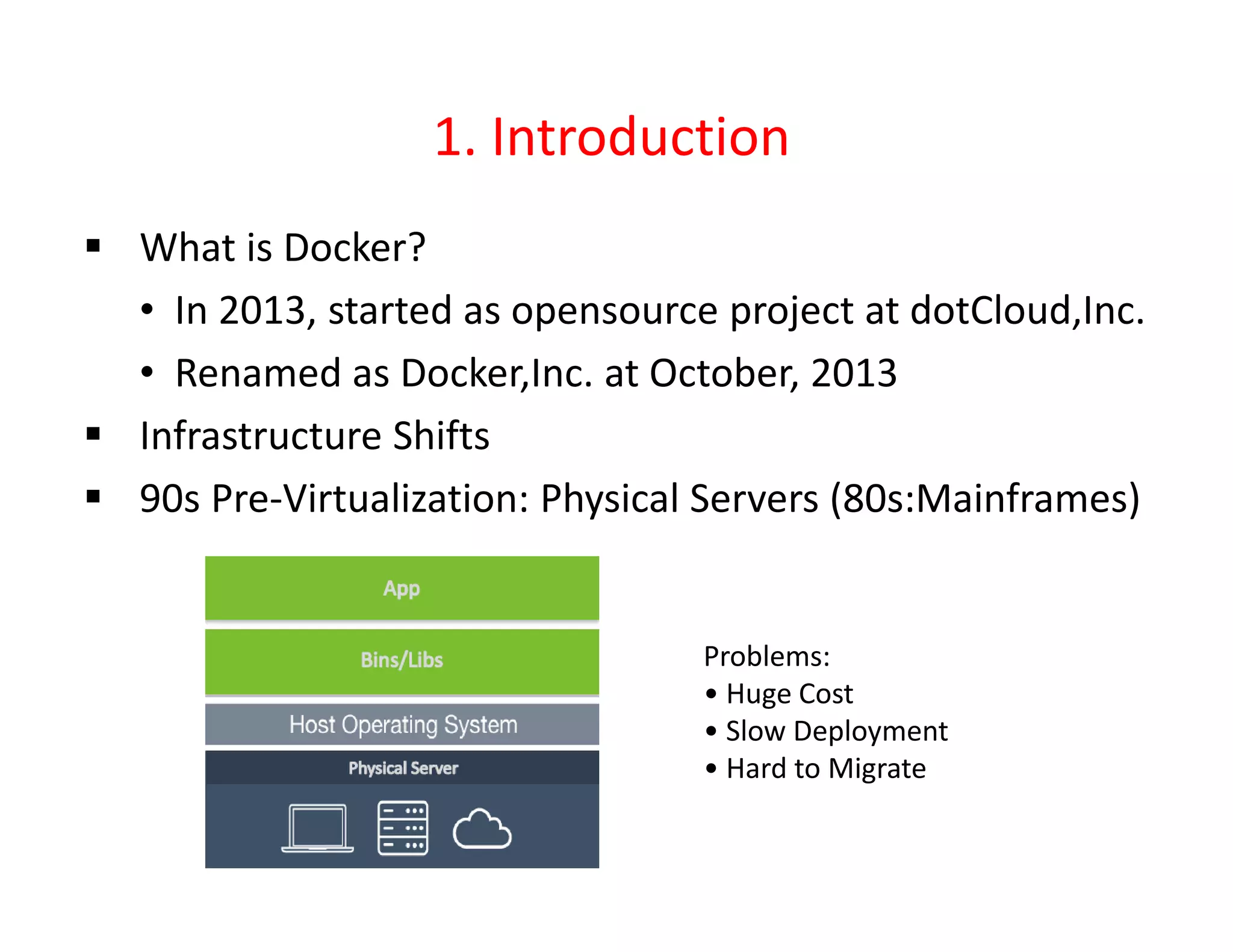
 90s Pre-Virtualization: Physical Servers (80s:Mainframes)
Problems:
• Huge Cost
• Slow Deployment
• Hard to Migrate
Hypervisor Virtualization
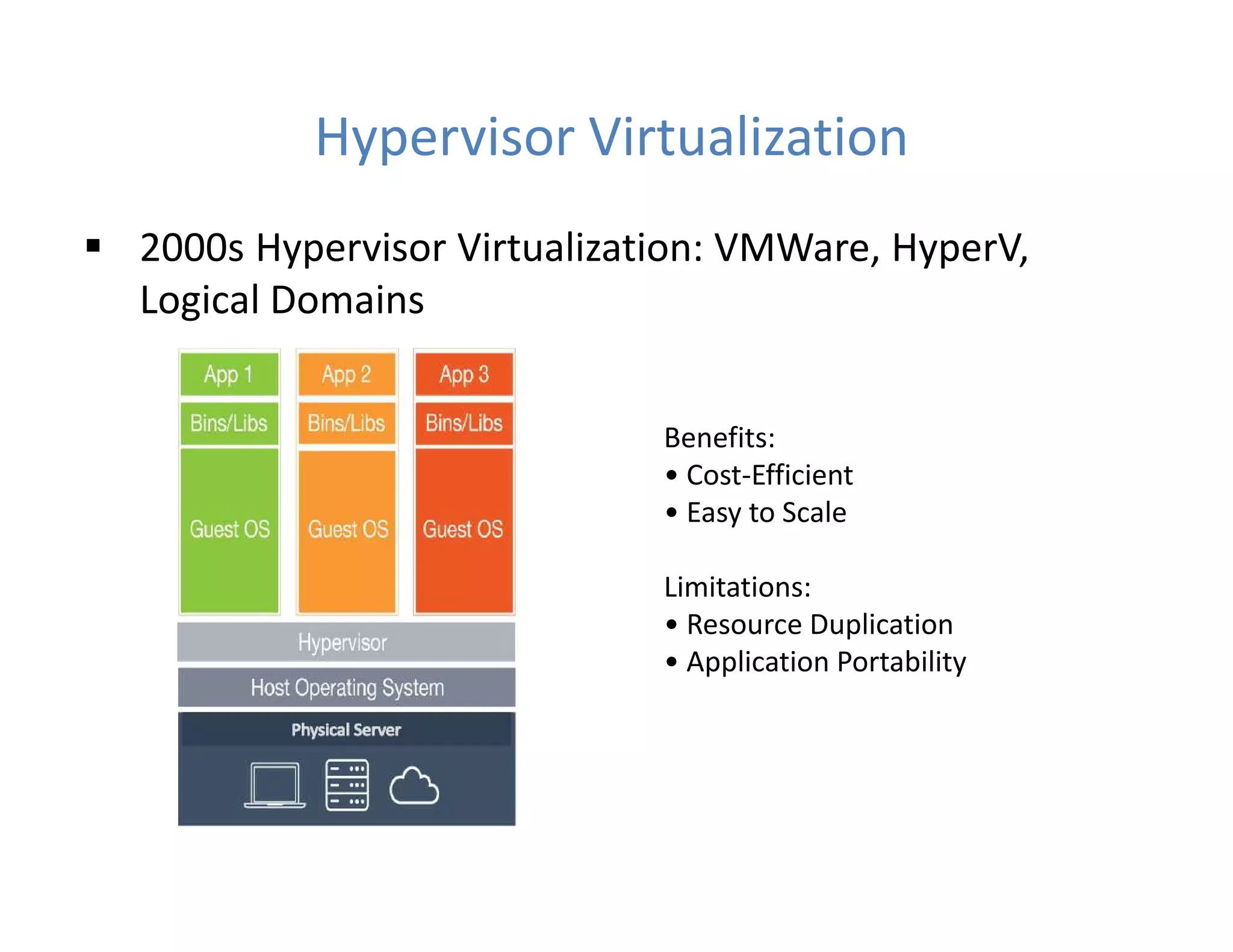
 2000s Hypervisor Virtualization: VMWare, HyperV,
Logical Domains
Benefits:
• Cost-Efficient
• Easy to Scale
Limitations:
• Resource Duplication
• Application Portability
Cloud
 2010s Cloud Technologies
• Amazon Web Services, Microsoft Azure and Google Cloud
Platform, IBM with 34b$ Acqusition of Red Hat
Amazon's Flagship flagship AWS Lambda launched in 2014.
Lambda can be triggered by AWS services such as Amazon
Simple Storage Service (S3), DynamoDB, Kinesis, SNS, and
CloudWatch
Google App Engine launched 2008. App Engine supports
Node.js, Java, Ruby, C#, Go, Python, and PHP and database
products are Cloud Datastore and Firebase. Kubernetes was
created by Google in 2015 and is an open-source platform
 Flagship, Azure Functions, allows users users to execute
their code, written in languages including JavaScript, C#.
Functions also interact with other Azure products including
Azure Cosmos DB and Azure Storage.
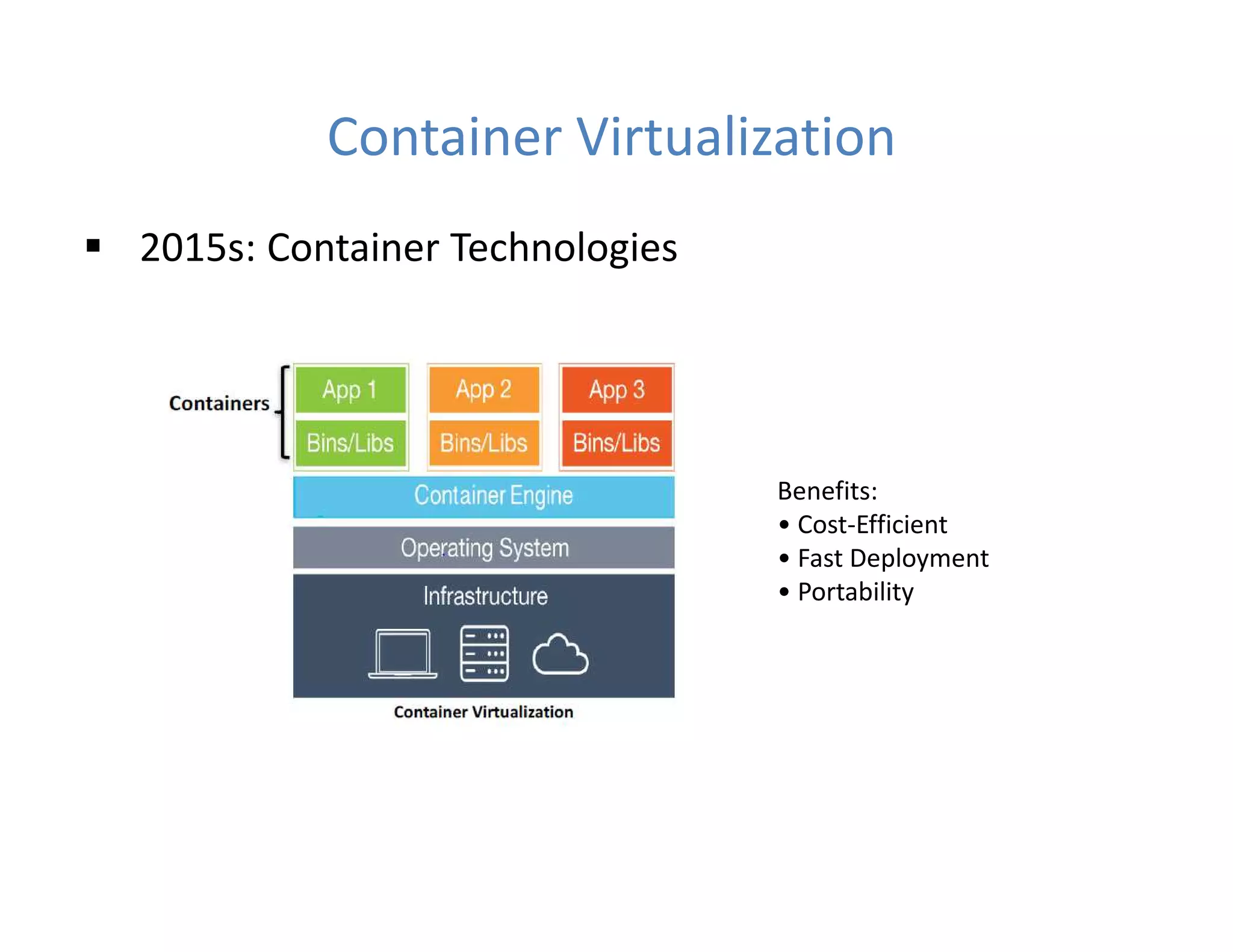
Container Virtualization
 2015s: Container Technologies
Benefits:
• Cost-Efficient
• Fast Deployment
• Portability
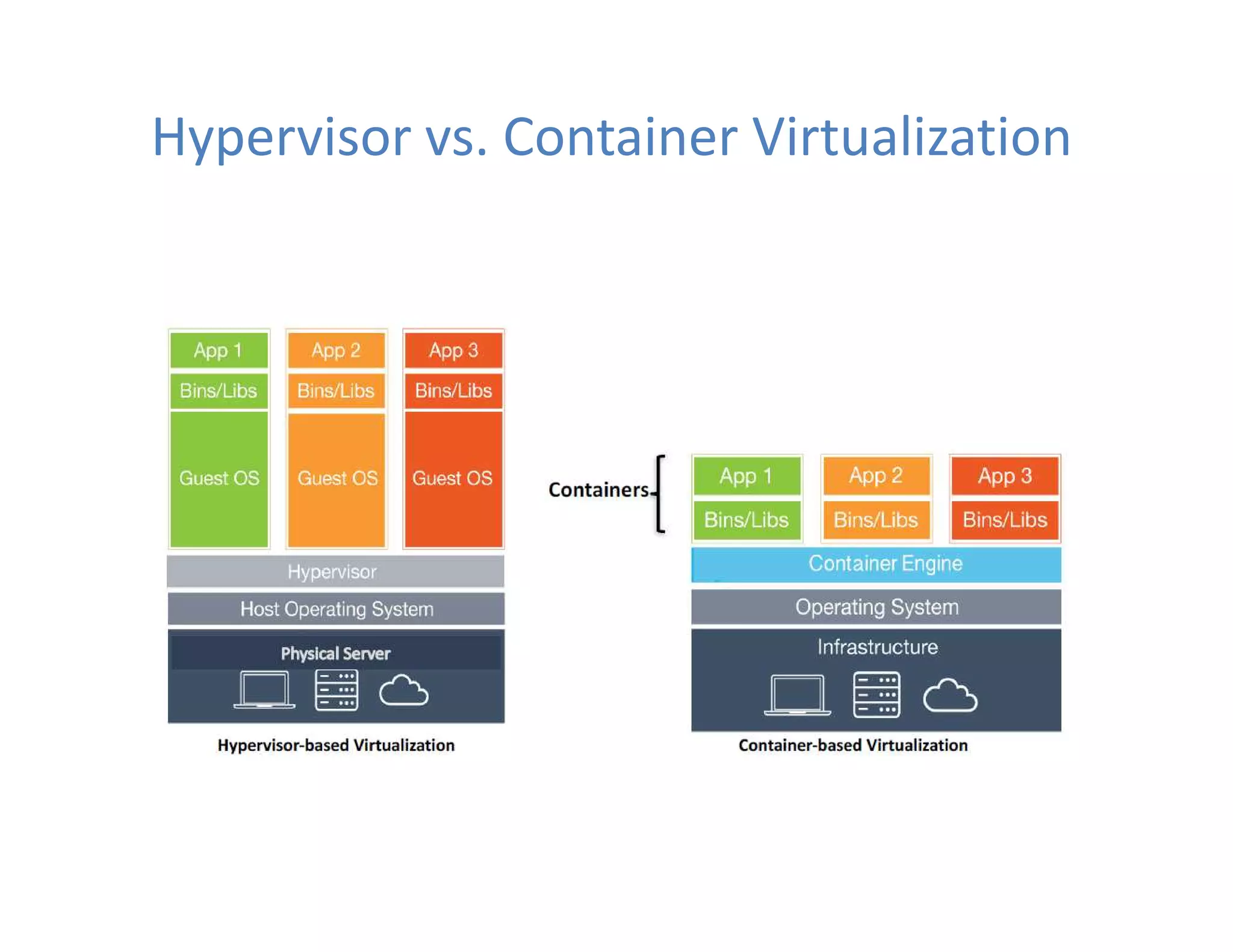
Hypervisor vs. Container Virtualization
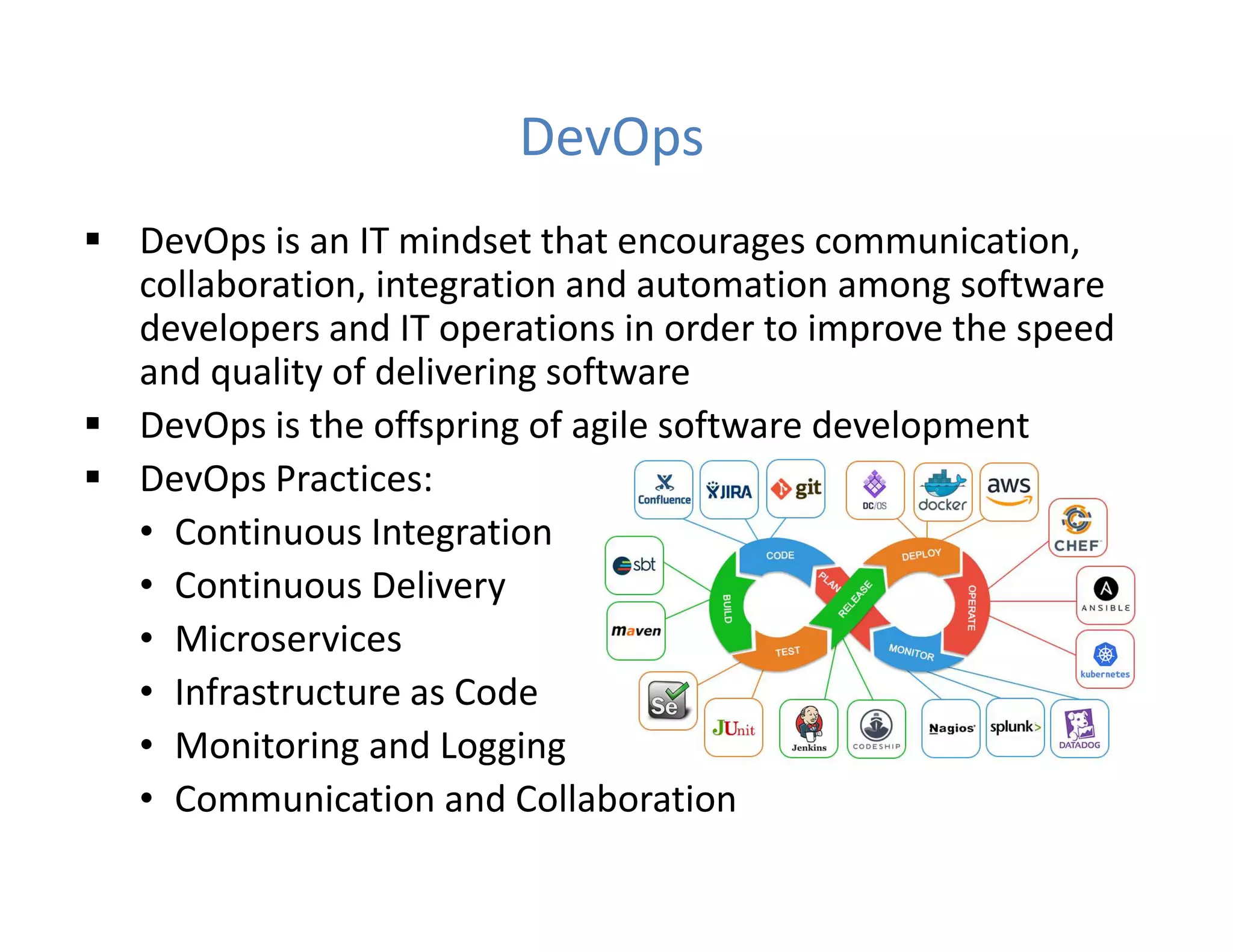
DevOps
 DevOps is an IT mindset that encourages communication,
collaboration, integration and automation among software
developers and IT operations in order to improve the speed
and quality of delivering software
 DevOps is the offspring of agile software development
 DevOps Practices:
• Continuous Integration
• Continuous Delivery
• Microservices
• Infrastructure as Code
• Monitoring and Logging
• Communication and Collaboration
2. The Docker Technology
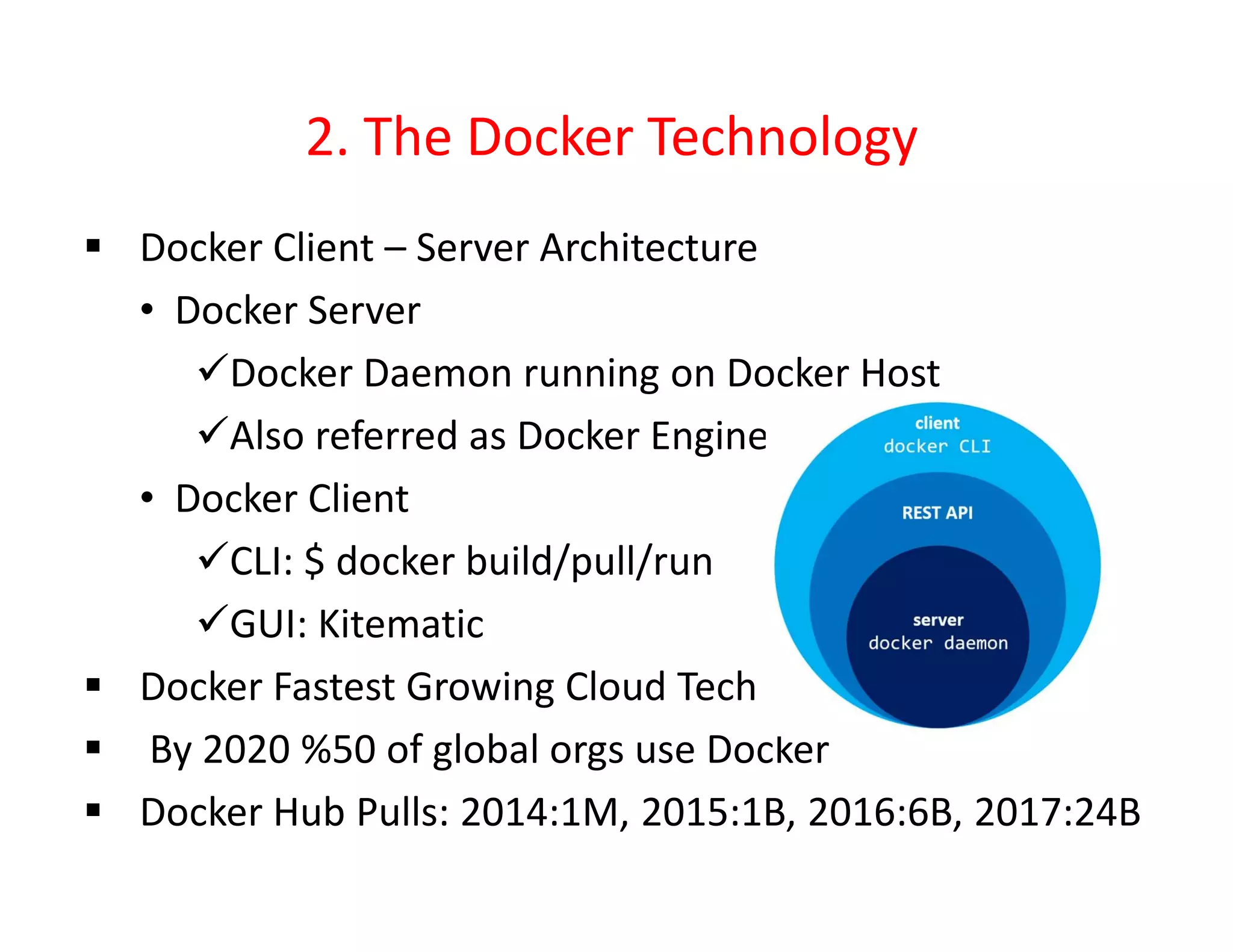
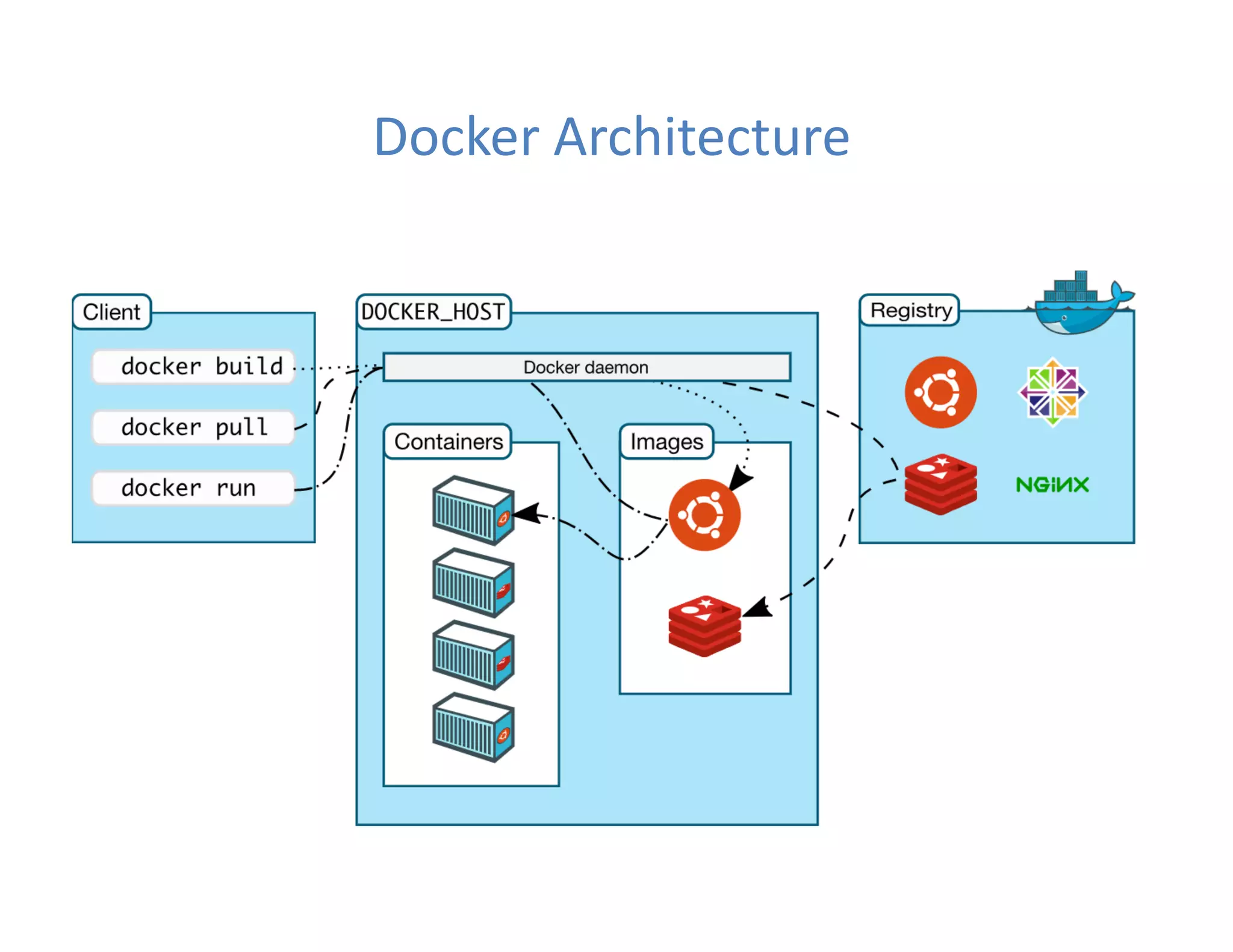
 Docker Client – Server Architecture
• Docker Server
Docker Daemon running on Docker Host
Also referred as Docker Engine
• Docker Client
CLI: $ docker build/pull/run
GUI: Kitematic
 Docker Fastest Growing Cloud Tech
 By 2020 %50 of global orgs use Docker
 Docker Hub Pulls: 2014:1M, 2015:1B, 2016:6B, 2017:24B
Docker Architecture
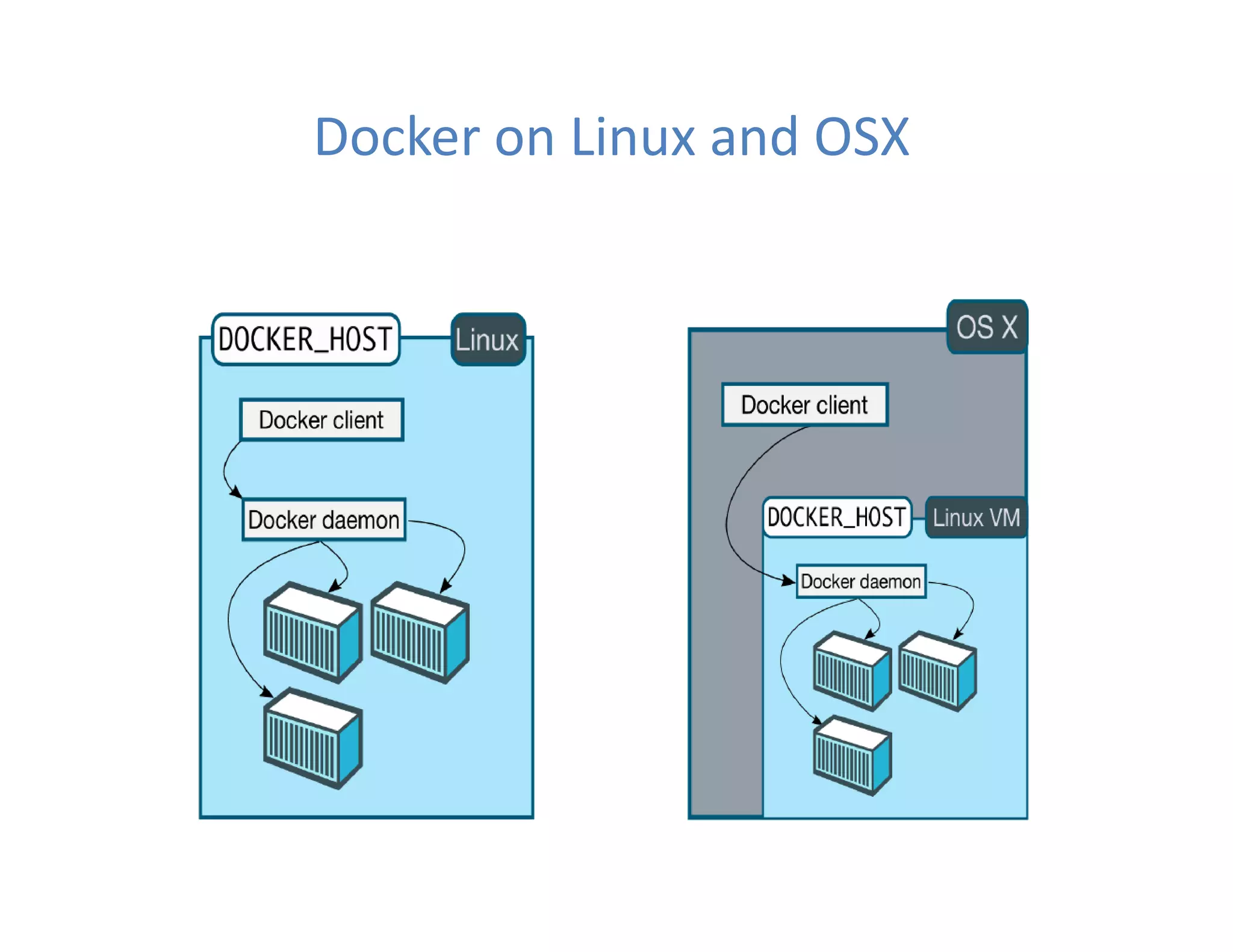
Docker on Linux and OSX
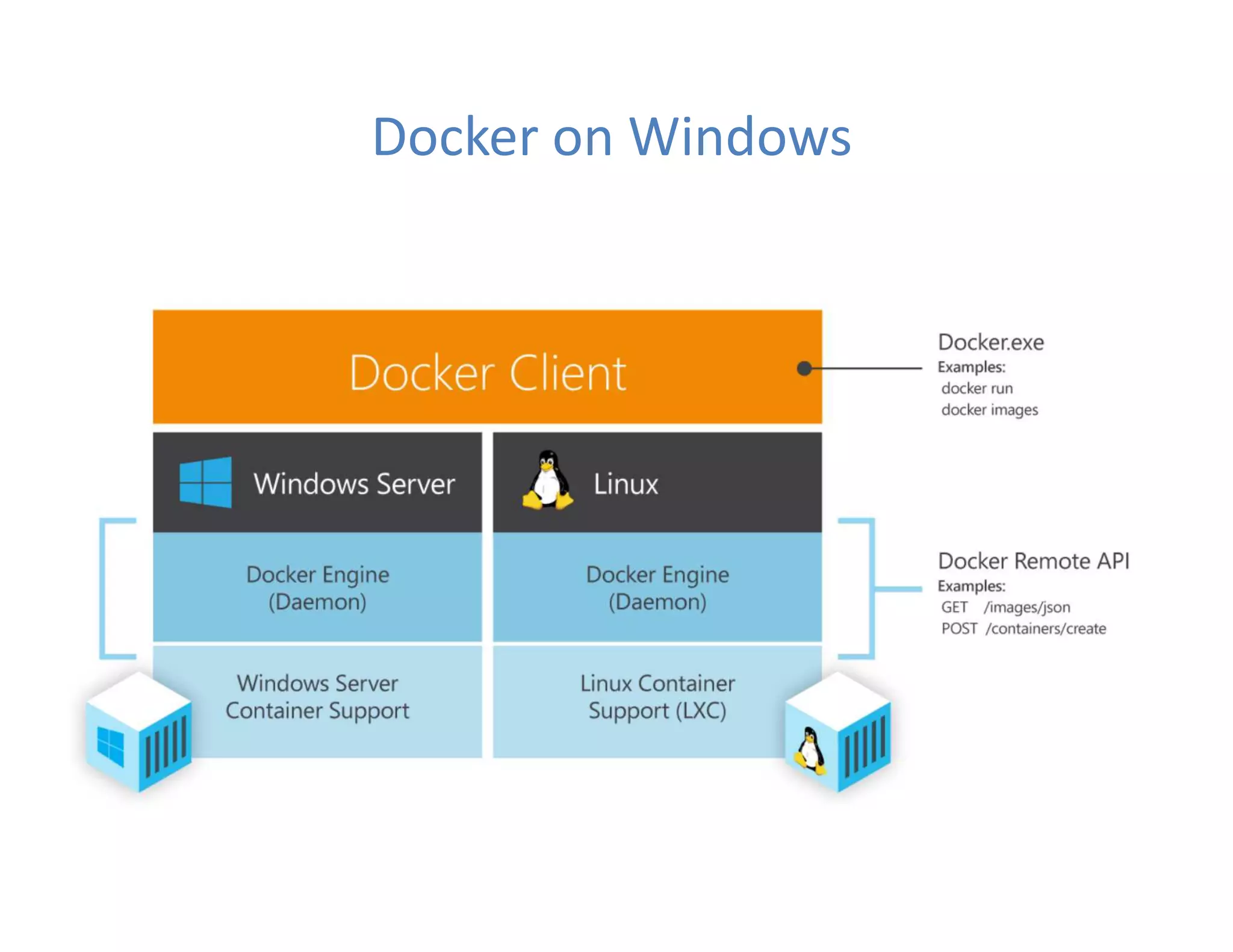
Docker on Windows
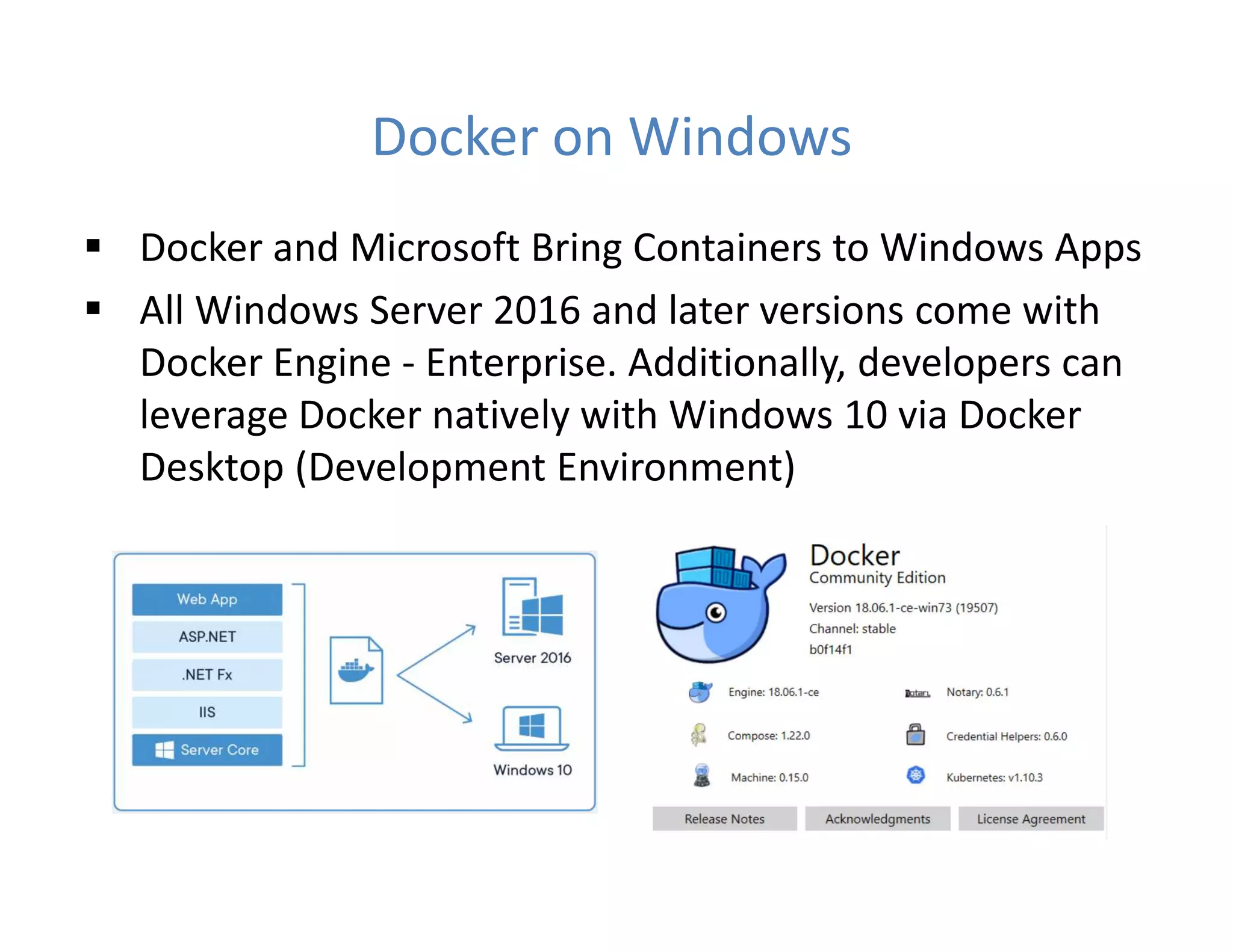
Docker on Windows
 Docker and Microsoft Bring Containers to Windows Apps
 All Windows Server 2016 and later versions come with
Docker Engine - Enterprise. Additionally, developers can
leverage Docker natively with Windows 10 via Docker
Desktop (Development Environment)
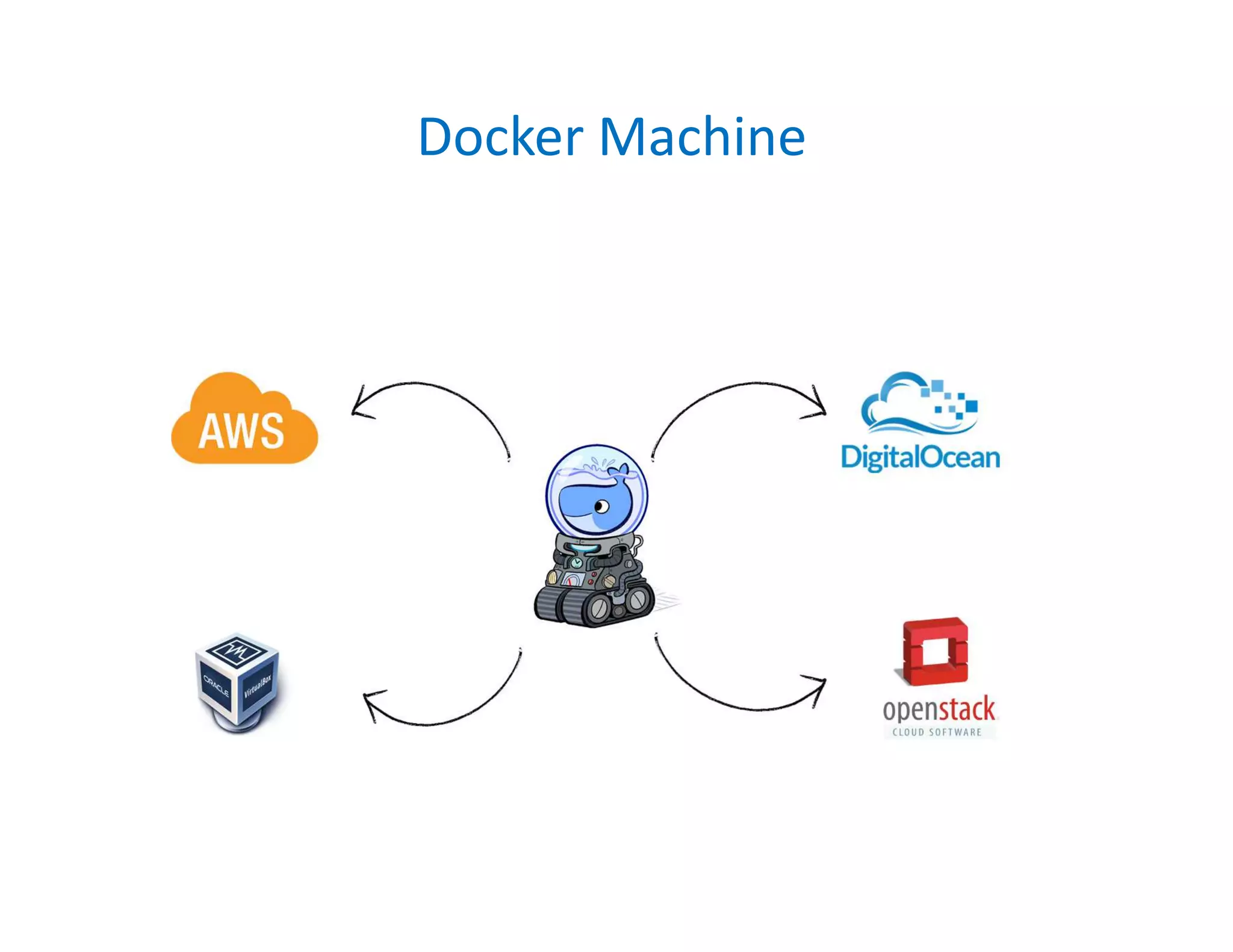
Docker Machine
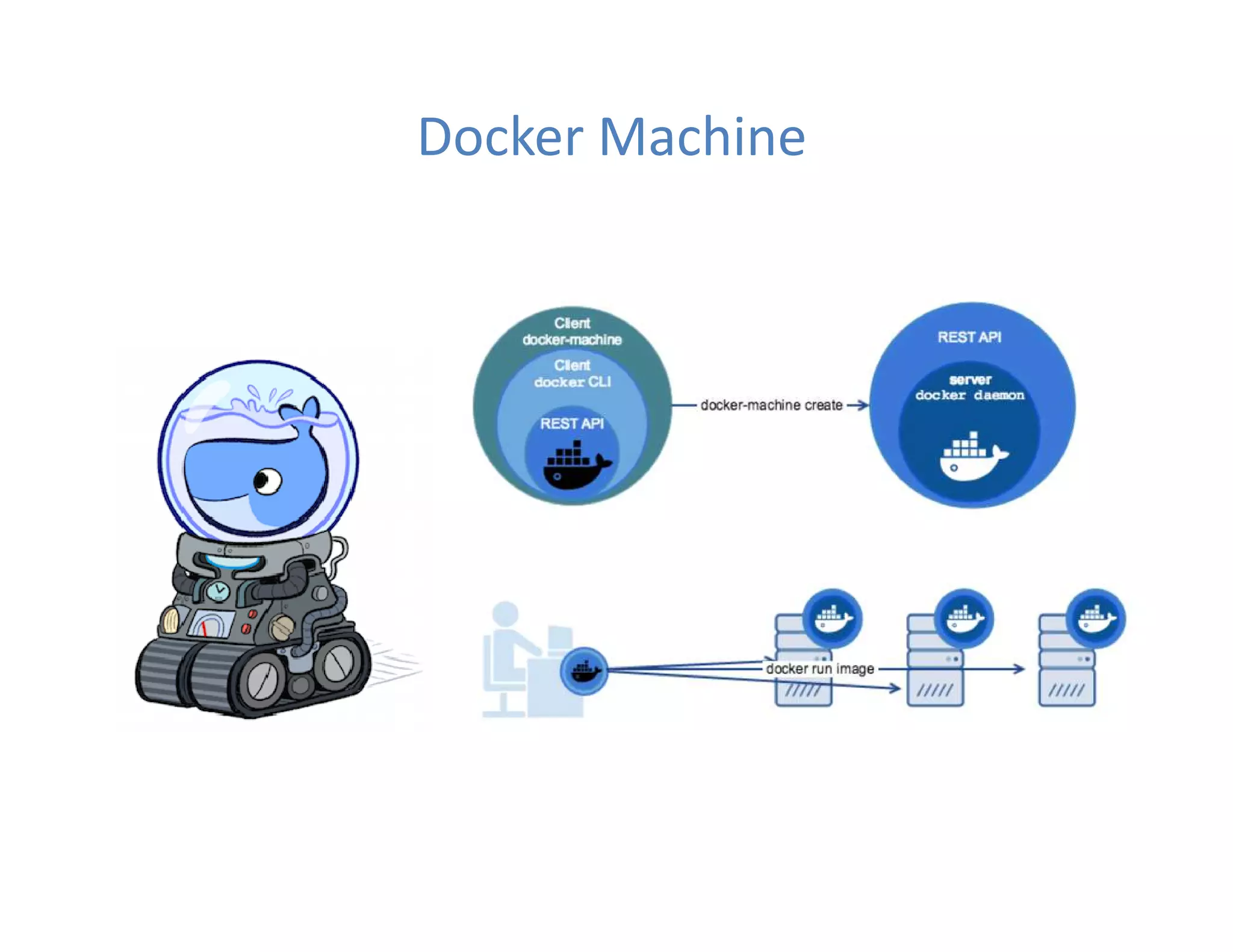
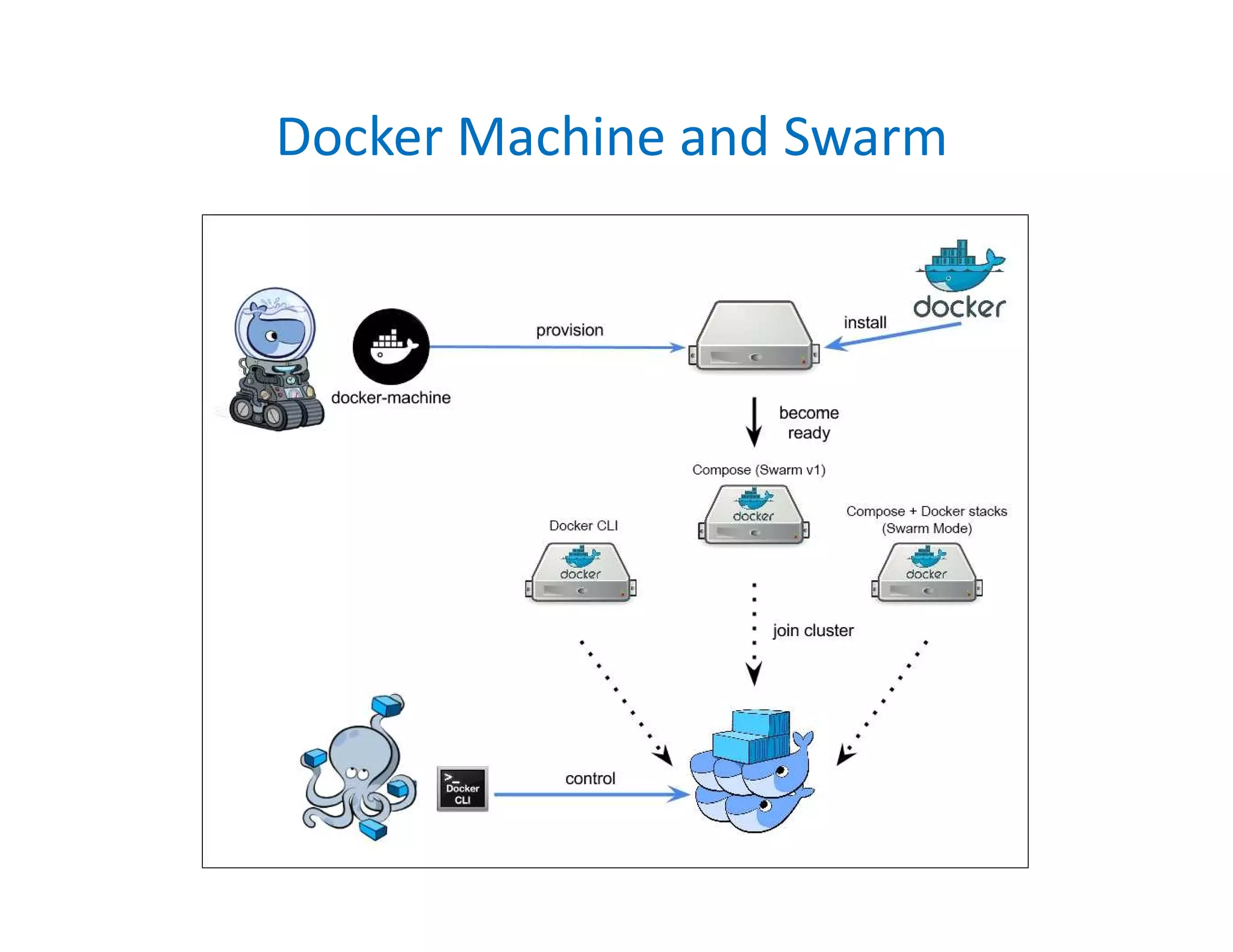
 Docker Machine is a tool for provisioning and managing your
Dockerized hosts (hosts with Docker Engine on them).
 Typically, you install Docker Machine on your local system.
Docker Machine has its own command line client docker-
machine and the Docker Engine client, docker.
 You can use Machine to install Docker Engine on one or more
virtual systems. These virtual systems can be local (as when
you use Machine to install and run Docker Engine in
VirtualBox on Mac or Windows) or remote (as when you use
Machine to provision Dockerized hosts on cloud providers).
 The Dockerized hosts themselves can be thought of, and are
sometimes referred to as, managed “machines”.
Docker Machine
Docker EE
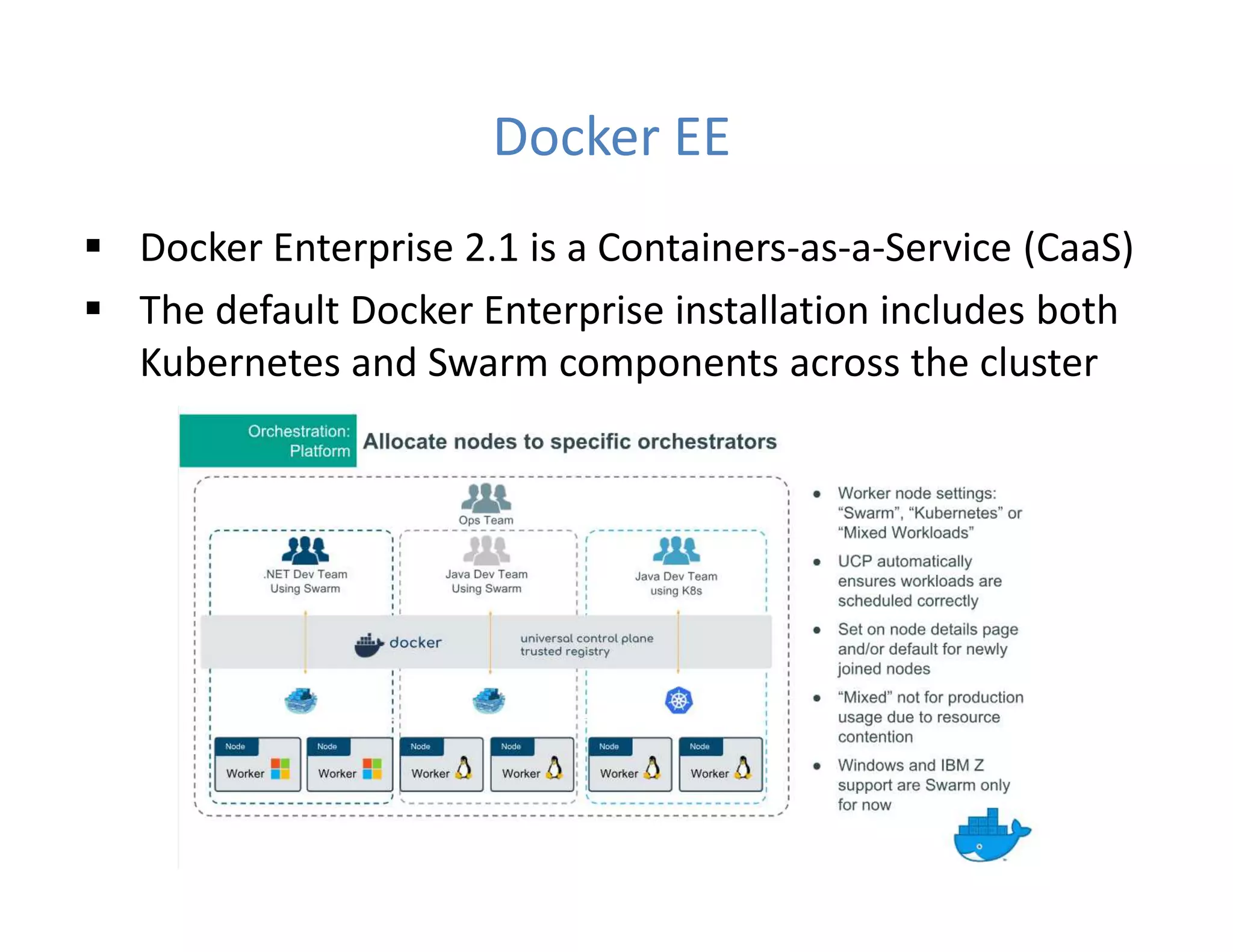
 Docker Enterprise 2.1 is a Containers-as-a-Service (CaaS)
 The default Docker Enterprise installation includes both
Kubernetes and Swarm components across the cluster
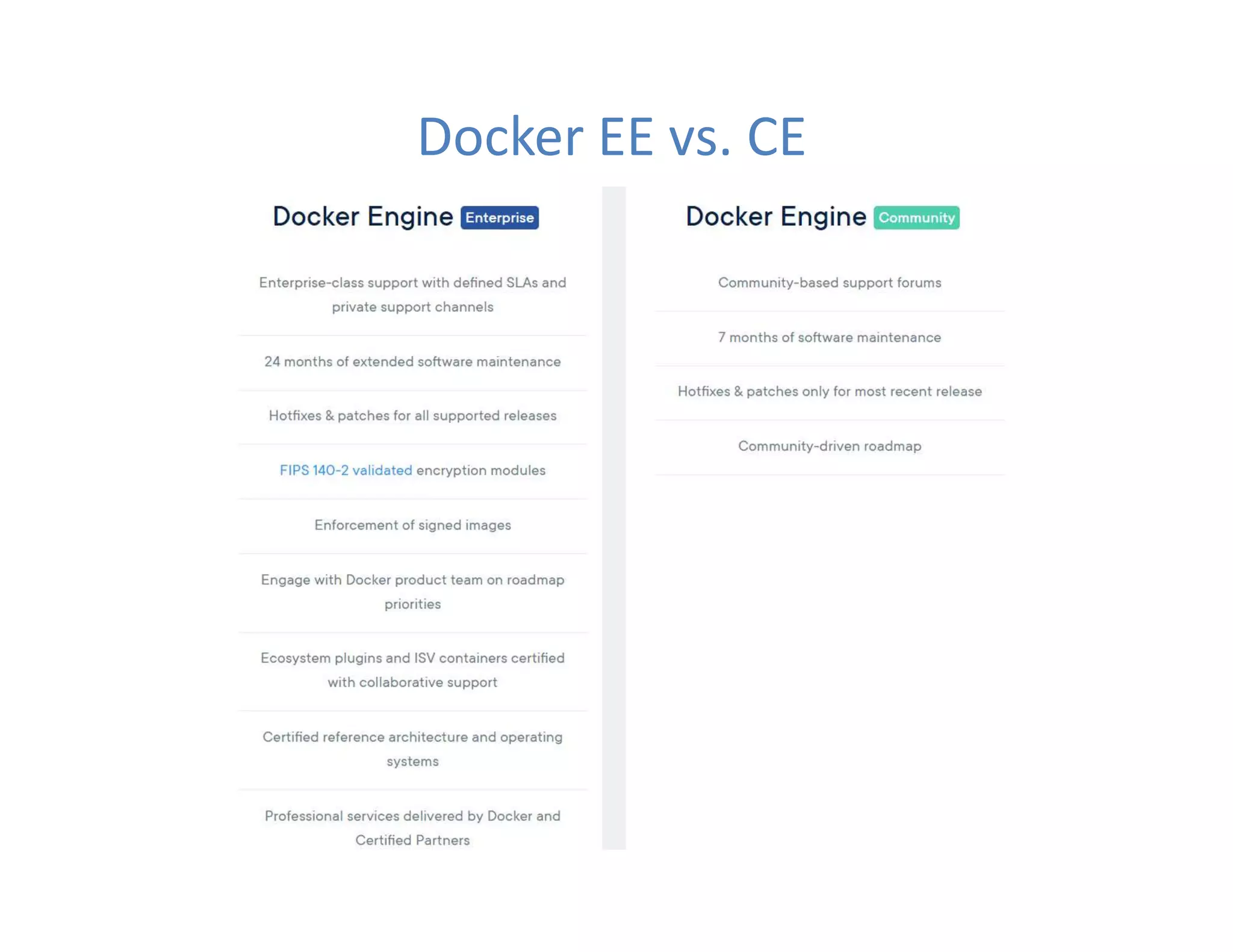
Docker EE vs. CE
3. Installation
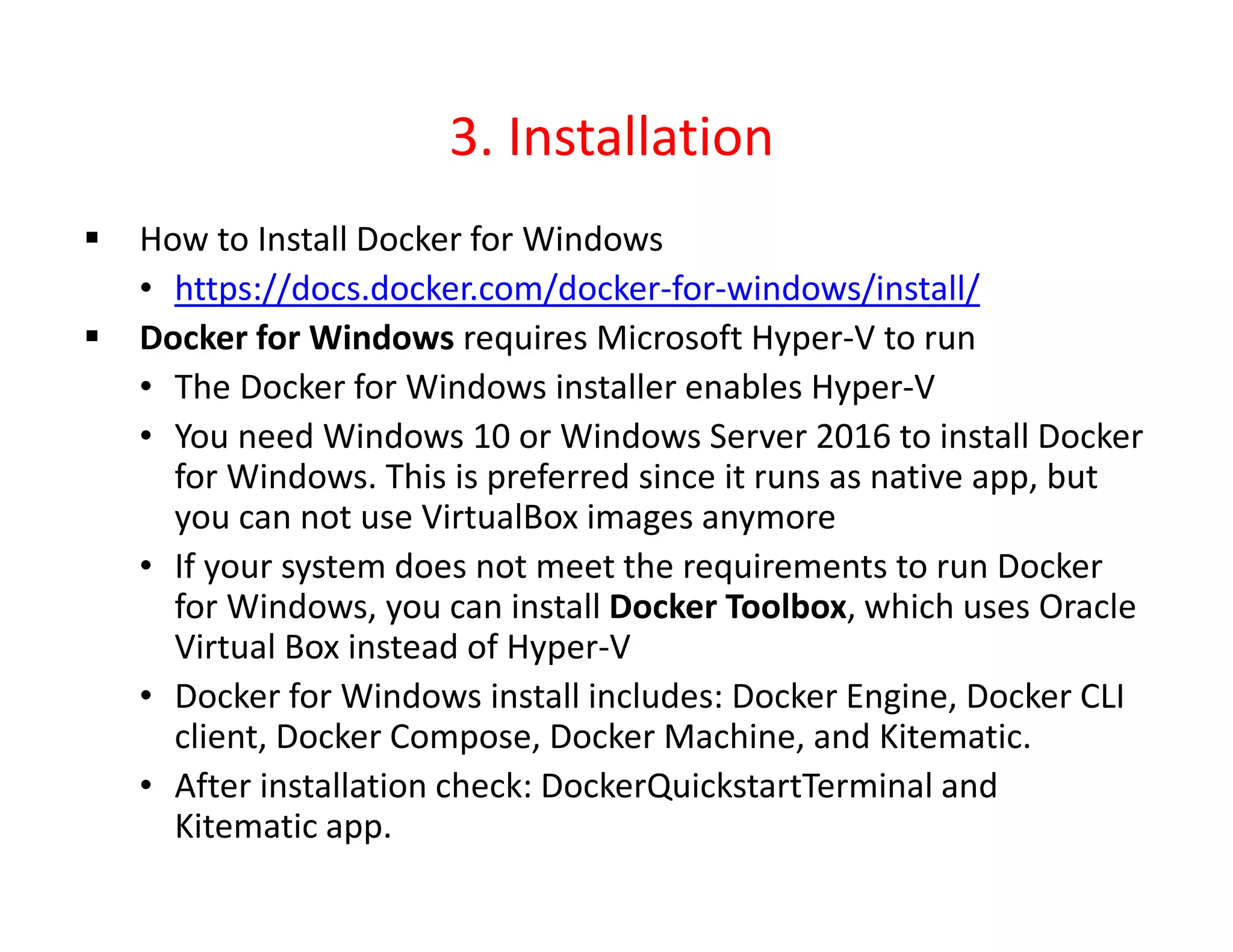
 How to Install Docker for Windows
• https://docs.docker.com/docker-for-windows/install/
 Docker for Windows requires Microsoft Hyper-V to run
• The Docker for Windows installer enables Hyper-V
• You need Windows 10 or Windows Server 2016 to install Docker
for Windows. This is preferred since it runs as native app, but
you can not use VirtualBox images anymore
• If your system does not meet the requirements to run Docker
for Windows, you can install Docker Toolbox, which uses Oracle
Virtual Box instead of Hyper-V
• Docker for Windows install includes: Docker Engine, Docker CLI
client, Docker Compose, Docker Machine, and Kitematic.
• After installation check: DockerQuickstartTerminal and
Kitematic app.
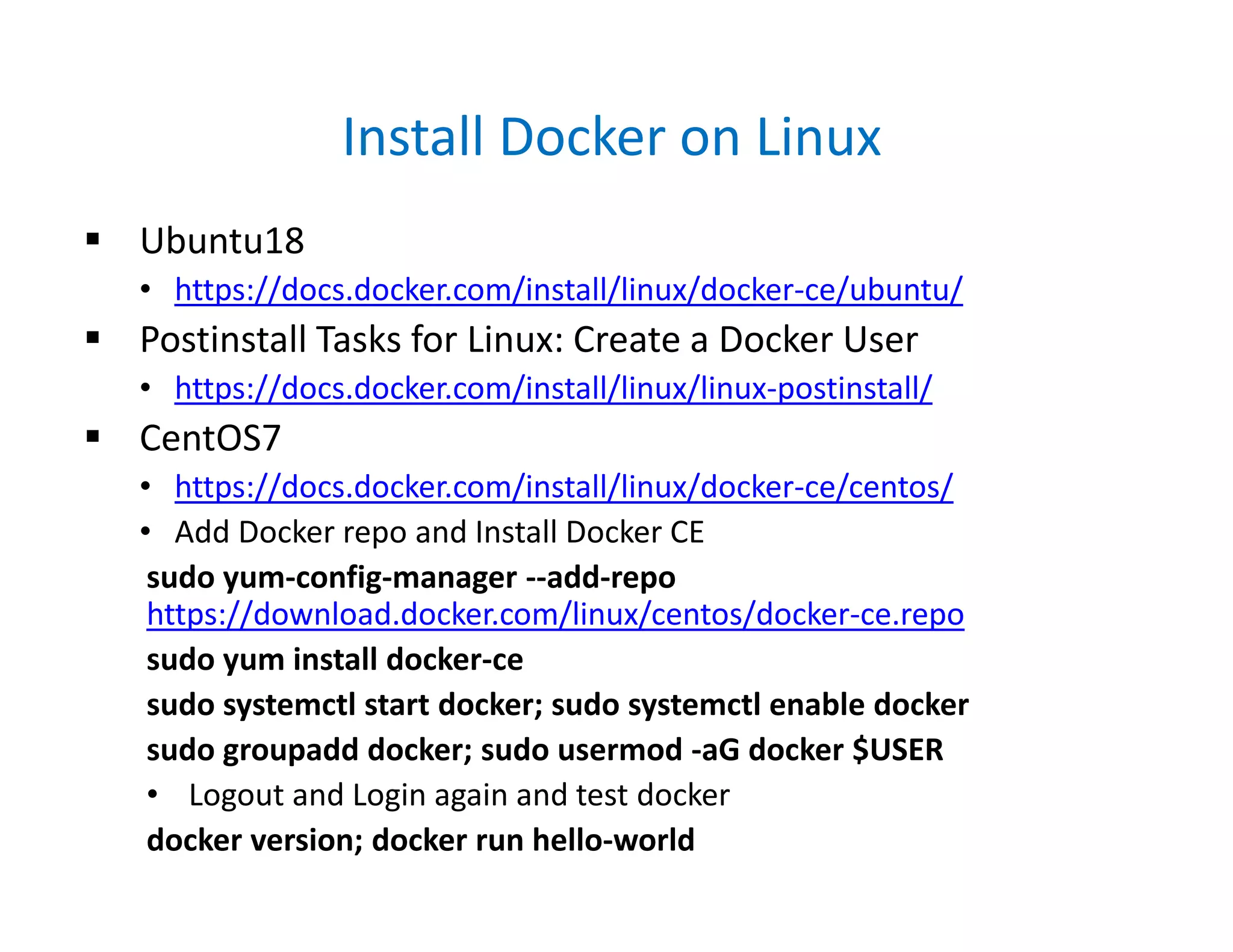
Install Docker on Linux
 Ubuntu18
• https://docs.docker.com/install/linux/docker-ce/ubuntu/
 Postinstall Tasks for Linux: Create a Docker User
• https://docs.docker.com/install/linux/linux-postinstall/
 CentOS7
• https://docs.docker.com/install/linux/docker-ce/centos/
• Add Docker repo and Install Docker CE
sudo yum-config-manager --add-repo
https://download.docker.com/linux/centos/docker-ce.repo
sudo yum install docker-ce
sudo systemctl start docker; sudo systemctl enable docker
sudo groupadd docker; sudo usermod -aG docker $USER
• Logout and Login again and test docker
docker version; docker run hello-world
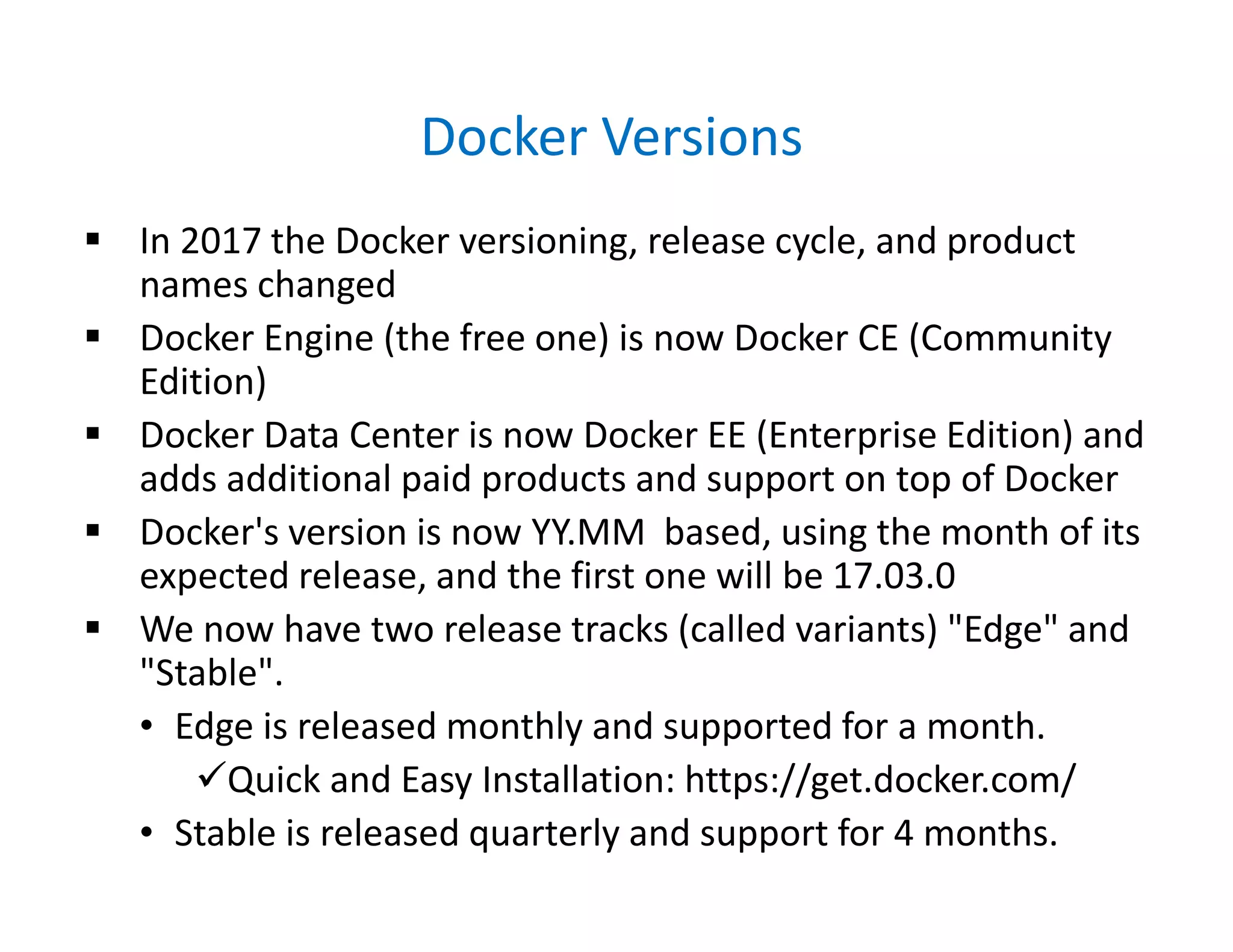
Docker Versions
 In 2017 the Docker versioning, release cycle, and product
names changed
 Docker Engine (the free one) is now Docker CE (Community
Edition)
 Docker Data Center is now Docker EE (Enterprise Edition) and
adds additional paid products and support on top of Docker
 Docker's version is now YY.MM based, using the month of its
expected release, and the first one will be 17.03.0
 We now have two release tracks (called variants) "Edge" and
"Stable".
• Edge is released monthly and supported for a month.
Quick and Easy Installation: https://get.docker.com/
• Stable is released quarterly and support for 4 months.
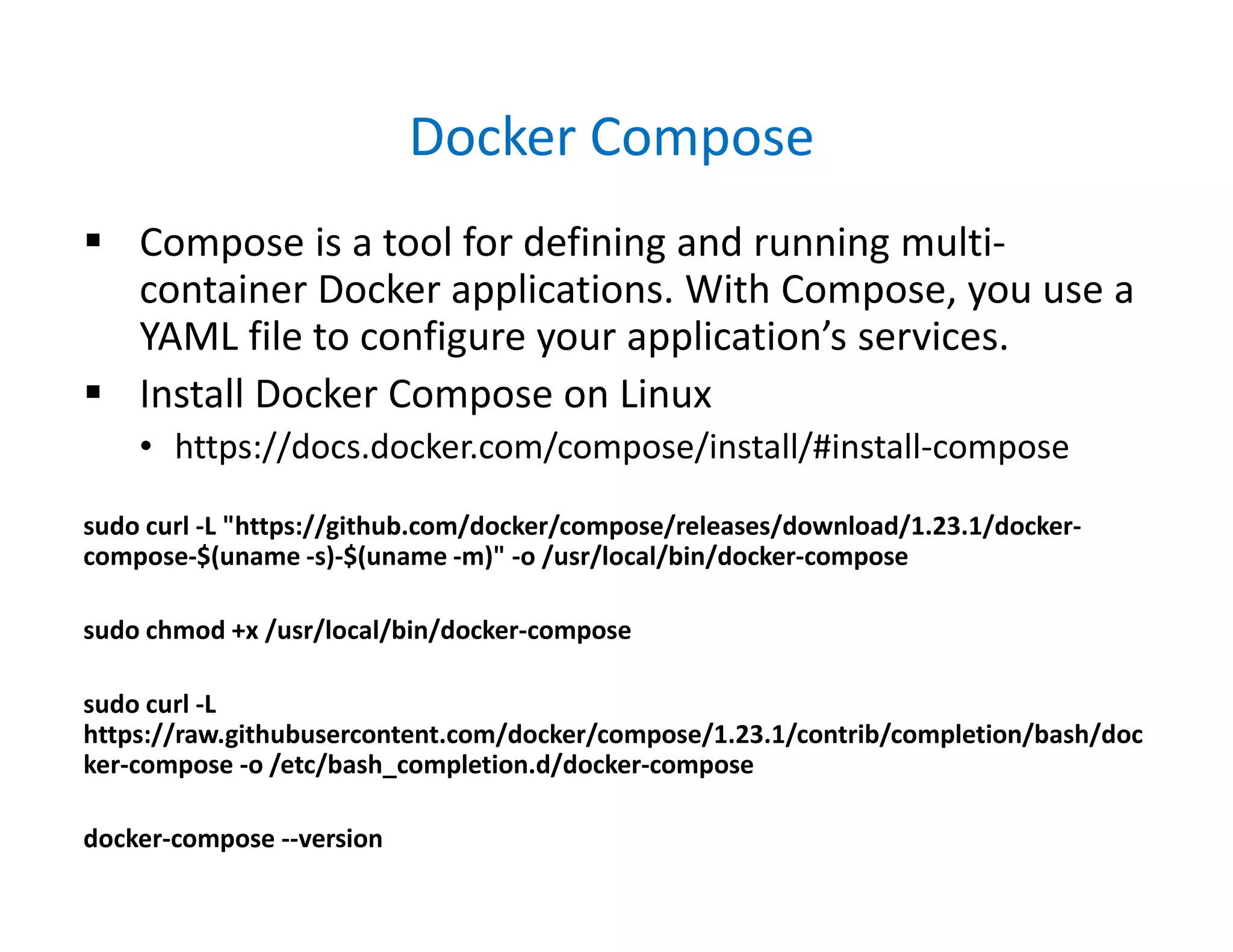
Docker Compose
 Compose is a tool for defining and running multi-
container Docker applications. With Compose, you use a
YAML file to configure your application’s services.
 Install Docker Compose on Linux
• https://docs.docker.com/compose/install/#install-compose
sudo curl -L "https://github.com/docker/compose/releases/download/1.23.1/docker-
compose-$(uname -s)-$(uname -m)" -o /usr/local/bin/docker-compose
sudo chmod +x /usr/local/bin/docker-compose
sudo curl -L
https://raw.githubusercontent.com/docker/compose/1.23.1/contrib/completion/bash/doc
ker-compose -o /etc/bash_completion.d/docker-compose
docker-compose --version
Docker Machine
 Docker Machine is a tool that lets you install Docker
Engine on virtual hosts, and manage the hosts with
docker-machine commands. You can use Machine to
create Docker hosts on your local Mac or Windows box,
on your company network, in your data center, or on
cloud providers like Azure, AWS, or Digital Ocean.
 Install Docker Machine
https://docs.docker.com/machine/install-machine/
base=https://github.com/docker/machine/releases/download/v0.16.0 &&
curl -L $base/docker-machine-$(uname -s)-$(uname -m) >/tmp/docker-machine &&
sudo install /tmp/docker-machine /usr/local/bin/docker-machine
docker-machine version
 Optional Bash Completion: https://docs.docker.com/machine/install-
machine/#install-bash-completion-scripts
4. Using Containers
 Check Docker Server (Engine, Daemon) Running
• docker version
• docker info
• docker-machine version
• docker-compose version
• docker run hello-world (First Hello World app)
 How to get help on commands
• docker (Lists all)
• docker <command> --help
• https://docs.docker.com/
 New style 2017: Management Commands
• docker run vs. docker container run
• docker ps vs. docker container ls
Image vs. Container
 An Image is the application we want to run
 A Container is an instance of that image running as a
process
 You can have many containers running off the same
image
 How to get images?
• Default image "registry" is called Docker Hub
(hub.docker.com)
 Containers aren’t Mini-VM’s. They are just processes
 Limited to what resources they can access (file paths,
network devices, running processes)
 Exit when process stops
Start a Simple Web Server
 Let's start a simple web server nginx as container
docker container run --publish 80:80 nginx
• First look for the nginx image locally
• if not found pull from Docker Hub
• Start nginx and open port 80 on the host
• Routes traffic to the container IP on port 80
• Start a firefox and check localhost, refresh couple of
times
• if you have bind error => Apache or another Web
Server running. Stop & Disable with systemctl or
choose another port on the host like --publish 8080:80
Nginx Lab
 Now nginx running on the foreground and displaying logs on
the terminal. Let's run it on the background
• Hit Control-c
docker container run --publish 80:80 --detach nginx
• Now running at background, unique Container ID
• Check running containers
docker ps (Old way)
docker container ls (New way)
• Notice random funny names at the end, we can specify
names too. Now stop nginx
docker container stop <ConID> or <Name>
docker container ls (No running containers)
docker container ls -a (Running and Stopped containers)
Nginx
 Let's start a new container and give name "webhost"
docker container run --publish 80:80 --detach --name
webhost nginx
docker container ls -a (Show both running and stopped)
• Start firefox and refresh couple of times
• Now let's check logs generated from container
docker container logs webhost
• Check running processes on "webhost" container
docker container top webhost
• Clean everything. All running and stopped containers
docker container rm <ID> or <Name> (-f option to force)
Docker Internals
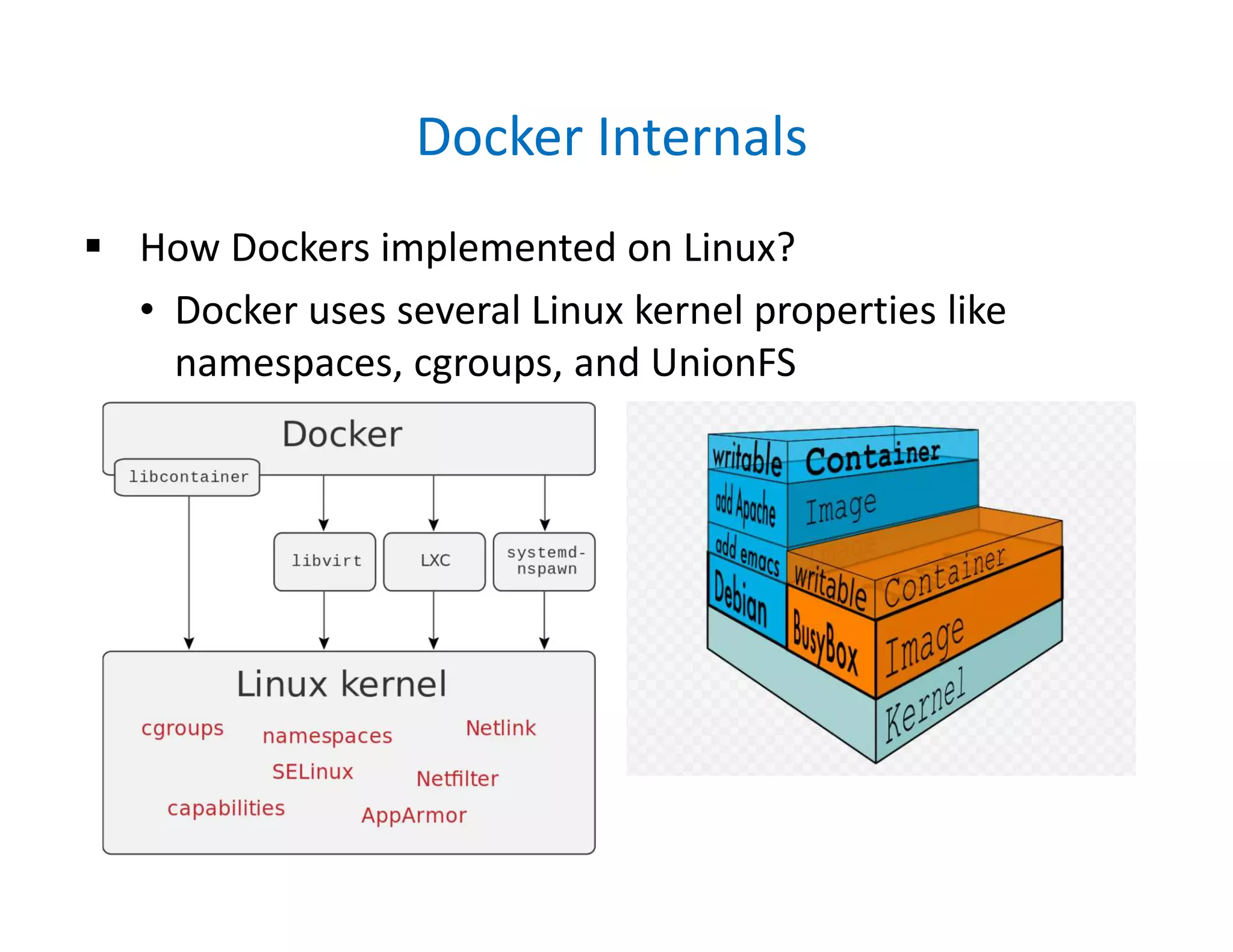
 How Dockers implemented on Linux?
• Docker uses several Linux kernel properties like
namespaces, cgroups, and UnionFS
Docker Internals
 Docker Engine uses the following namespaces on Linux:
• PID namespace for process isolation.
• NET namespace for managing network interfaces.
• IPC namespace for managing access to IPC resources.
• MNT namespace for managing filesystem mount points.
• UTS namespace for isolating kernel and version
 Docker Engine uses the following cgroups:
• Memory cgroup for managing accounting, limits and notifications.
• HugeTBL cgroup for accounting usage of huge pages by process group.
• CPU group for managing user / system CPU time and usage.
• CPUSet cgroup for binding a group to specific CPU. Useful for real time
applications and NUMA systems with localized memory per CPU.
• BlkIO cgroup for measuring & limiting amount of blckIO by group.
• net_cls and net_prio cgroup for tagging the traffic control.
• Devices cgroup for reading / writing access devices.
• Freezer cgroup for freezing a group. Useful for cluster batch scheduling,
process migration and debugging without affecting prtrace.
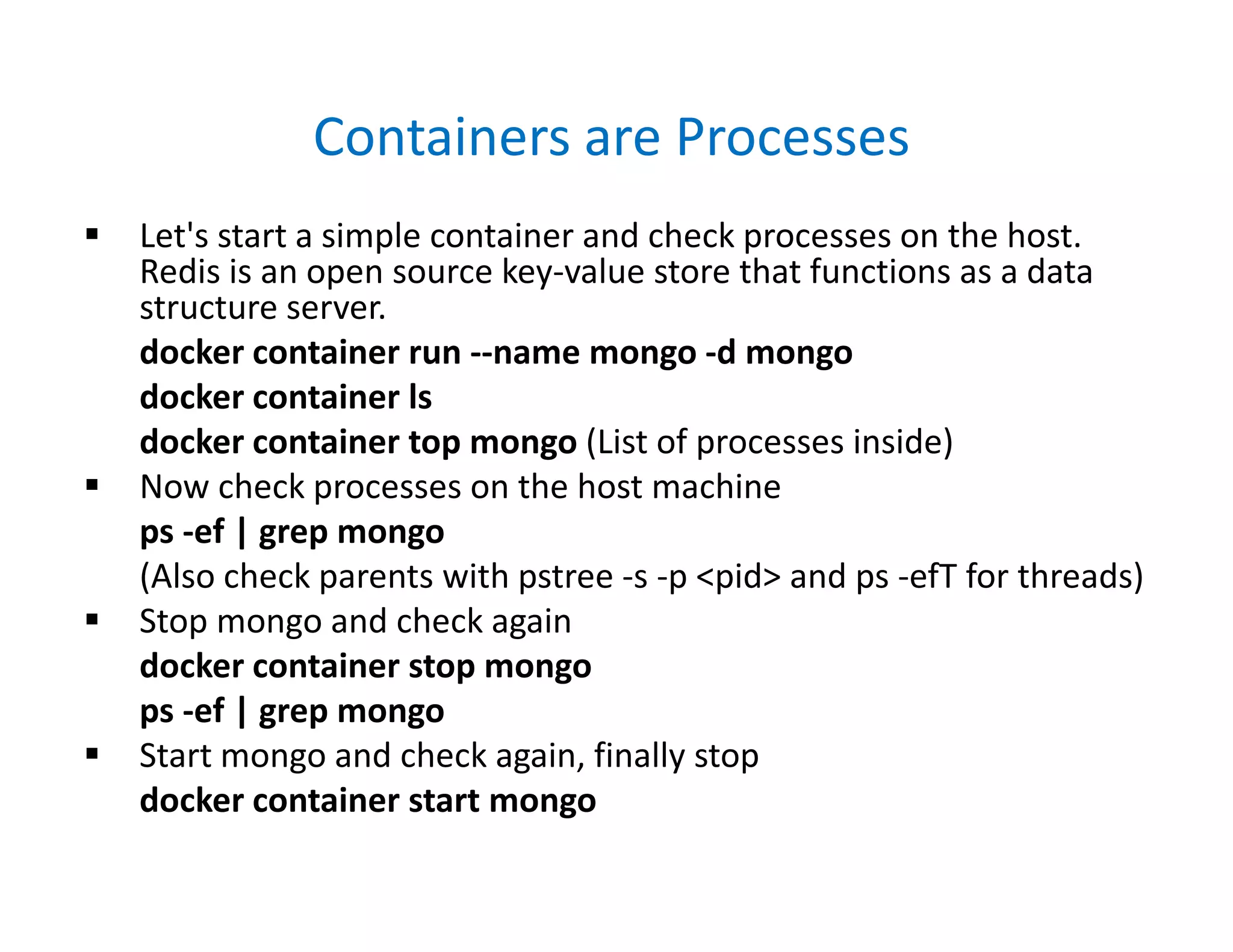
Containers are Processes
 Let's start a simple container and check processes on the host.
Redis is an open source key-value store that functions as a data
structure server.
docker container run --name mongo -d mongo
docker container ls
docker container top mongo (List of processes inside)
 Now check processes on the host machine
ps -ef | grep mongo
(Also check parents with pstree -s -p <pid> and ps -efT for threads)
 Stop mongo and check again
docker container stop mongo
ps -ef | grep mongo
 Start mongo and check again, finally stop
docker container start mongo
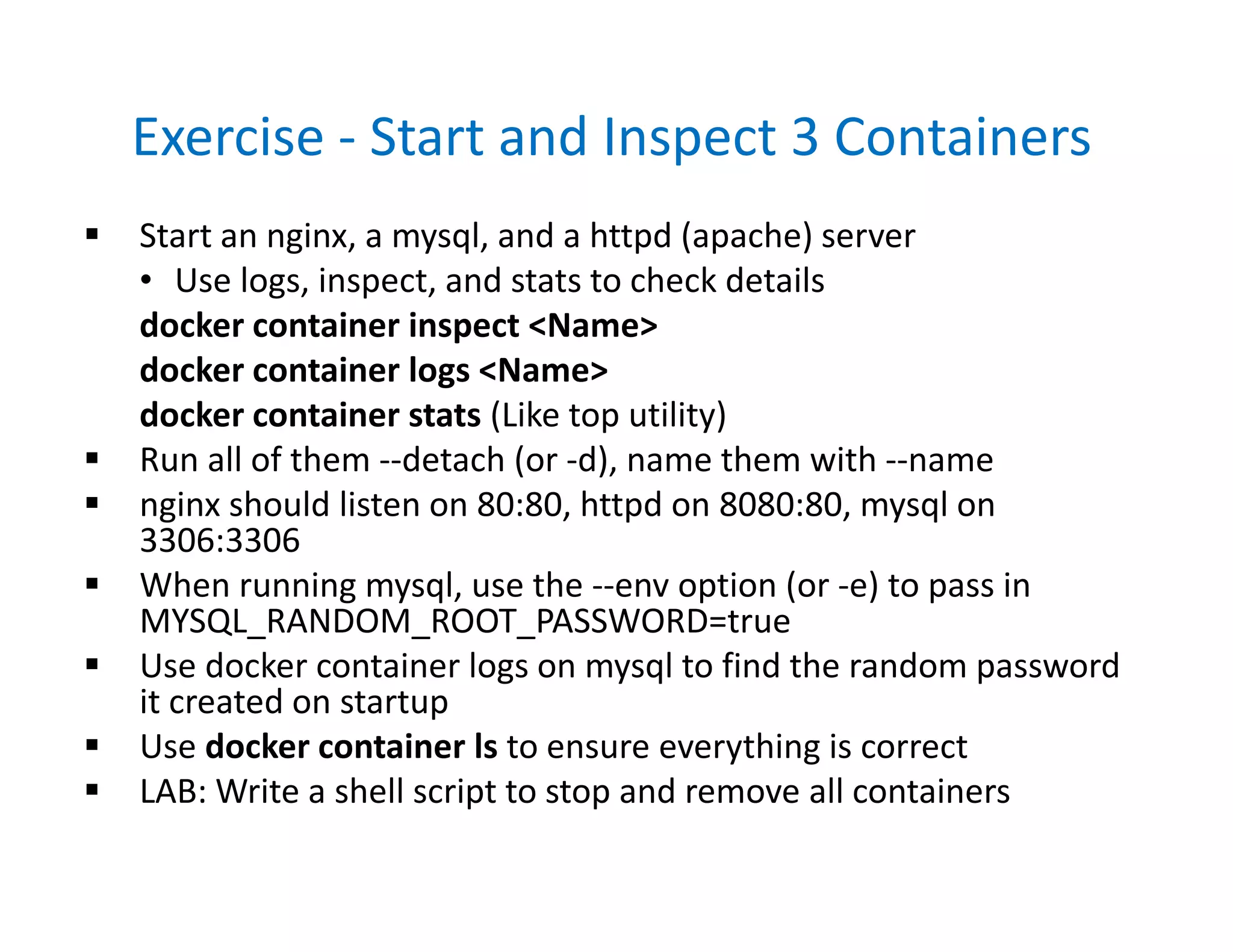
Exercise - Start and Inspect 3 Containers
 Start an nginx, a mysql, and a httpd (apache) server
• Use logs, inspect, and stats to check details
docker container inspect <Name>
docker container logs <Name>
docker container stats (Like top utility)
 Run all of them --detach (or -d), name them with --name
 nginx should listen on 80:80, httpd on 8080:80, mysql on
3306:3306
 When running mysql, use the --env option (or -e) to pass in
MYSQL_RANDOM_ROOT_PASSWORD=true
 Use docker container logs on mysql to find the random password
it created on startup
 Use docker container ls to ensure everything is correct
 LAB: Write a shell script to stop and remove all containers
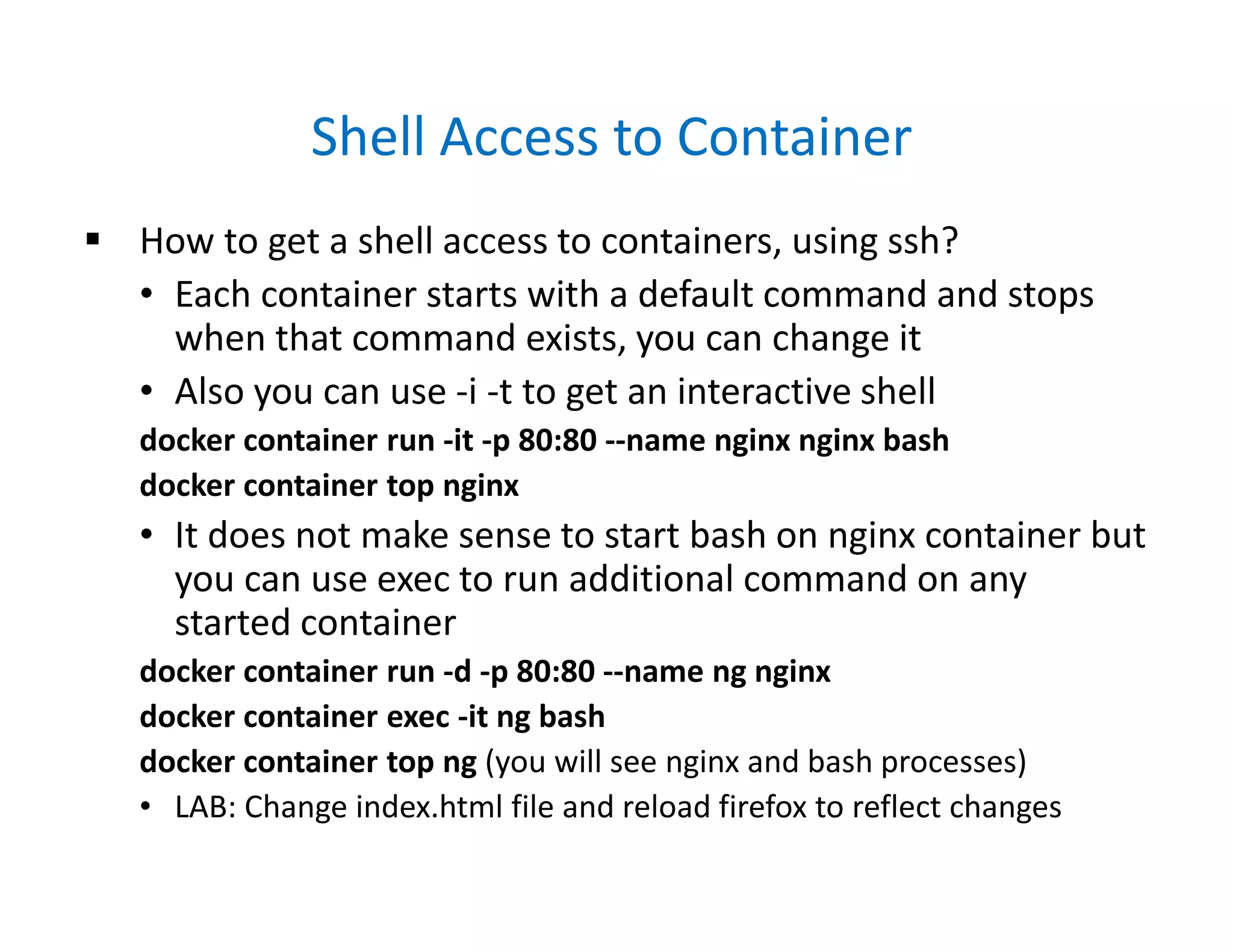
Shell Access to Container
 How to get a shell access to containers, using ssh?
• Each container starts with a default command and stops
when that command exists, you can change it
• Also you can use -i -t to get an interactive shell
docker container run -it -p 80:80 --name nginx nginx bash
docker container top nginx
• It does not make sense to start bash on nginx container but
you can use exec to run additional command on any
started container
docker container run -d -p 80:80 --name ng nginx
docker container exec -it ng bash
docker container top ng (you will see nginx and bash processes)
• LAB: Change index.html file and reload firefox to reflect changes
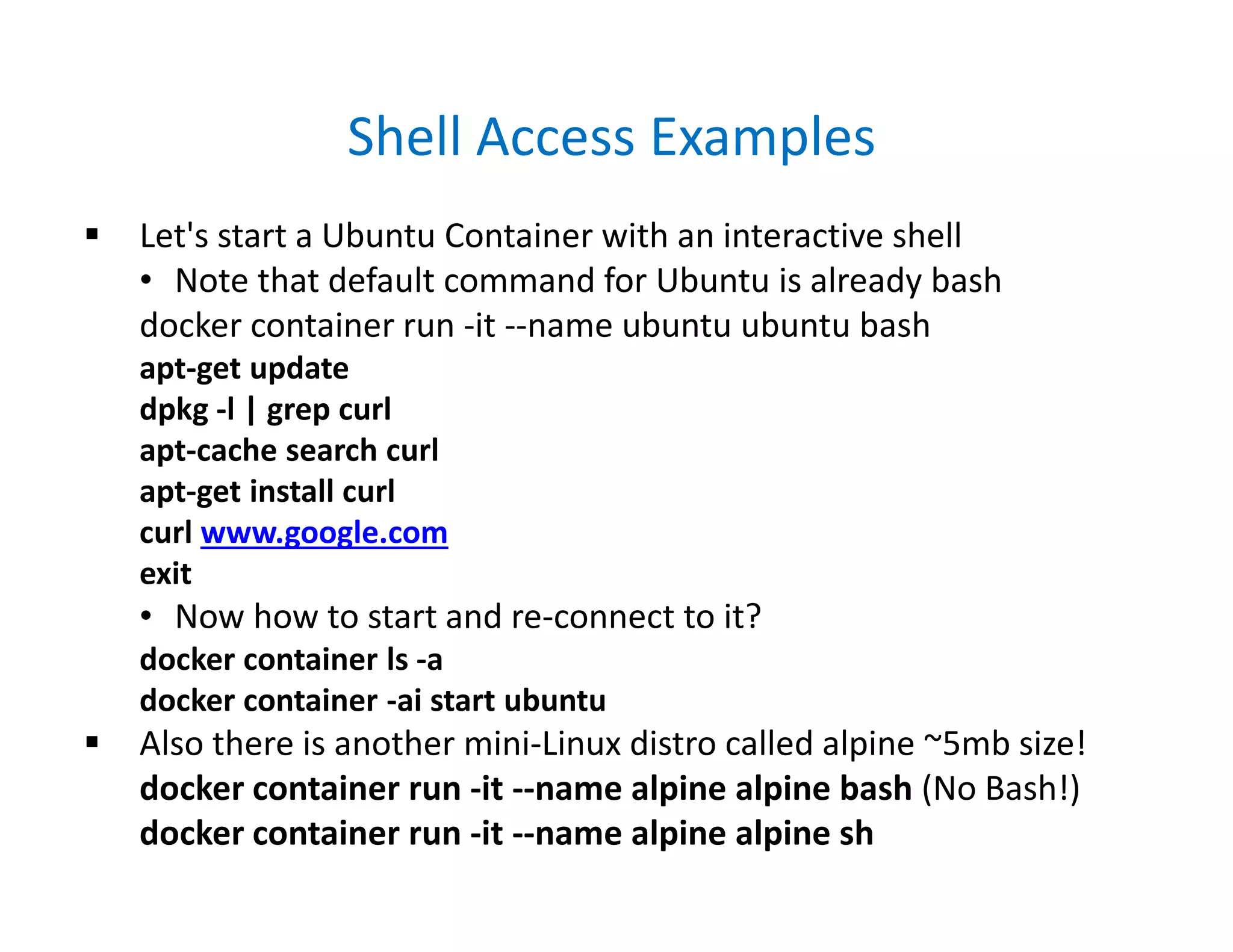
Shell Access Examples
 Let's start a Ubuntu Container with an interactive shell
• Note that default command for Ubuntu is already bash
docker container run -it --name ubuntu ubuntu bash
apt-get update
dpkg -l | grep curl
apt-cache search curl
apt-get install curl
curl www.google.com
exit
• Now how to start and re-connect to it?
docker container ls -a
docker container -ai start ubuntu
 Also there is another mini-Linux distro called alpine ~5mb size!
docker container run -it --name alpine alpine bash (No Bash!)
docker container run -it --name alpine alpine sh
5. Docker Networks
 Network Types
• bridge: The default network driver. If you don’t specify a
driver, this is the type of network you are creating
• host: For standalone containers, remove network isolation
between the container and the Docker host, and use the
host’s networking directly
• none: For this container, disable all networking
• overlay: Overlay networks connect multiple Docker
daemons together and enable swarm services to
communicate with each other. You can also use overlay
networks to facilitate communication between a swarm
service and a standalone container, or between two
standalone containers on different Docker daemons
Bridge Network
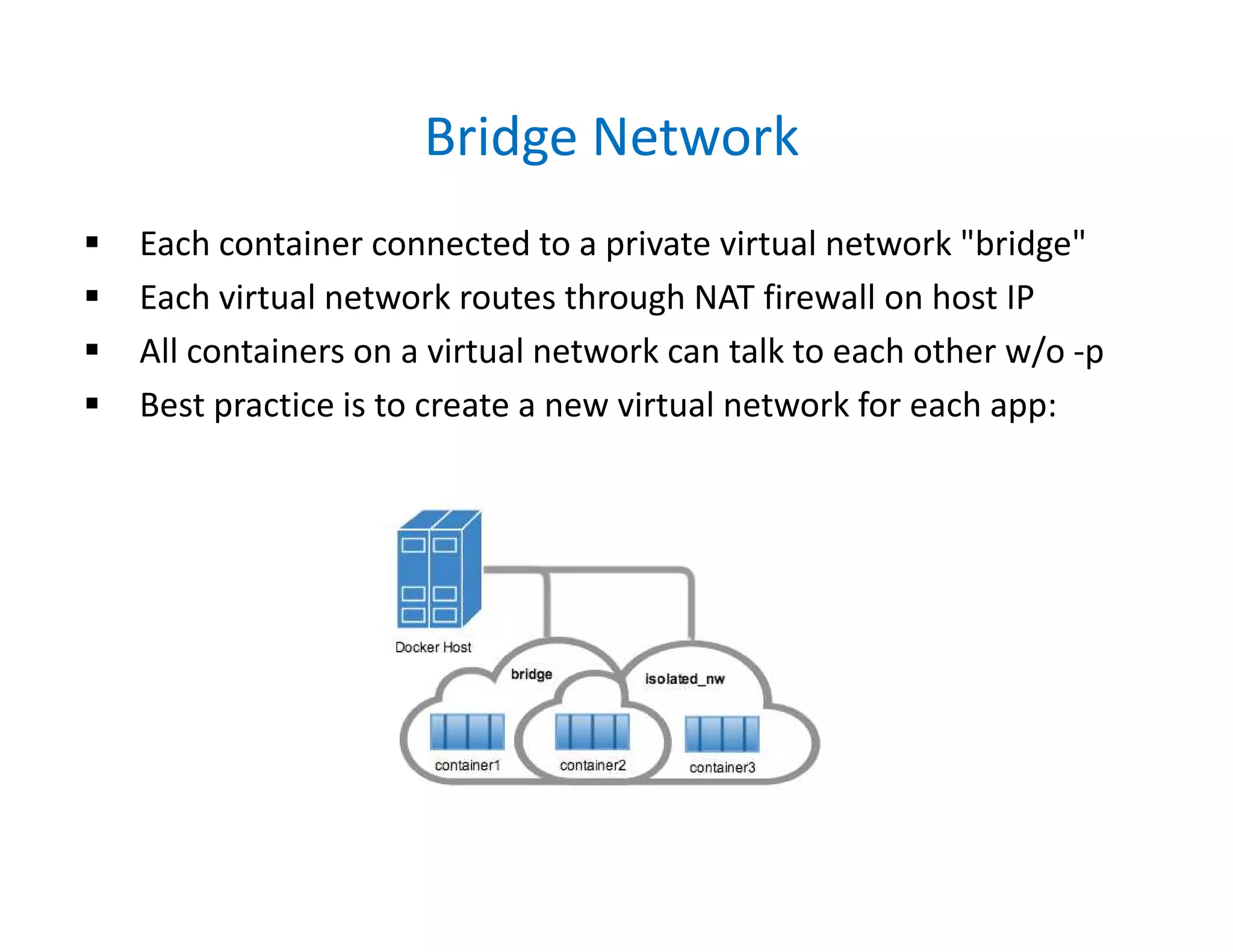
 Each container connected to a private virtual network "bridge"
 Each virtual network routes through NAT firewall on host IP
 All containers on a virtual network can talk to each other w/o -p
 Best practice is to create a new virtual network for each app:
Best Practice
 Default network is "bridge" for all created container
 Inside of the bridge network container can see each other
 However best practice is to create a new virtual network for
the containers that needs to work together. There could be
couple of seperated virtual networks. These networks are
isolated and containers see each other over open ports
 Using a seperate virtual network (not using the default
bridge) has advantages. One of them is automatic DNS
service. Each container within the same network can see
each other with names instead of IP address, which is
recommended way of operating since IP addresses can be
changed frequently
Practice: Default Bridge Network
 Practice of using default bridge network
• Let's create an alpine container in detach mode
docker container run -dit --name alpine1 alpine ash
• alpine is a tiny linux distro, whenever we want to access it
use: docker attach alpine1 and Control-pq to detach again
• Now on another terminal attach and check IP
docker attach alpine1
ifconfig (You see default network IP 172.17.0.2)
• Create a second alpine and ping each other
docker container run -dit --name alpine2 alpine ash
docker attach alpine2
ifconfig
ping 172.17.0.2
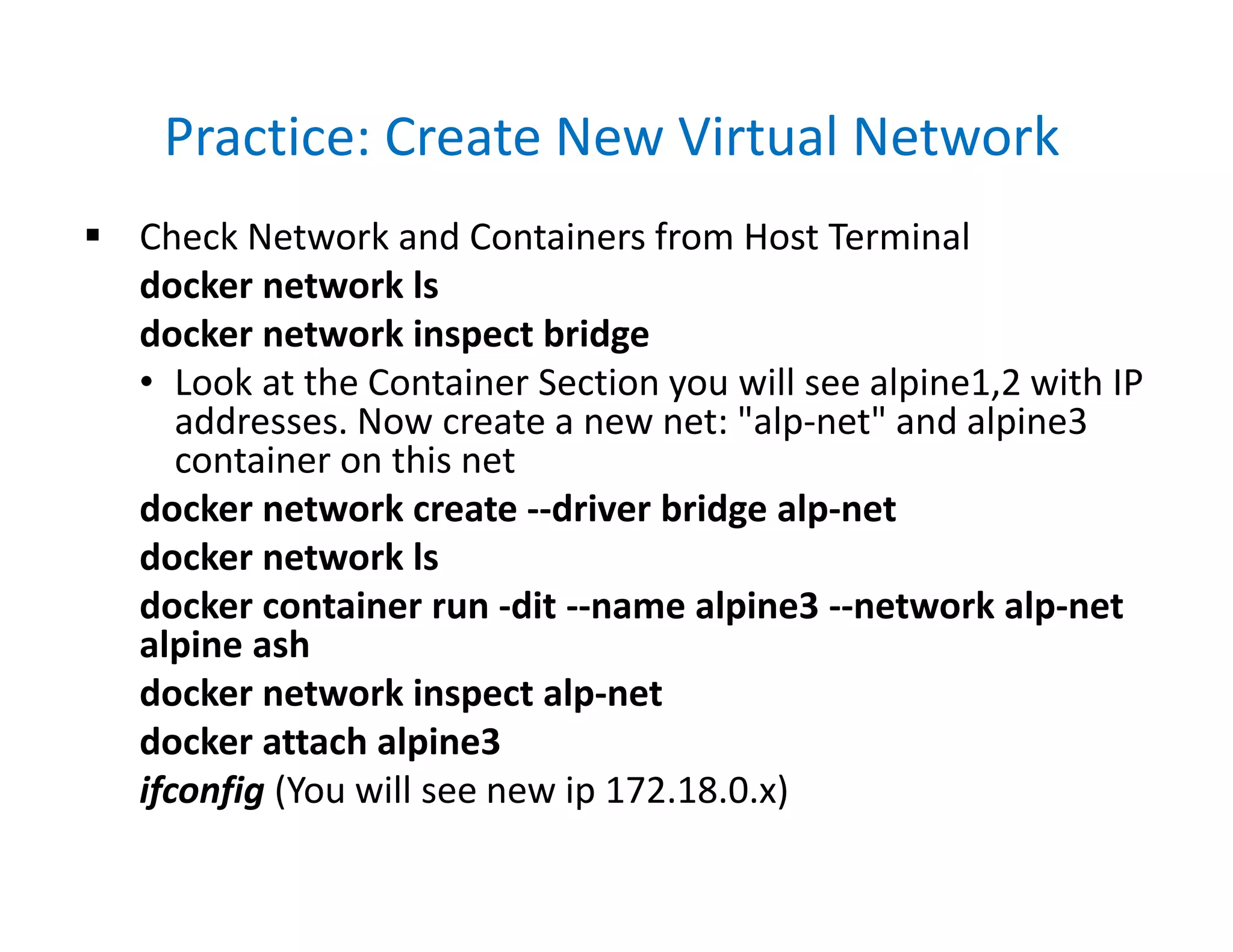
Practice: Create New Virtual Network
 Check Network and Containers from Host Terminal
docker network ls
docker network inspect bridge
• Look at the Container Section you will see alpine1,2 with IP
addresses. Now create a new net: "alp-net" and alpine3
container on this net
docker network create --driver bridge alp-net
docker network ls
docker container run -dit --name alpine3 --network alp-net
alpine ash
docker network inspect alp-net
docker attach alpine3
ifconfig (You will see new ip 172.18.0.x)
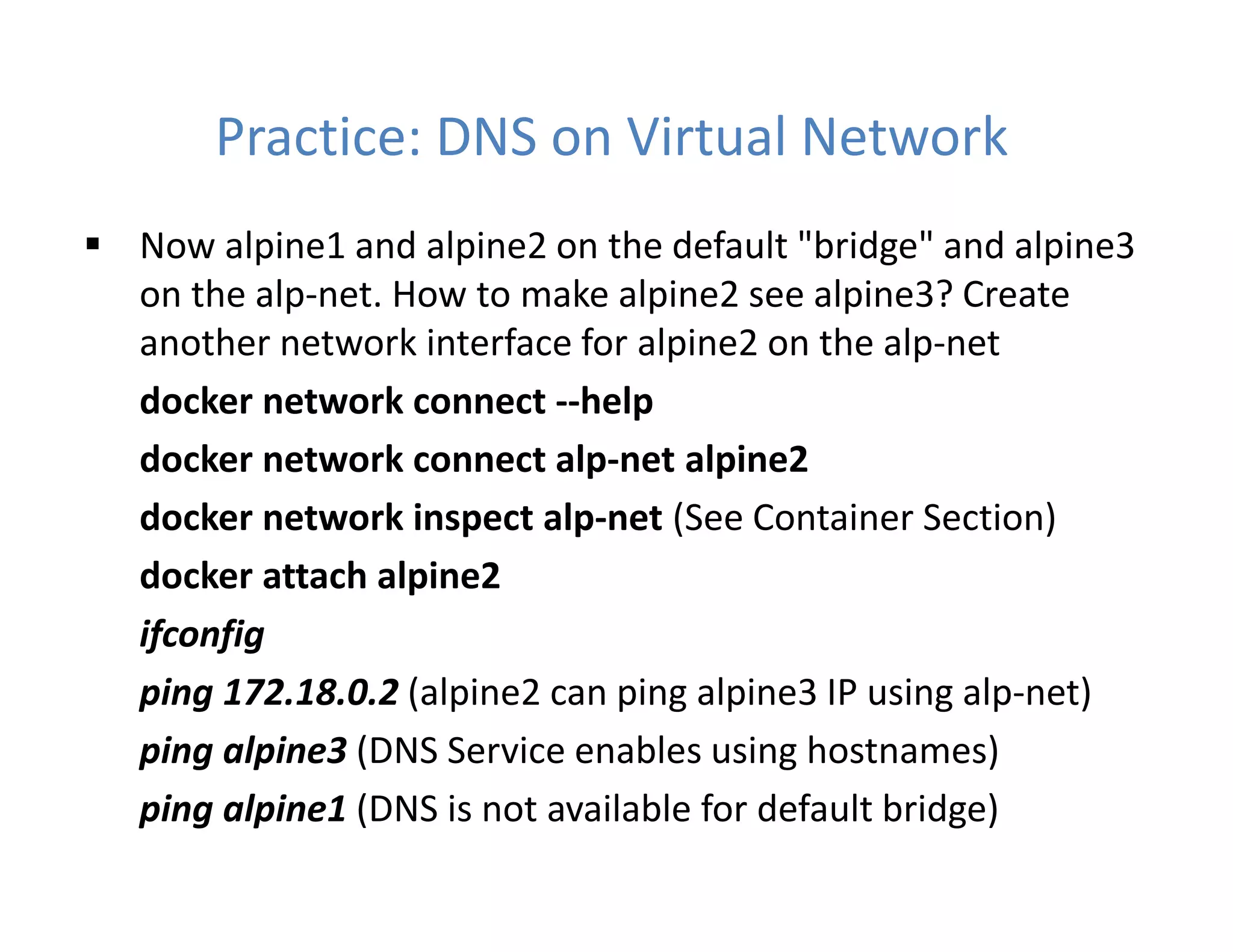
Practice: DNS on Virtual Network
 Now alpine1 and alpine2 on the default "bridge" and alpine3
on the alp-net. How to make alpine2 see alpine3? Create
another network interface for alpine2 on the alp-net
docker network connect --help
docker network connect alp-net alpine2
docker network inspect alp-net (See Container Section)
docker attach alpine2
ifconfig
ping 172.18.0.2 (alpine2 can ping alpine3 IP using alp-net)
ping alpine3 (DNS Service enables using hostnames)
ping alpine1 (DNS is not available for default bridge)
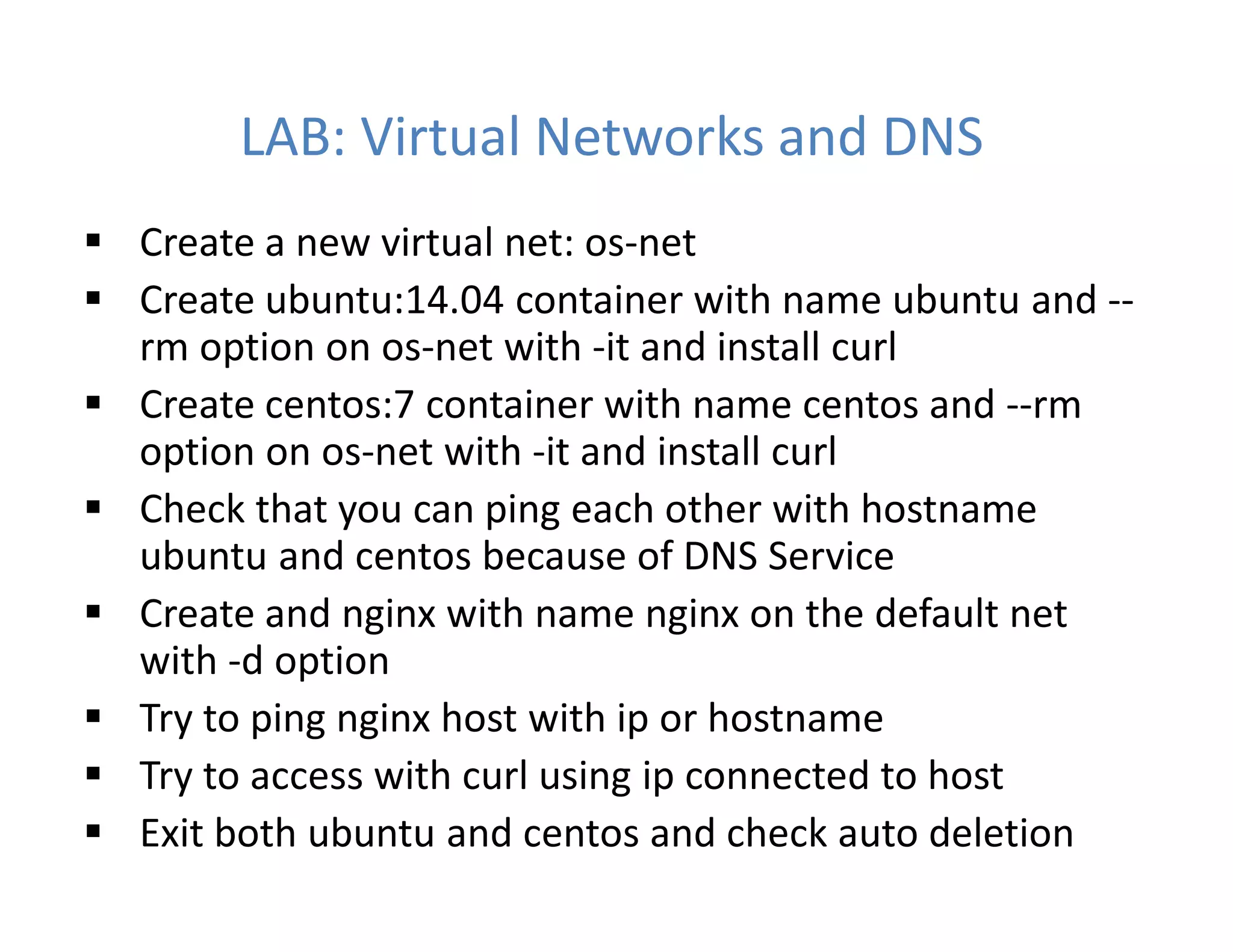
LAB: Virtual Networks and DNS
 Create a new virtual net: os-net
 Create ubuntu:14.04 container with name ubuntu and --
rm option on os-net with -it and install curl
 Create centos:7 container with name centos and --rm
option on os-net with -it and install curl
 Check that you can ping each other with hostname
ubuntu and centos because of DNS Service
 Create and nginx with name nginx on the default net
with -d option
 Try to ping nginx host with ip or hostname
 Try to access with curl using ip connected to host
 Exit both ubuntu and centos and check auto deletion
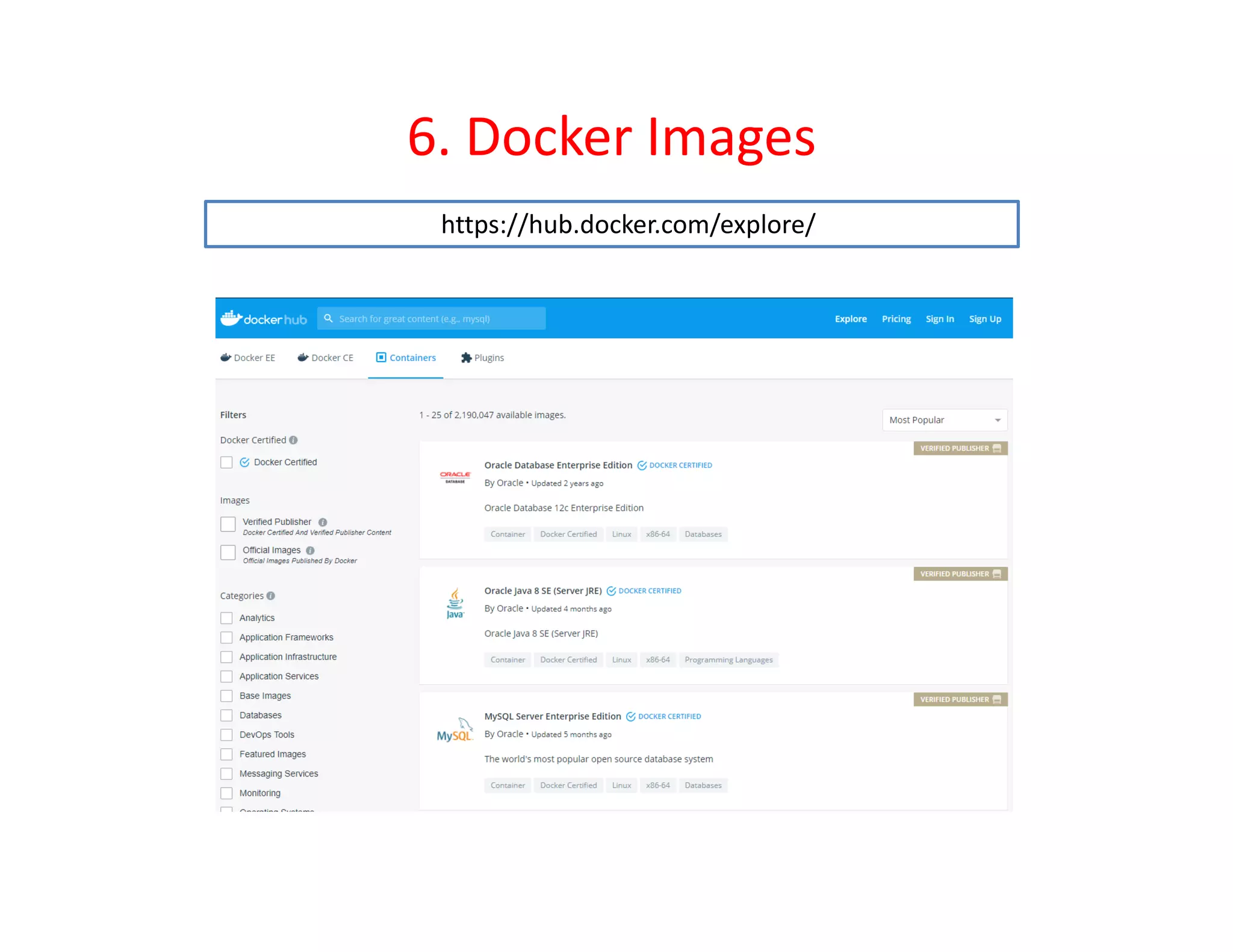
6. Docker Images
https://hub.docker.com/explore/
What is an Image?
 Official definition: "An Image is an ordered collection of
root filesystem changes and the corresponding
execution parameters for use within a container
runtime."
 Images are App binaries and dependencies
 Not a complete OS. No kernel, kernel modules
 Small as one file, Big as a CentOS Linux with yum, Nginx,
Apache, MySQL, Mongo, etc.
 Usually use a Dockerfile to create them
 Stored in your Docker Engine image cache
 Permanent Storage in Image Registry => hub.docker.com
Explore Docker Images
 Create a free account at https://hub.docker.com/ and
login, so you can create public repositories and only one
private repository. You can choose paid plans to have
more private repositories.
 Hit Explore to view official images. Official images have
approved by Docker Inc. with only names and "official"
tag. When you create an image, it should have
<your account name> /<repo name>
 Choosing the right image: Search for Nginx and choose
the image with "official" tag and lots of pulls and stars
 Goto Details and Check Tags. To ensure the current
version choose the "latest" tag which is default.
Practice: Pull Images
 Let's pull different versions of Nginx
• Goto Docker Hub and find official Nginx
• Check images on the host (Remove if already exist)
docker image ls
docker pull nginx (Pulls the tag:latest)
docker pull nginx:1.15.7
docker image ls
• Notice the speed, not downloading everything
• Check image size are identical but not consume disk
• Also there are different tags like alpine
docker pull nginx:alpine
Image Layers
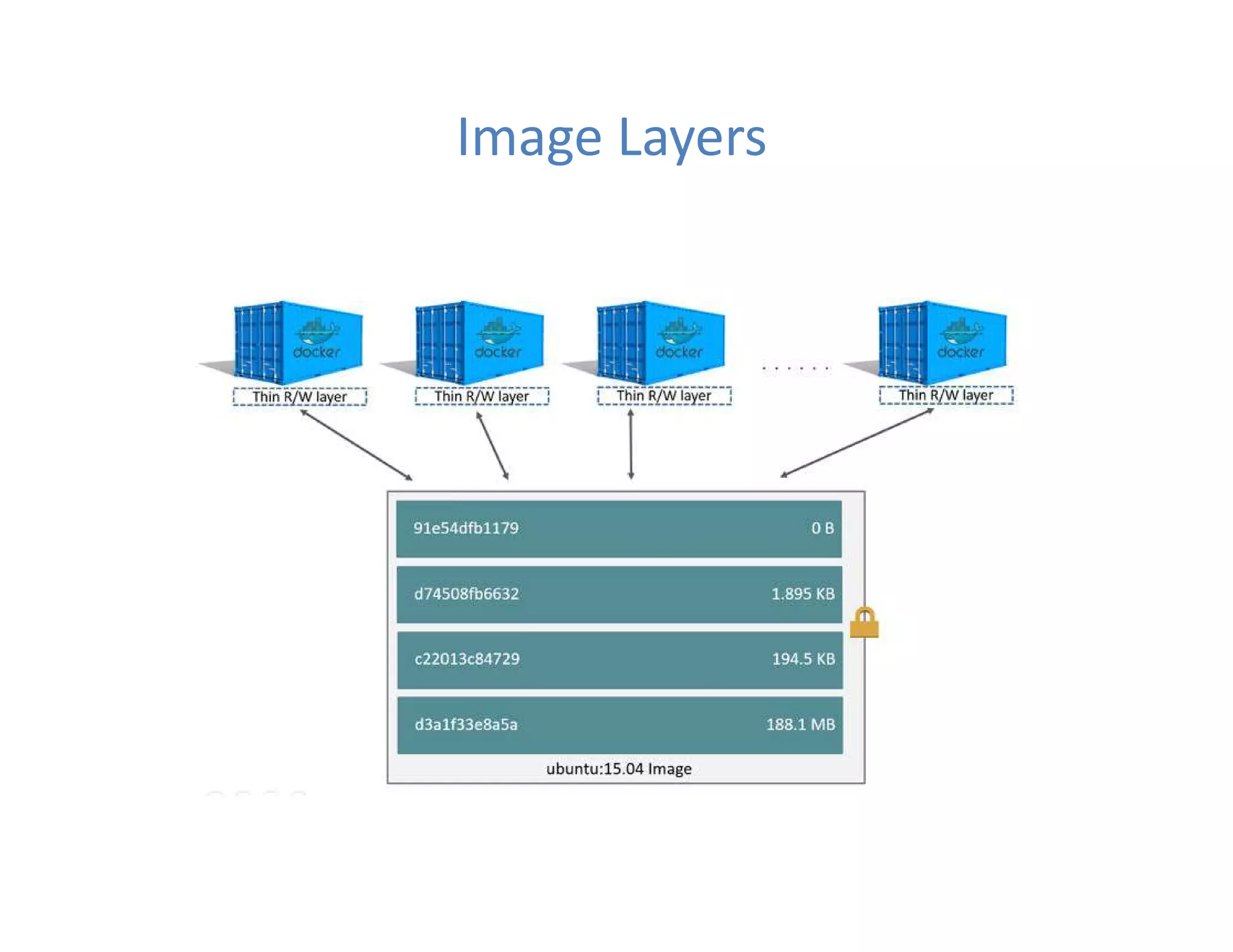
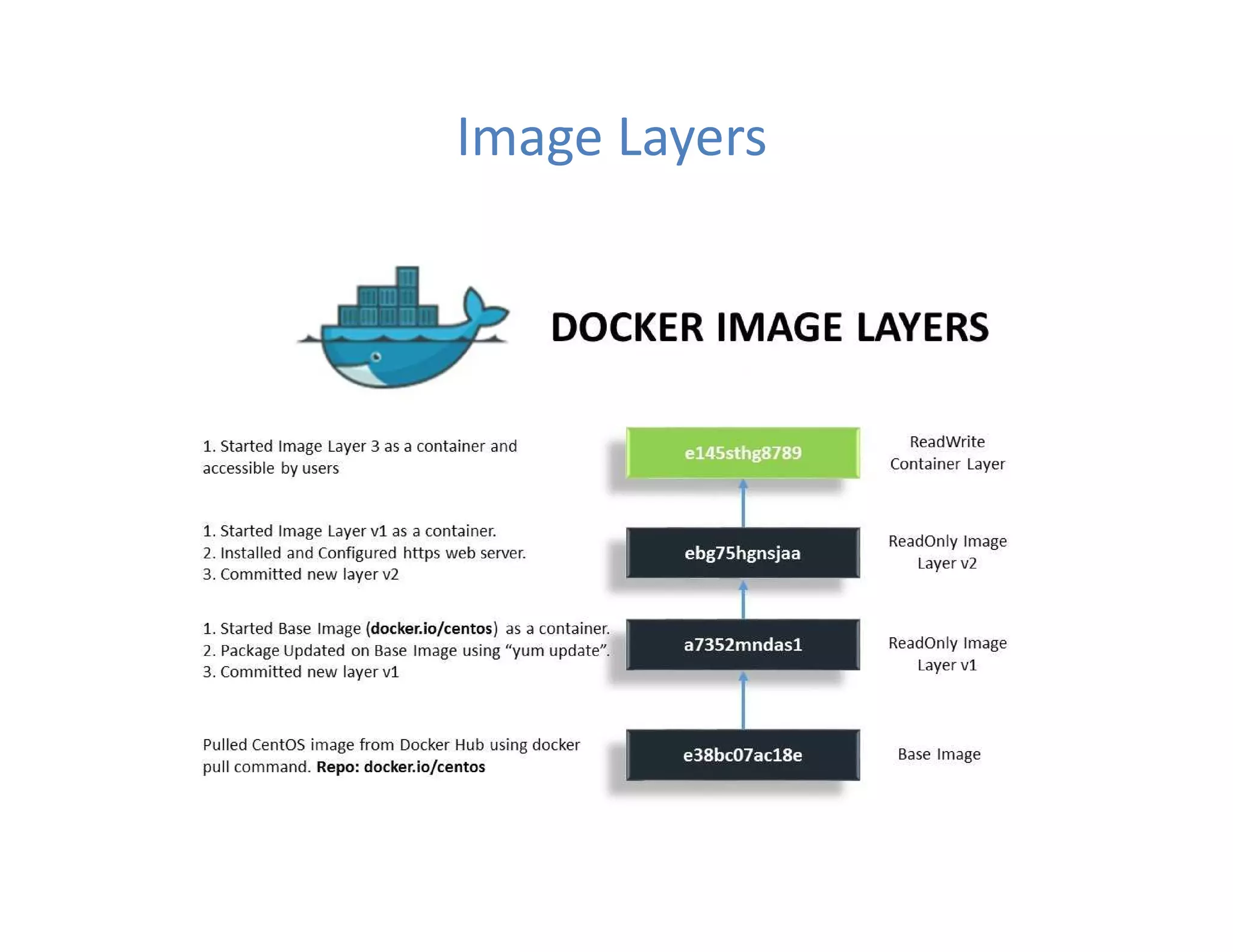
 Images are made up of file system changes and
metadata
 Each layer is uniquely identified and only stored once on
a host using SHA and UnionFS (like zfs)
 This saves storage space on host and transfer time on
push/pull
 A container is just a single read/write layer on top of
image using COW
 Use docker image history and inspect to see details
docker image history nginx:latest
docker image inspect nginx:latest
Image Layers
Image Layers
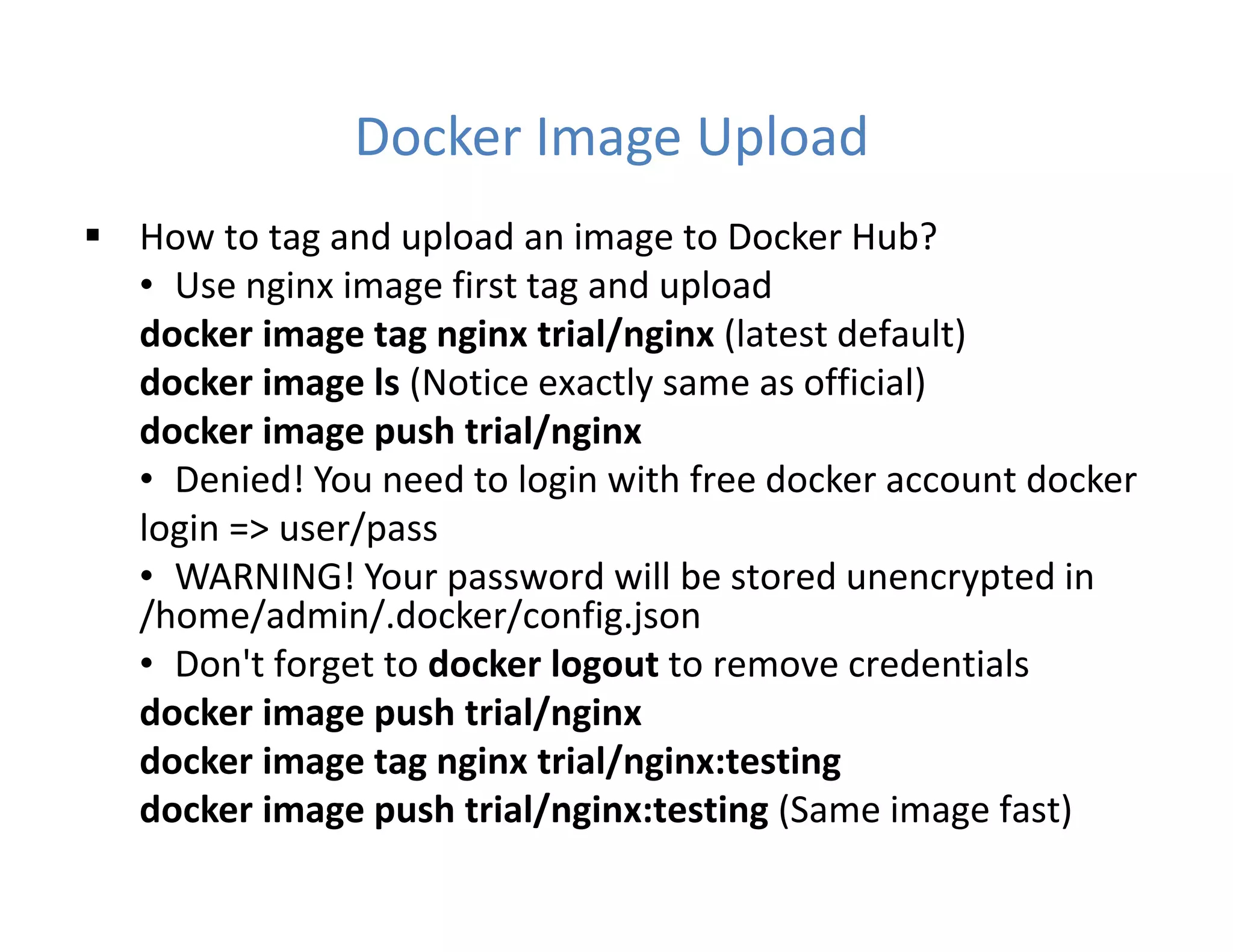
Docker Image Upload
 How to tag and upload an image to Docker Hub?
• Use nginx image first tag and upload
docker image tag nginx trial/nginx (latest default)
docker image ls (Notice exactly same as official)
docker image push trial/nginx
• Denied! You need to login with free docker account docker
login => user/pass
• WARNING! Your password will be stored unencrypted in
/home/admin/.docker/config.json
• Don't forget to docker logout to remove credentials
docker image push trial/nginx
docker image tag nginx trial/nginx:testing
docker image push trial/nginx:testing (Same image fast)
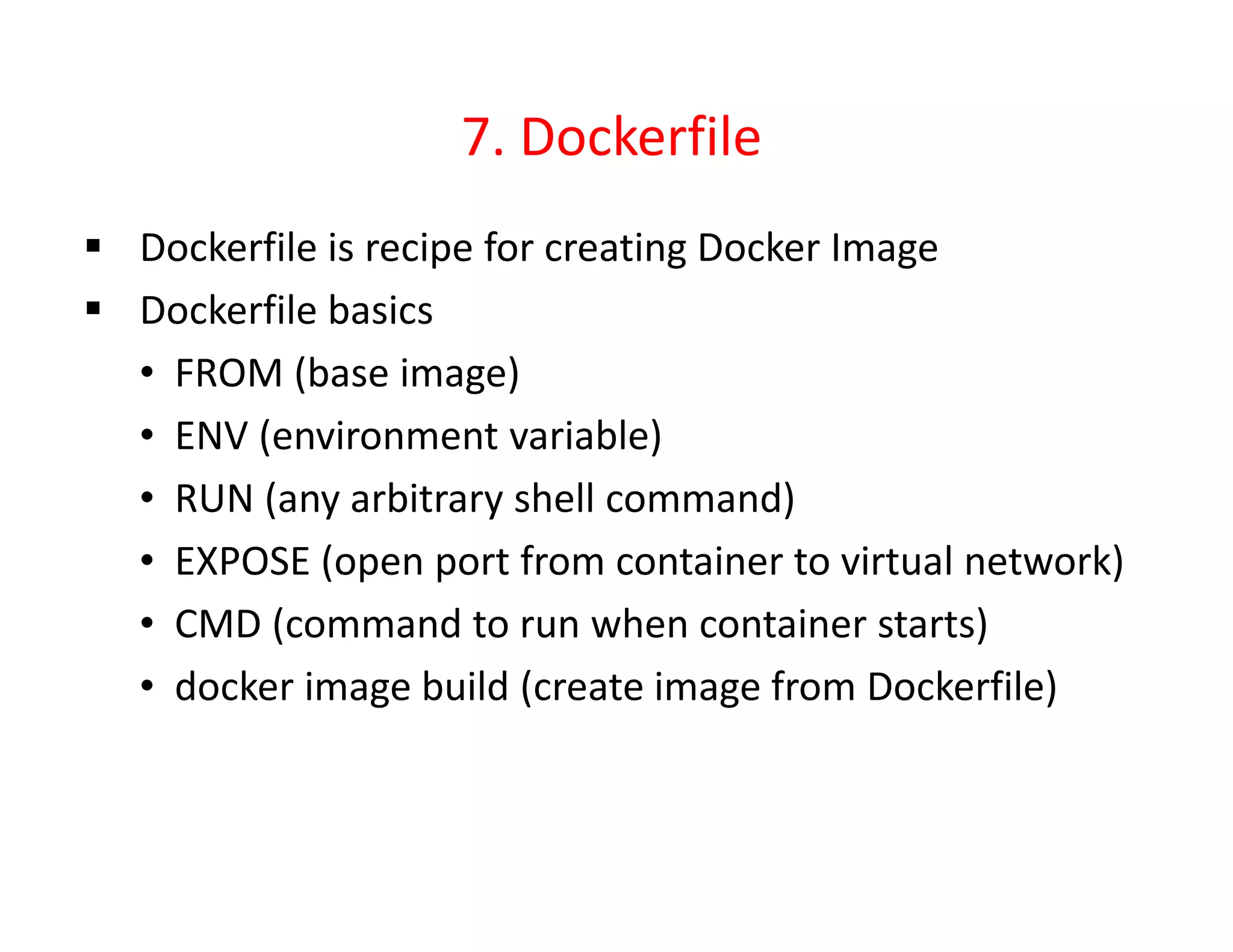
7. Dockerfile
 Dockerfile is recipe for creating Docker Image
 Dockerfile basics
• FROM (base image)
• ENV (environment variable)
• RUN (any arbitrary shell command)
• EXPOSE (open port from container to virtual network)
• CMD (command to run when container starts)
• docker image build (create image from Dockerfile)
Practice: Build Image from Dockerfile
 Let's create an image using a sample Dockerfile
cd dockerfile-sample-1
vim Dockerfile
docker build -t mynginx .
• Notice that we tagged as mynginx since we want to
use locally, no need to specify username/repo
• if you want to specify another Dockerfile use -f <path>
• Order is important, try to make minimal changes, let's
edit Dockerfile and add port 8080 on EXPOSE
docker build -t mynginx .
• Very Fast Deployment since everything else is ready
Practice: Build Images and Push to Hub
 Let's use the official nginx image and copy an index.html to
create our own image, push it to Docker Hub
cd dockerfile-sample-2
vim index.html (Change it as you like)
vim Dockerfile (You can see only index.html copies)
docker build -t mynginx:hello .
docker run -p 80:80 --rm mynginx:hello
docker image tag mynginx:hello trial/nginx:testing
docker push trial/nginx:hello
docker image rm trial/nginx:hello (Delete local images)
docker run -p 80:80 --rm nginx (Hit control-c, auto rm)
docker run -p 80:80 --rm trial/nginx:hello
8. Data Volumes and Bind Mounts
 Containers are usually immutable and ephemeral
 "immutable infrastructure": only re-deploy containers,
never change
 This is the ideal scenario, but what about databases, or
unique data?
 Docker gives us features to ensure these "separation of
concerns". This is known as "persistent data"
 Two ways: Volumes and Bind Mounts
• Volumes: Special location outside of container UFS
• Bind Mounts: Link container path to host path
Volumes vs. Mounts
 With Volume, a new directory is created within Docker's
storage directory on the host machine, and Docker manages
that directory's content.
 Volumes are easier to back up or migrate than bind mounts.
 You can manage volumes using Docker CLI commands or the
Docker API.
 Volumes work on both Linux and Windows containers.
 Volumes can be more safely shared among multiple
containers.
 Volume drivers allow you to store volumes on remote hosts
or cloud providers, to encrypt the contents of volumes, or to
add other functionality.
 A new volume’s contents can be pre-populated by a
container.
Bind Mounts
 With Bind Mount, a file or directory on the host machine is
mounted into a container. The file or directory is referenced
by its full or relative path on the host machine.
 Available since the early days of Docker.
 Bind mounts have limited functionality compared to
volumes. The file or directory does not need to exist on the
Docker host already. It is created on demand if it does not yet
exist.
 Bind mounts are very performant, but they rely on the host
machine’s filesystem having a specific directory structure
available.
 If you are developing new Docker applications, consider
using named volumes instead. You can’t use Docker CLI
commands to directly manage bind mounts.
Practice: Volumes
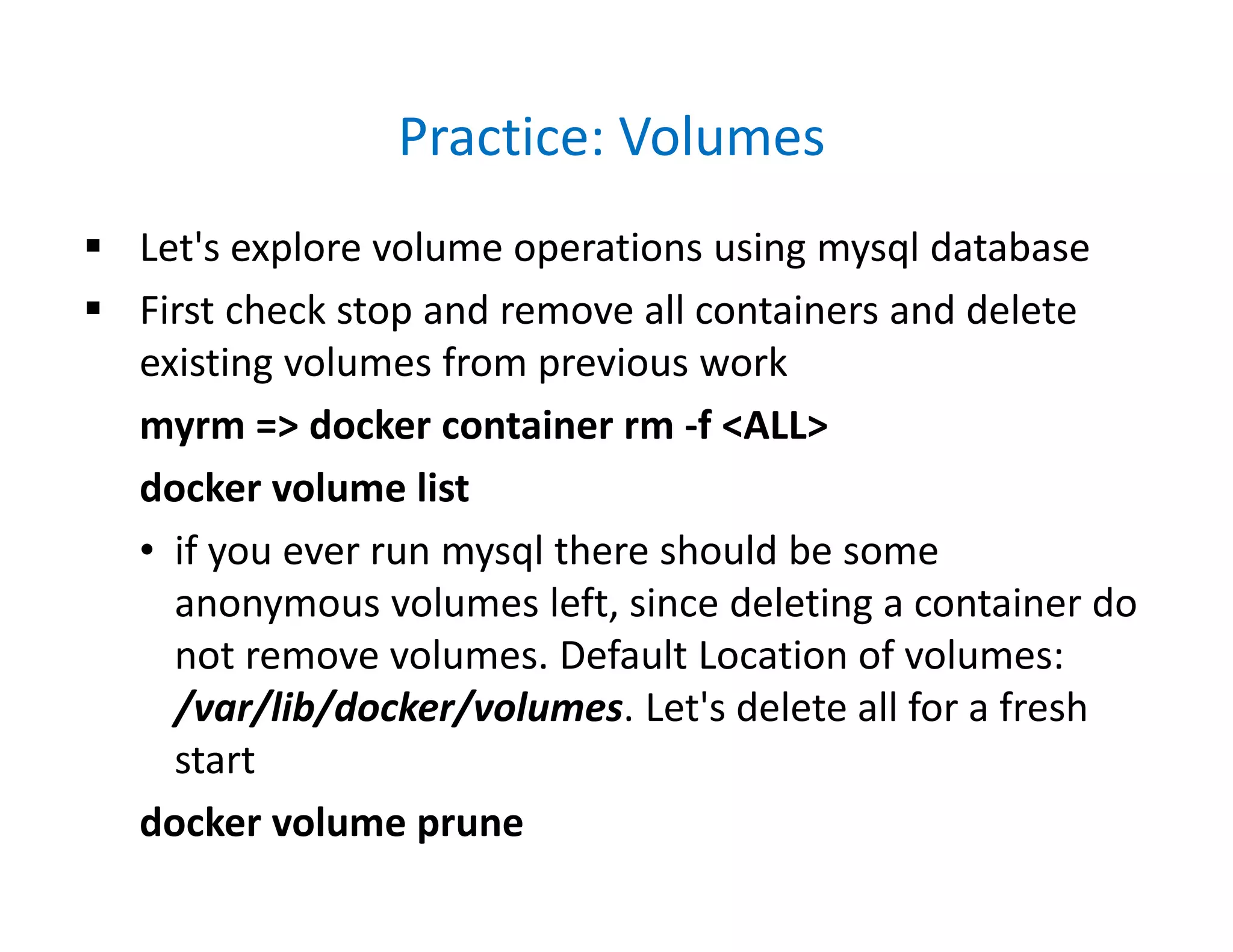
 Let's explore volume operations using mysql database
 First check stop and remove all containers and delete
existing volumes from previous work
myrm => docker container rm -f <ALL>
docker volume list
• if you ever run mysql there should be some
anonymous volumes left, since deleting a container do
not remove volumes. Default Location of volumes:
/var/lib/docker/volumes. Let's delete all for a fresh
start
docker volume prune
Practice: Volumes
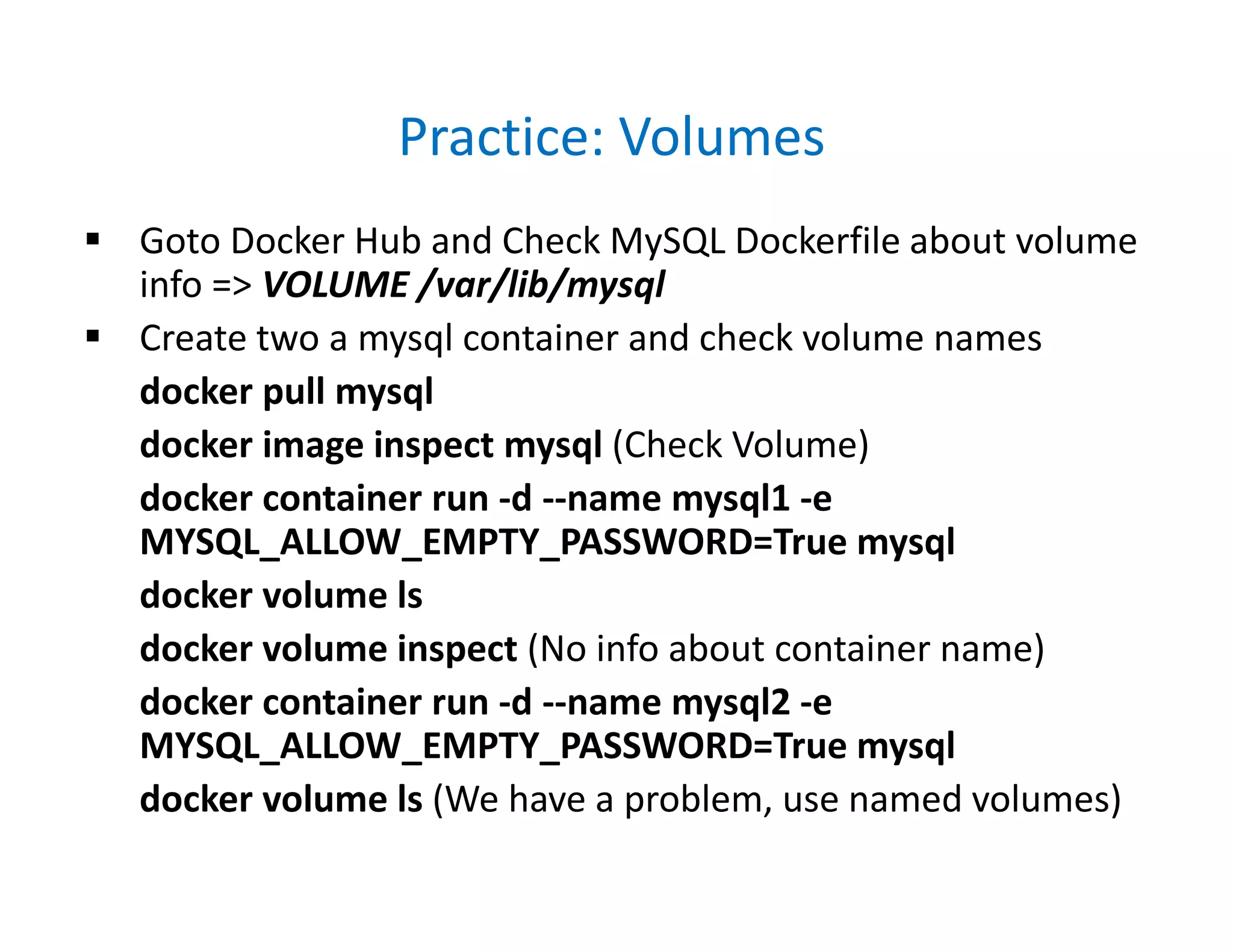
 Goto Docker Hub and Check MySQL Dockerfile about volume
info => VOLUME /var/lib/mysql
 Create two a mysql container and check volume names
docker pull mysql
docker image inspect mysql (Check Volume)
docker container run -d --name mysql1 -e
MYSQL_ALLOW_EMPTY_PASSWORD=True mysql
docker volume ls
docker volume inspect (No info about container name)
docker container run -d --name mysql2 -e
MYSQL_ALLOW_EMPTY_PASSWORD=True mysql
docker volume ls (We have a problem, use named volumes)
Practice: Volumes
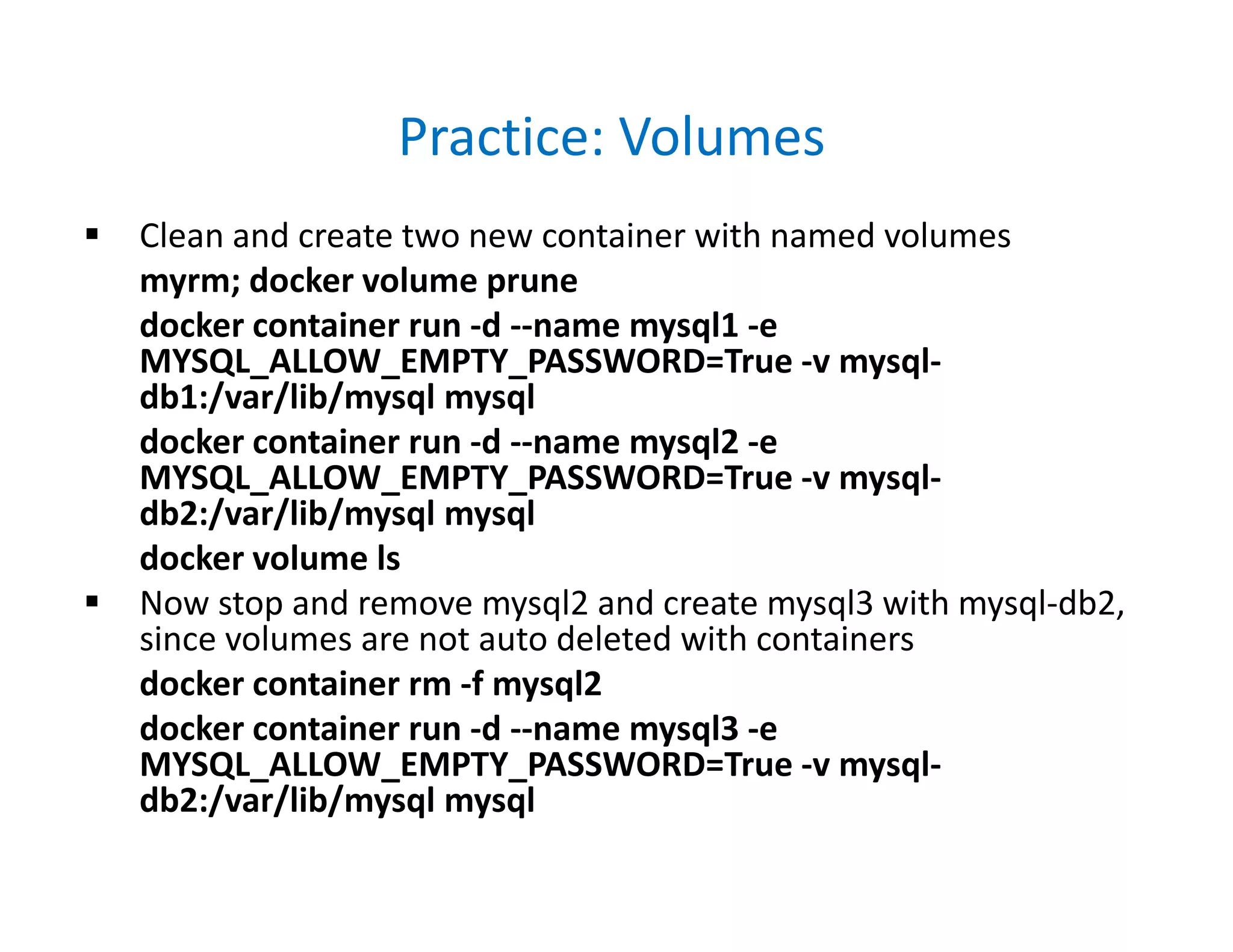
 Clean and create two new container with named volumes
myrm; docker volume prune
docker container run -d --name mysql1 -e
MYSQL_ALLOW_EMPTY_PASSWORD=True -v mysql-
db1:/var/lib/mysql mysql
docker container run -d --name mysql2 -e
MYSQL_ALLOW_EMPTY_PASSWORD=True -v mysql-
db2:/var/lib/mysql mysql
docker volume ls
 Now stop and remove mysql2 and create mysql3 with mysql-db2,
since volumes are not auto deleted with containers
docker container rm -f mysql2
docker container run -d --name mysql3 -e
MYSQL_ALLOW_EMPTY_PASSWORD=True -v mysql-
db2:/var/lib/mysql mysql
Practice: Bind Mount
 Clean all and create nginx1 and nginx2 containers
• For nginx1 -p 80:80 manually connect to container and
edit index.html
• For nginx2 -p 8080:80 create a bind mount from host
to container and change index.html see result
docker container run -d --name nginx1 -p 80:80 nginx
• Open browser on localhost and see test page
docker container exec -it nginx1 bash
# echo '<h1>Welcome to Mars!</h1>' >
/usr/share/nginx/html/index.html
• Reload the browser
Practice: Bind Mount
 Create bind mount from host to nginx2 to achieve same
thing w/o login into container
cd dockerfile-sample-2
docker container run -d --name nginx2 -p 8080:80 -v
$(pwd):/usr/share/nginx/html nginx
echo '<h1>Welcome to Venus!</h1>' > index.html
• Open browser http://localhost:8080
echo '<h1>Welcome to Jupiter!</h1>' >> index.html
• Reload browser. Very effective!
• However Host specific and can not specify in
Dockerfile
9. Docker Compose
 What is it? Why do we need it?
• Standalone Container App is not a real world scenario
• You need many Containers working together
• How do we specify all details about configurations, volumes,
networks, etc.? Obviously not with the command line docker
options
• Docker Compose comes into act right there
 Docker compose consist of two parts:
• YAML-formatted file that describes our solution options for:
Containers, networks, volumes
• A CLI tool docker-compose used for local dev/test automation
with those YAML files
 You need to install Docker Compose on Linux seperately
• https://docs.docker.com/compose/install/#install-compose
YAML
 YAML: YAML Ain't Markup Language => http://yaml.org
 What It Is: YAML is a human friendly data serialization
standard for all programming languages
 There is a default name for Docker: docker-compose.yml
• if you want use other names you need -f options with
docker-compose command. Similar idea with
Dockrfile and docker command
 In terms of YAML versions definetely use v2 or higher
• Details : https://docs.docker.com/compose/compose-
file/compose-versioning/
 docker-compose.yml can be used with docker directly in
production with Swarm (as of v1.13)
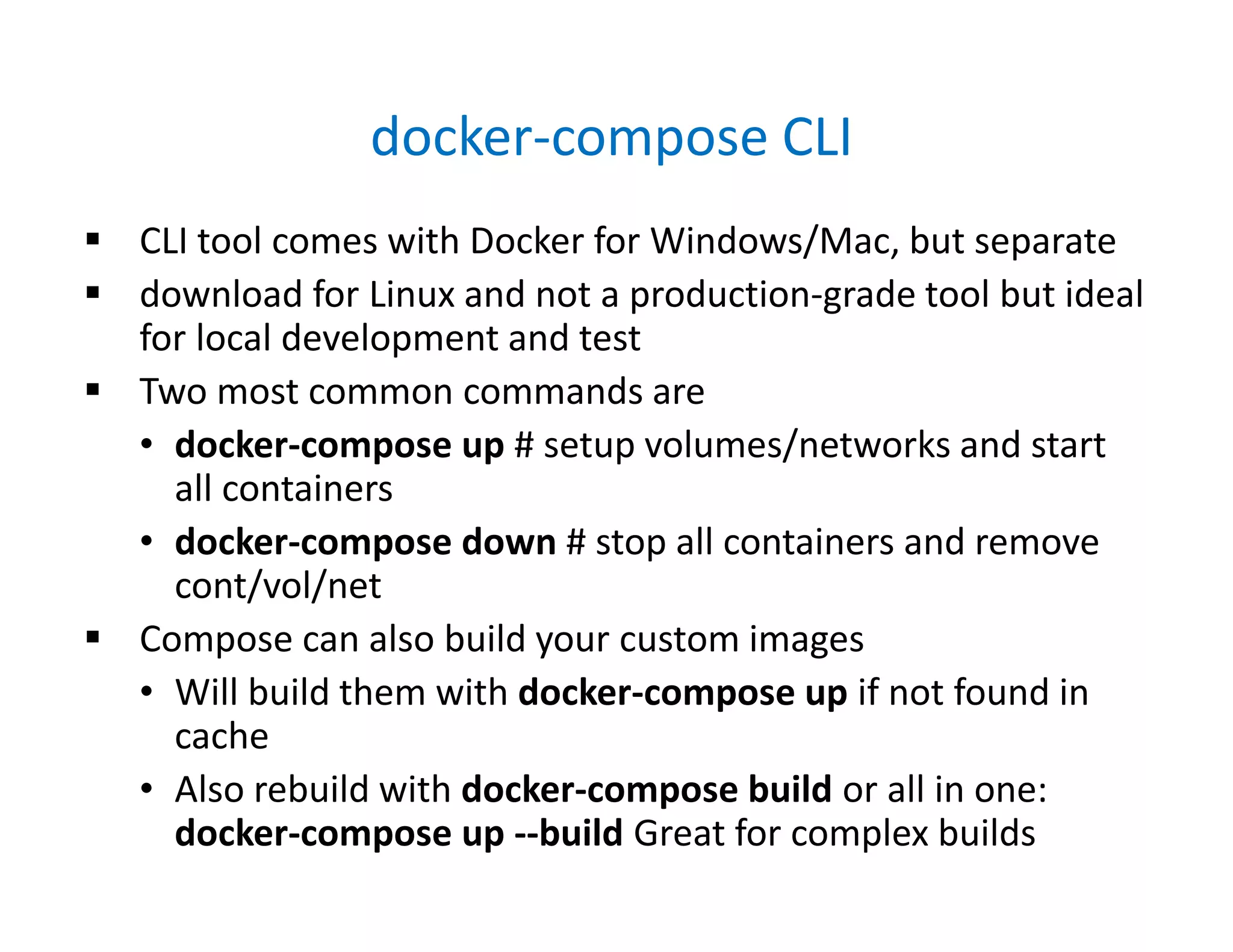
docker-compose CLI
 CLI tool comes with Docker for Windows/Mac, but separate
 download for Linux and not a production-grade tool but ideal
for local development and test
 Two most common commands are
• docker-compose up # setup volumes/networks and start
all containers
• docker-compose down # stop all containers and remove
cont/vol/net
 Compose can also build your custom images
• Will build them with docker-compose up if not found in
cache
• Also rebuild with docker-compose build or all in one:
docker-compose up --build Great for complex builds
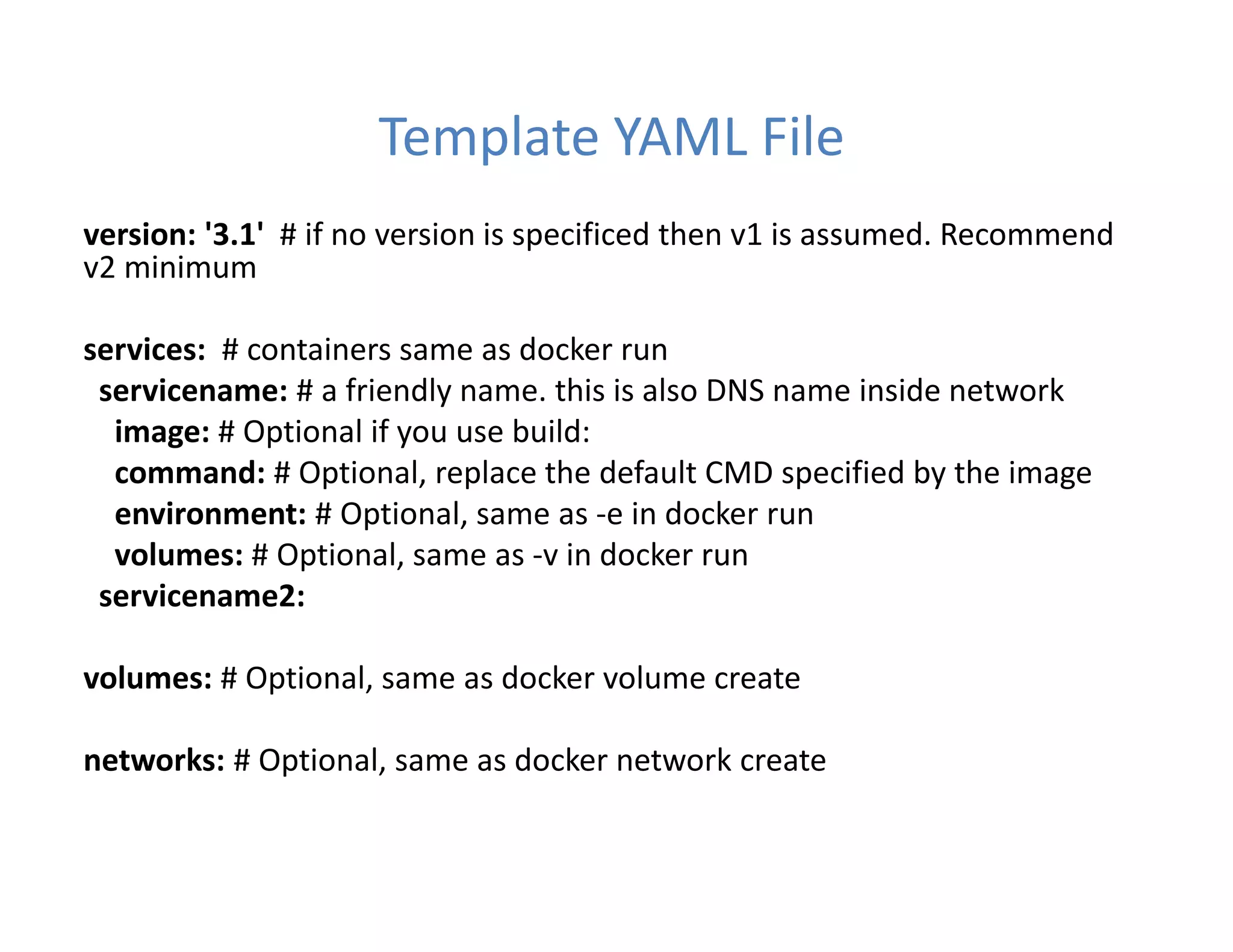
Template YAML File
version: '3.1' # if no version is specificed then v1 is assumed. Recommend
v2 minimum
services: # containers same as docker run
servicename: # a friendly name. this is also DNS name inside network
image: # Optional if you use build:
command: # Optional, replace the default CMD specified by the image
environment: # Optional, same as -e in docker run
volumes: # Optional, same as -v in docker run
servicename2:
volumes: # Optional, same as docker volume create
networks: # Optional, same as docker network create
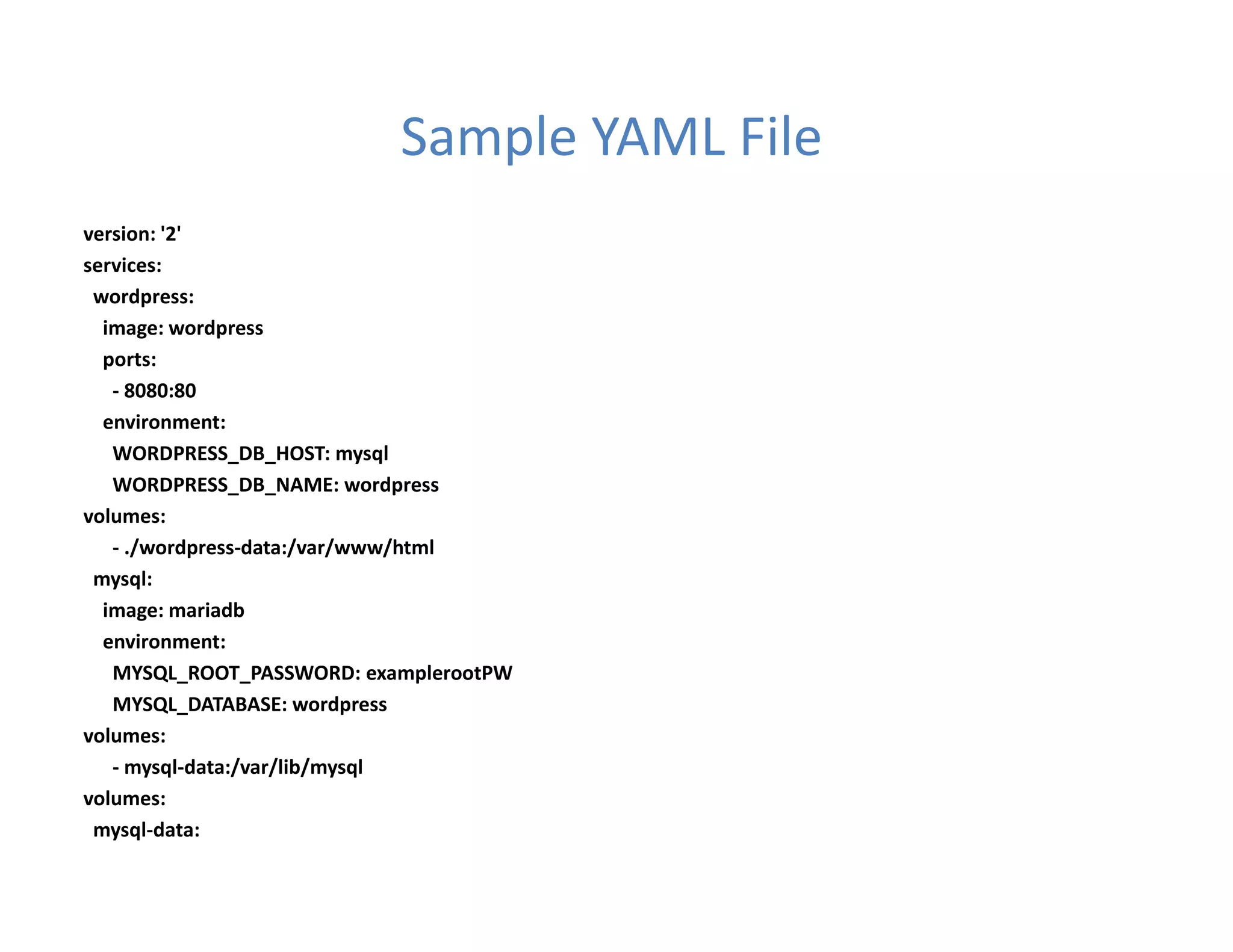
Sample YAML File
version: '2'
services:
wordpress:
image: wordpress
ports:
- 8080:80
environment:
WORDPRESS_DB_HOST: mysql
WORDPRESS_DB_NAME: wordpress
volumes:
- ./wordpress-data:/var/www/html
mysql:
image: mariadb
environment:
MYSQL_ROOT_PASSWORD: examplerootPW
MYSQL_DATABASE: wordpress
volumes:
- mysql-data:/var/lib/mysql
volumes:
mysql-data:
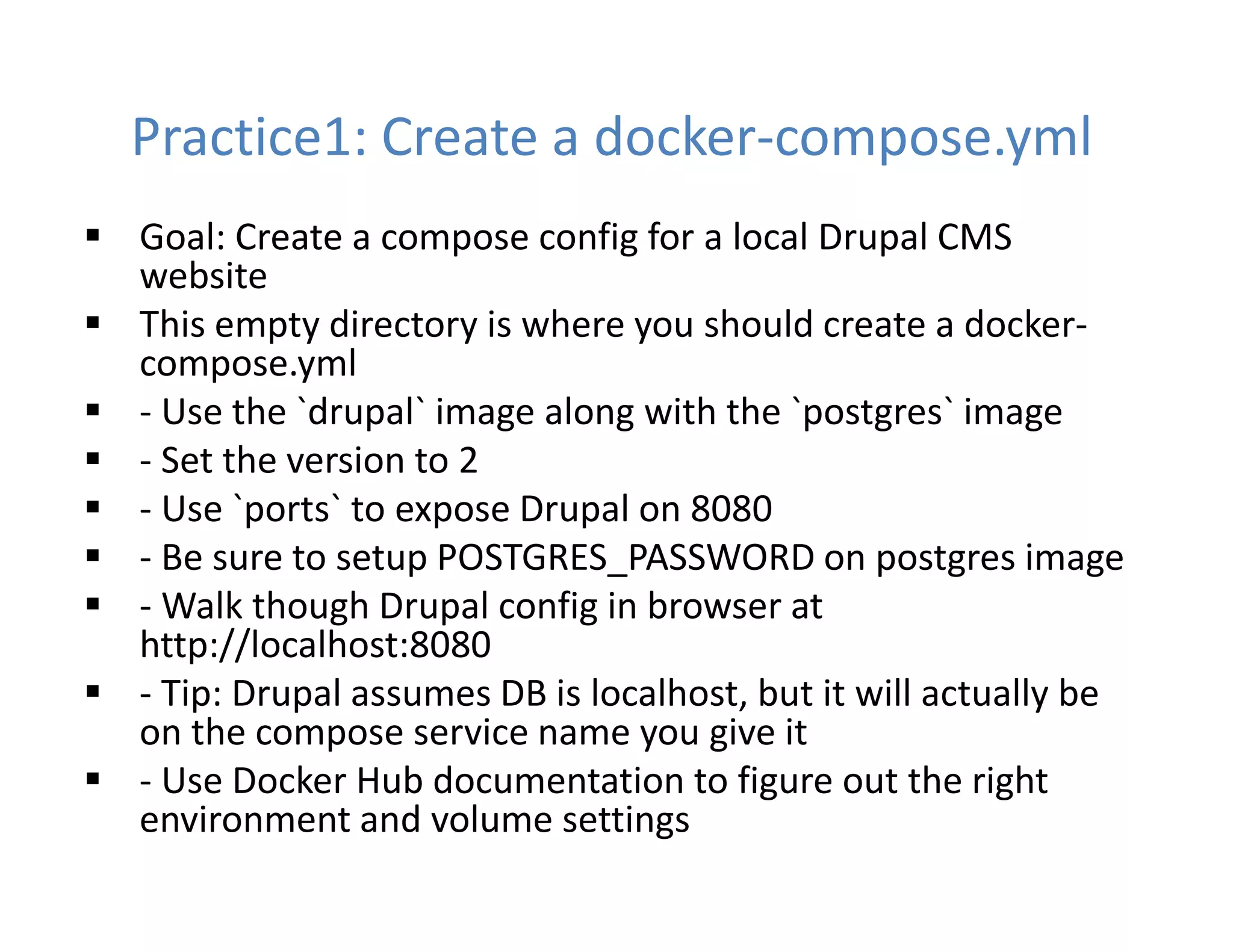
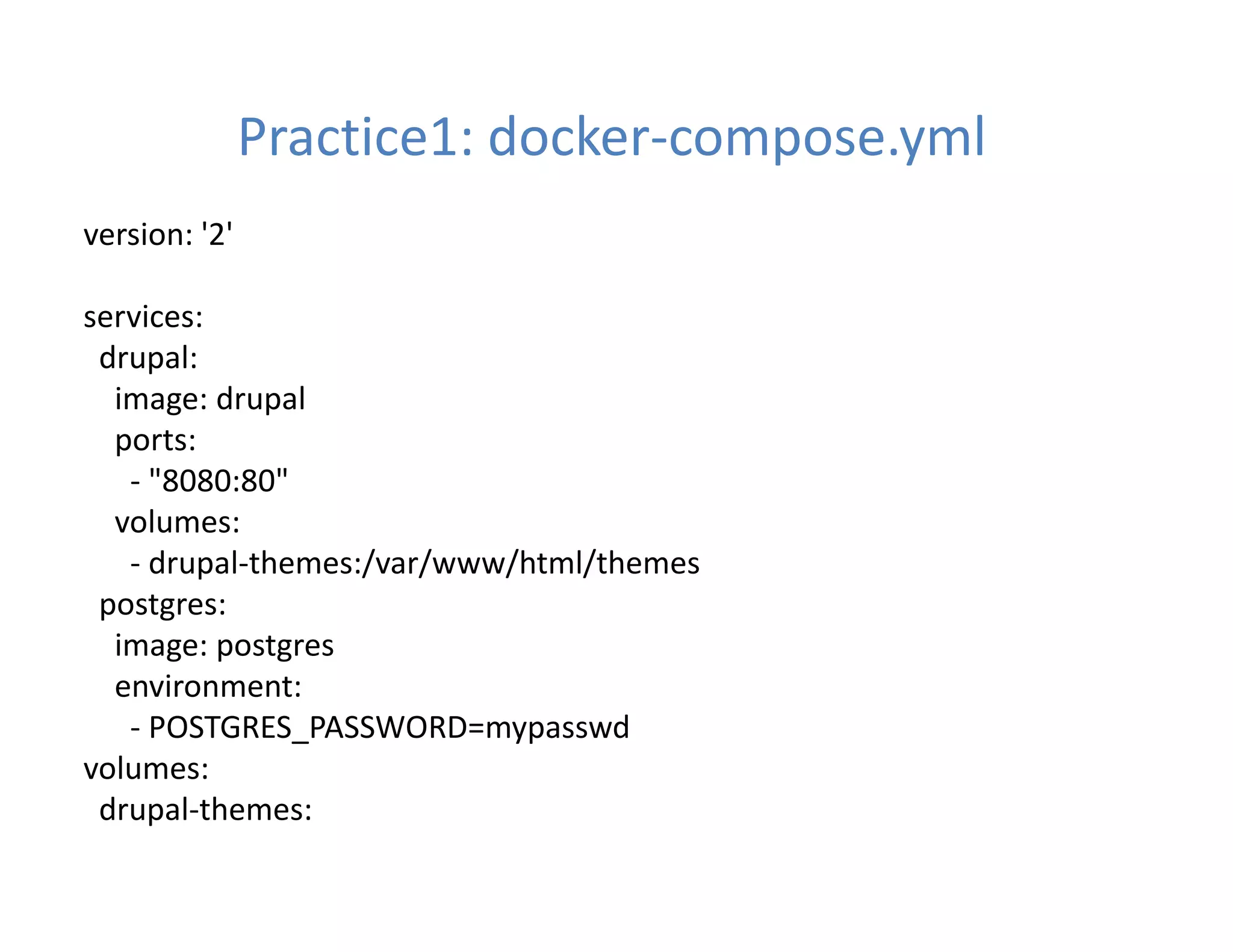
Practice1: Create a docker-compose.yml
 Goal: Create a compose config for a local Drupal CMS
website
 This empty directory is where you should create a docker-
compose.yml
 - Use the `drupal` image along with the `postgres` image
 - Set the version to 2
 - Use `ports` to expose Drupal on 8080
 - Be sure to setup POSTGRES_PASSWORD on postgres image
 - Walk though Drupal config in browser at
http://localhost:8080
 - Tip: Drupal assumes DB is localhost, but it will actually be
on the compose service name you give it
 - Use Docker Hub documentation to figure out the right
environment and volume settings
Practice1: docker-compose.yml
version: '2'
services:
drupal:
image: drupal
ports:
- "8080:80"
volumes:
- drupal-themes:/var/www/html/themes
postgres:
image: postgres
environment:
- POSTGRES_PASSWORD=mypasswd
volumes:
drupal-themes:
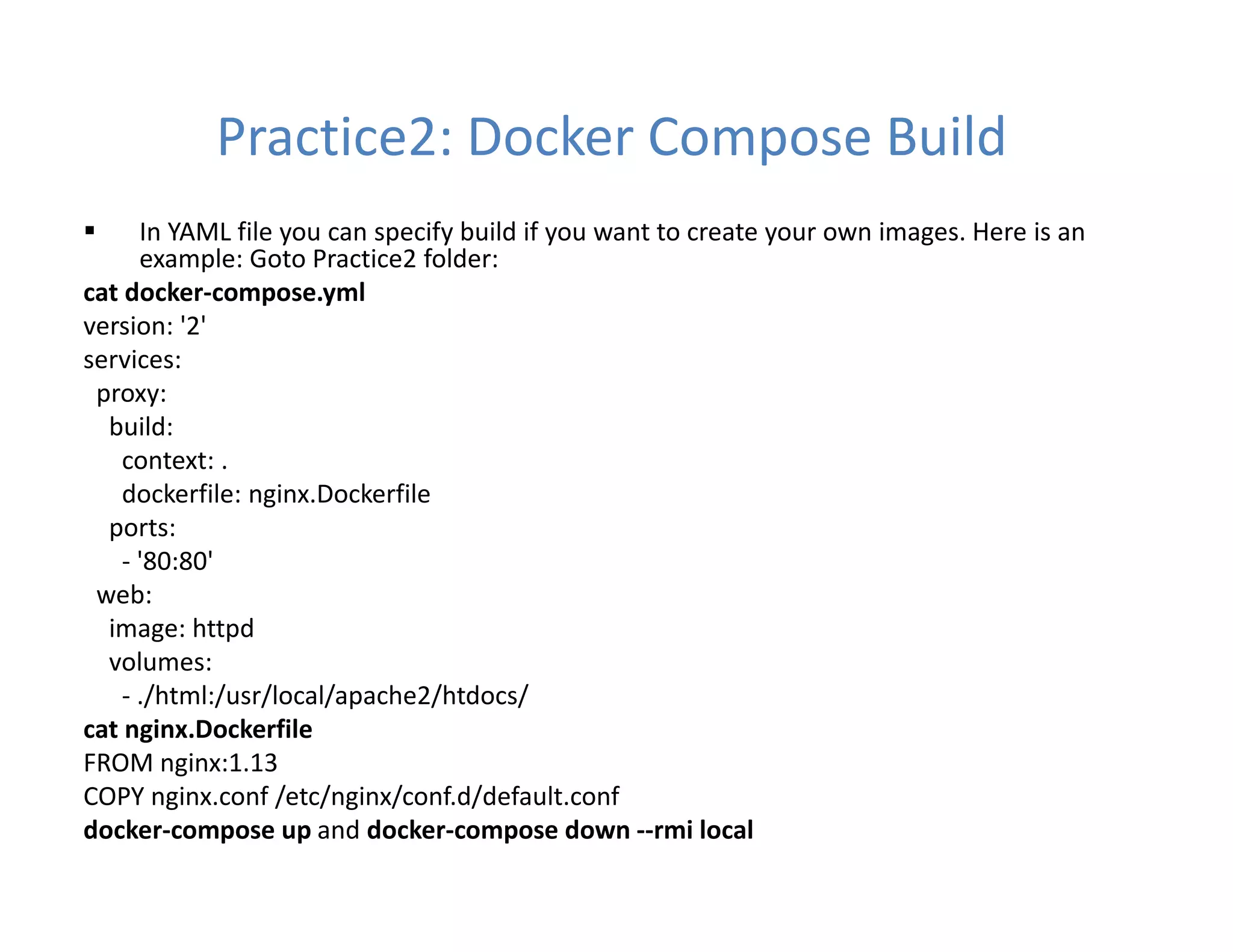
Practice2: Docker Compose Build
 In YAML file you can specify build if you want to create your own images. Here is an
example: Goto Practice2 folder:
cat docker-compose.yml
version: '2'
services:
proxy:
build:
context: .
dockerfile: nginx.Dockerfile
ports:
- '80:80'
web:
image: httpd
volumes:
- ./html:/usr/local/apache2/htdocs/
cat nginx.Dockerfile
FROM nginx:1.13
COPY nginx.conf /etc/nginx/conf.d/default.conf
docker-compose up and docker-compose down --rmi local
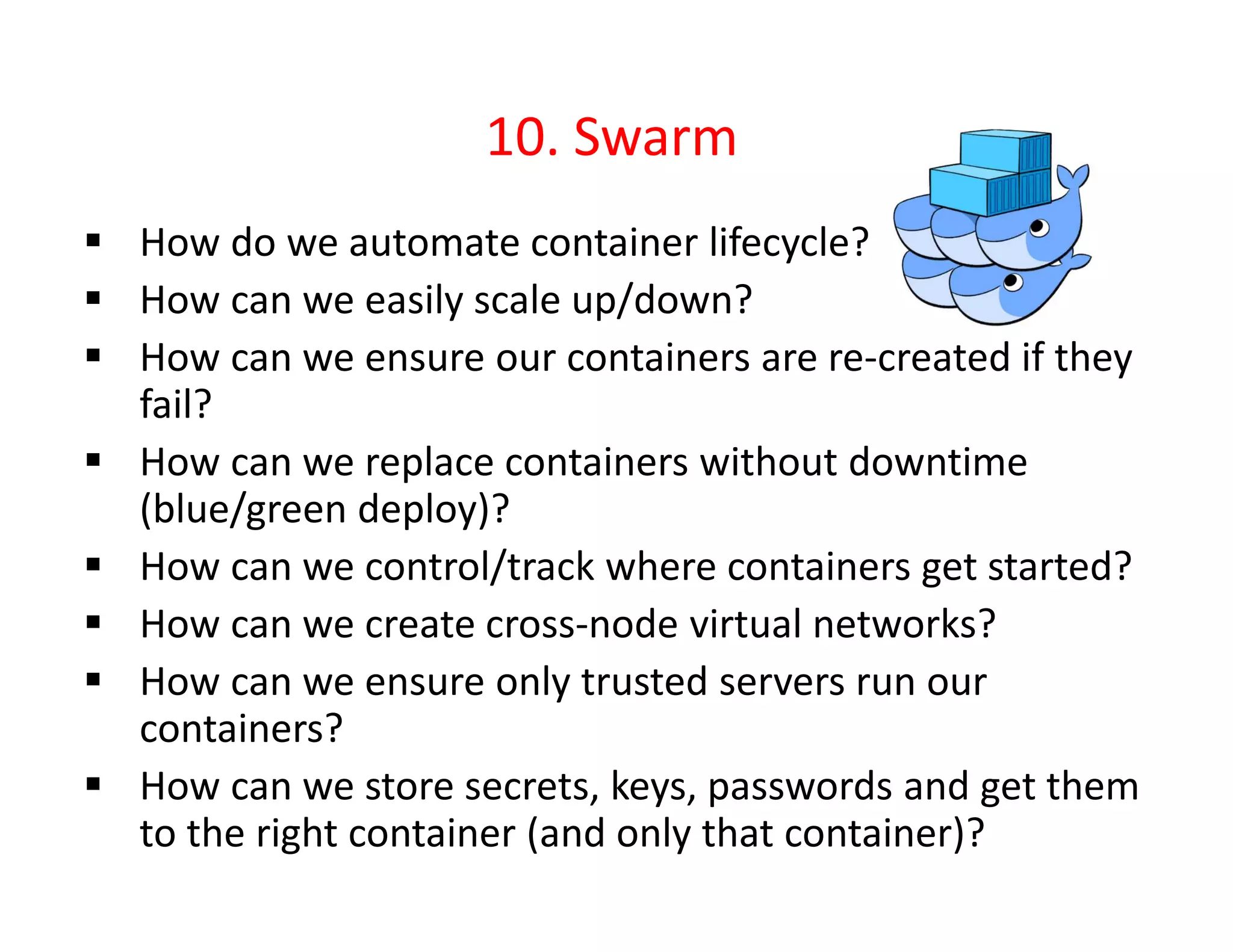
10. Swarm
 How do we automate container lifecycle?
 How can we easily scale up/down?
 How can we ensure our containers are re-created if they
fail?
 How can we replace containers without downtime
(blue/green deploy)?
 How can we control/track where containers get started?
 How can we create cross-node virtual networks?
 How can we ensure only trusted servers run our
containers?
 How can we store secrets, keys, passwords and get them
to the right container (and only that container)?
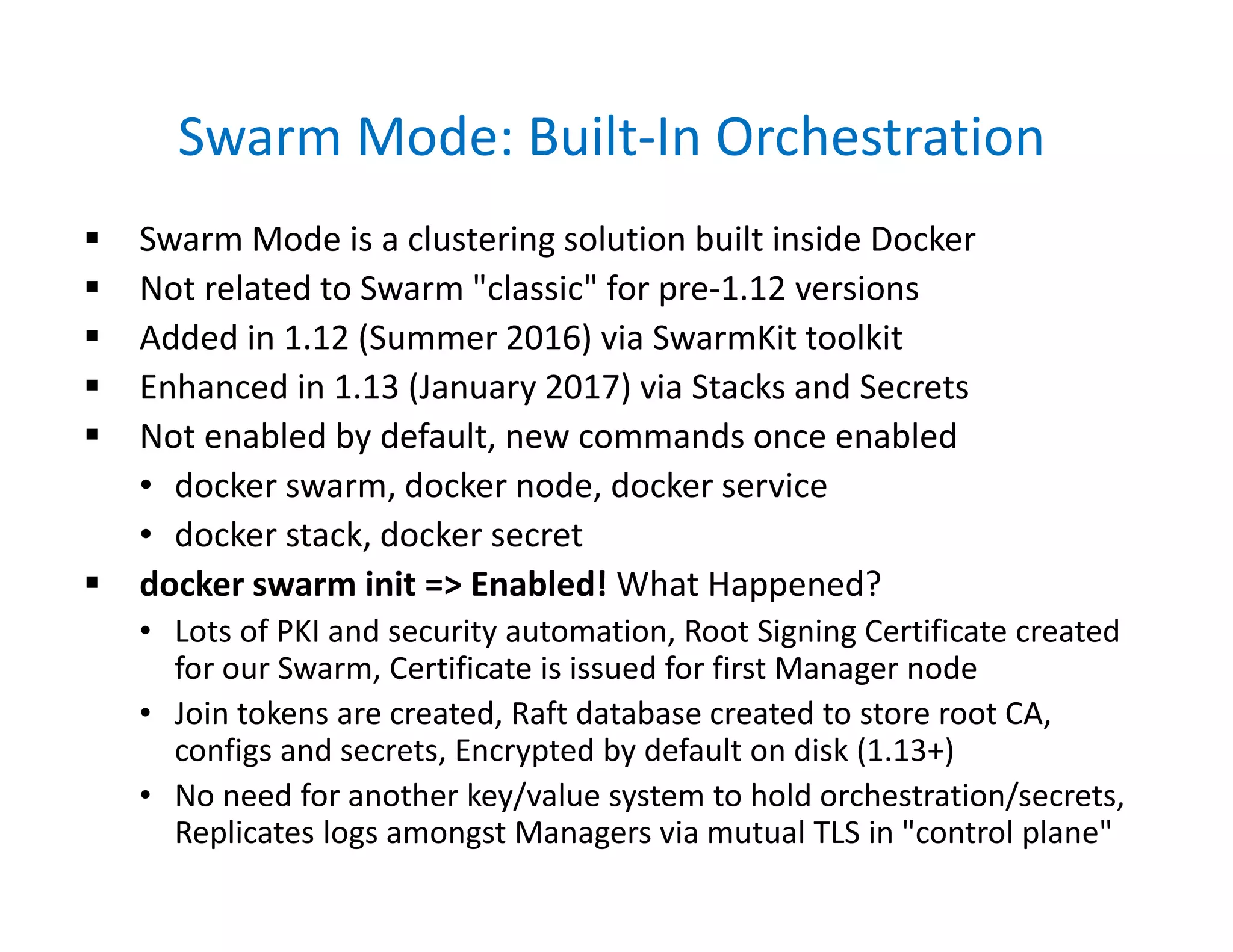
Swarm Mode: Built-In Orchestration
 Swarm Mode is a clustering solution built inside Docker
 Not related to Swarm "classic" for pre-1.12 versions
 Added in 1.12 (Summer 2016) via SwarmKit toolkit
 Enhanced in 1.13 (January 2017) via Stacks and Secrets
 Not enabled by default, new commands once enabled
• docker swarm, docker node, docker service
• docker stack, docker secret
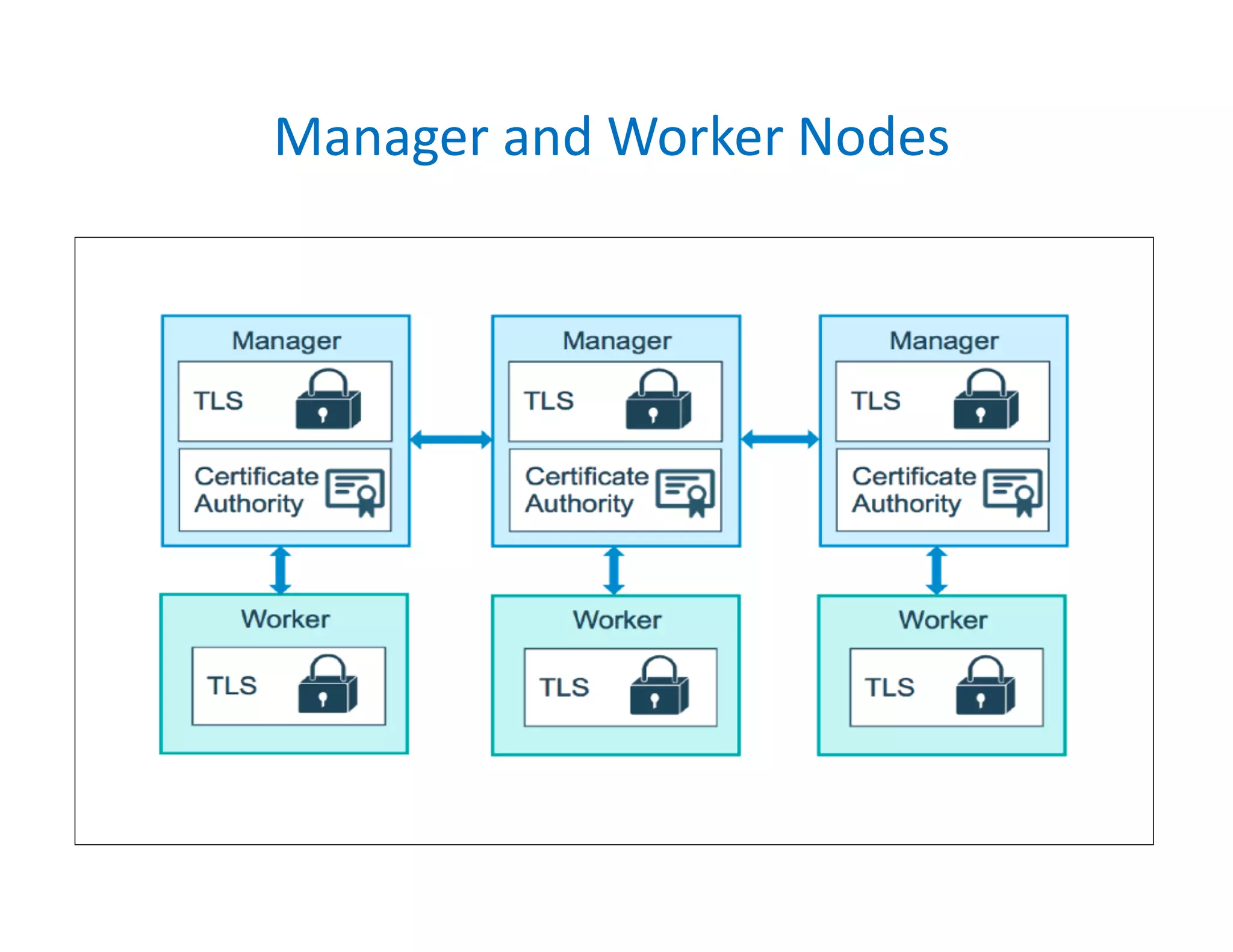
 docker swarm init => Enabled! What Happened?
• Lots of PKI and security automation, Root Signing Certificate created
for our Swarm, Certificate is issued for first Manager node
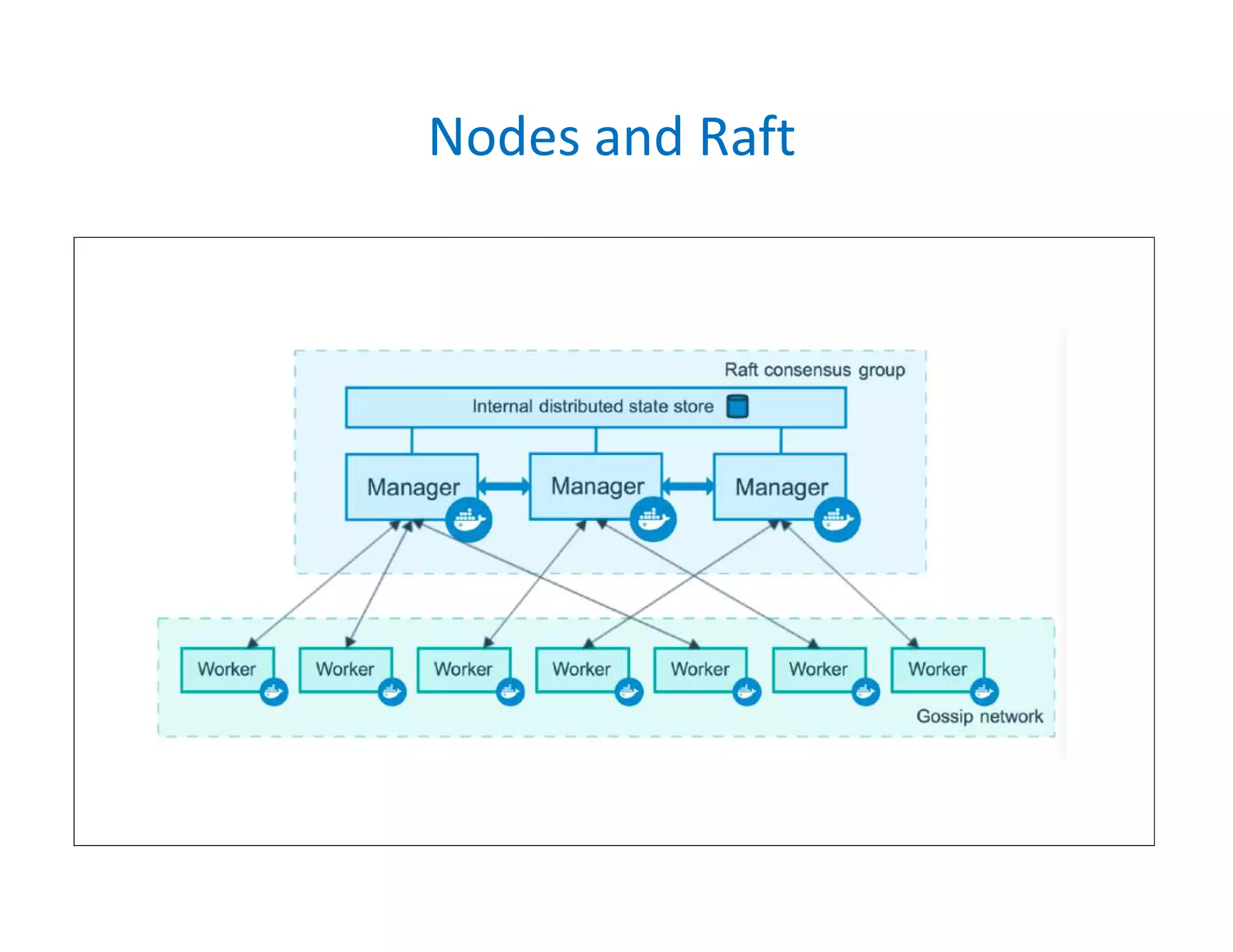
• Join tokens are created, Raft database created to store root CA,
configs and secrets, Encrypted by default on disk (1.13+)
• No need for another key/value system to hold orchestration/secrets,
Replicates logs amongst Managers via mutual TLS in "control plane"
Manager and Worker Nodes
Nodes and Raft
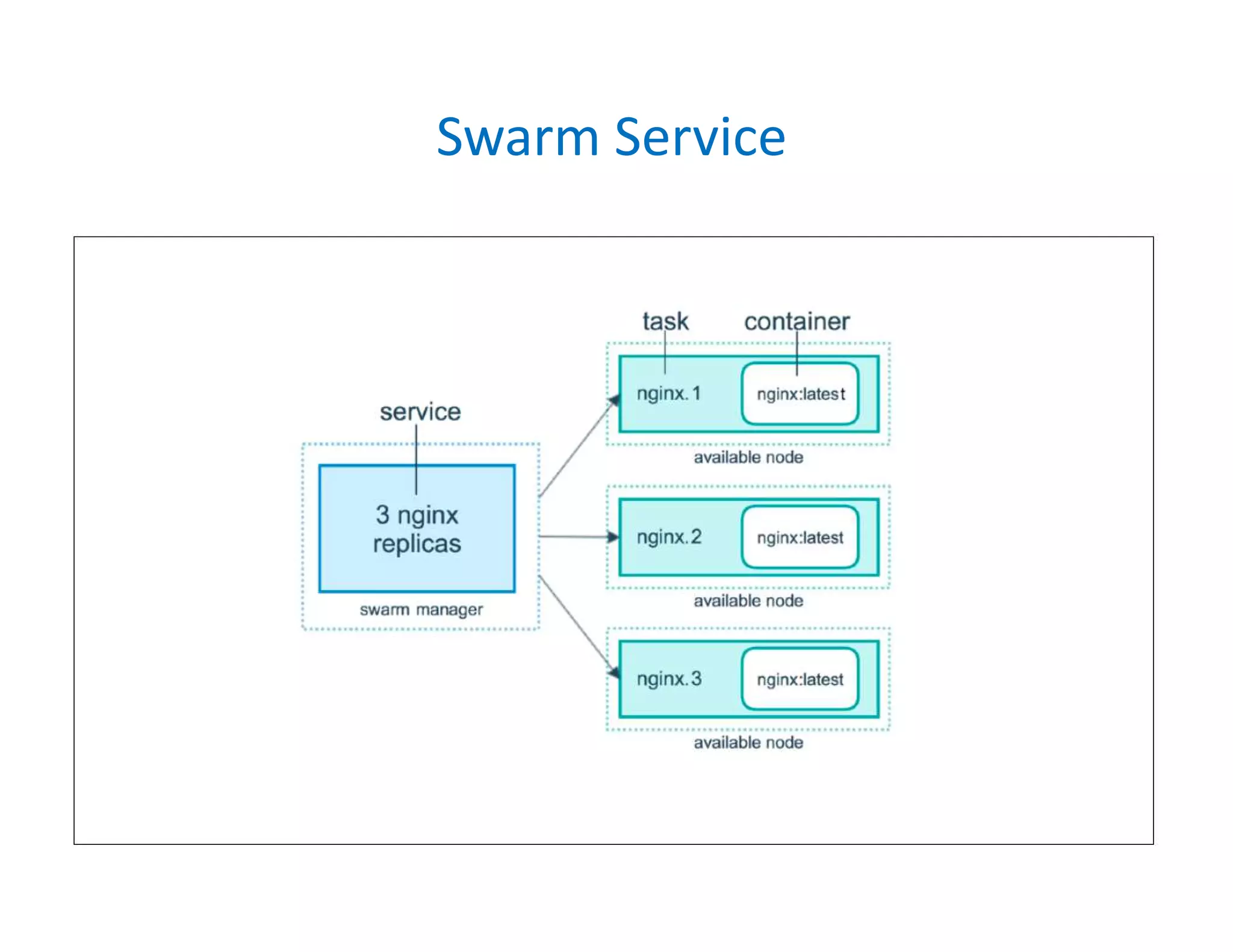
Swarm Service
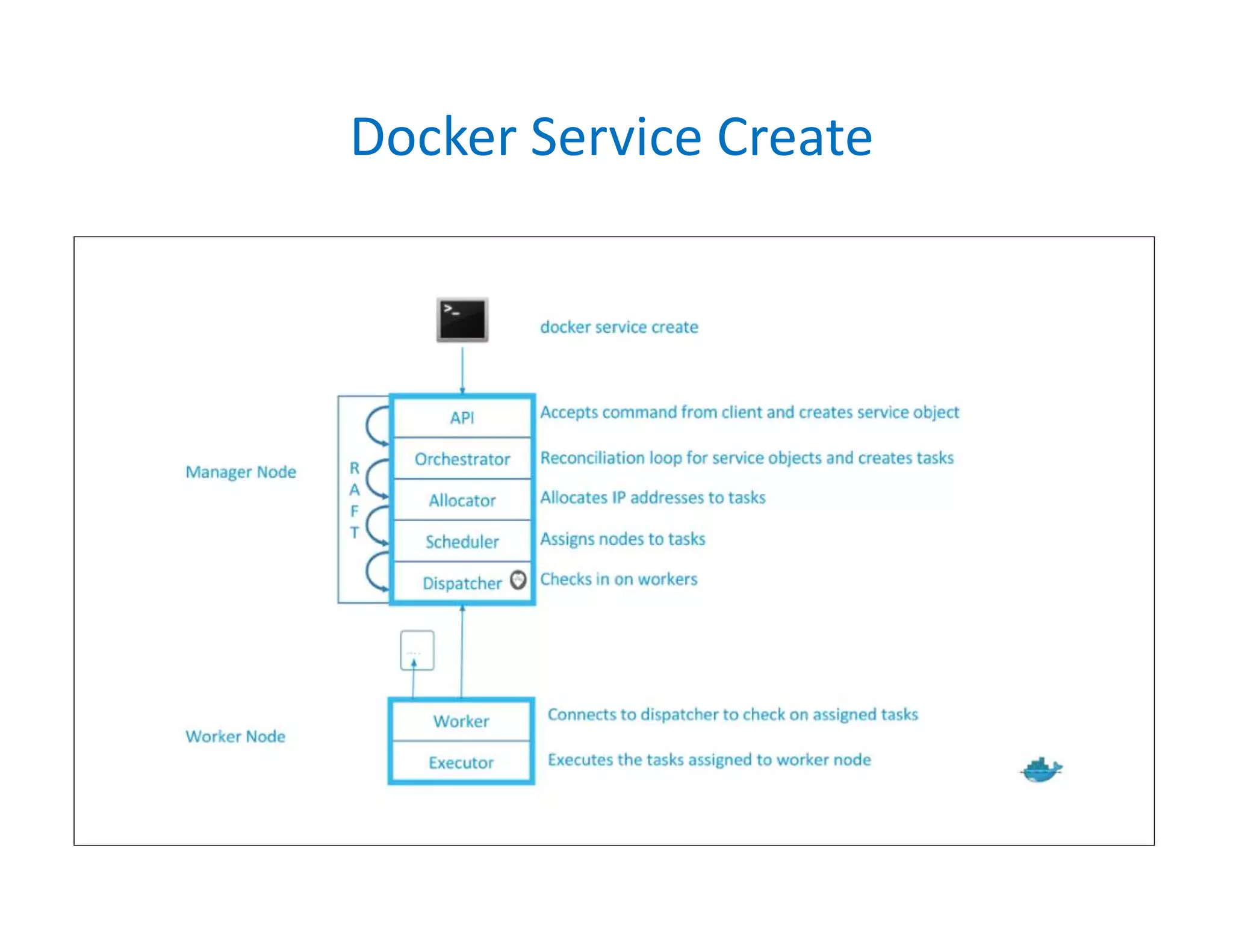
Docker Service Create
Docker Machine
Docker Machine and Swarm
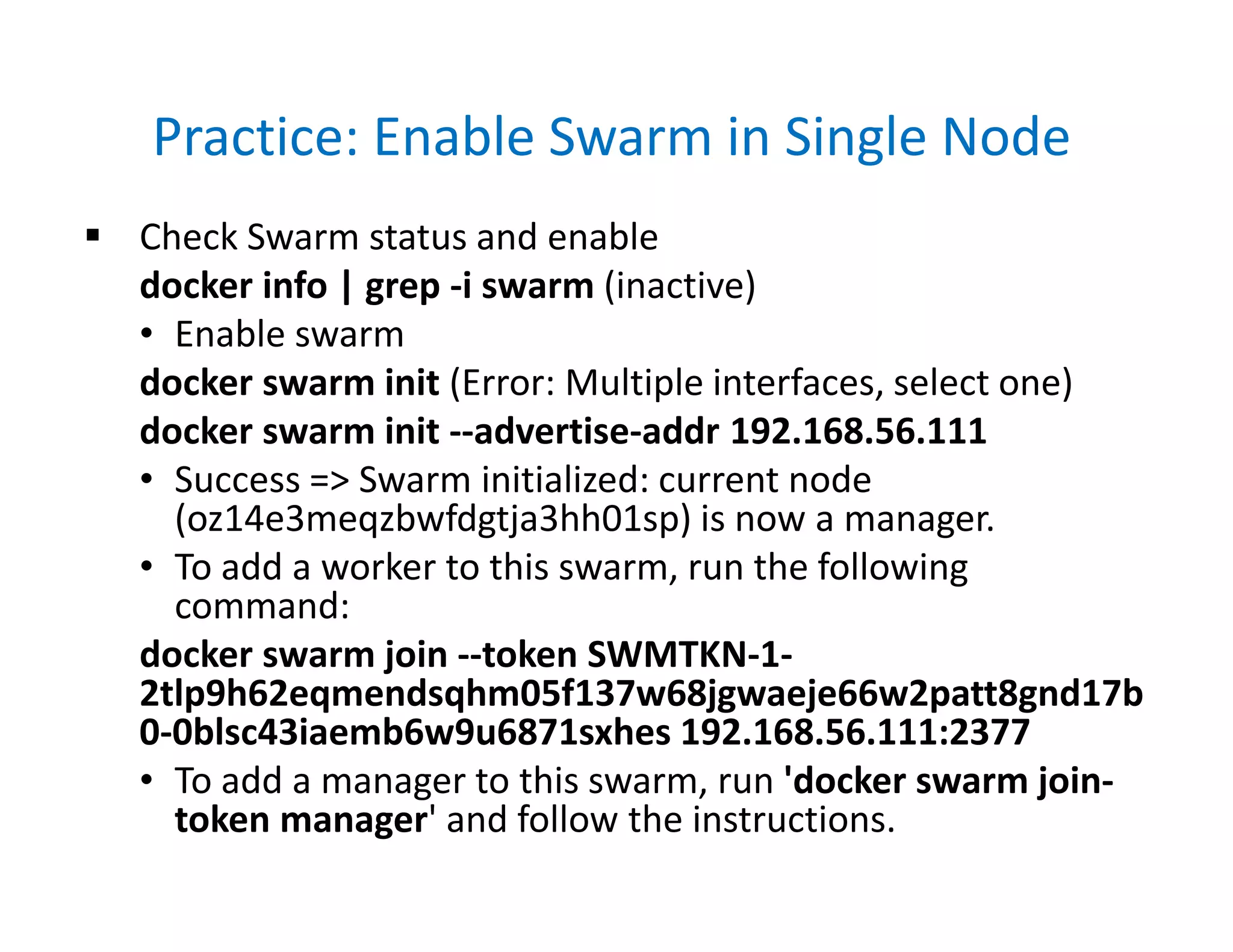
Practice: Enable Swarm in Single Node
 Check Swarm status and enable
docker info | grep -i swarm (inactive)
• Enable swarm
docker swarm init (Error: Multiple interfaces, select one)
docker swarm init --advertise-addr 192.168.56.111
• Success => Swarm initialized: current node
(oz14e3meqzbwfdgtja3hh01sp) is now a manager.
• To add a worker to this swarm, run the following
command:
docker swarm join --token SWMTKN-1-
2tlp9h62eqmendsqhm05f137w68jgwaeje66w2patt8gnd17b
0-0blsc43iaemb6w9u6871sxhes 192.168.56.111:2377
• To add a manager to this swarm, run 'docker swarm join-
token manager' and follow the instructions.
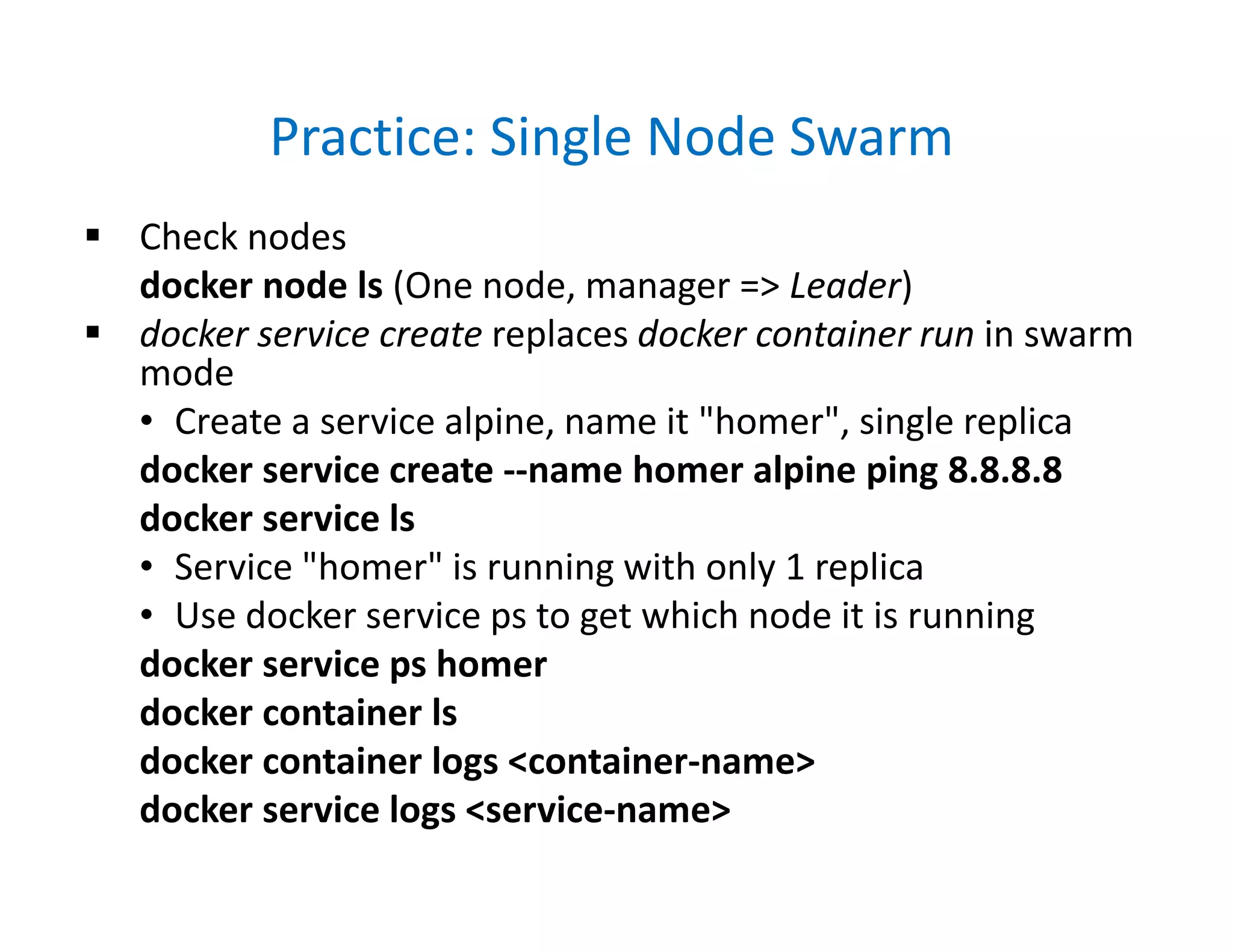
Practice: Single Node Swarm
 Check nodes
docker node ls (One node, manager => Leader)
 docker service create replaces docker container run in swarm
mode
• Create a service alpine, name it "homer", single replica
docker service create --name homer alpine ping 8.8.8.8
docker service ls
• Service "homer" is running with only 1 replica
• Use docker service ps to get which node it is running
docker service ps homer
docker container ls
docker container logs <container-name>
docker service logs <service-name>
Practice: Single Node Swarm
 Now, make it 3 replicas
docker service update --replicas 3 homer
docker service ls (Check all up: 3/3)
docker service ps homer (Which is running on which)
 Let's remove one container manually with docker container
rm -f and see if swarm re-creates
docker container ls
docker container rm -f
docker service ls (if you don't see, give a little time)
 Remove service, see all 3 containers removed
docker service rm homer
docker service ls
docker container ls
How to Create 3 Nodes Swarm?
 A. play-with-docker.com
• Only needs a browser, but resets after 4 hours
 B. Local install with docker-machine + VirtualBox
• Free and runs locally, but requires a machine with 8GB
memory
 C. Digital Ocean /AWS/Google Cloud + Docker install
• Most like a production setup, but costs monthly
 D. Create your own on the Cloud with docker-machine
• docker-machine can provision machines for Amazon,
Azure, Google
 Finally, Install docker anywhere with get.docker.com
Practice: Multi Node Swarm
 Goto https://labs.play-with-docker.com/
 Spin-up 3 machines: node1, node2, node3
 Login node1 and ping others
ping <node2-ip>
docker info | grep -i swarm
docker swarm init
docker swarm init --advertise-addr 192.168.0.43
 On Node2 and join as worker (Later we will convert to
Manager)
docker swarm join --token SWMTKN-1-
0xb15jzxv2zvp45d9mrbvmnvnlf9zs9h2nxqone5tqjb5uvmte-
2q1e92xf2mvwdzjyk5keuicmc 192.168.0.43:2377
 On node1 run: docker node ls (node1 is manager:leader and
node2 is worker)
Practice: Multi Node Swarm
 On Node1: Promote node2 as Manager
docker node update --role manager node2
docker node ls (Reachable)
 Add Node3 as Manager directly
• On Node1: docker swarm join-token manager
• On Node3: docker swarm join --token SWMTKN-1-
0xb15jzxv2zvp45d9mrbvmnvnlf9zs9h2nxqone5tqjb5u
vmte-2j66b6wafcym7p6uotgashohv
192.168.0.43:2377
• On Node1: docker node ls (Node3 also reachable)
Practice: Multi Node Swarm
 Create a service again with alpine and 3 replicas
docker service create --name homer --replicas 3 alpine ping
8.8.8.8
docker service ls
docker node ps [node2]
docker service ps homer (To see containers on nodes)
 On node2 remove container, check recovery
docker container ls
docker container rm -f <name>
 On node1 check service and remove
docker service ls
docker service update --replicas 5 homer
docker service ps homer
docker service rm homer
11. Swarm Network
 Overlay Multi-Host Networking
• Just choose --driver overlay when creating network
• For container-to-container traffic inside a single Swarm
• Optional IPSec encryption on network creation
• Each service can be connected to multiple networks
 Routing Mesh
• Routes ingress (incoming) packets for a Service to
proper Task
• Spans all nodes in Swarm
• Uses IPVS from Linux Kernel
• Load balances Swarm Services across their Tasks
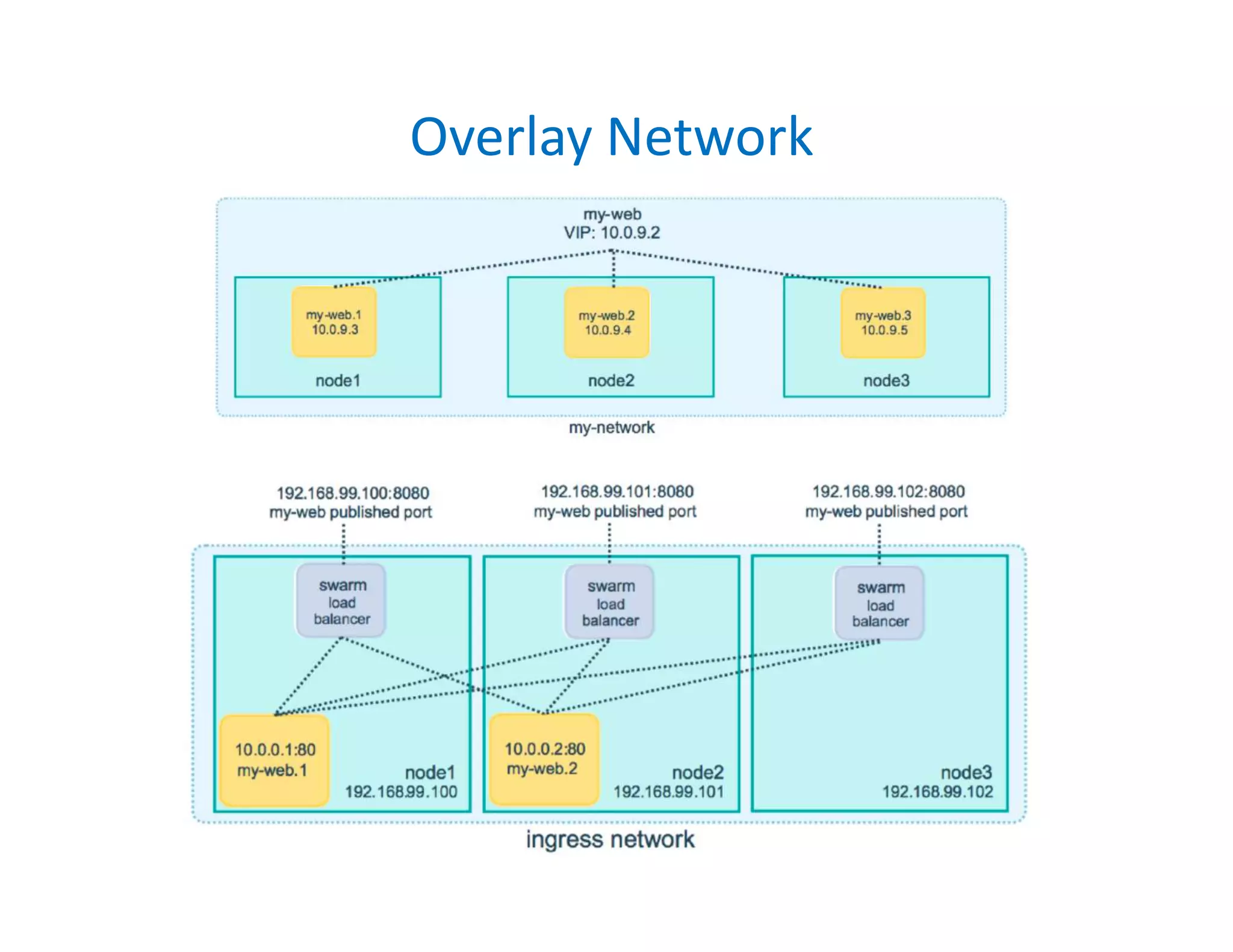
Overlay Network
Routing Mesh
 This works Two ways:
• Container-to-container in a Overlay network (uses VIP)
• External traffic incoming to published ports (all nodes
listen)
 This is stateless load balancing
 This LB is at Layer 3, not Layer 4
 Both limitation can be overcome with:
• Nginx or HAProxy LB proxy, or:
• Docker Enterprise Edition, which comes with built-in
L4 web proxy
Practice: Overlay Network
 Create an overlay network "mydrupal" and start 2 service: drupal
and postgres. After you start check on all: curl http://localhost
docker network create --driver overlay mydrupal
docker network ls
docker service create --name psql --network mydrupal -e
POSTGRES_PASSWORD=mypass postgres
docker service ls
docker service ps psql
docker container logs psql<Tab>
docker service create --name drupal --network mydrupal -p 80:80
drupal
docker service ls
docker service ps drupal
docker service inspect drupal
Practice: Routing Mesh
 Create a search app elasticsearch 3 replicas, each
container has different initial string. Run curl
http://localhost:9200 on different nodes. Observe it
doesn't matter which node you run, always load
balancing on existing nodes
docker service create --name search --replicas 3 -p
9200:9200 elasticsearch:2
docker service ps search
Node2> curl http://localhost:9200
Node3> curl http://localhost:9200
Node1> watch curl http://localhost:9200
Appendix A. Stack and Secret
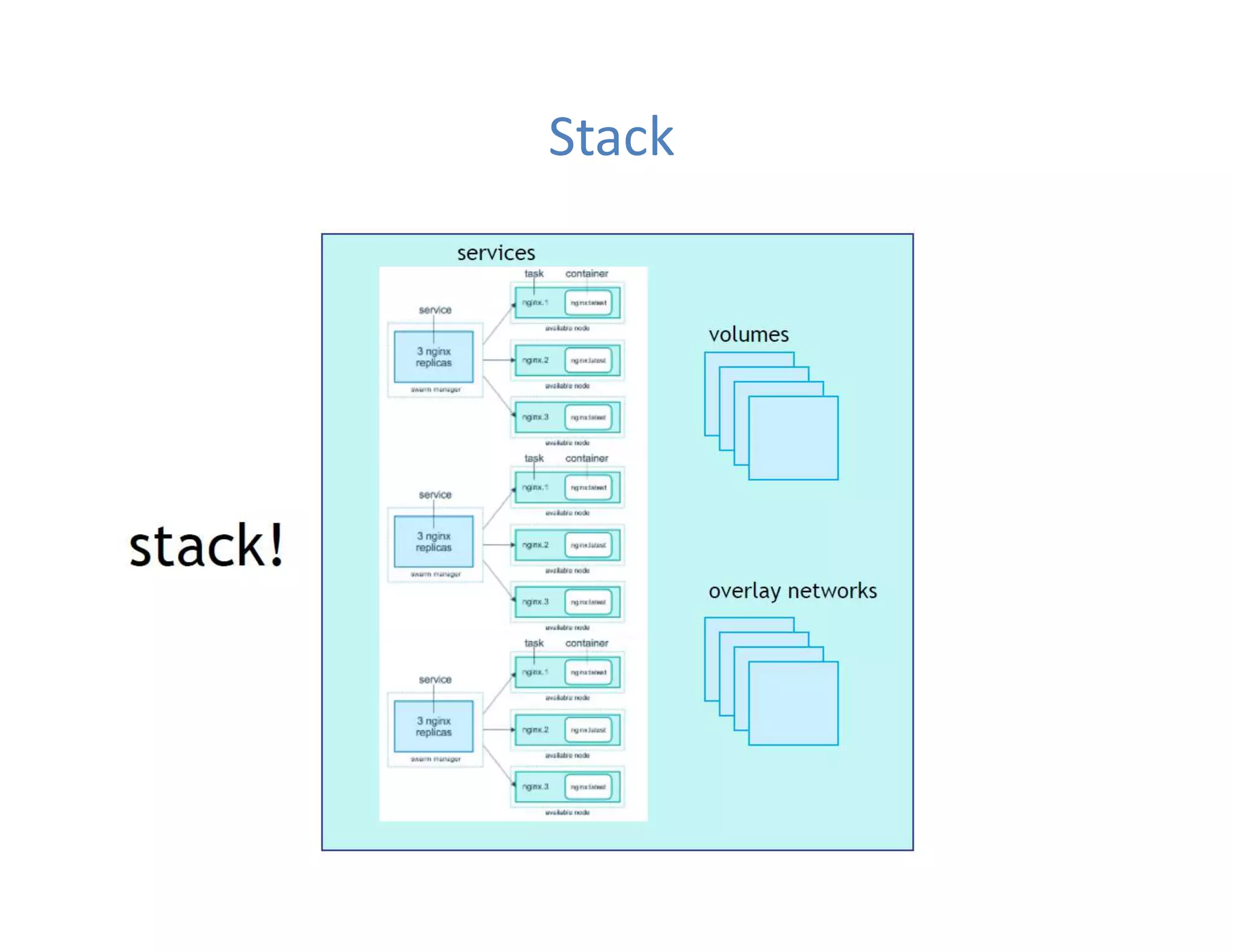
 In 1.13 Docker adds a new layer of abstraction to Swarm
called Stacks
 Stacks accept Compose files as their declarative
definition for services, networks, and volumes
 Use docker stack deploy rather then docker service
create
 Stacks manages all those objects for us, including overlay
network per stack.
 New deploy: key in Compose file. Can't do build:
 Compose now ignores deploy:, Swarm ignores build:
 docker-compose cli not needed on Swarm server
Docker Stack vs Docker Compose
 Conceptually, both files serve the same purpose - deployment and
configuration of your containers on docker engines.
 Think docker-compose for developer tool on your local machine and docker
stack as deployment tool on Swarm.
 Docker-compose tool was created first and its purpose is "for defining and
running multi-container Docker applications" on a single docker engine.
 You use docker-compose up to create/update your containers, networks,
volumes and so on.
 Where Docker Stack is used in Docker Swarm (Docker's orchestration and
scheduling tool) and, therefore, it has additional configuration parameters (i.e.
replicas, deploy, roles) that are not needed on a single docker engine.
 The stack file is interpreted by docker stack command. This command can be
invoked from a docker swarm manager only
 Specify a group of Docker containers to configure and deploy two ways:
• Docker compose (docker-compose up)
• Docker swarm (docker swarm init; docker stack deploy --compose-file
docker-stack.yml mystack)
Stack
Secret Storage
 Easiest "secure" solution for storing secrets in Swarm
 What is a Secret?
• Usernames and passwords
• TLS certificates and keys
• SSH keys
• Supports generic strings or binary content up to 500kb
 As of Docker 1.13.0 Swarm Raft DB is encrypted on disk
 Only stored on disk on Manager nodes
 Default is Managers and Workers "control plane" is TLS +
Mutual Auth
 Secrets are first stored in Swarm, then assigned to a
Service(s)
 Only containers in assigned Service(s) can see them
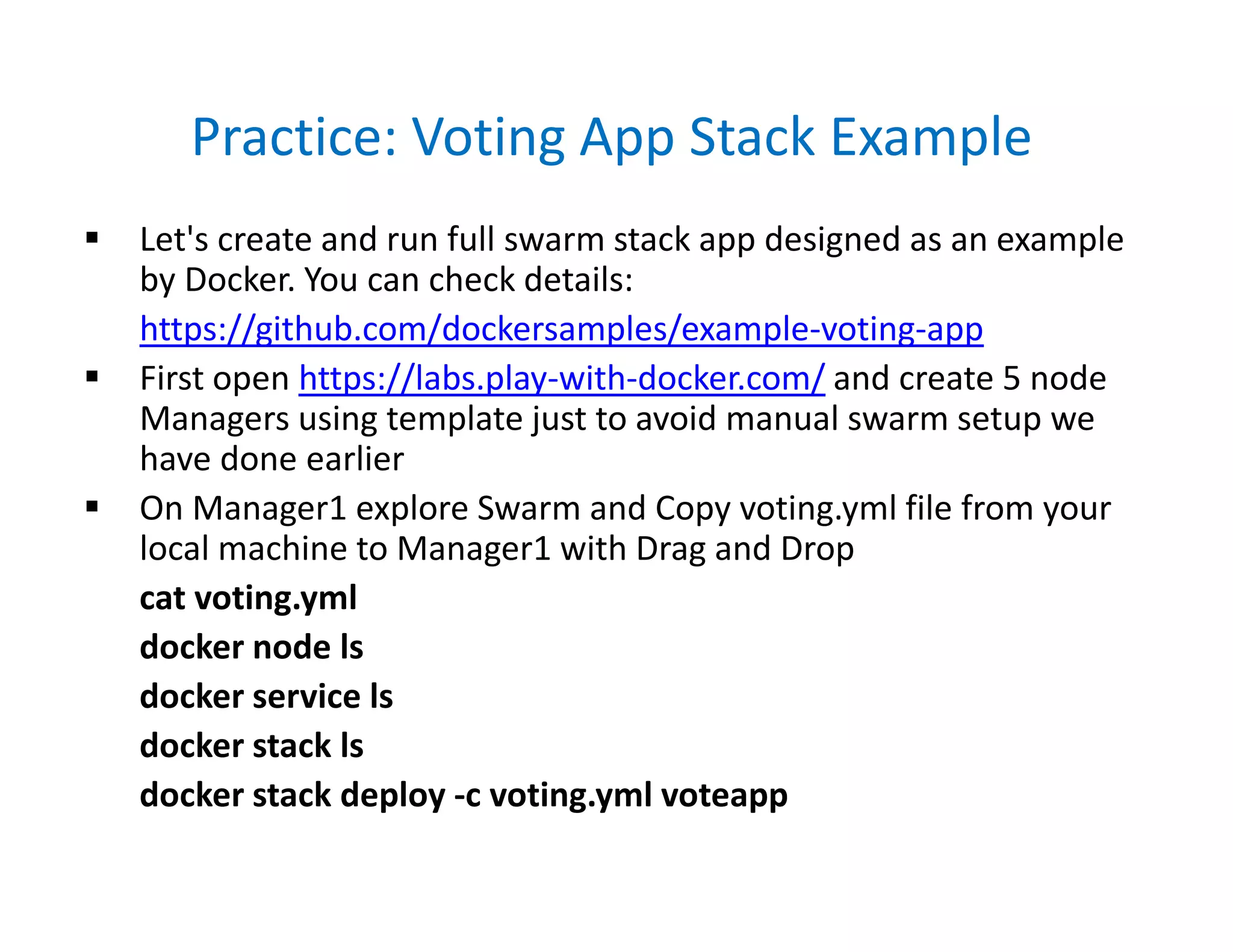
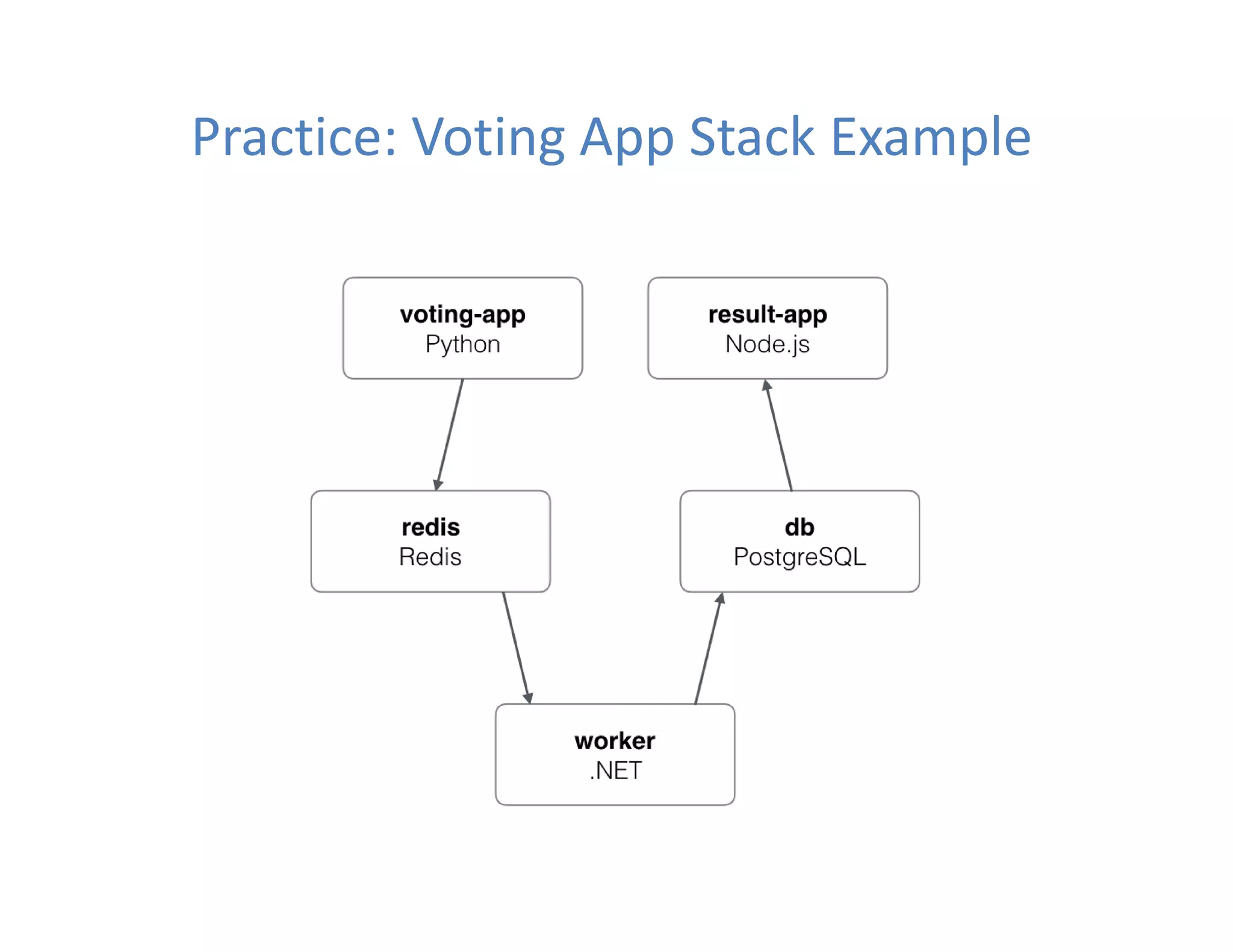
Practice: Voting App Stack Example
 Let's create and run full swarm stack app designed as an example
by Docker. You can check details:
https://github.com/dockersamples/example-voting-app
 First open https://labs.play-with-docker.com/ and create 5 node
Managers using template just to avoid manual swarm setup we
have done earlier
 On Manager1 explore Swarm and Copy voting.yml file from your
local machine to Manager1 with Drag and Drop
cat voting.yml
docker node ls
docker service ls
docker stack ls
docker stack deploy -c voting.yml voteapp
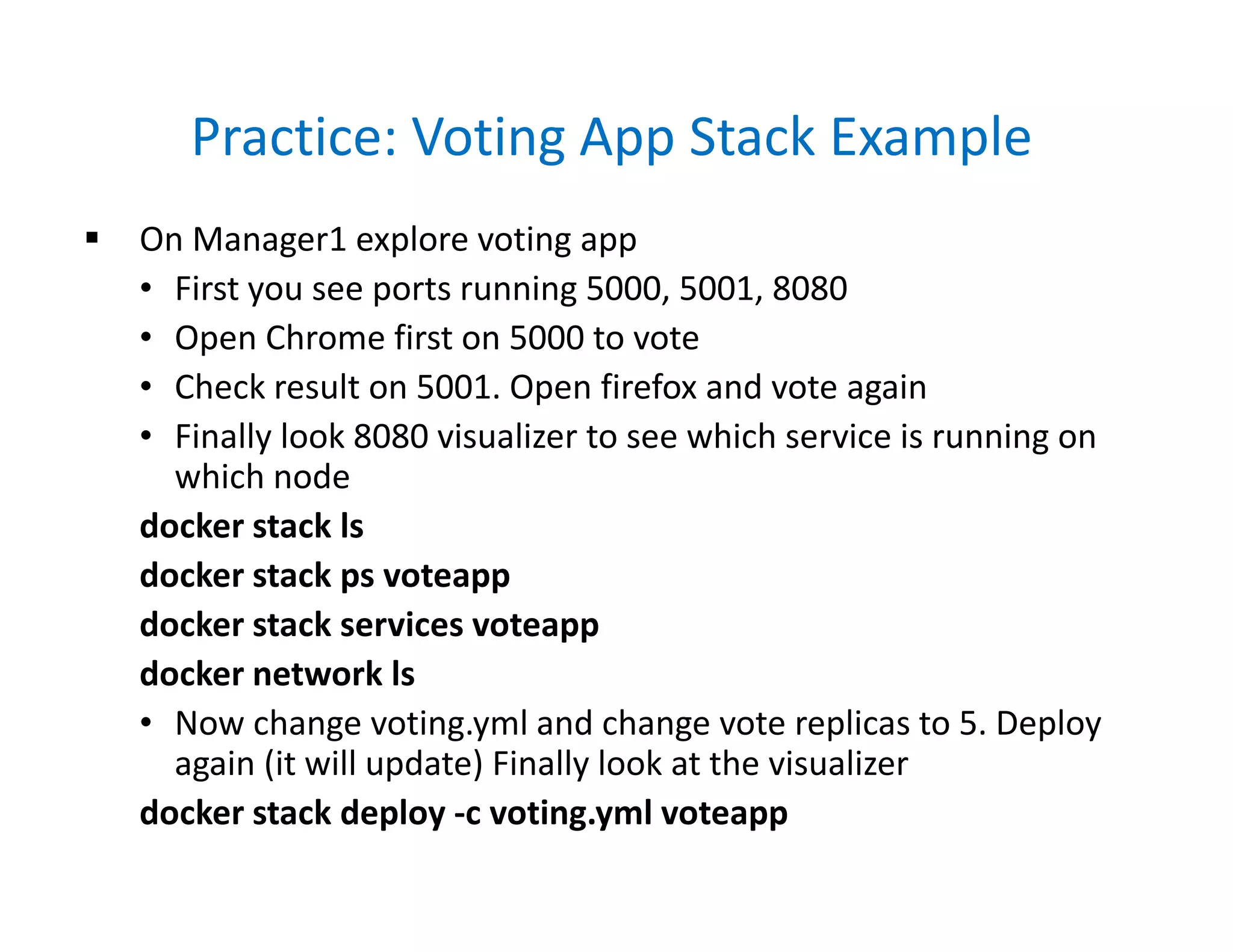
Practice: Voting App Stack Example
 On Manager1 explore voting app
• First you see ports running 5000, 5001, 8080
• Open Chrome first on 5000 to vote
• Check result on 5001. Open firefox and vote again
• Finally look 8080 visualizer to see which service is running on
which node
docker stack ls
docker stack ps voteapp
docker stack services voteapp
docker network ls
• Now change voting.yml and change vote replicas to 5. Deploy
again (it will update) Finally look at the visualizer
docker stack deploy -c voting.yml voteapp
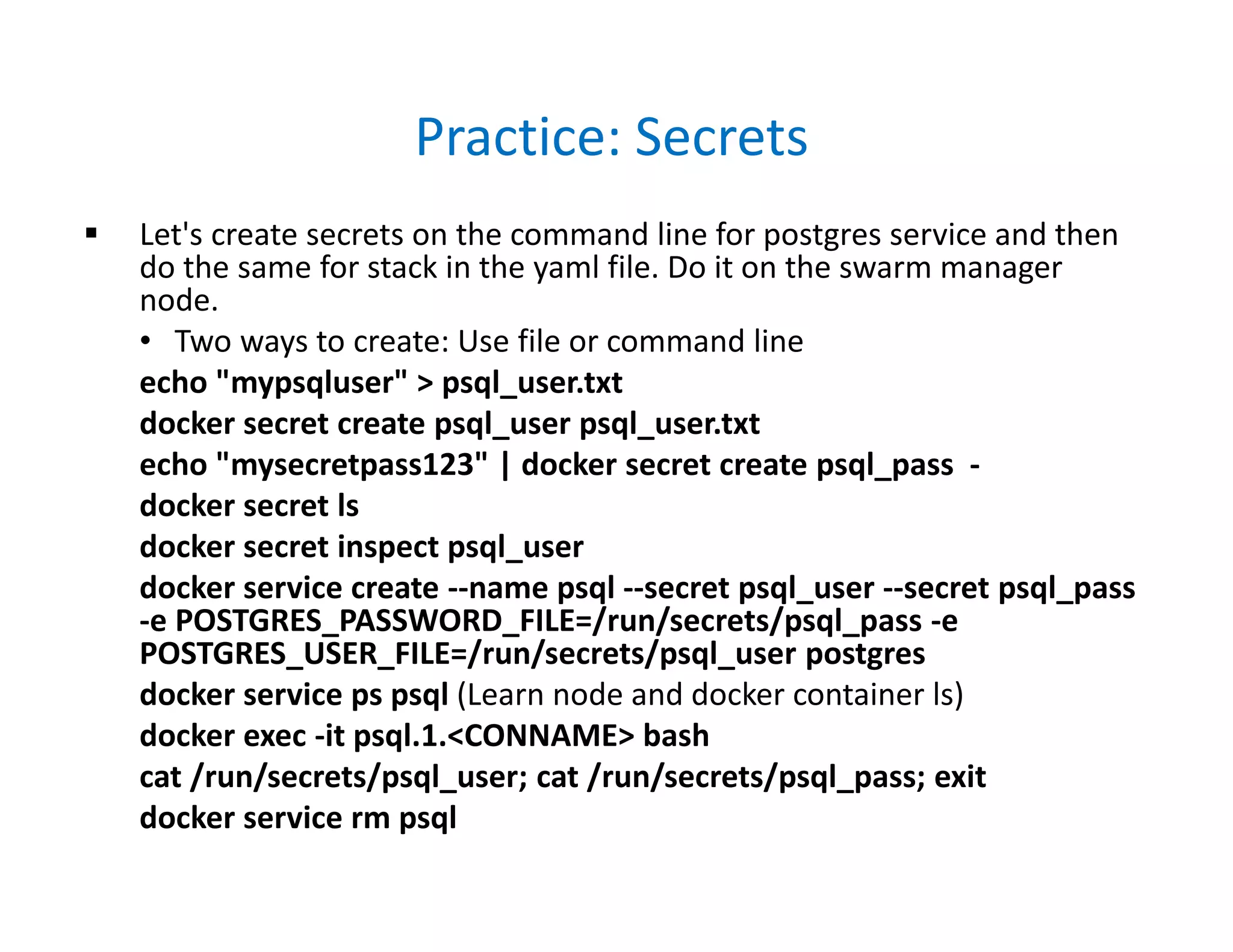
Practice: Secrets
 Let's create secrets on the command line for postgres service and then
do the same for stack in the yaml file. Do it on the swarm manager
node.
• Two ways to create: Use file or command line
echo "mypsqluser" > psql_user.txt
docker secret create psql_user psql_user.txt
echo "mysecretpass123" | docker secret create psql_pass -
docker secret ls
docker secret inspect psql_user
docker service create --name psql --secret psql_user --secret psql_pass
-e POSTGRES_PASSWORD_FILE=/run/secrets/psql_pass -e
POSTGRES_USER_FILE=/run/secrets/psql_user postgres
docker service ps psql (Learn node and docker container ls)
docker exec -it psql.1.<CONNAME> bash
cat /run/secrets/psql_user; cat /run/secrets/psql_pass; exit
docker service rm psql
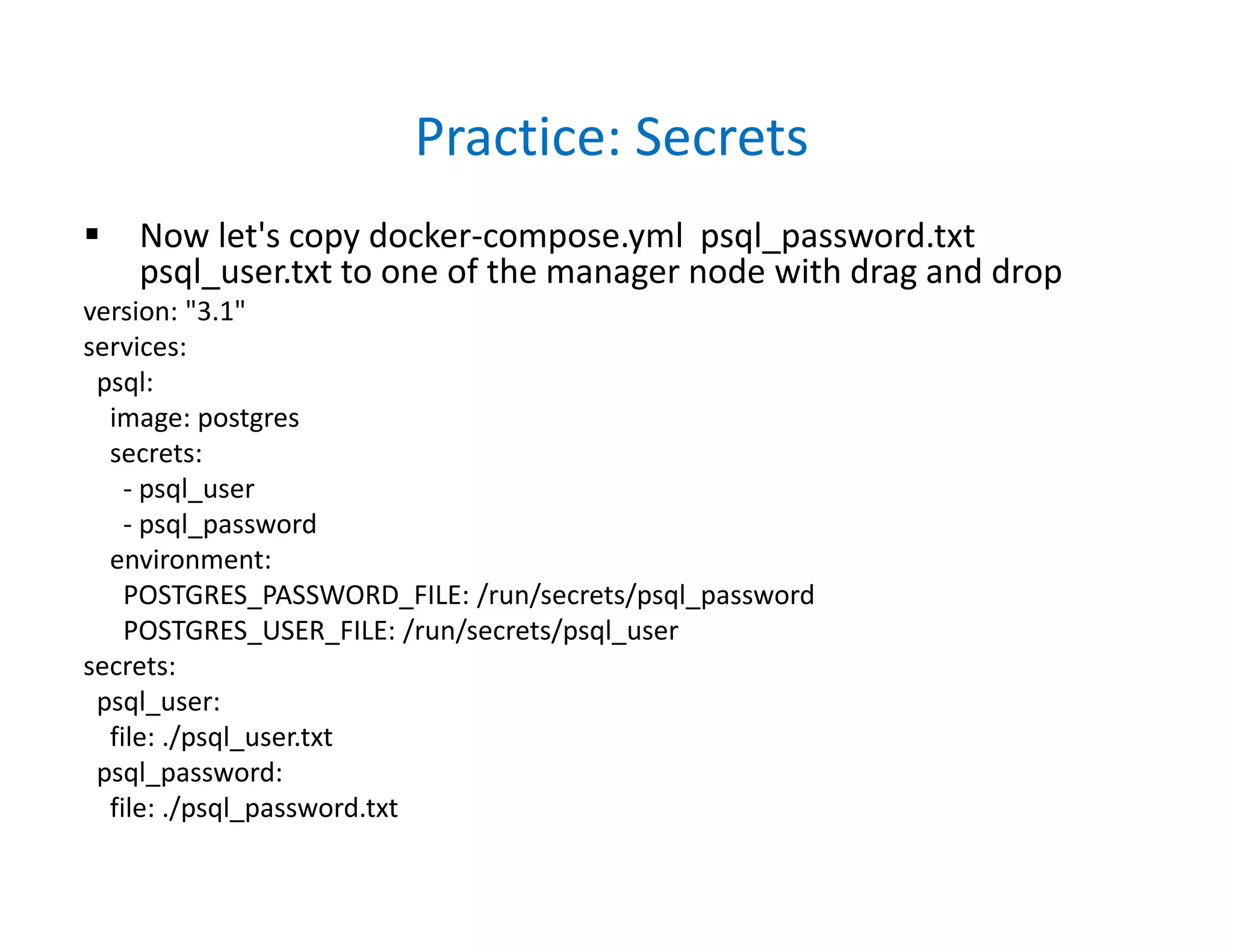
Practice: Secrets
 Now let's copy docker-compose.yml psql_password.txt
psql_user.txt to one of the manager node with drag and drop
version: "3.1"
services:
psql:
image: postgres
secrets:
- psql_user
- psql_password
environment:
POSTGRES_PASSWORD_FILE: /run/secrets/psql_password
POSTGRES_USER_FILE: /run/secrets/psql_user
secrets:
psql_user:
file: ./psql_user.txt
psql_password:
file: ./psql_password.txt
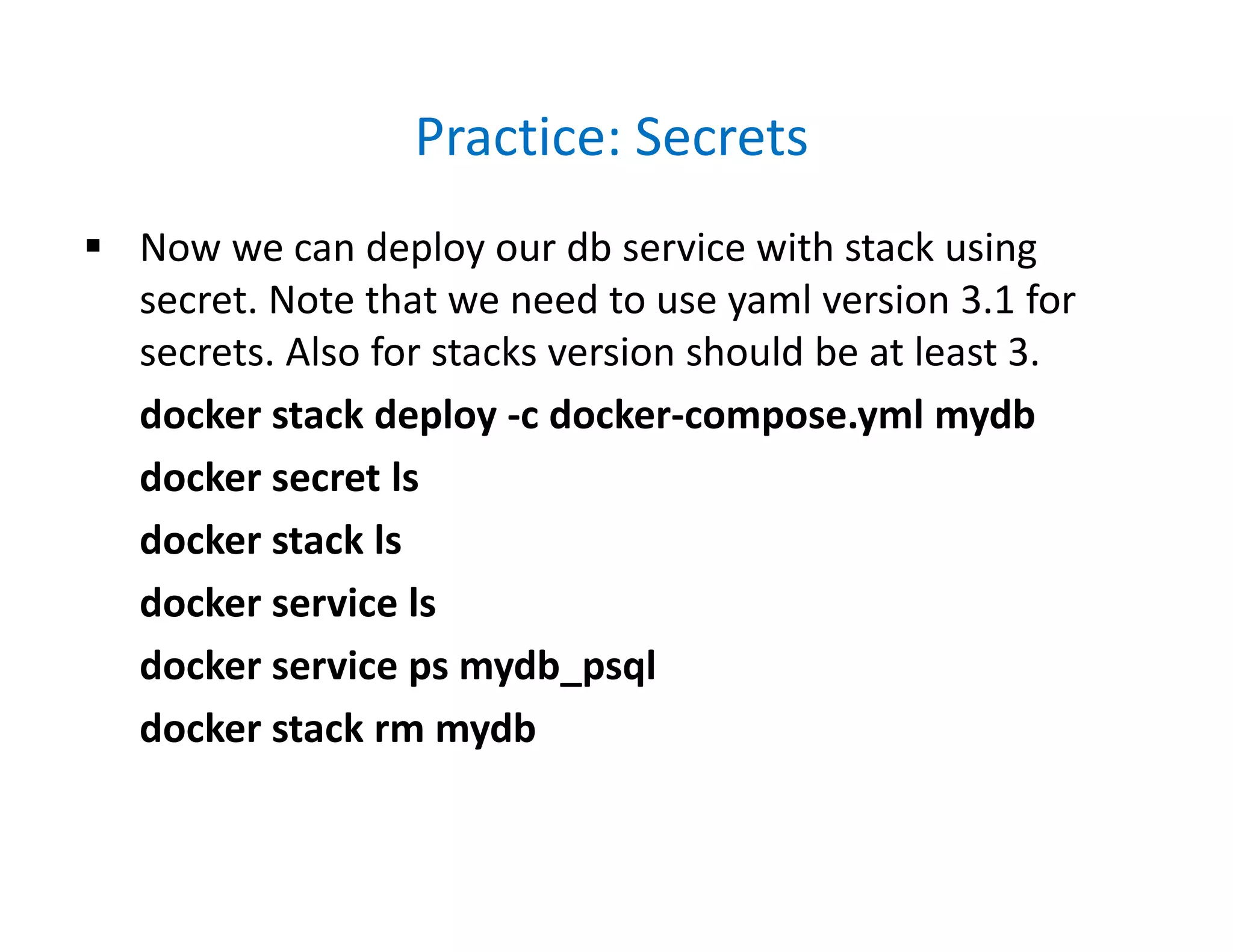
Practice: Secrets
 Now we can deploy our db service with stack using
secret. Note that we need to use yaml version 3.1 for
secrets. Also for stacks version should be at least 3.
docker stack deploy -c docker-compose.yml mydb
docker secret ls
docker stack ls
docker service ls
docker service ps mydb_psql
docker stack rm mydb

Docker fundamentals

  • 1.
  • 2.
    Content  Understanding theDevOps  The Docker Technology  Install Docker Server  Docker Machine  Docker Commands  Docker Registry and Repositories  Creating and Managing Docker Images  Running and Managing Containers  Creating and Running a Simple Web App.  GitHub  Docker Networking Basics  Docker Compose  YAML files  Scaling out with Swarm  What is next? • Kubernetes • Openshift • CI/CD Servers • Ansible / Puppet / Chef
  • 3.
    1. Introduction  Whatis Docker? • In 2013, started as opensource project at dotCloud,Inc. • Renamed as Docker,Inc. at October, 2013  Infrastructure Shifts  90s Pre-Virtualization: Physical Servers (80s:Mainframes) Problems: • Huge Cost • Slow Deployment • Hard to Migrate
  • 4.
    Hypervisor Virtualization  2000sHypervisor Virtualization: VMWare, HyperV, Logical Domains Benefits: • Cost-Efficient • Easy to Scale Limitations: • Resource Duplication • Application Portability
  • 5.
    Cloud  2010s CloudTechnologies • Amazon Web Services, Microsoft Azure and Google Cloud Platform, IBM with 34b$ Acqusition of Red Hat Amazon's Flagship flagship AWS Lambda launched in 2014. Lambda can be triggered by AWS services such as Amazon Simple Storage Service (S3), DynamoDB, Kinesis, SNS, and CloudWatch Google App Engine launched 2008. App Engine supports Node.js, Java, Ruby, C#, Go, Python, and PHP and database products are Cloud Datastore and Firebase. Kubernetes was created by Google in 2015 and is an open-source platform  Flagship, Azure Functions, allows users users to execute their code, written in languages including JavaScript, C#. Functions also interact with other Azure products including Azure Cosmos DB and Azure Storage.
  • 6.
    Container Virtualization  2015s:Container Technologies Benefits: • Cost-Efficient • Fast Deployment • Portability
  • 7.
  • 8.
    DevOps  DevOps isan IT mindset that encourages communication, collaboration, integration and automation among software developers and IT operations in order to improve the speed and quality of delivering software  DevOps is the offspring of agile software development  DevOps Practices: • Continuous Integration • Continuous Delivery • Microservices • Infrastructure as Code • Monitoring and Logging • Communication and Collaboration
  • 9.
    2. The DockerTechnology  Docker Client – Server Architecture • Docker Server Docker Daemon running on Docker Host Also referred as Docker Engine • Docker Client CLI: $ docker build/pull/run GUI: Kitematic  Docker Fastest Growing Cloud Tech  By 2020 %50 of global orgs use Docker  Docker Hub Pulls: 2014:1M, 2015:1B, 2016:6B, 2017:24B
  • 10.
  • 11.
  • 12.
  • 13.
    Docker on Windows Docker and Microsoft Bring Containers to Windows Apps  All Windows Server 2016 and later versions come with Docker Engine - Enterprise. Additionally, developers can leverage Docker natively with Windows 10 via Docker Desktop (Development Environment)
  • 14.
    Docker Machine  DockerMachine is a tool for provisioning and managing your Dockerized hosts (hosts with Docker Engine on them).  Typically, you install Docker Machine on your local system. Docker Machine has its own command line client docker- machine and the Docker Engine client, docker.  You can use Machine to install Docker Engine on one or more virtual systems. These virtual systems can be local (as when you use Machine to install and run Docker Engine in VirtualBox on Mac or Windows) or remote (as when you use Machine to provision Dockerized hosts on cloud providers).  The Dockerized hosts themselves can be thought of, and are sometimes referred to as, managed “machines”.
  • 15.
  • 16.
    Docker EE  DockerEnterprise 2.1 is a Containers-as-a-Service (CaaS)  The default Docker Enterprise installation includes both Kubernetes and Swarm components across the cluster
  • 17.
  • 18.
    3. Installation  Howto Install Docker for Windows • https://docs.docker.com/docker-for-windows/install/  Docker for Windows requires Microsoft Hyper-V to run • The Docker for Windows installer enables Hyper-V • You need Windows 10 or Windows Server 2016 to install Docker for Windows. This is preferred since it runs as native app, but you can not use VirtualBox images anymore • If your system does not meet the requirements to run Docker for Windows, you can install Docker Toolbox, which uses Oracle Virtual Box instead of Hyper-V • Docker for Windows install includes: Docker Engine, Docker CLI client, Docker Compose, Docker Machine, and Kitematic. • After installation check: DockerQuickstartTerminal and Kitematic app.
  • 19.
    Install Docker onLinux  Ubuntu18 • https://docs.docker.com/install/linux/docker-ce/ubuntu/  Postinstall Tasks for Linux: Create a Docker User • https://docs.docker.com/install/linux/linux-postinstall/  CentOS7 • https://docs.docker.com/install/linux/docker-ce/centos/ • Add Docker repo and Install Docker CE sudo yum-config-manager --add-repo https://download.docker.com/linux/centos/docker-ce.repo sudo yum install docker-ce sudo systemctl start docker; sudo systemctl enable docker sudo groupadd docker; sudo usermod -aG docker $USER • Logout and Login again and test docker docker version; docker run hello-world
  • 20.
    Docker Versions  In2017 the Docker versioning, release cycle, and product names changed  Docker Engine (the free one) is now Docker CE (Community Edition)  Docker Data Center is now Docker EE (Enterprise Edition) and adds additional paid products and support on top of Docker  Docker's version is now YY.MM based, using the month of its expected release, and the first one will be 17.03.0  We now have two release tracks (called variants) "Edge" and "Stable". • Edge is released monthly and supported for a month. Quick and Easy Installation: https://get.docker.com/ • Stable is released quarterly and support for 4 months.
  • 21.
    Docker Compose  Composeis a tool for defining and running multi- container Docker applications. With Compose, you use a YAML file to configure your application’s services.  Install Docker Compose on Linux • https://docs.docker.com/compose/install/#install-compose sudo curl -L "https://github.com/docker/compose/releases/download/1.23.1/docker- compose-$(uname -s)-$(uname -m)" -o /usr/local/bin/docker-compose sudo chmod +x /usr/local/bin/docker-compose sudo curl -L https://raw.githubusercontent.com/docker/compose/1.23.1/contrib/completion/bash/doc ker-compose -o /etc/bash_completion.d/docker-compose docker-compose --version
  • 22.
    Docker Machine  DockerMachine is a tool that lets you install Docker Engine on virtual hosts, and manage the hosts with docker-machine commands. You can use Machine to create Docker hosts on your local Mac or Windows box, on your company network, in your data center, or on cloud providers like Azure, AWS, or Digital Ocean.  Install Docker Machine https://docs.docker.com/machine/install-machine/ base=https://github.com/docker/machine/releases/download/v0.16.0 && curl -L $base/docker-machine-$(uname -s)-$(uname -m) >/tmp/docker-machine && sudo install /tmp/docker-machine /usr/local/bin/docker-machine docker-machine version  Optional Bash Completion: https://docs.docker.com/machine/install- machine/#install-bash-completion-scripts
  • 23.
    4. Using Containers Check Docker Server (Engine, Daemon) Running • docker version • docker info • docker-machine version • docker-compose version • docker run hello-world (First Hello World app)  How to get help on commands • docker (Lists all) • docker <command> --help • https://docs.docker.com/  New style 2017: Management Commands • docker run vs. docker container run • docker ps vs. docker container ls
  • 24.
    Image vs. Container An Image is the application we want to run  A Container is an instance of that image running as a process  You can have many containers running off the same image  How to get images? • Default image "registry" is called Docker Hub (hub.docker.com)  Containers aren’t Mini-VM’s. They are just processes  Limited to what resources they can access (file paths, network devices, running processes)  Exit when process stops
  • 25.
    Start a SimpleWeb Server  Let's start a simple web server nginx as container docker container run --publish 80:80 nginx • First look for the nginx image locally • if not found pull from Docker Hub • Start nginx and open port 80 on the host • Routes traffic to the container IP on port 80 • Start a firefox and check localhost, refresh couple of times • if you have bind error => Apache or another Web Server running. Stop & Disable with systemctl or choose another port on the host like --publish 8080:80
  • 26.
    Nginx Lab  Nownginx running on the foreground and displaying logs on the terminal. Let's run it on the background • Hit Control-c docker container run --publish 80:80 --detach nginx • Now running at background, unique Container ID • Check running containers docker ps (Old way) docker container ls (New way) • Notice random funny names at the end, we can specify names too. Now stop nginx docker container stop <ConID> or <Name> docker container ls (No running containers) docker container ls -a (Running and Stopped containers)
  • 27.
    Nginx  Let's starta new container and give name "webhost" docker container run --publish 80:80 --detach --name webhost nginx docker container ls -a (Show both running and stopped) • Start firefox and refresh couple of times • Now let's check logs generated from container docker container logs webhost • Check running processes on "webhost" container docker container top webhost • Clean everything. All running and stopped containers docker container rm <ID> or <Name> (-f option to force)
  • 28.
    Docker Internals  HowDockers implemented on Linux? • Docker uses several Linux kernel properties like namespaces, cgroups, and UnionFS
  • 29.
    Docker Internals  DockerEngine uses the following namespaces on Linux: • PID namespace for process isolation. • NET namespace for managing network interfaces. • IPC namespace for managing access to IPC resources. • MNT namespace for managing filesystem mount points. • UTS namespace for isolating kernel and version  Docker Engine uses the following cgroups: • Memory cgroup for managing accounting, limits and notifications. • HugeTBL cgroup for accounting usage of huge pages by process group. • CPU group for managing user / system CPU time and usage. • CPUSet cgroup for binding a group to specific CPU. Useful for real time applications and NUMA systems with localized memory per CPU. • BlkIO cgroup for measuring & limiting amount of blckIO by group. • net_cls and net_prio cgroup for tagging the traffic control. • Devices cgroup for reading / writing access devices. • Freezer cgroup for freezing a group. Useful for cluster batch scheduling, process migration and debugging without affecting prtrace.
  • 30.
    Containers are Processes Let's start a simple container and check processes on the host. Redis is an open source key-value store that functions as a data structure server. docker container run --name mongo -d mongo docker container ls docker container top mongo (List of processes inside)  Now check processes on the host machine ps -ef | grep mongo (Also check parents with pstree -s -p <pid> and ps -efT for threads)  Stop mongo and check again docker container stop mongo ps -ef | grep mongo  Start mongo and check again, finally stop docker container start mongo
  • 31.
    Exercise - Startand Inspect 3 Containers  Start an nginx, a mysql, and a httpd (apache) server • Use logs, inspect, and stats to check details docker container inspect <Name> docker container logs <Name> docker container stats (Like top utility)  Run all of them --detach (or -d), name them with --name  nginx should listen on 80:80, httpd on 8080:80, mysql on 3306:3306  When running mysql, use the --env option (or -e) to pass in MYSQL_RANDOM_ROOT_PASSWORD=true  Use docker container logs on mysql to find the random password it created on startup  Use docker container ls to ensure everything is correct  LAB: Write a shell script to stop and remove all containers
  • 32.
    Shell Access toContainer  How to get a shell access to containers, using ssh? • Each container starts with a default command and stops when that command exists, you can change it • Also you can use -i -t to get an interactive shell docker container run -it -p 80:80 --name nginx nginx bash docker container top nginx • It does not make sense to start bash on nginx container but you can use exec to run additional command on any started container docker container run -d -p 80:80 --name ng nginx docker container exec -it ng bash docker container top ng (you will see nginx and bash processes) • LAB: Change index.html file and reload firefox to reflect changes
  • 33.
    Shell Access Examples Let's start a Ubuntu Container with an interactive shell • Note that default command for Ubuntu is already bash docker container run -it --name ubuntu ubuntu bash apt-get update dpkg -l | grep curl apt-cache search curl apt-get install curl curl www.google.com exit • Now how to start and re-connect to it? docker container ls -a docker container -ai start ubuntu  Also there is another mini-Linux distro called alpine ~5mb size! docker container run -it --name alpine alpine bash (No Bash!) docker container run -it --name alpine alpine sh
  • 34.
    5. Docker Networks Network Types • bridge: The default network driver. If you don’t specify a driver, this is the type of network you are creating • host: For standalone containers, remove network isolation between the container and the Docker host, and use the host’s networking directly • none: For this container, disable all networking • overlay: Overlay networks connect multiple Docker daemons together and enable swarm services to communicate with each other. You can also use overlay networks to facilitate communication between a swarm service and a standalone container, or between two standalone containers on different Docker daemons
  • 35.
    Bridge Network  Eachcontainer connected to a private virtual network "bridge"  Each virtual network routes through NAT firewall on host IP  All containers on a virtual network can talk to each other w/o -p  Best practice is to create a new virtual network for each app:
  • 36.
    Best Practice  Defaultnetwork is "bridge" for all created container  Inside of the bridge network container can see each other  However best practice is to create a new virtual network for the containers that needs to work together. There could be couple of seperated virtual networks. These networks are isolated and containers see each other over open ports  Using a seperate virtual network (not using the default bridge) has advantages. One of them is automatic DNS service. Each container within the same network can see each other with names instead of IP address, which is recommended way of operating since IP addresses can be changed frequently
  • 37.
    Practice: Default BridgeNetwork  Practice of using default bridge network • Let's create an alpine container in detach mode docker container run -dit --name alpine1 alpine ash • alpine is a tiny linux distro, whenever we want to access it use: docker attach alpine1 and Control-pq to detach again • Now on another terminal attach and check IP docker attach alpine1 ifconfig (You see default network IP 172.17.0.2) • Create a second alpine and ping each other docker container run -dit --name alpine2 alpine ash docker attach alpine2 ifconfig ping 172.17.0.2
  • 38.
    Practice: Create NewVirtual Network  Check Network and Containers from Host Terminal docker network ls docker network inspect bridge • Look at the Container Section you will see alpine1,2 with IP addresses. Now create a new net: "alp-net" and alpine3 container on this net docker network create --driver bridge alp-net docker network ls docker container run -dit --name alpine3 --network alp-net alpine ash docker network inspect alp-net docker attach alpine3 ifconfig (You will see new ip 172.18.0.x)
  • 39.
    Practice: DNS onVirtual Network  Now alpine1 and alpine2 on the default "bridge" and alpine3 on the alp-net. How to make alpine2 see alpine3? Create another network interface for alpine2 on the alp-net docker network connect --help docker network connect alp-net alpine2 docker network inspect alp-net (See Container Section) docker attach alpine2 ifconfig ping 172.18.0.2 (alpine2 can ping alpine3 IP using alp-net) ping alpine3 (DNS Service enables using hostnames) ping alpine1 (DNS is not available for default bridge)
  • 40.
    LAB: Virtual Networksand DNS  Create a new virtual net: os-net  Create ubuntu:14.04 container with name ubuntu and -- rm option on os-net with -it and install curl  Create centos:7 container with name centos and --rm option on os-net with -it and install curl  Check that you can ping each other with hostname ubuntu and centos because of DNS Service  Create and nginx with name nginx on the default net with -d option  Try to ping nginx host with ip or hostname  Try to access with curl using ip connected to host  Exit both ubuntu and centos and check auto deletion
  • 41.
  • 42.
    What is anImage?  Official definition: "An Image is an ordered collection of root filesystem changes and the corresponding execution parameters for use within a container runtime."  Images are App binaries and dependencies  Not a complete OS. No kernel, kernel modules  Small as one file, Big as a CentOS Linux with yum, Nginx, Apache, MySQL, Mongo, etc.  Usually use a Dockerfile to create them  Stored in your Docker Engine image cache  Permanent Storage in Image Registry => hub.docker.com
  • 43.
    Explore Docker Images Create a free account at https://hub.docker.com/ and login, so you can create public repositories and only one private repository. You can choose paid plans to have more private repositories.  Hit Explore to view official images. Official images have approved by Docker Inc. with only names and "official" tag. When you create an image, it should have <your account name> /<repo name>  Choosing the right image: Search for Nginx and choose the image with "official" tag and lots of pulls and stars  Goto Details and Check Tags. To ensure the current version choose the "latest" tag which is default.
  • 44.
    Practice: Pull Images Let's pull different versions of Nginx • Goto Docker Hub and find official Nginx • Check images on the host (Remove if already exist) docker image ls docker pull nginx (Pulls the tag:latest) docker pull nginx:1.15.7 docker image ls • Notice the speed, not downloading everything • Check image size are identical but not consume disk • Also there are different tags like alpine docker pull nginx:alpine
  • 45.
    Image Layers  Imagesare made up of file system changes and metadata  Each layer is uniquely identified and only stored once on a host using SHA and UnionFS (like zfs)  This saves storage space on host and transfer time on push/pull  A container is just a single read/write layer on top of image using COW  Use docker image history and inspect to see details docker image history nginx:latest docker image inspect nginx:latest
  • 46.
  • 47.
  • 48.
    Docker Image Upload How to tag and upload an image to Docker Hub? • Use nginx image first tag and upload docker image tag nginx trial/nginx (latest default) docker image ls (Notice exactly same as official) docker image push trial/nginx • Denied! You need to login with free docker account docker login => user/pass • WARNING! Your password will be stored unencrypted in /home/admin/.docker/config.json • Don't forget to docker logout to remove credentials docker image push trial/nginx docker image tag nginx trial/nginx:testing docker image push trial/nginx:testing (Same image fast)
  • 49.
    7. Dockerfile  Dockerfileis recipe for creating Docker Image  Dockerfile basics • FROM (base image) • ENV (environment variable) • RUN (any arbitrary shell command) • EXPOSE (open port from container to virtual network) • CMD (command to run when container starts) • docker image build (create image from Dockerfile)
  • 50.
    Practice: Build Imagefrom Dockerfile  Let's create an image using a sample Dockerfile cd dockerfile-sample-1 vim Dockerfile docker build -t mynginx . • Notice that we tagged as mynginx since we want to use locally, no need to specify username/repo • if you want to specify another Dockerfile use -f <path> • Order is important, try to make minimal changes, let's edit Dockerfile and add port 8080 on EXPOSE docker build -t mynginx . • Very Fast Deployment since everything else is ready
  • 51.
    Practice: Build Imagesand Push to Hub  Let's use the official nginx image and copy an index.html to create our own image, push it to Docker Hub cd dockerfile-sample-2 vim index.html (Change it as you like) vim Dockerfile (You can see only index.html copies) docker build -t mynginx:hello . docker run -p 80:80 --rm mynginx:hello docker image tag mynginx:hello trial/nginx:testing docker push trial/nginx:hello docker image rm trial/nginx:hello (Delete local images) docker run -p 80:80 --rm nginx (Hit control-c, auto rm) docker run -p 80:80 --rm trial/nginx:hello
  • 52.
    8. Data Volumesand Bind Mounts  Containers are usually immutable and ephemeral  "immutable infrastructure": only re-deploy containers, never change  This is the ideal scenario, but what about databases, or unique data?  Docker gives us features to ensure these "separation of concerns". This is known as "persistent data"  Two ways: Volumes and Bind Mounts • Volumes: Special location outside of container UFS • Bind Mounts: Link container path to host path
  • 53.
    Volumes vs. Mounts With Volume, a new directory is created within Docker's storage directory on the host machine, and Docker manages that directory's content.  Volumes are easier to back up or migrate than bind mounts.  You can manage volumes using Docker CLI commands or the Docker API.  Volumes work on both Linux and Windows containers.  Volumes can be more safely shared among multiple containers.  Volume drivers allow you to store volumes on remote hosts or cloud providers, to encrypt the contents of volumes, or to add other functionality.  A new volume’s contents can be pre-populated by a container.
  • 54.
    Bind Mounts  WithBind Mount, a file or directory on the host machine is mounted into a container. The file or directory is referenced by its full or relative path on the host machine.  Available since the early days of Docker.  Bind mounts have limited functionality compared to volumes. The file or directory does not need to exist on the Docker host already. It is created on demand if it does not yet exist.  Bind mounts are very performant, but they rely on the host machine’s filesystem having a specific directory structure available.  If you are developing new Docker applications, consider using named volumes instead. You can’t use Docker CLI commands to directly manage bind mounts.
  • 55.
    Practice: Volumes  Let'sexplore volume operations using mysql database  First check stop and remove all containers and delete existing volumes from previous work myrm => docker container rm -f <ALL> docker volume list • if you ever run mysql there should be some anonymous volumes left, since deleting a container do not remove volumes. Default Location of volumes: /var/lib/docker/volumes. Let's delete all for a fresh start docker volume prune
  • 56.
    Practice: Volumes  GotoDocker Hub and Check MySQL Dockerfile about volume info => VOLUME /var/lib/mysql  Create two a mysql container and check volume names docker pull mysql docker image inspect mysql (Check Volume) docker container run -d --name mysql1 -e MYSQL_ALLOW_EMPTY_PASSWORD=True mysql docker volume ls docker volume inspect (No info about container name) docker container run -d --name mysql2 -e MYSQL_ALLOW_EMPTY_PASSWORD=True mysql docker volume ls (We have a problem, use named volumes)
  • 57.
    Practice: Volumes  Cleanand create two new container with named volumes myrm; docker volume prune docker container run -d --name mysql1 -e MYSQL_ALLOW_EMPTY_PASSWORD=True -v mysql- db1:/var/lib/mysql mysql docker container run -d --name mysql2 -e MYSQL_ALLOW_EMPTY_PASSWORD=True -v mysql- db2:/var/lib/mysql mysql docker volume ls  Now stop and remove mysql2 and create mysql3 with mysql-db2, since volumes are not auto deleted with containers docker container rm -f mysql2 docker container run -d --name mysql3 -e MYSQL_ALLOW_EMPTY_PASSWORD=True -v mysql- db2:/var/lib/mysql mysql
  • 58.
    Practice: Bind Mount Clean all and create nginx1 and nginx2 containers • For nginx1 -p 80:80 manually connect to container and edit index.html • For nginx2 -p 8080:80 create a bind mount from host to container and change index.html see result docker container run -d --name nginx1 -p 80:80 nginx • Open browser on localhost and see test page docker container exec -it nginx1 bash # echo '<h1>Welcome to Mars!</h1>' > /usr/share/nginx/html/index.html • Reload the browser
  • 59.
    Practice: Bind Mount Create bind mount from host to nginx2 to achieve same thing w/o login into container cd dockerfile-sample-2 docker container run -d --name nginx2 -p 8080:80 -v $(pwd):/usr/share/nginx/html nginx echo '<h1>Welcome to Venus!</h1>' > index.html • Open browser http://localhost:8080 echo '<h1>Welcome to Jupiter!</h1>' >> index.html • Reload browser. Very effective! • However Host specific and can not specify in Dockerfile
  • 60.
    9. Docker Compose What is it? Why do we need it? • Standalone Container App is not a real world scenario • You need many Containers working together • How do we specify all details about configurations, volumes, networks, etc.? Obviously not with the command line docker options • Docker Compose comes into act right there  Docker compose consist of two parts: • YAML-formatted file that describes our solution options for: Containers, networks, volumes • A CLI tool docker-compose used for local dev/test automation with those YAML files  You need to install Docker Compose on Linux seperately • https://docs.docker.com/compose/install/#install-compose
  • 61.
    YAML  YAML: YAMLAin't Markup Language => http://yaml.org  What It Is: YAML is a human friendly data serialization standard for all programming languages  There is a default name for Docker: docker-compose.yml • if you want use other names you need -f options with docker-compose command. Similar idea with Dockrfile and docker command  In terms of YAML versions definetely use v2 or higher • Details : https://docs.docker.com/compose/compose- file/compose-versioning/  docker-compose.yml can be used with docker directly in production with Swarm (as of v1.13)
  • 62.
    docker-compose CLI  CLItool comes with Docker for Windows/Mac, but separate  download for Linux and not a production-grade tool but ideal for local development and test  Two most common commands are • docker-compose up # setup volumes/networks and start all containers • docker-compose down # stop all containers and remove cont/vol/net  Compose can also build your custom images • Will build them with docker-compose up if not found in cache • Also rebuild with docker-compose build or all in one: docker-compose up --build Great for complex builds
  • 63.
    Template YAML File version:'3.1' # if no version is specificed then v1 is assumed. Recommend v2 minimum services: # containers same as docker run servicename: # a friendly name. this is also DNS name inside network image: # Optional if you use build: command: # Optional, replace the default CMD specified by the image environment: # Optional, same as -e in docker run volumes: # Optional, same as -v in docker run servicename2: volumes: # Optional, same as docker volume create networks: # Optional, same as docker network create
  • 64.
    Sample YAML File version:'2' services: wordpress: image: wordpress ports: - 8080:80 environment: WORDPRESS_DB_HOST: mysql WORDPRESS_DB_NAME: wordpress volumes: - ./wordpress-data:/var/www/html mysql: image: mariadb environment: MYSQL_ROOT_PASSWORD: examplerootPW MYSQL_DATABASE: wordpress volumes: - mysql-data:/var/lib/mysql volumes: mysql-data:
  • 65.
    Practice1: Create adocker-compose.yml  Goal: Create a compose config for a local Drupal CMS website  This empty directory is where you should create a docker- compose.yml  - Use the `drupal` image along with the `postgres` image  - Set the version to 2  - Use `ports` to expose Drupal on 8080  - Be sure to setup POSTGRES_PASSWORD on postgres image  - Walk though Drupal config in browser at http://localhost:8080  - Tip: Drupal assumes DB is localhost, but it will actually be on the compose service name you give it  - Use Docker Hub documentation to figure out the right environment and volume settings
  • 66.
    Practice1: docker-compose.yml version: '2' services: drupal: image:drupal ports: - "8080:80" volumes: - drupal-themes:/var/www/html/themes postgres: image: postgres environment: - POSTGRES_PASSWORD=mypasswd volumes: drupal-themes:
  • 67.
    Practice2: Docker ComposeBuild  In YAML file you can specify build if you want to create your own images. Here is an example: Goto Practice2 folder: cat docker-compose.yml version: '2' services: proxy: build: context: . dockerfile: nginx.Dockerfile ports: - '80:80' web: image: httpd volumes: - ./html:/usr/local/apache2/htdocs/ cat nginx.Dockerfile FROM nginx:1.13 COPY nginx.conf /etc/nginx/conf.d/default.conf docker-compose up and docker-compose down --rmi local
  • 68.
    10. Swarm  Howdo we automate container lifecycle?  How can we easily scale up/down?  How can we ensure our containers are re-created if they fail?  How can we replace containers without downtime (blue/green deploy)?  How can we control/track where containers get started?  How can we create cross-node virtual networks?  How can we ensure only trusted servers run our containers?  How can we store secrets, keys, passwords and get them to the right container (and only that container)?
  • 69.
    Swarm Mode: Built-InOrchestration  Swarm Mode is a clustering solution built inside Docker  Not related to Swarm "classic" for pre-1.12 versions  Added in 1.12 (Summer 2016) via SwarmKit toolkit  Enhanced in 1.13 (January 2017) via Stacks and Secrets  Not enabled by default, new commands once enabled • docker swarm, docker node, docker service • docker stack, docker secret  docker swarm init => Enabled! What Happened? • Lots of PKI and security automation, Root Signing Certificate created for our Swarm, Certificate is issued for first Manager node • Join tokens are created, Raft database created to store root CA, configs and secrets, Encrypted by default on disk (1.13+) • No need for another key/value system to hold orchestration/secrets, Replicates logs amongst Managers via mutual TLS in "control plane"
  • 70.
  • 71.
  • 72.
  • 73.
  • 74.
  • 75.
  • 76.
    Practice: Enable Swarmin Single Node  Check Swarm status and enable docker info | grep -i swarm (inactive) • Enable swarm docker swarm init (Error: Multiple interfaces, select one) docker swarm init --advertise-addr 192.168.56.111 • Success => Swarm initialized: current node (oz14e3meqzbwfdgtja3hh01sp) is now a manager. • To add a worker to this swarm, run the following command: docker swarm join --token SWMTKN-1- 2tlp9h62eqmendsqhm05f137w68jgwaeje66w2patt8gnd17b 0-0blsc43iaemb6w9u6871sxhes 192.168.56.111:2377 • To add a manager to this swarm, run 'docker swarm join- token manager' and follow the instructions.
  • 77.
    Practice: Single NodeSwarm  Check nodes docker node ls (One node, manager => Leader)  docker service create replaces docker container run in swarm mode • Create a service alpine, name it "homer", single replica docker service create --name homer alpine ping 8.8.8.8 docker service ls • Service "homer" is running with only 1 replica • Use docker service ps to get which node it is running docker service ps homer docker container ls docker container logs <container-name> docker service logs <service-name>
  • 78.
    Practice: Single NodeSwarm  Now, make it 3 replicas docker service update --replicas 3 homer docker service ls (Check all up: 3/3) docker service ps homer (Which is running on which)  Let's remove one container manually with docker container rm -f and see if swarm re-creates docker container ls docker container rm -f docker service ls (if you don't see, give a little time)  Remove service, see all 3 containers removed docker service rm homer docker service ls docker container ls
  • 79.
    How to Create3 Nodes Swarm?  A. play-with-docker.com • Only needs a browser, but resets after 4 hours  B. Local install with docker-machine + VirtualBox • Free and runs locally, but requires a machine with 8GB memory  C. Digital Ocean /AWS/Google Cloud + Docker install • Most like a production setup, but costs monthly  D. Create your own on the Cloud with docker-machine • docker-machine can provision machines for Amazon, Azure, Google  Finally, Install docker anywhere with get.docker.com
  • 80.
    Practice: Multi NodeSwarm  Goto https://labs.play-with-docker.com/  Spin-up 3 machines: node1, node2, node3  Login node1 and ping others ping <node2-ip> docker info | grep -i swarm docker swarm init docker swarm init --advertise-addr 192.168.0.43  On Node2 and join as worker (Later we will convert to Manager) docker swarm join --token SWMTKN-1- 0xb15jzxv2zvp45d9mrbvmnvnlf9zs9h2nxqone5tqjb5uvmte- 2q1e92xf2mvwdzjyk5keuicmc 192.168.0.43:2377  On node1 run: docker node ls (node1 is manager:leader and node2 is worker)
  • 81.
    Practice: Multi NodeSwarm  On Node1: Promote node2 as Manager docker node update --role manager node2 docker node ls (Reachable)  Add Node3 as Manager directly • On Node1: docker swarm join-token manager • On Node3: docker swarm join --token SWMTKN-1- 0xb15jzxv2zvp45d9mrbvmnvnlf9zs9h2nxqone5tqjb5u vmte-2j66b6wafcym7p6uotgashohv 192.168.0.43:2377 • On Node1: docker node ls (Node3 also reachable)
  • 82.
    Practice: Multi NodeSwarm  Create a service again with alpine and 3 replicas docker service create --name homer --replicas 3 alpine ping 8.8.8.8 docker service ls docker node ps [node2] docker service ps homer (To see containers on nodes)  On node2 remove container, check recovery docker container ls docker container rm -f <name>  On node1 check service and remove docker service ls docker service update --replicas 5 homer docker service ps homer docker service rm homer
  • 83.
    11. Swarm Network Overlay Multi-Host Networking • Just choose --driver overlay when creating network • For container-to-container traffic inside a single Swarm • Optional IPSec encryption on network creation • Each service can be connected to multiple networks  Routing Mesh • Routes ingress (incoming) packets for a Service to proper Task • Spans all nodes in Swarm • Uses IPVS from Linux Kernel • Load balances Swarm Services across their Tasks
  • 84.
  • 85.
    Routing Mesh  Thisworks Two ways: • Container-to-container in a Overlay network (uses VIP) • External traffic incoming to published ports (all nodes listen)  This is stateless load balancing  This LB is at Layer 3, not Layer 4  Both limitation can be overcome with: • Nginx or HAProxy LB proxy, or: • Docker Enterprise Edition, which comes with built-in L4 web proxy
  • 86.
    Practice: Overlay Network Create an overlay network "mydrupal" and start 2 service: drupal and postgres. After you start check on all: curl http://localhost docker network create --driver overlay mydrupal docker network ls docker service create --name psql --network mydrupal -e POSTGRES_PASSWORD=mypass postgres docker service ls docker service ps psql docker container logs psql<Tab> docker service create --name drupal --network mydrupal -p 80:80 drupal docker service ls docker service ps drupal docker service inspect drupal
  • 87.
    Practice: Routing Mesh Create a search app elasticsearch 3 replicas, each container has different initial string. Run curl http://localhost:9200 on different nodes. Observe it doesn't matter which node you run, always load balancing on existing nodes docker service create --name search --replicas 3 -p 9200:9200 elasticsearch:2 docker service ps search Node2> curl http://localhost:9200 Node3> curl http://localhost:9200 Node1> watch curl http://localhost:9200
  • 88.
    Appendix A. Stackand Secret  In 1.13 Docker adds a new layer of abstraction to Swarm called Stacks  Stacks accept Compose files as their declarative definition for services, networks, and volumes  Use docker stack deploy rather then docker service create  Stacks manages all those objects for us, including overlay network per stack.  New deploy: key in Compose file. Can't do build:  Compose now ignores deploy:, Swarm ignores build:  docker-compose cli not needed on Swarm server
  • 89.
    Docker Stack vsDocker Compose  Conceptually, both files serve the same purpose - deployment and configuration of your containers on docker engines.  Think docker-compose for developer tool on your local machine and docker stack as deployment tool on Swarm.  Docker-compose tool was created first and its purpose is "for defining and running multi-container Docker applications" on a single docker engine.  You use docker-compose up to create/update your containers, networks, volumes and so on.  Where Docker Stack is used in Docker Swarm (Docker's orchestration and scheduling tool) and, therefore, it has additional configuration parameters (i.e. replicas, deploy, roles) that are not needed on a single docker engine.  The stack file is interpreted by docker stack command. This command can be invoked from a docker swarm manager only  Specify a group of Docker containers to configure and deploy two ways: • Docker compose (docker-compose up) • Docker swarm (docker swarm init; docker stack deploy --compose-file docker-stack.yml mystack)
  • 90.
  • 91.
    Secret Storage  Easiest"secure" solution for storing secrets in Swarm  What is a Secret? • Usernames and passwords • TLS certificates and keys • SSH keys • Supports generic strings or binary content up to 500kb  As of Docker 1.13.0 Swarm Raft DB is encrypted on disk  Only stored on disk on Manager nodes  Default is Managers and Workers "control plane" is TLS + Mutual Auth  Secrets are first stored in Swarm, then assigned to a Service(s)  Only containers in assigned Service(s) can see them
  • 92.
    Practice: Voting AppStack Example  Let's create and run full swarm stack app designed as an example by Docker. You can check details: https://github.com/dockersamples/example-voting-app  First open https://labs.play-with-docker.com/ and create 5 node Managers using template just to avoid manual swarm setup we have done earlier  On Manager1 explore Swarm and Copy voting.yml file from your local machine to Manager1 with Drag and Drop cat voting.yml docker node ls docker service ls docker stack ls docker stack deploy -c voting.yml voteapp
  • 93.
    Practice: Voting AppStack Example
  • 94.
    Practice: Voting AppStack Example  On Manager1 explore voting app • First you see ports running 5000, 5001, 8080 • Open Chrome first on 5000 to vote • Check result on 5001. Open firefox and vote again • Finally look 8080 visualizer to see which service is running on which node docker stack ls docker stack ps voteapp docker stack services voteapp docker network ls • Now change voting.yml and change vote replicas to 5. Deploy again (it will update) Finally look at the visualizer docker stack deploy -c voting.yml voteapp
  • 95.
    Practice: Secrets  Let'screate secrets on the command line for postgres service and then do the same for stack in the yaml file. Do it on the swarm manager node. • Two ways to create: Use file or command line echo "mypsqluser" > psql_user.txt docker secret create psql_user psql_user.txt echo "mysecretpass123" | docker secret create psql_pass - docker secret ls docker secret inspect psql_user docker service create --name psql --secret psql_user --secret psql_pass -e POSTGRES_PASSWORD_FILE=/run/secrets/psql_pass -e POSTGRES_USER_FILE=/run/secrets/psql_user postgres docker service ps psql (Learn node and docker container ls) docker exec -it psql.1.<CONNAME> bash cat /run/secrets/psql_user; cat /run/secrets/psql_pass; exit docker service rm psql
  • 96.
    Practice: Secrets  Nowlet's copy docker-compose.yml psql_password.txt psql_user.txt to one of the manager node with drag and drop version: "3.1" services: psql: image: postgres secrets: - psql_user - psql_password environment: POSTGRES_PASSWORD_FILE: /run/secrets/psql_password POSTGRES_USER_FILE: /run/secrets/psql_user secrets: psql_user: file: ./psql_user.txt psql_password: file: ./psql_password.txt
  • 97.
    Practice: Secrets  Nowwe can deploy our db service with stack using secret. Note that we need to use yaml version 3.1 for secrets. Also for stacks version should be at least 3. docker stack deploy -c docker-compose.yml mydb docker secret ls docker stack ls docker service ls docker service ps mydb_psql docker stack rm mydb