Docker Basics
Panuwat Boonrod (New)
- O L D S C H O O L D E V E L O P M E N T
- I N T R O D U C T I O N T O C O N T A I N E R
- W H Y W E N E E D C O N T A I N E R ?
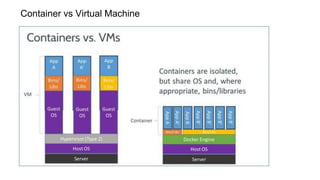
- D O C K E R V S V I R T U A L M A C H I N E
- D O C K E R O V E R V I E W
- D O C K E R B U I L D
- D O C K E R R E G I S T R Y
- D O C K E R R U N
A G E N D A
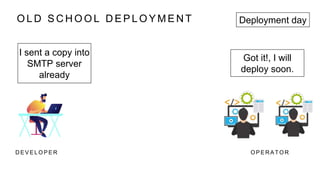
O L D S C H O O L D E P L O Y M E N T
D E V E L O P E R O P E R A T O R
I sent a copy into
SMTP server
already
Got it!, I will
deploy soon.
Deployment day
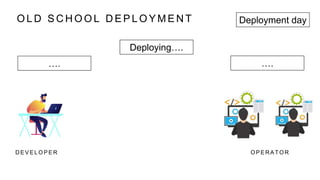
O L D S C H O O L D E P L O Y M E N T
D E V E L O P E R O P E R A T O R
…. ….
Deploying….
Deployment day
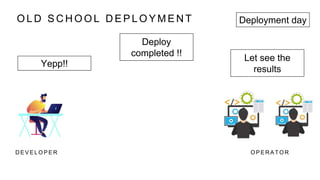
O L D S C H O O L D E P L O Y M E N T
D E V E L O P E R O P E R A T O R
Yepp!!
Let see the
results
Deployment day
Deploy
completed !!
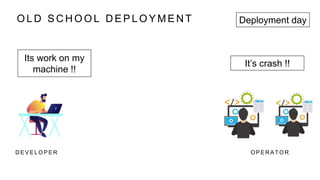
O L D S C H O O L D E P L O Y M E N T
D E V E L O P E R O P E R A T O R
Its work on my
machine !!
It’s crash !!
Deployment day
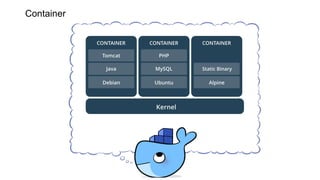
Container
T H E M O S T
P O P U L A R
C O N T A I N E R
M A N A G E R .
D O C K E R
Container vs Virtual Machine
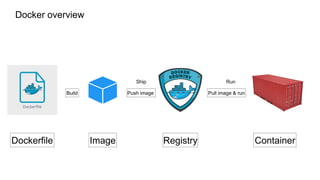
Docker overview
Dockerfile Image Registry Container
Push image Pull image & run
Build
Ship Run
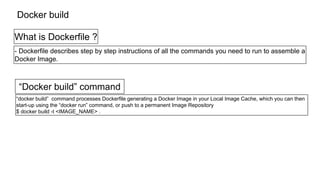
Docker build
What is Dockerfile ?
- Dockerfile describes step by step instructions of all the commands you need to run to assemble a
Docker Image.
“Docker build” command
“docker build” command processes Dockerfile generating a Docker Image in your Local Image Cache, which you can then
start-up using the “docker run” command, or push to a permanent Image Repository
$ docker build -t <IMAGE_NAME> .
Docker Registry
What is Docker Registry ?
- A registry is a storage and content delivery system, holding named Docker images, available in
different tagged versions. eg. Docker Hub, Quay.io, GCR, ECR
“Docker Push” command
“docker push” command helps you to push Docker images to the Docker registry.
$ docker push [IMAGE:TAG]
Docker Run
“Docker Run” command
-“docker run” command helps you to run Docker image as a container instance.
General Command Form
The basic “docker run” command takes this form:
$ docker run [OPTIONS] IMAGE[:TAG|@DIGEST] [COMMAND] [ARG...]
$ docker run -it ubuntu
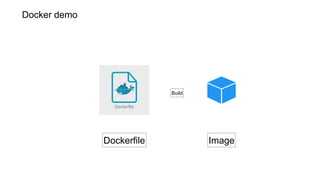
Docker demo
Dockerfile Image
Build
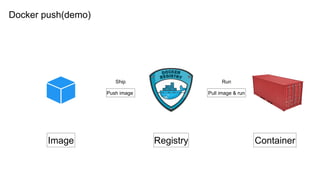
Docker push(demo)
Image Registry Container
Push image Pull image & run
Ship Run
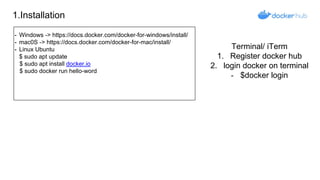
1.Installation
⁃ Windows -> https://docs.docker.com/docker-for-windows/install/
⁃ mac0S -> https://docs.docker.com/docker-for-mac/install/
⁃ Linux Ubuntu
$ sudo apt update
$ sudo apt install docker.io
$ sudo docker run hello-word
Terminal/ iTerm
1. Register docker hub
2. login docker on terminal
- $docker login
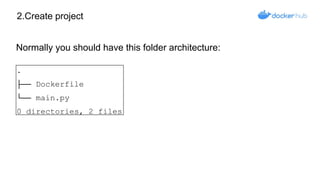
2.Create project
.
├── Dockerfile
└── main.py
0 directories, 2 files
Normally you should have this folder architecture:
3. Edit python file
#!/usr/bin/env python3
print(“My first container with python”)
You can add the following code to the ‘main.py’ file:
4. Edit dockerfile
# A dockerfile must always start by importing the base image.
# We use the keyword 'FROM' to do that.
# In our example, we want import the python image.
# So we write 'python' for the image name and 'latest' for the version.
FROM python:latest
# In order to launch our python code, we must import it into our image.
# We use the keyword 'COPY' to do that.
# The first parameter 'main.py' is the name of the file on the host.
# The second parameter '/' is the path where to put the file on the image.
# Here we put the file at the image root folder.
COPY main.py /
# We need to define the command to launch when we are going to run the image.
# We use the keyword 'CMD' to do that.
# The following command will execute "python ./main.py".
CMD [ "python", "./main.py" ]
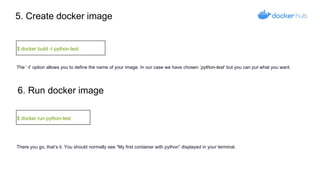
5. Create docker image
$ docker build -t python-test
6. Run docker image
$ docker run python-test
The ’-t’ option allows you to define the name of your image. In our case we have chosen ’python-test’ but you can put what you want.
There you go, that’s it. You should normally see “My first container with python” displayed in your terminal.
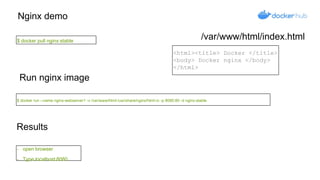
Nginx demo
$ docker pull nginx:stable
Run nginx image
$ docker run --name nginx-webserver1 -v /var/www/html:/usr/share/nginx/html:ro -p 8080:80 -d nginx:stable
Results
- open browser
- Type localhost:8080
<html><title> Docker </title>
<body> Docker nginx </body>
</html>
/var/www/html/index.html
Useful commands for Docker
• List your images.
$ docker image ls
• Delete a specific image.
$ docker image rm [image name]
• Delete all existing images.
$ docker image rm $(docker images -a -q)
• List all existing containers (running and not running).
$ docker ps -a
Delete specific only container (if only stopped)
$ docker rm [container name]
Delete all containers (only stopped)
$ docker rmi [image name ]
Search images
$ docker search [image name]
Display logs of a container
$ docker logs [container name]
Documents
- https://docs.docker.com
Docker online simulator
- https://www.katacoda.com/courses/docker/deploying-first-container
Thank you.

Docker basics 30_01_21.ppx

  • 1.
  • 2.
    - O LD S C H O O L D E V E L O P M E N T - I N T R O D U C T I O N T O C O N T A I N E R - W H Y W E N E E D C O N T A I N E R ? - D O C K E R V S V I R T U A L M A C H I N E - D O C K E R O V E R V I E W - D O C K E R B U I L D - D O C K E R R E G I S T R Y - D O C K E R R U N A G E N D A
  • 3.
    O L DS C H O O L D E P L O Y M E N T D E V E L O P E R O P E R A T O R I sent a copy into SMTP server already Got it!, I will deploy soon. Deployment day
  • 4.
    O L DS C H O O L D E P L O Y M E N T D E V E L O P E R O P E R A T O R …. …. Deploying…. Deployment day
  • 5.
    O L DS C H O O L D E P L O Y M E N T D E V E L O P E R O P E R A T O R Yepp!! Let see the results Deployment day Deploy completed !!
  • 6.
    O L DS C H O O L D E P L O Y M E N T D E V E L O P E R O P E R A T O R Its work on my machine !! It’s crash !! Deployment day
  • 8.
  • 9.
    T H EM O S T P O P U L A R C O N T A I N E R M A N A G E R . D O C K E R
  • 10.
  • 11.
    Docker overview Dockerfile ImageRegistry Container Push image Pull image & run Build Ship Run
  • 12.
    Docker build What isDockerfile ? - Dockerfile describes step by step instructions of all the commands you need to run to assemble a Docker Image. “Docker build” command “docker build” command processes Dockerfile generating a Docker Image in your Local Image Cache, which you can then start-up using the “docker run” command, or push to a permanent Image Repository $ docker build -t <IMAGE_NAME> .
  • 13.
    Docker Registry What isDocker Registry ? - A registry is a storage and content delivery system, holding named Docker images, available in different tagged versions. eg. Docker Hub, Quay.io, GCR, ECR “Docker Push” command “docker push” command helps you to push Docker images to the Docker registry. $ docker push [IMAGE:TAG]
  • 14.
    Docker Run “Docker Run”command -“docker run” command helps you to run Docker image as a container instance. General Command Form The basic “docker run” command takes this form: $ docker run [OPTIONS] IMAGE[:TAG|@DIGEST] [COMMAND] [ARG...] $ docker run -it ubuntu
  • 15.
  • 16.
    Docker push(demo) Image RegistryContainer Push image Pull image & run Ship Run
  • 17.
    1.Installation ⁃ Windows ->https://docs.docker.com/docker-for-windows/install/ ⁃ mac0S -> https://docs.docker.com/docker-for-mac/install/ ⁃ Linux Ubuntu $ sudo apt update $ sudo apt install docker.io $ sudo docker run hello-word Terminal/ iTerm 1. Register docker hub 2. login docker on terminal - $docker login
  • 18.
    2.Create project . ├── Dockerfile └──main.py 0 directories, 2 files Normally you should have this folder architecture:
  • 19.
    3. Edit pythonfile #!/usr/bin/env python3 print(“My first container with python”) You can add the following code to the ‘main.py’ file:
  • 20.
    4. Edit dockerfile #A dockerfile must always start by importing the base image. # We use the keyword 'FROM' to do that. # In our example, we want import the python image. # So we write 'python' for the image name and 'latest' for the version. FROM python:latest # In order to launch our python code, we must import it into our image. # We use the keyword 'COPY' to do that. # The first parameter 'main.py' is the name of the file on the host. # The second parameter '/' is the path where to put the file on the image. # Here we put the file at the image root folder. COPY main.py / # We need to define the command to launch when we are going to run the image. # We use the keyword 'CMD' to do that. # The following command will execute "python ./main.py". CMD [ "python", "./main.py" ]
  • 21.
    5. Create dockerimage $ docker build -t python-test 6. Run docker image $ docker run python-test The ’-t’ option allows you to define the name of your image. In our case we have chosen ’python-test’ but you can put what you want. There you go, that’s it. You should normally see “My first container with python” displayed in your terminal.
  • 22.
    Nginx demo $ dockerpull nginx:stable Run nginx image $ docker run --name nginx-webserver1 -v /var/www/html:/usr/share/nginx/html:ro -p 8080:80 -d nginx:stable Results - open browser - Type localhost:8080 <html><title> Docker </title> <body> Docker nginx </body> </html> /var/www/html/index.html
  • 23.
    Useful commands forDocker • List your images. $ docker image ls • Delete a specific image. $ docker image rm [image name] • Delete all existing images. $ docker image rm $(docker images -a -q) • List all existing containers (running and not running). $ docker ps -a Delete specific only container (if only stopped) $ docker rm [container name] Delete all containers (only stopped) $ docker rmi [image name ] Search images $ docker search [image name] Display logs of a container $ docker logs [container name]
  • 24.
    Documents - https://docs.docker.com Docker onlinesimulator - https://www.katacoda.com/courses/docker/deploying-first-container
  • 25.