“Discover Windows Phone”
development series
02. Page Navigation
Yasmine Abdelhady
@yasabdelhady
Yasmine.Abdelhady@Hotmail.com

© Yasmine Abdelhady| MEA DPE Intern
Agenda

© Yasmine Abdelhady| MEA DPE Intern

 Simple Page Navigation
Why is it
important?

© Yasmine Abdelhady| MEA DPE Intern

 Page Navigation:
1. because you don’t want to build your project based on only one
page
 2. because you can make use that your application will
automatically be able to leverage the phone's built-in hardware
back button.
Simple
Navigation

© Yasmine Abdelhady| MEA DPE Intern

 We have multiple pages, and we want to give the user a way to get
between them. Let's build a simple navigation UI that will allow us
to do just that.
 we've created a default Windows Phone Application, let's open it.

1.

© Yasmine Abdelhady| MEA DPE Intern

 Open the application from where you saved it last time. (Probably
it will be in Documents>Visual Studio 2013>Projects
2.

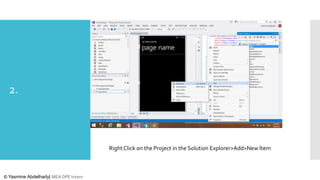
Right Click on the Project in the Solution Explorer>Add>New Item

© Yasmine Abdelhady| MEA DPE Intern
3.

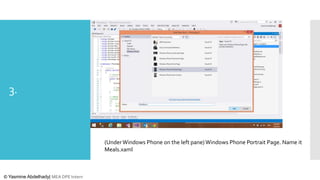
(Under Windows Phone on the left pane) Windows Phone Portrait Page. Name it
Meals.xaml

© Yasmine Abdelhady| MEA DPE Intern
4&5

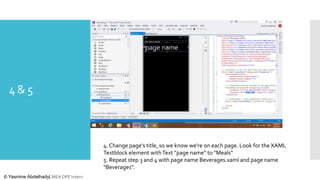
4. Change page's title, so we know we're on each page. Look for the XAML
Textblock element with Text "page name" to "Meals“
5. Repeat step 3 and 4 with page name Beverages.xaml and page name
"Beverages".
© Yasmine Abdelhady| MEA DPE Intern
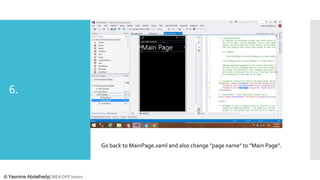
6.

Go back to MainPage.xaml and also change "page name" to "Main Page".

© Yasmine Abdelhady| MEA DPE Intern
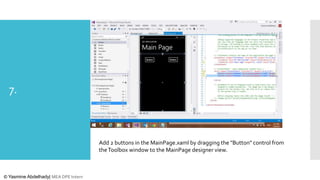
7.

Add 2 buttons in the MainPage.xaml by dragging the "Button" control from
the Toolbox window to the MainPage designer view.

© Yasmine Abdelhady| MEA DPE Intern
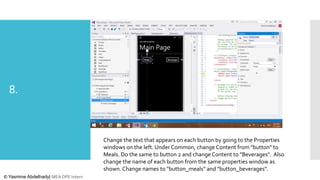
8.

Change the text that appears on each button by going to the Properties
windows on the left. Under Common, change Content from "button" to
Meals. Do the same to button 2 and change Content to "Beverages". Also
change the name of each button from the same properties window as
shown. Change names to "button_meals" and "button_beverages".
© Yasmine Abdelhady| MEA DPE Intern
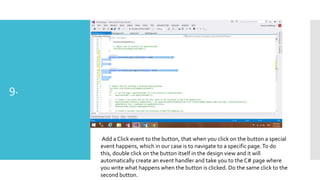
9.

Add a Click event to the button, that when you click on the button a special
event happens, which in our case is to navigate to a specific page. To do
this, double click on the button itself in the design view and it will
automatically create an event handler and take you to the C# page where
you write what happens when the button is clicked. Do the same click to the
second button.
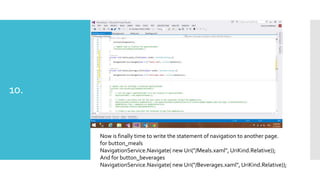
10.

Now is finally time to write the statement of navigation to another page.
for button_meals
NavigationService.Navigate( new Uri("/Meals.xaml", UriKind.Relative));
And for button_beverages
NavigationService.Navigate( new Uri("/Beverages.xaml", UriKind.Relative));
@yasabdelhady

yasmine.Abdelhady@Hotmail.com

Thank you 
yasabdelhady.wordpress.com

Facebook.com/yasabdelhady

© Yasmine Abdelhady| MEA DPE Intern

"Discover windows phone" 02. page navigation

  • 1.
    “Discover Windows Phone” developmentseries 02. Page Navigation Yasmine Abdelhady @yasabdelhady Yasmine.Abdelhady@Hotmail.com © Yasmine Abdelhady| MEA DPE Intern
  • 2.
    Agenda © Yasmine Abdelhady|MEA DPE Intern  Simple Page Navigation
  • 3.
    Why is it important? ©Yasmine Abdelhady| MEA DPE Intern  Page Navigation: 1. because you don’t want to build your project based on only one page  2. because you can make use that your application will automatically be able to leverage the phone's built-in hardware back button.
  • 4.
    Simple Navigation © Yasmine Abdelhady|MEA DPE Intern  We have multiple pages, and we want to give the user a way to get between them. Let's build a simple navigation UI that will allow us to do just that.
  • 5.
     we've createda default Windows Phone Application, let's open it. 1. © Yasmine Abdelhady| MEA DPE Intern  Open the application from where you saved it last time. (Probably it will be in Documents>Visual Studio 2013>Projects
  • 6.
    2. Right Click onthe Project in the Solution Explorer>Add>New Item © Yasmine Abdelhady| MEA DPE Intern
  • 7.
    3. (Under Windows Phoneon the left pane) Windows Phone Portrait Page. Name it Meals.xaml © Yasmine Abdelhady| MEA DPE Intern
  • 8.
    4&5 4. Change page'stitle, so we know we're on each page. Look for the XAML Textblock element with Text "page name" to "Meals“ 5. Repeat step 3 and 4 with page name Beverages.xaml and page name "Beverages". © Yasmine Abdelhady| MEA DPE Intern
  • 9.
    6. Go back toMainPage.xaml and also change "page name" to "Main Page". © Yasmine Abdelhady| MEA DPE Intern
  • 10.
    7. Add 2 buttonsin the MainPage.xaml by dragging the "Button" control from the Toolbox window to the MainPage designer view. © Yasmine Abdelhady| MEA DPE Intern
  • 11.
    8. Change the textthat appears on each button by going to the Properties windows on the left. Under Common, change Content from "button" to Meals. Do the same to button 2 and change Content to "Beverages". Also change the name of each button from the same properties window as shown. Change names to "button_meals" and "button_beverages". © Yasmine Abdelhady| MEA DPE Intern
  • 12.
    9. Add a Clickevent to the button, that when you click on the button a special event happens, which in our case is to navigate to a specific page. To do this, double click on the button itself in the design view and it will automatically create an event handler and take you to the C# page where you write what happens when the button is clicked. Do the same click to the second button.
  • 13.
    10. Now is finallytime to write the statement of navigation to another page. for button_meals NavigationService.Navigate( new Uri("/Meals.xaml", UriKind.Relative)); And for button_beverages NavigationService.Navigate( new Uri("/Beverages.xaml", UriKind.Relative));
  • 14.