The Myths & Truths of Email Management in SharePoint November 20, 2008 with Joel Oleson
Agenda Speaker Introductions Myth #1 – Mailboxes are Great for Email Management Myth #2 – Public Folders are Dead Myth #3 – Email-Enabled Lists Are a SharePoint Must Myth #4 – Managed Folders Solve All Archiving Needs Myth #5 – Keep all Emails & Attachments in One Place 5 Truths Revisited Contributor Add-In Tips & Tricks Next Steps
Our Speakers HOST: Barry Jinks President & CEO  Colligo Networks, Inc. GUEST SPEAKER: Joel Oleson Microsoft SharePoint Sr. Architect, Consultant, & Speaker
The Myths & Truths GUEST SPEAKER: Joel Oleson Microsoft SharePoint Sr. Architect, Consultant, & Speaker Quest Software
Introduction Growing Demands of CIOs, Architects, & Admins Shrinking budgets Regulatory compliance & legal liability issues Email Needs to Be Managed Information stored in email is a key enterprise asset They need to be shared & “findable” for reuse Five Things You Must Know Myths vs. real world best practices How Colligo Contributor can help
Myth #1 Mailbox Folders are a Great Place to  Store & Manage Emails & Attachments
Myth #1 – Manage Email in Mailbox Folders Advantages of Using Mailbox to Manage Email Information workers find it convenient Email  feels  safe Email documents to themselves to store them in Exchange Drag-and-drop files & emails into Outlook folders > PSTs PSTs can provide offline access PSTs can get around inbox size limits Disadvantages of Mailbox for storage Important enterprise content gets buried in PST PST files can be problematic: Difficult to backup – continuously locked Creates data islands Risk of laptop theft, loss, corruption
Truth #1 SharePoint is a Better Place to Store Email & Attachments for Archival & Collaboration Applications
Truth #1 – Manage Email in SharePoint Why Use SharePoint to Manage Email?  Centralize content on company servers Supports sharing of email content across the enterprise Body & attachment become searchable & reusable Advantages of version control & history Improved knowledge management What is Microsoft IT Doing? .MSG/.EML files = Top 10 File Type
Truth #1 – Manage Email in SharePoint Tips & Tricks Use content types to specify retention policies on content .MSG files open in Outlook Use custom metadata to improve “findability” Don’t dump email into SharePoint Storage nightmare Users must decide which content is important Metadata and decisions must be made when stored
Myth #2 Public Folders Are Dead
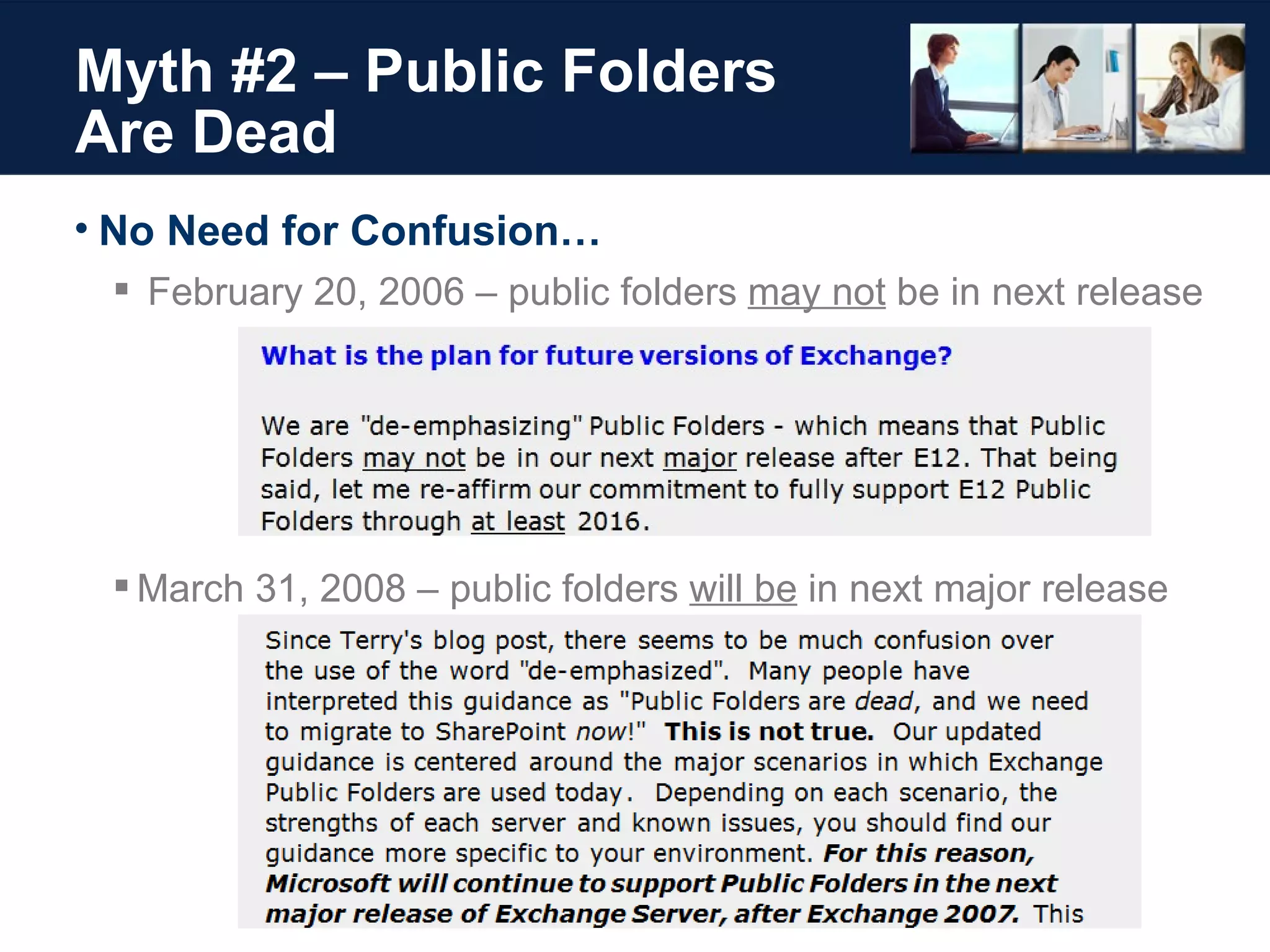
Myth #2 – Public Folders Are Dead No Need for Confusion… February 20, 2006 – public folders  may not  be in next release March 31, 2008 – public folders  will be  in next major release
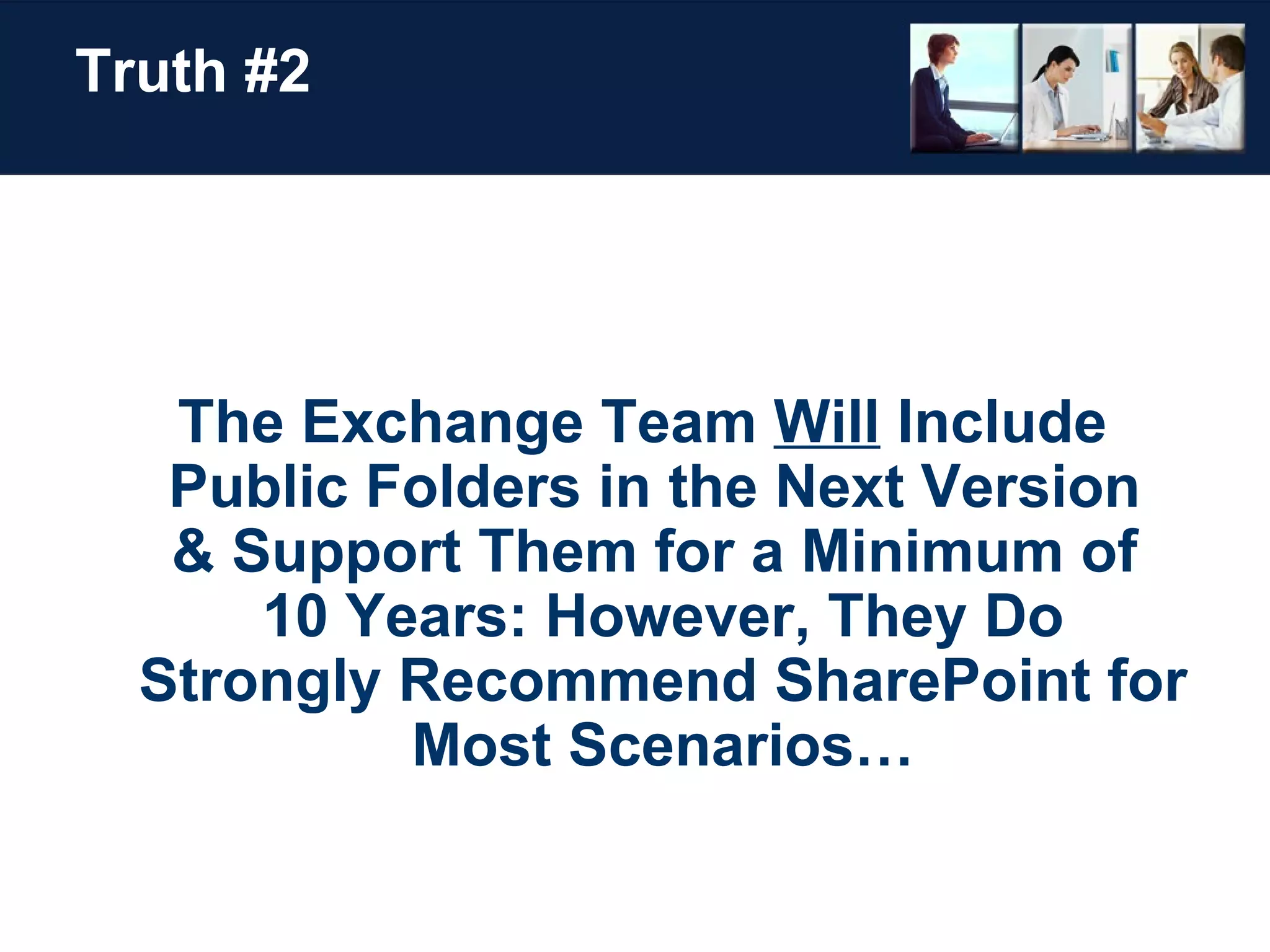
Truth #2 The Exchange Team  Will  Include  Public Folders in the Next Version  & Support Them for a Minimum of  10 Years: However, They Do Strongly Recommend SharePoint for Most Scenarios…
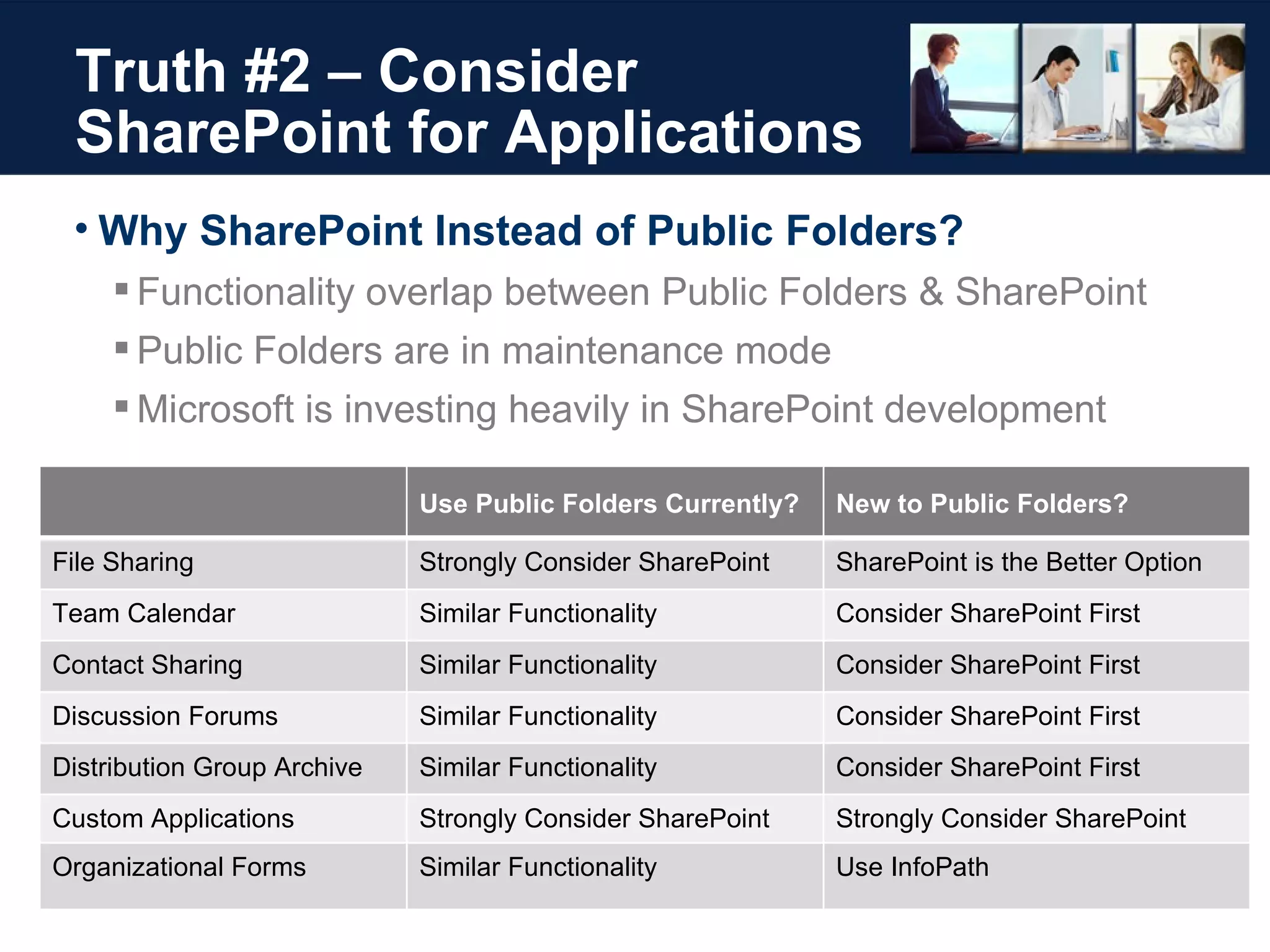
Truth #2 – Consider SharePoint for Applications Why SharePoint Instead of Public Folders? Functionality overlap between Public Folders & SharePoint Public Folders are in maintenance mode Microsoft is investing heavily in SharePoint development Use Public Folders Currently? New to Public Folders? File Sharing Strongly Consider SharePoint SharePoint is the Better Option Team Calendar Similar Functionality Consider SharePoint First Contact Sharing Similar Functionality Consider SharePoint First Discussion Forums Similar Functionality Consider SharePoint First Distribution Group Archive Similar Functionality Consider SharePoint First Custom Applications Strongly Consider SharePoint Strongly Consider SharePoint Organizational Forms Similar Functionality Use InfoPath
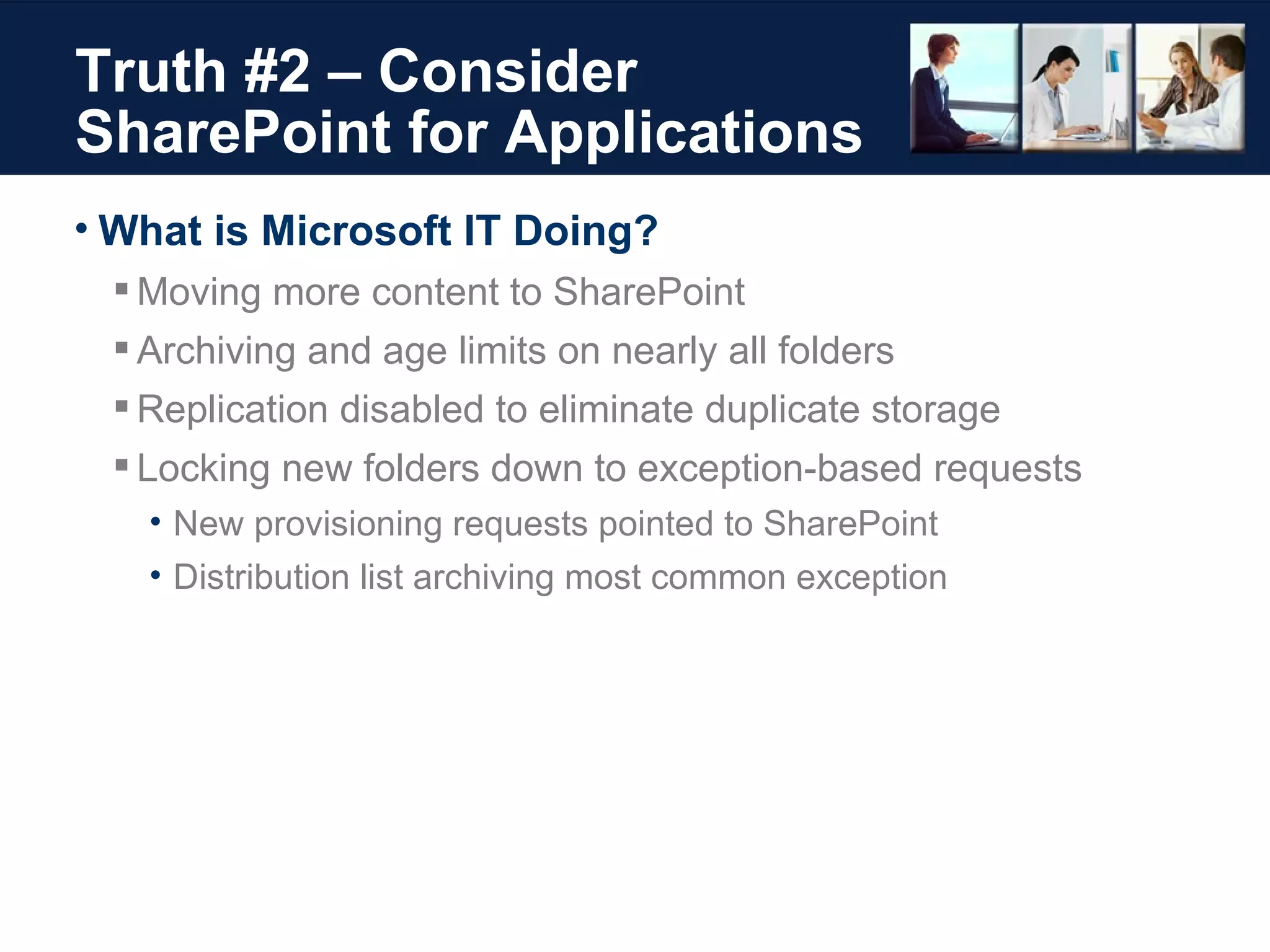
Truth #2 – Consider SharePoint for Applications What is Microsoft IT Doing? Moving more content to SharePoint Archiving and age limits on nearly all folders Replication disabled to eliminate duplicate storage Locking new folders down to exception-based requests New provisioning requests pointed to SharePoint Distribution list archiving most common exception
Truth #2 – Consider SharePoint for Applications Common Issues with Public Folders Heavy time investment for Exchange Administrators Common Concerns Control Performance Scale & storage issues Support Duplicate File Shares and SharePoint Security and privacy concerns “ Public” social dumping grounds an HR issue (pictures & music)
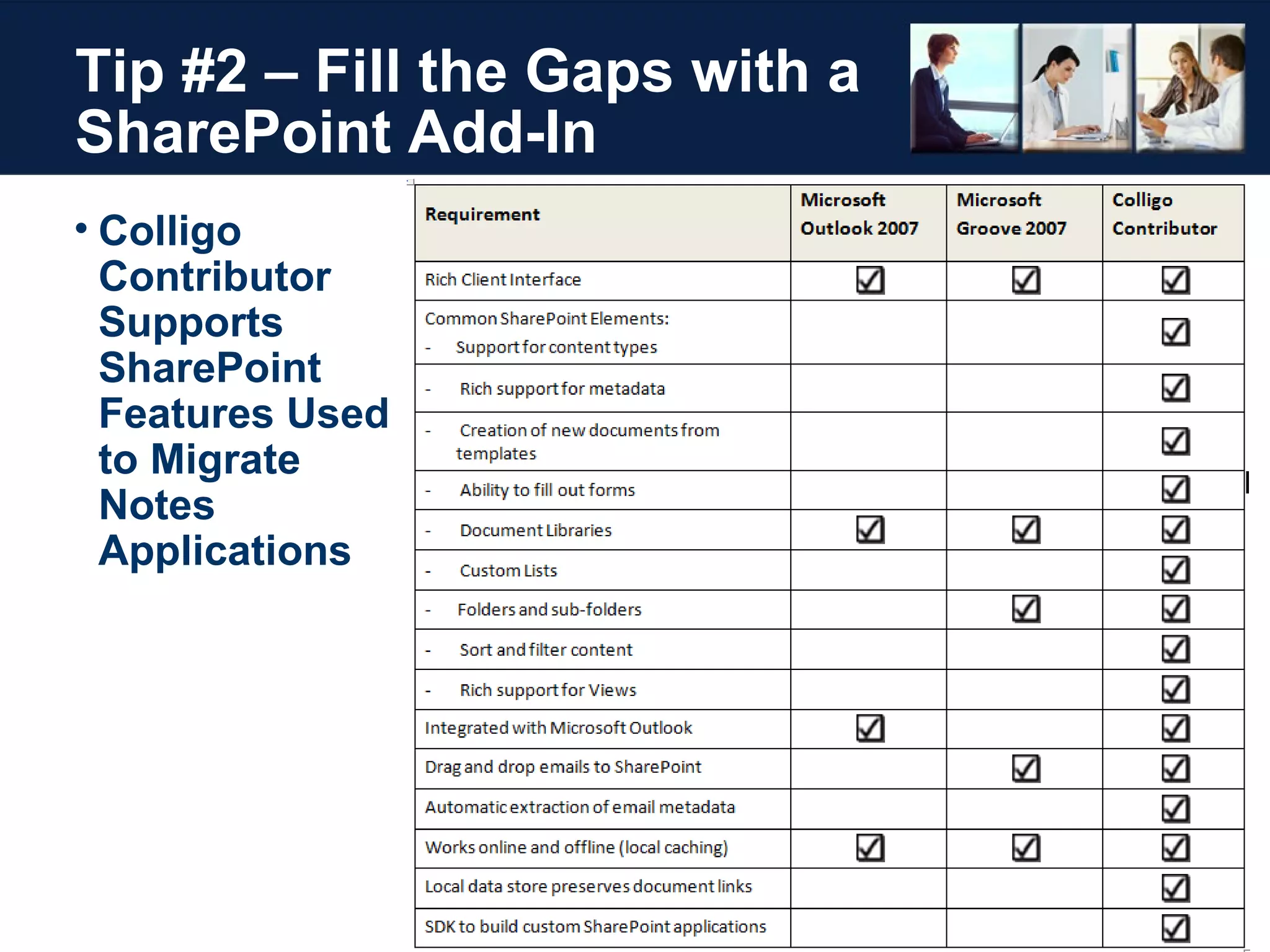
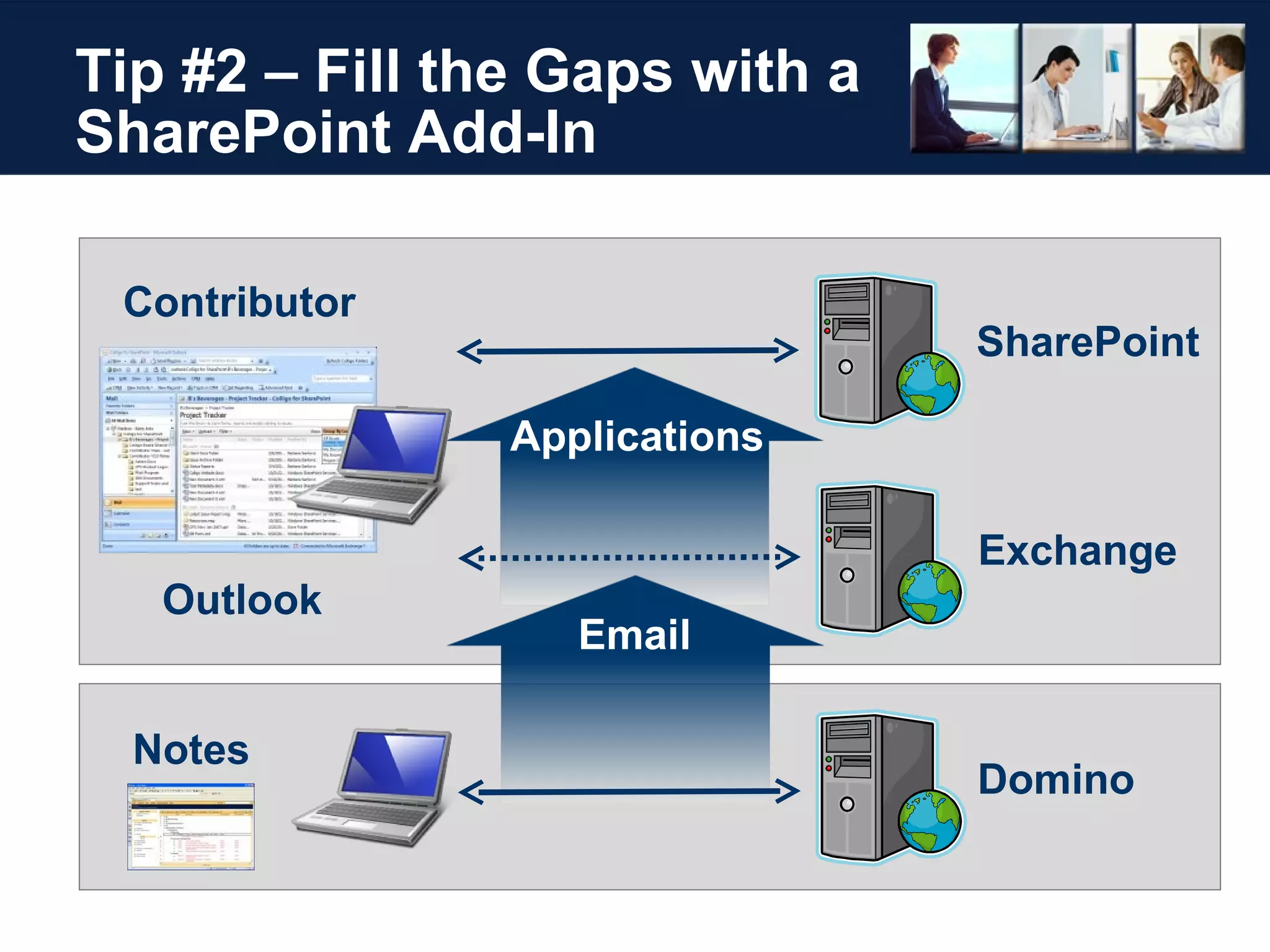
Truth #2 – Consider SharePoint for Applications Migrating from Lotus Notes or GroupWise? Mail migration: it’s a no-brainer, Exchange Application migration: strongly recommend SharePoint Tips & Tricks If you plan to customize SharePoint sites & site templates, look at  Features & Solutions Colligo Tip: Fill the Gaps with a SharePoint Add-In Notes to SharePoint migrations: applications + email in Outlook  Works online & offline
Myth #3 A SharePoint Deployment Is  Not Complete Until You Turn  on Email-Enabled Lists
Myth #3 – Email-Enabled  Lists Are a SharePoint Must Can Support Very Cool Applications … But Be Careful Emailing Post to Blog Emailing an Exchange Discussion to SharePoint List Email-Enabled Lists Pose Challenges & Risks Self service can easily get “out of control” & drain IT resources AD objects created with no lifecycle Contact accounts naming conflicts Security risks – easy to create a hole List scalability challenges Can be complex to implement and support
Truth #3 Use with Caution: To Be Successful, Email-Enabled Lists Require Management & Oversight to  Scale Past a Few Thousand Items
Truth #3 – Caution: Manage Email-Enabled Lists What is Microsoft IT Doing? Decided against using self service email-enabled lists Tips &Tricks If planning to use email-enabled lists, ask these questions: Are those contact objects in a separate OU?  How do you know if the inbound mail stops working?  Can anyone send to the email enabled list? Does the item show up the way you expect it to, or are just attachments showing up? Does the metadata look like you expect it to?
Myth #4 Managed Folders Linked to SharePoint Will Solve All Archiving Needs
Myth #4 – Managed Folders Solve All Archiving Needs Bridge the Gap Between Exchange & SharePoint Managed Folders Introduced in Exchange 2007 “ Auto Copy” feature routes all content to SharePoint Risks Can put heavy requirements on IT Not end user configurable List security management Managed Folders can be abused & become “dumping grounds” Scale limitations can lead to SharePoint performance issues
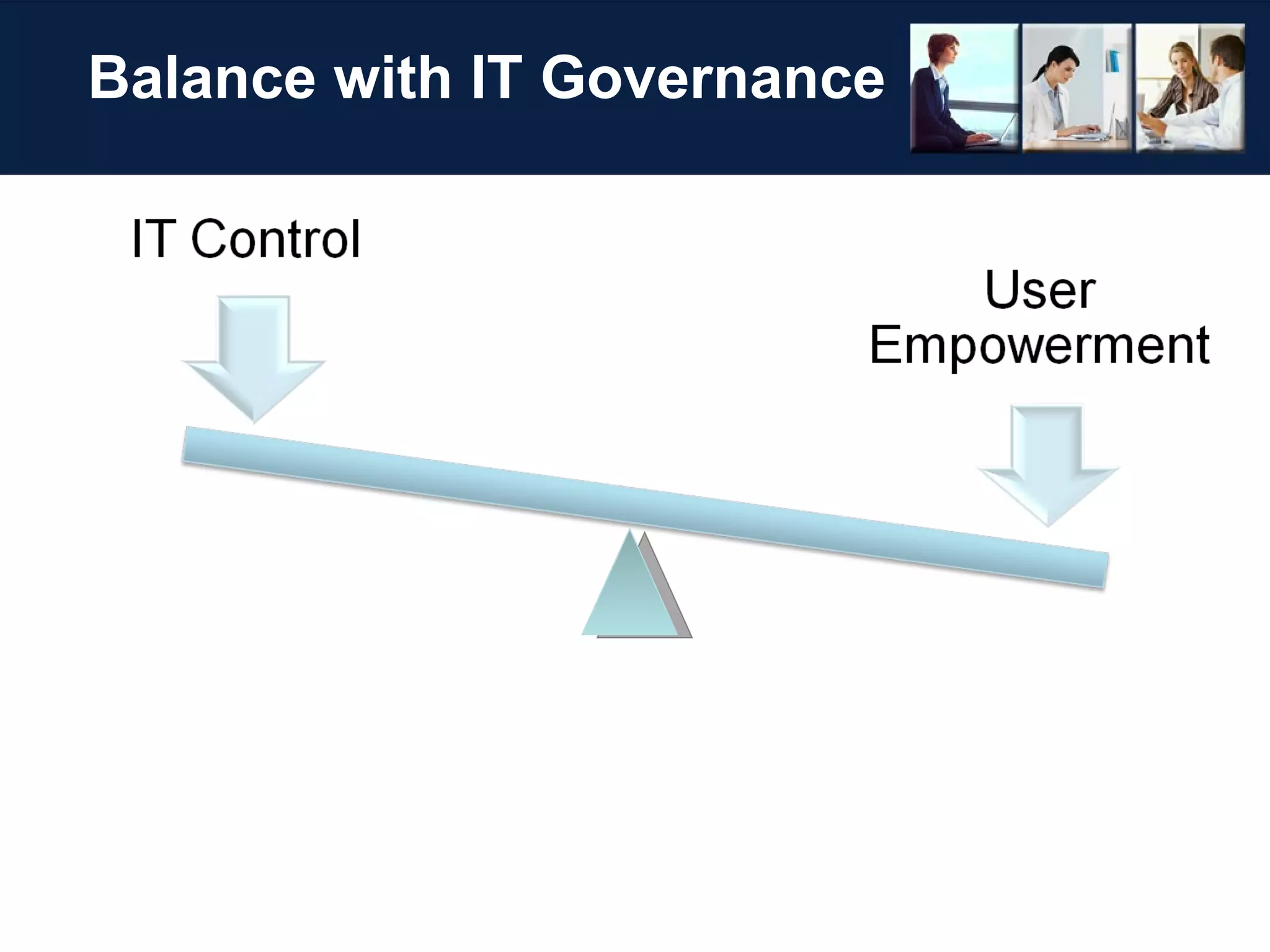
Truth #4 Managed Folders Can Work Well,  But Require a Solid Information Architecture Design & Trained  Admins Who Understand How  to Manage Scalability
With Structure the Business Can be Creative
Balance with IT Governance
Truth #4 – Managed Folders Work Well With Oversight Tips &Tricks Design for list scalability (more on this later) Bad Design: a folder called “Keep” or “Backup” Good Design: a folder called “Legal Hold” Use content types to set retention policies Know what you are doing - it’s easy to end up with a mess Test in preproduction environment first Develop good workflows to manage new list requests Design with support, search, and life cycle in mind
Myth #5 It’s Better to Keep All Emails & Attachments in One Place, & Use Metadata to Search Content
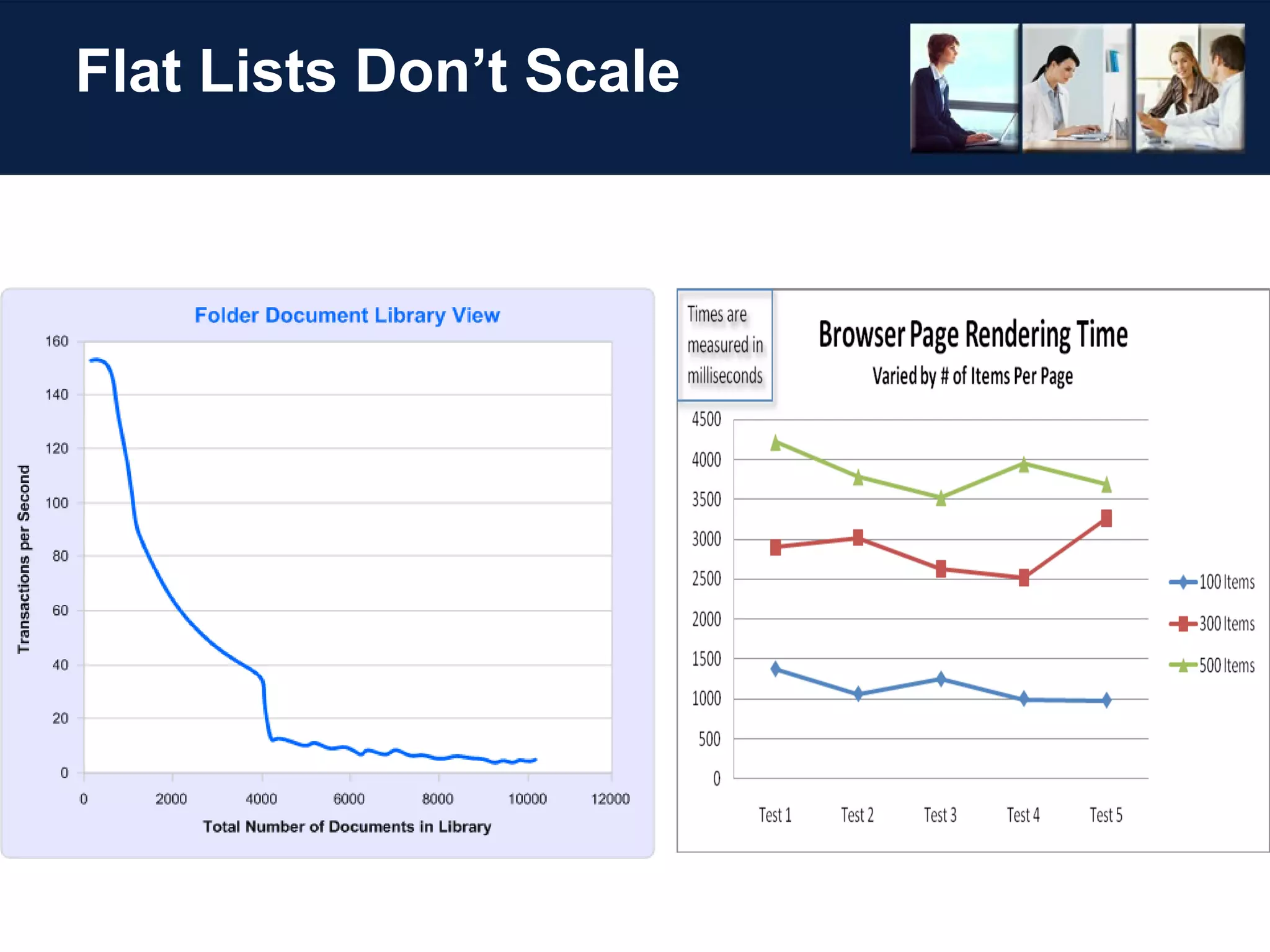
Flat Lists Don’t Scale
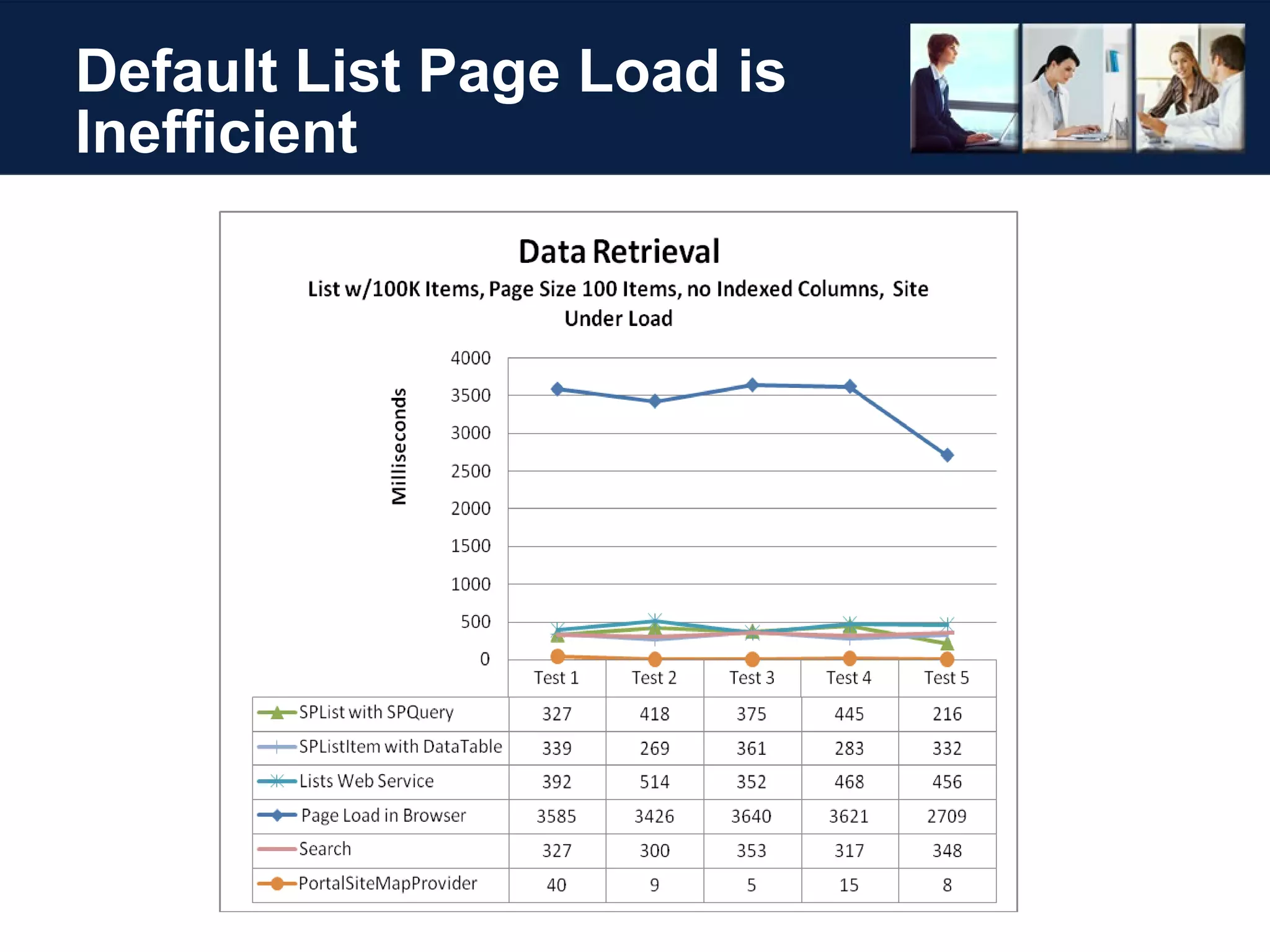
Myth #5 – Save All Content  In One Location SharePoint is an Attractive Place to Store  Everything Use views & search queries to retrieve content Risks With Large Lists Performance degradation “ All items” view can take 10’s of seconds to render Content database locking with very large lists Microsoft guidance: 2000 items per view in SharePoint list/library (Use Folders/Indexed Columns)
Default List Page Load is Inefficient
Truth #5 With SharePoint, It’s Best to  Limit the Number of Items in One  List and/or Use Views, Folders, &  Queries to Improve Performance
Truth #5 – Manage Quantity of Content in Lists What is Microsoft IT Doing? Set up scan to find lists > 3000 items Read their whitepaper:  “SharePoint Performance Optimization” Tips & Tricks Use Folders to break up content, < 2000 items per folder Indexed Columns for quicker retrieval Search Queries Most efficient method of retrieval
Truth #5 – Manage Quantity of Content in Lists Further Reading on Performance & Scale Issues “ Working with Large Lists in Office SharePoint Server 2007 ”  by Steve Peschka, Microsoft testing to determine the performance of large SharePoint lists  under different loads & modes of operation “ Plan for software boundaries (Office SharePoint Server)”  on Microsoft TechNet performance & capacity limits of SharePoint, & guidelines for acceptable performance
Care and Feeding
The Myths & Truths Revisited Myth #1 – Mailboxes are Great for Email Management Truth #1 – SharePoint is a better place to store email & attachments for archival & collaboration applications Myth #2 – Public Folders are Dead Truth #2 – The Exchange team will include Public Folders in the next version & support them for a minimum of 10 years: however, they do strongly recommend SharePoint
The Myths & Truths Revisited Why Use SharePoint to Manage Email?  Centralizes content on secure company servers User based selection ensures “important” content is stored Supports sharing of email across the enterprise Email becomes “structured” enterprise content with metadata Body & attachment become searchable, findable, & reusable Advantages of version control & history features Content types support retention policies Improved collaboration, knowledge management, & ECM
The Myths & Truths Revisited Myth #3 – Email-Enabled Lists Are a SharePoint Must Truth #3 –  Use with caution: to be successful, email-enabled lists require management & oversight to  scale past a few thousand items Myth #4 – Managed Folders Solve All Archiving Needs Truth #4 –  Managed Folders can work well, but require a solid information architecture design & trained admins who understand how to manage scalability Myth #5 – Keep all Emails & Attachments in One Place Truth #5 –  Limit the number of items in one list and/or use views, folders, & queries to improve performance
Colligo Tips & Tricks  For Email in SharePoint HOST: Barry Jinks President & CEO  Colligo Networks, Inc.
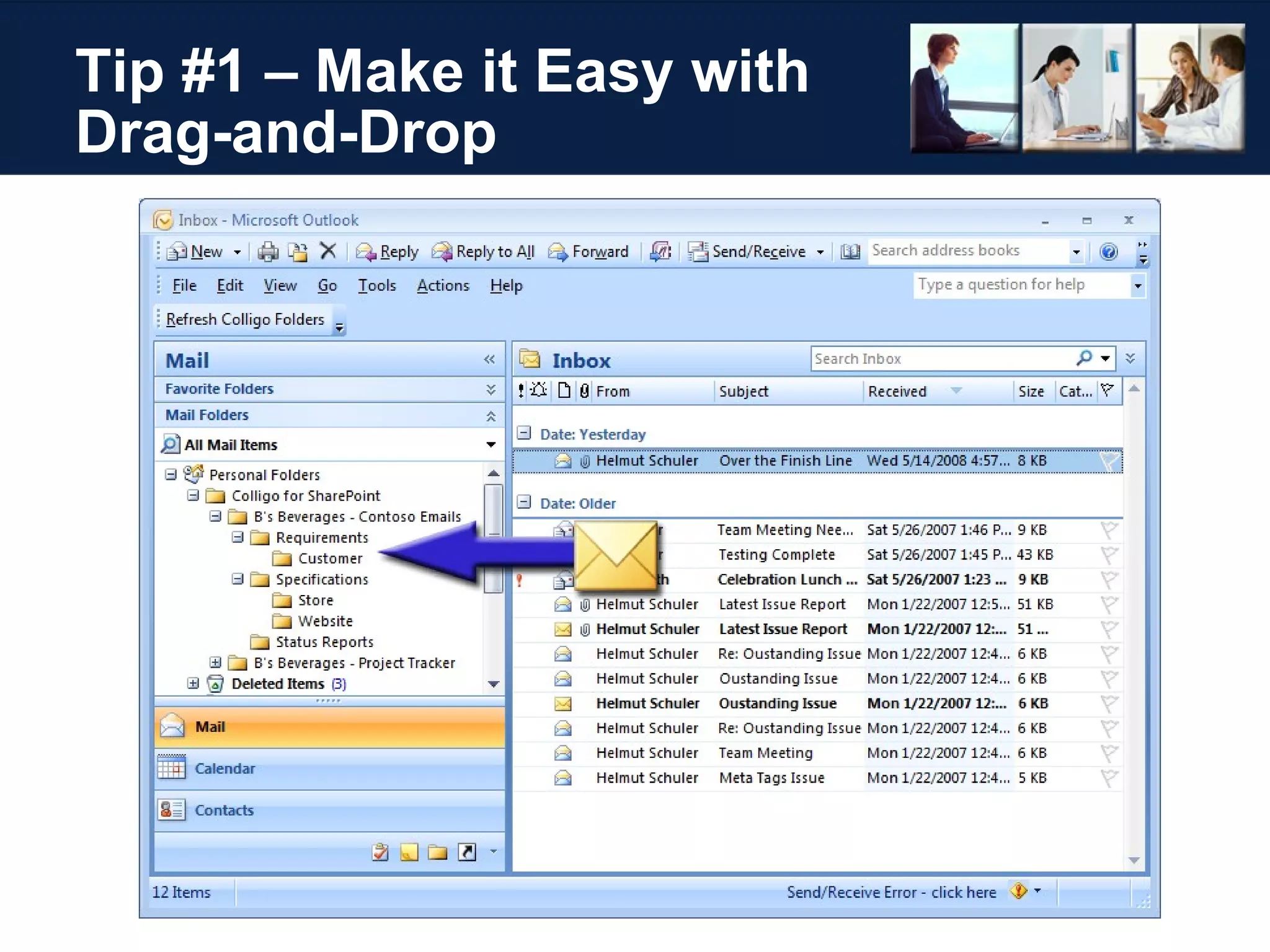
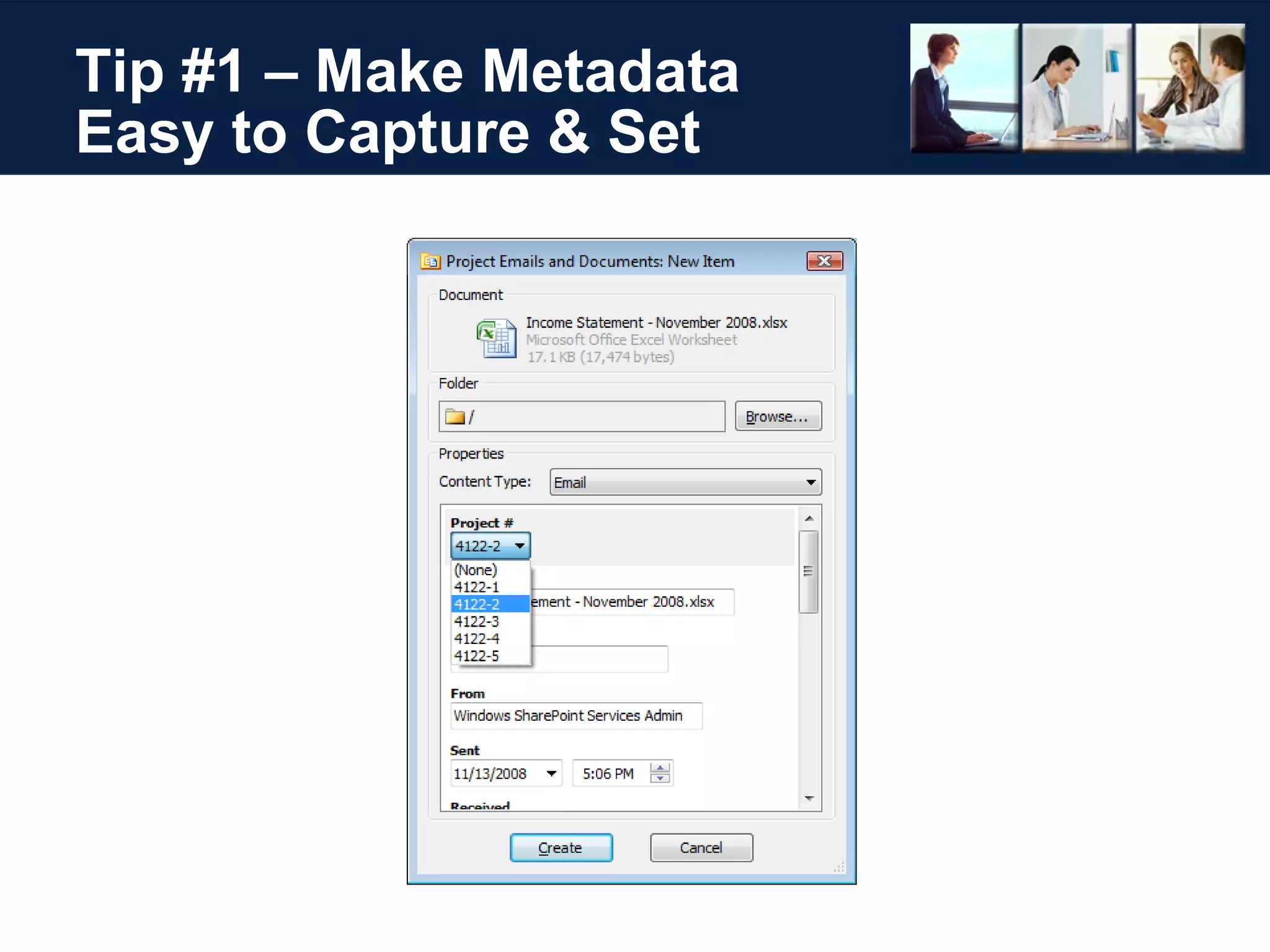
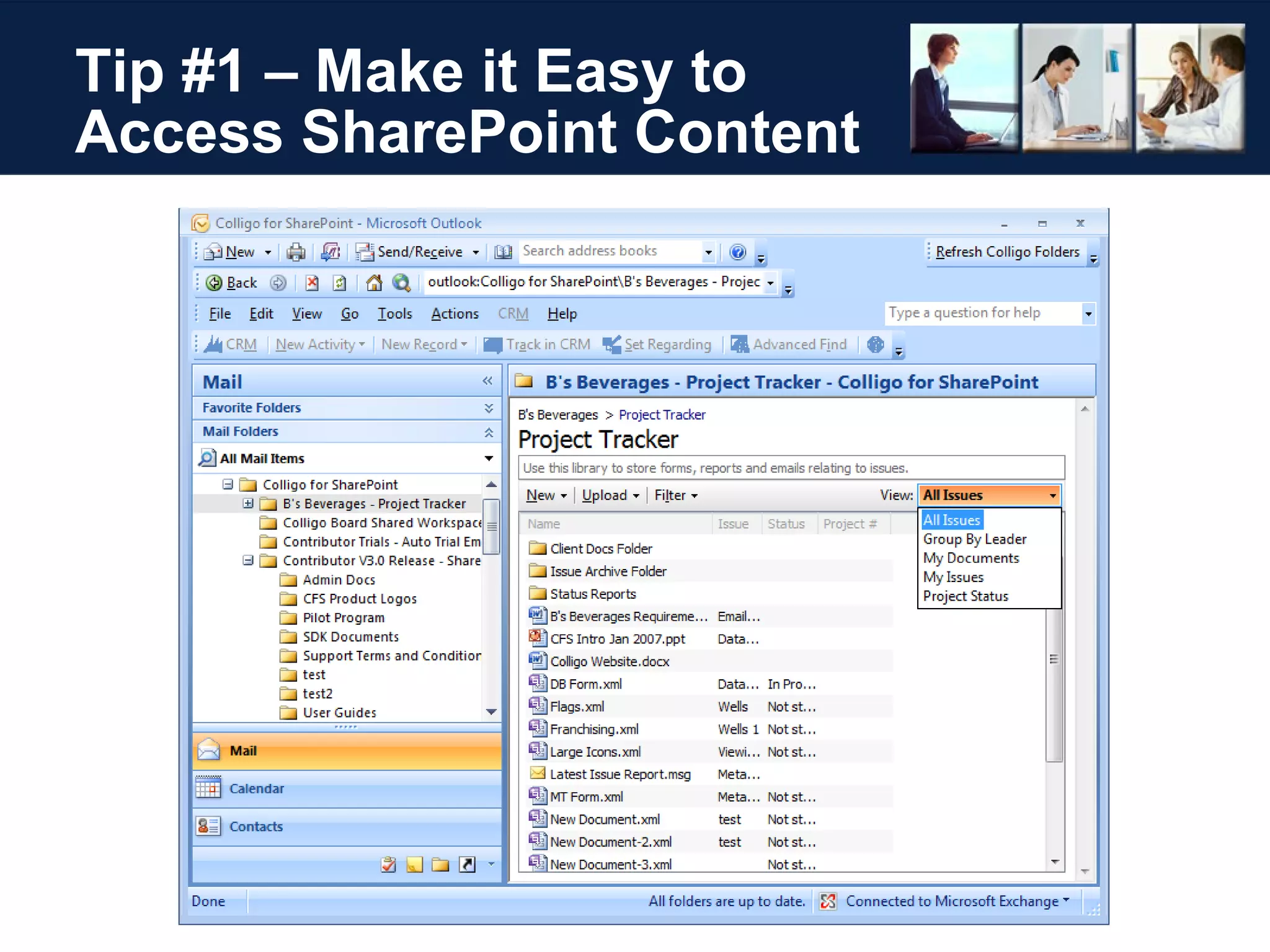
Tip #1 – Make it Easy to Manage Email in SharePoint To Boost Adoption, Make it Easy for Users Contributor Add-In for Outlook SharePoint interface embedded in Outlook 2-way synch to document libraries (and lists) Easy email drag-and-drop within Outlook folder tree Content type selection at time of drag-and-drop Automatic message field extraction (To, From, Date, etc.) Immediate application of custom metadata Supports Archival, Collaboration, & DM Applications
Tip #1 – Make it Easy with Drag-and-Drop
Tip #1 – Make Metadata  Easy to Capture & Set
Tip #1 – Make it Easy to Access SharePoint Content
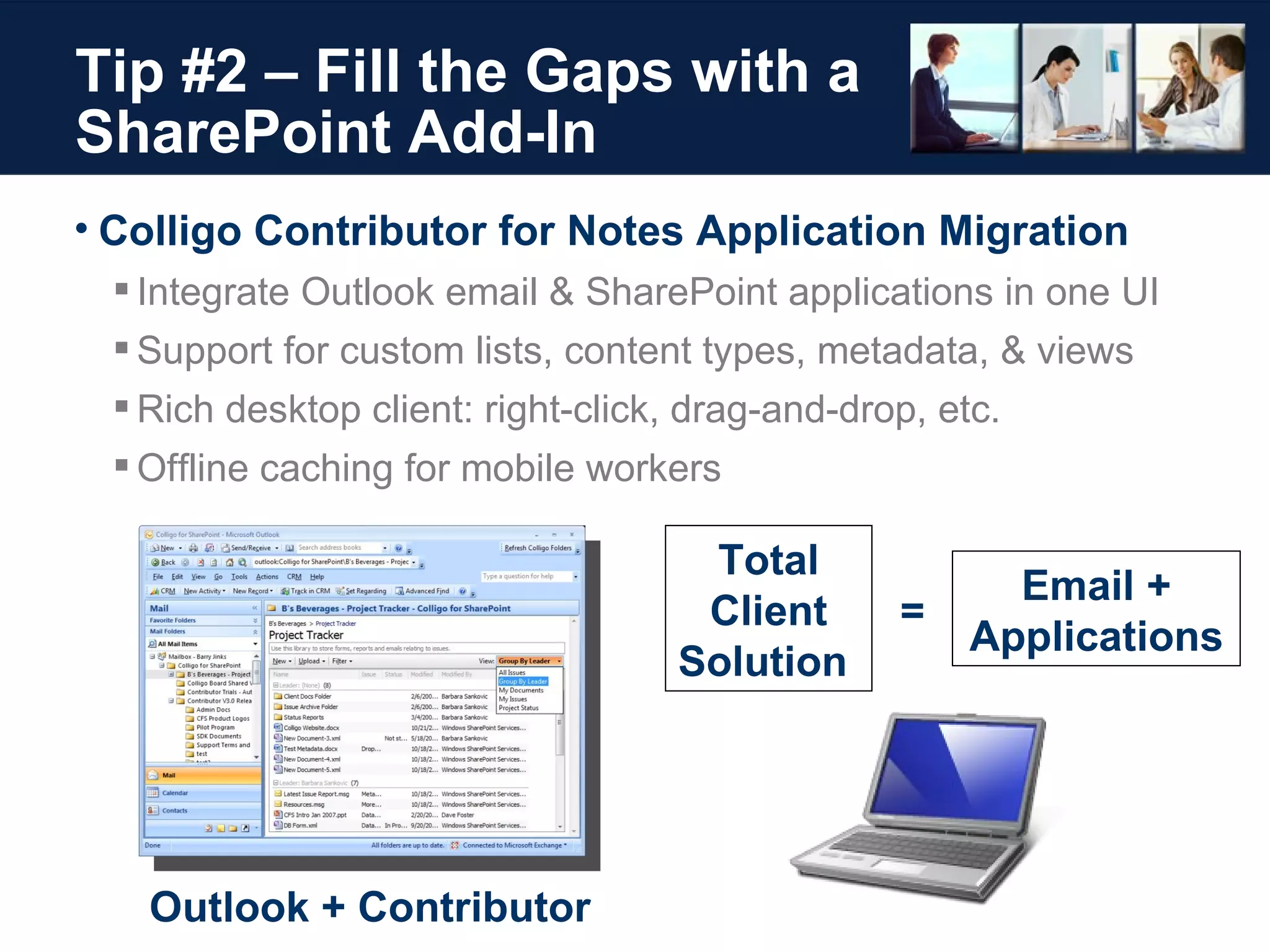
Tip #2 – Fill the Gaps with a SharePoint Add-In Colligo Contributor for Notes Application Migration Integrate Outlook email & SharePoint applications in one UI Support for custom lists, content types, metadata, & views Rich desktop client: right-click, drag-and-drop, etc. Offline caching for mobile workers Total Client Solution  Outlook + Contributor Email + Applications =
Tip #2 – Fill the Gaps with a SharePoint Add-In Colligo Contributor Supports SharePoint Features Used to Migrate Notes Applications
Tip #2 – Fill the Gaps with a SharePoint Add-In Outlook Exchange Notes Domino SharePoint Applications Email Contributor
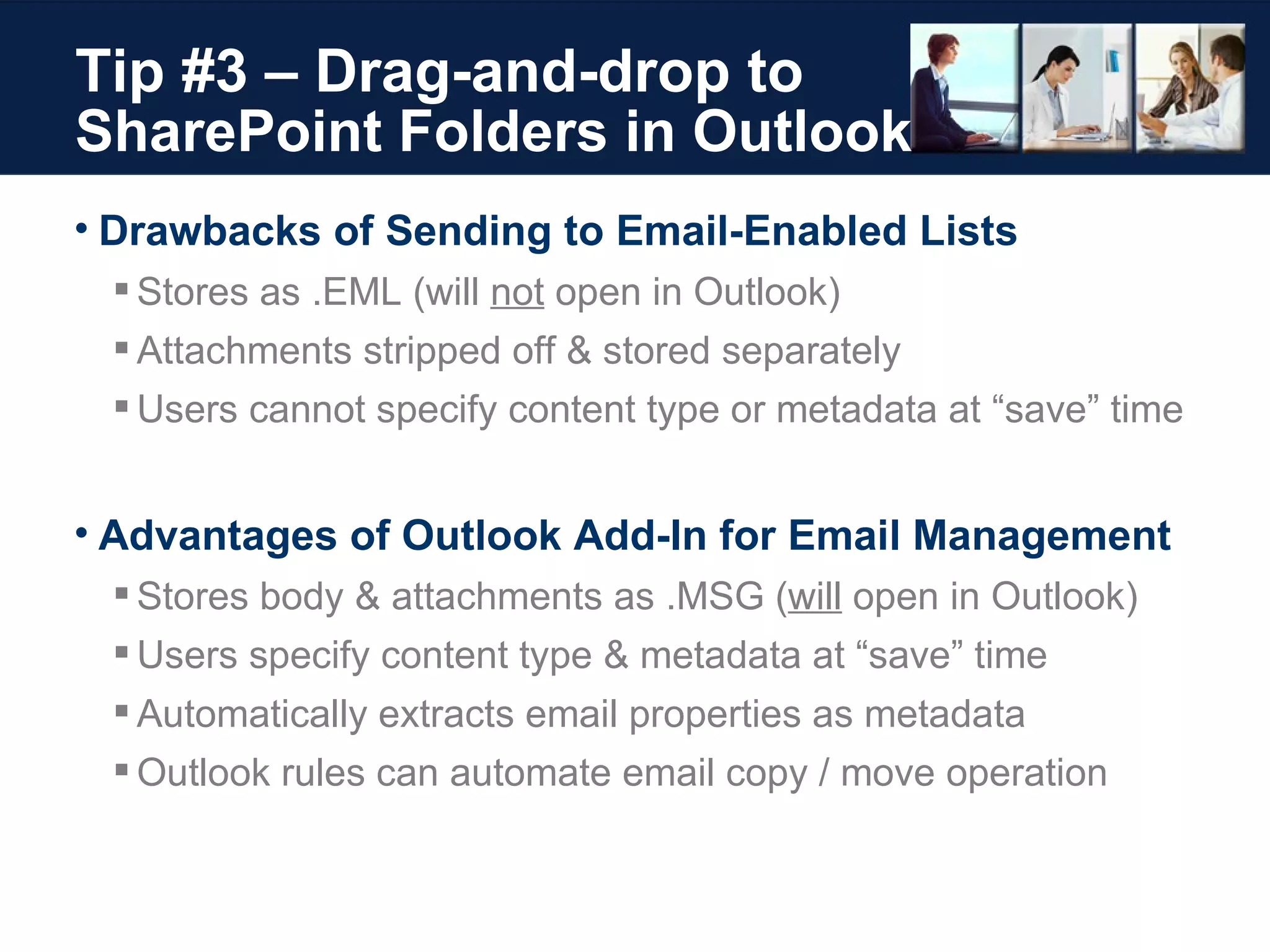
Tip #3 – Drag-and-drop to  SharePoint Folders in Outlook Drawbacks of Sending to Email-Enabled Lists Stores as .EML (will  not  open in Outlook) Attachments stripped off & stored separately Users cannot specify content type or metadata at “save” time Advantages of Outlook Add-In for Email Management Stores body & attachments as .MSG ( will  open in Outlook) Users specify content type & metadata at “save” time Automatically extracts email properties as metadata Outlook rules can automate email copy / move operation
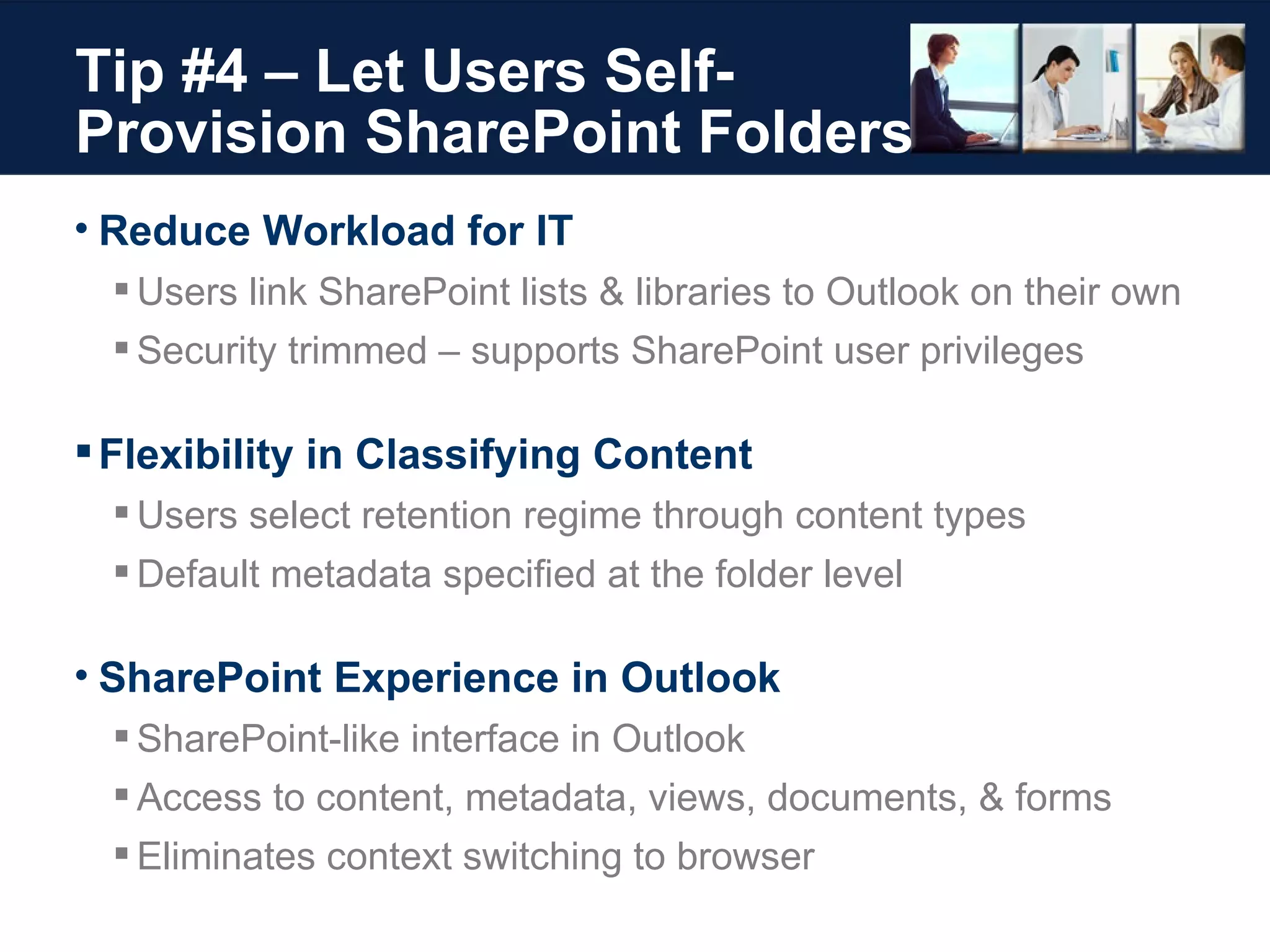
Tip #4 – Let Users Self-Provision SharePoint Folders  Reduce Workload for IT Users link SharePoint lists & libraries to Outlook on their own Security trimmed – supports SharePoint user privileges Flexibility in Classifying Content  Users select retention regime through content types Default metadata specified at the folder level SharePoint Experience in Outlook SharePoint-like interface in Outlook Access to content, metadata, views, documents, & forms Eliminates context switching to browser
Tip #5 – Boost Performance With Caching & Metadata Caching Content Can Improve Performance Rich client much faster than browser access Views & filters render quickly Content is opened instantly with double click Users can rely on consistent UI performance, online or offline Ability to set metadata when content is saved leads to better classification
Customer Case Study: KPMG Denmark Business Challenges Wireless access too slow or unavailable at client offices Email retention required for engagement management Auditors add final files to SharePoint only at engagement end Challenges: below optimal productivity, security, & compliance Colligo Contributor Increases Auditor Productivity Improved productivity with offline SharePoint at client offices Enhanced client service with access to all relevant information Boosted SharePoint adoption with easy drag-and-drop Increased the # of emails/working papers in SharePoint  Improved data centralization & security for compliance
Next Steps > Get 30-Day Free Trial – Contributor Add-In > Access Webinar Recording > Download Webinar Whitepaper > Contact Presenters Joel Oleson Sr. Product Manager Quest Software [email_address] Barry Jinks President & CEO Colligo Networks [email_address] www.colligo.com/webinars/EmailTruths

Debunking Myths - SharePoint and Email Management Colligo Webinar Joel Oleson

  • 1.
    The Myths &Truths of Email Management in SharePoint November 20, 2008 with Joel Oleson
  • 2.
    Agenda Speaker IntroductionsMyth #1 – Mailboxes are Great for Email Management Myth #2 – Public Folders are Dead Myth #3 – Email-Enabled Lists Are a SharePoint Must Myth #4 – Managed Folders Solve All Archiving Needs Myth #5 – Keep all Emails & Attachments in One Place 5 Truths Revisited Contributor Add-In Tips & Tricks Next Steps
  • 3.
    Our Speakers HOST:Barry Jinks President & CEO Colligo Networks, Inc. GUEST SPEAKER: Joel Oleson Microsoft SharePoint Sr. Architect, Consultant, & Speaker
  • 4.
    The Myths &Truths GUEST SPEAKER: Joel Oleson Microsoft SharePoint Sr. Architect, Consultant, & Speaker Quest Software
  • 5.
    Introduction Growing Demandsof CIOs, Architects, & Admins Shrinking budgets Regulatory compliance & legal liability issues Email Needs to Be Managed Information stored in email is a key enterprise asset They need to be shared & “findable” for reuse Five Things You Must Know Myths vs. real world best practices How Colligo Contributor can help
  • 6.
    Myth #1 MailboxFolders are a Great Place to Store & Manage Emails & Attachments
  • 7.
    Myth #1 –Manage Email in Mailbox Folders Advantages of Using Mailbox to Manage Email Information workers find it convenient Email feels safe Email documents to themselves to store them in Exchange Drag-and-drop files & emails into Outlook folders > PSTs PSTs can provide offline access PSTs can get around inbox size limits Disadvantages of Mailbox for storage Important enterprise content gets buried in PST PST files can be problematic: Difficult to backup – continuously locked Creates data islands Risk of laptop theft, loss, corruption
  • 8.
    Truth #1 SharePointis a Better Place to Store Email & Attachments for Archival & Collaboration Applications
  • 9.
    Truth #1 –Manage Email in SharePoint Why Use SharePoint to Manage Email? Centralize content on company servers Supports sharing of email content across the enterprise Body & attachment become searchable & reusable Advantages of version control & history Improved knowledge management What is Microsoft IT Doing? .MSG/.EML files = Top 10 File Type
  • 10.
    Truth #1 –Manage Email in SharePoint Tips & Tricks Use content types to specify retention policies on content .MSG files open in Outlook Use custom metadata to improve “findability” Don’t dump email into SharePoint Storage nightmare Users must decide which content is important Metadata and decisions must be made when stored
  • 11.
    Myth #2 PublicFolders Are Dead
  • 12.
    Myth #2 –Public Folders Are Dead No Need for Confusion… February 20, 2006 – public folders may not be in next release March 31, 2008 – public folders will be in next major release
  • 13.
    Truth #2 TheExchange Team Will Include Public Folders in the Next Version & Support Them for a Minimum of 10 Years: However, They Do Strongly Recommend SharePoint for Most Scenarios…
  • 14.
    Truth #2 –Consider SharePoint for Applications Why SharePoint Instead of Public Folders? Functionality overlap between Public Folders & SharePoint Public Folders are in maintenance mode Microsoft is investing heavily in SharePoint development Use Public Folders Currently? New to Public Folders? File Sharing Strongly Consider SharePoint SharePoint is the Better Option Team Calendar Similar Functionality Consider SharePoint First Contact Sharing Similar Functionality Consider SharePoint First Discussion Forums Similar Functionality Consider SharePoint First Distribution Group Archive Similar Functionality Consider SharePoint First Custom Applications Strongly Consider SharePoint Strongly Consider SharePoint Organizational Forms Similar Functionality Use InfoPath
  • 15.
    Truth #2 –Consider SharePoint for Applications What is Microsoft IT Doing? Moving more content to SharePoint Archiving and age limits on nearly all folders Replication disabled to eliminate duplicate storage Locking new folders down to exception-based requests New provisioning requests pointed to SharePoint Distribution list archiving most common exception
  • 16.
    Truth #2 –Consider SharePoint for Applications Common Issues with Public Folders Heavy time investment for Exchange Administrators Common Concerns Control Performance Scale & storage issues Support Duplicate File Shares and SharePoint Security and privacy concerns “ Public” social dumping grounds an HR issue (pictures & music)
  • 17.
    Truth #2 –Consider SharePoint for Applications Migrating from Lotus Notes or GroupWise? Mail migration: it’s a no-brainer, Exchange Application migration: strongly recommend SharePoint Tips & Tricks If you plan to customize SharePoint sites & site templates, look at Features & Solutions Colligo Tip: Fill the Gaps with a SharePoint Add-In Notes to SharePoint migrations: applications + email in Outlook Works online & offline
  • 18.
    Myth #3 ASharePoint Deployment Is Not Complete Until You Turn on Email-Enabled Lists
  • 19.
    Myth #3 –Email-Enabled Lists Are a SharePoint Must Can Support Very Cool Applications … But Be Careful Emailing Post to Blog Emailing an Exchange Discussion to SharePoint List Email-Enabled Lists Pose Challenges & Risks Self service can easily get “out of control” & drain IT resources AD objects created with no lifecycle Contact accounts naming conflicts Security risks – easy to create a hole List scalability challenges Can be complex to implement and support
  • 20.
    Truth #3 Usewith Caution: To Be Successful, Email-Enabled Lists Require Management & Oversight to Scale Past a Few Thousand Items
  • 21.
    Truth #3 –Caution: Manage Email-Enabled Lists What is Microsoft IT Doing? Decided against using self service email-enabled lists Tips &Tricks If planning to use email-enabled lists, ask these questions: Are those contact objects in a separate OU? How do you know if the inbound mail stops working? Can anyone send to the email enabled list? Does the item show up the way you expect it to, or are just attachments showing up? Does the metadata look like you expect it to?
  • 22.
    Myth #4 ManagedFolders Linked to SharePoint Will Solve All Archiving Needs
  • 23.
    Myth #4 –Managed Folders Solve All Archiving Needs Bridge the Gap Between Exchange & SharePoint Managed Folders Introduced in Exchange 2007 “ Auto Copy” feature routes all content to SharePoint Risks Can put heavy requirements on IT Not end user configurable List security management Managed Folders can be abused & become “dumping grounds” Scale limitations can lead to SharePoint performance issues
  • 24.
    Truth #4 ManagedFolders Can Work Well, But Require a Solid Information Architecture Design & Trained Admins Who Understand How to Manage Scalability
  • 25.
    With Structure theBusiness Can be Creative
  • 26.
    Balance with ITGovernance
  • 27.
    Truth #4 –Managed Folders Work Well With Oversight Tips &Tricks Design for list scalability (more on this later) Bad Design: a folder called “Keep” or “Backup” Good Design: a folder called “Legal Hold” Use content types to set retention policies Know what you are doing - it’s easy to end up with a mess Test in preproduction environment first Develop good workflows to manage new list requests Design with support, search, and life cycle in mind
  • 28.
    Myth #5 It’sBetter to Keep All Emails & Attachments in One Place, & Use Metadata to Search Content
  • 29.
  • 30.
    Myth #5 –Save All Content In One Location SharePoint is an Attractive Place to Store Everything Use views & search queries to retrieve content Risks With Large Lists Performance degradation “ All items” view can take 10’s of seconds to render Content database locking with very large lists Microsoft guidance: 2000 items per view in SharePoint list/library (Use Folders/Indexed Columns)
  • 31.
    Default List PageLoad is Inefficient
  • 32.
    Truth #5 WithSharePoint, It’s Best to Limit the Number of Items in One List and/or Use Views, Folders, & Queries to Improve Performance
  • 33.
    Truth #5 –Manage Quantity of Content in Lists What is Microsoft IT Doing? Set up scan to find lists > 3000 items Read their whitepaper: “SharePoint Performance Optimization” Tips & Tricks Use Folders to break up content, < 2000 items per folder Indexed Columns for quicker retrieval Search Queries Most efficient method of retrieval
  • 34.
    Truth #5 –Manage Quantity of Content in Lists Further Reading on Performance & Scale Issues “ Working with Large Lists in Office SharePoint Server 2007 ” by Steve Peschka, Microsoft testing to determine the performance of large SharePoint lists under different loads & modes of operation “ Plan for software boundaries (Office SharePoint Server)” on Microsoft TechNet performance & capacity limits of SharePoint, & guidelines for acceptable performance
  • 35.
  • 36.
    The Myths &Truths Revisited Myth #1 – Mailboxes are Great for Email Management Truth #1 – SharePoint is a better place to store email & attachments for archival & collaboration applications Myth #2 – Public Folders are Dead Truth #2 – The Exchange team will include Public Folders in the next version & support them for a minimum of 10 years: however, they do strongly recommend SharePoint
  • 37.
    The Myths &Truths Revisited Why Use SharePoint to Manage Email? Centralizes content on secure company servers User based selection ensures “important” content is stored Supports sharing of email across the enterprise Email becomes “structured” enterprise content with metadata Body & attachment become searchable, findable, & reusable Advantages of version control & history features Content types support retention policies Improved collaboration, knowledge management, & ECM
  • 38.
    The Myths &Truths Revisited Myth #3 – Email-Enabled Lists Are a SharePoint Must Truth #3 – Use with caution: to be successful, email-enabled lists require management & oversight to scale past a few thousand items Myth #4 – Managed Folders Solve All Archiving Needs Truth #4 – Managed Folders can work well, but require a solid information architecture design & trained admins who understand how to manage scalability Myth #5 – Keep all Emails & Attachments in One Place Truth #5 – Limit the number of items in one list and/or use views, folders, & queries to improve performance
  • 39.
    Colligo Tips &Tricks For Email in SharePoint HOST: Barry Jinks President & CEO Colligo Networks, Inc.
  • 40.
    Tip #1 –Make it Easy to Manage Email in SharePoint To Boost Adoption, Make it Easy for Users Contributor Add-In for Outlook SharePoint interface embedded in Outlook 2-way synch to document libraries (and lists) Easy email drag-and-drop within Outlook folder tree Content type selection at time of drag-and-drop Automatic message field extraction (To, From, Date, etc.) Immediate application of custom metadata Supports Archival, Collaboration, & DM Applications
  • 41.
    Tip #1 –Make it Easy with Drag-and-Drop
  • 42.
    Tip #1 –Make Metadata Easy to Capture & Set
  • 43.
    Tip #1 –Make it Easy to Access SharePoint Content
  • 44.
    Tip #2 –Fill the Gaps with a SharePoint Add-In Colligo Contributor for Notes Application Migration Integrate Outlook email & SharePoint applications in one UI Support for custom lists, content types, metadata, & views Rich desktop client: right-click, drag-and-drop, etc. Offline caching for mobile workers Total Client Solution Outlook + Contributor Email + Applications =
  • 45.
    Tip #2 –Fill the Gaps with a SharePoint Add-In Colligo Contributor Supports SharePoint Features Used to Migrate Notes Applications
  • 46.
    Tip #2 –Fill the Gaps with a SharePoint Add-In Outlook Exchange Notes Domino SharePoint Applications Email Contributor
  • 47.
    Tip #3 –Drag-and-drop to SharePoint Folders in Outlook Drawbacks of Sending to Email-Enabled Lists Stores as .EML (will not open in Outlook) Attachments stripped off & stored separately Users cannot specify content type or metadata at “save” time Advantages of Outlook Add-In for Email Management Stores body & attachments as .MSG ( will open in Outlook) Users specify content type & metadata at “save” time Automatically extracts email properties as metadata Outlook rules can automate email copy / move operation
  • 48.
    Tip #4 –Let Users Self-Provision SharePoint Folders Reduce Workload for IT Users link SharePoint lists & libraries to Outlook on their own Security trimmed – supports SharePoint user privileges Flexibility in Classifying Content Users select retention regime through content types Default metadata specified at the folder level SharePoint Experience in Outlook SharePoint-like interface in Outlook Access to content, metadata, views, documents, & forms Eliminates context switching to browser
  • 49.
    Tip #5 –Boost Performance With Caching & Metadata Caching Content Can Improve Performance Rich client much faster than browser access Views & filters render quickly Content is opened instantly with double click Users can rely on consistent UI performance, online or offline Ability to set metadata when content is saved leads to better classification
  • 50.
    Customer Case Study:KPMG Denmark Business Challenges Wireless access too slow or unavailable at client offices Email retention required for engagement management Auditors add final files to SharePoint only at engagement end Challenges: below optimal productivity, security, & compliance Colligo Contributor Increases Auditor Productivity Improved productivity with offline SharePoint at client offices Enhanced client service with access to all relevant information Boosted SharePoint adoption with easy drag-and-drop Increased the # of emails/working papers in SharePoint Improved data centralization & security for compliance
  • 51.
    Next Steps >Get 30-Day Free Trial – Contributor Add-In > Access Webinar Recording > Download Webinar Whitepaper > Contact Presenters Joel Oleson Sr. Product Manager Quest Software [email_address] Barry Jinks President & CEO Colligo Networks [email_address] www.colligo.com/webinars/EmailTruths