DEBUGGING - MULE
Presented By
Sindhu VL
 This section describes how to debug your Mule
application using:
 Studio Visual Debugger
 TroubleShooting
STUDIO VISUAL DEBUGGER :
 Studio’s Visual Debugger allows you to run your
application in Debug mode, stopping execution to
check the contents of a message at previously-
specified building blocks.
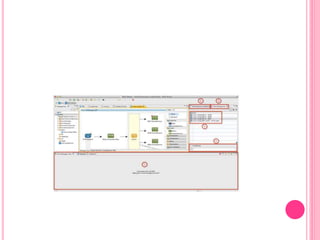
 To do this, you set a breakpoint at any building
block in your flow that you wish to check or test
(see image below). When you run your application
in Debug mode, the application stops immediately
after executing the building block with the
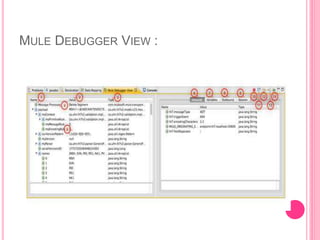
breakpoint. Using the Mule Debugger View, you
can browse through the contents of the message as
it exists at that point in the flow, and evaluate Mule
Expressions against the message.
USING THE VISUAL DEBUGGER :
 Complete the following macro-steps to use the Visual
Debugger in Studio.
1. Setting Breakpoints breakpoints on building blocks in
your application. Regf
2. Running in Debug Mode the application in Debug
mode.
3. Viewing Message Data at a
Breakpoint and/or Evaluating Mule Expressions the
data in the first building block with a breakpoint.
4. Resume application execution.
5. Repeat step 3 with the next building block with a
breakpoint, if any.
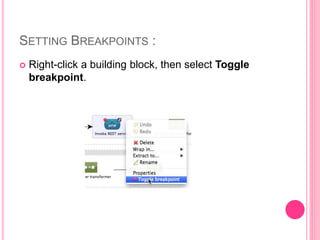
SETTING BREAKPOINTS :
 Right-click a building block, then select Toggle
breakpoint.
RUNNING IN DEBUG MODE :
 In the Package Explorer pane, right-click your
application, then select Debug As> Mule
Application. Studio begins running the application
in Debug mode, and displays the Confirm
Perspective Switch window.
VIEWING MESSAGE DATA AT A BREAKPOINT :
 When you begin running your application in Debug
mode, Mule opens the Mule Debugperspective.
Until a message arrives at the first breakpoint, the
Mule Debugger View in the console displays a
message that reads, "Connected with mule ESB.
Waiting for a mule message to arrive!"
 The image below illustrates the Mule Debug
perspective.
MULE DEBUGGER VIEW :
TROUBLESHOOTING :
 This section introduces a number of techniques
useful in troubleshooting Mule problems and in
gathering information for technical support.
 Configuring Mule Stacktraces
 Debugging Outside Studio
 Logging
CONFIGURING MULE STACKTRACES :
 By default Mule will filter out some internal class
references from stacktraces to produce a more
readable output. This behavior can be controlled
one of three ways:
 Command-line arguments
 Setting properties in Mule Studio
 Using JMX
DEBUGGING OUTSIDE STUDIO :
 In Anypoint Studio, you can use the Studio Visual
Debugger to help you troubleshoot your app. If
you’re creating your Mule app oustide Studio, you
can resort to the following options:
 When Running From Eclipse : Select the "Debug As
> Mule Server" start-up mode from your
configuration file. Any breakpoint you will have set
in your custom code or Mule’s source code will
suspend the execution and will take you to
Eclipse’s Debug perspective.
 When Running Mule Standalone :You need to start
Mule with the -debug to activate remote debugging,
which gives (on Linux):
$MULE_HOME/bin/mule -debug
 With this option, Mule will start normally with the
only difference being the following message logged
in the console:
Listening for transport dt_socket at
address: 5005
LOGGING :
 he less high-tech and most popular of all debugging
techniques is the usage of log statements in order
to follow the evolution of an application’s state. In
Mule, the state you’re interested in resides in the
messages that are flowing through your
configuration and, possibly, custom code.
 If you’re running your Mule configuration from
Eclipse, the log outputs are visible right in Eclipse
console window. If you’re running Mule from the
command line, the logs then are visible in your OS
console.
Thank You!!!!!!!!

Debugging mule

  • 1.
  • 2.
     This sectiondescribes how to debug your Mule application using:  Studio Visual Debugger  TroubleShooting
  • 3.
    STUDIO VISUAL DEBUGGER:  Studio’s Visual Debugger allows you to run your application in Debug mode, stopping execution to check the contents of a message at previously- specified building blocks.  To do this, you set a breakpoint at any building block in your flow that you wish to check or test (see image below). When you run your application in Debug mode, the application stops immediately after executing the building block with the breakpoint. Using the Mule Debugger View, you can browse through the contents of the message as it exists at that point in the flow, and evaluate Mule Expressions against the message.
  • 4.
    USING THE VISUALDEBUGGER :  Complete the following macro-steps to use the Visual Debugger in Studio. 1. Setting Breakpoints breakpoints on building blocks in your application. Regf 2. Running in Debug Mode the application in Debug mode. 3. Viewing Message Data at a Breakpoint and/or Evaluating Mule Expressions the data in the first building block with a breakpoint. 4. Resume application execution. 5. Repeat step 3 with the next building block with a breakpoint, if any.
  • 5.
    SETTING BREAKPOINTS : Right-click a building block, then select Toggle breakpoint.
  • 6.
    RUNNING IN DEBUGMODE :  In the Package Explorer pane, right-click your application, then select Debug As> Mule Application. Studio begins running the application in Debug mode, and displays the Confirm Perspective Switch window.
  • 7.
    VIEWING MESSAGE DATAAT A BREAKPOINT :  When you begin running your application in Debug mode, Mule opens the Mule Debugperspective. Until a message arrives at the first breakpoint, the Mule Debugger View in the console displays a message that reads, "Connected with mule ESB. Waiting for a mule message to arrive!"  The image below illustrates the Mule Debug perspective.
  • 9.
  • 10.
    TROUBLESHOOTING :  Thissection introduces a number of techniques useful in troubleshooting Mule problems and in gathering information for technical support.  Configuring Mule Stacktraces  Debugging Outside Studio  Logging
  • 11.
    CONFIGURING MULE STACKTRACES:  By default Mule will filter out some internal class references from stacktraces to produce a more readable output. This behavior can be controlled one of three ways:  Command-line arguments  Setting properties in Mule Studio  Using JMX
  • 12.
    DEBUGGING OUTSIDE STUDIO:  In Anypoint Studio, you can use the Studio Visual Debugger to help you troubleshoot your app. If you’re creating your Mule app oustide Studio, you can resort to the following options:  When Running From Eclipse : Select the "Debug As > Mule Server" start-up mode from your configuration file. Any breakpoint you will have set in your custom code or Mule’s source code will suspend the execution and will take you to Eclipse’s Debug perspective.
  • 13.
     When RunningMule Standalone :You need to start Mule with the -debug to activate remote debugging, which gives (on Linux): $MULE_HOME/bin/mule -debug  With this option, Mule will start normally with the only difference being the following message logged in the console: Listening for transport dt_socket at address: 5005
  • 14.
    LOGGING :  heless high-tech and most popular of all debugging techniques is the usage of log statements in order to follow the evolution of an application’s state. In Mule, the state you’re interested in resides in the messages that are flowing through your configuration and, possibly, custom code.  If you’re running your Mule configuration from Eclipse, the log outputs are visible right in Eclipse console window. If you’re running Mule from the command line, the logs then are visible in your OS console.
  • 15.