Instalasi Debian 3
Nama : Danar Abyoso XII TKJ 2 (06)
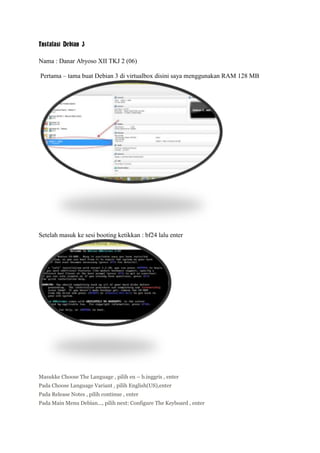
Pertama – tama buat Debian 3 di virtualbox disini saya menggunakan RAM 128 MB

Setelah masuk ke sesi booting ketikkan : bf24 lalu enter

Masukke Choose The Language , pilih en – b.inggris , enter
Pada Choose Language Variant , pilih English(US),enter
Pada Release Notes , pilih continue , enter
Pada Main Menu Debian…, pilih next: Configure The Keyboard , enter
Pada select a keyboard , pilihqwerty/uk,enter
Pada Main Menu Debian…,pilih Partition a Harddisk,enter
Pada tampilan select diskdrive , enter
LILO Limitations, enter(continue)
Pada Note on additional space for the Reiser FS Journal> continue >enter
Pada tampilan pembagian partisi,Hapus semua partisi (lebih baik) dan buat kembali dengan cara :
PilihNew> Primary> (RAM 384x2) 768 untuk swap > Beginning >enter,
Pilih Partisi yang baru dibuat >type>masukkan 82 untuk type SWAP
Pilih New>Primary> sisa nilai space HDD yang ada>enter>
Write>writetable> yes>quit

Pada Main Menu Debian…, pilih Next: Initialize and activate a swap partition , enter
Pada bacaan : Run a bad-blocks scan on„/dev/hda1‟? pilih no, enter
Pada bacaan Are You Sure? Pilih yes , enter
Pada Main Menu Debian…, pilih next : Initialize a Linux Partitions >enter
Pada Choose File system Type>pilih Ext3 >enter
Pada bacaan: scan forbad-blocks „/dev/hde2‟? pilih no,enter
Pada bacaan: Are You Sure? Pilih yes >enter> wait
Pada Mount as the Root File system ? pilih yes, enter
Pada Main Menu Debian…, pilih next : Install Kernel and Driver Modules> enter
Pada Found Debian CD-Rom > pilih yes > enter
Pada Main Menu Debian…,pilih next : Configure Device Driver Modulus> enter
Pada Note about loaded Drivers> Continue>enter
Pada select category>pilih kernel/drivers/net> enter
Pada select kernel/drivers/netmodules> bonding , enter >yes >enter
Pada enter Command-LineArguments> (boleh di isi boleh tidak)>ok>enter >enter
Pada select kernel/drivers/net Modules >Exit>enter
Pada select category…>exit>enter

Masuk ke MainMenu Debian…,pilih next: configure the network>enter
Pada tampilan choose the hostname>Isi hostname server>enter
Pada choose network interfaces >pilih eth0…>enter
Pada Automatic Network Configuration >pilih no(manual)>enter
Choose the IP Address> isi IP server(misal: 202.100.4.65)>ok>enter
Choose the Network Mask>isi Subnet Masknya(missal : 255.255.255.224)>ok>enter
IP Gateway address> isi IP Gateway(missal : 202.100.4.65)>ok>enter
Choose the Domain Name>isi Domainnya(misal : smkn2sby.sch.id) >ok>enter
Choose the DNS Server Address> isi DNSnya> ok>enter
Pada Main Menu Debian…>pilih next : Install the Base System>enter> wait installing
Pada Main Menu Debian…>pilih next : Make System Bootable >enter
Pada LILO boot > pilih/dev/hde:…>enter
Pada Virtual IDE device mapping > yes>enter
Pada other bootable partitions > pilih include:…> enter
Pada securing LILO> continue>enter
Pada Main Menu, pilih alternate: Reboot the System, karena jika memiliki floppy langsung direboot
dan sebaliknya>enter
Reboot the System ? yes> enter(keluarkan cd) merestart

Pada Debian System configuration > ok > enter
Time Zone Configuration > no> enter> pilih Asia> pilih Jakarta> enter
Pada password setup > no > no >enter
Enter a password for root ok >enter
Ulangi password> ok> enter > yes(membuat user admin)> isi namanya admin>ok> isi nama
kepanjangan user tadi > ok > masukkan password untuk user baru tadi (atau boleh sama)>enter >
ulangi password user> enter
Pada Debian System Configuration >pilih yes>enter>no(pada ppp connection)>enter
(Jangan Lupa untuk memasukan CD Installer Debian 3)
Pada Apt Configuration pilih No>enter
Pada security Update> no>enter
Pada pesan Run Taskel> yes>enter
Pada select tasks to install> C and C++(spasi)> finish>enter

Run dselect>yes> enter>spasi> / (searchfor)
Pada pesan dselect > cari paket yang akan di instal,misal : Paket DHCP> tekan shift = (untuk memilih
paket tersebut)> enter(untuk menginstal)>yes >
Pada configuring Binutils >ok> configuring less >yes>
Pada configuring locales > id_IDISO-8859-1>ok>leave alone> enter >pada configuring
NFS.common> ok> enter>
Configuring SSH> yes >enter >ok>enter> yes> yes >
Configuring Cvs>ok>create>ok> no>enter
Pada pilihan bahasa> pilih no1>enter> yes> enter>no>pilih option no5>enter > (penginstalan
selesai)ok> enter

Shutdown terlebih dahulu ketikan “Halt -n”
Kemudian atur Network di virtualbox seperti gambar dibawah ini

Dan atur network adapter yang ada di computer kita , Gunakan “Virtual-Box Network Adapter
Jika sudah START Debian yang sudah kita buat tadi , kemudian buka PuTTY dan connectkan dengan
ip address debian kita yaitu 198.169.1.1

Jika muncul seperti gambar di bawah kita tinggal memasukan username dan password kita

debian 3

  • 1.
    Instalasi Debian 3 Nama: Danar Abyoso XII TKJ 2 (06) Pertama – tama buat Debian 3 di virtualbox disini saya menggunakan RAM 128 MB Setelah masuk ke sesi booting ketikkan : bf24 lalu enter Masukke Choose The Language , pilih en – b.inggris , enter Pada Choose Language Variant , pilih English(US),enter Pada Release Notes , pilih continue , enter Pada Main Menu Debian…, pilih next: Configure The Keyboard , enter
  • 2.
    Pada select akeyboard , pilihqwerty/uk,enter Pada Main Menu Debian…,pilih Partition a Harddisk,enter Pada tampilan select diskdrive , enter LILO Limitations, enter(continue) Pada Note on additional space for the Reiser FS Journal> continue >enter Pada tampilan pembagian partisi,Hapus semua partisi (lebih baik) dan buat kembali dengan cara : PilihNew> Primary> (RAM 384x2) 768 untuk swap > Beginning >enter, Pilih Partisi yang baru dibuat >type>masukkan 82 untuk type SWAP Pilih New>Primary> sisa nilai space HDD yang ada>enter> Write>writetable> yes>quit Pada Main Menu Debian…, pilih Next: Initialize and activate a swap partition , enter Pada bacaan : Run a bad-blocks scan on„/dev/hda1‟? pilih no, enter Pada bacaan Are You Sure? Pilih yes , enter Pada Main Menu Debian…, pilih next : Initialize a Linux Partitions >enter Pada Choose File system Type>pilih Ext3 >enter Pada bacaan: scan forbad-blocks „/dev/hde2‟? pilih no,enter Pada bacaan: Are You Sure? Pilih yes >enter> wait
  • 3.
    Pada Mount asthe Root File system ? pilih yes, enter Pada Main Menu Debian…, pilih next : Install Kernel and Driver Modules> enter Pada Found Debian CD-Rom > pilih yes > enter Pada Main Menu Debian…,pilih next : Configure Device Driver Modulus> enter Pada Note about loaded Drivers> Continue>enter Pada select category>pilih kernel/drivers/net> enter Pada select kernel/drivers/netmodules> bonding , enter >yes >enter Pada enter Command-LineArguments> (boleh di isi boleh tidak)>ok>enter >enter Pada select kernel/drivers/net Modules >Exit>enter Pada select category…>exit>enter Masuk ke MainMenu Debian…,pilih next: configure the network>enter Pada tampilan choose the hostname>Isi hostname server>enter Pada choose network interfaces >pilih eth0…>enter Pada Automatic Network Configuration >pilih no(manual)>enter Choose the IP Address> isi IP server(misal: 202.100.4.65)>ok>enter Choose the Network Mask>isi Subnet Masknya(missal : 255.255.255.224)>ok>enter IP Gateway address> isi IP Gateway(missal : 202.100.4.65)>ok>enter Choose the Domain Name>isi Domainnya(misal : smkn2sby.sch.id) >ok>enter Choose the DNS Server Address> isi DNSnya> ok>enter Pada Main Menu Debian…>pilih next : Install the Base System>enter> wait installing Pada Main Menu Debian…>pilih next : Make System Bootable >enter Pada LILO boot > pilih/dev/hde:…>enter
  • 4.
    Pada Virtual IDEdevice mapping > yes>enter Pada other bootable partitions > pilih include:…> enter Pada securing LILO> continue>enter Pada Main Menu, pilih alternate: Reboot the System, karena jika memiliki floppy langsung direboot dan sebaliknya>enter Reboot the System ? yes> enter(keluarkan cd) merestart Pada Debian System configuration > ok > enter
  • 5.
    Time Zone Configuration> no> enter> pilih Asia> pilih Jakarta> enter Pada password setup > no > no >enter Enter a password for root ok >enter Ulangi password> ok> enter > yes(membuat user admin)> isi namanya admin>ok> isi nama kepanjangan user tadi > ok > masukkan password untuk user baru tadi (atau boleh sama)>enter > ulangi password user> enter Pada Debian System Configuration >pilih yes>enter>no(pada ppp connection)>enter (Jangan Lupa untuk memasukan CD Installer Debian 3) Pada Apt Configuration pilih No>enter Pada security Update> no>enter Pada pesan Run Taskel> yes>enter Pada select tasks to install> C and C++(spasi)> finish>enter Run dselect>yes> enter>spasi> / (searchfor) Pada pesan dselect > cari paket yang akan di instal,misal : Paket DHCP> tekan shift = (untuk memilih paket tersebut)> enter(untuk menginstal)>yes > Pada configuring Binutils >ok> configuring less >yes> Pada configuring locales > id_IDISO-8859-1>ok>leave alone> enter >pada configuring NFS.common> ok> enter>
  • 6.
    Configuring SSH> yes>enter >ok>enter> yes> yes > Configuring Cvs>ok>create>ok> no>enter Pada pilihan bahasa> pilih no1>enter> yes> enter>no>pilih option no5>enter > (penginstalan selesai)ok> enter Shutdown terlebih dahulu ketikan “Halt -n” Kemudian atur Network di virtualbox seperti gambar dibawah ini Dan atur network adapter yang ada di computer kita , Gunakan “Virtual-Box Network Adapter
  • 7.
    Jika sudah STARTDebian yang sudah kita buat tadi , kemudian buka PuTTY dan connectkan dengan ip address debian kita yaitu 198.169.1.1 Jika muncul seperti gambar di bawah kita tinggal memasukan username dan password kita