fifth edition
Engineering Drawing & Design
David A. Madsen David P. Madsen
David A. Madsen
President, Madsen Designs Inc., www.madsendesigns.com
Faculty Emeritus, Former Department Chairperson, Drafting Technology, Autodesk Premier Training Center
Clackamas Community College, Oregon City, Oregon
Director Emeritus, American Design Drafting Association
David P. Madsen
President, Engineering Drafting & Design, Inc.
Vice President, Madsen Designs Inc.
Computer-Aided Design and Drafting Consultant and Educator
SolidWorks Research Associate
American Design Drafting Association Member
J. Lee Turpin (author of Student CD Descriptive Geometry Reference Material)
Former Drafting Technology Instructor, Department Chair, Vocational Counselor
Clackamas Community College, Oregon City, Oregon
Former Drafting Technology Instructor, Chemeketa Community College, Salem, Oregon
Mount Hood Community College, Gresham, Oregon, Oregon Institute of Technology,
Oregon Polytechnic Institute, Portland Community College, Portland, Oregon
Australia • Brazil • Japan • Korea • Mexico • Singapore • Spain • United Kingdom • United States
Copyright 2011 Cengage Learning. All Rights Reserved. May not be copied, scanned, or duplicated, in whole or in part. Due to electronic rights, some third party content may be suppressed from the eBook and/or eChapter(s).
Editorial review has deemed that any suppressed content does not materially affect the overall learning experience. Cengage Learning reserves the right to remove additional content at any time if subsequent rights restrictions require it.
Copyright 2011 Cengage Learning. All Rights Reserved. May not be copied, scanned, or duplicated, in whole or in part. Due to electronic rights, some third party content may be suppressed from the eBook and/or eChapter(s).
Editorial review has deemed that any suppressed content does not materially affect the overall learning experience. Cengage Learning reserves the right to remove additional content at any time if subsequent rights restrictions require it.
This is an electronic version of the print textbook. Due to electronic rights restrictions,
some third party content may be suppressed. Editorial review has deemed that any suppressed
content does not materially affect the overall learning experience. The publisher reserves the right
to remove content from this title at any time if subsequent rights restrictions require it. For
valuable information on pricing, previous editions, changes to current editions, and alternate
formats, please visit www.cengage.com/highered to search by ISBN#, author, title, or keyword for
materials in your areas of interest.
© 2012 Delmar, Cengage Learning
ALL RIGHTS RESERVED. No part of this work covered by the copyright herein
may be reproduced, transmitted, stored, or used in any form or by any means
graphic, electronic, or mechanical, including but not limited to photocopying,
recording, scanning, digitizing, taping, Web distribution, information networks,
or information storage and retrieval systems, except as permitted under
Section 107 or 108 of the 1976 United States Copyright Act, without the prior
written permission of the publisher.
Library of Congress Control Number: 2010940076
ISBN-13: 978-1-111-30957-2
ISBN-10: 1-111-30957-4
Delmar
5 Maxwell Drive
Clifton Park, NY 12065-2919
USA
Cengage Learning is a leading provider of customized learning solutions with
office locations around the globe, including Singapore, the United Kingdom,
Australia, Mexico, Brazil, and Japan. Locate your local office at:
international.cengage.com/region
Cengage Learning products are represented in Canada by Nelson Education, Ltd.
To learn more about Delmar, visit www.cengage.com/delmar
Purchase any of our products at your local college store or at our preferred
online store www.cengagebrain.com
Notice to the Reader
Publisher does not warrant or guarantee any of the products described herein or perform any independent
analysis in connection with any of the product information contained herein. Publisher does not assume,
and expressly disclaims, any obligation to obtain and include information other than that provided to it by
the manufacturer. The reader is expressly warned to consider and adopt all safety precautions that might be
indicated by the activities described herein and to avoid all potential hazards. By following the instructions
contained herein, the reader willingly assumes all risks in connection with such instructions. The publisher
makes no representations or warranties of any kind, including but not limited to, the warranties of fitness for
particular purpose or merchantability, nor are any such representations implied with respect to the material set
forth herein, and the publisher takes no responsibility with respect to such material. The publisher shall not be
liable for any special, consequential, or exemplary damages resulting, in whole or part, from the readers’ use of,
or reliance upon, this material.
Engineering Drawing and Design,
Fifth Edition
David A. Madsen, David P. Madsen
Vice President, Editorial: Dave Garza
Director of Learning Solutions: Sandy Clark
Senior Acquisitions Editor: James Devoe
Managing Editor: Larry Main
Senior Product Manager: Sharon Chambliss
Editorial Assistant: Cristopher Savino
Vice President, Marketing: Jennifer Baker
Executive Marketing Manager:
Deborah S. Yarnell
Marketing Manager: Kathryn Hall
Production Director: Wendy Troeger
Production Manager: Mark Bernard
Senior Content Project Manager:
Michael Tubbert
Senior Art Director: Casey Kirchmayer
Technology Project Manager:
Christopher Catalina
Production Technology Analyst: Joe Pliss
Cover Illustration: ATV Illustration © Jim
Hatch, www.hatchillustration.com, Client:
Honda, Ad Agency: Vreeke and Associates.
For product information and technology assistance, contact us at
Cengage Learning Customer & Sales Support, 1-800-354-9706
For permission to use material from this text or product,
submit all requests online at www.cengage.com/permissions.
Further permissions questions can be e-mailed to
permissionrequest@cengage.com
Printed in the United States of America
1 2 3 4 5 6 7 14 13 12 11
Copyright 2011 Cengage Learning. All Rights Reserved. May not be copied, scanned, or duplicated, in whole or in part. Due to electronic rights, some third party content may be suppressed from the eBook and/or eChapter(s).
Editorial review has deemed that any suppressed content does not materially affect the overall learning experience. Cengage Learning reserves the right to remove additional content at any time if subsequent rights restrictions require it.
iii
C O N T E N T S
Introduction . . . . . . . . . . . . . . . . . . . . . . . . . . . . . . . 40
Manual Drafting Equipment and Supplies. . . . . . . . 41
Drafting Furniture . . . . . . . . . . . . . . . . . . . . . . . . . . 41
Drafting Pencils and Leads. . . . . . . . . . . . . . . . . . . . 41
Technical Pens, Pen Cleaning, and Ink . . . . . . . . . . 42
Erasers and Erasing . . . . . . . . . . . . . . . . . . . . . . . . . 42
Dividers . . . . . . . . . . . . . . . . . . . . . . . . . . . . . . . . . . 43
Parallel Bar . . . . . . . . . . . . . . . . . . . . . . . . . . . . . . . . 43
Triangles . . . . . . . . . . . . . . . . . . . . . . . . . . . . . . . . . . 43
Templates . . . . . . . . . . . . . . . . . . . . . . . . . . . . . . . . . 44
Irregular Curves . . . . . . . . . . . . . . . . . . . . . . . . . . . . 45
Drafting Machines . . . . . . . . . . . . . . . . . . . . . . . . . . 45
Scales . . . . . . . . . . . . . . . . . . . . . . . . . . . . . . . . . . . . 46
Drafting Media . . . . . . . . . . . . . . . . . . . . . . . . . . . . . 50
Sheet Size and Format . . . . . . . . . . . . . . . . . . . . . . . 53
Diazo Reproduction . . . . . . . . . . . . . . . . . . . . . . . . . 62
Photocopy Reproduction . . . . . . . . . . . . . . . . . . . . . 62
Properly Folding Prints . . . . . . . . . . . . . . . . . . . . . . 62
Microfilm . . . . . . . . . . . . . . . . . . . . . . . . . . . . . . . . . 62
CADD Applications . . . . . . . . . . . . . . . . . . . . . . . 64
Professional Perspective . . . . . . . . . . . . . . . . . . . . 64
Math Applications. . . . . . . . . . . . . . . . . . . . . . . . . 65
Web Site Research . . . . . . . . . . . . . . . . . . . . . . . . . . 65
Drafting Equipment, Media, and Reproduction
Methods Test. . . . . . . . . . . . . . . . . . . . . . . . . . . . . 65
Drafting Equipment, Media, and Reproduction
Methods Problems . . . . . . . . . . . . . . . . . . . . . . . . 66
Chapter 3—Computer-Aided Design
and Drafting (CADD) 69
Learning Objectives . . . . . . . . . . . . . . . . . . . . . . . . . 69
The Engineering Design Application . . . . . . . . . . 69
Introduction to Computer-Aided Design
and Drafting (CADD). . . . . . . . . . . . . . . . . . . . . . 70
The CADD Workstation. . . . . . . . . . . . . . . . . . . . . . 71
CADD Software Products . . . . . . . . . . . . . . . . . . . . . 71
CADD Formats. . . . . . . . . . . . . . . . . . . . . . . . . . . . . 75
Industry and CADD . . . . . . . . . . . . . . . . . . . . . . . . . 79
CADD Applications 3-D . . . . . . . . . . . . . . . . . . . . 89
Preface . . . . . . . . . . . . . . . . . . . . . . . . . . . . . . . . . . . . .xii
Acknowledgments. . . . . . . . . . . . . . . . . . . . . . . . . . . xxiv
SECTION 1
INTRODUCTION TO
ENGINEERING DRAWING
AND DESIGN 1
Chapter 1—Introduction to Engineering
Drawing and Design 2
Learning Objectives . . . . . . . . . . . . . . . . . . . . . . . . . . 2
The Engineering Design Application . . . . . . . . . . . 2
Introduction . . . . . . . . . . . . . . . . . . . . . . . . . . . . . . . . 8
A History of Engineering Drawing. . . . . . . . . . . . . . 10
The Drafter. . . . . . . . . . . . . . . . . . . . . . . . . . . . . . . . 14
Drafting Fields . . . . . . . . . . . . . . . . . . . . . . . . . . . . . 14
Education and Qualifications. . . . . . . . . . . . . . . . . . 22
Drafting Job Opportunities. . . . . . . . . . . . . . . . . . . . 25
Searching for a Drafting Position . . . . . . . . . . . . . . . 26
Drafting Salaries and Working Conditions . . . . . . . 27
Professional Organization . . . . . . . . . . . . . . . . . . . . 28
Drafting Standards . . . . . . . . . . . . . . . . . . . . . . . . . . 29
Workplace Ethics . . . . . . . . . . . . . . . . . . . . . . . . . . . 30
Copyrights . . . . . . . . . . . . . . . . . . . . . . . . . . . . . . . . 31
Trademarks. . . . . . . . . . . . . . . . . . . . . . . . . . . . . . . . 32
CADD Applications . . . . . . . . . . . . . . . . . . . . . . . 33
Professional Perspective . . . . . . . . . . . . . . . . . . . . 34
Web Site Research . . . . . . . . . . . . . . . . . . . . . . . . . . 37
Introduction to Engineering Drawing
and Design Test. . . . . . . . . . . . . . . . . . . . . . . . . . . 38
Introduction to Engineering Drawing
and Design Problems . . . . . . . . . . . . . . . . . . . . . . 38
Chapter 2—Drafting Equipment, Media,
and Reproduction Methods 39
Learning Objectives . . . . . . . . . . . . . . . . . . . . . . . . . 39
The Engineering Design Application . . . . . . . . . . 39
Copyright 2011 Cengage Learning. All Rights Reserved. May not be copied, scanned, or duplicated, in whole or in part. Due to electronic rights, some third party content may be suppressed from the eBook and/or eChapter(s).
Editorial review has deemed that any suppressed content does not materially affect the overall learning experience. Cengage Learning reserves the right to remove additional content at any time if subsequent rights restrictions require it.
iv CONTENTS
SECTION 2
FUNDAMENTAL
APPLICATIONS 173
Chapter 5—Sketching Applications 174
Learning Objectives . . . . . . . . . . . . . . . . . . . . . . . . 174
The Engineering Design Application . . . . . . . . . 174
Sketching . . . . . . . . . . . . . . . . . . . . . . . . . . . . . . . . 174
Sketching Tools and Materials . . . . . . . . . . . . . . . . 175
Sketching Straight Lines. . . . . . . . . . . . . . . . . . . . . 175
Sketching Circular Lines . . . . . . . . . . . . . . . . . . . . 176
Sketching Arcs . . . . . . . . . . . . . . . . . . . . . . . . . . . . 179
Sketching Ellipses. . . . . . . . . . . . . . . . . . . . . . . . . . 180
Measurement Lines and Proportions . . . . . . . . . . . 180
Introduction to the Block Technique . . . . . . . . . . . 181
Creating Multiview Sketches . . . . . . . . . . . . . . . . . 183
Creating Isometric Sketches. . . . . . . . . . . . . . . . . . 184
CADD Applications 3-D . . . . . . . . . . . . . . . . . . . 187
Professional Perspective . . . . . . . . . . . . . . . . . . . 191
Sketching Applications Test . . . . . . . . . . . . . . . . . . 191
Sketching Applications Problems. . . . . . . . . . . . . . 192
Chapter 6 —Lines and Lettering 193
Learning Objectives . . . . . . . . . . . . . . . . . . . . . . . . 193
The Engineering Design Application . . . . . . . . . 193
Lines. . . . . . . . . . . . . . . . . . . . . . . . . . . . . . . . . . . . 193
Types of Lines. . . . . . . . . . . . . . . . . . . . . . . . . . . . . 194
CADD Applications . . . . . . . . . . . . . . . . . . . . . . 204
Lettering . . . . . . . . . . . . . . . . . . . . . . . . . . . . . . . . . 207
Lettering on Engineering Drawings . . . . . . . . . . . . 207
Lettering Numbers . . . . . . . . . . . . . . . . . . . . . . . . . 207
Other Lettering Styles. . . . . . . . . . . . . . . . . . . . . . . 208
Lettering Legibility. . . . . . . . . . . . . . . . . . . . . . . . . 209
CADD Applications . . . . . . . . . . . . . . . . . . . . . . 210
CADD Applications 3-D . . . . . . . . . . . . . . . . . . . 212
Professional Perspective . . . . . . . . . . . . . . . . . . . 212
Math Applications. . . . . . . . . . . . . . . . . . . . . . . . 214
Web Site Research . . . . . . . . . . . . . . . . . . . . . . . . . 214
Lines and Lettering Test . . . . . . . . . . . . . . . . . . . . . 214
Lines and Lettering Problems. . . . . . . . . . . . . . . . . 214
Chapter 7—Drafting Geometry 218
Learning Objectives . . . . . . . . . . . . . . . . . . . . . . . . 218
The Engineering Design Application . . . . . . . . . 218
CADD Applications . . . . . . . . . . . . . . . . . . . . . . 219
Drafting Geometry . . . . . . . . . . . . . . . . . . . . . . . . . 219
Characteristics of Lines . . . . . . . . . . . . . . . . . . . . . 219
Geometric Shapes. . . . . . . . . . . . . . . . . . . . . . . . . . 220
Common Geometric Constructions. . . . . . . . . . . . 224
Constructing Polygons. . . . . . . . . . . . . . . . . . . . . . 230
Constructing Tangencies . . . . . . . . . . . . . . . . . . . . 233
Virtual Reality. . . . . . . . . . . . . . . . . . . . . . . . . . . . . . 89
Basic CADD Techniques. . . . . . . . . . . . . . . . . . . . . . 93
Surface Modeling Techniques. . . . . . . . . . . . . . . . . 102
Solid Modeling Techniques . . . . . . . . . . . . . . . . . . 104
CADD Applications 3-D . . . . . . . . . . . . . . . . . . . 110
CADD Standards . . . . . . . . . . . . . . . . . . . . . . . . . . 111
Productivity with CADD . . . . . . . . . . . . . . . . . . . . 112
Green Technology Application . . . . . . . . . . . . . . 115
Professional Perspective . . . . . . . . . . . . . . . . . . . 118
Web Site Research . . . . . . . . . . . . . . . . . . . . . . . . . 118
Computer-Aided Design and
Drafting (CADD) Test. . . . . . . . . . . . . . . . . . . . . 119
Computer-Aided Design and
Drafting (CADD) Problems . . . . . . . . . . . . . . . . 119
Chapter 4—Manufacturing Materials
and Processes 121
Learning Objectives . . . . . . . . . . . . . . . . . . . . . . . . 121
The Engineering Design Application . . . . . . . . . 121
Introduction . . . . . . . . . . . . . . . . . . . . . . . . . . . . . . 122
Manufacturing Materials . . . . . . . . . . . . . . . . . . . . 122
Green Technology Application . . . . . . . . . . . . . . 126
Metallurgy . . . . . . . . . . . . . . . . . . . . . . . . . . . . . . . 126
Plastics and Polymers. . . . . . . . . . . . . . . . . . . . . . . 126
Plastic Resin Identification Codes . . . . . . . . . . . . . 129
Plastics Material Selection Applications. . . . . . . . . 129
Green Technology Application . . . . . . . . . . . . . . 130
Material Selection. . . . . . . . . . . . . . . . . . . . . . . . . . 131
CADD Applications 3-D . . . . . . . . . . . . . . . . . . . 133
Manufacturing Processes . . . . . . . . . . . . . . . . . . . . 135
Machine Processes . . . . . . . . . . . . . . . . . . . . . . . . . 140
CADD Applications . . . . . . . . . . . . . . . . . . . . . . 146
Machined Feature and Drawing
Representations . . . . . . . . . . . . . . . . . . . . . . . . . 147
Manufacturing Plastic Products . . . . . . . . . . . . . . . 153
Thermoset Plastic Fabrication Process. . . . . . . . . . 157
Manufacturing Composites . . . . . . . . . . . . . . . . . . 158
Rapid Prototyping (RP) . . . . . . . . . . . . . . . . . . . . . 160
Tool Design. . . . . . . . . . . . . . . . . . . . . . . . . . . . . . . 160
Computer-Integrated Manufacturing (CIM) . . . . . 161
Application Examples . . . . . . . . . . . . . . . . . . . . . . 162
Integration of Computer-Aided Design
and Computer-Aided Manufacturing
(CAD/CAM) . . . . . . . . . . . . . . . . . . . . . . . . . . . . 164
Statistical Process Control (SPC) . . . . . . . . . . . . . . 165
CADD Applications 3-D . . . . . . . . . . . . . . . . . . . 166
Green Technology Application . . . . . . . . . . . . . . 168
Professional Perspective . . . . . . . . . . . . . . . . . . . 168
Math Application . . . . . . . . . . . . . . . . . . . . . . . . 169
Web Site Research . . . . . . . . . . . . . . . . . . . . . . . . . 169
Manufacturing Materials and
Processes Test . . . . . . . . . . . . . . . . . . . . . . . . . . . 170
Manufacturing Materials and
Processes Problems. . . . . . . . . . . . . . . . . . . . . . . 170
Copyright 2011 Cengage Learning. All Rights Reserved. May not be copied, scanned, or duplicated, in whole or in part. Due to electronic rights, some third party content may be suppressed from the eBook and/or eChapter(s).
Editorial review has deemed that any suppressed content does not materially affect the overall learning experience. Cengage Learning reserves the right to remove additional content at any time if subsequent rights restrictions require it.
CONTENTS v
Web Site Research . . . . . . . . . . . . . . . . . . . . . . . . . 307
Auxiliary Views Test. . . . . . . . . . . . . . . . . . . . . . . . 308
Auxiliary Views Problems . . . . . . . . . . . . . . . . . . . 308
Chapter 10—Dimensioning and
Tolerancing 315
Learning Objectives . . . . . . . . . . . . . . . . . . . . . . . . 315
The Engineering Design Application . . . . . . . . . 315
Introduction to Dimensioning . . . . . . . . . . . . . . . . 319
Dimensioning Basics . . . . . . . . . . . . . . . . . . . . . . . 320
Dimensioning Characteristics and Definitions. . . . 320
Fundamental Dimensioning Rules. . . . . . . . . . . . . 323
Dimensioning Components . . . . . . . . . . . . . . . . . . 324
Dimensioning Symbols. . . . . . . . . . . . . . . . . . . . . . 325
Dimensioning Systems . . . . . . . . . . . . . . . . . . . . . . 326
Dimensioning Fundamentals . . . . . . . . . . . . . . . . . 327
Preferred Dimensioning Practices . . . . . . . . . . . . . 334
Notes for Machined Features . . . . . . . . . . . . . . . . . 338
Placing Location Dimensions. . . . . . . . . . . . . . . . . 342
Specifying Dimension Origin . . . . . . . . . . . . . . . . . 344
Dimensioning Auxiliary Views. . . . . . . . . . . . . . . . 344
CADD Applications 2-D . . . . . . . . . . . . . . . . . . . 345
Using General Notes . . . . . . . . . . . . . . . . . . . . . . . 349
Tolerancing Applications . . . . . . . . . . . . . . . . . . . . 351
CADD Applications 3-D . . . . . . . . . . . . . . . . . . . 360
Dimensions Applied to Platings and
Coatings . . . . . . . . . . . . . . . . . . . . . . . . . . . . . . . 361
Maximum and Minimum Dimensions . . . . . . . . . . 361
Casting Drawing and Design . . . . . . . . . . . . . . . . . 361
Machining Allowance. . . . . . . . . . . . . . . . . . . . . . . 362
Casting Drawings . . . . . . . . . . . . . . . . . . . . . . . . . . 363
Forging, Design, and Drawing . . . . . . . . . . . . . . . . 363
Drawings for Plastic Part Manufacturing . . . . . . . . 369
Machined Surfaces . . . . . . . . . . . . . . . . . . . . . . . . . 370
Design and Drafting of Machined Features . . . . . . 373
Tool Design . . . . . . . . . . . . . . . . . . . . . . . . . . . . . . 373
CADD Applications . . . . . . . . . . . . . . . . . . . . . . 378
Introduction to ISO 9000. . . . . . . . . . . . . . . . . . . . 378
Professional Perspective . . . . . . . . . . . . . . . . . . . 379
CADD Applications . . . . . . . . . . . . . . . . . . . . . . 381
Recommended Review . . . . . . . . . . . . . . . . . . . . . . 382
Math Applications. . . . . . . . . . . . . . . . . . . . . . . . 383
Web Site Research . . . . . . . . . . . . . . . . . . . . . . . . . 383
Dimensioning and Tolerancing Test. . . . . . . . . . . . 384
Dimensioning and Tolerancing Problems . . . . . . . 384
Chapter 11—Fasteners and Springs 392
Learning Objectives . . . . . . . . . . . . . . . . . . . . . . . . 392
The Engineering Design Application . . . . . . . . . 392
Screw Thread Fasteners . . . . . . . . . . . . . . . . . . . . . 393
Thread-Cutting Tools . . . . . . . . . . . . . . . . . . . . . . . 395
Thread Forms. . . . . . . . . . . . . . . . . . . . . . . . . . . . . 395
Thread Representations . . . . . . . . . . . . . . . . . . . . . 397
Constructing an Ellipse . . . . . . . . . . . . . . . . . . . . . 236
Professional Perspective . . . . . . . . . . . . . . . . . . . 237
Math Applications. . . . . . . . . . . . . . . . . . . . . . . . 238
Web Site Research . . . . . . . . . . . . . . . . . . . . . . . . . 238
Drafting Geometry Test . . . . . . . . . . . . . . . . . . . . . 238
Drafting Geometry Problems . . . . . . . . . . . . . . . . . 239
SECTION 3
DRAFTING VIEWS
AND ANNOTATIONS 247
Chapter 8—Multiviews 248
Learning Objectives . . . . . . . . . . . . . . . . . . . . . . . . 248
The Engineering Design Application . . . . . . . . . 248
Multiviews . . . . . . . . . . . . . . . . . . . . . . . . . . . . . . . 250
Third-Angle Projection. . . . . . . . . . . . . . . . . . . . . . 252
First-Angle Projection . . . . . . . . . . . . . . . . . . . . . . 254
View Selection . . . . . . . . . . . . . . . . . . . . . . . . . . . . 254
Projection of Contours, Circles, and Arcs . . . . . . . 262
Line Precedence . . . . . . . . . . . . . . . . . . . . . . . . . . . 266
Multiview Analysis and Review . . . . . . . . . . . . . . . 266
Recommended Review . . . . . . . . . . . . . . . . . . . . . . 267
Multiview Layout . . . . . . . . . . . . . . . . . . . . . . . . . . 267
CADD Applications 2-D . . . . . . . . . . . . . . . . . . . 267
CADD Applications 3-D . . . . . . . . . . . . . . . . . . . 270
CADD Applications . . . . . . . . . . . . . . . . . . . . . . 275
Professional Perspective . . . . . . . . . . . . . . . . . . . 275
Math Applications. . . . . . . . . . . . . . . . . . . . . . . . 277
Web Site Research . . . . . . . . . . . . . . . . . . . . . . . . . 277
Multiviews Test. . . . . . . . . . . . . . . . . . . . . . . . . . . . 277
Multiviews Problems . . . . . . . . . . . . . . . . . . . . . . . 277
Chapter 9—Auxiliary Views 292
Learning Objectives . . . . . . . . . . . . . . . . . . . . . . . . 292
The Engineering Design Application . . . . . . . . . 292
Auxiliary Views . . . . . . . . . . . . . . . . . . . . . . . . . . . 292
Auxiliary View Visualization . . . . . . . . . . . . . . . . . 295
Drawing Curves in Auxiliary Views. . . . . . . . . . . . 297
View Enlargements. . . . . . . . . . . . . . . . . . . . . . . . . 297
Drawing a Removed Auxiliary View. . . . . . . . . . . . 297
Locating Views on Different Sheets . . . . . . . . . . . . 298
Drawing a Rotated Auxiliary View. . . . . . . . . . . . . 298
Secondary Auxiliary Views. . . . . . . . . . . . . . . . . . . 299
Auxiliary View Analysis and Review . . . . . . . . . . . 300
Descriptive Geometry. . . . . . . . . . . . . . . . . . . . . . . 302
Auxiliary View Layout . . . . . . . . . . . . . . . . . . . . . . 302
CADD Applications . . . . . . . . . . . . . . . . . . . . . . 304
CADD Applications 2-D . . . . . . . . . . . . . . . . . . . 305
CADD Applications 3-D . . . . . . . . . . . . . . . . . . . 306
Professional Perspective . . . . . . . . . . . . . . . . . . . 307
Math Applications. . . . . . . . . . . . . . . . . . . . . . . . 307
Copyright 2011 Cengage Learning. All Rights Reserved. May not be copied, scanned, or duplicated, in whole or in part. Due to electronic rights, some third party content may be suppressed from the eBook and/or eChapter(s).
Editorial review has deemed that any suppressed content does not materially affect the overall learning experience. Cengage Learning reserves the right to remove additional content at any time if subsequent rights restrictions require it.
vi CONTENTS
Revolved Sections. . . . . . . . . . . . . . . . . . . . . . . . . . 453
Removed Sections. . . . . . . . . . . . . . . . . . . . . . . . . . 454
Locating Sectional Views on Different Sheets . . . . 455
Recommended Review . . . . . . . . . . . . . . . . . . . . . . 457
Professional Perspective . . . . . . . . . . . . . . . . . . . 457
Math Applications. . . . . . . . . . . . . . . . . . . . . . . . 459
Web Site Research . . . . . . . . . . . . . . . . . . . . . . . . . 459
Sections, Revolutions, and Conventional
Breaks Test . . . . . . . . . . . . . . . . . . . . . . . . . . . . . 459
Sections, Revolutions, and Conventional
Breaks Problems . . . . . . . . . . . . . . . . . . . . . . . . . 460
Chapter 13—Geometric Dimensioning
and Tolerancing 475
Learning Objectives . . . . . . . . . . . . . . . . . . . . . . . . 475
The Engineering Design Application . . . . . . . . . 475
Introduction . . . . . . . . . . . . . . . . . . . . . . . . . . . . . . 476
GD&T Symbols . . . . . . . . . . . . . . . . . . . . . . . . . . . 477
Datums . . . . . . . . . . . . . . . . . . . . . . . . . . . . . . . . . . 477
Applying Material Condition and Material
Boundary Symbols . . . . . . . . . . . . . . . . . . . . . . . 492
Limits of Size Application . . . . . . . . . . . . . . . . . . . 494
Perfect Form Boundary . . . . . . . . . . . . . . . . . . . . . 494
Applying Regardless of Feature Size and
Regardless of Material Boundary . . . . . . . . . . . . 494
Applying Maximum Material Condition . . . . . . . . 496
Applying Least Material Condition . . . . . . . . . . . . 498
Application of RMB on a Primary Datum
Feature . . . . . . . . . . . . . . . . . . . . . . . . . . . . . . . . 499
Application of RMB on a Secondary and
Tertiary Datum Feature . . . . . . . . . . . . . . . . . . . 499
The Effect of Datum Precedence and
Material Condition . . . . . . . . . . . . . . . . . . . . . . . 499
Introduction to Geometric Characteristic
and Related Symbols. . . . . . . . . . . . . . . . . . . . . . 501
Form Geometric Tolerances . . . . . . . . . . . . . . . . . . 504
Orientation Geometric Tolerances . . . . . . . . . . . . . 507
Applying Profile Geometric Tolerances . . . . . . . . . 532
Runout Geometric Tolerance . . . . . . . . . . . . . . . . . 544
Specifying Independency . . . . . . . . . . . . . . . . . . . . 546
CADD Applications . . . . . . . . . . . . . . . . . . . . . . 547
CADD Applications 2-D . . . . . . . . . . . . . . . . . . . 548
Professional Perspective . . . . . . . . . . . . . . . . . . . 553
Math Applications. . . . . . . . . . . . . . . . . . . . . . . . 555
Web Site Research . . . . . . . . . . . . . . . . . . . . . . . . . 555
Geometric Dimensioning and Tolerancing
Test . . . . . . . . . . . . . . . . . . . . . . . . . . . . . . . . . . . 556
Geometric Dimensioning and Tolerancing
Problems. . . . . . . . . . . . . . . . . . . . . . . . . . . . . . . 556
Chapter 14—Pictorial Drawings
and Technical Illustrations 562
Learning Objectives . . . . . . . . . . . . . . . . . . . . . . . . 562
The Engineering Design Application . . . . . . . . . 562
Drawing Thread Representations. . . . . . . . . . . . . . 398
Drawing Detailed Threads . . . . . . . . . . . . . . . . . . . 400
Thread Notes . . . . . . . . . . . . . . . . . . . . . . . . . . . . . 403
Measuring Screw Threads . . . . . . . . . . . . . . . . . . . 406
CADD Applications 2-D . . . . . . . . . . . . . . . . . . . 406
CADD Applications 3-D . . . . . . . . . . . . . . . . . . . 407
Threaded Fasteners . . . . . . . . . . . . . . . . . . . . . . . . 408
Thread Design Guidelines . . . . . . . . . . . . . . . . . . . 410
Lag Screws and Wood Screws. . . . . . . . . . . . . . . . . 414
Self-Tapping Screws . . . . . . . . . . . . . . . . . . . . . . . . 414
Thread Inserts. . . . . . . . . . . . . . . . . . . . . . . . . . . . . 415
Self-Clinching Fasteners. . . . . . . . . . . . . . . . . . . . . 415
How to Draw Various Types of Screw
Heads . . . . . . . . . . . . . . . . . . . . . . . . . . . . . . . . . 416
Drawing Nuts . . . . . . . . . . . . . . . . . . . . . . . . . . . . . 417
Drawing Washers . . . . . . . . . . . . . . . . . . . . . . . . . . 418
Drawing Dowel Pins. . . . . . . . . . . . . . . . . . . . . . . . 418
Taper Pins and Other Pins . . . . . . . . . . . . . . . . . . . 418
Retaining Rings . . . . . . . . . . . . . . . . . . . . . . . . . . . 419
Keys, Keyways, and Keyseats . . . . . . . . . . . . . . . . . 419
Rivets . . . . . . . . . . . . . . . . . . . . . . . . . . . . . . . . . . . 420
Designing and Drawing Springs. . . . . . . . . . . . . . . 421
CADD Applications . . . . . . . . . . . . . . . . . . . . . . 421
Spring Representations and Specifications. . . . . . . 426
Recommended Review . . . . . . . . . . . . . . . . . . . . . . 428
CADD Applications 2-D . . . . . . . . . . . . . . . . . . . 428
CADD Applications 3-D . . . . . . . . . . . . . . . . . . . 429
Professional Perspective . . . . . . . . . . . . . . . . . . . 429
Math Applications. . . . . . . . . . . . . . . . . . . . . . . . 431
Web Site Research . . . . . . . . . . . . . . . . . . . . . . . . . 431
Fasteners and Springs Test . . . . . . . . . . . . . . . . . . . 432
Fasteners and Springs Problems. . . . . . . . . . . . . . . 432
Chapter 12—Sections, Revolutions,
and Conventional Breaks 439
Learning Objectives . . . . . . . . . . . . . . . . . . . . . . . . 439
The Engineering Design Application . . . . . . . . . 439
Introduction to Sectional Views. . . . . . . . . . . . . . . 440
Cutting-Plane Lines and Sectional View
Identification . . . . . . . . . . . . . . . . . . . . . . . . . . . 440
Section Lines . . . . . . . . . . . . . . . . . . . . . . . . . . . . . 442
Full Sections. . . . . . . . . . . . . . . . . . . . . . . . . . . . . . 444
Half Sections. . . . . . . . . . . . . . . . . . . . . . . . . . . . . . 444
Offset Sections . . . . . . . . . . . . . . . . . . . . . . . . . . . . 445
Aligned Sections. . . . . . . . . . . . . . . . . . . . . . . . . . . 446
Unsectioned Features. . . . . . . . . . . . . . . . . . . . . . . 446
Intersections in Section . . . . . . . . . . . . . . . . . . . . . 447
Conventional Revolutions . . . . . . . . . . . . . . . . . . . 447
Broken-Out Sections. . . . . . . . . . . . . . . . . . . . . . . . 448
Auxiliary Sections. . . . . . . . . . . . . . . . . . . . . . . . . . 448
CADD Applications 2-D . . . . . . . . . . . . . . . . . . . 449
CADD Applications 3-D . . . . . . . . . . . . . . . . . . . 450
Conventional Breaks . . . . . . . . . . . . . . . . . . . . . . . 452
CADD Applications . . . . . . . . . . . . . . . . . . . . . . 453
Copyright 2011 Cengage Learning. All Rights Reserved. May not be copied, scanned, or duplicated, in whole or in part. Due to electronic rights, some third party content may be suppressed from the eBook and/or eChapter(s).
Editorial review has deemed that any suppressed content does not materially affect the overall learning experience. Cengage Learning reserves the right to remove additional content at any time if subsequent rights restrictions require it.
CONTENTS vii
Introduction to Pictorial Drawing and
Technical Illustration Pictorial Drawings. . . . . . 563
Pictorial Drawings . . . . . . . . . . . . . . . . . . . . . . . . . 563
Isometric Projections and Drawings . . . . . . . . . . . 566
Types of Isometric Drawings . . . . . . . . . . . . . . . . . 568
Isometric Construction Techniques . . . . . . . . . . . . 568
Dimetric Pictorial Representation . . . . . . . . . . . . . 574
Trimetric Pictorial Representation . . . . . . . . . . . . . 574
Exploded Pictorial Drawing . . . . . . . . . . . . . . . . . . 575
Oblique Drawing . . . . . . . . . . . . . . . . . . . . . . . . . . 576
Perspective Drawing. . . . . . . . . . . . . . . . . . . . . . . . 578
Drawing a One-Point Perspective . . . . . . . . . . . . . 578
Drawing a Two-Point Perspective. . . . . . . . . . . . . . 580
Drawing a Three-Point Perspective . . . . . . . . . . . . 580
Drawing Circles and Curves in Perspective . . . . . . 582
Using Basic Shading Techniques . . . . . . . . . . . . . . 583
Pictorial Drawing Layout Techniques . . . . . . . . . . 584
CADD Applications 3-D . . . . . . . . . . . . . . . . . . . 585
Professional Perspective . . . . . . . . . . . . . . . . . . . 589
Math Applications. . . . . . . . . . . . . . . . . . . . . . . . 590
Web Site Research . . . . . . . . . . . . . . . . . . . . . . . . . 590
Pictorial Drawings and Technical
Illustrations Test. . . . . . . . . . . . . . . . . . . . . . . . . 590
Pictorial Drawings and Technical Illustrations
Problems. . . . . . . . . . . . . . . . . . . . . . . . . . . . . . . 591
SECTION 4
WORKING DRAWINGS 595
Chapter 15—Working Drawings 596
Learning Objectives . . . . . . . . . . . . . . . . . . . . . . . . 596
The Engineering Design Application . . . . . . . . . 596
Introduction to Section Four . . . . . . . . . . . . . . . . . 597
Introduction to Working Drawings . . . . . . . . . . . . 597
Detail Drawings . . . . . . . . . . . . . . . . . . . . . . . . . . . 598
CADD Applications 2-D . . . . . . . . . . . . . . . . . . . 601
CADD Applications 3-D . . . . . . . . . . . . . . . . . . . 601
Assembly Drawings . . . . . . . . . . . . . . . . . . . . . . . . 603
Types of Assembly Drawings . . . . . . . . . . . . . . . . . 604
Identification Numbers . . . . . . . . . . . . . . . . . . . . . 607
Parts Lists . . . . . . . . . . . . . . . . . . . . . . . . . . . . . . . . 608
Purchase Parts . . . . . . . . . . . . . . . . . . . . . . . . . . . . 612
Engineering Changes . . . . . . . . . . . . . . . . . . . . . . . 614
CADD Applications 2-D . . . . . . . . . . . . . . . . . . . 614
CADD Applications 3-D . . . . . . . . . . . . . . . . . . . 615
Drawing From a Prototype. . . . . . . . . . . . . . . . . . . 620
Analysis of a Set of Working Drawings . . . . . . . . . 620
CADD Applications 3-D . . . . . . . . . . . . . . . . . . . 627
Professional Perspective . . . . . . . . . . . . . . . . . . . 628
Math Application . . . . . . . . . . . . . . . . . . . . . . . . 629
Web Site Research . . . . . . . . . . . . . . . . . . . . . . . . . 629
Working Drawings Test . . . . . . . . . . . . . . . . . . . . . 629
Working Drawings Problems . . . . . . . . . . . . . . . . . 630
Chapter 16—Mechanisms: Linkages,
Cams, Gears, and
Bearings 678
Learning Objectives . . . . . . . . . . . . . . . . . . . . . . . . 678
The Engineering Design Application . . . . . . . . . 678
Mechanism . . . . . . . . . . . . . . . . . . . . . . . . . . . . . . . 679
Linkages . . . . . . . . . . . . . . . . . . . . . . . . . . . . . . . . . 679
Linkage Symbols . . . . . . . . . . . . . . . . . . . . . . . . . . 679
Types of Linkages . . . . . . . . . . . . . . . . . . . . . . . . . . 680
Cam Design . . . . . . . . . . . . . . . . . . . . . . . . . . . . . . 682
CADD Applications . . . . . . . . . . . . . . . . . . . . . . 683
Cam Displacement Diagrams . . . . . . . . . . . . . . . . . 684
Construction of an Inline Follower Plate
Cam Profile. . . . . . . . . . . . . . . . . . . . . . . . . . . . . 687
Preparing the Formal Plate Cam Drawing . . . . . . . 688
Construction of an Offset Follower Plate
Cam Profile. . . . . . . . . . . . . . . . . . . . . . . . . . . . . 688
Drum Cam Drawing. . . . . . . . . . . . . . . . . . . . . . . . 690
CADD Applications . . . . . . . . . . . . . . . . . . . . . . 691
Introduction to Gears. . . . . . . . . . . . . . . . . . . . . . . 691
Gear Structure . . . . . . . . . . . . . . . . . . . . . . . . . . . . 692
Splines . . . . . . . . . . . . . . . . . . . . . . . . . . . . . . . . . . 692
Gear Types . . . . . . . . . . . . . . . . . . . . . . . . . . . . . . . 693
Spur Gear Design . . . . . . . . . . . . . . . . . . . . . . . . . . 696
Drawing Specifications and Tolerances . . . . . . . . . 696
Designing and Drawing Spur Gears . . . . . . . . . . . . 696
Designing Spur Gear Trains . . . . . . . . . . . . . . . . . . 702
Designing and Drawing the Rack
and Pinion . . . . . . . . . . . . . . . . . . . . . . . . . . . . . 703
Designing and Drawing Bevel Gears . . . . . . . . . . . 703
Designing and Drawing Worm Gears. . . . . . . . . . . 705
Plastic Gears. . . . . . . . . . . . . . . . . . . . . . . . . . . . . . 706
CADD Applications . . . . . . . . . . . . . . . . . . . . . . 708
Bearings . . . . . . . . . . . . . . . . . . . . . . . . . . . . . . . . . 709
Drawing Bearing Symbols . . . . . . . . . . . . . . . . . . . 710
Bearing Codes. . . . . . . . . . . . . . . . . . . . . . . . . . . . . 710
Bearing Selection . . . . . . . . . . . . . . . . . . . . . . . . . . 710
Gear and Bearing Assemblies . . . . . . . . . . . . . . . . . 715
Professional Perspective . . . . . . . . . . . . . . . . . . . 717
Math Application . . . . . . . . . . . . . . . . . . . . . . . . 718
Web Site Research . . . . . . . . . . . . . . . . . . . . . . . . . 718
Mechanisms: Linkages, Cams, Gears, and
Bearings Test. . . . . . . . . . . . . . . . . . . . . . . . . . . . 718
Mechanisms: Linkages, Cams, Gears, and
Bearings Problems . . . . . . . . . . . . . . . . . . . . . . . 719
Chapter 17—Belt and Chain Drives 727
Learning Objectives . . . . . . . . . . . . . . . . . . . . . . . . 727
The Engineering Design Application . . . . . . . . . 727
Introduction . . . . . . . . . . . . . . . . . . . . . . . . . . . . . . 728
Advantages of Gear Drives . . . . . . . . . . . . . . . . . . . 728
Advantages of Belt Drives. . . . . . . . . . . . . . . . . . . . 728
Advantages of Chain Drives . . . . . . . . . . . . . . . . . . 728
Belts and Belt Drives. . . . . . . . . . . . . . . . . . . . . . . . 728
Copyright 2011 Cengage Learning. All Rights Reserved. May not be copied, scanned, or duplicated, in whole or in part. Due to electronic rights, some third party content may be suppressed from the eBook and/or eChapter(s).
Editorial review has deemed that any suppressed content does not materially affect the overall learning experience. Cengage Learning reserves the right to remove additional content at any time if subsequent rights restrictions require it.
viii CONTENTS
CADD Applications 2-D . . . . . . . . . . . . . . . . . . . 783
Flanges . . . . . . . . . . . . . . . . . . . . . . . . . . . . . . . . . . 787
Seams and Hems. . . . . . . . . . . . . . . . . . . . . . . . . . . 788
Roll Forming . . . . . . . . . . . . . . . . . . . . . . . . . . . . . 788
CADD Applications 3-D . . . . . . . . . . . . . . . . . . . 789
Material Applications in Sheet Metal Drafting. . . . 791
Precision Sheet Metal Dimensioning Applications. . . 792
Sheet Metal Punch Applications. . . . . . . . . . . . . . . 796
Professional Perspective . . . . . . . . . . . . . . . . . . . 798
Math Applications. . . . . . . . . . . . . . . . . . . . . . . . 798
Web Site Research . . . . . . . . . . . . . . . . . . . . . . . . . 798
Precision Sheet Metal Drafting Test . . . . . . . . . . . . 799
Precision Sheet Metal Drafting Problems. . . . . . . . 799
Chapter 20—Electrical and Electronic
Drafting 809
Learning Objectives . . . . . . . . . . . . . . . . . . . . . . . . 809
The Engineering Design Application . . . . . . . . . 809
Introduction to Electrical and Electronic
Drafting . . . . . . . . . . . . . . . . . . . . . . . . . . . . . . . 810
Fundamentals of Electrical Diagrams. . . . . . . . . . . 811
Generation, Transmission, and Distribution
of Electricity . . . . . . . . . . . . . . . . . . . . . . . . . . . . 814
Electric Power Substation Design Drawings . . . . . 814
Residential and Commercial Electrical Plans. . . . . 819
Green Technology Application . . . . . . . . . . . . . . 825
Professional Perspective . . . . . . . . . . . . . . . . . . . 827
Electronic Drafting. . . . . . . . . . . . . . . . . . . . . . . . . 827
Electronic Diagrams . . . . . . . . . . . . . . . . . . . . . . . . 827
Printed Circuit Technology . . . . . . . . . . . . . . . . . . 838
Pictorial Drawings . . . . . . . . . . . . . . . . . . . . . . . . . 846
CADD Applications . . . . . . . . . . . . . . . . . . . . . . 848
Professional Perspective . . . . . . . . . . . . . . . . . . . 850
Math Applications. . . . . . . . . . . . . . . . . . . . . . . . 851
Web Site Research . . . . . . . . . . . . . . . . . . . . . . . . . 851
Electrical and Electronic Drafting Test. . . . . . . . . . 852
Electrical and Electronic Drafting Problems . . . . . 852
Chapter 21—Industrial Process Piping 868
Learning Objectives . . . . . . . . . . . . . . . . . . . . . . . . 868
The Engineering Design Application . . . . . . . . . 868
Introduction . . . . . . . . . . . . . . . . . . . . . . . . . . . . . . 869
Where Industrial Piping Is Used . . . . . . . . . . . . . . 869
Pipe Drafting . . . . . . . . . . . . . . . . . . . . . . . . . . . . . 870
Pipe Drawings . . . . . . . . . . . . . . . . . . . . . . . . . . . . 872
Types of Pipe . . . . . . . . . . . . . . . . . . . . . . . . . . . . . 876
Pipe Sizes and Wall Thickness . . . . . . . . . . . . . . . . 878
Pipe Connection Methods . . . . . . . . . . . . . . . . . . . 879
Pipe Fittings . . . . . . . . . . . . . . . . . . . . . . . . . . . . . . 881
Flanges . . . . . . . . . . . . . . . . . . . . . . . . . . . . . . . . . . 885
Valves . . . . . . . . . . . . . . . . . . . . . . . . . . . . . . . . . . . 887
Pipe Drafting . . . . . . . . . . . . . . . . . . . . . . . . . . . . . 891
CADD Applications 2-D . . . . . . . . . . . . . . . . . . . 901
Belt Types . . . . . . . . . . . . . . . . . . . . . . . . . . . . . . . . 728
Typical Belt Drive Design . . . . . . . . . . . . . . . . . . . . 730
Belt Drive Selection . . . . . . . . . . . . . . . . . . . . . . . . 730
Chain Drives. . . . . . . . . . . . . . . . . . . . . . . . . . . . . . 734
Chain Drive Sprockets . . . . . . . . . . . . . . . . . . . . . . 734
Chain Classification and Types . . . . . . . . . . . . . . . 734
Precision Chains. . . . . . . . . . . . . . . . . . . . . . . . . . . 734
CADD Applications . . . . . . . . . . . . . . . . . . . . . . 735
Nonprecision Chains . . . . . . . . . . . . . . . . . . . . . . . 736
Light-Duty Chain . . . . . . . . . . . . . . . . . . . . . . . . . . 736
Chain Drive Design . . . . . . . . . . . . . . . . . . . . . . . . 737
Roller Chain Drive Selection . . . . . . . . . . . . . . . . . 737
Professional Perspective . . . . . . . . . . . . . . . . . . . 741
Math Applications. . . . . . . . . . . . . . . . . . . . . . . . 741
Web Site Research . . . . . . . . . . . . . . . . . . . . . . . . . 742
Belt and Chain Drives Test . . . . . . . . . . . . . . . . . . . 742
Belt and Chain Drives Problems. . . . . . . . . . . . . . . 742
Chapter 18—Welding Processes
and Representations 745
Learning Objectives . . . . . . . . . . . . . . . . . . . . . . . . 745
The Engineering Design Application . . . . . . . . . 745
Welding Processes . . . . . . . . . . . . . . . . . . . . . . . . . 746
Elements of Welding Drawings . . . . . . . . . . . . . . . 748
Types of Welds . . . . . . . . . . . . . . . . . . . . . . . . . . . . 751
Weld Symbol Leader Arrow Related to
Weld Location . . . . . . . . . . . . . . . . . . . . . . . . . . 755
Additional Weld Characteristics. . . . . . . . . . . . . . . 759
Welding Tests . . . . . . . . . . . . . . . . . . . . . . . . . . . . . 762
Welding Specifications . . . . . . . . . . . . . . . . . . . . . . 765
Prequalified Welded Joints . . . . . . . . . . . . . . . . . . . 765
Weld Design . . . . . . . . . . . . . . . . . . . . . . . . . . . . . . 765
CADD Applications 2-D . . . . . . . . . . . . . . . . . . . 766
Professional Perspective . . . . . . . . . . . . . . . . . . . 768
Math Application . . . . . . . . . . . . . . . . . . . . . . . . 768
Web Site Research . . . . . . . . . . . . . . . . . . . . . . . . . 769
Welding Processes and Representations Test . . . . . 769
Welding Processes and Representations
Problems. . . . . . . . . . . . . . . . . . . . . . . . . . . . . . . 769
SECTION 5
SPECIALTY DRAFTING
AND DESIGN 775
Chapter 19—Precision Sheet Metal
Drafting 776
Learning Objectives . . . . . . . . . . . . . . . . . . . . . . . . 776
The Engineering Design Application . . . . . . . . . 776
Introduction to Precision Sheet Metal Drafting . . . 776
Precision Sheet Metal Layout Options . . . . . . . . . . 777
Precision Sheet Metal Material Bending. . . . . . . . . 782
Copyright 2011 Cengage Learning. All Rights Reserved. May not be copied, scanned, or duplicated, in whole or in part. Due to electronic rights, some third party content may be suppressed from the eBook and/or eChapter(s).
Editorial review has deemed that any suppressed content does not materially affect the overall learning experience. Cengage Learning reserves the right to remove additional content at any time if subsequent rights restrictions require it.
CONTENTS ix
Introduction to HVAC Systems . . . . . . . . . . . . . . 1016
HVAC Systems and Components . . . . . . . . . . . . . 1016
Green Technology Application . . . . . . . . . . . . . 1021
HVAC Symbols. . . . . . . . . . . . . . . . . . . . . . . . . . . 1022
HVAC Drawings . . . . . . . . . . . . . . . . . . . . . . . . . . 1022
Drawing Revisions . . . . . . . . . . . . . . . . . . . . . . . . 1038
Duct Sizing . . . . . . . . . . . . . . . . . . . . . . . . . . . . . . 1039
CADD Applications . . . . . . . . . . . . . . . . . . . . . 1041
CADD Applications 2-D . . . . . . . . . . . . . . . . . . 1041
CADD Applications 3-D . . . . . . . . . . . . . . . . . . 1044
Sheet Metal Design and Drafting . . . . . . . . . . . . . 1045
Pattern Development . . . . . . . . . . . . . . . . . . . . . . 1045
Establishing Intersections . . . . . . . . . . . . . . . . . . 1055
CADD Applications 2-D . . . . . . . . . . . . . . . . . . 1061
CADD Applications . . . . . . . . . . . . . . . . . . . . . 1063
Professional Perspective . . . . . . . . . . . . . . . . . . 1064
Math Applications. . . . . . . . . . . . . . . . . . . . . . . 1064
Web Site Research . . . . . . . . . . . . . . . . . . . . . . . . 1065
Heating, Ventilating, and Air-Conditioning
(HVAC), and Pattern Development Test . . . . . 1065
Heating, Ventilating, and Air-Conditioning
(HVAC), and Pattern Development
Problems. . . . . . . . . . . . . . . . . . . . . . . . . . . . . . 1066
Chapter 24—Civil Drafting 1072
Learning Objectives . . . . . . . . . . . . . . . . . . . . . . . 1072
The Engineering Design Application . . . . . . . . 1072
Introduction to Survey: Direction . . . . . . . . . . . . 1073
Surveying . . . . . . . . . . . . . . . . . . . . . . . . . . . . . . . 1075
Plotting Traverses. . . . . . . . . . . . . . . . . . . . . . . . . 1077
Distance and Elevation. . . . . . . . . . . . . . . . . . . . . 1078
Property Descriptions in Civil
Engineering . . . . . . . . . . . . . . . . . . . . . . . . . . . 1082
Beginning a Civil Engineering Drafting Project. . 1084
Introduction to Site Plans. . . . . . . . . . . . . . . . . . . 1092
Introduction to Grading Plans . . . . . . . . . . . . . . . 1095
Subdivision Plans . . . . . . . . . . . . . . . . . . . . . . . . . 1095
Metrics in Site Planning . . . . . . . . . . . . . . . . . . . . 1100
Introduction to Site Plan Layout . . . . . . . . . . . . . 1100
Site Design Considerations. . . . . . . . . . . . . . . . . . 1101
Laying Out Property Lines . . . . . . . . . . . . . . . . . . 1103
CADD Applications 2-D . . . . . . . . . . . . . . . . . . 1106
Drawing Contour Lines . . . . . . . . . . . . . . . . . . . . 1107
Drawing Site Profiles . . . . . . . . . . . . . . . . . . . . . . 1109
Drawing the Grading Plan . . . . . . . . . . . . . . . . . . 1110
CADD Applications 2-D . . . . . . . . . . . . . . . . . . 1113
CADD Applications 3-D . . . . . . . . . . . . . . . . . . 1115
CADD Applications . . . . . . . . . . . . . . . . . . . . . 1116
Green Technology Application . . . . . . . . . . . . . 1117
Professional Perspective . . . . . . . . . . . . . . . . . . 1119
Math Applications. . . . . . . . . . . . . . . . . . . . . . . 1120
Web Site Research . . . . . . . . . . . . . . . . . . . . . . . . 1120
Civil Drafting Test . . . . . . . . . . . . . . . . . . . . . . . . 1121
Civil Drafting Problems . . . . . . . . . . . . . . . . . . . . 1121
Piping Details . . . . . . . . . . . . . . . . . . . . . . . . . . . . . 910
Drawing Sheets. . . . . . . . . . . . . . . . . . . . . . . . . . . . 910
Drawing Revisions . . . . . . . . . . . . . . . . . . . . . . . . . 914
CADD Applications 3-D . . . . . . . . . . . . . . . . . . . 914
CADD Applications 2-D . . . . . . . . . . . . . . . . . . . 916
Pipe Drafting Layout Techniques . . . . . . . . . . . . . . 916
CADD Applications . . . . . . . . . . . . . . . . . . . . . . 917
Professional Perspective . . . . . . . . . . . . . . . . . . . 919
Math Applications. . . . . . . . . . . . . . . . . . . . . . . . 919
Web Site Research . . . . . . . . . . . . . . . . . . . . . . . . . 920
Industrial Process Piping Test . . . . . . . . . . . . . . . . 920
Industrial Process Piping Problems . . . . . . . . . . . . 920
Chapter 22—Structural Drafting 928
Learning Objectives . . . . . . . . . . . . . . . . . . . . . . . . 928
The Engineering Design Application . . . . . . . . . 928
Introduction . . . . . . . . . . . . . . . . . . . . . . . . . . . . . . 929
Structural Engineering . . . . . . . . . . . . . . . . . . . . . . 930
Line Work on Structural Drawings . . . . . . . . . . . . 930
Lettering on Structural Drawings. . . . . . . . . . . . . . 933
Coordination of Working Drawings. . . . . . . . . . . . 933
Structural Drafting Related to Construction
Systems. . . . . . . . . . . . . . . . . . . . . . . . . . . . . . . . 936
Concrete Construction. . . . . . . . . . . . . . . . . . . . . . 936
Concrete Block Construction. . . . . . . . . . . . . . . . . 945
Wood Construction . . . . . . . . . . . . . . . . . . . . . . . . 947
Steel Construction . . . . . . . . . . . . . . . . . . . . . . . . . 960
Common Connection Methods . . . . . . . . . . . . . . . 966
Green Technology Application . . . . . . . . . . . . . . 969
Components in a Set of Structural Drawings. . . . . 972
Drawing Revisions . . . . . . . . . . . . . . . . . . . . . . . . . 979
CADD Applications . . . . . . . . . . . . . . . . . . . . . . 983
CADD Applications 3-D . . . . . . . . . . . . . . . . . . . 983
General Construction Specifications . . . . . . . . . . . 986
Specifications for Commercial Construction . . . . . 986
Green Technology Application . . . . . . . . . . . . . . 988
Basic Drawing Layout Steps . . . . . . . . . . . . . . . . . . 988
Pictorial Drawings . . . . . . . . . . . . . . . . . . . . . . . . . 991
Green Technology Application . . . . . . . . . . . . . . 992
CADD Applications . . . . . . . . . . . . . . . . . . . . . . 997
Professional Perspective . . . . . . . . . . . . . . . . . . . 998
Math Applications. . . . . . . . . . . . . . . . . . . . . . . . 998
Web Site Research . . . . . . . . . . . . . . . . . . . . . . . . . 999
Structural Drafting Test . . . . . . . . . . . . . . . . . . . . 1000
Structural Drafting Problems . . . . . . . . . . . . . . . . 1000
Chapter 23—Heating, Ventilating, and
Air-Conditioning (HVAC),
and Pattern Development 1015
Learning Objectives . . . . . . . . . . . . . . . . . . . . . . . 1015
The Engineering Design Application . . . . . . . . 1015
Introduction . . . . . . . . . . . . . . . . . . . . . . . . . . . . . 1016
Copyright 2011 Cengage Learning. All Rights Reserved. May not be copied, scanned, or duplicated, in whole or in part. Due to electronic rights, some third party content may be suppressed from the eBook and/or eChapter(s).
Editorial review has deemed that any suppressed content does not materially affect the overall learning experience. Cengage Learning reserves the right to remove additional content at any time if subsequent rights restrictions require it.
x CONTENTS
Appendix F—Wire Gages (Inches) . . . . . . . . . . . . . . . . . . 1171
Appendix G—Sheet Metal Gages (Inches) . . . . . . . . . . . . 1172
Appendix H—Sheet Metal Thicknesses (Millimeters) . . . 1173
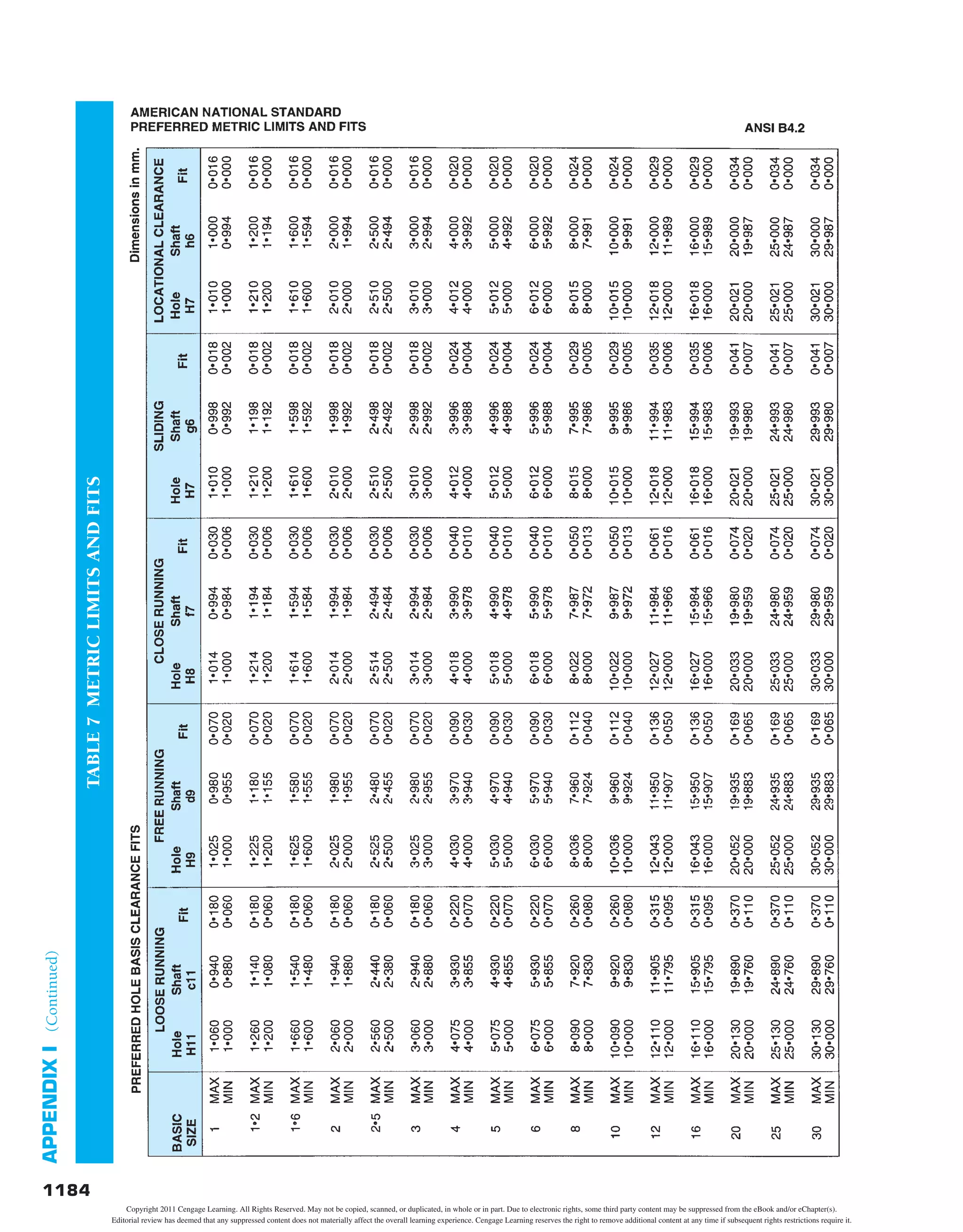
Appendix I—Standard Allowances, Tolerances, and Fits . . .1174
Table 5—Allowances and Tolerances
Preferred Hole Basis Fits . . . . . . . 1174
Allowances and Tolerances
Preferred Shaft Basis Fits . . . . . . . 1174
Allowances and Tolerances
Description of Preferred Fits . . . . 1175
Table 6—American National Standard Fits—
Running and Sliding Fits. . . . . . . 1176
American National Standard Fits—
Clearance Locational Fits . . . . . . 1178
American National Standard Fits—
Transition Locational Fits . . . . . . 1180
American National Standard Fits—
Interference Locational Fits. . . . . 1181
American National Standard Fits—
Force and Shrink Fits . . . . . . . . . 1182
Table 7—Metric Limits and Fits—Preferred
Hole Basis Clearance Fits. . . . . . . 1184
Metric Limits and Fits—
Preferred Shaft Basis
Clearance Fits . . . . . . . . . . . . . . . 1186
Table 8—Metric Tolerance Zones—Metric
Tolerance Zones for Internal
(Hole) Dimensions . . . . . . . . . . . 1188
Metric Tolerance Zones—
Tolerance Zones for
External (Shaft) Dimensions. . . . 1189
Appendix J—Unified Screw Thread Variations . . . . . . . . . 1190
Table 9—Unified Standard Screw
Thread Series . . . . . . . . . . . . . . . . 1191
Appendix K—Metric Screw Thread Variations . . . . . . . . . 1192
Appendix L—ASTM and SAE Grade Markings for Steel
Bolts and Screws . . . . . . . . . . . . . . . . . . . . . 1193
Appendix M—Cap Screw Specifications . . . . . . . . . . . . . . 1194
Table 10—Dimensions of Hex Cap Screws
(Finished Hex Bolts) . . . . . . . . . 1194
Table 11—Dimensions of Hexagon and
Spline Socket Head Cap Screws
(1960 Series) . . . . . . . . . . . . . . . 1195
Table 12—Dimensions of Hexagon and
Spline Socket Flat Countersunk
Head Cap Screws . . . . . . . . . . . . 1196
Table 13—Dimensions of Slotted Flat
Countersunk Head Cap
Screws . . . . . . . . . . . . . . . . . . . . 1197
Table 14—Dimensions of Slotted Round
Head Cap Screws . . . . . . . . . . . . 1198
Table 15—Dimensions of Slotted Fillister
Head Cap Screws . . . . . . . . . . . . 1198
SECTION 6
ENGINEERING DESIGN 1129
Chapter 25—The Engineering
Design Process 1130
Learning Objectives . . . . . . . . . . . . . . . . . . . . . . . 1130
The Engineering Design Application . . . . . . . . 1130
Introduction . . . . . . . . . . . . . . . . . . . . . . . . . . . . . 1131
Engineering Design and Industry
Management Models . . . . . . . . . . . . . . . . . . . . 1131
An Engineering Design Process . . . . . . . . . . . . . . 1134
The Phase Gate Design Process . . . . . . . . . . . . . . 1137
After Full Production . . . . . . . . . . . . . . . . . . . . . . 1147
Creativity and Innovation in Design . . . . . . . . . . 1147
Change and the Impact on the Design
Process . . . . . . . . . . . . . . . . . . . . . . . . . . . . . . . 1149
Design Deliverables . . . . . . . . . . . . . . . . . . . . . . . 1150
The Design Process Responds to Changes
in Engineering . . . . . . . . . . . . . . . . . . . . . . . . . 1150
Green Technology Application . . . . . . . . . . . . . 1151
Professional Perspective . . . . . . . . . . . . . . . . . . 1151
Web Site Research . . . . . . . . . . . . . . . . . . . . . . . . 1153
The Engineering Design Process Test. . . . . . . . . . 1153
The Engineering Design Process Problems . . . . . 1153
SECTION 7
ENGINEERING
DRAWING AND
DESIGN STUDENT CD 1157
Descriptive Geometry I . . . . . . . . . . . . . . . . . . . . 1158
Descriptive Geometry II. . . . . . . . . . . . . . . . . . . . 1158
Engineering Charts and Graphs. . . . . . . . . . . . . . 1158
Engineering Drawing and
Design Math Applications . . . . . . . . . . . . . . . . 1158
Fluid Power . . . . . . . . . . . . . . . . . . . . . . . . . . . . . 1158
APPENDICES
Appendix A—Abbreviations . . . . . . . . . . . . . . . . . . . . . . . 1163
Appendix B—Conversion Charts:
Table 1—Inches to Millimeters. . . . . . . . . . 1166
Table 2—Millimeters to Inches. . . . . . . . . . 1166
Table 3—Inch/Metric Equivalents . . . . . . . 1166
Table 4—Inch/Metric—Conversion—Length,
Area, Capacity, Weight. . . . . . . . . 1167
Appendix C—Mathematical Rules Related
to the Circle . . . . . . . . . . . . . . . . . . . . . . . . 1168
Appendix D—General Applications of SAE Steels . . . . . . 1169
Appendix E—Surface Roughness Produced by Common
Production Methods . . . . . . . . . . . . . . . . . . 1170
Copyright 2011 Cengage Learning. All Rights Reserved. May not be copied, scanned, or duplicated, in whole or in part. Due to electronic rights, some third party content may be suppressed from the eBook and/or eChapter(s).
Editorial review has deemed that any suppressed content does not materially affect the overall learning experience. Cengage Learning reserves the right to remove additional content at any time if subsequent rights restrictions require it.
CONTENTS xi
Appendix X—Valve Specifications. . . . . . . . . . . . . . . . . . . 1226
Table 32—Wrought Steel Pipe and Taper
Pipe Threads—American
National Standard.. . . . . . . . . . . 1229
Table 33—Cast Iron Pipe Screwed Fittings,
125 LB—American National
Standard. . . . . . . . . . . . . . . . . . . 1230
Appendix Y—PVC Pipe Dimensions in Inches . . . . . . . . . 1231
Appendix Z—Rectangular and Round HVAC Duct
Sizes . . . . . . . . . . . . . . . . . . . . . . . . . . . . . . 1233
Appendix AA—Spur and Helical Gear Data . . . . . . . . . . . 1234
Appendix BB—CADD Drawing Sheet Sizes, Settings,
and Scale Factors . . . . . . . . . . . . . . . . . . . 1235
CD Appendices: There is a CD available at the back of
Engineering Drawing and Design, 5e. The CD contains a
variety of valuable features for you to use as you learn
engineeringdrawinganddesign.TheCDicon,placedthroughout
this textbook, directs you to features found on the CD.
CD Appendix A—American National Standards of Interest to
Designers, Architects, and Drafters
CD Appendix B—ASME Standard Line Types
CD Appendix C—Dimensioning and Tolerancing Symbols
and ASME Dimensioning Rules
CD Appendix D—Designation of Welding and Allied
Processes by Letters
CD Appendix E—Symbols for Pipe Fittings and Valves
CD Appendix F—Computer Terminology and Hardware
CD Instructions: Access the CD to view the CD chapters,
appendices, chapter tests, and selected chapter problems:
• Place the CD in your CD drive.
• The CD should open (start) automatically.
• If the CD does not start automatically, pick the Start button in
the lower left corner of your screen, and select Run, . . . fol-
lowed by accessing the CD drive on your computer.
• Pick the desired chapter, appendix, test, or problem applica-
tion button on the left side of the CD window.
Glossary . . . . . . . . . . . . . . . . . . . . . . . . . . . . . 1239
Index . . . . . . . . . . . . . . . . . . . . . . . . . . . . . . . 1273
Appendix N—Machine Screw Specifications. . . . . . . . . . . 1199
Table 16—Dimensions of Slotted Flat
Countersunk Head Machine
Screws . . . . . . . . . . . . . . . . . . . . 1199
Appendix O—Set Screw Specifications . . . . . . . . . . . . . . . 1200
Table 17—Dimensions of Hexagon and
Spline Socket Set Screws . . . . . . 1200
Appendix P—Hex Nut Specifications . . . . . . . . . . . . . . . . 1202
Table 18—Dimensions of Hex Nuts
and Hex Jam Nuts . . . . . . . . . . . 1202
Appendix Q—Key and Keyseat Specifications . . . . . . . . . 1203
Table 19—Woodruff Key Dimensions . . . . 1203
Table 20—Woodruff Keyseat Dimensions . 1205
Table 21—Key Size Versus Shaft Diameter 1207
Table 22—Key Dimensions and Tolerances 1208
Table 23—Gib Head Nominal Dimensions 1208
Table 24—Class 2 Fit for Parallel and
Taper Keys . . . . . . . . . . . . . . . . . 1209
Appendix R—Tap Drill Sizes. . . . . . . . . . . . . . . . . . . . . . . 1210
Table 25—Decimal Equivalents and Tap
Drill Sizes (Letter and
Number Drill Sizes). . . . . . . . . . 1210
Appendix S—Concrete Reinforcing Bar (Rebar)
Specifications. . . . . . . . . . . . . . . . . . . . . . . . 1211
Appendix T—Common Welded Wire Reinforcement
Specifications . . . . . . . . . . . . . . . . . . . . . . . 1212
Table 26—Wire Size Comparison. . . . . . . . 1212
Table 27—Common Styles of Metric
Welded Wire Reinforcement
(WWR) . . . . . . . . . . . . . . . . . . . 1214
Appendix U—ASTM A500 Square and Rectangular
Structural Tubing Specifications. . . . . . . . . 1215
Appendix V—Structural Metal Shape Designations . . . . . 1216
Table 28—W, M, S, and HP Shapes—
Dimensions . . . . . . . . . . . . . . . . 1216
Table 29—Channels American
Standard and
Miscellaneous—Dimensions . . 1221
Appendix W—Corrosion-Resistant Pipe Fittings . . . . . . . 1223
Table 30—Weldings, Fittings, and Forged
Flanges—Dimensions . . . . . . . . 1223
Table 31—Threaded Fittings and
Threaded Couplings,
Reducers, and Caps . . . . . . . . . . 1225
Copyright 2011 Cengage Learning. All Rights Reserved. May not be copied, scanned, or duplicated, in whole or in part. Due to electronic rights, some third party content may be suppressed from the eBook and/or eChapter(s).
Editorial review has deemed that any suppressed content does not materially affect the overall learning experience. Cengage Learning reserves the right to remove additional content at any time if subsequent rights restrictions require it.
P R E F A C E
and minimizing manufacturing variables using quality man-
agement methods.
• CADD theory and applications highlighted in an expanded,
full-color chapter.
• New CADD applications that demonstrate advances made in
this industry.
• Additional drafting and design problems that expand on the
hundreds of problems already available throughout the text-
book and on the Student CD.
• A new Note boxed feature provides you with expanded
side information relative to specific features and current
applications.
• Protecting the environment is one of the most important
worldwide issue today. A new flagship feature called Green
Technology Application is found throughout this text-
book, providing current practical and experimental energy-
efficient design, construction and manufacturing techniques
resulting in a significant reduction in energy consumption
and harmful emissions.
• Expanded Glossary. Every important term is defined in text
and in the complete glossary.
• Improved content based on comprehensive technical re-
views. Professional discipline–related technical reviewers
were commissioned to evaluate content and provide input
about accuracy and expanded coverage.
• Chapter tests are revised to correspond with new and up-
dated content.
• Chapter problems have been evaluated for accuracy and
new problems added to reflect changes in drafting stan-
dards, and for real-world applications provided by technical
reviewers.
• Most manual drafting content is moved to the Student CD.
• Expanded material selection criteria, manufacturing pro-
cesses, and engineering design applications have been added
to the Manufacturing Materials and Processes chapter and
throughout the textbook.
• Updated Web site research options have been added
throughout.
• Professional Perspectives have been revised with real-world
content written by industry professionals.
For more than 25 years, students have relied on Engineering
Drawing and Design for its easy-to-read, comprehensive coverage
of drafting and design instruction that complies with industry
standards. The Fifth Edition continues its tradition of excellence
with a multitude of actual quality industry drawings that dem-
onstrate content coverage and the addition of new problems to
the hundreds already on-hand for real-world, practical applica-
tion. The engineering design process featured in this revision
contains new material related to production practices that elim-
inate waste in all phases from design through manufacturing
to marketing and distribution. Also described are practices that
seek to improve the quality of process outputs by identifying
and removing the causes of defects and minimizing manufac-
turing variables using quality management methods. An actual
product design is taken from concept through manufacturing
and to marketing. This is the most comprehensive product de-
sign analysis found in any discipline-related textbook. More
than 1000 drafting and design problems are found throughout
for basic to advanced challenging applications or for use indi-
vidually and as team projects. New and current features of this
textbook are described throughout this Preface.
NEW TO THIS EDITION
• Expanded history of drafting feature.
• A new Standards feature box describes the specific standards
used as related to chapter content.
• New Engineering Design Applications features written by
industry professionals.
• Updated ASME and discipline-related standards.
• Updated CADD standards.
• Comprehensive coverage of ASME Y14.5-2009, Dimensioning
and Tolerancing, including the most comprehensive geometric
dimensioning and tolerancing content found in any textbook.
• CADD file templates for standard ASME inch and metric draw-
ings, and architectural and civil inch and metric drawings.
• New material related to production practices that eliminate
waste in all phases from design through manufacturing and
to marketing and distribution.
• Current practices that seek to improve the quality of process
outputs by identifying and removing the causes of defects
xii
Copyright 2011 Cengage Learning. All Rights Reserved. May not be copied, scanned, or duplicated, in whole or in part. Due to electronic rights, some third party content may be suppressed from the eBook and/or eChapter(s).
Editorial review has deemed that any suppressed content does not materially affect the overall learning experience. Cengage Learning reserves the right to remove additional content at any time if subsequent rights restrictions require it.
PREFACE xiii
Review Guide. Although this publication is not conclusive with
respect to ADDA standards, it should be considered a key reference
tool in pursuit of a professional design-drafting career.
ENGINEERING DRAWING AND DESIGN
CURRICULUM OPTIONS
The conversational-style content is easy to read and easy to use.
This textbook is comprehensive and can be used in the entire
curriculum. The chapters can be used as presented or rear-
ranged to fit any of the following courses:
• Drafting Fundamentals
• Engineering Drafting
• The Engineering Design Process
• Engineering Graphics
• Computer-Aided Design and Drafting (CADD)
• Mechanical Drafting
• Descriptive Geometry
• Manufacturing Materials and Processes
• Welding Processes and Weldment Drawings
• Geometric Dimensioning and Tolerancing (GD&T)
• Tool Design
• Mechanisms: Linkages, Cams, Gears, and Bearings
• Belt and Chain Drives
• Pictorial Drawings and Technical Illustration
• 3-D CAD and Modeling, Animation, and Virtual Reality
• Structural Drafting
• Civil Drafting
• Industrial Pipe Drafting
• Heating, Ventilating, and Air-Conditioning (HVAC)
• Pattern Development
• Precision Sheet Metal Drafting
• Fluid Power
• Engineering Charts and Graphs
• Electrical Drafting
• Electronics Drafting
• Drafting Math
CHAPTER FORMAT
Each chapter provides realistic examples, illustrations, and re-
lated tests and problems. The examples illustrate recommended
drafting and design presentation based on ASME standards and
other related national standards and codes, with actual industry
drawings used for reinforcement. The correlated text explains
drawing techniques and provides professional tips for skill de-
velopment. Step-by-step examples provide a logical approach to
setting up and completing the drawing problems. Each chapter
has the following special features.
Engineering Design Application
The Engineering Design Application leads the content of every
chapter. This section gives you an early understanding of the
• The most comprehensive chapter-related PowerPoint®
pre-
sentation found in any textbook is now available on the
Instructor CD.
• Detailed course-specific syllabi on the Instructor CD.
• Chapter-correlated ExamView tests are available for alter-
nate testing opportunities.
Engineering Drawing and Design, Fifth Edition, continues the
proven success of its previous editions:
• Engineering Design Applications.
• CADD Applications throughout.
• Hundreds of illustrative examples supporting text content.
• Actual industry drawing examples to pull chapter content
together.
• Professional Perspectives.
• Math Applications throughout and comprehensive design
drafting–related math instruction on the Student CD.
• Step-by-step layout methods.
• Engineering layout techniques.
• Practical and useful appendices.
• More than 1000 real-world industry problems throughout.
• Chapter tests for examination or review on the Student CD.
• ASME drafting and print reading problems on the Student CD.
• Comprehensive Instructor CD.
Engineering Drawing and Design presents engineering drafting
standards developed by the ASME and accredited by the American
National Standards Institute (ANSI). This textbook also references
International Organization for Standardization (ISO) engineering
drafting standards and discipline-specific standards when appro-
priate, including American Welding Society (AWS) standards, the
American Society for Testing Materials (ASTM), the American In-
stitute for Steel Construction (AISC), the Construction Specifica-
tions Institute (CSI), and the United States National CAD Standard
(NCS). Also presented, when appropriate, are standards and codes
for specific engineering fields. One important foundation to en-
gineering drawing and design, and the implementation of a com-
mon approach to graphics nationwide, is the standardization in all
levels of drawing and design instruction. Chapter 1, Introduction to
Engineering Drawing and Design, provides a detailed introduction
to drafting standards, and specific content-related standards are
described throughout this textbook. When you become a profes-
sional, this text will serve as a valuable desk reference.
AMERICAN DESIGN DRAFTING
ASSOCIATION (ADDA)–APPROVED
PUBLICATION
The content of this text is con-
sidered a fundamental com-
ponent of the design drafting
profession by the American
Design Drafting Association.
This publication covers topics
and related material as stated
in the ADDA Curriculum Cer-
tification Standards and the ADDA Certified Drafter Examination
Copyright 2011 Cengage Learning. All Rights Reserved. May not be copied, scanned, or duplicated, in whole or in part. Due to electronic rights, some third party content may be suppressed from the eBook and/or eChapter(s).
Editorial review has deemed that any suppressed content does not materially affect the overall learning experience. Cengage Learning reserves the right to remove additional content at any time if subsequent rights restrictions require it.
xiv PREFACE
CADD Applications
CADD Applications are provided in each chapter to illustrate
how the use of CADD is streamlining the design and drafting
process. Both 2-D and 3-D CADD Applications demonstrate
advances made in discipline-related discussions and examples.
type of engineering project that is found in the specific design
and drafting area discussed in the chapter.
T H E E N G I N E E R I N G D E S I G N A P P L I C AT I O N
You should always approach an engineering drafting prob-
lem in a systematic manner. As an entry-level drafter, cre-
ate sketches and written notes to plan how you propose
to solve the problem. You are also often given engineering
sketches and notes to interpret. Engineering sketches can
be difficult to read. This is typical because engineers nor-
mally do not have the time or the skills to prepare a very
neat and accurate sketch. Actual engineering sketches can
be out of proportion and missing information. Dimensions
on engineering sketches often do not comply with ASME
or other related standards. Your responsibility is to convert
the engineer’s communication into a formal drawing that
is accurate and drawn to proper standards. Do as much
work as you can based on the given sketches and related
information, but ask the engineer for help if you discover is-
sues that are difficult to interpret or seem to be inaccurate.
Much of the work you do in engineering drafting con-
tains geometry and related geometric characteristics.
Many geometric characteristics are basic, such as drawing
circles and arcs, but many can be complicated, such as
compound curves. Refer to the engineer’s sketch shown
in Figure 7.1 as you follow these layout steps:
STEP 1 Do all preliminary layout work using construc-
tion lines on a construction layer or line type
that will not display when finished. Begin by
establishing the centers of the Ø57 and Ø25.5
circles and then draw the circles. The Ø symbol
represents a circle’s diameter.
STEP 2 Draw the concentric circles of Ø71.5 and Ø40.
STEP 3 Locate and draw the 6X R7.5 arcs and then use
tangencies to draw the R3 radii arcs with the
outside arcs.
STEP 4 Draw the 2X R7 arcs tangent to the large inside
arcs.
STEP 5 Draw the centerlines for the 6X Ø7 circles and
then draw the circles from the established center
points. Draw all centerlines on the appropriate
layer, such as the CENTERLINE layer.
STEP 6 Complete all visible object lines by trimming and
extending as needed. Make sure all visible lines
are on the appropriate layer, such as the OBJECT
layer. Erase unwanted features. Turn off or freeze
the construction layer. Figure 7.2 shows the fin-
ished drawing.
FIGURE 7.2 The complete drawing (without dimensions) for
engineer’s sketch shown in Figure 7.1.
©
Cengage
Learning
2012
FIGURE 7.1 Engineer’s sketch.
©
Cengage
Learning
2012
09574_ch07_p218-246.indd 218 4/28/11 12:43 PM
ENGINEERING DESIGN APPLICATION
STEP 3 Duct sizes can be noted as 22 3 12 (560 3 300 mm)
or 22/12, where the first number, 22, is the duct width,
and the second numeral, 12, indicates the duct depth.
STEP 4 Place notes on the drawing to avoid crowding. Aligned
dimensioning can be used where horizontal notes read
from the bottom of the sheet and vertical notes read from
the right side of the sheet. Make notes clear and concise.
STEP 5 Refer to schedules to get specific drawing information
that is not otherwise available on the sketch.
STEP 6 Label equipment either blocked out or bold to clearly
stand out from other information on the drawing
establish the final HVAC drawing. The final HVAC contract
drawing is shown in Figure 23.15a. The HVAC contract draw-
ing is the drawing or set of drawings for the HVAC system based
on the building construction contract. Contract documents
were described earlier in this chapter.
Convert an engineering sketch to a formal contract drawing
using the following steps.
STEP 1 Draw duct runs using thick .03 or .035 in. (0.7 or 0.9
mm) line widths.
STEP 2 Label duct sizes within the duct when appropriate or
use a note with a leader to the duct in other situations.
STEP-BY-STEP DRAFTING PROCEDURES AND TECHNIQUES
NOTE: Numbered series threads are major thread
diameters less than 1/4 in. These threads are specified
by the screw number 0 through 12, which is the gage
diameter from which the thread is manufactured.
Numbered series threads are designated by their number
followed by the decimal value of the major diameter in
parenthesis. For example, 10 (.190) -32 UNF-2A.
09574_ch11_p392-438.indd 404
NOTE
DRAWING ACCURACY
One important aspect of CADD technology is accuracy.
Multiview and auxiliary view drawings produced with
CADD should be perfect if you use appropriate CADD
techniques and follow correct drafting standards through-
out the drawing process. The reason for high accuracy in-
volves the capabilities of computer hardware and software
and the fact that the computer displays the mathemati-
cal counterpart of the true geometry. Drawing views are
a representation of the mathematical coordinates of the
design problem. Therefore, the accuracy potential of the
computer controls drawing accuracy.
Figure 9.25 shows an example of a drawing of a tubu-
lar mainframe part. A front view and two partial auxiliary
views represent the part completely. CADD offers tools
and options that allow you to construct the geometry of
the front view quickly and accurately. You can then easily
project the auxiliary views from the inclined surfaces using
a viewing plane exactly perpendicular to the inclined sur-
faces. The final step is to add dimensions associated with
view objects. The computer stores data about each object.
Any changes you make to the drawing update in the as-
sociated views and dimensions.
CADD
APPLICATIONS
.130
PRESS ID
6579-028
.375
1.500
R1.700
.700
1.050
R3.000
4.850
1.000
R3.000
1.000
2.000
4.000
6.000
Ø.920
Ø1.050
.875
2.000
3.500
40°
40°
6X Ø.312
Ø.250
R
PICTORIAL
DRAWING
FIGURE 9.25 An example of a part with a front view and two auxiliary views.
©
Cengage
Learning
2012
09574_ch09_p292-314.indd 304 4/28/11 12:45 PM
CADD APPLICATIONS
Standards
Specific drafting standards are identified throughout the text-
book as they relate to chapter content.
ASME The primary standard published by the Ameri-
can Society of Mechanical Engineers (ASME) is ASME
Y14.5-2009, which is titled Dimensioning and Toleranc-
ing. This standard establishes uniform practices for stat-
ing and interpreting dimensioning, tolerancing, and
related requirements for use on engineering drawings
and related documents. The standard ASME Y14.5.1,
Mathematical Definition of Dimensioning and Tolerancing
Principles, provides a mathematical definition of GD&T
for the application of ASME Y14.5. ASME Y14.5.2, Cer-
tification of Geometric Dimensioning and Tolerancing Pro-
fessionals, establishes certification requirements for a
Geometric Dimensioning and Tolerancing Professional
(GDTP). The standard ASME Y14.31, Undimensioned
Drawings, provides the requirements for undimen-
sioned drawings that graphically define features with
true geometry views without the use of dimensions.
ASME Y14.43, Dimensioning and Tolerancing Principles
for Gages and Fixtures, provides practices for dimen-
sioning and tolerancing of gages and fixtures used for
the verification of maximum material condition. The
standard that controls general dimensional tolerances
found in the dimensioning and tolerancing block or
in general notes is ASME Y14.1, Decimal Inch Drawing
Sheet Size and Format, and ASME Y14.1M, Metric Draw-
ing Sheet Size and Format.
STANDARDS
09574_ch13_p475-561.indd 477 4/28/11 12:56 PM
STANDARDS
Note
A special Note box feature is used where appropriate to provide
additional explanation, helpful tips, professional information,
or alternate practice.
Step-by-Step Drafting
Procedures and Techniques
Each chapter has step-by-step instructions for applying drafting
techniques to the chapter-related content.
Drafting Templates
Standard CADD file template with predefined drafting
settings are available on the Student CD. Use the tem-
plates to create new designs, as a resource for drawing
Copyright 2011 Cengage Learning. All Rights Reserved. May not be copied, scanned, or duplicated, in whole or in part. Due to electronic rights, some third party content may be suppressed from the eBook and/or eChapter(s).
Editorial review has deemed that any suppressed content does not materially affect the overall learning experience. Cengage Learning reserves the right to remove additional content at any time if subsequent rights restrictions require it.
PREFACE xv
throughout this textbook. The material is presented with nu-
merous examples in a manner that is easy to use and understand.
For complete information and instructions for Engi-
neering Drawing and Design Math Applications, go to
the Student CD, select Reference Material and Engi-
neering Drawing and then Design Math Applications.
Metric Applications
Values presented in the content are in inches and are identi-
fied with (in.). Related metric values are given in parentheses
using the appropriate equivalencies. Specific metric applica-
tions are given throughout this textbook. Metric applications
are a very important part of the drafting and design industry.
Chapter ending problems are also given for inch and met-
ric applications and are labeled accordingly with (inch) or
(metric). Illustrative examples provided throughout the text
are displayed using metric values in millimeters, unless oth-
erwise specified.
Chapter-Related Tests
Related chapter tests appear on the Student CD for examination
or review. The tests ask for short answers, sketches, or drawings
to confirm your understanding of chapter content.
To access a chapter test, go to the Student CD, select
Chapter Tests and Problems, and then the chapter.
Answer the questions with short complete statements,
sketches, or drawings as needed. Confirm the preferred submit-
tal process with your instructor.
Chapter-Related Problems
Each chapter ends with numerous real-world drafting and de-
sign problems for you to practice what you have learned. This
book contains more than 1000 problems that range from basic
to complex. Problems are presented as real-world engineering
sketches, pictorial engineering layouts, and actual industry
projects. Advanced problems are given for challenging applica-
tions or for use as team projects. Problems are so numerous that
they cannot all be placed in the textbook. Some problems are
placed on the Student CD for access. Most problems require
you to use standards sheet sizes, borders, and sheet blocks re-
lated to the specific discipline.
and model content, or for inspiration when developing your
own templates. The ASME-Inch and ASME-Metric drafting tem-
plates follow ASME, ISO, and related mechanical drafting stan-
dards. Architectural and civil drafting templates are also available
for use with your electrical, piping, HVAC, structural, and civil
drawings. Drawing templates include standard sheet sizes and
formats and a variety of appropriate drawing settings and con-
tent. You can also use a utility such as the AutoCAD DesignCen-
ter to add content from the drawing templates to your own
drawings and templates. Consult with your instructor to deter-
mine which template drawing and drawing content to use.
MATH
APPLICATIONS
DESIGNING AN OBSERVATION
PLATFORM
Problem: Suppose a building code states that the rise be-
tween stair treads cannot exceed 8" for a 12" tread. Find
the minimum distance for dimension L and a correspond-
ing angle A in Figure 22.101 of an observation platform.
Solution: Geometrical figures are similar when they have
the same shape. They are congruent when they have the
same shape and size. When two triangles are similar, pro-
portional equations can be written. In this design prob-
lem, you have similar triangles: the large staircase and the
smaller single tread (see Figure 22.102).
Set up a proportion
23
___
x 5 8
___
12
which gives
x 5 34.5'
The dimension L is an additional 7':
L 5 34.5 1 7 5 41.5' or 41'-6"
Also, because we are dealing with right triangles, angle A
can be found by the application of one trig function:
A 5 Inv tan 8
___
12
5 33.78
It is often necessary for the drafter to calculate the weight
and cubic yard of concrete for bills of materials, cost esti-
mates, and construction purposes. The following formulas
can be used to make these calculations:
(Length 3 Width 3 Height) 3 150 5 Total weight
(Length 3 Width 3 Height) 4 27 5 Cubic yard
Problem: Given a precast concrete panel with the dimen-
sions 18'-4" long, 1'-4" wide, and 2'-0" high, calculate the
weight in pounds and the volume in yards.
Solution:
18'-4" 3 1'-4" 3 2'-0" 5 48.88889 cubic feet
48.88889 3 150 5 7333.3333 lb
48.88889 4 27 5 1.81 cubic yards
If there are holes or cutouts, then it is necessary to calcu-
late the combined volume and weight of these and sub-
tract them from the total.
FIGURE 22.102 Two similar triangles. © Cengage Learning 2012
©
Cengage
Learning
2012
FIGURE 22.101 Observation platform.
09574_ch22_p928-1014.indd 998 4/28/11 5:21 PM
MATH APPLICATIONS
Drafting Templates
To access CADD template files with predefined
drafting settings, go to the Student CD, select
Drafting Templates and then select the appropri-
ate template file. The ASME-Inch and ASME-Metric
drafting templates follow ASME, ISO, and related
mechanical drafting standards. Drawing templates
include standard sheet sizes and formats and a va-
riety of appropriate drawing settings and content.
You can also use a utility such as the AutoCAD
DesignCenter to add content from the drawing
templates to your own drawings and templates.
Consult with your instructor to determine which
template drawing and drawing content to use.
09574_ch15_p595-677.indd 631 4/28/11 12:59 PM
DRAFTING TEMPLATES
PROBLEM 9.15 Primary auxiliary view (in.)
Title: Angle V-block
Material: SAE 4320
Part 4: Problem 9.15
This problem provides you with dimensioned pictorial views and
a proposed start for your multiview and auxiliary view layout.
Draw the required multiviews and auxiliary views. Use the given
dimensions to create your final drawing. Set up your drawings with
a properly sized sheet, border, and sheet block. Properly complete
the information in the title block. Do not draw the pictorial view
unless required by your instructor. Do not draw the dimensions.
Chapter 9 Auxiliary Views Problems
Parts 1, 2, and 3: Problems 9.1 Through 9.14
To access the Chapter 9 problems, go to
the Student CD, select Chapter Tests and
Problems and Chapter 9, and then open
the problem of your choice or as assigned
by your instructor. Solve the problems using
the instructions provided on the CD, unless
otherwise specified by your instructor.
Chapter 9 Auxiliary Views Test
To access the Chapter 9 test, go to the Student
CD, select Chapter Tests and Problems,
and then Chapter 9. Answer the questions
with short, complete statements, sketches, or
drawings as needed. Confirm the preferred
submittal process with your instructor.
CHAPTER-RELATED TESTS AND PROBLEMS
To access CADD file templates with predefined drafting
settings, go to the Student CD, select Drafting Templates,
and then select the appropriate file template.
Math Applications
Practical drafting-related math applications and math problems
appear in every chapter and are correlated with the chapter con-
tent. These elements provide examples and instruction on how
math is used in a specific discipline.
Engineering Drawing and
Design Math Applications
This content provides comprehensive math instruction for
engineering design and drafting and related fields. The con-
tent parallels the math applications and problems in chapters
Copyright 2011 Cengage Learning. All Rights Reserved. May not be copied, scanned, or duplicated, in whole or in part. Due to electronic rights, some third party content may be suppressed from the eBook and/or eChapter(s).
Editorial review has deemed that any suppressed content does not materially affect the overall learning experience. Cengage Learning reserves the right to remove additional content at any time if subsequent rights restrictions require it.
xvi PREFACE
current practical and experimental energy-efficient design, con-
struction and manufacturing techniques resulting in a significant
reduction in energy consumption. As industry grows to meet
the demands of our increasing population, there is a strong need
to take care of the environment and allow for current and fu-
ture development. As a student, it is very important for you to
learn what is available today and to find ways to improve energy
efficiency in design and construction into the future in an effort
to protect the earth. National and local programs have been
established to meet this need. Modern advances are available to
designers, builders, manufacturers and owners who want to use
green technology and make the most of environmental protec-
tion in our industries. A focus is on Sustainable development
that meets the needs of the present without compromising the
ability of future generations to meet their own needs. Sustain-
ability includes projects that can be produced without permanent
and unacceptable change in the natural environment on which it
and other economic activities depend, over the life of the project.
To access the chapter problems, go to the Student CD,
select Chapter Tests and Problems, select the chap-
ter, and then open the problem of your choice or as
assigned by your instructor. Solve the problems using the in-
structions provided with this chapter or on the CD, unless oth-
erwise specified by your instructor.
Professional Perspective
The Professional Perspective is a boxed article at the end of
chapters that explains how to apply the skills and knowledge
discussed in the chapter to a real-world, job-related setting. Pro-
fessional perspectives are written by industry professionals and
give you an opportunity to hear what actual engineers, designers,
and drafters have to say about the design drafting industry and
what you can expect as a drafter in the chapter-related discipline.
PROFESSIONAL PERSPECTIVE
The field of process piping design and drafting can provide
an excellent opportunity for a person to enter engineering.
Many consulting engineering companies pay for the edu-
cation of employees who want to upgrade their skills. This
additional education can help as a path toward becoming a
designer, technician, or engineer, because you can get valu-
able job training while working toward an advanced degree.
Piping drafters are often required to work with welders,
civil and steel consultants, equipment designers, geological
engineers, geophysical engineers, and electrical engineers.
Portions of drawings commonly come from different depart-
ments, or from different companies or contractors to establish
the complete project. Drafters must be able to communicate
with all of these people.
A good piping drafter, designer, or engineer is one who
is aware of the actual job-site requirements and problems.
These field situations are often considerably different from
the layout that is designed in the office. Therefore, if you are
planning to work in the industrial piping profession, do your
best to work on projects in which you can gain field expe-
rience. Fieldwork is especially important when adding new
equipment and pipe in an existing facility. There are many
stories of inexperienced piping designers who have created a
design in the office and then gone to the field to find a new 4"
pipe routed directly through an existing 12" pipe. Errors like
this can happen to anyone, but they happen less often with
valuable practical experience.
09574_ch21_p868-927.indd 919 4/28/11 11:11 PM
PROFESSIONAL PERSPECTIVE
WEB SITE RESEARCH
Use the following Web sites as a resource to help find more information related to engineering drawing and design and the content
of this chapter.
Address Company, Product, or Service
www.ab.com Allen-Bradley: industrial electrical controls
www.aise.org American Institute of Steel Construction
www.allamericanproducts.com All American Products: tooling components
www.aluminum.org Aluminum Association
www.americanchemestry.com American Chemistry Council
www.asme.org American Society of Mechanical Engineers
www.astm.org American Society for Testing Materials International: create standards for materials, products
www.azom.com The A to Z of materials
www.carrlane.com Carr Lane Manufacturing: tooling components
www.copper.org Copper Development Association
www.destaco.com De-Sta-Co Industries: toggle clamps
www.emtec.org Edison Materials Technology Center: manufacturing materials research
www.ides.com Plastic materials directory
www.ides.com IDES Inc.: plastic materials information
www.industrialpress.com Machinery’s Handbook: manufacturing materials, processes, specifications, and data
www.jergensinc.com Jergens Inc.: tooling components
www.matweb.com MatWeb: online material property data
(Continued)
09574_ch04_p121-172.indd 169 4/28/11 12:40 PM
WEB SITE RESEARCH
ELECTRICITY GENERATION
FROM WIND POWER
The following information was taken, in part, from the South-
west Windpower Web sites located at www.windenergy.com
and www.skystreamenergy.com. Skystream 3.7®
, developed
by Southwest Windpower in collaboration with the United
States Department of Energy National Renewable Energy Lab-
oratory (NREL), is the newest generation of residential wind
technology. Skystream is the first all-inclusive wind generator
with built-in controls and inverter designed specifically for
utility grid–connected residential and commercial use.
RESIDENTIAL WIND POWER
ELECTRICITY GENERATION
Skystream is a small wind generator that allows home
and business owners to harness the free power of the wind
and take control of their energy bills like never before. Early
adopters have reported a savings of more than 50% on their
energy bills. Figure 20.38 shows the Skystream 3.7.
Specifically for Grid Connectivity
The Skystream is specifically designed for utility grid–
connected homes and businesses. In certain states, consumers
can take advantage of net metering, which is the sale of un-
used energy back to the power grid as shown in Figure 20.39.
FIGURE 20.38 The Skystream 3.7 is the first residential, utility grid–
connected small wind power turbine designed for
residential use and commercial applications.
Courtesy
Southwest
Windpower
Skystream provides
electricity to home
Home connected
to utility grid
Disconnect
Switch
Meter
FIGURE 20.39 How the Skystream 3.7 wind power electricity generator works. Courtesy Southwest Windpower
GREEN TECHNOLOGY APPLICATION
09574_ch20_p809-867.indd 825 4/28/11 7:25 PM
GREEN TECHNOLOGY APPLICATION
Web Site Research
Web Site Research is a feature that is placed at the end of chap-
ters, providing key Web sites where you can do additional re-
search, find standards, and seek manufacturing information
or vendor specifications related to the chapter content. Web
sites and links are current but may change after the date of this
publication.
Related Appendices
Each chapter refers to the key appendices for your reference and
use in problem solving. The appendices contain the types of
charts, tables, and information used daily in the engineering de-
sign and drafting environment. Appendices can be copied for use
as desk references as needed. These appendices include common
fastener types and data, fits and tolerances, metric conversion
charts, tap drill charts, and other manufacturing information
used on engineering drawings. There is a complete list of abbre-
viations and a comprehensive glossary. It is also recommended
that you learn to use other resources such as the Machinery’s
Handbook, ASME standards, other specific industry standards
related to chapter content, and appropriate vendor’s catalogues.
Green Technology Application
Protecting the environment is one of the most important world-
wide issues today. A new flagship feature called Green Technol-
ogy Application is found throughout this textbook, providing
Copyright 2011 Cengage Learning. All Rights Reserved. May not be copied, scanned, or duplicated, in whole or in part. Due to electronic rights, some third party content may be suppressed from the eBook and/or eChapter(s).
Editorial review has deemed that any suppressed content does not materially affect the overall learning experience. Cengage Learning reserves the right to remove additional content at any time if subsequent rights restrictions require it.
PREFACE xvii
the next is introduced. Problem assignments are presented
in order of difficulty within each chapter and throughout the
text. The concepts and skills learned in one chapter are built
on and used in following chapters; by the end of the textbook,
you have the ability to solve problems using a multitude of
previously learned discussions, examples, applications, and
activities. The problems are presented as pictorial or actual
industrial layouts in a manner that is consistent with the engi-
neering environment. Early problems provide suggested layout
sketches. It is not enough for you to duplicate drawings from
given assignments: You must be able to think through the pro-
cess of drafting development. The goals and objectives of each
problem assignment are consistent with recommended evalua-
tion criteria and based on the progression of learning activities.
COMPUTER-AIDED DESIGN
AND DRAFTING
Computer-aided design and drafting (CADD) is presented
throughout this textbook. CADD topics include:
• CADD terminology and hardware supplement found on the
Student CD.
• CADD software used in drafting and design.
• CADD standards.
• CADD practices for specific engineering drafting applications.
• 2-D and 3-D CADD techniques and applications used in
industry.
• Increased productivity with CADD.
• The CADD environment in industry.
DESIGN PROJECTS
Chapters contain projects that let you practice your design
knowledge and skills. These advanced problems require you
to systematically determine a desired solution. There are chal-
lenges in manufacturing knowledge, tolerances, accuracy, and
other issues related to the specific discipline. Advanced prob-
lems may have errors intentionally introduced as a challenge
for you to find and correct.
TEAM PROJECTS
Some projects are designed to be solved in a team approach.
Groups of students can develop their own team organization
and establish the best course of action to assign team member
responsibilities and create the desired solutions.
COURSE PLAN
Section 1: Introduction to
Engineering Drawing and Design
I n t r o d u c t i o n t o E n g i n e e r i n g
D r a w i n g a n d D e s i g n
Chapter 1 provides a detailed look at drafting as a profession
and includes a brief history, occupations, professional organiza-
tions, occupational levels, opportunities, career requirements,
Glossary
The most comprehensive glossary available is at the end of this
textbook. Glossary terms are bold in chapter content, where they
are defined immediately and also placed in the glossary for addi-
tional reference. Each term is clearly defined using descriptions
that are related to engineering drafting and design applications.
PULLING IT ALL TOGETHER
Looking at actual industry drawings is an excellent way to pull
together what you have learned. Chapters have actual indus-
try drawings placed along with other illustrative examples so
you can see how the specific application is accomplished in the
real world. Chapters also often end with an example of a fairly
complex industry drawing, allowing you to see how previously
learned content is applied in industry. These drawings have
been selected for their quality and characteristics related to the
chapter content and their compliance with national and indus-
try standards. You should spend as much time as possible look-
ing at actual industry drawings in an effort to help you visualize
the thought that goes into creating drawings.
STUDENT CD ACCOMPANYING
ENGINEERING DRAWING AND DESIGN
Material on the Companion
Student CD
The Student CD available at the back of Engineering Drawing
and Design, Fifth Edition, contains a variety of valuable features
for you to use as you learn engineering drawing and design.
The Student CD icon , placed throughout this textbook,
directs you to features found on the Student CD.
How to use the Student CD instructions are provided in
Section 7 on pages 1157 through 1160.
S t u d e n t C D C o n t e n t s
Additional Appendices
ASME Print Reading or Drawing Exercises
Chapter Tests and Problems
Drafting Templates
Reference Material
Descriptive Geometry I
Descriptive Geometry II
Engineering Charts and Graphs
Engineering Drawing and Design Math Applications
Fluid Power
Supplemental Material
INDUSTRY APPROACH
TO PROBLEM SOLVING
Your responsibility as a drafter is to convert engineering
sketches or instructions to formal drawings. This text explains
how to prepare drawings from engineering sketches by provid-
ing you with the basic guides for layout and arrangement in a
knowledge-building format. One concept is presented before
Copyright 2011 Cengage Learning. All Rights Reserved. May not be copied, scanned, or duplicated, in whole or in part. Due to electronic rights, some third party content may be suppressed from the eBook and/or eChapter(s).
Editorial review has deemed that any suppressed content does not materially affect the overall learning experience. Cengage Learning reserves the right to remove additional content at any time if subsequent rights restrictions require it.
xviii PREFACE
communication with others in the industry. Lines and letter-
ing make up the foundation of engineering drawings. Proper
application of lines and lettering based on correct national
standards is important for you to learn now and use through-
out your career. Drafting geometry is the basis of all geometric
shapes and drafting applications. These fundamentals will be
used throughout your drafting and design education and into
the profession.
Section 3: Drafting Views
and Annotations
M u l t i v i e w s a n d A u x i l i a r y V i e w s
Chapters 8 and 9 provide a complete study of multiviews and
auxiliary views, in accordance with ASME standards, with
accurate and detailed instruction on topics such as view se-
lection and placement, first- and third-angle projection, and
viewing techniques. These chapters provide step-by-step ex-
amples that describe how to lay out multiview and auxiliary
view drawings.
D i m e n s i o n i n g a n d To l e r a n c i n g
Chapter 10 is developed in accordance with ASME Y14.5-2009
and provides complete coverage on dimensioning systems,
rules, specific and general notes, tolerances, symbols, inch and
metric limits and fits, drawing specifications, dimensioning
castings, forgings, plastic drawings, and dimensioning for com-
puter-aided design (CAD) and computer-aided manufacturing
(CAM). You are provided with a step-by-step example showing
how to lay out a fully dimensioned multiview drawing. Addi-
tional coverage includes the basics of tool design and drafting
applications.
F a s t e n e r s a n d S p r i n g s
Chapter 11 presents fastener and spring terminology. The com-
plete range of fastening devices is covered, including screw
threads, thread cutting, thread forms, thread representations
and notes, washers, dowels, pins, rings, keys and keyseats, and
rivets. Types of springs, spring ends, and spring applications are
included. Fasteners and springs are covered after dimensioning
practices so you can apply dimensions to your spring drawings,
and then sectioning techniques follow so you can apply fasten-
ing systems to future drawings.
S e c t i o n s , R e v o l u t i o n s ,
a n d C o n v e n t i o n a l B r e a k s
Chapter 12 explains every type of sectioning practice available
to the mechanical engineering drafter. This chapter also in-
cludes proper representation of sectioned features that should
remain unsectioned in a sectional view, conventional revo-
lutions, and conventional breaks. Section views can be used
as needed in drafting problems throughout the rest of this
textbook.
G e o m e t r i c D i m e n s i o n i n g
a n d To l e r a n c i n g
Chapter 13 provides the most comprehensive coverage found
in any textbook, including geometric tolerancing symbols,
seeking employment, CADD issues, workplace ethics, copy-
rights, patents, trademarks, and a Professional Perspective
from a leading person in the drafting and design industry.
D r a f t i n g E q u i p m e n t , M e d i a ,
a n d R e p r o d u c t i o n M e t h o d s
Chapter 2 covers drafting equipment, materials, and reproduc-
tion methods for drafting, with specific instruction on how to use
tools and equipment provided in the Supplemental Material for
Chapter 2 on the Student CD. The major emphasis of this chap-
ter is the discussion, description, and professional use of ASME-
recommended drawing sheet sizes, border lines, and sheet blocks.
C o m p u t e r - A i d e d D e s i g n
a n d D r a f t i n g ( C A D D )
Chapter 3 introduces computer-aided design and drafting
(CADD) and related technology. This chapter provides CADD
software manufactures and products, explains and compares
CADD formats, and identifies disciplines and industry con-
cepts related to CADD. The use of prototyping, animation, and
virtual reality in the design process is covered. This chapter
demonstrates the variety of CADD techniques found in in-
dustry, including 2-D drafting, surface modeling, and solid
modeling. Content also includes information about CADD
standards, productivity with CADD, and sustainable design
and CAD practices. For computer terminology and hardware
information, go to the Supplemental Material for Chapter 3 on
the Student CD.
M a n u f a c t u r i n g M a t e r i a l s
a n d P r o c e s s e s
Chapter 4 gives you the most complete coverage of manufac-
turing materials and processes found in any textbook of this
type. The chapter includes product development, manufactur-
ing materials, material selection, sustainable materials, material
numbering systems, hardness and testing, casting and forging
methods, metal stamping, manufacturing and design of plas-
tics, design and drafting related to manufacturing processes,
complete machining processes, computer numerical control,
computer-integrated manufacturing, machine features and
drawing representations, surface texture, design of machine
features, and statistical process control. A solid understanding
of materials and processes will prove to be a valuable asset as
you continue your education in drafting and design using this
textbook.
Section 2: Fundamental
Applications
S k e t c h i n g , L i n e s , L e t t e r i n g ,
a n d D r a f t i n g G e o m e t r y
Chapters 5, 6, and 7 explain and detail sketching, lines, letter-
ing, and drafting geometry extensively. These chapters show
you how to properly draw lines and lettering in accordance
with ASME standards. The sketching techniques you learn in
Chapter 5 will continue to be used throughout your drafting
and design education and into the profession. Sketching skills
are important in preparation for creating drawings and for
Copyright 2011 Cengage Learning. All Rights Reserved. May not be copied, scanned, or duplicated, in whole or in part. Due to electronic rights, some third party content may be suppressed from the eBook and/or eChapter(s).
Editorial review has deemed that any suppressed content does not materially affect the overall learning experience. Cengage Learning reserves the right to remove additional content at any time if subsequent rights restrictions require it.
PREFACE xix
Section 5: Specialty Drafting
and Design
E n g i n e e r i n g D r a f t i n g a n d
D e s i g n F i e l d s o f S t u d y
Chapters 19 through 24 provide you with instruction in spe-
cific engineering drawing and design fields. These chapters can
be used individually for complete courses or combined with
previous chapters as needed to fit your curriculum objectives.
These chapters contain comprehensive instruction, problems,
and tests. These fields include:
Precision Sheet Metal Drafting—Chapter 19 provides com-
plete coverage of the different formats used to create precision
sheet metal drawing in industry. Coverage continues with
bend allowances calculations, and characteristics found in
precision sheet metal drawings.
Electrical and Electronics Drafting—Chapter 20 provides
the only coverage of its type in electrical power transmission.
The content is specific to electrical drafting of wiring diagrams,
cable assemblies, one-line and elementary diagrams, electrical
power system symbols, plot plans, bus layouts, ground layouts,
conduit layouts, electrical floor plan symbols, power-supply
plans, and schematics. Chapter 20 also offers detailed con-
tent related to the electronics industry. Topics include block
diagrams, electronic components and symbols, engineer’s
sketches, component numbering, operational amplifier sche-
matics, integrated circuit systems, logic diagrams, large-scale
integration schematics, surface-mount technology, printed cir-
cuit technology, electronics artwork, layers, marking, drilling,
assembly drawings, photo drafting, and pictorial diagrams.
Industrial Process Pipe Drafting—Chapter 21 provides
explanations and detailed examples of pipe and fittings,
piping symbols, valves and instrumentation, pumps, tanks
and equipment, flow diagrams, piping plans and elevations,
piping isometrics, and piping spools. Process flow diagrams
(PFD) and a subset of PFD is the process and instrumentation
diagram (P&ID) are described and illustrated with more de-
tails about the instrumentation schematics used in the plant.
Structural Drafting—Chapter 22 covers reinforced and
precast concrete, truss and panelized framing, timbers,
laminated beams, steel joists and studs, prefabricated
systems, structural steel, structural welding, and structural
details. You have the option of completing one of several
sets of complete structural drawings for light commercial
buildings.
Heating, Ventilating, and Air-Conditioning (HVAC)—
Chapter 23 provides complete coverage of HVAC systems,
heat exchangers, HVAC symbols, single- and double-line
ducted systems, and working from an engineer’s sketch to
create HVAC plans, sections and details, and cutsheets. The
chapter continues with common sheet metal pattern develop-
ments and sheet metal intersections using step-by-step layout
procedures.
Civil Drafting—Chapter 24 discusses and describes the
complete discipline of mapping, including legal descrip-
tions, survey terminology, and drawing site plans. Civil
terms, and applications presented in accordance with ASME
Y14.5-2009. This chapter features datums, feature control,
basic dimensions, geometric tolerances, material condition,
position tolerance, virtual condition, geometric tolerancing ap-
plications, and CADD usage. Geometric dimensioning and tol-
erancing education follows dimensioning and sectioning so you
can apply these concepts as needed throughout your continued
drafting and design education.
P i c t o r i a l D r a w i n g s a n d
Te c h n i c a l I l l u s t r a t i o n s
Chapter 14 provides a complete review of three-dimensional
drafting techniques used in drafting. The chapter includes
extensive discussion of isometric, diametric, trimetric, per-
spective, exploded drawings, and shading methods. Current
technical illustration practices are described and illustrated.
The content of this chapter can be introduced here or earlier in
your education, depending on course objectives.
Section 4: Working Drawings
W o r k i n g D r a w i n g s
Working drawings, introduced in Chapter 15, pull together
everything you have learned, including multiviews, auxil-
iary views, sectioning practices, dimensioning techniques,
and fasteners, allowing you to draw a complete product with
all of its individual parts, an assembly of the product, and a
parts list that includes all of the parts listed, identified, and
correlated with the detail and assembly drawings. Working
drawings include details, assemblies, and parts lists, along
with the most extensive discussion on engineering changes
available.
Also provided is a complete analysis of how to prepare a set
of working drawings from concept to final product and how to
implement an engineering change. This is the most compre-
hensive engineering change content found in any textbook. A
large variety of problem projects are based on actual products
found in a variety of applications in the real world. The working
drawing section continues with assemblies created with link-
ages, cams, gears, bearings, and weldments.
M e c h a n i s m s : L i n k a g e s , C a m s , G e a r s ,
B e a r i n g s , B e l t a n d C h a i n D r i v e s
Chapters 16 and 17 provide you with extensive coverage of
linkage mechanisms, cams, gears, bearings, and belt and chain
drives. The content includes how to design and draw these fea-
tures as details and in assembly. Special attention is given to
design calculations for gears and cams. Detailed information
is given on the selection of bearings and lubricants. The use
of vendors’ catalog information is stressed in the design of belt
and chain drive systems. Actual mechanical engineering design
problems are provided for gear train and cam plate design.
W e l d i n g P r o c e s s e s
a n d R e p r e s e n t a t i o n s
Welding coverage in Chapter 18 provides an in-depth introduc-
tion to processes, welding drawings and symbols, weld types,
symbol usage, weld characteristics, weld testing, welding speci-
fications, and prequalified welded joints.
Copyright 2011 Cengage Learning. All Rights Reserved. May not be copied, scanned, or duplicated, in whole or in part. Due to electronic rights, some third party content may be suppressed from the eBook and/or eChapter(s).
Editorial review has deemed that any suppressed content does not materially affect the overall learning experience. Cengage Learning reserves the right to remove additional content at any time if subsequent rights restrictions require it.
xx PREFACE
Engineering Charts and Graphs—This reference content pro-
vides you with the most comprehensive coverage available on
the design and drafting of engineering charts and graphs.
Engineering Drawing and Design Math Applications—This
reference content provides you with comprehensive math in-
struction for engineering design and drafting and related fields.
The content parallels the math applications and problems in
chapters throughout this textbook. This supplemental material
is presented with numerous examples in a manner that is easy
to use and understand.
Fluid Power—This reference content provides you with com-
plete coverage of fluid power drafting and design applications,
including hydraulic, fluid power, and pneumatic terminology,
rules, symbols, systems, and diagrams.
CHAPTER LENGTH
Chapters are presented in individual learning segments that
begin with basic concepts and build until each chapter provides
complete coverage of each topic. The content of each chapter
generally should be divided into logical teaching segments, pro-
viding you with an opportunity to create basic drawing as you
progress into problems that are more complex.
Applications
This text contains CADD discussion and examples, engineer-
ing layout techniques, working from engineer’s sketches, pro-
fessional practices, and actual industry examples. The problem
assignments are based on actual real-world products and de-
signs. Special emphasis has been placed on providing realistic
problems. Problems are presented as 3-D drawings, engineer-
ing sketches, and layouts in a manner that is consistent with
industry practices. Many of the problems have been supplied
by industry. Each problem solution is based on the step-by-
step layout procedures provided in the chapter discussions.
Problems are given in order of complexity so you gain expo-
sure to a variety of engineering experiences. Early problems
recommend the layout to help you save time. Advanced prob-
lems require you to go through the same thought process that
a professional faces daily, including drawing scale, sheet size
and sheet block selection, view selection and layout, dimen-
sion placement, sectioning placement, and many other ap-
plications. All problems should be solved in accordance with
recommended ASME or other discipline-related industry prac-
tices and standards.
A S p e c i a l N o t i c e A b o u t P r o b l e m s
You should always approach a problem with critical analysis
based on view selection and layout and dimension placement
when dimensions are used. Do not assume that problem
information is presented exactly as the intended solution.
Problems can be deliberately presented in a less-than-opti-
mal arrangement. Beginning problems provide given layout
examples, allowing you to solidify your knowledge before
advancing on your own. Advanced problems often require
you to evaluate the accuracy of provided information. Never
drafting includes road layout, cuts and fills, and plan and
profile drawings. You will go through the step-by-step pro-
cess for drafting a road layout, road cuts and fills, plan and
profile drawings, site plan, topography contours, and a site
grading plan.
Section 6: Engineering Design
T h e E n g i n e e r i n g D e s i g n P r o c e s s
The engineering design process chapter is placed at the end of
the textbook specifically to allow you an opportunity to learn a
vast amount about drafting and design theory and skills before
proceeding with your own designs or the designs of your school
or company.
Chapter 25 provides an introduction to several engineering
design systems, including lean manufacturing and Six Sigma.
Detailed coverage continues with step-by-step use of the phase
gate design process. You will see how all aspects of the design
process fit together. You will take the design of a product from
engineering sketches through production, implementing CAD/
CAM, parametric design, rapid prototyping, computer-aided
engineering (CAE), concurrent engineering, collaborative engi-
neering, reverse engineering, team projects, and other innova-
tive topics. Creativity, collaboration, and the design process are
emphasized in this chapter.
Much of the discussion derives from information obtained
from Milwaukee Electric Tool Corporation. Paralleling the gen-
eral design process information is the tracking of an actual new
product design from concept through full-production manu-
facturing. The product used for this design sequence example
is the Milwaukee Electric Tool Corporation’s V28 Lithium-Ion
Sawzall®
reciprocating saw. An additional green technology
product is taken from idea through design and drafting and into
manufacturing and marketing.
Section 7: Engineering Drawing
and Design Student CD
R e f e r e n c e M a t e r i a l :
C o m p r e h e n s i v e R e s o u r c e s
Descriptive Geometry I—Descriptive geometry is a drafting
method used to study 3-D geometry with 2-D drafting applica-
tions where planes of projections analyze and describe the true
geometric characteristics. Descriptive geometry principles are
valuable for determining true shapes of planes, angles between
two lines, two planes, or a line and a plane, and for locating the
intersection between two planes, a cone and a plane, or two
cylinders. Problems are solved graphically by projecting points
onto selected adjacent projection planes in an imaginary pro-
jection system.
Descriptive Geometry II—This reference content continues
from Descriptive Geometry I, allowing you to solve many engi-
neering problems where the direction of lines and planes must
be determined. The direction of lines and planes is identified in
space by a variety of ways, depending on their uses.
Copyright 2011 Cengage Learning. All Rights Reserved. May not be copied, scanned, or duplicated, in whole or in part. Due to electronic rights, some third party content may be suppressed from the eBook and/or eChapter(s).
Editorial review has deemed that any suppressed content does not materially affect the overall learning experience. Cengage Learning reserves the right to remove additional content at any time if subsequent rights restrictions require it.
PREFACE xxi
• Surface Roughness Produced by Common Production
Methods
• Wire Gages (Inches)
• Sheet Metal Gages (Inch)
• Sheet Metal Thicknesses (Millimeters)
• Standard Allowances, Tolerances, and Fits
• Unified Screw Thread Variations
• Metric Screw Thread Variations
• ASTM and SAE Grade Markings for Steel Bolts and Screws
• Cap Screw Specifications
• Machine Screw Specifications
• Set Screw Specifications
• Hex Nut Specifications
• Key and Keyseat Specifications
• Tap Drill Sizes
• Concrete Reinforcing Bar (Rebar) Specifications
• Common Welded Wire Reinforcement Specifications
• ASTM A500 Square and Rectangular Structural Tubing
Specifications
• Structural Metal Shape Designations
• Corrosion-Resistant Pipe Fittings
• Valve Specifications
• PVC Pipe Dimensions in Inches
• Rectangular and Round HVAC Duct Sizes
• Spur and Helical Gear Data
• Metric Coordinate to Positional Tolerance Conversion
• Inch Coordinate to Positional Tolerance Conversion
• CADD Drawing Sheet Sizes, Settings, and Scale Factors
Student CD Appendices
For appendices found on the Student CD, go to the Stu-
dent CD, select Appendices, and select the desired
appendix.
Access the Student CD accompanying Engineering Drawing
and Design, Fifth Edition, for the following appendices:
• American National Standards of Interest to Designers,
Architects, and Drafters
• ASME Standard Line Types
• Dimensioning and Tolerancing Symbols and ASME Dimen-
sioning Rules
• Designation of Welding and Allied Processes by Letters
• Symbols for Pipe Fittings and Valves
A S M E P r i n t R e a d i n g o r
D r a w i n g E x e r c i s e s
The ASME Print Reading or Drawing Exercises found on
the Student CD are actual industry drawing files contain-
ing intentional ASME errors. You can correct the draw-
ing files using CADD or redline prints to conform to accepted
take the given information or accuracy of the engineering
sketch for granted. This is also true as you progress into
industry.
Problems are found in the textbook following each
chapter, and additional chapter problems are located on
the Student CD accompanying this textbook. A wide
range of problems are available in both locations. In some cases,
basic problems are placed on the Student CD, allowing you to
copy the problems for drawing solution. In other cases, ad-
vanced problems are found on the Student CD if you want an
extra challenge and if instructors want to provide a variety of
practical opportunities for students. Chapter problems con-
clude with content-related math problems that are based on the
Math Application found at the end of each chapter. Watch for
the identifying problems found on the Student CD. In-
structions, such as the following, direct you to the Student CD
problems:
Chapter Problems
To access the Chapter problems, go to the Student CD
and select Chapter Tests and Problems, then Chapter,
and then open the problem of your choice or as assigned
by your instructor. Solve the problems using the instructions
provided with this chapter or on the CD, unless otherwise spec-
ified by your instructor.
U s i n g C h a p t e r Te s t s
Chapter tests provide complete coverage of each chapter and
can be used for instructional evaluation, as study questions, or
for review. The chapter tests are located on the Student CD
accompanying this textbook. Watch for the . Instructions,
such as the following, direct you to the CD test:
Chapter Test
To access the Chapter test, go to the Student CD, select
Chapter Tests and Problems, and then select Chapter.
Answer the questions with short, complete statements,
sketches, or drawings as needed. Confirm the preferred submit-
tal process with your instructor.
APPENDICES
The appendices contain the types of charts and informa-
tion used daily in the engineering design and drafting en-
vironment. In addition to using the appendices found in
this book, it is recommended that you learn to use other re-
sources, such as the Machinery’s Handbook, ASME standards,
other specific industry standards related to chapter content,
and appropriate vendors’ catalogues. The textbook appendi-
ces include:
• Abbreviations
• Conversion Charts
• Mathematical Rules Related to the Circle
• General Applications of SAE Steels
Copyright 2011 Cengage Learning. All Rights Reserved. May not be copied, scanned, or duplicated, in whole or in part. Due to electronic rights, some third party content may be suppressed from the eBook and/or eChapter(s).
Editorial review has deemed that any suppressed content does not materially affect the overall learning experience. Cengage Learning reserves the right to remove additional content at any time if subsequent rights restrictions require it.
xxii PREFACE
memorize everything in this textbook, but after consider-
able use of the concepts, engineering drafting applications
should become second nature.
4. Learn each concept and skill before you continue to the
next. The text is presented in a logical learning sequence.
Each chapter is designed for learning development, and
chapters are sequenced so that drafting knowledge grows
from one chapter to the next. Problem assignments are pre-
sented in the same learning sequence as the chapter con-
tent and also reflect progressive levels of difficulty.
5. Practice. Development of good drafting skills depends to a
large extent on practice. Some individuals have an inherent
talent for computer use, and others need more time to mas-
ter the computer and applications. Most CADD software
programs have features that range from easy to use to very
complex. It can take several months of continuous use and
training to become proficient with the system and function.
Additional time and practice is needed to become familiar
with company practices and standards when you become
employed in the drafting industry.
6. Use sketches or preliminary drawings. When you are
drawing manually or with a computer, the proper use of
a sketch or preliminary drawing can save time in the long
run. Prepare a layout sketch or preliminary layout for each
problem. This gives you a chance to organize thoughts
about drawing scale, view selection, dimension and note
placement, and sheet size. After you become a drafting vet-
eran, you may be able to design a sheet layout in your head,
but until then use sketches to help you get started.
7. Use professional equipment and materials. For the best
possible learning results and skill development, use pro-
fessional equipment and CADD software. Most drafting
technology programs in schools have quality professional
computers, peripherals, and software. Compare programs
and evaluate the facilities and use of current software be-
fore starting. CADD software manufacturers revise their
software as often as annually. The school program should
be using a fairly recent software release to keep pace with
industry. In many cases, the technology used in schools ex-
ceeds what is used in some companies.
The magnitude of information found in this textbook is enor-
mous. The content is the most comprehensive, innovative, well
organized, and accurate found in any discipline-related textbook.
More than 1000 drafting problems offer you variety from basics
through advanced applications. The authors, general reviewers,
technical reviewers, and editors have worked hard to minimize
errors, but some errors may still exist. In an effort to help us
make this textbook perfect, consider submitting errors that you
find. Feel free to also let us know if you have suggestions for
improving the next edition. You can submit feedback to:
Delmar Cengage Learning
Care of author of Engineering Drawing and Design
Executive Woods
5 Maxwell Drive
ASME standards. This provides a valuable supplement for learn-
ing ASME standards. Searching actual industry drawings in an
effort to find errors helps you form a keen eye for correct draft-
ing presentation and compliance with national standards. This
activity is the function of a drafting checker in industry. A draft-
ing checker is the person who takes a completed drawing from
the drafter and evaluates the drawing for proper standards, tech-
nical details, and accuracy for product design and dimensioning
applications. After checking, the drawing goes back to the
drafter for final completion before going to the design engineer
for approval and on to manufacturing. The checker often uses
red lines to mark drawing errors and required edits on a print or
on the CADD file. The drafter then systematically checks off
each item as corrections are made to ensure that every item is
correctly edited. Possessing this skill allows you to become more
familiar with proper ASME standards, correct drawing layout,
and proper dimension placement when creating your own draw-
ings and when correcting drawings created by others.
TO THE STUDENT
Engineering Drawing and Design is designed for you. The de-
velopment and presentation format have been tested in
conventional and individualized classroom instruction. The in-
formation presented is based on engineering drafting practices
and standards, drafting room practice, and trends in the design
and drafting industry. This textbook is the only engineering
drafting and design reference that you will need. Use the text
as a learning tool while in school, and take it along as a desk
reference when you enter the profession. The amount of written
text is comprehensive but kept as concise as possible. Examples
and illustrations are used extensively. Drafting is a graphic lan-
guage, and most drafting students learn best by observing ex-
amples. The following are a few helpful hints to use as you learn
engineering drawing and design using this textbook:
1. Read the text. The text content is intentionally designed for
easy reading. Sure, it does not read the same as an exciting
shortstory,butitdoesgivethefactsinafeweasy-to-understand
words. Do not pass up the reading, because the content helps
you understand theory and how to create proper drawings.
2. Look carefully at the examples. The figure examples are
presented in a manner that is consistent with drafting stan-
dards. Look at the examples carefully in an attempt to un-
derstand the intent of specific applications. If you are able to
understand why something is done a certain way, it is easier
for you to apply the concepts to the drawing problems in
school and on the job. Drafting is a precise technology based
on rules and guidelines. The goal of a drafter is to prepare
drawings that are easy to interpret. There are situations
when rules must be altered to handle a unique situation.
You will have to rely on judgment based on your knowledge
of accepted standards. Drafting is often like a puzzle, and
there may be more than one way to solve a problem.
3. Use the text as a reference. Few drafters know everything
about drafting standards, techniques, and concepts, so al-
ways be ready to use the reference if you need to verify
how a specific application is handled. Become familiar with
the definitions and use of technical terms. It is difficult to
Copyright 2011 Cengage Learning. All Rights Reserved. May not be copied, scanned, or duplicated, in whole or in part. Due to electronic rights, some third party content may be suppressed from the eBook and/or eChapter(s).
Editorial review has deemed that any suppressed content does not materially affect the overall learning experience. Cengage Learning reserves the right to remove additional content at any time if subsequent rights restrictions require it.
PREFACE xxiii
• ExamView Computerized Test Bank
More than 800 questions of varying levels of difficulty are pro-
vided in true–false, multiple-choice formats, and matching so
instructors can assess student comprehension.
• ASME Print Reading or Drawing Exercises
The same ASME Print Reading or Drawing Exercises found on
the Student CD are also located on the Instructor Resource CD
with accompanying solution drawings.
• Animation Resources
These AVI files graphically show the execution of key con-
cepts and commands in drafting, design, and AutoCAD
and let instructors bring multimedia presentations into the
classroom.
• Image Library
A database of all the images from the text that can be used for
enhancing lecture presentations.
Solutions Manual
A solutions manual is available with answers to end-of-chapter
test questions and solutions to end-of-chapter problems. Solu-
tions are also provided for the workbook problems.
CourseMate
CourseMate for Engineering Drawing and Design, Fifth Edition,
offers students and instructors access to important tools and
resources, all in an online environment. The CourseMate in-
cludes an Interactive eBook for Engineering Drawing and De-
sign, Fifth Edition, video clips, interactive quizzes, flashcards,
and interactive glossary, and an Engagement Tracker tool for
monitoring student’s progress in the CourseMate product.
WebTutor Advantage
Newly available for Engineering Drawing and Design is Web
Tutor Advantage for the Blackboard online course-management
system. The WebTutor includes chapter presentations in
PowerPoint, end-of-chapter review questions, tests, discussion
springboard topics, and more, all designed to enhance the class-
room experience.
For the Student
W o r k b o o k
Although hundreds of problems are found throughout the core
textbook, a workbook (ISBN 1-1113-0958-2) is developed to
correlate with Engineering Drawing and Design, Fifth Edition.
This workbook follows the main text and contains “survival
information” related to the topics covered. The problem as-
signments take you from the basics of line and lettering tech-
niques to drawing projects. Problems can be done on CADD or
manually.
SUPPLEMENTS
For Instructors
I n s t r u c t o r R e s o u r c e s C D
This educational resource creates a truly electronic classroom.
It contains tools and instructional resources that enrich the
classroom experience and make preparation time shorter. The
elements of the Instructor Resources CD link directly to the text
and tie together to provide a unified instructional system. With
the Instructor Resources, you can spend time teaching, not time
preparing to teach.
Features include the following:
• Syllabus
Syllabi templates created for use in the development of specific
courses. You can modify the syllabi templates to match your
course format, length, and teaching style.
• Chapter Hints
Objectives and teaching hints provide you with ideas for activi-
ties to use when teaching each chapter of this textbook in your
courses.
• PowerPoint Presentations
The Engineering Drawing and Design, Fifth Edition, PowerPoint
presentations are the most comprehensive set available in this
discipline. A presentation is available for and corresponds ex-
actly to the content of each chapter in the textbook. The Pow-
erPoint slides provide the basis for a lecture outline that helps
the instructor present concepts and material in an effective
and visually motivating manner. The presentations are excel-
lent teaching tools that allow the instructor to highlight key
points and concepts graphically. Slides aid student retention of
textbook material, enhance lecture presentation, help maintain
student attention, and support note taking and classroom dis-
cussions. The Engineering Drawing and Design, Fifth Edition,
PowerPoint presentations include:
• Slides that address all major topics in the chapter.
• Concise format that parallels and compliments chapter
content.
• Visually pleasing and inspiring slide design and layout.
• Considerable number of illustrations.
• Key terms hyperlinked to glossary slides.
The presentations are offered in PowerPoint 97–2003 pre-
sentation format. View the presentations using Microsoft Of-
fice PowerPoint Viewer, available as a free download from the
Microsoft Download Center. View and edit the presentations
using Microsoft Office PowerPoint software. Many key terms
throughout each presentation are hyperlinked to glossary
slides at the end of the presentation. During a slide show, pick
the hyperlinked term to view the corresponding glossary slide.
Then pick anywhere on the glossary slide to return to the pre-
vious slide. Glossary slides are hidden so they do not appear
at the end of the slide show. Some slides include hyperlinks to
previous slides within the presentation. Pick the hyperlinked
reference to view the corresponding slide. Pick anywhere on
the reference slide to return to the previous slide.
Copyright 2011 Cengage Learning. All Rights Reserved. May not be copied, scanned, or duplicated, in whole or in part. Due to electronic rights, some third party content may be suppressed from the eBook and/or eChapter(s).
Editorial review has deemed that any suppressed content does not materially affect the overall learning experience. Cengage Learning reserves the right to remove additional content at any time if subsequent rights restrictions require it.
xxiv
Margaret Robertson, Lane Community College
Dennis Schwartz, Wright Medical Technology, Inc.
Wayne T. Welander, ITT Technical Institute
Tony Whitus, Tennessee Technology Center
Comprehensive Technical Reviews
and Significant Contribution
A special acknowledgement is given to the following profes-
sionals who provided comprehensive technical reviews of
chapters throughout this textbook and extensive support
with content, applications, drawings, photographs, and illus-
trations. The list is in alphabetical order. Technical reviews
involve:
• Editing outdated content with revised and new current tech-
nology, including new and better drawing and illustrative
figures.
• Writing new content for the Engineering Design Applica-
tions based on actual industry experience.
• Developing and illustrating new CADD Applications.
• Creating new Professional Perspectives based on real-world
experience, advice, words of wisdom, and specific content
about the discipline.
• Providing new actual industry problems.
• Creating new Green Technology Applications features.
B r a d D o t s o n , B & D C o n s u l t i n g
( w w w. s h e e t m e t a l d e t a i l i n g . c o m )
Brad Dotson provided extensive review and support for
the revision of this HVAC and pattern development. Brad
is the owner of B&D Consulting, in Dietrich, Idaho. B&D
Consulting specializes in 3-D imaging and detailing of shop
drawings and production drawings for the HVAC sheet
metal industry. Brad has more than 32 years experience in
drafting, detailing, estimating, project management, and
general management in the HVAC industry, with more than
20 years experience in 3-D CAD/CAM applications. Brad is
an owner–member in the Sheet Metal Worker’s International
Association.
The following is dedicated to all professionals and companies
that participated in making the Fifth Edition of Engineering
Drawing and Design the best textbook available in this discipline.
Cover
ATV Illustration © courtesy Jim Hatch, www.hatchillustration.
com, Client: Honda, Ad Agency: Vreeke and Associates.
Jim Hatch graduated from Otis/Parsons School of Design in
Los Angeles with a bachelor of fine arts degree and immedi-
ately began an intense apprenticeship and job with his mentor
and leading technical illustrator, Kevin Hulsey. Jim then joined
the team that conceptualized and built the Petersen Automo-
tive Museum in Los Angeles, California. He held the position
of Founding Exhibit Designer and Art Director for more than
six years. Jim then moved to Santa Barbara, California, and
opened the Hatch Illustration Studio, which caters to clients
who require high-quality renderings of mechanical and tech-
nological subject matter. Jim created technical illustrations
for a wide array of companies from Infiniti to Orbital Rocket
launch systems with a focus on the motorcycle industry, in-
cluding Honda, Cycle World, Yamaha, Buell, Dunlop, and
ICON riding gear. He has also created posters for the famous
Monterey Historic Races, commemorative art for the In-N-
Out hamburger chain, and the Petersen Automotive Museum.
The ATV Illustration cover image was created for client
Vreeke and Associates ad agency for the Honda publication Red
Rider. The line work was created using Paths in Photoshop and
stroking with a rough paintbrush setting to emulate a hand-
inked experience.
From the Author: The ATV Illustration © cover image dem-
onstratesthecontentofEngineeringDrawingandDesignbyrep-
resenting the concept of taking a product evolution from idea
throughdesignanddrafting,intomanufacturingandtothefinal
product. David A. Madsen
General Reviews
The following people provided general reviews and comments
for the improvement of this textbook:
Jack Johnson, Elizabethtown Community College
Marguerite Newton, Niagara County Community College
A C K N O W L E D G M E N T S
Copyright 2011 Cengage Learning. All Rights Reserved. May not be copied, scanned, or duplicated, in whole or in part. Due to electronic rights, some third party content may be suppressed from the eBook and/or eChapter(s).
Editorial review has deemed that any suppressed content does not materially affect the overall learning experience. Cengage Learning reserves the right to remove additional content at any time if subsequent rights restrictions require it.
ACKNOWLEDGMENTS xxv
American Design Drafting Certified Mechanical Drafter and a
member of the American Design Drafting Association (ADDA)
board of directors. David is a member of the Thomas Nelson
Community College (Newport News, Virginia) CAD board of
advisors. David is retired from the U.S. Navy for which he hon-
orably served on both active and reserve duty. Additional thanks
to John Walters, BSME Synerject Principal Engineer, Synerject
North America, Newport News, Virginia, for a CADD applica-
tion based on assigning different material to a solid part model to
explore design performance under load. A special thanks is also
given to the following for their insight into rapid prototyping:
Dave Kilgore, vice president and general manager,
Synerject Global
Jamie Kimmel, engineering manager, Synerject
North America
Todd Answine, manager, Business Development and Fuel
Components Architecture, Synerject North America
D e n n i s A l a n S c h w a r t z , W r i g h t M e d i c a l
Te c h n o l o g y, I n c . ( w w w. w m t . c o m )
Dennis Alan Schwartz provided extensive review and support
for the revision of this textbook using the ASME Y14.5-2009
standard and the technical review of many chapters in this text-
book. Dennis is the director of engineering services at Wright
Medical Technology, Inc., in Arlington, Tennessee. Wright is a
global manufacturer and distributor of orthopedic products.
Dennis is responsible for all U.S. engineering drawings and
CAD models and manages engineering changes required on
drawings. Dennis has more than 35 years of mechanical design
and drafting experience. Dennis is an ADDA-certified drafter
and an American Society of Mechanical Engineers (ASME) cer-
tified senior level GD&T professional. He is a member of the
ADDA board of directors.
O l e n K . P a r k e r, E x e c u t i v e D i r e c t o r
a n d C o r p o r a t e O p e r a t i o n s O f f i c e r,
A D D A I n t e r n a t i o n a l ( w w w. a d d a . o r g )
Olen worked for one of the top 500 engineering and construc-
tion firms in the United States for 23 years, starting as a tracer
duplicating details and sections to drawings. Olen was a profes-
sional drafter, detailer, chief drafter, and graphic arts director.
He was appointed to the ADDA board of directors, appointed
chair of several committees, and was elected secretary, vice
president, and president. Olen is the executive director and
corporate operations officer for the ADDA and ADDA Interna-
tional. The ADDA staff, board of directors, and governors as-
sist thousands of students and professionals reach new goals in
their career every year. Olen’s vision is simple: If he can make
one person have a better life by helping his or her career or de-
signing a better product or home, then he has succeeded.
P a u G u a r r o , F r a n c e s c C i v i t , a n d
M a r c F e r n á n d e z , S o l i d E n g i n y e r i a
( w w w. s o l i d - e n g i n y e r i a . c o m )
Paralleling the general design process information in Chap-
ter 25 is the examination of a case study on a new product
C r i s t o f e r M o r l e y a n d To m H a w l e y,
O ’ N e i l & A s s o c i a t e s , I n c .
( w w w. o n e i l . c o m )
Initiated by Tom Hawley, Cristofer Morley provided an exten-
sive review and many new figures for the pictorial drawing and
technical illustration chapter. Cristofer is manager of graphics
technology at O’Neil & Associates, Inc. He has 25 years experi-
ence in the aerospace and special equipment industry supplying
illustrated parts and installation manuals for corporate aircraft
and consumer robotic equipment as well as working closely
with the Federal Aviation Administration for custom avionics
system install manuals. He is a licensed aircraft mechanic that
specialized in custom avionics and airframe installations and
modifications. He headed up the special machinery installation
manual division at a major PET bottle manufacturing company.
As manager of graphics technology at O’Neils, Cristofer also
heads up the e-Learning, 3-D, animation group, which creates
online learning courses for commercial and military markets.
Tom Hawley coordinates sales activities and advertising and
marketing for O’Neil & Associates. Tom has 35 years experience
supporting heavy industrial, aerospace, and automotive products,
with the bulk of his career focused on military programs. His
career path has ranged from an entry-level illustrator to the mar-
keting, sale, and management of multimillion dollar electronic
and Web-based publishing and training systems. He has worked
in agencies and in publications departments within Fortune 500
companies. Tom taught technical illustration and architectural
rendering for six years at Sinclair College in Dayton, Ohio.
O’Neil & Associates, Inc., founded in 1947, is a global leader
in the development of product support documentation. Serv-
ing clients in the defense, aerospace, automotive, heavy equip-
ment, and appliance industries, O’Neil manages and distributes
product support information via the Internet, CD-ROM, paper,
and e-learning environments. Producing clear, concise, and
cost-effective technical graphics has always been a priority for
O’Neil, and the company continuously pursues the latest illus-
tration tools and techniques. O’Neil has more than 380 employ-
ees, with 275 at the company’s Dayton, Ohio, headquarters, and
the rest around the country near key customer locations.
D a v i d C v e n g r o s , S y n e r j e c t N o r t h
A m e r i c a ( w w w. s y n e r j e c t . c o m )
David E. Cvengros provided extensive technical support for
the revision of this textbook using the guidelines of design and
drafting principles established by ASME. David is the supervisor
of the engineering design services department at Synerject North
America headquartered in Newport News, Virginia. He reports
directly to the engineering manager, James A. Kimmel. Synerject
is a global provider of engine management solutions for the
scooter and recreational vehicle market worldwide and has loca-
tions on three continents with more than 200 employees.
David is responsible for the quality and integrity of all draw-
ings, CAD models, and data management within the Newport
News headquarters. David also manages design engineering
principles throughout the Synerject global engineering base.
David has more than 29 years of experience in metal fabrica-
tion, welding and brazing, mechanical design, and the skilled
trade of drafting. He has worked for Ford Motor Company,
Eaton Corporation, and, most notably, Synerject. David is an
Copyright 2011 Cengage Learning. All Rights Reserved. May not be copied, scanned, or duplicated, in whole or in part. Due to electronic rights, some third party content may be suppressed from the eBook and/or eChapter(s).
Editorial review has deemed that any suppressed content does not materially affect the overall learning experience. Cengage Learning reserves the right to remove additional content at any time if subsequent rights restrictions require it.
xxvi ACKNOWLEDGMENTS
following individuals and their companies gave an extraordi-
nary amount of support toward the development of new con-
tent and illustrations for this edition.
A e r o h y d r o , I n c . ( w w w. a e r o h y d r o . c o m )
Robert Page, application engineer, provided a surface model
image courtesy of Werner Yacht Design and a surface model
image courtesy of Reinhard Siegel used in the CADD chapter.
A n t W o r k s E n g i n e e r i n g P t y. L t d .
( w w w. a n t w o r k s . c o m . a u )
Anthony Murphy provided content information, a stress analy-
sis animation for the CADD chapter, and a 3-D model for the
piping chapter.
A u t o d e s k , I n c . ( w w w. a u t o d e s k . c o m )
Special thanks is given to the following professionals from
Autodesk, Inc., who provided technical support and figures for
the new edition.
Adam Menter, sustainable design program, provided infor-
mation and illustrations and coordinated the Green Technology
Application in the CADD chapter.
Ed Martin, senior industry manager for Automotive & Trans-
portation industries provided CADD consultation and helped
secure images from Autodesk. Ed also provided content for a
CADD Application.
Jun Shim, senior product marketing manager for Autodesk
Seek, provided content and information for CADD Applications.
Catherine Palmer, marketing manager, AEC Initiatives, pro-
vided content and information for a CADD Application.
Phil Dollan, Autodesk Inventor learning expert, provided il-
lustrations for the Green Technology Application in the CADD
chapter.
Sarah Hodges coordinated the original discussion and helped
coordinate contact with the Autodesk team of participants.
A l a n M a s c o r d D e s i g n A s s o c i a t e s , I n c .
( w w w. m a s c o r d . c o m )
Jon Epley for professional support in providing content, photo-
graphs, drawings, and illustrations.
K u b o t e k U S A ( w w w. k u b o t e k u s a . c o m )
John Reis, product manager, provided images used in the CADD
chapter.
P r o t o L a b s , I n c .
( w w w. p r o t o l a b s . c o m )
Special thanks to Bradley A. Cleveland, president and CEO,
and Stacy Sullivan, media manager, for prototyping content
and graphics related to rapid injection molding and subtractive
rapid prototyping.
P a r a m e t r i c Te c h n o l o g y C o r p o r a t i o n
( w w w. p t c . c o m )
Michael M. Campbell, senior vice president, product develop-
ment, Arbortext Business Unit, provided images and animations
design from concept through production. The product used for
this design sequence example is the Solid Enginyeria’s PT-005
Roof Solar Tracker®
. Solid Enginyeria Ltd. is dedicated to de-
signing, prototyping, and testing positioning and power trans-
mission mechanisms. Created in 1999 and based in Barcelona,
Spain, Solid Enginyeria’s main objective is to provide integral
engineering services to a wide range of industries.
The product used for this design sequence example is Solid
Enginyeria’s Roof Solar Tracker. Special thanks is given here to
Francesc Civit, senior design engineer; Marc Fernández, de-
sign engineer; and Pau Guarro, mechanical engineer with Solid
Enginyeria; and their colleagues who supported this content.
P R O C A D S o f t w a r e ( w w w. p r o c a d . c o m )
A PROCAD senior technical representative performed an exten-
sive review and support for the revision of industrial pipe drafting
content. PROCAD Software is located in Calgary, Alberta Canada.
It has been offering process piping CAD applications since 1992.
With 2D and 3D versions, PROCAD allows companies of all
sizes and different industries to save time and money with their
product offering. PROCAD’s products include 2D DESIGNER
and 3DSMART, which work as add-ons to AutoCAD software.
PapriCAD, PROCAD’s latest software offering for piping and elec-
trical design is a complete solution by including its own CAD en-
gine making it suitable for companies that do not have AutoCAD.
Te r r y S c h u l t z , C h a i r m a n o f t h e A D D A
E x e c u t i v e C o m m i t t e e ( w w w. a d d a . o r g )
Terry Schultz provided an extensive review and support for the
revision of the HVAC and structural chapters in this textbook.
Terry is the chairman of the ADDA executive committee as well
as past president of the ADDA. The ADDA is the only interna-
tional, not-for-profit, professional membership and educational
association that supports drafters and designers of all disciplines,
technical illustrators, and graphic illustrators. Terry is respon-
sible for directing the executive committee in the daily overview
of the operation of the association. Terry has more than 20 years
experience working with all disciplines, but his emphasis has
been in the mechanical, electrical, and plumbing (MEP) and
structural, usually in conjunction with architectural and com-
mercial projects. Terry is an ADDA-certified mechanical drafter.
Z a n e P u c y l o w s k i a n d S h a n e S a u n d e r s ,
P h o e n i x E n g i n e e r i n g a n d C o n s u l t i n g ,
I n c . ( w w w. p h o e n i x e n g i n e e r i n g . c o m )
Initiated by Zane Pucylowski, president of Phoenix Engineering
and Consulting, Inc., Shane Saunders, engineering technician,
participated in the technical review, providing information,
creating copy, and preparing drawings for several chapters
throughout this textbook. Phoenix provides professional en-
gineering, general consulting, design, analysis, and evaluation
services to solve a wide range of problems.
Contributors
The quality of this text is enhanced by the support and con-
tributions from industry. The list of contributors is extensive,
and acknowledgment is given at each figure illustration. The
Copyright 2011 Cengage Learning. All Rights Reserved. May not be copied, scanned, or duplicated, in whole or in part. Due to electronic rights, some third party content may be suppressed from the eBook and/or eChapter(s).
Editorial review has deemed that any suppressed content does not materially affect the overall learning experience. Cengage Learning reserves the right to remove additional content at any time if subsequent rights restrictions require it.
ACKNOWLEDGMENTS xxvii
I retired as department chair in 2001 after more than 30 years of
teaching. During my tenure, I was proud to be a member of the
ADDA and its board of directors. The special honor of director
emeritus was granted to me by the ADDA in 2005. My first pub-
lishing experience came in 1976 with Geometric Dimensioning
and Tolerancing. Titles authored in architectural, civil engineer-
ing, and an AutoCAD series followed. I am proud that my son,
David P., has also chosen to be a drafting designer, educator and
textbook author. I love my farm, fishing, hunting, Oregon, and
Hawaii. I give special thanks to my wife, Judy, for her patience
and support during the intense revision of this textbook.
To students and educators using Engineering Drawing and
Design, Fifth Edition:
I have tried very hard to make this edition the best ever and
for it to be the best book available for teaching and learning
drafting and design. The communication style is intended to
help make learning engineering drawing and design as interest-
ing as possible. Numerous illustrations are included in an effort
to keep reading to a minimum and to accurately demonstrate
proper standards. Actual industry applications are a key ele-
ment so you can relate the learning content with real-world use.
Although every effort has been made to comply with national
standards, and eliminate errors, some may have been missed
due to the magnitude of content found in this textbook. In an
effort to make future improvements, please notify the publisher
of any errors or missing content.
Sincerely,
David A. Madsen
ABOUT THE AUTHORS
David A. Madsen
David A. Madsen is the president of Madsen Designs Inc.
(www.madsendesigns.com).
David is Faculty Emeritus of Drafting Technology and the
Autodesk Premier Training Center at Clackamas Community
College in Oregon City, Oregon. David was an instructor and
department Chairperson at Clackamas Community College
for nearly 30 years. In addition to community college experi-
ence, David was a Drafting Technology instructor at Centennial
High School in Gresham, Oregon. David is a former member
of the American Design and Drafting Association (ADDA)
Board of Directors, and was honored by the ADDA with Direc-
tor Emeritus status at the annual conference in 2005. David is
an Autodesk Authorized Author. David has extensive experi-
ence in mechanical drafting, architectural design and drafting,
and building construction. David holds a Master of Education
degree in Vocational Administration and a Bachelor of Science
degree in Industrial Education. David is the author of Engineer-
ing Drawing and Design, Geometric Dimensioning and Toleranc-
ing, Print Reading for Engineering and Manufacturing Technology,
and coauthor of Architectural AutoCAD, Architectural Desktop
for use in several chapters. François Lamy, vice president, prod-
uct management, Windchill Products Group, provided CAD
and CAM/CAM images.
S o u t h w e s t W i n d p o w e r
( w w w. w i n d e n e r g y. c o m )
Thanks to Michael French, graphics coordinator for Southwest
Windpower, who provided the content, photographs, and illus-
trations for a Green Technology Application feature.
3 - D . D Z Y N
Special thanks to Ron Palma, 3-D.DZYN, for his friendship
and for providing loyal feedback related to professional CADD
applications.
Tr i M e c h ™ ( w w w. t r i m e c h . c o m )
Kelly Judson, engineering manager, for support with rapid pro-
totyping content.
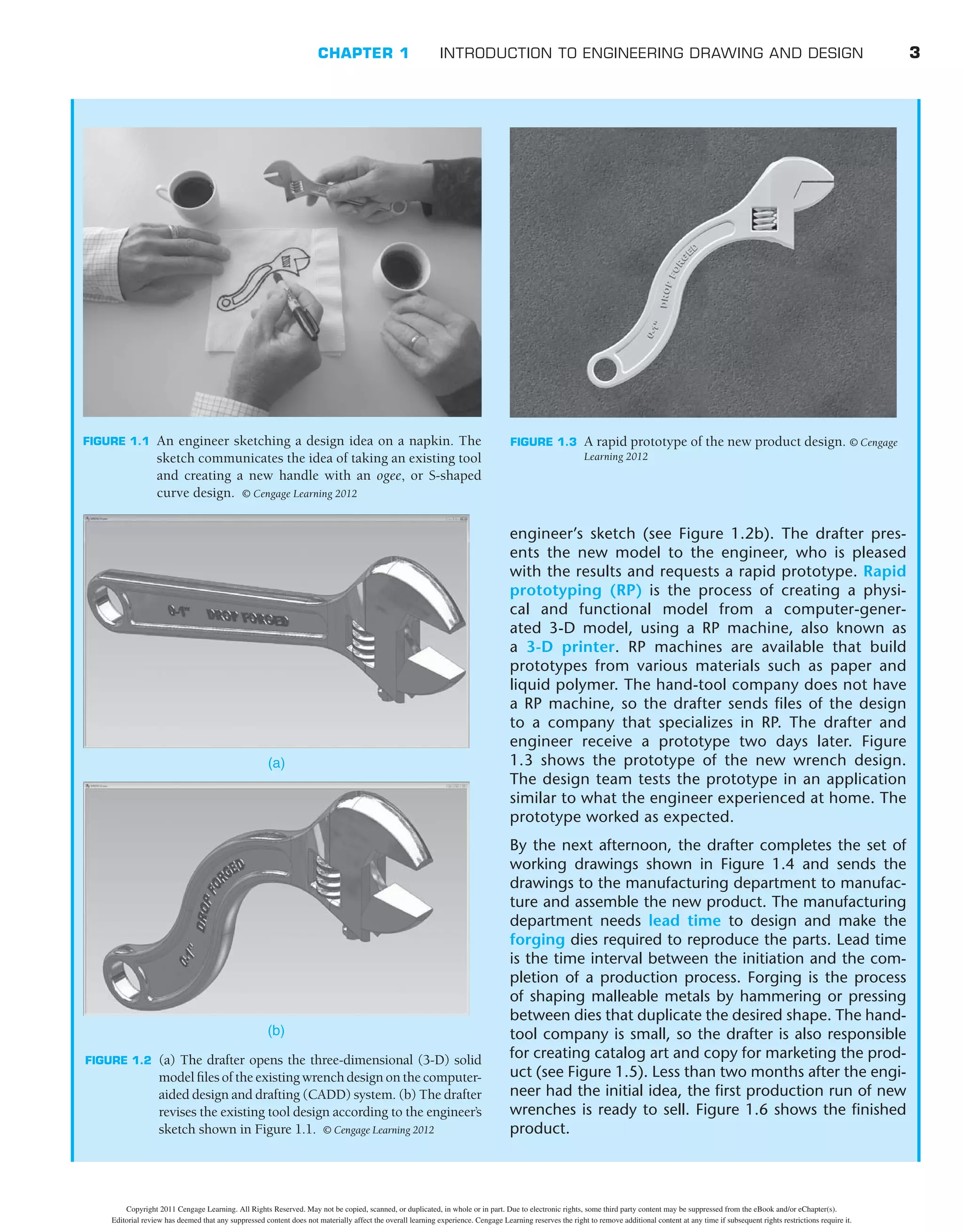
2 - K o o l , I n c . R u n a b o u t
( w w w. r u n a b o u t s . n e t )
Roger M. Berg, manager, provided drawings and models and
content for an animation from a product.
U t i l i t y S c a l e S o l a r, I n c .
( w w w. u t i l i t y s c a l e s o l a r. c o m )
Jonathan Blitz, CTO, provided images and content review for
the product described used in the Green Technology Applica-
tion in the CADD chapter.
W a t e r P i k , I n c . ( w w w. w a t e r p i k . c o m )
Tim Hanson, model shop supervisor, helped update and pro-
vided new images for a CADD Application in the CADD chapter.
Architectural Drafting and Design
Many figures appearing in Chapters 22 and 23 were reprinted
from Jefferis, and Madsen, Architectural Drafting and Design,
fifth and sixth editions, published by Cengage Delmar Learning.
From the Author
Professionally speaking, design drafting is my life! I was for-
ever hooked after my first high school drafting experience. My
education includes a bachelor of science degree and master of
education degree from Oregon State University with a focus
on anything related to drafting. I have many years of practical
experience in industry as a design drafter in a wide variety of
technical disciplines. I have also owned my own architectural
design and construction business.
My academic career started with my first teaching job at
Centennial High School in Gresham, Oregon. After three years,
and with the help of my great friend and mentor, Lee Turpin, I
seized the opportunity to join Clackamas Community College.
Copyright 2011 Cengage Learning. All Rights Reserved. May not be copied, scanned, or duplicated, in whole or in part. Due to electronic rights, some third party content may be suppressed from the eBook and/or eChapter(s).
Editorial review has deemed that any suppressed content does not materially affect the overall learning experience. Cengage Learning reserves the right to remove additional content at any time if subsequent rights restrictions require it.
xxviii ACKNOWLEDGMENTS
Master of Science degree in Educational Policy, Foundations,
and Administrative Studies with a specialization in Postsecond-
ary, Adult, and Continuing Education; a Bachelor of Science
degree in Technology Education; and an Associate of Science
degree in General Studies and Drafting Technology. Dave is the
author of Inventor and its Applications, and coauthor of Architec-
tural Drafting and Design, Architectural Drafting Using AutoCAD,
AutoCAD and Its Applications: Basics and Comprehensive, Civil
Drafting Technology, Engineering Drawing and Design, Geometric
Dimensioning and Tolerancing, Print Reading for Architecture and
Construction Technology, and Print Reading for Engineering and
Manufacturing Technology.
J. Lee Turpin (author of Student CD
Descriptive Geometry Reference Material)
J. Lee Turpin is a former Drafting Technology Instructor,
Department Chair, and Vocational Counselor at Clackamas
Community College in Oregon City, Oregon. Lee worked in
industry as a drafter for several years. He has also provided
drafting instruction to secondary and posts secondary learners,
and in private industry since 1966. Lee holds a Bachelor of Sci-
ence degree in Industrial Arts and a Master of Science degree in
Counseling and Industrial Education.
and its Applications, Architectural Drafting and Design, Architec-
tural Drafting Using AutoCAD, AutoCAD and Its Applications:
Basics, Advanced, and Comprehensive, AutoCAD Architecture and
Its Applications, AutoCAD Essentials, Civil Drafting Technology,
and Print Reading for Architecture and Construction Technology.
David P. Madsen
David P. Madsen is the president of Engineering Drafting & De-
sign, Inc. and the vice president of Madsen Designs Inc. (www.
madsendesigns.com). Dave provides drafting and design con-
sultation and training for all disciplines. Dave is an Autodesk
Authorized Author, and a SolidWorks Research Associate. Dave
has been a professional design drafter since 1996, and has ex-
tensive experience in a variety of drafting, design, and engineer-
ing disciplines. Dave has provided drafting and computer-aided
design and drafting instruction to secondary and postsecondary
learners since 1999, and has considerable curriculum, and pro-
gram coordination and development experience. Dave holds a
Copyright 2011 Cengage Learning. All Rights Reserved. May not be copied, scanned, or duplicated, in whole or in part. Due to electronic rights, some third party content may be suppressed from the eBook and/or eChapter(s).
Editorial review has deemed that any suppressed content does not materially affect the overall learning experience. Cengage Learning reserves the right to remove additional content at any time if subsequent rights restrictions require it.
1
SECTION
Introduction to Engineering
Drawing and Design
Page 1 SECTION 1: Introduction to Engineering Drawing and Design
Copyright 2011 Cengage Learning. All Rights Reserved. May not be copied, scanned, or duplicated, in whole or in part. Due to electronic rights, some third party content may be suppressed from the eBook and/or eChapter(s).
Editorial review has deemed that any suppressed content does not materially affect the overall learning experience. Cengage Learning reserves the right to remove additional content at any time if subsequent rights restrictions require it.
2
CHAPTER 1
Introduction to Engineering Drawing
and Design
• Identify the professional organization that is dedicated to the
advancement of design and drafting.
• Explain workplace ethics and related issues.
• Identify topics related to copyrights, patents, and trademarks.
LEARNING OBJECTIVES
After completing this chapter, you will:
• Explain topics related to the history of engineering drafting.
• Define drafter and other related terminology.
• Identify categories and disciplines related to drafting.
• Describe the requirements for becoming a drafter.
• Listandexplainpointstoconsiderwhenseekingemployment.
T H E E N G I N E E R I N G D E S I G N A P P L I C AT I O N
Engineering drawing and design is a broad subject that
includes a wide range of theory and practice. Many dif-
ferent forms of drawing exist. Drawing occurs while at
the lunch table as a basic sketch of a new product idea
drawn on a napkin. Drawing also occurs in the form of
a series of very complex models for a new automotive
design and as hundreds of formal drawings needed for
the construction of a skyscraper. You will learn the pur-
pose and requirements to create meaningful engineering
drawings as you use this textbook to study engineering
drawing and design.
Each chapter in this textbook begins with a special
feature titled The Engineering Design Application. Each
engineering design application provides an introduc-
tory topic or study relating the engineering drawing
and design process to chapter content. Engineering
design applications offer early explanation and sys-
tematic problem-solving techniques applied to specific
engineering projects or general design and drafting
concepts. The engineering design application in this
chapter guides you through a basic example of an en-
gineering design process, beginning with an idea and
a basic sketch and ending with the manufacture of an
actual product.
From an Idea to a Product
Design ideas and engineering projects often establish
or occur in informal settings. For instance, the engi-
neer of a hand-tool manufacturing company was using
a typical adjustable wrench to complete a common
home-repair task. While using the wrench, the engi-
neer discovered that it was difficult to access a confined
location to remove a nut on a piece of equipment. The
engineer imagined how the company could design,
manufacture, and market a new wrench with features
that help make the tool usable in cramped locations.
The next day, the engineer and a colleague from the
drafting department met for coffee. The engineer
sketched the idea for the new wrench on a napkin to
communicate the design to the drafter. The sketch in
Figure 1.1 shows the idea of taking the existing tool
design and creating a new handle with an ogee, or
S-shaped curve design.
Later the same day, the drafter opens the three-
dimensional (3-D) solid model files of the existing
wrench design on the computer-aided design and draft-
ing (CADD) system (see Figure 1.2a). The drafter copies
and then revises the existing design according to the
Copyright 2011 Cengage Learning. All Rights Reserved. May not be copied, scanned, or duplicated, in whole or in part. Due to electronic rights, some third party content may be suppressed from the eBook and/or eChapter(s).
Editorial review has deemed that any suppressed content does not materially affect the overall learning experience. Cengage Learning reserves the right to remove additional content at any time if subsequent rights restrictions require it.
CHAPTER 1 INTRODUCTION TO ENGINEERING DRAWING AND DESIGN 3
engineer’s sketch (see Figure 1.2b). The drafter pres-
ents the new model to the engineer, who is pleased
with the results and requests a rapid prototype. Rapid
prototyping (RP) is the process of creating a physi-
cal and functional model from a computer-gener-
ated 3-D model, using a RP machine, also known as
a 3-D printer. RP machines are available that build
prototypes from various materials such as paper and
liquid polymer. The hand-tool company does not have
a RP machine, so the drafter sends files of the design
to a company that specializes in RP. The drafter and
engineer receive a prototype two days later. Figure
1.3 shows the prototype of the new wrench design.
The design team tests the prototype in an application
similar to what the engineer experienced at home. The
prototype worked as expected.
By the next afternoon, the drafter completes the set of
working drawings shown in Figure 1.4 and sends the
drawings to the manufacturing department to manufac-
ture and assemble the new product. The manufacturing
department needs lead time to design and make the
forging dies required to reproduce the parts. Lead time
is the time interval between the initiation and the com-
pletion of a production process. Forging is the process
of shaping malleable metals by hammering or pressing
between dies that duplicate the desired shape. The hand-
tool company is small, so the drafter is also responsible
for creating catalog art and copy for marketing the prod-
uct (see Figure 1.5). Less than two months after the engi-
neer had the initial idea, the first production run of new
wrenches is ready to sell. Figure 1.6 shows the finished
product.
FIGURE 1.1 An engineer sketching a design idea on a napkin. The
sketch communicates the idea of taking an existing tool
and creating a new handle with an ogee, or S-shaped
curve design. © Cengage Learning 2012
FIGURE 1.3 A rapid prototype of the new product design. © Cengage
Learning 2012
(a)
FIGURE 1.2 (a) The drafter opens the three-dimensional (3-D) solid
modelfilesoftheexistingwrenchdesignonthecomputer-
aided design and drafting (CADD) system. (b) The drafter
revises the existing tool design according to the engineer’s
sketch shown in Figure 1.1. © Cengage Learning 2012
(b)
Copyright 2011 Cengage Learning. All Rights Reserved. May not be copied, scanned, or duplicated, in whole or in part. Due to electronic rights, some third party content may be suppressed from the eBook and/or eChapter(s).
Editorial review has deemed that any suppressed content does not materially affect the overall learning experience. Cengage Learning reserves the right to remove additional content at any time if subsequent rights restrictions require it.
4 SECTION 1 Introduction to Engineering Drawing and Design
PIN
01105-04
1
4
GEAR
01105-03
1
3
JAW
01105-02
1
2
BODY
01105-01
1
1
PARTS LIST
NOMENCLATURE OR DESCRIPTION
PART OR IDENT NUMBER
QTY REQD
FIND NO
OF
DO NOT SCALE DRAWING
.XXX ± .005
± 30'
ANGULAR:
.XXXX
FINISH
APPROVED
MATERIAL
± .01
± .1
UNLESS OTHERWISE SPECIFIED
TOLERANCES:
.XX
.X
APPROVALS
DRAWN
CHECKED
TITLE
CAGE CODE
SCALE
SIZE DWG NO.
SHEET
DATE
REV
± .0050
DPM
DAM
ADJUSTABLE OGEE WRENCH
DAM
C
1:1
01105 0
5
1
DIMENSIONS ARE IN INCHES (IN)
4320 Seventh Street, Dallas, TX, 75201
1
3
2
4
1
1
2
2
3
3
4
4
A A
B B
C C
D D
THIRD ANGLE PROJECTION
entury Tool Company
entury Tool Company
(a)
FIGURE 1.4 A set of working drawings for the new wrench design. (a) Assembly drawing and parts list. (b) Detail drawing of the new wrench
BODY part. (c) Detail drawing of the new wrench JAW part. (d) Detail drawing of the new wrench GEAR part. (e) Detail drawing
of the new wrench PIN part.
Copyright 2011 Cengage Learning. All Rights Reserved. May not be copied, scanned, or duplicated, in whole or in part. Due to electronic rights, some third party content may be suppressed from the eBook and/or eChapter(s).
Editorial review has deemed that any suppressed content does not materially affect the overall learning experience. Cengage Learning reserves the right to remove additional content at any time if subsequent rights restrictions require it.
CHAPTER 1 INTRODUCTION TO ENGINEERING DRAWING AND DESIGN 5
SECTION A-A
DETAIL A
SECTION C-C
SECTION B-B
A
A
A
C
C
B
B
OF
DO NOT SCALE DRAWING
.XXX ± .005
± 30'
THIRD ANGLE PROJECTION
ANGULAR:
.XXXX
FINISH
APPROVED
MATERIAL
± .01
± .1
UNLESS OTHERWISE SPECIFIED
TOLERANCES:
.XX
.X
APPROVALS
DRAWN
CHECKED
TITLE
CAGE CODE
SCALE
SIZE DWG NO.
SHEET
DATE
REV
± .0050
DPM
DAM
SAE 4240
ALL OVER
BODY
DAM
C
1:1
01105-01 0
5
2
DIMENSIONS ARE IN INCHES
4320 Seventh Street, Dallas, TX, 75201
1
1
2
2
3
3
4
4
A A
B B
C C
D D
NOTES:
1. DIMENSIONS AND TOLERANCES PER ASME Y14.5-2009.
2. REMOVE ALL BURRS AND SHARP EDGES.
3 TEXT ON HANDLE CENTERLINE: ARAIL BLACK, BOLD, .15 HIGH,
100%WIDE, .02 RAISED:
RIGHT SIDE: 0-1" DROP FORGED
LEFT SIDE: 0-25mm HEAVY DUTY
4. CHROMIUM PLATE PER NASA/JSC PRC 5003, CLASS 1, TYPE II.
R1.700
R2.677
R1.901
R2.485
∅.550
4.500
4.500
5.150
5.324
3.345
2.309
2.561
.864
R.440
1.643
.190
.950
R1.800
.400
R1.250
R.690
.114
.670
.035
.100
54°
.650
.400
1.000
R.020
4X
∅.286± .002 THRU
10-32 UNF - 2B ↓ .40
1.000
3.100
70.6°
17.8°
.200
.300
R.020
2X
R.050
2X
R.350
.385
.070
.140 ± .002
.700
.550
.300
.540
R3.000
2X
R.020
2X
132°
R.423
R.100
2X
R.050
2X
(R.020)
2X
(R.050)
2X
.100
(.200)
(.300)
R.350
TRUE
90°
.154 ± .001
∅
.951
.182
2X
.530 ± .004
R.050
2X
3
entury Tool Company
entury Tool Company
(IN)
(b)
FIGURE 1.4 (Continued)
Copyright 2011 Cengage Learning. All Rights Reserved. May not be copied, scanned, or duplicated, in whole or in part. Due to electronic rights, some third party content may be suppressed from the eBook and/or eChapter(s).
Editorial review has deemed that any suppressed content does not materially affect the overall learning experience. Cengage Learning reserves the right to remove additional content at any time if subsequent rights restrictions require it.
6 SECTION 1 Introduction to Engineering Drawing and Design
SECTION A-A
DETAIL A
SCALE 20 : 1
A
A
A
OF
DO NOT SCALE DRAWING
.XXX ± .005
± 30'
THIRD ANGLE PROJECTION
ANGULAR:
.XXXX
FINISH
APPROVED
MATERIAL
± .01
± .1
UNLESS OTHERWISE SPECIFIED
TOLERANCES:
.XX
.X
APPROVALS
DRAWN
CHECKED
TITLE
CAGE CODE
SCALE
SIZE DWG NO.
SHEET
DATE
REV
± .0050
DPM
DAM
SAE 4240
ALL OVER
GEAR
DAM
B
2:1
01105-03 0
5
4
DIMENSIONS ARE IN INCHES (IN)
4320 Seventh Street, Dallas, TX, 75201
NOTES:
1. DIMENSIONS AND TOLERANCES PER ASME Y14.5-2009.
2. REMOVE ALL BURRS AND SHARP EDGES.
3. CHROMIUM PLATE PER NASA/JSC PRC 5003, CLASS 1, TYPE II.
.050
.150
.300
.450
.050
.050
.050
.085
90°
100X
.010
100X
.156
∅ ± .002
.005
.520 ± .004
.525
∅
(60°)
45°
entury Tool Company
entury Tool Company
(d)
FIGURE 1.4 (Continued)
SECTION A-A
DETAIL A
SCALE 2 : 1
A
A
A
OF
DO NOT SCALE DRAWING
.XXX ± .005
± 30'
THIRD ANGLE PROJECTION
ANGULAR:
.XXXX
FINISH
APPROVED
MATERIAL
± .01
± .1
UNLESS OTHERWISE SPECIFIED
TOLERANCES:
.XX
.X
APPROVALS
DRAWN
CHECKED
TITLE
CAGE CODE
SCALE
SIZE DWG NO.
SHEET
DATE
REV
± .0050
DPM
DAM
SAE 4240
ALL OVER
JAW
DAM
B
1:1
01105-02 0
5
3
DIMENSIONS ARE IN INCHES (IN)
4320 Seventh Street, Dallas, TX, 75201
NOTES:
1. DIMENSIONS AND TOLERANCES PER ASME Y14.5-2009.
2. REMOVE ALL BURRS AND SHARP EDGES.
3. CHROMIUM PLATE PER NASA/JSC PRC 5003, CLASS 1, TYPE II.
.400
R1.500
R.300
R.136
.385
1.335
.190
132°
.776
.268
.995
.054
R.350
TRUE
1.000
.055
.150
(.150)
1.35
9X .150 (= )
R.690
TRUE R.350
.560
R.020
2X
.275
∅ ± .002
.130 ± .002
.065
.300
.452
.045
9X
.055
9X
.090
.050
9X
entury Tool Company
entury Tool Company
(c)
Copyright 2011 Cengage Learning. All Rights Reserved. May not be copied, scanned, or duplicated, in whole or in part. Due to electronic rights, some third party content may be suppressed from the eBook and/or eChapter(s).
Editorial review has deemed that any suppressed content does not materially affect the overall learning experience. Cengage Learning reserves the right to remove additional content at any time if subsequent rights restrictions require it.
CHAPTER 1 INTRODUCTION TO ENGINEERING DRAWING AND DESIGN 7
OF
DO NOT SCALE DRAWING
.XXX ± .005
± 30'
THIRD ANGLE PROJECTION
ANGULAR:
.XXXX
FINISH
APPROVED
MATERIAL
± .01
± .1
UNLESS OTHERWISE SPECIFIED
TOLERANCES:
.XX
.X
APPROVALS
DRAWN
CHECKED
TITLE
CAGE CODE
SCALE
SIZE DWG NO.
SHEET
DATE
REV
± .0050
DPM
DAM
SAE 1035
ALL OVER
PIN
DAM
B
2:1
01105-04 0
5
5
DIMENSIONS ARE IN INCHES (IN)
4320 Seventh Street, Dallas, TX, 75201
NOTES:
1. PURCHASE STANDARD 10-32 UNF - 2A X 1 LG HEX SOC SET SCREW,
MACHINE AS SHOWN.
2. DIMENSIONS AND TOLERANCES PER ASME Y14.5-2009.
3. REMOVE ALL BURRS AND SHARP EDGES.
4. CHROMIUM PLATE PER NASA/JSC PRC 5003, CLASS 1, TYPE II.
1
1
2
2
A A
B B
90°
1.000
.150
∅
.200
(10-32 UNF - 2A)
.012 X 45°
entury Tool Company
entury Tool Company
(e)
FIGURE 1.4 (Concluded)
©
Century
Tool
Company
FIGURE 1.6 The new wrench design in a finished product, ready
to sell.
©
Cengage
Learning
2012
FIGURE 1.5 The drafter in this small company is responsible for
creating catalog art and copy for marketing the new
product. © Century Tool Company
Copyright 2011 Cengage Learning. All Rights Reserved. May not be copied, scanned, or duplicated, in whole or in part. Due to electronic rights, some third party content may be suppressed from the eBook and/or eChapter(s).
Editorial review has deemed that any suppressed content does not materially affect the overall learning experience. Cengage Learning reserves the right to remove additional content at any time if subsequent rights restrictions require it.
8 SECTION 1 Introduction to Engineering Drawing and Design
project. You will learn about drafting common to other disci-
plines later in this chapter. Manual drafting is a term that de-
scribes traditional drafting practice using pencil or ink on a
medium such as paper or polyester film, with the support of
drafting instruments and equipment. Computer-aided drafting
(CAD) has taken the place of manual drafting. CAD uses com-
puters for drafting. CAD also refers to computer-aided design
when computers are used to design.
Engineering drawings communicate a variety of concepts,
such as engineering requirements, instructions, and propos-
als, to a variety of people, such as the many different individu-
als often involved with a project. An engineering drawing or a
complete set of engineering drawings provides all of the data
required to manufacture or construct an item or product, such
as a machine part, consumer product, or structure.
Study the drawing of the medical instrument part in Fig-
ure 1.7. The drawing completely and unmistakably describes
the size and location of all geometric features, and it identifies
other characteristics of the part, such as material and manufac-
turing precision and processes. The medical instrument com-
pany uses the drawing to share and document design intent
and to manufacture the part. Consider how difficult it would be
to explain the part without the engineering drawing.
Figure 1.8 shows another example of an engineering draw-
ing, an architectural drawing for a home-remodeling project.
INTRODUCTION
Engineering drawing is the common language of engineering
and describes the process of creating drawings for any engineer-
ing or architectural application. Engineering drawings, produced
according to accepted standards and format, provide an effective
and efficient way to communicate specific information about de-
sign intent. Engineering drawings are typically not open to inter-
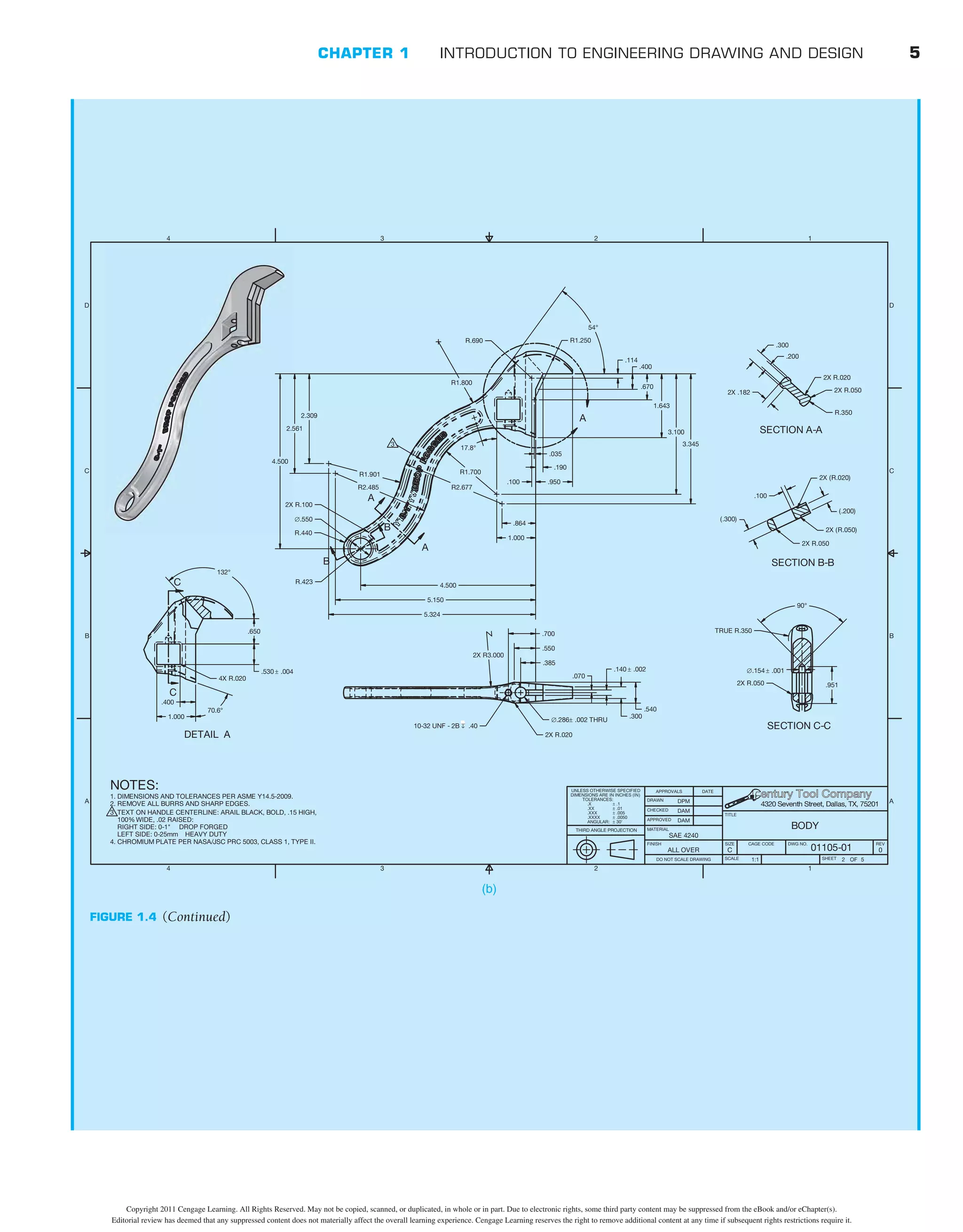
pretation like other drawings, such as decorative drawings and
artistic paintings. A successful engineering drawing describes a
specific item in a way that the viewer of the drawing understands
completely and without misinterpretation.
The term engineering drawing is also known as drafting,
engineering drafting, mechanical drawing, mechanical
drafting, technical drawing, and technical drafting. Drafting is
a graphic language using lines, symbols, and notes to describe
objects for manufacture or construction. Most technical disci-
plines use drafting, including architecture, civil and electrical
engineering, electronics, piping, manufacturing, and struc-
tural engineering. The term mechanical drafting has alternate
meanings. The manufacturing industry uses mechanical draft-
ing, with its name derived from mechanisms. The construc-
tion industry also uses mechanical drafting, but the term refers
to drafting heating, ventilating, and air-conditioning (HVAC)
systems, which is the mechanical portion of an architectural
FIGURE 1.7 This drawing of a medical instrument part completely and unmistakably describes the size and location of all geometric features,
and it identifies other characteristics of the part. Courtesy Wright Medical Technology, Inc.
SECTION A-A
A
A
OF
DO NOT SCALE DRAWING
.XXX ± .005
± 30'
THIRD ANGLE PROJECTION
ANGULAR:
.XXXX
FINISH
APPROVED
MATERIAL
± .01
± .1
UNLESS OTHERWISE SPECIFIED
TOLERANCES:
.XX
.X
APPROVALS
DRAWN
CHECKED
TITLE
CAGE CODE
SCALE
SIZE DWG NO.
SHEET
DATE
REV
± .0050
DPM
DAS
ASTM A564 TYPE 630
GLASS BEAD
INST SAW GDE TOP CAP
DAM
B
2:1
102450 0
1
1
DIMENSIONS ARE IN INCHES (IN)
WRIGHT MEDICAL TECHNOLOGY PROPRIETARY:
THIS MATERIAL IS CONSIDERED PROPRIETARY AND MUST NOT BE COPIED OR
EXHIBITED EXCEPT WITH PERMISSION OF WRIGHT MEDICAL TECHNOLOGY’S
RESEARCH & DEVELOPMENT DEPARTMENT AND MUST BE DESTROYED AFTER USE
NOTES:
1. DIMENSIONS AND TOLERANCES PER ASME Y14.5-2009.
2. REMOVE ALL BURRS AND SHARP EDGES R.020 MAX UNLESS OTHERWISE SPECIFIED.
3. HEAT TREAT PER QCP 7.0029, COND H900.
.375
.500
.781
R.06
4X
3/8-24 UNF - 2B
.50
MINOR DIA
.250
40°
.950
3.00
R.06
4X
B
.563 ∅.500 -.000
.005
+ .71
.240
∅
∅.010 M B A C
R.03
R.062
4X
.375
.750
A
C
® 5677 Airline Road Arlington, TN 38002
∅.007 M C A B
↓
∅.007 M B A C
↓
Copyright 2011 Cengage Learning. All Rights Reserved. May not be copied, scanned, or duplicated, in whole or in part. Due to electronic rights, some third party content may be suppressed from the eBook and/or eChapter(s).
Editorial review has deemed that any suppressed content does not materially affect the overall learning experience. Cengage Learning reserves the right to remove additional content at any time if subsequent rights restrictions require it.
SCALE:
1/4"
=
1'-0"
SCALE:
1/4"
=
1'-0"
SCALE:
1/2"
=
1'-0"
SCALE:
1/2"
=
1'-0"
PO
BOX
8007
CLIFTON
PARK,
NY
12065
OFFICE:
800.730.2214
CELL:
800.730.2214
FAX:
800.730.2215
EMAIL:
esales@cengage.com
www.madsendesigns.com
CONSULTANTS
OWNER
ISSUES
COPYRIGHT:
MADSEN
DESIGNS
INC.
PROJECT
NUMBER:
MDI-09001
FILE
NAME:
A-02.dwg
DRAWN
BY:
DPM
CHECKED
BY:
DAM
TITLE
SHEET
MARK
DATE
DESCRIPTION
MANAGEMENT
OF
SHEET
PHONE:
FAX:
EMAIL:
PHONE:
FAX:
EMAIL:
PHONE:
FAX:
EMAIL:
3
5
EXT
EL,
SECTIONS
DAVID
MADSEN
PO
BOX
8007
CLIFTON
PARK,
NY
12065
800.730.2214
esales@cengage.com
800.730.2215
MADSEN
RESIDENCE
REMODEL
5
MAXWELL
DRIVE
PO
BOX
8007
CLIFTON
PARK,
NY
12065
ELECTRICAL
ENGINEER
2520
ELECTRIC
ROAD
POWER,
NY
12065
800.730.2214
esales@cengage.com
800.730.2215
STRUCTURAL
ENGINEER
4570
STRUCTURE
ROAD
BUILDING,
NY
12065
800.730.2214
esales@cengage.com
800.730.2215
EXISTING
STRUCTURE
NATURAL
GRADE
CEDAR
RAILING
PROPOSED
DECK
(2)
4X14
RS
GIRDERS
Ø8"
PT
POST
CEDAR
RAILING
PROPOSED
ENTRY
1X6
RS
CEDAR
TRIM
5
8
"
RS
CEDAR
T1-11
SIDING
OVER
TYVEK
4X10
RS
BM
EXISTING
STRUCTURE
EXISTING
MASONRY
WALL
CEDAR
RAILING
CEDAR
RAILING
PROPOSED
ENTRY
RELOCATE
EXISTING
WINDOW
TO
HERE
NATURAL
GRADE
EAST
ELEVATION
5
8
"
RS
CEDAR
T1-11
SIDING
OVER
TYVEK
5
8
"
RS
CEDAR
T1-11
SIDING
OVER
TYVEK
1X6
RS
CEDAR
TRIM
1X6
RS
CEDAR
TRIM
PROPOSED
DECK
(2)
4X14
RS
GIRDERS
Ø8"
PT
POST
PROPOSED
BATH
4X10
RS
BM
EXISTING
JORGENSEN
SUPER
RIB
METAL
ROOF
EXISTING
2X6
T&G
SHEATHING
EXISTING
4X12
RS
RIM
BM
EXISTING
4X10
RS
COMMON
RAFTER
EXISTING
4X10
RS
COMMON
RAFTER
1X12
RS
BLOCKING
2X4
BLOCKING
2X4
BLOCKING
5
8
"
CEDAR
T1-11
SIDING
OVER
TYVEK
2X4
STUDS
@
16"
OC
2X4
BOTTOM
PLATE
1
1
8
"
(2-4-1)
T&G
PLYWOOD
SUBFLOOR
SIMPSON
HUCQ410-SDS
4X10
BM
EXISTING
4X10
BM
(2)
2X6
BLOCKING
(2)
EXISTING
2X10
RIM
JOIST
4X10
BM
LINE
OF
WALL
BEYOND
PORCELAIN
TILE
OVER
CEMENT
FIBER
BOARD
EXISTING
WALL
TO
BE
REMOVED
(2)
EXISTING
4X14
RS
GIRDER
EXISTING
Ø10
PT
POST
1
2
"
GYPSUM
BOARD
EXISTING
1
1
8
"
(2-4-1)
T&G
PLYWOOD
SUBFLOOR
EXISTING
HARDWOOD
FLOOR
(2)
EXISTING
3
4
"
THRU
BOLTS
(2)EXISITNG
3
4
"
THRU
BOLTS
1'-0" 1'-0"
1'-6"
3'-0"
EXISTING
CONC
FOOTING
NATURAL
GRADE
SIMPSON
H8
EA
SIDE
8'-7"
PROPOSED
ENTRY
LIVING
EXISTING
JORGENSEN
SUPER
RIB
METAL
ROOF
EXISTING
2X6
T&G
SHEATHING
EXISTING
4X10
RS
COMMON
RAFTER
1X12
RS
BLOCKING
2X4
BLOCKING
2X4
BLOCKING
5
8
"
CEDAR
T1-11
SIDING
OVER
TYVEK
2X4
STUDS
@
16"
OC
2X4
BOTTOM
PLATE
EXISTING
4X10
BM
PORCELAIN
TILE
OVER
1
2
"
CEMENT
FIBER
BOARD
1
2
"
GYPSUM
BOARD
1
1
8
"
(2-4-1)
T&G
PLYWOOD
SUBFLOOR
EXISTING
4X10
BM
(2)
EXISTING
4X14
RS
GIRDER
EXISTING
Ø10
PT
POST
(2)
EXISTING
3
4
"
THRU
BOLTS
(2)EXISITNG
3
4
"
THRU
BOLTS
1'-0" 1'-0"
1'-6"
3'-0"
XISTING
4X12
RS
RIM
BM
EXISTING
4X10
RS
COMMON
RAFTER
2X4
BOTTOM
PLATE
WALL
BEYOND
EXISTING
WALL
TO
BE
REMOVED
EXISTING
1
1
8
"
(2-4-1)
T&G
PLYWOOD
SUBFLOOR
PORCELAIN
TILE
OVER
1
2
"
CEMENT
FIBER
BOARD
LINE
OF
WALL
BEYOND
1
2
"
GYPSUM
BOARD
2X4
BLOCKING
2X4
STUDS
@
16"
OC
EXISTING
CONC
FOOTING
NATURAL
GRADE
8'-7"
10'-7"
PROPOSED
BATH
(2)
2X6
BLOCKING
SOUTH
ELEVATION
PROPOSED
ENTRY
A
B
PROPOSED
BATH
A-02
1
2
"
FIGURE
1.8
This
engineering
drawing
is
an
architectural
drawing
for
a
home-remodeling
project.
The
drawing
is
one
sheet
in
a
set
of
drawings
that
communicates
architectural
style,
the
size
and
location
of
building
features,
and
construction
methods
and
materials.
Madsen
Designs
Inc.
9
Copyright 2011 Cengage Learning. All Rights Reserved. May not be copied, scanned, or duplicated, in whole or in part. Due to electronic rights, some third party content may be suppressed from the eBook and/or eChapter(s).
Editorial review has deemed that any suppressed content does not materially affect the overall learning experience. Cengage Learning reserves the right to remove additional content at any time if subsequent rights restrictions require it.
10 SECTION 1 Introduction to Engineering Drawing and Design
Prehistoric drawings and paintings, known as pictograms, and
carvings, known as petroglyphs, show a variety of animals and
human shapes (see Figure 1.9). Pictograms and petroglyphs are
not engineering drawings, but they do represent early graphic
forms of communication. For thousands of years, designers of
ancient structures and machines used sketches, drawings, and
documents to represent inventions and architecture and help de-
sign and distribute information to workers. However, activities
such as farming, craft making, and toolmaking, and construc-
tion generally followed established standards of the time with-
out the use of formal drawings as a guide. Production was more
like a form of art than engineering, and each item was unique.
Early engineering drawings representing machines and
buildings appear in the fourteenth and fifteenth centuries.
These drawings were generally in the form of pictorial sketches
with written descriptions that helped workers understand the
intent of the drawings for fabrication or building. Early en-
gineering drawings served as a reference for craft workers to
construct a building or manufacture a product. Craft workers
viewed the drawings and written descriptions and made inter-
pretations based on their own experience and knowledge of
current standard practices. Specific dimensions were not nec-
essary, because each building or machine was different. Early
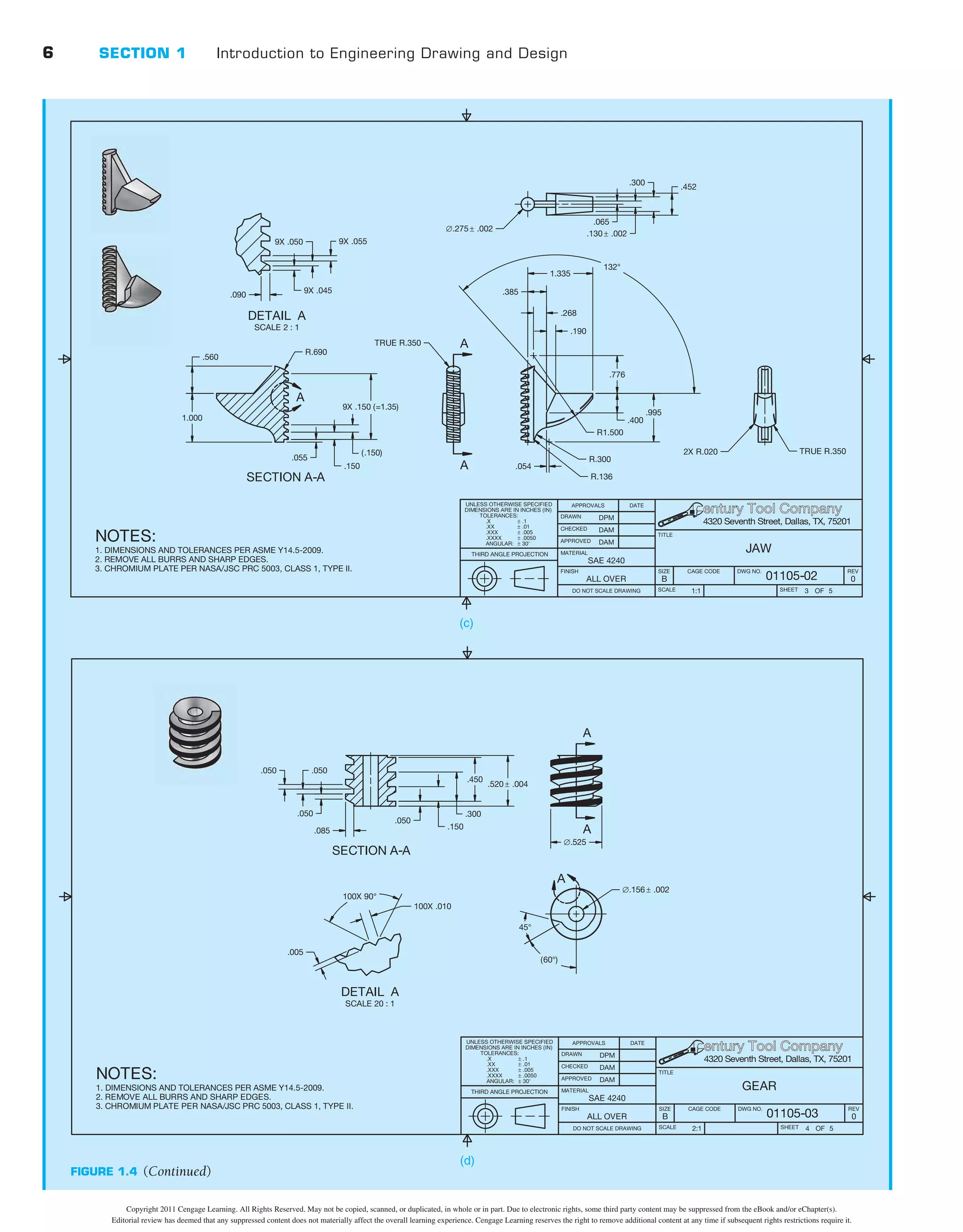
engineering drawings were also an art form used during presen-
tations to the persons who requested the designs.
Engineering Drawing Pioneers
Most early creators of engineering drawings were artists and in-
ventors. Some of the best-known early engineering drawings are
the work of Italian Leonardo da Vinci. Leonardo is well known
for his art, such as The Last Supper in 1498 and the Mona Lisa
in 1507. He was also an inventor who designed machines such
as the glider shown in Figure 1.10 and military equipment such
The drawing is one sheet in a set of drawings that commu-
nicates architectural style, the size and location of building
features, and construction methods and materials. The set of
drawings is also required to obtain a loan to pay for construc-
tion, to acquire building permits to legally begin construction,
and to establish accurate building cost estimates. Usually it is
legally impossible and certainly impractical to begin construc-
tion without engineering drawings.
Computers in Design and Drafting
The use of computers has revolutionized business and industry
process, including design and drafting practices. Computer-
aided design and drafting (CADD) is the process of using a
computer with CADD software for design and drafting ap-
plications. Software is the program or instructions that en-
able a computer to perform specific functions to accomplish
a task. CAD is the acronym for computer-aided design, but
CAD is also a common reference to computer-aided drafting.
Computer-aided design and computer-aided drafting refer to
specific aspects of the CADD process. The use of CADD has
made the design and drafting process more accurate and faster.
Several industries and most disciplines related to engineering
and architecture use CADD. Most engineering firms and edu-
cational institutions that previously used manual drafting prac-
tices have evolved to CADD.
CADD allows designers and drafters to produce accurate
drawings that are very neat and legible and matched to indus-
try standards. CADD can even produce architectural drawings,
which have always had an artistic flair with lettering and line
styles, to match the appearance of the finest handwork avail-
able. In addition, CADD drawings are consistent from one per-
son or company to the next. CADD enhances the ability for
designers and drafters to be creative by providing many new
tools such as solid modeling, animation, and virtual reality. This
textbook provides comprehensive CADD information through-
out. Chapters 3 and 4 in this textbook cover CADD concepts
and applications in detail.
A HISTORY OF ENGINEERING DRAWING
Individuals with talent, wisdom, vision, and innovative ideas
have influenced the history of engineering drawing. Major
changes in agriculture, manufacturing, mining, and transport
also greatly influenced the evolution of engineering drawing
and had an overpowering effect on socioeconomic and cultural
conditions between the eighteenth and nineteenth centuries.
Recently and more rapidly, computers have become a driving
force in the way people create engineering drawings.
Early Drawing Practices
Prehistoric humans created images on cave walls and rocks as
a form of communication for hunting and gathering societ-
ies, to provide ritual or spiritual meaning, and for decoration.
FIGURE 1.9 Pictograms and petroglyphs are not engineering drawings,
buttheydorepresentearlygraphicformsofcommunication.
Ancient bushmen rock engravings (petroglyphs) of animals
and symbols at Twyfelfontain in Damaraland in Namibia.
Steve Allen/Photodisc/Getty Images
Copyright 2011 Cengage Learning. All Rights Reserved. May not be copied, scanned, or duplicated, in whole or in part. Due to electronic rights, some third party content may be suppressed from the eBook and/or eChapter(s).
Editorial review has deemed that any suppressed content does not materially affect the overall learning experience. Cengage Learning reserves the right to remove additional content at any time if subsequent rights restrictions require it.
CHAPTER 1 INTRODUCTION TO ENGINEERING DRAWING AND DESIGN 11
greater accuracy and dimensions. An early author of architec-
ture and engineering was an Italian man, Leon Battista Alberti.
Leon’s writing covered a wide range of subjects, from architec-
ture to town planning and from engineering to the philosophy
of beauty. In 1435 and 1436, Leon also wrote two works that
explored the need to incorporate more geometry in drawings.
Leon also proposed drawings with multiple views rather than
the commonly used pictorial drawings.
The importance of using multiview two-dimension drawings
was also influenced by the development of descriptive geome-
try in the work of French philosopher and mathematician René
Descartes (1596–1650) and the work of Frenchman Gaspard
Monge (1746–1818). René was the inventor of the Cartesian
coordinate system, and he founded analytic geometry, the link
between algebra and geometry. The Cartesian coordinate sys-
tem uses numerical coordinates to locate points in space ac-
cording to distances measured in the same unit of length from
three intersecting axes. The Cartesian coordinate system is the
basis for establishing points when using CADD today.
Gaspard Monge created a large-scale plan of a town using his
own methods of observation and instruments that he designed.
As a result, authorities commissioned Gaspard as a drafter and
pupil in the practical school of the military institution. Given a
project to design a proposed fortress, Gaspard used his geomet-
rical method to create the design quickly. Continuing his re-
search, Gaspard arrived at a graphic method of the application
of geometry to construction, now called descriptive geometry.
Descriptive geometry is the system of graphic geometry that
uses plane projections to describe and analyze their properties
for engineering drafting applications.
Many early drafters had degrees in engineering and began
to realize the importance of creating accurate and detailed en-
gineering drawings. However, much of the drafting was in the
form of line drawings, with watercolor paints used to high-
light the drawings as shown in the architectural elevation of a
home in Figure 1.12. Drawing continued to be basic line draw-
ings with little dimensioning practice. An example is the early
architectural floor plans shown in Figure 1.13 used to construct
a home. Craft workers also followed architectural details such
as the gable design shown in Figure 1.14. There were few if
any dimensions and standards, so each building was similar
but different. This practice lasted until the early part of the
twentieth century.
Into the late 1800s and early 1900s, inventors, engineers,
and builders worked on each product on a one-of-a-kind basis.
Manufactures produced parts from hand sketches or hand draw-
ings on blackboards. American engineer and inventor Coleman
Sellers, in the manufacture of fire engines, had blackboards
with full-size drawings of parts. Blacksmiths formed parts and
compared them to the shapes on the blackboards. Coleman
Sellers son, George Sellers, recalls lying on his belly using his
arms as a radius for curves as his father stood over him direct-
ing changes in the sketches until the drawings were satisfactory.
Most designs used through the 1800s began as a hand sketches
of the objects to be built. Workers then converted the sketches
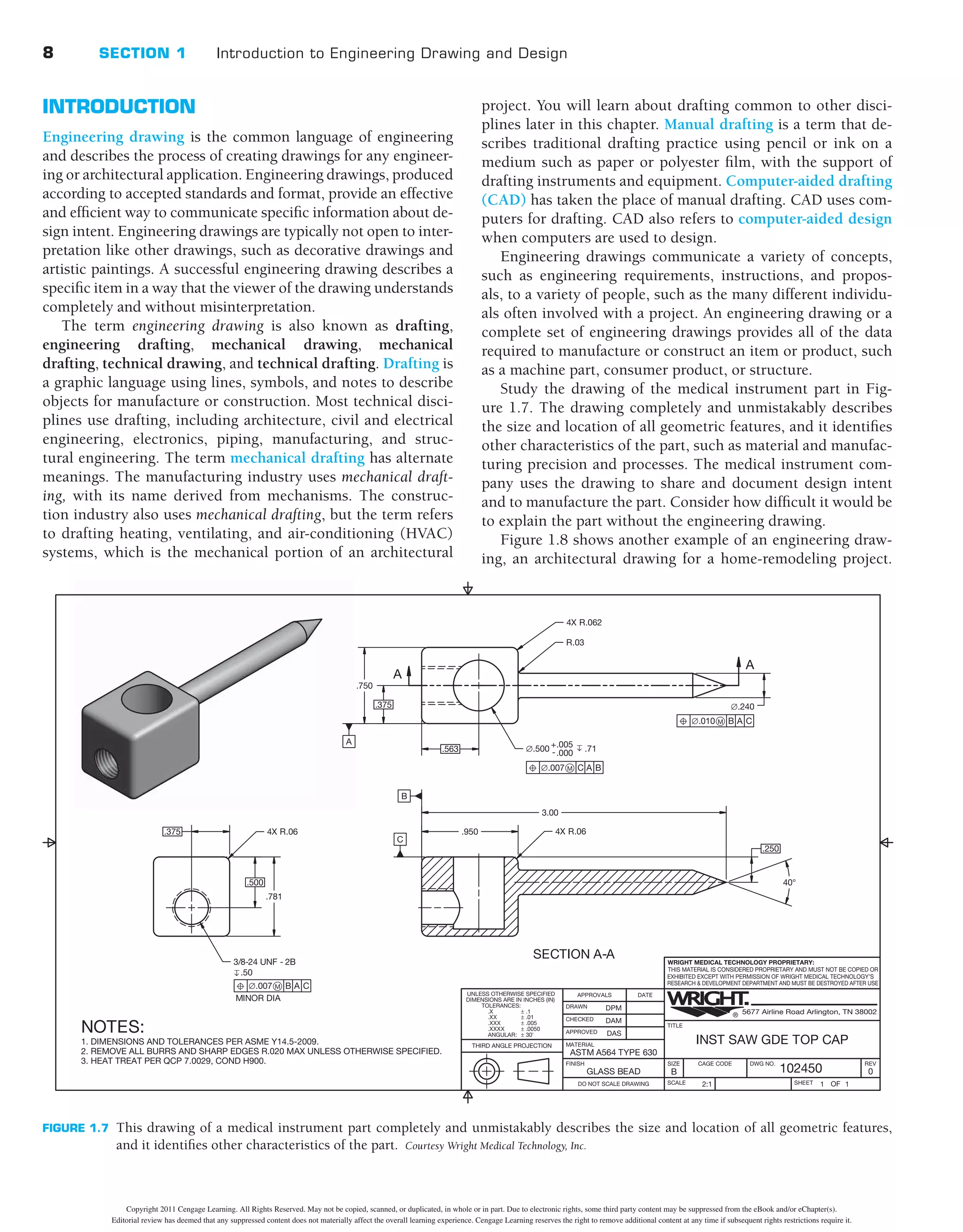
as the giant crossbow in Figure 1.11. Leonardo’s drawings were
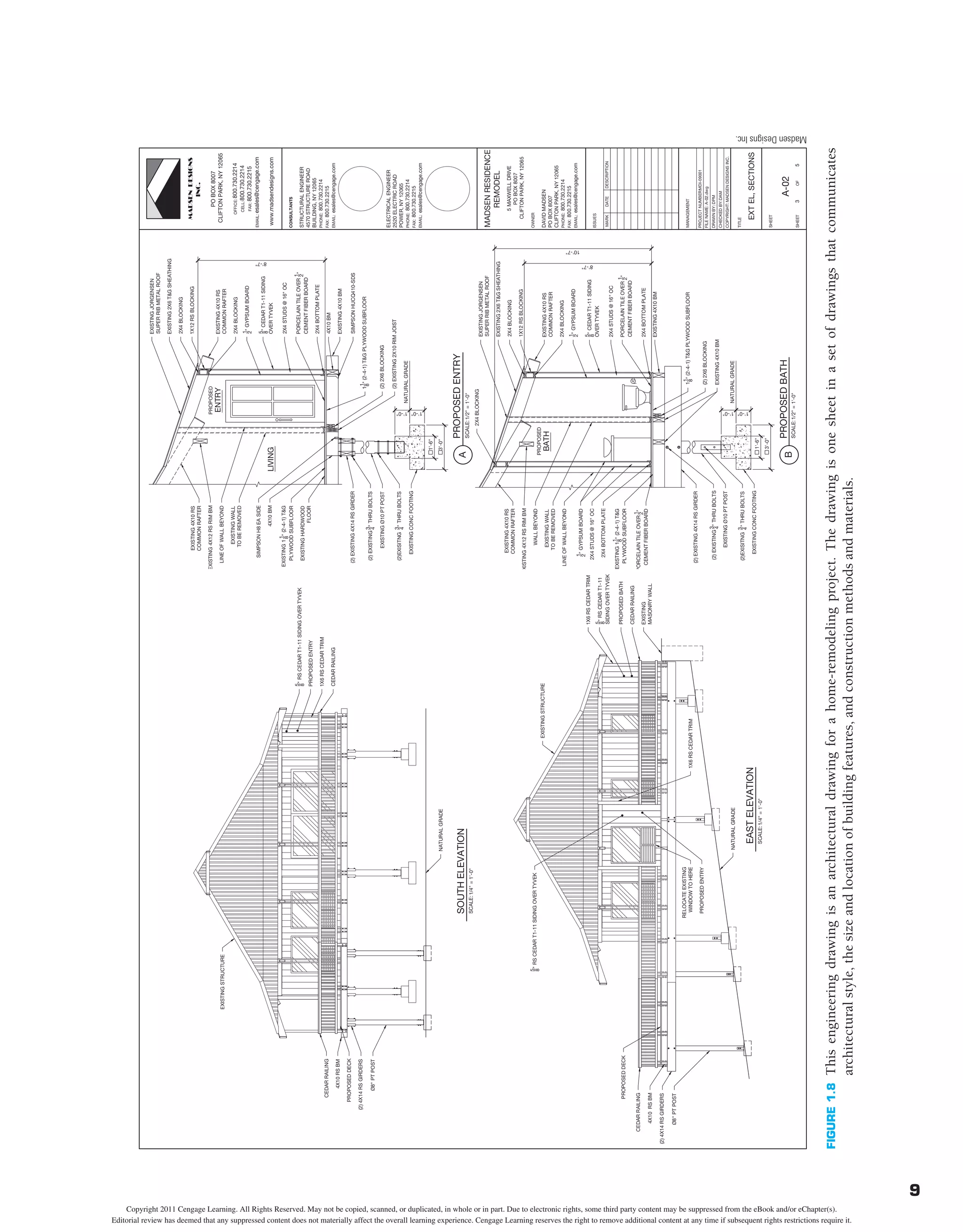
those of an artist and were not in the form of engineering draw-
ings. Leonardo’s drawings were pictorial and generally without
dimensions. No multiview drawings of Leonardo’s designs are
known to exist. Multiview drawings are 2-D drawings of objects
organized in views. Chapter 9 of this textbook describes multi-
views in detail.
Skilled tradespeople worked from the pictorial sketches
and representations to construct models of many of Leonardo’s
designs. Each machine or device was unique, and parts were
not interchangeable. Leonardo was also an early mapmaker.
In 1502, Leonardo created a map containing the town plan of
Imola, Italy. Authorities commissioned Leonardo as the chief
military engineer and architect because of this mapmaking.
Arguably, this early work was more artistic than the beginning
of engineering drawing, but this work holds a special place
in history.
Approximately the same time as Leonardo da Vinci cre-
ated his drawings, awareness developed that drawings require
FIGURE 1.10 Leonardo da Vinci’s design of the glider. Frederic Lewis/Getty
Images
Copyright 2011 Cengage Learning. All Rights Reserved. May not be copied, scanned, or duplicated, in whole or in part. Due to electronic rights, some third party content may be suppressed from the eBook and/or eChapter(s).
Editorial review has deemed that any suppressed content does not materially affect the overall learning experience. Cengage Learning reserves the right to remove additional content at any time if subsequent rights restrictions require it.
Image not available due to copyright restrictions
Text not available due to copyright restrictions
12 SECTION 1 Introduction to Engineering Drawing and Design
The Influence of
Interchangeability
The Industrial Revolution was a period from the eighteenth to
nineteenth centuries when major changes took place in agri-
culture, manufacturing, mining, and transport. The need for
interchangeability in manufactured products became impor-
tant during the Industrial Revolution. Interchangeability refers
to parts manufactured identically within given tolerances. In-
terchangeable parts are produced to specifications that make
sure they are so nearly identical that they fit into any product
for which they are designed. One part can replace another of
the same part without custom fitting. Interchangeability al-
lows easy assembly of new products and easier repair of exist-
ing products, while minimizing the time and skill required for
assembly and repair.
The application of interchangeability started with the fire-
arms industry. Before the eighteenth century, gunsmiths made
guns one at a time, and each gun was unique. If one compo-
nent of a firearm needed to be replaced, the entire weapon was
sent back to the gunsmith for custom repairs or the firearm was
discarded. The idea of replacing these methods with a system
of interchangeable manufacture gradually developed during the
eighteenth century. Interchangeability was not realized except
in special examples until the development of the micrometer
in the late 1800s; even then, interchangeability was not easy
to achieve. Without the concept of interchangeability, accurate
drawings were not necessary. After these advances, engineering
drawing began to evolve more rapidly in the nineteenth century.
FIGURE 1.12 Early drafting was often in the form of line drawings,
with watercolor paints used to highlight the drawings as
shown in this architectural elevation of a home.
Hulton
Archive/Getty
Images
FIGURE 1.13 An example of early architectural floor plans used to
construct a home.
Buyenlarge/Getty
Images
FIGURE 1.14 Craft workers also followed architectural details such as
this gable design.
Hulton
Archive/Getty
Images
into wooden models from which patterns were constructed.
Some companies followed this practice well into the twentieth
century. An example is Henry Ford and his famous blackboards.
What was new, though, was that the blackboards were also the
Henry Ford drafting tables. Henry would sketch cars and parts
three dimensionally and have pattern makers construct full-size
wooden models.
Copyright 2011 Cengage Learning. All Rights Reserved. May not be copied, scanned, or duplicated, in whole or in part. Due to electronic rights, some third party content may be suppressed from the eBook and/or eChapter(s).
Editorial review has deemed that any suppressed content does not materially affect the overall learning experience. Cengage Learning reserves the right to remove additional content at any time if subsequent rights restrictions require it.
CHAPTER 1 INTRODUCTION TO ENGINEERING DRAWING AND DESIGN 13
the table that moves up and down on the table. The parallel
bar allows the drafter to draw horizontal lines, and triangles
are used on the bar to draw angled lines. During the decades
after the World War II, drafting equipment suppliers intro-
duced a variety of materials to improve the productivity of the
drafting process.
Drawing Reproduction
About the same time as interchangeability became important
and engineering drawings were evolving, preserving, and dupli-
cating original drawings became important. There was a need
to reproduce drawings easily for distribution to manufacturers
or builders, so the blueprint process developed. A blueprint
is a contact chemical-printing process of a drawing or other
image copied on paper with white lines on a blue background.
As drawing reproduction evolved, a diazo process that created
blue line copies with a white background replaced the blue-
print process. Until recently, all drawing reproductions were
commonly referred to as blueprints. Today, offices use printers,
plotters, and engineering copiers that use xerography to repro-
duce CADD drawings. The generic term print has replaced the
term blueprint.
Computer-Aided Design
and Drafting
During the 1980s and 1990s, CADD rapidly became a technol-
ogy to take seriously. Companies began considering the power
of CADD as computer systems and CADD software developed
capabilities and features that made them useful in producing
professional drawings. Drafters who had used manual drafting
for their entire careers had to face the challenge of converting
their artistic skill into drawings created using a computer. This
was a difficult challenge for many drafters. Soon schools began
teaching drafting technology using CADD. This gave the tra-
ditional manual drafters an opportunity to learn the new tech-
nology and for new trainees to develop CADD knowledge and
skills at the entry level.
In the 1980s, schools started teaching CADD in their cur-
ricula by adding a few computers into the traditional manual
drafting program. Eventually, half of the typical classroom was
equipped with traditional drafting tables and the other half
was CADD workstations, or the school would open a separate
CADD lab to teach courses. This plan closely paralleled what
was happening in industry for those companies that were tak-
ing CADD seriously. By the 1990s, many schools and companies
were starting to make the complete transition to CADD by re-
placing manual drafting tables with CADD workstations. Today,
CADD accounts for almost all design and drafting. Figure 1.16
shows a 3-D model of an airplane engine, which demonstrates
the power of CADD for designing products. Chapters 3 and 4
of this textbook describe CADD in detail. You will also learn
specific CADD applications and disciplines throughout this
textbook.
Drafting Practices and
Equipment
Early engineering drawings were often works of art and com-
monly made with ink. Drafters initially drew using a pencil,
T-square, triangles, scales, irregular (French) curves, and
drawing instruments such as compasses and dividers. Draft-
ing textbooks as late as the fourth edition of this textbook
spent pages describing how to sharpen, hold, and properly use
pencils to draw quality uniform lines. Drafters often traced
original pencil drawings onto cloth using pen and ink. Draft-
ers always paid skilled attention to lettering quality on draw-
ings. Engineering drafters would use a specific lettering style
referred to as vertical uppercase Gothic. Architectural drafters
used a more artistic style of lettering that defined their draw-
ings as uniquely related to their discipline. Over the years,
various templates and other devices were introduced that
allowed drafters to produce consistent quality lettering, al-
though most professional drafters preferred to make quality
freehand lettering.
Drafters initially created drawings by hand on a drafting
table referred to as a board. An advance in drafting occurred
with the introduction of the drafting machine, which replaced
the T-square, triangles, scales and protractor for creating draw-
ings. The drafting machine mounts to the table or board and
has scales attached to an adjustable head that rotates for draw-
ing angles. When locked in a zero position, the scales allow
drawing horizontal and vertical lines and perpendicular lines
at any angle orientation. There are arm and track drafting ma-
chines. The arm machine has arms attached to a mounting
bracket at the top of the table. The arms control the move-
ment of the head. The track machine has a traversing track that
mounts to the table and a vertical track that moves along the
horizontal track. The machine head traverses vertically on the
track as shown in Figure 1.15.
Many architectural drafters used a device called a parallel
bar, is a long horizontal drafting edge attached to each side of
©
Corbis
Flirt
/
Alamy
FIGURE 1.15 A drafter using a track drafting machine.
Copyright 2011 Cengage Learning. All Rights Reserved. May not be copied, scanned, or duplicated, in whole or in part. Due to electronic rights, some third party content may be suppressed from the eBook and/or eChapter(s).
Editorial review has deemed that any suppressed content does not materially affect the overall learning experience. Cengage Learning reserves the right to remove additional content at any time if subsequent rights restrictions require it.
14 SECTION 1 Introduction to Engineering Drawing and Design
Some use their understanding of engineering and manufactur-
ing theory and standards to draw the parts of a machine; they
determine design elements, such as the numbers and kinds of
fasteners needed to assemble the machine. Drafters use techni-
cal handbooks, tables, calculators, and computers to complete
their work.
Most drafters use CADD systems to prepare drawings.
Accordingly, some drafters may be referred to as CADD
operators. With CADD systems, drafters can create and store
drawings electronically so that they can be viewed, printed, or
programmed directly into automated manufacturing systems.
CADD systems also permit drafters to prepare variations of a
design quickly. Although drafters use CADD extensively, they
still need knowledge of traditional drafting techniques in order
to fully understand and explain concepts.
DRAFTING FIELDS
Drafting is a broad occupation. There are many drafting fields
and several drafting or related occupations within each field.
The most common drafting fields include architecture, civil
and electrical engineering, electronics, mechanical engineer-
ing, and industrial process-pipe drafting. Drafting in general
has one basic description, but specific drafting areas have
unique conceptual and skill characteristics. Drafters perform
general duties described under the title of drafter in all drafting
disciplines. Most drafters rely on knowledge of engineering or
architectural principles, mathematical formulas, physical laws,
and manufacturing or construction processes and limitations.
Drafters typically work from analyzes, standards, specifica-
tions, sketches, engineering drawings, models, prototypes, ver-
bal instructions, ideas, and related design data. Drafters then
perform discipline and project specific tasks that require cer-
tain knowledge and skill. For example, an automotive design
drafter requires knowledge of automotive vehicle design and
manufacturing.
Drafters often create a variety of drawings even though they
may be employed in a certain field or focus on a specific prod-
uct. For example, an architectural drafter may be involved in
preparing structural, electrical, plumbing, and civil drawings.
A mechanical drafter may participate in simulation and analysis
studies and create electronic drawings and technical illustra-
tions. Drafters often work with a team, individuals of the same
discipline, and others related to a specific project. For example,
architectural drafters typically work with architects, architec-
tural designers, and related architecture, engineering, and con-
struction professionals.
The following information explores several specific draft-
ing areas. The descriptions are taken, in part, from the Oc-
cupational Information Network (O*NET), developed under
the sponsorship of the U.S. Department of Labor, Employment
and Training Administration (online.onetcenter.org), and in-
cluding the Standard Occupational Classification published
by the U.S. Department of Labor, Bureau of Labor Statistics
(www.bls.gov/soc). You will learn more about specific draft-
ing fields and design and drafting applications throughout
this textbook.
THE DRAFTER
The term drafter commonly refers to a man or woman who
is employed in the drafting profession. Other general-purpose
titles include draftsperson, design drafter, drafting technician,
engineering drafter, CADD operator, and CADD technician.
A job title can also be discipline or task specific. For example, a
drafter who works for a civil engineering firm is a civil drafter,
civil engineering drafter, construction drafter, or civil CADD
technician. Several industries and most engineering and archi-
tectural related fields require drafters. According to the United
States Department of Labor (www.dol.gov), most drafters work
in the following industries:
• Professional, scientific, and technical services.
• Manufacturing.
• Construction.
• Administrative and support services.
Occupational Outlook Handbook
Definition
The Occupational Outlook Handbook, published by the
United States Department of Labor, Bureau of Labor Statistics
(www.bls.gov/oco), uses the following to describe the nature of
work performed by drafters:
Drafters prepare technical drawings and plans used by pro-
duction and construction workers to build everything from
microchips to skyscrapers. Drafters’ drawings provide visual
guidelines and show how to construct a product or structure.
Drawings include technical details and specify dimensions, ma-
terials, and procedures. Drafters fill in technical details using
drawings, rough sketches, specifications, and calculations made
by engineers, surveyors, architects, or scientists. For example,
many drafters use their knowledge of standardized build-
ing techniques to draw Notice edit. the details of structures.
FIGURE 1.16 This 3-D model of an airplane engine demonstrates the
power of CADD for designing products.
Courtesy
of
Solid
Works
Corporation
Copyright 2011 Cengage Learning. All Rights Reserved. May not be copied, scanned, or duplicated, in whole or in part. Due to electronic rights, some third party content may be suppressed from the eBook and/or eChapter(s).
Editorial review has deemed that any suppressed content does not materially affect the overall learning experience. Cengage Learning reserves the right to remove additional content at any time if subsequent rights restrictions require it.
CHAPTER 1 INTRODUCTION TO ENGINEERING DRAWING AND DESIGN 15
Aeronautical Drafter
Aeronautical drafting is a specialization of mechanical drafting.
Aeronautical drafters may create CADD models and drawings
of airplanes, missiles, spacecraft, and components and related
equipment, such as launch mechanisms.
Architectural Drafter
Architectural drafters prepare CADD models and drawings
of the architectural and structural features of a building. Fig-
ure 1.17 is an example of an architectural elevation. Figure 1.18
shows examples of architectural details. Architectural drafters
rely on knowledge of building materials, codes, construction
methods, and engineering practices. Architectural drafters work
from specifications, sketches, and rough drafts. Architectural
drafters may specialize in a type of building, such as residential
or commercial, or a construction material, such as reinforced
concrete, masonry, steel, or timber. Refer to the textbook titled
Architectural Drafting and Design (sixth edition), published by
Delmar, Cengage Learning, for more information on architec-
tural drafting and design.
Automotive Design Drafter
Automotive design drafting is a specialization of mechanical
drafting. Automotive design drafters develop working layouts
and master drawings of automotive vehicle components, as-
semblies, and systems.
Cartographic Drafter
A cartographic drafter, also known as cartographer, draws maps
of geographical areas to show natural and constructed features,
political boundaries, and other features. Cartographers collect,
analyze, and interpret geographic information provided by
geodetic surveys, aerial photographs, and satellite data. Car-
tographers research, study, and prepare maps and other spatial
data in digital or graphic form for legal, social, political, edu-
cational, and design purposes. Cartographers may also work
with and develop a geographic information system (GIS).
Casting, Forging, and
Mold Drafter
Casting, forging, and mold drafting is a specialization of
mechanical drafting. Casting, forging, and mold drafters cre-
ate CADD models and drawings for castings, forgings, and
modeled parts. Castings, forgings, and molded parts require
special knowledge and attention to die and mold design,
shrinkage allowances, and various other factors such as cor-
ner radii.
Civil Drafter
Civil drafters prepare CADD models and drawings used in
construction or civil engineering projects, such as highways,
bridges, pipelines, flood-control projects, and water and sew-
age systems. Figure 1.19 shows an example of a civil subdivi-
sion plat. Civil drafters create topographical and relief maps,
and plot maps and charts showing profiles and cross sections,
indicating relation of topographical contours and elevations
to buildings, retaining walls, tunnels, overhead power lines,
and other structures. Civil drafters prepare detailed drawings
of structures and installations, such as roads, culverts, fresh-
water supplies, sewage-disposal systems, dikes, wharfs, and
breakwaters. Civil drafters also compute the volume of ton-
nage of excavations and fills and prepare graphs and hauling
diagrams used in earthmoving operations. Civil drafters may
accompany survey crew in field to locate grading markers or to
Courtesy
Computer
Aided
Designs,
Inc.
FIGURE 1.17 Architectural elevations show the exterior shapes and finishes of a building and vertical relationships
of the building levels.
Copyright 2011 Cengage Learning. All Rights Reserved. May not be copied, scanned, or duplicated, in whole or in part. Due to electronic rights, some third party content may be suppressed from the eBook and/or eChapter(s).
Editorial review has deemed that any suppressed content does not materially affect the overall learning experience. Cengage Learning reserves the right to remove additional content at any time if subsequent rights restrictions require it.
16 SECTION 1 Introduction to Engineering Drawing and Design
from photographic subsurface survey recordings and other
data. Directional survey drafters compute and represent di-
ameter, depth, degree, and direction of inclination, loca-
tion of equipment, and other dimensions and characteristics
of boreholes.
Electrical Drafter
Electrical drafters generate CADD models and drawings of
electrical equipment, wiring diagrams, circuit-board assem-
bly diagrams, and layout drawings used by construction crews
and repairers who erect, install, and repair electrical equip-
ment and wiring in communications centers, power plants,
industrial establishments, commercial and domestic build-
ings, and electrical distribution systems (see Figure 1.20). An
electric-cable diagrammer is an electrical drafter who special-
izes in preparing detail cable layout and diagrams for cable
installation.
collect data required for revision of construction drawings. A
topographical drafter is a civil drafter who specializes in draft-
ing and modifying topographical maps from surveying notes
and aerial photographs.
Commercial Drafter
Commercial drafting is a specialization of architectural drafting.
A commercial drafter, also known as a facilities drafter, is re-
sponsible for laying out the location of buildings, planning the ar-
rangements of offices, large rooms, store buildings, and factories,
and drawing charts, forms, and records. A commercial drafter
may also create 3-D rendered models.
Directional Survey Drafter
Direction survey drafting is a specialization of civil drafting.
Directional survey drafters plot oil- or gas-well boreholes
FIGURE 1.18 Architectural details describe construction materials and techniques.
Courtesy
of
Soderstrom
Architects
PC
Copyright 2011 Cengage Learning. All Rights Reserved. May not be copied, scanned, or duplicated, in whole or in part. Due to electronic rights, some third party content may be suppressed from the eBook and/or eChapter(s).
Editorial review has deemed that any suppressed content does not materially affect the overall learning experience. Cengage Learning reserves the right to remove additional content at any time if subsequent rights restrictions require it.
CHAPTER 1 INTRODUCTION TO ENGINEERING DRAWING AND DESIGN 17
Geological Drafter
Geological drafters draw maps, diagrams, profiles, cross sec-
tions, directional surveys, and subsurface formations to rep-
resent geological or geophysical stratigraphy and locations
of gas and oil deposits. Geological drafters correlate and in-
terpret data obtained from topographical surveys, well logs,
and geophysical prospecting reports and use special symbols
to denote geological and geophysical formations or oil field
installations.
Electronic Drafter
Electronic drafters produce CADD models and drawings, such as
wiring diagrams, layout drawings, mechanical detail drawings, and
drawings of intermediate and final assemblies that are used in man-
ufacturing, assembling, installing, and repairing electronic devices
and components, printed circuit boards, and equipment (see Fig-
ure 1.21). Electronic drafters examine electronic schematics and
supporting documents received from design engineering depart-
ments to develop, compute, and verify specifications in drafting
data, such as configuration of parts, dimensions, and tolerances.
FIGURE 1.19 A civil drafting subdivision plat required for the development of a residential housing subdivision.
Courtesy
Glads
Project
Copyright 2011 Cengage Learning. All Rights Reserved. May not be copied, scanned, or duplicated, in whole or in part. Due to electronic rights, some third party content may be suppressed from the eBook and/or eChapter(s).
Editorial review has deemed that any suppressed content does not materially affect the overall learning experience. Cengage Learning reserves the right to remove additional content at any time if subsequent rights restrictions require it.
18 SECTION 1 Introduction to Engineering Drawing and Design
FIGURE 1.20 Electrical drafting substation elevation, sections, and detail.
Courtesy
Bonneville
Power
Administration
Geophysical Drafter
Geophysical drafters draw subsurface contours in rock forma-
tions from data obtained by geophysical prospecting. Geophysi-
cal drafters plot maps and diagrams from computations based
on recordings of seismographs, gravity meters, magnetometers,
and other petroleum-prospecting instruments and from pros-
pecting and surveying field notes. Geophysical drafters some-
times receive a title such as seismograph drafter, according to
a specific method of prospecting.
Heating, Ventilating, and
Air-Conditioning Drafter
Heating, ventilating, and air-conditioning drafters generally
work for an HVAC engineering firm developing contract docu-
ments from engineering schematics (see Figure 1.22a). HVAC
drafting may involve light design work in sizing and routing
systems to conform to the allotted space with the building struc-
ture, as well as calculating heat loss and heat gain for buildings
for use in determining equipment specifications. HVAC draft-
ing may also involve trade-to-trade coordination on an elemen-
tal level. A refrigeration drafter specializes in drawing plans
for installation of refrigeration equipment. A detail drafter,
or detailer, works for an HVAC contractor developing 3-D
models, detailed shop and installation drawings, performing
trade-to-trade coordination to a finished degree and developing
fabrication cutsheets (see Figure 1.22b). Detailers can also be
involved in download to or input into a sheet metal fabrication
software program.
Industrial Process-Pipe Drafter
An industrial process-pipe drafter—also known as an indus-
trial pipe drafter, a piping drafter, and a pipeline drafter—
prepares CADD models and drawings used in the layout,
construction, and operation of oil and gas fields, refineries,
chemical plants, and process-piping systems (see Figure 1.23).
Industrial process-pipe drafters develop detail drawings for con-
struction of equipment and structures, such as drilling derricks,
compressor stations, and gasoline plants; frame, steel, and ma-
sonry buildings; piping manifolds and pipeline systems; and for
the manufacture, fabrication, and assembly of machines and ma-
chine parts. Industrial process-pipe drafters prepare maps to rep-
resent geological stratigraphy, pipeline systems, and oil and gas
locations, using field survey notes, geological and geophysical
Copyright 2011 Cengage Learning. All Rights Reserved. May not be copied, scanned, or duplicated, in whole or in part. Due to electronic rights, some third party content may be suppressed from the eBook and/or eChapter(s).
Editorial review has deemed that any suppressed content does not materially affect the overall learning experience. Cengage Learning reserves the right to remove additional content at any time if subsequent rights restrictions require it.
CHAPTER 1 INTRODUCTION TO ENGINEERING DRAWING AND DESIGN 19
to all drafting disciplines. A mechanical drafter, also known as
an engineering drafter, is a drafter associated with mechanical
drafting for the manufacturing industry. Mechanical drafters
create CADD models and drawings of machinery and mechani-
cal devices, indicating dimensions and tolerances, fastening
and joining methods, and other engineering data and require-
ments. Mechanical drafters draw multiple-view part, assembly,
subassembly, and layout drawings as required for manufacture
and repair of machines and equipment. Figure 1.25 shows an
example of a part drawing.
Marine Drafter
Marine drafting is a specialization of mechanical and structural
drafting. Marine drafters develop CADD models and drawings
of structural and mechanical features of ships, docks, and other
marine structures and equipment.
Patent Drafter
Patent drafters prepare clear and accurate drawings of varied sorts
of mechanical devices for use of patent lawyer in obtaining pat-
ent rights. The “Patents” section toward the end of this chapter
provides additional information on patents and patent drawings.
prospecting data, and aerial photographs. An oil and gas drafter
is an industrial process-pipe drafter who specializes in oil and
gas industrial pipe drafting.
Landscape Drafter
Landscape drafters prepare CADD models and drawings from
rough sketches or other data provided by landscape architects.
Landscape drafters may prepare separate detailed site plans,
grading and drainage plans, lighting plans, paving plans, irri-
gation plans, planting plans, and drawings and details of gar-
den structures (see Figure 1.24). Landscape drafters may build
models of proposed landscape construction and prepare col-
ored drawings for presentation to clients.
Mechanical Drafter
The manufacturing industry uses mechanical drafting, its
name derived from mechanisms. The construction industry
also uses mechanical drafting, but the term refers to drafting
HVAC systems, which is the mechanical portion of an architec-
tural project. In general, mechanical drafting is the core of the
engineering drafting industry. The terms engineering drawing
and engineering drafting used throughout this textbook refer
FIGURE 1.21 Electronics schematic.
Courtesy
of
Archway
Systems,
Inc.
Copyright 2011 Cengage Learning. All Rights Reserved. May not be copied, scanned, or duplicated, in whole or in part. Due to electronic rights, some third party content may be suppressed from the eBook and/or eChapter(s).
Editorial review has deemed that any suppressed content does not materially affect the overall learning experience. Cengage Learning reserves the right to remove additional content at any time if subsequent rights restrictions require it.
20 SECTION 1 Introduction to Engineering Drawing and Design
Photogrammetrist
Photogrammetrists analyze source data and prepare mosaic
prints, contour-map profile sheets, and related cartographic
materials that require technical mastery of photogrammetric
techniques and principles. Photogrammetrists prepare origi-
nal maps, charts, and drawings from aerial photographs and
survey data and apply standard mathematical formulas and
photogrammetric techniques to identify, scale, and orient geo-
detic points, estimations, and other planimetric or topographic
features and cartographic detail. Photogrammetrists graphi-
cally represent aerial photographic detail, such as contour
points, hydrography, topography, and cultural features, using
precision stereoplotting apparatus or drafting instruments.
Photogrammetrists revise existing maps and charts and cor-
rect maps in various states of compilation. Photogrammetrists
also prepare rubber, plastic, or plaster 3-D relief models.
Plumbing Drafter
A plumbing drafter, also known as a pipe drafter, specializes in
CADD models and drawings for installing plumbing and piping
equipment in residential, commercial, and industrial settings (see
Figure 1.26). Commercial and industrial piping relate closely to
industrial process-pipe drafting.
Structural Drafter
Structural drafters create CADD models and drawings for struc-
tures that use reinforcing steel, concrete, masonry, wood, and
other structural materials. Structural drafters produce plans and
details of foundations, building frame, floor and roof framing,
and other structural elements (see Figure 1.27). A detail drafter,
or detailer, works for a structural contractor developing 3-D
models, detailed shop drawings, and installation drawings, per-
forming trade-to-trade coordination to a finished degree, and de-
veloping fabrication drawings. Detailers may also be involved in
downloading to or inputting into a structural component fabrica-
tion software.
Technical Illustrator
Technical illustrators lay out and draw illustrations for repro-
duction in reference works, brochures, and technical manuals
dealing with assembly, installation, operation, maintenance,
and repair of machines, tools, and equipment. Technical illus-
trators prepare drawings from blueprints, designs mockups,
FIGURE 1.23 A 3-D CADD model of an industrial process-piping
system. Courtesy PROCAD Software
FIGURE 1.22 (a) A CADD model of an HVAC system. (b) A portion of a 3-D HVAC drawing created using CADPIPE HVAC software.
5
6
1
/
4
5
6
1
/
4
B
=
1
0
'
-
1
3
/
8
'
I
=
1
1
'
-
1
3
/
8
'
1
8
1
2
1
2
8
N
e
c
k
8
N
e
c
k
1
1
1
7
1
6
1
0
9
1
3
5
9
#
2
#
1
2
4
x
1
2
1
5
1
4
2
2
4
2
4
x
1
2
2
5
9
5
9
5
9
3
3
I
=
9
'
-
9
'
B
=
8
'
-
8
'
I
=
1
0
'
-
5
'
B
=
9
'
-
5
'
5
/
8
B
=
1
0
'
-
1
3
/
8
'
I
=
1
1
'
-
1
3
/
8
'
1
/
4
Courtesy
AEC
Design
Group
Courtesy
Brad
Dotson,
B&D
Consulting
(a) (b)
Copyright 2011 Cengage Learning. All Rights Reserved. May not be copied, scanned, or duplicated, in whole or in part. Due to electronic rights, some third party content may be suppressed from the eBook and/or eChapter(s).
Editorial review has deemed that any suppressed content does not materially affect the overall learning experience. Cengage Learning reserves the right to remove additional content at any time if subsequent rights restrictions require it.
FIGURE
1.24
A
landscape
plan
for
a
commercial
building
project.
Courtesy
of
OTAK
Inc.,
for
landscaping,
and
Kibbey
&
Associates
for
site
plan
21
Copyright 2011 Cengage Learning. All Rights Reserved. May not be copied, scanned, or duplicated, in whole or in part. Due to electronic rights, some third party content may be suppressed from the eBook and/or eChapter(s).
Editorial review has deemed that any suppressed content does not materially affect the overall learning experience. Cengage Learning reserves the right to remove additional content at any time if subsequent rights restrictions require it.
22 SECTION 1 Introduction to Engineering Drawing and Design
and photographs by methods and techniques suited to speci-
fied reproduction process or final use, photo-offset, and pro-
jection transparencies, using drafting and optical equipment.
Technical illustrators create schematic, perspective, axono-
metric, orthographic, and oblique-angle views to depict func-
tions, relationships, and assembly sequences of parts and
assemblies such as gears, engines, and instruments. Techni-
cal illustrators also create rendered drawings and 3-D mod-
els, and they may draw cartoons and caricatures to illustrate
operation, maintenance, and safety manuals and posters (see
Figure 1.28).
Tool-and-Die Design Drafter
Tool-and-die design drafting is a specialization of mechanical
drafting. Tool-and-die design drafters prepare CADD models
and detailed drawing plans for manufacturing tools, usually fol-
lowing designs and specifications indicated by tool designers.
.300
1.740
2.300
4X .75
2X .250-20 UNC-2B
SHOWN
PROJECT:
DRAWN
CHECK
DESIGN
ENGR
APPR
DATE
TITLE
SIZE CAGE DWG. NO.
SCALE PRINTED:
REVISIONS
DESCRIPTION
ZONE LTR DATE APPROVED
REV
DWG NO.
Portland Or 97224
16505 SW 72nd Ave
FLIR Systems Inc.
CALC. WT.
FINISH
MATERIAL
DECIMALS .XX
.XXX
HOLE Ø .XX
.XXX
ANGLES 0°30'
BENDS ±2°
FRACTIONS ± 1/32 STRAIGHTNESS &/OR
FLATNESS: .005/IN
THREADS:
EXTERNAL-CLASS 2A
INTERNAL-CLASS 2B
ANGLES,BENDS,&
INTERSECTIONS:90°
MACHINED SURFACES:
SAMPLES MUST BE APPROVED BY ENG.
PRIOR TO STARTING PRODUCTION
63 OR BETTER
7
A
8 6 5 4 3 2 1
B
C
D
A
B
C
D
8 7 6 5 4 3 1
REV
SHEET OF
D 64869
+
-
UNLESS OTHERWISE SPECIFIED
DIMENSIONS ARE IN INCHES ALL
DIMENSIONS IN [ ] ARE MM DO NOT
SCALE DRAWING
PERPEND. .003/IN
CONCEN. .003/IN
03-001864 0
SADDLE - TELESCOPE
LENS MTG
AL, 6061-T6
CHEM FILM PER
PER QQ-A-250/11
±.005
.003
.001
±.015
±.005
MIL-C-5541, CL 3
1
1
1/1
0
4X 30°
6.20
R2.100
35°
2X 113°
1.700
.120
.400
2X R1.950
R1.852 ±.001
VIEW A-A
3.10
2X 1.23
(3.58)
R1.805
15°
30°
2X 67°
1.70
.500
6X .138-32 UNC-2B
.25 MIN
A
2X .250-20 UNC-2B
.30 MIN
.10
R.25
2.100 .95
.50
2.100
30°
2X 67°
2X .40
2.350
.030
.060
5.400
.44 MIN
2X 113°
2.700
R2.350
2X .125
2.350
4X Ø.270 ±.010 THRU
Ø.44 .43
4
.420
2.000
2X 60°
4X R3.000
.60
2X 1.250
1.70
1.25
.12 X 45°
4
5X .280
SHOWN
SHOWN
Ø.28
Ø.44
5X Ø.180 THRU
Ø.312 .25
NOTES:
1. INTERPRET DRAWING IAW MIL-STD-100.
2. DIMENSIONS AND TOLERANCES PER ASME Y14.5-2009.
3. PART TO BE FREE OF BURRS AND SHARP EDGES.
4. IDENTIFY IAW MIL-STD-130, BY RUBBER STAMP OR HAND MARK, CONTRASTING
COLOR, .12 HIGH GOTHIC STYLE CHARACTERS, INCLUDE LATEST REV LEVEL:
64869-XXXXXXXX REV_. LOCATE APPROX AS SHOWN.
A
FIGURE 1.25 A mechanical drawing of a part for a thermal camera assembly. Courtesy FLIR Systems, Inc.
EDUCATION AND QUALIFICATIONS
The design and drafting profession can provide a rewarding
career for people who enjoy detailed work and have a mechan-
ical aptitude and ability to visualize. Math and communication
skills are also important. The following information describes
education and qualification requirements for an entry-level
drafting position. The information is taken partly from the
Occupational Outlook Handbook published by the U.S. Depart-
ment of Labor, Bureau of Labor Statistics (www.bls.gov/oco).
High school courses in mathematics, science, computer tech-
nology, design, computer graphics, and drafting are useful for
people considering a drafting career. However, employers in
the drafting industry prefer applicants who have at least two
years of postsecondary training in a drafting program that pro-
vides strong technical skills and considerable experience with
CADD systems. Employers are most interested in applicants
with a strong background in fundamental drafting principles;
Copyright 2011 Cengage Learning. All Rights Reserved. May not be copied, scanned, or duplicated, in whole or in part. Due to electronic rights, some third party content may be suppressed from the eBook and/or eChapter(s).
Editorial review has deemed that any suppressed content does not materially affect the overall learning experience. Cengage Learning reserves the right to remove additional content at any time if subsequent rights restrictions require it.
CHAPTER 1 INTRODUCTION TO ENGINEERING DRAWING AND DESIGN 23
well-developed drafting skills; knowledge of drafting stan-
dards, mathematics, science, and engineering technology; a
solid background in CADD techniques; and the ability to apply
their knowledge to a broader range of responsibilities. Future
students should contact prospective employers to ask which
schools they prefer and contact schools to ask for information
about the kinds of jobs their graduates have, the type and con-
dition of instructional facilities and equipment available, and
teacher qualifications.
Many technical institutes, community colleges, and some
four-year colleges and universities offer drafting programs.
Technical institutes offer intensive technical training, but they
provide a less general education than do community colleges. FIGURE 1.27 Structural CADD model. Courtesy Pinnacle Infotech
FIGURE 1.26 Isometric piping layout. Courtesy PROCAD Software
Copyright 2011 Cengage Learning. All Rights Reserved. May not be copied, scanned, or duplicated, in whole or in part. Due to electronic rights, some third party content may be suppressed from the eBook and/or eChapter(s).
Editorial review has deemed that any suppressed content does not materially affect the overall learning experience. Cengage Learning reserves the right to remove additional content at any time if subsequent rights restrictions require it.
24 SECTION 1 Introduction to Engineering Drawing and Design
71
41
23
22
21
20
19
18
17
16
15
14
11
12
13
10
9
8
7
6
5
4
3
2
1
40
38
39
37
36
35
34
33
32
31
30
29
28
27
25
26
24
70
69
65
68
64
63
62
61
60
59
58
57
56
53
54
55
50
49
48
47
46
45
42
43-44
51-52
THRU
FIGURE 1.28 Technical illustration, exploded isometric assembly.
Courtesy
O’Neil
&
Associates,
Inc.
Copyright 2011 Cengage Learning. All Rights Reserved. May not be copied, scanned, or duplicated, in whole or in part. Due to electronic rights, some third party content may be suppressed from the eBook and/or eChapter(s).
Editorial review has deemed that any suppressed content does not materially affect the overall learning experience. Cengage Learning reserves the right to remove additional content at any time if subsequent rights restrictions require it.
CHAPTER 1 INTRODUCTION TO ENGINEERING DRAWING AND DESIGN 25
or junior drafters usually do routine work under close super-
vision. After gaining experience, drafters may become inter-
mediate drafters and progress to more difficult work with less
supervision. At the intermediate level, drafters may need to ex-
ercise more judgment and perform calculations when preparing
and modifying drawings. Drafters may eventually advance to
senior drafter, designer, or supervisor.
An entry-level drafting position may not be in your cho-
sen field, but you should be able to find employment in your
desired area with experience and an open job market. Op-
portunities are available that allow people to expand career
potential into related areas such as tool design and cartogra-
phy. Many people who enter the drafting industry begin to
move up quickly into design, checking, purchasing, estimat-
ing, and management. Many employers pay for continuing
education. Additional education for advancement usually in-
cludes increased levels of mathematics, pre-engineering, engi-
neering, software, and advanced drafting. Appropriate college
degrees may allow drafters to go on to become engineering
technicians, engineers, or architects. Drafting has tradition-
ally been an excellent way into designing, engineering, and
management.
DRAFTING JOB OPPORTUNITIES
Drafting job opportunities, which include all possible drafting
employers, fluctuate with national and local economies. Em-
ployment as a drafter remains tied to industries that are sensi-
tive to cyclical changes in the economy, primarily construction
and manufacturing. A slowdown or speedup in construction
and manufacturing nationally affects the number of drafting
jobs available. The economic effect on drafting job opportuni-
ties also occurs at the local level or with specific industries. For
example, construction may be strong in one part of the country
and slow in another, so the demand for drafters in those locali-
ties is strong or slow accordingly. Fewer drafters are required
when large manufacturers, such as automobiles, experience
poor sales. More drafters are required when industries such as
high-tech expand. In addition, a growing number of drafters
should continue to find employment on a temporary or con-
tract basis as more companies turn to the employment services
industry to meet their changing needs.
Local demands also generally control the types of drafting
jobs available. Each local area usually has a need for more of
one type of drafting skill than another. In general, metropoli-
tan areas where manufacturing is strong offer more mechani-
cal drafting jobs than rural areas, which typically offer more
civil or structural drafting jobs than other disciplines. Drafting
curriculums in different geographical areas usually specialize
in the fields of drafting that help fill local employment needs.
A broader range of opportunities exists in many local areas
because of the flexibility of electronic data transfer, making it
possible to complete tasks worldwide. Some drafting programs
offer a broad-based education so graduates can have versatile
employment opportunities. When selecting a school, research
Technical institutes may award either certificates or diplomas,
and programs can vary considerably in length and in the types
of courses offered. Many technical institutes offer two-year as-
sociate degree programs. Community colleges offer programs
similar to those in technical institutes but include more classes
in drafting theory and also often require general education
classes. After completing a two-year associate degree program,
graduates may obtain jobs as drafters or continue their educa-
tion in a related field at a four-year college. Most four-year col-
leges do not offer training in drafting, but they do offer classes
in engineering, architecture, and mathematics that are useful
for obtaining a job as a drafter. Technical training obtained in
the armed forces can also apply in civilian drafting jobs. Some
additional training may be necessary, depending on the techni-
cal area or military specialty.
Mechanical drafting—the type of drafting done for the manu-
facturing industry—offers the fundamental standards involved
in the design and drafting profession. However, there are a vari-
ety of design and drafting discipline categories. Training differs
somewhat within the drafting specialties, although the basics,
such as mathematics, are similar. In an electronics drafting
program, for example, students learn how to show electronic
components and circuits in drawings. In architectural drafting,
students learn the technical specifications of buildings. Some
educational programs provide training in specific disciplines,
whereas others provide diversified training in several areas. The
opportunity to experience more than one discipline allows you
to find an industry that you prefer.
General Qualifications
and Certification
Mechanical ability and visual aptitude are important for drafters.
Prospective drafters should be able to perform detailed work ac-
curately. Artistic ability is helpful in some specialized fields, as
is knowledge of manufacturing and construction methods. In
addition, future drafters should have good interpersonal skills
because they work closely with engineers, surveyors, architects,
and other professionals and sometimes with customers.
Although employers usually do not require drafters to be
certified, certification demonstrates knowledge and an under-
standing of nationally recognized practices. The ADDA In-
ternational, a design and drafting industry organization fully
described later in this chapter, has established a certification
program for drafters. Individuals who wish to become ADDA
certified must pass the ADDA Drafter Certification Test, admin-
istered periodically at ADDA-authorized sites.
Advancement
Opportunities for advancement for drafters are excellent,
although dependent on the advancement possibilities of a
specific employer. Advancement also depends on your skill,
initiative, ability, product knowledge, attitude, ability to com-
municate, continued education, and enthusiasm. Entry-level
Copyright 2011 Cengage Learning. All Rights Reserved. May not be copied, scanned, or duplicated, in whole or in part. Due to electronic rights, some third party content may be suppressed from the eBook and/or eChapter(s).
Editorial review has deemed that any suppressed content does not materially affect the overall learning experience. Cengage Learning reserves the right to remove additional content at any time if subsequent rights restrictions require it.
26 SECTION 1 Introduction to Engineering Drawing and Design
• Prepare a portfolio. Your portfolio should contain examples
of school and industry drawings that you have completed.
Neatly organize the drawings and select examples that help
you target the specific industry discipline that you are seek-
ing. For example, include mechanical models and drawings
if you are interviewing with a company in the manufactur-
ing industry. Display architectural models and drawings if
you are interviewing with an architect or building designer.
Include letters of recommendation from employers and in-
structors with your portfolio.
• Register with the department, school, and state employment
service. Watch the employment ads in local newspapers and
check out Internet employment sites, as described later in
this chapter.
• Make a realistic decision about the type of place where you
want to work and the salary and benefits you realistically
think you should get. Base these decisions on sound judg-
ment. Your instructors should have this information for the
local job market. Do not make salary your first issue when
seeking a career position. The starting salary is often just
the beginning at many companies. Consider advancement
potential. A drafting technology position often is a stepping-
stone to many opportunities, such as design, engineering,
and management.
• Research prospective companies to learn about their busi-
ness or products. The Internet is a good place to seek infor-
mation, because most companies have a Web site. This type
of research can help you during an interview.
• Be prepared when you get an interview. First impressions
are critical. You must look your best and present yourself
well. Figure 1.29 shows a job candidate making the first
introduction for a possible employment opportunity. Al-
ways be on time or early. Relax as much as you can. An-
swer questions clearly and to the point, but with enough
detail to demonstrate that you know what you are talking
about. It is often unwise to talk too much. Show off your
portfolio. Be prepared to take a CADD test or demonstrate
your skills.
• Ask intelligent questions about the company during
an interview because you need to decide if you want to
work there. For example, you may not want to work for
a company that has no standards, poor working condi-
tions, and pirated software. You might prefer to work for
a company that has professional standards and CADD
systems, a pleasant work environment, and advancement
possibilities.
• Respond quickly to job leads. The employment marketplace
is often very competitive. You need to be prepared and move
quickly. Follow whatever instructions an employer gives for
you to apply. Sometimes employers want you to go in person
to fill out an application, and sometimes they want you to
e-mail, fax, or mail a résumé. Either way, you can include
your application letter and résumé. Sometimes employers
want you to call for a preinterview screening.
curriculum, placement potential, and local demand. Talk to
representatives of local industries for an evaluation of the draft-
ing curriculum.
SEARCHING FOR A DRAFTING POSITION
Entry-level drafting positions require you to be prepared to
meet the needs and demands of industry. Entry into the drafting
career marketplace depends on your training and ability and on
the market demand. Your training, skills, and personal presenta-
tion are especially important in a poor economic environment,
and these can make the difference in finding an employ-
ment opportunity.
A two-year, postsecondary degree in drafting can also provide
a big advantage when seeking a position in the drafting industry.
Programs of this type normally have a quality cross section of
training in design and drafting, math, and communication skills.
Two-year, postsecondary drafting programs often have job-
preparation and placement services to aid their graduates. Many
of these schools have direct industry contacts that help promote
hiring opportunities. Training programs also often have coop-
erative work experience (CWE) or internships in which their
students work in industry for a designated period while com-
pleting degree requirements. These positions allow a company
to determine if the student is a possible candidate for full-time
employment and provide the student with valuable on-the-job
experience to include on a résumé. Even if you do not go to work
for the company where you do CWE or an internship, you can
get a letter of recommendation for your portfolio.
When the local economy is doing well and drafting job op-
portunities are plentiful, it may be possible to find a job with
less than a two-year college degree. If you want to find entry-
level employment in a job market of this type, you can take
intensive training in CADD practices. The actual amount of
training required depends on how well you do and whether you
can match an employer who is willing to hire with your level
of training. Many people have entered the industry in this man-
ner, although you would be well advised to continue schooling
toward a degree while you are working.
Job-Seeking Strategy
The following are some points to consider when you are ready
to seek employment:
• Get your résumé in order. Take a résumé-preparation course
or get some help from your instructors or a career counselor.
Your résumé must be a quality and professional representa-
tion of you. When an employer has many résumés, the best
stands out.
• Write an application or cover letter. You can receive help
with an application or cover letter from the same people who
help with your résumé. Write a professional and clear appli-
cation letter that is short, to the point, and lists the reasons
why you would be an asset to the company.
Copyright 2011 Cengage Learning. All Rights Reserved. May not be copied, scanned, or duplicated, in whole or in part. Due to electronic rights, some third party content may be suppressed from the eBook and/or eChapter(s).
Editorial review has deemed that any suppressed content does not materially affect the overall learning experience. Cengage Learning reserves the right to remove additional content at any time if subsequent rights restrictions require it.
CHAPTER 1 INTRODUCTION TO ENGINEERING DRAWING AND DESIGN 27
available for anyone to read. However, some Web sites such
as www.monster.com provide a safe place to post your résumé
for only employers to review. You should always confirm that
the terms of agreement provide you with a safe place to search
for employment.
DRAFTING SALARIES AND WORKING
CONDITIONS
Salaries in drafting professions are comparable to salaries
of other professions with equal educational requirements.
Employment benefits vary according to each employer.
• In an active economy, it is common to get more than one
offer. If you get an offer from a company, take it if you have
no doubts. However, if you are uncertain, ask for 24 or 48
hours to make a decision. If you get more than one offer,
weigh the options carefully. There are advantages and dis-
advantages with every possibility. Make a list of the ad-
vantages and disadvantages with each company for careful
consideration.
• Once you make a decision, you need to feel good about it
and move on with enthusiasm. Figure 1.30 shows a new em-
ployee working at a CADD position.
• Send a professionally written thank-you letter to the com-
panies were you interview. Phone the companies and send
follow-up letters where you had offers. This is an important
step because you never know when you might need to apply
at these companies in the future.
Employment Opportunities
on the Internet
The Internet is a valuable place to seek employments. There
are hundreds of Web sites available to help you prepare for
and find a job. Many Web sites allow you to apply for jobs
and post your resume for possible employers. Some employ-
ers screen applicants over the Internet. Figure 1.31 shows a
person looking for a job opportunity on the Internet. The only
caution is that any Internet-displayed personal information is
FIGURE 1.30 A new employee, working at a CADD position. © Lloyd
Sutton/Alamy
FIGURE 1.29 A candidate for an employment opportunity making the
first introduction. You must present yourself well. First
impressions are very important. © Cengage Learning 2012
FIGURE 1.31 A person looking for a job opportunity on the Internet.
© Cengage Learning 2012
Copyright 2011 Cengage Learning. All Rights Reserved. May not be copied, scanned, or duplicated, in whole or in part. Due to electronic rights, some third party content may be suppressed from the eBook and/or eChapter(s).
Editorial review has deemed that any suppressed content does not materially affect the overall learning experience. Cengage Learning reserves the right to remove additional content at any time if subsequent rights restrictions require it.
28 SECTION 1 Introduction to Engineering Drawing and Design
their knowledge in professional concepts and internationally
recognized standards and practices. The ADDA developed
these examinations to elevate an individual’s comprehension
of the professional standards related to design drafting and the
graphics profession.
Certification allows drafters to demonstrate professional ca-
pabilities and helps employers identify quality employees. The
tests do not cover specific CADD software or graphic produc-
tion. The ADDA Drafter Certification Examination is open to
all individuals, regardless of experience and formal education.
An ADDA membership is not required to take the test or to
become certified. Becoming a Certified Drafter reflects your
proven knowledge of drafting. Certification enhances your
credibility as a professional, improves your opportunities for
promotion and pay increases, and gives you a competitive edge
in a highly technical job market.
When employers hire an ADDA Certified Drafter, they know
that the new employee meets certification criteria and has dem-
onstrated initiative and pride in the profession by becoming
certified. Thus, certification can serve as one criterion for dif-
ferentiating among candidates in the selection process. Certifi-
cation serves educators as a supplementary measurement of a
student’s performance on a recognized national level.
ADDA Professional
Certification Competencies
To view the ADDA Professional Certification
Examination Series, Competencies by Level
& Discipline document, go to the Student CD,
select Supplemental Material, Chapter 1,
and then ADDA Professional Certification
Competencies.
Student Chapters
ADDA student organizations are called chapters. Chapter mem-
bers are student members of ADDA and work together as a
miniversion of ADDA. Each chapter elects its own officers and
has its own advisory committee and a chapter adviser, who is
usually an instructor.
ADDA Student
Chapter Information
To view the ADDA Student Chapter Program
Information & Requirements document, go to
the Student CD, select Supplemental Material,
Chapter 1, and then ADDA Student Chapter
Information.
However, most employers offer vacation and health insur-
ance coverage, and some include dental, life, and disability
insurance.
PROFESSIONAL ORGANIZATION
ADDA is the acronym for the American Design Drafting Associ-
ation and the American Digital Design Association (www.adda.
org). The ADDA International is a professional industry orga-
nization dedicated to the advancement of design and drafting
and the graphics professions across all industries. The ADDA
sponsors the following programs and activities for the design
drafting profession:
• Leadership Opportunities.
• Drafter, Designer, and Technician Certification Program.
• Certified Curriculum Program—Approving curriculum that
meets or exceeds industry standards.
• Councils—Local Professional Organizations.
• Chapters—Student Organizations.
• Annual Design Drafting Week.
• Annual Poster Contest.
• Annual Design Drafting Contest.
• Product Approval—Verification of a product’s quality, dura-
bility, usability, and value.
• Publication Approval—Verification of the publications con-
tent relative to the industry.
• Publications such as the Drafting Examination Review Guides.
• Employment Center.
• Annual Technical and Educational Conference.
• Additional Member Resources, including publication and
product discounts, networking, and a members only forum.
A Short History of the ADDA
The ADDA was born in Bartlesville, Oklahoma, in 1948 by a
dedicated and enthusiastic group of oil and gas piping drafters
who were involved in various phases of design drafting. This
group consisted of highly specialized industry drafters, educa-
tors, piping designers, and engineering personnel. For more in-
formation about the ADDA, including a detailed history of the
organization, go to the ADDA International Web site (www.
adda.org) and pick the About ADDA link on the left, then Read
more . . . under ADDA History.
Professional Certification Program
The ADDA professional certification examinations are inter-
national certification programs that allow apprentice draft-
ers, drafters, designers, design drafters, design technicians,
engineering and architectural technicians, digital imag-
ing technicians, and other graphic professionals to indicate
Copyright 2011 Cengage Learning. All Rights Reserved. May not be copied, scanned, or duplicated, in whole or in part. Due to electronic rights, some third party content may be suppressed from the eBook and/or eChapter(s).
Editorial review has deemed that any suppressed content does not materially affect the overall learning experience. Cengage Learning reserves the right to remove additional content at any time if subsequent rights restrictions require it.
CHAPTER 1 INTRODUCTION TO ENGINEERING DRAWING AND DESIGN 29
you become more productive, and the classroom or office func-
tions more efficiently.
This textbook presents engineering drafting standards devel-
oped by the ASME and accredited by the American National
Standards Institute (ANSI). This textbook also references In-
ternational Organization for Standardization (ISO) engineer-
ing drafting standards, and discipline-specific standards when
appropriate, including American Welding Society (AWS) stan-
dards and the United States National CAD Standard (NCS).
ASME Drafting Standards
The ASME is a professional engineering organization for
mechanical engineering. The ASME publishes standards docu-
ments, sponsors technical conferences and educational pro-
grams, and conducts professional development courses. The
ASME is an accredited standards developing organization that
meets requirements of ANSI. Codes and standards developed
under an accredited program can be designated as American
National Standards. ANSI is a privately funded federation of
business and industry, standards developers, trade associations,
labor unions, professional societies, consumers, academia, and
government agencies. ANSI does not write standards.
The ASME publishes standards for numerous disciplines.
Most ASME standards that focus on specific areas of engineering
drawing and related practices receive the Y14 designation. For
example, ASME Y14.3, Multiview and Sectional View Drawings,
focuses on multiview and sectional view drafting techniques.
AMSE Y14.5, Dimensioning and Tolerancing, describes approved
dimensioning and tolerancing practices. For more information
or to order standards, go to the ASME Web site at www.asme.org.
ASME Drafting
Standards List
For a partial list of ASME drafting standards and
related documents, go to the Student CD, select
Supplemental Material, Chapter 1, and then
ASME Drafting Standards List.
ISO Drafting Standards
The ISO is an international organization that currently includes
members from 163 countries. The United States is a member,
represented by the ANSI. The ISO provides an extensive list
of drafting standards and related documents. The ISO 2768
standard, General Tolerances, details specific ISO dimensioning
and tolerancing practices. This standard is particularly impor-
tant when preparing a metric drawing according to ASME/ANSI
standards, because the ISO normally controls metric toleranc-
ing. A general note that states the ISO 2768 class for general
ADDA Employment Center
The ADDA Employment Center is available to help connect
ADDA members with new employment opportunities. Post your
résumé online if you are seeking work. Access the newest jobs
available by employers to professionals seeking employment.
Use the following links to the ADDA Employment Center: Go
to the ADDA International Web site (www.adda.org) and pick
the Employment Center link on the left, followed by the desired
ADDA—Employment Center resources.
DRAFTING STANDARDS
Most industries, schools, and companies establish standards,
which are guidelines that specify drawing requirements, appear-
ance, and techniques, operating procedures, and record-keep-
ing methods. The American Society of Mechanical Engineers
(ASME) (www.asme.org) defines the term standard as a set of
technical definitions and guidelines, how-to instructions for
designers, manufacturers, and users. Standards promote safety,
reliability, productivity, and efficiency in almost every industry
that relies on engineered components or equipment. Standards
can be as short as a few paragraphs or hundreds of pages long,
but they are written by experts with knowledge and expertise
in a particular field who sit on many committees. The ASME
defines the term code as a standard that one or more govern-
mental bodies adopts and has the force of law. Standards are
considered voluntary because they serve as guidelines. Stan-
dards become mandatory when a business contract or regula-
tions incorporate them.
Standards are important for engineering communication, be-
cause they serve as a common language, defining quality and
establishing safety criteria. Costs are lower and training is sim-
plified when procedures are standardized. Interchangeability is
another reason for standardization, so a part manufactured in
one location fits with a mating part manufactured in another
location.
Drawing standards apply to most settings and procedures,
including:
• CADD file storage, naming, and backup.
• File templates, which are files that contain standard file set-
tings and objects for use in new files.
• Units of measurement.
• Layout characteristics.
• Borders and title blocks.
• Symbols.
• Layers, and text, table, dimension, and other drafting styles.
• Plot styles and plotting.
Company or school drawing standards should follow appro-
priate national industry standards. Though standards vary in
content, the most important aspect is that standards exist and
are understood and used by all design and drafting personnel.
When you follow drawing standards, drawings are consistent,
Copyright 2011 Cengage Learning. All Rights Reserved. May not be copied, scanned, or duplicated, in whole or in part. Due to electronic rights, some third party content may be suppressed from the eBook and/or eChapter(s).
Editorial review has deemed that any suppressed content does not materially affect the overall learning experience. Cengage Learning reserves the right to remove additional content at any time if subsequent rights restrictions require it.
30 SECTION 1 Introduction to Engineering Drawing and Design
tolerances, such as ISO 2768-m, shall be placed on the draw-
ing. For more information or to order standards, go to the ISO
Web site at www.iso.org.
CADD Skill Standards
The United States Department of Labor (www.dol.gov) pub-
lished Occupational Skill Standards Projects in 1996. The
Computer-Aided Drafting and Design (CADD) skill standards,
developed in cooperation with the National Coalition for Ad-
vanced Manufacturing (NACFAM) (www.nacfam.org), summa-
rizes CADD occupation skills generic to all CADD disciplines,
software, and entry level.
CADD Skill Standards
For more information on the national CADD skill
standards project, go to the Student CD, select
Supplemental Material, Chapter 1, and then
CADD Skill Standards.
United States National
CAD Standard
For a comprehensive introduction to the NCS,
go to the Student CD, select Supplemental
Material, Chapter 1, and then United States
National CAD Standard.
AWS Drafting Standards
The AWS publishes drafting standards related to welding tech-
nology and related joining disciplines. The AWS A2.4:2007
standard, Standard Symbols for Welding Brazing and Non-
destructive Examination, provides detailed information about
welding, brazing, and nondestructive examination symbol
specifications, meaning, and application. For more information
or to order standards, go to the AWS Web site at www.aws.org.
United States National
CAD Standard
A group of agencies, including the CADD/GIS Technology
Center (CGTC), the American Institute of Architects (AIA),
the Construction Specifications Institute (CSI), the U.S. Coast
Guard, the Sheet Metal and Air Conditioning Contractors Na-
tional Association (SMACNA), and the National Institute of
Building Sciences (NIBS), developed the U.S. National CAD
Standard (NCS) in 1997. The NCS primarily applies to archi-
tectural and construction-related disciplines and includes the
following three documents:
• The American Institute of Architects (AIA) CAD Layer
Guidelines.
• The Construction Specifications Institute (CSI) Uniform
Drawing System, Modules 1–8.
• The CSI Plotting Guidelines.
For more information or to order the NCS, go to the U.S.
National CAD Standard Web site at www.buildingsmartalliance.
org/ncs/.
WORKPLACE ETHICS
Ethics are rules and principles that define right and wrong
conduct. A code of ethics is a formal document that states an
organization’s values and the rules and principles that employ-
ees are expected to follow. In general, a code of ethics contains
the following main elements: be dependable, obey the laws,
and be good to customers. An example of a company with a
corporate code of ethics is the Lockheed Martin Corporation,
recipient of the American Business Ethics Award. According
to Lockheed Martin (www.lockheedmartin.com), the company
aims to set the standard for ethical business conduct through
six virtues:
1. Honesty: to be truthful in all our endeavors; to be honest
and forthright with one another and with our customers,
communities, suppliers, and shareholders.
2. Integrity: to say what we mean, to deliver what we promise,
and to stand for what is right.
3. Respect: to treat one another with dignity and fairness,
appreciating the diversity of our workforce and the unique-
ness of each employee.
4. Trust: to build confidence through teamwork and open,
candid communication.
5. Responsibility: to speak up, without fear of retribution, and
report concerns in the workplace, including violations of
laws, regulations, and company policies, and seek clarifica-
tion and guidance whenever there is doubt.
6. Citizenship: to obey all the laws of the United States and the
other countries in which we do business and to do our part
to make the communities in which we live better.
Intellectual Property Rights
The success of a company often relies on the integrity of its
employees. Products are normally the result of years of re-
search, engineering, and development. This is referred to as
the intellectual property of the company. Protection of in-
tellectual property can be critical to the success of the com-
pany in a competitive industrial economy. This is why it is
very important for employees to help protect design ideas and
trade secrets. Many companies manufacture their products in
a strict, secure, and secret environments. You will often find
Copyright 2011 Cengage Learning. All Rights Reserved. May not be copied, scanned, or duplicated, in whole or in part. Due to electronic rights, some third party content may be suppressed from the eBook and/or eChapter(s).
Editorial review has deemed that any suppressed content does not materially affect the overall learning experience. Cengage Learning reserves the right to remove additional content at any time if subsequent rights restrictions require it.
CHAPTER 1 INTRODUCTION TO ENGINEERING DRAWING AND DESIGN 31
be placed on visually perceptible copies. The copyright notice
should have the word Copyright, the abbreviation Copr., or
the symbol © (or ® for phonorecords of sound recordings);
the year of first publication; and the name of the owner of the
copyright.
Copyright registration is a legal formality intended to
make a public record, but it is not a condition of copyright
protection. Register a copyright claim by sending a copy of
unpublished work or two copies of the work as published,
with a registration application and fee, to the Library of
Congress, United States Copyright Office, Washington D.C.
(www.copyright.gov). Online registration is available, or
you can submit a paper application form. Confirm specific
copyright details and requirements with the United States
Copyright Office.
Patents
A patent for an invention is the grant of a property right to the
inventor, issued by the United States Department of Commerce,
United States Patent and Trademark Office (USPTO) (www.
uspto.gov). The term of a new patent is 20 years from the date
on which the application for the patent was filed in the United
States or, in special cases, from the date an earlier related ap-
plication was filed, subject to the payment of maintenance fees.
United States patent grants are effective only within the United
States, United States territories, and United States possessions.
The patent law states, in part, that any person who “invents or
discovers any new and useful process, machine, manufacture,
or composition of matter, or any new and useful improvement
thereof, may obtain a patent,” subject to the conditions and re-
quirements of the law.
The patent law specifies that the subject matter must be
“useful.” The term useful refers to the condition that the sub-
ject matter has a useful purpose and must operate. You cannot
patent laws of nature, physical phenomena, and abstract ideas.
A complete description of the actual machine or other subject
matter is required to obtain a patent.
Application for a Patent
The USPTO offers nonprovisional and provisional patent ap-
plications. A nonprovisional patent application is for the full
patent, which lasts 20 years. The provisional patent application
is for a temporary patent that lasts for one year.
N o n p r o v i s i o n a l A p p l i c a t i o n
f o r a P a t e n t
According to the USPTO, a nonprovisional application for a
patent is made to the assistant commissioner for patents and
includes:
1. a written document that has a specification and an oath or
declaration,
proprietary notes on drawings that inform employees and
communicate to the outside world that the information con-
tained in the drawing is the property of the company and is
not for use by others.
Software Piracy
Software piracy is the unauthorized copying of software. Most
software licenses support use at one computer site or by one
user at any time. When you buy software, you become a li-
censed user. You do not own the software. You are allowed
to make copies of the program for backup purposes, but it is
against the law to give copies to colleagues and friends. Soft-
ware companies spend a lot of money creating software pro-
grams for your professional and personal applications. Each
new release normally provides you with improved features and
more efficient use. When you use software illegally, you hurt ev-
eryone by forcing software companies to charge more for their
products. Ethically and professionally, use software legally and
report illegal use when observed.
COPYRIGHTS
A copyright is the legal rights given to authors of original
works of authorship. The United States Constitution, Article 1,
Section 8, establishes copyright and patent law and empowers
the United States Congress to promote the progress of science
and useful arts, by securing for limited times to authors and
inventors the exclusive right to their respective writings and
discoveries. Copyrights control exclusively the reproduction
and distribution of the work by others. In the United States,
published or unpublished works that are typically copyrightable
include:
• Literaryworks,includingcomputerprogramsandcompilations.
• Musical works, including any accompanying words.
• Dramatic works, including any accompanying music.
• Pantomimes and choreographic works.
• Pictorial, graphic, and sculptural works.
• Motion pictures and other audiovisual works.
• Sound recordings.
• Architectural works and certain other intellectual works.
Copyright protection exists from the time the work is cre-
ated in fixed form. Fixed form may not be directly observ-
able; it can be communicated with the aid of a machine or
device. The copyright in the work of authorship immediately
becomes the property of the author who created the work.
Copyright is secured automatically when the work is created,
and the work is created when it is fixed in a copy or phono-
recorded for the first time. Copies are material objects from
which the work can be read or visually perceived directly or
with the aid of a machine or device. A copyright notice can
Copyright 2011 Cengage Learning. All Rights Reserved. May not be copied, scanned, or duplicated, in whole or in part. Due to electronic rights, some third party content may be suppressed from the eBook and/or eChapter(s).
Editorial review has deemed that any suppressed content does not materially affect the overall learning experience. Cengage Learning reserves the right to remove additional content at any time if subsequent rights restrictions require it.
32 SECTION 1 Introduction to Engineering Drawing and Design
2. a drawing in those cases in which a drawing is necessary,
and
3. the filing fee.
All application papers must be in the English language, or a
translation into the English language is required. All applica-
tion papers must be legibly written on only one side by either
a typewriter or mechanical printer in permanent dark ink or its
equivalent in portrait orientation on flexible, strong, smooth,
nonshiny, durable, white paper. Present the papers in a form
having sufficient clarity and contrast between the paper and
the writing to permit electronic reproduction. The application
papers must all be the same size, either 21.0 cm by 29.7 cm
(DIN size A4) or 21.6 cm by 27.9 cm (81
⁄2 3 11 in.). Appli-
cation documents must have a top margin of at least 2.0 cm
(3
⁄4 in.), a left-side margin of at least 2.5 cm (1 in.), a right-
side margin of at least 2.0 cm (3
⁄4 in.), and a bottom margin
of at least 2.0 cm (3
⁄4 in.), with no holes made in the submit-
ted papers. It is also required that the spacing on all papers
be 11
⁄2 or double spaced, and the application papers must be
numbered consecutively, centrally located above or below the
text, starting with page 1. All required parts of the application
must be complete before sending the application, and it is best
to send all of the elements together. The USPTO numbers all
applications received in serial order, and the applicant will be
informed of the application serial number and filing date by a
filing receipt.
P r o v i s i o n a l A p p l i c a t i o n f o r a P a t e n t
Since June 8, 1995, the USPTO has offered inventors the option
of filing a provisional application for patent that was designed
to provide a lower-cost first patent filing in the United States
and to give United States applicants equality with foreign ap-
plicants. A provisional application does not require claims and
oath or declaration. Provisional application provides the means
to establish an early effective filing date in a patent application
and permits applying the term “Patent Pending” in connection
with the invention. Provisional applications may not be filed for
design inventions. The filing date of a provisional application is
the date on which a written description of the invention, draw-
ings if necessary, and the name of the inventor(s) are received
in the USPTO.
Patent Drawings
According to the Guide for the Preparation of Patent Drawings,
published by the USPTO, drawings form an integral part of a
patent application. The drawing must show every feature of the
invention specified. Figure 1.32 shows a proper patent drawing
from the USPTO publication. There are specific requirements
for the size of the sheet on which the drawing is made, the type
of paper, the margins, and other details relating to creating the
drawing. The reason for specifying the standards in detail is that
the drawings are printed and published in a uniform style when
persons using the patent descriptions also must understand the
patent issues and the drawings.
Drawings must be created using solid black ink lines on
white media. Color drawings or photographs are accepted on
rare occasions, but there is an additional petition and other
specific requirements for submitting a color drawing or pho-
tograph. Chapter 25 of this textbook provides additional in-
formation about patents. Confirm specific patent details and
requirements with the USPTO.
TRADEMARKS
According to the USPTO publication Basic Facts about Regis-
tering a Trademark, a trademark is a word, phrase, symbol or
design, or combination of words, phrases, symbols, or designs
that identifies and distinguishes the source of the goods or ser-
vices of one party from those of others. A service mark is the
same as a trademark except that it identifies and distinguishes
the source of a service rather than a product. Normally, a mark
for goods appears on the product or on its packaging, whereas a
service mark appears in advertising for services. A trademark is
different from a copyright or a patent. As previously explained,
a copyright protects an original artistic or literary work, and a
patent protects an invention.
Trademark rights start from the actual use of the mark or the
filing of a proper application to register a mark in the USPTO
stating that the applicant has a genuine intention to use the
mark in commerce regulated by the U.S. Congress. Federal reg-
istration is not required to establish rights in a mark, nor is it
required to begin use of a mark. However, federal registration
can secure benefits beyond the rights acquired by just using a
mark. For example, the owner of a federal registration is pre-
sumed to be the owner of the mark for the goods and services
specified in the registration and to be entitled to use the mark
FIGURE 1.32 A proper patent drawing shown as an example in the
United States Patent and Trademark Office publication,
Guide for the Preparation of Patent Drawings. © Cengage
Learning 2012
Copyright 2011 Cengage Learning. All Rights Reserved. May not be copied, scanned, or duplicated, in whole or in part. Due to electronic rights, some third party content may be suppressed from the eBook and/or eChapter(s).
Editorial review has deemed that any suppressed content does not materially affect the overall learning experience. Cengage Learning reserves the right to remove additional content at any time if subsequent rights restrictions require it.
CHAPTER 1 INTRODUCTION TO ENGINEERING DRAWING AND DESIGN 33
vide advice concerning rights in a mark. Only a private attor-
ney can provide such advice.
Trademark rights can last indefinitely if the owner contin-
ues to use the mark to identify its goods or services. The term
of a federal trademark registration is ten years, with ten-year
renewal terms. However, between the fifth and sixth year after
the date of initial registration, the registrant must file an official
paper giving certain information to keep the registration alive.
The registration is canceled if this is not done. Confirm specific
trademark details and requirements with the USPTO.
nationwide. Generally, the first party who either uses a mark in
commerce or files an application in the USPTO has the ultimate
right to register that mark. The authority of the USPTO is lim-
ited to determining the right to register. The right to use a mark
can be more complicated to determine, particularly when two
parties have begun use of the same or similar marks without
knowledge of one another and neither has a federal registra-
tion. Only a court can make a decision about the right to use.
A federal registration can provide significant advantages to a
party involved in a court proceeding. The USPTO cannot pro-
CADD
APPLICATIONS
ONCE IS ALWAYS ENOUGH
WITH CADD
by Karen Miller, Graphic Specialist, Tektronix, Inc.
Reusability is one of the important advantages of CADD.
With CADD, it is never necessary to draw anything more
than once. Developing a CADD symbols library further
enhances the ability to reuse content. Building a parts li-
brary for reusability has increased productivity, decreased
development costs, and set the highest standards for qual-
ity at the Test and Measurement Documentation Group
at Tektronix, Inc. The parts library began by reusing 3-D
isometric parts created by the CADD illustrator and saved
as symbols in a parts library directory. By pathing the
named symbols back to this library directory, each sym-
bol becomes accessible to any directory and drawing file.
This allows the CADD illustrator to insert library symbols
into any drawing by selecting named symbols from the
directory.
The illustrator adds new parts to the library as a prod-
uct is disassembled and illustrated. Each part is given the
next available number as its symbol name in the library as
shown in Figure 1.33.
Originally, the CADD drawings were combined with
text (written using Microsoft Word) in desktop-publishing
software to create technical publications. Now, the CADD
FIGURE 1.33 CADD parts library. Courtesy Karen Miller, Graphics Specialist, Tektronix, Inc.
(Continued)
Copyright 2011 Cengage Learning. All Rights Reserved. May not be copied, scanned, or duplicated, in whole or in part. Due to electronic rights, some third party content may be suppressed from the eBook and/or eChapter(s).
Editorial review has deemed that any suppressed content does not materially affect the overall learning experience. Cengage Learning reserves the right to remove additional content at any time if subsequent rights restrictions require it.
34 SECTION 1 Introduction to Engineering Drawing and Design
drawings are added to document files in specialized
technical-publishing software. The entire parts library is
available to both CADD and technical-publication software
users (see Figure 1.34).
From the point of view of cost management, the parts
library has saved hundreds of hours of work. From the il-
lustrator’s view, the parts library helps improve productiv-
ity and frees time for new or complex projects.
CADD
APPLICATIONS
FIGURE 1.34 Integrating the parts from the library for a complete exploded assembly drawing. Tektronix current probe
amplifier. Courtesy Karen Miller, Graphics Specialist, Tektronix, Inc.
PROFESSIONAL PERSPECTIVE
15 FACTS OF THE
PROFESSION
By Olen K. Parker, Executive Director and Corporate
Operations Officer, ADDA International
There is a great difference between an individual trained in the
theories, principles, standards, and requirements of the career
field and a true professional. Being a professional is more than
holding a credential. A certificate or diploma is only an indica-
tion of knowledge in the area you have chosen to study. Many
recently educated people search for a large salary, but they
generally have only a moderate understanding of their career
field and little or no training as a true professional.
The facts are simple. When employed, you typically sign an
agreement indicating job requirements, work times, vacations,
sick days, insurance provisions, and employer expectations.
Copyright 2011 Cengage Learning. All Rights Reserved. May not be copied, scanned, or duplicated, in whole or in part. Due to electronic rights, some third party content may be suppressed from the eBook and/or eChapter(s).
Editorial review has deemed that any suppressed content does not materially affect the overall learning experience. Cengage Learning reserves the right to remove additional content at any time if subsequent rights restrictions require it.
CHAPTER 1 INTRODUCTION TO ENGINEERING DRAWING AND DESIGN 35
Many employers have a dress code, a code of ethics, and other
provisions you must follow. As an employee, you are an adult
who is being paid to make things happen. You are a part in a
working machine, but you are not the main wheel that makes
it turn. Do your job, do it well, and keep the wheels turning,
which is your primary function in an entry-level position.
In becoming a true professional, you need to keep in mind
that with the availability of the Internet and other media, that
your potential employer can check up on you and in many cases
find out more than you want them to know. Facebook, MySpace,
blogs, and other social networking areas on the Internet can be
very damaging to your career if used improperly. As with your
professional attitude, you need to keep some things private.
You do need a professional network, and there are many of
them such as LinkedIn or Plaxo that can help you network on
a professional level. Now is the time to exhibit responsibili-
ties to yourself and your employer.
In my current role, I am in constant contact with the lead-
ers of industry, representing some of the most prestigious
manufacturing, engineering, architectural, and industrial
firms in the world. When discussing employment of future
drafters and designers, I often request information on the
reasons one individual is chosen over another when they
are equally qualified. The answer is consistent; they employ
those who reflect professionalism in all aspects of their indi-
viduality and areas of training. The following are 15 facts that
make you a professional:
1. You must understand that your education begins after
you have achieved your training. Your credentials only
expose you to the knowledge and skills needed to per-
form the job. Real education comes from day-to-day ex-
perience over many years.
2. Consider the interview process, the interviewer, and the
type of company when seeking employment. Investigate
the company and determine what they do, their geo-
graphic area, and who owns the company. The company
mission and employee expectations should match your
goals and objectives.
3. If you are seeking a career, do not take a job just to be
employed. Dissatisfaction may show in your work and
performance, and it may result in you seeking new em-
ployment or being terminated. Employment changes can
make it difficult to becoming reemployed. You should
always keep a position for two or more years.
4. Leave your attitude at home. You should show gratitude
for your employment. Be proud that this company thinks
you have the potential to be a part of its working family.
Keep in mind that you are not the owner.
5. Keep your opinion to yourself, focus on your job, and
shape your performance. This will bring you more atten-
tion and give you greater opportunities. Share improve-
ment ideas with your supervisor. Ask if your work is
acceptable and if there is anything that you can do better.
Accept criticism with modesty.
6. Many co-workers will do anything to advance, which is
an unethical fact of survival in the workplace. This activ-
ity can lead to discontent. Remember, you work for your
supervisor, your job is to improve the product, produce a
product, and increase company profits. Negative actions
toward you by co-workers reflect their own inability to
carry out their duties.
7. Acting professional is a big part of your new position.
You hold credentials, and with them come a code of eth-
ics that professionals follow. Here are some guidelines:
• Be at your workstation, computer turned on, chair
adjusted, and ready to work a few minutes before
work time.
• Take your breaks at the designated time. This is when
you typically go to the restroom, get a coffee refill, or
eat a snack. Work time is for production.
• Your scheduled lunchtime includes travel. You may
find it more convenient to eat at work and have time
to relax or do personal things.
• Quitting time can be exciting, but do not stop early
just to be out the door at 5 P.M. sharp. Complete a
project and then deliver it to your supervisor if it takes
a few minutes longer. You will have a head start on
tomorrow and your career.
8. Dress well for your interview and on the job, providing a
professional appearance. Men should wear a shirt and tie,
jacket, dress pants, and polished leather shoes with laces.
Women should wear professional style clothing, fitting to
the employment atmosphere. Women should avoid wear-
ing dresses for the interview. Women should wear dress
pants or a skirt, blouse, and matching jacket, or a pants
suit, and avoid necklines more than four fingers below the
high point of your sternum. Patent leather or athletic shoes
should not be worn by either sex. Shoes should coordinate
with your clothing and should be flats or low heels. Avoid
noisy shoes. Wear professional color such as navy, black,
or gray. Do not wear a white, yellow, or chartreuse jacket.
Your shirt or blouse should be white, light blue, or a pas-
tel color. Men should wear a tie that coordinates with the
jacket and pants and wear a belt that matches shoe color.
In today’s liberal work force, unisex clothing is read-
ily available, and some of it looks sharp. However, in the
interview process, make sure your clothing is cut to fit
your body style. Accessories should be moderate, with
no visible necklaces or dangling earrings. Cologne and
perfume should be very subdued. For men and women,
exposed body piercings in your nose, lips, and tongues
and multiple sets of earrings should not be worn at the
interview.
Copyright 2011 Cengage Learning. All Rights Reserved. May not be copied, scanned, or duplicated, in whole or in part. Due to electronic rights, some third party content may be suppressed from the eBook and/or eChapter(s).
Editorial review has deemed that any suppressed content does not materially affect the overall learning experience. Cengage Learning reserves the right to remove additional content at any time if subsequent rights restrictions require it.
36 SECTION 1 Introduction to Engineering Drawing and Design
Personal choices should be used on personal time or
when found to be acceptable. Otherwise, you could jeop-
ardize your employment opportunity. Keep in mind you
are applying for a job, and you do not know the prefer-
ence of the company or the interviewer. The company
makes the rules. Do not try to change policy if you want
to keep your place. Observe the company dress code, so
you know how to dress when you are employed.
As a new hire, you should dress conservatively even if
you see others are wearing jeans and polo shirts. If every-
one wears shirts and ties, you do the same and make sure
you have a jacket. Having a jacket or sport coat is good in
case you need to attend a meeting. If the job requires you
to go to manufacturing or to the field, you should have
an appropriate change of clothes or cover up. Finally, re-
gardless of the dress code, keep a change of clothes in
your car and be ready for an emergency dress up or dress
down in a few minutes.
9. Self-improvement is a good investment on the job. Re-
search on work, processes, clients, and other project-
related issues while on your own time. This can improve
your production, broaden your mind, discover new proj-
ect ideas, find software solutions and production meth-
ods, or network with other professionals.
10. Most employment communication is proprietary and
should not be discussed with anyone other than your su-
pervisor or involved co-workers. Do not take information
from work to home, unless approved by your supervisor.
11. Write personal e-mails and make personal phone calls
after work or on your personal cell phone outside the of-
fice during break or at lunch. Using company equipment
and company time is only for company business.
12. After employment, you need to start preparing for you
next move up the career ladder. Your employer may offer
educational benefits. If you have access to the Internet
at home, you can do webinars and take online training
and technical training or expand your formal education.
Your new knowledge, ability to speak on technical sub-
jects, and performance at work indicate your improve-
ment without bragging. Provide information about your
expanded learning during your annual reviews.
13. Completion of your education is only one step in the
overall progression of your career track. You should seek
industry certification with a professional organization.
Certification is based on industry standards and required
knowledge at a specific level in the profession, and it is
offered by industry organizations who are experts in the
field. Certification competencies provide minimum per-
formance and knowledge levels to your employer. Cer-
tifications can be related to software, codes, standards,
technical writing, and other subjects. Additional training
reinforces your abilities and your employability.
14. Keep a work journal as an organizational tool and to
improve your growth as a professional. Include specific
assignment information, assignment performance, indi-
viduals involved, specific times and places related to the
assignment, when you go to lunch, change projects, talk
to a co-worker about a previous project, or attend a meet-
ing about a new project. Entries made by time and date
will stand firm in a challenge. The more you document
the better.
15. While in school and after, you should be a member of any
professional organization that relates to your profession.
ADDA and Skills USA offer student memberships for the
drafting profession. By being involved in professional as-
sociations, you will find a network of professionals who
can assist you in every phase of your career path and offer
opportunities, advice, and guidance you cannot receive
anywhere else. As you leave your school and enter the
workforce, you should retain your membership in the pro-
fessional organization and become as active as possible.
Most organizations provide you with professionally
rewarding volunteer opportunities on committees and
groups to assist the profession. As you gain experience,
you will see yourself working on projects with little as-
sistance, moving up the corporate steps, being given more
responsibility and increased compensation, and having op-
portunities you hoped for when you were first employed.
As you read this, you may wonder how this person can
give advice. These steps are part of my career path. I was
fortunate to work for one of the top 500 engineering and
construction firms in the United States for 23 years. I started
as a tracer, duplicating details and sections to drawings. The
combination of my education and my mentor were two fac-
tors that made me a professional. While working for this
firm, I was encouraged to become involved in professional
organizations and continue my education in every area re-
lated to my position. The items you just read were a por-
tion of what allowed me to move up the corporate ladder,
becoming a professional drafter, detailer, chief drafter, and
graphic arts director. I became involved in a professional
organization, was appointed to the board of directors, ap-
pointed chair of several committees, was elected secretary,
vice president, and president. These accomplishments gave
me great pleasure, allowing me to guide future profession-
als who would take my place. You should take advantage
of opportunities and create your own path to reach goals
in your career. My name is Olen Parker, Executive Director
and Corporate Operations Officer for the American Design
Drafting Association and the American Digital Design Asso-
ciation (ADDA International). I have the greatest and most
satisfying job in the world. The ADDA staff, board of direc-
tors, and governors assist thousands of students and profes-
sionals reach new goals in their careers every year. My vision
Copyright 2011 Cengage Learning. All Rights Reserved. May not be copied, scanned, or duplicated, in whole or in part. Due to electronic rights, some third party content may be suppressed from the eBook and/or eChapter(s).
Editorial review has deemed that any suppressed content does not materially affect the overall learning experience. Cengage Learning reserves the right to remove additional content at any time if subsequent rights restrictions require it.
CHAPTER 1 INTRODUCTION TO ENGINEERING DRAWING AND DESIGN 37
is simple: If I can make one person have a better life, by
helping in his or her career or by designing a better product
or home, then I have succeeded.
Take the advice of mature professionals and always seek to
improve who you are and what you do. Your name and repu-
tation will be handed to your children and your children’s
children. You have a career opportunity to leave a legacy by
designing a building, an improved product, or an innovation
that can change the world. We are the drafters and designers,
the backbone of the engineering and architectural process.
We make ideas become reality. We can draw and make any
idea buildable.
The following summarizes our profession: Drafting is the
foundation and stepping-stone of any aspiring architect and
engineer. It is a tedious profession, with days filled with non-
stop drawing and making models of designs. It is through
this process that one is able to learn to develop new skills
and be introduced to styles that can be used as inspiration for
personal design preferences in the future. Drafting molds the
builders and designers of the future. Drafting is the profes-
sion of the hardworking and the persevering, the patient and
the creative, the ambitious and the proud.
SOURCE: Student Exchange of Spain and Abroad.
WEB SITE RESEARCH
Use the following Web sites as a resource to help find more information related to engineering drawing and design and the content
of this chapter.
Address Company, Product, or Service
online.onetcenter.org Occupational Information Network (O*NET), United States Department of Labor, Employment
and Training Administration
www.adda.org American Design Drafting Association and American Digital Design Association (ADDA
International)
www.aia.org American Institute of Architects (AIA)
www.amazon.com Search for employment preparation books such as Resumes for Dummies, Cover Letters for
Dummies, and Job Interviews for Dummies.
www.asme.org American Society of Mechanical Engineers (ASME)
www.aws.org American Welding Society (AWS)
www.bestjobsusa.com Best Jobs USA
www.bls.gov/oco Occupational Outlook Handbook, United States Department of Labor, Bureau of Labor Statistics
www.bls.gov/soc Standard Occupational Classification, United States Department of Labor, Bureau of Labor Statistics
www.buildingsmartalliance.org/ncs/ United States National CAD Standard (NCS)
www.careerbuilder.com Career Builder
www.careermag.com CAREER magazine
www.careermosaic.com Career Mosaic
www.careerpath.com Career Path
www.careers.org Careers
www.copyright.gov Library of Congress, United States Copyright Office
www.dbm.com The Riley Guide: Employment Opportunities and Job Resources on the Internet
www.dol.gov United States Department of Labor
www.espan.net E-Span Interactive Employment Network
www.iso.org International Standards Organization (ISO)
www.jobbankinfo.org America’s Job Bank
www.jobweb.com Jobweb
www.monster.com Find jobs, post a résumé, network, and get advice
www.nacfam.org National Coalition for Advanced Manufacturing (NACFAM)
www.usjobnet.com United States Job Net
www.uspto.gov United States Department of Commerce, United States Patent and Trademark Office (USPTO)
Copyright 2011 Cengage Learning. All Rights Reserved. May not be copied, scanned, or duplicated, in whole or in part. Due to electronic rights, some third party content may be suppressed from the eBook and/or eChapter(s).
Editorial review has deemed that any suppressed content does not materially affect the overall learning experience. Cengage Learning reserves the right to remove additional content at any time if subsequent rights restrictions require it.
38 SECTION 1 Introduction to Engineering Drawing and Design
Chapter 1 Introduction to Engineering Drawing
and Design Problems
INSTRUCTIONS
Select one or more of the following problem topic areas as
determined by your instructor or course guidelines and write
a 300- to 500-word report on the selected topic or topics. Pre-
pare each report using a word processor. Use double spacing,
proper grammar and spelling, and illustrative examples where
appropriate. Use, but do not copy, the information found in
this chapter and additional research information.
Problems 1.1 Through 1.20
PROBLEM 1.1 Importance of engineering draw-
ing and design for manufacturing and
construction.
PROBLEM 1.2 History of drafting.
PROBLEM 1.3 Computers in design and drafting.
PROBLEM 1.4 One or more drafting fields of your
choice.
PROBLEM 1.5 Requirements for becoming a drafter.
PROBLEM 1.6 Searching for a drafting position.
PROBLEM 1.7 Employment opportunities on the
Internet.
PROBLEM 1.8 American Design Drafting Association
and American Digital Design Association
(ADDA).
PROBLEM 1.9 ASME drafting standards.
PROBLEM 1.10 ISO drafting standards.
PROBLEM 1.11 United States National CAD Standard.
PROBLEM 1.12 Workplace ethics.
PROBLEM 1.13 Intellectual property rights.
PROBLEM 1.14 Software piracy.
PROBLEM 1.15 Copyrights.
PROBLEM 1.16 Patents.
PROBLEM 1.17 Trademarks.
PROBLEM 1.18 It is never necessary to draw anything
more than once with CADD.
PROBLEM 1.19 Professional perspective.
PROBLEM 1.20 Your own selected topic that relates to the
content of this chapter.
Chapter 1 Introduction to Engineering Drawing
and Design Test
To access the Chapter 1 test, go to the Student
CD, select Chapter Tests and Problems,
and then Chapter 1. Answer the questions
with short, complete statements, sketches, or
drawings as needed. Confirm the preferred
submittal process with your instructor.
Chapter 1
Copyright 2011 Cengage Learning. All Rights Reserved. May not be copied, scanned, or duplicated, in whole or in part. Due to electronic rights, some third party content may be suppressed from the eBook and/or eChapter(s).
Editorial review has deemed that any suppressed content does not materially affect the overall learning experience. Cengage Learning reserves the right to remove additional content at any time if subsequent rights restrictions require it.
39
CHAPTER 2
Drafting Equipment, Media,
and Reproduction Methods
• Read metric, civil engineer, architect, and mechanical scales.
• Describe and use drafting media, sheet sizes, and sheet
blocks and symbols.
• Explain common drawing-reproduction methods.
LEARNING OBJECTIVES
After completing this chapter, you will:
• Describe and demonstrate the use of manual drafting equip-
ment and supplies.
• Explain the concept of drawing scale, and identify common
inch and metric scales.
T H E E N G I N E E R I N G D E S I G N A P P L I C AT I O N
The overall success of any project begins with the layout
and planning stage. Proper and thorough planning is a
key to ensuring the project runs efficiently and produces
drawings, designs, and products that are accurate, con-
sistent, and well made. Therefore, it is vital that you are
familiar with the drawing planning process so you can
apply it to any type of drawing or project in any draw-
ing and design discipline. Avoid the temptation to begin
working on a new design, drawing, or model without
having a plan. Instead, take time to plan the drawing pro-
cess sufficiently using the outline given here. The project-
planning process is an important aspect of solving any
problem or working on any type of project.
The Problem-Solving Process
A three-step process allows you to organize your thoughts,
ideas, and knowledge about a project immediately. Prior
to beginning the three-step process, carefully read all in-
structions available for the project. The project-planning
process requires you or the workgroup to answer the fol-
lowing three questions about the project:
1. What do you know about the subject?
2. What do you need to know about the subject?
3. Where can you find the information you need?
The best way to answer these questions is to use
brainstorming. Brainstorming is a problem-solving
method that allows individuals to voice their thoughts and
ideas regarding the specific topic, problem, or project at
hand. Here are a few suggestions for working in a brain-
storming session.
• One person records all statements.
• Place a reasonable time limit on the session, or agree
to let the session run until all ideas are exhausted.
• Every statement, idea, or suggestion is a good one.
• Do not discuss, criticize, or evaluate any statement or
suggestion.
Return to the brainstorming list later to evaluate the
items. Throw out items that the group agrees are not
valid. Rank the remaining ideas in order of importance
or validity. Now you are ready to conduct research and
gather information required to begin and complete the
project.
Research Techniques
Use any available techniques to research the require-
ments for a project. The Internet is an inviting and ef-
fective method of conducting research, but it can also
be time consuming and nonproductive if you do not use
it in a logical manner. You should still know how to use
traditional resources such as libraries, print media, and
professional experts in the area of your study. Conduct
any research using a simple process to find information
efficiently.
• Define and list your topic, project, or problem.
• Identify keywords related to the topic.
Copyright 2011 Cengage Learning. All Rights Reserved. May not be copied, scanned, or duplicated, in whole or in part. Due to electronic rights, some third party content may be suppressed from the eBook and/or eChapter(s).
Editorial review has deemed that any suppressed content does not materially affect the overall learning experience. Cengage Learning reserves the right to remove additional content at any time if subsequent rights restrictions require it.
40 SECTION 1 Introduction to Engineering Drawing and Design
• Identify all resources with which you are familiar that
can provide information.
• Use the Internet to conduct quick keyword searches
on the topic.
• Check with libraries for lists of professional indexes,
periodicals and journals, specialized trade journals,
and reference books related to specialized topics.
• Contact schools, companies, and organizations in
your local area to find persons who are knowledge-
able in the field of your research.
• Create a list of all potential resources.
• Prioritize the list and focus first on the most likely
resource to provide the information you need.
• Begin your detailed study of the prioritized list.
• Ask questions.
Preparing a Drawing
After planning the drawing project as previously outlined,
establish a method for starting and completing the actual
drawing. Always begin any drawing or design project with
freehand sketches. Use the following basic procedure:
• Create a freehand sketch of the intended drawing
layout showing all views, sections, details, and pic-
torials. Apply all required dimensions and notes. Use
numbered items or colored pencils to label or list the
components in the order they are to be drawn.
• Try to determine if special views are required.
• Note the geometric shapes that you must draw from
scratch.
• Determine if you can edit existing shapes to create
new features.
• Find existing objects that you can insert or reference
in the drawing.
• Determine the locations and required type of
dimensions.
• Locate all local notes, general notes, and view titles.
• Try to decide if using object values such as size, loca-
tion, and areas can assist you in drawing additional
features or can provide useful information required for
the project.
• Determine the types of prints and plots or electronic
images that are required for the project.
• Begin work on the project.
It may seem to the beginning drafter that these project-
planning procedures are an unnecessary amount of work
just to plan a drawing or project. However, keep in mind
that if you do not take the time at the beginning to plan
and gather the information you need, then you will have
to do so at some time during the project. It is better to
begin a project from a solid foundation of plans and in-
formation than to interrupt your work at any stage of the
project to find the information you need. If you make
the project-planning process a regular part of your work
habits, then any type of engineering design process you
encounter is easier.
INTRODUCTION
This chapter explains and demonstrates the type of equipment
and supplies used for manual drafting. Manual drafting, also
known as hand drafting, describes traditional drafting practice
using pencil or ink on a medium such as paper or polyester film,
with the support of drafting instruments and equipment. This
chapter also explains drawing scale, sheet size, and sheet format.
Computer-aided design and drafting (CADD) has replaced
manual drafting in most of the drafting industry. As a result,
some of the information in this chapter primarily serves as a
historical reference. Chapters 3 and 4 of this textbook describe
CADD in detail and explore the reasons for the evolution of
drafting from manual drafting to CADD. However, both manual
drafting and CADD require that you understand the basics of
drafting. Concepts such as scale, sheet size, and sheet format
are critical and universal to manual drafting and CADD. In ad-
dition, some companies use CADD but have manual drafting
equipment available that you should be able to recognize and
operate at a basic level (see Figure 2.1).
FIGURE 2.1 An engineering office with computer workstations and a
manual drafting table in use. © Caro/Alamy
Copyright 2011 Cengage Learning. All Rights Reserved. May not be copied, scanned, or duplicated, in whole or in part. Due to electronic rights, some third party content may be suppressed from the eBook and/or eChapter(s).
Editorial review has deemed that any suppressed content does not materially affect the overall learning experience. Cengage Learning reserves the right to remove additional content at any time if subsequent rights restrictions require it.
CHAPTER 2 DRAFTING EQUIPMENT, MEDIA, AND REPRODUCTION METHODS 41
cleansers or products that are not recommended for
use on plastic. It is also a good practice to clean your
hands periodically to remove graphite and oil. Also,
keep your hands dry.
DRAFTING FURNITURE
Drafting Furniture
For information about special tables and chairs re-
quired for manual drafting, go to the Student CD,
select Supplemental Material, Chapter 2, and
then Drafting Furniture.
DRAFTING PENCILS AND LEADS
Automatic pencils are common for manual drafting, sketch-
ing, and other office uses. The term automatic pencil refers to
a pencil with a lead chamber that advances the lead from the
chamber to the writing tip by the push of a button or tab when
a new piece of lead is needed (see Figure 2.2). Automatic pen-
cils hold leads of one width so you do not need to sharpen the
lead. The pencils are available in several different lead sizes.
Drafters typically have several automatic pencils. Each pencil
has a different grade of lead hardness and is appropriate for a
specific technique. This reduces the need to change leads con-
stantly. Some drafters use a light blue lead for layout work. If
your primary work is CADD, a combination of 0.5-, 0.7-, and
0.9 mm pencils and leads is good for sketching and related
activities.
Lead Grades
Lead grades of 2H and H are good in your automatic pencil
for typical daily office use. The leads you select for line work
and lettering depend on the amount of pressure you apply
and other technique factors. Experiment until you identify the
leads that give the best line quality. Leads commonly used for
thick lines range from 2H to F
, whereas leads for thin lines
range from 4H to H, depending on individual preference.
Construction lines for layout and guidelines are very lightly
drawn with a 6H or 4H lead. Figure 2.3 shows the different
lead grades.
MANUAL DRAFTING EQUIPMENT
AND SUPPLIES
Professional manual drafting requires appropriate drafting
equipment and supplies. If you work in a modern CADD en-
vironment, manual drafting tools such as compasses, divid-
ers, triangles, templates, and scales have less importance but
are still valuable for sketching, taking measurements, and
other related activities. You can purchase drafting supplies
and equipment in a kit or buy items individually. Manual
drafting equipment is available from many local and on-
line vendors. Search the Internet or a phone book for key-
words or headings such as drafting equipment and supplies,
blue printing, architect supplies, and artist supplies. Always
purchase quality instruments for the best results. The fol-
lowing is a list of items normally needed for typical manual
drafting:
• Drafting furniture.
• One 0.3 mm automatic drafting pencil with 4H, 2H, and
H leads.
• One 0.5 mm automatic drafting pencil with 4H, 2H, H, and
F leads.
• One 0.7 mm automatic drafting pencil with 2H, H, and
F leads.
• One 0.9 mm automatic drafting pencil with H, F
, and
HB leads.
• Sandpaper sharpening pad.
• Erasers recommended for drafting with pencil on paper.
• Erasing shield.
• Dusting brush.
• 6 in. bow compass.
• Dividers.
• 8 in. 308–608 triangle.
• 8 in. 458 triangle.
• Circle template with small circles.
• Circle template with large circles.
• Irregular curve.
• Scales:
• Triangular architect’s scale.
• Triangular civil engineer’s scale.
• Triangular metric scale.
• Drafting tape.
• Lettering guide (optional).
• Arrowhead template (optional).
NOTE: Cleaning drafting equipment each day
helps keep your drawing clean and free of smudges.
Use a mild soap and water or a soft rag or tissue to
clean drafting equipment. Avoid using harsh
FIGURE 2.2 An automatic pencil. Lead widths are 0.3, 0.5, 0.7, and
0.9 mm. Courtesy Koh-I-Noor, Inc.
Copyright 2011 Cengage Learning. All Rights Reserved. May not be copied, scanned, or duplicated, in whole or in part. Due to electronic rights, some third party content may be suppressed from the eBook and/or eChapter(s).
Editorial review has deemed that any suppressed content does not materially affect the overall learning experience. Cengage Learning reserves the right to remove additional content at any time if subsequent rights restrictions require it.
42 SECTION 1 Introduction to Engineering Drawing and Design
Compasses
A compass is an instrument used to draw circles and arcs. A
compass is especially useful for large circles, but using one can
be time consuming. Use a template, whenever possible, to make
circles or arcs more quickly.
There are several basic types of compasses. A bow compass,
shown in Figure 2.4, is used for most drawing applications. A
beam compass consists of a bar with an adjustable needle, and
a pencil or pen attachment for swinging large arcs or circles.
Also available is a beam that is adaptable to the bow compass.
This adapter works only on a bow compass that has a remov-
able leg.
Using a Compass
For information about properly using a compass
for manual drafting, go to the Student CD, select
Supplemental Material, Chapter 2, and then
Using a Compass.
Other Pencils and Pencil
Techniques
Other Pencils and Pencil
Techniques
For information about mechanical pencils, polyes-
ter and specialty leads, and pencil techniques and
sharpening for manual drafting, go to the Student
CD, select Supplemental Material, Chapter 2,
and then Other Pencils and Pencil Techniques.
TECHNICAL PENS, PEN CLEANING,
AND INK
Technical Pens, Pen
Cleaning, and Ink
For information about inked line equipment for
manual drafting, go to the Student CD, select
Supplemental Material, Chapter 2, and then
Technical Pens, Pen Cleaning, and Ink.
ERASERS AND ERASING
Erasers and Erasing
For information about erasers and using erasers
for manual drafting, go to the Student CD, select
Supplemental Material, Chapter 2, and then
Erasers and Erasing.
FIGURE 2.3 The range of lead grades. © Cengage Learning 2012
9H 8H 7H 6H 5H 4H 3H 2H H F HB B 2B 3B 4B 5B 6B 7B
HARD MEDIUM SOFT
4H AND 6H ARE
COMMONLY
USED FOR
CONSTRUCTION
AND LETTERING
GUIDELINES.
H AND 2H ARE
COMMON LEAD
GRADES USED
FOR LINE WORK.
H AND F ARE
USED FOR
LETTERING AND
SKETCHING.
THESE GRADES
ARE FOR ART-
WORK. THEY ARE
TOO SOFT TO
KEEP A SHARP
POINT, AND THEY
SMUDGE EASILY.
FIGURE 2.4 Bow compass.
ADJUSTING
SCREW
GEAR MESH
ONE LEG
REMOVABLE
TO ADD BEAM
EXTENSION
REMOVABLE
NEEDLE
POINT
©
Cengage
Learning
2012
Copyright 2011 Cengage Learning. All Rights Reserved. May not be copied, scanned, or duplicated, in whole or in part. Due to electronic rights, some third party content may be suppressed from the eBook and/or eChapter(s).
Editorial review has deemed that any suppressed content does not materially affect the overall learning experience. Cengage Learning reserves the right to remove additional content at any time if subsequent rights restrictions require it.
CHAPTER 2 DRAFTING EQUIPMENT, MEDIA, AND REPRODUCTION METHODS 43
TRIANGLES
There are two standard triangles. The 30º–60º triangle has angles
of 308–608–908. The 458 triangle has angles of 458–458–908 (see
Figure 2.7). Some drafters prefer to use triangles in place of a verti-
cal drafting machine scale as shown in Figure 2.8. Use the machine
protractor or the triangle to make angled lines. Using parallel bars,
drafters utilize triangles to make vertical and angled lines.
DIVIDERS
Dividers are used to transfer dimensions or to divide a distance
into a number of equal parts. Dividers are also used in naviga-
tion to measure distance in nautical miles. Some drafters pre-
fer to use bow dividers because the center wheel provides the
ability to make fine adjustments easily. In addition, the setting
remains more stable than with standard friction dividers.
A good divider should not be too loose or tight. It should
be easy to adjust with one hand. You should always control a
divider with one hand as you lay out equal increments or trans-
fer dimensions from one feature to another. Do not try to use
a divider as a compass. Figure 2.5 shows how to handle the
divider when used.
Proportional Dividers
Proportional dividers are used to reduce or enlarge an object
without having to make mathematical calculations or scale ma-
nipulations. The center point of the divider is set at the cor-
rect point for the proportion you want. Then you measure the
original size line with one side of the proportional divider; the
other side automatically determines the new reduced or en-
larged size.
PARALLEL BAR
The parallel bar slides up and down a drafting board to allow
you to draw horizontal lines. (See Figure 2.6.) Use triangles
with the parallel bar to draw vertical lines and angles. The
parallel bar was common for architectural drafting because
architectural drawings are frequently very large. Architects
using manual drafting often need to draw straight lines the
full length of their boards, and the parallel bar is ideal for
such lines.
FIGURE 2.7 (a) 458 triangle. (b) 308–608 triangle.
45°
60°
90°
30°
45°
SIZE
SIZE
(a)
(b)
90°
FIGURE 2.8 Using a triangle with a drafting machine.
© Cengage Learning 2012
FIGURE 2.5 Using a divider.
ADJUSTING THE DIVIDER
USING THE DIVIDER
©
Cengage
Learning
2012
FIGURE 2.6 Parallel bar.
CABLE
CABLE
PULLEYS BAR
TENSION
BRACKET
©
Cengage
Learning
2012
©
Cengage
Learning
2012
Copyright 2011 Cengage Learning. All Rights Reserved. May not be copied, scanned, or duplicated, in whole or in part. Due to electronic rights, some third party content may be suppressed from the eBook and/or eChapter(s).
Editorial review has deemed that any suppressed content does not materially affect the overall learning experience. Cengage Learning reserves the right to remove additional content at any time if subsequent rights restrictions require it.
44 SECTION 1 Introduction to Engineering Drawing and Design
making circles, keep your pencil or pen perpendicular to the
paper. To obtain proper width lines with a pencil, use a 0.9 mm
automatic pencil.
Ellipse Templates
An ellipse is a circle seen at an angle. Figure 2.12 shows the
parts of an ellipse. The type of pictorial drawing known as
isometric projects the sides of objects at a 308 angle in each
direction away from the horizontal. Isometric circles are ellipses
aligned with the horizontal right or left planes of an isomet-
ric box as shown in Figure 2.13. Isometric ellipse templates
Triangles can also be used as straightedges to connect points
for drawing lines without the aid of a parallel bar or machine
scale. Use triangles individually or in combination to draw an-
gled lines in 158 increments (see Figure 2.9). Also available are
adjustable triangles with built-in protractors that are used to
make angles of any degree up to a 458 angle.
TEMPLATES
Manual drafting templates are plastic sheets with accurate
shapes cut out for use as stencils to draw specific shapes. The
most common manual drafting templates are circle templates for
drawing circles and arcs. Templates for drawing other shapes,
such as ellipses, and for letters are also common. Templates are
also available for specific requirements and drafting disciplines.
For example, use architectural templates to draw floor plan and
other symbols to scale. Electronic drafting templates have sche-
matic symbols for electronic schematic drawings.
Circle Templates
Circle templates are available with circles in a range of sizes
beginning with 1/16 in. (1.5 mm). The circles on the template
are marked with their diameters and are available in fractions,
decimals, or millimeters. Figure 2.10 shows the parts of a circle.
Figure 2.11 shows examples of circle templates. A popular tem-
plate is one that has circles, hexagons, squares, and triangles.
Always use a circle template rather than a compass. Circle
templates save time and are very accurate. For best results when
FIGURE 2.9 Angles that may be made with the 308–608 and 458 triangles
individually or in combination.
15° ANGLE 30° ANGLE 45° ANGLE
60° ANGLE 75° ANGLE 90° ANGLE
FIGURE 2.12 Parts of an ellipse.
MAJOR DIA
MINOR DIA
FIGURE 2.13 Ellipses in isometric planes.
RIGHT PLANE
HORIZONTAL PLANE
LEFT PLANE
©
Cengage
Learning
2012
FIGURE 2.10 Parts of a circle.
DIAMETER
CENTER
RADIUS
DISTANCE ALL AROUND 360° = CIRCUMFERENCE
©
Cengage
Learning
2012
FIGURE 2.11 Circle templates. (a) Small circles. (b) Large, full circles.
(c) Large half circles.
(a)
(b) (c)
©
Cengage
Learning
2012
©
Cengage
Learning
2012
©
Cengage
Learning
2012
Copyright 2011 Cengage Learning. All Rights Reserved. May not be copied, scanned, or duplicated, in whole or in part. Due to electronic rights, some third party content may be suppressed from the eBook and/or eChapter(s).
Editorial review has deemed that any suppressed content does not materially affect the overall learning experience. Cengage Learning reserves the right to remove additional content at any time if subsequent rights restrictions require it.
CHAPTER 2 DRAFTING EQUIPMENT, MEDIA, AND REPRODUCTION METHODS 45
Using Irregular Curves
For information about properly using irregular
curves for manual drafting, go to the Student CD,
select Supplemental Material, Chapter 2, and
then Using Irregular Curves.
DRAFTING MACHINES
A manual drafting machine is a machine that mounts to the
table or board and has scales attached to an adjustable head
that rotates for drawing angles. When locked in a zero posi-
tion, the scales allow drawing horizontal and vertical lines and
perpendicular lines at any angle orientation. The drafting ma-
chine vernier head allows you to measure angles accurately
to 5' (minutes). Drafting machines, for the most part, take
the place of triangles and parallel bars. The drafting machine
maintains a horizontal and vertical relationship between scales,
which also serve as straightedges. A protractor allows the scales
to be set quickly at any angle.
There are two types of drafting machines: arm and track.
The track machine generally replaced the arm machine in the
history of manual drafting. A major advantage of the track ma-
chine is that it allows the drafter to work with a board in the
vertical position. A vertical drafting surface position is generally
more comfortable to use than a horizontal table. When ordering
a drafting machine, the specifications should relate to the size
of the drafting board on which it is mounted. For example, a
37½ 3 60 in. (950–1500 mm) machine properly fits a table of
the same size.
Arm Drafting Machine
The arm drafting machine is compact and less expensive than a
track machine. The arm machine clamps to a table and through
an elbowlike arrangement of supports allows you to position the
protractor head and scales anywhere on the board. Figure 2.16
shows an arm drafting machine.
automatically position the ellipse at the proper angle of 358 16'
(see Figure 2.14). Chapter 5 of this textbook covers isometric
sketching, and Chapter 15 explains isometric drawing in detail.
Using Templates
For information about properly using manual
drafting templates, go to the Student CD, select
Supplemental Material, Chapter 2, and then
Using Templates.
IRREGULAR CURVES
Irregular curves, commonly called French curves, are curves
that have no constant radii. Figure 2.15 shows common irregu-
lar curves. A radius curve is composed of a radius and a tangent.
The radius on these curves is constant and ranges from 3 ft to
200 ft. (900–60,000 mm). Irregular curves are commonly used
in highway drafting. Ship’s curves are also available for layout
and development of ships hulls. The curves in a set of ship’s
curves become progressively larger and, like French curves,
have no constant radii. Flexible curves are also available that
allow you to adjust to a desired curve.
FIGURE 2.14 Isometric ellipse template.
FIGURE 2.15 Irregular curves also called French curves.
Courtesy
the
C-Thru
®
Ruler
Company
FIGURE 2.16 Arm drafting machine. Vemco Drafting Prod Corp.
©
Cengage
Learning
2012
Copyright 2011 Cengage Learning. All Rights Reserved. May not be copied, scanned, or duplicated, in whole or in part. Due to electronic rights, some third party content may be suppressed from the eBook and/or eChapter(s).
Editorial review has deemed that any suppressed content does not materially affect the overall learning experience. Cengage Learning reserves the right to remove additional content at any time if subsequent rights restrictions require it.
46 SECTION 1 Introduction to Engineering Drawing and Design
Scale Shapes
There are four basic scale shapes, as shown in Figure 2.18. The
two-bevel scale is also available with chuck plates for use with
standard arm or track drafting machines. Drafting machine
scales have typical calibrations, and some have no scale reading
for use as a straightedge. Drafting machine scales are purchased
by designating the length needed—12, 18, or 24 in.—and the
scale calibration such as metric, engineer’s full scale in tenths
and half-scale in twentieths, or architect’s scale 1/4" 5 1'–0".
Many other scales are available. The triangular scale is com-
monly used in drafting and has different scale calibrations on
each corner of the triangle. Common triangular scales are the
architectural scale calibrated in feet and inches, mechanical
scale calibrated in decimal inches, civil scale calibrated in feet
and tenths of a foot, and the metric scale calibrated in millime-
ters and centimeters.
Drawing Scale
Drawings are scaled so that the objects represented can be illus-
trated clearly on standard sizes of paper. It would be difficult,
for example, to make a full-size drawing of a house. You must
decrease the displayed size, or scale, of the house to fit properly
on a sheet. Another example is a very small machine part that
requires you to increase the drawing scale to show necessary
detail. Machine parts are often drawn full size or even two, four,
or ten times larger than full size, depending on the actual size
of the part.
The selected scale depends on:
• The actual size of the objects drawn.
• The amount of detail to show.
• The media size.
• The amount of dimensioning and notes required.
In addition, you should always select a standard scale that
is appropriate for the drawing and drafting discipline. Avoid
scales that are not identified in this chapter and throughout this
textbook. The drawing title block usually indicates the scale
at which most views are drawn or the predominant scale of a
drawing. If the scale of a view differs from that given in the title
block, the unique scale typically appears as a note below the
corresponding view.
Track Drafting Machine
A track drafting machine has a traversing arm that moves left and
right across the table and a head unit that moves up and down
the traversing arm. There is a locking device for both the head
and the traversing arm. The shape and placement of the con-
trols of a track machine vary with the manufacturer, although
most brands have the same operating features and procedures.
Figure 2.17 shows the components of a track drafting machine.
Drafting Machine Controls
and Operation
For information about properly using drafting ma-
chines for manual drafting, go to the Student CD,
select Supplemental Material, Chapter 2, and
then Drafting Machine Controls and Operation.
SCALES
A scale is an instrument with a system of ordered marks at fixed
intervals used as a reference standard in measurement. A scale
establishes a proportion used in determining the dimensional
relationship of an actual object to the representation of the
same object on a drawing. Use specific scales for mechanical,
architectural, civil, and metric drawings.
Manual drafters use scales as measurement instruments to
help create scaled drawings. In a CADD work environment, a
scale is useful for sketching and taking measurements, as well
as for related tasks. Scale is a universal and critical design and
drafting concept. This chapter introduces the concept of scale
and explains how to use scales and measurement instruments.
You will learn more about scale and preparing scaled drawings
throughout this textbook.
FIGURE 2.17 Track drafting machine and its parts. Courtesy Mutoh America, Inc.
CLAMP
VERTICAL TRACK BRACKET
VERTICAL TRACK
HORIZONTAL
BRAKE LEVER
DOUBLE HINGE
VERTICAL BRAKE LEVER
VERTICAL SCALE
HORIZONTAL SCALE
SCALE CHUCK
PLATE
SCALE CHUCK ARM
ANGLE SETTING CLAMP
MICROADJUSTER
BASE-LINE CLAMP
FOOT ROLLER
HORIZONTAL TRACK
FIGURE 2.18 Scale shapes.
TWO
BEVEL
FOUR
BEVEL
OPPOSITE
BEVEL
TRIANGULAR
©
Cengage
Learning
2012
Copyright 2011 Cengage Learning. All Rights Reserved. May not be copied, scanned, or duplicated, in whole or in part. Due to electronic rights, some third party content may be suppressed from the eBook and/or eChapter(s).
Editorial review has deemed that any suppressed content does not materially affect the overall learning experience. Cengage Learning reserves the right to remove additional content at any time if subsequent rights restrictions require it.
CHAPTER 2 DRAFTING EQUIPMENT, MEDIA, AND REPRODUCTION METHODS 47
The following provides some metric-to-metric equivalents:
10 millimeters 5 1 centimeter
10 centimeters 5 1 decimeter
10 decimeters 5 1 meter
10 meters 5 1 dekameter
10 hectometers 5 1 kilometer
The following lists some metric-to-U.S.-customary equivalents:
1 millimeter 5 .03937 inch
1 centimeter 5 3.937 inches
1 meter 5 9.37 inches
1 kilometer 5 .6214 mile
The following lists some U.S.-customary-to-metric equivalents:
1 mile 5 1.6093 kilometers 5 1609.3 meters
1 yard 5 914.4 millimeters 5 0.9144 meter
1 foot 5 304.8 millimeters 5 0.3048 meter
1 inch 5 25.4 millimeters 5 0.254 meter
The following scales and their notations are common to me-
chanical drawings:
INCH SCALES
Full scale 5 FULL or 1:1
Half scale 5 HALF or 1:2
Quarter scale 5 QUARTER or 1:4
Twice scale 5 DOUBLE or 2:1
Four times scale 5 4:1
Ten times scale 5 10:1
METRIC SCALES
Full scale 5 1:1
Half scale 5 1:2
One fifth scale 5 1:5
One twenty-fifth scale 5 1:25
One thirty-three and one-third scale 5 1:33
One seventy-fifth scale 5 1:75
The following scales are common to architectural drafting:
1/8" 5 1'–0" 1" 5 1'–0"
1/4" 5 1'–0" 1 1/2" 5 1'–0"
1/2" 5 1'–0" 3" 5 1'–0"
The following scales are common to civil drafting:
1" 5 10' 1" 5 50'
1" 5 20' 1" 5 60'
1" 5 30' 1" 5 100'
Metric Scale
ASME According to the American Society of Mechanical
Engineers (ASME) document ASME Y14.5-2009, Dimen-
sioning and Tolerancing, the commonly used International
System of Units (SI) linear unit used on engineering draw-
ings is the millimeter (mm). The commonly used U.S. cus-
tomary linear unit used on engineering drawings is the
decimal inch (IN). For drawings in which all dimensions
are in either inches or millimeters, individual identifica-
tion of units is not required. All engineering drawings shall
have a general note stating: UNLESS OTHERWISE SPECI-
FIED DIMENSIONS ARE IN INCHES (or MILLIMETERS as
applicable). When some millimeters are shown on an
inch-dimensioned drawing, the millimeter value should
be followed by the abbreviation mm. Where some inches
are shown on a millimeter-dimensioned drawing, the inch
value should be followed by the abbreviation IN.
STANDARDS
Metric symbols are as follows:
Millimeter 5 mm
Centimeter 5 cm
Decimeter 5 dm
Meter 5 m
Dekameter 5 dam
Hectometer 5 hm
Kilometer 5 km
NOTE: To convert inches to millimeters, multiply
inches by 25.4.
Figure 2.19 shows the common scale calibrations found on
the triangular metric scale. One advantage of the metric scales
is that any scale is a multiple of ten; therefore, any reductions
or enlargements are easy to perform. No mathematical calcu-
lations should be required when using a metric scale. Always
select a direct reading sale. To avoid error, do not multiply or
divide metric scales by anything but multiples of ten.
Civil Engineer’s Scale
The triangular civil engineer’s scale contains six scales, two
on each of its sides. The civil engineer’s scales are calibrated
in multiples of ten. The scale margin displays the scale repre-
sented on a particular edge. The following table shows some of
the many scale options available when using the civil engineer’s
scale. Keep in mind that any multiple of ten is available with the
civil engineer’s scale.
Civil Engineer’s Scale
Divisions Ratio Scales Used with This Division
10
20
30
40
50
60
1:1
1:2
1:3
1:4
1:5
1:6
1" 5 1"
1" 5 2"
1" 5 3"
1" 5 4"
1" 5 5"
1" 5 6"
1" 5 1'
1" 5 2'
1" 5 3'
1" 5 4'
1" 5 5'
1" 5 6'
1" 5 10'
1" 5 20'
1" 5 30'
1" 5 40'
1" 5 50'
1" 5 60'
1" 5 100'
1" 5 200'
1" 5 300'
1" 5 400'
1" 5 500'
1" 5 600"
The 10 scale is often used in mechanical drafting as a full, dec-
imal-inch scale (see Figure 2.20). Increments of 1/10 (.1) in. can
easily be read on the 10 scale. Readings of less than .1 in. require
you to approximate the desired amount, as shown in Figure 2.19.
Scales are available that refine the increments to 1/50th of an inch
Copyright 2011 Cengage Learning. All Rights Reserved. May not be copied, scanned, or duplicated, in whole or in part. Due to electronic rights, some third party content may be suppressed from the eBook and/or eChapter(s).
Editorial review has deemed that any suppressed content does not materially affect the overall learning experience. Cengage Learning reserves the right to remove additional content at any time if subsequent rights restrictions require it.
48 SECTION 1 Introduction to Engineering Drawing and Design
FIGURE 2.22 Half-scale on the engineer’s scale (1:2). © Cengage Learning 2012
.10
.75
2.50
4.375
6.20
0 1 2 3 4
20
5 6
for accurate reading. The 10 scale is also used in civil drafting for
scales of 1" 5 10', 1" 5 100', and so on (see Figure 2.21).
The 20 scale is commonly used in mechanical drawing to rep-
resent dimensions on a drawing at half-scale (1:2). Figure 2.22
shows examples of half-scale decimal dimensions. The 20 scale
FIGURE 2.19 Metric scale calibrations. © Cengage Learning 2012
120
110
100
90
80
70
60
50
40
30
20
10
0
1:1
FULL SCALE = 1:1
Imm
I0mm
25mm
60mm
112mm
0 20 40 60 80 100 120 140 160 180
1:2
HALF SCALE = 1:2
2mm
I0mm
25mm
112mm
60mm
0 100 200 300
1:5
ONE-FIFTH SCALE = 1:5
5mm
I0mm
60mm
280mm
112mm
0 500 1m
1:331
/3
ONE THIRTY-THREE AND ONE-THIRD SCALE = 1:33
20mm
I00mm
800mm
0 1m
1:75
ONE SEVENTY-FIFTH SCALE = 1:75
50mm
I00mm
1800mm
1000mm
0 500 1m = 1meter
1:25
ONE TWENTY-FIFTH SCALE = 1:25
20mm
I00mm
500mm
1000mm
1
3
0 1 2 3 4 5
10
.10
.15
.75
.50
1.50
2.25
4.35
FIGURE 2.20 Full engineer’s decimal scale (1:1). © Cengage Learning 2012
FIGURE 2.21 Civil engineer’s scale, units of 10.
0 1 2 3 4 5
10
4450'
1" = 1000'
235'
1" = 100'
17'
1" = 10'
10'
1" = 10'
©
Cengage
Learning
2012
Copyright 2011 Cengage Learning. All Rights Reserved. May not be copied, scanned, or duplicated, in whole or in part. Due to electronic rights, some third party content may be suppressed from the eBook and/or eChapter(s).
Editorial review has deemed that any suppressed content does not materially affect the overall learning experience. Cengage Learning reserves the right to remove additional content at any time if subsequent rights restrictions require it.
CHAPTER 2 DRAFTING EQUIPMENT, MEDIA, AND REPRODUCTION METHODS 49
Architect’s Scale
The triangular architect’s scale contains 11 different scales. On
ten of the scales, each inch represents a specific increment of
feet. Each of the feet is subdivided into multiples of 12 parts to
represent inches and fractions of an inch. The degree of preci-
sion depends on the specific scale. The eleventh scale is the full
is also used for scales of 1" 5 2', 1" 5 20', and 1" 5 200', as
shown in Figure 2.23.
The remaining scales on the civil engineer’s scale can be used
in a similar fashion—for example, 1" 5 5', 1" 5 50', and so on.
Figure 2.23 shows dimensions on each of the civil engineer’s
scales. The 50 scale is popular in civil drafting for drawing plats
of subdivisions, plot plans, and site plans.
FIGURE 2.23 Civil engineer’s scales.
0 1 2 3
10
285'
1"= 100'
23'
1"= 10'
1.6'
1"= 1'
1.2
1:1
.10
1:1
0 2 4 6
5
3
1
20
570'
1"= 200'
35'
1"= 20'
2'
1"= 2'
.10
1:2
0 2 4 6 8 10
30
6900'
1"= 3000'
550'
1"= 300'
45'
1"= 30'
3'
1"= 3'
.10
1:3
7400'
1"= 4000'
660'
1"= 400'
53'
1"= 40'
4'
1"= 4'
.10
1:4
0 4 8 12
10
6
2
40
0 2 4 6 8 10 12 14
50
8300'
1"= 5000'
770'
1"= 500'
64'
1"= 50'
5'
1"= 5'
1"
.10
1:5
13800'
1"= 6000'
1150'
1"= 600'
89'
1"= 60'
6'
1"= 6'
.10
1:6
50 SCALE
0 2 4 6 8 10 12 14 16 18
60
1"
60 SCALE
1"
10 SCALE
1"
20 SCALE
1"
30 SCALE
1"
40 SCALE
©
Cengage
Learning
2012
Copyright 2011 Cengage Learning. All Rights Reserved. May not be copied, scanned, or duplicated, in whole or in part. Due to electronic rights, some third party content may be suppressed from the eBook and/or eChapter(s).
Editorial review has deemed that any suppressed content does not materially affect the overall learning experience. Cengage Learning reserves the right to remove additional content at any time if subsequent rights restrictions require it.
50 SECTION 1 Introduction to Engineering Drawing and Design
scale with a 16 in the margin. The 16 means that each inch is
divided into 16 parts, and each part is equal to 1/16 of an inch.
Look at Figure 2.24 for a comparison between the 10 civil en-
gineer’s scale and the 16 architect’s scale. Figure 2.25 shows an
example of the full architect’s scale, and Figure 2.26 shows the
fraction calibrations that can be estimated in 1/16 of an inch on
the full architect’s scale.
Look at the architect’s scale examples in Figure 2.27. Notice
the form in which a drawing expresses the scales. The scale
notation can take the form of a word (full, half, double), or a
ratio (1:1, 1:2, 2:1) or an equation of the drawing size in inches
or fractions of an inch to one foot (1" 5 1' 2 0", 3" 5 1' 2 0",
1/4" 5 1' 2 0"). The architect’s scale commonly has scales run-
ning in both directions along an edge. Be careful when reading a
scale from left to right. Do not confuse the left-to-right calibra-
tions with the scale that reads from right to left. Read full feet
values from zero toward the middle of the scale and read inch
values at the calibrations provided between zero and the margin
of each scale.
Mechanical Engineer’s Scale
The mechanical engineer’s scale is commonly used for me-
chanical drafting when drawings are in fractional or decimal
inches. The mechanical engineer’s scale typically has full-scale
divisions that are divided into 1/16, 10, and 50. The 1/16 divi-
sions are the same as the 16 architect’s scale where there are
12 in. and each inch is divided into 1/16 in. increments (or
sometimes 1/32 in. divisions). The 10 scale is the same as the
10 civil engineer’s scale, where each inch is divided into ten
parts, with each division being .10 in. The 50 scale is for scaling
dimensions that require additional accuracy, because each inch
has 50 divisions. This makes each increment 1/30 in. or .02 in.
(1 4 50 5 .02). Figure 2.27 shows a comparison between the
mechanical engineer’s scales. The mechanical engineer’s scale
also has half-size 1:2 (1/2" 5 1"), quarter-size 1:4 (1/4" 5 1"),
and eighth-size 1:8 (1/8" 5 1") options for reducing the draw-
ing scale (see Figure 2.28). Figure 2.29 on page 53 shows a
drawing that is represented at full scale (1:1), half-scale (1:2),
and quarter-scale (1:4) for comparison.
DRAFTING MEDIA
The term media, as applied here, refers to the material on which
you create drawings, such as paper or polyester film. The two
main types of media used for manual drafting are vellum and
polyester film, with vellum being the most commonly used.
Several factors other than cost also influence the purchase and
use of drafting media, including durability, smoothness, eras-
ability, dimensional stability, and transparency.
Durability is a consideration if the original drawing will
be extensively used. Originals can tear or wrinkle, and the
images can become difficult to see if the drawings are used
often. Smoothness relates to how the medium accepts line
work and lettering. The material should be easy to draw on
so that the image is dark and sharp without a great deal of
effort on your part.
Erasability is important because errors need to be cor-
rected, and changes are frequently made. When images are
erased, ghosting—the residue that remains when lines are dif-
ficult to remove—should be kept to a minimum. Unsightly
ghost images reproduce in a print. Materials that have good
erasability are easy to clean. Dimensional stability is the
quality of the media to remain unchanged in size because
of the effects of atmospheric conditions such as heat, cold,
and humidity. Some materials are more dimensionally stable
than others.
FIGURE 2.24 Comparison of full engineer’s scale (10) and architect’s
scale (16). © Cengage Learning 2012
FULL SIZE
0
ENGINEER’S SCALE
ARCHITECT’S SCALE
INCH/
FOOT
DECIMAL
1 2
10
11
12
16
10
FULL SIZE
FIGURE 2.25 Full (1:1), or 12" 5 1'0", architect’s scale.
0 1 2 3
16
1
—
2
3
1—
16
17
2 —
32
1
—
16
1
—
2
1
—
4
1
—
8
1
—
32
1
—
64
16
FIGURE 2.26 Enlarged view of architect’s (16) scale.
©
Cengage
Learning
2012
©
Cengage
Learning
2012
Copyright 2011 Cengage Learning. All Rights Reserved. May not be copied, scanned, or duplicated, in whole or in part. Due to electronic rights, some third party content may be suppressed from the eBook and/or eChapter(s).
Editorial review has deemed that any suppressed content does not materially affect the overall learning experience. Cengage Learning reserves the right to remove additional content at any time if subsequent rights restrictions require it.
CHAPTER 2 DRAFTING EQUIPMENT, MEDIA, AND REPRODUCTION METHODS 51
Transparency is one of the most important characteristics of
drawing media when reproducing the drawing using the diazo
print process. The method requires that light pass through the
material. This process, explained later in this chapter, has be-
come obsolete because of photocopy reproduction and CADD
printing and plotting. The final goal of a drawing is good re-
production, so the more transparent the material, the better the
reproduction, assuming that the image drawn is of professional
quality. Transparency is not important when using the photo-
copy process.
FIGURE 2.27 Architect’s scale examples. Values are in inches or feet and inches. © Cengage Learning 2012
16
0 1 2 3 11 12
1
1
2 9 6 3 0 0 3 6 9
3
1
9 6 3 0
20
1
0
2
1
10
2
9
4
8
0
3
8 14 2
13
4
12 6
3
4
0
28
1
2
26
0 4
46 44
1
8
8 12 16 20
42 40 38 36
1
0
92
2
88
4
84
6
80
8
76
4
0
62
4
60
8
58
12
56
16
54
20
52
24
50
28
48
3
32 0
2
4
6
8
10
12
24
20
16
12
8
4 3
16
2
8
16
3
16
1
1
4
8
1
8
1
8
"
1
2
2
1
1
4
1 7
2
1
' "
- 3'-5" "
2
1
1
2
2'- 7 "
2
1
4
1
16
3
8
1
32
3
1 1
1
1
5'- 4"
5'- 3"
2
2 1
8
1
FULL SIZE; 1:1 ; 12"= 1'-0"
SIZE; "
= 1'-0"
1
4
SIZE; 3"= 1'-0"
1
2
1
1
2
"
SIZE ;
2
1
4
= 1'-0"
1
;
SIZE
1
SIZE ;
32
3
8
"
= 1'-0"
16
3
4
"
= 1'-0"
= 1'-0"
"
4
= 1'-0"
" ;
SIZE
1
SIZE ;
1
96
1
8 48
1
1
;
SIZE
1
SIZE ;
"
= 1'-0"
"
= 1'-0"
128 32
3
64 16
3
2
2
23'- 0"
18'- 4"
;
SIZE
1
12
1"= 1'-0"
11'- 4"
1
1
Copyright 2011 Cengage Learning. All Rights Reserved. May not be copied, scanned, or duplicated, in whole or in part. Due to electronic rights, some third party content may be suppressed from the eBook and/or eChapter(s).
Editorial review has deemed that any suppressed content does not materially affect the overall learning experience. Cengage Learning reserves the right to remove additional content at any time if subsequent rights restrictions require it.
52 SECTION 1 Introduction to Engineering Drawing and Design
Some brands have better erasability than others. Vellum is gen-
erally more affected by humidity and other atmospheric condi-
tions and is less dimensionally stable than other materials.
Polyester Film
Polyester film, also known by its brand name, Mylar®
, is a plas-
tic material offering excellent dimensional stability, erasability,
transparency, and durability. Drawing on Mylar is best accom-
plished using ink or special polyester leads. Do not use regular
graphite leads because they smear easily.
Vellum
Vellum is drafting paper with translucent properties that is spe-
cially designed to accept pencil or ink. Graphite on vellum is
the most common combination used for manual drafting. Many
vendors manufacture quality vellum for drafting purposes.
Each claims to have specific qualities that you should consider
in the selection. Vellum is the least expensive material that has
good smoothness and transparency. Use vellum originals with
care. Drawings made on vellum that are extensively used could
deteriorate because vellum is not as durable as other materials.
16
0 1 2 3 11 12
0 4
46 44
8 12 16 20
42 40 38 36 0
92
2
88
4
84
6
80
8
76
2
8
16
3
16
1
1
1
10
0 2 3 11 12
50
0 2 4 6 8 10 12 14 16
50
0
8
4
9
2
10
0
2
1
1
16
S I Z E
S I Z E
4
1
SIZE
1
4
S I Z E
8
1
SIZE
1
8
8
1
1
4
4
1
1
18
2
1
4
1
8
.02
2.25
1.00
2.25
.20
.02
.60
.10
5
1
2
3
FULL SIZE; 1:1 ; 1=1
= 1
4
= 1 ;
QUARTER SIZE
EIGHTH SIZE;
1
8
1
FULL SIZE; 1:1 ; 1=1
HALF SIZE ; = 1
1
2
FIGURE 2.28 A comparison of three types of scales. Values are in inches. © Cengage Learning 2012
Copyright 2011 Cengage Learning. All Rights Reserved. May not be copied, scanned, or duplicated, in whole or in part. Due to electronic rights, some third party content may be suppressed from the eBook and/or eChapter(s).
Editorial review has deemed that any suppressed content does not materially affect the overall learning experience. Cengage Learning reserves the right to remove additional content at any time if subsequent rights restrictions require it.
CHAPTER 2 DRAFTING EQUIPMENT, MEDIA, AND REPRODUCTION METHODS 53
can see from the figure, the best reproduction is achieved with a
crisp, opaque image on transparent material. If your original draw-
ing is not good quality, it does not get better when reproduced.
Taping Down a Drawing
For information about properly taping down your
drawing on a drafting board, go to the Student
CD, select Supplemental Material, Chapter 2,
and then Taping Down a Drawing.
SHEET SIZE AND FORMAT
Using Polyester Film
For more information about polyester film, and
using polyester film for manual drafting, go to
the Student CD, select Supplemental Material,
Chapter 2, and then Using Polyester Film.
Reproduction
One thing most designers, engineers, architects, and drafters
have in common is that their finished drawings are intended
for reproduction. The goal of every professional is to produce
drawings of the highest quality that give the best possible prints
when reproduced. Many of the factors that influence the selec-
tion of media for drafting have been described; however, the
most important factor is reproduction. The primary combina-
tion that achieves the best reproduction is the blackest and most
opaque lines or images on the most transparent base or material.
Vellum and polyester film make good prints if the drawing is
well done. If the only concern is the quality of the reproduction,
ink on polyester film is the best choice. However, some products
have better characteristics than others. Some individuals prefer
certain products. It is up to individuals and companies to deter-
mine the combinations that work best for their needs and budgets.
Look at Figure 2.30 for a magnified view of graphite on vellum,
plastic lead on polyester film, and ink on polyester film. As you
QUARTER
SIZE
(1:4)
HALF SIZE
(1:2)
FULL SIZE (1:1)
FIGURE 2.29 A sample drawing represented at full scale, half-scale,
and quarter-scale.
FIGURE 2.30 A magnified comparison of graphite on vellum, plastic
lead on polyester film, and ink on polyester film. Courtesy
Koh-I-Noor, Inc.
GRAPHITE
ON VELLUM
PLASTIC LEAD
ON POLYESTER
FILM
DIRECT INK
DRAFTING ON
POLYESTER FILM
GOOD BETTER BEST
©
Cengage
Learning
2012
ASME The ASME documents ASME Y14.1, Decimal Inch
Drawing Sheet Size and Format, and ASME Y14.1M,
Metric Drawing Sheet Size and Format, specify standard
sheet sizes and format.
STANDARDS
Most professional drawings follow specific standards for sheet
size and format. The ASME Y14.1 and ASME Y14.1M standards
specify the exact sheet size and format for engineering drawings
created for the manufacturing industry. Other disciplines can
follow ASME standards. However, architectural, civil, and struc-
tural drawings used in the construction industry generally have
a different sheet format and may use unique sheet sizes, such as
architectural sheet sizes. You will learn about sheet sizes and for-
mats for other disciplines in chapters where specific disciplines
are covered. Follow sheet size and format standards to improve
readability, handling, filing, and reproduction; this will also help
ensure that all necessary information appears on the sheet.
When selecting a sheet size, consider the size of objects
drawn; the drawing scale; the amount of additional content on
the sheet, such as a border, title block, and notes; and drafting
standards. In general, choose a sheet size that is large enough
to show all elements of the drawing using an appropriate scale
and without crowding. For example, the dimensioned views
of a machine part that occupies a total area of 15 in. 3 6 in.
(381 mm 3 153 mm), can typically fit on a 17 in. 3 11 in.
(B size) or 420 mm 3 297 mm (A3 size) sheet. A larger sheet
Copyright 2011 Cengage Learning. All Rights Reserved. May not be copied, scanned, or duplicated, in whole or in part. Due to electronic rights, some third party content may be suppressed from the eBook and/or eChapter(s).
Editorial review has deemed that any suppressed content does not materially affect the overall learning experience. Cengage Learning reserves the right to remove additional content at any time if subsequent rights restrictions require it.
54 SECTION 1 Introduction to Engineering Drawing and Design
will likely display too much blank area and is an unnecessary
use of material. A smaller sheet will not support the dimen-
sioned views and the remaining elements of the drawing, such
as the title block. The 11 in. 3 8.5 in. (A size) and 297 mm 3
210 mm (A4 size) sheets are generally reserved for drawings of
small objects with little detail. Often specific project require-
ments control sheet size. For example, a company may use a
specific sheet size for all drawings given to workers in a ma-
chine shop, or a manufacture or government agency might re-
quire drawings submitted on a certain sheet size.
A sheet usually displays elements such as a border and title
block. The ASME Y14.1 and ASME Y14.1M documents dictate
the exact size, location, appearance, and content of items on
a sheet. When using CADD, save sheet elements in a drawing
template file for repeated use. Manual drafting sheets are avail-
able with preprinted borders and title blocks to reduce draft-
ing time and cost. A standard sheet format helps to ensure that
all necessary information appears in the title block and on the
surrounding sheet next to the border so the drawing is easy to
read and file. The following is a list of standard and optional
items found on common sheet sizes, as described in detail in
this chapter, according to ASME standards:
• Border.
• Zoning.
• Title block.
• Angle of projection block.
• Dimensioning and tolerancing block.
• Revision history block.
• Revision status of sheets block.
• Revision status notation.
• Margin drawing number block.
• Application block.
• Microfilm alignment arrows.
Companies often modify or add content to a sheet not di-
rectly specified by ASME standards. Common examples include
blocks for additional CADD file information, copyright and
propriety statements, and engineering stamps.
Sheet Size
ASME Y14.1, Decimal Inch Drawing Sheet Size and Format, spec-
ifies the following common inch drawing sheet sizes.
Size
Designation
Size in Inches
Vertical Horizontal
A
B
C
D
E
F
8½
11
11
17
22
34
28
11 (horizontal format)
8½ (vertical format)
17
22
34
44
40
Figure 2.31 shows standard inch sheet sizes and format. The
additional sheet sizes G, H, J, and K apply to specific roll sizes.
Roll sizes offer variable horizontal measurements. For example,
a G-size sheet is 11 in. vertical and between 22.5 in. and 90 in.
horizontal, depending on the requirement. Roll sizes are un-
common in the drafting industry and typically used for very
long full-scale or enlarged scale machine components. Roll
sizes require additional margin, zone, and microfilm format
considerations as specified by ASME standards.
ASME Y14.1M, Metric Drawing Sheet Size and Format, speci-
fies the following common metric drawing sheet sizes. The M
in the title of the document Y14.1M means all specifications are
given in metric.
Size
Designation
Size in Millimeters
Vertical Horizontal
A0
A1
A2
A3
A4
841
594
420
297
210
1189
841
594
420
297
Figure 2.32 shows standard metric sheet sizes. The addi-
tional sheet sizes A1.0, A2.1, A2.0, A3.2, A3.1, and A3.0 apply
to specific elongated sizes. Elongated sizes are horizontally lon-
ger than standard sheets. For example, an A2.0-size sheet is
420 mm vertically, the same vertical measurement as an A2,
but 1189 mm horizontally. Elongated sizes are uncommon in
the drafting industry and typically used for very long full-scale
or enlarged scale machine components. Elongated sizes require
additional margin, zone, and microfilm format considerations
as specified by ASME standards.
Certain CADD plotters and printers may require you to use a
larger-than-standard sheet size because of the plotter or printer
margin requirements. You must then trim plotted sheets to ad-
here to ASME standards. Some plotters offer the ability to use
a roll of media to plot specific sheet sizes. For example, use a
34 in. roll to plot D-size and E-size sheets. Do not confuse G, H,
J, K, and elongated roll sizes with standard size sheets cut from
a roll of media.
Line and Lettering Format
The ASME Y14.2M, Line Conventions and Lettering, standard
specifies exact line and lettering format for all items on a draw-
ing, as fully described in Chapter 7 of this textbook. Use thick
lines of 0.6 mm (.02 in.) for borders, the outline of principal
blocks, and main divisions of blocks. Use thin lines of 0.3 mm
(.01 in.) for dividing parts lists and revision history blocks, and
for minor subdivisions of the title block and supplementary
blocks. When using CADD, you do not have to follow the exact
ASME line width standards for sheet items, such as borders and
blocks. For example, the precision of CADD and plotters allows
you to use thick lines for minor subdivisions of the title block,
if desired.
Copyright 2011 Cengage Learning. All Rights Reserved. May not be copied, scanned, or duplicated, in whole or in part. Due to electronic rights, some third party content may be suppressed from the eBook and/or eChapter(s).
Editorial review has deemed that any suppressed content does not materially affect the overall learning experience. Cengage Learning reserves the right to remove additional content at any time if subsequent rights restrictions require it.
FIGURE
2.31
Standard
inch
drawing
sheet
sizes
and
format.
Notice
that
an
F-size
sheet
is
smaller
than
an
E-size
sheet.
©
Cengage
Learning
2012
1
1
2
3
4
A
C
D
A
1
3
A
B
C
D
1
2
3
4
5
6
7
8
A
1
A
G
H
1
2
3
4
5
6
7
8
C
D
E
F
NOTES:
A
1
A
1
2
3
4
5
6
7
8
C
D
E
F
A
NOTES:
NOTES:
NOTES:
NOTES:
NOTES:
REVISION
HISTORY
BLOCK
A
SIZE
(HORIZONTAL)
NOTES:
B
SIZE
TITLE
BLOCK
REVISION
STATUS
OF
SHEETS
BLOCK
GENERAL
NOTES
A
SIZE
(VERTICAL)
ALL
SHEETS
ARE
THE
SAME
(NO
REV
STATUS
NOTATION)
MARGIN
DRAWING
NUMBER
BLOCK
MARGIN
DRAWING
NUMBER
BLOCK
C
SIZE
TOLERANCE
BLOCK
PROJECTION
BLOCK
APPLICATION
BLOCK
REVISION
STATUS
OF
SHEETS
BLOCK
D
SIZE
REVISION
HISTORY
BLOCK
MICROFILM
ALIGNMENT
ARROWS
MICROFILM
ALIGNMENT
ARROWS
FORMAT
MARGIN
AND
ZONING
GENERAL
NOTES
MARGIN
DRAWING
NUMBER
BLOCK
ROUNDED
CORNERS
ARE
OPTIONAL
ON
ALL
SHEETS
FORMAT
MARGIN
AND
ZONING
F
SIZE
TITLE
BLOCK
REVISION
STATUS
OF
SHEETS
BLOCK
PROJECTION
BLOCK
TOLERANCE
BLOCK
APPLICATION
BLOCK
E
SIZE
55
Copyright 2011 Cengage Learning. All Rights Reserved. May not be copied, scanned, or duplicated, in whole or in part. Due to electronic rights, some third party content may be suppressed from the eBook and/or eChapter(s).
Editorial review has deemed that any suppressed content does not materially affect the overall learning experience. Cengage Learning reserves the right to remove additional content at any time if subsequent rights restrictions require it.
FIGURE
2.32
Standard
metric
drawing
sheet
sizes
and
format.
©
Cengage
Learning
2012
REVISION
HISTORY
BLOCK
A4
SIZE
(HORIZONTAL)
A3
SIZE
TITLE
BLOCK
REVISION
STATUS
OF
SHEETS
BLOCK
A4
SIZE
(VERT)
ALL
SHEETS
ARE
THE
SAME
(NO
REV
STATUS
NOTATION)
MARGIN
DRAWING
NUMBER
BLOCK
MARGIN
DRAWING
NUMBER
BLOCK
A2
SIZE
PROJECTION
BLOCK
APPLICATION
BLOCK
REVISION
STATUS
OF
SHEETS
BLOCK
A1
SIZE
MICROFILM
ALIGNMENT
ARROWS
FORMAT
MARGIN
AND
ZONING
MARGIN
DRAWING
NUMBER
BLOCK
ROUNDED
CORNERS
ARE
OPTIONAL
ON
ALL
SHEETS
A0
SIZE
A
B
C
D
E
F
A
B
1
2
3
4
5
6
7
8
1
A
1
2
3
4
B
E
F
G
H
A
B
1
2
3
4
5
6
7
8
9
10
11
12
1
2
1
2
3
4
5
6
7
8
9
10
11
12
13
14
15
16
A
B
C
D
E
F
G
H
I
J
K
L
A
B
C
1
A
E
F
G
H
I
J
K
L
M
N
O
P
A
B
C
D
E
2
3
4
5
6
7
1
2
3
4
5
6
7
8
9
10
11
12
13
14
15
16
17
18
19
20
21
22
23
24
NOTES:
NOTES:
NOTES:
NOTES:
NOTES:
NOTES:
REVISION
HISTORY
BLOCK
REVISION
STATUS
OF
SHEETS
BLOCK
TOLERANCE
BLOCK
GENERAL
NOTES
GENERAL
NOTES
PROJECTION
BLOCK
TITLE
BLOCK
TOLERANCE
BLOCK
FORMAT
MARGIN
AND
ZONING
FORMAT
MARGIN
AND
ZONING
PROJECTION
BLOCK
APPLICATION
BLOCK
TITLE
BLOCK
TOLERANCE
BLOCK
FORMAT
MARGIN
AND
ZONING
MICROFILM
ALIGNMENT
ARROWS
MICROFILM
ALIGNMENT
ARROWS
MARGIN
DRAWING
NUMBER
BLOCK
56
Copyright 2011 Cengage Learning. All Rights Reserved. May not be copied, scanned, or duplicated, in whole or in part. Due to electronic rights, some third party content may be suppressed from the eBook and/or eChapter(s).
Editorial review has deemed that any suppressed content does not materially affect the overall learning experience. Cengage Learning reserves the right to remove additional content at any time if subsequent rights restrictions require it.
CHAPTER 2 DRAFTING EQUIPMENT, MEDIA, AND REPRODUCTION METHODS 57
The lettering style on engineering drawings, including sheet
elements, should be vertical, uppercase Gothic as specified by
the instructor, or company standards. CADD uses vertical up-
percase letters of an Arial, Roman, or similar font, unless oth-
erwise specified. You will learn more about CADD text later in
this textbook. The following chart shows recommended mini-
mum letter heights used for sheet elements. All lettering should
be from .10 in. to .24 in. (2.5 mm to 6 mm) high as indicated.
Sheet Elements
Minimum
Letter
Heights
INCH
Drawing
Sizes
INCH
Letter
Heights
METRIC
(mm)
Drawing
Sizes
METRIC
Drawing title,
sheet size, CAGE
code, drawing
number,
revision letter in
the title block
.24 D, E, F,
H, J, K
6 A0, A1
Drawing title,
sheet size, CAGE
code, drawing
number,
revision letter in
the title block
.12 A, B,
C, G
3 A2, A3,
A4
Zone letters and
numbers in
borders
.24 All sizes 6 All sizes
Drawing block
headings
.10 All sizes 2.5 All sizes
All other characters .12 All sizes 3 All sizes
Border
The border is the format margin of a sheet, usually between the
edges of the sheet to borderlines. The borderlines form a rectan-
gle to establish the border. Distinct from the blank margins com-
mon on documents, a drawing border for standard size sheets
can include zoning, a margin drawing number block, and mi-
crofilm alignment arrows. The ASME minimum distance from
the edges of the sheet to borderlines, which forms the format
margins, is .5 in. for all inch drawing sheet sizes; 20 mm for A0-
and A1-size sheets; and 10 mm for A2-, A3-, and A4-size sheets.
The ASME minimum format margins do not include added
protective margins for roll and elongated sheet sizes, binding
margins for binding a set of sheets in a book form, or adjust-
ments for CADD plotter or printer margin requirements. Larger
format margins are necessary for these applications, especially
when plotting a CADD drawing to a device with a reduced print-
able area and when using zoning. Increase margins as needed
to between .75 in. and 1 in. for inch drawings and between
30 mm and 40 mm for metric drawings. Horizontal and verti-
cal margins can vary if desired. For example, add an additional
.75 in. (20 mm) to the left margin to create room for binding or
choose different horizontal and vertical margins according to a
specific plot device.
Zoning
Zoning is a system of numbers along the top and bottom mar-
gins and letters along the left and right margins. ASME standards
recommend zoning for all sheets but as an option for A, B, and
A4 sizes. Zoning allows a drawing to read like a road map. For
example, you can refer to the location of a specific item as D4,
which means that the item can be found at or near the intersec-
tion of D across and 4 up or down. Zone spacing for inch sheets
should be equal with no zone less than 1 in. long or greater than
5.50 in. long (see Figure 2.31). Metric sheet zones should be
equally spaced except that the upper and left zones can be an
odd size to contain the remaining sheet size (see Figure 2.32).
Title Block
A title block provides a variety of information about a drawing,
such as the title of the drawing, sheet size, and predominant
scale, as described later in this chapter. ASME standards recom-
mend placing the tile block in the lower right corner of sheet
borderlines as shown in Figure 2.31 and Figure 2.32. ASME
standards provide specific dimensions and content require-
ments for title blocks. However, some companies prefer to use a
slightly different title block design, as shown by the example in
Figure 2.33. Other sheet blocks often group with the title block.
The most common examples are dimensioning and tolerancing
and the angle of projection blocks (see Figure 2.34).
The ASME-recommended title block format has features
that can vary, depending on the drawing requirements, com-
pany preference, and applications. Figure 2.35 shows the gen-
eral ASME-recommended format for title blocks. The numbers
shown on Figure 2.35 refer to the following blocks found within
the title block. You will learn more about each item when ap-
plicable throughout this textbook.
1. Company or Design Activity: Normally displays the name,
address, and contact information of the company, or it can
provide original design activity content.
FIGURE 2.33 Sample title block slightly different than specified by
ASME standards. Courtesy Hunter Fan Company, Memphis, TN.
R
BLADE RING
AIR FORCE FAN
DICK PEARCE
CHK'D BY:
HUNTER FAN COMPANY
2 5 0 0 F R I S C O A V E . , M E M P H I S , T E N N . 3 8 1 1 4
DRAWN BY:
F R A C T I O N A L : ±_ _ _ _ _ _
THIS DOCUMENT AND THE INFORMATION IT D I S C L O S E S I S T H E E X C L U S I V E P R O P E R T Y O F
HUNTER FAN COMPANY. ANY REPRODUCTION O R U S E O F T H I S D R A W I N G , I N P A R T O R I N
WHOLE, WITHOUT THE EXPRESS CONSENT OF THE PROPRIETOR ARE PROHIBITED.
. X X = ±_ _ _ _ _ _
. X X X = ±_ _ _ _ _ _
A N G U L A R : ±_ _ _ _ _ _
SINCE
T O L E R A N C E S : ( U N L E S S
O T H E R W I S E S P E C I F I E D )
D E C I M A L :
REFERENCE:
PART NAME
5/21/96
FIRST USE:
DATE:
SCALE:
1886
FULL
DEPARTMENTAL APPROVALS
MRKTG:
R&D:
ENG:
92678
I.D.:
PART NO.
MFG:
Q.A.:
Copyright 2011 Cengage Learning. All Rights Reserved. May not be copied, scanned, or duplicated, in whole or in part. Due to electronic rights, some third party content may be suppressed from the eBook and/or eChapter(s).
Editorial review has deemed that any suppressed content does not materially affect the overall learning experience. Cengage Learning reserves the right to remove additional content at any time if subsequent rights restrictions require it.
58 SECTION 1 Introduction to Engineering Drawing and Design
department within the company, the project, or numerical
classification of the product.
6. Revision: Specifies the current revision of the part or draw-
ing. A new or original drawing is—(dash) or 0 (zero). The
first time a drawing is revised, the—or 0 changes to an A; for
the second drawing change, a B is placed here; and so on. The
letters I, O, Q, S, X, and Z are not used because they might be
confused with numbers. When all of the available letters A
through Y have been used, double letters are used such as AA
and AB, BA and BB. Some companies use revision numbers
rather than letters. Some companies do not use this compart-
ment when the revision history block is on the same sheet.
7. Scale: Specifies the principal drawing scale, such as FULL
or 1:1, HALF or 1:2, DBL or 2:1, and QTR or 1:4. Enter
NONE when there is no scale.
8. Weight: Indicates the actual or estimated weight of the part
or assembly. Some companies may use this block for other
purposes, such as to identify material.
2. Title: Displays the title of the drawing, which is typically
the product assembly name or the specific part or subas-
sembly name.
3. Sheet Size: Identifies the sheet size designation such as A,
B, A4, or A3.
4. CAGE Code: A five-number code assigned by the United
States Defense Logistic Service Center (DLSC) to all Depart-
ment of Defense contractors. CAGE stands for Commercial
And Government Entity. The CAGE code must appear on
all drawings of products designed for the U.S. government.
CAGE was previously known as FSCM, which stands for
Federal Supply Code for Manufacturers.
5. Drawing Number: Some companies specify the part or re-
lated number as the drawing number. Most companies have
their own drawing- or part-numbering systems. Although
numbering systems differ, they often provide keys to cat-
egories such as the nature of the drawing (for example,
casting, machining, or assembly), materials used, related
FIGURE 2.34 Other sheet data blocks, such as the dimensioning and tolerancing, and angle of projection blocks often group with the title block.
Courtesy Madsen Designs Inc.
OF
DO NOT SCALE DRAWING
FINISH
APPROVED
MATERIAL
APPROVALS
DRAWN
CHECKED
TITLE
CAGE CODE
SHEET
DATE
REV
SCALE
DWG NO.
SIZE
ALL OVER
SAE 3130
1:1
B
DPM
DAM
DAM
CONNECTOR BLOCK COVER
1 1
0
22-56-1078
59844
UNLESS OTHERWISE SPECIFIED
DIMENSIONS ARE IN INCHES (IN)
TOLERANCES: 1 PLACE ±.1 2 PLACE ±.01
3 PLACE ±.005 4 PLACE ±.0050
ANGLES 30' FINISH 62 u IN
THIRD ANGLE PROJECTION
DIMENSIONING AND
TOLERANCING BLOCK TITLE BLOCK
ANGLE OF PROJECTION BLOCK
FIGURE 2.35 Title block elements according to ASME standards.
ENGINEER
APPROVALS
DRAFTER
CHECKER
TITLE
CAGE CODE
SHEET
DATE
REV
SCALE
DWG NO.
SIZE
5 Maxwell Drive
Clifton Park, NY 12065-2919
1
2
3 4 6
5
9
8
7
12
11
10
©
Cengage
Learning
2012
Copyright 2011 Cengage Learning. All Rights Reserved. May not be copied, scanned, or duplicated, in whole or in part. Due to electronic rights, some third party content may be suppressed from the eBook and/or eChapter(s).
Editorial review has deemed that any suppressed content does not materially affect the overall learning experience. Cengage Learning reserves the right to remove additional content at any time if subsequent rights restrictions require it.
CHAPTER 2 DRAFTING EQUIPMENT, MEDIA, AND REPRODUCTION METHODS 59
approvals are necessary, this block is used for inside ap-
provals, other information, or is left blank.
Angle of Projection Block
The angle of projection block, shown in Figure 2.34, specifies
how to interpret a drawing according to the method of view
projection. The THIRD ANGLE PROJECTION notation and re-
lated symbol means that the views on the drawing are created
using the third-angle projection system. The other option is
FIRST ANGLE PROJECTION. Most drawings in this textbook
use third-angle projection unless otherwise specified. Chapter 9
offers a complete description of view projection.
Dimensioning and Tolerancing
Block
The dimensioning and tolerancing block is used to specify the
general dimensioning and tolerancing specifications found on
the drawing. Figure 2.36 shows inch and metric dimensioning
and tolerancing blocks. Typically, the upper portion of the di-
mensioning and tolerancing block provides a note indicating
that all dimensions are in millimeters (mm) or inches (IN), un-
less otherwise specified, such as UNLESS OTHERWISE SPECI-
FIED DIMENSIONS ARE IN INCHES (IN). The compartment
continues with information about unspecified tolerances.
Chapter 10, Dimensioning and Tolerancing, explains tolerances
in detail, although it is important to know that a tolerance is
a given amount of acceptable variation in a size or location
dimension. Every dimension has a tolerance. Unspecified
tolerances refer to any dimension on the drawing that does not
have a tolerance specified. This is when the dimensional toler-
ance required is the same as the general tolerance shown in the
dimensioning and tolerancing block.
Tolerancing applications depend on company practice and
manufacturing applications. Unspecified tolerances for inch
dimensions typically establish one, two, three, and four place
decimals in a manner similar to the inch unit example shown in
Figure 2.36. Angular tolerances for unspecified angular dimen-
sions are typically 630'. The unspecified surface finish can also be
given for surfaces that are identified for finishing without a spe-
cific callout. Chapters 4, Manufacturing Materials and Processes,
and 10, Dimensioning and Tolerancing, explain surface finish.
The International Organization for Standardization (ISO)
standard ISO 2768, General Tolerances, generally controls
9. Sheet: Identifies the sheet relative to a group of sheets or
set of sheets. When multiple sheets are required to display a
single drawing, the sheet block organizes the multiple-sheet
drawing. For example, if there are two sheets needed to show
a drawing, the first sheet is 1/1 or 1 OF 1, and the second
sheet is 2/2 or 2 OF 2. The first sheet has the complete title
block and other sheet blocks, such as the angle of projec-
tion block and dimensioning and tolerance block. Additional
sheets can have the same set of blocks, or they can have a
continuation sheet title block. The continuation sheet title
block uses a minimum of the drawing number, scale, sheet
size, CAGE code, and sheet number. When the sheet is a
member of a set of different drawings, the sheet block orga-
nizes the set as described in Chapter 15, Working Drawings.
10. Approvals 1: The entire area above items 11 and 12 in Fig-
ure 2.35 typically allows for approval names or signatures,
as well as dates by people directly involved with preparing
and approving the drawing, such as the drafter, checker,
and engineer. For example, if you are the drafter, identify
yourself in the DRAFTER block by using all your initials
such as DAM, DPM, or JLT. Fill in the date block in order
by day, month, and year such as 18 NOV 10 or numerically
with month, day, and year such as 11/18/10. Confirm the
preferred name and date format with your school or com-
pany standards. When a drawing is complete, it usually
goes to a checker for inspection. A checker is a person who
is responsible for checking drawings for content and ac-
curacy. Each company or project follows specific approval
guidelines. Figure 2.35 shows an example of using AP-
PROVALS and DATES columns to divide approval blocks.
Drawings that do not require extensive approvals often use
a portion of this area for other information such as material
and finish specifications.
11. Approval 2: Allows for approval by an individual, design
activity, or organization not directly related with preparing
or approving the drawing, such as a subcontractor hired to
manufacture the product. This block may be required when
producing drawings for the United States government. If
no outside approvals are necessary, this block is used for
inside approvals, other information, or is left blank.
12. Approval 3: Allows for approval by an individual, design
activity, or organization not specified in the other ap-
proval blocks. This block can be required when producing
drawings for the United States government. If no outside
FIGURE 2.36 An example of an inch and a metric dimensioning and tolerancing block.
UNLESS OTHERWISE SPECIFIED
DIMENSIONS ARE IN INCHES
TOLERANCES: 1 PLACE ±.1 2 PLACE ±.01
3 PLACE ±.005 4 PLACE ±.0050
ANGLES ±30' FINISH 62 u IN
UNLESS OTHERWISE
SPECIFIED DIMENSIONS ARE IN
MILLIMETERS (mm)
TOLERANCES: ISO 2768-m
INCH METRIC
©
Cengage
Learning
2012
Copyright 2011 Cengage Learning. All Rights Reserved. May not be copied, scanned, or duplicated, in whole or in part. Due to electronic rights, some third party content may be suppressed from the eBook and/or eChapter(s).
Editorial review has deemed that any suppressed content does not materially affect the overall learning experience. Cengage Learning reserves the right to remove additional content at any time if subsequent rights restrictions require it.
60 SECTION 1 Introduction to Engineering Drawing and Design
the ZONE column if the location of the change is at or near
the intersection of D up or down and 4 across.
2. Revision: Enter the revision letter or number, such as A,
B, C, or D. Succeeding letters are to be used for each engi-
neering change. You must change the value in REV block
of the title block, previously described, to agree with the
last REV letter in the revision block. Revisions happen
when parts are redesigned or revised for any reason and the
drawing changes. All drawing changes are commonly doc-
umented and filed for future reference. When this happens,
the documentation should be referenced on the drawing
so users can identify that a change has been made. Before
any revision can be made, the drawing must be released for
manufacturing. Chapter 15, Working Drawings, describes
the drawing revision process in detail.
3. Description: Gives a short description of the change.
4. Date: Fill in the day, month, and year on which the en-
gineering change is ready for release to production, such
as 6 APR11, or use month, day, and year numbers such
as 4/6/11. Confirm the proper format with your school or
company standards.
5. Approval: Add the initials of the person approving the
change and the optional date.
Revision Status of Sheets Block
A revision status of sheets block, shown in Figure 2.38, ap-
pears on the first sheet of multiple-sheet drawings and records
the revision status of each drawing. This block is not required
unspecified tolerances for metric dimensions. ISO 2768 toler-
ancing is based on the size of features. Small sizes have closer
tolerances, and larger sizes have larger tolerances. The four
classes of size tolerances are fine (f), medium (m), coarse (c),
and very coarse (v). Each class is represented by its abbrevia-
tion in parentheses. A company can select the class that best
meets its dimensioning requirements. For example, a company
that manufactures precision parts and equipment might select
the medium class for general metric tolerances. A general note
that states the ISO 2768 class for general tolerances, such as ISO
2768-m, is placed on the drawing (see Figure 2.36). Chapter 10
describes metric dimensioning and tolerancing in detail.
Revision History Block
The revision history block, also called the revision block, is used
to record changes to the drawing and is located in the upper right
corner of sheet borderlines as shown in Figures 2.31 and 2.32,
though some companies use other placements. You must reserve
room in the right portion of the sheet, below the revision block,
to add drawing revision information when necessary. When the
revision content exceeds the space available, add a supplemental
revision history block to the left of the original revision block.
Drafting revisions occur in chronological order by adding hori-
zontal columns and extending the vertical column lines.
Figure 2.37 shows the general ASME-recommended format for
revision history blocks. The circled numbers in Figure 2.37 refer
to the following blocks found within the revision history block:
1. Zone: Only used if the drawing includes zoning and speci-
fies the location of the revision. For example, enter D4 in
FIGURE 2.38 Examples of vertical and horizontal revision status of sheets blocks.
REV
STATUS
REV
SH
C
1
A
2
C
3
0
4
0
5
REV
STATUS
REV SH
C 1
A 2
C 3
0 4
0 5
HORIZONTAL VERTICAL
FIGURE 2.37 Revision block elements according to ASME standards.
2 3 4 5
ZONE REV DATE APPROVED
REVISION HISTORY
DESCRIPTION
1
©
Cengage
Learning
2012
©
Cengage
Learning
2012
Copyright 2011 Cengage Learning. All Rights Reserved. May not be copied, scanned, or duplicated, in whole or in part. Due to electronic rights, some third party content may be suppressed from the eBook and/or eChapter(s).
Editorial review has deemed that any suppressed content does not materially affect the overall learning experience. Cengage Learning reserves the right to remove additional content at any time if subsequent rights restrictions require it.
CHAPTER 2 DRAFTING EQUIPMENT, MEDIA, AND REPRODUCTION METHODS 61
A p p l i c a t i o n B l o c k
An application block, shown in Figure 2.39b, is optional and
includes information such as next assembly and where used
for drawings of a detail part or assembly of a component of a
larger assembly. The NEXT ASSEMBLY (ASSY), NEXT HIGHER
ASSEMBLY (NHA), or similar column refers to the next as-
sembly where the part represented in the drawing is used. The
USED ON, USED WITH, MODEL NO, or similar column typi-
cally refers to the main assembly, system, or product that uses
the next assembly. The application block usually appears next
to the title block when used.
M i c r o f i l m A l i g n m e n t A r r o w s
Microfilm alignment, or centering, arrows, shown in Figure 2.39c,
are placed in the margin of drawings for use in microfilm align-
ment. Microfilm is a film on which drawings or other printed
materials are photographed at greatly reduced size for ease of
storage. You will learn more about microfilm later in this chapter.
Dimensions of Sheet Items
For more of the ASME-recommended dimensions
of title blocks, angle of projection blocks, dimension-
ing and tolerancing blocks, revision history blocks,
margin drawing number blocks, revision status
of sheet blocks, application blocks, and microfilm
alignment arrows and identification blocks, go to
the Student CD, select Supplemental Material,
Chapter 2, and then Dimensions of Sheet Items.
on single-sheet drawings. The revision status of sheets block
can be horizontal or vertical, and can be located by the title
block or in the area of the revision history block as shown in
Figure 2.31 and Figure 2.32.
Revision Status Notation
The revision status notation, ALL SHEETS ARE THE SAME
REVISION STATUS, is optional and can be used next to the
title block when the revision status of all sheets is the same.
Figure 2.31 shows the location of the revision status notation
on the vertical A-size sheet, and Figure 2.32 shows the location
on the vertical A4-size sheet.
Additional Sheet Blocks
and Symbols
A sheet can include several additional blocks and symbols, de-
pending on project requirements and company practice. Fig-
ure 2.39 shows examples of a margin drawing number block,
application block, and microfilm alignment arrows. Refer to
Figure 2.31 and Figure 2.32 for the position of sheet elements
according to sheet size.
M a r g i n D r a w i n g N u m b e r B l o c k
A margin drawing number block, shown in Figure 2.39a, is op-
tional and is used to identify the drawing number and sheet
number, as well as optional revision, when reading the margin
information on the drawing. The margin drawing number can
be horizontal or vertical and appear in the locations shown in
Figures 2.31 and 2.32.
FIGURE 2.39 Additional sheet blocks and symbols. (a) Margin drawing number block. (b) Application
block. (c) Microfilm alignment, or centering, arrows.
APPLICATION
NEXT ASSY USED ON
01-F567F01 MDI-09878
01-F568F01 MDI-09878
01-F569F02 MDI-09878
01-F569F03 GRH-78930
REV
SH
DWG NO
1 0
22-56-1078
(b)
(a)
(c)
©
Cengage
Learning
2012
Copyright 2011 Cengage Learning. All Rights Reserved. May not be copied, scanned, or duplicated, in whole or in part. Due to electronic rights, some third party content may be suppressed from the eBook and/or eChapter(s).
Editorial review has deemed that any suppressed content does not materially affect the overall learning experience. Cengage Learning reserves the right to remove additional content at any time if subsequent rights restrictions require it.
62 SECTION 1 Introduction to Engineering Drawing and Design
material, especially by xerography. Xerography is a dry pho-
tographic or photocopying process in which a negative image
formed by a resinous powder on an electrically charged plate
is electrically transferred to and fixed as a positive image on
a paper or other copying surface. Prints can be made on bond
paper, vellum, polyester film, colored paper, or other translu-
cent materials. The reproduction capabilities also include in-
stant print sizes ranging from 45 percent to 141 percent of the
original size.
Larger or smaller sizes are possible by enlarging or reduc-
ing in two or more steps. Almost any large original can be
converted into a smaller-sized reproducible print, and then
the secondary original can be used to generate additional
photocopy prints for distribution, inclusion in manuals, or
for more convenient handling. In addition, a random collec-
tion of mixed-scale drawings can be enlarged or reduced and
converted to one standard scale and format. Reproduction
clarity is so good that halftone illustrations (photographs)
and solid or fine line work have excellent resolution and
density.
The photocopy process and CADD printing and plotting
have mostly replaced the diazo process. Photocopying has
many advantages over diazo printing, including quality repro-
duction in many sizes, use of most common materials, and no
hazardous ammonia. A CADD system allows you to produce
a quality hard copy print quickly. A hard copy is a physical
drawing produced by a printer or plotter. The hard copy can be
printed on vellum for further reproduction using the diazo or
photocopy process. Chapters 3 and 4 of this textbook provide
detailed information on CADD printing and plotting.
PROPERLY FOLDING PRINTS
Prints come in a variety of sizes ranging from small, 8½ 3
11 in., to 34 3 44 in. or larger. It is easy to file the 8½ 3 11 in.
size prints because standard file cabinets are designed to hold
this size. There are file cabinets available called flat files that can
be used to store full-size unfolded prints. However, many com-
panies use standard file cabinets. Larger prints must be properly
folded before they can be filed in a standard file cabinet. It is
also important to fold a print properly if it is to be mailed.
Folding large prints is much like folding a road map. Fold-
ing is done in a pattern of bends that results in the title block
and sheet identification ending up on the front. This is de-
sirable for easy identification in the file cabinet. The proper
method used to fold prints also aids in unfolding or refolding
prints. Figure 2.40 illustrates how to fold B, C, D, and E prints
properly. You can apply similar techniques to metric and other
sheet sizes.
MICROFILM
Microfilm is photographic reproduction on film of a drawing
or other document that is highly reduced for ease in storage
and sending from one place to another. When needed, equip-
ment is available for enlargement of the microfilm to a printed
Drafting Templates
To access CADD template files with predefined
drafting settings, go to the Student CD, select
Drafting Templates and then the appropriate tem-
plate file. Use the templates to create new designs,
as a resource for drawing and model content,
or for inspiration when developing your own tem-
plates. The ASME-Inch and ASME-Metric drafting
templates follow ASME, ISO, and related mechani-
cal drafting standards. Drawing templates include
standard sheet sizes and formats, in addition to a
variety of appropriate drawing settings and content.
You can also use a utility such as the AutoCAD
DesignCenter to add content from the drawing tem-
plates to your own drawings and templates. Consult
with your instructor to determine which template
drawing and drawing content to use.
DIAZO REPRODUCTION
Diazo prints are also known as ozalid dry prints and blue-line
prints. The diazo reproduction process has been mostly replaced
by photocopy reproduction and the use of CADD files for print-
ing and plotting. Diazo printing uses a process that involves an
ultraviolet light passing through a translucent original drawing
to expose a chemically coated paper or print material under-
neath. The light does not go through the dense, black lines on
the original drawing, so the chemical coating on the paper be-
neath the lines remains. The print material is then exposed to
ammonia vapor, which activates the remaining chemical coat-
ing to produce blue, black, or brown lines on a white or color-
less background. The print that results is a diazo, or blue-line
print, not a blueprint. The term blueprint is a generic term used
to refer to diazo prints even though they are not true blueprints.
Originally, the blueprint process created a print with white lines
on a dark blue background.
Making a Diazo Print
For more information about making diazo prints
and safety precautions required when using the
diazo process, go to the Student CD, select
Supplemental Material, Chapter 2, and then
Making a Diazo Print.
PHOTOCOPY REPRODUCTION
Photocopy printers are also known as engineering copiers when
used in an engineering or architectural environment. A pho-
tocopy printer is a machine for photographically reproducing
Copyright 2011 Cengage Learning. All Rights Reserved. May not be copied, scanned, or duplicated, in whole or in part. Due to electronic rights, some third party content may be suppressed from the eBook and/or eChapter(s).
Editorial review has deemed that any suppressed content does not materially affect the overall learning experience. Cengage Learning reserves the right to remove additional content at any time if subsequent rights restrictions require it.
CHAPTER 2 DRAFTING EQUIPMENT, MEDIA, AND REPRODUCTION METHODS 63
FIGURE 2.40 How to fold B-size, C-size, D-size, and E-size prints properly. © Cengage Learning 2012
1
2
3
4
1
2
3
4
A
B
C
D
A
B
C
D
A
B
C
D
1
2
3
4
5
6
7
8
A
B
C
D
1
2
3
4
5
6
7
8
A
B
G
H
1
2
3
4
5
6
7
8
A
B
G
H
1
2
3
4
5
6
7
8
C
D
E
F
C
D
E
F
NOTES:
NOTES:
1
2
1
2
A
B
C
D
1
2
A
B
NOTES:
NOTES:
1
2
3
4
A
B
C
D
1
2
3
4
1
2
A
B
C
D
1
2
A
B
1
2
1
2
3
4
A
B
G
H
1
2
3
4
C
D
E
F
1
2
A
B
G
H
1
2
C
D
E
F
A
B
1
2
C
D
A
B
1
2
FOLD
1
FOLD
1
FOLD
1
FOLD
2
FOLD
2
FOLD
1
FOLD 2
FOLD 3
FOLD 3
FOLD 4
B-SIZE
C-SIZE
D-SIZE
E-SIZE
copy. Special care must be taken to make an original drawing
of the best possible quality. The reason for this is that during
each generation, the lines and text become narrower in width
and less opaque than the original. The term generation refers
to the number of times a copy of an original drawing is repro-
duced and used to make other copies. For example, if an origi-
nal drawing is reproduced on microfilm and the microfilm is
used to make other copies, this is a second generation or second-
ary original. When this process has been done four times, the
drawing is called a fourth generation. A true test of the original
drawing’s quality is the ability to maintain good reproductions
through the fourth generation of reproduction.
In many companies, original drawings are filed in drawers
by drawing number. When a drawing is needed, the drafter
finds the original, removes it, and makes a copy. This process
works well, although drawing storage often becomes a problem,
depending on the company’s size or the number of drawings
generated. Sometimes an entire room is needed for drawing
storage cabinets. Another problem occurs when originals are
used repeatedly. They often become worn and damaged, and
Copyright 2011 Cengage Learning. All Rights Reserved. May not be copied, scanned, or duplicated, in whole or in part. Due to electronic rights, some third party content may be suppressed from the eBook and/or eChapter(s).
Editorial review has deemed that any suppressed content does not materially affect the overall learning experience. Cengage Learning reserves the right to remove additional content at any time if subsequent rights restrictions require it.
64 SECTION 1 Introduction to Engineering Drawing and Design
Digitizing and Scanning
Existing Drawings
For information about digitizing and optically scan-
ning existing drawings, go to the Student CD,
select Supplemental Material, Chapter 2, and
then Digitizing and Scanning Existing Drawings.
old vellum becomes yellowed and brittle. In addition, in case
of a fire or other kind of destruction, originals can be lost and
endless hours of drafting vanish. For these and other reasons,
microfilm has been used for storage and reproduction of origi-
nal drawings. ASME Y14.1 and ASME Y14.1M provide recom-
mended microfilm reduction factors for different sheet sizes.
These guidelines help ensure standardization.
Although microfilm storage of old drawings still exists in
some companies, CADD files have replaced the use of micro-
film for most modern applications.
CADD VERSUS MICROFILM
Microfilm was once an industry standard for storing and
accessing drawings. Large international companies espe-
cially relied on the microfilm network to ensure that all
worldwide subcontractors, vendors, clients, and others in-
volved with a project were able to reproduce needed draw-
ings and related documents. One advantage of microfilm
was the ability to archive drawings—that is, store some-
thing permanently for safekeeping.
The use of CADD in the engineering and construc-
tion industries has made it possible to create and store
drawings electronically on a computer, optical disk, or
other media. This makes it possible to retrieve stored
drawings easily and quickly. A big advantage of CADD
file storage involves using CADD drawings. When you
retrieve CADD-generated drawings, they are of the same
quality as when they were originally drawn. You can use
CADD drawings to make multiple copies or to redesign
a product efficiently. In addition to the maintained orig-
inal quality of the stored CADD drawing, the drawing
file can be sent anywhere in the world over the Internet
or within a company’s intranet. The Internet is a world-
wide network of communication between computers,
and an intranet links computers within a company or an
organization.
CAD/CAM
The optimum efficiency of design and manufacturing
methods is achieved without producing a single paper
copy of a drawing of a part. Computer networks can
directly link engineering and manufacturing depart-
ments by integrating computer-aided design (CAD) and
computer-aided manufacturing or machining (CAM)
software. This integration is referred to as CAD/CAM.
The drafter or designer creates a 3-D model or 2-D en-
gineering drawing of a part using CADD software. CAM
software is then used to convert the geometry to computer
numerical control (CNC) data that is read by the numeri-
cally controlled machine tools. Often, the CAD/CAM sys-
tem is electronically connected to the machine tool. This
electronic connection is called networking. This direct
link is referred to as direct numerical control (DNC), and
it requires no additional media such as paper, disks, CDs,
or tape to transfer information from engineering to man-
ufacturing. You will learn more about CAD/CAM later in
this textbook.
CADD
APPLICATIONS
PROFESSIONAL PERSPECTIVE
As you learn engineering drafting, take any opportunity you
have to visit local companies and ask about the processes and
standards they use to create drawings. Also ask to look at
the drawings they create. The more real-world drawings you
look at, the better you can understand what it takes to create
a quality drawing. You can compare what is done in industry
with what is described in this textbook. This textbook makes
every effort to provide you with information, descriptions,
and instructions needed to develop quality drawings based
on industry standards. For example, this chapter provides
detailed information and examples related to sheet sizes,
sheet blocks, and symbols. This content correlates the best
interpretation of the ASME standards possible. When you
look at actual industry drawing that follows standards and
uses professional practices, you will notice the difference in
drawings that are less than professionally prepared: There
may be incomplete sheet blocks, drawings that are crowded
and difficult to read, and other indications that the drawings
probably do not follow proper standards. Take pride in your
work when you become a professional drafter.
Copyright 2011 Cengage Learning. All Rights Reserved. May not be copied, scanned, or duplicated, in whole or in part. Due to electronic rights, some third party content may be suppressed from the eBook and/or eChapter(s).
Editorial review has deemed that any suppressed content does not materially affect the overall learning experience. Cengage Learning reserves the right to remove additional content at any time if subsequent rights restrictions require it.
CHAPTER 2 DRAFTING EQUIPMENT, MEDIA, AND REPRODUCTION METHODS 65
WEB SITE RESEARCH
Use the following Web sites as a resource to help find more information related to engineering drawing and design and the content
of this chapter.
Address Company, Product, or Service
www.asme.org American Society of Mechanical Engineers (ASME)
www.chartpak.com Chartpack manual drafting supplies and media
www.dlis.dla.mil United States Defense Logistic Service Center (DLSC)
www.govsupport.com A source for CAGE code listed supplier parts and inventory
Chapter 2 Drafting Equipment, Media, and Reproduction
Methods Test
To access the Chapter 2 test, go to the Student
CD, select Chapter Tests and Problems,
and then Chapter 2. Answer the questions
with short, complete statements, sketches, or
drawings as needed. Confirm the preferred
submittal process with your instructor.
Chapter 2
MATH
APPLICATIONS
ANGLE MEASUREMENT
IN RADIANS
Although drafting machines, surveying instruments, and
many modern machine tools work with units of degrees
and minutes, many computer and calculator applications
require angles to be measured in decimal fractions of a de-
gree. It is important to be able to apply math to convert
from one type of angle measurement to another because
not all machines and computers do this automatically.
To convert from minutes of a degree to decimal de-
grees, divide the number of minutes by 60. For exam-
ple, 78 40' is the same as 7.6666668, or rounding, 7.678,
because 40 4 60 5 .666666. To convert from decimal
degrees to minutes, multiply the decimal portion of the
angle by 60. For example, 18.758 is the same as 188 45'
because .75 3 60 5 45.
For complete information and instructions
for engineering drawing and design math
applications, go to the Student CD, select
Reference Material and Engineering
Drawing and Design Math Applications.
Copyright 2011 Cengage Learning. All Rights Reserved. May not be copied, scanned, or duplicated, in whole or in part. Due to electronic rights, some third party content may be suppressed from the eBook and/or eChapter(s).
Editorial review has deemed that any suppressed content does not materially affect the overall learning experience. Cengage Learning reserves the right to remove additional content at any time if subsequent rights restrictions require it.
66 SECTION 1 Introduction to Engineering Drawing and Design
Reading Scales and Drafting
Machine Verniers
Part 1: Problems 2.1 Through 2.9
Follow the instructions provided with each problem. Use a word
processor to type your answers by giving the problem number,
such as PROBLEM 2.1, with your answers for the following
problems. Print and submit the answers to your instructor,
unless otherwise specified by your instructor.
PROBLEM 2.1
Given the following civil engineer’s scale, determine the
readings at A, B, C, D, and E.
0 1 2
FULL SCALE = 1:1
3 4
10
E
A
B
C
D
©
Cengage
Learning
2012
PROBLEM 2.2
Given the following civil engineer’s scale, determine the
readings at A, B, C, and D.
0 1 2
HALF SCALE = 1:2
3 4 5 6
20
A
C
B
D
©
Cengage
Learning
2012
PROBLEM 2.3
Given the following architect’s scale, determine the read-
ings at A, B, C, D, E, and F.
1 2 3
FULL SCALE = 1:1
16
A
C
B
D
E
F
©
Cengage
Learning
2012
PROBLEM 2.4
Given the following metric scale, determine the readings
at A, B, C, D, and E.
0 10 20 30 40 50 60 70 80 90 100 110
FULL SCALE = 1:1
1:1
A
C
B
D
E
©
Cengage
Learning
2012
PROBLEM 2.5
Given the following metric scale, determine the readings
at A, B, C, D, and E.
0 20 40 60 80 100 120 140 160
HALF SCALE = 1:2
1:2
A
B
C
D
E
©
Cengage
Learning
2012
PROBLEM 2.6
Given the following architect’s scale, determine the read-
ings at A, B, C, and D.
0
3
8 14 2
13
4
12 6
D
C
B
A
©
Cengage
Learning
2012
Chapter 2 Drafting Equipment, Media, and Reproduction
Methods Problems
Copyright 2011 Cengage Learning. All Rights Reserved. May not be copied, scanned, or duplicated, in whole or in part. Due to electronic rights, some third party content may be suppressed from the eBook and/or eChapter(s).
Editorial review has deemed that any suppressed content does not materially affect the overall learning experience. Cengage Learning reserves the right to remove additional content at any time if subsequent rights restrictions require it.
CHAPTER 2 DRAFTING EQUIPMENT, MEDIA, AND REPRODUCTION METHODS 67
PROBLEM 2.10 A
PROBLEM 2.11 B
PROBLEM 2.12 C
PROBLEM 2.13 D
PROBLEM 2.14 E
PROBLEM 2.15 F
PROBLEM 2.16 G
PROBLEM 2.17 H
PROBLEM 2.18 I
PROBLEM 2.19 J
PROBLEM 2.20 K
PROBLEM 2.21 L
PROBLEM 2.22 M
PROBLEM 2.23 N
PROBLEM 2.24 O
PROBLEM 2.25 P
PROBLEM 2.26 Q
PROBLEM 2.9 (Continued)
F
E
D
C
B
A
G
©
Cengage
Learning
2012
Reading Sheet Blocks
Part 2: Problems 2.10 Through 2.26
Given the following sheet blocks, with characteristics labeled
A through Q, name and completely identify each characteristic.
Use a word processor to type your answers by giving the
problem number, such as PROBLEM 2.10, with your answers
for the following problems. Print and submit the answers to
your instructor, unless otherwise specified by your instructor.
PROBLEM 2.7
Given the following mechanical engineer’s scale, deter-
mine the readings at A, B, C, and D.
50
0 2 4 6 8 10 12 14 16
10 12
FULL SIZE; 1:1; 1"=1"
ENLARGED VIEW
D
C
B
A
©
Cengage
Learning
2012
PROBLEM 2.8
Given the following mechanical drawing, use the civil
engineer’s or mechanical engineer’s 1:1 (10) scale to
determine the dimensions at A, B, C (to be calculated
as shown), D, E, F, and G.
G
B
C (Calculate C based on B and D)
A
E
D
F
©
Cengage
Learning
2012
PROBLEM 2.9
Given the following partial floor plan, use the architect’s
1/4" 5 1'–0" scale to determine the dimensions at A, B, C,
D, E, F, and G.
ENGINEER
APPROVALS
DRAFTER
CHECKER
TITLE
CAGE CODE
SHEET
DATE
REV
SCALE
DWG NO.
SIZE
5 Maxwell Drive
Clifton Park, NY 12065-2919
D
E
F G I
H
L
K
J
O
N
M
THIRD ANGLE PROJECTION
UNLESS OTHERWISE SPECIFIED
DIMENSIONS ARE IN INCHES (IN)
TOLERANCES: 1 PLACE ±.1 2 PLACE ±.01
3 PLACE ±.005 4 PLACE ±.0050 ANGLES
30' FINISH 62 u IN
A
C
B
Q
P
Copyright 2011 Cengage Learning. All Rights Reserved. May not be copied, scanned, or duplicated, in whole or in part. Due to electronic rights, some third party content may be suppressed from the eBook and/or eChapter(s).
Editorial review has deemed that any suppressed content does not materially affect the overall learning experience. Cengage Learning reserves the right to remove additional content at any time if subsequent rights restrictions require it.
68 SECTION 1 Introduction to Engineering Drawing and Design
Math Problems
Part 4: Problems 2.32 Through 2.41
Convert the following angle measurements to decimal degrees.
Reading a Revision History Block
Part 3: Problems 2.27 Through 2.31
Given the following revision history block, with characteristics
labeled 1 through 5, name and completely identify each
characteristic. Use a word processor to type your answers by
giving the problem number, such as PROBLEM 2.27, with
your answers for the following problem. Print and submit the
answers to your instructor, unless otherwise specified by your
instructor.
2 3 4 5
ZONE REV DATE APPROVED
REVISION HISTORY
DESCRIPTION
1
PROBLEM 2.27 1
PROBLEM 2.28 2
PROBLEM 2.29 3
PROBLEM 2.30 4
PROBLEM 2.31 5
PROBLEM 2.32 15'
PROBLEM 2.34 1885'
PROBLEM 2.36 213842'
PROBLEM 2.33 7830'
PROBLEM 2.35 200818'
PROBLEM 2.37 60.48
PROBLEM 2.39 .278
PROBLEM 2.41 245.18
PROBLEM 2.38 9.58
PROBLEM 2.40 177.88
Convert the following angle measurements to degrees and
minutes.
Copyright 2011 Cengage Learning. All Rights Reserved. May not be copied, scanned, or duplicated, in whole or in part. Due to electronic rights, some third party content may be suppressed from the eBook and/or eChapter(s).
Editorial review has deemed that any suppressed content does not materially affect the overall learning experience. Cengage Learning reserves the right to remove additional content at any time if subsequent rights restrictions require it.
69
CHAPTER 3
Computer-Aided Design
and Drafting (CADD)
• Demonstrate an understanding of basic CADD techniques, in-
cluding drawing and editing, line standards and layers, reusing
content, plotting, file templates, and storing and managing files.
• Explain basic surface and solid modeling techniques.
• Demonstrate an understanding of parametric solid modeling.
• Identify, describe, and use national CADD standards.
• Discuss issues related to productivity with CADD.
• Describe sustainable design and CAD practices.
LEARNING OBJECTIVES
After completing this chapter, you will:
• Define CADD and CAD.
• Describe the CADD workstation and peripheral equipment.
• Identify common CADD software manufacturers and
products.
• Describe and compare CADD formats.
• Identify disciplines and industry concepts related to CADD.
• Explain the use of animation and virtual reality in the design
process.
T H E E N G I N E E R I N G D E S I G N A P P L I C AT I O N
Computer-aided design and drafting (CADD) and related
computer-aided technologies offer revolutionary tools for
engineers and drafters to use during the engineering de-
sign process. CADD enhances design creativity, efficiency,
and effectiveness when appropriately applied to product
development. There are many different forms of accepted
engineering design processes and integration of CADD
within the engineering design process. Figure 3.1 shows
a simplified sample of an engineering design process for
a lift hook. The lift hook example and following informa-
tion is an introduction to CADD in the engineering de-
sign process. You will learn more about CADD and related
technology throughout this textbook.
Step 1 is to identify the problem and design constraints.
A constraint is a condition, such as a specific size, shape,
or requirement, that defines and restricts a design and
must be satisfied in order to achieve a successful design.
The problem statement in Figure 3.1, Step 1 describes the
requirements and constraints for a forged-steel lift hook
able to support a 3000-pound load. Step 2 is to sketch an
initial design according to a possible solution to the prob-
lem. The sketch in Figure 3.1, Step 2, is hand drawn. You
can use CADD as a sketching tool, and some CADD sys-
tems require you to create a digital sketch as an element
of the CADD process. However, hand-drawn sketches are
common practice, especially during early design.
Step 3 is to generate the initial three-dimensional (3-D)
computer-aided design (CAD) solid model according to
the hand-drawn sketch. You can now study the model
using finite element analysis (FEA) software. FEA applies
the finite element method (FEM) to solve mathematical
equations related to engineering design problems, such
as structural and thermal problems. Figure 3.1, Step 4
shows a structural stress analysis applied to the lift hook
to simulate a real-world lift.
Step 5 is to optimize the design to reduce material and
improve shape while maintaining an acceptable work-
ing strength. You can perform design optimization using
manual calculations and tests, repeated FEA simulation,
or design-optimization software. Figure 3.1, Step 5 shows
the optimized lift hook CAD solid model. Step 6 is to re-
analyze the model to confirm a solution to the design
problem. The final step is to use the CAD solid model
to prepare two-dimensional (2-D) detail drawings and a
digital format of the model supported by computer-aided
manufacturing (CAM) software. The manufacturer uses
the supplied data to create the forging equipment neces-
sary to produce the lift hook.
Copyright 2011 Cengage Learning. All Rights Reserved. May not be copied, scanned, or duplicated, in whole or in part. Due to electronic rights, some third party content may be suppressed from the eBook and/or eChapter(s).
Editorial review has deemed that any suppressed content does not materially affect the overall learning experience. Cengage Learning reserves the right to remove additional content at any time if subsequent rights restrictions require it.
70 SECTION 1 Introduction to Engineering Drawing and Design
CADD offers solutions to most engineering drawing and
design problems, and it allows for increasingly complex
projects. Several industries and most disciplines related to
engineering and architecture use CADD. Most engineer-
ing firms and educational institutions that previously used
manual drafting practices have evolved to CADD. Profes-
sionals have come to rely on the power and convenience of
CADD in all aspects of design and drafting. CADD systems
include tools to accomplish any drawing and design require-
ment, such as preparing the 2-D drawing of a machine part
shown in Figure 3.2 and the 3-D model of a home shown in
Figure 3.3.
INTRODUCTION TO COMPUTER-AIDED
DESIGN AND DRAFTING (CADD)
Computer-aided design and drafting (CADD) is the process of
using a computer with CADD software for design and drafting
applications. Software is the program or instructions that enable
a computer to perform specific functions to accomplish a task.
CADD refers to the entire range of design and drafting with the
aid of a computer, from drawing basic 2-D objects to preparing
complex 3-D models and animations. CAD is the acronym for
computer-aided design and a common reference to computer-
aided drafting. Computer-aided design and computer-aided
drafting refer to specific aspects of the CADD process.
FIGURE 3.1 An example of an engineering design process integrated with CADD and related computer technology. Engineering design
typically follows a systematic process that can change and repeat as necessary to solve a design problem. Courtesy Madsen Designs Inc.
STEP 3
STEP 3
INITIAL CADD MODEL
INITIAL CADD MODEL
STEP 1
STEP 1
PROBLEM STATEMENT
PROBLEM STATEMENT
STEP 5
STEP 5
DESIGN OPTIMIZATION
DESIGN OPTIMIZATION
STEP 7
STEP 7
DESIGN DELIVERABLES
DESIGN DELIVERABLES
STEP 2
STEP 2
INITIAL SKETCH
INITIAL SKETCH
STEP 4
STEP 4
INITIAL FEA
INITIAL FEA
STEP 6
STEP 6
FINAL FEA
FINAL FEA
The Engineering Design Process
Copyright 2011 Cengage Learning. All Rights Reserved. May not be copied, scanned, or duplicated, in whole or in part. Due to electronic rights, some third party content may be suppressed from the eBook and/or eChapter(s).
Editorial review has deemed that any suppressed content does not materially affect the overall learning experience. Cengage Learning reserves the right to remove additional content at any time if subsequent rights restrictions require it.
CHAPTER 3 COMPUTER-AIDED DESIGN AND DRAFTING (CADD) 71
CADD Hardware
For more information about the CADD workstation
and computer equipment, go to the Student CD,
select Supplemental Material, Chapter 3, and
then CADD Hardware.
CADD SOFTWARE PRODUCTS
The modern CADD workstation is powerful, inexpensive,
and supports sophisticated CADD software. Many CADD
software manufacturers exist, and numerous products are
available to meet industry needs. Some CADD software is
general purpose and can apply to any discipline. For exam-
ple, Autodesk, Inc. produces AutoCAD for 2-D and 3-D de-
sign and drafting. Other products focus on a specific CADD
THE CADD WORKSTATION
The CADD workstation consists of a variety of computer
hardware. Hardware includes the physical components of a
computer system, such as the computer, monitor, keyboard,
mouse, and printer. Figure 3.4 shows a modern CADD work-
station. A CADD workstation relies on a computer for data
processing, calculations, and communication with peripheral
equipment. A peripheral is an external computer hardware de-
vice that uses the computer to perform functions that the com-
puter cannot handle.
Peripherals provide input, output, and storage functions
and services. Input means to put information into the computer
that the computer acts on in some way. Input comes from de-
vices such as the keyboard, a mouse or similar input device,
or a digitizer. Output refers to information that the computer
sends to a receiving device such as a monitor, a plotter, or a
printer. Storage refers to disks and drives that allow the opera-
tor to store programs, files, symbols, and data.
R10
2X
25
10
A
R5
2X
R10
2X
50
12.5
25
C
10
22.5 10
45 10
67.5 10
90
100
5X 5 THRU
10 5
55
4X 13.75 (= )
22.5
B
10 THRU
2X
CF
CF
CF
0.1 A B C
0.1 A C
0.1
13.75
A
B
C
D
E
F
A
B
C
D
E
F
1
2
3
4
5
6
7
8
1
2
3
4
5
6
7
8
DO NOT SCALE DRAWING
FINISH
APPROVED
MATERIAL
APPROVALS
DRAWN
CHECKED
TITLE
CAGE CODE
SIZE
DATE
REV
DWG NO.
SCALE SHEET OF
THIRD ANGLE PROJECTION
UNLESS OTHERWISE
SPECIFIED DIMENSIONS ARE IN
MILLIMETERS (mm)
TOLERANCES: ISO 2768-m
DPM
ADM
DAM
6061-T4 ALUMINUM
ALL OVER
SLIDE BAR HINGE
A3
1:1
01179-015 0
24
7
NOTES:
1. DIMENSIONS AND TOLERANCES PER ASME Y14.5-2009.
2. REMOVE ALL BURRS AND SHARP EDGES.
Drafting, design, and training for all disciplines.
ENGINEERING DRAFTING & DESIGN, INC.
Integrity - Quality - Style
FIGURE 3.2 A 2-D detail drawing of a machine part drawn using CADD software. The drawing includes an isometric view with realistic surface
color and shading. Courtesy Engineering Drafting & Design, Inc.
Copyright 2011 Cengage Learning. All Rights Reserved. May not be copied, scanned, or duplicated, in whole or in part. Due to electronic rights, some third party content may be suppressed from the eBook and/or eChapter(s).
Editorial review has deemed that any suppressed content does not materially affect the overall learning experience. Cengage Learning reserves the right to remove additional content at any time if subsequent rights restrictions require it.
72 SECTION 1 Introduction to Engineering Drawing and Design
Courtesy
Alan
Mascord
Design
Associates,
Inc.
FIGURE 3.3 A 3-D model of a home created using specialized architectural CADD software.
FIGURE 3.4 This CADD workstation has a computer, keyboard,
mouse, and flat-panel monitor.
Pixtal
Images/Photolibrary
technology, industry, or discipline, such as drawings or mod-
els of mechanical parts and assemblies or those for architec-
tural, civil, or structural engineering projects. For example,
Dassault Systèmes SolidWorks Corp. offers SolidWorks for
3-D solid modeling and 2-D drafting that is common in the
manufacturing industry. Software specifically designed for
CADD in the manufacturing industry is sometimes referred
to as mechanical computer-aided design (MCAD) software.
Some CADD programs support expanded, third-party, or
add-on utilities intended to increase system usefulness for
specific applications.
The CADD software industry changes constantly. Software
manufacturers frequently update existing products or combine,
change program names, or eliminate programs to adapt to the
rapidly evolving CADD market. Software updates typically in-
clude additional and refined tools, increased software stability,
and graphical user interface (GUI) enhancements. Interface
describes the items that allow you to input data to and receive
outputs from a computer system. The GUI provides the on-
screen features that allow you to interact with a software pro-
gram. New products regularly emerge to respond to innovative
technology and project requirements. Larger software manufac-
turers, such as Autodesk Inc., Dassault Systèmes, Parametric
Technology Corporation, and Siemens PLM Solutions hold the
greatest number of CADD users, and they traditionally have the
ability to expand their products and acquire smaller software
companies or existing software.
Copyright 2011 Cengage Learning. All Rights Reserved. May not be copied, scanned, or duplicated, in whole or in part. Due to electronic rights, some third party content may be suppressed from the eBook and/or eChapter(s).
Editorial review has deemed that any suppressed content does not materially affect the overall learning experience. Cengage Learning reserves the right to remove additional content at any time if subsequent rights restrictions require it.
CHAPTER 3 COMPUTER-AIDED DESIGN AND DRAFTING (CADD) 73
variations of AutoCAD for unique markets, such as Auto-
CAD LT for 2-D drafting, AutoCAD Electrical for electrical
control system design, and AutoCAD Civil 3-D for civil engi-
neering project design. Additional Autodesk products focus
on specific CADD technology and industries, such as manu-
facturing, architecture, construction, infrastructure, media,
and entertainment.
Autodesk®
Inventor®
is a 3-D solid modeling and 2-D draft-
ing program generally for CADD in the manufacturing indus-
try. Autodesk Inventor provides a comprehensive and flexible
set of software for 3-D mechanical design, simulation, design
visualization and communication, tooling creation, and 2-D
documentation. Autodesk offers Autodesk Inventor Suites
that combine Autodesk Inventor, AutoCAD Mechanical, and
tools for specific applications, such as mold, tube and pipe,
and cable and harness design. Some Autodesk Inventor Suites
also include simulation and analysis functions. Autodesk
Revit is a 3-D building design program with 2-D drafting and
documentation capabilities. Versions of Autodesk Revit focus
on design for architecture, mechanical, electrical, and plumb-
ing (MEP), or building information modeling (BIM) for struc-
tural engineering. Autodesk manufactures numerous other
software products, including Autodesk Algor Simulation for
solid model simulation and FEA, Autodesk Vault for PDM,
3ds Max for 3-D modeling, animation, and rendering, and
software to support sustainable and environmentally friendly
design and development.
Bentley Systems, Inc.
Bentley Systems (www.bentley.com) focuses on software for
engineering and construction infrastructure design, docu-
mentation, and operation. Infrastructure is the structures,
facilities, and services required for an economy to function,
such as buildings, roads and bridges, water-supply and sewer
systems, and power-supply and telecommunication systems.
MicroStation is a general-purpose 2-D and 3-D CADD soft-
ware and is the primary Bentley Systems product. Micro-
Station also acts as a platform for other Bentley Systems
software. For example, GEOPACK Civil Engineering Suite
includes tools for civil engineering and transportation project
design. MicroStation PowerDraft is a version of MicroStation
mainly for 2-D drafting. Bentley Systems manufactures other
software, including ProjectWise for PDM, and ProConcrete
for 3-D modeling, detailing, and scheduling of reinforced
concrete structures.
Dassault Systèmes
Dassault Systèmes (www.3ds.com) brands offer several soft-
ware products generally focused on CAD and related tech-
nology for the manufacturing industry. CATIA is a project
development system and is the main Dassault Systèmes brand
Some software manufacturers offer products intended to
support various aspects of product development. For example,
some software companies combine CADD and CAM tools for
design, drafting, and manufacturing. A few software compa-
nies offer specific applications or software packages to help
manage all aspects of a project, known as product life cycle
management (PLM). PLM systems include tools for CADD,
product data management (PDM) to organize and monitor
project data, computer-aided engineering (CAE) for simula-
tion and analysis, CAM, and presentation. You will learn more
about PLM and related technology throughout this textbook.
NOTE: The following is an alphabetical introduction
to common CADD software manufacturers that
describes selected software at the time of publication
of this textbook. There are many other CADD software
manufacturers and numerous other CADD software
products. For more information, refer to the related Web
sites at the end of this chapter, and search the Internet
using keywords such as CAD, CADD, or CAD software.
The following information and software content
throughout this textbook are not intended to promote or
endorse any software manufacturer or product.
Alibre, Inc.
Alibre (www.alibre.com) provides software generally for CADD
in the manufacturing industry. Alibre Design is a 3-D solid
modeling and 2-D drafting program. The Professional version
of Alibre Design includes tools for sheet metal design and ren-
dering. The Expert version of Alibre Design provides additional
functions such as simulation and FEA, PDM, CAM, and ex-
tended translation tools. Translation occurs when converting
data from the file system of one CADD system to another, and
it is often necessary when sharing CADD data with others, such
as consultants, manufacturers, and vendors. Most CADD soft-
ware includes tools for some level of file translation. Separate
translation software is available when necessary. Alibre also of-
fers Alibre Personal Edition, which is a 3-D modeling and 2-D
drawing software marketed to hobbyists.
Ashlar-Vellum
Ashlar-Vellum (www.ashlar.com) offers basic 2-D and 3-D
CADD software. Graphite provides 2-D and 3-D wireframe
drawing and modeling capabilities. Argon is basic 3-D model-
ing software for conceptual design, visualization, and transla-
tion. Xenon and Cobalt, which include additional functions,
are 3-D modeling programs with 2-D drafting capabilities.
Autodesk, Inc.
Autodesk (www.autodesk.com) offers a wide variety of soft-
ware. AutoCAD is general-purpose 2-D and 3-D CADD soft-
ware, and is the core Autodesk product. Autodesk provides
Copyright 2011 Cengage Learning. All Rights Reserved. May not be copied, scanned, or duplicated, in whole or in part. Due to electronic rights, some third party content may be suppressed from the eBook and/or eChapter(s).
Editorial review has deemed that any suppressed content does not materially affect the overall learning experience. Cengage Learning reserves the right to remove additional content at any time if subsequent rights restrictions require it.
74 SECTION 1 Introduction to Engineering Drawing and Design
and 3-D modeling, and TurboCAD Pro with additional 2-D
and 3-D CADD functions. Additional IMSI/Design products
focus on specific CADD technology and industries, such as
Home & Landscape and Instant Architect for basic 2-D and
3-D home design.
Intergraph
Intergraph (www.intergraph.com) manufactures software
for specific industries and projects, including the design,
construction, and operation of plants, ships, offshore facili-
ties, and transportation and utility systems. For example,
SmartMarine 3-D is a specialized software for 3-D model-
ing, design, and documentation of marine structures, such
as commercial ships. Intergraph also offers SmartSketch for
2-D drafting.
IronCAD
IronCAD (www.ironcad.com) provides software generally
for CADD in the manufacturing industry. IRONCAD is a 3-D
solid modeling and 2-D drafting program with PDM func-
tions. A third-party application offers simulation and FEA
tools compatible with IRONCAD. INOVATE is a version of
IRONCAD with fewer 3-D modeling functions and no 2-D
drafting capabilities.
Kubotek Corporation
Kubotek (www.kubotekusa.com) manufactures CADD and
CAM software. KeyCreator is a 3-D solid modeling and 2-D
drafting program generally for CADD in the manufacturing in-
dustry; it is the chief Kubotek product. Kubotek Validation Tool
confirms design accuracy during or after a specific activity, such
as a design revision or data translation. Kubotek also manufac-
tures KeyMachinest for CAM and maintains CADKEY for 3-D
wireframe modeling.
Parametric Technology
Corporation
Parametric Technology Corporation, or PTC (www.ptc.
com), offers several software products generally focused on
CADD in the manufacturing industry. Pro/ENGINEER is a
3-D solid modeling and 2-D drafting program and is the core
PTC software. PTC provides various additions to the Pro/
ENGINEER platform, including tools for CAE, CAM, and
PDM: for example, Pro/ENGINEER Mechanica for simula-
tion and FEA, Pro/ENGINEER Piping and Cabling Exten-
sion for pipe and cable design, and Pro/ENGINEER Reverse
Engineering for automating reverse engineering. Reverse
engineering is the process of converting an existing physi-
cal product into drawings or digital models, and it involves
discovering the technological principles of a device, object,
or system by analyzing its structure, function, and operation.
product. CATIA provides tools for 3-D solid modeling and 2-D
drafting and tools for specific applications, such as mold, tube
and pipe, cable and harness, and electronic design. CATIA also
offers simulation and analysis, CAM, and PDM functions. The
additional Dassault Systèmes brand software focuses on specific
aspects of PLM.
SolidWorks is a 3-D solid modeling and 2-D drafting pro-
gram and is the core Dassault Systèmes SolidWorks (www.
solidworks.com) brand product. Dassault Systèmes SolidWorks
offers a standard version of SolidWorks and suites that incor-
porate SolidWorks with simulation, analysis, and PDM tools.
SolidWorks Simulation includes tools for solid model simula-
tion and FEA. SolidWorks Flow provides fluid-flow simulation
and thermal analysis. Dassault Systèmes SolidWorks also man-
ufactures software to support sustainable and environmentally
friendly design and manufacturing.
Google Inc.
Google SketchUp (sketchup.google.com) is software in-
tended to have an easy to use interface for creating, sharing,
and presenting 3-D models. Common applications for Google
SketchUp include sketching and modeling for visualization
during the conceptual design phase of a project and creating
presentation drawings that look hand sketched or photo realis-
tic. Google SketchUp also links to Google Earth for sketching
relative to a physical location, such as modeling a building on
an actual lot.
GRAPHISOFT
GRAPHISOFT (www.graphisoft.com) focuses on software
for the architecture, engineering, and construction (AEC)
industry. ArchiCAD is a 3-D building design program with
2-D drafting and documentation capabilities; it is the main
GRAPHISOFT product. MEP Modeler adds 3-D and 2-D MEP
functions to ArchiCAD. Virtual Building is a 3-D digital data-
base that tracks all elements that make up a building, allowing
the designer to use items such as surface area and volume,
thermal properties, room descriptions, costs, product informa-
tion, and window, door, and finish schedules. Virtual refers
to something that appears to have the properties of a real or
actual object or experience. GRAPHISOFT also manufactures
photo-realistic rendering software and software to support
sustainable and environmentally friendly architectural design
and construction.
IMSI/Design, LLC
IMSI/Design (imsidesign.com) offers basic CADD software for
general-purpose and project-specific applications. TurboCAD
is the core IMSI/Design product. IMSI/Design provides varia-
tions of TurboCAD for unique markets, such as TurboCAD
Designer for 2-D drafting, TurboCAD Deluxe for 2-D drafting
Copyright 2011 Cengage Learning. All Rights Reserved. May not be copied, scanned, or duplicated, in whole or in part. Due to electronic rights, some third party content may be suppressed from the eBook and/or eChapter(s).
Editorial review has deemed that any suppressed content does not materially affect the overall learning experience. Cengage Learning reserves the right to remove additional content at any time if subsequent rights restrictions require it.
CHAPTER 3 COMPUTER-AIDED DESIGN AND DRAFTING (CADD) 75
However, some systems offer tools for working in a variety of
formats or the ability to use drawing or model content created
in a different format. For example, you can often develop a 2-D
drawing from 3-D model geometry or build a 3-D solid model
from 3-D surface model geometry. A software add-on or sepa-
rate application is sometimes required to work with multiple
CADD formats.
Choosing a CADD Format
Several factors influence CADD software and format selec-
tion. Design and drafting practices and specific project re-
quirements are primary considerations. Two-dimensional
drawings are often required because they are the standard
format in manufacturing and construction. Figure 3.5 shows
a 2-D structural detail required for the construction of a
building. In addition, 2-D drawing is effective for a project
that is quick to design, does not require extensive revision,
and does not require advanced visualization, simulation, and
analysis. Three-dimensional solid modeling is a better solu-
tion when a complex project will require extensive revision
and when advanced visualization, simulation, and analysis
are required. A 3-D representation of a design can help over-
come visualization problems and produce a realistic, testable
product model. Figure 3.6 shows a multidiscipline 3-D model
of a building providing structural, electrical, HVAC, and pip-
ing layouts. When applied correctly, a combination of CADD
formats and software may prove most effective for a project.
Bringing the advantages of each CADD format together maxi-
mizes product design flexibility and effectiveness.
PTC manufactures other software, including Windchill for
PDM, CoCreate for CAD, CAE, and PDM, and MathCAD for
engineering calculations.
Siemens Corporation
Siemens Corporation offers a wide variety of products and
services. The Siemens PLM Solutions (www.plm.automation.
siemens.com) brand manufactures PLM software. NX ad-
dresses each area of product development, and it is the pri-
mary Siemens PLM Solutions software. NX provides tools
for 3-D solid modeling, 2-D drafting, and specific applica-
tions such as tool and fixture, routed system, and sheet metal
product design. NX also offers simulation, FEA, CAM, and
PDM functions. In addition to NX, Siemens PLM Solutions
produces SolidEdge for 3-D solid modeling and 2-D drafting,
generally for CADD in the manufacturing industry. The ad-
ditional Siemens PLM Solutions brand software focuses on
specific aspects of PLM.
CADD FORMATS
There are several different CADD formats. The most recog-
nized CADD formats include 2-D drawings and 3-D wireframe,
surface, and solid models. In general, 2-D drawings and 3-D
solid models are the most common CADD formats currently
used in the industry. Three-dimensional surface models are
also widely used, but often for specific applications. Three-
dimensional wireframe models are rare in the current industry.
Software specifies the CADD format, which usually focuses on
a certain process such as 2-D drawing or 3-D solid modeling.
FIGURE 3.5 A 2-D structural detail required for the construction of a building. Courtesy Alan Mascord Design Associates, Inc.
Copyright 2011 Cengage Learning. All Rights Reserved. May not be copied, scanned, or duplicated, in whole or in part. Due to electronic rights, some third party content may be suppressed from the eBook and/or eChapter(s).
Editorial review has deemed that any suppressed content does not materially affect the overall learning experience. Cengage Learning reserves the right to remove additional content at any time if subsequent rights restrictions require it.
76 SECTION 1 Introduction to Engineering Drawing and Design
Two-dimensional drawings are the conventional and often
required method of communicating a project. An effective
2-D drawing accurately describes design intent and product
requirements, including the size, shape, and characteristics
of all features, and materials, finishes, and manufacturing or
construction methods. A 2-D drawing also typically documents
additional project information, such as the individuals and
companies involved with the project, relevant dates, approv-
als, and design revision history. Two-dimensional drawings can
also provide computer numerical control (CNC) machine code.
However, compared to 3-D surface and solid models, 2-D draw-
ings offer fewer options for presenting and visualizing ideas and
limited ability to analyze and test product design. In addition,
2-D drawings can sometimes be difficult to understand, espe-
cially if the reader is unfamiliar with interpreting 2-D drawings.
Three-Dimensional Wireframe
Models
The abbreviation for three-dimensional is 3-D, and it describes
an object having width, height, and depth dimensions. A wire-
frame model is the most basic 3-D CAD model, and it contains
only information about object edges and vertices. The word
vertices is plural for vertex, which is the point where edges
intersect. The term wireframe describes the appearance of the
model as if constructed from wires (see Figure 3.9a).
Three-dimensional surface and solid modeling has replaced
wireframe modeling in the CAD industry. Wireframe models have
limited use as models because they lack surfaces and mass. With-
out surfaces, wireframe models are difficult to visualize, create un-
certainty about design intent, do not provide a true representation
of a product, and lack volume. Some software offers the ability
Collaboration and communication during a project also
influence CADD software and format selection. Everyone in-
volved in a project must be able to use a common CADD
format or be able to easily convert data to a usable format.
Costs are another important factor to consider when choos-
ing a CADD software and format. For example, advanced 3-D
solid modeling software is generally more expensive than 2-D
drafting software. Operating a new or different CADD sys-
tem also requires training and time to learn. Training is an
expense and takes time from projects that produce income.
A more capable CAD format, such as 3-D solid modeling, is
extremely cost effective for some users, especially over time,
but others will never benefit from the initial costs of the soft-
ware and training. Several additional factors also influence
selecting CADD software and format, including choosing
a product and a format that is a known industry standard
for project requirements, software stability and usability, the
availability and effectiveness of support and training, and
personal preference.
Two-Dimensional Drawings
The abbreviation for two-dimensional drawing is 2-D, and
it describes a view having only width and height, width and
length, or height and length dimensions. Two-dimensional
drawings are the established design and drafting format and
are common in all engineering and architectural industries and
related disciplines. Figure 3.7 shows a drawing with two 2-D
views representing the geometry of an aircraft part. The two
views together provide width, height, and length dimensions.
Views appear in flat form and are normally rotated 908 from
each other. A complete 2-D drawing typically includes dimen-
sions, notes, and text that describes view features and details
(see Figure 3.8).
FIGURE 3.6 A multidiscipline 3-D model of a building providing
structural, electrical, HVAC, and piping layouts. Courtesy
Brad Dotson, B&D Consulting
FIGURE 3.7 A 2-D view displays length and width, or width and height,
dimensions. Multiple 2-D views may be necessary to
describe an object.
Courtesy
Engineering
Drafting
&
Design,
Inc.
Copyright 2011 Cengage Learning. All Rights Reserved. May not be copied, scanned, or duplicated, in whole or in part. Due to electronic rights, some third party content may be suppressed from the eBook and/or eChapter(s).
Editorial review has deemed that any suppressed content does not materially affect the overall learning experience. Cengage Learning reserves the right to remove additional content at any time if subsequent rights restrictions require it.
CHAPTER 3 COMPUTER-AIDED DESIGN AND DRAFTING (CADD) 77
to hide or change the format of the lines that fall behind object
features to improve visualization and as a way to create a 3-D rep-
resentation, or pictorial, view for a 2-D drawing (see Figure 3.9b).
However, the display can still cause confusion, especially when
viewing complex objects. Without volume or mass, wireframe
models offer limited ability to analyze and test products.
A wireframe model does offer small file size and fast display
regeneration, because the file only stores edge and vertex data.
Wireframe models can also serve as a basis for constructing 3-D
surface and solid models, and they can provide geometry for
2-D drawings. By rotating and repurposing a wireframe model,
it is possible to produce the 2-D views shown in Figure 3.8.
Wireframe models can also provide 3-D CNC machine code.
Three-Dimensional Surface Models
A surface model contains information about object edges,
vertices, and surfaces (see Figure 3.10). A surface is an outer
boundary of an object that connects to edges and vertices. Sur-
faces can display color, shading, reflection, and texture that sig-
nificantly improves visualization. Surfaces reduce uncertainty
about design intent and provide a true representation of a prod-
uct. Surface modeling also offers the ability to create complex
curves and forms. Figure 3.11 shows an example of a surface
model with photorealistic surfaces and complex forms.
Three-dimensional surface modeling is common in the CAD
industry, particularly for industrial and conceptual design and
to construct certain shapes. A surface model has zero thick-
ness, lacks mass, and may not enclose a volume. Surface models
allow for basic calculations such as surface area and volume, but
OF
DO NOT SCALE DRAWING
.XXX ± .005
± 30'
THIRD ANGLE PROJECTION
ANGULAR:
.XXXX
FINISH
APPROVED
MATERIAL
± .01
± .1
UNLESS OTHERWISE SPECIFIED
TOLERANCES:
.XX
.X
APPROVALS
DRAWN
CHECKED
TITLE
CAGE CODE
SCALE
SIZE DWG NO.
SHEET
DATE
REV
± .0050
DPM
DAM
6061-T4 ALUMINUM
ALL OVER
GUIDE BASE
DAM
B
4:1
79-0035-14 0
2
1
DIMENSIONS ARE IN INCHES (IN)
NOTES:
1. DIMENSIONS AND TOLERANCES PER ASME Y14.5-2009.
2. REMOVE ALL BURRS AND SHARP EDGES.
3. ANODIZE PER MIL-A 8625, TYPE II, CLASS 2, COLOR RED.
.120
.200
∅.100 THRU
R.120
2X
.240
.380
.100
.350
.250
.350
.310
2X
.250
∅.140 THRU
.680
.200
CF
.200 R
.210
.070
Integrity - Quality - Style
Drafting, design, and training for all disciplines.
ENGINEERING DRAFTING & DESIGN, INC.
FIGURE 3.8 This is a complete 2-D drawing of an aircraft part with views, dimensions, notes, and text. This drawing includes 3-D representation,
or pictorial, views that aid in visualization but that are still 2-D. Courtesy Engineering Drafting & Design, Inc.
FIGURE 3.9 (a) A wireframe model displays object edges and
intersections of edges, or vertices. This is a wireframe
model of the same part shown in 2-D views in Figures 3.7
and 3.8. (b) Hiding the lines that fall behind object features
can improve visualization and create a 3-D representation
for a 2-D drawing. Courtesy Engineering Drafting & Design, Inc.
(a) (b)
Copyright 2011 Cengage Learning. All Rights Reserved. May not be copied, scanned, or duplicated, in whole or in part. Due to electronic rights, some third party content may be suppressed from the eBook and/or eChapter(s).
Editorial review has deemed that any suppressed content does not materially affect the overall learning experience. Cengage Learning reserves the right to remove additional content at any time if subsequent rights restrictions require it.
78 SECTION 1 Introduction to Engineering Drawing and Design
is possible to produce the 2-D views shown in Figure 3.8
and display realistic surfaces on the 3-D representation, or
pictorial, views. Surface models can also provide 3-D CNC
machine code.
Three-Dimensional Solid Models
A solid model is the most complex CAD format, and it con-
tains information about object edges, vertices, surfaces, and
mass (see Figure 3.13). An accurate solid model is an exact
digital representation of a product. Like surface models,
solid models can display surface color, shading, reflection,
and texture for presentation and visualization. Figure 3.14
shows an example of a photorealistic solid model. Solid mod-
els also offer the ability to create intricate curves and forms.
However, some designs require surface modeling in order to
produce the desired form for a solid model. Some solid mod-
eling software includes surface modeling tools to help model
complex shapes that only surface modeling can produce or
create efficiently.
Solid models are the most common 3-D CAD format used in
the current CAD industry. A solid model encloses a volume and
has mass, which allows designers and engineers to analyze ex-
terior and interior object characteristics and perform interfer-
ence and collision checks, mass calculations, and simulations.
In contrast to a 2-D drawing that includes a note that specifies
the material assigned to a product, and a 3-D surface model
that displays a representation of material on surfaces, a 3-D
solid model can be assigned a material that closely replicates
the material used to manufacture the product. Assigning a ma-
terial to a solid model allows for analyzing and testing physical
and inertial properties. The result is a solid model that acts
as a digital prototype of a product. You will learn more about
assigning material to and analyzing a solid model throughout
this textbook.
without mass they offer limited ability to analyze and test physi-
cal and inertial properties. As a result, the most common users
of surface models are designers who are primarily concerned
with the external shape and appearance of a product. Boat and
ship hull design is a common application for surface modeling
(see Figure 3.12). An automobile body panel is another example
of a product that requires accurate surfaces. Animations, video
games, virtual reality programs, and programs with similar re-
quirements often use surface models because of the ability to
form complex surfaces, especially when solids are unnecessary
and file size is generally smaller than solid model files.
Surface models can serve as a basis for constructing
3-D solid models, and they can provide geometry for 2-D
drawings. By rotating and repurposing a surface model, it
FIGURE 3.11 This surface model of a deep fryer includes complex
forms and shapes and a realistic appearance. Courtesy
Unigraphics Solutions, Inc.
FIGURE 3.12 Boat and ship hull design is a common application for
surface modeling. The hull and additional structure
of this yacht were designed using AeroHydro, Inc.,
MultiSurf surface modeling software.
Courtesy
Werner
Yacht
Design
FIGURE 3.10 (a) A surface model displays object surfaces. This is a
surface model of the same part created as a wireframe
model in Figure 3.9. (b) Removing or hiding surfaces
illustrate the zero thickness of a surface model. Courtesy
Engineering Drafting & Design, Inc.
(a) (b)
Copyright 2011 Cengage Learning. All Rights Reserved. May not be copied, scanned, or duplicated, in whole or in part. Due to electronic rights, some third party content may be suppressed from the eBook and/or eChapter(s).
Editorial review has deemed that any suppressed content does not materially affect the overall learning experience. Cengage Learning reserves the right to remove additional content at any time if subsequent rights restrictions require it.
CHAPTER 3 COMPUTER-AIDED DESIGN AND DRAFTING (CADD) 79
Solid models can provide geometry for 2-D drawings. By
rotating and repurposing a solid model, it is possible to pro-
duce the 2-D views shown in Figure 3.8 and display realistic
surfaces on the 3-D representation or pictorial views. Solid
models can also provide data for rapid prototyping and 3-D
CNC machine code.
INDUSTRY AND CADD
Drafting and graphic communication is just one CADD capa-
bility. Advanced CADD software allows you to develop and
store many forms of data, such as engineering analyses, cost
calculations, and material lists. In addition, CADD provides
direct support to most areas of product development and pro-
duction, including manufacturing, marketing, sales, service,
and maintenance. Often all members of a product develop-
ment team, from industrial designers to service technicians,
create, use, or reference CADD data. Figure 3.15 shows an ex-
ample of how CADD supports several elements of product de-
sign and manufacturing. The following information explores
the concepts shown in Figure 3.15, and other elements related
to industry and CADD.
Product Life Cycle
Management (PLM)
CADD is integral to stages of product life cycle management
(PLM). PLM is the method of managing the entire life cycle of
a product from the initial concept through development and
manufacture to discontinuing or replacing the product. Design-
ers, engineers, and manufacturers use CADD for product de-
sign and manufacturing. Salespeople and marketers reference
CADD data for product visualization and presentation. Service
technicians use CADD data for product maintenance and disas-
sembly. PLM helps coordinate these and all other areas of the
product life cycle.
Some software companies offer PLM systems that include
tools for CADD, product data management, computer-aided
engineering (CAE), CAM, and presentation. Product data
management (PDM) is the process of organizing and moni-
toring data related to a product, such as drawings, models,
specifications, and other associated documents. Chapter 25,
The Engineering Design Process, provides additional informa-
tion about PLM.
Web-Based Collaboration
Design and drafting is a cooperative process involving multiple
disciplines. One of the most time-consuming and risky aspects
of design and drafting is document management. The design
process can require hundreds of drawings and documents. All
of these documents can be in various states of completion.
The coordination of this information is a big task. Web-based
coordination uses the power of sophisticated PDM systems
in conjunction with the Internet to simplify and streamline
FIGURE 3.14 This solid model of a gas powered drill is an exact digital
representation of the actual product. Courtesy PTC
FIGURE 3.13 (a) A solid model displays object surfaces and includes
mass. This is a solid model of the same part created as
a surface model in Figure 3.10. (b) Cutting through a
solid model illustrates the solid interior.
Courtesy
Engineering
Drafting
&
Design,
Inc.
(b)
(a)
Copyright 2011 Cengage Learning. All Rights Reserved. May not be copied, scanned, or duplicated, in whole or in part. Due to electronic rights, some third party content may be suppressed from the eBook and/or eChapter(s).
Editorial review has deemed that any suppressed content does not materially affect the overall learning experience. Cengage Learning reserves the right to remove additional content at any time if subsequent rights restrictions require it.
80 SECTION 1 Introduction to Engineering Drawing and Design
as stepped tasks or slices of time. Outsource personnel are
independent professional subcontractors found all over the
world, and connected through the World Wide Web (www).
Through this huge network of potential workers, it is possi-
ble to find professionals who produce high-quality drawings
on schedule and economically.
Web-based collaboration also affects the relationship of the
designer and the client. The owner can view the progress of a
project at any time because the work product is visible on the
Internet. Progress on the documents is obvious, and the owner
can involve more people in reviewing the work. This model of
practice enhances the involvement of the owner in the process
and improves the sense of overall teamwork.
Prototyping
A prototype is a functional part model of a design; it is used
as the basis for continuing the production of the final part
or assembly. The terms prototype and model are often used
document management and team communications. Database
management products allow designers, drafters, product sup-
pliers, manufacturers, contractors, and owners to communicate
and coordinate throughout the entire project, regardless of the
location of each participant.
Database management technology has implications for
the production of design projects. Web-based coordina-
tion allows for the increased use of outsourcing, or send-
ing elements of a project to subcontractors for completion.
Outsourcing to multiple resources requires consistency in
procedure and similarity in tools. Collaboration tools avail-
able today give designers a higher level of communication
and control over the production process. E-mail allows track-
ing throughout the project. The new outsourcing model is
based on defined tasks rather than hours worked. These dis-
crete tasks are based on interrelated logical steps rather than
drawing sheets. Drawings move forward according to their
relationship to other drawings and the available informa-
tion. The development of drawings and documents is treated
FIGURE 3.15 A plastic part and corresponding injection mold designed using CADD. Advanced CADD software supports all elements of product
development, including design, testing and analysis, tooling, documentation, presentation and visualization, and manufacturing.
Courtesy
PTC
Copyright 2011 Cengage Learning. All Rights Reserved. May not be copied, scanned, or duplicated, in whole or in part. Due to electronic rights, some third party content may be suppressed from the eBook and/or eChapter(s).
Editorial review has deemed that any suppressed content does not materially affect the overall learning experience. Cengage Learning reserves the right to remove additional content at any time if subsequent rights restrictions require it.
CHAPTER 3 COMPUTER-AIDED DESIGN AND DRAFTING (CADD) 81
company practices, digital prototyping can reduce or eliminate
the need for physical prototypes, which are often expensive and
time consuming to create and test. Figure 3.16 shows an ex-
ample of digital prototyping to model, analyze, simulate, and
visualize products in a virtual environment.
R a p i d P r o t o t y p i n g ( R P )
Rapid prototyping is a manufacturing process by which a solid
physical model of a part is made directly from 3-D CAD model
data without any special tooling. An RP model is a physical 3-D
model that can be created far more quickly than by using standard
manufacturing processes. Examples of RP are stereolithography
(SLA) and fused deposition modeling (FDM), or 3-D printing.
Three-dimensional CAD software such as AutoCAD,
Autodesk Inventor, NX, Pro/Engineer, and SolidWorks allows
you to export an RP file from a solid model in the form of an .stl
file. A computer using postprocessing software slices the 3-D
CAD data into .005–.013 in. thick cross-sectional planes. Each
slice or layer is composed of closely spaced lines resembling
a honeycomb. The slice is shaped like the cross section of the
part. The cross sections are sent from the computer to the rapid
prototyping machine, which builds the part one layer at a time.
The SLA and FDM processes are similar, using a machine
with a vat that contains a photosensitive liquid epoxy plastic
and a flat platform or starting base resting just below the surface
of the liquid as shown in Figure 3.17. A laser controlled with bi-
directional motors is positioned above the vat and perpendicular
to the surface of the polymer. The first layer is bonded to the
platform by the heat of a thin laser beam that traces the lines of
the layer onto the surface of the liquid polymer. When the first
layer is completed, the platform is lowered the thickness of one
layer. Additional layers are bonded on top of the first in the same
manner, according to the shape of their respective cross sections.
This process is repeated until the prototype part is complete.
Another type of rapid prototyping called solid object 3-D
printing uses an approach similar to inkjet printing. During the
build process, a print head with a model and support print tip
create the model by dispensing a thermoplastic material in layers.
interchangeably. Prototypes are used to determine if a new de-
sign works as intended. A prototype is commonly used as part
of the product design process to enable engineers and designers
to explore design alternatives, determine unknown character-
istics in the design, finalize part tolerances, confirm customer
interest in the design, verify design performance, coordinate
with marketing and sales, and test theories before starting full
production of a new product.
A variety of processes can be used to create a prototype. The
processes range from creating a digital model to developing a
solid physical model of a part directly from a 3-D CAD model
data and to fabricating a model using standard manufacturing
processes. A company generally contracts with another com-
pany that specializes in developing prototypes quickly and
accurately. Some companies have their own prototype develop-
ment departments. A prototype is generally different from the
final production part, because special processes and materials
are used to quickly create a part that can be used to simulate
the actual part.
The development phase of the design process is when a
fully functioning prototype model is made that operates at the
desired quality level. A physical prototype can be machined,
molded, or created using rapid prototyping processes. Parts are
assembled into the desired product and then tested to deter-
mine if the design meets specific product requirements such as
weight and performance. The design might have to return to
the concept phase for reevaluation if some aspects of the design
do not perform as intended or manufacturing process appears
to be too costly. After the functioning prototype has been built
and tested, drawings are created for continuing to full produc-
tion of the product.
D i g i t a l P r o t o t y p i n g
A digital prototype is a computer-generated model or original
design that has not been released for production. The most
common and useful digital prototype is a 3-D solid model.
A solid model digital prototype functions much like a physi-
cal prototype, is often just as or even more accurate, and can
be subjected to real-world analysis and simulation. Digital
prototyping is the method of using CAD to help solve engi-
neering design problems and provide digital models for project
requirements. Successful digital prototyping offers several ben-
efits to the engineering design process. It provides companies
with a deeper understanding of product function, enables the
simulation of product performance as part of a complete sys-
tem, offers interactive and automatic design optimization based
on requirements, and assists other areas of product develop-
ment and coordination.
Digital prototyping can support all members of a product-
development team and help communication. Designers, en-
gineers, and manufacturers use digital prototyping to explore
ideas and optimize and validate designs quickly. Salespeople
and marketers use digital prototyping to demonstrate and
describe products. Depending on product requirements and
FIGURE 3.16 Using digital prototyping to model, analyze, simulate,
and visualize the operation of packaging equipment
within a virtual packaging facility. Courtesy Autodesk, Inc.
Copyright 2011 Cengage Learning. All Rights Reserved. May not be copied, scanned, or duplicated, in whole or in part. Due to electronic rights, some third party content may be suppressed from the eBook and/or eChapter(s).
Editorial review has deemed that any suppressed content does not materially affect the overall learning experience. Cengage Learning reserves the right to remove additional content at any time if subsequent rights restrictions require it.
82 SECTION 1 Introduction to Engineering Drawing and Design
The printer can be networked to any CAD workstation and oper-
ates with the push of a few buttons as shown in Figure 3.18.
Rapid prototyping has revolutionized product design and
manufacture. The development of physical models can be ac-
complished in significantly less time when compared to tradi-
tional machining processes. Changes to a part can be made on
the 3-D CAD model and then sent to the RP equipment for quick
reproduction. Engineers can use these models for design veri-
fication, sales presentations, investment casting, tooling, and
other manufacturing functions. In addition, medical imaging,
CAD, and RP have made it possible to quickly develop medical
models such as replacement teeth and for medical research.
P r o t o t y p i n g b y R a p i d I n j e c t i o n M o l d i n g
Rapid injection molding is an automated process of design-
ing and manufacturing molds based on customer-supplied 3-D
CAD part models. Because of this automation, lead time for the
initial parts is cut to one-third of conventional methods. Cost
saving varies with the number of parts being produced, but
rapid injection molding can also have a substantial cost advan-
tage in runs of up to thousands of parts. Rapid injection mold-
ing produces quality molds using advanced aluminum alloys
and precise, high-speed CNC machining. Parts can be molded
in almost any engineering grade resin. Figure 3.19 shows the
3-D CAD part model, the injection molded part in the mold,
and the resulting rapid injection molded part.
S u b t r a c t i v e R a p i d P r o t o t y p i n g
CNC machining of parts has been around for decades, but the use
has typically not been applied to short lead time prototype devel-
opment. Subtractive rapid prototyping uses proprietary software
running on large-scale computers to translate a 3-D CAD design
into instructions for high-speed CNC milling equipment. The re-
sult is the manufacturing of small quantities of functional parts
very fast, typically within one to three business days. A variety
of materials, including plastics and metal, can be used with sub-
tractive rapid prototyping. Figure 3.20 shows the 3-D CAD part
model, the CNC machining process, and the machined part.
Courtesy
3-D
Systems
FIGURE 3.18 The 3-D printer uses a print head with a model and support print tip to create the model by dispensing a thermoplastic
material in layers. (a) A designer holds a mobile phone cover printed on the ProJet line of professional 3-D printers. (b) The
mobile back cover has been painted.
(a) (b)
FIGURE 3.17 Following a tool path defined by the CAD file, the fused
deposition modeling (FDM) system builds the model layer
by layer. The build head extrudes molten thermoplastic
in layers of .005–.010 in. with tolerances of up to .003 in.
Courtesy
Stratasys,
Inc.
Copyright 2011 Cengage Learning. All Rights Reserved. May not be copied, scanned, or duplicated, in whole or in part. Due to electronic rights, some third party content may be suppressed from the eBook and/or eChapter(s).
Editorial review has deemed that any suppressed content does not materially affect the overall learning experience. Cengage Learning reserves the right to remove additional content at any time if subsequent rights restrictions require it.
CHAPTER 3 COMPUTER-AIDED DESIGN AND DRAFTING (CADD) 83
FIGURE 3.19 (a) The 3-D CAD wireframe part model. (b) The
injection molded part in the mold. (c) The resulting
rapid injection molded part. Courtesy Proto Labs, Inc.
(c)
(a)
(b)
FIGURE 3.20 (a) The 3-D CAD part model. (b) The CNC machining
process. (c) The machined part. Courtesy Proto Labs, Inc.
(c)
(a)
(b)
Copyright 2011 Cengage Learning. All Rights Reserved. May not be copied, scanned, or duplicated, in whole or in part. Due to electronic rights, some third party content may be suppressed from the eBook and/or eChapter(s).
Editorial review has deemed that any suppressed content does not materially affect the overall learning experience. Cengage Learning reserves the right to remove additional content at any time if subsequent rights restrictions require it.
84 SECTION 1 Introduction to Engineering Drawing and Design
FIGURE 3.21 CAE technology allows designers and engineers to
subject a virtual prototype, such as this 3-D solid model
of a part, to simulated tests and stress analysis. Courtesy
Milwaukee Electric Tool Corporation
STRESS VON MISES (WCS)
(IBF / IN^2)
LOADSET: LOADSETL
1.680e+04
1.200e+04
1.063e+04
9.250e+03
7.875e+03
6.500e+03
5.125e+03
3.750e+03
2.375e+03
1.000e+03
X
Y
Z
4.305e+01
P r o t o t y p i n g b y C o n v e n t i o n a l M a c h i n i n g
Some companies have a machine shop combined with the re-
search-and-development (R&D) department. The purpose of
the machine shop is to create prototypes for the engineering de-
signs. Drafters generally work with engineers and highly skilled
machinists to create design drawings that are provided to the
machine shop for the prototype machining. This practice gen-
erally takes longer than the previously described practices, but
the resulting parts can be used to assemble a working prototype
of the product for testing.
Computer-Aided Engineering (CAE)
Computer-aided engineering (CAE) is the method of using
computers in design, analysis, and manufacturing of a prod-
uct, process, or project. CAE relates to most elements of CADD
in industry. CAE is often recognized as the umbrella discipline
that involves several computer-aided technologies including,
but not limited to, CAD, computer-aided industrial design
(CAID), CAD/CAM, CNC, CIM, and PDM, plus the Internet
and other technologies to collaborate on projects.
CAE often focuses on mechanical design and product de-
velopment automation. Some of the most familiar elements of
CAE are surface and solid modeling and the simulation, analy-
sis, testing, and optimization of mechanical structures and sys-
tems using digital prototypes. FEA is a process often associated
with CAE. Figure 3.21 shows a 3-D solid model being subjected
to simulated tests and stress analysis. The Engineering Design
Application at the beginning of the chapter, and the Green
Technology Application later in this chapter provide additional
examples of CAE applications.
Animation
Animation is the process of making drawings or models move
and change according to a sequence of predefined images.
Computer animations are made by defining, or recording,
a series of still images in various positions of incremental
movement; when played back, the series no longer appears
as static images but as an unbroken motion. Figure 3.22 pro-
vides an example of three images taken from an animation
of a solid model assembly process. Based on the still images
shown, try to imagine what the complete animation looks
FIGURE 3.22 Three images taken from an animation of an assembly
process. Courtesy 2-Kool, Inc.
Copyright 2011 Cengage Learning. All Rights Reserved. May not be copied, scanned, or duplicated, in whole or in part. Due to electronic rights, some third party content may be suppressed from the eBook and/or eChapter(s).
Editorial review has deemed that any suppressed content does not materially affect the overall learning experience. Cengage Learning reserves the right to remove additional content at any time if subsequent rights restrictions require it.
CHAPTER 3 COMPUTER-AIDED DESIGN AND DRAFTING (CADD) 85
like as the components come together to build the assembly.
Animation is a broad topic with a variety of applications for
different requirements, including engineering, education, and
entertainment.
Three-Dimensional Animation
To view the animation of the solid model assembly
process shown in Figure 3.22, go to the Student
CD, select Supplemental Material, Chapter 3,
and then Solid Model Assembly Process.
Courtesy 2-Kool Inc.
E n g i n e e r i n g A n i m a t i o n s
Animations are a basic element of product design and analysis,
and they are often useful for other stages of the engineering
design process. Animations help explain and show designs in
ways that 2-D drawings and motionless 3-D models cannot.
Companies often use animations to analyze product func-
tion, explore alternative designs and concepts, and effectively
communicate design ideas to customers. For example, mov-
ing, dragging, or driving solid model parts and subassemblies
is an effective way to explore the motion and relationship of
assembly components. Figure 3.23 shows still images from
an animation of an engine crankshaft and pistons. The ani-
mation helps designers understand how components move
and function, and it is used for analysis and simulation, such
as to detect interference between components and evaluate
stresses.
Three-Dimensional
Animation
To view an animation of a solid model stress analy-
sis, go to the Student CD, select Supplemental
Material, Chapter 3, and then Solid Model
Stress Analysis. Courtesy AntWorks Engineering
Pty. Ltd. (antworks.com.au).
Inverse kinematics (IK) is a method used to control how
solid objects move in an assembly. IK joins solid objects to-
gether using natural links or joints such as that illustrated in the
sequence of frames of the universal joint shown in Figure 3.24.
For example, IK relationships can lock the rotation of an object
around one particular axis. Adding this type of information al-
lows the solid assembly to move as the finished product would
move. IK is used extensively to animate human and mechanical
joint movements. Building and simulating an IK model involves
a number of steps, including:
• Building a solid model of each jointed component.
• Linking the solid model together by defining the joints.
FIGURE 3.23 Three images taken from an animation showing the
dynamic movement of a crankshaft and pistons.
Courtesy
PTC
Copyright 2011 Cengage Learning. All Rights Reserved. May not be copied, scanned, or duplicated, in whole or in part. Due to electronic rights, some third party content may be suppressed from the eBook and/or eChapter(s).
Editorial review has deemed that any suppressed content does not materially affect the overall learning experience. Cengage Learning reserves the right to remove additional content at any time if subsequent rights restrictions require it.
86 SECTION 1 Introduction to Engineering Drawing and Design
E n t e r t a i n m e n t
Entertainment is a well-known application for computer anima-
tions. The movie and television industries use computer anima-
tions heavily to add visual effects. In fact, some animated movies
and television programs are created entirely using computer
animation technology. Animations also provide the foundation
for developing computer and video games. The increasing com-
plexity of computer animation is resulting in video games that
are more realistic and more exciting than ever before.
A n i m a t i o n Te c h n i q u e s
Animations can range from the simple movement of solid model
components in an assembly to large-scale videos or presentations
with dialogue, music, and a variety of graphics. Many CADD pro-
grams, especially parametric solid modeling software, contain
tools and options that allow you to generate basic animations.
Other systems, such as Autodesk 3ds Max and VIZ, contain ad-
vanced animation tools that let you render solid models into very
realistic 3-D motion simulations. Designated animation pro-
grams like Autodesk Maya and Maxon Cinema 4D are typically
used for e-learning projects, films, and games. These programs
are specifically designed for realistic animations, renders, char-
acter creation, and rigging. Animators commonly import CADD
models into animation software, sometimes removing unneces-
sary engineering data to allow for practical and smooth anima-
tion. However, it is often more efficient to re-create models in the
animation software for a better animation or render.
It is always a good idea to do some preproduction work be-
fore you record an animation. Storyboarding is a process by
which you sketch out the key events of the animation. These
sketches help ensure that key scenes are included to complete
the story or demonstration. Video producers use storyboarding
to preplan their production to help reduce costly studio edit-
ing time. Advanced rendering can take days to complete even
on a high-speed computer. If scenes are left out of the anima-
tion, then the animation has to be redone, costing significant
time and money. Renderings, like video productions, are differ-
ent from live-action film productions where improvising takes
place. Improvising does not occur during animation rendering,
and therefore it must be precisely planned.
When storyboarding an animation, keep the focus on your
audience. This focus should include the overall length of the
animation, key points that must be demonstrated, and how
these key points are to be best illustrated. Storyboarding is a
simple process that can be done on note cards or plain paper.
Include sketches of the key scenes that show how these events
should be illustrated and the time allotted for each.
Most rendering software allows you to preview the anima-
tion sequences before rendering is executed. This feature is a
good way to verify that an animation meets your expectations.
When finished, select a rendering output file format and in-
struct the software to render your animation to a file. Anima-
tion software renders to a number of different file formats that
allow for convenient playback. Common files formats are AVI,
MPEG, QuickTime, and WAV.
• Defining the joint behavior at each point, such as direction
of rotation.
• Animating the IK assembly using an animation sequence.
E - L e a r n i n g A n i m a t i o n s
Computer animations are a great tool for educators. Teachers
and trainers create e-learning animations that can be used as
an additional learning tool in the classroom or as an online or
distance-learning presentation. Many companies and agencies
use animations and simulations as an important part of their
training routines. Examples of e-learning animations include
corporate and military training activities, repair procedures,
and complex simulations. For example, Figure 3.22 shows still
images taken from a full-length video of the assembly and dis-
assembly of a product, which is an impressive tool for training
assembly workers.
Courtesy
PTC
FIGURE 3.24 An example of inverse kinematics (IK) used to animate
a universal joint constrained around its axis. When the
crank handle is turned, the constrained assembly rotates
appropriately.
Copyright 2011 Cengage Learning. All Rights Reserved. May not be copied, scanned, or duplicated, in whole or in part. Due to electronic rights, some third party content may be suppressed from the eBook and/or eChapter(s).
Editorial review has deemed that any suppressed content does not materially affect the overall learning experience. Cengage Learning reserves the right to remove additional content at any time if subsequent rights restrictions require it.
CHAPTER 3 COMPUTER-AIDED DESIGN AND DRAFTING (CADD) 87
STEP 3 The CAM program uses a series of commands to in-
struct CNC machine tools by setting up tool paths.
The tool path includes the selection of specific tools
to accomplish the desired operation.
STEP 4 The CAM programmer establishes the desired tool
and tool path. Running the postprocessor generates
the final CNC program. A postprocessor is an integral
piece of software that converts a generic, CAM system
tool path into usable CNC machine code (G-code).
The CNC program is a sequential list of machining
operations in the form of a code that is used to ma-
chine the part as needed.
STEP 5 The CAM software simulator verifies the CNC pro-
gram (see Figure 3.25).
STEP 6 The CNC code is created. Figure 3.26 illustrates the
CADD 3-D model, the tool and tool holder, the tool
path, and the G-code for machining a part.
STEP 7 The program is run on the CNC machine tool to man-
ufacture the desired number of parts.
Computer Numerical Control
Computer numerical control, also known as numerical control
(NC), is the control of a process or machine by encoded com-
mands that are commonly prepared by a computer. CNC is a
critical aspect of CAM in which a computerized controller uses
motors to drive each axis of a machine such as a mill to manufac-
ture parts in a production environment. The motors of the ma-
chine rotate based on the direction, speed, and length of time that
is specified in the CNC program file. This file is created by a pro-
grammer and contains programming language used to establish
Three-Dimensional Animation
To view the following animations, go to the Student
CD, select Supplemental Material, Chapter 3,
and then:
• Automotive.
• BMX Engine.
• Chute Billie.
• Medical (all courtesy PTC ).
Computer-Aided
Manufacturing (CAM)
Computer-aided manufacturing (CAM) uses computers to as-
sist in the creation or modification of manufacturing control data,
plans, or operations and to operate machine tools. Computers are
integral to the manufacturing process. Computerized tools such as
welding machines, machining centers, punch press machines, and
laser-cutting machines are commonplace. Many firms are engaged
in computer-aided design/computer-aided manufacturing (CAD/
CAM). In a CAD/CAM system, a part is designed on the computer
and transmitted directly to computer-driven machine tools that
manufacture the part. Within the CAD/CAM process, there are
other computerized steps along the way, including the following:
STEP 1 The CAD program is used to create the product geom-
etry. The geometry can be in the form of 2-D multiv-
iew drawings or 3-D models.
STEP 2 The drawing geometry is used in the CAM program to
generate instructions for the CNC machine tools. This
step is commonly referred to as CAD/CAM integration.
Courtesy
Kubotek
USA
FIGURE 3.25 This screen display illustrates using a CAM software simulator to verify the CNC program.
Copyright 2011 Cengage Learning. All Rights Reserved. May not be copied, scanned, or duplicated, in whole or in part. Due to electronic rights, some third party content may be suppressed from the eBook and/or eChapter(s).
Editorial review has deemed that any suppressed content does not materially affect the overall learning experience. Cengage Learning reserves the right to remove additional content at any time if subsequent rights restrictions require it.
88 SECTION 1 Introduction to Engineering Drawing and Design
Within CIM, the computer and its software controls most, if
not all, portions of manufacturing. A basic CIM system can in-
clude transporting the stock material from a holding area to the
machining center that performs several machining functions.
From there, the part can be moved automatically to another sta-
tion where additional pieces are attached, then on to an inspec-
tion station, and from there to shipping or packaging.
Additional Applications
In addition design and manufacturing, CADD provides us-
able data for and supports many other areas of the engineering
design process. Most sales and marketing materials, technical
publications, and training documents reference some form of
CADD data. Often existing drawings and models provide the
majority of critical content required for items such as product
brochures and installation and service manuals. Chapter 14,
Pictorial Drawings and Technical Illustrations, provides detailed
coverage of technical illustration, a common application of
CADD in industry. Technical illustration involves the use of a
variety of artistic and graphic arts skills and a wide range of
media in addition to pictorial drawing techniques. Figure 3.28
shows an example of a technical illustration partly created by
directly reusing existing CADD data from the design process.
the operation performed on the machine tool. Examples of CNC
programming language include G-codes, which are primary
functions such as tool moves, and M-codes, which are miscel-
laneous functions such as tool changes and coolant settings.
CNC is a major innovation in manufacturing. CNC has lead
to increased productivity because the consistency of the process
has lowered manufacturing costs, increased product quality,
and led to the development of new techniques. Persons possess-
ing skills in CADD and CNC can find a variety of opportunities
in manufacturing industries.
Computer-Integrated
Manufacturing (CIM)
Computer-integrated manufacturing (CIM) brings together all
the technologies in a management system, coordinating CADD,
CAM, CNC, robotics, and material handling from the beginning
of the design process through the packaging and shipment of
the product. The computer system is used to control and moni-
tor all the elements of the manufacturing system. Figure 3.27 il-
lustrates an example of CAD within a CIM process. The field of
CIM incorporates the disciplines of CAD, CAM, robotics, elec-
tronics, hydraulics, pneumatics, computer programming, and
process control. Computer-integrated manufacturing enables
all persons within a company to access and use the same data-
base that designers and engineers would normally use.
FIGURE 3.27 A representation of CADD data used within a CIM process
of automobile assembly and inspection. Courtesy Autodesk, Inc.
FIGURE 3.28 A technical illustration used for marketing applications.
Courtesy O’Neil & Associates, Inc.
FIGURE 3.26 A CADD 3-D model, the tool and tool holder, the tool
path, and the G-code for machining a part. Courtesy PTC
Copyright 2011 Cengage Learning. All Rights Reserved. May not be copied, scanned, or duplicated, in whole or in part. Due to electronic rights, some third party content may be suppressed from the eBook and/or eChapter(s).
Editorial review has deemed that any suppressed content does not materially affect the overall learning experience. Cengage Learning reserves the right to remove additional content at any time if subsequent rights restrictions require it.
CHAPTER 3 COMPUTER-AIDED DESIGN AND DRAFTING (CADD) 89
simulated world gives a feeling of being immersed in a real
world, such as the inside and outside of a product or building;
the simulation includes sound and touch.
A walk-through can be characterized as a camera in a com-
puter program that creates a first-person view of walking
through a building, around a product or building, or through
a landscape. A fly-through is similar to a walk-through, but
the first-person camera view is like a helicopter flying through
VIRTUAL REALITY
Virtual reality (VR) refers to a world that appears to be real
and with many of the properties of an actual world. As a term,
virtual reality describes a system that allows one or more people
to move about and react in a computer-simulated environment.
In this environment, virtual objects are manipulated using
various types of devices as though they were real objects. This
CADD
APPLICATIONS
3-D
THE COMPETITIVE EDGE
In today’s highly competitive and tightly timed global market,
manufacturers are constantly looking for ways to maintain a
competitive edge. Modern technology and engineering prac-
tices have increased the need for basic CAD software exten-
sions such as tolerance analysis and data management tools.
In addition, many companies have experienced a greater
need to put products or sample products into the hands of the
customer during development. Customers now often expect
to study sample products during design. However, creating
sample parts during development can cost thousands of dol-
lars. The solution to this problem is simple and inexpensive.
The last 20 years have produced many innovations in
product development resources. Rapid prototyping is one
innovation in particular that has produced significant
value for Synerject LLC, a manufacturer of marine, motor-
cycle, and recreational engine components. According to
David Cvengros, Supervisor of the Engineering Design Ser-
vices Department at Synerject North America in Newport
News, Virginia, “Synerject purchased its first RP machine
in October 2007, and we have not had any regrets since.
We have seen an increase in product interest since being
able to provide our customers with developmental models
that they can handle and mount on their vehicles.”
According to Todd Answine, Manager, Business Develop-
ment and Fuel Components Architecture, Synerject North
America, “From the business development perspective,
rapid prototyping provides Synerject with a competitive ad-
vantage early in the acquisition phase of a project. We can
go into a meeting to discuss our initial proposal with a cus-
tomer, and instead of just talking to slides on a screen, we can
put a concept part into the customer’s hands. This makes it
easier to communicate our ideas and also builds customer’s
confidence in Synerject’s knowledge and abilities.”
Three-dimensional RP capability has enabled Synerject’s
Engineering Design Services Department to develop prod-
uctsatamuchmorerapidpacethaneverbefore.Though3-D
CAD models are extremely valuable, some design concepts
can only be captured in a real 3-D model. RP resource gives
Synerject this capability. Designers and drafters at Syner-
ject are sometimes able to build small sections of a product
within a half-hour to validate fit and form. This allows the
designers and drafters to adjust the design with almost im-
mediate design evaluation or validation. RP reduces design
errors and has dramatically reduced the number of revisions
required after production release. Synerject has moved into
creating sections of production tooling to validate fit, form,
and function before the tooling is machined. This low-cost
evaluation process has proven useful in identifying minor
concerns that would have cost time and resources to modify
after initial manufacture. Simple orientation and form gages
for the production line have also been incorporated into the
RP machines’ support capabilities.
According to Jamie Kimmel, Engineering Manager,
Synerject North America, “Our rapid prototype capability has
greatly improved the quality and speed of our product devel-
opment. The ability to work with ‘real’ parts creates better
communication with our customers and between the design
and manufacturing functions within our organization. Rapid
prototyping has allowed us to optimize our product and tool-
ing designs in the early stages of the project, avoiding mul-
tiple design repetition and potential mistakes that can add
significant cost and delays to our project timing. Rapid pro-
totyping has become an essential part of our design process.”
It is no longer enough for some corporations to only model
and create working drawings. In order to be a strong competi-
tor, a corporation must be able to move very quickly with an
ability to be proactive and reactive, while at the same time ac-
cepting nothing less than zero tolerance for quality defect. RP
helps to meet these goals. According to David Cvengros, “The
inclusion of the rapid prototype machine within Synerject has
proven to be one of the best investment decisions that we
have made. It is very difficult to place a return on investment
that this machine has produced for Synerject. Since having
this machine to support our design process for the past three
years, I am not sure how we would manage without it moving
forward. Rapid prototyping is the competitive edge.”
According to Dave Kilgore, Vice President and General
Manager, Synerject Global, “Rapid prototyping has signifi-
cantly improved our capabilities and performance in our
business development and engineering efforts. It makes a
significant difference when you can show your customer a
low cost and fast lead time prototype during the quotation
phases of a new program. It has also made a difference in
our early design efforts. The cross-functional teams work-
ing on the projects get a much better understanding of the
project scope when they can touch and feel a part versus
only looking at CAD models.”
Copyright 2011 Cengage Learning. All Rights Reserved. May not be copied, scanned, or duplicated, in whole or in part. Due to electronic rights, some third party content may be suppressed from the eBook and/or eChapter(s).
Editorial review has deemed that any suppressed content does not materially affect the overall learning experience. Cengage Learning reserves the right to remove additional content at any time if subsequent rights restrictions require it.
90 SECTION 1 Introduction to Engineering Drawing and Design
world based on your head motions. The computer generates new
views at a fast rate, which prevents the view from appearing halt-
ing and jerky and from lagging behind your movements. The
HMD can also deliver sounds to your earphones. The tracking
feature of the HMD also can be used to update the audio signal to
simulate surround sound effects. The three most important HMD
attributes are field of view (FOV), resolution, and weight.
the area. Fly-through is generally not used to describe a tour
through a building. Walk-through or fly-through is the effect
of a computer-generated movie in which the computer images
represent the real architecture or the VR presentation in which
the computer images turn or move as you turn your head in the
desired direction. Realistic renderings, animations, and VR are
excellent tools to show the client how the building will look
inside and out or how a product will operate. Design ideas can
be created and easily changed at this stage.
VR requires special interface devices that transmit the sights,
sounds, and sensations of the simulated world. In return, these
devices record speech and movement and transmit them back to
the simulation software program. Virtual reality technology is a
logical step in the design process. A VR system provides the ca-
pability of interacting with a model of any size from molecular to
astronomical. Surgeons can learn on virtual patients and practice
real operations on a virtual body constructed from scanned images
of the human patient. Home designers can walk around inside a
house, stretching, moving, and copying shapes in order to create a
finished product. Buildings can be designed and placed on virtual
building sites. Clients can take walk-through tours of a building
before it is built and make changes as they walk through. Scientists
can conduct experiments on a molecular level by placing them-
selves inside a model of chemical compounds. Using telerobotics,
a person can see through the eyes of a robot while in a safe virtual
environment in order to guide a robot into a hazardous situation.
Passive VR
Through-the-window VR, also referred to as passive VR, is a
common basic VR application. Passive VR is the manipulation
of a 3-D model with input from a mouse, trackball, or 3-D mo-
tion control device. This allows more than one person to see
and experience the 3-D world. A variation on this is a flat-panel
display with handles for movement. The window VR unit in
Figure 3.29 is designed to allow natural interaction with the
virtual environment. Museum and showroom visitors can walk
up, grab the handles, and instantly begin interacting. Observers
can follow the action by moving beside the primary user. A va-
riety of handle-mounted buttons imitate keyboard keystrokes,
joystick buttons, or 3-D motion control device buttons.
Another type of through-the-window VR consists of a spe-
cial stereoscopic monitor and sensing devices. The viewer wears
lightweight, passive, polarized eyewear. The monitor sends the
images directly on the screen to generate 3-D images by users
wearing the special glasses. This technology also allows several
persons to view the same image on the screen (see Figure 3.30).
Head Mounted Display (HMD)
To interact visually with the simulated world, you wear a head
mounted display (HMD), which directs computer images at each
eye (see Figure 3.31). The HMD tracks your head movements, in-
cluding the direction in which you are looking. Using this move-
ment information, the HMD receives updated images from the
computer system, which is continually recalculating the virtual
FIGURE 3.29 This unit is designed to allow natural interaction with the
virtual environment. Museum and showroom visitors
can walk up, grab the handles, and instantly begin
interacting. Observers can follow the action by moving
beside the primary user. Courtesy Virtual Research Systems, Inc.
FIGURE 3.30 This lightweight eyewear, a special monitor, and sensing
devices generate alternating images, allowing you to see
in 3-D. Courtesy StereoGraphics Corporation
Copyright 2011 Cengage Learning. All Rights Reserved. May not be copied, scanned, or duplicated, in whole or in part. Due to electronic rights, some third party content may be suppressed from the eBook and/or eChapter(s).
Editorial review has deemed that any suppressed content does not materially affect the overall learning experience. Cengage Learning reserves the right to remove additional content at any time if subsequent rights restrictions require it.
CHAPTER 3 COMPUTER-AIDED DESIGN AND DRAFTING (CADD) 91
O t h e r H M D S e l e c t i o n F a c t o r s
Other important characteristics of professional HMDs include
brightness, contrast, and minimal motion blur. Motion blur is
related to the response time of the display, the amount of time
a pixel takes to go from black to white and back to black again.
Motion blur becomes especially important in rapidly changing
images such as an action movie or when there are rapid head
movements. The HMD should also display a larger color gamut,
which means the ability to reproduce a scene more accurately.
Binocular Omni-Orientation
Monitor (BOOM)
The Binocular Omni-Orientation Monitor (BOOM) developed by
Fakespace, Inc., is a head-coupled stereoscopic display device (see
Figure 3.32). The display is attached to a multilink arm system
that is counterbalanced. The person can guide the counterbal-
anced display while looking into it like binoculars. The system is
guided with tracking that is attached to the counterbalanced arms.
Cave Automatic Virtual
Environment (CAVE)
The Cave Automatic Virtual Environment (CAVE) projects
stereo images on the walls and floor of a room as shown in
Figure 3.33. CAVE was developed at the University of Illinois at
Chicago to allow users to wear lightweight stereo glasses and to
walk around freely inside the virtual environment. Several per-
sons can participate within the CAVE environment as the track-
ing system follows the lead viewer’s position and movements.
Haptic Interface
The most challenging physical sensation to simulate in a virtual
world is the sense of touch. A haptic interface is a device that
relays the sense of touch and other physical sensations. In this
environment, your hand and finger movements can be tracked,
allowing you to reach into the virtual world and handle objects.
Haptic interfaces of this type hold great potential for design en-
gineers, allowing various team members to manipulate a prod-
uct design in a virtual environment in a natural way. Although
you can handle an object, it is difficult to generate sensations
associated with human touch—for example, the sensations that
are felt when a person touches a soft surface, picks up a heavy
object, or runs a finger across a bumpy surface. To simulate
these sensations, very accurate and fast computer-controlled
motors generate force by pushing against the user.
Haptic devices are synchronized with HMD sight and sound,
and the motors must be small enough to be worn without in-
terfering with natural movement. A simple haptic device is the
desktop stylus shown in Figure 3.34. This device can apply a
small force, through a mechanical linkage, to a stylus held in
the user’s hand. When the stylus encounters a virtual object,
the user is provided feedback that simulates the interaction. In
addition, if the stylus is dragged across a textured surface, it
responds with the proper vibration.
F i e l d o f V i e w ( F O V )
The human visual field is approximately 2008 wide for both
eyes, about 1508 for each eye, and 908 vertically. The portion of
the visual field that is visible to both eyes is called the binocu-
lar overlap and is about 1008. Greater binocular overlap allows
a stronger sense of depth. The necessary vertical field of view
depends on the application. For example, driving simulators
typically require only a narrow vertical field of view because the
out-of-window view in most cars is limited in the vertical direc-
tion. In addition, scientific research into motion and balance
often requires taller vertical fields of view so that test subjects
can see below and above them.
R e s o l u t i o n
Higher resolution throughout the visual field brings out fine
detail in a scene (such as the ability to read text on a car’s dash-
board), makes images look more realistic, and increases the
amount of information that can be displayed. The characteris-
tics of a computer monitor are often specified as a size measure
(such as 21 in.) and as input resolution (such as 1920 3 1200
pixels). Input resolution is useful in determining compatibility
with a particular image generator, and pixel density is at least
as important in determining visual quality. A reasonable esti-
mate of the visual sharpness for a person with 20/20 vision is
60 pixels/degree. This means that to match human visual qual-
ity, an HMD with a field of view of 408 3 308 (H 3 V) would
need to present 2400 3 1800 pixels.
W e i g h t
A lightweight and balanced HMD helps users feel comfortable.
It also allows greater freedom of movement. Professional HMDs
can be as light as 350 g (12 oz) or as heavy as 2 kg (4.5 lbs).
A way to assist HMD weight is to install a boom mechanism
that suspends the HMD from the top, although this typically
restricts movement and makes the system more cumbersome.
There is a dramatic range in the weights of offered HMDs.
FIGURE 3.31 This head-mounted display incorporates both stereo
viewing with two small monitors and stereo sound using
the attached earphones; it is the principal component of
immersive VR. Courtesy Virtual Research Systems, Inc.
Copyright 2011 Cengage Learning. All Rights Reserved. May not be copied, scanned, or duplicated, in whole or in part. Due to electronic rights, some third party content may be suppressed from the eBook and/or eChapter(s).
Editorial review has deemed that any suppressed content does not materially affect the overall learning experience. Cengage Learning reserves the right to remove additional content at any time if subsequent rights restrictions require it.
92 SECTION 1 Introduction to Engineering Drawing and Design
Web-Enabled Virtual Reality
Modeling Language (VRML)
An emerging area in the world of virtual reality is Web-enabled
virtual reality modeling language (VRML). VRML is a formatting
language that is used to publish virtual 3-D settings called worlds
on the World Wide Web (www). Once the developer has placed
theworldontheInternet,theusercanviewitusingaWeb-browser
In the future, engineers may use VR to increase productiv-
ity in a variety of areas, including virtual mock-up, assembly,
and design reviews. These applications may include the realistic
simulation of human factors, such as snap-fits, key component
function, and the experiencing of virtual forms. Virtual assem-
blies may include fit evaluation, maintenance path planning,
manufacturability analysis, and assembly training.
FIGURE 3.33 Cave Automatic Virtual Environment (CAVE) allows
viewers to view 3-D images projected on the walls of
a room. Mechdyne Corporation
FIGURE 3.34 Phantom haptic device provides haptic feedback to the
user.
Courtesy
SensAble
Technologies
(a)
FIGURE 3.32 (a) Binocular Omni-Orientation Monitor (BOOM) allows
viewers to view 3-D images without wearing a head-
mounted display. (b) This suspended display system is
designed for applications such as vehicle simulation and
cockpit modeling. The operator can stand or sit, with
both hands free to manipulate real or virtual controls
and input devices. Mechdyne Corporation
(b)
Copyright 2011 Cengage Learning. All Rights Reserved. May not be copied, scanned, or duplicated, in whole or in part. Due to electronic rights, some third party content may be suppressed from the eBook and/or eChapter(s).
Editorial review has deemed that any suppressed content does not materially affect the overall learning experience. Cengage Learning reserves the right to remove additional content at any time if subsequent rights restrictions require it.
CHAPTER 3 COMPUTER-AIDED DESIGN AND DRAFTING (CADD) 93
editing with a computer. This drawing of a medical instrument
part includes straight lines, circles, arcs, text, dimensions, and
numerous symbols created accurately and efficiently using a
variety of drawing and editing commands. The CADD appli-
cations throughout this textbook provide specific information
about drawing and editing with CADD.
Line Standards and Layers
CADD programs often include a layer or similar system to or-
ganize and assign certain properties to objects. In CADD ter-
minology, layers are elements of the drawing that allow you to
separate objects into logical groups for formatting and display
purposes. For example, a multiview mechanical drawing can
have layers for each unique line type, including object lines,
hidden lines, dimensions, and section lines (see Figure 3.36).
You can display all layers to show the complete drawing or hide
specific layers to focus on certain items. Chapter 6, Lines and
Lettering, provides detailed information on types of lines. Some
CADD systems automatically or semiautomatically set drawing
elements on separate layers, and others require that you create
your own layering system.
Layers allow you to conform to drawing standards and con-
ventions and help create unique displays, views, and sheets.
The following is a list of ways you can use layers to increase
productivity and add value to a drawing:
• Assign each layer a unique color, line type, and line weight
to correspond to line conventions and to help improve
clarity.
• Make changes to layer properties that immediately update all
objects drawn on the layer.
• Turn off or freeze selected layers to decrease the amount
of information displayed on screen or to speed screen
regeneration.
• Plot each layer in a different color, line type, or line weight,
or set a layer not to plot.
• Use separate layers to group specific information. For ex-
ample, draw a floor plan using floor plan layers, an electri-
cal plan using electrical layers, and a plumbing plan using
plumbing layers.
• Create several sheets from the same drawing file by control-
ling layer visibility to separate or combine drawing infor-
mation. For example, use layers to display a floor plan and
electrical plan together to send to an electrical contractor, or
display a floor plan and plumbing plan together to send to a
plumbing contractor.
L a y e r s U s e d i n I n d u s t r y
The drawing typically determines the function of each layer.
You can create layers for any type of drawing. Draw each
object on a layer specific to the object. In mechanical drafting,
you usually assign a specific layer to each different type of line
plug-in. This plug-in contains controls that allow the user to move
around in the virtual world as the user would like to experience it.
Currently, VRML is a standard authoring language that provides
authoring tools for the creation of 3-D worlds with integrated hy-
perlinks. The current version of VRML is viewed using a basic
computer monitor and therefore is not fully immersive. However,
the future of VRML should incorporate the use of HMDs and hap-
tic devices, making for more truly immersive environments.
VR Opportunities
A field of opportunity is available in the creation of virtual worlds.
These worlds are detailed 3-D models of a wide variety of sub-
jects. Virtual worlds need to be constructed for many different
applications. Persons who can construct realistic 3-D models can
be in great demand. The fields of VR geographic information sys-
tems (GIS) are combined to create intelligent worlds from which
data can be obtained while occupying the virtual world. In the
future, many cities will have virtual models on their Web sites.
BASIC CADD TECHNIQUES
The process of preparing a 2-D drawing varies, depending on the
CADD software and preferred design techniques. Software cen-
tered on 2-D drafting typically requires you to construct geometry
such as lines, circles, and arcs, and add dimensions and text. In
contrast, to prepare a 2-D drawing when using software or a de-
sign process that focuses on building a 3-D model, you typically
extract 2-D views from the 3-D model. Two-dimensional draw-
ing concepts and theories are the same regardless of the tech-
nique used to produce the drawing. You will learn more about
2-D drawing methods and procedures throughout this textbook.
Designing and drafting effectively with a computer requires
a skilled CADD operator. To be a proficient CADD user, you
must have detailed knowledge of software tools and processes
and know when each tool and process is best suited for a spe-
cific task. Learn the format, appearance, and proper use of your
software’s graphical user interface and customize the GUI ac-
cording to common tasks and specific applications to increase
proficiency. You must also understand and be able to apply de-
sign and drafting systems and conventions, plus develop effec-
tive methods for managing your work.
NOTE: The following information describes general
categories of basic CADD functions to provide you
with a framework for working efficiently on any
project. Specific CADD applications are provided
throughout this textbook. Consult your software
textbook or HELP files for detailed information on
commands, tools, and functions.
Drawing and Editing
CADD software includes commands for creating and modifying
all elements of a drawing for any design requirement. Study
the CADD drawing in Figure 3.35 as you explore drawing and
Copyright 2011 Cengage Learning. All Rights Reserved. May not be copied, scanned, or duplicated, in whole or in part. Due to electronic rights, some third party content may be suppressed from the eBook and/or eChapter(s).
Editorial review has deemed that any suppressed content does not materially affect the overall learning experience. Cengage Learning reserves the right to remove additional content at any time if subsequent rights restrictions require it.
94 SECTION 1 Introduction to Engineering Drawing and Design
type. Add plumbing fixtures to a floor plan on a blue P-FLOR-
FIXT layer that uses a .014 in. (0.35 mm) solid (continuous)
line type. Draw roadway centerlines on a site plan or map using
a green C-ROAD-CNTR layer that uses a .014 in. (0.35 mm)
centerline type.
Layer names are usually set according to specific industry
or company standards. However, simple or generic drawings
may use a more basic naming system. For example, the name
Continuous-White indicates a layer assigned a continuous line
type and white color. The name Object-Red identifies a layer
for drawing object lines that is assigned the color red. Layer
names that are more complex are appropriate for some applica-
tions, and these include items such as drawing number, color
code, and layer content. For example, the name Dwg101–3Dim
refers to drawing DWG101, color 3, for use when adding di-
mensions. The CAD Layer Guidelines from the American In-
stitute of Architects (AIA), associated with the NCS, specifies
a layer naming system for architectural and related drawings.
The system uses a highly detailed layer naming process.
or object. The following is an example list of common lay-
ers and basic properties assigned to each layer for mechanical
drafting applications.
Layer Name Line Type Line Weight Color
Object
Hidden
Center
Dimension
Construction
Border
Phantom
Section
Solid (continuous)
Hidden (dashed)
Center
Solid (continuous)
Solid (continuous)
Solid (continuous)
Phantom
Solid (continuous)
.02 in. (0.6 mm)
.01 in. (0.3 mm)
.01 in. (0.3 mm)
.01 in. (0.3 mm)
.01 in. (0.3 mm)
.02 in. (0.6 mm)
.01 in. (0.3 mm)
.01 in. (0.3 mm)
Black
Blue
Green
Red
Yellow
Black
Magenta
Brown
Architectural and civil drawings, for example, can require
hundreds of layers, each used to draw a specific item. For ex-
ample, create full-height floor plan walls on a black A-WALL-
FULL layer that uses a .02 in. (0.5 mm) solid (continuous) line
SECTION A-A
A
A
OF
DO NOT SCALE DRAWING
.XXX ± .005
± .5°
THIRD ANGLE PROJECTION
ANGULAR:
.XXXX
FINISH
APPROVED
MATERIAL
± .01
± .1
UNLESS OTHERWISE SPECIFIED
TOLERANCES:
.XX
.X
APPROVALS
DRAWN
CHECKED
TITLE
CAGE CODE
SCALE
SIZE DWG NO.
SHEET
DATE
REV
± .0050
DPM
DAS
ASTM B 211 ALLOY 6061 T651
SEE NOTE 3
TRIAL HEAD EXTRA LONG
DAM
B
2:1
2060101 0
1
1
DIMENSIONS ARE IN INCHES (IN)
WRIGHT MEDICAL TECHNOLOGY PROPRIETARY:
THIS MATERIAL IS CONSIDERED PROPRIETARY AND MUST NOT BE COPIED OR
EXHIBITED EXCEPT WITH PERMISSION OF WRIGHT MEDICAL TECHNOLOGY'S
RESEARCH & DEVELOPMENT DEPARTMENT AND MUST BE DESTROYED AFTER USE.
NOTES:
1. DIMENSIONS AND TOLERANCES PER ASME Y14.5-2009.
2. REMOVE ALL BURRS AND SHARP EDGES.
3. FINISH: 4 Ra MAX ON OUTSIDE SURFACE.
111 Ra MAX ON INSIDE SURFACE.
4. AFTER ENGRAVING ANODIZE PER MIL-A-8625, TYPE II, CLASS 2
WITH DYE COLOR PER FED STD 595B, GOLD #17043.
.265
.395
.712
52.00°
A
.627 -.002
.003
+
Ø
.829
Ø
B
R.031
R.03
∅.015 A B
∅1.256
S
S∅.020 A B
ENGRAVE USING
.35 CHARACTERS X .030± .010 DP
® 5677 Airline Road Arlington, TN 38002
M M
L L
FIGURE 3.35 CADD software offers a variety of drawing and editing commands and options that allow you to create drawings for any application
accurately and efficiently, such as the drawing of this medical instrument part. Courtesy Wright Medical Technology, Inc.
Copyright 2011 Cengage Learning. All Rights Reserved. May not be copied, scanned, or duplicated, in whole or in part. Due to electronic rights, some third party content may be suppressed from the eBook and/or eChapter(s).
Editorial review has deemed that any suppressed content does not materially affect the overall learning experience. Cengage Learning reserves the right to remove additional content at any time if subsequent rights restrictions require it.
CHAPTER 3 COMPUTER-AIDED DESIGN AND DRAFTING (CADD) 95
FIGURE 3.36 (a) The concept of layers applied to a part drawing to organize and manage line types. (b) Display all
layers to show the complete drawing.
(a)
Copyright 2011 Cengage Learning. All Rights Reserved. May not be copied, scanned, or duplicated, in whole or in part. Due to electronic rights, some third party content may be suppressed from the eBook and/or eChapter(s).
Editorial review has deemed that any suppressed content does not materially affect the overall learning experience. Cengage Learning reserves the right to remove additional content at any time if subsequent rights restrictions require it.
96 SECTION 1 Introduction to Engineering Drawing and Design
an effective way to start each new file using standard settings.
Another method to reuse drawing content is to seek out data
from existing files. This is a common requirement when de-
veloping related drawings for a specific project or working
on similar projects. Sharing drawing content is also common
when revising drawings and when duplicating standards used
by a consultant, vendor, or client. Most CADD programs pro-
vide several other options that automate the process of shar-
ing drawing content, including reusing predrawn symbols and
entire drawings. Specific CADD applications throughout this
textbook provide additional information about reusing content
with CADD.
C A D D S y m b o l s
The ability to create and store symbols in a drawing for future
use is a major benefit to drawing with CADD. Saved reus-
able symbols are known by names such as symbols, blocks,
cells, and reference files, depending on the CADD software.
You can insert symbols as often as needed and share symbols
between drawings. You also often have the option to scale,
rotate, and adjust symbols to meet specific drawing require-
ments. Using symbols saves time in drawing creation and
increases productivity.
United States National
CAD Standard
For information on the AIA’s CAD Layer Guide-
lines, go to the Student CD, select Supplemental
Material, Chapter 3, and then United States
National CAD Standard.
Reusing Content
One of the most productive features of CADD is the ability to
reuse drawing content—that is, all of the objects, settings, and
other elements that make up a drawing. Drawing contents such
as objects and object properties, text and dimension settings,
drafting symbols, sheets, and typical drawing details are often
duplicated in many different drawings. The most basic method
of reusing content is to apply commands such as MOVE, COPY,
and ROTATE; these allow you to modify or reuse existing ob-
jects instead of re-creating or developing new objects.
File templates, described later in this chapter, are another
way to reuse drawing content. Customized templates provide
FIGURE 3.36 (Concluded) Courtesy Century Tool Company
(b)
Copyright 2011 Cengage Learning. All Rights Reserved. May not be copied, scanned, or duplicated, in whole or in part. Due to electronic rights, some third party content may be suppressed from the eBook and/or eChapter(s).
Editorial review has deemed that any suppressed content does not materially affect the overall learning experience. Cengage Learning reserves the right to remove additional content at any time if subsequent rights restrictions require it.
CHAPTER 3 COMPUTER-AIDED DESIGN AND DRAFTING (CADD) 97
example, AutoCAD provides an external reference, or xref, sys-
tem to automate and manage file referencing. File-referencing
tools provide an effective way to use and relate existing base
drawings, complex symbols, images, and details to other draw-
ings. File referencing also helps multiple users share content.
Whether you have the option to reference a variety of files de-
pends on the CADD software. For example, AutoCAD allows
you to reference a drawing (DWG), design web format (DWF
and DWFx), raster image, digital negative (DNG), or portable
document format (PDF) file.
Referencing a file is similar to inserting an entire drawing or
a portion of a drawing as a symbol. However, unlike a symbol,
which usually stores in the file in which you insert the sym-
bol, reference file information does not add to the host draw-
ing. File data appears on-screen for reference only. The result
is usable information but with a much smaller host file size
than if you inserted a symbol or copied and pasted objects.
Another benefit of file referencing is the link between reference
and host files. Any changes you make to reference files update
in host drawings to display the most recent reference content.
This allows you or a design drafting team to work on a multifile
project with the assurance that any revisions to reference files
display in host drawings.
Draw the elements of a symbol as you would any other
geometry. A symbol can usually consist of any object or group
of objects, including annotation, or it can be an entire draw-
ing. Review each drawing and project to identify items you
can use more than once. Screws, punches, subassemblies,
plumbing fixtures, and appliances are examples of items to
consider converting to reusable symbols. The process of con-
verting objects to symbols varies with each CADD software.
The common requirements are to select the objects to define
as the symbol, specify an insertion base point that determines
where the symbol is positioned during insertion, and save the
symbol using a unique descriptive name. Figure 3.37 shows
some common drafting symbols. Once you create a symbol,
the symbol is ready to insert in the current file or be added
to other files as needed. As you define symbols, prepare a
symbols library in which each symbol is available for refer-
ence. A symbol library is a collection of symbols that can be
used on any drawing.
F i l e R e f e r e n c i n g
CADD software usually provides additional ways to reuse
content, such as a system for referencing existing files. For
FIGURE 3.37 Examples of common drafting symbols with practical insertion base points for insertion on
drawings.
Ø4"
ARCHITECTURAL SYMBOLS
ELECTRONIC SYMBOLS
MECHANICAL SYMBOLS
= INSERTION BASE POINT
©
Cengage
Learning
2012
Copyright 2011 Cengage Learning. All Rights Reserved. May not be copied, scanned, or duplicated, in whole or in part. Due to electronic rights, some third party content may be suppressed from the eBook and/or eChapter(s).
Editorial review has deemed that any suppressed content does not materially affect the overall learning experience. Cengage Learning reserves the right to remove additional content at any time if subsequent rights restrictions require it.
98 SECTION 1 Introduction to Engineering Drawing and Design
example, if you draw a small machine part and the length of a
line in the drawing is .05 in. (1.27 mm), draw the line .05 in.
(1.27 mm) long. If you draw an aircraft with a wingspan of
200' (60,960 mm), draw the wingspan 200'. These examples
describe drawing objects that are too small or too large for lay-
out and printing purposes. Scale the objects to fit properly on a
sheet, according to a specific drawing scale.
When you scale a drawing, you increase or decrease the dis-
played size of objects. AutoCAD, for example, uses model space
and paper space for this process. Scaling a drawing greatly af-
fects the display of items added to full-scale objects such as
annotations, because these items should be the same size on a
plotted sheet, regardless of the displayed size, or scale, of the
rest of the drawing.
Traditional manual scaling of annotations, graphic pat-
terns, and other objects requires determining the scale factor
of the drawing scale and then multiplying the scale factor by
the plotted size of the objects. Text is a convenient object to
describe application of scale factor. For example, to plot text
that is .12 in. (3 mm) high on a mechanical drawing plotted at a
scale of 1:4, or quarter-scale, multiply the scale factor by .12 in.
(3 mm). The scale factor is the reciprocal of the drawing scale.
A 1:4 scale drawing has a scale factor of 4 (4 4 1 5 4). Multiply
the scale factor of 4 by the text height of .12 in. (3 mm) to find
the .48 in. (12 mm) scaled text height. The proper height of
.12 in. (3 mm) text in an environment such as model space at a
1:4 scale is .48 in. (12 mm).
Another example is plotting 1/8 in. high text on a structural
drawing plotted at a scale of 1/4" 5 1' 0". A 1/4" 5 1' 0" scale
drawing has a scale factor of 48 (1' 0" 4 1/4" 5 48). Multiply
the scale factor of 48 by the text height of 1/8 in. to find the
6 in. scaled text height. The proper height of 1/8 in. text in
an environment such as model space at a 1/4" 5 1' 0" scale
is 6 in.
E l e c t r o n i c P l o t s
Exporting is the process of transferring electronic data from a
database, such as a drawing file, to a different format used by
another program. Exporting a drawing is an effective way to
display and share a drawing for some applications. One way
to export a drawing is to plot a layout to a different file type.
Electronic plotting uses the same general process as hard-copy
plotting, but the plot exists electronically instead of on an ac-
tual sheet of paper.
A common electronic plotting method is to plot to a por-
table document format (PDF) file. For example, send a PDF
file of a layout to a manufacturer, vendor, contractor, agency,
or plotting service. The recipient uses common Adobe soft-
ware to view the plot electronically and plot the drawing to
scale without having CADD software, thus avoiding incon-
sistencies that sometimes occur when sharing CADD files.
Another example is plotting an AutoCAD file to a design web
format (DWF or DWFx) file. The recipient of a DWF file uses
a viewer such as Autodesk Design Review software to view and
mark up the plot.
Plotting
A drawing created in CADD initially exists as a soft copy. A
soft copy is the electronic data file of a drawing or model. A
hard copy is a physical drawing created on paper or some
other media by a printer or plotter. Hard copies are often a
required element of the engineering or construction process,
and they are more useful on the shop floor or at a construc-
tion site than soft copies. A design team can check and redline
a hard copy without a computer or CADD software. CADD is
the standard throughout the world for generating drawings,
and electronic data exchange is becoming increasingly popu-
lar. However, hard-copy drawings are still a vital tool for com-
municating a design.
Each CADD system uses a specific method to plot, though
the theory used in each is similar. In general, you must specify
the following settings in order to plot:
• Printer, plotter, or alternative plotting system to which the
drawing is sent, which is called the plot device.
• Plot device properties.
• Sheet size and orientation.
• Area to plot.
• Scale.
• Number of copies.
• Software and drawing specific settings.
The drawing scale, described in Chapter 2, Drafting
Equipment, Media, and Reproduction Methods, is an important
consideration when plotting. Some CADD applications such
as Autodesk Inventor, Pro/Engineer, NX, and SolidWorks
highly automate plotting, especially the process of scaling
a drawing for plotting. Other systems such as AutoCAD and
MicroStation require you to follow specific procedures to
scale a plot correctly. AutoCAD, for example, uses a model
space and paper space system. Model space is the environ-
ment in which you create drawings and designs at full scale.
Paper space, or layout, is the environment in which you
prepare the final drawing for plotting to scale. The layout
often includes items such as viewports to display content
from model space, a border, sheet blocks, general notes, as-
sociated lists, sheet annotation, and sheet setup information
(see Figure 3.38).
S c a l e F a c t o r
Scale factor is the reciprocal of the drawing scale, and it is used
in the proper scaling of various objects such as text, dimen-
sions, and graphic patterns. Most modern CADD software auto-
mates the process of scaling a drawing, allowing you to focus on
choosing a scale rather than calculating the scale factor. How-
ever, scale factor is a general concept with which you should
be familiar, and it remains an important consideration when
working with some CADD applications.
When drawing with CADD, always draw objects at their ac-
tual size, or full scale, regardless of the size of the objects. For
Copyright 2011 Cengage Learning. All Rights Reserved. May not be copied, scanned, or duplicated, in whole or in part. Due to electronic rights, some third party content may be suppressed from the eBook and/or eChapter(s).
Editorial review has deemed that any suppressed content does not materially affect the overall learning experience. Cengage Learning reserves the right to remove additional content at any time if subsequent rights restrictions require it.
CHAPTER 3 COMPUTER-AIDED DESIGN AND DRAFTING (CADD) 99
drawing file, that contains many of the standard items required
for multiple projects. A drawing-file template is often known as
a drawing template. File templates function and are used differ-
ently depending on the CADD program.
Most CADD software provides tools and options for working
with and managing templates. For example, AutoCAD makes use
of drawing template (DWT) files that allow you to use the NEW
command to begin a new drawing (DWG) file by referencing a
File Templates
A file template, or template, is a file that stores standard file
settings and objects for use in a new file. All settings and con-
tent of a template file are included in a new file.
File templates save time and help produce a certain amount
of consistency in the drawing and design process. Templates
help you create new designs by referencing a base file, such as a
FIGURE 3.38 (a) The concept of using model space to prepare dimensioned drawing views and paper space to scale the model space drawing and add
sheet content for plotting. (b) Model space combined with paper space to create the final drawing with viewport boundaries hidden.
(a)
Copyright 2011 Cengage Learning. All Rights Reserved. May not be copied, scanned, or duplicated, in whole or in part. Due to electronic rights, some third party content may be suppressed from the eBook and/or eChapter(s).
Editorial review has deemed that any suppressed content does not materially affect the overall learning experience. Cengage Learning reserves the right to remove additional content at any time if subsequent rights restrictions require it.
100 SECTION 1 Introduction to Engineering Drawing and Design
• Layers with specific line standards.
• Color, material, and lighting standards.
• Text, dimension, table, and other specialized annotation
standards.
• Common symbols.
• Display settings.
• Sheets and sheet items, such as borders, title blocks, and
general notes.
• Plot settings.
Create and maintain a variety of file templates with set-
tings for different drawing and design disciplines and proj-
ect requirements. Store your templates in a common location
that is easily accessible, such as the local hard disk or the
network server. Keep backup copies of templates in a secure
location. As you work, you may discover additional items
that should be included in your templates. Update templates
as needed and according to modified settings or new standard
saved DWT file. A new drawing file appears, with all the template
file settings and contents. Other CADD programs have different
but similar applications. This automates the traditional method
of opening a file template and then saving a copy of the file tem-
plate using the name of the new file. You can usually specify or
reference any existing appropriate file to use as a template, or
you can begin a new drawing using a default template.
Template options and specifications vary, depending on the
file type, project, and design and drafting standards. For exam-
ple, you might use a template for designing parts and another
for assemblies, or a template for metric drawings and another
for U.S. customary (in.) drawings. A template includes settings
for specific applications that are preset each time you begin a
new design. Templates may include the following, depending
on the CADD format and software, and set according to the
design requirement:
• Units settings.
• Drawing and design settings and aids.
FIGURE 3.38 (Concluded) © Cengage Learning 2012
APPROVALS
DRAWN
TITLE
1
1
DWG NO.
BRACKET
CAGE CODE
SHEET
0
DCL-014-01
OF
REV
DPM
SIZE
1:1
SCALE
ALL OVER
C6061
DO NOT SCALE DRAWING
FINISH
A3
MATERIAL
DATE
APPROVED
DPM
CHECKED
THIRD ANGLE PROJECTION
DAM
10
10
2X 10
R
2X 5
2X 5
40
80
15
19
2
15
2
40
2X 5
R
27.5
25
10
100
2. REMOVE ALL BURRS AND SHARP EDGES.
1. DIMENSIONS AND TOLERANCES PER ASME Y14.5-2009.
NOTES:
D
D
C
C
B
B
A
A
6
6
5
5
4
4
3
3
2
2
1
1
2X 5
R
43.6°
55
5
2X 2
UNLESS OTHERWISE SPECIFIED
DIMENSIONS ARE IN
MILLIMETERS (mm)
TOLERANCES: ISO 2768-f
5 Maxwell Drive
Clifton Park, NY 12065-2919
2X 10
∅
(b)
Copyright 2011 Cengage Learning. All Rights Reserved. May not be copied, scanned, or duplicated, in whole or in part. Due to electronic rights, some third party content may be suppressed from the eBook and/or eChapter(s).
Editorial review has deemed that any suppressed content does not materially affect the overall learning experience. Cengage Learning reserves the right to remove additional content at any time if subsequent rights restrictions require it.
CHAPTER 3 COMPUTER-AIDED DESIGN AND DRAFTING (CADD) 101
“MDI-101052-015” given to a drawing of a bracket identifies
the file as manufactured by Madsen Designs, Inc. (MDI), the
project or assembly number 101052, and bracket part num-
ber 015. The U.S. National CAD Standard (NCS) includes a
comprehensive file-naming structure for architectural and
construction-related drawings. You can adapt the system for
other disciplines.
File management refers to the methods and processes of
creating a management system and then storing, retrieving,
and maintaining the files within the guidelines of the com-
puter system. A wide range of file management systems are
used in industry, including advanced PLM and PDM software.
Become familiar with the system used in your school or com-
pany. One of your goals should be to handle your work in the
most efficient and productive manner possible. Effective file
management procedures can help you reach this goal regard-
less of the project. Proper file management should include
the following:
• Save all working files on a regular basis. Save files to at least
two different media, such as the local hard disk and a re-
movable storage device. In addition, establish automatic
safeguards for saving your work on a regular basis. Most
CADD programs have an automatic save function to save
your drawing periodically.
• Create storage media directories and folders for all files.
• Never save data files such as CADD drawings, text docu-
ments, and spreadsheets to folders that contain applica-
tion programs.
• Create separate folders for each project and subfolders for
different types of files in the project.
• Store template file originals in a protected location that
allows only selected individuals to edit and save these im-
portant files.
• Separate drawing files from other types of files such as text
documents, spreadsheets, and database files.
• Maintain off-site locations for file storage and archiving
for safekeeping.
• Establish a regular schedule for deleting all backup, tempo-
rary, and unnecessary files from your storage media.
• Install only licensed software on your computer system.
Always report any unlicensed software to your systems
manager.
• Never install software without approval from your instruc-
tor, supervisor, or systems manager.
CADD Hardware
For information about network systems, go to
the Student CD, select Supplemental Material,
Chapter 3, and then CADD Hardware.
practices. When using AutoCAD, for example, use the OPEN
command to open a DWT file. Then add content to the file
as needed. Once you resave the file, the modified template
is ready to use. Remember to replace all old template copies
with updated versions.
Drafting Templates
To access CADD template files with predefined
drafting settings, go to the Student CD, select
Drafting Templates, and then select the
appropriate template file. Use the templates to
create new designs, as a resource for drawing
and model content, or for inspiration when devel-
oping your own templates. The ASME-Inch and
ASME-Metric drafting templates follow ASME,
ISO, and related mechanical drafting standards.
Drawing templates include standard sheet sizes
and formats and a variety of appropriate draw-
ing settings and content. You can also use a
utility such as the AutoCAD DesignCenter to
add content from the drawing templates to your
own drawings and templates. Consult with your
instructor to determine which template drawing
and drawing content to use.
Storing and Managing Files
Store drawings on your computer or a network drive accord-
ing to school or company practice. Save files immediately after
you begin work and then save at least every 10–15 minutes
while working to avoid losing work due to software error, hard-
ware malfunction, power failure, or accident. It is better to lose
10 minutes of work rather than the work you have done all
day. Most CADD software offers automatic save and file-backup
functions, but you should also frequently save your work man-
ually. Back up files to a removable storage device or other sys-
tem to help ensure information is not permanently lost during
a system failure.
Develop an organized structure of file folders. An ex-
ample of a mechanical drafting project is a main folder titled
“ACME.4001” based on the company name ACME, Inc. and
project and assembly number 4001. An example of a structural
drafting project is a main folder titled “SMITH0110” to iden-
tify the first Smith Building project of 2010. Use subfolders as
needed to help organize each project.
The name you assign to a file is one of several file proper-
ties. File naming is typically based on a specific system associ-
ated with the product and approved drawing standards. A file
name should be concise and allow you to determine the con-
tent of a file. File name characteristics vary greatly, depending
on the product, specific drawing requirements, and drawing
standard interpretation and options. For example, the name
Copyright 2011 Cengage Learning. All Rights Reserved. May not be copied, scanned, or duplicated, in whole or in part. Due to electronic rights, some third party content may be suppressed from the eBook and/or eChapter(s).
Editorial review has deemed that any suppressed content does not materially affect the overall learning experience. Cengage Learning reserves the right to remove additional content at any time if subsequent rights restrictions require it.
102 SECTION 1 Introduction to Engineering Drawing and Design
SURFACE MODELING TECHNIQUES
Each surface modeling software offers unique methods for
creating and working with surface models, depending on the
application, such as engineering, illustration, or animation.
Polygonal modeling is the basic form of surface modeling
that produces lower-quality surfaces without precise curvature
control. Polygonal modeling creates surfaces that are quick
and easy to modify, and this is common for applications such
as character design for games. Most CAD systems use non-
uniform rational basis spline (NURBS) or non-uniform ratio-
nal B-spline (NURBS) mathematics to produce accurate curves
and surfaces for surface modeling.
Curves and surfaces are the principal elements of surface
models created using NURBS technology. Curves provide the
basic form and geometry necessary for constructing surfaces.
A NURB curve is a complex mathematical spline representa-
tion that includes control points. A spline is a curve that uses
a series of control points and other mathematical principles to
define the location and form of the curve. The term spline comes
from the flexible spline devices used by shipbuilders and draft-
ers to draw smooth shapes. Spline control points typically lie
some distance from the curve and are used to define the curve
shape and change the curve design (see Figure 3.39). Typically,
adding control points to a spline increases the complexity of the
curve. Surface modeling uses splines because of their ease and
accuracy of construction and evaluation, in addition to their
ability to approximate complex shapes through curve design.
A surface model usually includes multiple NURB sur-
faces known as patches. Patches fit together using different
levels of mathematical formulas to create what is known as
geometric continuity. In the simplest terms, geometric con-
tinuity is the combining of features into a smooth curve. In
actual practice, geometric continuity is a complex mathemati-
cal analysis of the shapes used to create the smooth curve.
Figure 3.40 shows NURBS used to design a surface. NURB
FIGURE 3.41 A sailboat modeled using AeroHydro, Inc., MultiSurf
surface modeling software. Courtesy Reinhard Siegel
FIGURE 3.39 A spline and the control points used to define the curve.
Notice how changing control points alters the curve
design. © Cengage Learning 2012
POSITION 1
SPLINE
CONTROL
POINTS
END POINT
POSITION 2
START POINT
FIGURE 3.40 Using NURBS mathematics to construct a surface.
NURB CURVE CONSTRUCTION NURB SURFACE DESIGN
©
Cengage
Learning
2012
geometry offers the ability to represent any necessary shape
from lines to planes to complex free-form surfaces. Examples
of applications for freeform shapes include automobile and
ship design and ergonomic consumer products. Figure 3.41
shows a surface model of a sailboat with standard and free-
form geometric shapes.
NOTE: The following information is a brief
introduction to surface modeling. Consult your software
textbook or HELP files for additional theory and detailed
information on commands, tools, and functions.
Creating Surfaces
Common methods for creating surfaces include direct and
procedural modeling and surface editing. You can often apply
different surface modeling techniques to achieve the same ob-
jective. Usually, a combination of methods is required to de-
velop a complete surface model. Surface modeling, like other
Copyright 2011 Cengage Learning. All Rights Reserved. May not be copied, scanned, or duplicated, in whole or in part. Due to electronic rights, some third party content may be suppressed from the eBook and/or eChapter(s).
Editorial review has deemed that any suppressed content does not materially affect the overall learning experience. Cengage Learning reserves the right to remove additional content at any time if subsequent rights restrictions require it.
CHAPTER 3 COMPUTER-AIDED DESIGN AND DRAFTING (CADD) 103
forms of CADD, requires that you have detailed knowledge of
software tools and processes and know when each tool and pro-
cess is best suited for a specific task.
Surface modeling typically involves creating a series of curves
that form the spans for defining a surface. Transition surfaces
are added as needed to fill gaps within the model. Direct surface
modeling is a basic method for developing existing surfaces cre-
ated using multiple curves by adjusting the position of surface
control point or poles (see Figure 3.42). Another approach to
surface construction is the use of procedural modeling tools to
create surfaces from curves. Common options include extrud-
ing a curve, sweeping a profile curve along a path curve, lofting
through multiple curves, and using curves to define a boundary
(see Figure 3.43).
Most surface modeling software provides tools that allow
you to construct additional surfaces from initial surface geom-
etry. Examples of these techniques are offsetting, extending,
and blending surfaces. Tools are also available for trimming
intersecting surfaces. Figure 3.44 shows basic examples of con-
structing additional surfaces from initial surface shapes. Many
other advanced surface modeling tools are also available. Some
surface modeling packages provide the ability to manage the
structure of surface objects and maintain a modeling history.
For high-quality surfaces, analytical tools such as comb curves
and zebra analysis are used to check the continuity of curvature
so that reflections and highlights can be managed for the best
aesthetic quality.
©
Cengage
Learning
2012
FIGURE 3.42 A basic example of direct surface modeling.
FIGURE 3.43 Using procedural modeling tools to create surfaces from
curves.
©
Cengage
Learning
2012
EXTRUDE SWEEP
LOFT BOUNDARY PATCH
©
Cengage
Learning
2012
FIGURE 3.44 Common options for constructing additional surfaces
from initial surface shapes.
EXTEND
TRIM
BLEND
Copyright 2011 Cengage Learning. All Rights Reserved. May not be copied, scanned, or duplicated, in whole or in part. Due to electronic rights, some third party content may be suppressed from the eBook and/or eChapter(s).
Editorial review has deemed that any suppressed content does not materially affect the overall learning experience. Cengage Learning reserves the right to remove additional content at any time if subsequent rights restrictions require it.
104 SECTION 1 Introduction to Engineering Drawing and Design
modeling. The software stores and manages all model data in-
cluding calculations, sketches, features, dimensions, geometric
parameters, the sequence in which each piece of the model was
created, and all other model history and properties.
Parametric and history-based solid models offer the ability
to capture design intent effectively and to maintain design con-
straints. Parametric modeling is especially useful for designing
multiple similar products by changing specific values. However,
maintaining detailed design history can add difficulty to the de-
sign process, especially when significant changes are required
early in the model history and when sharing a model with other
members of a design team who do not understand the design
history or who use different software.
SOLID MODELING TECHNIQUES
Each solid modeling software offers unique methods for creat-
ing and working with solid models. Simple solid modeling pro-
grams allow you to build models using solid primitives, which
are objects such as boxes, cones, spheres, and cylinders that
you combine, subtract, and edit to produce a final model. The
process of adding and subtracting primitive shapes is known
as a Boolean operation in geometry (see Figure 3.45). Boolean
operations also apply to more complex solid models defined by
features and surfaces.
In contrast to modeling with solid primitives, feature-based
solid modeling programs allow you to construct solid models
using more intuitive feature tools. A feature often begins with
a 2-D sketch, followed by a sketched feature such as an ex-
trusion or revolution created from the sketch. Additional fea-
tures add or subtract solid material to generate a final model.
Many feature-based solid modeling programs are highly sophis-
ticated and include many advanced tools and functions that
significantly automate the design and documentation process.
Parametric solid models are the most common models created
using feature-based solid modeling software. Parametric refers
to the method of using parameters and constraints to drive
object size and location to produce designs with features that
adapt to changes made to other features. You will learn more
about parametric solid modeling later in this chapter. Some
solid modeling programs generate nonparametric solids known
as basic solids or dumb solids.
Feature-based solid modeling programs often maintain a
history of the modeling process, which typically appears in a
feature tree or history tree (see Figure 3.46). History-based
solid modeling is most often associated with parametric solid
FIGURE 3.45 ABooleanunionjoinssolidstogether,aBooleandifference
subtracts a solid, and a Boolean intersection retains the
intersecting portion of solids. © Cengage Learning 2012
BOOLEAN UNION
BOOLEAN INTERSECTION
BOOLEAN DIFFERENCE
FIGURE 3.46 History-basedsolidmodelingsoftwaresavesallinformation
associated with the construction of the model and displays
the data in a history tree.
©
Cengage
Learning
2012
Copyright 2011 Cengage Learning. All Rights Reserved. May not be copied, scanned, or duplicated, in whole or in part. Due to electronic rights, some third party content may be suppressed from the eBook and/or eChapter(s).
Editorial review has deemed that any suppressed content does not materially affect the overall learning experience. Cengage Learning reserves the right to remove additional content at any time if subsequent rights restrictions require it.
CHAPTER 3 COMPUTER-AIDED DESIGN AND DRAFTING (CADD) 105
to size one of the holes. The size of both holes changes when
you modify the dimensional constraint values.
Parametric modeling systems aid the design process by iden-
tifying constraint levels and modeling failures. Figure 3.48
shows an example of constraint levels, including undercon-
strained, fully constrained, and overconstrained. An undercon-
strained design includes constraints, but they are not enough
to size and locate all geometry. A fully constrained design is
one in which objects have no freedom of movement. An over-
constrained design contains too many constraints, which is not
possible within a parametric model. As you progress through
the design process, you will often fully or near fully constrain
the model to ensure that the design is accurate. However, an
error message appears if you attempt to overconstrain the draw-
ing. A modeling failure is the result of constraints, operations,
or geometric controls that are impossible to apply to the model.
M o d e l W o r k E n v i r o n m e n t s
Parametric solid modeling software often includes several work
environments and unique file types for different applications.
Dumb solid models and those that do not maintain a design
history, often known as history-free solid models, can over-
come the disadvantages of parametric and history-based solid
modeling but are typically not as appropriate for capturing
design intent or for designing multiple similar products. Like
parametric solids, dumb solids can also add difficulty to the
design process. For example, if you cut a hole through a dumb
solid model using a difference operation and then realize the
hole is no longer needed, you must eliminate the hole using a
repair or join operation. Some programs offer a solution to this
issue with the ability to recognize features, which allows you
to delete and repair the hole easily. Explicit modeling is a term
that typically refers to direct, history-free modeling. Direct solid
modeling describes the process of using more interactive meth-
ods, such as pushing or pulling on an edge or face, to create and
modify geometry.
NOTE: The following information is a brief
introduction to parametric solid modeling. Specific
solid modeling CADD applications are provided
throughout this textbook. Consult your software
textbook or HELP files for additional theory and
detailed information on commands, tools, and
functions.
Parametric Solid Modeling
One of the most common 3-D solid modeling techniques
is feature-based, parametric solid modeling. Autodesk
Inventor, Pro/Engineer, NX, and SolidWorks are examples of
feature-based, parametric solid modeling. Many parametric
solid modeling programs are surprisingly similar in the way
they function. In fact, once you learn the basic process of creat-
ing a model using specific software, you can usually transition
to different parametric solid modeling software.
Parametric design tools allow you to assign parameters, or
constraints, to objects. Parameters are geometric characteristics
and dimensions that control the size, shape, and position of model
geometry. A database stores and allows you to manage all param-
eters. Parametric design is also possible with some 2-D CADD
programs. The parametric concept, also known as intelligence,
provides a way to associate objects and limit design changes. You
cannot change a constraint so that it conflicts with other paramet-
ric geometry. Parameters aid the design and revision process, place
limits on geometry to preserve design intent, maintain relation-
ships between objects, and help form geometric constructions.
Parameters are added by using geometric constraints and
dimensional constraints. Geometric constraints, also known
as relations, are characteristics applied to restrict the size or
location of geometry. Dimensional constraints are measure-
ments that numerically control the size or location of geometry.
Well-defined constraints allow you to incorporate and preserve
specific design intentions and increase revision efficiency. For
example, if the two holes through the bracket shown in Fig-
ure 3.47 must always be the same size, then use geometric con-
straints to make the holes equal and use dimensional constraints
©
Cengage
Learning
2012
FIGURE 3.47 A solid model of a bracket with parametric relationships
that control the size and location of holes.
ORIGINAL DESIGN
MODIFIED DESIGN
Copyright 2011 Cengage Learning. All Rights Reserved. May not be copied, scanned, or duplicated, in whole or in part. Due to electronic rights, some third party content may be suppressed from the eBook and/or eChapter(s).
Editorial review has deemed that any suppressed content does not materially affect the overall learning experience. Cengage Learning reserves the right to remove additional content at any time if subsequent rights restrictions require it.
106 SECTION 1 Introduction to Engineering Drawing and Design
A part file allows you to create a part model, such as the engine
block shown in Figure 3.49. A part is an item or product or an
element of an assembly. Some systems include separate files or
work environments for specialized part modeling and related
applications, such as sheet metal part design, surface modeling,
analysis and simulation, and rendering.
An assembly file allows you to reference component files
to build an assembly model. Components are the parts and
subassemblies used to create an assembly. A subassembly is
an assembly that is added to another assembly. Figure 3.50
shows an engine subassembly that references the engine block
part shown in Figure 3.49. The riding lawnmower assembly
shown in Figure 3.51 references the engine subassembly and
many other components. Some systems include separate files
FIGURE 3.48 Levels of parametric constraints. © Cengage Learning 2012
1.00
1.50
1.00
.50
1.00
1.50
1.00
.50
.50
1.00
1.50
1.00
.50
.50
(.50)
(.50)
UNDERCONSTRAINED FULLY CONSTRAINED ATTEMPT TO OVERCONSTRAIN
CIRCLE IS NOT
LOCATED VERTICALLY
UNNECESSARY DIMENSION CAN FORM
ONLY AS REFERENCE DIMENSIONS
FIGURE 3.49 Engine block part model for the engine subassembly
shown in Figure 3.50. Courtesy Kubotek USA
FIGURE 3.50 Engine subassembly model for the riding lawnmower
assembly shown in Figure 3.51. Courtesy Kubotek USA
FIGURE 3.51 A lawnmower assembly model that references multiple
part and subassembly models. Courtesy Kubotek USA
Copyright 2011 Cengage Learning. All Rights Reserved. May not be copied, scanned, or duplicated, in whole or in part. Due to electronic rights, some third party content may be suppressed from the eBook and/or eChapter(s).
Editorial review has deemed that any suppressed content does not materially affect the overall learning experience. Cengage Learning reserves the right to remove additional content at any time if subsequent rights restrictions require it.
CHAPTER 3 COMPUTER-AIDED DESIGN AND DRAFTING (CADD) 107
equal-sized objects, or a line tangent to a circle. Dimensional
constraints specify the size and location of sketch objects.
Examples of sketched features built from a sketch include
extrusions, revolutions, sweeps, and lofts. Normally, the ini-
tial feature on which all other features are built, known as
the base feature, is a sketched feature, such as the extrusion
shown in Figure 3.52b.
Adding placed features requires specifying size dimensions
and characteristics and selecting a location, such as a point or
edge. No sketch is necessary. You typically use a dialog box or
other on-screen tool to describe size data. Figure 3.52c shows
two of the most common placed features: chamfers and fillets.
Placed features are also known as built-in, added, or automated
features. Shells, threads, and face drafts are other examples of
placed features.
Once you create features, you have the option of developing
a feature pattern. A feature pattern is an arrangement of cop-
ies of existing features, generating occurrences of the features.
Figure 3.52d shows an example of a circular pattern of sketched
or work environments for specialized assembly modeling, such
as welded product design, exploded assemblies, analysis and
simulation, and animation.
P a r t M o d e l E l e m e n t s
Part models allow you to design parts, build assembly models,
and prepare part drawings. A part model begins as a sketch or
group of sketches used to construct a feature. Add features as
necessary to create the final part model. Primary part model
features include sketched, placed, work, catalog, and patterned
features. Develop additional model elements, such as surfaces,
as needed to build a part model.
Every part model usually contains at least one sketch and
at least one sketched feature. A sketch is 2-D or 3-D geom-
etry that provides the profile or guide for developing sketched
features (see Figure 3.52a). A parametric sketch includes geo-
metric constraints that define common geometric construc-
tions such as two perpendicular lines, concentric circles,
(a)
(d) (e) (f)
(b) (c)
6.000
30.00
11.500
5.500
FIGURE 3.52 (a)Abasefeaturesketchfullydefinedusinggeometricanddimensionalconstraints.
(b) Extruding a sketched base feature. (c) Adding chamfers and fillets, common
placed features. (d) Applying a circular feature pattern. (e) Adding a catalog
feature. (f) The finished model with additional features and rendered.
Courtesy
Engineering
Drafting
&
Design,
Inc.
Copyright 2011 Cengage Learning. All Rights Reserved. May not be copied, scanned, or duplicated, in whole or in part. Due to electronic rights, some third party content may be suppressed from the eBook and/or eChapter(s).
Editorial review has deemed that any suppressed content does not materially affect the overall learning experience. Cengage Learning reserves the right to remove additional content at any time if subsequent rights restrictions require it.
108 SECTION 1 Introduction to Engineering Drawing and Design
movement to examine design concepts. Some constraints auto-
matically occur when you create components in place, which is
an advantage to in-place development. However, even compo-
nents built in-place may require additional constraints or con-
straint adjustments.
E d i t i n g P a r a m e t r i c S o l i d M o d e l s
The parametric nature of parametric solid modeling software
allows you to edit model parameters anytime during the design
process. You can manipulate parameters assigned to sketch and
feature geometry, parts, and assemblies to explore alternative
design options or to adjust a model according to new or differ-
ent information. The model stores all of the data used to build
the model. Often modifying a single parameter is all that is re-
quired to revise a model. Other times, a completely different
product design is built by editing several existing model param-
eters. The example in Figure 3.54 shows how changing a few
model parameters can significantly alter a product design. In
most cases, the tools and options used to edit models are similar
or identical to the tools used to create the model originally.
Parametric geometry allows you to make any necessary
changes to the design of a model, allowing you to assess design
and placed features. Rectangular patterns, also known as linear
patterns, and mirrored features are other common patterning
options. Patterning features often save considerable time while
maintaining and forming parametric relationships.
Reference features, also known as work features or refer-
ence geometry, are construction points, lines, and surfaces that
create reference elements anywhere in space to help position
and generate additional features. Often reference features are
necessary to build a model when needed geometry is unavail-
able or to form specific parametric relationships. Common ex-
amples of reference features include points, axes, and planes.
A catalog feature, also known as a library feature, is an ex-
isting feature or set of features you create and store in a cata-
log to use in other models. Catalog features function similar
to placed features but are often more complex and represent
a specific element such as a certain boss, slot, or stock item.
Figure 3.52e shows an example of a placed feature that cuts a
hole and keyway through the model. Some software allows you
to create derived components, which are catalog features that
can contain a complete model consisting of several features or
even multiple parts. Derived components are often used as a
base feature.
A s s e m b l y M o d e l i n g
One option for developing an assembly is to insert existing
components into an assembly file and then assemble the com-
ponents with constraints or mates. This is an example of a pro-
cess that some designers refer to as bottom-up design, and it is
appropriate if all or most components already exist. Depending
on your approach and the complexity of the assembly, you can
insert all components before applying constraints as shown in
Figure 3.53. A common alternative is to insert and constrain
one or two components at a time.
Another option is to create new components within an as-
sembly file, or in-place. This is an example of a process that
some designers refer to as top-down design. Both assembly
techniques are effective, and a combination of methods is com-
mon. However, for some applications it is faster, easier, and
more productive to develop components in-place. Developing
components in an assembly file usually creates an assembly and
a separate part or assembly file for each component.
Once you insert or create assembly components, the typi-
cal next step is to add assembly constraints, also known as
mates. Assembly constraints establish geometric relationships
and positions between components, define the desired move-
ment between components, and identify relationships between
the transitioning path of a fixed component and a component
moving along the path. There are multiple types of assembly
constraints, such as a mate or similar constraint that mates two,
or a combination of, component faces, planes, axes, edges, or
points. Component geometry and design requirements deter-
mine the required constraints.
Constraining an assembly replicates the process of assem-
bling a product. Each constraint removes a certain amount
of movement freedom. You can drive remaining freedom of
ASSEMBLY COMPONENTS
CONSTRAINED ASSEMBLY
FIGURE 3.53 Guitar components, including parts and subassemblies,
brought together and constrained to form an assembly
model.
Courtesy
Ethan
Collins
Copyright 2011 Cengage Learning. All Rights Reserved. May not be copied, scanned, or duplicated, in whole or in part. Due to electronic rights, some third party content may be suppressed from the eBook and/or eChapter(s).
Editorial review has deemed that any suppressed content does not materially affect the overall learning experience. Cengage Learning reserves the right to remove additional content at any time if subsequent rights restrictions require it.
CHAPTER 3 COMPUTER-AIDED DESIGN AND DRAFTING (CADD) 109
alternatives almost immediately by changing, adding, or de-
leting sketches, features, dimensions, and geometric controls.
Parameter-driven assemblies allow changes made to individual
parts to reproduce automatically as changes in the assembly and
assembly drawing. Adaptive parts in assemblies are effective
when you may not know the exact dimensions of a part or you
may not fully understand the relationship between assembly
components. Adaptive parts modify automatically if another
part changes. Paramedic geometry also allows you to develop
equations that drive your models, allowing a few dimensions to
define the entire model or even create a family of related parts.
E x t r a c t i n g D r a w i n g C o n t e n t
Some parametric solid modeling CADD systems, such as
Autodesk Inventor, Pro/Engineer, NX, and SolidWorks, com-
bine 3-D solid modeling with 2-D drawing capabilities. You can
create any type of part, assembly, or weldment drawing from
existing models. Figure 3.55 shows an example of a part draw-
ing extracted from a part model. When you edit a model, the
corresponding drawing adjusts to reflect the new design. You
can also edit a model by modifying parametric model dimen-
sions inside a drawing. Specific CADD applications through-
out this textbook provide additional information on extracting
drawing content from models.
FIGURE 3.54 Significantly modifying a design by quickly editing a few
model parameters.
©
Cengage
Learning
2012
NEW DESIGN
ORIGINAL DESIGN
OF
.XXX ± .005
± .5°
ANGULAR:
.XXXX
FINISH
APPROVED
MATERIAL
± .01
± .1
UNLESS OTHERWISE SPECIFIED
TOLERANCES:
.XX
.X
APPROVALS
DRAWN
CHECKED
TITLE
SCALE
SIZE DWG NO.
SHEET
DATE
REV
± .0050
DPM
DAS
ASTM A564 TYPE 630
GLASS BEAD
FEMORAL A-P SAW GUIDE STD.
DAM
B
1:1
1610004 0
1
1
DIMENSIONS ARE IN INCHES (IN)
.672
.188
1.750 -.000
.005
+
1.22
2X
B
.28
.56
.002
CF
3.00
C
.010
A
3/8-24 UNF - 2B
MINOR DIA
.500 THRU
®
IN THIS AREA LASER MARK PER PROCESS
L-4003 IN 1/16 CHARACTERS THE FOLLOWING:
"WRIGHT", "1610004", LOT NUMBER, AND "STANDARD"
NOTES:
1. DIMENSIONS AND TOLERANCES PER ASME Y14.5-2009.
2. REMOVE ALL BURRS AND SHARP EDGES.
3. HEAT TREAT H900 TO 42-44.
∅
THIRD ANGLE PROJECTION
WRIGHT MEDICAL TECHNOLOGY PROPRIETARY:
THIS MATERIAL IS CONSIDERED PROPRIETARY AND MUST NOT BE COPIED OR
EXHIBITED EXCEPT WITH PERMISSION OF WRIGHT MEDICAL TECHNOLOGY'S
RESEARCH & DEVELOPMENT DEPARTMENT AND MUST BE DESTROYED AFTER USE.
5677 Airline Road Arlington, TN 38002
CAGE CODE
DO NOT SCALE DRAWING
FIGURE 3.55 A 2-D part drawing created by referencing a 3-D solid part model. Courtesy Wright Medical Technology, Inc.
Copyright 2011 Cengage Learning. All Rights Reserved. May not be copied, scanned, or duplicated, in whole or in part. Due to electronic rights, some third party content may be suppressed from the eBook and/or eChapter(s).
Editorial review has deemed that any suppressed content does not materially affect the overall learning experience. Cengage Learning reserves the right to remove additional content at any time if subsequent rights restrictions require it.
110 SECTION 1 Introduction to Engineering Drawing and Design
CADD
APPLICATIONS
3-D
SOLID MODELING PRODUCT
DESIGN
Solid modeling has significantly changed the product
development process at Water Pik, Inc. (www.waterpik.
com), a manufacturer of oral and sinus heath products
and shower heads. Water Pik currently uses SolidWorks to
help develop products. SolidWorks has allowed the prod-
uct development team to reduce the product life cycle, in-
cluding the time it takes a product to get to the market,
which has allowed Water Pik to remain competitive in to-
day’s highly competitive marketplace.
The number and diversity of products Water Pik has
introduced has changed significantly since the company
began using solid modeling software 20 years ago. Many
more new products are now introduced annually than
in the past. Furthermore, new products are being devel-
oped using a smaller number of employees than in pre-
vious years. Simply stated, a smaller number of people
have been able to produce a significantly larger number of
products. The advent of CAD solid modeling and in-house
rapid prototyping (RP) have made these gains in product
development possible.
Solid models provide Water Pik an important tool for
improving communications, and they are used to dem-
onstrate future products. Before solid models, industrial
engineers relied on basic multiview drawings or hand-
made models. Multiview 2-D drawings are difficult for
the untrained person to read and interpret, so a commu-
nication gap existed between those who had difficulty
reading the drawings such as marketing and salespeople
and those who could read the 2-D drawings such as en-
gineering and manufacturing personnel. Solid models
have given marketing, sales, and engineering a way to
visualize the design before creating physical models.
This improved communication has shortened the time
needed to make a product and has improved the prod-
ucts’ designs.
Maybe even more significant is the impact that solid
modeling has had on the appearance of the products at
Water Pik. According to Tim Hanson, model shop su-
pervisor, “Solid modeling has significantly changed the
complexity of our products. Before we had to design
things that were easy to machine. This meant products
with straight lines or minimal curves. Today our prod-
ucts do not have a straight line on them.” These changes
are seen by comparing Water Pik designs from before and
after the introduction of solid modeling. The oral irriga-
tor shown in Figure 3.56 was produced in 1987, before
solid modeling.
The modern oral irrigators shown in Figure 3.57 were
produced using solid modeling. These products have
very few simple forms and are comprised of a number of
complex surfaces. Another example is the shower head
FIGURE 3.57 Oral irrigator designs created using 3-D solid
modeling.
Courtesy
Waterpik
Technologies,
Inc.
FIGURE 3.56 Oral irrigator designs before the introduction of
3-D solid modeling.
Courtesy
Waterpik
Technologies,
Inc.
(Continued)
Copyright 2011 Cengage Learning. All Rights Reserved. May not be copied, scanned, or duplicated, in whole or in part. Due to electronic rights, some third party content may be suppressed from the eBook and/or eChapter(s).
Editorial review has deemed that any suppressed content does not materially affect the overall learning experience. Cengage Learning reserves the right to remove additional content at any time if subsequent rights restrictions require it.
CHAPTER 3 COMPUTER-AIDED DESIGN AND DRAFTING (CADD) 111
The physical and functional requirements of the product are de-
fined in the computer files by graphical or textual presentations
or a combination of both. The dataset includes all information
required to define the product fully. Information included in
the dataset can be a 3-D CAD model, its annotations, and any
other supporting documentation believed necessary. The stan-
dard supports two methods of defining the product: model only
and model and drawing. Existing ASME standards should be
used for drawing creation. However, ASME Y14.41 defines ex-
ceptions to existing standards and additional requirements for
use on datasets and digital drawings.
If a company decides to define the product using only a
CAD model, the standard provides guidance for the applica-
tion of GD&T, size dimensions, and tolerances directly to the
model. A company might also decide to use a combination of
a CAD model and a 2-D drawing to define the product com-
pletely. In this case, the standard provides requirements for
the relationship between the model and the drawing. For ex-
ample, the information on the drawing and in the model shall
match. The drawing shall reference all models defined by the
drawing. The drawing border and sheet block information is
created per ASME Y14.1 or ASME Y14.1M. If the drawing does
not contain complete product definition and the model must
be queried for complete definition, then it must be noted on
the drawing.
CADD Skill Standards
The U.S. Department of Labor (www.dol.gov) published Oc-
cupational Skill Standards Projects in 1996. The CADD skill
standards, developed in cooperation with the National Coali-
tion for Advanced Manufacturing (NACFAM) (www.nacfam.
org), summarizes CADD occupation skills generic to all CADD
disciplines, software, and entry levels.
CADD STANDARDS
Most industries, schools, and companies establish CADD
standards that specify design and drafting requirements, ap-
pearance, and techniques, operating procedures, and record-
keeping methods. CADD standards apply to most settings and
procedures, including:
• File storage, naming, and backup.
• File templates.
• Units of measurement.
• Layout characteristics.
• Borders and title blocks.
• Symbols.
• Layers, and text, table, and dimension styles.
• Plot styles and plotting.
Company or school CADD standards should follow appropri-
ate national industry standards whenever possible. Chapter 1,
Introduction to Engineering Drawing and Design, introduces
ASME, ISO, AWS, CADD skills standards and NCS drafting
standards. CADD software offers the flexibility to adhere to
these and other standards. Most drafting standards are universal
to any method of design and drafting, including CADD. Some
standards such as ASME Y14.41, Digital Product Definition Data
Practices, CADD skills standards, and NCS focus specifically on
standards for CADD applications.
ASME Y14.41
ASME publication Y14.41, Digital Product Definition Data Prac-
tices, establishes requirements for the creation and revision of
digital product definition datasets. Digital product definition
datasets are computer files that completely define a product.
FIGURE 3.58 A showerhead design with complex shapes.
Courtesy
Waterpik
Technologies,
Inc.
in Figure 3.58, which has an extremely complex form
that incorporates a variety of shapes and complex curves.
These complex shapes and forms were not possible before
solid modeling.
All of these advances in speed, communication, and
product design occurred at Water Pik, Inc., because
of solid modeling. “Without the solid modeling tool,
we would not be able to produce the number of high-
quality products that we produce today,” according to Tim
Hanson.
Copyright 2011 Cengage Learning. All Rights Reserved. May not be copied, scanned, or duplicated, in whole or in part. Due to electronic rights, some third party content may be suppressed from the eBook and/or eChapter(s).
Editorial review has deemed that any suppressed content does not materially affect the overall learning experience. Cengage Learning reserves the right to remove additional content at any time if subsequent rights restrictions require it.
112 SECTION 1 Introduction to Engineering Drawing and Design
As CADD applications improve, the traditional require-
ments of a drafter often become less important, while the
ability to use new CADD software and application specific
tools increases. Productivity gains realized by the use of
CADD tools are directly related to the proper use of those
tools. In the constantly changing CADD world, you must
be prepared to learn new drafting tools and techniques and
be open to attending classes, seminars, and workshops on a
regular basis.
Design Planning
Some of the most important and productive time you can
spend working on any project or drawing is the time you use
to plan. Always plan your work carefully before you begin to
use the tools required to create the drawing. A design plan in-
volves thinking about the entire process or project in which
you are involved, and it determines how you approach a proj-
ect. A design plan focuses on the content you want to present,
the objects and symbols you intend to create, and the appro-
priate use of standards. You may want processes to happen im-
mediately or to be automatic, but if you hurry and do little or
no planning, then you may become frustrated and waste time
while designing and drafting. Take as much time as needed
to develop design and project goals so that you can proceed
with confidence.
During your early stages of CADD training, consider creat-
ing a planning sheet, especially for your first few assignments.
A planning sheet should document all aspects of a design and
the drawing session. A sketch of the design is also a valuable
element of the planning process. A design plan and sketch helps
you establish:
• The drawing drafting layout: area, number of views, and re-
quired free space.
• Drafting settings: units, drawing aids, layers, and styles.
• How and when to perform specific tasks.
• What objects and symbols to create.
• The best use of CADD and equipment.
• An even workload.
Ergonomics
Ergonomics is the science of adapting the work environment
to suit the needs of the worker. There is concern about the
effects of the CADD working environment on the individual
worker. Some studies have found that people should not work
at a computer workstation for longer than about four hours
without a break. Physical problems, ranging from injury to
eyestrain, can develop when someone is working at a poorly
designed CADD workstation. The most common injuries are
repetitive motion disorders, also known as repetitive strain
injury (RSI), repetitive movement injury (RMI), cumulative
trauma disorder (CTD), and occupational overuse syndrome
(OOS). Carpal tunnel syndrome is a common repetitive motion
CADD Skill Standards
For more information on the national CADD skill
standards project, go to the Student CD, select
Supplemental Material, Chapter 3, and then
CADD Skill Standards.
United States National
CAD Standard
A group of agencies, including the CADD/GIS Technology
Center (CGTC), the American Institute of Architects (AIA),
the Construction Specifications Institute (CSI), the U.S. Coast
Guard, the Sheet Metal and Air Conditioning Contractors
National Association (SMACNA), and the National Institute of
Building Sciences (NIBS), developed the United States National
CAD Standard (NCS) in 1997. The NCS primarily applies to
architectural and construction-related disciplines and includes
the following three documents:
• The American Institute of Architects (AIA) CAD Layer
Guidelines.
• The Construction Specifications Institute (CSI) Uniform
Drawing System, Modules 1–8.
• The CSI Plotting Guidelines.
For more information or to order the NCS go to the United
States National CAD Standard Web site at www.buildingsmartal-
liance.org/ncs/.
United States National
CAD Standard
For a comprehensive introduction to the NCS,
go to the Student CD, select Supplemental
Material, Chapter 3, and then United States
National CAD Standard.
PRODUCTIVITY WITH CADD
CADD software continues to improve in a variety of ways.
CADD programs are easier to use than ever before and con-
tain multiple tools and options, allowing you to produce
better-quality and more-accurate drawings in less time. For
many duties, CADD multiplies productivity several times, espe-
cially for multiple and time-consuming tasks. A great advantage
of CADD is that it increases the time available to designers and
drafters for creativity by reducing the time they spend on the
actual preparation of drawings.
Copyright 2011 Cengage Learning. All Rights Reserved. May not be copied, scanned, or duplicated, in whole or in part. Due to electronic rights, some third party content may be suppressed from the eBook and/or eChapter(s).
Editorial review has deemed that any suppressed content does not materially affect the overall learning experience. Cengage Learning reserves the right to remove additional content at any time if subsequent rights restrictions require it.
CHAPTER 3 COMPUTER-AIDED DESIGN AND DRAFTING (CADD) 113
changing screen background and text colors weekly to give va-
riety and reduce eyestrain.
The chair should be designed for easy adjustments to give
you optimum comfort. It should be comfortably padded. Your
back should be straight or up to 108 back, your feet should be
flat on the floor, and your elbow-to-hand movement should be
horizontal when you are using the keyboard, mouse, or digi-
tizer. The mouse or digitizer puck should be close to the moni-
tor so movement is not strained and equipment use is flexible.
You should not have to move a great deal to look directly over
the cursor to activate commands.
P o s i t i v e W o r k H a b i t s
In addition to an ergonomically designed workstation, your
own personal work habits can contribute to a healthy environ-
ment. Try to concentrate on good posture until it becomes sec-
ond nature. Keeping your feet flat on the floor helps improve
posture. Try to keep your stress level low, because increased
stress can contribute to tension, which can aggravate physi-
cal problems. Take breaks periodically to help reduce muscle
fatigue and tension. You should consult with your doctor for
further advice and recommendations.
E x e r c i s e
If you feel pain and discomfort that can be associated with com-
puter use, then some stretching exercises can help. Figure 3.60
shows exercises that can help reduce workstation-related prob-
lems. Some people have also had success with yoga, biofeedback,
disorder. Most computer-related injuries result from the seden-
tary nature of working at a computer and the fast, repetitive
hand and finger motions typical while using keyboards and
pointing devices. Proper workstation ergonomics, good pos-
ture, and frequent exercise helps to prevent most computer-
related injuries.
E r g o n o m i c W o r k s t a t i o n s
Figure 3.59 shows an ergonomically designed workstation. In
general, a workstation should be designed so you sit with your
feet flat on the floor, your calves perpendicular to the floor and
your thighs parallel to the floor. Your back should be straight,
your forearms should be parallel to the floor, and your wrists
should be straight. For some people, the keyboard should be ei-
ther adjustable or separate from the computer to provide more
flexibility. The keyboard should be positioned, and arm or wrist
supports can be used, to reduce elbow and wrist tension. In
addition, when the keys are depressed, a slight sound should
be heard to ensure the key has made contact. Ergonomically
designed keyboards are available.
The monitor should be 18"–28", or approximately one arm’s
length, away from your head. The screen should be adjusted
to 158–308 below your horizontal line of sight. Eyestrain and
headache can be a problem with extended use. If the position
of the monitor is adjustable, you can tilt or turn the screen to
reduce glare from overhead or adjacent lighting. Some users
have found that a small amount of background light is help-
ful. Monitor manufacturers offer large, flat, nonglare screens
that help reduce eyestrain. Some CADD users have suggested
FIGURE 3.59 An ergonomically designed workstation.
©
Cengage
Learning
2012
SEAT BACK SHOULD SUPPORT
LUMBAR SECTION OF THE SPINE
TOP OF SCREEN IS
AT EYE LEVEL
ABOUT AN ARM'S
LENGTH FROM SCREEN
KNEES SLIGHTLY LOWER
THAN HIPS (THIGH TO
FEET FLAT ON FLOOR
HEAD IS DIRECTLY
OVER SHOULDERS
NECK AND SHOULDERS
ARE RELAXED AND
COMFORTABLE
SPINE HAS SAME
CURVATURE AS WHEN
STANDING
BACK IS UPRIGHT
FROM HIPS, OR
INCLINED FORWARD
SLIGHTLY
WRISTS ARE NOT BENT
UP OR
DOWN
ELBOWS ARE RELAXED
AT 70°–135°
ANGLE FROM VERTICAL TORSO ANGLE 90°–105°)
ADJUST SEAT HEIGHT TO ALLOW
CORRECT SHOULDER AND ELBOW
POSITION, USE A FOOTREST OR
PLATFORM IF NEEDED TO ALLOW
CORRECT FOOT POSITION
Copyright 2011 Cengage Learning. All Rights Reserved. May not be copied, scanned, or duplicated, in whole or in part. Due to electronic rights, some third party content may be suppressed from the eBook and/or eChapter(s).
Editorial review has deemed that any suppressed content does not materially affect the overall learning experience. Cengage Learning reserves the right to remove additional content at any time if subsequent rights restrictions require it.
114 SECTION 1 Introduction to Engineering Drawing and Design
a central room, with small office workstations around them.
Others prefer to have plotters near the individual worksta-
tions, which can be surrounded by acoustical partition walls
or partial walls. Air-conditioning and ventilation systems
should be designed to accommodate the computers and equip-
ment. Carpets should be antistatic. Noise should be kept to a
minimum.
and massage. Consult with your doctor for advice and recom-
mendations before starting an exercise program.
O t h e r F a c t o r s
A plotter makes some noise and is best located in a separate
room next to the workstation. Some companies put plotters in
1. 5 SECONDS, 3 TIMES:
4. 5 SECONDS, 2 TIMES:
5. 5 SECONDS,
EACH SIDE:
6. 5 SECONDS,
EACH SIDE:
7. 5 SECONDS:
12. 10 SECONDS:
11. 10 SECONDS,
EACH SIDE:
10. 10 SECONDS:
2. 5 SECONDS, 3 TIMES:
9. 10 SECONDS:
8. 10 SECONDS,
EACH ARM:
3. 5 SECONDS, 2 TIMES:
SITTING AT A COMPUTER WORKSTATION FOR SEVERAL HOURS IN A DAY CAN PRODUCE A GREAT
DEAL OF MUSCLE TENSION AND PHYSICAL DISCOMFORT. YOU SHOULD DO THESE STRETCHES
THROUGHOUT THE DAY, WHENEVER YOU ARE FEELING TENSION (MENTAL OR PHYSICAL).
AS YOU STRETCH, YOU SHOULD BREATHE EASILY—INHALE THROUGH YOUR NOSE, EXHALE
THROUGH YOUR MOUTH. DO NOT FORCE ANY STRETCH, DO NOT BOUNCE, AND STOP IF THE STRETCH
BECOMES PAINFUL. THE MOST BENEFIT IS REALIZED IF YOU RELAX, STRETCH SLOWLY, AND FEEL THE
STRETCH. THE STRETCHES SHOWN HERE TAKE ABOUT 21/2 MINUTES TO COMPLETE.
FIGURE 3.60 Stretches that can be used at a computer workstation to help avoid repetitive injury.
©
Cengage
Learning
2012
Copyright 2011 Cengage Learning. All Rights Reserved. May not be copied, scanned, or duplicated, in whole or in part. Due to electronic rights, some third party content may be suppressed from the eBook and/or eChapter(s).
Editorial review has deemed that any suppressed content does not materially affect the overall learning experience. Cengage Learning reserves the right to remove additional content at any time if subsequent rights restrictions require it.
CHAPTER 3 COMPUTER-AIDED DESIGN AND DRAFTING (CADD) 115
GREEN TECHNOLOGY APPLICATION
SUSTAINABLE DESIGN
Sustainable design is the concept of developing products,
structures, and services that are environmentally and socially
responsible but economically practical. Sustainable design
is a broad topic also known by terms such as green design,
environmental design, and environmentally sustainable
design. Sustainability refers to something that can last or is
able to be maintained for long periods without damaging the
environment or depleting a resource. An environmentally re-
sponsible design causes minimal harm to, or even benefits,
the environment. A socially responsible design benefits ev-
eryone involved in the life cycle of the design, including pro-
duction, use, and reuse or disposal. An economically practical
design is viable in the marketplace.
Sustainable design is often identified with easily recogniz-
able green technology applications, such as clean energy wind
and solar power generators, fuel-efficient automobiles, energy-
efficient appliances, and recyclable or biodegradable materi-
als. However, any product design, including these well-known
green or clean technologies, can use sustainable design and
manufacturing practices. The most thorough method of con-
ducting complete sustainability analysis is by using Life Cycle
Assessment (LCA) tools, such as the PE INTERNATIONAL
software GaBi (www.gabi-software.com) and the PPe Consul-
tantssoftwareSimaPro(www.pre.nl).LCAsoftwarehelpsrecog-
nize and measure sustainable design opportunities throughout
the life cycle of a product, from raw materials extraction to use
and disposal or recycling. This technology highlights the great-
est sustainable impacts and can help prioritize where to focus
design effort. A manufacturer has several opportunities at the
design phase of the product life cycle to reduce environmental
impact, increase or maintain social responsibility, and remain
economically productive. Often small design changes can have
a significant effect on the sustainability of a product.
Material selection is a critical element of sustainable design.
Sustainable materials are those that require less energy, re-
sources, and effect on the environment to process and handle;
are recyclable or renewable; and are less hazardous and toxic.
Steel, aluminum, glass, and some plastics are recyclable. Wood
and some plastics are renewable. Often a company can manufac-
ture a product using a recyclable material that is equivalent or
superior in performance and cost to a comparable nonrecyclable
material. The choice of material can also affect several other fac-
tors. A lighter-weight material requires less energy to handle and
transport, which can save money. A higher-performance material
may accomplish the same task using less material. Chapter 4,
Manufacturing Materials and Processes, provides additional infor-
mation on manufacturing material characteristics and selection.
Using the least material possible to meet design require-
ments is another important element of sustainable design.
A common example is reducing material in vehicle design to
decrease weight, which results in better operating economy.
Another example is a product such as a bicycle, for which the
major environmental impact comes from the raw materials
used to manufacture the product and which has very little
environmental impact to operate. A primary objective when
minimizing material is to design, or optimize, a product using
efficient geometry, simple features and components, and the
least mass possible while maintaining an acceptable working
strength and operation. The case study later in this Green
Technology Application follows a manufacturer of products
for the solar power industry as it optimizes the design of a
component to reduce weight and improve function.
Another common example of optimizing material usage
is incorporating upgradable components so that when new
technology is available, the entire product does not have to
be discarded. Standardized parts, batteries, power adaptors,
chassis, and similar components can be used in multiple gen-
erations of products as other elements of the product evolve.
Optimized product design also uses features that accomplish
several tasks, such as aesthetic considerations that add struc-
tural support. Another option is using the same standard-
ized battery or adaptor for power, which can help improve
interoperability and reduce obsolescence.
There are many other examples of sustainable-design con-
siderations for specific product function. For instance, a
durable product that lasts longer does not require frequent re-
placement. Disassembly, repair, reusability, and recyclability are
other critical elements of sustainable design. The design of a
product that requires a combination of materials such as met-
als, plastics, and composites must take into consideration the
disassembly of each material for recycling; otherwise, the entire
product must be discarded. Instead of using adhesives, custom
fasteners, or welding to create an inseparable assembly that can
only be discarded as a whole, companies can design products
that disassemble for service and recycling of specific compo-
nents. Painting and adding other finishes to materials often
limits their recyclability. Consideration should be given to the
tools required to most easily service and recycle the design. Ide-
ally, products should disassemble using the same tool, common
fasteners, the fewest number of possible fasteners, or clearly ac-
cessible and durable snap-fit connections that require no tools.
Manufacturing practices are other important consider-
ations for sustainable design. An example of sustainable man-
ufacturing is minimizing energy consumption by investing
in production systems and equipment that are more efficient
and using clean energy technologies. Additional examples of
sustainable manufacturing include designing products to re-
duce processing and handling, and choosing manufacturing
processes and materials that do not create hazardous waste.
Copyright 2011 Cengage Learning. All Rights Reserved. May not be copied, scanned, or duplicated, in whole or in part. Due to electronic rights, some third party content may be suppressed from the eBook and/or eChapter(s).
Editorial review has deemed that any suppressed content does not materially affect the overall learning experience. Cengage Learning reserves the right to remove additional content at any time if subsequent rights restrictions require it.
116 SECTION 1 Introduction to Engineering Drawing and Design
FIGURE 3.61 An example of a solar energy collection unit for a
large-scale solar power plant. Image copyright 2010 Utility
Scale Solar, Inc. U.S. and International Patents Pending
SUSTAINABLE CAD
CAD offers tools that significantly improve the ability to apply
sustainable-design practices. Software is available that assists
all elements of sustainable design from manufacturing mate-
rial selection and usage to product life cycle assessment. A
powerful example of sustainable design with CAD is devel-
oping a digital prototype of a product as a 3-D solid model.
Digital prototyping was described in the Prototyping section
earlier in this chapter. Digital prototyping can support sus-
tainable design by leading to lower costs, reduced material
consumption, and optimized use of energy. CAD allows the
design process to occur in significantly less time, using fewer
engineers and technicians, and reducing physical prototypes,
which are expensive and time consuming to create and test.
The following information describes how Utility Scale Solar,
Inc. (USS; http://www.utilityscalesolar.com) uses CAD tech-
nology to optimize the cost and material use in solar energy
production.
USS manufactures solar tracking equipment for large-
scale solar power plants (see Figure 3.61). Solar tracking
equipment, such as the USS Megahelion™ MH144 heliostat,
accurately follows the sun as it moves across the sky to posi-
tion solar reflecting surfaces, or solar panel arrays, for the
best collection of solar energy. Solar collection units are very
large, about three stories tall, and each solar power plant in-
cludes thousands of units. Therefore, reducing the weight
and increasing the efficiency of solar tracking equipment can
provide significant material and energy savings.
The patent-pending Megahelion drive and heliostat prod-
uct is resistant to wind, dust, dirt, weight, and weather, which
are common issues affecting the performance of solar track-
ing machinery. The Megahelion uses fewer moving parts,
stronger components, and a system that distributes forces
over a larger surface area than conventional drives, resulting
in a fluid motion with fewer breakdowns and much lower
ownership and operating costs. Unlike traditional drives that
use gears or conventional hydraulics, the Megahelion™ drive
uses flexible hydraulic cells to position the drive shaft.
USS relies heavily on modern CAD technology for digital
prototyping. USS uses Autodesk Inventor and Algor®
software
for design, dynamic simulation, and finite element analysis
(FEA). USS also uses Autodesk Vault Manufacturing software
to manage CAD data and Autodesk Showcase®
software to pre-
pare images and 3-D visualizations for sales and marketing.
According to Jonathan Blitz, USS’s chief technical officer, “The
software has significantly streamlined what we are doing and
made it much easier to visualize and communicate our designs.
The ability to then subject these designs to realistic forces and
loads has given us the confidence to remove mass and stream-
line the components without sacrificing structural integrity.”
An example of CAD optimization at USS is the redesign
of an endcap for the Megahelion solar tracker. Figure 3.62
shows the 3-D solid model and FEA analysis of the original
endcap design. The original component weighs 650 pounds, is
overdesigned, and uses a cylindrical drum with a flat endcap.
The objective was to redesign the part to distribute loads more
effectively, enabling a reduction in material use and mass.
FIGURE 3.62 A component to be redesigned to use less material and improve performance. Courtesy Utility Scale Solar, Inc.
Copyright 2011 Cengage Learning. All Rights Reserved. May not be copied, scanned, or duplicated, in whole or in part. Due to electronic rights, some third party content may be suppressed from the eBook and/or eChapter(s).
Editorial review has deemed that any suppressed content does not materially affect the overall learning experience. Cengage Learning reserves the right to remove additional content at any time if subsequent rights restrictions require it.
CHAPTER 3 COMPUTER-AIDED DESIGN AND DRAFTING (CADD) 117
The focus of the endcap redesign was changing to a
hemispherical shape that would bear weight and wind
loads more efficiently and naturally than a flat end plate.
Figure 3.63 shows a digital prototype of an early, non-
optimized redesign. USS used Autodesk Inventor 3-D solid
modeling and stress analysis tools to simulate and test
design options, including varying the depth of the hemi-
sphere, the thickness of the shell, and the number of re-
inforcing ribs. Autodesk Inventor parametric optimization
capabilities allowed USS engineers to optimize the design
for reduced mass and automatically validate the design
against project requirements.
After analysis, USS determined a more optimal design with
a wall thickness of .5 in., an endcap depth of 6 in., and six ribs
(see Figure 3.64a). The simulation results show that stress and
safety factors are within the specifications set by the design
team. Compared to the original endcap design in Figure 3.62,
the redesigned endcap uses less material in low-stress areas,
shows less dramatic stress concentrations, and distributes the
load more evenly and efficiently. The mass of the new design
is 481 pounds, making it 26% lighter than the original part.
USS now has an accurate concept of a product that should
perform better, require less material and energy to produce
and handle, and cost less to manufacture and transport.
FIGURE 3.63 (a) The design of the initial digital prototype of the endcap. (b) A simulation of the resulting design under
the loads from internal pressure.
Courtesy
Utility
Scale
Solar,
Inc.
TYPE: VON MISES STRESS
UNIT: KSI
9/1/2010, 4:03:30 PM
10
8
6.001
4.001
2.001
0.002 MIN
(a) (b)
TYPE: VON MISES STRESS
UNIT: KSI
8/26/2010, 8:00:07 AM
22.43 MAX
17.95
13.46
8.97
4.49
0 MIN
FIGURE 3.64 (a) The design of the final digital prototype of the endcap optimized for weight and function. (b) A simulation of
the resulting design under the loads from internal pressure.
Courtesy
Utility
Scale
Solar,
Inc.
(a) (b)
Courtesy
Utility
Scale
Solar,
Inc.
Copyright
©
2010.
Copyright 2011 Cengage Learning. All Rights Reserved. May not be copied, scanned, or duplicated, in whole or in part. Due to electronic rights, some third party content may be suppressed from the eBook and/or eChapter(s).
Editorial review has deemed that any suppressed content does not materially affect the overall learning experience. Cengage Learning reserves the right to remove additional content at any time if subsequent rights restrictions require it.
118 SECTION 1 Introduction to Engineering Drawing and Design
WEB SITE RESEARCH
Use the following Web sites as a resource to help find more information related to engineering drawing and design and the content
of this chapter.
Address Company, Product, or Service
imsidesign.com IMSI/Design CADD software
sketchup.google.com Google SketchUp 3-D modeling software
www.3ds.com Dassault Systèmes CADD software
www.adda.org American Design Drafting Association and American Digital Design Association (ADDA International)
www.aia.org American Institute of Architects (AIA)
www.alibre.com Alibre, Inc. CADD software
www.amazon.com Search author, Madsen, for the following CADD textbook titles
www.ansi.org American National Standards Institute (ANSI)
www.ashlar.com Ashlar-Vellum CADD software
www.asme.org American Society of Mechanical Engineers (ASME)
PROFESSIONAL PERSPECTIVE
A wide variety of jobs are available for qualified CADD pro-
fessionals. Keep in mind that the kinds of tasks may not al-
ways be traditional drafting functions. In addition to creating
drawings, you can be responsible for working in some of the
following areas:
• Preparing freehand sketches on the shop floor or at a job
site and then converting the sketch to a finished CADD
drawing.
• Digital image creation and editing.
• Text documents such as reports, proposals, and studies.
• Incorporation of CADD drawings and images into text
documents.
• Conducting research for job proposals, feasibility studies,
or purchasing specifications.
• Evaluating and testing new software.
• Training staff members in the use of new software or
procedures.
• Collecting vendor product information for new projects.
• Speaking on the phone and dealing personally with ven-
dors, clients, contractors, and engineers.
• Checking drawings and designs created by others for
accuracy.
• Researching computer equipment and preparing bid speci-
fications for purchase.
Human-resource directors who most often hire employees
agree that persons who possess a set of good general skills
usually become good employees. The best jobs are found by
those students who have developed a good working under-
standing of the project-planning process and can apply it to
any situation. The foundation on which this process is based
rests on the person’s ability to communicate well orally, apply
solid math skills (through trigonometry), write clearly, ex-
hibit good problem-solving skills, and know how to use re-
sources to conduct research and find information.
These general qualifications also serve as the foundation
for the more specific skills of your area of study. These include
a good working knowledge of drawing layout and construc-
tion techniques based on applicable standards, and a good
grasp of CADD software used to create drawings and models.
In addition, those students who possess the skills needed to
customize the CADD software to suit their specific needs may
be in demand.
What is most important for the prospective drafter to re-
member is the difference between content and process. This
was discussed previously in this chapter but deserves a quick
review. Content applies to the details of an object, procedure, or
situation. Given enough time, you can find all of the pieces of
information needed to complete a task, such as creating a draw-
ing or designing a model. Process refers to a method of doing
something, usually involving a number of steps. By learning a
useful process, you will find it easier to complete any task and
find all of the information (content) you need. It is beneficial to
learn a good process for problem solving and project planning
that can be used in any situation. By using the process for any
task, it becomes easier to determine what content is needed.
For these reasons, it is strongly recommended that you
focus your efforts on learning and establishing good problem-
solving and project-planning habits. These skills make the
task of locating the content you need for any project easier
and contribute to making all aspects of your life more effi-
cient, productive, and relaxing.
(Continued)
Copyright 2011 Cengage Learning. All Rights Reserved. May not be copied, scanned, or duplicated, in whole or in part. Due to electronic rights, some third party content may be suppressed from the eBook and/or eChapter(s).
Editorial review has deemed that any suppressed content does not materially affect the overall learning experience. Cengage Learning reserves the right to remove additional content at any time if subsequent rights restrictions require it.
CHAPTER 3 COMPUTER-AIDED DESIGN AND DRAFTING (CADD) 119
www.autodesk.com Autodesk, Inc. CADD software
www.bentley.com Bentley Systems, Inc. CADD software
www.cad-forum.com CAD Forum
www.mechdyne.com/ Mechdyne Corporation virtual reality products
www.graphisoft.com GRAPHISOFT CADD software
www.g-w.com Publisher of CADD textbooks by David A. Madsen and David P. Madsen
www.intergraph.com Intergraph CADD software
www.ironcad.com IronCAD CADD software
www.kubotekusa.com Kubotek Corporation CADD software
www.nacfam.org National Coalition for Advanced Manufacturing (NACFAM)
www.nationalcadstandard.org United States National CAD Standard (NCS)
www.plm.automation.siemens.com Siemens PLM Solutions software
www.ptc.com Parametric Technology Corporation CADD software
www.sensable.com SensAble Technologies
www.solidworks.com Dassault Systèmes SolidWorks CADD software
www.virtualresearch.com Virtual Research Systems
Chapter 3 Computer-Aided Design and
Drafting (CADD) Problems
INSTRUCTIONS
Select one or more of the following problem topic areas as de-
termined by your instructor or course guidelines and write a
300- to 500-word report on the selected topic or topics. Pre-
pare each report using a word processor. Use double spacing,
proper grammar and spelling, and illustrative examples where
appropriate. Use, but do not copy, the information found in this
chapter and additional research information.
Part 1: Problems 3.1 Through 3.25
PROBLEM 3.1 Use of CADD in the engineering design
process.
PROBLEM 3.2 CADD workstation and computer
equipment.
PROBLEM 3.3 Specific CADD software product.
PROBLEM 3.4 Two-dimensional CADD applications.
PROBLEM 3.5 Three-dimensional surface model
applications.
PROBLEM 3.6 Three-dimensional solid model
applications.
PROBLEM 3.7 Product life cycle management (PLM)
software.
PROBLEM 3.8 Web-based design and drafting
collaboration.
PROBLEM 3.9 Digital prototyping of a specific product
or as used by a specific company.
PROBLEM 3.10 Rapid prototyping (RP) applications.
PROBLEM 3.11 Rapid injection modeling of a specific
product or as used by a specific
company.
Chapter 3 Computer-Aided Design and
Drafting (CADD) Test
To access the Chapter 3 test, go to the Student
CD, select Chapter Tests and Problems,
and then Chapter 3. Answer the questions
with short, complete statements, sketches, or
drawings as needed. Confirm the preferred
submittal process with your instructor.
Chapter 3
Copyright 2011 Cengage Learning. All Rights Reserved. May not be copied, scanned, or duplicated, in whole or in part. Due to electronic rights, some third party content may be suppressed from the eBook and/or eChapter(s).
Editorial review has deemed that any suppressed content does not materially affect the overall learning experience. Cengage Learning reserves the right to remove additional content at any time if subsequent rights restrictions require it.
120 SECTION 1 Introduction to Engineering Drawing and Design
coordinate values needed to draw a line to each point—or
use a separate sheet.
A to B
B to C
C to D
D to E
E to F
F to G
G to A
PROBLEM 3.27 The following property plat has been
given to you in the form of a sketch with included angles.
You are to draw the property plat full size using the
dimensions given. Do not use decimal values for angles
or distances. Space is provided in which you can write the
coordinate values needed to draw a line to each point.
Write your answers using a polar coordinate notation. For
example, a line 87'-3" long, at an angle of 658 is written
@ 87'3",65.
A to B
B to C
C to D
D to E
E to F
F to A
PROBLEM 3.12 Subtractive rapid prototyping of a
specific product or as used by a specific
company.
PROBLEM 3.13 Computer-aided engineering (CAE)
applications.
PROBLEM 3.14 Animation used in the design of a
specific product or as used by a specific
engineering company.
PROBLEM 3.15 Computer-aided manufacturing (CAM)
applications.
PROBLEM 3.16 Computer-integrated manufacturing
(CIM) of a specific product or as used by
a specific engineering company.
PROBLEM 3.17 CADD related to technical illustration.
PROBLEM 3.18 Virtual reality (VR) in engineering draw-
ing and design.
PROBLEM 3.19 Operation and techniques associated
with a specific CADD software.
PROBLEM 3.20 Surface modeling of a specific product
or as used by a specific engineering
company.
PROBLEM 3.21 Solid modeling of a specific product or as
used by a specific engineering company.
PROBLEM 3.22 ASME Y14.41 CADD standard.
PROBLEM 3.23 United States National CAD Standard
(NCS).
PROBLEM 3.24 Productivity with CADD.
PROBLEM 3.25 CADD workstation ergonomics.
Math Problems
Part 2: Problems 3.26 and 3.27
PROBLEM 3.26 Draw the following sheet metal part
using CADD software. Use the entry method of your
choice. Space is provided in which you can write the
3
2
2
1.4
2.8 3.6
1.4
101
90
90 90
225
225
79
A
G C
B
D
F
E
©
Cengage
Learning
2012
109'-1"
103'-7"
?
109'-8"
101
D
E
F
N
A
B
C
72'-3"
74'-3"
133 117
135
63
123
©
Cengage
Learning
2012
Copyright 2011 Cengage Learning. All Rights Reserved. May not be copied, scanned, or duplicated, in whole or in part. Due to electronic rights, some third party content may be suppressed from the eBook and/or eChapter(s).
Editorial review has deemed that any suppressed content does not materially affect the overall learning experience. Cengage Learning reserves the right to remove additional content at any time if subsequent rights restrictions require it.
121
CHAPTER 4
Manufacturing Materials and Processes
• Define and draw the representation of various machined
features.
• Explain tool design and drafting practices.
• Draw a basic machine tool.
• Discuss the statistical process quality control assurance
system.
• Evaluate the results of an engineering and manufacturing
problem.
• Explain the use of computer-aided manufacturing (CAM) in
industry.
• Discuss robotics in industry.
LEARNING OBJECTIVES
After completing this chapter, you will:
• Define and describe given manufacturing materials, material
terminology, numbering systems, and material treatment.
• Describesteelandaluminummaterialselectioncharacteristics.
• Explain sustainability applications for steel and aluminum
processing and manufacturing.
• Identify a variety of manufacturing processes used to create
plastic products.
• Explain sustainability applications for plastics processing
and manufacturing.
• Discuss casting processes and terminology.
• Explain the forging process and terminology.
• Describe manufacturing processes.
T H E E N G I N E E R I N G D E S I G N A P P L I C AT I O N
Your company produces die cast aluminum parts. A cus-
tomer has explained that any delay in parts shipment
requires them to shut down a production line. It is very
costly. It is critical to your customer that certain features
on its castings fall within specification limits, and the engi-
neering department has decided to develop an early warn-
ing system in an attempt to prevent production delays.
You are asked to develop new quality control charts with
two levels of control. The maximum allowable deviation
is indicated by the upper and lower specification limits
as specified by the dimensional tolerances on the part
drawing. A mean value is established between the nomi-
nal dimension and dimensional limits, and these are set
up as upper and lower control limits. The chart instructs
the inspector to notify the supervisor immediately if the
feature falls outside of control limits and to halt produc-
tion if it is outside of specification limits. This provides a
means of addressing problems before they can interfere
with production, shifting the emphasis from revision to
prevention. Figure 4.1 shows a sample chart with two
levels of control.
FIGURE 4.1 Sample quality control chart with both control and
specifications limits. © Cengage Learning 2012
Median Chart
Part# Feature Customer
Time/Date
Inspector
.375
.376
.377
.378
.374
.373
.372
USL
LSL
LCL
UCL
Copyright 2011 Cengage Learning. All Rights Reserved. May not be copied, scanned, or duplicated, in whole or in part. Due to electronic rights, some third party content may be suppressed from the eBook and/or eChapter(s).
Editorial review has deemed that any suppressed content does not materially affect the overall learning experience. Cengage Learning reserves the right to remove additional content at any time if subsequent rights restrictions require it.
122 SECTION 1 Introduction to Engineering Drawing and Design
that retains its strength under high temperatures. Because of their
great heat resistance, refractories are used for high-temperature
applications such as furnace liners. Composites are two or more
materials that are bonded together by adhesion, a force that
holds together the molecules of unlike substances when the sur-
faces come in contact. These materials generally require carbide
cutting tools or special methods for machining.
Ferrous Metals
The two main types of ferrous metals are cast iron and steel.
These metals contain iron. There are many classes of cast iron
and steel that are created for specific types of application based
on their composition.
Cast Iron
There are several classes of cast iron, including gray, white,
chilled, alloy, malleable, and nodular. Cast iron is primarily an
alloy of iron and 1.7% to 4.5% of carbon, with varying amounts
of silicon, manganese, phosphorus, and sulfur.
G r a y C a s t I r o n
Gray iron is a popular casting material for automotive cylinder
blocks, machine tools, agricultural implements, and cast iron
pipe. Gray cast iron is easily cast and machined. It contains
1.7% to 4.5% carbon and 1% to 3% silicon.
INTRODUCTION
A number of factors influence product manufacturing. Begin-
ning with research and development (R&D), a product should
be designed to meet a market demand, have good quality, and
be economically produced. R&D is the first phase used to deter-
mine the feasibility of new products or the evolution of existing
products using creativity, market research, product research,
and prototype development. The sequence of product develop-
ment begins with an idea and results in a marketable commod-
ity as shown in Figure 4.2.
MANUFACTURING MATERIALS
A wide variety of materials available for product manufacturing
fall into three general categories: metal, plastic, and inorganic
materials. Metals are classified as ferrous, nonferrous, and alloys.
Ferrous metals contain iron in some form such as cast iron and
steel. Nonferrous metals do not have iron content; for example,
copper and aluminum. Alloys are mixtures of two or more metals.
Plastics or polymers have two types of structure: thermoplastic
and thermoset. Thermoplastic material can be heated and formed
by pressure and the shape can be changed on reheating. Thermoset
plastics are formed into a permanent shape by heat and pressure
and cannot be altered by heating after curing. Plastics are molded
into shape and only require machining for tight tolerance situa-
tions or when holes or other features are required, features that
would be impractical to produce in a mold. It is common practice
to machine some plastics for parts, such as gears and pinions.
Inorganic materials include carbon, ceramics, and compos-
ites. Carbon and graphite are classified together and have prop-
erties that allow molding by pressure. These materials have low
tensile strength (the ability to be stretched) and high compres-
sive strength, with increasing strength at increased tempera-
tures. Ceramics are clay, glass, refractory, and inorganic cements.
Ceramics are very hard, brittle materials that are resistant to heat,
chemicals, and corrosion. Clay and glass materials have an amor-
phous structure, whereas refractories must be bonded together
by applying temperatures. A refractory is a nonmetallic material
RESEARCH
AND
DEVELOPMENT
PROTOTYPE
DRAWINGS
DISTRIBUTION
AND
SALES
PROTOTYPE
CONSTRUCTION
OR
MODELING
ASSEMBLY
ENGINEERING
DRAWINGS
AND
DOCUMENTS
MANUFACTURING
PROCESSES
FIGURE 4.2 Sequence of product development. © Cengage Learning 2012
ASTM The American Society for Testing Materials
(ASTM) specifications A48–76 group gray cast iron into
two classes: (1) easy to manufacture (20A, 20B, 20C,
25A, 25B, 25C, 30A, 30B, 30C, 35A, 35B, 35C) and (2)
more difficult to manufacture (40B, 40C, 45B, 45C, 50B,
50C, 60B, 60C). The prefix number denotes the mini-
mum tensile strength in thousand of pounds per square
inch. For more information or to order standards, go to
the ASTM Web site at www.astm.org.
STANDARDS
W h i t e C a s t I r o n
White cast iron is extremely hard and brittle, and it has almost no
ductility. Ductility is the ability to be stretched, drawn, or ham-
mered thin without breaking. Caution should be exercised when
using this material because thin sections and sharp corners may
be weak, and the material is less resistant to impact uses. This cast
ironissuitedforproductswithmorecompressivestrengthrequire-
ments than gray cast iron [compare more than 200,000 pounds
per square inch (psi) with 65,000 to 160,000 psi]. White cast iron
is used where high wear resistance is required.
C h i l l e d C a s t I r o n
An outer surface of white cast iron results when gray iron cast-
ings are chilled rapidly. This chilled cast iron material has the
internal characteristics of gray cast iron and the surface advan-
tage of white cast iron.
Copyright 2011 Cengage Learning. All Rights Reserved. May not be copied, scanned, or duplicated, in whole or in part. Due to electronic rights, some third party content may be suppressed from the eBook and/or eChapter(s).
Editorial review has deemed that any suppressed content does not materially affect the overall learning experience. Cengage Learning reserves the right to remove additional content at any time if subsequent rights restrictions require it.
CHAPTER 4 MANUFACTURING MATERIALS AND PROCESSES 123
Manganese alloyed with steel is a purifying element that adds
strength for parts that must be shock and wear resistant.
Molybdenum is added to steel when the product must retain
strength and wear resistance at high temperatures. When
tungsten is added to steel, the result is a material that is very
hard and ideal for use in cutting tools. Tool steels are high
in carbon, alloy content, or both so that the steel will hold
an edge when cutting other materials. When the cutting tool
requires deep cutting at high speed, then the alloy and hard-
ness characteristics are improved for a classification known
as high-speed steel. Vanadium alloy is used when a tough,
strong, nonbrittle material is required.
Steel castings are used for machine parts where the use re-
quires heavy loads and the ability to withstand shock. These
castings are generally stronger and tougher than cast iron. Steel
castings have uses as turbine wheels, forging presses, gears,
machinery parts, and railroad car frames.
S t a i n l e s s S t e e l
Stainless steels are high-alloy chromium steels that have ex-
cellent corrosion resistance. In general, stainless steels contain
at least 10.5% chromium, with some classifications of stainless
steel having between 4% and 30% chromium. In addition to
corrosion resistance properties, stainless steel can have oxi-
dation and heat resistance and can have very high strength.
Stainless steel is commonly used for restaurant and hospital
equipment and for architectural and marine applications. The
high strength-to-weight ratio also makes stainless steel a good
material for some aircraft applications.
Stainless steel is known for its natural luster and shine,
which make it look like chrome. It is also possible to add color
to stainless steel, which is used for architectural products such
as roofing, hardware, furniture, kitchen, and bathroom fixtures.
The American Iron and Steel Institute (AISI) (www.steel.org)
identifies stainless steels with a system of 200, 300, or 400 series
numbers. The 200 series stainless steels contain chromium,
nickel, and manganese; the 300 series steels have chromium
and nickel; and the 400 series steels are straight-chromium
stainless steels.
S t e e l N u m b e r i n g S y s t e m s
A l l o y C a s t I r o n
Elements such as nickel, chromium, molybdenum, copper, or
manganese can be alloyed with cast iron to increase the proper-
ties of strength, wear resistance, corrosion resistance, or heat re-
sistance. Alloy iron castings are commonly used for such items
as pistons, crankcases, brake drums, and crushing machinery.
M a l l e a b l e C a s t I r o n
The term malleable means the ability to be hammered or pressed
into shape without breaking. Malleable cast iron is produced
by heat-treating white cast iron. The result is a stronger, more
ductile, and shock-resistant cast iron that is easily machinable.
AISI/SAE The American Iron and Steel Institute (AISI)
and the Society of Automotive Engineers (SAE) provide
similar steel numbering systems. Steels are identified by
four numbers, except for some chromium steels, which
have five numbers. For a steel identified as SAE 1020, the
first two numbers (10) identify the type of steel, and the
last two numbers (20) specify the approximate amount
of carbon in hundredths of a percent (0.20% carbon).
The letter L or B can be placed between the first and
second pair of numbers. L means that lead is added to
improve machinability, and B identifies a boron steel.
The prefix E means that the steel is made using the
STANDARDS
ASTM The ASTM standard, ASTM A47–77 provides
specifications for malleable cast iron.
STANDARDS
N o d u l a r C a s t I r o n
Nodular cast iron is created with special processing procedures,
along with the addition of magnesium- or cerium-bearing alloys,
that result in a cast iron with spherical-shaped graphite rather
than flakes, as in gray cast iron. The results are iron castings with
greater strength and ductility. Nodular cast iron can be chilled to
form a wear-resistant surface ideal for use in crankshafts, anvils,
wrenches, or heavy-use levers.
Steel
Steel is an alloy of iron containing 0.8% to 1.5% carbon. Steel
is a readily available material that can be worked in either a
heated or a cooled state. The properties of steel can be changed
by altering the carbon content and heat-treating. Mild steel
(MS) is low in carbon (less than 0.3%) and commonly used
for forged and machined parts, but it cannot be hardened.
Medium-carbon steel (0.3% to 0.6% carbon) is harder than
mild steel, yet remains easy to forge and machine. High-carbon
steel (0.6% to 1.50% carbon) can be hardened by heat-treating,
but it is difficult to forge, machine, or weld.
Hot-rolled steel (HRS) characterizes steel that is formed into
shape by pressure between rollers or by forging when in a red-hot
state. When in this hot condition, the steel is easier to form than
when it is cold. An added advantage of hot forming is a consis-
tency in the grain structure of the steel, which results in a stron-
ger, more ductile metal. The surface of hot-rolled steel is rough,
with a blue-black oxide buildup. The term cold-rolled steel
(CRS) implies the additional forming of steel after initial hot
rolling. The cold-rolling process is used to clean up hot-formed
steel, provide a smooth and clean surface, ensure dimensional ac-
curacy, and increase the tensile strength of the finished product.
Steel alloys are used to increase such properties as hard-
ness, strength, corrosion resistance, heat resistance, and wear
resistance. Chromium steel is the basis for stainless steel
and is used where corrosion and wear resistance is required.
Copyright 2011 Cengage Learning. All Rights Reserved. May not be copied, scanned, or duplicated, in whole or in part. Due to electronic rights, some third party content may be suppressed from the eBook and/or eChapter(s).
Editorial review has deemed that any suppressed content does not materially affect the overall learning experience. Cengage Learning reserves the right to remove additional content at any time if subsequent rights restrictions require it.
124 SECTION 1 Introduction to Engineering Drawing and Design
suddenly by plunging it into water, oil, or other liquid. Steel can
also be case-hardened using a process known as carburization.
Case replace hyphen by space hardening refers to the hardening
of the surface layer of the metal. Carburization is a process in
which carbon is introduced into the metal by heating to a speci-
fied temperature range while in contact with a solid, liquid, or
gas material consisting of carbon. This process is often followed
by quenching to enhance the hardening process. Tempering is
a process of reheating normalized or hardened steel through
a controlled process of heating the metal to a specified tem-
perature, followed by cooling at a predetermined rate to achieve
certain hardening characteristics. For example, the tip of a tool
may be hardened while the rest of the tool remains unchanged.
Under certain heating and cooling conditions and tech-
niques, steel can also be softened using a process known as
annealing.
H a r d n e s s Te s t i n g
There are several methods of checking material hardness. The
techniques have common characteristics based on the depth of
penetration of a measuring device or other mechanical systems
that evaluate hardness. The Brinell and Rockwell hardness tests
are popular. The Brinell test is performed by placing a known
load, using a ball of a specified diameter, in contact with the ma-
terial surface. The diameter of the resulting impression in the
material is measured and the Brinell hardness number (BHN)
is then calculated. The Rockwell hardness test is performed
using a machine that measures hardness by determining the
depth of penetration of a spherically shaped device under con-
trolled conditions. There are several Rockwell hardness scales,
depending on the type of material, the type of penetrator, and
the load applied to the device. A general or specific note on a
drawing that requires a hardness specification may read: CASE
HARDEN 58 PER ROCKWELL “C” SCALE. For additional in-
formation, refer to the Machinery’s Handbook.
Nonferrous Metals
Nonferrous metals do not contain iron and have properties that
are better suited for certain applications where steel may not be
appropriate.
A l u m i n u m
Aluminum is corrosion resistant, lightweight, easily cast,
conductive of heat and electricity, and very malleable, and
it can be easily extruded. Extruding is shaping the metal by
forcing it through a die. Pure aluminum is seldom used, but
alloying it with other elements provides materials that have
an extensive variety of applications. Some aluminum alloys
lose strength at temperatures generally above 2508F (1218C)
but gain strength at cold temperatures. There are a variety of
aluminum alloy numerical designations used. A two- or three-
digit number is used, and the first digit indicates the alloy
type, as follows: 1 5 99% pure, 2 5 copper, 3 5 manganese,
4 5 silicon, 5 5 magnesium, 6 5 magnesium and silicon,
7 5 zinc, and 8 5 other. For designations above 99%, the last
E x a m p l e s o f S A E S t e e l N u m b e r i n g
A p p l i c a t i o n s
The following is a small sample of general steel material selec-
tion applications based on use and related to the SAE number-
ing system.
Application SAE Number
Agricultural steel 1070, 1080
Axle shafts 1045, 2340, 3140, 4340
Bolts and screws 1035
Bolts, heavy duty 4815, 4820
Coil springs 4063
Cold-rolled steel 1070
Crankshafts 1045, 1145, 3140
Forgings, carbon steel 1040, 1045
Forgings, heat-treated 3240, 5140, 6150
Gears 1320, 2317, 3120, 4125, 4620
Nuts 3130
Propeller shafts 2340, 2345
Transmission shafts 4140
Washers, lock 1060
Wire, music 1085
General applications of SAE steels are shown in Appendix D.
For a more in-depth analysis of steel and other metals, refer to
the Machinery’s Handbook.* Additional information about num-
bering systems is provided later in this chapter. For more infor-
mation about AISI or to order standards, go to the AISI Web site
at www.aisi.org. For more information about SAE or to order
standards, go to the SAE Web site at www.sae.org.
H a r d e n i n g o f S t e e l
The properties of steel can be altered by heat-treating. Heat-
treating is a process of heating and cooling steel using specific
controlled conditions and techniques. Steel is fairly soft when
initially formed and allowed to cool naturally. Normalizing is
a process of heating the steel to a specified temperature and
then allowing the material to cool slowly by air, which brings
the steel to a normal state. To harden the steel, the metal is first
heated to a specified temperature, which varies with different
steels. Next, the steel is quenched, which means it is cooled
*Erick Oberg, Franklin D. Jones, and Holbrook L. Horton,
Machinery’s Handbook, 28th ed. (New York: Industrial Press, Inc.).
electric-furnace method. The prefix H indicates that the
steel is produced to hardenability limits. Steel that is de-
gassed and deoxidized before solidification is referred to
as killed steel and is used for forging, heat-treating, and
difficult stampings. Steel that is cast with little or no de-
gasification is known as rimmed steel and has applica-
tions where sheets, strips, rods, and wires with excellent
surface finish or drawing requirements are needed.
Copyright 2011 Cengage Learning. All Rights Reserved. May not be copied, scanned, or duplicated, in whole or in part. Due to electronic rights, some third party content may be suppressed from the eBook and/or eChapter(s).
Editorial review has deemed that any suppressed content does not materially affect the overall learning experience. Cengage Learning reserves the right to remove additional content at any time if subsequent rights restrictions require it.
CHAPTER 4 MANUFACTURING MATERIALS AND PROCESSES 125
S i l v e r
Silver is alloyed with 8% to 10% copper for use in jewelry and
coins. Sterling silver for use in such items as eating utensils
and other household items is 925/1000 silver. Silver is easy to
shape, cast, or form, and the finished product can be polished
to a high-luster finish. Silver has uses similar to gold because
of its corrosion resistance and ability to conduct electricity.
P l a t i n u m
Platinum is rarer and more expensive than gold. Industrial
uses include applications where corrosion resistance and a high
melting point are required. Platinum is used in catalytic con-
verters because it has the unique ability to react with and re-
duce carbon monoxide and other harmful exhaust emissions
in automobiles. The high melting point of platinum makes it
desirable in certain aerospace applications.
C o l u m b i u m
Columbium is used in nuclear reactors because it has a very
high melting point—43808F (24038C)—and is resistant to
radiation.
T i t a n i u m
Titanium has many uses in the aerospace and jet aircraft indus-
tries because it has the strength of steel and the approximate
weight of aluminum, and it is resistant to corrosion and tem-
peratures up to 8008F (4278C).
Tu n g s t e n
Tungsten has been used extensively as the filament in light-
bulbs because of its ability to be drawn into very fine wire and
its high melting point. Tungsten, carbon, and cobalt are formed
together under heat and pressure to create tungsten carbide,
the hardest human-made material. Tungsten carbide is used to
make cutting tools for any type of manufacturing application.
Tungsten carbide saw-blade inserts are used in saws for carpen-
try so the cutting edge will last longer. Such blades make a finer
and faster cut than plain steel saw blades.
A Unified Numbering System
for Metals and Alloys
Many numbering systems have been developed to identify met-
als. The organizations that developed these numbering systems
include the American Iron and Steel Institute (AISI), Society
of Automotive Engineers (SAE), American Society for Testing
Materials (ASTM), American National Standards Institute
(ANSI), Steel Founders Society of America (SFSA), American
Society of Mechanical Engineers (ASME), American Welding
Society (AWS), Aluminum Association, and Copper Develop-
ment Association (CDA), as well as military specifications by
the United States Department of Defense and federal specifica-
tions by the Government Accountability Office.
two digits of the code are the amount over 99%. For example,
1030 means 99.30% aluminum. The second digit is any num-
ber between 0 and 9 where 0 means no control of specific
impurities and numbers 1 through 9 identify control of indi-
vidual impurities.
C o p p e r A l l o y s
Copper is easily rolled and drawn into wire, has excellent cor-
rosion resistance, is a great electrical conductor, and has bet-
ter ductility than any metal except for silver and gold. Copper
is alloyed with many different metals for specific advantages,
which include improved hardness, casting ability, machinability,
corrosion resistance, elastic properties, and lower cost.
B r a s s
Brass is a widely used alloy of copper and zinc. Its properties
include corrosion resistance, strength, and ductility. For most
commercial applications, brass has about a 90% copper and
10% zinc content. Brass can be manufactured by any number
of processes, including casting, forging, stamping, or drawing.
Its uses include valves, plumbing pipe and fittings, and radiator
cores. Brass with greater zinc content can be used for applica-
tions requiring greater ductility, such as cartridge cases, sheet
metal, and tubing.
B r o n z e
Bronze is an alloy of copper and tin. Tin in small quantities adds
hardness and increases wear resistance. Tin content in coins
and medallions, for example, ranges from 4% to 8%. Increasing
amounts of tin also improves the hardness and wear resistance
of the material but causes brittleness. Phosphorus added to
bronze (phosphor bronze) increases its casting ability and aids
in the production of more solid castings, which is important for
thin shapes. Other materials such as lead, aluminum, iron, and
nickel can be added to copper for specific applications.
Precious and Other
Specialty Metals
Precious metals include gold, silver, and platinum. These metals
are valuable because they are rare, costly to produce, and have
specific properties that influence use in certain applications.
G o l d
Gold for coins and jewelry is commonly hardened by adding
copper. Gold coins, for example, are 90% gold and 10% cop-
per. The term carat refers to the purity of gold, where 1/24 gold
is one carat. Therefore, 24 3 1/24 or 24 carats is pure gold.
Fourteen-carat gold, for example, is 14/24 gold. Gold is ex-
tremely malleable, corrosion resistant, and the best conductor
of electricity. In addition to use in jewelry and coins, gold is
used as a conductor in some electronic circuitry applications.
Gold is also used in applications where resistance to chemical
corrosion is required.
Copyright 2011 Cengage Learning. All Rights Reserved. May not be copied, scanned, or duplicated, in whole or in part. Due to electronic rights, some third party content may be suppressed from the eBook and/or eChapter(s).
Editorial review has deemed that any suppressed content does not materially affect the overall learning experience. Cengage Learning reserves the right to remove additional content at any time if subsequent rights restrictions require it.
126 SECTION 1 Introduction to Engineering Drawing and Design
needed such as resistance to corrosion, strength, lightweight,
and high-temperature applications. Metallurgy also involves
the production of metal components for use in products. This
involves alloy development, material shaping, heat treatment,
and the surface treatment of materials to be used in products.
The metallurgist actively seeks a balance between material
properties such as weight, strength, toughness, hardness, corro-
sion and fatigue resistance, and performance in temperature ex-
tremes, along with cost considerations. To achieve this goal, the
operating environment must be carefully considered. Operating
environments that can cause especially difficult metallurgy re-
quirements include saltwater where ferrous metals and some
aluminum alloys corrode quickly; extreme cold or conditions
where metals can become brittle and crack more easily; con-
tinuous cyclic loading, which can cause metal fatigue; and
constant stress at elevated temperatures, which can cause per-
manent deformation.
PLASTICS AND POLYMERS
A plastic is generally defined as any complex, organic, polym-
erized compound capable of being formed into a desired shape
by molding, casting, or spinning. Plastic retains its shape
under ordinary conditions of temperature. Polymerization is
a process of joining two or more molecules to form a more
complex molecule with physical properties that are different
from the original molecules. The terms plastic and polymer
are often used to mean the same thing. Plastics can exist in
any state from liquid to solid. The main elements of plas-
tic are generally common petroleum products, crude oil, and
natural gas.
A combined numbering system created by the ASTM and the
SAE was established in an effort to coordinate all the different num-
bering systems into one system. This system avoids the possibility
that the same number might be used for two different metals. This
combined system is the Unified Numbering System (UNS). The
UNS is an identification numbering system for commercial metals
and alloys. It does not provide metal and alloy specifications.
The UNS system is divided into the following categories.
UNS SERIES METAL
UNS Series Metal
Nonferrous Metals and Alloys
A00001 to A99999 Aluminum and aluminum alloys
C00001 to C99999 Copper and copper alloys
E00001 to E99999 Rare-earth and rare-earth-like
metals and alloys
L00001 to L99999 Low-melting metals and alloys
M00001 to M99999 Miscellaneous metals and alloys
P00001 to P99999 Precious metals and alloys
R00001 to R99999 Reactive and refractory metals
and alloys
Z00001 to Z99999 Zinc and zinc alloys
Ferrous Metals and Alloys
D00001 to D99999 Specified mechanical
properties steels
F00001 to F99999 Cast irons
G00001 to G99999 AISI and SAE carbon and alloy
steels, excluding tool steels
H00001 to H99999 AISI H-classification steels
J00001 to J99999 Cast steels, excluding tool steels
K00001 to K99999 Miscellaneous steels and
ferrous alloys
S00001 to S99999 Stainless steels
T00001 to T99999 Tool steels
The prefix letters of the UNS system often match the type
of metal being identified—for example, A for aluminum, C for
copper, and T for tool steels. Elements of the UNS numbers
typically match numbers provided by other systems—for ex-
ample, SAE1030 is G10300 in the UNS system.
METALLURGY
Metallurgy is the part of materials science that studies the
physical and chemical behavior of metals and alloys. Metal-
lurgy is also applied to the practical use of metals. Metallurgy is
commonly used in the craft of metalworking. Materials science
deals with fundamental properties and characteristics of mate-
rials and material applications. The person performing metal-
lurgy applications is a metallurgist.
Common engineering metals were described and their com-
mon uses identified in the previous sections. Manufacturing
materials are often used as alloys where characteristics are
Aluminum for Future
Generations
For more information about the Green
Technology Application Aluminum for Future
Generations, go to the Student CD, select
Supplemental Material, Chapter 4, and
then Green Technology Application
Aluminum for Future Generations.
GREEN TECHNOLOGY
APPLICATION
The following is taken in part from Aluminum for Future
Generations, published by the International Aluminum
Institute (IAI) (www.world-aluminum.org).
Copyright 2011 Cengage Learning. All Rights Reserved. May not be copied, scanned, or duplicated, in whole or in part. Due to electronic rights, some third party content may be suppressed from the eBook and/or eChapter(s).
Editorial review has deemed that any suppressed content does not materially affect the overall learning experience. Cengage Learning reserves the right to remove additional content at any time if subsequent rights restrictions require it.
CHAPTER 4 MANUFACTURING MATERIALS AND PROCESSES 127
daily, such as electronics enclosures, knobs, handles, and
appliance parts.
Cellulose: There are five versions of cellulose: nitrate, ac-
etate, butyrate, propionate, and ethyl cellulose.
• Nitrate is tough but very flammable, explosive, and dif-
ficult to process. It is commonly used to make products
such as photo film, combs, brushes, and buttons.
• Acetate is not explosive but slightly flammable, not sol-
vent resistant, and brittle with age. Acetate has the advan-
tage of being transparent, can be made in bright colors, is
tough, and is easy to process. It is often used for transpar-
ency film, magnetic tape, knobs, and sunglass frames.
• Butyrate is similar to acetate but is used in applications
where moisture resistance is needed. Butyrate is used
for exterior light fixtures, handles, film, and outside
products.
• Propionate has good resistance to weathering, is tough
and impact resistant, and has reduced brittleness with
age. Propionate is used for flashlights, automotive parts,
small electronics cases, and pens.
• Ethyl cellulose has very high shock resistance and dura-
bility at low temperatures but has poor weatherability.
Fluoroplastics: There are four types of fluoroplastics that
have similar characteristics. These plastics are very resistant
to chemicals, friction, and moisture. They have excellent di-
mensional stability for use as wire coating and insulation,
nonstick surfaces, chemical containers, O-rings, and tubing.
Ionomers: Ionomers are very tough; resistant to abrasion,
stress, cold, and electricity; and very transparent. They are
commonly used for cold food containers, other packaging,
and film.
Liquid crystal polymers: This plastic can be made very thin
and has excellent temperature, chemical, and electrical resis-
tance. Uses include cookware and electrical products.
Methyl pentenes: Methyl pentenes have excellent heat and
electrical resistance and are very transparent. These plastics
are used for items such as medical containers and products,
cooking and cosmetic containers that require transparency,
and pipe and tubing.
Polyallomers: This plastic is rigid with very high impact
and stress fracture resistance at temperatures between
2408 to 2108F (2408 to 998C). Polyallomers are used
when constant bending is required in the function of the
material design.
Polyamide (nylon): Commonly called nylon, this plastic
is tough, strong, and abrasion, heat, and friction resistant.
Nylon is corrosion resistant to most chemicals but not as
dimensionally stable as other plastics. Nylon is used for
combs, brushes, tubing, gears, cams, and stocks.
Polyarylate: This material is impact, weather, electrical, and
extremely fire resistant. Typical uses include electrical insu-
lators, cookware, and other options where heat is an issue.
Rubber is an elastic hydrocarbon polymer that occurs as a
milky emulsion known as latex, which is naturally found in the
sap of a number of plants but can also be produced syntheti-
cally. More than half of the rubber used today is synthetic, but
several million tons of natural rubber are produced annually
and is necessary, for example, for the automotive industry and
the military. Additional discussion about rubber is provided
where used for specific applications.
Many types of plastics are available for use in the design and
manufacture of a product. These plastics generally fall into two
main categories: thermoplastics and thermosets. Thermoplas-
tics can be heated and formed by pressure, and their shapes
can change when reheated. Thermosets are formed into shape
by heat and pressure and cannot be reheated and changed
into a different shape after curing. Most plastic products are
made with thermoplastics because they are easy to make into
shapes by heating, forming, and cooling. Thermoset plastics
are the choice when the product is used in an application
where heat exists, such as the distributor cap and other plastic
parts found on or near the engine of your car. Elastomers are
polymer-based materials that have elastic qualities not found
in thermoplastics and thermosets. Elastomers are generally
able to be stretched at least equal to their original length and
return to their original length after stretching.
Thermoplastics
Although there are thousands of different thermoplastic combi-
nations, the following are some of the more commonly used al-
ternatives. You may recognize some of them by their acronyms,
such as PVC.
Acetal: Acetal is a rigid thermoplastic that has good corro-
sion resistance and machinability. Although it will burn, it is
good in applications where friction, fatigue, toughness, and
tensile strength are factors. Some applications include gears,
bushings, bearings, and products that are exposed to chemi-
cals or petroleum.
Acrylic: Acrylics are used when a transparent plastic is
needed in for colorless or colored applications. Acrylics are
commonly used in products that you see through or through
which light passes because, in addition to transparency, they
are scratch and abrasion resistant and hold up well in most
weather conditions. Examples of use include windows, light
fixtures, and lenses.
Acrylic-styrene-acrylonitrile (ASA): ASA has very good
weatherability for use as siding, pools and spas, exte-
rior car and marine parts, outdoor furniture, and garden
equipment.
Acrylonitrile-butadiene-styrene (ABS): ABS is one of
the most commonly used plastics because of its excellent
impact strength, reasonable cost, and ease of processing.
ABS also has good dimensional stability, temperature re-
sistance above 2128F (1008C), and chemical and electrical
resistance. ABS is commonly used in products that you see
Copyright 2011 Cengage Learning. All Rights Reserved. May not be copied, scanned, or duplicated, in whole or in part. Due to electronic rights, some third party content may be suppressed from the eBook and/or eChapter(s).
Editorial review has deemed that any suppressed content does not materially affect the overall learning experience. Cengage Learning reserves the right to remove additional content at any time if subsequent rights restrictions require it.
128 SECTION 1 Introduction to Engineering Drawing and Design
Thermosets
Thermoset plastics make up only about 15% of the plastics used
because they are more expensive to produce, generally more
brittle than thermoplastics, and cannot be remelted once they
are molded into shape. However, their use is important in prod-
ucts that require a rigid and harder plastic than thermoplastic
materials and in applications where heat could melt thermo-
plastics. The following list provides information about common
thermoset plastics.
Alkyds: These plastics can be used in molding processes, but
they are generally used as paint bases.
Melamine formaldehyde: This is a rigid thermoset plastic
that is easily molded, economical, nontoxic, tough, and
abrasion and temperature resistant. Common uses include
electrical devices, surface laminates, plastic dishes, cook-
ware, and containers.
Phenolics: The use of this material dates back to the late
1800s. This plastic is hard and rigid, has good compression
strength, is tough, and does not absorb moisture—but it is
brittle. Phenolic plastics are commonly used for the manufac-
ture of electrical switches and insulators, electronics circuit
boards, distributor caps, and binding material and adhesive.
Unsaturated polyesters: It is common to use this plastic for
reinforced composites, also known as reinforced thermoset
plastics (RTP). Typical uses are for boat and recreational
vehicle construction, automobiles, fishing rods, tanks, and
other structural products.
Urea formaldehyde: These plastics are used for many of the
same applications as the previously described plastics, but
they do not hold up to sunlight exposure. Common uses are
for construction adhesives.
Elastomers
Elastomers are types of polymers that are elastic, much like
rubber. Elastomers are also referred to as synthetic rubbers.
Synthetic rubbers produce almost twice as many products as
natural rubber. Natural rubber is a material that starts as the
sap from some trees. Natural rubber and many synthetic rub-
bers are processed by combining with adhesives and using a
process called vulcanization, which is the heating of the ma-
terial in a steel mold to form a desired shape. The following
provides you with information about the most commonly used
elastomers.
Butyl rubber: This material has a low air-penetration ability
and very good resistance to ozone and aging but has poor
petroleum resistance. Common uses include tire tubes and
puncture-proof tire liners.
Chloroprene rubber (Neoprene): The trade-named product
Neoprene was the first commercial synthetic rubber. This
material has better weather, sunlight, and petroleum resis-
tance than natural rubber. It is also very flame resistant but
Polycarbonates: Excellent heat resistance, impact strength,
dimensional stability, and transparency are positive charac-
teristics of this plastic. In addition, this material does not
stain or corrode but has moderate chemical resistance. Com-
mon uses include food containers, power tool housings, out-
side light fixtures, and appliance and cooking parts.
Polyetheretherketone (PEEK): PEEK has excellent qualities
of heat, fire, abrasion, and fatigue resistance. Typical uses
include high electrical components, aircraft parts, engine
parts, and medical products.
Polyethylene: This plastic has excellent chemical resistance
and has properties that make it good to use for slippery or
nonstick surfaces. Polyethylene is a common plastic that is
used for chemical, petroleum, and food containers; plastic
bags; pipe fittings; and wire insulation.
Polyimides: This plastic has excellent impact strength, wear
resistance, and very high heat resistance, but it is difficult to
produce. Products made from this plastic include bearings,
bushings, gears, piston rings, and valves.
Polyphenylene oxide (PPO): PPO has an extensive range of
temperature use from 2758 to 3758F ( 1708 to 1918C), and it
is fire retardant and chemical resistant. Applications include
containers that require superheated steam, pipe and fittings,
and electrical insulators.
Polyphenylene sulfide (PPS): PPS has the same characteris-
tics as PPO but is easier to manufacture.
Polypropylene: This is an inexpensive plastic to produce
and has many desirable properties, including heat, chemical,
scratch, and moisture resistance. It is also resistant to con-
tinuous bending applications. Products include appliance
parts, hinges, cabinets, and storage containers.
Polystyrene: This plastic is inexpensive and easy to manufac-
ture, has excellent transparency, and is very rigid. However,
it can be brittle and has poor impact, weather, and chemical
resistance. Products include model kits, plastic glass, lenses,
eating utensils, and containers.
Polysulfones: This material resists electricity and some
chemicals, but it can be damaged by certain hydrocarbons.
Although somewhat difficult to manufacture, it does have
good structural applications at high temperatures and can be
made in several colors. Common applications are hot-water
products, pump impellers, and engine parts.
Polyvinylchloride (PVC): PVC is one of the most common
products found for use as plastic pipes and vinyl house sid-
ing because of its ability to resist chemicals and weather.
Thermoplastic polyesters: There are two types of this plastic
that exhibit strength and good electrical, stress, and chemi-
cal resistance. Common uses include electrical insulators,
packaging, automobile parts, and cooking and chemical use
products.
Thermoplastic rubbers (TPR): This resilient material has
uses where tough, chemical-resistant plastic is needed. Uses
include tires, toys, gaskets, and sports products.
Copyright 2011 Cengage Learning. All Rights Reserved. May not be copied, scanned, or duplicated, in whole or in part. Due to electronic rights, some third party content may be suppressed from the eBook and/or eChapter(s).
Editorial review has deemed that any suppressed content does not materially affect the overall learning experience. Cengage Learning reserves the right to remove additional content at any time if subsequent rights restrictions require it.
CHAPTER 4 MANUFACTURING MATERIALS AND PROCESSES 129
production. TPE, however, is able to be processed with injec-
tion molding just like other thermoplastics, and any scraps
can be reused. There are different TPEs, and they are gener-
ally less flexible than other types of rubber.
PLASTIC RESIN IDENTIFICATION CODES
The following is taken in part from an American Chemistry
Council (ACC) (www.americanchemistry.com) publication.
On the bottom of any plastic container is a number with
arrows around it. These numbers are called plastic resin iden-
tification codes, and they indicate the type of plastic that an
item is made from. These numbers are intended to help con-
sumers know whether and how to recycle various plastic prod-
ucts and packages.
In 1988, the plastics industry, through the Society of the
Plastics Industry, Inc. (SPI) (www.plasticsindustry.org), in-
troduced its voluntary resin identification coding system. A
growing number of communities were implementing recycling
programs in an effort to decrease the volume of waste subject
to rising tipping fees at landfills. In some cases, test programs
were driven by state-level recycling mandates. The code system
was developed to meet recyclers’ needs while providing manu-
facturers a consistent, uniform system that could be applied
nationwide. Municipal recycling programs traditionally have
targeted packaging—primarily bottles and containers—and
the resin coding system offered a means of identifying the resin
content of bottles and containers commonly found in the resi-
dential waste stream. Recycling firms have varying standards for
the plastics they accept. Some firms require that the plastics be
sorted by type and separated from other recyclables, and some
specify that mixed plastics are acceptable if they are separated
from other recyclables, and others accept all material mixed.
Plastic Resin Identification
Codes
For a chart showing the letters and arrow symbols
for different resin identification codes, go to the
Student CD, select Supplemental Material,
Chapter 4, and then Plastic Resin Identification
Codes.
PLASTICS MATERIAL SELECTION
APPLICATIONS
The following is taken in part from the American Chemistry
Council (ACC) Web site (www.americanchemistry.com).
Automotive Industry
In automotive design, plastics have contributed to a mul-
titude of innovations in safety, performance, and fuel effi-
ciency. From bumper to bumper, plastics are helping to drive
does not resist electricity. Common uses include automotive
hoses and other products where heat is found, gaskets, seals,
and conveyor belts.
Chlorosulfonated polyethylene (CSM): CSM has excellent
chemical, weather, heat, electrical, and abrasion resistance.
It is typically used in chemical tank liners and electrical
resistors.
Epichlorohydrin rubber (ECO): This material has great pe-
troleum resistance at very low temperatures. For this reason,
it is used in cold-weather applications such as snow-handling
equipment and vehicles.
Ethylene propylene rubber (EPM) and ethylene propylene
diene monomer (EPDM): This family of materials has ex-
cellent weather, electrical, aging, and good heat resistance.
These materials are used for weather stripping, wire insula-
tion, conveyor belts, and many outdoor products.
Fluoroelastomers (FPM): FPM materials have excellent
chemical and solvent resistance up to 4008F (2048C). FPM
is expensive to produce, so it is used only when its positive
characteristics are needed.
Nitrile rubber: This material resists swelling when immersed
in petroleum. Nitrile rubber is used for any application
involving fuels and hydraulic fluid, such as hoses, gaskets,
O-rings, and shoe soles.
Polyacrylic rubber (ABR): This material is able to resist hot
oils and solvents. ABR is commonly used in situations such
as transmission seals, where it is submerged in oil.
Polybutadiene: This material has qualities that are similar
to those of natural rubber. It is commonly mixed with other
rubbers to improve tear resistance.
Polyisoprene: This material was developed during World
War II to help with a shortage of natural rubber, and it has
the same chemical structure as natural rubber. However, this
synthetic is more expensive to produce.
Polysulfide rubber: The advantage of this rubber is that it is
petroleum, solvent, gas, moisture, weather, and age resistant.
The disadvantage is that it is low in tensile strength, resil-
ience, and tear resistance. Applications include caulking and
putty, sealants, and castings.
Polyurethane: This material has the ability to act like rubber
or hard plastic. Because of the combined rubber and hard
characteristics, products include rollers, wear pads, furni-
ture, and springs. In addition to these products, polyure-
thane is used to make foam insulation and floor coverings.
Silicones: This material has a wide range of makeup from
liquid to solid. Liquid and semi liquid forms are used for
lubricants. Harder forms are used where nonstick surfaces
are required.
Styrene butadiene rubber (SBR): SBR is very economical
to produce and is heavily used for tires, hoses, belts, and
mounts.
Thermoplastic elastomers (TPE): The other elastomers
typically require the expensive vulcanization process for
Copyright 2011 Cengage Learning. All Rights Reserved. May not be copied, scanned, or duplicated, in whole or in part. Due to electronic rights, some third party content may be suppressed from the eBook and/or eChapter(s).
Editorial review has deemed that any suppressed content does not materially affect the overall learning experience. Cengage Learning reserves the right to remove additional content at any time if subsequent rights restrictions require it.
130 SECTION 1 Introduction to Engineering Drawing and Design
Another priority in automotive design is weight reduction,
a key driver in boosting fuel efficiency, reducing emissions,
and lowering costs for motorists. Many plastic components
can weigh 50% less than similar components made from other
materials. Today’s average light vehicle contains 332 pounds of
plastics and composites, 8.3% by weight.
Plastics deliver the engineering and styling qualities that
innovation and high performance demand. In exterior au-
tomobile applications, from bumper to bumper, plastics are
lightweight and give designers the freedom to create innova-
tive concepts that often would otherwise be impractical or vir-
tually impossible. Plastics also resist dents, dings, stone chips,
advancements in fuel efficiency, safety, and design in just
about every mode of transportation. Plastics make up more
than 50% of the volume of material in today’s vehicles. Mod-
ern plastics are making cars stronger, safer, and more fuel
efficient. The following are examples of plastics used in the
automotive industry:
Seat belts are made from durable strands of polyester fiber.
Airbags are commonly made from high-strength nylon
fabric.
Child safety seats are made possible by numerous advance-
ments in polymer science.
GREEN TECHNOLOGY APPLICATION
THE USE OF PLASTIC AS A
SUSTAINABLE PRODUCT
The ACC provides the following information outlining the
characteristics of plastics as a sustainable material for use in
the automotive industry, electronics, and packaging.
Plastics in the Automotive Industry
When weight savings are important, especially for improved
fuel economy and lower vehicle emissions, plastics are often
considered great materials. Automotive components designed
in plastic and plastic–metal hybrids have achieved significant
weight savings over some conventional designs. As the use
of plastics in vehicle manufacturing increases, lightweight
design techniques—the integration of plastics and polymer
composites into vehicle design where some other materials
have been traditionally used—can benefit performance and
energy savings. Many plastic components can weigh 50% less
than similar components made from other materials.
Plastics in the Electronics Industry
The ACC plastics division helps promote sound plastics recy-
cling and recovery from electronic equipment and products
by sponsoring research-and-development projects, publish-
ing new information, and supporting technology-transfer
initiatives. The organization is committed to working with
stakeholders throughout the plastics and electronics supply
groups to advance responsible and cost-effective plastic recy-
cling from electronic equipment and products.
Plastics in the Packaging Industry
Plastic is used in packaging for the following reasons:
• Reduce material use and weight.
• Maintain freshness.
• Reduce breakage.
• Reduce transportation costs through lightweighting.
• Economical.
Plastics also can have superior environmental attributes
to alternatives by reducing energy use by 26% and green-
house gas emissions by 56% across variety of applications.
Plastics help keep food fresh, reducing waste and protecting
products from farms to grocery shelves to kitchen tables.
Protecting the safety and integrity of the product are among
the important aspects of sustainable packaging. An exam-
ple of using plastic as a sustainable resource, Kraft recently
switched its classic Miracle Whip jar from glass to plastic.
This change decreased fuel consumption by 87,000 gallons
annually. The switch to plastic means fewer trucks on the
road because six more pallets of product fit on each truck-
load. Another plastic innovation was achieved when Pepsi
announced a new Aquafina water bottle (called the Eco-
Fina) that uses 50% less material, resulting in a reduction of
75 million pounds annually. Plastics reduce transportation
energy. Lighter plastic packaging can mean lighter loads and
fewer trucks and railcars needed to ship the same amount
of product.
Reusability of Plastics
Some plastic packaging applications, such as storage bins,
sealable food containers, and refillable sports bottles and dis-
pensers are designed to be reusable. The durability of plastic
makes it a preferred material for reusable items. Plastic crates
and pallets are used repeatedly and prized for their durabil-
ity and ability to resist moisture and insect infestation. Other
examples of plastic reusability are that 92% of consumers
reuse plastic shopping bags and 50% of polystyrene loose
fill is reused.
Copyright 2011 Cengage Learning. All Rights Reserved. May not be copied, scanned, or duplicated, in whole or in part. Due to electronic rights, some third party content may be suppressed from the eBook and/or eChapter(s).
Editorial review has deemed that any suppressed content does not materially affect the overall learning experience. Cengage Learning reserves the right to remove additional content at any time if subsequent rights restrictions require it.
CHAPTER 4 MANUFACTURING MATERIALS AND PROCESSES 131
Selection of Aluminum
and Its Alloys
Material selection is greatly influenced by the specific material
characteristics. The following provides some of the characteris-
tics of aluminum and its alloys, which lead to their widespread
application in nearly every segment of the economy. You can
use the aluminum characteristics to help determine if this ma-
terial is suitable for your product:
L i g h t w e i g h t
Very few metals have a lower density than aluminum, and they
are not in common usage. Iron and copper are roughly three times
as dense, and titanium is more than 60% denser than aluminum.
G o o d F o r m a b i l i t y
Aluminum can be fabricated or shaped by just about every
known method; as a result, it is available in a wide variety of
forms.
W i d e R a n g e o f M e c h a n i c a l P r o p e r t i e s
Aluminum can be used as a low-strength, highly ductile mate-
rial or, through alloying, as a material with a tensile strength
approaching 100,000 psi.
H i g h S t r e n g t h - t o - W e i g h t R a t i o
Because of the combination of low density and high tensile
strength, some aluminum alloys possess superior strength-to-
weight ratios that are equal to or surpassed only by highly alloyed
and strengthened steels and titanium.
G o o d L o w - Te m p e r a t u r e P r o p e r t i e s
Aluminum does not become brittle at very low temperatures.
Mechanical properties of most aluminum alloys actually im-
prove with decreasing temperature.
G o o d W e a t h e r a b i l i t y a n d G e n e r a l
C o r r o s i o n R e s i s t a n c e
Aluminum does not rust away in the atmosphere and usually
requires no surface protection. It is highly resistant to attack
from a number of chemicals.
H i g h E l e c t r i c a l a n d T h e r m a l
C o n d u c t i v i t y
Based on weight, aluminum conducts electricity and heat better
than any other material except sodium, which can only be used
under very special conditions. On a volume basis, only copper,
silver, and gold are better conductors.
H i g h R e f l e c t i v i t y
Normally, aluminum reflects 80% of white light, and this value
can be increased with special processing.
and corrosion. Plastics allow modular assembly practices for
reduced production costs. In automobile interiors, plastics are
a great material for creating comfortable, durable, and aestheti-
cally pleasing interior components while enhancing occupant
protection and reducing noise and vibration levels. Plastics are
strong, durable, corrosion resistant, and able to withstand high
temperatures in harsh engine environments for use in electrical,
power train, fuel, chassis, and engine applications.
Electronics Industry
From computers and cell phones to televisions and microwaves,
durable, lightweight, and affordable plastics have helped revo-
lutionize the electronics industry. Plastics deliver an incred-
ible range of performance benefits. Their unique combination
of performance properties inspires innovation on two fronts:
(1) the development of new and better products and (2) the
more efficient use of resources. Plastics are essential to advances
in weight reduction and miniaturization in many electronic
products, so less material is used in production. In addition,
plastics can be engineered to meet very specific performance
requirements, often helping to achieve greater energy efficiency
over the course of a product’s life.
MATERIAL SELECTION
The previous content describes many materials. Basic material
selection applications were described for the use of common
steels. The following provides additional general material selec-
tion guidelines. The materials presented are commonly used in
the design and manufacture of products, but they are only an
introduction to a vast number of material combinations avail-
able in industry. Material selection can be made during any
stage of a product life cycle, but the best time to make material
selection is during the initial design of a product or when the
product is being redesigned.
Product life cycle refers to the complete life of a product,
which includes these stages: idea, planning and development,
introduction to the marketplace, sales buildup, maximum sales,
declining sales, and withdrawal from the marketplace. Product
life cycle lengths vary, depending on the type of product, the
intended replacement rate, and other factors. Some products
are designed and manufactured to last a long time, and some
are purposely designed to last a short time. Normally, material
selection is made at times other than initial design or redesign
only if failures require the original material to be reconsidered.
Material selection after the initial design and manufacturing
can be very costly and should be avoided.
Proper material selection requires knowledge of material
properties, material characteristics, material cost, material
availability, manufacturing processes and costs, part geometry,
external and internal forces applied to the parts and the assem-
bly, product use, appearance, environmental considerations,
and sustainability. Sustainability refers to something that can
last or be maintained for long periods of time without damaging
the environment or depleting resources.
Copyright 2011 Cengage Learning. All Rights Reserved. May not be copied, scanned, or duplicated, in whole or in part. Due to electronic rights, some third party content may be suppressed from the eBook and/or eChapter(s).
Editorial review has deemed that any suppressed content does not materially affect the overall learning experience. Cengage Learning reserves the right to remove additional content at any time if subsequent rights restrictions require it.
132 SECTION 1 Introduction to Engineering Drawing and Design
6061/6082 Heat-treatable, medium
strength alloy
Good weldability and
corrosion resistance
Stressed structural
members, bridges,
cranes, roof trusses,
beer barrels
6005A Heat-treatable
Properties very similar
to 6082
Preferable as air
quenchable, with fewer
distortion problems
Thin-walled, wide
extrusions
7020 Heat-treatable
Age hardens naturally,
therefore will recover
properties in heat-
affected zone after
welding
Susceptible to stress
corrosion
Good ballistic-deterrent
properties
Armored vehicles,
military bridges,
motor cycle, and
bicycle frames
7075 Heat-treatable, very
high strength
Nonweldable, poor
corrosion resistance
Airframes
Examples of SAE Steel
Numbering Applications
Examples of SAE steel numbering applications for use in the
material selection of steel were provided earlier in this chapter
(refer to pages 124–126). This content provides a small sample
of general steel material selection applications based on use and
related to the SAE numbering system.
Machinery’s Handbook
The Machinery’s Handbook published by the Industrial Press,
Inc. is one of the most valuable references available for use
in your education and on the job in the manufacturing de-
sign and drafting industry. The Machinery’s Handbook con-
tains detailed information related to mathematics; mechanics;
strength of materials; properties, treatment and testing of ma-
terials; plastics; dimensioning, gaging, and measuring; tooling
and toolmaking; machining operations; manufacturing pro-
cesses; fasteners and threads; gears, splines, and cams; bear-
ings; and other machine elements. Useful examples include
the tables containing general applications of SAE steels. These
tables provide the specific application and the steel recom-
mended for the application. Another often referenced feature
for the drafter are the tables for unified screw thread selection.
All standard series and selected combinations are given with
detailed information. Detailed information is also provided to
help you with fastener selection of inch and metric machine
screws, cap screws, bolts, nuts, washers, and set screws to
name a few.
F i n i s h a b i l i t y
Aluminum is unique among the architectural metals in respect
to the variety of finishes in use.
R e c y c l a b i l i t y
Aluminum can be recycled repeatedly without reduction in the
quality or value of the metal. Recycling saves approximately
95% of the energy required for the production of primary metal
and reduces by 95% the environmental impact on water and
air quality.
E x a m p l e s o f A l u m i n u m N u m b e r i n g
A p p l i c a t i o n s a n d M a t e r i a l
The following is a sample of general aluminum material selec-
tion applications based on use and related to the most com-
monly used aluminum alloy numbering system.
Alloy Characteristics Common Uses
1050/1200 Good formability,
weldability, and
corrosion resistance
Food and chemical
industry
2014A Heat-treatable, high
strength
Nonweldable, poor
corrosion resistance
Airframes
3103/3003
5251/5052
Not heat-treatable
Medium strength
work-hardening alloy
Good weldability,
formability, and
corrosion resistance
Vehicle paneling,
structures exposed to
marine atmosphere,
mine cages
5454 Not heat-treatable
Used at temperatures
from 658C to 2008C
Good weldability and
corrosion resistance
Pressure vessels and
road tankers
Transport of
ammonium nitrate,
petroleum
Chemical plants
5083/5182 Not heat-treatable
Good weldability and
corrosion resistance
Very resistant to seawater,
industrial atmosphere
A superior alloy for
cryogenic use (in
annealed condition),
pressure vessels, and
road-transport
applications below
658C, ship-building
structure in general
6063 Heat-treatable, medium
strength alloy
Good weldability and
corrosion resistance
Used for complex
profiles, architectural
extrusions, window
frames, irrigation
pipes
Copyright 2011 Cengage Learning. All Rights Reserved. May not be copied, scanned, or duplicated, in whole or in part. Due to electronic rights, some third party content may be suppressed from the eBook and/or eChapter(s).
Editorial review has deemed that any suppressed content does not materially affect the overall learning experience. Cengage Learning reserves the right to remove additional content at any time if subsequent rights restrictions require it.
CHAPTER 4 MANUFACTURING MATERIALS AND PROCESSES 133
MANUFACTURING
MATERIALS
CADD offers powerful tools that allow you to identify and
test the material assigned to a product. CADD manufacturing
material applications vary, depending on the CADD format,
software, product requirements, and company practices. A
dimensioned 2-D drawing typically includes a note that speci-
fies the material assigned to a product. The drawing can also
list values such as weight, usually calculated manually or with
the aid of 2-D CADD tools. A 3-D surface model can display a
representation of material on surfaces, which is typically only
useful for presentation and visualization. A 3-D solid model is
the most useful CADD format for presenting, testing, and ana-
lyzingadesign,anditisthefocusofthefollowinginformation.
Solid modeling software usually allows you to assign a
material to a model that closely replicates the material used
to manufacture the product. For example, if a part is made
from Nylon 6,6, which is a common thermoplastic nylon
patented by DuPont, you are able to select Nylon 6,6 from a
list of available materials or create a custom Nylon 6,6 mate-
rial to apply to the model. The result is a solid model that
acts as a digital prototype of a product. The material charac-
teristics and amount of information stored in a model vary,
depending on the software program. Most solid modeling
applications allow you to apply materials that use specific
colors and textures that closely match the actual look of a
material, such as Nylon 6,6. You may also have the option
of adjusting color, lighting, and texture characteristics to
imitate the true look of the selected material. In addition,
often when you select a material in the modeling environ-
ment, the material name and corresponding properties are
parametrically available for use in other applications such as
parts lists, bills of materials, and notes on a drawing.
Presentation and Visualization
Assigning a material to a solid model generally only affects
the form, fit, and function of a component when you sub-
ject the model to testing and analysis. If a product does not
require testing and analysis, assigning a material, or often
only a color that replicates a material, to a model is only
necessary for presentation and visualization. Designers
typically begin a design with a specific material in mind.
Therefore, often especially early in the design process, de-
signers create models using a color that represents the mate-
rial. This allows all members of a design team who view the
models to identify which components are a form of metal,
for example, and which components are a form of plastic.
Testing and Analysis
Assigning a material to a solid model becomes most im-
portant when testing and analyzing the design. In some
cases, the program used to analyze the model, especially
finite element analysis (FEA) software, is different from
the software used to develop the model. The analysis soft-
ware often includes its own set of materials and may not
recognize the material used in the original modeling pro-
gram. As a result, choosing a material before analysis may
be premature. Figure 4.3 shows an example of an analy-
sis performed on the solid model of a production tooling
component. The model is assigned a carbon steel material.
The software uses the geometry of the model and material
specifications to list mass properties.
CADD
APPLICATIONS
3-D
FIGURE 4.3 A solid part model assigned a carbon steel material and analyzed to explore mass properties.
Courtesy
Synerject
North
America—Newport
News,
Virginia
(Continued)
Copyright 2011 Cengage Learning. All Rights Reserved. May not be copied, scanned, or duplicated, in whole or in part. Due to electronic rights, some third party content may be suppressed from the eBook and/or eChapter(s).
Editorial review has deemed that any suppressed content does not materially affect the overall learning experience. Cengage Learning reserves the right to remove additional content at any time if subsequent rights restrictions require it.
134 SECTION 1 Introduction to Engineering Drawing and Design
CADD
APPLICATIONS
3-D
Often the material style includes or references color and
texture settings to display a representation of the material.
However, the main purpose of the material is to define phys-
ical properties. Depending on the product, the most use-
ful physical and inertial properties provided during model
analysis include mass properties to calculate volume and
mass, density, hardness, electrical properties, yield strength,
bendability, and ultimate tensile strength.
Designers often apply different materials to a model to
explore how the model reacts. This is especially true for
brackets, clamps, supports, and fixtures. Any component af-
fected by force, pressure, or other factors, such as high en-
gine vibration, is tested using different materials to identify
the best performance to meet the functional requirements of
the product. Weight is also a common factor that influences
material selection. For example, testing a model can show if
a company can meet engineering specifications using lighter-
weight aluminum or plastic rather than heavier steel.
Figure 4.4a shows a solid model of a production fix-
ture with a bracket that will be analyzed for performance
under load using different materials. The original material
assigned to the bracket is stainless steel (SAE 316). Fig-
ure 4.4b shows the results of FEA using stainless steel. The
design performs adequately, but the engineers desire to re-
duce the weight of the bracket. The engineers assign alu-
minum (6061-T6) to model and perform another FEA (see
Figure 4.4c). The aluminum bracket does not perform well
enough for manufacturing. The engineers continue testing
the model using materials and eventually decide to use a
tool steel (UNS 641400).
FIGURE 4.4 An example of assigning different material to a solid part model to explore design
performance under load. (a) Solid model of a production fixture with a bracket.
(b) Results of FEA using stainless steel. (c) Results of FEA using aluminum.
AIR ACTIVATED CYLINDER THAT WILL
PLACE LOAD ON RIGHT BRACKET FACE
(a)
BRACKET
(c)
FULLY
CONSTRAINED
FACE
100N LOAD
EVENLY
DISTRIBUTED
100N LOAD
EVENLY
DISTRIBUTED
(b)
FULLY
CONSTRAINED
FACE
Courtesy
John
Walters,
BSME
Synerject
Principal
Engineer,
Synerject
North
America—Newport
News,
Virginia
Copyright 2011 Cengage Learning. All Rights Reserved. May not be copied, scanned, or duplicated, in whole or in part. Due to electronic rights, some third party content may be suppressed from the eBook and/or eChapter(s).
Editorial review has deemed that any suppressed content does not materially affect the overall learning experience. Cengage Learning reserves the right to remove additional content at any time if subsequent rights restrictions require it.
CHAPTER 4 MANUFACTURING MATERIALS AND PROCESSES 135
MANUFACTURING PROCESSES
Casting, forging, and machining processes are used extensively
in the manufacturing industry. It is a good idea for the entry-
level drafter or pre-engineer to be generally familiar with types
of casting, forging, and machining processes and to know how
to prepare related drawings. Any number of process methods
can be used by industry. For this reason, it is best for the be-
ginning drafting technician to remain flexible and adapt to the
standards and techniques used by the specific company. It is
common for a drafter who becomes familiar with company
products, processes, and design goals to have the opportunity
to become a designer and begin producing designs.
Castings
Castings are the result of a process called founding. Founding
(or casting, as the process is commonly called) is the pouring
of molten metal into a hollow or wax-filled mold. The mold is
made in the shape of the desired casting. Several casting meth-
ods are used in industry. The results of some of the processes
are castings that are made to very close tolerances and with
smooth finished surfaces. In the simplest terms, castings are
made in three separate steps:
1. A pattern is constructed that is the same shape as the de-
sired finished product.
2. Using the pattern as a guide, a mold is made by packing
sand or other material around the pattern.
3. When the pattern is removed from the mold, molten metal
is poured into the hollow cavity. After the molten metal so-
lidifies, the surrounding material is removed and the cast-
ing is ready for cleanup or machining operations.
S a n d C a s t i n g
Sand casting is the most commonly used method of making
castings. There are two general types of sand castings: green
sand and dry sand molding. Green sand is specially refined
sand that is mixed with specific moisture, clay, and resin, which
work as binding agents during the molding and pouring proce-
dures. New sand is light brown in color: the term “green sand”
refers to the moisture content. In the dry sand molding pro-
cess, the sand does not have any moisture content. The sand is
bonded together with specially formulated resins. The result of
the green sand or the dry sand molds is the same.
Sand castings are made by pounding or pressing the sand
around a split pattern. The first or lower half of the pattern
is placed upside down on a molding board, and sand is then
pounded or compressed around the pattern in a box called a
drag. The drag is then turned over, and the second or upper
half of the pattern is formed when another box, called a cope, is
packed with sand and joined to the drag. A fine powder is used
as a parting agent between the cope and drag at the parting line,
or the separating joint between the two parts of the pattern or
mold. The entire box, made up of the cope and drag, is referred
to as a flask (see Figure 4.5).
MOLDING
BOARD
PATTERN
ALIGNMENT
PINS
DRAG
SAND
SAND
COPE
FIGURE 4.5 Components of the sand casting process. © Cengage
Learning 2012
Before the molten metal can be poured into the cavity, a pas-
sageway for the metal must be made. The passageway is called
a runner and sprue. The location and design of the sprue and
runner are important to allow for a rapid and continuous flow
of metal. In addition, vent holes are established to let gases,
impurities, and metal escape from the cavity. Finally, a riser (or
group of risers) is used, depending on the size of the casting,
to allow the excess metal to evacuate from the mold and, more
importantly, to help reduce shrinking and incomplete filling of
the casting (see Figure 4.6). After the casting has solidified and
cooled, the filled risers, vent holes, and runners are removed.
C o r e s
A core is a hole or cavity that is desired in the casting to help
reduce the amount of material removed later or to establish a
wall thickness. Cores are made either from clean sand mixed
with binders such as resin and baked in an oven for hardening
or from ceramic products when a more refined surface finish
is required. When the pattern is made, a core print is created
as a place for positioning the core in the mold. After the mold
is made, the core is then placed in position in the mold at the
core print. The molten metal, when poured into the mold, flows
around the core. After the metal has cooled, the casting is re-
moved from the flask, and the core is cleaned out, usually by
shaking or tumbling. Figure 4.7 shows cores in place.
Copyright 2011 Cengage Learning. All Rights Reserved. May not be copied, scanned, or duplicated, in whole or in part. Due to electronic rights, some third party content may be suppressed from the eBook and/or eChapter(s).
Editorial review has deemed that any suppressed content does not materially affect the overall learning experience. Cengage Learning reserves the right to remove additional content at any time if subsequent rights restrictions require it.
136 SECTION 1 Introduction to Engineering Drawing and Design
RUNNER CAVITY
SPRUE RISER
VENT HOLES
MOLTEN METAL
LADLE
FIGURE 4.6 Pouring molten metal into a sand casting mold.
©
Cengage
Learning
2012
fine detail. Certain considerations must be taken for support-
ing very large or long cores when placed in the mold. Usu-
ally in sand casting, cores require extra support when they
are three times longer than the cross-sectional dimension. De-
pending on the casting method, the material, the machining
required, and the quality, the core holes should be a specified
dimension smaller than the desired product if the hole is to be
machined to its final dimension. Cores in sand castings should
be between .125 and .5 in. (3.2 to 12.7 mm) smaller than the
finished size.
C e n t r i f u g a l C a s t i n g
Objects with circular or cylindrical shapes lend themselves
to centrifugal casting. In this casting process, a mold is re-
volved very rapidly while molten metal is poured into the
cavity. The molten metal is forced outward into the mold
cavity by centrifugal forces. No cores are needed because
the fast revolution holds the metal against the surface of the
mold. This casting method is especially useful for casting
cylindrical shapes such as tubing, pipes, and wheels (see
Figure 4.8).
CORE CAVITY
CORE PRINT
PATTERN
CORED HOLE CORED SHAPE
PATTERN
FIGURE 4.7 Cores in place. © Cengage Learning 2012
CASTING
CASTING MACHINE
(VERTICAL)
SEMICENTRIFUGAL
TRUE CENTRIFUGAL
CENTRIFUGING
COUNTER
WEIGHTS
CRUCIBLE
METAL IS MELTED IN THE
CRUCIBLE (BY TORCH) AND
WHEN MOLTEN, CENTRIFUGE
IS ACTIVATED SLINGING
METAL INTO MOLD CAVITY.
MANY CASTINGS ON ONE
SPRUE—ENTIRE MOLD IS
SPUN DURING POURING TO
INCREASE POURING
PRESSURE.
GATED THROUGH
CENTER HUB
MOLD
METAL IS POURED
THROUGH HOLE IN
COVER
COVER
MOLD
FLASK
CENTRAL
SPRUE
MOLD
FIGURE 4.8 Centrifugal casting. © Cengage Learning 2012
Cored features help reduce casting weight and save on ma-
chining costs. Cores used in sand casting should generally be
more than 1 in. (25.4 mm) in cross section. Cores used in pre-
cision casting methods can have much closer tolerances and
Copyright 2011 Cengage Learning. All Rights Reserved. May not be copied, scanned, or duplicated, in whole or in part. Due to electronic rights, some third party content may be suppressed from the eBook and/or eChapter(s).
Editorial review has deemed that any suppressed content does not materially affect the overall learning experience. Cengage Learning reserves the right to remove additional content at any time if subsequent rights restrictions require it.
CHAPTER 4 MANUFACTURING MATERIALS AND PROCESSES 137
I n v e s t m e n t C a s t i n g
Investment casting is one of the oldest casting methods. It was
originally used in France to produce ornamental figures. The pro-
cess used today is a result of the cire perdue, or lost-wax, casting
technique that was originally used. The reason that investment
casting is called lost-wax casting is that the pattern is made of
wax. This wax pattern allows for the development of very close
tolerances, fine detail, and precision castings. The wax pattern is
coated with a ceramic paste. The shell is allowed to dry and then
baked in an oven to allow the wax to melt and flow out—“lost,”
as the name implies. The empty ceramic mold has a cavity that is
the same shape as the precision wax pattern. This cavity is then
filled with molten metal. When the metal solidifies, the shell is
removed and the casting is complete. Generally, very little cleanup
or finishing is required on investment castings (see Figure 4.9).
Forgings
Forging is a process of shaping malleable metals by hammering
or pressing between dies that duplicate a desired shape. The
forging process is shown in Figure 4.10. Forging can be accom-
plished on hot or cold materials. Cold forging is possible on
D i e C a s t i n g
Some nonferrous metal castings are made using the die cast-
ing process. Zinc alloy metals are the most common, although
brass, bronze, aluminum, and other nonferrous products are
also made using this process. Die casting is the injection of
molten metal into a steel or cast iron die under high pres-
sure. The advantage of die casting over other methods, such
as sand casting, is that castings can be produced quickly and
economically on automated production equipment. When
multiple dies are used, a number of parts can be cast in one
operation. Another advantage of die casting is that high-
quality precision parts can be cast with fine detail and a very
smooth finish.
P e r m a n e n t C a s t i n g
Permanent casting refers to a process in which the mold can be
used many times. This type of casting is similar to sand casting
in that molten metal is poured into a mold. It is also similar to
die casting because the mold is made of cast iron or steel. The
result of permanent casting is a product that has better finished
qualities than can be gained by sand casting.
FIGURE 4.9 Investment casting process. Courtesy Precision Castparts Corporation
HOW IT WORKS
1
INJECT PATTERN
MATERIAL
2
REMOVE PATTERN
3
ASSEMBLE CLUSTER
4
DRIP OR INVEST
5
STUCCO
6 7
DEWAX THE
SHELL MODE
HARDEN
SHELL
8
FIRE THE
SHELL MOLD
9 10
CAST
HEAT
HEAT
11
KNOCKOUT AND FINISH
CASTING PATTERN
Copyright 2011 Cengage Learning. All Rights Reserved. May not be copied, scanned, or duplicated, in whole or in part. Due to electronic rights, some third party content may be suppressed from the eBook and/or eChapter(s).
Editorial review has deemed that any suppressed content does not materially affect the overall learning experience. Cengage Learning reserves the right to remove additional content at any time if subsequent rights restrictions require it.
138 SECTION 1 Introduction to Engineering Drawing and Design
H a n d F o r g i n g
Hand forging is an ancient method of forming metals into de-
sired shapes. The method of heating metal to a red color and
then beating it into shape is called smithing or, more com-
monly, blacksmithing. Blacksmithing is used only in industry
for finish work but is still used for horseshoeing and the manu-
facture of specialty ornamental products.
M a c h i n e F o r g i n g
Types of machine forging include upset, swaging, bending, punch-
ing, cutting, and welding. Upset forging is a process of forming
metal by pressing along the longitudinal dimension to decrease
the length while increasing the width. For example, bar stock is
upset forged by pressing dies together from the ends of the stock
to establish the desired shape. Swaging is the forming of metal
by using concave tools or dies that result in a reduction in mate-
rial thickness. Bending is accomplished by forming metal between
dies, changing it from flat stock to a desired contour. Bending
sheet metal is a cold forging process in which the metal is bent
in a machine called a break. Punching and cutting are performed
when the die penetrates the material to create a hole of a desired
shape and depth or to remove material by cutting away. In forge
welding, metals are joined together under extreme pressure. Mate-
rial that is welded in this manner is very strong. The resulting weld
takes on the same characteristics as the metal before joining.
Mass-production forging methods allow for the rapid pro-
duction of the high-quality products shown in Figure 4.12. In
machine forging, the dies are arranged in sequence so that the
finished forging is done in a series of steps. Complete shaping
can take place after the material has been moved through sev-
eral stages. Additional advantages of machine forging include:
• The part is formed uniformly throughout the length and width.
• The greater the pressure exerted on the material, the greater
the improvement of the metallic properties.
• Fine grain structure is maintained to help increase the part’s
resistance to shock.
• A group of dies can be placed in the same press.
Metal Stamping
Stamping is a process that produces sheet metal parts by the
quick downward stroke of a ram die that is in the desired
shape. The machine is called a punch press. The punch press
can “punch” holes of different sizes and shapes, cut metal, or
form a variety of shapes. Automobile parts such as fenders and
other body panels are often produced using stamping. If the
punch press is used to create holes, then the ram has a die in
the shape of the desired hole or holes that pushes through the
sheet metal. The punch press also can produce a detailed shape
by pressing sheet metal between a die set, where the shape of
the desired part is created between the die on the bed of the
machine and the matching die on the ram. Stamping is gener-
ally done on cold sheet metal, as compared with forging that
is done on hot metal that is often much thicker. The stamping
certain materials or material thicknesses where hole punching
or bending is the required result. Some soft, nonferrous materi-
als can be forged into shape while cold. Ferrous materials such
as iron and steel must be heated to a temperature that results
in an orange-red or yellow color. This color is usually achieved
between 18008 and 19508F (9828 and 10668C).
Forging is used for a large variety of products and purposes.
The advantage of forging over casting or machining operations
is that the material is shaped into the desired form, retaining its
original grain structure in the process. Forged metal is generally
stronger and more ductile than cast metal and exhibits a greater
resistance to fatigue and shock than machined parts. Notice in
Figure 4.11 that the grain structure of the forged material re-
mains parallel to the contour of the part, while the machined
part cuts through the cross section of the material grain.
FIGURE 4.10 The forging process. © Cengage Learning 2012
PRESSURE AND POUNDING
LOWER DIE
UPPER DIE
MATERIAL STOCK
LOWER DIE
PART
OFFSET DIES
STRAIGHT DIES
UPPER DIE
PARTING LINE
LOWER DIE
UPPER DIE
PARTING LINE
Copyright 2011 Cengage Learning. All Rights Reserved. May not be copied, scanned, or duplicated, in whole or in part. Due to electronic rights, some third party content may be suppressed from the eBook and/or eChapter(s).
Editorial review has deemed that any suppressed content does not materially affect the overall learning experience. Cengage Learning reserves the right to remove additional content at any time if subsequent rights restrictions require it.
CHAPTER 4 MANUFACTURING MATERIALS AND PROCESSES 139
or a sheet. The blank is inserted into a die, and fluid pressure
is applied to the blank to deform the blank plastically into the
desired shape of the die.
In tube hydroforming, an end stop is placed at one end of the
hollow tube, while fluid pressure is applied through the other
end. The tube expands to fill the die, which encloses the tube.
In sheet metal hydroforming, the fluid pressure is applied to
one side of the sheet, causing the sheet to conform to the shape
of the die. Hydroforming produces components with higher
strength-to-weight ratios and lower costs than metal stamp-
ing. Today, hydroforming is primarily used in the automobile
industry to form parts such as engine cradles, chassis frames,
and body panels.
Powder Metallurgy (PM)
The powder metallurgy (PM) process takes metal-alloyed
powders and feeds them into a die, where they are compacted
under pressure to form the desired shape. The compacted
metal is then removed from the die and heated at tempera-
tures below the melting point of the metal. This heating pro-
cess is referred to as sintering, and it forms a bond between
the metal powder particles (discussed later in this chapter).
Powder metallurgy processes can be a cost-effective alterna-
tive to casting, forging, and stamping. This type of manu-
facturing can produce thousands of quality, precision parts
per hour.
M e t a l I n j e c t i o n M o l d i n g ( M I M )
Metal injection molding (MIM) is a powder metallurgy pro-
cess that can produce very complex parts. This process in-
jects a mixture of powder metal and a binder into a mold
under pressure. The molded product is then sintered to
create properties in the metal particles that are close to a
casting.
process is useful in producing a large number of parts. The
process can often fabricate thousands of parts per hour. This is
a very important consideration for mass production.
Hydroforming
Hydroforming is a process by which high-pressure hydraulic
fluid is applied to ductile metals to form a specified shape. The
metal, also called a blank, could be in the form of either a tube
FIGURE 4.12 Forged products. Courtesy Jervis B. Webb Co.
FIGURE 4.11 Forging compared to machining. © Cengage Learning 2012
UPPER DIE
LOWER DIE
MATERIAL GRAIN STRUCTURE
GRAIN STRUCTURE
WEAK SECTION
MACHINED PART
FORGED PART
Copyright 2011 Cengage Learning. All Rights Reserved. May not be copied, scanned, or duplicated, in whole or in part. Due to electronic rights, some third party content may be suppressed from the eBook and/or eChapter(s).
Editorial review has deemed that any suppressed content does not materially affect the overall learning experience. Cengage Learning reserves the right to remove additional content at any time if subsequent rights restrictions require it.
140 SECTION 1 Introduction to Engineering Drawing and Design
P o w d e r F o r g i n g ( P F )
Powder forging (PF) is a powder metallurgy process that places
the formed metal particles in a closed die where pressure and
heat are applied. This is similar to the forging process. This pro-
cess produces precision products that have good impact resis-
tance and fatigue strength.
MACHINE PROCESSES
The concepts covered in this chapter serve as a basis for
many of the dimensioning practices presented in Chapter 10,
Dimensioning and Tolerancing. A general understanding of ma-
chining processes and the drawing representations of these
processes is a prerequisite to dimensioning practices. Problem
applications are provided in the following chapters because
knowledge of dimensioning practice is important and neces-
sary to be able to complete manufacturing drawings. Machin-
ing is a general term used to define the process of removing
excess or unwanted material with machine tools for rough or
finish turning, boring, drilling, milling, or other processes. Ma-
chining is used for the manufacture of almost all metal prod-
ucts and is used to create or complete some plastic products.
Machine Tools
Machine tools are power-driven tools such as lathes, drills,
mills, and other tools discussed in the following content. A
machinist is a person who specializes in machining.
D r i l l i n g M a c h i n e
The drilling machine, often referred to as a drill press
(Figure 4.13), is commonly used to machine-drill holes. Drill-
ing machines are also used to perform other operations such as
reaming, boring, countersinking, counterboring, and tapping.
During the drilling procedure, the material is held on a table
while the drill or other tool is held in a revolving spindle over
the material. When drilling begins, a power or hand-feed mecha-
nism is used to bring the rotating drill in contact with the ma-
terial. Mass-production drilling machines are designed with
multiple spindles. Automatic drilling procedures are available on
turret drills. These turret drills allow for automatic tool selection
and spindle speed. Several operations can be performed in one
setup—for example, drilling a hole to a given depth and tapping
the hole with a specified thread.
G r i n d i n g M a c h i n e
A grinding machine uses a rotating abrasive wheel rather than a
cutting tool to remove material (see Figure 4.14). The grinding
process is generally used when a smooth, accurate surface finish
is required. Extremely smooth surface finishes can be achieved
by honing or lapping. Honing is a fine abrasive process often
used to establish a smooth finish inside cylinders. Lapping is
the process of creating a very smooth surface finish using a soft
metal impregnated with fine abrasives, or fine abrasives mixed
in a coolant that floods over the part during the lapping process.
FIGURE 4.13 Drilling machine. Courtesy Delta International Machining Corporation
FIGURE 4.14 Grinding machine. Courtesy Litton Industrial Automation
L a t h e
One of the earliest machine tools, the lathe (Figure 4.15), is
used to cut material by turning cylindrically shaped objects. The
material to be turned is held between two rigid supports called
centers or in a holding device called a chuck or collet, as shown
Copyright 2011 Cengage Learning. All Rights Reserved. May not be copied, scanned, or duplicated, in whole or in part. Due to electronic rights, some third party content may be suppressed from the eBook and/or eChapter(s).
Editorial review has deemed that any suppressed content does not materially affect the overall learning experience. Cengage Learning reserves the right to remove additional content at any time if subsequent rights restrictions require it.
CHAPTER 4 MANUFACTURING MATERIALS AND PROCESSES 141
The turret is used in mass-production manufacturing where one
machine setup must perform several operations. A turret lathe
is designed to carry several cutting tools in place of the lathe
tailstock or on the lathe carriage. The operation of the turret
provides the operator with an automatic selection of cutting
tools at preestablished fabrication stages. Figure 4.17 shows an
example of eight turret stations and the tooling used.
in Figure 4.16. The material is rotated on a spindle while a cut-
ting tool is brought into contact with the material. A spindle is a
rotating shaft. The cutting tool is supported by a tool holder on a
carriage that slides along a bed as the lathe operation continues.
FIGURE 4.15 Lathe. Courtesy Harding Brothers, Inc.
A
C A
B
C
B
A
C
B
A
A
B
C
C
C
B
A
A
B
1
5
8
7 3
2
6 4
C
B C
C B A
STATION
Model Description
TOOLING
1A
1B
1C
2A
2B
2C
3A
3C
4A
4B
4C
5A
5B
5C
6A
6B
6C
7A
7B
7C
8A
8C
T20 -5/8
T8 -5/8
TT -5/8
TE -5/8
T19 -5/8
Drill with Bushing
Center Drill with Bushing
Adjustable Revolving Stock Stop
Drill with Bushing
Boring Bar with Bushing
Threading Tool with Bushing
Grooving Tool
Insert Turning Tool
Center Drill with Bushing
Flat Bottom Drill with Bushing
Insert Turning Tool
Drill with Bushing
Step Drill with Bushing
Insert Turning Tool
Knurling Tool
Drill with Bushing
Insert Turning Tool
Grooving Tool
Drill with Bushing
Insert Threading Tool
"Collet Type" Releasing Tap Holder
Tap Collet
Tap
Tool Holder Extension
Floating Reamer Holder
Reamer with Bushing
FIGURE 4.17 A turret with eight tooling stations and the tools used at
each station. Courtesy Toyoda Machinery USA, Inc.
FIGURE 4.16 Holding material in a lathe. © Cengage Learning 2012
CENTER
CUTTING
TOOL
ROTATION
OF MATERIAL
CENTER
TOOL
TRAVEL
MATERIAL BETWEEN CENTERS
TOOL
TRAVEL
MATERIAL IN CHUCK
CUTTING
TOOL
ROTATION
OF MATERIAL
CHUCK OR
COLLET
Copyright 2011 Cengage Learning. All Rights Reserved. May not be copied, scanned, or duplicated, in whole or in part. Due to electronic rights, some third party content may be suppressed from the eBook and/or eChapter(s).
Editorial review has deemed that any suppressed content does not materially affect the overall learning experience. Cengage Learning reserves the right to remove additional content at any time if subsequent rights restrictions require it.
142 SECTION 1 Introduction to Engineering Drawing and Design
S c r e w M a c h i n e
A screw machine is a type of lathe that is specialized for the
automated mass production of small parts. Screw machines
are used in manufacturing for high-volume, low-cost turned
parts. Screw machines have been used in industry for more
than 100 years. Originally, they were used to make screws and
threaded parts. Today, screw machines are used for the high-
volume manufacture of small turned parts, whether or not the
parts have screw threads. Screw machines are fully automated
and can have one or many spindles. On a single-spindle screw
machine, long cylindrical rod stock is fed to the machine. As
the stock is advanced, each part is turned to the desired speci-
fications and cut off from the stock when finished. The process
continues automatically and very quickly to the next part. On
a multiple spindle machine, a long cylindrical bar of material is
fed to each spindle at the same time. A common configuration
is six spindles. The cage that holds these six bars of material
indexes after each machining operation is complete. Each sta-
tion can have multiple tools that machine material in an estab-
lished sequence. The operation of these tools is similar to the
function of a turret lathe.
M i l l i n g M a c h i n e
The milling machine (Figure 4.18) is one of the most versa-
tile machine tools. The milling machine uses a rotary cutting
tool to remove material from the work. The two general types
of milling machines are horizontal and vertical mills. The dif-
ference is in the position of the cutting tool, which can be
mounted on either a horizontal or a vertical spindle. In the
operation, the work is fastened to a table that is mechanically
fed into the cutting tool, as shown in Figure 4.19. A large
variety of milling cutters are available that influence the flex-
ibility of operations and shapes that can be performed using
the milling machine. Figure 4.20 shows a few of the milling
cutters available. Figure 4.21 shows a series of milling cutters
grouped together to perform a milling operation. End milling
cutters, as shown in Figure 4.22, are designed to cut on the
end and the sides of the cutting tool. Milling machines that
are commonly used in high-production manufacturing often
have two or more cutting heads that are available to perform
multiple operations. The machine tables of standard hori-
zontal or vertical milling machines move from left to right
(x-axis), forward and backward (y-axis), and up and down
(z-axis) as shown in Figure 4.23.
FIGURE 4.19 Material removal with a vertical machine cutter.
Courtesy
Greenfield
Industries
FIGURE 4.20 Milling cutters. Courtesy Greenfield Industries
HEAVY DUTY CUTTER
SIDE CUTTER
SQUARE END
BALL END
CORNER
ROUNDING
ANGLE CONVEX CONCAVE
T
H
E
C
L
E
V
E
L
A
ND TWI
S
T
D
R
I
L
L
C
O
.
T
H
E
C
L
E
V
E
L
A
N
D
TWIST DR
I
L
L
C
O
.
FIGURE 4.18 Close-up of a horizontal milling cutter.
©
Cengage
Learning
2012
Copyright 2011 Cengage Learning. All Rights Reserved. May not be copied, scanned, or duplicated, in whole or in part. Due to electronic rights, some third party content may be suppressed from the eBook and/or eChapter(s).
Editorial review has deemed that any suppressed content does not materially affect the overall learning experience. Cengage Learning reserves the right to remove additional content at any time if subsequent rights restrictions require it.
CHAPTER 4 MANUFACTURING MATERIALS AND PROCESSES 143
M u l t i a x i s M i l l i n g M a c h i n e s
Multiaxis milling machinings are computer numerical con-
trolled (CNC) machine tools that move in four or more direc-
tions, allowing the manufacture of complex parts with curved
features. In addition to the x-, y-, and z-axis movement plus
angular rotation of the universal milling machine, the multi-
axis milling machine provides rotation around one or more
axes. Multiaxis machines can remove material with milling
cutters and are available with water jet or laser cutting. The
movement of each axis is controlled either by moving the table
where the workpiece is attached or by moving the tool around
the workpiece. The configuration of axes can vary between
machines, allowing the manufacturer to select machines for
specific applications.
S a w M a c h i n e s
Saw machines can be used as cutoff tools to establish the length
of material for further machining, or saw cutters can be used to
perform certain machining operations such as cutting a narrow
slot called a kerf.
T h e U n i v e r s a l M i l l i n g M a c h i n e
Another type of milling machine known as the universal
milling machine has table action that includes x-, y-, and z-axis
movement plus angular rotation. The universal milling ma-
chine looks much the same as other milling machines but has
the advantage of additional angular table movement as shown
in Figure 4.24. This additional table movement allows the uni-
versal milling machine to produce machined features, such as
spirals, that are not possible on conventional machines.
FIGURE 4.21 Grouping horizontal milling cutter for a specific
machining operation. Courtesy Greenfield Industries
FIGURE 4.22 End milling operation. Courtesy Greenfield Industries
FIGURE 4.23 Table movements on a standard milling machine.
© Cengage Learning 2012
FIGURE 4.24 Table movements on a universal milling machine.
© Cengage Learning 2012
Copyright 2011 Cengage Learning. All Rights Reserved. May not be copied, scanned, or duplicated, in whole or in part. Due to electronic rights, some third party content may be suppressed from the eBook and/or eChapter(s).
Editorial review has deemed that any suppressed content does not materially affect the overall learning experience. Cengage Learning reserves the right to remove additional content at any time if subsequent rights restrictions require it.
144 SECTION 1 Introduction to Engineering Drawing and Design
very small orifice, creating a thin stream of water traveling close to
600 miles per hour. This stream makes water jets capable of cutting
through almost any material, including metals, glass, and stone.
In general, water jets are used to cut materials with an average
Two types of machines that function as cutoff units only are
the power hacksaw and the band saw. These saws are used
to cut a wide variety of materials. The hacksaw (Figure 4.25)
operates using a back-and-forth motion. The fixed blade in
the power hacksaw cuts material on the forward motion. The
metal-cutting band saw is available in a vertical or horizontal
design, as shown in Figure 4.26. This type of cutoff saw has
a continuous band that runs either vertically or horizontally
around turning wheels. Vertical band saws are also used to cut
out irregular shapes.
Saw machines are also made with circular abrasive or
metal cutting wheels. The abrasive saw can be used for high-
speed cutting where a narrow saw kerf is desirable or when
very hard materials must be cut. One advantage of the abra-
sive saw is its ability to cut a variety of materials—from soft
aluminum to case-hardened steels. Cutting a variety of metals
on the band or the power hacksaw requires blade and speed
changes. A disadvantage of the abrasive saw is the expense
of abrasive discs. Many companies use this saw only when
versatility is needed. The abrasive saw is usually found in the
grinding room where abrasive particles can be contained, but
it can also be used in the shop for general-purpose cutting.
Metal-cutting saws with teeth, also known as cold saws, are
used for precision cutoff operations, cutting saw kerfs, slit-
ting metal, and other manufacturing uses. Figure 4.27 shows
a circular saw blade.
W a t e r J e t C u t t i n g
Water jet cutting is a cutting tool that uses a high-velocity stream
of water combined with an abrasive substance to cut through vari-
ous materials. Compressed fluid at 60,000 psi is forced through a
FIGURE 4.25 Power hacksaw. Courtesy JET Equipment and Tool
FIGURE 4.26 (a) Horizontal band saw. (b) Vertical band saw. Courtesy
DoAll Co.
(b)
(a)
Copyright 2011 Cengage Learning. All Rights Reserved. May not be copied, scanned, or duplicated, in whole or in part. Due to electronic rights, some third party content may be suppressed from the eBook and/or eChapter(s).
Editorial review has deemed that any suppressed content does not materially affect the overall learning experience. Cengage Learning reserves the right to remove additional content at any time if subsequent rights restrictions require it.
CHAPTER 4 MANUFACTURING MATERIALS AND PROCESSES 145
E l e c t r o d i s c h a r g e M a c h i n i n g ( E D M )
In electrodischarge machining (EDM), the material to be
machined and an electrode are submerged in a dielectric fluid
that is a nonconductor, forming a barrier between the part
and the electrode. A very small gap of about .001 in. (0.025
mm) is maintained between the electrode and the material.
An arc occurs when the voltage across the gap causes the di-
electric to break down. These arcs occur about 25,000 times
per second, removing material with each arc. The compatibil-
ity of the material and the electrode is important for proper
material removal. The advantages of EDM over conventional
machining methods include its success in machining intricate
parts and shapes that otherwise cannot be economically ma-
chined, and its use on materials that are difficult or impossible
to work with, such as stainless steel, hardened steels, carbides,
and titanium.
E l e c t r o n B e a m ( E B ) C u t t i n g
a n d M a c h i n i n g
In electron beam (EB) machining, an electron beam generated
by a heated tungsten filament is used to cut or machine very ac-
curate features into a part. This process can be used to machine
holes as small as .0002 in. (0.005 mm) or contour irregular
shapes with tolerances of .0005 in. (0.013 mm). Electron beam
cutting techniques are versatile and can be used to cut or ma-
chine any metal or nonmetal.
U l t r a s o n i c M a c h i n i n g
Ultrasonic machining, also known as impact grinding, is a
process in which a high-frequency mechanical vibration is
maintained in a tool designed to a specific shape. The tool and
material to be machined are suspended in an abrasive fluid. The
combination of vibration and abrasion causes material removal.
L a s e r M a c h i n i n g
The laser is a device that amplifies focused light waves and
concentrates them in a narrow, very intense beam. The term
laser comes from the first letters of the description “light
thickness of about 1 in. (25.4 mm), but they are capable of cutting
through material as thick as 12 in. (305 mm) or more at slower
cutting speeds. Water jets have many advantages over other cutting
tools, which makes them very common in manufacturing. They
are capable of holding fine tolerances of less than .003 in. (0.076
mm) with a cutting width of only .03 in. (0.76 mm). In addition,
water jets do not produce a heat-affected zone within the material,
which allows the material properties to remain unchanged.
S h a p e r
The shaper is used primarily for the production of horizontal,
vertical, or angular flat surfaces. Shapers are generally becoming
out of date and are rapidly being replaced by milling machines. A
big problem with the shaper in mass-production industry is that
it is very slow and cuts only in one direction. One main advantage
of the shaper is its ability to cut irregular shapes that cannot be
conveniently reproduced on a milling machine or other machine
tools. However, other more advanced multiaxis machine tools are
now available that quickly and accurately cut irregular contours.
Chemical Machining
Chemical machining uses chemicals to remove material accu-
rately. The chemicals are placed on the material to be removed
while other areas are protected. The amount of time the chemi-
cal remains on the surface determines the extent of material
removal. This process, also known as chemical milling, is gener-
ally used in situations in which conventional machining op-
erations are difficult. A similar method, referred to as chemical
blanking, is used on thin material to remove unwanted thickness
in certain areas while maintaining “foil”-thin material at the
machined area. Material can be machined to within .00008 in.
(0.002 mm) using this technique.
E l e c t r o c h e m i c a l M a c h i n i n g ( E C M )
Electrochemical machining (ECM) is a process in which a direct
current is passed through an electrolyte solution between an elec-
trode and the workpiece. Chemical reaction, caused by the current
in the electrolyte, dissolves the metal, as shown in Figure 4.28.
T
H
E
C
L
E
V
E
L
A
ND T
W
I
S
T
D
R
I
L
L
C
FIGURE 4.27 Circular blade saw. Courtesy Greenfield Industries
WORKPIECE
(POSITIVE)
ELECTRODE
(NEGATIVE)
ELECTROLYTE
FEED RATE
AIDS DEPTH
OF CUT
+
FIGURE 4.28 Electrochemical machining (ECM). © Cengage Learning 2012
Copyright 2011 Cengage Learning. All Rights Reserved. May not be copied, scanned, or duplicated, in whole or in part. Due to electronic rights, some third party content may be suppressed from the eBook and/or eChapter(s).
Editorial review has deemed that any suppressed content does not materially affect the overall learning experience. Cengage Learning reserves the right to remove additional content at any time if subsequent rights restrictions require it.
146 SECTION 1 Introduction to Engineering Drawing and Design
CADD
APPLICATIONS
COMPUTER NUMERICAL
CONTROL (CNC) MACHINE
TOOLS
Computer-aided design and drafting (CADD) has a direct
link to computer-aided manufacturing (CAM) in the form
of computer numerical control (CNC) machine tools.
CNC refers to a computer controller that reads G-code
instructions and drives the machine tool. G-code is a
computer code used to establish the operation performed
on the machine tool. CAM provides a direct link between
CADD and CNC machine tools. A flowchart for the CNC
process is shown in Figure 4.29. Figure 4.30 shows a
CNC machine. In most cases, the drawing is generated
in a computer, and this information is sent directly to the
machine tool for production.
Many CNC systems offer a microcomputer base that
incorporates a monitor display and full alphanumeric
keyboard, making programming and online editing easy
and fast. For example, data input for certain types of
machining may result in the programming of one of sev-
eral identical features while the other features are oriented
and programmed automatically, such as the five equally
spaced blades of the centrifugal fan shown in Figure 4.31.
Among the advantages of CNC machining are increased
productivity, reduction of production costs, and manufac-
turing versatility.
There is a special challenge when preparing draw-
ings for CNC machining. The drawing method must co-
ordinate with a system of controlling a machine tool by
instructions in the form of numbers. The types of dimen-
sioning systems that relate directly to CNC applications
are tabular, arrowless, datum, and related coordinate sys-
tems. The main emphasis is to coordinate the dimension-
ing system with the movement of the machine tools. This
can be best accomplished with datum dimensioning sys-
tems in which each dimension originates from a common
beginning point. Programming the CNC system requires
that cutter compensation be provided for contouring. This
task is automatically calculated by computer in some CNC
machines, as shown in Figure 4.32, or in software pro-
grams such as the CNC Software, Inc. product Mastercam
and the SmartCAMcnc product SmartCAM. Definitions
and examples of the dimensioning systems are discussed
in Chapter 10, Dimensioning and Tolerancing.
FIGURE 4.30 A CNC machine. Courtesy Boston Digital Corporation
CUTTER
PATH
CUTTER
AXIS PART
PROFILE
FIGURE 4.32 Automaticcuttercompensationforprofilemachining.
Courtesy
Boston
Digital
Corporation
FIGURE 4.31 CNC programming of a part with five equally
spaced blades. This figure demonstrates the
CNC programming or one of the five equally
spaced blades and the automatic orientation and
programming of the other four blades.
Courtesy
Boston
Digital
Corporation
TRANSFERRING
EQUIPMENT
COMPUTER
SYSTEM
MACHINING
CENTER
SOFTWARE CONTROLLER
FIGURE 4.29 The computer numerical control (CNC) process.
© Cengage Learning 2012
Copyright 2011 Cengage Learning. All Rights Reserved. May not be copied, scanned, or duplicated, in whole or in part. Due to electronic rights, some third party content may be suppressed from the eBook and/or eChapter(s).
Editorial review has deemed that any suppressed content does not materially affect the overall learning experience. Cengage Learning reserves the right to remove additional content at any time if subsequent rights restrictions require it.
CHAPTER 4 MANUFACTURING MATERIALS AND PROCESSES 147
amplification by stimulated emission of radiation.” Using this
process, materials are cut or machined by instant tempera-
tures as high as 75,0008F (41,6498C). Laser machining is the
process by which a laser is used to cut materials. The laser
melts or vaporizes the material at the point of impact with
temperatures as high as 75,0008F (41,6498C), and the melted
material is usually blown away from the cut by a stream of
gas. Today, laser machining is common in manufacturing be-
cause of its production of smooth cutting surfaces and a small
heat-affected zone. It can be used to cut almost any type of
nonreflective material, including metal, glass, plastic, and
wood. However, some materials such as PVC and fiberglass
produce harmful toxins when melted. Laser machining is also
capable of cutting through materials with thicknesses of up
to .5 in. (12.7 mm) while holding tolerances of up to .002 in.
(0.05 mm).
MACHINED FEATURE AND DRAWING
REPRESENTATIONS
The following discussion provides a brief definition of the com-
mon manufacturing-related terms. The figures that accompany
each definition show an example of the tool, a pictorial of the
feature, and the drawing representation. The terms are orga-
nized in categories of related features rather than presented in
alphabetical order.
Drill
A drill is a tool used to machine new holes or enlarge existing
holes in material. The drilled hole can go through the part, in
which case the note THRU can be added to the diameter dimen-
sion. When the views of the hole clearly show that the hole
goes through the part, the note THRU can be omitted. When
the hole does not go through, the depth must be specified. This
is referred to as a blind hole. The drill depth is the total usable
depth to where the drill point begins to taper. A drill is a coni-
cally shaped tool with cutting edges normally used in a drill
press. The drawing representation of a drill point is a 1208 total
angle (see Figure 4.33).
Ream
The tool used in the reaming process is called a reamer. The
reamer is used to enlarge or finish a hole that has been drilled,
bored, or cored. A cored hole is cast in place, as previously dis-
cussed. A reamer removes only a small amount of material: for
example, .005 to .16 in. (0.1–1.6 mm), depending on the size
of a hole. The intent of a reamed hole is to provide a smooth
surface finish and a closer tolerance than is available with the
existing hole. A reamer is a conically shaped tool with cutting
edges similar to a drill; however, a reamer does not create a hole
as with a drill. Reamers can be used on a drill press, lathe, or
mill (see Figure 4.34).
THE TOOL
Ø16 20
Ø16
THE FEATURE
THE DRAWING
FIGURE 4.33 Drill.
©
Cengage
Learning
2012
Courtesy
Greenfield
Industries
FIGURE 4.34 Reamer.
THE TOOL THE DRAWING
THE FEATURE 15.55
15.50
Ø
Courtesy
Greenfield
Industries
©
Cengage
Learning
2012
Copyright 2011 Cengage Learning. All Rights Reserved. May not be copied, scanned, or duplicated, in whole or in part. Due to electronic rights, some third party content may be suppressed from the eBook and/or eChapter(s).
Editorial review has deemed that any suppressed content does not materially affect the overall learning experience. Cengage Learning reserves the right to remove additional content at any time if subsequent rights restrictions require it.
148 SECTION 1 Introduction to Engineering Drawing and Design
specify the countersink note so that the fastener head is recessed
slightly below the surface. The total countersink angle should
match the desired screw head. This angle is generally 808 to 828
or 998 to 1018 (see Figure 4.37).
Counterdrill
A counterdrill is a combination of two drilled features. The
first machined feature may go through the part while the
second feature is drilled to a given depth into one end of
the first. The result is a machined hole that looks similar
to a countersink–counterbore combination. The angle at the
bottom of the counterdrill is a total of 1208, as shown in
Figure 4.38.
Spotface
A spotface is a machined, round surface on a casting, forg-
ing, or machined part on which a bolt head or washer can
be seated. Spotfaces are similar in characteristics to counter-
bores, except that a spotface is generally only about .08 in.
(2 mm) or less in depth. Rather than a depth specification,
the dimension from the spotface surface to the opposite side
of the part can be given. This is also true for counterbores,
although the depth dimension is commonly provided in the
Bore
Boring is the process of enlarging an existing hole. The purpose
may be to make a drilled or cored hole in a cylinder or part
concentric with or perpendicular to other features of the part.
A boring tool is used on machines such as a lathe, milling ma-
chine, or vertical bore mill for removing internal material (see
Figure 4.35).
Counterbore
The counterbore is used to enlarge the end(s) of a machined
hole to a specified diameter and depth. The machined hole is
made first, and then the counterbore is aligned during the ma-
chining process by means of a pilot shaft at the end of the tool.
Counterbores are usually made to recess the head of a fastener
below the surface of the object. You should be sure that the di-
ameter and depth of the counterbore are adequate to accom-
modate the fastener head and fastening tools (see Figure 4.36).
Countersink
A countersink is a conical feature at the end of a machined hole.
Countersinks are used to recess the conically shaped head of a
fastener such as a flathead machine screw. The drafter should
ROTATE MATERIAL
TOOL HOLDER
THE TOOL
THE FEATURE THE DRAWING
Ø 25
MATERIAL
REMOVAL
BORING TOOL
ROTATE
BORING TOOL
OR
FIGURE 4.35 Bore. © Cengage Learning 2012
Copyright 2011 Cengage Learning. All Rights Reserved. May not be copied, scanned, or duplicated, in whole or in part. Due to electronic rights, some third party content may be suppressed from the eBook and/or eChapter(s).
Editorial review has deemed that any suppressed content does not materially affect the overall learning experience. Cengage Learning reserves the right to remove additional content at any time if subsequent rights restrictions require it.
CHAPTER 4 MANUFACTURING MATERIALS AND PROCESSES 149
note. When no spotface depth is given, the machinist will
spotface to a depth that establishes a smooth cylindrical sur-
face (see Figure 4.39).
Boss
A boss is a circular pad on forgings or castings that projects
out from the body of the part. Although more closely related to
castings and forgings, the surface of the boss is often machined
smooth for a bolt head or washer surface to seat on. In addition,
the boss commonly has a hole machined through it to accom-
modate the fastener’s shank (see Figure 4.40).
Lug
Generally cast or forged into place, a lug is a feature project-
ing out from the body of a part, usually rectangular in cross
section. Lugs are used as mounting brackets or function as
FIGURE 4.36 Counterbore.
Ø7
12
Ø15
Ø28 6
Ø28
Ø15
Ø7
6 12
THE DRAWING
DOUBLE COUNTERBORE
Courtesy
Greenfield
Industries
©
Cengage
Learning
2012
FIGURE 4.37 Countersink.
THE
TOOL
Ø8
Ø12 X 82º
THE FEATURE
THE DRAWING
Courtesy
Greenfield
Industries
©
Cengage
Learning
2012
FIGURE 4.38 Counterdrill.
Courtesy
Greenfield
Industries
©
Cengage
Learning
2012
Copyright 2011 Cengage Learning. All Rights Reserved. May not be copied, scanned, or duplicated, in whole or in part. Due to electronic rights, some third party content may be suppressed from the eBook and/or eChapter(s).
Editorial review has deemed that any suppressed content does not materially affect the overall learning experience. Cengage Learning reserves the right to remove additional content at any time if subsequent rights restrictions require it.
150 SECTION 1 Introduction to Engineering Drawing and Design
Chamfer
A chamfer is the cutting away of the sharp external or internal
corner of an edge. Chamfers can be used as a slight angle to
relieve a sharp edge or to assist the entry of a pin or thread into
the mating feature (see Figure 4.43). Verify alternate methods
of dimensioning chamfers in Chapter 10.
holding devices for machining operations. Lugs are commonly
machined with a drilled hole and a spotface to accommodate a
bolt or other fastener (see Figure 4.41).
Pad
A pad is a slightly raised surface projecting out from the body
of a part. The pad surface can be any size or shape. The pad can
be cast, forged, or machined into place. The surface is often
machined to accommodate the mounting of an adjacent part. A
boss is a type of pad, although the boss is always cylindrical in
shape (see Figure 4.42).
FIGURE 4.39 Spotface. © Cengage Learning 2012
FIGURE 4.40 Boss. © Cengage Learning 2012
THE FEATURE
THE DRAWING
30
Ø20
FIGURE 4.41 Lug. © Cengage Learning 2012
FIGURE 4.42 Pad. © Cengage Learning 2012
FIGURE 4.43 Chamfers. © Cengage Learning 2012
2 X 45°
Copyright 2011 Cengage Learning. All Rights Reserved. May not be copied, scanned, or duplicated, in whole or in part. Due to electronic rights, some third party content may be suppressed from the eBook and/or eChapter(s).
Editorial review has deemed that any suppressed content does not materially affect the overall learning experience. Cengage Learning reserves the right to remove additional content at any time if subsequent rights restrictions require it.
CHAPTER 4 MANUFACTURING MATERIALS AND PROCESSES 151
Fillet
A fillet is a small radius formed between the inside angle of
two surfaces. Fillets are often used to help reduce stress and
strengthen an inside corner. They are common on the inside
corners of castings and forgings to strengthen corners and re-
duce stress during molding. Fillets are also used to help a cast-
ing or forging release a mold or die. Fillets are arcs given as
radius dimensions. The fillet size depends on the function of
the part and the manufacturing process used to make the fillet
(see Figure 4.44).
Round
A round is a small-radius outside corner formed between two
surfaces. Rounds are used to refine sharp corners, as shown in
Figure 4.45. In situations in which a sharp corner must be re-
lieved and a round is not required, a slight corner relief can be
used, referred to as a break corner. The note BREAK CORNER
can be used on the drawing. Another option is to provide a
note that specifies REMOVE ALL BURRS AND SHARP EDGES.
Burrs are machining fragments that are often left on a part after
machining.
Dovetail
A dovetail is a slot with angled sides that can be machined at
any depth and width. Dovetails are commonly used as a sliding
mechanism between two mating parts (see Figure 4.46).
Kerf
A kerf is a narrow slot formed by removing material while saw-
ing or using some other machining operation (see Figure 4.47).
FIGURE 4.44 Fillet. © Cengage Learning 2012
FIGURE 4.45 Round. © Cengage Learning 2012
FIGURE 4.46 Dovetail. © Cengage Learning 2012
MATING PART
THE FEATURE THE DRAWING
FIGURE 4.47 Kerf.
THE FEATURE
4 10
THE DRAWING
THE TOOL
T
H
E
C
L
E
V
E
L
A
ND
T
W
I
S
T
D
R
I
L
L
C
Courtesy
Greenfield
Industries
©
Cengage
Learning
2012
Copyright 2011 Cengage Learning. All Rights Reserved. May not be copied, scanned, or duplicated, in whole or in part. Due to electronic rights, some third party content may be suppressed from the eBook and/or eChapter(s).
Editorial review has deemed that any suppressed content does not materially affect the overall learning experience. Cengage Learning reserves the right to remove additional content at any time if subsequent rights restrictions require it.
152 SECTION 1 Introduction to Engineering Drawing and Design
Spline
A spline is a gearlike surface on a shaft and in a mating hub. Splines
are used to transmit torque and allow for lateral sliding or move-
ment between two shafts or mating parts. A spline can be used to
take the place of a key when more torque strength is required or
when the parts must have lateral movement (see Figure 4.50).
Threads
There are many different forms of threads available that are
used as fasteners to hold parts together, to adjust parts in align-
ment with each other, or to transmit power. Threads that are
used as fasteners are commonly referred to as screw threads.
External threads are thread forms on an external feature such as
a bolt or shaft. The machine tool used to make external threads
is commonly called a die (see Figure 4.51). Threads can be
Key, Keyseat, Keyway
A key is a machine part that is used as a positive connection for
transmitting torque between a shaft and a hub, pulley, or wheel.
The key is placed in position in a keyseat, which is a groove or
channel cut in a shaft. The shaft and key are then inserted into
a hub, wheel, pulley, gear, or sprocket where the key mates with
a groove called a keyway. There are several different types of
keys. The key size is often determined by the shaft size and load
requirements (see Figure 4.48). Types of keys and key sizes are
discussed in Chapter 11, Fasteners and Springs.
Neck
A neck is the result of a machining operation that establishes a
narrow groove on a cylindrical part or object. There are several
different types of neck grooves, as shown in Figure 4.49. Di-
mensioning necks is clearly explained in Chapter 10.
FIGURE 4.48 Key, keyseat, keyway. © Cengage Learning 2012
KEYWAY
(HUB)
HUB
KEYWAY
SHAFT
KEYSEAT
WOODRUFF KEY
THE FEATURE
THE DRAWING
KEYSEAT
(SHAFT)
FIGURE 4.49 Neck. © Cengage Learning 2012
FIGURE 4.50 Spline. © Cengage Learning 2012
FIGURE 4.51 External thread. © Cengage Learning 2012
UNDERCUT
THE DRAWING (SIMPLIFIED)
Copyright 2011 Cengage Learning. All Rights Reserved. May not be copied, scanned, or duplicated, in whole or in part. Due to electronic rights, some third party content may be suppressed from the eBook and/or eChapter(s).
Editorial review has deemed that any suppressed content does not materially affect the overall learning experience. Cengage Learning reserves the right to remove additional content at any time if subsequent rights restrictions require it.
CHAPTER 4 MANUFACTURING MATERIALS AND PROCESSES 153
Knurl
Knurling is a cold forming process used to roughen a cylindri-
cal or flat surface uniformly with a diamond or straight pattern.
Knurls are often used on handles or other gripping surfaces.
Knurls may also be used to establish an interference (press) fit
between two mating parts. To create a knurl, machinists use
a lathe to slowly spin a knurling tool, which consists of two
rotary cutters that deform (or remove) the material. The actual
knurl texture is not displayed on the drawing (see Figure 4.54).
Surface Texture
Surface texture, or surface finish, is the intended condition of
the material surface after manufacturing processes have been
implemented. Surface texture includes such characteristics as
roughness, waviness, lay, and flaws. Surface roughness is one
of the most common characteristics of surface finish, which
consists of the finer irregularities of the surface texture partly
resulting from the manufacturing process. The surface rough-
ness is measured in micrometers (mm) or microinches (min.).
Micro (m) means millionth. The roughness averages for differ-
ent manufacturing processes are shown in Appendix E. Surface
finish is considered a dimensioning specification and therefore
is discussed in detail in Chapter 10.
MANUFACTURING PLASTIC PRODUCTS
Earlier discussions provided general information about the
different types of plastics and synthetic rubbers, and products
that are commonly made from these materials. The traditional
manufacturing processes for plastic products include injec-
tion molding, extrusion, blow molding, compression molding,
transfer molding, and thermoforming. These processes are ex-
plained in the following discussion.
Injection Molding Process
Injection molding is the most commonly used process for
creating thermoplastic products. The process involves inject-
ing molten plastic material into a mold that is in the form of
machined on a lathe using a thread-cutting tool. The external
thread can be machined on a fastener, such as the hexagon head
bolt shown in Figure 4.51, or on a shaft without a head. This
is referred to as a threaded rod. An external thread can also be
machined on a shaft of one diameter that meets a shaft of a
larger diameter. Sometimes a neck is machined where the exter-
nal thread meets the fastener head or the larger-diameter shaft.
This neck is referred to as an undercut, as shown in the right
example in Figure 4.51. The undercut is used to eliminate the
possibility of a machine radius at the head and to allow for a
tight fit between the thread and the head when assembled. In-
ternal threads are threaded features on the inside of a hole. The
machine tool that is commonly used to cut internal threads is
called a tap (see Figure 4.52).
T-slot
A T-slot is a slot of any dimension that is cut in the shape of
a capital T. The T-slot can be used as a sliding mechanism be-
tween two mating parts (see Figure 4.53).
FIGURE 4.52 Internal thread. © Cengage Learning 2012
THE FEATURE
THE DRAWING
MATING PART
FIGURE 4.53 T-slot. © Cengage Learning 2012
THE DRAWING
THE FEATURE
PITCH 0.8 RAISED
DIAMOND KNURL
PITCH 0.8
STRAIGHT KNURL
STRAIGHT
DIAMOND
FIGURE 4.54 Knurl. © Cengage Learning 2012
Copyright 2011 Cengage Learning. All Rights Reserved. May not be copied, scanned, or duplicated, in whole or in part. Due to electronic rights, some third party content may be suppressed from the eBook and/or eChapter(s).
Editorial review has deemed that any suppressed content does not materially affect the overall learning experience. Cengage Learning reserves the right to remove additional content at any time if subsequent rights restrictions require it.
154 SECTION 1 Introduction to Engineering Drawing and Design
Extrusion Process
The extrusion process is used to make continuous shapes such
as moldings, tubing, bars, angles, hose, weather stripping, films,
and any product that has a constant cross-sectional shape. This
process creates the desired continuous shape by forcing molten
plastic through a metal die. The extrusion process typically uses
the same type of injection nozzle or a screw injection system that
is used in the injection molding process. The contour of the die
establishes the shape of the extruded plastic. Figure 4.56 shows
the extrusion process in action.
Blow Molding Process
The blow molding process is commonly used to produce
hollow products such as bottles, containers, receptacles, and
boxes. This process works by blowing hot polymer against the
internal surfaces of a hollow mold. The molten plastic enters
around a tube that also forces air inside the material, which
forces it against the interior surface of the mold. The polymer
expands to a uniform thickness against the mold. The mold is
the desired part or product. The mold is in two parts that are
pressed together during the molding process. The mold is then
allowed to cool so the plastic can solidify. When the plastic has
cooled and solidified, the press is opened and the part is re-
moved from the mold. The injection molding machine has a
hopper in which either powder or granular material is placed.
The material is then heated to a melting temperature. The mol-
ten plastic is then fed into the mold by an injection nozzle or a
screw injection system.
The injection system is similar to a large hypodermic nee-
dle and plunger that pushes the molten plastic material into
the mold. The most commonly used injection system is the
screw machine. This machine has a screw design that trans-
ports the material to the injection nozzle. While the mate-
rial moves toward the mold, the screw also mixes the plastic
to a uniform consistency. This mixing process is an impor-
tant advantage over the plunger system. Mixing is especially
important when color is added or when recycled material
is used. The process of creating a product and the parts of
the screw injection and injection nozzle systems are shown
in Figure 4.55.
(a)
HEATERS
FOR MELTING
HOPPER FEEDS
POLYMER PELLETS
SCREW
AND RAM
STATIONARY
PART OF MOLD
MOVABLE PART OF MOLD
HYDRAULIC
CYLINDER FOR
MOLD CLAMP
AND OPENING
CAVITIES
PART
HEATERS
(b)
FEED HOPPER
INJECTION
PLUNGER
CASTING
MOLD CAVITY
MOLD
NOZZLE
PARTING LINE
MOLDING
PARTICULES
FIGURE 4.55 (a) The process of creating a product and the parts of the screw injection
system. (b) The process of creating a product and the parts of the nozzle
injection system. © Cengage Learning 2012
Copyright 2011 Cengage Learning. All Rights Reserved. May not be copied, scanned, or duplicated, in whole or in part. Due to electronic rights, some third party content may be suppressed from the eBook and/or eChapter(s).
Editorial review has deemed that any suppressed content does not materially affect the overall learning experience. Cengage Learning reserves the right to remove additional content at any time if subsequent rights restrictions require it.
CHAPTER 4 MANUFACTURING MATERIALS AND PROCESSES 155
formed in two halves, so when the plastic cools, the mold is
split to remove the product. Figure 4.57 shows the blow mold-
ing process.
Calendering Process
The calendering process is generally used to create products
such as vinyl flooring, gaskets, and other sheet products. This
process fabricates sheet or film thermoplastic or thermoset plas-
tics by passing the material through a series of heated rollers.
The space between the sets of rollers gets progressively smaller
until the distance between the last set of rollers establishes the
desired material thickness. Figure 4.58 illustrates the calender-
ing process used to produce sheet plastic products.
Rotational Molding Process
The rotational molding process is typically used to produce
large containers such as tanks, hollow objects such as floats,
and other similar types of large, hollow products. This process
FIGURE 4.56 The extrusion process in action. © Cengage Learning 2012
HEATER
FOR MELTING
POLYMER
PELLETS
HOPPER
PRESSURE SCREW AND RAM
DIE CONTOUR OF
DIE CREATES
EXTRUDED SHAPE
CONVEYOR
TYPICAL SHAPES
EXTRUDED
PLASTIC
HEATERS
HOPPER FEEDS
POLYMER PELLETS
AIR TUBE
BLOWING
INITIATED
POLYMER
EXTRUDED
AROUND
AIR ANNULUS
EXTRUDER
SPLIT MOLD
PRODUCT
FIGURE 4.57 The blow molding process. © Cengage Learning 2012
POLYMER
MATERIAL
THE RUBBER IS HEATED
TO CAUSE VULCANIZATION
PLASTIC
SHEET
CONVEYOR
FIGURE 4.58 The calendaring process used to produce sheet plastic
products. © Cengage Learning 2012
Copyright 2011 Cengage Learning. All Rights Reserved. May not be copied, scanned, or duplicated, in whole or in part. Due to electronic rights, some third party content may be suppressed from the eBook and/or eChapter(s).
Editorial review has deemed that any suppressed content does not materially affect the overall learning experience. Cengage Learning reserves the right to remove additional content at any time if subsequent rights restrictions require it.
156 SECTION 1 Introduction to Engineering Drawing and Design
Free-Form Fabrication of Plastic
The free-form fabrication (FFF) is the term used to describe the
techniques for fabricating parts directly from 3-D CAD models.
These techniques have adapted with technology; today there
are multiple methods of free-form fabrication for plastic and
metal. In general, a 3-D CAD model is used to control a laser
that deposits layers of liquid resin or molten particles of plastic
material onto a structure to form the desired shape. Another
method uses the laser to fuse several thin coatings of powder
polymer to form the desired shape. This process is often re-
ferred to by the trade name stereolithography (SLA) or 3-D
printing. The free-form fabrication process can be used for pro-
totyping, tool production, and design visualization aids. This
is discussed further with the content covering rapid prototypes
later in this chapter. Figure 4.62 shows an illustration of the
free-form process.
works by placing a specific amount of polymer pellets into a
metal mold. The mold is then heated as it is rotated. This forces
the molten material to form a thin coating against the sides of
the mold. When the mold is cooled, the product is removed.
Figure 4.59 shows the rotational molding process.
Solid Phase Forming Process
The solid phase forming process is used to make a variety
of objects, including containers, electrical housings, automo-
tive parts, and anything with detailed shapes. Products can be
stronger using this process because the polymer is heated but
not melted. The solid phase forming process works by placing
material into an initial hot die where it takes the preliminary
shape. As the material cools, a die that matches the shape
of the desired product forms the final shape. This process is
similar to metal forging. Figure 4.60 shows the solid phase
forming process.
Thermoforming of Plastic
Thermoforming of plastic is similar to solid phase forming but
can be done without a die. This process is used to make all types
of thin-walled plastic shapes such as containers, guards, fend-
ers, and other similar products. The process works by taking a
sheet of material and heating it until it softens and sinks down
by its own weight into a mold that conforms to the desired
final shape. Vacuum pressure is commonly used to suck the hot
material down against the mold, as shown in Figure 4.61.
FIGURE 4.59 The rotational molding process. © Cengage Learning 2012
FUNNEL
PREMEASURED
POLYMER PLACED
IN MOLD
MOLD
MOLD
HEAT
COVER
MOTOR
REMOVE THE PRODUCT
FROM THE MOLD
COOL
THE MOLD
STEP 2
STEP 1
STEP 4
STEP 3
ROTATION
FIGURE 4.60 The solid phase forming process. © Cengage Learning 2012
STEP 2
DIE
MATERIAL
FINAL PRODUCT SHAPE PRODUCT
INITIAL FORM
PRESSURE
HEAT
STEP 1
DIE
PRESSURE
HEAT CAUSES
SHEET TO SOFTEN
STEP 1:
POLYMER SHEET
CLAMPED ON EDGE
STEP 4:
PART IS REMOVED
FROM MOLD
STEP 3:
VACUUM PULLS
SHEET AGAINST
THE MOLD
STEP 2:
SHEET
PULLS
TOWARD
MOLD
VACUUM
MANIFOLD
PART
MOLD
HEATER
VACUUM
PORT
FIGURE 4.61 Thermoforming of plastic. Vacuum pressure is commonly
used to suck the hot material down against the mold.
© Cengage Learning 2012
Copyright 2011 Cengage Learning. All Rights Reserved. May not be copied, scanned, or duplicated, in whole or in part. Due to electronic rights, some third party content may be suppressed from the eBook and/or eChapter(s).
Editorial review has deemed that any suppressed content does not materially affect the overall learning experience. Cengage Learning reserves the right to remove additional content at any time if subsequent rights restrictions require it.
CHAPTER 4 MANUFACTURING MATERIALS AND PROCESSES 157
placed in a closed mold where additional heat and pressure are
applied until the material takes the desired shape. The material
is then cured and removed from the mold. Figure 4.64 shows
the compression molding process.
Transfer molding is similar to compression molding for ther-
moset plastic products. In this process, the material is heated
and then forced under pressure into the mold.
Foam Molding and Reaction
Injection Molding
Foam molding is similar to casting, but this process uses a foam
material that expands during the cure to fill the desired mold.
The foam molding process can be used to make products of any
desired shape or sheets of foam products. The foam molding
process is used to make a duck decoy in Figure 4.65.
The reaction injection molding process is similar to the
foam process because the material that is used expands to fill
the mold. This process is often used to fabricate large parts such
as automobile dashboards and fenders. Polymer chemicals are
mixed together under pressure and then poured into the mold
where they react and expand to fill the mold.
THERMOSET PLASTIC
FABRICATION PROCESS
The manufacture of thermoset products can be more diffi-
cult than thermoplastic fabrication because thermosets can-
not be remelted once they have been melted and formed.
This characteristic makes it necessary to keep the manu-
facturing equipment operational for as much time as pos-
sible. When process equipment is shut down, it must be
thoroughly cleaned before the thermoset material solidi-
fies. The injection molding process discussed earlier can
be used with thermoset plastic, but extreme care must be
taken to ensure that the equipment is kept clean. For this
reason, other methods are commonly used for manufactur-
ing thermoset products. Thermoset plastic production gen-
erally takes longer than thermoplastic production because
thermoset plastics require a longer cure time. The most com-
mon production practices are casting, compression molding,
foam molding, reaction injection molding, transfer molding,
sintering, and vulcanization.
Casting Thermoset Plastics
The method used to cast plastics is very similar to the perma-
nent casting of metals explained earlier in this chapter. When
casting plastic, the molten polymer or resin is poured into a
metal flask with a mold that forms the desired shape of the
product. The plastic product is removed when it has solidified.
The casting process is shown in Figure 4.63.
Compression Molding and
Transfer Molding
Compression molding and transfer molding are common fab-
rication processes for thermosets. The compression molding
process uses a specific amount of material that is heated and
LASER DEPOSITS LAYERS
OF LIQUID RESIN OR MOLTEN
PLASTIC THAT MATCHES
THE COMPUTER MODEL
COMPUTER TRACES THIN
SECTIONS THROUGH
THE MODEL
STEP 1 STEP 2
FIGURE 4.62 The free-form fabrication process. © Cengage Learning 2012
MOLD
FLASK
MOLTEN PLASTIC
OR RESIN
FIGURE 4.63 Casting thermoplastics. © Cengage Learning 2012
MOLD
PRESS
HEAT
MATERIAL
PRESSURE
FIGURE 4.64 The compression molding process. © Cengage Learning 2012
Copyright 2011 Cengage Learning. All Rights Reserved. May not be copied, scanned, or duplicated, in whole or in part. Due to electronic rights, some third party content may be suppressed from the eBook and/or eChapter(s).
Editorial review has deemed that any suppressed content does not materially affect the overall learning experience. Cengage Learning reserves the right to remove additional content at any time if subsequent rights restrictions require it.
158 SECTION 1 Introduction to Engineering Drawing and Design
MANUFACTURING COMPOSITES
Composites are also referred to as reinforced plastics. Earlier
in this chapter, there was a discussion about composite ma-
terials. These materials combine polymers with reinforcing
material such as glass, graphite, thermoplastic fibers, cotton,
paper, and metal. The result is very strong material for use in
products such as boats, planes, automobile parts, fishing rods,
electrical devices, corrosion-resistant containers, and structural
members. Composites are less expensive to produce and can be
stronger and lighter in weight than many metals, including alu-
minum, steel, and titanium. The basics of producing composite
products are the layering of polymer and reinforcing material in
alternate coats or in combination.
Layering Process
The layering process combines alternating layers of polymer
resin with reinforcing material such as glass. The number of lay-
ers determines the desired thickness. During the curing process,
the resin saturates the reinforcing material, creating a unified
composite. Rolling or spraying over the reinforcing material can
apply layering in the resin. A similar method uses a spray of
resin combined with pieces of reinforcing material. This method
is called chopped fiber spraying. Another process called filament
winding uses machines to wind resin-saturated reinforcement
fibers around a shaft.
Compression Molding
of Composites
A process called compression molding is similar to the com-
pression molding process explained earlier for thermoset-
plastic products. The difference is that mixing the polymer with
reinforcing fibers creates composites. A similar process takes
continuous reinforcing strands through a resin bath and then
through a forming die. The die forms the desired shape. This
method is often used to create continuous shapes of uniform
cross section.
Resin Transfer Molding
A process called resin transfer molding is used to make quality
composite products with a smooth surface on both sides. This
method places reinforcing material into a mold and then pumps
resin into the mold.
Vacuum Bag Forming
A process referred to as vacuum bag forming uses vacuum pres-
sure to force a thin layer of sheet-reinforced polymer around a
mold. Figure 4.67 shows a variety of processes used to make
composite products.
Sintering Process
Sintering is a process that takes powdered particles of mate-
rial and produces detailed products under heat, pressure, and
chemical reaction. The powder particles do not melt, but they
join into a dense and solid structure. This process is used when
creating products for high-temperature applications. This pro-
cess was described earlier as related to metal casting under the
heading Powder Metallurgy (PM).
Vulcanization Process
Vulcanization is used to make rubber products such as tires and
other circular and cylindrical shapes, although other shapes are
commonly produced. This process works by wrapping mea-
sured layers of the polymer around a steel roll in the form of the
desired product. The steel roll and material are placed inside an
enclosure where steam is introduced to create heat and pres-
sure. This process forces the molecules of the material to form a
solid rubber coating on the roll. The vulcanization process is a
chemical reaction that cannot be displayed, a representation of
the process is shown in Figure 4.66.
FIGURE 4.65 The foam molding process. © Cengage Learning 2012
SPLIT MOLD
HALVES OF
MOLD ARE
SEPARATED
TO REMOVE
PRODUCT
FOAM RESIN EXPANDS
TO FILL MOLD
DURING CURING
PROCESS
FOAM RESIN IS
POURED INTO
THE MOLD
STEP 1 STEP 2 STEP 3
FIGURE 4.66 The vulcanization process. © Cengage Learning 2012
STEEL
ROLL
LAYERS OF MEASURED MATERIAL
PRESSURE
COVER
STEAM
ENCLOSURE
Copyright 2011 Cengage Learning. All Rights Reserved. May not be copied, scanned, or duplicated, in whole or in part. Due to electronic rights, some third party content may be suppressed from the eBook and/or eChapter(s).
Editorial review has deemed that any suppressed content does not materially affect the overall learning experience. Cengage Learning reserves the right to remove additional content at any time if subsequent rights restrictions require it.
CHAPTER 4 MANUFACTURING MATERIALS AND PROCESSES 159
VACUUM
SUPPORT
MATERIAL
SHEET MATERIAL
SHEET COMPOUND
PUMP
RESIN RESIN
BATH
DIE
CURING OVEN
CONVEYOR
SHUTTLE
MANDREL
GLASS
FILAMENT
GLASS
REINFORCEMENT
GLASS
REINFORCEMENT RESIN
LINES
CONTINUOUS
STAND FIBER
MOLD
RESIN
RESIN
VACUUM
MOLD
(g)
(e) (f)
(d)
(c)
(b)
(a)
REINFORCING
MATERIAL
VENT AND
VACUUM
FIGURE 4.67 Common processes used to make composite products. (a) The layering process using rolling.
(b) The layering process using spraying. (c) Filament winding. (d) The continuous reinforcing
strands process. (e) Compression molding. (f) Resin transfer molding. (g) Vacuum bag forming.
©
Cengage
Learning
2012
Copyright 2011 Cengage Learning. All Rights Reserved. May not be copied, scanned, or duplicated, in whole or in part. Due to electronic rights, some third party content may be suppressed from the eBook and/or eChapter(s).
Editorial review has deemed that any suppressed content does not materially affect the overall learning experience. Cengage Learning reserves the right to remove additional content at any time if subsequent rights restrictions require it.
160 SECTION 1 Introduction to Engineering Drawing and Design
RAPID PROTOTYPING (RP)
Rapid prototyping (RP) is a manufacturing process by which a
solid physical model of a part is made directly from 3-D CADD
model data without any special tooling. An RP model is a phys-
ical 3-D model that can be created far more quickly than by
using standard manufacturing processes. Examples of RP are
stereolithography and fused deposition modeling (FDM), or
3-D printing. Stereolithography is one of the most common
RP systems. The system uses a computer-controlled ultravio-
let laser beam to harden a photocurable liquid resin to pro-
duce 3-D copies of CADD models. Fused deposition modeling
(FDM) is a rapid prototyping process used to produce func-
tional ABS thermoplastic models directly from CADD data. The
system uses a CNC-controlled extruder head that squeezes a
fine filament of melted thermoplastic through a nozzle. The
nozzle deposits the heated plastic layer by layer to form the
desired shape. The liquid material hardens immediately on
contact in the cooler environment. The 3-D printing creates
parts by placing successive layers of material and is the least
expensive PR process.
Rapid prototyping equipment accepts 3-D CADD files, slices
the data into thin cross sections, and constructs layers from
the bottom up, bonding one on top of the other, to produce
physical prototypes. CADD software such as Pro/Engineer al-
lows you to export an RP file from a solid model in the form
of an .stl file.
A computer using postprocessing software slices the 3-D
CADD data into .005–.013 in. thick cross-sectional planes.
Each slice or “layer” is composed of closely spaced lines re-
sembling a honeycomb. The slice is shaped like the cross
section of the part. The cross sections are sent from the com-
puter to the rapid prototyping machine, which builds the
part one layer at a time. The stereolithography machine has
a “vat” that contains a photosensitive liquid epoxy plastic; a
flat platform or starting base rests just below the surface of
the liquid (see Figure 4.68). A laser, controlled with bidirec-
tional motors, is positioned above the vat perpendicular to
the surface of the polymer. The first layer is bonded to the
platform by the heat of a thin laser beam that traces the lines
of the layer onto the surface of the liquid polymer. When the
first layer is completed, the platform is lowered the thickness
of a layer. Additional layers are bonded on top of the first in
the same manner, according to the shape of their respective
cross section. This process is repeated until the prototype part
is complete.
A second type of rapid prototyping called solid object 3-D
printing uses an approach similar to inkjet printing. During
the build process, a print head with hundreds of jets builds
models by dispensing a thermoplastic material in layers. The
printer can be networked to any CADD workstation and oper-
ates with the push of a few buttons (see Figure 4.69). Chapter
25 provides additional RP coverage related to the engineering
design process.
FIGURE 4.68 The stereolithography system builds a physical
prototype, layer by layer, using liquid epoxy plastic that
is hardened by laser to precise specifications. Courtesy 3D
Systems Corporation
TOOL DESIGN
In most production machining operations, special tools
are required to either hold the workpiece or guide the ma-
chine tool. Tool design involves knowledge of kinematics
(study of mechanisms) discussed in Chapter 16, machin-
ing operations, machine tool function, material handling,
and material characteristics. Tool design is also known as jig
and fixture design. In mass-production industries, jigs and
fixtures are essential to ensure that each part is produced
quickly and accurately within the dimensional specifica-
tions. These tools are used to hold the workpiece so that
machining operations are performed in the required posi-
tions. Application examples are shown in Figure 4.70. Jigs
are either fixed or moving devices that are used to hold the
workpiece in position and guide the cutting tool. Fixtures
do not guide the cutting tool but are used in a fixed posi-
tion to hold the workpiece. Fixtures are often used in the
inspection of parts to ensure that the part is held in the same
position each time a dimensional or other type of inspection
is made.
Jig and fixture drawings are prepared as an assembly draw-
ing in which all of the components of the tool are shown
as if they are assembled and ready for use, as shown in
Copyright 2011 Cengage Learning. All Rights Reserved. May not be copied, scanned, or duplicated, in whole or in part. Due to electronic rights, some third party content may be suppressed from the eBook and/or eChapter(s).
Editorial review has deemed that any suppressed content does not materially affect the overall learning experience. Cengage Learning reserves the right to remove additional content at any time if subsequent rights restrictions require it.
CHAPTER 4 MANUFACTURING MATERIALS AND PROCESSES 161
using phantom lines in a color such as red or in a combina-
tion of phantom lines and color. Additional coverage is pro-
vided in Chapter 10, Dimensioning and Tolerancing.
COMPUTER-INTEGRATED
MANUFACTURING (CIM)
Completely automated manufacturing systems combine CADD,
CAE, and CAM into a controlled system known as computer-
integrated manufacturing (CIM). In Figure 4.72, CIM brings
together all the technologies in a management system, coordinating
CADD, CAM, CNC, robotics, and material handling from the be-
ginning of the design process through the packaging and shipment
of the product. The computer system is used to control and moni-
tor all the elements of the manufacturing system. Before a more
complete discussion of the CIM systems, it is a good idea to define
some of the individual elements. Additional discussion is provided
throughout this textbook where applied to specific content.
Computer-Aided Design
and Drafting (CADD)
Engineers and designers use the computer as a flexible design
tool. Designs can be created graphically using 3-D models. The
effects of changes can be quickly seen and analyzed. Computer-
aided drafting is a partner to the design process. Accurate
(a)
(c)
FIGURE 4.69 (a) The 3-D printer uses a print head with hundreds of jets to build models by dispensing a thermoplastic material in layers.
(b) A designer removes a model built on a solid object printer. (c) Engineers built this prototype wheel from a CAD file using
a solid object printer. Courtesy 3D Systems
(b)
Figure 4.71. Assembly drawings are discussed in Chapter 20.
Components of a jig or fixture often include such items as
fast-acting clamps, spring-loaded positioners, clamp straps,
quick-release locating pins, handles, knobs, and screw
clamps. Normally the part or workpiece is drawn in position
Copyright 2011 Cengage Learning. All Rights Reserved. May not be copied, scanned, or duplicated, in whole or in part. Due to electronic rights, some third party content may be suppressed from the eBook and/or eChapter(s).
Editorial review has deemed that any suppressed content does not materially affect the overall learning experience. Cengage Learning reserves the right to remove additional content at any time if subsequent rights restrictions require it.
162 SECTION 1 Introduction to Engineering Drawing and Design
APPLICATION EXAMPLES
OPTIONAL
CONTACT BOLTS
RUBBER CUSHION FOR VERY
LIGHT CLAMPING FORCE
(250 LBS OR LESS). ADJUST
BOLT SO THAT CLAMPING ARM
BOTTOMS OUT BEFORE FULLY
COMPRESSING THE CUSHION.
SWIVEL PAD FOR DISTRIBUTED
CONTACT FORCE ON
UNEVEN SURFACES.
FIGURE 4.70 Fixture application examples. Courtesy Carr Lane Manufacturing Company
FIGURE 4.71 Fixture assembly drawing. Courtesy Carr Lane Manufacturing
Company
CADD = COMPUTER-AIDED DESIGN
AND DRAFTING
CAM = COMPUTER-AIDED
MANUFACTURING
CAE = COMPUTER-AIDED
ENGINEERING
CADD
CAM
CIM
CAE
COMPUTER-INTEGRATED
MANUFACTURING
(CIM)
FIGURE 4.72 Computer-integrated manufacturing (CIM) is the bringing
together of the technologies in a management system.
© Cengage Learning 2012
quality 2-D drawings and 3-D models are created from the de-
signs. Drafting with the computer has increased productivity
over manual techniques. The extent of increased productivity
depends on the project and skill of the drafter. The computer
has also revolutionized the storage of drawings. There is no lon-
ger a need for rooms full of drawing file cabinets. Complete
CADD coverage is found in Chapter 3 of this textbook, and the
engineering design process is described in Chapter 25.
Copyright 2011 Cengage Learning. All Rights Reserved. May not be copied, scanned, or duplicated, in whole or in part. Due to electronic rights, some third party content may be suppressed from the eBook and/or eChapter(s).
Editorial review has deemed that any suppressed content does not materially affect the overall learning experience. Cengage Learning reserves the right to remove additional content at any time if subsequent rights restrictions require it.
CHAPTER 4 MANUFACTURING MATERIALS AND PROCESSES 163
Robotics
According to the Society of Manufacturing Engineers (SME)
Robot Institute of America, a robot is a reprogrammable multi-
functional manipulator designed to move material, parts, tools, or
specialized devices through variable programmed motions for the
performance of a variety of tasks. This process is called robotics.
Reprogrammable means the robot’s operating program can be
changed to alter the motion of the arm or tooling. Multifunctional
means the robot is able to perform a variety of operations based on
the program and tooling it uses. Figure 4.73 shows a typical robot.
To make a complete manufacturing cell, the robot is added to
all of the other elements of the manufacturing process. A manu-
facturing cell is a group of different machine doing work on
products that have similar shapes and processing requirements.
The other elements of the cell include the computer controller,
robotic program, tooling, associated machine tools, and mate-
rial-handling equipment.
Closed-loop (servo) and open-loop (nonservo) are the two
types of control used to position the robot tooling. The robot
is constantly monitored by position sensors in the closed-loop
system. The movement of the robot arm must always conform
to the desired path and speed. Open-loop robotic systems do not
constantly monitor the position of the tool while the robot arm
is moving. The control happens at the end of travel, where limit
controls position the accuracy of the tool at the desired place.
The Human Factor
The properly operating elements of the CIM system provide the
best manufacturing automation available. What has been de-
scribed in this discussion might lead you to believe that the sys-
tem can be set up and turned on, and the people can go home.
Computer-Aided Engineering (CAE)
Computer-aided engineering (CAE) uses three-dimensional
models of the product for finite element analysis. This is done
in a program in which the computer breaks the model into fi-
nite elements, which are small rectangular or triangular shapes.
Then the computer is able to analyze each element and deter-
mine how it will act under given conditions. It also evaluates
how each element acts with the other elements and with the
entire model. This allows the engineer to perform experimen-
tation and stress analysis, and make calculations right on the
computer. In this manner, engineers can be more creative and
improve the quality of the product at less cost. CAE also allows
the engineer to simulate function and motion of the product
without the need to build a real prototype. In this manner, the
product can be tested to see if it works as it should. This process
has also been referred to as predictive engineering, in which a
computer software prototype, rather than a physical prototype,
is made to test the function and performance of the product. In
this manner, design changes may be made right on the computer
screen. Key dimensions are placed on the computer model, and
by changing a dimension, you can automatically change the de-
sign or you can change the values of variables in mathematical
engineering equations to alter the design automatically. Addi-
tional CAE and finite element analysis are found in Chapter 25.
Computer Numerical
Control (CNC)
Computer numerical control (CNC) is the use of a computer
to write, store, and edit numerical control programs to operate
a machine tool. In predictive engineering, a computer software
prototype, rather than a physical prototype, is made to test the
function and performance of the product. This was discussed
in the CADD Applications earlier in this chapter.
Computer-Aided
Manufacturing (CAM)
Computer-aided manufacturing (CAM) is a concept that sur-
rounds the use of computers to aid in any manufacturing pro-
cess. CAD and CAM work best when product programming is
automatically performed from the model geometry created dur-
ing the CAD process. Complex 3-D geometry can be quickly
and easily programmed for machining.
Computer-Aided Quality
Control (CAQC)
Information on the manufacturing process and quality control
is collected by automatic means while parts are being manufac-
tured; this is the function of computer-aided quality control
(CAQC). This information is fed back into the system and com-
pared to the design specifications or model tolerances. This type
of monitoring of the mass-production process ensures that the
highest product quality is maintained. FIGURE 4.73 A typical robot. Courtesy of Milacron LLC
Copyright 2011 Cengage Learning. All Rights Reserved. May not be copied, scanned, or duplicated, in whole or in part. Due to electronic rights, some third party content may be suppressed from the eBook and/or eChapter(s).
Editorial review has deemed that any suppressed content does not materially affect the overall learning experience. Cengage Learning reserves the right to remove additional content at any time if subsequent rights restrictions require it.
164 SECTION 1 Introduction to Engineering Drawing and Design
preparatory functions and control tool and machine move-
ment, spindle speed and direction, and other operations such
as clamping, part manipulation, and on–off switching. The
machine programmer is trained to select the proper machine
tools. A separate tool is used for each operation. These tools
can include milling, drilling, turning, threading, and grinding.
The CNC programmer orders the machining sequence, selects
the tool for the specific operation, and determines the tool feed
rate and cutting speed depending on the material.
CAM software programs such as SurfCAM and MasterCAM
increase productivity by assisting the CNC programmer in cre-
ating the needed CNC code. CAD drawings from programs such
as AutoCAD or solid models from software such as Autodesk
Inventor and SolidWorks can be transferred directly to the CAM
program. The following sequence of activities is commonly used
to prepare the CAD/CAM integration:
1. Create the part drawing or model using programs such as
AutoCAD, Autodesk Inventor, or SolidWorks. However,
programmers commonly originate the model in the CAD/
CAM software, such as MasterCAM or SurfCAM.
2. Open the CAD file in the CAM program.
3. Run the CAM software program such as SurfCAM or
MasterCAM to establish the following:
• Choose the machine or machines needed to manufac-
ture the part.
• Select the required tooling.
• Determine the machining sequence.
• Calculate the machine tool feed rates and speeds based
on the type of material.
• Verify the CNC program using the software’s simulator.
• Create the CNC code.
4. Prove out the program on the CNC machine tool.
5. Run the program to manufacture the desired number of parts.
Not so. An important part of CIM is the human element. People
are needed to handle the many situations that happen in the
manufacturing cell. The operators constantly observe the ma-
chine operation to ensure that material is feeding properly and
quality is maintained. In addition to monitoring the system,
people load raw material into the system, change machine tools
when needed, maintain and repair the system as needed, and
handle the completed work when the product is finished.
INTEGRATION OF COMPUTER-AIDED
DESIGN AND COMPUTER-AIDED
MANUFACTURING (CAD/CAM)
Computer-aided design (CAD) and computer-aided manufactur-
ing (CAM) can be set up to create a direct link between the design
and manufacture of a product. The CAD program is used to create
the product geometry. This can be in the form of 2-D multiview
drawings as discussed in Chapter 8, Multiviews, or as 3-D mod-
els as explained in Chapter 3 Computer-Aided Design and Drafting
(CADD). The drawing geometry is then used in the CAM program
to generate instructions for the CNC machine tools employing
stamping, cutting, burning, bending, and other types of operations
discussed throughout this chapter. This is commonly referred to as
CAD/CAM integration. The CAD and CAM operations can be per-
formed on the same computer, or the CAD work can be done at one
location and the CAM program can be created at another location.
If both the design and manufacturing are done within the company
at one location, then the computers can be linked through the local
area network. If the design is done at one location and the manu-
facturing at another, then the computers can be linked through the
Internet, or files can be transferred with portable media.
CAD/CAM is commonly used in modern manufacturing be-
cause it increases productivity over conventional manufacturing
methods. The CAD geometry or model is created during the de-
sign and drafting process and is then used directly in the CAM
process for the development of the CNC programming. The co-
ordination can also continue into computerized quality control.
The CAD/CAM integration process allows the CAM program
to import data from the CAD software. The CAM program then
uses a series of commands to instruct CNC machine tools by set-
ting up tool paths. The tool path includes the selection of specific
tools to accomplish the desired operation. This can also include
specifying tool feed rates and speeds, selecting tool paths and
cutting methods, activating tool jigs and fixtures, and selecting
coolants for material removal. Some CAM programs automati-
cally calculate the tool offset based on the drawing geometry.
Figure 4.74 shows an example of tool offset. CAM programs such
as SurfCAM, SmartCAM, and MasterCAM directly integrate the
CAD drawing geometry from programs such as AutoCAD and
SolidWorks as a reference. The CAM programmer then estab-
lishes the desired tool and tool path. The final CNC program is
generated when the postprocessor is run. A postprocessor is an
integral piece of software that converts a generic, CAM-system
tool path into usable CNC machine code (G-code).
The CNC program is a sequential list of machining opera-
tions in the form of a code that is used to machine the part
as needed. Typically known as G&M code, these codes invoke
CUTTER TOOL
PATH FEED CUTTER
SPEED
CUTTER
2.500
2,750
3.500
2.000
.500
.750
CUTTER
OFFSET
4X
R.500
PART
GEOMETRY
FIGURE 4.74 The machine tool cutter, tool path, cutter speed, and
cutter offset. © Cengage Learning 2012
Copyright 2011 Cengage Learning. All Rights Reserved. May not be copied, scanned, or duplicated, in whole or in part. Due to electronic rights, some third party content may be suppressed from the eBook and/or eChapter(s).
Editorial review has deemed that any suppressed content does not materially affect the overall learning experience. Cengage Learning reserves the right to remove additional content at any time if subsequent rights restrictions require it.
CHAPTER 4 MANUFACTURING MATERIALS AND PROCESSES 165
a process quantitatively and using statistical signals to either
leave the process alone or change it (see Figure 4.76). SPC in-
volves several fundamental elements:
1. The process, product, or service must be measured. It can
be measured using either variables (a value that varies) or
attributes (a property or characteristic) from the data col-
lected. The data should be collected as close to the pro-
cess as possible. If you are collecting data on a particular
dimension of a manufactured part, then it should be col-
lected by the machinist who is responsible for holding that
dimension.
2. The data can be analyzed using control charting techniques.
Control charting techniques use the natural variation of
a process, determining how much the process can be ex-
pected to vary if the process is operationally consistent.
The control charts are used to evaluate whether the process
is operating as designed or if something has changed.
3. Action is taken based on signals from the control chart. If
the chart indicates that the process is in control (operating
consistently), then the process is left alone at this point. On
the other hand, if the process is found to be out of control
(changing more than its normal variability allows), then ac-
tion is taken to bring it back into control. It is also impor-
tant to determine how well the process meets specifications
and how well it accomplishes the task. If a process is not in
control, then its ability to meet specifications is constantly
changing. Process capability cannot be evaluated unless the
process is in control. Process improvement generally in-
volves changes to the process system that will improve qual-
ity or productivity or both. Unless the process is consistent
over time, any actions to improve it can be ineffective.
Manufacturing quality control often uses computerized mon-
itoring of dimensional inspections. When this is done, a chart is
developed that shows feature dimensions obtained at inspection
intervals. The chart shows the expected limits of sample averages
as two dashed parallel horizontal lines as shown in Figure 4.77.
It is important not to confuse control limits with tolerances—
they are not related to each other. The control limits come from
the manufacturing process as it is operating. For example, if
you set out to make a part 1.000 6 .005 in., and you start the
run and periodically take five samples and plot the averages
(
_
x) of the samples, then the sample averages will vary less than
the individual parts. The control limits represent the expected
STATISTICAL PROCESS CONTROL (SPC)
A system of quality improvement is helpful to anyone who turns
out a product or engages in a service and who wants to improve
the quality of work while increasing the output, all with less
labor and at reduced cost. Competition is here to stay, regardless
of the nature of the business. Improved quality means less waste
and less rework, resulting in increased profits and an improved
market position. High quality is an important criterion in cus-
tomers’ purchase decisions. In addition, poor quality is expen-
sive. Regardless of the goods or service produced, it is always
less costly to do it right the first time. Improved quality improves
productivity, increases sales, reduces cost, and improves profit-
ability. The net result is continued business success.
Traditionally, a type of quality control and quality detec-
tion system has been used in most organizations in the United
States. This system comprises customer demand for a product,
which is then manufactured in a process made up of a series of
steps or procedures. Input to the process includes machines,
materials, workforce, methods, and environment, as shown
in Figure 4.75. Once the product or service is produced, it
goes on to an inspection operation where decisions are made
to ship, scrap, rework, or otherwise correct any defects when
discovered (if discovered). In actuality, if nonconforming
products are being produced, then some are being shipped.
Even the best inspection process screens out only a portion of
the defective goods. Problems inherent in this system are that
it does not work very well and is costly. American businesses
have become accustomed to accepting these limitations as the
costs of doing business.
The most effective way to improve quality is to alter the pro-
duction process—the system—rather than the inspection pro-
cess. This entails a major shift in the entire organization from
the detection system to a prevention mode of operation. In this
system, the elements of inputs, process, product or service, cus-
tomer remain the same, but the inspection method is signifi-
cantly altered or eliminated. A primary difference between the
two systems is that in the prevention system, statistical tech-
niques and problem-solving tools are used to monitor, evaluate,
and provide guidance for adjusting the process to improve qual-
ity. Statistical process control (SPC) is a method of monitoring
WORKFORCE
MACHINES
METHODS
ENVIRONMENT
MATERIALS
PROCESS PRODUCT
DETECTION SYSTEM
ADJUST PROCESS
INSPECTION
SCRAP OR
REWORK
CUSTOMER
FIGURE 4.75 Quality control/detection system. © Cengage Learning 2012
WORKFORCE
MACHINES
METHODS
ENVIRONMENT
MATERIALS
PROCESS PRODUCT
PREVENTION SYSTEM
STATISTICAL
PROCESS CONTROL
CUSTOMER
OK
FIGURE 4.76 Quality control/prevention system. © Cengage Learning 2012
Copyright 2011 Cengage Learning. All Rights Reserved. May not be copied, scanned, or duplicated, in whole or in part. Due to electronic rights, some third party content may be suppressed from the eBook and/or eChapter(s).
Editorial review has deemed that any suppressed content does not materially affect the overall learning experience. Cengage Learning reserves the right to remove additional content at any time if subsequent rights restrictions require it.
166 SECTION 1 Introduction to Engineering Drawing and Design
variation of the sample averages if the process is stable. If the
process shifts or a problem occurs, then the control limits signal
that change. Notice in Figure 4.77 that the
_
x values represent the
average of each five samples;
_
_
x is the average of averages over a
period of sample taking. The upper control limit (UCL) and the
lower control limit (LCL) represent the expected variation of
the sample averages. A sample average can be “out of control”
yet remain within tolerance. During this part of the monitoring
process, the out-of-control point represents an individual situa-
tion that may not be a problem; however, if samples continue to
be measured out of control limits, then the process is out of con-
trol (no longer predictable) and therefore can be producing parts
outside the specification. Action must then be taken to bring the
process back into statistical control, or 100% inspection must
be resumed. The SPC process only works when a minimum of
25 sample means are in control. When this process is used in
manufacturing, part dimensions remain within tolerance limits
and parts are guaranteed to have the quality designed.
AVERAGE OF AVERAGES (X)
OUT-OF-CONTROL POINT
1.0009
LCL
UCL
X
1.001
1.001
1.002
1.001
1.002
1.003 1.003
.996
1.002
.998
=
=
X
–
FIGURE 4.77 Quality control chart. © Cengage Learning 2012
CADD
APPLICATIONS
3-D
(Continued)
MANUFACTURING
PROCESSES
Solid modeling software programs can be used to simu-
late actual manufacturing processes. The 3-D, systematic
procedures used to generate a model closely resemble the
virtual manufacturing of a product from the initial stages
of manufacturing to the finished design. The entire design
and manufacturing process can be modeled before any
machines are used to manufacture parts and assemblies.
In addition, many modeling programs and add-in applica-
tions contain specialized tools and options for replicating
specific manufacturing tasks. The following information
provides a few examples of how manufacturing processes
can be simulated using solid modeling software. Adapt
the following information as necessary to adhere to your
school or company standards.
Casting and Forging
Standard model feature tools can be used to produce pat-
terns, molds, dies, and complete parts, such as the injec-
tion mold and molded products shown in Figure 4.78.
However, many programs contain tools for defining spe-
cific casting and forging elements such as parting lines and
draft angles. Other applications incorporate specialized
casting and forging commands that greatly enhance the
ability to quickly and accurately model patterns, molds,
cores, and dies and account for the shrinkage rates of
materials.
Metal Forming and Stamping
CADD software can also model the process of forming
and stamping metal. Extrusions that cut through features
FIGURE 4.78 Standard model feature tools can be used to
produce patterns, molds, dies, and complete parts,
such as the injection mold shown in this figure to
manufacture cellular phone components.
Courtesy
Autodesk,
Inc.
Copyright 2011 Cengage Learning. All Rights Reserved. May not be copied, scanned, or duplicated, in whole or in part. Due to electronic rights, some third party content may be suppressed from the eBook and/or eChapter(s).
Editorial review has deemed that any suppressed content does not materially affect the overall learning experience. Cengage Learning reserves the right to remove additional content at any time if subsequent rights restrictions require it.
CHAPTER 4 MANUFACTURING MATERIALS AND PROCESSES 167
CADD
APPLICATIONS
3-D
are available with most modeling programs and can be
used to produce stamped metal parts. Some software also
includes dedicated sheet metal stamping and forming
tools that closely replicate the actual process of stamp-
ing and forming metal as well as accounting for bend
radii, bend allowance, and K factors for different mate-
rials. Bend radii, bend allowance, and the K factor are
described in detail in Chapter 19, Precision Sheet Metal
Drafting. An example of a stamped metal part model is
shown in Figure 4.79. Chapter 19 provides more infor-
mation about how CADD is used to model sheet metal
products.
Machine Processes
Solid modeling applications can model multiple machin-
ing processes. For example, the part shown in Figure 4.80
was modeled using a revolved feature tool. Revolutions
are ideal for simulating the use of a lathe to manufacture
a product. Other examples include adding basic features
such as rounds and chamfers to replicate using a grinding
or milling machine, as well as drilling holes using model-
ing tools that allow you to define the exact characteristics
of a drilling operation. Figure 4.81 shows a model of a
vertical milling machine cutting material from a mold.
FIGURE 4.79 An example of a formed sheet metal part model
with metal stamps.
Courtesy
2-Kool,
Inc.
FIGURE 4.80 An example of a revolved feature that will be
manufactured using a lathe. This part was modeled
using a revolved feature tool. Revolutions are ideal
for simulating the use of a lathe to manufacture a
product.
©
Cengage
Learning
2012
FIGURE 4.81 A solid model showing a vertical milling machine
operation. Courtesy PTC
Copyright 2011 Cengage Learning. All Rights Reserved. May not be copied, scanned, or duplicated, in whole or in part. Due to electronic rights, some third party content may be suppressed from the eBook and/or eChapter(s).
Editorial review has deemed that any suppressed content does not materially affect the overall learning experience. Cengage Learning reserves the right to remove additional content at any time if subsequent rights restrictions require it.
168 SECTION 1 Introduction to Engineering Drawing and Design
GREEN TECHNOLOGY APPLICATION
Many products are made using recycled materials. You may
need to use the universal recycle symbol if you are involved
in the design and drafting of products manufactured with
recycled materials or packaging made of recycled materials.
Figure 4.82 shows one example of the recycle symbol. The
symbol can be filled in or drawn as an outline.
FIGURE 4.82 Typical recycling symbol.
©
Cengage
Learning
2012
PROFESSIONAL PERSPECTIVE
Mechanical drafting and manufacturing are very closely
allied. The mechanical drafter should have a general
knowledge of manufacturing methods, including machin-
ing processes. It is common for the drafter to consult with
engineers and machinists regarding the best methods to
implement on a drawing from the design to the manu-
facturing processes. Part of design problem solving is to
create a design that is functional, and that can also be man-
ufactured using available technology at a cost that justifies
the product. The solutions to these types of concerns de-
pend on how familiar the drafter and designer are with the
manufacturing capabilities of the company. For example, if
the designer overtolerances a part or feature, the result can
be a rejection of the part by manufacturing or an expensive
machining operation.
The drafter should also know something about how ma-
chining processes operate so that drawing specifications do
not call out something that is not feasible to manufacture.
The drafter should be familiar with the processes that are
used in machine operations so the notes that are placed on a
drawing conform to the proper machining techniques. Notes
for machining processes are given on a drawing in the same
manner they are performed in the shop. For example, the
note for a counterbore is given as the diameter and depth of
the hole (first process) and then the diameter and depth
of the counterbore (second process). In addition, the drafter
should know that the specification given will yield the de-
sired result. One interesting aspect of the design drafter’s job
is the opportunity to communicate with people in manufac-
turing and come up with a design that allows the product to
be manufactured easily.
Machining processes are expensive, so drawing re-
quirements that are not necessary for the function of the
part should be avoided. For example, surface finishes be-
come more expensive to machine as the roughness height
decreases, so if a surface roughness of 125 microinches
is adequate, then do not use a 32-microinch specification
just because you like smooth surfaces. For example, notice
the difference between 63- and 32-microinch finishes. A
63-microinch finish is a good machine finish that can be per-
formed using sharp tools at high speeds with extra fine feeds
and cuts. Comparatively, the 32-microinch callout requires
extremely fine feeds and cuts on a lathe or milling machine
and often requires grinding. The 32-microinch finish is more
expensive to perform.
In a manufacturing environment in which cost and com-
petition are critical considerations, a great deal of thought
must be given to meeting the functional and appearance
requirements of a product for the least possible cost. It
generally does not take very long for an entry-level drafter
to pick up these design considerations by communicat-
ing with the engineering and manufacturing departments.
Many drafters become designers, checkers, or engineers
within a company by learning the product and being able
to implement designs based on the company’s manufactur-
ing capabilities.
Copyright 2011 Cengage Learning. All Rights Reserved. May not be copied, scanned, or duplicated, in whole or in part. Due to electronic rights, some third party content may be suppressed from the eBook and/or eChapter(s).
Editorial review has deemed that any suppressed content does not materially affect the overall learning experience. Cengage Learning reserves the right to remove additional content at any time if subsequent rights restrictions require it.
CHAPTER 4 MANUFACTURING MATERIALS AND PROCESSES 169
WEB SITE RESEARCH
Use the following Web sites as a resource to help find more information related to engineering drawing and design and the content
of this chapter.
Address Company, Product, or Service
www.ab.com Allen-Bradley: industrial electrical controls
www.aise.org American Institute of Steel Construction
www.allamericanproducts.com All American Products: tooling components
www.aluminum.org Aluminum Association
www.americanchemestry.com American Chemistry Council
www.asme.org American Society of Mechanical Engineers
www.astm.org American Society for Testing Materials International: create standards for materials, products
www.azom.com The A to Z of materials
www.carrlane.com Carr Lane Manufacturing: tooling components
www.copper.org Copper Development Association
www.destaco.com De-Sta-Co Industries: toggle clamps
www.emtec.org Edison Materials Technology Center: manufacturing materials research
www.ides.com Plastic materials directory
www.ides.com IDES Inc.: plastic materials information
www.industrialpress.com Machinery’s Handbook: manufacturing materials, processes, specifications, and data
www.jergensinc.com Jergens Inc.: tooling components
www.matweb.com MatWeb: online material property data
MATH
APPLICATION
FINDING MEANS FOR SPC
The following data consists of weekly samplings of a ma-
chine making 2 in. bolts. The process is considered out of
control if sample averages exceed a UCL of 2.020 in. or
are less than an LCL of 1.980 in. In preparing a chart, find
_
_
x for each week and
_
x for the set of four weeks. Was the
process out of control during any week?
Week 1 Week 2 Week 3 Week 4
1.970 2.022 1.980 2.003
2.013 2.014 2.001 1.989
2.051 2.011 1.898 1.993
1.993 2.001 1.888 2.019
1.992 2.009 1.979 2.003
Solution: In the world of math statistics, a bar over a letter
denotes an average (mean). The formula for finding the av-
erage of
_
_
x values is usually written as
_
_
x 5 Sx/n, where 2x
is an individual data value and n is the total number of data
values. S is the capital Greek letter sigma, which stands
for repeated addition. The formula is the mathematical
way of saying to add all the data and then divide by the
total number of individual data points. Applying this idea
to each week separately:
_
_
x for Week 1 5 (1.970 1 2.013 1 2.051
1 1.993 1 1.992) 4 5
5 (10.019) 4 5 5 2.0038 or 2.004
Similarly,
_
_
x for Week 2 5 2.0114 or 2.011
_
_
x for Week 3 5 1.9492 or 1.949
_
_
x for Week 4 5 2.0014 or 2.001
_
_
x is the mean of these means. It is found by the same
method:
_
_
x 5 (2.0038 1 2.0114 1 1.9492 1 2.0014) 4 4
5 1.99145 or 1.991
The mean for week 3 is lower than the LCL, so the pro-
cess was out of control, and corrective measures should be
taken at the end of that week.
(Continued)
Copyright 2011 Cengage Learning. All Rights Reserved. May not be copied, scanned, or duplicated, in whole or in part. Due to electronic rights, some third party content may be suppressed from the eBook and/or eChapter(s).
Editorial review has deemed that any suppressed content does not materially affect the overall learning experience. Cengage Learning reserves the right to remove additional content at any time if subsequent rights restrictions require it.
170 SECTION 1 Introduction to Engineering Drawing and Design
www.mcmaster.com McMaster-Carr Supply Company: industrial supplies
www.mitutoyo.com Mitutoyo: precision manufacturing devices
www.mjvail.com M. J. Vail Co., Inc.: wholesale distributor
www.plasticsmakeitpossible.com Plastics Make It Possible Web site
www.reidtool.com Reid Tool Supply Co.: tooling components
www.stratasys.com Stratasys Inc.: rapid prototyping
www.wolverinetool.com Wolverine Tool Co.: heavy-duty toggle clamps
www.world-aluminum.org International Aluminum Institute
www.worldsteel.org International Iron and Steel Institute
Chapter 4 Manufacturing Materials and Processes Test
To access the Chapter 4 test, go to the Student
CD, select Chapter Tests and Problems,
and then Chapter 4. Answer the questions
with short, complete statements, sketches, or
drawings as needed. Confirm the preferred
submittal process with your instructor.
Chapter 4
Chapter 4 Manufacturing Materials and
Processes Problems
INSTRUCTIONS
This chapter is intended as a reference for manufacturing mate-
rials and processes. The concepts discussed serve as a basis for
further study in following chapters. A thorough understanding
of dimensioning practices is necessary before complete manu-
factured products can be drawn. Problem assignments ranging
from basic to complex manufacturing drawings are assigned in
the following chapters.
Part 1: Problems 4.1 Through 4.14
Provide a brief but complete definition of each of the following
terms. Use your own words to describe the appearance of
the actual feature and the related drawing used to represent
the feature.
PROBLEM 4.1 Counterbore
PROBLEM 4.2 Chamfer
PROBLEM 4.3 Countersink
PROBLEM 4.4 Counterdrill
PROBLEM 4.5 Drill (not through the material)
PROBLEM 4.6 Fillet
PROBLEM 4.7 Round
PROBLEM 4.8 Spotface
PROBLEM 4.9 Dovetail
PROBLEM 4.10 Kerf
PROBLEM 4.11 Keyseat
PROBLEM 4.12 Keyway
PROBLEM 4.13 T-slot
PROBLEM 4.14 Knurl
Part 2: Problems 4.15 Through 4.50
The following topics require research or visits to industrial
sites or both. It is recommended that you research current
professional magazines, visit local industries, or interview
professionals in the related field. Your reports should emphasize
the following:
• Product.
• The process.
• Material selection.
• Special manufacturing considerations.
Copyright 2011 Cengage Learning. All Rights Reserved. May not be copied, scanned, or duplicated, in whole or in part. Due to electronic rights, some third party content may be suppressed from the eBook and/or eChapter(s).
Editorial review has deemed that any suppressed content does not materially affect the overall learning experience. Cengage Learning reserves the right to remove additional content at any time if subsequent rights restrictions require it.
CHAPTER 4 MANUFACTURING MATERIALS AND PROCESSES 171
PROBLEM 4.38 Aluminum
PROBLEM 4.39 Copper alloys
PROBLEM 4.40 Precious and other specialty metals
PROBLEM 4.41 Computer-aided manufacturing (CAM)
PROBLEM 4.42 Computer-aided engineering (CAE)
PROBLEM 4.43 Computer-integrated manufacturing
(CIM)
PROBLEM 4.44 Robotics
PROBLEM 4.45 Computer-aided design
PROBLEM 4.46 Computer-aided drafting
PROBLEM 4.47 Manufacturing cell
PROBLEM 4.48 CAD/CAM integration
PROBLEM 4.49 Aluminum and steel material selection
PROBLEM 4.50 Finite element analysis (FAE) used for
material selection
Math Problems
Part 3: Problems 4.51 Through 4.53
The following is a set of six monthly samples from a process.
The UCL is 5.05, and the LCL is 4.95.
Jan Feb Mar Apr May Jun
5.06 5.03 5.04 5.04 4.95 4.95
4.94 5.04 5.04 5.07 4.95 4.97
4.99 5.05 5.05 5.05 4.93 4.98
4.99 4.99 5.06 5.02 4.92 5.01
5.00 4.98 5.06 5.00 4.95 5.00
PROBLEM 4.51 Find 2
_
x for each month.
PROBLEM 4.52 Find
_
_
x for the six-month period.
PROBLEM 4.53 Conclude whether the process was out of
control for any of the months.
• The link between manufacturing and engineering.
• Current technological advances.
• Green technology applications.
Select one or more of the topics listed below or as assigned by
your instructor and write a report of approximately 500 words
for each.
PROBLEM 4.15 Casting
PROBLEM 4.16 Forging
PROBLEM 4.17 Conventional machine shop
PROBLEM 4.18 Computer numerical control (CNC)
machining
PROBLEM 4.19 Surface roughness
PROBLEM 4.20 Tool design
PROBLEM 4.21 Chemical machining
PROBLEM 4.22 Electrochemical machining (ECM)
PROBLEM 4.23 Electrodischarge machining (EDM)
PROBLEM 4.24 Electron beam (EB) machining
PROBLEM 4.25 Ultrasonic machining
PROBLEM 4.26 Laser machining
PROBLEM 4.27 Statistical process control (SPC)
PROBLEM 4.28 Thermoplastics
PROBLEM 4.29 Thermosets
PROBLEM 4.30 Elastomers
PROBLEM 4.31 Metal stamping
PROBLEM 4.32 Powder metallurgy
PROBLEM 4.33 Manufacturing thermoplastic products
PROBLEM 4.34 Manufacturing thermoset plastic
products
PROBLEM 4.35 Manufacturing composites
PROBLEM 4.36 Cast iron
PROBLEM 4.37 Steel
Copyright 2011 Cengage Learning. All Rights Reserved. May not be copied, scanned, or duplicated, in whole or in part. Due to electronic rights, some third party content may be suppressed from the eBook and/or eChapter(s).
Editorial review has deemed that any suppressed content does not materially affect the overall learning experience. Cengage Learning reserves the right to remove additional content at any time if subsequent rights restrictions require it.
Copyright 2011 Cengage Learning. All Rights Reserved. May not be copied, scanned, or duplicated, in whole or in part. Due to electronic rights, some third party content may be suppressed from the eBook and/or eChapter(s).
Editorial review has deemed that any suppressed content does not materially affect the overall learning experience. Cengage Learning reserves the right to remove additional content at any time if subsequent rights restrictions require it.
2
SECTION
Page 173 SECTION 2: Fundamental Applications
Fundamental Applications
Copyright 2011 Cengage Learning. All Rights Reserved. May not be copied, scanned, or duplicated, in whole or in part. Due to electronic rights, some third party content may be suppressed from the eBook and/or eChapter(s).
Editorial review has deemed that any suppressed content does not materially affect the overall learning experience. Cengage Learning reserves the right to remove additional content at any time if subsequent rights restrictions require it.
174
CHAPTER 5
Sketching Applications
• Sketch isometric views.
• Answer questions related to sketching.
LEARNING OBJECTIVES
After completing this chapter, you will:
• Sketch lines, circles, arcs, and other geometric shapes.
• Sketch multiviews.
T H E E N G I N E E R I N G D E S I G N A P P L I C AT I O N
The engineering drafter often works from sketches or
written information provided by the engineer. When you
receive an engineer’s sketch and are asked to prepare a
formal drawing, you should follow these steps:
STEP 1 Prepare a sketch the way you think it should look
on the final drawing, taking into account correct
drafting standards.
STEP 2 Evaluate the size of the object so you can deter-
mine the scale and sheet size for final CADD layout.
STEP 3 Lay out the drawing very lightly using construc-
tion lines. Construction lines are very lightly
drawn or sketched lines. The construction lines
can be easily erased if you make a mistake.
STEP 4 Complete the final drawing to proper ASME stan-
dard line weights. After completion, a check plot
can be made on the plotter or printer to check
your work on paper or to have another student
or your instructor check your work. Sometimes
checking a drawing on paper gives you a differ-
ent perspective than checking it on screen.
The example in Figure 5.1 shows a comparison between a
drafter’s rough sketch and the finished drawing.
FIGURE 5.1 (a) An engineer’s rough sketch. (b) The finished drawing.
(b)
©
Cengage
Learning
2012
(a)
SKETCHING
The ability to communicate ideas through sketch is a funda-
mental tool for engineers and engineering drafters. Engineers
learn early to carry logbooks in which they can document
personal and professional activities. A logbook serves several
purposes, including recording your contributions to a product,
documenting your research and development giving a timeline,
and protecting yourself from professional liability claims. Log-
books provide a place for engineers to sketch ideas and designs.
Logbook pages are filled with anything from graphic notes, in-
spiring clips from magazines, and sketches.
Copyright 2011 Cengage Learning. All Rights Reserved. May not be copied, scanned, or duplicated, in whole or in part. Due to electronic rights, some third party content may be suppressed from the eBook and/or eChapter(s).
Editorial review has deemed that any suppressed content does not materially affect the overall learning experience. Cengage Learning reserves the right to remove additional content at any time if subsequent rights restrictions require it.
CHAPTER 5 SKETCHING APPLICATIONS 175
SKETCHING TOOLS AND MATERIALS
Sketching equipment is not very complicated. All you need is
paper, pencil, and an eraser. The pencil should have a soft lead.
A common number 2 pencil works fine, and an automatic 0.7
or 0.9 mm pencil with F or HB lead is also good. The pencil lead
should not be sharp. A dull, slightly rounded pencil point is
best. When necessary, different thicknesses of line can be drawn
by changing the amount of pressure you apply to the pencil.
The quality of the paper is also not critical. A good sketching
paper is newsprint, although almost any kind of paper works.
Paper with a surface that is not too smooth is best. Many engi-
neering designs have been created on a napkin around a lunch
table. Sketching paper should not be taped down to the table.
The best sketches are made when you are able to move the
paper to the most comfortable drawing position. Some people
make horizontal lines better than vertical lines. If this is your
situation, then move the paper so vertical lines become hori-
zontal. Such movement of the paper is not always be possible,
so it does not hurt to keep practicing all forms of lines for best
results. Graph paper is also good to use for sketching because it
has grid lines that can be used as a guide for your sketch lines.
SKETCHING STRAIGHT LINES
Lines should be sketched in short, light, connected segments
as shown in Figure 5.2. If you sketch one long stroke in one
continuous movement, your arm tends to make the line curved
rather than straight, as shown in Figure 5.3. Also, if you make
a dark line, you may have to erase if you make an error. If you
draw a light line, there often is no need to erase.
The following is a procedure used to sketch a horizontal
straight line using the dot-to-dot method:
STEP 1 Mark the starting and ending positions, as in Fig-
ure 5.4. The letters A and B are only for instruction.
All you need is the points.
Sketches often are the basis for later detailed drawings of a
developing idea. The act of drawing is itself said to be one of
the most expressive forms of creativity, acting as an extension
of working memory, support for mental imagery, and men-
tal creation. Sketching is a key element of the development
process and is used during all the developmental stages of
a mechanical design. Sketching is a method of communica-
tion used as a tool for problem solving. By practicing and
sketching regularly, designers become more creative think-
ers. Although CAD has the ability to help solve engineering
problems, the computer may not have the same ability to let
a designer present a quick idea as easily as with a sketch. En-
gineering drafters play a key role in a partnership that exists
in the design of any manufactured product or construction
project. Sketching is used by all involved to quickly commu-
nicate ideas plans.
By definition, sketching is freehand drawing without the aid
of drafting equipment. Sketching is convenient because only
paper, pencil, and an eraser are needed. There are a number of
advantages and uses for freehand sketching. Sketching is fast
visual communication. The ability to make an accurate sketch
quickly can often be an asset when communicating with people
at work or at home. Especially when technical concepts are the
topic of discussion, a sketch can be the best form of communi-
cation. Most drafters prepare a preliminary sketch to help or-
ganize thoughts and minimize errors on the final drawing. The
CADD drafter sometimes prepares a sketch on graph paper to
help establish the coordinates for drawing components. Some
drafters use sketches to help record the stages of progress when
designing, until a final design is ready for formal drawings. A
sketch can be a useful form of illustration in technical reports.
Sketching is also used in job shops where one-of-a-kind prod-
ucts are made. In the job shop, the sketch is often used as a
formal production drawing. When the drafter’s assignment is
to prepare working drawings for existing parts or products or
from prototypes, making a sketch is a good way to gather shape
and size descriptions about the project. The sketch can be used
to quickly lay out dimensions of features for later transfer to a
formal drawing.
The quality of a sketch depends on the intended purpose.
Normally, a sketch does not have to be very good quality as
long as it adequately represents what you want to display.
Speed is a big key to sketching. You normally want to prepare
the sketch as quickly as possible while making it as easy and
clear to read. Sometimes a sketch does need to have the quality
of a formal presentation. It can be used as an artistic impres-
sion of a product or as a one-time detail drawing for manu-
facturing purposes. However, the sketch is normally used in
preliminary planning or to relate a design idea to someone
very quickly.
The quality of your classroom sketches depends on your
course objectives. Your instructor may want quality sketches
or very quick sketches that help you establish a plan for further
formal drafting. You should confirm this in advance. In the pro-
fessional world, your own judgment determines the nature and
desired quality of the sketch.
FIGURE 5.3 Long movements tend to cause a line to curve. © Cengage
Learning 2012
FIGURE 5.2 Sketching short line segments. © Cengage Learning 2012
A B
FIGURE 5.4 Step 1: Use dots to identify both ends of a line. © Cengage
Learning 2012
Copyright 2011 Cengage Learning. All Rights Reserved. May not be copied, scanned, or duplicated, in whole or in part. Due to electronic rights, some third party content may be suppressed from the eBook and/or eChapter(s).
Editorial review has deemed that any suppressed content does not materially affect the overall learning experience. Cengage Learning reserves the right to remove additional content at any time if subsequent rights restrictions require it.
176 SECTION 2 Fundamental Applications
this method is that it works best if the line is fairly close to the
edge of the paper. A sketch does not have to be perfect anyway,
so a little practice should be good enough.
SKETCHING CIRCULAR LINES
Figure 5.8 shows the parts of a circle. There are several sketch-
ing techniques to use when making a circle. This text explains
the quick freehand method for small circles, the box method,
the centerline method, the hand-compass method, and the
trammel method for very large circles.
Sketching Quick Small Circles
Small circles are easy to sketch if you treat them just like draw-
ing the letter O. You should be able to do this in two strokes by
sketching a half circle on each side as shown in Figure 5.9.
Using the Box Method
It is always faster to sketch a circle without first creating other
construction guides, but doing so can be difficult. The box
method can help you by providing a square that contains the de-
sired circle. Start this method by very lightly sketching a square
box that is equal in size to the diameter of the proposed circle as
shown in Figure 5.10. Next, sketch diagonals across the square.
This establishes the center and allows you to mark the radius
of the circle on the diagonals as shown in Figure 5.11. Use the
sides of the square and the marks on the diagonals as a guide to
sketch the circle. Create the circle by drawing arcs that are tan-
gent to the sides of the square and go through the marks on the
diagonals as shown in Figure 5.12. If you have trouble sketch-
ing the circle as darkly and thickly as desired, then sketch it
very lightly first and then go back over it to make it dark. You
STEP 2 Without actually touching the paper with the pencil
point, make a few trial motions between the marked
points to adjust your eye and hand to the expected line.
STEP 3 Sketch very light lines between the points by drawing
short light 2–3 in. long strokes (50–75 mm). Keep
one eye directed toward the end point and the other
eye on the pencil point. With each stroke, an attempt
should be made to correct the most obvious defects
of the preceding stroke so the finished light lines are
relatively straight (see Figure 5.5).
STEP 4 Darken the finished line with a dark, distinct, uni-
form line directly on top of the light line. Usually the
darkness can be obtained by pressing on the pencil
(see Figure 5.6).
Very long straight lines can often be sketched by using the
edge of the paper or the edge of a table as a guide. To do this,
position the paper in a comfortable position with your hand
placed along the edge as shown in Figure 5.7a. Extend the pen-
cil point out to the location of the line. Next, place one of your
fingers or the palm of your hand along the edge of the paper as a
guide. Now, move your hand and the pencil continuously along
the edge of the paper as shown in Figure 5.7b. A problem with
A B
FIGURE 5.5 Step 3: Use short light strokes. © Cengage Learning 2012
A B
FIGURE 5.6 Step 4: Darken to finish the line. © Cengage Learning 2012
(a) (b)
KEEP YOUR FINGER
RIGID–SLIDE ALONG
EDGE
KEEP THIS
DISTANCE
FROM EDGE
ESTABLISH THE
DESIRED DISTANCE
FIGURE 5.7 Sketching very long straight lines using the edge of the sheet as a guide. (a) Place your hand along the edge as a
guide. (b) Move your hand and the pencil along the edge of the paper using your finger or palm as a guide to keep
the pencil a constant distance from the edge. © Cengage Learning 2012
Copyright 2011 Cengage Learning. All Rights Reserved. May not be copied, scanned, or duplicated, in whole or in part. Due to electronic rights, some third party content may be suppressed from the eBook and/or eChapter(s).
Editorial review has deemed that any suppressed content does not materially affect the overall learning experience. Cengage Learning reserves the right to remove additional content at any time if subsequent rights restrictions require it.
CHAPTER 5 SKETCHING APPLICATIONS 177
can easily correct very lightly sketched lines, but it is difficult
to correct very dark lines. Your construction lines do not have
to be erased if they are sketched very lightly.
Using the Centerline Method
The centerline method is similar to the box method but does
not use a box. This method uses very lightly sketched lines—
horizontal, vertical, and two 45° diagonals as shown in Fig-
ure 5.13. Next, mark the approximate radius of the circle on
the centerlines as shown in Figure 5.14. Create the circle by
STEP 1 STEP 2
FIGURE 5.9 Sketching a small circle just like drawing the letter O.
©
Cengage
Learning
2012
CIRCUMFERENCE
DIAMETER
CENTER
R
A
D
I
U
S
R
Z
X
C
Y
∅
FIGURE 5.8 The parts of a circle.
©
Cengage
Learning
2012
CIRCLE
DIAMETER
FIGURE 5.10 Very lightly sketch a square box that is equal in size to
the diameter of the proposed circle.
©
Cengage
Learning
2012
RADIUS
CENTER
DIAGONAL
FIGURE 5.11 Sketch light diagonal lines across the square and mark
the radius on the diagonals.
©
Cengage
Learning
2012
TANGENT
THRU THE MARKS
FIGURE 5.12 Create the circle by sketching arcs that are tangent to
the sides of the square and go through the marks on the
diagonals.
©
Cengage
Learning
2012
FIGURE 5.13 Sketch very light horizontal, vertical, and 45° lines that
meet at the center of the proposed circle.
©
Cengage
Learning
2012
RADIUS
FIGURE 5.14 Mark the approximate radius of the circle on the
centerlines created in Figure 5.13.
©
Cengage
Learning
2012
Copyright 2011 Cengage Learning. All Rights Reserved. May not be copied, scanned, or duplicated, in whole or in part. Due to electronic rights, some third party content may be suppressed from the eBook and/or eChapter(s).
Editorial review has deemed that any suppressed content does not materially affect the overall learning experience. Cengage Learning reserves the right to remove additional content at any time if subsequent rights restrictions require it.
178 SECTION 2 Fundamental Applications
with your other hand. Try to keep the radius steady as
you rotate the paper (see Figure 5.17).
STEP 5 You can perform Step 4 very lightly and then go back
and darken the circle or, if you have had a lot of prac-
tice, you may be able to draw a dark circle as you go.
Using the Trammel Method
The trammel method should be avoided if you are creating a
quick sketch because it takes extra time and materials to set up
this technique. Also, the trammel method is intended for large
to very large circles that are difficult to draw when using the
other methods. The following examples demonstrate the tram-
mel method to create a small circle. This is done to save space.
Use the same principles to draw a large circle.
STEP 1 Make a trammel to sketch a 6 in. (150 mm) diameter
circle. Cut or tear a strip of paper approximately 1 in.
(25 mm) wide and longer than the radius, 3 in. (75 mm).
On the strip of paper, mark an approximate 3 in. radius
with tick marks, such as the A and B in Figure 5.18.
sketching arcs that go through the marks on the centerlines as
shown in Figure 5.15.
Using the Hand-Compass Method
The hand-compass method is a quick and fairly accurate method
of sketching circles, although it is a method that takes some
practice.
STEP 1 Be sure that your paper is free to rotate completely
around 360°. Remove anything from the table that
might stop such a rotation.
STEP 2 To use your hand and a pencil as a compass, place
the pencil in your hand between your thumb and the
upper part of your index finger so your index finger
becomes the compass point and the pencil becomes
the compass lead. The other end of the pencil rests in
your palm as shown in Figure 5.16.
STEP 3 Determine the circle radius by adjusting the distance
between your index finger and the pencil point. Now,
with the desired approximate radius established,
place your index finger on the paper at the proposed
center of the circle.
STEP 4 With the desired radius established, keep your hand
and pencil point in one place while rotating the paper
FOR A 6" CIRCLE
1
"–1" WIDE
1
2
A
B
R3"
∅
FIGURE 5.18 Step 1: Make a trammel.
©
Cengage
Learning
2012
FIGURE 5.16 Step 2: Holding the pencil in the hand compass.
©
Cengage
Learning
2012
FIGURE 5.15 Create the circle by sketching arcs that go through the
marks on the centerlines.
©
Cengage
Learning
2012
FIGURE 5.17 Step 4: Rotate the paper under your finger center point.
© Cengage Learning 2012
Copyright 2011 Cengage Learning. All Rights Reserved. May not be copied, scanned, or duplicated, in whole or in part. Due to electronic rights, some third party content may be suppressed from the eBook and/or eChapter(s).
Editorial review has deemed that any suppressed content does not materially affect the overall learning experience. Cengage Learning reserves the right to remove additional content at any time if subsequent rights restrictions require it.
CHAPTER 5 SKETCHING APPLICATIONS 179
to a nail and driving the nail at the center location. A carpentry
pencil is then tied at the other end of the string to draw a circle
on the floor or other construction location.
SKETCHING ARCS
Sketching arcs is similar to sketching circles. An arc is part of a
circle as you can see in Figure 5.22. An arc is commonly used as a
rounded corner or at the end of a slot. When an arc is a rounded
corner, the ends of the arc are typically tangent to adjacent lines.
Tangent means that the arc touches the line at only one point
and does not cross over the line as shown in Figure 5.22. An arc
is generally drawn with a radius. The most comfortable way to
sketch an arc is to move the paper so your hand faces the inside
of the arc. Having the paper free to move helps with this practice.
One way to sketch an arc is to create a box at the corner.
The box establishes the arc center and radius as shown in
Figure 5.23. You can also sketch a 45° construction line from
the center to the outside corner of the box and mark the ra-
dius on the 45° line (see Figure 5.23). Now, sketch the arc by
using the tangent points and the mark as a guide as shown
STEP 2 Sketch a straight line representing the circle radius
at the place where the circle is to be located. On the
sketched line, locate the center of the circle to be
sketched with a mark. Use the marks on the trammel
to mark the other end of the radius line as shown in
Figure 5.19. With the trammel next to the sketched
line, be sure point B on the trammel is aligned with
the center of the circle you are about to sketch.
STEP 3 Pivot the trammel at point B, making tick marks at
point A as you go, as shown in Figure 5.20, until the
circle is complete.
STEP 4 Lightly sketch the circumference over the tick marks
to complete the circle, then darken the circle as in
Step 5, if necessary (see Figure 5.21).
Another similar trammel method, generally used to sketch
very large circles, is to tie a string between a pencil and a pin.
The distance between the pencil and pin is the radius of the
circle. Use this method when a large circle is to be sketched
because the other methods do not work as well. Workers at a
construction site sometimes use this method by tying the string
CENTER
2
A B
FIGURE 5.19 Step 2: Locate the center of the circle.
©
Cengage
Learning
2012
3
A
B
FIGURE 5.20 Step 3: Begin the circle construction.
©
Cengage
Learning
2012
5
4
FIGURE 5.21 Steps 4 and 5: Darken the circle.
©
Cengage
Learning
2012
TANGENT
POINT
LINE
ARC
FIGURE 5.22 An arc is part of a circle. This arc is used to create a
rounded corner. Notice that the arc creates a smooth
connection at the point of tangency with the straight
lines.
©
Cengage
Learning
2012
©
Cengage
Learning
2012
PROPOSED
TANGENT
POINT
RADIUS
RADIUS
CENTER
FIGURE 5.23 The box establishes the center and radius of the arc. The
45° diagonal helps establish the radius.
Copyright 2011 Cengage Learning. All Rights Reserved. May not be copied, scanned, or duplicated, in whole or in part. Due to electronic rights, some third party content may be suppressed from the eBook and/or eChapter(s).
Editorial review has deemed that any suppressed content does not materially affect the overall learning experience. Cengage Learning reserves the right to remove additional content at any time if subsequent rights restrictions require it.
180 SECTION 2 Fundamental Applications
If you can fairly accurately sketch an ellipse without con-
struction lines, then do it. If you need help, an ellipse also
can be sketched using a box method. To start this technique,
sketch a light rectangle equal in length and width to the major
and minor diameters of the desired ellipse as shown in Fig-
ure 5.27a. Next, sketch crossing lines from the corners of the
minor diameter to the midpoint of the major diameter sides as
in Figure 5.27a. Now, using the point where the lines cross as
the center, sketch the major diameter arcs (see Figure 5.27b).
Use the midpoint of the minor diameter sides as the center
to sketch the minor diameter arcs as shown in Figure 5.27b.
Finally, blend in connecting arcs to fill the gaps as shown in
Figure 5.27c.
MEASUREMENT LINES
AND PROPORTIONS
When sketching objects, all the lines that make up the object
are related to each other by size and direction. In order for a
sketch to communicate accurately and completely, it must be
drawn in approximately the same proportion as the object. The
actual size of the sketch depends on the paper size and how
large you want the sketch to look. The sketch should be large
enough to be clear, but the proportions of the features are more
important than the size of the sketch.
Look at the lines in Figure 5.28 and ask these questions:
How long is line 1? How long is line 2? Answer these ques-
tions without measuring either line, but instead relate each
line to the other. For example, line 1 can be stated as being
half as long as line 2, or line 2 is about twice as long as line
1. Now you know how long each line is in relationship to the
other. This is referred to as proportion. You do not know how
long either line is in relationship to a measured scale. No scale
is used for sketching, so this is not a concern. Whatever line
you decide to sketch first determines the scale of the drawing.
in Figure 5.24. You should generally connect the tangent
straight lines to the arc after the arc is created because it is
usually easier to sketch straight lines than it is to sketch arcs.
The same technique can be used to sketch any arc. For ex-
ample, a full radius arc is sketched in Figure 5.25. This arc is
half of a circle, so using half of the box method or centerline
method works well.
SKETCHING ELLIPSES
If you look directly at a coin, it represents a circle. As you rotate
the coin, it takes the shape of an ellipse. Figure 5.26 shows the
relationship between a circle and an ellipse and also shows the
parts of an ellipse.
©
Cengage
Learning
2012
FIGURE 5.24 Sketch the arc using the tangent points and mark on the
diagonal as a guide for the radius.
MAJOR
DIAMETER
MINOR
DIAMETER
CENTER
FIGURE 5.26 The relationship between an ellipse and a circle.
©
Cengage
Learning
2012
MARK AT
RADIUS
ARC
RADIUS
CENTER
STEP 1
STEP 2
FIGURE 5.25 Sketching a full radius arc uses the same method as
sketching any arc or circle.
©
Cengage
Learning
2012
Copyright 2011 Cengage Learning. All Rights Reserved. May not be copied, scanned, or duplicated, in whole or in part. Due to electronic rights, some third party content may be suppressed from the eBook and/or eChapter(s).
Editorial review has deemed that any suppressed content does not materially affect the overall learning experience. Cengage Learning reserves the right to remove additional content at any time if subsequent rights restrictions require it.
CHAPTER 5 SKETCHING APPLICATIONS 181
The second thing you must know about the relationship
of the two lines in Figure 5.29 is their direction and position
relative to each other. For example, do they touch each other?
Are they parallel, perpendicular, or at some angle to each other?
When you look at a line, ask yourself the following questions
using the two lines given in Figure 5.29:
1. How long is the second line?
a. Is it the same length as the first line?
b. Is it shorter than the first line? How much shorter?
c. Is it longer than the first line? How much longer?
2. In what direction and position is the second line related to
the first line?
Typical answers to these questions for the lines in Figure 5.29
are as follows:
1. The second line is about three times as long as the first line.
2. Line two touches the lower end of the first line with about
a 90° angle between each line.
Carrying this concept a step further, a third line can relate to
the first line or the second line and so forth. Again, the first line
drawn (measurement line) sets the scale for the entire sketch.
This idea of relationship can also apply to spaces. In Fig-
ure 5.30, the location of the square can be determined by space
proportions. A typical verbal location for the square in this
block might be as follows: The square is located about one-half
square width from the top of the object or about two square
widths from the bottom, and about one square width from the
right side or about three square widths from the left side of the
object. All the parts must be related to the whole object.
INTRODUCTION TO THE
BLOCK TECHNIQUE
Any illustration of an object can be surrounded with some sort
of an overall rectangle, as shown in Figure 5.31. Before starting
a sketch, visualize in your mind the object to be sketched inside
a rectangle. Then use the measurement-line technique with the
rectangle, or block, to help you determine the shape and pro-
portion of your sketch.
This first line sketched is called the measurement line. Relate
all the other lines in the sketch to the first line. This is one
of the secrets of making a sketch look like the object being
sketched.
LINE 1
LINE 2
FIGURE 5.28 Measurement lines. © Cengage Learning 2012
FIGURE 5.30 Space proportions.
©
Cengage
Learning
2012
MEASUREMENT
LINE
FIGURE 5.29 Measurement line. © Cengage Learning 2012
(a)
APPROXIMATE CENTER OF
MAJOR DIAMETER ARC
SET UP THE ELLIPSE CONSTRUCTION
APPROXIMATE CENTER OF
MINOR DIAMETER ARC
(b)
SKETCH THE MAJOR
AND MINOR DIAMETER ARCS
MARK RADIUS OF MAJOR
DIAMETER ARC
(c)
THE COMPLETE ELLIPSE
FIGURE 5.27 Sketching an ellipse. (a) Sketch a light rectangle equal
in length and width to the major and minor diameters
of the desired ellipse. Sketch crossing lines from the
corners of the minor diameter to the midpoint of the
major diameter sides. (b) Use the point where the lines
cross as the center to sketch the major diameter arcs. Use
the midpoint of the minor diameter sides as the center to
sketch the minor diameter arcs. (c) Blend in connecting
arcs to fill the gaps.
©
Cengage
Learning
2012
Copyright 2011 Cengage Learning. All Rights Reserved. May not be copied, scanned, or duplicated, in whole or in part. Due to electronic rights, some third party content may be suppressed from the eBook and/or eChapter(s).
Editorial review has deemed that any suppressed content does not materially affect the overall learning experience. Cengage Learning reserves the right to remove additional content at any time if subsequent rights restrictions require it.
182 SECTION 2 Fundamental Applications
STEP 1 Place the object in a lightly constructed box (see
Figure 5.36).
STEP 2 Draw several equally spaced horizontal and vertical
lines as shown in Figure 5.37. If you are sketching an
object already drawn, just draw your reference lines on
top of the object’s lines to establish a frame of reference.
If you are sketching an object directly, you have to visu-
alize these reference lines on the object you sketch.
STEP 3 On your sketch, correctly locate a proportioned box
similar to the one established on the original drawing
or object as shown in Figure 5.38.
STEP 4 Using the drawn box as a frame of reference, in-
clude the grid lines in correct proportion as seen in
Figure 5.39.
STEP 5 Then, using the grid, sketch the small irregular arcs
and lines that match the lines of the original as in
Figure 5.40.
Procedures for Sketching Objects
STEP 1 When starting to sketch an object, visualize the ob-
ject surrounded with an overall rectangle. Sketch this
rectangle first with very light lines. Sketch the proper
proportion with the measurement-line technique as
shown in Figure 5.32.
STEP 2 Cut out or cut away sections using proper proportions
as measured by eye, using light lines as in Figure 5.33.
STEP 3 Finish the sketch by darkening in the desired outlines
for the finished sketch (see Figure 5.34).
Sketching Irregular Shapes
Irregular shapes can be sketched easily to their correct pro-
portions by using a frame of reference or an extension of the
block method. Follow these steps to sketch the cam shown in
Figure 5.35.
WRENCH
MACHINE SCREW
VISE
FIGURE 5.31 Block technique. © Cengage Learning 2012
THIS RECTANGLE
IS IMPORTANT.
USE IT WITH EACH
SKETCH. USE
CONSTRUCTION
LINES (VERY
LIGHT).
FIGURE 5.32 Step 1: Outline the drawing area with a block.
©
Cengage
Learning
2012
FIGURE 5.33 Step 2: Draw
features
to proper
proportions.
©
Cengage
Learning
2012
FIGURE 5.34 Step 3: Darken
the object
lines.
©
Cengage
Learning
2012
FIGURE 5.37 Step 2: Evenly
spaced grid.
©
Cengage
Learning
2012
FIGURE 5.38 Step 3: Pro-
portioned
box.
©
Cengage
Learning
2012
FIGURE 5.35 Cam.
©
Cengage
Learning
2012
FIGURE 5.36 Step 1:
Box the
object.
©
Cengage
Learning
2012
FIGURE 5.39 Step 4:
Regular
grid.
©
Cengage
Learning
2012
FIGURE 5.40 Step 5: Sketched
shape using the
regular grid.
©
Cengage
Learning
2012
Copyright 2011 Cengage Learning. All Rights Reserved. May not be copied, scanned, or duplicated, in whole or in part. Due to electronic rights, some third party content may be suppressed from the eBook and/or eChapter(s).
Editorial review has deemed that any suppressed content does not materially affect the overall learning experience. Cengage Learning reserves the right to remove additional content at any time if subsequent rights restrictions require it.
CHAPTER 5 SKETCHING APPLICATIONS 183
Multiview Alignment
To keep your drawing in a common form, sketch the front view
in the lower left portion of the paper, the top view directly above
the front view, and the right-side view directly to the right side
of the front view (see Figure 5.42). The views needed may dif-
fer, depending on the object. Your ability to visualize between
3-D objects and 2-D views is very important in understanding
how to lay out a multiview sketch. Multiview arrangement is
explained in detail in Chapter 8.
Multiview Sketching Technique
Steps in sketching multiviews:
STEP 1 Sketch and align the proportional rectangles for the
front, top, and right-side views of the object given in
Figure 5.42. Sketch a 45° line to help transfer width
dimensions. The 45° line is established by project-
ing the width from the top view across and the width
from the right-side view up until the lines intersect as
shown in Figure 5.43. This 45° line is often called a
mitre line.
STEP 2 Complete the shapes by cutting out the rectangles as
shown in Figure 5.44.
STEP 3 Darken the lines of the object as in Figure 5.45.
Remember, keep the views aligned for ease of sketch-
ing and understanding.
STEP 6 Darken the outline for a complete proportioned
sketch as shown in Figure 5.41.
CREATING MULTIVIEW SKETCHES
Multiview projection is also known as orthographic projection.
Multiviews are two-dimensional (2-D) views of an object that
are established by a line of sight that is perpendicular (90°) to
the surface of the object. When making multiview sketches, a
systematic order should be followed. Most drawings are in the
multiview form. Learning to sketch multiview drawings saves
you time when making a formal drawing. The pictorial view
shows the object in a three-dimensional (3-D) picture, and the
multiview shows the object in a 2-D representation. Figure 5.42
shows an object in 3-D and 2-D. Chapter 8 provides complete
information about multiviews.
FIGURE 5.41 Step 6: Completely darken the outline of the object.
©
Cengage
Learning
2012
PICTORIAL
MULTIVIEW SKETCH
FRONT
TOP
RIGHT
SIDE
TOP
FRONT RIGHT SIDE
FIGURE 5.42 Views of objects shown in pictorial view and multiview.
©
Cengage
Learning
2012
FIGURE 5.44 Step 2: Block out shapes.
©
Cengage
Learning
2012
45°
CONSTRUCTION
LINES
MITRE LINE
FIGURE 5.43 Step 1: Block out views. ©
Cengage
Learning
2012
Copyright 2011 Cengage Learning. All Rights Reserved. May not be copied, scanned, or duplicated, in whole or in part. Due to electronic rights, some third party content may be suppressed from the eBook and/or eChapter(s).
Editorial review has deemed that any suppressed content does not materially affect the overall learning experience. Cengage Learning reserves the right to remove additional content at any time if subsequent rights restrictions require it.
184 SECTION 2 Fundamental Applications
STEP 3 Sketch two 30° angular lines, each starting at the inter-
section of the first two lines as shown in Figure 5.47.
Making an Isometric Sketch
The steps in making an isometric sketch are as follows:
STEP 1 Select an appropriate view of the object.
STEP 2 Determine the best position in which to show the
object.
STEP 3 Begin your sketch by setting up the isometric axes
(see Figure 5.48).
STEP 4 Using the measurement-line technique, draw a rect-
angular box, using correct proportion, which could
surround the object to be drawn. Use the object
shown in Figure 5.49 for this example. Imagine the
STEP 4 The views in which some of the features are hidden,
show those features with hidden lines, which are
dashed lines as shown in Figure 5.46. Start the practice
of sketching thick object lines and thin hidden lines.
CREATING ISOMETRIC SKETCHES
Isometric sketches provide a 3-D pictorial representation of an
object. Isometric sketches are easy to create and make a very realis-
tic exhibit of the object. The surface features or the axes of the ob-
jects are drawn at equal angles from horizontal. Isometric sketches
tend to represent the objects as they appear to the eye. Isometric
sketches help in the visualization of an object because three sides
of the object are sketched in a single 3-D view. Chapter 14 covers
isometric drawings in detail.
Establishing Isometric Axes
When setting up an isometric axis, you need four beginning
lines: a horizontal reference line, two 30° angular lines, and one
vertical line. Draw them as very light construction lines (see
Figure 5.47).
STEP 1 Sketch a horizontal reference line. This represents the
ground-level line.
STEP 2 Sketch a vertical line perpendicular to the ground line
and somewhere near its center. The vertical line is
used to measure height.
FIGURE 5.45 Step 3: Darken all object lines.
©
Cengage
Learning
2012
HIDDEN LINE
FIGURE 5.46 Step 4: Draw hidden features.
©
Cengage
Learning
2012
1st LINE—GROUND LINE
2nd LINE
MEASURE DEPTH OF OBJECT
ALONG
THIS LINE
MEASURE
HEIGHT
OF
OBJECT
ALONG
THIS
LINE
MEASURE LENGTH OF OBJECT
ALONG
THIS LINE
3rd LINE 4th LINE
30°
30°
FIGURE 5.47 Isometric axis. © Cengage Learning 2012
FIGURE 5.48 Step 3: Sketch the isometric axis.
©
Cengage
Learning
2012
FIGURE 5.49 Given object.
©
Cengage
Learning
2012
Copyright 2011 Cengage Learning. All Rights Reserved. May not be copied, scanned, or duplicated, in whole or in part. Due to electronic rights, some third party content may be suppressed from the eBook and/or eChapter(s).
Editorial review has deemed that any suppressed content does not materially affect the overall learning experience. Cengage Learning reserves the right to remove additional content at any time if subsequent rights restrictions require it.
CHAPTER 5 SKETCHING APPLICATIONS 185
Sketching Nonisometric Lines
Isometric lines are lines that are on or parallel to the three orig-
inal isometric axes lines. All other lines are nonisometric lines.
Isometric lines can be measured in true length. Nonisometric
lines appear either longer or shorter than they actually are (see
Figure 5.55). You can measure and draw nonisometric lines
by connecting their end points. You can find the end points of
the nonisometric lines by measuring along isometric lines. To
locate where nonisometric lines should be placed, you have to
relate to an isometric line. Follow through these steps, using
the object in Figure 5.56 as an example.
STEP 1 Develop a proportional box as in Figure 5.57.
STEP 2 Sketch in all isometric lines as shown in Figure 5.58.
STEP 3 Locate the starting and end points for the nonisomet-
ric lines (see Figure 5.59).
rectangular box in your mind. Begin to sketch the
box by marking off the width at any convenient
length as in Figure 5.50. This is your measure-
ment line. Next, estimate and mark the length and
height as related to the measurement line (see Fig-
ure 5.51). Sketch the 3-D box by using lines parallel
to the original axis lines (see Figure 5.52). Sketching
the box is the most critical part of the construction. It
must be done correctly, otherwise your sketch will be
out of proportion. All lines drawn in the same direc-
tion must be parallel.
STEP 5 Lightly sketch the slots, insets, and other features that
define the details of the object. By estimating distances
on the rectangular box, the features of the object are
easier to sketch in correct proportion than trying to
draw them without the box (see Figure 5.53).
STEP 6 To finish the sketch, darken all the object lines (out-
lines) as in Figure 5.54. For clarity, do not show any
hidden lines.
APPROXIMATE SIZE
OF WIDTH
FIGURE 5.50 Step 4: Lay out the width.
©
Cengage
Learning
2012
WIDTH
ABOUT 1
AS
LONG
AS WIDTH
ABOUT
1
AS
LONG
AS
WIDTH
1
4
1
2
FIGURE 5.51 Step 4: Lay out the length and height. ©
Cengage
Learning
2012
FIGURE 5.52 Step 4: Sketch the 3-D box.
©
Cengage
Learning
2012
FIGURE 5.54 Step 6: Darken the outline.
©
Cengage
Learning
2012
THIS IS A TRUE LENGTH LINE
(ISOMETRIC LINE).
THESE ARE NONISOMETRIC LINES
(NOT TRUE LENGTH LINES).
NONISOMETRIC
LINES
FIGURE 5.55 Nonisometric lines. © Cengage Learning 2012
APPROXIMATELY THE WIDTH
APPROXIMATELY
THE HEIGHT
1
3
1
4
FIGURE 5.53 Step 5: Sketch the features. © Cengage Learning 2012
Copyright 2011 Cengage Learning. All Rights Reserved. May not be copied, scanned, or duplicated, in whole or in part. Due to electronic rights, some third party content may be suppressed from the eBook and/or eChapter(s).
Editorial review has deemed that any suppressed content does not materially affect the overall learning experience. Cengage Learning reserves the right to remove additional content at any time if subsequent rights restrictions require it.
186 SECTION 2 Fundamental Applications
U s i n g t h e F o u r - C e n t e r M e t h o d
The four-center method of sketching an isometric ellipse is eas-
ier to perform, but care must be taken to form the ellipse arcs
properly so the ellipse does not look distorted.
STEP 1 Draw an isometric cube similar to Figure 5.62.
STEP 2 On each surface of the cube, draw line segments that
connect the 120° corners to the centers of the oppo-
site sides (see Figure 5.63).
STEP 3 With points 1 and 2 as the centers, sketch arcs that
begin and end at the centers of the opposite sides on
each isometric surface (see Figure 5.64).
STEP 4 On each isometric surface, with points 3 and 4 as the
centers, complete the isometric ellipses by sketching arcs
that meet the arcs sketched in Step 3 (see Figure 5.65).
STEP 4 Sketch the nonisometric lines as shown in Figure 5.60
by connecting the points established in Step 3. Also
darken all outlines.
Sketching Isometric Circles
Circles and arcs appear as ellipses in isometric views. To sketch
isometric circles and arcs correctly, you need to know the rela-
tionship between circles and the faces, or planes, of an isometric
cube. Depending on which face the circle is to appear, isometric
circles look like one of the ellipses shown in Figure 5.61. The
angle the ellipse (isometric circle) slants is determined by the
surface on which the circle is to be sketched.
To practice sketching isometric circles, you need isometric sur-
faces to put them on. The surfaces can be found by first sketching
a cube in isometric. A cube is a box with six equal sides. Notice,
as shown in Figure 5.62, that only three of the sides can be seen
in an isometric drawing.
FIGURE 5.56 Guide. FIGURE 5.57 Step 1:
Sketch the
box.
©
Cengage
Learning
2012
©
Cengage
Learning
2012
FIGURE 5.58 Step 2: Sketch
isometric
lines.
FIGURE 5.59 Step 3: Locate
nonisometric
line end points.
©
Cengage
Learning
2012
©
Cengage
Learning
2012
FIGURE 5.60 Step 4: Complete the sketch and darken all outlines.
©
Cengage
Learning
2012
LEFT PLANE HORIZONTAL PLANE RIGHT PLANE
FIGURE 5.61 Isometric circles. © Cengage Learning 2012
FIGURE 5.62 Step 1: Draw
an isometric
cube.
©
Cengage
Learning
2012
120°
CORNER
6 PLACES
FIGURE 5.63 Step 2: Four-center
isometric ellipse
construction.
©
Cengage
Learning
2012
1
1
2
2 2
1
FIGURE 5.64 Step 3: Sketch arcs
from points 1 and
2 as centers.
©
Cengage
Learning
2012
3
3 3
4
4
FIGURE 5.65 Step 4: Sketch arcs
from points 3 and 4
as centers.
©
Cengage
Learning
2012
Copyright 2011 Cengage Learning. All Rights Reserved. May not be copied, scanned, or duplicated, in whole or in part. Due to electronic rights, some third party content may be suppressed from the eBook and/or eChapter(s).
Editorial review has deemed that any suppressed content does not materially affect the overall learning experience. Cengage Learning reserves the right to remove additional content at any time if subsequent rights restrictions require it.
CHAPTER 5 SKETCHING APPLICATIONS 187
Sketching Isometric Arcs
Sketching isometric arcs is similar to sketching isometric cir-
cles. First, block out the overall configuration of the object,
then establish the centers of the arcs. Finally, sketch the arc
shapes as shown in Figure 5.66. Remember that isometric arcs,
just like isometric circles, must lie in the proper plane and have
the correct shape.
FIGURE 5.66 Sketching isometric arcs. © Cengage Learning 2012
CADD SKETCHING
Sketches are very important engineering drafting and de-
sign tools. The very first drawings were sketches, and even
after hundreds of years, sketches continue to be widely
used to effectively communicate ideas and information in
a variety of ways. In fact, sketches are an essential piece
of modern 3-D modeling software programs. Sketching is
done using a computer, and it is required when producing
CADD models. Part sketches typically represent the first
step in the creation of a model and provide the initial ge-
ometry, pattern, and profile used to develop models.
Just as with sketches drawn by hand, model sketches gen-
erally are easy to create and should not require very much
time to complete. Initial sketch geometry is usually approxi-
mate and contains very few dimensions or other geometric
relationships. The typical approach is to draw a basic shape or
part outline quickly and easily and then add dimensions and
geometric information. Often only two steps are required to
develop a basic feature sketch. The first step involves draw-
ing simple shapes using sketch tools such as LINE, CIRCLE,
and ARC (see Figure 5.67). The second step requires defin-
ing the size and shape of the sketch using dimensions and
geometric relationships as shown in Figure 5.68. The sketch
is then used to build a model (see Figure 5.69).
CADD
APPLICATIONS
3-D
(Continued)
1.000
1.000
0.750
0.500
FIGURE 5.68 Defining a sketch.
Courtesy
3D
Systems
Corporation
FIGURE 5.67 A basic sketch created using sketching tools.
©
Cengage
Learning
2012
FIGURE 5.69 A simple model created by extruding a sketch.
Courtesy
3D
Systems
Corporation
Copyright 2011 Cengage Learning. All Rights Reserved. May not be copied, scanned, or duplicated, in whole or in part. Due to electronic rights, some third party content may be suppressed from the eBook and/or eChapter(s).
Editorial review has deemed that any suppressed content does not materially affect the overall learning experience. Cengage Learning reserves the right to remove additional content at any time if subsequent rights restrictions require it.
188 SECTION 2 Fundamental Applications
Keep the following information in mind when develop-
ing model sketches:
• Fully close a sketch loop when developing a profile. If
a gap or opened loop exists, you are not able to create
some sketch features.
• Develop simple, often incomplete sketch geometry, and
create as many objects as possible using feature tools.
For example, place a round on an existing feature using
feature tools, instead of drawing and dimensioning an
arc in the sketch environment, using sketch tools.
• Fully define your sketch if applicable, but do not allow
the sketch to become overdefined.
USING CADD FOR
CONCEPTUAL DESIGN AND
PRESENTATION SKETCHES
Google SketchUp is a CADD program that can be used to
create, share, and present 3-D models with an easy-to-use
interface. Interface, also called user interface, is the term
describing the tools and techniques used to provide and
receive information to and from a computer application.
Google SketchUp is often used in the conceptual design
phase of a project and to create presentation drawings that
look hand sketched, as shown in Figure 5.70.
Tools such as Line, Arc, Rectangle, and Circle are used
to sketch 2-D closed boundaries known as faces. Then
tools such as the Push/Pull, Follow-Me, and Move are
used to “pull” faces and edges into 3-D objects (see Fig-
ure 5.71). CADD graphic and image files can be imported
into Google SketchUp and then traced over with sketch
tools to create quick 3-D models for design studies (see
Figure 5.72).
In addition to sketching and modeling tools, Google
SketchUp can be used to add finish materials, hand-
sketched styles, and shadows to create presentation draw-
ings as shown in Figure 5.73. Custom appearances and
feelings can be used to create a sampling of different pre-
sentation styles.
CADD
APPLICATIONS
3-D
FIGURE 5.70 Google SketchUp can be used in the conceptual architectural design phase to sketch new ideas and designs.
Courtesy
Ron
Palma,
3D-DZYN
(Continued)
Copyright 2011 Cengage Learning. All Rights Reserved. May not be copied, scanned, or duplicated, in whole or in part. Due to electronic rights, some third party content may be suppressed from the eBook and/or eChapter(s).
Editorial review has deemed that any suppressed content does not materially affect the overall learning experience. Cengage Learning reserves the right to remove additional content at any time if subsequent rights restrictions require it.
CHAPTER 5 SKETCHING APPLICATIONS 189
CADD
APPLICATIONS
3-D
FIGURE 5.71 In Google SketchUp, use sketch lines to create faces, then push and pull the faces into 3-D geometry.
Courtesy
Ron
Palma,
3D-DZYN
FIGURE 5.72 Google SketchUp lines are traced over an imported
image to create a 3-D model. Courtesy Ron Palma,
3D-DZYN
When used with Google Earth, a location from
Google Earth can be found and imported into Google
SketchUp. A new design idea is sketched relative to the
Google Earth location. The Google SketchUp file is then
imported back into Google Earth to create a 3-D presen-
tation file of the design within Google Earth as shown in
Figure 5.74.
Google SketchUp is available for download from
the Google Web site and comes in two formats. Google
SketchUp is a free download and allows you to create 3-D
models very quickly. Google SketchUp Pro is a premium
version and includes all of the tools from the free version
plus advanced settings for commercial use and interaction
with other CADD programs.
(Continued)
Copyright 2011 Cengage Learning. All Rights Reserved. May not be copied, scanned, or duplicated, in whole or in part. Due to electronic rights, some third party content may be suppressed from the eBook and/or eChapter(s).
Editorial review has deemed that any suppressed content does not materially affect the overall learning experience. Cengage Learning reserves the right to remove additional content at any time if subsequent rights restrictions require it.
190 SECTION 2 Fundamental Applications
CADD
APPLICATIONS
3-D
(a)
Courtesy
Ron
Palma,
3D-DZYN
FIGURE 5.73 (a) Apply different materials and sketch styles to 3-D model geometry to create unique presentation drawings.
(b) Continued.
(b)
(Continued)
Copyright 2011 Cengage Learning. All Rights Reserved. May not be copied, scanned, or duplicated, in whole or in part. Due to electronic rights, some third party content may be suppressed from the eBook and/or eChapter(s).
Editorial review has deemed that any suppressed content does not materially affect the overall learning experience. Cengage Learning reserves the right to remove additional content at any time if subsequent rights restrictions require it.
CHAPTER 5 SKETCHING APPLICATIONS 191
Courtesy
Ron
Palma,
3D-DZYN
FIGURE 5.74 (a) Use Google Earth to import a site into Google SketchUp. (b) Design the 3-D model, and then send the model back
into Google SketchUp for design review.
(a) (b)
CADD
APPLICATIONS
3-D
PROFESSIONAL PERSPECTIVE
Chapter 5 Sketching Applications Test
To access the Chapter 5 test, go to the Student
CD, select Chapter Tests and Problems,
and then Chapter 5. Answer the questions
with short, complete statements, sketches, or
drawings as needed. Confirm the preferred
submittal process with your instructor.
Chapter 5
SKETCHING
Freehand sketching is an important skill as a drafter. Prepar-
ing a sketch before you begin a formal drawing can save many
hours of work. The sketch assists you in the layout process
because it allows you to:
• Decide how the drawing should appear when finished.
• Determine the size of the drawing.
• Determine the sheet layout.
• Establish coordinate points if needed.
A little time spent sketching and planning your work saves
a lot of time in the final drafting process. Sketches are also a
quick form of communication in any professional environ-
ment. You can often get your point across or communicate
more effectively with a sketch.
Copyright 2011 Cengage Learning. All Rights Reserved. May not be copied, scanned, or duplicated, in whole or in part. Due to electronic rights, some third party content may be suppressed from the eBook and/or eChapter(s).
Editorial review has deemed that any suppressed content does not materially affect the overall learning experience. Cengage Learning reserves the right to remove additional content at any time if subsequent rights restrictions require it.
192 SECTION 2 Fundamental Applications
PROBLEM 5.4
Make a sketch of the machine
screw in the figure shown right.
Use a frame of reference to make
your sketch twice as big as the
given sketch.
PROBLEM 5.5
Make a sketch of the vise in the following figure. Use a
frame of reference to make your sketch twice as big as the
given sketch.
VISE
©
Cengage
Learning
2012
PROBLEM 5.6
Make a sketch of the patio, swimming pool, and spa in the
following figure. Use a frame of reference to make your
sketch twice as big as the given sketch.
PATIO
SWIMMING
POOL
SPA
©
Cengage
Learning
2012
Part 2: Problems 5.7 Through 5.12
To access the Chapter 5 problems, go to
the Student CD, select Chapter Tests and
Problems and Chapter 5, and then open
the problem of your choice or as assigned
by your instructor. Solve the problems using
the instructions provided on the CD, unless
otherwise specified by your instructor.
Part 1: Problems 5.1 Through 5.6
PROBLEM 5.1
List on a separate sheet of paper the length, direction, and
position of each line shown in the drawing. Remember, do
not measure the lines with a scale. Example: Line 2 is the
same length as line 1 and touches the top of line 1 at a
90° angle.
4
3
2
1
6
5
©
Cengage
Learning
2012
PROBLEM 5.2
Use the box, centerline, hand-compass, and trammel
methods to sketch a circle with an approximately 4 in.
diameter.
PROBLEM 5.3
Make a sketch of the wrench in the following figure. Use a
frame of reference to make your sketch twice as big as the
given sketch.
WRENCH
©
Cengage
Learning
2012
Chapter 5 Sketching Applications Problems
INSTRUCTIONS
Use proper sketching materials and techniques to solve the
following sketching problems on 8½ 3 11 in. bond paper or
newsprint, unless otherwise specified by your instructor. Use
very lightly sketched construction lines for all layout work.
Darken the finished lines, but do not erase the layout lines,
unless otherwise specified by your instructor.
MACHINE SCREW
© Cengage Learning 2012
Copyright 2011 Cengage Learning. All Rights Reserved. May not be copied, scanned, or duplicated, in whole or in part. Due to electronic rights, some third party content may be suppressed from the eBook and/or eChapter(s).
Editorial review has deemed that any suppressed content does not materially affect the overall learning experience. Cengage Learning reserves the right to remove additional content at any time if subsequent rights restrictions require it.
193
CHAPTER 6
Lines and Lettering
• Create ASME standard text.
• Answer questions related to lines and lettering.
LEARNING OBJECTIVES
After completing this chapter, you will:
• Identify the lines found on a given industry drawing.
• Draw ASME standard lines.
• Solve given engineering problems.
T H E E N G I N E E R I N G D E S I G N A P P L I C AT I O N
The Engineering Design Application provided in Chap-
ter 5 discussed sketches used during the design process
and the importance of converting engineering sketches
to formal drawings that properly convey national draft-
ing standards. The wide variety of drafting and design
disciplines are covered throughout this textbook. These
disciplines include the major categories of manufactur-
ing, structural, civil, sheet metal, industrial pipe, and
electrical and electronic drafting applications. There is a
vast amount of information for you to learn, and each
discipline has its own techniques and practices. Your chal-
lenge, as a professional drafter, is to convert engineering
sketches and other given information into formal, stan-
dard drawings that effectively communicate the design
intent. If you take your profession seriously, your desire
will be to create drawings that provide complete and ac-
curate information and represent the best possible quality.
The content in this textbook guides you to this objective.
This textbook provides drafting standards, practices, and
applications. Your responsibility is to convert what you
learn into formal drawings that meet different challenges.
The example engineering sketch and resulting drawing
shown in Figure 5.1 represents the basic idea, but you
will learn what is needed to solve problems and produce
drawings that are much more complex. Your discovery
in this chapter includes lines and letters used in a specific
manner for you to communicate an engineering design
concept to the people who manufacture or construct the
product or structure. The drawings you create can be con-
sidered a technical work of art. The lines and letters are
combined in a manner that clearly and skillfully demon-
strates your communication. Actual industry drawing ex-
amples are given throughout this book to help reinforce
and pull together what you have learned in each chapter.
Although these drawings represent only one possible so-
lution to the specific problem, they are intended to show
what you can accomplish and to demonstrate the quality
you should aspire to achieve.
Look at the drawing found in Figure 6.45. This drawing
is complex, but it shows what you will be able to accom-
plish. Carefully study and practice the content covered
in this textbook. Take every opportunity to look at real-
world industry drawings provided and available at com-
panies near your home or school.
LINES
Drafting is a graphic language using lines, symbols, and notes
to describe objects to be manufactured or built. Lines on draw-
ings must be of a quality that reproduces easily. All lines are
dark, crisp, sharp, and of the correct thickness when properly
drawn. There is no variation in line darkness, only a variation in
line thickness, known as line contrast. Certain lines are drawn
thick so they stand out clearly from other information on the
drawing. Other lines are drawn thin. Thin lines are not neces-
sarily less important than thick lines, but they are subordinate
for identification purposes.
ASME The American Society of Mechanical Engineers
(ASME) recommends two line thicknesses: thick and thin
lines. Standard line thicknesses are 0.6 mm minimum for
STANDARDS
Copyright 2011 Cengage Learning. All Rights Reserved. May not be copied, scanned, or duplicated, in whole or in part. Due to electronic rights, some third party content may be suppressed from the eBook and/or eChapter(s).
Editorial review has deemed that any suppressed content does not materially affect the overall learning experience. Cengage Learning reserves the right to remove additional content at any time if subsequent rights restrictions require it.
194 SECTION 2 Fundamental Applications
NOTE: Drawings in figures throughout this
textbook have been reduced to fit in small places
for representative purposes and to save space.
Drawings that are reduced to this extent do not
display the proper ASME line thicknesses and styles.
Look for actual drawings in your classroom or at a
local industry so you can see the proper ASME line
thicknesses being used. When working on drawing
problems throughout this textbook, pay attention to
making correct ASME line thicknesses and styles.
TYPES OF LINES
The following discussion is an introduction to the lines that are
commonly used on engineering drawings. You will use only a
few of these lines as you work on the problems for this chapter.
You will use additional lines as you continue to learn about
specific applications throughout this text. For example, Chap-
ter 10, Dimensioning and Tolerancing, covers the lines used in
dimensioning in detail, and Chapter 12, Sections, Revolutions,
and Conventional Breaks, covers sectioning practices. You will
put the use of lines to practice in every chapter where specific
engineering drafting applications are fully explained.
VISIBLE OBJECT LINE (THICK) HIDDEN LINE (THIN)
CENTERLINE (THIN)
PHANTOM LINE (THIN) CHAIN LINE (THICK)
SECTION LINE (THIN)
2.00
DIMENSION LINE (THIN)
EXTENSION LINE (THIN)
R 2.00
LEADER LINE (THIN)
CUTTON-PLANE LINE (THICK) AND
VIEWING-PLANE LINE (THICK)
LONG BREAKS (THIN)
A
A
A
A
SHORT BREAKS (THICK)
STITCH LINE (THIN)
LINE OF SYMMETRY (THIN)
SYMMETRY SYMBOL (THICK)
A A
STITCH LINE (THIN DOTS)
THICK LINE APPROXIMATE WIDTH:
0.6 mm
THIN LINE APPROXIMATE WIDTH:
0.3 mm
FIGURE 6.1 Line conventions, type of lines, and recommended line widths.
©
Cengage
Learning
2012
thick lines and 0.3 mm minimum for thin lines. The ap-
proximate inch conversion is .02 in. (0.6 mm) for thick
lines and .01 in. (0.3 mm) for thin lines. This establishes
a two-to-one ratio between thick and thin lines. The
actual width of lines can vary from the recommended
thickness, depending on the size of the drawing or the
size of the final reproduction. All lines of the same type
should have uniform thickness throughout the drawing.
Figure 6.1 shows widths and types of lines as taken from
ASME standard Line Conventions and Lettering, ASME
Y14.2. Figure 6.2 shows a sample drawing using the
various kinds of lines. When parallel lines are very close
together, their separation can be exaggerated by a maxi-
mum of 3 mm so the space between the lines does not
fill in when the drawing is reproduced.
MIL-STD or military (MIL) standards recommend three
line thicknesses: thick (cutting and viewing plane, short
break, and object), medium (hidden and phantom), and
thin (center, dimension, extension, leader, long break,
and section). The content and examples used in this
chapter are based on the ASME standard.
Copyright 2011 Cengage Learning. All Rights Reserved. May not be copied, scanned, or duplicated, in whole or in part. Due to electronic rights, some third party content may be suppressed from the eBook and/or eChapter(s).
Editorial review has deemed that any suppressed content does not materially affect the overall learning experience. Cengage Learning reserves the right to remove additional content at any time if subsequent rights restrictions require it.
CHAPTER 6 LINES AND LETTERING 195
Hidden Lines
A hidden line represents an invisible edge on an object. Hidden
lines are thin lines drawn .01 in. (0.3 mm) thick. Hidden lines
are half as thick as object lines for contrast. Figure 6.4 shows
hidden lines drawn with .125 in. (3 mm) dashes spaced .06 in.
(1.5 mm) apart. This example represents the uniformity and
proportions desired in hidden lines. However, the length and
spacing of dashes can vary slightly in relation to the drawing
scale. All hidden lines on a drawing should have the same dash
length and spacing for uniformity.
H i d d e n L i n e R u l e s
The drawings in Figure 6.5 show situations where hidden
lines meet or cross object lines and other hidden lines. These
Construction Lines
Construction lines are used for laying out a drawing. Construc-
tion lines are not one of the ASME standard line types because
they do not represent a specific drawing feature and are not
reproduced on the final drawing. Use construction lines for all
preliminary work. Construction lines are usually drawn using
a unique format called layers on your CADD drawing. This
layer can be named something such as CONSTRUCTION and
assigned a specific color. If necessary, review the layers discus-
sion in Chapter 3. Construction lines created using a separate
format can be removed easily or set so they do not display or
plot when the layout work is finished.
Visible Lines
Visible lines, also called object lines or outlines, describe the
visible surface or edge of the object. Visible lines are drawn as
thick lines as shown in Figure 6.3. Thick lines are drawn .02 in.
(0.6 mm) wide.
Visible lines are usually drawn on a layer named something
such as OBJECT and assigned a specific color, the visible line
style, and the recommended thickness of .02 in. (0.6 mm).
Depending on the CADD system used, the line thickness can
be displayed on the screen while drawing or represented in the
final print or plot of the drawing. Some CADD programs refer
to line thickness as line weight.
B
B
A
A
SECTION A-A
VIEW B-B
2.300
12 P SPUR GEAR
12 TEETH
OD .670
DIMENSION LINE
VIEWING-PLANE LINE
EXTENSION LINE
LEADER LINE
CHAIN LINE
PHANTOM LINE
(REPETITIVE FEATURES)
PHANTOM LINE
(ALTERNATE POSITION)
BREAK LINE (SHORT)
CUTTING-PLANE LINE
SECTION LINE
CENTERLINE (PATH OF MOTION)
OBJECT LINE
HIDDEN LINE
CENTERLINE
CENTERLINE
FIGURE 6.2 Sample drawing with a variety of lines used and identified.
©
Cengage
Learning
2012
VISIBLE LINES
FIGURE 6.3 Visible lines.
©
Cengage
Learning
2012
Copyright 2011 Cengage Learning. All Rights Reserved. May not be copied, scanned, or duplicated, in whole or in part. Due to electronic rights, some third party content may be suppressed from the eBook and/or eChapter(s).
Editorial review has deemed that any suppressed content does not materially affect the overall learning experience. Cengage Learning reserves the right to remove additional content at any time if subsequent rights restrictions require it.
196 SECTION 2 Fundamental Applications
uniform throughout each centerline and throughout the draw-
ing (see Figure 6.6). Centerlines should start and end with long
dashes. Centerlines should extend uniformly a short distance,
such as .125 in. (3 mm) or .25 in. (6 mm), past an object. The
distance the centerline goes past the object depends on the size
of the drawing and company standards. The uniform distance
past an object is maintained unless a longer distance is needed
for dimensioning purposes (see Figure 6.6). When a centerline is
used to establish a dimension, the centerline continues as an ex-
tension line without a gap where the centerline ends and the ex-
tension line begins. This is discussed more in Chapter 10. Small
centerline dashes should cross only at the center of a circle or arc
(see Figure 6.7). Small circles should have centerlines as shown
in Figure 6.8. Centerlines do not extend between views of the
drawing, except as discussed with auxiliary views in Chapter 9.
Very short centerlines can be continuous without the standard
long dash–short dash configuration, but this should be avoided
if possible and there will be no confusion with other lines.
Centerlines for features in a bolt circle can be drawn ei-
ther of two ways, depending on how the features are located
when dimensioning, as shown in Figure 6.9. A bolt circle is
a pattern of holes or other features arranged in a circle. The
drawing in Figure 6.9a represents the centerline method used
when applying polar coordinate dimensioning, and the drawing
situations represent rules that should be followed when pos-
sible. Some CADD programs have limitations that do not allow
you to conform to these recommendations.
The dash length and spacing can be adjusted to match the
desired standard when using most CADD programs. Some ini-
tial experimentation may be needed to get the correct line rep-
resentation, depending on the size of your drawing and other
scale factors within the CADD program. You may also have
some difficulty applying all of the hidden line rules, but most
CADD systems should give you the desired T and L form char-
acteristics shown in Figure 6.5. Hidden lines are usually drawn
on a layer named something such as HIDDEN. A hidden line
format contains information such as the hidden line style, a
contrasting color that helps distinguish hidden lines from other
lines, and the recommended thickness of .01 in. (0.3 mm).
Centerlines
Centerlines are used to show and locate the centers of circles
and arcs and to represent the center axis of a circular or sym-
metrical form. Centerlines are also used to show the centers
in a bolt circle pattern or the paths of motion in a mechanism.
Centerlines are thin lines on a drawing with the recommended
thickness of .01 in. (0.3 mm). Centerlines are half as thick as
object lines for contrast. Centerlines are drawn using a series
of alternating long and short dashes. Generally, the long dash is
about .75 to 1.50 in. (19–35 mm). The spaces between dashes
are about .062 in. (1.5 mm) and the short dash about .125 in.
(3 mm) long. The length of long line segments can vary for the
situation and size of the drawing. Try to keep the long lengths
} STAGGERED
CORRECT
INCORRECT
SOME OF THESE PRACTICES CAN BE DIFFICULT
TO DO WITH CADD.
T FORM
L FORM
SPACE
SPACE
SPACE
SPACE
SPACE
CORRECT
INCORRECT
FIGURE 6.5 Recommended hidden line rules. © Cengage Learning 2012
.125 IN
(3 mm)
HIDDEN LINES
.06 IN
(1.5 mm)
FIGURE 6.4 Hidden line representation. The length and spacing of
dashes can vary slightly in relation to the drawing scale.
All hidden lines on a drawing should have the same dash
length and spacing for uniformity.
©
Cengage
Learning
2012
Copyright 2011 Cengage Learning. All Rights Reserved. May not be copied, scanned, or duplicated, in whole or in part. Due to electronic rights, some third party content may be suppressed from the eBook and/or eChapter(s).
Editorial review has deemed that any suppressed content does not materially affect the overall learning experience. Cengage Learning reserves the right to remove additional content at any time if subsequent rights restrictions require it.
CHAPTER 6 LINES AND LETTERING 197
should not be used if the entire part is drawn. The symmetry
symbol is two short thick parallel lines placed near the center-
line ends outside the view and drawn at 90° to the centerline.
Centerlines should also be represented as previously dis-
cussed when using CADD. The dash length and spacing can be
adjusted to match the desired standard when using most CADD
programs. Some initial experimentation may be needed to get
the correct line representation, depending on the size of your
drawing and other scale factors within the CADD program.
You may also have some difficulty applying all of the centerline
rules, but most CADD systems should give you the desired re-
sults with some variation. Centerlines are usually drawn on a
layer named something such as CENTER. A centerline format
contains information such as the centerline style, a contrasting
color that helps distinguish centerlines from other lines, and
the recommended thickness of .01 in. (0.3 mm).
in Figure 6.9b is an application of centerlines used for rectan-
gular coordinate dimensioning. Polar coordinate dimensions
use a combination of angular and linear dimensions to locate
features from planes, centerlines, or center planes. Rectangular
coordinate dimensioning is a system of using linear dimensions
to locate features from planes, centerlines, and center planes.
Dimensioning practices are described in detail in Chapter 10.
A centerline should only be drawn on round parts. A cen-
terline should not be drawn to show a center plane. However, a
centerline can represent the center plane of a symmetrical part
when necessary as shown in Figure 6.10a. A symmetry symbol
can be placed only on a partial view of parts that are too big for
the drawing sheet. In this case, only a little more than half of the
view is drawn as shown in Figure 6.10b. The symmetry symbol
FIGURE 6.8 Centerlines for small circles. These drawings have been
reduced to fit in the space available. Keep in mind that the
center dashes should be .125 in. (3 mm) long. © Cengage
Learning 2012
INCORRECT
CORRECT
FIGURE 6.7 Centerline rules. These drawings have been reduced to fit
in the space available. Keep in mind that the center dashes
should be .125 in. (3 mm) long.
©
Cengage
Learning
2012
(a)
(b)
FIGURE 6.9 Bolt circle centerline options. (a) Centerline format for
polar coordinate dimensioning. (b) Centerline format
for rectangular coordinate dimensioning. Dimensioning
practices are described in Chapter 10.
©
Cengage
Learning
2012
(a)
(b)
UNIFORM
USUALLY
.125–.25 IN (3–6 mm)
FIGURE 6.6 Centerline representation and examples. (a) Centerlines
placed in two views of a cylindrical object. (b) Centerlines
shown in the views related to circle and arc features.
© Cengage Learning 2012
Copyright 2011 Cengage Learning. All Rights Reserved. May not be copied, scanned, or duplicated, in whole or in part. Due to electronic rights, some third party content may be suppressed from the eBook and/or eChapter(s).
Editorial review has deemed that any suppressed content does not materially affect the overall learning experience. Cengage Learning reserves the right to remove additional content at any time if subsequent rights restrictions require it.
198 SECTION 2 Fundamental Applications
hidden lines, and other extension lines, but they should not
cross dimension lines. Circular features, such as holes, are lo-
cated to their centers in the view where they appear as circles.
In this practice, centerlines become extension lines for dimen-
sioning purposes as shown in Figure 6.12.
Dimension Lines and Leader Lines
Dimension lines are thin lines capped on the ends with arrow-
heads and broken along their length to provide a space for the
dimension numeral. Dimension lines indicate the length of the
dimension (see Figure 6.13). There are several correct options
for placing dimension lines as described in Chapter 10.
Extension Lines
Extension lines are thin lines used to establish the extent of
a dimension as shown in Figure 6.11a. Extension lines can
also be used to show the extension of a surface to a theoretical
intersection as shown in Figure 6.11b. Extension lines begin
with a .06 in. (1.5 mm) space from the object and extend to
about .125 in. (3 mm) beyond the last dimension, as shown in
Figure 6.11. Extension lines can cross object lines, centerlines,
38
64
.125 IN (3 mm)
EXTENSION LINE
VISIBLE SPACE
.06 IN (1.5 mm)
3.00
24
(b)
(a)
FIGURE 6.11 Extension line examples. (a) Typical extension use
with dimensions. (b) Extension lines used at apparent
intersections of extended features.
©
Cengage
Learning
2012
DIMENSION LINE
WITH ARROWHEADS
BREAK EXTENSION LINE
OVER DIMENSION LINE OR
LEADER WHEN CLOSE
TO THE ARROWHEAD
EXTENSION LINES MAY CROSS
38
64
12
28
Ø16
Ø32
20
28
FIGURE 6.13 Dimension line applications. © Cengage Learning 2012
14
14
FIGURE 6.12 The centerline becomes an extension line where it
extends to a dimension when used for dimensioning.
©
Cengage
Learning
2012
1.5H
H = LETTER HEIGHT
(a)
(b)
SYMMETRY SYMBOL
H/2
FIGURE 6.10 Using a symmetry symbol to identify the line of symmetry
when a partial view is drawn representing a symmetrical
object. The symmetry symbol should only be used on
a partial view. (a) A view showing symmetrical features.
(b) A partial view using the symmetrical symbol.
©
Cengage
Learning
2012
Copyright 2011 Cengage Learning. All Rights Reserved. May not be copied, scanned, or duplicated, in whole or in part. Due to electronic rights, some third party content may be suppressed from the eBook and/or eChapter(s).
Editorial review has deemed that any suppressed content does not materially affect the overall learning experience. Cengage Learning reserves the right to remove additional content at any time if subsequent rights restrictions require it.
CHAPTER 6 LINES AND LETTERING 199
omitted when a leader line points to a dimension line. This is
done when there is not enough space for text to be inserted at
the dimension line, and the text is connected to the leader as
shown in Figure 6.14c. A leader line is normally drawn using a
thin continuous line style but can be a hidden line style when
pointing to a hidden feature as shown in Figure 6.14d.
When dimensioning to a circle, such as a hole, the leader ar-
rowhead touches the circle as shown in Figure 6.14a. If the leader
were to continue from the point where the arrowhead touches
the circle, it would intersect the center of the circle. Figure 6.15
shows the correct and incorrect application. The following are
basic leader line rules in addition to the previous discussion:
• Leader lines should not cross each other.
• Leader lines should not be excessively long.
• Leader lines should not be parallel to dimension lines, exten-
sion lines, or section lines.
• Leader lines should not be vertical or horizontal.
Arrowheads
Arrowheads are used to terminate dimension lines and leader
lines and on cutting-plane lines and viewing-plane lines de-
scribed later. Properly drawn arrowheads should be three times
as long as they are wide. All arrowheads on dimension lines
and leader lines should be the same size throughout the draw-
ing. Do not use small arrowheads in small spaces. Applications
of limited space dimensioning are covered in Chapter 10 (see
Figure 6.16). Arrowheads should be proportional to the thick-
ness of the line type on which they are placed. This means that
arrowheads placed on cutting- and viewing-plane lines can be
twice as big as arrowheads on dimension and leader lines be-
cause of the line thickness used. Individual company preference
dictates whether arrowheads are filled in or left open as shown
in Figure 6.16. The filled arrowhead style is common because it
shows up best on the drawing.
CADD programs normally allow you to select from a variety
of available arrowhead options. You should be able to match the
desired ASME standard or the standard used by your company or
drafting application. Most CADD systems allow you to control
the display of every dimension element, including the size of ar-
rowheads, and the location of arrowheads in relationship to the
dimension text placement. The commonly preferred arrowhead
Leader lines, or leaders, are thin lines used to connect a
specific note to a feature as shown in Figure 6.14a. Leader lines
are also used to direct dimensions, symbols, item numbers, and
part numbers on a drawing. Leaders can be drawn at any angle,
but 45°, 30°, and 60° lines are most common. Slopes greater
than 75° or less than 15° from horizontal should be avoided.
The leader typically has a short shoulder at one end that begins
at the center of the vertical height of text, and a standard di-
mension arrowhead is placed at the other end touching the fea-
ture. The ASME standard does not specify a length for the short
shoulder, but .125–.25 in. (3–6 mm) is common. Make the
shoulder length uniform throughout the drawing. Some leader
applications can be drawn without a shoulder. A leader line
is capped with a .05 in. (1.5 mm) dot when the leader points
inside the object as shown in Figure 6.14b. The arrowhead is
CORRECT INCORRECT
FIGURE 6.15 Circle to leader line relationship. When a leader arrowhead
touches a circle or arc, the path of the leader should pass
through the center of the circle or arc if it were to continue.
©
Cengage
Learning
2012
Ø12
.125–.25 IN (3–6 mm) SHOULDER
LEADER
ARROWHEAD
(a)
STAMP THIS SIDE
.05 IN (1.5 mm)
(b)
STAMP OPPOSITE SIDE
(d)
4.50
(c)
FIGURE 6.14 Leader lines and use. (a) Typical leader line application and
characteristics. (b) A leader line is terminated with a dot
when pointing inside the outline of an object. (c) A leader
line is displayed without an arrowhead or dot when
connected to a dimension line. This practice is used when
there is not enough space in the dimension line to provide
the dimension numeral. (d) Leader lines are drawn using a
hidden line style when pointing to a hidden surface.
©
Cengage
Learning
2012
Copyright 2011 Cengage Learning. All Rights Reserved. May not be copied, scanned, or duplicated, in whole or in part. Due to electronic rights, some third party content may be suppressed from the eBook and/or eChapter(s).
Editorial review has deemed that any suppressed content does not materially affect the overall learning experience. Cengage Learning reserves the right to remove additional content at any time if subsequent rights restrictions require it.
200 SECTION 2 Fundamental Applications
for engineering drawings is filled (solid), but this standard can
be different between offices. The solid, filled arrowhead stands
out clearly on the drawing and helps identify the dimension
location. Dimensions are usually drawn on layers that can be
named DIM or DIMENSIONS, for example. A dimension for-
mat contains information such as the line style, text placement,
arrowhead style and size, a contrasting color that helps distin-
guish dimensions from other lines, and text. The recommended
dimension and leader line thickness is .01 in. (0.3 mm). Chap-
ter 10 provides additional information and detailed standards
for dimensioning practice and applications.
Cutting-Plane and
Viewing-Plane Lines
Cutting-plane lines are thick lines used to identify where a
sectional view is taken. Viewing-plane lines are also thick and
used to identify where a view is taken for view enlargements,
removed views, or partial views. The cutting-plane line takes
precedence over the centerline when used in the place of a
centerline. Cutting-plane and viewing-plane lines are properly
drawn in either of the two ways. One method uses alternately
placed long and two short dashes, and the other uses equally
spaced short dashes. Figure 6.17a shows the approximate dash
and space sizes. The long dashes can vary in length, depending
on the size and scale of the drawing. The ends of the cutting- and
viewing-plane lines turn 90° and are capped with arrowheads.
The arrowheads represent the direction of sight for viewing.
The cutting- and viewing-plane lines can be labeled with letters
such as A at each end of the line. These letters are correlated
to the section or view title, such as SECTION A-A or VIEW
A-A in Figure 6.17a. The scale of the view can be increased or
remain the same as the view from the cutting- or viewing-plane,
depending on the clarity of information presented. The scale
of an enlarged view is placed under the view title as shown in
Figure 6.17a. An alternate technique for placing the cutting-
and viewing-plane lines is called the reference arrow method.
When using the reference arrow method for identifying sections,
.
70
38
19
11
Ø8
16 22
3
1
PREFERRED 2 ND
OPTIONAL ARROWHEAD STYLES
3 RD 4 TH
.125 IN (3 mm)
DEPENDS ON DRAWING SIZE
FIGURE 6.16 Arrowhead options and use. The filled arrowhead is
generally preferred because of its clarity.
©
Cengage
Learning
2012
FIGURE 6.17 (a) Cutting- and viewing-plane line styles and use.
(b) Using the reference arrow method for displaying
cutting- and viewing-plane lines. (c) Using a viewing
line to establish a detail view. © Cengage Learning 2012
.06 IN (1.5 mm)
.25 IN (6 mm)
.75–1.5 IN (19–38 mm)
.25 IN (6 mm)
.06 IN (1.5 mm)
A
A SECTION A-A
CUTTING-PLANE LINE
SECTION LINES
IDENTIFICATION LETTERS
CORRELATE TO VIEW
A
A
VIEW A-A
SCALE 2:1
(a)
SHORT BREAK LINE
VIEWING-PLANE LINE
A
SCALE 2:1
(b)
A
DETAIL A-A
SCALE 2:1
(c)
A
A
A
REFERENCE ARROW
SECTION A-A
Copyright 2011 Cengage Learning. All Rights Reserved. May not be copied, scanned, or duplicated, in whole or in part. Due to electronic rights, some third party content may be suppressed from the eBook and/or eChapter(s).
Editorial review has deemed that any suppressed content does not materially affect the overall learning experience. Cengage Learning reserves the right to remove additional content at any time if subsequent rights restrictions require it.
CHAPTER 6 LINES AND LETTERING 201
arrowheads point toward each end of the cutting-plane line,
and the section identification letters are placed at the ends of
the cutting-plane lines. The reference arrow method is used for
removed views where a single arrow and reference letter are
used to identify removed views. The view title is placed above
the removed section or view when using the removed arrow
method (see Figure 6.17b). A detail view can be used in situa-
tions where it is necessary to show more detail than is displayed
in the existing view. When the detail view is used, the viewing
line is a partial circle placed around the view to be enlarged.
The circle has an opening where a view identification letter is
placed. The circle line is thick and drawn with a long dash and
two short dash style and is capped with arrowheads next to the
letter. The detail view can be placed anywhere on the draw-
ing and is labeled with a title such as DETAIL A and a scale
as shown in Figure 6.17c. Chapter 8, Multiviews; Chapter 9,
Auxiliary Views; and Chapter 12, Sections, Revolutions, and Con-
ventional Breaks, provide additional information about viewing
and sectioning techniques.
When the location of the cutting plane or viewing plane is
easily understood or if the clarity of the drawing is improved,
the portion of the line between the arrowheads can be omitted
as shown in Figure 6.18.
Section Lines
Section lines are thin lines used in the view of a section to
show where the cutting-plane line has cut through material (see
Figure 6.19). Section lines are optional but generally used to
show the material being cut by the cutting plane. Section lines
are drawn equally spaced at 45°, but they cannot be parallel or
perpendicular to any line of the object. Any convenient angle
can be used to avoid placing section lines parallel or perpen-
dicular to other lines of the object. Section lines placed at 30°
and 60° are common. Section lines that are more than 75° or
less than 15° from horizontal should be avoided. Section lines
should be drawn in opposite directions on adjacent parts (see
Figure 6.25). For additional adjacent parts, any suitable angle
can be used to make the parts appear clearly separate. The space
between section lines can vary, depending on the size of the ob-
ject, but the minimum space recommended by the ASME stan-
dard is .06 in. (1.5 mm) (see Figure 6.20). Figure 6.21 shows
correct and incorrect applications of section lines. When a very
large area requires section lining, you can use outline section
lining as shown in Figure 6.22. This technique can be done
A
A
A
A
FIGURE 6.18 Simplified cutting- and view-plane lines. The dashes
between the line ends are omitted.
©
Cengage
Learning
2012
SECTION LINES
FIGURE 6.19 Section lines represent the material being cut in a
sectional view.
©
Cengage
Learning
2012
FIGURE 6.20 Space between section lines depends on the view size
and scale. The minimum recommended section spacing
is .06 in. (1.5 mm). © Cengage Learning 2012
CORRECT
INCORRECT
FIGURE 6.21 Correct and incorrect section-line use. © Cengage Learning 2012
FIGURE 6.22 Using outline section lines.
©
Cengage
Learning
2012
Copyright 2011 Cengage Learning. All Rights Reserved. May not be copied, scanned, or duplicated, in whole or in part. Due to electronic rights, some third party content may be suppressed from the eBook and/or eChapter(s).
Editorial review has deemed that any suppressed content does not materially affect the overall learning experience. Cengage Learning reserves the right to remove additional content at any time if subsequent rights restrictions require it.
202 SECTION 2 Fundamental Applications
using CADD, but you may have to create a boundary offset from
the object line within which you draw the section lines. The
actual practice depends on your available CADD system tools.
The section lines shown in Figures 6.19 through 6.22 were all
drawn as general section-line symbols. General section lines can
be used for any material and are specifically used for cast or mal-
leable iron. Coded section-line symbols, as shown in Figure 6.23,
are not commonly used on detail drawings because the draw-
ing title block usually identifies the type of material used in the
part. Coded section lines can be used when the material must be
clearly represented, as in the section through an assembly of parts
made of different materials (see Figure 6.24). Very thin parts, less
than .016 in. (4 mm) thick, can be shown without section lining.
Only the outline is shown in this application. This option is often
used for a gasket in an assembly as shown in Figure 6.25.
Dimensions and text should be kept out of the sectional
view, but the section lines are omitted around the text when it
is necessary to have text in a sectional view.
CADD programs normally allow you to select from a variety
of available section-line options. You should be able to match
the desired ASME standard section-line symbol. The CADD sys-
tem allows you to set the section-line type, spacing, and angle.
Section lines are normally set up on a specific layer and with a
specific color so they stand out clearly on the drawing. Section
lines are very easy to draw with CADD, because all you have
CAST OR MALLEABLE
IRON AND GENERAL
USE FOR ALL MATERIALS
CORK, FELT, FABRIC,
LEATHER, AND FIBER
MARBLE, SLATE,
GLASS, PORCELAIN
STEEL SOUND INSULATION EARTH
BRONZE, BRASS, COPPER,
AND COMPOSITIONS
THERMAL INSULATION ROCK
WHITE METAL, ZINC,
LEAD, BABBITT, AND
ALLOYS
TITANIUM AND
REFRACTORY
MATERIAL
SAND
MAGNESIUM, ALUMINUM,
AND ALUMINUM ALLOYS
ELECTRIC WINDINGS,
ELECTROMAGNETS,
RESISTANCE, ETC.
WATER AND OTHER
LIQUIDS
RUBBER, PLASTIC, AND
ELECTRICAL INSULATION
CONCRETE ACROSS GRAIN
WITH GRAIN
WOOD
FIGURE 6.23 Coded section-line examples.
©
Cengage
Learning
2012
STEEL
CAST IRON
BRONZE
FIGURE 6.24 Coded section lines in assembly representing different
materials used for each part in the assembly.
©
Cengage
Learning
2012
VERY THIN MATERIAL
IN SECTION
FIGURE 6.25 Very thin material in section can be drawn without
section lines.
©
Cengage
Learning
2012
Copyright 2011 Cengage Learning. All Rights Reserved. May not be copied, scanned, or duplicated, in whole or in part. Due to electronic rights, some third party content may be suppressed from the eBook and/or eChapter(s).
Editorial review has deemed that any suppressed content does not materially affect the overall learning experience. Cengage Learning reserves the right to remove additional content at any time if subsequent rights restrictions require it.
CHAPTER 6 LINES AND LETTERING 203
alternate positions of moving parts, adjacent positions of related
parts, repetitive details, or the contour of filleted and rounded
corners (see Figure 6.28).
Chain Lines
Chain lines are thick lines of alternately spaced long and short
dashes used to indicate that the portion of the surface, next to the
chain line receives specified treatment (see Figure 6.29). Chain
lines are also used in projected tolerance zone applications de-
scribed in Chapter 13, Geometric Dimensioning and Tolerancing.
to do is select the object to be sectioned or pick a point inside
of the area to be sectioned, or, in some cases, section lines are
automatically placed when a section view is drawn. Normally,
the object to be sectioned must be a closed geometric shape
without any gaps in the perimeter. Some CADD systems also
allow you to place section lines in an area that is not defined by
an existing geometric shape.
Break Lines
There are two types of break lines: short and long. Break lines are
used to shorten the length of a long object or part or to provide a
partial view of a feature. The thick, short break is very common
on detail drawings, although the thin, long break can be used for
breaks of long distances at your choice (see Figure 6.26). Short
break lines were drawn freehand when using manual drafting.
The CADD system should use a line style that closely dupli-
cates a freehand line. Long break lines are drawn with a long
break symbol spaced throughout the length of the line. Other
conventional breaks can be used on cylindrical features as in
Figure 6.27. Additional coverage of break line use is found in
Chapter 12, Sections, Revolutions, and Conventional Breaks.
Phantom Lines
Phantom lines are thin lines made of one long and two short
dashes alternately spaced. Phantom lines are used to identify
SHORT
BREAK
METAL
LONG BREAK
LINE SYMBOL
SHORT
BREAK
WOOD
.125 IN (3 mm)
60º
FIGURE 6.26 Long and short break lines. The long break symbol is
properly drawn as shown.
©
Cengage
Learning
2012
REPETITIVE DETAILS
SIMPLIFIED GEAR
ALTERNATE POSITION
SHOWING FILLETED AND ROUNDED CORNERS
.125 IN (3 mm)
.06 IN
(1.5 mm)
VARIES WITH
DRAWING SIZE
.75–1.5 IN (19–38 mm)
FIGURE 6.28 Phantom line representation and example. © Cengage
Learning 2012
SOLID TUBE
1/2 R
1/3 R
FIGURE 6.27 Cylindrical conventional breaks. © Cengage Learning 2012
Copyright 2011 Cengage Learning. All Rights Reserved. May not be copied, scanned, or duplicated, in whole or in part. Due to electronic rights, some third party content may be suppressed from the eBook and/or eChapter(s).
Editorial review has deemed that any suppressed content does not materially affect the overall learning experience. Cengage Learning reserves the right to remove additional content at any time if subsequent rights restrictions require it.
204 SECTION 2 Fundamental Applications
Manual Lines and Lettering
For information about drawing lines manually
using pencil and ink, go to the Student CD, select
Supplemental Material, Chapter 6, and then
Manual Lines and Lettering.
DRAWING LINES
Lines are fundamental to CADD drawings and models.
Lines on a 2-D drawing are the graphic representation of
the drawing characteristics. Lines for a 3-D model serve as
geometry for the profiles, paths, and shapes necessary to
build features, parts, and assemblies. The basics of drawing
lines with CADD are applicable to all systems, regardless
of the application. Drawing straight-line segments offers
a primary introduction to CADD techniques. Most object
drawing tools use point entry to locate and size geometry.
One of the most basic examples of point entry is specifying
the two end points of a line. Other tools and options, such
as those for creating and editing geometric shapes, text,
and dimensions, require similar input and methods. For
example, specify points to locate the center and a point
on the edge of a circle, and specify the points at opposite
corners of a rectangle.
The basic process of drawing straight lines is similar
for most CADD systems. To draw a line, access the appro-
priate command, such as LINE. The drawing area cursor
appears as a crosshair, wand, or point, depending on the
CADD program. When you move the pointer, the cursor
moves. Some systems may display the coordinates of the
cursor location on the screen. These values change as you
move the pointer (see Figure 6.31a). Use the cursor to
specify a starting point, which is the first line end point.
As you move the cursor, some software may display a
rubber-band line connecting the first point and the cross-
hairs and other drawing aids that allow you to draw accu-
rately (see Figure 6.31b). Specify another point to draw a
straight line between the first and second end points. Con-
tinue locating points to connect a series of line segments
(see Figure 6.31c). Then use an appropriate method to
exit the LINE command and complete the object as shown
in Figure 6.31d.
Drawing Aids and Constraints
Most CADD systems provide specific tools and options
that assist in drawing accurate lines. Figure 6.31 shows
examples of drawing aids that allow you to draw an accu-
rate 4 unit 3 2 unit rectangle quickly. Another example is
the concept of assigning constraints to lines. Figure 6.32a
shows an unconstrained line drawn without consider-
ing the location of the line in space and the length and
angle of the line. Figure 6.32b shows adding a coincident
geometric constraint to the line to locate the end point
of the line at the origin, or the coordinates where X 5 0,
Y 5 0, and Z 5 0. Figure 6.32b also shows adding a hori-
zontal geometric constraint to the line to specify the line
as horizontal. Figure 6.32c shows defining the length of
CADD
APPLICATIONS
FIGURE 6.30 Stitch lines. © Cengage Learning 2012
CHAIN LINE
∅ 2.0
2.0 .500
.005 A
FIGURE 6.29 Chain lines. © Cengage Learning 2012
Stitch Lines
There are two types of acceptable stitch lines. One is drawn as
thin, short dashes, the other as .01 in. (0.3 mm) diameter dots
spaced .12 in. (3 mm) apart. Stitch lines are used to indicate the
location of a stitching or sewing process as shown in Figure 6.30.
(Continued)
Copyright 2011 Cengage Learning. All Rights Reserved. May not be copied, scanned, or duplicated, in whole or in part. Due to electronic rights, some third party content may be suppressed from the eBook and/or eChapter(s).
Editorial review has deemed that any suppressed content does not materially affect the overall learning experience. Cengage Learning reserves the right to remove additional content at any time if subsequent rights restrictions require it.
CHAPTER 6 LINES AND LETTERING 205
the line using a dimensional constraint. Constraints are
useful because they place limits on geometry to preserve
design intent, and they help form geometric constructions.
Consider using constraints to help maintain relationships
between objects in a drawing, especially during the design
process, when changes are often frequent.
LINE FORMAT
Several CADD tools and options simplify and automate
applying correct line standards and format. However, you
are still responsible for using appropriate CADD tools
and developing and adjusting settings that allow the
software to assist you in applying correct styles and stan-
dards. Most CADD systems allow you to assign proper-
ties to objects. General properties include items such as
the type of the object, color, line type, and thickness, or
line weight. Object properties provide several functions,
such as representing line conventions and controlling the
display of objects. In some cases, the properties you as-
sign to objects control how the software treats the object.
For example, some programs may recognize a centerline
as an axis or line of symmetry used for developing 3-D
model features. Another example is a CADD system that
recognizes lines specified as being for construction pur-
poses only and does not use those lines in the display of
the final drawing, for plotting, or for building 3-D model
features.
Layers
The layer, or overlay, system is a common method for
controlling line format with CADD. Layers separate dif-
ferent objects and elements of a drawing. For example,
draw all visible lines using a layer named “Visible” that
uses a black color, a continuous or solid line type, and a
.02 in. (0.6 mm) line weight. Draw hidden lines using a
layer named “Hidden” that uses a green color for contrast,
a hidden or dashed line type, and a .01 in. (0.3 mm) thick-
ness. You can display both layers to show the complete
drawing with hidden features or hide the Hidden layer to
show only the visible object lines.
CADD
APPLICATIONS
(Continued)
(a)
(c)
(b)
FIGURE 6.32 A very basic example of using constraints to define
the size and location of a line. (a) An unconstrained
line. (b) Adding geometric constraints. (c) Adding
a dimensional constraint.
©
Cengage
Learning
2012
(a)
(b)
(c)
(d)
POLAR: 3.7873 < 0°
0°
3.7873
SPECIFY FIRST POINT:
FOURTH LINE
3.0483 1.9455
POLAR: 1.1297 < 180°
180°
1.1297
FIGURE 6.31 Using a CADD program to draw an object with
lines one point at a time. (a) Specify the first end
point. (b) Specify the second end point. (c) Specify
additional end points to draw connected lines.
(d) A rectangle drawn using straight line segments.
©
Cengage
Learning
2012
Copyright 2011 Cengage Learning. All Rights Reserved. May not be copied, scanned, or duplicated, in whole or in part. Due to electronic rights, some third party content may be suppressed from the eBook and/or eChapter(s).
Editorial review has deemed that any suppressed content does not materially affect the overall learning experience. Cengage Learning reserves the right to remove additional content at any time if subsequent rights restrictions require it.
206 SECTION 2 Fundamental Applications
The following is a list of ways you can use layers to in-
crease productivity and add value to a drawing:
• Assign each layer a unique color, line type, and line weight
to correspond to line conventions and help improve clarity.
• Make changes to layer properties that immediately up-
date all objects drawn on the layer.
• Disable selected layers to decrease the amount of informa-
tion displayed on screen or to speed screen regeneration.
• Plot each layer in a different color, line type, or line
weight, or set a layer not to plot at all.
• Use separate layers to group specific information.
• Create different drawings from the same drawing file by
controlling layer visibility to separate or combine draw-
ing information.
The method you use to assign line format to objects var-
ies, depending on the CADD software and drawing process.
The best practice for using layers during traditional 2-D
drafting is to make the appropriate layer current or active be-
fore you begin drawing the corresponding objects. However,
CADD offers convenient tools for changing the layer and
other properties assigned to existing objects when necessary.
Some CADD software that combines 3-D solid model-
ing with parametric 2-D drawing capabilities automati-
cally applies specific line format when you extract views
from a model and when you use specific drafting tools.
Figure 6.33 shows an example of a drawing created by ref-
erencing an existing solid model. When you place the front
and top views, the software recognizes visible and hidden
objects and assigns predefined layers accordingly. Center-
lines automatically appear to represent the centers of cy-
lindrical features. Tools that allow you to create the section
views apply predefined line format to cutting-plane, break,
and section lines. Dimension and text tools reference ap-
propriate layers when you add dimensions and text.
CADD
APPLICATIONS
SECTION A-A
A
A
OF
DO NOT SCALE DRAWING
.XXX o .005
o 30'
THIRD ANGLE PROJECTION
ANGULAR:
.XXXX
FINISH
APPROVED
MATERIAL
o .01
o .1
UNLESS OTHERWISE SPECIFIED
TOLERANCES:
.XX
.X
APPROVALS
DRAWN
CHECKED
TITLE
CAGE CODE
SCALE
SIZE DWG NO.
SHEET
DATE
REV
o .0050
DPM
DAM
SAE 4130
PILLOW BLOCK
DAM
C
1:1
1001 0
2
1
DIMENSIONS ARE IN INCHES (IN)
1
1
2
2
3
3
4
4
A A
B B
C C
D D
NOTES:
1. DIMENSIONS AND TOLERANCES PER ASME Y14.5-2009.
2. REMOVE ALL BURRS AND SHARP EDGES.3
3. MAGNETIC INSPECT PER MIL-1-6868.
4. CADMIUM PLATE ALL OVER EXCEPT Ø1.5790 HOLE AND .105 X 45° CHAMFER
PER QQ-P-416, TYPE 0, CLASS 2.
5. PAINT ALL EXTERNAL SURFACES EXCEPT MOUNTING SURFACES WITH ONE
(1) COAT WASH PRIMER PER MIL-C-8514 AND ONE (1) COAT ZINK CHROMATE
PRIMER PER MIL-P-8585 COLOR NO.34151 PER FED-STD-595.
1.187
1.180
.594
1.500
3.000
2X „.469 THRU
„.937
„.020 A C B
R.30
4X
125
250
1.000
.280
R1.090
R.620
2X
125
1.490
1.315
.200
1.250
R.050
2X
2X .030 X 45°
4.120
.001 A
B
125
125
//
//
.001 B >
.001 C
250 250
125
1.5790 -.0005
.0000
+
„
32 .9875 o .0025
.105 X 45°
.001 A B
C
„.213
>
>
.550
1/4-28 UNF - 3B .430
A
FIGURE 6.33 Some CADD software applies predefined format to lines when you extract views and add dimensions and text.
Courtesy
Madsen
Designs
Inc.
Copyright 2011 Cengage Learning. All Rights Reserved. May not be copied, scanned, or duplicated, in whole or in part. Due to electronic rights, some third party content may be suppressed from the eBook and/or eChapter(s).
Editorial review has deemed that any suppressed content does not materially affect the overall learning experience. Cengage Learning reserves the right to remove additional content at any time if subsequent rights restrictions require it.
CHAPTER 6 LINES AND LETTERING 207
when referring to text on a drawing or text associated with
drawing symbols. CADD text styles should be used that most
closely duplicate the original Gothic font. Common text styles
that accomplish this use Arial, Century Gothic, RomanS, or
SansSerif font. The specific font used should comply with your
school or company standards.
Adding text to a CADD drawing is one of the most efficient
and effective tasks associated with computer-aided drafting be-
cause the usually tedious task of freehand lettering is not in-
volved. The process of placing text varies, depending on the
CADD system, the commands used to generate the text, and the
purpose of the text. However, the typical approach to adding
text is to define and select a text style, specify the location for
the text, and type characters on the keyboard.
LETTERING NUMBERS
The following gives a basic description of how numbers are
displayed on drawings. Detailed information about num-
bers and dimensioning is provided in Chapter 10, Dimen-
sioning and Tolerancing, and in chapters related to specific
drafting disciplines throughout this textbook. Metric units
expressed in millimeters or U.S. customary units expressed
in decimal inches are considered the standard units of lin-
ear measurement on engineering documents and drawings.
When all dimensions are either in millimeters or inches,
the general note, UNLESS OTHERWISE SPECIFIED, ALL
DIMENSIONS ARE IN MILLIMETERS (or INCHES),
should be placed on the drawing. Inch dimensions should
be followed by IN on predominantly millimeter drawings,
and mm should follow millimeters on predominantly inch-
dimensioned drawings.
Decimal Points
When a dimension value has a decimal point, the decimal point
should be uniform, dense, and large enough to be clearly vis-
ible. The decimal point should be placed in line with the bot-
tom edge of the text. When millimeter dimensions are less than
1, a zero precedes the decimal, as in 0.8. Decimal inch dimen-
sions do not have a zero before the decimal, as in .75. Neither
the decimal point nor a zero is shown when the metric dimen-
sion is a whole number, such as in the example 24. In addition,
when the metric dimension is greater than a whole number by a
fraction of a millimeter, the last digit to the right of the decimal
point is not followed by a zero, as in 24.5. This is true unless
tolerance numerals are involved, which is described in detail in
Chapter 10, Dimensioning and Tolerancing. Figure 6.35 shows
LETTERING
Information on drawings that cannot be represented graphi-
cally by lines can be presented by lettered dimensions, notes,
and titles. Lettering refers to all letters and numbers on draw-
ings and related documents. It is extremely important for these
lettered items to be exact, reliable, and entirely legible in order
for the reader to have confidence in them and have no doubt
as to their meaning. This is especially important when using
reproduction techniques that require a drawing to be reduced
in size using photocopy or microfilm.
FIGURE 6.34 Vertical, uppercase, single-stroke, Gothic-style letters
and numbers.
©
Cengage
Learning
2012
0.5 25.5 .02 6.75
METRIC IN
FIGURE 6.35 Examples of options for using decimal points. © Cengage
Learning 2012
ASME The standard for lettering was established in
1935 by the American National Standards Institute
(ANSI). This standard is now conveyed by the American
Society of Mechanical Engineers document ASME
Y14.2, Line Conventions and Lettering. Letters and num-
bers should be opaque and clearly spaced. Lettering
can be vertical or inclined, but only one style should
be used throughout the drawing. Uppercase letters are
used on drawings unless lowercase letters are required
for a specific application. The lettering style used when
revising a drawing should match the original drawing
lettering style.
STANDARDS
LETTERING ON ENGINEERING
DRAWINGS
The standardized lettering format was developed as a modi-
fied form of the Gothic letter font. The term font refers to a
complete assortment of any one size and style of letters. The
simplification of the Gothic letters resulted in elements for
each letter that became known as single-stroke Gothic letter-
ing. The name sounds complex, but it is not. The term single
stroke comes from the fact that each letter is made up of a sin-
gle straight or curved line element that makes lettering easy to
draw and clear to read. There are upper- and lowercase, verti-
cal, and inclined Gothic letters, but industry has become ac-
customed to using vertical uppercase letters as the standard
(see Figure 6.34). The ASME Y14.2 standard refers to words
and numbers on a drawing as lettering. The term lettering is
called text in CADD. The term attribute is also used in CADD
Copyright 2011 Cengage Learning. All Rights Reserved. May not be copied, scanned, or duplicated, in whole or in part. Due to electronic rights, some third party content may be suppressed from the eBook and/or eChapter(s).
Editorial review has deemed that any suppressed content does not materially affect the overall learning experience. Cengage Learning reserves the right to remove additional content at any time if subsequent rights restrictions require it.
208 SECTION 2 Fundamental Applications
Structural drafting is one field or discipline where inclined
text is commonly found on drawings. Some civil drafting ap-
plications also use inclined text. Figure 6.37 shows slanted
uppercase letters.
Lowercase Lettering
Lowercase letters can be used, but they are very uncommon in
mechanical drafting. Lowercase letters can be used in engineer-
ing documents such as specifications. Civil or map drafters use
lowercase lettering for some practices. Figure 6.38 shows low-
ercase lettering styles.
Architectural Styles
Architectural lettering can be more varied in style than the
recommended ASME text style; however, neatness and read-
ability remain essential. The United States National CAD
Standard specifies that the recommended architectural text
style is the SansSerif font that closely duplicates the ASME-
recommended text font. Historically, architectural drafters
used a unique artistic lettering style that is different from
the vertical, uppercase Gothic style commonly used in engi-
neering drafting. A similar CADD text style is available using
fonts such as StylusBT, ArchiText, CountryBlueprint, or City-
Blueprint. Although these fonts closely duplicate the tradi-
tional artistic lettering style, they should only be used if they
examples of metric and inch dimension values using decimal
points.
Fractions
Fractions are commonly used on architectural, structural, and
other construction-related drawings. Fractions are used on
engineering drawings, but they are not as common as decimal
inches or millimeters. Fraction dimensions generally mean a
larger tolerance than decimal numerals. When fractions are
used on a drawing, the fraction numerals should be the same
size as other numerals on the drawing. The fraction bar should
be drawn in line with the direction the dimension reads. A vis-
ible space is recommended between the bar and the fraction
numerals. The fraction bar can also be placed diagonally, de-
pending on your school or company standards. The fraction
bar is often placed diagonally when part of a general note, ma-
terial specification, or title. When using CADD, the text style
determines the fraction bar’s orientation. You can easily set
the fraction numbers to the correct height and have the frac-
tion bar in any desired position. Figure 6.36 shows options for
fractions.
OTHER LETTERING STYLES
Most manufacturing companies use vertical uppercase
text that complies with the ASME Y14.2 standard. Other
text styles can be used, but the specific style used depends on
the school or company standards and sometimes the draft-
ing discipline. The structural drafting field, for example,
often uses inclined uppercase text on their drawings. Some
civil drafting applications also use inclined text. The archi-
tectural drafting discipline sometimes uses a text style that
closely duplicates the artistic flair found in freehand archi-
tectural lettering. However, the United States National CAD
Standard recommends a vertical, uppercase Gothic-style font
such as SansSerif.
Inclined Lettering
Some companies prefer inclined lettering. The recommended
slant for inclined text is 68° to the right from horizontal.
3
4 2 1
2 1-5/8
ALIGNED DIAGONAL
7/16
FULL HEIGHT
OF LETTERS COULD BE READ
AS 15/8 WITHOUT
THE HYPHEN (-)
FIGURE 6.36 Examples of options for fractions. © Cengage Learning 2012 FIGURE 6.37 Uppercase inclined letters and numbers.
©
Cengage
Learning
2012
H
H
2/3 x H
2/3 x H
FIGURE 6.38 Lowercase lettering. © Cengage Learning 2012
Copyright 2011 Cengage Learning. All Rights Reserved. May not be copied, scanned, or duplicated, in whole or in part. Due to electronic rights, some third party content may be suppressed from the eBook and/or eChapter(s).
Editorial review has deemed that any suppressed content does not materially affect the overall learning experience. Cengage Learning reserves the right to remove additional content at any time if subsequent rights restrictions require it.
CHAPTER 6 LINES AND LETTERING 209
Sheet
Elements
Minimum
Letter
Heights,
IN
Drawing
Sizes,
IN
Letter
Heights,
METRIC
(mm)
Drawing
Sizes,
METRIC
Drawing title, sheet
size, CAGE code,
drawing number,
revision letter in
the title block
.24 D, E, F, H,
J, K
6 A0, A1
Drawing title, sheet
size, CAGE code,
drawing number,
revision letter in
the title block
.12 A, B, C, G 3 A2, A3,
A4
Zone letters and
numbers in
borders
.24 All sizes 6 All sizes
Drawing block
headings
.10 All sizes 2.5 All sizes
All other characters .12 All sizes 3 All sizes
Notes should be lettered horizontally on the sheet. When
notes, sentences, or dimensions require more than one line,
the vertical space between the lines should be a minimum of
one-half the height of letters. The maximum recommended
space between lines of lettering is equal to the height of the
letters. Some companies prefer to use the minimum space to
help conserve space, and other companies prefer the maxi-
mum space for clarity. Placing text in CADD is just like using a
word processor. The text style and line spacing can be adjusted
to meet specific requirements. Figure 6.40 shows an example
of notes that are commonly placed in the lower left corner of
the sheet on an engineering drawing. Additional specific infor-
mation about notes is provided in Chapter 10, Dimensioning
and Tolerancing.
Manual Lines and Lettering
For information about freehand lettering and
using manual lettering instruments, go to the
Student CD, select Supplemental Material,
select Chapter 6, and select Manual Lines
and Lettering.
match the text style required by your school or company (see
Figure 6.39).
LETTERING LEGIBILITY
The letters in words on a drawing should be spaced so the back-
ground area between the letters is approximately equal, and in-
dividual words should be clearly separated. When using CADD,
the text you enter generally meets this requirement, and apply-
ing one space between words provides the correct separation.
Lettering must be dark, crisp, and opaque for the best possible
reproducibility. The primary objective is for lettering on a draw-
ing to produce fully legible copies.
According to the ASME standard, letters in words should be
spaced so the background areas between letters are approxi-
mately the same and individual words are clearly separated.
The space between two numerals with a decimal point between
should be a minimum of two-thirds the height of the lettering.
This practice is automatically controlled by the CADD software,
but your CADD text style can be set to provide clear readability.
The vertical space between lines of lettering should be no more
than the height of the lettering or no less than half the height
of the lettering.
SansSerif
ArchiText
StylusBT
FIGURE 6.39 Architectural lettering examples.
©
Cengage
Learning
2012
ASME According to ASME Y14.2, the minimum recom-
mended lettering height depends on the drawing-sheet
size and the application on the drawing. Typically, letter-
ing height on engineering drawings is .12 in. (3 mm). All
dimension numerals, notes, and other lettered informa-
tion should be the same height except for titles, drawing
numbers, section and view letters, and other captions,
which are .24 in. (6 mm) high.
STANDARDS
The following table gives the recommended minimum
lettering heights for different elements of the drawing
based on drawing-sheet sizes.
Copyright 2011 Cengage Learning. All Rights Reserved. May not be copied, scanned, or duplicated, in whole or in part. Due to electronic rights, some third party content may be suppressed from the eBook and/or eChapter(s).
Editorial review has deemed that any suppressed content does not materially affect the overall learning experience. Cengage Learning reserves the right to remove additional content at any time if subsequent rights restrictions require it.
210 SECTION 2 Fundamental Applications
TEXT
Lettering is called text when using CADD. Adding text
to a CADD drawing is one of the most efficient and ef-
fective tasks associated with computer-aided drafting
because the usually tedious task of freehand lettering is
eliminated. When correct drafting practices and text set-
tings are used, text created using CADD offers the follow-
ing benefits:
• Characters (words and numbers) are drawn at constant
shapes and sizes.
• Symbols containing complex shapes are quickly added
to lines of text.
• Text styles and standards control text appearance.
• Text is created with high speed, accuracy, and legibility.
• Text can be easily reproduced and modified.
• Easy copy, cut, and paste operations are possible.
• Specialized tools and options can be used such as spell-
checking, fields, attributes, and hyperlinks.
The process of placing text varies, depending on the
CADD system, the commands used to generate the text,
and the purpose of the text. However, the typical ap-
proach to adding text is to define and select a text style,
specify the location for the text, and type characters on
the keyboard in the text editor. The text editor is the area
provided by the text system where you type and adjust
text. Some CADD software offers a basic text editor with
limited options. Other programs include a fully functional
text editor that is similar to word processing software, with
options for extensive paragraph formatting, lists, symbols,
and columns.
Text Styles
Most CADD programs contain standard, or default, text
styles. The term default refers to any value that is main-
tained by the computer for a command or function that has
variable parameters. For example, the default text height
might be .12 in. (3 mm). Though the default text style can
be used to add drawing text, typically a new or modified
style is more appropriate. CADD systems have multiple
text options that allow you to create a variety of text styles
based on the nature of the drawing and the specified draft-
ing standards. Font, height, width, and incline angle are a
few of the characteristics that can be applied to text. You
can change the style of existing text or create new text
with a modified style. Figure 6.41 shows examples of text
created using specific text styles.
CADD
APPLICATIONS
NOTES:
1. DRAWING PER IAW MIL-STD-100. CLASSIFICATION PER MIL-T-
31000, PARA 3.6.4.
2. DIMENSIONS AND TOLERANCES PER ASME Y14.5-2009.
3. REMOVE ALL BURRS AND SHARP EDGES.
4. BAG ITEM AND IDENTIFY IAW MIL-STD-130, INCLUDE CURRENT
REV LEVEL: 64869-XXXXXXXX REV.
SPACE BETWEEN WORDS IS APPROXIMATELY
EQUAL TO LETTER HEIGHT.
SPACE BETWEEN NUMERALS HAVING A
DECIMAL POINT BETWEEN IS A
MINIMUM OF TWO-THIRDS THE LETTER
HEIGHT.
EDGES OF TEXT SHOULD ALIGN.
TITLE, SECTION, AND VIEW LETTERS .24 IN (6 mm)
ALL OTHER LETTERING .12 IN (3 mm)
SPACE
BETWEEN
LINES OF
TEXT IS
HALF TO
FULL
HEIGHT OF
LETTERS.
SPACE BETWEEN
LETTERS IS
APPROXIMATELY
EQUAL.
FIGURE 6.40 Spacing of letters and words in notes and between lines of lettering.
©
Cengage
Learning
2012
(Continued)
Copyright 2011 Cengage Learning. All Rights Reserved. May not be copied, scanned, or duplicated, in whole or in part. Due to electronic rights, some third party content may be suppressed from the eBook and/or eChapter(s).
Editorial review has deemed that any suppressed content does not materially affect the overall learning experience. Cengage Learning reserves the right to remove additional content at any time if subsequent rights restrictions require it.
CHAPTER 6 LINES AND LETTERING 211
Locating Text
It is your responsibility as the drafter to place notes, di-
mensions, and other drawing information according to
appropriate drafting standards. Though some CADD sys-
tems automatically place text in certain predefined loca-
tions, such as in the cells of a parts list and title block,
in most situations you must decide exactly where text is
located or at least set up the options required for an auto-
mated text placement system to function properly. Most
CADD systems provide coordinate entry, drawing aids,
and constraints that allow you locate text accurately. You
also have the ability to move, rotate, and further edit text
as needed.
You usually have the option to justify or align the mar-
gins or edges of text. For example, left-justified text aligns
along an imaginary left border. Figure 6.42 shows com-
mon justification points on a single line of text to further
position text, or the text editor boundary using one of
several points on the lettering. Justify text to control the
arrangement and location of text within the text editor.
Justification provides flexibility for determining the loca-
tion and arrangement of text. Justification also determines
the direction of text flow.
CADD
APPLICATIONS
FIGURE 6.41 Samples of text created using different CADD text styles.
ASME Y14.2 standard: vertical UPPERCASE, Romans font
ASME Y14.2 standard: vertical UPPERCASE, Arial font
ASME Y14.2 standard: vertical UPPERCASE, Century Gothic font
United States National CAD Standard: vertical UPPERCASE, SanSarif font
Traditional architectural format: vertical UPPERCASE, Stylus BT font
Traditional architectural format: vertical UPPERCASE, CountryBlueprint font
ASME Y14.2 standard variation: inclined UPPERCASE, Arial font
River identification on a map: inclined lowercase, SanSarif font
©
Cengage
Learning
2012
FIGURE 6.42 Common justification options available for text objects or text editors. The difference between some
options is only evident when you use values that extend below the baseline, such as the letter y in
the word Justify.
TOP LINE
BOTTOM LINE
MIDDLE OF TOP AND BOTTOM LINES
TR (TOP RIGHT)
MIDDLE
MR (MIDDLE RIGHT)
RIGHT
MC (MIDDLE CENTER)
TL (TOP LEFT)
ML (MIDDLE LEFT)
MIDDLE OF TOP AND
BASELINE
BASELINE
LEFT (DEFAULT)
BC (BOTTOM CENTER)
BL (BOTTOM LEFT) BR (BOTTOM RIGHT)
©
Cengage
Learning
2012
Copyright 2011 Cengage Learning. All Rights Reserved. May not be copied, scanned, or duplicated, in whole or in part. Due to electronic rights, some third party content may be suppressed from the eBook and/or eChapter(s).
Editorial review has deemed that any suppressed content does not materially affect the overall learning experience. Cengage Learning reserves the right to remove additional content at any time if subsequent rights restrictions require it.
212 SECTION 2 Fundamental Applications
PROFESSIONAL PERSPECTIVE
PULLING IT ALL TOGETHER
Try to find as many actual industry drawings as you can
to look at the line and lettering standards and quality ap-
plied by each company. Look at the lines and identify as
many line types as you can find. See how the drawing text
matches the discussion and examples in this chapter. Many
of the industry drawings you see will have excellent quality
and follow proper standards, although some may not have
the best quality. The drawing in Figure 6.45 provides an
example of line and lettering work that is commonly used
in engineering drawing. The line types are labeled for your
reference.
MODEL TEXT
You can apply text to models for a variety of applica-
tions, typically to replicate text found on an actual
product. Model text usually begins as a 2-D text object
that you can use to create specialized features such as
embossments, engravings, decals, stamps, and standard
features such as extrusions. Model text appears in ex-
tracted 2-D views, and additional text tools and options
are often available in the 2-D drawing work environ-
ment. Figure 6.43 shows an example of text applied to
a solid model as a decal feature to replicate printing.
Figure 6.44 shows an example of text applied to a solid
model as an embossment. Notice in Figure 6.44 how the
text forms along a circle, which is easy to accomplish
using CADD.
CADD
APPLICATIONS
3-D
FIGURE 6.43 Text applied to a solid model to replicate
printing.
©
Cengage
Learning
2012
DETAIL A
SCALE 1 : 1
A
FIGURE 6.44 Text applied to a solid model as an embossment. Notice
how the text forms along a circle, which is easy to
accomplish using CADD.
©
Cengage
Learning
2012
Copyright 2011 Cengage Learning. All Rights Reserved. May not be copied, scanned, or duplicated, in whole or in part. Due to electronic rights, some third party content may be suppressed from the eBook and/or eChapter(s).
Editorial review has deemed that any suppressed content does not materially affect the overall learning experience. Cengage Learning reserves the right to remove additional content at any time if subsequent rights restrictions require it.
OBJECT
LINES
SECTION
LINES
DIMENSION
LINES
EXTENSION
LINES
HIDDEN
LINES
LEADER
CENTERLINES
PHANTOM
LINE
CUTTING-PLANE
LINE
PROJECT:
DRAWN
CHECK
DESIGN
ENGR
APPR
DATE
TITLE
SIZE
CAGE
DWG.
NO.
SCALE
PRINTED:
REVISIONS
DESCRIPTION
ZONE
LTR
DATE
APPROVED
REV
DWG
NO.
Portland
Or
97224
16505
SW
72nd
Ave
FLIR
Systems
Inc.
CALC.
WT.
FINISH
MATERIAL
DIMENSIONS
ARE
IN
INCHES
UNLESS
OTHERWISE
SPECIFIED
DECIMALS
.XX
.XXX
HOLE
ÿ
.XX
.XXX
ANGLES
0º30'
BENDS
±
2º
PERPEND.
.003/IN
CONCEN
.003/IN
FRACTIONS
±
1/32
STRAIGHTNESS
&/OR
FLATNESS:
.005/IN
THREADS:
EXTERNAL-CLASS
2A
INTERNAL-CLASS
2B
ANGLES,BENDS,
&
INTERSECTIONS:
90º
MACHINED
SURFACES:
SAMPLES
MUST
BE
APPROVED
BY
ENG.
PRIOR
TO
STARTING
PRODUCTION
DO
NOT
SCALE
DRAWING
63
OR
BETTER
ALL
DIMENSIONS
IN
[
]
ARE
MM
7
A
8
6
5
4
3
2
1
B
C
D
A
B
C
D
8
7
6
5
4
3
1
REV
SHEET
OF
D
64869
+
-
SADDLE
-
TELESCOPE
LENS
MTG
AL,
6061-T6
CHEM
FILM
PER
PER
QQ-A-250/11
±
.005
.003
.001
±
.015
±
.005
MIL-C-5541,
CL
3
1
1
1/1
.300
1.740
2.300
4X
.75
2X
.250-20
UNC-2B
SHOWN
4X
30º
6.20
R2.100
35º
2X
113º
1.700
.120
.400
2X
R1.950
R1.852
±
.001
VIEW
A-A
3.10
2X
1.23
(3.58)
R1.805
15º
30º
2X
67º
NOTES:
CONTRASTING
COLOR,
.12
HIGH
GOTHIC
STYLE
CHARACTERS,
INCLUDE
IDENTIFY
IAW
MIL-STD-130,
BY
RUBBER
STAMP
OR
HAND
MARK,
PART
TO
BE
FREE
OF
BURRS
AND
SHARP
EDGES.
INTERPRET
DIMENSIONS
AND
TOLERANCES
PER
ANSI
Y14.5-2009.
LATEST
REV
LEVEL:
64869-XXXXXXXX
REV_.
LOCATE
APPROX
AS
SHOWN.
INTERPRET
DRAWING
IAW
MIL-STD-100.
3.
4
2.
1.
1.70
.500
.25
MIN
A
2X
.250-20
UNC-2B
.30
MIN
.10
R.25
2.100
.95
.50
2.100
30º
2X
67º
2X
.40
2.350
.030
.060
5.400
.44
MIN
2X
113º
2.700
R2.350
2X
.125
2.350
4X
Ø.270
±
.010
THRU
Ø.44
.43
5
.420
2.000
2X
60º
4X
R3.000
.60
2X
1.250
1.70
1.25
A
.12
X
45º
5
5X
.280
SHOWN
SHOWN
Ø.28
Ø.44
5X
Ø.180
THRU
Ø.312
.25
6X
.138-32
UNC-2B
FIGURE
6.45
A
real-world
drawing
with
a
variety
of
line
types
identifi
ed.
Courtesy
FLIR
Systems,
Inc.
213
Copyright 2011 Cengage Learning. All Rights Reserved. May not be copied, scanned, or duplicated, in whole or in part. Due to electronic rights, some third party content may be suppressed from the eBook and/or eChapter(s).
Editorial review has deemed that any suppressed content does not materially affect the overall learning experience. Cengage Learning reserves the right to remove additional content at any time if subsequent rights restrictions require it.
214 SECTION 2 Fundamental Applications
WEB SITE RESEARCH
Use the following Web sites as a resource to help find more information related to engineering drawing and design and the content
of this chapter.
Address Company, Product, or Service
www.adda.org American Design Drafting Association and American Digital Design Association (ADDA International)
www.asme.org American Society of Mechanical Engineers (ASME)
www.nationalcadstandard.org United States National CAD Standard
Chapter 6 Lines and Lettering Problems
Line Problems
Part 1: Problems 6.1 Through 6.11
1. Using the selected engineer’s layout as a guide only, create
an original drawing following your course objectives. Make
a preliminary sketch if required by your instructor. Draw
only the object lines, centerlines, hidden lines, and phan-
tom lines as appropriate for each problem. Do not draw
dimensions. Keep in mind that the engineer’s sketches are
rough and not meant for tracing.
Chapter 6 Lines and Lettering Test
To access the Chapter 6 test, go to the Student
CD, select Chapter Tests and Problems,
and then Chapter 6. Answer the questions
with short, complete statements, sketches, or
drawings as needed. Confirm the preferred
submittal process with your instructor.
Chapter 6
MATH
APPLICATIONS
FRACTIONAL ARITHMETIC
The United States is one of the few countries of the world
that does not commonly use a metric system of measure-
ment. It is important for a drafter to be able to handle
the arithmetic of both common fractions and decimal
fractions. Determine the overall height of Figure 6.46
and the overall width of 15 of these pieces laid side
to side.
The solution to overall height involves an addition of
mixed numbers. Notice the use of a common denominator
(16) to add the fractions:
2 1
___
16
1 11
__
4
1 23
__
8
5 2 1
___
16
1 1 4
___
16
1 2 6
___
16
5 511
___
16
The solution to the width of 15 pieces requires multi-
plication of one width 3 15:
57
__
8
3 15 5 47
___
8
3 15
___
1
5 705
____
8
5 881"
___
8
5 7-41"
___
8
FIGURE 6.46 Fractionally dimensioned part.
2
5
2
1
1
16
1
4
3
8
7
8
©
Cengage
Learning
2012
Copyright 2011 Cengage Learning. All Rights Reserved. May not be copied, scanned, or duplicated, in whole or in part. Due to electronic rights, some third party content may be suppressed from the eBook and/or eChapter(s).
Editorial review has deemed that any suppressed content does not materially affect the overall learning experience. Cengage Learning reserves the right to remove additional content at any time if subsequent rights restrictions require it.
CHAPTER 6 LINES AND LETTERING 215
2. Complete the drawing using the correct line standards de-
scribed in this chapter.
3. Use an appropriately sized ASME sheet and use ASME
sheet blocks. Complete the title block.
a. The title of the drawing is given.
b. The material the part is made of is given.
c. The drawing or part number is the same as the problem
number.
d. Specify the scale and other unspecified information.
4. Make a print or plot of your drawing for checking unless
otherwise specified by your instructor.
Drafting Templates
To access CADD template files with predefined
drafting settings, go to the Student CD, select
Drafting Templates, and then select the appro-
priate template file. Use the templates to create
new designs, as a resource for drawing and model
content, or for inspiration when developing your
own templates. The ASME-Inch and ASME-Metric
drafting templates follow ASME, ISO, and related
mechanical drafting standards. Drawing templates
include standard sheet sizes and formats, and a va-
riety of appropriate drawing settings and content.
You can also use a utility such as the AutoCAD
DesignCenter to add content from the drawing
templates to your own drawings and templates.
Consult with your instructor to determine which
template drawing and drawing content to use.
PROBLEM 6.1 Object lines (in.)
Part Name: Plate
Material: .25 in. thick mild steel (MS)
3.5
9.0
4.0
5.5
8.0
3.5
6.0
6.5
7.0
2.0
3.5
5.5
1.0
1.5
5.0
2.5
2.0
©
Cengage
Learning
2012
PROBLEM 6.2 Straight object lines only (in.)
Part Name: Milk Stencil
Material: .015 in. thick wax-coated cardboard. Used as a
stencil to spray paint identification on crates of milk.
(
C
U
T
O
U
T
)
(CUT
OUT)
(CUT
OUT)
(
C
U
T
O
U
T
)
1/2
1/4
1/2
1/2 1/2
1 1/2 3/4
1/2
9 3/4
1
3 3/4
3/4
62º
3/4 1 3/4
1/2 1/2
30º
40º
1/2
1 3/4
1/2
30º
1 1/2
3/4
55º
CENTERLINE
5 3/4
©
Cengage
Learning
2012
PROBLEM 6.3 Arcs, object lines, and centerlines (in.)
Part Name: Latch
Material: .25 in. thick mild steel
8 5/8
R12
67 3/8
28
48
23 5/8
©
Cengage
Learning
2012
PROBLEM 6.4 Circle, object lines, and centerlines (in.)
Part Name: Stove Back
Material: .25 in. thick mild steel
3.0
6.0
4.0
23.0
18.0
24.0
12.0
70º
Ø6.0
©
Cengage
Learning
2012
Copyright 2011 Cengage Learning. All Rights Reserved. May not be copied, scanned, or duplicated, in whole or in part. Due to electronic rights, some third party content may be suppressed from the eBook and/or eChapter(s).
Editorial review has deemed that any suppressed content does not materially affect the overall learning experience. Cengage Learning reserves the right to remove additional content at any time if subsequent rights restrictions require it.
216 SECTION 2 Fundamental Applications
PROBLEM 6.8 Arcs, circles, and centerlines (in.)
Part Name: Bracket
Material: Stainless steel
5.000
3.875
R1.125
.500
.500
.625
2X Ø.250
.375
.750
.500
3.250
1.625
.625
2.00
.250
1.375
1
© Cengage Learning 2012
PROBLEM 6.9 Arcs, circles, and centerlines (in.)
Part Name: Bracket
Material: Mild steel
1.375 1.375 1.375
1.50
.531
1.00
.281
3.125
4.687
2X R.781
6X Ø.218
2X Ø.531
©
Cengage
Learning
2012
PROBLEM 6.5 Circle and arc object lines and center-
lines (in.)
Part Name: Bogie Lock
Material: .25 in. thick mild steel
10 3/16
13
17 3/16
8
Ø5 1/2
R7
R1 1/2
2
29 1/2
59
©
Cengage
Learning
2012
PROBLEM 6.6 Circle and arc object lines and center-
lines (metric)
Part Name: T-Slot Cleaner
Material: 6 mm-thick cold rolled steel (CRS)
12
6
R13
R3
Ø10
R14
10
125
44
28
©
Cengage
Learning
2012
PROBLEM 6.7 Circle and arc object lines and center-
lines (in.)
Part Name: T-Slot Cleaner
Material: .25 in. thick cold rolled steel
.500
.250
R.500
R.125
Ø.375
R.562
4.938
1.750
.375
1.125
©
Cengage
Learning
2012
Copyright 2011 Cengage Learning. All Rights Reserved. May not be copied, scanned, or duplicated, in whole or in part. Due to electronic rights, some third party content may be suppressed from the eBook and/or eChapter(s).
Editorial review has deemed that any suppressed content does not materially affect the overall learning experience. Cengage Learning reserves the right to remove additional content at any time if subsequent rights restrictions require it.
CHAPTER 6 LINES AND LETTERING 217
Ø.380
4X .090
3X Ø.420
Ø.540
Ø.550 Ø.320
Ø.385
R .020
2.120
1.900
.350
.400
3X Ø.400
R .020
©
Cengage
Learning
2012
PROBLEM 6.10 Arcs, centerlines, and hidden lines (in.)
Part Name: Pin
Material: Phosphor bronze
PROBLEM 6.11 Multiviews (2 views), object lines, and
hidden lines (in.)
Part Name: V-block
Material: 4.00 in. thick mild steel
2.000
.100
.375
.500
1.000
.250
45º
4.000
.250
.250
.125
.250
.250
2.000
© Cengage Learning 2012
Lettering Problems
Part 2: Problems 6.12 Through 6.14
Use a Gothic lettering style such as Arial, Century Gothic,
RomanS, or SansSerif unless otherwise specified by your
instructor. Use text .12 in. (3 mm) high. Space lines of letter-
ing .12 in. apart unless otherwise specified by your instructor.
Make a print or plot of your drawing for checking unless other-
wise specified by your instructor.
PROBLEM 6.12
THE STANDARD FOR LETTERING WAS ESTABLISHED
IN 1935 BY THE AMERICAN NATIONAL STANDARDS
INSTITUTE. THIS STANDARD IS NOW CONVEYED BY
THE AMERICAN SOCIETY OF MECHANICAL ENGINEERS
DOCUMENT ASME Y14.2, LINE CONVENTIONS AND LET-
TERING. LETTERS AND NUMBERS SHOULD BE OPAQUE
AND CLEARLY SPACED. LETTERING CAN BE VERTICAL
OR INCLINED, BUT ONLY ONE STYLE SHOULD BE USED
THROUGHOUT THE DRAWING. UPPERCASE LETTERS ARE
USED ON DRAWINGS UNLESS LOWERCASE LETTERS ARE
REQUIRED FOR A SPECIFIC APPLICATION. THE LETTER-
ING STYLE USED WHEN REVISING A DRAWING SHOULD
MATCH THE ORIGINAL DRAWING LETTERING STYLE.
PROBLEM 6.13
ACCORDING TO ASME Y14.2, THE MINIMUM REC-
OMMENDED LETTERING HEIGHT DEPENDS ON THE
DRAWING-SHEET SIZE AND THE APPLICATION ON
THE DRAWING. TYPICALLY, LETTERING HEIGHT ON
ENGINEERING DRAWINGS IS .12 in. (3 mm). ALL DI-
MENSION NUMERALS, NOTES, AND OTHER LETTERED
INFORMATION SHOULD BE THE SAME HEIGHT EXCEPT
FOR TITLES, DRAWING NUMBERS, SECTION AND VIEW
LETTERS, AND OTHER CAPTIONS, WHICH ARE .24 in.
(6 mm) HIGH.
PROBLEM 6.14
NOTES:
1. UNLESS OTHERWISE SPECIFIED, ALL DIMENSIONS
ARE IN MILLIMETERS.
2. DIMENSIONS AND TOLERANCES PER ASME
Y14.5-2009.
3. REMOVE ALL BURRS AND SHARP EDGES.
4. ALL FILLETS AND ROUNDS R6.
5. CASEHARDEN 62 ROCKWELL C SCALE.
6. AREAS WHERE MATERIAL HAS BEEN REMOVED
SHALL HAVE SMOOTH TRANSITIONS AND BE FREE OF
SCRATCHES, GRIND MARKS, AND BURRS.
7. FINISH BLACK OXIDE.
8. PART TO BE CLEAN AND FREE OF FOREIGN DEBRIS.
Math Problems
Part 3: Problems 6.15 Through 6.19
To access the Chapter 6 problems, go to
the Student CD, select Chapter Tests
and Problems and Chapter 6, and then
open the math problem of your choice or
as assigned by your instructor. Solve the
problems using the instructions provided
on the CD, unless otherwise specified by
your instructor.
Copyright 2011 Cengage Learning. All Rights Reserved. May not be copied, scanned, or duplicated, in whole or in part. Due to electronic rights, some third party content may be suppressed from the eBook and/or eChapter(s).
Editorial review has deemed that any suppressed content does not materially affect the overall learning experience. Cengage Learning reserves the right to remove additional content at any time if subsequent rights restrictions require it.
218
CHAPTER 7
Drafting Geometry
• Draw tangencies.
• Draw ellipses.
• Solve an engineering problem by making a formal drawing
with geometric constructions from an engineer’s sketch or
layout.
LEARNING OBJECTIVES
After completing this chapter, you will:
• Draw parallel and perpendicular lines.
• Construct bisectors and divide lines and spaces into equal parts.
• Draw polygons.
T H E E N G I N E E R I N G D E S I G N A P P L I C AT I O N
You should always approach an engineering drafting prob-
lem in a systematic manner. As an entry-level drafter, cre-
ate sketches and written notes to plan how you propose
to solve the problem. You are also often given engineering
sketches and notes to interpret. Engineering sketches can
be difficult to read. This is typical because engineers nor-
mally do not have the time or the skills to prepare a very
neat and accurate sketch. Actual engineering sketches can
be out of proportion and missing information. Dimensions
on engineering sketches often do not comply with ASME
or other related standards. Your responsibility is to convert
the engineer’s communication into a formal drawing that
is accurate and drawn to proper standards. Do as much
work as you can based on the given sketches and related
information, but ask the engineer for help if you discover is-
sues that are difficult to interpret or seem to be inaccurate.
Much of the work you do in engineering drafting con-
tains geometry and related geometric characteristics.
Many geometric characteristics are basic, such as drawing
circles and arcs, but many can be complicated, such as
compound curves. Refer to the engineer’s sketch shown
in Figure 7.1 as you follow these layout steps:
STEP 1 Do all preliminary layout work using construc-
tion lines on a construction layer or line type
that will not display when finished. Begin by
establishing the centers of the Ø57 and Ø25.5
circles and then draw the circles. The Ø symbol
represents a circle’s diameter.
STEP 2 Draw the concentric circles of Ø71.5 and Ø40.
STEP 3 Locate and draw the 6X R7.5 arcs and then use
tangencies to draw the R3 radii arcs with the
outside arcs.
STEP 4 Draw the 2X R7 arcs tangent to the large inside
arcs.
STEP 5 Draw the centerlines for the 6X Ø7 circles and
then draw the circles from the established center
points. Draw all centerlines on the appropriate
layer, such as the CENTERLINE layer.
STEP 6 Complete all visible object lines by trimming and
extending as needed. Make sure all visible lines
are on the appropriate layer, such as the OBJECT
layer. Erase unwanted features. Turn off or freeze
the construction layer. Figure 7.2 shows the fin-
ished drawing.
FIGURE 7.2 The complete drawing (without dimensions) for
engineer’s sketch shown in Figure 7.1.
©
Cengage
Learning
2012
FIGURE 7.1 Engineer’s sketch. ©
Cengage
Learning
2012
Copyright 2011 Cengage Learning. All Rights Reserved. May not be copied, scanned, or duplicated, in whole or in part. Due to electronic rights, some third party content may be suppressed from the eBook and/or eChapter(s).
Editorial review has deemed that any suppressed content does not materially affect the overall learning experience. Cengage Learning reserves the right to remove additional content at any time if subsequent rights restrictions require it.
CHAPTER 7 DRAFTING GEOMETRY 219
Two or more lines can intersect at a point as in Figure 7.6.
The opposite angles of two intersecting lines are equal. For ex-
ample, a 5 a, b 5 b in Figure 7.6.
Parallel lines are lines equidistant throughout their length;
if they were to extend indefinitely, they would never cross (see
Figure 7.7).
Perpendicular lines intersect at a 908 angle as shown in
Figure 7.8.
DRAFTING GEOMETRY
Machine parts and other manufactured products are constructed
of different geometric shapes ranging from squares and cylin-
ders to complex irregular curves. Geometric constructions are
methods that can be used to draw various geometric shapes or
to perform drafting tasks related to the geometry of product
representation and design. The proper use of geometric con-
structions requires a basic understanding of plane geometry.
Plane geometry, in its most basic definition, is the geometry of
two-dimensional (2-D) objects. The accuracy of CADD plays an
important role when using geometric construction techniques
to create a drawing. When computers are used in drafting, the
task of creating most geometric construction-related drawings
is often easy, although the theory behind the layout of geomet-
ric shapes and related constructions is important to confirm
that the CADD system performs as expected.
CHARACTERISTICS OF LINES
A straight line segment is a line of any given length, such as
lines A–B shown in Figure 7.4.
A curved line can be in the form of an arc with a given cen-
ter and radius or an irregular curve without a defined radius as
shown in Figure 7.5.
HORIZONTAL LINE
A
A
B
B
VERTICAL LINE
FIGURE 7.4 Horizontal and vertical lines.
©
Cengage
Learning
2012
ARC IRREGULAR CURVE
R
FIGURE 7.5 Arc and irregular curve.
©
Cengage
Learning
2012
PREPARING A DRAWING
FROM A SKETCH
Sometimes preparing a CADD drawing from an engineer-
ing sketch can seem overwhelming. Other times you may
find that you could have used other tools, techniques,
commands, or procedures to create a drawing in less time.
If you spend time planning and laying out your drawing in
advance, it can help to reduce these issues.
If the engineering sketch is good quality, you can use it
to plan your CADD layout and create a drawing according
to correct drafting standards. However, if the engineering
sketch is rough and does not represent your plans for mak-
ing a professional-looking drawing, then you may want to
prepare a new sketch before using CADD. Your sketch can be
as simple or detailed as necessary and might include dimen-
sions drawn according to ASME or other related standards.
Another step you may want to consider is the devel-
opment of a project outline. Like your sketch, an outline
can be as general or as complete as you feel necessary. An
outline, like the example of a basic solid model part de-
velopment outline shown in Figure 7.3, can act as a setup
plan and progress checklist. Planning with a sketch and an
outline can save time in completing the project because
you have a good idea of what to do before you start work-
ing and what to do during the drawing and design process.
CADD
APPLICATIONS
FIGURE 7.3 A CADD project outline.
Project: DF24-0004-07
File: C:/DF24 WING/FLAP SUPPORT/SHAFT
Date: 08-20-10
Scale: 2:1
Sheet: C
Outline
1. Open or create a model project.
2. Open a part file template, and create a new
part file.
3. Define work and sketch environment settings.
4. Project the origin onto the sketch plane.
5. Draft sketch geometry (initial base feature outline).
6. Add geometric constraints and dimensions.
7. EXTRUDE an initial feature from the sketch profile.
8. Draft sketch geometry on the base feature, and
REVOLVE the sketch.
9. Add HOLE.
10. Place CHAMFER and FILLETS.
11. Resave.
©
Cengage
Learning
2012
Copyright 2011 Cengage Learning. All Rights Reserved. May not be copied, scanned, or duplicated, in whole or in part. Due to electronic rights, some third party content may be suppressed from the eBook and/or eChapter(s).
Editorial review has deemed that any suppressed content does not materially affect the overall learning experience. Cengage Learning reserves the right to remove additional content at any time if subsequent rights restrictions require it.
220 SECTION 2 Fundamental Applications
than 08 but less than 908. An obtuse angle contains more than
908 but less than 1808.
Figure 7.10 shows the parts of an angle. An angle is labeled
by giving the letters defining the line ends and vertex, with
the vertex always between the ends. An example is angle XYZ
where Y is the vertex (see Figure 7.10).
Triangles
A triangle is a geometric figure formed by three intersecting
lines creating three angles. The sum of the interior angles of
a triangle always equals 1808. Figure 7.11 shows the parts of
a triangle. Triangles are labeled by lettering the vertex of each
angle, such as ABC, or by labeling the sides abc as shown in
Figure 7.12.
There are three kinds of triangles: acute, obtuse, and right
as shown in Figure 7.13. Two special acute triangles are the
equilateral, which has equal sides and equal angles, and the
GEOMETRIC SHAPES
The following information describes geometric shapes that are
commonly used to construct 2-D and 3-D features on engineer-
ing drawings.
Angles
Angles are formed by the intersection of two lines. Angles are
sized in degrees (8). Components of a degree are minutes (') and
seconds ("). There are 60 minutes (') in one degree, and there
are 60 seconds (") in 1 minute; 18 5 60', 1' 5 60". Figure 7.9
shows the four basic types of angles. A straight angle equals
1808. A right angle equals 908. An acute angle contains more
FIGURE 7.6 Intersecting lines.
POINT
b
b
a
a
©
Cengage
Learning
2012
FIGURE 7.7 Parallel lines.
©
Cengage
Learning
2012
90°
FIGURE 7.8 Perpendicular lines.
©
Cengage
Learning
2012
90°
180°
LESS
THAN
90°
GREATER
THAN 90°
STRAIGHT ANGLE
ACUTE ANGLE OBTUSE ANGLE
RIGHT ANGLE
FIGURE 7.9 Types of angles.
©
Cengage
Learning
2012
VERTEX SIDE
X
Y
Z
SIDE
FIGURE 7.10 Parts of an angle.
©
Cengage
Learning
2012
VERTEX
SIDE
SIDE
BASE
HEIGHT
FIGURE 7.11 Parts of a triangle.
©
Cengage
Learning
2012
abc
SIDE METHOD
ABC
VERTEX METHOD
A
a
c
b
B
C
FIGURE 7.12 Labeling triangles.
©
Cengage
Learning
2012
Copyright 2011 Cengage Learning. All Rights Reserved. May not be copied, scanned, or duplicated, in whole or in part. Due to electronic rights, some third party content may be suppressed from the eBook and/or eChapter(s).
Editorial review has deemed that any suppressed content does not materially affect the overall learning experience. Cengage Learning reserves the right to remove additional content at any time if subsequent rights restrictions require it.
CHAPTER 7 DRAFTING GEOMETRY 221
Regular Polygons
Some of the most commonly drawn geometric shapes are regular
polygons. Regular polygons have equal sides and equal internal
angles. Polygons are closed figures with at least three sides and
any number of other sides. The relationship of a circle to a regular
polygon is that a circle can be drawn to touch the corners of the
polygon, referred to as circumscribed, or a circle can be drawn
to touch the sides of the polygon, referred to as inscribed. The
sides of a regular polygon are called the flats (see Figure 7.17).
The relationship between a regular polygon and a circle is an
isosceles, which has two equal sides and two equal angles. An
isosceles triangle can also be obtuse. In a scalene triangle, no
sides or angles are equal.
R i g h t Tr i a n g l e s
Right triangles have certain unique geometric characteristics.
Two internal angles equal 908 when added. The side oppo-
site the 908 angle is called the hypotenuse as shown in Fig-
ure 7.14. A semicircle, or half-circle, is always formed when an
arc is drawn through the vertices of a right triangle as shown in
Figure 7.15.
Quadrilaterals
Quadrilaterals are four-sided polygons that can have equal or
unequal sides or interior angles. The sum of the interior angles
is 3608. Quadrilaterals with parallel sides are called parallelo-
grams (see Figure 7.16).
EQUILATERAL
TRIANGLE—
ALL SIDES AND
ANGLES EQUAL
ACUTE SCALENE
TRIANGLE—
NO EQUAL SIDES
OR ANGLES
ACUTE TRIANGLES
(NO INTERIOR ANGLE IS GREATER THAN 90°)
ISOSCELES
TRIANGLE—
TWO SIDES
AND TWO
ANGLES EQUAL
OBTUSE
ISOSCELES
TRIANGLE
RIGHT TRIANGLE—
ONE INTERIOR
90° ANGLE
OBTUSE TRIANGLES
(ONE INTERIOR ANGLE GREATER THAN 90°)
OBTUSE
SCALENE
TRIANGLE
FIGURE 7.13 Types of triangles. © Cengage Learning 2012
HYPOTENUSE
H
Y
P
O
T
E
N
U
S
E
FIGURE 7.15 A semicircle is formed when an arc is drawn through the
vertices of a right triangle.
©
Cengage
Learning
2012
SQUARE—
EQUAL
SIDES, 90°
INTERNAL
ANGLES
TRAPEZOID—
TWO PARALLEL SIDES
TRAPEZIUM—
NO PARALLEL SIDES
RHOMBUS—
EQUAL
SIDES
PARALLELOGRAMS
RHOMBOID—
OPPOSITE SIDES
EQUAL
RECTANGLE—
OPPOSITE SIDES
EQUAL, 90°
INTERNAL
ANGLES
FIGURE 7.16 Quadrilaterals. © Cengage Learning 2012
HYPOTENUSE
60°
90° 30°
c
a
b
FIGURE 7.14 Right triangle.
©
Cengage
Learning
2012
CIRCUMSCRIBED
CIRCLE
INSCRIBED
CIRCLE
FLATS
CORNERS
FIGURE 7.17 Regular polygons. © Cengage Learning 2012
Copyright 2011 Cengage Learning. All Rights Reserved. May not be copied, scanned, or duplicated, in whole or in part. Due to electronic rights, some third party content may be suppressed from the eBook and/or eChapter(s).
Editorial review has deemed that any suppressed content does not materially affect the overall learning experience. Cengage Learning reserves the right to remove additional content at any time if subsequent rights restrictions require it.
222 SECTION 2 Fundamental Applications
The following describes the primary parts of a circle and
two circle relationships. These parts and relationships are also
shown in Figure 7.22:
• Center is located in the exact middle of the circle.
• Circumference is the distance around the circle—that is, the
circle’s edge.
• Diameter is the distance across the circle, from one side to
another, through the center. Diameter is identified using the
diameter symbol: Ø.
advantage in constructing regular polygons. Figure 7.18 shows
some common regular polygons. The name of each regular poly-
gon is derived from the number of sides. For example:
Name Number of Sides
Triangle
Square
Pentagon
Hexagon
Octagon
3
4
5
6
8
Regular Solids
Solid objects constructed of regular polygon surfaces are called
regular polyhedrons (see Figure 7.19). A polyhedron is a solid
formed by plane surfaces. The surfaces are referred to as faces.
Prisms
A prism is a geometric solid object with ends that are the same
size and of the same shaped polygons and sides that connect
the same corresponding corners of the ends. Figure 7.20 shows
a few common examples of prisms. A right prism has sides that
meet 908 with the ends. An oblique prism has sides that are at
an angle to the ends.
Pyramid Prisms
A pyramid prism has a regular polygon-shaped base and sides
that meet at one point called a vertex as shown in Figure 7.21.
A geometric solid is truncated when a portion is removed and
a plane surface is exposed. The axis is an imaginary line that
connects the vertex to the midpoint of the base. The axis can
also be referred to as an imaginary line around which parts are
regularly arranged.
Circles
A circle is a closed curve with all points along the curve at an
equal distance from a point called the center. The circle has a
total of 3608.
TRIANGLE SQUARE
HEXAGON OCTAGON
PENTAGON
FIGURE 7.18 Common regular polygons.
©
Cengage
Learning
2012
4 TRIANGLES 6 SQUARES
8 TRIANGLES 20 TRIANGLES
12 PENTAGONS
TETRAHEDRON HEXAHEDRON
OCTAHEDRON DODECAHEDRON ICOSAHEDRON
FIGURE 7.19 Regular solids.
©
Cengage
Learning
2012
CUBE RIGHT
RECTANGULAR
RIGHT
TRIANGLE
RIGHT
PENTAGONAL
OBLIQUE
HEXAGONAL
LESS
THAN 90°
LESS
THAN 90°
OBLIQUE
RECTANGULAR
FIGURE 7.20 Common prisms.
©
Cengage
Learning
2012
Copyright 2011 Cengage Learning. All Rights Reserved. May not be copied, scanned, or duplicated, in whole or in part. Due to electronic rights, some third party content may be suppressed from the eBook and/or eChapter(s).
Editorial review has deemed that any suppressed content does not materially affect the overall learning experience. Cengage Learning reserves the right to remove additional content at any time if subsequent rights restrictions require it.
CHAPTER 7 DRAFTING GEOMETRY 223
Spheres
A sphere is three dimensional and the shape of a ball. Every
point on the surface of a sphere is equidistant from the center.
If you think of Earth as a sphere, the North and South poles are
at the end of its axis as shown in Figure 7.24.
• Radius, identified using an uppercase R, is the distance from
the center of the circle to the circumference. A circle’s radius
is always one-half of the diameter.
• Concentric circles share the same center.
• Eccentric circles have different centers.
Arcs
An arc is part of the circumference of a circle. The arc can be
identified by a radius, an angle, or a length. (See Figure 7.23.)
VERTEX VERTEX
AXIS
AXIS
AXIS
BASE
RIGHT
TRIANGULAR PRISM
TRUNCATED
RIGHT SQUARE PRISM
OBLIQUE
PENTAGONAL PRISM
BASE
FIGURE 7.21 Common pyramid prisms.
©
Cengage
Learning
2012
DIAM
ETER
RADIUS
CIRCUMFERENCE
CENTER
CONCENTRIC
CIRCLES
(SAME CENTERS)
ECCENTRIC
CIRCLES
(DIFFERENT CENTERS)
FIGURE 7.22 Parts of a circle and circle characteristics.
©
Cengage
Learning
2012
ANGLE
A
R
C
L
E
N
G
T
H
RADIUS
FIGURE 7.23 Arc.
©
Cengage
Learning
2012
AXIS
NORTH POLE
SOUTH POLE
DIAMETER
R
A
D
I
U
S
FIGURE 7.24 Sphere.
©
Cengage
Learning
2012
Copyright 2011 Cengage Learning. All Rights Reserved. May not be copied, scanned, or duplicated, in whole or in part. Due to electronic rights, some third party content may be suppressed from the eBook and/or eChapter(s).
Editorial review has deemed that any suppressed content does not materially affect the overall learning experience. Cengage Learning reserves the right to remove additional content at any time if subsequent rights restrictions require it.
224 SECTION 2 Fundamental Applications
constructions. The process of applying geometric constructions
is typically easy and accurate with CADD because of the many
geometric construction tools available with most CADD sys-
tems. However, the more you know about geometric character-
istics and shapes, the more effectively and efficiently you can
solve design problems and prepare quality drawings.
The tools and commands available to complete geometric
constructions differ with each CADD program, but the tech-
niques are often similar. The geometric construction tools and
techniques available with CADD can save a significant amount
of time and help you generate very accurate drawings. However,
if a geometric construction tool or command is not available for
a specific application, you can always rely on the techniques
identified in this chapter. Remember, a drawing consists of
shapes and text, whether it was produced using manual draft-
ing or CADD.
The following information provides examples of basic
methods for using CADD to create the common geometric
constructions previously defined in this chapter. Many other
CADD tools and settings are available to accomplish the same
tasks. Most CADD systems offer many options for constructing
geometry and often several methods for producing a specific
Tangents
Straight or curved lines are tangent to a circle or arc when the
line touches the circle or arc at only one point. If a line con-
nects the center of the circle or arc to the point of tangency,
the tangent line and the line from the center forms a 908 angle
(see Figure 7.25). Figure 7.25a shows a line tangent to a circle.
The point of tangency is found by constructing a line from the
center of the circle 908 to the tangent line. Figure 7.25b shows
two tangent circles. A line drawn between the circles’ centers
establishes the point of tangency where the line intersects the
circles. Figure 7.25c shows a line tangent to an arc. The point
of tangency is found by constructing a line from the center of
the arc 908 to the tangent line. The drawing in Figure 7.25d is a
common application in an engineering drawing where an arc is
drawn to form a radius 908 corner.
COMMON GEOMETRIC CONSTRUCTIONS
Understanding plane geometry and geometric construction
is critical to developing drawings. Every design and drafting
project requires you to recognize and properly create geometric
90°
POINT OF
TANGENCY
(a)
A LINE THROUGH THE
CENTERS INTERSECTS AT
THE POINT OF TANGENCY
POINT OF
TANGENCY
(b)
(c)
90°
POINT OF
TANGENCY
(d)
90°
90°
POINT OF
TANGENCY
FIGURE 7.25 Tangency applications. (a) A line tangent to a circle. The point of tangency is found
by constructing a line from the center of the circle 90° to the tangent line. (b) Two
tangent circles. A line drawn between the circles centers establishes the point of
tangency where the line intersects the circles. (c) A line tangent to an arc. The point
of tangency is found by constructing a line from the center of the arc 90° to the
tangent line. (d) A common application in an engineering drawing where an arc is
drawn to form a radius 90° corner.
©
Cengage
Learning
2012
Copyright 2011 Cengage Learning. All Rights Reserved. May not be copied, scanned, or duplicated, in whole or in part. Due to electronic rights, some third party content may be suppressed from the eBook and/or eChapter(s).
Editorial review has deemed that any suppressed content does not materially affect the overall learning experience. Cengage Learning reserves the right to remove additional content at any time if subsequent rights restrictions require it.
CHAPTER 7 DRAFTING GEOMETRY 225
instance of the LINE command. When following a basic ap-
proach to constructing a line, such as using the basic Cartesian
coordinate system, you are responsible for specifying end
points that create the appropriate geometric construction. For
example, to draw a horizontal line two units long, beginning at
the origin, or point where X 5 0, Y 5 0, and Z 5 0, you specify
coordinates 0,0,0 for the first end point followed by 2,0,0 for
the second end point (see Figure 7.26a).
However, most CADD systems provide specific tools and op-
tions that assist drawing accurate lines, and forming common
straight line segment geometric constructions. Figure 7.26b
shows examples of drawing aids that allow you to draw an ac-
curate two-unit horizontal line followed by a perpendicular, or
geometric construction. For example, some programs provide
an ARC command with multiple options for drawing arcs, and
other systems include several individual ARC tools. The intent
is to increase efficiency and flexibility while drawing, by allow-
ing you to choose the appropriate method to complete a design
and drafting task. Basic geometric construction tools such as
LINE, CIRCLE, and ARC are common to most CADD software,
although they often function slightly different, depending on
the program and drawing requirement. This chapter focuses
on generic geometric construction tools and techniques but
also identifies command names specific to software such as
AutoCAD. If you use CADD software other than AutoCAD,
your program has tools that may be the same, similar, or differ-
ent from the AutoCAD tools.
Geometric construction with CADD usually involves the
process of establishing a point or location by using the cursor to
pick an on-screen point, entering coordinates, or typing a value.
To locate a point, such as the first and second end points of a
line, or the center of a circle, you typically pick on screen or
enter coordinates. Geometric constructions, such as defining a
point of tangency, can require you to select objects. Some com-
mands allow you to respond with a numerical value, such as de-
fining the length of a line or the diameter of a circle. Depending
on the CADD software or command, you may have the option to
enter specific information before drawing the geometry, such as
defining the diameter of a circle followed by placing the circle.
Most CADD software offers drawing aids or constraints
that assist geometric construction. AutoCAD provides Object
Snap and AutoTrack functions that allow you to apply common
geometric constructions while you draw. For example, use a
PERPENDICULAR object snap to draw a line perpendicular to
an existing line; a CENTER object snap to reference the cen-
ter of a circle, arc, ellipse, elliptical arc, or radial solid; and a
TANGENT object snap to find the point of tangency between
radial and linear objects. Geometric constraints allow you to
assign specific geometric constructions and relationships to ob-
jects that are required to build a parametric drawing. Unlike
drawing aids, such as AutoCAD Object Snap and AutoTrack,
constraints control the size and shape of geometry. For exam-
ple, a SYMMETRIC geometric constraint establishes symmetry
between objects or points and a line, ellipse axis, or text bound-
ary as the line of symmetry, depending on the software. You
cannot break the symmetrical relationship without removing
the SYMMETRIC constraint. A CONCENTRIC constraint con-
strains the center of a circle, arc, or ellipse, to another circle,
arc, or ellipse. You cannot break the concentric relationship
without removing the CONCENTRIC constraint.
Drawing Lines
The basic approach to drawing a straight line segment is to ac-
cess a command such as LINE, specify the first end point of the
line, and then specify the second end point of the line. You often
have the option to continue locating points to connect a series
of line segments before exiting the LINE command. This allows
you to establish angles and geometric shapes using a single
POLAR: 2.0000 < 0°
RELATIVE POLAR: 1.0000 < 90°
0°
90°
2.0000
1.0000
.750
(a)
HORIZONTAL LINE
VERTICAL LINE
PERPENDICULAR LINES
(b)
(c)
FIRST LINE
SECOND LINE
SECOND POINT
COORDINATES 2,0,0
COINCIDENT
GEOMETRIC
CONSTRAINT
DIMENSIONAL
CONSTRAINT
HORIZONTAL
GEOMETRIC
CONSTRAINT
FIRST POINT
COORDINATES 0,0,0
FIGURE 7.26 Common methods for drawing lines. (a) Entering
coordinates using the Cartesian coordinate system.
(b) Using drawing aids to assist constructing horizontal
and vertical lines of specific length. (c) A basic example of
using constraints to define the size and location of a line.
© Cengage Learning 2012
Copyright 2011 Cengage Learning. All Rights Reserved. May not be copied, scanned, or duplicated, in whole or in part. Due to electronic rights, some third party content may be suppressed from the eBook and/or eChapter(s).
Editorial review has deemed that any suppressed content does not materially affect the overall learning experience. Cengage Learning reserves the right to remove additional content at any time if subsequent rights restrictions require it.
226 SECTION 2 Fundamental Applications
• Select three points on the circumference (see Figure 7.27d).
• Apply a method for constructing a circle tangent to objects,
as described later in this chapter.
Drawing Arcs
There are usually several different ways to draw an arc. Select
the appropriate method to draw an arc based on the informa-
tion that you know about the arc. For example, if you know
the locations of the first and second end points of the arc and
its radius, then use an option that allows you to specify the end
points and radius. Use an ARC command and one of the fol-
lowing common options to draw an arc. Some CADD software
offers several variations of the following options:
• Specify the start point, a point along the arc, and the end
point (see Figure 7.28a).
• Select the center point, the start point, and the end point (see
Figure 7.28b).
• Specify the start point and the end point and enter a radius
value (see Figure 7.28c).
• Choose the start point and a point along the arc and enter
the radius and length or chord length (see Figure 7.28d).
• Choose the start point and a point along the arc and enter
the center and length or chord length (see Figure 7.28d).
• Select the start point, the center point, and an included angle.
• Select the start point, the end point, and a tangent direction.
• Apply a method for constructing an arc tangent to objects as
described later in this chapter.
vertical, one-unit line with coincident end points. Coincident
is a geometric construction that specifies two points sharing
the same position. Another example is to assign constraints to
lines. Figure 7.26c shows constructing a horizontal .750 unit
line by adding a COINCIDENT geometric constraint to the line
to locate the end point of the line at the origin, placing a
HORIZONTAL geometric constraint on the line to specify the
line as horizontal, and defining the length of the line using a
dimensional constraint. Constraints are useful because they
place limits on geometry to preserve design intent and help
form geometric constructions.
Drawing Circles
There are usually several different ways to draw a circle. Select
the appropriate method to draw a circle based on the informa-
tion that you know about the circle. For example, if you know
the location of the center of the circle and the diameter of the
circle, use an option that allows you to specify the center and
diameter. Use a CIRCLE command and one of the following
common options to draw a circle. Some CADD programs in-
clude variations of the following options:
• Select the center and a point on the circumference to estab-
lish the radius (see Figure 7.27a).
• Specify the center point and enter a radius value (see
Figure 7.27b).
• Select the center and a point past the circumference to estab-
lish the diameter.
• Specify the center point and enter a diameter value.
• Choose two opposite points on the circumference to estab-
lish the diameter (see Figure 7.27c).
(a)
(d)
1 2
1
2
3
(c)
1 2
(b)
1
R
FIGURE 7.27 Examplesofoptionsfordrawingacircle.(a)Selectthecenter
and a point on the circumference. (b) Select the center and
enter a value for the radius. (c) Select two points on the
circumference. (d) Select three points on the circumference.
©
Cengage
Learning
2012
2
1 1
2
(a) (b)
(c) (d)
ENTER:
RADIUS, LENGTH
OR
CENTER, LENGTH
R
1
2
3
1 2
3
FIGURE 7.28 Common methods for drawing arcs. Several variations of
these options are often available. (a) Select three points
on the arc. (b) Select the center point, start point, and
end point. (c) Select the start point and the end point
and enter a radius value. (d) Specify the start point and
a point along the arc and enter a value for the radius and
arc length, or specify the center point and arc length.
©
Cengage
Learning
2012
Copyright 2011 Cengage Learning. All Rights Reserved. May not be copied, scanned, or duplicated, in whole or in part. Due to electronic rights, some third party content may be suppressed from the eBook and/or eChapter(s).
Editorial review has deemed that any suppressed content does not materially affect the overall learning experience. Cengage Learning reserves the right to remove additional content at any time if subsequent rights restrictions require it.
CHAPTER 7 DRAFTING GEOMETRY 227
• Assign a CONCENTRIC geometric constraint to specify cir-
cles as concentric.
Parallel or concentric arcs share the same center and have an
equal distance between arcs. Establish parallel arcs by adding
the radius of arc 1 (R) to the distance between the arcs (X), as
shown in Figure 7.31. Draw concentric arcs using one of the
following techniques:
• Draw one arc with a desired radius and then draw another
arc with a different radius from the center of the first arc. Use
an appropriate method, such as a CENTER object snap, to
reference the center of an existing arc.
• Draw one arc and then use a command such as OFFSET to
draw another arc a given distance from the first arc.
• Assign a CONCENTRIC geometric constraint to specify arcs
as concentric.
Parallel irregular curves that are not defined by a specific ra-
dius are drawn any given distance (R) apart by using a command
such as OFFSET set at the given distance (see Figure 7.32).
Drawing Perpendicular Lines
Perpendicular lines intersect at 908, which is referred to as a
right angle as shown in Figure 7.33. CADD systems usually offer
drawing aids or constraints that assist drawing perpendicular
Drawing Parallel Objects
Parallel lines are lines evenly spaced at all points along their
length and do not intersect even when extended. Figure 7.29
shows an example of parallel lines. The space between parallel
lines can be any distance. CADD software typically offers draw-
ing aids or constraints that assist drawing parallel lines. Access
a LINE or similar command to draw parallel lines using one of
the following methods:
• Draw horizontal, vertical, or angle lines with a consistent
equal space between lines. Common drawing aids for drawing
parallel lines include PARALLEL object snap, grid, grid snap,
orthogonal mode, and AutoTrack. Orthogonal refers to set-
tings that force you to draw only horizontal or vertical lines.
• Draw a line and then use a command such as OFFSET to
draw another line a given distance from the first line.
• Apply a PARALLEL geometric constraint to specify lines
as parallel.
Concentric circles are parallel circles drawn from the same
center. The distance between circles is equal as shown in Fig-
ure 7.30. Draw concentric circles using one of the following
techniques:
• Draw one circle with a desired diameter and then draw an-
other circle with a different diameter from the center of the
first circle. Use an appropriate method, such as a CENTER
object snap, to reference the center of an existing circle.
• Draw one circle and then use a command such as OFFSET to
draw another circle a given distance from the first circle.
90°
X X
FIGURE 7.29 Parallel lines.
©
Cengage
Learning
2012
R2
R1
FIGURE 7.30 Concentric circles.
©
Cengage
Learning
2012
FIGURE 7.31 Parallel, or concentric, arcs.
©
Cengage
Learning
2012
NEW LINE
GIVEN IRREGULAR CURVE
R R
R
R
FIGURE 7.32 Constructing parallel irregular curves. © Cengage Learning 2012
Copyright 2011 Cengage Learning. All Rights Reserved. May not be copied, scanned, or duplicated, in whole or in part. Due to electronic rights, some third party content may be suppressed from the eBook and/or eChapter(s).
Editorial review has deemed that any suppressed content does not materially affect the overall learning experience. Cengage Learning reserves the right to remove additional content at any time if subsequent rights restrictions require it.
228 SECTION 2 Fundamental Applications
• Apply specific bisecting tools such as the BISECT option of
the AutoCAD XLINE command (see Figure 7.35b).
• Assign a SYMMETRIC geometric constraint to the sides of
the angle and the bisector. Specify the bisector as the line of
symmetry.
• Dimensionally constrain the angles between the bisector and
each side using the same value (see Figure 7.35b). Alterna-
tively, dimensionally constrain the total angle and apply a di-
mensional constraint that is one-half the total angle between
the bisector and one side.
lines. Access a LINE or similar command to draw perpendicular
lines using one of the following methods:
• Draw lines at a right angle. Common drawing aids for draw-
ing perpendicular lines include PERPENDICULAR object
snap, grid, grid snap, orthogonal mode, and AutoTrack.
• Apply a PERPENDICULAR geometric constraint to specify
lines as perpendicular.
Constructing a
Perpendicular Bisector
The perpendicular bisector is a line that intersects another line
or object at 908, dividing the line or object into two equal parts.
CADD systems often provide drawing aids or constraints that
assist drawing perpendicular bisectors. Construct a perpendic-
ular bisector using any of the following options:
• Draw a line segment such as A–B in Figure 7.34a. With end
point A as a center, draw an arc with a radius R more than
half the length of line A–B. With end point B as a center,
draw an arc with a radius equal to the radius of the first arc
(see Figure 7.34a). Draw a line between the intersections of
both arcs, creating the perpendicular bisector as shown in
Figure 7.34a.
• Draw a line segment such as line A–B in Figure 7.34b. Use
PERPENDICULAR and MIDPOINT object snaps, and re-
lated drawing aids to construct a line perpendicular to and
through the midpoint of A–B as shown in Figure 7.34b.
• Establish a COINCIDENT geometric constraint at the mid-
points of two line segments (see Figure 7.34b).
Bisecting an Angle
Use one of the following methods to divide any given angle into
two equal angles:
• Draw the desired angle shown in Figure 7.35a. Draw an arc
with any radius (R1) as shown in Step 1 in Figure 7.35a.
At the points where arc R1 intersects the sides of the angle,
draw two intersecting arcs of equal radius (R2) as shown in
Step 2 in Figure 7.35a. Connect a straight line from the ver-
tex of the angle to or through the point of intersection of the
two arcs.
90°
FIGURE 7.33 Perpendicular lines.
©
Cengage
Learning
2012
R
R
GIVEN LINE
ARC SET
AT MORE THAN
HALF THE LINE
LENGTH
STEP 1
STEP 2
(a)
PERPENDICULAR
BISECTOR DRAWN
BETWEEN INTERSECTING
ARCS
ARCS INTERSECT
A B
A B
FIGURE 7.34 (a) Constructing a perpendicular bisector using arcs.
(b) Constructing a perpendicular bisector using object
snaps or geometric constraints.
(b)
90°
MIDPOINT
BETWEEN
A AND B
A B
©
Cengage
Learning
2012
Copyright 2011 Cengage Learning. All Rights Reserved. May not be copied, scanned, or duplicated, in whole or in part. Due to electronic rights, some third party content may be suppressed from the eBook and/or eChapter(s).
Editorial review has deemed that any suppressed content does not materially affect the overall learning experience. Cengage Learning reserves the right to remove additional content at any time if subsequent rights restrictions require it.
CHAPTER 7 DRAFTING GEOMETRY 229
rotate the triangle in one operation as shown in Figure 7.36b.
You select two points such as B and C, on the triangle in the
original location, and then specify the location of B and C in
the new location as shown in Figure 7.36b.
• Create a parametric triangle and edit the parameters as
needed to transfer the triangle to a new location.
Dividing a Line into Equal Parts
You can use one several options to divide a line or another
curve into equal parts. Some CADD software includes com-
mands or options that considerably automate this process. For
example, the AutoCAD DIVIDE command allows you to place
usable reference point objects or symbols at equally spaced
locations on a line, circle, arc, polyline, or spline. The software
calculates the distance between marks based on the number of
segments you specify. A similar command, MEASURE, allows
you to place point objects or symbols a specified distance apart.
In contrast to the DIVIDE tool, the length of each segment and
total length of the object determine the number of segments.
The DIVIDE and MEASURE commands do not break an object
at specific lengths.
Transferring a Triangle
to a New Location
Use one of the following techniques to transfer a given triangle
to a new location as shown in Figure 7.36:
• Given any desired new location, draw one side of the tri-
angle such as side a shown in Figure 7.36a. Draw an arc with
a radius equal to the length of side b, with its center at one
end of side a (see Figure 7.36a). Draw an arc with a radius
equal to the length of side c, with its center at the other end
of side a (see Figure 7.36a). Draw sides b and c from the
ends of side a to the intersection of the two arcs as shown in
Figure 7.36a.
• Use commands such as MOVE and ROTATE to move and
rotate all sides of the triangle as needed. A command such
as the AutoCAD ALIGN command allows you to move and
FIGURE 7.35 (a) Bisecting an angle using arcs. (b) Bisect an angle
using a bisector option or dimensional constraints.
EQUAL
ANGLES
BISECTOR
(b)
VERTEX
©
Cengage
Learning
2012
R1
STEP 1
STEP 2
BISECTOR
STEP 3
R2
R2
(a)
a
b
c
a
b
c
(a)
FIGURE 7.36 Transferring a given triangle to a new location. (a) By
constructing the sides. (b) Using commands such as
MOVE, ROTATE, or ALIGN. © Cengage Learning 2012
ORIGINAL LOCATION
A
A
NEW LOCATION
B C
C
B
(b)
Copyright 2011 Cengage Learning. All Rights Reserved. May not be copied, scanned, or duplicated, in whole or in part. Due to electronic rights, some third party content may be suppressed from the eBook and/or eChapter(s).
Editorial review has deemed that any suppressed content does not materially affect the overall learning experience. Cengage Learning reserves the right to remove additional content at any time if subsequent rights restrictions require it.
230 SECTION 2 Fundamental Applications
regular polygons. A regular polygon has equal sides and angles.
A hexagon is a common polygon to draw for manufacturing ap-
plications such as hexagon head bolts and socket head screws.
You can draw any regular polygon if you know the distance
across the flats, or the distance across the corners, and the num-
ber of sides. When drawing a polygon given the distances across
the flats, the polygon is circumscribed around the circle. When
drawing a polygon given the distances across the corners, the
polygon is inscribed in the circle (see Figure 7.38). The dimen-
sion across the flats is normally given when drawing a hexagon
head machine screw.
Apply one of the following options to construct a regular
polygon, such as those shown in Figure 7.39:
• Access a command such as POLYGON, specify the poly-
gon as circumscribed or inscribed, enter the number sides,
choose a location for the center, and specify the distance
across the flats or corners as appropriate given the selected
circumscribed or inscribed option.
• If you do not know the center of the polygon or the distance
across the flats or corners, you may have the option to draw a
regular polygon according to the known length of each side.
Access a command such as POLYGON, choose the number
of sides, and then specify the start and end points of one of
the sides, or edges, of the polygon.
• Use constraints to define the size and location of any
closed polygon with the desired number of sides. To
create a regular polygon, assign EQUAL geometric con-
straints to each side or multiple equal angular dimen-
sional constraints.
• Reference this information if your CADD program requires
calculations other than the basic dimension across the flats
or corners and the number of sides: There are 3608 in a
circle, so if you need to draw a 12-sided polygon, divide
3608 by 12 (360 4 12 5 308) to determine the central angle
of each side. Because there are 308 between each side of a
12-sided polygon, divide a circle with a diameter equal to
the distance across the flats into equal 308 parts. Then con-
nect the 12 radial lines with line segments that are tangent
to each arc segment.
Dividing a Space into Equal Parts
A common requirement is to divide a given space into a num-
ber of equal sections. For example, divide the space shown
in Figure 7.37 into 12 equal parts using one of the following
methods:
• Draw a construction line between the left or right ends of
the given lines. Then use a command such as DIVIDE and an
increment value of 12 to place equally spaced marks along
the construction line. The marks indicate the extents of 12
equal segments. Now draw lines from each mark parallel to
the given lines.
• Use a measurement tool such as DISTANCE to measure
the space to divide. Then use the CADD software calcula-
tor to calculate the measurement between each division.
In this case, divide the total distance between the two lines
by 12. Use the calculated measurement between each di-
vision to draw a series of offsets using a command such
as OFFSET.
• Use a command such as RECTANGULAR PATTERN or
ARRAY to draw the specified number of lines between the
two given lines. Use the individual space calculation that
you found in the previous example to specify the spacing
between lines. Alternatively, you may have the option to
enter the total spacing and allow the software to calculate the
spacing between lines automatically.
• In some applications, you may be able to use a graphic pat-
tern to fill a space. This is an option for the example in
Figure 7.37, but you must select the appropriate pattern to
create horizontal lines and specify the required scale and
angle given pattern geometry, total space to fill, and number
of increments.
CONSTRUCTING POLYGONS
You can draw polygons using a basic LINE or similar com-
mand and standard geometric construction techniques. How-
ever, most CADD programs include specific tools that automate
drawing polygons, especially regular polygons and rectangles.
Drawing Regular Polygons
A polygon is any closed plane geometric figure with three or
more sides or angles. Pentagons, hexagons, and octagons are
GIVEN SPACE
FIGURE 7.37 Dividing a given space into equal parts.
©
Cengage
Learning
2012
CIRCUMSCRIBED INSCRIBED
FIGURE 7.38 Drawing regular polygons given the distance across the
flats (circumscribed) or corners (inscribed).
©
Cengage
Learning
2012
Copyright 2011 Cengage Learning. All Rights Reserved. May not be copied, scanned, or duplicated, in whole or in part. Due to electronic rights, some third party content may be suppressed from the eBook and/or eChapter(s).
Editorial review has deemed that any suppressed content does not materially affect the overall learning experience. Cengage Learning reserves the right to remove additional content at any time if subsequent rights restrictions require it.
CHAPTER 7 DRAFTING GEOMETRY 231
• Use constraints to define the size and location of any
three-sided closed polygon. If you know the length of
each side, dimensionally constrain each side to construct
the triangle.
Constructing a Right Triangle
Given Two Sides
Use one of the following options to construct a triangle when
the lengths of the two sides next to the 908 angle are given, as
shown in Figure 7.41a.
• Draw line a perpendicular to line b (see Figure 7.41b).
Then connect a line from the end of line a to the end of
line b to establish the right triangle (see Figure 7.41c).
Common drawing aids for constructing perpendicular lines
include PERPENDICULAR object snap, grid, grid snap, or-
thogonal mode, and AutoTrack. Use known coordinates or
drawing aids such as ENDPOINT object snap to connect
the hypotenuse.
• Use constraints to define the size and location of any three-
sided closed polygon. Use a PERPENDICULAR geometric
constraint to specify the sides adjacent to the 908 angle as
perpendicular. Use dimensional constraints to size the sides
adjacent to the 908 angle to match the given information.
Drawing a Triangle Given
Three Sides
Use one of the following options to construct a triangle given
three sides, as shown in Figure 7.40a:
• Apply the technique known as triangulation shown in
Figure 7.40. Draw one of the given sides, such as side z
in Figure 7.40b. From one end of line z, draw an arc equal
in length to one of the other sides, such as x in Figure 7.40c.
From the other end of line z, draw an arc with a radius equal
to the remaining line, y, intersecting the previous arc. Where
the two arcs cross, draw lines to the ends of the base line as
in Figure 7.40d to complete the triangle.
• Access a command such as POLYGON and specify the num-
ber of sides as three.
EQUILATERAL TRIANGLE PENTAGON
HEXAGON OCTAGON
12-SIDED POLYGON
FIGURE 7.39 Examples of regular polygons drawn by specifying the
number of sides and the distance across the flats, corners,
or the length of a side.
©
Cengage
Learning
2012
FIGURE 7.40 Constructing a triangle given three sides.
x
y
z
(a)
z
x
y
y
(c)
b c
a
(d)
©
Cengage
Learning
2012
z
x
(b)
FIGURE 7.41 Constructing a right triangle given two sides. © Cengage
Learning 2012
a
b
c
(c)
a
b
(a)
a
b
90°
(b)
Copyright 2011 Cengage Learning. All Rights Reserved. May not be copied, scanned, or duplicated, in whole or in part. Due to electronic rights, some third party content may be suppressed from the eBook and/or eChapter(s).
Editorial review has deemed that any suppressed content does not materially affect the overall learning experience. Cengage Learning reserves the right to remove additional content at any time if subsequent rights restrictions require it.
232 SECTION 2 Fundamental Applications
a square, each of which relates to the characteristics of the
square shown in Figure 7.43. Draw a square using any of
these options:
• Use a command such as LINE to construct the square using
the information shown in Figure 7.43. You can also apply
this technique to draw a rectangle. A rectangle has four
908 angles and sides creating a different length and width.
Common drawing aids for constructing squares and rect-
angles include PERPENDICULAR, PARALLEL, and END-
POINT object snap, grid, grid snap, orthogonal mode, direct
distance entry, and AutoTrack.
• Access a command such as POLYGON and specify the num-
ber of sides as four (see Figure 7.41).
• Use a command such as RECTANGLE to pick one corner
of the square and then pick the other corner given the
length of a diagonal or known coordinates. You can also
apply this technique to draw a rectangle. Multiple options
or variations of the RECTANGLE tool may be available,
depending on the program. A common example allows
you to specify the length of a side instead of the diagonal.
Choose the appropriate method to draw a square or rect-
angle according to the information that you know about
the object.
Constructing a Right Triangle
Given One Side and the
Hypotenuse
Follow one of these methods to draw a right triangle given the
length of the hypotenuse and one side, as shown in Figure 7.42a.
• Draw line c and establish its midpoint. You can use the pre-
viously described perpendicular bisector method to find the
midpoint, or you can use a drawing aid such as a MIDPOINT
object snap (see Figure 7.42b). From the midpoint of line c,
draw a 1808 arc with the center at the midpoint of side c and
the radius at the end of side c (see Figure 7.42c). From one end
of side c, draw an arc with a radius equal to given side a (see
Figure 7.42d). From the other end of line c, draw an arc inter-
secting the previous arc as shown in Figure 7.42e. From the in-
tersection of the two arcs, draw two lines connecting the ends of
line c to complete the required right triangle (see Figure 7.42e).
Use drawing aids as previously described to ease this process.
• Use constraints to define the size and location of any three-
sided closed polygon. Use a PERPENDICULAR geometric
constraint to specify the sides adjacent to the 908 angle
as perpendicular. Use dimensional constraints to size the
known side and hypotenuse.
Constructing a Square
or Rectangle
A square has four equal sides and four 908 angles. Square-
head bolts or square nuts are sometimes drawn with manu-
factured parts. You can use one of several methods to draw
c (HYPOTENUSE)
a (SIDE)
(a)
c
R
(c)
c
Ra
(d)
c
a b
(e)
CENTERLINE c
c
(b)
FIGURE 7.42 Constructing a right triangle given a side and hypotenuse.
© Cengage Learning 2012
TWO EQUAL DIAGONALS
FOUR EQUAL
SIDES
FOUR 90∞
CORNERS
ACROSS
FLATS
ACROSS
CORNERS
(a)
(b)
FIGURE 7.43 (a) Elements of a square. (b) A square circumscribed and
inscribed with a circle. © Cengage Learning 2012
Copyright 2011 Cengage Learning. All Rights Reserved. May not be copied, scanned, or duplicated, in whole or in part. Due to electronic rights, some third party content may be suppressed from the eBook and/or eChapter(s).
Editorial review has deemed that any suppressed content does not materially affect the overall learning experience. Cengage Learning reserves the right to remove additional content at any time if subsequent rights restrictions require it.
CHAPTER 7 DRAFTING GEOMETRY 233
Drawing a Line Tangent
to a Given Circle
Access a LINE or similar command and apply one of the follow-
ing options to draw a line tangent to a given circle or arc:
• Start the line at a known point, such as the exterior contour
of the cylinder shown in Figure 7.45a. Then use a drawing
aid such as a TANGENT object snap to pick the point of
tangency on the circle to complete the line at that point.
• Use a TANGENT object snap to specify the first end point at
the point of tangency on a circle. You can then end the line
at a known point or use another tangency construction to
draw the line tangent to two circles as shown in the exterior
contour between cylinders shown in Figure 7.45b.
• Assign a TANGENT geometric constraint to specify a line
tangent a circle.
Drawing a Circle Tangent
to Existing Objects
Some CADD systems provide additional CIRCLE commands
or options that automate the process of drawing a circle tan-
gent to existing objects, such as lines, circles, arcs, and ellipses.
Figure 7.46 shows an example of using a CIRCLE command
to draw a circle tangent to a line and circle and according to a
specified radius. You may also have the option to draw a circle
tangent to three existing objects without knowing the radius.
TANGENT geometric constraints can provide the same effect.
Tangency Design and Drafting
Applications
Many design and drafting applications contain tangencies.
When drawing arcs tangent to other arcs or circles, remember
that the distance from the point of tangency to the center of the
tangent arc is equal to the radius of the tangent arc. The fol-
lowing information describes a variety of design and drafting
tangency applications. Each application provides instruction
• Use constraints to define the size and location of any four-
sided closed polygon. Assign perpendicular or a combina-
tion of perpendicular and parallel geometric constrains to
construct the basic shape. To develop a square, use equal
geometric constraints and a single dimensional constraint.
To create a rectangle, use a dimensional constraint to define
the length and another to specify the width. If you know
the length of each side, dimensionally constrain each side to
construct the triangle.
CONSTRUCTING TANGENCIES
Straight or curved lines are tangent to a circle or arc when the
line touches the circle or arc at only one point. If a line con-
nects the center of the circle or arc to the point of tangency, the
tangent line and the line from the center form a 908 angle. Lines
and arcs drawn tangent to circles and arcs are common geomet-
ric constructions used in engineering drafting.
Drawing Tangent Arcs
A fillet and a round are common tangent arc applications. A
fillet is an arc formed at the interior intersection between two
908 inside surfaces. A round is an arc formed at the interior
intersection between two 908 outside surfaces. Use one of the
following methods to draw an arc tangent to existing objects:
• Draw two intersecting or nonintersecting perpendicular
lines. Then find the center of the arc at a distance equal to
the arc radius from each line and draw an arc from the center
using the desired radius. The arc is tangent to the two lines
as shown in Figure 7.44. Use a command such as TRIM to
clean up unwanted overruns if necessary.
• Use a command such as FILLET to draw a fillet, round, or
an arc between two lines. A FILLET or similar command re-
quires that you specify the arc radius and then select the two
lines to drawn an arc tangent to the lines (see Figure 7.44).
A FILLET command may also allow you to construct a full
radius, such as the arcs found on a slot. You may have the
option to select parallel lines to create a full radius without
knowing or specifying the radius.
• Apply a TANGENT geometric constraint to specify an arc
tangent to a line, circle, arc, or ellipse.
R
TANGENCY
TANGENCY
OUTSIDE CORNER
INSIDE CORNER
FIGURE 7.44 Corner tangencies.
©
Cengage
Learning
2012
TANGENCY
Ø
TANGENCY
TANGENCY
EXTERIOR CONTOUR
AT CYLINDER
EXTERIOR CONTOUR
BETWEEN CYLINDERS
(b)
(a)
FIGURE 7.45 (a) Lines tangent to a circle. (b) Lines tangent to two
circles.
©
Cengage
Learning
2012
Copyright 2011 Cengage Learning. All Rights Reserved. May not be copied, scanned, or duplicated, in whole or in part. Due to electronic rights, some third party content may be suppressed from the eBook and/or eChapter(s).
Editorial review has deemed that any suppressed content does not materially affect the overall learning experience. Cengage Learning reserves the right to remove additional content at any time if subsequent rights restrictions require it.
234 SECTION 2 Fundamental Applications
cylinder and base. Draw a line parallel to the base at a distance
equal to the radius of the arc: 24 mm. Then draw an arc that in-
tersects the line. The arc radius is equal to the given arc plus the
radius of the cylinder (24 1 11 5 35 mm) (see Figure 7.47a).
Draw the required radius from the established center point (see
Figure 7. 47b).
Given the initial geometry of the machine part in Fig-
ure 7.48, draw an external arc tangent to a given circle and
line as shown in Figure 7.48b. In this example, the radius of
the cylinder (circle) is subtracted from the arc radius to get the
center point. First, draw a line parallel to the top line at a dis-
tance equal to the radius of the R1 arc. Then draw an arc that in-
tersects the line. The arc radius is equal to the given arc minus
the radius of the cylinder (R1 2 R2 5 R) (see Figure 7.48a).
Draw the required radius from the established center point (see
Figure 7.48b).
The examples in Figures 7.49 through 7.51 are situations
that commonly occur on machine parts, where an arc can
be tangent to given cylindrical or arc shapes. Keep in mind
that the methods used to draw the tangents are the same as
just described. The key is that the center of the required arc
is always placed at a distance equal to its radius from the
points of tangencies. To achieve this, you either add or sub-
tract the given radius and the required radius, depending on
the situation. When possible, use a template to draw circles
and arcs.
for drafting the geometry using a basic 2-D CADD program fol-
lowed by more advanced methods that can be used to solve any
of the tangency problems.
M a c h i n e P a r t E x a m p l e s
Given the initial geometry of the machine part shown in
Figure 7.47a, draw an arc with a 24 mm radius tangent to the
PICK OBJECT 2
R
PICK OBJECT 1
FIGURE 7.46 A circle tangent to a circle and a line.
©
Cengage
Learning
2012
POINT OF
TANGENCY
RADIUS
ARC 24
CENTER
RADIUS CYLINDER +
RADIUS ARC
24 + 11 = 35
24
11
(a)
FIGURE 7.47 A tangency design and drafting application for a machine
part. (a) A method for constructing an arc tangent to a
given line and circle. (b) The final drawing view.
24 = R
©
Cengage
Learning
2012
(b)
STEP 1
CENTER
POINT OF
TANGENCY
RADIUS
CYLINDER
R2
RADIUS ARC – RADIUS CYLINDER = R
R1 – R2 = R
RADIUS
ARC R1
(a)
STEP 2
R
(b)
FIGURE 7.48 A tangency design and drafting application for a machine
part. (a) A method for constructing an external arc
tangent to a line and cylinder. (b) The final drawing view.
©
Cengage
Learning
2012
Copyright 2011 Cengage Learning. All Rights Reserved. May not be copied, scanned, or duplicated, in whole or in part. Due to electronic rights, some third party content may be suppressed from the eBook and/or eChapter(s).
Editorial review has deemed that any suppressed content does not materially affect the overall learning experience. Cengage Learning reserves the right to remove additional content at any time if subsequent rights restrictions require it.
CHAPTER 7 DRAFTING GEOMETRY 235
D r a w i n g a n O g e e C u r v e
An S curve, commonly called an ogee curve, occurs in situ-
ations where a smooth contour is needed between two offset
features as shown in Figure 7.52d. To draw an S curve with
equal radii given the offset points A and B in Figure 7.52a, draw
a line between points A and B and find midpoint C. Then draw
the perpendicular bisector of lines AC and CB as shown in Fig-
ure 7.52b. From point A, draw a line perpendicular to the lower
line that intersects the AC bisector at X. From point B, draw
a line perpendicular to the upper line that intersects the CB
bisector at Y (see Figure 7.52c). With X and Y as the centers,
draw a radius from A to C and a radius from B to C as shown in
Figure 7.52c. If the S-curve line, AB, represents the centerline
of the part, then develop the width of the part parallel to the
centerline using concentric arcs to complete the drawing (see
Figure 7.52d).
When an S curve has unequal radii, the procedure is similar
to the previous example, except the dimension from A to C and
C to B establishes the desired point of tangency between the
two arcs.
The methods given to construct tangencies in Figures 7.47
through 7.52 provide instruction for drafting geometry using
a basic 2-D CADD program. You can use any of the following,
STEP 1
LAYOUT
STEP 2
FINISHED DRAWING
R1
CENTER
R1 + R2
R1 + R2
POINT OF TANGENCY
R2
FIGURE 7.49 Constructing a chain link. © Cengage Learning 2012
POINT OF
TANGENCY
R1
STEP 1
LAYOUT
STEP 2
FINISHED DRAWING
R2 – R1
R2 – R1
R2
FIGURE 7.50 Constructing a gasket.
©
Cengage
Learning
2012
FIGURE 7.51 Constructing a hammer head.
©
Cengage
Learning
2012
POINT OF
TANGENCY
R3
R2 + R3
R2
R1 – R3
R1
POINT OF
TANGENCY
STEP 1
LAYOUT
STEP 2
FINISHED DRAWING
Copyright 2011 Cengage Learning. All Rights Reserved. May not be copied, scanned, or duplicated, in whole or in part. Due to electronic rights, some third party content may be suppressed from the eBook and/or eChapter(s).
Editorial review has deemed that any suppressed content does not materially affect the overall learning experience. Cengage Learning reserves the right to remove additional content at any time if subsequent rights restrictions require it.
236 SECTION 2 Fundamental Applications
and the arc is drawn based on the radius you enter in the
ARC command.
• Use COINCIDENT geometric constraints to locate the end
points of arcs on existing objects and TANGENT geometric
constraints to construct tangent relationships. Use dimen-
sional constraints to define radii.
CONSTRUCTING AN ELLIPSE
An ellipse is observed when a circle is viewed at an angle.
Figure 7.53a shows the angular relationship of an ellipse to a
circle. Figure 7.53b shows the parts of an ellipse. If a surface
with a through hole is inclined 458, the representation is a 458
ellipse. Access an ELLIPSE command and use one of the follow-
ing common options to draw an ellipse:
• Locate the center and one end point for each of the two axes
(see Figure 7.48b).
• Draw either the major axis or the minor axis and then enter
a distance from the ellipse center to the end point of the
other axis.
more advanced methods to solve the tangency problems shown
in Figures 7.47 through 7.52:
• Establish the known features such as circle diameters and
locations. Use any command to accomplish the desired con-
struction, such as the ARC command for drawing arcs. Use
the desired design radius for arc construction. If you know
the arc center points, draw the arc from the center point and
use tangency object snaps to start the arc at the point of tan-
gency on the first object and end the arc at point of tangency
on the next object.
• When drawing an arc tangent to other circles or arcs and
the center point for the desired arc is unknown, deter-
mine the points of tangency first. In this case, the points
where the arc is tangent to two circles is found by locat-
ing both ends of the arc. Until both ends of the arc are
identified, the object snap specification is for a deferred
tangency. A deferred tangency is a construction in which
calculation of the first point of tangency is delayed until
both points of tangency are selected. When both points
of tangency are selected, the tangencies are calculated
FIGURE 7.52 Constructing an ogee curve handle wrench. (a) Bisecting the line between points A and B. (b) Bisecting
the lines between points A and C, and C and B. (c) Constructing the ogee curve centerline. (d) The
finished wrench with ogee curves.
C
(a)
B
A
(c)
C
B
A
X
Y
90°
(b)
R – 1/2 WIDTH
R + 1/2 WIDTH
(d)
©
Cengage
Learning
2012
Copyright 2011 Cengage Learning. All Rights Reserved. May not be copied, scanned, or duplicated, in whole or in part. Due to electronic rights, some third party content may be suppressed from the eBook and/or eChapter(s).
Editorial review has deemed that any suppressed content does not materially affect the overall learning experience. Cengage Learning reserves the right to remove additional content at any time if subsequent rights restrictions require it.
CHAPTER 7 DRAFTING GEOMETRY 237
• Draw the major axis and then use a ROTATION or similar
option and enter the desired ellipse rotation angle to com-
plete the ellipse. Figure 7.48a shows sample ellipse rotation
angles.
• Assign dimensional constraints to define the size of the
major and minor axes.
Drawing an Elliptical Arc
An elliptical arc is any portion of an ellipse. For example,
an elliptical arc can be one-quarter, one-half, or three-quar-
ters of a full ellipse. Access an ELLIPSE, ELLIPSE ARC, or
similar command with an ELLIPTICAL ARC or ARC option
and construct an elliptical arc. The process for drawing an
elliptical arc is usually similar to drawing an ellipse but with
the added steps of specifying the start and end points of the
elliptical arc.
Common Manual
Geometric Constructions
For information and instructions for using manual
drafting techniques to create geometric construc-
tions, go to the Student CD, select Supplemental
Material, Chapter 7, and then Common Manual
Geometric Constructions.
Even if you use CADD for your drafting applica-
tions, review of this CD content can provide you
with methods for use when preparing sketches or
detailed examples of creating geometric construc-
tions that can help with difficult CADD applications.
You can also use manual geometric construction
methods with a basic CADD program that has lim-
ited construction tools and options.
30° ELLIPSE
TEMPLATE
15° ELLIPSE
TEMPLATE
0° NO ELLIPSE
60° ELLIPSE
TEMPLATE
45° ELLIPSE
TEMPLATE
35° 16'
ELLIPSE
TEMPLATE
(ISOMETRIC)
CIRCLE OR
90° ELLIPSE
(a)
CENTER
PARTS OF AN ELLIPSE
MAJOR
AXIS
MINOR
DIAMETER
MAJOR
DIAMETER
MINOR
AXIS
(b)
FIGURE 7.53 (a) Ellipses are established by their relationship to a circle
turned at various angles. (b) The parts of an ellipse.
©
Cengage
Learning
2012
PROFESSIONAL PERSPECTIVE
Geometry and geometric construction applications shown
and described in this chapter are found in nearly every engi-
neering drafting assignment. Some geometric constructions
are as simple as a radius corner while others are very com-
plex. As a professional drafter, you should be able to quickly
identify the type of geometric construction involved in the
problem and solve it with one of the techniques you have
learned, or you may need to combine a variety of applications.
Special attention to accuracy and technique are necessary
when you solve these problems. You should always refer to
the principles and techniques found in this chapter to ensure
that your CADD application has performed the task correctly.
Some of the previously very time-consuming constructions,
such as dividing a space into equal parts, drawing a pentagon,
or constructing an ogee curve are extremely fast and almost
perfectly accurate when using CADD.
Copyright 2011 Cengage Learning. All Rights Reserved. May not be copied, scanned, or duplicated, in whole or in part. Due to electronic rights, some third party content may be suppressed from the eBook and/or eChapter(s).
Editorial review has deemed that any suppressed content does not materially affect the overall learning experience. Cengage Learning reserves the right to remove additional content at any time if subsequent rights restrictions require it.
238 SECTION 2 Fundamental Applications
WEB SITE RESEARCH
Use the following Web sites as a resource to help find more information related to engineering drawing and design and the content
of this chapter.
Address Company, Product, or Service
www.industrialpress.com Industrial Press. Online trigonometry tables.
www.g-w.com AutoCAD textbooks by Madsen.
Chapter 7 Drafting Geometry Test
Chapter 7
To access the Chapter 7 test, go to the Student
CD, select Chapter Tests and Problems,
and then Chapter 7. Answer the questions
with short, complete statements, sketches, or
drawings as needed. Confirm the preferred
submittal process with your instructor.
MATH
APPLICATIONS
INTERIOR ANGLES OF
REGULAR POLYGONS
For a regular polygon with n sides, the formula for calcu-
lating interior angles is
u 5 (n 2 2)yn 180º
See the interior angle u in Figure 7.54.
The Greek letter theta (u) is commonly used in geom-
etry to stand for the measurement of an angle. As an exam-
ple of using this formula, the interior angle of the hexagon
in Figure 7.54 is
u 5 (6 2 2)y6 1808 5 (4)y6 1808 5 1208
NOTE: In algebra, the precedence is always:
• Exponentiation first, proceeding from left to
right.
• Multiplication and division next, proceeding
from left to right.
• Addition and subtraction last, proceeding from
left to right.
• With the restriction that these rules are always
applied working from the inner most set of
nested parenthesis first and proceeding from
left to right.
FIGURE 7.54 Calculating the interior angle of a regular hexagon.
©
Cengage
Learning
2012
Copyright 2011 Cengage Learning. All Rights Reserved. May not be copied, scanned, or duplicated, in whole or in part. Due to electronic rights, some third party content may be suppressed from the eBook and/or eChapter(s).
Editorial review has deemed that any suppressed content does not materially affect the overall learning experience. Cengage Learning reserves the right to remove additional content at any time if subsequent rights restrictions require it.
CHAPTER 7 DRAFTING GEOMETRY 239
PROBLEM 7.8
Make a right triangle with the hypotenuse 75 mm long
and one side 50 mm long.
PROBLEM 7.9
Make an equilateral triangle with 65 mm sides.
PROBLEM 7.10
Make a square with a distance of 50 mm across the flats.
PROBLEM 7.11
Draw a hexagon with a distance of 2.5 in. across the flats.
PROBLEM 7.12
Draw a hexagon with a distance of 2.5 in. across the corners.
PROBLEM 7.13
Draw an octagon with a distance of 2.5 in. across the flats.
PROBLEM 7.14
Draw a rectangle 50 mm 3 75 mm with 12 mm radius
tangent corners.
PROBLEM 7.15
Draw two separate angles, one a 308 acute angle and the
other a 1208 obtuse angle. Then draw a .5 in. radius arc
tangent to the sides of each angle.
PROBLEM 7.16
Given the following incomplete part, draw an inside arc
with a 2.5 in. radius tangent to ØA and line B.
B
A
©
Cengage
Learning
2012
PROBLEM 7.17
Draw two circles with 25 mm diameters and 38 mm be-
tween centers on horizontal. On the upper side between
the two circles, draw an inside radius of 44 mm. On the
lower side, draw an outside radius of 76 mm.
INSTRUCTIONS
1. Problems 7.21 through 7.44 use an appropriately sized
ASME sheet with sheet blocks and complete the title block
information, unless otherwise specified by your instructor.
2. Use construction lines for all preliminary work on a con-
struction layer. Use visible object lines for the completed
problem. Leave the construction layer on when you complete
the problems, unless otherwise specified by your instructor.
This helps your instructor observe your drafting technique.
3. Geometric construction problems are presented as writ-
ten instructions, drawings, or a combination of both. If the
problems are presented as drawings without dimensions,
then transfer the drawing from the text to your drawing
sheet using 1:1 scales. Draw dimensioned problems full
scale (1:1) unless otherwise specified. Draw all object, hid-
den, and centerlines. Do not draw dimensions.
Part 1: Problems 7.1 Through 7.20
PROBLEM 7.1
Draw two tangent circles with their centers on a horizon-
tal line. Circle 1 has a 64 mm diameter, and circle 2 has a
50 mm diameter.
PROBLEM 7.2
Make a perpendicular bisector of a horizontal line that is
79 mm long.
PROBLEM 7.3
Make an angle 488 with one side vertical. Bisect the angle.
PROBLEM 7.4
Divide a 96 mm line into seven equal spaces.
PROBLEM 7.5
Draw two parallel horizontal lines each 50 mm long with
one 44 mm above the other. Divide the space between
the lines into eight equal spaces.
PROBLEM 7.6
Transfer triangle abc to a new position with side c 458 from
horizontal.
a
c
b
©
Cengage
Learning
2012
PROBLEM 7.7
Make a right triangle with one side 35 mm long and the
other side 50 mm long.
Chapter 7 Drafting Geometry Problems
Copyright 2011 Cengage Learning. All Rights Reserved. May not be copied, scanned, or duplicated, in whole or in part. Due to electronic rights, some third party content may be suppressed from the eBook and/or eChapter(s).
Editorial review has deemed that any suppressed content does not materially affect the overall learning experience. Cengage Learning reserves the right to remove additional content at any time if subsequent rights restrictions require it.
240 SECTION 2 Fundamental Applications
PROBLEM 7.22 Circles (in.)
Part Name: Flange
Material: .50 thick cast iron (CI)
©
Cengage
Learning
2012
PROBLEM 7.23 Circle, arcs, and tangencies (in.)
Part Name: Connector
Material: .25 in. thick steel
8
3
2.76
R5
R3
29 5/8
2.77
Ø
©
Cengage
Learning
2012
PROBLEM 7.24 Arc tangencies (metric)
Part Name: Plate
Material: 10 mm thick HC-112
Used as a spacer to separate electronic components in a
computer chassis.
20
140
R22
R60
650
60
285
302
560
ARCS TANGENT
430
©
Cengage
Learning
2012
PROBLEM 7.18
Draw an S curve with equal radii between points A and B
given below:
A
B
©
Cengage
Learning
2012
PROBLEM 7.19
Draw two lines, one on each side of the ogee curve drawn
in Problem 7.18 and .5 in. away.
PROBLEM 7.20
Make an ellipse with a 38 mm minor diameter and a
50 mm major diameter.
Part 2: Problems 7.21 Through 7.44
The following geometric construction problems are pre-
sented as dimensioned drawings or engineering problems.
Draw dimensioned problems full scale (1:1) on an ap-
propriately sized sheet with border and title block, unless
otherwise specified by your instructor. Draw all object,
hidden, and centerlines. Do not draw dimensions. Properly
complete the information in the title block.
PROBLEM 7.21 Circles, corner arcs, and tangencies (in.)
Part Name: Plate Spacer
Material: .250 thick aluminum
6.25
8.88
6.88
4X Ø1.062
R1.00
4.25
©
Cengage
Learning
2012
Copyright 2011 Cengage Learning. All Rights Reserved. May not be copied, scanned, or duplicated, in whole or in part. Due to electronic rights, some third party content may be suppressed from the eBook and/or eChapter(s).
Editorial review has deemed that any suppressed content does not materially affect the overall learning experience. Cengage Learning reserves the right to remove additional content at any time if subsequent rights restrictions require it.
CHAPTER 7 DRAFTING GEOMETRY 241
PROBLEM 7.27 Arcs and tangencies (in.)
Part Name: Flat Spring
Material: 26 gauge X .50 SAE 1085
1.195
8.701
2.754
3.199
2.988
2X R.844
2X R.844
©
Cengage
Learning
2012
PROBLEM 7.26 Arcs and tangencies (in.)
Part Name: Plate
Material: .125 in. thick aluminum
2
4X R3 3/4
4X R5 3/4
6
(17 1/2)
REFERENCE
DIMENSION SYMBOL
13 1/2
©
Cengage
Learning
2012
PROBLEM 7.25 Circle, arc, and tangencies (in.)
Part Name: Bogie Lock
Material: .25 in. thick mild steel (MS)
Ø1 25/32
R2
4 3/4
9 1/2
6
©
Cengage
Learning
2012
Copyright 2011 Cengage Learning. All Rights Reserved. May not be copied, scanned, or duplicated, in whole or in part. Due to electronic rights, some third party content may be suppressed from the eBook and/or eChapter(s).
Editorial review has deemed that any suppressed content does not materially affect the overall learning experience. Cengage Learning reserves the right to remove additional content at any time if subsequent rights restrictions require it.
242 SECTION 2 Fundamental Applications
PROBLEM 7.31 Circles, arcs, and tangencies (in.)
Part Name: Hanger
Material: Mild steel
2.30
R.80
2.12
2X Ø .58
Ø2.00
Ø1.125
©
Cengage
Learning
2012
PROBLEM 7.32 Circles, arcs, and tangencies (in.)
Part Name: Bracket
Material: Aluminum
R1.30
2.10
4.20
R.80
Ø1.25
2X Ø.75
©
Cengage
Learning
2012
PROBLEM 7.33 Arcs and tangencies (in.)
Part Name: Gusset
Material: .250 thick aluminum
Courtesy TEMCO
10.593
4X R.281
2X .562
R7.062
5.937
4.750
10.812
6.231
6.687
6.968
1.562
PROBLEM 7.28 Arcs, centerlines, and hidden lines (in.)
Part Name: Tube
Material: Copper
Outside Diameter: .75
Wall Thickness: .016
7.50
R .50
R 1.50
2.875
45º
90º
Ø.781
© Cengage Learning 2012
PROBLEM 7.29 Circles, arcs, and tangencies (in.)
Part Name: Gasket
Material: .062 in. thick Neoprene
9 1/2
2
13 3/4
1
2 3/4
7
14
3 3/16
2
2 7/8
Ø1 3/16
4X R1 1/4
3X Ø1 1/16
7 5/8
12 1/2 2X
11 3/8
7 5/8
©
Cengage
Learning
2012
PROBLEM 7.30 Circle, arc, and tangencies (metric)
Part Name: Coupler
Material: SAE 1040
33
13
13
133
182
Ø 50
Ø 70
© Cengage Learning 2012
Copyright 2011 Cengage Learning. All Rights Reserved. May not be copied, scanned, or duplicated, in whole or in part. Due to electronic rights, some third party content may be suppressed from the eBook and/or eChapter(s).
Editorial review has deemed that any suppressed content does not materially affect the overall learning experience. Cengage Learning reserves the right to remove additional content at any time if subsequent rights restrictions require it.
CHAPTER 7 DRAFTING GEOMETRY 243
PROBLEM 7.37 Circles, arcs, and tangencies (metric)
Part Name: Gasket
Material: .06 in. thick cork
R 3
Ø25.5
Ø40
Ø57
Ø71.5
Ø68
21
42.5
38°
38°
28°
28°
6X R7.5
6X Ø7
2X R7
©
Cengage
Learning
2012
PROBLEM 7.38 Multiviews (two views), circles, arcs,
and tangencies (in.)
Part Name: Bracket
Material: Cast iron
R.46
.100
Ø.50
.625
1.22
R.63
DRILL END ANGLE 120º
DEPTH
SYMBOL
.200
.43
1.06
Ø.35 THRU
1.54
© Cengage Learning 2012
PROBLEM 7.39 Ogee curve and arcs (in.)
Part Name: Wrench
Material: .25 in. thick cast iron
Fillets and rounds: R.125
2X R.60
2X R.55
.375
.375
.65
.64
.62 4.12
.58
R3.00
R2.25
.63
.76
3.24
2X R1.18
© Cengage Learning 2012
PROBLEM 7.34 Arcs, circles, and tangencies (in.)
Part Name: Pivot Arm
Material: Aluminum
Ø1.000
1.250
9.000
3.500
Ø4.25
Ø2.750
3.000
Ø2.13
2X R
© Cengage Learning 2012
PROBLEM 7.35 Arcs and angles (metric)
Part Name: Support Brace
Material: .125 in. thick copper
R10 R14
15º
R15
14
24
5
44
60
8
17
35
50
R10
65
45º
45º
©
Cengage
Learning
2012
PROBLEM 7.36 Arcs, circles, and tangencies (in.)
Part Name: Gasket
Material: .0625 in. thick bronze
R.75
R.50
R.75 R.75
1.00 1.88 2.25 .50
.87
4X Ø.50 2X Ø.38
1.50
1.38
R.50
R.25
2X R.50
1.75
© Cengage Learning 2012
Copyright 2011 Cengage Learning. All Rights Reserved. May not be copied, scanned, or duplicated, in whole or in part. Due to electronic rights, some third party content may be suppressed from the eBook and/or eChapter(s).
Editorial review has deemed that any suppressed content does not materially affect the overall learning experience. Cengage Learning reserves the right to remove additional content at any time if subsequent rights restrictions require it.
244 SECTION 2 Fundamental Applications
PROBLEM 7.42 Multiview and hexagon (in.)
Part Name: Sleeve
Material: Bronze
Draw only the view with the hexagon and circles.
Note: This engineer’s sketch shows dimensions to hidden
features, which is not a standard practice.
©
Cengage
Learning
2012
PROBLEM 7.43 Hexagons and pentagons (in.)
Part Name: Gasket
Material: .06 in. thick brass
© Cengage Learning 2012
PROBLEM 7.40 Ogee curve, hexagon, and arcs (in.)
Part Name: Wrench
Material: .25 in. thick cast iron
Fillets and rounds R.125
2.375
.35
Ø.625
R1.40
1.313
R1.40
2X 60º
R.31
.20
.20
.20
© Cengage Learning 2012
PROBLEM 7.41 Arc tangencies (in.)
Part Name: Hammer Head
Material: Cast iron
Establish unknown dimensions to your own specifications.
R1.600
R.400
R.300
2X R
.175
©
Cengage
Learning
2012
Copyright 2011 Cengage Learning. All Rights Reserved. May not be copied, scanned, or duplicated, in whole or in part. Due to electronic rights, some third party content may be suppressed from the eBook and/or eChapter(s).
Editorial review has deemed that any suppressed content does not materially affect the overall learning experience. Cengage Learning reserves the right to remove additional content at any time if subsequent rights restrictions require it.
CHAPTER 7 DRAFTING GEOMETRY 245
Math Problems
Part 3: Problems 7.45 Through 7.50
To access the Chapter 7 problems, go to
the Student CD, select Chapter Tests and
Problems and Chapter 7, and then open the
math problem of your choice or as assigned
by your instructor. Solve the problems using
the instructions provided on the CD, unless
otherwise specified by your instructor.
PROBLEM 7.44 Design problem
Part Name: Sailboat
Design the sailboat to your own specifications using the
techniques discussed in this chapter.
©
Cengage
Learning
2012
Copyright 2011 Cengage Learning. All Rights Reserved. May not be copied, scanned, or duplicated, in whole or in part. Due to electronic rights, some third party content may be suppressed from the eBook and/or eChapter(s).
Editorial review has deemed that any suppressed content does not materially affect the overall learning experience. Cengage Learning reserves the right to remove additional content at any time if subsequent rights restrictions require it.
Copyright 2011 Cengage Learning. All Rights Reserved. May not be copied, scanned, or duplicated, in whole or in part. Due to electronic rights, some third party content may be suppressed from the eBook and/or eChapter(s).
Editorial review has deemed that any suppressed content does not materially affect the overall learning experience. Cengage Learning reserves the right to remove additional content at any time if subsequent rights restrictions require it.
3
SECTION
Drafting Views and Annotations
Page 247 SECTION 3: Drafting Views and Annotations
Copyright 2011 Cengage Learning. All Rights Reserved. May not be copied, scanned, or duplicated, in whole or in part. Due to electronic rights, some third party content may be suppressed from the eBook and/or eChapter(s).
Editorial review has deemed that any suppressed content does not materially affect the overall learning experience. Cengage Learning reserves the right to remove additional content at any time if subsequent rights restrictions require it.
248
CHAPTER 8
Multiviews
• Explain the difference between first- and third-angle projection.
• Createmultiviewdrawingsusingfirst-andthird-angleprojection.
• Prepare formal multiview drawings from an engineer’s sketch
and actual industry layouts.
LEARNING OBJECTIVES
After completing this chapter, you will:
• Select appropriate views for presentation.
• Prepare single- and multiview drawings.
• Create detail views.
• Draw view enlargements.
• Establish runouts.
T H E E N G I N E E R I N G D E S I G N A P P L I C AT I O N
The engineer has just handed you a sketch of a new part
design (see Figure 8.1). The engineer explains that a
multiview drawing is needed on the shop floor as soon
as possible so a prototype can be manufactured and
tested. Your responsibility as the engineering drafter is
to create a drawing that shows the appropriate number
of views and all necessary manufacturing information.
Based on drafting guidelines, you first decide which
view should be the front view. Having established the
front view, you must now determine what other views
are required in order to show all the features of the
part. Using visualization techniques based on the glass
box helps you to decide which views are needed (see
Figure 8.2). Unfolding the box puts all of the views in
FIGURE 8.2 Using the glass box principle to visualize the needed
views.
©
Cengage
Learning
2012
FIGURE 8.1 Engineer’s rough sketch.
©
Cengage
Learning
2012
Copyright 2011 Cengage Learning. All Rights Reserved. May not be copied, scanned, or duplicated, in whole or in part. Due to electronic rights, some third party content may be suppressed from the eBook and/or eChapter(s).
Editorial review has deemed that any suppressed content does not materially affect the overall learning experience. Cengage Learning reserves the right to remove additional content at any time if subsequent rights restrictions require it.
CHAPTER 8 MULTIVIEWS 249
Actual objects such as your pencil, computer monitor, or this
textbook are typically easy to recognize and visualize because
they are three-dimensional (3-D) physical items. However,
complex 3-D items are difficult to describe and can be even
more complicated to draw and dimension because there is too
much depth and extensive detail. As a result, the drafting in-
dustry has historically used a system of two-dimensional (2-D)
views created using orthographic projection. Orthographic pro-
jection is used to change physical objects and 3-D ideas into
2-D drawings that effectively describe the design and features of
an object, so the object can be documented and manufactured.
Orthographic projection is any projection of the features of
an object onto an imaginary plane called a plane of projection.
The projection of the features of the object is made by lines of
sight that are perpendicular to the plane of projection. When a
surface of the object is parallel to the plane of projection, the
surface appears in its true size and shape on the plane of projec-
tion. The view that shows the actual shape of the object is called
the true geometry view. In Figure 8.4, the plane of projection is
parallel to the surface of the object. The line of sight (projection
from the object) is perpendicular to the plane of projection.
Notice also that the object appears three-dimensional (width,
height, and depth) whereas the view on the plane of projection
has only two dimensions (width and height). In situations in
which the plane of projection is not parallel to the surface of
the object, the resulting orthographic view is foreshortened, or
shorter than true length (see Figure 8.5).
their proper positions. Now that you have properly vi-
sualized the part in your mind, you create a sketch of
the proposed view layout. Using your sketch as a guide,
you complete the formal drawing using the multiviews
shown in Figure 8.3.
FIGURE 8.3 A multiview drawing of the part without dimensions.
©
Cengage
Learning
2012
4
1
3
A
A
2
4
OBJECT
1
LINES OF SIGHT
PROJECTORS PERPENDICULAR
TO PLANE OF PROJECTION
ORTHOGRAPHIC VIEW
PLANE OF PROJECTION
TRUE SHAPE OF THE
ORTHOGRAPHIC VIEW
PLANE OF PROJECTION
3
2
4
1
A
2
3
FIGURE 8.4 Orthographic projection to form orthographic view.
© Cengage Learning 2012
ASME/ISOThis chapter is developed in accordance with
the American Society of Mechanical Engineers (ASME)
standards publication ASME Y14.3, Multi and Sectional
View Drawings. The content of this discussion provides
an in-depth analysis of the techniques and methods of
multiview presentation. Defined and described in this
chapter are practices related to orthographic projec-
tion, internationally recognized projection systems, and
alternate view definition systems used by the Interna-
tional Organization for Standardization (ISO).
STANDARDS
Copyright 2011 Cengage Learning. All Rights Reserved. May not be copied, scanned, or duplicated, in whole or in part. Due to electronic rights, some third party content may be suppressed from the eBook and/or eChapter(s).
Editorial review has deemed that any suppressed content does not materially affect the overall learning experience. Cengage Learning reserves the right to remove additional content at any time if subsequent rights restrictions require it.
250 SECTION 3 Drafting Views and Annotations
The Glass Box Visualization
Method
If the object in Figure 8.6 is placed in a glass box so the sides of
the box are parallel to the major surfaces of the object, you can
project those surfaces onto the sides of the glass box and create
multiviews. Imagine the sides of the glass box are the planes of
projection previously discussed (see Figure 8.7). If you look at
all sides of the glass box, then you have six total views: front,
top, right side, left side, bottom, and rear. Now unfold the glass
box as if the corners were hinged about the front (except the
rear view) as demonstrated in Figure 8.8. These hinge lines are
commonly called fold lines or reference lines.
MULTIVIEWS
Multiview projection establishes views of an object projected
on two or more planes of projection by using orthographic
projection techniques. The result of multiview projection is a
multiview drawing. A multiview drawing represents the shape
of an object using two or more views. Consideration should be
given to the choice and number of views used, so the surfaces of
the object are shown in their true size and shape when possible.
It is generally easier to visualize a 3-D picture of an object
than to visualize a 2-D drawing. In mechanical drafting, how-
ever, the common practice is to prepare completely dimen-
sioned detail drawings using 2-D views known as multiviews.
Figure 8.6 shows an object represented by a 3-D drawing, also
called a pictorial, and three 2-D views, or multiviews, also
known as orthographic projection. The multiview method of
drafting represents the shape description of the object.
4
1
3
2
4
OBJECT
1
LINES OF SIGHT
PROJECTORS PERPENDICULAR
TO PLANE OF PROJECTION
ORTHOGRAPHIC VIEW
FORESHORTENED ORTHOGRAPHIC
VIEW OF SURFACE 1, 2, 3, 4
PLANE OF PROJECTION
TRUE SHAPE ORTHOGRAPHIC
VIEW OF SURFACE 2, 3, 5, 6
PLANE OF PROJECTION
3
2
6
5
4
1
2
3
5
6
5
6
FIGURE 8.5 Projection of a foreshortened orthographic surface.
© Cengage Learning 2012
TOP
FRONT SIDE
MULTIVIEWS
PICTORIAL
TOP
FIGURE 8.6 A pictorial view and its relationship to multiviews of the
same part. © Cengage Learning 2012
TOP
FRONT
SIDE
FIGURE 8.7 The glass box principle. © Cengage Learning 2012
Copyright 2011 Cengage Learning. All Rights Reserved. May not be copied, scanned, or duplicated, in whole or in part. Due to electronic rights, some third party content may be suppressed from the eBook and/or eChapter(s).
Editorial review has deemed that any suppressed content does not materially affect the overall learning experience. Cengage Learning reserves the right to remove additional content at any time if subsequent rights restrictions require it.
CHAPTER 8 MULTIVIEWS 251
projection is the principal multiview projection used in the
United States. First-angle projection is commonly used in other
countries. Additional third- and first-angle projection coverage
is provided later in this chapter.
Look at Figure 8.9 in more detail so you can observe the
common items between views. Knowing how to identify fea-
tures of the object common between views aids you in visualiz-
ing multiviews. Notice in Figure 8.10 that the views are aligned.
The top view is directly above and the bottom view is directly
below the front view. The left-side view is directly to the left and
the right-side view is directly to the right of the front view. This
format allows you to project points directly from one view to
the next to help establish related features on each view.
Now look closely at the relationships between the front, top,
and right-side views. A similar relationship exists with the left-
side view. Figure 8.11 shows a 45° line projected from the cor-
ner of the fold between the front, top, and side views. The 45°
line is often called a mitre line. This 45° line is used as an aid
Completely unfold the glass box onto a flat surface and
you have the six views of an object represented in multiview.
Figure 8.9 shows the glass box unfolded. Notice the views are
labeled FRONT, TOP, RIGHT, LEFT, REAR, and BOTTOM.
This is the arrangement that the views are always found in
when using multiviews in third-angle projection. Third-angle
FRONT
FIGURE 8.8 Unfolding the glass box at the hinge lines, also called fold
lines or reference lines. © Cengage Learning 2012
FRONT
LEFT
REAR
TOP
WIDTH
DEPTH
BOTTOM
RIGHT
HEIGHT
FIGURE 8.10 View alignment. © Cengage Learning 2012
FOLD LINE
45º
FOLD
LINE
MITRE
LINE
FIGURE 8.11 The 45º projection line.
©
Cengage
Learning
2012
FRONT
LEFT
REAR
TOP
BOTTOM
RIGHT
FIGURE 8.9 Glass box unfolded. © Cengage Learning 2012
Copyright 2011 Cengage Learning. All Rights Reserved. May not be copied, scanned, or duplicated, in whole or in part. Due to electronic rights, some third party content may be suppressed from the eBook and/or eChapter(s).
Editorial review has deemed that any suppressed content does not materially affect the overall learning experience. Cengage Learning reserves the right to remove additional content at any time if subsequent rights restrictions require it.
252 SECTION 3 Drafting Views and Annotations
The front view is usually the most important view and the
one from which the other views are established. There is always
one dimension common between adjacent views. For example,
the width is common between the front and top views, and the
height is common between the front and side views. Knowing
this allows you to relate information from one view to another.
Look again at the relationship between the six views shown in
Figure 8.14.
THIRD-ANGLE PROJECTION
The primary method of multiview projection described in this
chapter is known as third-angle projection. Third-angle projec-
tion is the method of view arrangement commonly used in the
United States. In the previous discussion on multiview projec-
tion, the object was placed in a glass box so the sides of the glass
box were parallel to the major surfaces of the object. Next, the
object surfaces were projected onto the adjacent surfaces of the
glass box. This gave the same effect as if your line of sight is per-
pendicular to the surface of the box and looking directly at the
object, as shown in Figure 8.15. With the multiview concept in
mind, assume an area of space is divided into four quadrants, as
shown in Figure 8.16.
If the object is placed in any of these quadrants, the sur-
faces of the object are projected onto the adjacent planes. When
placed in the first quadrant, the method of projection is known
as first-angle projection. Projections in the other quadrants are
termed second-, third-, and fourth-angle projections. Second- and
fourth-angle projections are not used, though first- and third-
angle projections are common.
Third-angle projection is established when you take the
glass box from Figure 8.15 and place it in quadrant 3 from
Figure 8.16. Figure 8.17 shows the relationship of the glass box
to the projection planes in the third-angle projection. In this
quadrant, the projection plane is between your line of sight and
in projecting views between the top and right-side views in this
example. All of the features established on the top view can be
projected to the 45° line and then down onto the side view. This
projection works because the depth dimension is the same be-
tween the top and side views. The reverse is also true. Features
from the side view can be projected to the 45° line and then
over to the top view.
The same concept of projection developed in Figure 8.11
using the 45° line also works by using arcs with the arc center
at the intersection of the horizontal and vertical fold lines. The
arcs establish the common relationship between the top and
side views as shown in Figure 8.12. Another method commonly
used to transfer the size of features from one view to the next
is to use measurements to transfer distances from the fold line
of the top view to the fold line of the side view. The relation-
ships between the fold line and these two views are the same, as
shown in Figure 8.13.
FOLD LINE
ARC
RADIUS
FOLD
LINE
FIGURE 8.12 Projection between views with arcs.
©
Cengage
Learning
2012
FOLD LINE
FOLD LINE
Y
X
Y
X
FIGURE 8.13 Using measurements to transfer view projections.
©
Cengage
Learning
2012
TOP
REAR LEFT FRONT RIGHT
BOTTOM
HEIGHT
DEPTH
WIDTH
FIGURE 8.14 Multiview orientation of the six principal views.
©
Cengage
Learning
2012
Copyright 2011 Cengage Learning. All Rights Reserved. May not be copied, scanned, or duplicated, in whole or in part. Due to electronic rights, some third party content may be suppressed from the eBook and/or eChapter(s).
Editorial review has deemed that any suppressed content does not materially affect the overall learning experience. Cengage Learning reserves the right to remove additional content at any time if subsequent rights restrictions require it.
CHAPTER 8 MULTIVIEWS 253
near the title block, as shown in Chapter 2, Drafting Equip-
ment, Media, and Reproduction Methods. Figure 8.19 shows
the standard third-angle projection symbol as specified by
ASME Y14.3.
the object. When the glass box in the third-angle projection
quadrant is unfolded, the result is the multiview arrangement
previously described and shown in Figure 8.18.
A third-angle projection drawing is identified by the
third-angle projection symbol. The angle of projection
symbol typically appears in the angle of projection block
LINE OF SIGHT
LINE OF SIGHT
LINE OF SIGHT
FIGURE 8.15 Glass box in third-angle projection. © Cengage Learning 2012
1
4
2
3
LINE OF
SIGHT
LINE OF
SIGHT
LINE OF
SIGHT
LINE OF
SIGHT
LINE OF
SIGHT
3
4
1
2
FRONT
SIDE
TOP
FIGURE 8.17 Glass box placed in the third quadrant for third-angle
projection. © Cengage Learning 2012
1
4
3
2
FIGURE 8.16 Quadrants of spatial visualization. © Cengage Learning 2012
TOP
FRONT SIDE
FIGURE 8.18 Views established using third-angle projection.
©
Cengage
Learning
2012
Copyright 2011 Cengage Learning. All Rights Reserved. May not be copied, scanned, or duplicated, in whole or in part. Due to electronic rights, some third party content may be suppressed from the eBook and/or eChapter(s).
Editorial review has deemed that any suppressed content does not materially affect the overall learning experience. Cengage Learning reserves the right to remove additional content at any time if subsequent rights restrictions require it.
254 SECTION 3 Drafting Views and Annotations
projection symbol as specified by ASME Y14.3. Figure 8.23
shows a comparison of the same object in first- and third-angle
projections.
VIEW SELECTION
Although there are six primary views that you can select to de-
scribe an object completely, it is seldom necessary to use all
six views. As a drafter, you must decide how many views are
needed to represent the object properly. If you draw too many
views, you make the drawing too complicated and are wast-
ing time, which costs your employer money. If you draw too
few views, then you have not completely described the object.
The manufacturing department then has to waste time trying to
determine the complete description of the object, which again
costs your employer money.
Selecting the Front View
Usually, you should select the front view first. The front view is
generally the most important view and, as you learned from the
glass box description, it is the origin of all other views. There is
no exact way for everyone to select the same front view always,
but there are some guidelines to follow. The front view should:
• Represent the most natural position of use.
• Provide the best shape description or most characteristic
contours.
FIRST-ANGLE PROJECTION
First-angle projection is commonly used in countries other
than the United States. First-angle projection places the glass
box in the first quadrant of Figure 8.16. Views are established
by projecting surfaces of the object onto the surface of the glass
box. In this projection arrangement, the object is between your
line of sight and the projection plane, as shown in Figure 8.20.
When the glass box in the first-angle projection quadrant is
unfolded, the result is the multiview arrangement shown in
Figure 8.21.
A first-angle projection drawing is identified by the first-an-
gle projection symbol. The angle of projection symbol typically
appears in the angle of projection block near the title block,
as shown in Chapter 2, Drafting Equipment, Media, and Repro-
duction Methods. Figure 8.22 shows the standard first-angle
2H
.5H
ØH
Ø2H
H = LETTER HEIGHT
FIGURE 8.19 Third-angle projection symbol. ASME Y14.3 defines the
projection symbol dimensions based on a .12 in. (3 mm)
letter height. A larger symbol is usually more appropriate
for use in the angle of projection block.
©
Cengage
Learning
2012
1
4
2
3
LINE OF
SIGHT
LINE OF
SIGHT
FRONT
SIDE
TOP
FIGURE 8.20 Glass box in first-angle projection. © Cengage Learning 2012
TOP
FRONT
TOP
FRONT
SIDE
FIGURE 8.21 Views established using first-angle projection.
©
Cengage
Learning
2012
2H
.5H
ØH
Ø2H
H = LETTER HEIGHT
FIGURE 8.22 First-angle projection symbol. ASME Y14.3 defines the
projection symbol dimensions based on a .12 in. (3 mm)
letter height. A larger symbol is usually more appropriate
for use in the angle of projection block.
©
Cengage
Learning
2012
Copyright 2011 Cengage Learning. All Rights Reserved. May not be copied, scanned, or duplicated, in whole or in part. Due to electronic rights, some third party content may be suppressed from the eBook and/or eChapter(s).
Editorial review has deemed that any suppressed content does not materially affect the overall learning experience. Cengage Learning reserves the right to remove additional content at any time if subsequent rights restrictions require it.
CHAPTER 8 MULTIVIEWS 255
selection is the front, top, and right side, then you are correct.
Now take a closer look. Figure 8.27 shows the selected three
views. The front view shows the best position and the longest
side, the top view clearly represents the angle and the arc, and
• Have the longest dimension.
• Have the fewest hidden features.
• Be the most stable and natural position.
Look at the pictorial drawing in Figure 8.24. Notice the front-
view selection. This front-view selection violates the guidelines
for best shape description and the fewest hidden features. How-
ever, the selection of any other view as the front would violate
other rules, so in this case there is possibly no correct answer.
Given the pictorial drawings in Figure 8.25, identify the view
that you believe is the best front view for each object. The fig-
ure caption provides possible answers. More than one answer
is given for some of the objects, with the first answer being the
preferred choice.
Selecting Two or Three Views
Use the same rules when selecting other views needed as you do
when selecting the front view:
• Most contours.
• Longest side.
• Least hidden features.
• Best balance or position.
Given the six views of the object in Figure 8.26, which views
would you select to describe the object completely? If your
FIGURE 8.23 First-angle and third-angle projection compared.
©
Cengage
Learning
2012
FRONT VIEW
FIGURE 8.24 Front-view selection.
©
Cengage
Learning
2012
A
B
C
D
E
1 2 3
1 2 3
1 2 3
1 2 3
1 2 3
FIGURE 8.25 Select the best front views that correspond to the
pictorial drawings at the left. You can make a first and
second choice. © Cengage Learning 2012
Copyright 2011 Cengage Learning. All Rights Reserved. May not be copied, scanned, or duplicated, in whole or in part. Due to electronic rights, some third party content may be suppressed from the eBook and/or eChapter(s).
Editorial review has deemed that any suppressed content does not materially affect the overall learning experience. Cengage Learning reserves the right to remove additional content at any time if subsequent rights restrictions require it.
256 SECTION 3 Drafting Views and Annotations
a better understanding of how the views of an object are ar-
ranged. Figure 8.28b shows a two-view drawing.
Figure 8.29 is an industry drawing showing an object dis-
played using three views. Try to visualize the shape of this
object in your mind and decide if you agree with the view selec-
tion provided by the person who created this drawing.
One-View Drawings
One-view drawings are also often practical. When an object has a
uniform shape and thickness, more than one view is normally un-
necessary. Figure 8.30 shows a gasket drawing in which the thick-
ness of the part is identified in the materials specifications of the
title block. The types of parts that easily fit into the one view cat-
egory include gaskets, washers, spacers, and similar thin features.
Although two-view drawings are generally considered the
minimum recommended views for a part, objects that are clearly
the right-side view shows the notch. Any of the other views
have many more hidden features. You should always avoid hid-
den features if you can.
NOTE: Look at Figures 8.26 and 8.27 and notice
the front view that this drafter selected. Now look
at the rear view in Figure 8.26. You can easily argue
that the drafter could have selected the rear view in
Figure 8.26 as the preferred front view, and you would
be correct. The rear view in Figure 8.26 has an object
line representing a corner, where the front view has
a hidden line. Keeping with the idea of minimizing
hidden lines, the drafter probably should have selected
the current rear view as the front view. The views that
this drafter selected in Figure 8.27 still work to display
the shape of the part, but the rear view would have
been a better choice. This is the thinking process that
you need to go through when selecting views.
It is not always necessary to select three views. Some ob-
jects can be completely described with two views or even one
view. When selecting fewer than three views to describe an ob-
ject, you must be careful which view, other than the front view,
you select. Look at Figure 8.28a and notice the two views that
are selected for each object. Whenever possible, spend some
time looking at actual industry drawings. Doing this gives you
TOP
REAR LEFT FRONT RIGHT
BOTTOM
FIGURE 8.26 Select the necessary views to describe the object from the
six principal views available.
©
Cengage
Learning
2012
TOP
FRONT RIGHT
FIGURE 8.27 The three selected views.
©
Cengage
Learning
2012
POOR BETTER
PYRAMID
POOR BETTER
CYLINDER
POOR BETTER
L-BLOCK
POOR BETTER
CONTOUR
(a)
(b)
FIGURE 8.28 (a) Selecting two views of objects. (b) A two-view drawing.
©
Cengage
Learning
2012
Copyright 2011 Cengage Learning. All Rights Reserved. May not be copied, scanned, or duplicated, in whole or in part. Due to electronic rights, some third party content may be suppressed from the eBook and/or eChapter(s).
Editorial review has deemed that any suppressed content does not materially affect the overall learning experience. Cengage Learning reserves the right to remove additional content at any time if subsequent rights restrictions require it.
CHAPTER 8 MULTIVIEWS 257
Partial Views
Partial views can be used when symmetrical objects are drawn
in limited space or when there is a desire to simplify complex
views. The top view in Figure 8.33 is a partial view. Notice how
the short break line is used to show that a portion of the view is
omitted. Caution should be exercised when using partial views,
as confusion could result in some situations. If the partial view
reduces clarity, then draw the entire view. When using CADD,
it is easier to draw the full view.
identified by shape and dimensional information can be drawn
with one view as shown in Figure 8.31. In Figure 8.31, the shape
of the pin is clearly identified by the 25 mm diameter. In this case,
the second view would be a circle and would not necessarily add
any more valuable information to the drawing. Keep this primary
question in mind: Can the part be easily manufactured from the
drawing without confusion? If there is any doubt, then the adja-
cent view should probably be drawn. As an entry-level drafter,
you should ask your drafting supervisor to clarify the company
policy regarding the number of views to be drawn. Figure 8.32
provides an actual industry drawing of an object with one view.
FIGURE 8.29 An actual industry drawing with three views used to describe the part. Courtesy Jim B. MacDonald
1.250
1.000
.750
.375
.750
.375
Ø.375
R
45°
.750
(2.250)
.250
.625
.375
10-32 UNF-2B
6-32 UNC-2B
.750
2.000
.375
Ø.500
.663
.240
NOTES:
1. DIMENSIONS AND TOLERANCES PER ASME Y14.5-2009.
2. REMOVE ALL BURRS AND SHARP EDGES.
3. F.A.O.
4. CASE HARDEN 58 PER ROCKWELL"C" SCALE.
OF
DO NOT SCALE DRAWING
FINISH
APPROVED
MATERIAL
APPROVALS
DRAWN
CHECKED
TITLE
CAGE CODE
SHEET
DATE
REV
SCALE
DWG NO.
SIZE
ALL OVER
D2
1:1
B
JBM
JBM
JBM
ADJUSTMENT CLAMP
1 1
0
1 MS 2390
12345
THIRD-ANGLE PROJECTION
UNLESS OTHERWISE SPECIFIED
DIMENSIONS ARE IN INCHES (IN)
TOLERANCES: 1 PLACE ±.1 2 PLACE ±.01
3 PLACE ±.005 4 PLACE ±.0050
ANGLES 30' FINISH 62 u IN
GASKET
2 mm THICK
FIGURE 8.30 One-view drawing with thickness given in a note.
©
Cengage
Learning
2012
Ø25
70
2 X 2
SR50
FIGURE 8.31 One-view drawing with the diameter specified in a
dimension.
©
Cengage
Learning
2012
Copyright 2011 Cengage Learning. All Rights Reserved. May not be copied, scanned, or duplicated, in whole or in part. Due to electronic rights, some third party content may be suppressed from the eBook and/or eChapter(s).
Editorial review has deemed that any suppressed content does not materially affect the overall learning experience. Cengage Learning reserves the right to remove additional content at any time if subsequent rights restrictions require it.
258 SECTION 3 Drafting Views and Annotations
Detail View
A detail view can be used when part of a view has detail that
cannot be clearly dimensioned due to the drawing scale or com-
plexity. To establish a detail view, a thick phantom line circle is
placed around the area to be enlarged. This circle is broken at
a convenient location and an identification letter is centered in
the break. The height of this letter is generally .24 in. (6 mm)
minimum so it stands out from other text. Arrowheads are then
placed on the line next to the identification letter, as shown
in Figure 8.34. The arrowheads are generally twice the size
of dimension-line arrowheads, so they show up better on the
drawing. If the dimension-line arrowheads are .125 (3 mm) long
on your drawing, then make the viewing plane line arrowheads
.25 in. (6 mm) long. A detail view of the area is then placed
in any convenient location in the field of the drawing. Detail
views are generally enlarged to scales such as 2:1, 4:1, and 10:1.
10˚
Ø.125
10-32UNF–2A
Ø.187
+.000
–.003
45˚X.063
Ø.375
.200
.500
1.000
1.830
UNLESS OTHERWISE SPECIFIED
AND TOLERANCES FOR:
PLACE DIMS;
INCHES PART NAME:
NEEDLE VALVE
PART NO:
1DT3020
MATERIAL:
MS
± .1
1
PLACE DIMS; ± .01
2
PLACE DIMS; ± .005
ANGULAR; ± 30´
FRACTIONAL;
FINISH;
± 1/32
125 U IN
3
FIGURE 8.32 An actual industry drawing with one view used to describe the part.
Courtesy
IO
Engineering
SHORT BREAK LINE
FIGURE 8.33 Partial view. A short break line is used to remove a
portion of the top view. This practice should be used with
caution and approved by your instructor or supervisor.
©
Cengage
Learning
2012
Copyright 2011 Cengage Learning. All Rights Reserved. May not be copied, scanned, or duplicated, in whole or in part. Due to electronic rights, some third party content may be suppressed from the eBook and/or eChapter(s).
Editorial review has deemed that any suppressed content does not materially affect the overall learning experience. Cengage Learning reserves the right to remove additional content at any time if subsequent rights restrictions require it.
CHAPTER 8 MULTIVIEWS 259
The view enlargement provides clarity and ease of dimensioning
the complex features. The view identification and scale is placed
below the enlarged view, such as DETAIL A. The title text height
is .24 in. (6 mm). An actual industry drawing with three princi-
pal views and a detail view is provided in Figure 8.35.
Alternate View Placement
It is always best to place entry-level views in the alignment based
on the six principal views previously discussed. This helps en-
sure that the drawing is read based on traditional view-projection
methods. However, alternate view placement can be used, if nec-
essary. Using an alternate position for a view is possible when
space on the sheet is limited. For example, the rear view can be
placed in alignment with and to the right of the right-side view.
The right- and left-side views can be placed next to and in align-
ment with the top view. Even though this possibility is suggested
in ASME Y14.3, the practice should be avoided. Any use of this
practice should be confirmed with your school or company stan-
dards. When sheet space is limited, it is normally best to use a
larger sheet if allowed by your school or company.
FIGURE 8.35 An actual industry drawing with three principal views and a view enlargement used to describe the part.
26NOV10
26NOV10
1:1
1 1992
1. DIMENSIONING AND TOLERANCING PER ASME Y14.5-2009.
2. REMOVE ALL BURRS AND SHARP EDGES.
NOTES:
©
Cengage
Learning
2012
DETAIL A
SCALE 2 : 1
A
75
Ø8
17
12
28
5.5
17
3.5
7X
1.5
8.5
R
SHORT BREAK LINES
FIGURE 8.34 Using a detail view. © Cengage Learning 2012
Copyright 2011 Cengage Learning. All Rights Reserved. May not be copied, scanned, or duplicated, in whole or in part. Due to electronic rights, some third party content may be suppressed from the eBook and/or eChapter(s).
Editorial review has deemed that any suppressed content does not materially affect the overall learning experience. Cengage Learning reserves the right to remove additional content at any time if subsequent rights restrictions require it.
260 SECTION 3 Drafting Views and Annotations
label, such as VIEW A-A. The title text height is .24 in. (6 mm).
The removed view is kept in the same alignment as its normal
arrangement. The removed view can be kept at the same scale
as the other views or it can be enlarged. When the view is en-
larged, the scale is placed under the view title, such as SCALE
2:1. The scale text height is .12 in. (3 mm) (see Figure 8.36a).
It is preferable to keep the removed view on the same sheet
from where the view was taken. If a view is placed on a dif-
ferent sheet from where its viewing-plane line is located, then
the sheet number and the zone of the cross-reference location
are given with the view title, such as SEE SHEET 1 ZONE B4.
All sheets of a multiple sheet drawing should be the same size.
Each sheet has the same drawing number or part number. The
sheets also have page numbers. For example, if there are three
sheets, the first sheet is 1/3, the second sheet is 2/3, and the
third sheet is 3/3. The format 1 OF 3, 2 OF 3, and 3 OF 3 can
also be used. When a drawing has multiple sheets, the first sheet
has the complete title block and other sheet blocks, including
the angle of projection block and dimensioning and tolerance
block. Additional sheets can have the same set of blocks, or
Removed Views
In some cases, it is necessary to place a view out of normal
arrangement with the other views. The situations that can make
this necessary are when there is limited space on the sheet or
when you want to enlarge the view. Removed views are estab-
lished by placing viewing plane lines that identify where the
view is taken. Each end of the viewing plane line is labeled with
a letter, such as A for the first removed view and B for the sec-
ond removed view. Consecutive letters are used for additional
removed views. The viewing-plane line arrowheads maintain
the same 3:1 length-to-width ratio as dimension-line arrow-
heads. Viewing-plane line arrowheads are generally twice the
size of dimension-line arrowheads, so they show up better on
the drawing. If the dimension-line arrowheads are .125 (3 mm)
long on your drawing, then make the viewing plane line ar-
rowheads .25 in. (6 mm) long. This depends on the size of the
drawing and your school or company standards. The view is
then moved to a desired location on the drawing, and a title is
placed below the view to correspond with its viewing plane line
FIGURE 8.36 (a) A removed view. (b) The optional continuation title block used after the first sheet when a
drawing occupies more than one sheet.
(b)
VIEW A-A
SCALE 2:1
A
A
(a)
ENGINEER
DRAFTER
CHECKER
CAGE CODE
SHEET
REV
SCALE
DWG NO.
SIZE
APPROVAL BLOCKS
ARE OPTIONAL
COMPANY OR DESIGN
ACTIVITY BLOCK IS OPTIONAL
REVISION BLOCK IS OPTIONAL
©
Cengage
Learning
2012
Copyright 2011 Cengage Learning. All Rights Reserved. May not be copied, scanned, or duplicated, in whole or in part. Due to electronic rights, some third party content may be suppressed from the eBook and/or eChapter(s).
Editorial review has deemed that any suppressed content does not materially affect the overall learning experience. Cengage Learning reserves the right to remove additional content at any time if subsequent rights restrictions require it.
CHAPTER 8 MULTIVIEWS 261
they can have a continuation sheet title block. The continuation
sheet title block uses a minimum of the drawing number, scale,
sheet size, CAGE code, and sheet number. Figure 8.36b shows a
continuous sheet title block. Any use of this practice should be
confirmed with your school or company standards.
A r r o w M e t h o d f o r R e m o v e d V i e w s
An alternate practice for providing removed views is called the
reference arrow method. This method was introduced into
ASME Y14.3 by the ISO. This technique uses a single reference
arrow and view letter pointing to the view where the removed
view is taken. The view is then moved to a desired location
on the drawing and a title is placed above the view to corre-
spond with its viewing arrow label, such as A. The removed
view is kept in the same alignment as its normal arrangement.
The removed view can be kept at the same scale as the other
views or it can be enlarged. When the view is enlarged, the scale
is placed under the view title. Figure 8.37 shows the removed
view, reference arrow method, and a detail of the view arrow.
Views with Related Parts
Normally, a single part in an assembly is drawn alone on one
sheet without any portion of the assembly shown. In some ap-
plications, it is necessary to show a part or parts that are next to
the part being detailed. This is the related part method. When
this is necessary, the adjacent part is drawn using phantom lines
to show its relationship with the part being detailed as shown
in Figure 8.38. This practice is usually done when there is a
A
SCALE 2:1
A
(a)
FIGURE 8.37 (a) A removed view drawing using the reference arrow
method. (b) The view arrow detailed for use on your
drawings.
H = LETTER HEIGHT
A 30°
1.4H
1.4H/10
1.4H
(b)
©
Cengage
Learning
2012
FIGURE 8.38 Phantom lines used to represent related parts.
©
Cengage
Learning
2012
Copyright 2011 Cengage Learning. All Rights Reserved. May not be copied, scanned, or duplicated, in whole or in part. Due to electronic rights, some third party content may be suppressed from the eBook and/or eChapter(s).
Editorial review has deemed that any suppressed content does not materially affect the overall learning experience. Cengage Learning reserves the right to remove additional content at any time if subsequent rights restrictions require it.
262 SECTION 3 Drafting Views and Annotations
Figure 8.41 shows another set of examples that demonstrate
the importance of having at least two views to describe the true
geometry of the part or object.
Cylindrical shapes appear round in one view and rectangular
in another view as seen in Figure 8.42. Both views in Figure
8.42 may be necessary, because one shows the diameter shape
and the other shows the length. Dimensioning practices can
be used to show the object in Figure 8.42 in one view, but two
views are necessary without dimensions. The ability to visualize
from one view to the next is a critical skill for a drafter. You may
have to train yourself to look at 2-D objects and picture 3-D
shapes. You can also use some of the techniques discussed here
to visualize features from one view to another.
Chamfers
A chamfer is the cutting away of the sharp external or inter-
nal corner of an edge. Chamfers are used as a slight angle to
relieve a sharp edge or to assist the entry of a pin or thread
into the mating feature. A chamfer is an inclined surface and is
shown as a slanted edge or a line, depending on the view. The
size and shape of a chamfer is projected onto views. Figure 8.43
shows three examples of chamfered features. Notice how the
true contour of the slanted surfaces is seen as edges in the front
views, which describe the chamfers as angles. The surfaces
shown in the top view of example (a) and the right-side views
functional relationship between the parts that needs to be speci-
fied in a note.
Rotated Views
Rotating views from their normal alignment with the six prin-
cipal views should be avoided, but it is possible if necessary.
Situations such as limited sheet space, view size, or an effort
to keep all views on one sheet can contribute to this possibil-
ity. If this is done, you need to give the angle and direction of
rotation under the view title, such as ROTATED 90° CW. CW
is the abbreviation for clockwise, and CCW is the abbreviation
for counterclockwise. This practice is more appropriate for use
with auxiliary views than with the six principal views described
in this chapter. Chapter 9 explains auxiliary views and provides
additional information about using rotated views. Any use of
this practice should be confirmed with your school or company
standards. When sheet space is limited, it is normally best to
use a larger sheet if allowed by your school or company.
PROJECTION OF CONTOURS,
CIRCLES, AND ARCS
Some views do not clearly identify the shape of certain con-
tours. In these situations, you must draw the adjacent views
to visualize the contour. For example, in Figure 8.39 the
true contour of the slanted surface is seen as an edge in the
front view and shows the surface as an angle. The same sur-
face is foreshortened, slanting away from your line of sight, in
the right-side view. It would be impossible to know the true
geometry without seeing both views. In Figure 8.40, select the
front view that properly describes the given right-side view. All
three front views in Figure 8.40 could be correct. The side view
does not help the shape description of the front view contour.
FIGURE 8.41 This shows the importance of a view that clearly shows
the contour of a surface.
©
Cengage
Learning
2012
FIGURE 8.42 Cylindrical shape representation using two views.
©
Cengage
Learning
2012
FRONT RIGHT SIDE
FORESHORTENED
TRUE CONTOUR
EDGE VIEW
SURFACE
FIGURE 8.39 Contour representation. The slanted surface is a true
edge in the front view and a foreshortened surface in the
right-side view.
©
Cengage
Learning
2012
FRONT (1) FRONT (2) FRONT (3) RIGHT SIDE
FIGURE 8.40 Select the front view that properly goes with the given
right-side view. Answer: All three front view options are
possible solutions for the given right side view.
©
Cengage
Learning
David P. Madsen- David A. Madsen Engineering Drawing and design.pdf

David P. Madsen- David A. Madsen Engineering Drawing and design.pdf

  • 2.
    fifth edition Engineering Drawing& Design David A. Madsen David P. Madsen David A. Madsen President, Madsen Designs Inc., www.madsendesigns.com Faculty Emeritus, Former Department Chairperson, Drafting Technology, Autodesk Premier Training Center Clackamas Community College, Oregon City, Oregon Director Emeritus, American Design Drafting Association David P. Madsen President, Engineering Drafting & Design, Inc. Vice President, Madsen Designs Inc. Computer-Aided Design and Drafting Consultant and Educator SolidWorks Research Associate American Design Drafting Association Member J. Lee Turpin (author of Student CD Descriptive Geometry Reference Material) Former Drafting Technology Instructor, Department Chair, Vocational Counselor Clackamas Community College, Oregon City, Oregon Former Drafting Technology Instructor, Chemeketa Community College, Salem, Oregon Mount Hood Community College, Gresham, Oregon, Oregon Institute of Technology, Oregon Polytechnic Institute, Portland Community College, Portland, Oregon Australia • Brazil • Japan • Korea • Mexico • Singapore • Spain • United Kingdom • United States Copyright 2011 Cengage Learning. All Rights Reserved. May not be copied, scanned, or duplicated, in whole or in part. Due to electronic rights, some third party content may be suppressed from the eBook and/or eChapter(s). Editorial review has deemed that any suppressed content does not materially affect the overall learning experience. Cengage Learning reserves the right to remove additional content at any time if subsequent rights restrictions require it.
  • 3.
    Copyright 2011 CengageLearning. All Rights Reserved. May not be copied, scanned, or duplicated, in whole or in part. Due to electronic rights, some third party content may be suppressed from the eBook and/or eChapter(s). Editorial review has deemed that any suppressed content does not materially affect the overall learning experience. Cengage Learning reserves the right to remove additional content at any time if subsequent rights restrictions require it. This is an electronic version of the print textbook. Due to electronic rights restrictions, some third party content may be suppressed. Editorial review has deemed that any suppressed content does not materially affect the overall learning experience. The publisher reserves the right to remove content from this title at any time if subsequent rights restrictions require it. For valuable information on pricing, previous editions, changes to current editions, and alternate formats, please visit www.cengage.com/highered to search by ISBN#, author, title, or keyword for materials in your areas of interest.
  • 4.
    © 2012 Delmar,Cengage Learning ALL RIGHTS RESERVED. No part of this work covered by the copyright herein may be reproduced, transmitted, stored, or used in any form or by any means graphic, electronic, or mechanical, including but not limited to photocopying, recording, scanning, digitizing, taping, Web distribution, information networks, or information storage and retrieval systems, except as permitted under Section 107 or 108 of the 1976 United States Copyright Act, without the prior written permission of the publisher. Library of Congress Control Number: 2010940076 ISBN-13: 978-1-111-30957-2 ISBN-10: 1-111-30957-4 Delmar 5 Maxwell Drive Clifton Park, NY 12065-2919 USA Cengage Learning is a leading provider of customized learning solutions with office locations around the globe, including Singapore, the United Kingdom, Australia, Mexico, Brazil, and Japan. Locate your local office at: international.cengage.com/region Cengage Learning products are represented in Canada by Nelson Education, Ltd. To learn more about Delmar, visit www.cengage.com/delmar Purchase any of our products at your local college store or at our preferred online store www.cengagebrain.com Notice to the Reader Publisher does not warrant or guarantee any of the products described herein or perform any independent analysis in connection with any of the product information contained herein. Publisher does not assume, and expressly disclaims, any obligation to obtain and include information other than that provided to it by the manufacturer. The reader is expressly warned to consider and adopt all safety precautions that might be indicated by the activities described herein and to avoid all potential hazards. By following the instructions contained herein, the reader willingly assumes all risks in connection with such instructions. The publisher makes no representations or warranties of any kind, including but not limited to, the warranties of fitness for particular purpose or merchantability, nor are any such representations implied with respect to the material set forth herein, and the publisher takes no responsibility with respect to such material. The publisher shall not be liable for any special, consequential, or exemplary damages resulting, in whole or part, from the readers’ use of, or reliance upon, this material. Engineering Drawing and Design, Fifth Edition David A. Madsen, David P. Madsen Vice President, Editorial: Dave Garza Director of Learning Solutions: Sandy Clark Senior Acquisitions Editor: James Devoe Managing Editor: Larry Main Senior Product Manager: Sharon Chambliss Editorial Assistant: Cristopher Savino Vice President, Marketing: Jennifer Baker Executive Marketing Manager: Deborah S. Yarnell Marketing Manager: Kathryn Hall Production Director: Wendy Troeger Production Manager: Mark Bernard Senior Content Project Manager: Michael Tubbert Senior Art Director: Casey Kirchmayer Technology Project Manager: Christopher Catalina Production Technology Analyst: Joe Pliss Cover Illustration: ATV Illustration © Jim Hatch, www.hatchillustration.com, Client: Honda, Ad Agency: Vreeke and Associates. For product information and technology assistance, contact us at Cengage Learning Customer & Sales Support, 1-800-354-9706 For permission to use material from this text or product, submit all requests online at www.cengage.com/permissions. Further permissions questions can be e-mailed to permissionrequest@cengage.com Printed in the United States of America 1 2 3 4 5 6 7 14 13 12 11 Copyright 2011 Cengage Learning. All Rights Reserved. May not be copied, scanned, or duplicated, in whole or in part. Due to electronic rights, some third party content may be suppressed from the eBook and/or eChapter(s). Editorial review has deemed that any suppressed content does not materially affect the overall learning experience. Cengage Learning reserves the right to remove additional content at any time if subsequent rights restrictions require it.
  • 5.
    iii C O NT E N T S Introduction . . . . . . . . . . . . . . . . . . . . . . . . . . . . . . . 40 Manual Drafting Equipment and Supplies. . . . . . . . 41 Drafting Furniture . . . . . . . . . . . . . . . . . . . . . . . . . . 41 Drafting Pencils and Leads. . . . . . . . . . . . . . . . . . . . 41 Technical Pens, Pen Cleaning, and Ink . . . . . . . . . . 42 Erasers and Erasing . . . . . . . . . . . . . . . . . . . . . . . . . 42 Dividers . . . . . . . . . . . . . . . . . . . . . . . . . . . . . . . . . . 43 Parallel Bar . . . . . . . . . . . . . . . . . . . . . . . . . . . . . . . . 43 Triangles . . . . . . . . . . . . . . . . . . . . . . . . . . . . . . . . . . 43 Templates . . . . . . . . . . . . . . . . . . . . . . . . . . . . . . . . . 44 Irregular Curves . . . . . . . . . . . . . . . . . . . . . . . . . . . . 45 Drafting Machines . . . . . . . . . . . . . . . . . . . . . . . . . . 45 Scales . . . . . . . . . . . . . . . . . . . . . . . . . . . . . . . . . . . . 46 Drafting Media . . . . . . . . . . . . . . . . . . . . . . . . . . . . . 50 Sheet Size and Format . . . . . . . . . . . . . . . . . . . . . . . 53 Diazo Reproduction . . . . . . . . . . . . . . . . . . . . . . . . . 62 Photocopy Reproduction . . . . . . . . . . . . . . . . . . . . . 62 Properly Folding Prints . . . . . . . . . . . . . . . . . . . . . . 62 Microfilm . . . . . . . . . . . . . . . . . . . . . . . . . . . . . . . . . 62 CADD Applications . . . . . . . . . . . . . . . . . . . . . . . 64 Professional Perspective . . . . . . . . . . . . . . . . . . . . 64 Math Applications. . . . . . . . . . . . . . . . . . . . . . . . . 65 Web Site Research . . . . . . . . . . . . . . . . . . . . . . . . . . 65 Drafting Equipment, Media, and Reproduction Methods Test. . . . . . . . . . . . . . . . . . . . . . . . . . . . . 65 Drafting Equipment, Media, and Reproduction Methods Problems . . . . . . . . . . . . . . . . . . . . . . . . 66 Chapter 3—Computer-Aided Design and Drafting (CADD) 69 Learning Objectives . . . . . . . . . . . . . . . . . . . . . . . . . 69 The Engineering Design Application . . . . . . . . . . 69 Introduction to Computer-Aided Design and Drafting (CADD). . . . . . . . . . . . . . . . . . . . . . 70 The CADD Workstation. . . . . . . . . . . . . . . . . . . . . . 71 CADD Software Products . . . . . . . . . . . . . . . . . . . . . 71 CADD Formats. . . . . . . . . . . . . . . . . . . . . . . . . . . . . 75 Industry and CADD . . . . . . . . . . . . . . . . . . . . . . . . . 79 CADD Applications 3-D . . . . . . . . . . . . . . . . . . . . 89 Preface . . . . . . . . . . . . . . . . . . . . . . . . . . . . . . . . . . . . .xii Acknowledgments. . . . . . . . . . . . . . . . . . . . . . . . . . . xxiv SECTION 1 INTRODUCTION TO ENGINEERING DRAWING AND DESIGN 1 Chapter 1—Introduction to Engineering Drawing and Design 2 Learning Objectives . . . . . . . . . . . . . . . . . . . . . . . . . . 2 The Engineering Design Application . . . . . . . . . . . 2 Introduction . . . . . . . . . . . . . . . . . . . . . . . . . . . . . . . . 8 A History of Engineering Drawing. . . . . . . . . . . . . . 10 The Drafter. . . . . . . . . . . . . . . . . . . . . . . . . . . . . . . . 14 Drafting Fields . . . . . . . . . . . . . . . . . . . . . . . . . . . . . 14 Education and Qualifications. . . . . . . . . . . . . . . . . . 22 Drafting Job Opportunities. . . . . . . . . . . . . . . . . . . . 25 Searching for a Drafting Position . . . . . . . . . . . . . . . 26 Drafting Salaries and Working Conditions . . . . . . . 27 Professional Organization . . . . . . . . . . . . . . . . . . . . 28 Drafting Standards . . . . . . . . . . . . . . . . . . . . . . . . . . 29 Workplace Ethics . . . . . . . . . . . . . . . . . . . . . . . . . . . 30 Copyrights . . . . . . . . . . . . . . . . . . . . . . . . . . . . . . . . 31 Trademarks. . . . . . . . . . . . . . . . . . . . . . . . . . . . . . . . 32 CADD Applications . . . . . . . . . . . . . . . . . . . . . . . 33 Professional Perspective . . . . . . . . . . . . . . . . . . . . 34 Web Site Research . . . . . . . . . . . . . . . . . . . . . . . . . . 37 Introduction to Engineering Drawing and Design Test. . . . . . . . . . . . . . . . . . . . . . . . . . . 38 Introduction to Engineering Drawing and Design Problems . . . . . . . . . . . . . . . . . . . . . . 38 Chapter 2—Drafting Equipment, Media, and Reproduction Methods 39 Learning Objectives . . . . . . . . . . . . . . . . . . . . . . . . . 39 The Engineering Design Application . . . . . . . . . . 39 Copyright 2011 Cengage Learning. All Rights Reserved. May not be copied, scanned, or duplicated, in whole or in part. Due to electronic rights, some third party content may be suppressed from the eBook and/or eChapter(s). Editorial review has deemed that any suppressed content does not materially affect the overall learning experience. Cengage Learning reserves the right to remove additional content at any time if subsequent rights restrictions require it.
  • 6.
    iv CONTENTS SECTION 2 FUNDAMENTAL APPLICATIONS173 Chapter 5—Sketching Applications 174 Learning Objectives . . . . . . . . . . . . . . . . . . . . . . . . 174 The Engineering Design Application . . . . . . . . . 174 Sketching . . . . . . . . . . . . . . . . . . . . . . . . . . . . . . . . 174 Sketching Tools and Materials . . . . . . . . . . . . . . . . 175 Sketching Straight Lines. . . . . . . . . . . . . . . . . . . . . 175 Sketching Circular Lines . . . . . . . . . . . . . . . . . . . . 176 Sketching Arcs . . . . . . . . . . . . . . . . . . . . . . . . . . . . 179 Sketching Ellipses. . . . . . . . . . . . . . . . . . . . . . . . . . 180 Measurement Lines and Proportions . . . . . . . . . . . 180 Introduction to the Block Technique . . . . . . . . . . . 181 Creating Multiview Sketches . . . . . . . . . . . . . . . . . 183 Creating Isometric Sketches. . . . . . . . . . . . . . . . . . 184 CADD Applications 3-D . . . . . . . . . . . . . . . . . . . 187 Professional Perspective . . . . . . . . . . . . . . . . . . . 191 Sketching Applications Test . . . . . . . . . . . . . . . . . . 191 Sketching Applications Problems. . . . . . . . . . . . . . 192 Chapter 6 —Lines and Lettering 193 Learning Objectives . . . . . . . . . . . . . . . . . . . . . . . . 193 The Engineering Design Application . . . . . . . . . 193 Lines. . . . . . . . . . . . . . . . . . . . . . . . . . . . . . . . . . . . 193 Types of Lines. . . . . . . . . . . . . . . . . . . . . . . . . . . . . 194 CADD Applications . . . . . . . . . . . . . . . . . . . . . . 204 Lettering . . . . . . . . . . . . . . . . . . . . . . . . . . . . . . . . . 207 Lettering on Engineering Drawings . . . . . . . . . . . . 207 Lettering Numbers . . . . . . . . . . . . . . . . . . . . . . . . . 207 Other Lettering Styles. . . . . . . . . . . . . . . . . . . . . . . 208 Lettering Legibility. . . . . . . . . . . . . . . . . . . . . . . . . 209 CADD Applications . . . . . . . . . . . . . . . . . . . . . . 210 CADD Applications 3-D . . . . . . . . . . . . . . . . . . . 212 Professional Perspective . . . . . . . . . . . . . . . . . . . 212 Math Applications. . . . . . . . . . . . . . . . . . . . . . . . 214 Web Site Research . . . . . . . . . . . . . . . . . . . . . . . . . 214 Lines and Lettering Test . . . . . . . . . . . . . . . . . . . . . 214 Lines and Lettering Problems. . . . . . . . . . . . . . . . . 214 Chapter 7—Drafting Geometry 218 Learning Objectives . . . . . . . . . . . . . . . . . . . . . . . . 218 The Engineering Design Application . . . . . . . . . 218 CADD Applications . . . . . . . . . . . . . . . . . . . . . . 219 Drafting Geometry . . . . . . . . . . . . . . . . . . . . . . . . . 219 Characteristics of Lines . . . . . . . . . . . . . . . . . . . . . 219 Geometric Shapes. . . . . . . . . . . . . . . . . . . . . . . . . . 220 Common Geometric Constructions. . . . . . . . . . . . 224 Constructing Polygons. . . . . . . . . . . . . . . . . . . . . . 230 Constructing Tangencies . . . . . . . . . . . . . . . . . . . . 233 Virtual Reality. . . . . . . . . . . . . . . . . . . . . . . . . . . . . . 89 Basic CADD Techniques. . . . . . . . . . . . . . . . . . . . . . 93 Surface Modeling Techniques. . . . . . . . . . . . . . . . . 102 Solid Modeling Techniques . . . . . . . . . . . . . . . . . . 104 CADD Applications 3-D . . . . . . . . . . . . . . . . . . . 110 CADD Standards . . . . . . . . . . . . . . . . . . . . . . . . . . 111 Productivity with CADD . . . . . . . . . . . . . . . . . . . . 112 Green Technology Application . . . . . . . . . . . . . . 115 Professional Perspective . . . . . . . . . . . . . . . . . . . 118 Web Site Research . . . . . . . . . . . . . . . . . . . . . . . . . 118 Computer-Aided Design and Drafting (CADD) Test. . . . . . . . . . . . . . . . . . . . . 119 Computer-Aided Design and Drafting (CADD) Problems . . . . . . . . . . . . . . . . 119 Chapter 4—Manufacturing Materials and Processes 121 Learning Objectives . . . . . . . . . . . . . . . . . . . . . . . . 121 The Engineering Design Application . . . . . . . . . 121 Introduction . . . . . . . . . . . . . . . . . . . . . . . . . . . . . . 122 Manufacturing Materials . . . . . . . . . . . . . . . . . . . . 122 Green Technology Application . . . . . . . . . . . . . . 126 Metallurgy . . . . . . . . . . . . . . . . . . . . . . . . . . . . . . . 126 Plastics and Polymers. . . . . . . . . . . . . . . . . . . . . . . 126 Plastic Resin Identification Codes . . . . . . . . . . . . . 129 Plastics Material Selection Applications. . . . . . . . . 129 Green Technology Application . . . . . . . . . . . . . . 130 Material Selection. . . . . . . . . . . . . . . . . . . . . . . . . . 131 CADD Applications 3-D . . . . . . . . . . . . . . . . . . . 133 Manufacturing Processes . . . . . . . . . . . . . . . . . . . . 135 Machine Processes . . . . . . . . . . . . . . . . . . . . . . . . . 140 CADD Applications . . . . . . . . . . . . . . . . . . . . . . 146 Machined Feature and Drawing Representations . . . . . . . . . . . . . . . . . . . . . . . . . 147 Manufacturing Plastic Products . . . . . . . . . . . . . . . 153 Thermoset Plastic Fabrication Process. . . . . . . . . . 157 Manufacturing Composites . . . . . . . . . . . . . . . . . . 158 Rapid Prototyping (RP) . . . . . . . . . . . . . . . . . . . . . 160 Tool Design. . . . . . . . . . . . . . . . . . . . . . . . . . . . . . . 160 Computer-Integrated Manufacturing (CIM) . . . . . 161 Application Examples . . . . . . . . . . . . . . . . . . . . . . 162 Integration of Computer-Aided Design and Computer-Aided Manufacturing (CAD/CAM) . . . . . . . . . . . . . . . . . . . . . . . . . . . . 164 Statistical Process Control (SPC) . . . . . . . . . . . . . . 165 CADD Applications 3-D . . . . . . . . . . . . . . . . . . . 166 Green Technology Application . . . . . . . . . . . . . . 168 Professional Perspective . . . . . . . . . . . . . . . . . . . 168 Math Application . . . . . . . . . . . . . . . . . . . . . . . . 169 Web Site Research . . . . . . . . . . . . . . . . . . . . . . . . . 169 Manufacturing Materials and Processes Test . . . . . . . . . . . . . . . . . . . . . . . . . . . 170 Manufacturing Materials and Processes Problems. . . . . . . . . . . . . . . . . . . . . . . 170 Copyright 2011 Cengage Learning. All Rights Reserved. May not be copied, scanned, or duplicated, in whole or in part. Due to electronic rights, some third party content may be suppressed from the eBook and/or eChapter(s). Editorial review has deemed that any suppressed content does not materially affect the overall learning experience. Cengage Learning reserves the right to remove additional content at any time if subsequent rights restrictions require it.
  • 7.
    CONTENTS v Web SiteResearch . . . . . . . . . . . . . . . . . . . . . . . . . 307 Auxiliary Views Test. . . . . . . . . . . . . . . . . . . . . . . . 308 Auxiliary Views Problems . . . . . . . . . . . . . . . . . . . 308 Chapter 10—Dimensioning and Tolerancing 315 Learning Objectives . . . . . . . . . . . . . . . . . . . . . . . . 315 The Engineering Design Application . . . . . . . . . 315 Introduction to Dimensioning . . . . . . . . . . . . . . . . 319 Dimensioning Basics . . . . . . . . . . . . . . . . . . . . . . . 320 Dimensioning Characteristics and Definitions. . . . 320 Fundamental Dimensioning Rules. . . . . . . . . . . . . 323 Dimensioning Components . . . . . . . . . . . . . . . . . . 324 Dimensioning Symbols. . . . . . . . . . . . . . . . . . . . . . 325 Dimensioning Systems . . . . . . . . . . . . . . . . . . . . . . 326 Dimensioning Fundamentals . . . . . . . . . . . . . . . . . 327 Preferred Dimensioning Practices . . . . . . . . . . . . . 334 Notes for Machined Features . . . . . . . . . . . . . . . . . 338 Placing Location Dimensions. . . . . . . . . . . . . . . . . 342 Specifying Dimension Origin . . . . . . . . . . . . . . . . . 344 Dimensioning Auxiliary Views. . . . . . . . . . . . . . . . 344 CADD Applications 2-D . . . . . . . . . . . . . . . . . . . 345 Using General Notes . . . . . . . . . . . . . . . . . . . . . . . 349 Tolerancing Applications . . . . . . . . . . . . . . . . . . . . 351 CADD Applications 3-D . . . . . . . . . . . . . . . . . . . 360 Dimensions Applied to Platings and Coatings . . . . . . . . . . . . . . . . . . . . . . . . . . . . . . . 361 Maximum and Minimum Dimensions . . . . . . . . . . 361 Casting Drawing and Design . . . . . . . . . . . . . . . . . 361 Machining Allowance. . . . . . . . . . . . . . . . . . . . . . . 362 Casting Drawings . . . . . . . . . . . . . . . . . . . . . . . . . . 363 Forging, Design, and Drawing . . . . . . . . . . . . . . . . 363 Drawings for Plastic Part Manufacturing . . . . . . . . 369 Machined Surfaces . . . . . . . . . . . . . . . . . . . . . . . . . 370 Design and Drafting of Machined Features . . . . . . 373 Tool Design . . . . . . . . . . . . . . . . . . . . . . . . . . . . . . 373 CADD Applications . . . . . . . . . . . . . . . . . . . . . . 378 Introduction to ISO 9000. . . . . . . . . . . . . . . . . . . . 378 Professional Perspective . . . . . . . . . . . . . . . . . . . 379 CADD Applications . . . . . . . . . . . . . . . . . . . . . . 381 Recommended Review . . . . . . . . . . . . . . . . . . . . . . 382 Math Applications. . . . . . . . . . . . . . . . . . . . . . . . 383 Web Site Research . . . . . . . . . . . . . . . . . . . . . . . . . 383 Dimensioning and Tolerancing Test. . . . . . . . . . . . 384 Dimensioning and Tolerancing Problems . . . . . . . 384 Chapter 11—Fasteners and Springs 392 Learning Objectives . . . . . . . . . . . . . . . . . . . . . . . . 392 The Engineering Design Application . . . . . . . . . 392 Screw Thread Fasteners . . . . . . . . . . . . . . . . . . . . . 393 Thread-Cutting Tools . . . . . . . . . . . . . . . . . . . . . . . 395 Thread Forms. . . . . . . . . . . . . . . . . . . . . . . . . . . . . 395 Thread Representations . . . . . . . . . . . . . . . . . . . . . 397 Constructing an Ellipse . . . . . . . . . . . . . . . . . . . . . 236 Professional Perspective . . . . . . . . . . . . . . . . . . . 237 Math Applications. . . . . . . . . . . . . . . . . . . . . . . . 238 Web Site Research . . . . . . . . . . . . . . . . . . . . . . . . . 238 Drafting Geometry Test . . . . . . . . . . . . . . . . . . . . . 238 Drafting Geometry Problems . . . . . . . . . . . . . . . . . 239 SECTION 3 DRAFTING VIEWS AND ANNOTATIONS 247 Chapter 8—Multiviews 248 Learning Objectives . . . . . . . . . . . . . . . . . . . . . . . . 248 The Engineering Design Application . . . . . . . . . 248 Multiviews . . . . . . . . . . . . . . . . . . . . . . . . . . . . . . . 250 Third-Angle Projection. . . . . . . . . . . . . . . . . . . . . . 252 First-Angle Projection . . . . . . . . . . . . . . . . . . . . . . 254 View Selection . . . . . . . . . . . . . . . . . . . . . . . . . . . . 254 Projection of Contours, Circles, and Arcs . . . . . . . 262 Line Precedence . . . . . . . . . . . . . . . . . . . . . . . . . . . 266 Multiview Analysis and Review . . . . . . . . . . . . . . . 266 Recommended Review . . . . . . . . . . . . . . . . . . . . . . 267 Multiview Layout . . . . . . . . . . . . . . . . . . . . . . . . . . 267 CADD Applications 2-D . . . . . . . . . . . . . . . . . . . 267 CADD Applications 3-D . . . . . . . . . . . . . . . . . . . 270 CADD Applications . . . . . . . . . . . . . . . . . . . . . . 275 Professional Perspective . . . . . . . . . . . . . . . . . . . 275 Math Applications. . . . . . . . . . . . . . . . . . . . . . . . 277 Web Site Research . . . . . . . . . . . . . . . . . . . . . . . . . 277 Multiviews Test. . . . . . . . . . . . . . . . . . . . . . . . . . . . 277 Multiviews Problems . . . . . . . . . . . . . . . . . . . . . . . 277 Chapter 9—Auxiliary Views 292 Learning Objectives . . . . . . . . . . . . . . . . . . . . . . . . 292 The Engineering Design Application . . . . . . . . . 292 Auxiliary Views . . . . . . . . . . . . . . . . . . . . . . . . . . . 292 Auxiliary View Visualization . . . . . . . . . . . . . . . . . 295 Drawing Curves in Auxiliary Views. . . . . . . . . . . . 297 View Enlargements. . . . . . . . . . . . . . . . . . . . . . . . . 297 Drawing a Removed Auxiliary View. . . . . . . . . . . . 297 Locating Views on Different Sheets . . . . . . . . . . . . 298 Drawing a Rotated Auxiliary View. . . . . . . . . . . . . 298 Secondary Auxiliary Views. . . . . . . . . . . . . . . . . . . 299 Auxiliary View Analysis and Review . . . . . . . . . . . 300 Descriptive Geometry. . . . . . . . . . . . . . . . . . . . . . . 302 Auxiliary View Layout . . . . . . . . . . . . . . . . . . . . . . 302 CADD Applications . . . . . . . . . . . . . . . . . . . . . . 304 CADD Applications 2-D . . . . . . . . . . . . . . . . . . . 305 CADD Applications 3-D . . . . . . . . . . . . . . . . . . . 306 Professional Perspective . . . . . . . . . . . . . . . . . . . 307 Math Applications. . . . . . . . . . . . . . . . . . . . . . . . 307 Copyright 2011 Cengage Learning. All Rights Reserved. May not be copied, scanned, or duplicated, in whole or in part. Due to electronic rights, some third party content may be suppressed from the eBook and/or eChapter(s). Editorial review has deemed that any suppressed content does not materially affect the overall learning experience. Cengage Learning reserves the right to remove additional content at any time if subsequent rights restrictions require it.
  • 8.
    vi CONTENTS Revolved Sections.. . . . . . . . . . . . . . . . . . . . . . . . . 453 Removed Sections. . . . . . . . . . . . . . . . . . . . . . . . . . 454 Locating Sectional Views on Different Sheets . . . . 455 Recommended Review . . . . . . . . . . . . . . . . . . . . . . 457 Professional Perspective . . . . . . . . . . . . . . . . . . . 457 Math Applications. . . . . . . . . . . . . . . . . . . . . . . . 459 Web Site Research . . . . . . . . . . . . . . . . . . . . . . . . . 459 Sections, Revolutions, and Conventional Breaks Test . . . . . . . . . . . . . . . . . . . . . . . . . . . . . 459 Sections, Revolutions, and Conventional Breaks Problems . . . . . . . . . . . . . . . . . . . . . . . . . 460 Chapter 13—Geometric Dimensioning and Tolerancing 475 Learning Objectives . . . . . . . . . . . . . . . . . . . . . . . . 475 The Engineering Design Application . . . . . . . . . 475 Introduction . . . . . . . . . . . . . . . . . . . . . . . . . . . . . . 476 GD&T Symbols . . . . . . . . . . . . . . . . . . . . . . . . . . . 477 Datums . . . . . . . . . . . . . . . . . . . . . . . . . . . . . . . . . . 477 Applying Material Condition and Material Boundary Symbols . . . . . . . . . . . . . . . . . . . . . . . 492 Limits of Size Application . . . . . . . . . . . . . . . . . . . 494 Perfect Form Boundary . . . . . . . . . . . . . . . . . . . . . 494 Applying Regardless of Feature Size and Regardless of Material Boundary . . . . . . . . . . . . 494 Applying Maximum Material Condition . . . . . . . . 496 Applying Least Material Condition . . . . . . . . . . . . 498 Application of RMB on a Primary Datum Feature . . . . . . . . . . . . . . . . . . . . . . . . . . . . . . . . 499 Application of RMB on a Secondary and Tertiary Datum Feature . . . . . . . . . . . . . . . . . . . 499 The Effect of Datum Precedence and Material Condition . . . . . . . . . . . . . . . . . . . . . . . 499 Introduction to Geometric Characteristic and Related Symbols. . . . . . . . . . . . . . . . . . . . . . 501 Form Geometric Tolerances . . . . . . . . . . . . . . . . . . 504 Orientation Geometric Tolerances . . . . . . . . . . . . . 507 Applying Profile Geometric Tolerances . . . . . . . . . 532 Runout Geometric Tolerance . . . . . . . . . . . . . . . . . 544 Specifying Independency . . . . . . . . . . . . . . . . . . . . 546 CADD Applications . . . . . . . . . . . . . . . . . . . . . . 547 CADD Applications 2-D . . . . . . . . . . . . . . . . . . . 548 Professional Perspective . . . . . . . . . . . . . . . . . . . 553 Math Applications. . . . . . . . . . . . . . . . . . . . . . . . 555 Web Site Research . . . . . . . . . . . . . . . . . . . . . . . . . 555 Geometric Dimensioning and Tolerancing Test . . . . . . . . . . . . . . . . . . . . . . . . . . . . . . . . . . . 556 Geometric Dimensioning and Tolerancing Problems. . . . . . . . . . . . . . . . . . . . . . . . . . . . . . . 556 Chapter 14—Pictorial Drawings and Technical Illustrations 562 Learning Objectives . . . . . . . . . . . . . . . . . . . . . . . . 562 The Engineering Design Application . . . . . . . . . 562 Drawing Thread Representations. . . . . . . . . . . . . . 398 Drawing Detailed Threads . . . . . . . . . . . . . . . . . . . 400 Thread Notes . . . . . . . . . . . . . . . . . . . . . . . . . . . . . 403 Measuring Screw Threads . . . . . . . . . . . . . . . . . . . 406 CADD Applications 2-D . . . . . . . . . . . . . . . . . . . 406 CADD Applications 3-D . . . . . . . . . . . . . . . . . . . 407 Threaded Fasteners . . . . . . . . . . . . . . . . . . . . . . . . 408 Thread Design Guidelines . . . . . . . . . . . . . . . . . . . 410 Lag Screws and Wood Screws. . . . . . . . . . . . . . . . . 414 Self-Tapping Screws . . . . . . . . . . . . . . . . . . . . . . . . 414 Thread Inserts. . . . . . . . . . . . . . . . . . . . . . . . . . . . . 415 Self-Clinching Fasteners. . . . . . . . . . . . . . . . . . . . . 415 How to Draw Various Types of Screw Heads . . . . . . . . . . . . . . . . . . . . . . . . . . . . . . . . . 416 Drawing Nuts . . . . . . . . . . . . . . . . . . . . . . . . . . . . . 417 Drawing Washers . . . . . . . . . . . . . . . . . . . . . . . . . . 418 Drawing Dowel Pins. . . . . . . . . . . . . . . . . . . . . . . . 418 Taper Pins and Other Pins . . . . . . . . . . . . . . . . . . . 418 Retaining Rings . . . . . . . . . . . . . . . . . . . . . . . . . . . 419 Keys, Keyways, and Keyseats . . . . . . . . . . . . . . . . . 419 Rivets . . . . . . . . . . . . . . . . . . . . . . . . . . . . . . . . . . . 420 Designing and Drawing Springs. . . . . . . . . . . . . . . 421 CADD Applications . . . . . . . . . . . . . . . . . . . . . . 421 Spring Representations and Specifications. . . . . . . 426 Recommended Review . . . . . . . . . . . . . . . . . . . . . . 428 CADD Applications 2-D . . . . . . . . . . . . . . . . . . . 428 CADD Applications 3-D . . . . . . . . . . . . . . . . . . . 429 Professional Perspective . . . . . . . . . . . . . . . . . . . 429 Math Applications. . . . . . . . . . . . . . . . . . . . . . . . 431 Web Site Research . . . . . . . . . . . . . . . . . . . . . . . . . 431 Fasteners and Springs Test . . . . . . . . . . . . . . . . . . . 432 Fasteners and Springs Problems. . . . . . . . . . . . . . . 432 Chapter 12—Sections, Revolutions, and Conventional Breaks 439 Learning Objectives . . . . . . . . . . . . . . . . . . . . . . . . 439 The Engineering Design Application . . . . . . . . . 439 Introduction to Sectional Views. . . . . . . . . . . . . . . 440 Cutting-Plane Lines and Sectional View Identification . . . . . . . . . . . . . . . . . . . . . . . . . . . 440 Section Lines . . . . . . . . . . . . . . . . . . . . . . . . . . . . . 442 Full Sections. . . . . . . . . . . . . . . . . . . . . . . . . . . . . . 444 Half Sections. . . . . . . . . . . . . . . . . . . . . . . . . . . . . . 444 Offset Sections . . . . . . . . . . . . . . . . . . . . . . . . . . . . 445 Aligned Sections. . . . . . . . . . . . . . . . . . . . . . . . . . . 446 Unsectioned Features. . . . . . . . . . . . . . . . . . . . . . . 446 Intersections in Section . . . . . . . . . . . . . . . . . . . . . 447 Conventional Revolutions . . . . . . . . . . . . . . . . . . . 447 Broken-Out Sections. . . . . . . . . . . . . . . . . . . . . . . . 448 Auxiliary Sections. . . . . . . . . . . . . . . . . . . . . . . . . . 448 CADD Applications 2-D . . . . . . . . . . . . . . . . . . . 449 CADD Applications 3-D . . . . . . . . . . . . . . . . . . . 450 Conventional Breaks . . . . . . . . . . . . . . . . . . . . . . . 452 CADD Applications . . . . . . . . . . . . . . . . . . . . . . 453 Copyright 2011 Cengage Learning. All Rights Reserved. May not be copied, scanned, or duplicated, in whole or in part. Due to electronic rights, some third party content may be suppressed from the eBook and/or eChapter(s). Editorial review has deemed that any suppressed content does not materially affect the overall learning experience. Cengage Learning reserves the right to remove additional content at any time if subsequent rights restrictions require it.
  • 9.
    CONTENTS vii Introduction toPictorial Drawing and Technical Illustration Pictorial Drawings. . . . . . 563 Pictorial Drawings . . . . . . . . . . . . . . . . . . . . . . . . . 563 Isometric Projections and Drawings . . . . . . . . . . . 566 Types of Isometric Drawings . . . . . . . . . . . . . . . . . 568 Isometric Construction Techniques . . . . . . . . . . . . 568 Dimetric Pictorial Representation . . . . . . . . . . . . . 574 Trimetric Pictorial Representation . . . . . . . . . . . . . 574 Exploded Pictorial Drawing . . . . . . . . . . . . . . . . . . 575 Oblique Drawing . . . . . . . . . . . . . . . . . . . . . . . . . . 576 Perspective Drawing. . . . . . . . . . . . . . . . . . . . . . . . 578 Drawing a One-Point Perspective . . . . . . . . . . . . . 578 Drawing a Two-Point Perspective. . . . . . . . . . . . . . 580 Drawing a Three-Point Perspective . . . . . . . . . . . . 580 Drawing Circles and Curves in Perspective . . . . . . 582 Using Basic Shading Techniques . . . . . . . . . . . . . . 583 Pictorial Drawing Layout Techniques . . . . . . . . . . 584 CADD Applications 3-D . . . . . . . . . . . . . . . . . . . 585 Professional Perspective . . . . . . . . . . . . . . . . . . . 589 Math Applications. . . . . . . . . . . . . . . . . . . . . . . . 590 Web Site Research . . . . . . . . . . . . . . . . . . . . . . . . . 590 Pictorial Drawings and Technical Illustrations Test. . . . . . . . . . . . . . . . . . . . . . . . . 590 Pictorial Drawings and Technical Illustrations Problems. . . . . . . . . . . . . . . . . . . . . . . . . . . . . . . 591 SECTION 4 WORKING DRAWINGS 595 Chapter 15—Working Drawings 596 Learning Objectives . . . . . . . . . . . . . . . . . . . . . . . . 596 The Engineering Design Application . . . . . . . . . 596 Introduction to Section Four . . . . . . . . . . . . . . . . . 597 Introduction to Working Drawings . . . . . . . . . . . . 597 Detail Drawings . . . . . . . . . . . . . . . . . . . . . . . . . . . 598 CADD Applications 2-D . . . . . . . . . . . . . . . . . . . 601 CADD Applications 3-D . . . . . . . . . . . . . . . . . . . 601 Assembly Drawings . . . . . . . . . . . . . . . . . . . . . . . . 603 Types of Assembly Drawings . . . . . . . . . . . . . . . . . 604 Identification Numbers . . . . . . . . . . . . . . . . . . . . . 607 Parts Lists . . . . . . . . . . . . . . . . . . . . . . . . . . . . . . . . 608 Purchase Parts . . . . . . . . . . . . . . . . . . . . . . . . . . . . 612 Engineering Changes . . . . . . . . . . . . . . . . . . . . . . . 614 CADD Applications 2-D . . . . . . . . . . . . . . . . . . . 614 CADD Applications 3-D . . . . . . . . . . . . . . . . . . . 615 Drawing From a Prototype. . . . . . . . . . . . . . . . . . . 620 Analysis of a Set of Working Drawings . . . . . . . . . 620 CADD Applications 3-D . . . . . . . . . . . . . . . . . . . 627 Professional Perspective . . . . . . . . . . . . . . . . . . . 628 Math Application . . . . . . . . . . . . . . . . . . . . . . . . 629 Web Site Research . . . . . . . . . . . . . . . . . . . . . . . . . 629 Working Drawings Test . . . . . . . . . . . . . . . . . . . . . 629 Working Drawings Problems . . . . . . . . . . . . . . . . . 630 Chapter 16—Mechanisms: Linkages, Cams, Gears, and Bearings 678 Learning Objectives . . . . . . . . . . . . . . . . . . . . . . . . 678 The Engineering Design Application . . . . . . . . . 678 Mechanism . . . . . . . . . . . . . . . . . . . . . . . . . . . . . . . 679 Linkages . . . . . . . . . . . . . . . . . . . . . . . . . . . . . . . . . 679 Linkage Symbols . . . . . . . . . . . . . . . . . . . . . . . . . . 679 Types of Linkages . . . . . . . . . . . . . . . . . . . . . . . . . . 680 Cam Design . . . . . . . . . . . . . . . . . . . . . . . . . . . . . . 682 CADD Applications . . . . . . . . . . . . . . . . . . . . . . 683 Cam Displacement Diagrams . . . . . . . . . . . . . . . . . 684 Construction of an Inline Follower Plate Cam Profile. . . . . . . . . . . . . . . . . . . . . . . . . . . . . 687 Preparing the Formal Plate Cam Drawing . . . . . . . 688 Construction of an Offset Follower Plate Cam Profile. . . . . . . . . . . . . . . . . . . . . . . . . . . . . 688 Drum Cam Drawing. . . . . . . . . . . . . . . . . . . . . . . . 690 CADD Applications . . . . . . . . . . . . . . . . . . . . . . 691 Introduction to Gears. . . . . . . . . . . . . . . . . . . . . . . 691 Gear Structure . . . . . . . . . . . . . . . . . . . . . . . . . . . . 692 Splines . . . . . . . . . . . . . . . . . . . . . . . . . . . . . . . . . . 692 Gear Types . . . . . . . . . . . . . . . . . . . . . . . . . . . . . . . 693 Spur Gear Design . . . . . . . . . . . . . . . . . . . . . . . . . . 696 Drawing Specifications and Tolerances . . . . . . . . . 696 Designing and Drawing Spur Gears . . . . . . . . . . . . 696 Designing Spur Gear Trains . . . . . . . . . . . . . . . . . . 702 Designing and Drawing the Rack and Pinion . . . . . . . . . . . . . . . . . . . . . . . . . . . . . 703 Designing and Drawing Bevel Gears . . . . . . . . . . . 703 Designing and Drawing Worm Gears. . . . . . . . . . . 705 Plastic Gears. . . . . . . . . . . . . . . . . . . . . . . . . . . . . . 706 CADD Applications . . . . . . . . . . . . . . . . . . . . . . 708 Bearings . . . . . . . . . . . . . . . . . . . . . . . . . . . . . . . . . 709 Drawing Bearing Symbols . . . . . . . . . . . . . . . . . . . 710 Bearing Codes. . . . . . . . . . . . . . . . . . . . . . . . . . . . . 710 Bearing Selection . . . . . . . . . . . . . . . . . . . . . . . . . . 710 Gear and Bearing Assemblies . . . . . . . . . . . . . . . . . 715 Professional Perspective . . . . . . . . . . . . . . . . . . . 717 Math Application . . . . . . . . . . . . . . . . . . . . . . . . 718 Web Site Research . . . . . . . . . . . . . . . . . . . . . . . . . 718 Mechanisms: Linkages, Cams, Gears, and Bearings Test. . . . . . . . . . . . . . . . . . . . . . . . . . . . 718 Mechanisms: Linkages, Cams, Gears, and Bearings Problems . . . . . . . . . . . . . . . . . . . . . . . 719 Chapter 17—Belt and Chain Drives 727 Learning Objectives . . . . . . . . . . . . . . . . . . . . . . . . 727 The Engineering Design Application . . . . . . . . . 727 Introduction . . . . . . . . . . . . . . . . . . . . . . . . . . . . . . 728 Advantages of Gear Drives . . . . . . . . . . . . . . . . . . . 728 Advantages of Belt Drives. . . . . . . . . . . . . . . . . . . . 728 Advantages of Chain Drives . . . . . . . . . . . . . . . . . . 728 Belts and Belt Drives. . . . . . . . . . . . . . . . . . . . . . . . 728 Copyright 2011 Cengage Learning. All Rights Reserved. May not be copied, scanned, or duplicated, in whole or in part. Due to electronic rights, some third party content may be suppressed from the eBook and/or eChapter(s). Editorial review has deemed that any suppressed content does not materially affect the overall learning experience. Cengage Learning reserves the right to remove additional content at any time if subsequent rights restrictions require it.
  • 10.
    viii CONTENTS CADD Applications2-D . . . . . . . . . . . . . . . . . . . 783 Flanges . . . . . . . . . . . . . . . . . . . . . . . . . . . . . . . . . . 787 Seams and Hems. . . . . . . . . . . . . . . . . . . . . . . . . . . 788 Roll Forming . . . . . . . . . . . . . . . . . . . . . . . . . . . . . 788 CADD Applications 3-D . . . . . . . . . . . . . . . . . . . 789 Material Applications in Sheet Metal Drafting. . . . 791 Precision Sheet Metal Dimensioning Applications. . . 792 Sheet Metal Punch Applications. . . . . . . . . . . . . . . 796 Professional Perspective . . . . . . . . . . . . . . . . . . . 798 Math Applications. . . . . . . . . . . . . . . . . . . . . . . . 798 Web Site Research . . . . . . . . . . . . . . . . . . . . . . . . . 798 Precision Sheet Metal Drafting Test . . . . . . . . . . . . 799 Precision Sheet Metal Drafting Problems. . . . . . . . 799 Chapter 20—Electrical and Electronic Drafting 809 Learning Objectives . . . . . . . . . . . . . . . . . . . . . . . . 809 The Engineering Design Application . . . . . . . . . 809 Introduction to Electrical and Electronic Drafting . . . . . . . . . . . . . . . . . . . . . . . . . . . . . . . 810 Fundamentals of Electrical Diagrams. . . . . . . . . . . 811 Generation, Transmission, and Distribution of Electricity . . . . . . . . . . . . . . . . . . . . . . . . . . . . 814 Electric Power Substation Design Drawings . . . . . 814 Residential and Commercial Electrical Plans. . . . . 819 Green Technology Application . . . . . . . . . . . . . . 825 Professional Perspective . . . . . . . . . . . . . . . . . . . 827 Electronic Drafting. . . . . . . . . . . . . . . . . . . . . . . . . 827 Electronic Diagrams . . . . . . . . . . . . . . . . . . . . . . . . 827 Printed Circuit Technology . . . . . . . . . . . . . . . . . . 838 Pictorial Drawings . . . . . . . . . . . . . . . . . . . . . . . . . 846 CADD Applications . . . . . . . . . . . . . . . . . . . . . . 848 Professional Perspective . . . . . . . . . . . . . . . . . . . 850 Math Applications. . . . . . . . . . . . . . . . . . . . . . . . 851 Web Site Research . . . . . . . . . . . . . . . . . . . . . . . . . 851 Electrical and Electronic Drafting Test. . . . . . . . . . 852 Electrical and Electronic Drafting Problems . . . . . 852 Chapter 21—Industrial Process Piping 868 Learning Objectives . . . . . . . . . . . . . . . . . . . . . . . . 868 The Engineering Design Application . . . . . . . . . 868 Introduction . . . . . . . . . . . . . . . . . . . . . . . . . . . . . . 869 Where Industrial Piping Is Used . . . . . . . . . . . . . . 869 Pipe Drafting . . . . . . . . . . . . . . . . . . . . . . . . . . . . . 870 Pipe Drawings . . . . . . . . . . . . . . . . . . . . . . . . . . . . 872 Types of Pipe . . . . . . . . . . . . . . . . . . . . . . . . . . . . . 876 Pipe Sizes and Wall Thickness . . . . . . . . . . . . . . . . 878 Pipe Connection Methods . . . . . . . . . . . . . . . . . . . 879 Pipe Fittings . . . . . . . . . . . . . . . . . . . . . . . . . . . . . . 881 Flanges . . . . . . . . . . . . . . . . . . . . . . . . . . . . . . . . . . 885 Valves . . . . . . . . . . . . . . . . . . . . . . . . . . . . . . . . . . . 887 Pipe Drafting . . . . . . . . . . . . . . . . . . . . . . . . . . . . . 891 CADD Applications 2-D . . . . . . . . . . . . . . . . . . . 901 Belt Types . . . . . . . . . . . . . . . . . . . . . . . . . . . . . . . . 728 Typical Belt Drive Design . . . . . . . . . . . . . . . . . . . . 730 Belt Drive Selection . . . . . . . . . . . . . . . . . . . . . . . . 730 Chain Drives. . . . . . . . . . . . . . . . . . . . . . . . . . . . . . 734 Chain Drive Sprockets . . . . . . . . . . . . . . . . . . . . . . 734 Chain Classification and Types . . . . . . . . . . . . . . . 734 Precision Chains. . . . . . . . . . . . . . . . . . . . . . . . . . . 734 CADD Applications . . . . . . . . . . . . . . . . . . . . . . 735 Nonprecision Chains . . . . . . . . . . . . . . . . . . . . . . . 736 Light-Duty Chain . . . . . . . . . . . . . . . . . . . . . . . . . . 736 Chain Drive Design . . . . . . . . . . . . . . . . . . . . . . . . 737 Roller Chain Drive Selection . . . . . . . . . . . . . . . . . 737 Professional Perspective . . . . . . . . . . . . . . . . . . . 741 Math Applications. . . . . . . . . . . . . . . . . . . . . . . . 741 Web Site Research . . . . . . . . . . . . . . . . . . . . . . . . . 742 Belt and Chain Drives Test . . . . . . . . . . . . . . . . . . . 742 Belt and Chain Drives Problems. . . . . . . . . . . . . . . 742 Chapter 18—Welding Processes and Representations 745 Learning Objectives . . . . . . . . . . . . . . . . . . . . . . . . 745 The Engineering Design Application . . . . . . . . . 745 Welding Processes . . . . . . . . . . . . . . . . . . . . . . . . . 746 Elements of Welding Drawings . . . . . . . . . . . . . . . 748 Types of Welds . . . . . . . . . . . . . . . . . . . . . . . . . . . . 751 Weld Symbol Leader Arrow Related to Weld Location . . . . . . . . . . . . . . . . . . . . . . . . . . 755 Additional Weld Characteristics. . . . . . . . . . . . . . . 759 Welding Tests . . . . . . . . . . . . . . . . . . . . . . . . . . . . . 762 Welding Specifications . . . . . . . . . . . . . . . . . . . . . . 765 Prequalified Welded Joints . . . . . . . . . . . . . . . . . . . 765 Weld Design . . . . . . . . . . . . . . . . . . . . . . . . . . . . . . 765 CADD Applications 2-D . . . . . . . . . . . . . . . . . . . 766 Professional Perspective . . . . . . . . . . . . . . . . . . . 768 Math Application . . . . . . . . . . . . . . . . . . . . . . . . 768 Web Site Research . . . . . . . . . . . . . . . . . . . . . . . . . 769 Welding Processes and Representations Test . . . . . 769 Welding Processes and Representations Problems. . . . . . . . . . . . . . . . . . . . . . . . . . . . . . . 769 SECTION 5 SPECIALTY DRAFTING AND DESIGN 775 Chapter 19—Precision Sheet Metal Drafting 776 Learning Objectives . . . . . . . . . . . . . . . . . . . . . . . . 776 The Engineering Design Application . . . . . . . . . 776 Introduction to Precision Sheet Metal Drafting . . . 776 Precision Sheet Metal Layout Options . . . . . . . . . . 777 Precision Sheet Metal Material Bending. . . . . . . . . 782 Copyright 2011 Cengage Learning. All Rights Reserved. May not be copied, scanned, or duplicated, in whole or in part. Due to electronic rights, some third party content may be suppressed from the eBook and/or eChapter(s). Editorial review has deemed that any suppressed content does not materially affect the overall learning experience. Cengage Learning reserves the right to remove additional content at any time if subsequent rights restrictions require it.
  • 11.
    CONTENTS ix Introduction toHVAC Systems . . . . . . . . . . . . . . 1016 HVAC Systems and Components . . . . . . . . . . . . . 1016 Green Technology Application . . . . . . . . . . . . . 1021 HVAC Symbols. . . . . . . . . . . . . . . . . . . . . . . . . . . 1022 HVAC Drawings . . . . . . . . . . . . . . . . . . . . . . . . . . 1022 Drawing Revisions . . . . . . . . . . . . . . . . . . . . . . . . 1038 Duct Sizing . . . . . . . . . . . . . . . . . . . . . . . . . . . . . . 1039 CADD Applications . . . . . . . . . . . . . . . . . . . . . 1041 CADD Applications 2-D . . . . . . . . . . . . . . . . . . 1041 CADD Applications 3-D . . . . . . . . . . . . . . . . . . 1044 Sheet Metal Design and Drafting . . . . . . . . . . . . . 1045 Pattern Development . . . . . . . . . . . . . . . . . . . . . . 1045 Establishing Intersections . . . . . . . . . . . . . . . . . . 1055 CADD Applications 2-D . . . . . . . . . . . . . . . . . . 1061 CADD Applications . . . . . . . . . . . . . . . . . . . . . 1063 Professional Perspective . . . . . . . . . . . . . . . . . . 1064 Math Applications. . . . . . . . . . . . . . . . . . . . . . . 1064 Web Site Research . . . . . . . . . . . . . . . . . . . . . . . . 1065 Heating, Ventilating, and Air-Conditioning (HVAC), and Pattern Development Test . . . . . 1065 Heating, Ventilating, and Air-Conditioning (HVAC), and Pattern Development Problems. . . . . . . . . . . . . . . . . . . . . . . . . . . . . . 1066 Chapter 24—Civil Drafting 1072 Learning Objectives . . . . . . . . . . . . . . . . . . . . . . . 1072 The Engineering Design Application . . . . . . . . 1072 Introduction to Survey: Direction . . . . . . . . . . . . 1073 Surveying . . . . . . . . . . . . . . . . . . . . . . . . . . . . . . . 1075 Plotting Traverses. . . . . . . . . . . . . . . . . . . . . . . . . 1077 Distance and Elevation. . . . . . . . . . . . . . . . . . . . . 1078 Property Descriptions in Civil Engineering . . . . . . . . . . . . . . . . . . . . . . . . . . . 1082 Beginning a Civil Engineering Drafting Project. . 1084 Introduction to Site Plans. . . . . . . . . . . . . . . . . . . 1092 Introduction to Grading Plans . . . . . . . . . . . . . . . 1095 Subdivision Plans . . . . . . . . . . . . . . . . . . . . . . . . . 1095 Metrics in Site Planning . . . . . . . . . . . . . . . . . . . . 1100 Introduction to Site Plan Layout . . . . . . . . . . . . . 1100 Site Design Considerations. . . . . . . . . . . . . . . . . . 1101 Laying Out Property Lines . . . . . . . . . . . . . . . . . . 1103 CADD Applications 2-D . . . . . . . . . . . . . . . . . . 1106 Drawing Contour Lines . . . . . . . . . . . . . . . . . . . . 1107 Drawing Site Profiles . . . . . . . . . . . . . . . . . . . . . . 1109 Drawing the Grading Plan . . . . . . . . . . . . . . . . . . 1110 CADD Applications 2-D . . . . . . . . . . . . . . . . . . 1113 CADD Applications 3-D . . . . . . . . . . . . . . . . . . 1115 CADD Applications . . . . . . . . . . . . . . . . . . . . . 1116 Green Technology Application . . . . . . . . . . . . . 1117 Professional Perspective . . . . . . . . . . . . . . . . . . 1119 Math Applications. . . . . . . . . . . . . . . . . . . . . . . 1120 Web Site Research . . . . . . . . . . . . . . . . . . . . . . . . 1120 Civil Drafting Test . . . . . . . . . . . . . . . . . . . . . . . . 1121 Civil Drafting Problems . . . . . . . . . . . . . . . . . . . . 1121 Piping Details . . . . . . . . . . . . . . . . . . . . . . . . . . . . . 910 Drawing Sheets. . . . . . . . . . . . . . . . . . . . . . . . . . . . 910 Drawing Revisions . . . . . . . . . . . . . . . . . . . . . . . . . 914 CADD Applications 3-D . . . . . . . . . . . . . . . . . . . 914 CADD Applications 2-D . . . . . . . . . . . . . . . . . . . 916 Pipe Drafting Layout Techniques . . . . . . . . . . . . . . 916 CADD Applications . . . . . . . . . . . . . . . . . . . . . . 917 Professional Perspective . . . . . . . . . . . . . . . . . . . 919 Math Applications. . . . . . . . . . . . . . . . . . . . . . . . 919 Web Site Research . . . . . . . . . . . . . . . . . . . . . . . . . 920 Industrial Process Piping Test . . . . . . . . . . . . . . . . 920 Industrial Process Piping Problems . . . . . . . . . . . . 920 Chapter 22—Structural Drafting 928 Learning Objectives . . . . . . . . . . . . . . . . . . . . . . . . 928 The Engineering Design Application . . . . . . . . . 928 Introduction . . . . . . . . . . . . . . . . . . . . . . . . . . . . . . 929 Structural Engineering . . . . . . . . . . . . . . . . . . . . . . 930 Line Work on Structural Drawings . . . . . . . . . . . . 930 Lettering on Structural Drawings. . . . . . . . . . . . . . 933 Coordination of Working Drawings. . . . . . . . . . . . 933 Structural Drafting Related to Construction Systems. . . . . . . . . . . . . . . . . . . . . . . . . . . . . . . . 936 Concrete Construction. . . . . . . . . . . . . . . . . . . . . . 936 Concrete Block Construction. . . . . . . . . . . . . . . . . 945 Wood Construction . . . . . . . . . . . . . . . . . . . . . . . . 947 Steel Construction . . . . . . . . . . . . . . . . . . . . . . . . . 960 Common Connection Methods . . . . . . . . . . . . . . . 966 Green Technology Application . . . . . . . . . . . . . . 969 Components in a Set of Structural Drawings. . . . . 972 Drawing Revisions . . . . . . . . . . . . . . . . . . . . . . . . . 979 CADD Applications . . . . . . . . . . . . . . . . . . . . . . 983 CADD Applications 3-D . . . . . . . . . . . . . . . . . . . 983 General Construction Specifications . . . . . . . . . . . 986 Specifications for Commercial Construction . . . . . 986 Green Technology Application . . . . . . . . . . . . . . 988 Basic Drawing Layout Steps . . . . . . . . . . . . . . . . . . 988 Pictorial Drawings . . . . . . . . . . . . . . . . . . . . . . . . . 991 Green Technology Application . . . . . . . . . . . . . . 992 CADD Applications . . . . . . . . . . . . . . . . . . . . . . 997 Professional Perspective . . . . . . . . . . . . . . . . . . . 998 Math Applications. . . . . . . . . . . . . . . . . . . . . . . . 998 Web Site Research . . . . . . . . . . . . . . . . . . . . . . . . . 999 Structural Drafting Test . . . . . . . . . . . . . . . . . . . . 1000 Structural Drafting Problems . . . . . . . . . . . . . . . . 1000 Chapter 23—Heating, Ventilating, and Air-Conditioning (HVAC), and Pattern Development 1015 Learning Objectives . . . . . . . . . . . . . . . . . . . . . . . 1015 The Engineering Design Application . . . . . . . . 1015 Introduction . . . . . . . . . . . . . . . . . . . . . . . . . . . . . 1016 Copyright 2011 Cengage Learning. All Rights Reserved. May not be copied, scanned, or duplicated, in whole or in part. Due to electronic rights, some third party content may be suppressed from the eBook and/or eChapter(s). Editorial review has deemed that any suppressed content does not materially affect the overall learning experience. Cengage Learning reserves the right to remove additional content at any time if subsequent rights restrictions require it.
  • 12.
    x CONTENTS Appendix F—WireGages (Inches) . . . . . . . . . . . . . . . . . . 1171 Appendix G—Sheet Metal Gages (Inches) . . . . . . . . . . . . 1172 Appendix H—Sheet Metal Thicknesses (Millimeters) . . . 1173 Appendix I—Standard Allowances, Tolerances, and Fits . . .1174 Table 5—Allowances and Tolerances Preferred Hole Basis Fits . . . . . . . 1174 Allowances and Tolerances Preferred Shaft Basis Fits . . . . . . . 1174 Allowances and Tolerances Description of Preferred Fits . . . . 1175 Table 6—American National Standard Fits— Running and Sliding Fits. . . . . . . 1176 American National Standard Fits— Clearance Locational Fits . . . . . . 1178 American National Standard Fits— Transition Locational Fits . . . . . . 1180 American National Standard Fits— Interference Locational Fits. . . . . 1181 American National Standard Fits— Force and Shrink Fits . . . . . . . . . 1182 Table 7—Metric Limits and Fits—Preferred Hole Basis Clearance Fits. . . . . . . 1184 Metric Limits and Fits— Preferred Shaft Basis Clearance Fits . . . . . . . . . . . . . . . 1186 Table 8—Metric Tolerance Zones—Metric Tolerance Zones for Internal (Hole) Dimensions . . . . . . . . . . . 1188 Metric Tolerance Zones— Tolerance Zones for External (Shaft) Dimensions. . . . 1189 Appendix J—Unified Screw Thread Variations . . . . . . . . . 1190 Table 9—Unified Standard Screw Thread Series . . . . . . . . . . . . . . . . 1191 Appendix K—Metric Screw Thread Variations . . . . . . . . . 1192 Appendix L—ASTM and SAE Grade Markings for Steel Bolts and Screws . . . . . . . . . . . . . . . . . . . . . 1193 Appendix M—Cap Screw Specifications . . . . . . . . . . . . . . 1194 Table 10—Dimensions of Hex Cap Screws (Finished Hex Bolts) . . . . . . . . . 1194 Table 11—Dimensions of Hexagon and Spline Socket Head Cap Screws (1960 Series) . . . . . . . . . . . . . . . 1195 Table 12—Dimensions of Hexagon and Spline Socket Flat Countersunk Head Cap Screws . . . . . . . . . . . . 1196 Table 13—Dimensions of Slotted Flat Countersunk Head Cap Screws . . . . . . . . . . . . . . . . . . . . 1197 Table 14—Dimensions of Slotted Round Head Cap Screws . . . . . . . . . . . . 1198 Table 15—Dimensions of Slotted Fillister Head Cap Screws . . . . . . . . . . . . 1198 SECTION 6 ENGINEERING DESIGN 1129 Chapter 25—The Engineering Design Process 1130 Learning Objectives . . . . . . . . . . . . . . . . . . . . . . . 1130 The Engineering Design Application . . . . . . . . 1130 Introduction . . . . . . . . . . . . . . . . . . . . . . . . . . . . . 1131 Engineering Design and Industry Management Models . . . . . . . . . . . . . . . . . . . . 1131 An Engineering Design Process . . . . . . . . . . . . . . 1134 The Phase Gate Design Process . . . . . . . . . . . . . . 1137 After Full Production . . . . . . . . . . . . . . . . . . . . . . 1147 Creativity and Innovation in Design . . . . . . . . . . 1147 Change and the Impact on the Design Process . . . . . . . . . . . . . . . . . . . . . . . . . . . . . . . 1149 Design Deliverables . . . . . . . . . . . . . . . . . . . . . . . 1150 The Design Process Responds to Changes in Engineering . . . . . . . . . . . . . . . . . . . . . . . . . 1150 Green Technology Application . . . . . . . . . . . . . 1151 Professional Perspective . . . . . . . . . . . . . . . . . . 1151 Web Site Research . . . . . . . . . . . . . . . . . . . . . . . . 1153 The Engineering Design Process Test. . . . . . . . . . 1153 The Engineering Design Process Problems . . . . . 1153 SECTION 7 ENGINEERING DRAWING AND DESIGN STUDENT CD 1157 Descriptive Geometry I . . . . . . . . . . . . . . . . . . . . 1158 Descriptive Geometry II. . . . . . . . . . . . . . . . . . . . 1158 Engineering Charts and Graphs. . . . . . . . . . . . . . 1158 Engineering Drawing and Design Math Applications . . . . . . . . . . . . . . . . 1158 Fluid Power . . . . . . . . . . . . . . . . . . . . . . . . . . . . . 1158 APPENDICES Appendix A—Abbreviations . . . . . . . . . . . . . . . . . . . . . . . 1163 Appendix B—Conversion Charts: Table 1—Inches to Millimeters. . . . . . . . . . 1166 Table 2—Millimeters to Inches. . . . . . . . . . 1166 Table 3—Inch/Metric Equivalents . . . . . . . 1166 Table 4—Inch/Metric—Conversion—Length, Area, Capacity, Weight. . . . . . . . . 1167 Appendix C—Mathematical Rules Related to the Circle . . . . . . . . . . . . . . . . . . . . . . . . 1168 Appendix D—General Applications of SAE Steels . . . . . . 1169 Appendix E—Surface Roughness Produced by Common Production Methods . . . . . . . . . . . . . . . . . . 1170 Copyright 2011 Cengage Learning. All Rights Reserved. May not be copied, scanned, or duplicated, in whole or in part. Due to electronic rights, some third party content may be suppressed from the eBook and/or eChapter(s). Editorial review has deemed that any suppressed content does not materially affect the overall learning experience. Cengage Learning reserves the right to remove additional content at any time if subsequent rights restrictions require it.
  • 13.
    CONTENTS xi Appendix X—ValveSpecifications. . . . . . . . . . . . . . . . . . . 1226 Table 32—Wrought Steel Pipe and Taper Pipe Threads—American National Standard.. . . . . . . . . . . 1229 Table 33—Cast Iron Pipe Screwed Fittings, 125 LB—American National Standard. . . . . . . . . . . . . . . . . . . 1230 Appendix Y—PVC Pipe Dimensions in Inches . . . . . . . . . 1231 Appendix Z—Rectangular and Round HVAC Duct Sizes . . . . . . . . . . . . . . . . . . . . . . . . . . . . . . 1233 Appendix AA—Spur and Helical Gear Data . . . . . . . . . . . 1234 Appendix BB—CADD Drawing Sheet Sizes, Settings, and Scale Factors . . . . . . . . . . . . . . . . . . . 1235 CD Appendices: There is a CD available at the back of Engineering Drawing and Design, 5e. The CD contains a variety of valuable features for you to use as you learn engineeringdrawinganddesign.TheCDicon,placedthroughout this textbook, directs you to features found on the CD. CD Appendix A—American National Standards of Interest to Designers, Architects, and Drafters CD Appendix B—ASME Standard Line Types CD Appendix C—Dimensioning and Tolerancing Symbols and ASME Dimensioning Rules CD Appendix D—Designation of Welding and Allied Processes by Letters CD Appendix E—Symbols for Pipe Fittings and Valves CD Appendix F—Computer Terminology and Hardware CD Instructions: Access the CD to view the CD chapters, appendices, chapter tests, and selected chapter problems: • Place the CD in your CD drive. • The CD should open (start) automatically. • If the CD does not start automatically, pick the Start button in the lower left corner of your screen, and select Run, . . . fol- lowed by accessing the CD drive on your computer. • Pick the desired chapter, appendix, test, or problem applica- tion button on the left side of the CD window. Glossary . . . . . . . . . . . . . . . . . . . . . . . . . . . . . 1239 Index . . . . . . . . . . . . . . . . . . . . . . . . . . . . . . . 1273 Appendix N—Machine Screw Specifications. . . . . . . . . . . 1199 Table 16—Dimensions of Slotted Flat Countersunk Head Machine Screws . . . . . . . . . . . . . . . . . . . . 1199 Appendix O—Set Screw Specifications . . . . . . . . . . . . . . . 1200 Table 17—Dimensions of Hexagon and Spline Socket Set Screws . . . . . . 1200 Appendix P—Hex Nut Specifications . . . . . . . . . . . . . . . . 1202 Table 18—Dimensions of Hex Nuts and Hex Jam Nuts . . . . . . . . . . . 1202 Appendix Q—Key and Keyseat Specifications . . . . . . . . . 1203 Table 19—Woodruff Key Dimensions . . . . 1203 Table 20—Woodruff Keyseat Dimensions . 1205 Table 21—Key Size Versus Shaft Diameter 1207 Table 22—Key Dimensions and Tolerances 1208 Table 23—Gib Head Nominal Dimensions 1208 Table 24—Class 2 Fit for Parallel and Taper Keys . . . . . . . . . . . . . . . . . 1209 Appendix R—Tap Drill Sizes. . . . . . . . . . . . . . . . . . . . . . . 1210 Table 25—Decimal Equivalents and Tap Drill Sizes (Letter and Number Drill Sizes). . . . . . . . . . 1210 Appendix S—Concrete Reinforcing Bar (Rebar) Specifications. . . . . . . . . . . . . . . . . . . . . . . . 1211 Appendix T—Common Welded Wire Reinforcement Specifications . . . . . . . . . . . . . . . . . . . . . . . 1212 Table 26—Wire Size Comparison. . . . . . . . 1212 Table 27—Common Styles of Metric Welded Wire Reinforcement (WWR) . . . . . . . . . . . . . . . . . . . 1214 Appendix U—ASTM A500 Square and Rectangular Structural Tubing Specifications. . . . . . . . . 1215 Appendix V—Structural Metal Shape Designations . . . . . 1216 Table 28—W, M, S, and HP Shapes— Dimensions . . . . . . . . . . . . . . . . 1216 Table 29—Channels American Standard and Miscellaneous—Dimensions . . 1221 Appendix W—Corrosion-Resistant Pipe Fittings . . . . . . . 1223 Table 30—Weldings, Fittings, and Forged Flanges—Dimensions . . . . . . . . 1223 Table 31—Threaded Fittings and Threaded Couplings, Reducers, and Caps . . . . . . . . . . 1225 Copyright 2011 Cengage Learning. All Rights Reserved. May not be copied, scanned, or duplicated, in whole or in part. Due to electronic rights, some third party content may be suppressed from the eBook and/or eChapter(s). Editorial review has deemed that any suppressed content does not materially affect the overall learning experience. Cengage Learning reserves the right to remove additional content at any time if subsequent rights restrictions require it.
  • 14.
    P R EF A C E and minimizing manufacturing variables using quality man- agement methods. • CADD theory and applications highlighted in an expanded, full-color chapter. • New CADD applications that demonstrate advances made in this industry. • Additional drafting and design problems that expand on the hundreds of problems already available throughout the text- book and on the Student CD. • A new Note boxed feature provides you with expanded side information relative to specific features and current applications. • Protecting the environment is one of the most important worldwide issue today. A new flagship feature called Green Technology Application is found throughout this text- book, providing current practical and experimental energy- efficient design, construction and manufacturing techniques resulting in a significant reduction in energy consumption and harmful emissions. • Expanded Glossary. Every important term is defined in text and in the complete glossary. • Improved content based on comprehensive technical re- views. Professional discipline–related technical reviewers were commissioned to evaluate content and provide input about accuracy and expanded coverage. • Chapter tests are revised to correspond with new and up- dated content. • Chapter problems have been evaluated for accuracy and new problems added to reflect changes in drafting stan- dards, and for real-world applications provided by technical reviewers. • Most manual drafting content is moved to the Student CD. • Expanded material selection criteria, manufacturing pro- cesses, and engineering design applications have been added to the Manufacturing Materials and Processes chapter and throughout the textbook. • Updated Web site research options have been added throughout. • Professional Perspectives have been revised with real-world content written by industry professionals. For more than 25 years, students have relied on Engineering Drawing and Design for its easy-to-read, comprehensive coverage of drafting and design instruction that complies with industry standards. The Fifth Edition continues its tradition of excellence with a multitude of actual quality industry drawings that dem- onstrate content coverage and the addition of new problems to the hundreds already on-hand for real-world, practical applica- tion. The engineering design process featured in this revision contains new material related to production practices that elim- inate waste in all phases from design through manufacturing to marketing and distribution. Also described are practices that seek to improve the quality of process outputs by identifying and removing the causes of defects and minimizing manufac- turing variables using quality management methods. An actual product design is taken from concept through manufacturing and to marketing. This is the most comprehensive product de- sign analysis found in any discipline-related textbook. More than 1000 drafting and design problems are found throughout for basic to advanced challenging applications or for use indi- vidually and as team projects. New and current features of this textbook are described throughout this Preface. NEW TO THIS EDITION • Expanded history of drafting feature. • A new Standards feature box describes the specific standards used as related to chapter content. • New Engineering Design Applications features written by industry professionals. • Updated ASME and discipline-related standards. • Updated CADD standards. • Comprehensive coverage of ASME Y14.5-2009, Dimensioning and Tolerancing, including the most comprehensive geometric dimensioning and tolerancing content found in any textbook. • CADD file templates for standard ASME inch and metric draw- ings, and architectural and civil inch and metric drawings. • New material related to production practices that eliminate waste in all phases from design through manufacturing and to marketing and distribution. • Current practices that seek to improve the quality of process outputs by identifying and removing the causes of defects xii Copyright 2011 Cengage Learning. All Rights Reserved. May not be copied, scanned, or duplicated, in whole or in part. Due to electronic rights, some third party content may be suppressed from the eBook and/or eChapter(s). Editorial review has deemed that any suppressed content does not materially affect the overall learning experience. Cengage Learning reserves the right to remove additional content at any time if subsequent rights restrictions require it.
  • 15.
    PREFACE xiii Review Guide.Although this publication is not conclusive with respect to ADDA standards, it should be considered a key reference tool in pursuit of a professional design-drafting career. ENGINEERING DRAWING AND DESIGN CURRICULUM OPTIONS The conversational-style content is easy to read and easy to use. This textbook is comprehensive and can be used in the entire curriculum. The chapters can be used as presented or rear- ranged to fit any of the following courses: • Drafting Fundamentals • Engineering Drafting • The Engineering Design Process • Engineering Graphics • Computer-Aided Design and Drafting (CADD) • Mechanical Drafting • Descriptive Geometry • Manufacturing Materials and Processes • Welding Processes and Weldment Drawings • Geometric Dimensioning and Tolerancing (GD&T) • Tool Design • Mechanisms: Linkages, Cams, Gears, and Bearings • Belt and Chain Drives • Pictorial Drawings and Technical Illustration • 3-D CAD and Modeling, Animation, and Virtual Reality • Structural Drafting • Civil Drafting • Industrial Pipe Drafting • Heating, Ventilating, and Air-Conditioning (HVAC) • Pattern Development • Precision Sheet Metal Drafting • Fluid Power • Engineering Charts and Graphs • Electrical Drafting • Electronics Drafting • Drafting Math CHAPTER FORMAT Each chapter provides realistic examples, illustrations, and re- lated tests and problems. The examples illustrate recommended drafting and design presentation based on ASME standards and other related national standards and codes, with actual industry drawings used for reinforcement. The correlated text explains drawing techniques and provides professional tips for skill de- velopment. Step-by-step examples provide a logical approach to setting up and completing the drawing problems. Each chapter has the following special features. Engineering Design Application The Engineering Design Application leads the content of every chapter. This section gives you an early understanding of the • The most comprehensive chapter-related PowerPoint® pre- sentation found in any textbook is now available on the Instructor CD. • Detailed course-specific syllabi on the Instructor CD. • Chapter-correlated ExamView tests are available for alter- nate testing opportunities. Engineering Drawing and Design, Fifth Edition, continues the proven success of its previous editions: • Engineering Design Applications. • CADD Applications throughout. • Hundreds of illustrative examples supporting text content. • Actual industry drawing examples to pull chapter content together. • Professional Perspectives. • Math Applications throughout and comprehensive design drafting–related math instruction on the Student CD. • Step-by-step layout methods. • Engineering layout techniques. • Practical and useful appendices. • More than 1000 real-world industry problems throughout. • Chapter tests for examination or review on the Student CD. • ASME drafting and print reading problems on the Student CD. • Comprehensive Instructor CD. Engineering Drawing and Design presents engineering drafting standards developed by the ASME and accredited by the American National Standards Institute (ANSI). This textbook also references International Organization for Standardization (ISO) engineering drafting standards and discipline-specific standards when appro- priate, including American Welding Society (AWS) standards, the American Society for Testing Materials (ASTM), the American In- stitute for Steel Construction (AISC), the Construction Specifica- tions Institute (CSI), and the United States National CAD Standard (NCS). Also presented, when appropriate, are standards and codes for specific engineering fields. One important foundation to en- gineering drawing and design, and the implementation of a com- mon approach to graphics nationwide, is the standardization in all levels of drawing and design instruction. Chapter 1, Introduction to Engineering Drawing and Design, provides a detailed introduction to drafting standards, and specific content-related standards are described throughout this textbook. When you become a profes- sional, this text will serve as a valuable desk reference. AMERICAN DESIGN DRAFTING ASSOCIATION (ADDA)–APPROVED PUBLICATION The content of this text is con- sidered a fundamental com- ponent of the design drafting profession by the American Design Drafting Association. This publication covers topics and related material as stated in the ADDA Curriculum Cer- tification Standards and the ADDA Certified Drafter Examination Copyright 2011 Cengage Learning. All Rights Reserved. May not be copied, scanned, or duplicated, in whole or in part. Due to electronic rights, some third party content may be suppressed from the eBook and/or eChapter(s). Editorial review has deemed that any suppressed content does not materially affect the overall learning experience. Cengage Learning reserves the right to remove additional content at any time if subsequent rights restrictions require it.
  • 16.
    xiv PREFACE CADD Applications CADDApplications are provided in each chapter to illustrate how the use of CADD is streamlining the design and drafting process. Both 2-D and 3-D CADD Applications demonstrate advances made in discipline-related discussions and examples. type of engineering project that is found in the specific design and drafting area discussed in the chapter. T H E E N G I N E E R I N G D E S I G N A P P L I C AT I O N You should always approach an engineering drafting prob- lem in a systematic manner. As an entry-level drafter, cre- ate sketches and written notes to plan how you propose to solve the problem. You are also often given engineering sketches and notes to interpret. Engineering sketches can be difficult to read. This is typical because engineers nor- mally do not have the time or the skills to prepare a very neat and accurate sketch. Actual engineering sketches can be out of proportion and missing information. Dimensions on engineering sketches often do not comply with ASME or other related standards. Your responsibility is to convert the engineer’s communication into a formal drawing that is accurate and drawn to proper standards. Do as much work as you can based on the given sketches and related information, but ask the engineer for help if you discover is- sues that are difficult to interpret or seem to be inaccurate. Much of the work you do in engineering drafting con- tains geometry and related geometric characteristics. Many geometric characteristics are basic, such as drawing circles and arcs, but many can be complicated, such as compound curves. Refer to the engineer’s sketch shown in Figure 7.1 as you follow these layout steps: STEP 1 Do all preliminary layout work using construc- tion lines on a construction layer or line type that will not display when finished. Begin by establishing the centers of the Ø57 and Ø25.5 circles and then draw the circles. The Ø symbol represents a circle’s diameter. STEP 2 Draw the concentric circles of Ø71.5 and Ø40. STEP 3 Locate and draw the 6X R7.5 arcs and then use tangencies to draw the R3 radii arcs with the outside arcs. STEP 4 Draw the 2X R7 arcs tangent to the large inside arcs. STEP 5 Draw the centerlines for the 6X Ø7 circles and then draw the circles from the established center points. Draw all centerlines on the appropriate layer, such as the CENTERLINE layer. STEP 6 Complete all visible object lines by trimming and extending as needed. Make sure all visible lines are on the appropriate layer, such as the OBJECT layer. Erase unwanted features. Turn off or freeze the construction layer. Figure 7.2 shows the fin- ished drawing. FIGURE 7.2 The complete drawing (without dimensions) for engineer’s sketch shown in Figure 7.1. © Cengage Learning 2012 FIGURE 7.1 Engineer’s sketch. © Cengage Learning 2012 09574_ch07_p218-246.indd 218 4/28/11 12:43 PM ENGINEERING DESIGN APPLICATION STEP 3 Duct sizes can be noted as 22 3 12 (560 3 300 mm) or 22/12, where the first number, 22, is the duct width, and the second numeral, 12, indicates the duct depth. STEP 4 Place notes on the drawing to avoid crowding. Aligned dimensioning can be used where horizontal notes read from the bottom of the sheet and vertical notes read from the right side of the sheet. Make notes clear and concise. STEP 5 Refer to schedules to get specific drawing information that is not otherwise available on the sketch. STEP 6 Label equipment either blocked out or bold to clearly stand out from other information on the drawing establish the final HVAC drawing. The final HVAC contract drawing is shown in Figure 23.15a. The HVAC contract draw- ing is the drawing or set of drawings for the HVAC system based on the building construction contract. Contract documents were described earlier in this chapter. Convert an engineering sketch to a formal contract drawing using the following steps. STEP 1 Draw duct runs using thick .03 or .035 in. (0.7 or 0.9 mm) line widths. STEP 2 Label duct sizes within the duct when appropriate or use a note with a leader to the duct in other situations. STEP-BY-STEP DRAFTING PROCEDURES AND TECHNIQUES NOTE: Numbered series threads are major thread diameters less than 1/4 in. These threads are specified by the screw number 0 through 12, which is the gage diameter from which the thread is manufactured. Numbered series threads are designated by their number followed by the decimal value of the major diameter in parenthesis. For example, 10 (.190) -32 UNF-2A. 09574_ch11_p392-438.indd 404 NOTE DRAWING ACCURACY One important aspect of CADD technology is accuracy. Multiview and auxiliary view drawings produced with CADD should be perfect if you use appropriate CADD techniques and follow correct drafting standards through- out the drawing process. The reason for high accuracy in- volves the capabilities of computer hardware and software and the fact that the computer displays the mathemati- cal counterpart of the true geometry. Drawing views are a representation of the mathematical coordinates of the design problem. Therefore, the accuracy potential of the computer controls drawing accuracy. Figure 9.25 shows an example of a drawing of a tubu- lar mainframe part. A front view and two partial auxiliary views represent the part completely. CADD offers tools and options that allow you to construct the geometry of the front view quickly and accurately. You can then easily project the auxiliary views from the inclined surfaces using a viewing plane exactly perpendicular to the inclined sur- faces. The final step is to add dimensions associated with view objects. The computer stores data about each object. Any changes you make to the drawing update in the as- sociated views and dimensions. CADD APPLICATIONS .130 PRESS ID 6579-028 .375 1.500 R1.700 .700 1.050 R3.000 4.850 1.000 R3.000 1.000 2.000 4.000 6.000 Ø.920 Ø1.050 .875 2.000 3.500 40° 40° 6X Ø.312 Ø.250 R PICTORIAL DRAWING FIGURE 9.25 An example of a part with a front view and two auxiliary views. © Cengage Learning 2012 09574_ch09_p292-314.indd 304 4/28/11 12:45 PM CADD APPLICATIONS Standards Specific drafting standards are identified throughout the text- book as they relate to chapter content. ASME The primary standard published by the Ameri- can Society of Mechanical Engineers (ASME) is ASME Y14.5-2009, which is titled Dimensioning and Toleranc- ing. This standard establishes uniform practices for stat- ing and interpreting dimensioning, tolerancing, and related requirements for use on engineering drawings and related documents. The standard ASME Y14.5.1, Mathematical Definition of Dimensioning and Tolerancing Principles, provides a mathematical definition of GD&T for the application of ASME Y14.5. ASME Y14.5.2, Cer- tification of Geometric Dimensioning and Tolerancing Pro- fessionals, establishes certification requirements for a Geometric Dimensioning and Tolerancing Professional (GDTP). The standard ASME Y14.31, Undimensioned Drawings, provides the requirements for undimen- sioned drawings that graphically define features with true geometry views without the use of dimensions. ASME Y14.43, Dimensioning and Tolerancing Principles for Gages and Fixtures, provides practices for dimen- sioning and tolerancing of gages and fixtures used for the verification of maximum material condition. The standard that controls general dimensional tolerances found in the dimensioning and tolerancing block or in general notes is ASME Y14.1, Decimal Inch Drawing Sheet Size and Format, and ASME Y14.1M, Metric Draw- ing Sheet Size and Format. STANDARDS 09574_ch13_p475-561.indd 477 4/28/11 12:56 PM STANDARDS Note A special Note box feature is used where appropriate to provide additional explanation, helpful tips, professional information, or alternate practice. Step-by-Step Drafting Procedures and Techniques Each chapter has step-by-step instructions for applying drafting techniques to the chapter-related content. Drafting Templates Standard CADD file template with predefined drafting settings are available on the Student CD. Use the tem- plates to create new designs, as a resource for drawing Copyright 2011 Cengage Learning. All Rights Reserved. May not be copied, scanned, or duplicated, in whole or in part. Due to electronic rights, some third party content may be suppressed from the eBook and/or eChapter(s). Editorial review has deemed that any suppressed content does not materially affect the overall learning experience. Cengage Learning reserves the right to remove additional content at any time if subsequent rights restrictions require it.
  • 17.
    PREFACE xv throughout thistextbook. The material is presented with nu- merous examples in a manner that is easy to use and understand. For complete information and instructions for Engi- neering Drawing and Design Math Applications, go to the Student CD, select Reference Material and Engi- neering Drawing and then Design Math Applications. Metric Applications Values presented in the content are in inches and are identi- fied with (in.). Related metric values are given in parentheses using the appropriate equivalencies. Specific metric applica- tions are given throughout this textbook. Metric applications are a very important part of the drafting and design industry. Chapter ending problems are also given for inch and met- ric applications and are labeled accordingly with (inch) or (metric). Illustrative examples provided throughout the text are displayed using metric values in millimeters, unless oth- erwise specified. Chapter-Related Tests Related chapter tests appear on the Student CD for examination or review. The tests ask for short answers, sketches, or drawings to confirm your understanding of chapter content. To access a chapter test, go to the Student CD, select Chapter Tests and Problems, and then the chapter. Answer the questions with short complete statements, sketches, or drawings as needed. Confirm the preferred submit- tal process with your instructor. Chapter-Related Problems Each chapter ends with numerous real-world drafting and de- sign problems for you to practice what you have learned. This book contains more than 1000 problems that range from basic to complex. Problems are presented as real-world engineering sketches, pictorial engineering layouts, and actual industry projects. Advanced problems are given for challenging applica- tions or for use as team projects. Problems are so numerous that they cannot all be placed in the textbook. Some problems are placed on the Student CD for access. Most problems require you to use standards sheet sizes, borders, and sheet blocks re- lated to the specific discipline. and model content, or for inspiration when developing your own templates. The ASME-Inch and ASME-Metric drafting tem- plates follow ASME, ISO, and related mechanical drafting stan- dards. Architectural and civil drafting templates are also available for use with your electrical, piping, HVAC, structural, and civil drawings. Drawing templates include standard sheet sizes and formats and a variety of appropriate drawing settings and con- tent. You can also use a utility such as the AutoCAD DesignCen- ter to add content from the drawing templates to your own drawings and templates. Consult with your instructor to deter- mine which template drawing and drawing content to use. MATH APPLICATIONS DESIGNING AN OBSERVATION PLATFORM Problem: Suppose a building code states that the rise be- tween stair treads cannot exceed 8" for a 12" tread. Find the minimum distance for dimension L and a correspond- ing angle A in Figure 22.101 of an observation platform. Solution: Geometrical figures are similar when they have the same shape. They are congruent when they have the same shape and size. When two triangles are similar, pro- portional equations can be written. In this design prob- lem, you have similar triangles: the large staircase and the smaller single tread (see Figure 22.102). Set up a proportion 23 ___ x 5 8 ___ 12 which gives x 5 34.5' The dimension L is an additional 7': L 5 34.5 1 7 5 41.5' or 41'-6" Also, because we are dealing with right triangles, angle A can be found by the application of one trig function: A 5 Inv tan 8 ___ 12 5 33.78 It is often necessary for the drafter to calculate the weight and cubic yard of concrete for bills of materials, cost esti- mates, and construction purposes. The following formulas can be used to make these calculations: (Length 3 Width 3 Height) 3 150 5 Total weight (Length 3 Width 3 Height) 4 27 5 Cubic yard Problem: Given a precast concrete panel with the dimen- sions 18'-4" long, 1'-4" wide, and 2'-0" high, calculate the weight in pounds and the volume in yards. Solution: 18'-4" 3 1'-4" 3 2'-0" 5 48.88889 cubic feet 48.88889 3 150 5 7333.3333 lb 48.88889 4 27 5 1.81 cubic yards If there are holes or cutouts, then it is necessary to calcu- late the combined volume and weight of these and sub- tract them from the total. FIGURE 22.102 Two similar triangles. © Cengage Learning 2012 © Cengage Learning 2012 FIGURE 22.101 Observation platform. 09574_ch22_p928-1014.indd 998 4/28/11 5:21 PM MATH APPLICATIONS Drafting Templates To access CADD template files with predefined drafting settings, go to the Student CD, select Drafting Templates and then select the appropri- ate template file. The ASME-Inch and ASME-Metric drafting templates follow ASME, ISO, and related mechanical drafting standards. Drawing templates include standard sheet sizes and formats and a va- riety of appropriate drawing settings and content. You can also use a utility such as the AutoCAD DesignCenter to add content from the drawing templates to your own drawings and templates. Consult with your instructor to determine which template drawing and drawing content to use. 09574_ch15_p595-677.indd 631 4/28/11 12:59 PM DRAFTING TEMPLATES PROBLEM 9.15 Primary auxiliary view (in.) Title: Angle V-block Material: SAE 4320 Part 4: Problem 9.15 This problem provides you with dimensioned pictorial views and a proposed start for your multiview and auxiliary view layout. Draw the required multiviews and auxiliary views. Use the given dimensions to create your final drawing. Set up your drawings with a properly sized sheet, border, and sheet block. Properly complete the information in the title block. Do not draw the pictorial view unless required by your instructor. Do not draw the dimensions. Chapter 9 Auxiliary Views Problems Parts 1, 2, and 3: Problems 9.1 Through 9.14 To access the Chapter 9 problems, go to the Student CD, select Chapter Tests and Problems and Chapter 9, and then open the problem of your choice or as assigned by your instructor. Solve the problems using the instructions provided on the CD, unless otherwise specified by your instructor. Chapter 9 Auxiliary Views Test To access the Chapter 9 test, go to the Student CD, select Chapter Tests and Problems, and then Chapter 9. Answer the questions with short, complete statements, sketches, or drawings as needed. Confirm the preferred submittal process with your instructor. CHAPTER-RELATED TESTS AND PROBLEMS To access CADD file templates with predefined drafting settings, go to the Student CD, select Drafting Templates, and then select the appropriate file template. Math Applications Practical drafting-related math applications and math problems appear in every chapter and are correlated with the chapter con- tent. These elements provide examples and instruction on how math is used in a specific discipline. Engineering Drawing and Design Math Applications This content provides comprehensive math instruction for engineering design and drafting and related fields. The con- tent parallels the math applications and problems in chapters Copyright 2011 Cengage Learning. All Rights Reserved. May not be copied, scanned, or duplicated, in whole or in part. Due to electronic rights, some third party content may be suppressed from the eBook and/or eChapter(s). Editorial review has deemed that any suppressed content does not materially affect the overall learning experience. Cengage Learning reserves the right to remove additional content at any time if subsequent rights restrictions require it.
  • 18.
    xvi PREFACE current practicaland experimental energy-efficient design, con- struction and manufacturing techniques resulting in a significant reduction in energy consumption. As industry grows to meet the demands of our increasing population, there is a strong need to take care of the environment and allow for current and fu- ture development. As a student, it is very important for you to learn what is available today and to find ways to improve energy efficiency in design and construction into the future in an effort to protect the earth. National and local programs have been established to meet this need. Modern advances are available to designers, builders, manufacturers and owners who want to use green technology and make the most of environmental protec- tion in our industries. A focus is on Sustainable development that meets the needs of the present without compromising the ability of future generations to meet their own needs. Sustain- ability includes projects that can be produced without permanent and unacceptable change in the natural environment on which it and other economic activities depend, over the life of the project. To access the chapter problems, go to the Student CD, select Chapter Tests and Problems, select the chap- ter, and then open the problem of your choice or as assigned by your instructor. Solve the problems using the in- structions provided with this chapter or on the CD, unless oth- erwise specified by your instructor. Professional Perspective The Professional Perspective is a boxed article at the end of chapters that explains how to apply the skills and knowledge discussed in the chapter to a real-world, job-related setting. Pro- fessional perspectives are written by industry professionals and give you an opportunity to hear what actual engineers, designers, and drafters have to say about the design drafting industry and what you can expect as a drafter in the chapter-related discipline. PROFESSIONAL PERSPECTIVE The field of process piping design and drafting can provide an excellent opportunity for a person to enter engineering. Many consulting engineering companies pay for the edu- cation of employees who want to upgrade their skills. This additional education can help as a path toward becoming a designer, technician, or engineer, because you can get valu- able job training while working toward an advanced degree. Piping drafters are often required to work with welders, civil and steel consultants, equipment designers, geological engineers, geophysical engineers, and electrical engineers. Portions of drawings commonly come from different depart- ments, or from different companies or contractors to establish the complete project. Drafters must be able to communicate with all of these people. A good piping drafter, designer, or engineer is one who is aware of the actual job-site requirements and problems. These field situations are often considerably different from the layout that is designed in the office. Therefore, if you are planning to work in the industrial piping profession, do your best to work on projects in which you can gain field expe- rience. Fieldwork is especially important when adding new equipment and pipe in an existing facility. There are many stories of inexperienced piping designers who have created a design in the office and then gone to the field to find a new 4" pipe routed directly through an existing 12" pipe. Errors like this can happen to anyone, but they happen less often with valuable practical experience. 09574_ch21_p868-927.indd 919 4/28/11 11:11 PM PROFESSIONAL PERSPECTIVE WEB SITE RESEARCH Use the following Web sites as a resource to help find more information related to engineering drawing and design and the content of this chapter. Address Company, Product, or Service www.ab.com Allen-Bradley: industrial electrical controls www.aise.org American Institute of Steel Construction www.allamericanproducts.com All American Products: tooling components www.aluminum.org Aluminum Association www.americanchemestry.com American Chemistry Council www.asme.org American Society of Mechanical Engineers www.astm.org American Society for Testing Materials International: create standards for materials, products www.azom.com The A to Z of materials www.carrlane.com Carr Lane Manufacturing: tooling components www.copper.org Copper Development Association www.destaco.com De-Sta-Co Industries: toggle clamps www.emtec.org Edison Materials Technology Center: manufacturing materials research www.ides.com Plastic materials directory www.ides.com IDES Inc.: plastic materials information www.industrialpress.com Machinery’s Handbook: manufacturing materials, processes, specifications, and data www.jergensinc.com Jergens Inc.: tooling components www.matweb.com MatWeb: online material property data (Continued) 09574_ch04_p121-172.indd 169 4/28/11 12:40 PM WEB SITE RESEARCH ELECTRICITY GENERATION FROM WIND POWER The following information was taken, in part, from the South- west Windpower Web sites located at www.windenergy.com and www.skystreamenergy.com. Skystream 3.7® , developed by Southwest Windpower in collaboration with the United States Department of Energy National Renewable Energy Lab- oratory (NREL), is the newest generation of residential wind technology. Skystream is the first all-inclusive wind generator with built-in controls and inverter designed specifically for utility grid–connected residential and commercial use. RESIDENTIAL WIND POWER ELECTRICITY GENERATION Skystream is a small wind generator that allows home and business owners to harness the free power of the wind and take control of their energy bills like never before. Early adopters have reported a savings of more than 50% on their energy bills. Figure 20.38 shows the Skystream 3.7. Specifically for Grid Connectivity The Skystream is specifically designed for utility grid– connected homes and businesses. In certain states, consumers can take advantage of net metering, which is the sale of un- used energy back to the power grid as shown in Figure 20.39. FIGURE 20.38 The Skystream 3.7 is the first residential, utility grid– connected small wind power turbine designed for residential use and commercial applications. Courtesy Southwest Windpower Skystream provides electricity to home Home connected to utility grid Disconnect Switch Meter FIGURE 20.39 How the Skystream 3.7 wind power electricity generator works. Courtesy Southwest Windpower GREEN TECHNOLOGY APPLICATION 09574_ch20_p809-867.indd 825 4/28/11 7:25 PM GREEN TECHNOLOGY APPLICATION Web Site Research Web Site Research is a feature that is placed at the end of chap- ters, providing key Web sites where you can do additional re- search, find standards, and seek manufacturing information or vendor specifications related to the chapter content. Web sites and links are current but may change after the date of this publication. Related Appendices Each chapter refers to the key appendices for your reference and use in problem solving. The appendices contain the types of charts, tables, and information used daily in the engineering de- sign and drafting environment. Appendices can be copied for use as desk references as needed. These appendices include common fastener types and data, fits and tolerances, metric conversion charts, tap drill charts, and other manufacturing information used on engineering drawings. There is a complete list of abbre- viations and a comprehensive glossary. It is also recommended that you learn to use other resources such as the Machinery’s Handbook, ASME standards, other specific industry standards related to chapter content, and appropriate vendor’s catalogues. Green Technology Application Protecting the environment is one of the most important world- wide issues today. A new flagship feature called Green Technol- ogy Application is found throughout this textbook, providing Copyright 2011 Cengage Learning. All Rights Reserved. May not be copied, scanned, or duplicated, in whole or in part. Due to electronic rights, some third party content may be suppressed from the eBook and/or eChapter(s). Editorial review has deemed that any suppressed content does not materially affect the overall learning experience. Cengage Learning reserves the right to remove additional content at any time if subsequent rights restrictions require it.
  • 19.
    PREFACE xvii the nextis introduced. Problem assignments are presented in order of difficulty within each chapter and throughout the text. The concepts and skills learned in one chapter are built on and used in following chapters; by the end of the textbook, you have the ability to solve problems using a multitude of previously learned discussions, examples, applications, and activities. The problems are presented as pictorial or actual industrial layouts in a manner that is consistent with the engi- neering environment. Early problems provide suggested layout sketches. It is not enough for you to duplicate drawings from given assignments: You must be able to think through the pro- cess of drafting development. The goals and objectives of each problem assignment are consistent with recommended evalua- tion criteria and based on the progression of learning activities. COMPUTER-AIDED DESIGN AND DRAFTING Computer-aided design and drafting (CADD) is presented throughout this textbook. CADD topics include: • CADD terminology and hardware supplement found on the Student CD. • CADD software used in drafting and design. • CADD standards. • CADD practices for specific engineering drafting applications. • 2-D and 3-D CADD techniques and applications used in industry. • Increased productivity with CADD. • The CADD environment in industry. DESIGN PROJECTS Chapters contain projects that let you practice your design knowledge and skills. These advanced problems require you to systematically determine a desired solution. There are chal- lenges in manufacturing knowledge, tolerances, accuracy, and other issues related to the specific discipline. Advanced prob- lems may have errors intentionally introduced as a challenge for you to find and correct. TEAM PROJECTS Some projects are designed to be solved in a team approach. Groups of students can develop their own team organization and establish the best course of action to assign team member responsibilities and create the desired solutions. COURSE PLAN Section 1: Introduction to Engineering Drawing and Design I n t r o d u c t i o n t o E n g i n e e r i n g D r a w i n g a n d D e s i g n Chapter 1 provides a detailed look at drafting as a profession and includes a brief history, occupations, professional organiza- tions, occupational levels, opportunities, career requirements, Glossary The most comprehensive glossary available is at the end of this textbook. Glossary terms are bold in chapter content, where they are defined immediately and also placed in the glossary for addi- tional reference. Each term is clearly defined using descriptions that are related to engineering drafting and design applications. PULLING IT ALL TOGETHER Looking at actual industry drawings is an excellent way to pull together what you have learned. Chapters have actual indus- try drawings placed along with other illustrative examples so you can see how the specific application is accomplished in the real world. Chapters also often end with an example of a fairly complex industry drawing, allowing you to see how previously learned content is applied in industry. These drawings have been selected for their quality and characteristics related to the chapter content and their compliance with national and indus- try standards. You should spend as much time as possible look- ing at actual industry drawings in an effort to help you visualize the thought that goes into creating drawings. STUDENT CD ACCOMPANYING ENGINEERING DRAWING AND DESIGN Material on the Companion Student CD The Student CD available at the back of Engineering Drawing and Design, Fifth Edition, contains a variety of valuable features for you to use as you learn engineering drawing and design. The Student CD icon , placed throughout this textbook, directs you to features found on the Student CD. How to use the Student CD instructions are provided in Section 7 on pages 1157 through 1160. S t u d e n t C D C o n t e n t s Additional Appendices ASME Print Reading or Drawing Exercises Chapter Tests and Problems Drafting Templates Reference Material Descriptive Geometry I Descriptive Geometry II Engineering Charts and Graphs Engineering Drawing and Design Math Applications Fluid Power Supplemental Material INDUSTRY APPROACH TO PROBLEM SOLVING Your responsibility as a drafter is to convert engineering sketches or instructions to formal drawings. This text explains how to prepare drawings from engineering sketches by provid- ing you with the basic guides for layout and arrangement in a knowledge-building format. One concept is presented before Copyright 2011 Cengage Learning. All Rights Reserved. May not be copied, scanned, or duplicated, in whole or in part. Due to electronic rights, some third party content may be suppressed from the eBook and/or eChapter(s). Editorial review has deemed that any suppressed content does not materially affect the overall learning experience. Cengage Learning reserves the right to remove additional content at any time if subsequent rights restrictions require it.
  • 20.
    xviii PREFACE communication withothers in the industry. Lines and letter- ing make up the foundation of engineering drawings. Proper application of lines and lettering based on correct national standards is important for you to learn now and use through- out your career. Drafting geometry is the basis of all geometric shapes and drafting applications. These fundamentals will be used throughout your drafting and design education and into the profession. Section 3: Drafting Views and Annotations M u l t i v i e w s a n d A u x i l i a r y V i e w s Chapters 8 and 9 provide a complete study of multiviews and auxiliary views, in accordance with ASME standards, with accurate and detailed instruction on topics such as view se- lection and placement, first- and third-angle projection, and viewing techniques. These chapters provide step-by-step ex- amples that describe how to lay out multiview and auxiliary view drawings. D i m e n s i o n i n g a n d To l e r a n c i n g Chapter 10 is developed in accordance with ASME Y14.5-2009 and provides complete coverage on dimensioning systems, rules, specific and general notes, tolerances, symbols, inch and metric limits and fits, drawing specifications, dimensioning castings, forgings, plastic drawings, and dimensioning for com- puter-aided design (CAD) and computer-aided manufacturing (CAM). You are provided with a step-by-step example showing how to lay out a fully dimensioned multiview drawing. Addi- tional coverage includes the basics of tool design and drafting applications. F a s t e n e r s a n d S p r i n g s Chapter 11 presents fastener and spring terminology. The com- plete range of fastening devices is covered, including screw threads, thread cutting, thread forms, thread representations and notes, washers, dowels, pins, rings, keys and keyseats, and rivets. Types of springs, spring ends, and spring applications are included. Fasteners and springs are covered after dimensioning practices so you can apply dimensions to your spring drawings, and then sectioning techniques follow so you can apply fasten- ing systems to future drawings. S e c t i o n s , R e v o l u t i o n s , a n d C o n v e n t i o n a l B r e a k s Chapter 12 explains every type of sectioning practice available to the mechanical engineering drafter. This chapter also in- cludes proper representation of sectioned features that should remain unsectioned in a sectional view, conventional revo- lutions, and conventional breaks. Section views can be used as needed in drafting problems throughout the rest of this textbook. G e o m e t r i c D i m e n s i o n i n g a n d To l e r a n c i n g Chapter 13 provides the most comprehensive coverage found in any textbook, including geometric tolerancing symbols, seeking employment, CADD issues, workplace ethics, copy- rights, patents, trademarks, and a Professional Perspective from a leading person in the drafting and design industry. D r a f t i n g E q u i p m e n t , M e d i a , a n d R e p r o d u c t i o n M e t h o d s Chapter 2 covers drafting equipment, materials, and reproduc- tion methods for drafting, with specific instruction on how to use tools and equipment provided in the Supplemental Material for Chapter 2 on the Student CD. The major emphasis of this chap- ter is the discussion, description, and professional use of ASME- recommended drawing sheet sizes, border lines, and sheet blocks. C o m p u t e r - A i d e d D e s i g n a n d D r a f t i n g ( C A D D ) Chapter 3 introduces computer-aided design and drafting (CADD) and related technology. This chapter provides CADD software manufactures and products, explains and compares CADD formats, and identifies disciplines and industry con- cepts related to CADD. The use of prototyping, animation, and virtual reality in the design process is covered. This chapter demonstrates the variety of CADD techniques found in in- dustry, including 2-D drafting, surface modeling, and solid modeling. Content also includes information about CADD standards, productivity with CADD, and sustainable design and CAD practices. For computer terminology and hardware information, go to the Supplemental Material for Chapter 3 on the Student CD. M a n u f a c t u r i n g M a t e r i a l s a n d P r o c e s s e s Chapter 4 gives you the most complete coverage of manufac- turing materials and processes found in any textbook of this type. The chapter includes product development, manufactur- ing materials, material selection, sustainable materials, material numbering systems, hardness and testing, casting and forging methods, metal stamping, manufacturing and design of plas- tics, design and drafting related to manufacturing processes, complete machining processes, computer numerical control, computer-integrated manufacturing, machine features and drawing representations, surface texture, design of machine features, and statistical process control. A solid understanding of materials and processes will prove to be a valuable asset as you continue your education in drafting and design using this textbook. Section 2: Fundamental Applications S k e t c h i n g , L i n e s , L e t t e r i n g , a n d D r a f t i n g G e o m e t r y Chapters 5, 6, and 7 explain and detail sketching, lines, letter- ing, and drafting geometry extensively. These chapters show you how to properly draw lines and lettering in accordance with ASME standards. The sketching techniques you learn in Chapter 5 will continue to be used throughout your drafting and design education and into the profession. Sketching skills are important in preparation for creating drawings and for Copyright 2011 Cengage Learning. All Rights Reserved. May not be copied, scanned, or duplicated, in whole or in part. Due to electronic rights, some third party content may be suppressed from the eBook and/or eChapter(s). Editorial review has deemed that any suppressed content does not materially affect the overall learning experience. Cengage Learning reserves the right to remove additional content at any time if subsequent rights restrictions require it.
  • 21.
    PREFACE xix Section 5:Specialty Drafting and Design E n g i n e e r i n g D r a f t i n g a n d D e s i g n F i e l d s o f S t u d y Chapters 19 through 24 provide you with instruction in spe- cific engineering drawing and design fields. These chapters can be used individually for complete courses or combined with previous chapters as needed to fit your curriculum objectives. These chapters contain comprehensive instruction, problems, and tests. These fields include: Precision Sheet Metal Drafting—Chapter 19 provides com- plete coverage of the different formats used to create precision sheet metal drawing in industry. Coverage continues with bend allowances calculations, and characteristics found in precision sheet metal drawings. Electrical and Electronics Drafting—Chapter 20 provides the only coverage of its type in electrical power transmission. The content is specific to electrical drafting of wiring diagrams, cable assemblies, one-line and elementary diagrams, electrical power system symbols, plot plans, bus layouts, ground layouts, conduit layouts, electrical floor plan symbols, power-supply plans, and schematics. Chapter 20 also offers detailed con- tent related to the electronics industry. Topics include block diagrams, electronic components and symbols, engineer’s sketches, component numbering, operational amplifier sche- matics, integrated circuit systems, logic diagrams, large-scale integration schematics, surface-mount technology, printed cir- cuit technology, electronics artwork, layers, marking, drilling, assembly drawings, photo drafting, and pictorial diagrams. Industrial Process Pipe Drafting—Chapter 21 provides explanations and detailed examples of pipe and fittings, piping symbols, valves and instrumentation, pumps, tanks and equipment, flow diagrams, piping plans and elevations, piping isometrics, and piping spools. Process flow diagrams (PFD) and a subset of PFD is the process and instrumentation diagram (P&ID) are described and illustrated with more de- tails about the instrumentation schematics used in the plant. Structural Drafting—Chapter 22 covers reinforced and precast concrete, truss and panelized framing, timbers, laminated beams, steel joists and studs, prefabricated systems, structural steel, structural welding, and structural details. You have the option of completing one of several sets of complete structural drawings for light commercial buildings. Heating, Ventilating, and Air-Conditioning (HVAC)— Chapter 23 provides complete coverage of HVAC systems, heat exchangers, HVAC symbols, single- and double-line ducted systems, and working from an engineer’s sketch to create HVAC plans, sections and details, and cutsheets. The chapter continues with common sheet metal pattern develop- ments and sheet metal intersections using step-by-step layout procedures. Civil Drafting—Chapter 24 discusses and describes the complete discipline of mapping, including legal descrip- tions, survey terminology, and drawing site plans. Civil terms, and applications presented in accordance with ASME Y14.5-2009. This chapter features datums, feature control, basic dimensions, geometric tolerances, material condition, position tolerance, virtual condition, geometric tolerancing ap- plications, and CADD usage. Geometric dimensioning and tol- erancing education follows dimensioning and sectioning so you can apply these concepts as needed throughout your continued drafting and design education. P i c t o r i a l D r a w i n g s a n d Te c h n i c a l I l l u s t r a t i o n s Chapter 14 provides a complete review of three-dimensional drafting techniques used in drafting. The chapter includes extensive discussion of isometric, diametric, trimetric, per- spective, exploded drawings, and shading methods. Current technical illustration practices are described and illustrated. The content of this chapter can be introduced here or earlier in your education, depending on course objectives. Section 4: Working Drawings W o r k i n g D r a w i n g s Working drawings, introduced in Chapter 15, pull together everything you have learned, including multiviews, auxil- iary views, sectioning practices, dimensioning techniques, and fasteners, allowing you to draw a complete product with all of its individual parts, an assembly of the product, and a parts list that includes all of the parts listed, identified, and correlated with the detail and assembly drawings. Working drawings include details, assemblies, and parts lists, along with the most extensive discussion on engineering changes available. Also provided is a complete analysis of how to prepare a set of working drawings from concept to final product and how to implement an engineering change. This is the most compre- hensive engineering change content found in any textbook. A large variety of problem projects are based on actual products found in a variety of applications in the real world. The working drawing section continues with assemblies created with link- ages, cams, gears, bearings, and weldments. M e c h a n i s m s : L i n k a g e s , C a m s , G e a r s , B e a r i n g s , B e l t a n d C h a i n D r i v e s Chapters 16 and 17 provide you with extensive coverage of linkage mechanisms, cams, gears, bearings, and belt and chain drives. The content includes how to design and draw these fea- tures as details and in assembly. Special attention is given to design calculations for gears and cams. Detailed information is given on the selection of bearings and lubricants. The use of vendors’ catalog information is stressed in the design of belt and chain drive systems. Actual mechanical engineering design problems are provided for gear train and cam plate design. W e l d i n g P r o c e s s e s a n d R e p r e s e n t a t i o n s Welding coverage in Chapter 18 provides an in-depth introduc- tion to processes, welding drawings and symbols, weld types, symbol usage, weld characteristics, weld testing, welding speci- fications, and prequalified welded joints. Copyright 2011 Cengage Learning. All Rights Reserved. May not be copied, scanned, or duplicated, in whole or in part. Due to electronic rights, some third party content may be suppressed from the eBook and/or eChapter(s). Editorial review has deemed that any suppressed content does not materially affect the overall learning experience. Cengage Learning reserves the right to remove additional content at any time if subsequent rights restrictions require it.
  • 22.
    xx PREFACE Engineering Chartsand Graphs—This reference content pro- vides you with the most comprehensive coverage available on the design and drafting of engineering charts and graphs. Engineering Drawing and Design Math Applications—This reference content provides you with comprehensive math in- struction for engineering design and drafting and related fields. The content parallels the math applications and problems in chapters throughout this textbook. This supplemental material is presented with numerous examples in a manner that is easy to use and understand. Fluid Power—This reference content provides you with com- plete coverage of fluid power drafting and design applications, including hydraulic, fluid power, and pneumatic terminology, rules, symbols, systems, and diagrams. CHAPTER LENGTH Chapters are presented in individual learning segments that begin with basic concepts and build until each chapter provides complete coverage of each topic. The content of each chapter generally should be divided into logical teaching segments, pro- viding you with an opportunity to create basic drawing as you progress into problems that are more complex. Applications This text contains CADD discussion and examples, engineer- ing layout techniques, working from engineer’s sketches, pro- fessional practices, and actual industry examples. The problem assignments are based on actual real-world products and de- signs. Special emphasis has been placed on providing realistic problems. Problems are presented as 3-D drawings, engineer- ing sketches, and layouts in a manner that is consistent with industry practices. Many of the problems have been supplied by industry. Each problem solution is based on the step-by- step layout procedures provided in the chapter discussions. Problems are given in order of complexity so you gain expo- sure to a variety of engineering experiences. Early problems recommend the layout to help you save time. Advanced prob- lems require you to go through the same thought process that a professional faces daily, including drawing scale, sheet size and sheet block selection, view selection and layout, dimen- sion placement, sectioning placement, and many other ap- plications. All problems should be solved in accordance with recommended ASME or other discipline-related industry prac- tices and standards. A S p e c i a l N o t i c e A b o u t P r o b l e m s You should always approach a problem with critical analysis based on view selection and layout and dimension placement when dimensions are used. Do not assume that problem information is presented exactly as the intended solution. Problems can be deliberately presented in a less-than-opti- mal arrangement. Beginning problems provide given layout examples, allowing you to solidify your knowledge before advancing on your own. Advanced problems often require you to evaluate the accuracy of provided information. Never drafting includes road layout, cuts and fills, and plan and profile drawings. You will go through the step-by-step pro- cess for drafting a road layout, road cuts and fills, plan and profile drawings, site plan, topography contours, and a site grading plan. Section 6: Engineering Design T h e E n g i n e e r i n g D e s i g n P r o c e s s The engineering design process chapter is placed at the end of the textbook specifically to allow you an opportunity to learn a vast amount about drafting and design theory and skills before proceeding with your own designs or the designs of your school or company. Chapter 25 provides an introduction to several engineering design systems, including lean manufacturing and Six Sigma. Detailed coverage continues with step-by-step use of the phase gate design process. You will see how all aspects of the design process fit together. You will take the design of a product from engineering sketches through production, implementing CAD/ CAM, parametric design, rapid prototyping, computer-aided engineering (CAE), concurrent engineering, collaborative engi- neering, reverse engineering, team projects, and other innova- tive topics. Creativity, collaboration, and the design process are emphasized in this chapter. Much of the discussion derives from information obtained from Milwaukee Electric Tool Corporation. Paralleling the gen- eral design process information is the tracking of an actual new product design from concept through full-production manu- facturing. The product used for this design sequence example is the Milwaukee Electric Tool Corporation’s V28 Lithium-Ion Sawzall® reciprocating saw. An additional green technology product is taken from idea through design and drafting and into manufacturing and marketing. Section 7: Engineering Drawing and Design Student CD R e f e r e n c e M a t e r i a l : C o m p r e h e n s i v e R e s o u r c e s Descriptive Geometry I—Descriptive geometry is a drafting method used to study 3-D geometry with 2-D drafting applica- tions where planes of projections analyze and describe the true geometric characteristics. Descriptive geometry principles are valuable for determining true shapes of planes, angles between two lines, two planes, or a line and a plane, and for locating the intersection between two planes, a cone and a plane, or two cylinders. Problems are solved graphically by projecting points onto selected adjacent projection planes in an imaginary pro- jection system. Descriptive Geometry II—This reference content continues from Descriptive Geometry I, allowing you to solve many engi- neering problems where the direction of lines and planes must be determined. The direction of lines and planes is identified in space by a variety of ways, depending on their uses. Copyright 2011 Cengage Learning. All Rights Reserved. May not be copied, scanned, or duplicated, in whole or in part. Due to electronic rights, some third party content may be suppressed from the eBook and/or eChapter(s). Editorial review has deemed that any suppressed content does not materially affect the overall learning experience. Cengage Learning reserves the right to remove additional content at any time if subsequent rights restrictions require it.
  • 23.
    PREFACE xxi • SurfaceRoughness Produced by Common Production Methods • Wire Gages (Inches) • Sheet Metal Gages (Inch) • Sheet Metal Thicknesses (Millimeters) • Standard Allowances, Tolerances, and Fits • Unified Screw Thread Variations • Metric Screw Thread Variations • ASTM and SAE Grade Markings for Steel Bolts and Screws • Cap Screw Specifications • Machine Screw Specifications • Set Screw Specifications • Hex Nut Specifications • Key and Keyseat Specifications • Tap Drill Sizes • Concrete Reinforcing Bar (Rebar) Specifications • Common Welded Wire Reinforcement Specifications • ASTM A500 Square and Rectangular Structural Tubing Specifications • Structural Metal Shape Designations • Corrosion-Resistant Pipe Fittings • Valve Specifications • PVC Pipe Dimensions in Inches • Rectangular and Round HVAC Duct Sizes • Spur and Helical Gear Data • Metric Coordinate to Positional Tolerance Conversion • Inch Coordinate to Positional Tolerance Conversion • CADD Drawing Sheet Sizes, Settings, and Scale Factors Student CD Appendices For appendices found on the Student CD, go to the Stu- dent CD, select Appendices, and select the desired appendix. Access the Student CD accompanying Engineering Drawing and Design, Fifth Edition, for the following appendices: • American National Standards of Interest to Designers, Architects, and Drafters • ASME Standard Line Types • Dimensioning and Tolerancing Symbols and ASME Dimen- sioning Rules • Designation of Welding and Allied Processes by Letters • Symbols for Pipe Fittings and Valves A S M E P r i n t R e a d i n g o r D r a w i n g E x e r c i s e s The ASME Print Reading or Drawing Exercises found on the Student CD are actual industry drawing files contain- ing intentional ASME errors. You can correct the draw- ing files using CADD or redline prints to conform to accepted take the given information or accuracy of the engineering sketch for granted. This is also true as you progress into industry. Problems are found in the textbook following each chapter, and additional chapter problems are located on the Student CD accompanying this textbook. A wide range of problems are available in both locations. In some cases, basic problems are placed on the Student CD, allowing you to copy the problems for drawing solution. In other cases, ad- vanced problems are found on the Student CD if you want an extra challenge and if instructors want to provide a variety of practical opportunities for students. Chapter problems con- clude with content-related math problems that are based on the Math Application found at the end of each chapter. Watch for the identifying problems found on the Student CD. In- structions, such as the following, direct you to the Student CD problems: Chapter Problems To access the Chapter problems, go to the Student CD and select Chapter Tests and Problems, then Chapter, and then open the problem of your choice or as assigned by your instructor. Solve the problems using the instructions provided with this chapter or on the CD, unless otherwise spec- ified by your instructor. U s i n g C h a p t e r Te s t s Chapter tests provide complete coverage of each chapter and can be used for instructional evaluation, as study questions, or for review. The chapter tests are located on the Student CD accompanying this textbook. Watch for the . Instructions, such as the following, direct you to the CD test: Chapter Test To access the Chapter test, go to the Student CD, select Chapter Tests and Problems, and then select Chapter. Answer the questions with short, complete statements, sketches, or drawings as needed. Confirm the preferred submit- tal process with your instructor. APPENDICES The appendices contain the types of charts and informa- tion used daily in the engineering design and drafting en- vironment. In addition to using the appendices found in this book, it is recommended that you learn to use other re- sources, such as the Machinery’s Handbook, ASME standards, other specific industry standards related to chapter content, and appropriate vendors’ catalogues. The textbook appendi- ces include: • Abbreviations • Conversion Charts • Mathematical Rules Related to the Circle • General Applications of SAE Steels Copyright 2011 Cengage Learning. All Rights Reserved. May not be copied, scanned, or duplicated, in whole or in part. Due to electronic rights, some third party content may be suppressed from the eBook and/or eChapter(s). Editorial review has deemed that any suppressed content does not materially affect the overall learning experience. Cengage Learning reserves the right to remove additional content at any time if subsequent rights restrictions require it.
  • 24.
    xxii PREFACE memorize everythingin this textbook, but after consider- able use of the concepts, engineering drafting applications should become second nature. 4. Learn each concept and skill before you continue to the next. The text is presented in a logical learning sequence. Each chapter is designed for learning development, and chapters are sequenced so that drafting knowledge grows from one chapter to the next. Problem assignments are pre- sented in the same learning sequence as the chapter con- tent and also reflect progressive levels of difficulty. 5. Practice. Development of good drafting skills depends to a large extent on practice. Some individuals have an inherent talent for computer use, and others need more time to mas- ter the computer and applications. Most CADD software programs have features that range from easy to use to very complex. It can take several months of continuous use and training to become proficient with the system and function. Additional time and practice is needed to become familiar with company practices and standards when you become employed in the drafting industry. 6. Use sketches or preliminary drawings. When you are drawing manually or with a computer, the proper use of a sketch or preliminary drawing can save time in the long run. Prepare a layout sketch or preliminary layout for each problem. This gives you a chance to organize thoughts about drawing scale, view selection, dimension and note placement, and sheet size. After you become a drafting vet- eran, you may be able to design a sheet layout in your head, but until then use sketches to help you get started. 7. Use professional equipment and materials. For the best possible learning results and skill development, use pro- fessional equipment and CADD software. Most drafting technology programs in schools have quality professional computers, peripherals, and software. Compare programs and evaluate the facilities and use of current software be- fore starting. CADD software manufacturers revise their software as often as annually. The school program should be using a fairly recent software release to keep pace with industry. In many cases, the technology used in schools ex- ceeds what is used in some companies. The magnitude of information found in this textbook is enor- mous. The content is the most comprehensive, innovative, well organized, and accurate found in any discipline-related textbook. More than 1000 drafting problems offer you variety from basics through advanced applications. The authors, general reviewers, technical reviewers, and editors have worked hard to minimize errors, but some errors may still exist. In an effort to help us make this textbook perfect, consider submitting errors that you find. Feel free to also let us know if you have suggestions for improving the next edition. You can submit feedback to: Delmar Cengage Learning Care of author of Engineering Drawing and Design Executive Woods 5 Maxwell Drive ASME standards. This provides a valuable supplement for learn- ing ASME standards. Searching actual industry drawings in an effort to find errors helps you form a keen eye for correct draft- ing presentation and compliance with national standards. This activity is the function of a drafting checker in industry. A draft- ing checker is the person who takes a completed drawing from the drafter and evaluates the drawing for proper standards, tech- nical details, and accuracy for product design and dimensioning applications. After checking, the drawing goes back to the drafter for final completion before going to the design engineer for approval and on to manufacturing. The checker often uses red lines to mark drawing errors and required edits on a print or on the CADD file. The drafter then systematically checks off each item as corrections are made to ensure that every item is correctly edited. Possessing this skill allows you to become more familiar with proper ASME standards, correct drawing layout, and proper dimension placement when creating your own draw- ings and when correcting drawings created by others. TO THE STUDENT Engineering Drawing and Design is designed for you. The de- velopment and presentation format have been tested in conventional and individualized classroom instruction. The in- formation presented is based on engineering drafting practices and standards, drafting room practice, and trends in the design and drafting industry. This textbook is the only engineering drafting and design reference that you will need. Use the text as a learning tool while in school, and take it along as a desk reference when you enter the profession. The amount of written text is comprehensive but kept as concise as possible. Examples and illustrations are used extensively. Drafting is a graphic lan- guage, and most drafting students learn best by observing ex- amples. The following are a few helpful hints to use as you learn engineering drawing and design using this textbook: 1. Read the text. The text content is intentionally designed for easy reading. Sure, it does not read the same as an exciting shortstory,butitdoesgivethefactsinafeweasy-to-understand words. Do not pass up the reading, because the content helps you understand theory and how to create proper drawings. 2. Look carefully at the examples. The figure examples are presented in a manner that is consistent with drafting stan- dards. Look at the examples carefully in an attempt to un- derstand the intent of specific applications. If you are able to understand why something is done a certain way, it is easier for you to apply the concepts to the drawing problems in school and on the job. Drafting is a precise technology based on rules and guidelines. The goal of a drafter is to prepare drawings that are easy to interpret. There are situations when rules must be altered to handle a unique situation. You will have to rely on judgment based on your knowledge of accepted standards. Drafting is often like a puzzle, and there may be more than one way to solve a problem. 3. Use the text as a reference. Few drafters know everything about drafting standards, techniques, and concepts, so al- ways be ready to use the reference if you need to verify how a specific application is handled. Become familiar with the definitions and use of technical terms. It is difficult to Copyright 2011 Cengage Learning. All Rights Reserved. May not be copied, scanned, or duplicated, in whole or in part. Due to electronic rights, some third party content may be suppressed from the eBook and/or eChapter(s). Editorial review has deemed that any suppressed content does not materially affect the overall learning experience. Cengage Learning reserves the right to remove additional content at any time if subsequent rights restrictions require it.
  • 25.
    PREFACE xxiii • ExamViewComputerized Test Bank More than 800 questions of varying levels of difficulty are pro- vided in true–false, multiple-choice formats, and matching so instructors can assess student comprehension. • ASME Print Reading or Drawing Exercises The same ASME Print Reading or Drawing Exercises found on the Student CD are also located on the Instructor Resource CD with accompanying solution drawings. • Animation Resources These AVI files graphically show the execution of key con- cepts and commands in drafting, design, and AutoCAD and let instructors bring multimedia presentations into the classroom. • Image Library A database of all the images from the text that can be used for enhancing lecture presentations. Solutions Manual A solutions manual is available with answers to end-of-chapter test questions and solutions to end-of-chapter problems. Solu- tions are also provided for the workbook problems. CourseMate CourseMate for Engineering Drawing and Design, Fifth Edition, offers students and instructors access to important tools and resources, all in an online environment. The CourseMate in- cludes an Interactive eBook for Engineering Drawing and De- sign, Fifth Edition, video clips, interactive quizzes, flashcards, and interactive glossary, and an Engagement Tracker tool for monitoring student’s progress in the CourseMate product. WebTutor Advantage Newly available for Engineering Drawing and Design is Web Tutor Advantage for the Blackboard online course-management system. The WebTutor includes chapter presentations in PowerPoint, end-of-chapter review questions, tests, discussion springboard topics, and more, all designed to enhance the class- room experience. For the Student W o r k b o o k Although hundreds of problems are found throughout the core textbook, a workbook (ISBN 1-1113-0958-2) is developed to correlate with Engineering Drawing and Design, Fifth Edition. This workbook follows the main text and contains “survival information” related to the topics covered. The problem as- signments take you from the basics of line and lettering tech- niques to drawing projects. Problems can be done on CADD or manually. SUPPLEMENTS For Instructors I n s t r u c t o r R e s o u r c e s C D This educational resource creates a truly electronic classroom. It contains tools and instructional resources that enrich the classroom experience and make preparation time shorter. The elements of the Instructor Resources CD link directly to the text and tie together to provide a unified instructional system. With the Instructor Resources, you can spend time teaching, not time preparing to teach. Features include the following: • Syllabus Syllabi templates created for use in the development of specific courses. You can modify the syllabi templates to match your course format, length, and teaching style. • Chapter Hints Objectives and teaching hints provide you with ideas for activi- ties to use when teaching each chapter of this textbook in your courses. • PowerPoint Presentations The Engineering Drawing and Design, Fifth Edition, PowerPoint presentations are the most comprehensive set available in this discipline. A presentation is available for and corresponds ex- actly to the content of each chapter in the textbook. The Pow- erPoint slides provide the basis for a lecture outline that helps the instructor present concepts and material in an effective and visually motivating manner. The presentations are excel- lent teaching tools that allow the instructor to highlight key points and concepts graphically. Slides aid student retention of textbook material, enhance lecture presentation, help maintain student attention, and support note taking and classroom dis- cussions. The Engineering Drawing and Design, Fifth Edition, PowerPoint presentations include: • Slides that address all major topics in the chapter. • Concise format that parallels and compliments chapter content. • Visually pleasing and inspiring slide design and layout. • Considerable number of illustrations. • Key terms hyperlinked to glossary slides. The presentations are offered in PowerPoint 97–2003 pre- sentation format. View the presentations using Microsoft Of- fice PowerPoint Viewer, available as a free download from the Microsoft Download Center. View and edit the presentations using Microsoft Office PowerPoint software. Many key terms throughout each presentation are hyperlinked to glossary slides at the end of the presentation. During a slide show, pick the hyperlinked term to view the corresponding glossary slide. Then pick anywhere on the glossary slide to return to the pre- vious slide. Glossary slides are hidden so they do not appear at the end of the slide show. Some slides include hyperlinks to previous slides within the presentation. Pick the hyperlinked reference to view the corresponding slide. Pick anywhere on the reference slide to return to the previous slide. Copyright 2011 Cengage Learning. All Rights Reserved. May not be copied, scanned, or duplicated, in whole or in part. Due to electronic rights, some third party content may be suppressed from the eBook and/or eChapter(s). Editorial review has deemed that any suppressed content does not materially affect the overall learning experience. Cengage Learning reserves the right to remove additional content at any time if subsequent rights restrictions require it.
  • 26.
    xxiv Margaret Robertson, LaneCommunity College Dennis Schwartz, Wright Medical Technology, Inc. Wayne T. Welander, ITT Technical Institute Tony Whitus, Tennessee Technology Center Comprehensive Technical Reviews and Significant Contribution A special acknowledgement is given to the following profes- sionals who provided comprehensive technical reviews of chapters throughout this textbook and extensive support with content, applications, drawings, photographs, and illus- trations. The list is in alphabetical order. Technical reviews involve: • Editing outdated content with revised and new current tech- nology, including new and better drawing and illustrative figures. • Writing new content for the Engineering Design Applica- tions based on actual industry experience. • Developing and illustrating new CADD Applications. • Creating new Professional Perspectives based on real-world experience, advice, words of wisdom, and specific content about the discipline. • Providing new actual industry problems. • Creating new Green Technology Applications features. B r a d D o t s o n , B & D C o n s u l t i n g ( w w w. s h e e t m e t a l d e t a i l i n g . c o m ) Brad Dotson provided extensive review and support for the revision of this HVAC and pattern development. Brad is the owner of B&D Consulting, in Dietrich, Idaho. B&D Consulting specializes in 3-D imaging and detailing of shop drawings and production drawings for the HVAC sheet metal industry. Brad has more than 32 years experience in drafting, detailing, estimating, project management, and general management in the HVAC industry, with more than 20 years experience in 3-D CAD/CAM applications. Brad is an owner–member in the Sheet Metal Worker’s International Association. The following is dedicated to all professionals and companies that participated in making the Fifth Edition of Engineering Drawing and Design the best textbook available in this discipline. Cover ATV Illustration © courtesy Jim Hatch, www.hatchillustration. com, Client: Honda, Ad Agency: Vreeke and Associates. Jim Hatch graduated from Otis/Parsons School of Design in Los Angeles with a bachelor of fine arts degree and immedi- ately began an intense apprenticeship and job with his mentor and leading technical illustrator, Kevin Hulsey. Jim then joined the team that conceptualized and built the Petersen Automo- tive Museum in Los Angeles, California. He held the position of Founding Exhibit Designer and Art Director for more than six years. Jim then moved to Santa Barbara, California, and opened the Hatch Illustration Studio, which caters to clients who require high-quality renderings of mechanical and tech- nological subject matter. Jim created technical illustrations for a wide array of companies from Infiniti to Orbital Rocket launch systems with a focus on the motorcycle industry, in- cluding Honda, Cycle World, Yamaha, Buell, Dunlop, and ICON riding gear. He has also created posters for the famous Monterey Historic Races, commemorative art for the In-N- Out hamburger chain, and the Petersen Automotive Museum. The ATV Illustration cover image was created for client Vreeke and Associates ad agency for the Honda publication Red Rider. The line work was created using Paths in Photoshop and stroking with a rough paintbrush setting to emulate a hand- inked experience. From the Author: The ATV Illustration © cover image dem- onstratesthecontentofEngineeringDrawingandDesignbyrep- resenting the concept of taking a product evolution from idea throughdesignanddrafting,intomanufacturingandtothefinal product. David A. Madsen General Reviews The following people provided general reviews and comments for the improvement of this textbook: Jack Johnson, Elizabethtown Community College Marguerite Newton, Niagara County Community College A C K N O W L E D G M E N T S Copyright 2011 Cengage Learning. All Rights Reserved. May not be copied, scanned, or duplicated, in whole or in part. Due to electronic rights, some third party content may be suppressed from the eBook and/or eChapter(s). Editorial review has deemed that any suppressed content does not materially affect the overall learning experience. Cengage Learning reserves the right to remove additional content at any time if subsequent rights restrictions require it.
  • 27.
    ACKNOWLEDGMENTS xxv American DesignDrafting Certified Mechanical Drafter and a member of the American Design Drafting Association (ADDA) board of directors. David is a member of the Thomas Nelson Community College (Newport News, Virginia) CAD board of advisors. David is retired from the U.S. Navy for which he hon- orably served on both active and reserve duty. Additional thanks to John Walters, BSME Synerject Principal Engineer, Synerject North America, Newport News, Virginia, for a CADD applica- tion based on assigning different material to a solid part model to explore design performance under load. A special thanks is also given to the following for their insight into rapid prototyping: Dave Kilgore, vice president and general manager, Synerject Global Jamie Kimmel, engineering manager, Synerject North America Todd Answine, manager, Business Development and Fuel Components Architecture, Synerject North America D e n n i s A l a n S c h w a r t z , W r i g h t M e d i c a l Te c h n o l o g y, I n c . ( w w w. w m t . c o m ) Dennis Alan Schwartz provided extensive review and support for the revision of this textbook using the ASME Y14.5-2009 standard and the technical review of many chapters in this text- book. Dennis is the director of engineering services at Wright Medical Technology, Inc., in Arlington, Tennessee. Wright is a global manufacturer and distributor of orthopedic products. Dennis is responsible for all U.S. engineering drawings and CAD models and manages engineering changes required on drawings. Dennis has more than 35 years of mechanical design and drafting experience. Dennis is an ADDA-certified drafter and an American Society of Mechanical Engineers (ASME) cer- tified senior level GD&T professional. He is a member of the ADDA board of directors. O l e n K . P a r k e r, E x e c u t i v e D i r e c t o r a n d C o r p o r a t e O p e r a t i o n s O f f i c e r, A D D A I n t e r n a t i o n a l ( w w w. a d d a . o r g ) Olen worked for one of the top 500 engineering and construc- tion firms in the United States for 23 years, starting as a tracer duplicating details and sections to drawings. Olen was a profes- sional drafter, detailer, chief drafter, and graphic arts director. He was appointed to the ADDA board of directors, appointed chair of several committees, and was elected secretary, vice president, and president. Olen is the executive director and corporate operations officer for the ADDA and ADDA Interna- tional. The ADDA staff, board of directors, and governors as- sist thousands of students and professionals reach new goals in their career every year. Olen’s vision is simple: If he can make one person have a better life by helping his or her career or de- signing a better product or home, then he has succeeded. P a u G u a r r o , F r a n c e s c C i v i t , a n d M a r c F e r n á n d e z , S o l i d E n g i n y e r i a ( w w w. s o l i d - e n g i n y e r i a . c o m ) Paralleling the general design process information in Chap- ter 25 is the examination of a case study on a new product C r i s t o f e r M o r l e y a n d To m H a w l e y, O ’ N e i l & A s s o c i a t e s , I n c . ( w w w. o n e i l . c o m ) Initiated by Tom Hawley, Cristofer Morley provided an exten- sive review and many new figures for the pictorial drawing and technical illustration chapter. Cristofer is manager of graphics technology at O’Neil & Associates, Inc. He has 25 years experi- ence in the aerospace and special equipment industry supplying illustrated parts and installation manuals for corporate aircraft and consumer robotic equipment as well as working closely with the Federal Aviation Administration for custom avionics system install manuals. He is a licensed aircraft mechanic that specialized in custom avionics and airframe installations and modifications. He headed up the special machinery installation manual division at a major PET bottle manufacturing company. As manager of graphics technology at O’Neils, Cristofer also heads up the e-Learning, 3-D, animation group, which creates online learning courses for commercial and military markets. Tom Hawley coordinates sales activities and advertising and marketing for O’Neil & Associates. Tom has 35 years experience supporting heavy industrial, aerospace, and automotive products, with the bulk of his career focused on military programs. His career path has ranged from an entry-level illustrator to the mar- keting, sale, and management of multimillion dollar electronic and Web-based publishing and training systems. He has worked in agencies and in publications departments within Fortune 500 companies. Tom taught technical illustration and architectural rendering for six years at Sinclair College in Dayton, Ohio. O’Neil & Associates, Inc., founded in 1947, is a global leader in the development of product support documentation. Serv- ing clients in the defense, aerospace, automotive, heavy equip- ment, and appliance industries, O’Neil manages and distributes product support information via the Internet, CD-ROM, paper, and e-learning environments. Producing clear, concise, and cost-effective technical graphics has always been a priority for O’Neil, and the company continuously pursues the latest illus- tration tools and techniques. O’Neil has more than 380 employ- ees, with 275 at the company’s Dayton, Ohio, headquarters, and the rest around the country near key customer locations. D a v i d C v e n g r o s , S y n e r j e c t N o r t h A m e r i c a ( w w w. s y n e r j e c t . c o m ) David E. Cvengros provided extensive technical support for the revision of this textbook using the guidelines of design and drafting principles established by ASME. David is the supervisor of the engineering design services department at Synerject North America headquartered in Newport News, Virginia. He reports directly to the engineering manager, James A. Kimmel. Synerject is a global provider of engine management solutions for the scooter and recreational vehicle market worldwide and has loca- tions on three continents with more than 200 employees. David is responsible for the quality and integrity of all draw- ings, CAD models, and data management within the Newport News headquarters. David also manages design engineering principles throughout the Synerject global engineering base. David has more than 29 years of experience in metal fabrica- tion, welding and brazing, mechanical design, and the skilled trade of drafting. He has worked for Ford Motor Company, Eaton Corporation, and, most notably, Synerject. David is an Copyright 2011 Cengage Learning. All Rights Reserved. May not be copied, scanned, or duplicated, in whole or in part. Due to electronic rights, some third party content may be suppressed from the eBook and/or eChapter(s). Editorial review has deemed that any suppressed content does not materially affect the overall learning experience. Cengage Learning reserves the right to remove additional content at any time if subsequent rights restrictions require it.
  • 28.
    xxvi ACKNOWLEDGMENTS following individualsand their companies gave an extraordi- nary amount of support toward the development of new con- tent and illustrations for this edition. A e r o h y d r o , I n c . ( w w w. a e r o h y d r o . c o m ) Robert Page, application engineer, provided a surface model image courtesy of Werner Yacht Design and a surface model image courtesy of Reinhard Siegel used in the CADD chapter. A n t W o r k s E n g i n e e r i n g P t y. L t d . ( w w w. a n t w o r k s . c o m . a u ) Anthony Murphy provided content information, a stress analy- sis animation for the CADD chapter, and a 3-D model for the piping chapter. A u t o d e s k , I n c . ( w w w. a u t o d e s k . c o m ) Special thanks is given to the following professionals from Autodesk, Inc., who provided technical support and figures for the new edition. Adam Menter, sustainable design program, provided infor- mation and illustrations and coordinated the Green Technology Application in the CADD chapter. Ed Martin, senior industry manager for Automotive & Trans- portation industries provided CADD consultation and helped secure images from Autodesk. Ed also provided content for a CADD Application. Jun Shim, senior product marketing manager for Autodesk Seek, provided content and information for CADD Applications. Catherine Palmer, marketing manager, AEC Initiatives, pro- vided content and information for a CADD Application. Phil Dollan, Autodesk Inventor learning expert, provided il- lustrations for the Green Technology Application in the CADD chapter. Sarah Hodges coordinated the original discussion and helped coordinate contact with the Autodesk team of participants. A l a n M a s c o r d D e s i g n A s s o c i a t e s , I n c . ( w w w. m a s c o r d . c o m ) Jon Epley for professional support in providing content, photo- graphs, drawings, and illustrations. K u b o t e k U S A ( w w w. k u b o t e k u s a . c o m ) John Reis, product manager, provided images used in the CADD chapter. P r o t o L a b s , I n c . ( w w w. p r o t o l a b s . c o m ) Special thanks to Bradley A. Cleveland, president and CEO, and Stacy Sullivan, media manager, for prototyping content and graphics related to rapid injection molding and subtractive rapid prototyping. P a r a m e t r i c Te c h n o l o g y C o r p o r a t i o n ( w w w. p t c . c o m ) Michael M. Campbell, senior vice president, product develop- ment, Arbortext Business Unit, provided images and animations design from concept through production. The product used for this design sequence example is the Solid Enginyeria’s PT-005 Roof Solar Tracker® . Solid Enginyeria Ltd. is dedicated to de- signing, prototyping, and testing positioning and power trans- mission mechanisms. Created in 1999 and based in Barcelona, Spain, Solid Enginyeria’s main objective is to provide integral engineering services to a wide range of industries. The product used for this design sequence example is Solid Enginyeria’s Roof Solar Tracker. Special thanks is given here to Francesc Civit, senior design engineer; Marc Fernández, de- sign engineer; and Pau Guarro, mechanical engineer with Solid Enginyeria; and their colleagues who supported this content. P R O C A D S o f t w a r e ( w w w. p r o c a d . c o m ) A PROCAD senior technical representative performed an exten- sive review and support for the revision of industrial pipe drafting content. PROCAD Software is located in Calgary, Alberta Canada. It has been offering process piping CAD applications since 1992. With 2D and 3D versions, PROCAD allows companies of all sizes and different industries to save time and money with their product offering. PROCAD’s products include 2D DESIGNER and 3DSMART, which work as add-ons to AutoCAD software. PapriCAD, PROCAD’s latest software offering for piping and elec- trical design is a complete solution by including its own CAD en- gine making it suitable for companies that do not have AutoCAD. Te r r y S c h u l t z , C h a i r m a n o f t h e A D D A E x e c u t i v e C o m m i t t e e ( w w w. a d d a . o r g ) Terry Schultz provided an extensive review and support for the revision of the HVAC and structural chapters in this textbook. Terry is the chairman of the ADDA executive committee as well as past president of the ADDA. The ADDA is the only interna- tional, not-for-profit, professional membership and educational association that supports drafters and designers of all disciplines, technical illustrators, and graphic illustrators. Terry is respon- sible for directing the executive committee in the daily overview of the operation of the association. Terry has more than 20 years experience working with all disciplines, but his emphasis has been in the mechanical, electrical, and plumbing (MEP) and structural, usually in conjunction with architectural and com- mercial projects. Terry is an ADDA-certified mechanical drafter. Z a n e P u c y l o w s k i a n d S h a n e S a u n d e r s , P h o e n i x E n g i n e e r i n g a n d C o n s u l t i n g , I n c . ( w w w. p h o e n i x e n g i n e e r i n g . c o m ) Initiated by Zane Pucylowski, president of Phoenix Engineering and Consulting, Inc., Shane Saunders, engineering technician, participated in the technical review, providing information, creating copy, and preparing drawings for several chapters throughout this textbook. Phoenix provides professional en- gineering, general consulting, design, analysis, and evaluation services to solve a wide range of problems. Contributors The quality of this text is enhanced by the support and con- tributions from industry. The list of contributors is extensive, and acknowledgment is given at each figure illustration. The Copyright 2011 Cengage Learning. All Rights Reserved. May not be copied, scanned, or duplicated, in whole or in part. Due to electronic rights, some third party content may be suppressed from the eBook and/or eChapter(s). Editorial review has deemed that any suppressed content does not materially affect the overall learning experience. Cengage Learning reserves the right to remove additional content at any time if subsequent rights restrictions require it.
  • 29.
    ACKNOWLEDGMENTS xxvii I retiredas department chair in 2001 after more than 30 years of teaching. During my tenure, I was proud to be a member of the ADDA and its board of directors. The special honor of director emeritus was granted to me by the ADDA in 2005. My first pub- lishing experience came in 1976 with Geometric Dimensioning and Tolerancing. Titles authored in architectural, civil engineer- ing, and an AutoCAD series followed. I am proud that my son, David P., has also chosen to be a drafting designer, educator and textbook author. I love my farm, fishing, hunting, Oregon, and Hawaii. I give special thanks to my wife, Judy, for her patience and support during the intense revision of this textbook. To students and educators using Engineering Drawing and Design, Fifth Edition: I have tried very hard to make this edition the best ever and for it to be the best book available for teaching and learning drafting and design. The communication style is intended to help make learning engineering drawing and design as interest- ing as possible. Numerous illustrations are included in an effort to keep reading to a minimum and to accurately demonstrate proper standards. Actual industry applications are a key ele- ment so you can relate the learning content with real-world use. Although every effort has been made to comply with national standards, and eliminate errors, some may have been missed due to the magnitude of content found in this textbook. In an effort to make future improvements, please notify the publisher of any errors or missing content. Sincerely, David A. Madsen ABOUT THE AUTHORS David A. Madsen David A. Madsen is the president of Madsen Designs Inc. (www.madsendesigns.com). David is Faculty Emeritus of Drafting Technology and the Autodesk Premier Training Center at Clackamas Community College in Oregon City, Oregon. David was an instructor and department Chairperson at Clackamas Community College for nearly 30 years. In addition to community college experi- ence, David was a Drafting Technology instructor at Centennial High School in Gresham, Oregon. David is a former member of the American Design and Drafting Association (ADDA) Board of Directors, and was honored by the ADDA with Direc- tor Emeritus status at the annual conference in 2005. David is an Autodesk Authorized Author. David has extensive experi- ence in mechanical drafting, architectural design and drafting, and building construction. David holds a Master of Education degree in Vocational Administration and a Bachelor of Science degree in Industrial Education. David is the author of Engineer- ing Drawing and Design, Geometric Dimensioning and Toleranc- ing, Print Reading for Engineering and Manufacturing Technology, and coauthor of Architectural AutoCAD, Architectural Desktop for use in several chapters. François Lamy, vice president, prod- uct management, Windchill Products Group, provided CAD and CAM/CAM images. S o u t h w e s t W i n d p o w e r ( w w w. w i n d e n e r g y. c o m ) Thanks to Michael French, graphics coordinator for Southwest Windpower, who provided the content, photographs, and illus- trations for a Green Technology Application feature. 3 - D . D Z Y N Special thanks to Ron Palma, 3-D.DZYN, for his friendship and for providing loyal feedback related to professional CADD applications. Tr i M e c h ™ ( w w w. t r i m e c h . c o m ) Kelly Judson, engineering manager, for support with rapid pro- totyping content. 2 - K o o l , I n c . R u n a b o u t ( w w w. r u n a b o u t s . n e t ) Roger M. Berg, manager, provided drawings and models and content for an animation from a product. U t i l i t y S c a l e S o l a r, I n c . ( w w w. u t i l i t y s c a l e s o l a r. c o m ) Jonathan Blitz, CTO, provided images and content review for the product described used in the Green Technology Applica- tion in the CADD chapter. W a t e r P i k , I n c . ( w w w. w a t e r p i k . c o m ) Tim Hanson, model shop supervisor, helped update and pro- vided new images for a CADD Application in the CADD chapter. Architectural Drafting and Design Many figures appearing in Chapters 22 and 23 were reprinted from Jefferis, and Madsen, Architectural Drafting and Design, fifth and sixth editions, published by Cengage Delmar Learning. From the Author Professionally speaking, design drafting is my life! I was for- ever hooked after my first high school drafting experience. My education includes a bachelor of science degree and master of education degree from Oregon State University with a focus on anything related to drafting. I have many years of practical experience in industry as a design drafter in a wide variety of technical disciplines. I have also owned my own architectural design and construction business. My academic career started with my first teaching job at Centennial High School in Gresham, Oregon. After three years, and with the help of my great friend and mentor, Lee Turpin, I seized the opportunity to join Clackamas Community College. Copyright 2011 Cengage Learning. All Rights Reserved. May not be copied, scanned, or duplicated, in whole or in part. Due to electronic rights, some third party content may be suppressed from the eBook and/or eChapter(s). Editorial review has deemed that any suppressed content does not materially affect the overall learning experience. Cengage Learning reserves the right to remove additional content at any time if subsequent rights restrictions require it.
  • 30.
    xxviii ACKNOWLEDGMENTS Master ofScience degree in Educational Policy, Foundations, and Administrative Studies with a specialization in Postsecond- ary, Adult, and Continuing Education; a Bachelor of Science degree in Technology Education; and an Associate of Science degree in General Studies and Drafting Technology. Dave is the author of Inventor and its Applications, and coauthor of Architec- tural Drafting and Design, Architectural Drafting Using AutoCAD, AutoCAD and Its Applications: Basics and Comprehensive, Civil Drafting Technology, Engineering Drawing and Design, Geometric Dimensioning and Tolerancing, Print Reading for Architecture and Construction Technology, and Print Reading for Engineering and Manufacturing Technology. J. Lee Turpin (author of Student CD Descriptive Geometry Reference Material) J. Lee Turpin is a former Drafting Technology Instructor, Department Chair, and Vocational Counselor at Clackamas Community College in Oregon City, Oregon. Lee worked in industry as a drafter for several years. He has also provided drafting instruction to secondary and posts secondary learners, and in private industry since 1966. Lee holds a Bachelor of Sci- ence degree in Industrial Arts and a Master of Science degree in Counseling and Industrial Education. and its Applications, Architectural Drafting and Design, Architec- tural Drafting Using AutoCAD, AutoCAD and Its Applications: Basics, Advanced, and Comprehensive, AutoCAD Architecture and Its Applications, AutoCAD Essentials, Civil Drafting Technology, and Print Reading for Architecture and Construction Technology. David P. Madsen David P. Madsen is the president of Engineering Drafting & De- sign, Inc. and the vice president of Madsen Designs Inc. (www. madsendesigns.com). Dave provides drafting and design con- sultation and training for all disciplines. Dave is an Autodesk Authorized Author, and a SolidWorks Research Associate. Dave has been a professional design drafter since 1996, and has ex- tensive experience in a variety of drafting, design, and engineer- ing disciplines. Dave has provided drafting and computer-aided design and drafting instruction to secondary and postsecondary learners since 1999, and has considerable curriculum, and pro- gram coordination and development experience. Dave holds a Copyright 2011 Cengage Learning. All Rights Reserved. May not be copied, scanned, or duplicated, in whole or in part. Due to electronic rights, some third party content may be suppressed from the eBook and/or eChapter(s). Editorial review has deemed that any suppressed content does not materially affect the overall learning experience. Cengage Learning reserves the right to remove additional content at any time if subsequent rights restrictions require it.
  • 31.
    1 SECTION Introduction to Engineering Drawingand Design Page 1 SECTION 1: Introduction to Engineering Drawing and Design Copyright 2011 Cengage Learning. All Rights Reserved. May not be copied, scanned, or duplicated, in whole or in part. Due to electronic rights, some third party content may be suppressed from the eBook and/or eChapter(s). Editorial review has deemed that any suppressed content does not materially affect the overall learning experience. Cengage Learning reserves the right to remove additional content at any time if subsequent rights restrictions require it.
  • 32.
    2 CHAPTER 1 Introduction toEngineering Drawing and Design • Identify the professional organization that is dedicated to the advancement of design and drafting. • Explain workplace ethics and related issues. • Identify topics related to copyrights, patents, and trademarks. LEARNING OBJECTIVES After completing this chapter, you will: • Explain topics related to the history of engineering drafting. • Define drafter and other related terminology. • Identify categories and disciplines related to drafting. • Describe the requirements for becoming a drafter. • Listandexplainpointstoconsiderwhenseekingemployment. T H E E N G I N E E R I N G D E S I G N A P P L I C AT I O N Engineering drawing and design is a broad subject that includes a wide range of theory and practice. Many dif- ferent forms of drawing exist. Drawing occurs while at the lunch table as a basic sketch of a new product idea drawn on a napkin. Drawing also occurs in the form of a series of very complex models for a new automotive design and as hundreds of formal drawings needed for the construction of a skyscraper. You will learn the pur- pose and requirements to create meaningful engineering drawings as you use this textbook to study engineering drawing and design. Each chapter in this textbook begins with a special feature titled The Engineering Design Application. Each engineering design application provides an introduc- tory topic or study relating the engineering drawing and design process to chapter content. Engineering design applications offer early explanation and sys- tematic problem-solving techniques applied to specific engineering projects or general design and drafting concepts. The engineering design application in this chapter guides you through a basic example of an en- gineering design process, beginning with an idea and a basic sketch and ending with the manufacture of an actual product. From an Idea to a Product Design ideas and engineering projects often establish or occur in informal settings. For instance, the engi- neer of a hand-tool manufacturing company was using a typical adjustable wrench to complete a common home-repair task. While using the wrench, the engi- neer discovered that it was difficult to access a confined location to remove a nut on a piece of equipment. The engineer imagined how the company could design, manufacture, and market a new wrench with features that help make the tool usable in cramped locations. The next day, the engineer and a colleague from the drafting department met for coffee. The engineer sketched the idea for the new wrench on a napkin to communicate the design to the drafter. The sketch in Figure 1.1 shows the idea of taking the existing tool design and creating a new handle with an ogee, or S-shaped curve design. Later the same day, the drafter opens the three- dimensional (3-D) solid model files of the existing wrench design on the computer-aided design and draft- ing (CADD) system (see Figure 1.2a). The drafter copies and then revises the existing design according to the Copyright 2011 Cengage Learning. All Rights Reserved. May not be copied, scanned, or duplicated, in whole or in part. Due to electronic rights, some third party content may be suppressed from the eBook and/or eChapter(s). Editorial review has deemed that any suppressed content does not materially affect the overall learning experience. Cengage Learning reserves the right to remove additional content at any time if subsequent rights restrictions require it.
  • 33.
    CHAPTER 1 INTRODUCTIONTO ENGINEERING DRAWING AND DESIGN 3 engineer’s sketch (see Figure 1.2b). The drafter pres- ents the new model to the engineer, who is pleased with the results and requests a rapid prototype. Rapid prototyping (RP) is the process of creating a physi- cal and functional model from a computer-gener- ated 3-D model, using a RP machine, also known as a 3-D printer. RP machines are available that build prototypes from various materials such as paper and liquid polymer. The hand-tool company does not have a RP machine, so the drafter sends files of the design to a company that specializes in RP. The drafter and engineer receive a prototype two days later. Figure 1.3 shows the prototype of the new wrench design. The design team tests the prototype in an application similar to what the engineer experienced at home. The prototype worked as expected. By the next afternoon, the drafter completes the set of working drawings shown in Figure 1.4 and sends the drawings to the manufacturing department to manufac- ture and assemble the new product. The manufacturing department needs lead time to design and make the forging dies required to reproduce the parts. Lead time is the time interval between the initiation and the com- pletion of a production process. Forging is the process of shaping malleable metals by hammering or pressing between dies that duplicate the desired shape. The hand- tool company is small, so the drafter is also responsible for creating catalog art and copy for marketing the prod- uct (see Figure 1.5). Less than two months after the engi- neer had the initial idea, the first production run of new wrenches is ready to sell. Figure 1.6 shows the finished product. FIGURE 1.1 An engineer sketching a design idea on a napkin. The sketch communicates the idea of taking an existing tool and creating a new handle with an ogee, or S-shaped curve design. © Cengage Learning 2012 FIGURE 1.3 A rapid prototype of the new product design. © Cengage Learning 2012 (a) FIGURE 1.2 (a) The drafter opens the three-dimensional (3-D) solid modelfilesoftheexistingwrenchdesignonthecomputer- aided design and drafting (CADD) system. (b) The drafter revises the existing tool design according to the engineer’s sketch shown in Figure 1.1. © Cengage Learning 2012 (b) Copyright 2011 Cengage Learning. All Rights Reserved. May not be copied, scanned, or duplicated, in whole or in part. Due to electronic rights, some third party content may be suppressed from the eBook and/or eChapter(s). Editorial review has deemed that any suppressed content does not materially affect the overall learning experience. Cengage Learning reserves the right to remove additional content at any time if subsequent rights restrictions require it.
  • 34.
    4 SECTION 1Introduction to Engineering Drawing and Design PIN 01105-04 1 4 GEAR 01105-03 1 3 JAW 01105-02 1 2 BODY 01105-01 1 1 PARTS LIST NOMENCLATURE OR DESCRIPTION PART OR IDENT NUMBER QTY REQD FIND NO OF DO NOT SCALE DRAWING .XXX ± .005 ± 30' ANGULAR: .XXXX FINISH APPROVED MATERIAL ± .01 ± .1 UNLESS OTHERWISE SPECIFIED TOLERANCES: .XX .X APPROVALS DRAWN CHECKED TITLE CAGE CODE SCALE SIZE DWG NO. SHEET DATE REV ± .0050 DPM DAM ADJUSTABLE OGEE WRENCH DAM C 1:1 01105 0 5 1 DIMENSIONS ARE IN INCHES (IN) 4320 Seventh Street, Dallas, TX, 75201 1 3 2 4 1 1 2 2 3 3 4 4 A A B B C C D D THIRD ANGLE PROJECTION entury Tool Company entury Tool Company (a) FIGURE 1.4 A set of working drawings for the new wrench design. (a) Assembly drawing and parts list. (b) Detail drawing of the new wrench BODY part. (c) Detail drawing of the new wrench JAW part. (d) Detail drawing of the new wrench GEAR part. (e) Detail drawing of the new wrench PIN part. Copyright 2011 Cengage Learning. All Rights Reserved. May not be copied, scanned, or duplicated, in whole or in part. Due to electronic rights, some third party content may be suppressed from the eBook and/or eChapter(s). Editorial review has deemed that any suppressed content does not materially affect the overall learning experience. Cengage Learning reserves the right to remove additional content at any time if subsequent rights restrictions require it.
  • 35.
    CHAPTER 1 INTRODUCTIONTO ENGINEERING DRAWING AND DESIGN 5 SECTION A-A DETAIL A SECTION C-C SECTION B-B A A A C C B B OF DO NOT SCALE DRAWING .XXX ± .005 ± 30' THIRD ANGLE PROJECTION ANGULAR: .XXXX FINISH APPROVED MATERIAL ± .01 ± .1 UNLESS OTHERWISE SPECIFIED TOLERANCES: .XX .X APPROVALS DRAWN CHECKED TITLE CAGE CODE SCALE SIZE DWG NO. SHEET DATE REV ± .0050 DPM DAM SAE 4240 ALL OVER BODY DAM C 1:1 01105-01 0 5 2 DIMENSIONS ARE IN INCHES 4320 Seventh Street, Dallas, TX, 75201 1 1 2 2 3 3 4 4 A A B B C C D D NOTES: 1. DIMENSIONS AND TOLERANCES PER ASME Y14.5-2009. 2. REMOVE ALL BURRS AND SHARP EDGES. 3 TEXT ON HANDLE CENTERLINE: ARAIL BLACK, BOLD, .15 HIGH, 100%WIDE, .02 RAISED: RIGHT SIDE: 0-1" DROP FORGED LEFT SIDE: 0-25mm HEAVY DUTY 4. CHROMIUM PLATE PER NASA/JSC PRC 5003, CLASS 1, TYPE II. R1.700 R2.677 R1.901 R2.485 ∅.550 4.500 4.500 5.150 5.324 3.345 2.309 2.561 .864 R.440 1.643 .190 .950 R1.800 .400 R1.250 R.690 .114 .670 .035 .100 54° .650 .400 1.000 R.020 4X ∅.286± .002 THRU 10-32 UNF - 2B ↓ .40 1.000 3.100 70.6° 17.8° .200 .300 R.020 2X R.050 2X R.350 .385 .070 .140 ± .002 .700 .550 .300 .540 R3.000 2X R.020 2X 132° R.423 R.100 2X R.050 2X (R.020) 2X (R.050) 2X .100 (.200) (.300) R.350 TRUE 90° .154 ± .001 ∅ .951 .182 2X .530 ± .004 R.050 2X 3 entury Tool Company entury Tool Company (IN) (b) FIGURE 1.4 (Continued) Copyright 2011 Cengage Learning. All Rights Reserved. May not be copied, scanned, or duplicated, in whole or in part. Due to electronic rights, some third party content may be suppressed from the eBook and/or eChapter(s). Editorial review has deemed that any suppressed content does not materially affect the overall learning experience. Cengage Learning reserves the right to remove additional content at any time if subsequent rights restrictions require it.
  • 36.
    6 SECTION 1Introduction to Engineering Drawing and Design SECTION A-A DETAIL A SCALE 20 : 1 A A A OF DO NOT SCALE DRAWING .XXX ± .005 ± 30' THIRD ANGLE PROJECTION ANGULAR: .XXXX FINISH APPROVED MATERIAL ± .01 ± .1 UNLESS OTHERWISE SPECIFIED TOLERANCES: .XX .X APPROVALS DRAWN CHECKED TITLE CAGE CODE SCALE SIZE DWG NO. SHEET DATE REV ± .0050 DPM DAM SAE 4240 ALL OVER GEAR DAM B 2:1 01105-03 0 5 4 DIMENSIONS ARE IN INCHES (IN) 4320 Seventh Street, Dallas, TX, 75201 NOTES: 1. DIMENSIONS AND TOLERANCES PER ASME Y14.5-2009. 2. REMOVE ALL BURRS AND SHARP EDGES. 3. CHROMIUM PLATE PER NASA/JSC PRC 5003, CLASS 1, TYPE II. .050 .150 .300 .450 .050 .050 .050 .085 90° 100X .010 100X .156 ∅ ± .002 .005 .520 ± .004 .525 ∅ (60°) 45° entury Tool Company entury Tool Company (d) FIGURE 1.4 (Continued) SECTION A-A DETAIL A SCALE 2 : 1 A A A OF DO NOT SCALE DRAWING .XXX ± .005 ± 30' THIRD ANGLE PROJECTION ANGULAR: .XXXX FINISH APPROVED MATERIAL ± .01 ± .1 UNLESS OTHERWISE SPECIFIED TOLERANCES: .XX .X APPROVALS DRAWN CHECKED TITLE CAGE CODE SCALE SIZE DWG NO. SHEET DATE REV ± .0050 DPM DAM SAE 4240 ALL OVER JAW DAM B 1:1 01105-02 0 5 3 DIMENSIONS ARE IN INCHES (IN) 4320 Seventh Street, Dallas, TX, 75201 NOTES: 1. DIMENSIONS AND TOLERANCES PER ASME Y14.5-2009. 2. REMOVE ALL BURRS AND SHARP EDGES. 3. CHROMIUM PLATE PER NASA/JSC PRC 5003, CLASS 1, TYPE II. .400 R1.500 R.300 R.136 .385 1.335 .190 132° .776 .268 .995 .054 R.350 TRUE 1.000 .055 .150 (.150) 1.35 9X .150 (= ) R.690 TRUE R.350 .560 R.020 2X .275 ∅ ± .002 .130 ± .002 .065 .300 .452 .045 9X .055 9X .090 .050 9X entury Tool Company entury Tool Company (c) Copyright 2011 Cengage Learning. All Rights Reserved. May not be copied, scanned, or duplicated, in whole or in part. Due to electronic rights, some third party content may be suppressed from the eBook and/or eChapter(s). Editorial review has deemed that any suppressed content does not materially affect the overall learning experience. Cengage Learning reserves the right to remove additional content at any time if subsequent rights restrictions require it.
  • 37.
    CHAPTER 1 INTRODUCTIONTO ENGINEERING DRAWING AND DESIGN 7 OF DO NOT SCALE DRAWING .XXX ± .005 ± 30' THIRD ANGLE PROJECTION ANGULAR: .XXXX FINISH APPROVED MATERIAL ± .01 ± .1 UNLESS OTHERWISE SPECIFIED TOLERANCES: .XX .X APPROVALS DRAWN CHECKED TITLE CAGE CODE SCALE SIZE DWG NO. SHEET DATE REV ± .0050 DPM DAM SAE 1035 ALL OVER PIN DAM B 2:1 01105-04 0 5 5 DIMENSIONS ARE IN INCHES (IN) 4320 Seventh Street, Dallas, TX, 75201 NOTES: 1. PURCHASE STANDARD 10-32 UNF - 2A X 1 LG HEX SOC SET SCREW, MACHINE AS SHOWN. 2. DIMENSIONS AND TOLERANCES PER ASME Y14.5-2009. 3. REMOVE ALL BURRS AND SHARP EDGES. 4. CHROMIUM PLATE PER NASA/JSC PRC 5003, CLASS 1, TYPE II. 1 1 2 2 A A B B 90° 1.000 .150 ∅ .200 (10-32 UNF - 2A) .012 X 45° entury Tool Company entury Tool Company (e) FIGURE 1.4 (Concluded) © Century Tool Company FIGURE 1.6 The new wrench design in a finished product, ready to sell. © Cengage Learning 2012 FIGURE 1.5 The drafter in this small company is responsible for creating catalog art and copy for marketing the new product. © Century Tool Company Copyright 2011 Cengage Learning. All Rights Reserved. May not be copied, scanned, or duplicated, in whole or in part. Due to electronic rights, some third party content may be suppressed from the eBook and/or eChapter(s). Editorial review has deemed that any suppressed content does not materially affect the overall learning experience. Cengage Learning reserves the right to remove additional content at any time if subsequent rights restrictions require it.
  • 38.
    8 SECTION 1Introduction to Engineering Drawing and Design project. You will learn about drafting common to other disci- plines later in this chapter. Manual drafting is a term that de- scribes traditional drafting practice using pencil or ink on a medium such as paper or polyester film, with the support of drafting instruments and equipment. Computer-aided drafting (CAD) has taken the place of manual drafting. CAD uses com- puters for drafting. CAD also refers to computer-aided design when computers are used to design. Engineering drawings communicate a variety of concepts, such as engineering requirements, instructions, and propos- als, to a variety of people, such as the many different individu- als often involved with a project. An engineering drawing or a complete set of engineering drawings provides all of the data required to manufacture or construct an item or product, such as a machine part, consumer product, or structure. Study the drawing of the medical instrument part in Fig- ure 1.7. The drawing completely and unmistakably describes the size and location of all geometric features, and it identifies other characteristics of the part, such as material and manufac- turing precision and processes. The medical instrument com- pany uses the drawing to share and document design intent and to manufacture the part. Consider how difficult it would be to explain the part without the engineering drawing. Figure 1.8 shows another example of an engineering draw- ing, an architectural drawing for a home-remodeling project. INTRODUCTION Engineering drawing is the common language of engineering and describes the process of creating drawings for any engineer- ing or architectural application. Engineering drawings, produced according to accepted standards and format, provide an effective and efficient way to communicate specific information about de- sign intent. Engineering drawings are typically not open to inter- pretation like other drawings, such as decorative drawings and artistic paintings. A successful engineering drawing describes a specific item in a way that the viewer of the drawing understands completely and without misinterpretation. The term engineering drawing is also known as drafting, engineering drafting, mechanical drawing, mechanical drafting, technical drawing, and technical drafting. Drafting is a graphic language using lines, symbols, and notes to describe objects for manufacture or construction. Most technical disci- plines use drafting, including architecture, civil and electrical engineering, electronics, piping, manufacturing, and struc- tural engineering. The term mechanical drafting has alternate meanings. The manufacturing industry uses mechanical draft- ing, with its name derived from mechanisms. The construc- tion industry also uses mechanical drafting, but the term refers to drafting heating, ventilating, and air-conditioning (HVAC) systems, which is the mechanical portion of an architectural FIGURE 1.7 This drawing of a medical instrument part completely and unmistakably describes the size and location of all geometric features, and it identifies other characteristics of the part. Courtesy Wright Medical Technology, Inc. SECTION A-A A A OF DO NOT SCALE DRAWING .XXX ± .005 ± 30' THIRD ANGLE PROJECTION ANGULAR: .XXXX FINISH APPROVED MATERIAL ± .01 ± .1 UNLESS OTHERWISE SPECIFIED TOLERANCES: .XX .X APPROVALS DRAWN CHECKED TITLE CAGE CODE SCALE SIZE DWG NO. SHEET DATE REV ± .0050 DPM DAS ASTM A564 TYPE 630 GLASS BEAD INST SAW GDE TOP CAP DAM B 2:1 102450 0 1 1 DIMENSIONS ARE IN INCHES (IN) WRIGHT MEDICAL TECHNOLOGY PROPRIETARY: THIS MATERIAL IS CONSIDERED PROPRIETARY AND MUST NOT BE COPIED OR EXHIBITED EXCEPT WITH PERMISSION OF WRIGHT MEDICAL TECHNOLOGY’S RESEARCH & DEVELOPMENT DEPARTMENT AND MUST BE DESTROYED AFTER USE NOTES: 1. DIMENSIONS AND TOLERANCES PER ASME Y14.5-2009. 2. REMOVE ALL BURRS AND SHARP EDGES R.020 MAX UNLESS OTHERWISE SPECIFIED. 3. HEAT TREAT PER QCP 7.0029, COND H900. .375 .500 .781 R.06 4X 3/8-24 UNF - 2B .50 MINOR DIA .250 40° .950 3.00 R.06 4X B .563 ∅.500 -.000 .005 + .71 .240 ∅ ∅.010 M B A C R.03 R.062 4X .375 .750 A C ® 5677 Airline Road Arlington, TN 38002 ∅.007 M C A B ↓ ∅.007 M B A C ↓ Copyright 2011 Cengage Learning. All Rights Reserved. May not be copied, scanned, or duplicated, in whole or in part. Due to electronic rights, some third party content may be suppressed from the eBook and/or eChapter(s). Editorial review has deemed that any suppressed content does not materially affect the overall learning experience. Cengage Learning reserves the right to remove additional content at any time if subsequent rights restrictions require it.
  • 39.
    SCALE: 1/4" = 1'-0" SCALE: 1/4" = 1'-0" SCALE: 1/2" = 1'-0" SCALE: 1/2" = 1'-0" PO BOX 8007 CLIFTON PARK, NY 12065 OFFICE: 800.730.2214 CELL: 800.730.2214 FAX: 800.730.2215 EMAIL: esales@cengage.com www.madsendesigns.com CONSULTANTS OWNER ISSUES COPYRIGHT: MADSEN DESIGNS INC. PROJECT NUMBER: MDI-09001 FILE NAME: A-02.dwg DRAWN BY: DPM CHECKED BY: DAM TITLE SHEET MARK DATE DESCRIPTION MANAGEMENT OF SHEET PHONE: FAX: EMAIL: PHONE: FAX: EMAIL: PHONE: FAX: EMAIL: 3 5 EXT EL, SECTIONS DAVID MADSEN PO BOX 8007 CLIFTON PARK, NY 12065 800.730.2214 esales@cengage.com 800.730.2215 MADSEN RESIDENCE REMODEL 5 MAXWELL DRIVE PO BOX 8007 CLIFTON PARK, NY 12065 ELECTRICAL ENGINEER 2520 ELECTRIC ROAD POWER, NY 12065 800.730.2214 esales@cengage.com 800.730.2215 STRUCTURAL ENGINEER 4570 STRUCTURE ROAD BUILDING, NY 12065 800.730.2214 esales@cengage.com 800.730.2215 EXISTING STRUCTURE NATURAL GRADE CEDAR RAILING PROPOSED DECK (2) 4X14 RS GIRDERS Ø8" PT POST CEDAR RAILING PROPOSED ENTRY 1X6 RS CEDAR TRIM 5 8 " RS CEDAR T1-11 SIDING OVER TYVEK 4X10 RS BM EXISTING STRUCTURE EXISTING MASONRY WALL CEDAR RAILING CEDAR RAILING PROPOSED ENTRY RELOCATE EXISTING WINDOW TO HERE NATURAL GRADE EAST ELEVATION 5 8 " RS CEDAR T1-11 SIDING OVER TYVEK 5 8 " RS CEDAR T1-11 SIDING OVER TYVEK 1X6 RS CEDAR TRIM 1X6 RS CEDAR TRIM PROPOSED DECK (2) 4X14 RS GIRDERS Ø8" PT POST PROPOSED BATH 4X10 RS BM EXISTING JORGENSEN SUPER RIB METAL ROOF EXISTING 2X6 T&G SHEATHING EXISTING 4X12 RS RIM BM EXISTING 4X10 RS COMMON RAFTER EXISTING 4X10 RS COMMON RAFTER 1X12 RS BLOCKING 2X4 BLOCKING 2X4 BLOCKING 5 8 " CEDAR T1-11 SIDING OVER TYVEK 2X4 STUDS @ 16" OC 2X4 BOTTOM PLATE 1 1 8 " (2-4-1) T&G PLYWOOD SUBFLOOR SIMPSON HUCQ410-SDS 4X10 BM EXISTING 4X10 BM (2) 2X6 BLOCKING (2) EXISTING 2X10 RIM JOIST 4X10 BM LINE OF WALL BEYOND PORCELAIN TILE OVER CEMENT FIBER BOARD EXISTING WALL TO BE REMOVED (2) EXISTING 4X14 RS GIRDER EXISTING Ø10 PT POST 1 2 " GYPSUM BOARD EXISTING 1 1 8 " (2-4-1) T&G PLYWOOD SUBFLOOR EXISTING HARDWOOD FLOOR (2) EXISTING 3 4 " THRU BOLTS (2)EXISITNG 3 4 " THRU BOLTS 1'-0" 1'-0" 1'-6" 3'-0" EXISTING CONC FOOTING NATURAL GRADE SIMPSON H8 EA SIDE 8'-7" PROPOSED ENTRY LIVING EXISTING JORGENSEN SUPER RIB METAL ROOF EXISTING 2X6 T&G SHEATHING EXISTING 4X10 RS COMMON RAFTER 1X12 RS BLOCKING 2X4 BLOCKING 2X4 BLOCKING 5 8 " CEDAR T1-11 SIDING OVER TYVEK 2X4 STUDS @ 16" OC 2X4 BOTTOM PLATE EXISTING 4X10 BM PORCELAIN TILE OVER 1 2 " CEMENT FIBER BOARD 1 2 " GYPSUM BOARD 1 1 8 " (2-4-1) T&G PLYWOOD SUBFLOOR EXISTING 4X10 BM (2) EXISTING 4X14 RS GIRDER EXISTING Ø10 PT POST (2) EXISTING 3 4 " THRU BOLTS (2)EXISITNG 3 4 " THRU BOLTS 1'-0" 1'-0" 1'-6" 3'-0" XISTING 4X12 RS RIM BM EXISTING 4X10 RS COMMON RAFTER 2X4 BOTTOM PLATE WALL BEYOND EXISTING WALL TO BE REMOVED EXISTING 1 1 8 " (2-4-1) T&G PLYWOOD SUBFLOOR PORCELAIN TILE OVER 1 2 " CEMENT FIBER BOARD LINE OF WALL BEYOND 1 2 " GYPSUM BOARD 2X4 BLOCKING 2X4 STUDS @ 16" OC EXISTING CONC FOOTING NATURAL GRADE 8'-7" 10'-7" PROPOSED BATH (2) 2X6 BLOCKING SOUTH ELEVATION PROPOSED ENTRY A B PROPOSED BATH A-02 1 2 " FIGURE 1.8 This engineering drawing is an architectural drawing for a home-remodeling project. The drawing is one sheet in a set of drawings that communicates architectural style, the size and location of building features, and construction methods and materials. Madsen Designs Inc. 9 Copyright2011 Cengage Learning. All Rights Reserved. May not be copied, scanned, or duplicated, in whole or in part. Due to electronic rights, some third party content may be suppressed from the eBook and/or eChapter(s). Editorial review has deemed that any suppressed content does not materially affect the overall learning experience. Cengage Learning reserves the right to remove additional content at any time if subsequent rights restrictions require it.
  • 40.
    10 SECTION 1Introduction to Engineering Drawing and Design Prehistoric drawings and paintings, known as pictograms, and carvings, known as petroglyphs, show a variety of animals and human shapes (see Figure 1.9). Pictograms and petroglyphs are not engineering drawings, but they do represent early graphic forms of communication. For thousands of years, designers of ancient structures and machines used sketches, drawings, and documents to represent inventions and architecture and help de- sign and distribute information to workers. However, activities such as farming, craft making, and toolmaking, and construc- tion generally followed established standards of the time with- out the use of formal drawings as a guide. Production was more like a form of art than engineering, and each item was unique. Early engineering drawings representing machines and buildings appear in the fourteenth and fifteenth centuries. These drawings were generally in the form of pictorial sketches with written descriptions that helped workers understand the intent of the drawings for fabrication or building. Early en- gineering drawings served as a reference for craft workers to construct a building or manufacture a product. Craft workers viewed the drawings and written descriptions and made inter- pretations based on their own experience and knowledge of current standard practices. Specific dimensions were not nec- essary, because each building or machine was different. Early engineering drawings were also an art form used during presen- tations to the persons who requested the designs. Engineering Drawing Pioneers Most early creators of engineering drawings were artists and in- ventors. Some of the best-known early engineering drawings are the work of Italian Leonardo da Vinci. Leonardo is well known for his art, such as The Last Supper in 1498 and the Mona Lisa in 1507. He was also an inventor who designed machines such as the glider shown in Figure 1.10 and military equipment such The drawing is one sheet in a set of drawings that commu- nicates architectural style, the size and location of building features, and construction methods and materials. The set of drawings is also required to obtain a loan to pay for construc- tion, to acquire building permits to legally begin construction, and to establish accurate building cost estimates. Usually it is legally impossible and certainly impractical to begin construc- tion without engineering drawings. Computers in Design and Drafting The use of computers has revolutionized business and industry process, including design and drafting practices. Computer- aided design and drafting (CADD) is the process of using a computer with CADD software for design and drafting ap- plications. Software is the program or instructions that en- able a computer to perform specific functions to accomplish a task. CAD is the acronym for computer-aided design, but CAD is also a common reference to computer-aided drafting. Computer-aided design and computer-aided drafting refer to specific aspects of the CADD process. The use of CADD has made the design and drafting process more accurate and faster. Several industries and most disciplines related to engineering and architecture use CADD. Most engineering firms and edu- cational institutions that previously used manual drafting prac- tices have evolved to CADD. CADD allows designers and drafters to produce accurate drawings that are very neat and legible and matched to indus- try standards. CADD can even produce architectural drawings, which have always had an artistic flair with lettering and line styles, to match the appearance of the finest handwork avail- able. In addition, CADD drawings are consistent from one per- son or company to the next. CADD enhances the ability for designers and drafters to be creative by providing many new tools such as solid modeling, animation, and virtual reality. This textbook provides comprehensive CADD information through- out. Chapters 3 and 4 in this textbook cover CADD concepts and applications in detail. A HISTORY OF ENGINEERING DRAWING Individuals with talent, wisdom, vision, and innovative ideas have influenced the history of engineering drawing. Major changes in agriculture, manufacturing, mining, and transport also greatly influenced the evolution of engineering drawing and had an overpowering effect on socioeconomic and cultural conditions between the eighteenth and nineteenth centuries. Recently and more rapidly, computers have become a driving force in the way people create engineering drawings. Early Drawing Practices Prehistoric humans created images on cave walls and rocks as a form of communication for hunting and gathering societ- ies, to provide ritual or spiritual meaning, and for decoration. FIGURE 1.9 Pictograms and petroglyphs are not engineering drawings, buttheydorepresentearlygraphicformsofcommunication. Ancient bushmen rock engravings (petroglyphs) of animals and symbols at Twyfelfontain in Damaraland in Namibia. Steve Allen/Photodisc/Getty Images Copyright 2011 Cengage Learning. All Rights Reserved. May not be copied, scanned, or duplicated, in whole or in part. Due to electronic rights, some third party content may be suppressed from the eBook and/or eChapter(s). Editorial review has deemed that any suppressed content does not materially affect the overall learning experience. Cengage Learning reserves the right to remove additional content at any time if subsequent rights restrictions require it.
  • 41.
    CHAPTER 1 INTRODUCTIONTO ENGINEERING DRAWING AND DESIGN 11 greater accuracy and dimensions. An early author of architec- ture and engineering was an Italian man, Leon Battista Alberti. Leon’s writing covered a wide range of subjects, from architec- ture to town planning and from engineering to the philosophy of beauty. In 1435 and 1436, Leon also wrote two works that explored the need to incorporate more geometry in drawings. Leon also proposed drawings with multiple views rather than the commonly used pictorial drawings. The importance of using multiview two-dimension drawings was also influenced by the development of descriptive geome- try in the work of French philosopher and mathematician René Descartes (1596–1650) and the work of Frenchman Gaspard Monge (1746–1818). René was the inventor of the Cartesian coordinate system, and he founded analytic geometry, the link between algebra and geometry. The Cartesian coordinate sys- tem uses numerical coordinates to locate points in space ac- cording to distances measured in the same unit of length from three intersecting axes. The Cartesian coordinate system is the basis for establishing points when using CADD today. Gaspard Monge created a large-scale plan of a town using his own methods of observation and instruments that he designed. As a result, authorities commissioned Gaspard as a drafter and pupil in the practical school of the military institution. Given a project to design a proposed fortress, Gaspard used his geomet- rical method to create the design quickly. Continuing his re- search, Gaspard arrived at a graphic method of the application of geometry to construction, now called descriptive geometry. Descriptive geometry is the system of graphic geometry that uses plane projections to describe and analyze their properties for engineering drafting applications. Many early drafters had degrees in engineering and began to realize the importance of creating accurate and detailed en- gineering drawings. However, much of the drafting was in the form of line drawings, with watercolor paints used to high- light the drawings as shown in the architectural elevation of a home in Figure 1.12. Drawing continued to be basic line draw- ings with little dimensioning practice. An example is the early architectural floor plans shown in Figure 1.13 used to construct a home. Craft workers also followed architectural details such as the gable design shown in Figure 1.14. There were few if any dimensions and standards, so each building was similar but different. This practice lasted until the early part of the twentieth century. Into the late 1800s and early 1900s, inventors, engineers, and builders worked on each product on a one-of-a-kind basis. Manufactures produced parts from hand sketches or hand draw- ings on blackboards. American engineer and inventor Coleman Sellers, in the manufacture of fire engines, had blackboards with full-size drawings of parts. Blacksmiths formed parts and compared them to the shapes on the blackboards. Coleman Sellers son, George Sellers, recalls lying on his belly using his arms as a radius for curves as his father stood over him direct- ing changes in the sketches until the drawings were satisfactory. Most designs used through the 1800s began as a hand sketches of the objects to be built. Workers then converted the sketches as the giant crossbow in Figure 1.11. Leonardo’s drawings were those of an artist and were not in the form of engineering draw- ings. Leonardo’s drawings were pictorial and generally without dimensions. No multiview drawings of Leonardo’s designs are known to exist. Multiview drawings are 2-D drawings of objects organized in views. Chapter 9 of this textbook describes multi- views in detail. Skilled tradespeople worked from the pictorial sketches and representations to construct models of many of Leonardo’s designs. Each machine or device was unique, and parts were not interchangeable. Leonardo was also an early mapmaker. In 1502, Leonardo created a map containing the town plan of Imola, Italy. Authorities commissioned Leonardo as the chief military engineer and architect because of this mapmaking. Arguably, this early work was more artistic than the beginning of engineering drawing, but this work holds a special place in history. Approximately the same time as Leonardo da Vinci cre- ated his drawings, awareness developed that drawings require FIGURE 1.10 Leonardo da Vinci’s design of the glider. Frederic Lewis/Getty Images Copyright 2011 Cengage Learning. All Rights Reserved. May not be copied, scanned, or duplicated, in whole or in part. Due to electronic rights, some third party content may be suppressed from the eBook and/or eChapter(s). Editorial review has deemed that any suppressed content does not materially affect the overall learning experience. Cengage Learning reserves the right to remove additional content at any time if subsequent rights restrictions require it. Image not available due to copyright restrictions Text not available due to copyright restrictions
  • 42.
    12 SECTION 1Introduction to Engineering Drawing and Design The Influence of Interchangeability The Industrial Revolution was a period from the eighteenth to nineteenth centuries when major changes took place in agri- culture, manufacturing, mining, and transport. The need for interchangeability in manufactured products became impor- tant during the Industrial Revolution. Interchangeability refers to parts manufactured identically within given tolerances. In- terchangeable parts are produced to specifications that make sure they are so nearly identical that they fit into any product for which they are designed. One part can replace another of the same part without custom fitting. Interchangeability al- lows easy assembly of new products and easier repair of exist- ing products, while minimizing the time and skill required for assembly and repair. The application of interchangeability started with the fire- arms industry. Before the eighteenth century, gunsmiths made guns one at a time, and each gun was unique. If one compo- nent of a firearm needed to be replaced, the entire weapon was sent back to the gunsmith for custom repairs or the firearm was discarded. The idea of replacing these methods with a system of interchangeable manufacture gradually developed during the eighteenth century. Interchangeability was not realized except in special examples until the development of the micrometer in the late 1800s; even then, interchangeability was not easy to achieve. Without the concept of interchangeability, accurate drawings were not necessary. After these advances, engineering drawing began to evolve more rapidly in the nineteenth century. FIGURE 1.12 Early drafting was often in the form of line drawings, with watercolor paints used to highlight the drawings as shown in this architectural elevation of a home. Hulton Archive/Getty Images FIGURE 1.13 An example of early architectural floor plans used to construct a home. Buyenlarge/Getty Images FIGURE 1.14 Craft workers also followed architectural details such as this gable design. Hulton Archive/Getty Images into wooden models from which patterns were constructed. Some companies followed this practice well into the twentieth century. An example is Henry Ford and his famous blackboards. What was new, though, was that the blackboards were also the Henry Ford drafting tables. Henry would sketch cars and parts three dimensionally and have pattern makers construct full-size wooden models. Copyright 2011 Cengage Learning. All Rights Reserved. May not be copied, scanned, or duplicated, in whole or in part. Due to electronic rights, some third party content may be suppressed from the eBook and/or eChapter(s). Editorial review has deemed that any suppressed content does not materially affect the overall learning experience. Cengage Learning reserves the right to remove additional content at any time if subsequent rights restrictions require it.
  • 43.
    CHAPTER 1 INTRODUCTIONTO ENGINEERING DRAWING AND DESIGN 13 the table that moves up and down on the table. The parallel bar allows the drafter to draw horizontal lines, and triangles are used on the bar to draw angled lines. During the decades after the World War II, drafting equipment suppliers intro- duced a variety of materials to improve the productivity of the drafting process. Drawing Reproduction About the same time as interchangeability became important and engineering drawings were evolving, preserving, and dupli- cating original drawings became important. There was a need to reproduce drawings easily for distribution to manufacturers or builders, so the blueprint process developed. A blueprint is a contact chemical-printing process of a drawing or other image copied on paper with white lines on a blue background. As drawing reproduction evolved, a diazo process that created blue line copies with a white background replaced the blue- print process. Until recently, all drawing reproductions were commonly referred to as blueprints. Today, offices use printers, plotters, and engineering copiers that use xerography to repro- duce CADD drawings. The generic term print has replaced the term blueprint. Computer-Aided Design and Drafting During the 1980s and 1990s, CADD rapidly became a technol- ogy to take seriously. Companies began considering the power of CADD as computer systems and CADD software developed capabilities and features that made them useful in producing professional drawings. Drafters who had used manual drafting for their entire careers had to face the challenge of converting their artistic skill into drawings created using a computer. This was a difficult challenge for many drafters. Soon schools began teaching drafting technology using CADD. This gave the tra- ditional manual drafters an opportunity to learn the new tech- nology and for new trainees to develop CADD knowledge and skills at the entry level. In the 1980s, schools started teaching CADD in their cur- ricula by adding a few computers into the traditional manual drafting program. Eventually, half of the typical classroom was equipped with traditional drafting tables and the other half was CADD workstations, or the school would open a separate CADD lab to teach courses. This plan closely paralleled what was happening in industry for those companies that were tak- ing CADD seriously. By the 1990s, many schools and companies were starting to make the complete transition to CADD by re- placing manual drafting tables with CADD workstations. Today, CADD accounts for almost all design and drafting. Figure 1.16 shows a 3-D model of an airplane engine, which demonstrates the power of CADD for designing products. Chapters 3 and 4 of this textbook describe CADD in detail. You will also learn specific CADD applications and disciplines throughout this textbook. Drafting Practices and Equipment Early engineering drawings were often works of art and com- monly made with ink. Drafters initially drew using a pencil, T-square, triangles, scales, irregular (French) curves, and drawing instruments such as compasses and dividers. Draft- ing textbooks as late as the fourth edition of this textbook spent pages describing how to sharpen, hold, and properly use pencils to draw quality uniform lines. Drafters often traced original pencil drawings onto cloth using pen and ink. Draft- ers always paid skilled attention to lettering quality on draw- ings. Engineering drafters would use a specific lettering style referred to as vertical uppercase Gothic. Architectural drafters used a more artistic style of lettering that defined their draw- ings as uniquely related to their discipline. Over the years, various templates and other devices were introduced that allowed drafters to produce consistent quality lettering, al- though most professional drafters preferred to make quality freehand lettering. Drafters initially created drawings by hand on a drafting table referred to as a board. An advance in drafting occurred with the introduction of the drafting machine, which replaced the T-square, triangles, scales and protractor for creating draw- ings. The drafting machine mounts to the table or board and has scales attached to an adjustable head that rotates for draw- ing angles. When locked in a zero position, the scales allow drawing horizontal and vertical lines and perpendicular lines at any angle orientation. There are arm and track drafting ma- chines. The arm machine has arms attached to a mounting bracket at the top of the table. The arms control the move- ment of the head. The track machine has a traversing track that mounts to the table and a vertical track that moves along the horizontal track. The machine head traverses vertically on the track as shown in Figure 1.15. Many architectural drafters used a device called a parallel bar, is a long horizontal drafting edge attached to each side of © Corbis Flirt / Alamy FIGURE 1.15 A drafter using a track drafting machine. Copyright 2011 Cengage Learning. All Rights Reserved. May not be copied, scanned, or duplicated, in whole or in part. Due to electronic rights, some third party content may be suppressed from the eBook and/or eChapter(s). Editorial review has deemed that any suppressed content does not materially affect the overall learning experience. Cengage Learning reserves the right to remove additional content at any time if subsequent rights restrictions require it.
  • 44.
    14 SECTION 1Introduction to Engineering Drawing and Design Some use their understanding of engineering and manufactur- ing theory and standards to draw the parts of a machine; they determine design elements, such as the numbers and kinds of fasteners needed to assemble the machine. Drafters use techni- cal handbooks, tables, calculators, and computers to complete their work. Most drafters use CADD systems to prepare drawings. Accordingly, some drafters may be referred to as CADD operators. With CADD systems, drafters can create and store drawings electronically so that they can be viewed, printed, or programmed directly into automated manufacturing systems. CADD systems also permit drafters to prepare variations of a design quickly. Although drafters use CADD extensively, they still need knowledge of traditional drafting techniques in order to fully understand and explain concepts. DRAFTING FIELDS Drafting is a broad occupation. There are many drafting fields and several drafting or related occupations within each field. The most common drafting fields include architecture, civil and electrical engineering, electronics, mechanical engineer- ing, and industrial process-pipe drafting. Drafting in general has one basic description, but specific drafting areas have unique conceptual and skill characteristics. Drafters perform general duties described under the title of drafter in all drafting disciplines. Most drafters rely on knowledge of engineering or architectural principles, mathematical formulas, physical laws, and manufacturing or construction processes and limitations. Drafters typically work from analyzes, standards, specifica- tions, sketches, engineering drawings, models, prototypes, ver- bal instructions, ideas, and related design data. Drafters then perform discipline and project specific tasks that require cer- tain knowledge and skill. For example, an automotive design drafter requires knowledge of automotive vehicle design and manufacturing. Drafters often create a variety of drawings even though they may be employed in a certain field or focus on a specific prod- uct. For example, an architectural drafter may be involved in preparing structural, electrical, plumbing, and civil drawings. A mechanical drafter may participate in simulation and analysis studies and create electronic drawings and technical illustra- tions. Drafters often work with a team, individuals of the same discipline, and others related to a specific project. For example, architectural drafters typically work with architects, architec- tural designers, and related architecture, engineering, and con- struction professionals. The following information explores several specific draft- ing areas. The descriptions are taken, in part, from the Oc- cupational Information Network (O*NET), developed under the sponsorship of the U.S. Department of Labor, Employment and Training Administration (online.onetcenter.org), and in- cluding the Standard Occupational Classification published by the U.S. Department of Labor, Bureau of Labor Statistics (www.bls.gov/soc). You will learn more about specific draft- ing fields and design and drafting applications throughout this textbook. THE DRAFTER The term drafter commonly refers to a man or woman who is employed in the drafting profession. Other general-purpose titles include draftsperson, design drafter, drafting technician, engineering drafter, CADD operator, and CADD technician. A job title can also be discipline or task specific. For example, a drafter who works for a civil engineering firm is a civil drafter, civil engineering drafter, construction drafter, or civil CADD technician. Several industries and most engineering and archi- tectural related fields require drafters. According to the United States Department of Labor (www.dol.gov), most drafters work in the following industries: • Professional, scientific, and technical services. • Manufacturing. • Construction. • Administrative and support services. Occupational Outlook Handbook Definition The Occupational Outlook Handbook, published by the United States Department of Labor, Bureau of Labor Statistics (www.bls.gov/oco), uses the following to describe the nature of work performed by drafters: Drafters prepare technical drawings and plans used by pro- duction and construction workers to build everything from microchips to skyscrapers. Drafters’ drawings provide visual guidelines and show how to construct a product or structure. Drawings include technical details and specify dimensions, ma- terials, and procedures. Drafters fill in technical details using drawings, rough sketches, specifications, and calculations made by engineers, surveyors, architects, or scientists. For example, many drafters use their knowledge of standardized build- ing techniques to draw Notice edit. the details of structures. FIGURE 1.16 This 3-D model of an airplane engine demonstrates the power of CADD for designing products. Courtesy of Solid Works Corporation Copyright 2011 Cengage Learning. All Rights Reserved. May not be copied, scanned, or duplicated, in whole or in part. Due to electronic rights, some third party content may be suppressed from the eBook and/or eChapter(s). Editorial review has deemed that any suppressed content does not materially affect the overall learning experience. Cengage Learning reserves the right to remove additional content at any time if subsequent rights restrictions require it.
  • 45.
    CHAPTER 1 INTRODUCTIONTO ENGINEERING DRAWING AND DESIGN 15 Aeronautical Drafter Aeronautical drafting is a specialization of mechanical drafting. Aeronautical drafters may create CADD models and drawings of airplanes, missiles, spacecraft, and components and related equipment, such as launch mechanisms. Architectural Drafter Architectural drafters prepare CADD models and drawings of the architectural and structural features of a building. Fig- ure 1.17 is an example of an architectural elevation. Figure 1.18 shows examples of architectural details. Architectural drafters rely on knowledge of building materials, codes, construction methods, and engineering practices. Architectural drafters work from specifications, sketches, and rough drafts. Architectural drafters may specialize in a type of building, such as residential or commercial, or a construction material, such as reinforced concrete, masonry, steel, or timber. Refer to the textbook titled Architectural Drafting and Design (sixth edition), published by Delmar, Cengage Learning, for more information on architec- tural drafting and design. Automotive Design Drafter Automotive design drafting is a specialization of mechanical drafting. Automotive design drafters develop working layouts and master drawings of automotive vehicle components, as- semblies, and systems. Cartographic Drafter A cartographic drafter, also known as cartographer, draws maps of geographical areas to show natural and constructed features, political boundaries, and other features. Cartographers collect, analyze, and interpret geographic information provided by geodetic surveys, aerial photographs, and satellite data. Car- tographers research, study, and prepare maps and other spatial data in digital or graphic form for legal, social, political, edu- cational, and design purposes. Cartographers may also work with and develop a geographic information system (GIS). Casting, Forging, and Mold Drafter Casting, forging, and mold drafting is a specialization of mechanical drafting. Casting, forging, and mold drafters cre- ate CADD models and drawings for castings, forgings, and modeled parts. Castings, forgings, and molded parts require special knowledge and attention to die and mold design, shrinkage allowances, and various other factors such as cor- ner radii. Civil Drafter Civil drafters prepare CADD models and drawings used in construction or civil engineering projects, such as highways, bridges, pipelines, flood-control projects, and water and sew- age systems. Figure 1.19 shows an example of a civil subdivi- sion plat. Civil drafters create topographical and relief maps, and plot maps and charts showing profiles and cross sections, indicating relation of topographical contours and elevations to buildings, retaining walls, tunnels, overhead power lines, and other structures. Civil drafters prepare detailed drawings of structures and installations, such as roads, culverts, fresh- water supplies, sewage-disposal systems, dikes, wharfs, and breakwaters. Civil drafters also compute the volume of ton- nage of excavations and fills and prepare graphs and hauling diagrams used in earthmoving operations. Civil drafters may accompany survey crew in field to locate grading markers or to Courtesy Computer Aided Designs, Inc. FIGURE 1.17 Architectural elevations show the exterior shapes and finishes of a building and vertical relationships of the building levels. Copyright 2011 Cengage Learning. All Rights Reserved. May not be copied, scanned, or duplicated, in whole or in part. Due to electronic rights, some third party content may be suppressed from the eBook and/or eChapter(s). Editorial review has deemed that any suppressed content does not materially affect the overall learning experience. Cengage Learning reserves the right to remove additional content at any time if subsequent rights restrictions require it.
  • 46.
    16 SECTION 1Introduction to Engineering Drawing and Design from photographic subsurface survey recordings and other data. Directional survey drafters compute and represent di- ameter, depth, degree, and direction of inclination, loca- tion of equipment, and other dimensions and characteristics of boreholes. Electrical Drafter Electrical drafters generate CADD models and drawings of electrical equipment, wiring diagrams, circuit-board assem- bly diagrams, and layout drawings used by construction crews and repairers who erect, install, and repair electrical equip- ment and wiring in communications centers, power plants, industrial establishments, commercial and domestic build- ings, and electrical distribution systems (see Figure 1.20). An electric-cable diagrammer is an electrical drafter who special- izes in preparing detail cable layout and diagrams for cable installation. collect data required for revision of construction drawings. A topographical drafter is a civil drafter who specializes in draft- ing and modifying topographical maps from surveying notes and aerial photographs. Commercial Drafter Commercial drafting is a specialization of architectural drafting. A commercial drafter, also known as a facilities drafter, is re- sponsible for laying out the location of buildings, planning the ar- rangements of offices, large rooms, store buildings, and factories, and drawing charts, forms, and records. A commercial drafter may also create 3-D rendered models. Directional Survey Drafter Direction survey drafting is a specialization of civil drafting. Directional survey drafters plot oil- or gas-well boreholes FIGURE 1.18 Architectural details describe construction materials and techniques. Courtesy of Soderstrom Architects PC Copyright 2011 Cengage Learning. All Rights Reserved. May not be copied, scanned, or duplicated, in whole or in part. Due to electronic rights, some third party content may be suppressed from the eBook and/or eChapter(s). Editorial review has deemed that any suppressed content does not materially affect the overall learning experience. Cengage Learning reserves the right to remove additional content at any time if subsequent rights restrictions require it.
  • 47.
    CHAPTER 1 INTRODUCTIONTO ENGINEERING DRAWING AND DESIGN 17 Geological Drafter Geological drafters draw maps, diagrams, profiles, cross sec- tions, directional surveys, and subsurface formations to rep- resent geological or geophysical stratigraphy and locations of gas and oil deposits. Geological drafters correlate and in- terpret data obtained from topographical surveys, well logs, and geophysical prospecting reports and use special symbols to denote geological and geophysical formations or oil field installations. Electronic Drafter Electronic drafters produce CADD models and drawings, such as wiring diagrams, layout drawings, mechanical detail drawings, and drawings of intermediate and final assemblies that are used in man- ufacturing, assembling, installing, and repairing electronic devices and components, printed circuit boards, and equipment (see Fig- ure 1.21). Electronic drafters examine electronic schematics and supporting documents received from design engineering depart- ments to develop, compute, and verify specifications in drafting data, such as configuration of parts, dimensions, and tolerances. FIGURE 1.19 A civil drafting subdivision plat required for the development of a residential housing subdivision. Courtesy Glads Project Copyright 2011 Cengage Learning. All Rights Reserved. May not be copied, scanned, or duplicated, in whole or in part. Due to electronic rights, some third party content may be suppressed from the eBook and/or eChapter(s). Editorial review has deemed that any suppressed content does not materially affect the overall learning experience. Cengage Learning reserves the right to remove additional content at any time if subsequent rights restrictions require it.
  • 48.
    18 SECTION 1Introduction to Engineering Drawing and Design FIGURE 1.20 Electrical drafting substation elevation, sections, and detail. Courtesy Bonneville Power Administration Geophysical Drafter Geophysical drafters draw subsurface contours in rock forma- tions from data obtained by geophysical prospecting. Geophysi- cal drafters plot maps and diagrams from computations based on recordings of seismographs, gravity meters, magnetometers, and other petroleum-prospecting instruments and from pros- pecting and surveying field notes. Geophysical drafters some- times receive a title such as seismograph drafter, according to a specific method of prospecting. Heating, Ventilating, and Air-Conditioning Drafter Heating, ventilating, and air-conditioning drafters generally work for an HVAC engineering firm developing contract docu- ments from engineering schematics (see Figure 1.22a). HVAC drafting may involve light design work in sizing and routing systems to conform to the allotted space with the building struc- ture, as well as calculating heat loss and heat gain for buildings for use in determining equipment specifications. HVAC draft- ing may also involve trade-to-trade coordination on an elemen- tal level. A refrigeration drafter specializes in drawing plans for installation of refrigeration equipment. A detail drafter, or detailer, works for an HVAC contractor developing 3-D models, detailed shop and installation drawings, performing trade-to-trade coordination to a finished degree and developing fabrication cutsheets (see Figure 1.22b). Detailers can also be involved in download to or input into a sheet metal fabrication software program. Industrial Process-Pipe Drafter An industrial process-pipe drafter—also known as an indus- trial pipe drafter, a piping drafter, and a pipeline drafter— prepares CADD models and drawings used in the layout, construction, and operation of oil and gas fields, refineries, chemical plants, and process-piping systems (see Figure 1.23). Industrial process-pipe drafters develop detail drawings for con- struction of equipment and structures, such as drilling derricks, compressor stations, and gasoline plants; frame, steel, and ma- sonry buildings; piping manifolds and pipeline systems; and for the manufacture, fabrication, and assembly of machines and ma- chine parts. Industrial process-pipe drafters prepare maps to rep- resent geological stratigraphy, pipeline systems, and oil and gas locations, using field survey notes, geological and geophysical Copyright 2011 Cengage Learning. All Rights Reserved. May not be copied, scanned, or duplicated, in whole or in part. Due to electronic rights, some third party content may be suppressed from the eBook and/or eChapter(s). Editorial review has deemed that any suppressed content does not materially affect the overall learning experience. Cengage Learning reserves the right to remove additional content at any time if subsequent rights restrictions require it.
  • 49.
    CHAPTER 1 INTRODUCTIONTO ENGINEERING DRAWING AND DESIGN 19 to all drafting disciplines. A mechanical drafter, also known as an engineering drafter, is a drafter associated with mechanical drafting for the manufacturing industry. Mechanical drafters create CADD models and drawings of machinery and mechani- cal devices, indicating dimensions and tolerances, fastening and joining methods, and other engineering data and require- ments. Mechanical drafters draw multiple-view part, assembly, subassembly, and layout drawings as required for manufacture and repair of machines and equipment. Figure 1.25 shows an example of a part drawing. Marine Drafter Marine drafting is a specialization of mechanical and structural drafting. Marine drafters develop CADD models and drawings of structural and mechanical features of ships, docks, and other marine structures and equipment. Patent Drafter Patent drafters prepare clear and accurate drawings of varied sorts of mechanical devices for use of patent lawyer in obtaining pat- ent rights. The “Patents” section toward the end of this chapter provides additional information on patents and patent drawings. prospecting data, and aerial photographs. An oil and gas drafter is an industrial process-pipe drafter who specializes in oil and gas industrial pipe drafting. Landscape Drafter Landscape drafters prepare CADD models and drawings from rough sketches or other data provided by landscape architects. Landscape drafters may prepare separate detailed site plans, grading and drainage plans, lighting plans, paving plans, irri- gation plans, planting plans, and drawings and details of gar- den structures (see Figure 1.24). Landscape drafters may build models of proposed landscape construction and prepare col- ored drawings for presentation to clients. Mechanical Drafter The manufacturing industry uses mechanical drafting, its name derived from mechanisms. The construction industry also uses mechanical drafting, but the term refers to drafting HVAC systems, which is the mechanical portion of an architec- tural project. In general, mechanical drafting is the core of the engineering drafting industry. The terms engineering drawing and engineering drafting used throughout this textbook refer FIGURE 1.21 Electronics schematic. Courtesy of Archway Systems, Inc. Copyright 2011 Cengage Learning. All Rights Reserved. May not be copied, scanned, or duplicated, in whole or in part. Due to electronic rights, some third party content may be suppressed from the eBook and/or eChapter(s). Editorial review has deemed that any suppressed content does not materially affect the overall learning experience. Cengage Learning reserves the right to remove additional content at any time if subsequent rights restrictions require it.
  • 50.
    20 SECTION 1Introduction to Engineering Drawing and Design Photogrammetrist Photogrammetrists analyze source data and prepare mosaic prints, contour-map profile sheets, and related cartographic materials that require technical mastery of photogrammetric techniques and principles. Photogrammetrists prepare origi- nal maps, charts, and drawings from aerial photographs and survey data and apply standard mathematical formulas and photogrammetric techniques to identify, scale, and orient geo- detic points, estimations, and other planimetric or topographic features and cartographic detail. Photogrammetrists graphi- cally represent aerial photographic detail, such as contour points, hydrography, topography, and cultural features, using precision stereoplotting apparatus or drafting instruments. Photogrammetrists revise existing maps and charts and cor- rect maps in various states of compilation. Photogrammetrists also prepare rubber, plastic, or plaster 3-D relief models. Plumbing Drafter A plumbing drafter, also known as a pipe drafter, specializes in CADD models and drawings for installing plumbing and piping equipment in residential, commercial, and industrial settings (see Figure 1.26). Commercial and industrial piping relate closely to industrial process-pipe drafting. Structural Drafter Structural drafters create CADD models and drawings for struc- tures that use reinforcing steel, concrete, masonry, wood, and other structural materials. Structural drafters produce plans and details of foundations, building frame, floor and roof framing, and other structural elements (see Figure 1.27). A detail drafter, or detailer, works for a structural contractor developing 3-D models, detailed shop drawings, and installation drawings, per- forming trade-to-trade coordination to a finished degree, and de- veloping fabrication drawings. Detailers may also be involved in downloading to or inputting into a structural component fabrica- tion software. Technical Illustrator Technical illustrators lay out and draw illustrations for repro- duction in reference works, brochures, and technical manuals dealing with assembly, installation, operation, maintenance, and repair of machines, tools, and equipment. Technical illus- trators prepare drawings from blueprints, designs mockups, FIGURE 1.23 A 3-D CADD model of an industrial process-piping system. Courtesy PROCAD Software FIGURE 1.22 (a) A CADD model of an HVAC system. (b) A portion of a 3-D HVAC drawing created using CADPIPE HVAC software. 5 6 1 / 4 5 6 1 / 4 B = 1 0 ' - 1 3 / 8 ' I = 1 1 ' - 1 3 / 8 ' 1 8 1 2 1 2 8 N e c k 8 N e c k 1 1 1 7 1 6 1 0 9 1 3 5 9 # 2 # 1 2 4 x 1 2 1 5 1 4 2 2 4 2 4 x 1 2 2 5 9 5 9 5 9 3 3 I = 9 ' - 9 ' B = 8 ' - 8 ' I = 1 0 ' - 5 ' B = 9 ' - 5 ' 5 / 8 B = 1 0 ' - 1 3 / 8 ' I = 1 1 ' - 1 3 / 8 ' 1 / 4 Courtesy AEC Design Group Courtesy Brad Dotson, B&D Consulting (a) (b) Copyright 2011 Cengage Learning. All Rights Reserved. May not be copied, scanned, or duplicated, in whole or in part. Due to electronic rights, some third party content may be suppressed from the eBook and/or eChapter(s). Editorial review has deemed that any suppressed content does not materially affect the overall learning experience. Cengage Learning reserves the right to remove additional content at any time if subsequent rights restrictions require it.
  • 51.
    FIGURE 1.24 A landscape plan for a commercial building project. Courtesy of OTAK Inc., for landscaping, and Kibbey & Associates for site plan 21 Copyright 2011 CengageLearning. All Rights Reserved. May not be copied, scanned, or duplicated, in whole or in part. Due to electronic rights, some third party content may be suppressed from the eBook and/or eChapter(s). Editorial review has deemed that any suppressed content does not materially affect the overall learning experience. Cengage Learning reserves the right to remove additional content at any time if subsequent rights restrictions require it.
  • 52.
    22 SECTION 1Introduction to Engineering Drawing and Design and photographs by methods and techniques suited to speci- fied reproduction process or final use, photo-offset, and pro- jection transparencies, using drafting and optical equipment. Technical illustrators create schematic, perspective, axono- metric, orthographic, and oblique-angle views to depict func- tions, relationships, and assembly sequences of parts and assemblies such as gears, engines, and instruments. Techni- cal illustrators also create rendered drawings and 3-D mod- els, and they may draw cartoons and caricatures to illustrate operation, maintenance, and safety manuals and posters (see Figure 1.28). Tool-and-Die Design Drafter Tool-and-die design drafting is a specialization of mechanical drafting. Tool-and-die design drafters prepare CADD models and detailed drawing plans for manufacturing tools, usually fol- lowing designs and specifications indicated by tool designers. .300 1.740 2.300 4X .75 2X .250-20 UNC-2B SHOWN PROJECT: DRAWN CHECK DESIGN ENGR APPR DATE TITLE SIZE CAGE DWG. NO. SCALE PRINTED: REVISIONS DESCRIPTION ZONE LTR DATE APPROVED REV DWG NO. Portland Or 97224 16505 SW 72nd Ave FLIR Systems Inc. CALC. WT. FINISH MATERIAL DECIMALS .XX .XXX HOLE Ø .XX .XXX ANGLES 0°30' BENDS ±2° FRACTIONS ± 1/32 STRAIGHTNESS &/OR FLATNESS: .005/IN THREADS: EXTERNAL-CLASS 2A INTERNAL-CLASS 2B ANGLES,BENDS,& INTERSECTIONS:90° MACHINED SURFACES: SAMPLES MUST BE APPROVED BY ENG. PRIOR TO STARTING PRODUCTION 63 OR BETTER 7 A 8 6 5 4 3 2 1 B C D A B C D 8 7 6 5 4 3 1 REV SHEET OF D 64869 + - UNLESS OTHERWISE SPECIFIED DIMENSIONS ARE IN INCHES ALL DIMENSIONS IN [ ] ARE MM DO NOT SCALE DRAWING PERPEND. .003/IN CONCEN. .003/IN 03-001864 0 SADDLE - TELESCOPE LENS MTG AL, 6061-T6 CHEM FILM PER PER QQ-A-250/11 ±.005 .003 .001 ±.015 ±.005 MIL-C-5541, CL 3 1 1 1/1 0 4X 30° 6.20 R2.100 35° 2X 113° 1.700 .120 .400 2X R1.950 R1.852 ±.001 VIEW A-A 3.10 2X 1.23 (3.58) R1.805 15° 30° 2X 67° 1.70 .500 6X .138-32 UNC-2B .25 MIN A 2X .250-20 UNC-2B .30 MIN .10 R.25 2.100 .95 .50 2.100 30° 2X 67° 2X .40 2.350 .030 .060 5.400 .44 MIN 2X 113° 2.700 R2.350 2X .125 2.350 4X Ø.270 ±.010 THRU Ø.44 .43 4 .420 2.000 2X 60° 4X R3.000 .60 2X 1.250 1.70 1.25 .12 X 45° 4 5X .280 SHOWN SHOWN Ø.28 Ø.44 5X Ø.180 THRU Ø.312 .25 NOTES: 1. INTERPRET DRAWING IAW MIL-STD-100. 2. DIMENSIONS AND TOLERANCES PER ASME Y14.5-2009. 3. PART TO BE FREE OF BURRS AND SHARP EDGES. 4. IDENTIFY IAW MIL-STD-130, BY RUBBER STAMP OR HAND MARK, CONTRASTING COLOR, .12 HIGH GOTHIC STYLE CHARACTERS, INCLUDE LATEST REV LEVEL: 64869-XXXXXXXX REV_. LOCATE APPROX AS SHOWN. A FIGURE 1.25 A mechanical drawing of a part for a thermal camera assembly. Courtesy FLIR Systems, Inc. EDUCATION AND QUALIFICATIONS The design and drafting profession can provide a rewarding career for people who enjoy detailed work and have a mechan- ical aptitude and ability to visualize. Math and communication skills are also important. The following information describes education and qualification requirements for an entry-level drafting position. The information is taken partly from the Occupational Outlook Handbook published by the U.S. Depart- ment of Labor, Bureau of Labor Statistics (www.bls.gov/oco). High school courses in mathematics, science, computer tech- nology, design, computer graphics, and drafting are useful for people considering a drafting career. However, employers in the drafting industry prefer applicants who have at least two years of postsecondary training in a drafting program that pro- vides strong technical skills and considerable experience with CADD systems. Employers are most interested in applicants with a strong background in fundamental drafting principles; Copyright 2011 Cengage Learning. All Rights Reserved. May not be copied, scanned, or duplicated, in whole or in part. Due to electronic rights, some third party content may be suppressed from the eBook and/or eChapter(s). Editorial review has deemed that any suppressed content does not materially affect the overall learning experience. Cengage Learning reserves the right to remove additional content at any time if subsequent rights restrictions require it.
  • 53.
    CHAPTER 1 INTRODUCTIONTO ENGINEERING DRAWING AND DESIGN 23 well-developed drafting skills; knowledge of drafting stan- dards, mathematics, science, and engineering technology; a solid background in CADD techniques; and the ability to apply their knowledge to a broader range of responsibilities. Future students should contact prospective employers to ask which schools they prefer and contact schools to ask for information about the kinds of jobs their graduates have, the type and con- dition of instructional facilities and equipment available, and teacher qualifications. Many technical institutes, community colleges, and some four-year colleges and universities offer drafting programs. Technical institutes offer intensive technical training, but they provide a less general education than do community colleges. FIGURE 1.27 Structural CADD model. Courtesy Pinnacle Infotech FIGURE 1.26 Isometric piping layout. Courtesy PROCAD Software Copyright 2011 Cengage Learning. All Rights Reserved. May not be copied, scanned, or duplicated, in whole or in part. Due to electronic rights, some third party content may be suppressed from the eBook and/or eChapter(s). Editorial review has deemed that any suppressed content does not materially affect the overall learning experience. Cengage Learning reserves the right to remove additional content at any time if subsequent rights restrictions require it.
  • 54.
    24 SECTION 1Introduction to Engineering Drawing and Design 71 41 23 22 21 20 19 18 17 16 15 14 11 12 13 10 9 8 7 6 5 4 3 2 1 40 38 39 37 36 35 34 33 32 31 30 29 28 27 25 26 24 70 69 65 68 64 63 62 61 60 59 58 57 56 53 54 55 50 49 48 47 46 45 42 43-44 51-52 THRU FIGURE 1.28 Technical illustration, exploded isometric assembly. Courtesy O’Neil & Associates, Inc. Copyright 2011 Cengage Learning. All Rights Reserved. May not be copied, scanned, or duplicated, in whole or in part. Due to electronic rights, some third party content may be suppressed from the eBook and/or eChapter(s). Editorial review has deemed that any suppressed content does not materially affect the overall learning experience. Cengage Learning reserves the right to remove additional content at any time if subsequent rights restrictions require it.
  • 55.
    CHAPTER 1 INTRODUCTIONTO ENGINEERING DRAWING AND DESIGN 25 or junior drafters usually do routine work under close super- vision. After gaining experience, drafters may become inter- mediate drafters and progress to more difficult work with less supervision. At the intermediate level, drafters may need to ex- ercise more judgment and perform calculations when preparing and modifying drawings. Drafters may eventually advance to senior drafter, designer, or supervisor. An entry-level drafting position may not be in your cho- sen field, but you should be able to find employment in your desired area with experience and an open job market. Op- portunities are available that allow people to expand career potential into related areas such as tool design and cartogra- phy. Many people who enter the drafting industry begin to move up quickly into design, checking, purchasing, estimat- ing, and management. Many employers pay for continuing education. Additional education for advancement usually in- cludes increased levels of mathematics, pre-engineering, engi- neering, software, and advanced drafting. Appropriate college degrees may allow drafters to go on to become engineering technicians, engineers, or architects. Drafting has tradition- ally been an excellent way into designing, engineering, and management. DRAFTING JOB OPPORTUNITIES Drafting job opportunities, which include all possible drafting employers, fluctuate with national and local economies. Em- ployment as a drafter remains tied to industries that are sensi- tive to cyclical changes in the economy, primarily construction and manufacturing. A slowdown or speedup in construction and manufacturing nationally affects the number of drafting jobs available. The economic effect on drafting job opportuni- ties also occurs at the local level or with specific industries. For example, construction may be strong in one part of the country and slow in another, so the demand for drafters in those locali- ties is strong or slow accordingly. Fewer drafters are required when large manufacturers, such as automobiles, experience poor sales. More drafters are required when industries such as high-tech expand. In addition, a growing number of drafters should continue to find employment on a temporary or con- tract basis as more companies turn to the employment services industry to meet their changing needs. Local demands also generally control the types of drafting jobs available. Each local area usually has a need for more of one type of drafting skill than another. In general, metropoli- tan areas where manufacturing is strong offer more mechani- cal drafting jobs than rural areas, which typically offer more civil or structural drafting jobs than other disciplines. Drafting curriculums in different geographical areas usually specialize in the fields of drafting that help fill local employment needs. A broader range of opportunities exists in many local areas because of the flexibility of electronic data transfer, making it possible to complete tasks worldwide. Some drafting programs offer a broad-based education so graduates can have versatile employment opportunities. When selecting a school, research Technical institutes may award either certificates or diplomas, and programs can vary considerably in length and in the types of courses offered. Many technical institutes offer two-year as- sociate degree programs. Community colleges offer programs similar to those in technical institutes but include more classes in drafting theory and also often require general education classes. After completing a two-year associate degree program, graduates may obtain jobs as drafters or continue their educa- tion in a related field at a four-year college. Most four-year col- leges do not offer training in drafting, but they do offer classes in engineering, architecture, and mathematics that are useful for obtaining a job as a drafter. Technical training obtained in the armed forces can also apply in civilian drafting jobs. Some additional training may be necessary, depending on the techni- cal area or military specialty. Mechanical drafting—the type of drafting done for the manu- facturing industry—offers the fundamental standards involved in the design and drafting profession. However, there are a vari- ety of design and drafting discipline categories. Training differs somewhat within the drafting specialties, although the basics, such as mathematics, are similar. In an electronics drafting program, for example, students learn how to show electronic components and circuits in drawings. In architectural drafting, students learn the technical specifications of buildings. Some educational programs provide training in specific disciplines, whereas others provide diversified training in several areas. The opportunity to experience more than one discipline allows you to find an industry that you prefer. General Qualifications and Certification Mechanical ability and visual aptitude are important for drafters. Prospective drafters should be able to perform detailed work ac- curately. Artistic ability is helpful in some specialized fields, as is knowledge of manufacturing and construction methods. In addition, future drafters should have good interpersonal skills because they work closely with engineers, surveyors, architects, and other professionals and sometimes with customers. Although employers usually do not require drafters to be certified, certification demonstrates knowledge and an under- standing of nationally recognized practices. The ADDA In- ternational, a design and drafting industry organization fully described later in this chapter, has established a certification program for drafters. Individuals who wish to become ADDA certified must pass the ADDA Drafter Certification Test, admin- istered periodically at ADDA-authorized sites. Advancement Opportunities for advancement for drafters are excellent, although dependent on the advancement possibilities of a specific employer. Advancement also depends on your skill, initiative, ability, product knowledge, attitude, ability to com- municate, continued education, and enthusiasm. Entry-level Copyright 2011 Cengage Learning. All Rights Reserved. May not be copied, scanned, or duplicated, in whole or in part. Due to electronic rights, some third party content may be suppressed from the eBook and/or eChapter(s). Editorial review has deemed that any suppressed content does not materially affect the overall learning experience. Cengage Learning reserves the right to remove additional content at any time if subsequent rights restrictions require it.
  • 56.
    26 SECTION 1Introduction to Engineering Drawing and Design • Prepare a portfolio. Your portfolio should contain examples of school and industry drawings that you have completed. Neatly organize the drawings and select examples that help you target the specific industry discipline that you are seek- ing. For example, include mechanical models and drawings if you are interviewing with a company in the manufactur- ing industry. Display architectural models and drawings if you are interviewing with an architect or building designer. Include letters of recommendation from employers and in- structors with your portfolio. • Register with the department, school, and state employment service. Watch the employment ads in local newspapers and check out Internet employment sites, as described later in this chapter. • Make a realistic decision about the type of place where you want to work and the salary and benefits you realistically think you should get. Base these decisions on sound judg- ment. Your instructors should have this information for the local job market. Do not make salary your first issue when seeking a career position. The starting salary is often just the beginning at many companies. Consider advancement potential. A drafting technology position often is a stepping- stone to many opportunities, such as design, engineering, and management. • Research prospective companies to learn about their busi- ness or products. The Internet is a good place to seek infor- mation, because most companies have a Web site. This type of research can help you during an interview. • Be prepared when you get an interview. First impressions are critical. You must look your best and present yourself well. Figure 1.29 shows a job candidate making the first introduction for a possible employment opportunity. Al- ways be on time or early. Relax as much as you can. An- swer questions clearly and to the point, but with enough detail to demonstrate that you know what you are talking about. It is often unwise to talk too much. Show off your portfolio. Be prepared to take a CADD test or demonstrate your skills. • Ask intelligent questions about the company during an interview because you need to decide if you want to work there. For example, you may not want to work for a company that has no standards, poor working condi- tions, and pirated software. You might prefer to work for a company that has professional standards and CADD systems, a pleasant work environment, and advancement possibilities. • Respond quickly to job leads. The employment marketplace is often very competitive. You need to be prepared and move quickly. Follow whatever instructions an employer gives for you to apply. Sometimes employers want you to go in person to fill out an application, and sometimes they want you to e-mail, fax, or mail a résumé. Either way, you can include your application letter and résumé. Sometimes employers want you to call for a preinterview screening. curriculum, placement potential, and local demand. Talk to representatives of local industries for an evaluation of the draft- ing curriculum. SEARCHING FOR A DRAFTING POSITION Entry-level drafting positions require you to be prepared to meet the needs and demands of industry. Entry into the drafting career marketplace depends on your training and ability and on the market demand. Your training, skills, and personal presenta- tion are especially important in a poor economic environment, and these can make the difference in finding an employ- ment opportunity. A two-year, postsecondary degree in drafting can also provide a big advantage when seeking a position in the drafting industry. Programs of this type normally have a quality cross section of training in design and drafting, math, and communication skills. Two-year, postsecondary drafting programs often have job- preparation and placement services to aid their graduates. Many of these schools have direct industry contacts that help promote hiring opportunities. Training programs also often have coop- erative work experience (CWE) or internships in which their students work in industry for a designated period while com- pleting degree requirements. These positions allow a company to determine if the student is a possible candidate for full-time employment and provide the student with valuable on-the-job experience to include on a résumé. Even if you do not go to work for the company where you do CWE or an internship, you can get a letter of recommendation for your portfolio. When the local economy is doing well and drafting job op- portunities are plentiful, it may be possible to find a job with less than a two-year college degree. If you want to find entry- level employment in a job market of this type, you can take intensive training in CADD practices. The actual amount of training required depends on how well you do and whether you can match an employer who is willing to hire with your level of training. Many people have entered the industry in this man- ner, although you would be well advised to continue schooling toward a degree while you are working. Job-Seeking Strategy The following are some points to consider when you are ready to seek employment: • Get your résumé in order. Take a résumé-preparation course or get some help from your instructors or a career counselor. Your résumé must be a quality and professional representa- tion of you. When an employer has many résumés, the best stands out. • Write an application or cover letter. You can receive help with an application or cover letter from the same people who help with your résumé. Write a professional and clear appli- cation letter that is short, to the point, and lists the reasons why you would be an asset to the company. Copyright 2011 Cengage Learning. All Rights Reserved. May not be copied, scanned, or duplicated, in whole or in part. Due to electronic rights, some third party content may be suppressed from the eBook and/or eChapter(s). Editorial review has deemed that any suppressed content does not materially affect the overall learning experience. Cengage Learning reserves the right to remove additional content at any time if subsequent rights restrictions require it.
  • 57.
    CHAPTER 1 INTRODUCTIONTO ENGINEERING DRAWING AND DESIGN 27 available for anyone to read. However, some Web sites such as www.monster.com provide a safe place to post your résumé for only employers to review. You should always confirm that the terms of agreement provide you with a safe place to search for employment. DRAFTING SALARIES AND WORKING CONDITIONS Salaries in drafting professions are comparable to salaries of other professions with equal educational requirements. Employment benefits vary according to each employer. • In an active economy, it is common to get more than one offer. If you get an offer from a company, take it if you have no doubts. However, if you are uncertain, ask for 24 or 48 hours to make a decision. If you get more than one offer, weigh the options carefully. There are advantages and dis- advantages with every possibility. Make a list of the ad- vantages and disadvantages with each company for careful consideration. • Once you make a decision, you need to feel good about it and move on with enthusiasm. Figure 1.30 shows a new em- ployee working at a CADD position. • Send a professionally written thank-you letter to the com- panies were you interview. Phone the companies and send follow-up letters where you had offers. This is an important step because you never know when you might need to apply at these companies in the future. Employment Opportunities on the Internet The Internet is a valuable place to seek employments. There are hundreds of Web sites available to help you prepare for and find a job. Many Web sites allow you to apply for jobs and post your resume for possible employers. Some employ- ers screen applicants over the Internet. Figure 1.31 shows a person looking for a job opportunity on the Internet. The only caution is that any Internet-displayed personal information is FIGURE 1.30 A new employee, working at a CADD position. © Lloyd Sutton/Alamy FIGURE 1.29 A candidate for an employment opportunity making the first introduction. You must present yourself well. First impressions are very important. © Cengage Learning 2012 FIGURE 1.31 A person looking for a job opportunity on the Internet. © Cengage Learning 2012 Copyright 2011 Cengage Learning. All Rights Reserved. May not be copied, scanned, or duplicated, in whole or in part. Due to electronic rights, some third party content may be suppressed from the eBook and/or eChapter(s). Editorial review has deemed that any suppressed content does not materially affect the overall learning experience. Cengage Learning reserves the right to remove additional content at any time if subsequent rights restrictions require it.
  • 58.
    28 SECTION 1Introduction to Engineering Drawing and Design their knowledge in professional concepts and internationally recognized standards and practices. The ADDA developed these examinations to elevate an individual’s comprehension of the professional standards related to design drafting and the graphics profession. Certification allows drafters to demonstrate professional ca- pabilities and helps employers identify quality employees. The tests do not cover specific CADD software or graphic produc- tion. The ADDA Drafter Certification Examination is open to all individuals, regardless of experience and formal education. An ADDA membership is not required to take the test or to become certified. Becoming a Certified Drafter reflects your proven knowledge of drafting. Certification enhances your credibility as a professional, improves your opportunities for promotion and pay increases, and gives you a competitive edge in a highly technical job market. When employers hire an ADDA Certified Drafter, they know that the new employee meets certification criteria and has dem- onstrated initiative and pride in the profession by becoming certified. Thus, certification can serve as one criterion for dif- ferentiating among candidates in the selection process. Certifi- cation serves educators as a supplementary measurement of a student’s performance on a recognized national level. ADDA Professional Certification Competencies To view the ADDA Professional Certification Examination Series, Competencies by Level & Discipline document, go to the Student CD, select Supplemental Material, Chapter 1, and then ADDA Professional Certification Competencies. Student Chapters ADDA student organizations are called chapters. Chapter mem- bers are student members of ADDA and work together as a miniversion of ADDA. Each chapter elects its own officers and has its own advisory committee and a chapter adviser, who is usually an instructor. ADDA Student Chapter Information To view the ADDA Student Chapter Program Information & Requirements document, go to the Student CD, select Supplemental Material, Chapter 1, and then ADDA Student Chapter Information. However, most employers offer vacation and health insur- ance coverage, and some include dental, life, and disability insurance. PROFESSIONAL ORGANIZATION ADDA is the acronym for the American Design Drafting Associ- ation and the American Digital Design Association (www.adda. org). The ADDA International is a professional industry orga- nization dedicated to the advancement of design and drafting and the graphics professions across all industries. The ADDA sponsors the following programs and activities for the design drafting profession: • Leadership Opportunities. • Drafter, Designer, and Technician Certification Program. • Certified Curriculum Program—Approving curriculum that meets or exceeds industry standards. • Councils—Local Professional Organizations. • Chapters—Student Organizations. • Annual Design Drafting Week. • Annual Poster Contest. • Annual Design Drafting Contest. • Product Approval—Verification of a product’s quality, dura- bility, usability, and value. • Publication Approval—Verification of the publications con- tent relative to the industry. • Publications such as the Drafting Examination Review Guides. • Employment Center. • Annual Technical and Educational Conference. • Additional Member Resources, including publication and product discounts, networking, and a members only forum. A Short History of the ADDA The ADDA was born in Bartlesville, Oklahoma, in 1948 by a dedicated and enthusiastic group of oil and gas piping drafters who were involved in various phases of design drafting. This group consisted of highly specialized industry drafters, educa- tors, piping designers, and engineering personnel. For more in- formation about the ADDA, including a detailed history of the organization, go to the ADDA International Web site (www. adda.org) and pick the About ADDA link on the left, then Read more . . . under ADDA History. Professional Certification Program The ADDA professional certification examinations are inter- national certification programs that allow apprentice draft- ers, drafters, designers, design drafters, design technicians, engineering and architectural technicians, digital imag- ing technicians, and other graphic professionals to indicate Copyright 2011 Cengage Learning. All Rights Reserved. May not be copied, scanned, or duplicated, in whole or in part. Due to electronic rights, some third party content may be suppressed from the eBook and/or eChapter(s). Editorial review has deemed that any suppressed content does not materially affect the overall learning experience. Cengage Learning reserves the right to remove additional content at any time if subsequent rights restrictions require it.
  • 59.
    CHAPTER 1 INTRODUCTIONTO ENGINEERING DRAWING AND DESIGN 29 you become more productive, and the classroom or office func- tions more efficiently. This textbook presents engineering drafting standards devel- oped by the ASME and accredited by the American National Standards Institute (ANSI). This textbook also references In- ternational Organization for Standardization (ISO) engineer- ing drafting standards, and discipline-specific standards when appropriate, including American Welding Society (AWS) stan- dards and the United States National CAD Standard (NCS). ASME Drafting Standards The ASME is a professional engineering organization for mechanical engineering. The ASME publishes standards docu- ments, sponsors technical conferences and educational pro- grams, and conducts professional development courses. The ASME is an accredited standards developing organization that meets requirements of ANSI. Codes and standards developed under an accredited program can be designated as American National Standards. ANSI is a privately funded federation of business and industry, standards developers, trade associations, labor unions, professional societies, consumers, academia, and government agencies. ANSI does not write standards. The ASME publishes standards for numerous disciplines. Most ASME standards that focus on specific areas of engineering drawing and related practices receive the Y14 designation. For example, ASME Y14.3, Multiview and Sectional View Drawings, focuses on multiview and sectional view drafting techniques. AMSE Y14.5, Dimensioning and Tolerancing, describes approved dimensioning and tolerancing practices. For more information or to order standards, go to the ASME Web site at www.asme.org. ASME Drafting Standards List For a partial list of ASME drafting standards and related documents, go to the Student CD, select Supplemental Material, Chapter 1, and then ASME Drafting Standards List. ISO Drafting Standards The ISO is an international organization that currently includes members from 163 countries. The United States is a member, represented by the ANSI. The ISO provides an extensive list of drafting standards and related documents. The ISO 2768 standard, General Tolerances, details specific ISO dimensioning and tolerancing practices. This standard is particularly impor- tant when preparing a metric drawing according to ASME/ANSI standards, because the ISO normally controls metric toleranc- ing. A general note that states the ISO 2768 class for general ADDA Employment Center The ADDA Employment Center is available to help connect ADDA members with new employment opportunities. Post your résumé online if you are seeking work. Access the newest jobs available by employers to professionals seeking employment. Use the following links to the ADDA Employment Center: Go to the ADDA International Web site (www.adda.org) and pick the Employment Center link on the left, followed by the desired ADDA—Employment Center resources. DRAFTING STANDARDS Most industries, schools, and companies establish standards, which are guidelines that specify drawing requirements, appear- ance, and techniques, operating procedures, and record-keep- ing methods. The American Society of Mechanical Engineers (ASME) (www.asme.org) defines the term standard as a set of technical definitions and guidelines, how-to instructions for designers, manufacturers, and users. Standards promote safety, reliability, productivity, and efficiency in almost every industry that relies on engineered components or equipment. Standards can be as short as a few paragraphs or hundreds of pages long, but they are written by experts with knowledge and expertise in a particular field who sit on many committees. The ASME defines the term code as a standard that one or more govern- mental bodies adopts and has the force of law. Standards are considered voluntary because they serve as guidelines. Stan- dards become mandatory when a business contract or regula- tions incorporate them. Standards are important for engineering communication, be- cause they serve as a common language, defining quality and establishing safety criteria. Costs are lower and training is sim- plified when procedures are standardized. Interchangeability is another reason for standardization, so a part manufactured in one location fits with a mating part manufactured in another location. Drawing standards apply to most settings and procedures, including: • CADD file storage, naming, and backup. • File templates, which are files that contain standard file set- tings and objects for use in new files. • Units of measurement. • Layout characteristics. • Borders and title blocks. • Symbols. • Layers, and text, table, dimension, and other drafting styles. • Plot styles and plotting. Company or school drawing standards should follow appro- priate national industry standards. Though standards vary in content, the most important aspect is that standards exist and are understood and used by all design and drafting personnel. When you follow drawing standards, drawings are consistent, Copyright 2011 Cengage Learning. All Rights Reserved. May not be copied, scanned, or duplicated, in whole or in part. Due to electronic rights, some third party content may be suppressed from the eBook and/or eChapter(s). Editorial review has deemed that any suppressed content does not materially affect the overall learning experience. Cengage Learning reserves the right to remove additional content at any time if subsequent rights restrictions require it.
  • 60.
    30 SECTION 1Introduction to Engineering Drawing and Design tolerances, such as ISO 2768-m, shall be placed on the draw- ing. For more information or to order standards, go to the ISO Web site at www.iso.org. CADD Skill Standards The United States Department of Labor (www.dol.gov) pub- lished Occupational Skill Standards Projects in 1996. The Computer-Aided Drafting and Design (CADD) skill standards, developed in cooperation with the National Coalition for Ad- vanced Manufacturing (NACFAM) (www.nacfam.org), summa- rizes CADD occupation skills generic to all CADD disciplines, software, and entry level. CADD Skill Standards For more information on the national CADD skill standards project, go to the Student CD, select Supplemental Material, Chapter 1, and then CADD Skill Standards. United States National CAD Standard For a comprehensive introduction to the NCS, go to the Student CD, select Supplemental Material, Chapter 1, and then United States National CAD Standard. AWS Drafting Standards The AWS publishes drafting standards related to welding tech- nology and related joining disciplines. The AWS A2.4:2007 standard, Standard Symbols for Welding Brazing and Non- destructive Examination, provides detailed information about welding, brazing, and nondestructive examination symbol specifications, meaning, and application. For more information or to order standards, go to the AWS Web site at www.aws.org. United States National CAD Standard A group of agencies, including the CADD/GIS Technology Center (CGTC), the American Institute of Architects (AIA), the Construction Specifications Institute (CSI), the U.S. Coast Guard, the Sheet Metal and Air Conditioning Contractors Na- tional Association (SMACNA), and the National Institute of Building Sciences (NIBS), developed the U.S. National CAD Standard (NCS) in 1997. The NCS primarily applies to archi- tectural and construction-related disciplines and includes the following three documents: • The American Institute of Architects (AIA) CAD Layer Guidelines. • The Construction Specifications Institute (CSI) Uniform Drawing System, Modules 1–8. • The CSI Plotting Guidelines. For more information or to order the NCS, go to the U.S. National CAD Standard Web site at www.buildingsmartalliance. org/ncs/. WORKPLACE ETHICS Ethics are rules and principles that define right and wrong conduct. A code of ethics is a formal document that states an organization’s values and the rules and principles that employ- ees are expected to follow. In general, a code of ethics contains the following main elements: be dependable, obey the laws, and be good to customers. An example of a company with a corporate code of ethics is the Lockheed Martin Corporation, recipient of the American Business Ethics Award. According to Lockheed Martin (www.lockheedmartin.com), the company aims to set the standard for ethical business conduct through six virtues: 1. Honesty: to be truthful in all our endeavors; to be honest and forthright with one another and with our customers, communities, suppliers, and shareholders. 2. Integrity: to say what we mean, to deliver what we promise, and to stand for what is right. 3. Respect: to treat one another with dignity and fairness, appreciating the diversity of our workforce and the unique- ness of each employee. 4. Trust: to build confidence through teamwork and open, candid communication. 5. Responsibility: to speak up, without fear of retribution, and report concerns in the workplace, including violations of laws, regulations, and company policies, and seek clarifica- tion and guidance whenever there is doubt. 6. Citizenship: to obey all the laws of the United States and the other countries in which we do business and to do our part to make the communities in which we live better. Intellectual Property Rights The success of a company often relies on the integrity of its employees. Products are normally the result of years of re- search, engineering, and development. This is referred to as the intellectual property of the company. Protection of in- tellectual property can be critical to the success of the com- pany in a competitive industrial economy. This is why it is very important for employees to help protect design ideas and trade secrets. Many companies manufacture their products in a strict, secure, and secret environments. You will often find Copyright 2011 Cengage Learning. All Rights Reserved. May not be copied, scanned, or duplicated, in whole or in part. Due to electronic rights, some third party content may be suppressed from the eBook and/or eChapter(s). Editorial review has deemed that any suppressed content does not materially affect the overall learning experience. Cengage Learning reserves the right to remove additional content at any time if subsequent rights restrictions require it.
  • 61.
    CHAPTER 1 INTRODUCTIONTO ENGINEERING DRAWING AND DESIGN 31 be placed on visually perceptible copies. The copyright notice should have the word Copyright, the abbreviation Copr., or the symbol © (or ® for phonorecords of sound recordings); the year of first publication; and the name of the owner of the copyright. Copyright registration is a legal formality intended to make a public record, but it is not a condition of copyright protection. Register a copyright claim by sending a copy of unpublished work or two copies of the work as published, with a registration application and fee, to the Library of Congress, United States Copyright Office, Washington D.C. (www.copyright.gov). Online registration is available, or you can submit a paper application form. Confirm specific copyright details and requirements with the United States Copyright Office. Patents A patent for an invention is the grant of a property right to the inventor, issued by the United States Department of Commerce, United States Patent and Trademark Office (USPTO) (www. uspto.gov). The term of a new patent is 20 years from the date on which the application for the patent was filed in the United States or, in special cases, from the date an earlier related ap- plication was filed, subject to the payment of maintenance fees. United States patent grants are effective only within the United States, United States territories, and United States possessions. The patent law states, in part, that any person who “invents or discovers any new and useful process, machine, manufacture, or composition of matter, or any new and useful improvement thereof, may obtain a patent,” subject to the conditions and re- quirements of the law. The patent law specifies that the subject matter must be “useful.” The term useful refers to the condition that the sub- ject matter has a useful purpose and must operate. You cannot patent laws of nature, physical phenomena, and abstract ideas. A complete description of the actual machine or other subject matter is required to obtain a patent. Application for a Patent The USPTO offers nonprovisional and provisional patent ap- plications. A nonprovisional patent application is for the full patent, which lasts 20 years. The provisional patent application is for a temporary patent that lasts for one year. N o n p r o v i s i o n a l A p p l i c a t i o n f o r a P a t e n t According to the USPTO, a nonprovisional application for a patent is made to the assistant commissioner for patents and includes: 1. a written document that has a specification and an oath or declaration, proprietary notes on drawings that inform employees and communicate to the outside world that the information con- tained in the drawing is the property of the company and is not for use by others. Software Piracy Software piracy is the unauthorized copying of software. Most software licenses support use at one computer site or by one user at any time. When you buy software, you become a li- censed user. You do not own the software. You are allowed to make copies of the program for backup purposes, but it is against the law to give copies to colleagues and friends. Soft- ware companies spend a lot of money creating software pro- grams for your professional and personal applications. Each new release normally provides you with improved features and more efficient use. When you use software illegally, you hurt ev- eryone by forcing software companies to charge more for their products. Ethically and professionally, use software legally and report illegal use when observed. COPYRIGHTS A copyright is the legal rights given to authors of original works of authorship. The United States Constitution, Article 1, Section 8, establishes copyright and patent law and empowers the United States Congress to promote the progress of science and useful arts, by securing for limited times to authors and inventors the exclusive right to their respective writings and discoveries. Copyrights control exclusively the reproduction and distribution of the work by others. In the United States, published or unpublished works that are typically copyrightable include: • Literaryworks,includingcomputerprogramsandcompilations. • Musical works, including any accompanying words. • Dramatic works, including any accompanying music. • Pantomimes and choreographic works. • Pictorial, graphic, and sculptural works. • Motion pictures and other audiovisual works. • Sound recordings. • Architectural works and certain other intellectual works. Copyright protection exists from the time the work is cre- ated in fixed form. Fixed form may not be directly observ- able; it can be communicated with the aid of a machine or device. The copyright in the work of authorship immediately becomes the property of the author who created the work. Copyright is secured automatically when the work is created, and the work is created when it is fixed in a copy or phono- recorded for the first time. Copies are material objects from which the work can be read or visually perceived directly or with the aid of a machine or device. A copyright notice can Copyright 2011 Cengage Learning. All Rights Reserved. May not be copied, scanned, or duplicated, in whole or in part. Due to electronic rights, some third party content may be suppressed from the eBook and/or eChapter(s). Editorial review has deemed that any suppressed content does not materially affect the overall learning experience. Cengage Learning reserves the right to remove additional content at any time if subsequent rights restrictions require it.
  • 62.
    32 SECTION 1Introduction to Engineering Drawing and Design 2. a drawing in those cases in which a drawing is necessary, and 3. the filing fee. All application papers must be in the English language, or a translation into the English language is required. All applica- tion papers must be legibly written on only one side by either a typewriter or mechanical printer in permanent dark ink or its equivalent in portrait orientation on flexible, strong, smooth, nonshiny, durable, white paper. Present the papers in a form having sufficient clarity and contrast between the paper and the writing to permit electronic reproduction. The application papers must all be the same size, either 21.0 cm by 29.7 cm (DIN size A4) or 21.6 cm by 27.9 cm (81 ⁄2 3 11 in.). Appli- cation documents must have a top margin of at least 2.0 cm (3 ⁄4 in.), a left-side margin of at least 2.5 cm (1 in.), a right- side margin of at least 2.0 cm (3 ⁄4 in.), and a bottom margin of at least 2.0 cm (3 ⁄4 in.), with no holes made in the submit- ted papers. It is also required that the spacing on all papers be 11 ⁄2 or double spaced, and the application papers must be numbered consecutively, centrally located above or below the text, starting with page 1. All required parts of the application must be complete before sending the application, and it is best to send all of the elements together. The USPTO numbers all applications received in serial order, and the applicant will be informed of the application serial number and filing date by a filing receipt. P r o v i s i o n a l A p p l i c a t i o n f o r a P a t e n t Since June 8, 1995, the USPTO has offered inventors the option of filing a provisional application for patent that was designed to provide a lower-cost first patent filing in the United States and to give United States applicants equality with foreign ap- plicants. A provisional application does not require claims and oath or declaration. Provisional application provides the means to establish an early effective filing date in a patent application and permits applying the term “Patent Pending” in connection with the invention. Provisional applications may not be filed for design inventions. The filing date of a provisional application is the date on which a written description of the invention, draw- ings if necessary, and the name of the inventor(s) are received in the USPTO. Patent Drawings According to the Guide for the Preparation of Patent Drawings, published by the USPTO, drawings form an integral part of a patent application. The drawing must show every feature of the invention specified. Figure 1.32 shows a proper patent drawing from the USPTO publication. There are specific requirements for the size of the sheet on which the drawing is made, the type of paper, the margins, and other details relating to creating the drawing. The reason for specifying the standards in detail is that the drawings are printed and published in a uniform style when persons using the patent descriptions also must understand the patent issues and the drawings. Drawings must be created using solid black ink lines on white media. Color drawings or photographs are accepted on rare occasions, but there is an additional petition and other specific requirements for submitting a color drawing or pho- tograph. Chapter 25 of this textbook provides additional in- formation about patents. Confirm specific patent details and requirements with the USPTO. TRADEMARKS According to the USPTO publication Basic Facts about Regis- tering a Trademark, a trademark is a word, phrase, symbol or design, or combination of words, phrases, symbols, or designs that identifies and distinguishes the source of the goods or ser- vices of one party from those of others. A service mark is the same as a trademark except that it identifies and distinguishes the source of a service rather than a product. Normally, a mark for goods appears on the product or on its packaging, whereas a service mark appears in advertising for services. A trademark is different from a copyright or a patent. As previously explained, a copyright protects an original artistic or literary work, and a patent protects an invention. Trademark rights start from the actual use of the mark or the filing of a proper application to register a mark in the USPTO stating that the applicant has a genuine intention to use the mark in commerce regulated by the U.S. Congress. Federal reg- istration is not required to establish rights in a mark, nor is it required to begin use of a mark. However, federal registration can secure benefits beyond the rights acquired by just using a mark. For example, the owner of a federal registration is pre- sumed to be the owner of the mark for the goods and services specified in the registration and to be entitled to use the mark FIGURE 1.32 A proper patent drawing shown as an example in the United States Patent and Trademark Office publication, Guide for the Preparation of Patent Drawings. © Cengage Learning 2012 Copyright 2011 Cengage Learning. All Rights Reserved. May not be copied, scanned, or duplicated, in whole or in part. Due to electronic rights, some third party content may be suppressed from the eBook and/or eChapter(s). Editorial review has deemed that any suppressed content does not materially affect the overall learning experience. Cengage Learning reserves the right to remove additional content at any time if subsequent rights restrictions require it.
  • 63.
    CHAPTER 1 INTRODUCTIONTO ENGINEERING DRAWING AND DESIGN 33 vide advice concerning rights in a mark. Only a private attor- ney can provide such advice. Trademark rights can last indefinitely if the owner contin- ues to use the mark to identify its goods or services. The term of a federal trademark registration is ten years, with ten-year renewal terms. However, between the fifth and sixth year after the date of initial registration, the registrant must file an official paper giving certain information to keep the registration alive. The registration is canceled if this is not done. Confirm specific trademark details and requirements with the USPTO. nationwide. Generally, the first party who either uses a mark in commerce or files an application in the USPTO has the ultimate right to register that mark. The authority of the USPTO is lim- ited to determining the right to register. The right to use a mark can be more complicated to determine, particularly when two parties have begun use of the same or similar marks without knowledge of one another and neither has a federal registra- tion. Only a court can make a decision about the right to use. A federal registration can provide significant advantages to a party involved in a court proceeding. The USPTO cannot pro- CADD APPLICATIONS ONCE IS ALWAYS ENOUGH WITH CADD by Karen Miller, Graphic Specialist, Tektronix, Inc. Reusability is one of the important advantages of CADD. With CADD, it is never necessary to draw anything more than once. Developing a CADD symbols library further enhances the ability to reuse content. Building a parts li- brary for reusability has increased productivity, decreased development costs, and set the highest standards for qual- ity at the Test and Measurement Documentation Group at Tektronix, Inc. The parts library began by reusing 3-D isometric parts created by the CADD illustrator and saved as symbols in a parts library directory. By pathing the named symbols back to this library directory, each sym- bol becomes accessible to any directory and drawing file. This allows the CADD illustrator to insert library symbols into any drawing by selecting named symbols from the directory. The illustrator adds new parts to the library as a prod- uct is disassembled and illustrated. Each part is given the next available number as its symbol name in the library as shown in Figure 1.33. Originally, the CADD drawings were combined with text (written using Microsoft Word) in desktop-publishing software to create technical publications. Now, the CADD FIGURE 1.33 CADD parts library. Courtesy Karen Miller, Graphics Specialist, Tektronix, Inc. (Continued) Copyright 2011 Cengage Learning. All Rights Reserved. May not be copied, scanned, or duplicated, in whole or in part. Due to electronic rights, some third party content may be suppressed from the eBook and/or eChapter(s). Editorial review has deemed that any suppressed content does not materially affect the overall learning experience. Cengage Learning reserves the right to remove additional content at any time if subsequent rights restrictions require it.
  • 64.
    34 SECTION 1Introduction to Engineering Drawing and Design drawings are added to document files in specialized technical-publishing software. The entire parts library is available to both CADD and technical-publication software users (see Figure 1.34). From the point of view of cost management, the parts library has saved hundreds of hours of work. From the il- lustrator’s view, the parts library helps improve productiv- ity and frees time for new or complex projects. CADD APPLICATIONS FIGURE 1.34 Integrating the parts from the library for a complete exploded assembly drawing. Tektronix current probe amplifier. Courtesy Karen Miller, Graphics Specialist, Tektronix, Inc. PROFESSIONAL PERSPECTIVE 15 FACTS OF THE PROFESSION By Olen K. Parker, Executive Director and Corporate Operations Officer, ADDA International There is a great difference between an individual trained in the theories, principles, standards, and requirements of the career field and a true professional. Being a professional is more than holding a credential. A certificate or diploma is only an indica- tion of knowledge in the area you have chosen to study. Many recently educated people search for a large salary, but they generally have only a moderate understanding of their career field and little or no training as a true professional. The facts are simple. When employed, you typically sign an agreement indicating job requirements, work times, vacations, sick days, insurance provisions, and employer expectations. Copyright 2011 Cengage Learning. All Rights Reserved. May not be copied, scanned, or duplicated, in whole or in part. Due to electronic rights, some third party content may be suppressed from the eBook and/or eChapter(s). Editorial review has deemed that any suppressed content does not materially affect the overall learning experience. Cengage Learning reserves the right to remove additional content at any time if subsequent rights restrictions require it.
  • 65.
    CHAPTER 1 INTRODUCTIONTO ENGINEERING DRAWING AND DESIGN 35 Many employers have a dress code, a code of ethics, and other provisions you must follow. As an employee, you are an adult who is being paid to make things happen. You are a part in a working machine, but you are not the main wheel that makes it turn. Do your job, do it well, and keep the wheels turning, which is your primary function in an entry-level position. In becoming a true professional, you need to keep in mind that with the availability of the Internet and other media, that your potential employer can check up on you and in many cases find out more than you want them to know. Facebook, MySpace, blogs, and other social networking areas on the Internet can be very damaging to your career if used improperly. As with your professional attitude, you need to keep some things private. You do need a professional network, and there are many of them such as LinkedIn or Plaxo that can help you network on a professional level. Now is the time to exhibit responsibili- ties to yourself and your employer. In my current role, I am in constant contact with the lead- ers of industry, representing some of the most prestigious manufacturing, engineering, architectural, and industrial firms in the world. When discussing employment of future drafters and designers, I often request information on the reasons one individual is chosen over another when they are equally qualified. The answer is consistent; they employ those who reflect professionalism in all aspects of their indi- viduality and areas of training. The following are 15 facts that make you a professional: 1. You must understand that your education begins after you have achieved your training. Your credentials only expose you to the knowledge and skills needed to per- form the job. Real education comes from day-to-day ex- perience over many years. 2. Consider the interview process, the interviewer, and the type of company when seeking employment. Investigate the company and determine what they do, their geo- graphic area, and who owns the company. The company mission and employee expectations should match your goals and objectives. 3. If you are seeking a career, do not take a job just to be employed. Dissatisfaction may show in your work and performance, and it may result in you seeking new em- ployment or being terminated. Employment changes can make it difficult to becoming reemployed. You should always keep a position for two or more years. 4. Leave your attitude at home. You should show gratitude for your employment. Be proud that this company thinks you have the potential to be a part of its working family. Keep in mind that you are not the owner. 5. Keep your opinion to yourself, focus on your job, and shape your performance. This will bring you more atten- tion and give you greater opportunities. Share improve- ment ideas with your supervisor. Ask if your work is acceptable and if there is anything that you can do better. Accept criticism with modesty. 6. Many co-workers will do anything to advance, which is an unethical fact of survival in the workplace. This activ- ity can lead to discontent. Remember, you work for your supervisor, your job is to improve the product, produce a product, and increase company profits. Negative actions toward you by co-workers reflect their own inability to carry out their duties. 7. Acting professional is a big part of your new position. You hold credentials, and with them come a code of eth- ics that professionals follow. Here are some guidelines: • Be at your workstation, computer turned on, chair adjusted, and ready to work a few minutes before work time. • Take your breaks at the designated time. This is when you typically go to the restroom, get a coffee refill, or eat a snack. Work time is for production. • Your scheduled lunchtime includes travel. You may find it more convenient to eat at work and have time to relax or do personal things. • Quitting time can be exciting, but do not stop early just to be out the door at 5 P.M. sharp. Complete a project and then deliver it to your supervisor if it takes a few minutes longer. You will have a head start on tomorrow and your career. 8. Dress well for your interview and on the job, providing a professional appearance. Men should wear a shirt and tie, jacket, dress pants, and polished leather shoes with laces. Women should wear professional style clothing, fitting to the employment atmosphere. Women should avoid wear- ing dresses for the interview. Women should wear dress pants or a skirt, blouse, and matching jacket, or a pants suit, and avoid necklines more than four fingers below the high point of your sternum. Patent leather or athletic shoes should not be worn by either sex. Shoes should coordinate with your clothing and should be flats or low heels. Avoid noisy shoes. Wear professional color such as navy, black, or gray. Do not wear a white, yellow, or chartreuse jacket. Your shirt or blouse should be white, light blue, or a pas- tel color. Men should wear a tie that coordinates with the jacket and pants and wear a belt that matches shoe color. In today’s liberal work force, unisex clothing is read- ily available, and some of it looks sharp. However, in the interview process, make sure your clothing is cut to fit your body style. Accessories should be moderate, with no visible necklaces or dangling earrings. Cologne and perfume should be very subdued. For men and women, exposed body piercings in your nose, lips, and tongues and multiple sets of earrings should not be worn at the interview. Copyright 2011 Cengage Learning. All Rights Reserved. May not be copied, scanned, or duplicated, in whole or in part. Due to electronic rights, some third party content may be suppressed from the eBook and/or eChapter(s). Editorial review has deemed that any suppressed content does not materially affect the overall learning experience. Cengage Learning reserves the right to remove additional content at any time if subsequent rights restrictions require it.
  • 66.
    36 SECTION 1Introduction to Engineering Drawing and Design Personal choices should be used on personal time or when found to be acceptable. Otherwise, you could jeop- ardize your employment opportunity. Keep in mind you are applying for a job, and you do not know the prefer- ence of the company or the interviewer. The company makes the rules. Do not try to change policy if you want to keep your place. Observe the company dress code, so you know how to dress when you are employed. As a new hire, you should dress conservatively even if you see others are wearing jeans and polo shirts. If every- one wears shirts and ties, you do the same and make sure you have a jacket. Having a jacket or sport coat is good in case you need to attend a meeting. If the job requires you to go to manufacturing or to the field, you should have an appropriate change of clothes or cover up. Finally, re- gardless of the dress code, keep a change of clothes in your car and be ready for an emergency dress up or dress down in a few minutes. 9. Self-improvement is a good investment on the job. Re- search on work, processes, clients, and other project- related issues while on your own time. This can improve your production, broaden your mind, discover new proj- ect ideas, find software solutions and production meth- ods, or network with other professionals. 10. Most employment communication is proprietary and should not be discussed with anyone other than your su- pervisor or involved co-workers. Do not take information from work to home, unless approved by your supervisor. 11. Write personal e-mails and make personal phone calls after work or on your personal cell phone outside the of- fice during break or at lunch. Using company equipment and company time is only for company business. 12. After employment, you need to start preparing for you next move up the career ladder. Your employer may offer educational benefits. If you have access to the Internet at home, you can do webinars and take online training and technical training or expand your formal education. Your new knowledge, ability to speak on technical sub- jects, and performance at work indicate your improve- ment without bragging. Provide information about your expanded learning during your annual reviews. 13. Completion of your education is only one step in the overall progression of your career track. You should seek industry certification with a professional organization. Certification is based on industry standards and required knowledge at a specific level in the profession, and it is offered by industry organizations who are experts in the field. Certification competencies provide minimum per- formance and knowledge levels to your employer. Cer- tifications can be related to software, codes, standards, technical writing, and other subjects. Additional training reinforces your abilities and your employability. 14. Keep a work journal as an organizational tool and to improve your growth as a professional. Include specific assignment information, assignment performance, indi- viduals involved, specific times and places related to the assignment, when you go to lunch, change projects, talk to a co-worker about a previous project, or attend a meet- ing about a new project. Entries made by time and date will stand firm in a challenge. The more you document the better. 15. While in school and after, you should be a member of any professional organization that relates to your profession. ADDA and Skills USA offer student memberships for the drafting profession. By being involved in professional as- sociations, you will find a network of professionals who can assist you in every phase of your career path and offer opportunities, advice, and guidance you cannot receive anywhere else. As you leave your school and enter the workforce, you should retain your membership in the pro- fessional organization and become as active as possible. Most organizations provide you with professionally rewarding volunteer opportunities on committees and groups to assist the profession. As you gain experience, you will see yourself working on projects with little as- sistance, moving up the corporate steps, being given more responsibility and increased compensation, and having op- portunities you hoped for when you were first employed. As you read this, you may wonder how this person can give advice. These steps are part of my career path. I was fortunate to work for one of the top 500 engineering and construction firms in the United States for 23 years. I started as a tracer, duplicating details and sections to drawings. The combination of my education and my mentor were two fac- tors that made me a professional. While working for this firm, I was encouraged to become involved in professional organizations and continue my education in every area re- lated to my position. The items you just read were a por- tion of what allowed me to move up the corporate ladder, becoming a professional drafter, detailer, chief drafter, and graphic arts director. I became involved in a professional organization, was appointed to the board of directors, ap- pointed chair of several committees, was elected secretary, vice president, and president. These accomplishments gave me great pleasure, allowing me to guide future profession- als who would take my place. You should take advantage of opportunities and create your own path to reach goals in your career. My name is Olen Parker, Executive Director and Corporate Operations Officer for the American Design Drafting Association and the American Digital Design Asso- ciation (ADDA International). I have the greatest and most satisfying job in the world. The ADDA staff, board of direc- tors, and governors assist thousands of students and profes- sionals reach new goals in their careers every year. My vision Copyright 2011 Cengage Learning. All Rights Reserved. May not be copied, scanned, or duplicated, in whole or in part. Due to electronic rights, some third party content may be suppressed from the eBook and/or eChapter(s). Editorial review has deemed that any suppressed content does not materially affect the overall learning experience. Cengage Learning reserves the right to remove additional content at any time if subsequent rights restrictions require it.
  • 67.
    CHAPTER 1 INTRODUCTIONTO ENGINEERING DRAWING AND DESIGN 37 is simple: If I can make one person have a better life, by helping in his or her career or by designing a better product or home, then I have succeeded. Take the advice of mature professionals and always seek to improve who you are and what you do. Your name and repu- tation will be handed to your children and your children’s children. You have a career opportunity to leave a legacy by designing a building, an improved product, or an innovation that can change the world. We are the drafters and designers, the backbone of the engineering and architectural process. We make ideas become reality. We can draw and make any idea buildable. The following summarizes our profession: Drafting is the foundation and stepping-stone of any aspiring architect and engineer. It is a tedious profession, with days filled with non- stop drawing and making models of designs. It is through this process that one is able to learn to develop new skills and be introduced to styles that can be used as inspiration for personal design preferences in the future. Drafting molds the builders and designers of the future. Drafting is the profes- sion of the hardworking and the persevering, the patient and the creative, the ambitious and the proud. SOURCE: Student Exchange of Spain and Abroad. WEB SITE RESEARCH Use the following Web sites as a resource to help find more information related to engineering drawing and design and the content of this chapter. Address Company, Product, or Service online.onetcenter.org Occupational Information Network (O*NET), United States Department of Labor, Employment and Training Administration www.adda.org American Design Drafting Association and American Digital Design Association (ADDA International) www.aia.org American Institute of Architects (AIA) www.amazon.com Search for employment preparation books such as Resumes for Dummies, Cover Letters for Dummies, and Job Interviews for Dummies. www.asme.org American Society of Mechanical Engineers (ASME) www.aws.org American Welding Society (AWS) www.bestjobsusa.com Best Jobs USA www.bls.gov/oco Occupational Outlook Handbook, United States Department of Labor, Bureau of Labor Statistics www.bls.gov/soc Standard Occupational Classification, United States Department of Labor, Bureau of Labor Statistics www.buildingsmartalliance.org/ncs/ United States National CAD Standard (NCS) www.careerbuilder.com Career Builder www.careermag.com CAREER magazine www.careermosaic.com Career Mosaic www.careerpath.com Career Path www.careers.org Careers www.copyright.gov Library of Congress, United States Copyright Office www.dbm.com The Riley Guide: Employment Opportunities and Job Resources on the Internet www.dol.gov United States Department of Labor www.espan.net E-Span Interactive Employment Network www.iso.org International Standards Organization (ISO) www.jobbankinfo.org America’s Job Bank www.jobweb.com Jobweb www.monster.com Find jobs, post a résumé, network, and get advice www.nacfam.org National Coalition for Advanced Manufacturing (NACFAM) www.usjobnet.com United States Job Net www.uspto.gov United States Department of Commerce, United States Patent and Trademark Office (USPTO) Copyright 2011 Cengage Learning. All Rights Reserved. May not be copied, scanned, or duplicated, in whole or in part. Due to electronic rights, some third party content may be suppressed from the eBook and/or eChapter(s). Editorial review has deemed that any suppressed content does not materially affect the overall learning experience. Cengage Learning reserves the right to remove additional content at any time if subsequent rights restrictions require it.
  • 68.
    38 SECTION 1Introduction to Engineering Drawing and Design Chapter 1 Introduction to Engineering Drawing and Design Problems INSTRUCTIONS Select one or more of the following problem topic areas as determined by your instructor or course guidelines and write a 300- to 500-word report on the selected topic or topics. Pre- pare each report using a word processor. Use double spacing, proper grammar and spelling, and illustrative examples where appropriate. Use, but do not copy, the information found in this chapter and additional research information. Problems 1.1 Through 1.20 PROBLEM 1.1 Importance of engineering draw- ing and design for manufacturing and construction. PROBLEM 1.2 History of drafting. PROBLEM 1.3 Computers in design and drafting. PROBLEM 1.4 One or more drafting fields of your choice. PROBLEM 1.5 Requirements for becoming a drafter. PROBLEM 1.6 Searching for a drafting position. PROBLEM 1.7 Employment opportunities on the Internet. PROBLEM 1.8 American Design Drafting Association and American Digital Design Association (ADDA). PROBLEM 1.9 ASME drafting standards. PROBLEM 1.10 ISO drafting standards. PROBLEM 1.11 United States National CAD Standard. PROBLEM 1.12 Workplace ethics. PROBLEM 1.13 Intellectual property rights. PROBLEM 1.14 Software piracy. PROBLEM 1.15 Copyrights. PROBLEM 1.16 Patents. PROBLEM 1.17 Trademarks. PROBLEM 1.18 It is never necessary to draw anything more than once with CADD. PROBLEM 1.19 Professional perspective. PROBLEM 1.20 Your own selected topic that relates to the content of this chapter. Chapter 1 Introduction to Engineering Drawing and Design Test To access the Chapter 1 test, go to the Student CD, select Chapter Tests and Problems, and then Chapter 1. Answer the questions with short, complete statements, sketches, or drawings as needed. Confirm the preferred submittal process with your instructor. Chapter 1 Copyright 2011 Cengage Learning. All Rights Reserved. May not be copied, scanned, or duplicated, in whole or in part. Due to electronic rights, some third party content may be suppressed from the eBook and/or eChapter(s). Editorial review has deemed that any suppressed content does not materially affect the overall learning experience. Cengage Learning reserves the right to remove additional content at any time if subsequent rights restrictions require it.
  • 69.
    39 CHAPTER 2 Drafting Equipment,Media, and Reproduction Methods • Read metric, civil engineer, architect, and mechanical scales. • Describe and use drafting media, sheet sizes, and sheet blocks and symbols. • Explain common drawing-reproduction methods. LEARNING OBJECTIVES After completing this chapter, you will: • Describe and demonstrate the use of manual drafting equip- ment and supplies. • Explain the concept of drawing scale, and identify common inch and metric scales. T H E E N G I N E E R I N G D E S I G N A P P L I C AT I O N The overall success of any project begins with the layout and planning stage. Proper and thorough planning is a key to ensuring the project runs efficiently and produces drawings, designs, and products that are accurate, con- sistent, and well made. Therefore, it is vital that you are familiar with the drawing planning process so you can apply it to any type of drawing or project in any draw- ing and design discipline. Avoid the temptation to begin working on a new design, drawing, or model without having a plan. Instead, take time to plan the drawing pro- cess sufficiently using the outline given here. The project- planning process is an important aspect of solving any problem or working on any type of project. The Problem-Solving Process A three-step process allows you to organize your thoughts, ideas, and knowledge about a project immediately. Prior to beginning the three-step process, carefully read all in- structions available for the project. The project-planning process requires you or the workgroup to answer the fol- lowing three questions about the project: 1. What do you know about the subject? 2. What do you need to know about the subject? 3. Where can you find the information you need? The best way to answer these questions is to use brainstorming. Brainstorming is a problem-solving method that allows individuals to voice their thoughts and ideas regarding the specific topic, problem, or project at hand. Here are a few suggestions for working in a brain- storming session. • One person records all statements. • Place a reasonable time limit on the session, or agree to let the session run until all ideas are exhausted. • Every statement, idea, or suggestion is a good one. • Do not discuss, criticize, or evaluate any statement or suggestion. Return to the brainstorming list later to evaluate the items. Throw out items that the group agrees are not valid. Rank the remaining ideas in order of importance or validity. Now you are ready to conduct research and gather information required to begin and complete the project. Research Techniques Use any available techniques to research the require- ments for a project. The Internet is an inviting and ef- fective method of conducting research, but it can also be time consuming and nonproductive if you do not use it in a logical manner. You should still know how to use traditional resources such as libraries, print media, and professional experts in the area of your study. Conduct any research using a simple process to find information efficiently. • Define and list your topic, project, or problem. • Identify keywords related to the topic. Copyright 2011 Cengage Learning. All Rights Reserved. May not be copied, scanned, or duplicated, in whole or in part. Due to electronic rights, some third party content may be suppressed from the eBook and/or eChapter(s). Editorial review has deemed that any suppressed content does not materially affect the overall learning experience. Cengage Learning reserves the right to remove additional content at any time if subsequent rights restrictions require it.
  • 70.
    40 SECTION 1Introduction to Engineering Drawing and Design • Identify all resources with which you are familiar that can provide information. • Use the Internet to conduct quick keyword searches on the topic. • Check with libraries for lists of professional indexes, periodicals and journals, specialized trade journals, and reference books related to specialized topics. • Contact schools, companies, and organizations in your local area to find persons who are knowledge- able in the field of your research. • Create a list of all potential resources. • Prioritize the list and focus first on the most likely resource to provide the information you need. • Begin your detailed study of the prioritized list. • Ask questions. Preparing a Drawing After planning the drawing project as previously outlined, establish a method for starting and completing the actual drawing. Always begin any drawing or design project with freehand sketches. Use the following basic procedure: • Create a freehand sketch of the intended drawing layout showing all views, sections, details, and pic- torials. Apply all required dimensions and notes. Use numbered items or colored pencils to label or list the components in the order they are to be drawn. • Try to determine if special views are required. • Note the geometric shapes that you must draw from scratch. • Determine if you can edit existing shapes to create new features. • Find existing objects that you can insert or reference in the drawing. • Determine the locations and required type of dimensions. • Locate all local notes, general notes, and view titles. • Try to decide if using object values such as size, loca- tion, and areas can assist you in drawing additional features or can provide useful information required for the project. • Determine the types of prints and plots or electronic images that are required for the project. • Begin work on the project. It may seem to the beginning drafter that these project- planning procedures are an unnecessary amount of work just to plan a drawing or project. However, keep in mind that if you do not take the time at the beginning to plan and gather the information you need, then you will have to do so at some time during the project. It is better to begin a project from a solid foundation of plans and in- formation than to interrupt your work at any stage of the project to find the information you need. If you make the project-planning process a regular part of your work habits, then any type of engineering design process you encounter is easier. INTRODUCTION This chapter explains and demonstrates the type of equipment and supplies used for manual drafting. Manual drafting, also known as hand drafting, describes traditional drafting practice using pencil or ink on a medium such as paper or polyester film, with the support of drafting instruments and equipment. This chapter also explains drawing scale, sheet size, and sheet format. Computer-aided design and drafting (CADD) has replaced manual drafting in most of the drafting industry. As a result, some of the information in this chapter primarily serves as a historical reference. Chapters 3 and 4 of this textbook describe CADD in detail and explore the reasons for the evolution of drafting from manual drafting to CADD. However, both manual drafting and CADD require that you understand the basics of drafting. Concepts such as scale, sheet size, and sheet format are critical and universal to manual drafting and CADD. In ad- dition, some companies use CADD but have manual drafting equipment available that you should be able to recognize and operate at a basic level (see Figure 2.1). FIGURE 2.1 An engineering office with computer workstations and a manual drafting table in use. © Caro/Alamy Copyright 2011 Cengage Learning. All Rights Reserved. May not be copied, scanned, or duplicated, in whole or in part. Due to electronic rights, some third party content may be suppressed from the eBook and/or eChapter(s). Editorial review has deemed that any suppressed content does not materially affect the overall learning experience. Cengage Learning reserves the right to remove additional content at any time if subsequent rights restrictions require it.
  • 71.
    CHAPTER 2 DRAFTINGEQUIPMENT, MEDIA, AND REPRODUCTION METHODS 41 cleansers or products that are not recommended for use on plastic. It is also a good practice to clean your hands periodically to remove graphite and oil. Also, keep your hands dry. DRAFTING FURNITURE Drafting Furniture For information about special tables and chairs re- quired for manual drafting, go to the Student CD, select Supplemental Material, Chapter 2, and then Drafting Furniture. DRAFTING PENCILS AND LEADS Automatic pencils are common for manual drafting, sketch- ing, and other office uses. The term automatic pencil refers to a pencil with a lead chamber that advances the lead from the chamber to the writing tip by the push of a button or tab when a new piece of lead is needed (see Figure 2.2). Automatic pen- cils hold leads of one width so you do not need to sharpen the lead. The pencils are available in several different lead sizes. Drafters typically have several automatic pencils. Each pencil has a different grade of lead hardness and is appropriate for a specific technique. This reduces the need to change leads con- stantly. Some drafters use a light blue lead for layout work. If your primary work is CADD, a combination of 0.5-, 0.7-, and 0.9 mm pencils and leads is good for sketching and related activities. Lead Grades Lead grades of 2H and H are good in your automatic pencil for typical daily office use. The leads you select for line work and lettering depend on the amount of pressure you apply and other technique factors. Experiment until you identify the leads that give the best line quality. Leads commonly used for thick lines range from 2H to F , whereas leads for thin lines range from 4H to H, depending on individual preference. Construction lines for layout and guidelines are very lightly drawn with a 6H or 4H lead. Figure 2.3 shows the different lead grades. MANUAL DRAFTING EQUIPMENT AND SUPPLIES Professional manual drafting requires appropriate drafting equipment and supplies. If you work in a modern CADD en- vironment, manual drafting tools such as compasses, divid- ers, triangles, templates, and scales have less importance but are still valuable for sketching, taking measurements, and other related activities. You can purchase drafting supplies and equipment in a kit or buy items individually. Manual drafting equipment is available from many local and on- line vendors. Search the Internet or a phone book for key- words or headings such as drafting equipment and supplies, blue printing, architect supplies, and artist supplies. Always purchase quality instruments for the best results. The fol- lowing is a list of items normally needed for typical manual drafting: • Drafting furniture. • One 0.3 mm automatic drafting pencil with 4H, 2H, and H leads. • One 0.5 mm automatic drafting pencil with 4H, 2H, H, and F leads. • One 0.7 mm automatic drafting pencil with 2H, H, and F leads. • One 0.9 mm automatic drafting pencil with H, F , and HB leads. • Sandpaper sharpening pad. • Erasers recommended for drafting with pencil on paper. • Erasing shield. • Dusting brush. • 6 in. bow compass. • Dividers. • 8 in. 308–608 triangle. • 8 in. 458 triangle. • Circle template with small circles. • Circle template with large circles. • Irregular curve. • Scales: • Triangular architect’s scale. • Triangular civil engineer’s scale. • Triangular metric scale. • Drafting tape. • Lettering guide (optional). • Arrowhead template (optional). NOTE: Cleaning drafting equipment each day helps keep your drawing clean and free of smudges. Use a mild soap and water or a soft rag or tissue to clean drafting equipment. Avoid using harsh FIGURE 2.2 An automatic pencil. Lead widths are 0.3, 0.5, 0.7, and 0.9 mm. Courtesy Koh-I-Noor, Inc. Copyright 2011 Cengage Learning. All Rights Reserved. May not be copied, scanned, or duplicated, in whole or in part. Due to electronic rights, some third party content may be suppressed from the eBook and/or eChapter(s). Editorial review has deemed that any suppressed content does not materially affect the overall learning experience. Cengage Learning reserves the right to remove additional content at any time if subsequent rights restrictions require it.
  • 72.
    42 SECTION 1Introduction to Engineering Drawing and Design Compasses A compass is an instrument used to draw circles and arcs. A compass is especially useful for large circles, but using one can be time consuming. Use a template, whenever possible, to make circles or arcs more quickly. There are several basic types of compasses. A bow compass, shown in Figure 2.4, is used for most drawing applications. A beam compass consists of a bar with an adjustable needle, and a pencil or pen attachment for swinging large arcs or circles. Also available is a beam that is adaptable to the bow compass. This adapter works only on a bow compass that has a remov- able leg. Using a Compass For information about properly using a compass for manual drafting, go to the Student CD, select Supplemental Material, Chapter 2, and then Using a Compass. Other Pencils and Pencil Techniques Other Pencils and Pencil Techniques For information about mechanical pencils, polyes- ter and specialty leads, and pencil techniques and sharpening for manual drafting, go to the Student CD, select Supplemental Material, Chapter 2, and then Other Pencils and Pencil Techniques. TECHNICAL PENS, PEN CLEANING, AND INK Technical Pens, Pen Cleaning, and Ink For information about inked line equipment for manual drafting, go to the Student CD, select Supplemental Material, Chapter 2, and then Technical Pens, Pen Cleaning, and Ink. ERASERS AND ERASING Erasers and Erasing For information about erasers and using erasers for manual drafting, go to the Student CD, select Supplemental Material, Chapter 2, and then Erasers and Erasing. FIGURE 2.3 The range of lead grades. © Cengage Learning 2012 9H 8H 7H 6H 5H 4H 3H 2H H F HB B 2B 3B 4B 5B 6B 7B HARD MEDIUM SOFT 4H AND 6H ARE COMMONLY USED FOR CONSTRUCTION AND LETTERING GUIDELINES. H AND 2H ARE COMMON LEAD GRADES USED FOR LINE WORK. H AND F ARE USED FOR LETTERING AND SKETCHING. THESE GRADES ARE FOR ART- WORK. THEY ARE TOO SOFT TO KEEP A SHARP POINT, AND THEY SMUDGE EASILY. FIGURE 2.4 Bow compass. ADJUSTING SCREW GEAR MESH ONE LEG REMOVABLE TO ADD BEAM EXTENSION REMOVABLE NEEDLE POINT © Cengage Learning 2012 Copyright 2011 Cengage Learning. All Rights Reserved. May not be copied, scanned, or duplicated, in whole or in part. Due to electronic rights, some third party content may be suppressed from the eBook and/or eChapter(s). Editorial review has deemed that any suppressed content does not materially affect the overall learning experience. Cengage Learning reserves the right to remove additional content at any time if subsequent rights restrictions require it.
  • 73.
    CHAPTER 2 DRAFTINGEQUIPMENT, MEDIA, AND REPRODUCTION METHODS 43 TRIANGLES There are two standard triangles. The 30º–60º triangle has angles of 308–608–908. The 458 triangle has angles of 458–458–908 (see Figure 2.7). Some drafters prefer to use triangles in place of a verti- cal drafting machine scale as shown in Figure 2.8. Use the machine protractor or the triangle to make angled lines. Using parallel bars, drafters utilize triangles to make vertical and angled lines. DIVIDERS Dividers are used to transfer dimensions or to divide a distance into a number of equal parts. Dividers are also used in naviga- tion to measure distance in nautical miles. Some drafters pre- fer to use bow dividers because the center wheel provides the ability to make fine adjustments easily. In addition, the setting remains more stable than with standard friction dividers. A good divider should not be too loose or tight. It should be easy to adjust with one hand. You should always control a divider with one hand as you lay out equal increments or trans- fer dimensions from one feature to another. Do not try to use a divider as a compass. Figure 2.5 shows how to handle the divider when used. Proportional Dividers Proportional dividers are used to reduce or enlarge an object without having to make mathematical calculations or scale ma- nipulations. The center point of the divider is set at the cor- rect point for the proportion you want. Then you measure the original size line with one side of the proportional divider; the other side automatically determines the new reduced or en- larged size. PARALLEL BAR The parallel bar slides up and down a drafting board to allow you to draw horizontal lines. (See Figure 2.6.) Use triangles with the parallel bar to draw vertical lines and angles. The parallel bar was common for architectural drafting because architectural drawings are frequently very large. Architects using manual drafting often need to draw straight lines the full length of their boards, and the parallel bar is ideal for such lines. FIGURE 2.7 (a) 458 triangle. (b) 308–608 triangle. 45° 60° 90° 30° 45° SIZE SIZE (a) (b) 90° FIGURE 2.8 Using a triangle with a drafting machine. © Cengage Learning 2012 FIGURE 2.5 Using a divider. ADJUSTING THE DIVIDER USING THE DIVIDER © Cengage Learning 2012 FIGURE 2.6 Parallel bar. CABLE CABLE PULLEYS BAR TENSION BRACKET © Cengage Learning 2012 © Cengage Learning 2012 Copyright 2011 Cengage Learning. All Rights Reserved. May not be copied, scanned, or duplicated, in whole or in part. Due to electronic rights, some third party content may be suppressed from the eBook and/or eChapter(s). Editorial review has deemed that any suppressed content does not materially affect the overall learning experience. Cengage Learning reserves the right to remove additional content at any time if subsequent rights restrictions require it.
  • 74.
    44 SECTION 1Introduction to Engineering Drawing and Design making circles, keep your pencil or pen perpendicular to the paper. To obtain proper width lines with a pencil, use a 0.9 mm automatic pencil. Ellipse Templates An ellipse is a circle seen at an angle. Figure 2.12 shows the parts of an ellipse. The type of pictorial drawing known as isometric projects the sides of objects at a 308 angle in each direction away from the horizontal. Isometric circles are ellipses aligned with the horizontal right or left planes of an isomet- ric box as shown in Figure 2.13. Isometric ellipse templates Triangles can also be used as straightedges to connect points for drawing lines without the aid of a parallel bar or machine scale. Use triangles individually or in combination to draw an- gled lines in 158 increments (see Figure 2.9). Also available are adjustable triangles with built-in protractors that are used to make angles of any degree up to a 458 angle. TEMPLATES Manual drafting templates are plastic sheets with accurate shapes cut out for use as stencils to draw specific shapes. The most common manual drafting templates are circle templates for drawing circles and arcs. Templates for drawing other shapes, such as ellipses, and for letters are also common. Templates are also available for specific requirements and drafting disciplines. For example, use architectural templates to draw floor plan and other symbols to scale. Electronic drafting templates have sche- matic symbols for electronic schematic drawings. Circle Templates Circle templates are available with circles in a range of sizes beginning with 1/16 in. (1.5 mm). The circles on the template are marked with their diameters and are available in fractions, decimals, or millimeters. Figure 2.10 shows the parts of a circle. Figure 2.11 shows examples of circle templates. A popular tem- plate is one that has circles, hexagons, squares, and triangles. Always use a circle template rather than a compass. Circle templates save time and are very accurate. For best results when FIGURE 2.9 Angles that may be made with the 308–608 and 458 triangles individually or in combination. 15° ANGLE 30° ANGLE 45° ANGLE 60° ANGLE 75° ANGLE 90° ANGLE FIGURE 2.12 Parts of an ellipse. MAJOR DIA MINOR DIA FIGURE 2.13 Ellipses in isometric planes. RIGHT PLANE HORIZONTAL PLANE LEFT PLANE © Cengage Learning 2012 FIGURE 2.10 Parts of a circle. DIAMETER CENTER RADIUS DISTANCE ALL AROUND 360° = CIRCUMFERENCE © Cengage Learning 2012 FIGURE 2.11 Circle templates. (a) Small circles. (b) Large, full circles. (c) Large half circles. (a) (b) (c) © Cengage Learning 2012 © Cengage Learning 2012 © Cengage Learning 2012 Copyright 2011 Cengage Learning. All Rights Reserved. May not be copied, scanned, or duplicated, in whole or in part. Due to electronic rights, some third party content may be suppressed from the eBook and/or eChapter(s). Editorial review has deemed that any suppressed content does not materially affect the overall learning experience. Cengage Learning reserves the right to remove additional content at any time if subsequent rights restrictions require it.
  • 75.
    CHAPTER 2 DRAFTINGEQUIPMENT, MEDIA, AND REPRODUCTION METHODS 45 Using Irregular Curves For information about properly using irregular curves for manual drafting, go to the Student CD, select Supplemental Material, Chapter 2, and then Using Irregular Curves. DRAFTING MACHINES A manual drafting machine is a machine that mounts to the table or board and has scales attached to an adjustable head that rotates for drawing angles. When locked in a zero posi- tion, the scales allow drawing horizontal and vertical lines and perpendicular lines at any angle orientation. The drafting ma- chine vernier head allows you to measure angles accurately to 5' (minutes). Drafting machines, for the most part, take the place of triangles and parallel bars. The drafting machine maintains a horizontal and vertical relationship between scales, which also serve as straightedges. A protractor allows the scales to be set quickly at any angle. There are two types of drafting machines: arm and track. The track machine generally replaced the arm machine in the history of manual drafting. A major advantage of the track ma- chine is that it allows the drafter to work with a board in the vertical position. A vertical drafting surface position is generally more comfortable to use than a horizontal table. When ordering a drafting machine, the specifications should relate to the size of the drafting board on which it is mounted. For example, a 37½ 3 60 in. (950–1500 mm) machine properly fits a table of the same size. Arm Drafting Machine The arm drafting machine is compact and less expensive than a track machine. The arm machine clamps to a table and through an elbowlike arrangement of supports allows you to position the protractor head and scales anywhere on the board. Figure 2.16 shows an arm drafting machine. automatically position the ellipse at the proper angle of 358 16' (see Figure 2.14). Chapter 5 of this textbook covers isometric sketching, and Chapter 15 explains isometric drawing in detail. Using Templates For information about properly using manual drafting templates, go to the Student CD, select Supplemental Material, Chapter 2, and then Using Templates. IRREGULAR CURVES Irregular curves, commonly called French curves, are curves that have no constant radii. Figure 2.15 shows common irregu- lar curves. A radius curve is composed of a radius and a tangent. The radius on these curves is constant and ranges from 3 ft to 200 ft. (900–60,000 mm). Irregular curves are commonly used in highway drafting. Ship’s curves are also available for layout and development of ships hulls. The curves in a set of ship’s curves become progressively larger and, like French curves, have no constant radii. Flexible curves are also available that allow you to adjust to a desired curve. FIGURE 2.14 Isometric ellipse template. FIGURE 2.15 Irregular curves also called French curves. Courtesy the C-Thru ® Ruler Company FIGURE 2.16 Arm drafting machine. Vemco Drafting Prod Corp. © Cengage Learning 2012 Copyright 2011 Cengage Learning. All Rights Reserved. May not be copied, scanned, or duplicated, in whole or in part. Due to electronic rights, some third party content may be suppressed from the eBook and/or eChapter(s). Editorial review has deemed that any suppressed content does not materially affect the overall learning experience. Cengage Learning reserves the right to remove additional content at any time if subsequent rights restrictions require it.
  • 76.
    46 SECTION 1Introduction to Engineering Drawing and Design Scale Shapes There are four basic scale shapes, as shown in Figure 2.18. The two-bevel scale is also available with chuck plates for use with standard arm or track drafting machines. Drafting machine scales have typical calibrations, and some have no scale reading for use as a straightedge. Drafting machine scales are purchased by designating the length needed—12, 18, or 24 in.—and the scale calibration such as metric, engineer’s full scale in tenths and half-scale in twentieths, or architect’s scale 1/4" 5 1'–0". Many other scales are available. The triangular scale is com- monly used in drafting and has different scale calibrations on each corner of the triangle. Common triangular scales are the architectural scale calibrated in feet and inches, mechanical scale calibrated in decimal inches, civil scale calibrated in feet and tenths of a foot, and the metric scale calibrated in millime- ters and centimeters. Drawing Scale Drawings are scaled so that the objects represented can be illus- trated clearly on standard sizes of paper. It would be difficult, for example, to make a full-size drawing of a house. You must decrease the displayed size, or scale, of the house to fit properly on a sheet. Another example is a very small machine part that requires you to increase the drawing scale to show necessary detail. Machine parts are often drawn full size or even two, four, or ten times larger than full size, depending on the actual size of the part. The selected scale depends on: • The actual size of the objects drawn. • The amount of detail to show. • The media size. • The amount of dimensioning and notes required. In addition, you should always select a standard scale that is appropriate for the drawing and drafting discipline. Avoid scales that are not identified in this chapter and throughout this textbook. The drawing title block usually indicates the scale at which most views are drawn or the predominant scale of a drawing. If the scale of a view differs from that given in the title block, the unique scale typically appears as a note below the corresponding view. Track Drafting Machine A track drafting machine has a traversing arm that moves left and right across the table and a head unit that moves up and down the traversing arm. There is a locking device for both the head and the traversing arm. The shape and placement of the con- trols of a track machine vary with the manufacturer, although most brands have the same operating features and procedures. Figure 2.17 shows the components of a track drafting machine. Drafting Machine Controls and Operation For information about properly using drafting ma- chines for manual drafting, go to the Student CD, select Supplemental Material, Chapter 2, and then Drafting Machine Controls and Operation. SCALES A scale is an instrument with a system of ordered marks at fixed intervals used as a reference standard in measurement. A scale establishes a proportion used in determining the dimensional relationship of an actual object to the representation of the same object on a drawing. Use specific scales for mechanical, architectural, civil, and metric drawings. Manual drafters use scales as measurement instruments to help create scaled drawings. In a CADD work environment, a scale is useful for sketching and taking measurements, as well as for related tasks. Scale is a universal and critical design and drafting concept. This chapter introduces the concept of scale and explains how to use scales and measurement instruments. You will learn more about scale and preparing scaled drawings throughout this textbook. FIGURE 2.17 Track drafting machine and its parts. Courtesy Mutoh America, Inc. CLAMP VERTICAL TRACK BRACKET VERTICAL TRACK HORIZONTAL BRAKE LEVER DOUBLE HINGE VERTICAL BRAKE LEVER VERTICAL SCALE HORIZONTAL SCALE SCALE CHUCK PLATE SCALE CHUCK ARM ANGLE SETTING CLAMP MICROADJUSTER BASE-LINE CLAMP FOOT ROLLER HORIZONTAL TRACK FIGURE 2.18 Scale shapes. TWO BEVEL FOUR BEVEL OPPOSITE BEVEL TRIANGULAR © Cengage Learning 2012 Copyright 2011 Cengage Learning. All Rights Reserved. May not be copied, scanned, or duplicated, in whole or in part. Due to electronic rights, some third party content may be suppressed from the eBook and/or eChapter(s). Editorial review has deemed that any suppressed content does not materially affect the overall learning experience. Cengage Learning reserves the right to remove additional content at any time if subsequent rights restrictions require it.
  • 77.
    CHAPTER 2 DRAFTINGEQUIPMENT, MEDIA, AND REPRODUCTION METHODS 47 The following provides some metric-to-metric equivalents: 10 millimeters 5 1 centimeter 10 centimeters 5 1 decimeter 10 decimeters 5 1 meter 10 meters 5 1 dekameter 10 hectometers 5 1 kilometer The following lists some metric-to-U.S.-customary equivalents: 1 millimeter 5 .03937 inch 1 centimeter 5 3.937 inches 1 meter 5 9.37 inches 1 kilometer 5 .6214 mile The following lists some U.S.-customary-to-metric equivalents: 1 mile 5 1.6093 kilometers 5 1609.3 meters 1 yard 5 914.4 millimeters 5 0.9144 meter 1 foot 5 304.8 millimeters 5 0.3048 meter 1 inch 5 25.4 millimeters 5 0.254 meter The following scales and their notations are common to me- chanical drawings: INCH SCALES Full scale 5 FULL or 1:1 Half scale 5 HALF or 1:2 Quarter scale 5 QUARTER or 1:4 Twice scale 5 DOUBLE or 2:1 Four times scale 5 4:1 Ten times scale 5 10:1 METRIC SCALES Full scale 5 1:1 Half scale 5 1:2 One fifth scale 5 1:5 One twenty-fifth scale 5 1:25 One thirty-three and one-third scale 5 1:33 One seventy-fifth scale 5 1:75 The following scales are common to architectural drafting: 1/8" 5 1'–0" 1" 5 1'–0" 1/4" 5 1'–0" 1 1/2" 5 1'–0" 1/2" 5 1'–0" 3" 5 1'–0" The following scales are common to civil drafting: 1" 5 10' 1" 5 50' 1" 5 20' 1" 5 60' 1" 5 30' 1" 5 100' Metric Scale ASME According to the American Society of Mechanical Engineers (ASME) document ASME Y14.5-2009, Dimen- sioning and Tolerancing, the commonly used International System of Units (SI) linear unit used on engineering draw- ings is the millimeter (mm). The commonly used U.S. cus- tomary linear unit used on engineering drawings is the decimal inch (IN). For drawings in which all dimensions are in either inches or millimeters, individual identifica- tion of units is not required. All engineering drawings shall have a general note stating: UNLESS OTHERWISE SPECI- FIED DIMENSIONS ARE IN INCHES (or MILLIMETERS as applicable). When some millimeters are shown on an inch-dimensioned drawing, the millimeter value should be followed by the abbreviation mm. Where some inches are shown on a millimeter-dimensioned drawing, the inch value should be followed by the abbreviation IN. STANDARDS Metric symbols are as follows: Millimeter 5 mm Centimeter 5 cm Decimeter 5 dm Meter 5 m Dekameter 5 dam Hectometer 5 hm Kilometer 5 km NOTE: To convert inches to millimeters, multiply inches by 25.4. Figure 2.19 shows the common scale calibrations found on the triangular metric scale. One advantage of the metric scales is that any scale is a multiple of ten; therefore, any reductions or enlargements are easy to perform. No mathematical calcu- lations should be required when using a metric scale. Always select a direct reading sale. To avoid error, do not multiply or divide metric scales by anything but multiples of ten. Civil Engineer’s Scale The triangular civil engineer’s scale contains six scales, two on each of its sides. The civil engineer’s scales are calibrated in multiples of ten. The scale margin displays the scale repre- sented on a particular edge. The following table shows some of the many scale options available when using the civil engineer’s scale. Keep in mind that any multiple of ten is available with the civil engineer’s scale. Civil Engineer’s Scale Divisions Ratio Scales Used with This Division 10 20 30 40 50 60 1:1 1:2 1:3 1:4 1:5 1:6 1" 5 1" 1" 5 2" 1" 5 3" 1" 5 4" 1" 5 5" 1" 5 6" 1" 5 1' 1" 5 2' 1" 5 3' 1" 5 4' 1" 5 5' 1" 5 6' 1" 5 10' 1" 5 20' 1" 5 30' 1" 5 40' 1" 5 50' 1" 5 60' 1" 5 100' 1" 5 200' 1" 5 300' 1" 5 400' 1" 5 500' 1" 5 600" The 10 scale is often used in mechanical drafting as a full, dec- imal-inch scale (see Figure 2.20). Increments of 1/10 (.1) in. can easily be read on the 10 scale. Readings of less than .1 in. require you to approximate the desired amount, as shown in Figure 2.19. Scales are available that refine the increments to 1/50th of an inch Copyright 2011 Cengage Learning. All Rights Reserved. May not be copied, scanned, or duplicated, in whole or in part. Due to electronic rights, some third party content may be suppressed from the eBook and/or eChapter(s). Editorial review has deemed that any suppressed content does not materially affect the overall learning experience. Cengage Learning reserves the right to remove additional content at any time if subsequent rights restrictions require it.
  • 78.
    48 SECTION 1Introduction to Engineering Drawing and Design FIGURE 2.22 Half-scale on the engineer’s scale (1:2). © Cengage Learning 2012 .10 .75 2.50 4.375 6.20 0 1 2 3 4 20 5 6 for accurate reading. The 10 scale is also used in civil drafting for scales of 1" 5 10', 1" 5 100', and so on (see Figure 2.21). The 20 scale is commonly used in mechanical drawing to rep- resent dimensions on a drawing at half-scale (1:2). Figure 2.22 shows examples of half-scale decimal dimensions. The 20 scale FIGURE 2.19 Metric scale calibrations. © Cengage Learning 2012 120 110 100 90 80 70 60 50 40 30 20 10 0 1:1 FULL SCALE = 1:1 Imm I0mm 25mm 60mm 112mm 0 20 40 60 80 100 120 140 160 180 1:2 HALF SCALE = 1:2 2mm I0mm 25mm 112mm 60mm 0 100 200 300 1:5 ONE-FIFTH SCALE = 1:5 5mm I0mm 60mm 280mm 112mm 0 500 1m 1:331 /3 ONE THIRTY-THREE AND ONE-THIRD SCALE = 1:33 20mm I00mm 800mm 0 1m 1:75 ONE SEVENTY-FIFTH SCALE = 1:75 50mm I00mm 1800mm 1000mm 0 500 1m = 1meter 1:25 ONE TWENTY-FIFTH SCALE = 1:25 20mm I00mm 500mm 1000mm 1 3 0 1 2 3 4 5 10 .10 .15 .75 .50 1.50 2.25 4.35 FIGURE 2.20 Full engineer’s decimal scale (1:1). © Cengage Learning 2012 FIGURE 2.21 Civil engineer’s scale, units of 10. 0 1 2 3 4 5 10 4450' 1" = 1000' 235' 1" = 100' 17' 1" = 10' 10' 1" = 10' © Cengage Learning 2012 Copyright 2011 Cengage Learning. All Rights Reserved. May not be copied, scanned, or duplicated, in whole or in part. Due to electronic rights, some third party content may be suppressed from the eBook and/or eChapter(s). Editorial review has deemed that any suppressed content does not materially affect the overall learning experience. Cengage Learning reserves the right to remove additional content at any time if subsequent rights restrictions require it.
  • 79.
    CHAPTER 2 DRAFTINGEQUIPMENT, MEDIA, AND REPRODUCTION METHODS 49 Architect’s Scale The triangular architect’s scale contains 11 different scales. On ten of the scales, each inch represents a specific increment of feet. Each of the feet is subdivided into multiples of 12 parts to represent inches and fractions of an inch. The degree of preci- sion depends on the specific scale. The eleventh scale is the full is also used for scales of 1" 5 2', 1" 5 20', and 1" 5 200', as shown in Figure 2.23. The remaining scales on the civil engineer’s scale can be used in a similar fashion—for example, 1" 5 5', 1" 5 50', and so on. Figure 2.23 shows dimensions on each of the civil engineer’s scales. The 50 scale is popular in civil drafting for drawing plats of subdivisions, plot plans, and site plans. FIGURE 2.23 Civil engineer’s scales. 0 1 2 3 10 285' 1"= 100' 23' 1"= 10' 1.6' 1"= 1' 1.2 1:1 .10 1:1 0 2 4 6 5 3 1 20 570' 1"= 200' 35' 1"= 20' 2' 1"= 2' .10 1:2 0 2 4 6 8 10 30 6900' 1"= 3000' 550' 1"= 300' 45' 1"= 30' 3' 1"= 3' .10 1:3 7400' 1"= 4000' 660' 1"= 400' 53' 1"= 40' 4' 1"= 4' .10 1:4 0 4 8 12 10 6 2 40 0 2 4 6 8 10 12 14 50 8300' 1"= 5000' 770' 1"= 500' 64' 1"= 50' 5' 1"= 5' 1" .10 1:5 13800' 1"= 6000' 1150' 1"= 600' 89' 1"= 60' 6' 1"= 6' .10 1:6 50 SCALE 0 2 4 6 8 10 12 14 16 18 60 1" 60 SCALE 1" 10 SCALE 1" 20 SCALE 1" 30 SCALE 1" 40 SCALE © Cengage Learning 2012 Copyright 2011 Cengage Learning. All Rights Reserved. May not be copied, scanned, or duplicated, in whole or in part. Due to electronic rights, some third party content may be suppressed from the eBook and/or eChapter(s). Editorial review has deemed that any suppressed content does not materially affect the overall learning experience. Cengage Learning reserves the right to remove additional content at any time if subsequent rights restrictions require it.
  • 80.
    50 SECTION 1Introduction to Engineering Drawing and Design scale with a 16 in the margin. The 16 means that each inch is divided into 16 parts, and each part is equal to 1/16 of an inch. Look at Figure 2.24 for a comparison between the 10 civil en- gineer’s scale and the 16 architect’s scale. Figure 2.25 shows an example of the full architect’s scale, and Figure 2.26 shows the fraction calibrations that can be estimated in 1/16 of an inch on the full architect’s scale. Look at the architect’s scale examples in Figure 2.27. Notice the form in which a drawing expresses the scales. The scale notation can take the form of a word (full, half, double), or a ratio (1:1, 1:2, 2:1) or an equation of the drawing size in inches or fractions of an inch to one foot (1" 5 1' 2 0", 3" 5 1' 2 0", 1/4" 5 1' 2 0"). The architect’s scale commonly has scales run- ning in both directions along an edge. Be careful when reading a scale from left to right. Do not confuse the left-to-right calibra- tions with the scale that reads from right to left. Read full feet values from zero toward the middle of the scale and read inch values at the calibrations provided between zero and the margin of each scale. Mechanical Engineer’s Scale The mechanical engineer’s scale is commonly used for me- chanical drafting when drawings are in fractional or decimal inches. The mechanical engineer’s scale typically has full-scale divisions that are divided into 1/16, 10, and 50. The 1/16 divi- sions are the same as the 16 architect’s scale where there are 12 in. and each inch is divided into 1/16 in. increments (or sometimes 1/32 in. divisions). The 10 scale is the same as the 10 civil engineer’s scale, where each inch is divided into ten parts, with each division being .10 in. The 50 scale is for scaling dimensions that require additional accuracy, because each inch has 50 divisions. This makes each increment 1/30 in. or .02 in. (1 4 50 5 .02). Figure 2.27 shows a comparison between the mechanical engineer’s scales. The mechanical engineer’s scale also has half-size 1:2 (1/2" 5 1"), quarter-size 1:4 (1/4" 5 1"), and eighth-size 1:8 (1/8" 5 1") options for reducing the draw- ing scale (see Figure 2.28). Figure 2.29 on page 53 shows a drawing that is represented at full scale (1:1), half-scale (1:2), and quarter-scale (1:4) for comparison. DRAFTING MEDIA The term media, as applied here, refers to the material on which you create drawings, such as paper or polyester film. The two main types of media used for manual drafting are vellum and polyester film, with vellum being the most commonly used. Several factors other than cost also influence the purchase and use of drafting media, including durability, smoothness, eras- ability, dimensional stability, and transparency. Durability is a consideration if the original drawing will be extensively used. Originals can tear or wrinkle, and the images can become difficult to see if the drawings are used often. Smoothness relates to how the medium accepts line work and lettering. The material should be easy to draw on so that the image is dark and sharp without a great deal of effort on your part. Erasability is important because errors need to be cor- rected, and changes are frequently made. When images are erased, ghosting—the residue that remains when lines are dif- ficult to remove—should be kept to a minimum. Unsightly ghost images reproduce in a print. Materials that have good erasability are easy to clean. Dimensional stability is the quality of the media to remain unchanged in size because of the effects of atmospheric conditions such as heat, cold, and humidity. Some materials are more dimensionally stable than others. FIGURE 2.24 Comparison of full engineer’s scale (10) and architect’s scale (16). © Cengage Learning 2012 FULL SIZE 0 ENGINEER’S SCALE ARCHITECT’S SCALE INCH/ FOOT DECIMAL 1 2 10 11 12 16 10 FULL SIZE FIGURE 2.25 Full (1:1), or 12" 5 1'0", architect’s scale. 0 1 2 3 16 1 — 2 3 1— 16 17 2 — 32 1 — 16 1 — 2 1 — 4 1 — 8 1 — 32 1 — 64 16 FIGURE 2.26 Enlarged view of architect’s (16) scale. © Cengage Learning 2012 © Cengage Learning 2012 Copyright 2011 Cengage Learning. All Rights Reserved. May not be copied, scanned, or duplicated, in whole or in part. Due to electronic rights, some third party content may be suppressed from the eBook and/or eChapter(s). Editorial review has deemed that any suppressed content does not materially affect the overall learning experience. Cengage Learning reserves the right to remove additional content at any time if subsequent rights restrictions require it.
  • 81.
    CHAPTER 2 DRAFTINGEQUIPMENT, MEDIA, AND REPRODUCTION METHODS 51 Transparency is one of the most important characteristics of drawing media when reproducing the drawing using the diazo print process. The method requires that light pass through the material. This process, explained later in this chapter, has be- come obsolete because of photocopy reproduction and CADD printing and plotting. The final goal of a drawing is good re- production, so the more transparent the material, the better the reproduction, assuming that the image drawn is of professional quality. Transparency is not important when using the photo- copy process. FIGURE 2.27 Architect’s scale examples. Values are in inches or feet and inches. © Cengage Learning 2012 16 0 1 2 3 11 12 1 1 2 9 6 3 0 0 3 6 9 3 1 9 6 3 0 20 1 0 2 1 10 2 9 4 8 0 3 8 14 2 13 4 12 6 3 4 0 28 1 2 26 0 4 46 44 1 8 8 12 16 20 42 40 38 36 1 0 92 2 88 4 84 6 80 8 76 4 0 62 4 60 8 58 12 56 16 54 20 52 24 50 28 48 3 32 0 2 4 6 8 10 12 24 20 16 12 8 4 3 16 2 8 16 3 16 1 1 4 8 1 8 1 8 " 1 2 2 1 1 4 1 7 2 1 ' " - 3'-5" " 2 1 1 2 2'- 7 " 2 1 4 1 16 3 8 1 32 3 1 1 1 1 5'- 4" 5'- 3" 2 2 1 8 1 FULL SIZE; 1:1 ; 12"= 1'-0" SIZE; " = 1'-0" 1 4 SIZE; 3"= 1'-0" 1 2 1 1 2 " SIZE ; 2 1 4 = 1'-0" 1 ; SIZE 1 SIZE ; 32 3 8 " = 1'-0" 16 3 4 " = 1'-0" = 1'-0" " 4 = 1'-0" " ; SIZE 1 SIZE ; 1 96 1 8 48 1 1 ; SIZE 1 SIZE ; " = 1'-0" " = 1'-0" 128 32 3 64 16 3 2 2 23'- 0" 18'- 4" ; SIZE 1 12 1"= 1'-0" 11'- 4" 1 1 Copyright 2011 Cengage Learning. All Rights Reserved. May not be copied, scanned, or duplicated, in whole or in part. Due to electronic rights, some third party content may be suppressed from the eBook and/or eChapter(s). Editorial review has deemed that any suppressed content does not materially affect the overall learning experience. Cengage Learning reserves the right to remove additional content at any time if subsequent rights restrictions require it.
  • 82.
    52 SECTION 1Introduction to Engineering Drawing and Design Some brands have better erasability than others. Vellum is gen- erally more affected by humidity and other atmospheric condi- tions and is less dimensionally stable than other materials. Polyester Film Polyester film, also known by its brand name, Mylar® , is a plas- tic material offering excellent dimensional stability, erasability, transparency, and durability. Drawing on Mylar is best accom- plished using ink or special polyester leads. Do not use regular graphite leads because they smear easily. Vellum Vellum is drafting paper with translucent properties that is spe- cially designed to accept pencil or ink. Graphite on vellum is the most common combination used for manual drafting. Many vendors manufacture quality vellum for drafting purposes. Each claims to have specific qualities that you should consider in the selection. Vellum is the least expensive material that has good smoothness and transparency. Use vellum originals with care. Drawings made on vellum that are extensively used could deteriorate because vellum is not as durable as other materials. 16 0 1 2 3 11 12 0 4 46 44 8 12 16 20 42 40 38 36 0 92 2 88 4 84 6 80 8 76 2 8 16 3 16 1 1 1 10 0 2 3 11 12 50 0 2 4 6 8 10 12 14 16 50 0 8 4 9 2 10 0 2 1 1 16 S I Z E S I Z E 4 1 SIZE 1 4 S I Z E 8 1 SIZE 1 8 8 1 1 4 4 1 1 18 2 1 4 1 8 .02 2.25 1.00 2.25 .20 .02 .60 .10 5 1 2 3 FULL SIZE; 1:1 ; 1=1 = 1 4 = 1 ; QUARTER SIZE EIGHTH SIZE; 1 8 1 FULL SIZE; 1:1 ; 1=1 FULL SIZE; 1:1 ; 1=1 HALF SIZE ; = 1 1 2 FIGURE 2.28 A comparison of three types of scales. Values are in inches. © Cengage Learning 2012 Copyright 2011 Cengage Learning. All Rights Reserved. May not be copied, scanned, or duplicated, in whole or in part. Due to electronic rights, some third party content may be suppressed from the eBook and/or eChapter(s). Editorial review has deemed that any suppressed content does not materially affect the overall learning experience. Cengage Learning reserves the right to remove additional content at any time if subsequent rights restrictions require it.
  • 83.
    CHAPTER 2 DRAFTINGEQUIPMENT, MEDIA, AND REPRODUCTION METHODS 53 can see from the figure, the best reproduction is achieved with a crisp, opaque image on transparent material. If your original draw- ing is not good quality, it does not get better when reproduced. Taping Down a Drawing For information about properly taping down your drawing on a drafting board, go to the Student CD, select Supplemental Material, Chapter 2, and then Taping Down a Drawing. SHEET SIZE AND FORMAT Using Polyester Film For more information about polyester film, and using polyester film for manual drafting, go to the Student CD, select Supplemental Material, Chapter 2, and then Using Polyester Film. Reproduction One thing most designers, engineers, architects, and drafters have in common is that their finished drawings are intended for reproduction. The goal of every professional is to produce drawings of the highest quality that give the best possible prints when reproduced. Many of the factors that influence the selec- tion of media for drafting have been described; however, the most important factor is reproduction. The primary combina- tion that achieves the best reproduction is the blackest and most opaque lines or images on the most transparent base or material. Vellum and polyester film make good prints if the drawing is well done. If the only concern is the quality of the reproduction, ink on polyester film is the best choice. However, some products have better characteristics than others. Some individuals prefer certain products. It is up to individuals and companies to deter- mine the combinations that work best for their needs and budgets. Look at Figure 2.30 for a magnified view of graphite on vellum, plastic lead on polyester film, and ink on polyester film. As you QUARTER SIZE (1:4) HALF SIZE (1:2) FULL SIZE (1:1) FIGURE 2.29 A sample drawing represented at full scale, half-scale, and quarter-scale. FIGURE 2.30 A magnified comparison of graphite on vellum, plastic lead on polyester film, and ink on polyester film. Courtesy Koh-I-Noor, Inc. GRAPHITE ON VELLUM PLASTIC LEAD ON POLYESTER FILM DIRECT INK DRAFTING ON POLYESTER FILM GOOD BETTER BEST © Cengage Learning 2012 ASME The ASME documents ASME Y14.1, Decimal Inch Drawing Sheet Size and Format, and ASME Y14.1M, Metric Drawing Sheet Size and Format, specify standard sheet sizes and format. STANDARDS Most professional drawings follow specific standards for sheet size and format. The ASME Y14.1 and ASME Y14.1M standards specify the exact sheet size and format for engineering drawings created for the manufacturing industry. Other disciplines can follow ASME standards. However, architectural, civil, and struc- tural drawings used in the construction industry generally have a different sheet format and may use unique sheet sizes, such as architectural sheet sizes. You will learn about sheet sizes and for- mats for other disciplines in chapters where specific disciplines are covered. Follow sheet size and format standards to improve readability, handling, filing, and reproduction; this will also help ensure that all necessary information appears on the sheet. When selecting a sheet size, consider the size of objects drawn; the drawing scale; the amount of additional content on the sheet, such as a border, title block, and notes; and drafting standards. In general, choose a sheet size that is large enough to show all elements of the drawing using an appropriate scale and without crowding. For example, the dimensioned views of a machine part that occupies a total area of 15 in. 3 6 in. (381 mm 3 153 mm), can typically fit on a 17 in. 3 11 in. (B size) or 420 mm 3 297 mm (A3 size) sheet. A larger sheet Copyright 2011 Cengage Learning. All Rights Reserved. May not be copied, scanned, or duplicated, in whole or in part. Due to electronic rights, some third party content may be suppressed from the eBook and/or eChapter(s). Editorial review has deemed that any suppressed content does not materially affect the overall learning experience. Cengage Learning reserves the right to remove additional content at any time if subsequent rights restrictions require it.
  • 84.
    54 SECTION 1Introduction to Engineering Drawing and Design will likely display too much blank area and is an unnecessary use of material. A smaller sheet will not support the dimen- sioned views and the remaining elements of the drawing, such as the title block. The 11 in. 3 8.5 in. (A size) and 297 mm 3 210 mm (A4 size) sheets are generally reserved for drawings of small objects with little detail. Often specific project require- ments control sheet size. For example, a company may use a specific sheet size for all drawings given to workers in a ma- chine shop, or a manufacture or government agency might re- quire drawings submitted on a certain sheet size. A sheet usually displays elements such as a border and title block. The ASME Y14.1 and ASME Y14.1M documents dictate the exact size, location, appearance, and content of items on a sheet. When using CADD, save sheet elements in a drawing template file for repeated use. Manual drafting sheets are avail- able with preprinted borders and title blocks to reduce draft- ing time and cost. A standard sheet format helps to ensure that all necessary information appears in the title block and on the surrounding sheet next to the border so the drawing is easy to read and file. The following is a list of standard and optional items found on common sheet sizes, as described in detail in this chapter, according to ASME standards: • Border. • Zoning. • Title block. • Angle of projection block. • Dimensioning and tolerancing block. • Revision history block. • Revision status of sheets block. • Revision status notation. • Margin drawing number block. • Application block. • Microfilm alignment arrows. Companies often modify or add content to a sheet not di- rectly specified by ASME standards. Common examples include blocks for additional CADD file information, copyright and propriety statements, and engineering stamps. Sheet Size ASME Y14.1, Decimal Inch Drawing Sheet Size and Format, spec- ifies the following common inch drawing sheet sizes. Size Designation Size in Inches Vertical Horizontal A B C D E F 8½ 11 11 17 22 34 28 11 (horizontal format) 8½ (vertical format) 17 22 34 44 40 Figure 2.31 shows standard inch sheet sizes and format. The additional sheet sizes G, H, J, and K apply to specific roll sizes. Roll sizes offer variable horizontal measurements. For example, a G-size sheet is 11 in. vertical and between 22.5 in. and 90 in. horizontal, depending on the requirement. Roll sizes are un- common in the drafting industry and typically used for very long full-scale or enlarged scale machine components. Roll sizes require additional margin, zone, and microfilm format considerations as specified by ASME standards. ASME Y14.1M, Metric Drawing Sheet Size and Format, speci- fies the following common metric drawing sheet sizes. The M in the title of the document Y14.1M means all specifications are given in metric. Size Designation Size in Millimeters Vertical Horizontal A0 A1 A2 A3 A4 841 594 420 297 210 1189 841 594 420 297 Figure 2.32 shows standard metric sheet sizes. The addi- tional sheet sizes A1.0, A2.1, A2.0, A3.2, A3.1, and A3.0 apply to specific elongated sizes. Elongated sizes are horizontally lon- ger than standard sheets. For example, an A2.0-size sheet is 420 mm vertically, the same vertical measurement as an A2, but 1189 mm horizontally. Elongated sizes are uncommon in the drafting industry and typically used for very long full-scale or enlarged scale machine components. Elongated sizes require additional margin, zone, and microfilm format considerations as specified by ASME standards. Certain CADD plotters and printers may require you to use a larger-than-standard sheet size because of the plotter or printer margin requirements. You must then trim plotted sheets to ad- here to ASME standards. Some plotters offer the ability to use a roll of media to plot specific sheet sizes. For example, use a 34 in. roll to plot D-size and E-size sheets. Do not confuse G, H, J, K, and elongated roll sizes with standard size sheets cut from a roll of media. Line and Lettering Format The ASME Y14.2M, Line Conventions and Lettering, standard specifies exact line and lettering format for all items on a draw- ing, as fully described in Chapter 7 of this textbook. Use thick lines of 0.6 mm (.02 in.) for borders, the outline of principal blocks, and main divisions of blocks. Use thin lines of 0.3 mm (.01 in.) for dividing parts lists and revision history blocks, and for minor subdivisions of the title block and supplementary blocks. When using CADD, you do not have to follow the exact ASME line width standards for sheet items, such as borders and blocks. For example, the precision of CADD and plotters allows you to use thick lines for minor subdivisions of the title block, if desired. Copyright 2011 Cengage Learning. All Rights Reserved. May not be copied, scanned, or duplicated, in whole or in part. Due to electronic rights, some third party content may be suppressed from the eBook and/or eChapter(s). Editorial review has deemed that any suppressed content does not materially affect the overall learning experience. Cengage Learning reserves the right to remove additional content at any time if subsequent rights restrictions require it.
  • 85.
    FIGURE 2.31 Standard inch drawing sheet sizes and format. Notice that an F-size sheet is smaller than an E-size sheet. © Cengage Learning 2012 1 1 2 3 4 A C D A 1 3 A B C D 1 2 3 4 5 6 7 8 A 1 A G H 1 2 3 4 5 6 7 8 C D E F NOTES: A 1 A 1 2 3 4 5 6 7 8 C D E F A NOTES: NOTES: NOTES: NOTES: NOTES: REVISION HISTORY BLOCK A SIZE (HORIZONTAL) NOTES: B SIZE TITLE BLOCK REVISION STATUS OF SHEETS BLOCK GENERAL NOTES A SIZE (VERTICAL) ALL SHEETS ARE THE SAME (NO REV STATUS NOTATION) MARGIN DRAWING NUMBER BLOCK MARGIN DRAWING NUMBER BLOCK C SIZE TOLERANCE BLOCK PROJECTION BLOCK APPLICATION BLOCK REVISION STATUS OF SHEETS BLOCK D SIZE REVISION HISTORY BLOCK MICROFILM ALIGNMENT ARROWS MICROFILM ALIGNMENT ARROWS FORMAT MARGIN AND ZONING GENERAL NOTES MARGIN DRAWING NUMBER BLOCK ROUNDED CORNERS ARE OPTIONAL ON ALL SHEETS FORMAT MARGIN AND ZONING F SIZE TITLE BLOCK REVISION STATUS OF SHEETS BLOCK PROJECTION BLOCK TOLERANCE BLOCK APPLICATION BLOCK E SIZE 55 Copyright 2011 CengageLearning. All Rights Reserved. May not be copied, scanned, or duplicated, in whole or in part. Due to electronic rights, some third party content may be suppressed from the eBook and/or eChapter(s). Editorial review has deemed that any suppressed content does not materially affect the overall learning experience. Cengage Learning reserves the right to remove additional content at any time if subsequent rights restrictions require it.
  • 86.
    FIGURE 2.32 Standard metric drawing sheet sizes and format. © Cengage Learning 2012 REVISION HISTORY BLOCK A4 SIZE (HORIZONTAL) A3 SIZE TITLE BLOCK REVISION STATUS OF SHEETS BLOCK A4 SIZE (VERT) ALL SHEETS ARE THE SAME (NO REV STATUS NOTATION) MARGIN DRAWING NUMBER BLOCK MARGIN DRAWING NUMBER BLOCK A2 SIZE PROJECTION BLOCK APPLICATION BLOCK REVISION STATUS OF SHEETS BLOCK A1 SIZE MICROFILM ALIGNMENT ARROWS FORMAT MARGIN AND ZONING MARGIN DRAWING NUMBER BLOCK ROUNDED CORNERS ARE OPTIONAL ON ALL SHEETS A0 SIZE A B C D E F A B 1 2 3 4 5 6 7 8 1 A 1 2 3 4 B E F G H A B 1 2 3 4 5 6 7 8 9 10 11 12 1 2 1 2 3 4 5 6 7 8 9 10 11 12 13 14 15 16 A B C D E F G H I J K L A B C 1 A E F G H I J K L M N O P A B C D E 2 3 4 5 6 7 1 2 3 4 5 6 7 8 9 10 11 12 13 14 15 16 17 18 19 20 21 22 23 24 NOTES: NOTES: NOTES: NOTES: NOTES: NOTES: REVISION HISTORY BLOCK REVISION STATUS OF SHEETS BLOCK TOLERANCE BLOCK GENERAL NOTES GENERAL NOTES PROJECTION BLOCK TITLE BLOCK TOLERANCE BLOCK FORMAT MARGIN AND ZONING FORMAT MARGIN AND ZONING PROJECTION BLOCK APPLICATION BLOCK TITLE BLOCK TOLERANCE BLOCK FORMAT MARGIN AND ZONING MICROFILM ALIGNMENT ARROWS MICROFILM ALIGNMENT ARROWS MARGIN DRAWING NUMBER BLOCK 56 Copyright 2011 CengageLearning. All Rights Reserved. May not be copied, scanned, or duplicated, in whole or in part. Due to electronic rights, some third party content may be suppressed from the eBook and/or eChapter(s). Editorial review has deemed that any suppressed content does not materially affect the overall learning experience. Cengage Learning reserves the right to remove additional content at any time if subsequent rights restrictions require it.
  • 87.
    CHAPTER 2 DRAFTINGEQUIPMENT, MEDIA, AND REPRODUCTION METHODS 57 The lettering style on engineering drawings, including sheet elements, should be vertical, uppercase Gothic as specified by the instructor, or company standards. CADD uses vertical up- percase letters of an Arial, Roman, or similar font, unless oth- erwise specified. You will learn more about CADD text later in this textbook. The following chart shows recommended mini- mum letter heights used for sheet elements. All lettering should be from .10 in. to .24 in. (2.5 mm to 6 mm) high as indicated. Sheet Elements Minimum Letter Heights INCH Drawing Sizes INCH Letter Heights METRIC (mm) Drawing Sizes METRIC Drawing title, sheet size, CAGE code, drawing number, revision letter in the title block .24 D, E, F, H, J, K 6 A0, A1 Drawing title, sheet size, CAGE code, drawing number, revision letter in the title block .12 A, B, C, G 3 A2, A3, A4 Zone letters and numbers in borders .24 All sizes 6 All sizes Drawing block headings .10 All sizes 2.5 All sizes All other characters .12 All sizes 3 All sizes Border The border is the format margin of a sheet, usually between the edges of the sheet to borderlines. The borderlines form a rectan- gle to establish the border. Distinct from the blank margins com- mon on documents, a drawing border for standard size sheets can include zoning, a margin drawing number block, and mi- crofilm alignment arrows. The ASME minimum distance from the edges of the sheet to borderlines, which forms the format margins, is .5 in. for all inch drawing sheet sizes; 20 mm for A0- and A1-size sheets; and 10 mm for A2-, A3-, and A4-size sheets. The ASME minimum format margins do not include added protective margins for roll and elongated sheet sizes, binding margins for binding a set of sheets in a book form, or adjust- ments for CADD plotter or printer margin requirements. Larger format margins are necessary for these applications, especially when plotting a CADD drawing to a device with a reduced print- able area and when using zoning. Increase margins as needed to between .75 in. and 1 in. for inch drawings and between 30 mm and 40 mm for metric drawings. Horizontal and verti- cal margins can vary if desired. For example, add an additional .75 in. (20 mm) to the left margin to create room for binding or choose different horizontal and vertical margins according to a specific plot device. Zoning Zoning is a system of numbers along the top and bottom mar- gins and letters along the left and right margins. ASME standards recommend zoning for all sheets but as an option for A, B, and A4 sizes. Zoning allows a drawing to read like a road map. For example, you can refer to the location of a specific item as D4, which means that the item can be found at or near the intersec- tion of D across and 4 up or down. Zone spacing for inch sheets should be equal with no zone less than 1 in. long or greater than 5.50 in. long (see Figure 2.31). Metric sheet zones should be equally spaced except that the upper and left zones can be an odd size to contain the remaining sheet size (see Figure 2.32). Title Block A title block provides a variety of information about a drawing, such as the title of the drawing, sheet size, and predominant scale, as described later in this chapter. ASME standards recom- mend placing the tile block in the lower right corner of sheet borderlines as shown in Figure 2.31 and Figure 2.32. ASME standards provide specific dimensions and content require- ments for title blocks. However, some companies prefer to use a slightly different title block design, as shown by the example in Figure 2.33. Other sheet blocks often group with the title block. The most common examples are dimensioning and tolerancing and the angle of projection blocks (see Figure 2.34). The ASME-recommended title block format has features that can vary, depending on the drawing requirements, com- pany preference, and applications. Figure 2.35 shows the gen- eral ASME-recommended format for title blocks. The numbers shown on Figure 2.35 refer to the following blocks found within the title block. You will learn more about each item when ap- plicable throughout this textbook. 1. Company or Design Activity: Normally displays the name, address, and contact information of the company, or it can provide original design activity content. FIGURE 2.33 Sample title block slightly different than specified by ASME standards. Courtesy Hunter Fan Company, Memphis, TN. R BLADE RING AIR FORCE FAN DICK PEARCE CHK'D BY: HUNTER FAN COMPANY 2 5 0 0 F R I S C O A V E . , M E M P H I S , T E N N . 3 8 1 1 4 DRAWN BY: F R A C T I O N A L : ±_ _ _ _ _ _ THIS DOCUMENT AND THE INFORMATION IT D I S C L O S E S I S T H E E X C L U S I V E P R O P E R T Y O F HUNTER FAN COMPANY. ANY REPRODUCTION O R U S E O F T H I S D R A W I N G , I N P A R T O R I N WHOLE, WITHOUT THE EXPRESS CONSENT OF THE PROPRIETOR ARE PROHIBITED. . X X = ±_ _ _ _ _ _ . X X X = ±_ _ _ _ _ _ A N G U L A R : ±_ _ _ _ _ _ SINCE T O L E R A N C E S : ( U N L E S S O T H E R W I S E S P E C I F I E D ) D E C I M A L : REFERENCE: PART NAME 5/21/96 FIRST USE: DATE: SCALE: 1886 FULL DEPARTMENTAL APPROVALS MRKTG: R&D: ENG: 92678 I.D.: PART NO. MFG: Q.A.: Copyright 2011 Cengage Learning. All Rights Reserved. May not be copied, scanned, or duplicated, in whole or in part. Due to electronic rights, some third party content may be suppressed from the eBook and/or eChapter(s). Editorial review has deemed that any suppressed content does not materially affect the overall learning experience. Cengage Learning reserves the right to remove additional content at any time if subsequent rights restrictions require it.
  • 88.
    58 SECTION 1Introduction to Engineering Drawing and Design department within the company, the project, or numerical classification of the product. 6. Revision: Specifies the current revision of the part or draw- ing. A new or original drawing is—(dash) or 0 (zero). The first time a drawing is revised, the—or 0 changes to an A; for the second drawing change, a B is placed here; and so on. The letters I, O, Q, S, X, and Z are not used because they might be confused with numbers. When all of the available letters A through Y have been used, double letters are used such as AA and AB, BA and BB. Some companies use revision numbers rather than letters. Some companies do not use this compart- ment when the revision history block is on the same sheet. 7. Scale: Specifies the principal drawing scale, such as FULL or 1:1, HALF or 1:2, DBL or 2:1, and QTR or 1:4. Enter NONE when there is no scale. 8. Weight: Indicates the actual or estimated weight of the part or assembly. Some companies may use this block for other purposes, such as to identify material. 2. Title: Displays the title of the drawing, which is typically the product assembly name or the specific part or subas- sembly name. 3. Sheet Size: Identifies the sheet size designation such as A, B, A4, or A3. 4. CAGE Code: A five-number code assigned by the United States Defense Logistic Service Center (DLSC) to all Depart- ment of Defense contractors. CAGE stands for Commercial And Government Entity. The CAGE code must appear on all drawings of products designed for the U.S. government. CAGE was previously known as FSCM, which stands for Federal Supply Code for Manufacturers. 5. Drawing Number: Some companies specify the part or re- lated number as the drawing number. Most companies have their own drawing- or part-numbering systems. Although numbering systems differ, they often provide keys to cat- egories such as the nature of the drawing (for example, casting, machining, or assembly), materials used, related FIGURE 2.34 Other sheet data blocks, such as the dimensioning and tolerancing, and angle of projection blocks often group with the title block. Courtesy Madsen Designs Inc. OF DO NOT SCALE DRAWING FINISH APPROVED MATERIAL APPROVALS DRAWN CHECKED TITLE CAGE CODE SHEET DATE REV SCALE DWG NO. SIZE ALL OVER SAE 3130 1:1 B DPM DAM DAM CONNECTOR BLOCK COVER 1 1 0 22-56-1078 59844 UNLESS OTHERWISE SPECIFIED DIMENSIONS ARE IN INCHES (IN) TOLERANCES: 1 PLACE ±.1 2 PLACE ±.01 3 PLACE ±.005 4 PLACE ±.0050 ANGLES 30' FINISH 62 u IN THIRD ANGLE PROJECTION DIMENSIONING AND TOLERANCING BLOCK TITLE BLOCK ANGLE OF PROJECTION BLOCK FIGURE 2.35 Title block elements according to ASME standards. ENGINEER APPROVALS DRAFTER CHECKER TITLE CAGE CODE SHEET DATE REV SCALE DWG NO. SIZE 5 Maxwell Drive Clifton Park, NY 12065-2919 1 2 3 4 6 5 9 8 7 12 11 10 © Cengage Learning 2012 Copyright 2011 Cengage Learning. All Rights Reserved. May not be copied, scanned, or duplicated, in whole or in part. Due to electronic rights, some third party content may be suppressed from the eBook and/or eChapter(s). Editorial review has deemed that any suppressed content does not materially affect the overall learning experience. Cengage Learning reserves the right to remove additional content at any time if subsequent rights restrictions require it.
  • 89.
    CHAPTER 2 DRAFTINGEQUIPMENT, MEDIA, AND REPRODUCTION METHODS 59 approvals are necessary, this block is used for inside ap- provals, other information, or is left blank. Angle of Projection Block The angle of projection block, shown in Figure 2.34, specifies how to interpret a drawing according to the method of view projection. The THIRD ANGLE PROJECTION notation and re- lated symbol means that the views on the drawing are created using the third-angle projection system. The other option is FIRST ANGLE PROJECTION. Most drawings in this textbook use third-angle projection unless otherwise specified. Chapter 9 offers a complete description of view projection. Dimensioning and Tolerancing Block The dimensioning and tolerancing block is used to specify the general dimensioning and tolerancing specifications found on the drawing. Figure 2.36 shows inch and metric dimensioning and tolerancing blocks. Typically, the upper portion of the di- mensioning and tolerancing block provides a note indicating that all dimensions are in millimeters (mm) or inches (IN), un- less otherwise specified, such as UNLESS OTHERWISE SPECI- FIED DIMENSIONS ARE IN INCHES (IN). The compartment continues with information about unspecified tolerances. Chapter 10, Dimensioning and Tolerancing, explains tolerances in detail, although it is important to know that a tolerance is a given amount of acceptable variation in a size or location dimension. Every dimension has a tolerance. Unspecified tolerances refer to any dimension on the drawing that does not have a tolerance specified. This is when the dimensional toler- ance required is the same as the general tolerance shown in the dimensioning and tolerancing block. Tolerancing applications depend on company practice and manufacturing applications. Unspecified tolerances for inch dimensions typically establish one, two, three, and four place decimals in a manner similar to the inch unit example shown in Figure 2.36. Angular tolerances for unspecified angular dimen- sions are typically 630'. The unspecified surface finish can also be given for surfaces that are identified for finishing without a spe- cific callout. Chapters 4, Manufacturing Materials and Processes, and 10, Dimensioning and Tolerancing, explain surface finish. The International Organization for Standardization (ISO) standard ISO 2768, General Tolerances, generally controls 9. Sheet: Identifies the sheet relative to a group of sheets or set of sheets. When multiple sheets are required to display a single drawing, the sheet block organizes the multiple-sheet drawing. For example, if there are two sheets needed to show a drawing, the first sheet is 1/1 or 1 OF 1, and the second sheet is 2/2 or 2 OF 2. The first sheet has the complete title block and other sheet blocks, such as the angle of projec- tion block and dimensioning and tolerance block. Additional sheets can have the same set of blocks, or they can have a continuation sheet title block. The continuation sheet title block uses a minimum of the drawing number, scale, sheet size, CAGE code, and sheet number. When the sheet is a member of a set of different drawings, the sheet block orga- nizes the set as described in Chapter 15, Working Drawings. 10. Approvals 1: The entire area above items 11 and 12 in Fig- ure 2.35 typically allows for approval names or signatures, as well as dates by people directly involved with preparing and approving the drawing, such as the drafter, checker, and engineer. For example, if you are the drafter, identify yourself in the DRAFTER block by using all your initials such as DAM, DPM, or JLT. Fill in the date block in order by day, month, and year such as 18 NOV 10 or numerically with month, day, and year such as 11/18/10. Confirm the preferred name and date format with your school or com- pany standards. When a drawing is complete, it usually goes to a checker for inspection. A checker is a person who is responsible for checking drawings for content and ac- curacy. Each company or project follows specific approval guidelines. Figure 2.35 shows an example of using AP- PROVALS and DATES columns to divide approval blocks. Drawings that do not require extensive approvals often use a portion of this area for other information such as material and finish specifications. 11. Approval 2: Allows for approval by an individual, design activity, or organization not directly related with preparing or approving the drawing, such as a subcontractor hired to manufacture the product. This block may be required when producing drawings for the United States government. If no outside approvals are necessary, this block is used for inside approvals, other information, or is left blank. 12. Approval 3: Allows for approval by an individual, design activity, or organization not specified in the other ap- proval blocks. This block can be required when producing drawings for the United States government. If no outside FIGURE 2.36 An example of an inch and a metric dimensioning and tolerancing block. UNLESS OTHERWISE SPECIFIED DIMENSIONS ARE IN INCHES TOLERANCES: 1 PLACE ±.1 2 PLACE ±.01 3 PLACE ±.005 4 PLACE ±.0050 ANGLES ±30' FINISH 62 u IN UNLESS OTHERWISE SPECIFIED DIMENSIONS ARE IN MILLIMETERS (mm) TOLERANCES: ISO 2768-m INCH METRIC © Cengage Learning 2012 Copyright 2011 Cengage Learning. All Rights Reserved. May not be copied, scanned, or duplicated, in whole or in part. Due to electronic rights, some third party content may be suppressed from the eBook and/or eChapter(s). Editorial review has deemed that any suppressed content does not materially affect the overall learning experience. Cengage Learning reserves the right to remove additional content at any time if subsequent rights restrictions require it.
  • 90.
    60 SECTION 1Introduction to Engineering Drawing and Design the ZONE column if the location of the change is at or near the intersection of D up or down and 4 across. 2. Revision: Enter the revision letter or number, such as A, B, C, or D. Succeeding letters are to be used for each engi- neering change. You must change the value in REV block of the title block, previously described, to agree with the last REV letter in the revision block. Revisions happen when parts are redesigned or revised for any reason and the drawing changes. All drawing changes are commonly doc- umented and filed for future reference. When this happens, the documentation should be referenced on the drawing so users can identify that a change has been made. Before any revision can be made, the drawing must be released for manufacturing. Chapter 15, Working Drawings, describes the drawing revision process in detail. 3. Description: Gives a short description of the change. 4. Date: Fill in the day, month, and year on which the en- gineering change is ready for release to production, such as 6 APR11, or use month, day, and year numbers such as 4/6/11. Confirm the proper format with your school or company standards. 5. Approval: Add the initials of the person approving the change and the optional date. Revision Status of Sheets Block A revision status of sheets block, shown in Figure 2.38, ap- pears on the first sheet of multiple-sheet drawings and records the revision status of each drawing. This block is not required unspecified tolerances for metric dimensions. ISO 2768 toler- ancing is based on the size of features. Small sizes have closer tolerances, and larger sizes have larger tolerances. The four classes of size tolerances are fine (f), medium (m), coarse (c), and very coarse (v). Each class is represented by its abbrevia- tion in parentheses. A company can select the class that best meets its dimensioning requirements. For example, a company that manufactures precision parts and equipment might select the medium class for general metric tolerances. A general note that states the ISO 2768 class for general tolerances, such as ISO 2768-m, is placed on the drawing (see Figure 2.36). Chapter 10 describes metric dimensioning and tolerancing in detail. Revision History Block The revision history block, also called the revision block, is used to record changes to the drawing and is located in the upper right corner of sheet borderlines as shown in Figures 2.31 and 2.32, though some companies use other placements. You must reserve room in the right portion of the sheet, below the revision block, to add drawing revision information when necessary. When the revision content exceeds the space available, add a supplemental revision history block to the left of the original revision block. Drafting revisions occur in chronological order by adding hori- zontal columns and extending the vertical column lines. Figure 2.37 shows the general ASME-recommended format for revision history blocks. The circled numbers in Figure 2.37 refer to the following blocks found within the revision history block: 1. Zone: Only used if the drawing includes zoning and speci- fies the location of the revision. For example, enter D4 in FIGURE 2.38 Examples of vertical and horizontal revision status of sheets blocks. REV STATUS REV SH C 1 A 2 C 3 0 4 0 5 REV STATUS REV SH C 1 A 2 C 3 0 4 0 5 HORIZONTAL VERTICAL FIGURE 2.37 Revision block elements according to ASME standards. 2 3 4 5 ZONE REV DATE APPROVED REVISION HISTORY DESCRIPTION 1 © Cengage Learning 2012 © Cengage Learning 2012 Copyright 2011 Cengage Learning. All Rights Reserved. May not be copied, scanned, or duplicated, in whole or in part. Due to electronic rights, some third party content may be suppressed from the eBook and/or eChapter(s). Editorial review has deemed that any suppressed content does not materially affect the overall learning experience. Cengage Learning reserves the right to remove additional content at any time if subsequent rights restrictions require it.
  • 91.
    CHAPTER 2 DRAFTINGEQUIPMENT, MEDIA, AND REPRODUCTION METHODS 61 A p p l i c a t i o n B l o c k An application block, shown in Figure 2.39b, is optional and includes information such as next assembly and where used for drawings of a detail part or assembly of a component of a larger assembly. The NEXT ASSEMBLY (ASSY), NEXT HIGHER ASSEMBLY (NHA), or similar column refers to the next as- sembly where the part represented in the drawing is used. The USED ON, USED WITH, MODEL NO, or similar column typi- cally refers to the main assembly, system, or product that uses the next assembly. The application block usually appears next to the title block when used. M i c r o f i l m A l i g n m e n t A r r o w s Microfilm alignment, or centering, arrows, shown in Figure 2.39c, are placed in the margin of drawings for use in microfilm align- ment. Microfilm is a film on which drawings or other printed materials are photographed at greatly reduced size for ease of storage. You will learn more about microfilm later in this chapter. Dimensions of Sheet Items For more of the ASME-recommended dimensions of title blocks, angle of projection blocks, dimension- ing and tolerancing blocks, revision history blocks, margin drawing number blocks, revision status of sheet blocks, application blocks, and microfilm alignment arrows and identification blocks, go to the Student CD, select Supplemental Material, Chapter 2, and then Dimensions of Sheet Items. on single-sheet drawings. The revision status of sheets block can be horizontal or vertical, and can be located by the title block or in the area of the revision history block as shown in Figure 2.31 and Figure 2.32. Revision Status Notation The revision status notation, ALL SHEETS ARE THE SAME REVISION STATUS, is optional and can be used next to the title block when the revision status of all sheets is the same. Figure 2.31 shows the location of the revision status notation on the vertical A-size sheet, and Figure 2.32 shows the location on the vertical A4-size sheet. Additional Sheet Blocks and Symbols A sheet can include several additional blocks and symbols, de- pending on project requirements and company practice. Fig- ure 2.39 shows examples of a margin drawing number block, application block, and microfilm alignment arrows. Refer to Figure 2.31 and Figure 2.32 for the position of sheet elements according to sheet size. M a r g i n D r a w i n g N u m b e r B l o c k A margin drawing number block, shown in Figure 2.39a, is op- tional and is used to identify the drawing number and sheet number, as well as optional revision, when reading the margin information on the drawing. The margin drawing number can be horizontal or vertical and appear in the locations shown in Figures 2.31 and 2.32. FIGURE 2.39 Additional sheet blocks and symbols. (a) Margin drawing number block. (b) Application block. (c) Microfilm alignment, or centering, arrows. APPLICATION NEXT ASSY USED ON 01-F567F01 MDI-09878 01-F568F01 MDI-09878 01-F569F02 MDI-09878 01-F569F03 GRH-78930 REV SH DWG NO 1 0 22-56-1078 (b) (a) (c) © Cengage Learning 2012 Copyright 2011 Cengage Learning. All Rights Reserved. May not be copied, scanned, or duplicated, in whole or in part. Due to electronic rights, some third party content may be suppressed from the eBook and/or eChapter(s). Editorial review has deemed that any suppressed content does not materially affect the overall learning experience. Cengage Learning reserves the right to remove additional content at any time if subsequent rights restrictions require it.
  • 92.
    62 SECTION 1Introduction to Engineering Drawing and Design material, especially by xerography. Xerography is a dry pho- tographic or photocopying process in which a negative image formed by a resinous powder on an electrically charged plate is electrically transferred to and fixed as a positive image on a paper or other copying surface. Prints can be made on bond paper, vellum, polyester film, colored paper, or other translu- cent materials. The reproduction capabilities also include in- stant print sizes ranging from 45 percent to 141 percent of the original size. Larger or smaller sizes are possible by enlarging or reduc- ing in two or more steps. Almost any large original can be converted into a smaller-sized reproducible print, and then the secondary original can be used to generate additional photocopy prints for distribution, inclusion in manuals, or for more convenient handling. In addition, a random collec- tion of mixed-scale drawings can be enlarged or reduced and converted to one standard scale and format. Reproduction clarity is so good that halftone illustrations (photographs) and solid or fine line work have excellent resolution and density. The photocopy process and CADD printing and plotting have mostly replaced the diazo process. Photocopying has many advantages over diazo printing, including quality repro- duction in many sizes, use of most common materials, and no hazardous ammonia. A CADD system allows you to produce a quality hard copy print quickly. A hard copy is a physical drawing produced by a printer or plotter. The hard copy can be printed on vellum for further reproduction using the diazo or photocopy process. Chapters 3 and 4 of this textbook provide detailed information on CADD printing and plotting. PROPERLY FOLDING PRINTS Prints come in a variety of sizes ranging from small, 8½ 3 11 in., to 34 3 44 in. or larger. It is easy to file the 8½ 3 11 in. size prints because standard file cabinets are designed to hold this size. There are file cabinets available called flat files that can be used to store full-size unfolded prints. However, many com- panies use standard file cabinets. Larger prints must be properly folded before they can be filed in a standard file cabinet. It is also important to fold a print properly if it is to be mailed. Folding large prints is much like folding a road map. Fold- ing is done in a pattern of bends that results in the title block and sheet identification ending up on the front. This is de- sirable for easy identification in the file cabinet. The proper method used to fold prints also aids in unfolding or refolding prints. Figure 2.40 illustrates how to fold B, C, D, and E prints properly. You can apply similar techniques to metric and other sheet sizes. MICROFILM Microfilm is photographic reproduction on film of a drawing or other document that is highly reduced for ease in storage and sending from one place to another. When needed, equip- ment is available for enlargement of the microfilm to a printed Drafting Templates To access CADD template files with predefined drafting settings, go to the Student CD, select Drafting Templates and then the appropriate tem- plate file. Use the templates to create new designs, as a resource for drawing and model content, or for inspiration when developing your own tem- plates. The ASME-Inch and ASME-Metric drafting templates follow ASME, ISO, and related mechani- cal drafting standards. Drawing templates include standard sheet sizes and formats, in addition to a variety of appropriate drawing settings and content. You can also use a utility such as the AutoCAD DesignCenter to add content from the drawing tem- plates to your own drawings and templates. Consult with your instructor to determine which template drawing and drawing content to use. DIAZO REPRODUCTION Diazo prints are also known as ozalid dry prints and blue-line prints. The diazo reproduction process has been mostly replaced by photocopy reproduction and the use of CADD files for print- ing and plotting. Diazo printing uses a process that involves an ultraviolet light passing through a translucent original drawing to expose a chemically coated paper or print material under- neath. The light does not go through the dense, black lines on the original drawing, so the chemical coating on the paper be- neath the lines remains. The print material is then exposed to ammonia vapor, which activates the remaining chemical coat- ing to produce blue, black, or brown lines on a white or color- less background. The print that results is a diazo, or blue-line print, not a blueprint. The term blueprint is a generic term used to refer to diazo prints even though they are not true blueprints. Originally, the blueprint process created a print with white lines on a dark blue background. Making a Diazo Print For more information about making diazo prints and safety precautions required when using the diazo process, go to the Student CD, select Supplemental Material, Chapter 2, and then Making a Diazo Print. PHOTOCOPY REPRODUCTION Photocopy printers are also known as engineering copiers when used in an engineering or architectural environment. A pho- tocopy printer is a machine for photographically reproducing Copyright 2011 Cengage Learning. All Rights Reserved. May not be copied, scanned, or duplicated, in whole or in part. Due to electronic rights, some third party content may be suppressed from the eBook and/or eChapter(s). Editorial review has deemed that any suppressed content does not materially affect the overall learning experience. Cengage Learning reserves the right to remove additional content at any time if subsequent rights restrictions require it.
  • 93.
    CHAPTER 2 DRAFTINGEQUIPMENT, MEDIA, AND REPRODUCTION METHODS 63 FIGURE 2.40 How to fold B-size, C-size, D-size, and E-size prints properly. © Cengage Learning 2012 1 2 3 4 1 2 3 4 A B C D A B C D A B C D 1 2 3 4 5 6 7 8 A B C D 1 2 3 4 5 6 7 8 A B G H 1 2 3 4 5 6 7 8 A B G H 1 2 3 4 5 6 7 8 C D E F C D E F NOTES: NOTES: 1 2 1 2 A B C D 1 2 A B NOTES: NOTES: 1 2 3 4 A B C D 1 2 3 4 1 2 A B C D 1 2 A B 1 2 1 2 3 4 A B G H 1 2 3 4 C D E F 1 2 A B G H 1 2 C D E F A B 1 2 C D A B 1 2 FOLD 1 FOLD 1 FOLD 1 FOLD 2 FOLD 2 FOLD 1 FOLD 2 FOLD 3 FOLD 3 FOLD 4 B-SIZE C-SIZE D-SIZE E-SIZE copy. Special care must be taken to make an original drawing of the best possible quality. The reason for this is that during each generation, the lines and text become narrower in width and less opaque than the original. The term generation refers to the number of times a copy of an original drawing is repro- duced and used to make other copies. For example, if an origi- nal drawing is reproduced on microfilm and the microfilm is used to make other copies, this is a second generation or second- ary original. When this process has been done four times, the drawing is called a fourth generation. A true test of the original drawing’s quality is the ability to maintain good reproductions through the fourth generation of reproduction. In many companies, original drawings are filed in drawers by drawing number. When a drawing is needed, the drafter finds the original, removes it, and makes a copy. This process works well, although drawing storage often becomes a problem, depending on the company’s size or the number of drawings generated. Sometimes an entire room is needed for drawing storage cabinets. Another problem occurs when originals are used repeatedly. They often become worn and damaged, and Copyright 2011 Cengage Learning. All Rights Reserved. May not be copied, scanned, or duplicated, in whole or in part. Due to electronic rights, some third party content may be suppressed from the eBook and/or eChapter(s). Editorial review has deemed that any suppressed content does not materially affect the overall learning experience. Cengage Learning reserves the right to remove additional content at any time if subsequent rights restrictions require it.
  • 94.
    64 SECTION 1Introduction to Engineering Drawing and Design Digitizing and Scanning Existing Drawings For information about digitizing and optically scan- ning existing drawings, go to the Student CD, select Supplemental Material, Chapter 2, and then Digitizing and Scanning Existing Drawings. old vellum becomes yellowed and brittle. In addition, in case of a fire or other kind of destruction, originals can be lost and endless hours of drafting vanish. For these and other reasons, microfilm has been used for storage and reproduction of origi- nal drawings. ASME Y14.1 and ASME Y14.1M provide recom- mended microfilm reduction factors for different sheet sizes. These guidelines help ensure standardization. Although microfilm storage of old drawings still exists in some companies, CADD files have replaced the use of micro- film for most modern applications. CADD VERSUS MICROFILM Microfilm was once an industry standard for storing and accessing drawings. Large international companies espe- cially relied on the microfilm network to ensure that all worldwide subcontractors, vendors, clients, and others in- volved with a project were able to reproduce needed draw- ings and related documents. One advantage of microfilm was the ability to archive drawings—that is, store some- thing permanently for safekeeping. The use of CADD in the engineering and construc- tion industries has made it possible to create and store drawings electronically on a computer, optical disk, or other media. This makes it possible to retrieve stored drawings easily and quickly. A big advantage of CADD file storage involves using CADD drawings. When you retrieve CADD-generated drawings, they are of the same quality as when they were originally drawn. You can use CADD drawings to make multiple copies or to redesign a product efficiently. In addition to the maintained orig- inal quality of the stored CADD drawing, the drawing file can be sent anywhere in the world over the Internet or within a company’s intranet. The Internet is a world- wide network of communication between computers, and an intranet links computers within a company or an organization. CAD/CAM The optimum efficiency of design and manufacturing methods is achieved without producing a single paper copy of a drawing of a part. Computer networks can directly link engineering and manufacturing depart- ments by integrating computer-aided design (CAD) and computer-aided manufacturing or machining (CAM) software. This integration is referred to as CAD/CAM. The drafter or designer creates a 3-D model or 2-D en- gineering drawing of a part using CADD software. CAM software is then used to convert the geometry to computer numerical control (CNC) data that is read by the numeri- cally controlled machine tools. Often, the CAD/CAM sys- tem is electronically connected to the machine tool. This electronic connection is called networking. This direct link is referred to as direct numerical control (DNC), and it requires no additional media such as paper, disks, CDs, or tape to transfer information from engineering to man- ufacturing. You will learn more about CAD/CAM later in this textbook. CADD APPLICATIONS PROFESSIONAL PERSPECTIVE As you learn engineering drafting, take any opportunity you have to visit local companies and ask about the processes and standards they use to create drawings. Also ask to look at the drawings they create. The more real-world drawings you look at, the better you can understand what it takes to create a quality drawing. You can compare what is done in industry with what is described in this textbook. This textbook makes every effort to provide you with information, descriptions, and instructions needed to develop quality drawings based on industry standards. For example, this chapter provides detailed information and examples related to sheet sizes, sheet blocks, and symbols. This content correlates the best interpretation of the ASME standards possible. When you look at actual industry drawing that follows standards and uses professional practices, you will notice the difference in drawings that are less than professionally prepared: There may be incomplete sheet blocks, drawings that are crowded and difficult to read, and other indications that the drawings probably do not follow proper standards. Take pride in your work when you become a professional drafter. Copyright 2011 Cengage Learning. All Rights Reserved. May not be copied, scanned, or duplicated, in whole or in part. Due to electronic rights, some third party content may be suppressed from the eBook and/or eChapter(s). Editorial review has deemed that any suppressed content does not materially affect the overall learning experience. Cengage Learning reserves the right to remove additional content at any time if subsequent rights restrictions require it.
  • 95.
    CHAPTER 2 DRAFTINGEQUIPMENT, MEDIA, AND REPRODUCTION METHODS 65 WEB SITE RESEARCH Use the following Web sites as a resource to help find more information related to engineering drawing and design and the content of this chapter. Address Company, Product, or Service www.asme.org American Society of Mechanical Engineers (ASME) www.chartpak.com Chartpack manual drafting supplies and media www.dlis.dla.mil United States Defense Logistic Service Center (DLSC) www.govsupport.com A source for CAGE code listed supplier parts and inventory Chapter 2 Drafting Equipment, Media, and Reproduction Methods Test To access the Chapter 2 test, go to the Student CD, select Chapter Tests and Problems, and then Chapter 2. Answer the questions with short, complete statements, sketches, or drawings as needed. Confirm the preferred submittal process with your instructor. Chapter 2 MATH APPLICATIONS ANGLE MEASUREMENT IN RADIANS Although drafting machines, surveying instruments, and many modern machine tools work with units of degrees and minutes, many computer and calculator applications require angles to be measured in decimal fractions of a de- gree. It is important to be able to apply math to convert from one type of angle measurement to another because not all machines and computers do this automatically. To convert from minutes of a degree to decimal de- grees, divide the number of minutes by 60. For exam- ple, 78 40' is the same as 7.6666668, or rounding, 7.678, because 40 4 60 5 .666666. To convert from decimal degrees to minutes, multiply the decimal portion of the angle by 60. For example, 18.758 is the same as 188 45' because .75 3 60 5 45. For complete information and instructions for engineering drawing and design math applications, go to the Student CD, select Reference Material and Engineering Drawing and Design Math Applications. Copyright 2011 Cengage Learning. All Rights Reserved. May not be copied, scanned, or duplicated, in whole or in part. Due to electronic rights, some third party content may be suppressed from the eBook and/or eChapter(s). Editorial review has deemed that any suppressed content does not materially affect the overall learning experience. Cengage Learning reserves the right to remove additional content at any time if subsequent rights restrictions require it.
  • 96.
    66 SECTION 1Introduction to Engineering Drawing and Design Reading Scales and Drafting Machine Verniers Part 1: Problems 2.1 Through 2.9 Follow the instructions provided with each problem. Use a word processor to type your answers by giving the problem number, such as PROBLEM 2.1, with your answers for the following problems. Print and submit the answers to your instructor, unless otherwise specified by your instructor. PROBLEM 2.1 Given the following civil engineer’s scale, determine the readings at A, B, C, D, and E. 0 1 2 FULL SCALE = 1:1 3 4 10 E A B C D © Cengage Learning 2012 PROBLEM 2.2 Given the following civil engineer’s scale, determine the readings at A, B, C, and D. 0 1 2 HALF SCALE = 1:2 3 4 5 6 20 A C B D © Cengage Learning 2012 PROBLEM 2.3 Given the following architect’s scale, determine the read- ings at A, B, C, D, E, and F. 1 2 3 FULL SCALE = 1:1 16 A C B D E F © Cengage Learning 2012 PROBLEM 2.4 Given the following metric scale, determine the readings at A, B, C, D, and E. 0 10 20 30 40 50 60 70 80 90 100 110 FULL SCALE = 1:1 1:1 A C B D E © Cengage Learning 2012 PROBLEM 2.5 Given the following metric scale, determine the readings at A, B, C, D, and E. 0 20 40 60 80 100 120 140 160 HALF SCALE = 1:2 1:2 A B C D E © Cengage Learning 2012 PROBLEM 2.6 Given the following architect’s scale, determine the read- ings at A, B, C, and D. 0 3 8 14 2 13 4 12 6 D C B A © Cengage Learning 2012 Chapter 2 Drafting Equipment, Media, and Reproduction Methods Problems Copyright 2011 Cengage Learning. All Rights Reserved. May not be copied, scanned, or duplicated, in whole or in part. Due to electronic rights, some third party content may be suppressed from the eBook and/or eChapter(s). Editorial review has deemed that any suppressed content does not materially affect the overall learning experience. Cengage Learning reserves the right to remove additional content at any time if subsequent rights restrictions require it.
  • 97.
    CHAPTER 2 DRAFTINGEQUIPMENT, MEDIA, AND REPRODUCTION METHODS 67 PROBLEM 2.10 A PROBLEM 2.11 B PROBLEM 2.12 C PROBLEM 2.13 D PROBLEM 2.14 E PROBLEM 2.15 F PROBLEM 2.16 G PROBLEM 2.17 H PROBLEM 2.18 I PROBLEM 2.19 J PROBLEM 2.20 K PROBLEM 2.21 L PROBLEM 2.22 M PROBLEM 2.23 N PROBLEM 2.24 O PROBLEM 2.25 P PROBLEM 2.26 Q PROBLEM 2.9 (Continued) F E D C B A G © Cengage Learning 2012 Reading Sheet Blocks Part 2: Problems 2.10 Through 2.26 Given the following sheet blocks, with characteristics labeled A through Q, name and completely identify each characteristic. Use a word processor to type your answers by giving the problem number, such as PROBLEM 2.10, with your answers for the following problems. Print and submit the answers to your instructor, unless otherwise specified by your instructor. PROBLEM 2.7 Given the following mechanical engineer’s scale, deter- mine the readings at A, B, C, and D. 50 0 2 4 6 8 10 12 14 16 10 12 FULL SIZE; 1:1; 1"=1" ENLARGED VIEW D C B A © Cengage Learning 2012 PROBLEM 2.8 Given the following mechanical drawing, use the civil engineer’s or mechanical engineer’s 1:1 (10) scale to determine the dimensions at A, B, C (to be calculated as shown), D, E, F, and G. G B C (Calculate C based on B and D) A E D F © Cengage Learning 2012 PROBLEM 2.9 Given the following partial floor plan, use the architect’s 1/4" 5 1'–0" scale to determine the dimensions at A, B, C, D, E, F, and G. ENGINEER APPROVALS DRAFTER CHECKER TITLE CAGE CODE SHEET DATE REV SCALE DWG NO. SIZE 5 Maxwell Drive Clifton Park, NY 12065-2919 D E F G I H L K J O N M THIRD ANGLE PROJECTION UNLESS OTHERWISE SPECIFIED DIMENSIONS ARE IN INCHES (IN) TOLERANCES: 1 PLACE ±.1 2 PLACE ±.01 3 PLACE ±.005 4 PLACE ±.0050 ANGLES 30' FINISH 62 u IN A C B Q P Copyright 2011 Cengage Learning. All Rights Reserved. May not be copied, scanned, or duplicated, in whole or in part. Due to electronic rights, some third party content may be suppressed from the eBook and/or eChapter(s). Editorial review has deemed that any suppressed content does not materially affect the overall learning experience. Cengage Learning reserves the right to remove additional content at any time if subsequent rights restrictions require it.
  • 98.
    68 SECTION 1Introduction to Engineering Drawing and Design Math Problems Part 4: Problems 2.32 Through 2.41 Convert the following angle measurements to decimal degrees. Reading a Revision History Block Part 3: Problems 2.27 Through 2.31 Given the following revision history block, with characteristics labeled 1 through 5, name and completely identify each characteristic. Use a word processor to type your answers by giving the problem number, such as PROBLEM 2.27, with your answers for the following problem. Print and submit the answers to your instructor, unless otherwise specified by your instructor. 2 3 4 5 ZONE REV DATE APPROVED REVISION HISTORY DESCRIPTION 1 PROBLEM 2.27 1 PROBLEM 2.28 2 PROBLEM 2.29 3 PROBLEM 2.30 4 PROBLEM 2.31 5 PROBLEM 2.32 15' PROBLEM 2.34 1885' PROBLEM 2.36 213842' PROBLEM 2.33 7830' PROBLEM 2.35 200818' PROBLEM 2.37 60.48 PROBLEM 2.39 .278 PROBLEM 2.41 245.18 PROBLEM 2.38 9.58 PROBLEM 2.40 177.88 Convert the following angle measurements to degrees and minutes. Copyright 2011 Cengage Learning. All Rights Reserved. May not be copied, scanned, or duplicated, in whole or in part. Due to electronic rights, some third party content may be suppressed from the eBook and/or eChapter(s). Editorial review has deemed that any suppressed content does not materially affect the overall learning experience. Cengage Learning reserves the right to remove additional content at any time if subsequent rights restrictions require it.
  • 99.
    69 CHAPTER 3 Computer-Aided Design andDrafting (CADD) • Demonstrate an understanding of basic CADD techniques, in- cluding drawing and editing, line standards and layers, reusing content, plotting, file templates, and storing and managing files. • Explain basic surface and solid modeling techniques. • Demonstrate an understanding of parametric solid modeling. • Identify, describe, and use national CADD standards. • Discuss issues related to productivity with CADD. • Describe sustainable design and CAD practices. LEARNING OBJECTIVES After completing this chapter, you will: • Define CADD and CAD. • Describe the CADD workstation and peripheral equipment. • Identify common CADD software manufacturers and products. • Describe and compare CADD formats. • Identify disciplines and industry concepts related to CADD. • Explain the use of animation and virtual reality in the design process. T H E E N G I N E E R I N G D E S I G N A P P L I C AT I O N Computer-aided design and drafting (CADD) and related computer-aided technologies offer revolutionary tools for engineers and drafters to use during the engineering de- sign process. CADD enhances design creativity, efficiency, and effectiveness when appropriately applied to product development. There are many different forms of accepted engineering design processes and integration of CADD within the engineering design process. Figure 3.1 shows a simplified sample of an engineering design process for a lift hook. The lift hook example and following informa- tion is an introduction to CADD in the engineering de- sign process. You will learn more about CADD and related technology throughout this textbook. Step 1 is to identify the problem and design constraints. A constraint is a condition, such as a specific size, shape, or requirement, that defines and restricts a design and must be satisfied in order to achieve a successful design. The problem statement in Figure 3.1, Step 1 describes the requirements and constraints for a forged-steel lift hook able to support a 3000-pound load. Step 2 is to sketch an initial design according to a possible solution to the prob- lem. The sketch in Figure 3.1, Step 2, is hand drawn. You can use CADD as a sketching tool, and some CADD sys- tems require you to create a digital sketch as an element of the CADD process. However, hand-drawn sketches are common practice, especially during early design. Step 3 is to generate the initial three-dimensional (3-D) computer-aided design (CAD) solid model according to the hand-drawn sketch. You can now study the model using finite element analysis (FEA) software. FEA applies the finite element method (FEM) to solve mathematical equations related to engineering design problems, such as structural and thermal problems. Figure 3.1, Step 4 shows a structural stress analysis applied to the lift hook to simulate a real-world lift. Step 5 is to optimize the design to reduce material and improve shape while maintaining an acceptable work- ing strength. You can perform design optimization using manual calculations and tests, repeated FEA simulation, or design-optimization software. Figure 3.1, Step 5 shows the optimized lift hook CAD solid model. Step 6 is to re- analyze the model to confirm a solution to the design problem. The final step is to use the CAD solid model to prepare two-dimensional (2-D) detail drawings and a digital format of the model supported by computer-aided manufacturing (CAM) software. The manufacturer uses the supplied data to create the forging equipment neces- sary to produce the lift hook. Copyright 2011 Cengage Learning. All Rights Reserved. May not be copied, scanned, or duplicated, in whole or in part. Due to electronic rights, some third party content may be suppressed from the eBook and/or eChapter(s). Editorial review has deemed that any suppressed content does not materially affect the overall learning experience. Cengage Learning reserves the right to remove additional content at any time if subsequent rights restrictions require it.
  • 100.
    70 SECTION 1Introduction to Engineering Drawing and Design CADD offers solutions to most engineering drawing and design problems, and it allows for increasingly complex projects. Several industries and most disciplines related to engineering and architecture use CADD. Most engineer- ing firms and educational institutions that previously used manual drafting practices have evolved to CADD. Profes- sionals have come to rely on the power and convenience of CADD in all aspects of design and drafting. CADD systems include tools to accomplish any drawing and design require- ment, such as preparing the 2-D drawing of a machine part shown in Figure 3.2 and the 3-D model of a home shown in Figure 3.3. INTRODUCTION TO COMPUTER-AIDED DESIGN AND DRAFTING (CADD) Computer-aided design and drafting (CADD) is the process of using a computer with CADD software for design and drafting applications. Software is the program or instructions that enable a computer to perform specific functions to accomplish a task. CADD refers to the entire range of design and drafting with the aid of a computer, from drawing basic 2-D objects to preparing complex 3-D models and animations. CAD is the acronym for computer-aided design and a common reference to computer- aided drafting. Computer-aided design and computer-aided drafting refer to specific aspects of the CADD process. FIGURE 3.1 An example of an engineering design process integrated with CADD and related computer technology. Engineering design typically follows a systematic process that can change and repeat as necessary to solve a design problem. Courtesy Madsen Designs Inc. STEP 3 STEP 3 INITIAL CADD MODEL INITIAL CADD MODEL STEP 1 STEP 1 PROBLEM STATEMENT PROBLEM STATEMENT STEP 5 STEP 5 DESIGN OPTIMIZATION DESIGN OPTIMIZATION STEP 7 STEP 7 DESIGN DELIVERABLES DESIGN DELIVERABLES STEP 2 STEP 2 INITIAL SKETCH INITIAL SKETCH STEP 4 STEP 4 INITIAL FEA INITIAL FEA STEP 6 STEP 6 FINAL FEA FINAL FEA The Engineering Design Process Copyright 2011 Cengage Learning. All Rights Reserved. May not be copied, scanned, or duplicated, in whole or in part. Due to electronic rights, some third party content may be suppressed from the eBook and/or eChapter(s). Editorial review has deemed that any suppressed content does not materially affect the overall learning experience. Cengage Learning reserves the right to remove additional content at any time if subsequent rights restrictions require it.
  • 101.
    CHAPTER 3 COMPUTER-AIDEDDESIGN AND DRAFTING (CADD) 71 CADD Hardware For more information about the CADD workstation and computer equipment, go to the Student CD, select Supplemental Material, Chapter 3, and then CADD Hardware. CADD SOFTWARE PRODUCTS The modern CADD workstation is powerful, inexpensive, and supports sophisticated CADD software. Many CADD software manufacturers exist, and numerous products are available to meet industry needs. Some CADD software is general purpose and can apply to any discipline. For exam- ple, Autodesk, Inc. produces AutoCAD for 2-D and 3-D de- sign and drafting. Other products focus on a specific CADD THE CADD WORKSTATION The CADD workstation consists of a variety of computer hardware. Hardware includes the physical components of a computer system, such as the computer, monitor, keyboard, mouse, and printer. Figure 3.4 shows a modern CADD work- station. A CADD workstation relies on a computer for data processing, calculations, and communication with peripheral equipment. A peripheral is an external computer hardware de- vice that uses the computer to perform functions that the com- puter cannot handle. Peripherals provide input, output, and storage functions and services. Input means to put information into the computer that the computer acts on in some way. Input comes from de- vices such as the keyboard, a mouse or similar input device, or a digitizer. Output refers to information that the computer sends to a receiving device such as a monitor, a plotter, or a printer. Storage refers to disks and drives that allow the opera- tor to store programs, files, symbols, and data. R10 2X 25 10 A R5 2X R10 2X 50 12.5 25 C 10 22.5 10 45 10 67.5 10 90 100 5X 5 THRU 10 5 55 4X 13.75 (= ) 22.5 B 10 THRU 2X CF CF CF 0.1 A B C 0.1 A C 0.1 13.75 A B C D E F A B C D E F 1 2 3 4 5 6 7 8 1 2 3 4 5 6 7 8 DO NOT SCALE DRAWING FINISH APPROVED MATERIAL APPROVALS DRAWN CHECKED TITLE CAGE CODE SIZE DATE REV DWG NO. SCALE SHEET OF THIRD ANGLE PROJECTION UNLESS OTHERWISE SPECIFIED DIMENSIONS ARE IN MILLIMETERS (mm) TOLERANCES: ISO 2768-m DPM ADM DAM 6061-T4 ALUMINUM ALL OVER SLIDE BAR HINGE A3 1:1 01179-015 0 24 7 NOTES: 1. DIMENSIONS AND TOLERANCES PER ASME Y14.5-2009. 2. REMOVE ALL BURRS AND SHARP EDGES. Drafting, design, and training for all disciplines. ENGINEERING DRAFTING & DESIGN, INC. Integrity - Quality - Style FIGURE 3.2 A 2-D detail drawing of a machine part drawn using CADD software. The drawing includes an isometric view with realistic surface color and shading. Courtesy Engineering Drafting & Design, Inc. Copyright 2011 Cengage Learning. All Rights Reserved. May not be copied, scanned, or duplicated, in whole or in part. Due to electronic rights, some third party content may be suppressed from the eBook and/or eChapter(s). Editorial review has deemed that any suppressed content does not materially affect the overall learning experience. Cengage Learning reserves the right to remove additional content at any time if subsequent rights restrictions require it.
  • 102.
    72 SECTION 1Introduction to Engineering Drawing and Design Courtesy Alan Mascord Design Associates, Inc. FIGURE 3.3 A 3-D model of a home created using specialized architectural CADD software. FIGURE 3.4 This CADD workstation has a computer, keyboard, mouse, and flat-panel monitor. Pixtal Images/Photolibrary technology, industry, or discipline, such as drawings or mod- els of mechanical parts and assemblies or those for architec- tural, civil, or structural engineering projects. For example, Dassault Systèmes SolidWorks Corp. offers SolidWorks for 3-D solid modeling and 2-D drafting that is common in the manufacturing industry. Software specifically designed for CADD in the manufacturing industry is sometimes referred to as mechanical computer-aided design (MCAD) software. Some CADD programs support expanded, third-party, or add-on utilities intended to increase system usefulness for specific applications. The CADD software industry changes constantly. Software manufacturers frequently update existing products or combine, change program names, or eliminate programs to adapt to the rapidly evolving CADD market. Software updates typically in- clude additional and refined tools, increased software stability, and graphical user interface (GUI) enhancements. Interface describes the items that allow you to input data to and receive outputs from a computer system. The GUI provides the on- screen features that allow you to interact with a software pro- gram. New products regularly emerge to respond to innovative technology and project requirements. Larger software manufac- turers, such as Autodesk Inc., Dassault Systèmes, Parametric Technology Corporation, and Siemens PLM Solutions hold the greatest number of CADD users, and they traditionally have the ability to expand their products and acquire smaller software companies or existing software. Copyright 2011 Cengage Learning. All Rights Reserved. May not be copied, scanned, or duplicated, in whole or in part. Due to electronic rights, some third party content may be suppressed from the eBook and/or eChapter(s). Editorial review has deemed that any suppressed content does not materially affect the overall learning experience. Cengage Learning reserves the right to remove additional content at any time if subsequent rights restrictions require it.
  • 103.
    CHAPTER 3 COMPUTER-AIDEDDESIGN AND DRAFTING (CADD) 73 variations of AutoCAD for unique markets, such as Auto- CAD LT for 2-D drafting, AutoCAD Electrical for electrical control system design, and AutoCAD Civil 3-D for civil engi- neering project design. Additional Autodesk products focus on specific CADD technology and industries, such as manu- facturing, architecture, construction, infrastructure, media, and entertainment. Autodesk® Inventor® is a 3-D solid modeling and 2-D draft- ing program generally for CADD in the manufacturing indus- try. Autodesk Inventor provides a comprehensive and flexible set of software for 3-D mechanical design, simulation, design visualization and communication, tooling creation, and 2-D documentation. Autodesk offers Autodesk Inventor Suites that combine Autodesk Inventor, AutoCAD Mechanical, and tools for specific applications, such as mold, tube and pipe, and cable and harness design. Some Autodesk Inventor Suites also include simulation and analysis functions. Autodesk Revit is a 3-D building design program with 2-D drafting and documentation capabilities. Versions of Autodesk Revit focus on design for architecture, mechanical, electrical, and plumb- ing (MEP), or building information modeling (BIM) for struc- tural engineering. Autodesk manufactures numerous other software products, including Autodesk Algor Simulation for solid model simulation and FEA, Autodesk Vault for PDM, 3ds Max for 3-D modeling, animation, and rendering, and software to support sustainable and environmentally friendly design and development. Bentley Systems, Inc. Bentley Systems (www.bentley.com) focuses on software for engineering and construction infrastructure design, docu- mentation, and operation. Infrastructure is the structures, facilities, and services required for an economy to function, such as buildings, roads and bridges, water-supply and sewer systems, and power-supply and telecommunication systems. MicroStation is a general-purpose 2-D and 3-D CADD soft- ware and is the primary Bentley Systems product. Micro- Station also acts as a platform for other Bentley Systems software. For example, GEOPACK Civil Engineering Suite includes tools for civil engineering and transportation project design. MicroStation PowerDraft is a version of MicroStation mainly for 2-D drafting. Bentley Systems manufactures other software, including ProjectWise for PDM, and ProConcrete for 3-D modeling, detailing, and scheduling of reinforced concrete structures. Dassault Systèmes Dassault Systèmes (www.3ds.com) brands offer several soft- ware products generally focused on CAD and related tech- nology for the manufacturing industry. CATIA is a project development system and is the main Dassault Systèmes brand Some software manufacturers offer products intended to support various aspects of product development. For example, some software companies combine CADD and CAM tools for design, drafting, and manufacturing. A few software compa- nies offer specific applications or software packages to help manage all aspects of a project, known as product life cycle management (PLM). PLM systems include tools for CADD, product data management (PDM) to organize and monitor project data, computer-aided engineering (CAE) for simula- tion and analysis, CAM, and presentation. You will learn more about PLM and related technology throughout this textbook. NOTE: The following is an alphabetical introduction to common CADD software manufacturers that describes selected software at the time of publication of this textbook. There are many other CADD software manufacturers and numerous other CADD software products. For more information, refer to the related Web sites at the end of this chapter, and search the Internet using keywords such as CAD, CADD, or CAD software. The following information and software content throughout this textbook are not intended to promote or endorse any software manufacturer or product. Alibre, Inc. Alibre (www.alibre.com) provides software generally for CADD in the manufacturing industry. Alibre Design is a 3-D solid modeling and 2-D drafting program. The Professional version of Alibre Design includes tools for sheet metal design and ren- dering. The Expert version of Alibre Design provides additional functions such as simulation and FEA, PDM, CAM, and ex- tended translation tools. Translation occurs when converting data from the file system of one CADD system to another, and it is often necessary when sharing CADD data with others, such as consultants, manufacturers, and vendors. Most CADD soft- ware includes tools for some level of file translation. Separate translation software is available when necessary. Alibre also of- fers Alibre Personal Edition, which is a 3-D modeling and 2-D drawing software marketed to hobbyists. Ashlar-Vellum Ashlar-Vellum (www.ashlar.com) offers basic 2-D and 3-D CADD software. Graphite provides 2-D and 3-D wireframe drawing and modeling capabilities. Argon is basic 3-D model- ing software for conceptual design, visualization, and transla- tion. Xenon and Cobalt, which include additional functions, are 3-D modeling programs with 2-D drafting capabilities. Autodesk, Inc. Autodesk (www.autodesk.com) offers a wide variety of soft- ware. AutoCAD is general-purpose 2-D and 3-D CADD soft- ware, and is the core Autodesk product. Autodesk provides Copyright 2011 Cengage Learning. All Rights Reserved. May not be copied, scanned, or duplicated, in whole or in part. Due to electronic rights, some third party content may be suppressed from the eBook and/or eChapter(s). Editorial review has deemed that any suppressed content does not materially affect the overall learning experience. Cengage Learning reserves the right to remove additional content at any time if subsequent rights restrictions require it.
  • 104.
    74 SECTION 1Introduction to Engineering Drawing and Design and 3-D modeling, and TurboCAD Pro with additional 2-D and 3-D CADD functions. Additional IMSI/Design products focus on specific CADD technology and industries, such as Home & Landscape and Instant Architect for basic 2-D and 3-D home design. Intergraph Intergraph (www.intergraph.com) manufactures software for specific industries and projects, including the design, construction, and operation of plants, ships, offshore facili- ties, and transportation and utility systems. For example, SmartMarine 3-D is a specialized software for 3-D model- ing, design, and documentation of marine structures, such as commercial ships. Intergraph also offers SmartSketch for 2-D drafting. IronCAD IronCAD (www.ironcad.com) provides software generally for CADD in the manufacturing industry. IRONCAD is a 3-D solid modeling and 2-D drafting program with PDM func- tions. A third-party application offers simulation and FEA tools compatible with IRONCAD. INOVATE is a version of IRONCAD with fewer 3-D modeling functions and no 2-D drafting capabilities. Kubotek Corporation Kubotek (www.kubotekusa.com) manufactures CADD and CAM software. KeyCreator is a 3-D solid modeling and 2-D drafting program generally for CADD in the manufacturing in- dustry; it is the chief Kubotek product. Kubotek Validation Tool confirms design accuracy during or after a specific activity, such as a design revision or data translation. Kubotek also manufac- tures KeyMachinest for CAM and maintains CADKEY for 3-D wireframe modeling. Parametric Technology Corporation Parametric Technology Corporation, or PTC (www.ptc. com), offers several software products generally focused on CADD in the manufacturing industry. Pro/ENGINEER is a 3-D solid modeling and 2-D drafting program and is the core PTC software. PTC provides various additions to the Pro/ ENGINEER platform, including tools for CAE, CAM, and PDM: for example, Pro/ENGINEER Mechanica for simula- tion and FEA, Pro/ENGINEER Piping and Cabling Exten- sion for pipe and cable design, and Pro/ENGINEER Reverse Engineering for automating reverse engineering. Reverse engineering is the process of converting an existing physi- cal product into drawings or digital models, and it involves discovering the technological principles of a device, object, or system by analyzing its structure, function, and operation. product. CATIA provides tools for 3-D solid modeling and 2-D drafting and tools for specific applications, such as mold, tube and pipe, cable and harness, and electronic design. CATIA also offers simulation and analysis, CAM, and PDM functions. The additional Dassault Systèmes brand software focuses on specific aspects of PLM. SolidWorks is a 3-D solid modeling and 2-D drafting pro- gram and is the core Dassault Systèmes SolidWorks (www. solidworks.com) brand product. Dassault Systèmes SolidWorks offers a standard version of SolidWorks and suites that incor- porate SolidWorks with simulation, analysis, and PDM tools. SolidWorks Simulation includes tools for solid model simula- tion and FEA. SolidWorks Flow provides fluid-flow simulation and thermal analysis. Dassault Systèmes SolidWorks also man- ufactures software to support sustainable and environmentally friendly design and manufacturing. Google Inc. Google SketchUp (sketchup.google.com) is software in- tended to have an easy to use interface for creating, sharing, and presenting 3-D models. Common applications for Google SketchUp include sketching and modeling for visualization during the conceptual design phase of a project and creating presentation drawings that look hand sketched or photo realis- tic. Google SketchUp also links to Google Earth for sketching relative to a physical location, such as modeling a building on an actual lot. GRAPHISOFT GRAPHISOFT (www.graphisoft.com) focuses on software for the architecture, engineering, and construction (AEC) industry. ArchiCAD is a 3-D building design program with 2-D drafting and documentation capabilities; it is the main GRAPHISOFT product. MEP Modeler adds 3-D and 2-D MEP functions to ArchiCAD. Virtual Building is a 3-D digital data- base that tracks all elements that make up a building, allowing the designer to use items such as surface area and volume, thermal properties, room descriptions, costs, product informa- tion, and window, door, and finish schedules. Virtual refers to something that appears to have the properties of a real or actual object or experience. GRAPHISOFT also manufactures photo-realistic rendering software and software to support sustainable and environmentally friendly architectural design and construction. IMSI/Design, LLC IMSI/Design (imsidesign.com) offers basic CADD software for general-purpose and project-specific applications. TurboCAD is the core IMSI/Design product. IMSI/Design provides varia- tions of TurboCAD for unique markets, such as TurboCAD Designer for 2-D drafting, TurboCAD Deluxe for 2-D drafting Copyright 2011 Cengage Learning. All Rights Reserved. May not be copied, scanned, or duplicated, in whole or in part. Due to electronic rights, some third party content may be suppressed from the eBook and/or eChapter(s). Editorial review has deemed that any suppressed content does not materially affect the overall learning experience. Cengage Learning reserves the right to remove additional content at any time if subsequent rights restrictions require it.
  • 105.
    CHAPTER 3 COMPUTER-AIDEDDESIGN AND DRAFTING (CADD) 75 However, some systems offer tools for working in a variety of formats or the ability to use drawing or model content created in a different format. For example, you can often develop a 2-D drawing from 3-D model geometry or build a 3-D solid model from 3-D surface model geometry. A software add-on or sepa- rate application is sometimes required to work with multiple CADD formats. Choosing a CADD Format Several factors influence CADD software and format selec- tion. Design and drafting practices and specific project re- quirements are primary considerations. Two-dimensional drawings are often required because they are the standard format in manufacturing and construction. Figure 3.5 shows a 2-D structural detail required for the construction of a building. In addition, 2-D drawing is effective for a project that is quick to design, does not require extensive revision, and does not require advanced visualization, simulation, and analysis. Three-dimensional solid modeling is a better solu- tion when a complex project will require extensive revision and when advanced visualization, simulation, and analysis are required. A 3-D representation of a design can help over- come visualization problems and produce a realistic, testable product model. Figure 3.6 shows a multidiscipline 3-D model of a building providing structural, electrical, HVAC, and pip- ing layouts. When applied correctly, a combination of CADD formats and software may prove most effective for a project. Bringing the advantages of each CADD format together maxi- mizes product design flexibility and effectiveness. PTC manufactures other software, including Windchill for PDM, CoCreate for CAD, CAE, and PDM, and MathCAD for engineering calculations. Siemens Corporation Siemens Corporation offers a wide variety of products and services. The Siemens PLM Solutions (www.plm.automation. siemens.com) brand manufactures PLM software. NX ad- dresses each area of product development, and it is the pri- mary Siemens PLM Solutions software. NX provides tools for 3-D solid modeling, 2-D drafting, and specific applica- tions such as tool and fixture, routed system, and sheet metal product design. NX also offers simulation, FEA, CAM, and PDM functions. In addition to NX, Siemens PLM Solutions produces SolidEdge for 3-D solid modeling and 2-D drafting, generally for CADD in the manufacturing industry. The ad- ditional Siemens PLM Solutions brand software focuses on specific aspects of PLM. CADD FORMATS There are several different CADD formats. The most recog- nized CADD formats include 2-D drawings and 3-D wireframe, surface, and solid models. In general, 2-D drawings and 3-D solid models are the most common CADD formats currently used in the industry. Three-dimensional surface models are also widely used, but often for specific applications. Three- dimensional wireframe models are rare in the current industry. Software specifies the CADD format, which usually focuses on a certain process such as 2-D drawing or 3-D solid modeling. FIGURE 3.5 A 2-D structural detail required for the construction of a building. Courtesy Alan Mascord Design Associates, Inc. Copyright 2011 Cengage Learning. All Rights Reserved. May not be copied, scanned, or duplicated, in whole or in part. Due to electronic rights, some third party content may be suppressed from the eBook and/or eChapter(s). Editorial review has deemed that any suppressed content does not materially affect the overall learning experience. Cengage Learning reserves the right to remove additional content at any time if subsequent rights restrictions require it.
  • 106.
    76 SECTION 1Introduction to Engineering Drawing and Design Two-dimensional drawings are the conventional and often required method of communicating a project. An effective 2-D drawing accurately describes design intent and product requirements, including the size, shape, and characteristics of all features, and materials, finishes, and manufacturing or construction methods. A 2-D drawing also typically documents additional project information, such as the individuals and companies involved with the project, relevant dates, approv- als, and design revision history. Two-dimensional drawings can also provide computer numerical control (CNC) machine code. However, compared to 3-D surface and solid models, 2-D draw- ings offer fewer options for presenting and visualizing ideas and limited ability to analyze and test product design. In addition, 2-D drawings can sometimes be difficult to understand, espe- cially if the reader is unfamiliar with interpreting 2-D drawings. Three-Dimensional Wireframe Models The abbreviation for three-dimensional is 3-D, and it describes an object having width, height, and depth dimensions. A wire- frame model is the most basic 3-D CAD model, and it contains only information about object edges and vertices. The word vertices is plural for vertex, which is the point where edges intersect. The term wireframe describes the appearance of the model as if constructed from wires (see Figure 3.9a). Three-dimensional surface and solid modeling has replaced wireframe modeling in the CAD industry. Wireframe models have limited use as models because they lack surfaces and mass. With- out surfaces, wireframe models are difficult to visualize, create un- certainty about design intent, do not provide a true representation of a product, and lack volume. Some software offers the ability Collaboration and communication during a project also influence CADD software and format selection. Everyone in- volved in a project must be able to use a common CADD format or be able to easily convert data to a usable format. Costs are another important factor to consider when choos- ing a CADD software and format. For example, advanced 3-D solid modeling software is generally more expensive than 2-D drafting software. Operating a new or different CADD sys- tem also requires training and time to learn. Training is an expense and takes time from projects that produce income. A more capable CAD format, such as 3-D solid modeling, is extremely cost effective for some users, especially over time, but others will never benefit from the initial costs of the soft- ware and training. Several additional factors also influence selecting CADD software and format, including choosing a product and a format that is a known industry standard for project requirements, software stability and usability, the availability and effectiveness of support and training, and personal preference. Two-Dimensional Drawings The abbreviation for two-dimensional drawing is 2-D, and it describes a view having only width and height, width and length, or height and length dimensions. Two-dimensional drawings are the established design and drafting format and are common in all engineering and architectural industries and related disciplines. Figure 3.7 shows a drawing with two 2-D views representing the geometry of an aircraft part. The two views together provide width, height, and length dimensions. Views appear in flat form and are normally rotated 908 from each other. A complete 2-D drawing typically includes dimen- sions, notes, and text that describes view features and details (see Figure 3.8). FIGURE 3.6 A multidiscipline 3-D model of a building providing structural, electrical, HVAC, and piping layouts. Courtesy Brad Dotson, B&D Consulting FIGURE 3.7 A 2-D view displays length and width, or width and height, dimensions. Multiple 2-D views may be necessary to describe an object. Courtesy Engineering Drafting & Design, Inc. Copyright 2011 Cengage Learning. All Rights Reserved. May not be copied, scanned, or duplicated, in whole or in part. Due to electronic rights, some third party content may be suppressed from the eBook and/or eChapter(s). Editorial review has deemed that any suppressed content does not materially affect the overall learning experience. Cengage Learning reserves the right to remove additional content at any time if subsequent rights restrictions require it.
  • 107.
    CHAPTER 3 COMPUTER-AIDEDDESIGN AND DRAFTING (CADD) 77 to hide or change the format of the lines that fall behind object features to improve visualization and as a way to create a 3-D rep- resentation, or pictorial, view for a 2-D drawing (see Figure 3.9b). However, the display can still cause confusion, especially when viewing complex objects. Without volume or mass, wireframe models offer limited ability to analyze and test products. A wireframe model does offer small file size and fast display regeneration, because the file only stores edge and vertex data. Wireframe models can also serve as a basis for constructing 3-D surface and solid models, and they can provide geometry for 2-D drawings. By rotating and repurposing a wireframe model, it is possible to produce the 2-D views shown in Figure 3.8. Wireframe models can also provide 3-D CNC machine code. Three-Dimensional Surface Models A surface model contains information about object edges, vertices, and surfaces (see Figure 3.10). A surface is an outer boundary of an object that connects to edges and vertices. Sur- faces can display color, shading, reflection, and texture that sig- nificantly improves visualization. Surfaces reduce uncertainty about design intent and provide a true representation of a prod- uct. Surface modeling also offers the ability to create complex curves and forms. Figure 3.11 shows an example of a surface model with photorealistic surfaces and complex forms. Three-dimensional surface modeling is common in the CAD industry, particularly for industrial and conceptual design and to construct certain shapes. A surface model has zero thick- ness, lacks mass, and may not enclose a volume. Surface models allow for basic calculations such as surface area and volume, but OF DO NOT SCALE DRAWING .XXX ± .005 ± 30' THIRD ANGLE PROJECTION ANGULAR: .XXXX FINISH APPROVED MATERIAL ± .01 ± .1 UNLESS OTHERWISE SPECIFIED TOLERANCES: .XX .X APPROVALS DRAWN CHECKED TITLE CAGE CODE SCALE SIZE DWG NO. SHEET DATE REV ± .0050 DPM DAM 6061-T4 ALUMINUM ALL OVER GUIDE BASE DAM B 4:1 79-0035-14 0 2 1 DIMENSIONS ARE IN INCHES (IN) NOTES: 1. DIMENSIONS AND TOLERANCES PER ASME Y14.5-2009. 2. REMOVE ALL BURRS AND SHARP EDGES. 3. ANODIZE PER MIL-A 8625, TYPE II, CLASS 2, COLOR RED. .120 .200 ∅.100 THRU R.120 2X .240 .380 .100 .350 .250 .350 .310 2X .250 ∅.140 THRU .680 .200 CF .200 R .210 .070 Integrity - Quality - Style Drafting, design, and training for all disciplines. ENGINEERING DRAFTING & DESIGN, INC. FIGURE 3.8 This is a complete 2-D drawing of an aircraft part with views, dimensions, notes, and text. This drawing includes 3-D representation, or pictorial, views that aid in visualization but that are still 2-D. Courtesy Engineering Drafting & Design, Inc. FIGURE 3.9 (a) A wireframe model displays object edges and intersections of edges, or vertices. This is a wireframe model of the same part shown in 2-D views in Figures 3.7 and 3.8. (b) Hiding the lines that fall behind object features can improve visualization and create a 3-D representation for a 2-D drawing. Courtesy Engineering Drafting & Design, Inc. (a) (b) Copyright 2011 Cengage Learning. All Rights Reserved. May not be copied, scanned, or duplicated, in whole or in part. Due to electronic rights, some third party content may be suppressed from the eBook and/or eChapter(s). Editorial review has deemed that any suppressed content does not materially affect the overall learning experience. Cengage Learning reserves the right to remove additional content at any time if subsequent rights restrictions require it.
  • 108.
    78 SECTION 1Introduction to Engineering Drawing and Design is possible to produce the 2-D views shown in Figure 3.8 and display realistic surfaces on the 3-D representation, or pictorial, views. Surface models can also provide 3-D CNC machine code. Three-Dimensional Solid Models A solid model is the most complex CAD format, and it con- tains information about object edges, vertices, surfaces, and mass (see Figure 3.13). An accurate solid model is an exact digital representation of a product. Like surface models, solid models can display surface color, shading, reflection, and texture for presentation and visualization. Figure 3.14 shows an example of a photorealistic solid model. Solid mod- els also offer the ability to create intricate curves and forms. However, some designs require surface modeling in order to produce the desired form for a solid model. Some solid mod- eling software includes surface modeling tools to help model complex shapes that only surface modeling can produce or create efficiently. Solid models are the most common 3-D CAD format used in the current CAD industry. A solid model encloses a volume and has mass, which allows designers and engineers to analyze ex- terior and interior object characteristics and perform interfer- ence and collision checks, mass calculations, and simulations. In contrast to a 2-D drawing that includes a note that specifies the material assigned to a product, and a 3-D surface model that displays a representation of material on surfaces, a 3-D solid model can be assigned a material that closely replicates the material used to manufacture the product. Assigning a ma- terial to a solid model allows for analyzing and testing physical and inertial properties. The result is a solid model that acts as a digital prototype of a product. You will learn more about assigning material to and analyzing a solid model throughout this textbook. without mass they offer limited ability to analyze and test physi- cal and inertial properties. As a result, the most common users of surface models are designers who are primarily concerned with the external shape and appearance of a product. Boat and ship hull design is a common application for surface modeling (see Figure 3.12). An automobile body panel is another example of a product that requires accurate surfaces. Animations, video games, virtual reality programs, and programs with similar re- quirements often use surface models because of the ability to form complex surfaces, especially when solids are unnecessary and file size is generally smaller than solid model files. Surface models can serve as a basis for constructing 3-D solid models, and they can provide geometry for 2-D drawings. By rotating and repurposing a surface model, it FIGURE 3.11 This surface model of a deep fryer includes complex forms and shapes and a realistic appearance. Courtesy Unigraphics Solutions, Inc. FIGURE 3.12 Boat and ship hull design is a common application for surface modeling. The hull and additional structure of this yacht were designed using AeroHydro, Inc., MultiSurf surface modeling software. Courtesy Werner Yacht Design FIGURE 3.10 (a) A surface model displays object surfaces. This is a surface model of the same part created as a wireframe model in Figure 3.9. (b) Removing or hiding surfaces illustrate the zero thickness of a surface model. Courtesy Engineering Drafting & Design, Inc. (a) (b) Copyright 2011 Cengage Learning. All Rights Reserved. May not be copied, scanned, or duplicated, in whole or in part. Due to electronic rights, some third party content may be suppressed from the eBook and/or eChapter(s). Editorial review has deemed that any suppressed content does not materially affect the overall learning experience. Cengage Learning reserves the right to remove additional content at any time if subsequent rights restrictions require it.
  • 109.
    CHAPTER 3 COMPUTER-AIDEDDESIGN AND DRAFTING (CADD) 79 Solid models can provide geometry for 2-D drawings. By rotating and repurposing a solid model, it is possible to pro- duce the 2-D views shown in Figure 3.8 and display realistic surfaces on the 3-D representation or pictorial views. Solid models can also provide data for rapid prototyping and 3-D CNC machine code. INDUSTRY AND CADD Drafting and graphic communication is just one CADD capa- bility. Advanced CADD software allows you to develop and store many forms of data, such as engineering analyses, cost calculations, and material lists. In addition, CADD provides direct support to most areas of product development and pro- duction, including manufacturing, marketing, sales, service, and maintenance. Often all members of a product develop- ment team, from industrial designers to service technicians, create, use, or reference CADD data. Figure 3.15 shows an ex- ample of how CADD supports several elements of product de- sign and manufacturing. The following information explores the concepts shown in Figure 3.15, and other elements related to industry and CADD. Product Life Cycle Management (PLM) CADD is integral to stages of product life cycle management (PLM). PLM is the method of managing the entire life cycle of a product from the initial concept through development and manufacture to discontinuing or replacing the product. Design- ers, engineers, and manufacturers use CADD for product de- sign and manufacturing. Salespeople and marketers reference CADD data for product visualization and presentation. Service technicians use CADD data for product maintenance and disas- sembly. PLM helps coordinate these and all other areas of the product life cycle. Some software companies offer PLM systems that include tools for CADD, product data management, computer-aided engineering (CAE), CAM, and presentation. Product data management (PDM) is the process of organizing and moni- toring data related to a product, such as drawings, models, specifications, and other associated documents. Chapter 25, The Engineering Design Process, provides additional informa- tion about PLM. Web-Based Collaboration Design and drafting is a cooperative process involving multiple disciplines. One of the most time-consuming and risky aspects of design and drafting is document management. The design process can require hundreds of drawings and documents. All of these documents can be in various states of completion. The coordination of this information is a big task. Web-based coordination uses the power of sophisticated PDM systems in conjunction with the Internet to simplify and streamline FIGURE 3.14 This solid model of a gas powered drill is an exact digital representation of the actual product. Courtesy PTC FIGURE 3.13 (a) A solid model displays object surfaces and includes mass. This is a solid model of the same part created as a surface model in Figure 3.10. (b) Cutting through a solid model illustrates the solid interior. Courtesy Engineering Drafting & Design, Inc. (b) (a) Copyright 2011 Cengage Learning. All Rights Reserved. May not be copied, scanned, or duplicated, in whole or in part. Due to electronic rights, some third party content may be suppressed from the eBook and/or eChapter(s). Editorial review has deemed that any suppressed content does not materially affect the overall learning experience. Cengage Learning reserves the right to remove additional content at any time if subsequent rights restrictions require it.
  • 110.
    80 SECTION 1Introduction to Engineering Drawing and Design as stepped tasks or slices of time. Outsource personnel are independent professional subcontractors found all over the world, and connected through the World Wide Web (www). Through this huge network of potential workers, it is possi- ble to find professionals who produce high-quality drawings on schedule and economically. Web-based collaboration also affects the relationship of the designer and the client. The owner can view the progress of a project at any time because the work product is visible on the Internet. Progress on the documents is obvious, and the owner can involve more people in reviewing the work. This model of practice enhances the involvement of the owner in the process and improves the sense of overall teamwork. Prototyping A prototype is a functional part model of a design; it is used as the basis for continuing the production of the final part or assembly. The terms prototype and model are often used document management and team communications. Database management products allow designers, drafters, product sup- pliers, manufacturers, contractors, and owners to communicate and coordinate throughout the entire project, regardless of the location of each participant. Database management technology has implications for the production of design projects. Web-based coordina- tion allows for the increased use of outsourcing, or send- ing elements of a project to subcontractors for completion. Outsourcing to multiple resources requires consistency in procedure and similarity in tools. Collaboration tools avail- able today give designers a higher level of communication and control over the production process. E-mail allows track- ing throughout the project. The new outsourcing model is based on defined tasks rather than hours worked. These dis- crete tasks are based on interrelated logical steps rather than drawing sheets. Drawings move forward according to their relationship to other drawings and the available informa- tion. The development of drawings and documents is treated FIGURE 3.15 A plastic part and corresponding injection mold designed using CADD. Advanced CADD software supports all elements of product development, including design, testing and analysis, tooling, documentation, presentation and visualization, and manufacturing. Courtesy PTC Copyright 2011 Cengage Learning. All Rights Reserved. May not be copied, scanned, or duplicated, in whole or in part. Due to electronic rights, some third party content may be suppressed from the eBook and/or eChapter(s). Editorial review has deemed that any suppressed content does not materially affect the overall learning experience. Cengage Learning reserves the right to remove additional content at any time if subsequent rights restrictions require it.
  • 111.
    CHAPTER 3 COMPUTER-AIDEDDESIGN AND DRAFTING (CADD) 81 company practices, digital prototyping can reduce or eliminate the need for physical prototypes, which are often expensive and time consuming to create and test. Figure 3.16 shows an ex- ample of digital prototyping to model, analyze, simulate, and visualize products in a virtual environment. R a p i d P r o t o t y p i n g ( R P ) Rapid prototyping is a manufacturing process by which a solid physical model of a part is made directly from 3-D CAD model data without any special tooling. An RP model is a physical 3-D model that can be created far more quickly than by using standard manufacturing processes. Examples of RP are stereolithography (SLA) and fused deposition modeling (FDM), or 3-D printing. Three-dimensional CAD software such as AutoCAD, Autodesk Inventor, NX, Pro/Engineer, and SolidWorks allows you to export an RP file from a solid model in the form of an .stl file. A computer using postprocessing software slices the 3-D CAD data into .005–.013 in. thick cross-sectional planes. Each slice or layer is composed of closely spaced lines resembling a honeycomb. The slice is shaped like the cross section of the part. The cross sections are sent from the computer to the rapid prototyping machine, which builds the part one layer at a time. The SLA and FDM processes are similar, using a machine with a vat that contains a photosensitive liquid epoxy plastic and a flat platform or starting base resting just below the surface of the liquid as shown in Figure 3.17. A laser controlled with bi- directional motors is positioned above the vat and perpendicular to the surface of the polymer. The first layer is bonded to the platform by the heat of a thin laser beam that traces the lines of the layer onto the surface of the liquid polymer. When the first layer is completed, the platform is lowered the thickness of one layer. Additional layers are bonded on top of the first in the same manner, according to the shape of their respective cross sections. This process is repeated until the prototype part is complete. Another type of rapid prototyping called solid object 3-D printing uses an approach similar to inkjet printing. During the build process, a print head with a model and support print tip create the model by dispensing a thermoplastic material in layers. interchangeably. Prototypes are used to determine if a new de- sign works as intended. A prototype is commonly used as part of the product design process to enable engineers and designers to explore design alternatives, determine unknown character- istics in the design, finalize part tolerances, confirm customer interest in the design, verify design performance, coordinate with marketing and sales, and test theories before starting full production of a new product. A variety of processes can be used to create a prototype. The processes range from creating a digital model to developing a solid physical model of a part directly from a 3-D CAD model data and to fabricating a model using standard manufacturing processes. A company generally contracts with another com- pany that specializes in developing prototypes quickly and accurately. Some companies have their own prototype develop- ment departments. A prototype is generally different from the final production part, because special processes and materials are used to quickly create a part that can be used to simulate the actual part. The development phase of the design process is when a fully functioning prototype model is made that operates at the desired quality level. A physical prototype can be machined, molded, or created using rapid prototyping processes. Parts are assembled into the desired product and then tested to deter- mine if the design meets specific product requirements such as weight and performance. The design might have to return to the concept phase for reevaluation if some aspects of the design do not perform as intended or manufacturing process appears to be too costly. After the functioning prototype has been built and tested, drawings are created for continuing to full produc- tion of the product. D i g i t a l P r o t o t y p i n g A digital prototype is a computer-generated model or original design that has not been released for production. The most common and useful digital prototype is a 3-D solid model. A solid model digital prototype functions much like a physi- cal prototype, is often just as or even more accurate, and can be subjected to real-world analysis and simulation. Digital prototyping is the method of using CAD to help solve engi- neering design problems and provide digital models for project requirements. Successful digital prototyping offers several ben- efits to the engineering design process. It provides companies with a deeper understanding of product function, enables the simulation of product performance as part of a complete sys- tem, offers interactive and automatic design optimization based on requirements, and assists other areas of product develop- ment and coordination. Digital prototyping can support all members of a product- development team and help communication. Designers, en- gineers, and manufacturers use digital prototyping to explore ideas and optimize and validate designs quickly. Salespeople and marketers use digital prototyping to demonstrate and describe products. Depending on product requirements and FIGURE 3.16 Using digital prototyping to model, analyze, simulate, and visualize the operation of packaging equipment within a virtual packaging facility. Courtesy Autodesk, Inc. Copyright 2011 Cengage Learning. All Rights Reserved. May not be copied, scanned, or duplicated, in whole or in part. Due to electronic rights, some third party content may be suppressed from the eBook and/or eChapter(s). Editorial review has deemed that any suppressed content does not materially affect the overall learning experience. Cengage Learning reserves the right to remove additional content at any time if subsequent rights restrictions require it.
  • 112.
    82 SECTION 1Introduction to Engineering Drawing and Design The printer can be networked to any CAD workstation and oper- ates with the push of a few buttons as shown in Figure 3.18. Rapid prototyping has revolutionized product design and manufacture. The development of physical models can be ac- complished in significantly less time when compared to tradi- tional machining processes. Changes to a part can be made on the 3-D CAD model and then sent to the RP equipment for quick reproduction. Engineers can use these models for design veri- fication, sales presentations, investment casting, tooling, and other manufacturing functions. In addition, medical imaging, CAD, and RP have made it possible to quickly develop medical models such as replacement teeth and for medical research. P r o t o t y p i n g b y R a p i d I n j e c t i o n M o l d i n g Rapid injection molding is an automated process of design- ing and manufacturing molds based on customer-supplied 3-D CAD part models. Because of this automation, lead time for the initial parts is cut to one-third of conventional methods. Cost saving varies with the number of parts being produced, but rapid injection molding can also have a substantial cost advan- tage in runs of up to thousands of parts. Rapid injection mold- ing produces quality molds using advanced aluminum alloys and precise, high-speed CNC machining. Parts can be molded in almost any engineering grade resin. Figure 3.19 shows the 3-D CAD part model, the injection molded part in the mold, and the resulting rapid injection molded part. S u b t r a c t i v e R a p i d P r o t o t y p i n g CNC machining of parts has been around for decades, but the use has typically not been applied to short lead time prototype devel- opment. Subtractive rapid prototyping uses proprietary software running on large-scale computers to translate a 3-D CAD design into instructions for high-speed CNC milling equipment. The re- sult is the manufacturing of small quantities of functional parts very fast, typically within one to three business days. A variety of materials, including plastics and metal, can be used with sub- tractive rapid prototyping. Figure 3.20 shows the 3-D CAD part model, the CNC machining process, and the machined part. Courtesy 3-D Systems FIGURE 3.18 The 3-D printer uses a print head with a model and support print tip to create the model by dispensing a thermoplastic material in layers. (a) A designer holds a mobile phone cover printed on the ProJet line of professional 3-D printers. (b) The mobile back cover has been painted. (a) (b) FIGURE 3.17 Following a tool path defined by the CAD file, the fused deposition modeling (FDM) system builds the model layer by layer. The build head extrudes molten thermoplastic in layers of .005–.010 in. with tolerances of up to .003 in. Courtesy Stratasys, Inc. Copyright 2011 Cengage Learning. All Rights Reserved. May not be copied, scanned, or duplicated, in whole or in part. Due to electronic rights, some third party content may be suppressed from the eBook and/or eChapter(s). Editorial review has deemed that any suppressed content does not materially affect the overall learning experience. Cengage Learning reserves the right to remove additional content at any time if subsequent rights restrictions require it.
  • 113.
    CHAPTER 3 COMPUTER-AIDEDDESIGN AND DRAFTING (CADD) 83 FIGURE 3.19 (a) The 3-D CAD wireframe part model. (b) The injection molded part in the mold. (c) The resulting rapid injection molded part. Courtesy Proto Labs, Inc. (c) (a) (b) FIGURE 3.20 (a) The 3-D CAD part model. (b) The CNC machining process. (c) The machined part. Courtesy Proto Labs, Inc. (c) (a) (b) Copyright 2011 Cengage Learning. All Rights Reserved. May not be copied, scanned, or duplicated, in whole or in part. Due to electronic rights, some third party content may be suppressed from the eBook and/or eChapter(s). Editorial review has deemed that any suppressed content does not materially affect the overall learning experience. Cengage Learning reserves the right to remove additional content at any time if subsequent rights restrictions require it.
  • 114.
    84 SECTION 1Introduction to Engineering Drawing and Design FIGURE 3.21 CAE technology allows designers and engineers to subject a virtual prototype, such as this 3-D solid model of a part, to simulated tests and stress analysis. Courtesy Milwaukee Electric Tool Corporation STRESS VON MISES (WCS) (IBF / IN^2) LOADSET: LOADSETL 1.680e+04 1.200e+04 1.063e+04 9.250e+03 7.875e+03 6.500e+03 5.125e+03 3.750e+03 2.375e+03 1.000e+03 X Y Z 4.305e+01 P r o t o t y p i n g b y C o n v e n t i o n a l M a c h i n i n g Some companies have a machine shop combined with the re- search-and-development (R&D) department. The purpose of the machine shop is to create prototypes for the engineering de- signs. Drafters generally work with engineers and highly skilled machinists to create design drawings that are provided to the machine shop for the prototype machining. This practice gen- erally takes longer than the previously described practices, but the resulting parts can be used to assemble a working prototype of the product for testing. Computer-Aided Engineering (CAE) Computer-aided engineering (CAE) is the method of using computers in design, analysis, and manufacturing of a prod- uct, process, or project. CAE relates to most elements of CADD in industry. CAE is often recognized as the umbrella discipline that involves several computer-aided technologies including, but not limited to, CAD, computer-aided industrial design (CAID), CAD/CAM, CNC, CIM, and PDM, plus the Internet and other technologies to collaborate on projects. CAE often focuses on mechanical design and product de- velopment automation. Some of the most familiar elements of CAE are surface and solid modeling and the simulation, analy- sis, testing, and optimization of mechanical structures and sys- tems using digital prototypes. FEA is a process often associated with CAE. Figure 3.21 shows a 3-D solid model being subjected to simulated tests and stress analysis. The Engineering Design Application at the beginning of the chapter, and the Green Technology Application later in this chapter provide additional examples of CAE applications. Animation Animation is the process of making drawings or models move and change according to a sequence of predefined images. Computer animations are made by defining, or recording, a series of still images in various positions of incremental movement; when played back, the series no longer appears as static images but as an unbroken motion. Figure 3.22 pro- vides an example of three images taken from an animation of a solid model assembly process. Based on the still images shown, try to imagine what the complete animation looks FIGURE 3.22 Three images taken from an animation of an assembly process. Courtesy 2-Kool, Inc. Copyright 2011 Cengage Learning. All Rights Reserved. May not be copied, scanned, or duplicated, in whole or in part. Due to electronic rights, some third party content may be suppressed from the eBook and/or eChapter(s). Editorial review has deemed that any suppressed content does not materially affect the overall learning experience. Cengage Learning reserves the right to remove additional content at any time if subsequent rights restrictions require it.
  • 115.
    CHAPTER 3 COMPUTER-AIDEDDESIGN AND DRAFTING (CADD) 85 like as the components come together to build the assembly. Animation is a broad topic with a variety of applications for different requirements, including engineering, education, and entertainment. Three-Dimensional Animation To view the animation of the solid model assembly process shown in Figure 3.22, go to the Student CD, select Supplemental Material, Chapter 3, and then Solid Model Assembly Process. Courtesy 2-Kool Inc. E n g i n e e r i n g A n i m a t i o n s Animations are a basic element of product design and analysis, and they are often useful for other stages of the engineering design process. Animations help explain and show designs in ways that 2-D drawings and motionless 3-D models cannot. Companies often use animations to analyze product func- tion, explore alternative designs and concepts, and effectively communicate design ideas to customers. For example, mov- ing, dragging, or driving solid model parts and subassemblies is an effective way to explore the motion and relationship of assembly components. Figure 3.23 shows still images from an animation of an engine crankshaft and pistons. The ani- mation helps designers understand how components move and function, and it is used for analysis and simulation, such as to detect interference between components and evaluate stresses. Three-Dimensional Animation To view an animation of a solid model stress analy- sis, go to the Student CD, select Supplemental Material, Chapter 3, and then Solid Model Stress Analysis. Courtesy AntWorks Engineering Pty. Ltd. (antworks.com.au). Inverse kinematics (IK) is a method used to control how solid objects move in an assembly. IK joins solid objects to- gether using natural links or joints such as that illustrated in the sequence of frames of the universal joint shown in Figure 3.24. For example, IK relationships can lock the rotation of an object around one particular axis. Adding this type of information al- lows the solid assembly to move as the finished product would move. IK is used extensively to animate human and mechanical joint movements. Building and simulating an IK model involves a number of steps, including: • Building a solid model of each jointed component. • Linking the solid model together by defining the joints. FIGURE 3.23 Three images taken from an animation showing the dynamic movement of a crankshaft and pistons. Courtesy PTC Copyright 2011 Cengage Learning. All Rights Reserved. May not be copied, scanned, or duplicated, in whole or in part. Due to electronic rights, some third party content may be suppressed from the eBook and/or eChapter(s). Editorial review has deemed that any suppressed content does not materially affect the overall learning experience. Cengage Learning reserves the right to remove additional content at any time if subsequent rights restrictions require it.
  • 116.
    86 SECTION 1Introduction to Engineering Drawing and Design E n t e r t a i n m e n t Entertainment is a well-known application for computer anima- tions. The movie and television industries use computer anima- tions heavily to add visual effects. In fact, some animated movies and television programs are created entirely using computer animation technology. Animations also provide the foundation for developing computer and video games. The increasing com- plexity of computer animation is resulting in video games that are more realistic and more exciting than ever before. A n i m a t i o n Te c h n i q u e s Animations can range from the simple movement of solid model components in an assembly to large-scale videos or presentations with dialogue, music, and a variety of graphics. Many CADD pro- grams, especially parametric solid modeling software, contain tools and options that allow you to generate basic animations. Other systems, such as Autodesk 3ds Max and VIZ, contain ad- vanced animation tools that let you render solid models into very realistic 3-D motion simulations. Designated animation pro- grams like Autodesk Maya and Maxon Cinema 4D are typically used for e-learning projects, films, and games. These programs are specifically designed for realistic animations, renders, char- acter creation, and rigging. Animators commonly import CADD models into animation software, sometimes removing unneces- sary engineering data to allow for practical and smooth anima- tion. However, it is often more efficient to re-create models in the animation software for a better animation or render. It is always a good idea to do some preproduction work be- fore you record an animation. Storyboarding is a process by which you sketch out the key events of the animation. These sketches help ensure that key scenes are included to complete the story or demonstration. Video producers use storyboarding to preplan their production to help reduce costly studio edit- ing time. Advanced rendering can take days to complete even on a high-speed computer. If scenes are left out of the anima- tion, then the animation has to be redone, costing significant time and money. Renderings, like video productions, are differ- ent from live-action film productions where improvising takes place. Improvising does not occur during animation rendering, and therefore it must be precisely planned. When storyboarding an animation, keep the focus on your audience. This focus should include the overall length of the animation, key points that must be demonstrated, and how these key points are to be best illustrated. Storyboarding is a simple process that can be done on note cards or plain paper. Include sketches of the key scenes that show how these events should be illustrated and the time allotted for each. Most rendering software allows you to preview the anima- tion sequences before rendering is executed. This feature is a good way to verify that an animation meets your expectations. When finished, select a rendering output file format and in- struct the software to render your animation to a file. Anima- tion software renders to a number of different file formats that allow for convenient playback. Common files formats are AVI, MPEG, QuickTime, and WAV. • Defining the joint behavior at each point, such as direction of rotation. • Animating the IK assembly using an animation sequence. E - L e a r n i n g A n i m a t i o n s Computer animations are a great tool for educators. Teachers and trainers create e-learning animations that can be used as an additional learning tool in the classroom or as an online or distance-learning presentation. Many companies and agencies use animations and simulations as an important part of their training routines. Examples of e-learning animations include corporate and military training activities, repair procedures, and complex simulations. For example, Figure 3.22 shows still images taken from a full-length video of the assembly and dis- assembly of a product, which is an impressive tool for training assembly workers. Courtesy PTC FIGURE 3.24 An example of inverse kinematics (IK) used to animate a universal joint constrained around its axis. When the crank handle is turned, the constrained assembly rotates appropriately. Copyright 2011 Cengage Learning. All Rights Reserved. May not be copied, scanned, or duplicated, in whole or in part. Due to electronic rights, some third party content may be suppressed from the eBook and/or eChapter(s). Editorial review has deemed that any suppressed content does not materially affect the overall learning experience. Cengage Learning reserves the right to remove additional content at any time if subsequent rights restrictions require it.
  • 117.
    CHAPTER 3 COMPUTER-AIDEDDESIGN AND DRAFTING (CADD) 87 STEP 3 The CAM program uses a series of commands to in- struct CNC machine tools by setting up tool paths. The tool path includes the selection of specific tools to accomplish the desired operation. STEP 4 The CAM programmer establishes the desired tool and tool path. Running the postprocessor generates the final CNC program. A postprocessor is an integral piece of software that converts a generic, CAM system tool path into usable CNC machine code (G-code). The CNC program is a sequential list of machining operations in the form of a code that is used to ma- chine the part as needed. STEP 5 The CAM software simulator verifies the CNC pro- gram (see Figure 3.25). STEP 6 The CNC code is created. Figure 3.26 illustrates the CADD 3-D model, the tool and tool holder, the tool path, and the G-code for machining a part. STEP 7 The program is run on the CNC machine tool to man- ufacture the desired number of parts. Computer Numerical Control Computer numerical control, also known as numerical control (NC), is the control of a process or machine by encoded com- mands that are commonly prepared by a computer. CNC is a critical aspect of CAM in which a computerized controller uses motors to drive each axis of a machine such as a mill to manufac- ture parts in a production environment. The motors of the ma- chine rotate based on the direction, speed, and length of time that is specified in the CNC program file. This file is created by a pro- grammer and contains programming language used to establish Three-Dimensional Animation To view the following animations, go to the Student CD, select Supplemental Material, Chapter 3, and then: • Automotive. • BMX Engine. • Chute Billie. • Medical (all courtesy PTC ). Computer-Aided Manufacturing (CAM) Computer-aided manufacturing (CAM) uses computers to as- sist in the creation or modification of manufacturing control data, plans, or operations and to operate machine tools. Computers are integral to the manufacturing process. Computerized tools such as welding machines, machining centers, punch press machines, and laser-cutting machines are commonplace. Many firms are engaged in computer-aided design/computer-aided manufacturing (CAD/ CAM). In a CAD/CAM system, a part is designed on the computer and transmitted directly to computer-driven machine tools that manufacture the part. Within the CAD/CAM process, there are other computerized steps along the way, including the following: STEP 1 The CAD program is used to create the product geom- etry. The geometry can be in the form of 2-D multiv- iew drawings or 3-D models. STEP 2 The drawing geometry is used in the CAM program to generate instructions for the CNC machine tools. This step is commonly referred to as CAD/CAM integration. Courtesy Kubotek USA FIGURE 3.25 This screen display illustrates using a CAM software simulator to verify the CNC program. Copyright 2011 Cengage Learning. All Rights Reserved. May not be copied, scanned, or duplicated, in whole or in part. Due to electronic rights, some third party content may be suppressed from the eBook and/or eChapter(s). Editorial review has deemed that any suppressed content does not materially affect the overall learning experience. Cengage Learning reserves the right to remove additional content at any time if subsequent rights restrictions require it.
  • 118.
    88 SECTION 1Introduction to Engineering Drawing and Design Within CIM, the computer and its software controls most, if not all, portions of manufacturing. A basic CIM system can in- clude transporting the stock material from a holding area to the machining center that performs several machining functions. From there, the part can be moved automatically to another sta- tion where additional pieces are attached, then on to an inspec- tion station, and from there to shipping or packaging. Additional Applications In addition design and manufacturing, CADD provides us- able data for and supports many other areas of the engineering design process. Most sales and marketing materials, technical publications, and training documents reference some form of CADD data. Often existing drawings and models provide the majority of critical content required for items such as product brochures and installation and service manuals. Chapter 14, Pictorial Drawings and Technical Illustrations, provides detailed coverage of technical illustration, a common application of CADD in industry. Technical illustration involves the use of a variety of artistic and graphic arts skills and a wide range of media in addition to pictorial drawing techniques. Figure 3.28 shows an example of a technical illustration partly created by directly reusing existing CADD data from the design process. the operation performed on the machine tool. Examples of CNC programming language include G-codes, which are primary functions such as tool moves, and M-codes, which are miscel- laneous functions such as tool changes and coolant settings. CNC is a major innovation in manufacturing. CNC has lead to increased productivity because the consistency of the process has lowered manufacturing costs, increased product quality, and led to the development of new techniques. Persons possess- ing skills in CADD and CNC can find a variety of opportunities in manufacturing industries. Computer-Integrated Manufacturing (CIM) Computer-integrated manufacturing (CIM) brings together all the technologies in a management system, coordinating CADD, CAM, CNC, robotics, and material handling from the beginning of the design process through the packaging and shipment of the product. The computer system is used to control and moni- tor all the elements of the manufacturing system. Figure 3.27 il- lustrates an example of CAD within a CIM process. The field of CIM incorporates the disciplines of CAD, CAM, robotics, elec- tronics, hydraulics, pneumatics, computer programming, and process control. Computer-integrated manufacturing enables all persons within a company to access and use the same data- base that designers and engineers would normally use. FIGURE 3.27 A representation of CADD data used within a CIM process of automobile assembly and inspection. Courtesy Autodesk, Inc. FIGURE 3.28 A technical illustration used for marketing applications. Courtesy O’Neil & Associates, Inc. FIGURE 3.26 A CADD 3-D model, the tool and tool holder, the tool path, and the G-code for machining a part. Courtesy PTC Copyright 2011 Cengage Learning. All Rights Reserved. May not be copied, scanned, or duplicated, in whole or in part. Due to electronic rights, some third party content may be suppressed from the eBook and/or eChapter(s). Editorial review has deemed that any suppressed content does not materially affect the overall learning experience. Cengage Learning reserves the right to remove additional content at any time if subsequent rights restrictions require it.
  • 119.
    CHAPTER 3 COMPUTER-AIDEDDESIGN AND DRAFTING (CADD) 89 simulated world gives a feeling of being immersed in a real world, such as the inside and outside of a product or building; the simulation includes sound and touch. A walk-through can be characterized as a camera in a com- puter program that creates a first-person view of walking through a building, around a product or building, or through a landscape. A fly-through is similar to a walk-through, but the first-person camera view is like a helicopter flying through VIRTUAL REALITY Virtual reality (VR) refers to a world that appears to be real and with many of the properties of an actual world. As a term, virtual reality describes a system that allows one or more people to move about and react in a computer-simulated environment. In this environment, virtual objects are manipulated using various types of devices as though they were real objects. This CADD APPLICATIONS 3-D THE COMPETITIVE EDGE In today’s highly competitive and tightly timed global market, manufacturers are constantly looking for ways to maintain a competitive edge. Modern technology and engineering prac- tices have increased the need for basic CAD software exten- sions such as tolerance analysis and data management tools. In addition, many companies have experienced a greater need to put products or sample products into the hands of the customer during development. Customers now often expect to study sample products during design. However, creating sample parts during development can cost thousands of dol- lars. The solution to this problem is simple and inexpensive. The last 20 years have produced many innovations in product development resources. Rapid prototyping is one innovation in particular that has produced significant value for Synerject LLC, a manufacturer of marine, motor- cycle, and recreational engine components. According to David Cvengros, Supervisor of the Engineering Design Ser- vices Department at Synerject North America in Newport News, Virginia, “Synerject purchased its first RP machine in October 2007, and we have not had any regrets since. We have seen an increase in product interest since being able to provide our customers with developmental models that they can handle and mount on their vehicles.” According to Todd Answine, Manager, Business Develop- ment and Fuel Components Architecture, Synerject North America, “From the business development perspective, rapid prototyping provides Synerject with a competitive ad- vantage early in the acquisition phase of a project. We can go into a meeting to discuss our initial proposal with a cus- tomer, and instead of just talking to slides on a screen, we can put a concept part into the customer’s hands. This makes it easier to communicate our ideas and also builds customer’s confidence in Synerject’s knowledge and abilities.” Three-dimensional RP capability has enabled Synerject’s Engineering Design Services Department to develop prod- uctsatamuchmorerapidpacethaneverbefore.Though3-D CAD models are extremely valuable, some design concepts can only be captured in a real 3-D model. RP resource gives Synerject this capability. Designers and drafters at Syner- ject are sometimes able to build small sections of a product within a half-hour to validate fit and form. This allows the designers and drafters to adjust the design with almost im- mediate design evaluation or validation. RP reduces design errors and has dramatically reduced the number of revisions required after production release. Synerject has moved into creating sections of production tooling to validate fit, form, and function before the tooling is machined. This low-cost evaluation process has proven useful in identifying minor concerns that would have cost time and resources to modify after initial manufacture. Simple orientation and form gages for the production line have also been incorporated into the RP machines’ support capabilities. According to Jamie Kimmel, Engineering Manager, Synerject North America, “Our rapid prototype capability has greatly improved the quality and speed of our product devel- opment. The ability to work with ‘real’ parts creates better communication with our customers and between the design and manufacturing functions within our organization. Rapid prototyping has allowed us to optimize our product and tool- ing designs in the early stages of the project, avoiding mul- tiple design repetition and potential mistakes that can add significant cost and delays to our project timing. Rapid pro- totyping has become an essential part of our design process.” It is no longer enough for some corporations to only model and create working drawings. In order to be a strong competi- tor, a corporation must be able to move very quickly with an ability to be proactive and reactive, while at the same time ac- cepting nothing less than zero tolerance for quality defect. RP helps to meet these goals. According to David Cvengros, “The inclusion of the rapid prototype machine within Synerject has proven to be one of the best investment decisions that we have made. It is very difficult to place a return on investment that this machine has produced for Synerject. Since having this machine to support our design process for the past three years, I am not sure how we would manage without it moving forward. Rapid prototyping is the competitive edge.” According to Dave Kilgore, Vice President and General Manager, Synerject Global, “Rapid prototyping has signifi- cantly improved our capabilities and performance in our business development and engineering efforts. It makes a significant difference when you can show your customer a low cost and fast lead time prototype during the quotation phases of a new program. It has also made a difference in our early design efforts. The cross-functional teams work- ing on the projects get a much better understanding of the project scope when they can touch and feel a part versus only looking at CAD models.” Copyright 2011 Cengage Learning. All Rights Reserved. May not be copied, scanned, or duplicated, in whole or in part. Due to electronic rights, some third party content may be suppressed from the eBook and/or eChapter(s). Editorial review has deemed that any suppressed content does not materially affect the overall learning experience. Cengage Learning reserves the right to remove additional content at any time if subsequent rights restrictions require it.
  • 120.
    90 SECTION 1Introduction to Engineering Drawing and Design world based on your head motions. The computer generates new views at a fast rate, which prevents the view from appearing halt- ing and jerky and from lagging behind your movements. The HMD can also deliver sounds to your earphones. The tracking feature of the HMD also can be used to update the audio signal to simulate surround sound effects. The three most important HMD attributes are field of view (FOV), resolution, and weight. the area. Fly-through is generally not used to describe a tour through a building. Walk-through or fly-through is the effect of a computer-generated movie in which the computer images represent the real architecture or the VR presentation in which the computer images turn or move as you turn your head in the desired direction. Realistic renderings, animations, and VR are excellent tools to show the client how the building will look inside and out or how a product will operate. Design ideas can be created and easily changed at this stage. VR requires special interface devices that transmit the sights, sounds, and sensations of the simulated world. In return, these devices record speech and movement and transmit them back to the simulation software program. Virtual reality technology is a logical step in the design process. A VR system provides the ca- pability of interacting with a model of any size from molecular to astronomical. Surgeons can learn on virtual patients and practice real operations on a virtual body constructed from scanned images of the human patient. Home designers can walk around inside a house, stretching, moving, and copying shapes in order to create a finished product. Buildings can be designed and placed on virtual building sites. Clients can take walk-through tours of a building before it is built and make changes as they walk through. Scientists can conduct experiments on a molecular level by placing them- selves inside a model of chemical compounds. Using telerobotics, a person can see through the eyes of a robot while in a safe virtual environment in order to guide a robot into a hazardous situation. Passive VR Through-the-window VR, also referred to as passive VR, is a common basic VR application. Passive VR is the manipulation of a 3-D model with input from a mouse, trackball, or 3-D mo- tion control device. This allows more than one person to see and experience the 3-D world. A variation on this is a flat-panel display with handles for movement. The window VR unit in Figure 3.29 is designed to allow natural interaction with the virtual environment. Museum and showroom visitors can walk up, grab the handles, and instantly begin interacting. Observers can follow the action by moving beside the primary user. A va- riety of handle-mounted buttons imitate keyboard keystrokes, joystick buttons, or 3-D motion control device buttons. Another type of through-the-window VR consists of a spe- cial stereoscopic monitor and sensing devices. The viewer wears lightweight, passive, polarized eyewear. The monitor sends the images directly on the screen to generate 3-D images by users wearing the special glasses. This technology also allows several persons to view the same image on the screen (see Figure 3.30). Head Mounted Display (HMD) To interact visually with the simulated world, you wear a head mounted display (HMD), which directs computer images at each eye (see Figure 3.31). The HMD tracks your head movements, in- cluding the direction in which you are looking. Using this move- ment information, the HMD receives updated images from the computer system, which is continually recalculating the virtual FIGURE 3.29 This unit is designed to allow natural interaction with the virtual environment. Museum and showroom visitors can walk up, grab the handles, and instantly begin interacting. Observers can follow the action by moving beside the primary user. Courtesy Virtual Research Systems, Inc. FIGURE 3.30 This lightweight eyewear, a special monitor, and sensing devices generate alternating images, allowing you to see in 3-D. Courtesy StereoGraphics Corporation Copyright 2011 Cengage Learning. All Rights Reserved. May not be copied, scanned, or duplicated, in whole or in part. Due to electronic rights, some third party content may be suppressed from the eBook and/or eChapter(s). Editorial review has deemed that any suppressed content does not materially affect the overall learning experience. Cengage Learning reserves the right to remove additional content at any time if subsequent rights restrictions require it.
  • 121.
    CHAPTER 3 COMPUTER-AIDEDDESIGN AND DRAFTING (CADD) 91 O t h e r H M D S e l e c t i o n F a c t o r s Other important characteristics of professional HMDs include brightness, contrast, and minimal motion blur. Motion blur is related to the response time of the display, the amount of time a pixel takes to go from black to white and back to black again. Motion blur becomes especially important in rapidly changing images such as an action movie or when there are rapid head movements. The HMD should also display a larger color gamut, which means the ability to reproduce a scene more accurately. Binocular Omni-Orientation Monitor (BOOM) The Binocular Omni-Orientation Monitor (BOOM) developed by Fakespace, Inc., is a head-coupled stereoscopic display device (see Figure 3.32). The display is attached to a multilink arm system that is counterbalanced. The person can guide the counterbal- anced display while looking into it like binoculars. The system is guided with tracking that is attached to the counterbalanced arms. Cave Automatic Virtual Environment (CAVE) The Cave Automatic Virtual Environment (CAVE) projects stereo images on the walls and floor of a room as shown in Figure 3.33. CAVE was developed at the University of Illinois at Chicago to allow users to wear lightweight stereo glasses and to walk around freely inside the virtual environment. Several per- sons can participate within the CAVE environment as the track- ing system follows the lead viewer’s position and movements. Haptic Interface The most challenging physical sensation to simulate in a virtual world is the sense of touch. A haptic interface is a device that relays the sense of touch and other physical sensations. In this environment, your hand and finger movements can be tracked, allowing you to reach into the virtual world and handle objects. Haptic interfaces of this type hold great potential for design en- gineers, allowing various team members to manipulate a prod- uct design in a virtual environment in a natural way. Although you can handle an object, it is difficult to generate sensations associated with human touch—for example, the sensations that are felt when a person touches a soft surface, picks up a heavy object, or runs a finger across a bumpy surface. To simulate these sensations, very accurate and fast computer-controlled motors generate force by pushing against the user. Haptic devices are synchronized with HMD sight and sound, and the motors must be small enough to be worn without in- terfering with natural movement. A simple haptic device is the desktop stylus shown in Figure 3.34. This device can apply a small force, through a mechanical linkage, to a stylus held in the user’s hand. When the stylus encounters a virtual object, the user is provided feedback that simulates the interaction. In addition, if the stylus is dragged across a textured surface, it responds with the proper vibration. F i e l d o f V i e w ( F O V ) The human visual field is approximately 2008 wide for both eyes, about 1508 for each eye, and 908 vertically. The portion of the visual field that is visible to both eyes is called the binocu- lar overlap and is about 1008. Greater binocular overlap allows a stronger sense of depth. The necessary vertical field of view depends on the application. For example, driving simulators typically require only a narrow vertical field of view because the out-of-window view in most cars is limited in the vertical direc- tion. In addition, scientific research into motion and balance often requires taller vertical fields of view so that test subjects can see below and above them. R e s o l u t i o n Higher resolution throughout the visual field brings out fine detail in a scene (such as the ability to read text on a car’s dash- board), makes images look more realistic, and increases the amount of information that can be displayed. The characteris- tics of a computer monitor are often specified as a size measure (such as 21 in.) and as input resolution (such as 1920 3 1200 pixels). Input resolution is useful in determining compatibility with a particular image generator, and pixel density is at least as important in determining visual quality. A reasonable esti- mate of the visual sharpness for a person with 20/20 vision is 60 pixels/degree. This means that to match human visual qual- ity, an HMD with a field of view of 408 3 308 (H 3 V) would need to present 2400 3 1800 pixels. W e i g h t A lightweight and balanced HMD helps users feel comfortable. It also allows greater freedom of movement. Professional HMDs can be as light as 350 g (12 oz) or as heavy as 2 kg (4.5 lbs). A way to assist HMD weight is to install a boom mechanism that suspends the HMD from the top, although this typically restricts movement and makes the system more cumbersome. There is a dramatic range in the weights of offered HMDs. FIGURE 3.31 This head-mounted display incorporates both stereo viewing with two small monitors and stereo sound using the attached earphones; it is the principal component of immersive VR. Courtesy Virtual Research Systems, Inc. Copyright 2011 Cengage Learning. All Rights Reserved. May not be copied, scanned, or duplicated, in whole or in part. Due to electronic rights, some third party content may be suppressed from the eBook and/or eChapter(s). Editorial review has deemed that any suppressed content does not materially affect the overall learning experience. Cengage Learning reserves the right to remove additional content at any time if subsequent rights restrictions require it.
  • 122.
    92 SECTION 1Introduction to Engineering Drawing and Design Web-Enabled Virtual Reality Modeling Language (VRML) An emerging area in the world of virtual reality is Web-enabled virtual reality modeling language (VRML). VRML is a formatting language that is used to publish virtual 3-D settings called worlds on the World Wide Web (www). Once the developer has placed theworldontheInternet,theusercanviewitusingaWeb-browser In the future, engineers may use VR to increase productiv- ity in a variety of areas, including virtual mock-up, assembly, and design reviews. These applications may include the realistic simulation of human factors, such as snap-fits, key component function, and the experiencing of virtual forms. Virtual assem- blies may include fit evaluation, maintenance path planning, manufacturability analysis, and assembly training. FIGURE 3.33 Cave Automatic Virtual Environment (CAVE) allows viewers to view 3-D images projected on the walls of a room. Mechdyne Corporation FIGURE 3.34 Phantom haptic device provides haptic feedback to the user. Courtesy SensAble Technologies (a) FIGURE 3.32 (a) Binocular Omni-Orientation Monitor (BOOM) allows viewers to view 3-D images without wearing a head- mounted display. (b) This suspended display system is designed for applications such as vehicle simulation and cockpit modeling. The operator can stand or sit, with both hands free to manipulate real or virtual controls and input devices. Mechdyne Corporation (b) Copyright 2011 Cengage Learning. All Rights Reserved. May not be copied, scanned, or duplicated, in whole or in part. Due to electronic rights, some third party content may be suppressed from the eBook and/or eChapter(s). Editorial review has deemed that any suppressed content does not materially affect the overall learning experience. Cengage Learning reserves the right to remove additional content at any time if subsequent rights restrictions require it.
  • 123.
    CHAPTER 3 COMPUTER-AIDEDDESIGN AND DRAFTING (CADD) 93 editing with a computer. This drawing of a medical instrument part includes straight lines, circles, arcs, text, dimensions, and numerous symbols created accurately and efficiently using a variety of drawing and editing commands. The CADD appli- cations throughout this textbook provide specific information about drawing and editing with CADD. Line Standards and Layers CADD programs often include a layer or similar system to or- ganize and assign certain properties to objects. In CADD ter- minology, layers are elements of the drawing that allow you to separate objects into logical groups for formatting and display purposes. For example, a multiview mechanical drawing can have layers for each unique line type, including object lines, hidden lines, dimensions, and section lines (see Figure 3.36). You can display all layers to show the complete drawing or hide specific layers to focus on certain items. Chapter 6, Lines and Lettering, provides detailed information on types of lines. Some CADD systems automatically or semiautomatically set drawing elements on separate layers, and others require that you create your own layering system. Layers allow you to conform to drawing standards and con- ventions and help create unique displays, views, and sheets. The following is a list of ways you can use layers to increase productivity and add value to a drawing: • Assign each layer a unique color, line type, and line weight to correspond to line conventions and to help improve clarity. • Make changes to layer properties that immediately update all objects drawn on the layer. • Turn off or freeze selected layers to decrease the amount of information displayed on screen or to speed screen regeneration. • Plot each layer in a different color, line type, or line weight, or set a layer not to plot. • Use separate layers to group specific information. For ex- ample, draw a floor plan using floor plan layers, an electri- cal plan using electrical layers, and a plumbing plan using plumbing layers. • Create several sheets from the same drawing file by control- ling layer visibility to separate or combine drawing infor- mation. For example, use layers to display a floor plan and electrical plan together to send to an electrical contractor, or display a floor plan and plumbing plan together to send to a plumbing contractor. L a y e r s U s e d i n I n d u s t r y The drawing typically determines the function of each layer. You can create layers for any type of drawing. Draw each object on a layer specific to the object. In mechanical drafting, you usually assign a specific layer to each different type of line plug-in. This plug-in contains controls that allow the user to move around in the virtual world as the user would like to experience it. Currently, VRML is a standard authoring language that provides authoring tools for the creation of 3-D worlds with integrated hy- perlinks. The current version of VRML is viewed using a basic computer monitor and therefore is not fully immersive. However, the future of VRML should incorporate the use of HMDs and hap- tic devices, making for more truly immersive environments. VR Opportunities A field of opportunity is available in the creation of virtual worlds. These worlds are detailed 3-D models of a wide variety of sub- jects. Virtual worlds need to be constructed for many different applications. Persons who can construct realistic 3-D models can be in great demand. The fields of VR geographic information sys- tems (GIS) are combined to create intelligent worlds from which data can be obtained while occupying the virtual world. In the future, many cities will have virtual models on their Web sites. BASIC CADD TECHNIQUES The process of preparing a 2-D drawing varies, depending on the CADD software and preferred design techniques. Software cen- tered on 2-D drafting typically requires you to construct geometry such as lines, circles, and arcs, and add dimensions and text. In contrast, to prepare a 2-D drawing when using software or a de- sign process that focuses on building a 3-D model, you typically extract 2-D views from the 3-D model. Two-dimensional draw- ing concepts and theories are the same regardless of the tech- nique used to produce the drawing. You will learn more about 2-D drawing methods and procedures throughout this textbook. Designing and drafting effectively with a computer requires a skilled CADD operator. To be a proficient CADD user, you must have detailed knowledge of software tools and processes and know when each tool and process is best suited for a spe- cific task. Learn the format, appearance, and proper use of your software’s graphical user interface and customize the GUI ac- cording to common tasks and specific applications to increase proficiency. You must also understand and be able to apply de- sign and drafting systems and conventions, plus develop effec- tive methods for managing your work. NOTE: The following information describes general categories of basic CADD functions to provide you with a framework for working efficiently on any project. Specific CADD applications are provided throughout this textbook. Consult your software textbook or HELP files for detailed information on commands, tools, and functions. Drawing and Editing CADD software includes commands for creating and modifying all elements of a drawing for any design requirement. Study the CADD drawing in Figure 3.35 as you explore drawing and Copyright 2011 Cengage Learning. All Rights Reserved. May not be copied, scanned, or duplicated, in whole or in part. Due to electronic rights, some third party content may be suppressed from the eBook and/or eChapter(s). Editorial review has deemed that any suppressed content does not materially affect the overall learning experience. Cengage Learning reserves the right to remove additional content at any time if subsequent rights restrictions require it.
  • 124.
    94 SECTION 1Introduction to Engineering Drawing and Design type. Add plumbing fixtures to a floor plan on a blue P-FLOR- FIXT layer that uses a .014 in. (0.35 mm) solid (continuous) line type. Draw roadway centerlines on a site plan or map using a green C-ROAD-CNTR layer that uses a .014 in. (0.35 mm) centerline type. Layer names are usually set according to specific industry or company standards. However, simple or generic drawings may use a more basic naming system. For example, the name Continuous-White indicates a layer assigned a continuous line type and white color. The name Object-Red identifies a layer for drawing object lines that is assigned the color red. Layer names that are more complex are appropriate for some applica- tions, and these include items such as drawing number, color code, and layer content. For example, the name Dwg101–3Dim refers to drawing DWG101, color 3, for use when adding di- mensions. The CAD Layer Guidelines from the American In- stitute of Architects (AIA), associated with the NCS, specifies a layer naming system for architectural and related drawings. The system uses a highly detailed layer naming process. or object. The following is an example list of common lay- ers and basic properties assigned to each layer for mechanical drafting applications. Layer Name Line Type Line Weight Color Object Hidden Center Dimension Construction Border Phantom Section Solid (continuous) Hidden (dashed) Center Solid (continuous) Solid (continuous) Solid (continuous) Phantom Solid (continuous) .02 in. (0.6 mm) .01 in. (0.3 mm) .01 in. (0.3 mm) .01 in. (0.3 mm) .01 in. (0.3 mm) .02 in. (0.6 mm) .01 in. (0.3 mm) .01 in. (0.3 mm) Black Blue Green Red Yellow Black Magenta Brown Architectural and civil drawings, for example, can require hundreds of layers, each used to draw a specific item. For ex- ample, create full-height floor plan walls on a black A-WALL- FULL layer that uses a .02 in. (0.5 mm) solid (continuous) line SECTION A-A A A OF DO NOT SCALE DRAWING .XXX ± .005 ± .5° THIRD ANGLE PROJECTION ANGULAR: .XXXX FINISH APPROVED MATERIAL ± .01 ± .1 UNLESS OTHERWISE SPECIFIED TOLERANCES: .XX .X APPROVALS DRAWN CHECKED TITLE CAGE CODE SCALE SIZE DWG NO. SHEET DATE REV ± .0050 DPM DAS ASTM B 211 ALLOY 6061 T651 SEE NOTE 3 TRIAL HEAD EXTRA LONG DAM B 2:1 2060101 0 1 1 DIMENSIONS ARE IN INCHES (IN) WRIGHT MEDICAL TECHNOLOGY PROPRIETARY: THIS MATERIAL IS CONSIDERED PROPRIETARY AND MUST NOT BE COPIED OR EXHIBITED EXCEPT WITH PERMISSION OF WRIGHT MEDICAL TECHNOLOGY'S RESEARCH & DEVELOPMENT DEPARTMENT AND MUST BE DESTROYED AFTER USE. NOTES: 1. DIMENSIONS AND TOLERANCES PER ASME Y14.5-2009. 2. REMOVE ALL BURRS AND SHARP EDGES. 3. FINISH: 4 Ra MAX ON OUTSIDE SURFACE. 111 Ra MAX ON INSIDE SURFACE. 4. AFTER ENGRAVING ANODIZE PER MIL-A-8625, TYPE II, CLASS 2 WITH DYE COLOR PER FED STD 595B, GOLD #17043. .265 .395 .712 52.00° A .627 -.002 .003 + Ø .829 Ø B R.031 R.03 ∅.015 A B ∅1.256 S S∅.020 A B ENGRAVE USING .35 CHARACTERS X .030± .010 DP ® 5677 Airline Road Arlington, TN 38002 M M L L FIGURE 3.35 CADD software offers a variety of drawing and editing commands and options that allow you to create drawings for any application accurately and efficiently, such as the drawing of this medical instrument part. Courtesy Wright Medical Technology, Inc. Copyright 2011 Cengage Learning. All Rights Reserved. May not be copied, scanned, or duplicated, in whole or in part. Due to electronic rights, some third party content may be suppressed from the eBook and/or eChapter(s). Editorial review has deemed that any suppressed content does not materially affect the overall learning experience. Cengage Learning reserves the right to remove additional content at any time if subsequent rights restrictions require it.
  • 125.
    CHAPTER 3 COMPUTER-AIDEDDESIGN AND DRAFTING (CADD) 95 FIGURE 3.36 (a) The concept of layers applied to a part drawing to organize and manage line types. (b) Display all layers to show the complete drawing. (a) Copyright 2011 Cengage Learning. All Rights Reserved. May not be copied, scanned, or duplicated, in whole or in part. Due to electronic rights, some third party content may be suppressed from the eBook and/or eChapter(s). Editorial review has deemed that any suppressed content does not materially affect the overall learning experience. Cengage Learning reserves the right to remove additional content at any time if subsequent rights restrictions require it.
  • 126.
    96 SECTION 1Introduction to Engineering Drawing and Design an effective way to start each new file using standard settings. Another method to reuse drawing content is to seek out data from existing files. This is a common requirement when de- veloping related drawings for a specific project or working on similar projects. Sharing drawing content is also common when revising drawings and when duplicating standards used by a consultant, vendor, or client. Most CADD programs pro- vide several other options that automate the process of shar- ing drawing content, including reusing predrawn symbols and entire drawings. Specific CADD applications throughout this textbook provide additional information about reusing content with CADD. C A D D S y m b o l s The ability to create and store symbols in a drawing for future use is a major benefit to drawing with CADD. Saved reus- able symbols are known by names such as symbols, blocks, cells, and reference files, depending on the CADD software. You can insert symbols as often as needed and share symbols between drawings. You also often have the option to scale, rotate, and adjust symbols to meet specific drawing require- ments. Using symbols saves time in drawing creation and increases productivity. United States National CAD Standard For information on the AIA’s CAD Layer Guide- lines, go to the Student CD, select Supplemental Material, Chapter 3, and then United States National CAD Standard. Reusing Content One of the most productive features of CADD is the ability to reuse drawing content—that is, all of the objects, settings, and other elements that make up a drawing. Drawing contents such as objects and object properties, text and dimension settings, drafting symbols, sheets, and typical drawing details are often duplicated in many different drawings. The most basic method of reusing content is to apply commands such as MOVE, COPY, and ROTATE; these allow you to modify or reuse existing ob- jects instead of re-creating or developing new objects. File templates, described later in this chapter, are another way to reuse drawing content. Customized templates provide FIGURE 3.36 (Concluded) Courtesy Century Tool Company (b) Copyright 2011 Cengage Learning. All Rights Reserved. May not be copied, scanned, or duplicated, in whole or in part. Due to electronic rights, some third party content may be suppressed from the eBook and/or eChapter(s). Editorial review has deemed that any suppressed content does not materially affect the overall learning experience. Cengage Learning reserves the right to remove additional content at any time if subsequent rights restrictions require it.
  • 127.
    CHAPTER 3 COMPUTER-AIDEDDESIGN AND DRAFTING (CADD) 97 example, AutoCAD provides an external reference, or xref, sys- tem to automate and manage file referencing. File-referencing tools provide an effective way to use and relate existing base drawings, complex symbols, images, and details to other draw- ings. File referencing also helps multiple users share content. Whether you have the option to reference a variety of files de- pends on the CADD software. For example, AutoCAD allows you to reference a drawing (DWG), design web format (DWF and DWFx), raster image, digital negative (DNG), or portable document format (PDF) file. Referencing a file is similar to inserting an entire drawing or a portion of a drawing as a symbol. However, unlike a symbol, which usually stores in the file in which you insert the sym- bol, reference file information does not add to the host draw- ing. File data appears on-screen for reference only. The result is usable information but with a much smaller host file size than if you inserted a symbol or copied and pasted objects. Another benefit of file referencing is the link between reference and host files. Any changes you make to reference files update in host drawings to display the most recent reference content. This allows you or a design drafting team to work on a multifile project with the assurance that any revisions to reference files display in host drawings. Draw the elements of a symbol as you would any other geometry. A symbol can usually consist of any object or group of objects, including annotation, or it can be an entire draw- ing. Review each drawing and project to identify items you can use more than once. Screws, punches, subassemblies, plumbing fixtures, and appliances are examples of items to consider converting to reusable symbols. The process of con- verting objects to symbols varies with each CADD software. The common requirements are to select the objects to define as the symbol, specify an insertion base point that determines where the symbol is positioned during insertion, and save the symbol using a unique descriptive name. Figure 3.37 shows some common drafting symbols. Once you create a symbol, the symbol is ready to insert in the current file or be added to other files as needed. As you define symbols, prepare a symbols library in which each symbol is available for refer- ence. A symbol library is a collection of symbols that can be used on any drawing. F i l e R e f e r e n c i n g CADD software usually provides additional ways to reuse content, such as a system for referencing existing files. For FIGURE 3.37 Examples of common drafting symbols with practical insertion base points for insertion on drawings. Ø4" ARCHITECTURAL SYMBOLS ELECTRONIC SYMBOLS MECHANICAL SYMBOLS = INSERTION BASE POINT © Cengage Learning 2012 Copyright 2011 Cengage Learning. All Rights Reserved. May not be copied, scanned, or duplicated, in whole or in part. Due to electronic rights, some third party content may be suppressed from the eBook and/or eChapter(s). Editorial review has deemed that any suppressed content does not materially affect the overall learning experience. Cengage Learning reserves the right to remove additional content at any time if subsequent rights restrictions require it.
  • 128.
    98 SECTION 1Introduction to Engineering Drawing and Design example, if you draw a small machine part and the length of a line in the drawing is .05 in. (1.27 mm), draw the line .05 in. (1.27 mm) long. If you draw an aircraft with a wingspan of 200' (60,960 mm), draw the wingspan 200'. These examples describe drawing objects that are too small or too large for lay- out and printing purposes. Scale the objects to fit properly on a sheet, according to a specific drawing scale. When you scale a drawing, you increase or decrease the dis- played size of objects. AutoCAD, for example, uses model space and paper space for this process. Scaling a drawing greatly af- fects the display of items added to full-scale objects such as annotations, because these items should be the same size on a plotted sheet, regardless of the displayed size, or scale, of the rest of the drawing. Traditional manual scaling of annotations, graphic pat- terns, and other objects requires determining the scale factor of the drawing scale and then multiplying the scale factor by the plotted size of the objects. Text is a convenient object to describe application of scale factor. For example, to plot text that is .12 in. (3 mm) high on a mechanical drawing plotted at a scale of 1:4, or quarter-scale, multiply the scale factor by .12 in. (3 mm). The scale factor is the reciprocal of the drawing scale. A 1:4 scale drawing has a scale factor of 4 (4 4 1 5 4). Multiply the scale factor of 4 by the text height of .12 in. (3 mm) to find the .48 in. (12 mm) scaled text height. The proper height of .12 in. (3 mm) text in an environment such as model space at a 1:4 scale is .48 in. (12 mm). Another example is plotting 1/8 in. high text on a structural drawing plotted at a scale of 1/4" 5 1' 0". A 1/4" 5 1' 0" scale drawing has a scale factor of 48 (1' 0" 4 1/4" 5 48). Multiply the scale factor of 48 by the text height of 1/8 in. to find the 6 in. scaled text height. The proper height of 1/8 in. text in an environment such as model space at a 1/4" 5 1' 0" scale is 6 in. E l e c t r o n i c P l o t s Exporting is the process of transferring electronic data from a database, such as a drawing file, to a different format used by another program. Exporting a drawing is an effective way to display and share a drawing for some applications. One way to export a drawing is to plot a layout to a different file type. Electronic plotting uses the same general process as hard-copy plotting, but the plot exists electronically instead of on an ac- tual sheet of paper. A common electronic plotting method is to plot to a por- table document format (PDF) file. For example, send a PDF file of a layout to a manufacturer, vendor, contractor, agency, or plotting service. The recipient uses common Adobe soft- ware to view the plot electronically and plot the drawing to scale without having CADD software, thus avoiding incon- sistencies that sometimes occur when sharing CADD files. Another example is plotting an AutoCAD file to a design web format (DWF or DWFx) file. The recipient of a DWF file uses a viewer such as Autodesk Design Review software to view and mark up the plot. Plotting A drawing created in CADD initially exists as a soft copy. A soft copy is the electronic data file of a drawing or model. A hard copy is a physical drawing created on paper or some other media by a printer or plotter. Hard copies are often a required element of the engineering or construction process, and they are more useful on the shop floor or at a construc- tion site than soft copies. A design team can check and redline a hard copy without a computer or CADD software. CADD is the standard throughout the world for generating drawings, and electronic data exchange is becoming increasingly popu- lar. However, hard-copy drawings are still a vital tool for com- municating a design. Each CADD system uses a specific method to plot, though the theory used in each is similar. In general, you must specify the following settings in order to plot: • Printer, plotter, or alternative plotting system to which the drawing is sent, which is called the plot device. • Plot device properties. • Sheet size and orientation. • Area to plot. • Scale. • Number of copies. • Software and drawing specific settings. The drawing scale, described in Chapter 2, Drafting Equipment, Media, and Reproduction Methods, is an important consideration when plotting. Some CADD applications such as Autodesk Inventor, Pro/Engineer, NX, and SolidWorks highly automate plotting, especially the process of scaling a drawing for plotting. Other systems such as AutoCAD and MicroStation require you to follow specific procedures to scale a plot correctly. AutoCAD, for example, uses a model space and paper space system. Model space is the environ- ment in which you create drawings and designs at full scale. Paper space, or layout, is the environment in which you prepare the final drawing for plotting to scale. The layout often includes items such as viewports to display content from model space, a border, sheet blocks, general notes, as- sociated lists, sheet annotation, and sheet setup information (see Figure 3.38). S c a l e F a c t o r Scale factor is the reciprocal of the drawing scale, and it is used in the proper scaling of various objects such as text, dimen- sions, and graphic patterns. Most modern CADD software auto- mates the process of scaling a drawing, allowing you to focus on choosing a scale rather than calculating the scale factor. How- ever, scale factor is a general concept with which you should be familiar, and it remains an important consideration when working with some CADD applications. When drawing with CADD, always draw objects at their ac- tual size, or full scale, regardless of the size of the objects. For Copyright 2011 Cengage Learning. All Rights Reserved. May not be copied, scanned, or duplicated, in whole or in part. Due to electronic rights, some third party content may be suppressed from the eBook and/or eChapter(s). Editorial review has deemed that any suppressed content does not materially affect the overall learning experience. Cengage Learning reserves the right to remove additional content at any time if subsequent rights restrictions require it.
  • 129.
    CHAPTER 3 COMPUTER-AIDEDDESIGN AND DRAFTING (CADD) 99 drawing file, that contains many of the standard items required for multiple projects. A drawing-file template is often known as a drawing template. File templates function and are used differ- ently depending on the CADD program. Most CADD software provides tools and options for working with and managing templates. For example, AutoCAD makes use of drawing template (DWT) files that allow you to use the NEW command to begin a new drawing (DWG) file by referencing a File Templates A file template, or template, is a file that stores standard file settings and objects for use in a new file. All settings and con- tent of a template file are included in a new file. File templates save time and help produce a certain amount of consistency in the drawing and design process. Templates help you create new designs by referencing a base file, such as a FIGURE 3.38 (a) The concept of using model space to prepare dimensioned drawing views and paper space to scale the model space drawing and add sheet content for plotting. (b) Model space combined with paper space to create the final drawing with viewport boundaries hidden. (a) Copyright 2011 Cengage Learning. All Rights Reserved. May not be copied, scanned, or duplicated, in whole or in part. Due to electronic rights, some third party content may be suppressed from the eBook and/or eChapter(s). Editorial review has deemed that any suppressed content does not materially affect the overall learning experience. Cengage Learning reserves the right to remove additional content at any time if subsequent rights restrictions require it.
  • 130.
    100 SECTION 1Introduction to Engineering Drawing and Design • Layers with specific line standards. • Color, material, and lighting standards. • Text, dimension, table, and other specialized annotation standards. • Common symbols. • Display settings. • Sheets and sheet items, such as borders, title blocks, and general notes. • Plot settings. Create and maintain a variety of file templates with set- tings for different drawing and design disciplines and proj- ect requirements. Store your templates in a common location that is easily accessible, such as the local hard disk or the network server. Keep backup copies of templates in a secure location. As you work, you may discover additional items that should be included in your templates. Update templates as needed and according to modified settings or new standard saved DWT file. A new drawing file appears, with all the template file settings and contents. Other CADD programs have different but similar applications. This automates the traditional method of opening a file template and then saving a copy of the file tem- plate using the name of the new file. You can usually specify or reference any existing appropriate file to use as a template, or you can begin a new drawing using a default template. Template options and specifications vary, depending on the file type, project, and design and drafting standards. For exam- ple, you might use a template for designing parts and another for assemblies, or a template for metric drawings and another for U.S. customary (in.) drawings. A template includes settings for specific applications that are preset each time you begin a new design. Templates may include the following, depending on the CADD format and software, and set according to the design requirement: • Units settings. • Drawing and design settings and aids. FIGURE 3.38 (Concluded) © Cengage Learning 2012 APPROVALS DRAWN TITLE 1 1 DWG NO. BRACKET CAGE CODE SHEET 0 DCL-014-01 OF REV DPM SIZE 1:1 SCALE ALL OVER C6061 DO NOT SCALE DRAWING FINISH A3 MATERIAL DATE APPROVED DPM CHECKED THIRD ANGLE PROJECTION DAM 10 10 2X 10 R 2X 5 2X 5 40 80 15 19 2 15 2 40 2X 5 R 27.5 25 10 100 2. REMOVE ALL BURRS AND SHARP EDGES. 1. DIMENSIONS AND TOLERANCES PER ASME Y14.5-2009. NOTES: D D C C B B A A 6 6 5 5 4 4 3 3 2 2 1 1 2X 5 R 43.6° 55 5 2X 2 UNLESS OTHERWISE SPECIFIED DIMENSIONS ARE IN MILLIMETERS (mm) TOLERANCES: ISO 2768-f 5 Maxwell Drive Clifton Park, NY 12065-2919 2X 10 ∅ (b) Copyright 2011 Cengage Learning. All Rights Reserved. May not be copied, scanned, or duplicated, in whole or in part. Due to electronic rights, some third party content may be suppressed from the eBook and/or eChapter(s). Editorial review has deemed that any suppressed content does not materially affect the overall learning experience. Cengage Learning reserves the right to remove additional content at any time if subsequent rights restrictions require it.
  • 131.
    CHAPTER 3 COMPUTER-AIDEDDESIGN AND DRAFTING (CADD) 101 “MDI-101052-015” given to a drawing of a bracket identifies the file as manufactured by Madsen Designs, Inc. (MDI), the project or assembly number 101052, and bracket part num- ber 015. The U.S. National CAD Standard (NCS) includes a comprehensive file-naming structure for architectural and construction-related drawings. You can adapt the system for other disciplines. File management refers to the methods and processes of creating a management system and then storing, retrieving, and maintaining the files within the guidelines of the com- puter system. A wide range of file management systems are used in industry, including advanced PLM and PDM software. Become familiar with the system used in your school or com- pany. One of your goals should be to handle your work in the most efficient and productive manner possible. Effective file management procedures can help you reach this goal regard- less of the project. Proper file management should include the following: • Save all working files on a regular basis. Save files to at least two different media, such as the local hard disk and a re- movable storage device. In addition, establish automatic safeguards for saving your work on a regular basis. Most CADD programs have an automatic save function to save your drawing periodically. • Create storage media directories and folders for all files. • Never save data files such as CADD drawings, text docu- ments, and spreadsheets to folders that contain applica- tion programs. • Create separate folders for each project and subfolders for different types of files in the project. • Store template file originals in a protected location that allows only selected individuals to edit and save these im- portant files. • Separate drawing files from other types of files such as text documents, spreadsheets, and database files. • Maintain off-site locations for file storage and archiving for safekeeping. • Establish a regular schedule for deleting all backup, tempo- rary, and unnecessary files from your storage media. • Install only licensed software on your computer system. Always report any unlicensed software to your systems manager. • Never install software without approval from your instruc- tor, supervisor, or systems manager. CADD Hardware For information about network systems, go to the Student CD, select Supplemental Material, Chapter 3, and then CADD Hardware. practices. When using AutoCAD, for example, use the OPEN command to open a DWT file. Then add content to the file as needed. Once you resave the file, the modified template is ready to use. Remember to replace all old template copies with updated versions. Drafting Templates To access CADD template files with predefined drafting settings, go to the Student CD, select Drafting Templates, and then select the appropriate template file. Use the templates to create new designs, as a resource for drawing and model content, or for inspiration when devel- oping your own templates. The ASME-Inch and ASME-Metric drafting templates follow ASME, ISO, and related mechanical drafting standards. Drawing templates include standard sheet sizes and formats and a variety of appropriate draw- ing settings and content. You can also use a utility such as the AutoCAD DesignCenter to add content from the drawing templates to your own drawings and templates. Consult with your instructor to determine which template drawing and drawing content to use. Storing and Managing Files Store drawings on your computer or a network drive accord- ing to school or company practice. Save files immediately after you begin work and then save at least every 10–15 minutes while working to avoid losing work due to software error, hard- ware malfunction, power failure, or accident. It is better to lose 10 minutes of work rather than the work you have done all day. Most CADD software offers automatic save and file-backup functions, but you should also frequently save your work man- ually. Back up files to a removable storage device or other sys- tem to help ensure information is not permanently lost during a system failure. Develop an organized structure of file folders. An ex- ample of a mechanical drafting project is a main folder titled “ACME.4001” based on the company name ACME, Inc. and project and assembly number 4001. An example of a structural drafting project is a main folder titled “SMITH0110” to iden- tify the first Smith Building project of 2010. Use subfolders as needed to help organize each project. The name you assign to a file is one of several file proper- ties. File naming is typically based on a specific system associ- ated with the product and approved drawing standards. A file name should be concise and allow you to determine the con- tent of a file. File name characteristics vary greatly, depending on the product, specific drawing requirements, and drawing standard interpretation and options. For example, the name Copyright 2011 Cengage Learning. All Rights Reserved. May not be copied, scanned, or duplicated, in whole or in part. Due to electronic rights, some third party content may be suppressed from the eBook and/or eChapter(s). Editorial review has deemed that any suppressed content does not materially affect the overall learning experience. Cengage Learning reserves the right to remove additional content at any time if subsequent rights restrictions require it.
  • 132.
    102 SECTION 1Introduction to Engineering Drawing and Design SURFACE MODELING TECHNIQUES Each surface modeling software offers unique methods for creating and working with surface models, depending on the application, such as engineering, illustration, or animation. Polygonal modeling is the basic form of surface modeling that produces lower-quality surfaces without precise curvature control. Polygonal modeling creates surfaces that are quick and easy to modify, and this is common for applications such as character design for games. Most CAD systems use non- uniform rational basis spline (NURBS) or non-uniform ratio- nal B-spline (NURBS) mathematics to produce accurate curves and surfaces for surface modeling. Curves and surfaces are the principal elements of surface models created using NURBS technology. Curves provide the basic form and geometry necessary for constructing surfaces. A NURB curve is a complex mathematical spline representa- tion that includes control points. A spline is a curve that uses a series of control points and other mathematical principles to define the location and form of the curve. The term spline comes from the flexible spline devices used by shipbuilders and draft- ers to draw smooth shapes. Spline control points typically lie some distance from the curve and are used to define the curve shape and change the curve design (see Figure 3.39). Typically, adding control points to a spline increases the complexity of the curve. Surface modeling uses splines because of their ease and accuracy of construction and evaluation, in addition to their ability to approximate complex shapes through curve design. A surface model usually includes multiple NURB sur- faces known as patches. Patches fit together using different levels of mathematical formulas to create what is known as geometric continuity. In the simplest terms, geometric con- tinuity is the combining of features into a smooth curve. In actual practice, geometric continuity is a complex mathemati- cal analysis of the shapes used to create the smooth curve. Figure 3.40 shows NURBS used to design a surface. NURB FIGURE 3.41 A sailboat modeled using AeroHydro, Inc., MultiSurf surface modeling software. Courtesy Reinhard Siegel FIGURE 3.39 A spline and the control points used to define the curve. Notice how changing control points alters the curve design. © Cengage Learning 2012 POSITION 1 SPLINE CONTROL POINTS END POINT POSITION 2 START POINT FIGURE 3.40 Using NURBS mathematics to construct a surface. NURB CURVE CONSTRUCTION NURB SURFACE DESIGN © Cengage Learning 2012 geometry offers the ability to represent any necessary shape from lines to planes to complex free-form surfaces. Examples of applications for freeform shapes include automobile and ship design and ergonomic consumer products. Figure 3.41 shows a surface model of a sailboat with standard and free- form geometric shapes. NOTE: The following information is a brief introduction to surface modeling. Consult your software textbook or HELP files for additional theory and detailed information on commands, tools, and functions. Creating Surfaces Common methods for creating surfaces include direct and procedural modeling and surface editing. You can often apply different surface modeling techniques to achieve the same ob- jective. Usually, a combination of methods is required to de- velop a complete surface model. Surface modeling, like other Copyright 2011 Cengage Learning. All Rights Reserved. May not be copied, scanned, or duplicated, in whole or in part. Due to electronic rights, some third party content may be suppressed from the eBook and/or eChapter(s). Editorial review has deemed that any suppressed content does not materially affect the overall learning experience. Cengage Learning reserves the right to remove additional content at any time if subsequent rights restrictions require it.
  • 133.
    CHAPTER 3 COMPUTER-AIDEDDESIGN AND DRAFTING (CADD) 103 forms of CADD, requires that you have detailed knowledge of software tools and processes and know when each tool and pro- cess is best suited for a specific task. Surface modeling typically involves creating a series of curves that form the spans for defining a surface. Transition surfaces are added as needed to fill gaps within the model. Direct surface modeling is a basic method for developing existing surfaces cre- ated using multiple curves by adjusting the position of surface control point or poles (see Figure 3.42). Another approach to surface construction is the use of procedural modeling tools to create surfaces from curves. Common options include extrud- ing a curve, sweeping a profile curve along a path curve, lofting through multiple curves, and using curves to define a boundary (see Figure 3.43). Most surface modeling software provides tools that allow you to construct additional surfaces from initial surface geom- etry. Examples of these techniques are offsetting, extending, and blending surfaces. Tools are also available for trimming intersecting surfaces. Figure 3.44 shows basic examples of con- structing additional surfaces from initial surface shapes. Many other advanced surface modeling tools are also available. Some surface modeling packages provide the ability to manage the structure of surface objects and maintain a modeling history. For high-quality surfaces, analytical tools such as comb curves and zebra analysis are used to check the continuity of curvature so that reflections and highlights can be managed for the best aesthetic quality. © Cengage Learning 2012 FIGURE 3.42 A basic example of direct surface modeling. FIGURE 3.43 Using procedural modeling tools to create surfaces from curves. © Cengage Learning 2012 EXTRUDE SWEEP LOFT BOUNDARY PATCH © Cengage Learning 2012 FIGURE 3.44 Common options for constructing additional surfaces from initial surface shapes. EXTEND TRIM BLEND Copyright 2011 Cengage Learning. All Rights Reserved. May not be copied, scanned, or duplicated, in whole or in part. Due to electronic rights, some third party content may be suppressed from the eBook and/or eChapter(s). Editorial review has deemed that any suppressed content does not materially affect the overall learning experience. Cengage Learning reserves the right to remove additional content at any time if subsequent rights restrictions require it.
  • 134.
    104 SECTION 1Introduction to Engineering Drawing and Design modeling. The software stores and manages all model data in- cluding calculations, sketches, features, dimensions, geometric parameters, the sequence in which each piece of the model was created, and all other model history and properties. Parametric and history-based solid models offer the ability to capture design intent effectively and to maintain design con- straints. Parametric modeling is especially useful for designing multiple similar products by changing specific values. However, maintaining detailed design history can add difficulty to the de- sign process, especially when significant changes are required early in the model history and when sharing a model with other members of a design team who do not understand the design history or who use different software. SOLID MODELING TECHNIQUES Each solid modeling software offers unique methods for creat- ing and working with solid models. Simple solid modeling pro- grams allow you to build models using solid primitives, which are objects such as boxes, cones, spheres, and cylinders that you combine, subtract, and edit to produce a final model. The process of adding and subtracting primitive shapes is known as a Boolean operation in geometry (see Figure 3.45). Boolean operations also apply to more complex solid models defined by features and surfaces. In contrast to modeling with solid primitives, feature-based solid modeling programs allow you to construct solid models using more intuitive feature tools. A feature often begins with a 2-D sketch, followed by a sketched feature such as an ex- trusion or revolution created from the sketch. Additional fea- tures add or subtract solid material to generate a final model. Many feature-based solid modeling programs are highly sophis- ticated and include many advanced tools and functions that significantly automate the design and documentation process. Parametric solid models are the most common models created using feature-based solid modeling software. Parametric refers to the method of using parameters and constraints to drive object size and location to produce designs with features that adapt to changes made to other features. You will learn more about parametric solid modeling later in this chapter. Some solid modeling programs generate nonparametric solids known as basic solids or dumb solids. Feature-based solid modeling programs often maintain a history of the modeling process, which typically appears in a feature tree or history tree (see Figure 3.46). History-based solid modeling is most often associated with parametric solid FIGURE 3.45 ABooleanunionjoinssolidstogether,aBooleandifference subtracts a solid, and a Boolean intersection retains the intersecting portion of solids. © Cengage Learning 2012 BOOLEAN UNION BOOLEAN INTERSECTION BOOLEAN DIFFERENCE FIGURE 3.46 History-basedsolidmodelingsoftwaresavesallinformation associated with the construction of the model and displays the data in a history tree. © Cengage Learning 2012 Copyright 2011 Cengage Learning. All Rights Reserved. May not be copied, scanned, or duplicated, in whole or in part. Due to electronic rights, some third party content may be suppressed from the eBook and/or eChapter(s). Editorial review has deemed that any suppressed content does not materially affect the overall learning experience. Cengage Learning reserves the right to remove additional content at any time if subsequent rights restrictions require it.
  • 135.
    CHAPTER 3 COMPUTER-AIDEDDESIGN AND DRAFTING (CADD) 105 to size one of the holes. The size of both holes changes when you modify the dimensional constraint values. Parametric modeling systems aid the design process by iden- tifying constraint levels and modeling failures. Figure 3.48 shows an example of constraint levels, including undercon- strained, fully constrained, and overconstrained. An undercon- strained design includes constraints, but they are not enough to size and locate all geometry. A fully constrained design is one in which objects have no freedom of movement. An over- constrained design contains too many constraints, which is not possible within a parametric model. As you progress through the design process, you will often fully or near fully constrain the model to ensure that the design is accurate. However, an error message appears if you attempt to overconstrain the draw- ing. A modeling failure is the result of constraints, operations, or geometric controls that are impossible to apply to the model. M o d e l W o r k E n v i r o n m e n t s Parametric solid modeling software often includes several work environments and unique file types for different applications. Dumb solid models and those that do not maintain a design history, often known as history-free solid models, can over- come the disadvantages of parametric and history-based solid modeling but are typically not as appropriate for capturing design intent or for designing multiple similar products. Like parametric solids, dumb solids can also add difficulty to the design process. For example, if you cut a hole through a dumb solid model using a difference operation and then realize the hole is no longer needed, you must eliminate the hole using a repair or join operation. Some programs offer a solution to this issue with the ability to recognize features, which allows you to delete and repair the hole easily. Explicit modeling is a term that typically refers to direct, history-free modeling. Direct solid modeling describes the process of using more interactive meth- ods, such as pushing or pulling on an edge or face, to create and modify geometry. NOTE: The following information is a brief introduction to parametric solid modeling. Specific solid modeling CADD applications are provided throughout this textbook. Consult your software textbook or HELP files for additional theory and detailed information on commands, tools, and functions. Parametric Solid Modeling One of the most common 3-D solid modeling techniques is feature-based, parametric solid modeling. Autodesk Inventor, Pro/Engineer, NX, and SolidWorks are examples of feature-based, parametric solid modeling. Many parametric solid modeling programs are surprisingly similar in the way they function. In fact, once you learn the basic process of creat- ing a model using specific software, you can usually transition to different parametric solid modeling software. Parametric design tools allow you to assign parameters, or constraints, to objects. Parameters are geometric characteristics and dimensions that control the size, shape, and position of model geometry. A database stores and allows you to manage all param- eters. Parametric design is also possible with some 2-D CADD programs. The parametric concept, also known as intelligence, provides a way to associate objects and limit design changes. You cannot change a constraint so that it conflicts with other paramet- ric geometry. Parameters aid the design and revision process, place limits on geometry to preserve design intent, maintain relation- ships between objects, and help form geometric constructions. Parameters are added by using geometric constraints and dimensional constraints. Geometric constraints, also known as relations, are characteristics applied to restrict the size or location of geometry. Dimensional constraints are measure- ments that numerically control the size or location of geometry. Well-defined constraints allow you to incorporate and preserve specific design intentions and increase revision efficiency. For example, if the two holes through the bracket shown in Fig- ure 3.47 must always be the same size, then use geometric con- straints to make the holes equal and use dimensional constraints © Cengage Learning 2012 FIGURE 3.47 A solid model of a bracket with parametric relationships that control the size and location of holes. ORIGINAL DESIGN MODIFIED DESIGN Copyright 2011 Cengage Learning. All Rights Reserved. May not be copied, scanned, or duplicated, in whole or in part. Due to electronic rights, some third party content may be suppressed from the eBook and/or eChapter(s). Editorial review has deemed that any suppressed content does not materially affect the overall learning experience. Cengage Learning reserves the right to remove additional content at any time if subsequent rights restrictions require it.
  • 136.
    106 SECTION 1Introduction to Engineering Drawing and Design A part file allows you to create a part model, such as the engine block shown in Figure 3.49. A part is an item or product or an element of an assembly. Some systems include separate files or work environments for specialized part modeling and related applications, such as sheet metal part design, surface modeling, analysis and simulation, and rendering. An assembly file allows you to reference component files to build an assembly model. Components are the parts and subassemblies used to create an assembly. A subassembly is an assembly that is added to another assembly. Figure 3.50 shows an engine subassembly that references the engine block part shown in Figure 3.49. The riding lawnmower assembly shown in Figure 3.51 references the engine subassembly and many other components. Some systems include separate files FIGURE 3.48 Levels of parametric constraints. © Cengage Learning 2012 1.00 1.50 1.00 .50 1.00 1.50 1.00 .50 .50 1.00 1.50 1.00 .50 .50 (.50) (.50) UNDERCONSTRAINED FULLY CONSTRAINED ATTEMPT TO OVERCONSTRAIN CIRCLE IS NOT LOCATED VERTICALLY UNNECESSARY DIMENSION CAN FORM ONLY AS REFERENCE DIMENSIONS FIGURE 3.49 Engine block part model for the engine subassembly shown in Figure 3.50. Courtesy Kubotek USA FIGURE 3.50 Engine subassembly model for the riding lawnmower assembly shown in Figure 3.51. Courtesy Kubotek USA FIGURE 3.51 A lawnmower assembly model that references multiple part and subassembly models. Courtesy Kubotek USA Copyright 2011 Cengage Learning. All Rights Reserved. May not be copied, scanned, or duplicated, in whole or in part. Due to electronic rights, some third party content may be suppressed from the eBook and/or eChapter(s). Editorial review has deemed that any suppressed content does not materially affect the overall learning experience. Cengage Learning reserves the right to remove additional content at any time if subsequent rights restrictions require it.
  • 137.
    CHAPTER 3 COMPUTER-AIDEDDESIGN AND DRAFTING (CADD) 107 equal-sized objects, or a line tangent to a circle. Dimensional constraints specify the size and location of sketch objects. Examples of sketched features built from a sketch include extrusions, revolutions, sweeps, and lofts. Normally, the ini- tial feature on which all other features are built, known as the base feature, is a sketched feature, such as the extrusion shown in Figure 3.52b. Adding placed features requires specifying size dimensions and characteristics and selecting a location, such as a point or edge. No sketch is necessary. You typically use a dialog box or other on-screen tool to describe size data. Figure 3.52c shows two of the most common placed features: chamfers and fillets. Placed features are also known as built-in, added, or automated features. Shells, threads, and face drafts are other examples of placed features. Once you create features, you have the option of developing a feature pattern. A feature pattern is an arrangement of cop- ies of existing features, generating occurrences of the features. Figure 3.52d shows an example of a circular pattern of sketched or work environments for specialized assembly modeling, such as welded product design, exploded assemblies, analysis and simulation, and animation. P a r t M o d e l E l e m e n t s Part models allow you to design parts, build assembly models, and prepare part drawings. A part model begins as a sketch or group of sketches used to construct a feature. Add features as necessary to create the final part model. Primary part model features include sketched, placed, work, catalog, and patterned features. Develop additional model elements, such as surfaces, as needed to build a part model. Every part model usually contains at least one sketch and at least one sketched feature. A sketch is 2-D or 3-D geom- etry that provides the profile or guide for developing sketched features (see Figure 3.52a). A parametric sketch includes geo- metric constraints that define common geometric construc- tions such as two perpendicular lines, concentric circles, (a) (d) (e) (f) (b) (c) 6.000 30.00 11.500 5.500 FIGURE 3.52 (a)Abasefeaturesketchfullydefinedusinggeometricanddimensionalconstraints. (b) Extruding a sketched base feature. (c) Adding chamfers and fillets, common placed features. (d) Applying a circular feature pattern. (e) Adding a catalog feature. (f) The finished model with additional features and rendered. Courtesy Engineering Drafting & Design, Inc. Copyright 2011 Cengage Learning. All Rights Reserved. May not be copied, scanned, or duplicated, in whole or in part. Due to electronic rights, some third party content may be suppressed from the eBook and/or eChapter(s). Editorial review has deemed that any suppressed content does not materially affect the overall learning experience. Cengage Learning reserves the right to remove additional content at any time if subsequent rights restrictions require it.
  • 138.
    108 SECTION 1Introduction to Engineering Drawing and Design movement to examine design concepts. Some constraints auto- matically occur when you create components in place, which is an advantage to in-place development. However, even compo- nents built in-place may require additional constraints or con- straint adjustments. E d i t i n g P a r a m e t r i c S o l i d M o d e l s The parametric nature of parametric solid modeling software allows you to edit model parameters anytime during the design process. You can manipulate parameters assigned to sketch and feature geometry, parts, and assemblies to explore alternative design options or to adjust a model according to new or differ- ent information. The model stores all of the data used to build the model. Often modifying a single parameter is all that is re- quired to revise a model. Other times, a completely different product design is built by editing several existing model param- eters. The example in Figure 3.54 shows how changing a few model parameters can significantly alter a product design. In most cases, the tools and options used to edit models are similar or identical to the tools used to create the model originally. Parametric geometry allows you to make any necessary changes to the design of a model, allowing you to assess design and placed features. Rectangular patterns, also known as linear patterns, and mirrored features are other common patterning options. Patterning features often save considerable time while maintaining and forming parametric relationships. Reference features, also known as work features or refer- ence geometry, are construction points, lines, and surfaces that create reference elements anywhere in space to help position and generate additional features. Often reference features are necessary to build a model when needed geometry is unavail- able or to form specific parametric relationships. Common ex- amples of reference features include points, axes, and planes. A catalog feature, also known as a library feature, is an ex- isting feature or set of features you create and store in a cata- log to use in other models. Catalog features function similar to placed features but are often more complex and represent a specific element such as a certain boss, slot, or stock item. Figure 3.52e shows an example of a placed feature that cuts a hole and keyway through the model. Some software allows you to create derived components, which are catalog features that can contain a complete model consisting of several features or even multiple parts. Derived components are often used as a base feature. A s s e m b l y M o d e l i n g One option for developing an assembly is to insert existing components into an assembly file and then assemble the com- ponents with constraints or mates. This is an example of a pro- cess that some designers refer to as bottom-up design, and it is appropriate if all or most components already exist. Depending on your approach and the complexity of the assembly, you can insert all components before applying constraints as shown in Figure 3.53. A common alternative is to insert and constrain one or two components at a time. Another option is to create new components within an as- sembly file, or in-place. This is an example of a process that some designers refer to as top-down design. Both assembly techniques are effective, and a combination of methods is com- mon. However, for some applications it is faster, easier, and more productive to develop components in-place. Developing components in an assembly file usually creates an assembly and a separate part or assembly file for each component. Once you insert or create assembly components, the typi- cal next step is to add assembly constraints, also known as mates. Assembly constraints establish geometric relationships and positions between components, define the desired move- ment between components, and identify relationships between the transitioning path of a fixed component and a component moving along the path. There are multiple types of assembly constraints, such as a mate or similar constraint that mates two, or a combination of, component faces, planes, axes, edges, or points. Component geometry and design requirements deter- mine the required constraints. Constraining an assembly replicates the process of assem- bling a product. Each constraint removes a certain amount of movement freedom. You can drive remaining freedom of ASSEMBLY COMPONENTS CONSTRAINED ASSEMBLY FIGURE 3.53 Guitar components, including parts and subassemblies, brought together and constrained to form an assembly model. Courtesy Ethan Collins Copyright 2011 Cengage Learning. All Rights Reserved. May not be copied, scanned, or duplicated, in whole or in part. Due to electronic rights, some third party content may be suppressed from the eBook and/or eChapter(s). Editorial review has deemed that any suppressed content does not materially affect the overall learning experience. Cengage Learning reserves the right to remove additional content at any time if subsequent rights restrictions require it.
  • 139.
    CHAPTER 3 COMPUTER-AIDEDDESIGN AND DRAFTING (CADD) 109 alternatives almost immediately by changing, adding, or de- leting sketches, features, dimensions, and geometric controls. Parameter-driven assemblies allow changes made to individual parts to reproduce automatically as changes in the assembly and assembly drawing. Adaptive parts in assemblies are effective when you may not know the exact dimensions of a part or you may not fully understand the relationship between assembly components. Adaptive parts modify automatically if another part changes. Paramedic geometry also allows you to develop equations that drive your models, allowing a few dimensions to define the entire model or even create a family of related parts. E x t r a c t i n g D r a w i n g C o n t e n t Some parametric solid modeling CADD systems, such as Autodesk Inventor, Pro/Engineer, NX, and SolidWorks, com- bine 3-D solid modeling with 2-D drawing capabilities. You can create any type of part, assembly, or weldment drawing from existing models. Figure 3.55 shows an example of a part draw- ing extracted from a part model. When you edit a model, the corresponding drawing adjusts to reflect the new design. You can also edit a model by modifying parametric model dimen- sions inside a drawing. Specific CADD applications through- out this textbook provide additional information on extracting drawing content from models. FIGURE 3.54 Significantly modifying a design by quickly editing a few model parameters. © Cengage Learning 2012 NEW DESIGN ORIGINAL DESIGN OF .XXX ± .005 ± .5° ANGULAR: .XXXX FINISH APPROVED MATERIAL ± .01 ± .1 UNLESS OTHERWISE SPECIFIED TOLERANCES: .XX .X APPROVALS DRAWN CHECKED TITLE SCALE SIZE DWG NO. SHEET DATE REV ± .0050 DPM DAS ASTM A564 TYPE 630 GLASS BEAD FEMORAL A-P SAW GUIDE STD. DAM B 1:1 1610004 0 1 1 DIMENSIONS ARE IN INCHES (IN) .672 .188 1.750 -.000 .005 + 1.22 2X B .28 .56 .002 CF 3.00 C .010 A 3/8-24 UNF - 2B MINOR DIA .500 THRU ® IN THIS AREA LASER MARK PER PROCESS L-4003 IN 1/16 CHARACTERS THE FOLLOWING: "WRIGHT", "1610004", LOT NUMBER, AND "STANDARD" NOTES: 1. DIMENSIONS AND TOLERANCES PER ASME Y14.5-2009. 2. REMOVE ALL BURRS AND SHARP EDGES. 3. HEAT TREAT H900 TO 42-44. ∅ THIRD ANGLE PROJECTION WRIGHT MEDICAL TECHNOLOGY PROPRIETARY: THIS MATERIAL IS CONSIDERED PROPRIETARY AND MUST NOT BE COPIED OR EXHIBITED EXCEPT WITH PERMISSION OF WRIGHT MEDICAL TECHNOLOGY'S RESEARCH & DEVELOPMENT DEPARTMENT AND MUST BE DESTROYED AFTER USE. 5677 Airline Road Arlington, TN 38002 CAGE CODE DO NOT SCALE DRAWING FIGURE 3.55 A 2-D part drawing created by referencing a 3-D solid part model. Courtesy Wright Medical Technology, Inc. Copyright 2011 Cengage Learning. All Rights Reserved. May not be copied, scanned, or duplicated, in whole or in part. Due to electronic rights, some third party content may be suppressed from the eBook and/or eChapter(s). Editorial review has deemed that any suppressed content does not materially affect the overall learning experience. Cengage Learning reserves the right to remove additional content at any time if subsequent rights restrictions require it.
  • 140.
    110 SECTION 1Introduction to Engineering Drawing and Design CADD APPLICATIONS 3-D SOLID MODELING PRODUCT DESIGN Solid modeling has significantly changed the product development process at Water Pik, Inc. (www.waterpik. com), a manufacturer of oral and sinus heath products and shower heads. Water Pik currently uses SolidWorks to help develop products. SolidWorks has allowed the prod- uct development team to reduce the product life cycle, in- cluding the time it takes a product to get to the market, which has allowed Water Pik to remain competitive in to- day’s highly competitive marketplace. The number and diversity of products Water Pik has introduced has changed significantly since the company began using solid modeling software 20 years ago. Many more new products are now introduced annually than in the past. Furthermore, new products are being devel- oped using a smaller number of employees than in pre- vious years. Simply stated, a smaller number of people have been able to produce a significantly larger number of products. The advent of CAD solid modeling and in-house rapid prototyping (RP) have made these gains in product development possible. Solid models provide Water Pik an important tool for improving communications, and they are used to dem- onstrate future products. Before solid models, industrial engineers relied on basic multiview drawings or hand- made models. Multiview 2-D drawings are difficult for the untrained person to read and interpret, so a commu- nication gap existed between those who had difficulty reading the drawings such as marketing and salespeople and those who could read the 2-D drawings such as en- gineering and manufacturing personnel. Solid models have given marketing, sales, and engineering a way to visualize the design before creating physical models. This improved communication has shortened the time needed to make a product and has improved the prod- ucts’ designs. Maybe even more significant is the impact that solid modeling has had on the appearance of the products at Water Pik. According to Tim Hanson, model shop su- pervisor, “Solid modeling has significantly changed the complexity of our products. Before we had to design things that were easy to machine. This meant products with straight lines or minimal curves. Today our prod- ucts do not have a straight line on them.” These changes are seen by comparing Water Pik designs from before and after the introduction of solid modeling. The oral irriga- tor shown in Figure 3.56 was produced in 1987, before solid modeling. The modern oral irrigators shown in Figure 3.57 were produced using solid modeling. These products have very few simple forms and are comprised of a number of complex surfaces. Another example is the shower head FIGURE 3.57 Oral irrigator designs created using 3-D solid modeling. Courtesy Waterpik Technologies, Inc. FIGURE 3.56 Oral irrigator designs before the introduction of 3-D solid modeling. Courtesy Waterpik Technologies, Inc. (Continued) Copyright 2011 Cengage Learning. All Rights Reserved. May not be copied, scanned, or duplicated, in whole or in part. Due to electronic rights, some third party content may be suppressed from the eBook and/or eChapter(s). Editorial review has deemed that any suppressed content does not materially affect the overall learning experience. Cengage Learning reserves the right to remove additional content at any time if subsequent rights restrictions require it.
  • 141.
    CHAPTER 3 COMPUTER-AIDEDDESIGN AND DRAFTING (CADD) 111 The physical and functional requirements of the product are de- fined in the computer files by graphical or textual presentations or a combination of both. The dataset includes all information required to define the product fully. Information included in the dataset can be a 3-D CAD model, its annotations, and any other supporting documentation believed necessary. The stan- dard supports two methods of defining the product: model only and model and drawing. Existing ASME standards should be used for drawing creation. However, ASME Y14.41 defines ex- ceptions to existing standards and additional requirements for use on datasets and digital drawings. If a company decides to define the product using only a CAD model, the standard provides guidance for the applica- tion of GD&T, size dimensions, and tolerances directly to the model. A company might also decide to use a combination of a CAD model and a 2-D drawing to define the product com- pletely. In this case, the standard provides requirements for the relationship between the model and the drawing. For ex- ample, the information on the drawing and in the model shall match. The drawing shall reference all models defined by the drawing. The drawing border and sheet block information is created per ASME Y14.1 or ASME Y14.1M. If the drawing does not contain complete product definition and the model must be queried for complete definition, then it must be noted on the drawing. CADD Skill Standards The U.S. Department of Labor (www.dol.gov) published Oc- cupational Skill Standards Projects in 1996. The CADD skill standards, developed in cooperation with the National Coali- tion for Advanced Manufacturing (NACFAM) (www.nacfam. org), summarizes CADD occupation skills generic to all CADD disciplines, software, and entry levels. CADD STANDARDS Most industries, schools, and companies establish CADD standards that specify design and drafting requirements, ap- pearance, and techniques, operating procedures, and record- keeping methods. CADD standards apply to most settings and procedures, including: • File storage, naming, and backup. • File templates. • Units of measurement. • Layout characteristics. • Borders and title blocks. • Symbols. • Layers, and text, table, and dimension styles. • Plot styles and plotting. Company or school CADD standards should follow appropri- ate national industry standards whenever possible. Chapter 1, Introduction to Engineering Drawing and Design, introduces ASME, ISO, AWS, CADD skills standards and NCS drafting standards. CADD software offers the flexibility to adhere to these and other standards. Most drafting standards are universal to any method of design and drafting, including CADD. Some standards such as ASME Y14.41, Digital Product Definition Data Practices, CADD skills standards, and NCS focus specifically on standards for CADD applications. ASME Y14.41 ASME publication Y14.41, Digital Product Definition Data Prac- tices, establishes requirements for the creation and revision of digital product definition datasets. Digital product definition datasets are computer files that completely define a product. FIGURE 3.58 A showerhead design with complex shapes. Courtesy Waterpik Technologies, Inc. in Figure 3.58, which has an extremely complex form that incorporates a variety of shapes and complex curves. These complex shapes and forms were not possible before solid modeling. All of these advances in speed, communication, and product design occurred at Water Pik, Inc., because of solid modeling. “Without the solid modeling tool, we would not be able to produce the number of high- quality products that we produce today,” according to Tim Hanson. Copyright 2011 Cengage Learning. All Rights Reserved. May not be copied, scanned, or duplicated, in whole or in part. Due to electronic rights, some third party content may be suppressed from the eBook and/or eChapter(s). Editorial review has deemed that any suppressed content does not materially affect the overall learning experience. Cengage Learning reserves the right to remove additional content at any time if subsequent rights restrictions require it.
  • 142.
    112 SECTION 1Introduction to Engineering Drawing and Design As CADD applications improve, the traditional require- ments of a drafter often become less important, while the ability to use new CADD software and application specific tools increases. Productivity gains realized by the use of CADD tools are directly related to the proper use of those tools. In the constantly changing CADD world, you must be prepared to learn new drafting tools and techniques and be open to attending classes, seminars, and workshops on a regular basis. Design Planning Some of the most important and productive time you can spend working on any project or drawing is the time you use to plan. Always plan your work carefully before you begin to use the tools required to create the drawing. A design plan in- volves thinking about the entire process or project in which you are involved, and it determines how you approach a proj- ect. A design plan focuses on the content you want to present, the objects and symbols you intend to create, and the appro- priate use of standards. You may want processes to happen im- mediately or to be automatic, but if you hurry and do little or no planning, then you may become frustrated and waste time while designing and drafting. Take as much time as needed to develop design and project goals so that you can proceed with confidence. During your early stages of CADD training, consider creat- ing a planning sheet, especially for your first few assignments. A planning sheet should document all aspects of a design and the drawing session. A sketch of the design is also a valuable element of the planning process. A design plan and sketch helps you establish: • The drawing drafting layout: area, number of views, and re- quired free space. • Drafting settings: units, drawing aids, layers, and styles. • How and when to perform specific tasks. • What objects and symbols to create. • The best use of CADD and equipment. • An even workload. Ergonomics Ergonomics is the science of adapting the work environment to suit the needs of the worker. There is concern about the effects of the CADD working environment on the individual worker. Some studies have found that people should not work at a computer workstation for longer than about four hours without a break. Physical problems, ranging from injury to eyestrain, can develop when someone is working at a poorly designed CADD workstation. The most common injuries are repetitive motion disorders, also known as repetitive strain injury (RSI), repetitive movement injury (RMI), cumulative trauma disorder (CTD), and occupational overuse syndrome (OOS). Carpal tunnel syndrome is a common repetitive motion CADD Skill Standards For more information on the national CADD skill standards project, go to the Student CD, select Supplemental Material, Chapter 3, and then CADD Skill Standards. United States National CAD Standard A group of agencies, including the CADD/GIS Technology Center (CGTC), the American Institute of Architects (AIA), the Construction Specifications Institute (CSI), the U.S. Coast Guard, the Sheet Metal and Air Conditioning Contractors National Association (SMACNA), and the National Institute of Building Sciences (NIBS), developed the United States National CAD Standard (NCS) in 1997. The NCS primarily applies to architectural and construction-related disciplines and includes the following three documents: • The American Institute of Architects (AIA) CAD Layer Guidelines. • The Construction Specifications Institute (CSI) Uniform Drawing System, Modules 1–8. • The CSI Plotting Guidelines. For more information or to order the NCS go to the United States National CAD Standard Web site at www.buildingsmartal- liance.org/ncs/. United States National CAD Standard For a comprehensive introduction to the NCS, go to the Student CD, select Supplemental Material, Chapter 3, and then United States National CAD Standard. PRODUCTIVITY WITH CADD CADD software continues to improve in a variety of ways. CADD programs are easier to use than ever before and con- tain multiple tools and options, allowing you to produce better-quality and more-accurate drawings in less time. For many duties, CADD multiplies productivity several times, espe- cially for multiple and time-consuming tasks. A great advantage of CADD is that it increases the time available to designers and drafters for creativity by reducing the time they spend on the actual preparation of drawings. Copyright 2011 Cengage Learning. All Rights Reserved. May not be copied, scanned, or duplicated, in whole or in part. Due to electronic rights, some third party content may be suppressed from the eBook and/or eChapter(s). Editorial review has deemed that any suppressed content does not materially affect the overall learning experience. Cengage Learning reserves the right to remove additional content at any time if subsequent rights restrictions require it.
  • 143.
    CHAPTER 3 COMPUTER-AIDEDDESIGN AND DRAFTING (CADD) 113 changing screen background and text colors weekly to give va- riety and reduce eyestrain. The chair should be designed for easy adjustments to give you optimum comfort. It should be comfortably padded. Your back should be straight or up to 108 back, your feet should be flat on the floor, and your elbow-to-hand movement should be horizontal when you are using the keyboard, mouse, or digi- tizer. The mouse or digitizer puck should be close to the moni- tor so movement is not strained and equipment use is flexible. You should not have to move a great deal to look directly over the cursor to activate commands. P o s i t i v e W o r k H a b i t s In addition to an ergonomically designed workstation, your own personal work habits can contribute to a healthy environ- ment. Try to concentrate on good posture until it becomes sec- ond nature. Keeping your feet flat on the floor helps improve posture. Try to keep your stress level low, because increased stress can contribute to tension, which can aggravate physi- cal problems. Take breaks periodically to help reduce muscle fatigue and tension. You should consult with your doctor for further advice and recommendations. E x e r c i s e If you feel pain and discomfort that can be associated with com- puter use, then some stretching exercises can help. Figure 3.60 shows exercises that can help reduce workstation-related prob- lems. Some people have also had success with yoga, biofeedback, disorder. Most computer-related injuries result from the seden- tary nature of working at a computer and the fast, repetitive hand and finger motions typical while using keyboards and pointing devices. Proper workstation ergonomics, good pos- ture, and frequent exercise helps to prevent most computer- related injuries. E r g o n o m i c W o r k s t a t i o n s Figure 3.59 shows an ergonomically designed workstation. In general, a workstation should be designed so you sit with your feet flat on the floor, your calves perpendicular to the floor and your thighs parallel to the floor. Your back should be straight, your forearms should be parallel to the floor, and your wrists should be straight. For some people, the keyboard should be ei- ther adjustable or separate from the computer to provide more flexibility. The keyboard should be positioned, and arm or wrist supports can be used, to reduce elbow and wrist tension. In addition, when the keys are depressed, a slight sound should be heard to ensure the key has made contact. Ergonomically designed keyboards are available. The monitor should be 18"–28", or approximately one arm’s length, away from your head. The screen should be adjusted to 158–308 below your horizontal line of sight. Eyestrain and headache can be a problem with extended use. If the position of the monitor is adjustable, you can tilt or turn the screen to reduce glare from overhead or adjacent lighting. Some users have found that a small amount of background light is help- ful. Monitor manufacturers offer large, flat, nonglare screens that help reduce eyestrain. Some CADD users have suggested FIGURE 3.59 An ergonomically designed workstation. © Cengage Learning 2012 SEAT BACK SHOULD SUPPORT LUMBAR SECTION OF THE SPINE TOP OF SCREEN IS AT EYE LEVEL ABOUT AN ARM'S LENGTH FROM SCREEN KNEES SLIGHTLY LOWER THAN HIPS (THIGH TO FEET FLAT ON FLOOR HEAD IS DIRECTLY OVER SHOULDERS NECK AND SHOULDERS ARE RELAXED AND COMFORTABLE SPINE HAS SAME CURVATURE AS WHEN STANDING BACK IS UPRIGHT FROM HIPS, OR INCLINED FORWARD SLIGHTLY WRISTS ARE NOT BENT UP OR DOWN ELBOWS ARE RELAXED AT 70°–135° ANGLE FROM VERTICAL TORSO ANGLE 90°–105°) ADJUST SEAT HEIGHT TO ALLOW CORRECT SHOULDER AND ELBOW POSITION, USE A FOOTREST OR PLATFORM IF NEEDED TO ALLOW CORRECT FOOT POSITION Copyright 2011 Cengage Learning. All Rights Reserved. May not be copied, scanned, or duplicated, in whole or in part. Due to electronic rights, some third party content may be suppressed from the eBook and/or eChapter(s). Editorial review has deemed that any suppressed content does not materially affect the overall learning experience. Cengage Learning reserves the right to remove additional content at any time if subsequent rights restrictions require it.
  • 144.
    114 SECTION 1Introduction to Engineering Drawing and Design a central room, with small office workstations around them. Others prefer to have plotters near the individual worksta- tions, which can be surrounded by acoustical partition walls or partial walls. Air-conditioning and ventilation systems should be designed to accommodate the computers and equip- ment. Carpets should be antistatic. Noise should be kept to a minimum. and massage. Consult with your doctor for advice and recom- mendations before starting an exercise program. O t h e r F a c t o r s A plotter makes some noise and is best located in a separate room next to the workstation. Some companies put plotters in 1. 5 SECONDS, 3 TIMES: 4. 5 SECONDS, 2 TIMES: 5. 5 SECONDS, EACH SIDE: 6. 5 SECONDS, EACH SIDE: 7. 5 SECONDS: 12. 10 SECONDS: 11. 10 SECONDS, EACH SIDE: 10. 10 SECONDS: 2. 5 SECONDS, 3 TIMES: 9. 10 SECONDS: 8. 10 SECONDS, EACH ARM: 3. 5 SECONDS, 2 TIMES: SITTING AT A COMPUTER WORKSTATION FOR SEVERAL HOURS IN A DAY CAN PRODUCE A GREAT DEAL OF MUSCLE TENSION AND PHYSICAL DISCOMFORT. YOU SHOULD DO THESE STRETCHES THROUGHOUT THE DAY, WHENEVER YOU ARE FEELING TENSION (MENTAL OR PHYSICAL). AS YOU STRETCH, YOU SHOULD BREATHE EASILY—INHALE THROUGH YOUR NOSE, EXHALE THROUGH YOUR MOUTH. DO NOT FORCE ANY STRETCH, DO NOT BOUNCE, AND STOP IF THE STRETCH BECOMES PAINFUL. THE MOST BENEFIT IS REALIZED IF YOU RELAX, STRETCH SLOWLY, AND FEEL THE STRETCH. THE STRETCHES SHOWN HERE TAKE ABOUT 21/2 MINUTES TO COMPLETE. FIGURE 3.60 Stretches that can be used at a computer workstation to help avoid repetitive injury. © Cengage Learning 2012 Copyright 2011 Cengage Learning. All Rights Reserved. May not be copied, scanned, or duplicated, in whole or in part. Due to electronic rights, some third party content may be suppressed from the eBook and/or eChapter(s). Editorial review has deemed that any suppressed content does not materially affect the overall learning experience. Cengage Learning reserves the right to remove additional content at any time if subsequent rights restrictions require it.
  • 145.
    CHAPTER 3 COMPUTER-AIDEDDESIGN AND DRAFTING (CADD) 115 GREEN TECHNOLOGY APPLICATION SUSTAINABLE DESIGN Sustainable design is the concept of developing products, structures, and services that are environmentally and socially responsible but economically practical. Sustainable design is a broad topic also known by terms such as green design, environmental design, and environmentally sustainable design. Sustainability refers to something that can last or is able to be maintained for long periods without damaging the environment or depleting a resource. An environmentally re- sponsible design causes minimal harm to, or even benefits, the environment. A socially responsible design benefits ev- eryone involved in the life cycle of the design, including pro- duction, use, and reuse or disposal. An economically practical design is viable in the marketplace. Sustainable design is often identified with easily recogniz- able green technology applications, such as clean energy wind and solar power generators, fuel-efficient automobiles, energy- efficient appliances, and recyclable or biodegradable materi- als. However, any product design, including these well-known green or clean technologies, can use sustainable design and manufacturing practices. The most thorough method of con- ducting complete sustainability analysis is by using Life Cycle Assessment (LCA) tools, such as the PE INTERNATIONAL software GaBi (www.gabi-software.com) and the PPe Consul- tantssoftwareSimaPro(www.pre.nl).LCAsoftwarehelpsrecog- nize and measure sustainable design opportunities throughout the life cycle of a product, from raw materials extraction to use and disposal or recycling. This technology highlights the great- est sustainable impacts and can help prioritize where to focus design effort. A manufacturer has several opportunities at the design phase of the product life cycle to reduce environmental impact, increase or maintain social responsibility, and remain economically productive. Often small design changes can have a significant effect on the sustainability of a product. Material selection is a critical element of sustainable design. Sustainable materials are those that require less energy, re- sources, and effect on the environment to process and handle; are recyclable or renewable; and are less hazardous and toxic. Steel, aluminum, glass, and some plastics are recyclable. Wood and some plastics are renewable. Often a company can manufac- ture a product using a recyclable material that is equivalent or superior in performance and cost to a comparable nonrecyclable material. The choice of material can also affect several other fac- tors. A lighter-weight material requires less energy to handle and transport, which can save money. A higher-performance material may accomplish the same task using less material. Chapter 4, Manufacturing Materials and Processes, provides additional infor- mation on manufacturing material characteristics and selection. Using the least material possible to meet design require- ments is another important element of sustainable design. A common example is reducing material in vehicle design to decrease weight, which results in better operating economy. Another example is a product such as a bicycle, for which the major environmental impact comes from the raw materials used to manufacture the product and which has very little environmental impact to operate. A primary objective when minimizing material is to design, or optimize, a product using efficient geometry, simple features and components, and the least mass possible while maintaining an acceptable working strength and operation. The case study later in this Green Technology Application follows a manufacturer of products for the solar power industry as it optimizes the design of a component to reduce weight and improve function. Another common example of optimizing material usage is incorporating upgradable components so that when new technology is available, the entire product does not have to be discarded. Standardized parts, batteries, power adaptors, chassis, and similar components can be used in multiple gen- erations of products as other elements of the product evolve. Optimized product design also uses features that accomplish several tasks, such as aesthetic considerations that add struc- tural support. Another option is using the same standard- ized battery or adaptor for power, which can help improve interoperability and reduce obsolescence. There are many other examples of sustainable-design con- siderations for specific product function. For instance, a durable product that lasts longer does not require frequent re- placement. Disassembly, repair, reusability, and recyclability are other critical elements of sustainable design. The design of a product that requires a combination of materials such as met- als, plastics, and composites must take into consideration the disassembly of each material for recycling; otherwise, the entire product must be discarded. Instead of using adhesives, custom fasteners, or welding to create an inseparable assembly that can only be discarded as a whole, companies can design products that disassemble for service and recycling of specific compo- nents. Painting and adding other finishes to materials often limits their recyclability. Consideration should be given to the tools required to most easily service and recycle the design. Ide- ally, products should disassemble using the same tool, common fasteners, the fewest number of possible fasteners, or clearly ac- cessible and durable snap-fit connections that require no tools. Manufacturing practices are other important consider- ations for sustainable design. An example of sustainable man- ufacturing is minimizing energy consumption by investing in production systems and equipment that are more efficient and using clean energy technologies. Additional examples of sustainable manufacturing include designing products to re- duce processing and handling, and choosing manufacturing processes and materials that do not create hazardous waste. Copyright 2011 Cengage Learning. All Rights Reserved. May not be copied, scanned, or duplicated, in whole or in part. Due to electronic rights, some third party content may be suppressed from the eBook and/or eChapter(s). Editorial review has deemed that any suppressed content does not materially affect the overall learning experience. Cengage Learning reserves the right to remove additional content at any time if subsequent rights restrictions require it.
  • 146.
    116 SECTION 1Introduction to Engineering Drawing and Design FIGURE 3.61 An example of a solar energy collection unit for a large-scale solar power plant. Image copyright 2010 Utility Scale Solar, Inc. U.S. and International Patents Pending SUSTAINABLE CAD CAD offers tools that significantly improve the ability to apply sustainable-design practices. Software is available that assists all elements of sustainable design from manufacturing mate- rial selection and usage to product life cycle assessment. A powerful example of sustainable design with CAD is devel- oping a digital prototype of a product as a 3-D solid model. Digital prototyping was described in the Prototyping section earlier in this chapter. Digital prototyping can support sus- tainable design by leading to lower costs, reduced material consumption, and optimized use of energy. CAD allows the design process to occur in significantly less time, using fewer engineers and technicians, and reducing physical prototypes, which are expensive and time consuming to create and test. The following information describes how Utility Scale Solar, Inc. (USS; http://www.utilityscalesolar.com) uses CAD tech- nology to optimize the cost and material use in solar energy production. USS manufactures solar tracking equipment for large- scale solar power plants (see Figure 3.61). Solar tracking equipment, such as the USS Megahelion™ MH144 heliostat, accurately follows the sun as it moves across the sky to posi- tion solar reflecting surfaces, or solar panel arrays, for the best collection of solar energy. Solar collection units are very large, about three stories tall, and each solar power plant in- cludes thousands of units. Therefore, reducing the weight and increasing the efficiency of solar tracking equipment can provide significant material and energy savings. The patent-pending Megahelion drive and heliostat prod- uct is resistant to wind, dust, dirt, weight, and weather, which are common issues affecting the performance of solar track- ing machinery. The Megahelion uses fewer moving parts, stronger components, and a system that distributes forces over a larger surface area than conventional drives, resulting in a fluid motion with fewer breakdowns and much lower ownership and operating costs. Unlike traditional drives that use gears or conventional hydraulics, the Megahelion™ drive uses flexible hydraulic cells to position the drive shaft. USS relies heavily on modern CAD technology for digital prototyping. USS uses Autodesk Inventor and Algor® software for design, dynamic simulation, and finite element analysis (FEA). USS also uses Autodesk Vault Manufacturing software to manage CAD data and Autodesk Showcase® software to pre- pare images and 3-D visualizations for sales and marketing. According to Jonathan Blitz, USS’s chief technical officer, “The software has significantly streamlined what we are doing and made it much easier to visualize and communicate our designs. The ability to then subject these designs to realistic forces and loads has given us the confidence to remove mass and stream- line the components without sacrificing structural integrity.” An example of CAD optimization at USS is the redesign of an endcap for the Megahelion solar tracker. Figure 3.62 shows the 3-D solid model and FEA analysis of the original endcap design. The original component weighs 650 pounds, is overdesigned, and uses a cylindrical drum with a flat endcap. The objective was to redesign the part to distribute loads more effectively, enabling a reduction in material use and mass. FIGURE 3.62 A component to be redesigned to use less material and improve performance. Courtesy Utility Scale Solar, Inc. Copyright 2011 Cengage Learning. All Rights Reserved. May not be copied, scanned, or duplicated, in whole or in part. Due to electronic rights, some third party content may be suppressed from the eBook and/or eChapter(s). Editorial review has deemed that any suppressed content does not materially affect the overall learning experience. Cengage Learning reserves the right to remove additional content at any time if subsequent rights restrictions require it.
  • 147.
    CHAPTER 3 COMPUTER-AIDEDDESIGN AND DRAFTING (CADD) 117 The focus of the endcap redesign was changing to a hemispherical shape that would bear weight and wind loads more efficiently and naturally than a flat end plate. Figure 3.63 shows a digital prototype of an early, non- optimized redesign. USS used Autodesk Inventor 3-D solid modeling and stress analysis tools to simulate and test design options, including varying the depth of the hemi- sphere, the thickness of the shell, and the number of re- inforcing ribs. Autodesk Inventor parametric optimization capabilities allowed USS engineers to optimize the design for reduced mass and automatically validate the design against project requirements. After analysis, USS determined a more optimal design with a wall thickness of .5 in., an endcap depth of 6 in., and six ribs (see Figure 3.64a). The simulation results show that stress and safety factors are within the specifications set by the design team. Compared to the original endcap design in Figure 3.62, the redesigned endcap uses less material in low-stress areas, shows less dramatic stress concentrations, and distributes the load more evenly and efficiently. The mass of the new design is 481 pounds, making it 26% lighter than the original part. USS now has an accurate concept of a product that should perform better, require less material and energy to produce and handle, and cost less to manufacture and transport. FIGURE 3.63 (a) The design of the initial digital prototype of the endcap. (b) A simulation of the resulting design under the loads from internal pressure. Courtesy Utility Scale Solar, Inc. TYPE: VON MISES STRESS UNIT: KSI 9/1/2010, 4:03:30 PM 10 8 6.001 4.001 2.001 0.002 MIN (a) (b) TYPE: VON MISES STRESS UNIT: KSI 8/26/2010, 8:00:07 AM 22.43 MAX 17.95 13.46 8.97 4.49 0 MIN FIGURE 3.64 (a) The design of the final digital prototype of the endcap optimized for weight and function. (b) A simulation of the resulting design under the loads from internal pressure. Courtesy Utility Scale Solar, Inc. (a) (b) Courtesy Utility Scale Solar, Inc. Copyright © 2010. Copyright 2011 Cengage Learning. All Rights Reserved. May not be copied, scanned, or duplicated, in whole or in part. Due to electronic rights, some third party content may be suppressed from the eBook and/or eChapter(s). Editorial review has deemed that any suppressed content does not materially affect the overall learning experience. Cengage Learning reserves the right to remove additional content at any time if subsequent rights restrictions require it.
  • 148.
    118 SECTION 1Introduction to Engineering Drawing and Design WEB SITE RESEARCH Use the following Web sites as a resource to help find more information related to engineering drawing and design and the content of this chapter. Address Company, Product, or Service imsidesign.com IMSI/Design CADD software sketchup.google.com Google SketchUp 3-D modeling software www.3ds.com Dassault Systèmes CADD software www.adda.org American Design Drafting Association and American Digital Design Association (ADDA International) www.aia.org American Institute of Architects (AIA) www.alibre.com Alibre, Inc. CADD software www.amazon.com Search author, Madsen, for the following CADD textbook titles www.ansi.org American National Standards Institute (ANSI) www.ashlar.com Ashlar-Vellum CADD software www.asme.org American Society of Mechanical Engineers (ASME) PROFESSIONAL PERSPECTIVE A wide variety of jobs are available for qualified CADD pro- fessionals. Keep in mind that the kinds of tasks may not al- ways be traditional drafting functions. In addition to creating drawings, you can be responsible for working in some of the following areas: • Preparing freehand sketches on the shop floor or at a job site and then converting the sketch to a finished CADD drawing. • Digital image creation and editing. • Text documents such as reports, proposals, and studies. • Incorporation of CADD drawings and images into text documents. • Conducting research for job proposals, feasibility studies, or purchasing specifications. • Evaluating and testing new software. • Training staff members in the use of new software or procedures. • Collecting vendor product information for new projects. • Speaking on the phone and dealing personally with ven- dors, clients, contractors, and engineers. • Checking drawings and designs created by others for accuracy. • Researching computer equipment and preparing bid speci- fications for purchase. Human-resource directors who most often hire employees agree that persons who possess a set of good general skills usually become good employees. The best jobs are found by those students who have developed a good working under- standing of the project-planning process and can apply it to any situation. The foundation on which this process is based rests on the person’s ability to communicate well orally, apply solid math skills (through trigonometry), write clearly, ex- hibit good problem-solving skills, and know how to use re- sources to conduct research and find information. These general qualifications also serve as the foundation for the more specific skills of your area of study. These include a good working knowledge of drawing layout and construc- tion techniques based on applicable standards, and a good grasp of CADD software used to create drawings and models. In addition, those students who possess the skills needed to customize the CADD software to suit their specific needs may be in demand. What is most important for the prospective drafter to re- member is the difference between content and process. This was discussed previously in this chapter but deserves a quick review. Content applies to the details of an object, procedure, or situation. Given enough time, you can find all of the pieces of information needed to complete a task, such as creating a draw- ing or designing a model. Process refers to a method of doing something, usually involving a number of steps. By learning a useful process, you will find it easier to complete any task and find all of the information (content) you need. It is beneficial to learn a good process for problem solving and project planning that can be used in any situation. By using the process for any task, it becomes easier to determine what content is needed. For these reasons, it is strongly recommended that you focus your efforts on learning and establishing good problem- solving and project-planning habits. These skills make the task of locating the content you need for any project easier and contribute to making all aspects of your life more effi- cient, productive, and relaxing. (Continued) Copyright 2011 Cengage Learning. All Rights Reserved. May not be copied, scanned, or duplicated, in whole or in part. Due to electronic rights, some third party content may be suppressed from the eBook and/or eChapter(s). Editorial review has deemed that any suppressed content does not materially affect the overall learning experience. Cengage Learning reserves the right to remove additional content at any time if subsequent rights restrictions require it.
  • 149.
    CHAPTER 3 COMPUTER-AIDEDDESIGN AND DRAFTING (CADD) 119 www.autodesk.com Autodesk, Inc. CADD software www.bentley.com Bentley Systems, Inc. CADD software www.cad-forum.com CAD Forum www.mechdyne.com/ Mechdyne Corporation virtual reality products www.graphisoft.com GRAPHISOFT CADD software www.g-w.com Publisher of CADD textbooks by David A. Madsen and David P. Madsen www.intergraph.com Intergraph CADD software www.ironcad.com IronCAD CADD software www.kubotekusa.com Kubotek Corporation CADD software www.nacfam.org National Coalition for Advanced Manufacturing (NACFAM) www.nationalcadstandard.org United States National CAD Standard (NCS) www.plm.automation.siemens.com Siemens PLM Solutions software www.ptc.com Parametric Technology Corporation CADD software www.sensable.com SensAble Technologies www.solidworks.com Dassault Systèmes SolidWorks CADD software www.virtualresearch.com Virtual Research Systems Chapter 3 Computer-Aided Design and Drafting (CADD) Problems INSTRUCTIONS Select one or more of the following problem topic areas as de- termined by your instructor or course guidelines and write a 300- to 500-word report on the selected topic or topics. Pre- pare each report using a word processor. Use double spacing, proper grammar and spelling, and illustrative examples where appropriate. Use, but do not copy, the information found in this chapter and additional research information. Part 1: Problems 3.1 Through 3.25 PROBLEM 3.1 Use of CADD in the engineering design process. PROBLEM 3.2 CADD workstation and computer equipment. PROBLEM 3.3 Specific CADD software product. PROBLEM 3.4 Two-dimensional CADD applications. PROBLEM 3.5 Three-dimensional surface model applications. PROBLEM 3.6 Three-dimensional solid model applications. PROBLEM 3.7 Product life cycle management (PLM) software. PROBLEM 3.8 Web-based design and drafting collaboration. PROBLEM 3.9 Digital prototyping of a specific product or as used by a specific company. PROBLEM 3.10 Rapid prototyping (RP) applications. PROBLEM 3.11 Rapid injection modeling of a specific product or as used by a specific company. Chapter 3 Computer-Aided Design and Drafting (CADD) Test To access the Chapter 3 test, go to the Student CD, select Chapter Tests and Problems, and then Chapter 3. Answer the questions with short, complete statements, sketches, or drawings as needed. Confirm the preferred submittal process with your instructor. Chapter 3 Copyright 2011 Cengage Learning. All Rights Reserved. May not be copied, scanned, or duplicated, in whole or in part. Due to electronic rights, some third party content may be suppressed from the eBook and/or eChapter(s). Editorial review has deemed that any suppressed content does not materially affect the overall learning experience. Cengage Learning reserves the right to remove additional content at any time if subsequent rights restrictions require it.
  • 150.
    120 SECTION 1Introduction to Engineering Drawing and Design coordinate values needed to draw a line to each point—or use a separate sheet. A to B B to C C to D D to E E to F F to G G to A PROBLEM 3.27 The following property plat has been given to you in the form of a sketch with included angles. You are to draw the property plat full size using the dimensions given. Do not use decimal values for angles or distances. Space is provided in which you can write the coordinate values needed to draw a line to each point. Write your answers using a polar coordinate notation. For example, a line 87'-3" long, at an angle of 658 is written @ 87'3",65. A to B B to C C to D D to E E to F F to A PROBLEM 3.12 Subtractive rapid prototyping of a specific product or as used by a specific company. PROBLEM 3.13 Computer-aided engineering (CAE) applications. PROBLEM 3.14 Animation used in the design of a specific product or as used by a specific engineering company. PROBLEM 3.15 Computer-aided manufacturing (CAM) applications. PROBLEM 3.16 Computer-integrated manufacturing (CIM) of a specific product or as used by a specific engineering company. PROBLEM 3.17 CADD related to technical illustration. PROBLEM 3.18 Virtual reality (VR) in engineering draw- ing and design. PROBLEM 3.19 Operation and techniques associated with a specific CADD software. PROBLEM 3.20 Surface modeling of a specific product or as used by a specific engineering company. PROBLEM 3.21 Solid modeling of a specific product or as used by a specific engineering company. PROBLEM 3.22 ASME Y14.41 CADD standard. PROBLEM 3.23 United States National CAD Standard (NCS). PROBLEM 3.24 Productivity with CADD. PROBLEM 3.25 CADD workstation ergonomics. Math Problems Part 2: Problems 3.26 and 3.27 PROBLEM 3.26 Draw the following sheet metal part using CADD software. Use the entry method of your choice. Space is provided in which you can write the 3 2 2 1.4 2.8 3.6 1.4 101 90 90 90 225 225 79 A G C B D F E © Cengage Learning 2012 109'-1" 103'-7" ? 109'-8" 101 D E F N A B C 72'-3" 74'-3" 133 117 135 63 123 © Cengage Learning 2012 Copyright 2011 Cengage Learning. All Rights Reserved. May not be copied, scanned, or duplicated, in whole or in part. Due to electronic rights, some third party content may be suppressed from the eBook and/or eChapter(s). Editorial review has deemed that any suppressed content does not materially affect the overall learning experience. Cengage Learning reserves the right to remove additional content at any time if subsequent rights restrictions require it.
  • 151.
    121 CHAPTER 4 Manufacturing Materialsand Processes • Define and draw the representation of various machined features. • Explain tool design and drafting practices. • Draw a basic machine tool. • Discuss the statistical process quality control assurance system. • Evaluate the results of an engineering and manufacturing problem. • Explain the use of computer-aided manufacturing (CAM) in industry. • Discuss robotics in industry. LEARNING OBJECTIVES After completing this chapter, you will: • Define and describe given manufacturing materials, material terminology, numbering systems, and material treatment. • Describesteelandaluminummaterialselectioncharacteristics. • Explain sustainability applications for steel and aluminum processing and manufacturing. • Identify a variety of manufacturing processes used to create plastic products. • Explain sustainability applications for plastics processing and manufacturing. • Discuss casting processes and terminology. • Explain the forging process and terminology. • Describe manufacturing processes. T H E E N G I N E E R I N G D E S I G N A P P L I C AT I O N Your company produces die cast aluminum parts. A cus- tomer has explained that any delay in parts shipment requires them to shut down a production line. It is very costly. It is critical to your customer that certain features on its castings fall within specification limits, and the engi- neering department has decided to develop an early warn- ing system in an attempt to prevent production delays. You are asked to develop new quality control charts with two levels of control. The maximum allowable deviation is indicated by the upper and lower specification limits as specified by the dimensional tolerances on the part drawing. A mean value is established between the nomi- nal dimension and dimensional limits, and these are set up as upper and lower control limits. The chart instructs the inspector to notify the supervisor immediately if the feature falls outside of control limits and to halt produc- tion if it is outside of specification limits. This provides a means of addressing problems before they can interfere with production, shifting the emphasis from revision to prevention. Figure 4.1 shows a sample chart with two levels of control. FIGURE 4.1 Sample quality control chart with both control and specifications limits. © Cengage Learning 2012 Median Chart Part# Feature Customer Time/Date Inspector .375 .376 .377 .378 .374 .373 .372 USL LSL LCL UCL Copyright 2011 Cengage Learning. All Rights Reserved. May not be copied, scanned, or duplicated, in whole or in part. Due to electronic rights, some third party content may be suppressed from the eBook and/or eChapter(s). Editorial review has deemed that any suppressed content does not materially affect the overall learning experience. Cengage Learning reserves the right to remove additional content at any time if subsequent rights restrictions require it.
  • 152.
    122 SECTION 1Introduction to Engineering Drawing and Design that retains its strength under high temperatures. Because of their great heat resistance, refractories are used for high-temperature applications such as furnace liners. Composites are two or more materials that are bonded together by adhesion, a force that holds together the molecules of unlike substances when the sur- faces come in contact. These materials generally require carbide cutting tools or special methods for machining. Ferrous Metals The two main types of ferrous metals are cast iron and steel. These metals contain iron. There are many classes of cast iron and steel that are created for specific types of application based on their composition. Cast Iron There are several classes of cast iron, including gray, white, chilled, alloy, malleable, and nodular. Cast iron is primarily an alloy of iron and 1.7% to 4.5% of carbon, with varying amounts of silicon, manganese, phosphorus, and sulfur. G r a y C a s t I r o n Gray iron is a popular casting material for automotive cylinder blocks, machine tools, agricultural implements, and cast iron pipe. Gray cast iron is easily cast and machined. It contains 1.7% to 4.5% carbon and 1% to 3% silicon. INTRODUCTION A number of factors influence product manufacturing. Begin- ning with research and development (R&D), a product should be designed to meet a market demand, have good quality, and be economically produced. R&D is the first phase used to deter- mine the feasibility of new products or the evolution of existing products using creativity, market research, product research, and prototype development. The sequence of product develop- ment begins with an idea and results in a marketable commod- ity as shown in Figure 4.2. MANUFACTURING MATERIALS A wide variety of materials available for product manufacturing fall into three general categories: metal, plastic, and inorganic materials. Metals are classified as ferrous, nonferrous, and alloys. Ferrous metals contain iron in some form such as cast iron and steel. Nonferrous metals do not have iron content; for example, copper and aluminum. Alloys are mixtures of two or more metals. Plastics or polymers have two types of structure: thermoplastic and thermoset. Thermoplastic material can be heated and formed by pressure and the shape can be changed on reheating. Thermoset plastics are formed into a permanent shape by heat and pressure and cannot be altered by heating after curing. Plastics are molded into shape and only require machining for tight tolerance situa- tions or when holes or other features are required, features that would be impractical to produce in a mold. It is common practice to machine some plastics for parts, such as gears and pinions. Inorganic materials include carbon, ceramics, and compos- ites. Carbon and graphite are classified together and have prop- erties that allow molding by pressure. These materials have low tensile strength (the ability to be stretched) and high compres- sive strength, with increasing strength at increased tempera- tures. Ceramics are clay, glass, refractory, and inorganic cements. Ceramics are very hard, brittle materials that are resistant to heat, chemicals, and corrosion. Clay and glass materials have an amor- phous structure, whereas refractories must be bonded together by applying temperatures. A refractory is a nonmetallic material RESEARCH AND DEVELOPMENT PROTOTYPE DRAWINGS DISTRIBUTION AND SALES PROTOTYPE CONSTRUCTION OR MODELING ASSEMBLY ENGINEERING DRAWINGS AND DOCUMENTS MANUFACTURING PROCESSES FIGURE 4.2 Sequence of product development. © Cengage Learning 2012 ASTM The American Society for Testing Materials (ASTM) specifications A48–76 group gray cast iron into two classes: (1) easy to manufacture (20A, 20B, 20C, 25A, 25B, 25C, 30A, 30B, 30C, 35A, 35B, 35C) and (2) more difficult to manufacture (40B, 40C, 45B, 45C, 50B, 50C, 60B, 60C). The prefix number denotes the mini- mum tensile strength in thousand of pounds per square inch. For more information or to order standards, go to the ASTM Web site at www.astm.org. STANDARDS W h i t e C a s t I r o n White cast iron is extremely hard and brittle, and it has almost no ductility. Ductility is the ability to be stretched, drawn, or ham- mered thin without breaking. Caution should be exercised when using this material because thin sections and sharp corners may be weak, and the material is less resistant to impact uses. This cast ironissuitedforproductswithmorecompressivestrengthrequire- ments than gray cast iron [compare more than 200,000 pounds per square inch (psi) with 65,000 to 160,000 psi]. White cast iron is used where high wear resistance is required. C h i l l e d C a s t I r o n An outer surface of white cast iron results when gray iron cast- ings are chilled rapidly. This chilled cast iron material has the internal characteristics of gray cast iron and the surface advan- tage of white cast iron. Copyright 2011 Cengage Learning. All Rights Reserved. May not be copied, scanned, or duplicated, in whole or in part. Due to electronic rights, some third party content may be suppressed from the eBook and/or eChapter(s). Editorial review has deemed that any suppressed content does not materially affect the overall learning experience. Cengage Learning reserves the right to remove additional content at any time if subsequent rights restrictions require it.
  • 153.
    CHAPTER 4 MANUFACTURINGMATERIALS AND PROCESSES 123 Manganese alloyed with steel is a purifying element that adds strength for parts that must be shock and wear resistant. Molybdenum is added to steel when the product must retain strength and wear resistance at high temperatures. When tungsten is added to steel, the result is a material that is very hard and ideal for use in cutting tools. Tool steels are high in carbon, alloy content, or both so that the steel will hold an edge when cutting other materials. When the cutting tool requires deep cutting at high speed, then the alloy and hard- ness characteristics are improved for a classification known as high-speed steel. Vanadium alloy is used when a tough, strong, nonbrittle material is required. Steel castings are used for machine parts where the use re- quires heavy loads and the ability to withstand shock. These castings are generally stronger and tougher than cast iron. Steel castings have uses as turbine wheels, forging presses, gears, machinery parts, and railroad car frames. S t a i n l e s s S t e e l Stainless steels are high-alloy chromium steels that have ex- cellent corrosion resistance. In general, stainless steels contain at least 10.5% chromium, with some classifications of stainless steel having between 4% and 30% chromium. In addition to corrosion resistance properties, stainless steel can have oxi- dation and heat resistance and can have very high strength. Stainless steel is commonly used for restaurant and hospital equipment and for architectural and marine applications. The high strength-to-weight ratio also makes stainless steel a good material for some aircraft applications. Stainless steel is known for its natural luster and shine, which make it look like chrome. It is also possible to add color to stainless steel, which is used for architectural products such as roofing, hardware, furniture, kitchen, and bathroom fixtures. The American Iron and Steel Institute (AISI) (www.steel.org) identifies stainless steels with a system of 200, 300, or 400 series numbers. The 200 series stainless steels contain chromium, nickel, and manganese; the 300 series steels have chromium and nickel; and the 400 series steels are straight-chromium stainless steels. S t e e l N u m b e r i n g S y s t e m s A l l o y C a s t I r o n Elements such as nickel, chromium, molybdenum, copper, or manganese can be alloyed with cast iron to increase the proper- ties of strength, wear resistance, corrosion resistance, or heat re- sistance. Alloy iron castings are commonly used for such items as pistons, crankcases, brake drums, and crushing machinery. M a l l e a b l e C a s t I r o n The term malleable means the ability to be hammered or pressed into shape without breaking. Malleable cast iron is produced by heat-treating white cast iron. The result is a stronger, more ductile, and shock-resistant cast iron that is easily machinable. AISI/SAE The American Iron and Steel Institute (AISI) and the Society of Automotive Engineers (SAE) provide similar steel numbering systems. Steels are identified by four numbers, except for some chromium steels, which have five numbers. For a steel identified as SAE 1020, the first two numbers (10) identify the type of steel, and the last two numbers (20) specify the approximate amount of carbon in hundredths of a percent (0.20% carbon). The letter L or B can be placed between the first and second pair of numbers. L means that lead is added to improve machinability, and B identifies a boron steel. The prefix E means that the steel is made using the STANDARDS ASTM The ASTM standard, ASTM A47–77 provides specifications for malleable cast iron. STANDARDS N o d u l a r C a s t I r o n Nodular cast iron is created with special processing procedures, along with the addition of magnesium- or cerium-bearing alloys, that result in a cast iron with spherical-shaped graphite rather than flakes, as in gray cast iron. The results are iron castings with greater strength and ductility. Nodular cast iron can be chilled to form a wear-resistant surface ideal for use in crankshafts, anvils, wrenches, or heavy-use levers. Steel Steel is an alloy of iron containing 0.8% to 1.5% carbon. Steel is a readily available material that can be worked in either a heated or a cooled state. The properties of steel can be changed by altering the carbon content and heat-treating. Mild steel (MS) is low in carbon (less than 0.3%) and commonly used for forged and machined parts, but it cannot be hardened. Medium-carbon steel (0.3% to 0.6% carbon) is harder than mild steel, yet remains easy to forge and machine. High-carbon steel (0.6% to 1.50% carbon) can be hardened by heat-treating, but it is difficult to forge, machine, or weld. Hot-rolled steel (HRS) characterizes steel that is formed into shape by pressure between rollers or by forging when in a red-hot state. When in this hot condition, the steel is easier to form than when it is cold. An added advantage of hot forming is a consis- tency in the grain structure of the steel, which results in a stron- ger, more ductile metal. The surface of hot-rolled steel is rough, with a blue-black oxide buildup. The term cold-rolled steel (CRS) implies the additional forming of steel after initial hot rolling. The cold-rolling process is used to clean up hot-formed steel, provide a smooth and clean surface, ensure dimensional ac- curacy, and increase the tensile strength of the finished product. Steel alloys are used to increase such properties as hard- ness, strength, corrosion resistance, heat resistance, and wear resistance. Chromium steel is the basis for stainless steel and is used where corrosion and wear resistance is required. Copyright 2011 Cengage Learning. All Rights Reserved. May not be copied, scanned, or duplicated, in whole or in part. Due to electronic rights, some third party content may be suppressed from the eBook and/or eChapter(s). Editorial review has deemed that any suppressed content does not materially affect the overall learning experience. Cengage Learning reserves the right to remove additional content at any time if subsequent rights restrictions require it.
  • 154.
    124 SECTION 1Introduction to Engineering Drawing and Design suddenly by plunging it into water, oil, or other liquid. Steel can also be case-hardened using a process known as carburization. Case replace hyphen by space hardening refers to the hardening of the surface layer of the metal. Carburization is a process in which carbon is introduced into the metal by heating to a speci- fied temperature range while in contact with a solid, liquid, or gas material consisting of carbon. This process is often followed by quenching to enhance the hardening process. Tempering is a process of reheating normalized or hardened steel through a controlled process of heating the metal to a specified tem- perature, followed by cooling at a predetermined rate to achieve certain hardening characteristics. For example, the tip of a tool may be hardened while the rest of the tool remains unchanged. Under certain heating and cooling conditions and tech- niques, steel can also be softened using a process known as annealing. H a r d n e s s Te s t i n g There are several methods of checking material hardness. The techniques have common characteristics based on the depth of penetration of a measuring device or other mechanical systems that evaluate hardness. The Brinell and Rockwell hardness tests are popular. The Brinell test is performed by placing a known load, using a ball of a specified diameter, in contact with the ma- terial surface. The diameter of the resulting impression in the material is measured and the Brinell hardness number (BHN) is then calculated. The Rockwell hardness test is performed using a machine that measures hardness by determining the depth of penetration of a spherically shaped device under con- trolled conditions. There are several Rockwell hardness scales, depending on the type of material, the type of penetrator, and the load applied to the device. A general or specific note on a drawing that requires a hardness specification may read: CASE HARDEN 58 PER ROCKWELL “C” SCALE. For additional in- formation, refer to the Machinery’s Handbook. Nonferrous Metals Nonferrous metals do not contain iron and have properties that are better suited for certain applications where steel may not be appropriate. A l u m i n u m Aluminum is corrosion resistant, lightweight, easily cast, conductive of heat and electricity, and very malleable, and it can be easily extruded. Extruding is shaping the metal by forcing it through a die. Pure aluminum is seldom used, but alloying it with other elements provides materials that have an extensive variety of applications. Some aluminum alloys lose strength at temperatures generally above 2508F (1218C) but gain strength at cold temperatures. There are a variety of aluminum alloy numerical designations used. A two- or three- digit number is used, and the first digit indicates the alloy type, as follows: 1 5 99% pure, 2 5 copper, 3 5 manganese, 4 5 silicon, 5 5 magnesium, 6 5 magnesium and silicon, 7 5 zinc, and 8 5 other. For designations above 99%, the last E x a m p l e s o f S A E S t e e l N u m b e r i n g A p p l i c a t i o n s The following is a small sample of general steel material selec- tion applications based on use and related to the SAE number- ing system. Application SAE Number Agricultural steel 1070, 1080 Axle shafts 1045, 2340, 3140, 4340 Bolts and screws 1035 Bolts, heavy duty 4815, 4820 Coil springs 4063 Cold-rolled steel 1070 Crankshafts 1045, 1145, 3140 Forgings, carbon steel 1040, 1045 Forgings, heat-treated 3240, 5140, 6150 Gears 1320, 2317, 3120, 4125, 4620 Nuts 3130 Propeller shafts 2340, 2345 Transmission shafts 4140 Washers, lock 1060 Wire, music 1085 General applications of SAE steels are shown in Appendix D. For a more in-depth analysis of steel and other metals, refer to the Machinery’s Handbook.* Additional information about num- bering systems is provided later in this chapter. For more infor- mation about AISI or to order standards, go to the AISI Web site at www.aisi.org. For more information about SAE or to order standards, go to the SAE Web site at www.sae.org. H a r d e n i n g o f S t e e l The properties of steel can be altered by heat-treating. Heat- treating is a process of heating and cooling steel using specific controlled conditions and techniques. Steel is fairly soft when initially formed and allowed to cool naturally. Normalizing is a process of heating the steel to a specified temperature and then allowing the material to cool slowly by air, which brings the steel to a normal state. To harden the steel, the metal is first heated to a specified temperature, which varies with different steels. Next, the steel is quenched, which means it is cooled *Erick Oberg, Franklin D. Jones, and Holbrook L. Horton, Machinery’s Handbook, 28th ed. (New York: Industrial Press, Inc.). electric-furnace method. The prefix H indicates that the steel is produced to hardenability limits. Steel that is de- gassed and deoxidized before solidification is referred to as killed steel and is used for forging, heat-treating, and difficult stampings. Steel that is cast with little or no de- gasification is known as rimmed steel and has applica- tions where sheets, strips, rods, and wires with excellent surface finish or drawing requirements are needed. Copyright 2011 Cengage Learning. All Rights Reserved. May not be copied, scanned, or duplicated, in whole or in part. Due to electronic rights, some third party content may be suppressed from the eBook and/or eChapter(s). Editorial review has deemed that any suppressed content does not materially affect the overall learning experience. Cengage Learning reserves the right to remove additional content at any time if subsequent rights restrictions require it.
  • 155.
    CHAPTER 4 MANUFACTURINGMATERIALS AND PROCESSES 125 S i l v e r Silver is alloyed with 8% to 10% copper for use in jewelry and coins. Sterling silver for use in such items as eating utensils and other household items is 925/1000 silver. Silver is easy to shape, cast, or form, and the finished product can be polished to a high-luster finish. Silver has uses similar to gold because of its corrosion resistance and ability to conduct electricity. P l a t i n u m Platinum is rarer and more expensive than gold. Industrial uses include applications where corrosion resistance and a high melting point are required. Platinum is used in catalytic con- verters because it has the unique ability to react with and re- duce carbon monoxide and other harmful exhaust emissions in automobiles. The high melting point of platinum makes it desirable in certain aerospace applications. C o l u m b i u m Columbium is used in nuclear reactors because it has a very high melting point—43808F (24038C)—and is resistant to radiation. T i t a n i u m Titanium has many uses in the aerospace and jet aircraft indus- tries because it has the strength of steel and the approximate weight of aluminum, and it is resistant to corrosion and tem- peratures up to 8008F (4278C). Tu n g s t e n Tungsten has been used extensively as the filament in light- bulbs because of its ability to be drawn into very fine wire and its high melting point. Tungsten, carbon, and cobalt are formed together under heat and pressure to create tungsten carbide, the hardest human-made material. Tungsten carbide is used to make cutting tools for any type of manufacturing application. Tungsten carbide saw-blade inserts are used in saws for carpen- try so the cutting edge will last longer. Such blades make a finer and faster cut than plain steel saw blades. A Unified Numbering System for Metals and Alloys Many numbering systems have been developed to identify met- als. The organizations that developed these numbering systems include the American Iron and Steel Institute (AISI), Society of Automotive Engineers (SAE), American Society for Testing Materials (ASTM), American National Standards Institute (ANSI), Steel Founders Society of America (SFSA), American Society of Mechanical Engineers (ASME), American Welding Society (AWS), Aluminum Association, and Copper Develop- ment Association (CDA), as well as military specifications by the United States Department of Defense and federal specifica- tions by the Government Accountability Office. two digits of the code are the amount over 99%. For example, 1030 means 99.30% aluminum. The second digit is any num- ber between 0 and 9 where 0 means no control of specific impurities and numbers 1 through 9 identify control of indi- vidual impurities. C o p p e r A l l o y s Copper is easily rolled and drawn into wire, has excellent cor- rosion resistance, is a great electrical conductor, and has bet- ter ductility than any metal except for silver and gold. Copper is alloyed with many different metals for specific advantages, which include improved hardness, casting ability, machinability, corrosion resistance, elastic properties, and lower cost. B r a s s Brass is a widely used alloy of copper and zinc. Its properties include corrosion resistance, strength, and ductility. For most commercial applications, brass has about a 90% copper and 10% zinc content. Brass can be manufactured by any number of processes, including casting, forging, stamping, or drawing. Its uses include valves, plumbing pipe and fittings, and radiator cores. Brass with greater zinc content can be used for applica- tions requiring greater ductility, such as cartridge cases, sheet metal, and tubing. B r o n z e Bronze is an alloy of copper and tin. Tin in small quantities adds hardness and increases wear resistance. Tin content in coins and medallions, for example, ranges from 4% to 8%. Increasing amounts of tin also improves the hardness and wear resistance of the material but causes brittleness. Phosphorus added to bronze (phosphor bronze) increases its casting ability and aids in the production of more solid castings, which is important for thin shapes. Other materials such as lead, aluminum, iron, and nickel can be added to copper for specific applications. Precious and Other Specialty Metals Precious metals include gold, silver, and platinum. These metals are valuable because they are rare, costly to produce, and have specific properties that influence use in certain applications. G o l d Gold for coins and jewelry is commonly hardened by adding copper. Gold coins, for example, are 90% gold and 10% cop- per. The term carat refers to the purity of gold, where 1/24 gold is one carat. Therefore, 24 3 1/24 or 24 carats is pure gold. Fourteen-carat gold, for example, is 14/24 gold. Gold is ex- tremely malleable, corrosion resistant, and the best conductor of electricity. In addition to use in jewelry and coins, gold is used as a conductor in some electronic circuitry applications. Gold is also used in applications where resistance to chemical corrosion is required. Copyright 2011 Cengage Learning. All Rights Reserved. May not be copied, scanned, or duplicated, in whole or in part. Due to electronic rights, some third party content may be suppressed from the eBook and/or eChapter(s). Editorial review has deemed that any suppressed content does not materially affect the overall learning experience. Cengage Learning reserves the right to remove additional content at any time if subsequent rights restrictions require it.
  • 156.
    126 SECTION 1Introduction to Engineering Drawing and Design needed such as resistance to corrosion, strength, lightweight, and high-temperature applications. Metallurgy also involves the production of metal components for use in products. This involves alloy development, material shaping, heat treatment, and the surface treatment of materials to be used in products. The metallurgist actively seeks a balance between material properties such as weight, strength, toughness, hardness, corro- sion and fatigue resistance, and performance in temperature ex- tremes, along with cost considerations. To achieve this goal, the operating environment must be carefully considered. Operating environments that can cause especially difficult metallurgy re- quirements include saltwater where ferrous metals and some aluminum alloys corrode quickly; extreme cold or conditions where metals can become brittle and crack more easily; con- tinuous cyclic loading, which can cause metal fatigue; and constant stress at elevated temperatures, which can cause per- manent deformation. PLASTICS AND POLYMERS A plastic is generally defined as any complex, organic, polym- erized compound capable of being formed into a desired shape by molding, casting, or spinning. Plastic retains its shape under ordinary conditions of temperature. Polymerization is a process of joining two or more molecules to form a more complex molecule with physical properties that are different from the original molecules. The terms plastic and polymer are often used to mean the same thing. Plastics can exist in any state from liquid to solid. The main elements of plas- tic are generally common petroleum products, crude oil, and natural gas. A combined numbering system created by the ASTM and the SAE was established in an effort to coordinate all the different num- bering systems into one system. This system avoids the possibility that the same number might be used for two different metals. This combined system is the Unified Numbering System (UNS). The UNS is an identification numbering system for commercial metals and alloys. It does not provide metal and alloy specifications. The UNS system is divided into the following categories. UNS SERIES METAL UNS Series Metal Nonferrous Metals and Alloys A00001 to A99999 Aluminum and aluminum alloys C00001 to C99999 Copper and copper alloys E00001 to E99999 Rare-earth and rare-earth-like metals and alloys L00001 to L99999 Low-melting metals and alloys M00001 to M99999 Miscellaneous metals and alloys P00001 to P99999 Precious metals and alloys R00001 to R99999 Reactive and refractory metals and alloys Z00001 to Z99999 Zinc and zinc alloys Ferrous Metals and Alloys D00001 to D99999 Specified mechanical properties steels F00001 to F99999 Cast irons G00001 to G99999 AISI and SAE carbon and alloy steels, excluding tool steels H00001 to H99999 AISI H-classification steels J00001 to J99999 Cast steels, excluding tool steels K00001 to K99999 Miscellaneous steels and ferrous alloys S00001 to S99999 Stainless steels T00001 to T99999 Tool steels The prefix letters of the UNS system often match the type of metal being identified—for example, A for aluminum, C for copper, and T for tool steels. Elements of the UNS numbers typically match numbers provided by other systems—for ex- ample, SAE1030 is G10300 in the UNS system. METALLURGY Metallurgy is the part of materials science that studies the physical and chemical behavior of metals and alloys. Metal- lurgy is also applied to the practical use of metals. Metallurgy is commonly used in the craft of metalworking. Materials science deals with fundamental properties and characteristics of mate- rials and material applications. The person performing metal- lurgy applications is a metallurgist. Common engineering metals were described and their com- mon uses identified in the previous sections. Manufacturing materials are often used as alloys where characteristics are Aluminum for Future Generations For more information about the Green Technology Application Aluminum for Future Generations, go to the Student CD, select Supplemental Material, Chapter 4, and then Green Technology Application Aluminum for Future Generations. GREEN TECHNOLOGY APPLICATION The following is taken in part from Aluminum for Future Generations, published by the International Aluminum Institute (IAI) (www.world-aluminum.org). Copyright 2011 Cengage Learning. All Rights Reserved. May not be copied, scanned, or duplicated, in whole or in part. Due to electronic rights, some third party content may be suppressed from the eBook and/or eChapter(s). Editorial review has deemed that any suppressed content does not materially affect the overall learning experience. Cengage Learning reserves the right to remove additional content at any time if subsequent rights restrictions require it.
  • 157.
    CHAPTER 4 MANUFACTURINGMATERIALS AND PROCESSES 127 daily, such as electronics enclosures, knobs, handles, and appliance parts. Cellulose: There are five versions of cellulose: nitrate, ac- etate, butyrate, propionate, and ethyl cellulose. • Nitrate is tough but very flammable, explosive, and dif- ficult to process. It is commonly used to make products such as photo film, combs, brushes, and buttons. • Acetate is not explosive but slightly flammable, not sol- vent resistant, and brittle with age. Acetate has the advan- tage of being transparent, can be made in bright colors, is tough, and is easy to process. It is often used for transpar- ency film, magnetic tape, knobs, and sunglass frames. • Butyrate is similar to acetate but is used in applications where moisture resistance is needed. Butyrate is used for exterior light fixtures, handles, film, and outside products. • Propionate has good resistance to weathering, is tough and impact resistant, and has reduced brittleness with age. Propionate is used for flashlights, automotive parts, small electronics cases, and pens. • Ethyl cellulose has very high shock resistance and dura- bility at low temperatures but has poor weatherability. Fluoroplastics: There are four types of fluoroplastics that have similar characteristics. These plastics are very resistant to chemicals, friction, and moisture. They have excellent di- mensional stability for use as wire coating and insulation, nonstick surfaces, chemical containers, O-rings, and tubing. Ionomers: Ionomers are very tough; resistant to abrasion, stress, cold, and electricity; and very transparent. They are commonly used for cold food containers, other packaging, and film. Liquid crystal polymers: This plastic can be made very thin and has excellent temperature, chemical, and electrical resis- tance. Uses include cookware and electrical products. Methyl pentenes: Methyl pentenes have excellent heat and electrical resistance and are very transparent. These plastics are used for items such as medical containers and products, cooking and cosmetic containers that require transparency, and pipe and tubing. Polyallomers: This plastic is rigid with very high impact and stress fracture resistance at temperatures between 2408 to 2108F (2408 to 998C). Polyallomers are used when constant bending is required in the function of the material design. Polyamide (nylon): Commonly called nylon, this plastic is tough, strong, and abrasion, heat, and friction resistant. Nylon is corrosion resistant to most chemicals but not as dimensionally stable as other plastics. Nylon is used for combs, brushes, tubing, gears, cams, and stocks. Polyarylate: This material is impact, weather, electrical, and extremely fire resistant. Typical uses include electrical insu- lators, cookware, and other options where heat is an issue. Rubber is an elastic hydrocarbon polymer that occurs as a milky emulsion known as latex, which is naturally found in the sap of a number of plants but can also be produced syntheti- cally. More than half of the rubber used today is synthetic, but several million tons of natural rubber are produced annually and is necessary, for example, for the automotive industry and the military. Additional discussion about rubber is provided where used for specific applications. Many types of plastics are available for use in the design and manufacture of a product. These plastics generally fall into two main categories: thermoplastics and thermosets. Thermoplas- tics can be heated and formed by pressure, and their shapes can change when reheated. Thermosets are formed into shape by heat and pressure and cannot be reheated and changed into a different shape after curing. Most plastic products are made with thermoplastics because they are easy to make into shapes by heating, forming, and cooling. Thermoset plastics are the choice when the product is used in an application where heat exists, such as the distributor cap and other plastic parts found on or near the engine of your car. Elastomers are polymer-based materials that have elastic qualities not found in thermoplastics and thermosets. Elastomers are generally able to be stretched at least equal to their original length and return to their original length after stretching. Thermoplastics Although there are thousands of different thermoplastic combi- nations, the following are some of the more commonly used al- ternatives. You may recognize some of them by their acronyms, such as PVC. Acetal: Acetal is a rigid thermoplastic that has good corro- sion resistance and machinability. Although it will burn, it is good in applications where friction, fatigue, toughness, and tensile strength are factors. Some applications include gears, bushings, bearings, and products that are exposed to chemi- cals or petroleum. Acrylic: Acrylics are used when a transparent plastic is needed in for colorless or colored applications. Acrylics are commonly used in products that you see through or through which light passes because, in addition to transparency, they are scratch and abrasion resistant and hold up well in most weather conditions. Examples of use include windows, light fixtures, and lenses. Acrylic-styrene-acrylonitrile (ASA): ASA has very good weatherability for use as siding, pools and spas, exte- rior car and marine parts, outdoor furniture, and garden equipment. Acrylonitrile-butadiene-styrene (ABS): ABS is one of the most commonly used plastics because of its excellent impact strength, reasonable cost, and ease of processing. ABS also has good dimensional stability, temperature re- sistance above 2128F (1008C), and chemical and electrical resistance. ABS is commonly used in products that you see Copyright 2011 Cengage Learning. All Rights Reserved. May not be copied, scanned, or duplicated, in whole or in part. Due to electronic rights, some third party content may be suppressed from the eBook and/or eChapter(s). Editorial review has deemed that any suppressed content does not materially affect the overall learning experience. Cengage Learning reserves the right to remove additional content at any time if subsequent rights restrictions require it.
  • 158.
    128 SECTION 1Introduction to Engineering Drawing and Design Thermosets Thermoset plastics make up only about 15% of the plastics used because they are more expensive to produce, generally more brittle than thermoplastics, and cannot be remelted once they are molded into shape. However, their use is important in prod- ucts that require a rigid and harder plastic than thermoplastic materials and in applications where heat could melt thermo- plastics. The following list provides information about common thermoset plastics. Alkyds: These plastics can be used in molding processes, but they are generally used as paint bases. Melamine formaldehyde: This is a rigid thermoset plastic that is easily molded, economical, nontoxic, tough, and abrasion and temperature resistant. Common uses include electrical devices, surface laminates, plastic dishes, cook- ware, and containers. Phenolics: The use of this material dates back to the late 1800s. This plastic is hard and rigid, has good compression strength, is tough, and does not absorb moisture—but it is brittle. Phenolic plastics are commonly used for the manufac- ture of electrical switches and insulators, electronics circuit boards, distributor caps, and binding material and adhesive. Unsaturated polyesters: It is common to use this plastic for reinforced composites, also known as reinforced thermoset plastics (RTP). Typical uses are for boat and recreational vehicle construction, automobiles, fishing rods, tanks, and other structural products. Urea formaldehyde: These plastics are used for many of the same applications as the previously described plastics, but they do not hold up to sunlight exposure. Common uses are for construction adhesives. Elastomers Elastomers are types of polymers that are elastic, much like rubber. Elastomers are also referred to as synthetic rubbers. Synthetic rubbers produce almost twice as many products as natural rubber. Natural rubber is a material that starts as the sap from some trees. Natural rubber and many synthetic rub- bers are processed by combining with adhesives and using a process called vulcanization, which is the heating of the ma- terial in a steel mold to form a desired shape. The following provides you with information about the most commonly used elastomers. Butyl rubber: This material has a low air-penetration ability and very good resistance to ozone and aging but has poor petroleum resistance. Common uses include tire tubes and puncture-proof tire liners. Chloroprene rubber (Neoprene): The trade-named product Neoprene was the first commercial synthetic rubber. This material has better weather, sunlight, and petroleum resis- tance than natural rubber. It is also very flame resistant but Polycarbonates: Excellent heat resistance, impact strength, dimensional stability, and transparency are positive charac- teristics of this plastic. In addition, this material does not stain or corrode but has moderate chemical resistance. Com- mon uses include food containers, power tool housings, out- side light fixtures, and appliance and cooking parts. Polyetheretherketone (PEEK): PEEK has excellent qualities of heat, fire, abrasion, and fatigue resistance. Typical uses include high electrical components, aircraft parts, engine parts, and medical products. Polyethylene: This plastic has excellent chemical resistance and has properties that make it good to use for slippery or nonstick surfaces. Polyethylene is a common plastic that is used for chemical, petroleum, and food containers; plastic bags; pipe fittings; and wire insulation. Polyimides: This plastic has excellent impact strength, wear resistance, and very high heat resistance, but it is difficult to produce. Products made from this plastic include bearings, bushings, gears, piston rings, and valves. Polyphenylene oxide (PPO): PPO has an extensive range of temperature use from 2758 to 3758F ( 1708 to 1918C), and it is fire retardant and chemical resistant. Applications include containers that require superheated steam, pipe and fittings, and electrical insulators. Polyphenylene sulfide (PPS): PPS has the same characteris- tics as PPO but is easier to manufacture. Polypropylene: This is an inexpensive plastic to produce and has many desirable properties, including heat, chemical, scratch, and moisture resistance. It is also resistant to con- tinuous bending applications. Products include appliance parts, hinges, cabinets, and storage containers. Polystyrene: This plastic is inexpensive and easy to manufac- ture, has excellent transparency, and is very rigid. However, it can be brittle and has poor impact, weather, and chemical resistance. Products include model kits, plastic glass, lenses, eating utensils, and containers. Polysulfones: This material resists electricity and some chemicals, but it can be damaged by certain hydrocarbons. Although somewhat difficult to manufacture, it does have good structural applications at high temperatures and can be made in several colors. Common applications are hot-water products, pump impellers, and engine parts. Polyvinylchloride (PVC): PVC is one of the most common products found for use as plastic pipes and vinyl house sid- ing because of its ability to resist chemicals and weather. Thermoplastic polyesters: There are two types of this plastic that exhibit strength and good electrical, stress, and chemi- cal resistance. Common uses include electrical insulators, packaging, automobile parts, and cooking and chemical use products. Thermoplastic rubbers (TPR): This resilient material has uses where tough, chemical-resistant plastic is needed. Uses include tires, toys, gaskets, and sports products. Copyright 2011 Cengage Learning. All Rights Reserved. May not be copied, scanned, or duplicated, in whole or in part. Due to electronic rights, some third party content may be suppressed from the eBook and/or eChapter(s). Editorial review has deemed that any suppressed content does not materially affect the overall learning experience. Cengage Learning reserves the right to remove additional content at any time if subsequent rights restrictions require it.
  • 159.
    CHAPTER 4 MANUFACTURINGMATERIALS AND PROCESSES 129 production. TPE, however, is able to be processed with injec- tion molding just like other thermoplastics, and any scraps can be reused. There are different TPEs, and they are gener- ally less flexible than other types of rubber. PLASTIC RESIN IDENTIFICATION CODES The following is taken in part from an American Chemistry Council (ACC) (www.americanchemistry.com) publication. On the bottom of any plastic container is a number with arrows around it. These numbers are called plastic resin iden- tification codes, and they indicate the type of plastic that an item is made from. These numbers are intended to help con- sumers know whether and how to recycle various plastic prod- ucts and packages. In 1988, the plastics industry, through the Society of the Plastics Industry, Inc. (SPI) (www.plasticsindustry.org), in- troduced its voluntary resin identification coding system. A growing number of communities were implementing recycling programs in an effort to decrease the volume of waste subject to rising tipping fees at landfills. In some cases, test programs were driven by state-level recycling mandates. The code system was developed to meet recyclers’ needs while providing manu- facturers a consistent, uniform system that could be applied nationwide. Municipal recycling programs traditionally have targeted packaging—primarily bottles and containers—and the resin coding system offered a means of identifying the resin content of bottles and containers commonly found in the resi- dential waste stream. Recycling firms have varying standards for the plastics they accept. Some firms require that the plastics be sorted by type and separated from other recyclables, and some specify that mixed plastics are acceptable if they are separated from other recyclables, and others accept all material mixed. Plastic Resin Identification Codes For a chart showing the letters and arrow symbols for different resin identification codes, go to the Student CD, select Supplemental Material, Chapter 4, and then Plastic Resin Identification Codes. PLASTICS MATERIAL SELECTION APPLICATIONS The following is taken in part from the American Chemistry Council (ACC) Web site (www.americanchemistry.com). Automotive Industry In automotive design, plastics have contributed to a mul- titude of innovations in safety, performance, and fuel effi- ciency. From bumper to bumper, plastics are helping to drive does not resist electricity. Common uses include automotive hoses and other products where heat is found, gaskets, seals, and conveyor belts. Chlorosulfonated polyethylene (CSM): CSM has excellent chemical, weather, heat, electrical, and abrasion resistance. It is typically used in chemical tank liners and electrical resistors. Epichlorohydrin rubber (ECO): This material has great pe- troleum resistance at very low temperatures. For this reason, it is used in cold-weather applications such as snow-handling equipment and vehicles. Ethylene propylene rubber (EPM) and ethylene propylene diene monomer (EPDM): This family of materials has ex- cellent weather, electrical, aging, and good heat resistance. These materials are used for weather stripping, wire insula- tion, conveyor belts, and many outdoor products. Fluoroelastomers (FPM): FPM materials have excellent chemical and solvent resistance up to 4008F (2048C). FPM is expensive to produce, so it is used only when its positive characteristics are needed. Nitrile rubber: This material resists swelling when immersed in petroleum. Nitrile rubber is used for any application involving fuels and hydraulic fluid, such as hoses, gaskets, O-rings, and shoe soles. Polyacrylic rubber (ABR): This material is able to resist hot oils and solvents. ABR is commonly used in situations such as transmission seals, where it is submerged in oil. Polybutadiene: This material has qualities that are similar to those of natural rubber. It is commonly mixed with other rubbers to improve tear resistance. Polyisoprene: This material was developed during World War II to help with a shortage of natural rubber, and it has the same chemical structure as natural rubber. However, this synthetic is more expensive to produce. Polysulfide rubber: The advantage of this rubber is that it is petroleum, solvent, gas, moisture, weather, and age resistant. The disadvantage is that it is low in tensile strength, resil- ience, and tear resistance. Applications include caulking and putty, sealants, and castings. Polyurethane: This material has the ability to act like rubber or hard plastic. Because of the combined rubber and hard characteristics, products include rollers, wear pads, furni- ture, and springs. In addition to these products, polyure- thane is used to make foam insulation and floor coverings. Silicones: This material has a wide range of makeup from liquid to solid. Liquid and semi liquid forms are used for lubricants. Harder forms are used where nonstick surfaces are required. Styrene butadiene rubber (SBR): SBR is very economical to produce and is heavily used for tires, hoses, belts, and mounts. Thermoplastic elastomers (TPE): The other elastomers typically require the expensive vulcanization process for Copyright 2011 Cengage Learning. All Rights Reserved. May not be copied, scanned, or duplicated, in whole or in part. Due to electronic rights, some third party content may be suppressed from the eBook and/or eChapter(s). Editorial review has deemed that any suppressed content does not materially affect the overall learning experience. Cengage Learning reserves the right to remove additional content at any time if subsequent rights restrictions require it.
  • 160.
    130 SECTION 1Introduction to Engineering Drawing and Design Another priority in automotive design is weight reduction, a key driver in boosting fuel efficiency, reducing emissions, and lowering costs for motorists. Many plastic components can weigh 50% less than similar components made from other materials. Today’s average light vehicle contains 332 pounds of plastics and composites, 8.3% by weight. Plastics deliver the engineering and styling qualities that innovation and high performance demand. In exterior au- tomobile applications, from bumper to bumper, plastics are lightweight and give designers the freedom to create innova- tive concepts that often would otherwise be impractical or vir- tually impossible. Plastics also resist dents, dings, stone chips, advancements in fuel efficiency, safety, and design in just about every mode of transportation. Plastics make up more than 50% of the volume of material in today’s vehicles. Mod- ern plastics are making cars stronger, safer, and more fuel efficient. The following are examples of plastics used in the automotive industry: Seat belts are made from durable strands of polyester fiber. Airbags are commonly made from high-strength nylon fabric. Child safety seats are made possible by numerous advance- ments in polymer science. GREEN TECHNOLOGY APPLICATION THE USE OF PLASTIC AS A SUSTAINABLE PRODUCT The ACC provides the following information outlining the characteristics of plastics as a sustainable material for use in the automotive industry, electronics, and packaging. Plastics in the Automotive Industry When weight savings are important, especially for improved fuel economy and lower vehicle emissions, plastics are often considered great materials. Automotive components designed in plastic and plastic–metal hybrids have achieved significant weight savings over some conventional designs. As the use of plastics in vehicle manufacturing increases, lightweight design techniques—the integration of plastics and polymer composites into vehicle design where some other materials have been traditionally used—can benefit performance and energy savings. Many plastic components can weigh 50% less than similar components made from other materials. Plastics in the Electronics Industry The ACC plastics division helps promote sound plastics recy- cling and recovery from electronic equipment and products by sponsoring research-and-development projects, publish- ing new information, and supporting technology-transfer initiatives. The organization is committed to working with stakeholders throughout the plastics and electronics supply groups to advance responsible and cost-effective plastic recy- cling from electronic equipment and products. Plastics in the Packaging Industry Plastic is used in packaging for the following reasons: • Reduce material use and weight. • Maintain freshness. • Reduce breakage. • Reduce transportation costs through lightweighting. • Economical. Plastics also can have superior environmental attributes to alternatives by reducing energy use by 26% and green- house gas emissions by 56% across variety of applications. Plastics help keep food fresh, reducing waste and protecting products from farms to grocery shelves to kitchen tables. Protecting the safety and integrity of the product are among the important aspects of sustainable packaging. An exam- ple of using plastic as a sustainable resource, Kraft recently switched its classic Miracle Whip jar from glass to plastic. This change decreased fuel consumption by 87,000 gallons annually. The switch to plastic means fewer trucks on the road because six more pallets of product fit on each truck- load. Another plastic innovation was achieved when Pepsi announced a new Aquafina water bottle (called the Eco- Fina) that uses 50% less material, resulting in a reduction of 75 million pounds annually. Plastics reduce transportation energy. Lighter plastic packaging can mean lighter loads and fewer trucks and railcars needed to ship the same amount of product. Reusability of Plastics Some plastic packaging applications, such as storage bins, sealable food containers, and refillable sports bottles and dis- pensers are designed to be reusable. The durability of plastic makes it a preferred material for reusable items. Plastic crates and pallets are used repeatedly and prized for their durabil- ity and ability to resist moisture and insect infestation. Other examples of plastic reusability are that 92% of consumers reuse plastic shopping bags and 50% of polystyrene loose fill is reused. Copyright 2011 Cengage Learning. All Rights Reserved. May not be copied, scanned, or duplicated, in whole or in part. Due to electronic rights, some third party content may be suppressed from the eBook and/or eChapter(s). Editorial review has deemed that any suppressed content does not materially affect the overall learning experience. Cengage Learning reserves the right to remove additional content at any time if subsequent rights restrictions require it.
  • 161.
    CHAPTER 4 MANUFACTURINGMATERIALS AND PROCESSES 131 Selection of Aluminum and Its Alloys Material selection is greatly influenced by the specific material characteristics. The following provides some of the characteris- tics of aluminum and its alloys, which lead to their widespread application in nearly every segment of the economy. You can use the aluminum characteristics to help determine if this ma- terial is suitable for your product: L i g h t w e i g h t Very few metals have a lower density than aluminum, and they are not in common usage. Iron and copper are roughly three times as dense, and titanium is more than 60% denser than aluminum. G o o d F o r m a b i l i t y Aluminum can be fabricated or shaped by just about every known method; as a result, it is available in a wide variety of forms. W i d e R a n g e o f M e c h a n i c a l P r o p e r t i e s Aluminum can be used as a low-strength, highly ductile mate- rial or, through alloying, as a material with a tensile strength approaching 100,000 psi. H i g h S t r e n g t h - t o - W e i g h t R a t i o Because of the combination of low density and high tensile strength, some aluminum alloys possess superior strength-to- weight ratios that are equal to or surpassed only by highly alloyed and strengthened steels and titanium. G o o d L o w - Te m p e r a t u r e P r o p e r t i e s Aluminum does not become brittle at very low temperatures. Mechanical properties of most aluminum alloys actually im- prove with decreasing temperature. G o o d W e a t h e r a b i l i t y a n d G e n e r a l C o r r o s i o n R e s i s t a n c e Aluminum does not rust away in the atmosphere and usually requires no surface protection. It is highly resistant to attack from a number of chemicals. H i g h E l e c t r i c a l a n d T h e r m a l C o n d u c t i v i t y Based on weight, aluminum conducts electricity and heat better than any other material except sodium, which can only be used under very special conditions. On a volume basis, only copper, silver, and gold are better conductors. H i g h R e f l e c t i v i t y Normally, aluminum reflects 80% of white light, and this value can be increased with special processing. and corrosion. Plastics allow modular assembly practices for reduced production costs. In automobile interiors, plastics are a great material for creating comfortable, durable, and aestheti- cally pleasing interior components while enhancing occupant protection and reducing noise and vibration levels. Plastics are strong, durable, corrosion resistant, and able to withstand high temperatures in harsh engine environments for use in electrical, power train, fuel, chassis, and engine applications. Electronics Industry From computers and cell phones to televisions and microwaves, durable, lightweight, and affordable plastics have helped revo- lutionize the electronics industry. Plastics deliver an incred- ible range of performance benefits. Their unique combination of performance properties inspires innovation on two fronts: (1) the development of new and better products and (2) the more efficient use of resources. Plastics are essential to advances in weight reduction and miniaturization in many electronic products, so less material is used in production. In addition, plastics can be engineered to meet very specific performance requirements, often helping to achieve greater energy efficiency over the course of a product’s life. MATERIAL SELECTION The previous content describes many materials. Basic material selection applications were described for the use of common steels. The following provides additional general material selec- tion guidelines. The materials presented are commonly used in the design and manufacture of products, but they are only an introduction to a vast number of material combinations avail- able in industry. Material selection can be made during any stage of a product life cycle, but the best time to make material selection is during the initial design of a product or when the product is being redesigned. Product life cycle refers to the complete life of a product, which includes these stages: idea, planning and development, introduction to the marketplace, sales buildup, maximum sales, declining sales, and withdrawal from the marketplace. Product life cycle lengths vary, depending on the type of product, the intended replacement rate, and other factors. Some products are designed and manufactured to last a long time, and some are purposely designed to last a short time. Normally, material selection is made at times other than initial design or redesign only if failures require the original material to be reconsidered. Material selection after the initial design and manufacturing can be very costly and should be avoided. Proper material selection requires knowledge of material properties, material characteristics, material cost, material availability, manufacturing processes and costs, part geometry, external and internal forces applied to the parts and the assem- bly, product use, appearance, environmental considerations, and sustainability. Sustainability refers to something that can last or be maintained for long periods of time without damaging the environment or depleting resources. Copyright 2011 Cengage Learning. All Rights Reserved. May not be copied, scanned, or duplicated, in whole or in part. Due to electronic rights, some third party content may be suppressed from the eBook and/or eChapter(s). Editorial review has deemed that any suppressed content does not materially affect the overall learning experience. Cengage Learning reserves the right to remove additional content at any time if subsequent rights restrictions require it.
  • 162.
    132 SECTION 1Introduction to Engineering Drawing and Design 6061/6082 Heat-treatable, medium strength alloy Good weldability and corrosion resistance Stressed structural members, bridges, cranes, roof trusses, beer barrels 6005A Heat-treatable Properties very similar to 6082 Preferable as air quenchable, with fewer distortion problems Thin-walled, wide extrusions 7020 Heat-treatable Age hardens naturally, therefore will recover properties in heat- affected zone after welding Susceptible to stress corrosion Good ballistic-deterrent properties Armored vehicles, military bridges, motor cycle, and bicycle frames 7075 Heat-treatable, very high strength Nonweldable, poor corrosion resistance Airframes Examples of SAE Steel Numbering Applications Examples of SAE steel numbering applications for use in the material selection of steel were provided earlier in this chapter (refer to pages 124–126). This content provides a small sample of general steel material selection applications based on use and related to the SAE numbering system. Machinery’s Handbook The Machinery’s Handbook published by the Industrial Press, Inc. is one of the most valuable references available for use in your education and on the job in the manufacturing de- sign and drafting industry. The Machinery’s Handbook con- tains detailed information related to mathematics; mechanics; strength of materials; properties, treatment and testing of ma- terials; plastics; dimensioning, gaging, and measuring; tooling and toolmaking; machining operations; manufacturing pro- cesses; fasteners and threads; gears, splines, and cams; bear- ings; and other machine elements. Useful examples include the tables containing general applications of SAE steels. These tables provide the specific application and the steel recom- mended for the application. Another often referenced feature for the drafter are the tables for unified screw thread selection. All standard series and selected combinations are given with detailed information. Detailed information is also provided to help you with fastener selection of inch and metric machine screws, cap screws, bolts, nuts, washers, and set screws to name a few. F i n i s h a b i l i t y Aluminum is unique among the architectural metals in respect to the variety of finishes in use. R e c y c l a b i l i t y Aluminum can be recycled repeatedly without reduction in the quality or value of the metal. Recycling saves approximately 95% of the energy required for the production of primary metal and reduces by 95% the environmental impact on water and air quality. E x a m p l e s o f A l u m i n u m N u m b e r i n g A p p l i c a t i o n s a n d M a t e r i a l The following is a sample of general aluminum material selec- tion applications based on use and related to the most com- monly used aluminum alloy numbering system. Alloy Characteristics Common Uses 1050/1200 Good formability, weldability, and corrosion resistance Food and chemical industry 2014A Heat-treatable, high strength Nonweldable, poor corrosion resistance Airframes 3103/3003 5251/5052 Not heat-treatable Medium strength work-hardening alloy Good weldability, formability, and corrosion resistance Vehicle paneling, structures exposed to marine atmosphere, mine cages 5454 Not heat-treatable Used at temperatures from 658C to 2008C Good weldability and corrosion resistance Pressure vessels and road tankers Transport of ammonium nitrate, petroleum Chemical plants 5083/5182 Not heat-treatable Good weldability and corrosion resistance Very resistant to seawater, industrial atmosphere A superior alloy for cryogenic use (in annealed condition), pressure vessels, and road-transport applications below 658C, ship-building structure in general 6063 Heat-treatable, medium strength alloy Good weldability and corrosion resistance Used for complex profiles, architectural extrusions, window frames, irrigation pipes Copyright 2011 Cengage Learning. All Rights Reserved. May not be copied, scanned, or duplicated, in whole or in part. Due to electronic rights, some third party content may be suppressed from the eBook and/or eChapter(s). Editorial review has deemed that any suppressed content does not materially affect the overall learning experience. Cengage Learning reserves the right to remove additional content at any time if subsequent rights restrictions require it.
  • 163.
    CHAPTER 4 MANUFACTURINGMATERIALS AND PROCESSES 133 MANUFACTURING MATERIALS CADD offers powerful tools that allow you to identify and test the material assigned to a product. CADD manufacturing material applications vary, depending on the CADD format, software, product requirements, and company practices. A dimensioned 2-D drawing typically includes a note that speci- fies the material assigned to a product. The drawing can also list values such as weight, usually calculated manually or with the aid of 2-D CADD tools. A 3-D surface model can display a representation of material on surfaces, which is typically only useful for presentation and visualization. A 3-D solid model is the most useful CADD format for presenting, testing, and ana- lyzingadesign,anditisthefocusofthefollowinginformation. Solid modeling software usually allows you to assign a material to a model that closely replicates the material used to manufacture the product. For example, if a part is made from Nylon 6,6, which is a common thermoplastic nylon patented by DuPont, you are able to select Nylon 6,6 from a list of available materials or create a custom Nylon 6,6 mate- rial to apply to the model. The result is a solid model that acts as a digital prototype of a product. The material charac- teristics and amount of information stored in a model vary, depending on the software program. Most solid modeling applications allow you to apply materials that use specific colors and textures that closely match the actual look of a material, such as Nylon 6,6. You may also have the option of adjusting color, lighting, and texture characteristics to imitate the true look of the selected material. In addition, often when you select a material in the modeling environ- ment, the material name and corresponding properties are parametrically available for use in other applications such as parts lists, bills of materials, and notes on a drawing. Presentation and Visualization Assigning a material to a solid model generally only affects the form, fit, and function of a component when you sub- ject the model to testing and analysis. If a product does not require testing and analysis, assigning a material, or often only a color that replicates a material, to a model is only necessary for presentation and visualization. Designers typically begin a design with a specific material in mind. Therefore, often especially early in the design process, de- signers create models using a color that represents the mate- rial. This allows all members of a design team who view the models to identify which components are a form of metal, for example, and which components are a form of plastic. Testing and Analysis Assigning a material to a solid model becomes most im- portant when testing and analyzing the design. In some cases, the program used to analyze the model, especially finite element analysis (FEA) software, is different from the software used to develop the model. The analysis soft- ware often includes its own set of materials and may not recognize the material used in the original modeling pro- gram. As a result, choosing a material before analysis may be premature. Figure 4.3 shows an example of an analy- sis performed on the solid model of a production tooling component. The model is assigned a carbon steel material. The software uses the geometry of the model and material specifications to list mass properties. CADD APPLICATIONS 3-D FIGURE 4.3 A solid part model assigned a carbon steel material and analyzed to explore mass properties. Courtesy Synerject North America—Newport News, Virginia (Continued) Copyright 2011 Cengage Learning. All Rights Reserved. May not be copied, scanned, or duplicated, in whole or in part. Due to electronic rights, some third party content may be suppressed from the eBook and/or eChapter(s). Editorial review has deemed that any suppressed content does not materially affect the overall learning experience. Cengage Learning reserves the right to remove additional content at any time if subsequent rights restrictions require it.
  • 164.
    134 SECTION 1Introduction to Engineering Drawing and Design CADD APPLICATIONS 3-D Often the material style includes or references color and texture settings to display a representation of the material. However, the main purpose of the material is to define phys- ical properties. Depending on the product, the most use- ful physical and inertial properties provided during model analysis include mass properties to calculate volume and mass, density, hardness, electrical properties, yield strength, bendability, and ultimate tensile strength. Designers often apply different materials to a model to explore how the model reacts. This is especially true for brackets, clamps, supports, and fixtures. Any component af- fected by force, pressure, or other factors, such as high en- gine vibration, is tested using different materials to identify the best performance to meet the functional requirements of the product. Weight is also a common factor that influences material selection. For example, testing a model can show if a company can meet engineering specifications using lighter- weight aluminum or plastic rather than heavier steel. Figure 4.4a shows a solid model of a production fix- ture with a bracket that will be analyzed for performance under load using different materials. The original material assigned to the bracket is stainless steel (SAE 316). Fig- ure 4.4b shows the results of FEA using stainless steel. The design performs adequately, but the engineers desire to re- duce the weight of the bracket. The engineers assign alu- minum (6061-T6) to model and perform another FEA (see Figure 4.4c). The aluminum bracket does not perform well enough for manufacturing. The engineers continue testing the model using materials and eventually decide to use a tool steel (UNS 641400). FIGURE 4.4 An example of assigning different material to a solid part model to explore design performance under load. (a) Solid model of a production fixture with a bracket. (b) Results of FEA using stainless steel. (c) Results of FEA using aluminum. AIR ACTIVATED CYLINDER THAT WILL PLACE LOAD ON RIGHT BRACKET FACE (a) BRACKET (c) FULLY CONSTRAINED FACE 100N LOAD EVENLY DISTRIBUTED 100N LOAD EVENLY DISTRIBUTED (b) FULLY CONSTRAINED FACE Courtesy John Walters, BSME Synerject Principal Engineer, Synerject North America—Newport News, Virginia Copyright 2011 Cengage Learning. All Rights Reserved. May not be copied, scanned, or duplicated, in whole or in part. Due to electronic rights, some third party content may be suppressed from the eBook and/or eChapter(s). Editorial review has deemed that any suppressed content does not materially affect the overall learning experience. Cengage Learning reserves the right to remove additional content at any time if subsequent rights restrictions require it.
  • 165.
    CHAPTER 4 MANUFACTURINGMATERIALS AND PROCESSES 135 MANUFACTURING PROCESSES Casting, forging, and machining processes are used extensively in the manufacturing industry. It is a good idea for the entry- level drafter or pre-engineer to be generally familiar with types of casting, forging, and machining processes and to know how to prepare related drawings. Any number of process methods can be used by industry. For this reason, it is best for the be- ginning drafting technician to remain flexible and adapt to the standards and techniques used by the specific company. It is common for a drafter who becomes familiar with company products, processes, and design goals to have the opportunity to become a designer and begin producing designs. Castings Castings are the result of a process called founding. Founding (or casting, as the process is commonly called) is the pouring of molten metal into a hollow or wax-filled mold. The mold is made in the shape of the desired casting. Several casting meth- ods are used in industry. The results of some of the processes are castings that are made to very close tolerances and with smooth finished surfaces. In the simplest terms, castings are made in three separate steps: 1. A pattern is constructed that is the same shape as the de- sired finished product. 2. Using the pattern as a guide, a mold is made by packing sand or other material around the pattern. 3. When the pattern is removed from the mold, molten metal is poured into the hollow cavity. After the molten metal so- lidifies, the surrounding material is removed and the cast- ing is ready for cleanup or machining operations. S a n d C a s t i n g Sand casting is the most commonly used method of making castings. There are two general types of sand castings: green sand and dry sand molding. Green sand is specially refined sand that is mixed with specific moisture, clay, and resin, which work as binding agents during the molding and pouring proce- dures. New sand is light brown in color: the term “green sand” refers to the moisture content. In the dry sand molding pro- cess, the sand does not have any moisture content. The sand is bonded together with specially formulated resins. The result of the green sand or the dry sand molds is the same. Sand castings are made by pounding or pressing the sand around a split pattern. The first or lower half of the pattern is placed upside down on a molding board, and sand is then pounded or compressed around the pattern in a box called a drag. The drag is then turned over, and the second or upper half of the pattern is formed when another box, called a cope, is packed with sand and joined to the drag. A fine powder is used as a parting agent between the cope and drag at the parting line, or the separating joint between the two parts of the pattern or mold. The entire box, made up of the cope and drag, is referred to as a flask (see Figure 4.5). MOLDING BOARD PATTERN ALIGNMENT PINS DRAG SAND SAND COPE FIGURE 4.5 Components of the sand casting process. © Cengage Learning 2012 Before the molten metal can be poured into the cavity, a pas- sageway for the metal must be made. The passageway is called a runner and sprue. The location and design of the sprue and runner are important to allow for a rapid and continuous flow of metal. In addition, vent holes are established to let gases, impurities, and metal escape from the cavity. Finally, a riser (or group of risers) is used, depending on the size of the casting, to allow the excess metal to evacuate from the mold and, more importantly, to help reduce shrinking and incomplete filling of the casting (see Figure 4.6). After the casting has solidified and cooled, the filled risers, vent holes, and runners are removed. C o r e s A core is a hole or cavity that is desired in the casting to help reduce the amount of material removed later or to establish a wall thickness. Cores are made either from clean sand mixed with binders such as resin and baked in an oven for hardening or from ceramic products when a more refined surface finish is required. When the pattern is made, a core print is created as a place for positioning the core in the mold. After the mold is made, the core is then placed in position in the mold at the core print. The molten metal, when poured into the mold, flows around the core. After the metal has cooled, the casting is re- moved from the flask, and the core is cleaned out, usually by shaking or tumbling. Figure 4.7 shows cores in place. Copyright 2011 Cengage Learning. All Rights Reserved. May not be copied, scanned, or duplicated, in whole or in part. Due to electronic rights, some third party content may be suppressed from the eBook and/or eChapter(s). Editorial review has deemed that any suppressed content does not materially affect the overall learning experience. Cengage Learning reserves the right to remove additional content at any time if subsequent rights restrictions require it.
  • 166.
    136 SECTION 1Introduction to Engineering Drawing and Design RUNNER CAVITY SPRUE RISER VENT HOLES MOLTEN METAL LADLE FIGURE 4.6 Pouring molten metal into a sand casting mold. © Cengage Learning 2012 fine detail. Certain considerations must be taken for support- ing very large or long cores when placed in the mold. Usu- ally in sand casting, cores require extra support when they are three times longer than the cross-sectional dimension. De- pending on the casting method, the material, the machining required, and the quality, the core holes should be a specified dimension smaller than the desired product if the hole is to be machined to its final dimension. Cores in sand castings should be between .125 and .5 in. (3.2 to 12.7 mm) smaller than the finished size. C e n t r i f u g a l C a s t i n g Objects with circular or cylindrical shapes lend themselves to centrifugal casting. In this casting process, a mold is re- volved very rapidly while molten metal is poured into the cavity. The molten metal is forced outward into the mold cavity by centrifugal forces. No cores are needed because the fast revolution holds the metal against the surface of the mold. This casting method is especially useful for casting cylindrical shapes such as tubing, pipes, and wheels (see Figure 4.8). CORE CAVITY CORE PRINT PATTERN CORED HOLE CORED SHAPE PATTERN FIGURE 4.7 Cores in place. © Cengage Learning 2012 CASTING CASTING MACHINE (VERTICAL) SEMICENTRIFUGAL TRUE CENTRIFUGAL CENTRIFUGING COUNTER WEIGHTS CRUCIBLE METAL IS MELTED IN THE CRUCIBLE (BY TORCH) AND WHEN MOLTEN, CENTRIFUGE IS ACTIVATED SLINGING METAL INTO MOLD CAVITY. MANY CASTINGS ON ONE SPRUE—ENTIRE MOLD IS SPUN DURING POURING TO INCREASE POURING PRESSURE. GATED THROUGH CENTER HUB MOLD METAL IS POURED THROUGH HOLE IN COVER COVER MOLD FLASK CENTRAL SPRUE MOLD FIGURE 4.8 Centrifugal casting. © Cengage Learning 2012 Cored features help reduce casting weight and save on ma- chining costs. Cores used in sand casting should generally be more than 1 in. (25.4 mm) in cross section. Cores used in pre- cision casting methods can have much closer tolerances and Copyright 2011 Cengage Learning. All Rights Reserved. May not be copied, scanned, or duplicated, in whole or in part. Due to electronic rights, some third party content may be suppressed from the eBook and/or eChapter(s). Editorial review has deemed that any suppressed content does not materially affect the overall learning experience. Cengage Learning reserves the right to remove additional content at any time if subsequent rights restrictions require it.
  • 167.
    CHAPTER 4 MANUFACTURINGMATERIALS AND PROCESSES 137 I n v e s t m e n t C a s t i n g Investment casting is one of the oldest casting methods. It was originally used in France to produce ornamental figures. The pro- cess used today is a result of the cire perdue, or lost-wax, casting technique that was originally used. The reason that investment casting is called lost-wax casting is that the pattern is made of wax. This wax pattern allows for the development of very close tolerances, fine detail, and precision castings. The wax pattern is coated with a ceramic paste. The shell is allowed to dry and then baked in an oven to allow the wax to melt and flow out—“lost,” as the name implies. The empty ceramic mold has a cavity that is the same shape as the precision wax pattern. This cavity is then filled with molten metal. When the metal solidifies, the shell is removed and the casting is complete. Generally, very little cleanup or finishing is required on investment castings (see Figure 4.9). Forgings Forging is a process of shaping malleable metals by hammering or pressing between dies that duplicate a desired shape. The forging process is shown in Figure 4.10. Forging can be accom- plished on hot or cold materials. Cold forging is possible on D i e C a s t i n g Some nonferrous metal castings are made using the die cast- ing process. Zinc alloy metals are the most common, although brass, bronze, aluminum, and other nonferrous products are also made using this process. Die casting is the injection of molten metal into a steel or cast iron die under high pres- sure. The advantage of die casting over other methods, such as sand casting, is that castings can be produced quickly and economically on automated production equipment. When multiple dies are used, a number of parts can be cast in one operation. Another advantage of die casting is that high- quality precision parts can be cast with fine detail and a very smooth finish. P e r m a n e n t C a s t i n g Permanent casting refers to a process in which the mold can be used many times. This type of casting is similar to sand casting in that molten metal is poured into a mold. It is also similar to die casting because the mold is made of cast iron or steel. The result of permanent casting is a product that has better finished qualities than can be gained by sand casting. FIGURE 4.9 Investment casting process. Courtesy Precision Castparts Corporation HOW IT WORKS 1 INJECT PATTERN MATERIAL 2 REMOVE PATTERN 3 ASSEMBLE CLUSTER 4 DRIP OR INVEST 5 STUCCO 6 7 DEWAX THE SHELL MODE HARDEN SHELL 8 FIRE THE SHELL MOLD 9 10 CAST HEAT HEAT 11 KNOCKOUT AND FINISH CASTING PATTERN Copyright 2011 Cengage Learning. All Rights Reserved. May not be copied, scanned, or duplicated, in whole or in part. Due to electronic rights, some third party content may be suppressed from the eBook and/or eChapter(s). Editorial review has deemed that any suppressed content does not materially affect the overall learning experience. Cengage Learning reserves the right to remove additional content at any time if subsequent rights restrictions require it.
  • 168.
    138 SECTION 1Introduction to Engineering Drawing and Design H a n d F o r g i n g Hand forging is an ancient method of forming metals into de- sired shapes. The method of heating metal to a red color and then beating it into shape is called smithing or, more com- monly, blacksmithing. Blacksmithing is used only in industry for finish work but is still used for horseshoeing and the manu- facture of specialty ornamental products. M a c h i n e F o r g i n g Types of machine forging include upset, swaging, bending, punch- ing, cutting, and welding. Upset forging is a process of forming metal by pressing along the longitudinal dimension to decrease the length while increasing the width. For example, bar stock is upset forged by pressing dies together from the ends of the stock to establish the desired shape. Swaging is the forming of metal by using concave tools or dies that result in a reduction in mate- rial thickness. Bending is accomplished by forming metal between dies, changing it from flat stock to a desired contour. Bending sheet metal is a cold forging process in which the metal is bent in a machine called a break. Punching and cutting are performed when the die penetrates the material to create a hole of a desired shape and depth or to remove material by cutting away. In forge welding, metals are joined together under extreme pressure. Mate- rial that is welded in this manner is very strong. The resulting weld takes on the same characteristics as the metal before joining. Mass-production forging methods allow for the rapid pro- duction of the high-quality products shown in Figure 4.12. In machine forging, the dies are arranged in sequence so that the finished forging is done in a series of steps. Complete shaping can take place after the material has been moved through sev- eral stages. Additional advantages of machine forging include: • The part is formed uniformly throughout the length and width. • The greater the pressure exerted on the material, the greater the improvement of the metallic properties. • Fine grain structure is maintained to help increase the part’s resistance to shock. • A group of dies can be placed in the same press. Metal Stamping Stamping is a process that produces sheet metal parts by the quick downward stroke of a ram die that is in the desired shape. The machine is called a punch press. The punch press can “punch” holes of different sizes and shapes, cut metal, or form a variety of shapes. Automobile parts such as fenders and other body panels are often produced using stamping. If the punch press is used to create holes, then the ram has a die in the shape of the desired hole or holes that pushes through the sheet metal. The punch press also can produce a detailed shape by pressing sheet metal between a die set, where the shape of the desired part is created between the die on the bed of the machine and the matching die on the ram. Stamping is gener- ally done on cold sheet metal, as compared with forging that is done on hot metal that is often much thicker. The stamping certain materials or material thicknesses where hole punching or bending is the required result. Some soft, nonferrous materi- als can be forged into shape while cold. Ferrous materials such as iron and steel must be heated to a temperature that results in an orange-red or yellow color. This color is usually achieved between 18008 and 19508F (9828 and 10668C). Forging is used for a large variety of products and purposes. The advantage of forging over casting or machining operations is that the material is shaped into the desired form, retaining its original grain structure in the process. Forged metal is generally stronger and more ductile than cast metal and exhibits a greater resistance to fatigue and shock than machined parts. Notice in Figure 4.11 that the grain structure of the forged material re- mains parallel to the contour of the part, while the machined part cuts through the cross section of the material grain. FIGURE 4.10 The forging process. © Cengage Learning 2012 PRESSURE AND POUNDING LOWER DIE UPPER DIE MATERIAL STOCK LOWER DIE PART OFFSET DIES STRAIGHT DIES UPPER DIE PARTING LINE LOWER DIE UPPER DIE PARTING LINE Copyright 2011 Cengage Learning. All Rights Reserved. May not be copied, scanned, or duplicated, in whole or in part. Due to electronic rights, some third party content may be suppressed from the eBook and/or eChapter(s). Editorial review has deemed that any suppressed content does not materially affect the overall learning experience. Cengage Learning reserves the right to remove additional content at any time if subsequent rights restrictions require it.
  • 169.
    CHAPTER 4 MANUFACTURINGMATERIALS AND PROCESSES 139 or a sheet. The blank is inserted into a die, and fluid pressure is applied to the blank to deform the blank plastically into the desired shape of the die. In tube hydroforming, an end stop is placed at one end of the hollow tube, while fluid pressure is applied through the other end. The tube expands to fill the die, which encloses the tube. In sheet metal hydroforming, the fluid pressure is applied to one side of the sheet, causing the sheet to conform to the shape of the die. Hydroforming produces components with higher strength-to-weight ratios and lower costs than metal stamp- ing. Today, hydroforming is primarily used in the automobile industry to form parts such as engine cradles, chassis frames, and body panels. Powder Metallurgy (PM) The powder metallurgy (PM) process takes metal-alloyed powders and feeds them into a die, where they are compacted under pressure to form the desired shape. The compacted metal is then removed from the die and heated at tempera- tures below the melting point of the metal. This heating pro- cess is referred to as sintering, and it forms a bond between the metal powder particles (discussed later in this chapter). Powder metallurgy processes can be a cost-effective alterna- tive to casting, forging, and stamping. This type of manu- facturing can produce thousands of quality, precision parts per hour. M e t a l I n j e c t i o n M o l d i n g ( M I M ) Metal injection molding (MIM) is a powder metallurgy pro- cess that can produce very complex parts. This process in- jects a mixture of powder metal and a binder into a mold under pressure. The molded product is then sintered to create properties in the metal particles that are close to a casting. process is useful in producing a large number of parts. The process can often fabricate thousands of parts per hour. This is a very important consideration for mass production. Hydroforming Hydroforming is a process by which high-pressure hydraulic fluid is applied to ductile metals to form a specified shape. The metal, also called a blank, could be in the form of either a tube FIGURE 4.12 Forged products. Courtesy Jervis B. Webb Co. FIGURE 4.11 Forging compared to machining. © Cengage Learning 2012 UPPER DIE LOWER DIE MATERIAL GRAIN STRUCTURE GRAIN STRUCTURE WEAK SECTION MACHINED PART FORGED PART Copyright 2011 Cengage Learning. All Rights Reserved. May not be copied, scanned, or duplicated, in whole or in part. Due to electronic rights, some third party content may be suppressed from the eBook and/or eChapter(s). Editorial review has deemed that any suppressed content does not materially affect the overall learning experience. Cengage Learning reserves the right to remove additional content at any time if subsequent rights restrictions require it.
  • 170.
    140 SECTION 1Introduction to Engineering Drawing and Design P o w d e r F o r g i n g ( P F ) Powder forging (PF) is a powder metallurgy process that places the formed metal particles in a closed die where pressure and heat are applied. This is similar to the forging process. This pro- cess produces precision products that have good impact resis- tance and fatigue strength. MACHINE PROCESSES The concepts covered in this chapter serve as a basis for many of the dimensioning practices presented in Chapter 10, Dimensioning and Tolerancing. A general understanding of ma- chining processes and the drawing representations of these processes is a prerequisite to dimensioning practices. Problem applications are provided in the following chapters because knowledge of dimensioning practice is important and neces- sary to be able to complete manufacturing drawings. Machin- ing is a general term used to define the process of removing excess or unwanted material with machine tools for rough or finish turning, boring, drilling, milling, or other processes. Ma- chining is used for the manufacture of almost all metal prod- ucts and is used to create or complete some plastic products. Machine Tools Machine tools are power-driven tools such as lathes, drills, mills, and other tools discussed in the following content. A machinist is a person who specializes in machining. D r i l l i n g M a c h i n e The drilling machine, often referred to as a drill press (Figure 4.13), is commonly used to machine-drill holes. Drill- ing machines are also used to perform other operations such as reaming, boring, countersinking, counterboring, and tapping. During the drilling procedure, the material is held on a table while the drill or other tool is held in a revolving spindle over the material. When drilling begins, a power or hand-feed mecha- nism is used to bring the rotating drill in contact with the ma- terial. Mass-production drilling machines are designed with multiple spindles. Automatic drilling procedures are available on turret drills. These turret drills allow for automatic tool selection and spindle speed. Several operations can be performed in one setup—for example, drilling a hole to a given depth and tapping the hole with a specified thread. G r i n d i n g M a c h i n e A grinding machine uses a rotating abrasive wheel rather than a cutting tool to remove material (see Figure 4.14). The grinding process is generally used when a smooth, accurate surface finish is required. Extremely smooth surface finishes can be achieved by honing or lapping. Honing is a fine abrasive process often used to establish a smooth finish inside cylinders. Lapping is the process of creating a very smooth surface finish using a soft metal impregnated with fine abrasives, or fine abrasives mixed in a coolant that floods over the part during the lapping process. FIGURE 4.13 Drilling machine. Courtesy Delta International Machining Corporation FIGURE 4.14 Grinding machine. Courtesy Litton Industrial Automation L a t h e One of the earliest machine tools, the lathe (Figure 4.15), is used to cut material by turning cylindrically shaped objects. The material to be turned is held between two rigid supports called centers or in a holding device called a chuck or collet, as shown Copyright 2011 Cengage Learning. All Rights Reserved. May not be copied, scanned, or duplicated, in whole or in part. Due to electronic rights, some third party content may be suppressed from the eBook and/or eChapter(s). Editorial review has deemed that any suppressed content does not materially affect the overall learning experience. Cengage Learning reserves the right to remove additional content at any time if subsequent rights restrictions require it.
  • 171.
    CHAPTER 4 MANUFACTURINGMATERIALS AND PROCESSES 141 The turret is used in mass-production manufacturing where one machine setup must perform several operations. A turret lathe is designed to carry several cutting tools in place of the lathe tailstock or on the lathe carriage. The operation of the turret provides the operator with an automatic selection of cutting tools at preestablished fabrication stages. Figure 4.17 shows an example of eight turret stations and the tooling used. in Figure 4.16. The material is rotated on a spindle while a cut- ting tool is brought into contact with the material. A spindle is a rotating shaft. The cutting tool is supported by a tool holder on a carriage that slides along a bed as the lathe operation continues. FIGURE 4.15 Lathe. Courtesy Harding Brothers, Inc. A C A B C B A C B A A B C C C B A A B 1 5 8 7 3 2 6 4 C B C C B A STATION Model Description TOOLING 1A 1B 1C 2A 2B 2C 3A 3C 4A 4B 4C 5A 5B 5C 6A 6B 6C 7A 7B 7C 8A 8C T20 -5/8 T8 -5/8 TT -5/8 TE -5/8 T19 -5/8 Drill with Bushing Center Drill with Bushing Adjustable Revolving Stock Stop Drill with Bushing Boring Bar with Bushing Threading Tool with Bushing Grooving Tool Insert Turning Tool Center Drill with Bushing Flat Bottom Drill with Bushing Insert Turning Tool Drill with Bushing Step Drill with Bushing Insert Turning Tool Knurling Tool Drill with Bushing Insert Turning Tool Grooving Tool Drill with Bushing Insert Threading Tool "Collet Type" Releasing Tap Holder Tap Collet Tap Tool Holder Extension Floating Reamer Holder Reamer with Bushing FIGURE 4.17 A turret with eight tooling stations and the tools used at each station. Courtesy Toyoda Machinery USA, Inc. FIGURE 4.16 Holding material in a lathe. © Cengage Learning 2012 CENTER CUTTING TOOL ROTATION OF MATERIAL CENTER TOOL TRAVEL MATERIAL BETWEEN CENTERS TOOL TRAVEL MATERIAL IN CHUCK CUTTING TOOL ROTATION OF MATERIAL CHUCK OR COLLET Copyright 2011 Cengage Learning. All Rights Reserved. May not be copied, scanned, or duplicated, in whole or in part. Due to electronic rights, some third party content may be suppressed from the eBook and/or eChapter(s). Editorial review has deemed that any suppressed content does not materially affect the overall learning experience. Cengage Learning reserves the right to remove additional content at any time if subsequent rights restrictions require it.
  • 172.
    142 SECTION 1Introduction to Engineering Drawing and Design S c r e w M a c h i n e A screw machine is a type of lathe that is specialized for the automated mass production of small parts. Screw machines are used in manufacturing for high-volume, low-cost turned parts. Screw machines have been used in industry for more than 100 years. Originally, they were used to make screws and threaded parts. Today, screw machines are used for the high- volume manufacture of small turned parts, whether or not the parts have screw threads. Screw machines are fully automated and can have one or many spindles. On a single-spindle screw machine, long cylindrical rod stock is fed to the machine. As the stock is advanced, each part is turned to the desired speci- fications and cut off from the stock when finished. The process continues automatically and very quickly to the next part. On a multiple spindle machine, a long cylindrical bar of material is fed to each spindle at the same time. A common configuration is six spindles. The cage that holds these six bars of material indexes after each machining operation is complete. Each sta- tion can have multiple tools that machine material in an estab- lished sequence. The operation of these tools is similar to the function of a turret lathe. M i l l i n g M a c h i n e The milling machine (Figure 4.18) is one of the most versa- tile machine tools. The milling machine uses a rotary cutting tool to remove material from the work. The two general types of milling machines are horizontal and vertical mills. The dif- ference is in the position of the cutting tool, which can be mounted on either a horizontal or a vertical spindle. In the operation, the work is fastened to a table that is mechanically fed into the cutting tool, as shown in Figure 4.19. A large variety of milling cutters are available that influence the flex- ibility of operations and shapes that can be performed using the milling machine. Figure 4.20 shows a few of the milling cutters available. Figure 4.21 shows a series of milling cutters grouped together to perform a milling operation. End milling cutters, as shown in Figure 4.22, are designed to cut on the end and the sides of the cutting tool. Milling machines that are commonly used in high-production manufacturing often have two or more cutting heads that are available to perform multiple operations. The machine tables of standard hori- zontal or vertical milling machines move from left to right (x-axis), forward and backward (y-axis), and up and down (z-axis) as shown in Figure 4.23. FIGURE 4.19 Material removal with a vertical machine cutter. Courtesy Greenfield Industries FIGURE 4.20 Milling cutters. Courtesy Greenfield Industries HEAVY DUTY CUTTER SIDE CUTTER SQUARE END BALL END CORNER ROUNDING ANGLE CONVEX CONCAVE T H E C L E V E L A ND TWI S T D R I L L C O . T H E C L E V E L A N D TWIST DR I L L C O . FIGURE 4.18 Close-up of a horizontal milling cutter. © Cengage Learning 2012 Copyright 2011 Cengage Learning. All Rights Reserved. May not be copied, scanned, or duplicated, in whole or in part. Due to electronic rights, some third party content may be suppressed from the eBook and/or eChapter(s). Editorial review has deemed that any suppressed content does not materially affect the overall learning experience. Cengage Learning reserves the right to remove additional content at any time if subsequent rights restrictions require it.
  • 173.
    CHAPTER 4 MANUFACTURINGMATERIALS AND PROCESSES 143 M u l t i a x i s M i l l i n g M a c h i n e s Multiaxis milling machinings are computer numerical con- trolled (CNC) machine tools that move in four or more direc- tions, allowing the manufacture of complex parts with curved features. In addition to the x-, y-, and z-axis movement plus angular rotation of the universal milling machine, the multi- axis milling machine provides rotation around one or more axes. Multiaxis machines can remove material with milling cutters and are available with water jet or laser cutting. The movement of each axis is controlled either by moving the table where the workpiece is attached or by moving the tool around the workpiece. The configuration of axes can vary between machines, allowing the manufacturer to select machines for specific applications. S a w M a c h i n e s Saw machines can be used as cutoff tools to establish the length of material for further machining, or saw cutters can be used to perform certain machining operations such as cutting a narrow slot called a kerf. T h e U n i v e r s a l M i l l i n g M a c h i n e Another type of milling machine known as the universal milling machine has table action that includes x-, y-, and z-axis movement plus angular rotation. The universal milling ma- chine looks much the same as other milling machines but has the advantage of additional angular table movement as shown in Figure 4.24. This additional table movement allows the uni- versal milling machine to produce machined features, such as spirals, that are not possible on conventional machines. FIGURE 4.21 Grouping horizontal milling cutter for a specific machining operation. Courtesy Greenfield Industries FIGURE 4.22 End milling operation. Courtesy Greenfield Industries FIGURE 4.23 Table movements on a standard milling machine. © Cengage Learning 2012 FIGURE 4.24 Table movements on a universal milling machine. © Cengage Learning 2012 Copyright 2011 Cengage Learning. All Rights Reserved. May not be copied, scanned, or duplicated, in whole or in part. Due to electronic rights, some third party content may be suppressed from the eBook and/or eChapter(s). Editorial review has deemed that any suppressed content does not materially affect the overall learning experience. Cengage Learning reserves the right to remove additional content at any time if subsequent rights restrictions require it.
  • 174.
    144 SECTION 1Introduction to Engineering Drawing and Design very small orifice, creating a thin stream of water traveling close to 600 miles per hour. This stream makes water jets capable of cutting through almost any material, including metals, glass, and stone. In general, water jets are used to cut materials with an average Two types of machines that function as cutoff units only are the power hacksaw and the band saw. These saws are used to cut a wide variety of materials. The hacksaw (Figure 4.25) operates using a back-and-forth motion. The fixed blade in the power hacksaw cuts material on the forward motion. The metal-cutting band saw is available in a vertical or horizontal design, as shown in Figure 4.26. This type of cutoff saw has a continuous band that runs either vertically or horizontally around turning wheels. Vertical band saws are also used to cut out irregular shapes. Saw machines are also made with circular abrasive or metal cutting wheels. The abrasive saw can be used for high- speed cutting where a narrow saw kerf is desirable or when very hard materials must be cut. One advantage of the abra- sive saw is its ability to cut a variety of materials—from soft aluminum to case-hardened steels. Cutting a variety of metals on the band or the power hacksaw requires blade and speed changes. A disadvantage of the abrasive saw is the expense of abrasive discs. Many companies use this saw only when versatility is needed. The abrasive saw is usually found in the grinding room where abrasive particles can be contained, but it can also be used in the shop for general-purpose cutting. Metal-cutting saws with teeth, also known as cold saws, are used for precision cutoff operations, cutting saw kerfs, slit- ting metal, and other manufacturing uses. Figure 4.27 shows a circular saw blade. W a t e r J e t C u t t i n g Water jet cutting is a cutting tool that uses a high-velocity stream of water combined with an abrasive substance to cut through vari- ous materials. Compressed fluid at 60,000 psi is forced through a FIGURE 4.25 Power hacksaw. Courtesy JET Equipment and Tool FIGURE 4.26 (a) Horizontal band saw. (b) Vertical band saw. Courtesy DoAll Co. (b) (a) Copyright 2011 Cengage Learning. All Rights Reserved. May not be copied, scanned, or duplicated, in whole or in part. Due to electronic rights, some third party content may be suppressed from the eBook and/or eChapter(s). Editorial review has deemed that any suppressed content does not materially affect the overall learning experience. Cengage Learning reserves the right to remove additional content at any time if subsequent rights restrictions require it.
  • 175.
    CHAPTER 4 MANUFACTURINGMATERIALS AND PROCESSES 145 E l e c t r o d i s c h a r g e M a c h i n i n g ( E D M ) In electrodischarge machining (EDM), the material to be machined and an electrode are submerged in a dielectric fluid that is a nonconductor, forming a barrier between the part and the electrode. A very small gap of about .001 in. (0.025 mm) is maintained between the electrode and the material. An arc occurs when the voltage across the gap causes the di- electric to break down. These arcs occur about 25,000 times per second, removing material with each arc. The compatibil- ity of the material and the electrode is important for proper material removal. The advantages of EDM over conventional machining methods include its success in machining intricate parts and shapes that otherwise cannot be economically ma- chined, and its use on materials that are difficult or impossible to work with, such as stainless steel, hardened steels, carbides, and titanium. E l e c t r o n B e a m ( E B ) C u t t i n g a n d M a c h i n i n g In electron beam (EB) machining, an electron beam generated by a heated tungsten filament is used to cut or machine very ac- curate features into a part. This process can be used to machine holes as small as .0002 in. (0.005 mm) or contour irregular shapes with tolerances of .0005 in. (0.013 mm). Electron beam cutting techniques are versatile and can be used to cut or ma- chine any metal or nonmetal. U l t r a s o n i c M a c h i n i n g Ultrasonic machining, also known as impact grinding, is a process in which a high-frequency mechanical vibration is maintained in a tool designed to a specific shape. The tool and material to be machined are suspended in an abrasive fluid. The combination of vibration and abrasion causes material removal. L a s e r M a c h i n i n g The laser is a device that amplifies focused light waves and concentrates them in a narrow, very intense beam. The term laser comes from the first letters of the description “light thickness of about 1 in. (25.4 mm), but they are capable of cutting through material as thick as 12 in. (305 mm) or more at slower cutting speeds. Water jets have many advantages over other cutting tools, which makes them very common in manufacturing. They are capable of holding fine tolerances of less than .003 in. (0.076 mm) with a cutting width of only .03 in. (0.76 mm). In addition, water jets do not produce a heat-affected zone within the material, which allows the material properties to remain unchanged. S h a p e r The shaper is used primarily for the production of horizontal, vertical, or angular flat surfaces. Shapers are generally becoming out of date and are rapidly being replaced by milling machines. A big problem with the shaper in mass-production industry is that it is very slow and cuts only in one direction. One main advantage of the shaper is its ability to cut irregular shapes that cannot be conveniently reproduced on a milling machine or other machine tools. However, other more advanced multiaxis machine tools are now available that quickly and accurately cut irregular contours. Chemical Machining Chemical machining uses chemicals to remove material accu- rately. The chemicals are placed on the material to be removed while other areas are protected. The amount of time the chemi- cal remains on the surface determines the extent of material removal. This process, also known as chemical milling, is gener- ally used in situations in which conventional machining op- erations are difficult. A similar method, referred to as chemical blanking, is used on thin material to remove unwanted thickness in certain areas while maintaining “foil”-thin material at the machined area. Material can be machined to within .00008 in. (0.002 mm) using this technique. E l e c t r o c h e m i c a l M a c h i n i n g ( E C M ) Electrochemical machining (ECM) is a process in which a direct current is passed through an electrolyte solution between an elec- trode and the workpiece. Chemical reaction, caused by the current in the electrolyte, dissolves the metal, as shown in Figure 4.28. T H E C L E V E L A ND T W I S T D R I L L C FIGURE 4.27 Circular blade saw. Courtesy Greenfield Industries WORKPIECE (POSITIVE) ELECTRODE (NEGATIVE) ELECTROLYTE FEED RATE AIDS DEPTH OF CUT + FIGURE 4.28 Electrochemical machining (ECM). © Cengage Learning 2012 Copyright 2011 Cengage Learning. All Rights Reserved. May not be copied, scanned, or duplicated, in whole or in part. Due to electronic rights, some third party content may be suppressed from the eBook and/or eChapter(s). Editorial review has deemed that any suppressed content does not materially affect the overall learning experience. Cengage Learning reserves the right to remove additional content at any time if subsequent rights restrictions require it.
  • 176.
    146 SECTION 1Introduction to Engineering Drawing and Design CADD APPLICATIONS COMPUTER NUMERICAL CONTROL (CNC) MACHINE TOOLS Computer-aided design and drafting (CADD) has a direct link to computer-aided manufacturing (CAM) in the form of computer numerical control (CNC) machine tools. CNC refers to a computer controller that reads G-code instructions and drives the machine tool. G-code is a computer code used to establish the operation performed on the machine tool. CAM provides a direct link between CADD and CNC machine tools. A flowchart for the CNC process is shown in Figure 4.29. Figure 4.30 shows a CNC machine. In most cases, the drawing is generated in a computer, and this information is sent directly to the machine tool for production. Many CNC systems offer a microcomputer base that incorporates a monitor display and full alphanumeric keyboard, making programming and online editing easy and fast. For example, data input for certain types of machining may result in the programming of one of sev- eral identical features while the other features are oriented and programmed automatically, such as the five equally spaced blades of the centrifugal fan shown in Figure 4.31. Among the advantages of CNC machining are increased productivity, reduction of production costs, and manufac- turing versatility. There is a special challenge when preparing draw- ings for CNC machining. The drawing method must co- ordinate with a system of controlling a machine tool by instructions in the form of numbers. The types of dimen- sioning systems that relate directly to CNC applications are tabular, arrowless, datum, and related coordinate sys- tems. The main emphasis is to coordinate the dimension- ing system with the movement of the machine tools. This can be best accomplished with datum dimensioning sys- tems in which each dimension originates from a common beginning point. Programming the CNC system requires that cutter compensation be provided for contouring. This task is automatically calculated by computer in some CNC machines, as shown in Figure 4.32, or in software pro- grams such as the CNC Software, Inc. product Mastercam and the SmartCAMcnc product SmartCAM. Definitions and examples of the dimensioning systems are discussed in Chapter 10, Dimensioning and Tolerancing. FIGURE 4.30 A CNC machine. Courtesy Boston Digital Corporation CUTTER PATH CUTTER AXIS PART PROFILE FIGURE 4.32 Automaticcuttercompensationforprofilemachining. Courtesy Boston Digital Corporation FIGURE 4.31 CNC programming of a part with five equally spaced blades. This figure demonstrates the CNC programming or one of the five equally spaced blades and the automatic orientation and programming of the other four blades. Courtesy Boston Digital Corporation TRANSFERRING EQUIPMENT COMPUTER SYSTEM MACHINING CENTER SOFTWARE CONTROLLER FIGURE 4.29 The computer numerical control (CNC) process. © Cengage Learning 2012 Copyright 2011 Cengage Learning. All Rights Reserved. May not be copied, scanned, or duplicated, in whole or in part. Due to electronic rights, some third party content may be suppressed from the eBook and/or eChapter(s). Editorial review has deemed that any suppressed content does not materially affect the overall learning experience. Cengage Learning reserves the right to remove additional content at any time if subsequent rights restrictions require it.
  • 177.
    CHAPTER 4 MANUFACTURINGMATERIALS AND PROCESSES 147 amplification by stimulated emission of radiation.” Using this process, materials are cut or machined by instant tempera- tures as high as 75,0008F (41,6498C). Laser machining is the process by which a laser is used to cut materials. The laser melts or vaporizes the material at the point of impact with temperatures as high as 75,0008F (41,6498C), and the melted material is usually blown away from the cut by a stream of gas. Today, laser machining is common in manufacturing be- cause of its production of smooth cutting surfaces and a small heat-affected zone. It can be used to cut almost any type of nonreflective material, including metal, glass, plastic, and wood. However, some materials such as PVC and fiberglass produce harmful toxins when melted. Laser machining is also capable of cutting through materials with thicknesses of up to .5 in. (12.7 mm) while holding tolerances of up to .002 in. (0.05 mm). MACHINED FEATURE AND DRAWING REPRESENTATIONS The following discussion provides a brief definition of the com- mon manufacturing-related terms. The figures that accompany each definition show an example of the tool, a pictorial of the feature, and the drawing representation. The terms are orga- nized in categories of related features rather than presented in alphabetical order. Drill A drill is a tool used to machine new holes or enlarge existing holes in material. The drilled hole can go through the part, in which case the note THRU can be added to the diameter dimen- sion. When the views of the hole clearly show that the hole goes through the part, the note THRU can be omitted. When the hole does not go through, the depth must be specified. This is referred to as a blind hole. The drill depth is the total usable depth to where the drill point begins to taper. A drill is a coni- cally shaped tool with cutting edges normally used in a drill press. The drawing representation of a drill point is a 1208 total angle (see Figure 4.33). Ream The tool used in the reaming process is called a reamer. The reamer is used to enlarge or finish a hole that has been drilled, bored, or cored. A cored hole is cast in place, as previously dis- cussed. A reamer removes only a small amount of material: for example, .005 to .16 in. (0.1–1.6 mm), depending on the size of a hole. The intent of a reamed hole is to provide a smooth surface finish and a closer tolerance than is available with the existing hole. A reamer is a conically shaped tool with cutting edges similar to a drill; however, a reamer does not create a hole as with a drill. Reamers can be used on a drill press, lathe, or mill (see Figure 4.34). THE TOOL Ø16 20 Ø16 THE FEATURE THE DRAWING FIGURE 4.33 Drill. © Cengage Learning 2012 Courtesy Greenfield Industries FIGURE 4.34 Reamer. THE TOOL THE DRAWING THE FEATURE 15.55 15.50 Ø Courtesy Greenfield Industries © Cengage Learning 2012 Copyright 2011 Cengage Learning. All Rights Reserved. May not be copied, scanned, or duplicated, in whole or in part. Due to electronic rights, some third party content may be suppressed from the eBook and/or eChapter(s). Editorial review has deemed that any suppressed content does not materially affect the overall learning experience. Cengage Learning reserves the right to remove additional content at any time if subsequent rights restrictions require it.
  • 178.
    148 SECTION 1Introduction to Engineering Drawing and Design specify the countersink note so that the fastener head is recessed slightly below the surface. The total countersink angle should match the desired screw head. This angle is generally 808 to 828 or 998 to 1018 (see Figure 4.37). Counterdrill A counterdrill is a combination of two drilled features. The first machined feature may go through the part while the second feature is drilled to a given depth into one end of the first. The result is a machined hole that looks similar to a countersink–counterbore combination. The angle at the bottom of the counterdrill is a total of 1208, as shown in Figure 4.38. Spotface A spotface is a machined, round surface on a casting, forg- ing, or machined part on which a bolt head or washer can be seated. Spotfaces are similar in characteristics to counter- bores, except that a spotface is generally only about .08 in. (2 mm) or less in depth. Rather than a depth specification, the dimension from the spotface surface to the opposite side of the part can be given. This is also true for counterbores, although the depth dimension is commonly provided in the Bore Boring is the process of enlarging an existing hole. The purpose may be to make a drilled or cored hole in a cylinder or part concentric with or perpendicular to other features of the part. A boring tool is used on machines such as a lathe, milling ma- chine, or vertical bore mill for removing internal material (see Figure 4.35). Counterbore The counterbore is used to enlarge the end(s) of a machined hole to a specified diameter and depth. The machined hole is made first, and then the counterbore is aligned during the ma- chining process by means of a pilot shaft at the end of the tool. Counterbores are usually made to recess the head of a fastener below the surface of the object. You should be sure that the di- ameter and depth of the counterbore are adequate to accom- modate the fastener head and fastening tools (see Figure 4.36). Countersink A countersink is a conical feature at the end of a machined hole. Countersinks are used to recess the conically shaped head of a fastener such as a flathead machine screw. The drafter should ROTATE MATERIAL TOOL HOLDER THE TOOL THE FEATURE THE DRAWING Ø 25 MATERIAL REMOVAL BORING TOOL ROTATE BORING TOOL OR FIGURE 4.35 Bore. © Cengage Learning 2012 Copyright 2011 Cengage Learning. All Rights Reserved. May not be copied, scanned, or duplicated, in whole or in part. Due to electronic rights, some third party content may be suppressed from the eBook and/or eChapter(s). Editorial review has deemed that any suppressed content does not materially affect the overall learning experience. Cengage Learning reserves the right to remove additional content at any time if subsequent rights restrictions require it.
  • 179.
    CHAPTER 4 MANUFACTURINGMATERIALS AND PROCESSES 149 note. When no spotface depth is given, the machinist will spotface to a depth that establishes a smooth cylindrical sur- face (see Figure 4.39). Boss A boss is a circular pad on forgings or castings that projects out from the body of the part. Although more closely related to castings and forgings, the surface of the boss is often machined smooth for a bolt head or washer surface to seat on. In addition, the boss commonly has a hole machined through it to accom- modate the fastener’s shank (see Figure 4.40). Lug Generally cast or forged into place, a lug is a feature project- ing out from the body of a part, usually rectangular in cross section. Lugs are used as mounting brackets or function as FIGURE 4.36 Counterbore. Ø7 12 Ø15 Ø28 6 Ø28 Ø15 Ø7 6 12 THE DRAWING DOUBLE COUNTERBORE Courtesy Greenfield Industries © Cengage Learning 2012 FIGURE 4.37 Countersink. THE TOOL Ø8 Ø12 X 82º THE FEATURE THE DRAWING Courtesy Greenfield Industries © Cengage Learning 2012 FIGURE 4.38 Counterdrill. Courtesy Greenfield Industries © Cengage Learning 2012 Copyright 2011 Cengage Learning. All Rights Reserved. May not be copied, scanned, or duplicated, in whole or in part. Due to electronic rights, some third party content may be suppressed from the eBook and/or eChapter(s). Editorial review has deemed that any suppressed content does not materially affect the overall learning experience. Cengage Learning reserves the right to remove additional content at any time if subsequent rights restrictions require it.
  • 180.
    150 SECTION 1Introduction to Engineering Drawing and Design Chamfer A chamfer is the cutting away of the sharp external or internal corner of an edge. Chamfers can be used as a slight angle to relieve a sharp edge or to assist the entry of a pin or thread into the mating feature (see Figure 4.43). Verify alternate methods of dimensioning chamfers in Chapter 10. holding devices for machining operations. Lugs are commonly machined with a drilled hole and a spotface to accommodate a bolt or other fastener (see Figure 4.41). Pad A pad is a slightly raised surface projecting out from the body of a part. The pad surface can be any size or shape. The pad can be cast, forged, or machined into place. The surface is often machined to accommodate the mounting of an adjacent part. A boss is a type of pad, although the boss is always cylindrical in shape (see Figure 4.42). FIGURE 4.39 Spotface. © Cengage Learning 2012 FIGURE 4.40 Boss. © Cengage Learning 2012 THE FEATURE THE DRAWING 30 Ø20 FIGURE 4.41 Lug. © Cengage Learning 2012 FIGURE 4.42 Pad. © Cengage Learning 2012 FIGURE 4.43 Chamfers. © Cengage Learning 2012 2 X 45° Copyright 2011 Cengage Learning. All Rights Reserved. May not be copied, scanned, or duplicated, in whole or in part. Due to electronic rights, some third party content may be suppressed from the eBook and/or eChapter(s). Editorial review has deemed that any suppressed content does not materially affect the overall learning experience. Cengage Learning reserves the right to remove additional content at any time if subsequent rights restrictions require it.
  • 181.
    CHAPTER 4 MANUFACTURINGMATERIALS AND PROCESSES 151 Fillet A fillet is a small radius formed between the inside angle of two surfaces. Fillets are often used to help reduce stress and strengthen an inside corner. They are common on the inside corners of castings and forgings to strengthen corners and re- duce stress during molding. Fillets are also used to help a cast- ing or forging release a mold or die. Fillets are arcs given as radius dimensions. The fillet size depends on the function of the part and the manufacturing process used to make the fillet (see Figure 4.44). Round A round is a small-radius outside corner formed between two surfaces. Rounds are used to refine sharp corners, as shown in Figure 4.45. In situations in which a sharp corner must be re- lieved and a round is not required, a slight corner relief can be used, referred to as a break corner. The note BREAK CORNER can be used on the drawing. Another option is to provide a note that specifies REMOVE ALL BURRS AND SHARP EDGES. Burrs are machining fragments that are often left on a part after machining. Dovetail A dovetail is a slot with angled sides that can be machined at any depth and width. Dovetails are commonly used as a sliding mechanism between two mating parts (see Figure 4.46). Kerf A kerf is a narrow slot formed by removing material while saw- ing or using some other machining operation (see Figure 4.47). FIGURE 4.44 Fillet. © Cengage Learning 2012 FIGURE 4.45 Round. © Cengage Learning 2012 FIGURE 4.46 Dovetail. © Cengage Learning 2012 MATING PART THE FEATURE THE DRAWING FIGURE 4.47 Kerf. THE FEATURE 4 10 THE DRAWING THE TOOL T H E C L E V E L A ND T W I S T D R I L L C Courtesy Greenfield Industries © Cengage Learning 2012 Copyright 2011 Cengage Learning. All Rights Reserved. May not be copied, scanned, or duplicated, in whole or in part. Due to electronic rights, some third party content may be suppressed from the eBook and/or eChapter(s). Editorial review has deemed that any suppressed content does not materially affect the overall learning experience. Cengage Learning reserves the right to remove additional content at any time if subsequent rights restrictions require it.
  • 182.
    152 SECTION 1Introduction to Engineering Drawing and Design Spline A spline is a gearlike surface on a shaft and in a mating hub. Splines are used to transmit torque and allow for lateral sliding or move- ment between two shafts or mating parts. A spline can be used to take the place of a key when more torque strength is required or when the parts must have lateral movement (see Figure 4.50). Threads There are many different forms of threads available that are used as fasteners to hold parts together, to adjust parts in align- ment with each other, or to transmit power. Threads that are used as fasteners are commonly referred to as screw threads. External threads are thread forms on an external feature such as a bolt or shaft. The machine tool used to make external threads is commonly called a die (see Figure 4.51). Threads can be Key, Keyseat, Keyway A key is a machine part that is used as a positive connection for transmitting torque between a shaft and a hub, pulley, or wheel. The key is placed in position in a keyseat, which is a groove or channel cut in a shaft. The shaft and key are then inserted into a hub, wheel, pulley, gear, or sprocket where the key mates with a groove called a keyway. There are several different types of keys. The key size is often determined by the shaft size and load requirements (see Figure 4.48). Types of keys and key sizes are discussed in Chapter 11, Fasteners and Springs. Neck A neck is the result of a machining operation that establishes a narrow groove on a cylindrical part or object. There are several different types of neck grooves, as shown in Figure 4.49. Di- mensioning necks is clearly explained in Chapter 10. FIGURE 4.48 Key, keyseat, keyway. © Cengage Learning 2012 KEYWAY (HUB) HUB KEYWAY SHAFT KEYSEAT WOODRUFF KEY THE FEATURE THE DRAWING KEYSEAT (SHAFT) FIGURE 4.49 Neck. © Cengage Learning 2012 FIGURE 4.50 Spline. © Cengage Learning 2012 FIGURE 4.51 External thread. © Cengage Learning 2012 UNDERCUT THE DRAWING (SIMPLIFIED) Copyright 2011 Cengage Learning. All Rights Reserved. May not be copied, scanned, or duplicated, in whole or in part. Due to electronic rights, some third party content may be suppressed from the eBook and/or eChapter(s). Editorial review has deemed that any suppressed content does not materially affect the overall learning experience. Cengage Learning reserves the right to remove additional content at any time if subsequent rights restrictions require it.
  • 183.
    CHAPTER 4 MANUFACTURINGMATERIALS AND PROCESSES 153 Knurl Knurling is a cold forming process used to roughen a cylindri- cal or flat surface uniformly with a diamond or straight pattern. Knurls are often used on handles or other gripping surfaces. Knurls may also be used to establish an interference (press) fit between two mating parts. To create a knurl, machinists use a lathe to slowly spin a knurling tool, which consists of two rotary cutters that deform (or remove) the material. The actual knurl texture is not displayed on the drawing (see Figure 4.54). Surface Texture Surface texture, or surface finish, is the intended condition of the material surface after manufacturing processes have been implemented. Surface texture includes such characteristics as roughness, waviness, lay, and flaws. Surface roughness is one of the most common characteristics of surface finish, which consists of the finer irregularities of the surface texture partly resulting from the manufacturing process. The surface rough- ness is measured in micrometers (mm) or microinches (min.). Micro (m) means millionth. The roughness averages for differ- ent manufacturing processes are shown in Appendix E. Surface finish is considered a dimensioning specification and therefore is discussed in detail in Chapter 10. MANUFACTURING PLASTIC PRODUCTS Earlier discussions provided general information about the different types of plastics and synthetic rubbers, and products that are commonly made from these materials. The traditional manufacturing processes for plastic products include injec- tion molding, extrusion, blow molding, compression molding, transfer molding, and thermoforming. These processes are ex- plained in the following discussion. Injection Molding Process Injection molding is the most commonly used process for creating thermoplastic products. The process involves inject- ing molten plastic material into a mold that is in the form of machined on a lathe using a thread-cutting tool. The external thread can be machined on a fastener, such as the hexagon head bolt shown in Figure 4.51, or on a shaft without a head. This is referred to as a threaded rod. An external thread can also be machined on a shaft of one diameter that meets a shaft of a larger diameter. Sometimes a neck is machined where the exter- nal thread meets the fastener head or the larger-diameter shaft. This neck is referred to as an undercut, as shown in the right example in Figure 4.51. The undercut is used to eliminate the possibility of a machine radius at the head and to allow for a tight fit between the thread and the head when assembled. In- ternal threads are threaded features on the inside of a hole. The machine tool that is commonly used to cut internal threads is called a tap (see Figure 4.52). T-slot A T-slot is a slot of any dimension that is cut in the shape of a capital T. The T-slot can be used as a sliding mechanism be- tween two mating parts (see Figure 4.53). FIGURE 4.52 Internal thread. © Cengage Learning 2012 THE FEATURE THE DRAWING MATING PART FIGURE 4.53 T-slot. © Cengage Learning 2012 THE DRAWING THE FEATURE PITCH 0.8 RAISED DIAMOND KNURL PITCH 0.8 STRAIGHT KNURL STRAIGHT DIAMOND FIGURE 4.54 Knurl. © Cengage Learning 2012 Copyright 2011 Cengage Learning. All Rights Reserved. May not be copied, scanned, or duplicated, in whole or in part. Due to electronic rights, some third party content may be suppressed from the eBook and/or eChapter(s). Editorial review has deemed that any suppressed content does not materially affect the overall learning experience. Cengage Learning reserves the right to remove additional content at any time if subsequent rights restrictions require it.
  • 184.
    154 SECTION 1Introduction to Engineering Drawing and Design Extrusion Process The extrusion process is used to make continuous shapes such as moldings, tubing, bars, angles, hose, weather stripping, films, and any product that has a constant cross-sectional shape. This process creates the desired continuous shape by forcing molten plastic through a metal die. The extrusion process typically uses the same type of injection nozzle or a screw injection system that is used in the injection molding process. The contour of the die establishes the shape of the extruded plastic. Figure 4.56 shows the extrusion process in action. Blow Molding Process The blow molding process is commonly used to produce hollow products such as bottles, containers, receptacles, and boxes. This process works by blowing hot polymer against the internal surfaces of a hollow mold. The molten plastic enters around a tube that also forces air inside the material, which forces it against the interior surface of the mold. The polymer expands to a uniform thickness against the mold. The mold is the desired part or product. The mold is in two parts that are pressed together during the molding process. The mold is then allowed to cool so the plastic can solidify. When the plastic has cooled and solidified, the press is opened and the part is re- moved from the mold. The injection molding machine has a hopper in which either powder or granular material is placed. The material is then heated to a melting temperature. The mol- ten plastic is then fed into the mold by an injection nozzle or a screw injection system. The injection system is similar to a large hypodermic nee- dle and plunger that pushes the molten plastic material into the mold. The most commonly used injection system is the screw machine. This machine has a screw design that trans- ports the material to the injection nozzle. While the mate- rial moves toward the mold, the screw also mixes the plastic to a uniform consistency. This mixing process is an impor- tant advantage over the plunger system. Mixing is especially important when color is added or when recycled material is used. The process of creating a product and the parts of the screw injection and injection nozzle systems are shown in Figure 4.55. (a) HEATERS FOR MELTING HOPPER FEEDS POLYMER PELLETS SCREW AND RAM STATIONARY PART OF MOLD MOVABLE PART OF MOLD HYDRAULIC CYLINDER FOR MOLD CLAMP AND OPENING CAVITIES PART HEATERS (b) FEED HOPPER INJECTION PLUNGER CASTING MOLD CAVITY MOLD NOZZLE PARTING LINE MOLDING PARTICULES FIGURE 4.55 (a) The process of creating a product and the parts of the screw injection system. (b) The process of creating a product and the parts of the nozzle injection system. © Cengage Learning 2012 Copyright 2011 Cengage Learning. All Rights Reserved. May not be copied, scanned, or duplicated, in whole or in part. Due to electronic rights, some third party content may be suppressed from the eBook and/or eChapter(s). Editorial review has deemed that any suppressed content does not materially affect the overall learning experience. Cengage Learning reserves the right to remove additional content at any time if subsequent rights restrictions require it.
  • 185.
    CHAPTER 4 MANUFACTURINGMATERIALS AND PROCESSES 155 formed in two halves, so when the plastic cools, the mold is split to remove the product. Figure 4.57 shows the blow mold- ing process. Calendering Process The calendering process is generally used to create products such as vinyl flooring, gaskets, and other sheet products. This process fabricates sheet or film thermoplastic or thermoset plas- tics by passing the material through a series of heated rollers. The space between the sets of rollers gets progressively smaller until the distance between the last set of rollers establishes the desired material thickness. Figure 4.58 illustrates the calender- ing process used to produce sheet plastic products. Rotational Molding Process The rotational molding process is typically used to produce large containers such as tanks, hollow objects such as floats, and other similar types of large, hollow products. This process FIGURE 4.56 The extrusion process in action. © Cengage Learning 2012 HEATER FOR MELTING POLYMER PELLETS HOPPER PRESSURE SCREW AND RAM DIE CONTOUR OF DIE CREATES EXTRUDED SHAPE CONVEYOR TYPICAL SHAPES EXTRUDED PLASTIC HEATERS HOPPER FEEDS POLYMER PELLETS AIR TUBE BLOWING INITIATED POLYMER EXTRUDED AROUND AIR ANNULUS EXTRUDER SPLIT MOLD PRODUCT FIGURE 4.57 The blow molding process. © Cengage Learning 2012 POLYMER MATERIAL THE RUBBER IS HEATED TO CAUSE VULCANIZATION PLASTIC SHEET CONVEYOR FIGURE 4.58 The calendaring process used to produce sheet plastic products. © Cengage Learning 2012 Copyright 2011 Cengage Learning. All Rights Reserved. May not be copied, scanned, or duplicated, in whole or in part. Due to electronic rights, some third party content may be suppressed from the eBook and/or eChapter(s). Editorial review has deemed that any suppressed content does not materially affect the overall learning experience. Cengage Learning reserves the right to remove additional content at any time if subsequent rights restrictions require it.
  • 186.
    156 SECTION 1Introduction to Engineering Drawing and Design Free-Form Fabrication of Plastic The free-form fabrication (FFF) is the term used to describe the techniques for fabricating parts directly from 3-D CAD models. These techniques have adapted with technology; today there are multiple methods of free-form fabrication for plastic and metal. In general, a 3-D CAD model is used to control a laser that deposits layers of liquid resin or molten particles of plastic material onto a structure to form the desired shape. Another method uses the laser to fuse several thin coatings of powder polymer to form the desired shape. This process is often re- ferred to by the trade name stereolithography (SLA) or 3-D printing. The free-form fabrication process can be used for pro- totyping, tool production, and design visualization aids. This is discussed further with the content covering rapid prototypes later in this chapter. Figure 4.62 shows an illustration of the free-form process. works by placing a specific amount of polymer pellets into a metal mold. The mold is then heated as it is rotated. This forces the molten material to form a thin coating against the sides of the mold. When the mold is cooled, the product is removed. Figure 4.59 shows the rotational molding process. Solid Phase Forming Process The solid phase forming process is used to make a variety of objects, including containers, electrical housings, automo- tive parts, and anything with detailed shapes. Products can be stronger using this process because the polymer is heated but not melted. The solid phase forming process works by placing material into an initial hot die where it takes the preliminary shape. As the material cools, a die that matches the shape of the desired product forms the final shape. This process is similar to metal forging. Figure 4.60 shows the solid phase forming process. Thermoforming of Plastic Thermoforming of plastic is similar to solid phase forming but can be done without a die. This process is used to make all types of thin-walled plastic shapes such as containers, guards, fend- ers, and other similar products. The process works by taking a sheet of material and heating it until it softens and sinks down by its own weight into a mold that conforms to the desired final shape. Vacuum pressure is commonly used to suck the hot material down against the mold, as shown in Figure 4.61. FIGURE 4.59 The rotational molding process. © Cengage Learning 2012 FUNNEL PREMEASURED POLYMER PLACED IN MOLD MOLD MOLD HEAT COVER MOTOR REMOVE THE PRODUCT FROM THE MOLD COOL THE MOLD STEP 2 STEP 1 STEP 4 STEP 3 ROTATION FIGURE 4.60 The solid phase forming process. © Cengage Learning 2012 STEP 2 DIE MATERIAL FINAL PRODUCT SHAPE PRODUCT INITIAL FORM PRESSURE HEAT STEP 1 DIE PRESSURE HEAT CAUSES SHEET TO SOFTEN STEP 1: POLYMER SHEET CLAMPED ON EDGE STEP 4: PART IS REMOVED FROM MOLD STEP 3: VACUUM PULLS SHEET AGAINST THE MOLD STEP 2: SHEET PULLS TOWARD MOLD VACUUM MANIFOLD PART MOLD HEATER VACUUM PORT FIGURE 4.61 Thermoforming of plastic. Vacuum pressure is commonly used to suck the hot material down against the mold. © Cengage Learning 2012 Copyright 2011 Cengage Learning. All Rights Reserved. May not be copied, scanned, or duplicated, in whole or in part. Due to electronic rights, some third party content may be suppressed from the eBook and/or eChapter(s). Editorial review has deemed that any suppressed content does not materially affect the overall learning experience. Cengage Learning reserves the right to remove additional content at any time if subsequent rights restrictions require it.
  • 187.
    CHAPTER 4 MANUFACTURINGMATERIALS AND PROCESSES 157 placed in a closed mold where additional heat and pressure are applied until the material takes the desired shape. The material is then cured and removed from the mold. Figure 4.64 shows the compression molding process. Transfer molding is similar to compression molding for ther- moset plastic products. In this process, the material is heated and then forced under pressure into the mold. Foam Molding and Reaction Injection Molding Foam molding is similar to casting, but this process uses a foam material that expands during the cure to fill the desired mold. The foam molding process can be used to make products of any desired shape or sheets of foam products. The foam molding process is used to make a duck decoy in Figure 4.65. The reaction injection molding process is similar to the foam process because the material that is used expands to fill the mold. This process is often used to fabricate large parts such as automobile dashboards and fenders. Polymer chemicals are mixed together under pressure and then poured into the mold where they react and expand to fill the mold. THERMOSET PLASTIC FABRICATION PROCESS The manufacture of thermoset products can be more diffi- cult than thermoplastic fabrication because thermosets can- not be remelted once they have been melted and formed. This characteristic makes it necessary to keep the manu- facturing equipment operational for as much time as pos- sible. When process equipment is shut down, it must be thoroughly cleaned before the thermoset material solidi- fies. The injection molding process discussed earlier can be used with thermoset plastic, but extreme care must be taken to ensure that the equipment is kept clean. For this reason, other methods are commonly used for manufactur- ing thermoset products. Thermoset plastic production gen- erally takes longer than thermoplastic production because thermoset plastics require a longer cure time. The most com- mon production practices are casting, compression molding, foam molding, reaction injection molding, transfer molding, sintering, and vulcanization. Casting Thermoset Plastics The method used to cast plastics is very similar to the perma- nent casting of metals explained earlier in this chapter. When casting plastic, the molten polymer or resin is poured into a metal flask with a mold that forms the desired shape of the product. The plastic product is removed when it has solidified. The casting process is shown in Figure 4.63. Compression Molding and Transfer Molding Compression molding and transfer molding are common fab- rication processes for thermosets. The compression molding process uses a specific amount of material that is heated and LASER DEPOSITS LAYERS OF LIQUID RESIN OR MOLTEN PLASTIC THAT MATCHES THE COMPUTER MODEL COMPUTER TRACES THIN SECTIONS THROUGH THE MODEL STEP 1 STEP 2 FIGURE 4.62 The free-form fabrication process. © Cengage Learning 2012 MOLD FLASK MOLTEN PLASTIC OR RESIN FIGURE 4.63 Casting thermoplastics. © Cengage Learning 2012 MOLD PRESS HEAT MATERIAL PRESSURE FIGURE 4.64 The compression molding process. © Cengage Learning 2012 Copyright 2011 Cengage Learning. All Rights Reserved. May not be copied, scanned, or duplicated, in whole or in part. Due to electronic rights, some third party content may be suppressed from the eBook and/or eChapter(s). Editorial review has deemed that any suppressed content does not materially affect the overall learning experience. Cengage Learning reserves the right to remove additional content at any time if subsequent rights restrictions require it.
  • 188.
    158 SECTION 1Introduction to Engineering Drawing and Design MANUFACTURING COMPOSITES Composites are also referred to as reinforced plastics. Earlier in this chapter, there was a discussion about composite ma- terials. These materials combine polymers with reinforcing material such as glass, graphite, thermoplastic fibers, cotton, paper, and metal. The result is very strong material for use in products such as boats, planes, automobile parts, fishing rods, electrical devices, corrosion-resistant containers, and structural members. Composites are less expensive to produce and can be stronger and lighter in weight than many metals, including alu- minum, steel, and titanium. The basics of producing composite products are the layering of polymer and reinforcing material in alternate coats or in combination. Layering Process The layering process combines alternating layers of polymer resin with reinforcing material such as glass. The number of lay- ers determines the desired thickness. During the curing process, the resin saturates the reinforcing material, creating a unified composite. Rolling or spraying over the reinforcing material can apply layering in the resin. A similar method uses a spray of resin combined with pieces of reinforcing material. This method is called chopped fiber spraying. Another process called filament winding uses machines to wind resin-saturated reinforcement fibers around a shaft. Compression Molding of Composites A process called compression molding is similar to the com- pression molding process explained earlier for thermoset- plastic products. The difference is that mixing the polymer with reinforcing fibers creates composites. A similar process takes continuous reinforcing strands through a resin bath and then through a forming die. The die forms the desired shape. This method is often used to create continuous shapes of uniform cross section. Resin Transfer Molding A process called resin transfer molding is used to make quality composite products with a smooth surface on both sides. This method places reinforcing material into a mold and then pumps resin into the mold. Vacuum Bag Forming A process referred to as vacuum bag forming uses vacuum pres- sure to force a thin layer of sheet-reinforced polymer around a mold. Figure 4.67 shows a variety of processes used to make composite products. Sintering Process Sintering is a process that takes powdered particles of mate- rial and produces detailed products under heat, pressure, and chemical reaction. The powder particles do not melt, but they join into a dense and solid structure. This process is used when creating products for high-temperature applications. This pro- cess was described earlier as related to metal casting under the heading Powder Metallurgy (PM). Vulcanization Process Vulcanization is used to make rubber products such as tires and other circular and cylindrical shapes, although other shapes are commonly produced. This process works by wrapping mea- sured layers of the polymer around a steel roll in the form of the desired product. The steel roll and material are placed inside an enclosure where steam is introduced to create heat and pres- sure. This process forces the molecules of the material to form a solid rubber coating on the roll. The vulcanization process is a chemical reaction that cannot be displayed, a representation of the process is shown in Figure 4.66. FIGURE 4.65 The foam molding process. © Cengage Learning 2012 SPLIT MOLD HALVES OF MOLD ARE SEPARATED TO REMOVE PRODUCT FOAM RESIN EXPANDS TO FILL MOLD DURING CURING PROCESS FOAM RESIN IS POURED INTO THE MOLD STEP 1 STEP 2 STEP 3 FIGURE 4.66 The vulcanization process. © Cengage Learning 2012 STEEL ROLL LAYERS OF MEASURED MATERIAL PRESSURE COVER STEAM ENCLOSURE Copyright 2011 Cengage Learning. All Rights Reserved. May not be copied, scanned, or duplicated, in whole or in part. Due to electronic rights, some third party content may be suppressed from the eBook and/or eChapter(s). Editorial review has deemed that any suppressed content does not materially affect the overall learning experience. Cengage Learning reserves the right to remove additional content at any time if subsequent rights restrictions require it.
  • 189.
    CHAPTER 4 MANUFACTURINGMATERIALS AND PROCESSES 159 VACUUM SUPPORT MATERIAL SHEET MATERIAL SHEET COMPOUND PUMP RESIN RESIN BATH DIE CURING OVEN CONVEYOR SHUTTLE MANDREL GLASS FILAMENT GLASS REINFORCEMENT GLASS REINFORCEMENT RESIN LINES CONTINUOUS STAND FIBER MOLD RESIN RESIN VACUUM MOLD (g) (e) (f) (d) (c) (b) (a) REINFORCING MATERIAL VENT AND VACUUM FIGURE 4.67 Common processes used to make composite products. (a) The layering process using rolling. (b) The layering process using spraying. (c) Filament winding. (d) The continuous reinforcing strands process. (e) Compression molding. (f) Resin transfer molding. (g) Vacuum bag forming. © Cengage Learning 2012 Copyright 2011 Cengage Learning. All Rights Reserved. May not be copied, scanned, or duplicated, in whole or in part. Due to electronic rights, some third party content may be suppressed from the eBook and/or eChapter(s). Editorial review has deemed that any suppressed content does not materially affect the overall learning experience. Cengage Learning reserves the right to remove additional content at any time if subsequent rights restrictions require it.
  • 190.
    160 SECTION 1Introduction to Engineering Drawing and Design RAPID PROTOTYPING (RP) Rapid prototyping (RP) is a manufacturing process by which a solid physical model of a part is made directly from 3-D CADD model data without any special tooling. An RP model is a phys- ical 3-D model that can be created far more quickly than by using standard manufacturing processes. Examples of RP are stereolithography and fused deposition modeling (FDM), or 3-D printing. Stereolithography is one of the most common RP systems. The system uses a computer-controlled ultravio- let laser beam to harden a photocurable liquid resin to pro- duce 3-D copies of CADD models. Fused deposition modeling (FDM) is a rapid prototyping process used to produce func- tional ABS thermoplastic models directly from CADD data. The system uses a CNC-controlled extruder head that squeezes a fine filament of melted thermoplastic through a nozzle. The nozzle deposits the heated plastic layer by layer to form the desired shape. The liquid material hardens immediately on contact in the cooler environment. The 3-D printing creates parts by placing successive layers of material and is the least expensive PR process. Rapid prototyping equipment accepts 3-D CADD files, slices the data into thin cross sections, and constructs layers from the bottom up, bonding one on top of the other, to produce physical prototypes. CADD software such as Pro/Engineer al- lows you to export an RP file from a solid model in the form of an .stl file. A computer using postprocessing software slices the 3-D CADD data into .005–.013 in. thick cross-sectional planes. Each slice or “layer” is composed of closely spaced lines re- sembling a honeycomb. The slice is shaped like the cross section of the part. The cross sections are sent from the com- puter to the rapid prototyping machine, which builds the part one layer at a time. The stereolithography machine has a “vat” that contains a photosensitive liquid epoxy plastic; a flat platform or starting base rests just below the surface of the liquid (see Figure 4.68). A laser, controlled with bidirec- tional motors, is positioned above the vat perpendicular to the surface of the polymer. The first layer is bonded to the platform by the heat of a thin laser beam that traces the lines of the layer onto the surface of the liquid polymer. When the first layer is completed, the platform is lowered the thickness of a layer. Additional layers are bonded on top of the first in the same manner, according to the shape of their respective cross section. This process is repeated until the prototype part is complete. A second type of rapid prototyping called solid object 3-D printing uses an approach similar to inkjet printing. During the build process, a print head with hundreds of jets builds models by dispensing a thermoplastic material in layers. The printer can be networked to any CADD workstation and oper- ates with the push of a few buttons (see Figure 4.69). Chapter 25 provides additional RP coverage related to the engineering design process. FIGURE 4.68 The stereolithography system builds a physical prototype, layer by layer, using liquid epoxy plastic that is hardened by laser to precise specifications. Courtesy 3D Systems Corporation TOOL DESIGN In most production machining operations, special tools are required to either hold the workpiece or guide the ma- chine tool. Tool design involves knowledge of kinematics (study of mechanisms) discussed in Chapter 16, machin- ing operations, machine tool function, material handling, and material characteristics. Tool design is also known as jig and fixture design. In mass-production industries, jigs and fixtures are essential to ensure that each part is produced quickly and accurately within the dimensional specifica- tions. These tools are used to hold the workpiece so that machining operations are performed in the required posi- tions. Application examples are shown in Figure 4.70. Jigs are either fixed or moving devices that are used to hold the workpiece in position and guide the cutting tool. Fixtures do not guide the cutting tool but are used in a fixed posi- tion to hold the workpiece. Fixtures are often used in the inspection of parts to ensure that the part is held in the same position each time a dimensional or other type of inspection is made. Jig and fixture drawings are prepared as an assembly draw- ing in which all of the components of the tool are shown as if they are assembled and ready for use, as shown in Copyright 2011 Cengage Learning. All Rights Reserved. May not be copied, scanned, or duplicated, in whole or in part. Due to electronic rights, some third party content may be suppressed from the eBook and/or eChapter(s). Editorial review has deemed that any suppressed content does not materially affect the overall learning experience. Cengage Learning reserves the right to remove additional content at any time if subsequent rights restrictions require it.
  • 191.
    CHAPTER 4 MANUFACTURINGMATERIALS AND PROCESSES 161 using phantom lines in a color such as red or in a combina- tion of phantom lines and color. Additional coverage is pro- vided in Chapter 10, Dimensioning and Tolerancing. COMPUTER-INTEGRATED MANUFACTURING (CIM) Completely automated manufacturing systems combine CADD, CAE, and CAM into a controlled system known as computer- integrated manufacturing (CIM). In Figure 4.72, CIM brings together all the technologies in a management system, coordinating CADD, CAM, CNC, robotics, and material handling from the be- ginning of the design process through the packaging and shipment of the product. The computer system is used to control and moni- tor all the elements of the manufacturing system. Before a more complete discussion of the CIM systems, it is a good idea to define some of the individual elements. Additional discussion is provided throughout this textbook where applied to specific content. Computer-Aided Design and Drafting (CADD) Engineers and designers use the computer as a flexible design tool. Designs can be created graphically using 3-D models. The effects of changes can be quickly seen and analyzed. Computer- aided drafting is a partner to the design process. Accurate (a) (c) FIGURE 4.69 (a) The 3-D printer uses a print head with hundreds of jets to build models by dispensing a thermoplastic material in layers. (b) A designer removes a model built on a solid object printer. (c) Engineers built this prototype wheel from a CAD file using a solid object printer. Courtesy 3D Systems (b) Figure 4.71. Assembly drawings are discussed in Chapter 20. Components of a jig or fixture often include such items as fast-acting clamps, spring-loaded positioners, clamp straps, quick-release locating pins, handles, knobs, and screw clamps. Normally the part or workpiece is drawn in position Copyright 2011 Cengage Learning. All Rights Reserved. May not be copied, scanned, or duplicated, in whole or in part. Due to electronic rights, some third party content may be suppressed from the eBook and/or eChapter(s). Editorial review has deemed that any suppressed content does not materially affect the overall learning experience. Cengage Learning reserves the right to remove additional content at any time if subsequent rights restrictions require it.
  • 192.
    162 SECTION 1Introduction to Engineering Drawing and Design APPLICATION EXAMPLES OPTIONAL CONTACT BOLTS RUBBER CUSHION FOR VERY LIGHT CLAMPING FORCE (250 LBS OR LESS). ADJUST BOLT SO THAT CLAMPING ARM BOTTOMS OUT BEFORE FULLY COMPRESSING THE CUSHION. SWIVEL PAD FOR DISTRIBUTED CONTACT FORCE ON UNEVEN SURFACES. FIGURE 4.70 Fixture application examples. Courtesy Carr Lane Manufacturing Company FIGURE 4.71 Fixture assembly drawing. Courtesy Carr Lane Manufacturing Company CADD = COMPUTER-AIDED DESIGN AND DRAFTING CAM = COMPUTER-AIDED MANUFACTURING CAE = COMPUTER-AIDED ENGINEERING CADD CAM CIM CAE COMPUTER-INTEGRATED MANUFACTURING (CIM) FIGURE 4.72 Computer-integrated manufacturing (CIM) is the bringing together of the technologies in a management system. © Cengage Learning 2012 quality 2-D drawings and 3-D models are created from the de- signs. Drafting with the computer has increased productivity over manual techniques. The extent of increased productivity depends on the project and skill of the drafter. The computer has also revolutionized the storage of drawings. There is no lon- ger a need for rooms full of drawing file cabinets. Complete CADD coverage is found in Chapter 3 of this textbook, and the engineering design process is described in Chapter 25. Copyright 2011 Cengage Learning. All Rights Reserved. May not be copied, scanned, or duplicated, in whole or in part. Due to electronic rights, some third party content may be suppressed from the eBook and/or eChapter(s). Editorial review has deemed that any suppressed content does not materially affect the overall learning experience. Cengage Learning reserves the right to remove additional content at any time if subsequent rights restrictions require it.
  • 193.
    CHAPTER 4 MANUFACTURINGMATERIALS AND PROCESSES 163 Robotics According to the Society of Manufacturing Engineers (SME) Robot Institute of America, a robot is a reprogrammable multi- functional manipulator designed to move material, parts, tools, or specialized devices through variable programmed motions for the performance of a variety of tasks. This process is called robotics. Reprogrammable means the robot’s operating program can be changed to alter the motion of the arm or tooling. Multifunctional means the robot is able to perform a variety of operations based on the program and tooling it uses. Figure 4.73 shows a typical robot. To make a complete manufacturing cell, the robot is added to all of the other elements of the manufacturing process. A manu- facturing cell is a group of different machine doing work on products that have similar shapes and processing requirements. The other elements of the cell include the computer controller, robotic program, tooling, associated machine tools, and mate- rial-handling equipment. Closed-loop (servo) and open-loop (nonservo) are the two types of control used to position the robot tooling. The robot is constantly monitored by position sensors in the closed-loop system. The movement of the robot arm must always conform to the desired path and speed. Open-loop robotic systems do not constantly monitor the position of the tool while the robot arm is moving. The control happens at the end of travel, where limit controls position the accuracy of the tool at the desired place. The Human Factor The properly operating elements of the CIM system provide the best manufacturing automation available. What has been de- scribed in this discussion might lead you to believe that the sys- tem can be set up and turned on, and the people can go home. Computer-Aided Engineering (CAE) Computer-aided engineering (CAE) uses three-dimensional models of the product for finite element analysis. This is done in a program in which the computer breaks the model into fi- nite elements, which are small rectangular or triangular shapes. Then the computer is able to analyze each element and deter- mine how it will act under given conditions. It also evaluates how each element acts with the other elements and with the entire model. This allows the engineer to perform experimen- tation and stress analysis, and make calculations right on the computer. In this manner, engineers can be more creative and improve the quality of the product at less cost. CAE also allows the engineer to simulate function and motion of the product without the need to build a real prototype. In this manner, the product can be tested to see if it works as it should. This process has also been referred to as predictive engineering, in which a computer software prototype, rather than a physical prototype, is made to test the function and performance of the product. In this manner, design changes may be made right on the computer screen. Key dimensions are placed on the computer model, and by changing a dimension, you can automatically change the de- sign or you can change the values of variables in mathematical engineering equations to alter the design automatically. Addi- tional CAE and finite element analysis are found in Chapter 25. Computer Numerical Control (CNC) Computer numerical control (CNC) is the use of a computer to write, store, and edit numerical control programs to operate a machine tool. In predictive engineering, a computer software prototype, rather than a physical prototype, is made to test the function and performance of the product. This was discussed in the CADD Applications earlier in this chapter. Computer-Aided Manufacturing (CAM) Computer-aided manufacturing (CAM) is a concept that sur- rounds the use of computers to aid in any manufacturing pro- cess. CAD and CAM work best when product programming is automatically performed from the model geometry created dur- ing the CAD process. Complex 3-D geometry can be quickly and easily programmed for machining. Computer-Aided Quality Control (CAQC) Information on the manufacturing process and quality control is collected by automatic means while parts are being manufac- tured; this is the function of computer-aided quality control (CAQC). This information is fed back into the system and com- pared to the design specifications or model tolerances. This type of monitoring of the mass-production process ensures that the highest product quality is maintained. FIGURE 4.73 A typical robot. Courtesy of Milacron LLC Copyright 2011 Cengage Learning. All Rights Reserved. May not be copied, scanned, or duplicated, in whole or in part. Due to electronic rights, some third party content may be suppressed from the eBook and/or eChapter(s). Editorial review has deemed that any suppressed content does not materially affect the overall learning experience. Cengage Learning reserves the right to remove additional content at any time if subsequent rights restrictions require it.
  • 194.
    164 SECTION 1Introduction to Engineering Drawing and Design preparatory functions and control tool and machine move- ment, spindle speed and direction, and other operations such as clamping, part manipulation, and on–off switching. The machine programmer is trained to select the proper machine tools. A separate tool is used for each operation. These tools can include milling, drilling, turning, threading, and grinding. The CNC programmer orders the machining sequence, selects the tool for the specific operation, and determines the tool feed rate and cutting speed depending on the material. CAM software programs such as SurfCAM and MasterCAM increase productivity by assisting the CNC programmer in cre- ating the needed CNC code. CAD drawings from programs such as AutoCAD or solid models from software such as Autodesk Inventor and SolidWorks can be transferred directly to the CAM program. The following sequence of activities is commonly used to prepare the CAD/CAM integration: 1. Create the part drawing or model using programs such as AutoCAD, Autodesk Inventor, or SolidWorks. However, programmers commonly originate the model in the CAD/ CAM software, such as MasterCAM or SurfCAM. 2. Open the CAD file in the CAM program. 3. Run the CAM software program such as SurfCAM or MasterCAM to establish the following: • Choose the machine or machines needed to manufac- ture the part. • Select the required tooling. • Determine the machining sequence. • Calculate the machine tool feed rates and speeds based on the type of material. • Verify the CNC program using the software’s simulator. • Create the CNC code. 4. Prove out the program on the CNC machine tool. 5. Run the program to manufacture the desired number of parts. Not so. An important part of CIM is the human element. People are needed to handle the many situations that happen in the manufacturing cell. The operators constantly observe the ma- chine operation to ensure that material is feeding properly and quality is maintained. In addition to monitoring the system, people load raw material into the system, change machine tools when needed, maintain and repair the system as needed, and handle the completed work when the product is finished. INTEGRATION OF COMPUTER-AIDED DESIGN AND COMPUTER-AIDED MANUFACTURING (CAD/CAM) Computer-aided design (CAD) and computer-aided manufactur- ing (CAM) can be set up to create a direct link between the design and manufacture of a product. The CAD program is used to create the product geometry. This can be in the form of 2-D multiview drawings as discussed in Chapter 8, Multiviews, or as 3-D mod- els as explained in Chapter 3 Computer-Aided Design and Drafting (CADD). The drawing geometry is then used in the CAM program to generate instructions for the CNC machine tools employing stamping, cutting, burning, bending, and other types of operations discussed throughout this chapter. This is commonly referred to as CAD/CAM integration. The CAD and CAM operations can be per- formed on the same computer, or the CAD work can be done at one location and the CAM program can be created at another location. If both the design and manufacturing are done within the company at one location, then the computers can be linked through the local area network. If the design is done at one location and the manu- facturing at another, then the computers can be linked through the Internet, or files can be transferred with portable media. CAD/CAM is commonly used in modern manufacturing be- cause it increases productivity over conventional manufacturing methods. The CAD geometry or model is created during the de- sign and drafting process and is then used directly in the CAM process for the development of the CNC programming. The co- ordination can also continue into computerized quality control. The CAD/CAM integration process allows the CAM program to import data from the CAD software. The CAM program then uses a series of commands to instruct CNC machine tools by set- ting up tool paths. The tool path includes the selection of specific tools to accomplish the desired operation. This can also include specifying tool feed rates and speeds, selecting tool paths and cutting methods, activating tool jigs and fixtures, and selecting coolants for material removal. Some CAM programs automati- cally calculate the tool offset based on the drawing geometry. Figure 4.74 shows an example of tool offset. CAM programs such as SurfCAM, SmartCAM, and MasterCAM directly integrate the CAD drawing geometry from programs such as AutoCAD and SolidWorks as a reference. The CAM programmer then estab- lishes the desired tool and tool path. The final CNC program is generated when the postprocessor is run. A postprocessor is an integral piece of software that converts a generic, CAM-system tool path into usable CNC machine code (G-code). The CNC program is a sequential list of machining opera- tions in the form of a code that is used to machine the part as needed. Typically known as G&M code, these codes invoke CUTTER TOOL PATH FEED CUTTER SPEED CUTTER 2.500 2,750 3.500 2.000 .500 .750 CUTTER OFFSET 4X R.500 PART GEOMETRY FIGURE 4.74 The machine tool cutter, tool path, cutter speed, and cutter offset. © Cengage Learning 2012 Copyright 2011 Cengage Learning. All Rights Reserved. May not be copied, scanned, or duplicated, in whole or in part. Due to electronic rights, some third party content may be suppressed from the eBook and/or eChapter(s). Editorial review has deemed that any suppressed content does not materially affect the overall learning experience. Cengage Learning reserves the right to remove additional content at any time if subsequent rights restrictions require it.
  • 195.
    CHAPTER 4 MANUFACTURINGMATERIALS AND PROCESSES 165 a process quantitatively and using statistical signals to either leave the process alone or change it (see Figure 4.76). SPC in- volves several fundamental elements: 1. The process, product, or service must be measured. It can be measured using either variables (a value that varies) or attributes (a property or characteristic) from the data col- lected. The data should be collected as close to the pro- cess as possible. If you are collecting data on a particular dimension of a manufactured part, then it should be col- lected by the machinist who is responsible for holding that dimension. 2. The data can be analyzed using control charting techniques. Control charting techniques use the natural variation of a process, determining how much the process can be ex- pected to vary if the process is operationally consistent. The control charts are used to evaluate whether the process is operating as designed or if something has changed. 3. Action is taken based on signals from the control chart. If the chart indicates that the process is in control (operating consistently), then the process is left alone at this point. On the other hand, if the process is found to be out of control (changing more than its normal variability allows), then ac- tion is taken to bring it back into control. It is also impor- tant to determine how well the process meets specifications and how well it accomplishes the task. If a process is not in control, then its ability to meet specifications is constantly changing. Process capability cannot be evaluated unless the process is in control. Process improvement generally in- volves changes to the process system that will improve qual- ity or productivity or both. Unless the process is consistent over time, any actions to improve it can be ineffective. Manufacturing quality control often uses computerized mon- itoring of dimensional inspections. When this is done, a chart is developed that shows feature dimensions obtained at inspection intervals. The chart shows the expected limits of sample averages as two dashed parallel horizontal lines as shown in Figure 4.77. It is important not to confuse control limits with tolerances— they are not related to each other. The control limits come from the manufacturing process as it is operating. For example, if you set out to make a part 1.000 6 .005 in., and you start the run and periodically take five samples and plot the averages ( _ x) of the samples, then the sample averages will vary less than the individual parts. The control limits represent the expected STATISTICAL PROCESS CONTROL (SPC) A system of quality improvement is helpful to anyone who turns out a product or engages in a service and who wants to improve the quality of work while increasing the output, all with less labor and at reduced cost. Competition is here to stay, regardless of the nature of the business. Improved quality means less waste and less rework, resulting in increased profits and an improved market position. High quality is an important criterion in cus- tomers’ purchase decisions. In addition, poor quality is expen- sive. Regardless of the goods or service produced, it is always less costly to do it right the first time. Improved quality improves productivity, increases sales, reduces cost, and improves profit- ability. The net result is continued business success. Traditionally, a type of quality control and quality detec- tion system has been used in most organizations in the United States. This system comprises customer demand for a product, which is then manufactured in a process made up of a series of steps or procedures. Input to the process includes machines, materials, workforce, methods, and environment, as shown in Figure 4.75. Once the product or service is produced, it goes on to an inspection operation where decisions are made to ship, scrap, rework, or otherwise correct any defects when discovered (if discovered). In actuality, if nonconforming products are being produced, then some are being shipped. Even the best inspection process screens out only a portion of the defective goods. Problems inherent in this system are that it does not work very well and is costly. American businesses have become accustomed to accepting these limitations as the costs of doing business. The most effective way to improve quality is to alter the pro- duction process—the system—rather than the inspection pro- cess. This entails a major shift in the entire organization from the detection system to a prevention mode of operation. In this system, the elements of inputs, process, product or service, cus- tomer remain the same, but the inspection method is signifi- cantly altered or eliminated. A primary difference between the two systems is that in the prevention system, statistical tech- niques and problem-solving tools are used to monitor, evaluate, and provide guidance for adjusting the process to improve qual- ity. Statistical process control (SPC) is a method of monitoring WORKFORCE MACHINES METHODS ENVIRONMENT MATERIALS PROCESS PRODUCT DETECTION SYSTEM ADJUST PROCESS INSPECTION SCRAP OR REWORK CUSTOMER FIGURE 4.75 Quality control/detection system. © Cengage Learning 2012 WORKFORCE MACHINES METHODS ENVIRONMENT MATERIALS PROCESS PRODUCT PREVENTION SYSTEM STATISTICAL PROCESS CONTROL CUSTOMER OK FIGURE 4.76 Quality control/prevention system. © Cengage Learning 2012 Copyright 2011 Cengage Learning. All Rights Reserved. May not be copied, scanned, or duplicated, in whole or in part. Due to electronic rights, some third party content may be suppressed from the eBook and/or eChapter(s). Editorial review has deemed that any suppressed content does not materially affect the overall learning experience. Cengage Learning reserves the right to remove additional content at any time if subsequent rights restrictions require it.
  • 196.
    166 SECTION 1Introduction to Engineering Drawing and Design variation of the sample averages if the process is stable. If the process shifts or a problem occurs, then the control limits signal that change. Notice in Figure 4.77 that the _ x values represent the average of each five samples; _ _ x is the average of averages over a period of sample taking. The upper control limit (UCL) and the lower control limit (LCL) represent the expected variation of the sample averages. A sample average can be “out of control” yet remain within tolerance. During this part of the monitoring process, the out-of-control point represents an individual situa- tion that may not be a problem; however, if samples continue to be measured out of control limits, then the process is out of con- trol (no longer predictable) and therefore can be producing parts outside the specification. Action must then be taken to bring the process back into statistical control, or 100% inspection must be resumed. The SPC process only works when a minimum of 25 sample means are in control. When this process is used in manufacturing, part dimensions remain within tolerance limits and parts are guaranteed to have the quality designed. AVERAGE OF AVERAGES (X) OUT-OF-CONTROL POINT 1.0009 LCL UCL X 1.001 1.001 1.002 1.001 1.002 1.003 1.003 .996 1.002 .998 = = X – FIGURE 4.77 Quality control chart. © Cengage Learning 2012 CADD APPLICATIONS 3-D (Continued) MANUFACTURING PROCESSES Solid modeling software programs can be used to simu- late actual manufacturing processes. The 3-D, systematic procedures used to generate a model closely resemble the virtual manufacturing of a product from the initial stages of manufacturing to the finished design. The entire design and manufacturing process can be modeled before any machines are used to manufacture parts and assemblies. In addition, many modeling programs and add-in applica- tions contain specialized tools and options for replicating specific manufacturing tasks. The following information provides a few examples of how manufacturing processes can be simulated using solid modeling software. Adapt the following information as necessary to adhere to your school or company standards. Casting and Forging Standard model feature tools can be used to produce pat- terns, molds, dies, and complete parts, such as the injec- tion mold and molded products shown in Figure 4.78. However, many programs contain tools for defining spe- cific casting and forging elements such as parting lines and draft angles. Other applications incorporate specialized casting and forging commands that greatly enhance the ability to quickly and accurately model patterns, molds, cores, and dies and account for the shrinkage rates of materials. Metal Forming and Stamping CADD software can also model the process of forming and stamping metal. Extrusions that cut through features FIGURE 4.78 Standard model feature tools can be used to produce patterns, molds, dies, and complete parts, such as the injection mold shown in this figure to manufacture cellular phone components. Courtesy Autodesk, Inc. Copyright 2011 Cengage Learning. All Rights Reserved. May not be copied, scanned, or duplicated, in whole or in part. Due to electronic rights, some third party content may be suppressed from the eBook and/or eChapter(s). Editorial review has deemed that any suppressed content does not materially affect the overall learning experience. Cengage Learning reserves the right to remove additional content at any time if subsequent rights restrictions require it.
  • 197.
    CHAPTER 4 MANUFACTURINGMATERIALS AND PROCESSES 167 CADD APPLICATIONS 3-D are available with most modeling programs and can be used to produce stamped metal parts. Some software also includes dedicated sheet metal stamping and forming tools that closely replicate the actual process of stamp- ing and forming metal as well as accounting for bend radii, bend allowance, and K factors for different mate- rials. Bend radii, bend allowance, and the K factor are described in detail in Chapter 19, Precision Sheet Metal Drafting. An example of a stamped metal part model is shown in Figure 4.79. Chapter 19 provides more infor- mation about how CADD is used to model sheet metal products. Machine Processes Solid modeling applications can model multiple machin- ing processes. For example, the part shown in Figure 4.80 was modeled using a revolved feature tool. Revolutions are ideal for simulating the use of a lathe to manufacture a product. Other examples include adding basic features such as rounds and chamfers to replicate using a grinding or milling machine, as well as drilling holes using model- ing tools that allow you to define the exact characteristics of a drilling operation. Figure 4.81 shows a model of a vertical milling machine cutting material from a mold. FIGURE 4.79 An example of a formed sheet metal part model with metal stamps. Courtesy 2-Kool, Inc. FIGURE 4.80 An example of a revolved feature that will be manufactured using a lathe. This part was modeled using a revolved feature tool. Revolutions are ideal for simulating the use of a lathe to manufacture a product. © Cengage Learning 2012 FIGURE 4.81 A solid model showing a vertical milling machine operation. Courtesy PTC Copyright 2011 Cengage Learning. All Rights Reserved. May not be copied, scanned, or duplicated, in whole or in part. Due to electronic rights, some third party content may be suppressed from the eBook and/or eChapter(s). Editorial review has deemed that any suppressed content does not materially affect the overall learning experience. Cengage Learning reserves the right to remove additional content at any time if subsequent rights restrictions require it.
  • 198.
    168 SECTION 1Introduction to Engineering Drawing and Design GREEN TECHNOLOGY APPLICATION Many products are made using recycled materials. You may need to use the universal recycle symbol if you are involved in the design and drafting of products manufactured with recycled materials or packaging made of recycled materials. Figure 4.82 shows one example of the recycle symbol. The symbol can be filled in or drawn as an outline. FIGURE 4.82 Typical recycling symbol. © Cengage Learning 2012 PROFESSIONAL PERSPECTIVE Mechanical drafting and manufacturing are very closely allied. The mechanical drafter should have a general knowledge of manufacturing methods, including machin- ing processes. It is common for the drafter to consult with engineers and machinists regarding the best methods to implement on a drawing from the design to the manu- facturing processes. Part of design problem solving is to create a design that is functional, and that can also be man- ufactured using available technology at a cost that justifies the product. The solutions to these types of concerns de- pend on how familiar the drafter and designer are with the manufacturing capabilities of the company. For example, if the designer overtolerances a part or feature, the result can be a rejection of the part by manufacturing or an expensive machining operation. The drafter should also know something about how ma- chining processes operate so that drawing specifications do not call out something that is not feasible to manufacture. The drafter should be familiar with the processes that are used in machine operations so the notes that are placed on a drawing conform to the proper machining techniques. Notes for machining processes are given on a drawing in the same manner they are performed in the shop. For example, the note for a counterbore is given as the diameter and depth of the hole (first process) and then the diameter and depth of the counterbore (second process). In addition, the drafter should know that the specification given will yield the de- sired result. One interesting aspect of the design drafter’s job is the opportunity to communicate with people in manufac- turing and come up with a design that allows the product to be manufactured easily. Machining processes are expensive, so drawing re- quirements that are not necessary for the function of the part should be avoided. For example, surface finishes be- come more expensive to machine as the roughness height decreases, so if a surface roughness of 125 microinches is adequate, then do not use a 32-microinch specification just because you like smooth surfaces. For example, notice the difference between 63- and 32-microinch finishes. A 63-microinch finish is a good machine finish that can be per- formed using sharp tools at high speeds with extra fine feeds and cuts. Comparatively, the 32-microinch callout requires extremely fine feeds and cuts on a lathe or milling machine and often requires grinding. The 32-microinch finish is more expensive to perform. In a manufacturing environment in which cost and com- petition are critical considerations, a great deal of thought must be given to meeting the functional and appearance requirements of a product for the least possible cost. It generally does not take very long for an entry-level drafter to pick up these design considerations by communicat- ing with the engineering and manufacturing departments. Many drafters become designers, checkers, or engineers within a company by learning the product and being able to implement designs based on the company’s manufactur- ing capabilities. Copyright 2011 Cengage Learning. All Rights Reserved. May not be copied, scanned, or duplicated, in whole or in part. Due to electronic rights, some third party content may be suppressed from the eBook and/or eChapter(s). Editorial review has deemed that any suppressed content does not materially affect the overall learning experience. Cengage Learning reserves the right to remove additional content at any time if subsequent rights restrictions require it.
  • 199.
    CHAPTER 4 MANUFACTURINGMATERIALS AND PROCESSES 169 WEB SITE RESEARCH Use the following Web sites as a resource to help find more information related to engineering drawing and design and the content of this chapter. Address Company, Product, or Service www.ab.com Allen-Bradley: industrial electrical controls www.aise.org American Institute of Steel Construction www.allamericanproducts.com All American Products: tooling components www.aluminum.org Aluminum Association www.americanchemestry.com American Chemistry Council www.asme.org American Society of Mechanical Engineers www.astm.org American Society for Testing Materials International: create standards for materials, products www.azom.com The A to Z of materials www.carrlane.com Carr Lane Manufacturing: tooling components www.copper.org Copper Development Association www.destaco.com De-Sta-Co Industries: toggle clamps www.emtec.org Edison Materials Technology Center: manufacturing materials research www.ides.com Plastic materials directory www.ides.com IDES Inc.: plastic materials information www.industrialpress.com Machinery’s Handbook: manufacturing materials, processes, specifications, and data www.jergensinc.com Jergens Inc.: tooling components www.matweb.com MatWeb: online material property data MATH APPLICATION FINDING MEANS FOR SPC The following data consists of weekly samplings of a ma- chine making 2 in. bolts. The process is considered out of control if sample averages exceed a UCL of 2.020 in. or are less than an LCL of 1.980 in. In preparing a chart, find _ _ x for each week and _ x for the set of four weeks. Was the process out of control during any week? Week 1 Week 2 Week 3 Week 4 1.970 2.022 1.980 2.003 2.013 2.014 2.001 1.989 2.051 2.011 1.898 1.993 1.993 2.001 1.888 2.019 1.992 2.009 1.979 2.003 Solution: In the world of math statistics, a bar over a letter denotes an average (mean). The formula for finding the av- erage of _ _ x values is usually written as _ _ x 5 Sx/n, where 2x is an individual data value and n is the total number of data values. S is the capital Greek letter sigma, which stands for repeated addition. The formula is the mathematical way of saying to add all the data and then divide by the total number of individual data points. Applying this idea to each week separately: _ _ x for Week 1 5 (1.970 1 2.013 1 2.051 1 1.993 1 1.992) 4 5 5 (10.019) 4 5 5 2.0038 or 2.004 Similarly, _ _ x for Week 2 5 2.0114 or 2.011 _ _ x for Week 3 5 1.9492 or 1.949 _ _ x for Week 4 5 2.0014 or 2.001 _ _ x is the mean of these means. It is found by the same method: _ _ x 5 (2.0038 1 2.0114 1 1.9492 1 2.0014) 4 4 5 1.99145 or 1.991 The mean for week 3 is lower than the LCL, so the pro- cess was out of control, and corrective measures should be taken at the end of that week. (Continued) Copyright 2011 Cengage Learning. All Rights Reserved. May not be copied, scanned, or duplicated, in whole or in part. Due to electronic rights, some third party content may be suppressed from the eBook and/or eChapter(s). Editorial review has deemed that any suppressed content does not materially affect the overall learning experience. Cengage Learning reserves the right to remove additional content at any time if subsequent rights restrictions require it.
  • 200.
    170 SECTION 1Introduction to Engineering Drawing and Design www.mcmaster.com McMaster-Carr Supply Company: industrial supplies www.mitutoyo.com Mitutoyo: precision manufacturing devices www.mjvail.com M. J. Vail Co., Inc.: wholesale distributor www.plasticsmakeitpossible.com Plastics Make It Possible Web site www.reidtool.com Reid Tool Supply Co.: tooling components www.stratasys.com Stratasys Inc.: rapid prototyping www.wolverinetool.com Wolverine Tool Co.: heavy-duty toggle clamps www.world-aluminum.org International Aluminum Institute www.worldsteel.org International Iron and Steel Institute Chapter 4 Manufacturing Materials and Processes Test To access the Chapter 4 test, go to the Student CD, select Chapter Tests and Problems, and then Chapter 4. Answer the questions with short, complete statements, sketches, or drawings as needed. Confirm the preferred submittal process with your instructor. Chapter 4 Chapter 4 Manufacturing Materials and Processes Problems INSTRUCTIONS This chapter is intended as a reference for manufacturing mate- rials and processes. The concepts discussed serve as a basis for further study in following chapters. A thorough understanding of dimensioning practices is necessary before complete manu- factured products can be drawn. Problem assignments ranging from basic to complex manufacturing drawings are assigned in the following chapters. Part 1: Problems 4.1 Through 4.14 Provide a brief but complete definition of each of the following terms. Use your own words to describe the appearance of the actual feature and the related drawing used to represent the feature. PROBLEM 4.1 Counterbore PROBLEM 4.2 Chamfer PROBLEM 4.3 Countersink PROBLEM 4.4 Counterdrill PROBLEM 4.5 Drill (not through the material) PROBLEM 4.6 Fillet PROBLEM 4.7 Round PROBLEM 4.8 Spotface PROBLEM 4.9 Dovetail PROBLEM 4.10 Kerf PROBLEM 4.11 Keyseat PROBLEM 4.12 Keyway PROBLEM 4.13 T-slot PROBLEM 4.14 Knurl Part 2: Problems 4.15 Through 4.50 The following topics require research or visits to industrial sites or both. It is recommended that you research current professional magazines, visit local industries, or interview professionals in the related field. Your reports should emphasize the following: • Product. • The process. • Material selection. • Special manufacturing considerations. Copyright 2011 Cengage Learning. All Rights Reserved. May not be copied, scanned, or duplicated, in whole or in part. Due to electronic rights, some third party content may be suppressed from the eBook and/or eChapter(s). Editorial review has deemed that any suppressed content does not materially affect the overall learning experience. Cengage Learning reserves the right to remove additional content at any time if subsequent rights restrictions require it.
  • 201.
    CHAPTER 4 MANUFACTURINGMATERIALS AND PROCESSES 171 PROBLEM 4.38 Aluminum PROBLEM 4.39 Copper alloys PROBLEM 4.40 Precious and other specialty metals PROBLEM 4.41 Computer-aided manufacturing (CAM) PROBLEM 4.42 Computer-aided engineering (CAE) PROBLEM 4.43 Computer-integrated manufacturing (CIM) PROBLEM 4.44 Robotics PROBLEM 4.45 Computer-aided design PROBLEM 4.46 Computer-aided drafting PROBLEM 4.47 Manufacturing cell PROBLEM 4.48 CAD/CAM integration PROBLEM 4.49 Aluminum and steel material selection PROBLEM 4.50 Finite element analysis (FAE) used for material selection Math Problems Part 3: Problems 4.51 Through 4.53 The following is a set of six monthly samples from a process. The UCL is 5.05, and the LCL is 4.95. Jan Feb Mar Apr May Jun 5.06 5.03 5.04 5.04 4.95 4.95 4.94 5.04 5.04 5.07 4.95 4.97 4.99 5.05 5.05 5.05 4.93 4.98 4.99 4.99 5.06 5.02 4.92 5.01 5.00 4.98 5.06 5.00 4.95 5.00 PROBLEM 4.51 Find 2 _ x for each month. PROBLEM 4.52 Find _ _ x for the six-month period. PROBLEM 4.53 Conclude whether the process was out of control for any of the months. • The link between manufacturing and engineering. • Current technological advances. • Green technology applications. Select one or more of the topics listed below or as assigned by your instructor and write a report of approximately 500 words for each. PROBLEM 4.15 Casting PROBLEM 4.16 Forging PROBLEM 4.17 Conventional machine shop PROBLEM 4.18 Computer numerical control (CNC) machining PROBLEM 4.19 Surface roughness PROBLEM 4.20 Tool design PROBLEM 4.21 Chemical machining PROBLEM 4.22 Electrochemical machining (ECM) PROBLEM 4.23 Electrodischarge machining (EDM) PROBLEM 4.24 Electron beam (EB) machining PROBLEM 4.25 Ultrasonic machining PROBLEM 4.26 Laser machining PROBLEM 4.27 Statistical process control (SPC) PROBLEM 4.28 Thermoplastics PROBLEM 4.29 Thermosets PROBLEM 4.30 Elastomers PROBLEM 4.31 Metal stamping PROBLEM 4.32 Powder metallurgy PROBLEM 4.33 Manufacturing thermoplastic products PROBLEM 4.34 Manufacturing thermoset plastic products PROBLEM 4.35 Manufacturing composites PROBLEM 4.36 Cast iron PROBLEM 4.37 Steel Copyright 2011 Cengage Learning. All Rights Reserved. May not be copied, scanned, or duplicated, in whole or in part. Due to electronic rights, some third party content may be suppressed from the eBook and/or eChapter(s). Editorial review has deemed that any suppressed content does not materially affect the overall learning experience. Cengage Learning reserves the right to remove additional content at any time if subsequent rights restrictions require it.
  • 202.
    Copyright 2011 CengageLearning. All Rights Reserved. May not be copied, scanned, or duplicated, in whole or in part. Due to electronic rights, some third party content may be suppressed from the eBook and/or eChapter(s). Editorial review has deemed that any suppressed content does not materially affect the overall learning experience. Cengage Learning reserves the right to remove additional content at any time if subsequent rights restrictions require it.
  • 203.
    2 SECTION Page 173 SECTION2: Fundamental Applications Fundamental Applications Copyright 2011 Cengage Learning. All Rights Reserved. May not be copied, scanned, or duplicated, in whole or in part. Due to electronic rights, some third party content may be suppressed from the eBook and/or eChapter(s). Editorial review has deemed that any suppressed content does not materially affect the overall learning experience. Cengage Learning reserves the right to remove additional content at any time if subsequent rights restrictions require it.
  • 204.
    174 CHAPTER 5 Sketching Applications •Sketch isometric views. • Answer questions related to sketching. LEARNING OBJECTIVES After completing this chapter, you will: • Sketch lines, circles, arcs, and other geometric shapes. • Sketch multiviews. T H E E N G I N E E R I N G D E S I G N A P P L I C AT I O N The engineering drafter often works from sketches or written information provided by the engineer. When you receive an engineer’s sketch and are asked to prepare a formal drawing, you should follow these steps: STEP 1 Prepare a sketch the way you think it should look on the final drawing, taking into account correct drafting standards. STEP 2 Evaluate the size of the object so you can deter- mine the scale and sheet size for final CADD layout. STEP 3 Lay out the drawing very lightly using construc- tion lines. Construction lines are very lightly drawn or sketched lines. The construction lines can be easily erased if you make a mistake. STEP 4 Complete the final drawing to proper ASME stan- dard line weights. After completion, a check plot can be made on the plotter or printer to check your work on paper or to have another student or your instructor check your work. Sometimes checking a drawing on paper gives you a differ- ent perspective than checking it on screen. The example in Figure 5.1 shows a comparison between a drafter’s rough sketch and the finished drawing. FIGURE 5.1 (a) An engineer’s rough sketch. (b) The finished drawing. (b) © Cengage Learning 2012 (a) SKETCHING The ability to communicate ideas through sketch is a funda- mental tool for engineers and engineering drafters. Engineers learn early to carry logbooks in which they can document personal and professional activities. A logbook serves several purposes, including recording your contributions to a product, documenting your research and development giving a timeline, and protecting yourself from professional liability claims. Log- books provide a place for engineers to sketch ideas and designs. Logbook pages are filled with anything from graphic notes, in- spiring clips from magazines, and sketches. Copyright 2011 Cengage Learning. All Rights Reserved. May not be copied, scanned, or duplicated, in whole or in part. Due to electronic rights, some third party content may be suppressed from the eBook and/or eChapter(s). Editorial review has deemed that any suppressed content does not materially affect the overall learning experience. Cengage Learning reserves the right to remove additional content at any time if subsequent rights restrictions require it.
  • 205.
    CHAPTER 5 SKETCHINGAPPLICATIONS 175 SKETCHING TOOLS AND MATERIALS Sketching equipment is not very complicated. All you need is paper, pencil, and an eraser. The pencil should have a soft lead. A common number 2 pencil works fine, and an automatic 0.7 or 0.9 mm pencil with F or HB lead is also good. The pencil lead should not be sharp. A dull, slightly rounded pencil point is best. When necessary, different thicknesses of line can be drawn by changing the amount of pressure you apply to the pencil. The quality of the paper is also not critical. A good sketching paper is newsprint, although almost any kind of paper works. Paper with a surface that is not too smooth is best. Many engi- neering designs have been created on a napkin around a lunch table. Sketching paper should not be taped down to the table. The best sketches are made when you are able to move the paper to the most comfortable drawing position. Some people make horizontal lines better than vertical lines. If this is your situation, then move the paper so vertical lines become hori- zontal. Such movement of the paper is not always be possible, so it does not hurt to keep practicing all forms of lines for best results. Graph paper is also good to use for sketching because it has grid lines that can be used as a guide for your sketch lines. SKETCHING STRAIGHT LINES Lines should be sketched in short, light, connected segments as shown in Figure 5.2. If you sketch one long stroke in one continuous movement, your arm tends to make the line curved rather than straight, as shown in Figure 5.3. Also, if you make a dark line, you may have to erase if you make an error. If you draw a light line, there often is no need to erase. The following is a procedure used to sketch a horizontal straight line using the dot-to-dot method: STEP 1 Mark the starting and ending positions, as in Fig- ure 5.4. The letters A and B are only for instruction. All you need is the points. Sketches often are the basis for later detailed drawings of a developing idea. The act of drawing is itself said to be one of the most expressive forms of creativity, acting as an extension of working memory, support for mental imagery, and men- tal creation. Sketching is a key element of the development process and is used during all the developmental stages of a mechanical design. Sketching is a method of communica- tion used as a tool for problem solving. By practicing and sketching regularly, designers become more creative think- ers. Although CAD has the ability to help solve engineering problems, the computer may not have the same ability to let a designer present a quick idea as easily as with a sketch. En- gineering drafters play a key role in a partnership that exists in the design of any manufactured product or construction project. Sketching is used by all involved to quickly commu- nicate ideas plans. By definition, sketching is freehand drawing without the aid of drafting equipment. Sketching is convenient because only paper, pencil, and an eraser are needed. There are a number of advantages and uses for freehand sketching. Sketching is fast visual communication. The ability to make an accurate sketch quickly can often be an asset when communicating with people at work or at home. Especially when technical concepts are the topic of discussion, a sketch can be the best form of communi- cation. Most drafters prepare a preliminary sketch to help or- ganize thoughts and minimize errors on the final drawing. The CADD drafter sometimes prepares a sketch on graph paper to help establish the coordinates for drawing components. Some drafters use sketches to help record the stages of progress when designing, until a final design is ready for formal drawings. A sketch can be a useful form of illustration in technical reports. Sketching is also used in job shops where one-of-a-kind prod- ucts are made. In the job shop, the sketch is often used as a formal production drawing. When the drafter’s assignment is to prepare working drawings for existing parts or products or from prototypes, making a sketch is a good way to gather shape and size descriptions about the project. The sketch can be used to quickly lay out dimensions of features for later transfer to a formal drawing. The quality of a sketch depends on the intended purpose. Normally, a sketch does not have to be very good quality as long as it adequately represents what you want to display. Speed is a big key to sketching. You normally want to prepare the sketch as quickly as possible while making it as easy and clear to read. Sometimes a sketch does need to have the quality of a formal presentation. It can be used as an artistic impres- sion of a product or as a one-time detail drawing for manu- facturing purposes. However, the sketch is normally used in preliminary planning or to relate a design idea to someone very quickly. The quality of your classroom sketches depends on your course objectives. Your instructor may want quality sketches or very quick sketches that help you establish a plan for further formal drafting. You should confirm this in advance. In the pro- fessional world, your own judgment determines the nature and desired quality of the sketch. FIGURE 5.3 Long movements tend to cause a line to curve. © Cengage Learning 2012 FIGURE 5.2 Sketching short line segments. © Cengage Learning 2012 A B FIGURE 5.4 Step 1: Use dots to identify both ends of a line. © Cengage Learning 2012 Copyright 2011 Cengage Learning. All Rights Reserved. May not be copied, scanned, or duplicated, in whole or in part. Due to electronic rights, some third party content may be suppressed from the eBook and/or eChapter(s). Editorial review has deemed that any suppressed content does not materially affect the overall learning experience. Cengage Learning reserves the right to remove additional content at any time if subsequent rights restrictions require it.
  • 206.
    176 SECTION 2Fundamental Applications this method is that it works best if the line is fairly close to the edge of the paper. A sketch does not have to be perfect anyway, so a little practice should be good enough. SKETCHING CIRCULAR LINES Figure 5.8 shows the parts of a circle. There are several sketch- ing techniques to use when making a circle. This text explains the quick freehand method for small circles, the box method, the centerline method, the hand-compass method, and the trammel method for very large circles. Sketching Quick Small Circles Small circles are easy to sketch if you treat them just like draw- ing the letter O. You should be able to do this in two strokes by sketching a half circle on each side as shown in Figure 5.9. Using the Box Method It is always faster to sketch a circle without first creating other construction guides, but doing so can be difficult. The box method can help you by providing a square that contains the de- sired circle. Start this method by very lightly sketching a square box that is equal in size to the diameter of the proposed circle as shown in Figure 5.10. Next, sketch diagonals across the square. This establishes the center and allows you to mark the radius of the circle on the diagonals as shown in Figure 5.11. Use the sides of the square and the marks on the diagonals as a guide to sketch the circle. Create the circle by drawing arcs that are tan- gent to the sides of the square and go through the marks on the diagonals as shown in Figure 5.12. If you have trouble sketch- ing the circle as darkly and thickly as desired, then sketch it very lightly first and then go back over it to make it dark. You STEP 2 Without actually touching the paper with the pencil point, make a few trial motions between the marked points to adjust your eye and hand to the expected line. STEP 3 Sketch very light lines between the points by drawing short light 2–3 in. long strokes (50–75 mm). Keep one eye directed toward the end point and the other eye on the pencil point. With each stroke, an attempt should be made to correct the most obvious defects of the preceding stroke so the finished light lines are relatively straight (see Figure 5.5). STEP 4 Darken the finished line with a dark, distinct, uni- form line directly on top of the light line. Usually the darkness can be obtained by pressing on the pencil (see Figure 5.6). Very long straight lines can often be sketched by using the edge of the paper or the edge of a table as a guide. To do this, position the paper in a comfortable position with your hand placed along the edge as shown in Figure 5.7a. Extend the pen- cil point out to the location of the line. Next, place one of your fingers or the palm of your hand along the edge of the paper as a guide. Now, move your hand and the pencil continuously along the edge of the paper as shown in Figure 5.7b. A problem with A B FIGURE 5.5 Step 3: Use short light strokes. © Cengage Learning 2012 A B FIGURE 5.6 Step 4: Darken to finish the line. © Cengage Learning 2012 (a) (b) KEEP YOUR FINGER RIGID–SLIDE ALONG EDGE KEEP THIS DISTANCE FROM EDGE ESTABLISH THE DESIRED DISTANCE FIGURE 5.7 Sketching very long straight lines using the edge of the sheet as a guide. (a) Place your hand along the edge as a guide. (b) Move your hand and the pencil along the edge of the paper using your finger or palm as a guide to keep the pencil a constant distance from the edge. © Cengage Learning 2012 Copyright 2011 Cengage Learning. All Rights Reserved. May not be copied, scanned, or duplicated, in whole or in part. Due to electronic rights, some third party content may be suppressed from the eBook and/or eChapter(s). Editorial review has deemed that any suppressed content does not materially affect the overall learning experience. Cengage Learning reserves the right to remove additional content at any time if subsequent rights restrictions require it.
  • 207.
    CHAPTER 5 SKETCHINGAPPLICATIONS 177 can easily correct very lightly sketched lines, but it is difficult to correct very dark lines. Your construction lines do not have to be erased if they are sketched very lightly. Using the Centerline Method The centerline method is similar to the box method but does not use a box. This method uses very lightly sketched lines— horizontal, vertical, and two 45° diagonals as shown in Fig- ure 5.13. Next, mark the approximate radius of the circle on the centerlines as shown in Figure 5.14. Create the circle by STEP 1 STEP 2 FIGURE 5.9 Sketching a small circle just like drawing the letter O. © Cengage Learning 2012 CIRCUMFERENCE DIAMETER CENTER R A D I U S R Z X C Y ∅ FIGURE 5.8 The parts of a circle. © Cengage Learning 2012 CIRCLE DIAMETER FIGURE 5.10 Very lightly sketch a square box that is equal in size to the diameter of the proposed circle. © Cengage Learning 2012 RADIUS CENTER DIAGONAL FIGURE 5.11 Sketch light diagonal lines across the square and mark the radius on the diagonals. © Cengage Learning 2012 TANGENT THRU THE MARKS FIGURE 5.12 Create the circle by sketching arcs that are tangent to the sides of the square and go through the marks on the diagonals. © Cengage Learning 2012 FIGURE 5.13 Sketch very light horizontal, vertical, and 45° lines that meet at the center of the proposed circle. © Cengage Learning 2012 RADIUS FIGURE 5.14 Mark the approximate radius of the circle on the centerlines created in Figure 5.13. © Cengage Learning 2012 Copyright 2011 Cengage Learning. All Rights Reserved. May not be copied, scanned, or duplicated, in whole or in part. Due to electronic rights, some third party content may be suppressed from the eBook and/or eChapter(s). Editorial review has deemed that any suppressed content does not materially affect the overall learning experience. Cengage Learning reserves the right to remove additional content at any time if subsequent rights restrictions require it.
  • 208.
    178 SECTION 2Fundamental Applications with your other hand. Try to keep the radius steady as you rotate the paper (see Figure 5.17). STEP 5 You can perform Step 4 very lightly and then go back and darken the circle or, if you have had a lot of prac- tice, you may be able to draw a dark circle as you go. Using the Trammel Method The trammel method should be avoided if you are creating a quick sketch because it takes extra time and materials to set up this technique. Also, the trammel method is intended for large to very large circles that are difficult to draw when using the other methods. The following examples demonstrate the tram- mel method to create a small circle. This is done to save space. Use the same principles to draw a large circle. STEP 1 Make a trammel to sketch a 6 in. (150 mm) diameter circle. Cut or tear a strip of paper approximately 1 in. (25 mm) wide and longer than the radius, 3 in. (75 mm). On the strip of paper, mark an approximate 3 in. radius with tick marks, such as the A and B in Figure 5.18. sketching arcs that go through the marks on the centerlines as shown in Figure 5.15. Using the Hand-Compass Method The hand-compass method is a quick and fairly accurate method of sketching circles, although it is a method that takes some practice. STEP 1 Be sure that your paper is free to rotate completely around 360°. Remove anything from the table that might stop such a rotation. STEP 2 To use your hand and a pencil as a compass, place the pencil in your hand between your thumb and the upper part of your index finger so your index finger becomes the compass point and the pencil becomes the compass lead. The other end of the pencil rests in your palm as shown in Figure 5.16. STEP 3 Determine the circle radius by adjusting the distance between your index finger and the pencil point. Now, with the desired approximate radius established, place your index finger on the paper at the proposed center of the circle. STEP 4 With the desired radius established, keep your hand and pencil point in one place while rotating the paper FOR A 6" CIRCLE 1 "–1" WIDE 1 2 A B R3" ∅ FIGURE 5.18 Step 1: Make a trammel. © Cengage Learning 2012 FIGURE 5.16 Step 2: Holding the pencil in the hand compass. © Cengage Learning 2012 FIGURE 5.15 Create the circle by sketching arcs that go through the marks on the centerlines. © Cengage Learning 2012 FIGURE 5.17 Step 4: Rotate the paper under your finger center point. © Cengage Learning 2012 Copyright 2011 Cengage Learning. All Rights Reserved. May not be copied, scanned, or duplicated, in whole or in part. Due to electronic rights, some third party content may be suppressed from the eBook and/or eChapter(s). Editorial review has deemed that any suppressed content does not materially affect the overall learning experience. Cengage Learning reserves the right to remove additional content at any time if subsequent rights restrictions require it.
  • 209.
    CHAPTER 5 SKETCHINGAPPLICATIONS 179 to a nail and driving the nail at the center location. A carpentry pencil is then tied at the other end of the string to draw a circle on the floor or other construction location. SKETCHING ARCS Sketching arcs is similar to sketching circles. An arc is part of a circle as you can see in Figure 5.22. An arc is commonly used as a rounded corner or at the end of a slot. When an arc is a rounded corner, the ends of the arc are typically tangent to adjacent lines. Tangent means that the arc touches the line at only one point and does not cross over the line as shown in Figure 5.22. An arc is generally drawn with a radius. The most comfortable way to sketch an arc is to move the paper so your hand faces the inside of the arc. Having the paper free to move helps with this practice. One way to sketch an arc is to create a box at the corner. The box establishes the arc center and radius as shown in Figure 5.23. You can also sketch a 45° construction line from the center to the outside corner of the box and mark the ra- dius on the 45° line (see Figure 5.23). Now, sketch the arc by using the tangent points and the mark as a guide as shown STEP 2 Sketch a straight line representing the circle radius at the place where the circle is to be located. On the sketched line, locate the center of the circle to be sketched with a mark. Use the marks on the trammel to mark the other end of the radius line as shown in Figure 5.19. With the trammel next to the sketched line, be sure point B on the trammel is aligned with the center of the circle you are about to sketch. STEP 3 Pivot the trammel at point B, making tick marks at point A as you go, as shown in Figure 5.20, until the circle is complete. STEP 4 Lightly sketch the circumference over the tick marks to complete the circle, then darken the circle as in Step 5, if necessary (see Figure 5.21). Another similar trammel method, generally used to sketch very large circles, is to tie a string between a pencil and a pin. The distance between the pencil and pin is the radius of the circle. Use this method when a large circle is to be sketched because the other methods do not work as well. Workers at a construction site sometimes use this method by tying the string CENTER 2 A B FIGURE 5.19 Step 2: Locate the center of the circle. © Cengage Learning 2012 3 A B FIGURE 5.20 Step 3: Begin the circle construction. © Cengage Learning 2012 5 4 FIGURE 5.21 Steps 4 and 5: Darken the circle. © Cengage Learning 2012 TANGENT POINT LINE ARC FIGURE 5.22 An arc is part of a circle. This arc is used to create a rounded corner. Notice that the arc creates a smooth connection at the point of tangency with the straight lines. © Cengage Learning 2012 © Cengage Learning 2012 PROPOSED TANGENT POINT RADIUS RADIUS CENTER FIGURE 5.23 The box establishes the center and radius of the arc. The 45° diagonal helps establish the radius. Copyright 2011 Cengage Learning. All Rights Reserved. May not be copied, scanned, or duplicated, in whole or in part. Due to electronic rights, some third party content may be suppressed from the eBook and/or eChapter(s). Editorial review has deemed that any suppressed content does not materially affect the overall learning experience. Cengage Learning reserves the right to remove additional content at any time if subsequent rights restrictions require it.
  • 210.
    180 SECTION 2Fundamental Applications If you can fairly accurately sketch an ellipse without con- struction lines, then do it. If you need help, an ellipse also can be sketched using a box method. To start this technique, sketch a light rectangle equal in length and width to the major and minor diameters of the desired ellipse as shown in Fig- ure 5.27a. Next, sketch crossing lines from the corners of the minor diameter to the midpoint of the major diameter sides as in Figure 5.27a. Now, using the point where the lines cross as the center, sketch the major diameter arcs (see Figure 5.27b). Use the midpoint of the minor diameter sides as the center to sketch the minor diameter arcs as shown in Figure 5.27b. Finally, blend in connecting arcs to fill the gaps as shown in Figure 5.27c. MEASUREMENT LINES AND PROPORTIONS When sketching objects, all the lines that make up the object are related to each other by size and direction. In order for a sketch to communicate accurately and completely, it must be drawn in approximately the same proportion as the object. The actual size of the sketch depends on the paper size and how large you want the sketch to look. The sketch should be large enough to be clear, but the proportions of the features are more important than the size of the sketch. Look at the lines in Figure 5.28 and ask these questions: How long is line 1? How long is line 2? Answer these ques- tions without measuring either line, but instead relate each line to the other. For example, line 1 can be stated as being half as long as line 2, or line 2 is about twice as long as line 1. Now you know how long each line is in relationship to the other. This is referred to as proportion. You do not know how long either line is in relationship to a measured scale. No scale is used for sketching, so this is not a concern. Whatever line you decide to sketch first determines the scale of the drawing. in Figure 5.24. You should generally connect the tangent straight lines to the arc after the arc is created because it is usually easier to sketch straight lines than it is to sketch arcs. The same technique can be used to sketch any arc. For ex- ample, a full radius arc is sketched in Figure 5.25. This arc is half of a circle, so using half of the box method or centerline method works well. SKETCHING ELLIPSES If you look directly at a coin, it represents a circle. As you rotate the coin, it takes the shape of an ellipse. Figure 5.26 shows the relationship between a circle and an ellipse and also shows the parts of an ellipse. © Cengage Learning 2012 FIGURE 5.24 Sketch the arc using the tangent points and mark on the diagonal as a guide for the radius. MAJOR DIAMETER MINOR DIAMETER CENTER FIGURE 5.26 The relationship between an ellipse and a circle. © Cengage Learning 2012 MARK AT RADIUS ARC RADIUS CENTER STEP 1 STEP 2 FIGURE 5.25 Sketching a full radius arc uses the same method as sketching any arc or circle. © Cengage Learning 2012 Copyright 2011 Cengage Learning. All Rights Reserved. May not be copied, scanned, or duplicated, in whole or in part. Due to electronic rights, some third party content may be suppressed from the eBook and/or eChapter(s). Editorial review has deemed that any suppressed content does not materially affect the overall learning experience. Cengage Learning reserves the right to remove additional content at any time if subsequent rights restrictions require it.
  • 211.
    CHAPTER 5 SKETCHINGAPPLICATIONS 181 The second thing you must know about the relationship of the two lines in Figure 5.29 is their direction and position relative to each other. For example, do they touch each other? Are they parallel, perpendicular, or at some angle to each other? When you look at a line, ask yourself the following questions using the two lines given in Figure 5.29: 1. How long is the second line? a. Is it the same length as the first line? b. Is it shorter than the first line? How much shorter? c. Is it longer than the first line? How much longer? 2. In what direction and position is the second line related to the first line? Typical answers to these questions for the lines in Figure 5.29 are as follows: 1. The second line is about three times as long as the first line. 2. Line two touches the lower end of the first line with about a 90° angle between each line. Carrying this concept a step further, a third line can relate to the first line or the second line and so forth. Again, the first line drawn (measurement line) sets the scale for the entire sketch. This idea of relationship can also apply to spaces. In Fig- ure 5.30, the location of the square can be determined by space proportions. A typical verbal location for the square in this block might be as follows: The square is located about one-half square width from the top of the object or about two square widths from the bottom, and about one square width from the right side or about three square widths from the left side of the object. All the parts must be related to the whole object. INTRODUCTION TO THE BLOCK TECHNIQUE Any illustration of an object can be surrounded with some sort of an overall rectangle, as shown in Figure 5.31. Before starting a sketch, visualize in your mind the object to be sketched inside a rectangle. Then use the measurement-line technique with the rectangle, or block, to help you determine the shape and pro- portion of your sketch. This first line sketched is called the measurement line. Relate all the other lines in the sketch to the first line. This is one of the secrets of making a sketch look like the object being sketched. LINE 1 LINE 2 FIGURE 5.28 Measurement lines. © Cengage Learning 2012 FIGURE 5.30 Space proportions. © Cengage Learning 2012 MEASUREMENT LINE FIGURE 5.29 Measurement line. © Cengage Learning 2012 (a) APPROXIMATE CENTER OF MAJOR DIAMETER ARC SET UP THE ELLIPSE CONSTRUCTION APPROXIMATE CENTER OF MINOR DIAMETER ARC (b) SKETCH THE MAJOR AND MINOR DIAMETER ARCS MARK RADIUS OF MAJOR DIAMETER ARC (c) THE COMPLETE ELLIPSE FIGURE 5.27 Sketching an ellipse. (a) Sketch a light rectangle equal in length and width to the major and minor diameters of the desired ellipse. Sketch crossing lines from the corners of the minor diameter to the midpoint of the major diameter sides. (b) Use the point where the lines cross as the center to sketch the major diameter arcs. Use the midpoint of the minor diameter sides as the center to sketch the minor diameter arcs. (c) Blend in connecting arcs to fill the gaps. © Cengage Learning 2012 Copyright 2011 Cengage Learning. All Rights Reserved. May not be copied, scanned, or duplicated, in whole or in part. Due to electronic rights, some third party content may be suppressed from the eBook and/or eChapter(s). Editorial review has deemed that any suppressed content does not materially affect the overall learning experience. Cengage Learning reserves the right to remove additional content at any time if subsequent rights restrictions require it.
  • 212.
    182 SECTION 2Fundamental Applications STEP 1 Place the object in a lightly constructed box (see Figure 5.36). STEP 2 Draw several equally spaced horizontal and vertical lines as shown in Figure 5.37. If you are sketching an object already drawn, just draw your reference lines on top of the object’s lines to establish a frame of reference. If you are sketching an object directly, you have to visu- alize these reference lines on the object you sketch. STEP 3 On your sketch, correctly locate a proportioned box similar to the one established on the original drawing or object as shown in Figure 5.38. STEP 4 Using the drawn box as a frame of reference, in- clude the grid lines in correct proportion as seen in Figure 5.39. STEP 5 Then, using the grid, sketch the small irregular arcs and lines that match the lines of the original as in Figure 5.40. Procedures for Sketching Objects STEP 1 When starting to sketch an object, visualize the ob- ject surrounded with an overall rectangle. Sketch this rectangle first with very light lines. Sketch the proper proportion with the measurement-line technique as shown in Figure 5.32. STEP 2 Cut out or cut away sections using proper proportions as measured by eye, using light lines as in Figure 5.33. STEP 3 Finish the sketch by darkening in the desired outlines for the finished sketch (see Figure 5.34). Sketching Irregular Shapes Irregular shapes can be sketched easily to their correct pro- portions by using a frame of reference or an extension of the block method. Follow these steps to sketch the cam shown in Figure 5.35. WRENCH MACHINE SCREW VISE FIGURE 5.31 Block technique. © Cengage Learning 2012 THIS RECTANGLE IS IMPORTANT. USE IT WITH EACH SKETCH. USE CONSTRUCTION LINES (VERY LIGHT). FIGURE 5.32 Step 1: Outline the drawing area with a block. © Cengage Learning 2012 FIGURE 5.33 Step 2: Draw features to proper proportions. © Cengage Learning 2012 FIGURE 5.34 Step 3: Darken the object lines. © Cengage Learning 2012 FIGURE 5.37 Step 2: Evenly spaced grid. © Cengage Learning 2012 FIGURE 5.38 Step 3: Pro- portioned box. © Cengage Learning 2012 FIGURE 5.35 Cam. © Cengage Learning 2012 FIGURE 5.36 Step 1: Box the object. © Cengage Learning 2012 FIGURE 5.39 Step 4: Regular grid. © Cengage Learning 2012 FIGURE 5.40 Step 5: Sketched shape using the regular grid. © Cengage Learning 2012 Copyright 2011 Cengage Learning. All Rights Reserved. May not be copied, scanned, or duplicated, in whole or in part. Due to electronic rights, some third party content may be suppressed from the eBook and/or eChapter(s). Editorial review has deemed that any suppressed content does not materially affect the overall learning experience. Cengage Learning reserves the right to remove additional content at any time if subsequent rights restrictions require it.
  • 213.
    CHAPTER 5 SKETCHINGAPPLICATIONS 183 Multiview Alignment To keep your drawing in a common form, sketch the front view in the lower left portion of the paper, the top view directly above the front view, and the right-side view directly to the right side of the front view (see Figure 5.42). The views needed may dif- fer, depending on the object. Your ability to visualize between 3-D objects and 2-D views is very important in understanding how to lay out a multiview sketch. Multiview arrangement is explained in detail in Chapter 8. Multiview Sketching Technique Steps in sketching multiviews: STEP 1 Sketch and align the proportional rectangles for the front, top, and right-side views of the object given in Figure 5.42. Sketch a 45° line to help transfer width dimensions. The 45° line is established by project- ing the width from the top view across and the width from the right-side view up until the lines intersect as shown in Figure 5.43. This 45° line is often called a mitre line. STEP 2 Complete the shapes by cutting out the rectangles as shown in Figure 5.44. STEP 3 Darken the lines of the object as in Figure 5.45. Remember, keep the views aligned for ease of sketch- ing and understanding. STEP 6 Darken the outline for a complete proportioned sketch as shown in Figure 5.41. CREATING MULTIVIEW SKETCHES Multiview projection is also known as orthographic projection. Multiviews are two-dimensional (2-D) views of an object that are established by a line of sight that is perpendicular (90°) to the surface of the object. When making multiview sketches, a systematic order should be followed. Most drawings are in the multiview form. Learning to sketch multiview drawings saves you time when making a formal drawing. The pictorial view shows the object in a three-dimensional (3-D) picture, and the multiview shows the object in a 2-D representation. Figure 5.42 shows an object in 3-D and 2-D. Chapter 8 provides complete information about multiviews. FIGURE 5.41 Step 6: Completely darken the outline of the object. © Cengage Learning 2012 PICTORIAL MULTIVIEW SKETCH FRONT TOP RIGHT SIDE TOP FRONT RIGHT SIDE FIGURE 5.42 Views of objects shown in pictorial view and multiview. © Cengage Learning 2012 FIGURE 5.44 Step 2: Block out shapes. © Cengage Learning 2012 45° CONSTRUCTION LINES MITRE LINE FIGURE 5.43 Step 1: Block out views. © Cengage Learning 2012 Copyright 2011 Cengage Learning. All Rights Reserved. May not be copied, scanned, or duplicated, in whole or in part. Due to electronic rights, some third party content may be suppressed from the eBook and/or eChapter(s). Editorial review has deemed that any suppressed content does not materially affect the overall learning experience. Cengage Learning reserves the right to remove additional content at any time if subsequent rights restrictions require it.
  • 214.
    184 SECTION 2Fundamental Applications STEP 3 Sketch two 30° angular lines, each starting at the inter- section of the first two lines as shown in Figure 5.47. Making an Isometric Sketch The steps in making an isometric sketch are as follows: STEP 1 Select an appropriate view of the object. STEP 2 Determine the best position in which to show the object. STEP 3 Begin your sketch by setting up the isometric axes (see Figure 5.48). STEP 4 Using the measurement-line technique, draw a rect- angular box, using correct proportion, which could surround the object to be drawn. Use the object shown in Figure 5.49 for this example. Imagine the STEP 4 The views in which some of the features are hidden, show those features with hidden lines, which are dashed lines as shown in Figure 5.46. Start the practice of sketching thick object lines and thin hidden lines. CREATING ISOMETRIC SKETCHES Isometric sketches provide a 3-D pictorial representation of an object. Isometric sketches are easy to create and make a very realis- tic exhibit of the object. The surface features or the axes of the ob- jects are drawn at equal angles from horizontal. Isometric sketches tend to represent the objects as they appear to the eye. Isometric sketches help in the visualization of an object because three sides of the object are sketched in a single 3-D view. Chapter 14 covers isometric drawings in detail. Establishing Isometric Axes When setting up an isometric axis, you need four beginning lines: a horizontal reference line, two 30° angular lines, and one vertical line. Draw them as very light construction lines (see Figure 5.47). STEP 1 Sketch a horizontal reference line. This represents the ground-level line. STEP 2 Sketch a vertical line perpendicular to the ground line and somewhere near its center. The vertical line is used to measure height. FIGURE 5.45 Step 3: Darken all object lines. © Cengage Learning 2012 HIDDEN LINE FIGURE 5.46 Step 4: Draw hidden features. © Cengage Learning 2012 1st LINE—GROUND LINE 2nd LINE MEASURE DEPTH OF OBJECT ALONG THIS LINE MEASURE HEIGHT OF OBJECT ALONG THIS LINE MEASURE LENGTH OF OBJECT ALONG THIS LINE 3rd LINE 4th LINE 30° 30° FIGURE 5.47 Isometric axis. © Cengage Learning 2012 FIGURE 5.48 Step 3: Sketch the isometric axis. © Cengage Learning 2012 FIGURE 5.49 Given object. © Cengage Learning 2012 Copyright 2011 Cengage Learning. All Rights Reserved. May not be copied, scanned, or duplicated, in whole or in part. Due to electronic rights, some third party content may be suppressed from the eBook and/or eChapter(s). Editorial review has deemed that any suppressed content does not materially affect the overall learning experience. Cengage Learning reserves the right to remove additional content at any time if subsequent rights restrictions require it.
  • 215.
    CHAPTER 5 SKETCHINGAPPLICATIONS 185 Sketching Nonisometric Lines Isometric lines are lines that are on or parallel to the three orig- inal isometric axes lines. All other lines are nonisometric lines. Isometric lines can be measured in true length. Nonisometric lines appear either longer or shorter than they actually are (see Figure 5.55). You can measure and draw nonisometric lines by connecting their end points. You can find the end points of the nonisometric lines by measuring along isometric lines. To locate where nonisometric lines should be placed, you have to relate to an isometric line. Follow through these steps, using the object in Figure 5.56 as an example. STEP 1 Develop a proportional box as in Figure 5.57. STEP 2 Sketch in all isometric lines as shown in Figure 5.58. STEP 3 Locate the starting and end points for the nonisomet- ric lines (see Figure 5.59). rectangular box in your mind. Begin to sketch the box by marking off the width at any convenient length as in Figure 5.50. This is your measure- ment line. Next, estimate and mark the length and height as related to the measurement line (see Fig- ure 5.51). Sketch the 3-D box by using lines parallel to the original axis lines (see Figure 5.52). Sketching the box is the most critical part of the construction. It must be done correctly, otherwise your sketch will be out of proportion. All lines drawn in the same direc- tion must be parallel. STEP 5 Lightly sketch the slots, insets, and other features that define the details of the object. By estimating distances on the rectangular box, the features of the object are easier to sketch in correct proportion than trying to draw them without the box (see Figure 5.53). STEP 6 To finish the sketch, darken all the object lines (out- lines) as in Figure 5.54. For clarity, do not show any hidden lines. APPROXIMATE SIZE OF WIDTH FIGURE 5.50 Step 4: Lay out the width. © Cengage Learning 2012 WIDTH ABOUT 1 AS LONG AS WIDTH ABOUT 1 AS LONG AS WIDTH 1 4 1 2 FIGURE 5.51 Step 4: Lay out the length and height. © Cengage Learning 2012 FIGURE 5.52 Step 4: Sketch the 3-D box. © Cengage Learning 2012 FIGURE 5.54 Step 6: Darken the outline. © Cengage Learning 2012 THIS IS A TRUE LENGTH LINE (ISOMETRIC LINE). THESE ARE NONISOMETRIC LINES (NOT TRUE LENGTH LINES). NONISOMETRIC LINES FIGURE 5.55 Nonisometric lines. © Cengage Learning 2012 APPROXIMATELY THE WIDTH APPROXIMATELY THE HEIGHT 1 3 1 4 FIGURE 5.53 Step 5: Sketch the features. © Cengage Learning 2012 Copyright 2011 Cengage Learning. All Rights Reserved. May not be copied, scanned, or duplicated, in whole or in part. Due to electronic rights, some third party content may be suppressed from the eBook and/or eChapter(s). Editorial review has deemed that any suppressed content does not materially affect the overall learning experience. Cengage Learning reserves the right to remove additional content at any time if subsequent rights restrictions require it.
  • 216.
    186 SECTION 2Fundamental Applications U s i n g t h e F o u r - C e n t e r M e t h o d The four-center method of sketching an isometric ellipse is eas- ier to perform, but care must be taken to form the ellipse arcs properly so the ellipse does not look distorted. STEP 1 Draw an isometric cube similar to Figure 5.62. STEP 2 On each surface of the cube, draw line segments that connect the 120° corners to the centers of the oppo- site sides (see Figure 5.63). STEP 3 With points 1 and 2 as the centers, sketch arcs that begin and end at the centers of the opposite sides on each isometric surface (see Figure 5.64). STEP 4 On each isometric surface, with points 3 and 4 as the centers, complete the isometric ellipses by sketching arcs that meet the arcs sketched in Step 3 (see Figure 5.65). STEP 4 Sketch the nonisometric lines as shown in Figure 5.60 by connecting the points established in Step 3. Also darken all outlines. Sketching Isometric Circles Circles and arcs appear as ellipses in isometric views. To sketch isometric circles and arcs correctly, you need to know the rela- tionship between circles and the faces, or planes, of an isometric cube. Depending on which face the circle is to appear, isometric circles look like one of the ellipses shown in Figure 5.61. The angle the ellipse (isometric circle) slants is determined by the surface on which the circle is to be sketched. To practice sketching isometric circles, you need isometric sur- faces to put them on. The surfaces can be found by first sketching a cube in isometric. A cube is a box with six equal sides. Notice, as shown in Figure 5.62, that only three of the sides can be seen in an isometric drawing. FIGURE 5.56 Guide. FIGURE 5.57 Step 1: Sketch the box. © Cengage Learning 2012 © Cengage Learning 2012 FIGURE 5.58 Step 2: Sketch isometric lines. FIGURE 5.59 Step 3: Locate nonisometric line end points. © Cengage Learning 2012 © Cengage Learning 2012 FIGURE 5.60 Step 4: Complete the sketch and darken all outlines. © Cengage Learning 2012 LEFT PLANE HORIZONTAL PLANE RIGHT PLANE FIGURE 5.61 Isometric circles. © Cengage Learning 2012 FIGURE 5.62 Step 1: Draw an isometric cube. © Cengage Learning 2012 120° CORNER 6 PLACES FIGURE 5.63 Step 2: Four-center isometric ellipse construction. © Cengage Learning 2012 1 1 2 2 2 1 FIGURE 5.64 Step 3: Sketch arcs from points 1 and 2 as centers. © Cengage Learning 2012 3 3 3 4 4 FIGURE 5.65 Step 4: Sketch arcs from points 3 and 4 as centers. © Cengage Learning 2012 Copyright 2011 Cengage Learning. All Rights Reserved. May not be copied, scanned, or duplicated, in whole or in part. Due to electronic rights, some third party content may be suppressed from the eBook and/or eChapter(s). Editorial review has deemed that any suppressed content does not materially affect the overall learning experience. Cengage Learning reserves the right to remove additional content at any time if subsequent rights restrictions require it.
  • 217.
    CHAPTER 5 SKETCHINGAPPLICATIONS 187 Sketching Isometric Arcs Sketching isometric arcs is similar to sketching isometric cir- cles. First, block out the overall configuration of the object, then establish the centers of the arcs. Finally, sketch the arc shapes as shown in Figure 5.66. Remember that isometric arcs, just like isometric circles, must lie in the proper plane and have the correct shape. FIGURE 5.66 Sketching isometric arcs. © Cengage Learning 2012 CADD SKETCHING Sketches are very important engineering drafting and de- sign tools. The very first drawings were sketches, and even after hundreds of years, sketches continue to be widely used to effectively communicate ideas and information in a variety of ways. In fact, sketches are an essential piece of modern 3-D modeling software programs. Sketching is done using a computer, and it is required when producing CADD models. Part sketches typically represent the first step in the creation of a model and provide the initial ge- ometry, pattern, and profile used to develop models. Just as with sketches drawn by hand, model sketches gen- erally are easy to create and should not require very much time to complete. Initial sketch geometry is usually approxi- mate and contains very few dimensions or other geometric relationships. The typical approach is to draw a basic shape or part outline quickly and easily and then add dimensions and geometric information. Often only two steps are required to develop a basic feature sketch. The first step involves draw- ing simple shapes using sketch tools such as LINE, CIRCLE, and ARC (see Figure 5.67). The second step requires defin- ing the size and shape of the sketch using dimensions and geometric relationships as shown in Figure 5.68. The sketch is then used to build a model (see Figure 5.69). CADD APPLICATIONS 3-D (Continued) 1.000 1.000 0.750 0.500 FIGURE 5.68 Defining a sketch. Courtesy 3D Systems Corporation FIGURE 5.67 A basic sketch created using sketching tools. © Cengage Learning 2012 FIGURE 5.69 A simple model created by extruding a sketch. Courtesy 3D Systems Corporation Copyright 2011 Cengage Learning. All Rights Reserved. May not be copied, scanned, or duplicated, in whole or in part. Due to electronic rights, some third party content may be suppressed from the eBook and/or eChapter(s). Editorial review has deemed that any suppressed content does not materially affect the overall learning experience. Cengage Learning reserves the right to remove additional content at any time if subsequent rights restrictions require it.
  • 218.
    188 SECTION 2Fundamental Applications Keep the following information in mind when develop- ing model sketches: • Fully close a sketch loop when developing a profile. If a gap or opened loop exists, you are not able to create some sketch features. • Develop simple, often incomplete sketch geometry, and create as many objects as possible using feature tools. For example, place a round on an existing feature using feature tools, instead of drawing and dimensioning an arc in the sketch environment, using sketch tools. • Fully define your sketch if applicable, but do not allow the sketch to become overdefined. USING CADD FOR CONCEPTUAL DESIGN AND PRESENTATION SKETCHES Google SketchUp is a CADD program that can be used to create, share, and present 3-D models with an easy-to-use interface. Interface, also called user interface, is the term describing the tools and techniques used to provide and receive information to and from a computer application. Google SketchUp is often used in the conceptual design phase of a project and to create presentation drawings that look hand sketched, as shown in Figure 5.70. Tools such as Line, Arc, Rectangle, and Circle are used to sketch 2-D closed boundaries known as faces. Then tools such as the Push/Pull, Follow-Me, and Move are used to “pull” faces and edges into 3-D objects (see Fig- ure 5.71). CADD graphic and image files can be imported into Google SketchUp and then traced over with sketch tools to create quick 3-D models for design studies (see Figure 5.72). In addition to sketching and modeling tools, Google SketchUp can be used to add finish materials, hand- sketched styles, and shadows to create presentation draw- ings as shown in Figure 5.73. Custom appearances and feelings can be used to create a sampling of different pre- sentation styles. CADD APPLICATIONS 3-D FIGURE 5.70 Google SketchUp can be used in the conceptual architectural design phase to sketch new ideas and designs. Courtesy Ron Palma, 3D-DZYN (Continued) Copyright 2011 Cengage Learning. All Rights Reserved. May not be copied, scanned, or duplicated, in whole or in part. Due to electronic rights, some third party content may be suppressed from the eBook and/or eChapter(s). Editorial review has deemed that any suppressed content does not materially affect the overall learning experience. Cengage Learning reserves the right to remove additional content at any time if subsequent rights restrictions require it.
  • 219.
    CHAPTER 5 SKETCHINGAPPLICATIONS 189 CADD APPLICATIONS 3-D FIGURE 5.71 In Google SketchUp, use sketch lines to create faces, then push and pull the faces into 3-D geometry. Courtesy Ron Palma, 3D-DZYN FIGURE 5.72 Google SketchUp lines are traced over an imported image to create a 3-D model. Courtesy Ron Palma, 3D-DZYN When used with Google Earth, a location from Google Earth can be found and imported into Google SketchUp. A new design idea is sketched relative to the Google Earth location. The Google SketchUp file is then imported back into Google Earth to create a 3-D presen- tation file of the design within Google Earth as shown in Figure 5.74. Google SketchUp is available for download from the Google Web site and comes in two formats. Google SketchUp is a free download and allows you to create 3-D models very quickly. Google SketchUp Pro is a premium version and includes all of the tools from the free version plus advanced settings for commercial use and interaction with other CADD programs. (Continued) Copyright 2011 Cengage Learning. All Rights Reserved. May not be copied, scanned, or duplicated, in whole or in part. Due to electronic rights, some third party content may be suppressed from the eBook and/or eChapter(s). Editorial review has deemed that any suppressed content does not materially affect the overall learning experience. Cengage Learning reserves the right to remove additional content at any time if subsequent rights restrictions require it.
  • 220.
    190 SECTION 2Fundamental Applications CADD APPLICATIONS 3-D (a) Courtesy Ron Palma, 3D-DZYN FIGURE 5.73 (a) Apply different materials and sketch styles to 3-D model geometry to create unique presentation drawings. (b) Continued. (b) (Continued) Copyright 2011 Cengage Learning. All Rights Reserved. May not be copied, scanned, or duplicated, in whole or in part. Due to electronic rights, some third party content may be suppressed from the eBook and/or eChapter(s). Editorial review has deemed that any suppressed content does not materially affect the overall learning experience. Cengage Learning reserves the right to remove additional content at any time if subsequent rights restrictions require it.
  • 221.
    CHAPTER 5 SKETCHINGAPPLICATIONS 191 Courtesy Ron Palma, 3D-DZYN FIGURE 5.74 (a) Use Google Earth to import a site into Google SketchUp. (b) Design the 3-D model, and then send the model back into Google SketchUp for design review. (a) (b) CADD APPLICATIONS 3-D PROFESSIONAL PERSPECTIVE Chapter 5 Sketching Applications Test To access the Chapter 5 test, go to the Student CD, select Chapter Tests and Problems, and then Chapter 5. Answer the questions with short, complete statements, sketches, or drawings as needed. Confirm the preferred submittal process with your instructor. Chapter 5 SKETCHING Freehand sketching is an important skill as a drafter. Prepar- ing a sketch before you begin a formal drawing can save many hours of work. The sketch assists you in the layout process because it allows you to: • Decide how the drawing should appear when finished. • Determine the size of the drawing. • Determine the sheet layout. • Establish coordinate points if needed. A little time spent sketching and planning your work saves a lot of time in the final drafting process. Sketches are also a quick form of communication in any professional environ- ment. You can often get your point across or communicate more effectively with a sketch. Copyright 2011 Cengage Learning. All Rights Reserved. May not be copied, scanned, or duplicated, in whole or in part. Due to electronic rights, some third party content may be suppressed from the eBook and/or eChapter(s). Editorial review has deemed that any suppressed content does not materially affect the overall learning experience. Cengage Learning reserves the right to remove additional content at any time if subsequent rights restrictions require it.
  • 222.
    192 SECTION 2Fundamental Applications PROBLEM 5.4 Make a sketch of the machine screw in the figure shown right. Use a frame of reference to make your sketch twice as big as the given sketch. PROBLEM 5.5 Make a sketch of the vise in the following figure. Use a frame of reference to make your sketch twice as big as the given sketch. VISE © Cengage Learning 2012 PROBLEM 5.6 Make a sketch of the patio, swimming pool, and spa in the following figure. Use a frame of reference to make your sketch twice as big as the given sketch. PATIO SWIMMING POOL SPA © Cengage Learning 2012 Part 2: Problems 5.7 Through 5.12 To access the Chapter 5 problems, go to the Student CD, select Chapter Tests and Problems and Chapter 5, and then open the problem of your choice or as assigned by your instructor. Solve the problems using the instructions provided on the CD, unless otherwise specified by your instructor. Part 1: Problems 5.1 Through 5.6 PROBLEM 5.1 List on a separate sheet of paper the length, direction, and position of each line shown in the drawing. Remember, do not measure the lines with a scale. Example: Line 2 is the same length as line 1 and touches the top of line 1 at a 90° angle. 4 3 2 1 6 5 © Cengage Learning 2012 PROBLEM 5.2 Use the box, centerline, hand-compass, and trammel methods to sketch a circle with an approximately 4 in. diameter. PROBLEM 5.3 Make a sketch of the wrench in the following figure. Use a frame of reference to make your sketch twice as big as the given sketch. WRENCH © Cengage Learning 2012 Chapter 5 Sketching Applications Problems INSTRUCTIONS Use proper sketching materials and techniques to solve the following sketching problems on 8½ 3 11 in. bond paper or newsprint, unless otherwise specified by your instructor. Use very lightly sketched construction lines for all layout work. Darken the finished lines, but do not erase the layout lines, unless otherwise specified by your instructor. MACHINE SCREW © Cengage Learning 2012 Copyright 2011 Cengage Learning. All Rights Reserved. May not be copied, scanned, or duplicated, in whole or in part. Due to electronic rights, some third party content may be suppressed from the eBook and/or eChapter(s). Editorial review has deemed that any suppressed content does not materially affect the overall learning experience. Cengage Learning reserves the right to remove additional content at any time if subsequent rights restrictions require it.
  • 223.
    193 CHAPTER 6 Lines andLettering • Create ASME standard text. • Answer questions related to lines and lettering. LEARNING OBJECTIVES After completing this chapter, you will: • Identify the lines found on a given industry drawing. • Draw ASME standard lines. • Solve given engineering problems. T H E E N G I N E E R I N G D E S I G N A P P L I C AT I O N The Engineering Design Application provided in Chap- ter 5 discussed sketches used during the design process and the importance of converting engineering sketches to formal drawings that properly convey national draft- ing standards. The wide variety of drafting and design disciplines are covered throughout this textbook. These disciplines include the major categories of manufactur- ing, structural, civil, sheet metal, industrial pipe, and electrical and electronic drafting applications. There is a vast amount of information for you to learn, and each discipline has its own techniques and practices. Your chal- lenge, as a professional drafter, is to convert engineering sketches and other given information into formal, stan- dard drawings that effectively communicate the design intent. If you take your profession seriously, your desire will be to create drawings that provide complete and ac- curate information and represent the best possible quality. The content in this textbook guides you to this objective. This textbook provides drafting standards, practices, and applications. Your responsibility is to convert what you learn into formal drawings that meet different challenges. The example engineering sketch and resulting drawing shown in Figure 5.1 represents the basic idea, but you will learn what is needed to solve problems and produce drawings that are much more complex. Your discovery in this chapter includes lines and letters used in a specific manner for you to communicate an engineering design concept to the people who manufacture or construct the product or structure. The drawings you create can be con- sidered a technical work of art. The lines and letters are combined in a manner that clearly and skillfully demon- strates your communication. Actual industry drawing ex- amples are given throughout this book to help reinforce and pull together what you have learned in each chapter. Although these drawings represent only one possible so- lution to the specific problem, they are intended to show what you can accomplish and to demonstrate the quality you should aspire to achieve. Look at the drawing found in Figure 6.45. This drawing is complex, but it shows what you will be able to accom- plish. Carefully study and practice the content covered in this textbook. Take every opportunity to look at real- world industry drawings provided and available at com- panies near your home or school. LINES Drafting is a graphic language using lines, symbols, and notes to describe objects to be manufactured or built. Lines on draw- ings must be of a quality that reproduces easily. All lines are dark, crisp, sharp, and of the correct thickness when properly drawn. There is no variation in line darkness, only a variation in line thickness, known as line contrast. Certain lines are drawn thick so they stand out clearly from other information on the drawing. Other lines are drawn thin. Thin lines are not neces- sarily less important than thick lines, but they are subordinate for identification purposes. ASME The American Society of Mechanical Engineers (ASME) recommends two line thicknesses: thick and thin lines. Standard line thicknesses are 0.6 mm minimum for STANDARDS Copyright 2011 Cengage Learning. All Rights Reserved. May not be copied, scanned, or duplicated, in whole or in part. Due to electronic rights, some third party content may be suppressed from the eBook and/or eChapter(s). Editorial review has deemed that any suppressed content does not materially affect the overall learning experience. Cengage Learning reserves the right to remove additional content at any time if subsequent rights restrictions require it.
  • 224.
    194 SECTION 2Fundamental Applications NOTE: Drawings in figures throughout this textbook have been reduced to fit in small places for representative purposes and to save space. Drawings that are reduced to this extent do not display the proper ASME line thicknesses and styles. Look for actual drawings in your classroom or at a local industry so you can see the proper ASME line thicknesses being used. When working on drawing problems throughout this textbook, pay attention to making correct ASME line thicknesses and styles. TYPES OF LINES The following discussion is an introduction to the lines that are commonly used on engineering drawings. You will use only a few of these lines as you work on the problems for this chapter. You will use additional lines as you continue to learn about specific applications throughout this text. For example, Chap- ter 10, Dimensioning and Tolerancing, covers the lines used in dimensioning in detail, and Chapter 12, Sections, Revolutions, and Conventional Breaks, covers sectioning practices. You will put the use of lines to practice in every chapter where specific engineering drafting applications are fully explained. VISIBLE OBJECT LINE (THICK) HIDDEN LINE (THIN) CENTERLINE (THIN) PHANTOM LINE (THIN) CHAIN LINE (THICK) SECTION LINE (THIN) 2.00 DIMENSION LINE (THIN) EXTENSION LINE (THIN) R 2.00 LEADER LINE (THIN) CUTTON-PLANE LINE (THICK) AND VIEWING-PLANE LINE (THICK) LONG BREAKS (THIN) A A A A SHORT BREAKS (THICK) STITCH LINE (THIN) LINE OF SYMMETRY (THIN) SYMMETRY SYMBOL (THICK) A A STITCH LINE (THIN DOTS) THICK LINE APPROXIMATE WIDTH: 0.6 mm THIN LINE APPROXIMATE WIDTH: 0.3 mm FIGURE 6.1 Line conventions, type of lines, and recommended line widths. © Cengage Learning 2012 thick lines and 0.3 mm minimum for thin lines. The ap- proximate inch conversion is .02 in. (0.6 mm) for thick lines and .01 in. (0.3 mm) for thin lines. This establishes a two-to-one ratio between thick and thin lines. The actual width of lines can vary from the recommended thickness, depending on the size of the drawing or the size of the final reproduction. All lines of the same type should have uniform thickness throughout the drawing. Figure 6.1 shows widths and types of lines as taken from ASME standard Line Conventions and Lettering, ASME Y14.2. Figure 6.2 shows a sample drawing using the various kinds of lines. When parallel lines are very close together, their separation can be exaggerated by a maxi- mum of 3 mm so the space between the lines does not fill in when the drawing is reproduced. MIL-STD or military (MIL) standards recommend three line thicknesses: thick (cutting and viewing plane, short break, and object), medium (hidden and phantom), and thin (center, dimension, extension, leader, long break, and section). The content and examples used in this chapter are based on the ASME standard. Copyright 2011 Cengage Learning. All Rights Reserved. May not be copied, scanned, or duplicated, in whole or in part. Due to electronic rights, some third party content may be suppressed from the eBook and/or eChapter(s). Editorial review has deemed that any suppressed content does not materially affect the overall learning experience. Cengage Learning reserves the right to remove additional content at any time if subsequent rights restrictions require it.
  • 225.
    CHAPTER 6 LINESAND LETTERING 195 Hidden Lines A hidden line represents an invisible edge on an object. Hidden lines are thin lines drawn .01 in. (0.3 mm) thick. Hidden lines are half as thick as object lines for contrast. Figure 6.4 shows hidden lines drawn with .125 in. (3 mm) dashes spaced .06 in. (1.5 mm) apart. This example represents the uniformity and proportions desired in hidden lines. However, the length and spacing of dashes can vary slightly in relation to the drawing scale. All hidden lines on a drawing should have the same dash length and spacing for uniformity. H i d d e n L i n e R u l e s The drawings in Figure 6.5 show situations where hidden lines meet or cross object lines and other hidden lines. These Construction Lines Construction lines are used for laying out a drawing. Construc- tion lines are not one of the ASME standard line types because they do not represent a specific drawing feature and are not reproduced on the final drawing. Use construction lines for all preliminary work. Construction lines are usually drawn using a unique format called layers on your CADD drawing. This layer can be named something such as CONSTRUCTION and assigned a specific color. If necessary, review the layers discus- sion in Chapter 3. Construction lines created using a separate format can be removed easily or set so they do not display or plot when the layout work is finished. Visible Lines Visible lines, also called object lines or outlines, describe the visible surface or edge of the object. Visible lines are drawn as thick lines as shown in Figure 6.3. Thick lines are drawn .02 in. (0.6 mm) wide. Visible lines are usually drawn on a layer named something such as OBJECT and assigned a specific color, the visible line style, and the recommended thickness of .02 in. (0.6 mm). Depending on the CADD system used, the line thickness can be displayed on the screen while drawing or represented in the final print or plot of the drawing. Some CADD programs refer to line thickness as line weight. B B A A SECTION A-A VIEW B-B 2.300 12 P SPUR GEAR 12 TEETH OD .670 DIMENSION LINE VIEWING-PLANE LINE EXTENSION LINE LEADER LINE CHAIN LINE PHANTOM LINE (REPETITIVE FEATURES) PHANTOM LINE (ALTERNATE POSITION) BREAK LINE (SHORT) CUTTING-PLANE LINE SECTION LINE CENTERLINE (PATH OF MOTION) OBJECT LINE HIDDEN LINE CENTERLINE CENTERLINE FIGURE 6.2 Sample drawing with a variety of lines used and identified. © Cengage Learning 2012 VISIBLE LINES FIGURE 6.3 Visible lines. © Cengage Learning 2012 Copyright 2011 Cengage Learning. All Rights Reserved. May not be copied, scanned, or duplicated, in whole or in part. Due to electronic rights, some third party content may be suppressed from the eBook and/or eChapter(s). Editorial review has deemed that any suppressed content does not materially affect the overall learning experience. Cengage Learning reserves the right to remove additional content at any time if subsequent rights restrictions require it.
  • 226.
    196 SECTION 2Fundamental Applications uniform throughout each centerline and throughout the draw- ing (see Figure 6.6). Centerlines should start and end with long dashes. Centerlines should extend uniformly a short distance, such as .125 in. (3 mm) or .25 in. (6 mm), past an object. The distance the centerline goes past the object depends on the size of the drawing and company standards. The uniform distance past an object is maintained unless a longer distance is needed for dimensioning purposes (see Figure 6.6). When a centerline is used to establish a dimension, the centerline continues as an ex- tension line without a gap where the centerline ends and the ex- tension line begins. This is discussed more in Chapter 10. Small centerline dashes should cross only at the center of a circle or arc (see Figure 6.7). Small circles should have centerlines as shown in Figure 6.8. Centerlines do not extend between views of the drawing, except as discussed with auxiliary views in Chapter 9. Very short centerlines can be continuous without the standard long dash–short dash configuration, but this should be avoided if possible and there will be no confusion with other lines. Centerlines for features in a bolt circle can be drawn ei- ther of two ways, depending on how the features are located when dimensioning, as shown in Figure 6.9. A bolt circle is a pattern of holes or other features arranged in a circle. The drawing in Figure 6.9a represents the centerline method used when applying polar coordinate dimensioning, and the drawing situations represent rules that should be followed when pos- sible. Some CADD programs have limitations that do not allow you to conform to these recommendations. The dash length and spacing can be adjusted to match the desired standard when using most CADD programs. Some ini- tial experimentation may be needed to get the correct line rep- resentation, depending on the size of your drawing and other scale factors within the CADD program. You may also have some difficulty applying all of the hidden line rules, but most CADD systems should give you the desired T and L form char- acteristics shown in Figure 6.5. Hidden lines are usually drawn on a layer named something such as HIDDEN. A hidden line format contains information such as the hidden line style, a contrasting color that helps distinguish hidden lines from other lines, and the recommended thickness of .01 in. (0.3 mm). Centerlines Centerlines are used to show and locate the centers of circles and arcs and to represent the center axis of a circular or sym- metrical form. Centerlines are also used to show the centers in a bolt circle pattern or the paths of motion in a mechanism. Centerlines are thin lines on a drawing with the recommended thickness of .01 in. (0.3 mm). Centerlines are half as thick as object lines for contrast. Centerlines are drawn using a series of alternating long and short dashes. Generally, the long dash is about .75 to 1.50 in. (19–35 mm). The spaces between dashes are about .062 in. (1.5 mm) and the short dash about .125 in. (3 mm) long. The length of long line segments can vary for the situation and size of the drawing. Try to keep the long lengths } STAGGERED CORRECT INCORRECT SOME OF THESE PRACTICES CAN BE DIFFICULT TO DO WITH CADD. T FORM L FORM SPACE SPACE SPACE SPACE SPACE CORRECT INCORRECT FIGURE 6.5 Recommended hidden line rules. © Cengage Learning 2012 .125 IN (3 mm) HIDDEN LINES .06 IN (1.5 mm) FIGURE 6.4 Hidden line representation. The length and spacing of dashes can vary slightly in relation to the drawing scale. All hidden lines on a drawing should have the same dash length and spacing for uniformity. © Cengage Learning 2012 Copyright 2011 Cengage Learning. All Rights Reserved. May not be copied, scanned, or duplicated, in whole or in part. Due to electronic rights, some third party content may be suppressed from the eBook and/or eChapter(s). Editorial review has deemed that any suppressed content does not materially affect the overall learning experience. Cengage Learning reserves the right to remove additional content at any time if subsequent rights restrictions require it.
  • 227.
    CHAPTER 6 LINESAND LETTERING 197 should not be used if the entire part is drawn. The symmetry symbol is two short thick parallel lines placed near the center- line ends outside the view and drawn at 90° to the centerline. Centerlines should also be represented as previously dis- cussed when using CADD. The dash length and spacing can be adjusted to match the desired standard when using most CADD programs. Some initial experimentation may be needed to get the correct line representation, depending on the size of your drawing and other scale factors within the CADD program. You may also have some difficulty applying all of the centerline rules, but most CADD systems should give you the desired re- sults with some variation. Centerlines are usually drawn on a layer named something such as CENTER. A centerline format contains information such as the centerline style, a contrasting color that helps distinguish centerlines from other lines, and the recommended thickness of .01 in. (0.3 mm). in Figure 6.9b is an application of centerlines used for rectan- gular coordinate dimensioning. Polar coordinate dimensions use a combination of angular and linear dimensions to locate features from planes, centerlines, or center planes. Rectangular coordinate dimensioning is a system of using linear dimensions to locate features from planes, centerlines, and center planes. Dimensioning practices are described in detail in Chapter 10. A centerline should only be drawn on round parts. A cen- terline should not be drawn to show a center plane. However, a centerline can represent the center plane of a symmetrical part when necessary as shown in Figure 6.10a. A symmetry symbol can be placed only on a partial view of parts that are too big for the drawing sheet. In this case, only a little more than half of the view is drawn as shown in Figure 6.10b. The symmetry symbol FIGURE 6.8 Centerlines for small circles. These drawings have been reduced to fit in the space available. Keep in mind that the center dashes should be .125 in. (3 mm) long. © Cengage Learning 2012 INCORRECT CORRECT FIGURE 6.7 Centerline rules. These drawings have been reduced to fit in the space available. Keep in mind that the center dashes should be .125 in. (3 mm) long. © Cengage Learning 2012 (a) (b) FIGURE 6.9 Bolt circle centerline options. (a) Centerline format for polar coordinate dimensioning. (b) Centerline format for rectangular coordinate dimensioning. Dimensioning practices are described in Chapter 10. © Cengage Learning 2012 (a) (b) UNIFORM USUALLY .125–.25 IN (3–6 mm) FIGURE 6.6 Centerline representation and examples. (a) Centerlines placed in two views of a cylindrical object. (b) Centerlines shown in the views related to circle and arc features. © Cengage Learning 2012 Copyright 2011 Cengage Learning. All Rights Reserved. May not be copied, scanned, or duplicated, in whole or in part. Due to electronic rights, some third party content may be suppressed from the eBook and/or eChapter(s). Editorial review has deemed that any suppressed content does not materially affect the overall learning experience. Cengage Learning reserves the right to remove additional content at any time if subsequent rights restrictions require it.
  • 228.
    198 SECTION 2Fundamental Applications hidden lines, and other extension lines, but they should not cross dimension lines. Circular features, such as holes, are lo- cated to their centers in the view where they appear as circles. In this practice, centerlines become extension lines for dimen- sioning purposes as shown in Figure 6.12. Dimension Lines and Leader Lines Dimension lines are thin lines capped on the ends with arrow- heads and broken along their length to provide a space for the dimension numeral. Dimension lines indicate the length of the dimension (see Figure 6.13). There are several correct options for placing dimension lines as described in Chapter 10. Extension Lines Extension lines are thin lines used to establish the extent of a dimension as shown in Figure 6.11a. Extension lines can also be used to show the extension of a surface to a theoretical intersection as shown in Figure 6.11b. Extension lines begin with a .06 in. (1.5 mm) space from the object and extend to about .125 in. (3 mm) beyond the last dimension, as shown in Figure 6.11. Extension lines can cross object lines, centerlines, 38 64 .125 IN (3 mm) EXTENSION LINE VISIBLE SPACE .06 IN (1.5 mm) 3.00 24 (b) (a) FIGURE 6.11 Extension line examples. (a) Typical extension use with dimensions. (b) Extension lines used at apparent intersections of extended features. © Cengage Learning 2012 DIMENSION LINE WITH ARROWHEADS BREAK EXTENSION LINE OVER DIMENSION LINE OR LEADER WHEN CLOSE TO THE ARROWHEAD EXTENSION LINES MAY CROSS 38 64 12 28 Ø16 Ø32 20 28 FIGURE 6.13 Dimension line applications. © Cengage Learning 2012 14 14 FIGURE 6.12 The centerline becomes an extension line where it extends to a dimension when used for dimensioning. © Cengage Learning 2012 1.5H H = LETTER HEIGHT (a) (b) SYMMETRY SYMBOL H/2 FIGURE 6.10 Using a symmetry symbol to identify the line of symmetry when a partial view is drawn representing a symmetrical object. The symmetry symbol should only be used on a partial view. (a) A view showing symmetrical features. (b) A partial view using the symmetrical symbol. © Cengage Learning 2012 Copyright 2011 Cengage Learning. All Rights Reserved. May not be copied, scanned, or duplicated, in whole or in part. Due to electronic rights, some third party content may be suppressed from the eBook and/or eChapter(s). Editorial review has deemed that any suppressed content does not materially affect the overall learning experience. Cengage Learning reserves the right to remove additional content at any time if subsequent rights restrictions require it.
  • 229.
    CHAPTER 6 LINESAND LETTERING 199 omitted when a leader line points to a dimension line. This is done when there is not enough space for text to be inserted at the dimension line, and the text is connected to the leader as shown in Figure 6.14c. A leader line is normally drawn using a thin continuous line style but can be a hidden line style when pointing to a hidden feature as shown in Figure 6.14d. When dimensioning to a circle, such as a hole, the leader ar- rowhead touches the circle as shown in Figure 6.14a. If the leader were to continue from the point where the arrowhead touches the circle, it would intersect the center of the circle. Figure 6.15 shows the correct and incorrect application. The following are basic leader line rules in addition to the previous discussion: • Leader lines should not cross each other. • Leader lines should not be excessively long. • Leader lines should not be parallel to dimension lines, exten- sion lines, or section lines. • Leader lines should not be vertical or horizontal. Arrowheads Arrowheads are used to terminate dimension lines and leader lines and on cutting-plane lines and viewing-plane lines de- scribed later. Properly drawn arrowheads should be three times as long as they are wide. All arrowheads on dimension lines and leader lines should be the same size throughout the draw- ing. Do not use small arrowheads in small spaces. Applications of limited space dimensioning are covered in Chapter 10 (see Figure 6.16). Arrowheads should be proportional to the thick- ness of the line type on which they are placed. This means that arrowheads placed on cutting- and viewing-plane lines can be twice as big as arrowheads on dimension and leader lines be- cause of the line thickness used. Individual company preference dictates whether arrowheads are filled in or left open as shown in Figure 6.16. The filled arrowhead style is common because it shows up best on the drawing. CADD programs normally allow you to select from a variety of available arrowhead options. You should be able to match the desired ASME standard or the standard used by your company or drafting application. Most CADD systems allow you to control the display of every dimension element, including the size of ar- rowheads, and the location of arrowheads in relationship to the dimension text placement. The commonly preferred arrowhead Leader lines, or leaders, are thin lines used to connect a specific note to a feature as shown in Figure 6.14a. Leader lines are also used to direct dimensions, symbols, item numbers, and part numbers on a drawing. Leaders can be drawn at any angle, but 45°, 30°, and 60° lines are most common. Slopes greater than 75° or less than 15° from horizontal should be avoided. The leader typically has a short shoulder at one end that begins at the center of the vertical height of text, and a standard di- mension arrowhead is placed at the other end touching the fea- ture. The ASME standard does not specify a length for the short shoulder, but .125–.25 in. (3–6 mm) is common. Make the shoulder length uniform throughout the drawing. Some leader applications can be drawn without a shoulder. A leader line is capped with a .05 in. (1.5 mm) dot when the leader points inside the object as shown in Figure 6.14b. The arrowhead is CORRECT INCORRECT FIGURE 6.15 Circle to leader line relationship. When a leader arrowhead touches a circle or arc, the path of the leader should pass through the center of the circle or arc if it were to continue. © Cengage Learning 2012 Ø12 .125–.25 IN (3–6 mm) SHOULDER LEADER ARROWHEAD (a) STAMP THIS SIDE .05 IN (1.5 mm) (b) STAMP OPPOSITE SIDE (d) 4.50 (c) FIGURE 6.14 Leader lines and use. (a) Typical leader line application and characteristics. (b) A leader line is terminated with a dot when pointing inside the outline of an object. (c) A leader line is displayed without an arrowhead or dot when connected to a dimension line. This practice is used when there is not enough space in the dimension line to provide the dimension numeral. (d) Leader lines are drawn using a hidden line style when pointing to a hidden surface. © Cengage Learning 2012 Copyright 2011 Cengage Learning. All Rights Reserved. May not be copied, scanned, or duplicated, in whole or in part. Due to electronic rights, some third party content may be suppressed from the eBook and/or eChapter(s). Editorial review has deemed that any suppressed content does not materially affect the overall learning experience. Cengage Learning reserves the right to remove additional content at any time if subsequent rights restrictions require it.
  • 230.
    200 SECTION 2Fundamental Applications for engineering drawings is filled (solid), but this standard can be different between offices. The solid, filled arrowhead stands out clearly on the drawing and helps identify the dimension location. Dimensions are usually drawn on layers that can be named DIM or DIMENSIONS, for example. A dimension for- mat contains information such as the line style, text placement, arrowhead style and size, a contrasting color that helps distin- guish dimensions from other lines, and text. The recommended dimension and leader line thickness is .01 in. (0.3 mm). Chap- ter 10 provides additional information and detailed standards for dimensioning practice and applications. Cutting-Plane and Viewing-Plane Lines Cutting-plane lines are thick lines used to identify where a sectional view is taken. Viewing-plane lines are also thick and used to identify where a view is taken for view enlargements, removed views, or partial views. The cutting-plane line takes precedence over the centerline when used in the place of a centerline. Cutting-plane and viewing-plane lines are properly drawn in either of the two ways. One method uses alternately placed long and two short dashes, and the other uses equally spaced short dashes. Figure 6.17a shows the approximate dash and space sizes. The long dashes can vary in length, depending on the size and scale of the drawing. The ends of the cutting- and viewing-plane lines turn 90° and are capped with arrowheads. The arrowheads represent the direction of sight for viewing. The cutting- and viewing-plane lines can be labeled with letters such as A at each end of the line. These letters are correlated to the section or view title, such as SECTION A-A or VIEW A-A in Figure 6.17a. The scale of the view can be increased or remain the same as the view from the cutting- or viewing-plane, depending on the clarity of information presented. The scale of an enlarged view is placed under the view title as shown in Figure 6.17a. An alternate technique for placing the cutting- and viewing-plane lines is called the reference arrow method. When using the reference arrow method for identifying sections, . 70 38 19 11 Ø8 16 22 3 1 PREFERRED 2 ND OPTIONAL ARROWHEAD STYLES 3 RD 4 TH .125 IN (3 mm) DEPENDS ON DRAWING SIZE FIGURE 6.16 Arrowhead options and use. The filled arrowhead is generally preferred because of its clarity. © Cengage Learning 2012 FIGURE 6.17 (a) Cutting- and viewing-plane line styles and use. (b) Using the reference arrow method for displaying cutting- and viewing-plane lines. (c) Using a viewing line to establish a detail view. © Cengage Learning 2012 .06 IN (1.5 mm) .25 IN (6 mm) .75–1.5 IN (19–38 mm) .25 IN (6 mm) .06 IN (1.5 mm) A A SECTION A-A CUTTING-PLANE LINE SECTION LINES IDENTIFICATION LETTERS CORRELATE TO VIEW A A VIEW A-A SCALE 2:1 (a) SHORT BREAK LINE VIEWING-PLANE LINE A SCALE 2:1 (b) A DETAIL A-A SCALE 2:1 (c) A A A REFERENCE ARROW SECTION A-A Copyright 2011 Cengage Learning. All Rights Reserved. May not be copied, scanned, or duplicated, in whole or in part. Due to electronic rights, some third party content may be suppressed from the eBook and/or eChapter(s). Editorial review has deemed that any suppressed content does not materially affect the overall learning experience. Cengage Learning reserves the right to remove additional content at any time if subsequent rights restrictions require it.
  • 231.
    CHAPTER 6 LINESAND LETTERING 201 arrowheads point toward each end of the cutting-plane line, and the section identification letters are placed at the ends of the cutting-plane lines. The reference arrow method is used for removed views where a single arrow and reference letter are used to identify removed views. The view title is placed above the removed section or view when using the removed arrow method (see Figure 6.17b). A detail view can be used in situa- tions where it is necessary to show more detail than is displayed in the existing view. When the detail view is used, the viewing line is a partial circle placed around the view to be enlarged. The circle has an opening where a view identification letter is placed. The circle line is thick and drawn with a long dash and two short dash style and is capped with arrowheads next to the letter. The detail view can be placed anywhere on the draw- ing and is labeled with a title such as DETAIL A and a scale as shown in Figure 6.17c. Chapter 8, Multiviews; Chapter 9, Auxiliary Views; and Chapter 12, Sections, Revolutions, and Con- ventional Breaks, provide additional information about viewing and sectioning techniques. When the location of the cutting plane or viewing plane is easily understood or if the clarity of the drawing is improved, the portion of the line between the arrowheads can be omitted as shown in Figure 6.18. Section Lines Section lines are thin lines used in the view of a section to show where the cutting-plane line has cut through material (see Figure 6.19). Section lines are optional but generally used to show the material being cut by the cutting plane. Section lines are drawn equally spaced at 45°, but they cannot be parallel or perpendicular to any line of the object. Any convenient angle can be used to avoid placing section lines parallel or perpen- dicular to other lines of the object. Section lines placed at 30° and 60° are common. Section lines that are more than 75° or less than 15° from horizontal should be avoided. Section lines should be drawn in opposite directions on adjacent parts (see Figure 6.25). For additional adjacent parts, any suitable angle can be used to make the parts appear clearly separate. The space between section lines can vary, depending on the size of the ob- ject, but the minimum space recommended by the ASME stan- dard is .06 in. (1.5 mm) (see Figure 6.20). Figure 6.21 shows correct and incorrect applications of section lines. When a very large area requires section lining, you can use outline section lining as shown in Figure 6.22. This technique can be done A A A A FIGURE 6.18 Simplified cutting- and view-plane lines. The dashes between the line ends are omitted. © Cengage Learning 2012 SECTION LINES FIGURE 6.19 Section lines represent the material being cut in a sectional view. © Cengage Learning 2012 FIGURE 6.20 Space between section lines depends on the view size and scale. The minimum recommended section spacing is .06 in. (1.5 mm). © Cengage Learning 2012 CORRECT INCORRECT FIGURE 6.21 Correct and incorrect section-line use. © Cengage Learning 2012 FIGURE 6.22 Using outline section lines. © Cengage Learning 2012 Copyright 2011 Cengage Learning. All Rights Reserved. May not be copied, scanned, or duplicated, in whole or in part. Due to electronic rights, some third party content may be suppressed from the eBook and/or eChapter(s). Editorial review has deemed that any suppressed content does not materially affect the overall learning experience. Cengage Learning reserves the right to remove additional content at any time if subsequent rights restrictions require it.
  • 232.
    202 SECTION 2Fundamental Applications using CADD, but you may have to create a boundary offset from the object line within which you draw the section lines. The actual practice depends on your available CADD system tools. The section lines shown in Figures 6.19 through 6.22 were all drawn as general section-line symbols. General section lines can be used for any material and are specifically used for cast or mal- leable iron. Coded section-line symbols, as shown in Figure 6.23, are not commonly used on detail drawings because the draw- ing title block usually identifies the type of material used in the part. Coded section lines can be used when the material must be clearly represented, as in the section through an assembly of parts made of different materials (see Figure 6.24). Very thin parts, less than .016 in. (4 mm) thick, can be shown without section lining. Only the outline is shown in this application. This option is often used for a gasket in an assembly as shown in Figure 6.25. Dimensions and text should be kept out of the sectional view, but the section lines are omitted around the text when it is necessary to have text in a sectional view. CADD programs normally allow you to select from a variety of available section-line options. You should be able to match the desired ASME standard section-line symbol. The CADD sys- tem allows you to set the section-line type, spacing, and angle. Section lines are normally set up on a specific layer and with a specific color so they stand out clearly on the drawing. Section lines are very easy to draw with CADD, because all you have CAST OR MALLEABLE IRON AND GENERAL USE FOR ALL MATERIALS CORK, FELT, FABRIC, LEATHER, AND FIBER MARBLE, SLATE, GLASS, PORCELAIN STEEL SOUND INSULATION EARTH BRONZE, BRASS, COPPER, AND COMPOSITIONS THERMAL INSULATION ROCK WHITE METAL, ZINC, LEAD, BABBITT, AND ALLOYS TITANIUM AND REFRACTORY MATERIAL SAND MAGNESIUM, ALUMINUM, AND ALUMINUM ALLOYS ELECTRIC WINDINGS, ELECTROMAGNETS, RESISTANCE, ETC. WATER AND OTHER LIQUIDS RUBBER, PLASTIC, AND ELECTRICAL INSULATION CONCRETE ACROSS GRAIN WITH GRAIN WOOD FIGURE 6.23 Coded section-line examples. © Cengage Learning 2012 STEEL CAST IRON BRONZE FIGURE 6.24 Coded section lines in assembly representing different materials used for each part in the assembly. © Cengage Learning 2012 VERY THIN MATERIAL IN SECTION FIGURE 6.25 Very thin material in section can be drawn without section lines. © Cengage Learning 2012 Copyright 2011 Cengage Learning. All Rights Reserved. May not be copied, scanned, or duplicated, in whole or in part. Due to electronic rights, some third party content may be suppressed from the eBook and/or eChapter(s). Editorial review has deemed that any suppressed content does not materially affect the overall learning experience. Cengage Learning reserves the right to remove additional content at any time if subsequent rights restrictions require it.
  • 233.
    CHAPTER 6 LINESAND LETTERING 203 alternate positions of moving parts, adjacent positions of related parts, repetitive details, or the contour of filleted and rounded corners (see Figure 6.28). Chain Lines Chain lines are thick lines of alternately spaced long and short dashes used to indicate that the portion of the surface, next to the chain line receives specified treatment (see Figure 6.29). Chain lines are also used in projected tolerance zone applications de- scribed in Chapter 13, Geometric Dimensioning and Tolerancing. to do is select the object to be sectioned or pick a point inside of the area to be sectioned, or, in some cases, section lines are automatically placed when a section view is drawn. Normally, the object to be sectioned must be a closed geometric shape without any gaps in the perimeter. Some CADD systems also allow you to place section lines in an area that is not defined by an existing geometric shape. Break Lines There are two types of break lines: short and long. Break lines are used to shorten the length of a long object or part or to provide a partial view of a feature. The thick, short break is very common on detail drawings, although the thin, long break can be used for breaks of long distances at your choice (see Figure 6.26). Short break lines were drawn freehand when using manual drafting. The CADD system should use a line style that closely dupli- cates a freehand line. Long break lines are drawn with a long break symbol spaced throughout the length of the line. Other conventional breaks can be used on cylindrical features as in Figure 6.27. Additional coverage of break line use is found in Chapter 12, Sections, Revolutions, and Conventional Breaks. Phantom Lines Phantom lines are thin lines made of one long and two short dashes alternately spaced. Phantom lines are used to identify SHORT BREAK METAL LONG BREAK LINE SYMBOL SHORT BREAK WOOD .125 IN (3 mm) 60º FIGURE 6.26 Long and short break lines. The long break symbol is properly drawn as shown. © Cengage Learning 2012 REPETITIVE DETAILS SIMPLIFIED GEAR ALTERNATE POSITION SHOWING FILLETED AND ROUNDED CORNERS .125 IN (3 mm) .06 IN (1.5 mm) VARIES WITH DRAWING SIZE .75–1.5 IN (19–38 mm) FIGURE 6.28 Phantom line representation and example. © Cengage Learning 2012 SOLID TUBE 1/2 R 1/3 R FIGURE 6.27 Cylindrical conventional breaks. © Cengage Learning 2012 Copyright 2011 Cengage Learning. All Rights Reserved. May not be copied, scanned, or duplicated, in whole or in part. Due to electronic rights, some third party content may be suppressed from the eBook and/or eChapter(s). Editorial review has deemed that any suppressed content does not materially affect the overall learning experience. Cengage Learning reserves the right to remove additional content at any time if subsequent rights restrictions require it.
  • 234.
    204 SECTION 2Fundamental Applications Manual Lines and Lettering For information about drawing lines manually using pencil and ink, go to the Student CD, select Supplemental Material, Chapter 6, and then Manual Lines and Lettering. DRAWING LINES Lines are fundamental to CADD drawings and models. Lines on a 2-D drawing are the graphic representation of the drawing characteristics. Lines for a 3-D model serve as geometry for the profiles, paths, and shapes necessary to build features, parts, and assemblies. The basics of drawing lines with CADD are applicable to all systems, regardless of the application. Drawing straight-line segments offers a primary introduction to CADD techniques. Most object drawing tools use point entry to locate and size geometry. One of the most basic examples of point entry is specifying the two end points of a line. Other tools and options, such as those for creating and editing geometric shapes, text, and dimensions, require similar input and methods. For example, specify points to locate the center and a point on the edge of a circle, and specify the points at opposite corners of a rectangle. The basic process of drawing straight lines is similar for most CADD systems. To draw a line, access the appro- priate command, such as LINE. The drawing area cursor appears as a crosshair, wand, or point, depending on the CADD program. When you move the pointer, the cursor moves. Some systems may display the coordinates of the cursor location on the screen. These values change as you move the pointer (see Figure 6.31a). Use the cursor to specify a starting point, which is the first line end point. As you move the cursor, some software may display a rubber-band line connecting the first point and the cross- hairs and other drawing aids that allow you to draw accu- rately (see Figure 6.31b). Specify another point to draw a straight line between the first and second end points. Con- tinue locating points to connect a series of line segments (see Figure 6.31c). Then use an appropriate method to exit the LINE command and complete the object as shown in Figure 6.31d. Drawing Aids and Constraints Most CADD systems provide specific tools and options that assist in drawing accurate lines. Figure 6.31 shows examples of drawing aids that allow you to draw an accu- rate 4 unit 3 2 unit rectangle quickly. Another example is the concept of assigning constraints to lines. Figure 6.32a shows an unconstrained line drawn without consider- ing the location of the line in space and the length and angle of the line. Figure 6.32b shows adding a coincident geometric constraint to the line to locate the end point of the line at the origin, or the coordinates where X 5 0, Y 5 0, and Z 5 0. Figure 6.32b also shows adding a hori- zontal geometric constraint to the line to specify the line as horizontal. Figure 6.32c shows defining the length of CADD APPLICATIONS FIGURE 6.30 Stitch lines. © Cengage Learning 2012 CHAIN LINE ∅ 2.0 2.0 .500 .005 A FIGURE 6.29 Chain lines. © Cengage Learning 2012 Stitch Lines There are two types of acceptable stitch lines. One is drawn as thin, short dashes, the other as .01 in. (0.3 mm) diameter dots spaced .12 in. (3 mm) apart. Stitch lines are used to indicate the location of a stitching or sewing process as shown in Figure 6.30. (Continued) Copyright 2011 Cengage Learning. All Rights Reserved. May not be copied, scanned, or duplicated, in whole or in part. Due to electronic rights, some third party content may be suppressed from the eBook and/or eChapter(s). Editorial review has deemed that any suppressed content does not materially affect the overall learning experience. Cengage Learning reserves the right to remove additional content at any time if subsequent rights restrictions require it.
  • 235.
    CHAPTER 6 LINESAND LETTERING 205 the line using a dimensional constraint. Constraints are useful because they place limits on geometry to preserve design intent, and they help form geometric constructions. Consider using constraints to help maintain relationships between objects in a drawing, especially during the design process, when changes are often frequent. LINE FORMAT Several CADD tools and options simplify and automate applying correct line standards and format. However, you are still responsible for using appropriate CADD tools and developing and adjusting settings that allow the software to assist you in applying correct styles and stan- dards. Most CADD systems allow you to assign proper- ties to objects. General properties include items such as the type of the object, color, line type, and thickness, or line weight. Object properties provide several functions, such as representing line conventions and controlling the display of objects. In some cases, the properties you as- sign to objects control how the software treats the object. For example, some programs may recognize a centerline as an axis or line of symmetry used for developing 3-D model features. Another example is a CADD system that recognizes lines specified as being for construction pur- poses only and does not use those lines in the display of the final drawing, for plotting, or for building 3-D model features. Layers The layer, or overlay, system is a common method for controlling line format with CADD. Layers separate dif- ferent objects and elements of a drawing. For example, draw all visible lines using a layer named “Visible” that uses a black color, a continuous or solid line type, and a .02 in. (0.6 mm) line weight. Draw hidden lines using a layer named “Hidden” that uses a green color for contrast, a hidden or dashed line type, and a .01 in. (0.3 mm) thick- ness. You can display both layers to show the complete drawing with hidden features or hide the Hidden layer to show only the visible object lines. CADD APPLICATIONS (Continued) (a) (c) (b) FIGURE 6.32 A very basic example of using constraints to define the size and location of a line. (a) An unconstrained line. (b) Adding geometric constraints. (c) Adding a dimensional constraint. © Cengage Learning 2012 (a) (b) (c) (d) POLAR: 3.7873 < 0° 0° 3.7873 SPECIFY FIRST POINT: FOURTH LINE 3.0483 1.9455 POLAR: 1.1297 < 180° 180° 1.1297 FIGURE 6.31 Using a CADD program to draw an object with lines one point at a time. (a) Specify the first end point. (b) Specify the second end point. (c) Specify additional end points to draw connected lines. (d) A rectangle drawn using straight line segments. © Cengage Learning 2012 Copyright 2011 Cengage Learning. All Rights Reserved. May not be copied, scanned, or duplicated, in whole or in part. Due to electronic rights, some third party content may be suppressed from the eBook and/or eChapter(s). Editorial review has deemed that any suppressed content does not materially affect the overall learning experience. Cengage Learning reserves the right to remove additional content at any time if subsequent rights restrictions require it.
  • 236.
    206 SECTION 2Fundamental Applications The following is a list of ways you can use layers to in- crease productivity and add value to a drawing: • Assign each layer a unique color, line type, and line weight to correspond to line conventions and help improve clarity. • Make changes to layer properties that immediately up- date all objects drawn on the layer. • Disable selected layers to decrease the amount of informa- tion displayed on screen or to speed screen regeneration. • Plot each layer in a different color, line type, or line weight, or set a layer not to plot at all. • Use separate layers to group specific information. • Create different drawings from the same drawing file by controlling layer visibility to separate or combine draw- ing information. The method you use to assign line format to objects var- ies, depending on the CADD software and drawing process. The best practice for using layers during traditional 2-D drafting is to make the appropriate layer current or active be- fore you begin drawing the corresponding objects. However, CADD offers convenient tools for changing the layer and other properties assigned to existing objects when necessary. Some CADD software that combines 3-D solid model- ing with parametric 2-D drawing capabilities automati- cally applies specific line format when you extract views from a model and when you use specific drafting tools. Figure 6.33 shows an example of a drawing created by ref- erencing an existing solid model. When you place the front and top views, the software recognizes visible and hidden objects and assigns predefined layers accordingly. Center- lines automatically appear to represent the centers of cy- lindrical features. Tools that allow you to create the section views apply predefined line format to cutting-plane, break, and section lines. Dimension and text tools reference ap- propriate layers when you add dimensions and text. CADD APPLICATIONS SECTION A-A A A OF DO NOT SCALE DRAWING .XXX o .005 o 30' THIRD ANGLE PROJECTION ANGULAR: .XXXX FINISH APPROVED MATERIAL o .01 o .1 UNLESS OTHERWISE SPECIFIED TOLERANCES: .XX .X APPROVALS DRAWN CHECKED TITLE CAGE CODE SCALE SIZE DWG NO. SHEET DATE REV o .0050 DPM DAM SAE 4130 PILLOW BLOCK DAM C 1:1 1001 0 2 1 DIMENSIONS ARE IN INCHES (IN) 1 1 2 2 3 3 4 4 A A B B C C D D NOTES: 1. DIMENSIONS AND TOLERANCES PER ASME Y14.5-2009. 2. REMOVE ALL BURRS AND SHARP EDGES.3 3. MAGNETIC INSPECT PER MIL-1-6868. 4. CADMIUM PLATE ALL OVER EXCEPT Ø1.5790 HOLE AND .105 X 45° CHAMFER PER QQ-P-416, TYPE 0, CLASS 2. 5. PAINT ALL EXTERNAL SURFACES EXCEPT MOUNTING SURFACES WITH ONE (1) COAT WASH PRIMER PER MIL-C-8514 AND ONE (1) COAT ZINK CHROMATE PRIMER PER MIL-P-8585 COLOR NO.34151 PER FED-STD-595. 1.187 1.180 .594 1.500 3.000 2X „.469 THRU „.937 „.020 A C B R.30 4X 125 250 1.000 .280 R1.090 R.620 2X 125 1.490 1.315 .200 1.250 R.050 2X 2X .030 X 45° 4.120 .001 A B 125 125 // // .001 B > .001 C 250 250 125 1.5790 -.0005 .0000 + „ 32 .9875 o .0025 .105 X 45° .001 A B C „.213 > > .550 1/4-28 UNF - 3B .430 A FIGURE 6.33 Some CADD software applies predefined format to lines when you extract views and add dimensions and text. Courtesy Madsen Designs Inc. Copyright 2011 Cengage Learning. All Rights Reserved. May not be copied, scanned, or duplicated, in whole or in part. Due to electronic rights, some third party content may be suppressed from the eBook and/or eChapter(s). Editorial review has deemed that any suppressed content does not materially affect the overall learning experience. Cengage Learning reserves the right to remove additional content at any time if subsequent rights restrictions require it.
  • 237.
    CHAPTER 6 LINESAND LETTERING 207 when referring to text on a drawing or text associated with drawing symbols. CADD text styles should be used that most closely duplicate the original Gothic font. Common text styles that accomplish this use Arial, Century Gothic, RomanS, or SansSerif font. The specific font used should comply with your school or company standards. Adding text to a CADD drawing is one of the most efficient and effective tasks associated with computer-aided drafting be- cause the usually tedious task of freehand lettering is not in- volved. The process of placing text varies, depending on the CADD system, the commands used to generate the text, and the purpose of the text. However, the typical approach to adding text is to define and select a text style, specify the location for the text, and type characters on the keyboard. LETTERING NUMBERS The following gives a basic description of how numbers are displayed on drawings. Detailed information about num- bers and dimensioning is provided in Chapter 10, Dimen- sioning and Tolerancing, and in chapters related to specific drafting disciplines throughout this textbook. Metric units expressed in millimeters or U.S. customary units expressed in decimal inches are considered the standard units of lin- ear measurement on engineering documents and drawings. When all dimensions are either in millimeters or inches, the general note, UNLESS OTHERWISE SPECIFIED, ALL DIMENSIONS ARE IN MILLIMETERS (or INCHES), should be placed on the drawing. Inch dimensions should be followed by IN on predominantly millimeter drawings, and mm should follow millimeters on predominantly inch- dimensioned drawings. Decimal Points When a dimension value has a decimal point, the decimal point should be uniform, dense, and large enough to be clearly vis- ible. The decimal point should be placed in line with the bot- tom edge of the text. When millimeter dimensions are less than 1, a zero precedes the decimal, as in 0.8. Decimal inch dimen- sions do not have a zero before the decimal, as in .75. Neither the decimal point nor a zero is shown when the metric dimen- sion is a whole number, such as in the example 24. In addition, when the metric dimension is greater than a whole number by a fraction of a millimeter, the last digit to the right of the decimal point is not followed by a zero, as in 24.5. This is true unless tolerance numerals are involved, which is described in detail in Chapter 10, Dimensioning and Tolerancing. Figure 6.35 shows LETTERING Information on drawings that cannot be represented graphi- cally by lines can be presented by lettered dimensions, notes, and titles. Lettering refers to all letters and numbers on draw- ings and related documents. It is extremely important for these lettered items to be exact, reliable, and entirely legible in order for the reader to have confidence in them and have no doubt as to their meaning. This is especially important when using reproduction techniques that require a drawing to be reduced in size using photocopy or microfilm. FIGURE 6.34 Vertical, uppercase, single-stroke, Gothic-style letters and numbers. © Cengage Learning 2012 0.5 25.5 .02 6.75 METRIC IN FIGURE 6.35 Examples of options for using decimal points. © Cengage Learning 2012 ASME The standard for lettering was established in 1935 by the American National Standards Institute (ANSI). This standard is now conveyed by the American Society of Mechanical Engineers document ASME Y14.2, Line Conventions and Lettering. Letters and num- bers should be opaque and clearly spaced. Lettering can be vertical or inclined, but only one style should be used throughout the drawing. Uppercase letters are used on drawings unless lowercase letters are required for a specific application. The lettering style used when revising a drawing should match the original drawing lettering style. STANDARDS LETTERING ON ENGINEERING DRAWINGS The standardized lettering format was developed as a modi- fied form of the Gothic letter font. The term font refers to a complete assortment of any one size and style of letters. The simplification of the Gothic letters resulted in elements for each letter that became known as single-stroke Gothic letter- ing. The name sounds complex, but it is not. The term single stroke comes from the fact that each letter is made up of a sin- gle straight or curved line element that makes lettering easy to draw and clear to read. There are upper- and lowercase, verti- cal, and inclined Gothic letters, but industry has become ac- customed to using vertical uppercase letters as the standard (see Figure 6.34). The ASME Y14.2 standard refers to words and numbers on a drawing as lettering. The term lettering is called text in CADD. The term attribute is also used in CADD Copyright 2011 Cengage Learning. All Rights Reserved. May not be copied, scanned, or duplicated, in whole or in part. Due to electronic rights, some third party content may be suppressed from the eBook and/or eChapter(s). Editorial review has deemed that any suppressed content does not materially affect the overall learning experience. Cengage Learning reserves the right to remove additional content at any time if subsequent rights restrictions require it.
  • 238.
    208 SECTION 2Fundamental Applications Structural drafting is one field or discipline where inclined text is commonly found on drawings. Some civil drafting ap- plications also use inclined text. Figure 6.37 shows slanted uppercase letters. Lowercase Lettering Lowercase letters can be used, but they are very uncommon in mechanical drafting. Lowercase letters can be used in engineer- ing documents such as specifications. Civil or map drafters use lowercase lettering for some practices. Figure 6.38 shows low- ercase lettering styles. Architectural Styles Architectural lettering can be more varied in style than the recommended ASME text style; however, neatness and read- ability remain essential. The United States National CAD Standard specifies that the recommended architectural text style is the SansSerif font that closely duplicates the ASME- recommended text font. Historically, architectural drafters used a unique artistic lettering style that is different from the vertical, uppercase Gothic style commonly used in engi- neering drafting. A similar CADD text style is available using fonts such as StylusBT, ArchiText, CountryBlueprint, or City- Blueprint. Although these fonts closely duplicate the tradi- tional artistic lettering style, they should only be used if they examples of metric and inch dimension values using decimal points. Fractions Fractions are commonly used on architectural, structural, and other construction-related drawings. Fractions are used on engineering drawings, but they are not as common as decimal inches or millimeters. Fraction dimensions generally mean a larger tolerance than decimal numerals. When fractions are used on a drawing, the fraction numerals should be the same size as other numerals on the drawing. The fraction bar should be drawn in line with the direction the dimension reads. A vis- ible space is recommended between the bar and the fraction numerals. The fraction bar can also be placed diagonally, de- pending on your school or company standards. The fraction bar is often placed diagonally when part of a general note, ma- terial specification, or title. When using CADD, the text style determines the fraction bar’s orientation. You can easily set the fraction numbers to the correct height and have the frac- tion bar in any desired position. Figure 6.36 shows options for fractions. OTHER LETTERING STYLES Most manufacturing companies use vertical uppercase text that complies with the ASME Y14.2 standard. Other text styles can be used, but the specific style used depends on the school or company standards and sometimes the draft- ing discipline. The structural drafting field, for example, often uses inclined uppercase text on their drawings. Some civil drafting applications also use inclined text. The archi- tectural drafting discipline sometimes uses a text style that closely duplicates the artistic flair found in freehand archi- tectural lettering. However, the United States National CAD Standard recommends a vertical, uppercase Gothic-style font such as SansSerif. Inclined Lettering Some companies prefer inclined lettering. The recommended slant for inclined text is 68° to the right from horizontal. 3 4 2 1 2 1-5/8 ALIGNED DIAGONAL 7/16 FULL HEIGHT OF LETTERS COULD BE READ AS 15/8 WITHOUT THE HYPHEN (-) FIGURE 6.36 Examples of options for fractions. © Cengage Learning 2012 FIGURE 6.37 Uppercase inclined letters and numbers. © Cengage Learning 2012 H H 2/3 x H 2/3 x H FIGURE 6.38 Lowercase lettering. © Cengage Learning 2012 Copyright 2011 Cengage Learning. All Rights Reserved. May not be copied, scanned, or duplicated, in whole or in part. Due to electronic rights, some third party content may be suppressed from the eBook and/or eChapter(s). Editorial review has deemed that any suppressed content does not materially affect the overall learning experience. Cengage Learning reserves the right to remove additional content at any time if subsequent rights restrictions require it.
  • 239.
    CHAPTER 6 LINESAND LETTERING 209 Sheet Elements Minimum Letter Heights, IN Drawing Sizes, IN Letter Heights, METRIC (mm) Drawing Sizes, METRIC Drawing title, sheet size, CAGE code, drawing number, revision letter in the title block .24 D, E, F, H, J, K 6 A0, A1 Drawing title, sheet size, CAGE code, drawing number, revision letter in the title block .12 A, B, C, G 3 A2, A3, A4 Zone letters and numbers in borders .24 All sizes 6 All sizes Drawing block headings .10 All sizes 2.5 All sizes All other characters .12 All sizes 3 All sizes Notes should be lettered horizontally on the sheet. When notes, sentences, or dimensions require more than one line, the vertical space between the lines should be a minimum of one-half the height of letters. The maximum recommended space between lines of lettering is equal to the height of the letters. Some companies prefer to use the minimum space to help conserve space, and other companies prefer the maxi- mum space for clarity. Placing text in CADD is just like using a word processor. The text style and line spacing can be adjusted to meet specific requirements. Figure 6.40 shows an example of notes that are commonly placed in the lower left corner of the sheet on an engineering drawing. Additional specific infor- mation about notes is provided in Chapter 10, Dimensioning and Tolerancing. Manual Lines and Lettering For information about freehand lettering and using manual lettering instruments, go to the Student CD, select Supplemental Material, select Chapter 6, and select Manual Lines and Lettering. match the text style required by your school or company (see Figure 6.39). LETTERING LEGIBILITY The letters in words on a drawing should be spaced so the back- ground area between the letters is approximately equal, and in- dividual words should be clearly separated. When using CADD, the text you enter generally meets this requirement, and apply- ing one space between words provides the correct separation. Lettering must be dark, crisp, and opaque for the best possible reproducibility. The primary objective is for lettering on a draw- ing to produce fully legible copies. According to the ASME standard, letters in words should be spaced so the background areas between letters are approxi- mately the same and individual words are clearly separated. The space between two numerals with a decimal point between should be a minimum of two-thirds the height of the lettering. This practice is automatically controlled by the CADD software, but your CADD text style can be set to provide clear readability. The vertical space between lines of lettering should be no more than the height of the lettering or no less than half the height of the lettering. SansSerif ArchiText StylusBT FIGURE 6.39 Architectural lettering examples. © Cengage Learning 2012 ASME According to ASME Y14.2, the minimum recom- mended lettering height depends on the drawing-sheet size and the application on the drawing. Typically, letter- ing height on engineering drawings is .12 in. (3 mm). All dimension numerals, notes, and other lettered informa- tion should be the same height except for titles, drawing numbers, section and view letters, and other captions, which are .24 in. (6 mm) high. STANDARDS The following table gives the recommended minimum lettering heights for different elements of the drawing based on drawing-sheet sizes. Copyright 2011 Cengage Learning. All Rights Reserved. May not be copied, scanned, or duplicated, in whole or in part. Due to electronic rights, some third party content may be suppressed from the eBook and/or eChapter(s). Editorial review has deemed that any suppressed content does not materially affect the overall learning experience. Cengage Learning reserves the right to remove additional content at any time if subsequent rights restrictions require it.
  • 240.
    210 SECTION 2Fundamental Applications TEXT Lettering is called text when using CADD. Adding text to a CADD drawing is one of the most efficient and ef- fective tasks associated with computer-aided drafting because the usually tedious task of freehand lettering is eliminated. When correct drafting practices and text set- tings are used, text created using CADD offers the follow- ing benefits: • Characters (words and numbers) are drawn at constant shapes and sizes. • Symbols containing complex shapes are quickly added to lines of text. • Text styles and standards control text appearance. • Text is created with high speed, accuracy, and legibility. • Text can be easily reproduced and modified. • Easy copy, cut, and paste operations are possible. • Specialized tools and options can be used such as spell- checking, fields, attributes, and hyperlinks. The process of placing text varies, depending on the CADD system, the commands used to generate the text, and the purpose of the text. However, the typical ap- proach to adding text is to define and select a text style, specify the location for the text, and type characters on the keyboard in the text editor. The text editor is the area provided by the text system where you type and adjust text. Some CADD software offers a basic text editor with limited options. Other programs include a fully functional text editor that is similar to word processing software, with options for extensive paragraph formatting, lists, symbols, and columns. Text Styles Most CADD programs contain standard, or default, text styles. The term default refers to any value that is main- tained by the computer for a command or function that has variable parameters. For example, the default text height might be .12 in. (3 mm). Though the default text style can be used to add drawing text, typically a new or modified style is more appropriate. CADD systems have multiple text options that allow you to create a variety of text styles based on the nature of the drawing and the specified draft- ing standards. Font, height, width, and incline angle are a few of the characteristics that can be applied to text. You can change the style of existing text or create new text with a modified style. Figure 6.41 shows examples of text created using specific text styles. CADD APPLICATIONS NOTES: 1. DRAWING PER IAW MIL-STD-100. CLASSIFICATION PER MIL-T- 31000, PARA 3.6.4. 2. DIMENSIONS AND TOLERANCES PER ASME Y14.5-2009. 3. REMOVE ALL BURRS AND SHARP EDGES. 4. BAG ITEM AND IDENTIFY IAW MIL-STD-130, INCLUDE CURRENT REV LEVEL: 64869-XXXXXXXX REV. SPACE BETWEEN WORDS IS APPROXIMATELY EQUAL TO LETTER HEIGHT. SPACE BETWEEN NUMERALS HAVING A DECIMAL POINT BETWEEN IS A MINIMUM OF TWO-THIRDS THE LETTER HEIGHT. EDGES OF TEXT SHOULD ALIGN. TITLE, SECTION, AND VIEW LETTERS .24 IN (6 mm) ALL OTHER LETTERING .12 IN (3 mm) SPACE BETWEEN LINES OF TEXT IS HALF TO FULL HEIGHT OF LETTERS. SPACE BETWEEN LETTERS IS APPROXIMATELY EQUAL. FIGURE 6.40 Spacing of letters and words in notes and between lines of lettering. © Cengage Learning 2012 (Continued) Copyright 2011 Cengage Learning. All Rights Reserved. May not be copied, scanned, or duplicated, in whole or in part. Due to electronic rights, some third party content may be suppressed from the eBook and/or eChapter(s). Editorial review has deemed that any suppressed content does not materially affect the overall learning experience. Cengage Learning reserves the right to remove additional content at any time if subsequent rights restrictions require it.
  • 241.
    CHAPTER 6 LINESAND LETTERING 211 Locating Text It is your responsibility as the drafter to place notes, di- mensions, and other drawing information according to appropriate drafting standards. Though some CADD sys- tems automatically place text in certain predefined loca- tions, such as in the cells of a parts list and title block, in most situations you must decide exactly where text is located or at least set up the options required for an auto- mated text placement system to function properly. Most CADD systems provide coordinate entry, drawing aids, and constraints that allow you locate text accurately. You also have the ability to move, rotate, and further edit text as needed. You usually have the option to justify or align the mar- gins or edges of text. For example, left-justified text aligns along an imaginary left border. Figure 6.42 shows com- mon justification points on a single line of text to further position text, or the text editor boundary using one of several points on the lettering. Justify text to control the arrangement and location of text within the text editor. Justification provides flexibility for determining the loca- tion and arrangement of text. Justification also determines the direction of text flow. CADD APPLICATIONS FIGURE 6.41 Samples of text created using different CADD text styles. ASME Y14.2 standard: vertical UPPERCASE, Romans font ASME Y14.2 standard: vertical UPPERCASE, Arial font ASME Y14.2 standard: vertical UPPERCASE, Century Gothic font United States National CAD Standard: vertical UPPERCASE, SanSarif font Traditional architectural format: vertical UPPERCASE, Stylus BT font Traditional architectural format: vertical UPPERCASE, CountryBlueprint font ASME Y14.2 standard variation: inclined UPPERCASE, Arial font River identification on a map: inclined lowercase, SanSarif font © Cengage Learning 2012 FIGURE 6.42 Common justification options available for text objects or text editors. The difference between some options is only evident when you use values that extend below the baseline, such as the letter y in the word Justify. TOP LINE BOTTOM LINE MIDDLE OF TOP AND BOTTOM LINES TR (TOP RIGHT) MIDDLE MR (MIDDLE RIGHT) RIGHT MC (MIDDLE CENTER) TL (TOP LEFT) ML (MIDDLE LEFT) MIDDLE OF TOP AND BASELINE BASELINE LEFT (DEFAULT) BC (BOTTOM CENTER) BL (BOTTOM LEFT) BR (BOTTOM RIGHT) © Cengage Learning 2012 Copyright 2011 Cengage Learning. All Rights Reserved. May not be copied, scanned, or duplicated, in whole or in part. Due to electronic rights, some third party content may be suppressed from the eBook and/or eChapter(s). Editorial review has deemed that any suppressed content does not materially affect the overall learning experience. Cengage Learning reserves the right to remove additional content at any time if subsequent rights restrictions require it.
  • 242.
    212 SECTION 2Fundamental Applications PROFESSIONAL PERSPECTIVE PULLING IT ALL TOGETHER Try to find as many actual industry drawings as you can to look at the line and lettering standards and quality ap- plied by each company. Look at the lines and identify as many line types as you can find. See how the drawing text matches the discussion and examples in this chapter. Many of the industry drawings you see will have excellent quality and follow proper standards, although some may not have the best quality. The drawing in Figure 6.45 provides an example of line and lettering work that is commonly used in engineering drawing. The line types are labeled for your reference. MODEL TEXT You can apply text to models for a variety of applica- tions, typically to replicate text found on an actual product. Model text usually begins as a 2-D text object that you can use to create specialized features such as embossments, engravings, decals, stamps, and standard features such as extrusions. Model text appears in ex- tracted 2-D views, and additional text tools and options are often available in the 2-D drawing work environ- ment. Figure 6.43 shows an example of text applied to a solid model as a decal feature to replicate printing. Figure 6.44 shows an example of text applied to a solid model as an embossment. Notice in Figure 6.44 how the text forms along a circle, which is easy to accomplish using CADD. CADD APPLICATIONS 3-D FIGURE 6.43 Text applied to a solid model to replicate printing. © Cengage Learning 2012 DETAIL A SCALE 1 : 1 A FIGURE 6.44 Text applied to a solid model as an embossment. Notice how the text forms along a circle, which is easy to accomplish using CADD. © Cengage Learning 2012 Copyright 2011 Cengage Learning. All Rights Reserved. May not be copied, scanned, or duplicated, in whole or in part. Due to electronic rights, some third party content may be suppressed from the eBook and/or eChapter(s). Editorial review has deemed that any suppressed content does not materially affect the overall learning experience. Cengage Learning reserves the right to remove additional content at any time if subsequent rights restrictions require it.
  • 243.
    OBJECT LINES SECTION LINES DIMENSION LINES EXTENSION LINES HIDDEN LINES LEADER CENTERLINES PHANTOM LINE CUTTING-PLANE LINE PROJECT: DRAWN CHECK DESIGN ENGR APPR DATE TITLE SIZE CAGE DWG. NO. SCALE PRINTED: REVISIONS DESCRIPTION ZONE LTR DATE APPROVED REV DWG NO. Portland Or 97224 16505 SW 72nd Ave FLIR Systems Inc. CALC. WT. FINISH MATERIAL DIMENSIONS ARE IN INCHES UNLESS OTHERWISE SPECIFIED DECIMALS .XX .XXX HOLE ÿ .XX .XXX ANGLES 0º30' BENDS ± 2º PERPEND. .003/IN CONCEN .003/IN FRACTIONS ± 1/32 STRAIGHTNESS &/OR FLATNESS: .005/IN THREADS: EXTERNAL-CLASS 2A INTERNAL-CLASS 2B ANGLES,BENDS, & INTERSECTIONS: 90º MACHINED SURFACES: SAMPLES MUST BE APPROVED BY ENG. PRIOR TO STARTING PRODUCTION DO NOT SCALE DRAWING 63 OR BETTER ALL DIMENSIONS IN [ ] ARE MM 7 A 8 6 5 4 3 2 1 B C D A B C D 8 7 6 5 4 3 1 REV SHEET OF D 64869 + - SADDLE - TELESCOPE LENS MTG AL, 6061-T6 CHEM FILM PER PER QQ-A-250/11 ± .005 .003 .001 ± .015 ± .005 MIL-C-5541, CL 3 1 1 1/1 .300 1.740 2.300 4X .75 2X .250-20 UNC-2B SHOWN 4X 30º 6.20 R2.100 35º 2X 113º 1.700 .120 .400 2X R1.950 R1.852 ± .001 VIEW A-A 3.10 2X 1.23 (3.58) R1.805 15º 30º 2X 67º NOTES: CONTRASTING COLOR, .12 HIGH GOTHIC STYLE CHARACTERS, INCLUDE IDENTIFY IAW MIL-STD-130, BY RUBBER STAMP OR HAND MARK, PART TO BE FREE OF BURRS AND SHARP EDGES. INTERPRET DIMENSIONS AND TOLERANCES PER ANSI Y14.5-2009. LATEST REV LEVEL: 64869-XXXXXXXX REV_. LOCATE APPROX AS SHOWN. INTERPRET DRAWING IAW MIL-STD-100. 3. 4 2. 1. 1.70 .500 .25 MIN A 2X .250-20 UNC-2B .30 MIN .10 R.25 2.100 .95 .50 2.100 30º 2X 67º 2X .40 2.350 .030 .060 5.400 .44 MIN 2X 113º 2.700 R2.350 2X .125 2.350 4X Ø.270 ± .010 THRU Ø.44 .43 5 .420 2.000 2X 60º 4X R3.000 .60 2X 1.250 1.70 1.25 A .12 X 45º 5 5X .280 SHOWN SHOWN Ø.28 Ø.44 5X Ø.180 THRU Ø.312 .25 6X .138-32 UNC-2B FIGURE 6.45 A real-world drawing with a variety of line types identifi ed. Courtesy FLIR Systems, Inc. 213 Copyright 2011 CengageLearning. All Rights Reserved. May not be copied, scanned, or duplicated, in whole or in part. Due to electronic rights, some third party content may be suppressed from the eBook and/or eChapter(s). Editorial review has deemed that any suppressed content does not materially affect the overall learning experience. Cengage Learning reserves the right to remove additional content at any time if subsequent rights restrictions require it.
  • 244.
    214 SECTION 2Fundamental Applications WEB SITE RESEARCH Use the following Web sites as a resource to help find more information related to engineering drawing and design and the content of this chapter. Address Company, Product, or Service www.adda.org American Design Drafting Association and American Digital Design Association (ADDA International) www.asme.org American Society of Mechanical Engineers (ASME) www.nationalcadstandard.org United States National CAD Standard Chapter 6 Lines and Lettering Problems Line Problems Part 1: Problems 6.1 Through 6.11 1. Using the selected engineer’s layout as a guide only, create an original drawing following your course objectives. Make a preliminary sketch if required by your instructor. Draw only the object lines, centerlines, hidden lines, and phan- tom lines as appropriate for each problem. Do not draw dimensions. Keep in mind that the engineer’s sketches are rough and not meant for tracing. Chapter 6 Lines and Lettering Test To access the Chapter 6 test, go to the Student CD, select Chapter Tests and Problems, and then Chapter 6. Answer the questions with short, complete statements, sketches, or drawings as needed. Confirm the preferred submittal process with your instructor. Chapter 6 MATH APPLICATIONS FRACTIONAL ARITHMETIC The United States is one of the few countries of the world that does not commonly use a metric system of measure- ment. It is important for a drafter to be able to handle the arithmetic of both common fractions and decimal fractions. Determine the overall height of Figure 6.46 and the overall width of 15 of these pieces laid side to side. The solution to overall height involves an addition of mixed numbers. Notice the use of a common denominator (16) to add the fractions: 2 1 ___ 16 1 11 __ 4 1 23 __ 8 5 2 1 ___ 16 1 1 4 ___ 16 1 2 6 ___ 16 5 511 ___ 16 The solution to the width of 15 pieces requires multi- plication of one width 3 15: 57 __ 8 3 15 5 47 ___ 8 3 15 ___ 1 5 705 ____ 8 5 881" ___ 8 5 7-41" ___ 8 FIGURE 6.46 Fractionally dimensioned part. 2 5 2 1 1 16 1 4 3 8 7 8 © Cengage Learning 2012 Copyright 2011 Cengage Learning. All Rights Reserved. May not be copied, scanned, or duplicated, in whole or in part. Due to electronic rights, some third party content may be suppressed from the eBook and/or eChapter(s). Editorial review has deemed that any suppressed content does not materially affect the overall learning experience. Cengage Learning reserves the right to remove additional content at any time if subsequent rights restrictions require it.
  • 245.
    CHAPTER 6 LINESAND LETTERING 215 2. Complete the drawing using the correct line standards de- scribed in this chapter. 3. Use an appropriately sized ASME sheet and use ASME sheet blocks. Complete the title block. a. The title of the drawing is given. b. The material the part is made of is given. c. The drawing or part number is the same as the problem number. d. Specify the scale and other unspecified information. 4. Make a print or plot of your drawing for checking unless otherwise specified by your instructor. Drafting Templates To access CADD template files with predefined drafting settings, go to the Student CD, select Drafting Templates, and then select the appro- priate template file. Use the templates to create new designs, as a resource for drawing and model content, or for inspiration when developing your own templates. The ASME-Inch and ASME-Metric drafting templates follow ASME, ISO, and related mechanical drafting standards. Drawing templates include standard sheet sizes and formats, and a va- riety of appropriate drawing settings and content. You can also use a utility such as the AutoCAD DesignCenter to add content from the drawing templates to your own drawings and templates. Consult with your instructor to determine which template drawing and drawing content to use. PROBLEM 6.1 Object lines (in.) Part Name: Plate Material: .25 in. thick mild steel (MS) 3.5 9.0 4.0 5.5 8.0 3.5 6.0 6.5 7.0 2.0 3.5 5.5 1.0 1.5 5.0 2.5 2.0 © Cengage Learning 2012 PROBLEM 6.2 Straight object lines only (in.) Part Name: Milk Stencil Material: .015 in. thick wax-coated cardboard. Used as a stencil to spray paint identification on crates of milk. ( C U T O U T ) (CUT OUT) (CUT OUT) ( C U T O U T ) 1/2 1/4 1/2 1/2 1/2 1 1/2 3/4 1/2 9 3/4 1 3 3/4 3/4 62º 3/4 1 3/4 1/2 1/2 30º 40º 1/2 1 3/4 1/2 30º 1 1/2 3/4 55º CENTERLINE 5 3/4 © Cengage Learning 2012 PROBLEM 6.3 Arcs, object lines, and centerlines (in.) Part Name: Latch Material: .25 in. thick mild steel 8 5/8 R12 67 3/8 28 48 23 5/8 © Cengage Learning 2012 PROBLEM 6.4 Circle, object lines, and centerlines (in.) Part Name: Stove Back Material: .25 in. thick mild steel 3.0 6.0 4.0 23.0 18.0 24.0 12.0 70º Ø6.0 © Cengage Learning 2012 Copyright 2011 Cengage Learning. All Rights Reserved. May not be copied, scanned, or duplicated, in whole or in part. Due to electronic rights, some third party content may be suppressed from the eBook and/or eChapter(s). Editorial review has deemed that any suppressed content does not materially affect the overall learning experience. Cengage Learning reserves the right to remove additional content at any time if subsequent rights restrictions require it.
  • 246.
    216 SECTION 2Fundamental Applications PROBLEM 6.8 Arcs, circles, and centerlines (in.) Part Name: Bracket Material: Stainless steel 5.000 3.875 R1.125 .500 .500 .625 2X Ø.250 .375 .750 .500 3.250 1.625 .625 2.00 .250 1.375 1 © Cengage Learning 2012 PROBLEM 6.9 Arcs, circles, and centerlines (in.) Part Name: Bracket Material: Mild steel 1.375 1.375 1.375 1.50 .531 1.00 .281 3.125 4.687 2X R.781 6X Ø.218 2X Ø.531 © Cengage Learning 2012 PROBLEM 6.5 Circle and arc object lines and center- lines (in.) Part Name: Bogie Lock Material: .25 in. thick mild steel 10 3/16 13 17 3/16 8 Ø5 1/2 R7 R1 1/2 2 29 1/2 59 © Cengage Learning 2012 PROBLEM 6.6 Circle and arc object lines and center- lines (metric) Part Name: T-Slot Cleaner Material: 6 mm-thick cold rolled steel (CRS) 12 6 R13 R3 Ø10 R14 10 125 44 28 © Cengage Learning 2012 PROBLEM 6.7 Circle and arc object lines and center- lines (in.) Part Name: T-Slot Cleaner Material: .25 in. thick cold rolled steel .500 .250 R.500 R.125 Ø.375 R.562 4.938 1.750 .375 1.125 © Cengage Learning 2012 Copyright 2011 Cengage Learning. All Rights Reserved. May not be copied, scanned, or duplicated, in whole or in part. Due to electronic rights, some third party content may be suppressed from the eBook and/or eChapter(s). Editorial review has deemed that any suppressed content does not materially affect the overall learning experience. Cengage Learning reserves the right to remove additional content at any time if subsequent rights restrictions require it.
  • 247.
    CHAPTER 6 LINESAND LETTERING 217 Ø.380 4X .090 3X Ø.420 Ø.540 Ø.550 Ø.320 Ø.385 R .020 2.120 1.900 .350 .400 3X Ø.400 R .020 © Cengage Learning 2012 PROBLEM 6.10 Arcs, centerlines, and hidden lines (in.) Part Name: Pin Material: Phosphor bronze PROBLEM 6.11 Multiviews (2 views), object lines, and hidden lines (in.) Part Name: V-block Material: 4.00 in. thick mild steel 2.000 .100 .375 .500 1.000 .250 45º 4.000 .250 .250 .125 .250 .250 2.000 © Cengage Learning 2012 Lettering Problems Part 2: Problems 6.12 Through 6.14 Use a Gothic lettering style such as Arial, Century Gothic, RomanS, or SansSerif unless otherwise specified by your instructor. Use text .12 in. (3 mm) high. Space lines of letter- ing .12 in. apart unless otherwise specified by your instructor. Make a print or plot of your drawing for checking unless other- wise specified by your instructor. PROBLEM 6.12 THE STANDARD FOR LETTERING WAS ESTABLISHED IN 1935 BY THE AMERICAN NATIONAL STANDARDS INSTITUTE. THIS STANDARD IS NOW CONVEYED BY THE AMERICAN SOCIETY OF MECHANICAL ENGINEERS DOCUMENT ASME Y14.2, LINE CONVENTIONS AND LET- TERING. LETTERS AND NUMBERS SHOULD BE OPAQUE AND CLEARLY SPACED. LETTERING CAN BE VERTICAL OR INCLINED, BUT ONLY ONE STYLE SHOULD BE USED THROUGHOUT THE DRAWING. UPPERCASE LETTERS ARE USED ON DRAWINGS UNLESS LOWERCASE LETTERS ARE REQUIRED FOR A SPECIFIC APPLICATION. THE LETTER- ING STYLE USED WHEN REVISING A DRAWING SHOULD MATCH THE ORIGINAL DRAWING LETTERING STYLE. PROBLEM 6.13 ACCORDING TO ASME Y14.2, THE MINIMUM REC- OMMENDED LETTERING HEIGHT DEPENDS ON THE DRAWING-SHEET SIZE AND THE APPLICATION ON THE DRAWING. TYPICALLY, LETTERING HEIGHT ON ENGINEERING DRAWINGS IS .12 in. (3 mm). ALL DI- MENSION NUMERALS, NOTES, AND OTHER LETTERED INFORMATION SHOULD BE THE SAME HEIGHT EXCEPT FOR TITLES, DRAWING NUMBERS, SECTION AND VIEW LETTERS, AND OTHER CAPTIONS, WHICH ARE .24 in. (6 mm) HIGH. PROBLEM 6.14 NOTES: 1. UNLESS OTHERWISE SPECIFIED, ALL DIMENSIONS ARE IN MILLIMETERS. 2. DIMENSIONS AND TOLERANCES PER ASME Y14.5-2009. 3. REMOVE ALL BURRS AND SHARP EDGES. 4. ALL FILLETS AND ROUNDS R6. 5. CASEHARDEN 62 ROCKWELL C SCALE. 6. AREAS WHERE MATERIAL HAS BEEN REMOVED SHALL HAVE SMOOTH TRANSITIONS AND BE FREE OF SCRATCHES, GRIND MARKS, AND BURRS. 7. FINISH BLACK OXIDE. 8. PART TO BE CLEAN AND FREE OF FOREIGN DEBRIS. Math Problems Part 3: Problems 6.15 Through 6.19 To access the Chapter 6 problems, go to the Student CD, select Chapter Tests and Problems and Chapter 6, and then open the math problem of your choice or as assigned by your instructor. Solve the problems using the instructions provided on the CD, unless otherwise specified by your instructor. Copyright 2011 Cengage Learning. All Rights Reserved. May not be copied, scanned, or duplicated, in whole or in part. Due to electronic rights, some third party content may be suppressed from the eBook and/or eChapter(s). Editorial review has deemed that any suppressed content does not materially affect the overall learning experience. Cengage Learning reserves the right to remove additional content at any time if subsequent rights restrictions require it.
  • 248.
    218 CHAPTER 7 Drafting Geometry •Draw tangencies. • Draw ellipses. • Solve an engineering problem by making a formal drawing with geometric constructions from an engineer’s sketch or layout. LEARNING OBJECTIVES After completing this chapter, you will: • Draw parallel and perpendicular lines. • Construct bisectors and divide lines and spaces into equal parts. • Draw polygons. T H E E N G I N E E R I N G D E S I G N A P P L I C AT I O N You should always approach an engineering drafting prob- lem in a systematic manner. As an entry-level drafter, cre- ate sketches and written notes to plan how you propose to solve the problem. You are also often given engineering sketches and notes to interpret. Engineering sketches can be difficult to read. This is typical because engineers nor- mally do not have the time or the skills to prepare a very neat and accurate sketch. Actual engineering sketches can be out of proportion and missing information. Dimensions on engineering sketches often do not comply with ASME or other related standards. Your responsibility is to convert the engineer’s communication into a formal drawing that is accurate and drawn to proper standards. Do as much work as you can based on the given sketches and related information, but ask the engineer for help if you discover is- sues that are difficult to interpret or seem to be inaccurate. Much of the work you do in engineering drafting con- tains geometry and related geometric characteristics. Many geometric characteristics are basic, such as drawing circles and arcs, but many can be complicated, such as compound curves. Refer to the engineer’s sketch shown in Figure 7.1 as you follow these layout steps: STEP 1 Do all preliminary layout work using construc- tion lines on a construction layer or line type that will not display when finished. Begin by establishing the centers of the Ø57 and Ø25.5 circles and then draw the circles. The Ø symbol represents a circle’s diameter. STEP 2 Draw the concentric circles of Ø71.5 and Ø40. STEP 3 Locate and draw the 6X R7.5 arcs and then use tangencies to draw the R3 radii arcs with the outside arcs. STEP 4 Draw the 2X R7 arcs tangent to the large inside arcs. STEP 5 Draw the centerlines for the 6X Ø7 circles and then draw the circles from the established center points. Draw all centerlines on the appropriate layer, such as the CENTERLINE layer. STEP 6 Complete all visible object lines by trimming and extending as needed. Make sure all visible lines are on the appropriate layer, such as the OBJECT layer. Erase unwanted features. Turn off or freeze the construction layer. Figure 7.2 shows the fin- ished drawing. FIGURE 7.2 The complete drawing (without dimensions) for engineer’s sketch shown in Figure 7.1. © Cengage Learning 2012 FIGURE 7.1 Engineer’s sketch. © Cengage Learning 2012 Copyright 2011 Cengage Learning. All Rights Reserved. May not be copied, scanned, or duplicated, in whole or in part. Due to electronic rights, some third party content may be suppressed from the eBook and/or eChapter(s). Editorial review has deemed that any suppressed content does not materially affect the overall learning experience. Cengage Learning reserves the right to remove additional content at any time if subsequent rights restrictions require it.
  • 249.
    CHAPTER 7 DRAFTINGGEOMETRY 219 Two or more lines can intersect at a point as in Figure 7.6. The opposite angles of two intersecting lines are equal. For ex- ample, a 5 a, b 5 b in Figure 7.6. Parallel lines are lines equidistant throughout their length; if they were to extend indefinitely, they would never cross (see Figure 7.7). Perpendicular lines intersect at a 908 angle as shown in Figure 7.8. DRAFTING GEOMETRY Machine parts and other manufactured products are constructed of different geometric shapes ranging from squares and cylin- ders to complex irregular curves. Geometric constructions are methods that can be used to draw various geometric shapes or to perform drafting tasks related to the geometry of product representation and design. The proper use of geometric con- structions requires a basic understanding of plane geometry. Plane geometry, in its most basic definition, is the geometry of two-dimensional (2-D) objects. The accuracy of CADD plays an important role when using geometric construction techniques to create a drawing. When computers are used in drafting, the task of creating most geometric construction-related drawings is often easy, although the theory behind the layout of geomet- ric shapes and related constructions is important to confirm that the CADD system performs as expected. CHARACTERISTICS OF LINES A straight line segment is a line of any given length, such as lines A–B shown in Figure 7.4. A curved line can be in the form of an arc with a given cen- ter and radius or an irregular curve without a defined radius as shown in Figure 7.5. HORIZONTAL LINE A A B B VERTICAL LINE FIGURE 7.4 Horizontal and vertical lines. © Cengage Learning 2012 ARC IRREGULAR CURVE R FIGURE 7.5 Arc and irregular curve. © Cengage Learning 2012 PREPARING A DRAWING FROM A SKETCH Sometimes preparing a CADD drawing from an engineer- ing sketch can seem overwhelming. Other times you may find that you could have used other tools, techniques, commands, or procedures to create a drawing in less time. If you spend time planning and laying out your drawing in advance, it can help to reduce these issues. If the engineering sketch is good quality, you can use it to plan your CADD layout and create a drawing according to correct drafting standards. However, if the engineering sketch is rough and does not represent your plans for mak- ing a professional-looking drawing, then you may want to prepare a new sketch before using CADD. Your sketch can be as simple or detailed as necessary and might include dimen- sions drawn according to ASME or other related standards. Another step you may want to consider is the devel- opment of a project outline. Like your sketch, an outline can be as general or as complete as you feel necessary. An outline, like the example of a basic solid model part de- velopment outline shown in Figure 7.3, can act as a setup plan and progress checklist. Planning with a sketch and an outline can save time in completing the project because you have a good idea of what to do before you start work- ing and what to do during the drawing and design process. CADD APPLICATIONS FIGURE 7.3 A CADD project outline. Project: DF24-0004-07 File: C:/DF24 WING/FLAP SUPPORT/SHAFT Date: 08-20-10 Scale: 2:1 Sheet: C Outline 1. Open or create a model project. 2. Open a part file template, and create a new part file. 3. Define work and sketch environment settings. 4. Project the origin onto the sketch plane. 5. Draft sketch geometry (initial base feature outline). 6. Add geometric constraints and dimensions. 7. EXTRUDE an initial feature from the sketch profile. 8. Draft sketch geometry on the base feature, and REVOLVE the sketch. 9. Add HOLE. 10. Place CHAMFER and FILLETS. 11. Resave. © Cengage Learning 2012 Copyright 2011 Cengage Learning. All Rights Reserved. May not be copied, scanned, or duplicated, in whole or in part. Due to electronic rights, some third party content may be suppressed from the eBook and/or eChapter(s). Editorial review has deemed that any suppressed content does not materially affect the overall learning experience. Cengage Learning reserves the right to remove additional content at any time if subsequent rights restrictions require it.
  • 250.
    220 SECTION 2Fundamental Applications than 08 but less than 908. An obtuse angle contains more than 908 but less than 1808. Figure 7.10 shows the parts of an angle. An angle is labeled by giving the letters defining the line ends and vertex, with the vertex always between the ends. An example is angle XYZ where Y is the vertex (see Figure 7.10). Triangles A triangle is a geometric figure formed by three intersecting lines creating three angles. The sum of the interior angles of a triangle always equals 1808. Figure 7.11 shows the parts of a triangle. Triangles are labeled by lettering the vertex of each angle, such as ABC, or by labeling the sides abc as shown in Figure 7.12. There are three kinds of triangles: acute, obtuse, and right as shown in Figure 7.13. Two special acute triangles are the equilateral, which has equal sides and equal angles, and the GEOMETRIC SHAPES The following information describes geometric shapes that are commonly used to construct 2-D and 3-D features on engineer- ing drawings. Angles Angles are formed by the intersection of two lines. Angles are sized in degrees (8). Components of a degree are minutes (') and seconds ("). There are 60 minutes (') in one degree, and there are 60 seconds (") in 1 minute; 18 5 60', 1' 5 60". Figure 7.9 shows the four basic types of angles. A straight angle equals 1808. A right angle equals 908. An acute angle contains more FIGURE 7.6 Intersecting lines. POINT b b a a © Cengage Learning 2012 FIGURE 7.7 Parallel lines. © Cengage Learning 2012 90° FIGURE 7.8 Perpendicular lines. © Cengage Learning 2012 90° 180° LESS THAN 90° GREATER THAN 90° STRAIGHT ANGLE ACUTE ANGLE OBTUSE ANGLE RIGHT ANGLE FIGURE 7.9 Types of angles. © Cengage Learning 2012 VERTEX SIDE X Y Z SIDE FIGURE 7.10 Parts of an angle. © Cengage Learning 2012 VERTEX SIDE SIDE BASE HEIGHT FIGURE 7.11 Parts of a triangle. © Cengage Learning 2012 abc SIDE METHOD ABC VERTEX METHOD A a c b B C FIGURE 7.12 Labeling triangles. © Cengage Learning 2012 Copyright 2011 Cengage Learning. All Rights Reserved. May not be copied, scanned, or duplicated, in whole or in part. Due to electronic rights, some third party content may be suppressed from the eBook and/or eChapter(s). Editorial review has deemed that any suppressed content does not materially affect the overall learning experience. Cengage Learning reserves the right to remove additional content at any time if subsequent rights restrictions require it.
  • 251.
    CHAPTER 7 DRAFTINGGEOMETRY 221 Regular Polygons Some of the most commonly drawn geometric shapes are regular polygons. Regular polygons have equal sides and equal internal angles. Polygons are closed figures with at least three sides and any number of other sides. The relationship of a circle to a regular polygon is that a circle can be drawn to touch the corners of the polygon, referred to as circumscribed, or a circle can be drawn to touch the sides of the polygon, referred to as inscribed. The sides of a regular polygon are called the flats (see Figure 7.17). The relationship between a regular polygon and a circle is an isosceles, which has two equal sides and two equal angles. An isosceles triangle can also be obtuse. In a scalene triangle, no sides or angles are equal. R i g h t Tr i a n g l e s Right triangles have certain unique geometric characteristics. Two internal angles equal 908 when added. The side oppo- site the 908 angle is called the hypotenuse as shown in Fig- ure 7.14. A semicircle, or half-circle, is always formed when an arc is drawn through the vertices of a right triangle as shown in Figure 7.15. Quadrilaterals Quadrilaterals are four-sided polygons that can have equal or unequal sides or interior angles. The sum of the interior angles is 3608. Quadrilaterals with parallel sides are called parallelo- grams (see Figure 7.16). EQUILATERAL TRIANGLE— ALL SIDES AND ANGLES EQUAL ACUTE SCALENE TRIANGLE— NO EQUAL SIDES OR ANGLES ACUTE TRIANGLES (NO INTERIOR ANGLE IS GREATER THAN 90°) ISOSCELES TRIANGLE— TWO SIDES AND TWO ANGLES EQUAL OBTUSE ISOSCELES TRIANGLE RIGHT TRIANGLE— ONE INTERIOR 90° ANGLE OBTUSE TRIANGLES (ONE INTERIOR ANGLE GREATER THAN 90°) OBTUSE SCALENE TRIANGLE FIGURE 7.13 Types of triangles. © Cengage Learning 2012 HYPOTENUSE H Y P O T E N U S E FIGURE 7.15 A semicircle is formed when an arc is drawn through the vertices of a right triangle. © Cengage Learning 2012 SQUARE— EQUAL SIDES, 90° INTERNAL ANGLES TRAPEZOID— TWO PARALLEL SIDES TRAPEZIUM— NO PARALLEL SIDES RHOMBUS— EQUAL SIDES PARALLELOGRAMS RHOMBOID— OPPOSITE SIDES EQUAL RECTANGLE— OPPOSITE SIDES EQUAL, 90° INTERNAL ANGLES FIGURE 7.16 Quadrilaterals. © Cengage Learning 2012 HYPOTENUSE 60° 90° 30° c a b FIGURE 7.14 Right triangle. © Cengage Learning 2012 CIRCUMSCRIBED CIRCLE INSCRIBED CIRCLE FLATS CORNERS FIGURE 7.17 Regular polygons. © Cengage Learning 2012 Copyright 2011 Cengage Learning. All Rights Reserved. May not be copied, scanned, or duplicated, in whole or in part. Due to electronic rights, some third party content may be suppressed from the eBook and/or eChapter(s). Editorial review has deemed that any suppressed content does not materially affect the overall learning experience. Cengage Learning reserves the right to remove additional content at any time if subsequent rights restrictions require it.
  • 252.
    222 SECTION 2Fundamental Applications The following describes the primary parts of a circle and two circle relationships. These parts and relationships are also shown in Figure 7.22: • Center is located in the exact middle of the circle. • Circumference is the distance around the circle—that is, the circle’s edge. • Diameter is the distance across the circle, from one side to another, through the center. Diameter is identified using the diameter symbol: Ø. advantage in constructing regular polygons. Figure 7.18 shows some common regular polygons. The name of each regular poly- gon is derived from the number of sides. For example: Name Number of Sides Triangle Square Pentagon Hexagon Octagon 3 4 5 6 8 Regular Solids Solid objects constructed of regular polygon surfaces are called regular polyhedrons (see Figure 7.19). A polyhedron is a solid formed by plane surfaces. The surfaces are referred to as faces. Prisms A prism is a geometric solid object with ends that are the same size and of the same shaped polygons and sides that connect the same corresponding corners of the ends. Figure 7.20 shows a few common examples of prisms. A right prism has sides that meet 908 with the ends. An oblique prism has sides that are at an angle to the ends. Pyramid Prisms A pyramid prism has a regular polygon-shaped base and sides that meet at one point called a vertex as shown in Figure 7.21. A geometric solid is truncated when a portion is removed and a plane surface is exposed. The axis is an imaginary line that connects the vertex to the midpoint of the base. The axis can also be referred to as an imaginary line around which parts are regularly arranged. Circles A circle is a closed curve with all points along the curve at an equal distance from a point called the center. The circle has a total of 3608. TRIANGLE SQUARE HEXAGON OCTAGON PENTAGON FIGURE 7.18 Common regular polygons. © Cengage Learning 2012 4 TRIANGLES 6 SQUARES 8 TRIANGLES 20 TRIANGLES 12 PENTAGONS TETRAHEDRON HEXAHEDRON OCTAHEDRON DODECAHEDRON ICOSAHEDRON FIGURE 7.19 Regular solids. © Cengage Learning 2012 CUBE RIGHT RECTANGULAR RIGHT TRIANGLE RIGHT PENTAGONAL OBLIQUE HEXAGONAL LESS THAN 90° LESS THAN 90° OBLIQUE RECTANGULAR FIGURE 7.20 Common prisms. © Cengage Learning 2012 Copyright 2011 Cengage Learning. All Rights Reserved. May not be copied, scanned, or duplicated, in whole or in part. Due to electronic rights, some third party content may be suppressed from the eBook and/or eChapter(s). Editorial review has deemed that any suppressed content does not materially affect the overall learning experience. Cengage Learning reserves the right to remove additional content at any time if subsequent rights restrictions require it.
  • 253.
    CHAPTER 7 DRAFTINGGEOMETRY 223 Spheres A sphere is three dimensional and the shape of a ball. Every point on the surface of a sphere is equidistant from the center. If you think of Earth as a sphere, the North and South poles are at the end of its axis as shown in Figure 7.24. • Radius, identified using an uppercase R, is the distance from the center of the circle to the circumference. A circle’s radius is always one-half of the diameter. • Concentric circles share the same center. • Eccentric circles have different centers. Arcs An arc is part of the circumference of a circle. The arc can be identified by a radius, an angle, or a length. (See Figure 7.23.) VERTEX VERTEX AXIS AXIS AXIS BASE RIGHT TRIANGULAR PRISM TRUNCATED RIGHT SQUARE PRISM OBLIQUE PENTAGONAL PRISM BASE FIGURE 7.21 Common pyramid prisms. © Cengage Learning 2012 DIAM ETER RADIUS CIRCUMFERENCE CENTER CONCENTRIC CIRCLES (SAME CENTERS) ECCENTRIC CIRCLES (DIFFERENT CENTERS) FIGURE 7.22 Parts of a circle and circle characteristics. © Cengage Learning 2012 ANGLE A R C L E N G T H RADIUS FIGURE 7.23 Arc. © Cengage Learning 2012 AXIS NORTH POLE SOUTH POLE DIAMETER R A D I U S FIGURE 7.24 Sphere. © Cengage Learning 2012 Copyright 2011 Cengage Learning. All Rights Reserved. May not be copied, scanned, or duplicated, in whole or in part. Due to electronic rights, some third party content may be suppressed from the eBook and/or eChapter(s). Editorial review has deemed that any suppressed content does not materially affect the overall learning experience. Cengage Learning reserves the right to remove additional content at any time if subsequent rights restrictions require it.
  • 254.
    224 SECTION 2Fundamental Applications constructions. The process of applying geometric constructions is typically easy and accurate with CADD because of the many geometric construction tools available with most CADD sys- tems. However, the more you know about geometric character- istics and shapes, the more effectively and efficiently you can solve design problems and prepare quality drawings. The tools and commands available to complete geometric constructions differ with each CADD program, but the tech- niques are often similar. The geometric construction tools and techniques available with CADD can save a significant amount of time and help you generate very accurate drawings. However, if a geometric construction tool or command is not available for a specific application, you can always rely on the techniques identified in this chapter. Remember, a drawing consists of shapes and text, whether it was produced using manual draft- ing or CADD. The following information provides examples of basic methods for using CADD to create the common geometric constructions previously defined in this chapter. Many other CADD tools and settings are available to accomplish the same tasks. Most CADD systems offer many options for constructing geometry and often several methods for producing a specific Tangents Straight or curved lines are tangent to a circle or arc when the line touches the circle or arc at only one point. If a line con- nects the center of the circle or arc to the point of tangency, the tangent line and the line from the center forms a 908 angle (see Figure 7.25). Figure 7.25a shows a line tangent to a circle. The point of tangency is found by constructing a line from the center of the circle 908 to the tangent line. Figure 7.25b shows two tangent circles. A line drawn between the circles’ centers establishes the point of tangency where the line intersects the circles. Figure 7.25c shows a line tangent to an arc. The point of tangency is found by constructing a line from the center of the arc 908 to the tangent line. The drawing in Figure 7.25d is a common application in an engineering drawing where an arc is drawn to form a radius 908 corner. COMMON GEOMETRIC CONSTRUCTIONS Understanding plane geometry and geometric construction is critical to developing drawings. Every design and drafting project requires you to recognize and properly create geometric 90° POINT OF TANGENCY (a) A LINE THROUGH THE CENTERS INTERSECTS AT THE POINT OF TANGENCY POINT OF TANGENCY (b) (c) 90° POINT OF TANGENCY (d) 90° 90° POINT OF TANGENCY FIGURE 7.25 Tangency applications. (a) A line tangent to a circle. The point of tangency is found by constructing a line from the center of the circle 90° to the tangent line. (b) Two tangent circles. A line drawn between the circles centers establishes the point of tangency where the line intersects the circles. (c) A line tangent to an arc. The point of tangency is found by constructing a line from the center of the arc 90° to the tangent line. (d) A common application in an engineering drawing where an arc is drawn to form a radius 90° corner. © Cengage Learning 2012 Copyright 2011 Cengage Learning. All Rights Reserved. May not be copied, scanned, or duplicated, in whole or in part. Due to electronic rights, some third party content may be suppressed from the eBook and/or eChapter(s). Editorial review has deemed that any suppressed content does not materially affect the overall learning experience. Cengage Learning reserves the right to remove additional content at any time if subsequent rights restrictions require it.
  • 255.
    CHAPTER 7 DRAFTINGGEOMETRY 225 instance of the LINE command. When following a basic ap- proach to constructing a line, such as using the basic Cartesian coordinate system, you are responsible for specifying end points that create the appropriate geometric construction. For example, to draw a horizontal line two units long, beginning at the origin, or point where X 5 0, Y 5 0, and Z 5 0, you specify coordinates 0,0,0 for the first end point followed by 2,0,0 for the second end point (see Figure 7.26a). However, most CADD systems provide specific tools and op- tions that assist drawing accurate lines, and forming common straight line segment geometric constructions. Figure 7.26b shows examples of drawing aids that allow you to draw an ac- curate two-unit horizontal line followed by a perpendicular, or geometric construction. For example, some programs provide an ARC command with multiple options for drawing arcs, and other systems include several individual ARC tools. The intent is to increase efficiency and flexibility while drawing, by allow- ing you to choose the appropriate method to complete a design and drafting task. Basic geometric construction tools such as LINE, CIRCLE, and ARC are common to most CADD software, although they often function slightly different, depending on the program and drawing requirement. This chapter focuses on generic geometric construction tools and techniques but also identifies command names specific to software such as AutoCAD. If you use CADD software other than AutoCAD, your program has tools that may be the same, similar, or differ- ent from the AutoCAD tools. Geometric construction with CADD usually involves the process of establishing a point or location by using the cursor to pick an on-screen point, entering coordinates, or typing a value. To locate a point, such as the first and second end points of a line, or the center of a circle, you typically pick on screen or enter coordinates. Geometric constructions, such as defining a point of tangency, can require you to select objects. Some com- mands allow you to respond with a numerical value, such as de- fining the length of a line or the diameter of a circle. Depending on the CADD software or command, you may have the option to enter specific information before drawing the geometry, such as defining the diameter of a circle followed by placing the circle. Most CADD software offers drawing aids or constraints that assist geometric construction. AutoCAD provides Object Snap and AutoTrack functions that allow you to apply common geometric constructions while you draw. For example, use a PERPENDICULAR object snap to draw a line perpendicular to an existing line; a CENTER object snap to reference the cen- ter of a circle, arc, ellipse, elliptical arc, or radial solid; and a TANGENT object snap to find the point of tangency between radial and linear objects. Geometric constraints allow you to assign specific geometric constructions and relationships to ob- jects that are required to build a parametric drawing. Unlike drawing aids, such as AutoCAD Object Snap and AutoTrack, constraints control the size and shape of geometry. For exam- ple, a SYMMETRIC geometric constraint establishes symmetry between objects or points and a line, ellipse axis, or text bound- ary as the line of symmetry, depending on the software. You cannot break the symmetrical relationship without removing the SYMMETRIC constraint. A CONCENTRIC constraint con- strains the center of a circle, arc, or ellipse, to another circle, arc, or ellipse. You cannot break the concentric relationship without removing the CONCENTRIC constraint. Drawing Lines The basic approach to drawing a straight line segment is to ac- cess a command such as LINE, specify the first end point of the line, and then specify the second end point of the line. You often have the option to continue locating points to connect a series of line segments before exiting the LINE command. This allows you to establish angles and geometric shapes using a single POLAR: 2.0000 < 0° RELATIVE POLAR: 1.0000 < 90° 0° 90° 2.0000 1.0000 .750 (a) HORIZONTAL LINE VERTICAL LINE PERPENDICULAR LINES (b) (c) FIRST LINE SECOND LINE SECOND POINT COORDINATES 2,0,0 COINCIDENT GEOMETRIC CONSTRAINT DIMENSIONAL CONSTRAINT HORIZONTAL GEOMETRIC CONSTRAINT FIRST POINT COORDINATES 0,0,0 FIGURE 7.26 Common methods for drawing lines. (a) Entering coordinates using the Cartesian coordinate system. (b) Using drawing aids to assist constructing horizontal and vertical lines of specific length. (c) A basic example of using constraints to define the size and location of a line. © Cengage Learning 2012 Copyright 2011 Cengage Learning. All Rights Reserved. May not be copied, scanned, or duplicated, in whole or in part. Due to electronic rights, some third party content may be suppressed from the eBook and/or eChapter(s). Editorial review has deemed that any suppressed content does not materially affect the overall learning experience. Cengage Learning reserves the right to remove additional content at any time if subsequent rights restrictions require it.
  • 256.
    226 SECTION 2Fundamental Applications • Select three points on the circumference (see Figure 7.27d). • Apply a method for constructing a circle tangent to objects, as described later in this chapter. Drawing Arcs There are usually several different ways to draw an arc. Select the appropriate method to draw an arc based on the informa- tion that you know about the arc. For example, if you know the locations of the first and second end points of the arc and its radius, then use an option that allows you to specify the end points and radius. Use an ARC command and one of the fol- lowing common options to draw an arc. Some CADD software offers several variations of the following options: • Specify the start point, a point along the arc, and the end point (see Figure 7.28a). • Select the center point, the start point, and the end point (see Figure 7.28b). • Specify the start point and the end point and enter a radius value (see Figure 7.28c). • Choose the start point and a point along the arc and enter the radius and length or chord length (see Figure 7.28d). • Choose the start point and a point along the arc and enter the center and length or chord length (see Figure 7.28d). • Select the start point, the center point, and an included angle. • Select the start point, the end point, and a tangent direction. • Apply a method for constructing an arc tangent to objects as described later in this chapter. vertical, one-unit line with coincident end points. Coincident is a geometric construction that specifies two points sharing the same position. Another example is to assign constraints to lines. Figure 7.26c shows constructing a horizontal .750 unit line by adding a COINCIDENT geometric constraint to the line to locate the end point of the line at the origin, placing a HORIZONTAL geometric constraint on the line to specify the line as horizontal, and defining the length of the line using a dimensional constraint. Constraints are useful because they place limits on geometry to preserve design intent and help form geometric constructions. Drawing Circles There are usually several different ways to draw a circle. Select the appropriate method to draw a circle based on the informa- tion that you know about the circle. For example, if you know the location of the center of the circle and the diameter of the circle, use an option that allows you to specify the center and diameter. Use a CIRCLE command and one of the following common options to draw a circle. Some CADD programs in- clude variations of the following options: • Select the center and a point on the circumference to estab- lish the radius (see Figure 7.27a). • Specify the center point and enter a radius value (see Figure 7.27b). • Select the center and a point past the circumference to estab- lish the diameter. • Specify the center point and enter a diameter value. • Choose two opposite points on the circumference to estab- lish the diameter (see Figure 7.27c). (a) (d) 1 2 1 2 3 (c) 1 2 (b) 1 R FIGURE 7.27 Examplesofoptionsfordrawingacircle.(a)Selectthecenter and a point on the circumference. (b) Select the center and enter a value for the radius. (c) Select two points on the circumference. (d) Select three points on the circumference. © Cengage Learning 2012 2 1 1 2 (a) (b) (c) (d) ENTER: RADIUS, LENGTH OR CENTER, LENGTH R 1 2 3 1 2 3 FIGURE 7.28 Common methods for drawing arcs. Several variations of these options are often available. (a) Select three points on the arc. (b) Select the center point, start point, and end point. (c) Select the start point and the end point and enter a radius value. (d) Specify the start point and a point along the arc and enter a value for the radius and arc length, or specify the center point and arc length. © Cengage Learning 2012 Copyright 2011 Cengage Learning. All Rights Reserved. May not be copied, scanned, or duplicated, in whole or in part. Due to electronic rights, some third party content may be suppressed from the eBook and/or eChapter(s). Editorial review has deemed that any suppressed content does not materially affect the overall learning experience. Cengage Learning reserves the right to remove additional content at any time if subsequent rights restrictions require it.
  • 257.
    CHAPTER 7 DRAFTINGGEOMETRY 227 • Assign a CONCENTRIC geometric constraint to specify cir- cles as concentric. Parallel or concentric arcs share the same center and have an equal distance between arcs. Establish parallel arcs by adding the radius of arc 1 (R) to the distance between the arcs (X), as shown in Figure 7.31. Draw concentric arcs using one of the following techniques: • Draw one arc with a desired radius and then draw another arc with a different radius from the center of the first arc. Use an appropriate method, such as a CENTER object snap, to reference the center of an existing arc. • Draw one arc and then use a command such as OFFSET to draw another arc a given distance from the first arc. • Assign a CONCENTRIC geometric constraint to specify arcs as concentric. Parallel irregular curves that are not defined by a specific ra- dius are drawn any given distance (R) apart by using a command such as OFFSET set at the given distance (see Figure 7.32). Drawing Perpendicular Lines Perpendicular lines intersect at 908, which is referred to as a right angle as shown in Figure 7.33. CADD systems usually offer drawing aids or constraints that assist drawing perpendicular Drawing Parallel Objects Parallel lines are lines evenly spaced at all points along their length and do not intersect even when extended. Figure 7.29 shows an example of parallel lines. The space between parallel lines can be any distance. CADD software typically offers draw- ing aids or constraints that assist drawing parallel lines. Access a LINE or similar command to draw parallel lines using one of the following methods: • Draw horizontal, vertical, or angle lines with a consistent equal space between lines. Common drawing aids for drawing parallel lines include PARALLEL object snap, grid, grid snap, orthogonal mode, and AutoTrack. Orthogonal refers to set- tings that force you to draw only horizontal or vertical lines. • Draw a line and then use a command such as OFFSET to draw another line a given distance from the first line. • Apply a PARALLEL geometric constraint to specify lines as parallel. Concentric circles are parallel circles drawn from the same center. The distance between circles is equal as shown in Fig- ure 7.30. Draw concentric circles using one of the following techniques: • Draw one circle with a desired diameter and then draw an- other circle with a different diameter from the center of the first circle. Use an appropriate method, such as a CENTER object snap, to reference the center of an existing circle. • Draw one circle and then use a command such as OFFSET to draw another circle a given distance from the first circle. 90° X X FIGURE 7.29 Parallel lines. © Cengage Learning 2012 R2 R1 FIGURE 7.30 Concentric circles. © Cengage Learning 2012 FIGURE 7.31 Parallel, or concentric, arcs. © Cengage Learning 2012 NEW LINE GIVEN IRREGULAR CURVE R R R R FIGURE 7.32 Constructing parallel irregular curves. © Cengage Learning 2012 Copyright 2011 Cengage Learning. All Rights Reserved. May not be copied, scanned, or duplicated, in whole or in part. Due to electronic rights, some third party content may be suppressed from the eBook and/or eChapter(s). Editorial review has deemed that any suppressed content does not materially affect the overall learning experience. Cengage Learning reserves the right to remove additional content at any time if subsequent rights restrictions require it.
  • 258.
    228 SECTION 2Fundamental Applications • Apply specific bisecting tools such as the BISECT option of the AutoCAD XLINE command (see Figure 7.35b). • Assign a SYMMETRIC geometric constraint to the sides of the angle and the bisector. Specify the bisector as the line of symmetry. • Dimensionally constrain the angles between the bisector and each side using the same value (see Figure 7.35b). Alterna- tively, dimensionally constrain the total angle and apply a di- mensional constraint that is one-half the total angle between the bisector and one side. lines. Access a LINE or similar command to draw perpendicular lines using one of the following methods: • Draw lines at a right angle. Common drawing aids for draw- ing perpendicular lines include PERPENDICULAR object snap, grid, grid snap, orthogonal mode, and AutoTrack. • Apply a PERPENDICULAR geometric constraint to specify lines as perpendicular. Constructing a Perpendicular Bisector The perpendicular bisector is a line that intersects another line or object at 908, dividing the line or object into two equal parts. CADD systems often provide drawing aids or constraints that assist drawing perpendicular bisectors. Construct a perpendic- ular bisector using any of the following options: • Draw a line segment such as A–B in Figure 7.34a. With end point A as a center, draw an arc with a radius R more than half the length of line A–B. With end point B as a center, draw an arc with a radius equal to the radius of the first arc (see Figure 7.34a). Draw a line between the intersections of both arcs, creating the perpendicular bisector as shown in Figure 7.34a. • Draw a line segment such as line A–B in Figure 7.34b. Use PERPENDICULAR and MIDPOINT object snaps, and re- lated drawing aids to construct a line perpendicular to and through the midpoint of A–B as shown in Figure 7.34b. • Establish a COINCIDENT geometric constraint at the mid- points of two line segments (see Figure 7.34b). Bisecting an Angle Use one of the following methods to divide any given angle into two equal angles: • Draw the desired angle shown in Figure 7.35a. Draw an arc with any radius (R1) as shown in Step 1 in Figure 7.35a. At the points where arc R1 intersects the sides of the angle, draw two intersecting arcs of equal radius (R2) as shown in Step 2 in Figure 7.35a. Connect a straight line from the ver- tex of the angle to or through the point of intersection of the two arcs. 90° FIGURE 7.33 Perpendicular lines. © Cengage Learning 2012 R R GIVEN LINE ARC SET AT MORE THAN HALF THE LINE LENGTH STEP 1 STEP 2 (a) PERPENDICULAR BISECTOR DRAWN BETWEEN INTERSECTING ARCS ARCS INTERSECT A B A B FIGURE 7.34 (a) Constructing a perpendicular bisector using arcs. (b) Constructing a perpendicular bisector using object snaps or geometric constraints. (b) 90° MIDPOINT BETWEEN A AND B A B © Cengage Learning 2012 Copyright 2011 Cengage Learning. All Rights Reserved. May not be copied, scanned, or duplicated, in whole or in part. Due to electronic rights, some third party content may be suppressed from the eBook and/or eChapter(s). Editorial review has deemed that any suppressed content does not materially affect the overall learning experience. Cengage Learning reserves the right to remove additional content at any time if subsequent rights restrictions require it.
  • 259.
    CHAPTER 7 DRAFTINGGEOMETRY 229 rotate the triangle in one operation as shown in Figure 7.36b. You select two points such as B and C, on the triangle in the original location, and then specify the location of B and C in the new location as shown in Figure 7.36b. • Create a parametric triangle and edit the parameters as needed to transfer the triangle to a new location. Dividing a Line into Equal Parts You can use one several options to divide a line or another curve into equal parts. Some CADD software includes com- mands or options that considerably automate this process. For example, the AutoCAD DIVIDE command allows you to place usable reference point objects or symbols at equally spaced locations on a line, circle, arc, polyline, or spline. The software calculates the distance between marks based on the number of segments you specify. A similar command, MEASURE, allows you to place point objects or symbols a specified distance apart. In contrast to the DIVIDE tool, the length of each segment and total length of the object determine the number of segments. The DIVIDE and MEASURE commands do not break an object at specific lengths. Transferring a Triangle to a New Location Use one of the following techniques to transfer a given triangle to a new location as shown in Figure 7.36: • Given any desired new location, draw one side of the tri- angle such as side a shown in Figure 7.36a. Draw an arc with a radius equal to the length of side b, with its center at one end of side a (see Figure 7.36a). Draw an arc with a radius equal to the length of side c, with its center at the other end of side a (see Figure 7.36a). Draw sides b and c from the ends of side a to the intersection of the two arcs as shown in Figure 7.36a. • Use commands such as MOVE and ROTATE to move and rotate all sides of the triangle as needed. A command such as the AutoCAD ALIGN command allows you to move and FIGURE 7.35 (a) Bisecting an angle using arcs. (b) Bisect an angle using a bisector option or dimensional constraints. EQUAL ANGLES BISECTOR (b) VERTEX © Cengage Learning 2012 R1 STEP 1 STEP 2 BISECTOR STEP 3 R2 R2 (a) a b c a b c (a) FIGURE 7.36 Transferring a given triangle to a new location. (a) By constructing the sides. (b) Using commands such as MOVE, ROTATE, or ALIGN. © Cengage Learning 2012 ORIGINAL LOCATION A A NEW LOCATION B C C B (b) Copyright 2011 Cengage Learning. All Rights Reserved. May not be copied, scanned, or duplicated, in whole or in part. Due to electronic rights, some third party content may be suppressed from the eBook and/or eChapter(s). Editorial review has deemed that any suppressed content does not materially affect the overall learning experience. Cengage Learning reserves the right to remove additional content at any time if subsequent rights restrictions require it.
  • 260.
    230 SECTION 2Fundamental Applications regular polygons. A regular polygon has equal sides and angles. A hexagon is a common polygon to draw for manufacturing ap- plications such as hexagon head bolts and socket head screws. You can draw any regular polygon if you know the distance across the flats, or the distance across the corners, and the num- ber of sides. When drawing a polygon given the distances across the flats, the polygon is circumscribed around the circle. When drawing a polygon given the distances across the corners, the polygon is inscribed in the circle (see Figure 7.38). The dimen- sion across the flats is normally given when drawing a hexagon head machine screw. Apply one of the following options to construct a regular polygon, such as those shown in Figure 7.39: • Access a command such as POLYGON, specify the poly- gon as circumscribed or inscribed, enter the number sides, choose a location for the center, and specify the distance across the flats or corners as appropriate given the selected circumscribed or inscribed option. • If you do not know the center of the polygon or the distance across the flats or corners, you may have the option to draw a regular polygon according to the known length of each side. Access a command such as POLYGON, choose the number of sides, and then specify the start and end points of one of the sides, or edges, of the polygon. • Use constraints to define the size and location of any closed polygon with the desired number of sides. To create a regular polygon, assign EQUAL geometric con- straints to each side or multiple equal angular dimen- sional constraints. • Reference this information if your CADD program requires calculations other than the basic dimension across the flats or corners and the number of sides: There are 3608 in a circle, so if you need to draw a 12-sided polygon, divide 3608 by 12 (360 4 12 5 308) to determine the central angle of each side. Because there are 308 between each side of a 12-sided polygon, divide a circle with a diameter equal to the distance across the flats into equal 308 parts. Then con- nect the 12 radial lines with line segments that are tangent to each arc segment. Dividing a Space into Equal Parts A common requirement is to divide a given space into a num- ber of equal sections. For example, divide the space shown in Figure 7.37 into 12 equal parts using one of the following methods: • Draw a construction line between the left or right ends of the given lines. Then use a command such as DIVIDE and an increment value of 12 to place equally spaced marks along the construction line. The marks indicate the extents of 12 equal segments. Now draw lines from each mark parallel to the given lines. • Use a measurement tool such as DISTANCE to measure the space to divide. Then use the CADD software calcula- tor to calculate the measurement between each division. In this case, divide the total distance between the two lines by 12. Use the calculated measurement between each di- vision to draw a series of offsets using a command such as OFFSET. • Use a command such as RECTANGULAR PATTERN or ARRAY to draw the specified number of lines between the two given lines. Use the individual space calculation that you found in the previous example to specify the spacing between lines. Alternatively, you may have the option to enter the total spacing and allow the software to calculate the spacing between lines automatically. • In some applications, you may be able to use a graphic pat- tern to fill a space. This is an option for the example in Figure 7.37, but you must select the appropriate pattern to create horizontal lines and specify the required scale and angle given pattern geometry, total space to fill, and number of increments. CONSTRUCTING POLYGONS You can draw polygons using a basic LINE or similar com- mand and standard geometric construction techniques. How- ever, most CADD programs include specific tools that automate drawing polygons, especially regular polygons and rectangles. Drawing Regular Polygons A polygon is any closed plane geometric figure with three or more sides or angles. Pentagons, hexagons, and octagons are GIVEN SPACE FIGURE 7.37 Dividing a given space into equal parts. © Cengage Learning 2012 CIRCUMSCRIBED INSCRIBED FIGURE 7.38 Drawing regular polygons given the distance across the flats (circumscribed) or corners (inscribed). © Cengage Learning 2012 Copyright 2011 Cengage Learning. All Rights Reserved. May not be copied, scanned, or duplicated, in whole or in part. Due to electronic rights, some third party content may be suppressed from the eBook and/or eChapter(s). Editorial review has deemed that any suppressed content does not materially affect the overall learning experience. Cengage Learning reserves the right to remove additional content at any time if subsequent rights restrictions require it.
  • 261.
    CHAPTER 7 DRAFTINGGEOMETRY 231 • Use constraints to define the size and location of any three-sided closed polygon. If you know the length of each side, dimensionally constrain each side to construct the triangle. Constructing a Right Triangle Given Two Sides Use one of the following options to construct a triangle when the lengths of the two sides next to the 908 angle are given, as shown in Figure 7.41a. • Draw line a perpendicular to line b (see Figure 7.41b). Then connect a line from the end of line a to the end of line b to establish the right triangle (see Figure 7.41c). Common drawing aids for constructing perpendicular lines include PERPENDICULAR object snap, grid, grid snap, or- thogonal mode, and AutoTrack. Use known coordinates or drawing aids such as ENDPOINT object snap to connect the hypotenuse. • Use constraints to define the size and location of any three- sided closed polygon. Use a PERPENDICULAR geometric constraint to specify the sides adjacent to the 908 angle as perpendicular. Use dimensional constraints to size the sides adjacent to the 908 angle to match the given information. Drawing a Triangle Given Three Sides Use one of the following options to construct a triangle given three sides, as shown in Figure 7.40a: • Apply the technique known as triangulation shown in Figure 7.40. Draw one of the given sides, such as side z in Figure 7.40b. From one end of line z, draw an arc equal in length to one of the other sides, such as x in Figure 7.40c. From the other end of line z, draw an arc with a radius equal to the remaining line, y, intersecting the previous arc. Where the two arcs cross, draw lines to the ends of the base line as in Figure 7.40d to complete the triangle. • Access a command such as POLYGON and specify the num- ber of sides as three. EQUILATERAL TRIANGLE PENTAGON HEXAGON OCTAGON 12-SIDED POLYGON FIGURE 7.39 Examples of regular polygons drawn by specifying the number of sides and the distance across the flats, corners, or the length of a side. © Cengage Learning 2012 FIGURE 7.40 Constructing a triangle given three sides. x y z (a) z x y y (c) b c a (d) © Cengage Learning 2012 z x (b) FIGURE 7.41 Constructing a right triangle given two sides. © Cengage Learning 2012 a b c (c) a b (a) a b 90° (b) Copyright 2011 Cengage Learning. All Rights Reserved. May not be copied, scanned, or duplicated, in whole or in part. Due to electronic rights, some third party content may be suppressed from the eBook and/or eChapter(s). Editorial review has deemed that any suppressed content does not materially affect the overall learning experience. Cengage Learning reserves the right to remove additional content at any time if subsequent rights restrictions require it.
  • 262.
    232 SECTION 2Fundamental Applications a square, each of which relates to the characteristics of the square shown in Figure 7.43. Draw a square using any of these options: • Use a command such as LINE to construct the square using the information shown in Figure 7.43. You can also apply this technique to draw a rectangle. A rectangle has four 908 angles and sides creating a different length and width. Common drawing aids for constructing squares and rect- angles include PERPENDICULAR, PARALLEL, and END- POINT object snap, grid, grid snap, orthogonal mode, direct distance entry, and AutoTrack. • Access a command such as POLYGON and specify the num- ber of sides as four (see Figure 7.41). • Use a command such as RECTANGLE to pick one corner of the square and then pick the other corner given the length of a diagonal or known coordinates. You can also apply this technique to draw a rectangle. Multiple options or variations of the RECTANGLE tool may be available, depending on the program. A common example allows you to specify the length of a side instead of the diagonal. Choose the appropriate method to draw a square or rect- angle according to the information that you know about the object. Constructing a Right Triangle Given One Side and the Hypotenuse Follow one of these methods to draw a right triangle given the length of the hypotenuse and one side, as shown in Figure 7.42a. • Draw line c and establish its midpoint. You can use the pre- viously described perpendicular bisector method to find the midpoint, or you can use a drawing aid such as a MIDPOINT object snap (see Figure 7.42b). From the midpoint of line c, draw a 1808 arc with the center at the midpoint of side c and the radius at the end of side c (see Figure 7.42c). From one end of side c, draw an arc with a radius equal to given side a (see Figure 7.42d). From the other end of line c, draw an arc inter- secting the previous arc as shown in Figure 7.42e. From the in- tersection of the two arcs, draw two lines connecting the ends of line c to complete the required right triangle (see Figure 7.42e). Use drawing aids as previously described to ease this process. • Use constraints to define the size and location of any three- sided closed polygon. Use a PERPENDICULAR geometric constraint to specify the sides adjacent to the 908 angle as perpendicular. Use dimensional constraints to size the known side and hypotenuse. Constructing a Square or Rectangle A square has four equal sides and four 908 angles. Square- head bolts or square nuts are sometimes drawn with manu- factured parts. You can use one of several methods to draw c (HYPOTENUSE) a (SIDE) (a) c R (c) c Ra (d) c a b (e) CENTERLINE c c (b) FIGURE 7.42 Constructing a right triangle given a side and hypotenuse. © Cengage Learning 2012 TWO EQUAL DIAGONALS FOUR EQUAL SIDES FOUR 90∞ CORNERS ACROSS FLATS ACROSS CORNERS (a) (b) FIGURE 7.43 (a) Elements of a square. (b) A square circumscribed and inscribed with a circle. © Cengage Learning 2012 Copyright 2011 Cengage Learning. All Rights Reserved. May not be copied, scanned, or duplicated, in whole or in part. Due to electronic rights, some third party content may be suppressed from the eBook and/or eChapter(s). Editorial review has deemed that any suppressed content does not materially affect the overall learning experience. Cengage Learning reserves the right to remove additional content at any time if subsequent rights restrictions require it.
  • 263.
    CHAPTER 7 DRAFTINGGEOMETRY 233 Drawing a Line Tangent to a Given Circle Access a LINE or similar command and apply one of the follow- ing options to draw a line tangent to a given circle or arc: • Start the line at a known point, such as the exterior contour of the cylinder shown in Figure 7.45a. Then use a drawing aid such as a TANGENT object snap to pick the point of tangency on the circle to complete the line at that point. • Use a TANGENT object snap to specify the first end point at the point of tangency on a circle. You can then end the line at a known point or use another tangency construction to draw the line tangent to two circles as shown in the exterior contour between cylinders shown in Figure 7.45b. • Assign a TANGENT geometric constraint to specify a line tangent a circle. Drawing a Circle Tangent to Existing Objects Some CADD systems provide additional CIRCLE commands or options that automate the process of drawing a circle tan- gent to existing objects, such as lines, circles, arcs, and ellipses. Figure 7.46 shows an example of using a CIRCLE command to draw a circle tangent to a line and circle and according to a specified radius. You may also have the option to draw a circle tangent to three existing objects without knowing the radius. TANGENT geometric constraints can provide the same effect. Tangency Design and Drafting Applications Many design and drafting applications contain tangencies. When drawing arcs tangent to other arcs or circles, remember that the distance from the point of tangency to the center of the tangent arc is equal to the radius of the tangent arc. The fol- lowing information describes a variety of design and drafting tangency applications. Each application provides instruction • Use constraints to define the size and location of any four- sided closed polygon. Assign perpendicular or a combina- tion of perpendicular and parallel geometric constrains to construct the basic shape. To develop a square, use equal geometric constraints and a single dimensional constraint. To create a rectangle, use a dimensional constraint to define the length and another to specify the width. If you know the length of each side, dimensionally constrain each side to construct the triangle. CONSTRUCTING TANGENCIES Straight or curved lines are tangent to a circle or arc when the line touches the circle or arc at only one point. If a line con- nects the center of the circle or arc to the point of tangency, the tangent line and the line from the center form a 908 angle. Lines and arcs drawn tangent to circles and arcs are common geomet- ric constructions used in engineering drafting. Drawing Tangent Arcs A fillet and a round are common tangent arc applications. A fillet is an arc formed at the interior intersection between two 908 inside surfaces. A round is an arc formed at the interior intersection between two 908 outside surfaces. Use one of the following methods to draw an arc tangent to existing objects: • Draw two intersecting or nonintersecting perpendicular lines. Then find the center of the arc at a distance equal to the arc radius from each line and draw an arc from the center using the desired radius. The arc is tangent to the two lines as shown in Figure 7.44. Use a command such as TRIM to clean up unwanted overruns if necessary. • Use a command such as FILLET to draw a fillet, round, or an arc between two lines. A FILLET or similar command re- quires that you specify the arc radius and then select the two lines to drawn an arc tangent to the lines (see Figure 7.44). A FILLET command may also allow you to construct a full radius, such as the arcs found on a slot. You may have the option to select parallel lines to create a full radius without knowing or specifying the radius. • Apply a TANGENT geometric constraint to specify an arc tangent to a line, circle, arc, or ellipse. R TANGENCY TANGENCY OUTSIDE CORNER INSIDE CORNER FIGURE 7.44 Corner tangencies. © Cengage Learning 2012 TANGENCY Ø TANGENCY TANGENCY EXTERIOR CONTOUR AT CYLINDER EXTERIOR CONTOUR BETWEEN CYLINDERS (b) (a) FIGURE 7.45 (a) Lines tangent to a circle. (b) Lines tangent to two circles. © Cengage Learning 2012 Copyright 2011 Cengage Learning. All Rights Reserved. May not be copied, scanned, or duplicated, in whole or in part. Due to electronic rights, some third party content may be suppressed from the eBook and/or eChapter(s). Editorial review has deemed that any suppressed content does not materially affect the overall learning experience. Cengage Learning reserves the right to remove additional content at any time if subsequent rights restrictions require it.
  • 264.
    234 SECTION 2Fundamental Applications cylinder and base. Draw a line parallel to the base at a distance equal to the radius of the arc: 24 mm. Then draw an arc that in- tersects the line. The arc radius is equal to the given arc plus the radius of the cylinder (24 1 11 5 35 mm) (see Figure 7.47a). Draw the required radius from the established center point (see Figure 7. 47b). Given the initial geometry of the machine part in Fig- ure 7.48, draw an external arc tangent to a given circle and line as shown in Figure 7.48b. In this example, the radius of the cylinder (circle) is subtracted from the arc radius to get the center point. First, draw a line parallel to the top line at a dis- tance equal to the radius of the R1 arc. Then draw an arc that in- tersects the line. The arc radius is equal to the given arc minus the radius of the cylinder (R1 2 R2 5 R) (see Figure 7.48a). Draw the required radius from the established center point (see Figure 7.48b). The examples in Figures 7.49 through 7.51 are situations that commonly occur on machine parts, where an arc can be tangent to given cylindrical or arc shapes. Keep in mind that the methods used to draw the tangents are the same as just described. The key is that the center of the required arc is always placed at a distance equal to its radius from the points of tangencies. To achieve this, you either add or sub- tract the given radius and the required radius, depending on the situation. When possible, use a template to draw circles and arcs. for drafting the geometry using a basic 2-D CADD program fol- lowed by more advanced methods that can be used to solve any of the tangency problems. M a c h i n e P a r t E x a m p l e s Given the initial geometry of the machine part shown in Figure 7.47a, draw an arc with a 24 mm radius tangent to the PICK OBJECT 2 R PICK OBJECT 1 FIGURE 7.46 A circle tangent to a circle and a line. © Cengage Learning 2012 POINT OF TANGENCY RADIUS ARC 24 CENTER RADIUS CYLINDER + RADIUS ARC 24 + 11 = 35 24 11 (a) FIGURE 7.47 A tangency design and drafting application for a machine part. (a) A method for constructing an arc tangent to a given line and circle. (b) The final drawing view. 24 = R © Cengage Learning 2012 (b) STEP 1 CENTER POINT OF TANGENCY RADIUS CYLINDER R2 RADIUS ARC – RADIUS CYLINDER = R R1 – R2 = R RADIUS ARC R1 (a) STEP 2 R (b) FIGURE 7.48 A tangency design and drafting application for a machine part. (a) A method for constructing an external arc tangent to a line and cylinder. (b) The final drawing view. © Cengage Learning 2012 Copyright 2011 Cengage Learning. All Rights Reserved. May not be copied, scanned, or duplicated, in whole or in part. Due to electronic rights, some third party content may be suppressed from the eBook and/or eChapter(s). Editorial review has deemed that any suppressed content does not materially affect the overall learning experience. Cengage Learning reserves the right to remove additional content at any time if subsequent rights restrictions require it.
  • 265.
    CHAPTER 7 DRAFTINGGEOMETRY 235 D r a w i n g a n O g e e C u r v e An S curve, commonly called an ogee curve, occurs in situ- ations where a smooth contour is needed between two offset features as shown in Figure 7.52d. To draw an S curve with equal radii given the offset points A and B in Figure 7.52a, draw a line between points A and B and find midpoint C. Then draw the perpendicular bisector of lines AC and CB as shown in Fig- ure 7.52b. From point A, draw a line perpendicular to the lower line that intersects the AC bisector at X. From point B, draw a line perpendicular to the upper line that intersects the CB bisector at Y (see Figure 7.52c). With X and Y as the centers, draw a radius from A to C and a radius from B to C as shown in Figure 7.52c. If the S-curve line, AB, represents the centerline of the part, then develop the width of the part parallel to the centerline using concentric arcs to complete the drawing (see Figure 7.52d). When an S curve has unequal radii, the procedure is similar to the previous example, except the dimension from A to C and C to B establishes the desired point of tangency between the two arcs. The methods given to construct tangencies in Figures 7.47 through 7.52 provide instruction for drafting geometry using a basic 2-D CADD program. You can use any of the following, STEP 1 LAYOUT STEP 2 FINISHED DRAWING R1 CENTER R1 + R2 R1 + R2 POINT OF TANGENCY R2 FIGURE 7.49 Constructing a chain link. © Cengage Learning 2012 POINT OF TANGENCY R1 STEP 1 LAYOUT STEP 2 FINISHED DRAWING R2 – R1 R2 – R1 R2 FIGURE 7.50 Constructing a gasket. © Cengage Learning 2012 FIGURE 7.51 Constructing a hammer head. © Cengage Learning 2012 POINT OF TANGENCY R3 R2 + R3 R2 R1 – R3 R1 POINT OF TANGENCY STEP 1 LAYOUT STEP 2 FINISHED DRAWING Copyright 2011 Cengage Learning. All Rights Reserved. May not be copied, scanned, or duplicated, in whole or in part. Due to electronic rights, some third party content may be suppressed from the eBook and/or eChapter(s). Editorial review has deemed that any suppressed content does not materially affect the overall learning experience. Cengage Learning reserves the right to remove additional content at any time if subsequent rights restrictions require it.
  • 266.
    236 SECTION 2Fundamental Applications and the arc is drawn based on the radius you enter in the ARC command. • Use COINCIDENT geometric constraints to locate the end points of arcs on existing objects and TANGENT geometric constraints to construct tangent relationships. Use dimen- sional constraints to define radii. CONSTRUCTING AN ELLIPSE An ellipse is observed when a circle is viewed at an angle. Figure 7.53a shows the angular relationship of an ellipse to a circle. Figure 7.53b shows the parts of an ellipse. If a surface with a through hole is inclined 458, the representation is a 458 ellipse. Access an ELLIPSE command and use one of the follow- ing common options to draw an ellipse: • Locate the center and one end point for each of the two axes (see Figure 7.48b). • Draw either the major axis or the minor axis and then enter a distance from the ellipse center to the end point of the other axis. more advanced methods to solve the tangency problems shown in Figures 7.47 through 7.52: • Establish the known features such as circle diameters and locations. Use any command to accomplish the desired con- struction, such as the ARC command for drawing arcs. Use the desired design radius for arc construction. If you know the arc center points, draw the arc from the center point and use tangency object snaps to start the arc at the point of tan- gency on the first object and end the arc at point of tangency on the next object. • When drawing an arc tangent to other circles or arcs and the center point for the desired arc is unknown, deter- mine the points of tangency first. In this case, the points where the arc is tangent to two circles is found by locat- ing both ends of the arc. Until both ends of the arc are identified, the object snap specification is for a deferred tangency. A deferred tangency is a construction in which calculation of the first point of tangency is delayed until both points of tangency are selected. When both points of tangency are selected, the tangencies are calculated FIGURE 7.52 Constructing an ogee curve handle wrench. (a) Bisecting the line between points A and B. (b) Bisecting the lines between points A and C, and C and B. (c) Constructing the ogee curve centerline. (d) The finished wrench with ogee curves. C (a) B A (c) C B A X Y 90° (b) R – 1/2 WIDTH R + 1/2 WIDTH (d) © Cengage Learning 2012 Copyright 2011 Cengage Learning. All Rights Reserved. May not be copied, scanned, or duplicated, in whole or in part. Due to electronic rights, some third party content may be suppressed from the eBook and/or eChapter(s). Editorial review has deemed that any suppressed content does not materially affect the overall learning experience. Cengage Learning reserves the right to remove additional content at any time if subsequent rights restrictions require it.
  • 267.
    CHAPTER 7 DRAFTINGGEOMETRY 237 • Draw the major axis and then use a ROTATION or similar option and enter the desired ellipse rotation angle to com- plete the ellipse. Figure 7.48a shows sample ellipse rotation angles. • Assign dimensional constraints to define the size of the major and minor axes. Drawing an Elliptical Arc An elliptical arc is any portion of an ellipse. For example, an elliptical arc can be one-quarter, one-half, or three-quar- ters of a full ellipse. Access an ELLIPSE, ELLIPSE ARC, or similar command with an ELLIPTICAL ARC or ARC option and construct an elliptical arc. The process for drawing an elliptical arc is usually similar to drawing an ellipse but with the added steps of specifying the start and end points of the elliptical arc. Common Manual Geometric Constructions For information and instructions for using manual drafting techniques to create geometric construc- tions, go to the Student CD, select Supplemental Material, Chapter 7, and then Common Manual Geometric Constructions. Even if you use CADD for your drafting applica- tions, review of this CD content can provide you with methods for use when preparing sketches or detailed examples of creating geometric construc- tions that can help with difficult CADD applications. You can also use manual geometric construction methods with a basic CADD program that has lim- ited construction tools and options. 30° ELLIPSE TEMPLATE 15° ELLIPSE TEMPLATE 0° NO ELLIPSE 60° ELLIPSE TEMPLATE 45° ELLIPSE TEMPLATE 35° 16' ELLIPSE TEMPLATE (ISOMETRIC) CIRCLE OR 90° ELLIPSE (a) CENTER PARTS OF AN ELLIPSE MAJOR AXIS MINOR DIAMETER MAJOR DIAMETER MINOR AXIS (b) FIGURE 7.53 (a) Ellipses are established by their relationship to a circle turned at various angles. (b) The parts of an ellipse. © Cengage Learning 2012 PROFESSIONAL PERSPECTIVE Geometry and geometric construction applications shown and described in this chapter are found in nearly every engi- neering drafting assignment. Some geometric constructions are as simple as a radius corner while others are very com- plex. As a professional drafter, you should be able to quickly identify the type of geometric construction involved in the problem and solve it with one of the techniques you have learned, or you may need to combine a variety of applications. Special attention to accuracy and technique are necessary when you solve these problems. You should always refer to the principles and techniques found in this chapter to ensure that your CADD application has performed the task correctly. Some of the previously very time-consuming constructions, such as dividing a space into equal parts, drawing a pentagon, or constructing an ogee curve are extremely fast and almost perfectly accurate when using CADD. Copyright 2011 Cengage Learning. All Rights Reserved. May not be copied, scanned, or duplicated, in whole or in part. Due to electronic rights, some third party content may be suppressed from the eBook and/or eChapter(s). Editorial review has deemed that any suppressed content does not materially affect the overall learning experience. Cengage Learning reserves the right to remove additional content at any time if subsequent rights restrictions require it.
  • 268.
    238 SECTION 2Fundamental Applications WEB SITE RESEARCH Use the following Web sites as a resource to help find more information related to engineering drawing and design and the content of this chapter. Address Company, Product, or Service www.industrialpress.com Industrial Press. Online trigonometry tables. www.g-w.com AutoCAD textbooks by Madsen. Chapter 7 Drafting Geometry Test Chapter 7 To access the Chapter 7 test, go to the Student CD, select Chapter Tests and Problems, and then Chapter 7. Answer the questions with short, complete statements, sketches, or drawings as needed. Confirm the preferred submittal process with your instructor. MATH APPLICATIONS INTERIOR ANGLES OF REGULAR POLYGONS For a regular polygon with n sides, the formula for calcu- lating interior angles is u 5 (n 2 2)yn 180º See the interior angle u in Figure 7.54. The Greek letter theta (u) is commonly used in geom- etry to stand for the measurement of an angle. As an exam- ple of using this formula, the interior angle of the hexagon in Figure 7.54 is u 5 (6 2 2)y6 1808 5 (4)y6 1808 5 1208 NOTE: In algebra, the precedence is always: • Exponentiation first, proceeding from left to right. • Multiplication and division next, proceeding from left to right. • Addition and subtraction last, proceeding from left to right. • With the restriction that these rules are always applied working from the inner most set of nested parenthesis first and proceeding from left to right. FIGURE 7.54 Calculating the interior angle of a regular hexagon. © Cengage Learning 2012 Copyright 2011 Cengage Learning. All Rights Reserved. May not be copied, scanned, or duplicated, in whole or in part. Due to electronic rights, some third party content may be suppressed from the eBook and/or eChapter(s). Editorial review has deemed that any suppressed content does not materially affect the overall learning experience. Cengage Learning reserves the right to remove additional content at any time if subsequent rights restrictions require it.
  • 269.
    CHAPTER 7 DRAFTINGGEOMETRY 239 PROBLEM 7.8 Make a right triangle with the hypotenuse 75 mm long and one side 50 mm long. PROBLEM 7.9 Make an equilateral triangle with 65 mm sides. PROBLEM 7.10 Make a square with a distance of 50 mm across the flats. PROBLEM 7.11 Draw a hexagon with a distance of 2.5 in. across the flats. PROBLEM 7.12 Draw a hexagon with a distance of 2.5 in. across the corners. PROBLEM 7.13 Draw an octagon with a distance of 2.5 in. across the flats. PROBLEM 7.14 Draw a rectangle 50 mm 3 75 mm with 12 mm radius tangent corners. PROBLEM 7.15 Draw two separate angles, one a 308 acute angle and the other a 1208 obtuse angle. Then draw a .5 in. radius arc tangent to the sides of each angle. PROBLEM 7.16 Given the following incomplete part, draw an inside arc with a 2.5 in. radius tangent to ØA and line B. B A © Cengage Learning 2012 PROBLEM 7.17 Draw two circles with 25 mm diameters and 38 mm be- tween centers on horizontal. On the upper side between the two circles, draw an inside radius of 44 mm. On the lower side, draw an outside radius of 76 mm. INSTRUCTIONS 1. Problems 7.21 through 7.44 use an appropriately sized ASME sheet with sheet blocks and complete the title block information, unless otherwise specified by your instructor. 2. Use construction lines for all preliminary work on a con- struction layer. Use visible object lines for the completed problem. Leave the construction layer on when you complete the problems, unless otherwise specified by your instructor. This helps your instructor observe your drafting technique. 3. Geometric construction problems are presented as writ- ten instructions, drawings, or a combination of both. If the problems are presented as drawings without dimensions, then transfer the drawing from the text to your drawing sheet using 1:1 scales. Draw dimensioned problems full scale (1:1) unless otherwise specified. Draw all object, hid- den, and centerlines. Do not draw dimensions. Part 1: Problems 7.1 Through 7.20 PROBLEM 7.1 Draw two tangent circles with their centers on a horizon- tal line. Circle 1 has a 64 mm diameter, and circle 2 has a 50 mm diameter. PROBLEM 7.2 Make a perpendicular bisector of a horizontal line that is 79 mm long. PROBLEM 7.3 Make an angle 488 with one side vertical. Bisect the angle. PROBLEM 7.4 Divide a 96 mm line into seven equal spaces. PROBLEM 7.5 Draw two parallel horizontal lines each 50 mm long with one 44 mm above the other. Divide the space between the lines into eight equal spaces. PROBLEM 7.6 Transfer triangle abc to a new position with side c 458 from horizontal. a c b © Cengage Learning 2012 PROBLEM 7.7 Make a right triangle with one side 35 mm long and the other side 50 mm long. Chapter 7 Drafting Geometry Problems Copyright 2011 Cengage Learning. All Rights Reserved. May not be copied, scanned, or duplicated, in whole or in part. Due to electronic rights, some third party content may be suppressed from the eBook and/or eChapter(s). Editorial review has deemed that any suppressed content does not materially affect the overall learning experience. Cengage Learning reserves the right to remove additional content at any time if subsequent rights restrictions require it.
  • 270.
    240 SECTION 2Fundamental Applications PROBLEM 7.22 Circles (in.) Part Name: Flange Material: .50 thick cast iron (CI) © Cengage Learning 2012 PROBLEM 7.23 Circle, arcs, and tangencies (in.) Part Name: Connector Material: .25 in. thick steel 8 3 2.76 R5 R3 29 5/8 2.77 Ø © Cengage Learning 2012 PROBLEM 7.24 Arc tangencies (metric) Part Name: Plate Material: 10 mm thick HC-112 Used as a spacer to separate electronic components in a computer chassis. 20 140 R22 R60 650 60 285 302 560 ARCS TANGENT 430 © Cengage Learning 2012 PROBLEM 7.18 Draw an S curve with equal radii between points A and B given below: A B © Cengage Learning 2012 PROBLEM 7.19 Draw two lines, one on each side of the ogee curve drawn in Problem 7.18 and .5 in. away. PROBLEM 7.20 Make an ellipse with a 38 mm minor diameter and a 50 mm major diameter. Part 2: Problems 7.21 Through 7.44 The following geometric construction problems are pre- sented as dimensioned drawings or engineering problems. Draw dimensioned problems full scale (1:1) on an ap- propriately sized sheet with border and title block, unless otherwise specified by your instructor. Draw all object, hidden, and centerlines. Do not draw dimensions. Properly complete the information in the title block. PROBLEM 7.21 Circles, corner arcs, and tangencies (in.) Part Name: Plate Spacer Material: .250 thick aluminum 6.25 8.88 6.88 4X Ø1.062 R1.00 4.25 © Cengage Learning 2012 Copyright 2011 Cengage Learning. All Rights Reserved. May not be copied, scanned, or duplicated, in whole or in part. Due to electronic rights, some third party content may be suppressed from the eBook and/or eChapter(s). Editorial review has deemed that any suppressed content does not materially affect the overall learning experience. Cengage Learning reserves the right to remove additional content at any time if subsequent rights restrictions require it.
  • 271.
    CHAPTER 7 DRAFTINGGEOMETRY 241 PROBLEM 7.27 Arcs and tangencies (in.) Part Name: Flat Spring Material: 26 gauge X .50 SAE 1085 1.195 8.701 2.754 3.199 2.988 2X R.844 2X R.844 © Cengage Learning 2012 PROBLEM 7.26 Arcs and tangencies (in.) Part Name: Plate Material: .125 in. thick aluminum 2 4X R3 3/4 4X R5 3/4 6 (17 1/2) REFERENCE DIMENSION SYMBOL 13 1/2 © Cengage Learning 2012 PROBLEM 7.25 Circle, arc, and tangencies (in.) Part Name: Bogie Lock Material: .25 in. thick mild steel (MS) Ø1 25/32 R2 4 3/4 9 1/2 6 © Cengage Learning 2012 Copyright 2011 Cengage Learning. All Rights Reserved. May not be copied, scanned, or duplicated, in whole or in part. Due to electronic rights, some third party content may be suppressed from the eBook and/or eChapter(s). Editorial review has deemed that any suppressed content does not materially affect the overall learning experience. Cengage Learning reserves the right to remove additional content at any time if subsequent rights restrictions require it.
  • 272.
    242 SECTION 2Fundamental Applications PROBLEM 7.31 Circles, arcs, and tangencies (in.) Part Name: Hanger Material: Mild steel 2.30 R.80 2.12 2X Ø .58 Ø2.00 Ø1.125 © Cengage Learning 2012 PROBLEM 7.32 Circles, arcs, and tangencies (in.) Part Name: Bracket Material: Aluminum R1.30 2.10 4.20 R.80 Ø1.25 2X Ø.75 © Cengage Learning 2012 PROBLEM 7.33 Arcs and tangencies (in.) Part Name: Gusset Material: .250 thick aluminum Courtesy TEMCO 10.593 4X R.281 2X .562 R7.062 5.937 4.750 10.812 6.231 6.687 6.968 1.562 PROBLEM 7.28 Arcs, centerlines, and hidden lines (in.) Part Name: Tube Material: Copper Outside Diameter: .75 Wall Thickness: .016 7.50 R .50 R 1.50 2.875 45º 90º Ø.781 © Cengage Learning 2012 PROBLEM 7.29 Circles, arcs, and tangencies (in.) Part Name: Gasket Material: .062 in. thick Neoprene 9 1/2 2 13 3/4 1 2 3/4 7 14 3 3/16 2 2 7/8 Ø1 3/16 4X R1 1/4 3X Ø1 1/16 7 5/8 12 1/2 2X 11 3/8 7 5/8 © Cengage Learning 2012 PROBLEM 7.30 Circle, arc, and tangencies (metric) Part Name: Coupler Material: SAE 1040 33 13 13 133 182 Ø 50 Ø 70 © Cengage Learning 2012 Copyright 2011 Cengage Learning. All Rights Reserved. May not be copied, scanned, or duplicated, in whole or in part. Due to electronic rights, some third party content may be suppressed from the eBook and/or eChapter(s). Editorial review has deemed that any suppressed content does not materially affect the overall learning experience. Cengage Learning reserves the right to remove additional content at any time if subsequent rights restrictions require it.
  • 273.
    CHAPTER 7 DRAFTINGGEOMETRY 243 PROBLEM 7.37 Circles, arcs, and tangencies (metric) Part Name: Gasket Material: .06 in. thick cork R 3 Ø25.5 Ø40 Ø57 Ø71.5 Ø68 21 42.5 38° 38° 28° 28° 6X R7.5 6X Ø7 2X R7 © Cengage Learning 2012 PROBLEM 7.38 Multiviews (two views), circles, arcs, and tangencies (in.) Part Name: Bracket Material: Cast iron R.46 .100 Ø.50 .625 1.22 R.63 DRILL END ANGLE 120º DEPTH SYMBOL .200 .43 1.06 Ø.35 THRU 1.54 © Cengage Learning 2012 PROBLEM 7.39 Ogee curve and arcs (in.) Part Name: Wrench Material: .25 in. thick cast iron Fillets and rounds: R.125 2X R.60 2X R.55 .375 .375 .65 .64 .62 4.12 .58 R3.00 R2.25 .63 .76 3.24 2X R1.18 © Cengage Learning 2012 PROBLEM 7.34 Arcs, circles, and tangencies (in.) Part Name: Pivot Arm Material: Aluminum Ø1.000 1.250 9.000 3.500 Ø4.25 Ø2.750 3.000 Ø2.13 2X R © Cengage Learning 2012 PROBLEM 7.35 Arcs and angles (metric) Part Name: Support Brace Material: .125 in. thick copper R10 R14 15º R15 14 24 5 44 60 8 17 35 50 R10 65 45º 45º © Cengage Learning 2012 PROBLEM 7.36 Arcs, circles, and tangencies (in.) Part Name: Gasket Material: .0625 in. thick bronze R.75 R.50 R.75 R.75 1.00 1.88 2.25 .50 .87 4X Ø.50 2X Ø.38 1.50 1.38 R.50 R.25 2X R.50 1.75 © Cengage Learning 2012 Copyright 2011 Cengage Learning. All Rights Reserved. May not be copied, scanned, or duplicated, in whole or in part. Due to electronic rights, some third party content may be suppressed from the eBook and/or eChapter(s). Editorial review has deemed that any suppressed content does not materially affect the overall learning experience. Cengage Learning reserves the right to remove additional content at any time if subsequent rights restrictions require it.
  • 274.
    244 SECTION 2Fundamental Applications PROBLEM 7.42 Multiview and hexagon (in.) Part Name: Sleeve Material: Bronze Draw only the view with the hexagon and circles. Note: This engineer’s sketch shows dimensions to hidden features, which is not a standard practice. © Cengage Learning 2012 PROBLEM 7.43 Hexagons and pentagons (in.) Part Name: Gasket Material: .06 in. thick brass © Cengage Learning 2012 PROBLEM 7.40 Ogee curve, hexagon, and arcs (in.) Part Name: Wrench Material: .25 in. thick cast iron Fillets and rounds R.125 2.375 .35 Ø.625 R1.40 1.313 R1.40 2X 60º R.31 .20 .20 .20 © Cengage Learning 2012 PROBLEM 7.41 Arc tangencies (in.) Part Name: Hammer Head Material: Cast iron Establish unknown dimensions to your own specifications. R1.600 R.400 R.300 2X R .175 © Cengage Learning 2012 Copyright 2011 Cengage Learning. All Rights Reserved. May not be copied, scanned, or duplicated, in whole or in part. Due to electronic rights, some third party content may be suppressed from the eBook and/or eChapter(s). Editorial review has deemed that any suppressed content does not materially affect the overall learning experience. Cengage Learning reserves the right to remove additional content at any time if subsequent rights restrictions require it.
  • 275.
    CHAPTER 7 DRAFTINGGEOMETRY 245 Math Problems Part 3: Problems 7.45 Through 7.50 To access the Chapter 7 problems, go to the Student CD, select Chapter Tests and Problems and Chapter 7, and then open the math problem of your choice or as assigned by your instructor. Solve the problems using the instructions provided on the CD, unless otherwise specified by your instructor. PROBLEM 7.44 Design problem Part Name: Sailboat Design the sailboat to your own specifications using the techniques discussed in this chapter. © Cengage Learning 2012 Copyright 2011 Cengage Learning. All Rights Reserved. May not be copied, scanned, or duplicated, in whole or in part. Due to electronic rights, some third party content may be suppressed from the eBook and/or eChapter(s). Editorial review has deemed that any suppressed content does not materially affect the overall learning experience. Cengage Learning reserves the right to remove additional content at any time if subsequent rights restrictions require it.
  • 276.
    Copyright 2011 CengageLearning. All Rights Reserved. May not be copied, scanned, or duplicated, in whole or in part. Due to electronic rights, some third party content may be suppressed from the eBook and/or eChapter(s). Editorial review has deemed that any suppressed content does not materially affect the overall learning experience. Cengage Learning reserves the right to remove additional content at any time if subsequent rights restrictions require it.
  • 277.
    3 SECTION Drafting Views andAnnotations Page 247 SECTION 3: Drafting Views and Annotations Copyright 2011 Cengage Learning. All Rights Reserved. May not be copied, scanned, or duplicated, in whole or in part. Due to electronic rights, some third party content may be suppressed from the eBook and/or eChapter(s). Editorial review has deemed that any suppressed content does not materially affect the overall learning experience. Cengage Learning reserves the right to remove additional content at any time if subsequent rights restrictions require it.
  • 278.
    248 CHAPTER 8 Multiviews • Explainthe difference between first- and third-angle projection. • Createmultiviewdrawingsusingfirst-andthird-angleprojection. • Prepare formal multiview drawings from an engineer’s sketch and actual industry layouts. LEARNING OBJECTIVES After completing this chapter, you will: • Select appropriate views for presentation. • Prepare single- and multiview drawings. • Create detail views. • Draw view enlargements. • Establish runouts. T H E E N G I N E E R I N G D E S I G N A P P L I C AT I O N The engineer has just handed you a sketch of a new part design (see Figure 8.1). The engineer explains that a multiview drawing is needed on the shop floor as soon as possible so a prototype can be manufactured and tested. Your responsibility as the engineering drafter is to create a drawing that shows the appropriate number of views and all necessary manufacturing information. Based on drafting guidelines, you first decide which view should be the front view. Having established the front view, you must now determine what other views are required in order to show all the features of the part. Using visualization techniques based on the glass box helps you to decide which views are needed (see Figure 8.2). Unfolding the box puts all of the views in FIGURE 8.2 Using the glass box principle to visualize the needed views. © Cengage Learning 2012 FIGURE 8.1 Engineer’s rough sketch. © Cengage Learning 2012 Copyright 2011 Cengage Learning. All Rights Reserved. May not be copied, scanned, or duplicated, in whole or in part. Due to electronic rights, some third party content may be suppressed from the eBook and/or eChapter(s). Editorial review has deemed that any suppressed content does not materially affect the overall learning experience. Cengage Learning reserves the right to remove additional content at any time if subsequent rights restrictions require it.
  • 279.
    CHAPTER 8 MULTIVIEWS249 Actual objects such as your pencil, computer monitor, or this textbook are typically easy to recognize and visualize because they are three-dimensional (3-D) physical items. However, complex 3-D items are difficult to describe and can be even more complicated to draw and dimension because there is too much depth and extensive detail. As a result, the drafting in- dustry has historically used a system of two-dimensional (2-D) views created using orthographic projection. Orthographic pro- jection is used to change physical objects and 3-D ideas into 2-D drawings that effectively describe the design and features of an object, so the object can be documented and manufactured. Orthographic projection is any projection of the features of an object onto an imaginary plane called a plane of projection. The projection of the features of the object is made by lines of sight that are perpendicular to the plane of projection. When a surface of the object is parallel to the plane of projection, the surface appears in its true size and shape on the plane of projec- tion. The view that shows the actual shape of the object is called the true geometry view. In Figure 8.4, the plane of projection is parallel to the surface of the object. The line of sight (projection from the object) is perpendicular to the plane of projection. Notice also that the object appears three-dimensional (width, height, and depth) whereas the view on the plane of projection has only two dimensions (width and height). In situations in which the plane of projection is not parallel to the surface of the object, the resulting orthographic view is foreshortened, or shorter than true length (see Figure 8.5). their proper positions. Now that you have properly vi- sualized the part in your mind, you create a sketch of the proposed view layout. Using your sketch as a guide, you complete the formal drawing using the multiviews shown in Figure 8.3. FIGURE 8.3 A multiview drawing of the part without dimensions. © Cengage Learning 2012 4 1 3 A A 2 4 OBJECT 1 LINES OF SIGHT PROJECTORS PERPENDICULAR TO PLANE OF PROJECTION ORTHOGRAPHIC VIEW PLANE OF PROJECTION TRUE SHAPE OF THE ORTHOGRAPHIC VIEW PLANE OF PROJECTION 3 2 4 1 A 2 3 FIGURE 8.4 Orthographic projection to form orthographic view. © Cengage Learning 2012 ASME/ISOThis chapter is developed in accordance with the American Society of Mechanical Engineers (ASME) standards publication ASME Y14.3, Multi and Sectional View Drawings. The content of this discussion provides an in-depth analysis of the techniques and methods of multiview presentation. Defined and described in this chapter are practices related to orthographic projec- tion, internationally recognized projection systems, and alternate view definition systems used by the Interna- tional Organization for Standardization (ISO). STANDARDS Copyright 2011 Cengage Learning. All Rights Reserved. May not be copied, scanned, or duplicated, in whole or in part. Due to electronic rights, some third party content may be suppressed from the eBook and/or eChapter(s). Editorial review has deemed that any suppressed content does not materially affect the overall learning experience. Cengage Learning reserves the right to remove additional content at any time if subsequent rights restrictions require it.
  • 280.
    250 SECTION 3Drafting Views and Annotations The Glass Box Visualization Method If the object in Figure 8.6 is placed in a glass box so the sides of the box are parallel to the major surfaces of the object, you can project those surfaces onto the sides of the glass box and create multiviews. Imagine the sides of the glass box are the planes of projection previously discussed (see Figure 8.7). If you look at all sides of the glass box, then you have six total views: front, top, right side, left side, bottom, and rear. Now unfold the glass box as if the corners were hinged about the front (except the rear view) as demonstrated in Figure 8.8. These hinge lines are commonly called fold lines or reference lines. MULTIVIEWS Multiview projection establishes views of an object projected on two or more planes of projection by using orthographic projection techniques. The result of multiview projection is a multiview drawing. A multiview drawing represents the shape of an object using two or more views. Consideration should be given to the choice and number of views used, so the surfaces of the object are shown in their true size and shape when possible. It is generally easier to visualize a 3-D picture of an object than to visualize a 2-D drawing. In mechanical drafting, how- ever, the common practice is to prepare completely dimen- sioned detail drawings using 2-D views known as multiviews. Figure 8.6 shows an object represented by a 3-D drawing, also called a pictorial, and three 2-D views, or multiviews, also known as orthographic projection. The multiview method of drafting represents the shape description of the object. 4 1 3 2 4 OBJECT 1 LINES OF SIGHT PROJECTORS PERPENDICULAR TO PLANE OF PROJECTION ORTHOGRAPHIC VIEW FORESHORTENED ORTHOGRAPHIC VIEW OF SURFACE 1, 2, 3, 4 PLANE OF PROJECTION TRUE SHAPE ORTHOGRAPHIC VIEW OF SURFACE 2, 3, 5, 6 PLANE OF PROJECTION 3 2 6 5 4 1 2 3 5 6 5 6 FIGURE 8.5 Projection of a foreshortened orthographic surface. © Cengage Learning 2012 TOP FRONT SIDE MULTIVIEWS PICTORIAL TOP FIGURE 8.6 A pictorial view and its relationship to multiviews of the same part. © Cengage Learning 2012 TOP FRONT SIDE FIGURE 8.7 The glass box principle. © Cengage Learning 2012 Copyright 2011 Cengage Learning. All Rights Reserved. May not be copied, scanned, or duplicated, in whole or in part. Due to electronic rights, some third party content may be suppressed from the eBook and/or eChapter(s). Editorial review has deemed that any suppressed content does not materially affect the overall learning experience. Cengage Learning reserves the right to remove additional content at any time if subsequent rights restrictions require it.
  • 281.
    CHAPTER 8 MULTIVIEWS251 projection is the principal multiview projection used in the United States. First-angle projection is commonly used in other countries. Additional third- and first-angle projection coverage is provided later in this chapter. Look at Figure 8.9 in more detail so you can observe the common items between views. Knowing how to identify fea- tures of the object common between views aids you in visualiz- ing multiviews. Notice in Figure 8.10 that the views are aligned. The top view is directly above and the bottom view is directly below the front view. The left-side view is directly to the left and the right-side view is directly to the right of the front view. This format allows you to project points directly from one view to the next to help establish related features on each view. Now look closely at the relationships between the front, top, and right-side views. A similar relationship exists with the left- side view. Figure 8.11 shows a 45° line projected from the cor- ner of the fold between the front, top, and side views. The 45° line is often called a mitre line. This 45° line is used as an aid Completely unfold the glass box onto a flat surface and you have the six views of an object represented in multiview. Figure 8.9 shows the glass box unfolded. Notice the views are labeled FRONT, TOP, RIGHT, LEFT, REAR, and BOTTOM. This is the arrangement that the views are always found in when using multiviews in third-angle projection. Third-angle FRONT FIGURE 8.8 Unfolding the glass box at the hinge lines, also called fold lines or reference lines. © Cengage Learning 2012 FRONT LEFT REAR TOP WIDTH DEPTH BOTTOM RIGHT HEIGHT FIGURE 8.10 View alignment. © Cengage Learning 2012 FOLD LINE 45º FOLD LINE MITRE LINE FIGURE 8.11 The 45º projection line. © Cengage Learning 2012 FRONT LEFT REAR TOP BOTTOM RIGHT FIGURE 8.9 Glass box unfolded. © Cengage Learning 2012 Copyright 2011 Cengage Learning. All Rights Reserved. May not be copied, scanned, or duplicated, in whole or in part. Due to electronic rights, some third party content may be suppressed from the eBook and/or eChapter(s). Editorial review has deemed that any suppressed content does not materially affect the overall learning experience. Cengage Learning reserves the right to remove additional content at any time if subsequent rights restrictions require it.
  • 282.
    252 SECTION 3Drafting Views and Annotations The front view is usually the most important view and the one from which the other views are established. There is always one dimension common between adjacent views. For example, the width is common between the front and top views, and the height is common between the front and side views. Knowing this allows you to relate information from one view to another. Look again at the relationship between the six views shown in Figure 8.14. THIRD-ANGLE PROJECTION The primary method of multiview projection described in this chapter is known as third-angle projection. Third-angle projec- tion is the method of view arrangement commonly used in the United States. In the previous discussion on multiview projec- tion, the object was placed in a glass box so the sides of the glass box were parallel to the major surfaces of the object. Next, the object surfaces were projected onto the adjacent surfaces of the glass box. This gave the same effect as if your line of sight is per- pendicular to the surface of the box and looking directly at the object, as shown in Figure 8.15. With the multiview concept in mind, assume an area of space is divided into four quadrants, as shown in Figure 8.16. If the object is placed in any of these quadrants, the sur- faces of the object are projected onto the adjacent planes. When placed in the first quadrant, the method of projection is known as first-angle projection. Projections in the other quadrants are termed second-, third-, and fourth-angle projections. Second- and fourth-angle projections are not used, though first- and third- angle projections are common. Third-angle projection is established when you take the glass box from Figure 8.15 and place it in quadrant 3 from Figure 8.16. Figure 8.17 shows the relationship of the glass box to the projection planes in the third-angle projection. In this quadrant, the projection plane is between your line of sight and in projecting views between the top and right-side views in this example. All of the features established on the top view can be projected to the 45° line and then down onto the side view. This projection works because the depth dimension is the same be- tween the top and side views. The reverse is also true. Features from the side view can be projected to the 45° line and then over to the top view. The same concept of projection developed in Figure 8.11 using the 45° line also works by using arcs with the arc center at the intersection of the horizontal and vertical fold lines. The arcs establish the common relationship between the top and side views as shown in Figure 8.12. Another method commonly used to transfer the size of features from one view to the next is to use measurements to transfer distances from the fold line of the top view to the fold line of the side view. The relation- ships between the fold line and these two views are the same, as shown in Figure 8.13. FOLD LINE ARC RADIUS FOLD LINE FIGURE 8.12 Projection between views with arcs. © Cengage Learning 2012 FOLD LINE FOLD LINE Y X Y X FIGURE 8.13 Using measurements to transfer view projections. © Cengage Learning 2012 TOP REAR LEFT FRONT RIGHT BOTTOM HEIGHT DEPTH WIDTH FIGURE 8.14 Multiview orientation of the six principal views. © Cengage Learning 2012 Copyright 2011 Cengage Learning. All Rights Reserved. May not be copied, scanned, or duplicated, in whole or in part. Due to electronic rights, some third party content may be suppressed from the eBook and/or eChapter(s). Editorial review has deemed that any suppressed content does not materially affect the overall learning experience. Cengage Learning reserves the right to remove additional content at any time if subsequent rights restrictions require it.
  • 283.
    CHAPTER 8 MULTIVIEWS253 near the title block, as shown in Chapter 2, Drafting Equip- ment, Media, and Reproduction Methods. Figure 8.19 shows the standard third-angle projection symbol as specified by ASME Y14.3. the object. When the glass box in the third-angle projection quadrant is unfolded, the result is the multiview arrangement previously described and shown in Figure 8.18. A third-angle projection drawing is identified by the third-angle projection symbol. The angle of projection symbol typically appears in the angle of projection block LINE OF SIGHT LINE OF SIGHT LINE OF SIGHT FIGURE 8.15 Glass box in third-angle projection. © Cengage Learning 2012 1 4 2 3 LINE OF SIGHT LINE OF SIGHT LINE OF SIGHT LINE OF SIGHT LINE OF SIGHT 3 4 1 2 FRONT SIDE TOP FIGURE 8.17 Glass box placed in the third quadrant for third-angle projection. © Cengage Learning 2012 1 4 3 2 FIGURE 8.16 Quadrants of spatial visualization. © Cengage Learning 2012 TOP FRONT SIDE FIGURE 8.18 Views established using third-angle projection. © Cengage Learning 2012 Copyright 2011 Cengage Learning. All Rights Reserved. May not be copied, scanned, or duplicated, in whole or in part. Due to electronic rights, some third party content may be suppressed from the eBook and/or eChapter(s). Editorial review has deemed that any suppressed content does not materially affect the overall learning experience. Cengage Learning reserves the right to remove additional content at any time if subsequent rights restrictions require it.
  • 284.
    254 SECTION 3Drafting Views and Annotations projection symbol as specified by ASME Y14.3. Figure 8.23 shows a comparison of the same object in first- and third-angle projections. VIEW SELECTION Although there are six primary views that you can select to de- scribe an object completely, it is seldom necessary to use all six views. As a drafter, you must decide how many views are needed to represent the object properly. If you draw too many views, you make the drawing too complicated and are wast- ing time, which costs your employer money. If you draw too few views, then you have not completely described the object. The manufacturing department then has to waste time trying to determine the complete description of the object, which again costs your employer money. Selecting the Front View Usually, you should select the front view first. The front view is generally the most important view and, as you learned from the glass box description, it is the origin of all other views. There is no exact way for everyone to select the same front view always, but there are some guidelines to follow. The front view should: • Represent the most natural position of use. • Provide the best shape description or most characteristic contours. FIRST-ANGLE PROJECTION First-angle projection is commonly used in countries other than the United States. First-angle projection places the glass box in the first quadrant of Figure 8.16. Views are established by projecting surfaces of the object onto the surface of the glass box. In this projection arrangement, the object is between your line of sight and the projection plane, as shown in Figure 8.20. When the glass box in the first-angle projection quadrant is unfolded, the result is the multiview arrangement shown in Figure 8.21. A first-angle projection drawing is identified by the first-an- gle projection symbol. The angle of projection symbol typically appears in the angle of projection block near the title block, as shown in Chapter 2, Drafting Equipment, Media, and Repro- duction Methods. Figure 8.22 shows the standard first-angle 2H .5H ØH Ø2H H = LETTER HEIGHT FIGURE 8.19 Third-angle projection symbol. ASME Y14.3 defines the projection symbol dimensions based on a .12 in. (3 mm) letter height. A larger symbol is usually more appropriate for use in the angle of projection block. © Cengage Learning 2012 1 4 2 3 LINE OF SIGHT LINE OF SIGHT FRONT SIDE TOP FIGURE 8.20 Glass box in first-angle projection. © Cengage Learning 2012 TOP FRONT TOP FRONT SIDE FIGURE 8.21 Views established using first-angle projection. © Cengage Learning 2012 2H .5H ØH Ø2H H = LETTER HEIGHT FIGURE 8.22 First-angle projection symbol. ASME Y14.3 defines the projection symbol dimensions based on a .12 in. (3 mm) letter height. A larger symbol is usually more appropriate for use in the angle of projection block. © Cengage Learning 2012 Copyright 2011 Cengage Learning. All Rights Reserved. May not be copied, scanned, or duplicated, in whole or in part. Due to electronic rights, some third party content may be suppressed from the eBook and/or eChapter(s). Editorial review has deemed that any suppressed content does not materially affect the overall learning experience. Cengage Learning reserves the right to remove additional content at any time if subsequent rights restrictions require it.
  • 285.
    CHAPTER 8 MULTIVIEWS255 selection is the front, top, and right side, then you are correct. Now take a closer look. Figure 8.27 shows the selected three views. The front view shows the best position and the longest side, the top view clearly represents the angle and the arc, and • Have the longest dimension. • Have the fewest hidden features. • Be the most stable and natural position. Look at the pictorial drawing in Figure 8.24. Notice the front- view selection. This front-view selection violates the guidelines for best shape description and the fewest hidden features. How- ever, the selection of any other view as the front would violate other rules, so in this case there is possibly no correct answer. Given the pictorial drawings in Figure 8.25, identify the view that you believe is the best front view for each object. The fig- ure caption provides possible answers. More than one answer is given for some of the objects, with the first answer being the preferred choice. Selecting Two or Three Views Use the same rules when selecting other views needed as you do when selecting the front view: • Most contours. • Longest side. • Least hidden features. • Best balance or position. Given the six views of the object in Figure 8.26, which views would you select to describe the object completely? If your FIGURE 8.23 First-angle and third-angle projection compared. © Cengage Learning 2012 FRONT VIEW FIGURE 8.24 Front-view selection. © Cengage Learning 2012 A B C D E 1 2 3 1 2 3 1 2 3 1 2 3 1 2 3 FIGURE 8.25 Select the best front views that correspond to the pictorial drawings at the left. You can make a first and second choice. © Cengage Learning 2012 Copyright 2011 Cengage Learning. All Rights Reserved. May not be copied, scanned, or duplicated, in whole or in part. Due to electronic rights, some third party content may be suppressed from the eBook and/or eChapter(s). Editorial review has deemed that any suppressed content does not materially affect the overall learning experience. Cengage Learning reserves the right to remove additional content at any time if subsequent rights restrictions require it.
  • 286.
    256 SECTION 3Drafting Views and Annotations a better understanding of how the views of an object are ar- ranged. Figure 8.28b shows a two-view drawing. Figure 8.29 is an industry drawing showing an object dis- played using three views. Try to visualize the shape of this object in your mind and decide if you agree with the view selec- tion provided by the person who created this drawing. One-View Drawings One-view drawings are also often practical. When an object has a uniform shape and thickness, more than one view is normally un- necessary. Figure 8.30 shows a gasket drawing in which the thick- ness of the part is identified in the materials specifications of the title block. The types of parts that easily fit into the one view cat- egory include gaskets, washers, spacers, and similar thin features. Although two-view drawings are generally considered the minimum recommended views for a part, objects that are clearly the right-side view shows the notch. Any of the other views have many more hidden features. You should always avoid hid- den features if you can. NOTE: Look at Figures 8.26 and 8.27 and notice the front view that this drafter selected. Now look at the rear view in Figure 8.26. You can easily argue that the drafter could have selected the rear view in Figure 8.26 as the preferred front view, and you would be correct. The rear view in Figure 8.26 has an object line representing a corner, where the front view has a hidden line. Keeping with the idea of minimizing hidden lines, the drafter probably should have selected the current rear view as the front view. The views that this drafter selected in Figure 8.27 still work to display the shape of the part, but the rear view would have been a better choice. This is the thinking process that you need to go through when selecting views. It is not always necessary to select three views. Some ob- jects can be completely described with two views or even one view. When selecting fewer than three views to describe an ob- ject, you must be careful which view, other than the front view, you select. Look at Figure 8.28a and notice the two views that are selected for each object. Whenever possible, spend some time looking at actual industry drawings. Doing this gives you TOP REAR LEFT FRONT RIGHT BOTTOM FIGURE 8.26 Select the necessary views to describe the object from the six principal views available. © Cengage Learning 2012 TOP FRONT RIGHT FIGURE 8.27 The three selected views. © Cengage Learning 2012 POOR BETTER PYRAMID POOR BETTER CYLINDER POOR BETTER L-BLOCK POOR BETTER CONTOUR (a) (b) FIGURE 8.28 (a) Selecting two views of objects. (b) A two-view drawing. © Cengage Learning 2012 Copyright 2011 Cengage Learning. All Rights Reserved. May not be copied, scanned, or duplicated, in whole or in part. Due to electronic rights, some third party content may be suppressed from the eBook and/or eChapter(s). Editorial review has deemed that any suppressed content does not materially affect the overall learning experience. Cengage Learning reserves the right to remove additional content at any time if subsequent rights restrictions require it.
  • 287.
    CHAPTER 8 MULTIVIEWS257 Partial Views Partial views can be used when symmetrical objects are drawn in limited space or when there is a desire to simplify complex views. The top view in Figure 8.33 is a partial view. Notice how the short break line is used to show that a portion of the view is omitted. Caution should be exercised when using partial views, as confusion could result in some situations. If the partial view reduces clarity, then draw the entire view. When using CADD, it is easier to draw the full view. identified by shape and dimensional information can be drawn with one view as shown in Figure 8.31. In Figure 8.31, the shape of the pin is clearly identified by the 25 mm diameter. In this case, the second view would be a circle and would not necessarily add any more valuable information to the drawing. Keep this primary question in mind: Can the part be easily manufactured from the drawing without confusion? If there is any doubt, then the adja- cent view should probably be drawn. As an entry-level drafter, you should ask your drafting supervisor to clarify the company policy regarding the number of views to be drawn. Figure 8.32 provides an actual industry drawing of an object with one view. FIGURE 8.29 An actual industry drawing with three views used to describe the part. Courtesy Jim B. MacDonald 1.250 1.000 .750 .375 .750 .375 Ø.375 R 45° .750 (2.250) .250 .625 .375 10-32 UNF-2B 6-32 UNC-2B .750 2.000 .375 Ø.500 .663 .240 NOTES: 1. DIMENSIONS AND TOLERANCES PER ASME Y14.5-2009. 2. REMOVE ALL BURRS AND SHARP EDGES. 3. F.A.O. 4. CASE HARDEN 58 PER ROCKWELL"C" SCALE. OF DO NOT SCALE DRAWING FINISH APPROVED MATERIAL APPROVALS DRAWN CHECKED TITLE CAGE CODE SHEET DATE REV SCALE DWG NO. SIZE ALL OVER D2 1:1 B JBM JBM JBM ADJUSTMENT CLAMP 1 1 0 1 MS 2390 12345 THIRD-ANGLE PROJECTION UNLESS OTHERWISE SPECIFIED DIMENSIONS ARE IN INCHES (IN) TOLERANCES: 1 PLACE ±.1 2 PLACE ±.01 3 PLACE ±.005 4 PLACE ±.0050 ANGLES 30' FINISH 62 u IN GASKET 2 mm THICK FIGURE 8.30 One-view drawing with thickness given in a note. © Cengage Learning 2012 Ø25 70 2 X 2 SR50 FIGURE 8.31 One-view drawing with the diameter specified in a dimension. © Cengage Learning 2012 Copyright 2011 Cengage Learning. All Rights Reserved. May not be copied, scanned, or duplicated, in whole or in part. Due to electronic rights, some third party content may be suppressed from the eBook and/or eChapter(s). Editorial review has deemed that any suppressed content does not materially affect the overall learning experience. Cengage Learning reserves the right to remove additional content at any time if subsequent rights restrictions require it.
  • 288.
    258 SECTION 3Drafting Views and Annotations Detail View A detail view can be used when part of a view has detail that cannot be clearly dimensioned due to the drawing scale or com- plexity. To establish a detail view, a thick phantom line circle is placed around the area to be enlarged. This circle is broken at a convenient location and an identification letter is centered in the break. The height of this letter is generally .24 in. (6 mm) minimum so it stands out from other text. Arrowheads are then placed on the line next to the identification letter, as shown in Figure 8.34. The arrowheads are generally twice the size of dimension-line arrowheads, so they show up better on the drawing. If the dimension-line arrowheads are .125 (3 mm) long on your drawing, then make the viewing plane line arrowheads .25 in. (6 mm) long. A detail view of the area is then placed in any convenient location in the field of the drawing. Detail views are generally enlarged to scales such as 2:1, 4:1, and 10:1. 10˚ Ø.125 10-32UNF–2A Ø.187 +.000 –.003 45˚X.063 Ø.375 .200 .500 1.000 1.830 UNLESS OTHERWISE SPECIFIED AND TOLERANCES FOR: PLACE DIMS; INCHES PART NAME: NEEDLE VALVE PART NO: 1DT3020 MATERIAL: MS ± .1 1 PLACE DIMS; ± .01 2 PLACE DIMS; ± .005 ANGULAR; ± 30´ FRACTIONAL; FINISH; ± 1/32 125 U IN 3 FIGURE 8.32 An actual industry drawing with one view used to describe the part. Courtesy IO Engineering SHORT BREAK LINE FIGURE 8.33 Partial view. A short break line is used to remove a portion of the top view. This practice should be used with caution and approved by your instructor or supervisor. © Cengage Learning 2012 Copyright 2011 Cengage Learning. All Rights Reserved. May not be copied, scanned, or duplicated, in whole or in part. Due to electronic rights, some third party content may be suppressed from the eBook and/or eChapter(s). Editorial review has deemed that any suppressed content does not materially affect the overall learning experience. Cengage Learning reserves the right to remove additional content at any time if subsequent rights restrictions require it.
  • 289.
    CHAPTER 8 MULTIVIEWS259 The view enlargement provides clarity and ease of dimensioning the complex features. The view identification and scale is placed below the enlarged view, such as DETAIL A. The title text height is .24 in. (6 mm). An actual industry drawing with three princi- pal views and a detail view is provided in Figure 8.35. Alternate View Placement It is always best to place entry-level views in the alignment based on the six principal views previously discussed. This helps en- sure that the drawing is read based on traditional view-projection methods. However, alternate view placement can be used, if nec- essary. Using an alternate position for a view is possible when space on the sheet is limited. For example, the rear view can be placed in alignment with and to the right of the right-side view. The right- and left-side views can be placed next to and in align- ment with the top view. Even though this possibility is suggested in ASME Y14.3, the practice should be avoided. Any use of this practice should be confirmed with your school or company stan- dards. When sheet space is limited, it is normally best to use a larger sheet if allowed by your school or company. FIGURE 8.35 An actual industry drawing with three principal views and a view enlargement used to describe the part. 26NOV10 26NOV10 1:1 1 1992 1. DIMENSIONING AND TOLERANCING PER ASME Y14.5-2009. 2. REMOVE ALL BURRS AND SHARP EDGES. NOTES: © Cengage Learning 2012 DETAIL A SCALE 2 : 1 A 75 Ø8 17 12 28 5.5 17 3.5 7X 1.5 8.5 R SHORT BREAK LINES FIGURE 8.34 Using a detail view. © Cengage Learning 2012 Copyright 2011 Cengage Learning. All Rights Reserved. May not be copied, scanned, or duplicated, in whole or in part. Due to electronic rights, some third party content may be suppressed from the eBook and/or eChapter(s). Editorial review has deemed that any suppressed content does not materially affect the overall learning experience. Cengage Learning reserves the right to remove additional content at any time if subsequent rights restrictions require it.
  • 290.
    260 SECTION 3Drafting Views and Annotations label, such as VIEW A-A. The title text height is .24 in. (6 mm). The removed view is kept in the same alignment as its normal arrangement. The removed view can be kept at the same scale as the other views or it can be enlarged. When the view is en- larged, the scale is placed under the view title, such as SCALE 2:1. The scale text height is .12 in. (3 mm) (see Figure 8.36a). It is preferable to keep the removed view on the same sheet from where the view was taken. If a view is placed on a dif- ferent sheet from where its viewing-plane line is located, then the sheet number and the zone of the cross-reference location are given with the view title, such as SEE SHEET 1 ZONE B4. All sheets of a multiple sheet drawing should be the same size. Each sheet has the same drawing number or part number. The sheets also have page numbers. For example, if there are three sheets, the first sheet is 1/3, the second sheet is 2/3, and the third sheet is 3/3. The format 1 OF 3, 2 OF 3, and 3 OF 3 can also be used. When a drawing has multiple sheets, the first sheet has the complete title block and other sheet blocks, including the angle of projection block and dimensioning and tolerance block. Additional sheets can have the same set of blocks, or Removed Views In some cases, it is necessary to place a view out of normal arrangement with the other views. The situations that can make this necessary are when there is limited space on the sheet or when you want to enlarge the view. Removed views are estab- lished by placing viewing plane lines that identify where the view is taken. Each end of the viewing plane line is labeled with a letter, such as A for the first removed view and B for the sec- ond removed view. Consecutive letters are used for additional removed views. The viewing-plane line arrowheads maintain the same 3:1 length-to-width ratio as dimension-line arrow- heads. Viewing-plane line arrowheads are generally twice the size of dimension-line arrowheads, so they show up better on the drawing. If the dimension-line arrowheads are .125 (3 mm) long on your drawing, then make the viewing plane line ar- rowheads .25 in. (6 mm) long. This depends on the size of the drawing and your school or company standards. The view is then moved to a desired location on the drawing, and a title is placed below the view to correspond with its viewing plane line FIGURE 8.36 (a) A removed view. (b) The optional continuation title block used after the first sheet when a drawing occupies more than one sheet. (b) VIEW A-A SCALE 2:1 A A (a) ENGINEER DRAFTER CHECKER CAGE CODE SHEET REV SCALE DWG NO. SIZE APPROVAL BLOCKS ARE OPTIONAL COMPANY OR DESIGN ACTIVITY BLOCK IS OPTIONAL REVISION BLOCK IS OPTIONAL © Cengage Learning 2012 Copyright 2011 Cengage Learning. All Rights Reserved. May not be copied, scanned, or duplicated, in whole or in part. Due to electronic rights, some third party content may be suppressed from the eBook and/or eChapter(s). Editorial review has deemed that any suppressed content does not materially affect the overall learning experience. Cengage Learning reserves the right to remove additional content at any time if subsequent rights restrictions require it.
  • 291.
    CHAPTER 8 MULTIVIEWS261 they can have a continuation sheet title block. The continuation sheet title block uses a minimum of the drawing number, scale, sheet size, CAGE code, and sheet number. Figure 8.36b shows a continuous sheet title block. Any use of this practice should be confirmed with your school or company standards. A r r o w M e t h o d f o r R e m o v e d V i e w s An alternate practice for providing removed views is called the reference arrow method. This method was introduced into ASME Y14.3 by the ISO. This technique uses a single reference arrow and view letter pointing to the view where the removed view is taken. The view is then moved to a desired location on the drawing and a title is placed above the view to corre- spond with its viewing arrow label, such as A. The removed view is kept in the same alignment as its normal arrangement. The removed view can be kept at the same scale as the other views or it can be enlarged. When the view is enlarged, the scale is placed under the view title. Figure 8.37 shows the removed view, reference arrow method, and a detail of the view arrow. Views with Related Parts Normally, a single part in an assembly is drawn alone on one sheet without any portion of the assembly shown. In some ap- plications, it is necessary to show a part or parts that are next to the part being detailed. This is the related part method. When this is necessary, the adjacent part is drawn using phantom lines to show its relationship with the part being detailed as shown in Figure 8.38. This practice is usually done when there is a A SCALE 2:1 A (a) FIGURE 8.37 (a) A removed view drawing using the reference arrow method. (b) The view arrow detailed for use on your drawings. H = LETTER HEIGHT A 30° 1.4H 1.4H/10 1.4H (b) © Cengage Learning 2012 FIGURE 8.38 Phantom lines used to represent related parts. © Cengage Learning 2012 Copyright 2011 Cengage Learning. All Rights Reserved. May not be copied, scanned, or duplicated, in whole or in part. Due to electronic rights, some third party content may be suppressed from the eBook and/or eChapter(s). Editorial review has deemed that any suppressed content does not materially affect the overall learning experience. Cengage Learning reserves the right to remove additional content at any time if subsequent rights restrictions require it.
  • 292.
    262 SECTION 3Drafting Views and Annotations Figure 8.41 shows another set of examples that demonstrate the importance of having at least two views to describe the true geometry of the part or object. Cylindrical shapes appear round in one view and rectangular in another view as seen in Figure 8.42. Both views in Figure 8.42 may be necessary, because one shows the diameter shape and the other shows the length. Dimensioning practices can be used to show the object in Figure 8.42 in one view, but two views are necessary without dimensions. The ability to visualize from one view to the next is a critical skill for a drafter. You may have to train yourself to look at 2-D objects and picture 3-D shapes. You can also use some of the techniques discussed here to visualize features from one view to another. Chamfers A chamfer is the cutting away of the sharp external or inter- nal corner of an edge. Chamfers are used as a slight angle to relieve a sharp edge or to assist the entry of a pin or thread into the mating feature. A chamfer is an inclined surface and is shown as a slanted edge or a line, depending on the view. The size and shape of a chamfer is projected onto views. Figure 8.43 shows three examples of chamfered features. Notice how the true contour of the slanted surfaces is seen as edges in the front views, which describe the chamfers as angles. The surfaces shown in the top view of example (a) and the right-side views functional relationship between the parts that needs to be speci- fied in a note. Rotated Views Rotating views from their normal alignment with the six prin- cipal views should be avoided, but it is possible if necessary. Situations such as limited sheet space, view size, or an effort to keep all views on one sheet can contribute to this possibil- ity. If this is done, you need to give the angle and direction of rotation under the view title, such as ROTATED 90° CW. CW is the abbreviation for clockwise, and CCW is the abbreviation for counterclockwise. This practice is more appropriate for use with auxiliary views than with the six principal views described in this chapter. Chapter 9 explains auxiliary views and provides additional information about using rotated views. Any use of this practice should be confirmed with your school or company standards. When sheet space is limited, it is normally best to use a larger sheet if allowed by your school or company. PROJECTION OF CONTOURS, CIRCLES, AND ARCS Some views do not clearly identify the shape of certain con- tours. In these situations, you must draw the adjacent views to visualize the contour. For example, in Figure 8.39 the true contour of the slanted surface is seen as an edge in the front view and shows the surface as an angle. The same sur- face is foreshortened, slanting away from your line of sight, in the right-side view. It would be impossible to know the true geometry without seeing both views. In Figure 8.40, select the front view that properly describes the given right-side view. All three front views in Figure 8.40 could be correct. The side view does not help the shape description of the front view contour. FIGURE 8.41 This shows the importance of a view that clearly shows the contour of a surface. © Cengage Learning 2012 FIGURE 8.42 Cylindrical shape representation using two views. © Cengage Learning 2012 FRONT RIGHT SIDE FORESHORTENED TRUE CONTOUR EDGE VIEW SURFACE FIGURE 8.39 Contour representation. The slanted surface is a true edge in the front view and a foreshortened surface in the right-side view. © Cengage Learning 2012 FRONT (1) FRONT (2) FRONT (3) RIGHT SIDE FIGURE 8.40 Select the front view that properly goes with the given right-side view. Answer: All three front view options are possible solutions for the given right side view. © Cengage Learning