WINDOWS LIVE MESSENGER
Fatima Salem
201011056
Col 270-506
                         New Version
INTRODUCTION
•   Windows Live Messenger is a type of instant
    messaging, it helps people to send and receive
    messages at the same time using computers or
    handhelds.
•   The texts goes through the network or the internet
    and the other client receives it immediately.
•   Advanced instant messaging allow people to
    communicate through audio calls and video calls.
DEFINITION
 Previously called MSN Messenger, Microsoft's
 Windows Live Messenger is an advertisement-
 supported instant messaging service. It
 currently has more than 27 million active
 registered users worldwide. WLM offers file
 sharing, PC-to-PC calling, time-stamped
 messages, offline notifications and other
 features. In 2006, Microsoft and Yahoo
 announced an interoperability agreement which
 would allow users on either system to
 communicate with each other. WLM is available
 for the PC and mobile applications
 also.(webopedia)
   Microsoft company is the developer of this program
    and it was released in July 22, 1999; 12 years
    ago as MSN Messenger
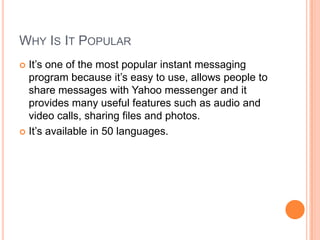
WHY IS IT POPULAR
 It’s one of the most popular instant messaging
  program because it’s easy to use, allows people to
  share messages with Yahoo messenger and it
  provides many useful features such as audio and
  video calls, sharing files and photos.
 It’s available in 50 languages.
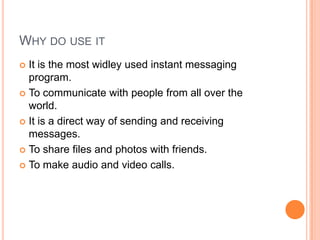
WHY DO USE IT
 It is the most widley used instant messaging
  program.
 To communicate with people from all over the
  world.
 It is a direct way of sending and receiving
  messages.
 To share files and photos with friends.

 To make audio and video calls.
HOW TO USE IT
Step 1
Get a free E-mail address preferably from Hotmail,
 by clicking Sign Up, and then Free. Fill out the
 form to create your E-mail Account. If you already
 have an email address and it is not a hotmail
 account, go to Microsoft Live Official Website, click
 Sign In, click Sign Up, and select the option that
 says "Yes, use my e-mail address." There, you can
 sign up for a Windows Live ID, which will allow you
 to use MSN Messenger. Keep checking your email
 account for an email sent from MSN used to
 activate your ID.
HOW TO USE IT
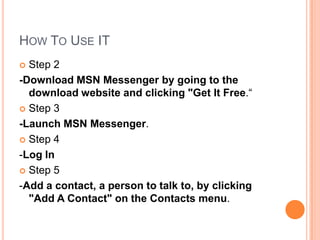
 Step 2
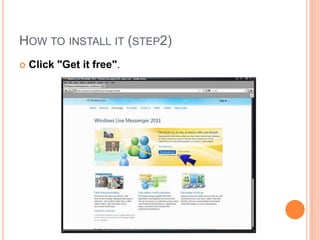
-Download MSN Messenger by going to the
  download website and clicking "Get It Free.“
 Step 3

-Launch MSN Messenger.
 Step 4

-Log In
 Step 5

-Add a contact, a person to talk to, by clicking
  "Add A Contact" on the Contacts menu.
HOW TO USE IT
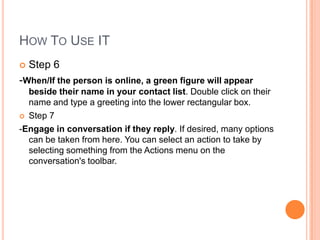
   Step 6
-When/If the person is online, a green figure will appear
  beside their name in your contact list. Double click on their
  name and type a greeting into the lower rectangular box.
 Step 7

-Engage in conversation if they reply. If desired, many options
  can be taken from here. You can select an action to take by
  selecting something from the Actions menu on the
  conversation's toolbar.
ADDITIONAL TIPS
   Create a cool name, personal message, and
    display picture for yourself by clicking Options on
    the Tools menu.

   If you have a web cam you can take a cool picture
    of you and use it as your display picture instead of
    the ready given ones
WARNING
 If someone tries to send you an unexpected or
  unusual file, ask them first. Even if you trust them,
  there is a good chance that the virus e-mailed itself
  to you without he/she being aware. Run a virus
  scan on the file you receive to make sure nothing
  nasty has snuck onto your computer. There are
  many viruses that are spread using MSN
  Messenger. These viruses usually send an
  automated message, along the lines of: Hey! Here's
  pics of me!", or similar.
 Never tell anyone your e-mail password under any
  circumstances.
HOW TO INSTALL IT (STEP1)
 Openthe Windows Live Messenger
 download page from their website.
HOW TO INSTALL IT (STEP2)
   Click "Get it free".
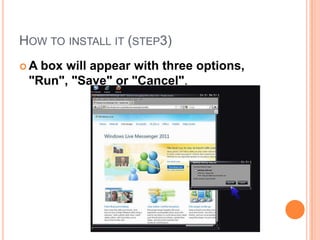
HOW TO INSTALL IT (STEP3)
A box will appear with three options,
 "Run", "Save" or "Cancel".
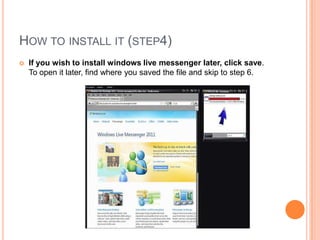
HOW TO INSTALL IT (STEP4)
   If you wish to install windows live messenger later, click save.
    To open it later, find where you saved the file and skip to step 6.
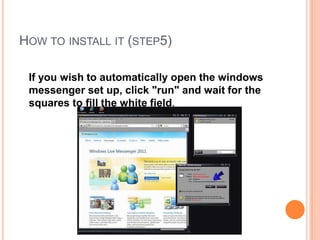
HOW TO INSTALL IT (STEP5)

 If you wish to automatically open the windows
 messenger set up, click "run" and wait for the
 squares to fill the white field.
HOW TO INSTALL IT (STEP6)
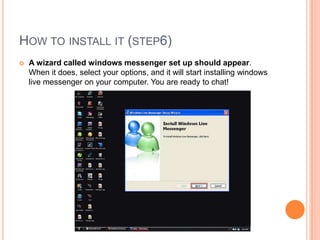
   A wizard called windows messenger set up should appear.
    When it does, select your options, and it will start installing windows
    live messenger on your computer. You are ready to chat!
FEATURES
   Sharing folders: Sharing Folders will be a new and simple
    way for you to share personal photos, documents, and files
    with your Messenger contacts. You will be able to create a
    Sharing Folder by simply dragging files onto a contact name
    in Messenger. This will create an exact copy of the files on
    both you and your contact's computers, and create a Sharing
    Folder that can be accessed from Messenger, and on the
    desktop. The Sharing Folders will work pretty much like the
    PC folder experience you already know, so it will make sense
    right away. Just like in Windows, you will be able to drag and
    drop, get different views of files, copy, paste, etc. You will be
    able to access a Sharing Folder from your desktop, to manage
    files whether online or offline. And a Sharing Folder requires
    virtually zero setup or configuration, and efficiently handles file
    synchronization without any fuss.
FEATURES
•   Voice calling: This feature will let users who sign up for
    Windows Live phone call (provided by a Microsoft
    partner) to easily call landline and mobile phones. You
    will be able to set up a Windows Live Call account
    through the Messenger interface and start making calls
    within minutes. You will be able to purchase minutes
    upfront, then add minutes when your balance runs low.
    One of the great things about this will be that you will be
    able to use it to make really affordable domestic and
    international calls. You will be able to make PC-to-PC
    calls for free, with no need to sign up for a Windows Live
    phone call account, so long as you and your Messenger
    contact both have compatible speakers and
    microphones (or headsets).
FEATURES
   Offline messaging: You will be able to send
    messages to your contacts even when they're
    offline. They will receive the message as soon as
    they sign in again.
FEATURES
•   Album Viewer: Windows Live Messenger's
    album viewer is based on Windows Live Photo
    Gallery and provides users a photo viewing
    experience for photo albums shared
    via Windows Live Skydrive and Facebook. The
    album viewer is interactive and supports full
    screen and slideshow modes, as well as
    viewing and uploading comments
    on Facebook and Windows Liv
    SkyDrive albums. It also supports people
    tagging for Windows Live SkyDrive. The album
    viewer closely resembles the Microsoft
    Silverlight counterpart for web photo albums
    present on Windows Live Photos.
FEATURES
   Games and applications: There are various
    games and applications available in Windows Live
    Messenger that can be accessed via the
    conversation window by clicking on the games
    icon, and challenging your friend or contact to a
    competition in a game, or inviting them to launch a
    shared external application.
BIBLIOGRAPHY
   How to download and install windows live messenger (2011)
    .Retrieved November 13, 2011 from WikiHow:
    http://www.wikihow.com/Download-and-Install-Windows-Live-
    Messenger

   Windows live messenger.(n.d). Retrieved November 13, 2011
    from Webopedia:
    http://www.webopedia.com/TERM/W/Windows_Live_Messeng
    er.html

   Windows live messenger.(n.d). Retrieved November 13, 2011
    from Wikipedia:
    http://en.wikipedia.org/wiki/Windows_Live_Messenger#Featur
    es

Windows live messenger version2

  • 1.
    WINDOWS LIVE MESSENGER FatimaSalem 201011056 Col 270-506 New Version
  • 2.
    INTRODUCTION • Windows Live Messenger is a type of instant messaging, it helps people to send and receive messages at the same time using computers or handhelds. • The texts goes through the network or the internet and the other client receives it immediately. • Advanced instant messaging allow people to communicate through audio calls and video calls.
  • 3.
    DEFINITION  Previously calledMSN Messenger, Microsoft's Windows Live Messenger is an advertisement- supported instant messaging service. It currently has more than 27 million active registered users worldwide. WLM offers file sharing, PC-to-PC calling, time-stamped messages, offline notifications and other features. In 2006, Microsoft and Yahoo announced an interoperability agreement which would allow users on either system to communicate with each other. WLM is available for the PC and mobile applications also.(webopedia)
  • 4.
    Microsoft company is the developer of this program and it was released in July 22, 1999; 12 years ago as MSN Messenger
  • 5.
    WHY IS ITPOPULAR  It’s one of the most popular instant messaging program because it’s easy to use, allows people to share messages with Yahoo messenger and it provides many useful features such as audio and video calls, sharing files and photos.  It’s available in 50 languages.
  • 6.
    WHY DO USEIT  It is the most widley used instant messaging program.  To communicate with people from all over the world.  It is a direct way of sending and receiving messages.  To share files and photos with friends.  To make audio and video calls.
  • 7.
    HOW TO USEIT Step 1 Get a free E-mail address preferably from Hotmail, by clicking Sign Up, and then Free. Fill out the form to create your E-mail Account. If you already have an email address and it is not a hotmail account, go to Microsoft Live Official Website, click Sign In, click Sign Up, and select the option that says "Yes, use my e-mail address." There, you can sign up for a Windows Live ID, which will allow you to use MSN Messenger. Keep checking your email account for an email sent from MSN used to activate your ID.
  • 8.
    HOW TO USEIT  Step 2 -Download MSN Messenger by going to the download website and clicking "Get It Free.“  Step 3 -Launch MSN Messenger.  Step 4 -Log In  Step 5 -Add a contact, a person to talk to, by clicking "Add A Contact" on the Contacts menu.
  • 9.
    HOW TO USEIT  Step 6 -When/If the person is online, a green figure will appear beside their name in your contact list. Double click on their name and type a greeting into the lower rectangular box.  Step 7 -Engage in conversation if they reply. If desired, many options can be taken from here. You can select an action to take by selecting something from the Actions menu on the conversation's toolbar.
  • 10.
    ADDITIONAL TIPS  Create a cool name, personal message, and display picture for yourself by clicking Options on the Tools menu.  If you have a web cam you can take a cool picture of you and use it as your display picture instead of the ready given ones
  • 11.
    WARNING  If someonetries to send you an unexpected or unusual file, ask them first. Even if you trust them, there is a good chance that the virus e-mailed itself to you without he/she being aware. Run a virus scan on the file you receive to make sure nothing nasty has snuck onto your computer. There are many viruses that are spread using MSN Messenger. These viruses usually send an automated message, along the lines of: Hey! Here's pics of me!", or similar.  Never tell anyone your e-mail password under any circumstances.
  • 12.
    HOW TO INSTALLIT (STEP1)  Openthe Windows Live Messenger download page from their website.
  • 13.
    HOW TO INSTALLIT (STEP2)  Click "Get it free".
  • 14.
    HOW TO INSTALLIT (STEP3) A box will appear with three options, "Run", "Save" or "Cancel".
  • 15.
    HOW TO INSTALLIT (STEP4)  If you wish to install windows live messenger later, click save. To open it later, find where you saved the file and skip to step 6.
  • 16.
    HOW TO INSTALLIT (STEP5) If you wish to automatically open the windows messenger set up, click "run" and wait for the squares to fill the white field.
  • 17.
    HOW TO INSTALLIT (STEP6)  A wizard called windows messenger set up should appear. When it does, select your options, and it will start installing windows live messenger on your computer. You are ready to chat!
  • 18.
    FEATURES  Sharing folders: Sharing Folders will be a new and simple way for you to share personal photos, documents, and files with your Messenger contacts. You will be able to create a Sharing Folder by simply dragging files onto a contact name in Messenger. This will create an exact copy of the files on both you and your contact's computers, and create a Sharing Folder that can be accessed from Messenger, and on the desktop. The Sharing Folders will work pretty much like the PC folder experience you already know, so it will make sense right away. Just like in Windows, you will be able to drag and drop, get different views of files, copy, paste, etc. You will be able to access a Sharing Folder from your desktop, to manage files whether online or offline. And a Sharing Folder requires virtually zero setup or configuration, and efficiently handles file synchronization without any fuss.
  • 19.
    FEATURES • Voice calling: This feature will let users who sign up for Windows Live phone call (provided by a Microsoft partner) to easily call landline and mobile phones. You will be able to set up a Windows Live Call account through the Messenger interface and start making calls within minutes. You will be able to purchase minutes upfront, then add minutes when your balance runs low. One of the great things about this will be that you will be able to use it to make really affordable domestic and international calls. You will be able to make PC-to-PC calls for free, with no need to sign up for a Windows Live phone call account, so long as you and your Messenger contact both have compatible speakers and microphones (or headsets).
  • 20.
    FEATURES  Offline messaging: You will be able to send messages to your contacts even when they're offline. They will receive the message as soon as they sign in again.
  • 21.
    FEATURES • Album Viewer: Windows Live Messenger's album viewer is based on Windows Live Photo Gallery and provides users a photo viewing experience for photo albums shared via Windows Live Skydrive and Facebook. The album viewer is interactive and supports full screen and slideshow modes, as well as viewing and uploading comments on Facebook and Windows Liv SkyDrive albums. It also supports people tagging for Windows Live SkyDrive. The album viewer closely resembles the Microsoft Silverlight counterpart for web photo albums present on Windows Live Photos.
  • 22.
    FEATURES  Games and applications: There are various games and applications available in Windows Live Messenger that can be accessed via the conversation window by clicking on the games icon, and challenging your friend or contact to a competition in a game, or inviting them to launch a shared external application.
  • 23.
    BIBLIOGRAPHY  How to download and install windows live messenger (2011) .Retrieved November 13, 2011 from WikiHow: http://www.wikihow.com/Download-and-Install-Windows-Live- Messenger  Windows live messenger.(n.d). Retrieved November 13, 2011 from Webopedia: http://www.webopedia.com/TERM/W/Windows_Live_Messeng er.html  Windows live messenger.(n.d). Retrieved November 13, 2011 from Wikipedia: http://en.wikipedia.org/wiki/Windows_Live_Messenger#Featur es