CSS By:
MuzamilAhmed & FaizanAhmed
Font Properties:
• Font - Family :
You can set what font will be displayed in an element.
• Example:
font-family:Verdana , sans-serif ;
• Font Size :
You can set the size of the text used in an element by using the font-
size property.
• Example:
font-size: value ;
• There are a lot of choices for values:
• xx-large
• x-large
• Larger
• Large
• Medium
• Small
• Smaller
• x-small
• xx-small
• Length
• % (percent)
• Font Style:
You can set the style of text in a element with the font-styleproperty
• Example:
font-style: value;
• Possible values are:
1. Normal
2. Itailc
3. Oblique
• Font Weight:
You can control the weight of text in an element with the font-weight
property:
• Example:
font-weight: value;
• Possible values are:
1. Lighter
2. Normal
3. 100 - 900
4. Bold
5. bolder
CSS Anchors, Links & pseudo Classes
• Below are the various ways you can use CSS to style links:
o a:link { color: #009900; }
o a:visited { color: #999999; }
o a:hover { color: #333333; }
o a:focus { color: #333333; }
o a:active { color: #009900; }
• Visited Link:
The first on the list sets the color of a link when no event is
occurring.
Example: a:visited {color: #999999;}
• Hover:
The second sets the color a link changes to, when the user has
already visited that url.
Example: a:hover {color: #333333;}
• Focus:
The third sets the color a link changes to as the user places their
mouse pointer over the link. ForTabbing.
Example: a:focus {color: #333333;}
• Active Link:
The color a link changes to as it is pressed.
Example: a:active {color: #009900;}
• Note: You must declare the a:link & a:visited before you declare a:hover.
Furthermore, you must declare a:hover before you can declare a:active.
CSS Backgrounds
• Background Attachment:
If you are using an image as a background.You can
set whether the background scrolls with the page or is fixed when the user
scrolls down the page with the background- attachment property.
• Example:
background-attachment: value;
• Values:
• Fixed
• Scroll
Background Image
• You can set an image for the background of an element using the
background- image property.
• Example:
background-image: url ( path_to_image );
background: url (img_tree.gif) , url(img_flwr.gif) ;
• Values:
o url
o none
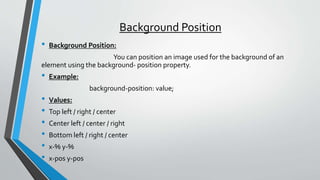
Background Position
• Background Position:
You can position an image used for the background of an
element using the background- position property.
• Example:
background-position: value;
• Values:
• Top left / right / center
• Center left / center / right
• Bottom left / right / center
• x-% y-%
• x-pos y-pos
Background Repeat
• Background Repeat:
You can set if an image set as a background of an
element is to repeat (across=x and/or down=y) the screen.
• Example:
background-repeat: value;
• Values:
• no-repeat
• Repeat
• repeat-x
• repeat-y
Background Size
• background-size:
• Background-size : 10px 30px ;
Short Hand Method
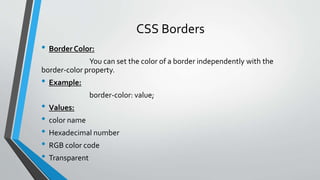
CSS Borders
• Border Color:
You can set the color of a border independently with the
border-color property.
• Example:
border-color: value;
• Values:
• color name
• Hexadecimal number
• RGB color code
• Transparent
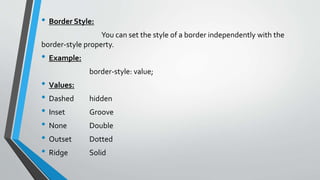
• Border Style:
You can set the style of a border independently with the
border-style property.
• Example:
border-style: value;
• Values:
• Dashed hidden
• Inset Groove
• None Double
• Outset Dotted
• Ridge Solid
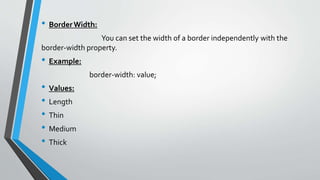
• BorderWidth:
You can set the width of a border independently with the
border-width property.
• Example:
border-width: value;
• Values:
• Length
• Thin
• Medium
• Thick
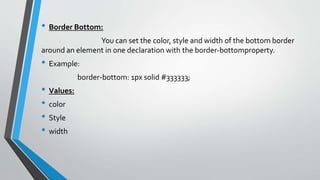
• Border Bottom:
You can set the color, style and width of the bottom border
around an element in one declaration with the border-bottomproperty.
• Example:
border-bottom: 1px solid #333333;
• Values:
• color
• Style
• width
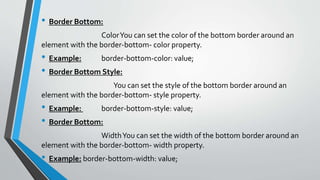
• Border Bottom:
ColorYou can set the color of the bottom border around an
element with the border-bottom- color property.
• Example: border-bottom-color: value;
• Border Bottom Style:
You can set the style of the bottom border around an
element with the border-bottom- style property.
• Example: border-bottom-style: value;
• Border Bottom:
WidthYou can set the width of the bottom border around an
element with the border-bottom- width property.
• Example: border-bottom-width: value;
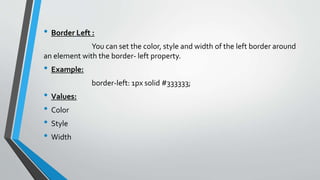
• Border Left :
You can set the color, style and width of the left border around
an element with the border- left property.
• Example:
border-left: 1px solid #333333;
• Values:
• Color
• Style
• Width
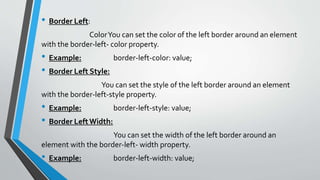
• Border Left:
ColorYou can set the color of the left border around an element
with the border-left- color property.
• Example: border-left-color: value;
• Border Left Style:
You can set the style of the left border around an element
with the border-left-style property.
• Example: border-left-style: value;
• Border LeftWidth:
You can set the width of the left border around an
element with the border-left- width property.
• Example: border-left-width: value;
• Border Right :
You can set the color, style and width of the right border
around an element in one declaration with the border-right property.
• Example:
border-right: 1px solid #333333;
• Values:
• Color
• Style
• width
• Border Right:
ColorYou can set the color of the right border around an
element with the border-right- color property.
• Example: border-right-color: value;
• Border Right:
StyleYou can set the style of the right border around an
element with the border-right- style property.
• Example: border-right-style: value;
• Border Right:
WidthYou can set the width of the right border around an
element with the border-right- width property.
• Example: border-right-width: value
• BorderTop:
You can set the color, style and width of the top border around
an element in one declaration with the border-top property.
• Example:
border-top: 1px solid #333333;
• Values:
• Color
• style
• width
• BorderTop:
ColorYou can set the color of the top border around an element
with the border-top- color property.
• Example: border-top-color: value;
• BorderTop:
StyleYou can set the style of the top border around an element
with the border-top- style property.
• Example: border-top-style: value;
• BorderTop:
WidthYou can set the width of the top border around an
element with the border-top- width property.
• Example: border-top-width: value;
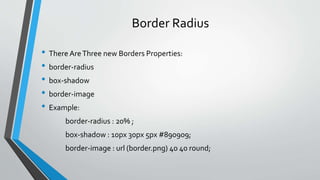
Border Radius
• There AreThree new Borders Properties:
• border-radius
• box-shadow
• border-image
• Example:
border-radius : 20% ;
box-shadow : 10px 30px 5px #890909;
border-image : url (border.png) 40 40 round;
More…
• border-bottom-left-radius:2em;
• border-bottom-right-radius:2em;
• border-bottom-style : dotted ;
• border-bottom-width:15px;
• border-bottom-color:#ff0000;
• border-color:#ff0000 #0000ff;
CSS By:
MuzamilAhmed & FaizanAhmed
mailtofaizanahmed@gmail.com
Facebook.com/pakifa

Css3

  • 1.
  • 2.
    Font Properties: • Font- Family : You can set what font will be displayed in an element. • Example: font-family:Verdana , sans-serif ;
  • 3.
    • Font Size: You can set the size of the text used in an element by using the font- size property. • Example: font-size: value ; • There are a lot of choices for values: • xx-large • x-large • Larger • Large • Medium • Small • Smaller • x-small • xx-small • Length • % (percent)
  • 4.
    • Font Style: Youcan set the style of text in a element with the font-styleproperty • Example: font-style: value; • Possible values are: 1. Normal 2. Itailc 3. Oblique
  • 5.
    • Font Weight: Youcan control the weight of text in an element with the font-weight property: • Example: font-weight: value; • Possible values are: 1. Lighter 2. Normal 3. 100 - 900 4. Bold 5. bolder
  • 6.
    CSS Anchors, Links& pseudo Classes • Below are the various ways you can use CSS to style links: o a:link { color: #009900; } o a:visited { color: #999999; } o a:hover { color: #333333; } o a:focus { color: #333333; } o a:active { color: #009900; }
  • 7.
    • Visited Link: Thefirst on the list sets the color of a link when no event is occurring. Example: a:visited {color: #999999;} • Hover: The second sets the color a link changes to, when the user has already visited that url. Example: a:hover {color: #333333;} • Focus: The third sets the color a link changes to as the user places their mouse pointer over the link. ForTabbing. Example: a:focus {color: #333333;}
  • 8.
    • Active Link: Thecolor a link changes to as it is pressed. Example: a:active {color: #009900;} • Note: You must declare the a:link & a:visited before you declare a:hover. Furthermore, you must declare a:hover before you can declare a:active.
  • 9.
    CSS Backgrounds • BackgroundAttachment: If you are using an image as a background.You can set whether the background scrolls with the page or is fixed when the user scrolls down the page with the background- attachment property. • Example: background-attachment: value; • Values: • Fixed • Scroll
  • 10.
    Background Image • Youcan set an image for the background of an element using the background- image property. • Example: background-image: url ( path_to_image ); background: url (img_tree.gif) , url(img_flwr.gif) ; • Values: o url o none
  • 11.
    Background Position • BackgroundPosition: You can position an image used for the background of an element using the background- position property. • Example: background-position: value; • Values: • Top left / right / center • Center left / center / right • Bottom left / right / center • x-% y-% • x-pos y-pos
  • 12.
    Background Repeat • BackgroundRepeat: You can set if an image set as a background of an element is to repeat (across=x and/or down=y) the screen. • Example: background-repeat: value; • Values: • no-repeat • Repeat • repeat-x • repeat-y
  • 13.
    Background Size • background-size: •Background-size : 10px 30px ;
  • 14.
  • 15.
    CSS Borders • BorderColor: You can set the color of a border independently with the border-color property. • Example: border-color: value; • Values: • color name • Hexadecimal number • RGB color code • Transparent
  • 16.
    • Border Style: Youcan set the style of a border independently with the border-style property. • Example: border-style: value; • Values: • Dashed hidden • Inset Groove • None Double • Outset Dotted • Ridge Solid
  • 17.
    • BorderWidth: You canset the width of a border independently with the border-width property. • Example: border-width: value; • Values: • Length • Thin • Medium • Thick
  • 18.
    • Border Bottom: Youcan set the color, style and width of the bottom border around an element in one declaration with the border-bottomproperty. • Example: border-bottom: 1px solid #333333; • Values: • color • Style • width
  • 19.
    • Border Bottom: ColorYoucan set the color of the bottom border around an element with the border-bottom- color property. • Example: border-bottom-color: value; • Border Bottom Style: You can set the style of the bottom border around an element with the border-bottom- style property. • Example: border-bottom-style: value; • Border Bottom: WidthYou can set the width of the bottom border around an element with the border-bottom- width property. • Example: border-bottom-width: value;
  • 20.
    • Border Left: You can set the color, style and width of the left border around an element with the border- left property. • Example: border-left: 1px solid #333333; • Values: • Color • Style • Width
  • 21.
    • Border Left: ColorYoucan set the color of the left border around an element with the border-left- color property. • Example: border-left-color: value; • Border Left Style: You can set the style of the left border around an element with the border-left-style property. • Example: border-left-style: value; • Border LeftWidth: You can set the width of the left border around an element with the border-left- width property. • Example: border-left-width: value;
  • 22.
    • Border Right: You can set the color, style and width of the right border around an element in one declaration with the border-right property. • Example: border-right: 1px solid #333333; • Values: • Color • Style • width
  • 23.
    • Border Right: ColorYoucan set the color of the right border around an element with the border-right- color property. • Example: border-right-color: value; • Border Right: StyleYou can set the style of the right border around an element with the border-right- style property. • Example: border-right-style: value; • Border Right: WidthYou can set the width of the right border around an element with the border-right- width property. • Example: border-right-width: value
  • 24.
    • BorderTop: You canset the color, style and width of the top border around an element in one declaration with the border-top property. • Example: border-top: 1px solid #333333; • Values: • Color • style • width
  • 25.
    • BorderTop: ColorYou canset the color of the top border around an element with the border-top- color property. • Example: border-top-color: value; • BorderTop: StyleYou can set the style of the top border around an element with the border-top- style property. • Example: border-top-style: value; • BorderTop: WidthYou can set the width of the top border around an element with the border-top- width property. • Example: border-top-width: value;
  • 26.
    Border Radius • ThereAreThree new Borders Properties: • border-radius • box-shadow • border-image • Example: border-radius : 20% ; box-shadow : 10px 30px 5px #890909; border-image : url (border.png) 40 40 round;
  • 27.
    More… • border-bottom-left-radius:2em; • border-bottom-right-radius:2em; •border-bottom-style : dotted ; • border-bottom-width:15px; • border-bottom-color:#ff0000; • border-color:#ff0000 #0000ff;
  • 28.
    CSS By: MuzamilAhmed &FaizanAhmed mailtofaizanahmed@gmail.com Facebook.com/pakifa