Creating Word Documents in
               GoogleDocs
Cloud and Collaborative Word Processing


                            By Emily Mross
Creating your document


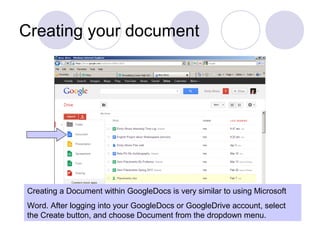
Creating a Document within GoogleDocs is very similar to using Microsoft
Word. After logging into your GoogleDocs or GoogleDrive account, select
the Create button, and choose Document from the dropdown menu.
Getting started


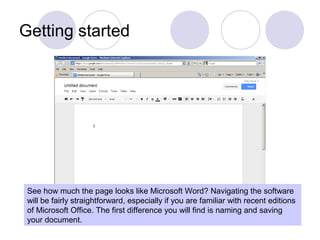
 See how much the page looks like Microsoft Word? Navigating the software
 will be fairly straightforward, especially if you are familiar with recent editions
 of Microsoft Office. The first difference you will find is naming and saving
 your document.
Naming and saving


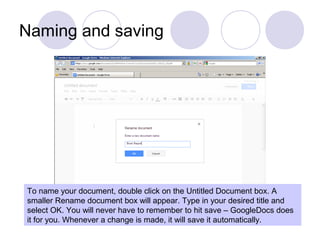
To name your document, double click on the Untitled Document box. A
smaller Rename document box will appear. Type in your desired title and
select OK. You will never have to remember to hit save – GoogleDocs does
it for you. Whenever a change is made, it will save it automatically.
Typing it out


 The default font, font size, and spacing is different on GoogleDocs than
 standard word. To change it to the traditional settings, there are a few
 buttons to use on the home screen. You can do this before you start typing,
 but if you’ve already added text, select it before you start making changes.
Changing the Font


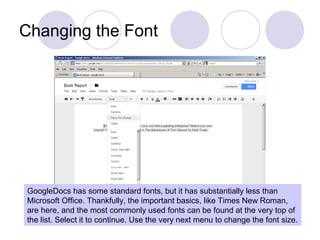
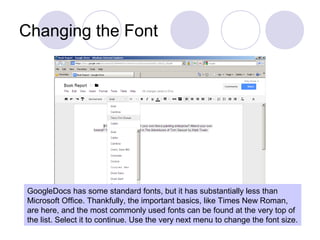
GoogleDocs has some standard fonts, but it has substantially less than
Microsoft Office. Thankfully, the important basics, like Times New Roman,
are here, and the most commonly used fonts can be found at the very top of
the list. Select it to continue. Use the very next menu to change the font size.
Changing the Font


GoogleDocs has some standard fonts, but it has substantially less than
Microsoft Office. Thankfully, the important basics, like Times New Roman,
are here, and the most commonly used fonts can be found at the very top of
the list. Select it to continue. Use the very next menu to change the font size.

Creating word documents in google docs

  • 1.
    Creating Word Documentsin GoogleDocs Cloud and Collaborative Word Processing By Emily Mross
  • 2.
    Creating your document Creatinga Document within GoogleDocs is very similar to using Microsoft Word. After logging into your GoogleDocs or GoogleDrive account, select the Create button, and choose Document from the dropdown menu.
  • 3.
    Getting started Seehow much the page looks like Microsoft Word? Navigating the software will be fairly straightforward, especially if you are familiar with recent editions of Microsoft Office. The first difference you will find is naming and saving your document.
  • 4.
    Naming and saving Toname your document, double click on the Untitled Document box. A smaller Rename document box will appear. Type in your desired title and select OK. You will never have to remember to hit save – GoogleDocs does it for you. Whenever a change is made, it will save it automatically.
  • 5.
    Typing it out The default font, font size, and spacing is different on GoogleDocs than standard word. To change it to the traditional settings, there are a few buttons to use on the home screen. You can do this before you start typing, but if you’ve already added text, select it before you start making changes.
  • 6.
    Changing the Font GoogleDocshas some standard fonts, but it has substantially less than Microsoft Office. Thankfully, the important basics, like Times New Roman, are here, and the most commonly used fonts can be found at the very top of the list. Select it to continue. Use the very next menu to change the font size.
  • 7.
    Changing the Font GoogleDocshas some standard fonts, but it has substantially less than Microsoft Office. Thankfully, the important basics, like Times New Roman, are here, and the most commonly used fonts can be found at the very top of the list. Select it to continue. Use the very next menu to change the font size.